
User Guide
LG 306G
MFL68006601 (1.0) www.lg.com
Guía del Usuario
LG 306G
Printed in China www.lg.com
ENGLISH
ESPAÑOL

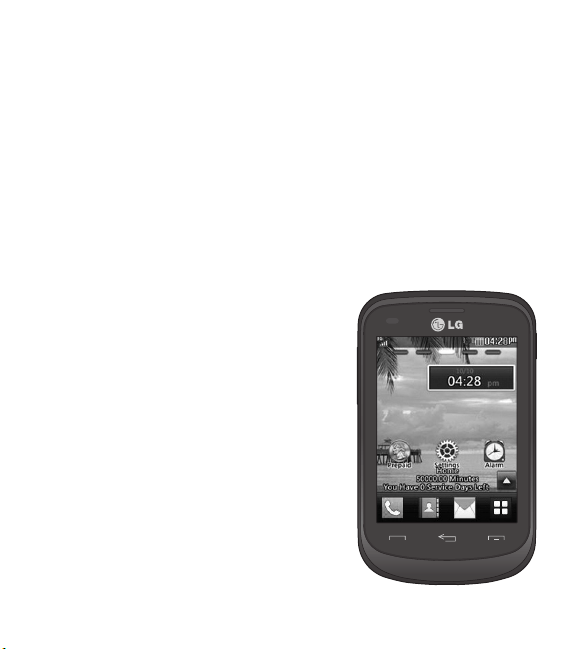
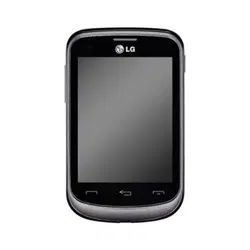
Congratulations on your purchase of the advanced and
compact LG306G phone by LG, designed to operate with the
latest digital mobile communication technology.
Some of the contents in this manual may differ from your phone
depending on the software of the phone or your service provider.
Copyright ©2014 LG Electronics, Inc.
All rights reserved. LG and the LG
logo are registered trademarks of LG
Group and its related entities. All other
trademarks are the property of their
respective owners.

2
Contents
Getting to know your phone ........... 4
Device components...........................4
Installing the SIM Card and
Battery ...................................................6
Charging your phone ......................10
Installing a memory card ................ 11
Icon Glossary ..................................... 13
Connecting to Networks and
Devices ............................................15
Connect to Wi-Fi .............................. 15
Connecting to Bluetooth Devices 16
General Functions ...........................17
Making a Call ......................................17
Answering a Call ...............................18
Adjusting the Volume ..................... 18
Setting Profiles .................................. 19
Entering Text ..................................... 20
Prepaid ...........................................25
Add Airtime ......................................25
Buy Airtime .......................................25
My Phone Number .........................25
My Airtime Info ................................25
Airtime Display .................................25
Serial Number .................................. 26
SIM Number ..................................... 26
In-Call Menu .................................. 27
During a Call ..................................... 27
Your Home Screen .........................29
Home Screen .................................... 31
Contacts .........................................35
Contact List .......................................35
Add New ............................................ 35
Groups ................................................ 36
Speed Dial ..........................................37
Messages ........................................ 39
Create Message ...............................39
Inbox ...................................................43
Drafts...................................................44
Outbox ................................................44
Message Settings............................45
Email ................................................... 47
Multimedia .....................................50
Games & Apps ................................50
Facebook............................................50
Camera ............................................... 50

3
Music Player ...................................55
Music Player ......................................55
Utilities............................................60
Audio ..................................................60
Pictures...............................................60
Video ...................................................60
Voice Recorder .................................. 61
Calendar .............................................62
Notepad .............................................63
Tasks....................................................64
Stopwatch .......................................... 65
Calculator ...........................................66
Tip Calculator ...................................66
Unit Converter ..................................66
Alarm ...................................................67
File Manager ..................................... 68
Browser ........................................... 70
Settings .......................................... 72
Display ................................................ 72
Phone...................................................73
Call ........................................................76
Touch ...................................................77
Accessibility ....................................77
Sound Settings ................................ 78
Bluetooth ...........................................80
Accessories ....................................84
For Your Safety ............................... 85
4
Getting to know your phone
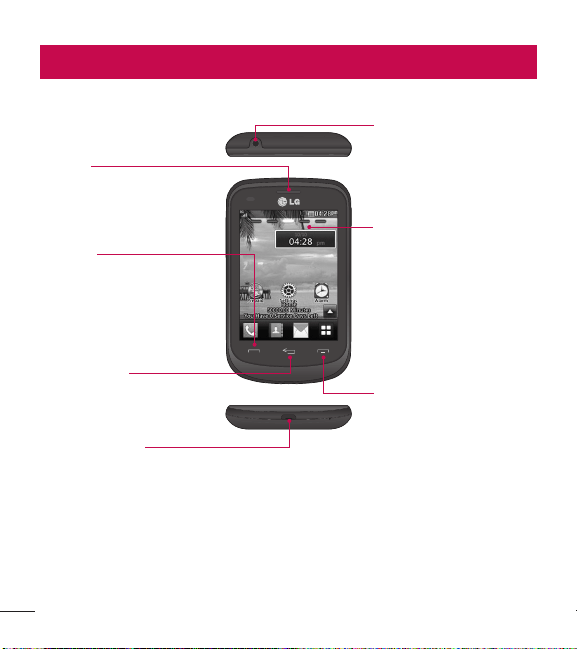
Device components
Home Screen
Displays phone status icons,
menu items, web items,
web information, pictures
and more in full color. You
can select menu items by
touching the corresponding
icons on the touchpad.
End Key
Ends or rejects a call. Touch
once to return to the Home
screen from any other
screen.
Clear/Back Key
Allows you to return to the
previous screen and delete
any text you have entered.
Charger/USB Port
3.5mm Headset Jack
Earpiece
Lets you hear the caller and
automated prompts.
Send Key
Touch this key in standby
mode to quickly access the
most recent missed, dialed
and received
calls.
5
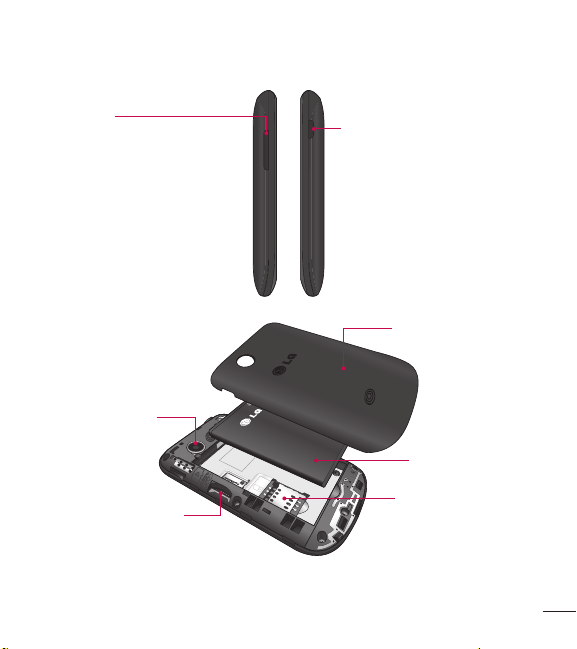
Volume Keys
• On the Home screen: Allows
you to set the Ringtone volume.
Hold the Volume Down Key to
toggle the Vibration Mode On
and Off.
• During a call: Allows you to
change the Earpiece volume.
• When playing music: Allows you
to change the music volume.
Power/Lock Key
• Powers your phone on/off by
pressing and holding the key.
• Turns your screen on and off
and locks it.
Back Cover
Camera Lens
microSD™ Card Slot
Battery
SIM Card Slot
6
Getting to know your phone
Installing the SIM Card and Battery
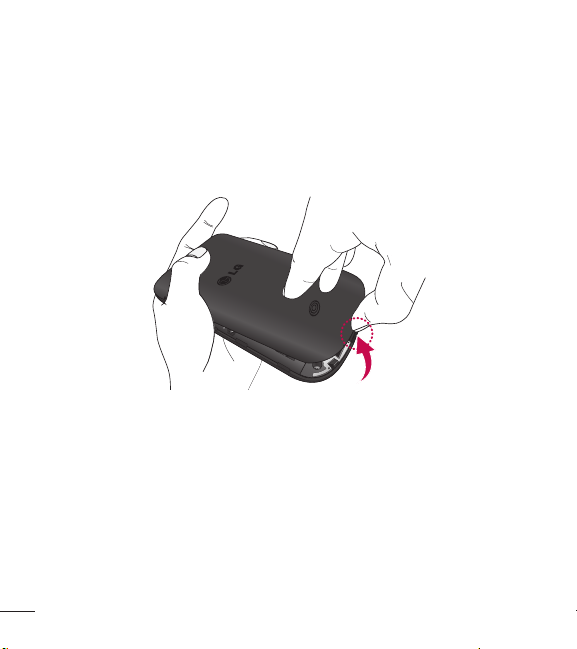
Remove the back cover
Hold the phone on your hand firmly. With the other hand, lift the back
cover using the fingertip cutout located at the bottom.
7
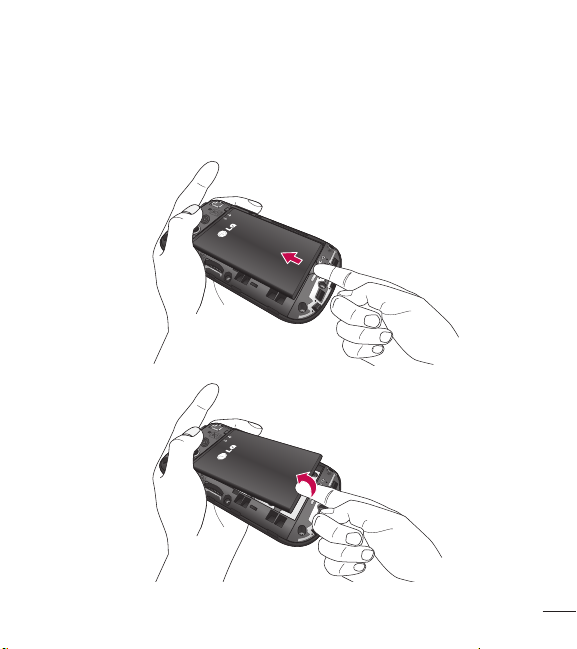
Remove the battery
Use the fingertip cutout at the bottom of the battery compartment to lift
the battery out.
8
Getting to know your phone
WARNING
Do not remove the battery when the phone is switched on, as this may
damage the phone.
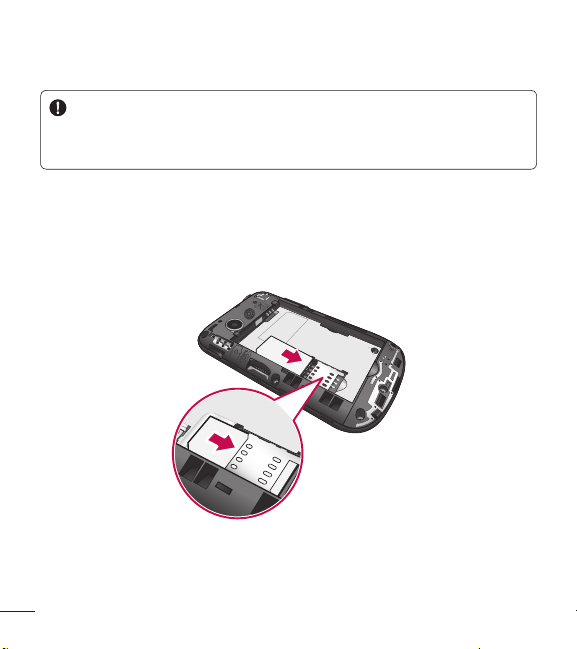
Install the SIM card
Slide the SIM card into the SIM card slot. Make sure that the gold contact
area on the card is facing downward. To remove the SIM card, pull it
gently in the opposite direction.
9
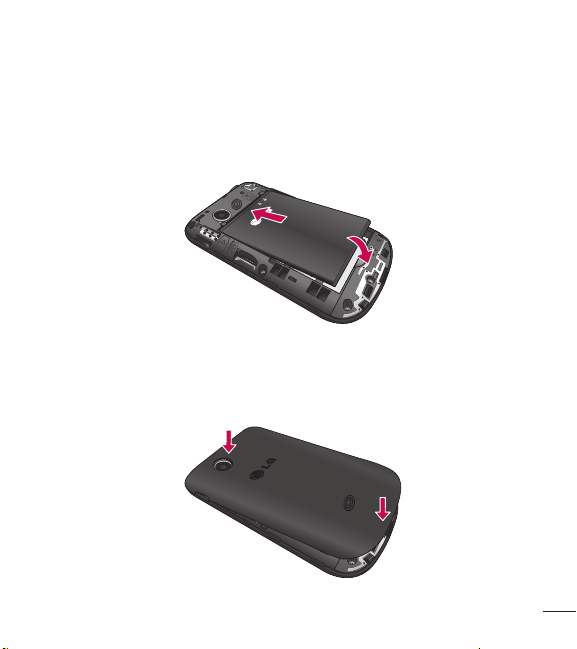
Install the battery
Insert the top of the battery first into the top edge of the battery
compartment. Ensure that the battery contacts align with the terminals on
the phone. Press the bottom of the battery down until it clicks into place.
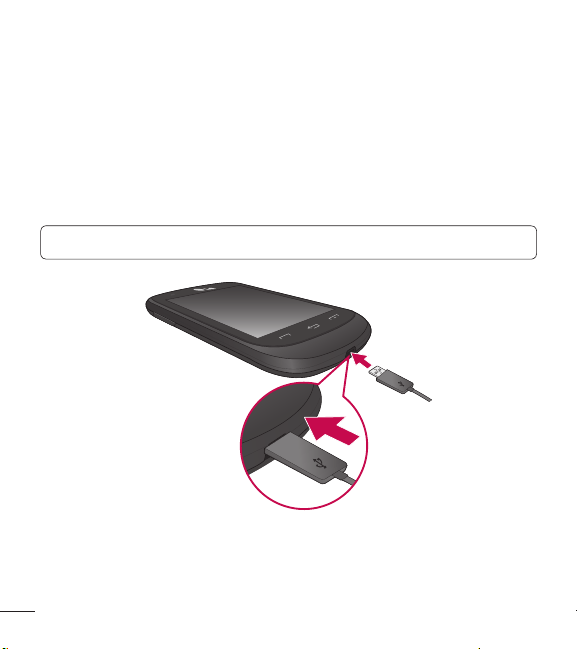
Install the back cover
Align the back cover over the battery compartment and press it down
until it clicks into place.
10
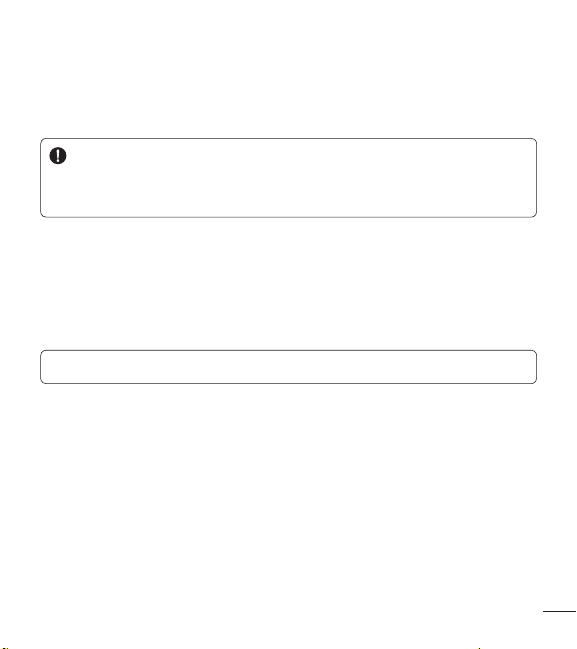
Charging your phone
Locate the Charger/USB Port at the bottom of your phone. Insert the
charger connector to the phone (ensure that the USB icon on the
connector is facing up) and then plug the other end into the wall socket.
Your phone will need to be charged until you receive a ‘Battery Full’
notification.
Important! You should insert the battery before charging.
Getting to know your phone
11
NOTE: Always unplug the charger from the wall socket after the phone is
fully charged.
WARNING
Use of unauthorized accessories could damage your phone and void
your warranty.
Installing a memory card
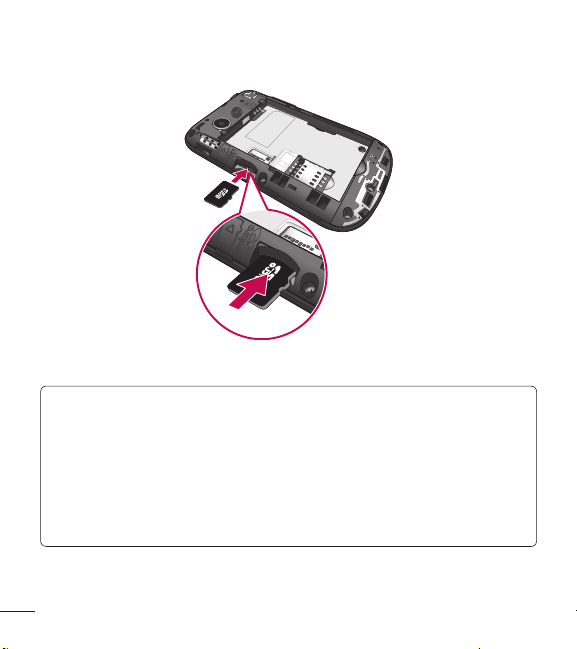
You can expand the available memory space on your phone by using a
microSD™ memory card. Your phone supports up to a 32 GB microSD™
memory card.
Note: A 4 GB microSD
TM
memory card is included with your phone.
1. Remove the back cover and locate the microSD
TM
card slot.
2. Gently insert the microSD
TM
card with the gold contact area facing
downwards.
12
3. Replace the back cover.
NOTE: If your memory card has existing content it will automatically
be filed in the correct folder. For example, videos will be accessible
from the Videos folder. If your memory card has protected content (i.e.
content such as songs or graphics with Digital Rights Management
copywriting loaded from another device), they will not be accessible.
You may need to reformat the memory card prior to using it with this
device.
Getting to know your phone
13
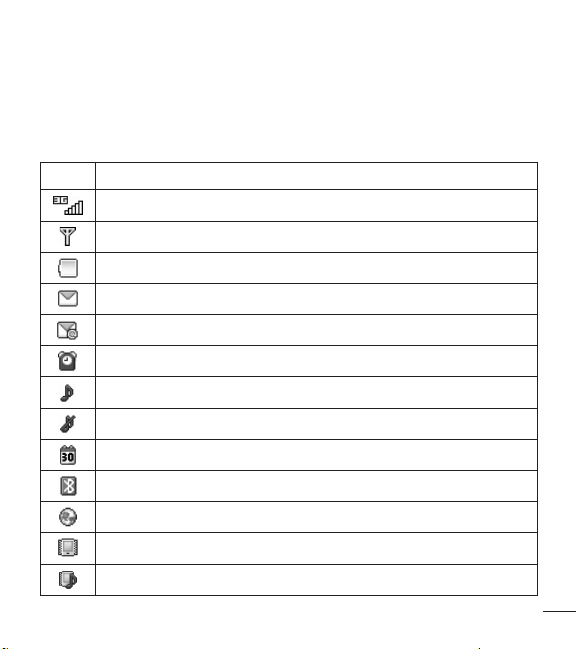
Icon Glossary
The table below describes various display indicators or icons that appear
on the phone’s display screen.
Icon Description
Network signal strength (number of bars will vary)
No network signal
Battery empty
New text message
New email
An alarm is set
Ring profile in use
Silent profile in use
Calendar event with Alarm is set
Bluetooth is active
The browser is active
Vibration mode
Ring after Vibration mode
14
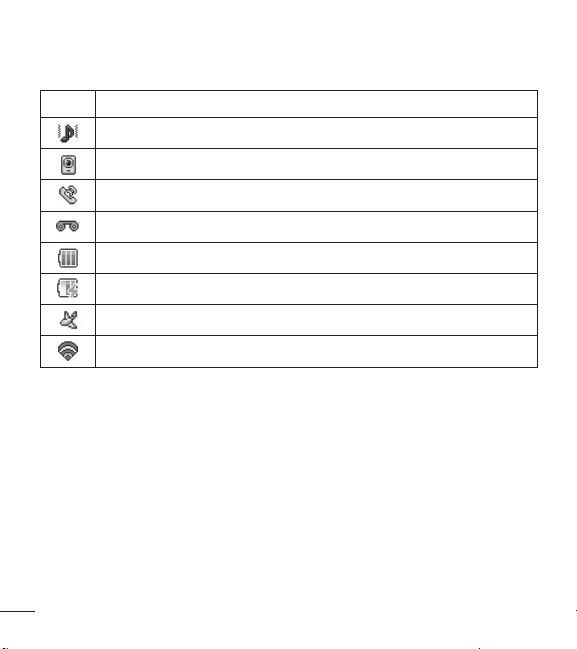
Getting to know your phone
Icon Description
Ring and Vibration mode
Speakerphone
Call in Progress
Voicemail
Battery Full
Battery Charging
Airplane Mode
Wi-Fi is connected
15
With Wi-Fi, you can use high-speed Internet access within the coverage
of the wireless access point (AP).
Enjoy wireless Internet using Wi-Fi, without extra charges.
Connect to Wi-Fi
1. From the Home screen, touch , then swipe the screen to the left and
touch .
2. Drag to the right to turn on Wi-Fi to connect to available Wi-Fi
networks.
3. Choose the Wi-Fi network you want to connect to. If you see , you
need to enter a password to connect.
NOTE
• If you are outside the Wi-Fi coverage area and choose 3G
connection, additional charges may apply.
• If your phone goes into sleep mode when connected to Wi-Fi, the
Wi-Fi connection is automatically disabled.
• In this case, if your phone has access to 3G data, it may connect to
the 3G network automatically and additional charges may apply.
• Your phone supports WEP, WPA/WPA2-PSK security.
• If your Wi-Fi service provider or network administrator sets encryption
for network security, enter the key into the pop-up window. If
encryption is not set, this pop-up window is not shown. Obtain the
key from your Wi-Fi service provider or network administrator.
Connecting to Networks and Devices

16
Connecting to Networks and Devices
Connecting to Bluetooth Devices
To turn Bluetooth on or off
1. From the Home screen, touch , then swipe the screen to the left and
touch .
2. Drag to the right or left to turn the function on or off.
Pairing with a Bluetooth device
1. Access the Bluetooth menu and turn the Bluetooth function on.
2. Touch Search New Device.
3. Touch the device you want to pair with.
4. Depending on the type of device you will have to enter a passcode,
verify matching passcodes, or the device will pair automatically.
Changing your phone’s name
1. Access the Bluetooth menu and turn the Bluetooth function on.
2. Touch My Bluetooth Info, then touch My Device Name.
3. Enter the desired name and touch Set.
Making your phone visible to other devices
1. Access the Bluetooth menu and turn the Bluetooth function on.
2. Touch My Bluetooth Info, then touch My Device Visibility.
3. Set the desired option.
17
Making a Call
1. Make sure your phone is powered on.
2. Touch and enter a phone number using the dial pad. Toedit a
number, simply touch to erase one digit at a time.
Ƭ Touch and hold to erase the entire number.
3. Touch the Send Key to call the number. Or touch on the
touch pad.
Dialing a Number from your Recent Calls
1. Touch the Send Key and the most recent missed, dialed and
received phone calls will be displayed.
2. Select the desired number.
3. Touch the Send Key or touch
Call Back
.
Making International Calls
1. When using the dial pad, touch and hold .
2. Enter the country code, area code and the phone number.
3. Touch the Send Key to call the number. Or touch .
Ending a Call
When you have finished a call, touch the End Key .
General Functions
18
General Functions
Making a Call from the Contacts
You can store frequently called names and phone numbers in the SIM
card as well as in your Contacts.
You can dial a number by simply selecting a name in the Contacts List
and touching the Send Key .
Answering a Call
When you receive a call, the phone rings and the phone icon appears on
the screen. If the caller can be identified, the caller’s phone number (or
name if stored in your Contacts) is displayed.
1. Touch the Send Key , touch , or swipe in any direction.
If Any Key has been set as the Answer Mode, you can also use the
Clear/Back Key to answer a call. However, the End Key ,
Volume Keys and Power/Lock Key cannot be used to answer a call.
2. End the call by touching the End Key . To decline a call, you can
touch or swipe in any direction.
NOTE: You can answer a call while using other functions or features.
Adjusting the Volume
If you want to adjust the earpiece volume during a call, use the Volume
Keys of the phone. From the Home screen, you can adjust the ring
volume using the Volume Keys.
19
Setting Profiles
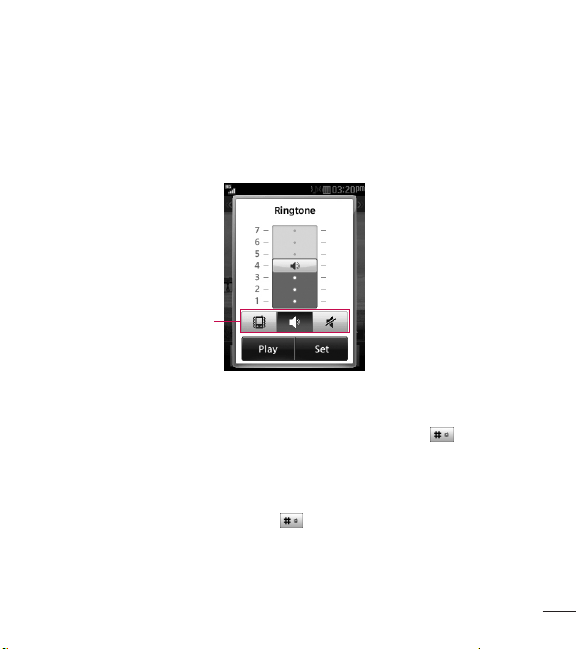
Press either of the Volume Keys to set a sound profile. You can adjust the
ringtone volume from the Ringtone section and set your ringtone profile
to Ring, Vibrate All, or Silent All.
Profiles
Vibration Mode (Quick)
Vibration Mode can be activated by touching and holding on the dial
pad. You can also set Vibration Mode by pressing and holding the Volume
Down Key from the Home screen.
The phone will display ‘Vibrating Mode On’. If you would like to turn
Vibration mode off, touch and hold again or press and hold the
Volume Down Key.

20
General Functions
Signal Strength
If you are inside a building, being near a window may give you better
reception. You can see the strength of your signal by the signal indicator
on your phone’s display screen.
Entering Text
You can enter alphanumeric characters by using the phone’s touch pad.
The following text input modes are available on the phone.
Changing Between Letters and Symbols/Numbers Mode
You can change the text input mode by touching and on the
keyboard.
Letters Mode
This mode allows you to enter letters by touching the key labeled with
the required letter until the letter is displayed, depending on your input
method settings. To change the input method, touch , then select
Input Method and choose from Keyboard or Keypad.
Symbols/Numbers Mode
This mode allows you to enter symbols and numbers. To change to
symbols/numbers mode in a text entry field, touch .
21
Using the T9 Predictive Text Input Mode
The T9 predictive text input mode allows you to enter words easily with
a minimum number of key presses. As you touch each key, the phone
begins to display the characters that it thinks you are typing based on a
built-in dictionary. As new letters are added, the word changes to reflect
the most likely candidate from the dictionary.
1. When you are in the T9 predictive text input mode, begin entering a
word using the keypad. Touch one key per letter.
Ƭ To enable the T9 predictive text input mode, touch > Text Entry
Settings > Show Next Word.
Ƭ The word changes as letters are typed- ignore what is displayed on
the screen until the word is typed completely.
Ƭ If the word is still incorrect after typing completely, touch to see
the available options. Then select the word you want.
(To display the word candidates, first you need to select the
Show Candidate option. Touch > Text Entry Settings > Show
Candidate.)
Ƭ If the desired word is missing from the word choices list, add it by
touching and selecting to enter the new word. Then
touch Save to save the word into the built-in dictionary.
2. Enter the whole word before editing or deleting any letters.
3. Complete each word with a space by touching .
22
General Functions
To delete letters, touch . Touch and hold to erase the entire text
entry.
NOTE: Touching the End Key will save your unsaved message in
the Drafts folder.
Using the ABC Mode
Use the touch pad keys to enter your text.
1. Touch the touch key labeled with the required letter, depending on your
input method settings. To change the input method, touch , then
select Input Method and choose from Keyboard or Keypad.
Ƭ Using the Keypad, touch the desired letter until the letter is
displayed.
Ƭ Using the Keyboard, hold the phone horizontally and touch the
desired letters.
2. To insert a space, touch . To delete letters, touch . Touch
and hold to erase the entire text entry.
NOTE: Refer to the table below for more information on the characters
available using the Keypad input method.

23
Available characters using Keypad
Key
Characters in order displayed
Upper Case Lower Case
1 . , ‘ @ ? ! - : / 1 . , ‘ @ ? ! - : / 1
2 A B C 2 a b c 2
3 D E F 3 d e f 3
4 G H I 4 g h i 4
5 J K L 5 j k l 5
6 M N O 6 m n o 6
7 P Q R S 7 p q r s 7
8 T U V 8 t u v 8
9 W X Y Z 9 w x y z 9
0 Space Key, 0 (Long press) Space Key, 0 (Long press)
24
General Functions
My Dictionary
The My Dictionary feature allows the user to add any unique or personal
words to the standard language database. My Dictionary can be selected
by touching and selecting Text Entry Settings. Within the My
Dictionary function, the user can add, modify, delete or reset personal
words.
NOTE: You can select a different language from the same Options
menu. By default, entry modes are set to off.
25
For prepaid services, this menu provides shortcut access to the following
items among others:
Add Airtime
Allows you to add airtime.
1. From the Home screen, touch > .
2. Enter airtime PIN and touch .
3. Read the displayed message, then select Yes or No.
Buy Airtime
You can choose 4 types of Airtime.
My Phone Number
Allows you to view the device’s phone number.
My Airtime (Balance) Info
Allows you to check your minutes, messages, data, and service end date.
Airtime Display
Allows you to select if you want to display the Balance and/or Service End
Date on the Home screen.
Prepaid

26
Prepaid
Serial Number
Serial Number simply displays the information of your phone’s IMEI.
SIM Number
This menu simply displays the information of your phone’s Sim Number.
27
Your phone provides a number of control functions that you can use
during a call. To access these functions during a call, touch .
During a Call
Making a Second Call
You can select a number you wish to dial, to make a second call.
Touch
Dialpad
, enter the second phone number and touch .
or
Touch
Contacts
to select a contact from your Contacts list and then touch .
Swapping Between Two Calls
Once the second call has been dialed (and answered), you can switch
between the two on-going calls.
Touch the Send Key or touch .
Answering an Incoming Call
To answer an incoming call when the handset is ringing, simply touch the
Send Key or touch . The handset is also able to warn you of
an incoming call while you are already on a call. Two tones will sound in
the earpiece, and the display will show that a second call is waiting. This
feature, known as Call Waiting, is only available if your network supports it.
If Call Waiting is turned on, you can put the first call on hold and answer
the second call by touching the Send Key .
In-Call Menu
28
Rejecting an Incoming Call
You can reject an incoming call without answering by simply touching the
End Key or touching .
Muting the Microphone
You can mute the microphone during a call by touching . The
handset can be unmuted by touching again. When the handset is
muted, the caller cannot hear you, but you can still hear the caller.
Using the Speakerphone
You can use the integrated Speakerphone during a call by touching .
The loudspeaker is automatically deactivated when you end the call.
WARNING
Due to increased volume levels, do not place the phone near your ear
while the speakerphone is enabled.
In-Call Menu

29
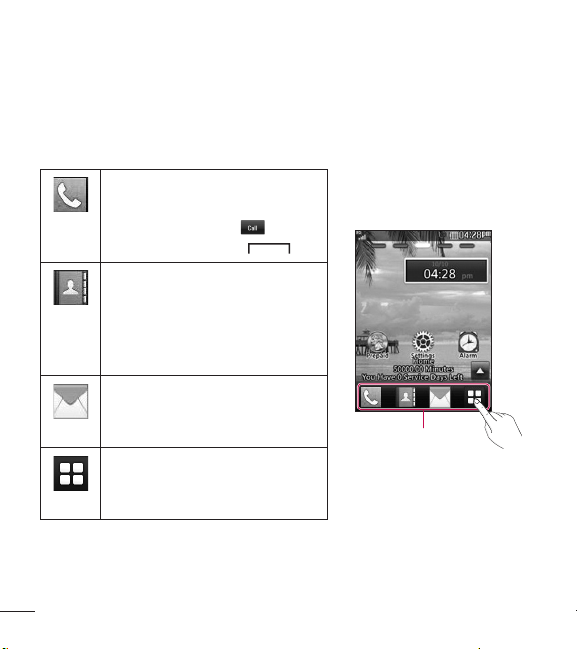
From the Home screen, you can access all menu options, make a quick
call and view the status of your phone - as well as many other things.
Touch Screen Tips
Ƭ The Home screen is also a great place to get accustomed to the touch
screen.
Ƭ To select an item, touch the icon accurately.
Ƭ To scroll through lists, touch the last item visible and slide your finger
up the screen. The list will move up so more items are visible.
Ƭ There’s no need to press hard, the touchscreen is sensitive enough to
pick up on a light yet firm touch.
Ƭ Use the tip of your finger to touch the desired option. Do not use your
fingernail.
Ƭ When the screen light is off, press the Power/Lock Key on the
top side once to turn it on.
Ƭ Don’t cover the phone with a case or cover as the touch screen will not
work with any material covering it.
Your Home Screen
30
Your Home Screen
The Quick Keys
The Quick Keys on your Home screen provide easy, one-touch access to
your most used functions.
Touch to bring up the dial
pad to make a call. Enter the
number and touch or
touch the Send Key .
Quick Keys
Touch to open your contacts
and search for the number
you want to call. You can also
create new contacts and edit
existing ones.
Touch to access the Messages
menu. From here you can view
and create messages.
Touch to open the main menu.
Swipe the screen to the left or
right to view additional options.
31
Home Screen
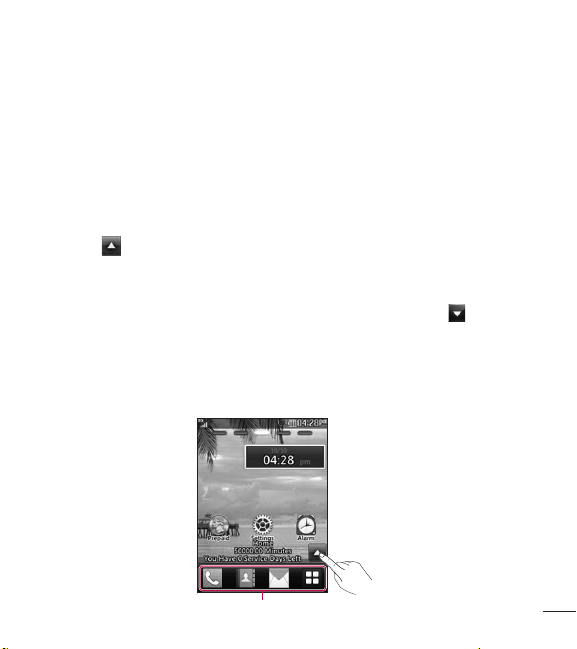
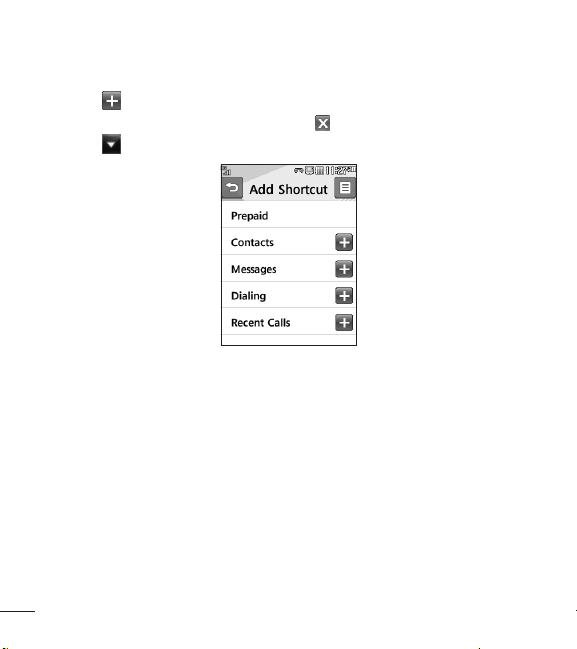
Your phone provides five Home screen panels. To view the Home screen
panels, just swipe the screen from left to right and vice versa.
Widget
You can use Widgets and even add them to your Home screen for a
personalized feel.
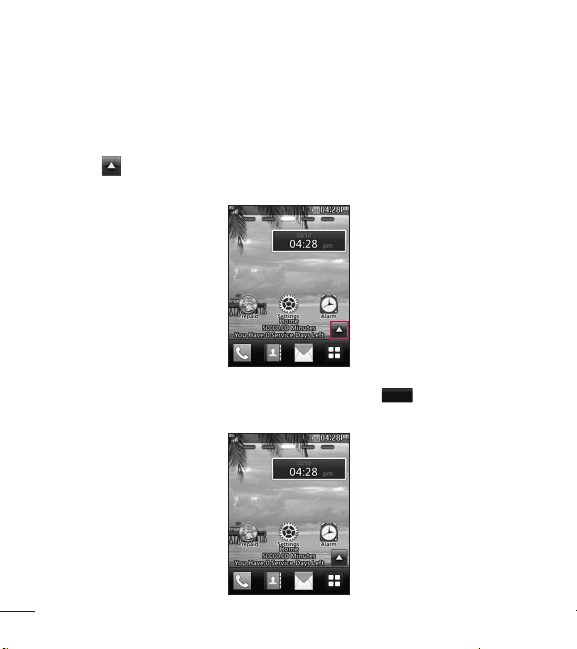
1. Touch at the bottom right corner of the Home screen to view the
available options.
2. Touch the Widget button.
3. Drag a widget from the widget panel to the screen. Touch to close
the widget panel.
Ƭ You can play songs, add memos, check the calendar, play a slide show,
set an alarm, set second city or add calendar events directly from the
Home screen using the available widgets.
Widget panel
32
Your Home Screen
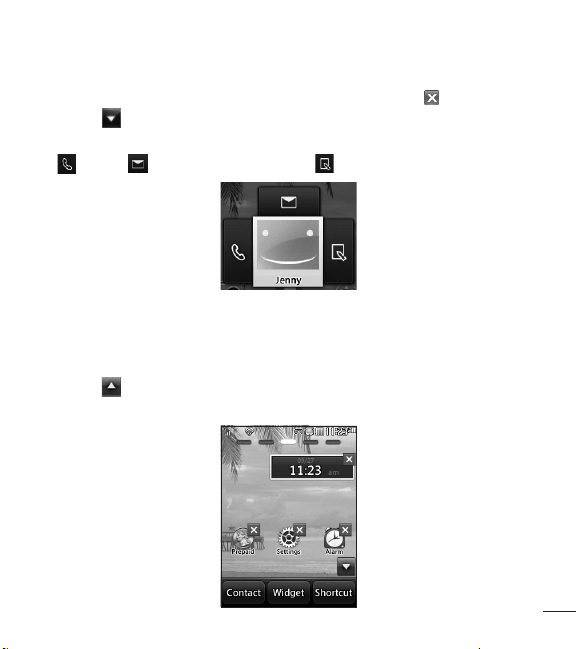
Favorite Contacts
Allows you to easily contact your friends and family by displaying your
favorite contacts on the Home screen.
1. Touch at the bottom right corner of the Home screen, then touch
the Contact button.
2. Touch the contacts you want to add, then touch
Add
to register your
favorite contacts.
33
Ƭ If you want to delete a contact from this screen, touch .
3. Touch to finish editing the Contacts on this screen.
Ƭ To access your Contacts, simply touch their corresponding icon. Touch
to call, to send a message and to edit contact information.
Shortcuts
Add your favorite menus on the Home screen.
1. Touch at the bottom right corner of the Home screen, then touch
the Shortcut button.
34
Your Home Screen
2. Touch next to the desired shortcut to add it to the Home screen.
Ƭ If you want to delete a shortcut, touch .
3. Touch to finish editing the shortcuts on this screen.
35
From the Home screen, touch to open your Contacts list.
Contact List
This menu allows you to save and manage contact information. You can
add a new address or search saved contacts by name. To search for a
contact, touch and enter the contact’s name. If you enter ‘At’, it will
show all contacts beginning with ‘At’ in their names.
Ƭ : Search a contact.
Ƭ : Allows you to quickly jump to a contact name starting with a
specific letter.
Add New
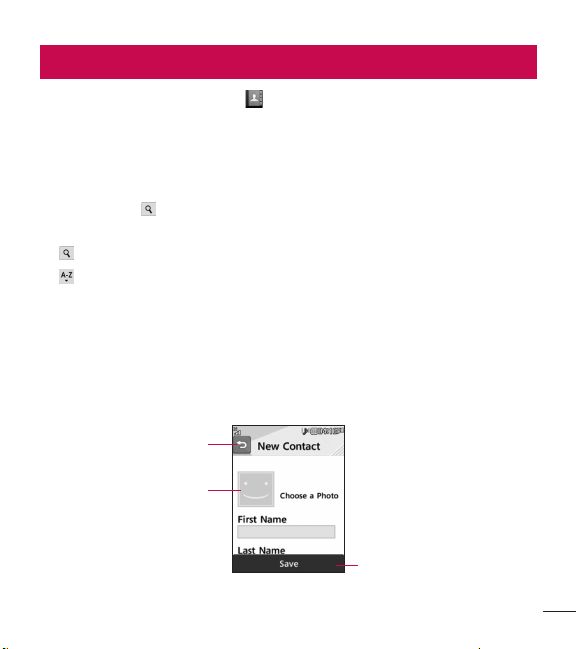
This option allows you to add a new contact. You can enter contact
information, including name, phone numbers, email addresses, group
information, pictures, ringtone, memo and etc.
Touch here to go back
to previous screen.
Touch here to save.
Touch here to add a
photo
Contacts

36
Contacts
1. From the Home screen, touch and touch Add New.
2. Touch to set a Picture ID for a contact by using a saved picture
or taking a new picture. Choose from No Picture, Pictures or Take
New Picture. After you take a new picture, touch to set it as the
Contact Picture ID.
Ƭ Enter the first name, last name or both.
Ƭ Enter a phone number. Touch so you can set that number as a
Speed Dial. For more information, see the “Speed Dial” section.
Ƭ Enter an email address.
Ƭ Select a Group for the contact.
Ƭ Set the ringtone for the contact or leave it as the default ringtone.
Ƭ Add a memo if necessary.
Ƭ Choose whether to save the contact to Phone or SIM Card memory.
3. Touch Save to save the contact.
Groups
This menu allows you to manage group information. You can also
configure a ringtone for a phone group with the exception of a SIM group
so that the group ringtone sounds when a call from a specific contact
address within that group is received and there is no ringtone configured
for the specific contact address.
1. From the Home screen, touch and touch .
2. A drop-down menu will appear. Touch Groups.
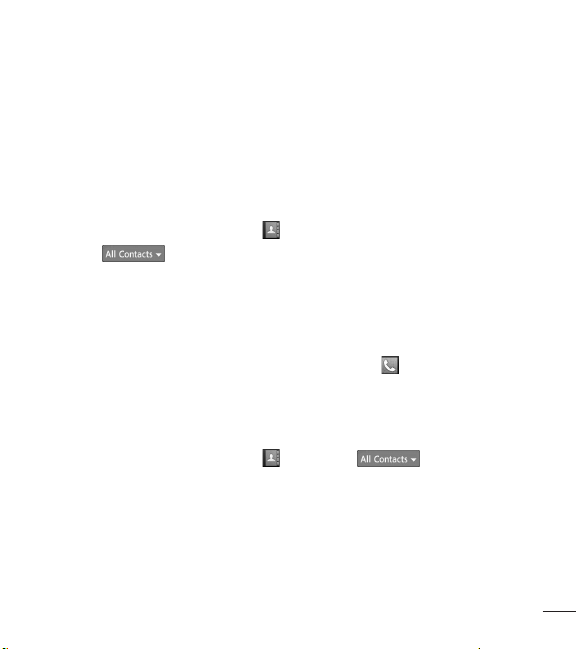
37
3. Touch New Group to create a new group. Or touch an existing group,
then touch Add Member to add contacts to that group.
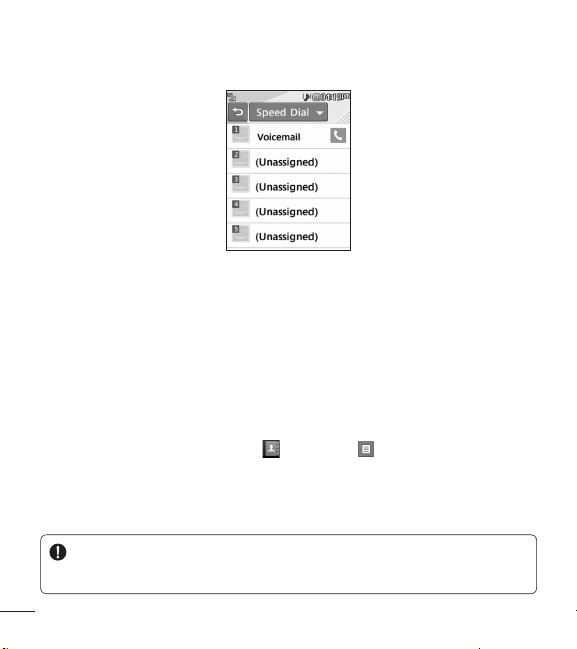
Speed Dial
You can assign a frequently-called contact to a speed dial list. You can
select a number from 2to 9 as a speed dial.
1. From the Home screen, touch .
2. Touch > Speed Dial.
3. Touch the desired Speed Dial location from 2 through 9 and select the
contact.
Ƭ Your Voicemail is already set to speed dial 1. This is a default setting
and cannot be changed.
Ƭ To call an assigned speed dial number, touch from the Home
screen. Then touch and hold the assigned number; the call will be
placed to the assigned number automatically.
To see your Speed Dial entries:
1. From the Home screen, touch and touch .
2. A drop-down menu will appear. Touch Speed Dial.
38
Contacts
SIM Management
This menu allows you to copy contacts from your SIM card to your
handset. If a name is duplicated during the copying operation, the
information is also duplicated.
You can also copy entries from the SIM card to the phone memory and
vice versa (not all the data will be copied).
From this menu, you are also able to delete entries in the SIM card.
1. From the Home screen, touch and touch .
2. A drop-down menu will appear. Touch SIM Management.
3. Choose from the following options: Copy Contacts to SIM, Copy
Contacts From SIM, and Delete Contacts From SIM.
WARNING
Changing your phone number can cause usability problems.
39
This section includes functions related to text (SMS, Short Message
Service) and multimedia (MMS, Multimedia Message Service) messages,
Voicemail as well as the network’s service messages.
Create Message
1. From the Home screen, touch .
2. Touch .
Editing a message
The following options are available when editing a message.
Ƭ Symbol: You can insert symbols ranging from punctuation to
emoticons. Touch twice to select the symbols you want. You can
touch and to scroll through the various pages of symbols.
Inserting Multimedia Files
Inserting multimedia files in outgoing messages is easy. While editing a
message, touch and select an option from below:
Ƭ Picture: Allows you to insert a picture.
Ƭ Audio: Allows you to insert audio files.
Ƭ Video: Allows you to insert video clips.
Ƭ Slide: Allows you to insert another slide.
Ƭ Take New Picture: Allows you to insert a new image taken from the
camera.
Messages
40
Messages
Ƭ Record New Audio: Allows you to record a new audio clip.
• Recording mode: MMS mode will limit the recording length so that it
can be sent by MMS. General mode will record as long as memory
is available.
• Quality: Allows you to select between Normal, Economy or Fine.
• Storage: Allows you to save the recording to External memory or
Phone memory.
Ƭ Record New Video: Allows you to record a new video.
Ƭ More: Allows you to insert Template, vCard, vCalendar, vNote, vTask or
Contact.
NOTE: vCard, vCalendar, vNote, vTask and Contact are created
by Contacts, Calendar, Notepad and Tasks functions. Go to the
corresponding sections for more detailed information.
Using Options
While entering a text message, touch to use the options below.
• Input Method: Allows you to select between Keypad and Keyboard.
• Text Entry Settings
– Languages: Allows you to set the text entry language to English or
Español.
– Show/Hide Candidate: Allows you to display suggested words when
using T9 mode.

41
– Show/Hide Next Word: Allows the phone to predict what the next
word you will enter is, using previously entered words.
– My Dictionary: Allows you to add, edit, and delete words from your
personalized dictionary.
• Copy & Paste: Allows you to copy and paste text.
• Cancel Message: Allows you to exit the message without saving it.
If you complete input a message, touch button. Then, touch to
choose an option from below.
• Save to Drafts: Saves the selected message to Drafts.
Sending a Message
After completing a message, touch Send To to select recipients.
• Select the recipient(s). Touch to choose an option from below.
– Enter Number: Allows you to enter a phone number.
– Enter Email: Allows you to enter an Email address instead of a phone
number.
– Enter Recipient: Allows you to enter recipients.
– Caller Groups: Allows you to add contact groups.
– Recent Recipients: Choose a contact from recent messages.
– Recent Calls: Choose a contact from recent calls.
– Delivery Options: Allows you to set Add Cc and Add Bcc.
– Save to Drafts: Saves the message to Drafts.
– Cancel Message: Allows you to cancel the message.
42
Messages
Message folders
The folder structure on your phone was designed to be fast and easy to
use.
Ƭ Inbox: All the messages you receive are placed into your Inbox.
Ƭ Drafts: If you don’t have time to finish writing a message, you can save
it as a draft.
Ƭ Outbox: All currently sending and sent messages are placed into your
Outbox.
NOTE: If you see the message “Message box full. Delete old
messages.”, then you should delete some messages from your Inbox.

43
Inbox
You will be notified when you receive a message. They will be stored in the
Inbox. Each message can be identified by icons. Touch for the options
below.
Ƭ Delete: Allows you to delete messages.
Ƭ Sort By: You can sort all messages by Date, From, Read/Unread and
Subject.
Ƭ Message Settings: Allows you to set messaging settings.
Ƭ Delete All Read Msg: Allows you to delete all read messages.
The following view modes are available for your Inbox.
Standard View
Allows you to view messages individually. When viewing a message, the
following options are available in standard view after touching :
Ƭ Add to Contacts: You can save the sender’s phone number in the
Contact List.
Ƭ Select Slide: If the multimedia message has more than one slide, you
can select and move to the desired slide.
Ƭ Extract Data: You can make a voice call or send a message. You can
save the number as a new contact or update an existing one.
Ƭ View Attachment: Allows you to view the message’s attachments.

44
Messages
Ƭ Copy to SIM/Phone: Allows you to copy the message to the SIM card
or the phone.
Ƭ Move to SIM/Phone: Allows you to move the message to the SIM card
or the phone.
Ƭ Message Details: You can view information about received messages;
message Type, Subject, Sender’s address, and message Time.
Drafts
You can view the messages saved as drafts. To see the Drafts folder, touch
from the Home screen, then touch and touch Drafts from the
drop-down menu.
Outbox
The Outbox is a place where you can find your sent messages. To see the
Outbox folder, touch from the Home screen, then touch and
touch Outbox from the drop-down menu.
When you touch the Send Key you can make a call to the number
of the selected message.
If a message is not successfully sent, you will receive a Message Sending
Failure notification on the screen. In order to send the message that has
failed, you must touch
Resend
to resend the message.

45
The Outbox will display all failed, sent and pending messages in the order
in which they are sent. Touch to use the options below.
Ƭ Delete: Deletes the selected message.
Ƭ Sort by: Sorts by Date, To and Subject.
Ƭ Message Settings: Allows you to set messaging settings.
Ƭ Delete All: Deletes all messages.
The following options are available when you select a message in Outbox
and touch .
Ƭ View Status: Shows the message status.
Ƭ Edit: Allows you to edit the message.
Ƭ Copy to SIM/Phone: Allows you to copy the message to the SIM card
or the phone.
Ƭ Move to SIM/Phone: Allows you to move the message to the SIM card
or the phone.
Ƭ Select Slide: If the multimedia message has more than one slide, you
can select and move to the desired slide.
Ƭ View Attachment: Allows you to view the message attachment.
Ƭ Message Details: Allows you to view the message information.
Message Settings
To configure Messaging settings, touch from the Home screen, touch
, then select Message Settings for the following options.

46
Messages
Message Alert
You can set the Sounds, Volume, Alert Type, and Alert Interval.
Save To
Choose a default save location between Phone and SIM Card.
Signature
This feature allows you to create your signature.
Text Message
Ƭ Text Templates
There are 6 predefined messages in the list. You can view and edit the
template messages or create new ones. These templates allow you to
quickly respond to messages. To edit an existing Template, touch it (to
open) then touch the text.
The following options are available when you touch .
– Delete: Allows you to delete the selected template message.
– Delete All: Deletes all text message templates in the folder.
Ƭ Message Center Number: The details for the Message Center are pre-
loaded onto your phone and should not be changed.
Ƭ Insert Signature: Allows you to choose if you want to include the
signature you created in your messages.

47
Multimedia Message
Ƭ Multimedia Templates: Multimedia templates are available and can be
created here.
Voicemail Number
This menu allows you to set the voicemail center number if this feature is
supported by your service provider.
Service Message
You can set the Service option to determine whether or not you will
receive service messages.
Email
Email allows you to access your Yahoo! Mail, AOL Mail, AIM Mail, Windows
Live Hotmail, Gmail and other provider accounts on your phone. So now
you can quickly and easily check your email while you are away from your
computer.
To Set Up Email
Ƭ Open Email: From the Home screen, touch , and touch .
Ƭ Sign In
1. Touch the Email Address field, then type in your existing email
address and touch OK.
2. Touch the Password field, enter your password, then touch OK.
3. Touch Save.

48
Messages
Sending an email using your account
To send/receive an email, you should set up an email account.
1. From the Home screen, touch , then touch and choose the
account you want to use.
2. Touch New Email to create a new email.
3. Enter the recipient’s address in the To field and enter a subject in the
Subject field.
4. Enter your message and touch OK.
5. Touch Send to send the email.
Retrieving your email
1. From the Home screen, touch , then touch .
2. Touch the account you want to use.
3. Touch Inbox.
4. Touch and touch Update to connect to your email account and
retrieve your new messages.
Message folders
From the Home screen, touch , then touch .
The account’s folders will be displayed.
Ƭ New Email: Create a new message.
Ƭ Inbox: All the e-mails you receive are placed into your Inbox. From here
you can reply, forward and more.

49
Ƭ Drafts: If you don’t have time to finish writing a e-mail, you can save
what you have written so far in here.
Ƭ Outbox: This is a temporary storage folder while e-mail are being sent
or stores the messages that failed to send.
Ƭ Sentbox: Copies of all the e-mail you send are kept into your Sentbox
folder.
Ƭ Trash: The e-mail you delete are placed into your Trash.
Changing your email settings
1. From the Home screen, touch , then touch .
2. Touch , then touch Email Settings to configure the following settings.
Ƭ Email Accounts: Allows you to add or delete accounts and edit account
server information.
Ƭ Default Email: Choose which account to compose e-mail by default.
Ƭ Show Predictive Address List: Choose whether or not to be shown your
contacts when entering recipients.
Ƭ New Email Notification: Choose whether or not to be alerted to new
emails.
Ƭ Signature: Create an email signature and turn this feature on and off.

50
Games & Apps
Allows you to download and play Java games and applications to your
enjoyment.
To access Games & Apps from the Home screen, touch and then .
Facebook
Allows you to access Facebook and keep in touch with family and friends.
To access Facebook from the Home screen, touch and then .
Camera
From the Home screen, touch and then to access the Camera
function.
Take Photo
Using the camera module in your phone, you can take pictures of people
or events while on the move. Additionally, you can send photos to other
people in a picture message.
1. Open the Camera and center the subject in the viewfinder.
2. Touch to take the picture.
Multimedia
51
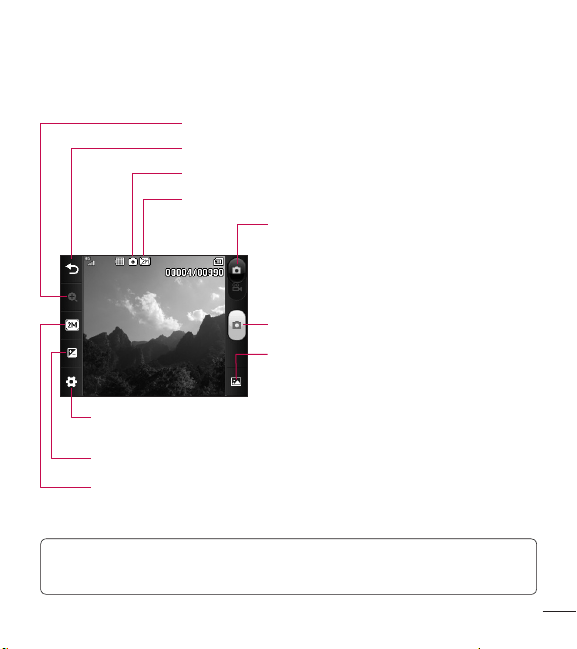
Getting to know the viewfinder
Camera mode: Indicates that camera mode is selected.
Image size: Indicates the current image size.
Exit: Touch here to exit camera mode.
Video camera mode: Toggle between camera
and video camera mode.
Album: Allows you to view the previously
taken image. If no pictures have been taken
previously, the Pictures album will be displayed.
Zoom: Allows you to zoom in and out.
Image Size: Allows you to change the resolution of the image.
Settings: Touch this icon to open the settings menu. See the Settings Menu
section on page 52 for details.
Brightness: Allows you to adjust the brightness level for the picture.
Capture: Take the picture.
NOTE: To remove the options from the screen, or display them, simply
touch the viewfinder.
52
Multimedia
Settings Menu
Ƭ White Balance: Choose between Auto, Daylight, Cloudy, Illuminate and
Indoors.
Ƭ Night Mode: Allows you to set night mode On and Off.
Ƭ Shot Mode: Choose between Normal and Continuous Shot. This is
great for taking photos of moving objects or at sporting events.
Ƭ Color Effects: Choose between Color, Mono, Sepia, Negative, and Blue.
Ƭ Timer: Set the timer to Off, 3 Seconds, 5 Seconds, or 10 Seconds.
Ƭ View Mode: Choose between Full Image and Full Screen.
Ƭ Image Review: Choose if you want to display the image immediately
after taking it.
Ƭ Shutter Tones: Allows you to select between 3 different tones or turn it off.
Ƭ Primary Storage: Choose to save a photo to Phone Memory or Memory
Card.
Ƭ Reset Settings: Allows you to change the default settings.
NOTE: You can adjust the zoom scale by moving the slider. The
maximum zoom levels depend on the resolution as follows.
Resolution Zoom scale
2M (1600x1200) Level 1
1M (1280x960) Level 1
VGA (640x480) Level 1 ~ Level 10
QVGA (320x240) Level 1 ~ Level 10
53
Record Video
When recording video, you have many of the same Settings options as
with taking a photo.
1. Open the Video Camera and center the subject in the viewfinder.
2. Touch to start recording the video.
3. To pause the video, touch . To stop the recording, touch .
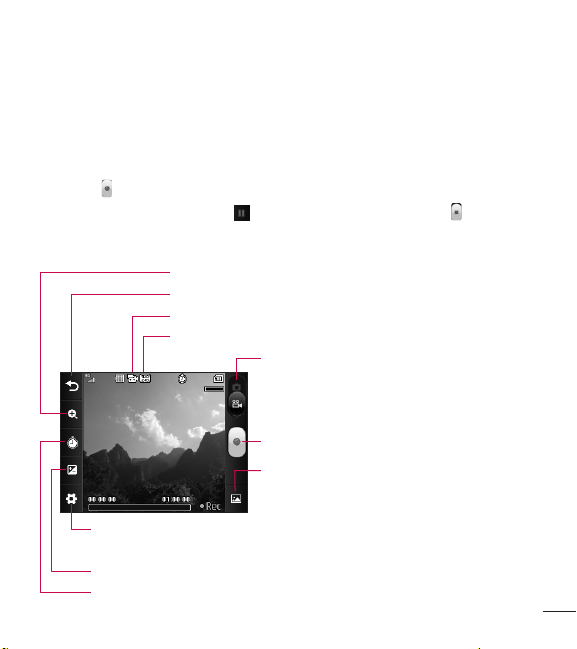
Getting to know the viewfinder
Video mode: Indicates that video camera mode is selected.
Video Size: Indicates the current video size.
Exit: Touch here to exit video camera mode.
Record: Starts recording the video.
Album: Allows you to view the previously
recorded video. If no videos have been recorded
previously, the Video album will be displayed.
Zoom: Allows you to zoom in and out.
Duration: Allows you to select one of the recording duration presets between
Normal and MMS.
Settings: Touch this icon to open the settings menu. See the Settings Menu
section on page 54 for details.
Brightness: Allows you to adjust the brightness level for the video.
Camera mode: Toggle between video camera
and camera mode.
54
Multimedia
Settings Menu
Ƭ White Balance: Choose between Auto, Daylight, Cloudy, Illuminate and
Indoors.
Ƭ Color Effects: Choose between Color, Mono, Sepia, Negative and Blue.
Ƭ Video Size: Sets the size of video to QVGA (320x240) and QCIF
(176x144). The selected size appears on the viewfinder screen.
Ƭ Primary Storage: Choose to save a video clip to Phone Memory or
Memory Card.
Ƭ Recording Tones: Set Recording Tones On or Off.
Ƭ Reset Settings: Allows you to set to the default settings.
NOTE: You adjust the zoom scale by moving the slider. The maximum
zoom levels depend on the resolution as follows.
Resolution Zoom scale
QVGA (320x240) Level 1 ~ Level 10
QCIF (176x144) Level 1 ~ Level 10
55
Music Player
To launch Music Player while in the Home screen, touch , and select
.
Ƭ Now Playing: Shows the currently playing screen.
Ƭ All Songs: Allows you to view all the songs in your music library.
Ƭ Playlists: Allows you to view and create your own playlists.
Ƭ Artist: Allows you to view the list of artists of all the songs in your
music library.
Ƭ Album: Allows you to view the list of albums of all the songs in your
music library.
Ƭ Genre: Allows you to view the list of genres of all the songs in your
music library.
Ƭ Favorites: Shows the music list set as your favorite music.
Ƭ Shuffle: Allows you to play all the songs in your music library with
shuffle.
NOTE: Copyrights of music files may be protected by copyright
and intellectual property laws. Please ensure that you adhere to the
applicable Terms of Use of materials laws prior to downloading or
copying files.
Music Player
56
Music Player
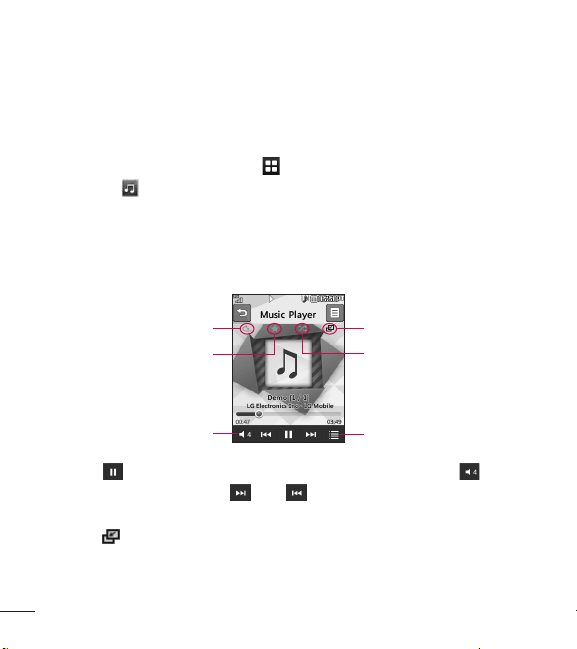
Playing Music
To listen to music in your phone or the external memory, follow these
quick easy steps:
1. From the Home screen, touch , then open the Music Player by
touching .
2. You can select from All Songs, Playlists, Artist, Album, Genre,
Favorites, and Shuffle to play your music. The Now Playing button will
only be available when music is playing.
3. Touch the song you wish to play.
Playlist
Repeat
Volume
Favorite
Minimize
Shuffle
Ƭ Touch to pause the selected song. While playing, touch to
adjust the volume. Touch and to skip to the next song or
previous song.
Ƭ Touch to minimize the Music Player and access other phone
functions while music is playing.
57
NOTE: Files under 300kb may not be displayed in this function and
may be categorized as Ringtones.
Adding music to your phone
Music files can be added to your phone by using one or more of the
following methods:
Ƭ Download ringtones over the network directly to your device via the Buy
Ringtones link in the Audio menu.
Ƭ From your existing digital media collection on your PC via Windows
Explorer.
Purchasing and downloading ringtones directly to your phone
1. From the Home screen, touch , and then to access the Audio
menu.
2. Select Buy Ringtone.
NOTE: Some sites are data intensive (i.e. previews via streaming) so the
user should be enrolled in an unlimited data plan before using these
services to avoid per-use data charges. Additional charges may apply
when downloading music, ringtones etc.

58
Music Player
Drag and drop music using your phone as a mass storage device
1. Make sure the microSD™ card is inserted properly into the phone.
2. Connect the phone to a PC using a USB data cable.
3. Your computer will detect and install the phone automatically.
4. Touch OK when prompted on the device and access My Computer on
the PC.
5. The phone’s memory card will be listed under “Removable Disk” in the
same location as an optical drive.
NOTE: The PC will automatically assign a drive letter.
6. Browse in a new window for desired music files.
7. Drag and drop the desired music content from the PC window to the
“Removable Disk” window.
8. Touch Exit on the phone and disconnect the USB cable.
59
Deleting Music Files
The following are the three options available to delete music from your
phone:
– Delete a file using Mass Storage.
– Delete a file by directly inserting the microSD™ external memory onto
the PC.
– Delete a file using delete function on the phone.
NOTE: If you delete a playlist from the phone, the songs in the playlist
will not be removed and remain in All Songs folder.
Be aware that all of the existing data will be erased on microSD™ card if
you use the below process.
– Use the Reset Memory Card function in the Settings menu ( > >
Phone > Reset Settings > Master Clear > Memory Card).
– Format external memory using Mass Storage.
60
Utilities
Audio
From the Home screen, touch and then to access the Audio menu.
Ƭ Buy Ringtones: Allows you to buy ringtones for your phone.
Ƭ Voice Recorder: Allows you to record your own audio.
Ƭ A list of your audio files is listed.
Pictures
From the Home screen, touch and then to access the Pictures
menu.
Ƭ Buy Graphics: Allows you to buy graphics for your phone.
Ƭ Take Picture: Starts up the camera and allows you to take pictures.
Ƭ A list of your image files is listed.
Video
From the Home screen, touch and then to access the Video menu.
Ƭ Record Video: Starts up the video camera and allows you to record
videos.
Ƭ A list of your video files is listed.
NOTE:
DRM sometimes restricts some functions, such as sending to
others.
61
Voice Recorder
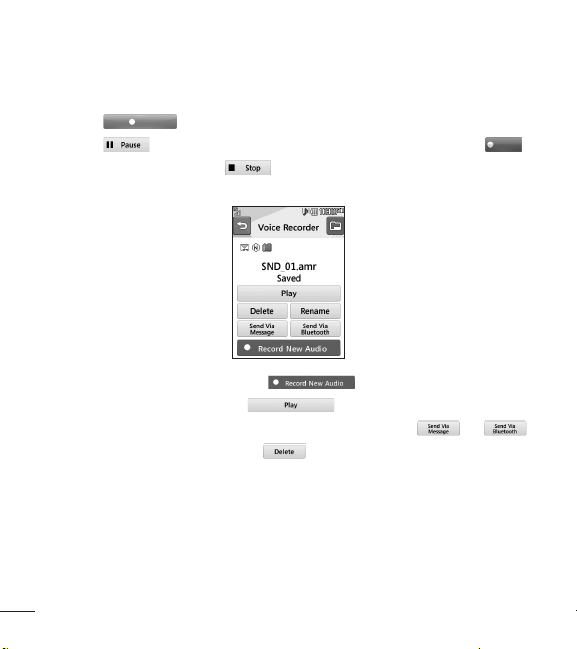
Use the Voice Recorder to record voice memos or other sounds.
From the Home screen, touch and then to access the Voice
Recorder.
Ƭ Settings
– Recording Mode: MMS mode shortens the time so that the recording
can fit in an MMS message and General mode provides longer
recording time.
– Quality: You can assign the default quality to the Normal, Economy
or Fine.
– Storage: Allows you to save the recording to External memory or
Phone memory.
62
Utilities
Recording a voice memo
Ƭ Touch
REC
to start recording.
Ƭ Touch to pause recording. To continue recording, touch
Resume
.
Ƭ To stop recording, touch . The recording will be saved
automatically.
Ƭ To start a new recording, touch .
Ƭ To play the recording, touch .
Ƭ To send the recording by Message or Bluetooth, touch or .
Ƭ To delete the recording, touch , then touch Yes to confirm.
Calendar
When you enter this menu, a calendar will be displayed. The blue square
cursor is used to locate a particular day. The day highlighted in green
indicates today’s date. Days highlighted in yellow indicate that events exist
on those days. The phone will sound an alarm tone if it has been set for a
specific schedule item.

63
From the Home screen, touch , then touch to access the Calendar.
The following options are available when you open the Calendar function
and touch .
Ƭ New Schedule: Allows you to add a new schedule on the date you
select.
Ƭ Search: Allows you to search the saved schedule(s).
Ƭ Set Holiday: Allows you to set your personal holiday for the selected
date.
Ƭ View All: Allows you to view all saved schedules.
Ƭ Week View: Allows you to change Calendar view mode from Month
View to Week View and vice versa.
Ƭ Go to Date: Allows you to jump to a specific date.
Ƭ Selective Delete: Allows you to delete Old Schedules or All Schedules
selectively.
Ƭ Settings: Allows you set Default View and Weekly Begin day.
Notepad
You can create up to a maximum of 30 memos.
1. From the Home screen, touch , then touch to access the
Notepad.
2. To create a new note, touch New Note, enter the memo and touch
to save.

64
Utilities
Tasks
This feature allows you to save and manage a task.
To add a New Task
1. From the Home screen, touch , then touch to access Tasks.
2. Touch New Task.
3. Enter the Due Date, Note and Priority for the new Task.
4. Touch Save to save the Task item.
The following options are available by touching in the main Tasks
menu:
Ƭ New Task: Allows you to create a new task.
Ƭ Delete: Allows you to delete any tasks created.
Ƭ Delete All: Allows you to delete all tasks.
Ƭ Send Task Via: Allows you to send tasks via Multimedia Message, Email
and Bluetooth.
Ƭ Sort By: Allows you to sort tasks by Date, Status, and Priority.
Ƭ View Calendar: Allows you to view the Calendar.

65
Stopwatch
This menu allows you to record the elapsed time of an event. The
duration of an individual lap time (up to 99 times) and the total time can
also be displayed.
Ƭ New Time
1. From the Home screen, touch > or > > to
access the Stopwatch.
2. Select New Time.
3. To start timing, touch
Start
.
The running time is displayed as HH.MM.SS.hh (hours, minutes,
seconds, hundredths of a second).
4. During the timing, you can record an individual lap time by touching
Lap
. Up to 99 lap times can be recorded.
5. You can stop timing by touching
Stop
or restart by touching
Resume
.
6. To reset the stop watch, touch
Reset
.
Ƭ Saved Times: You can see the saved recorded times.
Ƭ Show Last: Displays the last time taken with the Stopwatch.

66
Utilities
Calculator
The calculator function allows you to calculate simple mathematical
equations.
To access the Calculator
1. From the Home screen, touch , then touch to access the
Calculator.
Tip Calculator
This feature allows you to quickly and easily calculate the tip amount
based on the total bill as well as the split of the total bill based on the
number of people.
To access Tip Calculator
1. From the Home screen, touch , then touch to access the Tip
Calculator.
2. Enter the Total Bill ($), Tip (%), and Split quantities.
3. The Tip ($) and You Owe ($) fields will be automatically calculated.
Unit Converter
This function converts any measurement into a unit you want.
There are 6 types of units that can be converted: Area, Length, Weight,
Temperature, Volume and Velocity.

67
To access Unit Converter
1. From the Home screen, touch , then touch to access the Unit
Converter.
2. Touch Area at the top of the screen and select an option from the
drop-down menu.
3. Choose the known unit and enter the quantity.
4. The quantities below will automatically be calculated.
Alarm
The alarm function allows you to set up multiple separate alarms. You can
set the time, repetition interval and desired alarm tone.
To set a New Alarm
1. From the Home screen, touch , then touch to access the Alarm.
2. Select New Alarm.
3. Configure the following settings:
Ƭ Time: Input your desired alarm time by specifying the hour and
minutes. If the time is in the 12 hour format, you have to select either
am
or
pm
by touching it. You can also choose a predefined amount of
time (15Minutes Later, 30Minutes Later, 45Minutes Later, 1Hour
Later, Off).
Ƭ Repeat: Select the desired repeat mode from Once, Daily, Mon ~ Fri,
Sat ~ Sun, Select Weekday, and Except Holiday.

68
Utilities
Ƭ Alarm Tone: Select the desired alarm tone to use for the set alarm.
Ƭ Alarm Volume: Allows you to adjust the alarm volume.
Ƭ Alarm Type: Select the desired alarm type. Choose from Sound,
Vibration, Sound and Vibration, and Vibration after Sound.
Ƭ Memo: Enter the alarm name.
Ƭ Snooze Interval: You can set the snooze interval at 5Minutes,
15Minutes, 30 Minutes, 45Minutes, 1Hour, or Off.
4. Touch Save to save your alarm.
Quick alarm
In the Alarm menu, touch Quick Alarm to set a Quick Alarm.
1. Drag the bar from left to right to set the time; 60 minutes is maximum
set value.
2. Scroll down to configure the options Alarm Tone, Alarm Volume, Alarm
Type, Memo and Snooze Interval.
3. Touch Save to save the alarm.
File Manager
From the Home screen, touch , then touch to access the File
Manager.
This allows you to view all types of contents files in the internal phone
memory and the external memory card.
69
Touch for the following options:
Ƭ Send Via: Send the selected file via Message, Email, or Bluetooth.
Ƭ Delete: Allows you to delete the selected file.
Ƭ Move: Allows you to move selected files to the Phone Memory or
Memory Card.
Ƭ Copy: Allows you to copy selected files to the Phone Memory or
Memory Card.
Ƭ New Folder: Allows you to create a new folder manually.
Ƭ Sort By: Allows you to sort the folders by name, date, and type.
Ƭ Delete All: Allows you to delete all files and folders.
Ƭ Rename: Allows you to edit the name of the selected file.
NOTE: Limits - System files/folders cannot be listed.
70
Browser
This application connects you to the Internet. Browser is one of the
services provided and it gives you access to all the cool things you can do
with your wireless phone.
NOTE: Check the availability of data services, pricing and tariffs with
your network operator and/or the service provider whose service you
wish to use. Service providers will also give you instructions on how
to use their services. Please contact your service provider to open an
Internet account.
Launch the Browser
To launch the Browser from the Home screen, touch , then touch .
Once connected, the homepage is displayed.
To exit the browser at any time, touch the End Key .
Menus for the Browser
You can surf the Internet using either the phone keys or the Browser tool
bar.
Using the Browser Menu
Online menu
Once you are connected to the Internet, the following menu options are
available when you touch :
Ƭ Home: Moves to the initial homepage.

71
Ƭ Windows: You can have several browser windows to navigate different
web pages at the same time.
Ƭ Enter URL: Connects to a specific URL.
Ƭ Bookmarks: You can add or save the current page to Bookmark or view
the list saved under Bookmark.
Ƭ Landscape View: Allows you to view broad web pages easily in
landscape view.
Ƭ View Full Screen: View the current page in full screen.
Ƭ Search Text: Allows you to find text in the current page.
Ƭ Recent Pages: Allows you to see a list of recently visited web pages.
Ƭ Send URL: Allows the current page URL via message to another
person.
Ƭ Settings: Allow you to set options such as Cache, Cookie and other
Browser Settings.
Ƭ Browser Help: Opens Help Overview to help make your browsing
experience easier.
Ƭ Exit: Exits the browser.
72
Display
From the Home screen, touch , , and then Display to access the
Display settings menu.
Wallpapers
This menu allows you to set a picture or color as your background. You
may also choose to have no background wallpaper.
Fonts
You can configure the font size and color of the numbers which appear in
the Dialing screen when you make a call. You can also set the font size for
menus and lists.
Brightness
You can set the brightness of the display screen.
Backlight Timer
Use this to set the duration of the touch screen backlight and keypad.
Transition Effect
If you set the transition effect, you can see the display change effect.
NOTE: When you set the Settings > Accessibility > Menu Readout on,
then transition effect doesn’t work.
Settings

73
Phone
From the Home screen, touch , , and then Phone to access the
Phone settings menu.
Languages
You can change the language for the display text on your phone. This
change will also affect the Language Input mode.
Auto Screen Lock
This allows you to set the amount of time before your screen locks
automatically.
Pattern Lock
If you choose pattern lock, you have to draw a pattern twice to confirm.
Next, enter the security code.
Set Airplane Mode
This allows you to use only the phone’s features that do not require the
use of the wireless network when you are in an airplane or in places where
the wireless network is prohibited. If you set the Airplane mode,
you will be prompted to confirm your selection. After you confirm it by
touching , the Airplane mode icon will be displayed on the screen
instead of the network signal icon.

74
Settings
Ƭ ON: You cannot make (or receive) any calls, including emergency
calls or use other features that require network coverage.
Ƭ OFF: Deactivates Airplane mode and re-establishes your wireless
connections.
Security
Various codes and passwords are used to protect the features and
settings of your phone. They are described in the following sections.
Ƭ Phone Lock: You can use a security code to avoid unauthorized use
of the phone. If you set phone lock to When Power On, the phone will
request a security code whenever you switch the phone on. If you set
the phone lock to Lock Phone Now, your phone will lock immediately.
Ƭ Change Codes: The Change Codes menu allows you to change your
current security code to a new one. You must enter the current security
code before you can specify a new one.
Memory
This menu allows you to view your memory information.
Ƭ Used Space: Displays the memory space used for Phone Common,
Memory Card, Phone Reserved and SIM Card.
Ƭ Set Storage Default: Allows you to set the storage default locations for
various types of features.

75
Reset Settings
This function allows you to restore factory settings. To do this, you need
the security code.
Ƭ Master Reset: Restores the settings (e.g.: Audio, Display, Language,
Bluetooth Settings) stored in the phone memory to default values.
Ƭ Master Clear: Deletes downloaded or user created contents (e.g.:
images, videos) from the phone and the external memory card.
Phone
– Deletes all downloaded or user images, videos and sounds from the
phone memory.
– Deletes personal information stored in the phone memory (e.g.:
address book, messages, tasks, alarm, Calendar schedules) to default
values.
Memory Card: Deletes all contents from the external memory card.
Phone Information
This menu is used to view My Numbers, Manufacturer, Model Name,
Device ID, Hardware Version, Software Version and Language.

76
Settings
Call
From the Home screen, touch , , and then Call to access the Call
settings menu.
Send My Number
This network service allows you to set your phone number to be displayed
(On) or hidden (Off) from the person you are calling. You can select Set
by Network if you prefer to have different settings for different service
providers.
Answer Mode
This allows you to determine how to answer the phone.
Ƭ Any Key: You can answer an incoming call by also using the Clear/Back
Key . However, the End Key , Volume Keys and Power/Lock
Key cannot be used to answer a call.
Ƭ Send Key Only: You can only answer an incoming call by touching the
Send Key .
Call Duration
You can check Last Call, Received Calls, Dialed Calls and All Calls.
TTY
A TTY (also known as a TDD or Text Telephone) is a telecommunications
phone that allows people who are deaf, hard of hearing, or who have
speech or language disabilities, to communicate by telephone. Select
from TTY Full, TTY Talk, TTY Hear, and TTY Off.

77
Ƭ TTY Full
Enables all TTY settings.
Ƭ TTY Talk
Enables VCO (Voice Carry Over).
Ƭ TTY Hear
Enables HCO (Hearing Carry Over).
Ƭ TTY Off
Disables all TTY settings
Touch
From the Home screen, touch , , then touch Touch to access the
Touch settings menu.
You can customize the Touch settings by setting the Touch Sound option.
When you activate the Touch Sound option, you can choose your desired
sound type and adjust its volume.
Accessibility
This menu allows you to manage accessibility options.
Ƭ Menu Readout: If you activate this menu, selected menus will be read
out loud.
Ƭ Dial Readout: If you activate this menu, the numbers you dial will be
read out loud.

78
Settings
Ƭ Large Text: If you activate this menu, a larger text font size will be
displayed for menus.
Ƭ Invert Color: If you activate this menu, the phone’s screen color will be
inverted.
Ƭ Mono Sound: If you activate this menu, your phone’s sound type
changes to mono tone.
Ƭ TTY: Please refer to page 76 for more information.
Ƭ Voice Command: This menu allows you to adjust various settings for
Voice Command.
Sound Settings
From the Home screen, touch , and then to access the Sound
Settings menu.
Ringtone
This menu allows you to adjust various settings for your ringtone.
Ƭ Sounds: Allows you to choose your ringtone. You can preview each
ringtone before setting it.
Ƭ Volume: Allows you to adjust your ringtone volume.
Ƭ Alert Type: Supports 3 ring alert types: Ring, Ring and Vibration, and
Ring after Vibration.
79
Message Tone
This menu allows you to adjust various settings for your message tone.
Ƭ Sounds: Allows you to choose your message tone. You can preview
each message tone before setting it.
Ƭ Volume: Allows you to adjust your new message alert tone volume.
Ƭ Alert Type: Supports 4 message alert types: Ring, Ring & Vibrate,
Vibrate, and Silent.
Ƭ Alert Interval: Supports 5 message alert interval: Once, Every 2 Min.,
Every 5 Min., Every 10 Min. and Every 15 Min.
NOTE: Full length music tracks cannot be set as either ringtones or
message tones.
Alert Tone
This menu allows you to adjust various settings for your alert tone.
Ƭ Sounds: Allows you to select or set an alert tone. Supports 2 alert tone
types: Alert Tone 1 and Alert Tone 2.
Ƭ Volume: Allows you to adjust your alert tone volume.
Ƭ Alert Type: You can select to set Alert Tones to Ring or Silent.
Dial Readout
Slide to the right to activate the dial readout function. When
activated, the digits you enter when using the dial pad will be read out
loud.

80
Settings
Keypad Tone
This menu option allows you to select a tone that the phone sounds when
a key is pressed.
Ƭ Sounds: Allows you to select and set a keypad tone. Supports 3 keypad
tone types: Tone 1, Tone 2 and Tone 3.
Ƭ Volume: Allows you to adjust your keypad tone volume.
Multimedia
This menu allows you to adjust your multimedia volume.
Call
This menu allows you to adjust your call volume.
Bluetooth
From the Home screen, touch and to access the Bluetooth function
settings menu.
Your phone has built-in Bluetooth® wireless technology, which makes it
possible for you to connect your phone wirelessly to other Bluetooth®
devices such as a hands-free device, PC, PDA, a remote screen or other
phones. The devices registered in your phone can only be connected one
at a time.
You can have a conversation via a cordless Bluetooth® hands-free phone
or browse the Internet, wirelessly connected, via a mobile phone.

81
You can also exchange, for example, business cards, calendar items and
pictures.
Music playing is supported through a Bluetooth® headset.
Hands-free profile
This icon appears when the hands-free profile is used between
the hands-free device. This allows you to call using a Bluetooth®
connection.
A2DP profile
This icon appears when the A2DP profile is used between the stereo
headset device and the phone. This allows you to listen to an audio
clip. A2DP is the Advanced Audio Distribution Profile, which provides
support for streaming either mono or stereo audio using Bluetooth®.
Hands-free + A2DP profile
This icon appears when both profiles of the hands-free and the A2DP
are used between the compatible device and the phone. This allows
you to call and listen to an audio clip using a Bluetooth® connection.
Object Push Profile
This icon appears when you send one file (mp3, avi, jpg etc.) to other
device.
When using each device, see the user manual that comes with the device.
82
Settings
NOTE: We recommend that your phone and the Bluetooth® device you
are communicating with should be no more than 10 meters apart. The
connection may be improved if there are no solid objects between your
phone and the other Bluetooth® device.
Ƭ Bluetooth: This menu allows you to turn Bluetooth on and off.
Ƭ Search New Device: This function allows you to search for and add new
devices.
Ƭ My Devices: Allows you to view the list of all devices that are paired with
your phone.
Ƭ My Bluetooth Info: Allows you to view information about your device’s
Bluetooth profile.
– My Device Visibility: Allows you to set your device to visible so that
other Bluetooth devices can find it. Choose from My handset hidden
and Visible for 3 Min.
– My Device Name: Allows you to change the phone’s name so other
Bluetooth devices trying to pair with you can easily find it.
– Supported Services: Shows you all Bluetooth services that the phone
supports.
– My Bluetooth Address: Shows you the Bluetooth address of your
device.
83
To pair with another device
1. From the Home screen, touch and then .
2. Make sure Bluetooth is on and touch Search New Device to search for
the device you wish to pair.
3. If you want to stop searching, touch
Cancel
.
4. All of the devices found are displayed.
5. Touch the desired device. Depending on the type of device you will
have to enter a passcode, verify matching passcodes, or the device will
pair automatically. If you would like to search again, touch
Refresh
.
84
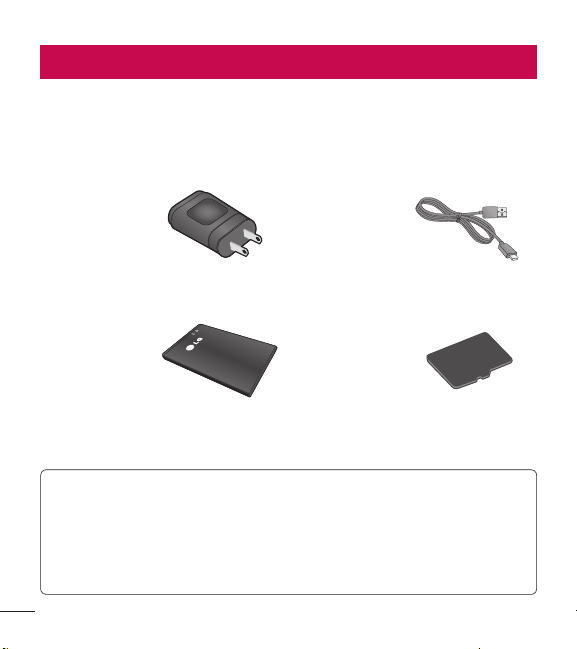
There are a variety of accessories available for your mobile phone, some
of which may be sold separately. You can select these options according
to your personal communication requirements. Consult your local dealer
for availability.
Travel
Adapter
This adapter
allows you to
charge the
battery.
USB cable
This cable
allows you to
charge the
battery.
Battery
Standard
battery is
available.
microSD
TM
Memory Card
4 GB
microSD
TM
memory card
provided.
NOTE:
Ƭ Always use genuine LG accessories. Failure to do this may invalidate
your warranty.
Ƭ Accessories may be different in different regions; please check with
our regional service company or agent for further enquiries.
Accessories

85
The highest SAR value for this model phone when tested for use at the ear is
1.12 W/kg and when worn on the body, as described in this user guide, is 0.94
W/kg (body-worn measurements differ among phone models, depending
upon available accessories and FCC requirements).
While there may be differences between SAR levels of various phones and at
various positions, they all meet the government requirement for safe exposure.
The FCC has granted an Equipment Authorization for this model phone with
all reported SAR levels evaluated as in compliance with the FCC RF emission
guidelines. SAR information on this model phone is on file with the FCC and
can be found under the Display Grant section of http://www.fcc.gov/oet/ea/
fccid/ after searching on FCC ID ZNF306G.
• To reduce risk of fire or burns, do not expose to temperature above 50°C
(122 °F), or dispose of in fire.
• To reduce risk of fire or burns, do not dispose of in fire or water.
• Do not disassemble or open crush, bend or deform, puncture or shred.
• There is a danger of explosion if battery is incorrectly replaced. To reduce
risk of fire or burns, do not disassemble, crush, puncture, short external
contacts, expose to temperature above 50°C (122 °F), or dispose of in fire
or water. Keep this product away from excessive moisture and extreme
temperatures. Keep the battery or device dry and away from water or any
liquid as it may cause a short circuit.
• Avoid using your phone near strong electromagnetic sources, such as
microwave ovens, sound speakers, TV and radio.
• Use only original manufacturer-approved accessories, or accessories that do
not contain any metal. Please only use an approved charging accessory to
charge your LG phone. Improper handling of the Accessory/Charger Port,
as well as the use of an incompatible charger, may cause damage to your
phone and void the warranty.
• Only use the approved battery charger. Otherwise, you may cause serious
damage to your phone.
For Your Safety

Felicitaciones por la adquisición del teléfono avanzado y
compacto LG306G de LG, diseñado para funcionar con la
más reciente tecnología de comunicación digital móvil.
Parte del contenido de este manual puede no coincidir con el teléfono,
en función del software del teléfono o del proveedor de servicios.
Copyright ©2014 LG Electronics, Inc.
Reservados todos los derechos. LG y el
logotipo de LG son marcas comerciales
registradas de LG Group y las entidades
relacionadas. Las demás marcas
comerciales son propiedad de sus
respectivos propietarios.

2
Contenido
Características del teléfono ............ 4
Componentes del dispositivo ......... 4
Instalación de la tarjeta SIM y la
batería ....................................................6
Cargue el teléfono ...........................10
Instalación de una tarjeta de
memoria ............................................... 11
Glosario de iconos ........................... 13
Conexión a redes y dispositivos ....15
Conectar a Wi-Fi .............................. 15
Conectarse a dispositivos
Bluetooth .............................................17
Funciones generales .......................18
Hacer una llamada ...........................18
Responder una llamada ................. 19
Ajustar el volumen ..........................20
Configurar perfiles ..........................20
Introducir texto .................................. 21
Prepago ..........................................27
Añadir Tiempo Celular .................. 27
Comprar Tiempo Celular .............. 27
Mi Número Telefónico .................... 27
Mi Saldo de Tiempo Celular
(Balance) ............................................ 27
Mostrar Tiempo Celular ................. 27
Número de Serie ............................. 28
Número de SIM ...............................28
Menú En llamada ........................... 29
Durante una llamada ......................29
Su pantalla principal ......................31
Pantalla principal ............................. 33
Contactos .......................................37
Lista de contactos ............................37
Agregar nuevo ..................................37
Grupos ................................................39
Marcación rápida .............................39
Mensajes.........................................42
Crear mensaje .................................. 42
Buzón de Entrada ...........................46
Borradores ......................................... 47
Buzón de Salida...............................48
Configuración de mensajes ......... 49
Correo electrónico ........................... 51

3
Multimedia .....................................54
Juegos................................................54
Facebook............................................54
Cámara ...............................................54
Reproductor de Música .................60
Reproductor de Música ................. 60
Utilidades .......................................65
Audio ..................................................65
Imágenes ........................................... 65
Video ................................................... 65
Grabador de Voz .............................. 66
Calendario .........................................68
Bloc de notas ................................... 69
Tareas .................................................. 69
Cronómetro ....................................... 70
Calculadora .........................................71
Calculadora de propinas .................71
Conversor de Unidad .......................71
Alarma ................................................ 72
Administrador de Archivos ...........74
Acceso Web ...................................75
Configuración ................................ 77
Pantalla ................................................ 77
Teléfono .............................................. 78
Llamada .............................................. 81
Táctil ....................................................83
Accesibilidad ....................................83
Configuración de sonido ..............84
Bluetooth ...........................................86
Accesorios ......................................90
Por su seguridad.............................91
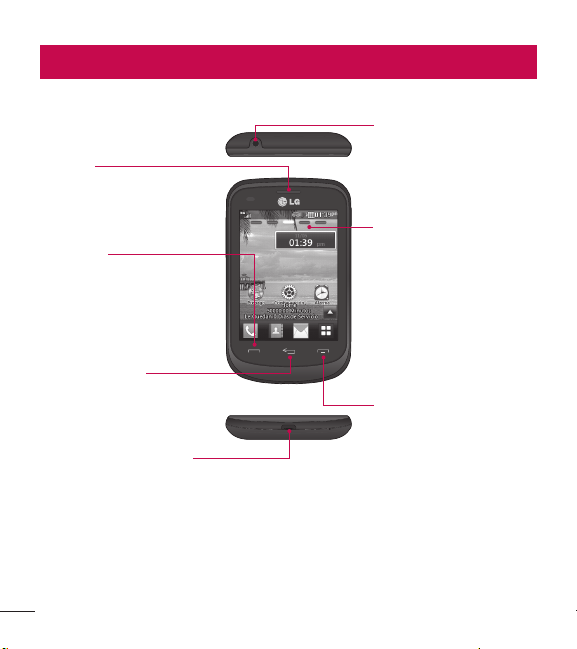
4
Características del teléfono
Componentes del dispositivo
Pantalla principal
Muestra a todo color los iconos
de estado del teléfono, los
elementos de los menús, los
elementos web, la información
web, las fotos y mucho más.
Para seleccionar los elementos
de los menús, toque los iconos
correspondientes en el teclado
táctil.
Tecla Finalizar
Finaliza o rechaza una
llamada. Toque una vez
para regresar a la pantalla
principal desde cualquier
otra pantalla.
Tecla Borrar/Atrás
Permite regresar a la
pantalla previa y borrar texto
que haya introducido.
Puerto para Cargador/USB
Toma para auriculares de
3.5 mm
Auricular
Permite escuchar a la
persona que llama y
también indicaciones
automatizadas.
Tecla Enviar
Presione esta tecla en
el modo de espera para
acceder rápidamente a las
llamadas recientes, perdidas,
marcadas y recibidas.
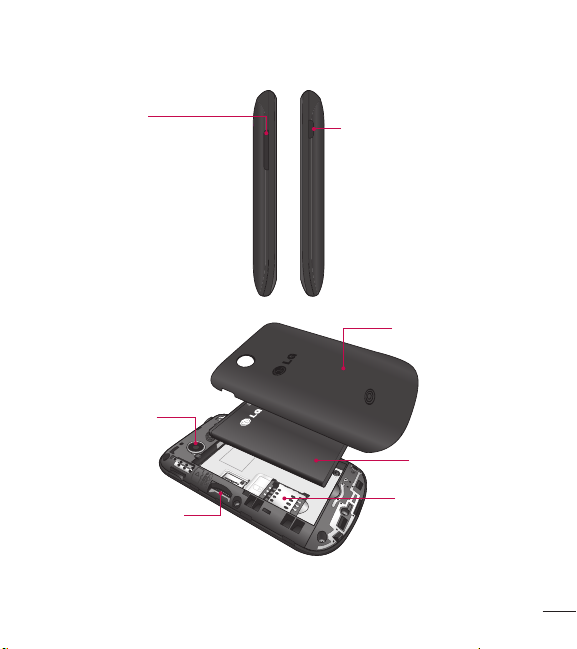
5
Teclas de Volumen
• En la pantalla principal: Permiten
establecer el volumen del tono
de timbre. Mantenga presionada
la Tecla de Volumen Inferior para
activar o desactivar el modo de
vibración.
• Durante una llamada: Permiten
cambiar el volumen del auricular.
• Al reproducir música: Permiten
cambiar el volumen de la
música.
Tecla Encender/Bloquear
• Enciende y apaga el teléfono al
mantenerla presionada.
• Enciende y apaga la pantalla y
la bloquea.
Tapa posterior
Lente de la cámara
Ranura para tarjeta
microSD™
Batería
Ranura de la tarjeta SIM
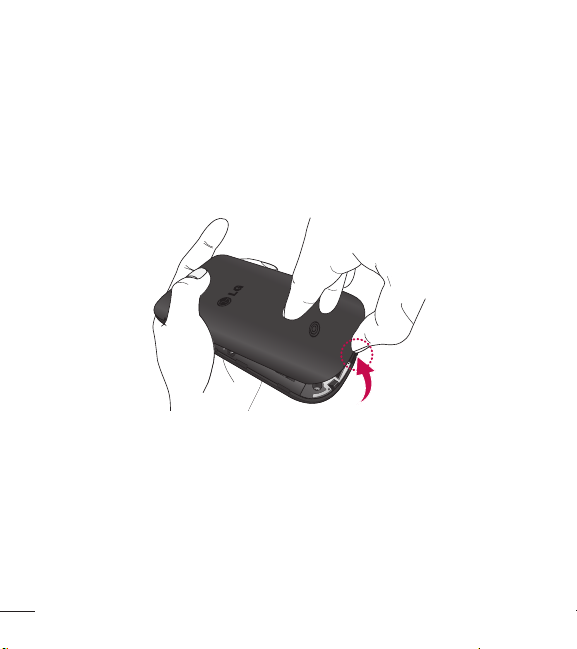
6
Características del teléfono
Instalación de la tarjeta SIM y la batería
Retirar la tapa posterior
Sostenga el teléfono firmemente en una mano. Con la otra mano, levante
la tapa posterior usando la abertura de dedo ubicada en la parte inferior
de la tapa para retirarla.
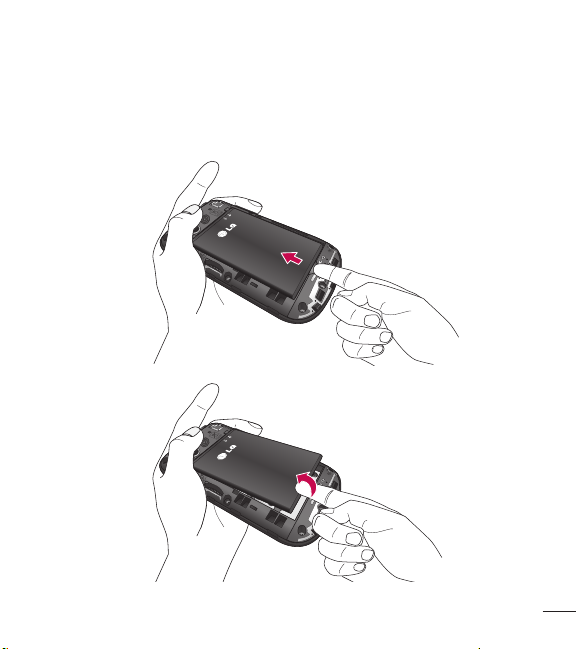
7
Extraiga la batería
Use la abertura de dedo en la parte inferior del compartimiento de la
batería para levantar y extraer la batería.
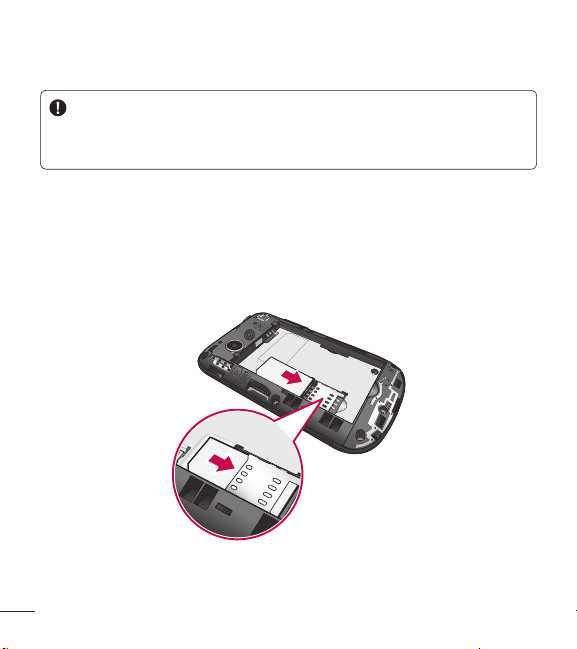
8
Características del teléfono
ADVERTENCIA
No extraiga la batería cuando el teléfono está encendido porque podría
sufrir daños.
Instalar la tarjeta SIM
Deslice la tarjeta SIM hasta colocarla en la ranura correspondiente.
Asegúrese de que la área de contacto dorada de la tarjeta esté orientada
hacia abajo. Para extraer la tarjeta SIM, tire suavemente hacia la dirección
contraria.
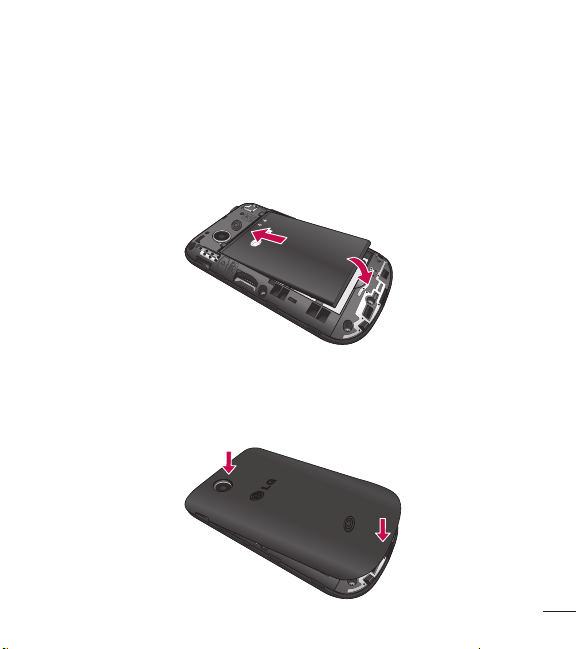
9
Inserte la batería
Inserte primero la parte superior de la batería en el borde superior del
compartimiento de la batería. Asegúrese de que la área de contacto de la
batería esté alineada con los terminales del teléfono. Presione hacia abajo
la parte inferior de la batería hasta que encaje en su lugar.
Instalar la tapa posterior
Alinee la tapa posterior sobre el compartimiento de la batería y presione
hacia abajo hasta que encaje en su lugar.
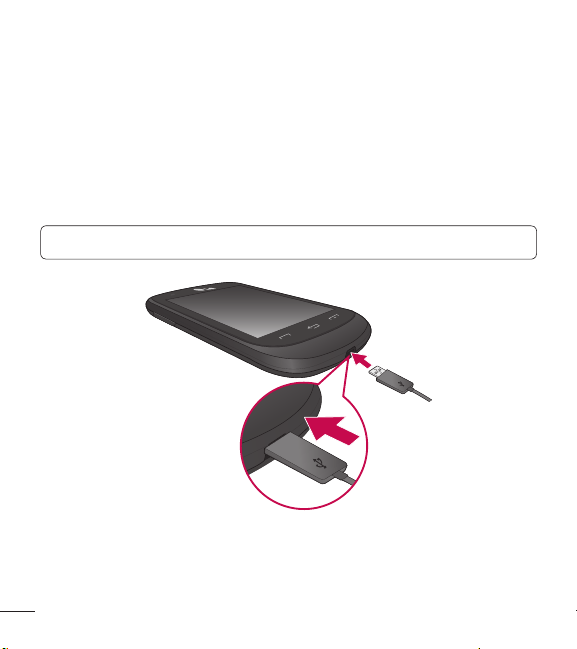
10
Cargue el teléfono
Ubique el Puerto de Carga/USB en la parte inferior de su teléfono.
Inserte el conector del cargador en el teléfono (asegúrese que el icono
de USB del cable esté orientado hacia arriba) y, a continuación, enchufe
el otro extremo en la toma de la pared. El teléfono debería cargarse hasta
que reciba la notificación 'Batería llena'.
¡Importante! Debe insertar la batería antes de cargarla.
Características del teléfono
11
NOTA: Siempre desenchufe el cargador del tomacorriente cuando el
teléfono esté completamente cargado para que el cargador no consuma
energía de manera innecesaria.
ADVERTENCIA
El uso de accesorios no autorizados podría dañar el teléfono y anular
la garantía.
Instalación de una tarjeta de memoria
Es posible expandir la memoria del teléfono con una tarjeta de memoria
microSD™. Su teléfono admite tarjetas de memoria de hasta 32 GB.
NOTA: Una tarjeta microSD™ de 4 GB esta incluida con su teléfono.
1. Retire la tapa posterior y ubique la ranura para tarjeta microSD™.
2. Inserte suavemente la memoria microSD™ con la área de contacto
dorada orientada hacia abajo
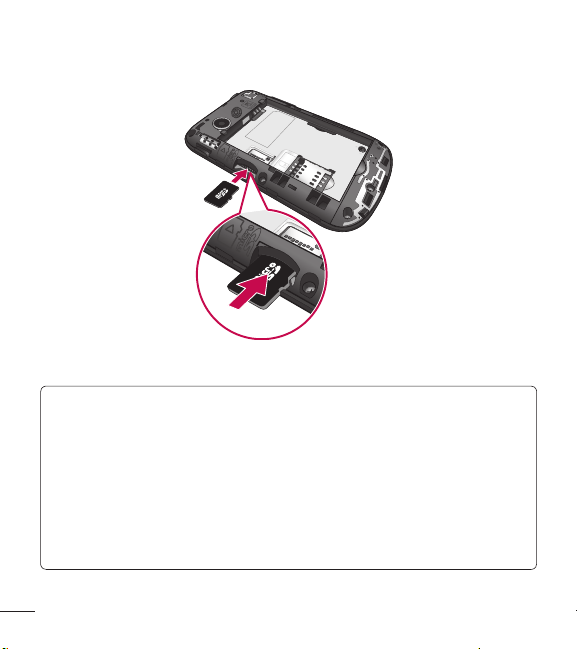
12
3. Reemplace la tapa posterior.
NOTA: Si la tarjeta de memoria contiene archivos, se guardarán
automáticamente en la carpeta correspondiente. Por ejemplo, se
podrá acceder a los videos desde la carpeta Mis videos. Si la tarjeta
de memoria incluye contenido protegido (como canciones o gráficos
cargados de otro dispositivo que estén protegidos por copyright con el
sistema de administración de derechos digitales), no podrá acceder a
ellos. Es posible que deba reformatear la tarjeta de memoria antes de
usarla en este dispositivo.
Características del teléfono
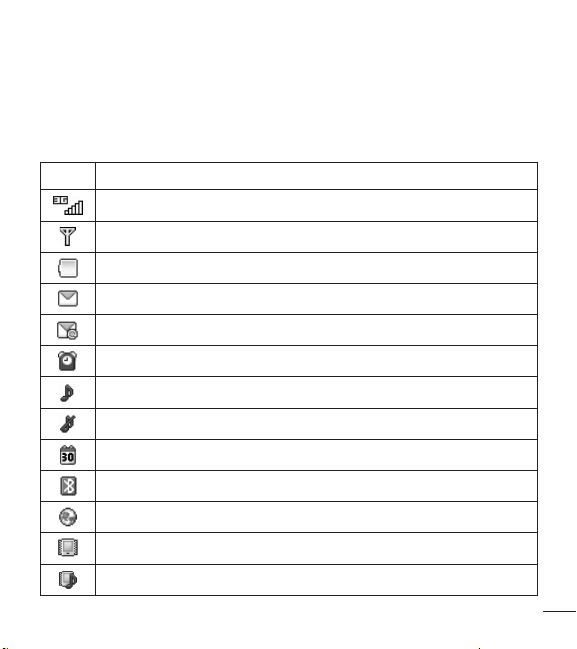
13
Glosario de iconos
La tabla a continuación muestra varios indicadores o iconos que aparecen
en la pantalla del teléfono.
Icono Descripción
Potencia de la señal de red (varía la cantidad de barras)
Sin señal de red
Batería agotada
Nuevo mensaje de texto
Correo electrónico nuevo
Hay una alarma establecida
Perfil de timbre en uso
Perfil de silencio en uso
Evento de calendario con Alarma establecido
Bluetooth activo
Acceso Web
Modo de vibración
Modo Timbre después de vibrar
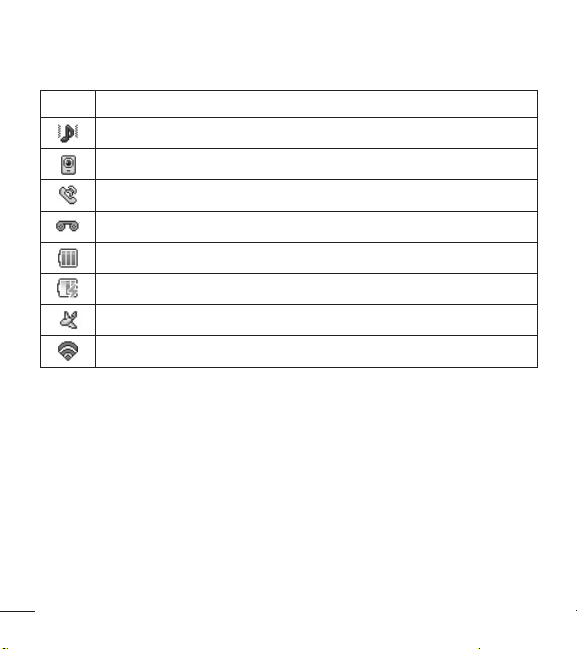
14
Características del teléfono
Icono Descripción
Modo Timbre y vibrar
Altavoz
Llamada en curso
Correo de voz
Batería llena
Cargando la batería
Modo avión
Wi-Fi conectado

15
Con Wi-Fi, puede utilizar el acceso a Internet de alta velocidad dentro de
la cobertura del punto de acceso (AP) inalámbrico.
Disfrute de Internet sin cables utilizando una red Wi-Fi, sin cargos
adicionales.
Conectar a Wi-Fi
1. En la pantalla principal, toque y luego deslice la pantalla hacia la
izquierda y toque .
2. Arrastre hacia la derecha para encender Wi-Fi para conectar a
redes Wi-Fi disponibles.
3. Seleccione la red Wi-Fi a la que desea conectarse. Si aparece ,
deberá especificar una contraseña para conectarse.
Conexión a redes y dispositivos

16
Conexión a redes y dispositivos
NOTA
• Si no se encuentra dentro del área de cobertura de Wi-Fi y
escoge la conexión 3G, puede recibir cargos extras.
• Si su teléfono entra en modo suspensión, se desactivará
automáticamente la conexión Wi-Fi.
• En este caso, si el teléfono tiene acceso a datos 3G, puede
conectarse automáticamente a la red 3G y pueden aplicarse
cargos adicionales.
• Su teléfono admite seguridad WEP, WPA/WPA2-PSK.
• Si su proveedor de servicio Wi-Fi o administrador de red
configuran la codificación para la seguridad de la red, usted debe
introducir la clave en la ventana emergente. Si la encriptación no
está configurada, la ventana emergente no se muestra. Puede
obtener la clave a través de su proveedor de servicio Wi-Fi o su
administrador de red.

17
Conectarse a dispositivos Bluetooth
Para activar o desactivar Bluetooth
1. En la pantalla principal, toque y luego deslice la pantalla hacia la
izquierda y toque .
2. Arrastre hacia la derecha o la izquierda para activar o desactivar
la función.
Vincular el teléfono a un dispositivo Bluetooth
1. Acceda al menú de Bluetooth y active la función Bluetooth.
2. Toque Buscar Nuevo Aparato.
3. Toque el dispositivo con el que desea vincularse.
4. Según el tipo de dispositivo, puede ser necesario ingresar un código
de paso, verificar códigos de paso coincidentes o el dispositivo se
emparejará automáticamente.
Cambiar el nombre de su teléfono
1. Acceda al menú de Bluetooth y active la función Bluetooth.
2. Toque Mi Info de Bluetooth y luego toque Mi Nombre.
3. Introduzca el nombre deseado y toque Fijar.
Para que su teléfono sea visible a otros dispositivos
1. Acceda al menú de Bluetooth y active la función Bluetooth.
2. Toque Mi Info de Bluetooth y luego toque Mi visibilidad.
3. Establezca la opción deseada.
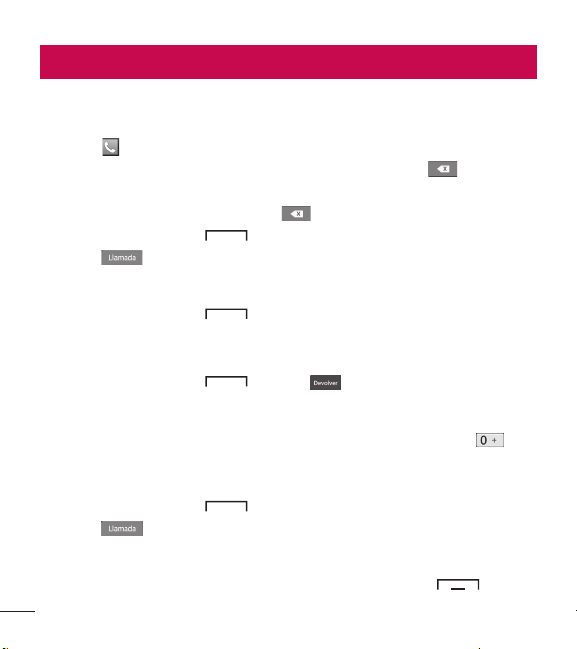
18
Hacer una llamada
1. Asegúrese de que el teléfono esté encendido.
2. Toque e introduzca el número de teléfono con el teclado de
marcación. Para editar un número, simplemente toque para borrar
un dígito a la vez.
Ƭ Toque y mantenga presionado para borrar todo el número.
3. Toque la Tecla Enviar para llamar al número seleccionado. O
toque en el teclado táctil.
Marcar un número de sus Llamadas recientes
1. Toque la Tecla Enviar y aparecerán las llamadas recibidas,
realizadas y perdidas más recientes.
2. Seleccione el número deseado.
3. Toque la Tecla Enviar o toque .
Hacer llamadas internacionales
1. Abra el teclado de marcación y toque y mantenga presionado .
2. Introduzca el código de país, el código de área y el número de
teléfono.
3. Toque la Tecla Enviar para llamar al número seleccionado. O
toque .
Finalizar una llamada
Cuando la llamada haya finalizado, toque la Tecla Finalizar .
Funciones generales
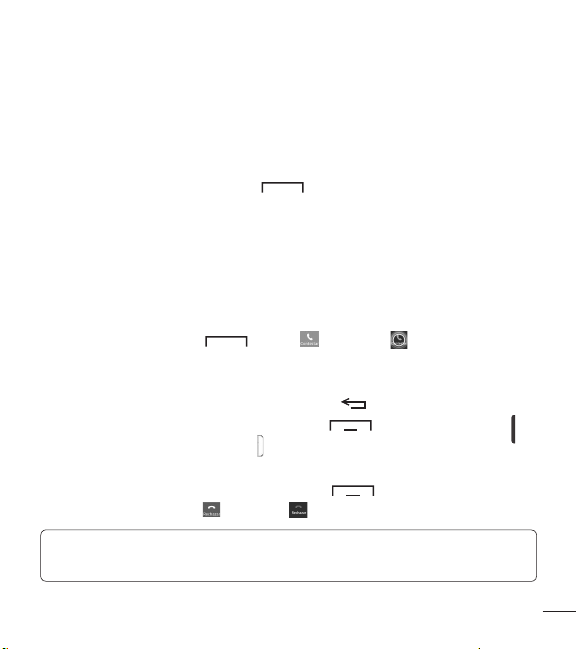
19
Hacer una llamada desde los contactos
Puede almacenar los números llamados con frecuencia en la tarjeta SIM
igual que en su lista de contactos.
Puede marcar un número con solo seleccionar un nombre en la lista de
contactos y tocar la Tecla Enviar .
Responder una llamada
Cuando recibe una llamada, el teléfono suena y el icono que representa
un teléfono aparece en la pantalla. Si la persona que llama puede ser
identificada, se mostrará el número de teléfono (o el nombre, si guardado
en los Contactos).
1. Toque la Tecla Enviar , toque , o deslice en cualquier
dirección.
Si la opción Cualquier tecla se ha establecido en Modo de Respuesta,
también puede usar la Tecla Borrar/Atrás para responder la
llamada. Sin embargo, la Tecla Finalizar , Teclas de Volumen
y la Tecla Encender/Bloquear no pueden usarse para responder una
llamada.
2. Finalice la llamada con la Tecla Finalizar . Para rechazar una
llamada, puede tocar o deslice en cualquier dirección.
NOTA: Puede responder una llamada mientras usa otras funciones o
recursos.
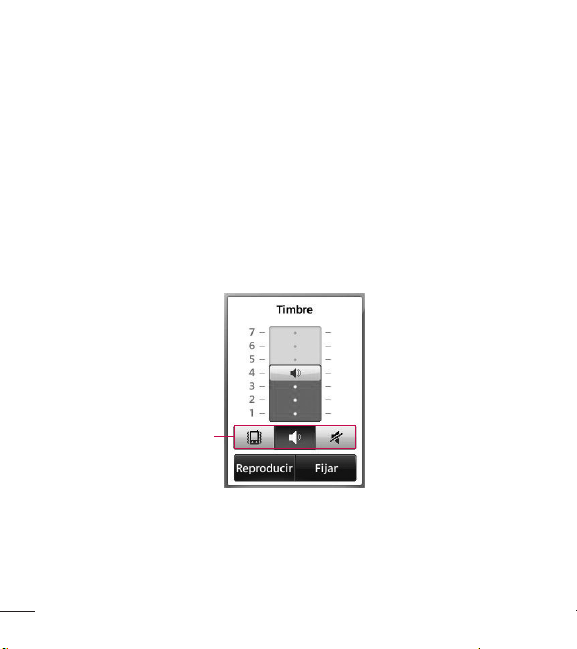
20
Funciones generales
Ajustar el volumen
Si desea ajustar el volumen del auricular durante una llamada, use las
Teclas de Volumen del teléfono. También puede ajustar el volumen del
timbre desde la pantalla principal usando las Teclas de Volumen.
Configurar perfiles
Presione cualquiera de las Teclas de Volumen para establecer el perfil de
sonido. Puede ajustar el volumen del tono de timbre desde la sección
Timbre y establezca el tono de timbre en Timbre, Vibrar o Silencio.
Perfiles

21
Modo de vibración (rápido)
Para activar el Modo Vibración, puede tocar y mantener presionado el
botón en el teclado de marcación. También puede establecer el
Modo Vibración al mantener presionada la Tecla de Volumen Inferior
desde la pantalla principal.
El teléfono muestra ‘Modo Vibración encendido’. Si desea apagar el
Modo Vibración, toque y mantenga presionado el botón otra vez o
mantenga presionada la Tecla de Volumen Inferior.
Potencia de la señal
Si está dentro de un edificio, ubicándose cerca de una ventana puede
mejorar la recepción. Se puede conocer la potencia de la señal mediante
el indicador de señal que aparece en la pantalla del teléfono.
Introducir texto
Con el teclado táctil del teléfono, puede introducir caracteres
alfanuméricos. El teléfono cuenta con los siguientes modos de entrada
de texto.
Cambiar entre el modo de letras y símbolos/números
Puede cambiar el modo de entrada de texto tocando y en el
teclado.

22
Funciones generales
Modo de letras
Este modo le permite introducir letras tocando la tecla etiquetada con la
letra requerida hasta que la letra se muestra (dependiendo en los ajustes
de modo de entrada). Para cambiar el método de entrada de texto, toque
, luego seleccione Método de escritura y elija entre Teclado o Teclado
extendido.
Modo de símbolos/números
Este modo le permite introducir símbolos y letras. Para cambiar al modo
de símbolos/números en un campo de entrada de texto, toque .
Uso del modo de entrada de texto predictivo T9
El modo de entrada de texto predictivo T9 permite ingresar palabras
fácilmente presionando una mínima cantidad de teclas. Cada vez que
usted toca una tecla, el teléfono comienza a mostrar los caracteres
que cree que usted desea escribir, sobre la base de un diccionario
incorporado. A medida que se agregan nuevas letras, la palabra cambia
de modo de reflejar el término más probable del diccionario.
1. En el modo de entrada de texto predictivo T9, comience a ingresar una
palabra usando el teclado táctil. Toque una tecla por letra.
Ƭ Para activar el modo de texto predictivo T9, toque > Ajustes de
entrada de texto > Predicción de palabras activada.
Ƭ La palabra cambia a medida que escribe las letras. Ignore lo que
aparezca en pantalla hasta que termine de escribir toda la palabra.
23
Ƭ Si al terminar de escribir aún no se muestra la palabra deseada,
toque para ver las opciones disponibles. Luego seleccione la
palabra que desea.
(Para mostrar las palabras posibles, primero tiene que seleccionar la
opción Mostrar palabras probables. Toque > Ajustes de entrada
de texto > Mostrar lista de palabras más probables).
Ƭ Si la palabra deseada no figura en la lista de opciones encontradas,
agréguela tocando y seleccionando para introducir
una nueva palabra. Luego toque Guardar para guardar la palabra en
el diccionario incorporado.
2. Escriba toda la palabra antes de editar o borrar alguna de las letras.
3. Para insertar espacios entre palabras, toque .
Para borrar letras, toque . Toque y mantenga presionado para
borrar todo el texto ingresado.
NOTA: Si presiona la Tecla Finalizar , los mensajes no
guardados se guardarán en la carpeta Borradores.
Usar el modo ABC
Utilice las teclas del teclado táctil para introducir el texto.
1. Toque la tecla etiquetada con la letra deseada, dependiendo de la
configuración de método de entrada de texto. Para cambiar el método
de entrada de texto, toque , luego seleccione Método de escritura y
elija entre Teclado o Teclado extendido.
24
Funciones generales
Ƭ Usando la opción Teclado, toque la letra deseada hasta que se
muestre.
Ƭ Usando Teclado extendido, sostenga el teléfono horizontalmente y
toque las letras deseadas.
2. Para insertar un espacio, toque . Para borrar letras, toque .
Toque y mantenga presionado para borrar todo el texto ingresado.
NOTA: Para obtener más detalles sobre los caracteres que pueden
escribirse con el método de entrada de Teclado, consulte la tabla a
continuación.

25
Caracteres disponibles con la opción Teclado
Tecla
Caracteres en orden de aparición
Mayúsculas Minúsculas
1 . , ‘ @ ? ! - : / 1 . , ‘ @ ? ! - : / 1
2 A Á B C 2 a á b c 2
3 D E É F 3 d e é f 3
4 G H I Í 4 g h i í 4
5 J K L 5 j k l 5
6 M N Ñ O Ó 6 m n ñ o ó 6
7 P Q R S 7 p q r s 7
8 T U Ú Ü V 8 t u ú ü v 8
9 W X Y Z 9 w x y z 9
0
Tecla de espacio, 0 (presión
prolongada)
Tecla de espacio, 0 (presión
prolongada)
26
Funciones generales
Mi Diccionario
La función Mi Diccionario le permite al usuario agregar palabras únicas o
personales a la base de datos estándar. Mi Diccionario puede accederse
tocando y seleccionando Ajustes de entrada de texto. Con la función
Mi Diccionario, se pueden agregar, modificar, borrar o volver a incorporar
palabras que no estén en la base de datos estándar.
NOTA: En el menú de opciones, puede seleccionar un idioma distinto.
De forma predeterminada, los modos de entrada están desactivados.
27
Para servicios prepagos, este menú brinda accesos directos hacia los
siguientes elementos (entre otros):
Añadir Tiempo Celular
Le permite agregar tiempo celular.
1. En la pantalla principal, toque > .
2. Introduzca la PIN de tiempo celular y toque .
3. Lea el mensaje que aparece y seleccione Sí o No.
Comprar Tiempo Celular
Puede elegir entre 4 tipos de tiempo celular.
Mi Número Telefónico
Mi número de teléfono muestra el número del dispositivo.
Mi Saldo de Tiempo Celular (Balance)
Permite comprobar sus minutos, mensajes, datos y fecha de vencimiento
de servicio.
Mostrar Tiempo Celular
Permite seleccionar si desea mostrar el saldo y/o la fecha de vencimiento
de servicio en la pantalla principal.
Prepago

28
Prepago
Número de Serie
El número de serie simplemente muestra el número de IMEI del teléfono.
Número de SIM
Este menú muestra la información del número de SIM del teléfono.
29
El teléfono brinda una cantidad de funciones de control que pueden
utilizarse durante una llamada. Para acceder a estas funciones durante
una llamada, toque .
Durante una llamada
Hacer una segunda llamada
Es posible seleccionar un número y hacer una segunda llamada.
Toque , ingrese el segundo número de teléfono y toque .
o
Toque
Contactos
para seleccionar un contacto de la lista de contactos y luego
toque .
Alternar entre dos llamadas
Una vez realizada (o recibida) la segunda llamada, podrá alternar entre
dos llamadas en curso.
Toque la Tecla Enviar o toque .
Responder una llamada recibida
Para responder una llamada entrante cuando el teléfono está sonando,
simplemente toque la Tecla Enviar o toque . El teléfono también
puede advertirle que tiene una llamada entrante mientras está respondiendo
otra llamada. Sonarán dos tonos en el auricular y la pantalla indicará que
una segunda llamada está en espera. Esta función, que se conoce como
Llamada en espera, sólo podrá utilizarse si la red admite ese servicio.
Menú En llamada
30
Si la llamada en espera está activada, es posible poner en espera la
primera llamada y contestar la segunda tocando la Tecla Enviar .
Rechazar una llamada recibida
Es posible rechazar una llamada entrante y no contestarla simplemente al
tocar la Tecla Finalizar o al tocar .
Cómo silenciar el micrófono
Para silenciar el micrófono durante una llamada, toque . Para anular el
silenciamiento del teléfono, toque nuevamente. Si silencia el teléfono,
la persona que lo llama no podrá oírlo, pero usted sí la oirá.
Usar el altavoz
Durante una llamada, toque para usar el altavoz integrado. El auricular
se desactiva automáticamente cuando usted termina la llamada.
ADVERTENCIA
Debido al aumento en el nivel del volumen, no coloque el teléfono
cerca de su oído mientras está activado el altavoz.
Menú En llamada

31
En la pantalla principal, podrá acceder a todas las opciones de menú,
hacer llamadas rápidas y ver el estado del teléfono, entre muchas otras
cosas.
Sugerencias sobre la pantalla táctil
Ƭ La pantalla principal también es un gran lugar para acostumbrarse a la
pantalla táctil.
Ƭ Para seleccionar un elemento, toque el icono con precisión.
Ƭ Para desplazarse por las listas, toque el último elemento visible y
deslice el dedo hacia arriba por la pantalla. La lista se mueve hacia
arriba para mostrar otros elementos.
Ƭ No es necesario presionar con fuerza, ya que la pantalla táctil es tan
sensible que detecta los toques delicados, pero precisos.
Ƭ Utilice la punta del dedo para tocar la opción que desee. No utilice la
uña.
Ƭ Cuando la luz de la pantalla se apague, presione la Tecla Encender/
Bloquear en la parte superior una vez para prender la pantalla.
Ƭ No use el teléfono con una funda o cubierta porque la pantalla táctil no
funciona si la cubre algún material.
Su pantalla principal
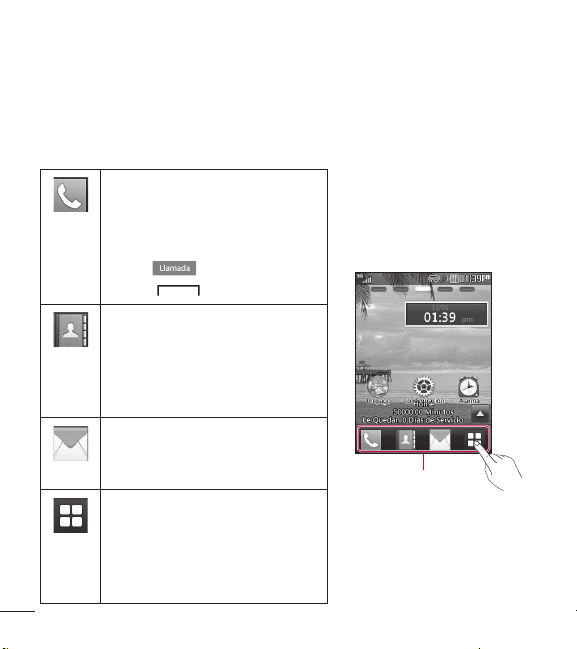
32
Su pantalla principal
Teclas Rápidas
Las Teclas Rápidas en la pantalla principal proporcionan acceso rápido de
un toque a las funciones que utiliza con más frecuencia.
Toque esta tecla si desea
que aparezca el teclado de
marcación para realizar una
llamada. Ingrese el número y
toque o toque la Tecla
Enviar .
Teclas Rápidas
Toque esta tecla para abrir sus
contactos y buscar el número
al que desea llamar. También
puede crear nuevos contactos
y editar los existentes.
Toque esta tecla para acceder
al menú Mensajes. Desde aquí
puede ver y crear mensajes.
Toque esta opción para abrir
el menú principal. Deslice la
pantalla hacia la izquierda o
la derecha para ver opciones
adicionales.

33
Pantalla principal
El teléfono proporciona cinco paneles en la pantalla principal. Para ver
los paneles, simplemente deslice la pantalla de izquierda a derecha y
viceversa.
Widget
Usted puede usar Widgets y agregarlos a la pantalla principal para
personalizarla.
1. Toque en la esquina inferior derecha de la pantalla principal para
ver las opciones disponibles.
2. Toque el botón Widget.
3. Arrastre un widget desde el panel de widget a la pantalla. Toque
para cerrar el panel de widget.
Ƭ Puede reproducir canciones, agregar notas, comprobar el calendario,
reproducir una presentación de diapositivas, establecer una alarma,
establecer una segunda ciudad o agregar eventos al calendario
directamente desde la pantalla principal usando los widgets
disponibles.
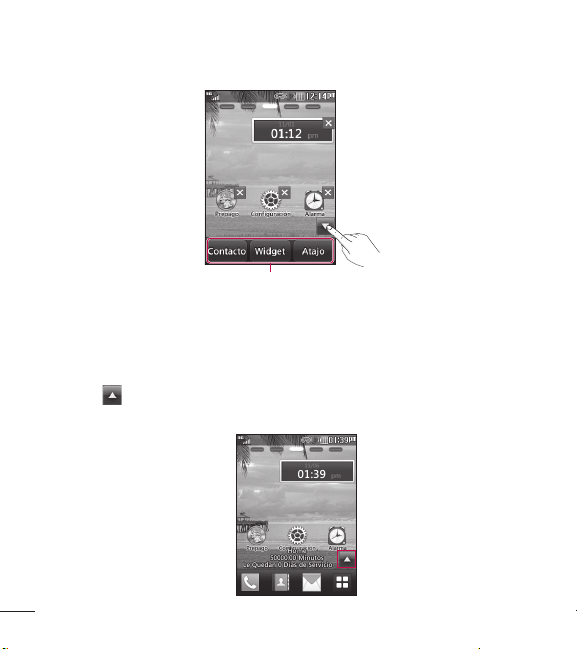
34
Su pantalla principal
Panel de widget
Contactos favoritos
Muestra sus contactos favoritos en la pantalla para poder contactar su
familia y amigos fácilmente.
1. Toque en la esquina inferior derecha de la pantalla principal y luego
toque el botón Contacto.
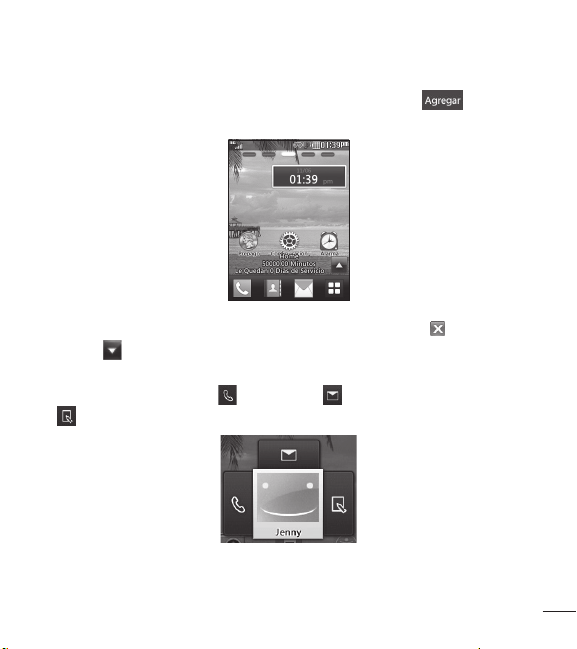
35
2. Toque los contactos que desea agregar y luego toque para
registrar los contactos favoritos.
Ƭ Si desea borrar un contacto desde esta pantalla, toque .
3. Toque para finalizar la edición de los contactos en esta pantalla.
Ƭ Para acceder a los contactos, simplemente toque el icono
correspondiente. Toque para llamar, para enviar un mensaje y
editar información del contacto.
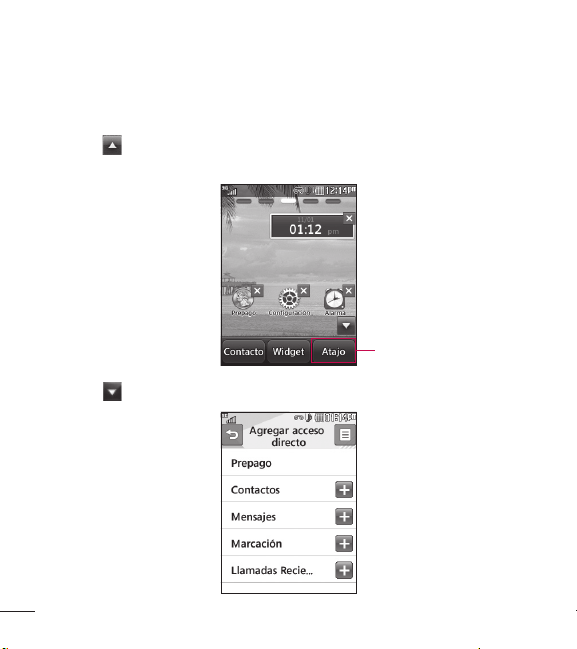
36
Su pantalla principal
Atajos
Agregue sus menús favoritos en la pantalla principal.
1. Toque en la esquina inferior derecha de la pantalla principal y luego
toque el botón Atajo.
Accesos directos
2. Toque para finalizar la edición de los contactos en esta pantalla.
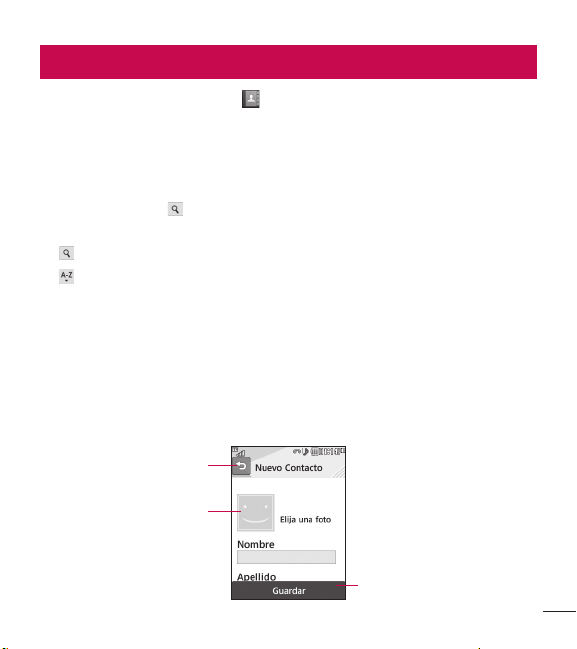
37
En la pantalla principal, toque para abrir su lista de contactos.
Lista de contactos
Este menú le permite guardar y administrar información de contacto. Puede
agregar una nueva dirección o buscar contactos por nombre. Para buscar
un contacto, toque e ingrese el nombre del contacto. Si introduce ‘At’,
todos los contactos que empiezan con ‘At’ en sus nombres aparecerán.
Ƭ : Permite buscar un contacto.
Ƭ : Permite ir a los nombres de contactos de cada letra específica
rápidamente.
Agregar nuevo
Esta opción le permite agregar un nuevo contacto. Puede introducir
información de contacto, incluyendo el nombre, números de teléfono,
correos electrónicos, información de grupo, fotos, tonos de timbre, notas
y más.
Toque aquí para volver a
la pantalla anterior.
Toque aquí para guardar.
Toque aquí para agregar
una foto.
Contactos

38
Contactos
1. En la pantalla principal, toque y toque Agreg. nueva.
2. Toque para establecer una ID de imagen para su contacto usando
una foto guardada o tomando una foto nueva. Elija entre Sin imagen,
Imágenes o Tomar otra foto. Después de tomar una foto nueva, toque
para establecerla como la ID de imagen del contacto.
Ƭ Introduzca el nombre, el apellido o ambos.
Ƭ Introduzca un número de teléfono. Toque para establecer ese
número como marcado rápido. Para más información, vea la sección
“Marcación rápida”.
Ƭ Introduzca una dirección de correo electrónico.
Ƭ Seleccione un grupo para el contacto.
Ƭ Establezca el tono de timbre para el contacto o use el tono de
timbre predeterminado.
Ƭ Agregue una nota, si es necesario.
Ƭ Elija si quiere guardar el contacto en el teléfono o en la tarjeta SIM.
3. Toque Guardar para guardar el contacto.

39
Grupos
Este menú permite administrar información sobre los grupos. También
puede configurar un tono de timbre para un grupo determinado, excepto
un grupo SIM. Por lo tanto, cuando reciba una llamada de una dirección
de contacto perteneciente a ese grupo y no haya un tono de timbre
configurado para esa dirección específica, escuchará el tono de timbre
elegido.
1. En la pantalla principal, toque y luego toque .
2. Aparecerá un menú desplegable. Toque Grupos.
3. Toque Nuevo grupo para crear un grupo nuevo. O toque un grupo
existente y luego toque Agregar miembro para agregar contactos a ese
grupo.
Marcación rápida
Es posible asignar números de marcación rápida a los contactos con los
que se comunica con mayor frecuencia. Se puede seleccionar un número
del 2al 9 como marcación rápida.
1. En la pantalla principal, toque .
2. Toque > Lista de Marcación Rápida.
3. Toque la ubicación deseada desde 2 a 9 y seleccione el contacto.
Ƭ El correo de voz ya está establecido en la opción de marcación
rápida 1. Esta es una configuración predeterminada y no se puede
modificar.
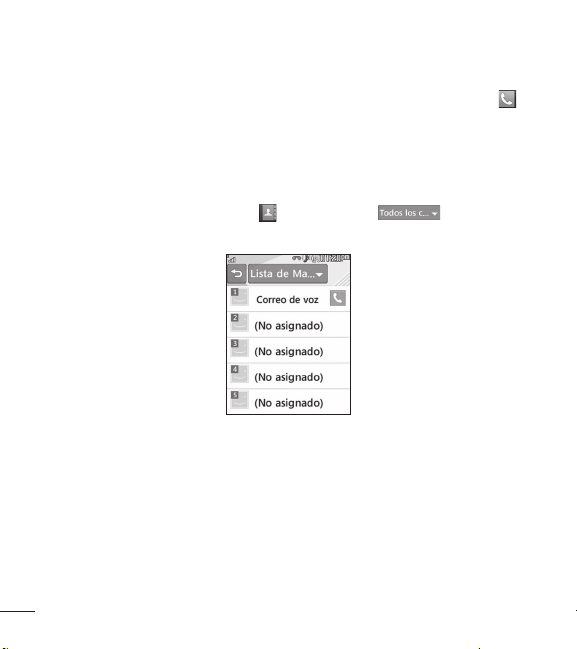
40
Contactos
Ƭ Para llamar a un número de marcación rápida asignado, toque
desde la pantalla principal. Luego toque y mantenga presionado
el número asignado y la llamada a ese número se realizará
automáticamente.
Para ver las entradas de marcación rápida:
1. En la pantalla principal, toque y luego toque .
2. Aparecerá un menú desplegable. Toque Lista de Marcación Rápida.
41
Administración de la tarjeta SIM
Este menú le permite copiar contactos de su tarjeta SIM al teléfono. Si
durante el proceso de copiado hay un nombre duplicado, la información
también se duplicará.
También puede copiar entradas de la tarjeta SIM a la memoria del
teléfono y entradas de la memoria del teléfono a la tarjeta SIM (no se
copiarán todos los datos).
En este menú, también puede borrar entradas de la tarjeta SIM.
1. En la pantalla principal, toque y luego toque .
2. Aparecerá un menú desplegable. Toque Administración de la Tarjeta
SIM.
3. Elija entre las siguientes opciones: Copiar contactos a la tarjeta SIM,
Copiar contactos de la tarjeta SIM y Borrar contactos de la tarjeta SIM.
ADVERTENCIA
Cambiar el número de teléfono puede provocar problemas de uso.
42
Esta sección incluye funciones relacionadas con los mensajes de texto
(SMS, Servicio de mensajes cortos), multimedia (MMS, Servicio de
mensajes multimedia) y correo de voz, así como los mensajes de servicio
de red.
Crear mensaje
1. En la pantalla principal, toque .
2. Toque .
Editar un mensaje
Al editar un mensaje, están disponibles las siguientes opciones:
Ƭ Símbolo: puede insertar símbolos como signos de puntuación o
emoticones. Toque dos veces para seleccionar los símbolos
que quiera. Puede tocar y para desplazar por las páginas de
símbolos.
Insertar archivos multimedia
Insertar archivos multimedia en los mensajes es fácil. Mientras edita un
mensaje, toque y seleccione una de las siguientes opciones:
Ƭ Imagen: Le permite insertar una imagen.
Ƭ Audio: Le permite insertar archivos de audio.
Ƭ Video: Le permite insertar clips de video.
Ƭ Diapositiva: Le permite insertar otra diapositiva.
Mensajes
43
Ƭ Tomar otra foto: Le permite insertar una nueva imagen que haya
tomado con la cámara.
Ƭ Grabar nuevo Audio: Le permite grabar un nuevo clip de audio.
• Modo de grabación: El modo MMS limitará la duración de grabación
para que pueda enviarse por MMS. El modo General grabará
siempre que haya memoria disponible.
• Calidad: Le permite seleccionar entre Normal, Economía o Fino.
• Almacenamiento: Le permite guardar la grabación a una memoria
externa o la memoria del teléfono.
Ƭ Grabar otro video: Le permite grabar un nuevo video.
Ƭ Más: Le permite insertar Plantilla, vCard, vCalendar, vNote, vTask o
Contacto.
Nota: vCard, vCalendar, vNote, vTask y Contacto se crean mediante las
funciones Contactos, Calendario, Bloc de notas y Tareas. Vaya a las
secciones correspondientes para obtener información más detallada.
Usar opciones
Al ingresar un mensaje de texto, toque para usar las opciones que
aparecen a continuación.
• Método de escritura: Le permite seleccionar entre Teclado extendido y
Teclado.

44
Mensajes
• Ajustes de entrada de texto
– Idioma de entrada de texto: Le permite establecer el idioma de
entrada de texto en las opciones inglés o español.
– Mostrar/Ocultar lista de palabras más probables: Le permite mostrar
palabras sugeridas cuando use el modo T9.
– Predicción de palabra activada/desactivada: Le permite al teléfono
predecir cuál será la siguiente palabra que introducirá teniendo en
cuenta las palabras anteriores.
– Mi Diccionario: Le permite agregar, editar y borrar palabras de su
diccionario personalizado.
• Copiar y Pegar: Le permite copiar y pegar texto.
• Cancelar mensaje: Le permite salir del mensaje sin guardarlo.
Si completa la entrada de un mensaje, toque el botón . Luego toque
para elegir una de las siguientes opciones.
• Guardar en Borradores: Guarda el mensaje seleccionado en la carpeta
Borradores.
Enviar un mensaje
Una vez completado el mensaje, toque Enviar para seleccionar
destinatarios.
• Seleccione los destinatarios. Toque para elegir una de las siguientes
opciones.
– Introducir el número: Le permite ingresar un número de teléfono.

45
– Introducir e-mail: Le permite introducir una dirección de correo
electrónico en lugar de un número de teléfono.
– Ingr. destinatario: Le permite introducir destinatarios.
– Grupos: Le permite agregar grupos de contactos.
– Destinatarios recientes: Le permite elegir un contacto de los
mensajes recientes.
– Llamadas Recientes: Le permite elegir un contacto de las llamadas
recientes.
– Opciones de entrega: Le permite agregar Cc y agregar Cco.
– Guardar en Borradores: Guarda el mensaje a Borradores.
– Cancelar mensaje: Le permite cancelar el mensaje.
Carpetas de mensajes
La estructura de carpetas del teléfono se diseñó para ofrecer un uso
rápido y sencillo.
Ƭ Buzón de Entrada: Todos los mensajes que reciba se guardarán en
este buzón.
Ƭ Borradores: Si no tiene tiempo para terminar de escribir un mensaje,
puede guardarlo como borrador.
Ƭ Buzón de Salida: Todos los mensajes que se están enviando y los ya
enviados se guardan en el Buzón de Salida.
46
Mensajes
NOTA: Si aparece el mensaje "Buzón de mensajes lleno. Borre
mensajes antiguos”, es necesario que borre algunos mensajes del
Buzón de Entrada.
Buzón de Entrada
Se le dará una notificación cuando reciba un mensaje. Se almacenarán
en el Buzón de Entrada. Cada mensaje puede ser identificado por los
iconos. Toque para las siguientes opciones.
Ƭ Borrar: Le permite borrar mensajes.
Ƭ Ordenar por: Le permite ordenar todos los mensajes por Fecha, Desde,
Leído/No leído y Asunto.
Ƭ Config. de Mensaje: Le permite establecer ajustes de mensaje.
Ƭ Borrar todos los mensajes leídos: Le permite borrar todos los mensajes
leídos.
Los siguientes modos de vista están disponibles en su Buzón de Entrada.
Vista predeterminada
Le permite ver mensajes individualmente. Cuando ve un mensaje, las
siguientes opciones están disponibles en la vista predeterminada después
de tocar :

47
Ƭ Añadir a contactos: Le permite guardar el número telefónico del
remitente en la lista de contactos.
Ƭ Seleccionar diapositiva: Si el mensaje multimedia contiene más de
una diapositiva, puede seleccionar la diapositiva deseada y pasar a esa
diapositiva.
Ƭ Extraer datos: Permite realizar una llamada de voz o enviar un mensaje.
Puede guardar el número como un nuevo contacto o actualizar uno ya
existente.
Ƭ Ver archivo adjunto: Le permite ver los archivos adjuntos del mensaje.
Ƭ Copiar a teléfono/en SIM: Le permite copiar el mensaje a la tarjeta SIM
o al teléfono.
Ƭ Mover al teléfono/a la tarjeta SIM: Le permite mover el mensaje a la
tarjeta SIM o al teléfono.
Ƭ Detalles del mensaje: Le permite ver información sobre los mensajes
recibidos como tipo de mensaje, asunto, dirección del remitente y hora
del mensaje..
Borradores
Permite ver los mensajes guardados como borradores. Para ver la carpeta
de Borradores, toque desde la pantalla principal, toque y luego
elija Borradores en el menú desplegable.

48
Mensajes
Buzón de Salida
En el Buzón de Salida podrá encontrar todos los mensajes enviados. Para
ver el Buzón de Salida, toque desde la pantalla principal, toque
y luego elija Buzón de Salida en el menú desplegable.
Al tocar la Tecla Enviar puede realizar una llamada al número del
destinatario del mensaje seleccionado.
Si el mensaje no se envía correctamente, recibirá una notificación en
pantalla de aviso de falla de envío del mensaje. Para reenviar el mensaje
fallido, debe tocar
Reenviar
.
El Buzón de Salida mostrará todos los mensajes fallidos, enviados y
pendientes en el orden en el que se enviaron. Toque para usar las
siguientes opciones.
Ƭ Borrar: Borra el mensaje seleccionado
Ƭ Ordenar por: Ordena por Fecha, Para y Asunto.
Ƭ Config. de Mensaje: Le permite establecer ajustes de mensaje.
Ƭ Borrar todo: Borra todos los mensajes.
Las siguientes opciones están disponibles al seleccionar un mensaje en el
Buzón de salida y tocar .
Ƭ Ver estado: Muestra el estado del mensaje.
Ƭ Editar: Le permite editar el mensaje.
Ƭ Copiar a teléfono/ en SIM: Le permite copiar el mensaje a la tarjeta
SIM o al teléfono.

49
Ƭ Mover al teléfono/ a la tarjeta SIM: Le permite mover el mensaje a la
tarjeta SIM o al teléfono.
Ƭ Seleccionar diapositiva: Si el mensaje multimedia contiene más de
una diapositiva, puede seleccionar la diapositiva deseada y pasar a esa
diapositiva.
Ƭ Ver archivo adjunto: Para ver el archivo adjunto.
Ƭ Detalles del mensaje: Le permite ver la información del mensaje.
Configuración de mensajes
Para configurar los ajustes de mensajes, toque desde la pantalla
principal, toque , y luego seleccione Config. de Mensaje para las
siguientes opciones.
Alerta de Mensajes
Puede establecer Sonidos, Volumen, Tipo de Alerta e Intervalo de la
alerta.
Guardar en
Elija una ubicación donde desea guardar los mensajes de manera
predeterminada. Elija entre Teléfono y Tarjeta SIM.
Firma
Esta función le permite crear una firma.

50
Mensajes
Mensaje de Texto
Ƭ Plantillas de texto
Hay 6 mensajes predefinidos en la lista. Puede ver y editar los
mensajes de la plantilla o crear nuevos mensajes. Estas plantillas le
permiten responder rápidamente a los mensajes. Para editar una
plantilla existente, tóquela (para abrirla) y luego toque el texto.
Al tocar , se presentan las siguientes opciones.
– Borrar: Le permite borrar el mensaje de plantilla seleccionado.
– Borrar todo: Borra todas las plantillas de mensaje de texto en la
carpeta.
Ƭ Número del centro de mensaje: Los detalles del centro de mensajes ya
vienen cargados en el teléfono y no deben modificarse.
Ƭ Insertar firma: Permite elegir si desea incluir su firma en los mensajes.
Mensaje Multimedia
Ƭ Plantillas Multimedia: Ofrece plantillas multimedia existentes y también
permite crear nuevas.
Número de Correo de Voz
Este menú permite configurar el número del centro de correo de voz si
su proveedor de servicios admite esa función.

51
Mensaje de Servicio
Puede configurar si le interesa recibir mensajes de servicio o no recibirlos.
Correo electrónico
E-mail le permite acceder a las cuentas de Yahoo! Mail, AOL Mail, AIM
Mail, Windows Live Hotmail, Gmail y otros proveedores desde el teléfono.
Así que, de ahora en más, puede revisar el correo electrónico fácilmente y
sin perder tiempo, aun cuando no tenga su computadora a mano.
Para configurar el correo electrónico
Ƭ Abrir correo electrónico: En la pantalla principal, toque y luego
toque .
Ƭ Iniciar sesión
1. Toque el campo Dirección de email, introduzca su dirección de
correo electrónico y luego toque OK.
2. Toque el campo Contraseña, introduzca su contraseña y toque OK.
3. Toque Guardar.
Enviar un mensaje de correo electrónico a través de su cuenta
Para enviar o recibir correo electrónico, debe configurar una cuenta de
correo electrónico.
1. En la pantalla principal, toque y luego toque y elija la cuenta que
desea usar.

52
Mensajes
2. Toque Correo nuevo para crear un nuevo correo electrónico.
3. Ingrese la dirección del destinatario en el campo Para e ingrese el
asunto en el campo Asunto.
4. Introduzca el mensaje y toque OK.
5. Toque Enviar para enviar el correo electrónico.
Recuperar sus mensajes de correo electrónico
1. En la pantalla principal, toque y luego toque .
2. Toque la cuenta que desea utilizar.
3. Toque Recibidos.
4. Toque y toque Actualizar para conectarse con su cuenta de correo
electrónico y recuperar los mensajes nuevos.
Carpetas de mensajes
En la pantalla principal, toque y luego toque .
Aparecerán las carpetas de cuenta.
Ƭ Correo nuevo: Permite crear un nuevo mensaje.
Ƭ Recibidos: Todos los mensajes de correo electrónicos recibidos se
guardarán en la carpeta Recibidos. Desde aquí puede responder,
reenviar y realizar otras acciones.
Ƭ Borradores: Si no tiene tiempo para terminar de escribir un correo
electrónico, puede guardar aquí lo que escribió hasta ese momento.

53
Ƭ Salientes: Esta es una carpeta de almacenamiento temporal que se
utiliza cuando se están enviando mensajes o en la que se almacenan
los mensajes que no se pudieron enviar.
Ƭ Enviados: Las copias de todos los mensajes de correo electrónico
enviados se guardan en esta carpeta.
Ƭ Eliminados: Los correos electrónicos borrados se guardan en esta
carpeta.
Cambiar la configuración del correo electrónico
1. En la pantalla principal, toque y luego toque .
2. Toque y luego toque Configuración de correo para configurar los
siguientes ajustes.
Ƭ Cuentas de e-mail: Le permite agregar o borrar cuentas y editar la
información del servidor de cuenta.
Ƭ Correo elect pred: Elija con qué cuenta se crearán los correos
electrónicos de manera predeterminada.
Ƭ Mostrar lista predictiva: Elija si desea que se muestren contactos
cuando ingrese destinatarios.
Ƭ Notificación de nuevo correo electrónico: Elija si desea recibir un aviso
cuando tenga un correo electrónico nuevo.
Ƭ Firma: Crea una firma para su correo electrónico y active o desactive
esta función.

54
Juegos
Le permite descargar y jugar juegos de Java y aplicaciones para disfrutar.
Para acceder a Juegos desde la pantalla principal, toque y luego
toque .
Facebook
Le permite acceder a Facebook y mantener en contacto con su familia y
amigos. Para acceder a Facebook desde la pantalla principal, toque y
luego toque .
Cámara
En la pantalla principal, toque y luego toque para acceder a la
Cámara.
Tomar foto
Con la cámara de su teléfono, puede tomar fotos de personas o
acontecimientos cuando esté en movimiento. Además, puede enviar fotos
a otras personas en un mensaje de imagen.
1. Abra la Cámara y coloque el objetivo en el centro del visor.
2. Toque para tomar la foto.
Multimedia
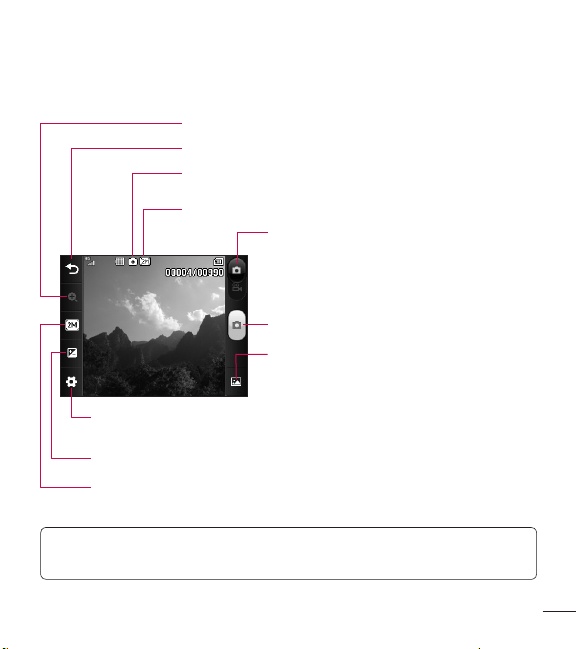
55
Conocer el visor
Modo de cámara: Indica que el modo de cámara está
seleccionado.
Tamaño de imagen: Indica el tamaño de imagen actual.
Salir: Toque aquí para salir del modo de cámara.
Modo de videocámara: Alterna entre el modo
de cámara y el modo de video.
Álbum: Le permite ver la foto tomada
anteriormente. Si no se han tomado fotos
anteriormente, se mostrará el Álbum de fotos.
Zoom: Le permite acercar y alejar.
Tamaño de imagen: Le permite cambiar la resolución de la imagen.
Configuración: Toque este icono para abrir el menú de configuración. Consulte
el Menú Configuración en la página 56 para obtener detalles.
Brillo: Le permite ajustar el nivel de brillo de la foto.
Capturar: Toma una foto.
NOTA: Simplemente toque la pantalla para eliminar las opciones de la
pantalla o mostrarlas.
56
Multimedia
Menú Configuración
Ƭ Balance de blancos: Elija entre Auto, Luz de día, Nublado, Iluminar e
Interior.
Ƭ Modo nocturno: Le permite encender y apagar el modo nocturno.
Ƭ Modo de disparo: Elija entre Normal y Toma continua. Esta función
es ideal para tomar fotos de objetos en movimiento o de eventos
deportivos.
Ƭ Efectos de color: Elija entre Color, Bl. y negr, Sepia, Negativo, y Azul.
Ƭ Temporizado: Establezca el temporizador en Apagado, 3 segundos, 5
segundos o 10 segundos.
Ƭ Modo visualiz.: Elija entre Img compl. y Pant compl.
Ƭ Revisión de imagen: Elija si desea mostrar la foto después de tomarla.
Ƭ Tonos de obturador: Le permite seleccionar entre 3 tonos o
desactivarlo.
Ƭ Almacenamiento: Le permite guardar una foto a la Memoria del
teléfono o la Tarjeta de memoria.
Ƭ Restaurar configurac.: Permite establecer la configuración
predeterminada.
NOTA: Puede ajustar la escala de zoom al mover la barra deslizante. Los
niveles máximos de zoom dependen de la resolución como se indica a
continuación.
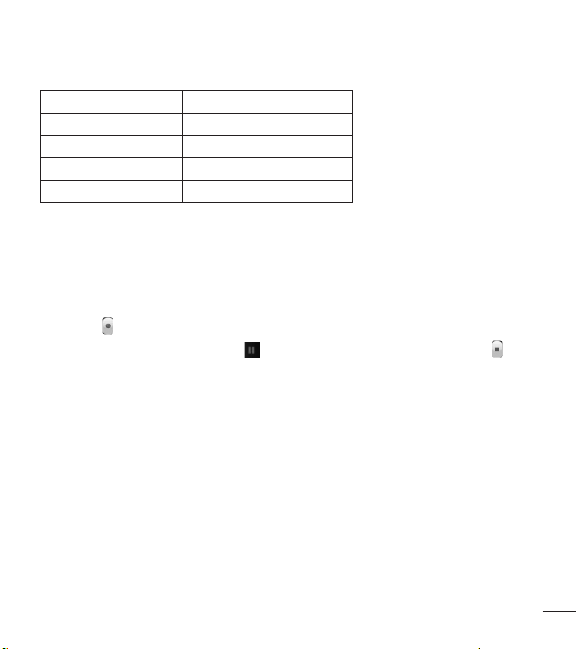
57
Resolución Escala del zoom
2M (1600x1200) Nivel 1
1M (1280x960) Nivel 1
VGA (640x480) Nivel 1 a nivel 10
QVGA (320x240) Nivel 1 a nivel 10
Grabar video
Al grabar un video, tiene muchas opciones de configuración iguales a
cuando toma una foto.
1. Abra la Videocámara y centre el objetivo en el visor.
2. Toque para comenzar a grabar el video.
3. Para pausar el video, toque . Para detener la grabación, toque .
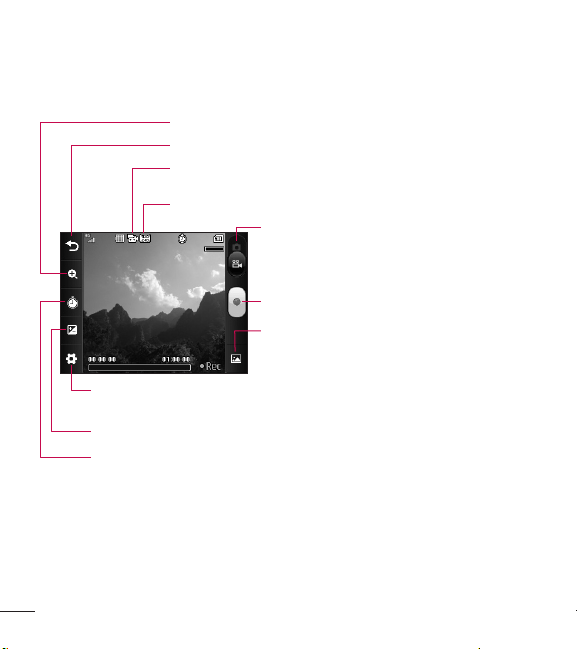
58
Multimedia
Conocer el visor
Modo de vista: Indica que el modo de videocámara está
seleccionado.
Tamaño del video: Indica el tamaño actual del video.
Salir: Toque aquí para salir del modo de video.
Grabar: Inicia la grabación del video.
Álbum: Le permite ver el video grabado
anteriormente. Si no se han grabado videos
anteriormente, se mostrará el Álbum de videos.
Zoom: Le permite acercar y alejar.
Duración: Le permite seleccionar una de las duraciones de grabación
preestablecidas entre Normal y MMS.
Configuración: Toque este icono para abrir el menú de configuración. Consulte
el Menú Configuración en la página 59 para obtener detalles.
Brillo: Le permite ajustar el nivel de brillo del video.
Modo de cámara: Alterna entre el modo de
videocámara y el modo de cámara.
59
Menú Configuración
Ƭ Balance de blancos: Elija entre Auto, Luz de día, Nublado, Iluminar e
Interior.
Ƭ Efectos de color: Elija entre Color, Bl. y negr, Sepia, Negativo, y Azul.
Ƭ Tamaño del video: Establece el tamaño del video a QVGA (320x240) o
QCIF (176x144). El tamaño seleccionado aparece en el visor.
Ƭ Almacenamiento: Le permite guardar un video a la Memoria del
teléfono o la Tarjeta de memoria.
Ƭ Tonos de grabación: Permite encender y apagar los tonos de
grabación.
Ƭ Restaurar configurac.: Permite establecer la configuración
predeterminada.
NOTA: Puede ajustar la escala de zoom al mover la barra deslizante.
Los niveles máximos de zoom dependen de la resolución como se
indica a continuación.
Resolución Escala del zoom
QVGA (320x240) Nivel 1 a nivel 10
QCIF (176x144) Nivel 1 a nivel 10
60
Reproductor de Música
Para iniciar el Reproductor de Música desde la pantalla principal, toque
y luego toque .
Ƭ Reproduciendo Ahora: Muestra la pantalla de reproducción actual.
Ƭ Todas Las Canciones: Le permite ver todas las canciones de la
biblioteca de música.
Ƭ Listas de Reproducción: Le permite ver y crear sus propias listas de
reproducción.
Ƭ Artista: Le permite ver la lista de los artistas de todas las canciones en
su biblioteca de música.
Ƭ Álbum: Le permite ver la lista de álbumes de todas las canciones de la
biblioteca de música.
Ƭ Género: Le permite ver la lista de géneros de todas las canciones de la
biblioteca de música.
Ƭ Favorito: Le permite ver la lista de la música establecida como favorita.
Ƭ Aleatorio: Le permite reproducir todas las canciones de la biblioteca de
música en orden aleatorio..
NOTA: Es probable que los derechos de autor de los archivos de
música estén protegidos por las leyes de derecho de autor y propiedad
intelectual. Antes de descargar o copiar archivos, asegúrese de cumplir
con las condiciones de uso de las leyes de materiales.
Reproductor de Música
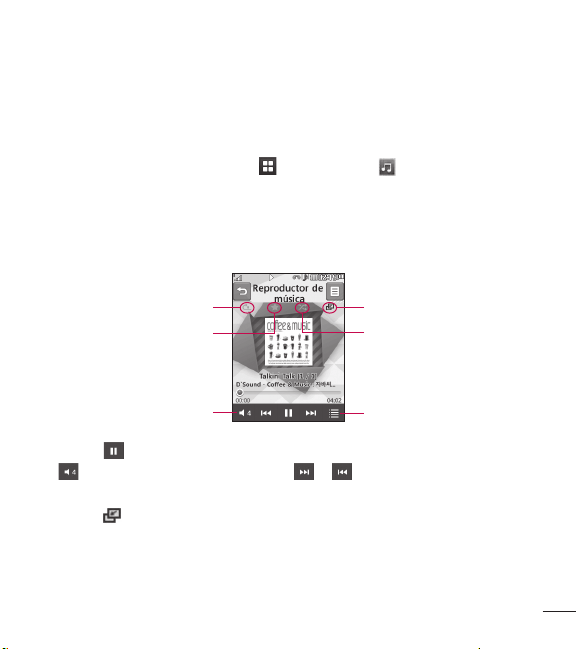
61
Reproducir música
Para escuchar música en su teléfono o la memoria externa, siga los
siguientes pasos sencillos:
1. En la pantalla principal, toque y luego toque .
2. Puede elegir entre Todas Las Canciones, Listas de Reproducción,
Artista, Álbum, Género, Favoritos y Aleatorio. El botón Reproduciendo
Ahora sólo estará disponible cuando la música se esté reproduciendo.
3. Toque el tema que desea reproducir.
Lista de reproducción
Repetir
Volumen
Favoritos
Minimizar
Reordenar
Ƭ Toque para pausar la canción. Durante la reproducción, toque
para ajustar el volumen. Toque y para pasar a la canción
siguiente o la canción anterior.
Ƭ Toque para minimizar el Reproductor de Música y acceder a otras
funciones del teléfono mientras se reproduce música.
62
Reproductor de Música
NOTA: Es posible que los archivos de menos de 300KB no se
muestren en esta función y pertenezcan a la categoría Tonos de
timbre.
Agregar música al teléfono
Pueden agregarse archivos de música al teléfono mediante cualquiera de
los siguientes métodos:
Ƭ Descargar tonos de timbre directamente de la red al dispositivo
mediante el enlace Comprar tonos de timbre en el menú de Audio.
Ƭ Desde su colección existente de medios digitales en su PC a través de
Windows Explorer.
Comprar y descargar tonos de timbre directamente al teléfono
1. En la pantalla principal, toque y luego toque para acceder al
menú Audio.
2. Seleccione Comprar tonos de timbre.
NOTA: Algunos sitios manejan grandes volúmenes de datos (por
ejemplo, vistas previas mediante transmisión por secuencias). Por eso,
sería conveniente que el usuario contara con un plan de datos ilimitado
antes de usar estos servicios, para evitar cargos basados en el uso
de datos. Es posible que se apliquen cargos adicionales al descargar
música, timbres, etc.
63
Arrastre y suelte la música con su teléfono como almacenamiento
masivo
1. Asegúrese de que la tarjeta microSD™ esté insertada correctamente en
el teléfono.
2. Conecte el teléfono a la PC con un cable de datos USB.
3. Su computadora detectará e instalará el teléfono automáticamente.
4. Toque OK cuando lo solicite el teléfono y acceda a My Computer (Mi
computadora) en la PC.
5. La tarjeta de memoria aparecerá en “Removable Disk” (Dispositivo
extraíble) en la misma ubicación que una unidad de disco óptica.
NOTA: La PC le asignará automáticamente una letra de unidad de
disco.
6. Explore en una nueva ventana para encontrar los archivos de música
deseados.
7. Arrastre la música deseada desde la ventana de la PC y colóquela en
la ventana de la tarjeta de almacenamiento.
8. Toque Salir en el teléfono y desconecte el cable USB.
64
Reproductor de Música
Borrar archivos de música
Para borrar música del teléfono, tiene disponibles las siguientes tres
opciones:
– Borrar un archivo mediante el almacenamiento masivo.
– Borrar un archivo insertando directamente la tarjeta de memoria
externa microSD™ en la PC.
– Borrar un archivo con la función Borrar del teléfono.
NOTA: Si borra una lista de reproducción del teléfono, los temas de
la lista no se eliminarán y permanecerán en la carpeta Todas Las
Canciones.
Tenga presente que, si usa el proceso que se detalla a continuación,
todos los datos existentes se borrarán de la tarjeta microSD™.
– Use la función Reinicio de tarjeta de memoria del menú
Configuraciones. ( > > Teléfono > Restaurar Configuraciones >
Borrado Maestro > Tarjeta de Memoria).
– Formatee la memoria externa con la función Almacenamiento masivo.
65
Utilidades
Audio
En la pantalla principal, toque y luego toque para acceder al menú
Audio.
Ƭ Comprar tonos de timbre: Le permite comprar tonos de timbre para su
teléfono.
Ƭ Grabador de Voz: Le permite grabar sus propios audios.
Ƭ Se muestra una lista de sus archivos de audio.
Imágenes
En la pantalla principal, toque y luego toque para acceder al menú
Imágenes.
Ƭ Comprar Gráficos: Le permite comprar gráficos para su teléfono.
Ƭ Tomar Una Foto: Inicia la cámara para tomar fotos.
Ƭ Se muestra una lista de sus archivos de imagen.
Video
En la pantalla principal, toque y luego toque para acceder al menú
Video.
Ƭ Grabar Video: Inicia la videocámara para grabar videos.
Ƭ Se muestra una lista de sus archivos de video.
NOTA:
La administración de derechos digitales en ocasiones restringe
algunas funciones, como enviar a otros.
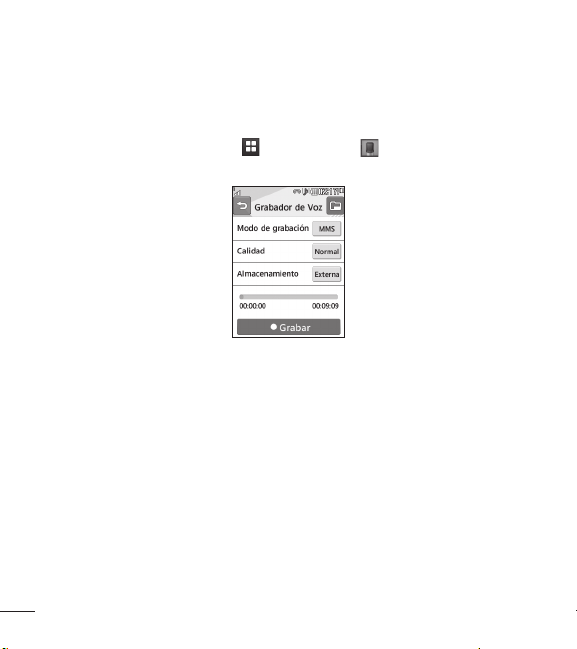
66
Utilidades
Grabador de Voz
Utilice el Grabador de voz para grabar notas de voz u otros sonidos.
En la pantalla principal, toque y luego toque para acceder al
Grabador de Voz.
Ƭ Configuración
– Modo de grabación: El modo MMS acorta el tiempo para que la
grabación pueda entrar en un mensaje MMS, y el modo General
ofrece un tiempo de grabación más largo.
– Calidad: Permite asignar la calidad predeterminada en Normal,
Economía o Fino.
– Almacenamiento: Le permite guardar la grabación en la memoria
externa o en la memoria del teléfono.
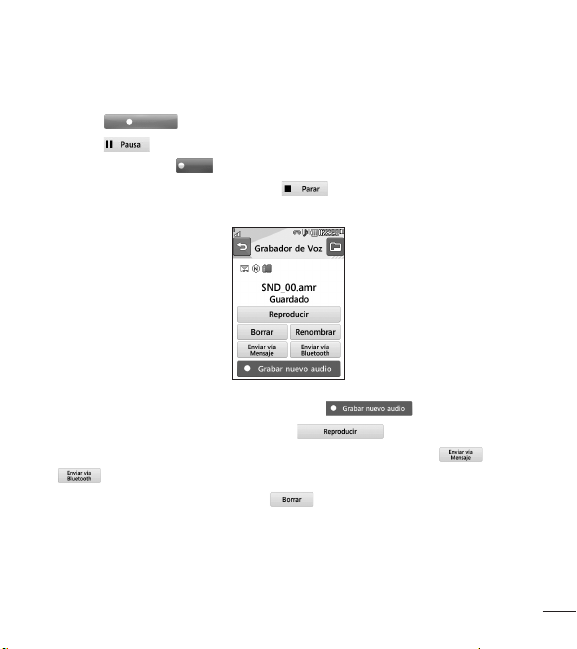
67
Grabar una nota de voz
Ƭ Toque
Grabar
para iniciar la grabación.
Ƭ Toque para pausar la grabación. Para continuar con la
grabación, toque
Reanudar
.
Ƭ Para detener la grabación, toque . La grabación se guardará
automáticamente.
Ƭ Para iniciar una nueva grabación, toque .
Ƭ Para reproducir la grabación, toque .
Ƭ Para enviar la grabación por mensaje o Bluetooth, toque o
.
Ƭ Para borrar la grabación, toque y luego toque Sí para confirmar.

68
Utilidades
Calendario
Este menú muestra un calendario. El cursor azul y cuadrado se utiliza
para ubicar un día en particular. El día resaltado en verde indica el día
de hoy. Los días resaltados en amarillo indican los eventos que existen
en esos días. El teléfono hará sonar un tono de alarma si ha sido
configurado para un elemento específico de la agenda.
En la pantalla principal, toque y luego toque para acceder al
Calendario. Las siguientes opciones están disponibles cuando abre la
función Calendario y toca .
Ƭ Nueva cita: Le permite agregar una nueva cita en la fecha que
seleccione.
Ƭ Buscar: Permite buscar los eventos guardados.
Ƭ Fijar feriado: Permite establecer la fecha seleccionada como día de
festejo.
Ƭ Ver todos: Permite ver todos los eventos guardados.
Ƭ Vista semanal: Le permite cambiar el modo de vista del calendario de
Vista mensual a Vista semanal y viceversa.
Ƭ Ir a fecha: Permite ir directamente a una fecha determinada.
Ƭ Borrado selectivo: Permite borrar los planes antiguos o todos los
planes de manera selectiva.
Ƭ Configuraciones: Le permite establecer la vista predeterminada y el día
de comienzo semanal.

69
Bloc de notas
Es posible crear un máximo de 30 notas.
1. En la pantalla principal, toque y luego toque para acceder al
Bloc de Notas.
2. Para crear una nueva nota, toque Nueva nota, escriba la nota y toque
para guardar.
Tareas
Esta función le permite guardar y administrar una tarea.
Para agregar una nueva tarea
1. En la pantalla principal, toque y luego toque para acceder a
Tareas.
2. Toque Nueva tarea.
3. Introduzca la Fecha límite, Nota y Prioridad para la nueva tarea.
4. Toque Guardar para guardar el elemento de tarea.
Las siguientes opciones están disponibles al tocar en el menú
principal Tareas:
Ƭ Nueva tarea: Le permite crear una nueva tarea.
Ƭ Borrar: Le permite borrar tareas ya creadas.
Ƭ Borra todo: Le permite borrar todas las tareas.
Ƭ Enviar tarea por: Le permite enviar tareas mediante mensajes
multimedia, correos electrónicos y Bluetooth.

70
Utilidades
Ƭ Ordenar por: Le permite ordenar tareas por fecha, estado o prioridad.
Ƭ Ver calendario: Le permite ver el calendario.
Cronómetro
Este menú le permite registrar el tiempo transcurrido de un evento.
Puede mostrar también la duración de una vuelta individual (hasta 99
veces) y el tiempo total.
Ƭ Nueva hora
1. En la pantalla principal, toque > o > > para
acceder al Cronómetro.
2. Seleccione Nuevo tiempo.
3. Para iniciar el cronometraje, toque
Inicio
.
El tiempo continuo se muestra como HH.MM.SS.hh (horas, minutos,
segundos, centésimas de segundo).
4. Durante el cronometraje, puede grabar un tiempo de vuelta
individual tocando el botón
Vuelta
. Pueden registrarse hasta 99
tiempos de vuelta.
5. Puede detener el cronometraje tocando
Parar
o reiniciarlo tocando
Reanudar
.
6. Para restaurar el cronómetro, toque
Restaur.
.
Ƭ Tiempos guardados: Permite ver los registros de tiempo guardados.
Ƭ Mostrar último: Permite mostrar el último tiempo realizado con el
cronómetro.

71
Calculadora
La función Calculadora le permite realizar cálculos de ecuaciones
matemáticas simples.
Para acceder a la Calculadora
1. En la pantalla principal, toque y luego toque para acceder a la
Calculadora.
Calculadora de propinas
Esta función permite calcular rápida y fácilmente la cantidad de una
propina según el total de la factura y también dividir el total de la factura
entre la cantidad de personas.
Para acceder a la Calculadora de propinas
1. En la pantalla principal, toque y luego toque para acceder a la
Calculadora de Propinas.
2. Introduzca las cantidades en los campos Total ($), Propina (%) y Dividir.
3. Los campos Propina ($) y Debe ($) se calculan automáticamente.
Conversor de Unidad
Esta función convierte cualquier medida a una unidad que usted
seleccione.
Se pueden convertir seis tipos de unidades: área, longitud, peso,
temperatura, volumen y velocidad.

72
Utilidades
Para acceder al Conversor de Unidad
1. En la pantalla principal, toque y luego toque para acceder al
Conversor de Unidad.
2. Toque Área en la parte superior de la pantalla y seleccione una opción
del menú desplegable.
3. Elija la unidad conocida e ingrese la cantidad.
4. Las cantidades que aparecen a continuación se calcularán
automáticamente.
Alarma
Esta función sirve para configurar varias alarmas por separado. Puede
establecer la hora, el intervalo de repetición y el tono de la alarma.
Para establecer una nueva alarma
1. En la pantalla principal, toque y luego toque para acceder a la
Alarma.
2. Seleccione Nueva alarma.
3. Configura los siguientes ajustes:
Ƭ Hora: Introduzca la hora de alarma deseada y especifique la hora y los
minutos. Si la hora está en el formato de 12 horas, debe seleccionar
AM
o
PM
. También puede elegir una cantidad de tiempo predefinida
(15minutos después, 30minutos después, 45minutos después,
1hora después, Apagado).

73
Ƭ Repetir: Seleccione el modo de repetición deseado (Una vez,
Diariamente, Lun ~ Vie, Sáb ~ Dom, Seleccione el día de la semana o
Excepto feriado).
Ƭ Tono de alarma: Seleccione el tono de alarma deseado para usarlo
como alarma.
Ƭ Volumen de la alarma: Le permite ajustar el volumen de alarma.
Ƭ Tipo de alarma: Seleccione el tipo de alarma deseado. Elija entre
Sonido, Vibración, Sonido y vibración, y Vibración después de sonido.
Ƭ Nota: Introduzca el nombre alarma.
Ƭ Intervalo de repetición: Le permite establecer el intervalo de repetición
en 5minutos, 15minutos, 30 minutos, 45minutos, 1hora o Apagado.
4. Toque Guardar para guardar su alarma.
Alarma rápida
En el menú Alarma, toque Alarma rápida para establecer una alarma
rápida.
1. Arrastre la barra de izquierda a derecha para establecer el tiempo;
60 minutos es el valor máximo.
2. Desplácese hacia abajo para configurar las opciones Tono de alarma,
Volumen de la alarma, Tipo de alarma, Nota e Intervalo de repetición.
3. Toque Guardar para guardar la alarma.
74
Utilidades
Administrador de Archivos
En la pantalla principal, toque y luego toque para acceder al
Administrador de Archivos.
Esto le permite ver todos los tipos de archivos de contenido en la
memoria interna del teléfono y la tarjeta de memoria externa.
Toque para las siguientes opciones:
Ƭ Enviar vía: Permite enviar el archivo seleccionado a través de un
mensaje, correo electrónico o Bluetooth.
Ƭ Borrar: Permite borrar el archivo seleccionado.
Ƭ Mover: Le permite mover los archivos seleccionados a la memoria del
teléfono o a la tarjeta de memoria.
Ƭ Copiar: Le permite mover los archivos seleccionados a la memoria del
teléfono o a la tarjeta de memoria.
Ƭ Nueva carpeta: Le permite crear una nueva carpeta manualmente.
Ƭ Ordenar por: Permite ordenar las carpetas por nombre, fecha y tipo.
Ƭ Borrar todo: Le permite borrar todos sus archivos y carpetas.
Ƭ Renombrar: Le permite editar el nombre del archivo seleccionado.
NOTA: Límites - no se pueden enumerar los archivos y las carpetas del
sistema.
75
Acceso Web
Esta aplicación permite conectarse a Internet. El acceso web es uno de
los servicios proporcionados por TracFone y brinda acceso a todas las
actividades interesantes que se pueden hacer con el teléfono inalámbrico.
NOTA: Compruebe la disponibilidad de los servicios de datos, precios
y tarifas con su operador de red o con el proveedor de servicios que
desee usar. Los proveedores de servicio también le darán instrucciones
sobre cómo utilizar sus servicios. Para abrir una cuenta de Internet,
comuníquese con su proveedor de servicios.
Inicio del acceso web
Para iniciar el acceso web desde la pantalla principal, toque y luego
toque .
Una vez conectado, se muestra la página de inicio.
Para salir del acceso web en cualquier momento, toque la Tecla Finalizar
.
Menús del acceso web
Puede navegar el internet con las teclas del teléfono o la barra de
herramientas del acceso web.

76
Acceso Web
Usar el menú del acceso web
Menú en línea
Una vez que se conecte a Internet, las siguientes opciones de menú
estarán disponibles cuando toque :
Ƭ Casa: Lo dirige a la página de inicio que aparece al conectarse.
Ƭ Ventanas: Puede tener varias ventanas abiertas para navegar en
diferentes páginas web al mismo tiempo.
Ƭ Introduzca URL: Permite conectarse a una dirección URL específica.
Ƭ Favoritos: Permite agregar o guardar la página en la que está en ese
momento como favorita o ver la lista de los favoritos guardados.
Ƭ Vista horizontal: Le permite ver páginas web fácilmente en vista horizontal.
Ƭ Ver pantalla completa: Permite ver la página actual en pantalla
completa.
Ƭ Buscar texto: Le permite encontrar texto en la página web actual.
Ƭ Páginas Recientes: Le permite ver una lista de las páginas web
visitadas recientemente.
Ƭ Enviar URL: Le permite enviar la URL de la página actual mediante
mensaje a otra persona.
Ƭ Configuraciones: Le permite establecer opciones como Caché, Cookie
y otros valores de configuración del acceso web.
Ƭ Ayuda de navegar: Abre la ayuda general para que tu experiencia de
navegación sea más fácil.
Ƭ Salir: Sale del acceso web.
77
Pantalla
En la pantalla principal, toque , y luego Pantalla para acceder a los
ajustes de menú de la pantalla.
Fondos de Pantalla
Este menú permite establecer una foto o color como fondo. También
puede elegir no usar fondo de pantalla.
Fuentes
Permite configurar el tamaño y el color de los números que aparecerán
en la pantalla de marcación al realizar una llamada. También puede
establecer el tamaño de fuente para los menús y las listas.
Brillo
Permite establecer el brillo de la pantalla de visualización.
Tiempo de Luz de Fondo
Permite establecer el tiempo que permanecerá encendida la luz de fondo
de la pantalla táctil y el teclado.
Efecto de transición
Si establece el efecto de transición, puede ver el efecto de cambio de
pantalla.
Configuración
78
Configuración
NOTA: Cuando establece Configuración > Accesibilidad > Lectura del
menú activado, el efecto de transición no funciona.
Teléfono
En la pantalla principal, toque , y luego Teléfono para acceder a los
ajustes de menú del teléfono.
Idiomas
Puede cambiar el idioma para el texto que se visualiza en su teléfono.
Este cambio también afectará al modo de entrada de idioma.
Bloqueo aut de pant.
Esta función le permite configurar un período antes de que la pantalla se
bloquee automáticamente.
Bloqueo del patrón
Si elije un patrón de bloqueo, tendrá que dibujarlo dos veces para
confirmarlo. Luego, introduzca un código de seguridad.

79
Establecer Modo avión
Permite usar sólo las funciones del teléfono que no requieran el uso de
la red inalámbrica cuando esté en un avión o en lugares en los que se
prohíbe usar la red inalámbrica. Si establece el modo avión, se le pedirá
que confirme su elección. Después de tocar , para confirmar, el
icono de modo avión se mostrará en la pantalla en lugar del icono de
señal de red.
Ƭ ACTIVADO: No se pueden realizar (ni recibir) llamadas, incluidas las
de emergencia, ni usar otras funciones que requieran cobertura de red.
Ƭ DESACTIVADO: Desactiva el modo avión y restablece sus
conexiones inalámbricas.
Seguridad
Existen varios códigos y contraseñas para proteger las funciones y la
configuración del teléfono. En las secciones siguientes, se presenta una
descripción de esos métodos de protección.
Ƭ Bloqueo de Teléfono: Puede usar un código de seguridad para evitar el
uso no autorizado del teléfono. Si el bloqueo del teléfono se establece
en Al encender, el teléfono le pedirá el código de seguridad cada vez
que se encienda el teléfono. Si el bloqueo del teléfono se establece
Bloquear teléfono ahora, el teléfono se bloqueará al instante.
Ƭ Cambiar códigos: Este menú le permite cambiar su código de
seguridad actual a uno nuevo. Debe introducir el código de seguridad
actual antes de introducir uno nuevo.

80
Configuración
Memoria
Este menú le permite ver la información de memoria.
Ƭ Espacio Utilizado: Muestra el espacio de memoria usado para Común,
Tarjeta de memoria, Reservada y Tarjeta SIM.
Ƭ Est. Valores de Almacen. Predeter.: Le permite establecer las
ubicaciones predeterminadas de almacenamiento para varios tipos de
funciones.
Restaurar Configuraciones
Esta función permite restaurar la configuración de fábrica. Para hacerlo,
se necesita ingresar el código de seguridad.
Ƭ Reinicio Maestro: Restaura la configuración (por ejemplo: Audio,
Pantalla, Idioma, Configuración de Bluetooth) almacenadas en la
memoria del teléfono a los valores predeterminados.
Ƭ Borrado Maestro: Borra el contenido descargado o creado por el
usuario (por ejemplo, imágenes y videos) del teléfono y de la tarjeta de
memoria externa.
Teléfono
– Borra todas los sonidos, videos e imágenes descargados de la
memoria del teléfono.
– Borra la información personal almacenada en la memoria del
teléfono (por ejemplo, la agenda, los mensajes, las tareas, las alarmas
y las citas del calendario) y vuelve a los valores predeterminados.

81
Tarjeta de Memoria: Borra todo el contenido de la tarjeta de memoria
externa.
Información del teléfono
Este menú permite ver datos como Mi número, Fabricante, Nombre del
modelo, ID del dispositivo, Versión de hardware, Versión del software e
Idioma.
Llamada
En la pantalla principal, toque , y luego Llamada para acceder a los
ajustes de menú de llamadas.
Enviar mi número
Este servicio de red permite establecer que se muestre (Encendido)
o se oculte (Apagado) su número de teléfono a la persona que usted
está llamando. Si prefiere usar distintos valores de configuración para
diferentes proveedores de servicios, puede seleccionar Fijado por la red.
Modo de Respuesta
Le permite determinar cómo atender el teléfono.
Ƭ Cualquier tecla: También puede responder llamadas entrantes con la
Tecla Borrar/Atrás . Sin embargo, la Tecla Finalizar , Teclas
de Volumen y la Tecla Encender/Bloquear no pueden usarse para
responder una llamada.

82
Configuración
Ƭ Solamente tecla enviar: Sólo puede responder a una llamada entrante
tocando la Tecla Enviar .
Duración de Llamada
Puede verificar su última llamada, llamadas recibidas, llamadas realizadas
y todas las llamadas.
TTY
TTY (también conocido como TDD o teléfono de texto) es un teléfono de
telecomunicaciones que permite a las personas sordas, con problemas
de audición, habla o lenguaje, comunicarse por teléfono. Seleccione entre
TTY llena, Conversar TTY, Escuchar TTY y TTY apagado.
Ƭ TTY llena
Activar todas las configuraciones TTY.
Ƭ Conversar TTY
Activa VCO (Voice Carry Over).
Ƭ Escuchar TTY
Activa HCO (Hearing Carry Over).
Ƭ TTY apagado
Desactivar todas las configuraciones TTY

83
Táctil
En la pantalla principal, toque , y luego Táctil para acceder a los
ajustes de menú de la pantalla táctil.
Puede personalizar los ajustes de la pantalla táctil tocando la opción
Sonido táctil. Cuando activa la opción Sonido táctil, puede elegir el tipo
de sonido deseado y ajustar el volumen.
Accesibilidad
Puede controlar fácilmente: lectura del menú, lectura de marcado, texto
grande, invertir color y sonido mono.
Ƭ Lectura del menú: Si activa este menú, los menús seleccionados se
leen en voz alta.
Ƭ Lectura de Marcación: Si activa este menú, los dígitos introducidos en
el teclado de marcación se leen en voz alta.
Ƭ Texto grande: Si activa este menú, puede ver el texto de los menús
más grande.
Ƭ Inversión de color: Si activa este menú, el color de la pantalla del
teléfono se invierte.
Ƭ Sonido monofónico: Si activa este menú, el tipo de sonido del teléfono
se cambia a monofónico.
Ƭ TTY: Por favor consulte la página 82 para más información.
Ƭ Comando de Voz: Este menú le permite ajustar varios ajustes para el
comando de voz.

84
Configuración
Configuración de sonido
En la pantalla principal, toque y luego toque para acceder al menú
de configuración de sonido.
Timbre
Este menú le permite ajustar varios ajustes para su timbre.
Ƭ Sonidos: Le permite elegir su timbre. También puede escuchar el
timbre antes de establecerlo.
Ƭ Volumen: Permite ajustar el volumen del tono de timbre.
Ƭ Tipo de Alerta: Admite 3 tipos de alerta de timbre: Timbrar, Timbrar y
vibrar, y Timbrar después de vibrar.
Tono de Mensaje
Este menú le permite ajustar varios ajustes para su tono de mensaje.
Ƭ Sonidos: Le permite elegir su tono de mensaje. También puede
escuchar el timbre antes de establecerlo.
Ƭ Volumen: Permite ajustar el volumen de tu nuevo tono de alerta de
mensaje.
Ƭ Tipo de Alerta: Admite 4 tipos de alerta de mensaje: Timbre, Timbre y
vibrar, Vibrar, y Silencio.
Ƭ Intervalo de la alerta: Admite 5 tipos de intervalo de alerta de mensaje:
Una vez, Cada 2 min., Cada 5 min., Cada 10 min. y Cada 15 min.
85
NOTA: No es posible configurar canciones completas como tonos de
timbre ni de mensaje.
Tono de Alerta
Este menú le permite ajustar varios ajustes para su tono de alerta.
Ƭ Sonidos: Permite seleccionar un conjunto de tonos de alerta. Admite 2
tipos de tono de alerta: Tono de Alerta 1 y Tono de Alerta 2.
Ƭ Volumen: Permite ajustar el volumen de tono de alerta de un nuevo
mensaje.
Ƭ Tipo de Alerta: Permite establecer los tonos de alerta en Timbrar o
Silencio.
Lectura de Marcación
Deslice a la derecha para activar la función lectura de marcación.
Una vez activada esta opción, los dígitos que ingrese usando el teclado
de marcación se reproducirán en sonido.
Tono de Teclado
Esta opción de menú permite seleccionar un tono que haga sonar el
teléfono cuando se presiona una tecla.
Ƭ Sonidos: Permite seleccionar un conjunto de tonos para el teclado.
Admite 3 tipos de tono de teclado táctil: Tono 1 y Tono 2 y Tono 3.
Ƭ Volumen: Permite ajustar el volumen de tono de volumen del teclado
táctil.

86
Configuración
Multimedia
Este menú permite ajustar el volumen multimedia.
Llamada
Este menú permite ajustar el volumen de la llamada.
Bluetooth
En la pantalla principal, toque y luego toque para acceder al menú
de ajustes de la función Bluetooth.
El teléfono cuenta con la tecnología inalámbrica Bluetooth® incorporada
que posibilita la conexión, sin necesidad de cables, entre el teléfono
y otros dispositivos Bluetooth®, como dispositivos de manos libres,
computadoras, PDA, pantallas remotas u otros teléfonos. Los dispositivos
registrados en su teléfono sólo pueden conectarse de a uno por vez.
Puede mantener una conversación por medio de un teléfono inalámbrico
manos libres con Bluetooth® o navegar por Internet, sin necesidad de
cables, mediante un teléfono celular.
También pude intercambiar, por ejemplo, tarjetas de visita, elementos de
calendario e imágenes.
Los auriculares Bluetooth® admiten la reproducción de música.

87
Perfil manos libres
Este icono aparece cuando se usa el perfil de manos libres mediante
el dispositivo de manos libres. Esto le permite llamar con una
conexión de Bluetooth®.
Perfil A2DP
Este icono aparece cuando se usa el perfil A2DP entre el dispositivo
de audífonos estéreo y el teléfono. Esto le permite escuchar un
clip de audio. A2DP es el perfil de distribución de audio avanzado,
que ofrece compatibilidad con audio de transmisión continua tanto
monoaural como estéreo mediante el uso de Bluetooth®.
Perfil de manos libres y A2DP
Este icono aparece cuando los dos perfiles de manos libres y el A2DP
se usan entre el dispositivo compatible y el teléfono. Esto le permite
llamar y escuchar un clip de audio con una conexión Bluetooth®.
Perfil de objeto Push.
Este icono aparece cuando envía un archivo (mp3, avi., jpg., etc.) a
otro dispositivo.
Consulte la guía del usuario de cada dispositivo utilizado.
88
Configuración
NOTA: Recomendamos que su teléfono y el dispositivo Bluetooth® con
el que se esté comunicando estén a 10 metros de distancia, como
máximo. La conexión puede mejorarse si no hay objetos sólidos entre
su teléfono y el otro dispositivo Bluetooth®.
Ƭ Bluetooth: Este menú permite activar o desactivar Bluetooth.
Ƭ Buscar Nuevo Aparato: Esta función permite buscar y agregar nuevos
dispositivos.
Ƭ Mis Aparatos: Permite ver la lista de todos los dispositivos que están
emparejados con el teléfono.
Ƭ Mi Info de Bluetooth: Le permite ver la información del perfil Bluetooth
del dispositivo.
– Mi visibilidad: Le permite establecer que su teléfono sea visible para
que otros dispositivos Bluetooth lo encuentren. Elija entra Teléfono
oculto y Visible por 3 min.
– Mi Nombre: Le permite cambiar el nombre del teléfono para que
otros dispositivos con Bluetooth que quieran vincularse lo puedan
identificar fácilmente.
– Servicios admitidos: Muestra todos los servicios Bluetooth que el
teléfono admite.
– Mi dirección Bluetooth: Muestra la dirección Bluetooth del dispositivo.

89
Para vincularse con otro dispositivo
1. En la pantalla principal, toque y luego toque .
2. Asegúrese de que Bluetooth está encendido y toque Buscar Nuevo
Aparato para buscar el dispositivo con el que quiera vincularse.
3. Si desea detener la búsqueda, toque
Parar
.
4. Se mostrarán todos los dispositivos encontrados.
5. Toque el dispositivo deseado. Según el tipo de dispositivo, puede
ser necesario ingresar un código de paso, verificar códigos de paso
coincidentes o el dispositivo se emparejará automáticamente. Si desea
realizar la búsqueda nuevamente, toque
Actualiz
.
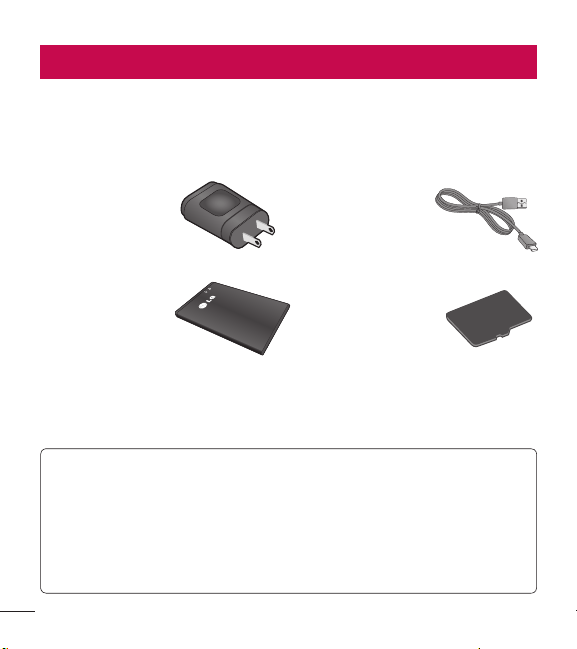
90
Hay varios accesorios disponibles para su teléfono celular, y es posible
que algunos se vendan por separado. Puede seleccionar esas opciones
según sus requisitos de comunicación en particular. Consulte con su
distribuidor local para conocer la disponibilidad.
Adaptador de
viaje
Este adaptador
permite cargar
la batería.
Cable USB
Este cable
permite cargar
la batería.
Batería
Se dispone
de baterías
estándares.
Tarjeta de
memoria
microSD
TM
Se proporciona
una tarjeta
de memoria
microSD
TM
de
4 GB.
NOTA:
Ƭ Utilice siempre accesorios LG originales. Si no lo hace, la garantía
puede quedarse invalidada.
Ƭ Los accesorios pueden variar según la región; para mayor
información, consulte con la empresa o el agente de servicio técnico
de su región.
Accesorios

91
El valor más elevado de la SAR para este modelo de teléfono cuando se lo probó para
usarse en el oído es de 1,12 W/kg y cuando se lo usa sobre el cuerpo, según lo descrito
en esta guía del usuario, es de 0,94 W/kg (las mediciones del uso en el cuerpo varían
en función de los modelos de los teléfonos y dependen de los accesorios disponibles y
los requisitos de la FCC).
Aun cuando puede haber diferencias entre los niveles de SAR de varios teléfonos y en
varias posiciones, todos ellos cumplen el requisito gubernamental para una exposición
segura.
La FCC ha otorgado una Autorización de equipo para este modelo de teléfono con
todos los niveles de SAR reportados y evaluados en cumplimiento de los lineamientos
de emisión de RF de la FCC. La información de la SAR sobre este modelo de teléfono
está archivada en la FCC y puede encontrarse en la sección Display Grant de http://
www.fcc.gov/oet/ea/fccid/ después de buscar FCC ID ZNF306G.
• Para reducir el riesgo de incendios o quemaduras, no exponga el dispositivo a una
temperatura mayor que 50°C (122 °F) ni deseche en fuego o agua.
• Para reducir el riesgo de incendios o quemaduras, no deseche el dispositivo en
fuego o agua.
• No desarme, abra, aplaste, doble, deforme, perfore ni raye el teléfono.
• Existe peligro de explosión si se reemplaza la batería en forma inadecuada. Para
reducir el riesgo de incendios o quemaduras, no desarme, aplaste, perfore, cause
cortocircuito a los contactos externos, exponga a una temperatura mayor que 50°C
(122 °F) o deseche en fuego o agua. Mantenga este producto alejado de la humedad
excesiva y de temperaturas extremas. Mantenga la batería o el dispositivo secos y
alejados del agua o cualquier líquido, dado que puede ocasionar un cortocircuito.
• Evite usar el teléfono cerca de fuentes electromagnéticas intensas como hornos
microondas, altoparlantes, televisores y radios.
• Use solo accesorios originales aprobados por el fabricante o accesorios que no
contengan metales. Utilice solamente accesorios de carga aprobados para cargar el
teléfono LG. La manipulación inadecuada del puerto de carga/accesorio y el uso de
un cargador no compatible pueden ocasionarle daños al teléfono y anular la garantía.
• Use sólo el cargador de batería aprobado. De lo contrario, podría ocasionar un daño
grave en su teléfono.
Por su seguridad