

ii
Country Helpdesk
Tariff / min
Keep ready
Austria
Belgium
Czech Republic
Denmark
Finland
France
Germany
Greek
Hungary
Ireland
Italy
Luxemburg
Netherlands
Norway
Poland
Portugal
Russia
Slovakia
Spain
Sweden
Switzerland
UK
0820 901115
070 253 010
800142100
35 25 87 61
09 2290 1908
08 9165 0006
0180 5 007 532
0 0800 3122 1223
06 80 018544
01 601 1161
199 404 042
26 84 30 00
0900 0400 063
2270 8250
022 3491504
2 1359 1440
(495) 961-1111
8 800 200-0880
0800004551
902 888 785
08 632 0016
02 2310 2116
0906 1010 017
€0.20
€0.17
Místní tarif
Lokal tarif
Paikallispuhelumaksun hinta
€0.23
€0,14
1 a a
Helyi tarifa
Local tariff
€0.25
Tarification locale
€0.20
Lokal tariff
Cena połączenia
lokalnego
Preço local
по России звонок
бесплатный
Miestna tarifa
€0,15
Lokal kostnad
Ortstarif
£0.15
Das Kaufdatum. Modellnummer und Seriennummer
La date d’achat la référence et le numéro de série du produit
Datum zakoupení, číslo modelu a sériové číslo
Indkøbsdato, type-, model- og serienummer
Ostopäivä ja tarkka mallinumero ja sarjanumero
La date d’achat la référence et le numéro de série du produit
Das Kaufdatum. Modellnummer und Seriennummer
A vásárlás dátuma, modell szám és szériaszám
Date of Purchase. Model number and Serial number
La data di acquisto, numero di modello e numero di serie
La date d’achat, la référence et le numéro de série du produit
De datum van aankoop, modelnummer en serienummer
Datoen da du kjøpte produktet & modellnummer & serienummeret
Data zakupu, Numer modelu i numer seryjny
A data de compra, número do modelo e número de série
Дата покупки, Номер модели и Серийный номер
Dátum zakúpenia, číslo modelu a sériové číslo
Fecha de compra y número del modelo y número de serie
Inköpsdatum, modellnummer och serienummer
Das Kaufdatum. Modellnummer und Serial nummer
Date of Purchase, Model number and Serial number
Canada
USA
1-800-661-6162
(Francophone)
1-888-744-5477
(English / Spanish)
1-888-744-5477
Free
Free
Date of Purchase, Model number and Serial number
Date of Purchase, Model number and Serial number
Argentina
Brazil
Chile
Mexico
11 4544 2047
0800 701 02 03
(Except Sao Paulo)
2121 0203
(Sao Paulo)
600 744 5477
01 800 504 6200
Tarifa local
Grátis
Preço local
Tarifa local
Gratis
Fecha de compra y número del modelo y número de serie
A data de compra, número do modelo e número de série
Fecha de compra y número del modelo y número de serie
Fecha de compra y número del modelo y número de serie
China
Hong Kong
Korea
Thailand
4008 800 008
2619 9663
02 709 1200
66 2 652 8652
Europe
North America
South America
Asia
Need help?
Please visit
www.philips.com/support
where you can access to a full set of supporting materials such as user manual, flash
tutorial, the latest software upgrades and answers to frequently asked questions.
Or call our Customer Care Helpline,
where our professional support team will be pleased to assist you in solving any
issues you may have with your player.

1
1 Important safety information 3
2 Your new player 7
2.1 What’s in the box 7
2.2 Optional accessories 7
2.3 Register your product 7
3 Getting started 8
3.1 Overview of controls and connections 8
3.2 Main menu 9
3.3 Install 9
3.4 Connect and charge 10
3.4.1 Use the supplied USB cable 10
3.4.2 Battery level indication 11
3.5 Transfer music and pictures 11
3.6 Transfer video 12
3.7 Enjoy 13
3.7.1 Power on and off 13
4 Organize and transfer music and pictures with
Windows Media Player 11 14
4.1 About Windows Media Player 11 14
4.1.1 Before installing Windows Media Player 11 (optional) 15
4.1.2 Installing Windows Media Player 11 16
4.1.3 Rolling back to a previous version of Windows Media Player 19
4.1.4 More about rolling back to a previous version of Windows Media
Player 20
4.2 Music and pictures transfer 20
4.2.1 Add music and picture files to Windows Media Player Library 21
4.2.2 Switch between music and pictures library in Windows Media Player
and your player 22
4.2.3 Rip songs from a CD 23
4.2.4 Buy music online 25
4.3 Sync your Windows Media contents to your player 26
4.3.1 Set up your player 26
4.3.2 Switch Between Automatic and Manual Sync 27
4.3.3 Select and Prioritise What Syncs Automatically 27
4.3.4 Select files and playlists for Manual Sync 28
4.3.5 Shuffle manual sync items on your player 30
4.3.6 Copy files from your player to your computer 31
4.4 Manage your Windows Media Player Playlist 31
4.4.1 Create a regular Playlist 31
4.4.2 Create an Auto Playlist 32
4.4.3 Edit playlist 33
4.4.4 Transfer playlists to your player 35
4.5 Manage your files and playlists in Windows Media Player
35
4.5.1 Search for music or pictures via Windows Media Player 35
4.5.2 Delete files and playlists from Windows Media Player library 35
4.5.3 Delete files and playlists from your player 35
Contents

2
4.5.4 Add or change album art 36
4.5.5 Edit song information via Windows Media Player 37
4.5.6 Format your player via Windows Media Player 38
5 Detailed operation 39
5.1 Music mode 39
5.1.1 Controls 39
5.1.2 Find your music 40
5.1.3 Album art 41
5.1.4 Play mode 41
5.2 Sound settings 42
5.3 Playlist on the go 42
5.3.1 Add songs to playlist on the go 43
5.3.2 Play back playlist on the go 43
5.3.3 Save Playlist on the go 44
5.3.4 Clear playlist on the go 44
5.3.5 Remove songs from Playlist on the go 45
5.4 Most played 45
5.5 Other playlists 46
5.5.1 Delete playlist from your player 46
5.5.2 Rate your songs 46
5.5.3 Now playing 47
5.6 Videos 48
5.6.1 Find your Videos 48
5.6.2 Controls 49
5.7 Pictures 50
5.7.1 Transfer pictures from your computer to your player 50
5.7.2 Transfer pictures from your player to your computer 50
5.7.3 Find pictures on your player 51
5.7.5 Slideshow 51
5.7.6 Start a slideshow 51
5.7.7 Customize slideshow settings 52
5.7.8 Slideshow music 52
5.8 Delete Media 53
5.9 Radio 53
5.9.1 Connect the headphones 53
5.9.2 Select your FM region 53
5.9.3 Auto tune 54
5.9.4 Play a preset radio station 54
5.9.5 Manual Tuning 54
5.9.6 Save a station as preset 55
5.10 Settings 55
5.11 Use your player to store and carry data files 58
6 Update your player 59
6.1 Manually verify whether your firmware is up to date 59
7 Frequently asked questions 60
8 Technical data 63
9 Glossary 65
Contents

3
1 Important safety information
General maintenance
To avoid damage or malfunction:
• Do not expose the player to excessive heat caused by heating equipment or direct
sunlight.
• Do not drop your player or allow objects to fall on your player.
• Do not allow your player to be submerged in water. Do not expose headphone socket or
battery compartment to water, as water entering the set may cause major damage.
• Do not use any cleaning agents containing alcohol, ammonia, benzene, or abrasives as
these may harm the set.
• Active mobile phones in the vicinity may cause interference.
• Backup your files. Please ensure that you retain the original files you have downloaded to
your device. Philips is not responsible for any loss of data if the product becomes damaged
or not readable / legible.
• Manage (transfer, delete, etc.) your music files only with the supplied music software to
avoid problems!
About operating and storage temperatures
•
Operate in a place where temperature is always between 0 and 35ºC (32 to 95ºF)
• Store in a place where temperature is always between -20 and 45ºC (-4 to 113ºF)
• Battery life may be shortened in low temperature conditions.
Replacements parts/ accessories
Visit www.philips.com/support or www.philips.com/welcome (for US residents) or contact
our Customer Care Helpline (the telephone number can be found on the first page of this
manual) to order replacement parts/ accessories.
Hearing Safety
Listen at a moderate volume.
• Using headphones at a high volume can impair your hearing. This product can
produce sounds in decibel ranges that may cause hearing loss for a normal person,
even for exposure less than a minute. The higher decibel ranges are offered for
those that may have already experienced some hearing loss.
• Sound can be deceiving. Over time your hearing “comfort level” adapts to higher volumes
of sound. So after prolonged listening, what sounds “normal” can actually be loud and
harmful to your hearing. To guard against this, set your volume to a safe level before your
hearing adapts and leave it there.
To establish a safe volume level:
• Set your volume control at a low setting.
• Slowly increase the sound until you can hear it comfortably and clearly, without distortion.

Listen for reasonable periods of time:
• Prolonged exposure to sound, even at normally “safe” levels, can also cause hearing loss.
• Be sure to use your equipment reasonably and take appropriate breaks.
Be sure to observe the following guidelines when using your headphones.
• Listen at reasonable volumes for reasonable periods of time.
• Be careful not to adjust the volume as your hearing adapts.
• Do not turn up the volume so high that you can’t hear what’s around you.
• You should use caution or temporarily discontinue use in potentially hazardous situations.
• Do not use headphones while operating a motorized vehicle, cycling, skateboarding, etc.; it
may create a traffic hazard and is illegal in many areas.
Important (for models supplied with headphones):
Philips guarantees compliance with the maximum sound power of its audio players as
determined by relevant regulatory bodies only with the original model of provided
headphones. In case this one needs replacement, we recommend that you contact your
retailer to order a model identical to that of the original, provided by Philips.
Copyright information
All other brands and product names are trademarks of their respective companies or
organizations.
Unauthorized duplication of any recordings whether downloaded from the Internet or made
from audio CDs is a violation of copyright laws and international treaties.
The making of unauthorized copies of copy-protected material, including computer
programmes, files, broadcasts and sound recordings, may be an infringement of copyrights
and constitute a criminal offence. This equipment should not be used for such purposes.
This product is protected by certain intellectual property rights of Microsoft Corporation.
Use or distribution of such technology outside of this product is prohibited without a license
from Microsoft or an authorized Microsoft subsidiary.
Content providers are using the digital rights management technology for Windows Media
contained in this device (“WM-DRM”) to protect the integrity of their content (“Secure
Content”) so that their intellectual property, including copyright, in such content is not
misappropriated. This device uses WM-DRM software to play Secure Content (“WM-DRM
Software”). If the security of the WM-DRM Software in this device has been compromised,
Microsoft may revoke (either on its own or upon the request of the owners of Secure Content
(“Secure Content Owners”)) the WM-DRM Software’s right to acquire new licenses to copy,
display and/or play Secure Content. Revocation may also prevent your device’s ability to
transfer, store, copy, display and/or play Secure Content which you have previously stored on
your Device. Revocation does not alter the WM-DRM Software’s ability to play unprotected
content. A list of revoked WM-DRM Software is sent to your device whenever you download
a license for Secure Content from the Internet or from a PC. Microsoft may, in conjunction
with such license, also download revocation lists onto your device on behalf of Secure Content
Owners, which may disable your device’s ability to copy, display and/or play Secure Content.
4

In the event of revocation, Philips will attempt to make available software updates to restore
some or all of your device’s ability to transfer, store, access, copy, display and/or play Secure
Content. However, the ability to make such updates available does not rest solely with
Philips. Philips does not guarantee that, after revocation, such software updates will be
available. If such updates are not available, your device will not have the ability to transfer,
store, copy, display and/or play Secure Content - even Secure Content which you have
previously stored on your device.
In addition, even if such software updates are available, they may not enable your Device to
transfer, store, copy, display, and/or play Secure Content which was previously stored on
your Device. In some cases you may be able to transfer the content from the PC. In other
cases, you may have to repurchase previously obtained Secure Content.
To summarize - Microsoft, Secure Content Owners, and Secure Content distributors may
deny you access, or restrict your access, to Secure Content. They may also disable your
device’s ability to transfer, store, copy, display and/or play Secure Content even after you
have paid for and obtained it. Neither your consent nor the consent or approval of Philips is
necessary for any of them to deny, withhold or otherwise restrict your access to Secure
Content or to disable your device’s ability to transfer, store, access, copy, display, and/or play
Secure Content. Philips does not guaranty that you will be able to transfer, store, access,
copy, display, and/or play Secure Content.
The Windows Media and the Windows logo are registered trademarks of Microsoft
Corporation in the United States and/or other countries.
Data logging
Philips is committed to improving the quality of your product and enhancing the Philips user
experience. To understand the usage profile of this device, this device logs some info / data
to the non-volatile memory region of the device. These data are used to identify and detect
any failures or problems you as a user may experience while using the device. The data
stored, for example, will be the duration of playback in music mode, duration of playback in
turner mode, how many times battery low was encountered, etc. The data stored do not
reveal the content or media used on the device or the source of downloads. The data stored
on the device are retrieved and used ONLY if the user returns the device to the Philips
service centre and ONLY to simplify error detection and prevention. The data stored shall
be made available to user on user’s first request.
Disposal of your old product
Your product is designed and manufactured with high quality materials and
components, which can be recycled and reused.
When this crossed-out wheeled bin symbol is attached to a product, it means the
product is covered by the European Directive 2002/96/EC.
Please be informed about the local separate collection system for electrical and electronic
products.
5
Please act according to your local rules and do not dispose of your old product with your
normal household waste. The correct disposal of your old product will help prevent potential
negative consequences to the environment and human health.
Modifications
Modifications not authorized by the manufacturer may void user authority to operate this
device.
Notice for USA
Note:
This equipment has been tested and found to comply with the limits for
a Class B digital device, pursuant to part 15 of the FCC Rules. These
limits are designed to provide reasonable protection against harmful
interference in a residential installation. This equipment generates, uses,
and can radiate radio frequency energy and, if not installed and used in accordance with the
instruction manual, may cause harmful interference to radio communications.
However, there is no guarantee that interference will not occur in a particular installation. If
this equipment does cause harmful interference to radio or television reception, which can
be determined by turning the equipment off and on, the user is encouraged to try to correct
the interference by one or more of the following measures:
- Relocate the receiving antenna.
- Increase the separation between the equipment and receiver.
- Connect the equipment into an outlet on a circuit different from that to which the
receiver is connected.
- Consult the dealer or an experienced radio/ TV technician for help.
Notice for Canada
This Class B digital apparatus complies with Canadian ICES-003.
The set complies with the FCC-Rules, Part 15 and with 21 CFR 1040.10. Operation is subject
to the following two conditions:
• This device may not cause harmful interference, and
• This device must accept any interference received, including interference that may cause
undesired operation.
Notice for the European Union
This product complies with the radio interference requirements of the European Union.
6
Philips
SA5114 SA5115
SA5124 SA5125
SA5144 SA5145
7
Philips GoGear audio player
1
2
3
4
Install
Connect
and charge
Transfer
Enjoy
Quick start guide
Quick start guide 1
Guide de démarrage rapide 11
Guía de inicio rápido 21
Kurzanleitungsanleitung 31
Handleiding voor snel gebruik 41
Guida di riferimento rapido 51
Snabbstartsinstruktioner 61
Быстрый запуск 71
NL
IT
SV
RU
EN
FR
ES
DE
SA5114 SA5115
SA5124 SA5125
SA5144 SA5145
2.3 Register your product
We strongly recommend that you register your product in order to gain access to free
upgrades. To register your product, please log on to www.philips.com/register or
www.philips.com/welcome (for US residents) so that we can inform you as soon as new
updates become available.
2 Your new player
With your newly purchased player, you can enjoy the following:
• MP3 and WMA playback
WMA support includes Widows Media DRM protected WMA (download to own and
subscription content) from online stores.
• Video (WMV) playback
You can use Media Converter (provided in (CD-ROM) to convert other video formats
(nonprotected) to WMV.
WMV support includes Widows Media DRM protected WMV (download to own,
subscription and rental content) from online stores.
• FM radio
• Picture viewing
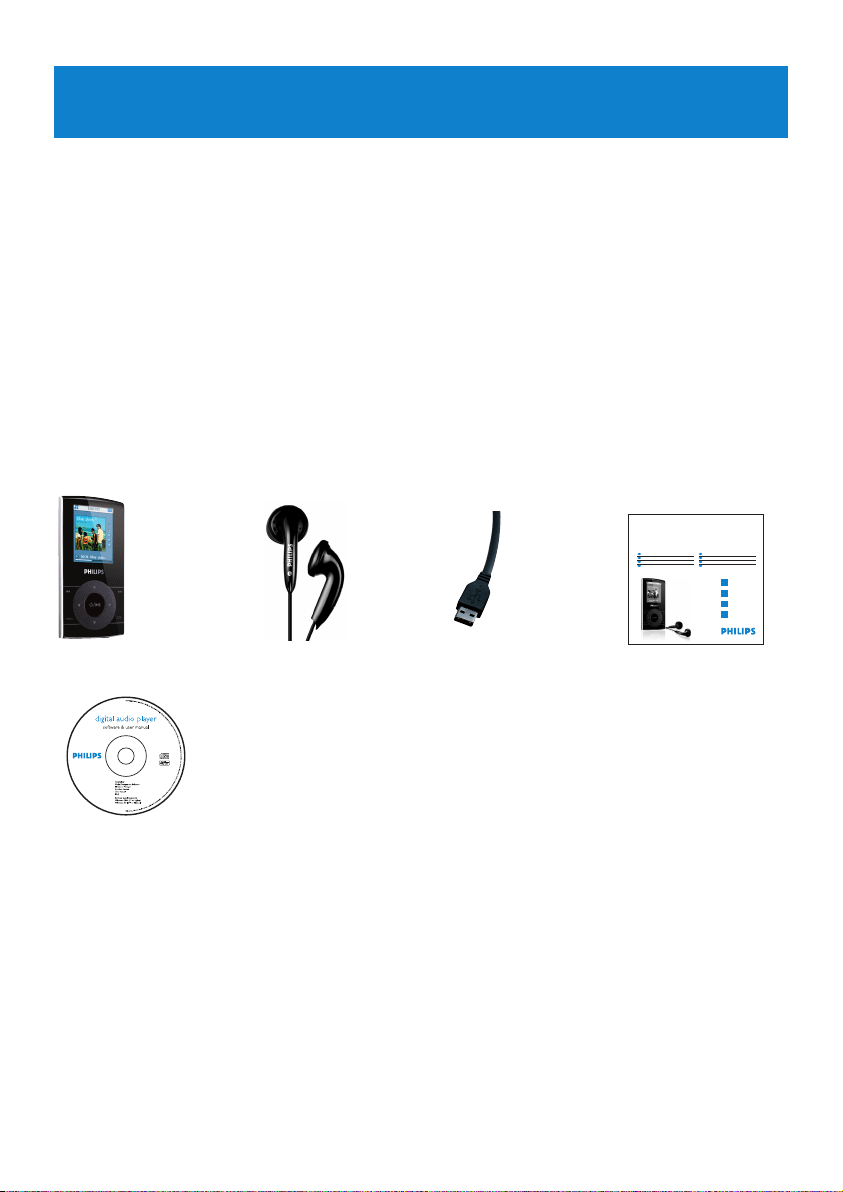
2.1 What’s in the box
The following accessories are included with your player:
USB cable
Quick start guide
CD-ROM containing Windows Media Player 11, Philips Device Manager,
MediaConverter for Philips, User Manual and Frequently Asked Questions
HeadphonesPlayer
2.2 Optional accessories
You can find optional accessories at www.philips.com/GoGearshop (Europe) or
www.store.philips.com (USA)
8
2
3
4
5
6
789101112 13
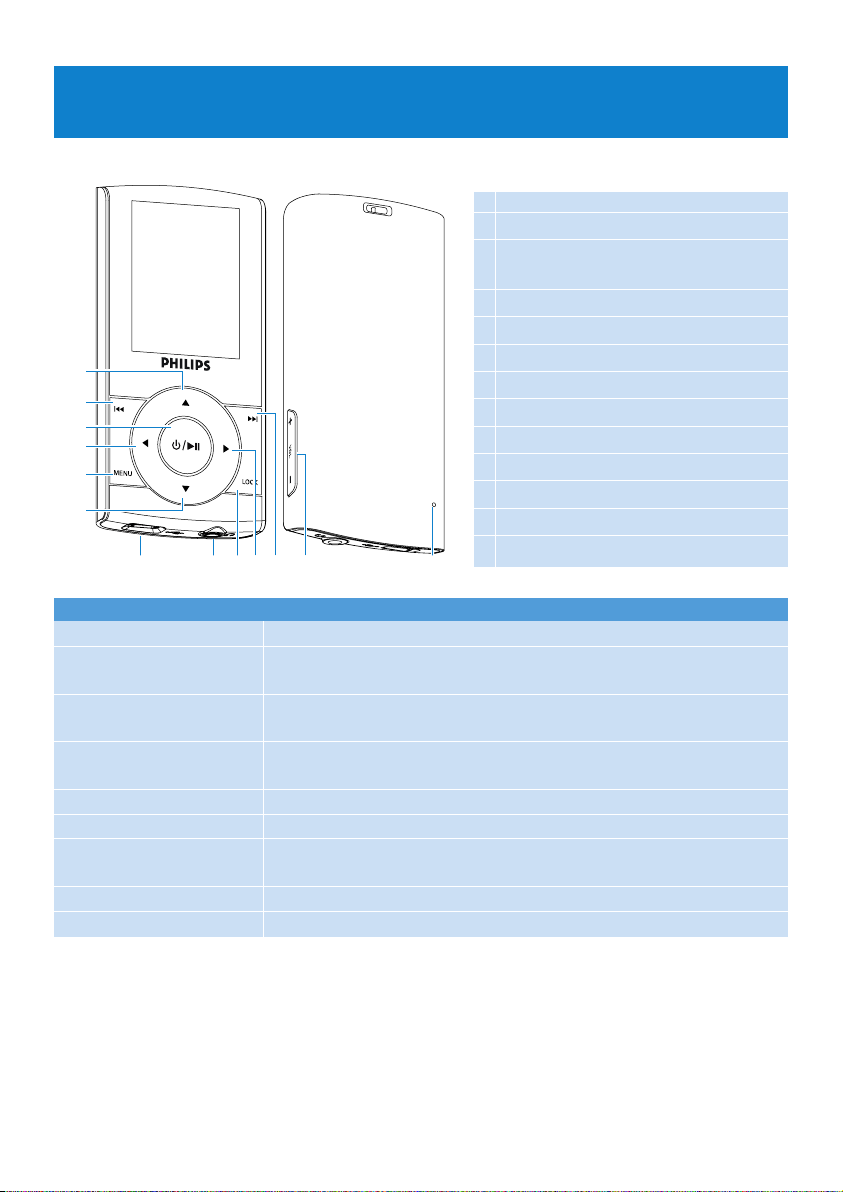
1
1 Up key
2 Rewind / previous key
3 Play / pause key
On / Off key
4 Left / back key
5 MENU key
6 Down key
7 USB connector
8 Headphones jack
9 LOCK key
10 Right / select key
11 Forward / next key
12 Volume up / down bar
13 Reset
3 Getting started
3.1 Overview of controls and connections
Press To
LOCK Lock all control keys
2; Play/Pause songs
Press and hold to power on / off
J( Move back to previous song
Fast rewind
)K Jump to next song
Fast forward
+ VOLUME - Control volume
1 Return to previous menu/option
2 Select option
Go to next option
3 / 4 Scroll through lists
MENU Access list of menu options
9
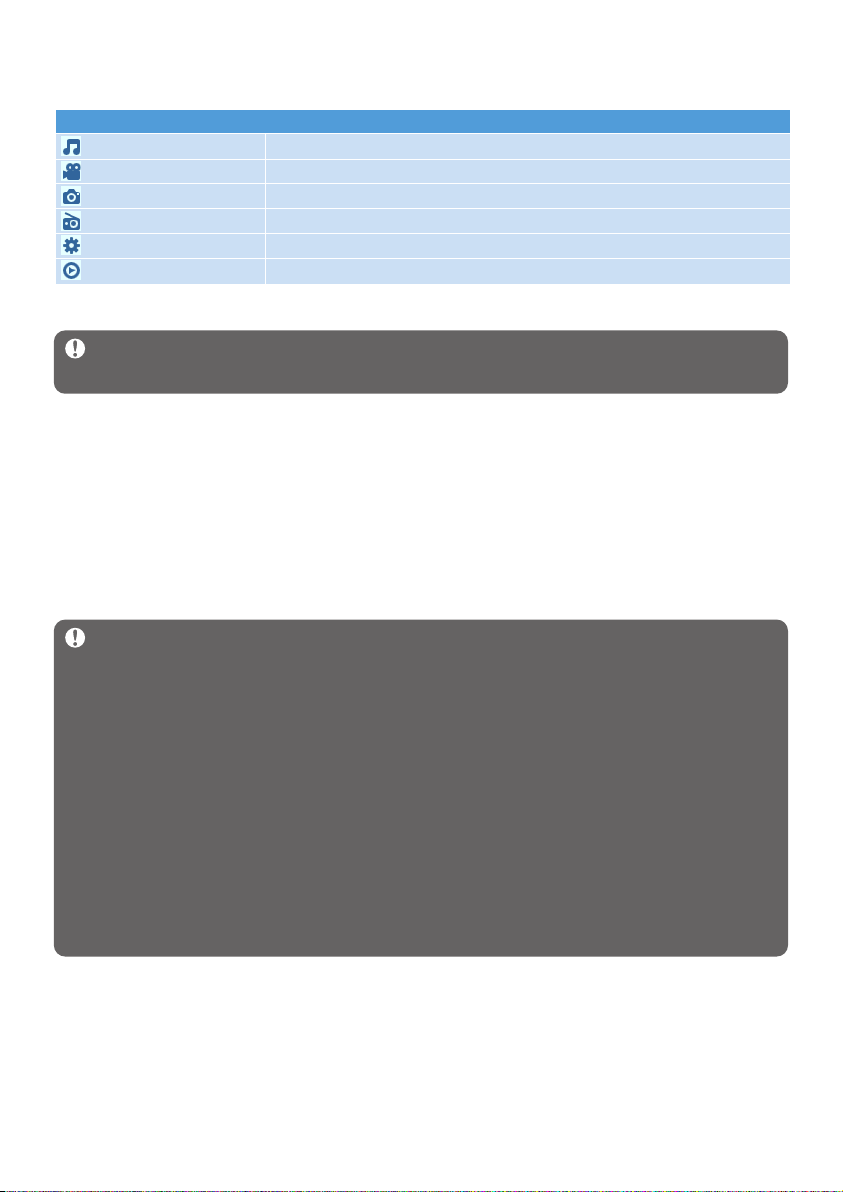
Menu To
Music Play your digital music tracks
Videos Watch your videos
Pictures View pictures
Radio Listen to FM radio
Settings Customize the settings of your player
Now Playing Go to the play screen
3.2 Main menu
3.3 Install
Important Make sure to install the software provided in the supplied CD before
connecting your player.
System requirements:
• Windows XP (SP2) or Vista
• Pentium III 800MHz processor or higher
• 256MB RAM
• 200MB hard disk space
• Internet connection (preferable)
• Microsoft Internet Explorer 6.0 or later
• CD-ROM drive
• USB port
Important This is critical to ensure the proper working of your player when
connected to the PC.
For Windows XP users
In order to run this software, you need to have Windows XP Service Pack 2 (SP2)
installed on your PC. If you do not , you will be prompted to do so. When installation is
completed, connect device to PC.
For Vista N users in Europe
Install Media Restore Pack on your PC before using your device. This can be done by
downloading and installing Windows Media Player 11 for XP from the Microsoft
website at the following link.
http://www.microsoft.com/windows/windowsmedia/download/AllDownloads.aspx
Select Windows Media Player , Version 11 for XP and the language of your choice."
1 Insert the CD supplied with your product into the CD ROM drive of your PC.
2 Follow the on-screen instructions to complete the installation of Windows Media
Player, MediaConverter for Philips and Philips Device Manager.
3 If the installation program does not start automatically, browse the CD contents via
Windows Explorer and double click on the Start.exe file.
Lost your CD? Don’t worry, you can download the CD contents from
www.philips.com/support or www.philips.com/welcome (for U.S. residents).

10
3.4 Connect and charge
Your player will be charged when connected to the PC.
3.4.1 Use the supplied USB cable
Connect the supplied USB cable to PC for charging and data transfer. However, your PC
must have hi-power capability in order to perform charging.
Note
Charge your player for at least 5 hours before using it for the first time.
The battery* will be fully charged (100%) in 5 hours and 70% charged in one hour for
quick charge.
The player is fully charged when the charging animation stops and is displayed.
Your fully charged player will allow up to 20 hours* of music playback or 2 hours* of video
playback.
* Rechargeable batteries have a limited number of charge cycles and may eventually need to be
replaced. Battery life and number of charge cycles vary by use and settings.
11
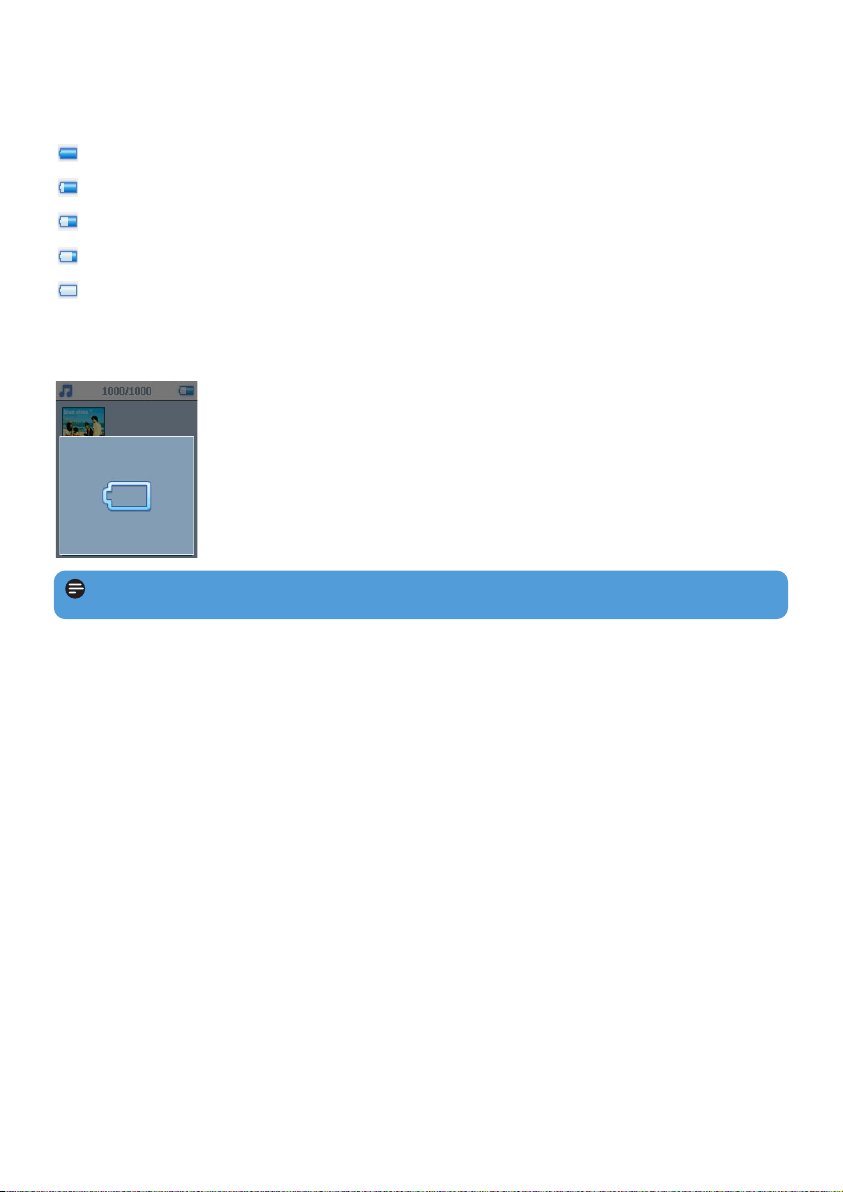
3.4.2 Battery level indication
The approximate power levels of your battery are indicated as follows:
Battery is full
Battery is two-thirds full
Battery is half full
Battery is low
Battery is empty
When the battery is nearly empty, the following power low warning screen will blink and
emit a beep tone. When you hear a double beep, your player will power down in less than
10 seconds.
Note All settings will be saved before the player shuts down.
3.5 Transfer music and pictures
You can transfer music and pictures to your player using Windows Media Player. See
Organize and transfer pictures and music with Windows Media Player 11 section
of this user manual for more details.
12
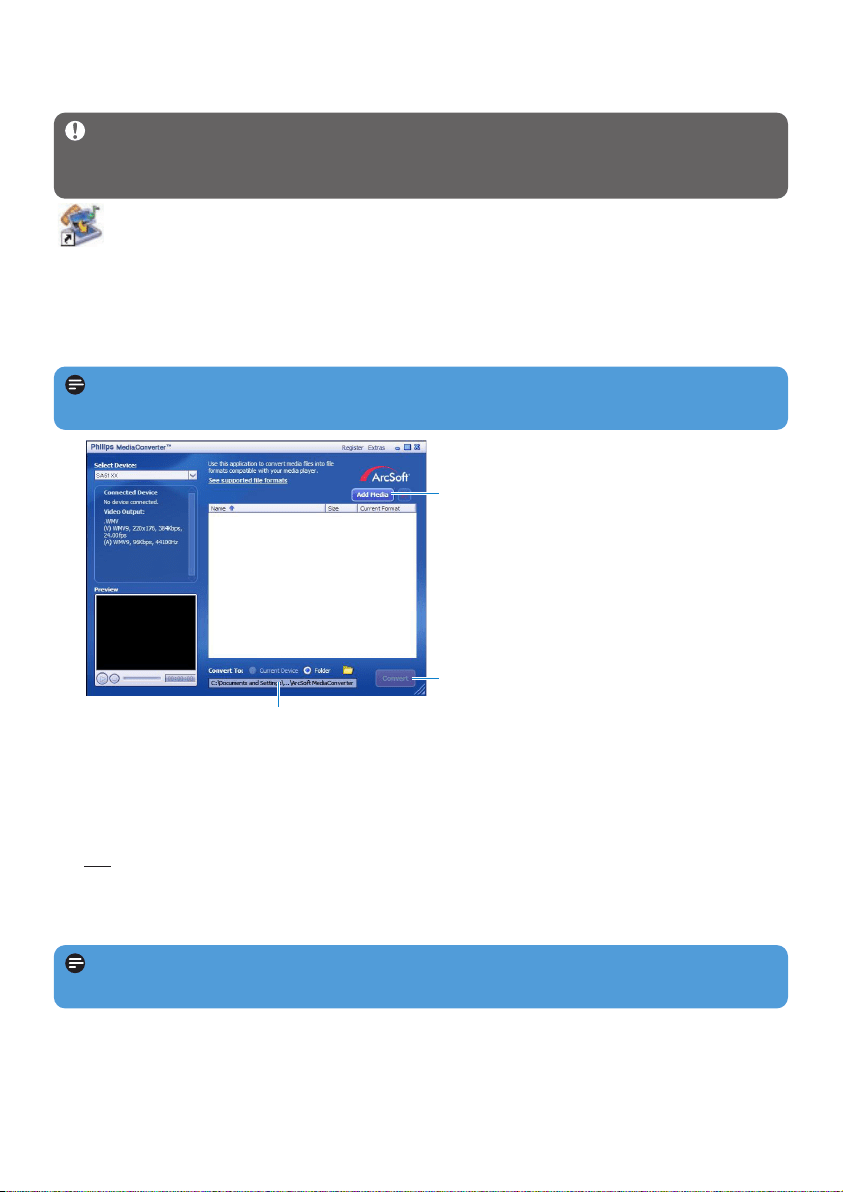
3 In the Convert to: option at the bottom of the screen, select Current Device, the
contents will be stored directly on the connected player.
4 Press the Add Media button to select your video files.
5 Press OPEN when you have found the video files on your PC that you want to transfer
to the player. You may also add additional video files.
OR
Select the files in Windows explorer and then drag and drop them into the
MediaConverter for Philips screen.
6 Press Convert.
7
5
4
> All the converted files will be transferred to the player.
Note Video conversion and transfer is usually a long process and dependent on your PC
configuration. Please be patient while this happens.
Note If needed, the files will first be converted to a format that can be played on the
player.
3.6 Transfer video
Important If you have DRM protected videos on your PC, make sure that you play
them at least once in Windows Media Player before transferring to your player using
MediaConverter for Philips.
Use MediaConverter for Philips to convert the video files to the correct screen
size and transfer videos from your PC to your player. This application will convert
your video files to the right format and resolution before transferring them to your player so
that they are guaranteed to playback on your player without any problems.
1 Connect your player to the PC via the supplied USB cable.
2 Start MediaConverter for Philips by clicking this icon on your desktop.
13
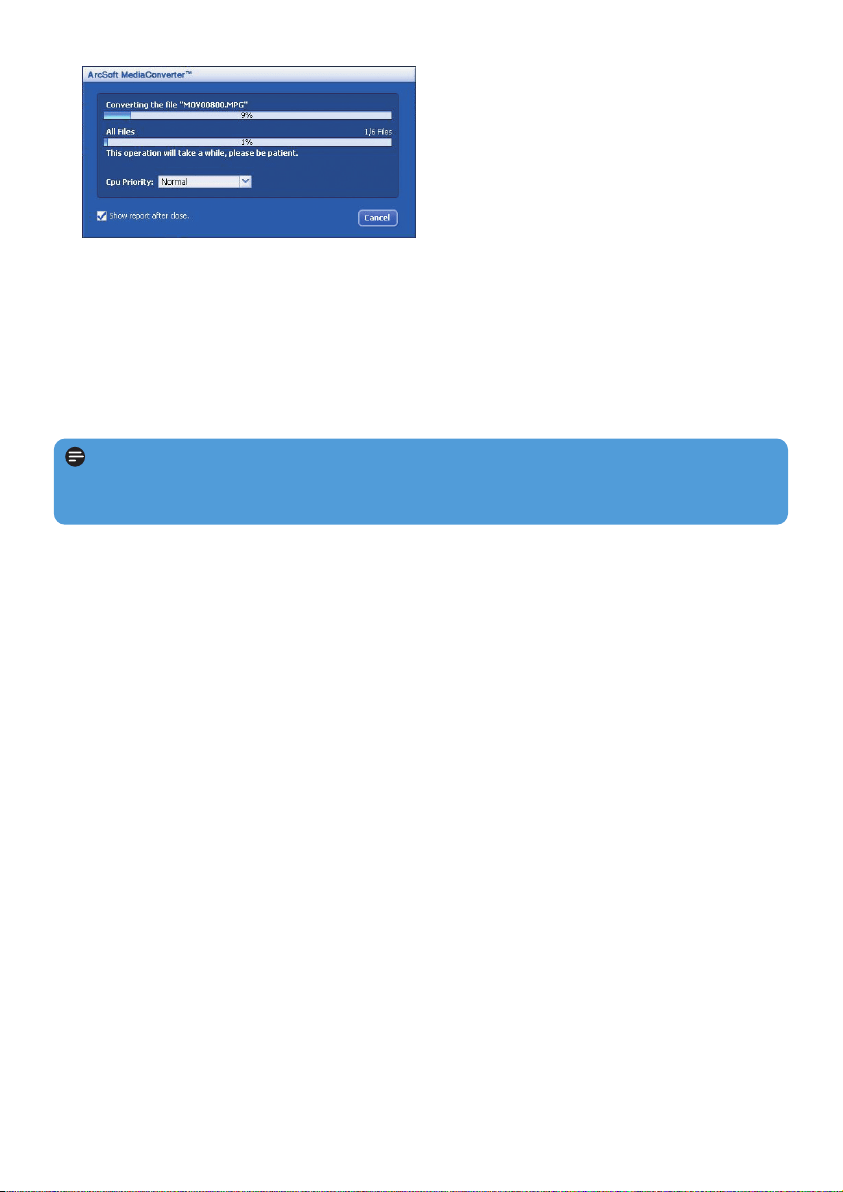
7 The progress of conversion and transfer is shown
3.7 Enjoy
3.7.1 Power on and off
To power on, press and hold On/Off (2;) key until the Philips welcome screen appears.
To power off, press and hold On/Off (2;) key until the player powers off.
Note Your player automatically powers off if there is no operation or music played for
10 minutes. The last playback status and screen will be resumed the next time it is
powered on within 30 minutes of the last power off.

14
4 Organize and transfer music and
pictures with Windows Media
Player 11
4.1 About Windows Media Player 11
While your player will work with Windows Media Player 10, we suggest that you use
Windows Media Player 11 for a more enhanced media experience, both on the computer
and on your player.
Windows Media Player 11 is an all-in-one playback and recording program that lets you
play your CDs, rip CD tracks to your hard disk, transfer media files to your player, etc. This
chapter describes the steps that you need to follow to successfully set up and transfer music
and pictures to your player. For more information, see Windows Media Player Help on your
computer or visit www.microsoft.com/windows/windowsmedia/player/faq/default.mspx
Important Make sure that you have installed the Windows Media Player 11
software provided in the by-packed CD for music and picture transfer.
Although Windows Media Player also lets you transfer video files from your computer
to the player, please use the MediaConverter for Philips provided in the by-packed CD
for video transfers. For more information regarding transfer of videos, see 3.6 Transfer
video.
Important You must be logged on as an administrator or a member of the
Administrators group to perform the following procedures. For more information, please
visit www.microsoft.com

15
4.1.1 Before installing Windows Media Player 11 (optional)
If necessary, before you install Windows Media Player 11, go to Windows Update and
install any high-priority updates that are available for your computer.
Perform the following steps if you wish to save media information and star ratings to your
media file, as well as back up your existing data:
1 In Windows Media Player 10, click Tools, and then click Options.
2 Click the Library tab, select the Maintain my star ratings as global ratings in the
media files check box.
> The user ratings for your songs will be saved in your media files rather than in your library
database file (this may take several minutes).
3 Click Tools, and then click Process media information now.
> This ensures that your ratings (and any changes that you have made to other media information)
are saved to your media files immediately.
4 Select Start > All Programs > Accessories > System Tools > Backup to backup
your existing data.
16
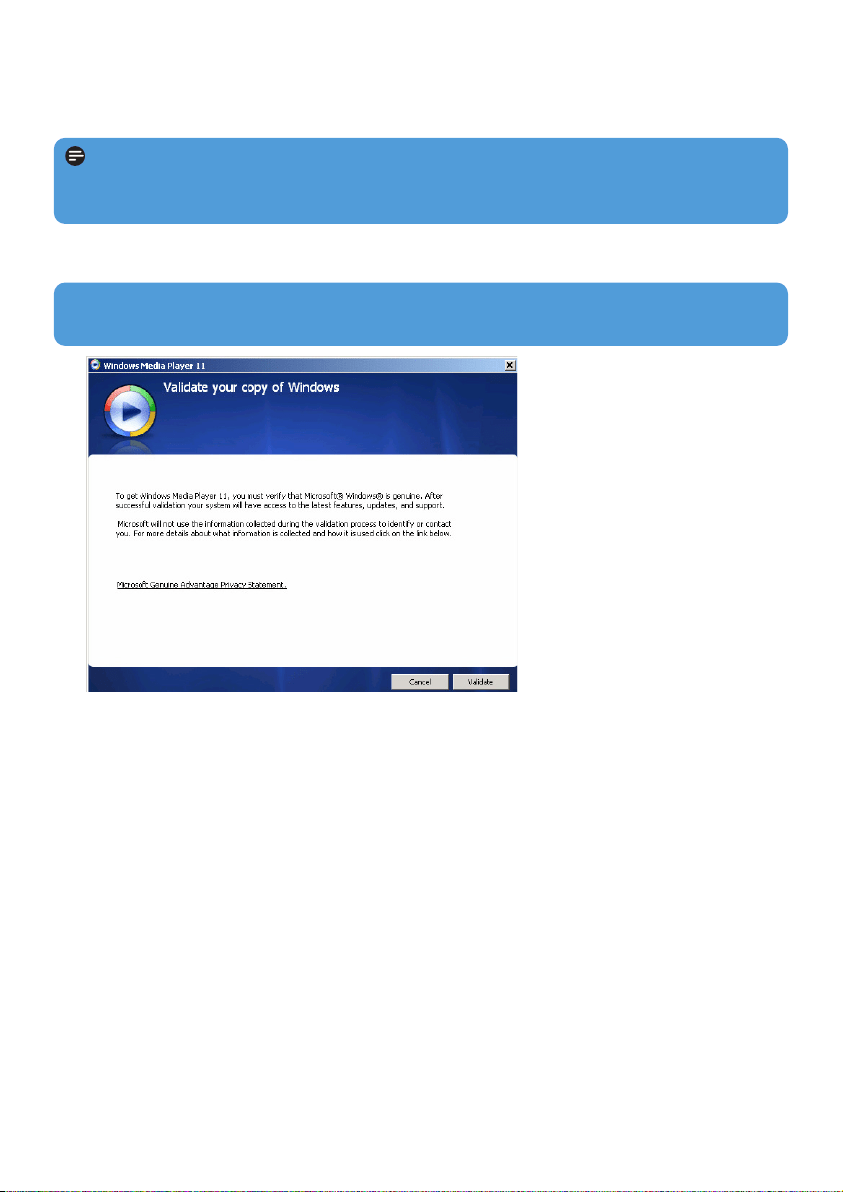
3 Click Validate to continue.
4.1.2 Installing Windows Media Player 11
1 Insert the by-packed CD into the CD ROM drive of your computer.
2 Follow the onscreen instructions to complete the installation of Windows Media
Player 11.
Note If the installation program does not start automatically, browse the CD contents
via Windows Explorer and run the program by double clicking on the file ending with
.exe.
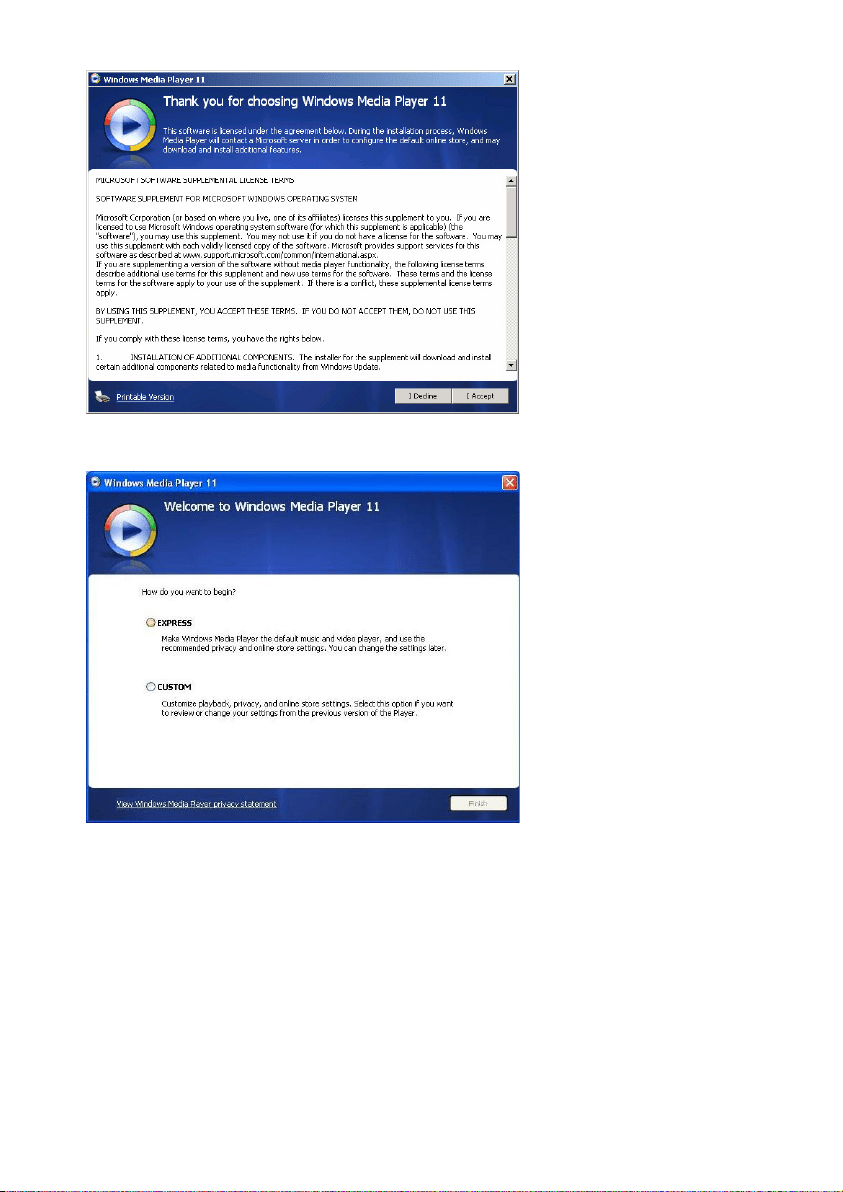
Note If the following dialog boxes appear during installation, read through the texts
before you proceed with the installation:
17
4 Click I Accept to continue.
5 Select EXPRESS and click Finish.
18
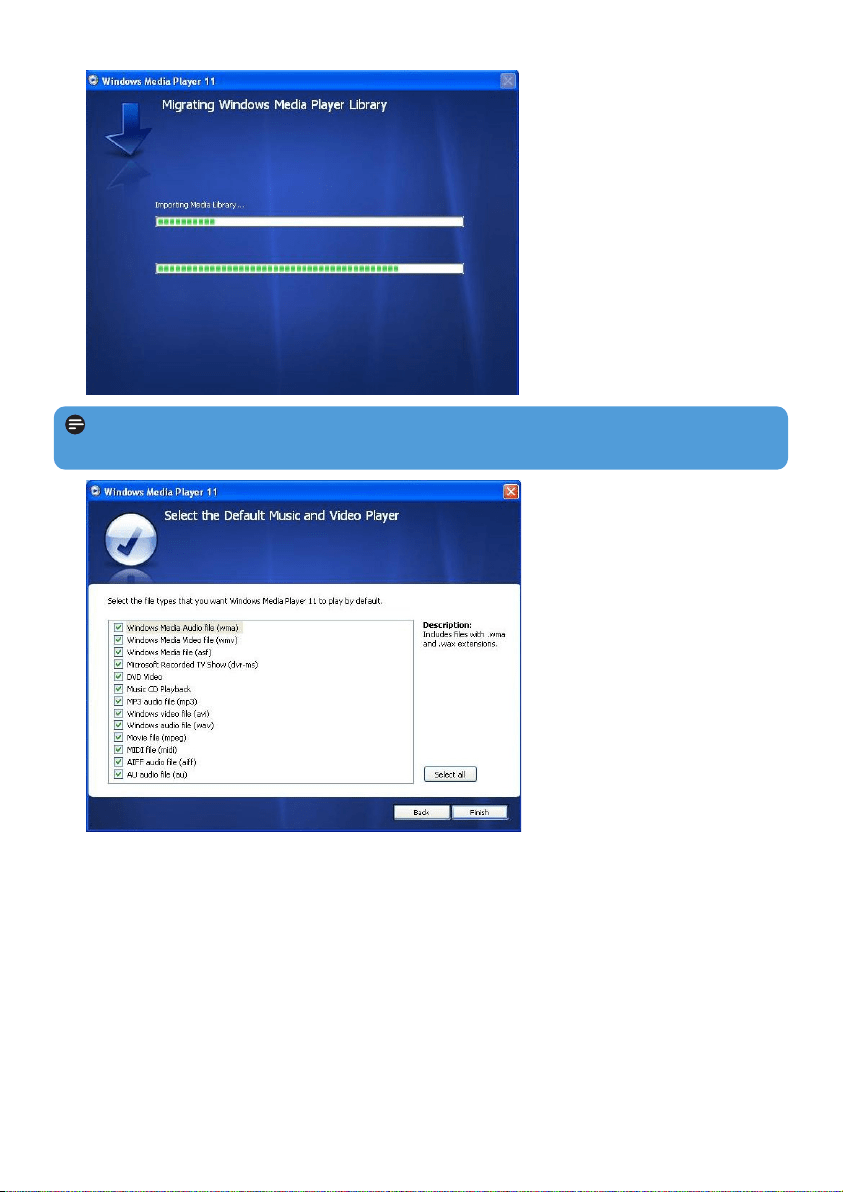
6 Click on the checkboxes to select the file types that you want Windows Media Player
to play by default or click Select all and then click Finish.
Note Your existing media library is currently migrating to Windows Media Player
11. This may take several minutes depending on the size of your existing media library.
19
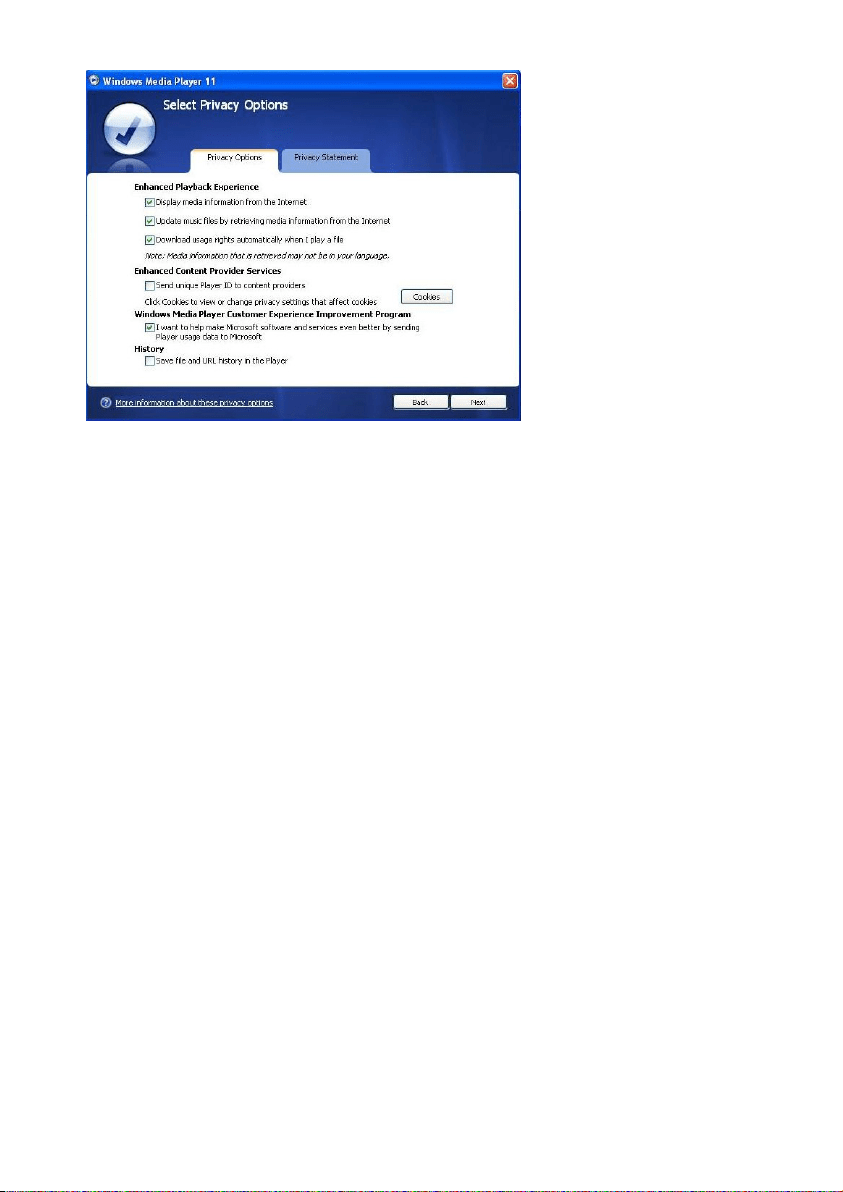
7 Click on the checkboxes to select your privacy options and then click Next to complete
the necessary settings.
4.1.3 Rolling back to a previous version of Windows Media
Player
If you encounter some problems with Windows Media Player 11, you can simply roll back
to the version that was previously on your computer.
1 Disconnect your player from your computer.
2 Select Start, and then click Control Panel.
3 In the Control Panel, select Add or Remove Programs.
4 Select Windows Media Player 11, and then click Remove.
> A confirmation dialog box appears.
5 Click OK.
6 When the rollback process is completed (this may take several minutes), click Restart.
7 Select Start, and then click Control Panel.
8 In the Control Panel, select Add or Remove Programs.
9 Select Windows Media Format 11 Runtime, and then click Remove.
> A confirmation dialog box appears.
10 Click OK.
> A second confirmation dialog box appears.
11 Click OK.

20
12 When the rollback process is completed (this may take several minutes), click Restart.
13 Select Start, and then click Control Panel.
14 In the Control Panel, select Add or Remove Programs.
15 Select Microsoft User-Mode Driver Framework Feature Pack 1.0, and then click
Remove.
16 Follow the instructions that appear in the Software Update Removal Wizard.
17 If the Wudf01000 confirmation dialog box appears, click Yes to continue. When the
software removal process is completed (this might take several minutes), click Finish.
4.1.4 More about rolling back to a previous version of Windows
Media Player
If you roll back to a previous version of Windows Media Player, and your player becomes
undetectable by Windows or Windows Media Player, perform the following procedures:
1 Switch on your player and connect it to your computer using the supplied USB cable.
2 Right-click My Computer, and then click Manage.
3 In the left pane, click Device Manager.
4 In the right pane, click on the "+" sign beside Portable Devices.
5 Right-click GoGear SA51xx, and then click Uninstall.
6 In the confirmation dialog box, click OK to uninstall the player.
7 Disconnect your player from your computer, make sure it is still switched on, and then
connect it to your computer again.
> Windows will detect your device and automatically re-install it. Within a minute or two,
GoGear SA51xx will reappear in the Portable Devices section of Device Manager.
4.2 Music and pictures transfer
You can view and manage your music and picture files using Windows Media Player.
Important We recommend that you always use Windows Media Player to transfer
music and pictures to your player.
21
4.2.1 Add music and picture files to Windows Media Player
Library
By default, Windows Media Player automatically loads all the music and picture files
stored in your My Music and My Pictures folders into the library. If you add new files to
these folders, they will also be automatically added to the library.
Add music and picture files that are stored elsewhere on your computer or
computer network
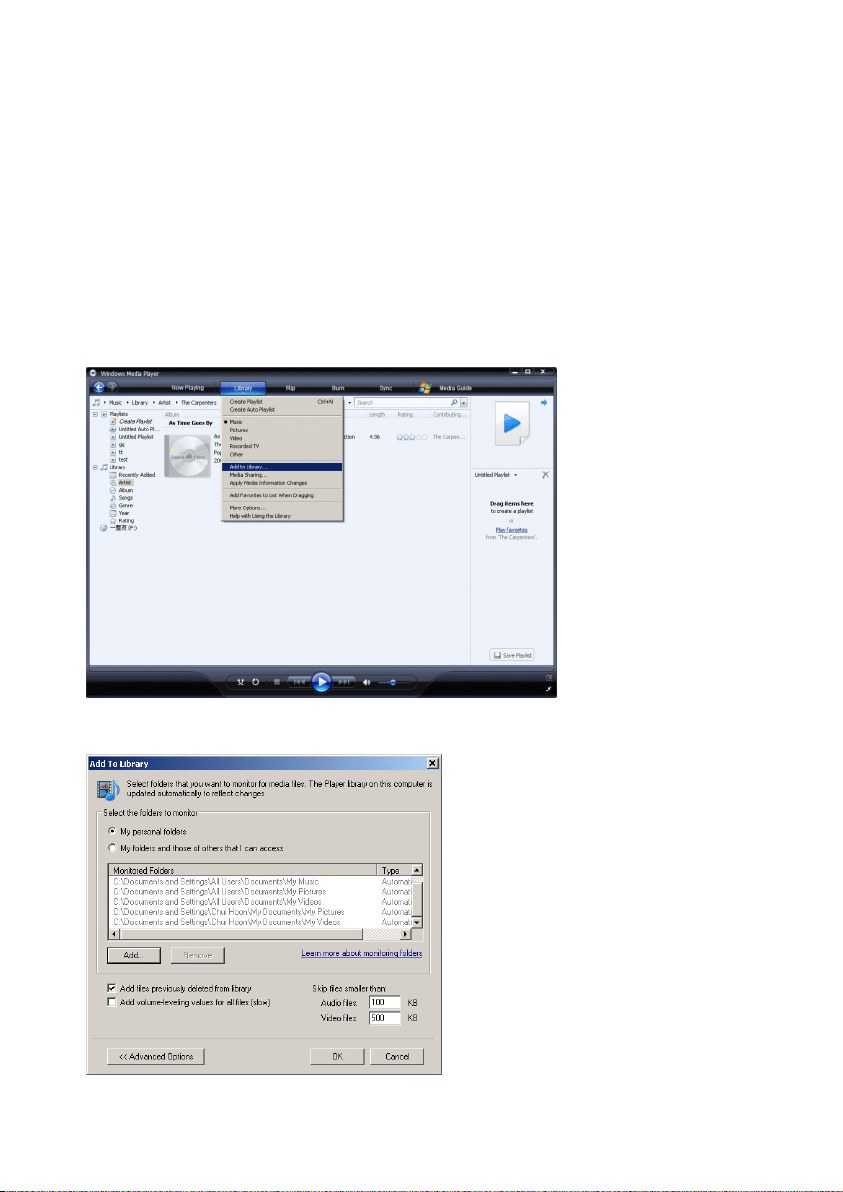
1 Select Start > All Programs > Windows Media Player to launch Windows Media
Player program.
2 Click the down arrow beneath the Library tab and select Add to Library ...
> Add to Library dialog box appears.
3 Click <<Advanced Options to expand the dialog box.
22
4 Click Add...
> Add folder dialog box appears.
5 Select a folder in which you have kept your music or picture files and click OK.
6 Return to Add to library dialog box and click OK.
> Windows Media Player will start scanning the folder and add available music or picture files
to the library.
7 Click Close when done.
4.2.2 Switch between music and pictures library in Windows
Media Player and your player
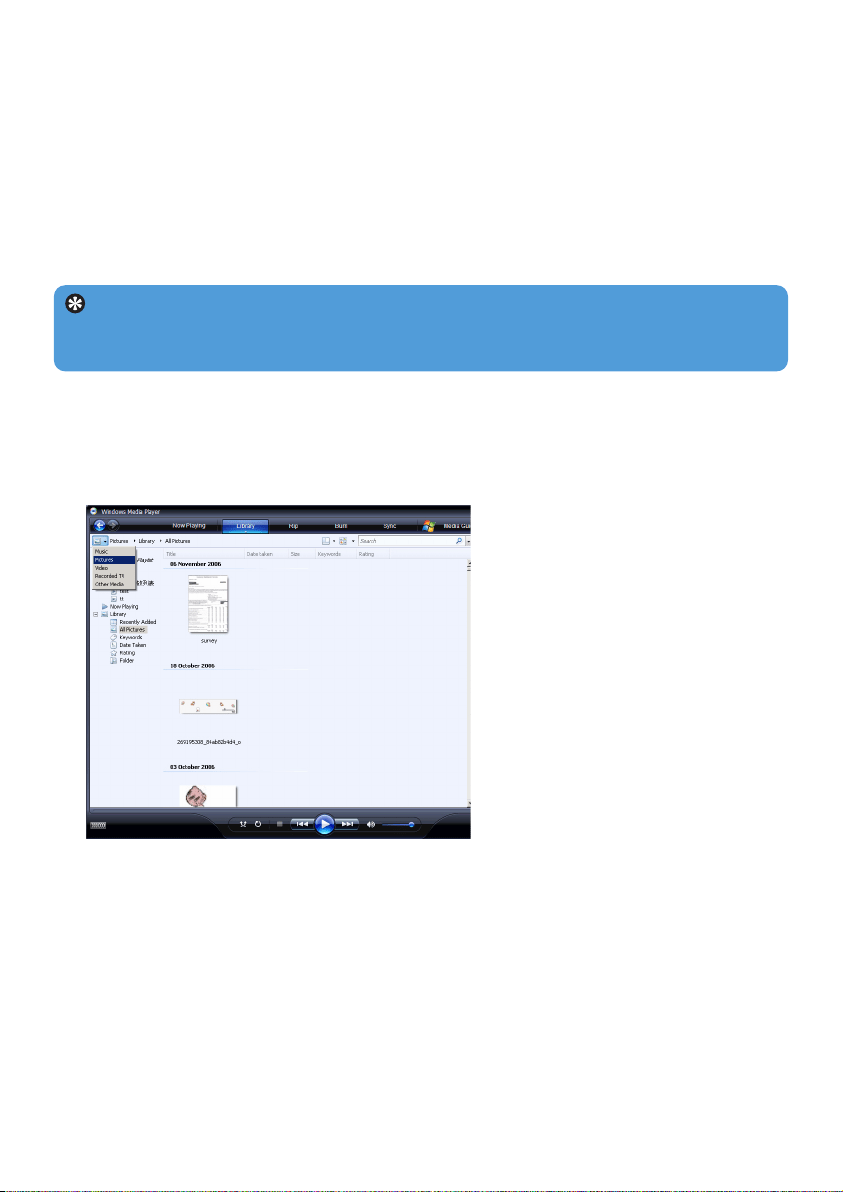
To switch between music and pictures library, simply click the arrow on the top left of
Windows Media Player and select the category you want to view.
Tip Windows Media Player is configured to skip audio files that are smaller than
100KB. To include files smaller than 100KB, you can change the default settings within the
Add to library dialog box.
23
4.2.3 Rip songs from a CD
If you want to transfer music from a CD to your player, you need to create a digital copy of
the music on your computer first. This is called Ripping.
1 Start Windows Media Player.
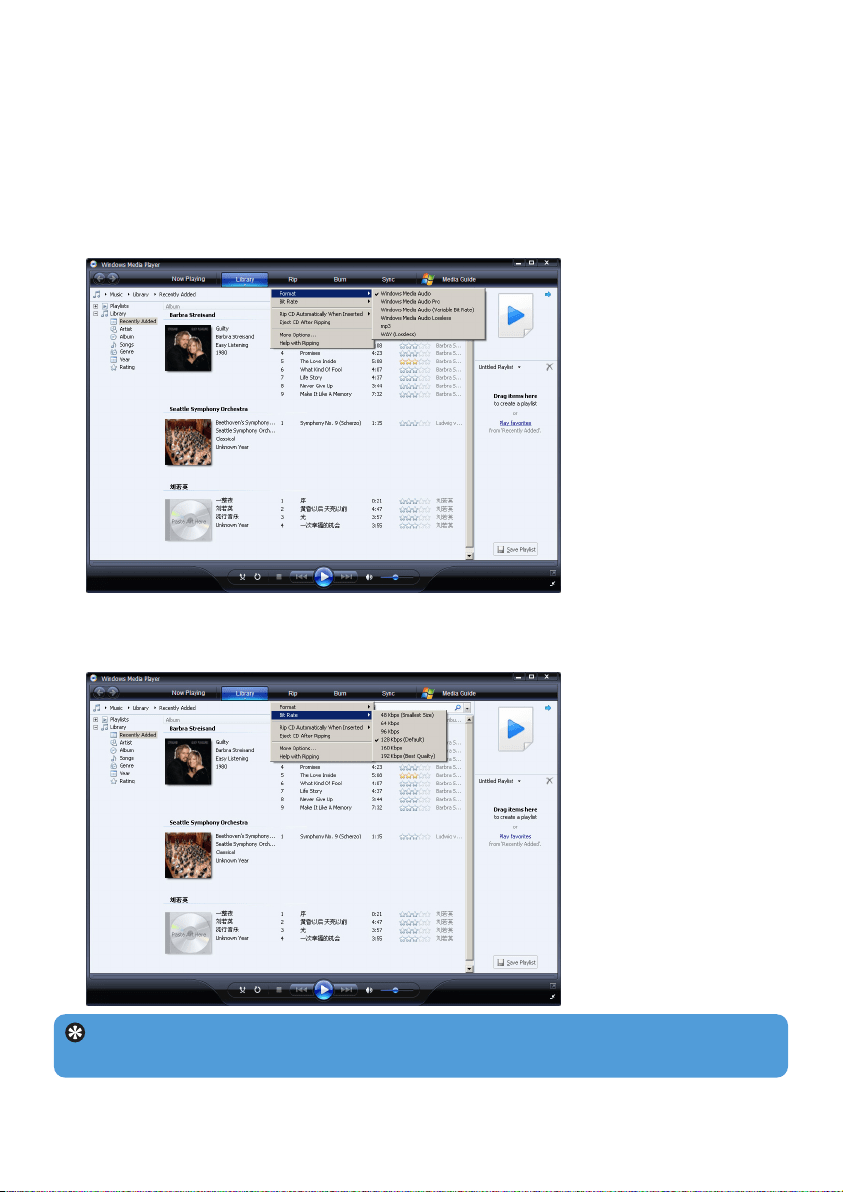
2 Click the down arrow beneath the Rip tab and select Format to choose the format you
want.
3 Click the down arrow beneath the Rip tab and select Bit Rate to choose the bit rate
you want.
Tip A higher bit rate produces a better sound quality, but the file size will be larger.
The recommended format for yourplayer is 128kbps MP3 or 64kbps WMA.
24
4 Insert the Audio CD into your computer's CD drive.
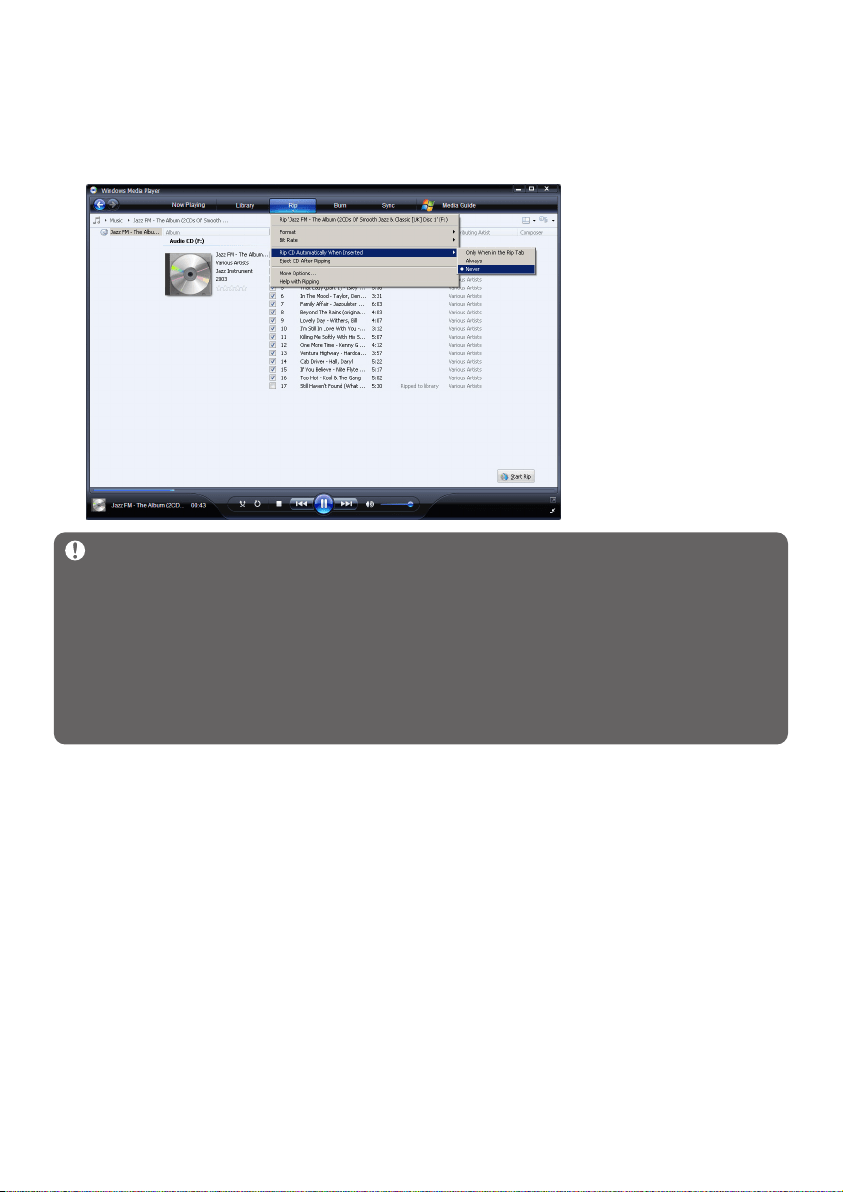
> All the tracks from the CD are listed. By default, Windows Media Player will start to rip all
the songs in the CD. To modify this option, click the down arrow beneath the Rip tab and select
Rip CD Automatically When Inserted > Never.
Important Make sure that you are connected to the Internet before you start ripping
so that Windows Media Player can download the album and track information from an
online music database. If your computer is not connected to the Internet, you will have to
enter the album and track information manually.
As Windows Media Player may not always identify the right song on the CD and the online
music database may not always have the correct information (especially for new album
releases or albums from lesser-known artists), you may need to manually edit or enter the
album and track information. See Edit song information via Windows Media Player.
25
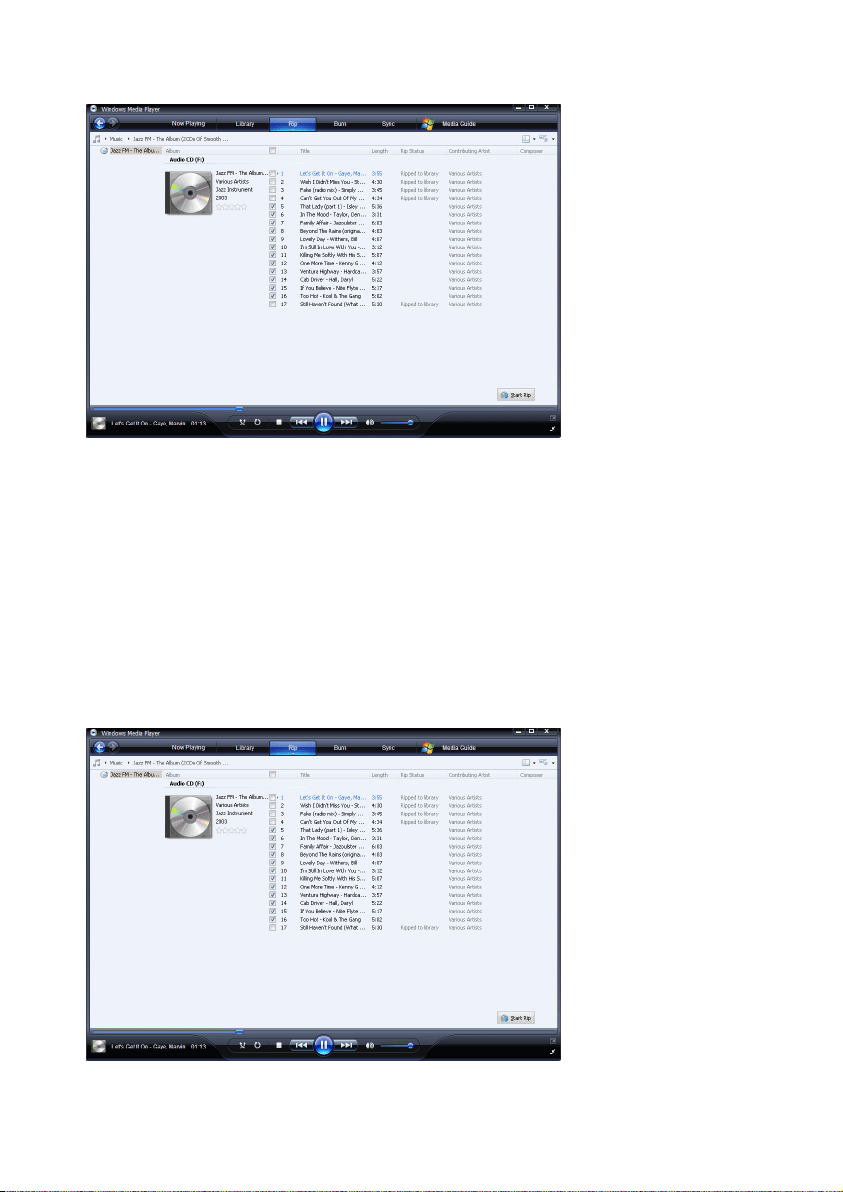
5 Select the songs that you want to rip by clicking on the checkboxes.
6 Click Start Rip.
> The selected tracks will be converted and added to Windows Media Player library.
4.2.4 Buy music online
If you want to buy music online, you need to select a music store.
1 Start Windows Media Player.
2 Click the down arrow beneath the Media Guide tab and select Browse all Online
Stores.
3 Choose a store and follow the on-screen instructions.

26
> After you have bought a song or an album, it will appear in Windows Media Player library.
4.3 Sync your Windows Media contents to your
player
You can sync your music and pictures to your player using Windows Media Player. Simply
connect your player to your computer using the supplied USB cable, set up sync, and you will
be ready to sync your media library to the player.
When you connect your player to the computer for the first time, Windows Media Player
automatically selects the sync method (automatic or manual) that works best for your player.
Automatic: If your player has sufficient storage space (at least 4GB of free space) and your
entire media library can fit on your player, your entire media library will be automatically
copied to your player as soon as you connect it to your computer.
Manual: If your entire media library cannot fit on the player, then you will be prompted to
manually select specific files or playlists that you want to transfer to your player.
4.3.1 Set up your player
1 Start Windows Media Player.
2 Switch on your player and then connect it to your computer using the supplied USB cable.
> If prompted, select the option to sync the device using Windows Media Player.
3 If Windows Media Player selects to sync your device automatically, click Finish.
> Your entire library will sync to your player. Thereafter, every time you connect your player to your
computer, your player will sync automatically. You can also select and prioritise what syncs
automatically (see Select and Prioritise What Syncs Automatically).
4 If Windows Media Player selects to sync your device manually, click Finish.
> You then need to click the Sync tab and select the files and playlists you want to sync manually
(see 4.3.4 Select files and playlists for Manual Sync).
Important Do not disconnect your player while transferring is in progress. If you
disconnect your player, the transfer will not be complete and Windows might not be able
to recognize your player afterwards. To rectify this problem, perform steps 1 - 7 in
4.1.3 More about rolling back to a previous version of the Player.
Note Depending on where you are and the language used, the list of stores may differ
from what is shown here.
27
4.3.2 Switch Between Automatic and Manual Sync
After your player is set up the first time, depending on your preference, you can switch
between automatic and manual sync.
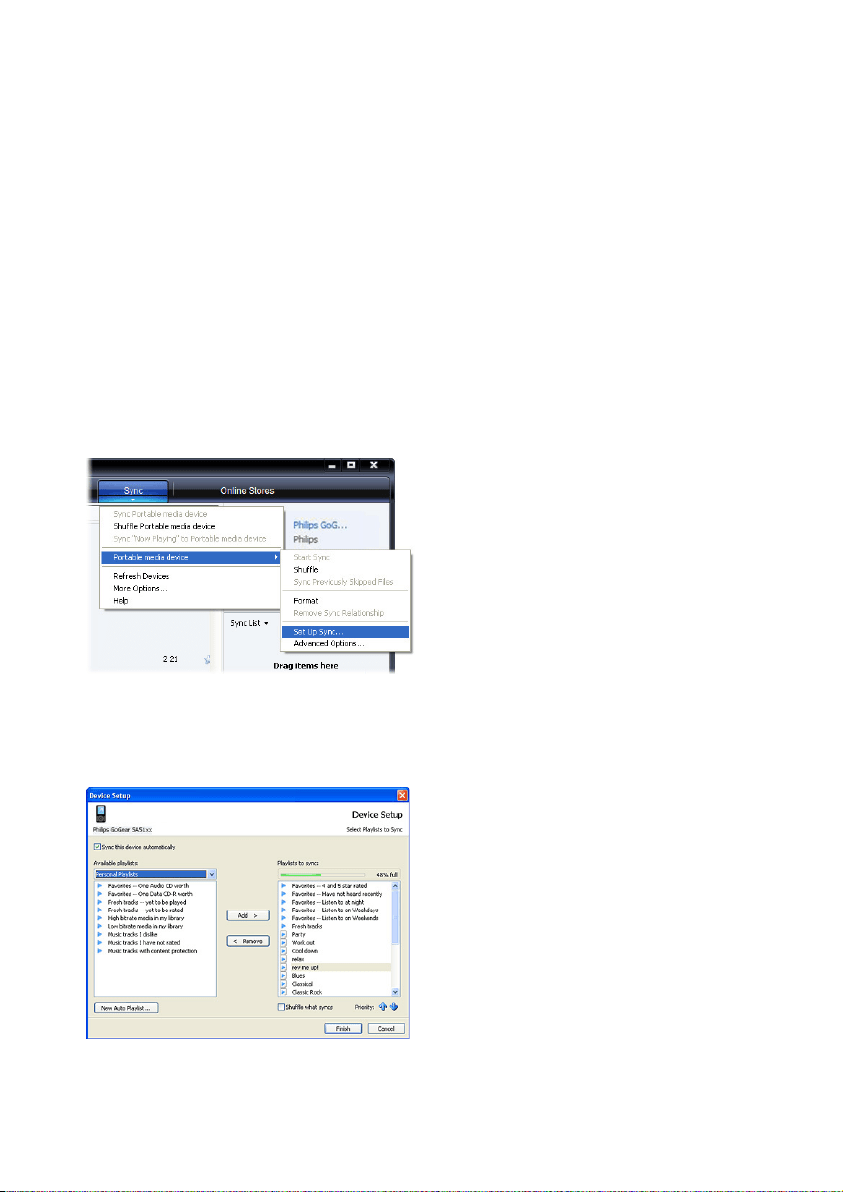
1 Click the down arrow beneath the Sync tab, select Philips GoGear SA51xx > Set Up
Sync.
2 Select or clear the Sync this device automatically check box.
4.3.3 Select and Prioritise What Syncs Automatically
If Windows Media Player has selected to sync your device automatically, you can choose
not to sync your entire media library. You can choose what you wish to sync from existing
playlists or create new playlists. These playlists you have selected will then sync to your
player every time you connect it to your computer.
1 Click the down arrow beneath the Sync tab and select Philips GoGear SA51xx > Set
Up Sync.
> The Device Setup dialog box appears.
2 In the Available playlists pane, select the existing playlists you want to sync and then
click Add.
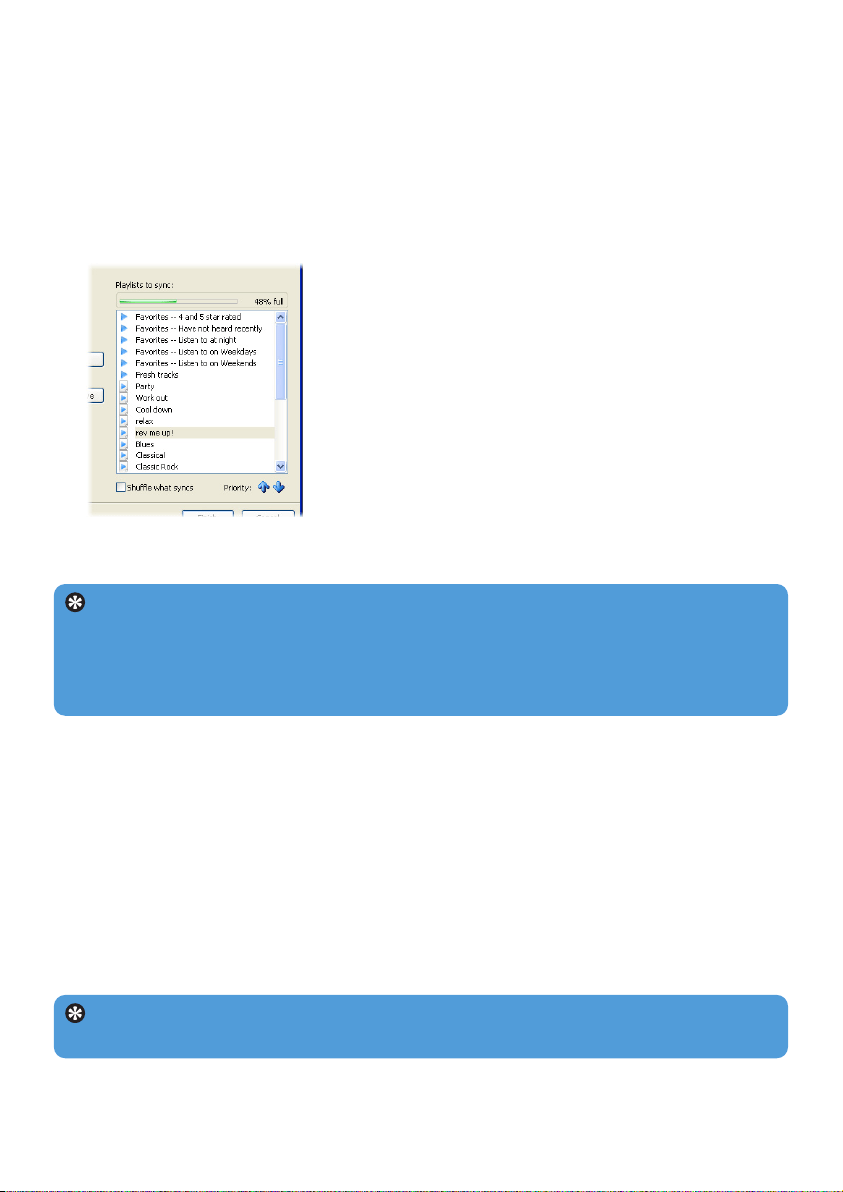
28
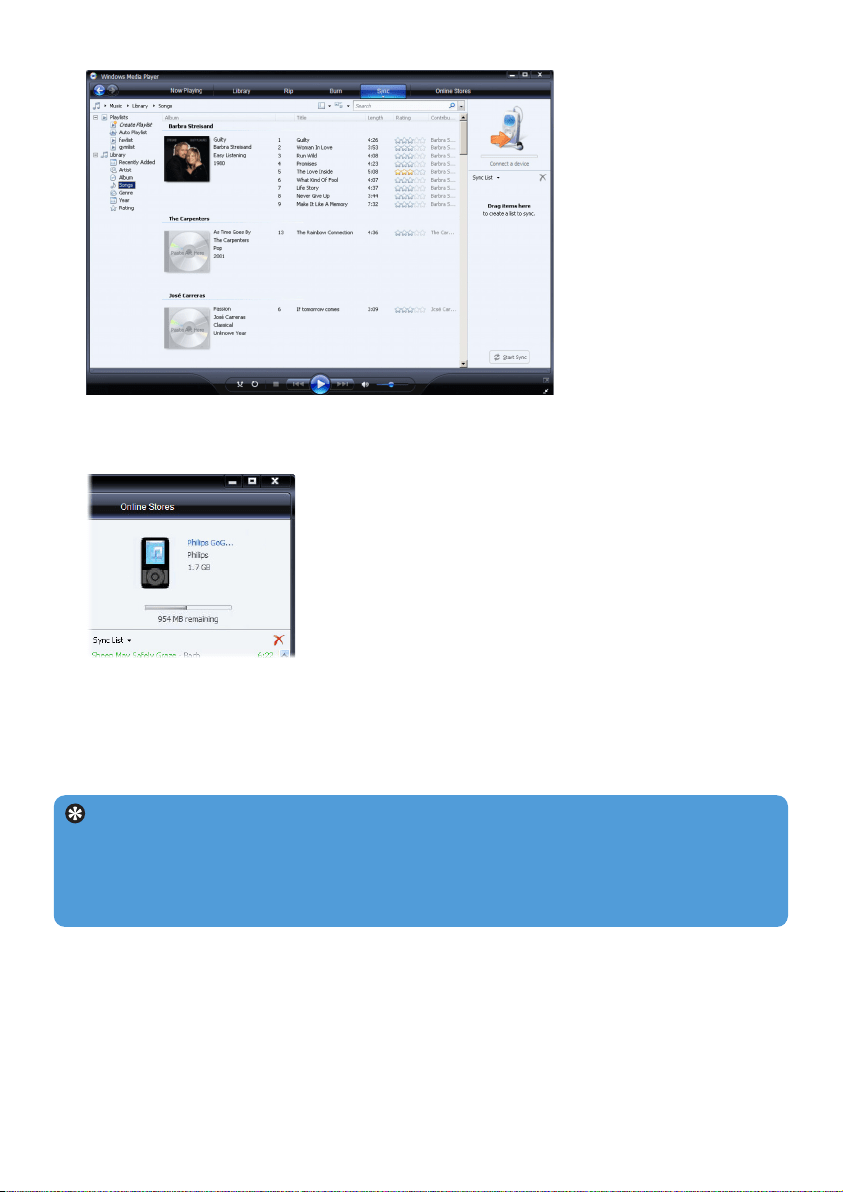
4.3.4 Select files and playlists for Manual Sync
If you sync manually, you must create a list of files and playlists you want to sync. You can
also shuffle which files from your playlists to sync to your player.
1 Start Windows Media Player.
2 Switch on your player and then connect it to your computer using the supplied USB
cable.
3 Click the Sync tab.
4 Drag the files and playlists that you want to sync from the Contents pane to the Sync List
pane. You can also right-click on the file or playlist and select Add to "Sync List".
3 To create a playlist, click New Auto Playlist and follow the steps on the screen to
specify criteria for files in the auto playlist (for details on how to create an auto playlist,
see 4.4.2 Create an Auto Playlist).
4 To remove a playlist, click the playlist in the list of Playlists to sync, and then click
Remove.
5 In the Playlists to sync pane, select a playlist and click the Priority arrows to arrange
them in the order that you want them to sync.
> If your player is full before sync is complete, then the files and playlists that are lower in priority
on the list will not sync.
Tip If your player has limited storage capacity, or if your media library has grown too
large to fit on your player, you can shuffle the files that are in the playlists you have
selected to sync. To do so, select the Shuffle what syncs check box. Thereafter, every
time you connect your player to the computer, the files on your player are removed and a
new set of files (from the Playlists to sync pane) are added to the device.
Tip To switch between music and pictures library, simply click the arrow on the top
left of Windows Media Player and select the category you want to view.
29
5 In the Sync List pane, verify that the items you have selected to sync will all fit on your
player. If necessary, remove items from the list.
6 To remove items, right-click on the item in the Sync List pane, and then select Remove
from List.
7 Click Start Sync button to transfer the Sync List items to your player.
> The progress is displayed on the bottom right of Windows Media Player.
Tip If the track you are trying to sync is a protected file, you will be prompted to
upgrade the security components on your computer. When this happens, play the track in
Windows Media Player and when prompted, follow the steps on the screen to upgrade
the security components. After you have upgraded your security components, sync the file
to your player again.
30
8 If you wish to stop the transfer, click Stop Sync.
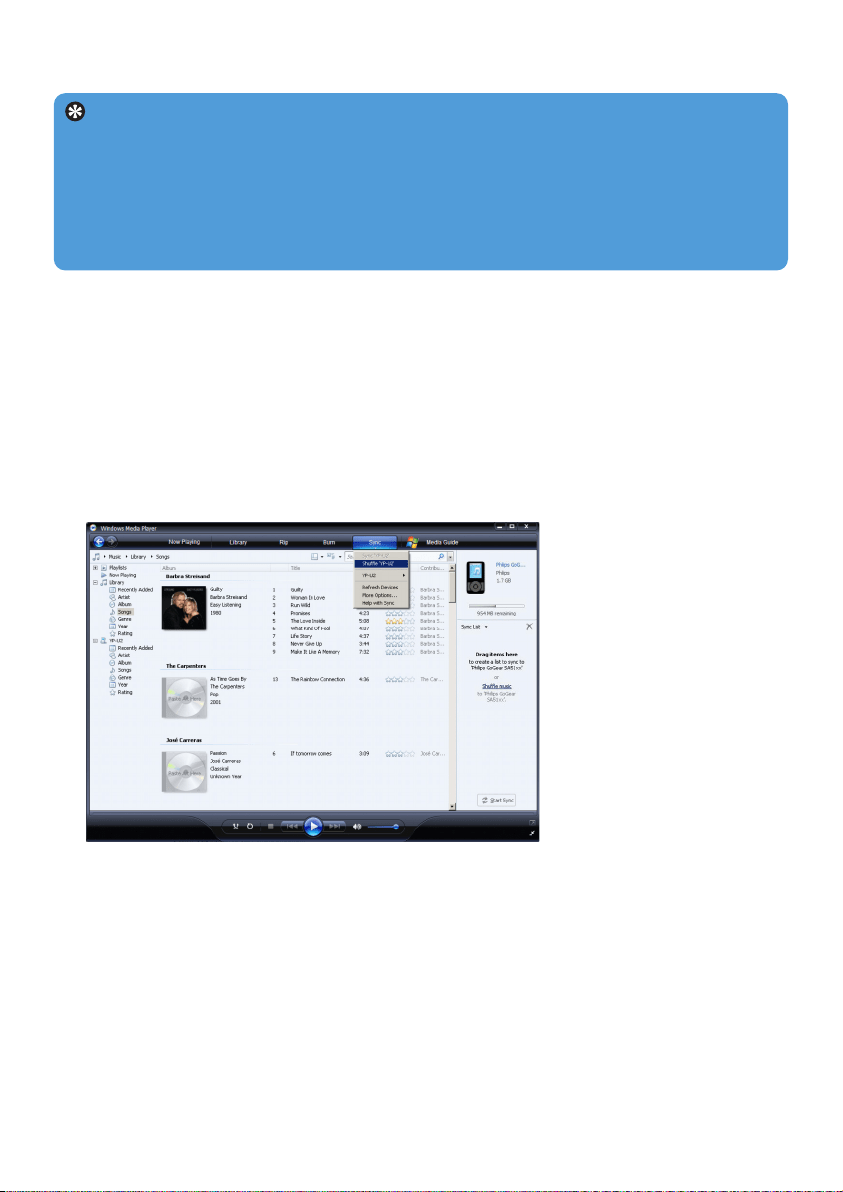
4.3.5 Shuffle manual sync items on your player
The Shuffle Sync feature in Windows Media Player is able to detect the amount of space
in your player and load your player with a random sampling of files.
1 Start Windows Media Player.
2 Switch on your player and then connect it to your computer using the supplied USB
cable.
3 Click the down arrow beneath the Sync tab and select Shuffle "Philips GoGear
SA51xx".
4 If prompted, click Yes button to start synchronization. Otherwise synchronization starts
immediately.
> The progress is displayed on the bottom right of Windows Media Player.
5 To stop Sync, click the down arrow beneath the Sync tab and select Stop Sync to
"Philips GoGear SA51xx".
Tip To select multiple files, click on one file, then press and hold the CTRL key on
your computer keyboard and click the other files that you want to select.
To select consecutive files, click on the first file, then press and hold the SHIFT key on
your computer keyboard and click the last file in the list that you want to select.
To select all files, click on any file to highlight it, then press and hold CTRL + A key on
your computer keyboard.

31
4.3.6 Copy files from your player to your computer
Your player supports reverse sync, which lets you copy files from your player to your
computer via Windows Media Player.
1 Start Windows Media Player.
2 Switch on your player and then connect it to your computer using the supplied USB
cable.
3 Click on Philips GoGear SA51xx in the left Navigation pane.
> You can browse your player's contents in a variety of views, such as Recently Added, Artist,
Album, Songs, etc.
The contents on your player will be listed in the Contents pane.
4 Navigate to the file or playlist you wish to copy from your player to your computer.
5 Right-click on the file or playlist and select Copy from Device.
4.4 Manage your Windows Media Player Playlist
Playlists allow you to mix any combination of songs or pictures you want so that you can
enjoy hours of listening or viewing. You can create regular or auto playlists containing songs,
pictures or both using Windows Media Player 11.
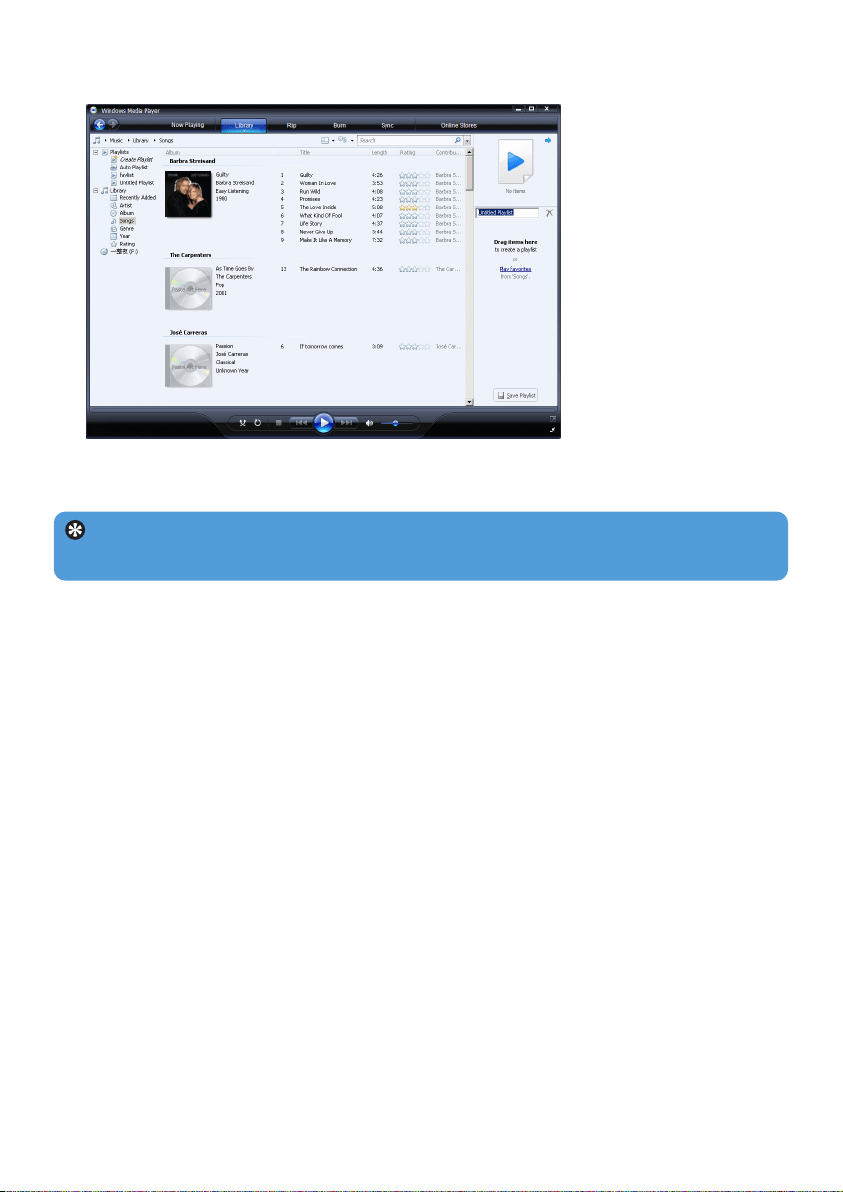
4.4.1 Create a regular Playlist
1 Click the down arrow beneath the Library tab and select Create Playlist.
> Untitled Playlist appears on the List pane
Tip To switch between music and pictures library in your player, simply click the arrow
on the top left of Windows Media Player and select the category you want to view.
32
2 Click on Untitled Playlist and enter a new name for the playlist.
3 To add items to your playlist, drag them from the Contents pane onto the List pane.
Your playlist can contain both songs and pictures.
Tip To switch between music and pictures library in your player, simply click the arrow
on the top left of Windows Media Player and select the category you want to view.
4 When you have finished adding items to the playlist, click Save Playlist.
4.4.2 Create an Auto Playlist
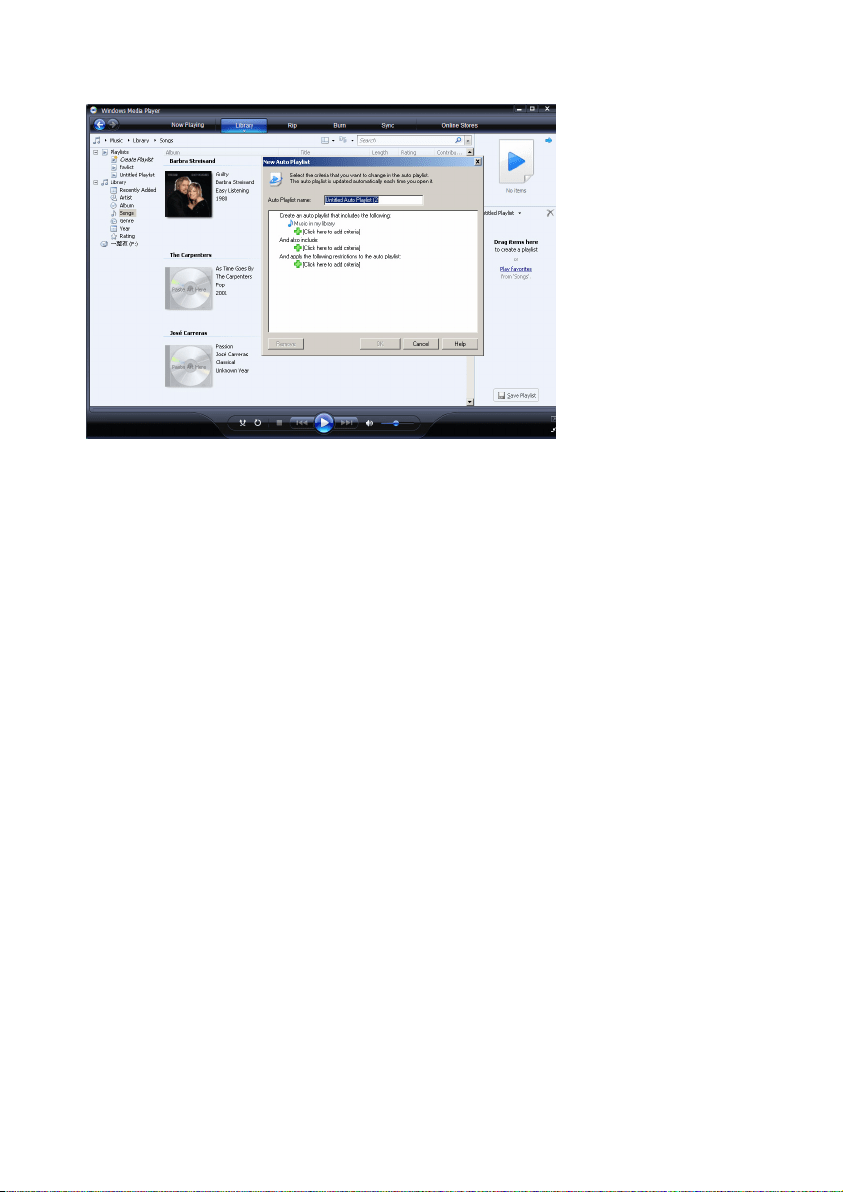
Windows Media Player can automatically generate playlists based on various criteria.
1 Click the down arrow beneath the Library tab and select Create Auto Playlist.
>A New Auto Playlist dialog box appears.
33
2 Enter a name for the auto playlist.
3 Click the first green plus sign and select your first criteria from the pull-down list.
> Your criteria is listed.
4 Click on the underlined words to further define your criteria.
5 Click the second and third green plus signs to select and define more criteria for your
auto playlist.
6 Click OK button when done.
4.4.3 Edit playlist
You can edit your existing playlists at any time.
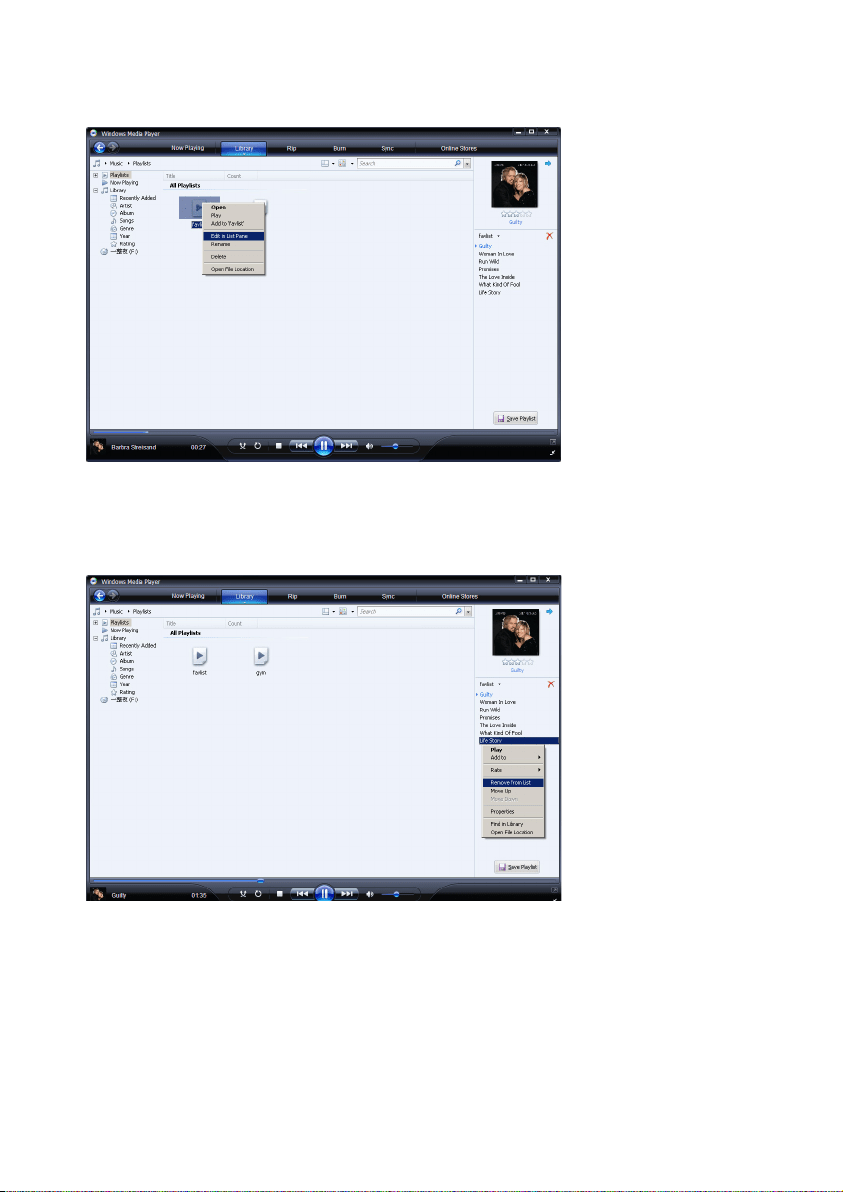
1 Click on Playlists in the left Navigation pane.
> All your playlists will be displayed in the Contents pane.
34
2 Right-click on the playlist you wish to edit and select Edit in List Pane from the pop-up
menu.
> The contents in the playlist appears on the List pane.
3 To remove an item from the playlist, right-click on the item and select Remove from
List.
4 To change the order of the items in the playlist, click and drag any item to a new position
within the List pane.
5 To add a new item to the playlist, select it from the library and drag it to the List pane.
6 When you have finished editing the playlist, click Save Playlist button.

35
4.4.4 Transfer playlists to your player
Refer to 4.3.4 Select files and playlists for Manual Sync.
4.5 Manage your files and playlists in Windows
Media Player
4.5.1 Search for music or pictures via Windows Media Player
1 Click the Library tab.
2 To search for music files, click the arrow on the top left of Windows Media Player
and select Music. To search for picture files, select Pictures.
3 Type a few keywords of the file, such as song title, artist, etc in the search box.
> The results of your search appear in the Contents pane as you type, and are updated as you
enter erioritiesach new letter of your search.
3 Keep entering the keywords to fine-tune the results of your search.
4.5.2 Delete files and playlists from Windows Media Player
library
1 Click the Library tab.
2 To delete music files, click the arrow on the top left of Windows Media Player and
select Music. To delete picture files, select Pictures.
3 Navigate to the file or playlist you wish to delete.
4 Right-click on the file or playlist and select Delete.
5 Select Delete from library only or Delete from library and my computer and
click OK.
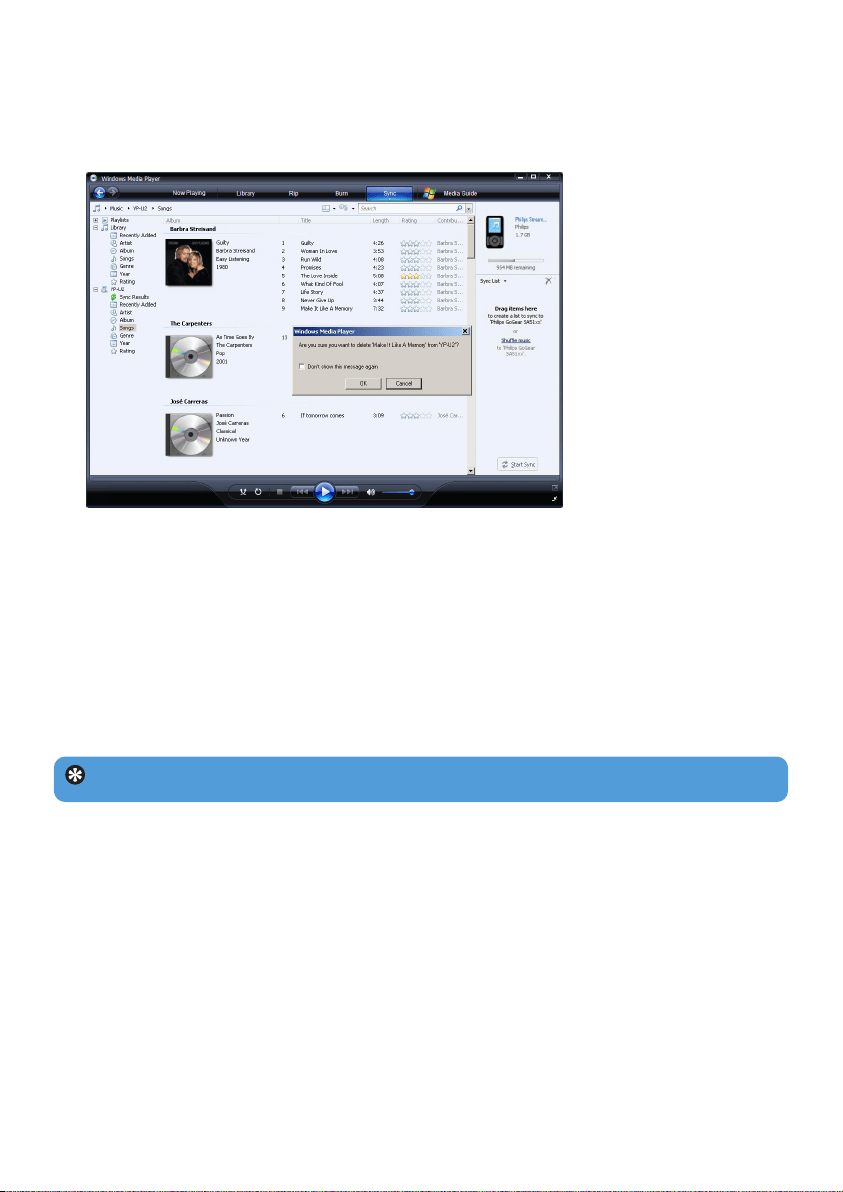
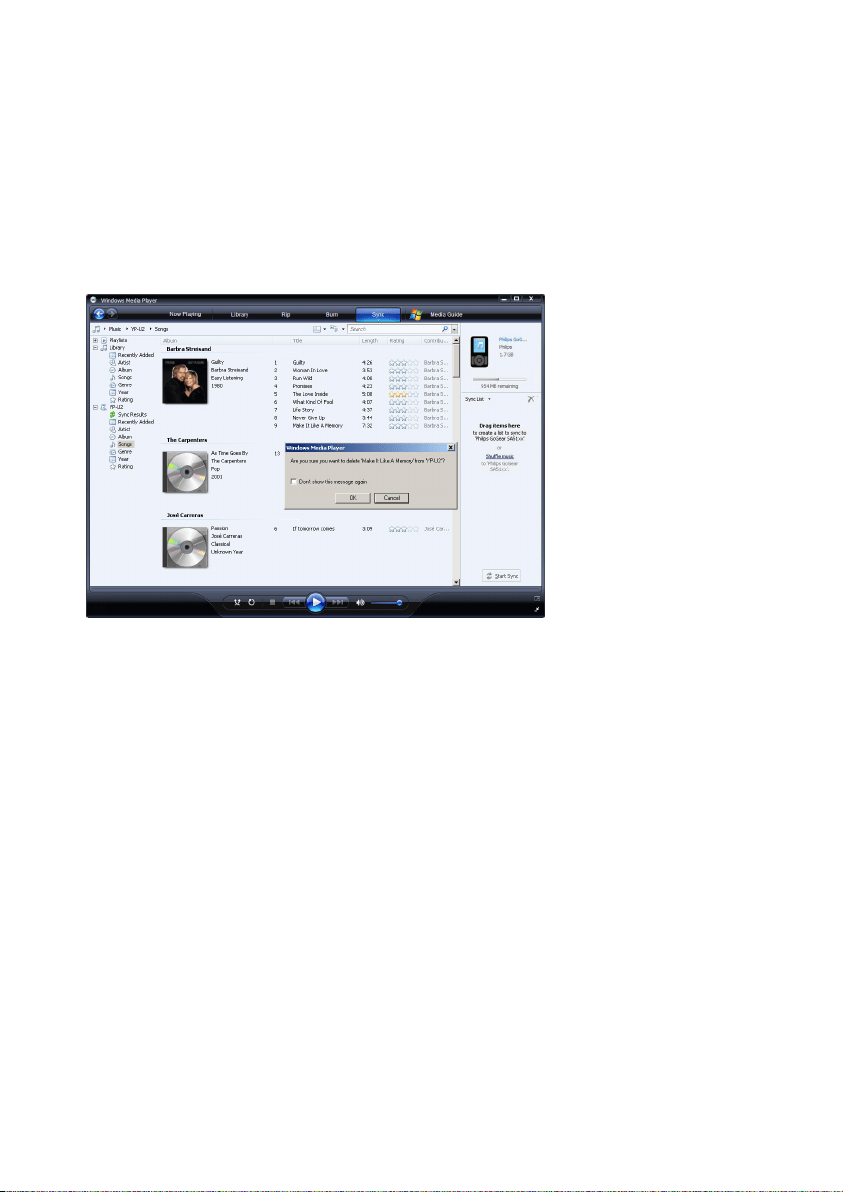
4.5.3 Delete files and playlists from your player
You can also use Windows Media Player to manage the files stored on your player. When
you connect your player to the computer, the contents on your player will be displayed in
Windows Media Player. You can then delete files or playlists, just as you would any other
files displayed in Windows Media Player.
1 Click on Philips GoGear SA51xx in the left Navigation pane.
> You can browse your player's contents in a variety of views, such as Recently Added, Artist,
Album, Songs, etc.
The contents on your player will be listed in the Contents pane.
2 To delete music files, click the arrow on the top left of Windows Media Player and
select Music. To delete picture files, select Pictures.
36
3 Navigate to the file or playlist you wish to delete.
4 Right-click on the file or playlist and select Delete.
5 Click OK.
4.5.4 Add or change album art
1 Locate and store your album art (preferably in JPG format) on your computer.
2 Right-click on the album art and select Copy.
3 Go to Windows Media Player and locate the album that you wish to add or change
the album art.
4 Right-click on the album and select Paste.
> The new album art now appears on your album in Windows Media Player.
Tip You can search for album art using Google Image Search (images.google.com)
37
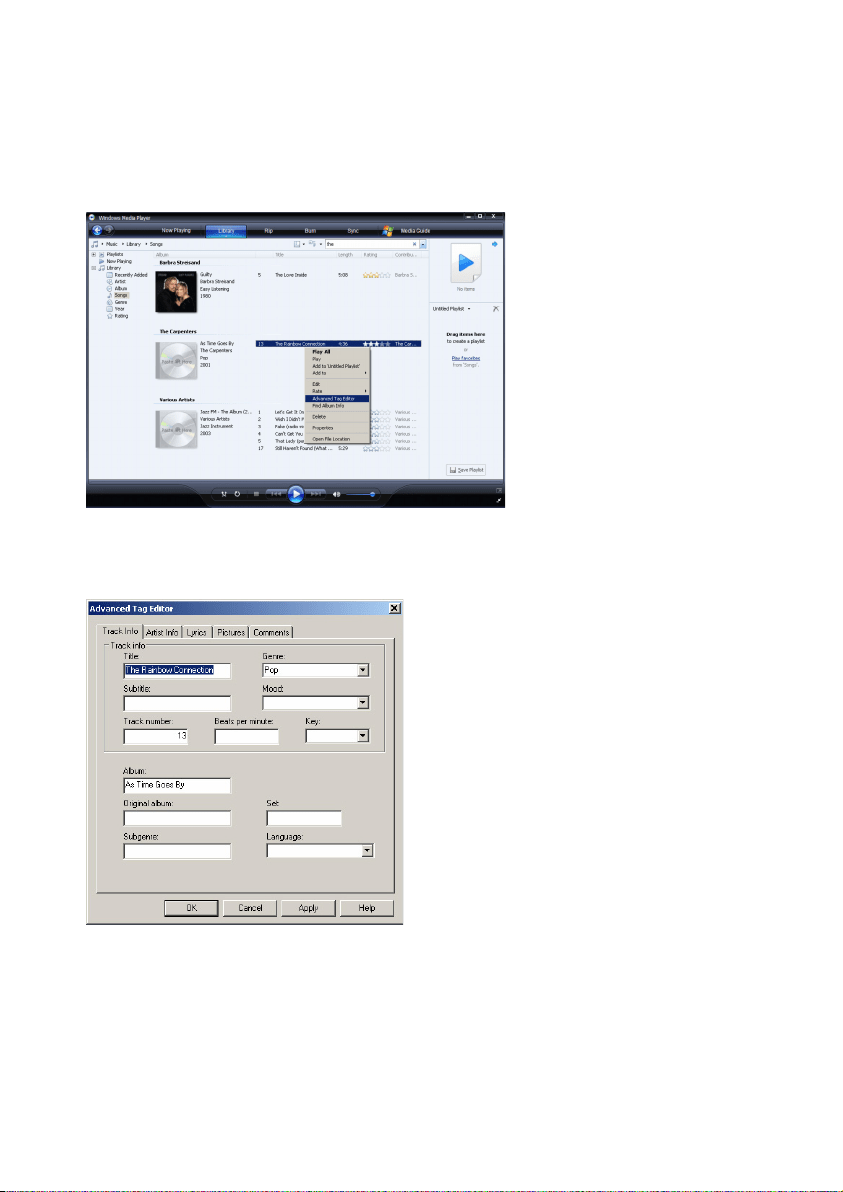
4.5.5 Edit song information via Windows Media Player
1 Click the Library tab.
2 Navigate to the song you wish to edit.
3 Right-click on the song and select Advanced Tag Editor from the pop-up menu.
> The Advanced Tag Editor dialog box appears.
4 Select the appropriate tab and enter or edit the information.
5 Click OK to save your changes.
38
4.5.6 Format your player via Windows Media Player
You can reformat the hard disk on your player to erase all data.
1 Start Windows Media Player.
2 Switch on your player and then connect it to your computer using the supplied USB
cable.
3 Click the down arrow beneath the Sync tab and select Philips GoGear SA51xx >
Format.

39
5 Detailed operation
5.1 Music mode
Your player is preloaded with some songs. You can transfer your digital music and picture
collection from your computer to your player using Windows Media Player. More
information on music transfer can be found in Organize and transfer pictures and
music with Windows Media Player section in this user manual.
5.1.1 Controls
During music playback, you can do the following:
To Do this
Play / Pause music Press 2;
Go to next song Press )K
Go to previous song Press J(
Forward search Press and hold )K
Backward search Press and hold J(
Access options menu Press MENU key
Return to browsing Press 1
Increase volume Press VOL +
Decrease volume Press VOL -
40
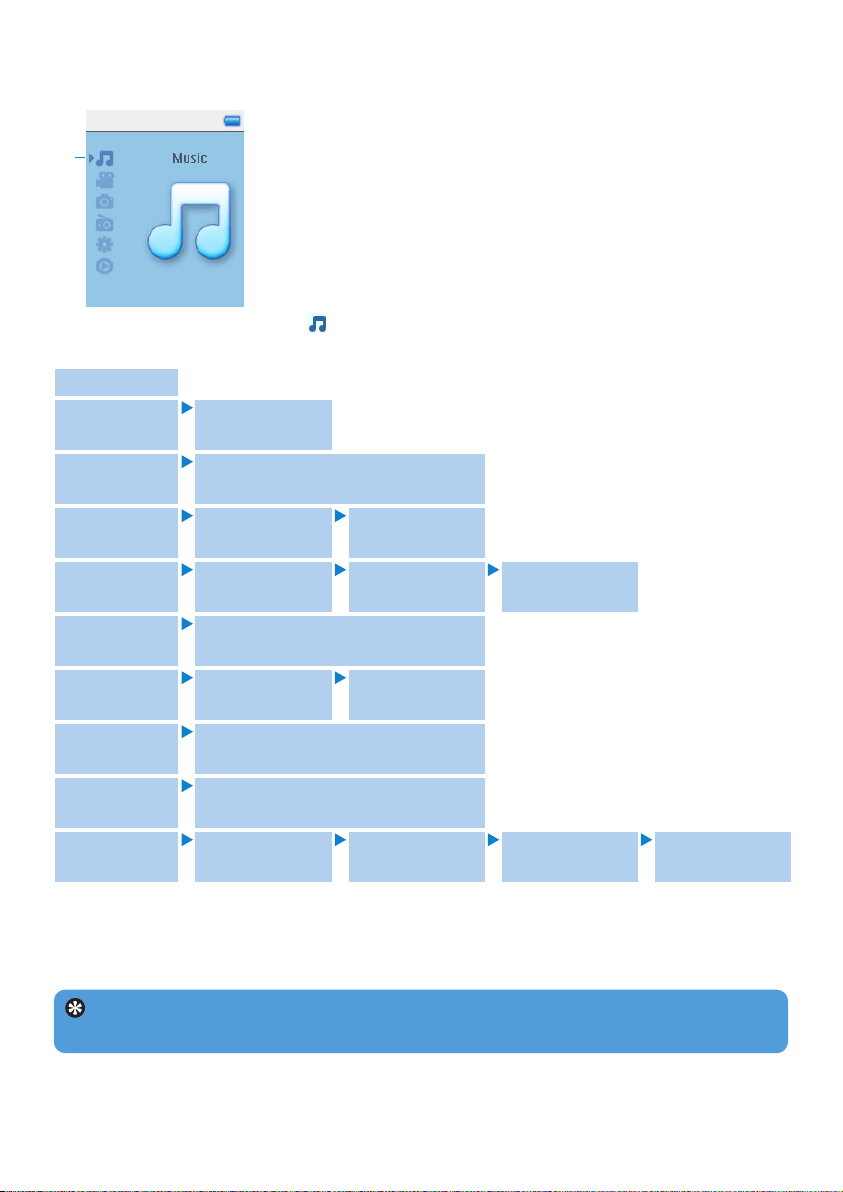
2 Use 1, 2, 3, 4 to scroll up or down the menu.
3 Press 2 to select or press 1 to return to previous level.
4 Press 2; to play your selection.
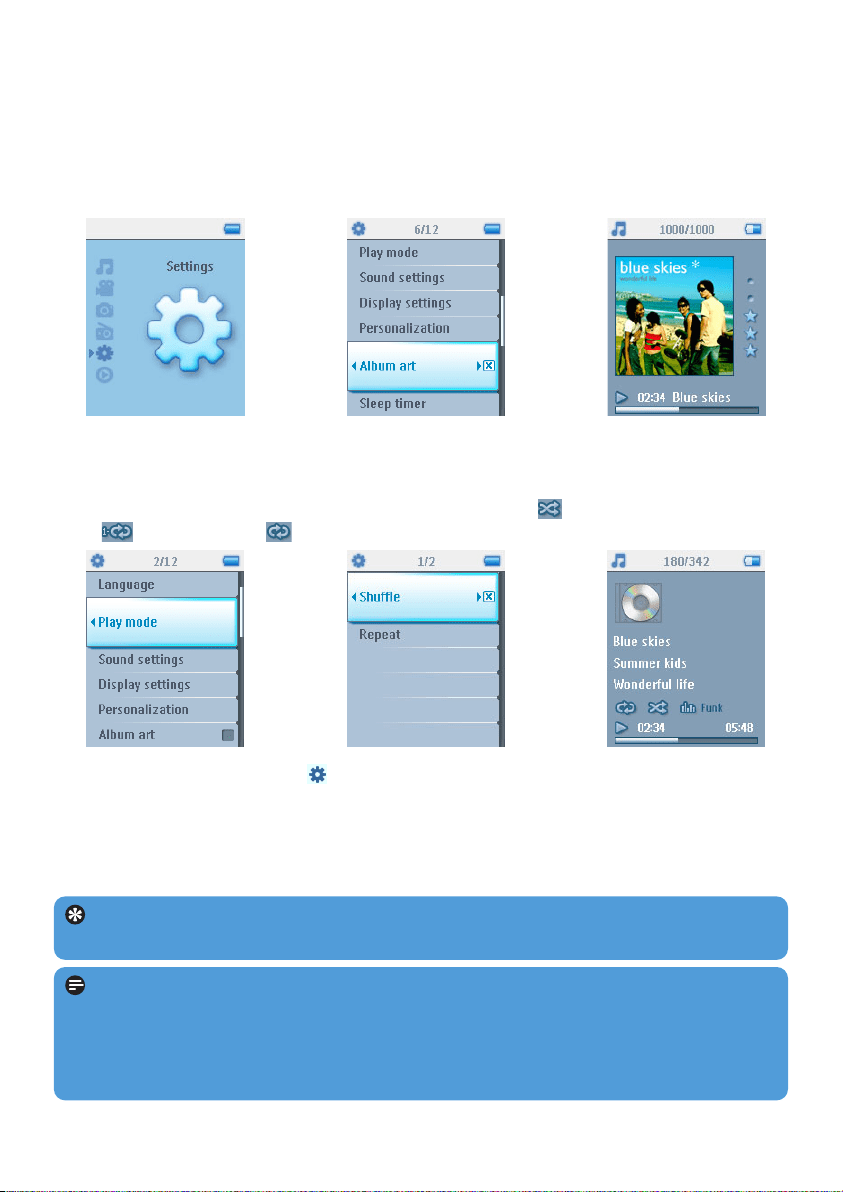
5.1.2 Find your music
1 From the main menu, select to enter music mode.
You can search from the following music options:
1
Tip Superplay™ allows you to playback the selected music or album immediately at
any point by pressing 2; on the selection.
Shuffle All
All songs Alphabetically
listed tracks
Recently
added
Alphabetically listed tracks in last
sync
Playlists Playlists
collections
Tracks listed in
play order
Artists Alphabetically
listed artists
Alphabetically
listed albums
Tracks listed in
album order
Album Art Alphabetically listed album covers
in mosaic view
Albums Alphabetically
listed albums
Tracks listed in
album order
Year List in descending order of years
(latest on top)
Rating List in descending order of rating
(5stars>1star)
Genres Alphabetically
listed genres
Alphabetically
listed artists
Alphabetically
listed albums
Tracks listed in
album order
41
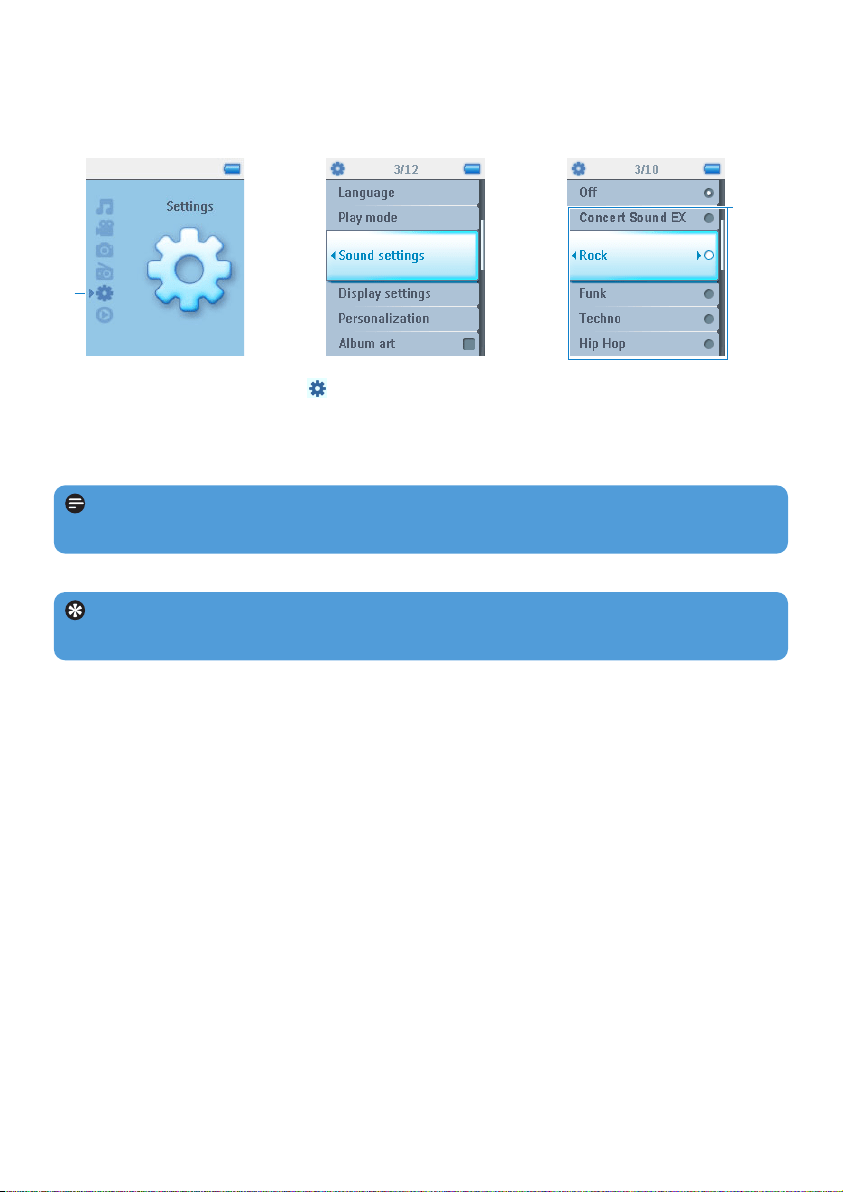
5.1.3 Album art
Your player displays the album artwork for the song you are currently playing or when you
are browsing through a list of songs or albums. You can choose to switch on / off the album
art display feature in the Settings sub menu.
If no album artwork is available, it will show a standard CD cover icon.
Press 2 to view album art in full screen mode or 1 to return to normal play screen.
5.1.4 Play mode
You can set your player to play songs randomly (Shuffle All ) or repeatedly (Repeat
One or Repeat All ).
1 From the main menu, select > Play mode.
2 Use 3, 4 to scroll up or down the options.
3 Press 2 to select an option.
4 Press 2 again to deselect an option.
While you are playing music, you can see the above active play mode screen.
Tip You can also access the above play mode while you are playing music by pressing
MENU key.
Note Digital Rights Management (DRM) Information
If you have songs that have been bought online stored on your player, from time to time
you may see a message pop up “Licence problem”. It is because the license for the song
on the player may have expired and synchronizing with the computer will help to update
this license with the latest information.
42
5.3 Playlist on the go
Playlist on the go is a playlist that can be created on the player while on the move.
All songs will be displayed and listed in play order in the playlist. New songs are automatically
added to the end of the playlist.
5.2 Sound settings
Set your player to play songs with different EQ (equalizers) settings.
1 From the main menu, select > Sound settings.
2 Use 3, 4 to scroll through the list of options: Concert Sound EX, Rock, Funk,
Techno, HipHop, Classical, Jazz, Spoken Word, Custom, or Off. You can select
one of them.
2
1
3 Press 2 to select.
Tip While you are playing the music, you can also change the EQ settings (except
Custom settings) by pressing MENU > Sound settings.
Note Custom settings allow you to specify your desired equalizer settings by adjusting
the individual settings for bass (B), low (L), mid (M), high (H) and treble (T).
43
5.3.1 Add songs to playlist on the go
You can add your favorite songs, albums, artists and genres to Playlist on the go during
music playback.
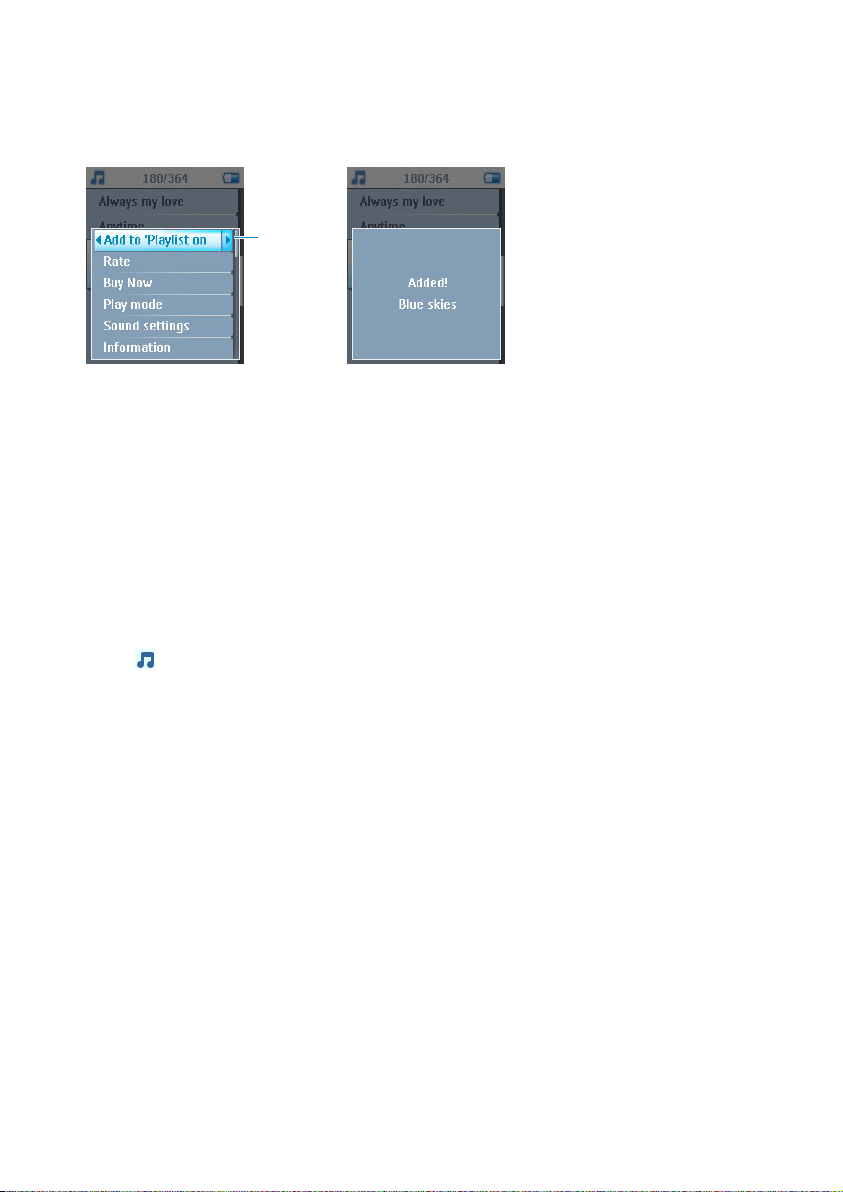
1 Press MENU key.
2 Select Add to Playlist on the go.
> A message Added! [item name] will be displayed.
Alternatively, you can add songs, albums, artists and genres to Playlist on the go from the
music library of your player.
1 Press MENU key and select Add to Playlist on the go.
> A message Added! [item name] will be displayed.
5.3.2 Play back playlist on the go
1 Select > Playlists> Playlist on the go.
2 Select your playlist and press 2;.
2
44
5.3.3 Save Playlist on the go
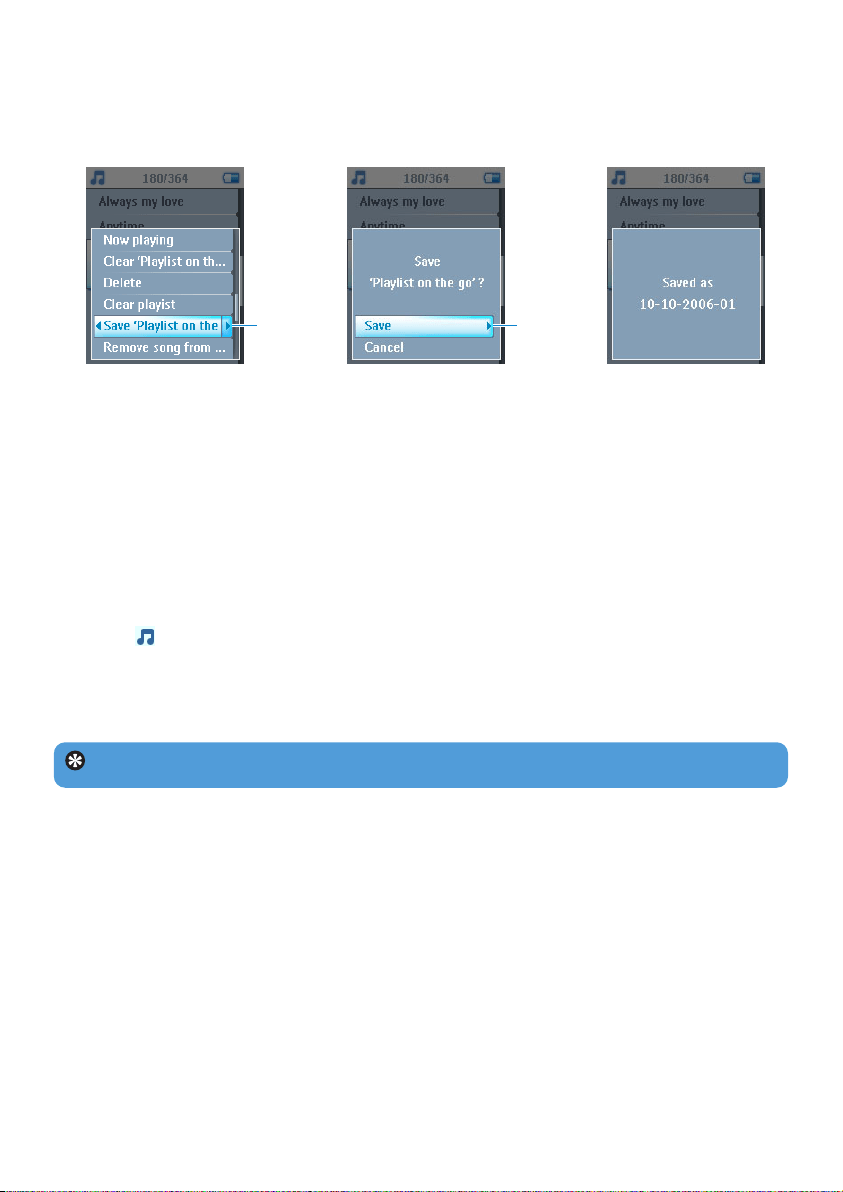
You can save Playlist on the go. It will be saved under a different name and Playlist on the
go will be emptied.
1 During music playback, press MENU key.
2 Select Save ‘playlist on the go’.
> A message Save ‘playlist on the go’? will be displayed.
3 Select Save to confirm.
> A message Saved as [date -number]! will be displayed.
5.3.4 Clear playlist on the go
You can clear all the songs in Playlist on the go.
1 Select > Playlists > Playlist on the go.
2 Press MENU key and select Clear ‘Playlist on the go’.
3 Select Clear to confirm clearing all the songs in the selected Playlist on the go, or select
Cancel to return to the previous menu.
2 3
Tip This will empty Playlist on the go but will not delete those songs from your player.
45
5.4 Most played
You can playback your top 100 most played songs by selecting this playlist.
1 From the main menu, select > Playlists > Most played.
> The list shows the 100 most played songs on your player. The first song in the list is the most
played song.
2 Reset the play count to 0 via > Music library settings > Reset play count.
5.3.5 Remove songs from Playlist on the go
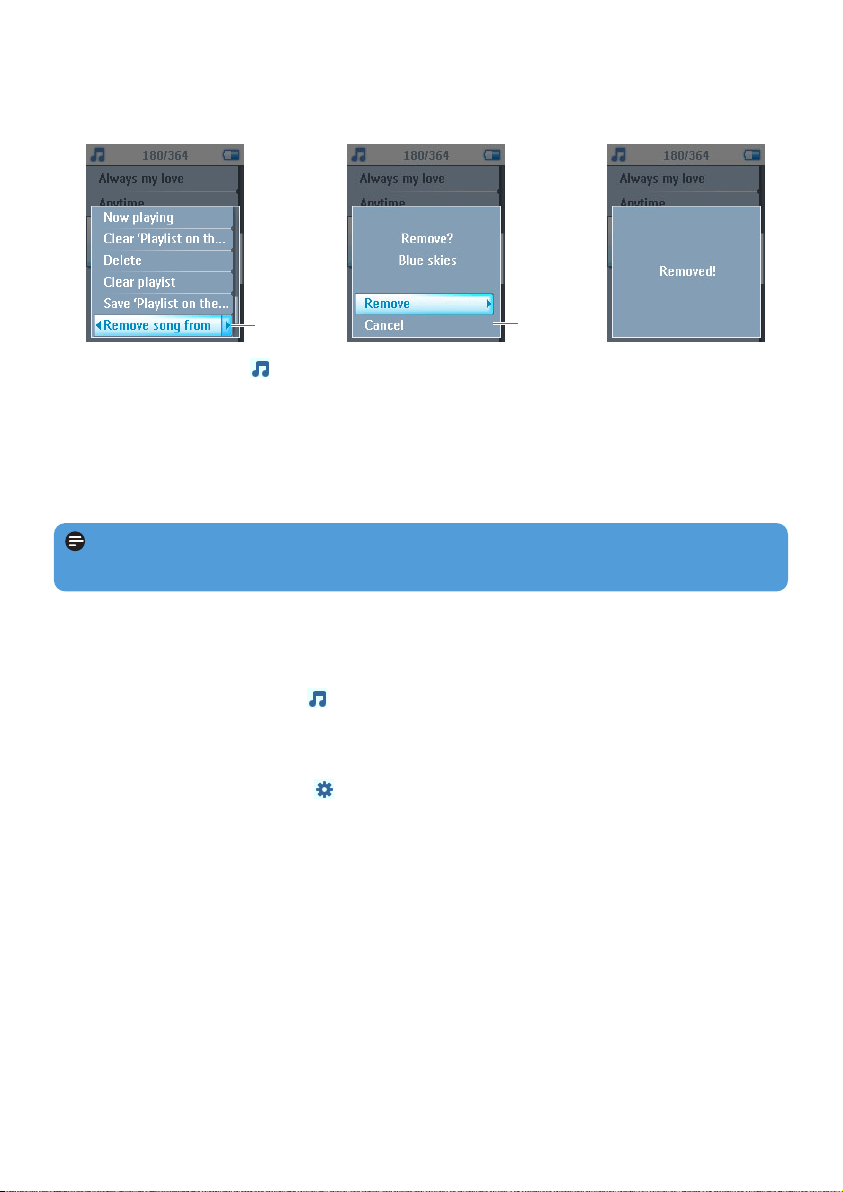
You can delete specific songs from Playlist on the go.
1 Select the song from > Playlists > Playlist on the go.
2 Press MENU key and select Remove song from list.
> A message Remove [song name]? will be displayed.
3 Select Remove to delete the song from Playlist on the go.
> A message Removed! will be displayed.
2
3
Note The song is removed from the playlist only, it will not be deleted from the
player.
46
5.5 Other playlists
You can transfer playlists to the player using Windows Media Player. See Manage your
Windows Media Player playlist - Transfer playlists section in this user manual for
details.
5.5.1 Delete playlist from your player
You cannot delete the playlist on your player via Windows Media Player. You have to do
it via the player itself.
1 Play the playlist you want to delete.
2 Press MENU key.
3 Select Delete playlist.
> A message Delete [playlist name]? will be displayed.
4 Select Delete.
> A message Deleted! will be displayed.
5.5.2 Rate your songs
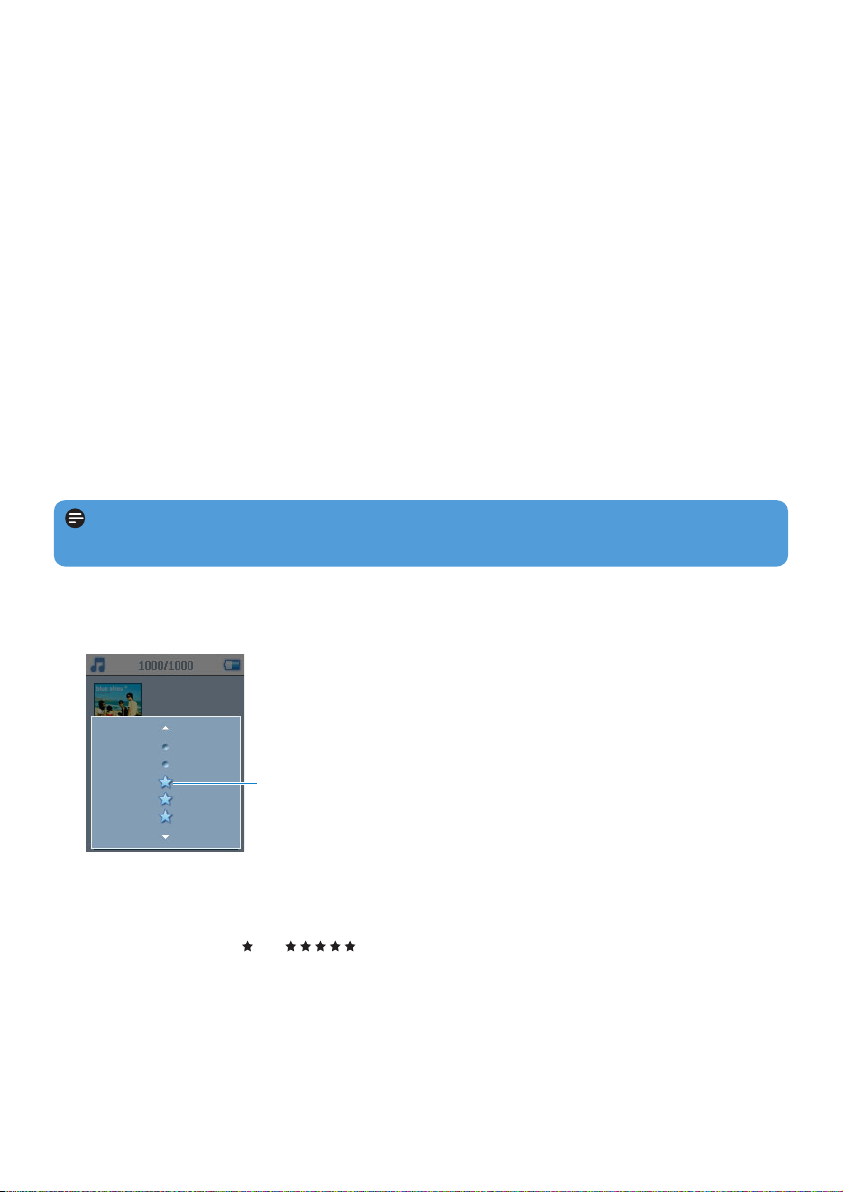
You can rate a song with 1 to 5 stars.
1 Select the song from the music library.
2 Press MENU key and select Rate.
3 Rate the song from to .
> Next time when you connect your player to your computer and start Windows Media Player,
the rating of your songs in Windows Media Player will be updated with the information from
your player.
3
Note Any playlist you delete will not have its associated songs removed from your
player.

47
5.5.3 Now playing
You can browse your music and video library or pictures while you are listening to music.
To go back to the play screen, press 1 to navigate back to the main menu and select Now
playing.
48
5.6 Videos
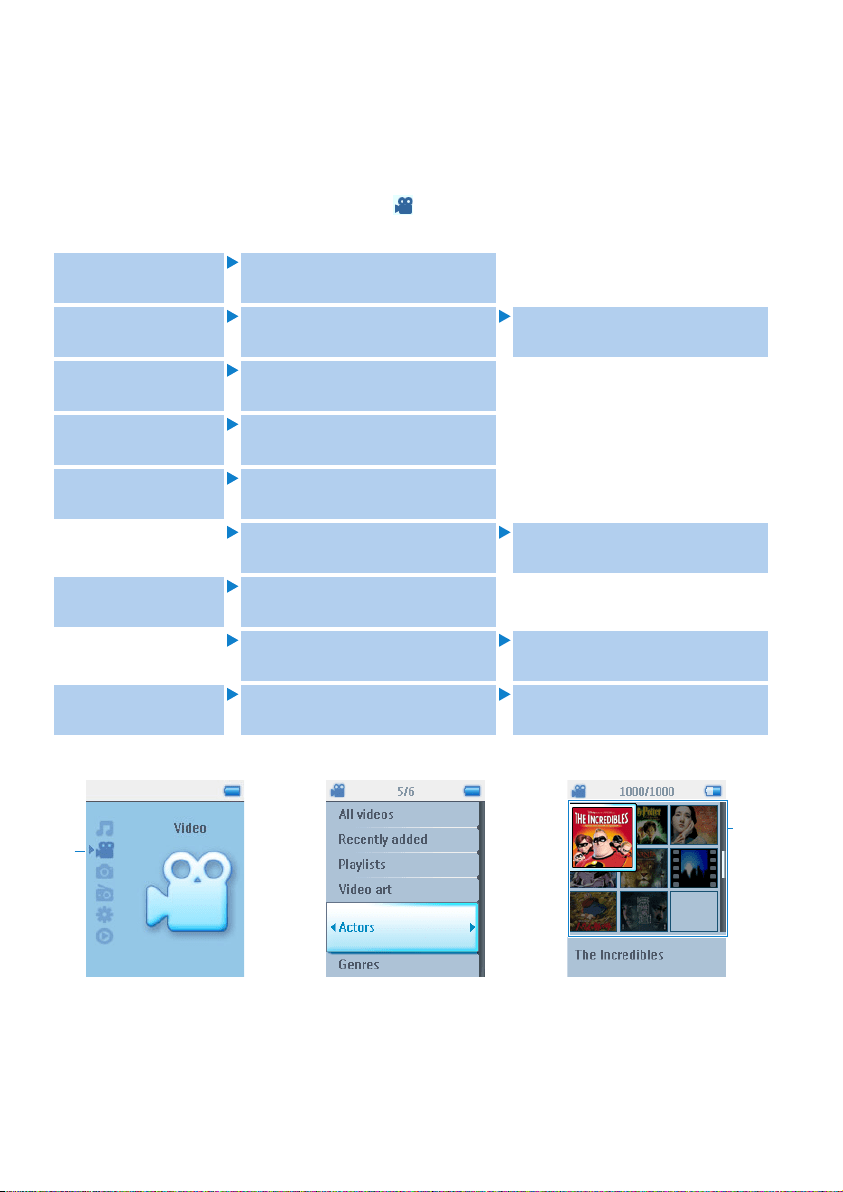
You can play the videos that are loaded from the PC using the MediaConverter software.
5.6.1 Find your Videos
1 In the root menu of your player, select using 3 / 4.
You can search from the following video options:
All videos Alphabetically listed videos
Playlists Playlists collections Videos listed in play order
Recently added Alphabetically listed videos in
last sync
Video art Alphabetically listed video in
mosaic view
Actors All videos
Alphabetically listed actors Alphabetically listed videos
Genres All videos
Alphabetically listed genres Alphabetically listed videos
Rating Videos listed in descending
rating order
Alphabetically listed videos
2 Press 2 to enter the video library on your player.
3 You can browse through your video collection in different categories.
These include All videos, Recently added, Playlists, Video art, Actors, Genres and
Rating. Select the category you want to view your videos by.
4 Press 2 to select or press 1 to return to previous level.
5
1
49
5 For example, highlight Video art, then press 2. You will see the video cover of all videos
in your video library.
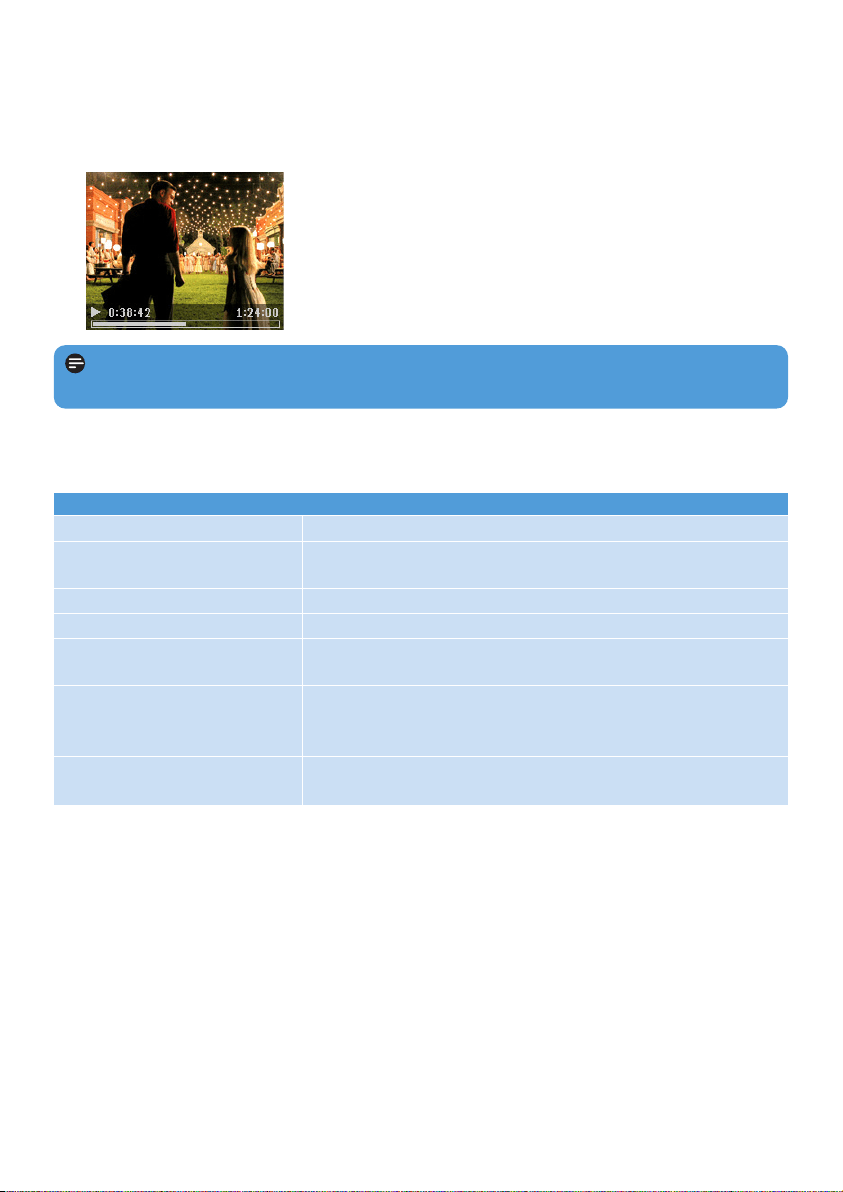
6 Use 3 / 4 to select the video you want to watch, then press 2; or 2 to play your
selection.
To Do this
Play / pause video Press 2;
Search Forward and Backward Use the )K and J( keys to forward and rewind within a
playing video
Go to previous / next video Press J( and )K keys
Adjust volume Use the + and - keys
Go back to previous menu Press 1 the video will pause and you will be taken to the
previous menu
Stop video You can use 2; to pause a playing video or just navigate to
another mode (music or pictures ) to pause the video. Or
you can just power off
Other options Use Contextual Menu (press MENU) to bring up and use
other options
Note The video will playback in Landscape mode to give you a full screen viewing
experience,
5.6.2 Controls
During video playback, you can do the following:
50
5.7 Pictures
You can view your favorite pictures on your player. While you are browsing your pictures,
you can listen to music at the same time.
5.7.1 Transfer pictures from your computer to your player
You can transfer pictures from your computer to your player using Windows Media
Player. See Organize and transfer pictures and music with Windows Media
Player 11 section in this user manual for details.
5.7.2 Transfer pictures from your player to your computer
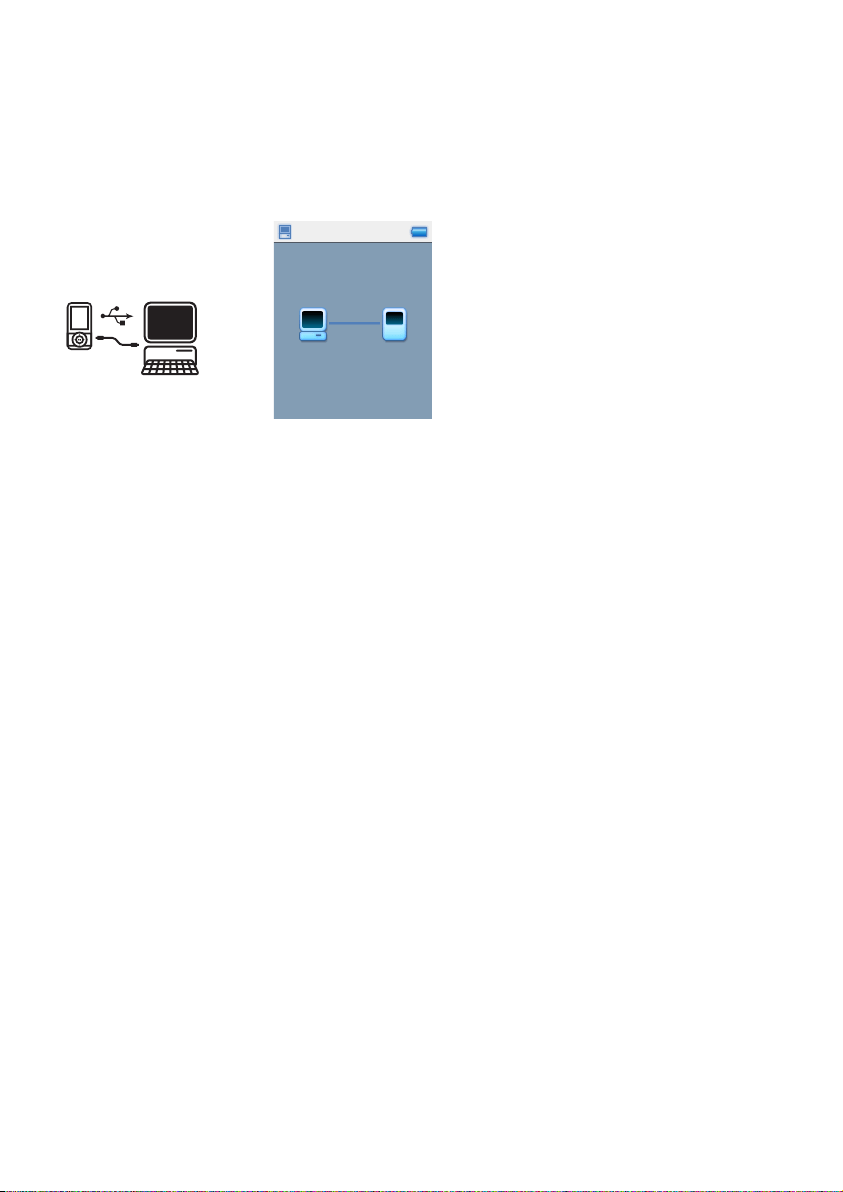
1 Connect the player to your computer.
> Your player will be identified as Philips or Philips GoGear in Windows Explorer.
2 Go to Media > Pictures.
3 Drag and drop your pictures to any desired location on your computer.
51
All pictures Alphabetically listed albums Pictures in alphabetically listed
album order
Alphabetically
listed albums
Pictures listed in album order Pictures in full screen view
Note You can start slideshow in album list, thumbnail view or full view.
You can stop the slideshow by pressing 1.
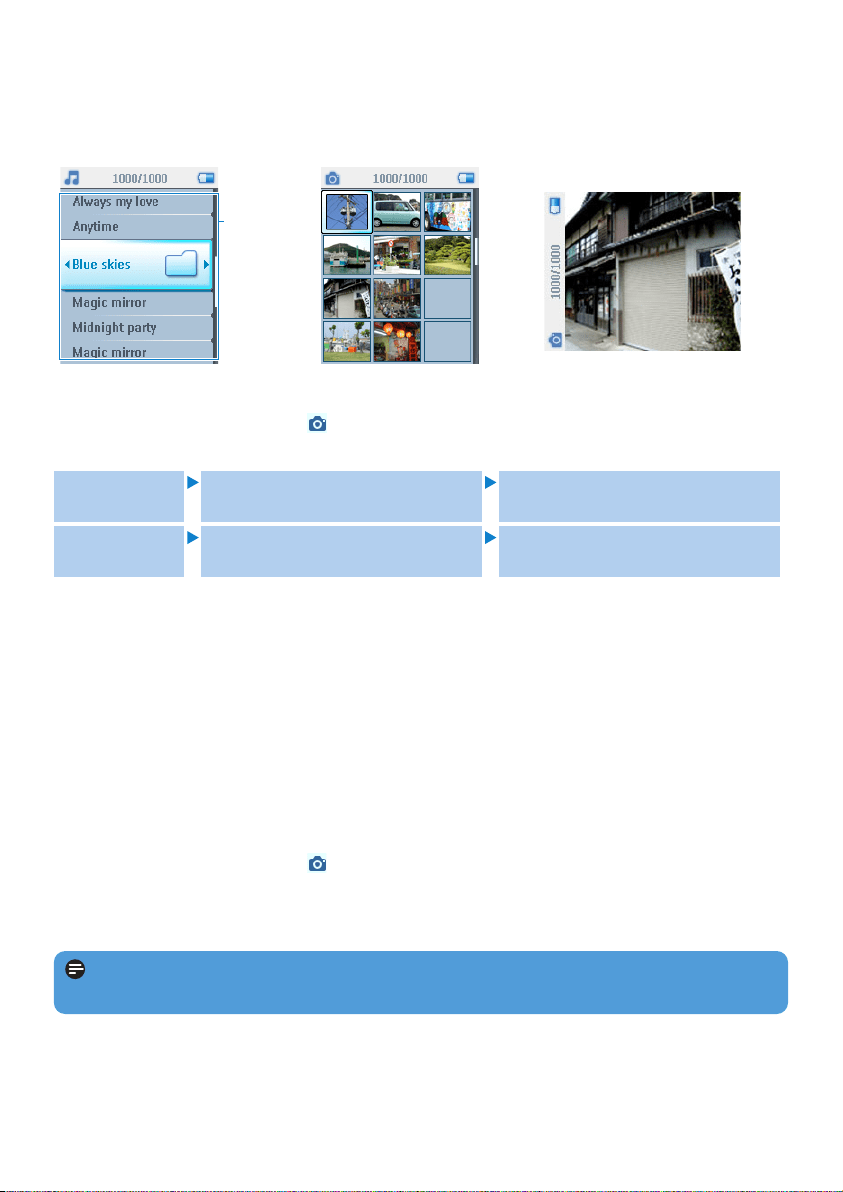
5.7.3 Find pictures on your player
Pictures on your player are organized in albums which are similar to the way they are
organized in Windows Media Player.
1 From the main menu, select using 3 / 4.
You can search from the following video options:
Fig1 Fig2
2
2 Select the picture album you wish to view.
> You will see a thumbnail view (Fig1) of all pictures in that album.
3 Use 3 / 4 to scroll and select a picture to see its full view (Fig2).
5.7.5 Slideshow
A slideshow will display all pictures inside an album in full view. It will automatically go to the
next picture at a specified interval. Background music can be played from a specified playlist
during a slideshow.
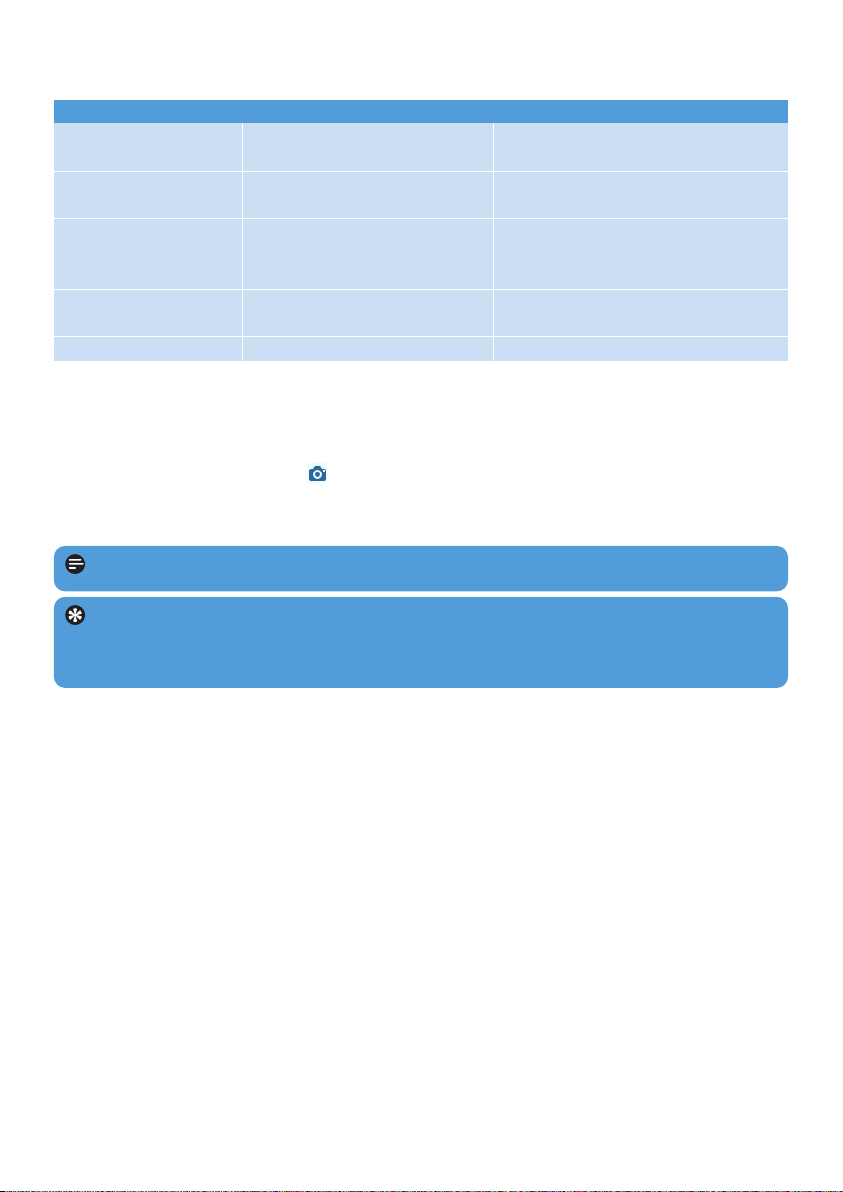
5.7.6 Start a slideshow
1 From the main menu, select .
2 Select the picture album you wish to view.
3 Press MENU key and select Start slideshow.
52
5.7.8 Slideshow music
You can play background music during a slideshow by assigning a playlist in Slideshow
settings. You can choose to play any playlist during a slideshow.
1 From the main menu, select .
2 Press MENU key and select Slideshow settings > Slideshow music and choose one
of the playlists.
Note During a slideshow, you cannot pause, skip or fast forward / rewind your music.
Tip The slideshow settings allow for timed slideshows. In case you would like to
control your slideshow, we suggest that you view your images in full screens and move
forward and backward as you like. The music you played earlier will continue to play.
5.7.7 Customize slideshow settings
Settings
Slideshow music
Transitions
Set time per slide
Shuffle slideshow
Repeat slideshow
Options
Alphabetical playlists / None
Off / Wipe / Fade
2 Seconds / 4 Seconds /
6 Seconds / 8 Seconds /
10 Seconds
On / Off
On / Off
Descriptions
Choose which playlist to play in the
background while playing slideshow
Choose the transition effect between
slides
Choose to set time between slides
Choose to show slides at random or
in album order
Choose to repeat slides

53
5.9 Radio
5.9.1 Connect the headphones
The supplied pair of headphones serves as a radio antenna. Make sure that it is properly
connected to ensure optimal reception.
5.9.2 Select your FM region
From the main menu, select > Radio settings.
Region
Europe
USA
Asia
Japan
Frequency range
87.5 - 108MHz
87.5 - 108MHz
87.5 - 108MHz
76 - 90MHz
Tuning steps
0.1 MHz
0.1 MHz
0.1 MHz
0.1 MHz
5.8 Delete Media
You can delete music , videos and pictures that you no longer wish to have on your player by
using the contextual menu option.
Once you are viewing a list of music, videos or pictures and find an item that you no longer
wish to have on your player -
1 Press the MENU
2 Select Delete
3 Confirm when you are asked to
> The item is deleted and is no longer available for playback on your player. it also frees up
storage space.
Note The delete option is also available in the menu to delete Artists, Albums, Genres
etc. This will permanently remove the entry including all content from your library.
54
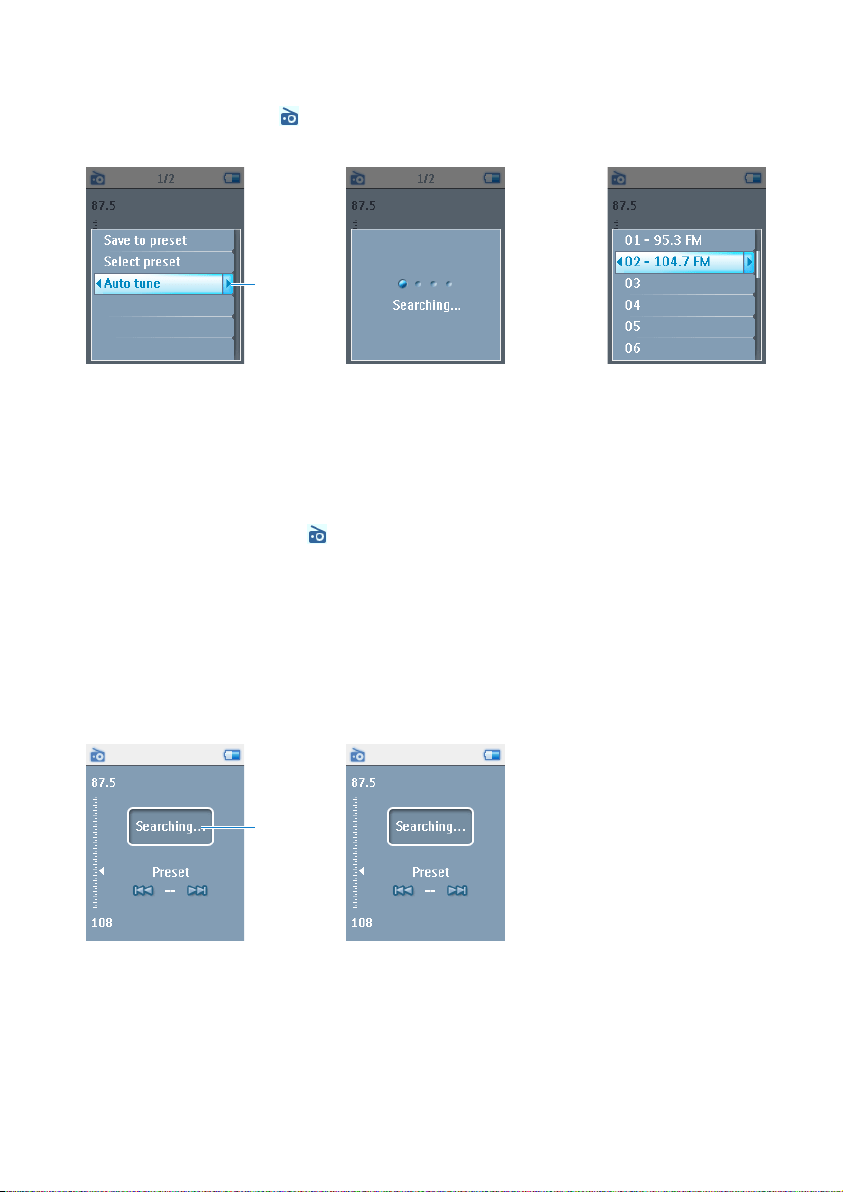
5.9.3 Auto tune
From the main menu, select to enter radio mode.
The radio will start playing from the last played station.
1 To find the radio stations with the strongest signals available in your area, press MENU
and select Auto tune.
2 The player will search for the stations with the strongest signals and save them as presets.
You can preset a maximum of 20 radio stations.
5.9.4 Play a preset radio station
1 From the main menu, select to enter radio mode.
2 Press J( or )K to browse your preset stations.
For quick access to a certain preset station:
1 Press MENU key.
2 Choose Select preset.
3 Select your desired station from the list.
5.9.5 Manual Tuning
1 Use 3 / 4 to tune step by step.
2 The frequency bar indicates the change in frequency.
3 Press and hold 3 / 4to search for the previous / next available station.
> A message Searching... will be displayed and stopped when a station with a strong signal is
found.
2
1
55
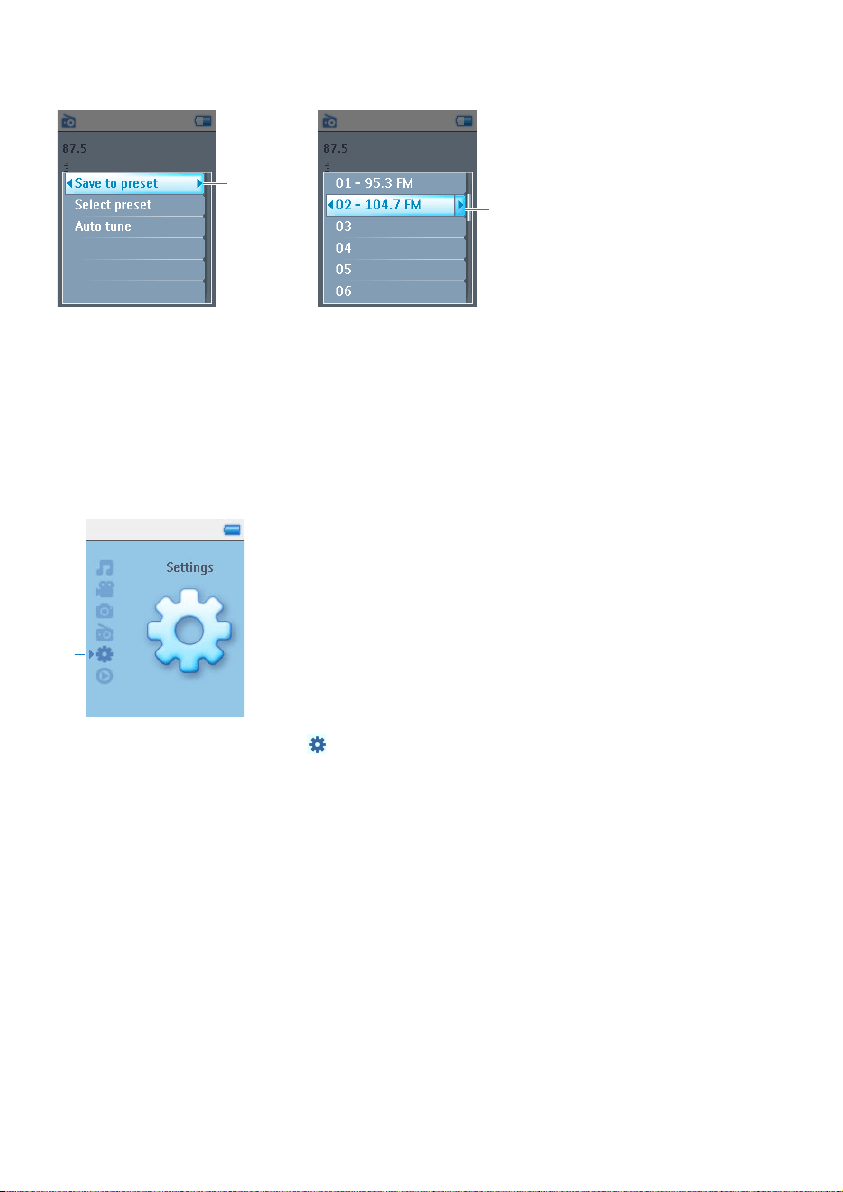
5.9.6 Save a station as preset
1 In radio mode, press MENU and select Save to preset.
2 Select the preset number at which you want to save the station.
3 Press 2 to save the station.
1
2, 3
5.10Settings
The settings menu allows you to make adjustments and personal preferences on your player.
1 From the main menu, select .
2 Use 3 / 4 to select an option.
3 Press 2 to go to the next level or 1 to return to previous level.
4 Press 2 to confirm your selection.
5 Press 1 to exit the Settings menu.
1

56
In the Settings menu, the following options are available:
Settings Options More options Description
Language English, French, Italian, German, Spanish,
Dutch, Swedish, Finnish, Polish, Russian,
Hungarian, Norwegian, Portuguese,
Brazilian Portuguese, Simplified Chinese,
Traditional Chinese, Korean, Japanese
Choose the language for
display on screen.
Play mode Shuffle Check box Enable check box to play
selected songs at random.
Repeat Repeat all / Repeat 1 /
Off
Choose Repeat one or
Repeat all to keep looping
selected songs.
Sound settings Concert Sound EX, Rock, Funk, Techno,
HipHop, Classical, Jazz, Spoken word,
Custom, Off
Choose the equalizer for best
music experience.
Display settings Backlight 10 Sec. / 30 Sec. /
45 Sec. / 60 Sec.
Choose the time for backlight
display.
Brightness 6 levels Choose the contrast level to
adjust the brightness.
Screen saver Off / Demo / Clock Choose to have view a screen
saver demo, or set clock as
your screen saver
Personalization Music menu Recently added, Playlists,
Artists, Album art,
Album, Year, Rating,
Genre
Select Music menu setting
Video menu Playlists, Recently added,
Video art, Actors,
Genre, Rating
Select Video menu setting
Album art Check box Enable check box to display
album art for the song that you
are playing.
Video art Check box Enable check box to display
video art for that song that you
are playing

57
Settings Options More options Description
Sleep timer Off /15 Min / 30 Min / 1 Hour /
1.5 Hour / 2 Hours
Choose sleep timer to turn off
your player automatically after
15, 30, 60, 90 or 120 minutes.
Date and time Set date Day / Month / Year Enter day, month and year to
set the date in your player.
Set time format 12-hrs / 24-hrs Set your player's time format
Set time Hour / Minute Enter hour, minute and second
to set the time in your player.
Show time in
header
Check box Enable check box to display the
time at the top of the screen.
Information Information
summary
Capacity, Available
space, Device ID, FW
version, Support site
Display information of your
player.
Call centers Display call center contact
numbers.
Reset play
count
Reset / Cancel Select Reset to reset play
count for “Most played”
playlist to zero.
Radio settings Select frequency
region
Europe / USA / Asia /
Japan
Choose the region in which
you operate the FM
Factory settings Restore factory
settings
Restore / Cancel Choose Restore to clear your
player’s current settings and
restore to default factory
settings.

58
5.11Use your player to store and carry data files
You can use your player to store and carry data files by copying data files into your player via
Windows Explorer.

59
6 Update your player
Your player is controlled by an internal program called firmware. New versions of the
firmware may be released after you have purchased your player.
A software program called Philips Device Manager will monitor the firmware status of
your player and notify you if new firmware is available. You need an Internet connection for
this.
Install Philips Device Manager from the supplied CD or download the latest version from
www.philips.com/support or www.philips.com/welcome (for U.S. residents)
After the installation of Philips Device Manager, every time you connect your player to
your computer, Philips Device Manager will automatically connect to the Internet and
check for updates.
6.1 Manually verify whether your firmware is up
to date
Make sure your player is charged fully.
1 Connect your player to the computer.
2 Launch Philips Device Manager from Start > Programs > Philips Device
Manager.
3 Select your device.
4 Click Update.
> Philips Device Manager will check whether a new firmware is available on the Internet and
install it on your player.

60
7 Frequently asked questions
My player skips songs.
The skipped song may be protected. You may not have sufficient rights to play the skipped
song on your player. Check the music rights with the song provider.
My player is not recognized by Windows.
Make sure your computer is running Windows XP (SP2 or higher).
My player cannot power on.
Your device battery may be out of power due to long period of non-usage. Please charge
your player.
In case of device error, connect your player to the computer and use Philips Device
Manager to restore your player.
If you encounter problems with your player, go through the following points listed in the
next section. Please also check out FAQs at www.philips.com/support for further help and
other troubleshooting tips.
Consult your dealer or service center if you are unable to find a solution by following these
hints.
Warning Under no circumstances should you try to repair the set yourself, as this will
invalidate the warranty.
Important All your contents will be erased from your player after completion of
repair process. After repair, simply synchronize your player again to transfer music to your
player.
61
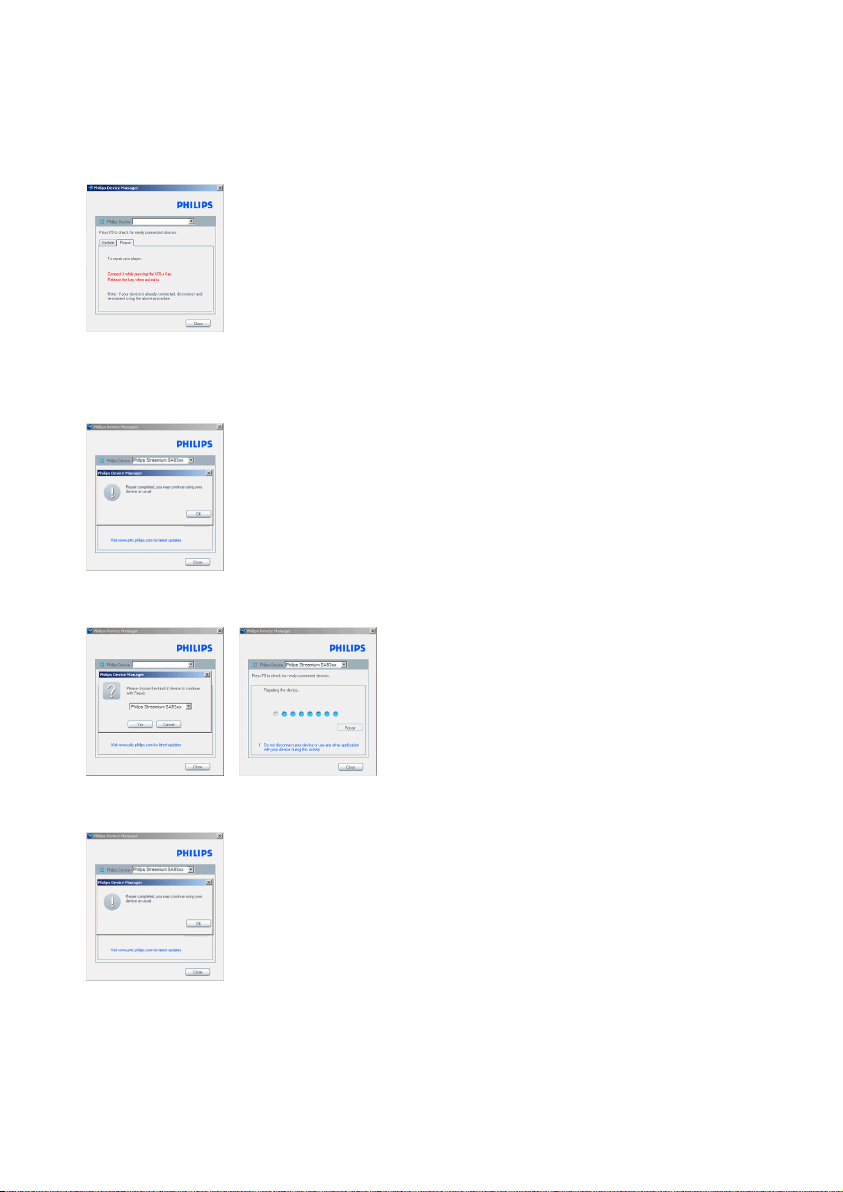
1 Reset your player first by inserting a pin or sharp object into the reset hole at the back of
the player.
2 Launch Philips Device Manager from Start > Programs > Philips Device
Manager. Select the Repair Tab.
3 While pressing the Vol + on your device, connect it to the PC.
4 Confirm Yes when you see the screen , you can release the Vol + now.
5 Choose your device name (SA51xx) in the box.
6 After the repair completes , click OK and continue using your player as usual.

62
2 If nothing happens, recharge the battery for at least 4 hours and try to power on or reset
again. If this does not work, you might have to repair your player with Philips Device
Manager. (See Update your player section in this user manual for details.)
My player is full and I have fewer songs on my player than I expected.
Your player has an internal memory to store songs. Check your model number to see the
actual memory size. You will be able to store more songs on your player if you use WMA
formatted songs in 64kbps+ with variable bitrate.
+Storage capacity based on 4 minutes per song and 64kbps WMA encoding.
There is no music on my player after transfer.
If you cannot find the songs that you have transferred to your player, check the following:
• Did you transfer using Windows Media Player? Files transferred via other means will
only be recognized as data files. They will neither appear in the music library of your player
nor can the songs be played.
• Are your songs in MP3 or WMA format? Other formats will not playback on the player.
My player hangs.
1 In the unlikely event that your player hangs, do not panic. Insert a small pin or other
sharp object into the reset hole located at the back of the player. Hold until the player
shuts down. Power on again after the player shuts down.
Note The existing contents on your player will not be erased.

63
8 Technical data
Power
• Power supply
630mAh Li-ion internal rechargeable
battery*
• Multi-voltage charger / adaptor:
4 hours full charge; 1 hour fast charge
Dimensions
93.5 x 47.5 x 9.5mm
Weight
48g
Picture / Display
• White backlight LCD 176 x 220 pixels
65K colors
Sound
• Channel separation
35dB
• Equalizer settings
Concert Sound EX, Rock, Funk, Techno,
HipHop, Classical, Jazz, Spoken word,
Custom
• Frequency response
20-16000Hz
• Signal to noise ratio
> 82dB
• Output Power (RMS)
2x2.5mW (16X)
Video playback
• Play time
2 hours*
• Compression format
WMV (30fps, 384kbps; 176 x 220 pixels)
Digital Rights Management (DRM)Supports
online music stores that use Windows
Media Digital Rights Management 10
(WMDRM10) for download to own and
subscription music; and download to own,
subscription and rental video.
Picture playback
• Format support
JPEG
Audio playback
• Play time
20 hours*
• Compression format
MP3 (8-320kbps and VBR)
WMA (32-192kbps; Sample rates: 8,
11.025, 16, 22.050, 24, 32, 44.1, 48kHz)
• ID3-tag support
Album title, Genre title, Track title and
artist name
Tuner / Reception / Transmission
• Tuner band
FM stereo
Storage media
• Built-in memory capacity
SA511X 1GB NAND Flash+
SA512X 2GB NAND Flash+
SA514X 4GB NAND Flash+
Connectivity
• Headphone 3.5mm, USB 2.0++ for data
transfer and charging, 5V DC
Transfer
• Music and picture transfer
Via Windows Media Player 10
• Video transfer
Via MediaConverter for Philips
• Data transfer
Via Windows Explorer
System Requirements
• Windows® XP (SP2 or above)
• Pentium III 800MHz processor or higher
• 256MB RAM
• 200MB hard disk space or more
• Internet connection (preferable)
• Microsoft Internet Explorer 6.0 or later
• CD-ROM drive
• USB port

64
* Rechargeable batteries have a limited number of charge cycles and may eventually need to be
replaced. Battery life and number of charge cycles vary by use and settings.
+ 1MB = 1 million bytes; available storage capacity will be less.
1GB = 1 billion bytes; available storage capacity will be less.
Full memory capacity may not be available as some memory will be reserved for the player.
Storage capacity based on 4 minutes per song and 64kbps WMA encoding.
++ Actual transfer speed may vary based on your operating system and software configuration.

65
9 Glossary
A
Album
A collection list of songs / pictures.
C
Contextual menu
A menu consisting of executable action / feature with respect to current status.
D
Digital Rights Management (DRM)
A technology that provides a persistent level of protection to digital content by encrypting it
with a cryptographic key. Authorized recipients (or end users) must acquire a license in
order to unlock and consume the content.
G
Genres
A particular style or type of music.
M
MP3
An audio compression format known as MPEG-1 Audio Layer 3.
P
Picture
Image, picture and picture in JPEG file format.
Playlist
A list of digital media contents.
Playlist on the go
A playlist that can be created on the player by adding favorite songs, albums, artists and
genres during music playback.
R
Rip
To copy digital media content from an audio CD. Content may be converted to a different
format during a ripping process.
Root menu
The main menu that sits on top of the user interface structure tree.

66
S
Songs
An individual track or a discrete piece of audio content.
Superscroll
TM
A Philips trademark user interface navigator feature to enhance the speed of browsing long
list of content.
Synchronization
The process of maintaining digital media files on a portable device based on the rules
specified by the users. This may require copying digital media files from a computer to a
device, updating information on the device or deleting files from the device.
T
Thumbnail
A small version of the main image, used for indexing and browsing.
Title
The largest unit of digital media content. For CD, it may be the name of the CD.
W
WAV
A digital media file format for storing sound.
Windows Media Audio (WMA)
An audio file in Windows Media Format. The audio content of the file is encoded with one of
the Windows Media Audio codecs.

67
PHILIPS reserves the right to make design and specification changes for product improvement without prior
notice.

Specifications are subject to change without notice.
Trademarks are the property of Koninklijke Philips
Electronics N.V. or their respective owners
© 2007 Koninklijke Philips Electronics N.V.
All rights reserved.
www.philips.com
print in china
wk7245
abc