v1.0
User Manual
2020.08
2
©
2020 DJI All Rights Reserved.
Searching for Keywords
Search for keywords such as “battery” and “install” to find a topic. If you are using Adobe
Acrobat Reader to read this document, press Ctrl+F on Windows or Command+F on Mac to
begin a search.
Navigating to a Topic
View a complete list of topics in the table of contents. Click on a topic to navigate to that
section.
Printing this Document
This document supports high resolution printing.
©
2020 DJI All Rights Reserved.
3
Using this User Manual
Legends
Warning Important Hints and Tips Reference
Before Use
The following tutorials and manuals have been produced to ensure you make full use of your
ROBOMASTER
TM
EP Core.
1. Safety Guidelines and Disclaimer
2. Quick Start Guide
3. User Manual
Check to make sure all parts are included and prepare for assembly by reading the RoboMaster EP
Core Quick Start Guide. Refer to this user manual for more information. Watch all tutorial videos and
read the RoboMaster EP Core Safety Guidelines and Disclaimer before using for the rst time.
Watching the Video Tutorials
Visit the ofcial DJI website https://www.dji.com/robomaster-ep-core/video or go to the app and
enter the Videos page to watch the tutorial videos for assembly and use. You can also assemble the
robot according to the assembly guide in the RoboMaster EP Core Quick Start Guide.
Referring to the RoboMaster EP Core Programming Manual
The RoboMaster EP Core Lab offers hundreds of programming blocks that allow you to access
features such as PID control. The RoboMaster EP Core Programming Manual provides instructions
and examples to help users quickly learn programming techniques for controlling the robot.
Users can download the manual from the ofcial DJI website https://www.dji.com/robomaster-ep-
core/downloads.
Using an SDK
Open DJI SDK is available on the robot and includes multiple control interfaces for various embedded
and extension modules as well as multiple output interfaces for video and audio streams. The robot
supports USB, Wi-Fi, and UART connection and users are free to choose the method of connection
based on the platform port.
Open DJI SDK greatly increases the expandability of the robot, offering the possibility to create
customized functions. For more information, visit www.dji.com/robomaster-ep-core/downloads or
robomaster-dev.rtfd.io.

4
©
2020 DJI All Rights Reserved.
Contents
Using this User Manual
3
Legends 3
Before Use 3
Watching the Video Tutorials 3
Referring to the RoboMaster EP Core Programming Manual 3
Using an SDK 3
Contents
4
Product Prole
6
Introduction 6
Robot Diagram 6
Overview 7
Preparing 7
Modules and Functions
16
Using the RoboMaster App 16
Omnidirectional Chassis 20
Intelligent Controller 23
Camera 24
Speaker 24
Intelligent Battery 25
Robot LED Indicator Description 28
Servo 29
Robotic Arm and Gripper 30
Power Connector Module 31
Infrared Distance Sensor (TOF) 34
Sensor Adapter 39
Straight Connecting Rod 42
Front Axle Extension Platform 43
Extension Building Block 43
Robot and Third-Party Platforms 44
Gamepad (Not Included) 46

©
2020 DJI All Rights Reserved.
5
ROBOMASTER EP Core User Manual
Operating Your Robot
48
Checking Before Use 48
Powering on the Battery 48
Operating the Robot Using a Mobile Device 48
Gameplay
51
Operating the Robot Using a Gamepad 51
Using a Computer and RoboMaster 52
Lab 53
Appendix
57
Specications 57
Firmware Update 60
Calibrating the Robot 61
Setting the PWM Ports 61
Using the S-Bus Port 62
Programming Customizable UI 64
6
©
2020 DJI All Rights Reserved.
Product Prole
Introduction
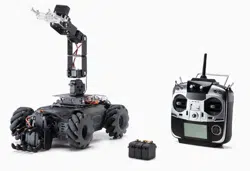
The RoboMaster S1 Education Expansion Set Core (EP Core) is an all-in-one education solution
for STEAM classrooms. It provides an official SDK that can be used with powerful mechanical
accessories and interfaces to expand hardware possibilities. Together with rich teaching resources
and a continually-updated competition database, the EP Core delivers a new classroom experience
to make education easier for both teachers and students, expanding the boundaries of the future of
education.
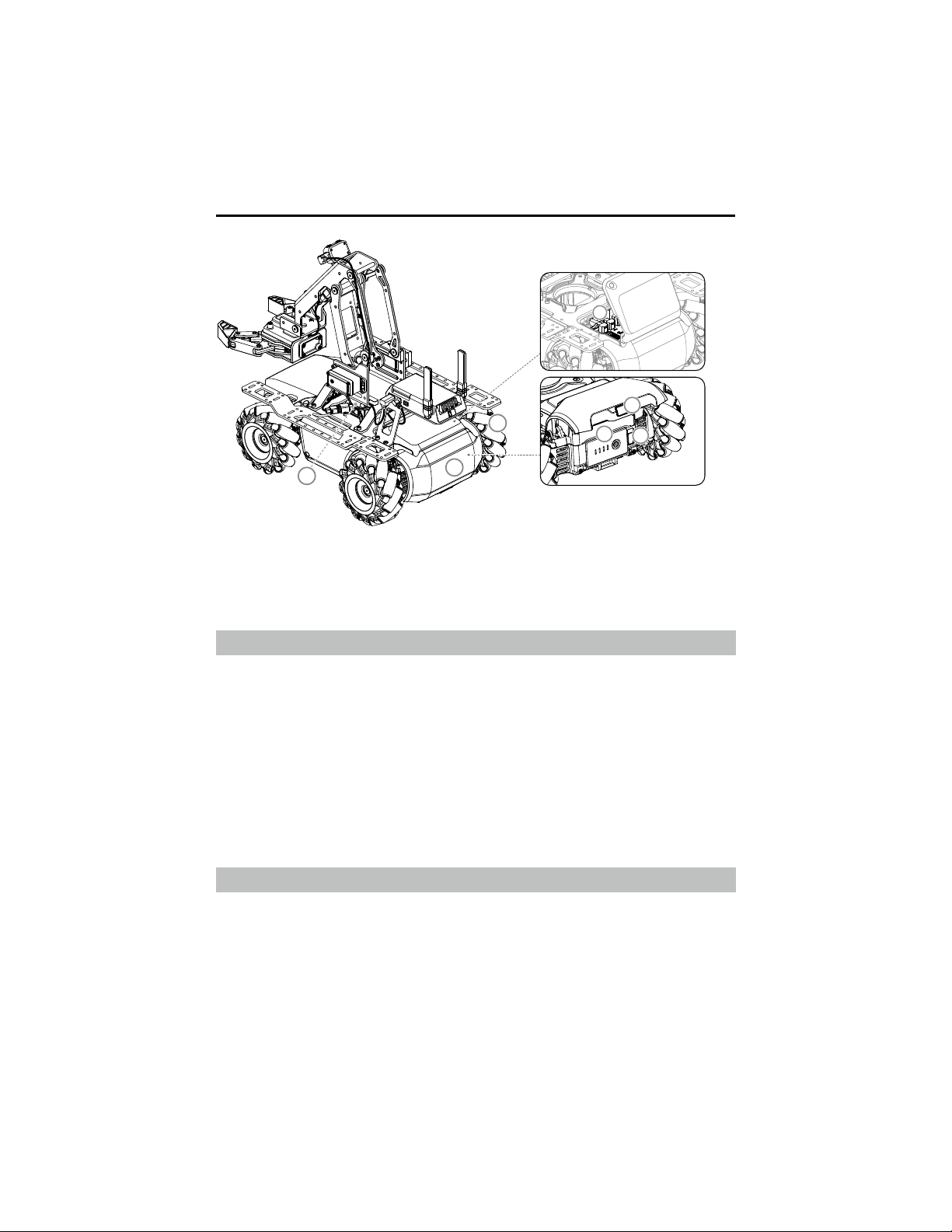
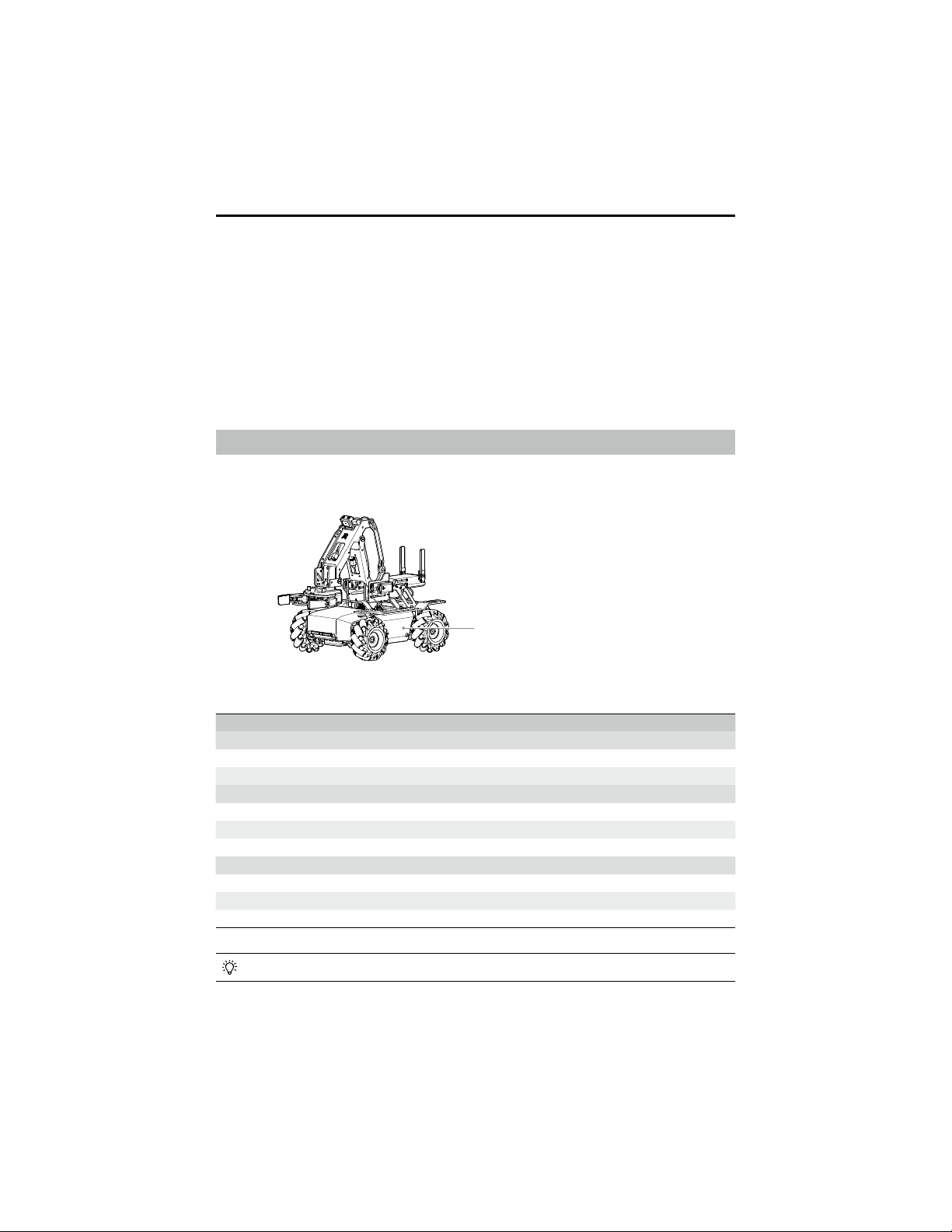
Robot Diagram
1. Chassis
2. Right-Threaded Mecanum Wheel
3. Chassis Front Armor (built-in Hit Detector)
4. Left-Threaded Mecanum Wheel
5. Chassis Left Armor (built-in Hit Detector)
6. Chassis Extension Platform
7. Servo
8. Robotic Arm (1 of 2)
9. Robotic Arm Connecting Rod #1
6
9
8
7
1
15
12
13
14
10
11
2
2
17
16
18
3
5
4
10. Robotic Arm Connecting Rod #2
11. Robotic Arm Connecting Rod #3
12. Robotic Arm (2 of 2)
13. Robotic Arm Endpoint Bracket
14. Gripper
15. Camera
16. Intelligent Controller
17. Intelligent Controller Antenna
18. Rear Extension Platform
©
2020 DJI All Rights Reserved.
7
ROBOMASTER EP Core User Manual
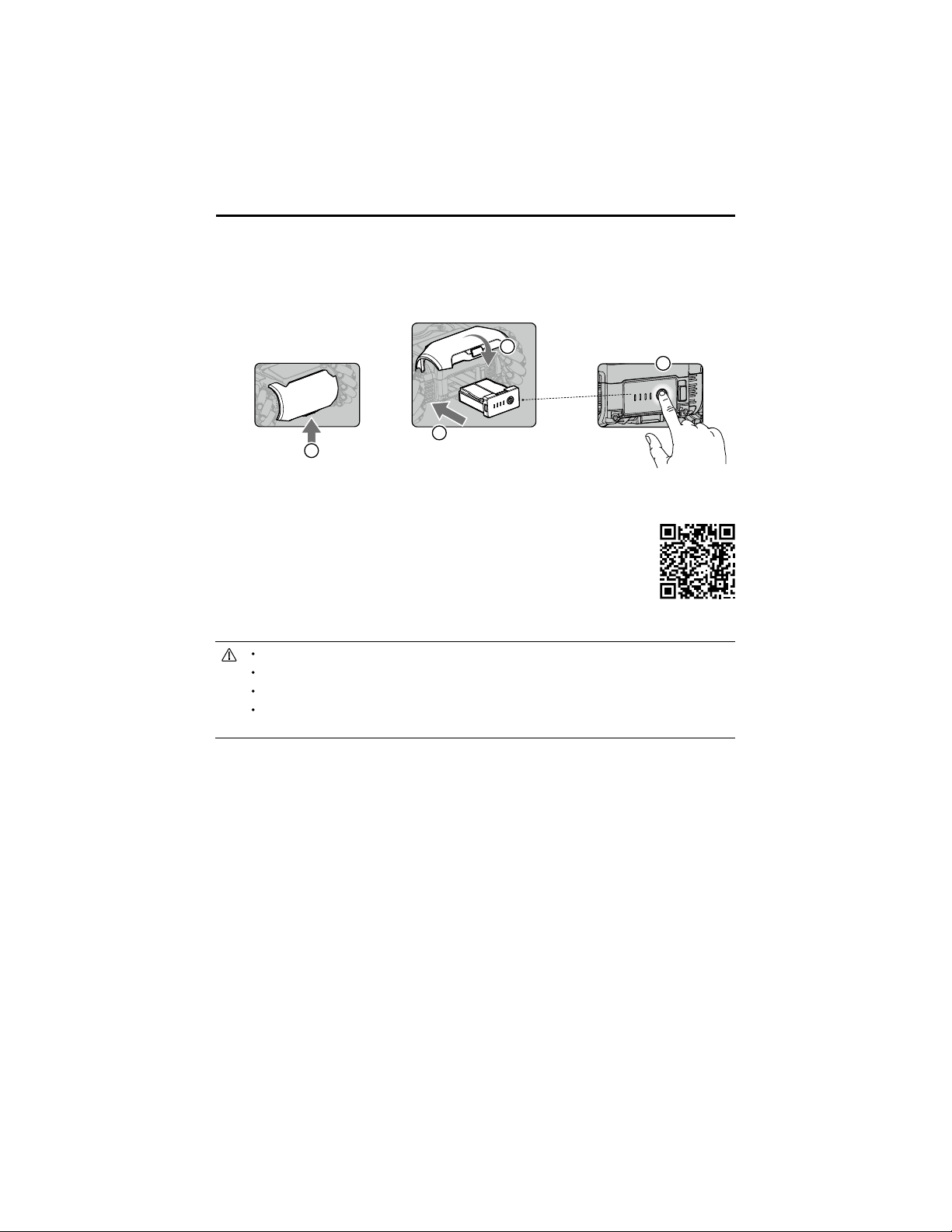
19. Motion Controller
20. Speaker
21. Chassis Rear Armor (built-in Hit Detector)
21
2
0
4
22. Rear Armor Release Button
23. Intelligent Battery
24. Battery Eject Button
22
23
24
1
9
Overview
RoboMaster EP Core uses an omnidirectional chassis and Mecanum wheels. The robot offers
comprehensive control and an immersive driving experience thanks to the omnidirectional chassis,
agile Mecanum wheels, and stable, low-latency image transmission in rst-person view (FPV).
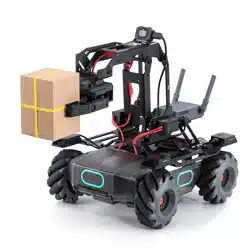
The robot uses a gripper and an agile robotic arm to grasp and move objects. The gripper and
robotic arm are driven by two high-performance servos.
A customizable extension platform allows users to build and expand the robot any way they choose.
The robot is also compatible with third-party building blocks, providing even more ways to learn and
have fun.
Open DJI SDK is available on the robot and supports 39 programmable sensor ports. It is also
compatible with third-party hardware, providing users with unlimited creative possibilities.
Preparing
Assembling the Robot
Refer to the RoboMaster EP Core Quick Start Guide.
Powering On the Robot
Follow the steps below to power on the robot:
1. Press the rear armor release button to open the chassis rear armor.
8
©
2020 DJI All Rights Reserved.
ROBOMASTER EP Core User Manual
2. Install the intelligent battery into the battery compartment.
3. Press and hold the power button to turn on the battery.
4. Close the chassis rear armor.
2
3
4
1
Downloading the RoboMaster App
A. Search for the RoboMaster app in the App Store or on Google Play or scan the
QR code to download the app on your mobile device.
B. Users can also download the RoboMaster software for Windows or Mac from
the ofcial DJI website to control the robot with a keyboard and mouse.
Windows: https://www.dji.com/robomaster_app
Mac: https://www.dji.com/robomaster_app
Use your DJI account to log in to the RoboMaster app.
The RoboMaster app supports iOS 10.0.2 or later or Android 5.0 or later.
The RoboMaster app supports Windows 7 64Bit or later or MacOS 10.13 or later.
Before using the RoboMaster app with cellular mobile data, contact your mobile device
data provider for the latest data information.
©
2020 DJI All Rights Reserved.
9
ROBOMASTER EP Core User Manual
Connecting the Robot to the RoboMaster App
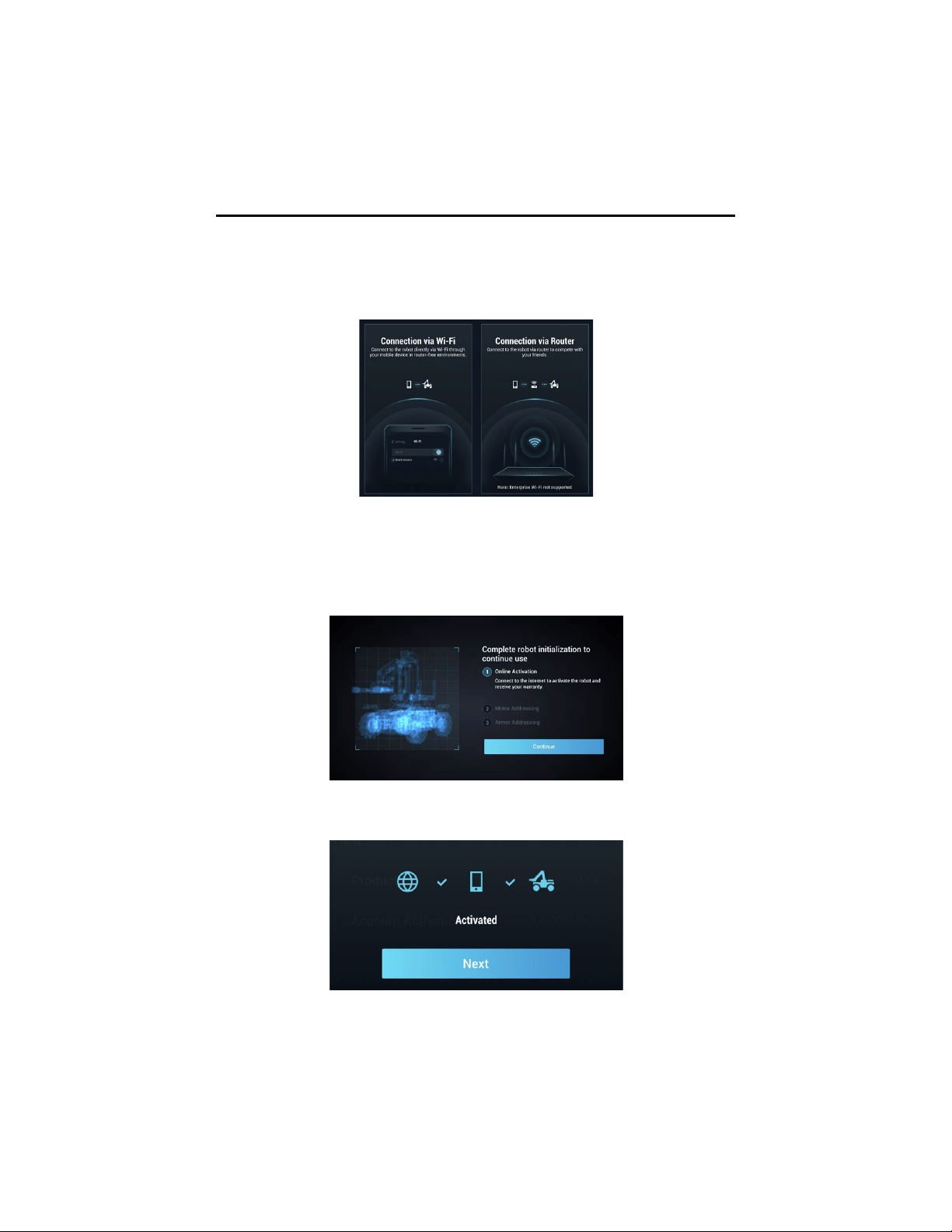
The robot must be connected to the RoboMaster app before use. Users can learn how to connect
via Wi-Fi or via router on the Connection Mode page. Follow the prompts to connect to the app.
Refer to the Connecting section for more information.
Initializing the Robot with the App
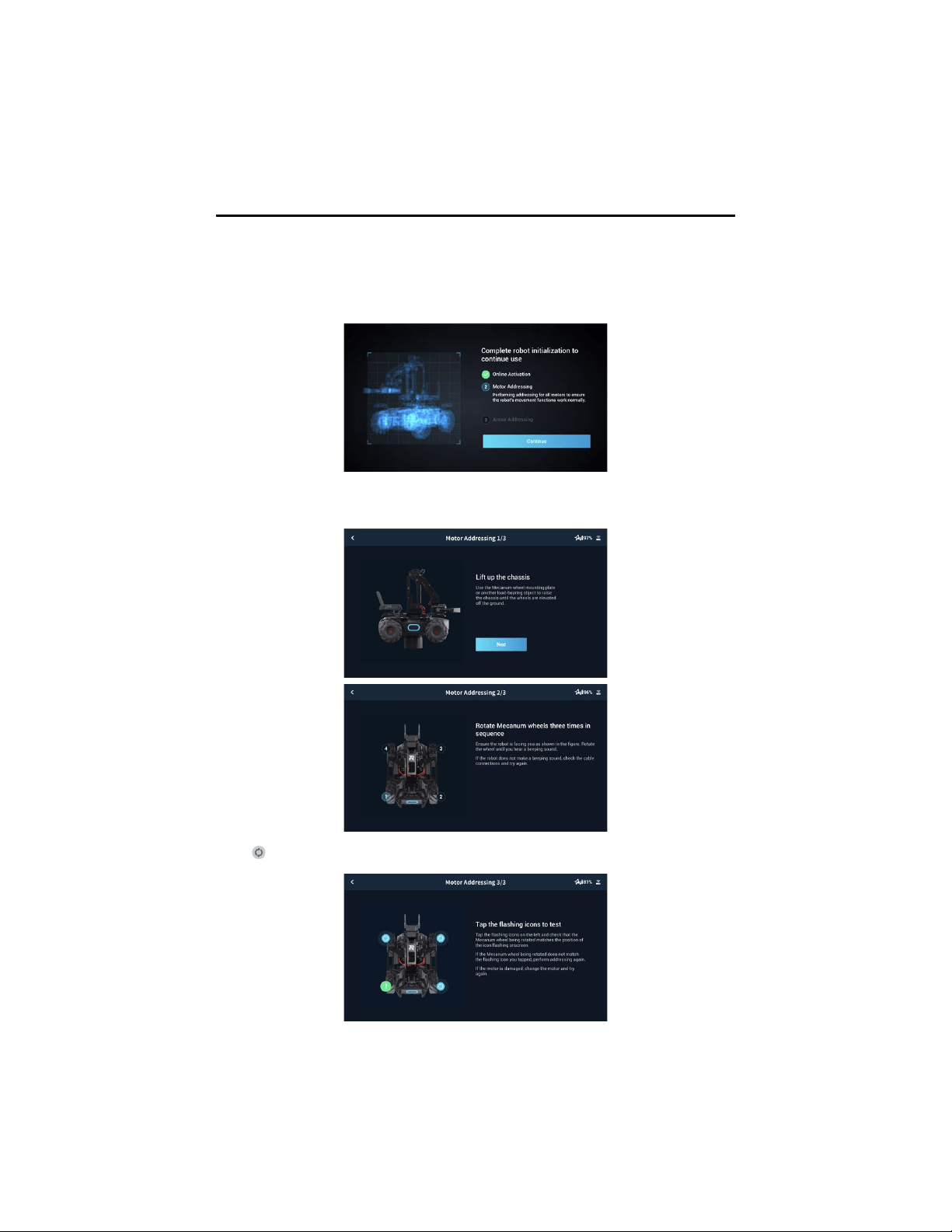
Activating the Robot
After connecting, use your DJI account to activate the robot in the RoboMaster app. Activation
requires an internet connection.
1. Start activation.
2. Follow the prompts to complete activation.
10
©
2020 DJI All Rights Reserved.
ROBOMASTER EP Core User Manual
Motor Addressing
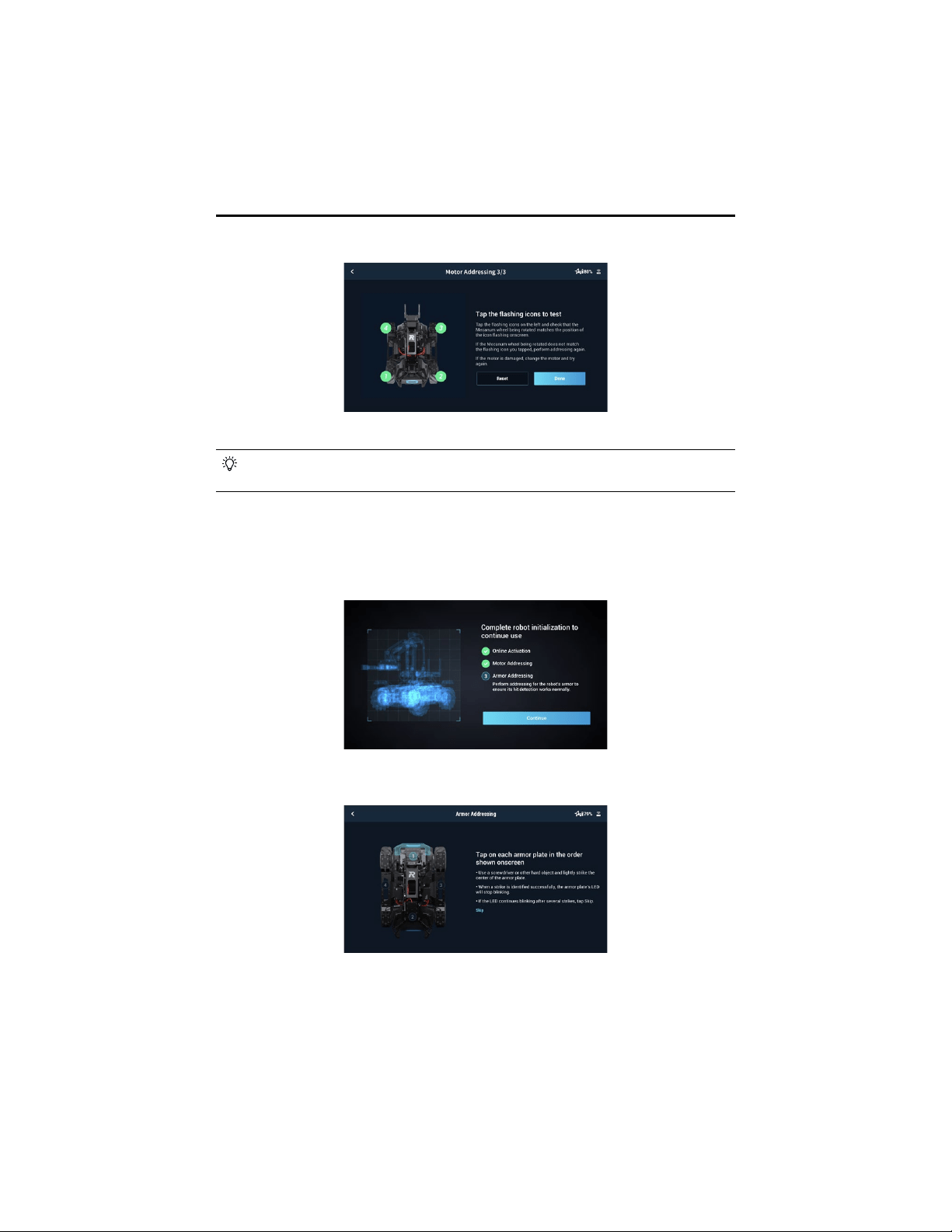
Motor addressing is required in the app before using for the first time. Follow the prompts to
complete motor addressing.
1. Start Motor Addressing.
2. Lift the chassis and follow the prompts to rotate the Mecanum wheels in the order shown
onscreen until all wheels have been rotated.
3. Tap
to test the Mecanum wheels one by one until all wheels have been tested.
©
2020 DJI All Rights Reserved.
11
ROBOMASTER EP Core User Manual
4. Motor addressing completed.
Motor addressing is required when a motor is replaced. Open the RoboMaster app, click
Settings then System, and select Motor Addressing.
Armor Addressing
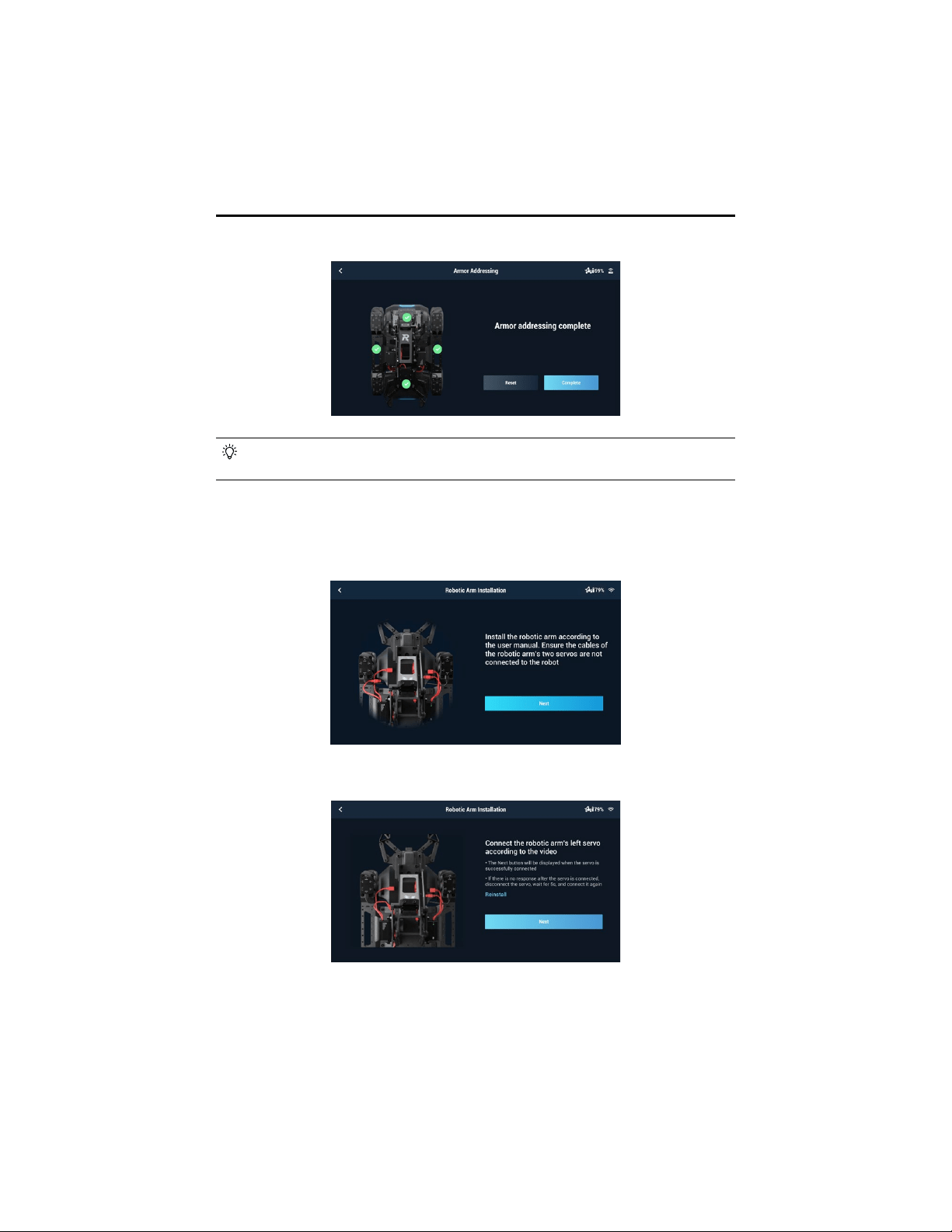
Armor addressing is required in the app when using the robot for the rst time. Follow the prompts
to complete armor addressing.
1. Start Armor Addressing.
2. Follow the prompts to tap on the armor plates in the order shown onscreen.
12
©
2020 DJI All Rights Reserved.
ROBOMASTER EP Core User Manual
Armor addressing is required when an armor module is replaced. Go to the RoboMaster
app, click Settings, then System, and select Armor Addressing.
3. Armor addressing completed.
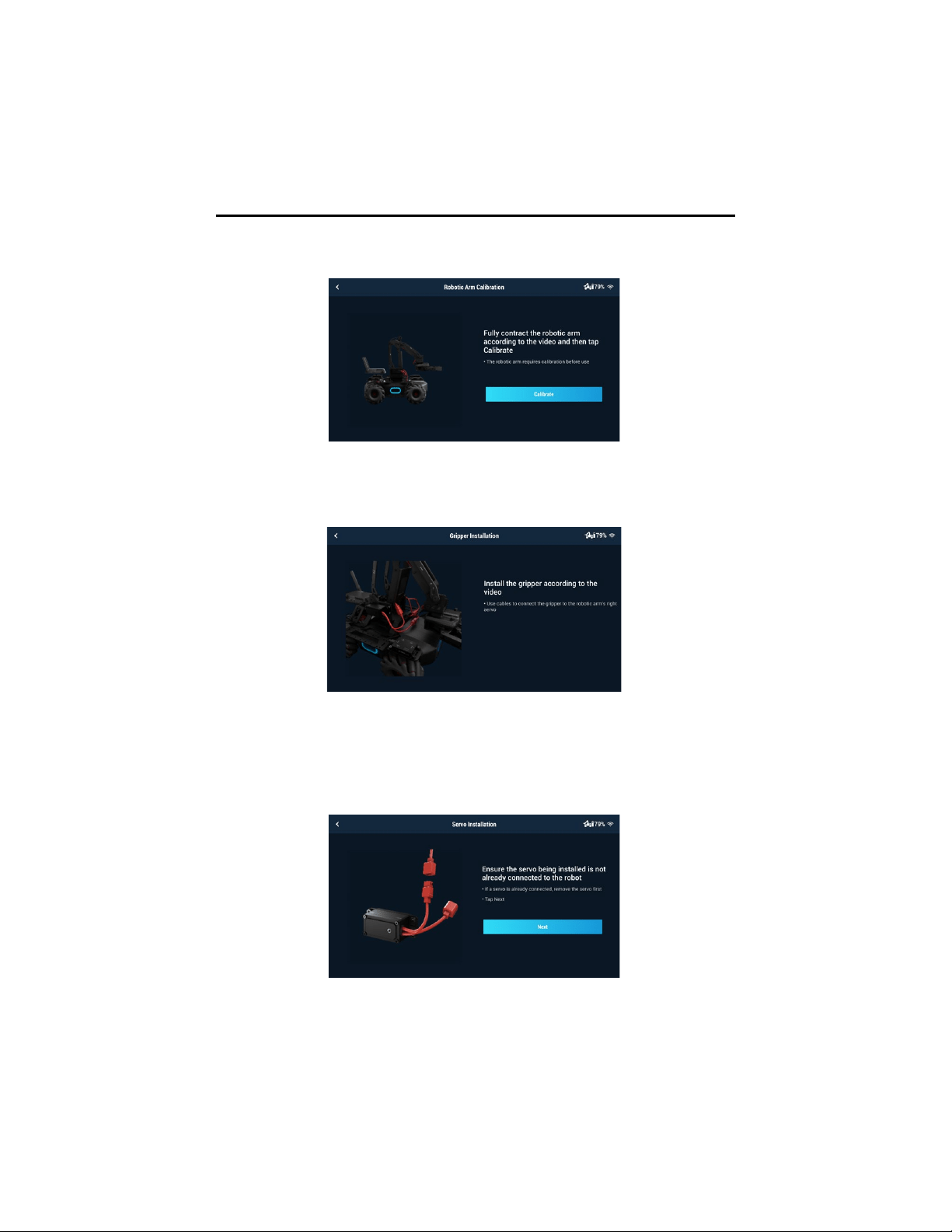
Robotic Arm Installation
The robotic arm must be installed in the app before using the robot for the rst time.
1. Start Robotic Arm Installation.
2. Follow the prompts to connect the left servo and right servo in turn.
©
2020 DJI All Rights Reserved.
13
ROBOMASTER EP Core User Manual
3. Calibrate the robotic arm.
Gripper Installation
The gripper must be installed before using the robot for the rst time.
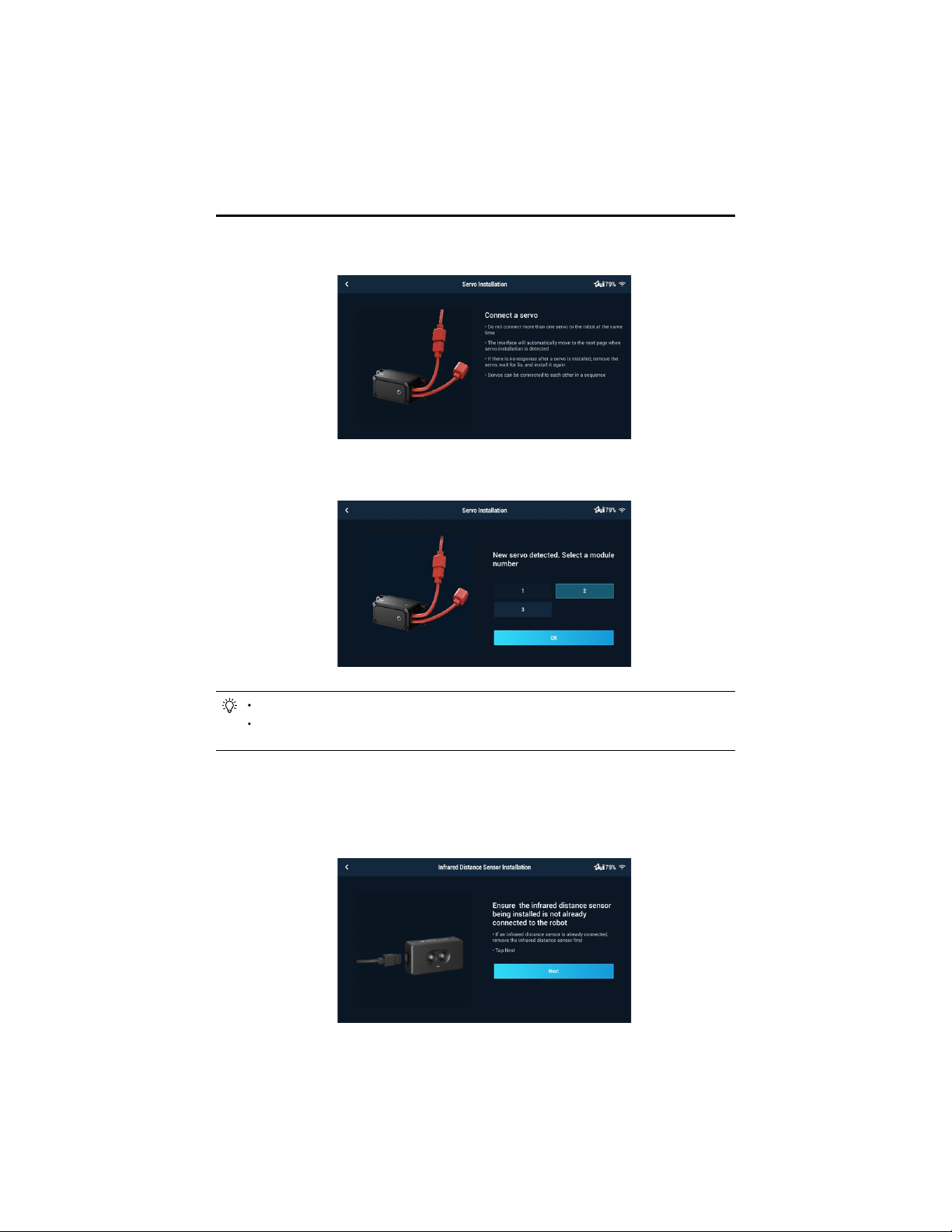
Servo Installation
Make sure that the servos installed to the robot have different IDs and each ID ranges from 1 to 3.
Otherwise, users must change the servo ID. Follow the prompts to complete servo installation.
1. Start Servo Installation.
14
©
2020 DJI All Rights Reserved.
ROBOMASTER EP Core User Manual
2. Follow the prompts to connect the servos in turn.
3. Follow the prompts to select module numbers for the servos until each servo has its unique
number.
Servos can be connected in series.
After removing the robotic arm, the two servos on the robotic arm can be controlled
separately.
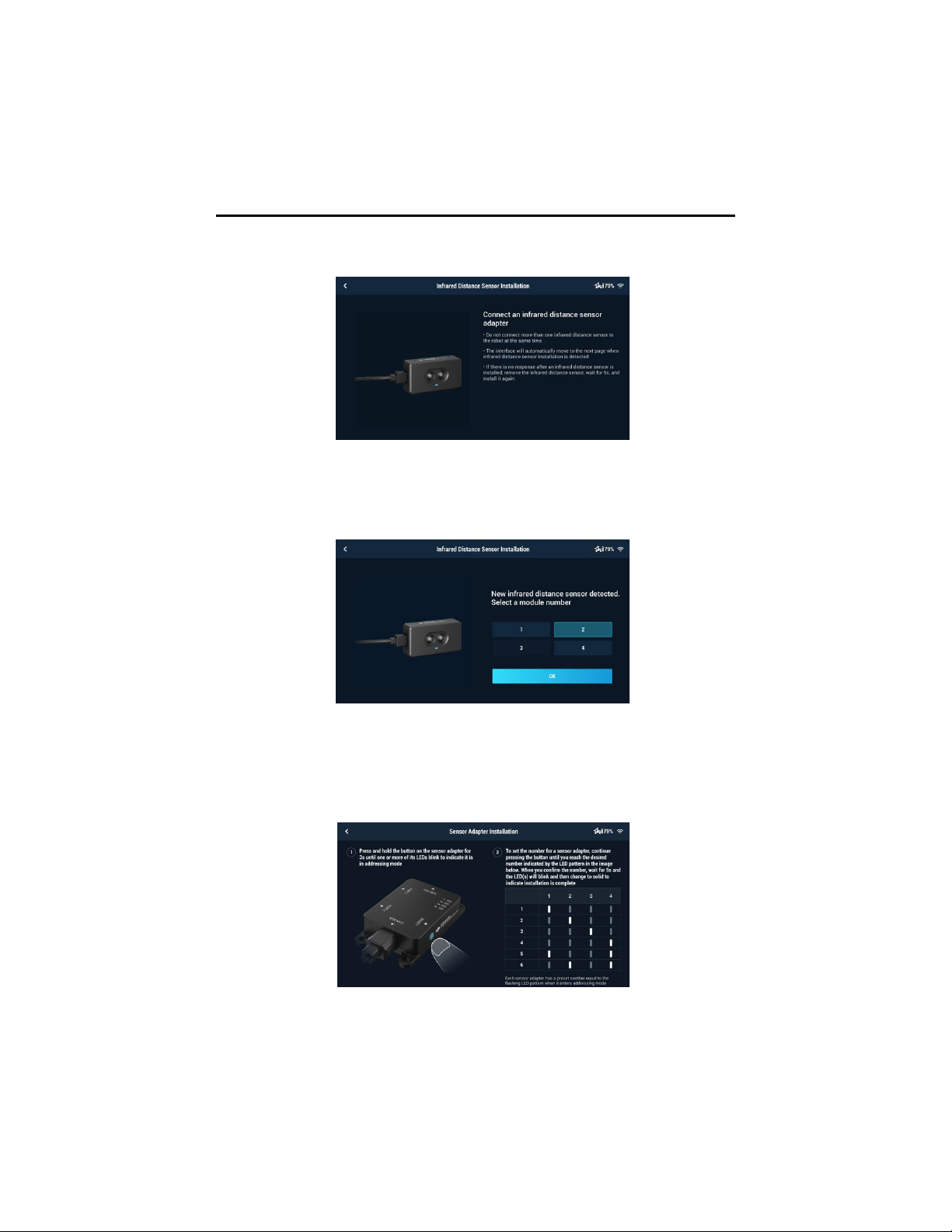
Infrared Distance Sensor Installation
Follow the prompts to complete infrared distance sensor installation. If more than one infrared
distance sensor is installed on the robot, each sensor must be set with a different ID.
1. Start Infrared Distance Sensor Installation.
©
2020 DJI All Rights Reserved.
15
ROBOMASTER EP Core User Manual
2. Follow the prompts to connect the infrared distance sensors in turn.
3. Follow the prompts to select module numbers for the infrared distance sensors until each sensor
has its unique number. The robot supports the installation of multiple infrared distance sensors
and users can select the ID accordingly.
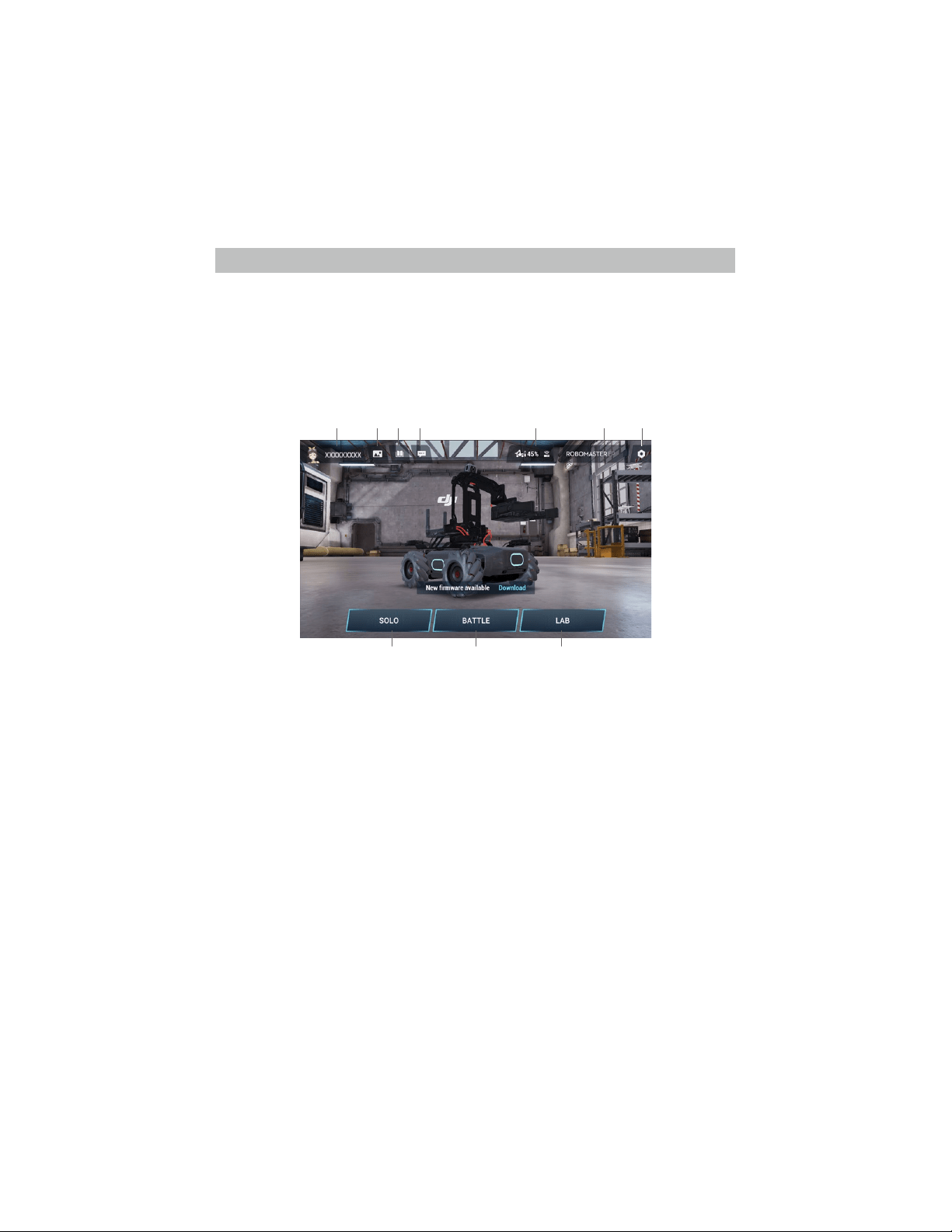
Sensor Adapter Installation
The preset number for each sensor adapter is 1. Make sure that the sensor adapters installed
on the robot have different IDs. Otherwise, users must change the sensor adapter ID. Follow the
prompts to complete sensor adapter installation.
16
©
2020 DJI All Rights Reserved.
Modules and Functions
Using the RoboMaster App
With the dedicated RoboMaster app, users can access rich educational resources and several
gameplay modes. The app can be used with a touchscreen or a gamepad and is available on
iOS, Android, Windows, and Mac. Users on different platforms can even play together at the same
time. Users can also write programs easily and apply them or share with friends instantly using
the RoboMaster app. This section uses the RoboMaster app on iOS as an example. The specic
interface may vary depending on the device used.
RoboMaster App Main Page
1. Account
Tap to log in and log out of your account, modify your avatar, name, and gender information. An
internet connection is required in order to log in.
Check your total driving distance, total driving time, written code, coding time, the number of
completed courses in “Road to Mastery”, and the highest points in Target Practice.
Tap MasterBoard to view the top 100 users for total driving distance, total driving time, total code
written, total coding time, and target practice score.
2. Media Library
Tap to view videos and photos.
3. Guide
a. Product Support: Tap to enter the ofcial DJI product support page.
b. Maintenance Support: Tap to enter the ofcial DJI Repair Center page.
c. User Manuals: Tap to enter the ofcial DJI user manual download page.
d. Vision Markers: Tap to enter the ofcial Vision Marker download page.
e. Online Support: Tap to contact the ofcial RoboMaster Series Online Assistance service.
f. Feedback: Tap to ll out a feedback form.
g. Videos: Tap to enter the ofcial DJI tutorial video page.
h. Forum: Tap to enter the ofcial DJI forum page
4. Announcements
Announcements regarding topics such as RoboMaster products, competitions, and developer programs.
1 2 3 4 6 75
8 9 10
©
2020 DJI All Rights Reserved.
17
ROBOMASTER EP Core User Manual
5. Connect
The robot must be connected with the app. Tap to see a guide on how to connect via Wi-Fi or router.
Connection via Wi-Fi
Users can enter both Solo and Battle mode when connecting via Wi-Fi.
Follow the steps below to connect:
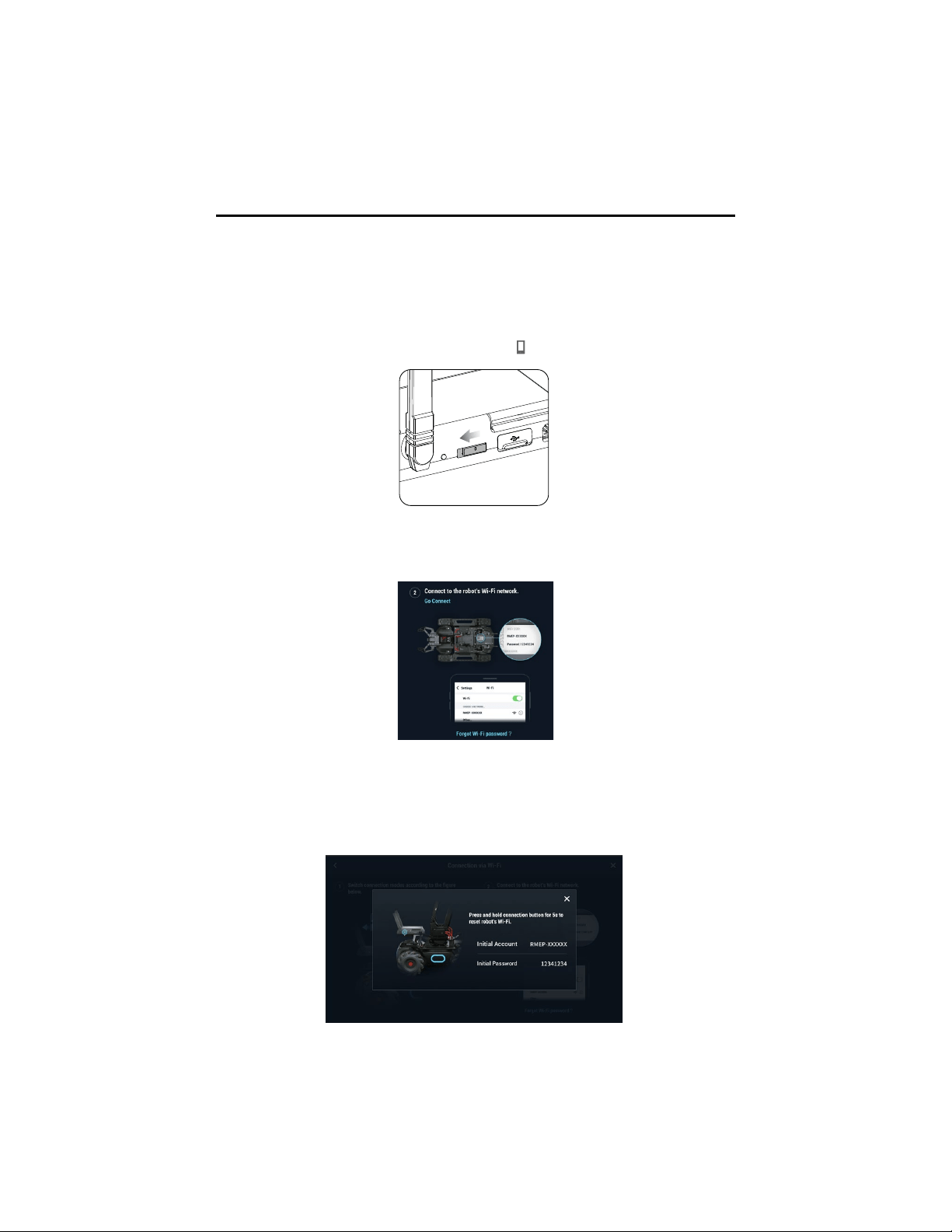
(1). Slide the mode switch on the intelligent controller to
and power on the robot.
(2). Run the RoboMaster app, go to Wi-Fi settings on the mobile device, select the Wi-Fi name
(RMEP-XXXXXX) shown on the sticker on the body of the robot, and enter the password. The
default password is 12341234.
(3). Wait for the robot and the app to connect. The robot will emit a sound once connected.
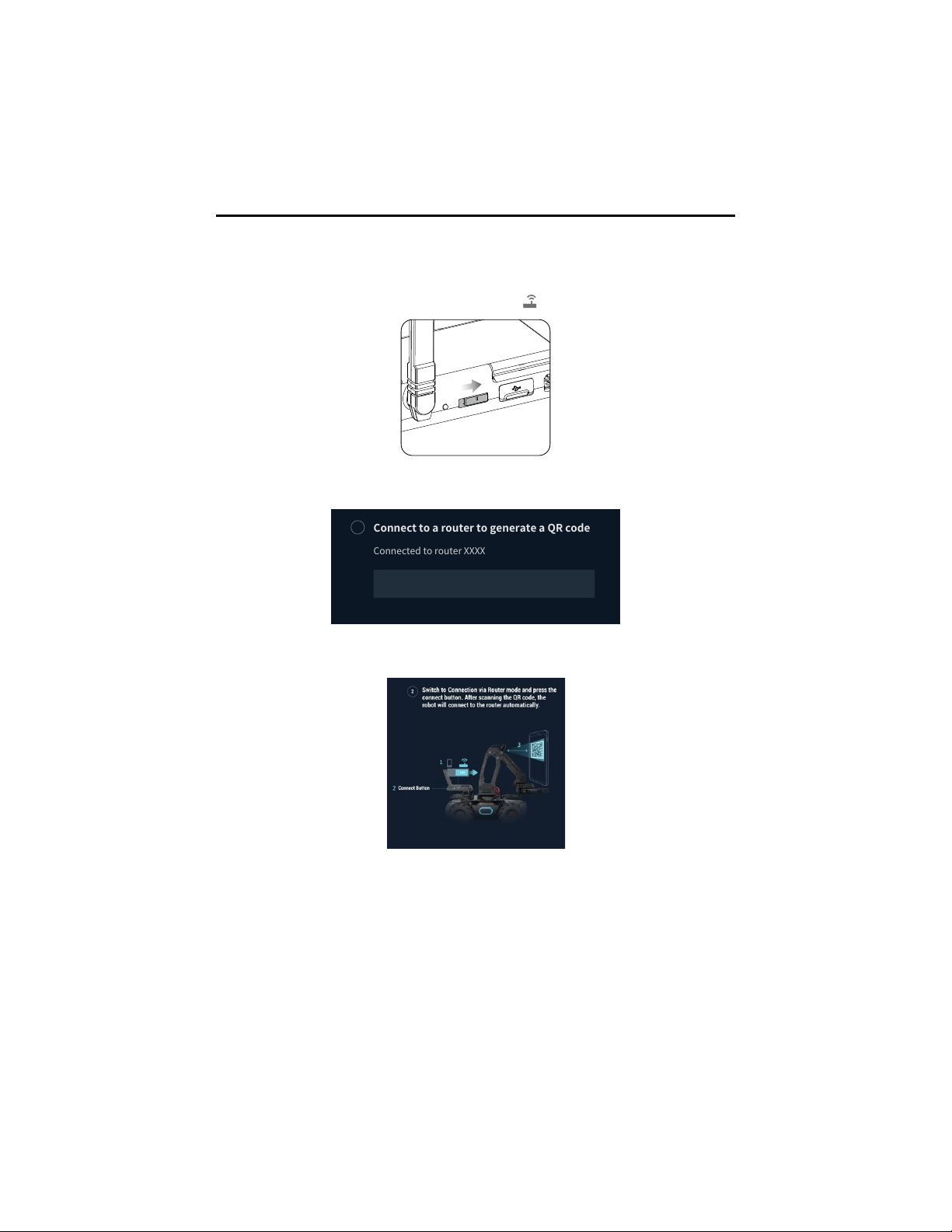
Resetting the Password
Make sure the mode switch on the intelligent controller is slid to the Connection via Wi-Fi position,
and press and hold the connect button for ve seconds to reset the password.
18
©
2020 DJI All Rights Reserved.
ROBOMASTER EP Core User Manual
6. Robot Model Selection
Select the robot model as RoboMaster S1 or RoboMaster EP.
7. Settings
Robot, Extension Module, Connect, Display, Control, and System can be found in the Settings page.
a. Robot
Users can check the status of each individual component of the robot. When a component
is abnormal, the corresponding part will be displayed in red with more detailed information
provided on the right side of the screen.
Connect�to�a�router�to�generate�a�QR�code
Connected�to�router�XXXX
Switch
Enter�Wi-Fi�Password
1
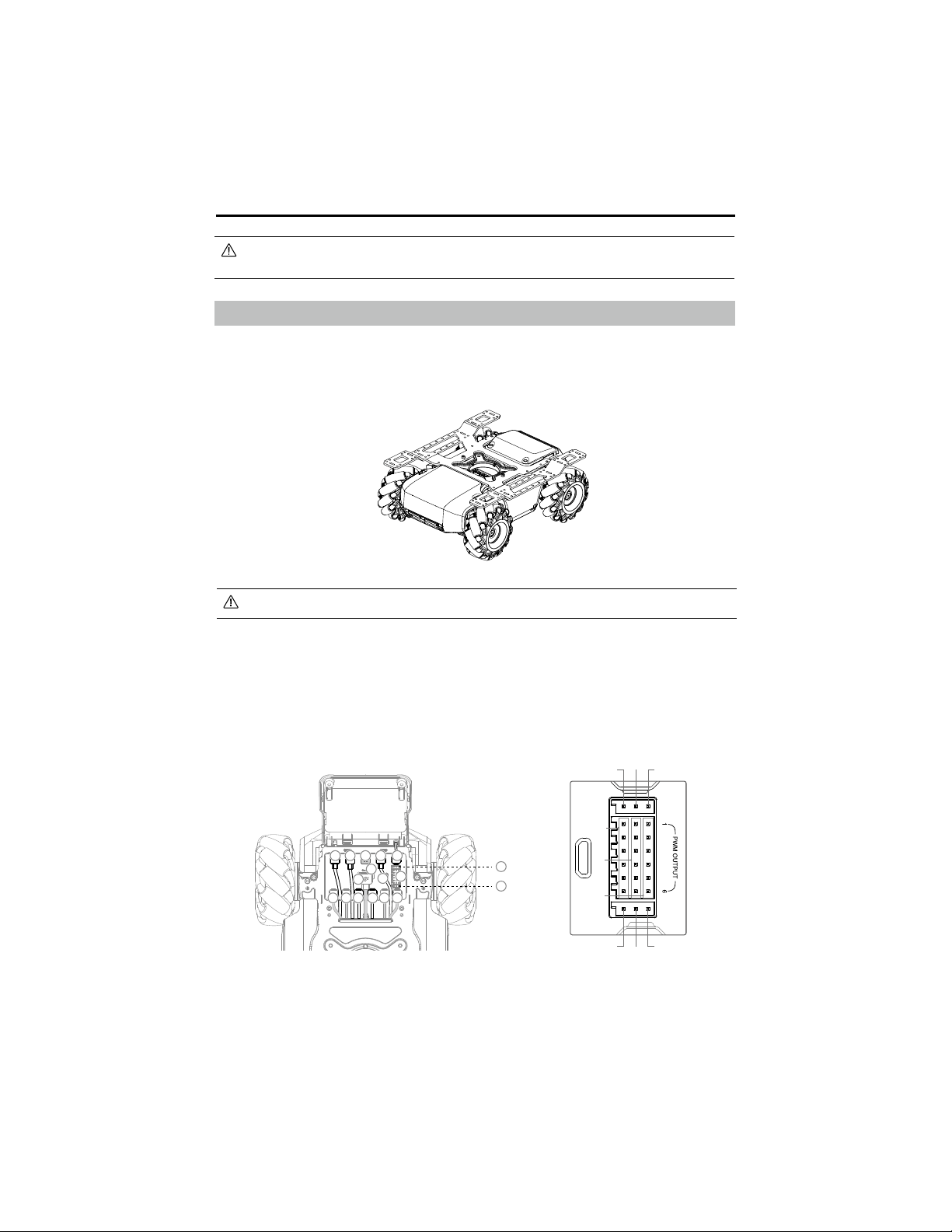
(2). Open the RoboMaster app, go to Wi-Fi settings on the mobile device, connect to a router,
and input the Wi-Fi password of the router to generate a QR code.
(3). Press the connect button on the intelligent controller and use the camera of the robot to scan
the QR code. The robot will connect to the router automatically.
Resetting the Password
Users can enter both Solo and Battle mode when connecting via router.
Follow the steps below to connect:
(1). Slide the mode switch on the intelligent controller to
and power on the robot.

©
2020 DJI All Rights Reserved.
19
ROBOMASTER EP Core User Manual
b. Extension Module
Users can install a robotic arm, gripper, servo, infrared distance sensor, or sensor adapter on
the Extension Module screen. Users can also check the installation status of these modules.
c. Connect
Displays the connection status of the robot. When connected, users can also check the
Channel Display, Wi-Fi Name, Wi-Fi Password, and also modify Wi-Fi information.
d. Display
Users can set the LED Display Color, FPV Hit Point Bar, FPV Screen Adaptation, Video
Resolution, Anti-Flickering, and 3D Quality.
e. Control
Users can set the Speed, Control Mode, Control Sensitivity, Gyro Sensitivity, and Vibration.
f. System
The following actions can be performed under the system settings:
Power off the robot.
Enable programming sleep mode.
Check the app version and set the app language.
Set the voice language and the volume of the robot.
Perform a firmware update, check what firmware has been downloaded, and check the
rmware version.
Perform armor addressing, motor addressing, and chassis calibration.
Replay the beginner guide.
Check the remaining space on the SD card and format the SD card.
Enable GPS information, check the device information, and read about the terms of use and
the DJI Product Improvement program.
8. Solo
Tap to enter Solo mode. Users can connect either via Wi-Fi or router.
9. Battle
Tap to enter Battle mode. Users can connect either via Wi-Fi or router. When using multiple
robots, users must connect via the same router.
10. Lab
Road to Mastery: Road to Mastery offers project-based courses that enhance users’
understanding of programming languages, from robotics applications to AI technology, with
different projects for both beginners and experts.
DIY Programming: Both Scratch and Python are available for programming.
RoboAcademy: RoboAcademy offers a curriculum of videos and programming guides. In-depth
videos introduce robotics in simple but fascinating ways, giving users insightful and relevant
scientic knowledge. The RoboMaster EP Core Programming Manual offers detailed explanations
of various blocks and modules, making it easier for users to understand the fundamentals of EP
Core programming.
20
©
2020 DJI All Rights Reserved.
ROBOMASTER EP Core User Manual
EP Core cannot use the blaster, gimbal, or their related functions in Solo, Battle, or Lab
mode. It is recommended to connect the blaster or gimbal rst.
Omnidirectional Chassis
Introduction
The chassis is an omnidirectional motion platform based on the Mecanum wheels, which can be
used to move forward, traverse, skew, rotate, or a combination of movements at once.
Avoid crashing into any objects at high speed.
Motion Controller
Overview
The motion controller is the core module for the chassis movement, providing a rich external module
interface for video transmission and connecting the, battery, armor, and motors. It also integrates
an omnidirectional wheel motion control algorithm, power management system, motor management
system, and a chassis management system.
S-BUS
UART
S-Bus Signal
5V
5V
GND
GND
GND
Signal
RX
TX
1 1 1 1
2
3
3 3 34 4
5
6
8
7
9
1
0
1. CAN Bus Port
CAN Bus port used for armor module connection.

©
2020 DJI All Rights Reserved.
21
ROBOMASTER EP Core User Manual
2. Power Port
Power port used for intelligent battery connection. Note that this interface contains the battery
management system. Avoid unplugging the power port unless necessary.
3. M BUS Port
Motor port used for motor connection.
4. CAN BUS Port
A reserved port used for armor module connection.
5. Micro USB Port
Supports connection and communication in SDK USB RNDIS.
6. UART Port
UART port is an extension port, used for programming and supports SDK connection.
7. PWM Output Port
The motion controller enables the duty cycle to be set through the Scratch or Python program
using the PWM output port.
8. S-Bus Port
Controls signal reception and is used to connect a remote controller receiver that supports SBUS protocol.
9. M0 Port
Used for servo and gripper connection.
10. LED indicator
Used to indicate the status of the motion controller.
LED indicator Motion controller status
Blinks blue slowly
Working normally
Blinks yellow slowly
Running autonomous program
Blinks green quickly
IMU calibration successful
Blinks red quickly
IMU calibration failed
Solid yellow
IMU is calibrating
Solid white
Firmware updating
Blinks red, green,
and blue alternatively
No attitude information input
Blinks red slowly
Stop Mode*
Stop mode may occur in the following situations:
a. Motion controller is disconnected from or cannot
communicate with motor.
b. Robot cannot move due to the motor hardware
abnormality.
c. Motion controller cannot communicate with the remote
controller.
d. Abnormal motion controller attitude.
e. Motion controller cannot communicate with the battery.
* Stop mode warning prompts will display in the app. Go to Settings then System to check the
corresponding error.
22
©
2020 DJI All Rights Reserved.
ROBOMASTER EP Core User Manual
Connect the black, orange, and red cables to the ports of the corresponding color.
Make sure the motion controller is properly installed before use and the screws on the
chassis rear cover are locked.
After each reinstallation of the motion controller, calibrate the robot if prompted to do so in
the RoboMaster app. Refer to the Calibrating the Robot section for more information.
To avoid dislodging the motion controller when removing the rear chassis cover, lift the cover
carefully before removing.
Mecanum Wheel
The Mecanum wheel is a commonly used robotic omnidirectional chassis moving solution, which
is divided into two types: left-threaded and right-threaded. The four-wheeled chassis requires two
pairs of Mecanum wheels.
Left-threaded Mark
Left-threaded
Mecanum Wheel
Right-threaded Mark
Right-threaded
Mecanum Wheel
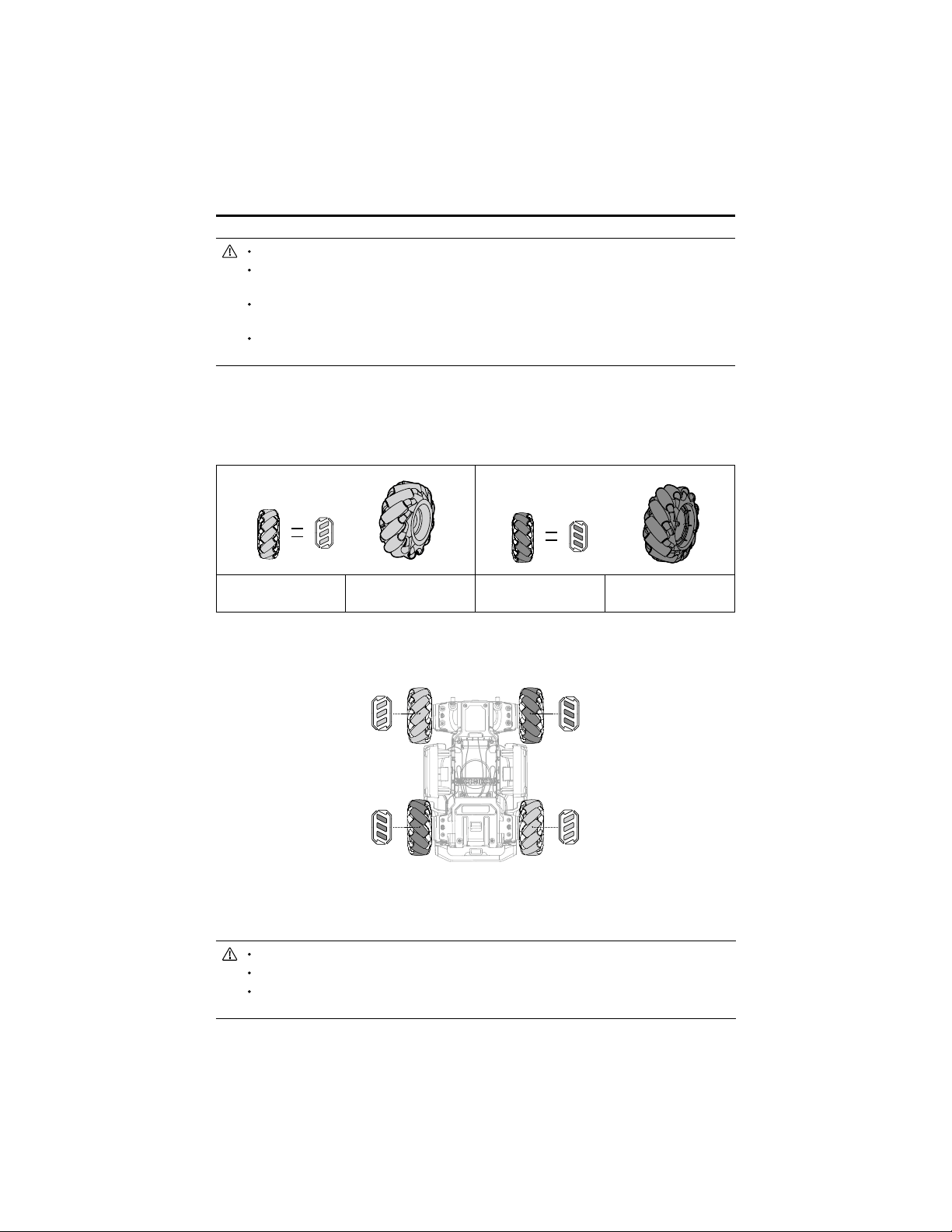
When installing, you can check the left-threaded mark or right-threaded mark on the bottom of the
chassis, and install the left-threaded or right-threaded Mecanum wheel accordingly.
Motors and ESCs
The robot features an M3508I brushless motor and ESC with a maximum speed of 1000 rpm for
brushless motors.
Make sure the connections between all motors and motion controller are stable.
If the motor does not rotate freely, immediately power off the robot and check the motor.
DO NOT touch or let your hands or body come into contact with the motors, motors
mounting plate, or inside of Mecanum wheel immediately after powering off the robot.
©
2020 DJI All Rights Reserved.
23
ROBOMASTER EP Core User Manual
Armor Modules
A total of four armored modules are installed on the four sides of the chassis, which protect the
internal structure of the robot.
Each hit detector module is represented by an LED light and is visible under the armor module.
Intelligent Controller
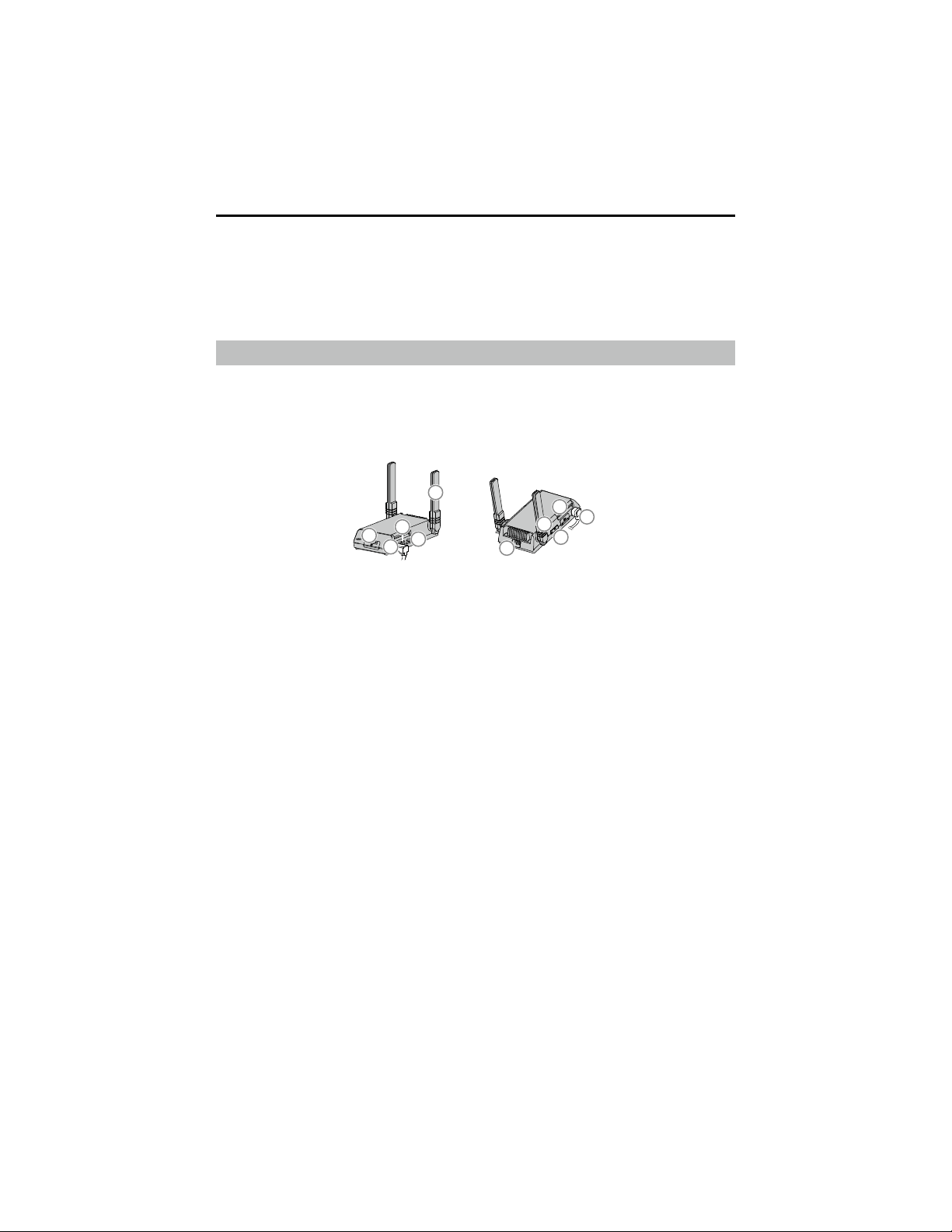
The intelligent controller is integrated with multiple systems including a video transmission system,
game system, and Scratch programming system. It supports six smart modules, including line
recognition, vision marker recognition, person recognition, clap recognition, gesture recognition,
and robot recognition.
1. microSD Slot
Compatible with a microSD card that can read and write faster than 10 MB/s, supporting up to 64 GB.
2. Camera Port
Used to connect to the camera.
3. Speaker Port
Used to connect to the speaker.
4. Autonomous Program Button
Scratch programs written by the user can be set as autonomous programs, which can be loaded
directly onto the robot. Press the Autonomous Program Button to run the program.
5. Antennas
For optimal Wi-Fi connection, set the intelligent controller antennas at 90°.
6. Secondary Camera Port
A reserved port used for switching to the second camera view.
7. CAN Bus Port
Used to connect to the motion controller.
8. Micro USB Port
Used to connect to the computer.
9. Connect Mode Switch
Used to switch between connecting via Wi-Fi or a router.
1
0
6
1
5
4
2
3
8
9
7

24
©
2020 DJI All Rights Reserved.
ROBOMASTER EP Core User Manual
DO NOT expose the camera to liquids or immerse in water.
DO NOT store the camera in a humid place.
DO NOT touch the lens.
If the camera is wet, wipe it with a dry soft cloth.
Camera
The camera features a 1/4-inch sensor with 5 million pixels and a FOV of 120°, allowing users to
control the robot from a rst-person perspective.
Clean the lens regularly to avoid blurring or halos. Use a special lens cleaner to make sure that
there is no foreign matter on the lens after cleaning and that it does not damage the lens.
1. Camera Lens
2. Microphone
3. Camera Port
Used to connect the camera to
the intelligent controller.
2
3
1
Make sure the speaker is properly installed and does not obstruct other components'
movements.
Speaker
The speaker connects to the intelligent controller via a 2.5mm device with a power rating of 2 W.
10. Connect Button
The connect button functions differently when connecting via Wi-Fi or router.
Connection to Wi-Fi: Once the Wi-Fi password is forgotten, press and hold this button for five
seconds to reset the Wi-Fi password.
Connection to Router: When scanning the QR code with the robot to join a network, press this button
rst.
DO NOT pull on the antenna.
If the intelligent controller antenna is damaged, the performance of the robot will be
affected. Contact DJI if the antenna is damaged.
©
2020 DJI All Rights Reserved.
25
ROBOMASTER EP Core User Manual
Intelligent Battery Functions
1. Battery Level Display: LEDs display the current battery level.
2. Auto-Discharging Function: The battery automatically discharges to below 70% of total power
when it is idle for more than 10 days to prevent swelling. To exit the idle state, press the power
level button to check the battery level. It takes approximately one day to discharge the battery to
60%. It is normal to feel moderate heat emitting from the battery during the discharge process.
3. Balancing Function: Automatically balances the voltage of each battery cell when charging.
4. Overcharge Protection: Charging stops automatically when the battery is fully charged.
5. Temperature Protection: The battery only charges when the temperature is 5 to 45° C (41 to 113° F).
6. Overcurrent Protection: Battery stops charging when high amperage is detected.
7. Over-Discharge Protection: To prevent serious damage to the battery, the current output will be
cut off when the battery cell is discharged to 2.5 V and not in use. To extend operating times,
overcharging protection is disabled as batteries discharge during usage. In this instance, a
battery voltage below 1 V may cause a safety hazard such as a re when charged. To prevent
this, the battery will not be able to charge if the voltage of a single battery cell is below 1 V. Avoid
using any batteries matching this description. Avoid over-discharging to prevent permanent
battery damage.
8. Short Circuit Protection: Automatically cuts the power supply when a short circuit is detected.
9. Battery Cell Damage Protection: The RoboMaster app displays a warning message when a
damaged battery cell is detected.
10. Sleep Mode: Sleep mode is entered to save power when the battery is not in use. If the battery
is turned on without being connected to the robot, the battery will turn off after ve minutes.
When the battery power is less than 5%, it will automatically enter sleep mode after six hours to
prevent over-discharging. If this occurs, press the battery power button once, and the battery
can be charged to wake up.
11. Communication: Battery voltage, capacity, current, and other relevant information is provided to
the robot.
Read the user manual, disclaimer, and descriptions on the battery before use. Users take
full responsibility for all operations and usage.
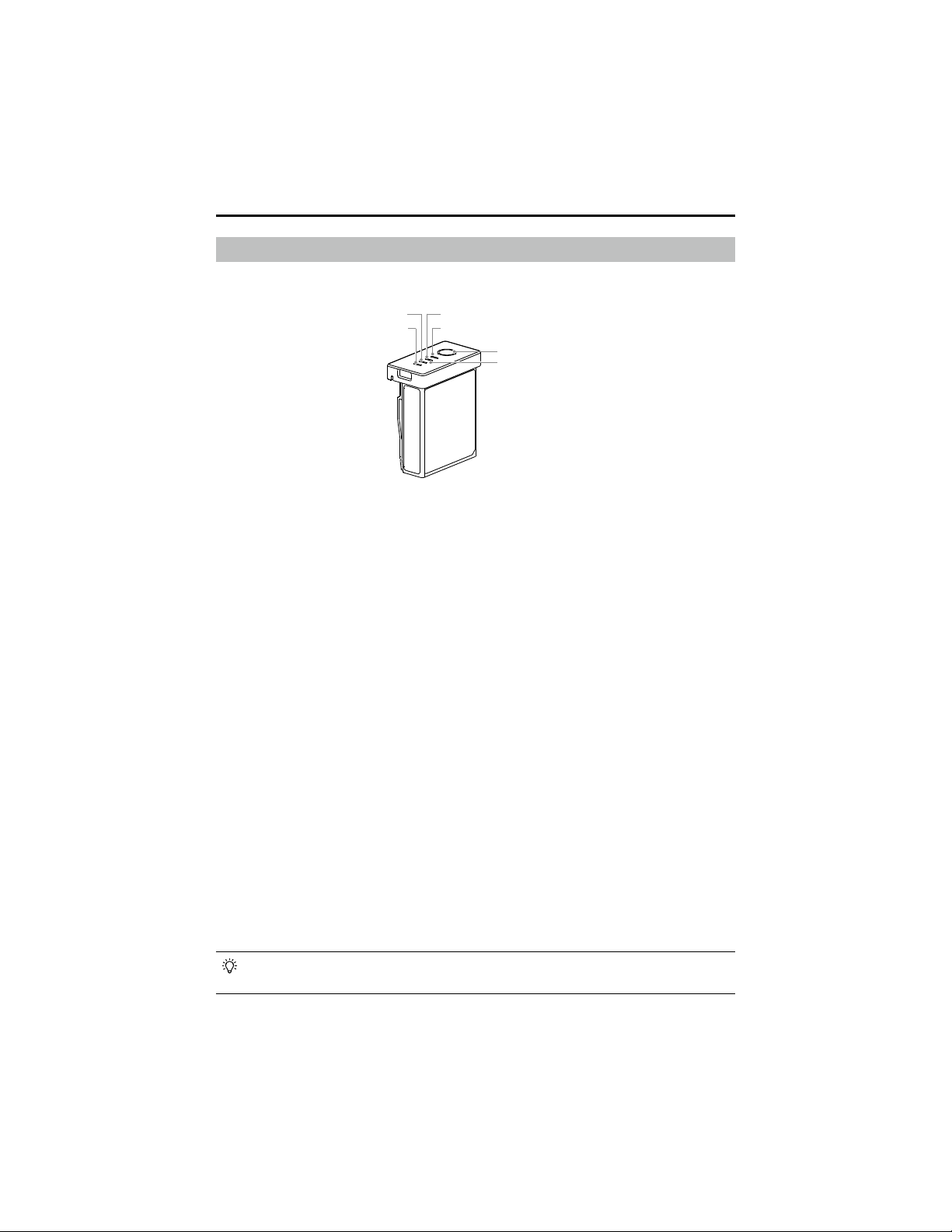
1. Power Button
2. Battery Level Indicator
1
2
LED1
LED2 LED3
LED4
Intelligent Battery
The intelligent battery has a capacity of 2400 mAh, a voltage of 10.8 V, and a variety of power
management functions.
26
©
2020 DJI All Rights Reserved.
ROBOMASTER EP Core User Manual
Charging the Intelligent Battery
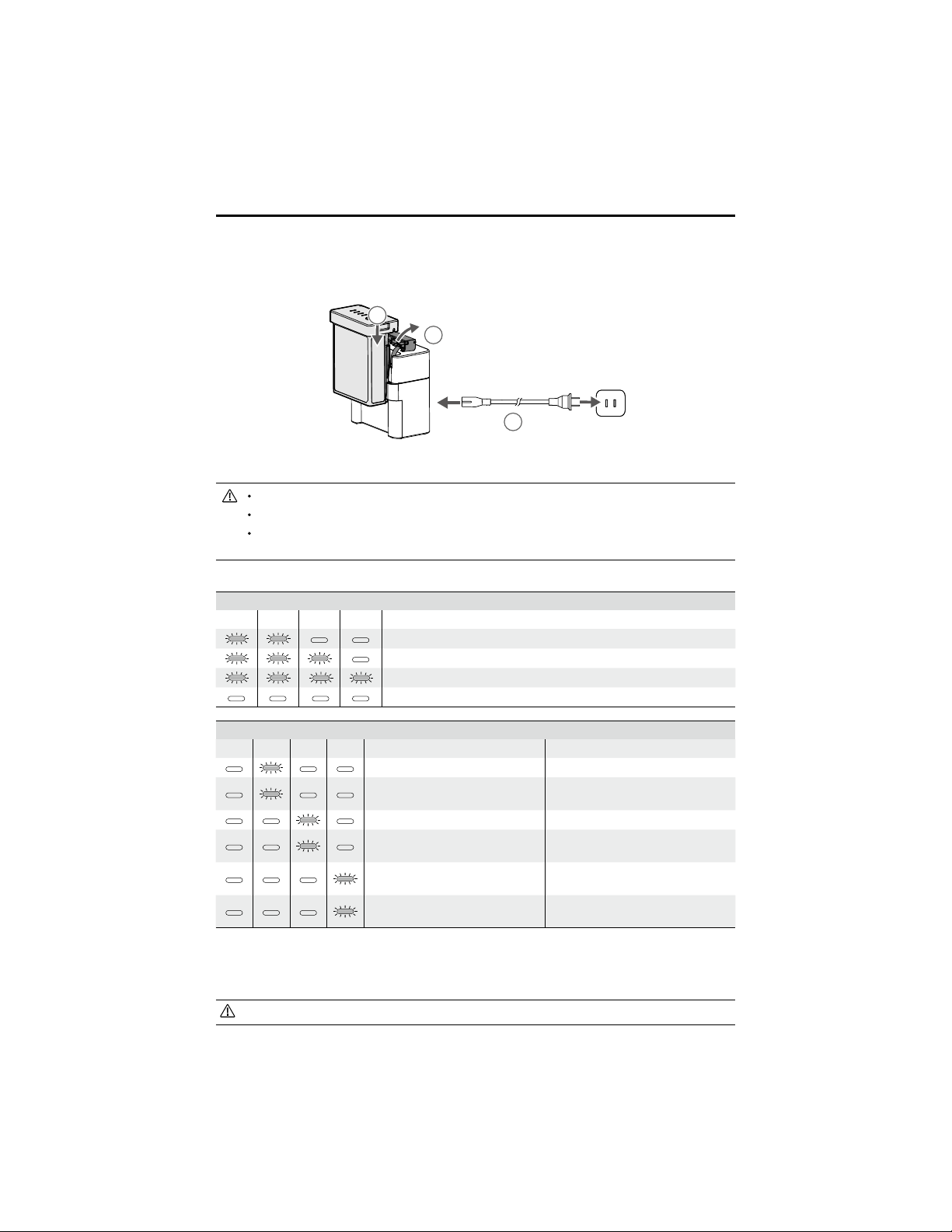
The battery charger is designed for charging batteries for the robot. Lift the battery charger cover and
insert the intelligent battery. Connect the battery charger to a power outlet (100-240 V, 50/60 Hz).
Charging Time: Approx. 1 hour and 30 mins*
Before using for the rst time, charging is required to wake up the battery.
Make sure the battery is fully charged before each use.
When the charger is not in use, keep the battery charger covered in order to prevent the
metal terminals from being exposed.
1
2
3
100-240 V
50-60 Hz
Battery Level Indicators while Charging (Battery)
LED1 LED2 LED3 LED4 Battery Level
0%~50%
50%~75%
75%~100%
Fully Charged
Battery Level Indicators for Battery Protection
LED1 LED2 LED3 LED4 Blinking Pattern Battery Protection Item
LED2 blinks twice per second Over current detected
LED2 blinks three times per
second
Short circuit detected
LED3 blinks twice per second Over charge detected
LED3 blinks three times per
second
Over-voltage charger detected
LED4 blinks twice per second
Charging temperature is too low
(<0°C)
LED4 blinks three times per
second
Charging temperature is too high
(>40°C)
After any of the protection issues are resolved, the battery level indicator will power off. Unplug the
intelligent battery from the charger and plug it back in to resume charging. Note that you do not
need to unplug and re-plug the charger in the event of a charging temperature error. Charging will
resume when the temperature falls within the normal range.
DJI is not responsible for damage caused by third-party chargers.
Status LED Descriptions
* The charging time was tested in a lab environment using a new intelligent battery, and should be taken as a reference only.
©
2020 DJI All Rights Reserved.
27
ROBOMASTER EP Core User Manual
Mounting the Intelligent Battery
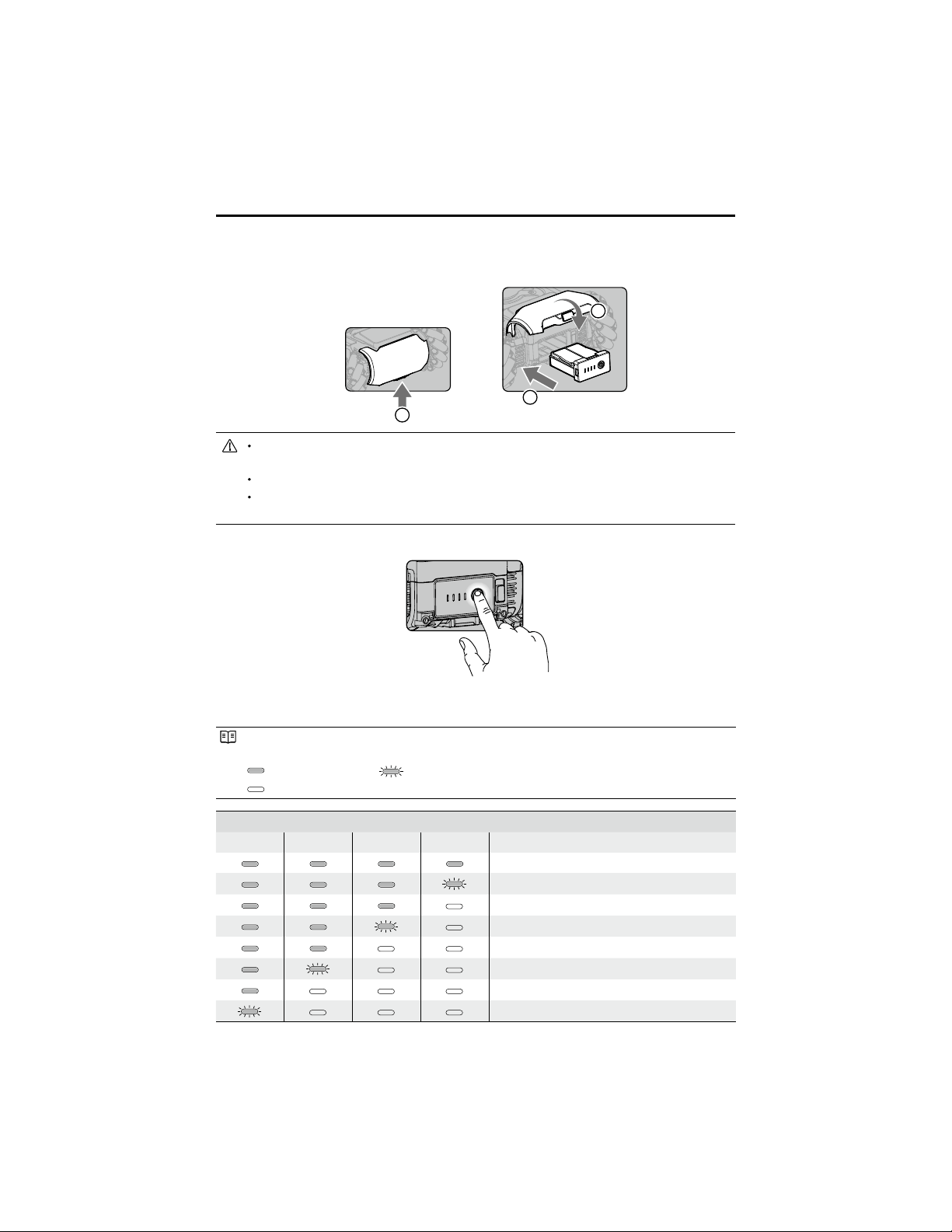
When in use, open the rear armor cover and insert the battery into the battery compartment.
Make sure the battery is securely installed. Otherwise, the battery may fall out or have
insufcient contact, which can lead to loss of battery information.
Make sure to press the battery eject button before removing the battery.
Make sure the external metal terminals of the battery compartment do not become
deformed. Otherwise, it may not be possible to insert or remove the battery.
Using the Intelligent Battery
Checking the Battery Level
Press the battery level button once to check the battery level.
The battery level indicators will also show the current battery level during discharging. The
indicators are dened below.
LED is on. LED is ashing.
LED is o.
Battery Level
LED1 LED2 LED3 LED4 Battery Level
88%~100%
75%~88%
63%~75%
50%~62.5%
38%~50%
25%~38%
13%~25%
0%~13%
2
3
1
28
©
2020 DJI All Rights Reserved.
ROBOMASTER EP Core User Manual
Powering On/Off
Press and hold the power button for more than two seconds to power on or o.
Low-Temperature Notice
1. The performance of the intelligent battery is signicantly reduced at temperatures below 5° C (41° F).
Make sure that the battery is fully charged and the cell voltage is at 4.2 V before use.
2. In extremely cold weather, the battery temperature may not be high enough even after warming
up. In these cases, insulate the battery as required.
3. To ensure optimal performance, keep the core temperature of the Intelligent Battery above 20° C
(68° F) when in use.
Robot LED Indicator Description
The robot features LED indicators on the four armor modules of the chassis body, which indicate the
current status of the robot.
Chassis LED indicator, one for each armor.
LED Indicator Description
Robot Status Chassis LED Indicator
Battery Power
Power on Robot Solid cyan
Power off Robot Custom color powers off
Connect
Robot operating normally, not connected to app Pulses white
Robot and app connecting Blinks cyan
Robot operating normally, connected to app Solid custom color
Firmware update
Updating rmware Solid white
Firmware update failed Solid red
Firmware update successful Solid cyan
* The custom color is set under LED Display Color in the Display settings in the app.
When changing the custom color, the LEDs on the chassis will change color.
©
2020 DJI All Rights Reserved.
29
ROBOMASTER EP Core User Manual
Servo
Introduction
As a propulsion driver for the robot, the servo supports customized control abilities through the
programming interfaces of the robot. The servo ensures minimal gear backlash, high control
accuracy, and large output torque. Other uses include powering the robotic arm and supporting the
DC gear motor mode, which allows users to build lifting structures.
The servo uses RS485 bus mode and is compatible with PWM mode. When the servo is used
to drive the robotic arm, the system switches to RS485 bus mode automatically. When used
independently, the servo can operate in either RS485 bus mode or PWM mode. The system
automatically switches according to the input signal.
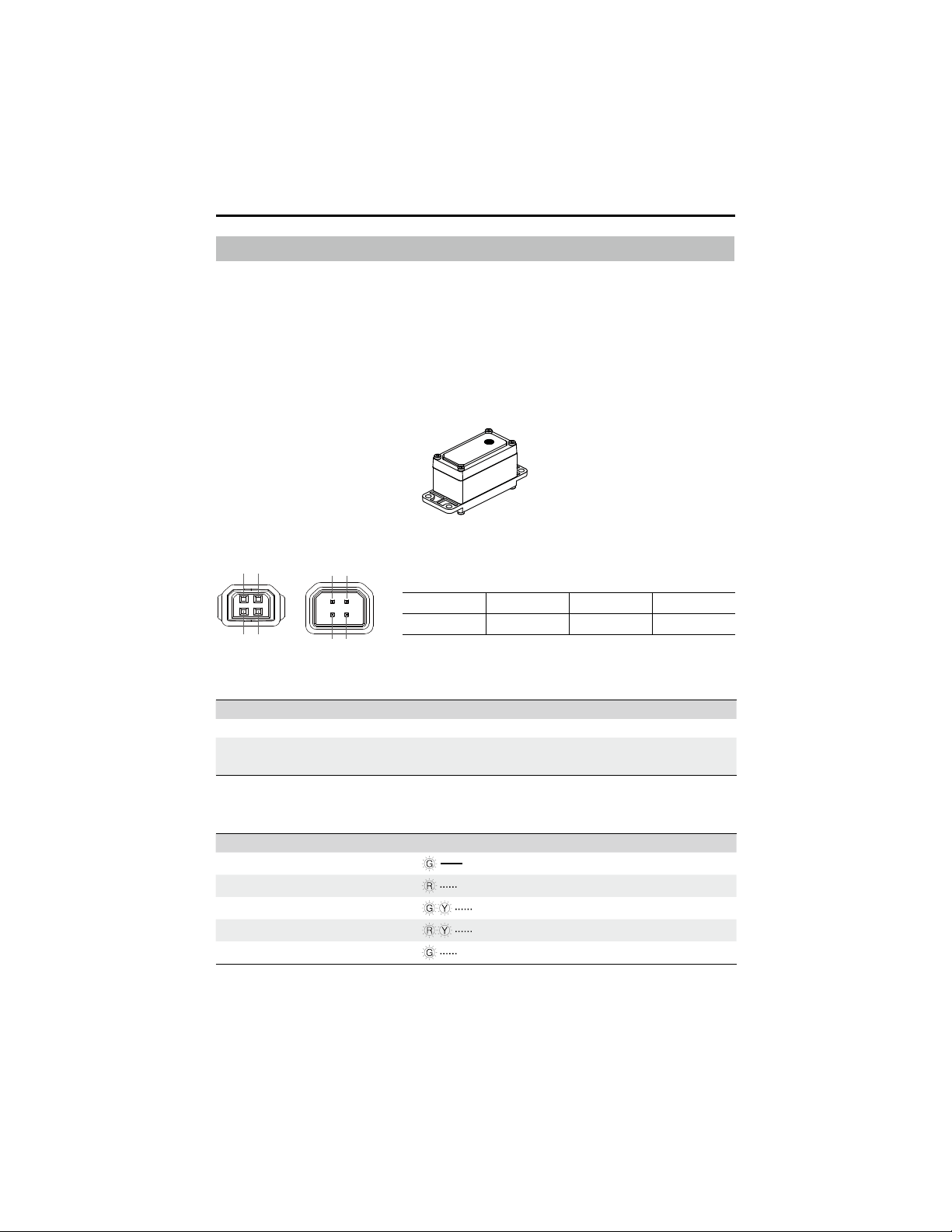
Servo PWM Port
The port pin is shown below:
The servo supports two control modes: angle mode and rate mode. The PWM signal has a
frequency of 50 Hz and a duty cycle ranging from 2.5% to 12.5%.
Control Mode Duty Cycle Control Range
Angle Mode 2.5% to 12.5% 0° to 360°
Rate Mode
2.5% to 7.5% 49 to 0 rpm
7.5% to 12.5% 0 to -49 rpm
LED Indicator Description for Servo
The LED indicator is used to indicate the status of the servo. Details are as follows:
LED Indicator Servo Status
Solid green
Working normally
Blinks red rapidly
Self-test error*
Blinks green and yellow alternatively
Overload protection**
Blinks red and yellow alternatively
Stalled***
Blinks green rapidly
The servo is selected in the RoboMaster app
* The servo will perform a self-test when it is powered on. If a self-test error occurs, reconnect the servo with the power supply.
Contact DJI Support if the servo still does not work normally after being powered on multiple times.
** The servo stops producing torque output after 200 milliseconds of overload, and automatically resumes output after three seconds.
*** If the servo stalls, check the current operation and reconnect the servo with the power supply.
1 2 3
4
485A/PWM 485B VCC-12V GND
1
4
2
3
2
3
1
4
30
©
2020 DJI All Rights Reserved.
ROBOMASTER EP Core User Manual
Robotic Arm and Gripper
Introduction
The robotic arm of the robot supports precise FPV control and can be used with the gripper. Grab
and move objects by controlling the robotic arm and gripper in first person view (FPV) in the
RoboMaster app.
Use Instructions
DO NOT apply external force to the robotic arm or gripper when they are in use.
The movement range of the robotic arm and the grip distance of the gripper can be controlled. The
horizontal movement range of the robotic arm is 0-0.22 m while the vertical range is 0-0.15 m. The
grip distance of the gripper is 10 cm.
To avoid injury, DO NOT touch the robotic arm or gripper when they are in use.
DO NOT hit or damage the robotic arm or gripper. Otherwise, the performance may be
negatively affected or the servo may become abnormal.
Clean foreign objects like droplets in a timely manner. Otherwise, the surface of the structure
may corrode.
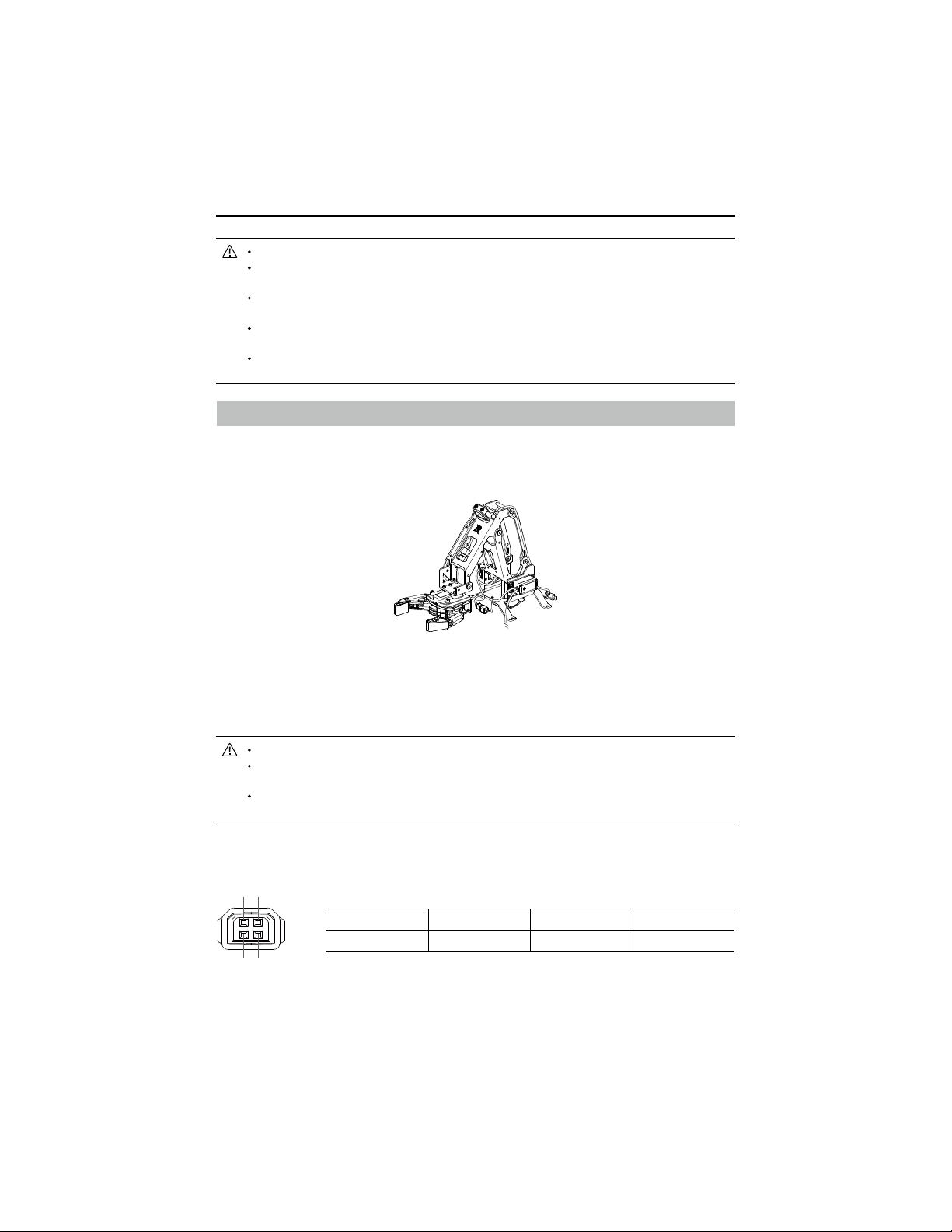
Gripper PWM Port
The port pin is shown below:
When in use, DO NOT touch the servo to avoid injury.
DO NOT hit the servo. Otherwise, it may reduce the service life of the servo or even lead to
permanent damage.
When the servo overload warning prompts appear in the app multiple times, stop the
operation immediately and check the operation and the structure of the robotic arm or servo.
When mounting the servo onto the robotic arm, use the programming interface with caution
to avoid affecting the limit structure of the robotic arm.
When the servo is in PWM mode, its status cannot be displayed on a computer. The
current status of the servo can be retrieved from the LED indicator.
The gripper supports torque control mode. The PWM signal has a frequency of 50 Hz and a duty
cycle ranging from 2.5%-12.5%. 2.5%-7.5% corresponds to the gripper’s closing force (Max-0), and
7.5%-12.5% to its opening force (0-Max).
1 2 3
4
485A/PWM 485B VCC-12V GND
1
4
2
3
©
2020 DJI All Rights Reserved.
31
ROBOMASTER EP Core User Manual
Power Connector Module
Introduction
A power connector module can connect and power third-party hardware, offering multiple ports to
connect hardware and create custom programs and applications.
If both 5V power output ports are used, the module supports a current output of up to 4 A.
Mounting the Power Connector Module
1. Unplug the power cable of the motion controller.
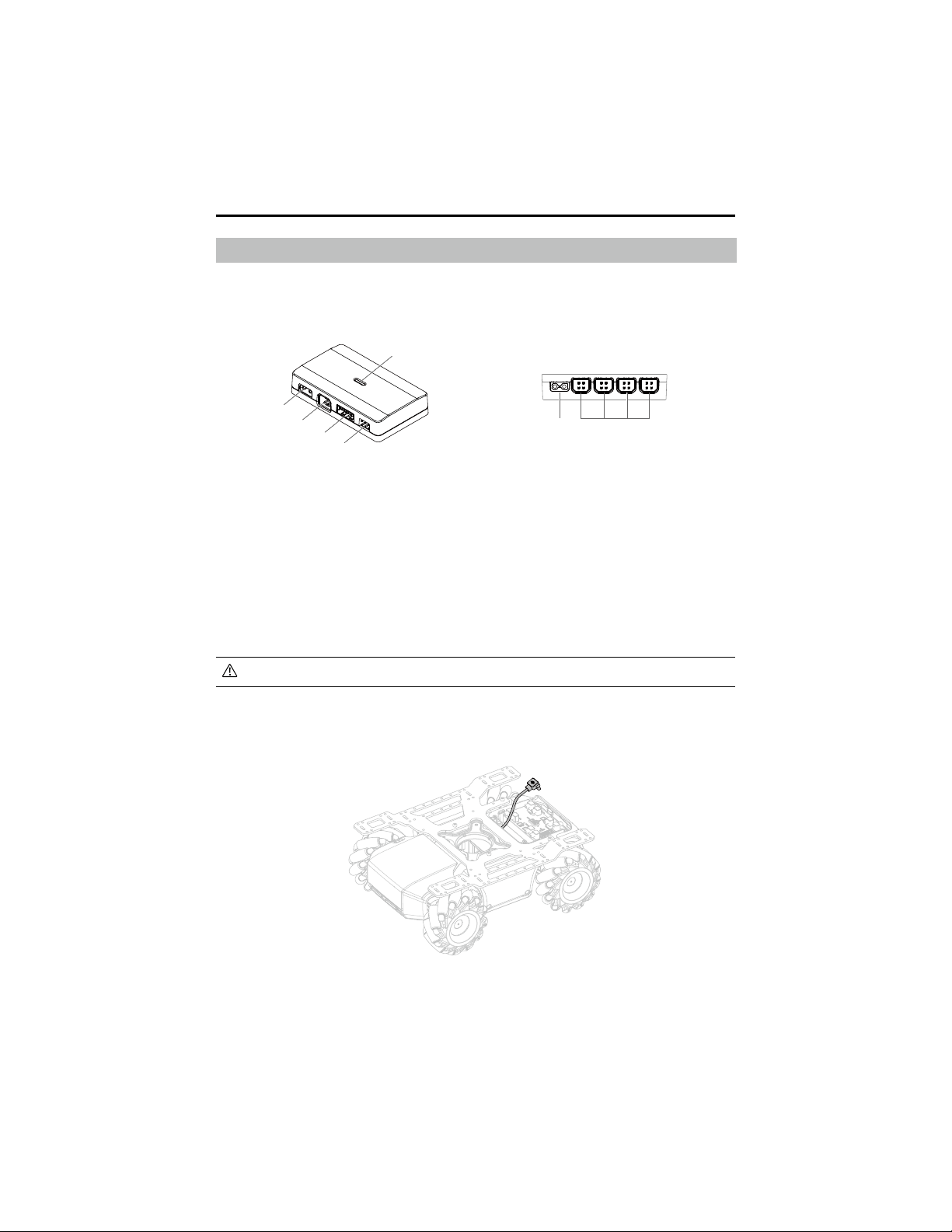
1. 12V Power Input Port
The input voltage is 9.6-12.6 V.
2. CAN Bus Port
Connect with CAN bus cable.
3. 5V/2A Power Output Port
The output voltage is 5 V and supports a
current output of up to 2 A.
4. 5V/4A Power Output Port
The output voltage is 5 V and supports a
current output of up to 4 A.
5. LED Indicator
Indicates the status of the power connector
module.
6. 12V Conducting Power Output Port
Conducts power along with the 12V power
input port.
1
2
6 2
3
4
5
32
©
2020 DJI All Rights Reserved.
ROBOMASTER EP Core User Manual
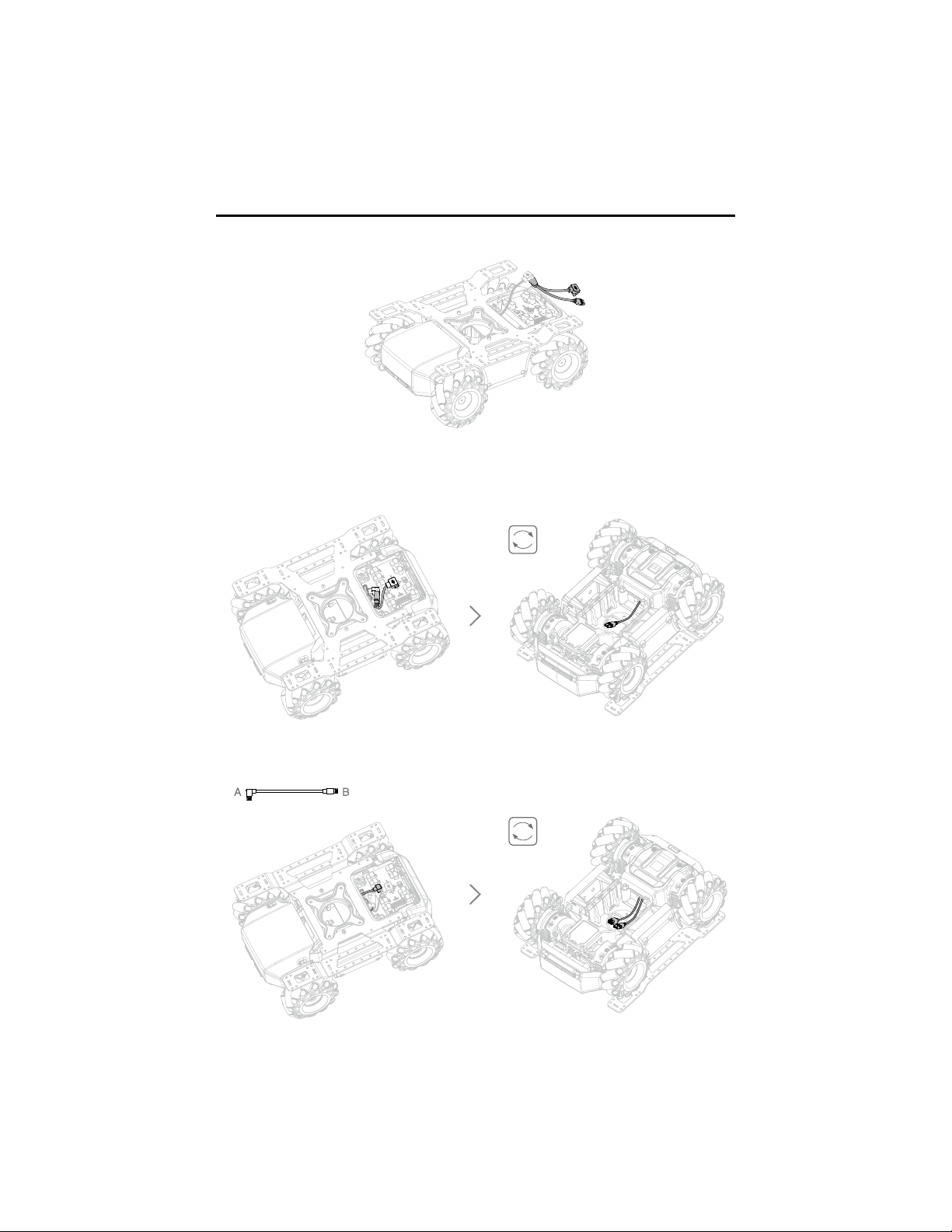
2. Connect the power cable and a Y-cable.
3. After connecting a Y-cable to the motion controller as shown below, place the power cable on
the chassis and pull the XT30 power cable of a Y-cable through the chassis middle frame to the
chassis cabin.
4. As shown below, connect the A end of a 12cm data cable to the motion controller and pull the B
end through the chassis middle frame to the chassis cabin.
12 cm
©
2020 DJI All Rights Reserved.
33
ROBOMASTER EP Core User Manual
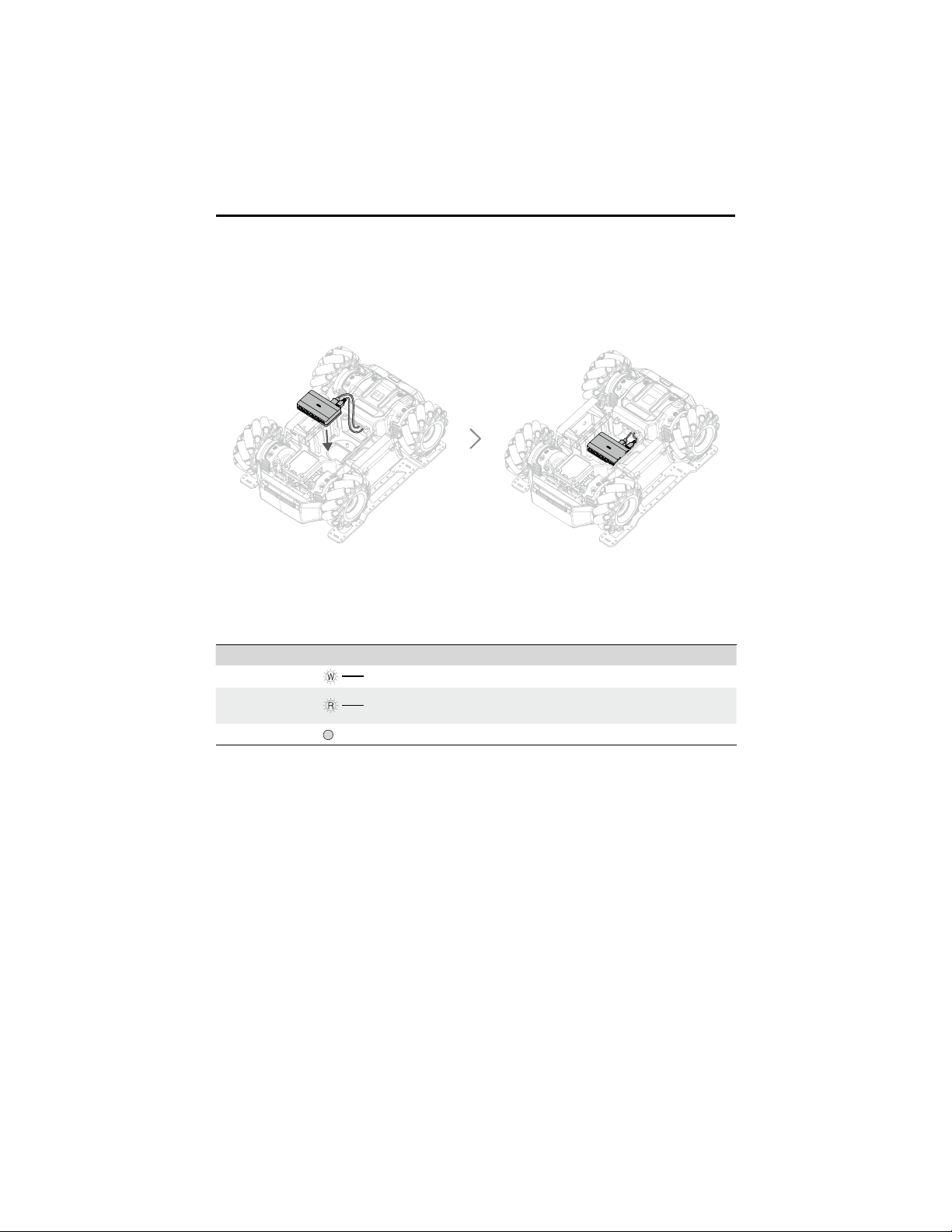
5. As shown below, connect the XT30 power cable in the chassis cabin to the 12V power input
port and the B end of the 12cm data cable to the CAN bus port of the power connector module.
Secure the module at the chassis cabin.
LED Indicator Description for Power Connector Module
The LED indicator is used to indicate the status of the power connector module. Details are as
follows:
LED Indicator Power Connector Module Status
Solid white
Normal power input and 5V output
Solid red
Normal power input, but 5V output has an overcurrent or
is short-circuited
Off
Abnormal power input
34
©
2020 DJI All Rights Reserved.
ROBOMASTER EP Core User Manual
Infrared Distance Sensor (TOF)
Introduction
The infrared distance sensor calculates the distance between a sensor and an object by measuring the
time it takes an infrared light to reach the object and return to the sensor. The infrared distance sensor
consists of an illumination unit, optical receiver, and signal processing system. The illumination unit emits
a beam of modulated near-infrared light. When the beam of light is reected by an object, the reected
beam will be directed through the optical receiver and converted into a current. The receiver transmits
the generated electric signal to the signal processing system for demodulation and distance calculation.
The infrared distance sensor has a eld-of view (FOV) of 20° and measures the distance of objects
within the FOV. If there are multiple objects at different distances inside the FOV, the measured distance
will be within the range of the nearest object and the farthest object. The actual measurement data is
related to the size ratio and reectivity of the object. Users can learn more about the infrared distance
sensor through practice.
With a measurement range of 0.1-10 meters, the infrared distance sensor accurately measures within
a margin of error of 5%. The addition of programmable modules in Scratch also provides reliable
distance measurement information. This enables the robot to sense its environment and avoid obstacles,
deepening users’ understanding of advanced autonomous driving principles.
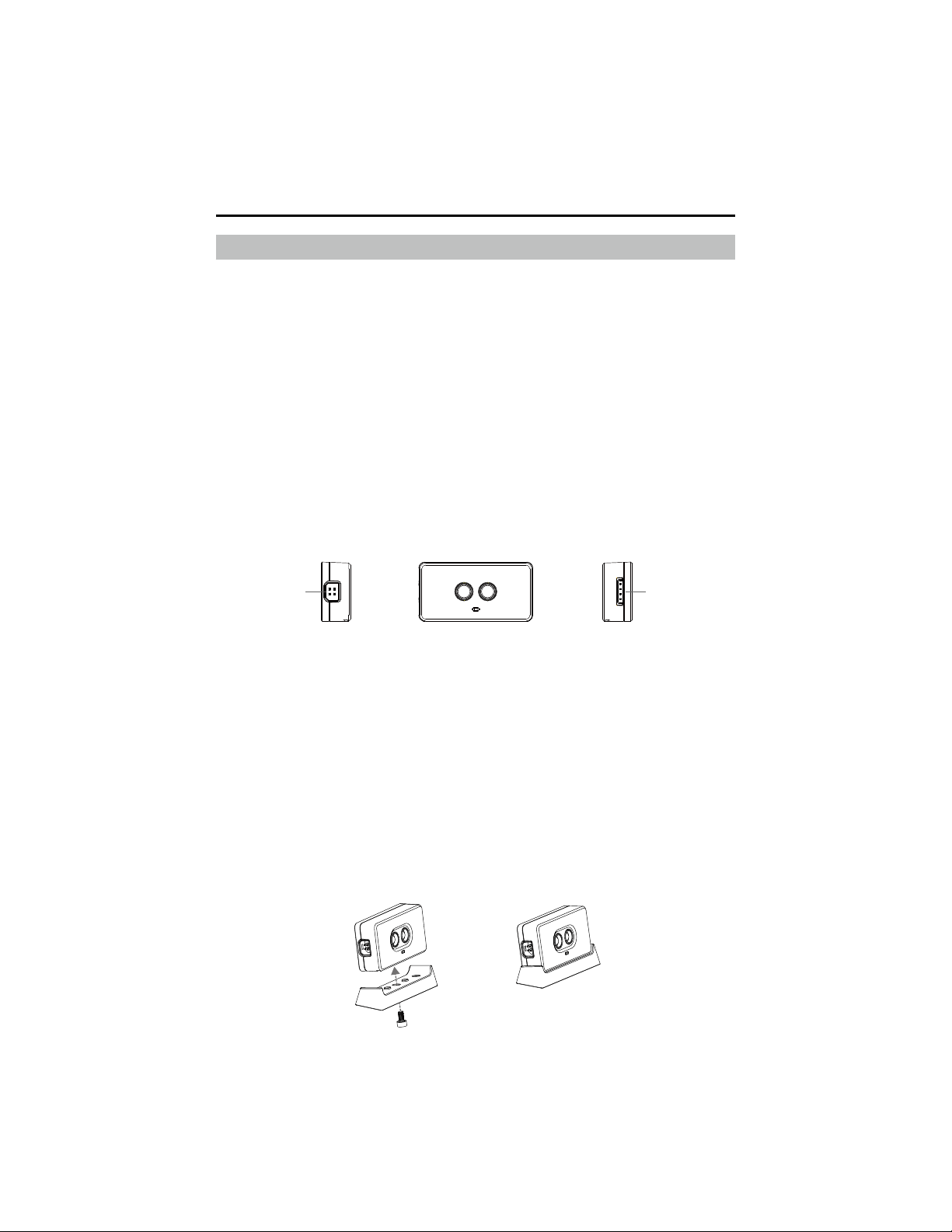
1. CAN Bus Port
Connect to the robot via a CAN bus cable.
2. Serial Port
a) The serial signal supports a level of 3.3 V.
b) The input voltage is 5-12.6 V.
Mounting the Infrared Distance Sensor
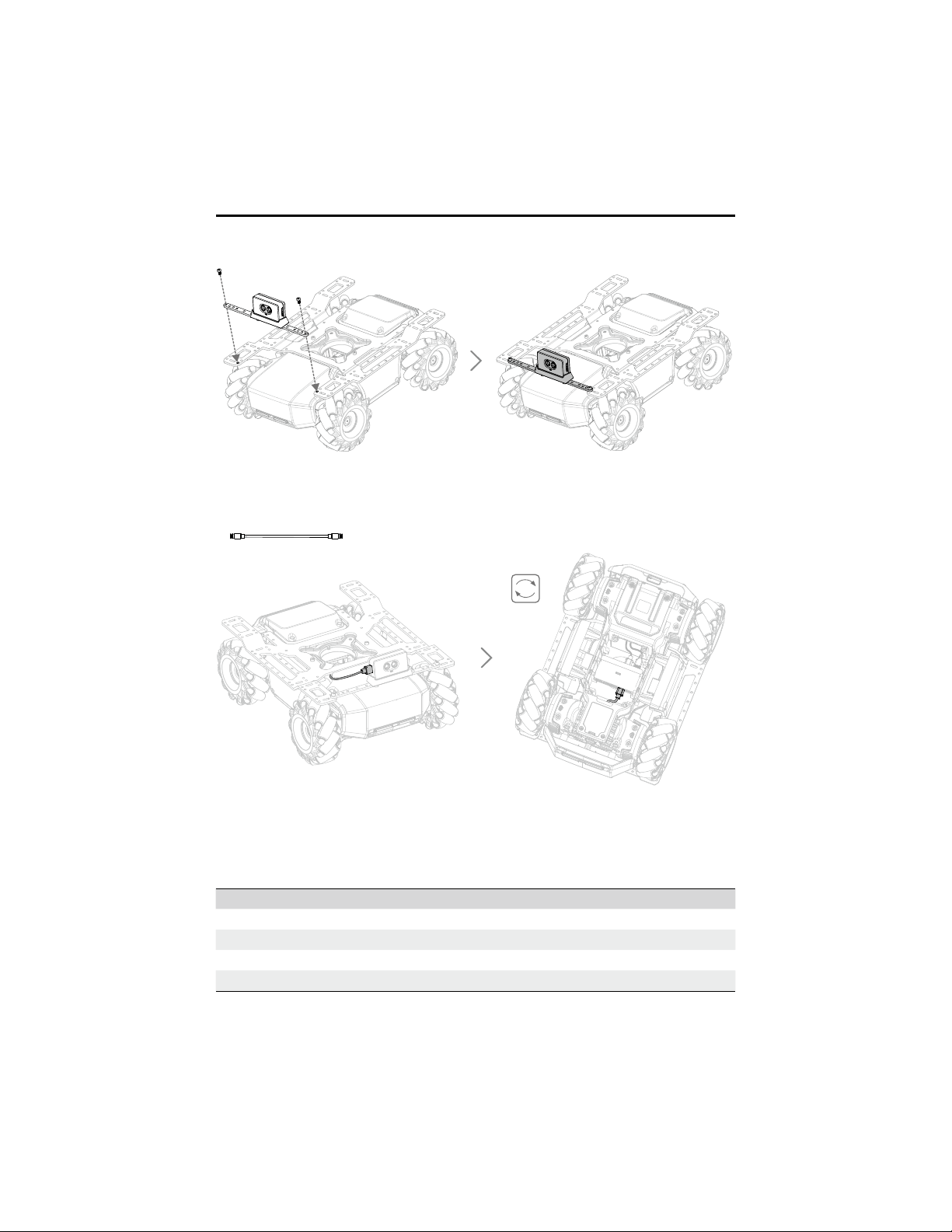
The infrared distance sensor can be mounted on the chassis extension platform with the use of the
TOF mounting bracket. If mounted on the front of the extension platform, the bracket must rst be
xed to the straight connecting rod.
If the infrared distance sensor is required to be mounted on the rear of the robot, users must design
their own parts and rearrange the position of the intelligent controller and infrared distance sensor
without affecting the installation or connection of other parts.
1. To assemble a TOF module, use one M3-C screw to x the infrared distance sensor to the TOF
mounting bracket.
1 2

©
2020 DJI All Rights Reserved.
35
ROBOMASTER EP Core User Manual
Right side:
4. Use two M3-D screws to x the TOF module to the right side of the extension platform, located
above the chassis right armor.
3. As shown below, connect the TOF module with the power connector module with a 14cm data
cable.
14 cm
Left side:
2. Use two M3-D screws to x the TOF module to the left side of the extension platform, located
above the chassis left armor.
36
©
2020 DJI All Rights Reserved.
ROBOMASTER EP Core User Manual
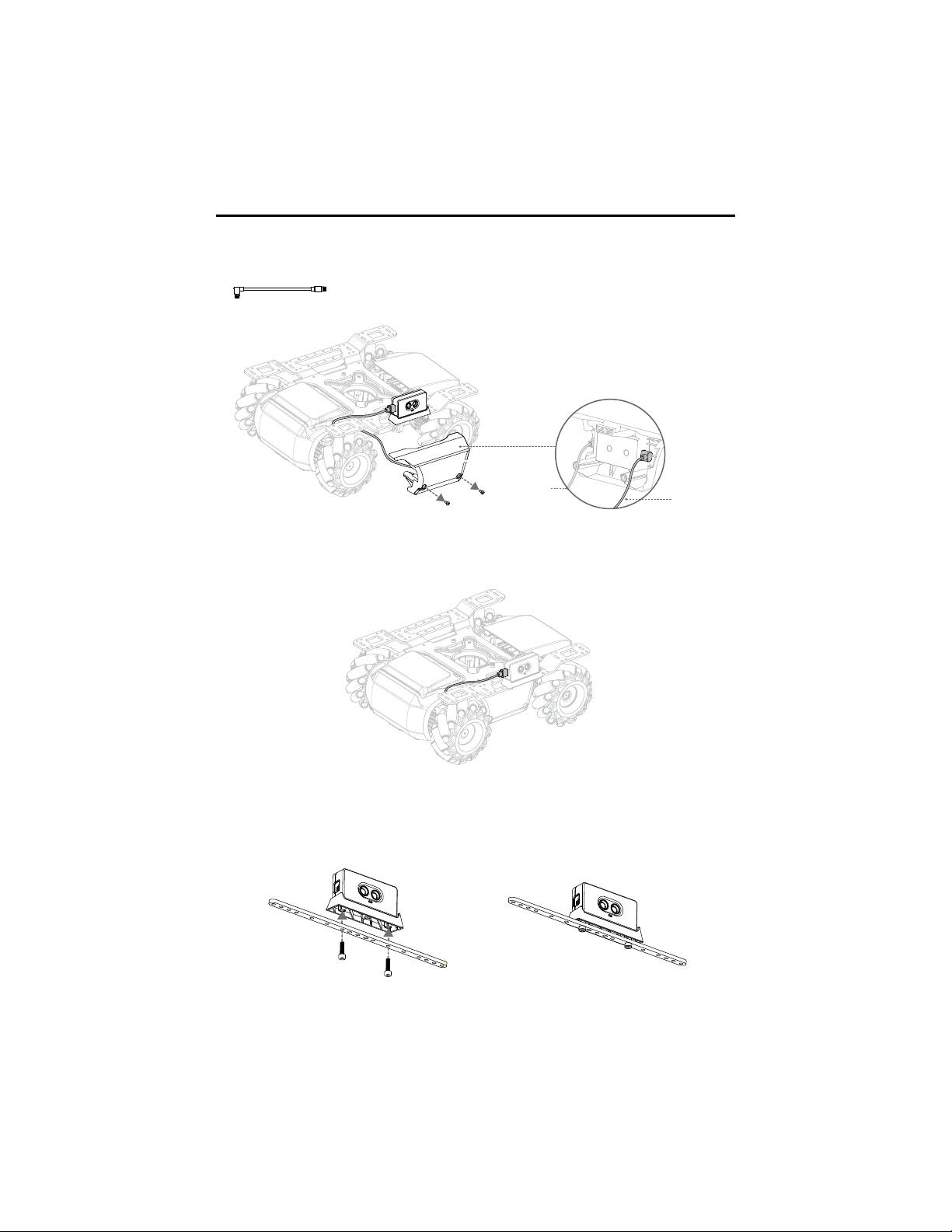
5. After removing the screws of the right armor, connect the TOF module with the right armor with a
12cm data cable.
12 cm
Armor data
cable
Infrared
distance
sensor data
cable
6. Arrange the data cable as shown below and remount the right armor.
Front side:
7. Use two M3-D screws to x the TOF module to the straight connecting rod.
©
2020 DJI All Rights Reserved.
37
ROBOMASTER EP Core User Manual
Serial Protocol Instruction
The infrared distance sensor supports CAN bus communication and plaintext serial protocol,
enabling the sensor to be used on a third-party platform. Below shows the port configuration
parameters:
Property Parameter
Baud rate 115200
Data bits 8
Stop bit 1
Parity bit /
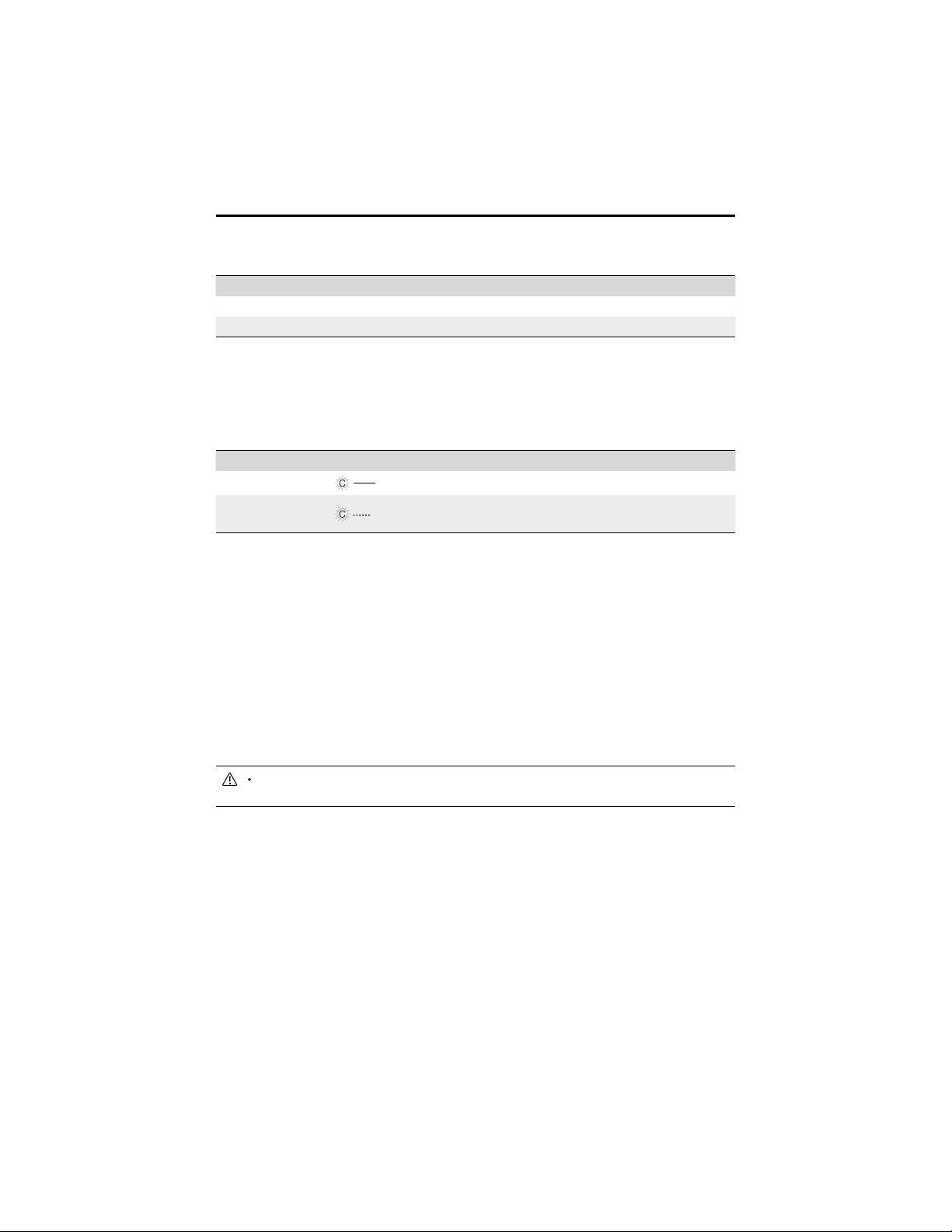
9. As shown below, connect the TOF module with the power connector module with a 14cm data
cable.
14 cm
8. Use two M3-C screws to x the straight connecting rod to the front of the extension platform.
38
©
2020 DJI All Rights Reserved.
ROBOMASTER EP Core User Manual
Communicate with the infrared distance sensor by sending a plaintext string via the serial. Below
shows the control commands that the infrared distance sensor supports:
Description Control Command
Turn on the infrared distance sensor “ir_distance_sensor measure on”
Turn off the infrared distance sensor “ir_distance_sensor measure off”
After turning on the infrared distance sensor, the format of the returned data is shown below:
“ir distance: 100”, 100 (unit: mm) is a sample of measurement data that is produced by the sensor.
LED Indicator Description for Infrared Distance Sensor
The LED indicator is used to indicate the status of the infrared distance sensor. Details are as
follows:
LED Indicator Infrared Distance Sensor Status
Solid cyan
Working normally
Blinks cyan rapidly
The infrared distance sensor is selected in the
RoboMaster app
Using the Infrared Distance Sensor
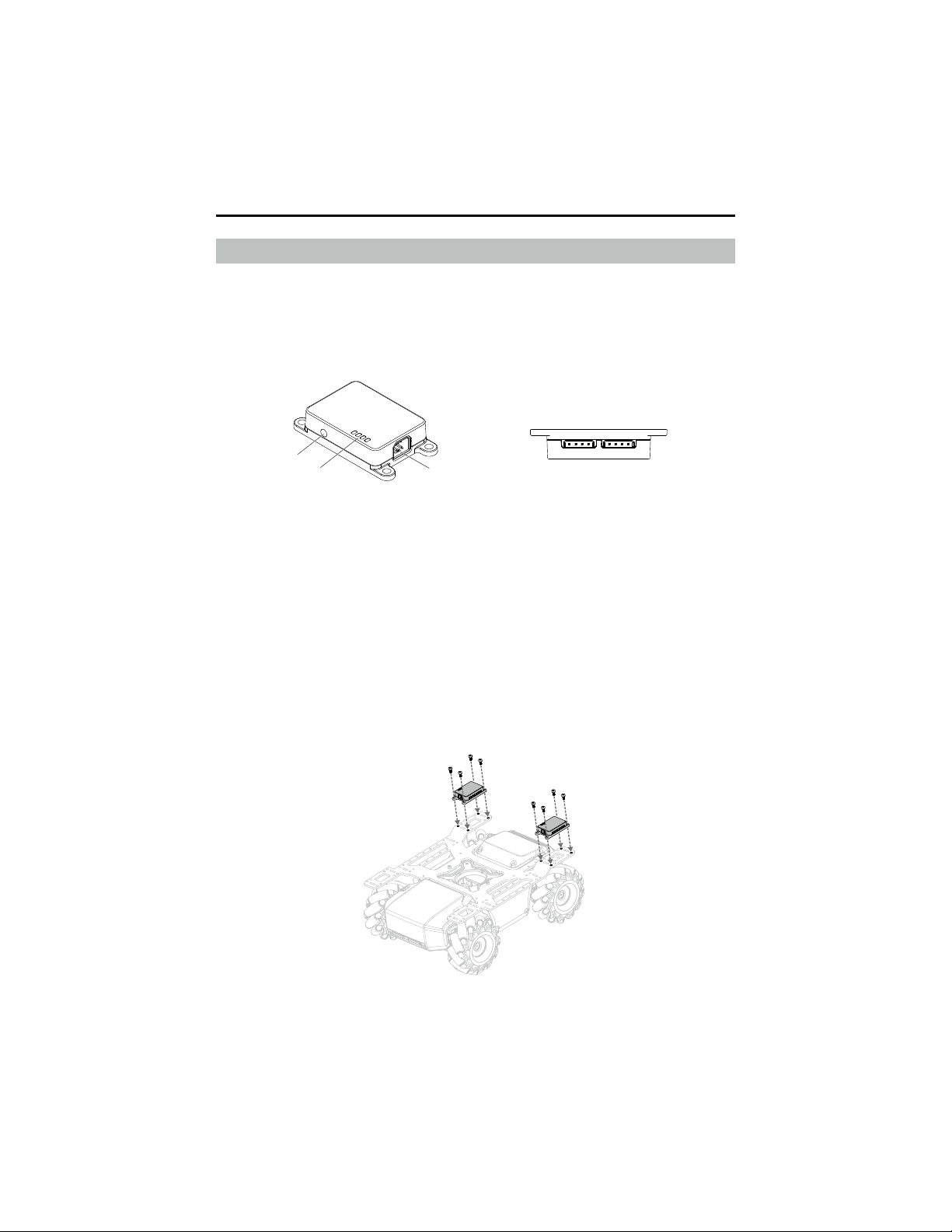
The infrared distance sensor should not be interfered with or blocked and the lens should be clear
and without stain when it is in use. It is not recommended to use the sensor in scenarios as shown
below. Otherwise, the ranging precision may be reduced or the sensor may even be inoperable.
a. When using the sensor on mirrors or transparent objects.
b. When using the sensor on material of high absorbency such as matte black.
c. When using the sensor in rainy and foggy weather.
d. When using the sensor on a strong reector such as a trafc sign or reective strip.
e. When using the sensor in direct sunlight.
f. When using the sensor on an obstacle that is small or low.
When mounted on the chassis extension platform, the TOF module is tilted upwards by 10°
and cannot detect the ground.
©
2020 DJI All Rights Reserved.
39
ROBOMASTER EP Core User Manual
Sensor Adapter
Introduction
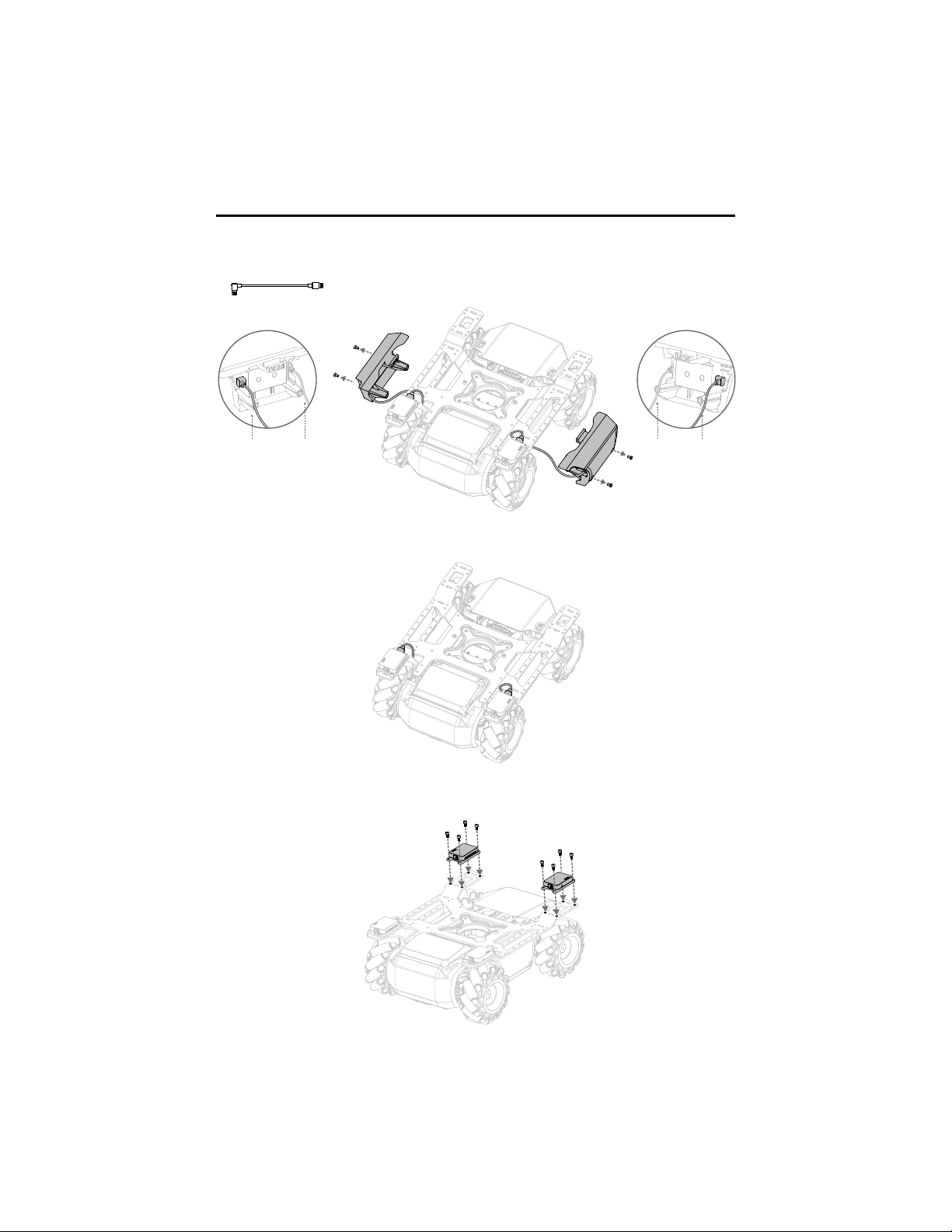
The robot is equipped with four sensor adapters, with IDs set to 1 by default. Each sensor adapter
has two sensor ports and provides a power supply, making it convenient to connect and power
third-party sensors that measure inputs such as temperature, pressure, and distance. Sensory data
can even be used in Scratch, unlocking endless programming possibilities.
1. CAN Bus Port
Connect with CAN bus cable.
2. LED Indicator
Indicates the status of the sensor adapter.
3. Addressing Button
Set the ID of the sensor adapter.
4. Sensor Port
Supports the collection of switch and analog signals and has an input range of 0-3.3 V.
Mounting the Sensor Adapter
1. Use eight M3-C screws to fix two sensor adapters to the specific positions of the rear of the
extension platform as shown below.
3
2
1
4
40
©
2020 DJI All Rights Reserved.
ROBOMASTER EP Core User Manual
2. After removing the screws of the left armor and right armor, connect the respective sensor
adapters with the armors using two 12cm data cables.
3. Arrange the data cables as shown below and remount the armor.
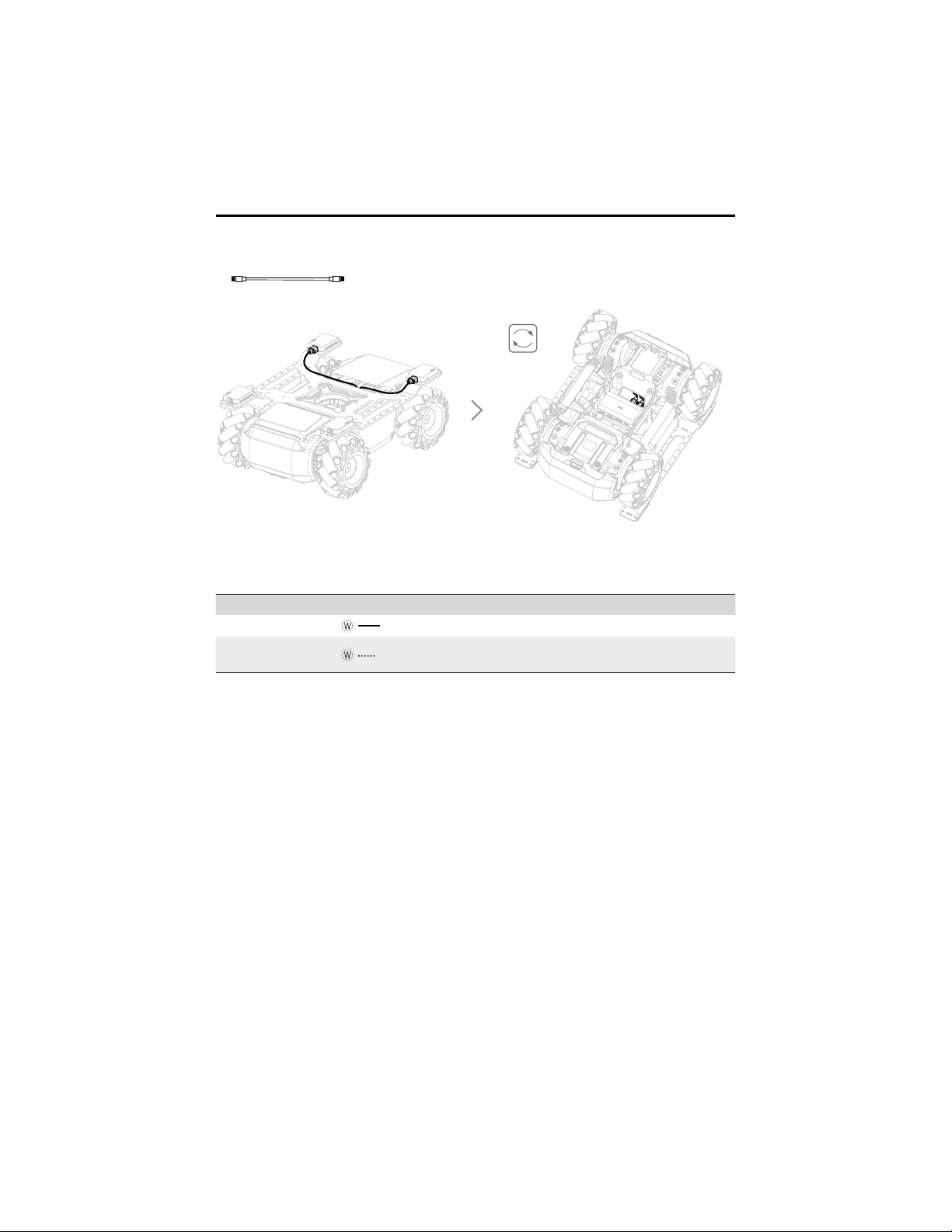
4. Use eight M3-C screws to x two sensor adapters to the specic positions of the front side of the
extension platform as shown below.
Armor data cableSensor adapter
data cable
Armor data
cable
Sensor
adapter
data cable
12 cm
©
2020 DJI All Rights Reserved.
41
ROBOMASTER EP Core User Manual
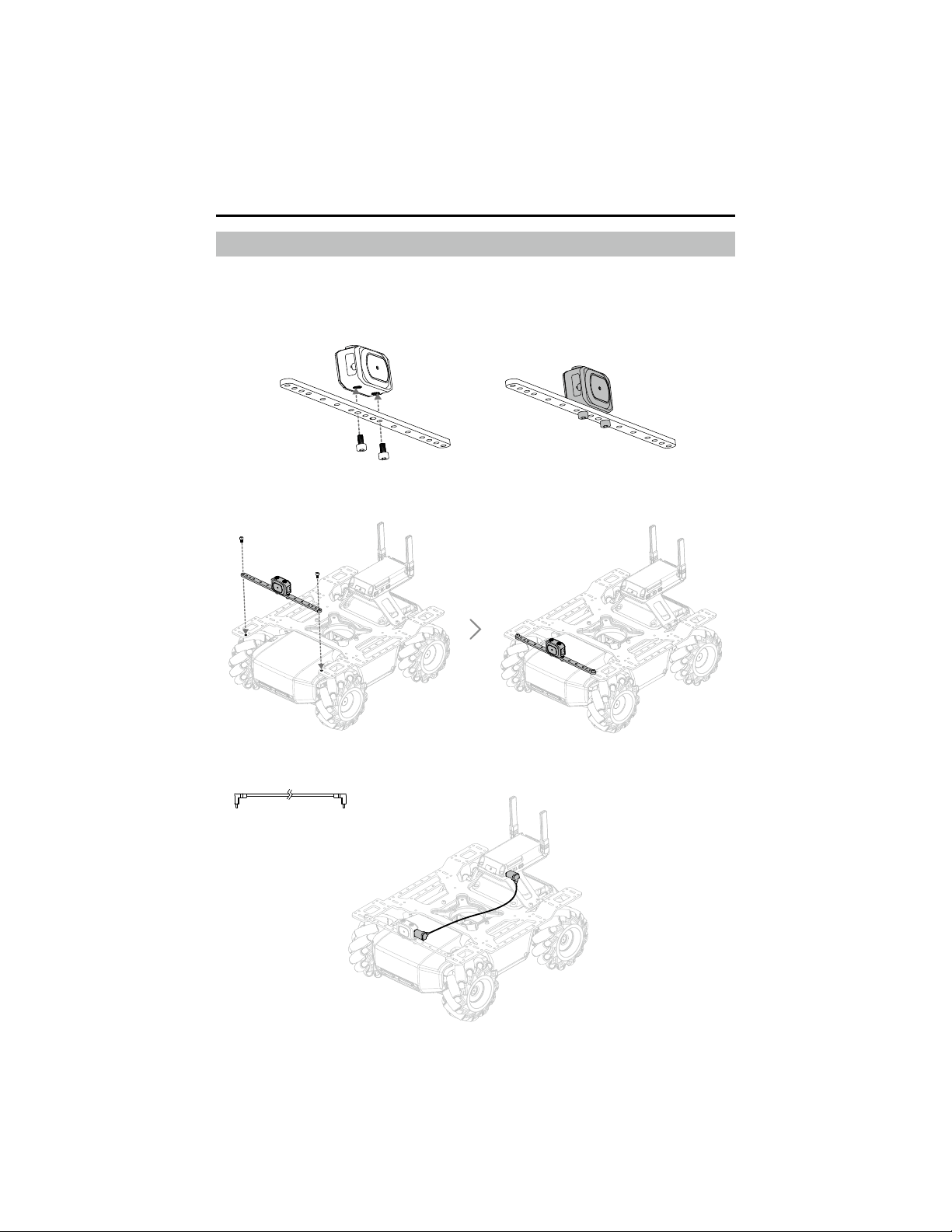
5. As shown below, connect the sensor adapter with the power connector module with two 14cm
data cables.
LED Indicator for Sensor Adapter
The LED indicator is used to indicate the status of the sensor adapter. Details are as follows:
LED Indicator Sensor Adapter Status
Solid white
Working normally
Blinks white rapidly
The sensor adapter is under addressing or selected in
the RoboMaster app
14 cm
42
©
2020 DJI All Rights Reserved.
ROBOMASTER EP Core User Manual
Straight Connecting Rod
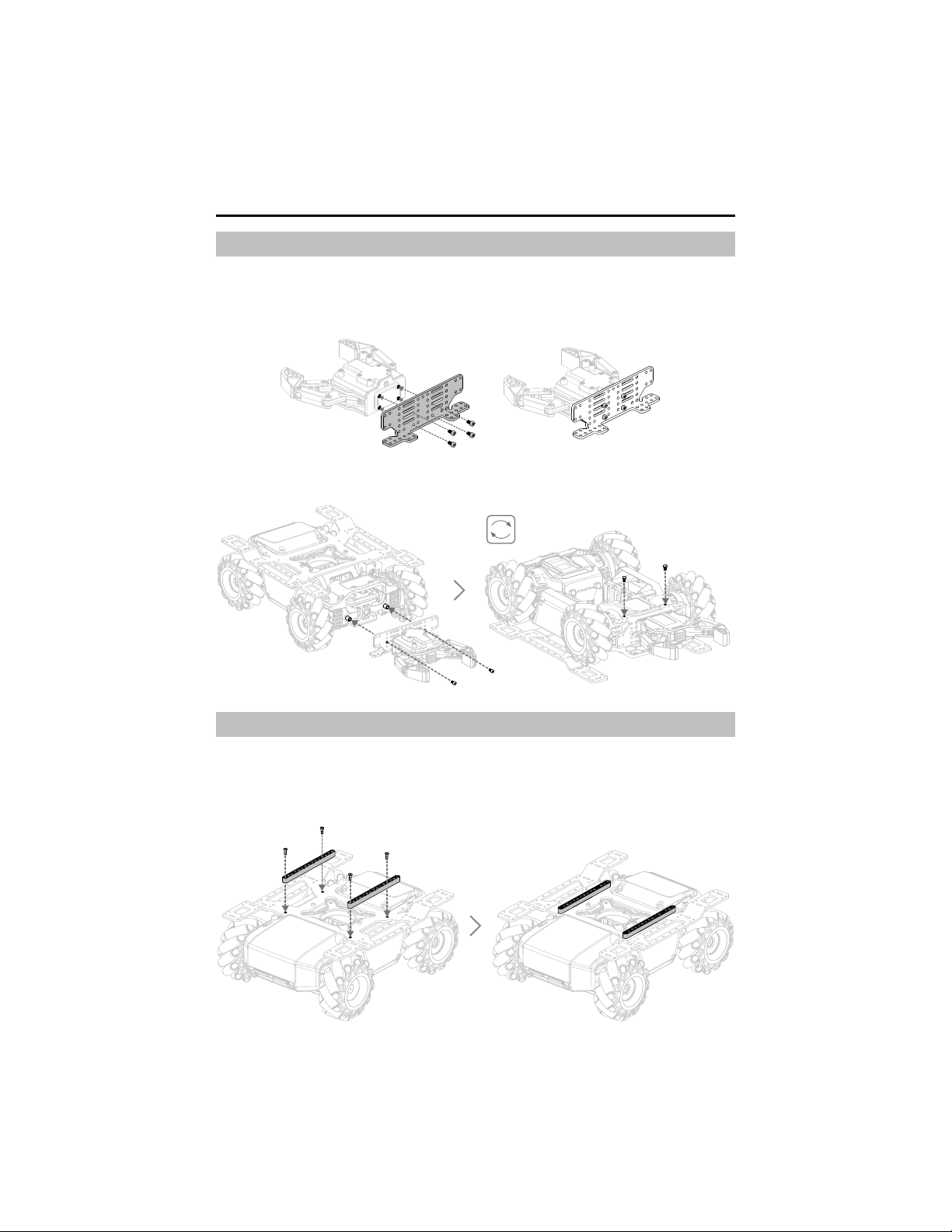
The straight connecting rod can be fixed to the chassis extension platform so that an infrared
distance sensor or camera can be installed. Below shows the installation procedure for the camera.
1. Use two M3-C screws to x the camera to the specic position of the straight connecting rod as
shown below.
2. Use two M3-C screws to fix the straight connecting rod to the front of the chassis as shown
below.
3. Connect the camera with the intelligent controller using a camera extension cable.
©
2020 DJI All Rights Reserved.
43
ROBOMASTER EP Core User Manual
Front Axle Extension Platform
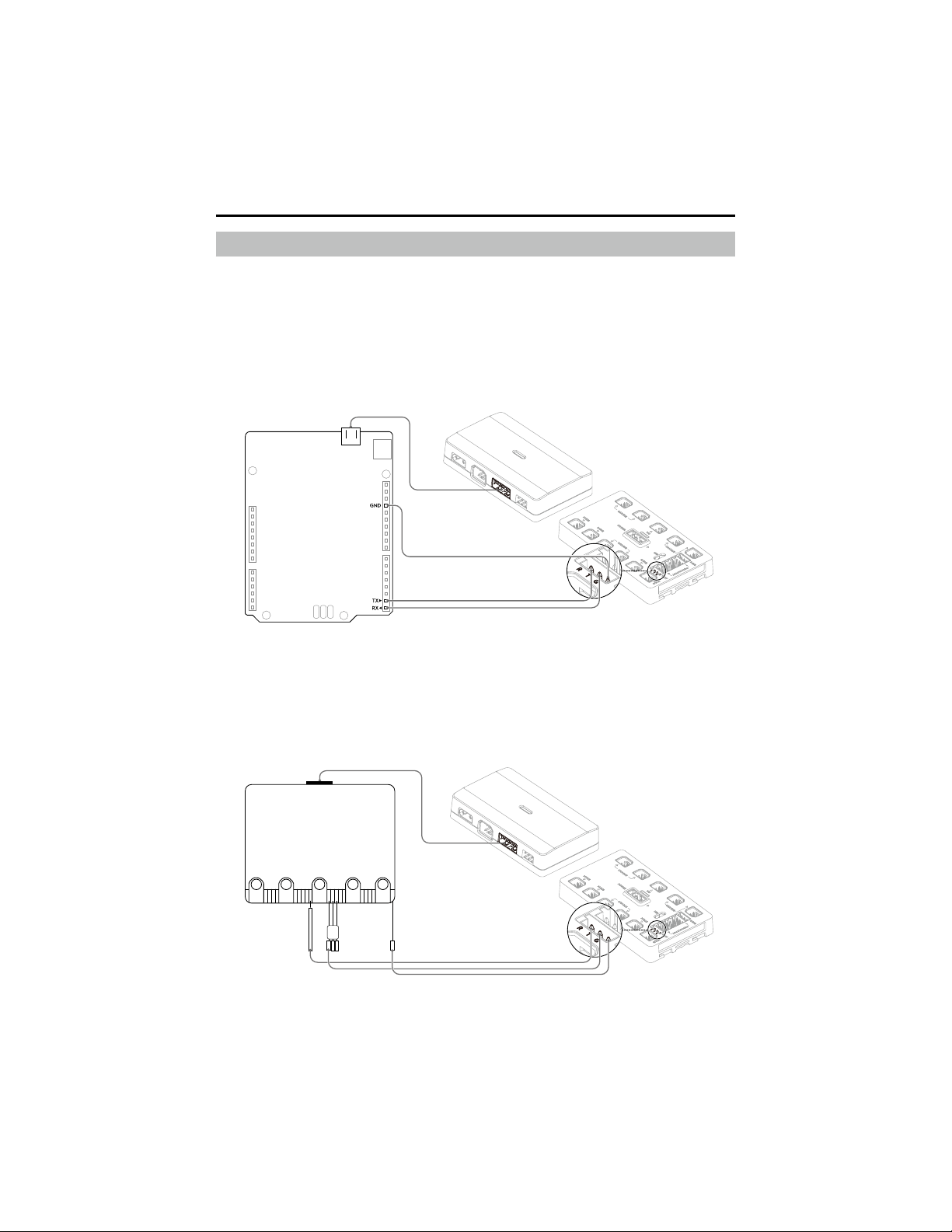
The front axle extension platform can be xed to the front of the chassis so that a gripper or sensor
can be installed. Below shows the installation procedure for the gripper.
1. Use four M3-C screws to fix the gripper to the specific position on the front axle extension
platform as shown below.
2. Use four M3-C screws to x the front axle extension platform to the front of the chassis as shown
below.
Extension Building Block
The robot is compatible with third-party building blocks. Below is an introduction on how to mount
building rods to the robot.
As shown below, use four M3-B screws to x the building rods to the chassis extension platform.
More building blocks can then be added to the robot.
44
©
2020 DJI All Rights Reserved.
ROBOMASTER EP Core User Manual
Robot and Third-Party Platforms
The robot is compatible with third-party platforms. Third-party platforms are powered by the power
connector module and communicate with the robot using the SDK protocol. For more information,
visit robomaster-dev.rtfd.io.
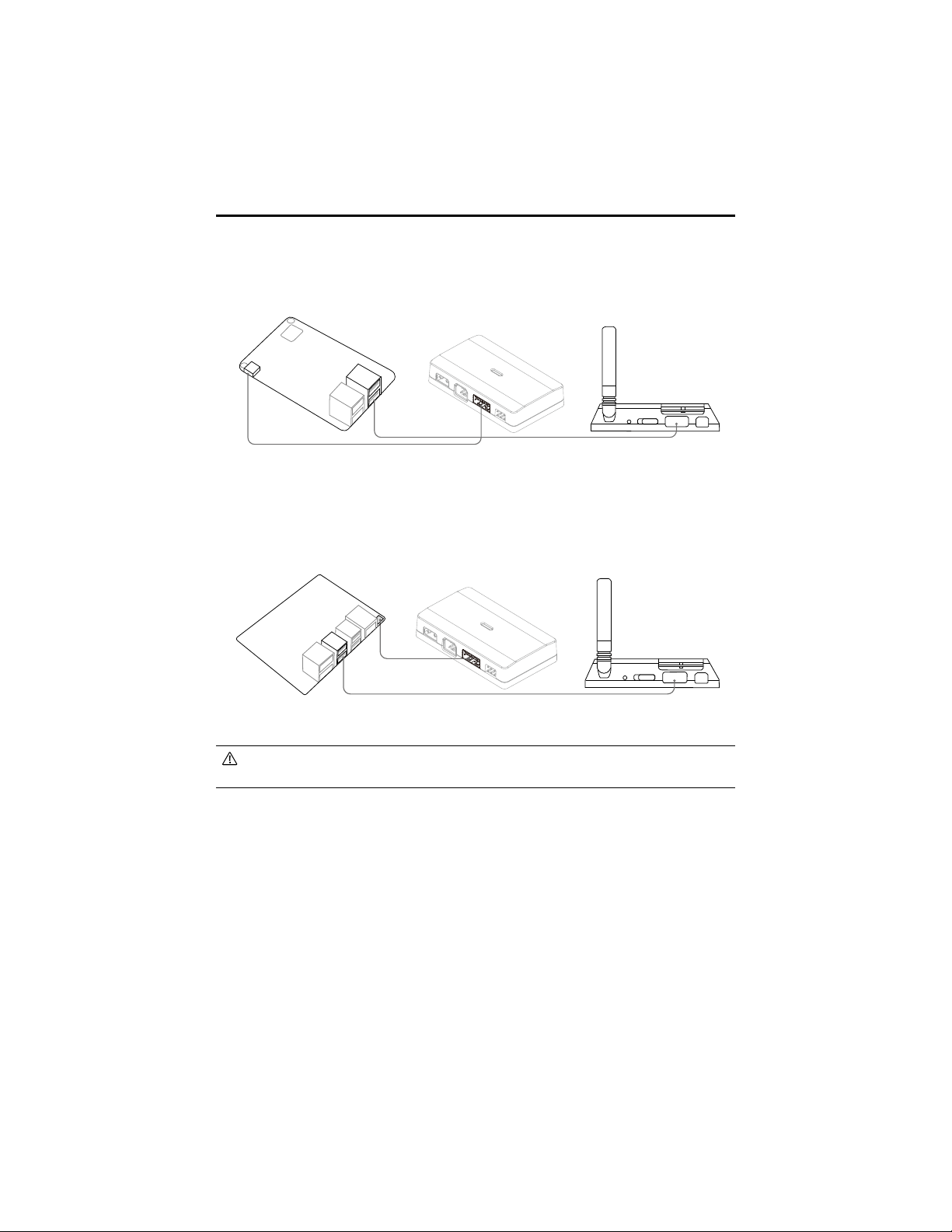
There are two ways to connect the robot with third-party platforms:
a) UART Connection
The third-party platform Arduino
TM
connects with the power connector module and communicates
with the robot via the UART port of the motion controller as shown below:
The third-party platform Micro:bit
TM
connects with the power connector module and
communicates with the robot via the UART port of the motion controller as shown below:
0 1 2 3V CND
©
2020 DJI All Rights Reserved.
45
ROBOMASTER EP Core User Manual
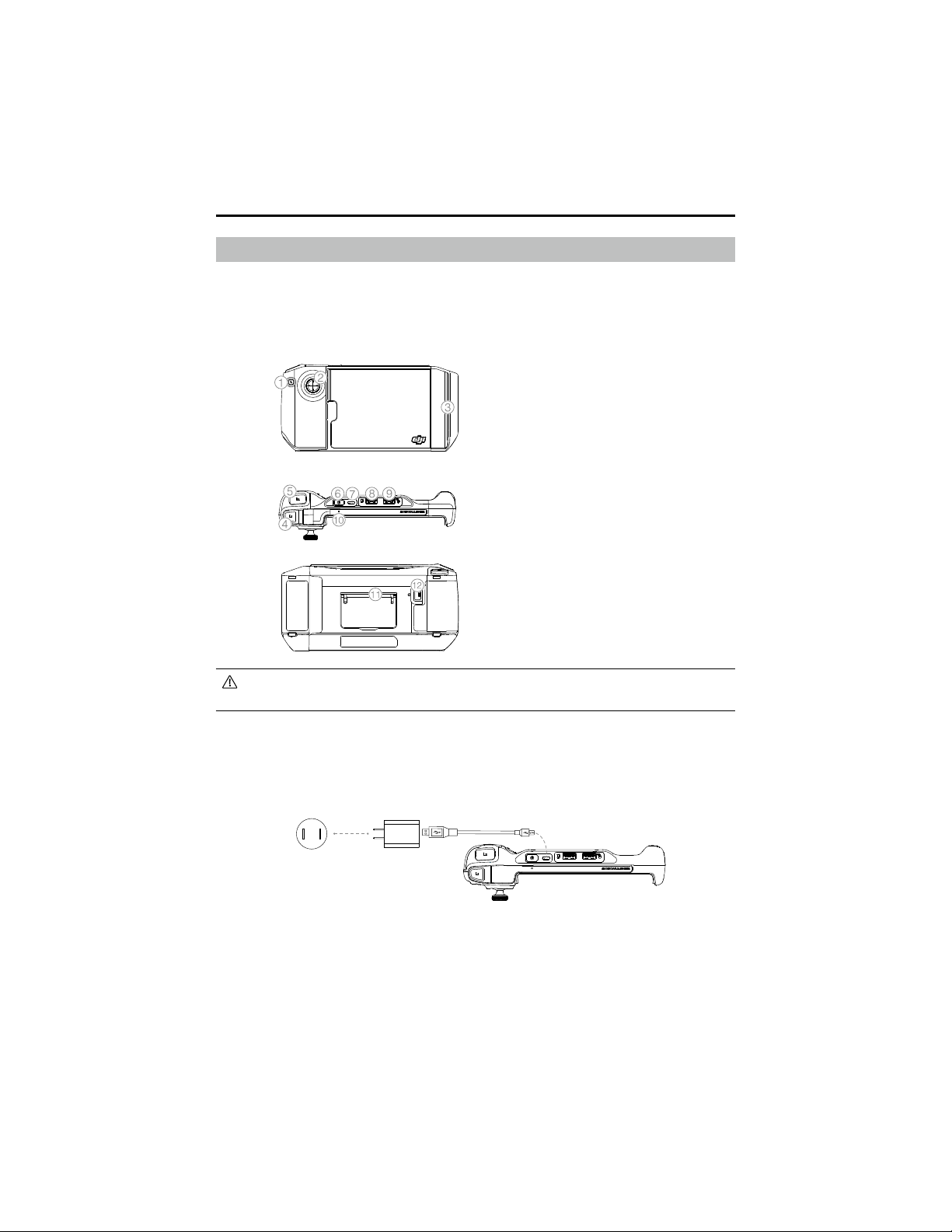
b) USB Connection
The third-party platform Raspberry Pi
TM
connects with the power connector module and
communicates with the robot via the USB port of the intelligent controller as shown below:
The third-party platform Jetson Nano
TM
connects with the power connector module and
communicates with the robot via the USB port of the intelligent controller as shown below:
This product is not authorized, sponsored, or otherwise approved by the above brands, and the
connection between this product and the above brands should be taken as a reference only.
46
©
2020 DJI All Rights Reserved.
ROBOMASTER EP Core User Manual
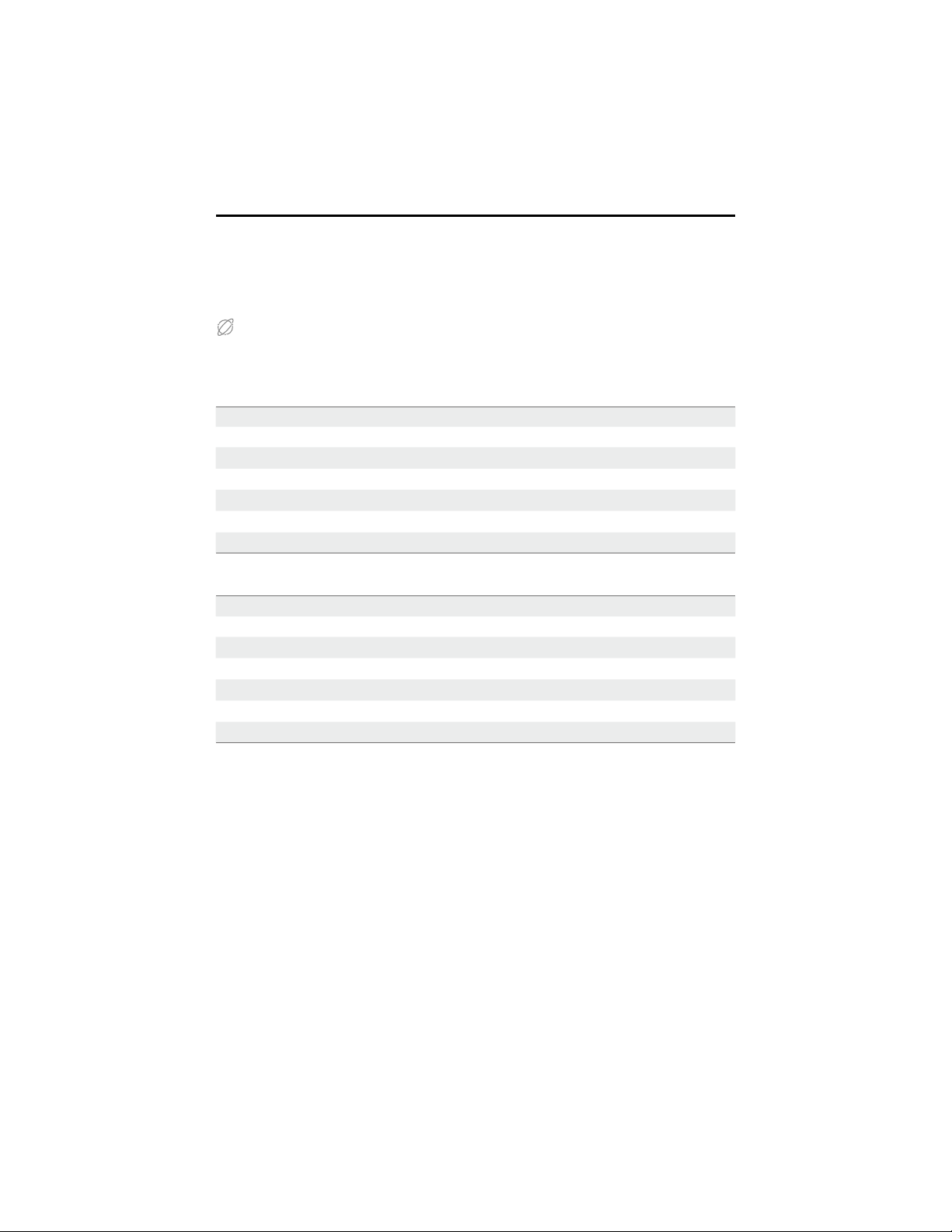
1. Custom Skills Button
2. Control Stick
3. Mobile Device Clamp
4. Cooldown Button
5. Launch Button
6. Power Button
7. Charging Port (Micro USB)
8. Mobile Device Port (USB)
9. Mouse Port (USB)
10. Status LED
11. Gamepad Stand
12. Mystery Bonus Button
Note that there are two USB ports available on the gamepad. The mobile device port cannot
be used as the mouse port, and vice versa.
Gamepad (Not Included)
Introduction
By connecting to a mobile device running the RoboMaster app, users can control the robot and
perform multiple tasks with the gamepad and app. Additionally, a mouse can be connected to the
gamepad for more precision control of the robot.
Charging the Gamepad
It is recommended to fully charge the gamepad before using for the rst time.
110-220V
It takes approximately two hours to fully charge a gamepad. The USB charger is not included in the
package.
©
2020 DJI All Rights Reserved.
47
ROBOMASTER EP Core User Manual
Status LED Description
The status LED indicates the working status and current battery level of the gamepad.
Status LED Description
Blinks green slowly The gamepad is charging
Blinks red quickly The gamepad’s battery level is 0%
Solid red The gamepad’s battery level is between 1% to 29%
Solid yellow The gamepad’s battery level is between 30% to 69%
Solid green The gamepad’s battery level is between 70% to 100%
Solid blue The gamepad is initializing
Specications
Model GD0MA
Built-in Battery Type 3.6 V, 2600 mAH, 1S1P
Working Hours* Approx. 2 hours
USB Port 500 mA / 5 V
Operation Temperature Range -10° to 45° C (14° to 113° F)
Charging Temperature Range 0° to 45° C (32° to 113° F)
Charging Hours* Approx. 2 hours
* The working hours were tested using an Android device, and the charging hours were tested
using a 10 W USB charger at a temperature of 25° C (77° F). Both the working hours and the
charging hours were tested in a lab environment, and should be taken as a reference only.
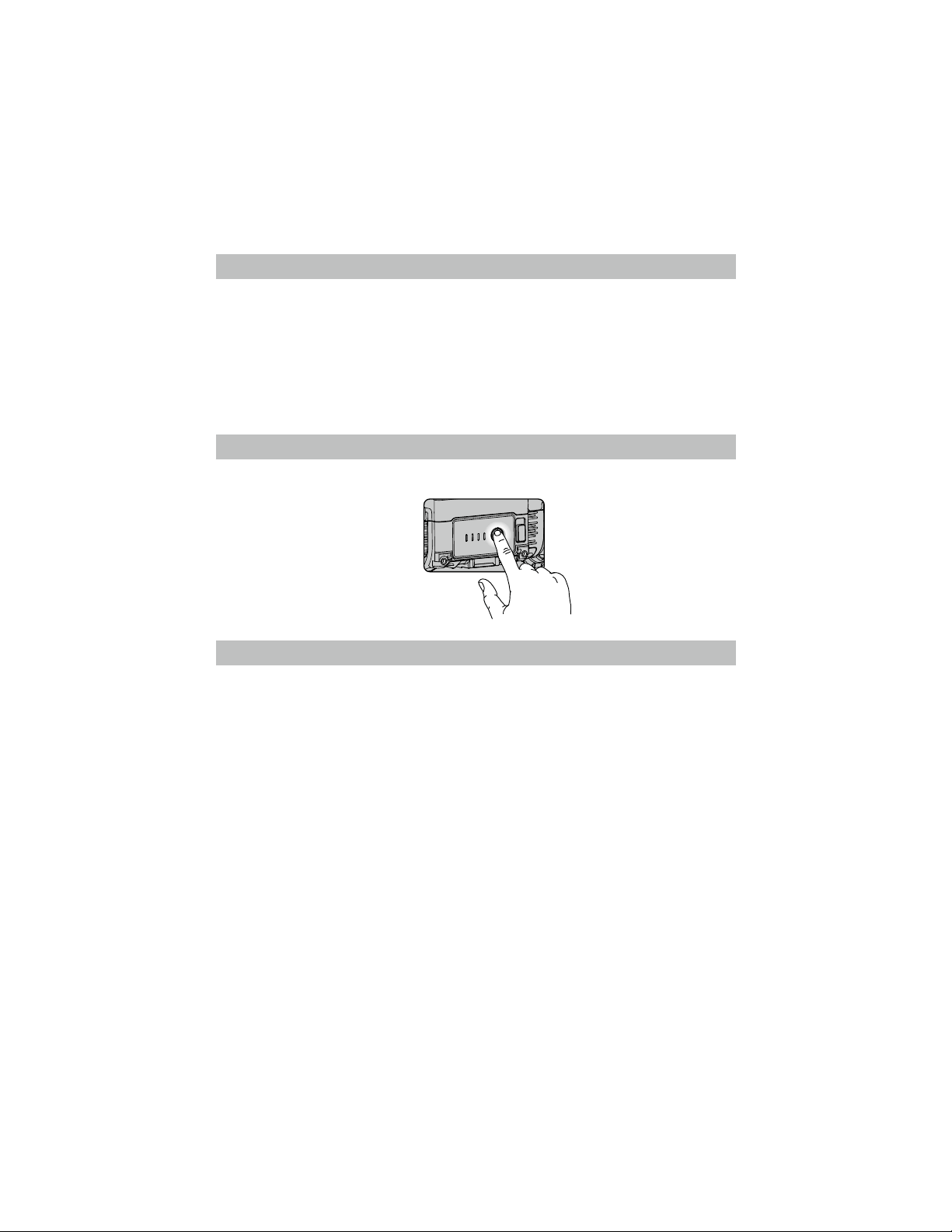
Firmware Update
The rmware of the gamepad can be updated using the RoboMaster app. When there is a rmware
update available, the RoboMaster app will send a prompt after the gamepad is connected. Follow
the prompts to update the rmware.
Make sure the mobile device is connected to the internet when downloading the rmware.
Internet
48
©
2020 DJI All Rights Reserved.
Operating the Robot Using a Mobile Device
Connecting to the App
The robot must be connected to the RoboMaster app in order to use.
Selecting a Location
It is recommended to use the robot on at surfaces such as wooden oors and carpets. Uneven
surfaces such as sand or rocks may damage the wheels or motors.
Using Solo Mode
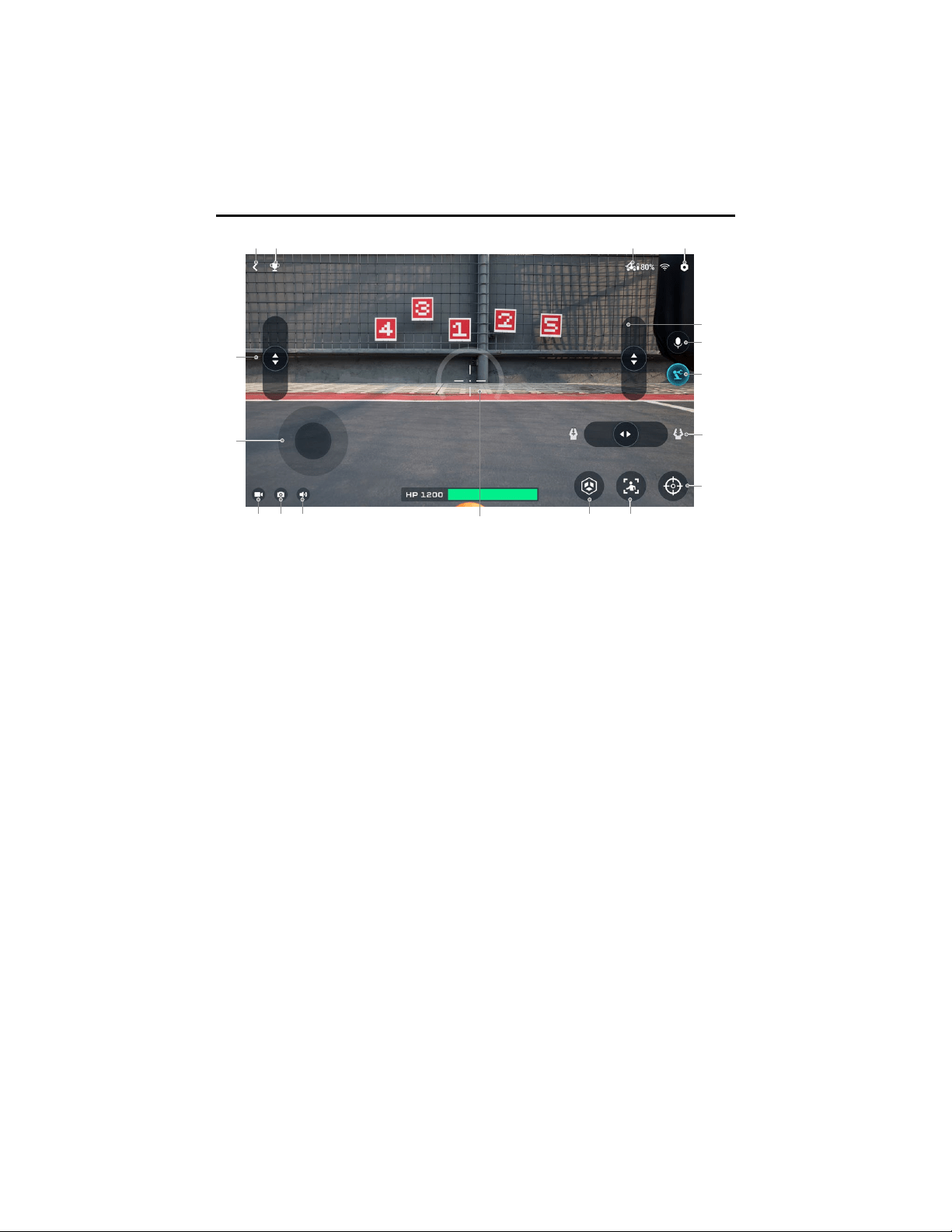
Enter Solo mode to see the page below.
Operating Your Robot
Checking Before Use
Check the following each time you use the robot:
1. Make sure the motion controller is properly installed, all cables are connected, and the screws on
the chassis rear cover are tightened.
2. Make sure the intelligent controller, camera, and speaker are connected.
3. Make sure the microSD card is inserted.
4. Make sure the intelligent battery is fully charged and properly inserted.
5. For optimal Wi-Fi connection, set the intelligent controller antennas at 90°.
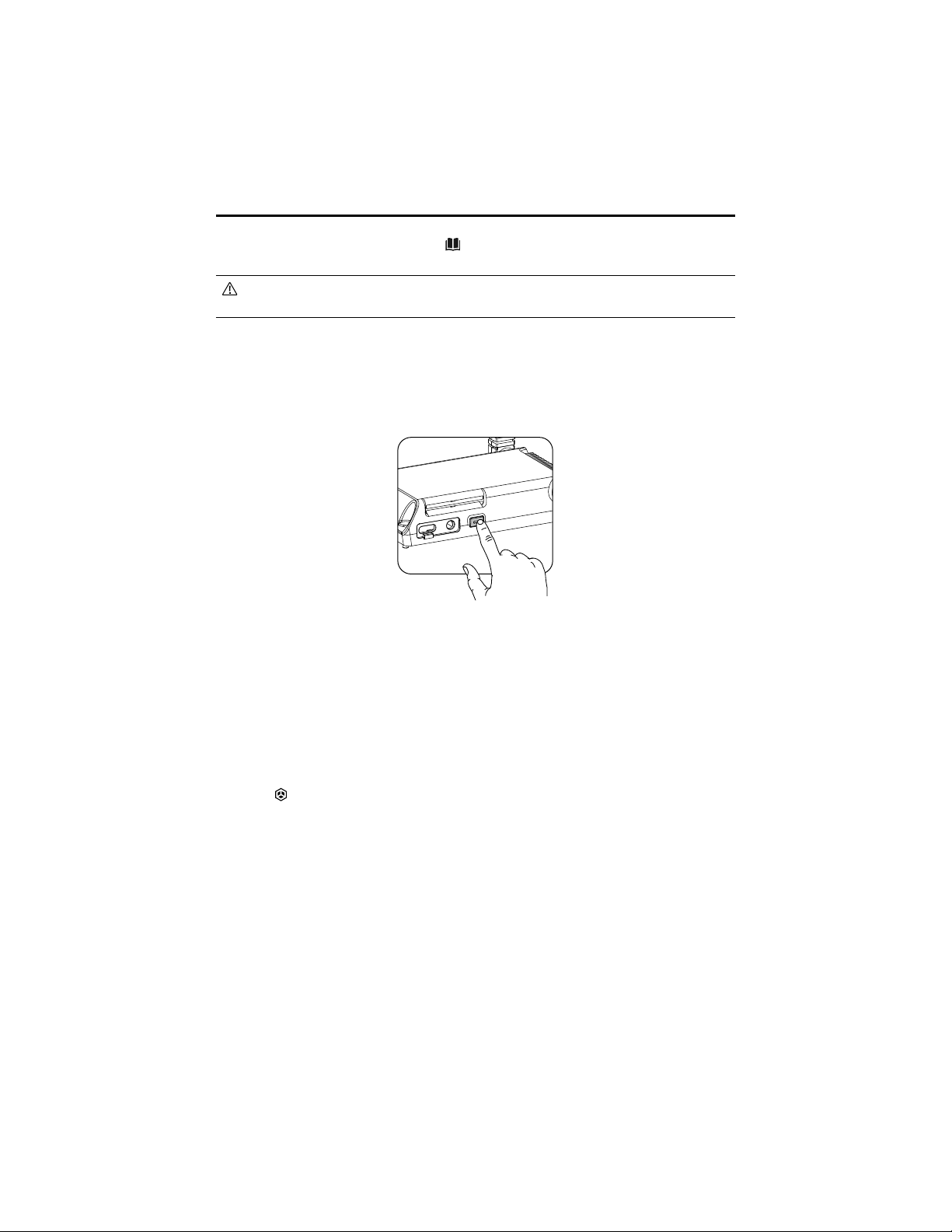
Powering on the Battery
Press and hold the power button for more than two seconds to power on or off.
©
2020 DJI All Rights Reserved.
49
ROBOMASTER EP Core User Manual
1 2 3 4
9
1011131415
16
17
8
5
6
12
7
1. Back button: Tap to return to the home page.
2. Solo mode games button: Tap to enter Target Practice or Target Race.
3. Connection status button: Tap to see how to connect the Robot and the app.
4. Settings button: Tap to enter the Settings page.
5. Robotic arm control slider: Tap to lift or lower the robotic arm.
6. Intercom button: Tap to record and play an audio.
7. Robotic arm button: Tap to switch the FPV interface.
8. Gripper control slider: Tap to control the grip distance of gripper.
9. Zoom button: Tap to zoom in or out 4x.
10. Follow mode: Tap to enter Follow mode. Note: EP Core does not support this function.
Note that the Follow mode will be affected in the following situations:
a. The person being followed is partly or completely obstructed.
b. The person being followed suddenly changes their movement dramatically.
c. The environment suddenly changes from light to dark, or vice versa.
d. The color or pattern of the person being followed is similar to the environment.
11. Custom skills button: Tap to perform preprogrammed custom skills.
12. Sight: Used to aim at targets.
13. Mute button: Tap to mute or unmute the sound on the mobile device.
14. Shutter button: Tap to capture a photo.
15. Record button: Tap to record a video.
16. Chassis control button: Tap to move the chassis.
17. Robotic arm control slider: Tap to fold or unfold the robotic arm.
50
©
2020 DJI All Rights Reserved.
ROBOMASTER EP Core User Manual
Operating the Robot
The camera view is mainly used to control the chassis, robotic arm, gripper of the robot.
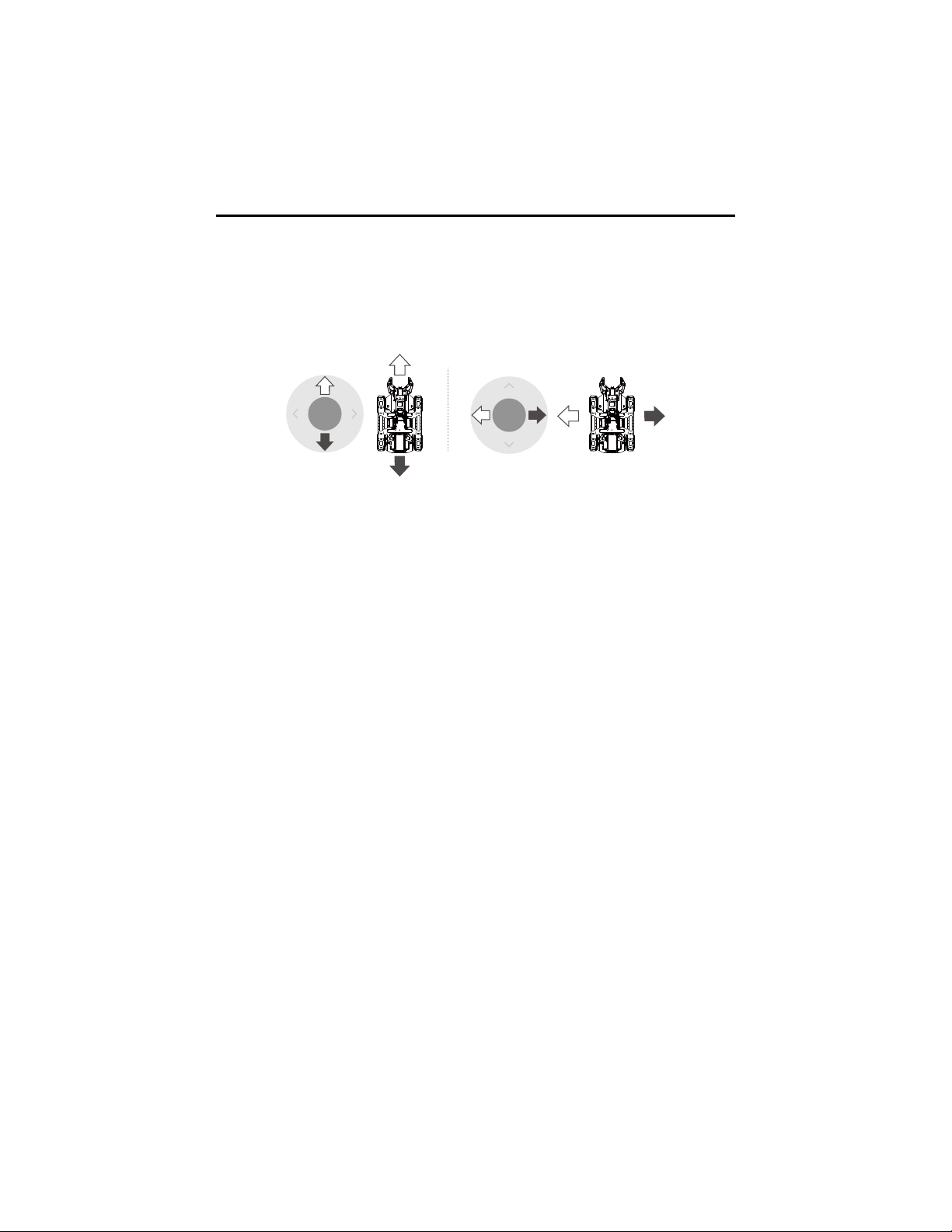
Controlling the Chassis
Tap the chassis control button to move the robot forward, backward, or sideward.
Controlling the Robotic Arm
Tap the robotic arm button to switch to the robot FPV interface. The robotic arm control sliders can
be used to lift or lower and fold or unfold the robotic arm.
Controlling the Gripper
Tap the robotic arm button to switch to the robot FPV interface. Use the gripper control slider on the
bottom right to control the grip distance of the gripper.
右左
Forward
Backward
Left Right
©
2020 DJI All Rights Reserved.
51
Operating the Robot Using a Gamepad
Introduction
Users can connect the Gamepad to a mobile device to control the robot in the following ways:
1. Using the gamepad connected to a mobile device.
2. Using the gamepad connected to a mobile device with a mouse attached.
3. Using the gamepad connected to a mobile device with a mouse and keyboard attached.
Connecting the Gamepad
Connect the mobile device to the mobile device port on the gamepad using a micro USB cable
(not included).
Adjust the mobile device clamp to secure it to the gamepad. Make sure the mobile device is
connected with the cable facing toward the control stick as shown in the gure below.
Press the power button to power on the gamepad. Press and hold the power button to power off
the gamepad.
Gamepad Basic Operation
When the gamepad is connected to a mobile device, the control stick on the gamepad is used to
move the robot forward, backward, and sideward. The app cannot be used to control the chassis.
The buttons on the gamepad can be used to perform actions on the robot. Users can also
continue use the app to perform these actions.
Using the Gamepad
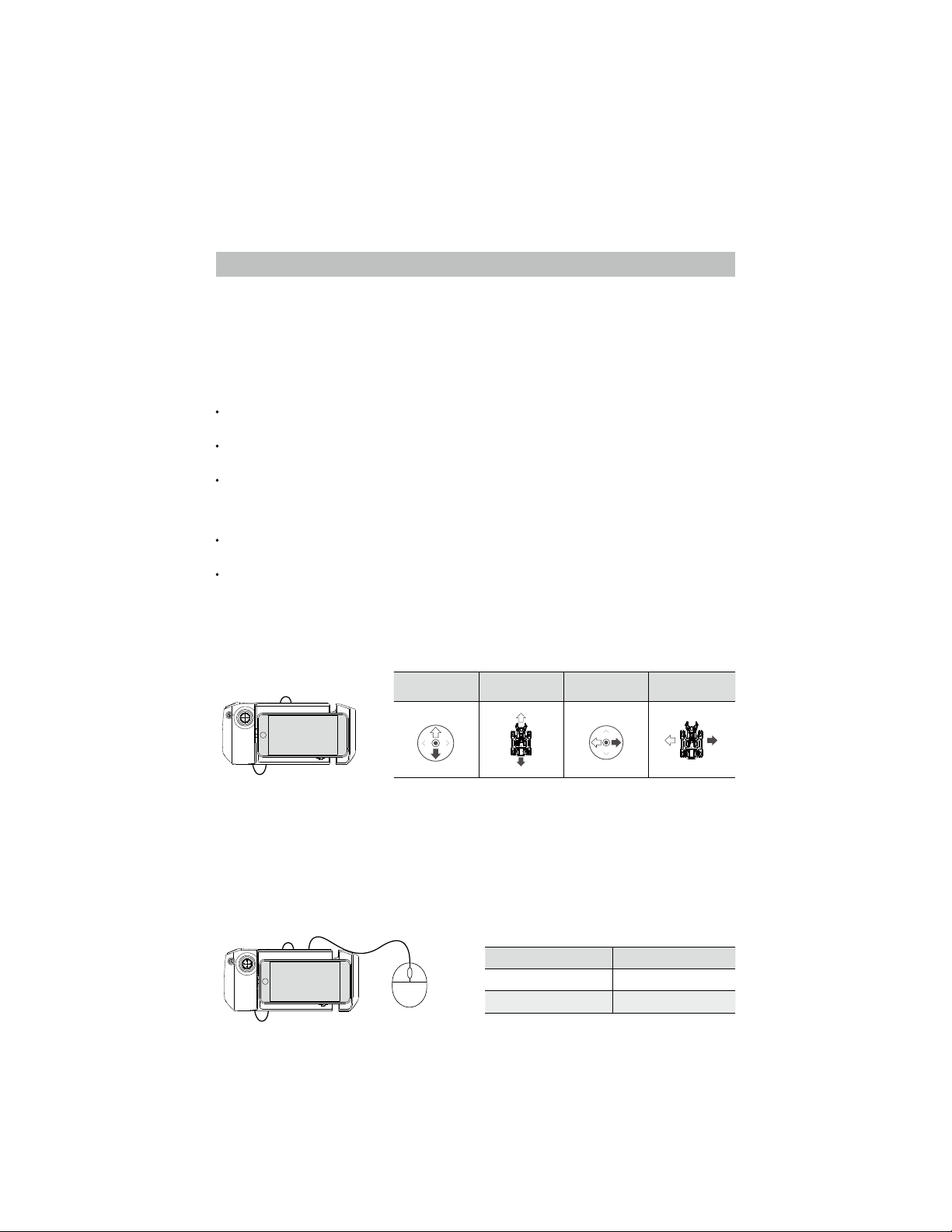
The control stick on the gamepad is used to control the chassis. The app is used to perform other
actions. When the gamepad is connected, it is not possible to move the chassis using the app.
Control Stick
Movement
Robot
Movement
Control Stick
Movement
Robot
Movement
前
Forward
Backward
右左
Left Right
The control stick on the gamepad is used to move the robot
forward, backward, and sideward.
Using the Gamepad and Mouse
After the gamepad is connected to a mobile device, a computer mouse can also be connected to
the gamepad. The control stick on the gamepad is used to control the chassis. The mouse actions
are listed below, which can also be performed by the app, but the mouse is the primary controller.
Mouse Action Robot Action
Right click Zooms in
Move mouse Controls the chassis
Gameplay

52
©
2020 DJI All Rights Reserved.
ROBOMASTER EP Core User Manual
Using the Gamepad, Mouse, and Keyboard
A wireless mouse and keyboard is required. After the gamepad is connected to a mobile device,
attach the wireless connector of mouse and keyboard to the gamepad. The control stick on the
gamepad and the keyboard is used to control the chassis. The mouse actions are listed below,
which can also be performed by the app, but the mouse is the primary controller.
The A, W, S, and D keys are used to control the chassis. The actions that can be performed with the
mouse are listed below.
Mouse Action Robot Action
Right click Zooms in
Move mouse Controls the chassis
Keyboard Keys Robot Action
W Forward
A Left
S Backward
D Right
Shift / Space Accelerate
W
SA D
Shift
Most Logitech and Rapoo keyboard and mouse devices are supported. It is recommended
to use the following models:
Rapoo: 8200P, 9300P, 1800, 8100M
Logitech: M310t, MK850
Using a Computer and RoboMaster
Install the Windows or Mac version of the RoboMaster app to a computer and control the robot
directly via a mouse and keyboard.
Installing the Windows or Mac Version of RoboMaster
1. Users can download the RoboMaster app for Windows or Mac from the ofcial DJI website on a
computer to control the robot with a keyboard and mouse.
Windows: https://www.dji.com/robomaster_app
Mac: https://www.dji.com/robomaster_app
2. Run installation and follow the prompts to complete the RoboMaster app installation.
3. Run the RoboMaster app to enter the homepage. The Windows or Mac version of the RoboMaster
app is similar to the version for iOS and Android.
©
2020 DJI All Rights Reserved.
53
ROBOMASTER EP Core User Manual
Using a Mouse and Keyboard to Control the Robot
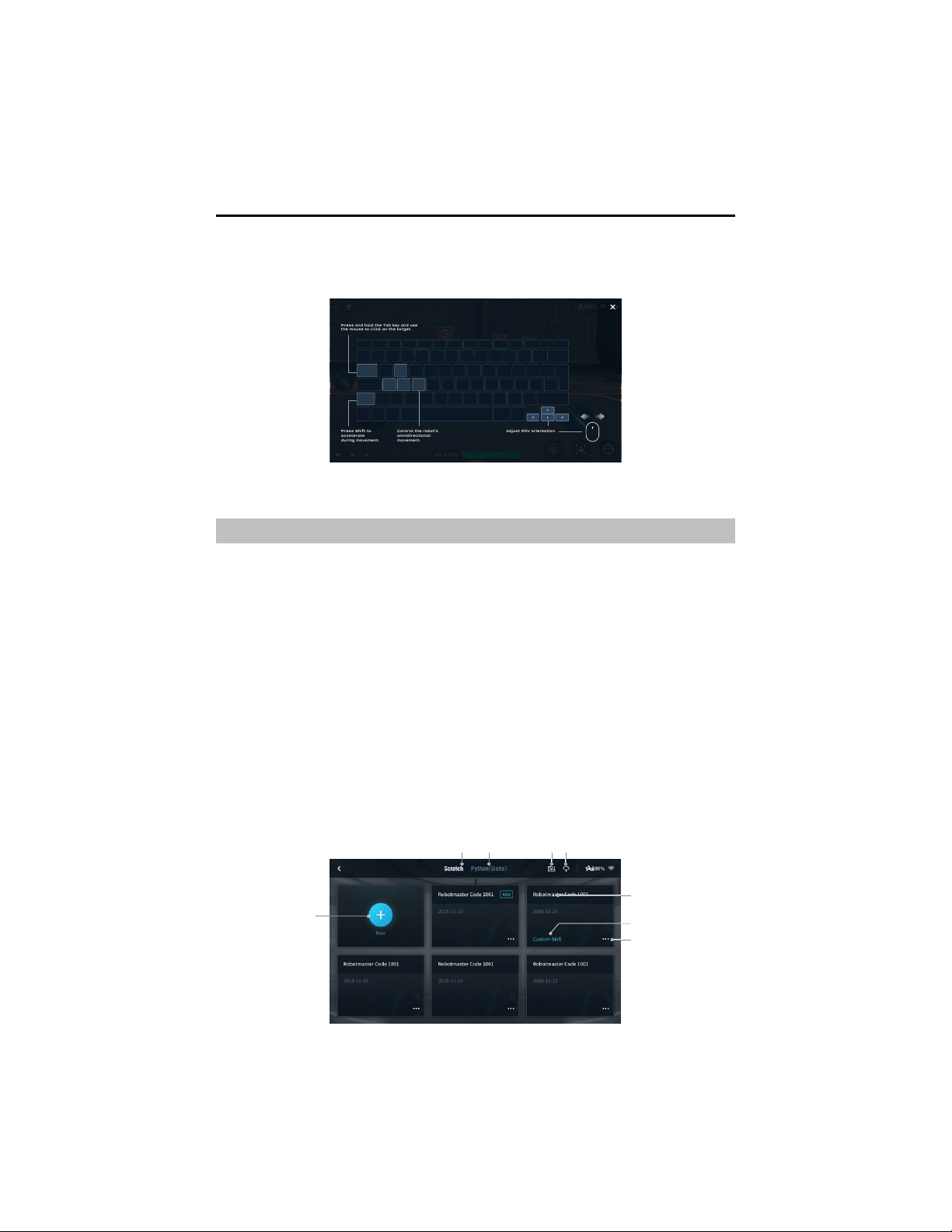
When using RoboMaster for Windows or Mac, the robot is controlled with a mouse and keyboard.
The corresponding actions are shown below.
1 2 3 4
8
5
6
7
shift
tap
W
A S D
Press and hold the Tab key and use
the mouse to click on the target.
Press Shift to
accelerate
during movement.
Control the robot's
omnidirectional
movement.
Adjust FOV orientation
Lab
The RoboMaster app Lab offers hundreds of programming blocks that allow you to access features
such as PID control. The RoboMaster EP Core Programming Manual provides instructions and
examples to help users quickly learn programming techniques for controlling the robot.
Users can study project-based courses in Road to Mastery to enhance their understanding of
programming languages, from robotics applications to AI technology, with different projects for both
beginners and experts.
Scratch Programming
In Lab, go to the Scratch page and then DIY Programming to write programs.
New Scratch programming blocks have been added to the Lab section of the RoboMaster app,
which are designed to help users obtain and utilize sensory data. With these blocks, users can
quickly access and control the sensor adapter, robotic arm, gripper, infrared distance sensor, and
third-party open-source hardware.
In the Scratch page, users can write their own Python programs, which can be set as Autonomous
Programs or Custom Skills and run on the robot.
Refer to the RoboMaster EP Core Programming Manual for more information.
Press and hold the space bar on the keyboard and use the A, W, S, and D keys to control the
robotic arm and gripper.
54
©
2020 DJI All Rights Reserved.
ROBOMASTER EP Core User Manual
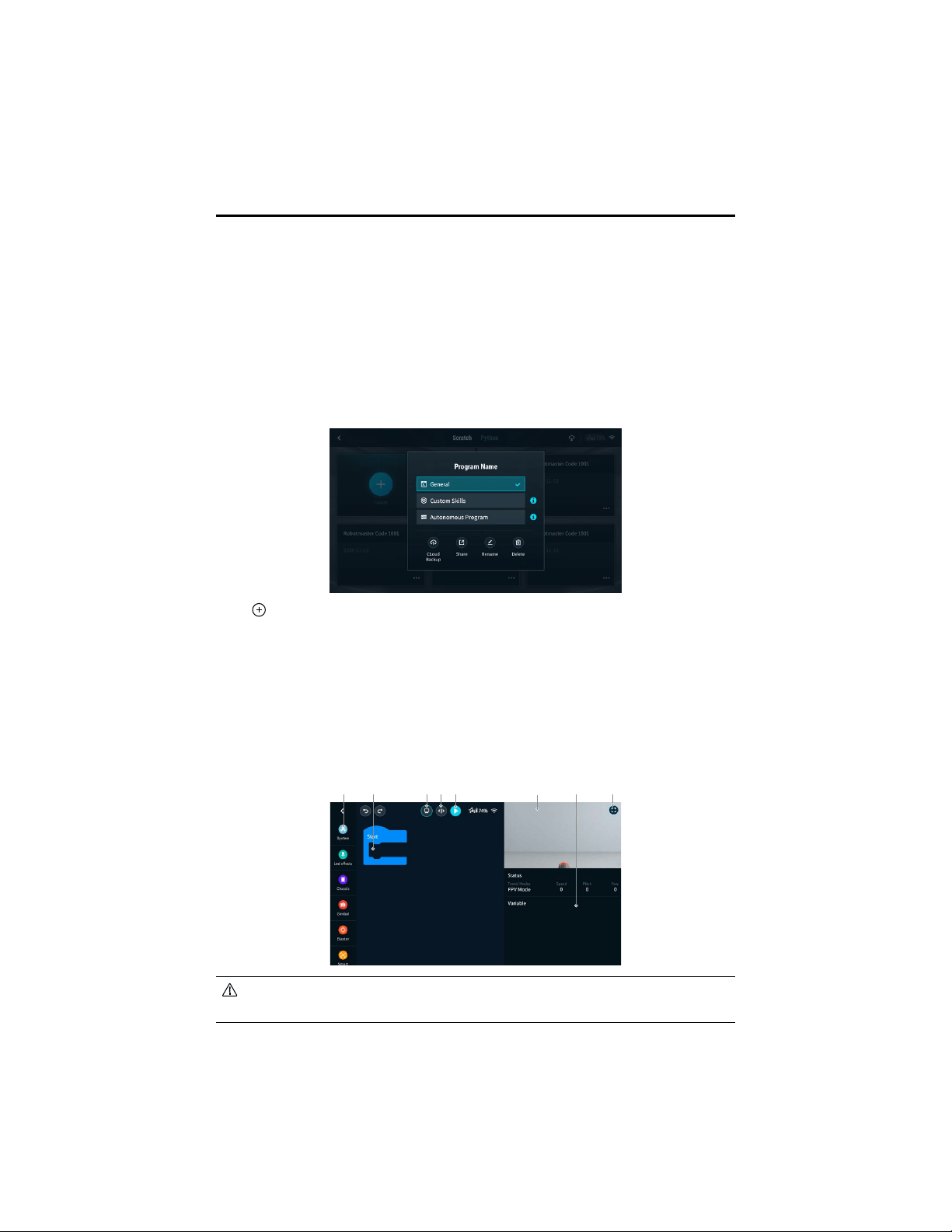
1. Scratch page: Tap to view Scratch programs.
2. Python page: Tap to view Python programs.
3. Import DSP le: This function is available on Android, Windows, and Mac devices. DSP les can
be imported to iOS devices by using AirDrop.
4. Cloud space: Tap to view programs in the cloud space.
5. Program name: Displays the name of the program.
6. If the program is set as a general program, the program type is not displayed. The program type
is only displayed if it is set as a custom skill or autonomous program.
7. Program settings: Tap to select the program type, set the program as a custom skill, set the
program as an autonomous program, backup on the cloud space, share with other users, and
rename or delete the program.
A B C D E F HG
8. Tap to create a new program.
A. Programming modules button: Tap the corresponding icon to program System, LED Effects,
Chassis, Smart, Armor, Mobile Device, Media, Commands, Operators, and Data Objects.
B. Programming window button: Drag programming blocks into the window to create a program.
C. Display button: Tap to turn the FPV on or off.
D. Switch button: Tap to switch to view the programming block as Python code.
E. Run button: Tap to run the program.
F. FPV window: See the current FPV.
G. Status information: View the current status information of the robot.
H. FPV button: Tap to enter the FPV in full screen
EP Core cannot run programs related to the blaster or gimbal. It is recommended to connect
the blaster or gimbal rst.
©
2020 DJI All Rights Reserved.
55
ROBOMASTER EP Core User Manual
1 2 3 4
AI Modules
There are six AI modules that can be programmed by entering Lab then DIY Programming then
Scratch. Refer to the Smart section of the RoboMaster EP Core Programming Manual for more
programming examples.
Note that the AI module will be affected in the following situations:
a. The object is partly or completely obstructed.
b. The environment is dark (less than 300 lux) or bright (greater than 10,000 lux).
c. The environment suddenly changes from light to dark, or vice versa.
d. The color or pattern of the object is similar to the environment.
Person Recognition
The robot is able to identify and track any individual selected in the FOV of the robot.
Line Recognition
When in Target Race, the user can program the robot to automatically follow a line on the ground. Line
Recognition supports red, green, and blue lines. The robot cannot recognize lines of other colors.
Gesture Recognition
The user can program the robot to perform unique responses when identifying physical gestures.
Clapping Recognition
The user can program the robot to perform unique actions in response to clapping. Only claps
within an effective distance of 2 meters can be identied. Identied clapping sequences include
two consecutive claps and three consecutive claps.
Robot Recognition
The user can program the robot to perform unique responses when other robots are recognized.
Vision Marker Recognition
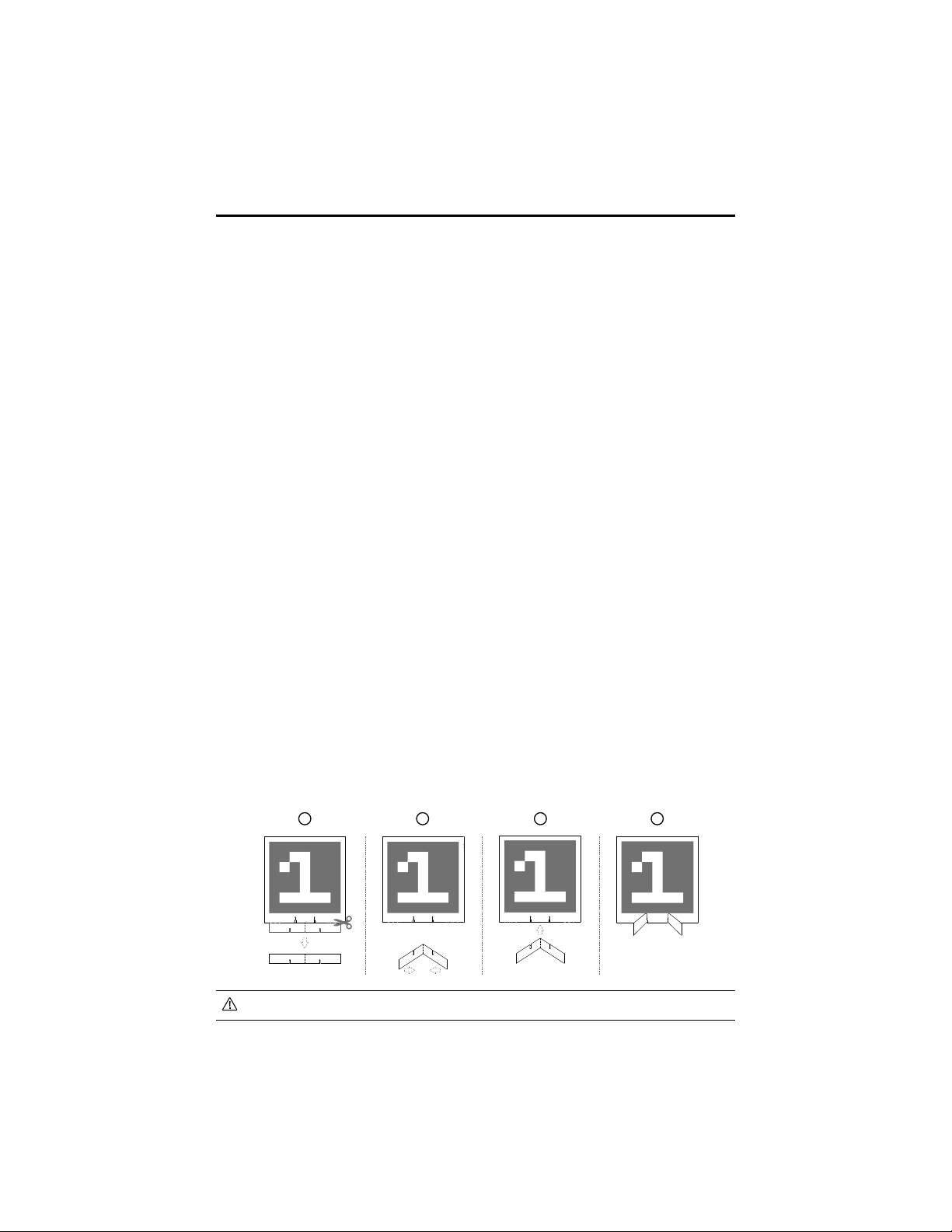
The user can program the robot to perform unique responses when identifying vision markers,
which include numbers, letters, and special characters. Vision markers must be within an effective
distance of three meters and only ofcial vision markers can be identied. Refer to the instructions
on the packaging of the vision markers for more information.
DO NOT block the color areas like red and blue. Otherwise, recognition will be affected.
56
©
2020 DJI All Rights Reserved.
ROBOMASTER EP Core User Manual
If you need to use more vision markers, tap in the app to enter the guide page. Select the vision
markers you wish to download and print.
Vision Marker Recognition only supports red and blue markers. The robot cannot recognize
vision markers of other colors.
Autonomous Program
A program can be set as an autonomous program and can be run independently on the robot.
1. If the robot is not connected to the app, the program can be launched by pressing the autonomous
program button on the intelligent controller. Press the button again to stop the program.
2. If the robot is connected to the app, the autonomous program can only be launched in the
following locations:
(1) App homepage
(2) Lab
The autonomous program cannot be launched in the following scenario:
(1) When the Settings page opens
Custom Skills
A program can be set as a custom skill, which can be used in the FPV in both Solo and Battle
mode. Tap
in the FPV to use a custom skill.
Python Programming
In Lab, go to the Python page then DIY Programming to write programs.
In the Python page, users can write their own Python program, which can be set as an Autonomous
Program or a Custom Skill and run on the robot.
Users can also convert Scratch programs into Python code and use the source code display to
help get started with programming with Python. Refer to the RoboMaster EP Core Programming
Manual for more information.
With the addition of a multi-machine communication port, Python programming allows multiple
robots to communicate and interact with each other in real time. The robot supports customizable
UI. Users can code virtual widgets with Python to design their own user interfaces and more.

©
2020 DJI All Rights Reserved.
57
Appendix
Specications
RoboMaster EP Core
Dimensions (L×W×H) 390×245×330 mm
Weight Approx. 3.3 kg
Chassis Speed Range 0.8 m/s
Max Chassis Rotational Speed 600°/s
M3508I Brushless Motor
Max Rotational Speed 1000 rpm
Max Torque 0.25 N·m
Max Output Power 19 W
Operating Temperature Range -10 to 40 °C (14 to 104 °F)
Driver Field-oriented control (FOC)
Control Method Closed-loop speed control
Protection
Overvoltage protection
Overheating protection
Soft-starter
Short-circuit protection
Chip and sensor anomaly detection
Intelligent Controller
Latency
[1]
Connection via Wi-Fi: 80-100 ms
Connection via Router: 100-120 ms (unobstructed, free of
interference)
Live View Quality 720p/30fps
Max Live View Bitrate 6 Mbps
Operating Frequency
[2]
2.4 GHz, 5.1 GHz, 5.8 GHz
Transmission Power (EIRP)
2.400-2.4835 GHz
FCC: ≤30 dBm
SRRC: ≤20 dBm
CE: ≤19 dBm
MIC: ≤20 dBm
5.150-5.250 GHz
FCC: ≤30 dBm
SRRC: ≤23 dBm
CE: ≤20 dBm
MIC: ≤23 dBm
5.725-5.850 GHz
FCC: ≤30 dBm
SRRC: ≤30 dBm
CE: ≤14 dBm
Operating Mode Connection via Wi-Fi, Connection via Router
Max Transmission Distance
[3]
Connection via Wi-Fi:
FCC, 2.4 GHz 140 m, 5.8 GHz 90 m
CE, 2.4 GHz 130 m, 5.8 GHz 70 m
SRRC, 2.4 GHz 130 m, 5.8 GHz 130 m
MIC, 2.4 GHz 130 m
Connection via Router:
FCC, 2.4 GHz 190 m, 5.8 GHz 300 m
CE, 2.4 GHz 180 m, 5.1 GHz 70 m
SRRC, 2.4 GHz 180 m, 5.8 GHz 300m
MIC, 2.4 GHz 180 m
Transmission Standard IEEE802.11a/b/g/n
58
©
2020 DJI All Rights Reserved.
ROBOMASTER EP Core User Manual
Camera
Sensor CMOS 1/4”; Effective pixels: 5MP
FOV 120°
Max Still Photo Resolution 2560×1440 pixels
Max Video Resolution
FHD: 1080p/30fps
HD: 720p/30fps
Max Video Bitrate 16 Mbps
Photo Format JPEG
Video Format MP4
Supported SD Cards Supports microSD cards with a capacity of up to 64 GB
Operating Temperature Range -10 to 40 °C (14 to 104 °F)
Intelligent Battery
Capacity 2400 mAh
Maximum Charging Voltage 12.6 V
Nominal Charging Voltage 10.8 V
Battery Type LiPo 3S
Energy 25.92 Wh
Battery Life (in use)
85 mins (measured at a constant speed of 0.8 m/s on a at
surface)
Battery Life (on standby) Approx. 100 mins
[5]
Weight 169 g
Operating Temperature Range -10 to 40 °C (14 to 104 °F)
Charging Temperature Range 5 to 40 °C (41 to 104 °F)
Maximum Charging Power 29 W
Charger
Input 100-240 V, 50-60 Hz, 1 A
Output Port: 12.6 V=0.8 A or 12.6 V=2.2 A
Voltage 12.6 V
Rated Voltage 28 W
App
iOS iOS 10.0.2 or later
Android Android 5.0 or later
Others
Recommended Routers
TP-Link TL-WDR8600; TP-Link TL-WDR5640 (China)
TP-Link Archer C7; NETGEAR X6S (International)
Recommended outdoor power
supply solution for routers
Portable laptop charger (with the same input power of the
router)

©
2020 DJI All Rights Reserved.
59
ROBOMASTER EP Core User Manual
Robotic Arm
Movement Range 0-0.22 m (horizontal); 0-0.15 m (vertical)
Axis Number 2
Gripper
Grip Distance Approx. 10 cm
Servo
Weight Approx. 70 g
Main Body Dimensions (L×W×H) 44.2×22.6×28.6 mm
Transmission Ratio 512
Rated Torque 1.2 N*m
Rated Rotational Speed 40±2 rpm
Operating Mode Angle mode, rate mode
Infrared Distance Sensor
Detection Range 0.1-10 m
Detection FOV 20°
Measurement Accuracy 5%
[6]
Power Connector Module
Communication Port CAN bus × 5
Input TX30 port: 12 V
Output
USB Type-C port: 5 V, 2 A
Pin header port: 5 V, 4 A
TX30 port: 12 V, 5 A
Sensor Adapter
Port Type IO input, AD output
Port Number 2
[1] Measured in an interference-free and unobstructed environment with a distance of approximately one meter between
the mobile device, the router, and the robot. The iOS device used was an iPhone X. The results of testing with different
Android device may be different.
[2] Outdoor use of the 5.1 GHz and 5.8 GHz frequency bands is prohibited in some areas. Follow all local laws and
regulations in your country or region.
[3] Measured in an interference-free and unobstructed environment.
For Connection via Wi-Fi, the mobile device used for testing was a sixth-generation iPad (released in 2018). For
Connection via Router, several router models were used for testing. FCC: TP-Link Archer C9; SRRC: TP-Link WDR8600;
CE: TP-Link Archer C7; MIC: WSR-1160DHP3.
[4] Use of the infrared units will be affected in outdoor or infrared-intensive environment.
[5] Tested in a lab environment using a new intelligent battery, and should be taken as a reference only.
[6] Applied to an object surface whose reectivity ranges from 10-90%.
60
©
2020 DJI All Rights Reserved.
ROBOMASTER EP Core User Manual
Firmware Update
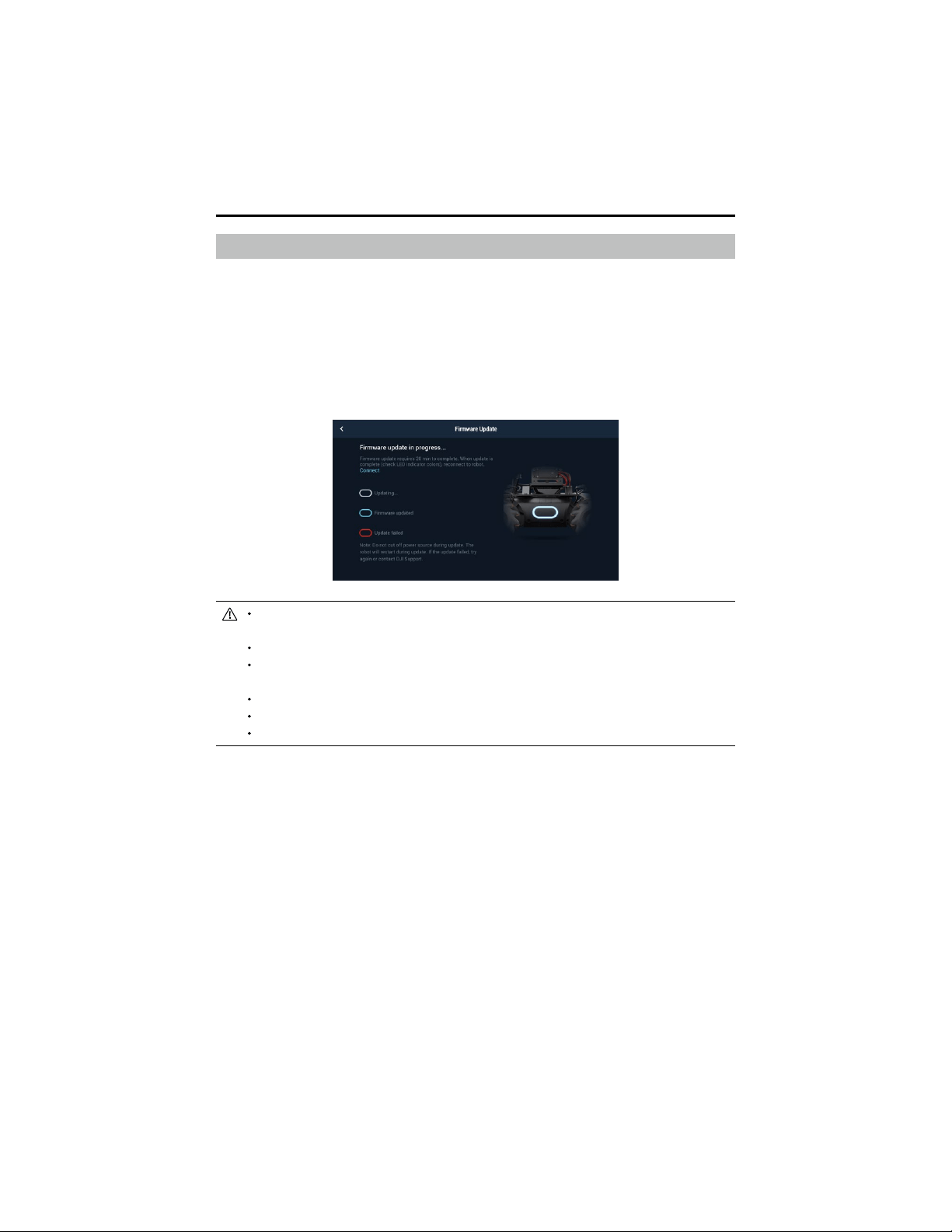
Check the robot rmware version in Settings, then System, and then Firmware Update. If there is a
new rmware version, use the RoboMaster app to update the rmware of the robot.
1. Make sure that all parts are connected, power on the robot, and check to make sure the battery
level is above 50%.
2. Tap App, then System, and then Firmware Update. Follow the onscreen instructions to update the
rmware. Make sure the mobile device is connected to the internet when downloading the rmware.
3. The robot tracks the progress of the update using audio prompts. Wait until the update is
complete.
The battery rmware is included in the robot rmware. Make sure to update the rmware of
all batteries if you have several.
Only start a rmware update if the battery level is above 50%.
Note that while updating the rmware, the status indicators may blink abnormally, and the
robot may reboot.
The robot and app may disconnect after updating. If this occurs, reconnect them.
If you receive a prompt that newer rmware version is out of date, update and try again.
When in Battle mode, make sure that all the robots are using the same rmware version.
©
2020 DJI All Rights Reserved.
61
ROBOMASTER EP Core User Manual
0.5ms
1.5ms
2.5ms
-90
º
-45
º
-0
º
45
º
90
º
1ms
2ms
Pulse Width Servo Angle
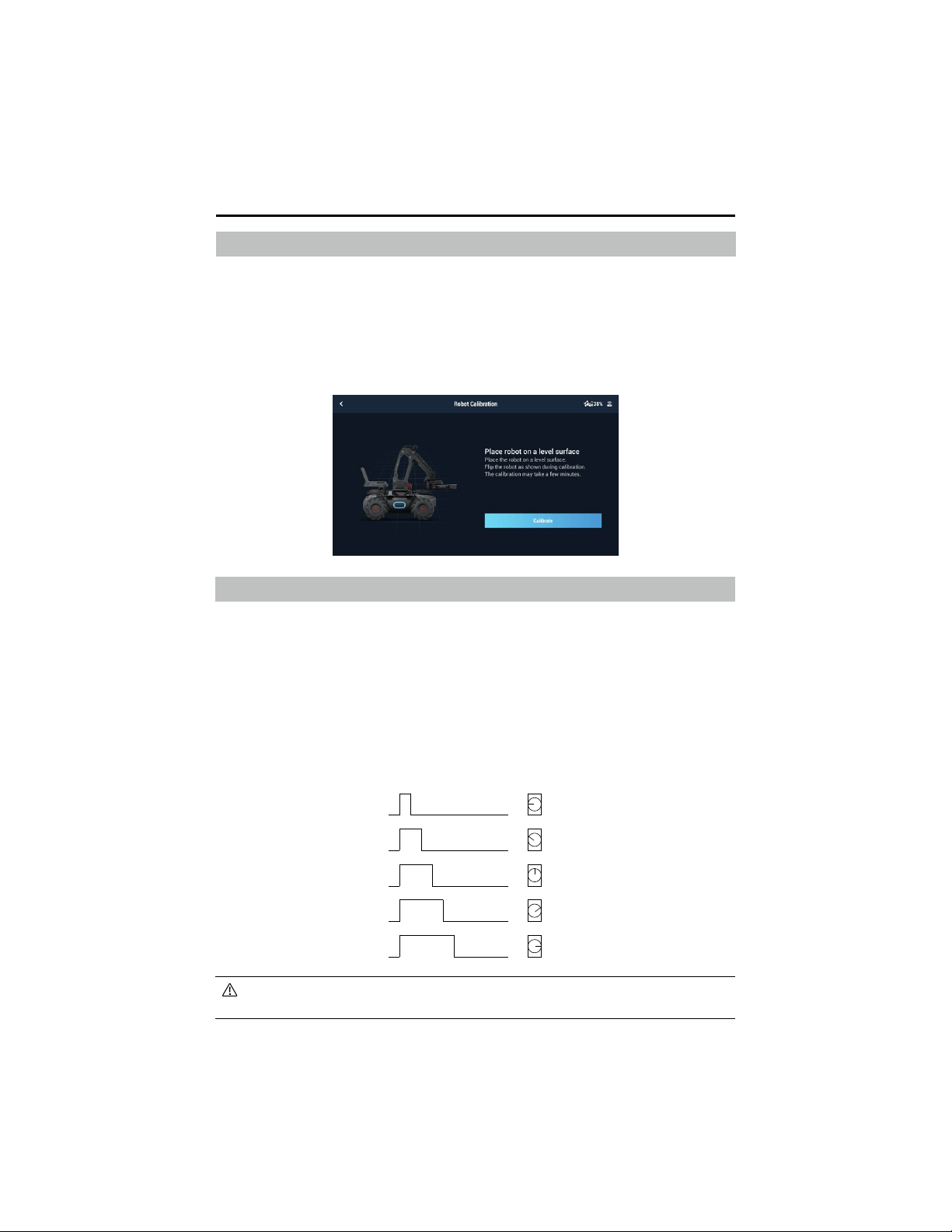
Setting the PWM Ports
PWM (pulse width modulation) controls the duration of a high level of output during a certain period,
and is broadly used to control LEDs, navigation gears, and more. The PWM port has a default duty
cycle of 7.5% and a fundamental frequency of 50 Hz.
For LEDs, the PWM output rate ranges from 0% to 100%, with 0% corresponding to an LED’s lowest
brightness and 100% to its highest brightness. For navigation gears, the PWM output rate ranges
from 2.5% to 12.5%.
You can set the navigation gear PWM output percentage based on the rotation angles you wish to
control.
Calibrating the Robot
If any of the following scenarios occur, recalibrate the robot in the RoboMaster app:
a. The robot moves involuntarily while rotating.
b. The chassis cannot be controlled when warning prompts appear in the app.
c. The motion controller has been installed or reinstalled.
The specic calibration steps are as below:
1. Open the RoboMaster app, tap on Settings, then System, and select Calibration.
2. Follow the steps in the app to calibrate.
Each time the custom program or Python program nishes running, the PWM port output
signal will be set to its default setting, which is 50 Hz and the duty cycle is 7.5%.
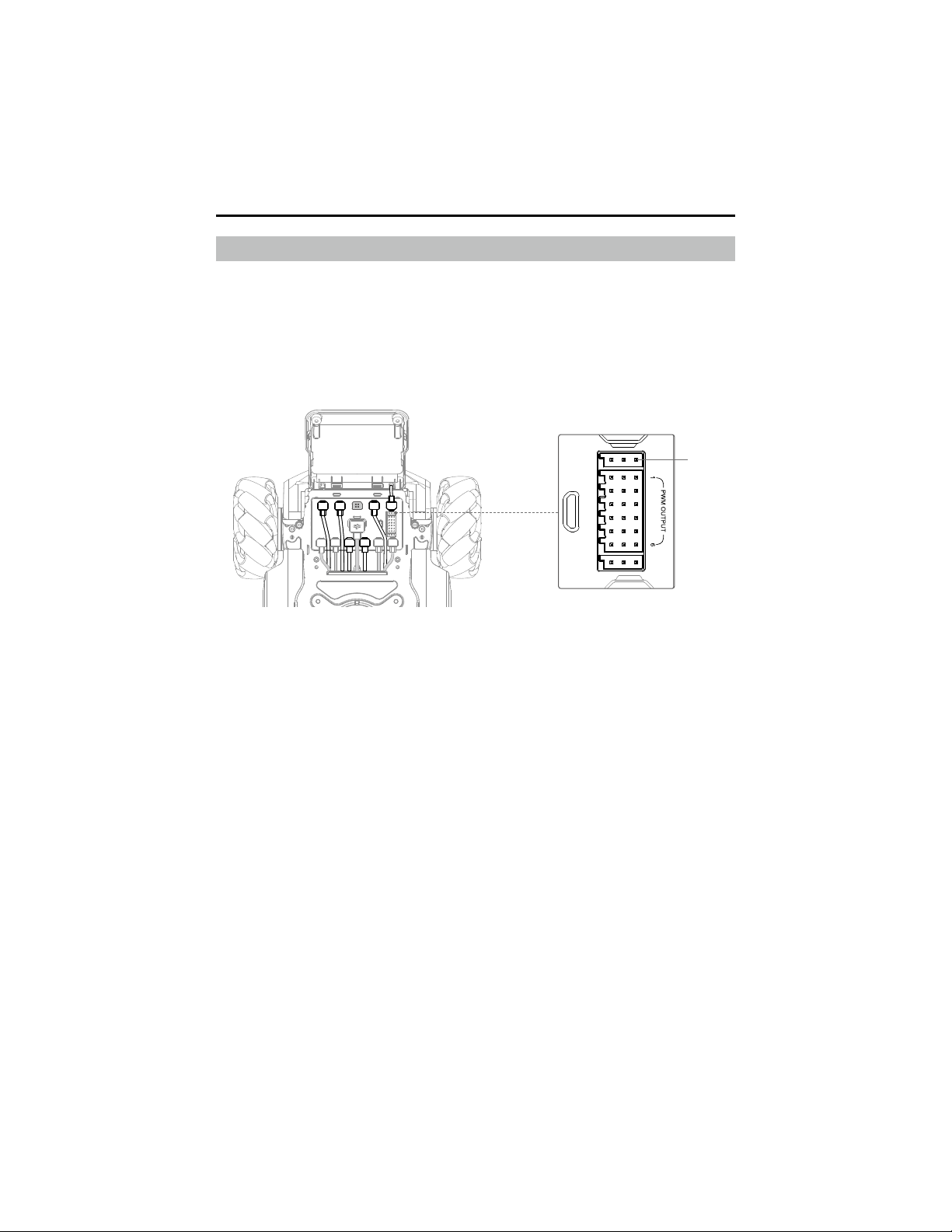
62
©
2020 DJI All Rights Reserved.
ROBOMASTER EP Core User Manual
Using the S-Bus Port
A remote controller that supports the S-Bus protocol can be used to control the robot by connecting
to the S-Bus port of the motion controller. Users must prepare their own receiver and remote
controller. It is recommended to use a Futaba R6303SB receiver.
Connection
Connect the S-Bus port of the motion controller to the S-Bus port of the receiver by using the 3-pin
servo cable.
S-BUS
UART
S-BUS
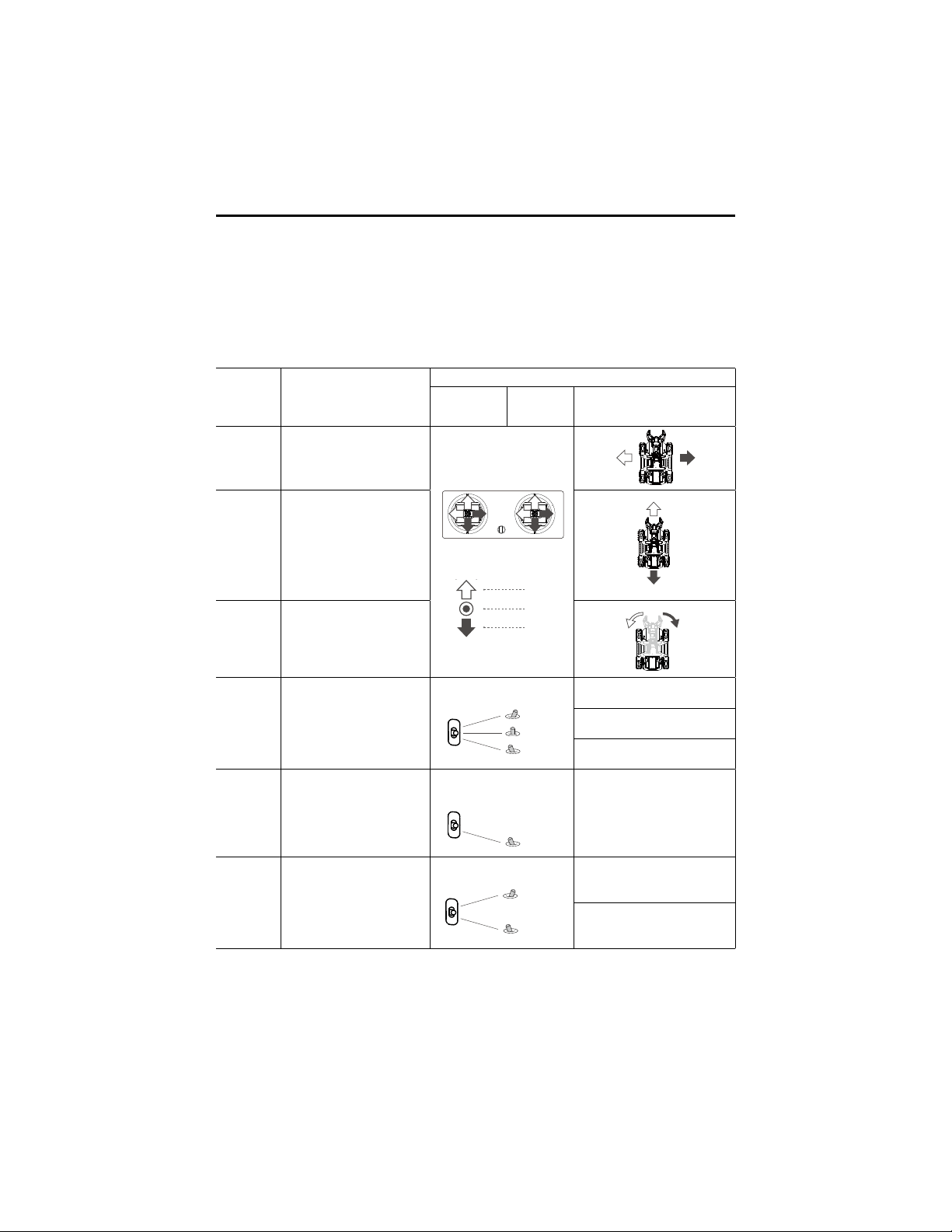
©
2020 DJI All Rights Reserved.
63
ROBOMASTER EP Core User Manual
Usage
Make sure the remote controller has been linked with the receiver before use. Refer to the manual
documents of the receiver for more information on linking methods.
The correspondence of control channels of the S-Bus port of the motion controller are shown below.
Refer to the manual documents of the remote controller to complete the channel mapping between
the receiver and remote controller.
S-Bus Port
Control
Channels
Free Mode
Recommended Remote Controller Channel
Remote
Controller
Channel
Offset Status
Channel 1 Move the chassis sideward
+672
1024
-672
Control Stick Channel
RightLeft
Channel 2
Move the chassis forward and
backward
Forward
Backward
Channel 4 Control the yaw of the chassis
Turn
Right
Turn
Left
Channel 5
Control the movement speed of
the chassis and there are three
optional speeds:
Fast
Medium
Slow
+100
0
-100
3-Position Switch Channel
Fast
Medium
Slow
Channel 6 Free mode
-100
Switch Channel
Free mode
Channel 7
Control the release of the chassis
and there are two statuses:
Chassis is set when it produces
output torque
Chassis is released when it not
producing output torque
+100
-100
2-Position Switch Channel
Set
Release

64
©
2020 DJI All Rights Reserved.
ROBOMASTER EP Core User Manual
Programming Customizable UI
The customizable UI system expands the input and output modes of a program. Users can create
UI widgets that are used to represent the input and output processing information of a program.
To code a Python program, call the related interfaces to generate a UI widget and bind the UI
widget with an event callback. After coding and debugging in the Lab section of the RoboMaster
app, users can save a program as a customizable skill and use it in Solo or Battle mode. For more
information, visit www.dji.com/robomaster-ep-core/downloads or robomaster-dev.rtfd.io.
Arduino is a trademark of Arduino LLC.
Micro:bit is a trademark of the Micro:bit Educational Foundation.
Raspberry Pi is a trademark of the Raspberry Pi Foundation.
Jetson Nano is a trademark and/or registered trademark of Nvidia Corporation in the U.S. and/or other countries.

Copyright © 2020 DJI All Rights Reserved.
This content is subject to change.
Download the latest version from
www.dji.com/robomaster-ep-core/downloads
If you have any questions about this document, please contact DJI by
sending a message to
DocSupport @dji.com
.
DJI Support
https://www.dji.com/support