User Guide
PrintSearch
Operation Search
Before use
Getting started
Recording
Playback
Playing images on a TV
Saving images with a
computer
Using the Wi-Fi function
Customizing your
camcorder
Troubleshooting
Maintenance and
precautions
Contents list
Top page
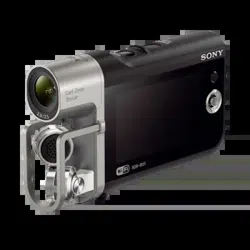
HDR-MV1
Music Video Recorder User Guide
Use this manual if you encounter any problems, or have any questions about the
camcorder.
Back to top
Copyright 2013 Sony Corporation
1
User Guide
PrintSearch
Operation Search
Before use
Getting started
Recording
Playback
Playing images on a TV
Saving images with a
computer
Using the Wi-Fi function
Customizing your
camcorder
Troubleshooting
Maintenance and
precautions
Contents list
Top page > Operation Search
Operation Search
Operation Search
Search by operation
Back to top
Copyright 2013 Sony Corporation
2

User Guide
PrintSearch
Operation Search
Before use
Getting started
Recording
Playback
Playing images on a TV
Saving images with a
computer
Using the Wi-Fi function
Customizing your
camcorder
Troubleshooting
Maintenance and
precautions
Contents list
Top page > Before use
Before use
How to use this User Guide
How to use this User Guide
Parts and controls/Screen indicators
Parts and controls
Screen indicators
About language setting
About language setting
Operating your camcorder
Selecting items on the LCD screen
Back to top
Copyright 2013 Sony Corporation
3
User Guide
PrintSearch
Operation Search
Before use
Getting started
Recording
Playback
Playing images on a TV
Saving images with a
computer
Using the Wi-Fi function
Customizing your
camcorder
Troubleshooting
Maintenance and
precautions
Contents list
Top page > Getting started
Getting started
Checking the supplied items
Supplied items
Power supply
Attaching the battery pack
Charging the battery using your computer
Charging the battery using the AC Adaptor (sold separately)
Using the camcorder while supplying it with power
Turning the power on, and setting the date and time
Turning the power on, and setting the date and time
Preparing the recording media
Inserting a memory card
Back to top
Copyright 2013 Sony Corporation
4
User Guide
PrintSearch
Operation Search
Before use
Getting started
Recording
Playback
Playing images on a TV
Saving images with a
computer
Using the Wi-Fi function
Customizing your
camcorder
Troubleshooting
Maintenance and
precautions
Contents list
Top page > Recording
Recording
Recording
Shooting movies
Recording sound
Screen indicators during recording
Useful functions for recording
Intelligent Auto
Audio monitoring
Back to top
Copyright 2013 Sony Corporation
5
User Guide
PrintSearch
Operation Search
Before use
Getting started
Recording
Playback
Playing images on a TV
Saving images with a
computer
Using the Wi-Fi function
Customizing your
camcorder
Troubleshooting
Maintenance and
precautions
Contents list
Top page > Playback
Playback
Playback
Playing movies/audio files
Back to top
Copyright 2013 Sony Corporation
6
User Guide
PrintSearch
Operation Search
Before use
Getting started
Recording
Playback
Playing images on a TV
Saving images with a
computer
Using the Wi-Fi function
Customizing your
camcorder
Troubleshooting
Maintenance and
precautions
Contents list
Top page > Playing images on a TV
Playing images on a TV
Playing images on a high definition TV
Connecting the camcorder to a high definition TV
Playing images on a TV supporting “BRAVIA” Sync
Using “BRAVIA” Sync
Back to top
Copyright 2013 Sony Corporation
7
User Guide
PrintSearch
Operation Search
Before use
Getting started
Recording
Playback
Playing images on a TV
Saving images with a
computer
Using the Wi-Fi function
Customizing your
camcorder
Troubleshooting
Maintenance and
precautions
Contents list
Top page > Saving images with a computer
Saving images with a computer
Saving contents with a computer
What you can do using a computer
Checking the computer system
Installing the editing/management software in your computer
Starting the editing/management software
Importing files to your computer without using software
Back to top
Copyright 2013 Sony Corporation
8
User Guide
PrintSearch
Operation Search
Before use
Getting started
Recording
Playback
Playing images on a TV
Saving images with a
computer
Using the Wi-Fi function
Customizing your
camcorder
Troubleshooting
Maintenance and
precautions
Contents list
Top page > Using the Wi-Fi function
Using the Wi-Fi function
Using the Wi-Fi function
What you can do using the Wi-Fi function
Control your camcorder via smartphone
Using your smartphone or tablet as a remote control without using
NFC
Using your smartphone or tablet as a remote control using NFC
Sending movies to the smartphone
Transferring movies to your smartphone or tablet without using NFC
Transferring movies to your smartphone or tablet using NFC
Connecting a smartphone
Connecting to your Android smartphone or tablet
Connecting to your iPhone or iPad
Connecting to your NFC-compatible Android smartphone or tablet
Installing the PlayMemories Mobile
On the “PlayMemories Mobile” software
Back to top
Copyright 2013 Sony Corporation
9
User Guide
PrintSearch
Operation Search
Before use
Getting started
Recording
Playback
Playing images on a TV
Saving images with a
computer
Using the Wi-Fi function
Customizing your
camcorder
Troubleshooting
Maintenance and
precautions
Contents list
Top page > Customizing your camcorder
Customizing your camcorder
Using menu items
Setting up menu items
Recording Mode
Movie
Audio
Camera/Audio
White Balance
Exposure
Low Lux
Scene Selection
Fader
Auto Back Light
Face Detection
Audio Format
Low Cut Filter
Int. Mic. Rec. Level
Ext. Mic. Rec. Level
Audio Output Timing
Volume
Ext. Audio Input Set
Ctrl with Smartphone
My Button
Grid Line
Display Setting
Audio Level Display
Auto Monitor Off
Image Quality/Size
REC Mode
Playback Function
Playback Function
10

Edit/Copy
Send to Smartphone
Delete
Protect
Setup
Media Info
Format
Repair Img. DB F.
File Number
Edit Device Name
SSID/PW Reset
HDMI Resolution
CTRL FOR HDMI (Control for HDMI)
USB Connect
USB Power Supply
USB LUN Setting
Beep
Monitor Brightness
Language Setting
Airplane Mode
Power Save
Initialize
Date & Time Setting
Area Setting
Back to top
Copyright 2013 Sony Corporation
11
User Guide
PrintSearch
Operation Search
Before use
Getting started
Recording
Playback
Playing images on a TV
Saving images with a
computer
Using the Wi-Fi function
Customizing your
camcorder
Troubleshooting
Maintenance and
precautions
Contents list
Top page > Troubleshooting
Troubleshooting
If you have problems
If you have problems
Troubleshooting
Overall operations
Batteries/power sources
LCD screen
Memory card
Recording
Playback
Playback on the TV
Connecting to a computer
Wi-Fi
Self-diagnosis display/Warning indicators
Self-diagnosis display
Warning Indicators
Back to top
Copyright 2013 Sony Corporation
12
User Guide
PrintSearch
Operation Search
Before use
Getting started
Recording
Playback
Playing images on a TV
Saving images with a
computer
Using the Wi-Fi function
Customizing your
camcorder
Troubleshooting
Maintenance and
precautions
Contents list
Top page > Maintenance and precautions
Maintenance and precautions
Maintenance and precautions
About the memory card
About the battery pack
About handling of your camcorder
On use and care
On moisture condensation
On charging the pre-installed rechargeable battery
Note on disposal/transfer of the memory card
Recording time of movies/sound
Charging time
Expected time of recording and playback with the battery pack
Expected shooting time of movies
Expected recording time of sound
Using your camcorder abroad
Using your camcorder abroad
On trademarks
On trademarks
License
Notes on the License
Specifications
Specifications
Back to top
Copyright 2013 Sony Corporation
13
User Guide
PrintSearch
Operation Search
Before use
Getting started
Recording
Playback
Playing images on a TV
Saving images with a
computer
Using the Wi-Fi function
Customizing your
camcorder
Troubleshooting
Maintenance and
precautions
Contents list
Top page > Contents list
Contents list
Operation Search
Operation Search
Search by operation
Back to top
Before use
How to use this User Guide
How to use this User Guide
Parts and controls/Screen indicators
Parts and controls
Screen indicators
About language setting
About language setting
Operating your camcorder
Selecting items on the LCD screen
Back to top
Getting started
Checking the supplied items
Supplied items
Power supply
Attaching the battery pack
Charging the battery using your computer
Charging the battery using the AC Adaptor (sold separately)
Using the camcorder while supplying it with power
Turning the power on, and setting the date and time
Turning the power on, and setting the date and time
Preparing the recording media
Inserting a memory card
14

Back to top
Recording
Recording
Shooting movies
Recording sound
Screen indicators during recording
Useful functions for recording
Intelligent Auto
Audio monitoring
Back to top
Playback
Playback
Playing movies/audio files
Back to top
Playing images on a TV
Playing images on a high definition TV
Connecting the camcorder to a high definition TV
Playing images on a TV supporting “BRAVIA” Sync
Using “BRAVIA” Sync
Back to top
Saving images with a computer
Saving contents with a computer
What you can do using a computer
Checking the computer system
Installing the editing/management software in your computer
Starting the editing/management software
Importing files to your computer without using software
Back to top
Using the Wi-Fi function
Using the Wi-Fi function
What you can do using the Wi-Fi function
15

Control your camcorder via smartphone
Using your smartphone or tablet as a remote control without using
NFC
Using your smartphone or tablet as a remote control using NFC
Sending movies to the smartphone
Transferring movies to your smartphone or tablet without using NFC
Transferring movies to your smartphone or tablet using NFC
Connecting a smartphone
Connecting to your Android smartphone or tablet
Connecting to your iPhone or iPad
Connecting to your NFC-compatible Android smartphone or tablet
Installing the PlayMemories Mobile
On the “PlayMemories Mobile” software
Back to top
Customizing your camcorder
Using menu items
Setting up menu items
Recording Mode
Movie
Audio
Camera/Audio
White Balance
Exposure
Low Lux
Scene Selection
Fader
Auto Back Light
Face Detection
Audio Format
Low Cut Filter
Int. Mic. Rec. Level
Ext. Mic. Rec. Level
Audio Output Timing
Volume
Ext. Audio Input Set
Ctrl with Smartphone
16

My Button
Grid Line
Display Setting
Audio Level Display
Auto Monitor Off
Image Quality/Size
REC Mode
Playback Function
Playback Function
Edit/Copy
Send to Smartphone
Delete
Protect
Setup
Media Info
Format
Repair Img. DB F.
File Number
Edit Device Name
SSID/PW Reset
HDMI Resolution
CTRL FOR HDMI (Control for HDMI)
USB Connect
USB Power Supply
USB LUN Setting
Beep
Monitor Brightness
Language Setting
Airplane Mode
Power Save
Initialize
Date & Time Setting
Area Setting
Back to top
Troubleshooting
17

If you have problems
If you have problems
Troubleshooting
Overall operations
Batteries/power sources
LCD screen
Memory card
Recording
Playback
Playback on the TV
Connecting to a computer
Wi-Fi
Self-diagnosis display/Warning indicators
Self-diagnosis display
Warning Indicators
Back to top
Maintenance and precautions
Maintenance and precautions
About the memory card
About the battery pack
About handling of your camcorder
On use and care
On moisture condensation
On charging the pre-installed rechargeable battery
Note on disposal/transfer of the memory card
Recording time of movies/sound
Charging time
Expected time of recording and playback with the battery pack
Expected shooting time of movies
Expected recording time of sound
Using your camcorder abroad
Using your camcorder abroad
On trademarks
On trademarks
License
18

User Guide
PrintSearch
Operation Search
Before use
Getting started
Recording
Playback
Playing images on a TV
Saving images with a
computer
Using the Wi-Fi function
Customizing your
camcorder
Troubleshooting
Maintenance and
precautions
Contents list
Top page > Operation Search > Operation Search > Search by operation
Search by operation
Setting the date and time
Date & Time Setting
Area Setting
Identifying part names
Parts and controls
Recording audio files
Recording sound
Selecting the suitable setting automatically for the
recording situation
Useful functions for recording
Recording people clearly
Face Detection
Scene Selection (Spotlight)
Selecting a movie shooting mode
REC Mode
Changing the audio recording format
Audio Format
Adjusting the internal microphone level
Int. Mic. Rec. Level
Reducing low frequency sound such as noise from air
conditioners
Low Cut Filter
Monitoring sound
Audio monitoring
Synchronizing the monitored sound with the LCD screen
or with movies output via HDMI
Audio Output Timing
Using an external MTR or microphone
Ext. Audio Input Set
Shooting movies in a dim place
20

Low Lux
Recording faces of people on a stage clearly
Scene Selection (Spotlight)
Saving battery power
Power Save
Recording without worrying about the remaining battery
power
Using the camcorder while supplying it with power
Playing images on a TV
Connecting the camcorder to a high definition TV
Deleting files
Delete
Back to top
Copyright 2013 Sony Corporation
21
User Guide
PrintSearch
Operation Search
Before use
Getting started
Recording
Playback
Playing images on a TV
Saving images with a
computer
Using the Wi-Fi function
Customizing your
camcorder
Troubleshooting
Maintenance and
precautions
Contents list
Top page > Before use > How to use this User Guide > How to use this User
Guide
How to use this User Guide
Selecting a topic to display
Searching a topic by keyword
Returning to a previous page
Printing out a page
Marks and notations used in this User Guide
This User Guide explains how to use each function of the camcorder, how to
change settings, and how to troubleshoot a problem.
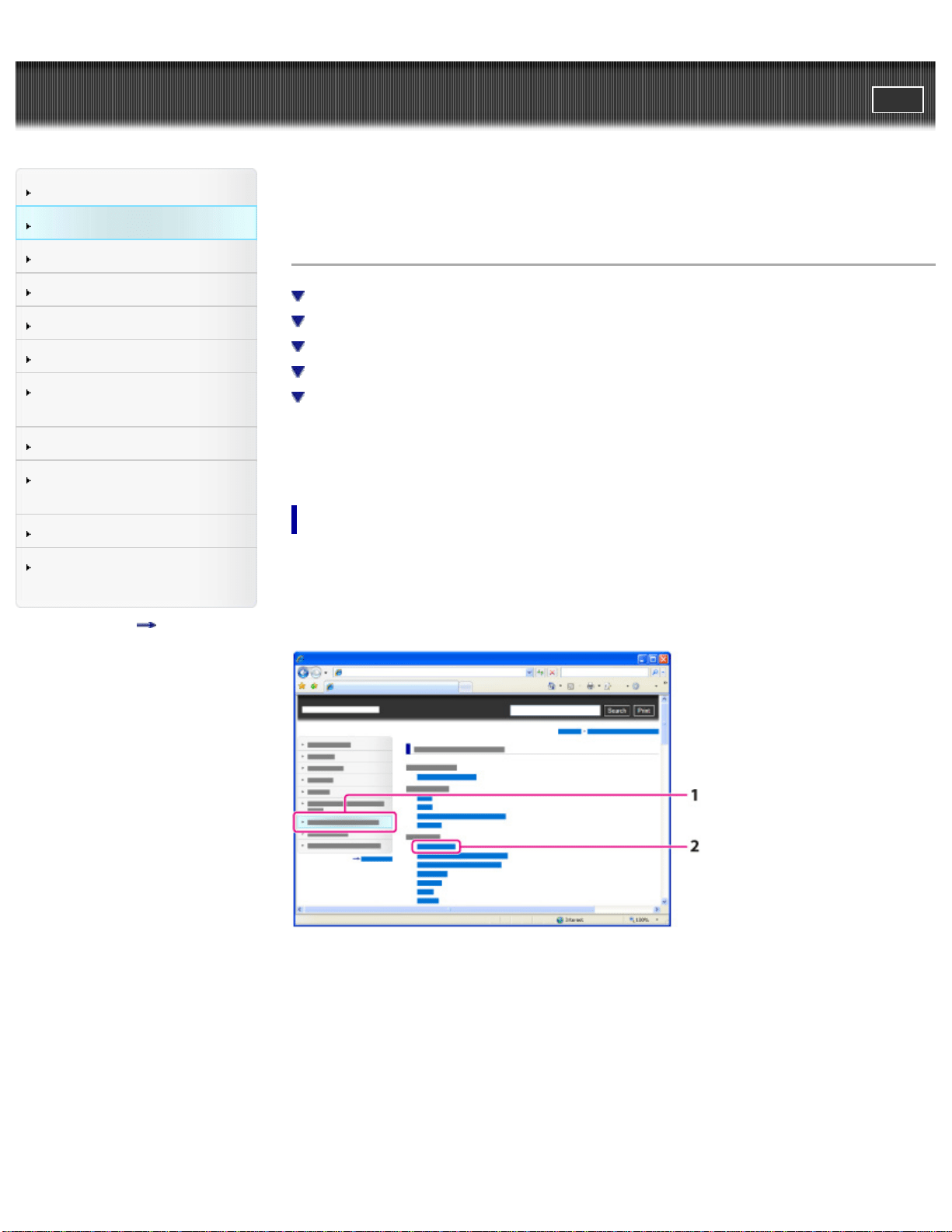
Selecting a topic to display
The following illustrations take Internet Explorer 7 as an example.
1. Click a title in the side bar on the left of the browser window.
A list of topic titles appears in the right pane.
2. Click a topic title in the list.
Descriptions appear in the right pane.
22
Changing the font size
Change the font size by changing the setting of your web browser. For how to
change the font size setting, refer to the Help of your web browser.
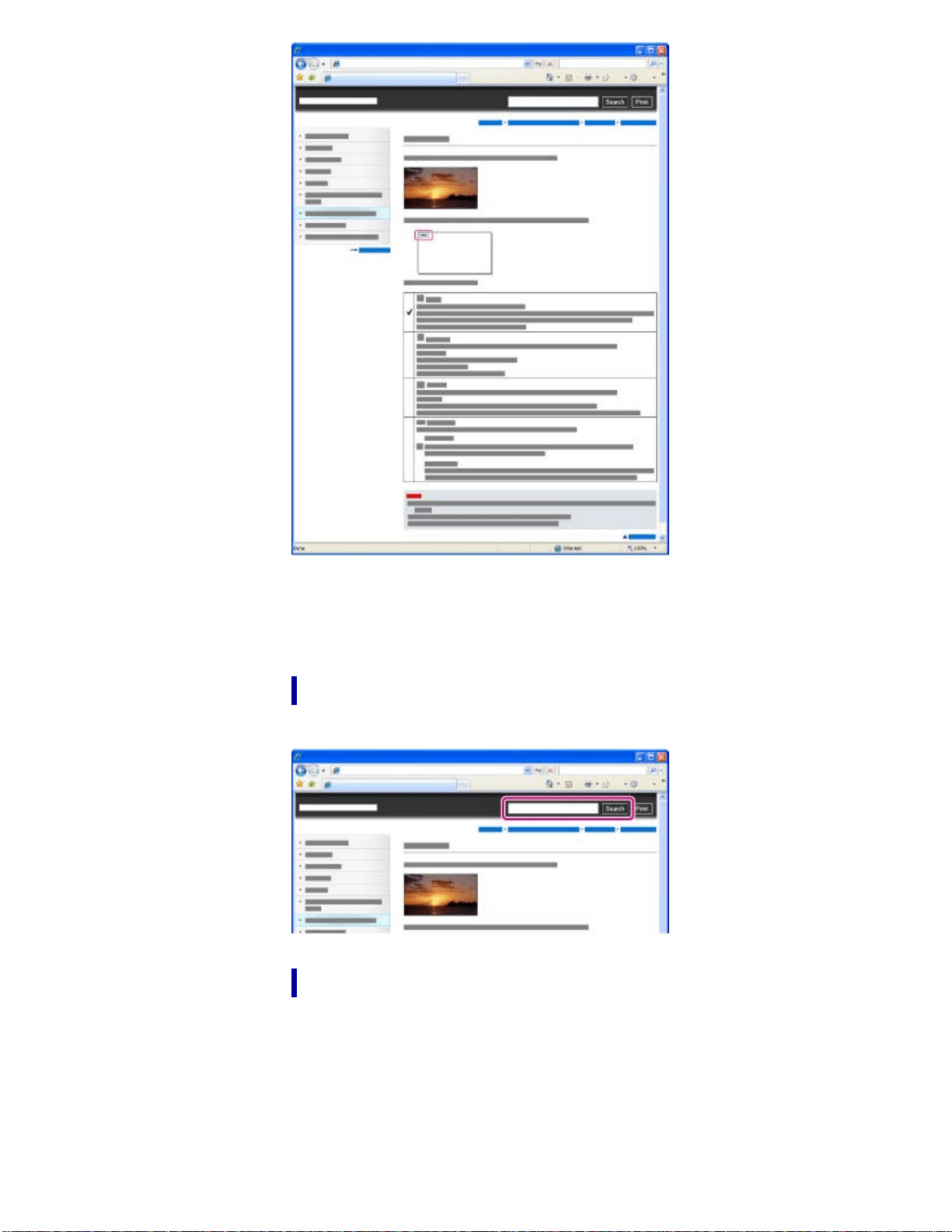
Searching a topic by keyword
Enter the keyword in the search window, then click the [Search] button.
Returning to a previous page
Use the back button of your web browser or the breadcrumb trail navigation (A) to
return to a page you previously viewed.
23
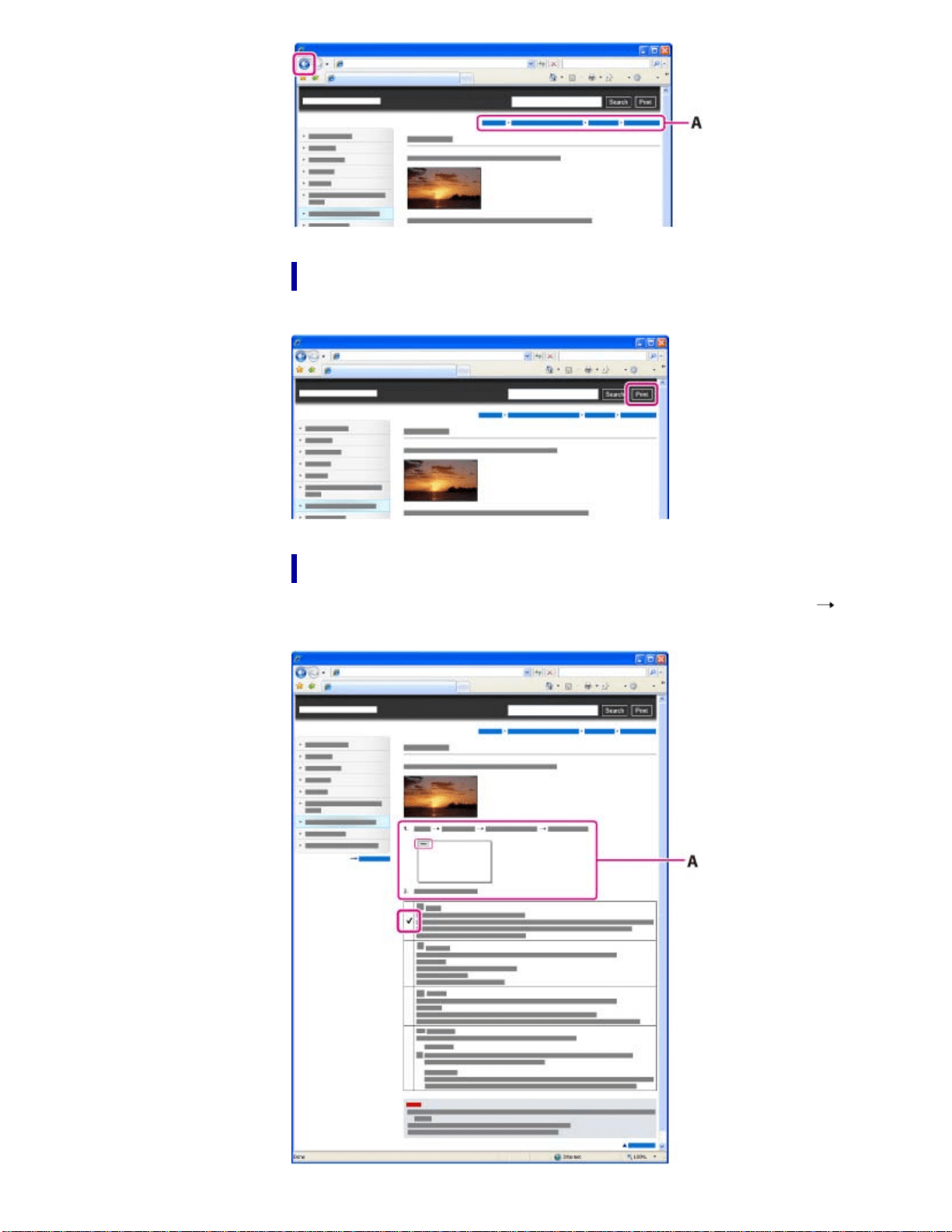
Printing out a page
Click the [Print] button to print out a page you are viewing.
Marks and notations used in this User Guide
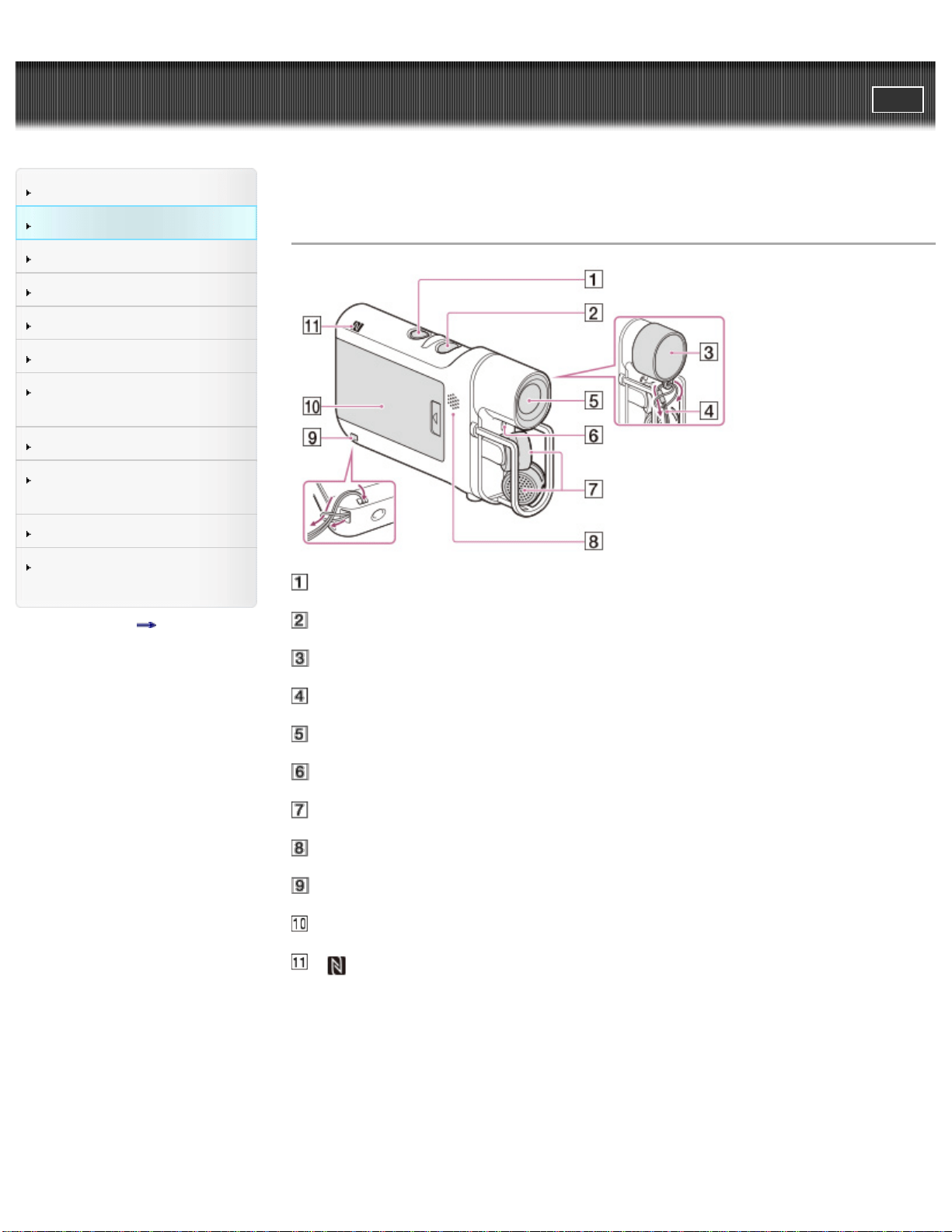
In this User Guide, the sequence of operations is shown by arrows ( ) (A).
Operate the camcorder in the order indicated.
24

User Guide
PrintSearch
Operation Search
Before use
Getting started
Recording
Playback
Playing images on a TV
Saving images with a
computer
Using the Wi-Fi function
Customizing your
camcorder
Troubleshooting
Maintenance and
precautions
Contents list
Top page > Before use > Parts and controls/Screen indicators > Parts and controls
Parts and controls
START/STOP button
POWER button
Lens cap
Cap string
Lens
Recording lamp
Microphones
Speaker
Loop for the cap string/the strap
Battery cover
(N mark)
NFC: Near Field Communication
26
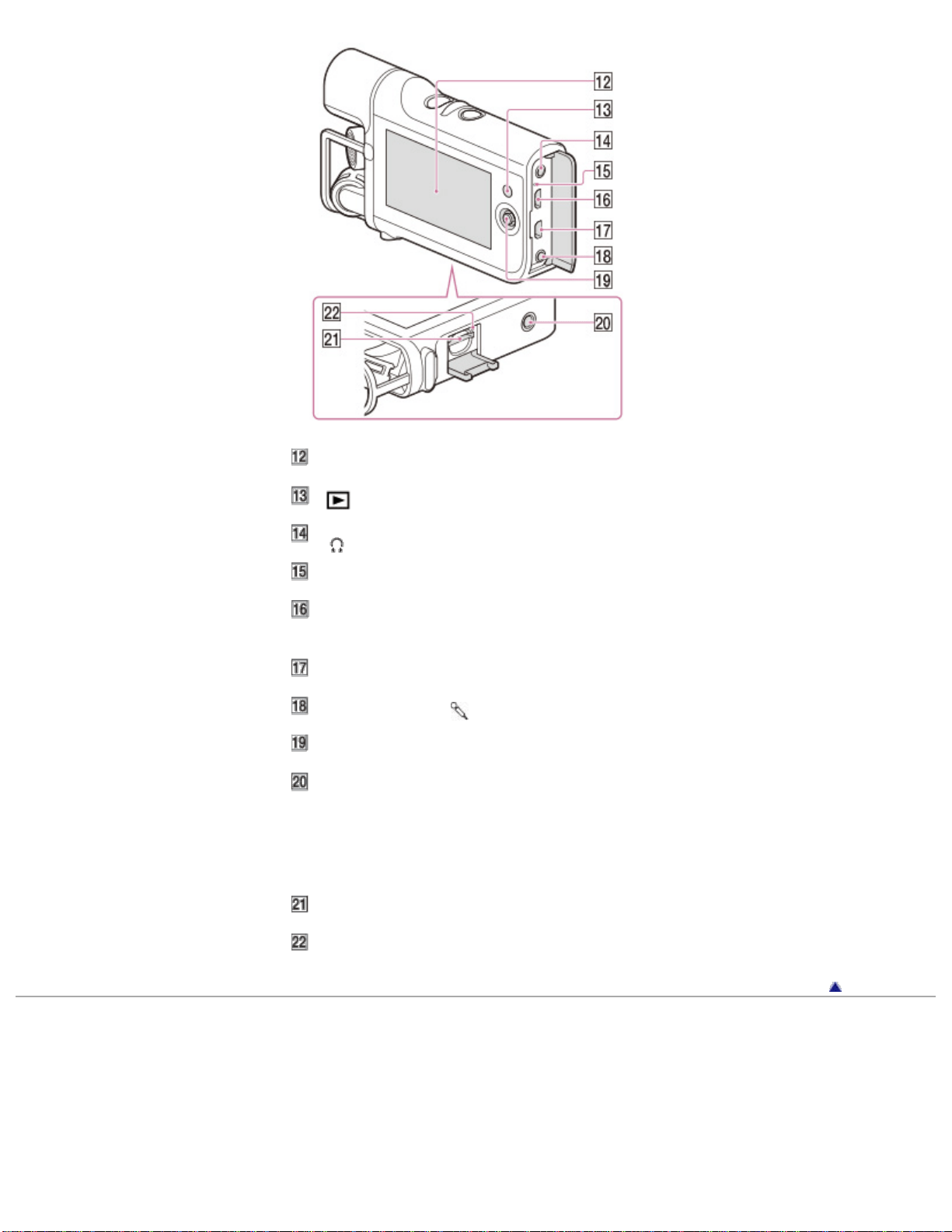
LCD screen
(Playback) button
(headphones) jack
CHG (charge) lamp
Multi/Micro USB Terminal
Supports Micro USB compatible devices.
Micro HDMI OUT jack
LINE IN jack/
(microphone) jack (PLUG IN POWER)
Multi-selector
Tripod receptacle
Attach a tripod (sold separately: the length of the screw must be less than 5.5
mm (7/32 in.)).
Depending on the specifications of the tripod, your camcorder may not attach in
the proper direction.
Memory card slot
Memory card access lamp
Back to top
Copyright 2013 Sony Corporation
27
User Guide
PrintSearch
Operation Search
Before use
Getting started
Recording
Playback
Playing images on a TV
Saving images with a
computer
Using the Wi-Fi function
Customizing your
camcorder
Troubleshooting
Maintenance and
precautions
Contents list
Top page > Before use > Parts and controls/Screen indicators > Screen indicators
Screen indicators
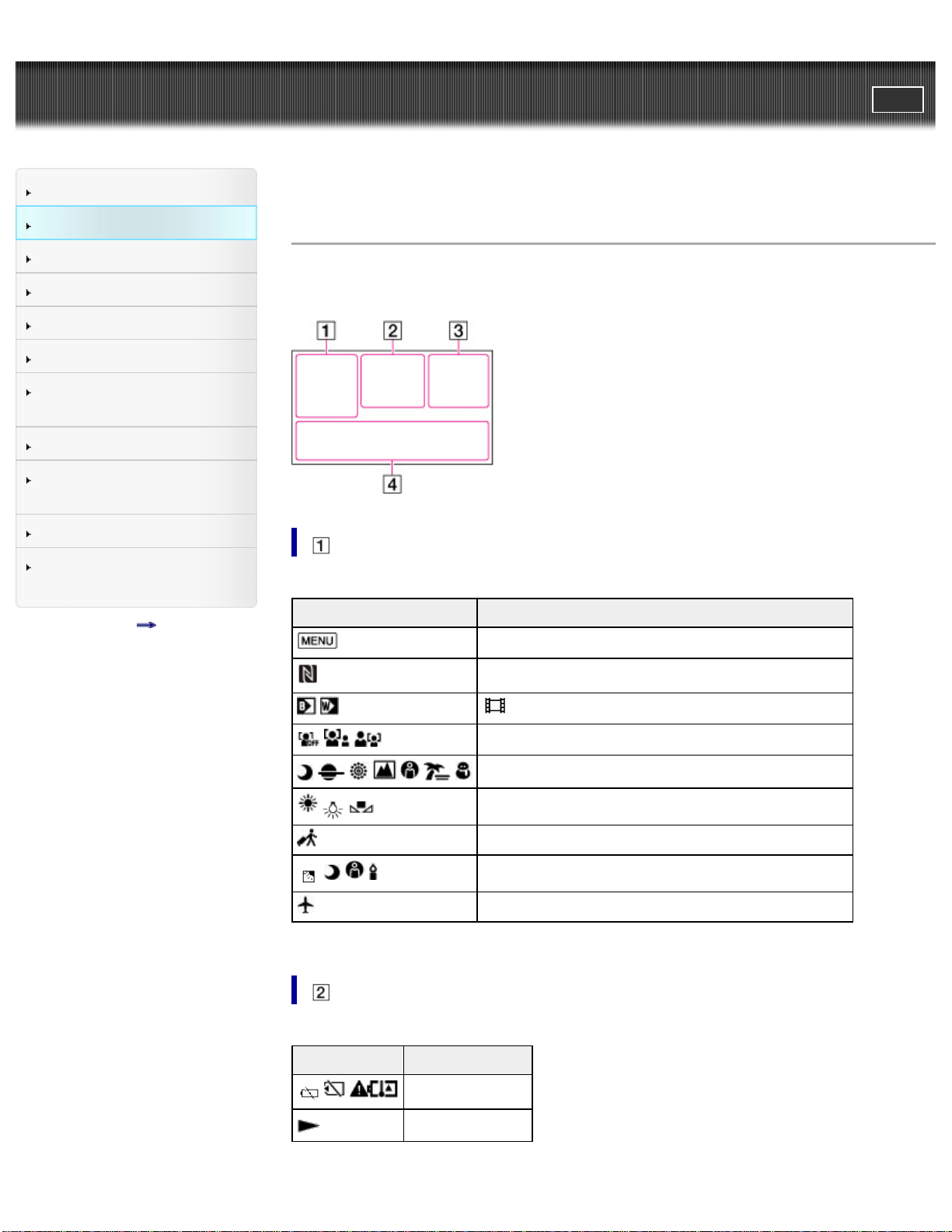
The following indicators appear when you change the settings.
Check also for the indicators that appear during recording or playing.
Indicator Meaning
MENU button
NFC
Fader
Face Detection
Scene Selection
White Balance
Destination
Intelligent Auto (face detection/scene detection)
Airplane Mode
Indicator Meaning
Warning
Playback mode
28
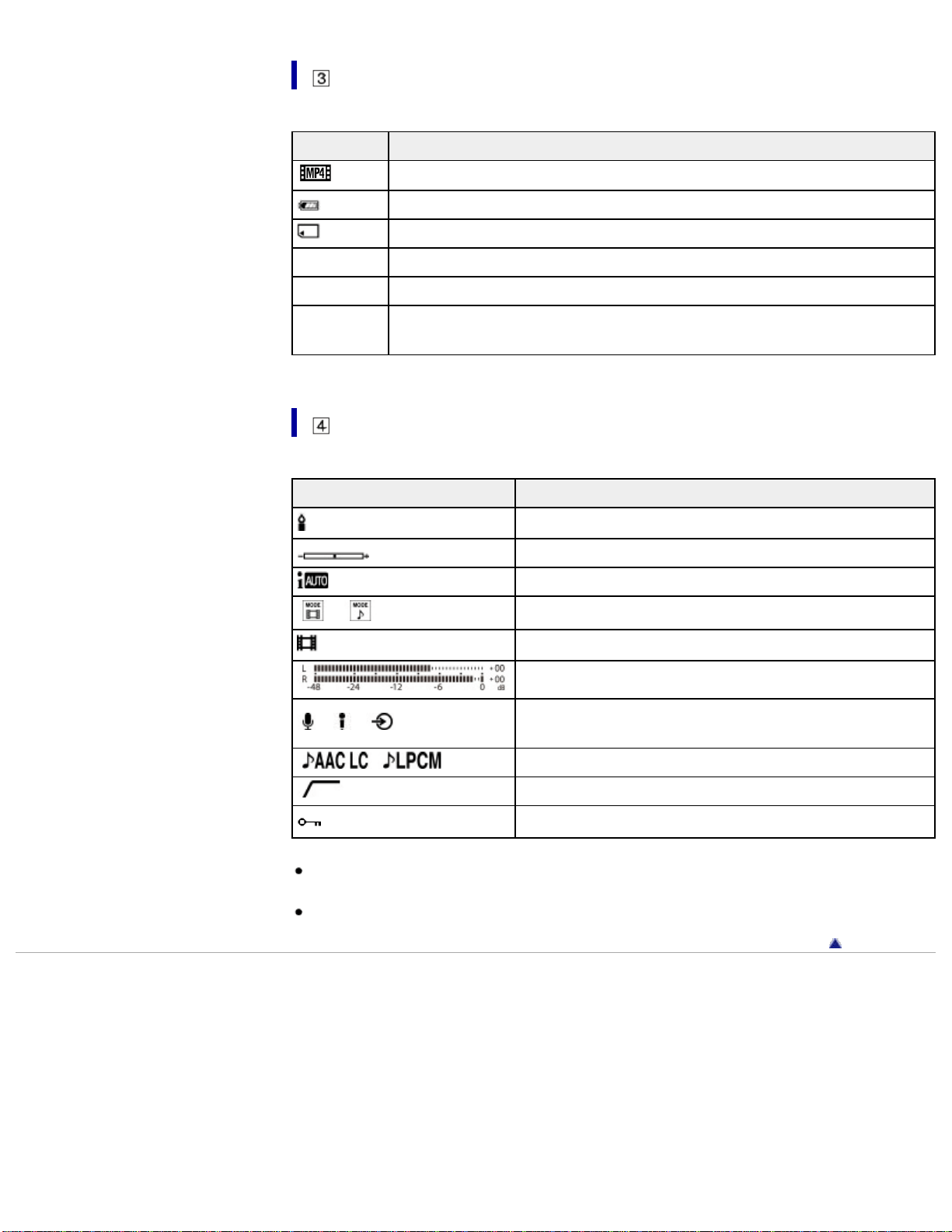
Indicator Meaning
720
Recording image quality (MP4), shooting mode (1080/720)
Remaining battery
Recording/playback/editing media
0:00:00 Counter (hour:minute:second)
00min Estimated remaining recording time
100/112
Current playing movie or audio file number/Number of total recorded
movies or audio files
Indicator Meaning
Low Lux
Exposure
Intelligent Auto
/
Mode switching
101-0005
Data file type/name
Audio level meter
/ /
Audio input settings (internal microphone/external
microphone/other devices)
Audio Format
Low Cut Filter
Protect
Indicators and their positions are approximate and may differ from what you
actually see.
Some indicators may not appear, depending on your camcorder model.
Back to top
Copyright 2013 Sony Corporation
29
User Guide
PrintSearch
Operation Search
Before use
Getting started
Recording
Playback
Playing images on a TV
Saving images with a
computer
Using the Wi-Fi function
Customizing your
camcorder
Troubleshooting
Maintenance and
precautions
Contents list
Top page > Before use > About language setting > About language setting
About language setting
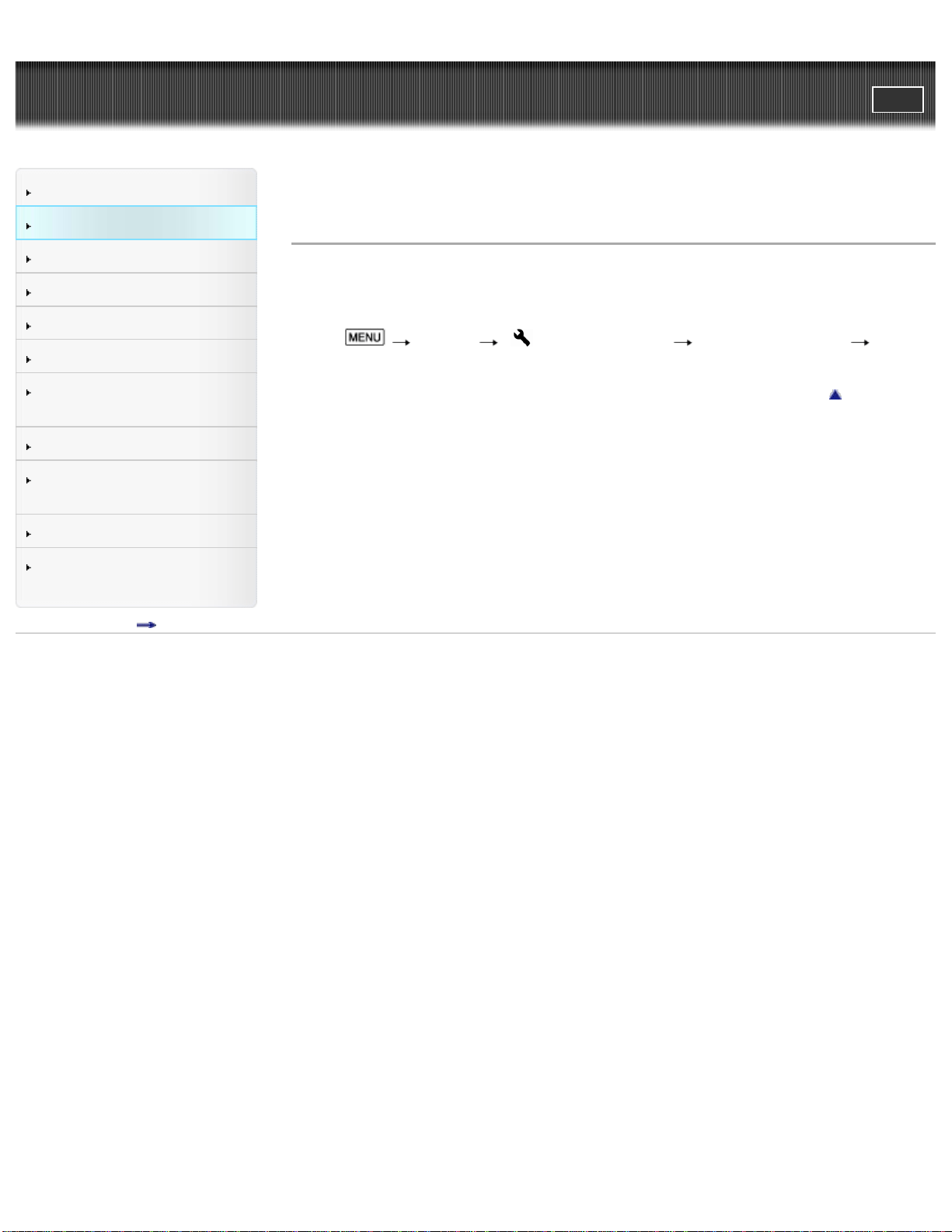
Change the screen language before using the camcorder if necessary. The on-
screen displays in each local language are used for illustrating the operating
procedures. [Details]
Select
[Setup] [ General Settings] [Language Setting] a
desired language.
Back to top
Copyright 2013 Sony Corporation
30
User Guide
PrintSearch
Operation Search
Before use
Getting started
Recording
Playback
Playing images on a TV
Saving images with a
computer
Using the Wi-Fi function
Customizing your
camcorder
Troubleshooting
Maintenance and
precautions
Contents list
Top page > Before use > Operating your camcorder > Selecting items on the LCD
screen
Selecting items on the LCD screen
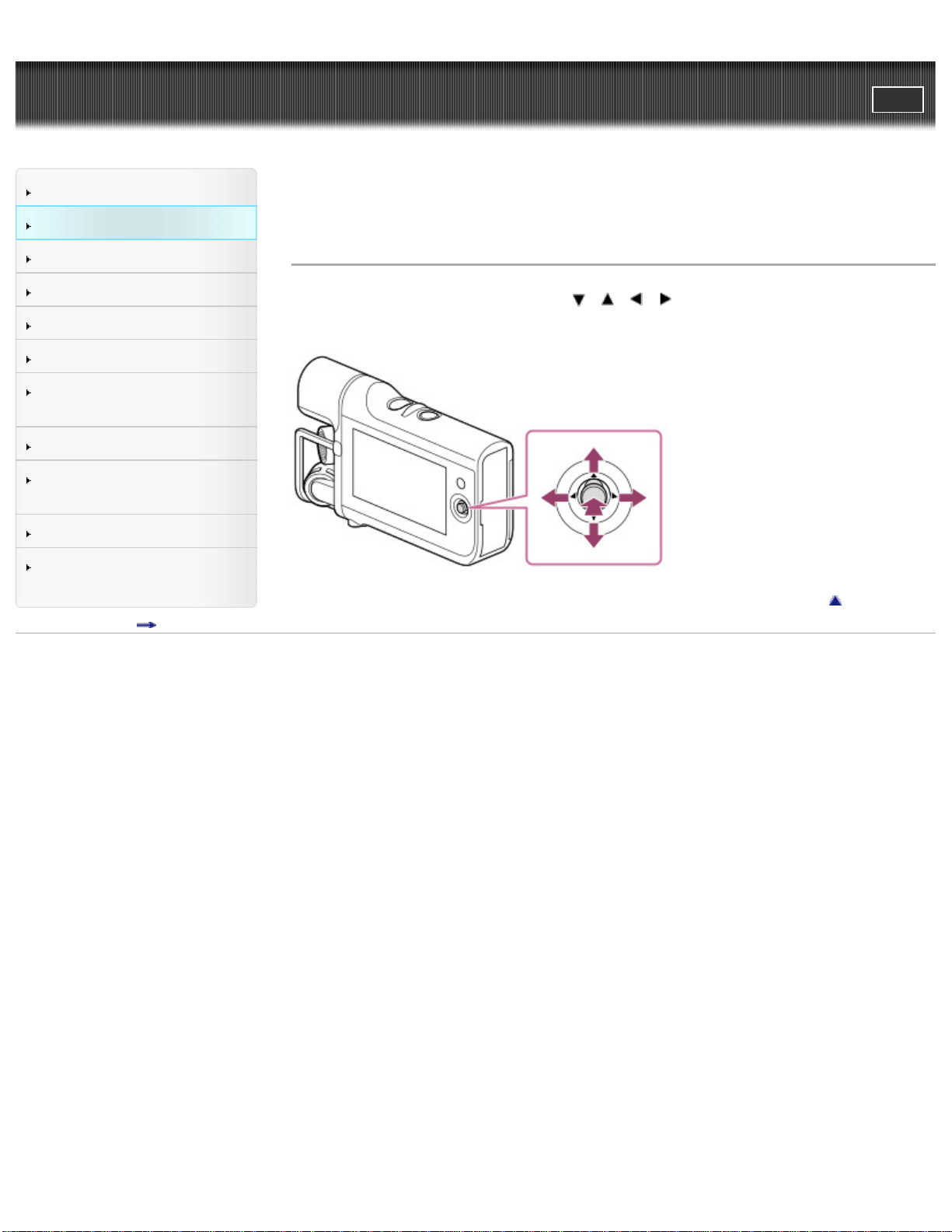
1. Move the multi-selector towards / / / to select the desired item.
2. Press the center of the multi-selector to enter.
Back to top
Copyright 2013 Sony Corporation
31
User Guide
PrintSearch
Operation Search
Before use
Getting started
Recording
Playback
Playing images on a TV
Saving images with a
computer
Using the Wi-Fi function
Customizing your
camcorder
Troubleshooting
Maintenance and
precautions
Contents list
Top page > Getting started > Checking the supplied items > Supplied items
Supplied items
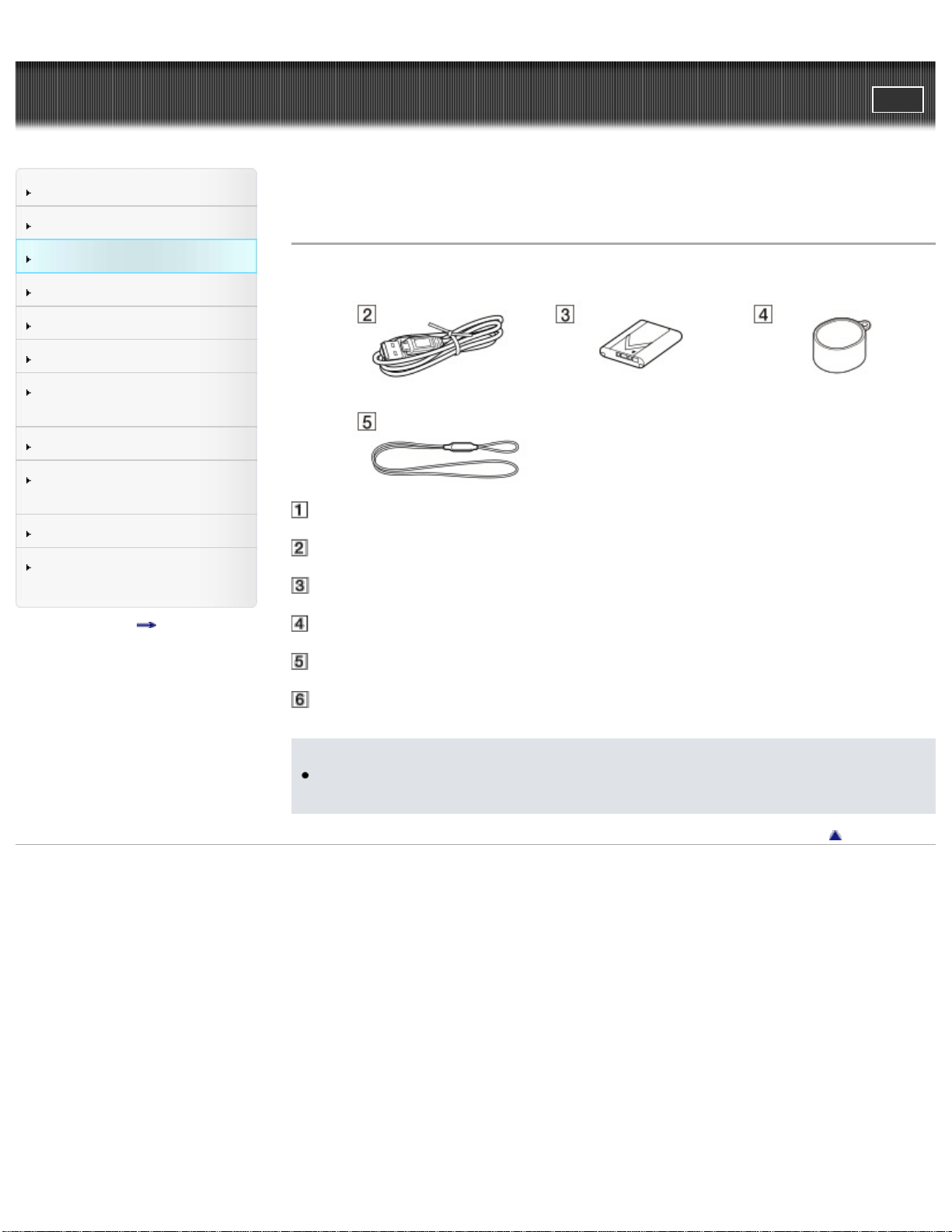
The numbers in ( ) indicate the supplied quantity.
Camcorder (1)
USB cable (Micro USB cable) (1)
Rechargeable battery pack NP-BX1 (1)
Lens cap (1)
Cap string (1)
“Operating Guide” (1)
Notes
The editing/management software can be downloaded from the Sony website.
[Details]
Back to top
Copyright 2013 Sony Corporation
32
User Guide
PrintSearch
Operation Search
Before use
Getting started
Recording
Playback
Playing images on a TV
Saving images with a
computer
Using the Wi-Fi function
Customizing your
camcorder
Troubleshooting
Maintenance and
precautions
Contents list
Top page > Getting started > Power supply > Attaching the battery pack
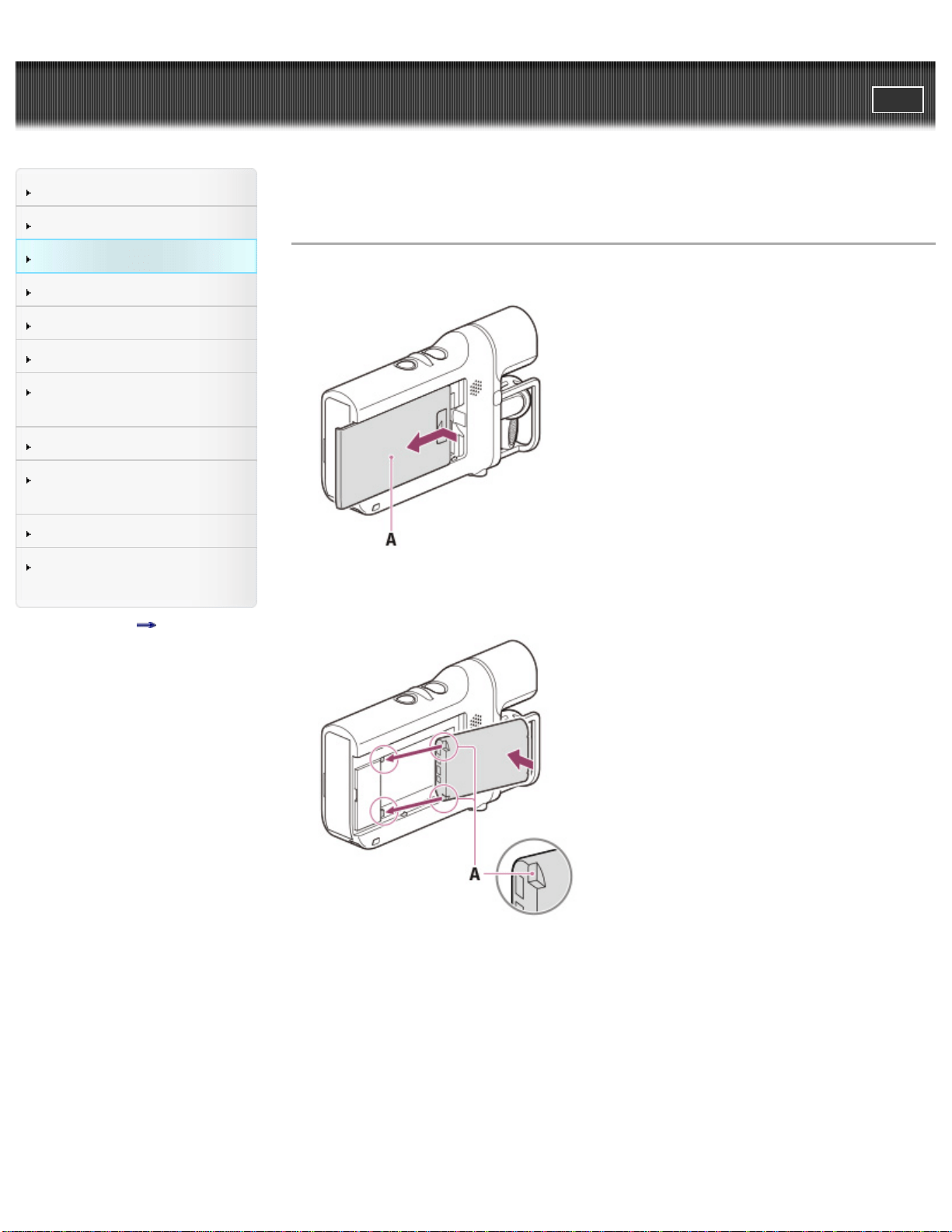
Attaching the battery pack
1. Remove the battery cover.
A: Battery cover
2. Attach the battery pack in the direction of the arrows.
A: Notch
3. Attach the battery cover.
33
Notes
You can use only NP-BX1 (supplied) with your camcorder.
In the default setting, the camcorder turns itself off not to consume the battery
power when no operations are performed for about 5 minutes ([Power Save]).
To prevent staining the terminal, short-circuiting, etc., be sure to use a plastic
bag to keep away from metal materials when carrying or storing the battery
pack.
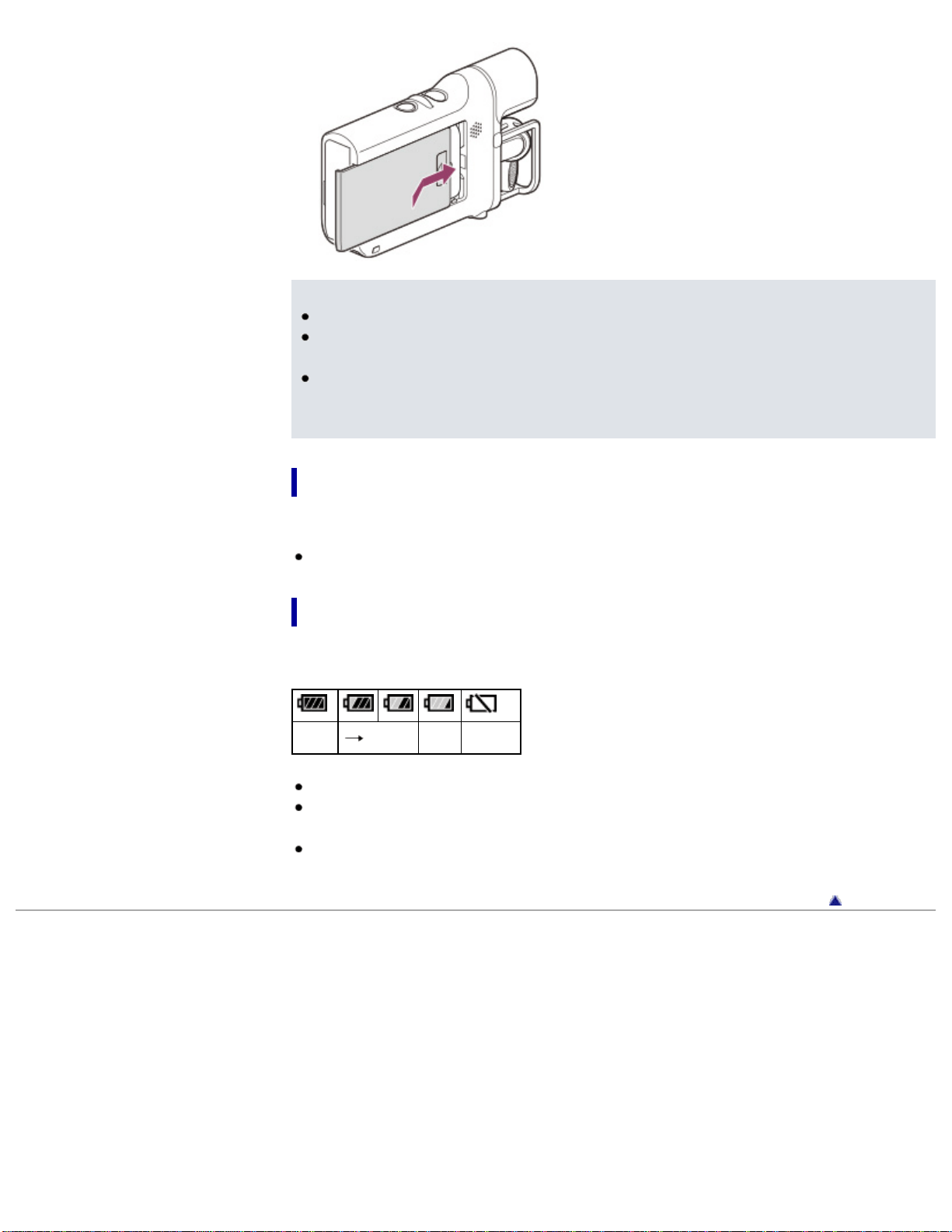
To remove the battery pack
Turn off your camcorder, remove the battery cover, and then remove the battery
pack.
Be careful not to drop the battery pack.
To check the remaining battery power
An icon indicating the remaining battery power is displayed.
High Low Empty
It will take approximately 1 minute to display the correct remaining battery power.
The remaining battery power may not be displayed correctly depending on
ambient conditions and the environment in which you are using your camcorder.
Your camcorder cannot display the remaining battery life in minutes using the
“InfoLITHIUM” battery.
Back to top
Copyright 2013 Sony Corporation
34
User Guide
PrintSearch
Operation Search
Before use
Getting started
Recording
Playback
Playing images on a TV
Saving images with a
computer
Using the Wi-Fi function
Customizing your
camcorder
Troubleshooting
Maintenance and
precautions
Contents list
Top page > Getting started > Power supply > Charging the battery using your
computer
Charging the battery using your computer
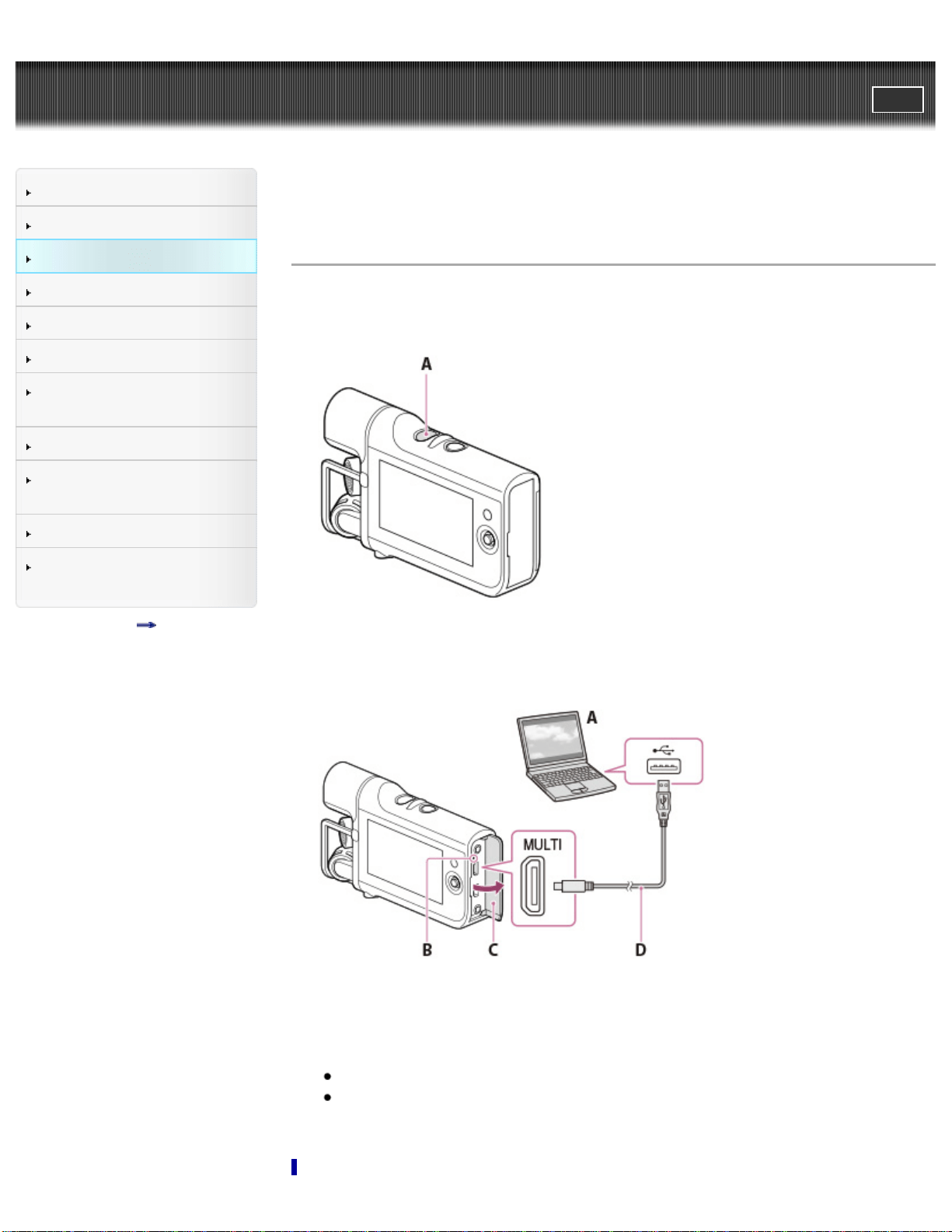
1. Attach the battery pack. [Details]
2. When the camcorder is on, press the POWER button to turn it off.
A: POWER button
3. Open the jack cover, and then connect the camcorder to a running computer
using the USB cable (supplied).
A: USB jack (computer)
B: CHG (charge) lamp
C: Jack cover
D: USB cable (supplied)
The CHG (charge) lamp is lit.
The CHG (charge) lamp turns off when the battery pack is fully charged.
Disconnect the USB cable (supplied) from your camcorder.
35

Charging time
Approximately 245 minutes are required to fully charge a fully discharged battery
pack.
The charging time is measured when charging the camcorder at a room
temperature of 25 °C (77 °F). It is recommended that you charge the battery in a
temperature range of 10 °C to 30 °C (50 °F to 86 °F).
Back to top
Copyright 2013 Sony Corporation
36
User Guide
PrintSearch
Operation Search
Before use
Getting started
Recording
Playback
Playing images on a TV
Saving images with a
computer
Using the Wi-Fi function
Customizing your
camcorder
Troubleshooting
Maintenance and
precautions
Contents list
Top page > Getting started > Power supply > Charging the battery using the AC
Adaptor (sold separately)
Charging the battery using the AC Adaptor (sold
separately)
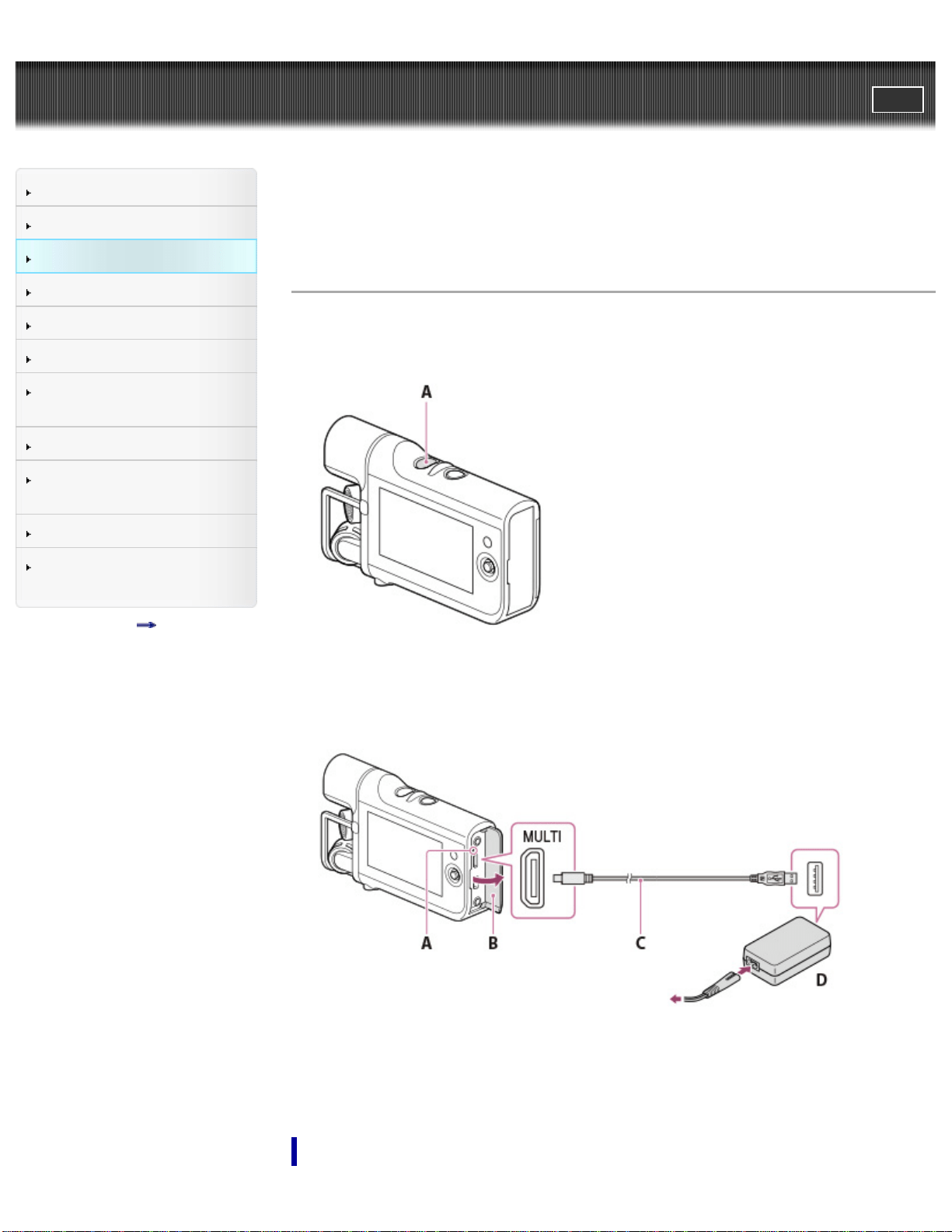
1. Attach the battery pack. [Details]
2. When the camcorder is on, press the POWER button to turn it off.
A: POWER button
3. Open the jack cover, and then connect the camcorder to a wall outlet (wall
socket) using the USB cable (supplied) and AC-UD10 AC Adaptor (sold
separately).
A: CHG (charge) lamp
B: Jack cover
C: USB cable (supplied)
D: AC-UD10 (sold separately)
Charging time
37

Approximately 155 minutes are required to fully charge a fully discharged battery
pack.
The charging time is measured when charging the camcorder at a room
temperature of 25 °C (77 °F). It is recommended that you charge the battery in a
temperature range of 10 °C to 30 °C (50 °F to 86 °F).
Back to top
Copyright 2013 Sony Corporation
38
User Guide
PrintSearch
Operation Search
Before use
Getting started
Recording
Playback
Playing images on a TV
Saving images with a
computer
Using the Wi-Fi function
Customizing your
camcorder
Troubleshooting
Maintenance and
precautions
Contents list
Top page > Getting started > Power supply > Using the camcorder while supplying
it with power
Using the camcorder while supplying it with
power
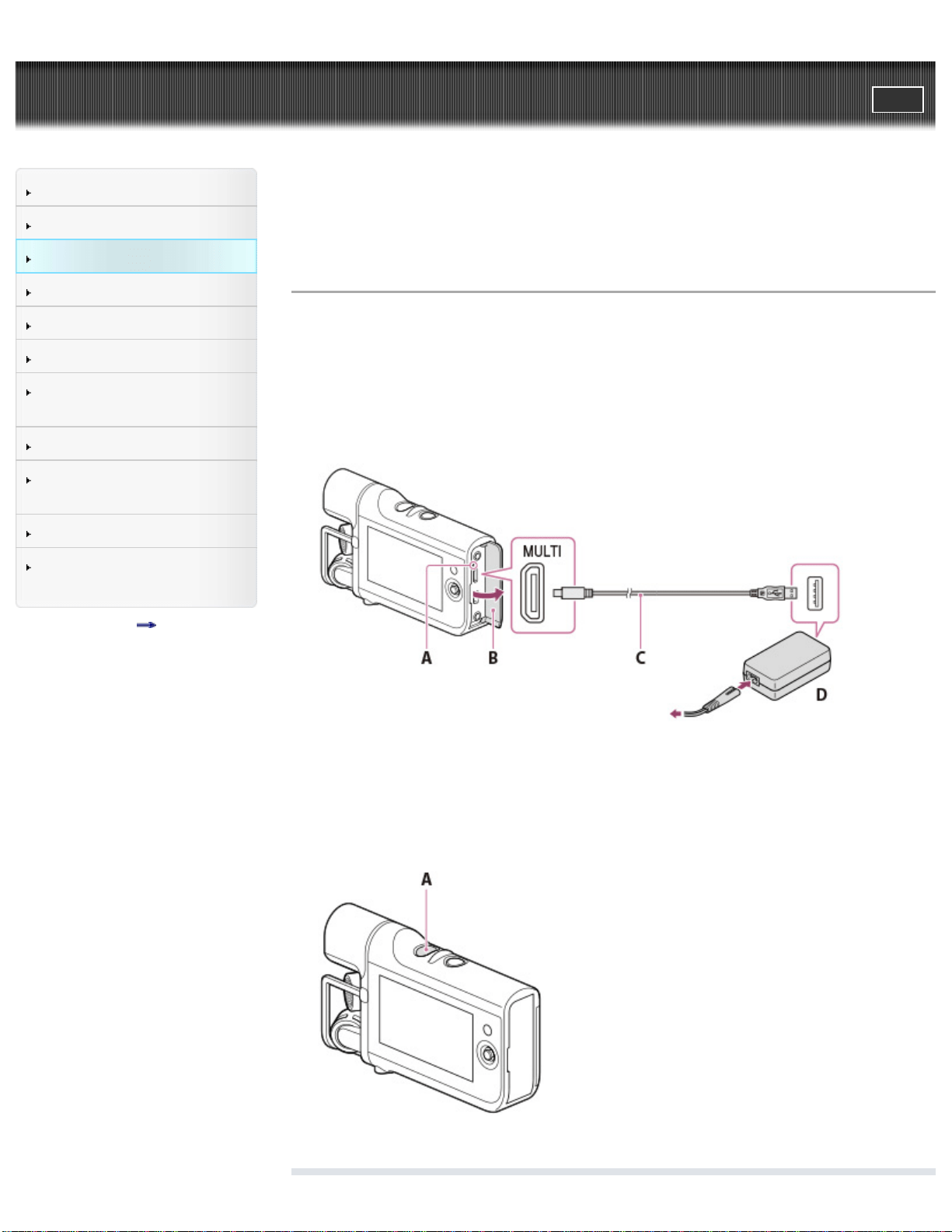
You can use the camcorder while supplying power by connecting the AC-UD10 AC
Adaptor (sold separately) to the camcorder.
1. Attach the battery pack. [Details]
2. Open the jack cover, and then connect the camcorder to a wall outlet (wall
socket) using the USB cable (supplied) and AC-UD10 AC Adaptor (sold
separately).
A: CHG (charge) lamp
B: Jack cover
C: USB cable (supplied)
D: AC-UD10 (sold separately)
3. Press the POWER button to turn on the camcorder for using it.
A: POWER button
39
Notes
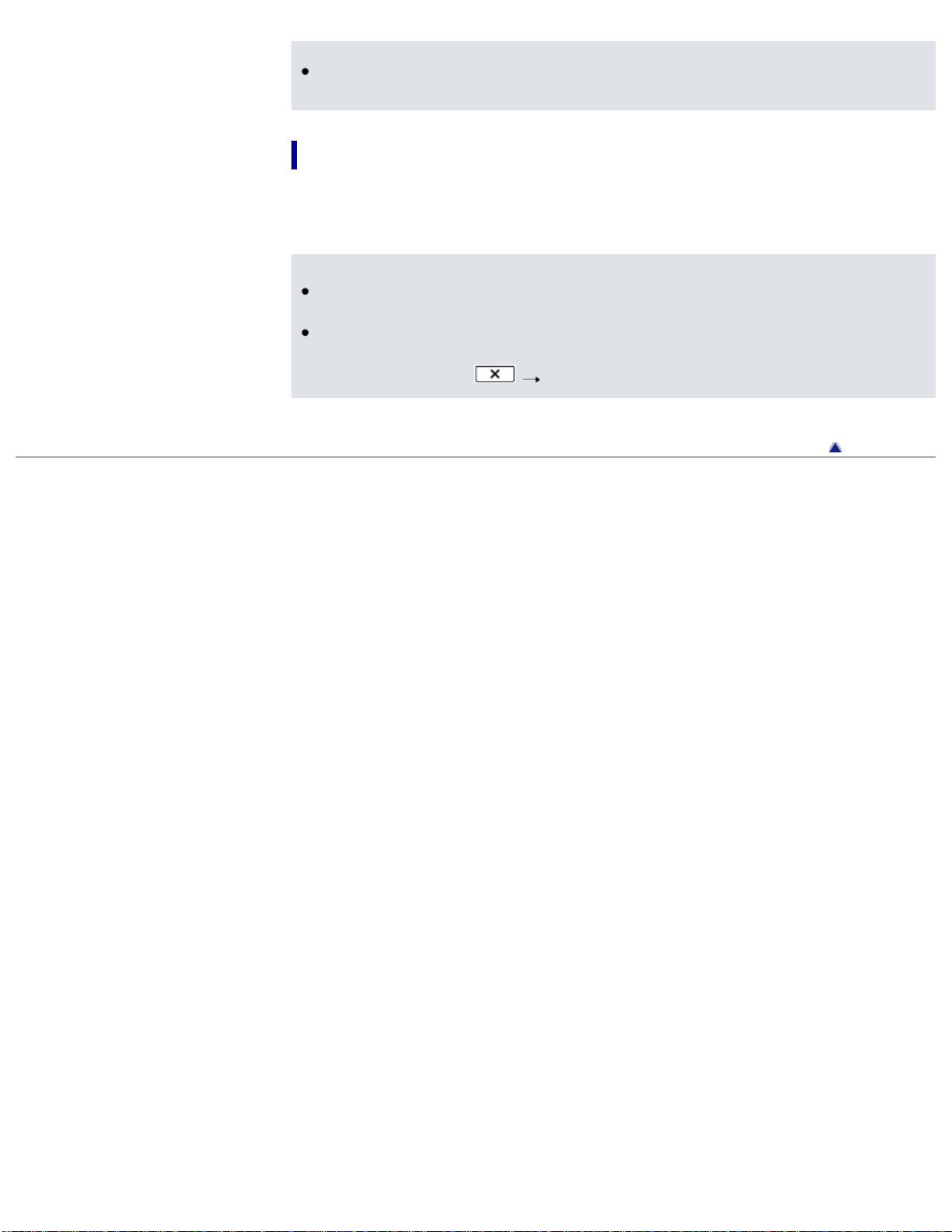
You may not be able to supply power to the camcorder without the battery pack
attached.
Supplying power to the camcorder from a computer
By connecting the camcorder to a computer using the USB cable (supplied), you
can play back or import files to the computer while supplying power to the
camcorder.
Notes
The recording function is not available while supplying power from the
computer.
When you connect the camcorder to a computer using the USB cable during
playback, the USB connection screen appears. It will turn to the playback
screen if you select
[yes].
Back to top
Copyright 2013 Sony Corporation
40
User Guide
PrintSearch
Operation Search
Before use
Getting started
Recording
Playback
Playing images on a TV
Saving images with a
computer
Using the Wi-Fi function
Customizing your
camcorder
Troubleshooting
Maintenance and
precautions
Contents list
Top page > Getting started > Turning the power on, and setting the date and
time > Turning the power on, and setting the date and time
Turning the power on, and setting the date and
time
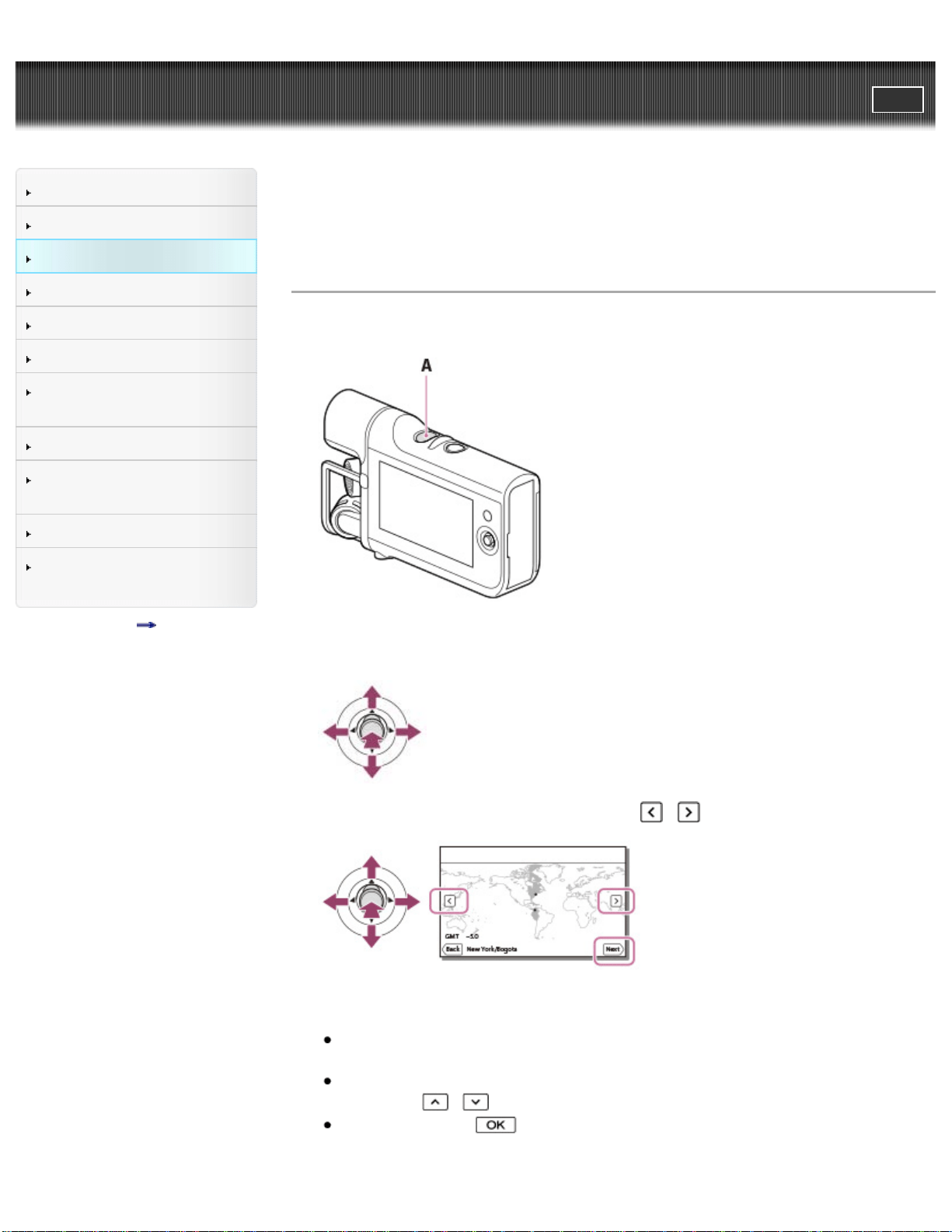
1. Turn on the camcorder by pressing the POWER button.
A: POWER button
2. Select the desired language, using the multi-selector.
3. Select the desired geographical area with / , then select [Next].
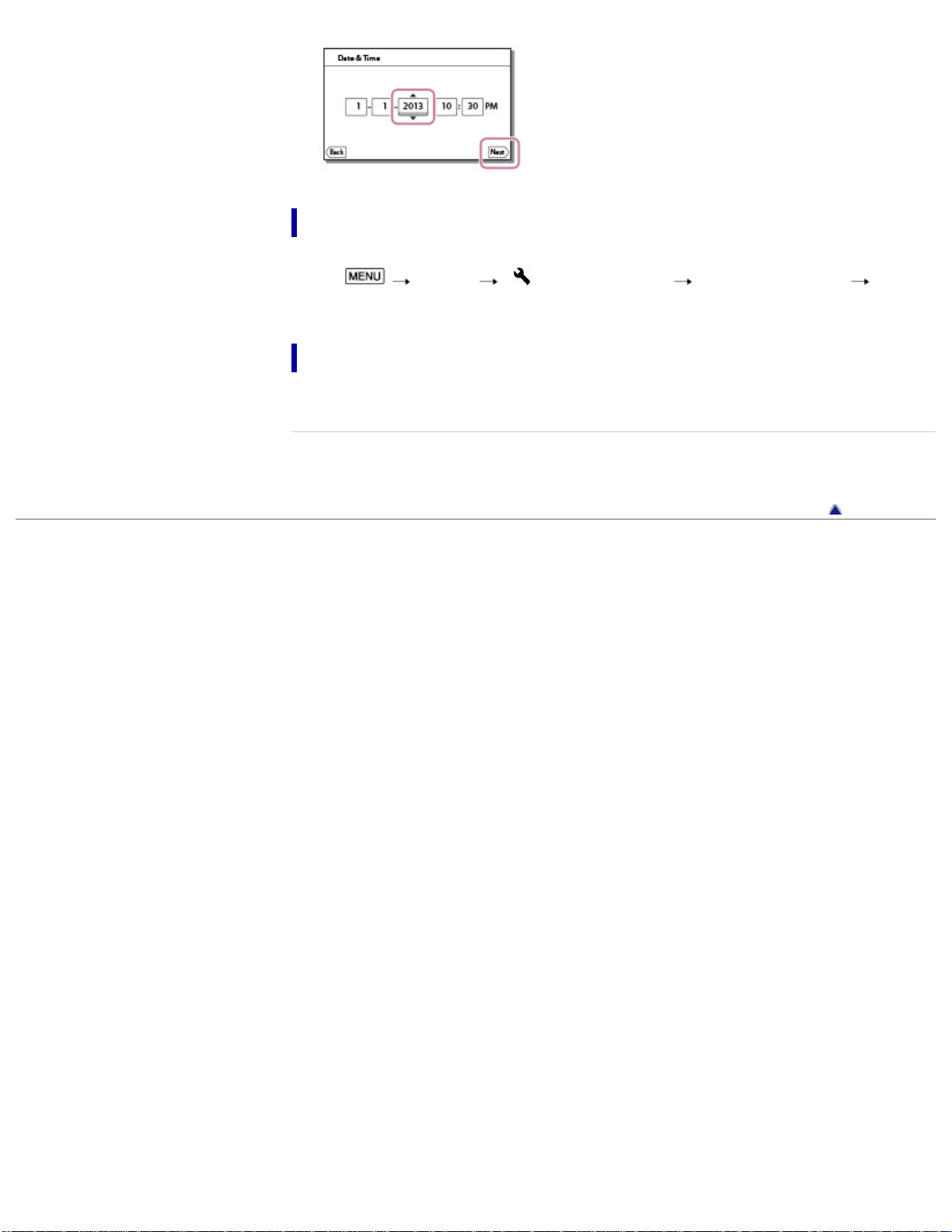
4. Set [Daylight Savings] or [Summer Time], select the date format and the date
and time.
If you set [Daylight Savings] or [Summer Time] to [On], the clock advances 1
hour.
When you select the date and time, select one of the items and adjust the
value with
/ .
When you select
, the date and time setting operation is complete.
41
To change the language setting
You can change the on-screen displays to show messages in a specified language.
Select
[Setup] [ General Settings] [Language Setting] a
desired language.
To turn off the power
Press the POWER button.
Related topics
To set the date and time again: [Date & Time Setting]
Back to top
Copyright 2013 Sony Corporation
42
User Guide
PrintSearch
Operation Search
Before use
Getting started
Recording
Playback
Playing images on a TV
Saving images with a
computer
Using the Wi-Fi function
Customizing your
camcorder
Troubleshooting
Maintenance and
precautions
Contents list
Top page > Getting started > Preparing the recording media > Inserting a memory
card
Inserting a memory card
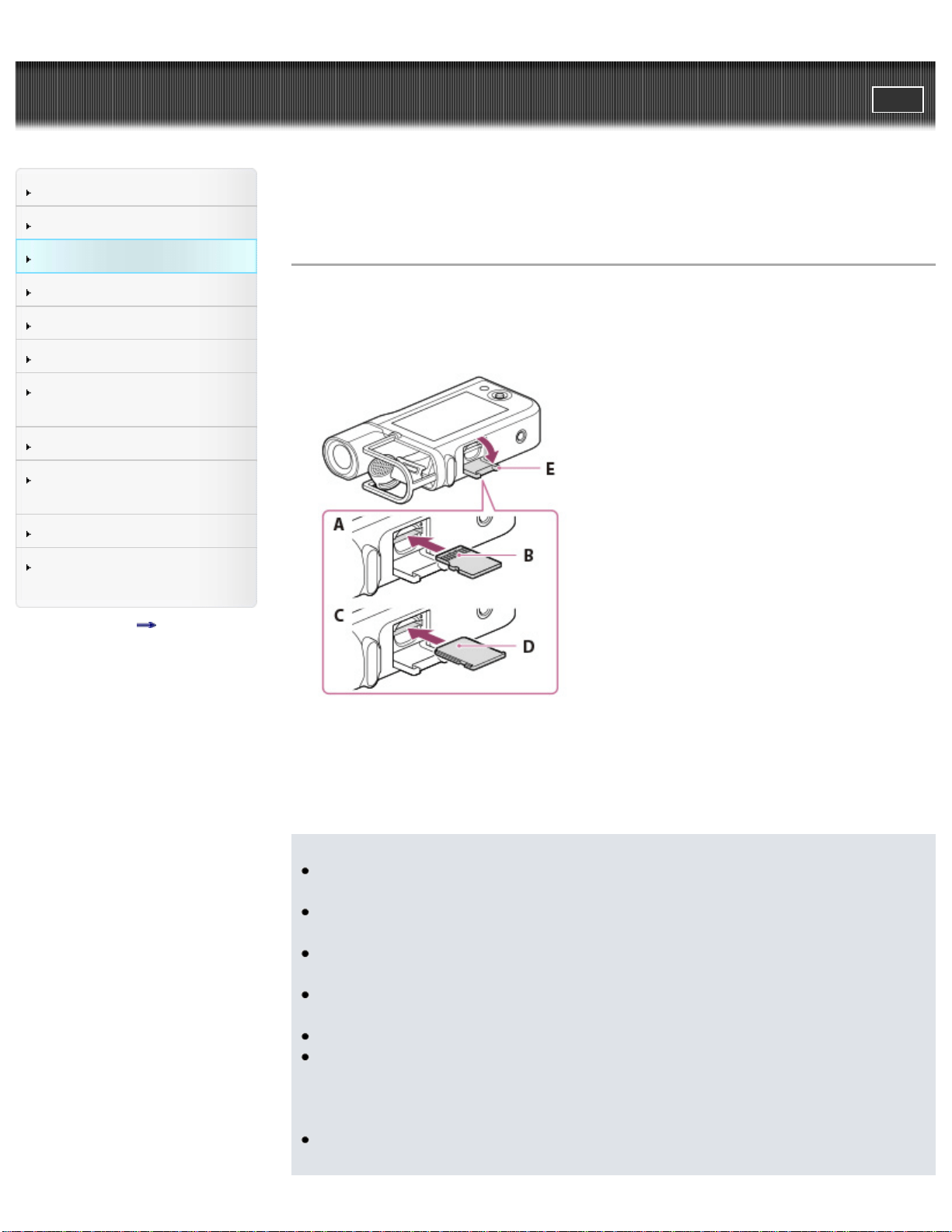
1. Open the memory card cover.
2. Install a memory card straight in the direction illustrated.
3. Close the memory card cover.
A: When inserting a microSD memory card
B: Terminal
C: When inserting “Memory Stick Micro” media
D: Printed surface
E: Memory card cover
Notes
The [Preparing image database file. Please wait.] screen appears if you insert a
new memory card. Wait until the screen disappears.
Insert the memory card straight in the right direction so that the camcorder can
recognize it.
Make sure any warning message related to the memory card is not displayed.
[Details]
If you insert a memory card in the wrong direction or at an angle, you cannot
use it.
Do not insert more than 1 memory card.
To ensure stable operation of the memory card, it is recommended to format
the memory card with your camcorder before the first use. Formatting the
memory card will erase all the data stored on it and the data will be
irrecoverable. Save your important data on your computer, etc.
If [Failed to create a new Image Database File. It may be possible that there is
not enough free space.] is displayed, format the memory card. [Details]
43
Confirm the direction of the memory card. If you forcibly insert the memory card
in the wrong direction, the memory card, memory card slot, or recorded files
may be damaged.
Insert a memory card that fits the memory card slot size. Otherwise, it will
cause a malfunction.
When inserting or ejecting the memory card, be careful so that the memory
card does not pop out and drop.
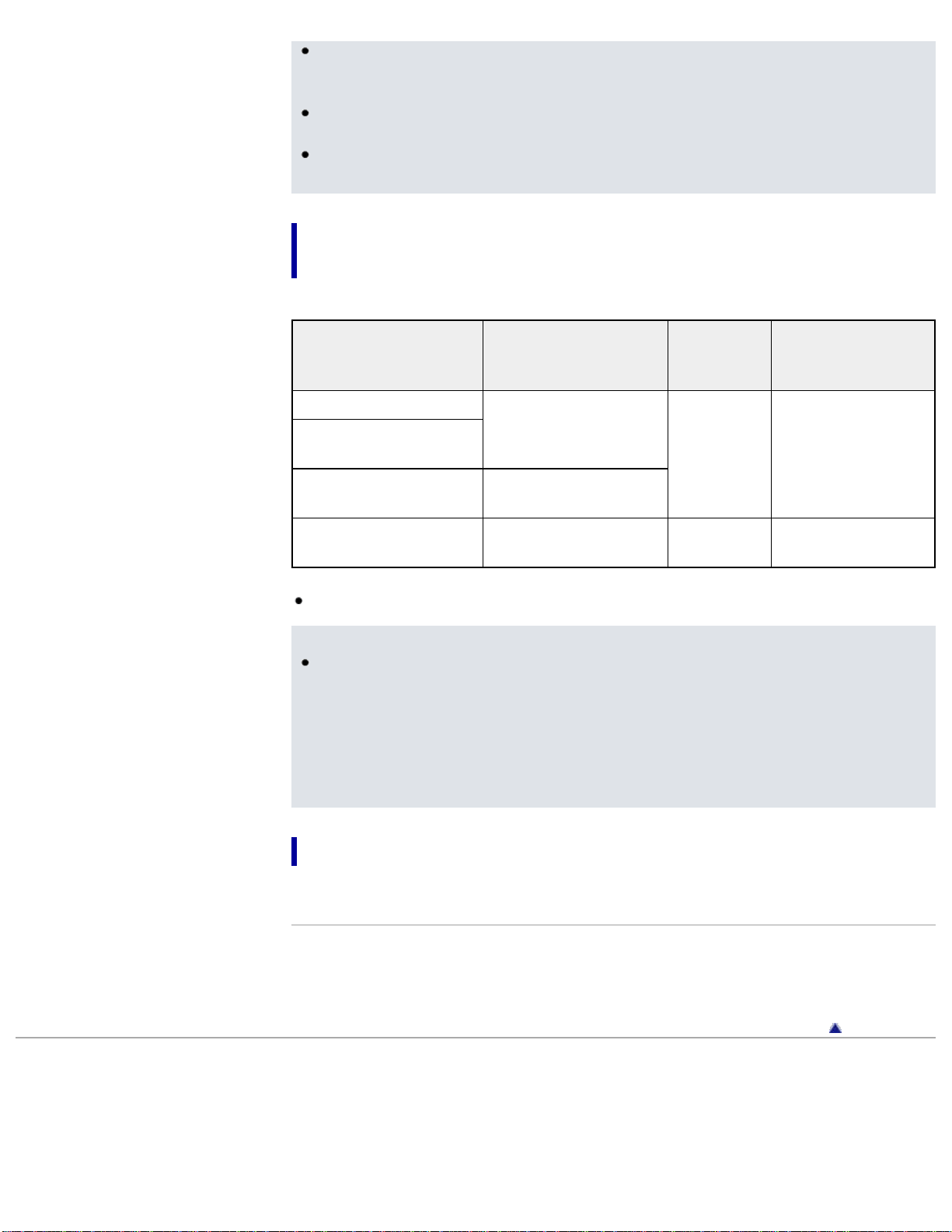
Types of memory card you can use with your
camcorder
Capacity
(operation
verified)
SD Speed
Class
Described in
this manual
microSD memory card
Up to 32 GB
Class 4 or
faster
microSD card
microSDHC memory
card
microSDXC memory
card
Up to 64 GB
“Memory Stick Micro”
media (Mark2)
Up to 16 GB —
“Memory Stick
Micro” media
Operation with all memory cards is not assured.
Notes
Movies saved on the microSDXC memory cards cannot be imported to or
played back on computers or AV devices not supporting the exFAT* file system
by connecting the camcorder to these devices with the USB cable. Confirm in
advance that the connecting equipment is supporting the exFAT system. If you
connect an equipment not supporting the exFAT system and the format screen
appears, do not perform the format. All the data saved will be lost.
* The exFAT is a file system that is used for the microSDXC memory cards.
To eject the memory card
Open the memory card cover and lightly push the memory card in once.
Related topics
Confirming the recording media: Screen indicators during recording
Expected shooting time of movies
Back to top
Copyright 2013 Sony Corporation
44
User Guide
PrintSearch
Operation Search
Before use
Getting started
Recording
Playback
Playing images on a TV
Saving images with a
computer
Using the Wi-Fi function
Customizing your
camcorder
Troubleshooting
Maintenance and
precautions
Contents list
Top page > Recording > Recording > Shooting movies
Shooting movies
Movies are shot in the MP4 format ([Audio Format] is [AAC LC] in the default
setting).
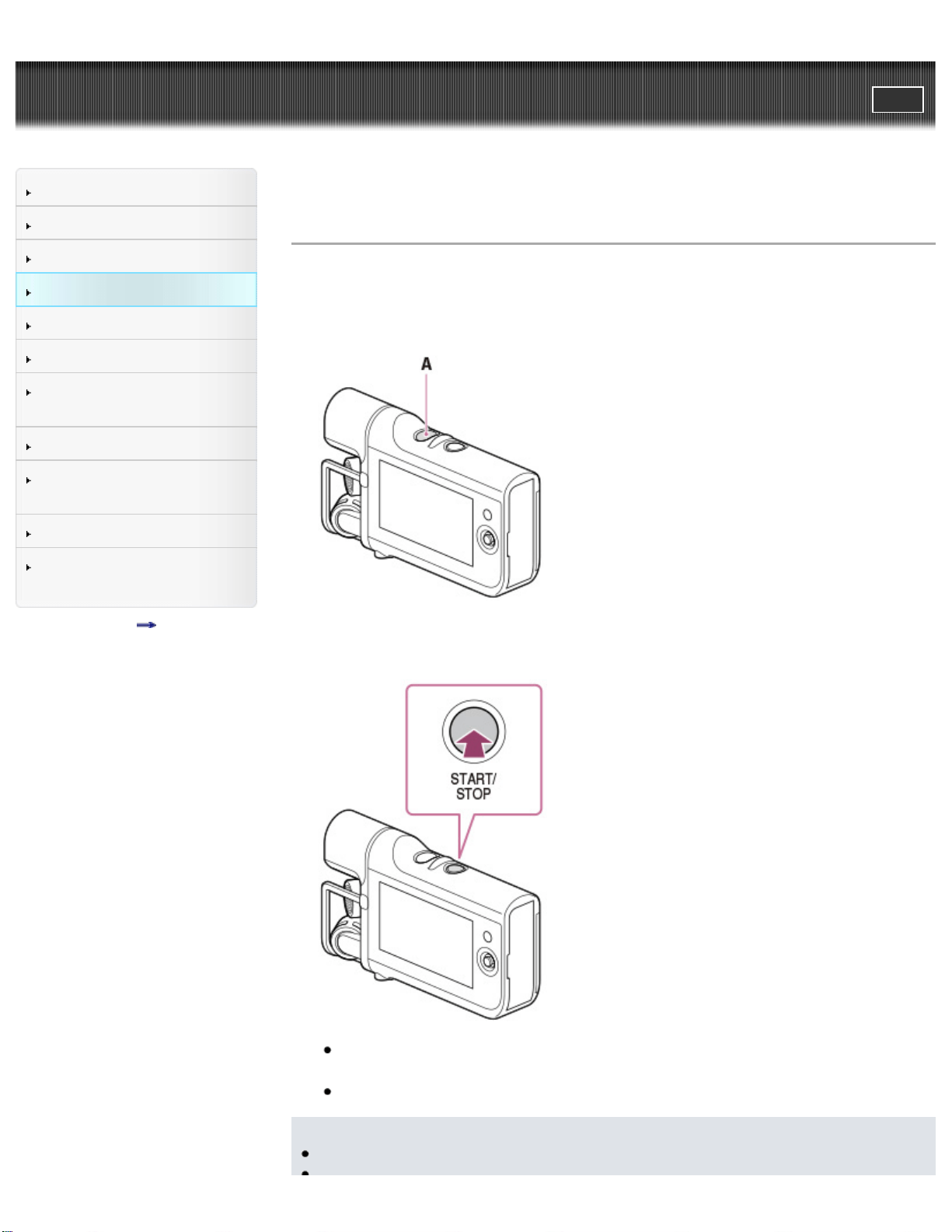
1. Press the POWER button to turn on the camcorder.
A: POWER button
2. Press START/STOP to start shooting.
The LCD screen will be dimmed about 3 seconds after starting shooting (in
the default setting).
To stop shooting, press START/STOP again.
Notes
The maximum continuous shooting time of movies is about 13 hours.
45

When a movie file exceeds 4 GB, the next movie file is created automatically.
The following states will be indicated if data is still being written onto the
recording media after shooting has finished. During this time, do not apply
shock or vibration to the camcorder, or remove the battery pack or AC Adaptor
(sold separately).
Access lamp is lit or flashing
The media icon in the upper right of the LCD screen is on
The LCD screen of your camcorder can display shooting movies across the
entire screen (full pixel display). However, this may cause slight trimming of the
top, bottom, right, and left edges of movies when played back on a TV which is
not compatible with full pixel display. It is recommended you shoot movies with
[Grid Line] set to [On] and using the outer frame of [Grid Line] as a guide.
Since the camcorder is equipped with a high-sensitivity microphone, noise or
operation sound may be recorded in the following situations.
When shooting by holding the camcorder
When operating the multi-selector
Related topics
Expected shooting time of movies
To hide items on the LCD screen: [Display Setting]
Recordable time, remaining capacity: [Media Info]
Changing the audio recording format: [Audio Format]
Canceling the LCD screen automatic lights-out function: [Auto Monitor Off]
Recording sound: [Recording sound]
Back to top
Copyright 2013 Sony Corporation
46
User Guide
PrintSearch
Operation Search
Before use
Getting started
Recording
Playback
Playing images on a TV
Saving images with a
computer
Using the Wi-Fi function
Customizing your
camcorder
Troubleshooting
Maintenance and
precautions
Contents list
Top page > Recording > Recording > Recording sound
Recording sound
Sound is recorded as a WAV file.
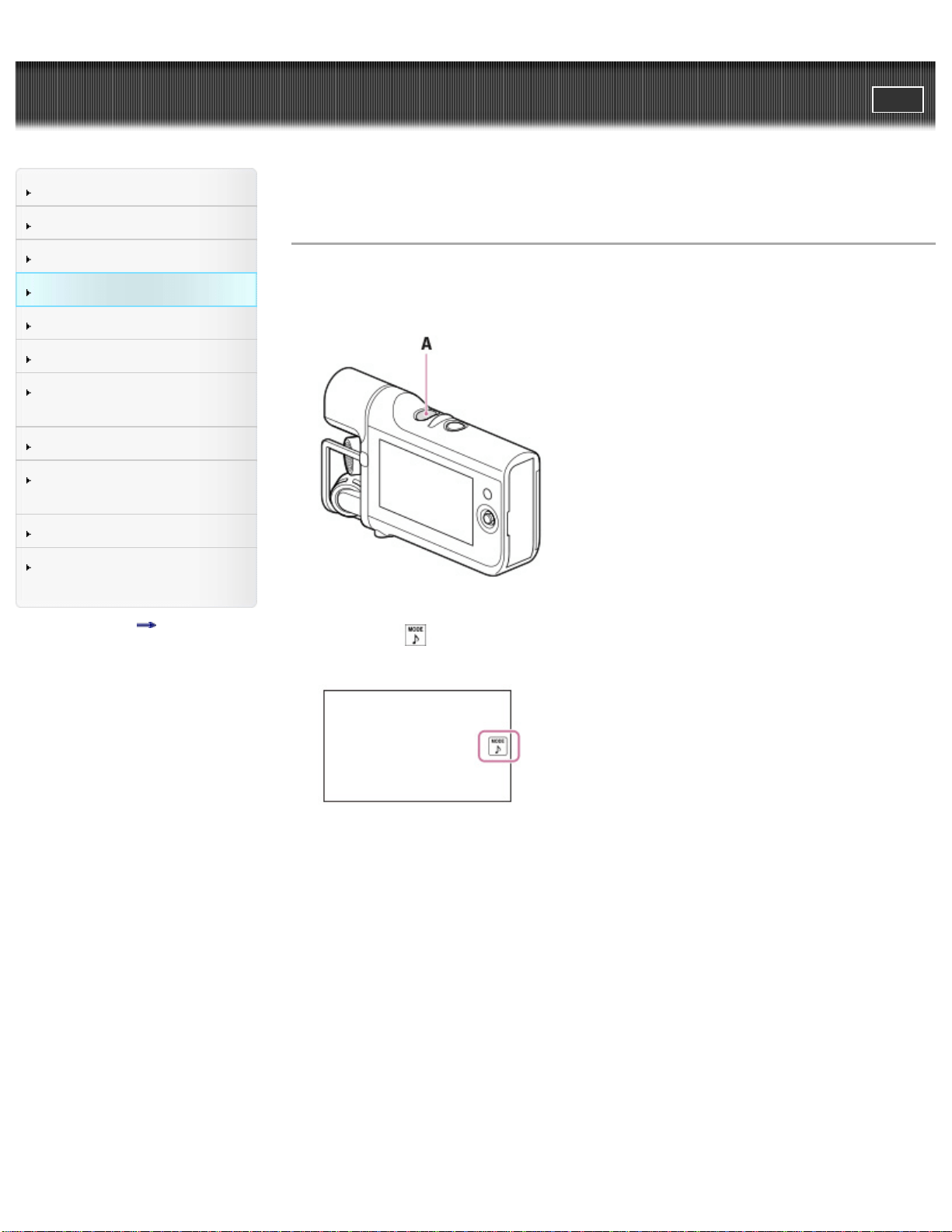
1. Press the POWER button to turn on the camcorder.
A: POWER button
2. Select the
button.
The camcorder enters sound recording mode.
3. Press START/STOP to start recording sound.
47
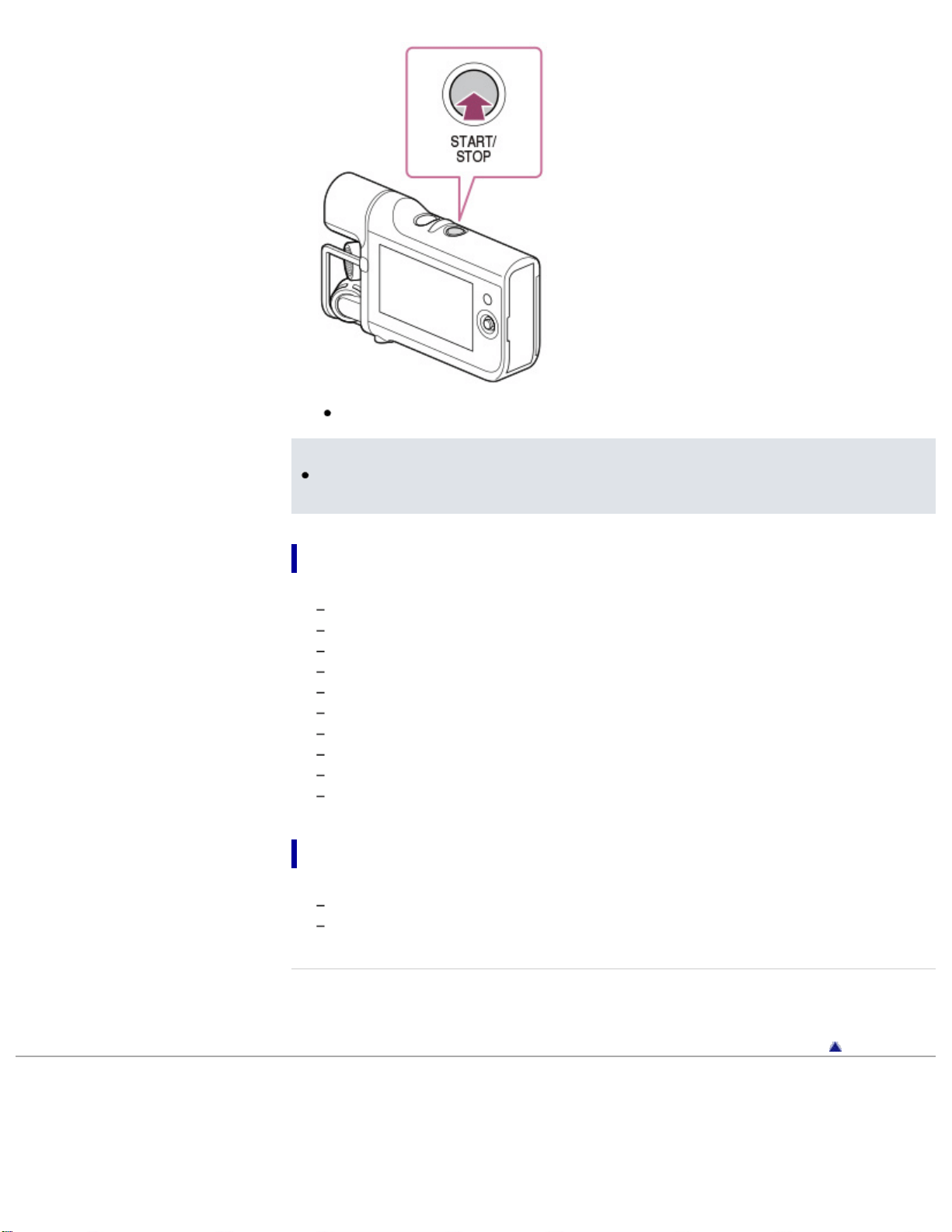
To stop recording, press START/STOP again.
Notes
When the file size exceeds 2 GB (approximately 2 hours 50 minutes when
recording continuously), recording stops.
Functions available in sound recording mode
The following functions are available.
[Ctrl with Smartphone]
[Low Cut Filter]
[Int. Mic. Rec. Level]
[Ext. Mic. Rec. Level]
[Volume]
[Ext. Audio Input Set]
[My Button]
[Display Setting]
[Audio Level Display]
[Auto Monitor Off]
Functions available for audio files
The following functions are available.
[Delete]
[Protect]
Related topics
Expected recording time of sound
Back to top
Copyright 2013 Sony Corporation
48
User Guide
PrintSearch
Operation Search
Before use
Getting started
Recording
Playback
Playing images on a TV
Saving images with a
computer
Using the Wi-Fi function
Customizing your
camcorder
Troubleshooting
Maintenance and
precautions
Contents list
Top page > Recording > Recording > Screen indicators during recording
Screen indicators during recording
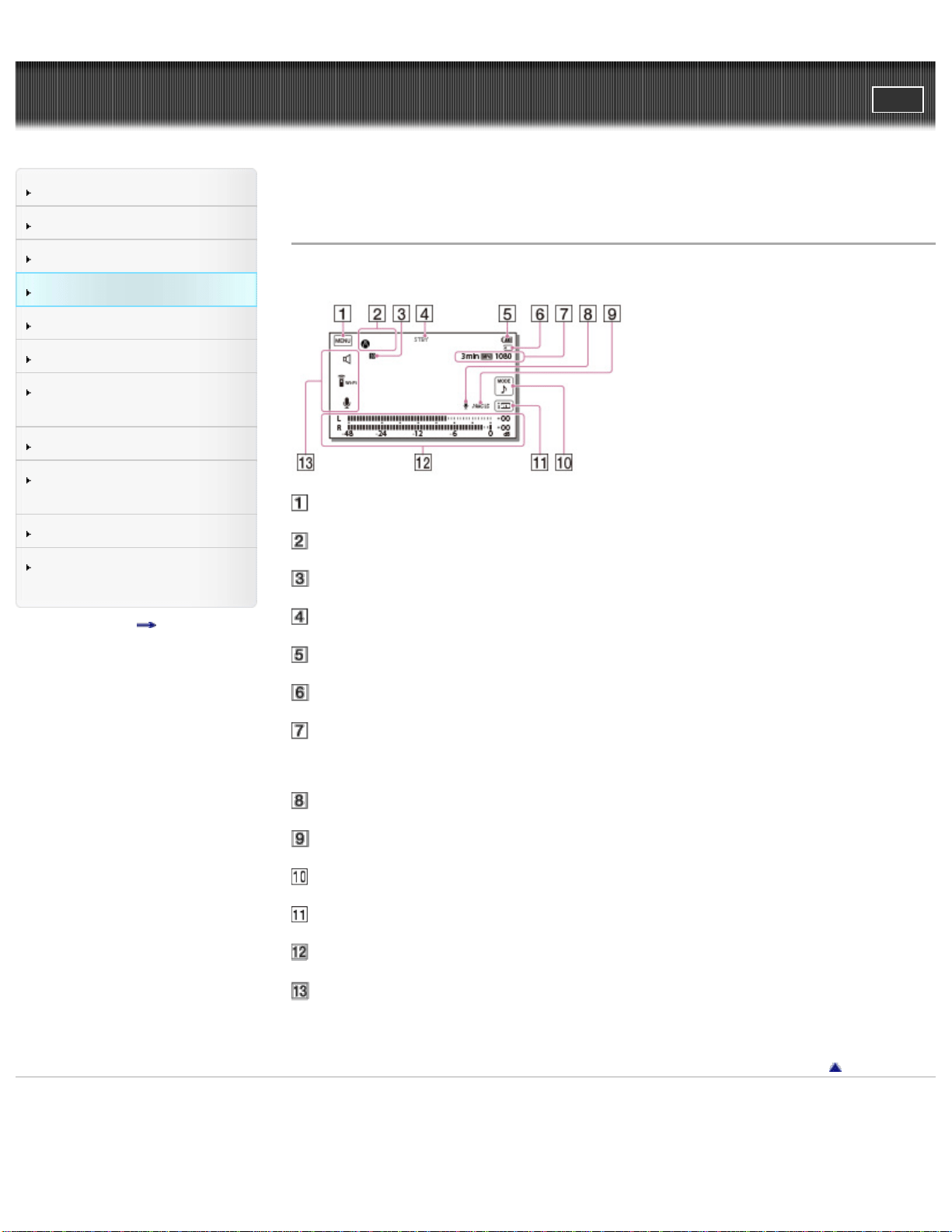
Described here are icons for both movie shooting and sound recording modes.
MENU button
Status detected by Intelligent Auto
NFC connection
Recording status ([STBY]/[REC])
Remaining battery
Counter (hour: minute: second), Recording media
Estimated recording remaining time, Recording format, Movie
size
Audio input settings
Audio recording format for movies
Mode switching button
Intelligent Auto button
Audio level meter
My Button (you can assign your favorite functions to icons
displayed in this area)
Back to top
Copyright 2013 Sony Corporation
49
User Guide
PrintSearch
Operation Search
Before use
Getting started
Recording
Playback
Playing images on a TV
Saving images with a
computer
Using the Wi-Fi function
Customizing your
camcorder
Troubleshooting
Maintenance and
precautions
Contents list
Top page > Recording > Useful functions for recording > Intelligent Auto
Intelligent Auto
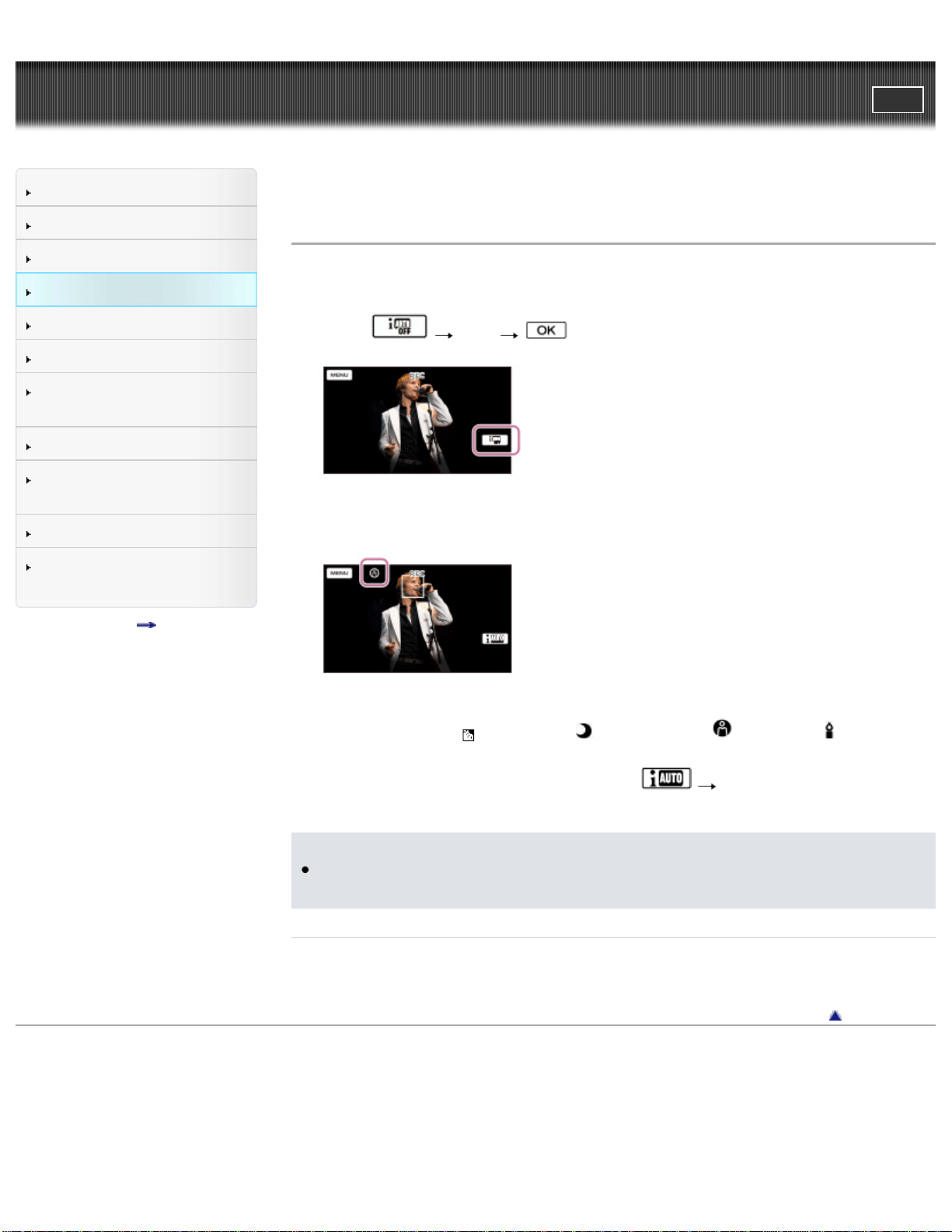
Your camcorder shoots movies after selecting the most suitable setting for the
subjects or the situation automatically. ([On] is the default setting.)
1. Select
[On] on the shooting screen.
2. Point the camcorder toward the subject and start shooting.
The icons that correspond to the conditions detected are displayed.
Scene detection: (Backlight), (Night Scene), (Spotlight), (Low light)
To cancel the Intelligent Auto function, select [Off] on the shooting
screen.
Notes
The camcorder may not detect the expected scene or subject, depending on the
shooting conditions.
Related topics
[Low Lux]
Back to top
Copyright 2013 Sony Corporation
50
User Guide
PrintSearch
Operation Search
Before use
Getting started
Recording
Playback
Playing images on a TV
Saving images with a
computer
Using the Wi-Fi function
Customizing your
camcorder
Troubleshooting
Maintenance and
precautions
Contents list
Top page > Recording > Useful functions for recording > Audio monitoring
Audio monitoring
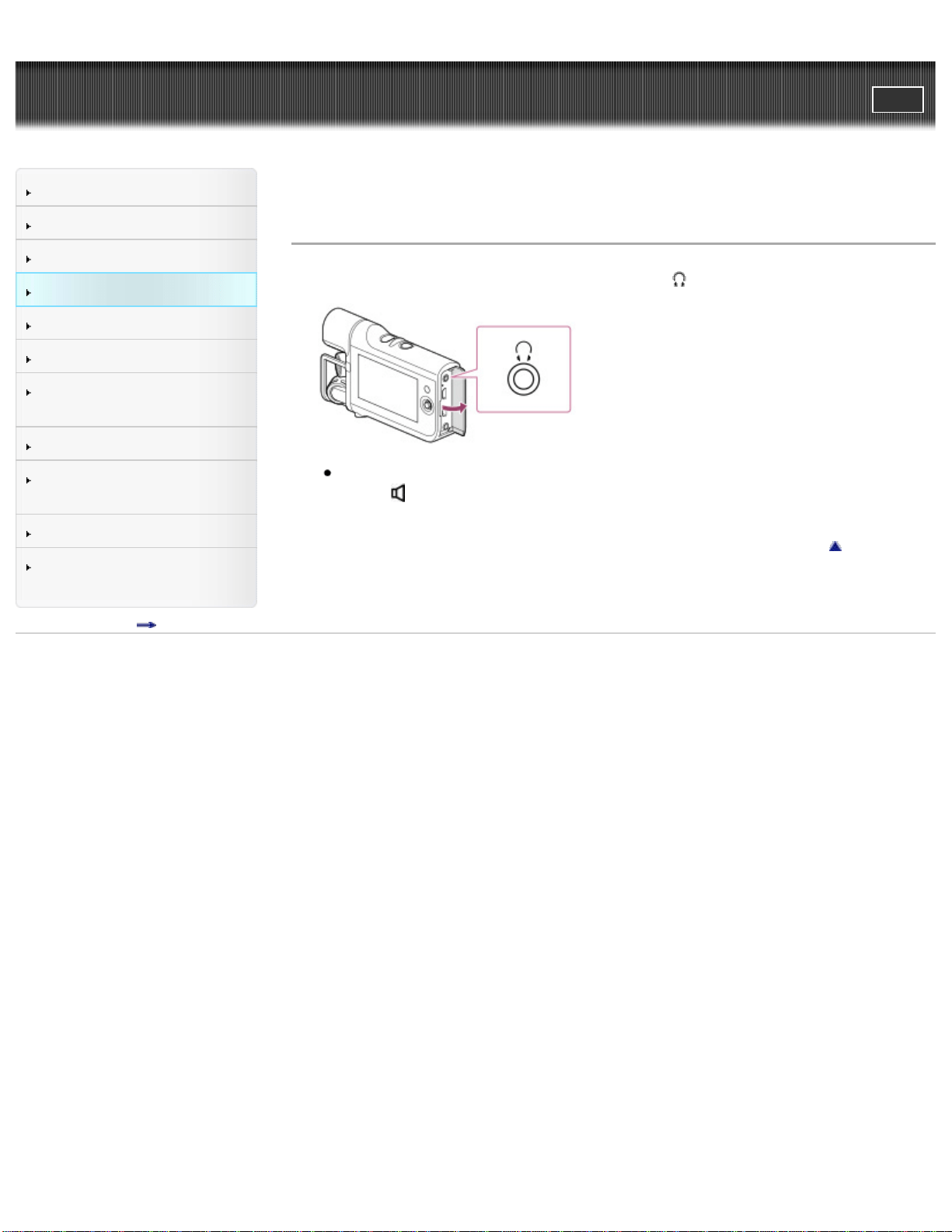
1. Connect headphones (sold separately) to the (headphones) jack.
To adjust the volume from the headphones, in recording standby mode,
select
on the LCD screen.
Back to top
Copyright 2013 Sony Corporation
51
User Guide
PrintSearch
Operation Search
Before use
Getting started
Recording
Playback
Playing images on a TV
Saving images with a
computer
Using the Wi-Fi function
Customizing your
camcorder
Troubleshooting
Maintenance and
precautions
Contents list
Top page > Playback > Playback > Playing movies/audio files
Playing movies/audio files
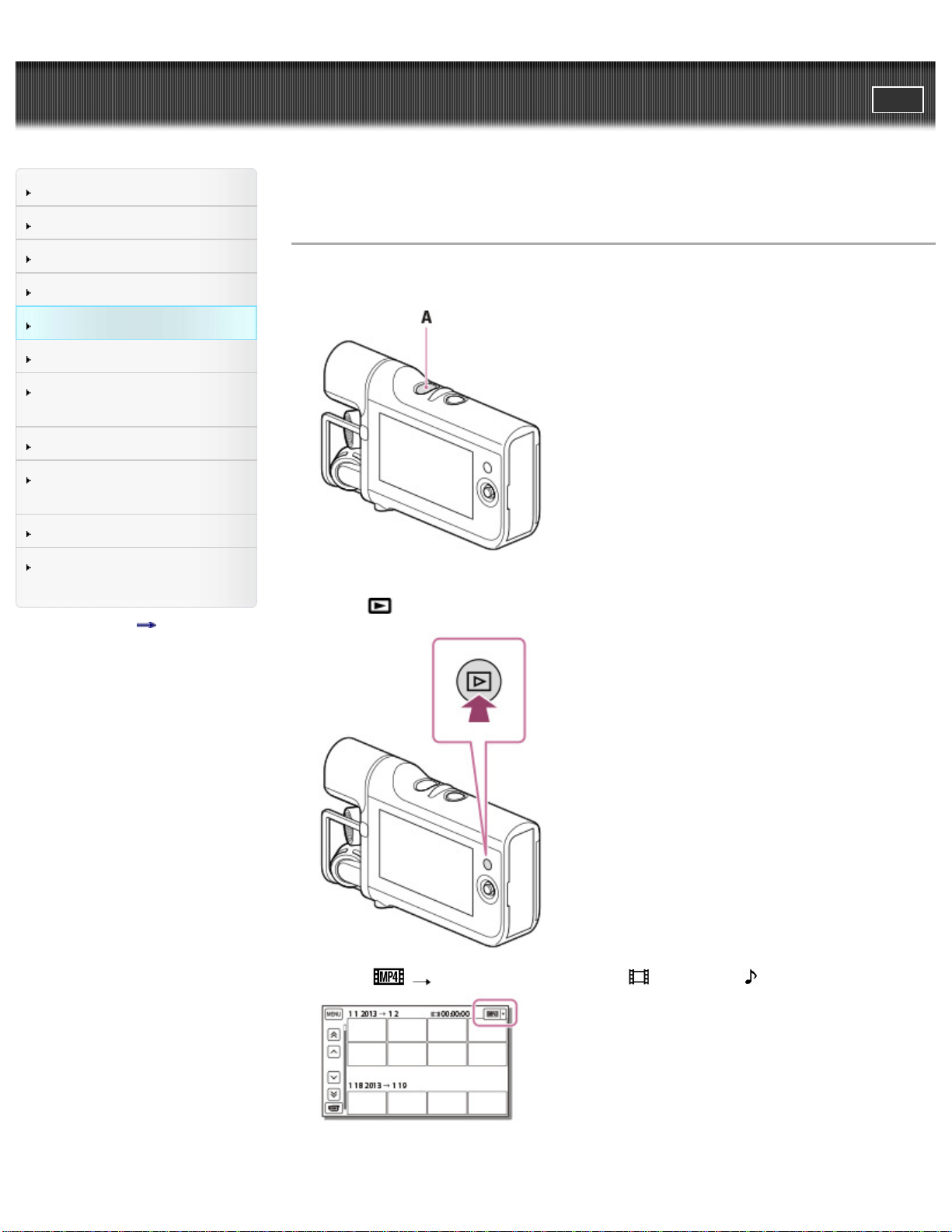
1. Press the POWER button to turn on the camcorder.
A: POWER button
2. Press
(Playback) to enter playback mode.
3. Select the desired type of file ([ MOVIE] or [ AUDIO]).
4. Select your desired file.
52
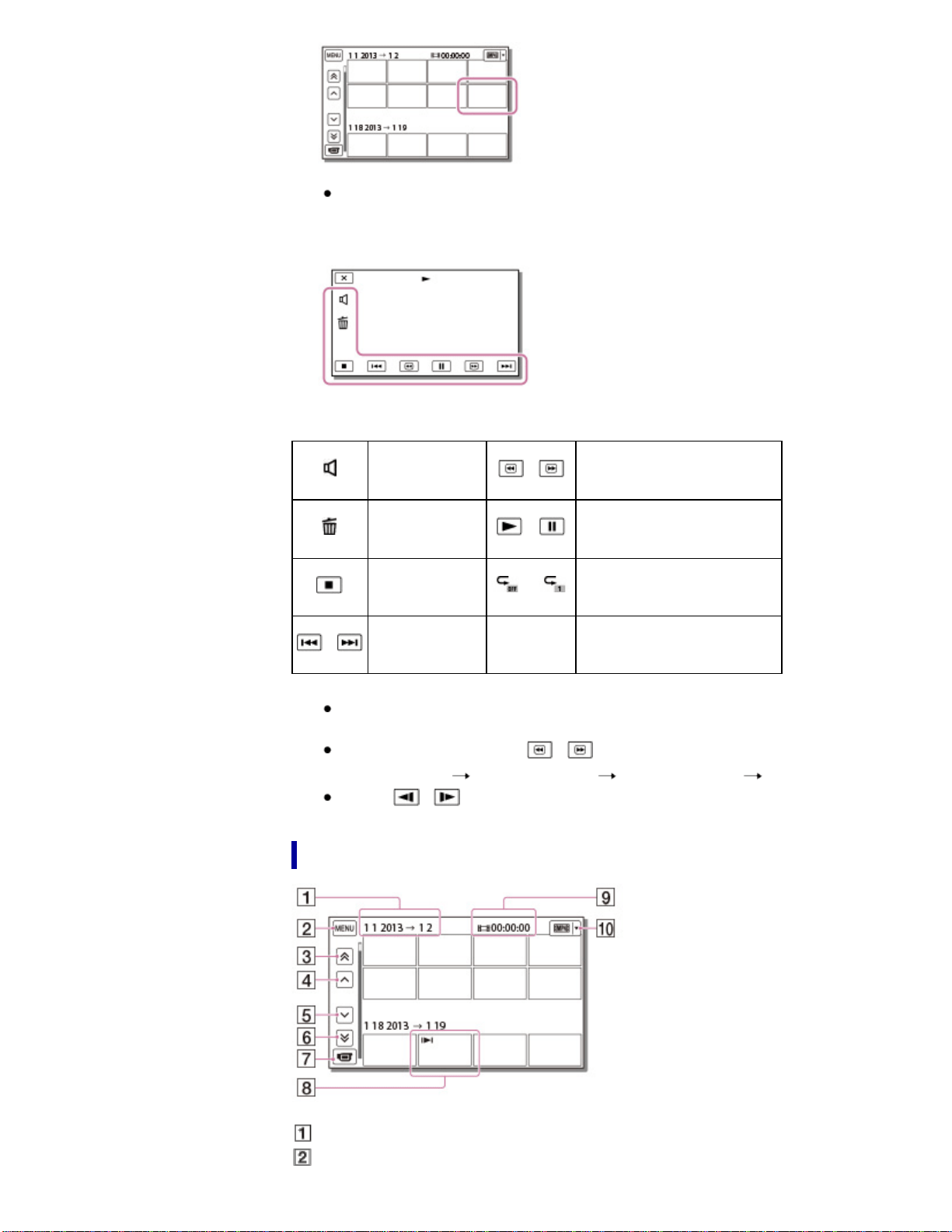
The camcorder plays from the selected file to the last file.
5. Select the appropriate buttons on the LCD screen for various playback
operations.
Volume
/
Fast-reverse/fast-forward
Delete
/
Play/Pause
Stop / Repeat an audio file
/
Previous/Next
Some buttons described above may not appear, depending on the file being
played back.
As you repeat selecting
/ during playback, files are played as fast as
about 5 times
about 10 times about 30 times about 60 times.
Select
/ during pause to play movies slowly.
Playback screen
: Date
: MENU
53
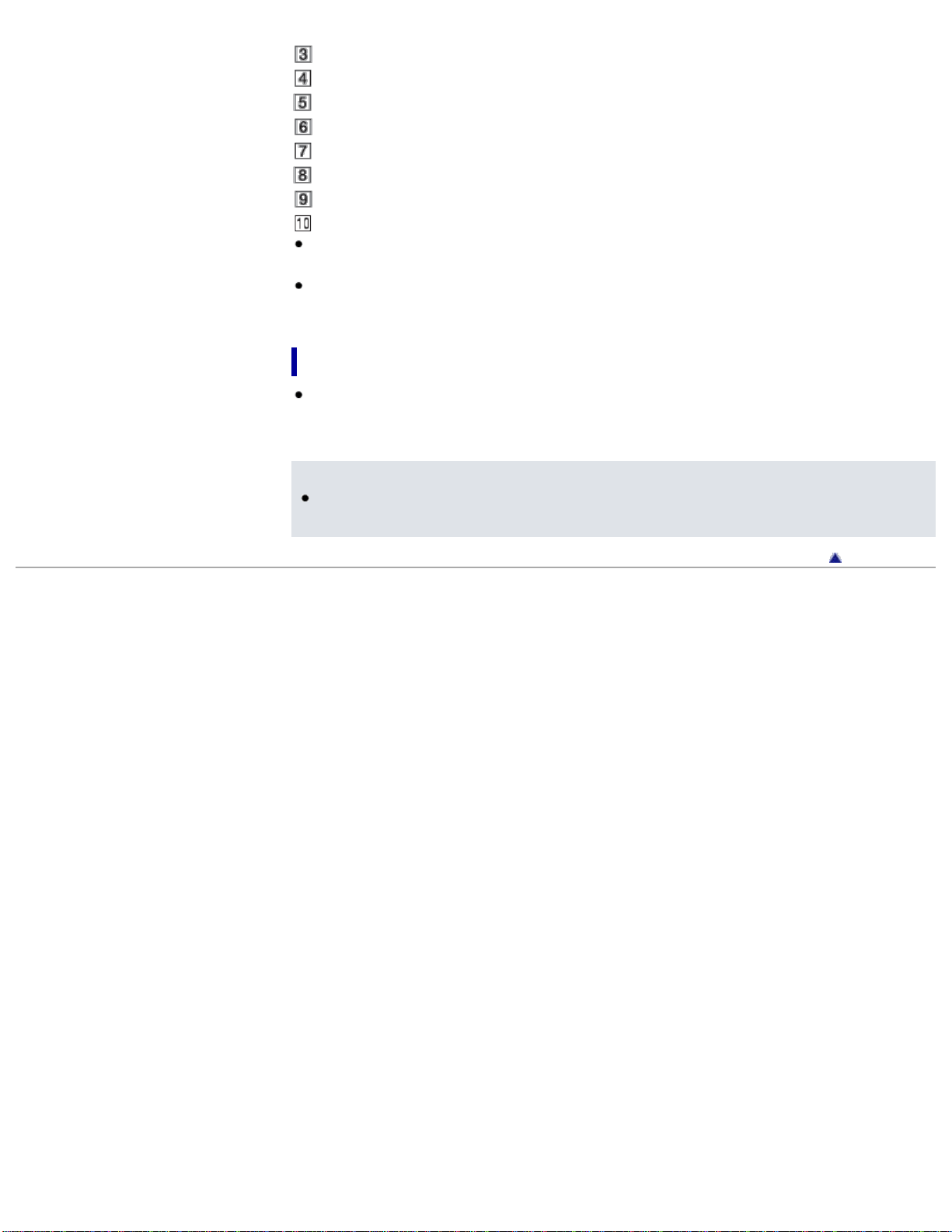
: To the previous event
: Previous
: Next
: To the next event
: To the movie/sound recording screen
: Last played file
: Total recorded time in the Event
: Switch the type of playback file (movie/audio)
Reduced-size images which enable you to view many images at the same time
on an index screen are called “thumbnails.”
On the audio file index screen, the file format, recorded time and file number
appear.
To play back files with other devices
You may not be able to play back files recorded on your camcorder with other
devices normally. Also, you may not be able to play back files recorded on other
devices with your camcorder.
Notes
To prevent your file data from being lost, save all your recorded files on
external media periodically.
Back to top
Copyright 2013 Sony Corporation
54
User Guide
PrintSearch
Operation Search
Before use
Getting started
Recording
Playback
Playing images on a TV
Saving images with a
computer
Using the Wi-Fi function
Customizing your
camcorder
Troubleshooting
Maintenance and
precautions
Contents list
Top page > Playing images on a TV > Playing images on a high definition
TV > Connecting the camcorder to a high definition TV
Connecting the camcorder to a high definition TV
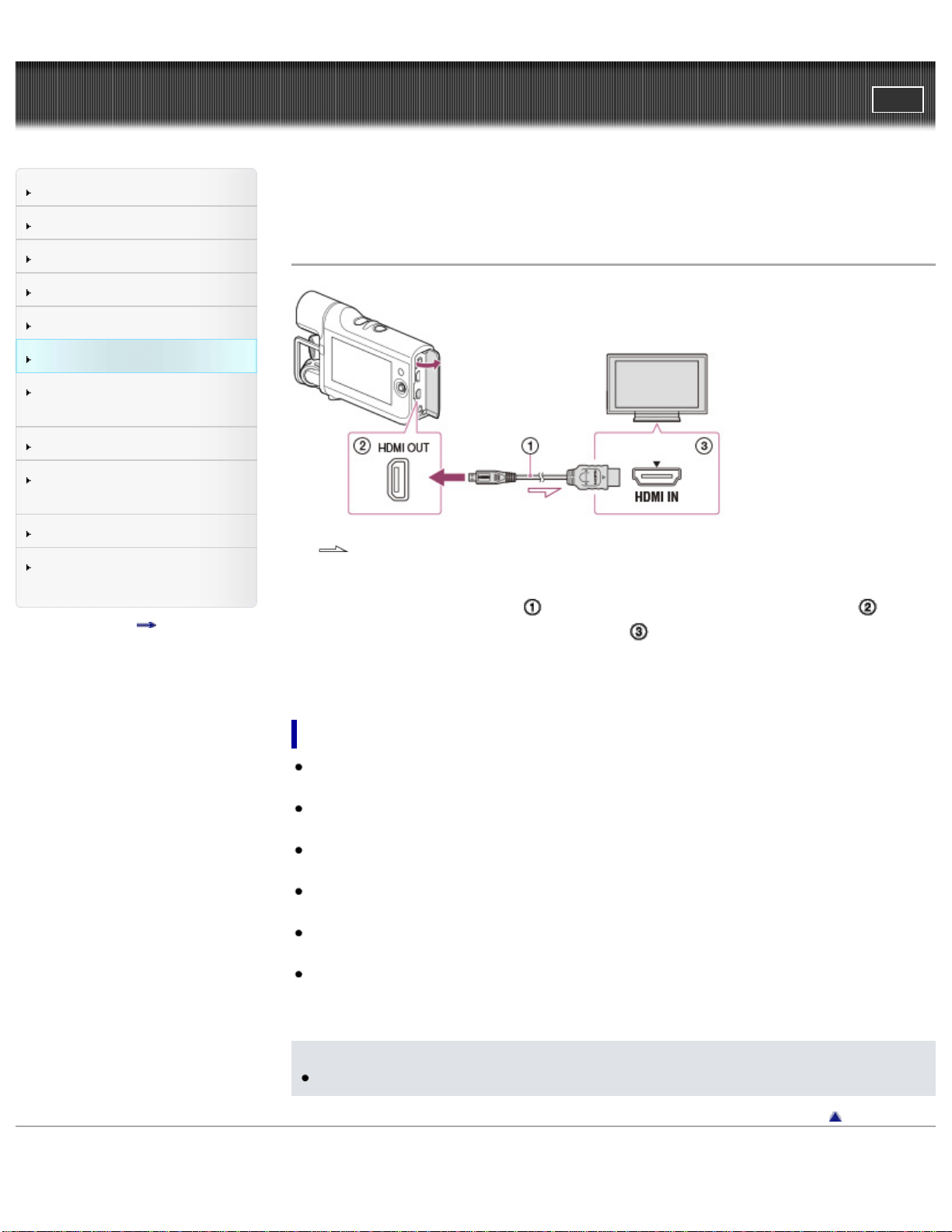
:Signal flow
1. Switch the input on the TV to the connected jack.
2. Connect the HDMI cable (
sold separately) to the HDMI OUT jack ( ) on
the camcorder and to the HDMI IN jack (
) on the TV.
3. Play a movie on the camcorder.
On an HDMI cable (sold separately)
Using an authorized HDMI cable with the HDMI logo or a Sony HDMI cable is
recommended.
Use an HDMI micro connector on one end (for the camcorder), and a plug
suitable for connecting your TV on the other end.
Copyright-protected images are not output from the HDMI OUT jack of your
camcorder.
Some TVs may not function correctly (e.g., no sound or image) with this
connection.
Do not connect the camcorder HDMI OUT jack to an external device HDMI OUT
jack, as malfunction may result.
HDMI (High-Definition Multimedia Interface) is an interface to send both
video/audio signals. The HDMI OUT jack outputs high quality images and digital
audio.
Notes
Refer to the instruction manuals of the TV as well.
Back to top
Copyright 2013 Sony Corporation
55
User Guide
PrintSearch
Operation Search
Before use
Getting started
Recording
Playback
Playing images on a TV
Saving images with a
computer
Using the Wi-Fi function
Customizing your
camcorder
Troubleshooting
Maintenance and
precautions
Contents list
Top page > Playing images on a TV > Playing images on a TV supporting
“BRAVIA” Sync > Using “BRAVIA” Sync
Using “BRAVIA” Sync
You can operate your camcorder with the remote commander of your TV by
connecting your camcorder to a “BRAVIA” Sync compatible TV launched in 2008 or
later with the HDMI cable (sold separately).
Notes
There may be some operations you cannot do with the remote commander.
Set [CTRL FOR HDMI] to [On].
Also set your TV accordingly. Refer to the instruction manual of the TV for
details.
The operation of “BRAVIA” Sync differs according to each model of BRAVIA.
Refer to the instruction manual of your TV for details.
If you turn off the TV, your camcorder is turned off simultaneously.
Back to top
Copyright 2013 Sony Corporation
56
User Guide
PrintSearch
Operation Search
Before use
Getting started
Recording
Playback
Playing images on a TV
Saving images with a
computer
Using the Wi-Fi function
Customizing your
camcorder
Troubleshooting
Maintenance and
precautions
Contents list
Top page > Saving images with a computer > Saving contents with a
computer > What you can do using a computer
What you can do using a computer
You can edit your recorded files and post your movie files to video-file sharing sites
using the editing/management software.
Visit the following website to download the software.
www.sony.net/pm/mvr/
Notes
An Internet connection is required to install the software.
Back to top
Copyright 2013 Sony Corporation
57
User Guide
PrintSearch
Operation Search
Before use
Getting started
Recording
Playback
Playing images on a TV
Saving images with a
computer
Using the Wi-Fi function
Customizing your
camcorder
Troubleshooting
Maintenance and
precautions
Contents list
Top page > Saving images with a computer > Saving contents with a
computer > Checking the computer system
Checking the computer system
You can check the system requirements for software at the following URL.
www.sony.net/pm/mvr/
Back to top
Copyright 2013 Sony Corporation
58
User Guide
PrintSearch
Operation Search
Before use
Getting started
Recording
Playback
Playing images on a TV
Saving images with a
computer
Using the Wi-Fi function
Customizing your
camcorder
Troubleshooting
Maintenance and
precautions
Contents list
Top page > Saving images with a computer > Saving contents with a
computer > Installing the editing/management software in your computer
Installing the editing/management software in
your computer
1. Access the following download page using an Internet browser on your
computer, and then install the software following the on-screen instructions.
www.sony.net/pm/mvr/
Back to top
Copyright 2013 Sony Corporation
59
User Guide
PrintSearch
Operation Search
Before use
Getting started
Recording
Playback
Playing images on a TV
Saving images with a
computer
Using the Wi-Fi function
Customizing your
camcorder
Troubleshooting
Maintenance and
precautions
Contents list
Top page > Saving images with a computer > Saving contents with a
computer > Starting the editing/management software
Starting the editing/management software
Windows
1. Double-click the software icon on the desktop.
When using Windows 8, select the software icon from the start screen.
Mac
1. Double-click the software icon in the Applications folder.
The editing/management software starts.
Back to top
Copyright 2013 Sony Corporation
60
User Guide
PrintSearch
Operation Search
Before use
Getting started
Recording
Playback
Playing images on a TV
Saving images with a
computer
Using the Wi-Fi function
Customizing your
camcorder
Troubleshooting
Maintenance and
precautions
Contents list
Top page > Saving images with a computer > Saving contents with a
computer > Importing files to your computer without using software
Importing files to your computer without using
software
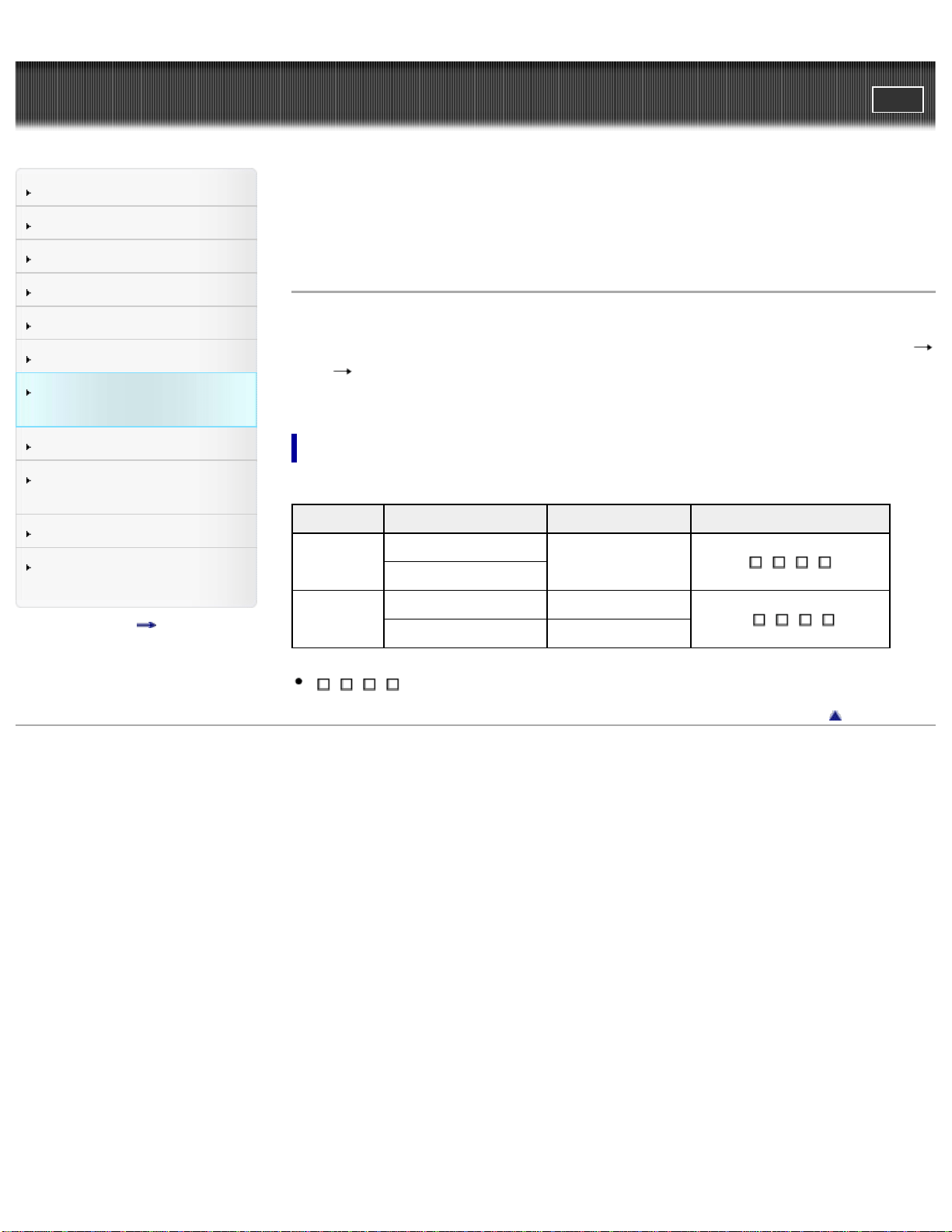
When the AutoPlay Wizard appears on the computer screen after making a USB
connection between the camera and a computer, click [Open folder to view files]
[OK] one of the folders on the table below, and then copy your desired files to
your computer.
About file names
File type Memory card Folder File name
MP4
microSD
MP_ROOT
MAH0
.MP4
Memory Stick Micro
WAV
microSD PRIVATE/AUDIO
WAAV
.WAV
Memory Stick Micro AUDIO
stands for file numbers (0001 to 9999).
Back to top
Copyright 2013 Sony Corporation
61
User Guide
PrintSearch
Operation Search
Before use
Getting started
Recording
Playback
Playing images on a TV
Saving images with a
computer
Using the Wi-Fi function
Customizing your
camcorder
Troubleshooting
Maintenance and
precautions
Contents list
Top page > Using the Wi-Fi function > Using the Wi-Fi function > What you can do
using the Wi-Fi function
What you can do using the Wi-Fi function
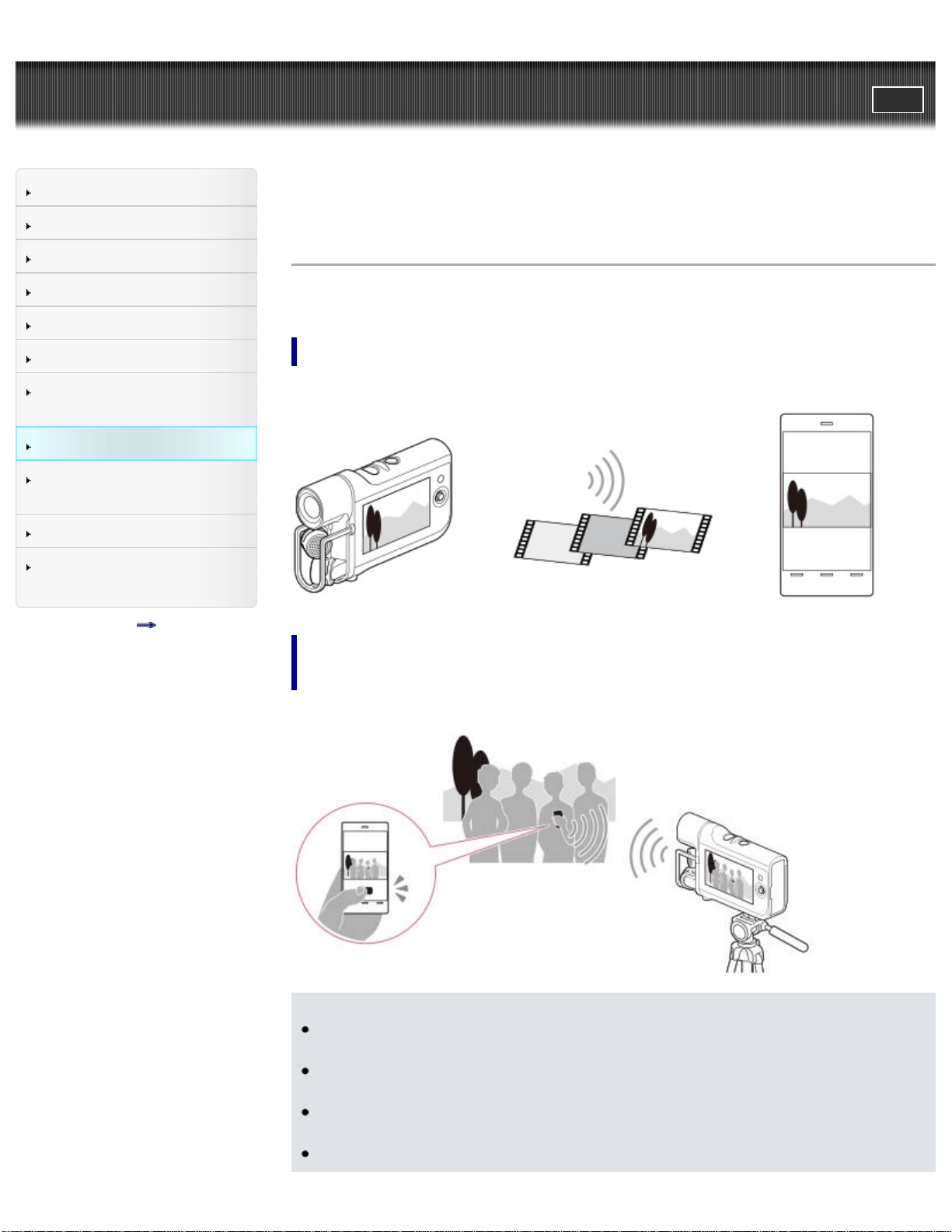
The Wi-Fi function of your camcorder allows you to do the following operations.
Transferring movies to your smartphone or tablet
Prepare your smartphone or tablet.
Operating the camcorder with your smartphone or
tablet
Prepare your smartphone or tablet.
Notes
You cannot save recorded files on your computer or transfer audio files to your
smartphone or tablet using the Wi-Fi function of your camcorder.
You cannot use the Wi-Fi function of your camcorder to connect to a public
wireless network.
Wi-Fi functions introduced in this User Guide are not guaranteed to work on all
smartphones or tablets.
The information on supported OS versions is as of September 1, 2013.
62

Related topics
Transferring movies to your smartphone or tablet without using NFC
Transferring movies to your smartphone or tablet using NFC
Using your smartphone or tablet as a remote control without using NFC
Using your smartphone or tablet as a remote control using NFC
Back to top
Copyright 2013 Sony Corporation
63
User Guide
PrintSearch
Operation Search
Before use
Getting started
Recording
Playback
Playing images on a TV
Saving images with a
computer
Using the Wi-Fi function
Customizing your
camcorder
Troubleshooting
Maintenance and
precautions
Contents list
Top page > Using the Wi-Fi function > Control your camcorder via
smartphone > Using your smartphone or tablet as a remote control without using
NFC
Using your smartphone or tablet as a remote
control without using NFC
You can operate the camcorder using your smartphone or tablet as a remote
control.
1. Install “PlayMemories Mobile” onto your smartphone or tablet.
If the “PlayMemories Mobile” software is already installed on your
smartphone or tablet, upgrade it to the latest version.
Refer to the “PlayMemories Mobile” support web page
(http://www.sony.net/pmm/) for the latest information of supported OS.
“PlayMemories Mobile” is not guaranteed to work on all smartphones or
tablets.
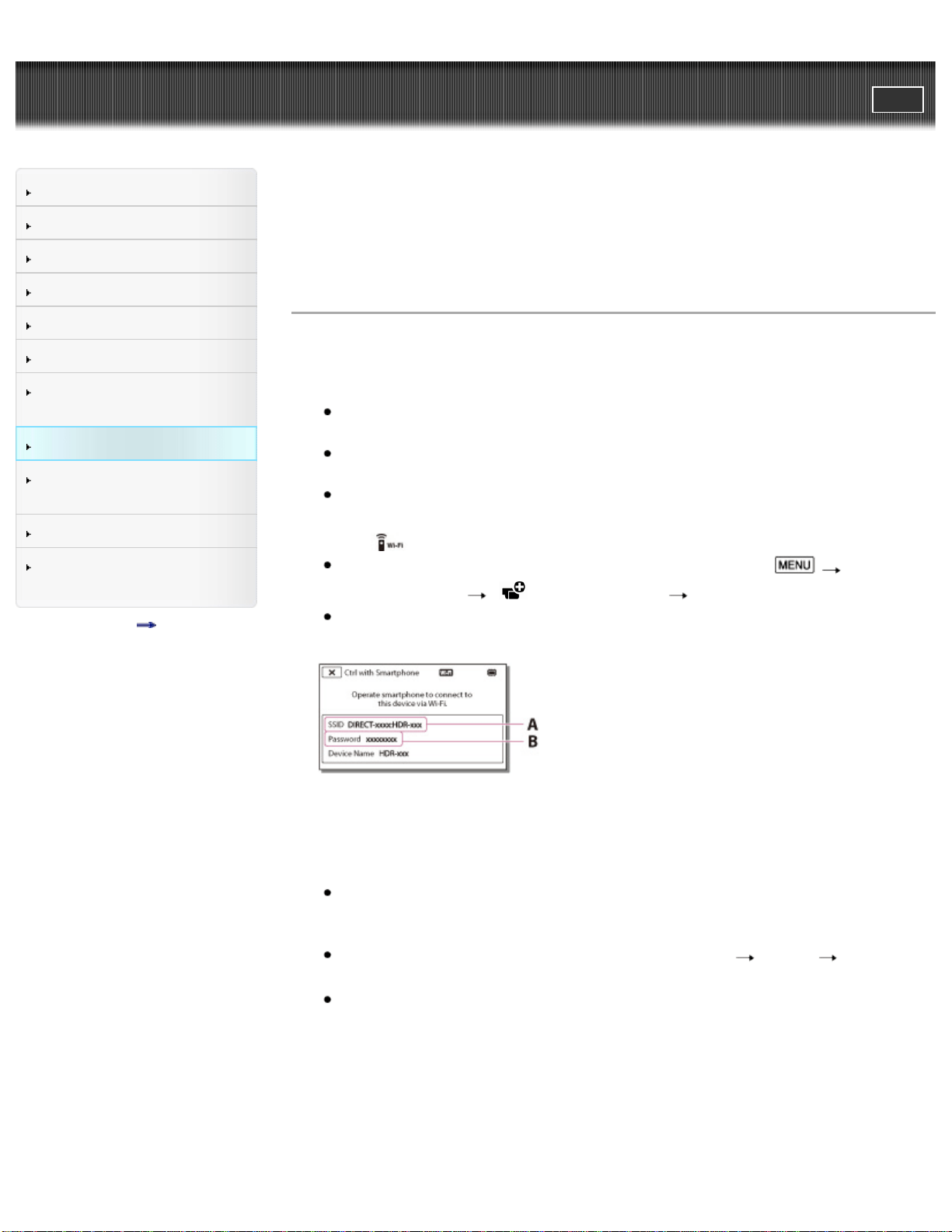
2. Select
on the recording screen of the camcorder.
You can also enter the recording mode, and then select
[Camera/Audio] [ Recording Assist] [Ctrl with Smartphone].
The SSID and password appear and the camcorder will be connectable from
your smartphone or tablet.
A: SSID
B: Password
3. Connect the smartphone or tablet to the camcorder by making operations on the
smartphone or tablet.
When you use an Android smartphone, on the smartphone, start up the
“PlayMemories Mobile,” then select the SSID displayed on the camcorder,
and then enter the password displayed on the camcorder.
When you use an iPhone or iPad, select [Settings]
[Wi-Fi] the SSID
displayed on the camcorder, and then start up “PlayMemories Mobile.”
You are only required to enter the password the first time.
4. Operate the camcorder using the smartphone or tablet.
64
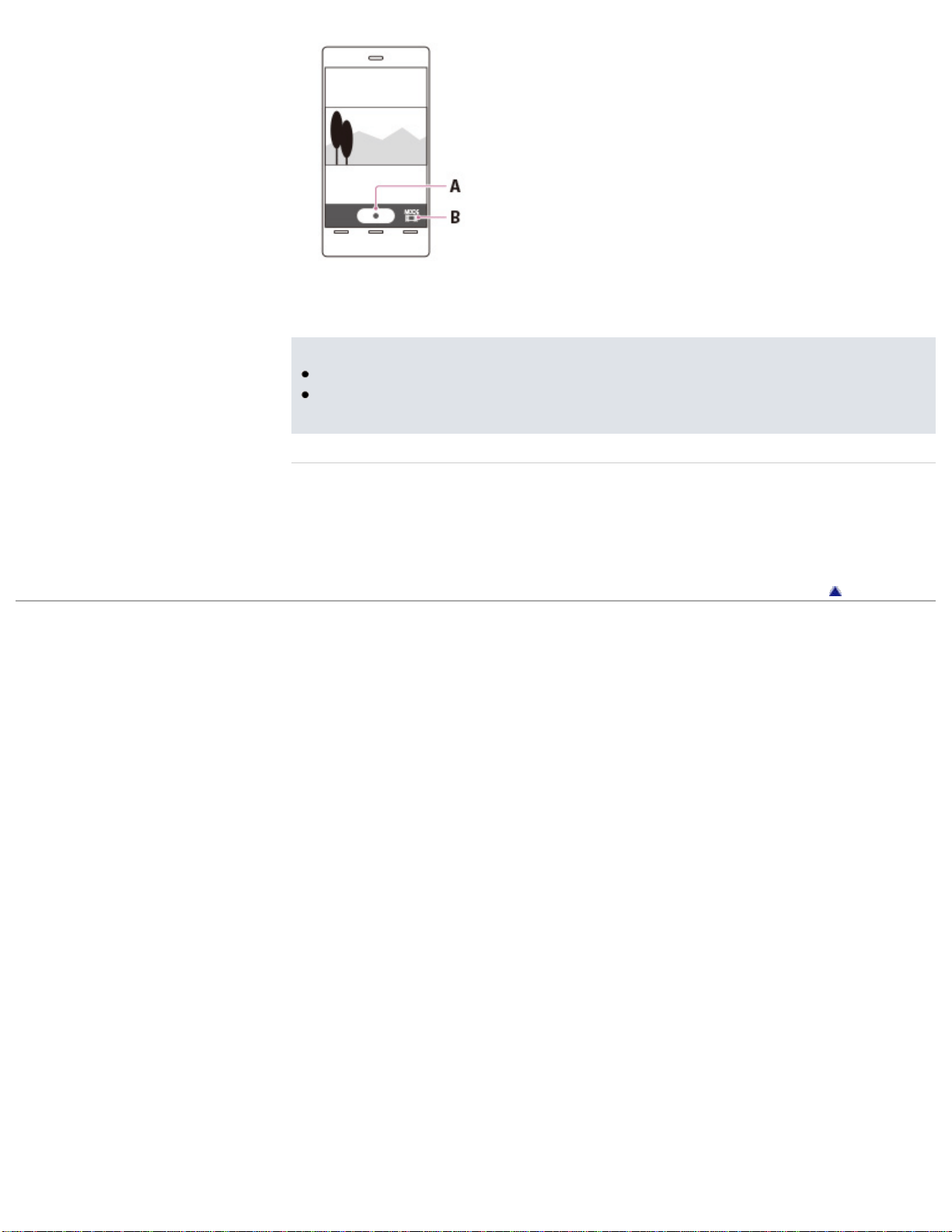
A: START/STOP button
B: File type
Notes
Files will be saved not on the smartphone or tablet but on the camcorder.
The application operation method and screen display are subject to change due
to future updates.
Related topics
On the “PlayMemories Mobile” software
Connecting to your Android smartphone or tablet
Connecting to your iPhone or iPad
Back to top
Copyright 2013 Sony Corporation
65
User Guide
PrintSearch
Operation Search
Before use
Getting started
Recording
Playback
Playing images on a TV
Saving images with a
computer
Using the Wi-Fi function
Customizing your
camcorder
Troubleshooting
Maintenance and
precautions
Contents list
Top page > Using the Wi-Fi function > Control your camcorder via
smartphone > Using your smartphone or tablet as a remote control using NFC
Using your smartphone or tablet as a remote
control using NFC
You can operate the camcorder using your NFC-compatible Android smartphone or
tablet as a remote control.
1. Install “PlayMemories Mobile” onto your smartphone or tablet.
If the “PlayMemories Mobile” software is already installed on your
smartphone or tablet, upgrade it to the latest version.
Refer to the “PlayMemories Mobile” support web page
(http://www.sony.net/pmm/) for the latest information of supported OS.
“PlayMemories Mobile” is not guaranteed to work on all smartphones or
tablets.
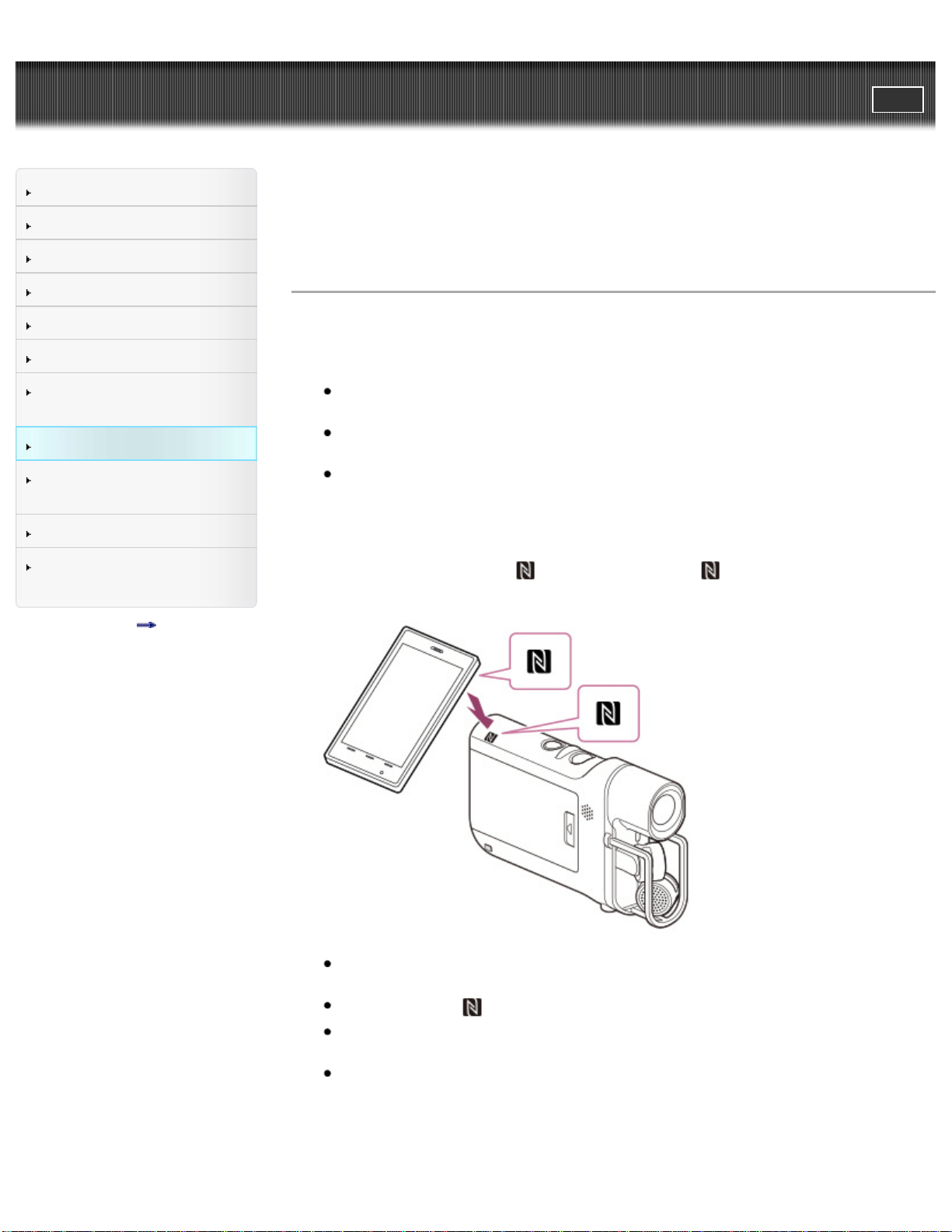
2. Select [Settings] on the smartphone, then select [More...] and place a
checkmark next to [NFC].
3. In recording mode, touch
on the camcorder to on your smartphone or
tablet.
Cancel the sleep function and screen-lock on your smartphone or tablet in
advance.
Make sure that
is displayed on the LCD screen of the camcorder.
Keep the smartphone or tablet in contact with the camcorder for one or two
seconds until “PlayMemories Mobile” starts.
If the connection is not established using NFC, try to establish the connection
following the procedure in “Connecting to your Android smartphone or tablet.”
[Details]
4. Operate the camcorder using the smartphone or tablet.
66
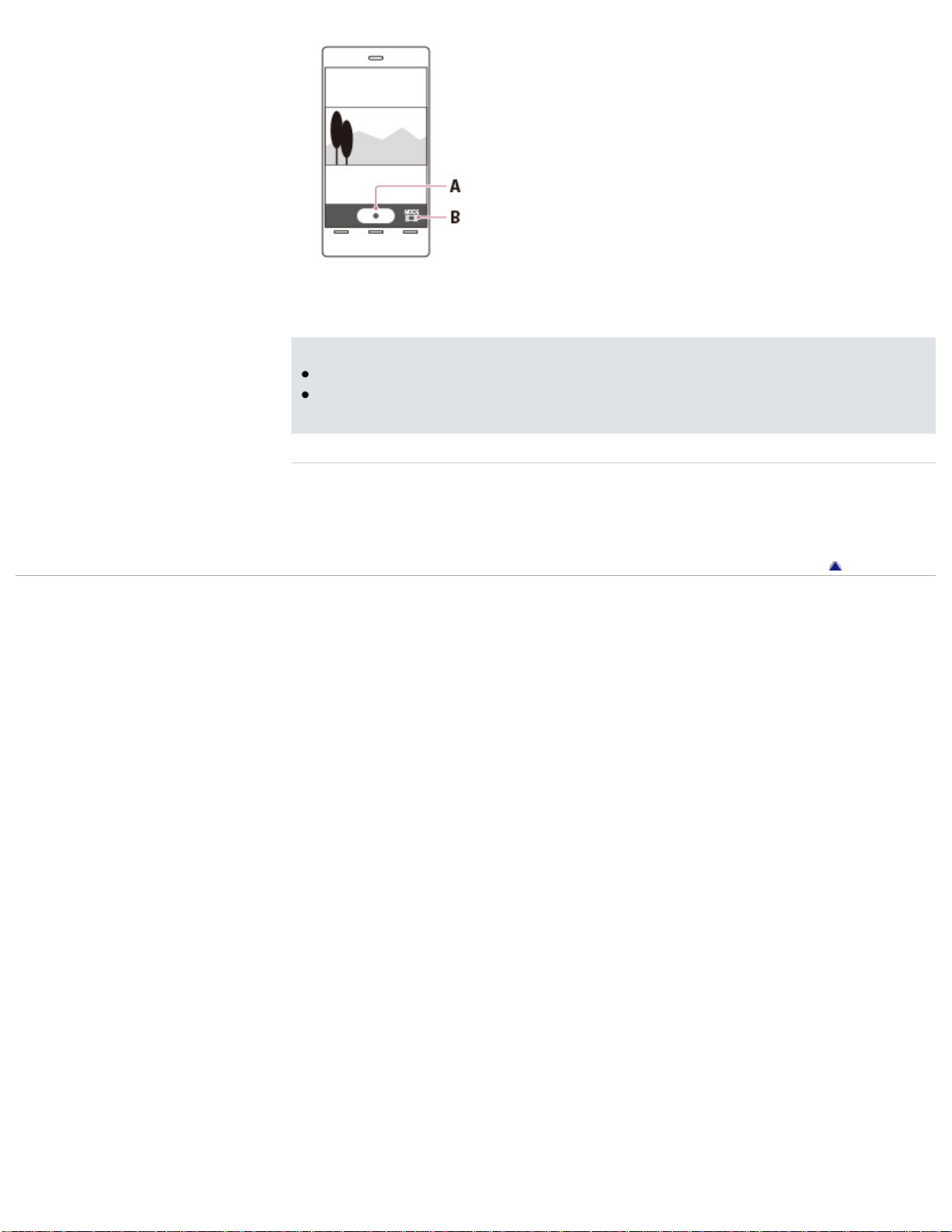
A: START/STOP button
B: File type
Notes
Files will be recorded not on the smartphone or tablet but on the camcorder.
The application operation method and screen display are subject to change due
to future updates.
Related topics
On the “PlayMemories Mobile” software
Connecting to your NFC-compatible Android smartphone or tablet
Back to top
Copyright 2013 Sony Corporation
67
User Guide
PrintSearch
Operation Search
Before use
Getting started
Recording
Playback
Playing images on a TV
Saving images with a
computer
Using the Wi-Fi function
Customizing your
camcorder
Troubleshooting
Maintenance and
precautions
Contents list
Top page > Using the Wi-Fi function > Sending movies to the
smartphone > Transferring movies to your smartphone or tablet without using NFC
Transferring movies to your smartphone or tablet
without using NFC
You can transfer movies to your smartphone or tablet.
1. Install “PlayMemories Mobile” onto your smartphone or tablet.
If the “PlayMemories Mobile” software is already installed on your
smartphone or tablet, upgrade it to the latest version.
Refer to the “PlayMemories Mobile” support web page
(http://www.sony.net/pmm/) for the latest information of supported OS.
“PlayMemories Mobile” is not guaranteed to work on all smartphones or
tablets.
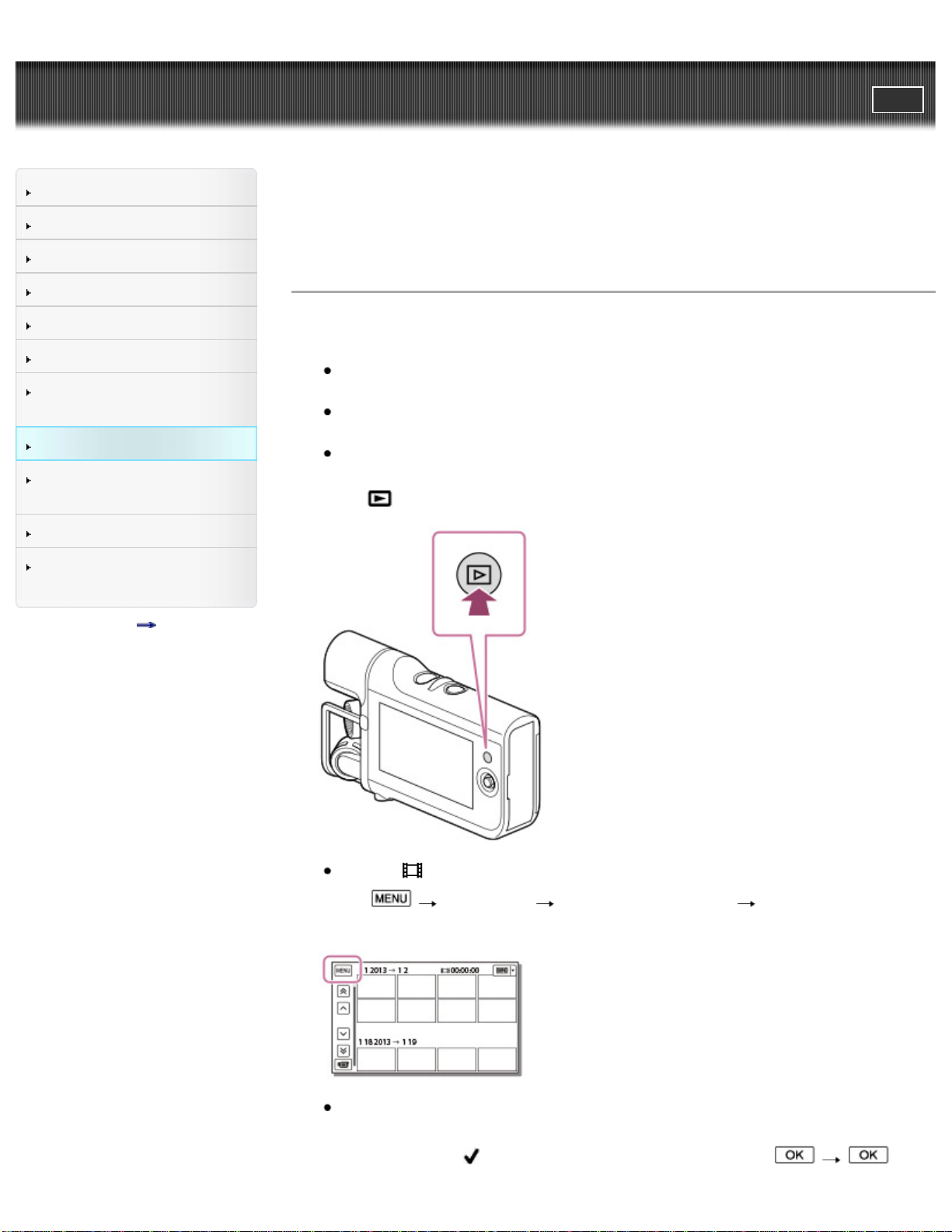
2. Press
(Playback) to enter playback mode.
Select [ MOVIE] as the file type to play back. [Details]
3. Select
[Edit/Copy] [Send to Smartphone] [Select on This
Device].
When [Select on Smartphone] is selected, all movies saved on the memory
card will be displayed on the smartphone.
4. Add a check mark
to the desired movie, and then select .
68
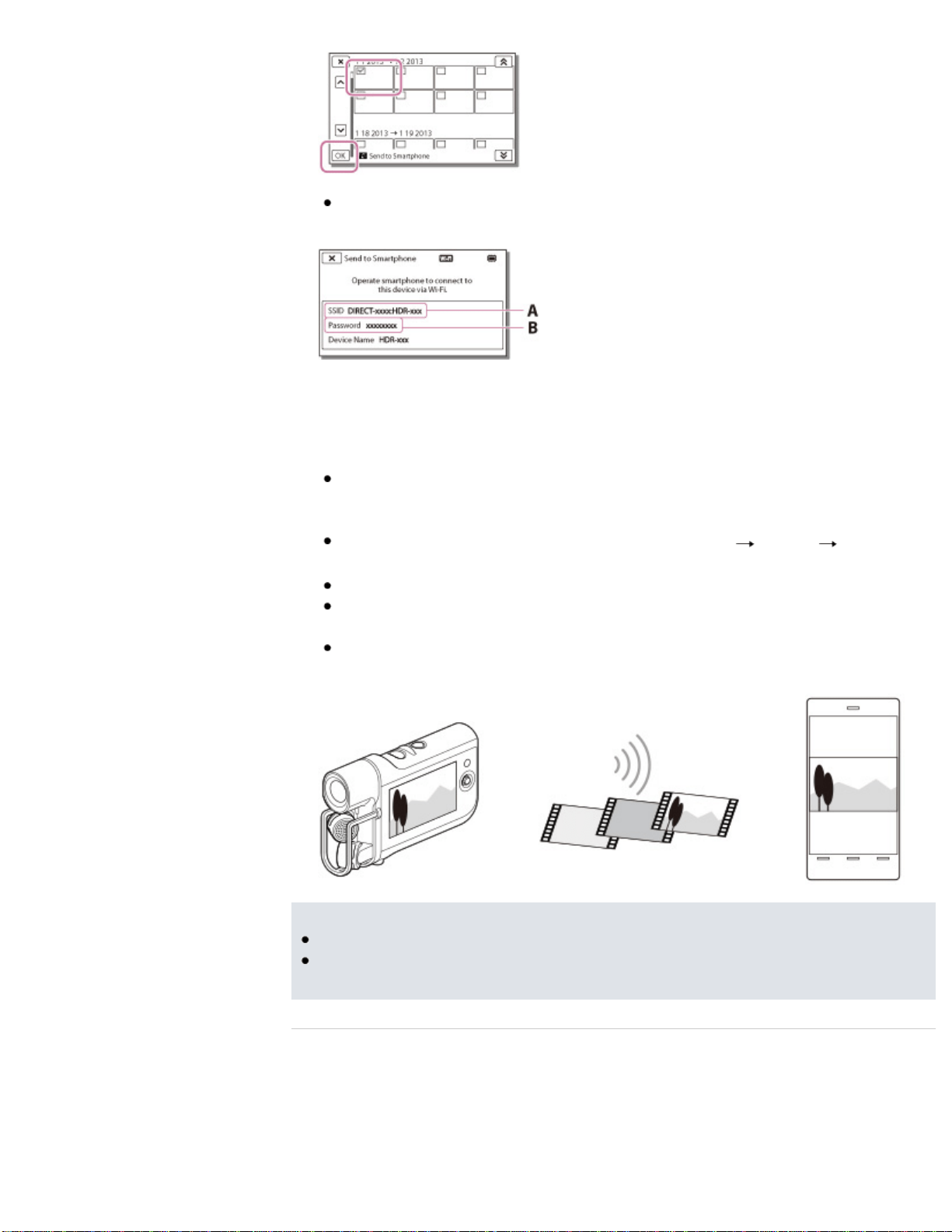
The SSID and password appear and the camcorder will be connectable from
your smartphone or tablet.
A: SSID
B: Password
5. Connect the smartphone or tablet to the camcorder by making operations on the
smartphone or tablet.
When you use an Android smartphone, on the smartphone, start up the
“PlayMemories Mobile,” then select the SSID displayed on the camcorder,
and then enter the password displayed on the camcorder.
When you use an iPhone or iPad, select [Settings]
[Wi-Fi] the SSID
displayed on the camcorder, and then start up “PlayMemories Mobile.”
You are only required to enter the password the first time.
Movies stored on the camcorder will be transferred to the smartphone or
tablet.
Transferred movies will be stored in Gallery/Album on an Android
smartphone/tablet or in Album on an iPhone/iPad.
Notes
You cannot transfer audio files to your smartphone or tablet.
If any movies are not recorded on your camcorder, [Send to Smartphone] does
not work.
Related topics
On the “PlayMemories Mobile” software
Connecting to your Android smartphone or tablet
Connecting to your NFC-compatible Android smartphone or tablet
Connecting to your iPhone or iPad
69

User Guide
PrintSearch
Operation Search
Before use
Getting started
Recording
Playback
Playing images on a TV
Saving images with a
computer
Using the Wi-Fi function
Customizing your
camcorder
Troubleshooting
Maintenance and
precautions
Contents list
Top page > Using the Wi-Fi function > Sending movies to the
smartphone > Transferring movies to your smartphone or tablet using NFC
Transferring movies to your smartphone or tablet
using NFC
You can transfer movies to your NFC-compatible Android smartphone or tablet.
1. Install “PlayMemories Mobile” onto your smartphone or tablet.
If the “PlayMemories Mobile” software is already installed on your
smartphone or tablet, upgrade it to the latest version.
Refer to the “PlayMemories Mobile” support web page
(http://www.sony.net/pmm/) for the latest information of supported OS.
“PlayMemories Mobile” is not guaranteed to work on all smartphones or
tablets.
2. Press
(Playback) to enter playback mode, and then play back your desired
movie.
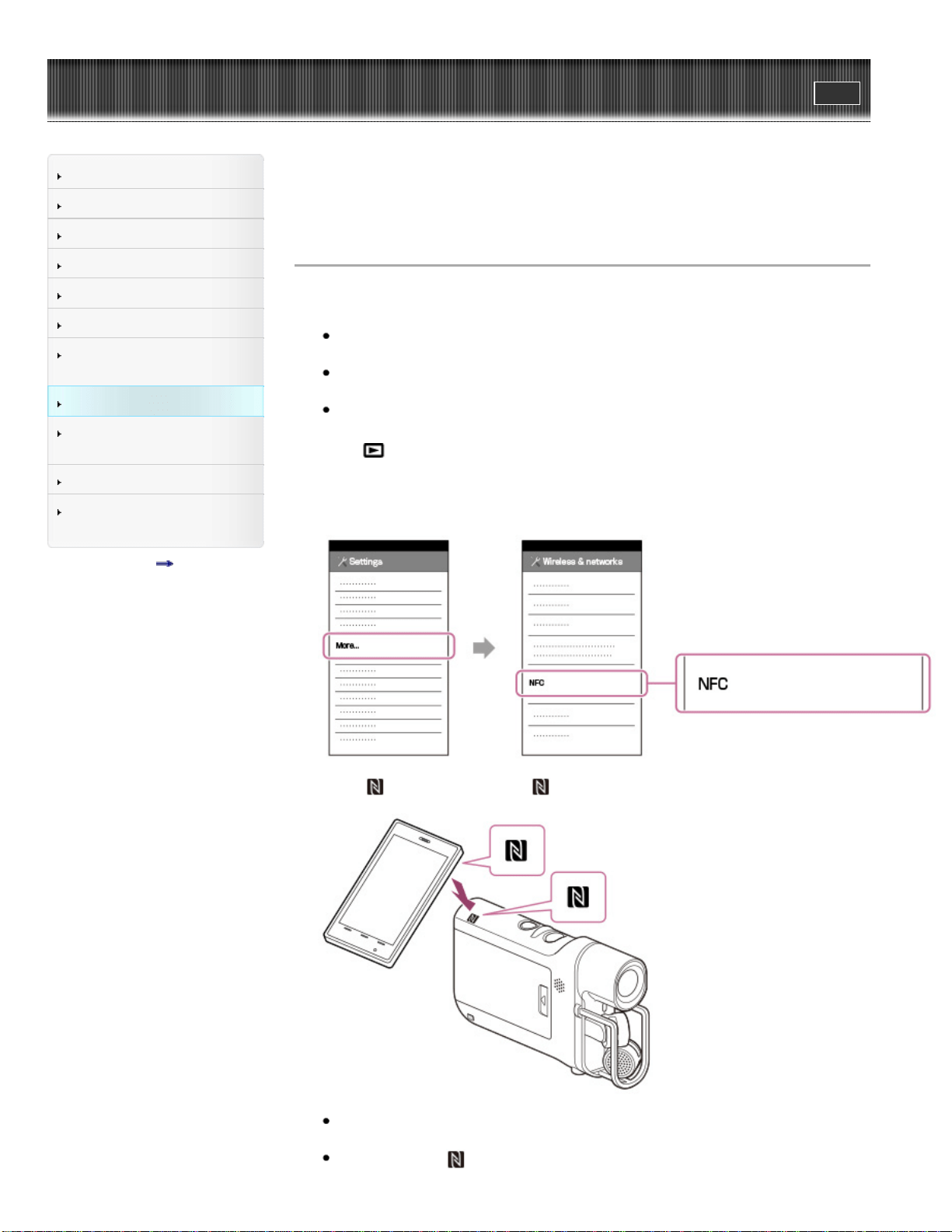
3. Select [Settings] on the smartphone, then select [More...] and place a
checkmark next to [NFC].
4. Touch on the camcorder to on your smartphone or tablet.
Cancel the sleep function and screen-lock on your smartphone or tablet in
advance.
Make sure that
is displayed on the LCD screen of the camcorder.
71
Keep the smartphone or tablet in contact with the camcorder for one or two
seconds until “PlayMemories Mobile” starts.
If the connection is not established using NFC, try to establish the connection
following the procedure in “Transferring movies to your smartphone or tablet
without using NFC.” [Details]
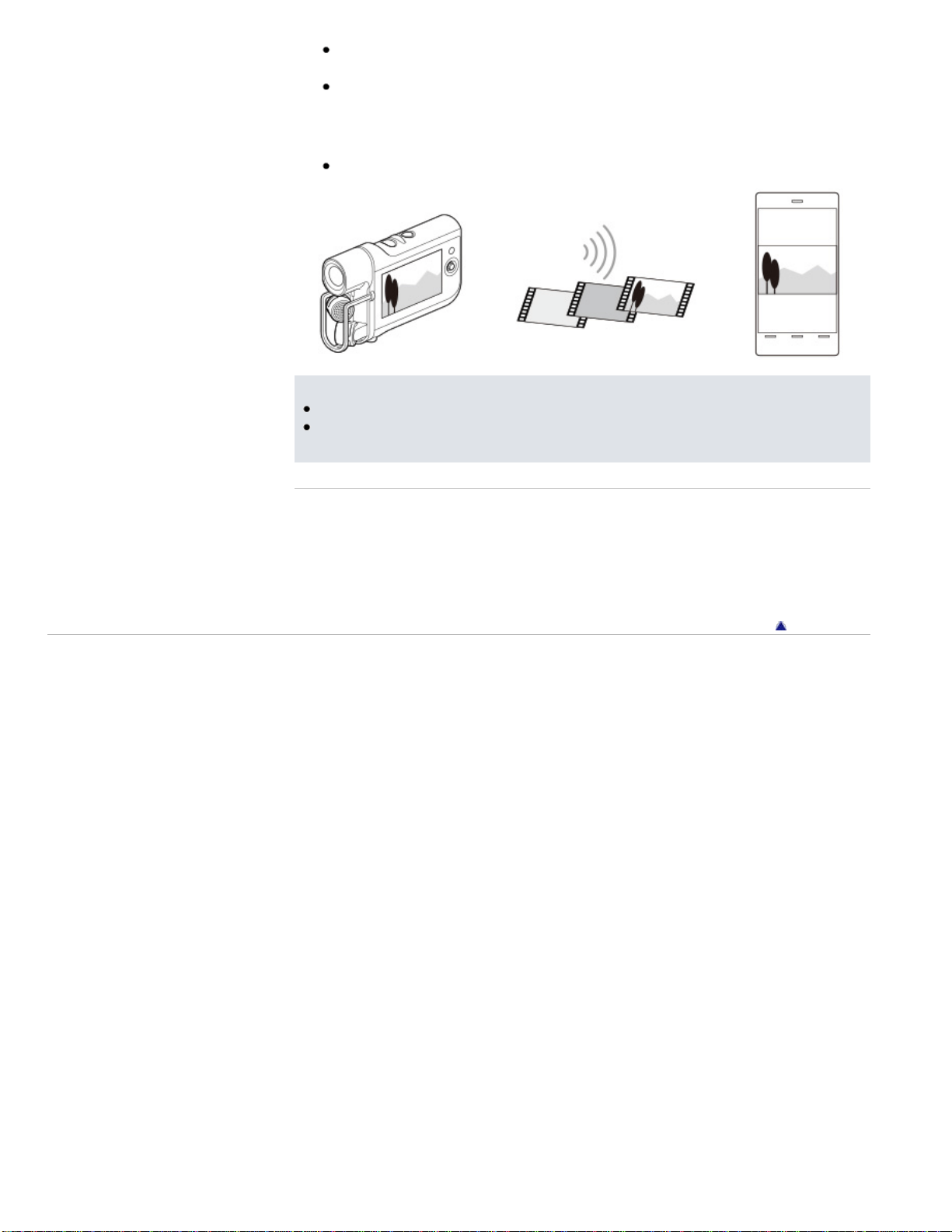
5. Movies stored on the camcorder will be transferred to the smartphone or tablet.
Transferred movies will be stored on Android Gallery.
Notes
You cannot transfer audio files to your smartphone or tablet.
If any movies are not recorded on your camcorder, [Send to Smartphone] does
not work.
Related topics
On the “PlayMemories Mobile” software
Connecting to your NFC-compatible Android smartphone or tablet
Connecting to your Android smartphone or tablet
Transferring movies to your smartphone or tablet without using NFC
Back to top
Copyright 2013 Sony Corporation
72
User Guide
PrintSearch
Operation Search
Before use
Getting started
Recording
Playback
Playing images on a TV
Saving images with a
computer
Using the Wi-Fi function
Customizing your
camcorder
Troubleshooting
Maintenance and
precautions
Contents list
Top page > Using the Wi-Fi function > Connecting a smartphone > Connecting to
your Android smartphone or tablet
Connecting to your Android smartphone or tablet
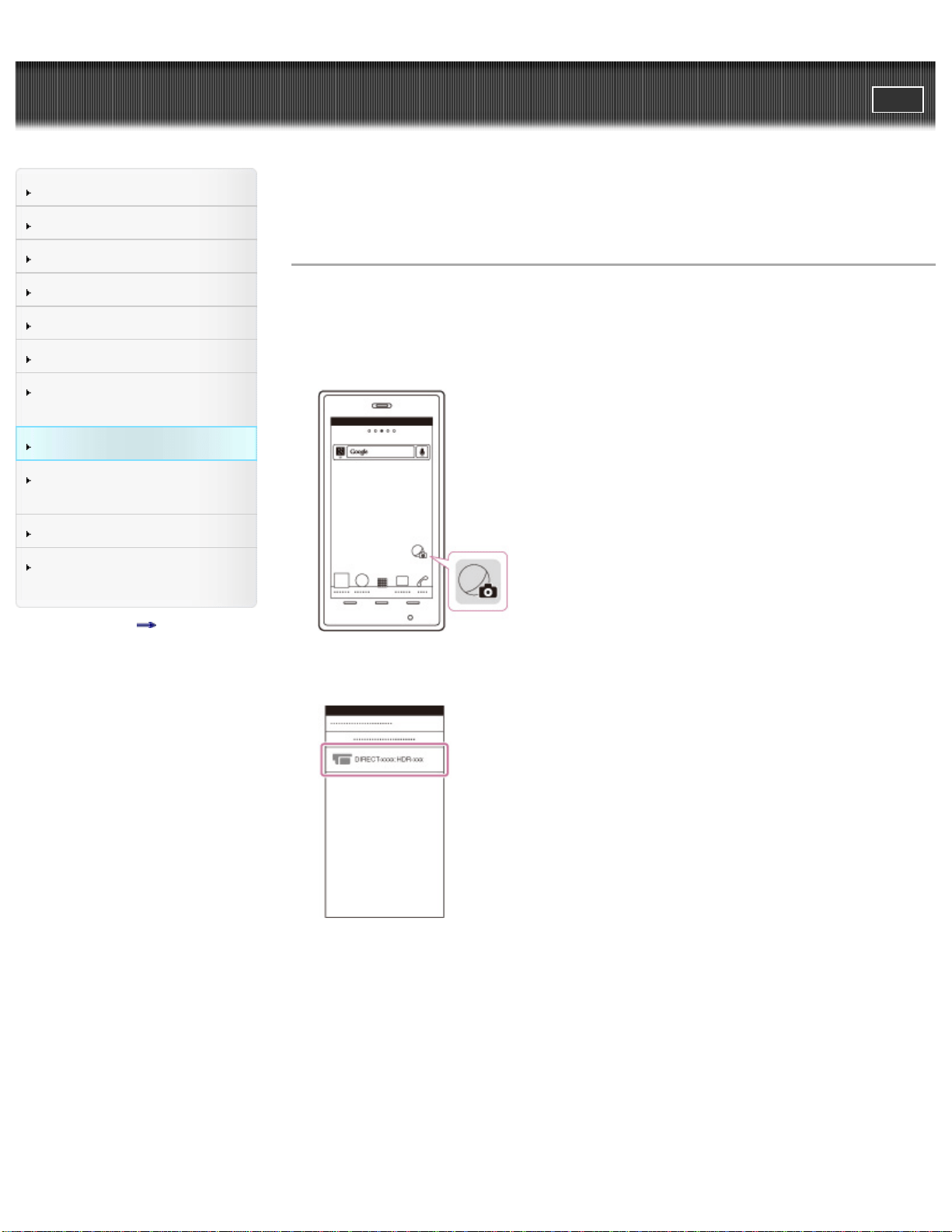
You can connect your Android smartphone or tablet to your camcorder as shown
below. From [Send to Smartphone] or [Ctrl with Smartphone], display the password
and the SSID on the LCD screen of the camcorder.
1. Start up “PlayMemories Mobile.”
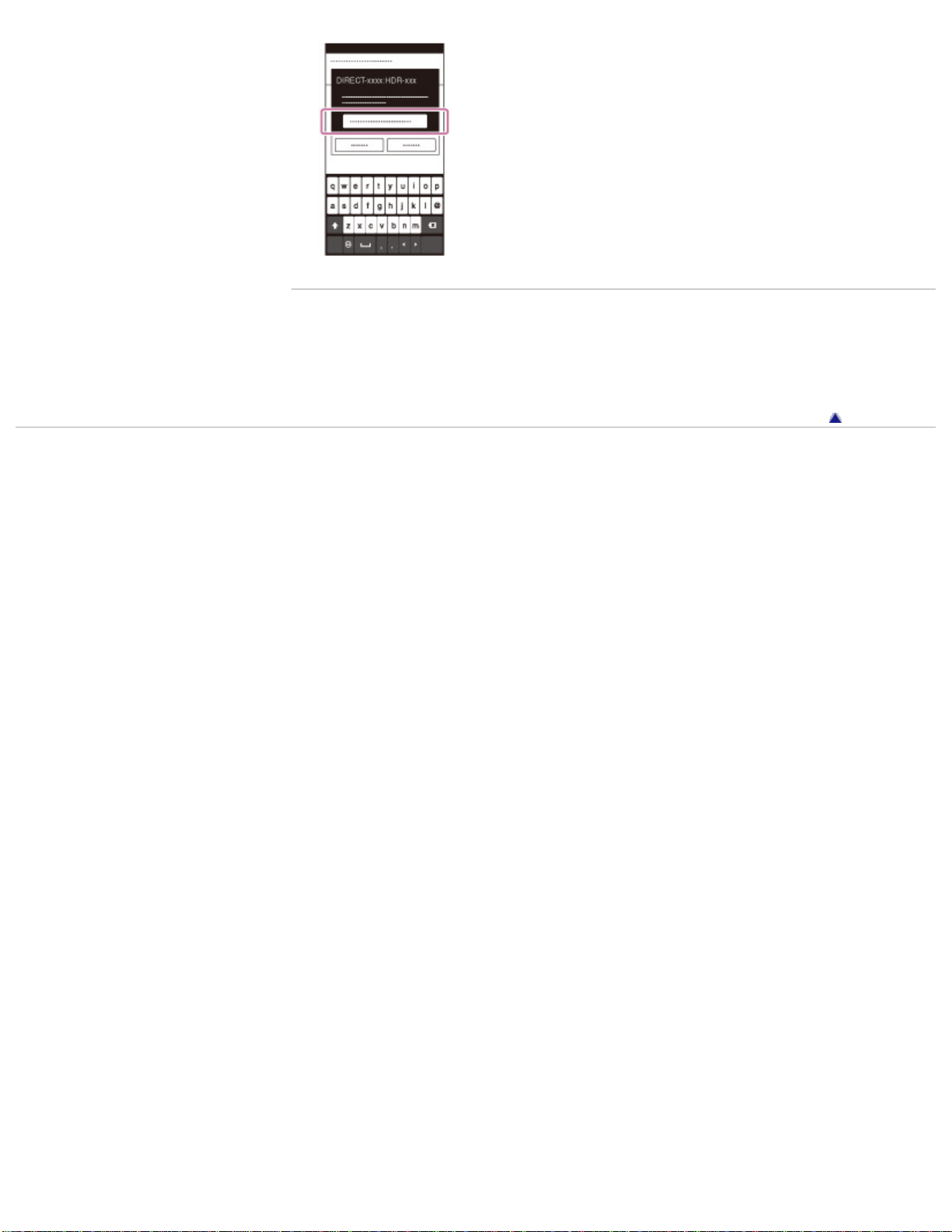
2. On your smartphone, select the SSID (device name) displayed on the
camcorder.
3. On your smartphone, enter the password displayed on the camcorder.
73
User Guide
PrintSearch
Operation Search
Before use
Getting started
Recording
Playback
Playing images on a TV
Saving images with a
computer
Using the Wi-Fi function
Customizing your
camcorder
Troubleshooting
Maintenance and
precautions
Contents list
Top page > Using the Wi-Fi function > Connecting a smartphone > Connecting to
your iPhone or iPad
Connecting to your iPhone or iPad
You can connect your iPhone or iPad to your camcorder as shown below. From
[Send to Smartphone] or [Ctrl with Smartphone], display the password and the
SSID on the LCD screen of the camcorder.
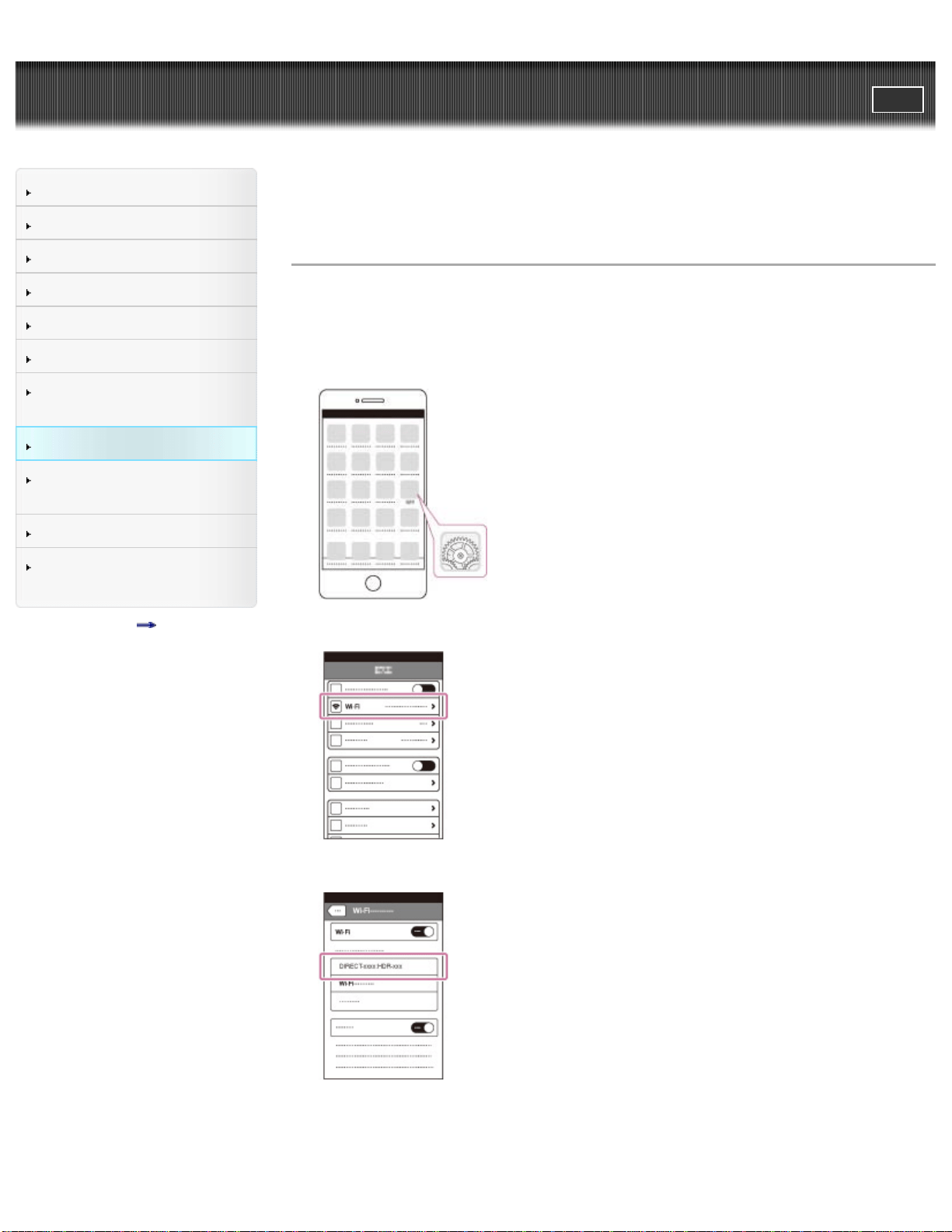
1. Open the settings menu of your iPhone.
2. Select Wi-Fi.
3. On your iPhone, select the SSID (device name) displayed on the camcorder.
4. On your iPhone, enter the password displayed on the camcorder.
75
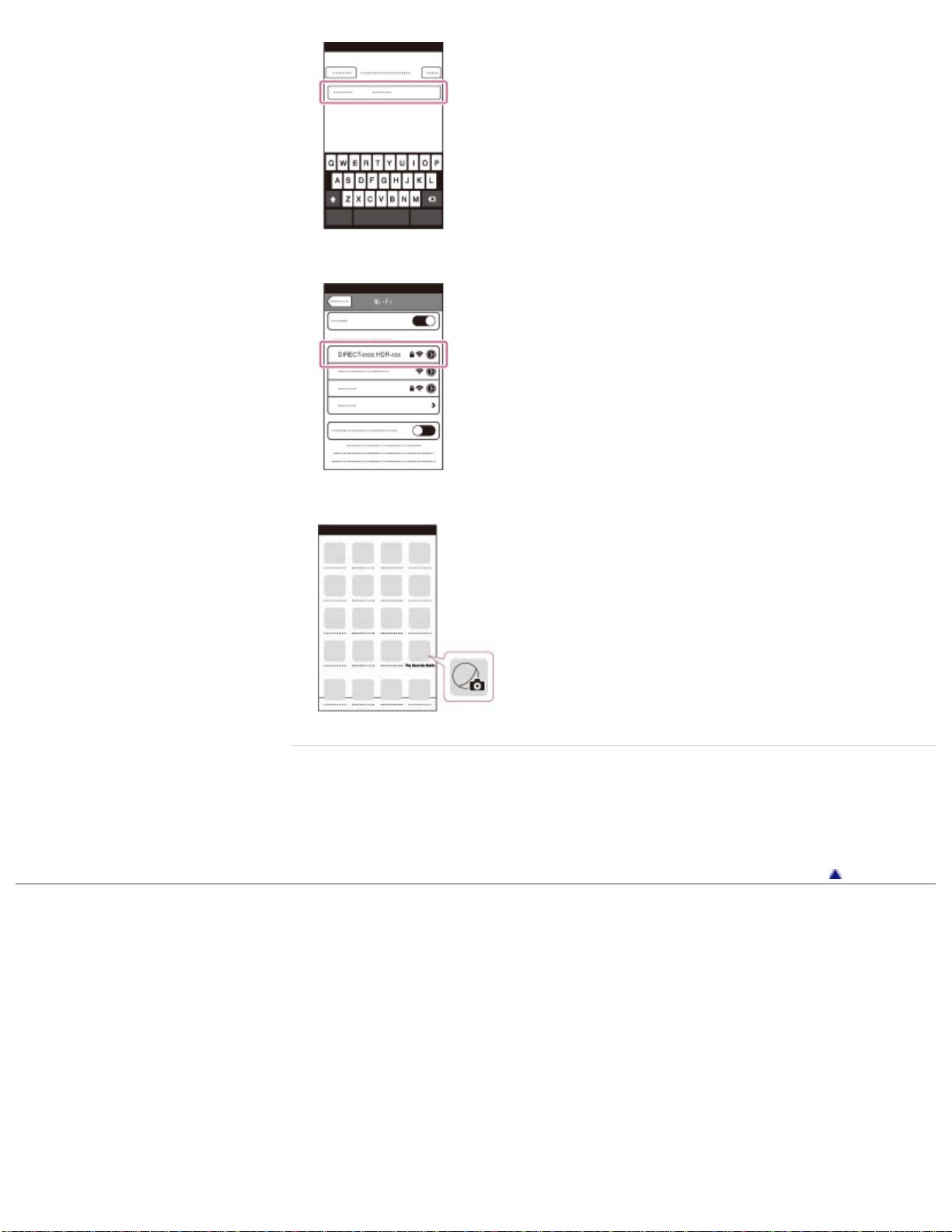
5. Confirm that your iPhone is connected to the SSID displayed on the camcorder.
6. Return to Home and start up “PlayMemories Mobile.”
Related topics
On the “PlayMemories Mobile” software
Transferring movies to your smartphone or tablet without using NFC
Using your smartphone or tablet as a remote control without using NFC
Back to top
Copyright 2013 Sony Corporation
76
User Guide
PrintSearch
Operation Search
Before use
Getting started
Recording
Playback
Playing images on a TV
Saving images with a
computer
Using the Wi-Fi function
Customizing your
camcorder
Troubleshooting
Maintenance and
precautions
Contents list
Top page > Using the Wi-Fi function > Connecting a smartphone > Connecting to
your NFC-compatible Android smartphone or tablet
Connecting to your NFC-compatible Android
smartphone or tablet
You can connect your NFC-compatible Android smartphone or tablet to your
camcorder easily.
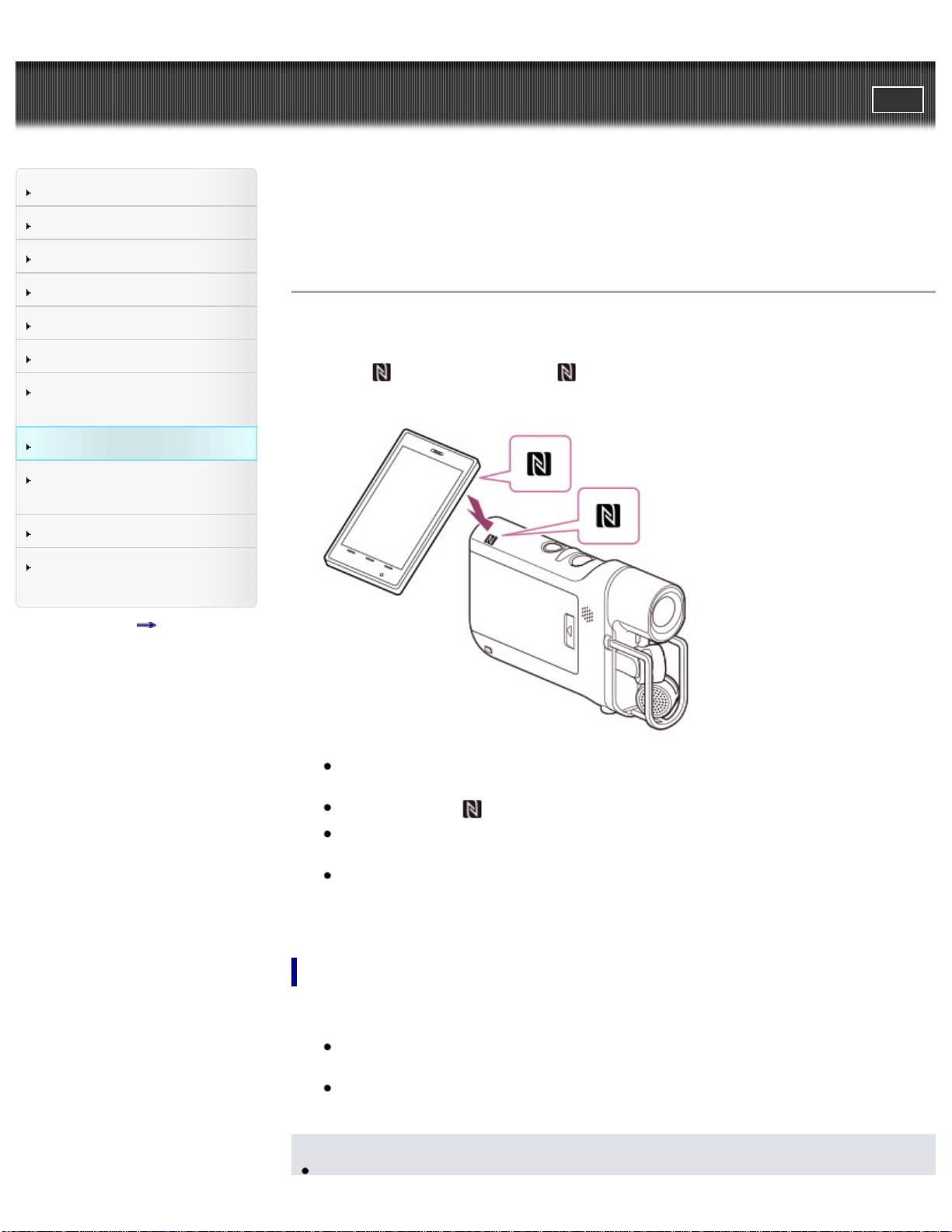
1. Touch
on the camcorder to on your smartphone or tablet to connect
them.
Cancel the sleep function and screen-lock on your smartphone or tablet in
advance.
Make sure that
is displayed on the LCD screen of the camcorder.
Keep the smartphone or tablet in contact with the camcorder for one or two
seconds until “PlayMemories Mobile” starts.
If the connection is not established using NFC, try to establish the connection
following the procedure in “Connecting to your Android smartphone or tablet.”
[Details]
What you can do via NFC connection
Operations available by touching the camcorder with your NFC-compatible
smartphone differ depending on the conditions of the camcorder.
When the camcorder is in recording mode
[Ctrl with Smartphone] starts up.
When the camcorder is in movie playback mode
[Send to Smartphone] starts up.
Notes
77

To use the one-touch functions of the camcorder, an NFC-compatible
smartphone or tablet is required.
NFC (Near Field Communication) is an international standard for short-range
wireless communication technology.
Related topics
On the “PlayMemories Mobile” software
Transferring movies to your smartphone or tablet using NFC
Using your smartphone or tablet as a remote control using NFC
Connecting to your Android smartphone or tablet
Back to top
Copyright 2013 Sony Corporation
78

User Guide
PrintSearch
Operation Search
Before use
Getting started
Recording
Playback
Playing images on a TV
Saving images with a
computer
Using the Wi-Fi function
Customizing your
camcorder
Troubleshooting
Maintenance and
precautions
Contents list
Top page > Using the Wi-Fi function > Installing the PlayMemories Mobile > On the
“PlayMemories Mobile” software
On the “PlayMemories Mobile” software
To perform the operations such as [Ctrl with Smartphone] and [Send to
Smartphone], “PlayMemories Mobile” is necessary. Install it from the application
store of your smartphone or tablet. If the “PlayMemories Mobile” software is already
installed on your smartphone or tablet, upgrade it to the latest version.
For details on “PlayMemories Mobile,” refer to the “PlayMemories Mobile” support
page (http://www.sony.net/pmm/).
Back to top
Copyright 2013 Sony Corporation
79
User Guide
PrintSearch
Operation Search
Before use
Getting started
Recording
Playback
Playing images on a TV
Saving images with a
computer
Using the Wi-Fi function
Customizing your
camcorder
Troubleshooting
Maintenance and
precautions
Contents list
Top page > Customizing your camcorder > Using menu items > Setting up menu
items
Setting up menu items
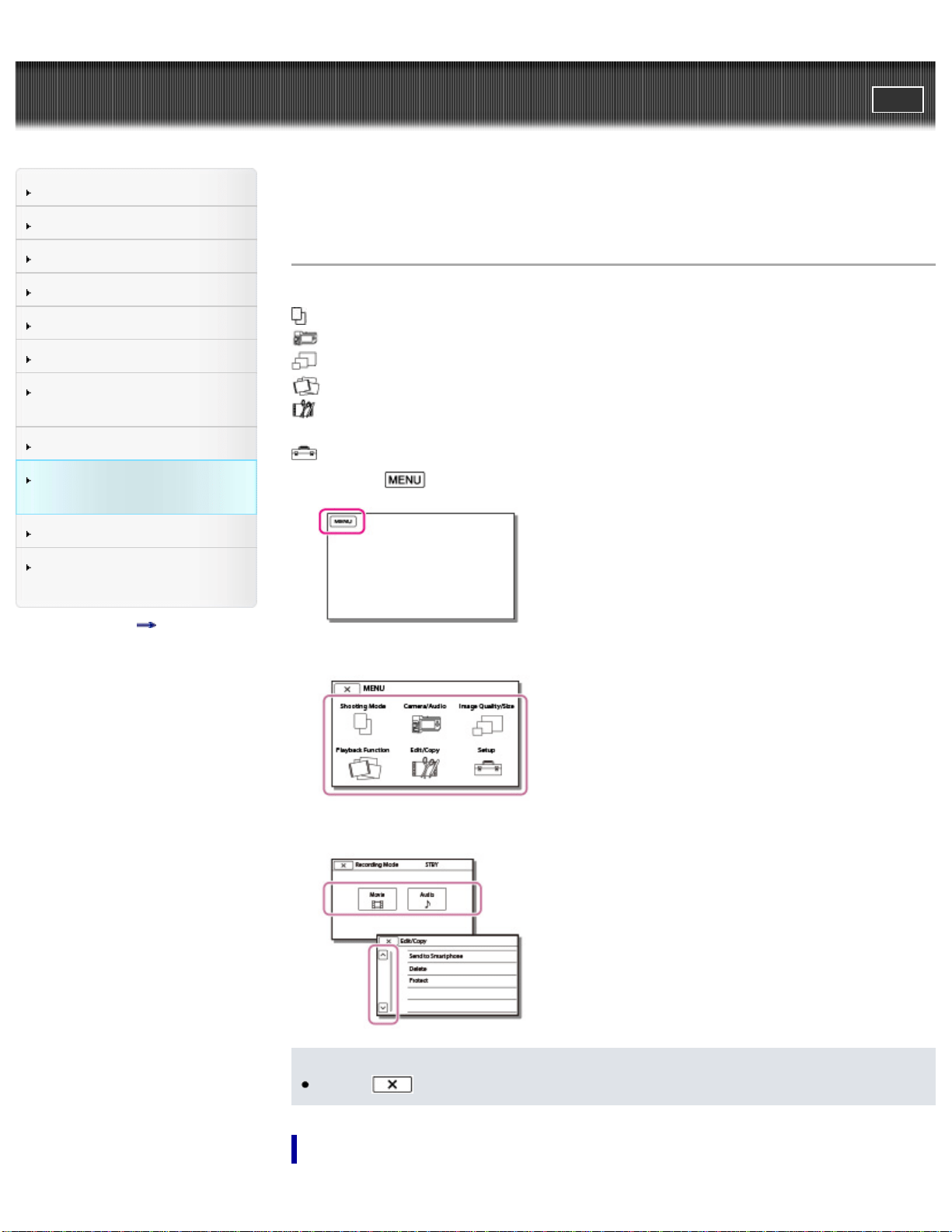
The camcorder has various menu items under each of 6 menu categories.
Recording Mode (Items for selecting a recording mode)
Camera/Audio (Items for customized recording)
Image Quality/Size (Items for setting up image quality or size)
Playback Function (Items for playback)
Edit/Copy (Items for editing images such as transferring to a smartphone or
protecting)
Setup (Other setup items)
1. Select
.
2. Select a category.
3. Select your desired menu item.
Notes
Select
to finish setting the menu or to return to the previous screen.
To find a menu item quickly
80
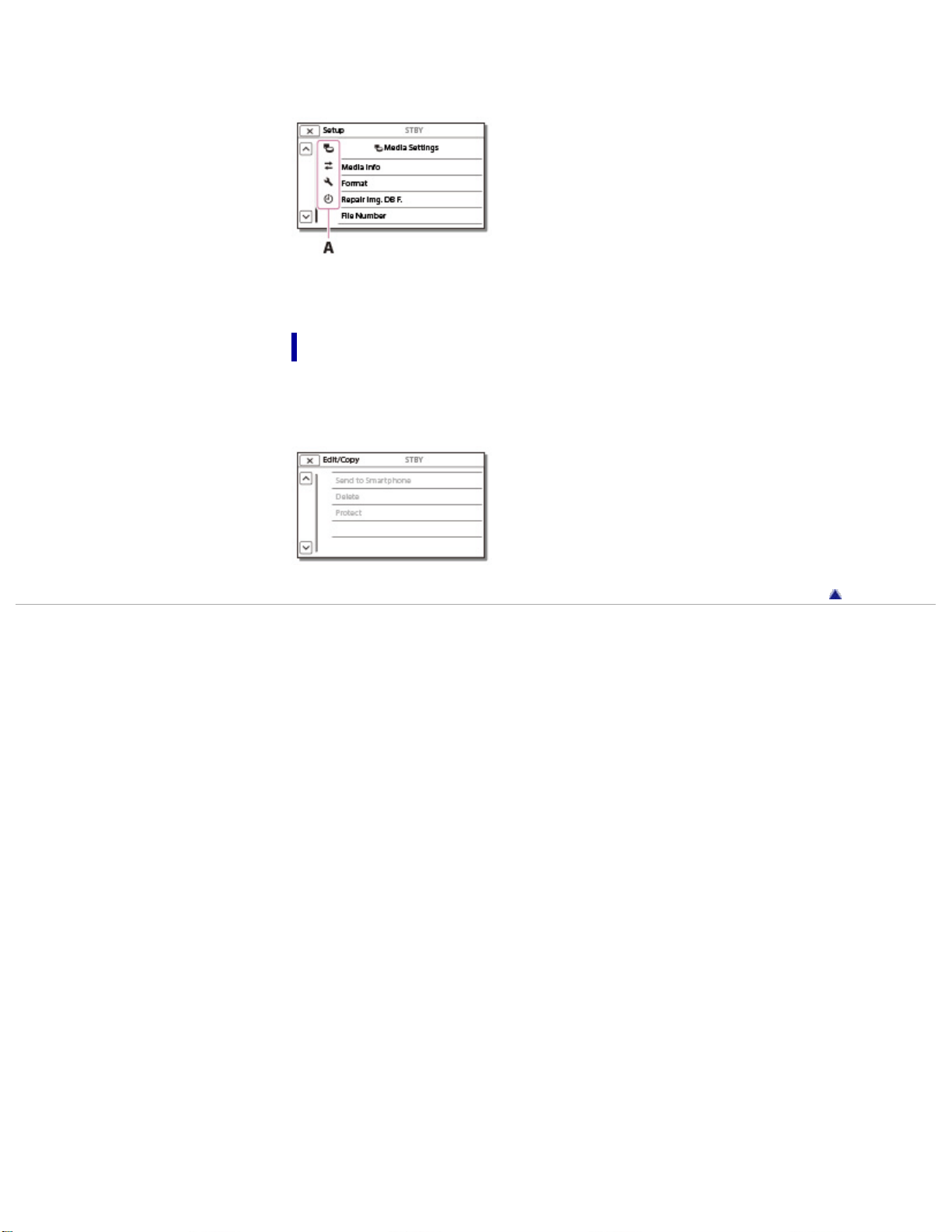
The [Camera/Audio] and [Setup] menus have sub-categories. Select the sub-
category icon so that the LCD screen displays the list of menus in the sub-category
selected.
A: Sub-category icons
When you cannot select a menu item
Grayed out menu items or settings are not available.
Your camcorder displays the reason why you cannot select the menu item or the
instruction of under which condition you can set the menu item.
Back to top
Copyright 2013 Sony Corporation
81
User Guide
PrintSearch
Operation Search
Before use
Getting started
Recording
Playback
Playing images on a TV
Saving images with a
computer
Using the Wi-Fi function
Customizing your
camcorder
Troubleshooting
Maintenance and
precautions
Contents list
Top page > Customizing your camcorder > Recording Mode > Movie
Movie
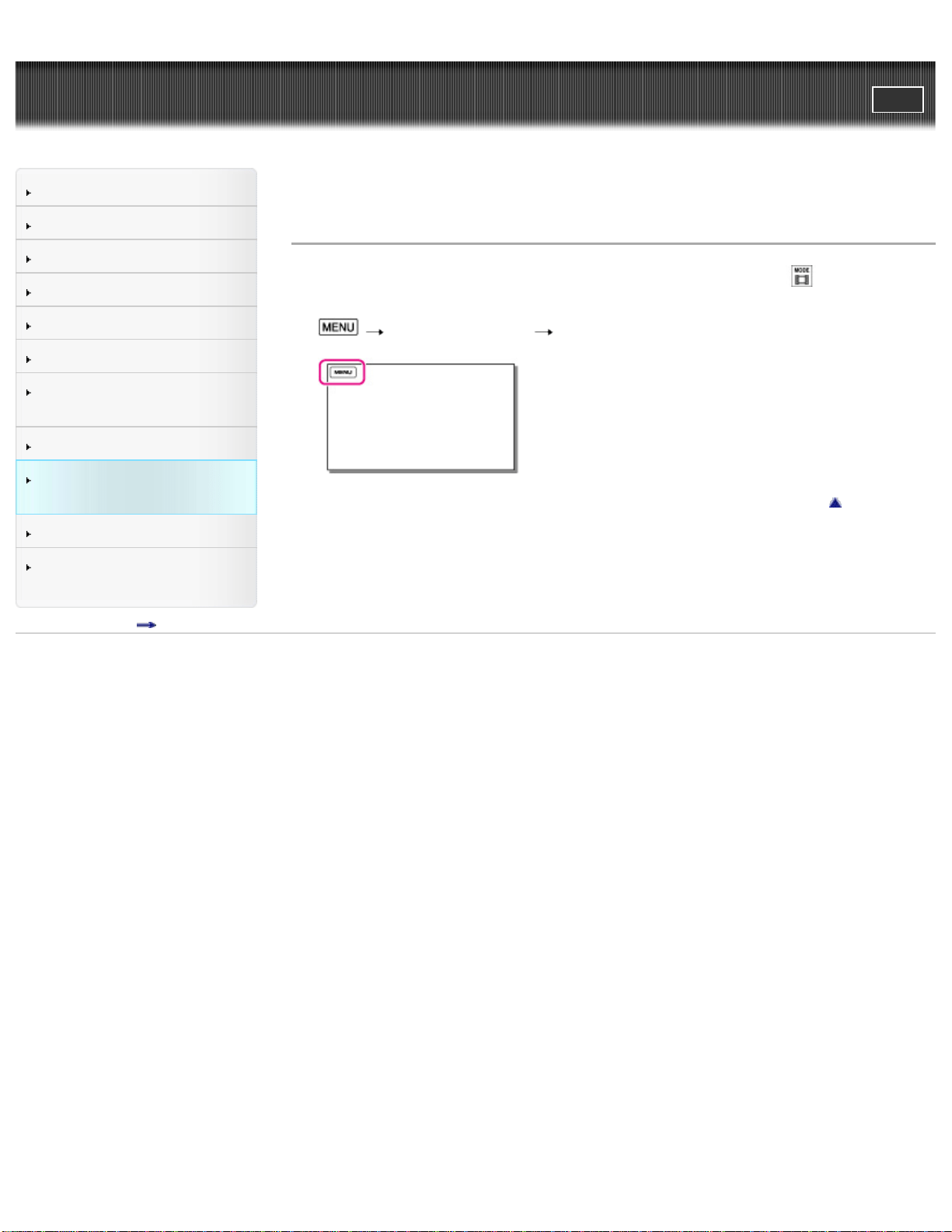
Enters the movie shooting mode. The settings can be done with on the
recording screen as well.
1.
[Recording Mode] [Movie].
Back to top
Copyright 2013 Sony Corporation
82
User Guide
PrintSearch
Operation Search
Before use
Getting started
Recording
Playback
Playing images on a TV
Saving images with a
computer
Using the Wi-Fi function
Customizing your
camcorder
Troubleshooting
Maintenance and
precautions
Contents list
Top page > Customizing your camcorder > Recording Mode > Audio
Audio
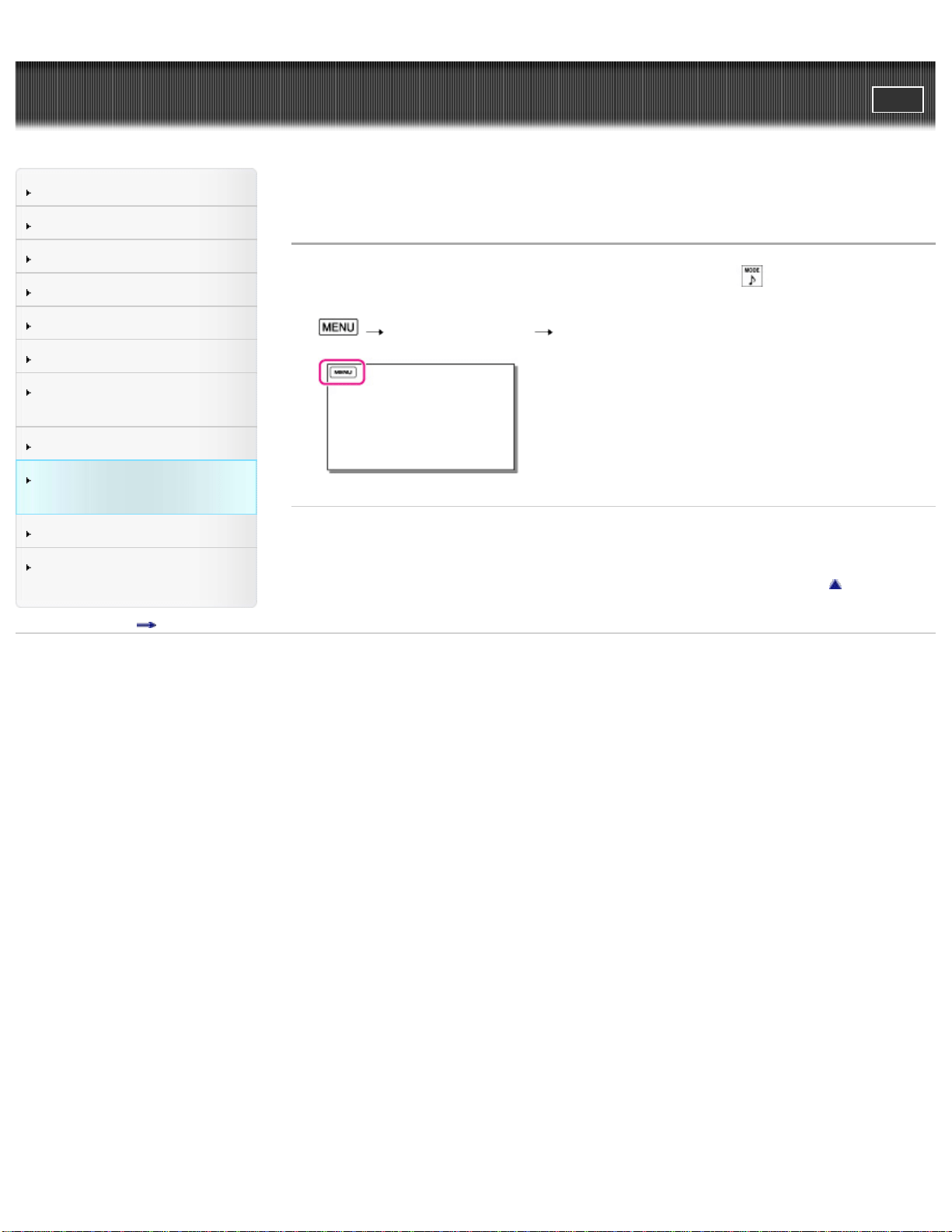
Records sound (WAV file). The settings can be done with on the recording
screen as well.
1.
[Recording Mode] [Audio].
Related topics
Recording sound
Back to top
Copyright 2013 Sony Corporation
83
User Guide
PrintSearch
Operation Search
Before use
Getting started
Recording
Playback
Playing images on a TV
Saving images with a
computer
Using the Wi-Fi function
Customizing your
camcorder
Troubleshooting
Maintenance and
precautions
Contents list
Top page > Customizing your camcorder > Camera/Audio > White Balance
White Balance
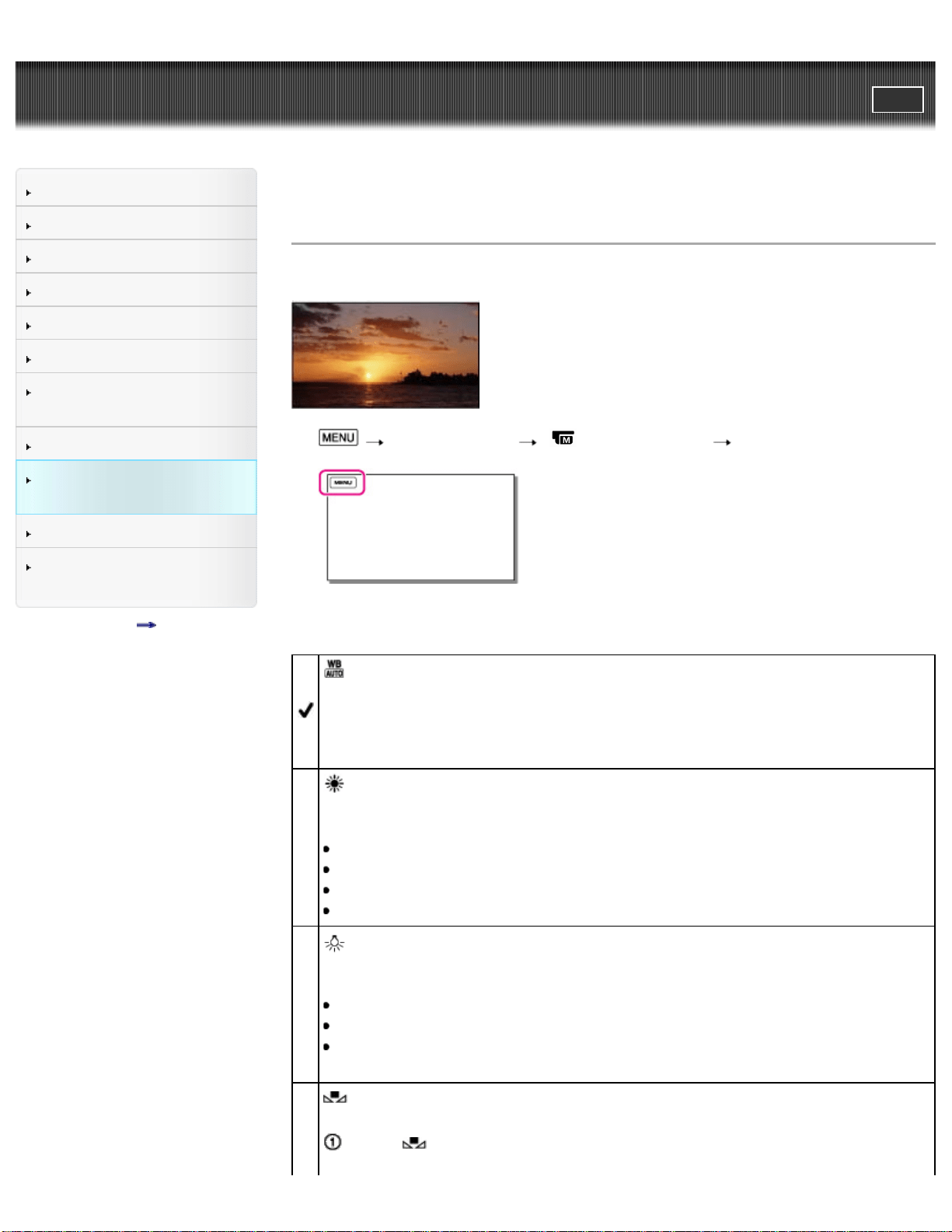
You can adjust the color balance to the shooting environment.
1. [Camera/Audio] [ Manual Settings] [White Balance].
2. Select the desired item.
(Auto)
The white balance is adjusted automatically.
If you have changed the battery pack while [Auto] was selected, or taken your
camcorder outdoors after inside use (or vice versa), aim your camcorder at a
nearby white object for about 10 seconds for better color balance adjustment.
(Outdoor)
The white balance is appropriately adjusted for the following shooting
conditions:
Outdoors
Night views, neon signs and fireworks
Sunrise or sunset
Under daylight fluorescent lamps
(Indoor)
The white balance is appropriately adjusted for the following shooting
conditions:
Indoors
At party scenes or studios where the lighting conditions change quickly
Under video lamps in a studio, or under sodium lamps or incandescent-like
color lamps
(One Push)
The white balance will be adjusted according to the ambient light.
Select [
].
84
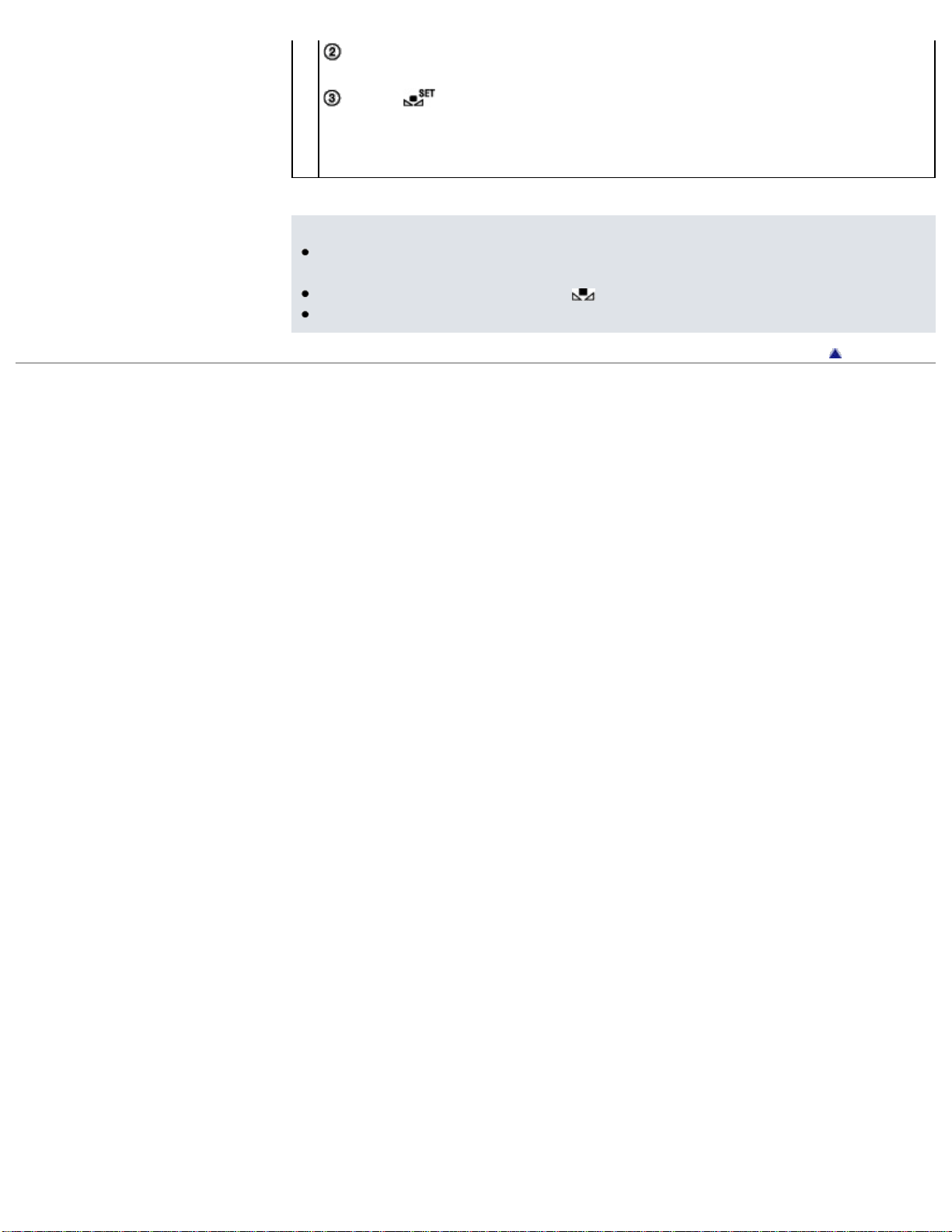
Keep framing white object such as a piece of paper, to fill the screen under
the same lightning conditions as you will shoot the subject.
Select [
].
If the lighting conditions changed by bringing your camcorder outdoors from
inside the house, or vice versa, you need to redo the [One Push] procedure
to readjust the white balance.
Notes
Set [White Balance] to [Auto] or adjust the color in [One Push] under white or
cool white fluorescent lamps.
While you are shooting a movie,
(One Push) cannot be set.
If you set [White Balance], [Scene Selection] is set to [Auto].
Back to top
Copyright 2013 Sony Corporation
85
User Guide
PrintSearch
Operation Search
Before use
Getting started
Recording
Playback
Playing images on a TV
Saving images with a
computer
Using the Wi-Fi function
Customizing your
camcorder
Troubleshooting
Maintenance and
precautions
Contents list
Top page > Customizing your camcorder > Camera/Audio > Exposure
Exposure
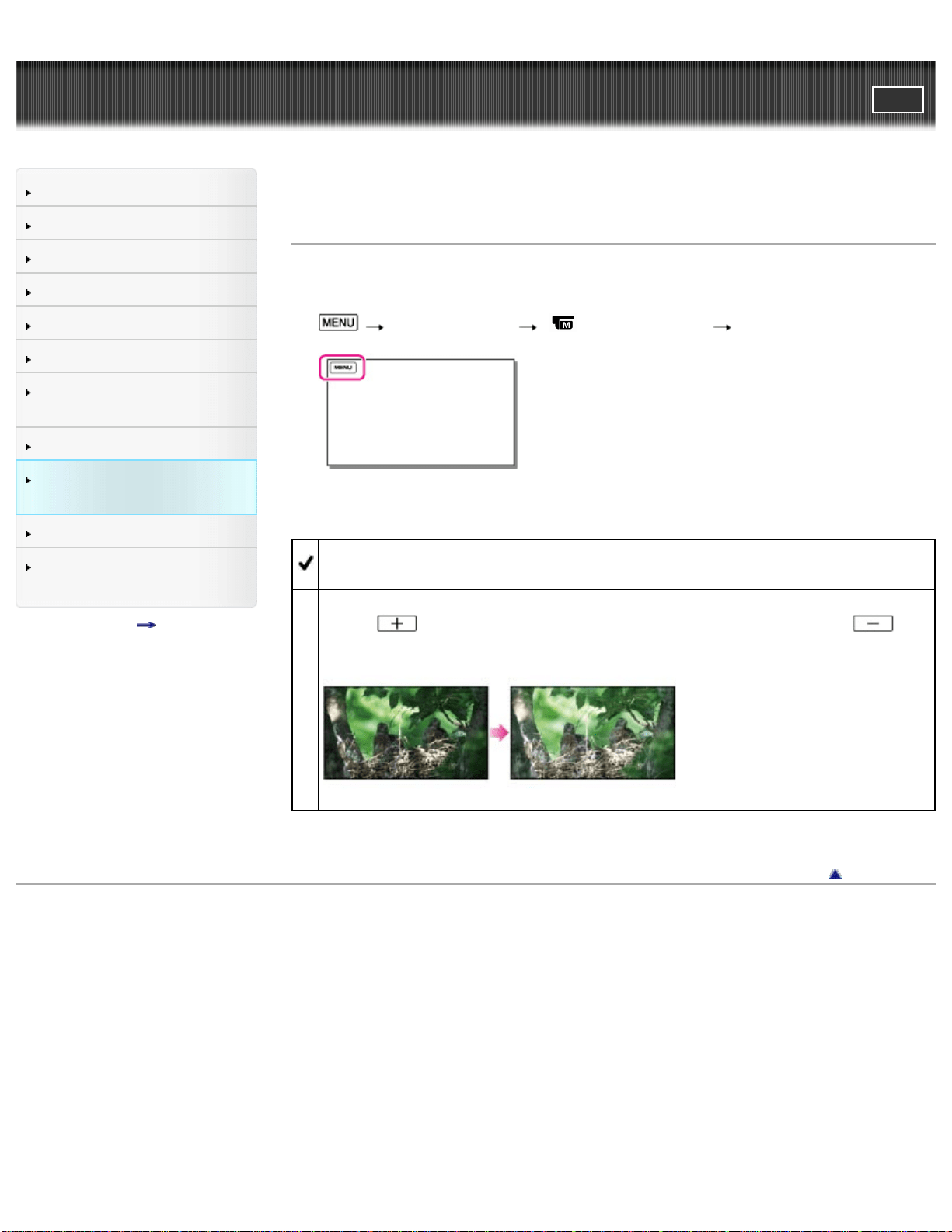
You can fix the brightness of a movie manually. Adjust the brightness when the
subject is too bright or too dark.
1.
[Camera/Audio] [ Manual Settings] [Exposure].
2. Select the desired item.
Auto
The exposure is adjusted automatically.
Manual
Select
if the subject is white or the backlight is bright, or select if
the subject is black or the light is dim.
Back to top
Copyright 2013 Sony Corporation
86
User Guide
PrintSearch
Operation Search
Before use
Getting started
Recording
Playback
Playing images on a TV
Saving images with a
computer
Using the Wi-Fi function
Customizing your
camcorder
Troubleshooting
Maintenance and
precautions
Contents list
Top page > Customizing your camcorder > Camera/Audio > Low Lux
Low Lux
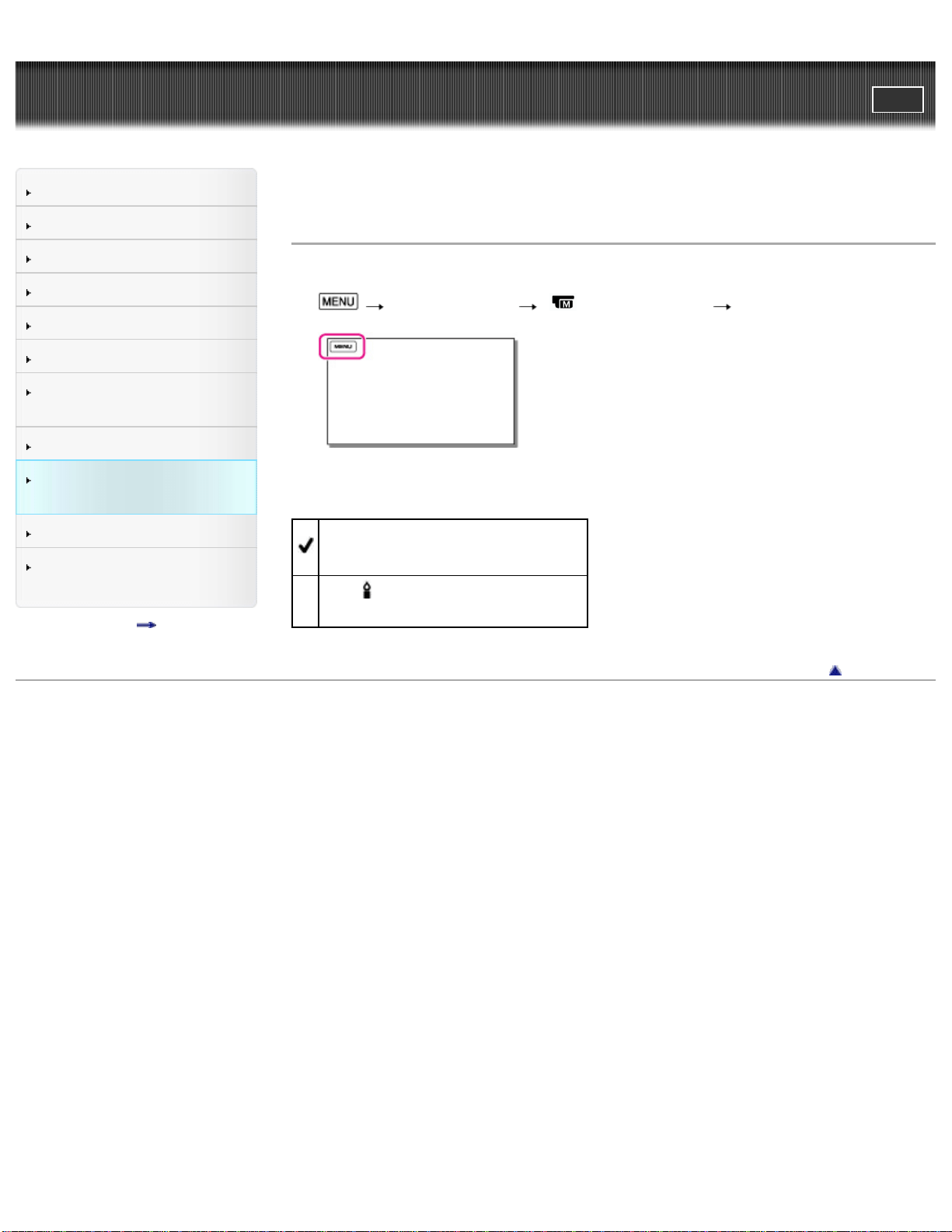
You can shoot bright color movies, even in dim light.
1.
[Camera/Audio] [ Manual Settings] [Low Lux].
2. Select the desired item.
Off
The Low Lux function is not used.
On (
)
The Low Lux function is used.
Back to top
Copyright 2013 Sony Corporation
87
User Guide
PrintSearch
Operation Search
Before use
Getting started
Recording
Playback
Playing images on a TV
Saving images with a
computer
Using the Wi-Fi function
Customizing your
camcorder
Troubleshooting
Maintenance and
precautions
Contents list
Top page > Customizing your camcorder > Camera/Audio > Scene Selection
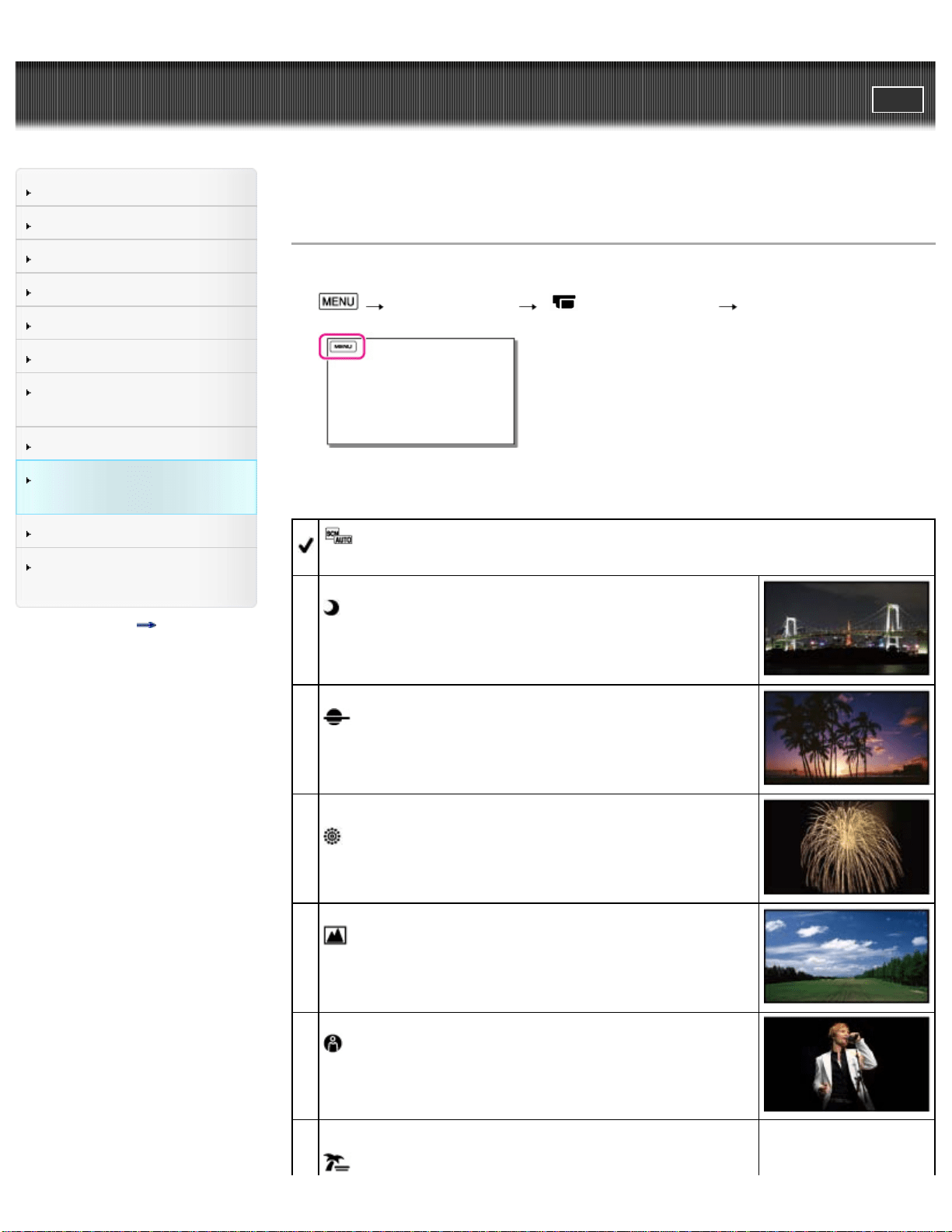
Scene Selection
You can shoot movies effectively in various situations.
1.
[Camera/Audio] [ Camera Settings] [Scene Selection].
2. Select the desired item.
(Auto)
Adjusts image quality automatically.
(Night Scene)
Maintains the darkening atmosphere of the distant
surroundings in night scenes.
(Sunrise&Sunset)
Reproduces the atmosphere of scenes such as sunsets
or sunrises.
(Fireworks)
Takes spectacular shots of fireworks.
(Landscape)
Shoots subjects adjusting the color according to the sky
or greenery color.
(Spotlight)
Prevents people’s faces from appearing excessively
white when subjects are lit by strong light.
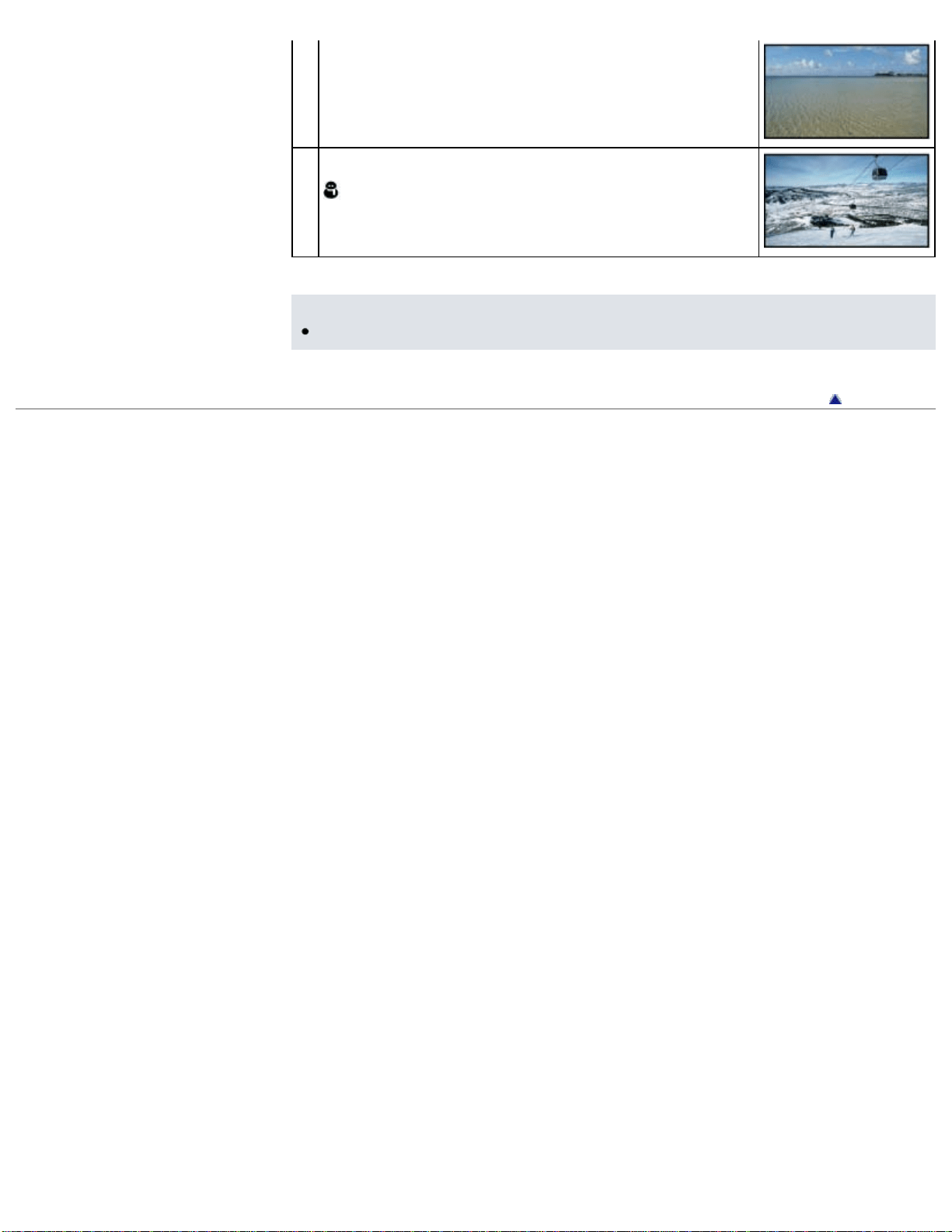
(Beach)
88
User Guide
PrintSearch
Operation Search
Before use
Getting started
Recording
Playback
Playing images on a TV
Saving images with a
computer
Using the Wi-Fi function
Customizing your
camcorder
Troubleshooting
Maintenance and
precautions
Contents list
Top page > Customizing your camcorder > Camera/Audio > Fader
Fader
You can shoot a transition with the following effects adding to the interval between
scenes.
Select the desired effect in [STBY] (to fading in) or [REC] (to fading out) mode.
1.
[Camera/Audio] [ Camera Settings] [ Fader].
2. Select the desired item.
Off
Does not use an effect.
White Fader (
)
Fades in/out with the white effect.
Out
In
Black Fader ( )
Fades in/out with the black effect.
Movies shot using the [Black Fader] effect may appear dark on the index
screen.
Out
In
Notes
When you press START/STOP, the setting is cleared.
Back to top
90

Copyright 2013 Sony Corporation
91
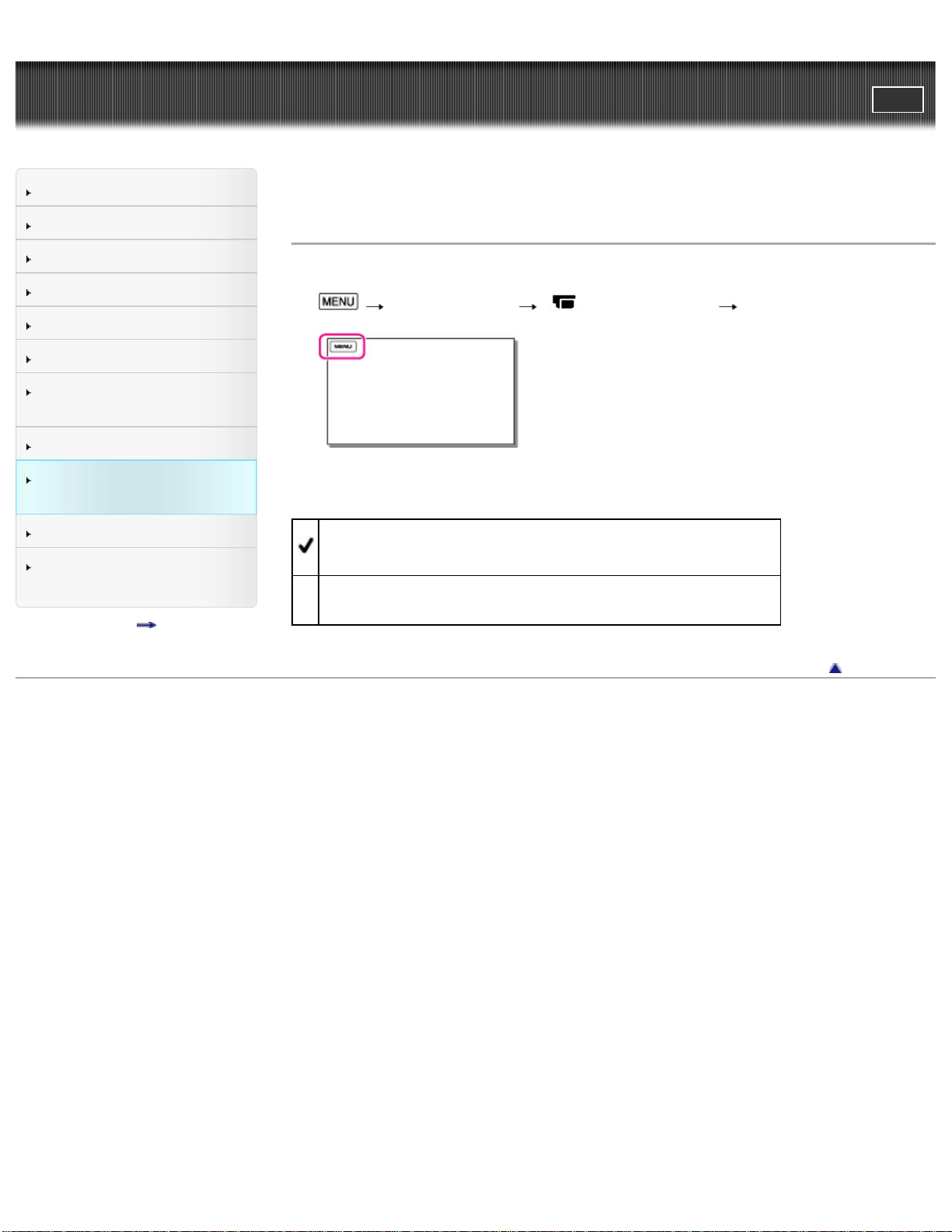
User Guide
PrintSearch
Operation Search
Before use
Getting started
Recording
Playback
Playing images on a TV
Saving images with a
computer
Using the Wi-Fi function
Customizing your
camcorder
Troubleshooting
Maintenance and
precautions
Contents list
Top page > Customizing your camcorder > Camera/Audio > Auto Back Light
Auto Back Light
Your camcorder adjusts the exposure for backlit subjects automatically.
1.
[Camera/Audio] [ Camera Settings] [Auto Back Light].
2. Select the desired item.
On
The exposure for backlit subjects is adjusted automatically.
Off
Does not adjust the exposure for backlit subjects.
Back to top
Copyright 2013 Sony Corporation
92
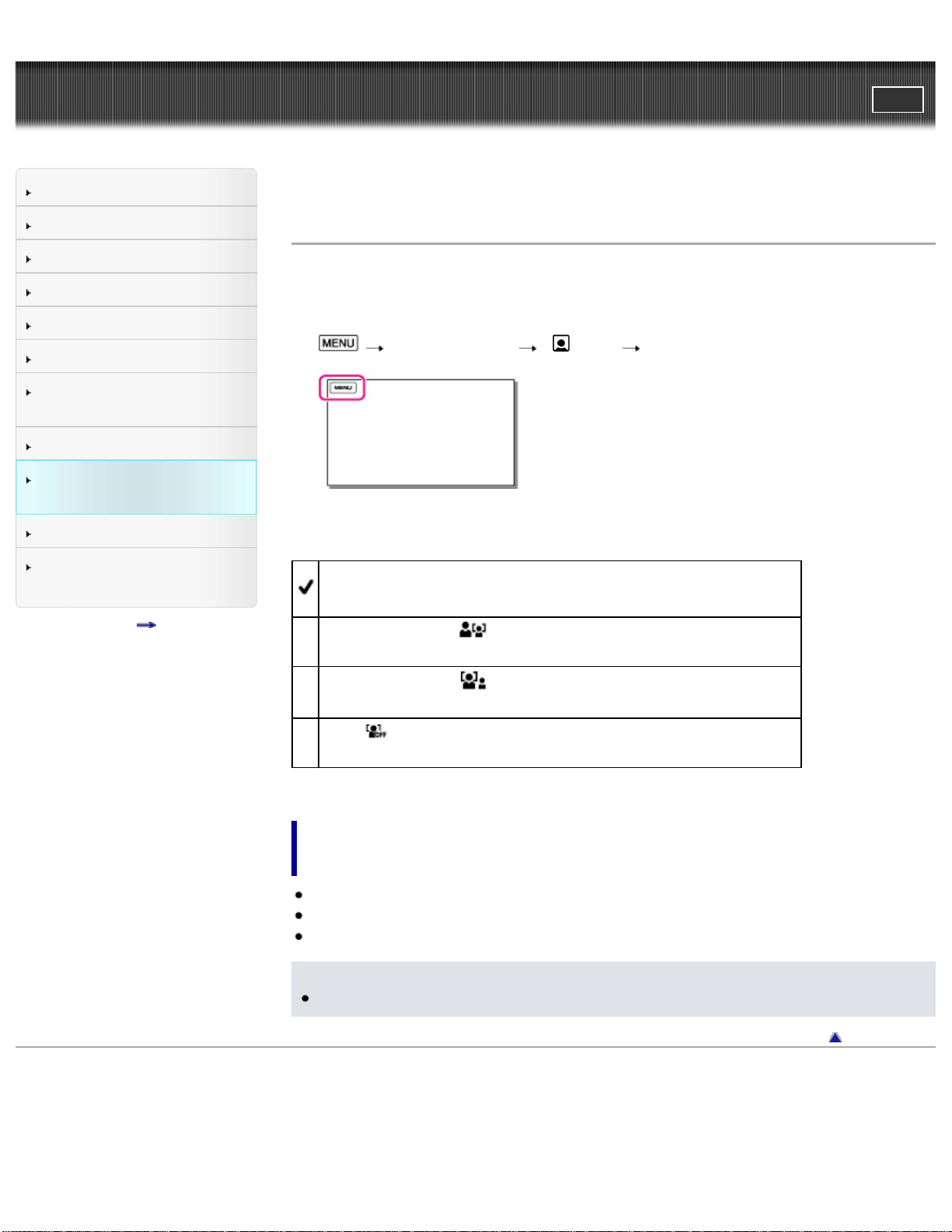
User Guide
PrintSearch
Operation Search
Before use
Getting started
Recording
Playback
Playing images on a TV
Saving images with a
computer
Using the Wi-Fi function
Customizing your
camcorder
Troubleshooting
Maintenance and
precautions
Contents list
Top page > Customizing your camcorder > Camera/Audio > Face Detection
Face Detection
You can set the camcorder to detect a face automatically.
Your camcorder adjusts the color/exposure automatically for the face of the
selected subject.
1.
[Camera/Audio] [ Face] [Face Detection].
2. Select the desired item.
Auto
Detects faces without distinction between adults and children.
Child Priority (
)
Gives faces of children priority.
Adult Priority ( )
Gives faces of adults priority.
Off (
)
Does not detect faces.
Shooting conditions for better face detection
performance
Shoot in a sufficiently bright place.
The subject is not wearing glasses, a hat or mask.
The subject faces directly towards the camcorder.
Notes
Faces may not be detected depending on shooting conditions.
Back to top
Copyright 2013 Sony Corporation
93
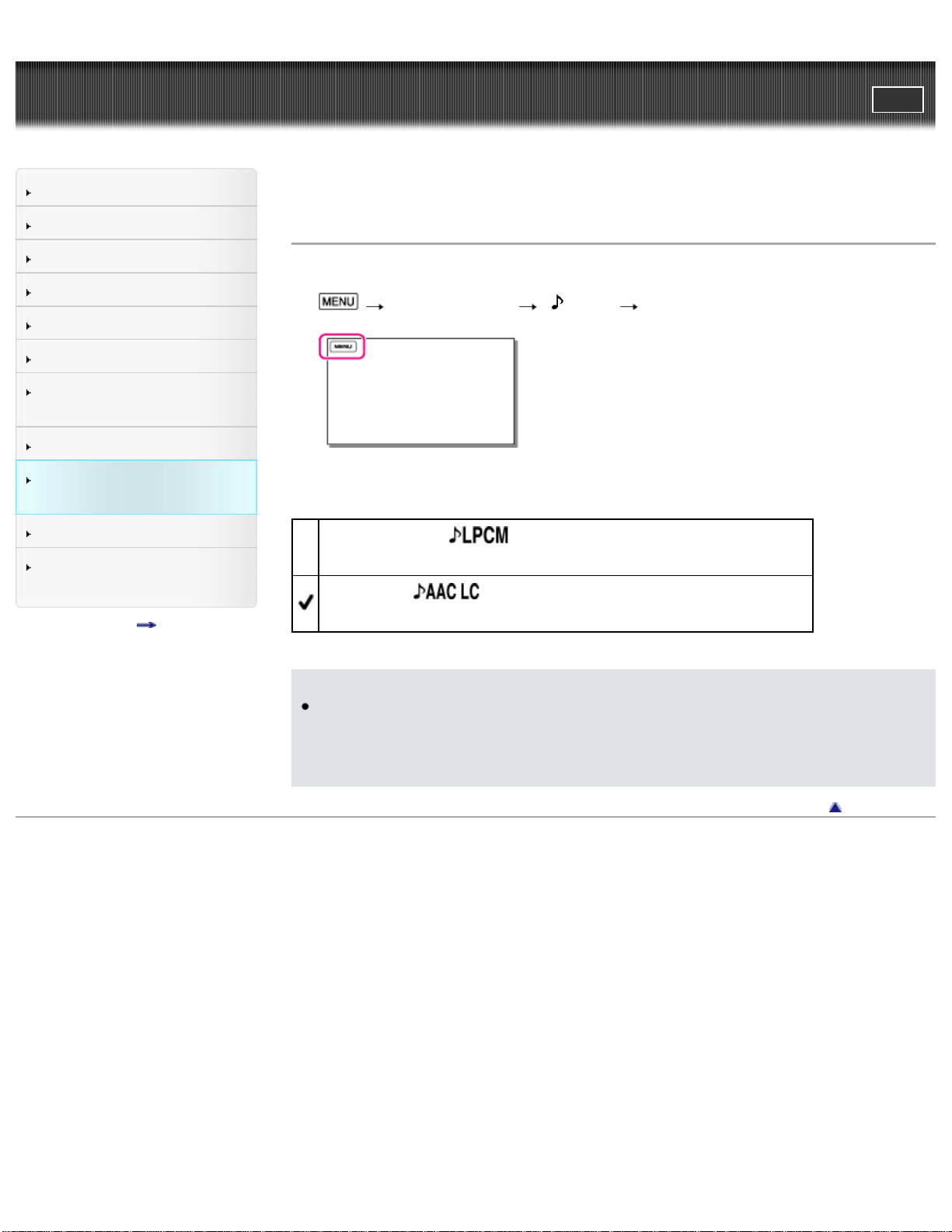
User Guide
PrintSearch
Operation Search
Before use
Getting started
Recording
Playback
Playing images on a TV
Saving images with a
computer
Using the Wi-Fi function
Customizing your
camcorder
Troubleshooting
Maintenance and
precautions
Contents list
Top page > Customizing your camcorder > Camera/Audio > Audio Format
Audio Format
You can select your desired audio format for movie shooting.
1.
[Camera/Audio] [ Audio] [Audio Format].
2. Select the desired item.
Linear PCM (
)
Records in the Linear PCM format.
AAC LC ( )
Records in the AAC LC format which is suitable for file sharing.
Notes
MP4 movies shot with [Audio Format] set to [Linear PCM] cannot be played
back on some equipment or services, including Blu-ray Disc players (including
Sony products). For detailed information, check the camcorder support page
before use.
Back to top
Copyright 2013 Sony Corporation
94
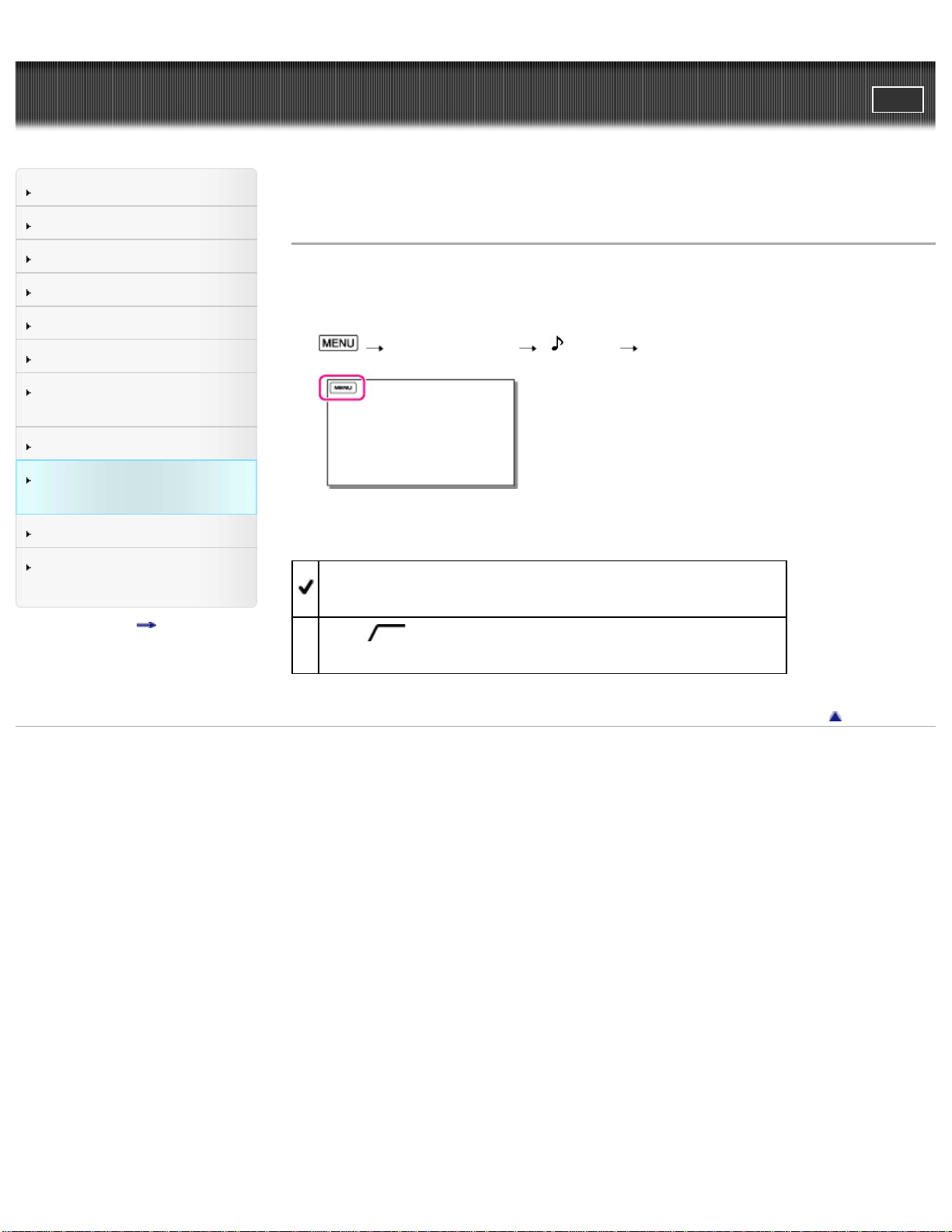
User Guide
PrintSearch
Operation Search
Before use
Getting started
Recording
Playback
Playing images on a TV
Saving images with a
computer
Using the Wi-Fi function
Customizing your
camcorder
Troubleshooting
Maintenance and
precautions
Contents list
Top page > Customizing your camcorder > Camera/Audio > Low Cut Filter
Low Cut Filter
This function allows you to cut noise in the low frequency range during recording.
Use this function to reduce noise from fixtures such as air conditioners or projector
fans or when recording in a small music venues surrounded by concrete walls.
1.
[Camera/Audio] [ Audio] [Low Cut Filter].
2. Select the desired item.
Off
Records low frequency sound without reducing noise.
On (
)
Reduces noise in the low frequency range during recording.
Back to top
Copyright 2013 Sony Corporation
95
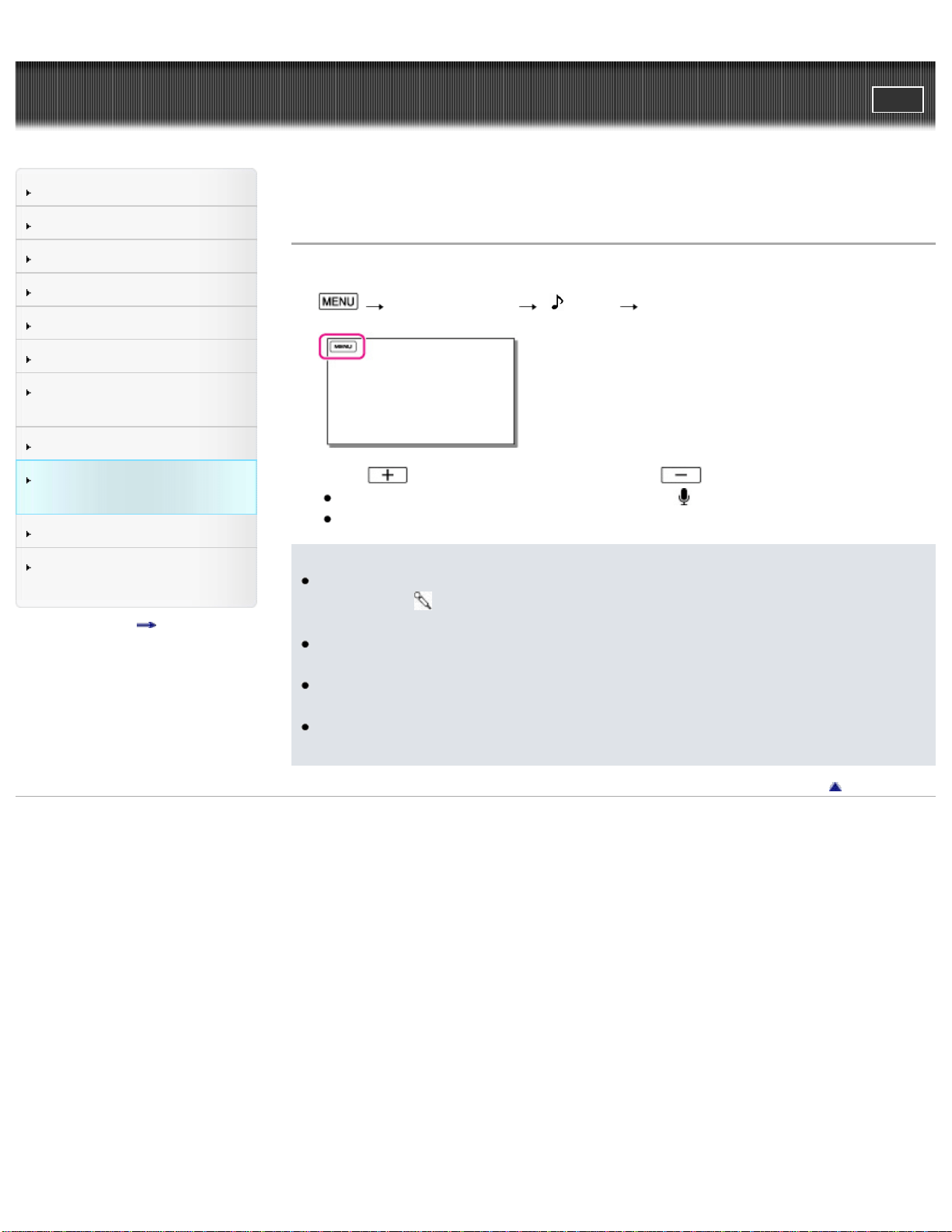
User Guide
PrintSearch
Operation Search
Before use
Getting started
Recording
Playback
Playing images on a TV
Saving images with a
computer
Using the Wi-Fi function
Customizing your
camcorder
Troubleshooting
Maintenance and
precautions
Contents list
Top page > Customizing your camcorder > Camera/Audio > Int. Mic. Rec. Level
Int. Mic. Rec. Level
You can adjust recording sensitivity when using the internal microphone.
1.
[Camera/Audio] [ Audio] [Int. Mic. Rec. Level].
2. Press to boost the recording level and to lower the recording level.
± appears next to the internal microphone (
) indicator.
Select [RESET] to restore to the default setting.
Notes
When connecting an external device such as an MTR or external microphone to
the LINE IN/
(microphone) jack (PLUG IN POWER), you cannot adjust the
recording level of the internal microphone.
We recommend that you check and adjust the recording level wearing
headphones.
When continuously recording loud sound, lower the recording level in advance
to record dynamic sound.
Regardless of the setting value of the recording level, the limiter is always
available.
Back to top
Copyright 2013 Sony Corporation
96

User Guide
PrintSearch
Operation Search
Before use
Getting started
Recording
Playback
Playing images on a TV
Saving images with a
computer
Using the Wi-Fi function
Customizing your
camcorder
Troubleshooting
Maintenance and
precautions
Contents list
Top page > Customizing your camcorder > Camera/Audio > Ext. Mic. Rec. Level
Ext. Mic. Rec. Level
You can adjust recording sensitivity when using an external microphone.
1.
[Camera/Audio] [ Audio] [Ext. Mic. Rec. Level].
2. Press to boost the recording level and to lower the recording level.
± appears next to the external microphone (
) indicator.
Select [RESET] to restore to the default setting.
Notes
The setting will not be activate when [Ext. Audio Input Set] is set to [Other
Device].
We recommend that you check and adjust the recording level wearing
headphones.
When continuously recording loud sound, lower the recording level in advance
to record dynamic sound.
Regardless of the setting value of the recording level, the limiter is always
available.
If an external microphone or the like is not connected to the LINE IN/
(microphone) jack (PLUG IN POWER), you cannot adjust the recording level.
Back to top
Copyright 2013 Sony Corporation
97
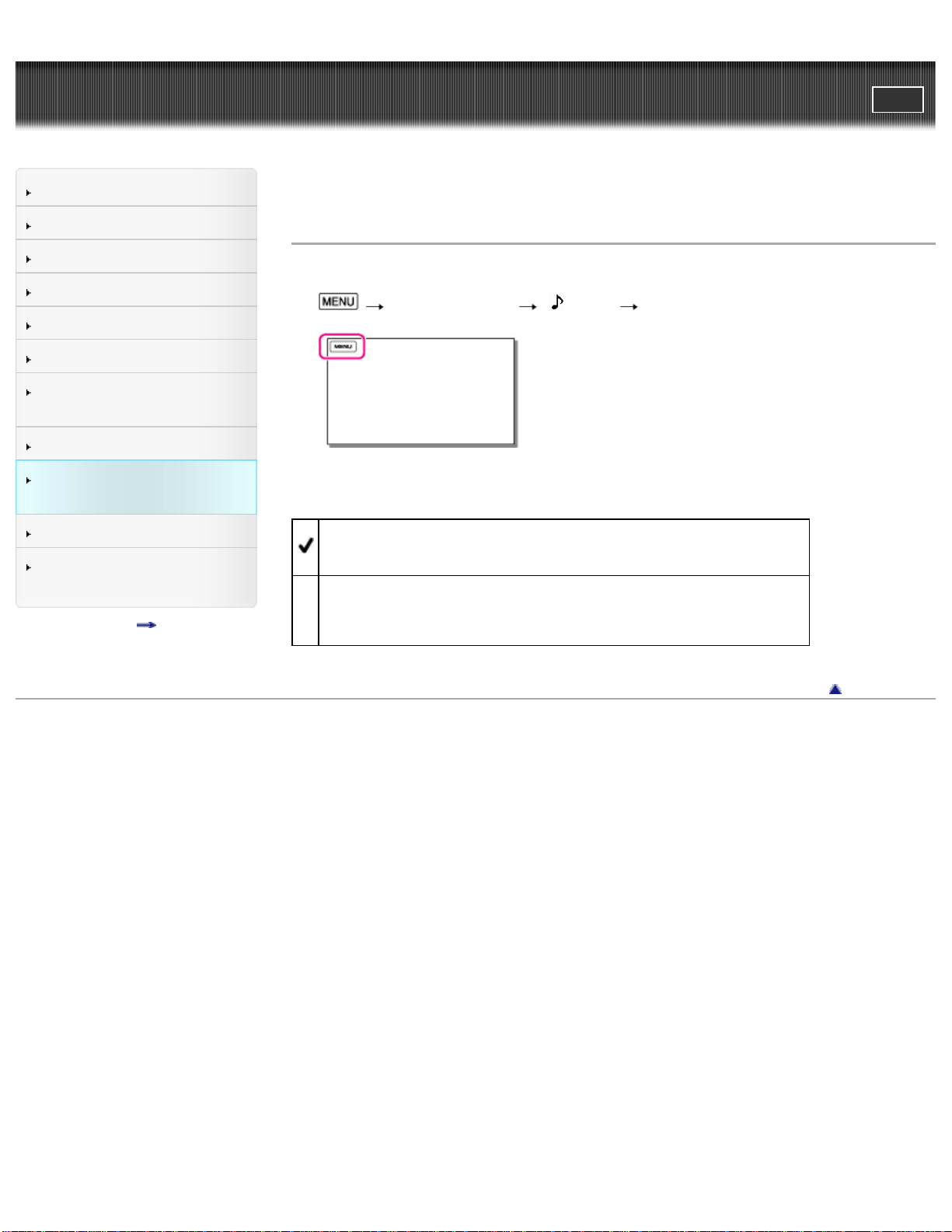
User Guide
PrintSearch
Operation Search
Before use
Getting started
Recording
Playback
Playing images on a TV
Saving images with a
computer
Using the Wi-Fi function
Customizing your
camcorder
Troubleshooting
Maintenance and
precautions
Contents list
Top page > Customizing your camcorder > Camera/Audio > Audio Output Timing
Audio Output Timing
You can set the timing to output sound when shooting a movie.
1.
[Camera/Audio] [ Audio] [Audio Output Timing].
2. Select the desired item.
Live
Outputs the sound without delaying during recording.
Lip Sync
Synchronizes sound to the movie during shooting and outputs.
Back to top
Copyright 2013 Sony Corporation
98
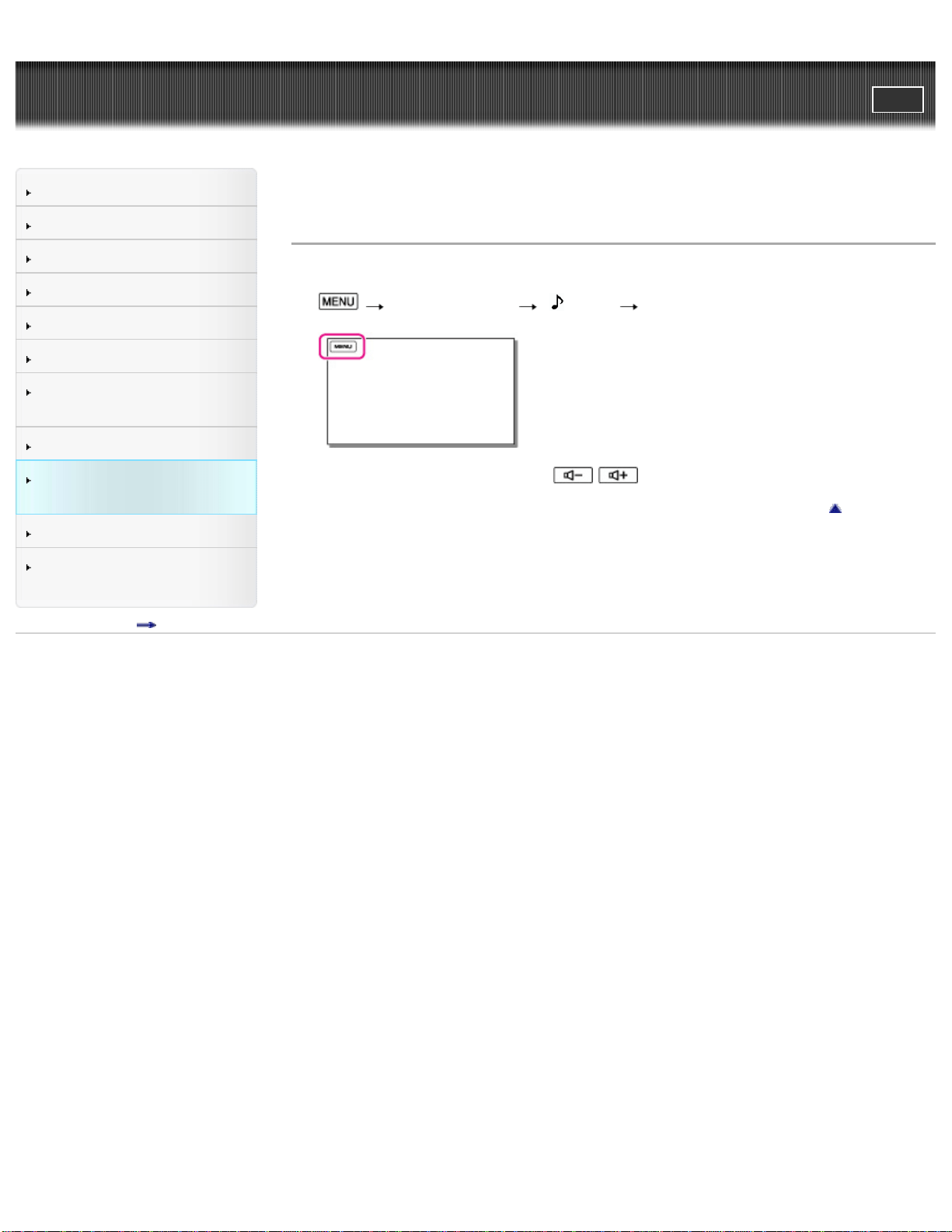
User Guide
PrintSearch
Operation Search
Before use
Getting started
Recording
Playback
Playing images on a TV
Saving images with a
computer
Using the Wi-Fi function
Customizing your
camcorder
Troubleshooting
Maintenance and
precautions
Contents list
Top page > Customizing your camcorder > Camera/Audio > Volume
Volume
You can adjust the sound volume during playback.
1.
[Camera/Audio] [ Audio] [Volume].
2. Adjust the volume by pressing / .
Back to top
Copyright 2013 Sony Corporation
99
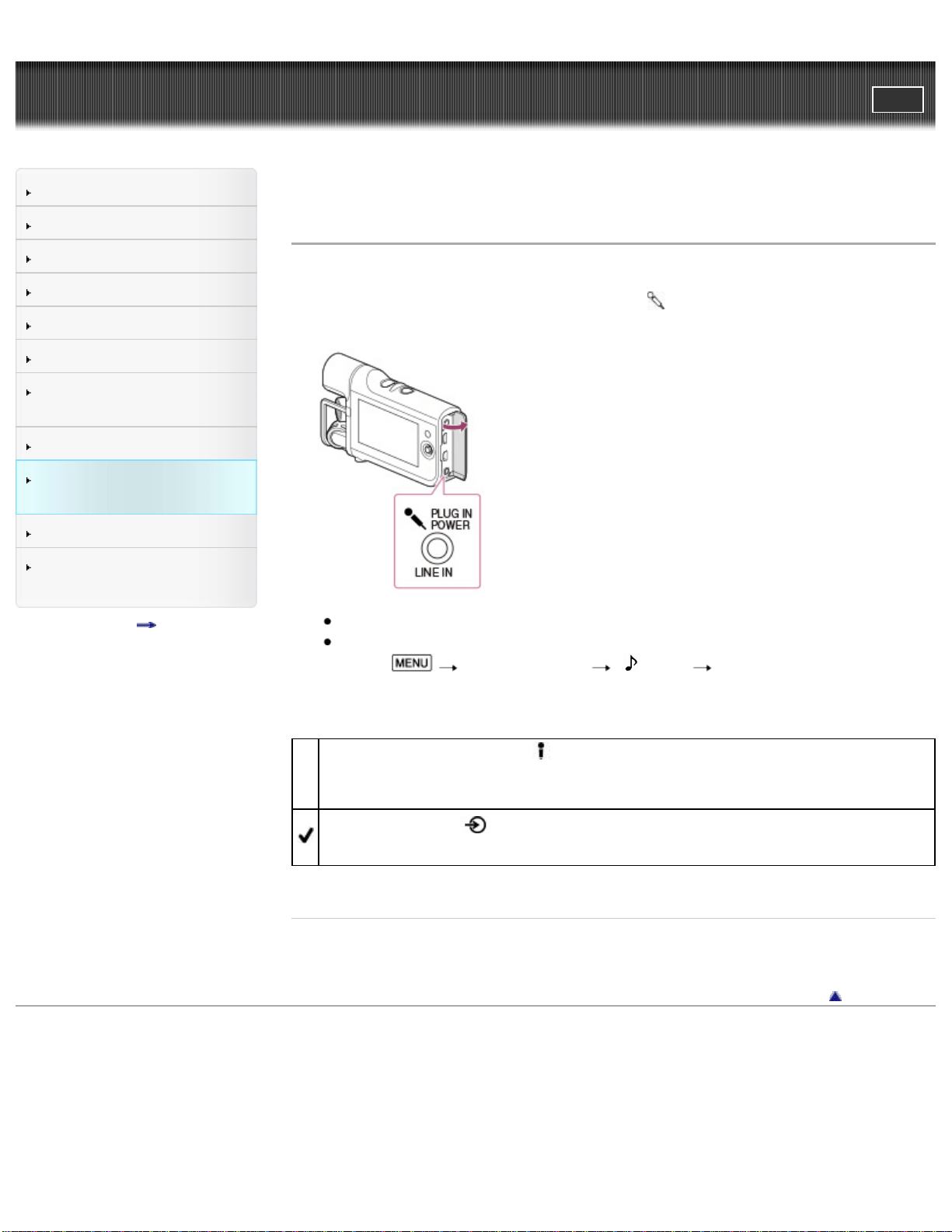
User Guide
PrintSearch
Operation Search
Before use
Getting started
Recording
Playback
Playing images on a TV
Saving images with a
computer
Using the Wi-Fi function
Customizing your
camcorder
Troubleshooting
Maintenance and
precautions
Contents list
Top page > Customizing your camcorder > Camera/Audio > Ext. Audio Input Set
Ext. Audio Input Set
You can set the suitable sound for the connected device.
1. Connect an external device to the LINE IN/
(microphone) jack (PLUG IN
POWER).
The [Ext. Audio Input Set (Ext. Audio Input Set)] screen appears.
If the [Ext. Audio Input Set (Ext. Audio Input Set)] screen does not appear,
select
[Camera/Audio] [ Audio] [Ext. Audio Input Set].
2. Select the connected external device.
External Microphone (
)
Suitable setting for an external microphone. Allows you to set [Ext. Mic. Rec.
Level].
Other Device ( )
Suitable setting for devices other than a microphone.
Related topics
[Ext. Mic. Rec. Level]
Back to top
Copyright 2013 Sony Corporation
100
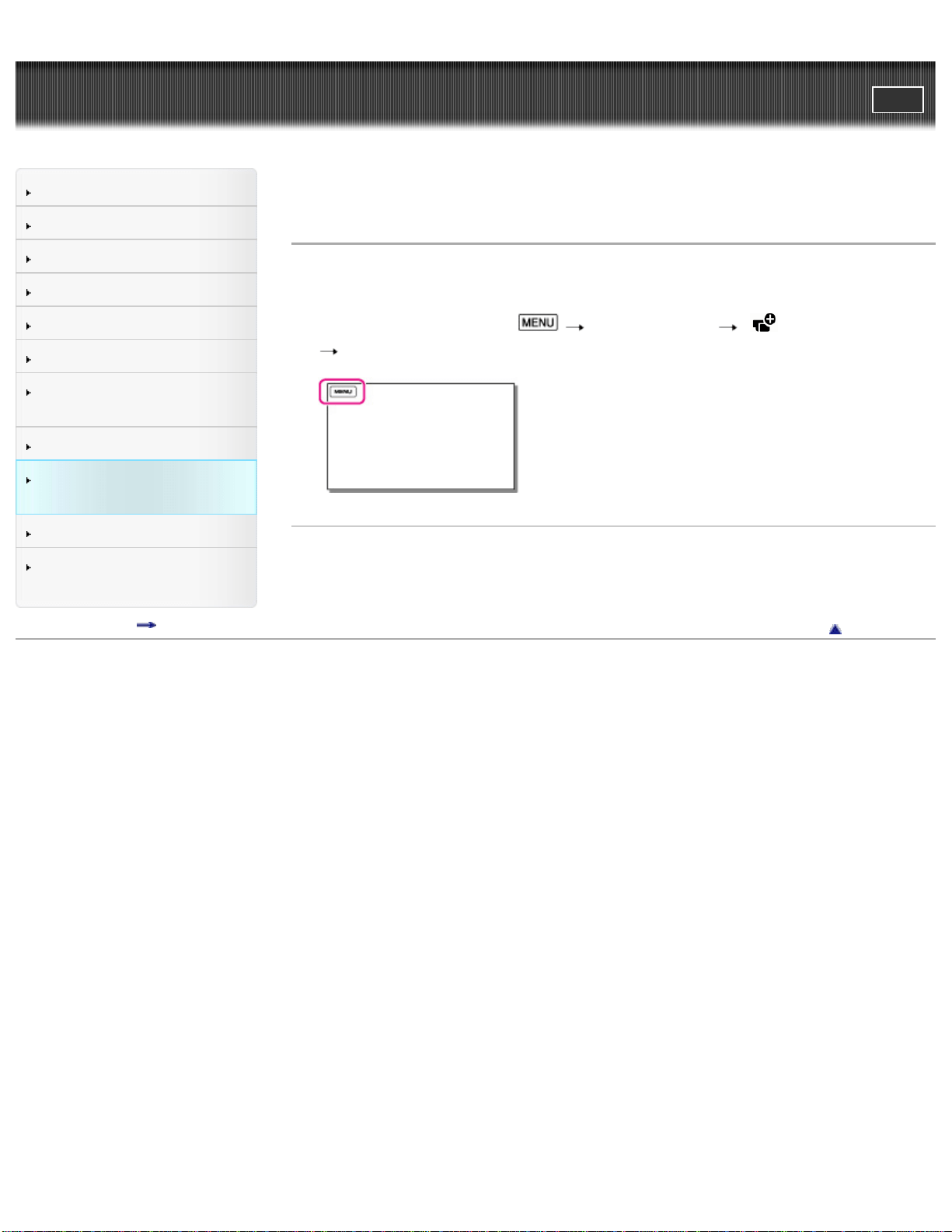
User Guide
PrintSearch
Operation Search
Before use
Getting started
Recording
Playback
Playing images on a TV
Saving images with a
computer
Using the Wi-Fi function
Customizing your
camcorder
Troubleshooting
Maintenance and
precautions
Contents list
Top page > Customizing your camcorder > Camera/Audio > Ctrl with Smartphone
Ctrl with Smartphone
You can operate the camcorder using your smartphone or tablet as a remote
control.
1. In recording mode, select
[Camera/Audio] [ Recording Assist]
[Ctrl with Smartphone].
Related topics
Using your smartphone or tablet as a remote control without using NFC
Using your smartphone or tablet as a remote control using NFC
Back to top
Copyright 2013 Sony Corporation
101
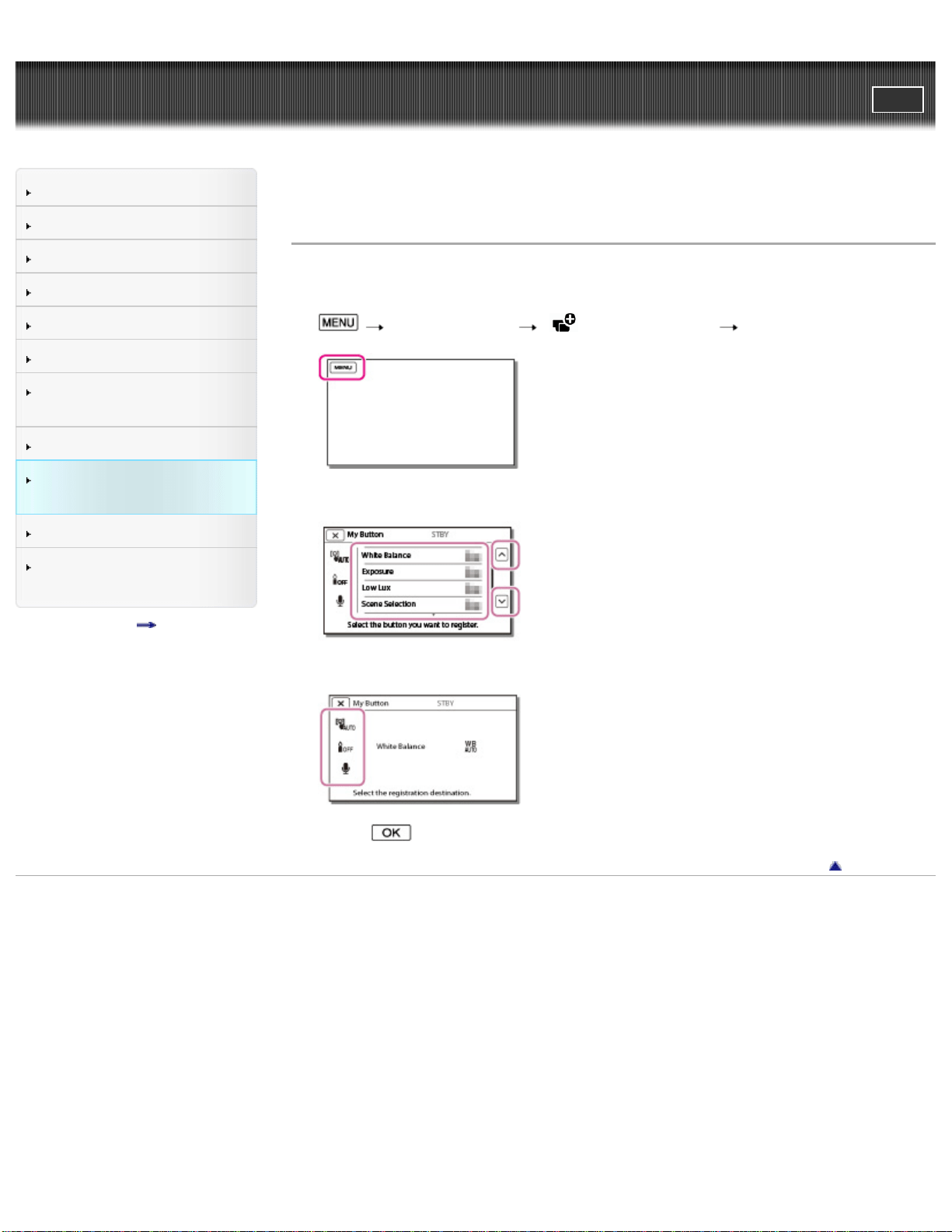
User Guide
PrintSearch
Operation Search
Before use
Getting started
Recording
Playback
Playing images on a TV
Saving images with a
computer
Using the Wi-Fi function
Customizing your
camcorder
Troubleshooting
Maintenance and
precautions
Contents list
Top page > Customizing your camcorder > Camera/Audio > My Button
My Button
You can assign functions that you frequently use when recording to one of the My
Buttons.
1.
[Camera/Audio] [ Recording Assist] [My Button].
2. Select the menu item that you want to assign to a My Button.
3. Select one of the My Buttons to which the menu item will be assigned.
4. Select .
Back to top
Copyright 2013 Sony Corporation
102
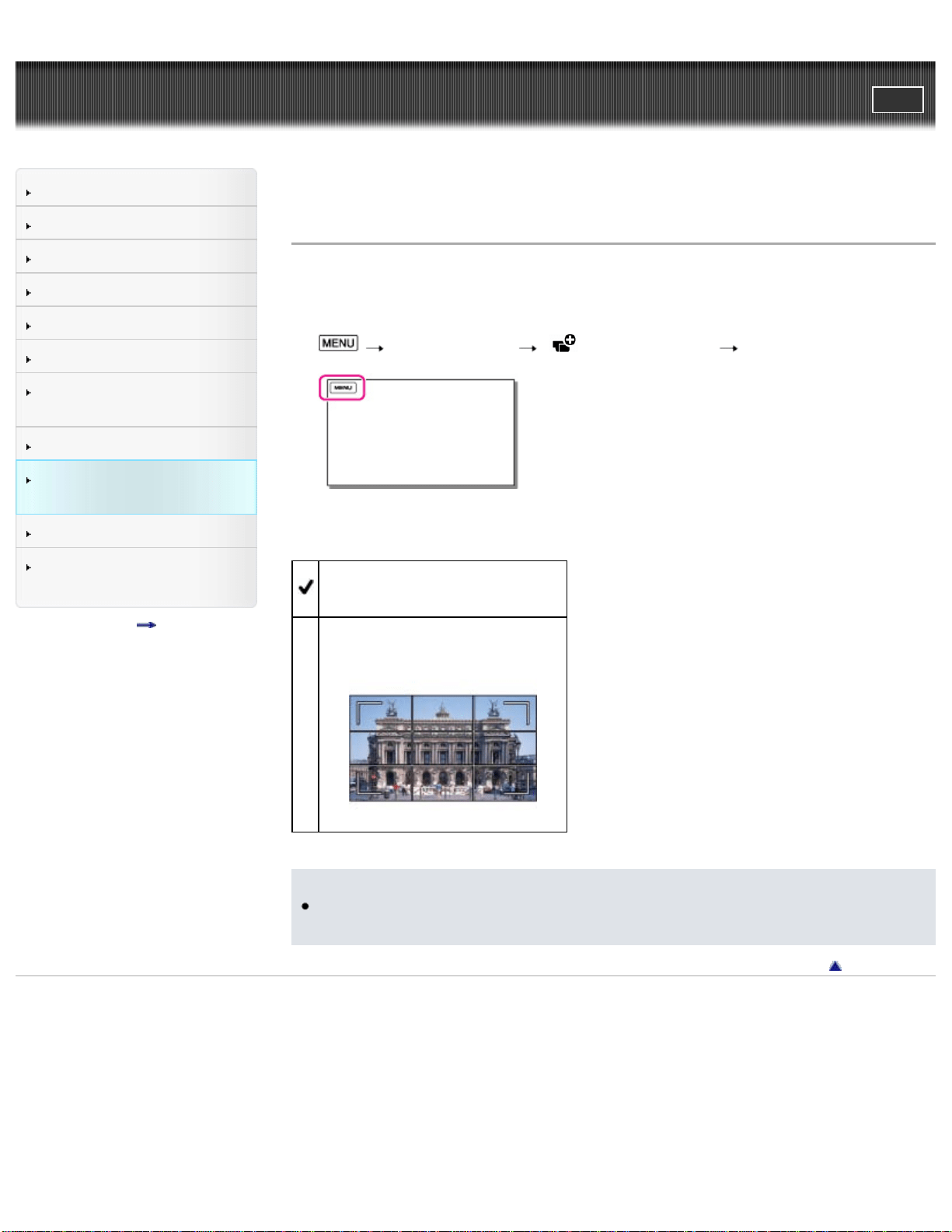
User Guide
PrintSearch
Operation Search
Before use
Getting started
Recording
Playback
Playing images on a TV
Saving images with a
computer
Using the Wi-Fi function
Customizing your
camcorder
Troubleshooting
Maintenance and
precautions
Contents list
Top page > Customizing your camcorder > Camera/Audio > Grid Line
Grid Line
You can display the lines and check that the subject is horizontal or vertical.
Positioning the subject at the cross point of the grid lines makes a balanced
composition. The lines is not recorded.
1.
[Camera/Audio] [ Recording Assist] [Grid Line].
2. Select the desired item.
Off
Does not display the grid lines.
On
Displays the grid lines.
Notes
The outer frame of grid lines shows the display area of a TV which is not
compatible with full pixel display.
Back to top
Copyright 2013 Sony Corporation
103
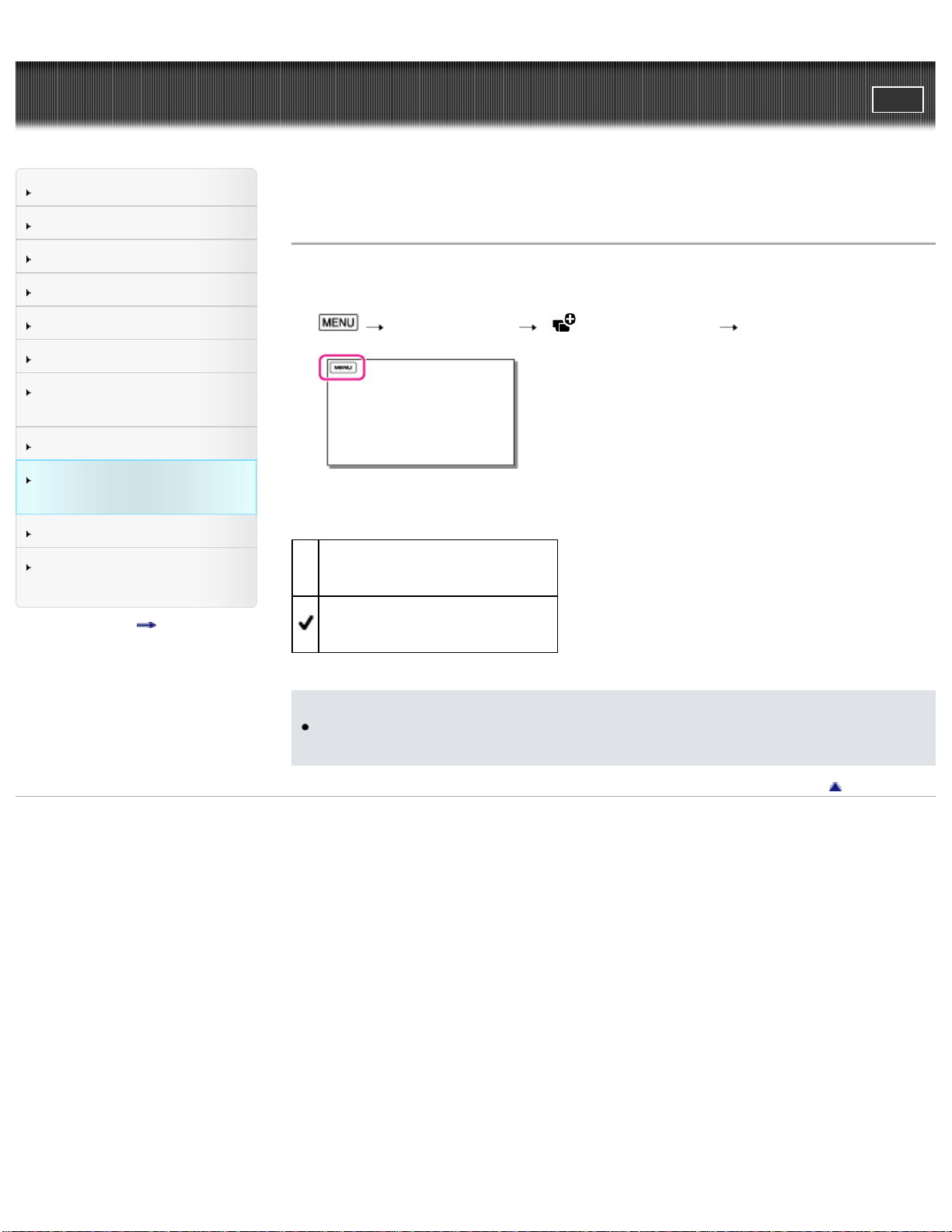
User Guide
PrintSearch
Operation Search
Before use
Getting started
Recording
Playback
Playing images on a TV
Saving images with a
computer
Using the Wi-Fi function
Customizing your
camcorder
Troubleshooting
Maintenance and
precautions
Contents list
Top page > Customizing your camcorder > Camera/Audio > Display Setting
Display Setting
You can set the duration of displaying the icons or indicators on the LCD screen
while recording.
1.
[Camera/Audio] [ Recording Assist] [Display Setting].
2. Select the desired item.
Auto
Displays for about 3 seconds.
On
Always displays.
Notes
You cannot change the setting of the icons or indicators on the LCD screen
while in playback mode.
Back to top
Copyright 2013 Sony Corporation
104
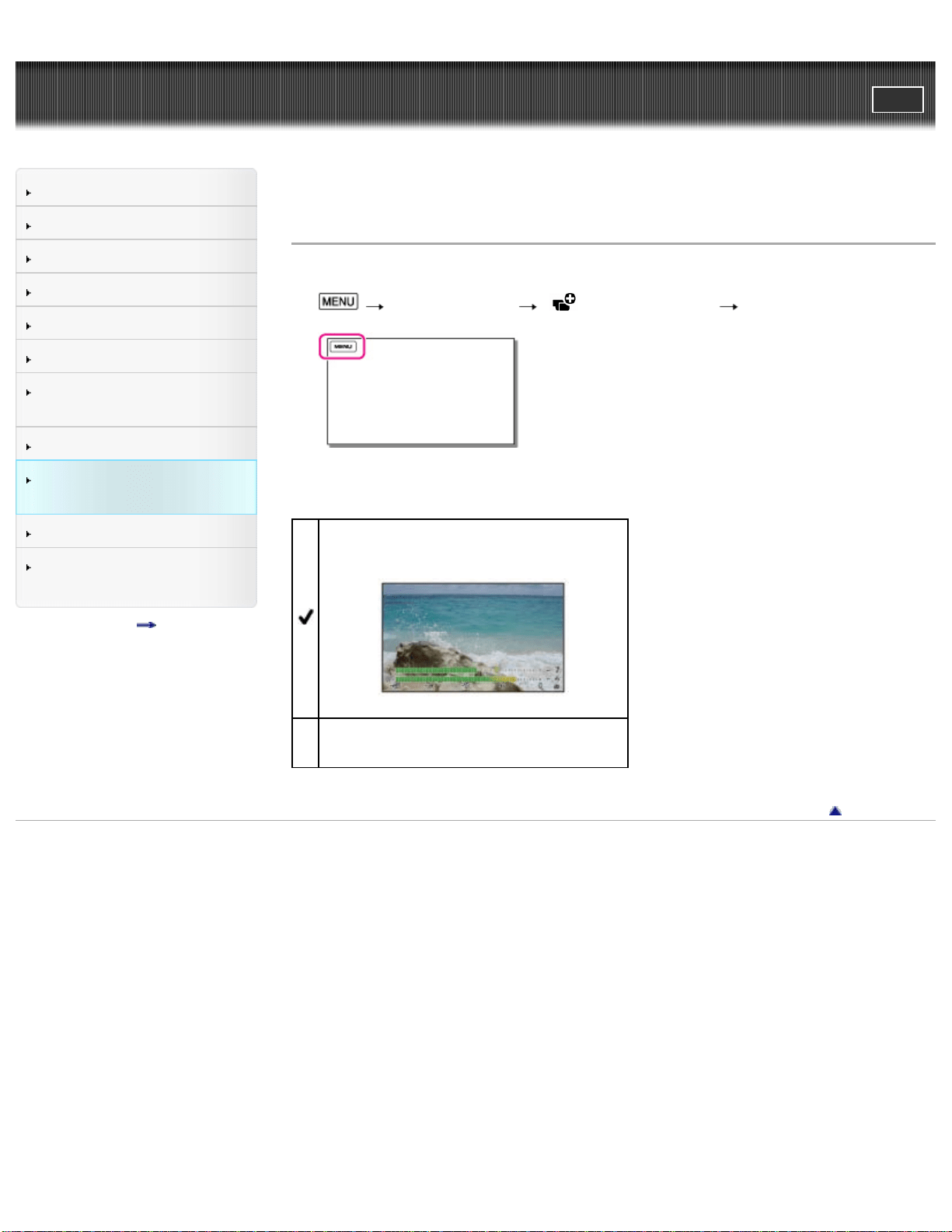
User Guide
PrintSearch
Operation Search
Before use
Getting started
Recording
Playback
Playing images on a TV
Saving images with a
computer
Using the Wi-Fi function
Customizing your
camcorder
Troubleshooting
Maintenance and
precautions
Contents list
Top page > Customizing your camcorder > Camera/Audio > Audio Level Display
Audio Level Display
You can select whether or not to display the audio level meter.
1.
[Camera/Audio] [ Recording Assist] [Audio Level Display].
2. Select the desired item.
On
Displays audio level meter.
Off
Does not display the audio level meter.
Back to top
Copyright 2013 Sony Corporation
105
User Guide
PrintSearch
Operation Search
Before use
Getting started
Recording
Playback
Playing images on a TV
Saving images with a
computer
Using the Wi-Fi function
Customizing your
camcorder
Troubleshooting
Maintenance and
precautions
Contents list
Top page > Customizing your camcorder > Camera/Audio > Auto Monitor Off
Auto Monitor Off
The LCD screen goes off automatically after you start recording.
1.
[Camera/Audio] [ Recording Assist] [Auto Monitor Off].
2. Select the desired item.
On
Dims the LCD screen about 3 seconds after starting recording.
Off
Does not dim the LCD screen automatically.
Back to top
Copyright 2013 Sony Corporation
106
User Guide
PrintSearch
Operation Search
Before use
Getting started
Recording
Playback
Playing images on a TV
Saving images with a
computer
Using the Wi-Fi function
Customizing your
camcorder
Troubleshooting
Maintenance and
precautions
Contents list
Top page > Customizing your camcorder > Image Quality/Size > REC Mode
REC Mode
You can select the image quality.
1.
[Image Quality/Size] [ REC Mode].
2. Select the desired shooting mode.
1080
1920 × 1080/30p quality
720
1280 × 720/30p quality
Back to top
Copyright 2013 Sony Corporation
107
User Guide
PrintSearch
Operation Search
Before use
Getting started
Recording
Playback
Playing images on a TV
Saving images with a
computer
Using the Wi-Fi function
Customizing your
camcorder
Troubleshooting
Maintenance and
precautions
Contents list
Top page > Customizing your camcorder > Playback Function > Playback Function
Playback Function
You can display the Playback Index screen.
1.
[Playback Function].
Related topics
Playing movies/audio files
Back to top
Copyright 2013 Sony Corporation
108
User Guide
PrintSearch
Operation Search
Before use
Getting started
Recording
Playback
Playing images on a TV
Saving images with a
computer
Using the Wi-Fi function
Customizing your
camcorder
Troubleshooting
Maintenance and
precautions
Contents list
Top page > Customizing your camcorder > Edit/Copy > Send to Smartphone
Send to Smartphone
You can transfer movies shot with the camcorder to your smartphone.
1. On the playback screen, select
[Edit/Copy] [Send to Smartphone].
Related topics
Transferring movies to your smartphone or tablet without using NFC
Transferring movies to your smartphone or tablet using NFC
Back to top
Copyright 2013 Sony Corporation
109
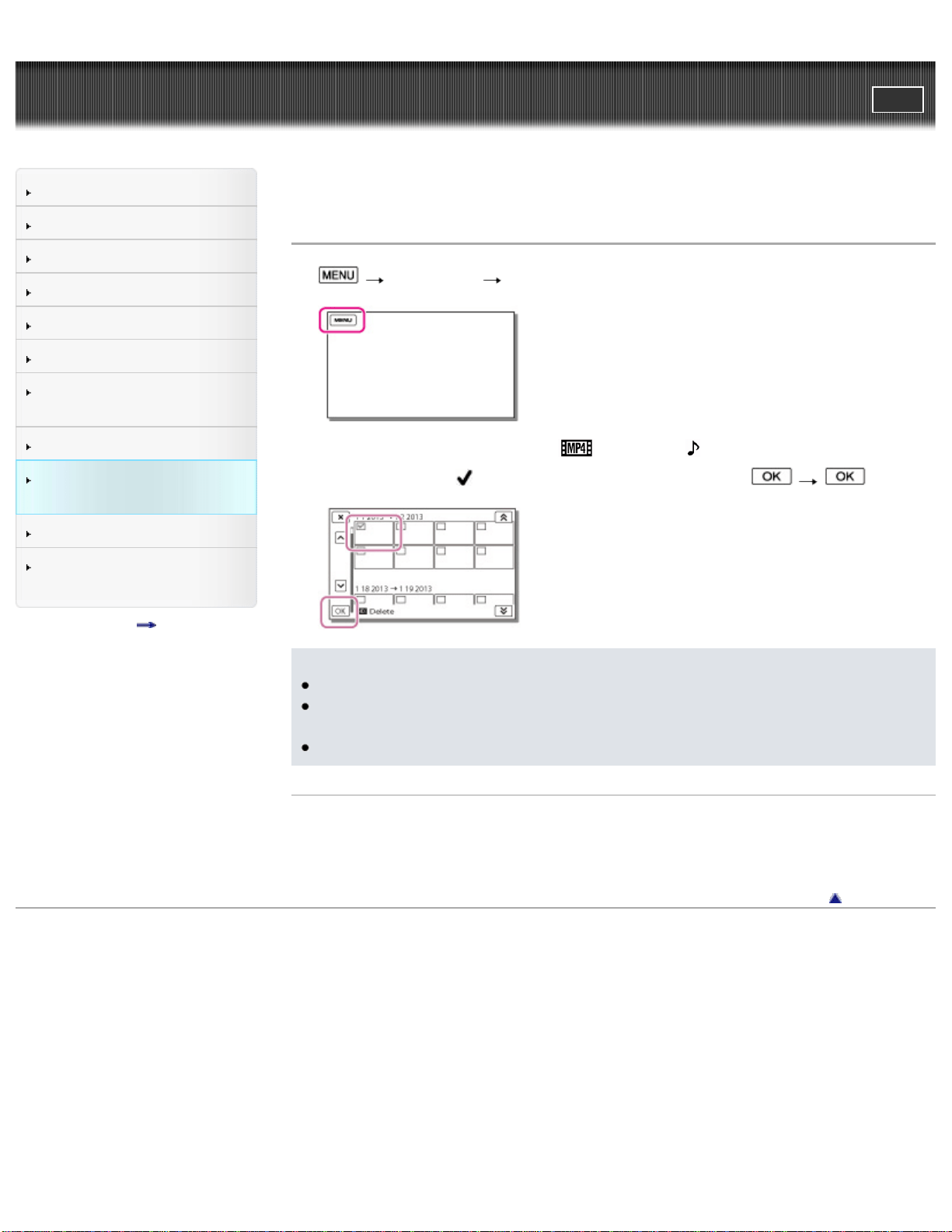
User Guide
PrintSearch
Operation Search
Before use
Getting started
Recording
Playback
Playing images on a TV
Saving images with a
computer
Using the Wi-Fi function
Customizing your
camcorder
Troubleshooting
Maintenance and
precautions
Contents list
Top page > Customizing your camcorder > Edit/Copy > Delete
Delete
1. [Edit/Copy] [Delete].
2. Select the desired type of file ([ MOVIE] or [ AUDIO]).
3. Add check marks
to the desired files, and then select .
Notes
You cannot restore files once they are deleted. Save important files in advance.
Do not remove the battery pack or the AC Adaptor (sold separately) from your
camcorder while deleting the files. It may damage the recording media.
Do not eject the memory card while deleting files from the memory card.
Related topics
Release protection: [Protect]
[Format]
Back to top
Copyright 2013 Sony Corporation
110
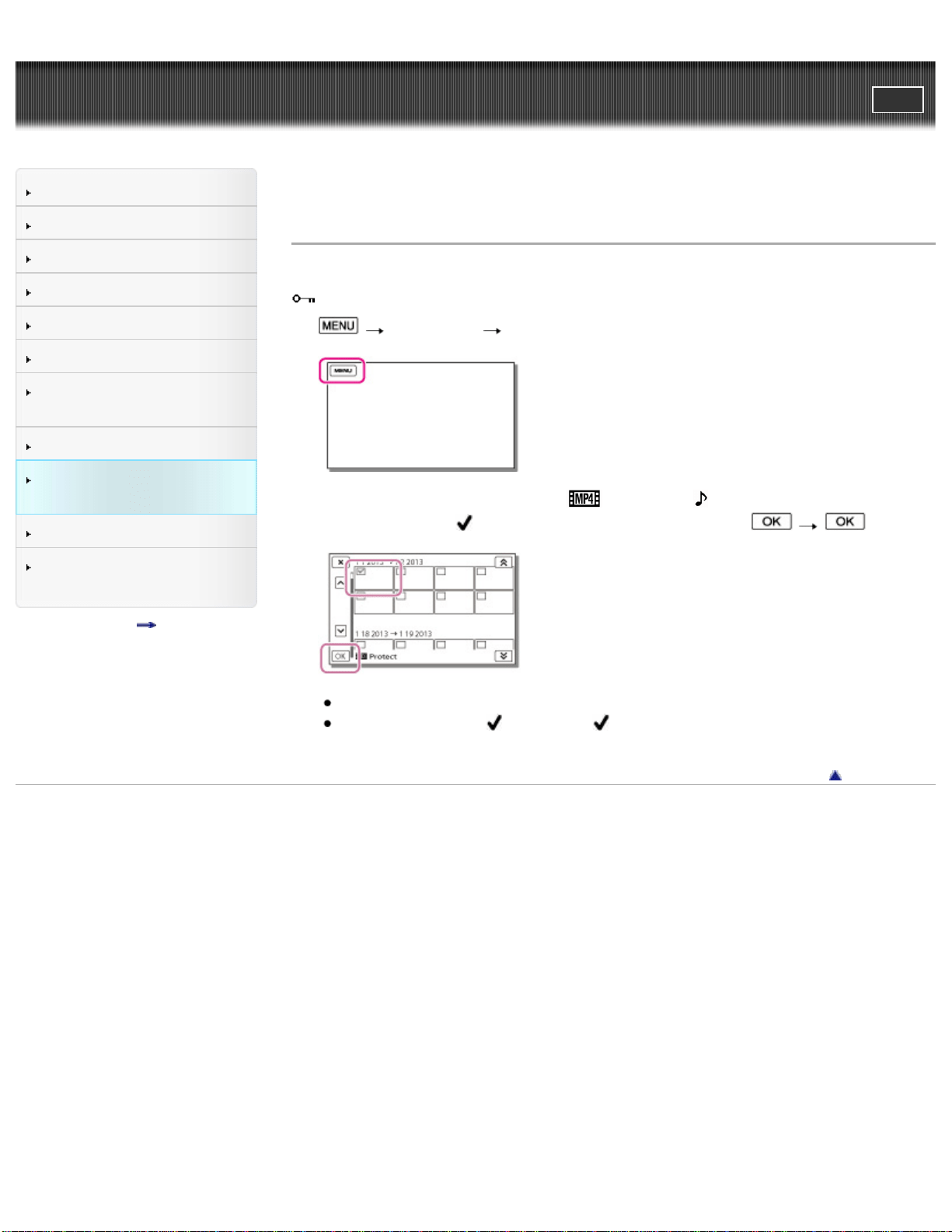
User Guide
PrintSearch
Operation Search
Before use
Getting started
Recording
Playback
Playing images on a TV
Saving images with a
computer
Using the Wi-Fi function
Customizing your
camcorder
Troubleshooting
Maintenance and
precautions
Contents list
Top page > Customizing your camcorder > Edit/Copy > Protect
Protect
Protect files to avoid deleting them by mistake.
will be displayed on the protected files.
1.
[Edit/Copy] [Protect].
2. Select the desired type of files ([ MOVIE] or [ AUDIO]).
Add check marks
to the desired files, and then select .
You can select multiple files.
Select the file with
so that the mark disappears and you can remove the
protection.
Back to top
Copyright 2013 Sony Corporation
111
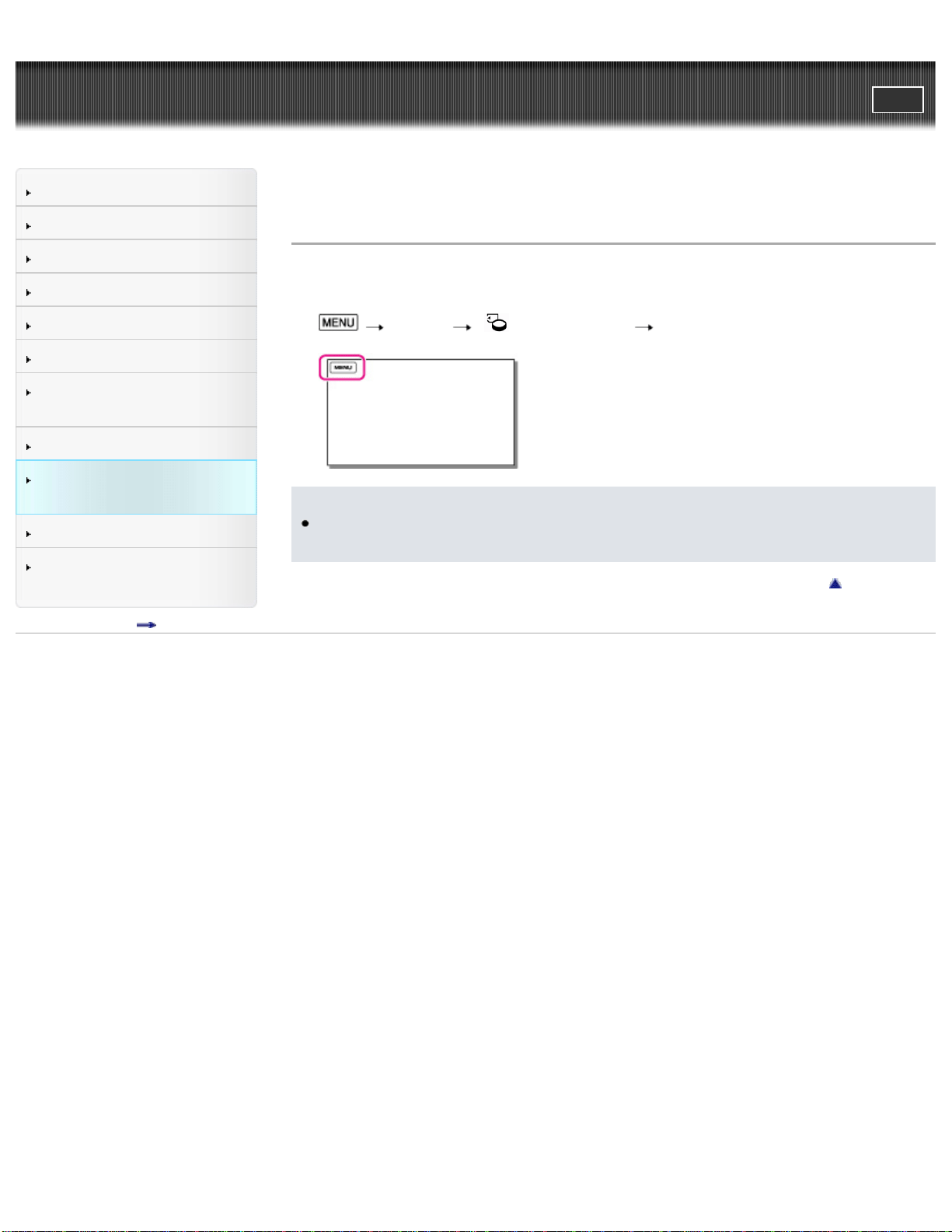
User Guide
PrintSearch
Operation Search
Before use
Getting started
Recording
Playback
Playing images on a TV
Saving images with a
computer
Using the Wi-Fi function
Customizing your
camcorder
Troubleshooting
Maintenance and
precautions
Contents list
Top page > Customizing your camcorder > Setup > Media Info
Media Info
You can check the remaining recordable time and the approximate free and used
media storage space of the recording media.
1.
[Setup] [ Media Settings] [Media Info].
Notes
Since there is a management file area, the used space is not displayed as 0%
even if you perform [Format]. [Details]
Back to top
Copyright 2013 Sony Corporation
112
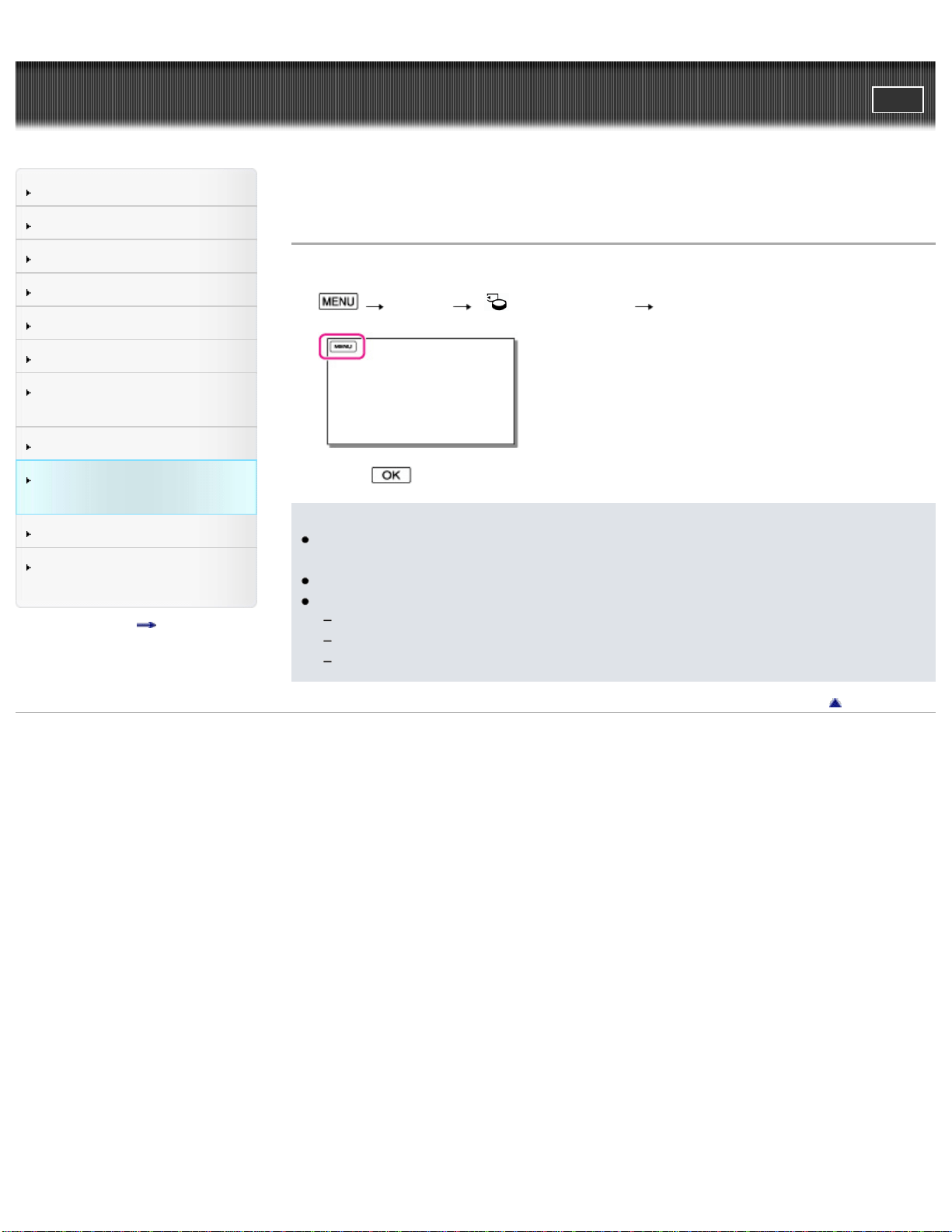
User Guide
PrintSearch
Operation Search
Before use
Getting started
Recording
Playback
Playing images on a TV
Saving images with a
computer
Using the Wi-Fi function
Customizing your
camcorder
Troubleshooting
Maintenance and
precautions
Contents list
Top page > Customizing your camcorder > Setup > Format
Format
Formatting deletes all the files to recover recordable free space.
1.
[Setup] [ Media Settings] [Format].
2. Select .
Notes
To avoid the loss of important files, you should save them before formatting the
recording media.
Protected files will also be deleted.
Make sure not to do the following while [Executing...] is displayed.
Operate buttons on the camcorder.
Eject the memory card from your camcorder.
Disconnect the AC Adaptor (sold separately).
Back to top
Copyright 2013 Sony Corporation
113
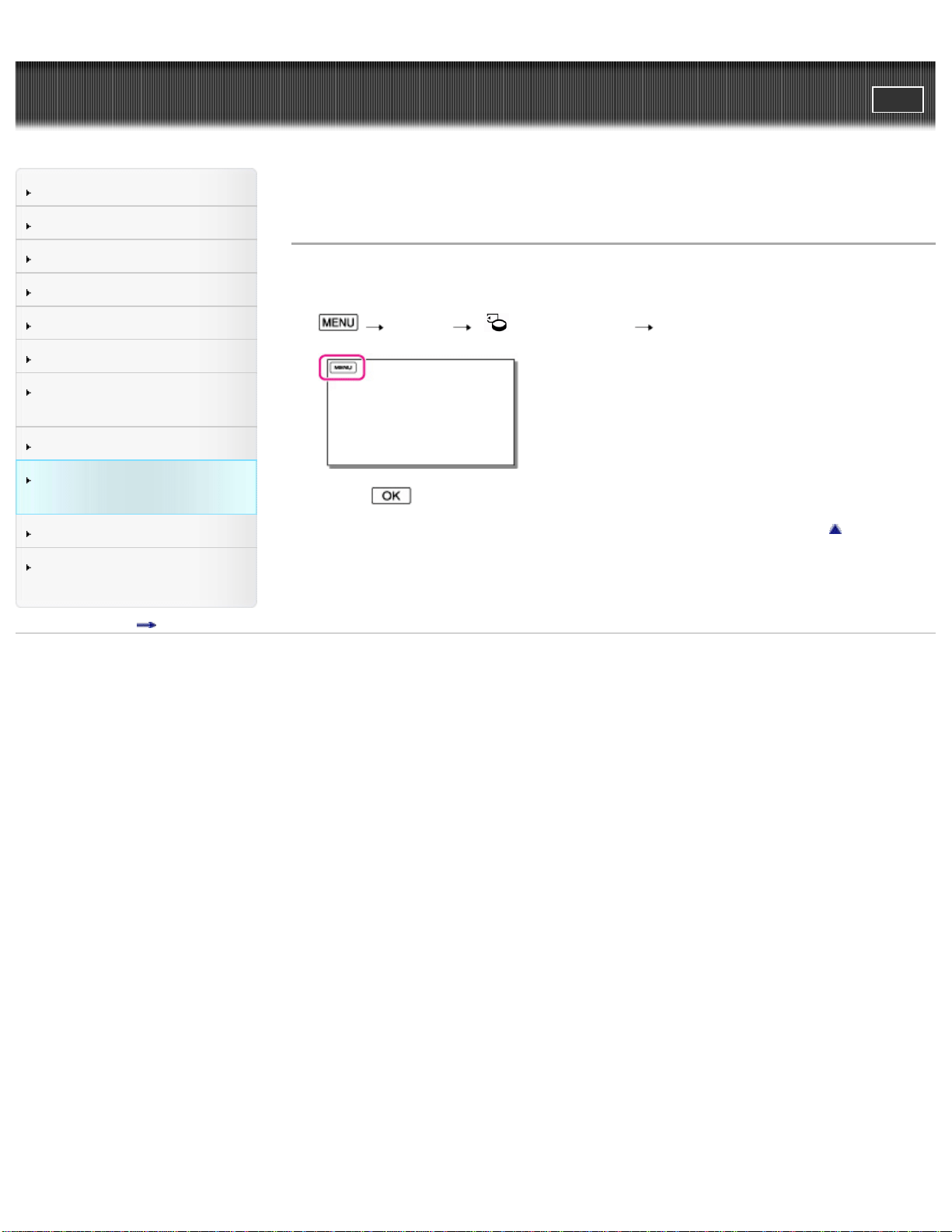
User Guide
PrintSearch
Operation Search
Before use
Getting started
Recording
Playback
Playing images on a TV
Saving images with a
computer
Using the Wi-Fi function
Customizing your
camcorder
Troubleshooting
Maintenance and
precautions
Contents list
Top page > Customizing your camcorder > Setup > Repair Img. DB F.
Repair Img. DB F.
The camcorder may be able to repair the damaged database file using this menu
item.
1.
[Setup] [ Media Settings] [Repair Img. DB F.].
2. Select .
Back to top
Copyright 2013 Sony Corporation
114
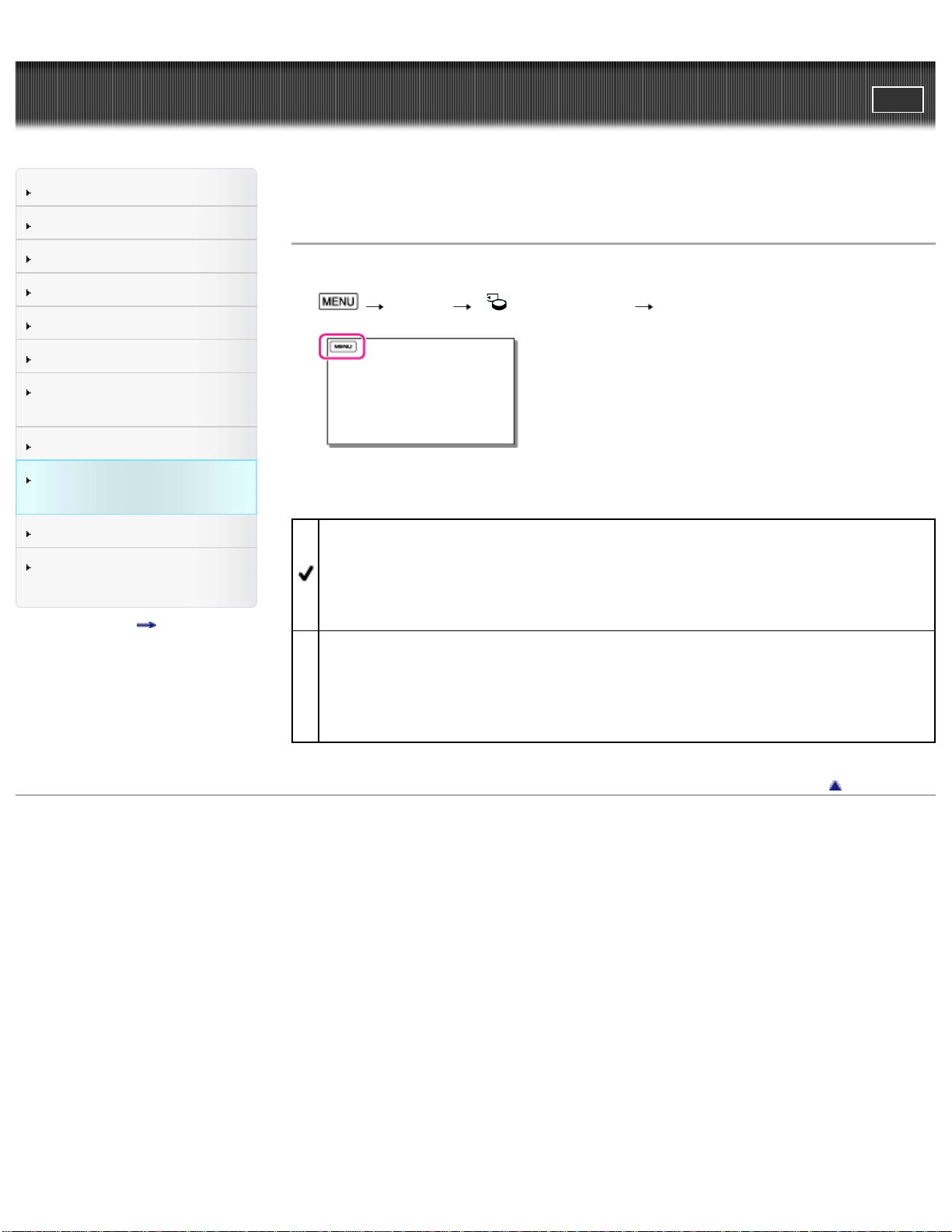
User Guide
PrintSearch
Operation Search
Before use
Getting started
Recording
Playback
Playing images on a TV
Saving images with a
computer
Using the Wi-Fi function
Customizing your
camcorder
Troubleshooting
Maintenance and
precautions
Contents list
Top page > Customizing your camcorder > Setup > File Number
File Number
You can select the way to assign file numbers.
1.
[Setup] [ Media Settings] [File Number].
2. Select the desired item.
Series
Assigns file numbers in sequence.
The file number becomes larger each time you record files. Even if the
memory card is replaced with another one, the file number is assigned in
sequence.
Reset
Assigns file numbers in sequence, following the largest file number existing on
the recording medium.
When the memory card is replaced with another one, the file number is
assigned for each memory card.
Back to top
Copyright 2013 Sony Corporation
115
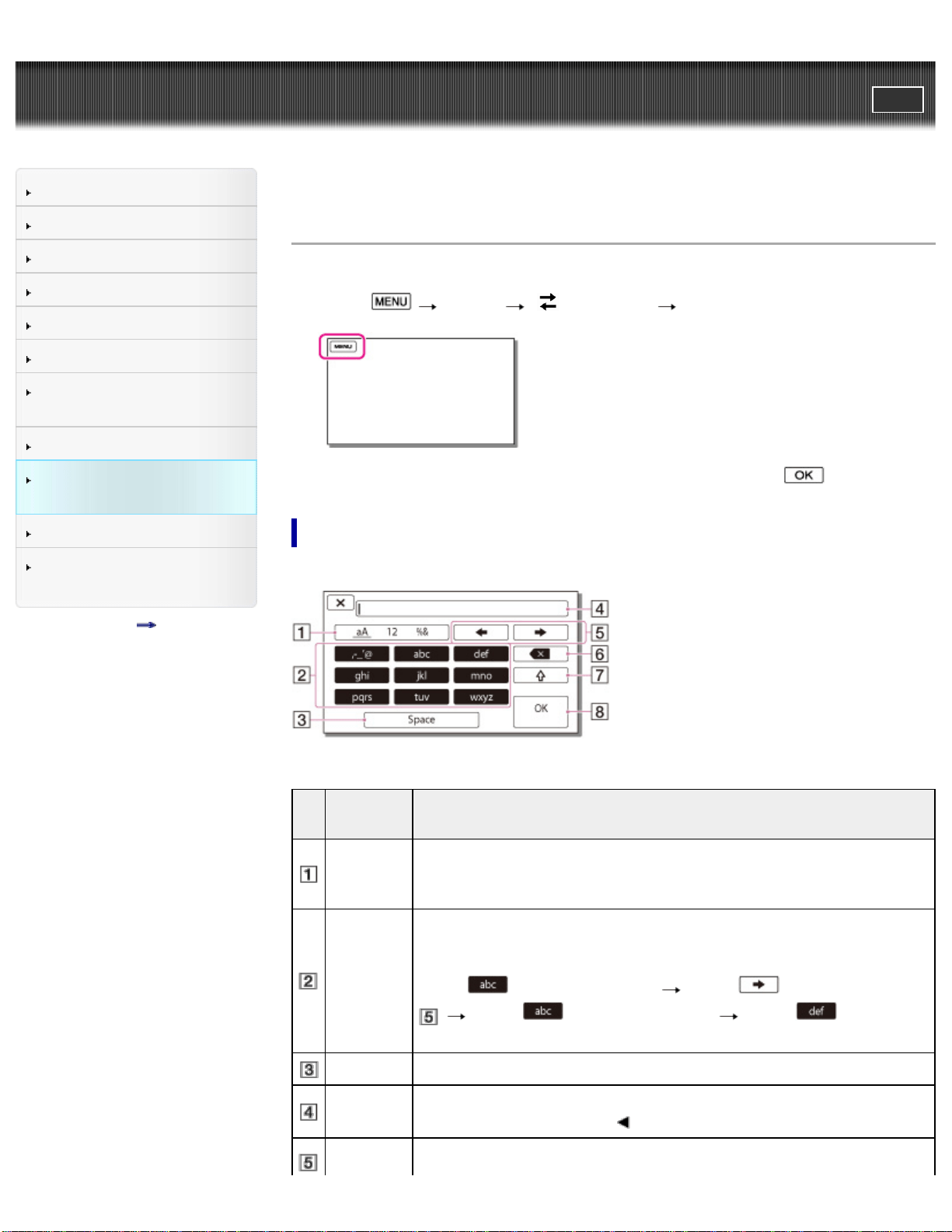
User Guide
PrintSearch
Operation Search
Before use
Getting started
Recording
Playback
Playing images on a TV
Saving images with a
computer
Using the Wi-Fi function
Customizing your
camcorder
Troubleshooting
Maintenance and
precautions
Contents list
Top page > Customizing your camcorder > Setup > Edit Device Name
Edit Device Name
You can change the device name.
1. Select
[Setup] [ Connection] [Edit Device Name].
2. Select the input box, input the device name, and then select .
How to use the keyboard
A keyboard is displayed on the screen when text needs to be entered.
Screen
names
Functions
Switch
character
types
Each time you press the key, the type of character to be input
switches between letters, numerals and symbols.
Keyboard
Each time you press the key, the displayed character switches
between the choices available.
For example: If you want to enter “abd”
Press
once to display “a” Press to move the cursor
Press twice to display “b” Press once to
display “d.”
Space Enters a space. A device name cannot include spaces.
Input box
The characters you entered are displayed. If you try to input more
characters than allowed,
is displayed on the screen.
Move
Moves the cursor in the input box to the right or left.
116

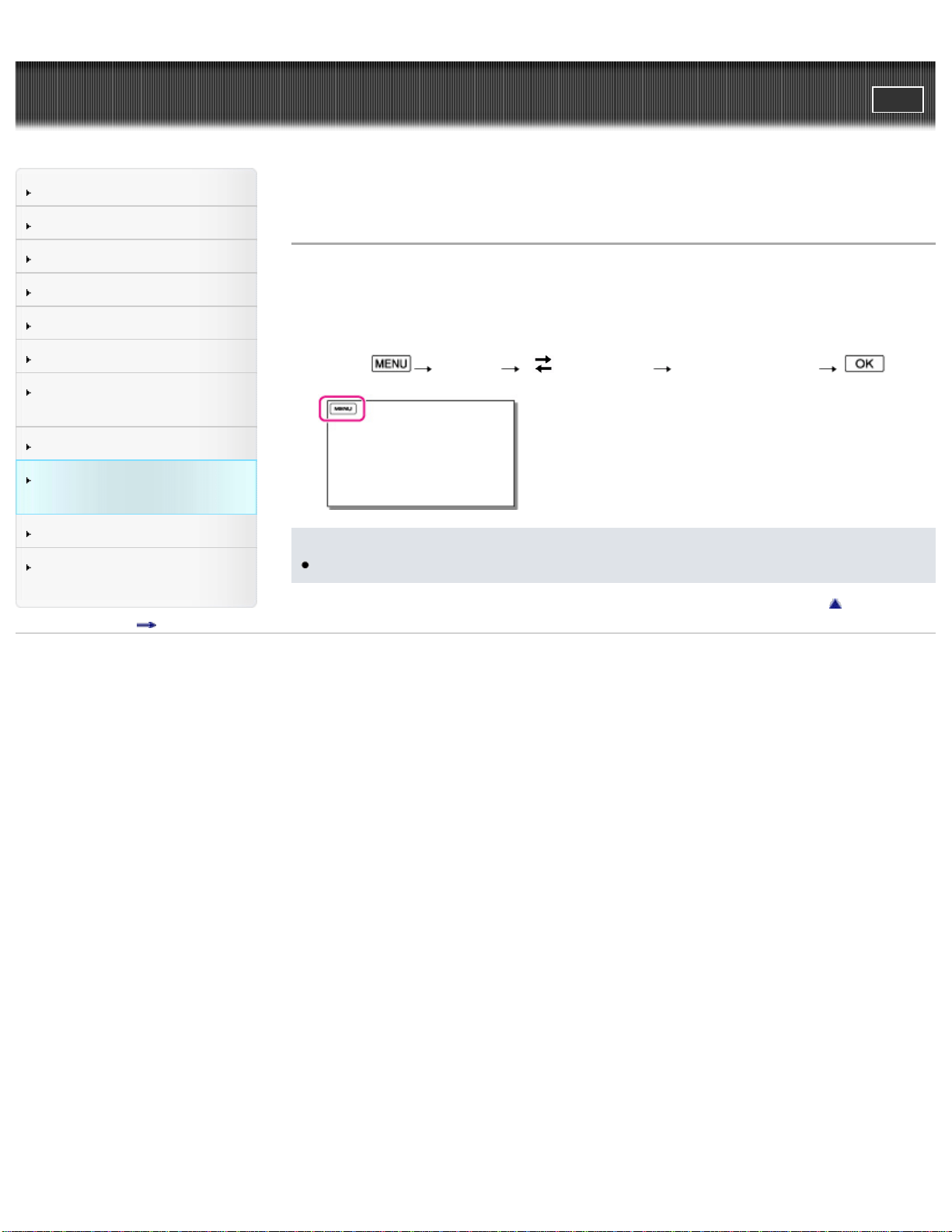
User Guide
PrintSearch
Operation Search
Before use
Getting started
Recording
Playback
Playing images on a TV
Saving images with a
computer
Using the Wi-Fi function
Customizing your
camcorder
Troubleshooting
Maintenance and
precautions
Contents list
Top page > Customizing your camcorder > Setup > SSID/PW Reset
SSID/PW Reset
The camcorder shares the SSID/password for [Send to Smartphone] and [Ctrl with
Smartphone] with a device that has permission to connect. If you want to change
the device that is permitted to connect to the camcorder, reset the SSID/password
by the following procedure.
1. Select
[Setup] [ Connection] [SSID/PW Reset] .
Notes
After resetting the SSID/password, you must set the smartphone again.
Back to top
Copyright 2013 Sony Corporation
118

User Guide
PrintSearch
Operation Search
Before use
Getting started
Recording
Playback
Playing images on a TV
Saving images with a
computer
Using the Wi-Fi function
Customizing your
camcorder
Troubleshooting
Maintenance and
precautions
Contents list
Top page > Customizing your camcorder > Setup > HDMI Resolution
HDMI Resolution
Select the output image resolution when connecting your camcorder to a TV with an
HDMI cable.
1.
[Setup] [ Connection] [HDMI Resolution].
2. Select the desired item.
Auto
Normal setting (outputs the signal according to the TV automatically.)
1080p
Outputs the 1080p signal.
1080i
Outputs the 1080i signal.
720p
Outputs the 720p signal.
480p
Outputs the 480p signal.
480i
Outputs the 480i signal.
Back to top
Copyright 2013 Sony Corporation
119
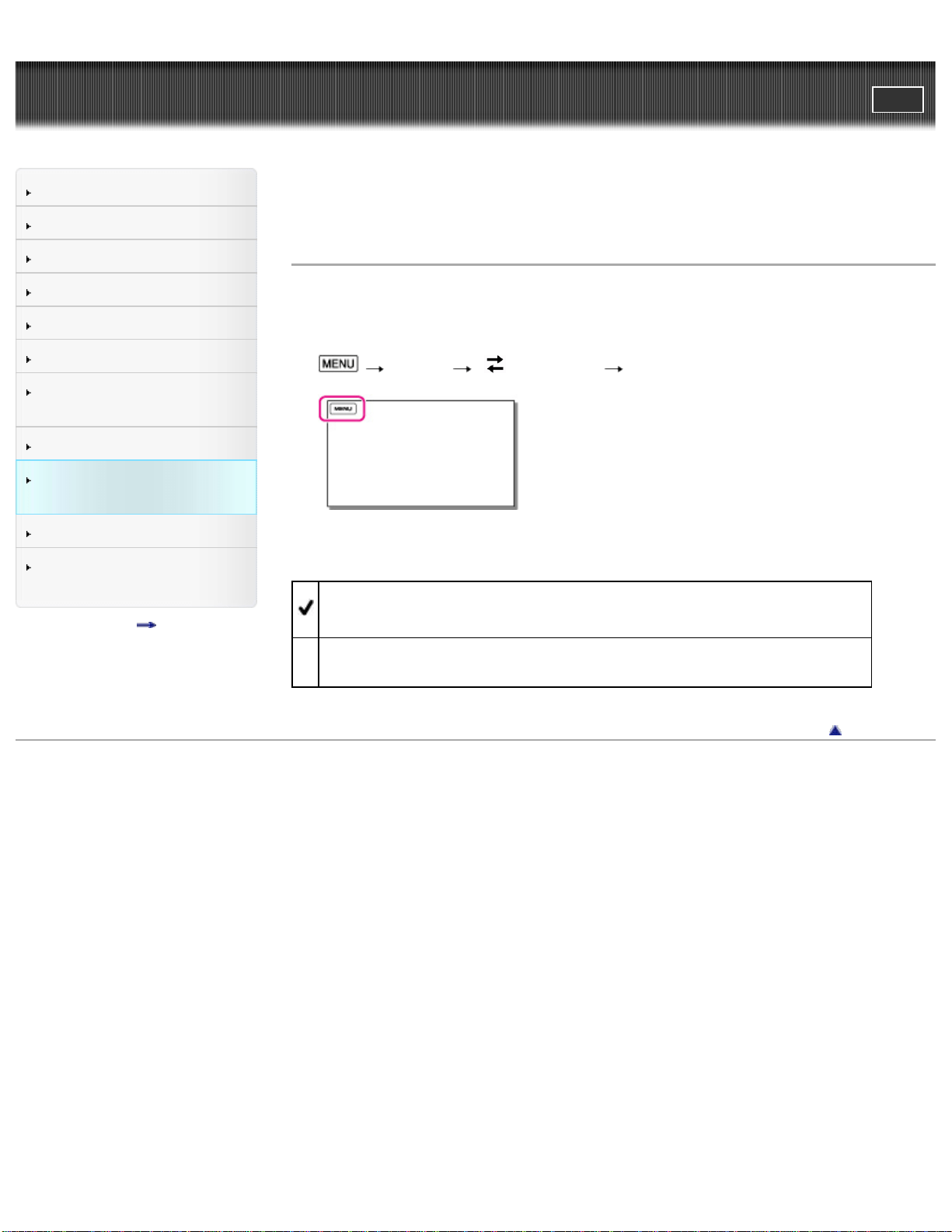
User Guide
PrintSearch
Operation Search
Before use
Getting started
Recording
Playback
Playing images on a TV
Saving images with a
computer
Using the Wi-Fi function
Customizing your
camcorder
Troubleshooting
Maintenance and
precautions
Contents list
Top page > Customizing your camcorder > Setup > CTRL FOR HDMI (Control for
HDMI)
CTRL FOR HDMI (Control for HDMI)
When connecting your camcorder to a “BRAVIA” Sync compatible TV with a HDMI
cable (sold separately), you can play back movies on your camcorder by aiming the
TV’s Remote Commander at the TV. [Details]
1.
[Setup] [ Connection] [CTRL FOR HDMI].
2. Select the desired item.
On
Operates your camcorder using the TV’s Remote Commander.
Off
Does not operate your camcorder using the TV’s Remote Commander.
Back to top
Copyright 2013 Sony Corporation
120
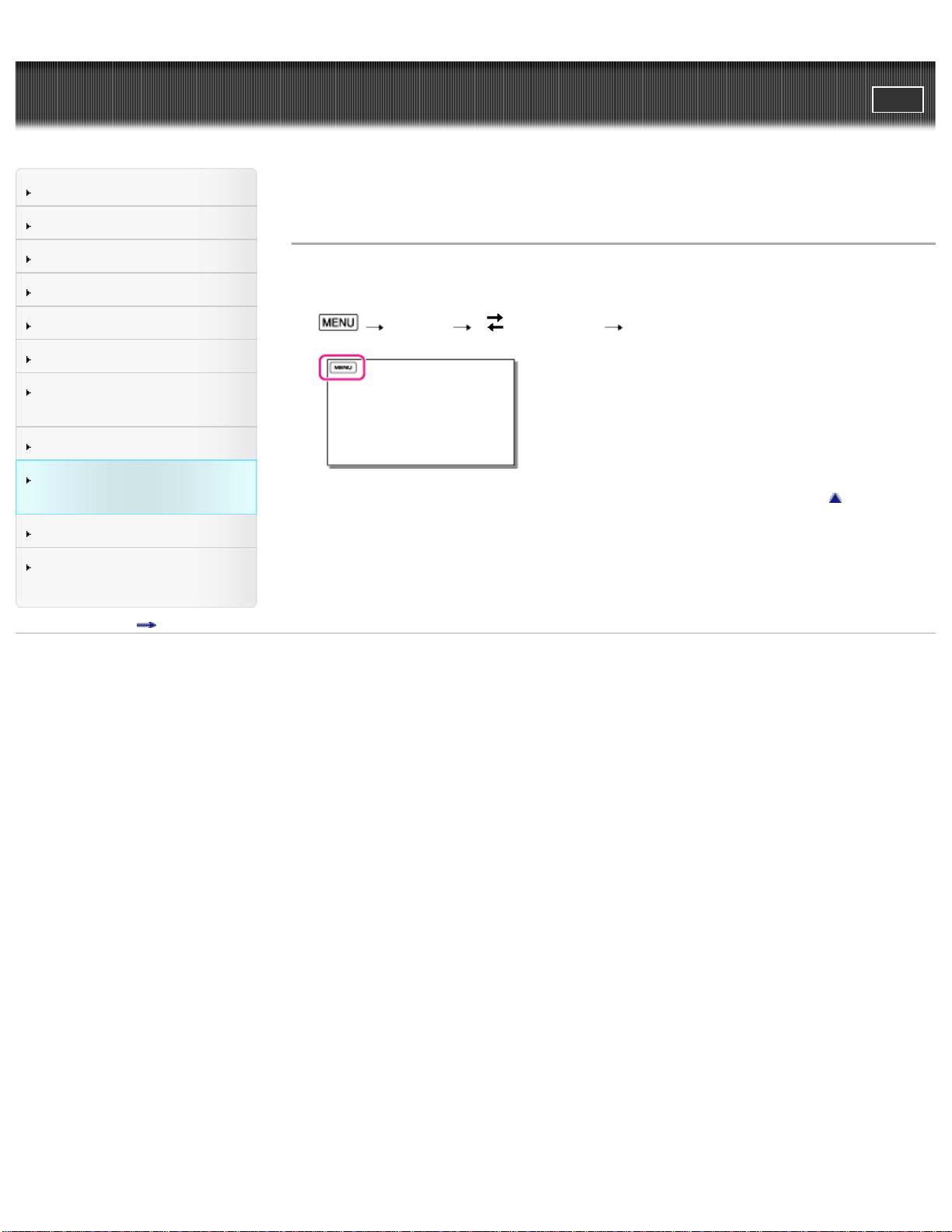
User Guide
PrintSearch
Operation Search
Before use
Getting started
Recording
Playback
Playing images on a TV
Saving images with a
computer
Using the Wi-Fi function
Customizing your
camcorder
Troubleshooting
Maintenance and
precautions
Contents list
Top page > Customizing your camcorder > Setup > USB Connect
USB Connect
Select this item when a USB connection does not start even when you connect the
camcorder to an external device with the USB cable.
1.
[Setup] [ Connection] [USB Connect].
Back to top
Copyright 2013 Sony Corporation
121
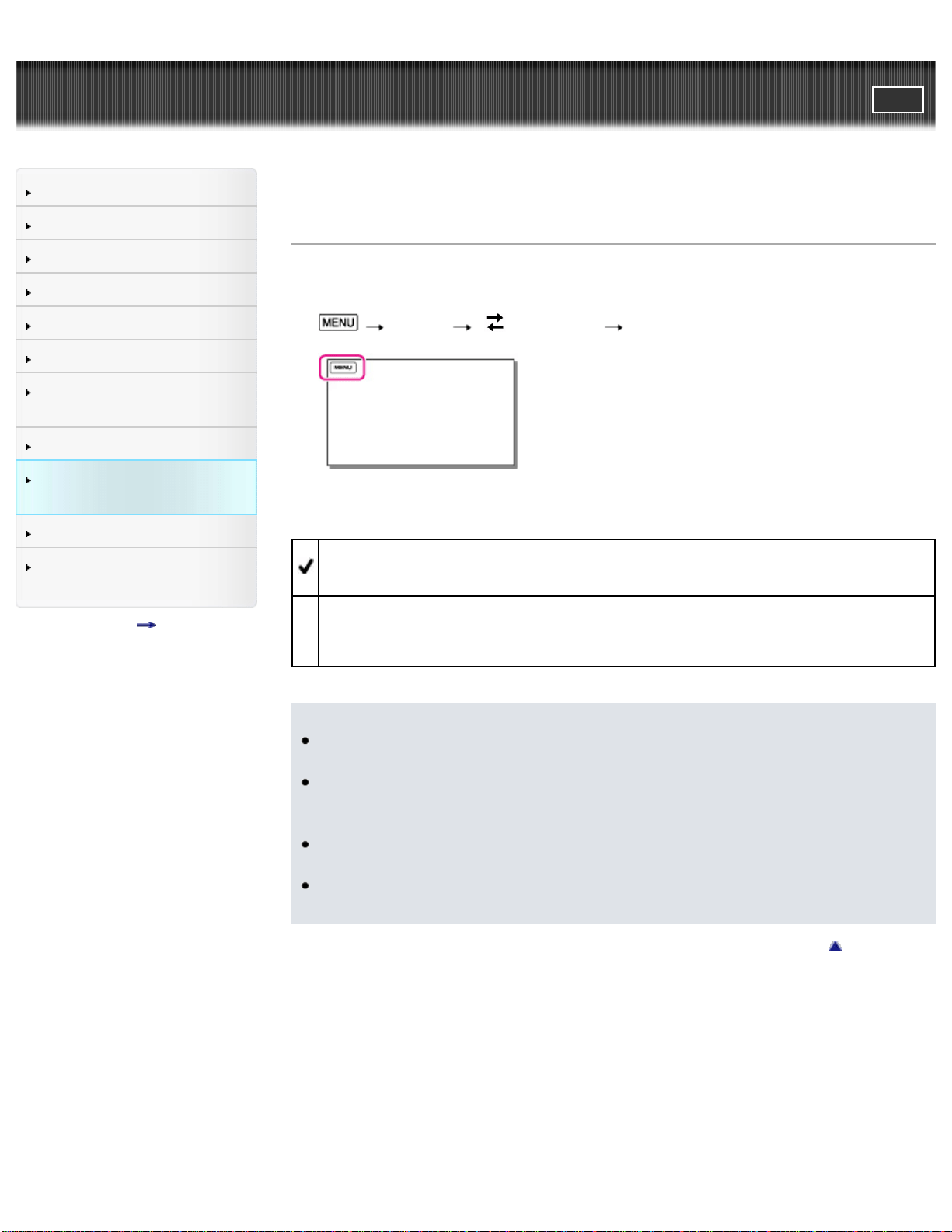
User Guide
PrintSearch
Operation Search
Before use
Getting started
Recording
Playback
Playing images on a TV
Saving images with a
computer
Using the Wi-Fi function
Customizing your
camcorder
Troubleshooting
Maintenance and
precautions
Contents list
Top page > Customizing your camcorder > Setup > USB Power Supply
USB Power Supply
Set whether to use the USB power supplied function when the camcorder is
connected to a computer or a USB device using the USB cable.
1.
[Setup] [ Connection] [USB Power Supply].
2. Select the desired item.
On
Power is supplied when connected using the USB cable.
Off
Disables USB power supplied function even if you connect the camcorder to a
device such as a computer using a USB cable.
Notes
If you changed this setting while the USB cable was connected to the
camcorder, disconnect the USB cable and connect it again.
The setting of [USB Power Supply] is effective only when the camcorder is
connected to a USB device that is compatible with the 500 mA or more power
supply standard.
Only the playback functions are available while the camcorder is connected to a
USB device that is compatible with the 500 mA power supply standard.
To record files using the [USB Power Supply] function, use an AC-UD10 AC
Adaptor (sold separately) with the battery pack attached to the camcorder.
Back to top
Copyright 2013 Sony Corporation
122
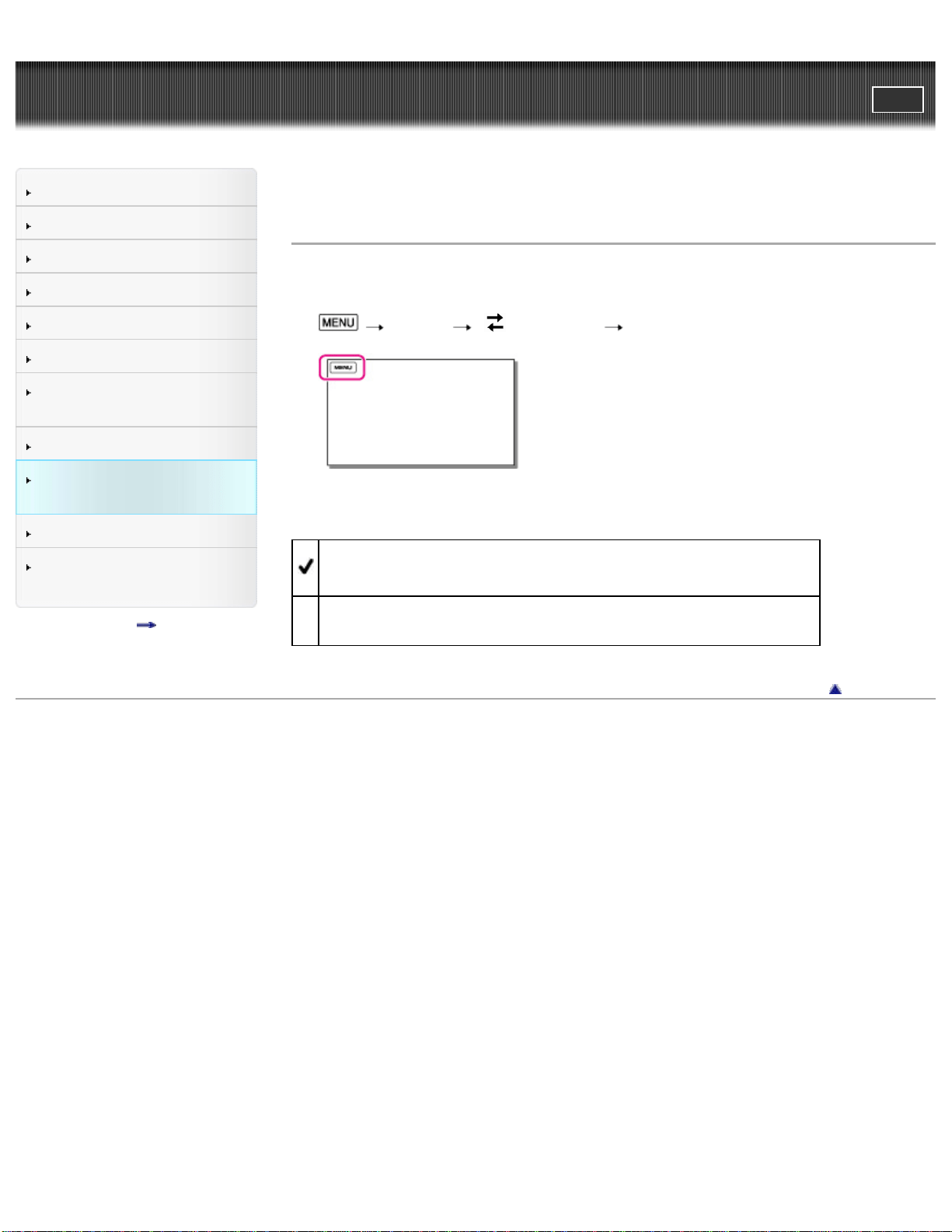
User Guide
PrintSearch
Operation Search
Before use
Getting started
Recording
Playback
Playing images on a TV
Saving images with a
computer
Using the Wi-Fi function
Customizing your
camcorder
Troubleshooting
Maintenance and
precautions
Contents list
Top page > Customizing your camcorder > Setup > USB LUN Setting
USB LUN Setting
Improves compatibility with external devices by limiting the functions of the USB
connection.
1.
[Setup] [ Connection] [USB LUN Setting].
2. Select the desired item.
Multi
Use this setting for ordinary operations.
Single
Try this setting only if you cannot connect to an external device.
Back to top
Copyright 2013 Sony Corporation
123
User Guide
PrintSearch
Operation Search
Before use
Getting started
Recording
Playback
Playing images on a TV
Saving images with a
computer
Using the Wi-Fi function
Customizing your
camcorder
Troubleshooting
Maintenance and
precautions
Contents list
Top page > Customizing your camcorder > Setup > Beep
Beep
You can turn on or off the operation sound.
1.
[Setup] [ General Settings] [Beep].
2. Select the desired item.
On
An operation sound is heard when you start/stop recording, or operate your
camcorder.
Off
Cancels the operation sound.
Back to top
Copyright 2013 Sony Corporation
124
User Guide
PrintSearch
Operation Search
Before use
Getting started
Recording
Playback
Playing images on a TV
Saving images with a
computer
Using the Wi-Fi function
Customizing your
camcorder
Troubleshooting
Maintenance and
precautions
Contents list
Top page > Customizing your camcorder > Setup > Monitor Brightness
Monitor Brightness
You can adjust the brightness of the LCD screen.
1.
[Setup] [ General Settings] [Monitor Brightness].
2. Select the desired item.
Normal
Normal setting (normal brightness).
Bright
Select this when the LCD screen is not bright enough.
This adjustment does not affect the shooting in any way.
Back to top
Copyright 2013 Sony Corporation
125
User Guide
PrintSearch
Operation Search
Before use
Getting started
Recording
Playback
Playing images on a TV
Saving images with a
computer
Using the Wi-Fi function
Customizing your
camcorder
Troubleshooting
Maintenance and
precautions
Contents list
Top page > Customizing your camcorder > Setup > Language Setting
Language Setting
You can select the language to be used on the LCD screen.
1.
[Setup] [ General Settings] [Language Setting].
2. Select the desired language.
Back to top
Copyright 2013 Sony Corporation
126
User Guide
PrintSearch
Operation Search
Before use
Getting started
Recording
Playback
Playing images on a TV
Saving images with a
computer
Using the Wi-Fi function
Customizing your
camcorder
Troubleshooting
Maintenance and
precautions
Contents list
Top page > Customizing your camcorder > Setup > Airplane Mode
Airplane Mode
When you board an airplane, you can deactivate the Wi-Fi and NFC functions
temporarily.
1. Select
[Setup] [ Connection] [Airplane Mode].
2. Select the desired item.
Off
Normal setting.
On (
)
Set to [On] when you board an airplane.
Back to top
Copyright 2013 Sony Corporation
127
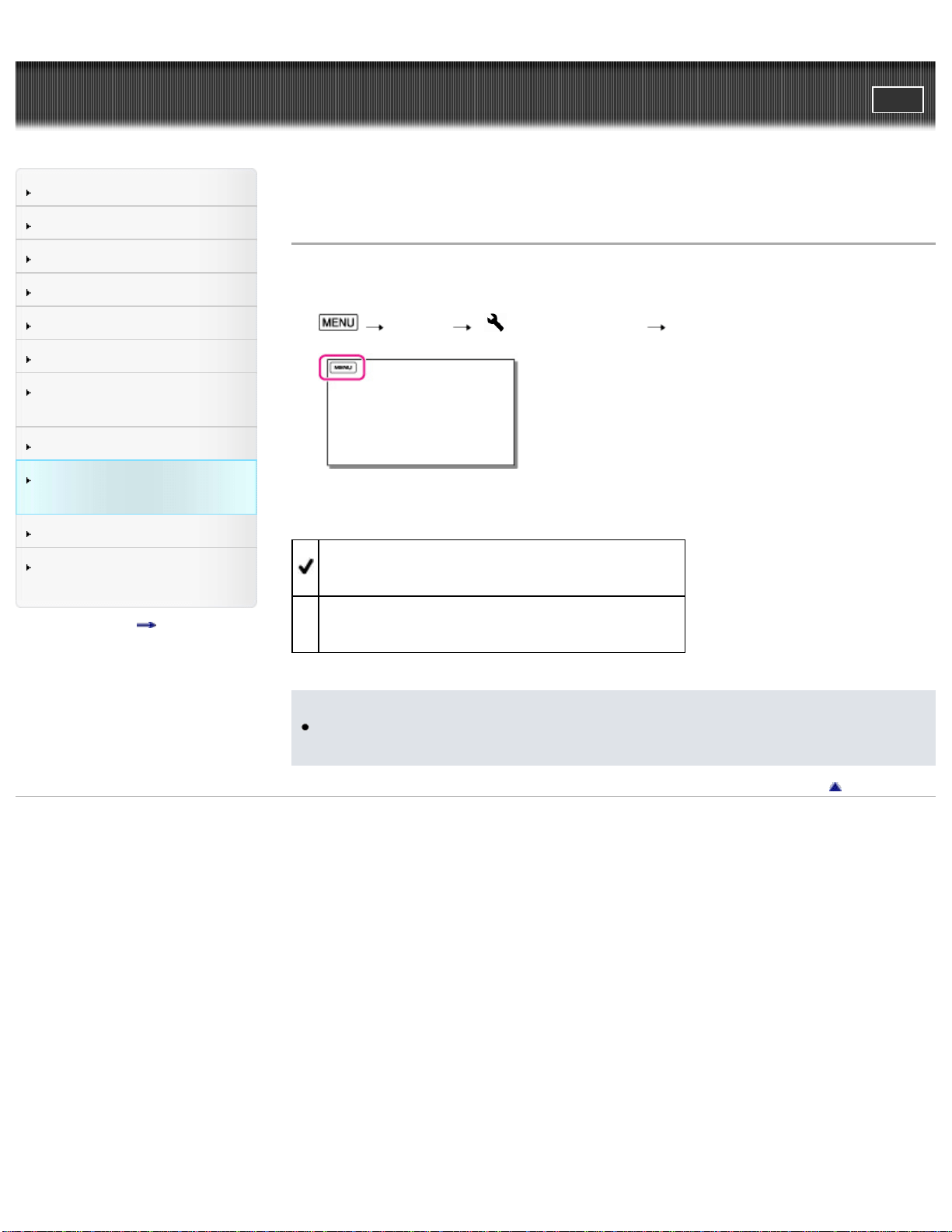
User Guide
PrintSearch
Operation Search
Before use
Getting started
Recording
Playback
Playing images on a TV
Saving images with a
computer
Using the Wi-Fi function
Customizing your
camcorder
Troubleshooting
Maintenance and
precautions
Contents list
Top page > Customizing your camcorder > Setup > Power Save
Power Save
When [Power Save] is on, the camcorder turns off automatically if you do not
attempt to operate it for more than about 5 minutes.
1.
[Setup] [ General Settings] [Power Save].
2. Select the desired item.
On
The camcorder turns off automatically.
Off
The camcorder does not turn off automatically.
Notes
The camcorder does not turn off automatically while power is being supplied via
USB connection.
Back to top
Copyright 2013 Sony Corporation
128
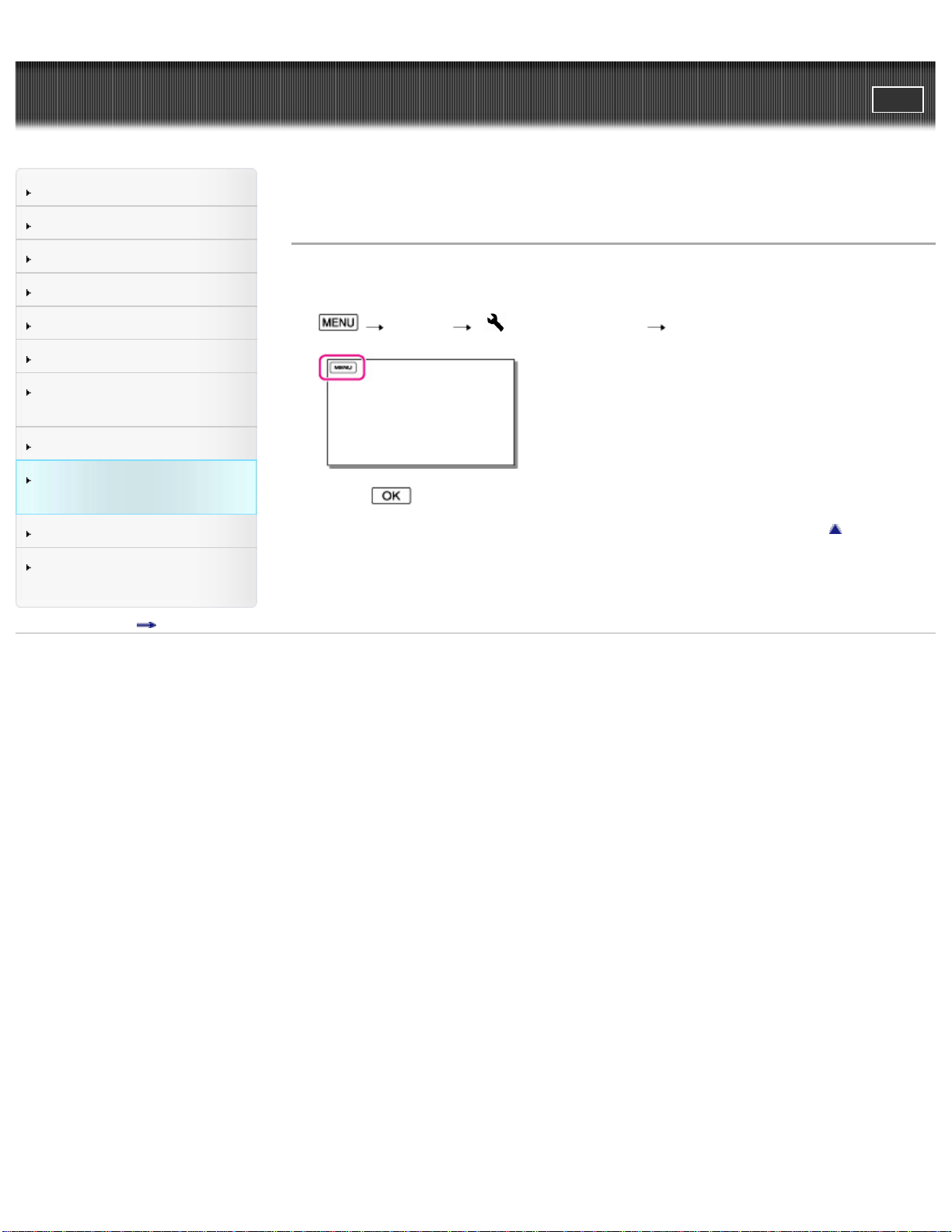
User Guide
PrintSearch
Operation Search
Before use
Getting started
Recording
Playback
Playing images on a TV
Saving images with a
computer
Using the Wi-Fi function
Customizing your
camcorder
Troubleshooting
Maintenance and
precautions
Contents list
Top page > Customizing your camcorder > Setup > Initialize
Initialize
All the settings return to the default.
Even if you use this function, all movie/audio files are retained.
1.
[Setup] [ General Settings] [Initialize].
2. Select .
Back to top
Copyright 2013 Sony Corporation
129
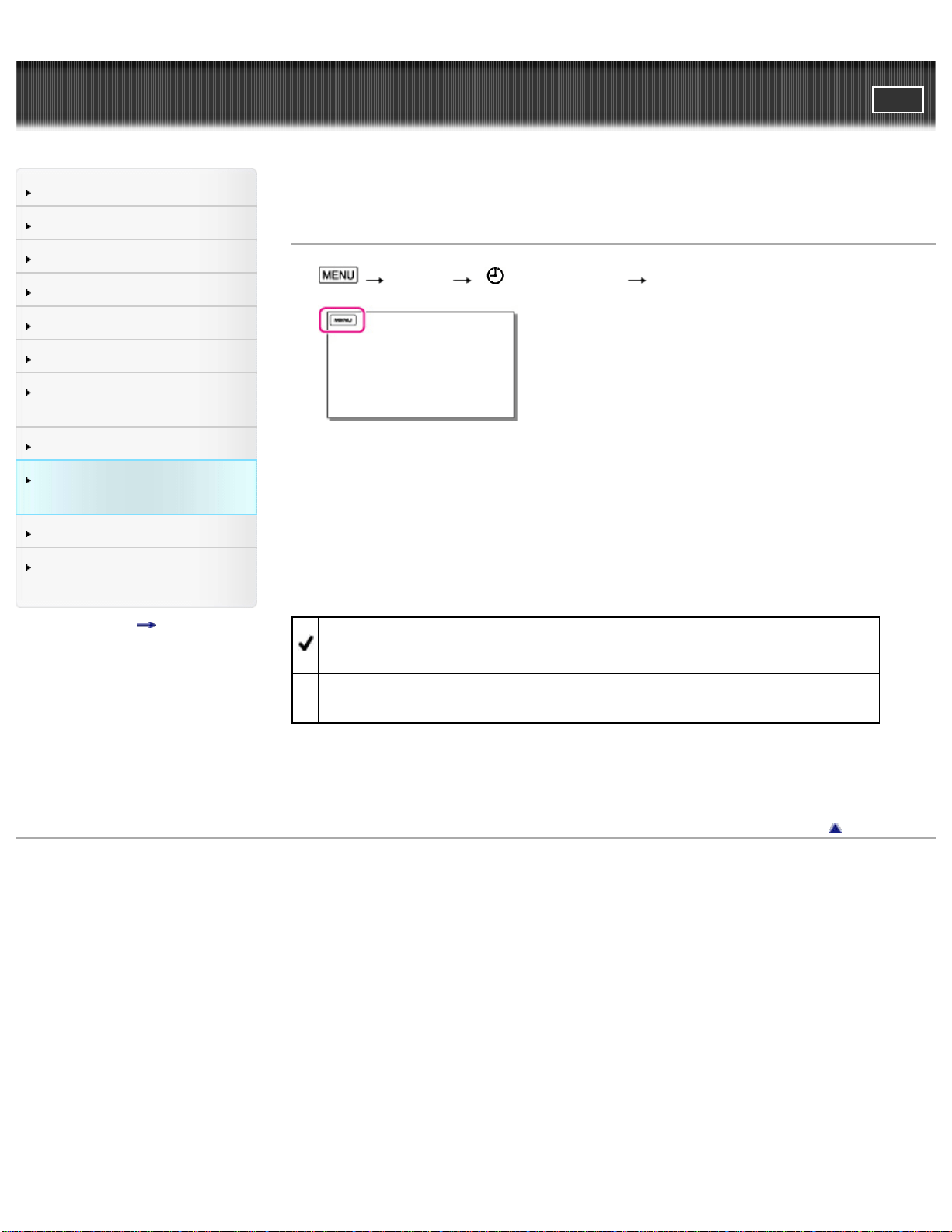
User Guide
PrintSearch
Operation Search
Before use
Getting started
Recording
Playback
Playing images on a TV
Saving images with a
computer
Using the Wi-Fi function
Customizing your
camcorder
Troubleshooting
Maintenance and
precautions
Contents list
Top page > Customizing your camcorder > Setup > Date & Time Setting
Date & Time Setting
1. [Setup] [ Clock Settings] [Date & Time Setting].
2. Select the desired item ([Date & Time Format], [Daylight Savings]/[Summer
Time], or [Date & Time]).
Date & Time Format
You can select one from 4 types of date and time format.
Daylight Savings / Summer Time
You can change this setting without stopping the clock.
Off
Does not set the summertime.
On
Sets the summertime. The clock is set to move the time forward 1 hour.
Date & Time
You can set the clock.
Back to top
Copyright 2013 Sony Corporation
130
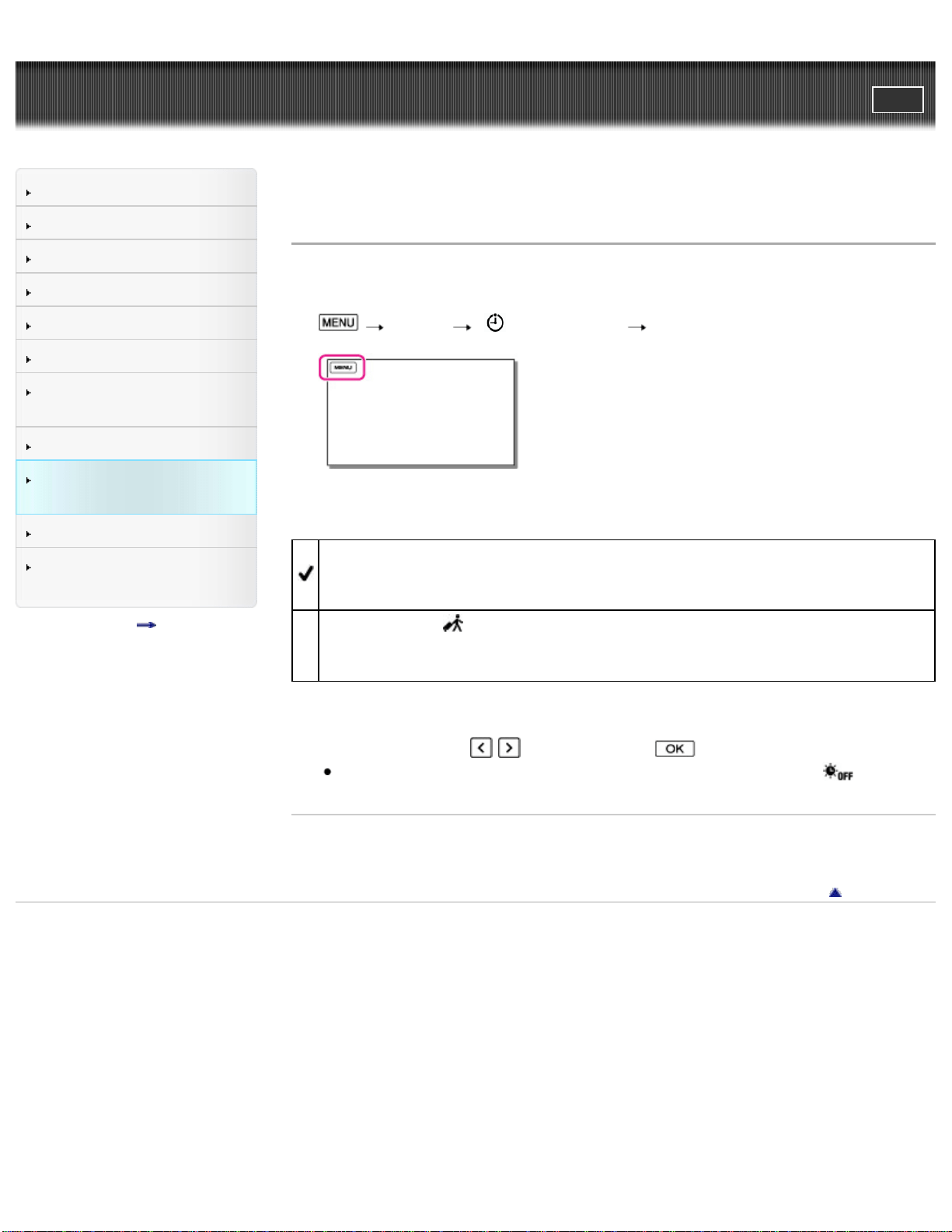
User Guide
PrintSearch
Operation Search
Before use
Getting started
Recording
Playback
Playing images on a TV
Saving images with a
computer
Using the Wi-Fi function
Customizing your
camcorder
Troubleshooting
Maintenance and
precautions
Contents list
Top page > Customizing your camcorder > Setup > Area Setting
Area Setting
You can adjust a time difference without stopping the clock. Select your local area
when using the camcorder in other time zones.
1.
[Setup] [ Clock Settings] [Area Setting].
2. Select the desired item.
Home
Select this item when you are going to use the camcorder in the area where
you are living.
Destination (
)
Select this item when you want to use the camcorder with the area setting set
to another place.
3. Select your desired country/region.
4. Select an area with
/ , and then select .
You can set [Daylight Savings] or [Summer Time] by selecting
.
Related topics
World time difference
Back to top
Copyright 2013 Sony Corporation
131
User Guide
PrintSearch
Operation Search
Before use
Getting started
Recording
Playback
Playing images on a TV
Saving images with a
computer
Using the Wi-Fi function
Customizing your
camcorder
Troubleshooting
Maintenance and
precautions
Contents list
Top page > Troubleshooting > If you have problems > If you have problems
If you have problems
If you run into any problems using your camcorder, follow the steps below.
1. Check the items under “Troubleshooting,” and inspect your camcorder.
If a code such as “C:(or E:)
: ” appears on the screen, see “Self-
diagnosis display.”
2. Disconnect the power source, attach the power source again after about 1
minute, and turn the camcorder on.
3. Select
[Setup] [ General Settings] [Initialize].
If you select [Initialize], all settings, including the clock setting, are reset.
4. Contact your Sony dealer or local authorized Sony service facility.
Back to top
Copyright 2013 Sony Corporation
132
User Guide
PrintSearch
Operation Search
Before use
Getting started
Recording
Playback
Playing images on a TV
Saving images with a
computer
Using the Wi-Fi function
Customizing your
camcorder
Troubleshooting
Maintenance and
precautions
Contents list
Top page > Troubleshooting > Troubleshooting > Overall operations
Overall operations
The power does not turn on.
Attach a charged battery pack to the camcorder. [Details]
Connect the AC Adaptor (sold separately) to a wall outlet (wall socket). [Details]
The camcorder does not operate even when the power is
set to on.
It takes a few seconds for your camcorder to be ready to record after the power
is turned on. This is not a malfunction.
Disconnect the power supply (battery pack or AC Adaptor) from the camcorder,
then supply the power again after about 1 minute.
The menu settings have been changed automatically.
While Intelligent Auto is active, some menu settings related to image quality will
be changed automatically.
The following menu item returns to the default setting when you switch between
movie shooting, sound recording and playback modes.
[
Fader]
The camcorder gets warm.
Your camcorder may become warm during operation. This is not a malfunction.
Intelligent Auto is canceled.
The Intelligent Auto setting is canceled if you change the following settings:
[White Balance]
[Exposure]
[Low Lux]
[Scene Selection]
[Auto Back Light]
[Face Detection]
Back to top
Copyright 2013 Sony Corporation
133
User Guide
PrintSearch
Operation Search
Before use
Getting started
Recording
Playback
Playing images on a TV
Saving images with a
computer
Using the Wi-Fi function
Customizing your
camcorder
Troubleshooting
Maintenance and
precautions
Contents list
Top page > Troubleshooting > Troubleshooting > Batteries/power sources
Batteries/power sources
The power abruptly turns off.
Use the AC Adaptor (sold separately).
In the default setting, the camcorder turns itself off when no operations are
performed for about 5 minutes ([Power Save]). Change the setting of [Power
Save], or turn on the power again. [Details]
Charge the battery pack. [Details]
The CHG (charge) lamp does not light while the battery
pack is being charged.
Attach the battery pack to the camcorder correctly. [Details]
When using an AC Adaptor (sold separately), connect the plug to the wall outlet
(wall socket) properly.
Connect the USB cable (supplied) properly when charging the battery pack using
a computer.
The battery charge is completed. [Details]
The CHG (charge) lamp flashes while the battery pack is
being charged.
When the battery is being charged using the USB cable (supplied), disconnect
the USB cable (supplied) and connect it again.
If the temperature of the battery pack is too high or too low, you may not be able
to charge it. [Details]
Attach the battery pack to the camcorder correctly. If the problem persists,
disconnect the plug from the camcorder and contact your Sony dealer. The
battery pack may be damaged. [Details]
The remaining battery power is not displayed correctly.
The ambient temperature is too high or too low. This is not a malfunction.
The battery pack has not been charged enough. Fully charge the battery again. If
the problem persists, replace the battery pack with a new one. [Details]
The indicated remaining battery power may not be correct depending on the
environment in which the camcorder is used.
134

The battery pack is quickly discharged.
The ambient temperature is too high or low. This is not a malfunction.
The battery pack has not been charged enough. Fully charge the battery again. If
the problem persists, replace the battery pack with a new one. [Details]
Back to top
Copyright 2013 Sony Corporation
135
User Guide
PrintSearch
Operation Search
Before use
Getting started
Recording
Playback
Playing images on a TV
Saving images with a
computer
Using the Wi-Fi function
Customizing your
camcorder
Troubleshooting
Maintenance and
precautions
Contents list
Top page > Troubleshooting > Troubleshooting > LCD screen
LCD screen
Menu items are grayed out.
You cannot select grayed out items in the current recording/playback situation.
There are some functions you cannot activate simultaneously.
The buttons do not appear on the LCD screen.
Operate the multi-selector.
The buttons on the LCD screen quickly disappear.
If you set [Display Setting] to [On], the buttons do not disappear from the LCD
screen while in recording mode. [Details]
There are dots in the shape of a grid on the LCD screen.
These dots are a normal result of the manufacturing process of the screen and
do not affect the shooting in any way.
The backlight of the LCD screen turns off if you do not
attempt to operate your camcorder a short while after
starting recording.
In the default setting, the backlight of the LCD screen dims automatically if you
do not attempt to operate your camcorder for more than about 3 seconds ([Auto
Monitor Off]). [Details]
Back to top
Copyright 2013 Sony Corporation
136
User Guide
PrintSearch
Operation Search
Before use
Getting started
Recording
Playback
Playing images on a TV
Saving images with a
computer
Using the Wi-Fi function
Customizing your
camcorder
Troubleshooting
Maintenance and
precautions
Contents list
Top page > Troubleshooting > Troubleshooting > Memory card
Memory card
Operations using the memory card cannot be performed.
If you use the memory card formatted on a computer, format it again on your
camcorder. [Details]
Files stored on the memory card cannot be deleted.
The maximum number of files that you can delete on the editing screen at one
time is 100.
You cannot delete the protected files.
The data file name is not indicated correctly or flashes.
The file is damaged.
The file format is not supported by your camcorder. [Details]
Images cannot be played back or the memory card is not
recognized.
The playback device does not support playing back memory cards. [Details]
If you insert the memory card upside down or at an angle, the camcorder does
not recognize it. Make sure you insert the memory card properly. [Details]
Back to top
Copyright 2013 Sony Corporation
137
User Guide
PrintSearch
Operation Search
Before use
Getting started
Recording
Playback
Playing images on a TV
Saving images with a
computer
Using the Wi-Fi function
Customizing your
camcorder
Troubleshooting
Maintenance and
precautions
Contents list
Top page > Troubleshooting > Troubleshooting > Recording
Recording
Refer also to “Memory card.”
Pressing START/STOP does not record files.
The playback screen is displayed. Stop playback, and then select
[Recording Mode] [ Movie] or [Audio].
Your camcorder is recording the file you have just recorded on the recording
media. You cannot make new recording during this period.
The recording media is full. Delete unnecessary files. [Details]
Total number of movie scenes exceeds the recordable capacity of your
camcorder [Details]. Delete unnecessary movies [Details].
Total number of audio files exceeds the recordable capacity of your camcorder
[Details]. Delete unnecessary audio files [Details].
The access lamp remains lit or flashing even if recording
has stopped.
Your camcorder is recording the file you have just recorded on the memory card.
The imaging field looks different.
The imaging field may look different depending on the condition of your
camcorder. This is not a malfunction.
The actual shooting time for movies is less than the
expected shooting time of the recording media.
Depending on the shooting conditions, the time available for shooting may be
shorter, for example when shooting a fast moving object, etc. [Details].
The camcorder stops operating.
If you keep applying vibration on the camcorder, recording may stop.
There is a slight time lag between the moment when
START/STOP is pressed and the actual movie shooting
starts or stops.
On your camcorder, there may be a slight time difference between the moment
138

when you press START/STOP and when the actual movie shooting starts/stops.
This is not a malfunction.
Files cannot be recorded or played back correctly.
If you record and delete files repeatedly for a long time, the files on the recording
media may become fragmented and files cannot be recorded or played back
correctly. After backing up the files on other media such as a computer, format
the recording media on your camcorder. [Details]
The subjects passing across the camcorder very fast
appear crooked.
This is called the focal plane phenomenon. This is not a malfunction. Because of
the way the image device (CMOS sensor) reads out image signals, the subjects
passing by the lens rapidly might appear crooked depending on the shooting
conditions.
Horizontal stripes appear on the images.
This occurs when shooting movies under a fluorescent lamp, sodium lamp, or
mercury lamp. This is not a malfunction.
LCD brightness cannot be adjusted.
You cannot adjust LCD brightness when using the AC Adaptor (sold separately).
Sound is not recorded correctly.
If you connect or disconnect an external microphone, etc. while recording
movies/sound, the sound may not be recorded correctly. The sound will be
recorded correctly by restoring the microphone connection at the start of
recording.
Back to top
Copyright 2013 Sony Corporation
139
User Guide
PrintSearch
Operation Search
Before use
Getting started
Recording
Playback
Playing images on a TV
Saving images with a
computer
Using the Wi-Fi function
Customizing your
camcorder
Troubleshooting
Maintenance and
precautions
Contents list
Top page > Troubleshooting > Troubleshooting > Playback
Playback
Files cannot be played back.
Files recorded on other devices may not be played back or may not be played
back in a right size. This is not a malfunction.
appears on a thumbnail.
This may appear on a file recorded on other devices, edited on a computer, etc.
You removed the AC Adaptor (sold separately) or the battery pack while the
recording media icon at the top right corner of the screen is lit, or before the
access lamp is turned off after recording. This may damage your file data and
is displayed.
appears on a thumbnail.
The image data base file may be damaged. Check the data base file by selecting
[Setup] [ Media Settings] [Repair Img. DB F.] the
recording medium. If it still appears, delete the file with
. [Details]
No sound or only a quiet sound is heard during playback.
Turn up the volume. [Details]
When you record sound with [Int. Mic. Rec. Level] or [Ext. Mic. Rec. Level] set to
low, the recorded sound may be difficult to hear. [Details] [Details]
Back to top
Copyright 2013 Sony Corporation
140
User Guide
PrintSearch
Operation Search
Before use
Getting started
Recording
Playback
Playing images on a TV
Saving images with a
computer
Using the Wi-Fi function
Customizing your
camcorder
Troubleshooting
Maintenance and
precautions
Contents list
Top page > Troubleshooting > Troubleshooting > Playback on the TV
Playback on the TV
Neither movie nor sound is played on the connected TV.
Movies are not output from the HDMI OUT jack, if copyright protection signals are
recorded in the movies.
The top, bottom, right, and left edges of images are
trimmed slightly on a connected TV.
The LCD screen of your camcorder can display shooting images across the
entire screen (full pixel display). However, this may cause slight trimming of the
top, bottom, right, and left edges of images when played back on a TV which is
not compatible with full pixel display.
It is recommended you shoot images using the outer frame of [Grid Line] as a
guide. [Details]
Back to top
Copyright 2013 Sony Corporation
141
User Guide
PrintSearch
Operation Search
Before use
Getting started
Recording
Playback
Playing images on a TV
Saving images with a
computer
Using the Wi-Fi function
Customizing your
camcorder
Troubleshooting
Maintenance and
precautions
Contents list
Top page > Troubleshooting > Troubleshooting > Connecting to a computer
Connecting to a computer
The editing/management software cannot be installed.
An Internet connection is required to install the editing/management software.
Check the computer environment or installation procedure required to install the
editing/management software.
The editing/management software does not work correctly.
Quit the editing/management software and restart your computer.
The camcorder is not recognized by the computer.
Disconnect all USB devices from the USB jack of your computer except the
keyboard, mouse, and your camcorder.
Disconnect the USB cable (supplied) from the computer and restart the
computer, then connect the computer and your camcorder again in the correct
order.
Back to top
Copyright 2013 Sony Corporation
142
User Guide
PrintSearch
Operation Search
Before use
Getting started
Recording
Playback
Playing images on a TV
Saving images with a
computer
Using the Wi-Fi function
Customizing your
camcorder
Troubleshooting
Maintenance and
precautions
Contents list
Top page > Troubleshooting > Troubleshooting > Wi-Fi
Wi-Fi
[Send to Smartphone] is interrupted.
If the battery level is low, shooting with [Send to Smartphone] may terminate
prematurely. Charge the battery pack before use.
The movie shooting screen is not displayed smoothly. The
connection is cut off.
Depending on the radio wave conditions, communication between the
smartphone and camcorder may not work correctly. Close the distance between
the camcorder and smartphone.
Shooting with [Ctrl with Smartphone] terminate
prematurely.
If the battery level is low, shooting with [Ctrl with Smartphone] may terminate
prematurely. Charge the battery pack before use.
The NFC connection does not work.
Change the position of the compatible device to reduce the distance between the
N mark on the smartphone and N mark on the camcorder. If this still does not
solve the problem, move the smartphone a few millimeters, or move the
smartphone away from the camcorder and wait for 10 seconds or more before
touching again.
The camcorder is in the airplane mode. Deactivate the airplane mode.
Make sure that the smartphone is ready for communication. Refer to the
instruction manual of your smartphone for details.
Do not put any metal products other than the smartphone close to the N mark on
the camcorder.
Do not touch the N mark on the camcorder with 2 or more smartphones at the
same time.
When running another application that uses the NFC function on your
smartphone, close the application.
Back to top
Copyright 2013 Sony Corporation
143
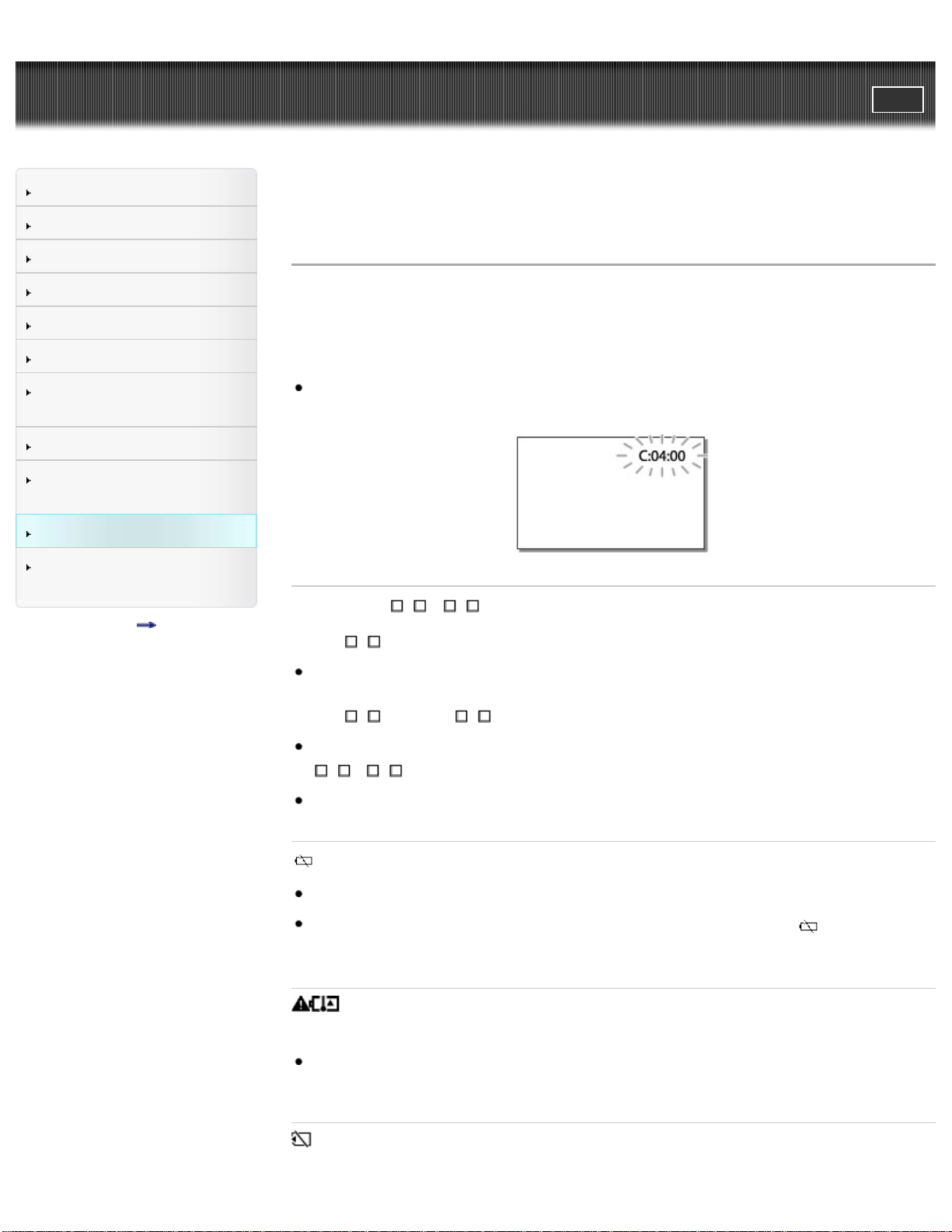
User Guide
PrintSearch
Operation Search
Before use
Getting started
Recording
Playback
Playing images on a TV
Saving images with a
computer
Using the Wi-Fi function
Customizing your
camcorder
Troubleshooting
Maintenance and
precautions
Contents list
Top page > Troubleshooting > Self-diagnosis display/Warning indicators > Self-
diagnosis display
Self-diagnosis display
If indicators appear on the LCD screen, check the following.
If the problem persists even after you have tried to fix a couple of times, contact
your Sony dealer or local authorized Sony service facility. When you contact them,
give them the complete error code beginning with C or E displayed on the screen.
You may hear a melody when an important warning indicator appears on the
screen.
C:(or E:) : (Self-diagnosis display)
C:06:
The battery pack temperature is high. Change the battery pack or place it in a
cool place.
C:13:
/ C:32:
Remove the power source. Reconnect it and operate your camcorder again.
E:
:
Follow the steps from 2 on “If you have problems”.
(Battery level warning)
The battery pack is nearly used up.
Depending on the operating environment or battery conditions,
may flash
even with about 20 minutes of power remaining.
(Warning indicator pertaining to battery pack
temperature)
The battery pack temperature is high. Change the battery pack or place it in a
cool place.
(Warning indicator pertaining to memory card)
144
Slow flashing
Free spaces for recording files are running out. For the type of memory card you
can use with your camcorder, see “Types of memory card you can use with your
camcorder”.
No memory card is inserted. [Details]
Fast flashing
There is not enough free spaces for recording files. After storing the files on
other media, delete unnecessary files [Details], or format the memory card
[Details].
The image data base file may be damaged.
Check the data base file by selecting
[Setup] [ Media Settings]
[Repair Img. DB F.] the recording medium.
The memory card is damaged.
(Warning indicators pertaining to memory card
formatting)
The memory card is damaged.
The memory card is not formatted correctly. [Details]
(Warning indicator pertaining to incompatible memory
card)
Incompatible memory card is inserted. [Details]
(Warning indicator pertaining to the write-protect of
the memory card)
Access to the memory card was restricted on another device.
Back to top
Copyright 2013 Sony Corporation
145
User Guide
PrintSearch
Operation Search
Before use
Getting started
Recording
Playback
Playing images on a TV
Saving images with a
computer
Using the Wi-Fi function
Customizing your
camcorder
Troubleshooting
Maintenance and
precautions
Contents list
Top page > Troubleshooting > Self-diagnosis display/Warning indicators > Warning
Indicators
Warning Indicators
If messages appear on the screen, follow the instructions.
Data error.
An error occurred during reading or writing files to the memory card.
This may occur when you keep applying shock to the camcorder.
Files recorded on other devices may not be played back.
The Image Database File is damaged. Do you want to
create a new file?
The management file is damaged. When you select [Yes], a new management
file is created. The old recorded files on the media cannot be played back (Image
files are not damaged). If you execute [Repair Img. DB F.] after creating new
information, playing back the old recorded files may become possible.
There is no Image Database File Movies cannot be
recorded or played Create a new file?
You cannot shoot or play back movies because no movie management
information exists. If you select [Yes], new management information is created
and you can shoot or play back movies.
Inconsistencies found in image database file. Do you want
to repair the image database file?
The Image Database File is damaged. Do you want to
repair the Image Database File?
You cannot record because the management file is damaged. Repair it by
selecting
.
Buffer overflow. Writing to the media was not completed in
time.
You have performed recording and erasing operations repeatedly, or a memory
card that has been formatted by other device is used. Copy and take data
backup to other device (such as a computer), and then format the memory card
on the camcorder. [Details]
146

The inserted memory card is not efficient enough for copying the file(s). Use the
recommended memory card. [Details]
Restoring data...
Your camcorder tries to recover data automatically if the data writing was not
performed properly.
Cannot recover data.
Writing data onto the media of the camcorder has failed. Attempts were made to
recover the data, but they were unsuccessful.
Reinsert the memory card.
Reinsert the memory card a few times. If the indicator continues to flash even
after reinserting, the memory card could be damaged. Try with another memory
card.
Insert the memory card in the right direction.
Reinsert the memory card. Verify the positioning of the
memory card.
Insert the memory card in the right direction.
Cannot recognize this memory card. Format and use
again.
Format the memory card. Note that when you format the memory card, all the
recorded files are deleted. [Details]
This memory card may not be able to record or play
movies.
This memory card may not be able to record or play
images correctly.
Use a memory card recommended for your camcorder. [Details]
Do not eject the memory card during writing. Data may be
damaged.
Reinsert the memory card.
Number of audio files full. Cannot record audio files.
The number of audio files exceeds the recordable capacity of the memory card.
Change the memory card or format the memory card after copying and taking
data backup to a hard disk drive such as a computer.
147

Others
Maximum number of images already selected.
You can select only 100 saved files at one time for:
Deleting saved files
Protecting saved files, or releasing the protection
Data protected.
You tried to delete protected data. Release the protection of the data.
Back to top
Copyright 2013 Sony Corporation
148
User Guide
PrintSearch
Operation Search
Before use
Getting started
Recording
Playback
Playing images on a TV
Saving images with a
computer
Using the Wi-Fi function
Customizing your
camcorder
Troubleshooting
Maintenance and
precautions
Contents list
Top page > Maintenance and precautions > Maintenance and precautions > About
the memory card
About the memory card
A memory card formatted by a computer (Windows OS/Mac OS) is not
guaranteed to be compatible with your camcorder.
Data read/write speed may vary depending on the combination of the memory
card and memory card compliant product you use.
Data may be damaged or lost in the following cases (the data will not be
compensated for):
If you eject the memory card, or turn off your camcorder while your camcorder
is reading or writing files on the memory card (while the access lamp is lit or
flashing)
If you use the memory card near magnets or magnetic fields
It is recommended that you make a back-up of important data on the hard disk of
a computer.
Do not attach a label or the like on memory card or memory card adaptor.
Do not touch, or allow metallic objects to come into contact with the terminals.
Do not bend, drop or apply strong force to the memory card.
Do not disassemble or modify the memory card.
Do not allow the memory card to get wet.
Keep the memory card out of the reach of small children. There is danger that a
child might swallow it.
Do not insert anything other than the compliant size of memory card into the
memory card slot. Doing so may cause a malfunction.
Do not use or keep the memory card in the following locations:
Places subject to extremely high temperature, such as a car parked outside in
the sun
Places under direct sunlight
Places with extremely high humidity or subject to corrosive gases
About the “Memory Stick” media
Types of “Memory Stick” media Recording/Playback
“Memory Stick Micro” media —
“Memory Stick Micro” media (Mark2)
This product cannot record or play back data that uses “MagicGate” technology.
“MagicGate” is a copyright protection technology that records and transfers the
contents in an encrypted format.
Back to top
Copyright 2013 Sony Corporation
149
User Guide
PrintSearch
Operation Search
Before use
Getting started
Recording
Playback
Playing images on a TV
Saving images with a
computer
Using the Wi-Fi function
Customizing your
camcorder
Troubleshooting
Maintenance and
precautions
Contents list
Top page > Maintenance and precautions > Maintenance and precautions > About
the battery pack
About the battery pack
To charge the battery pack
Be sure to charge the battery pack before you start using your camcorder.
We recommend that you charge the battery pack in an ambient temperature
range of 10 ˚C to 30 ˚C (50 °F to 86 °F) until the CHG (charge) lamp turns off. If
you charge the battery pack outside of this temperature range, you may not be
able to charge it efficiently.
The CHG (charge) lamp flashes during charging under the following conditions.
The battery pack is not attached correctly.
The battery pack is damaged.
The temperature of the battery pack is low.
Remove the battery pack from your camcorder and put it in a warm place.
The temperature of the battery pack is high.
Remove the battery pack from your camcorder and put it in a cool place.
To use the battery pack effectively
Battery pack performance decreases when the ambient temperature is 10 ˚C (50
°F) or below, and the length of time you can use the battery pack becomes
shorter. If that happens, one of the following is recommended to enable longer
use of the battery pack:
Put the battery pack in a pocket to warm it up, and install it on your camcorder
immediately before you start recording.
Frequent use of the LCD screen or a frequent playback, fast forward or reverse
operation wears out the battery pack faster.
Be sure to turn off the camcorder when not recording or playing back on your
camcorder. The battery pack is also consumed when your camcorder is in
recording standby or playback pause.
Have spare battery packs ready for 2 or 3 times the expected recording time,
and make trial recordings before making the actual recording.
Do not expose the battery pack to water. The battery pack is not water resistant.
About the remaining battery power indicator
When the power goes off even though the remaining battery power indicator
indicates that the battery pack has enough power to operate, charge the battery
pack fully again. The battery level will be indicated correctly. Note, however, that
the battery indication will not be restored if it is used in high temperatures for a
long time, or if left in a fully charged state, or when the battery pack is frequently
used.
About storage of the battery pack
If the battery pack is not used for a long time, fully charge the battery pack and
use it up on your camcorder once a year to maintain proper function. To store
the battery pack, remove it from your camcorder and put it in a dry, cool place.
150

To discharge the battery pack on your camcorder completely, select
[Setup] [ General Settings] [Power Save] [Off], and leave your
camcorder in recording standby until the power goes off. [Details]
About battery life
Battery capacity decreases over time and through repeated use. If the interval
between charges becomes significantly short, the battery pack may need to be
replaced with a new one.
Each battery’s life depends on storage, operating and environmental conditions.
Back to top
Copyright 2013 Sony Corporation
151
User Guide
PrintSearch
Operation Search
Before use
Getting started
Recording
Playback
Playing images on a TV
Saving images with a
computer
Using the Wi-Fi function
Customizing your
camcorder
Troubleshooting
Maintenance and
precautions
Contents list
Top page > Maintenance and precautions > About handling of your
camcorder > On use and care
On use and care
On recording
Notes on use
LCD screen
About this manual, illustrations and on-screen displays
On use and care
When not using your camcorder for a long time
Note on the camcorder/battery pack temperature
Notes on charging through the USB cable
When the camcorder is connected to a computer or accessories
Notes on optional accessories
About care of the battery pack
About care of the LCD screen
On handling the LCD screen
About care and storage of the lens
On recording
Before starting to record, test the recording function to make sure the image and
sound are recorded without any problems.
Compensation for the contents of recordings cannot be provided, even if
recording or playback is not possible due to a malfunction of the camcorder,
recording media, etc.
Television programs, films, video tapes, and other materials may be copyrighted.
Unauthorized recording of such materials may be contrary to the copyright laws.
Notes on use
Do not do any of the following. If any of those are done, the recording media may
be damaged, saved images may be impossible to play back or may be lost, or
other malfunctions could occur.
Ejecting the memory card when the access lamp is lit or flashing
Removing the battery pack or AC Adaptor (sold separately) from the
camcorder, or applying mechanical shock or vibration to the camcorder when
the camcorder is on or the access lamp is lit or flashing
When the camcorder is connected to other devices through a USB connection
and the power of the camcorder is turned on, do not turn off the camcorder. The
image data that has been shot may be lost.
Use the camcorder in accordance with local regulations.
Be careful not to swallow the screw which fixed the camcorder to the box at the
152
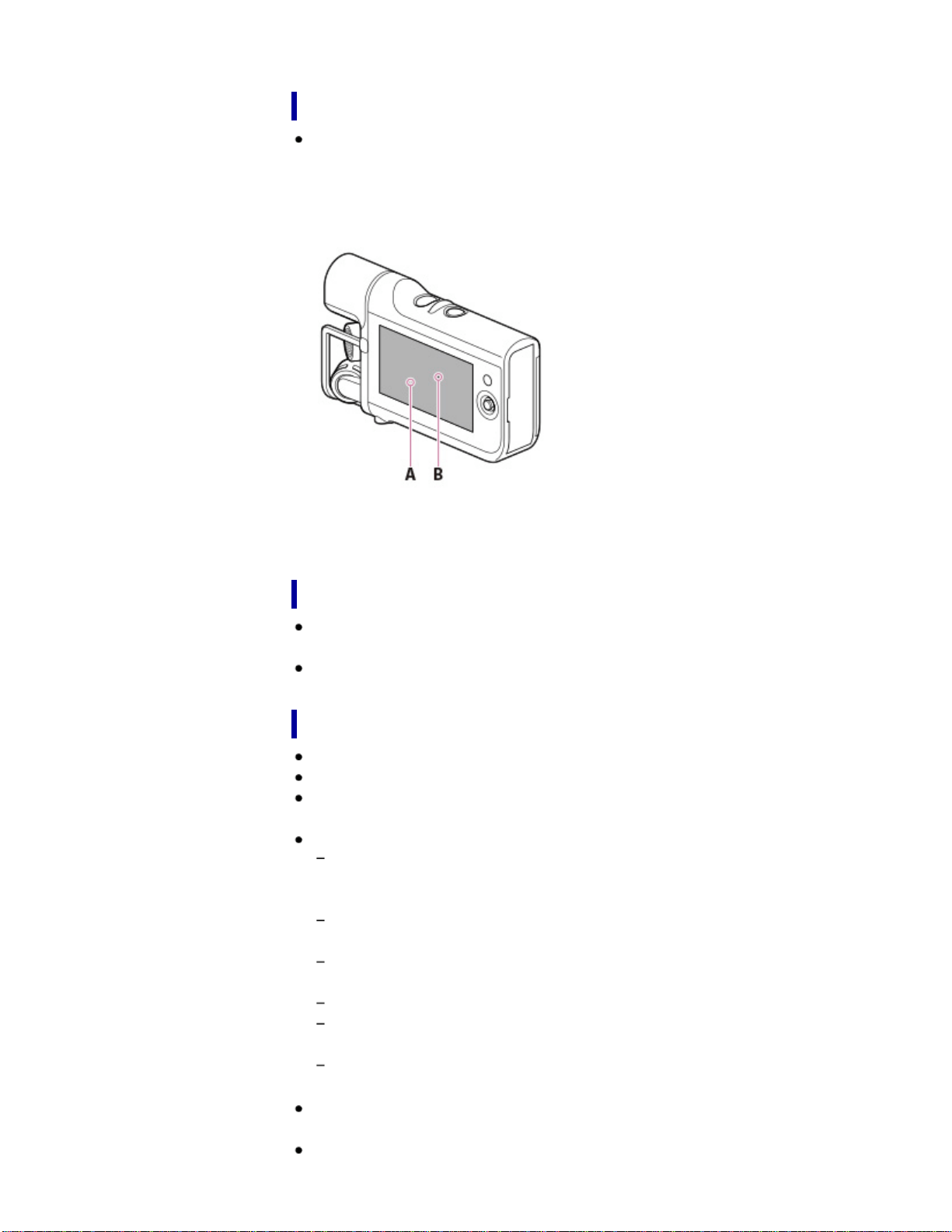
time of purchase.
LCD screen
The LCD screen is manufactured using extremely high-precision technology, so
over 99.99% of the pixels are operational for effective use. However, there may
be some tiny black points and/or bright points (white, red, blue, or green in color)
that appear constantly on the LCD screen. These points are normal results of the
manufacturing process and do not affect the shooting in any way.
A: White, red, blue or green points
B: Black points
About this manual, illustrations and on-screen displays
Design and specifications of your camcorder and accessories are subject to
change without notice.
In this manual, the memory card is called “recording media.”
On use and care
The camcorder is not dustproofed, dripproofed or waterproofed.
Do not hold the camcorder by the jack cover.
Do not aim the camcorder at the sun. Doing so might cause your camcorder to
malfunction. Take images of the sun only in low light conditions, such as at dusk.
Do not use or store the camcorder and accessories in the following locations:
Anywhere extremely hot, cold or humid. Never leave them exposed to
temperatures above 60 ˚C (140 °F), such as under direct sunlight, near heaters
or in a car parked in the sun. They may malfunction or become deformed.
Near strong magnetic fields or mechanical vibration. The camcorder may
malfunction.
Near strong radio waves or radiation. The camcorder may not be able to record
properly.
Near tuner devices such as TVs or radio. Noise may occur.
On a sandy beach or anywhere dusty. If sand or dust gets in your camcorder,
it may malfunction. Sometimes this malfunction cannot be repaired.
Near windows or outdoors, where the LCD screen or the lens may be exposed
to direct sunlight. This damages the LCD screen.
For AC operation, use the accessories recommended in these operating
instructions.
Do not let your camcorder get wet, for example, from rain or sea water. If your
153

camcorder gets wet, it may malfunction. Sometimes this malfunction cannot be
repaired.
If any solid object or liquid gets inside the casing, unplug your camcorder and
have it checked by a Sony dealer before operating it any further.
Avoid rough handling, disassembling, modifying, physical shock, or impact such
as hammering, dropping or stepping on the product. Be particularly careful with
the lens.
Do not operate your camcorder with it wrapped in an object such as a towel.
When disconnecting the power cord (mains lead), pull it by the plug and not the
cord.
Do not damage the power cord (mains lead) such as by placing anything heavy
on it.
Do not use a deformed or damaged battery pack.
Keep metal contacts clean.
If the battery electrolytic liquid has leaked:
Consult your local authorized Sony service facility.
Wash off any liquid that may have contacted your skin.
If any liquid gets in your eyes, wash with plenty of water and consult a doctor.
When not using your camcorder for a long time
To keep your camcorder in optimum state for a long time, turn it on and let it run
by recording and playing back images about once a month.
Use up the battery pack completely before storing it.
Note on the camcorder/battery pack temperature
When the temperature of the camcorder or battery pack becomes extremely high
or extremely low, you may not be able to record or play back on the camcorder,
due to the protection features of the camcorder being activated in such
situations. In this case, an indicator appears on the LCD screen.
Notes on charging through the USB cable
Charging may not be possible with all computers.
If you connect the camcorder to a laptop computer that is not connected to a
power source, the battery of the laptop computer will continue to use up its
charge. Do not leave the camcorder connected to a computer in this manner.
Charging with a personally assembled computer, with a converted computer, or
through a USB hub are not guaranteed. The camcorder may not function
correctly depending on the USB device which is used with the computer.
When the camcorder is connected to a computer or
accessories
Do not try to format the recording media of the camcorder with a computer. If you
do so, your camcorder may not operate correctly.
When connecting the camcorder to another device with communication cables,
be sure to insert the connector plug in the correct way. Pushing the plug forcibly
into the terminal will damage the terminal and may result in a malfunction of the
camcorder.
154

Notes on optional accessories
We recommend using genuine Sony accessories.
Genuine Sony accessories may not be available in some countries/regions.
About care of the battery pack
You may not be able to turn on the camcorder or the battery pack may not be
effectively charged if the terminal section of the battery is dirty. In this case, wipe
any dust off lightly using a soft cloth or a cotton swab to clean the battery.
About care of the LCD screen
If you leave fingerprints, hand cream, etc. on the LCD screen, the coating of the
LCD screen will come off easily. Wipe those off as soon as possible.
If you wipe the LCD screen strongly with a tissue, etc., the coating of the LCD
screen may be scratched.
If the LCD screen becomes dirty with fingerprints or dust, it is recommended that
you gently remove those from the screen then clean it with a soft cloth, etc.
On handling the LCD screen
Do not apply excessive pressure on the LCD screen, as it may cause uneven
color and other damage.
If your camcorder is used in a cold place, a residual image may appear on the
LCD screen. This is not a malfunction.
While using your camcorder, the periphery of the LCD screen may heat up. This
is not a malfunction.
About care and storage of the lens
Wipe the surface of the lens clean with a soft cloth in the following instances:
When there are fingerprints on the lens surface
In hot or humid locations
When the lens is exposed to salty air such as at the seaside
Store in a well-ventilated location subject to little dirt or dust.
To prevent mold, periodically clean and store the lens as described above.
Back to top
Copyright 2013 Sony Corporation
155
User Guide
PrintSearch
Operation Search
Before use
Getting started
Recording
Playback
Playing images on a TV
Saving images with a
computer
Using the Wi-Fi function
Customizing your
camcorder
Troubleshooting
Maintenance and
precautions
Contents list
Top page > Maintenance and precautions > About handling of your
camcorder > On moisture condensation
On moisture condensation
If your camcorder is brought directly from a cold place to a warm place, moisture
may condense inside your camcorder. This may cause a malfunction to your
camcorder.
If moisture condensation occurs, leave your camcorder for about 1 hour without
turning it on.
Note on moisture condensation
Moisture may condense when you bring your camcorder from a cold place into a
warm place (or vice versa) or when you use your camcorder in a humid place as
follows:
You bring your camcorder from a ski slope into a place warmed up by a
heating device.
You bring your camcorder from an air conditioned car or room into a hot place
outside.
You use your camcorder after a squall or a rain.
You use your camcorder in a hot and humid place.
How to prevent moisture condensation
When you bring your camcorder from a cold place into a warm place, put your
camcorder in a plastic bag and seal it tightly. Remove the bag when the air
temperature inside the plastic bag has reached the surrounding temperature
(after about 1 hour).
Back to top
Copyright 2013 Sony Corporation
156
User Guide
PrintSearch
Operation Search
Before use
Getting started
Recording
Playback
Playing images on a TV
Saving images with a
computer
Using the Wi-Fi function
Customizing your
camcorder
Troubleshooting
Maintenance and
precautions
Contents list
Top page > Maintenance and precautions > About handling of your
camcorder > On charging the pre-installed rechargeable battery
On charging the pre-installed rechargeable battery
Your camcorder has a pre-installed rechargeable battery to retain the date, time,
and other settings even when the camcorder is turned off. The pre-installed
rechargeable battery is always charged while your camcorder is connected to the
wall outlet (wall socket) via the AC Adaptor or while the battery pack is attached.
The rechargeable battery will be fully discharged in about 3 months if you do not
use your camcorder at all. Charge the pre-installed rechargeable battery before you
start using your camcorder.
However, even if the pre-installed rechargeable battery is not charged, the
camcorder operation other than date recording will not be affected.
How to charge the pre-installed rechargeable battery
Connect your camcorder to a wall outlet (wall socket) using the AC-UD10 AC
Adaptor or attach the fully charged battery pack, and leave it with the camcorder
turned off for more than 24 hours.
Back to top
Copyright 2013 Sony Corporation
157
User Guide
PrintSearch
Operation Search
Before use
Getting started
Recording
Playback
Playing images on a TV
Saving images with a
computer
Using the Wi-Fi function
Customizing your
camcorder
Troubleshooting
Maintenance and
precautions
Contents list
Top page > Maintenance and precautions > About handling of your
camcorder > Note on disposal/transfer of the memory card
Note on disposal/transfer of the memory card
Even if you delete data in the memory card or format the memory card on your
camcorder or a computer, you may not delete data from the memory card
completely. When you give the memory card to somebody, it is recommended that
you delete data completely using data deletion software on a computer. Also, when
you dispose of the memory card, it is recommended that you destroy the actual
body of the memory card.
Back to top
Copyright 2013 Sony Corporation
158
User Guide
PrintSearch
Operation Search
Before use
Getting started
Recording
Playback
Playing images on a TV
Saving images with a
computer
Using the Wi-Fi function
Customizing your
camcorder
Troubleshooting
Maintenance and
precautions
Contents list
Top page > Maintenance and precautions > Recording time of
movies/sound > Charging time
Charging time
Approximate time (min.) required when you fully charge a fully discharged battery
pack.
Battery
pack
Charging time
USB cable (when using a
computer)
AC-UD10 AC Adaptor (sold
separately)
NP-BX1
(supplied)
245 155
The charging times shown in the table above are measured when charging the
camcorder at a temperature of 25 ˚C (77 °F). It is recommended that you charge
the battery in a temperature range of 10 ˚C to 30 ˚C (50 °F to 86 °F).
Back to top
Copyright 2013 Sony Corporation
159
User Guide
PrintSearch
Operation Search
Before use
Getting started
Recording
Playback
Playing images on a TV
Saving images with a
computer
Using the Wi-Fi function
Customizing your
camcorder
Troubleshooting
Maintenance and
precautions
Contents list
Top page > Maintenance and precautions > Recording time of
movies/sound > Expected time of recording and playback with the battery pack
Expected time of recording and playback with the
battery pack
Recording time
Playing time
Recording time
Approximate time available when you use a fully charged battery pack.
(unit: minute)
Battery pack Continuous recording time Typical recording time
File type Movie Audio Movie Audio
NP-BX1 (supplied) 130 345 75 205
Each movie recording time is measured when [
REC Mode] is set to [1080]
and [Audio Format] is set to [AAC LC].
Typical recording time shows the time when you repeat recording start/stop and
switching the [Recording Mode].
Times measured when using the camcorder at 25 ˚C (77 °F). 10 ˚C to 30 ˚C (50
°F to 86 °F) is recommended.
The recording and playback time will be shorter, depending on the conditions
under which you use your camcorder, such as when use your camcorder in low
temperatures.
Playing time
Approximate time available when you use a fully charged battery pack.
(unit: minute)
Battery pack
File type Movie Audio
NP-BX1 (supplied) 210 255
160

User Guide
PrintSearch
Operation Search
Before use
Getting started
Recording
Playback
Playing images on a TV
Saving images with a
computer
Using the Wi-Fi function
Customizing your
camcorder
Troubleshooting
Maintenance and
precautions
Contents list
Top page > Maintenance and precautions > Recording time of
movies/sound > Expected shooting time of movies
Expected shooting time of movies
Expected shooting time of movies
Bit-rate and recording pixels
Expected shooting time of movies
When [Audio Format] is [AAC LC]
(unit: minute)
Recording mode 16 GB 32 GB 64 GB
[1080]
125
(125)
250
(250)
505
(505)
[720]
320
(320)
650
(650)
1305
(1305)
When [Audio Format] is [Linear PCM]
(unit: minute)
Recording mode 16 GB 32 GB 64 GB
[1080]
110
(110)
230
(230)
460
(460)
[720]
265
(265)
535
(535)
1080
(1080)
When using a Sony memory card.
Notes
The shooting time may vary depending on the shooting and subject conditions,
[
REC Mode] or [Audio Format]. [Details]
The number in ( ) is the minimum shooting time.
You can shoot movies of a maximum of 40,000 scenes.
The maximum continuous shooting time of movies is approximately 13 hours.
Your camcorder uses the VBR (Variable Bit Rate) format to automatically adjust
image quality to suit the shooting scene. This technology causes fluctuations in
the shooting time of the media. Movies containing quickly moving and complex
images are shot at a higher bit-rate, and this reduces the overall shooting time.
162

Bit-rate and recording pixels
Bit-rate of movies (movie + sound etc.), pixels, aspect ratio and audio format
Approx. 16.2 Mbps (average) 1,920 × 1,080 pixels/30p, 16:9, audio format:
AAC
Approx. 6.2 Mbps (average) 1,280 × 720 pixels/30p, 16:9, audio format: AAC
Approx. 17.6 Mbps (average) 1,920 × 1,080 pixels/30p, 16:9, audio format:
Linear PCM
Approx. 7.6 Mbps (average) 1,280 × 720 pixels/30p, 16:9, audio format: Linear
PCM
Back to top
Copyright 2013 Sony Corporation
163
User Guide
PrintSearch
Operation Search
Before use
Getting started
Recording
Playback
Playing images on a TV
Saving images with a
computer
Using the Wi-Fi function
Customizing your
camcorder
Troubleshooting
Maintenance and
precautions
Contents list
Top page > Maintenance and precautions > Recording time of
movies/sound > Expected recording time of sound
Expected recording time of sound
Expected recording time of sound
(unit: minute)
16 GB 32 GB 64 GB
1115
(1115)
2235
(2235)
4485
(4485)
When using a Sony memory card.
Notes
The number in ( ) is the minimum recordable time.
You can record a maximum of 9,999 audio files.
The maximum continuous recording time for sound is about 2 hours 50 minutes.
Playing files recorded on other devices is not guaranteed.
Back to top
Copyright 2013 Sony Corporation
164
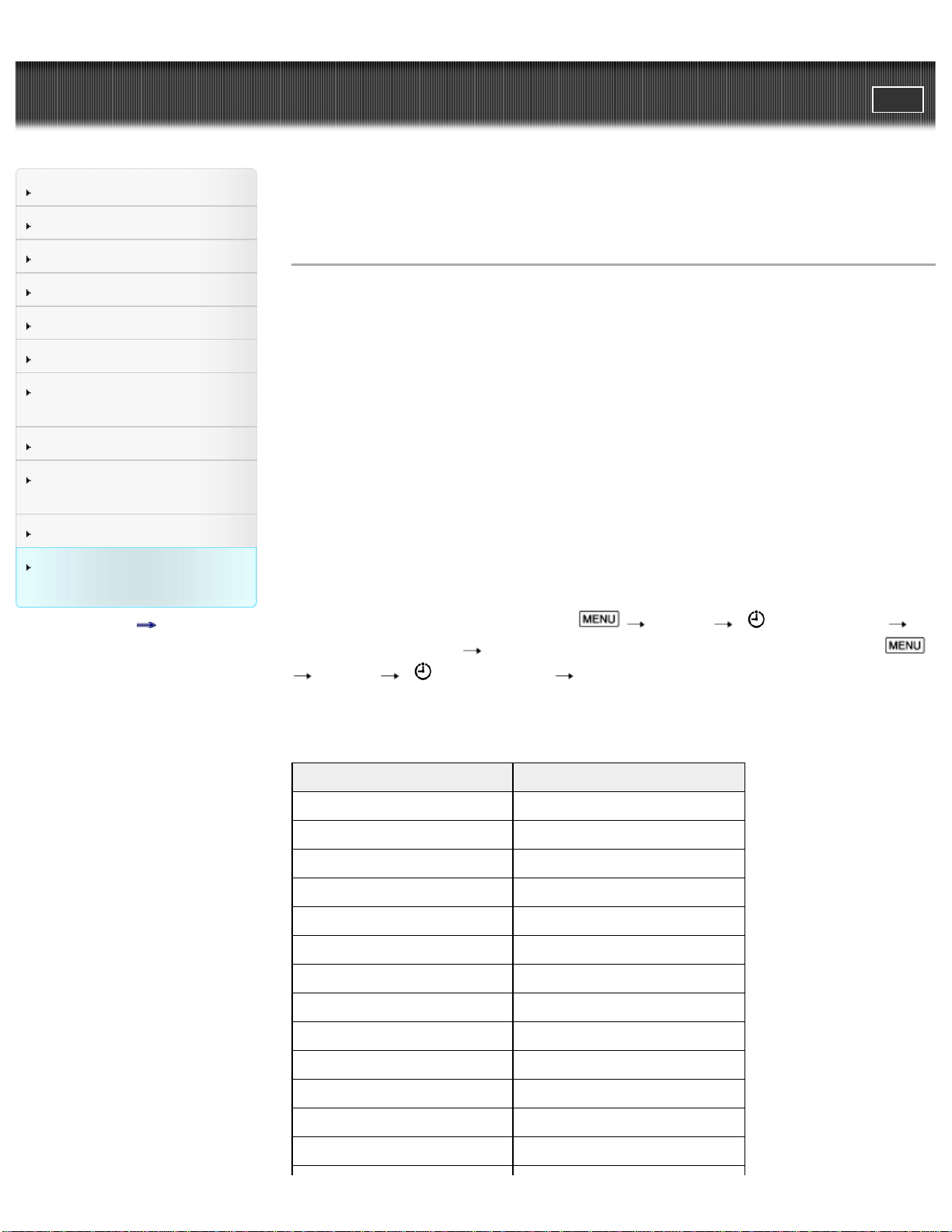
User Guide
PrintSearch
Operation Search
Before use
Getting started
Recording
Playback
Playing images on a TV
Saving images with a
computer
Using the Wi-Fi function
Customizing your
camcorder
Troubleshooting
Maintenance and
precautions
Contents list
Top page > Maintenance and precautions > Using your camcorder abroad > Using
your camcorder abroad
Using your camcorder abroad
Power supply
You can use your camcorder in any countries/regions using the AC-UD10 AC
Adaptor within the AC 100 V to 240 V, 50 Hz/60 Hz range.
Viewing high definition image quality (HD) movies
In countries/regions where high definition image quality (HD) broadcasts are
supported, you can view shot movies on a TV at the same high definition image
quality (HD) as they were shot with the camcorder.
To view images at the same high definition image quality (HD) as they were shot
with the camcorder, you need an HDMI cable and a high definition TV (or monitor)
that supports the signal format for your camcorder and is equipped with an HDMI
jack.
Setting to the local time
You can easily set the clock to the local time by setting a time difference when
using your camcorder abroad. Select
[Setup] [ Clock Settings]
[Date & Time Setting] [Daylight Savings] or [Summer Time] [Details], and
[Setup] [ Clock Settings] [Area Setting] [Details].
World time difference
Time-zone differences Area setting
GMT Lisbon/London
+01:00 Berlin/Paris
+02:00 Helsinki/Cairo/Istanbul
+03:00 Nairobi
+03:30 Tehran
+04:00 Moscow/Abu Dhabi/Baku
+04:30 Kabul
+05:00 Karachi/Islamabad
+05:30 Kolkata/New Delhi
+06:00 Almaty/Dhaka
+06:30 Yangon
+07:00 Bangkok/Jakarta
+08:00 HongKong/Singapore/Beijing
165
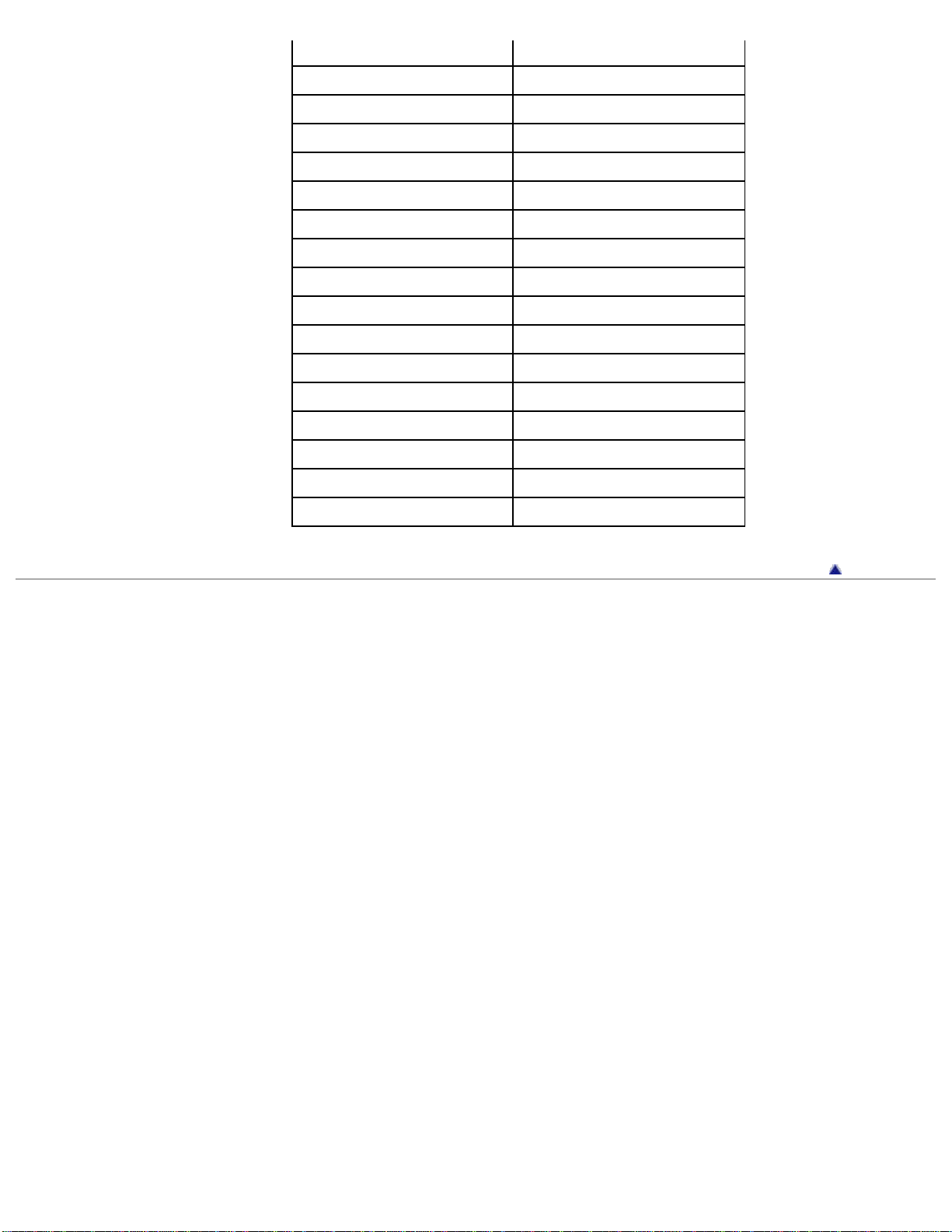
+09:00 Tokyo/Seoul
+09:30 Adelaide/Darwin
+10:00 Melbourne/Sydney
+11:00 Solomon Is
+12:00 Fiji/Wellington
–11:00 Midway Island
–10:00 Hawaii
–09:00 Alaska
–08:00 LosAngeles/Tijuana
–07:00 Denver/Arizona
–06:00 Chicago/MexicoCity
–05:00 New York/Bogota
–04:00 Santiago
–03:30 St. John’s
–03:00 Brasilia/Montevideo
–02:00 Fernando de Noronha
–01:00 Azores/Cape Verde Is.
Back to top
Copyright 2013 Sony Corporation
166
User Guide
PrintSearch
Operation Search
Before use
Getting started
Recording
Playback
Playing images on a TV
Saving images with a
computer
Using the Wi-Fi function
Customizing your
camcorder
Troubleshooting
Maintenance and
precautions
Contents list
Top page > Maintenance and precautions > On trademarks > On trademarks
On trademarks
“Memory Stick,” “ ,” “Memory Stick Duo,” “ ,” “Memory Stick
PRO Duo,” “
,” “Memory Stick PRO-HG Duo,” “
,” “Memory Stick Micro,” “MagicGate,” “ ,”
“MagicGate Memory Stick” and “MagicGate Memory Stick Duo” are trademarks
or registered trademarks of Sony Corporation.
“BIONZ” is a trademark of Sony Corporation.
“BRAVIA” is a trademark of Sony Corporation.
“PlayMemories Mobile” and the “PlayMemories Mobile” logo are trademarks of
Sony Corporation.
The terms HDMI and HDMI High-Definition Multimedia Interface, and the HDMI
Logo are trademarks or registered trademarks of HDMI Licensing LLC in the
United States and other countries.
Microsoft, Windows, Windows Vista, and DirectX are either registered
trademarks or trademarks of Microsoft Corporation in the United States and/or
other countries.
Mac, Mac OS and App Store are registered trademarks of Apple Inc. in the U.S.
and other countries.
Intel, Intel Core, and Pentium are trademarks or registered trademarks of Intel
Corporation or its subsidiaries in the United States and other countries.
“
” and “PlayStation” are registered trademarks of Sony Computer
Entertainment Inc.
microSDXC logo is a trademark of SD-3C, LLC.
Facebook and the “f” logo are trademarks or registered trademarks of Facebook,
Inc.
YouTube and the YouTube logo are trademarks or registered trademarks of
Google Inc.
Android and Google Play are trademarks or registered trademarks of Google
Inc.
iOS is a registered trademark or trademark of Cisco Systems, Inc. and/or its
affiliates in the United States and certain other countries.
Wi-Fi, the Wi-Fi logo, Wi-Fi PROTECTED SET-UP are registered trademarks of
the Wi-Fi Alliance.
The N mark is a trademark or registered trademark of NFC Forum, Inc. in the
United States and in other countries.
All other product names mentioned herein may be the trademarks or registered
trademarks of their respective companies. Furthermore,
and are not
mentioned in each case in this manual.
167

Add further enjoyment with your PlayStation 3 by downloading the application for
PlayStation 3 from PlayStation Store (where available.)
The application for PlayStation 3 requires PlayStation Network account and
application download.
Accessible in areas where the PlayStation Store is available.
Back to top
Copyright 2013 Sony Corporation
168
User Guide
PrintSearch
Operation Search
Before use
Getting started
Recording
Playback
Playing images on a TV
Saving images with a
computer
Using the Wi-Fi function
Customizing your
camcorder
Troubleshooting
Maintenance and
precautions
Contents list
Top page > Maintenance and precautions > License > Notes on the License
Notes on the License
THIS PRODUCT IS LICENSED UNDER THE AVC PATENT PORTFOLIO
LICENSE FOR THE PERSONAL USE OF A CONSUMER OR OTHER USES IN
WHICH IT DOES NOT RECEIVE REMUNERATION TO
(i) ENCODE VIDEO IN COMPLIANCE WITH THE AVC STANDARD ( “AVC
VIDEO”) AND/OR
(ii) DECODE AVC VIDEO THAT WAS ENCODED BY A CONSUMER ENGAGED
IN A PERSONAL ACTIVITY AND/OR WAS OBTAINED FROM A VIDEO
PROVIDER LICENSED TO PROVIDE AVC VIDEO.
NO LICENSE IS GRANTED OR SHALL BE IMPLIED FOR ANY OTHER USE.
ADDITIONAL INFORMATION MAY BE OBTAINED FROM MPEG LA, L.L.C.
SEE <HTTP://WWW.MPEGLA.COM>
We provide the software in your camcorder based on license agreements with the
owners of the respective copyrights. Based on requests by the owners of copyright
of these software applications, we have an obligation to inform you of the following.
Please read the following sections.
Copies of the licenses (in English) are stored in the internal memory of your
camcorder. Establish a Mass Storage connection between your camcorder and a
computer, and read the files in the “LICENSE” folder in “PMHOME.”
On GNU GPL/LGPL applied software
The software that is eligible for the following GNU General Public License
(hereinafter referred to as “GPL”) or GNU Lesser General Public License
(hereinafter referred to as “LGPL”) are included in the camcorder.
This informs you that you have a right to have access to, modify, and redistribute
source code for these software programs under the conditions of the supplied
GPL/LGPL.
Source code is provided on the web. Use the following URL to download it. When
downloading the source code, select HDR-MV1 as the model for your camcorder.
http://www.sony.net/Products/Linux/
We would prefer you do not contact us about the contents of source code.
Copies of the licenses (in English) are stored in the internal memory of your
camcorder. Establish a Mass Storage connection between your camcorder and a
computer, and read the files in the “LICENSE” folder in “PMHOME.”
Back to top
Copyright 2013 Sony Corporation
169
User Guide
PrintSearch
Operation Search
Before use
Getting started
Recording
Playback
Playing images on a TV
Saving images with a
computer
Using the Wi-Fi function
Customizing your
camcorder
Troubleshooting
Maintenance and
precautions
Contents list
Top page > Maintenance and precautions > Specifications > Specifications
Specifications
System
Signal format:
Digital HDTV specification
Movie file recording format:
Movie recording format: MPEG-4 AVC/H.264
Audio recording format: AAC LC 48kHz 128kbps
Linear PCM (WAV) 48kHz 16bit
Audio file recording format:
Linear PCM (WAV)
Recording media
Memory Stick Micro (Mark2) media
microSD memory card (Class 4 or faster)
Image device:
7.77 mm (1/2.3 type) CMOS sensor
Recording pixels:
Gross: Approx. 16 800 000 pixels
Effective (movie, 16:9): Approx. 8 400 000 pixels
Lens: Carl Zeiss Tessar
F2.8
f=2.5 mm
When converted to a 35 mm still camera
For movies:
f=18.2 mm (16:9)
Color temperature: [Auto], [One Push], [Indoor], [Outdoor]
Minimum illumination:
9 lx (lux) (in default setting, shutter speed 1/30 second)
4.5 lx (lux) ([Low Lux] is set to [On], shutter speed 1/30 second)
Input/Output connectors
HDMI OUT jack: HDMI micro connector
LINE IN/MIC input jack: 3.5 mm stereo mini jack
Headphone jack: 3.5 mm stereo mini jack
Multi/Micro USB terminal*
* You can connect devices which support the Micro USB standard.
LCD screen
Screen size: 6.7 cm (2.7 type, aspect ratio 16:9)
Total number of pixels: 230 400 (960 × 240)
General
Power requirements: DC 3.6 V (battery pack), DC 5.0 V 1 500 mA (AC Adaptor
(sold separately))
USB charging (Multi/Micro USB terminal): DC 5 V 800 mA
170

Average power consumption: 2.1 W
(During movie shooting in the default setting)
Operating temperature: 0 °C to 40 °C (32 °F to 104 °F)
Storage temperature: –20 °C to +60 °C (–4 °F to +140°F)
Dimensions (approx.):
116.5 mm × 70.5 mm × 27 mm (4 5/8 in. × 2 7/8 in. × 1 1/8 in.) (w/h/d) including
the projecting parts, and the supplied rechargeable battery pack attached
Mass (approx.):
140 g (5.0 oz) main unit only
165 g (5.9 oz) including the supplied rechargeable battery pack
Wireless LAN
Supported standard: IEEE 802.11 b/g/n
Frequency: 2.4 GHz
Supported security protocols: WPA-PSK/WPA2-PSK
NFC: NFC Forum Type 3 Tag compliant
Rechargeable battery pack NP-BX1
Type: Li-ion
Maximum output voltage: DC 4.2 V
Output voltage: DC 3.6 V
Capacity: 4.5 Wh (1 240 mAh)
Design and specifications of your camcorder and accessories are subject to
change without notice.
Back to top
Copyright 2013 Sony Corporation
171