
Copyright EN - i
Philips Digital PhotoFrame
English
Copyright
No part of this publication may be reproduced, transmitted,
transcribed, stored in a retrieval system or translated into
any language or computer language, in any form or by any
means, electronic, mechanical, magnetic, optical, chemical,
manual or otherwise, without the prior written permission of
Disclaimer
The company makes no representations or warranties, either
expressed or implied, with respect to the contents hereof and
specifically disclaims any warranties, merchantability or fitness
for any particular purpose. Further, The company reserves the
right to revise this publication and to make changes from time
to time in the contents hereof without obligation to notify any
person of such revision or changes.
Safety instructions
Before operating the PhotoFrame, carefully read and follow the
instructions below.
Retain this User Manual for future reference.
Read the safety and operating instructions carefully before
using the product. All warnings on the product and in the
operating instructions should be observed.
Do not place this product under direct sunlight or near heat
sources, such as in a closed car under sunlight or near a
stove. The outer casing of this product may become deformed
and the sophisticated sensors inside may become damaged
due to excessive heat.
Do not use this product near water, in the rain or allow any
liquid to get inside this product. Water and moisture may cause
short-circuit to the electronic components and lead to
malfunctions.
the compa
ny.

Philips Digital PhotoFrame
Safety instructions
EN - ii
English
Do not use this product near strong electromagnetic sources,
such as a microwave oven. The electromagnetic interference
may cause this product to malfunction.
Do not drop or apply shock/vibration to this product. Strong
impacts may damage the components inside.
Do not insert objects other than compatible memory cards into
the memory card slots of this product. The metal contacts
inside the slots can easily become damaged by foreign
objects.
Do not use an unknown power adapter other than the one
supplied with the PhotoFrame. Connecting this product to an
unknown power adapter is very dangerous and may lead to
fire or explosion.
Do not cut, bend, modify, place heavy objects, or step on the
power adapter cord. Otherwise the external insulation may be
damaged and result in short-circuit or fire.
If there are strange odors or heat emitting from this product or
any signs of malfunction, disconnect the PhotoFrame from the
power immediately and contact your dealer for inspection or
service.
Use a smooth, soft cloth to clean the surface of the screen. Do
not use liquid cleaners or glass cleaners.
If a foreign substance or water gets in this product, turn the
power off immediately and disconnect the power adapter.
Next, remove the foreign substance or water, and then send
the product to your nearest service center.
Do not attempt to disassemble or modify this product. There
are no user serviceable parts inside this product, and any
unauthorized modifications will void the warranty.
Although the LCD panel is made with high-precision
technology and has effective pixels of 99.99% or more, black
dots or bright points of light (red, blue or green) may appear
constantly on the LCD panel. This is a structural property of
the LCD panel and is not a malfunction.

Table of contents EN - iii
Philips Digital PhotoFrame
English
Table of contents
Key features . . . . . . . . . . . . . . . . . . . . . . . . . . . . . . . . . . . . . . . 1
What’s in the box . . . . . . . . . . . . . . . . . . . . . . . . . . . . . . . . . . . 2
Overview . . . . . . . . . . . . . . . . . . . . . . . . . . . . . . . . . . . . . . . . . . 3
Right view. . . . . . . . . . . . . . . . . . . . . . . . . . . . . . . . . . . . . . . . 3
Rear view . . . . . . . . . . . . . . . . . . . . . . . . . . . . . . . . . . . . . . . . 5
Operating the PhotoFrame. . . . . . . . . . . . . . . . . . . . . . . . . . . .6
Using the control buttons . . . . . . . . . . . . . . . . . . . . . . . . . . . . 7
Using the remote control . . . . . . . . . . . . . . . . . . . . . . . . . . . . 8
Replacing the remote control battery. . . . . . . . . . . . . . . . 10
Getting started . . . . . . . . . . . . . . . . . . . . . . . . . . . . . . . . . . . . 12
Step 1: Using the adjustable back stand . . . . . . . . . . . . . . . 12
Step 2: Connecting to power . . . . . . . . . . . . . . . . . . . . . . . . 14
Step 3: First usage. . . . . . . . . . . . . . . . . . . . . . . . . . . . . . . . 15
Step 4: Basic setup . . . . . . . . . . . . . . . . . . . . . . . . . . . . . . . 15
Selecting a language . . . . . . . . . . . . . . . . . . . . . . . . . . . . 15
Setting the date and time. . . . . . . . . . . . . . . . . . . . . . . . . 16
Step 5: Inserting a memory card/USB flash drive . . . . . . . . 17
Compatible memory card formats . . . . . . . . . . . . . . . . . . 18
Step 6: Copying photos and/or music to the internal
memory . . . . . . . . . . . . . . . . . . . . . . . . . . . . . . . . . . . . . . . . 19
Step 7: Connecting the PhotoFrame to a computer . . . . . . .20
Step 8: Replacing the paper mat . . . . . . . . . . . . . . . . . . . . . 21
Using the main menu . . . . . . . . . . . . . . . . . . . . . . . . . . . . . . . 23
Managing photos . . . . . . . . . . . . . . . . . . . . . . . . . . . . . . . . . . 25
Manually copying photos to the internal memory. . . . . . . . . 25
Tagging photos to an album. . . . . . . . . . . . . . . . . . . . . . . . . 28
Removing photos from an album. . . . . . . . . . . . . . . . . . . 30
Managing photos by using the TIMELINE album. . . . . . . 31
Creating a new album . . . . . . . . . . . . . . . . . . . . . . . . . . . . . 33
Modifying an album . . . . . . . . . . . . . . . . . . . . . . . . . . . . . . . 34

Philips Digital PhotoFrame
Table of contents
EN - iv
English
Deleting an album. . . . . . . . . . . . . . . . . . . . . . . . . . . . . . . . . 35
Using other options in the PHOTO ALBUMS menu . . . . . . . 35
Deleting photos . . . . . . . . . . . . . . . . . . . . . . . . . . . . . . . . 35
Rotating photos . . . . . . . . . . . . . . . . . . . . . . . . . . . . . . . . 36
Applying photo effects . . . . . . . . . . . . . . . . . . . . . . . . . . . 37
Viewing photos . . . . . . . . . . . . . . . . . . . . . . . . . . . . . . . . . . . . 38
Running a slideshow by using the TIMELINE album . . . . . . 40
Using Smart Energy Saver
TM
. . . . . . . . . . . . . . . . . . . . . . . . 41
Using CLOCK (EZ Access button) . . . . . . . . . . . . . . . . . . . . 43
Selecting a clock skin. . . . . . . . . . . . . . . . . . . . . . . . . . . . . . 43
Switching between Clock view and Slideshow view. . . . . . . 44
Setting an alarm . . . . . . . . . . . . . . . . . . . . . . . . . . . . . . . . . . 45
Using SCRAPBOOK . . . . . . . . . . . . . . . . . . . . . . . . . . . . . . . 47
Using MEDIA CENTER . . . . . . . . . . . . . . . . . . . . . . . . . . . . . . 48
Watching videos . . . . . . . . . . . . . . . . . . . . . . . . . . . . . . . . . . 48
Playing music . . . . . . . . . . . . . . . . . . . . . . . . . . . . . . . . . . . . 50
Using SETTINGS. . . . . . . . . . . . . . . . . . . . . . . . . . . . . . . . . . . 52
Date and Time page. . . . . . . . . . . . . . . . . . . . . . . . . . . . . . . 53
General Settings page . . . . . . . . . . . . . . . . . . . . . . . . . . . . . 54
Information page. . . . . . . . . . . . . . . . . . . . . . . . . . . . . . . . . . 55
Frequently asked questions . . . . . . . . . . . . . . . . . . . . . . . . . 56
Regulation and compliance . . . . . . . . . . . . . . . . . . . . . . . . . . 58
Recycling . . . . . . . . . . . . . . . . . . . . . . . . . . . . . . . . . . . . . . . 58
Appendix . . . . . . . . . . . . . . . . . . . . . . . . . . . . . . . . . . . . . . . . . 59
Specifications . . . . . . . . . . . . . . . . . . . . . . . . . . . . . . . . . . . . 59
List of compatible memory cards . . . . . . . . . . . . . . . . . . . . . 61

Key features EN - 1
Philips Digital PhotoFrame
English
Dear Customer:
Thank you for bringing our Philips Digital PhotoFrame into your
home. Now you will be able to view your growing digital photo
library in stunning clarity and share great memories with friends
and family.
To get the most out of your new Philips
product, please read
through this entire User Manual before use.
Key features
This PhotoFrame is equipped with the following features:
Clear and bright display.
Enables you to display photos that are stored in the internal
memory, a memory card or a USB flash drive.
Enables you to play back music and videos that are stored in
the internal memory, a memory card or a USB flash drive.
Instant video playback from your handheld USB camcorder.
Simply plug in the device and go to MEDIA CENTER and
choose USB as playback source.
Allows you to select a preferred power-saving option for the
PhotoFrame using the Smart Energy Saver
TM
feature.
Allows you to use albums to manage and sort your photos
easily.
Allows you to display photos in slideshow using various kinds
of templates available in SCRAPBOOK.
Multi-language On-Screen Display (OSD) menus.
Clock, Alarm and Calendar functions.
Our PhotoFrame is compatible with most USB camcorders for
plug n’ play playback. Transfer the video files to a SD card or USB
drive as an alternative if your camcorder is not compatible.

Philips Digital PhotoFrame
What’s in the box
EN - 2
English
What’s in the box
Carefully open the packing box and ensure that you have the
following items.
1. Digital PhotoFrame x 1
2. AC power adapter x 1
3. Magnetic remote control (with CR2025 lithium battery) x 1
4. USB cable x 1
5. Quick Start Guide x 1
6. User Manual x 1
7. Registration Card x 1
8. Warranty Card x 1
$FWXDOSURGXFWDSSHDUDQFHPD\YDU\IURPWKHLOOXVWUDWLRQVVKRZQLQ
WKLV8VHU0DQXDO
$YDLODEOHDFFHVVRULHVPD\YDU\GHSHQGLQJRQWKHDUHDZKHUH\RX
SXUFKDVHGWKHPhotoFUDPH
Overview EN - 3
Philips Digital PhotoFrame
English
Overview
Right view
No. Description
1
Ad
justable back stand
See "Step 1: Using the adjustable back stand" on page 12
for details.
2
Po
wer button
Press the Power button to turn on/off the PhotoFrame.
See "Step 2: Connecting to power" on page 14 for details.
2
3
4
5
6
1
7
Philips Digital PhotoFrame
Overview
EN - 4
English
3
USB port
Allows for a USB flash drive.
Play back photos, music or videos stored in the inserted
drive.
Copy photos or music from the inserted drive to the
PhotoFrame. See "Step 6: Copying photos and/or
music
to the internal memory" on page 19 for details.
4
Min
i USB port
Allows you to connect the PhotoFrame to a computer to
manage the files in the internal memory of the PhotoFrame.
See "Step 7: Connecting the PhotoFr
ame to a
computer" on page 20 for details.
5
Mem
ory card slot
Allows for an SD
™
/SDHC
™
, MultiMediaCard
™
(MMC),
Memory Stick
™
(MS), Memory Stick PRO
™
(MS PRO),
Memory Stick Duo
™
(MS Duo) and xD-Picture Card
™
(xD)
memory card.
Play back photos, music or videos stored in the inserted
card.
Copy photos or music from the inserted card to the
PhotoFrame. See "Step 6: Copying photos and/or
music
to the internal memory" on page 19 for details.
6
P
ower jack
Connect one end of the AC power adapter into the power
jack and the other end into a power outlet.
7
Remote control storage
Magnetic area for placing remote control.
No. Description
Overview EN - 5
Philips Digital PhotoFrame
English
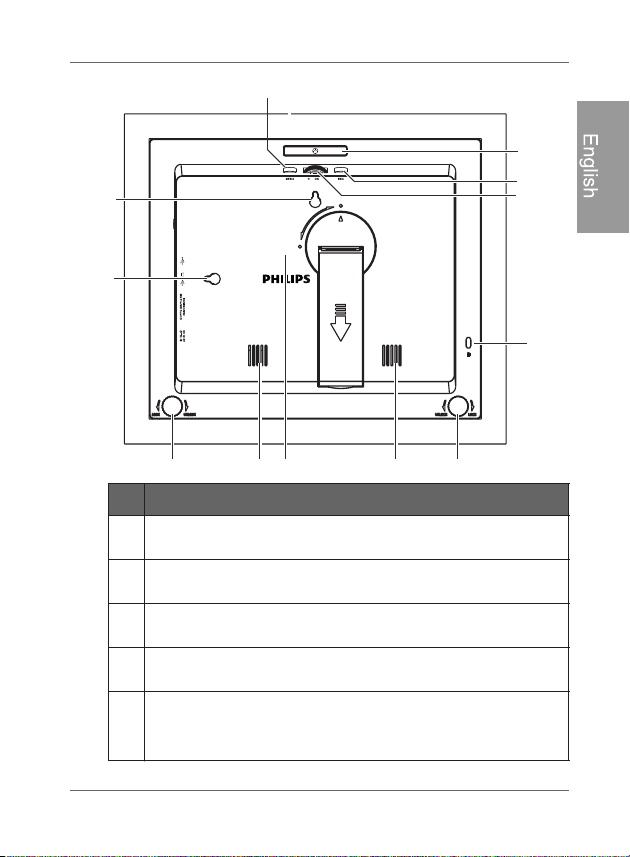
Rear view
No. Description
1
M
ENU button
See "Using the control buttons" on page 7 for details.
2
EZ Access
Se
e "Using the control buttons" on page 7 for details.
3
ES
C button (ESCAPE button)
See "Using the control buttons" on page 7 for details.
4
S
croll wheel/OK button
See "Using the control buttons" on page 7 for details.
5
K
ensington
®
security slot
You can attach an anti-theft Kensington
®
lock and cable to
this slot to help prevent possible theft.
1
2
3
4
5
6
7
8
9
7
6
10
Philips Digital PhotoFrame
Operating the PhotoFrame
EN - 6
English
Operating the PhotoFrame
You can use the control buttons on the back or the supplied
remote control to operate the PhotoFrame.
In this User Manual, instructions or examples provided are based
upon operation with the remote control. To know how to use the
control buttons, refer to "Using the control buttons" on page 7 for
de
tails.
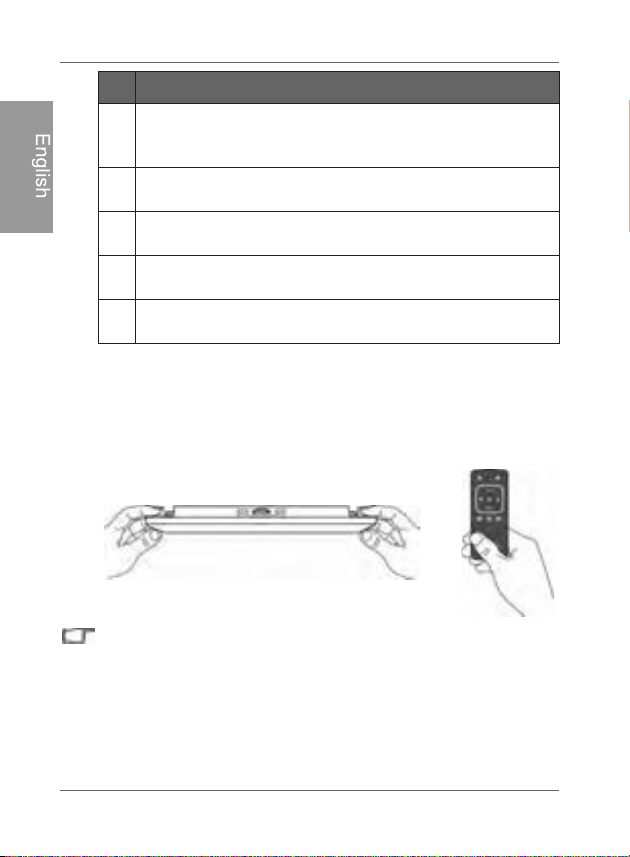
6
EZ Lock System
You can use the EZ Lock Screws to lock or unlock the
wooden frame.
7
Speakers
Plays back the sound.
8
Wall mount hole (for landscape wall mounting)
Allows you to hang the PhotoFrame horizontally on a wall.
9
Wall mount hole (for portrait wall mounting)
Allows you to hang the PhotoFrame vertically on a wall.
10
Remote control storage
Magnetic area for placing remote control.
No. Description
Operating the PhotoFrame EN - 7
Philips Digital PhotoFrame
English
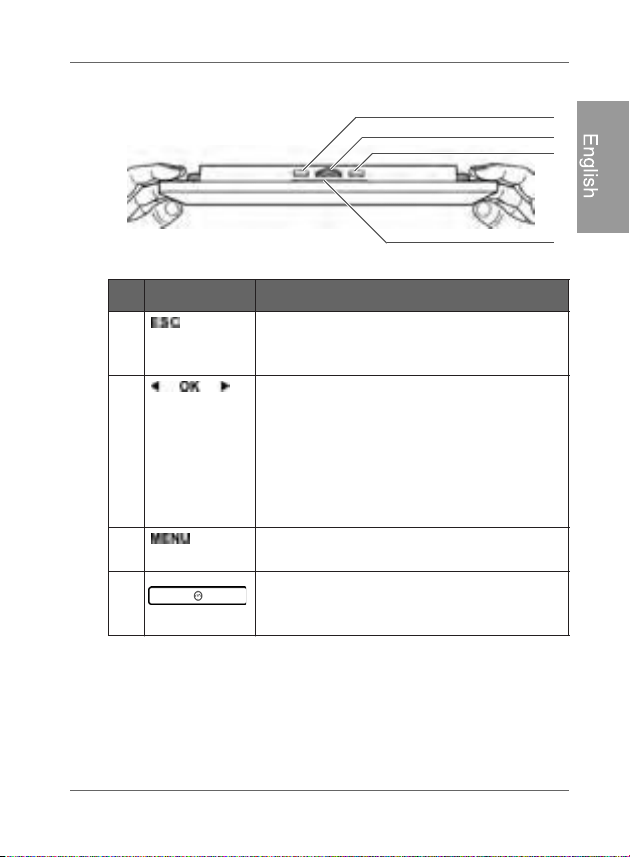
Using the control buttons
No. Icon Description
1
E
SC button (ESCAPE button)
Cancels current operation and/or returns to
the previous page.
2
Scroll wheel/OK button
Press this button to enter or confirm
your operation/selection.
Scroll this button to the left to move left/
up, or select the previous item.
Scroll this button to the right to move
right/down, or select the next item.
3
MENU button
Displays the pop-up menu.
4
EZ Access
Switches between Clock view and
Slideshow view.
1
2
3
4
Philips Digital PhotoFrame
Operating the PhotoFrame
EN - 8
English
Using the remote control
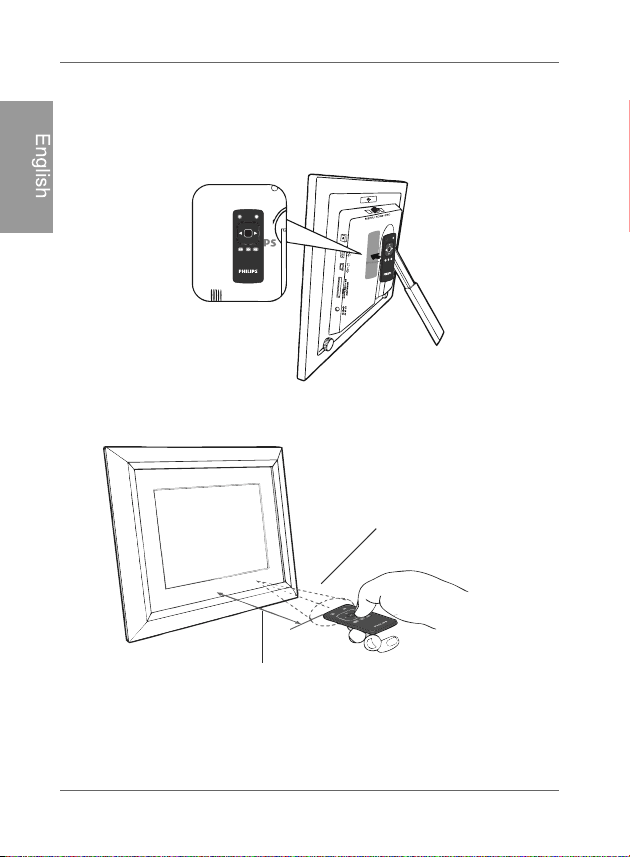
The supplied remote control is magnetic. With its magnetic
backing, you can stow away the remote securely in the
designated area shown below.
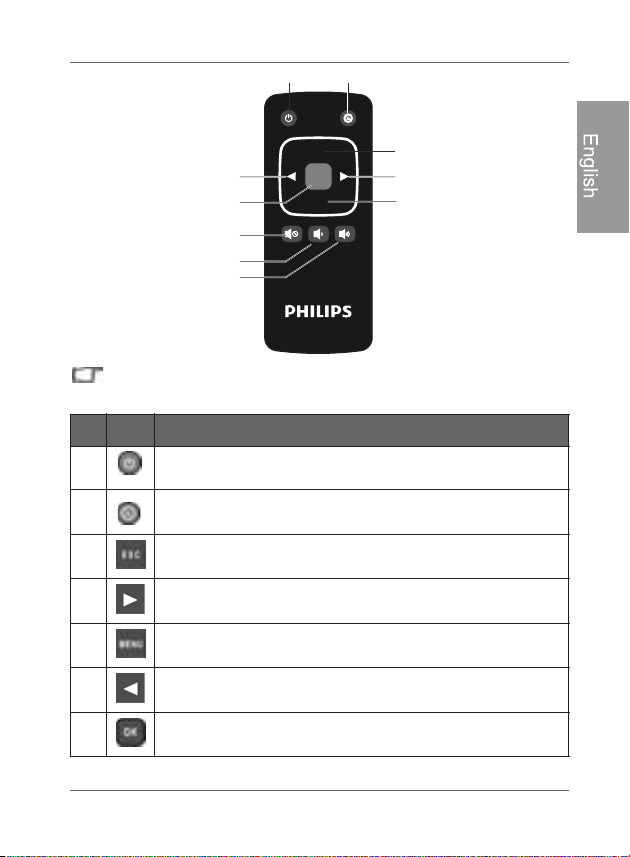
The PhotoFrame has a built-in remote control sensor behind the
paper matting.
Maximum vertical and horizontal
angle approximately 30 degrees
Approximately 1.4 m (4.6 ft.) or less
OK
ESC
MENU
Operating the PhotoFrame EN - 9
Philips Digital PhotoFrame
English
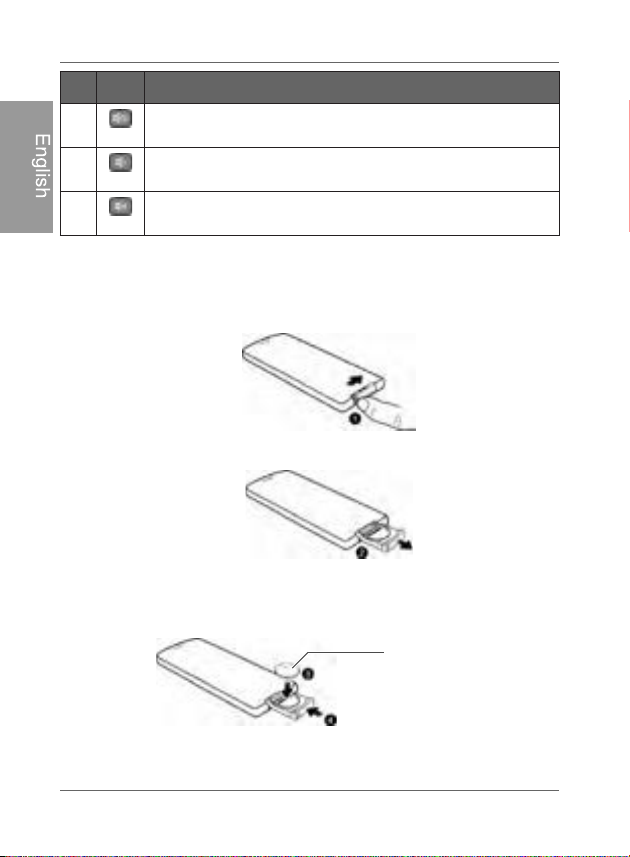
Please remove the plastic strip under the battery before using the
remote control for the first time.
No. Icon Description
1
ON/
OFF
Turns unit on/off.
2
EZ Access
Switches between Clock view and Slideshow view.
3
ESC (ESCAPE)
Returns to the previous page and/or access menu page.
4
RIGHT/DOWN
Moves right/down, or moves to the next item.
5
MENU
Displays the pop-up menu.
6
LEFT/UP
Moves left/up, or moves to the previous item.
7
OK
Confirms your selection.
OK
ESC
MENU
1 2
3
4
5
6
8
9
7
10
Philips Digital PhotpFrame
Operating the PhotoFrame
EN - 10
English
Replacing the remote control battery
1. On the back of the remote control, press the locking tab to the
right.
2. Pull out the battery holder.
3. Insert the new battery into the holder. The battery must be
placed with the positive charge facing upwards, as shown in
the illustration below.
8
MUTE
Activates/deactivates the Mute mode.
9
VOLUME DOWN
Deceases the volume.
10
VOLUME UP
Increases the volume.
No. Icon Description
Positive charge
faces upwards

Operating the PhotoFrame EN - 11
Philips Digital PhotoFrame
English
4. Slide the battery holder into the remote control.
)DLOXUHWRUHSODFHWKHEDWWHU\LQWKHFRUUHFWPDQQHUPD\GDPDJHWKH
EDWWHU\
8VHRQO\WKHVSHFLILHGEDWWHU\W\SH
5HF\FOHRUGLVSRVHXVHGEDWWHULHVSURSHUO\DFFRUGLQJWRORFDO
JXLGHOLQHVDQGUHJXODWLRQV
7KHEDWWHULHVDUHKLJKO\IODPPDEOHNHHSDZD\IURPH[FHVVLYHKHDW
RUPRLVWXUH
,IWKHEDWWHU\LVFRPSOHWHO\GUDLQHGRUQRWLQXVHIRUH[WHQGHGSHULRG
RIWLPHUHPRYHWKHEDWWHU\WRSUHYHQWOHDNDJH

Philips Digital PhotoFrame
Getting started
EN - 12
English
Getting started
Step 1: Using the adjustable back
stand
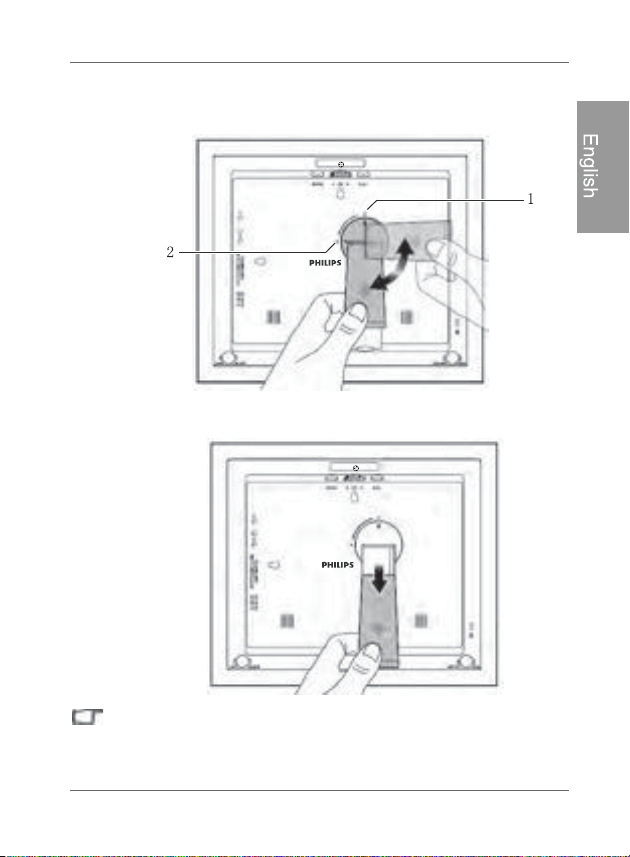
1. Gently pop out the back stand as shown below.
Getting started EN - 13
Philips Digital PhotoFrame
English
2. To place the PhotoFrame horizontally or vertically, you can
rotate the back stand by aligning the triangle mark with the
rounded points (1 or 2).
3. Pull out the back stand and adjust accordingly to the preferred
viewing angle.
,WLVUHFRPPHQGHGWRSODFHWKHPhotoFUDPHKRUL]RQWDOO\EHFDXVH
WKLVGLUHFWLRQSURYLGHVWKHEHVWYLHZLQJDQGRSHUDWLQJH[SHULHQFH
%\XVLQJWKHZDOOPRXQWKROHV\RXFDQKDQJWKHPhotoFUDPH
KRUL]RQWDOO\RUYHUWLFDOO\RQWKHZDOO

Philips Digital PhotoFrame
Getting started
EN - 14
English
Step 2: Connecting to power
1. Place the PhotoFrame on a flat surface.
2. Connect the power adapter as below (1), and press the Power
button to turn on the PhotoFrame (2).
3RZHUV\VWHPVDQGSOXJW\SHVPD\YDU\GHSHQGLQJRQ\RXU
FRXQWU\UHJLRQ
7RWXUQRIIWKHPhotoFUDPHSUHVVWKH3RZHUEXWWRQ

Getting started EN - 15
Philips Digital PhotoFrame
English
Step 3: First usage
To help you get the most out of your PhotoFrame, we installed a
video tutorial that automatically starts playing when you first turn
on your unit. To cancel the looping video and start playing your
own photos, press any of the buttons on the back. Follow the five-
step process to familiarize yourself with how the control buttons
work. This simple process is automatically disabled after the first
use. You can turn on the tutorial by going into SETTINGS.
Step 4: Basic setup
Select a language and set the date and time during the first use
of the PhotoFrame.
Selecting a language
1. In the main menu, press or to select SETTINGS
, and then press .
2. Press .
The General Settings page appears.
Philips Digital PhotoFrame
Getting started
EN - 16
English
3. Press , press to go to Language, and then press
again.
4. Press or to select a language you wish to use, and
then press .
5. Press to exit.
Setting the date and time
1. In the main menu, press or to select SETTINGS
, and then press .
The Date and Time page appears.
2. Press to highlight the Year field, press or to
select a year, and then press to confirm the setting.
3. Press to move to the Month field, press to highlight
the Month field, press or to select a month, and then
press to confirm the setting.
4. Repeat Step 3 for the remaining fields, including Date, Hour,
Minute, Mode, Current Time Zone and Second Time Zone.
5. Press to exit.
Getting started EN - 17
Philips Digital PhotoFrame
English
Step 5: Inserting a memory card/
USB flash drive
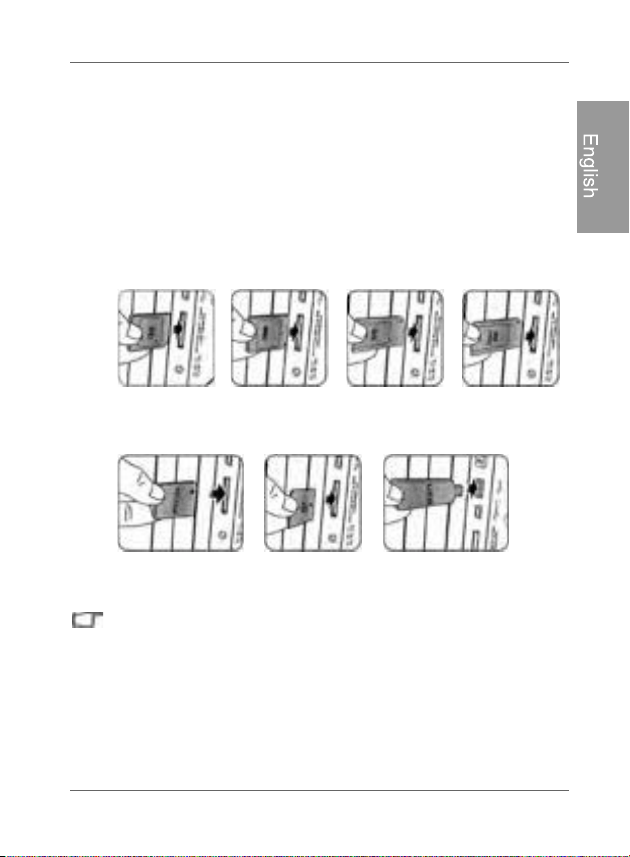
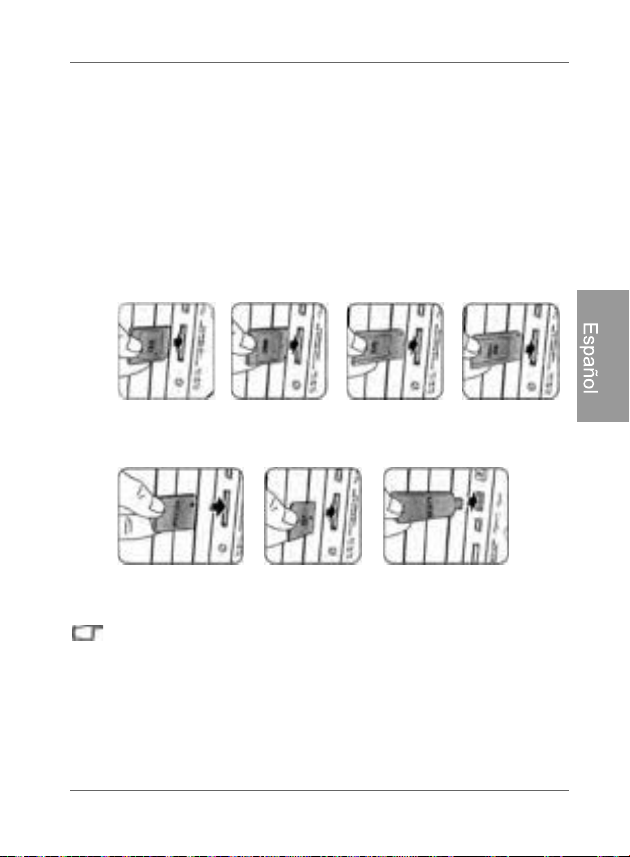
You can turn on the PhotoFrame and play back the pre-installed
photos in the internal memory with no memory card/USB flash
drive inserted.
To play back your own files, insert a compatible memory card or
USB flash drive that contains supported files into the
corresponding slot on the PhotoFrame as illustrated below.
For more information about the supported file formats, refer to
"Specifications" on page 59.
SD/SDHC MultiMediaCard Memory Stick Memory Stick
PRO
xD-Picture
Card
Memory Stick
Duo
USB flash drive
Philips Digital PhotoFrame
Getting started
EN - 18
English
Compatible memory card formats
0D[LPXPFDSDFLW\VSHFLILFDWLRQVOLVWHGDERYHDUHVXEMHFWWR
FKDQJHZLWKRXWSULRUQRWLFH
7KHPHPRU\FDUGVORWVXSSRUWVKRWVZDSIXQFWLRQ,QRWKHUZRUGV
\RXFDQFKDQJHRUUHPRYHWKHPHPRU\FDUGZKHQWKHSRZHURIWKH
PhotoFUDPHLVHLWKHUWXUQHGRQRUWXUQHGRII
7Ke PhotoFUDPHVXSSRUWVERWK:LQGRZVDQG0$&RSHUDWLQJ
V\VWHPV+RZHYHUZKHQIRUPDWWLQJ\RXUPHPRU\FDUGVXVH)$7
DQG)$7ILOHV\VWHPVLQ:LQGRZVRQO\)RUPDWWLQJPHPRU\FDUGV
ZLWK17)6RU0$&LVQRWVXSSRUWHG
7RXVHDPLFUR6'DPLQL6'RUD0HPRU\6WLFN0LFUR0FDUGD
FDUGDGDSWHULVUHTXLUHG
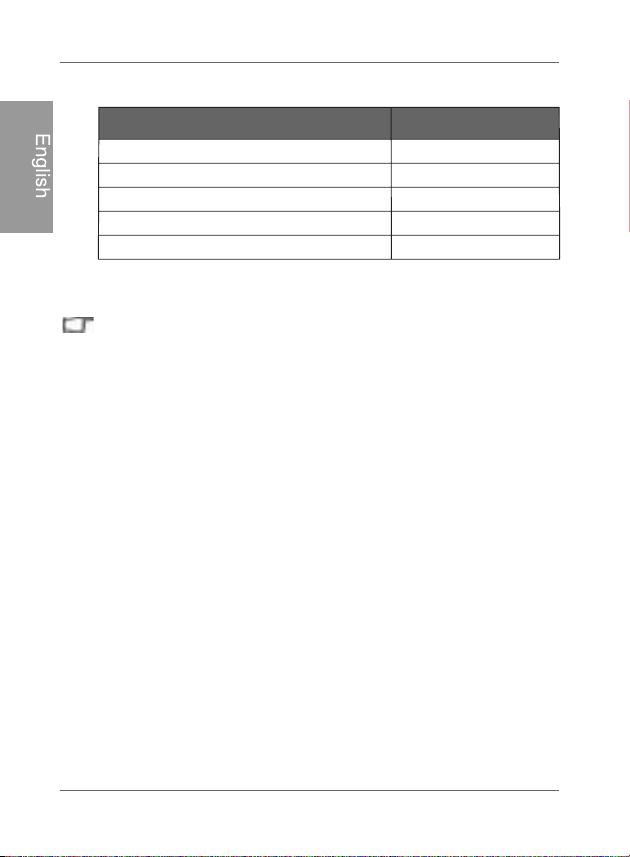
Memory card formats Maximum capacity
BG23CHDS/DS
Mult
iMediaCard (MMC) 1GB
Memory Stick (MS) 4GB
xD-Picture Card (xD) 2GB
BG61
evirdhsalfB
S
U
Getting started EN - 19
Philips Digital PhotoFrame
English
Step 6: Copying photos and/or
music to the internal memory
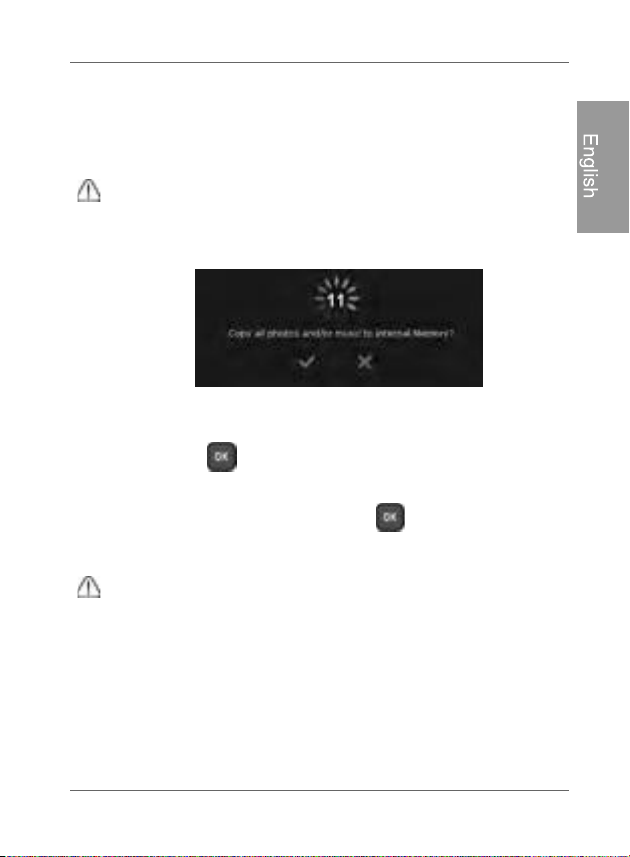
When inserting a memory card or a USB flash drive, you will be
asked to copy all photos and/or music to the internal memory.
If “Smart Copy” is set to “Resize” under “General Settings”, photos
will be resized to the screen resolution when copied to the internal
memory to optimize the storage capacity. Please keep a copy of the
original photos on your memory card or USB flash drive.
To copy all photos and/or music contained in the inserted
memory card (or USB flash drive), select the check mark
and press to proceed.
To view photos without copying them to the PhotoFrame,
select the cross mark and press . The PhotoFrame will
start playing back the photos automatically from the inserted
memory card or USB flash drive.
'RQRWUHPRYHWKHPHPRU\FDUG86%IODVKGULYHEHIRUHWKHFRS\
process is completed.
,IWKHILOHV\RXZLVKWRFRS\IURPWKHPHPRU\FDUG86%IODVKGULYH
already exists in the internal memory of the PhotoFrame, the files
will be overwritten when you select
to proceed.
7RFRS\YLGHRVFRQQHFW\RXUPhotoFrame directly to PC with mini
USB cable (included). See next page for details.

Philips Digital PhotoFrame
Getting started
EN - 20
English
Step 7: Connecting the PhotoFrame
to a computer
You can connect the PhotoFrame to a computer using the mini
USB cable (included) to easily manage the files in the internal
memory of the PhotoFrame.
1. Start the computer and turn on the PhotoFrame.
2. Connect the smaller end of the USB cable to the mini USB port
of the PhotoFrame.
3. Connect the other end of the USB cable to a USB port on the
computer, making sure the connectors are fully inserted.
4. Once connected, the PhotoFrame will enter PC transfer mode
automatically.
5. When the computer has detected the PhotoFrame, the
PhotoFrame will appear in “My Computer” as “removable disk”.
Now you can freely transfer the files in the PhotoFrame as
you would on other disk drive.
<RXFDQFRS\SKRWRVPXVLFRUYLGHRVIURPWKHFRPSXWHUWRWKH
PhotoFUDPHDQGYLFHYHUVD
7KHILOHVLQWKHPHPRU\FDUGVDQG86%IODVKGULYHFDQQRWEH
YLHZHGHGLWHGYLD86%FRQQHFWLRQ
7RFRS\YLGHRVRQWRWKHLQWHUQDOPHPRU\\RXPXVWWUDQVIHUYLD
FRQQHFWLRQWR3&
Getting started EN - 21
Philips Digital PhotoFrame
English
Step 8: Replacing the paper mat
Your PhotoFrame may come with one or more bonus paper mats
depending on your purchased model. You can replace the
existing paper mat with the one supplied (if available). Follow the
instructions below to replace the supplied paper mat.
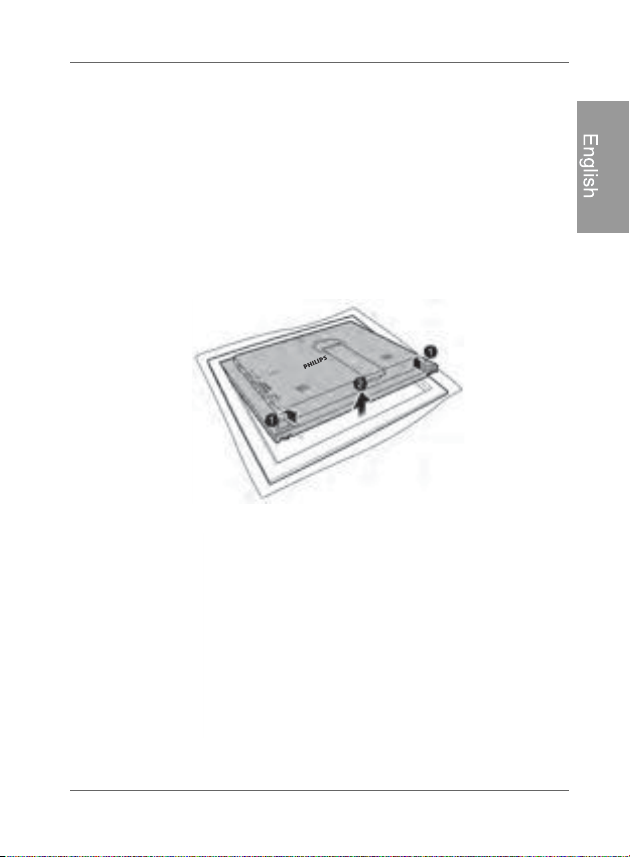
1. On a flat surface, carefully place the frame facing down on top
of a soft towel. Be careful not to scratch the unit.
2. Twist the EZ Lock Screws on back of the frame to the "unlock"
position, then carefully lift up the core unit from the wood
frame.
3. Remove the existing paper mat.
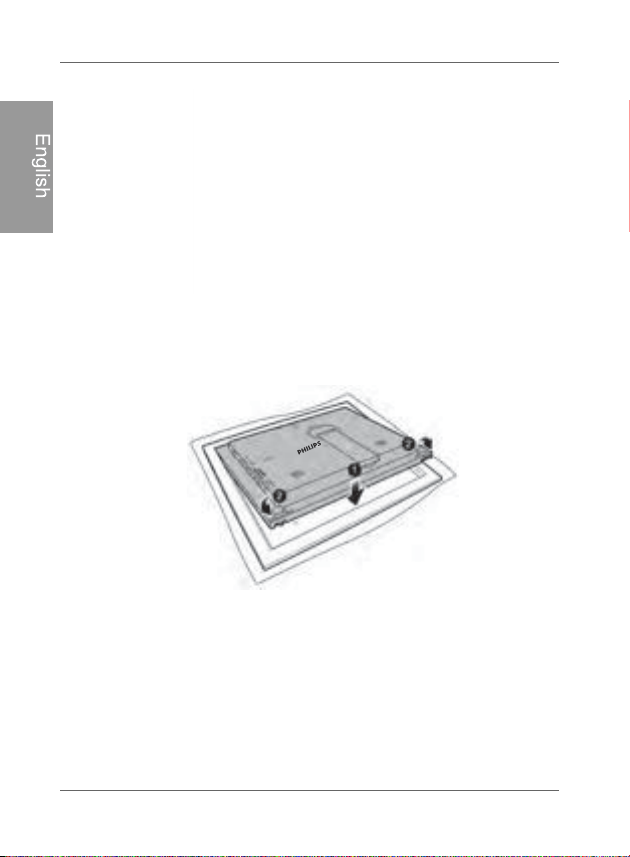
PhilipsDigital PhotoFrame
Getting started
EN - 22
English
4. Install the supplied bonus paper mat.
5. Install the PhotoFrame to the wooden frame, and secure the
PhotoFrame by tightening the EZ Lock Screws to the “LOCK”
position.
Using the main menu EN - 23
Philips Digital PhotoFrame
English
Using the main menu
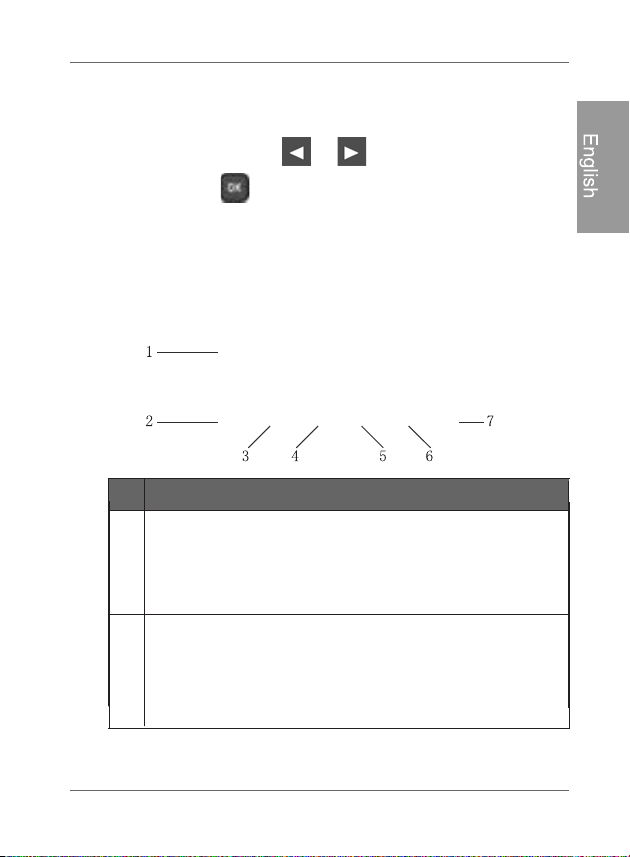
When you turn on the PhotoFrame, the main menu below
appears. You can press or to select the desired menu,
and then press to enter the selected menu.
No. Description
1
Smart Energy Saver
TM
Allows you to select a power-saving option for the
PhotoFrame.
See "Using Smart Energy Saver
TM
" on page 41 for
details.
2
CLOCK & CALENDAR
Allows you to set your favorite clock skins.
Allows you to set an alarm.
See "Using CLOCK (EZ Access button)" on page 43 for
details.
Philips Digital PhotoFrame
Using the main menu
EN - 24
English
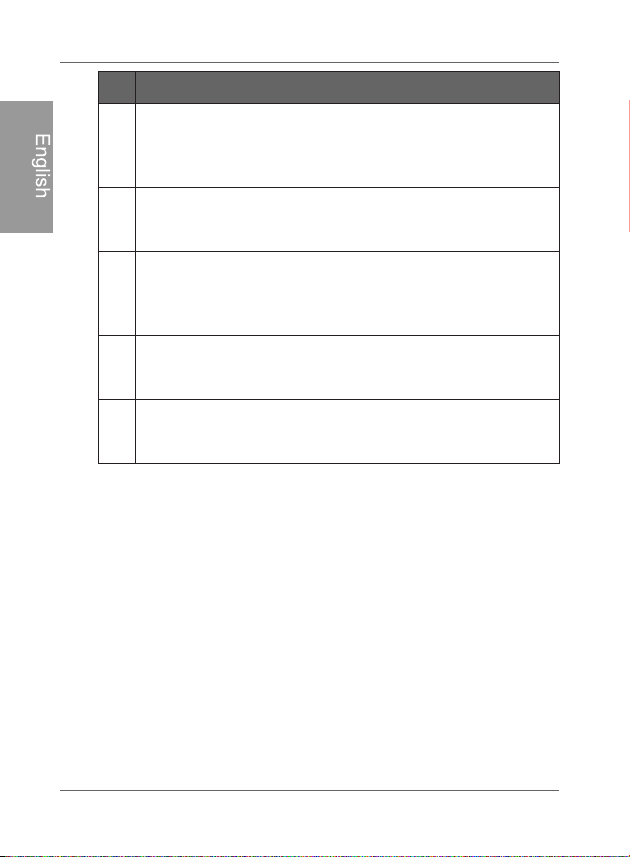
3
SCRAPBOOK
Allows you to display photos in slideshow with various
preloaded templates.
See "Using SCRAPBOOK"
on page 47 for details.
4
SLIDESHOW
Allows you to display photos in slideshow.
See "Viewing photos" on page 38 for details.
5
PHPTO AL
BUMS
Allows you to manage and sort your photos by tagging
them to different albums.
See "Managing photos" on page 25 for details.
6
ME
DIA CENTER
Allows you to play back videos and music.
See "Using MEDIA CENTER" on page 48 for details.
7
S
ETTINGS
Allows you to configure the settings of the PhotoFrame.
See "Using SETTINGS" on page 52 for details.
No. Description
Philips Digital PhotoFrame
Managing photos
EN - 26
English
3. Select Memory Card, and then press .
The screen shows the photos contained in your memory card.
4. If there are more than one page, you can press or to
go to the previous or next page to browse photos. (If not, skip
this step.)
5. Press to enable the selection mark, showing in orange.
6. Press or to move to the photo you wish to select,
and then press to confirm the selection.
The selected photo will have a green selection mark.
Repeat Step 6 to select more photos as desired.
7. Press .
If you wish to select all the photos shown on the current page, select
“Select All” in the pop-up menu and press . Then continue with
Step 7.

Managing photos EN - 27
Philips Digital PhotoFrame
English
8. From the pop-up menu, press or to select Tag It,
and then press .
9. Select a default target album to copy and sort the photos into
this specified album.
Philips Digital PhotoFrame
Managing photos
EN - 28
English
Tagging photos to an album
1. In the main menu, press or to select ALBUM, and
then press .
The screen shows:
the file source, including USB, Memory Card and
Internal Memory.
the default albums in the internal memory, including
TIMELINE, Pre-installed Library, Uncategorize,
Family, Friends and Vacation.
7KH³86%´DQG³0HPRU\&DUG´ILOHVRXUFHVZLOORQO\DSSHDUZKHQD
86%IODVKGULYHDQGDPHPRU\FDUGKDYHEHHQLQVHUWHGWRWKH
PhotoFrame.
)RUGHWDLOVDERXWWKH³7,0(/,1(´DOEXPVHH"Managing photos by
us
ing the TIMELINE album" on page 31.
2. Press or to select the source of your photos, such
as the Internal Memory album, and then press . (You can
also select USB or Memory Card, if available.)
The screen shows all the photos that are available in the
internal memory.

Managing photos EN - 29
Philips Digital PhotoFrame
English
3. If there are more than one page, you can press or to
go to the previous or next page to browse photos. (If not, skip
this step.)
4. Press to enable the selection mark, showing in orange.
5. Press or to move to the photo you wish to select,
and then press to confirm the selection.
The selected photo will have a green selection mark.
Repeat Step 5 to select more photos as desired.
6. Press .
If you wish to select all the photos shown on the current page, select
“Select All” in the pop-up menu and press . Then proceed to
Step 7.
7. From the pop-up menu, press or to select Tag It,
then press .
Managing photos EN - 31
Philips Digital PhotoFrame
English
5. From the pop-up menu, press or to select
Uncategorize, and then press .
The photos will be removed from the album, but will not be
deleted from the internal memory.
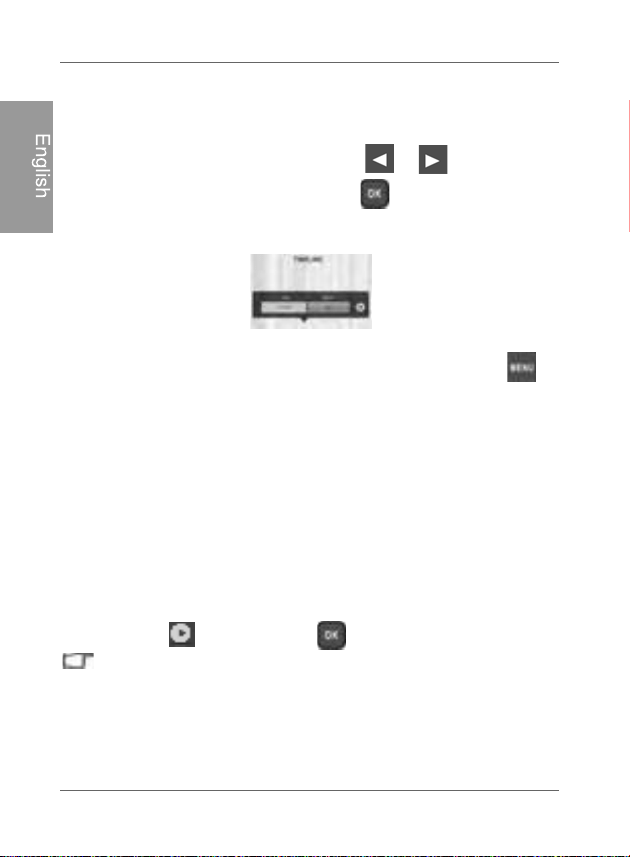
Managing photos by using the TIMELINE
album
In ALBUM, you can use the TIMELINE album to search for
photos in the internal memory according to the time span
specified.
1. In the ALBUM menu, press or to select TIMELINE,
and then press .
2. Press . When the < > marks appear, press or to
adjust the settings in the Year field, and then press again.
Philips Digital PhotoFrame
Managing photos
EN - 32
English
In this step, you can also search for photos taken in a specific
period of time under the TIMELINE album by pressing
and selecting the time frame.
3. Press to move to the Month field, and repeat Step 2 to
adjust the settings.
4. Press to move to , and then press to start
playback.
The photos taken in the time span you specified above will
appear on the screen.
Managing photos EN - 33
Philips Digital PhotoFrame
English
Creating a new album
1. In the PHOTO ALBUMS menu, press display the pop-up
menu, and then press to select Create Album.
2. In the Album Name field that appears, use the on-screen
keyboard to enter a desired name.
Press or to select a letter, and then press
to enter the letter.
Press to toggle between letters and numbers.
Philips Digital PhotoFrame
Managing photos
EN - 34
English
• To add a space, press or to move to Space,
and then press .
• To delete your last input, press or to move to
Back, and then press .
• To complete your input, press or to move to
Done, and then press .
3. Now the new album is created.
The PhotoFrame allows you to create up to 12 custom albums.
Modifying an album
1. In the PHOTO ALBUMS menu, press or to select an album for
which you wish to modify the album name, and then press
.
2. Select Modify Name, and then press .
3. In the Album Name field that appears, use the on-screen
keyboard to enter a desired name.
4. Once you have finished modifying the album name, press
to exit.
Philips Digital PhotoFrame
Managing photos
EN - 36
English
5. From the pop-up menu, press or to select Delete,
and then press .
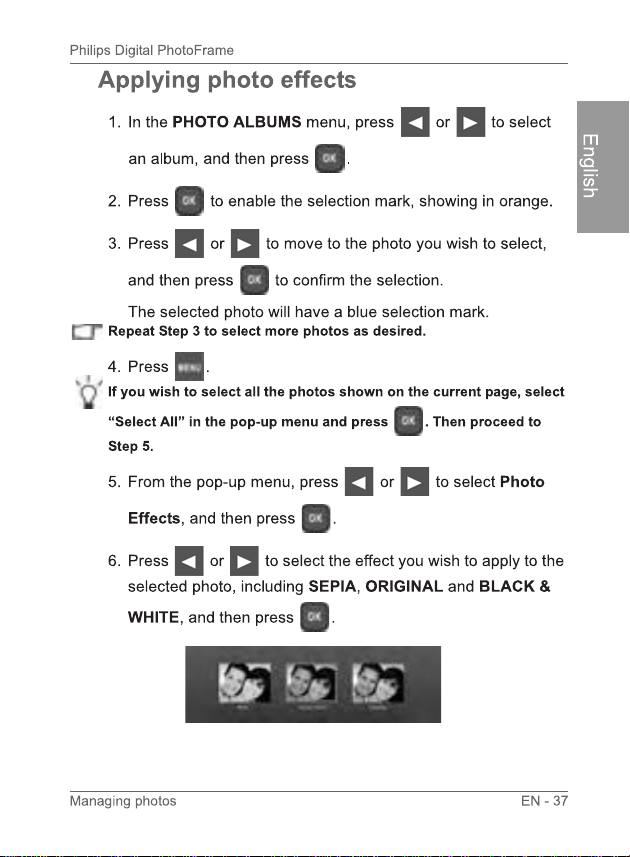
Rotating photos
1. In the PHOTO ALBUMS menu, press or to select an album,
and then press .
2. Press to enable the selection mark, showing in orange.
3. Press or to move to the photo you wish to select,
and then press to confirm the selection.
The selected photo will have a blue selection mark.
Repeat Step 3 to select more photos as desired.
4. Press .
If you wish to select all the photos shown on the current page, select
“Select All” in the pop-up menu and press . Then proceed to
Step 5.
5. From the pop-up menu, press or to select Rotate,
and then press .
The photo will be rotated 90 degrees clockwise.
6. Repeat Step 5 if you wish to rotate the photo into other angles.
Philips Digital PhotoFrame
Viewing photos
EN - 38
English
1. In the main menu, press or to select
SLIDESHOW, and then press .
The “USB” and “Memory Card” albums only appear when a USB flash
drive and a memory card have been inserted to the PhotoFrame.
2. Press or to select the album that contains the
photos you wish to display in slideshow, and then press .
If you wish to pause the slideshow, press .
Viewing photos

Viewing photos EN - 39
Philips Digital PhotoFrame
English
3. To configure slideshow settings, press to display the pop-
up menu. You can adjust the settings below.
Transition Effect: selects the transition effect you
wish to apply to the slideshow.
Slideshow Interval: selects the slideshow interval
between photos.
The default transition effect “Pan & Zoom” does not allow
customized interval settings.
Brightness: selects the level of screen brightness.
Contrast: selects the level of contrast.
Saturation: selects the level of saturation.
MUSIC: selects the volume level of background music.
Philips Digital PhotoFrame
Viewing photos
EN - 40
English
Running a slideshow by using the
TIMELINE album
1. In the SLIDESHOW menu, press or to
select TIMELINE, and then press .
2. In the pop-up screen, specify a time span to include the photos
you wish to display in slideshow.
In this step, you can also search for photos taken in a specific
period of time under the TIMELINE album by pressing
and selecting the time frame.
3. Select , and then press to start playback.
The TIMELINE feature only applies to photos stored in the memory
card from the card reader. Please copy any photos on the USB drive
to the inserted memory card if you wish to access this feature.
Using Smart Energy Saver
TM
EN - 41
Philips Digital PhotoFrame
English
The Smart Energy Saver
TM
menu provides various pre-
defined power-saving options.
1. In the main menu, press or to select Smart Energy
Saver
TM
, and then press .
2. Press or to select a desired option, and confirm with
.
For details about the power-saving options, refer to the table
below.
Using Smart Energy Saver
TM
Option
Description
Off Turns off Smart Energy Saver
TM
.
Auto 50% Saves 50% on power consumption during
nighttime and automatically resumes normal
backlight power consumption during daytime.
Using CLOCK (EZ Access button) EN - 43
Philips Digital PhotoFrame
English
Selecting a clock skin
The PhotoFrame provides various preloaded clock and calendar
skins. To set a default clock skin to be displayed in Clock view,
follow the steps below.
1. In the main menu, press or to select CLOCK &
CALENDAR, and then press .
2. Press or to select a desired skin.
Using CLOCK (EZ Access
button)
Philips Digital PhotoFrame
Using CLOCK (EZ Access button)
EN - 44
English
3. Press and select Default.
4. Press to set the selected clock skin as default.
The default clock skin will be displayed when
(or ) is pressed.
Switching between Clock view and
Slideshow view
You can press to toggle between Clock view and
Slideshow view.
:KHQVZLWFKLQJIURP&ORFNYLHZWR6OLGHVKRZYLHZWKHPhotoFrame
VWDUWVWKHVOLGHVKRZWKDWZDVUXQQLQJSUHYLRXVO\
,IWKHODVWVOLGHVKRZZDVSOD\LQJIURPPHPRU\FDUGRU86%DQGLV
QRORQJHUDYDLODEOHWKH PhotoFUDPHZLOOVWDUWDVOLGHVKRZIURPWKH
,QWHUQDO0HPRU\RU3UHLQVWDOOHG/LEUDU\
Using CLOCK (EZ Access button) EN - 45
Philips Digital PhotoFrame
English
Setting an alarm
Set the date and time for the PhotoFrame first before setting an
alarm. See "Setting the date and time" on page 16 for details.
1. In the main menu, press or to select CLOCK, and
then press .
2. Press , and then press or to select Alarm.
3. Press .
4. In the ALARM SETTING screen that appears, press to
highlight the Hour field.
5. Press or to adjust the value in the Hour field, and
then press to confirm the setting and move to the next
field.
6. Press or to adjust the value in the Min field, and
then press to confirm the setting and move to the next
field.
Philips Digital PhotoFrame
Using CLOCK (EZ Access button)
EN - 46
English
7. Press or to select a desired alarm ring tone, and
then press to confirm the setting and move to the next
field.
8. Press or to select , and then press to
complete the setup.
Repeat the steps above if you want to set more alarms.
Using SCRAPBOOK EN - 47
Philips Digital PhotoFrame
English
Philips Scrapbook feature provides a brand new user
experience in enjoying photo slideshows.
1. In the main menu, press or to select
Scrapbook, and then press .
2. Press or to select a template, and then press .
3. Select an album that contains the photos you wish to display in
slideshow, and then press .
The PhotoFrame will start to display the photos in slideshow
using the selected template.
Using SCRAPBOOK
Philips Digital PhotoFrame
Using MEDIA CENTER
EN - 48
English
Watching videos
1. In the main menu, press or to select MEDIA
CENTER, and then press .
2. Select Video, and then press .
3. Press or to select a source (Internal Memory, SD or
USB), and then press .
To play videos from your handheld video camcorder, select “USB” as
the source after you have plugged in the device.
4. Press or to select a video from the file list (if
available), and then press to start playback of the video.
Using MEDIA CENTER
Using MEDIA CENTER EN - 49
Philips Digital PhotoFrame
English
5. You can control video playback as follows.
To pause playback, press . To resume playback,
press again.
To rewind the video, scroll the “Scroll wheel/OK
button” to the left and hold the button.
To fast-forward the video, scroll the “Scroll wheel/OK
button” to the right and hold the button.
To go to the previous video, press .
To go to the next video, press .
To control the volume, press twice, and then
press to increase the volume or press to
decrease the volume.
To stop playback, press .
9LGHRVFDQRQO\EHFRSLHGLQ3&WUDQVIHUPRGH6HH6WHS
&RQQHFWLQJWKHPhotoFUDPHWRDFRPSXWHURQSDJHIRU
G
HWDLOV
<RXFDQRQO\DFWLYDWHWKHUHZLQGIDVWIRUZDUGIXQFWLRQVE\XVLQJ
WKH³6FUROOZKHHO2.EXWWRQ´7KHVHFRQWUROVDUHQRWDYDLODEOHRQ
WKHUHPRWHFRQWURO
Philips Digital PhotoFrame
Using MEDIA CENTER
EN - 50
English
Playing music
1. In the main menu, press or to select MEDIA
CENTER, and then press .
2. Select Music, and then press .
3. Press or to select a source (Internal Memory, SD or
USB), and then press .
4. Press or to select a track from the file list (if
available), and then press to start playback of the music.
5. You can control music playback as follows.
To pause playback, press . To resume playback,
press again.
To play back the previous track, press , and then
press .
Using MEDIA CENTER EN - 51
Philips Digital PhotoFrame
English
To play back the next track, press , and then
press .
To control the volume, press twice, and then
press to increase the volume or press to
decrease the volume.
To stop playback, press .
6. To set more music playback options, press while music
plays. Select a desired option and then press .
Options below are available.
Shuffle: plays back the tracks randomly.
Repeat One Song: repeats the track that is currently
playing.
Repeat All Songs: repeats all the tracks that are
available in the file list.
Delete Title: deletes the track that is selected.
Philips Digital PhotoFrame
Using SETTINGS
EN - 52
English
The SETTINGS menu allows you to configure the settings of the
PhotoFrame.
1. In the main menu, press or to select SETTINGS,
and then press .
The Date and Time page appears.
2. Press or to toggle among Date and Time, General
Settings and Information pages.
3. Press to enter a page, and the first option in that page will
be highlighted.
Using SETTINGS
Using SETTINGS EN - 53
Philips Digital PhotoFrame
English
4. Press again. When the < > marks appear in the field,
press or to adjust the settings.
5. Press to exit.
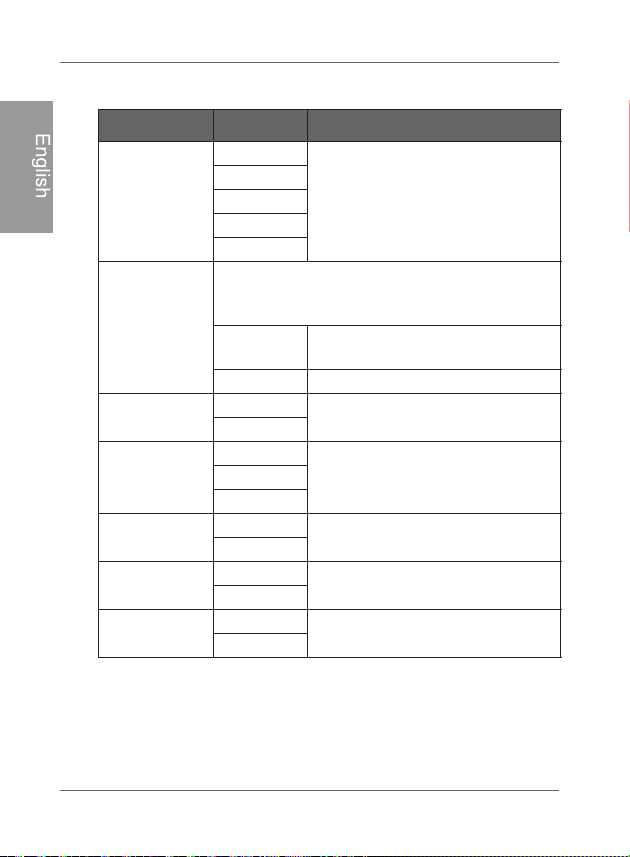
Date and Time page
Item Option Description
Date -
Allows you to set the date.
Time - Allows you to set the time.
Mode -
Allows you to select a time format
(12-hour clock or 24-hour clock).
Current Time
Zone
-
Allows you to select the time zone
that matches your current
geographic location.
Second Time
Zone
-
Allows you to set a second time
zone additionally.
Philips Digital PhotoFrame
Using SETTINGS
EN - 54
English
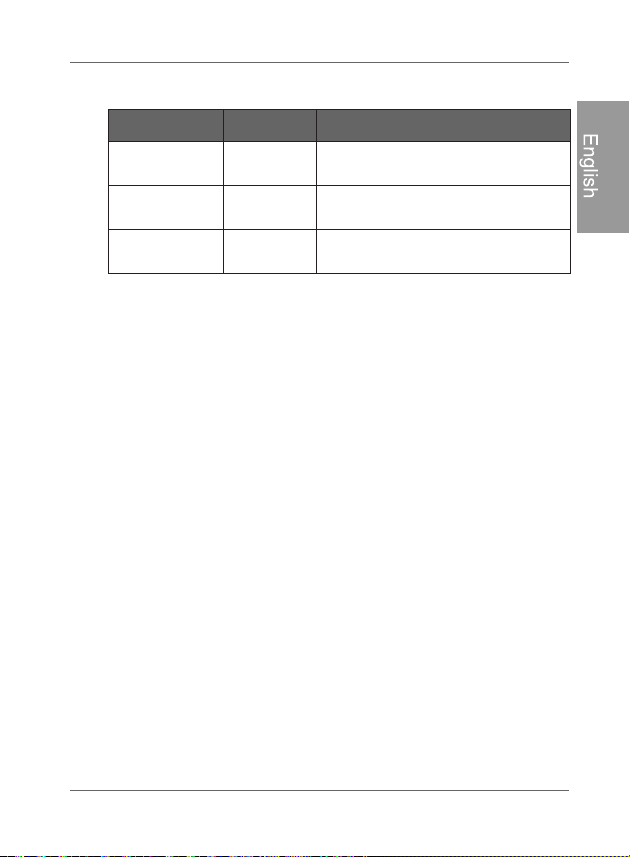
General Settings page
Item Option Description
Brightness
1
A
llows you to select the level of
screen brightness.
2
3
4
5
Smart Copy
Determines how photos are copied from the
external storage devices to the internal memory
when using the Smart Copy feature.
Resize
Resizes the photos to save
memory space.
Original Keeps the original file size.
Smart
Cropping
Full-Screen
Selects to display photos in
original size or full screen.
Original
Language
English
Sets up the On-Screen Display
(OSD) language.
French
Spanish
Reset
Yes
Returns all the settings back to
system default.
No
FW Upgrade
Yes
Upgrades the firmware of the
PhotoFrame.
No
Product Intro
On
The start-up video tutorial for
major features and functions.
Off
Using SETTINGS EN - 55
Philips Digital PhotoFrame
English
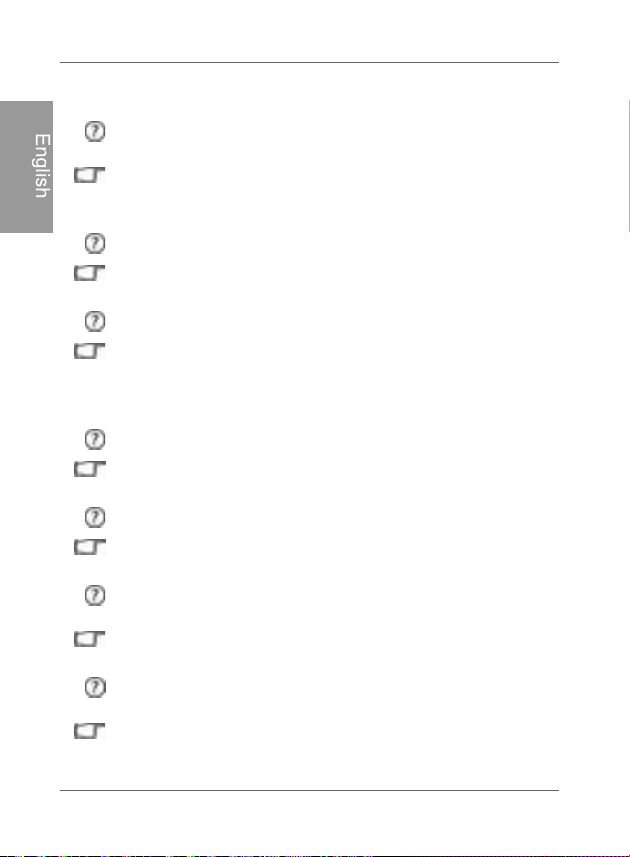
Information page
Item Option Description
Version -
Shows
the current firmware
version.
Total Memory -
Shows the total capacity of the
internal memory.
Free Memory -
Shows the remaining capacity of
the internal memory.
Philips Digital PhotoFrame
Frequently asked questions
EN - 56
English
Frequently asked questions
What memory card formats are compatible with the
PhotoFrame?
SD/SDHC, MMC, MS, MS PRO, MS Duo and xD memory card
formats are compatible with the PhotoFrame. For details, see
"Compatible memory card formats" on page 18.
Why do some photos load faster than others?
Higher resolution photos load slower. Using a lower resolution
when taking photos will speed up loading time.
How does auto rotation work?
The PhotoFrame will display in a landscape mode if placed on
its long side (as shown on your product box). To display your
photos in a portrait mode, rotate the PhotoFrame on it right
side.
Why are my photos appearing upside down?
The PhotoFrame is placed on the wrong side. Please rotate
the opposite side.
What types of image files can I view on my PhotoFrame?
The PhotoFrame supports playback of JPEG, BMP, JPEG
Progressive and EXIF images.
What types of audio files can I play back on my
PhotoFrame?
The PhotoFrame supports playback of MP3, WMA, AAC and
WAV audios.
What types of video files can I play back on my
PhotoFrame?
The PhotoFrame supports playback of Motion JPEG (M-
JPEG), MPEG-4 and H.264 (D1) videos.
Frequently asked questions EN - 57
Philips Digital PhotoFrame
English
Can I connect my PhotoFrame directly to my computer?
You can connect the PhotoFrame directly to your computer via
a mini USB cable and copy image/audio/video files between
the PhotoFrame and your computer.
Will the tagged photos be reset if I pull out the SD card?
No. The Digital PhotoFrame (DPF) will write information into
the MetaData of tagged photos. So the DPF will remember the
photo's album categorization the next time the SD card is re-
inserted to the unit.
The frame slows down significantly on certain photos.
What can I do?
This is mainly due to extra processing time needed to decode
very large size high resolution files. The DPF's Smart Cropping
(ON by default) feature will automatically resize the file based
on the unit's screen resolution and will significantly reduce the
size of the photo and eliminate this issue. However, please
always keep a copy of the original photos on the computer.
The frame froze and will not respond, what can I do?
If the frame freezes, it is easy to restart by unplugging from
power, then press power button again.
Why isn't the TIMELINE feature accessible for photos on
my USB drive?
The TIMELINE feature only applies to photos stored in the
memory card from the card reader. Please copy any photos on
the USB drive to the inserted memory card if you wish to
access this feature.
Why can't I tag my photos in my SD card to any albums?
Please check that your SD card is not locked because the DPF
will need to be able write information onto the files in order to
tag to Album.

Philips Digital PhotoFrame
Regulation and compliance
EN - 58
English
Regulation and compliance
This equipment has been tested and found to comply with the
limits for a Class B digital device, pursuant to Part 15 of the FCC
Rules. These limits are designed to provide reasonable protection
against harmful interference in a residential installation. This
equipment generates, uses, and can radiate radio frequency
energy and, if not installed and used in accordance with the
instructions, may cause harmful interference to radio
communications. However, there is no guarantee that interference
will not occur in a particular installation. If this equipment does
cause harmful interference to radio or television reception, which
can be determined by turning the equipment off and on, the user
is encouraged to try to correct the interference by one or more of
the following measures:
Reorient or relocate the receiving antenna.
Increase the separation between the equipment and receiver.
Connect the equipment into an outlet on a circuit different from
that to which the receiver is connected.
Consult the dealer or an experienced radio/TV technician for
help.
Any changes or modification not expressly approved by the
party responsible for compliance could void the user's
authority to operate the equipment.
This device complies with Part 15 of the FCC Rules.
Operation is subject to the following two conditions:
(1) This device may not cause harmful interference,
and (2) This device mu
st accept any interference received,
including interference that may cause undesired operation.
GiiNii International
7060, Koll Center Parkway,
Suite 340 Pleasanton, CA 94566
1-877-784-0999
Federal Communication Commission(FCC) Notice
Appendix EN - 59
Philips Digital PhotoFrame
English
Appendix
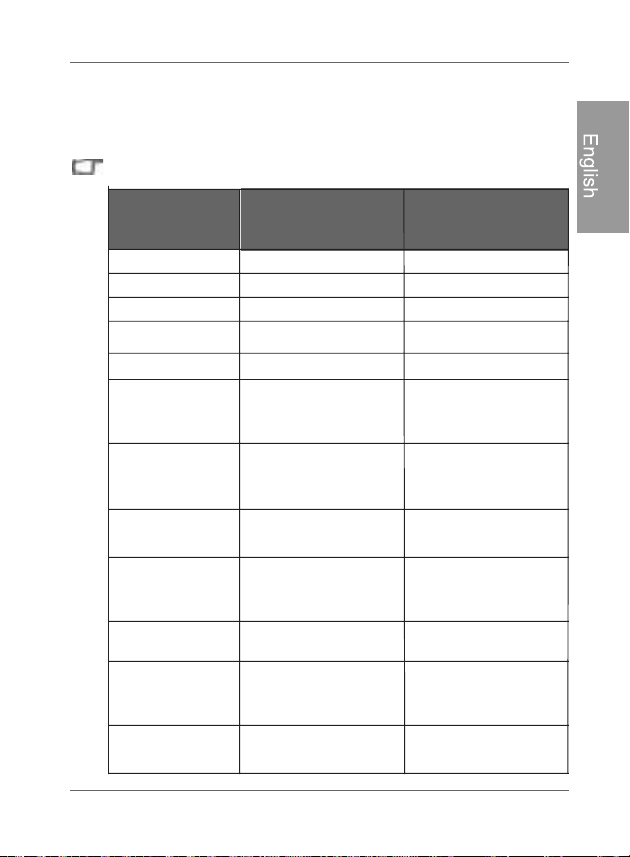
Specifications
Specifications are subject to change without prior notice.
LCD type 8” Digital LCD 10.4” Digital LCD
Backlight type LED LED
Aspect ratio 4:3 4:3
Screen
resolution
800 x 600 pixels 800 x 600 pixels
Brightness 250nits 300nits
Built-in internal
memory(fordata
storage)
Approximately 2GB Approximately 2GB
Supported
memory card
formats
SD, MMC, MS, MS
PRO, MS Duo and
xD
SD,MMC,MS,MS
PRO, MS Duo and
xD
Supported flash
drive
USB flash drive
(using the USB port)
USB flash drive
(using the USB port)
Supported
imagefileformat
JPEG,BMP,JPEG
Progressive and
EXIF
JPEG,BMP,JPEG
Progressive and
EXIF
Supported audio
file format
MP3, WMA,AACand
WAV
MP3,WMA,AAC and
WAV
Supported video
file format
Motion JPEG
(M-JPEG)/MPEG4/
H.264 (D1)
Motion JPEG
(M-JPEG)/MPEG4/
H.264 (D1)
USB port USB Host (Type-A) x
1, HS 2.0
USB Host (Type-A) x
1, HS 2.0
MODEL
SPF4480X/G7
SPF4480/G7
SPF4480T/G7
SPF4400X/G7
SPF4400/G7
SPF4400T/G7

Philips Digital PhotoFrame
Appendix
EN - 60
English
Mini USB port USB Device (Mini-B)
x1,HS2.0
USB Device (Mini-B)
x1,HS2.0
Memory card
slots
6-in-1 card slot 6-in-1 card slot
Speaker 0.5W x 2 0.5W x 2
IR receiver Yes Yes
Input power AC100-220V AC100-220V
Output power DC5V 2A DC5V 2A
Auto picture
rotation/angle
switch
Yes Yes
Clock/Calendar Yes Yes
Back stand Yes, foldable Yes, foldable
Language
support
English, French and
Spanish
English, French and
Spanish
Plug & Play
compatibility
Windows 7/XP/Vista/
2000, Mac OS X
Windows 7/XP/Vista/
2000, Mac OS X
Remote control
(IR)
Yes Yes
Interchangeable
Frame Capability
Yes Yes
Frame Wooden frame x 1 Wooden frame x 1
Paper mat Yes Yes
Bonus mat Double mat x 1 Doublemat x 1, Color
mat x 1
Model
SPF4480X/G7
SPF4480/G7
SPF4480T/G7
SPF4400X/G7
SPF4400/G7
SPF4400T/G7
Appendix EN - 61
Philips Digital PhotoFrame
English
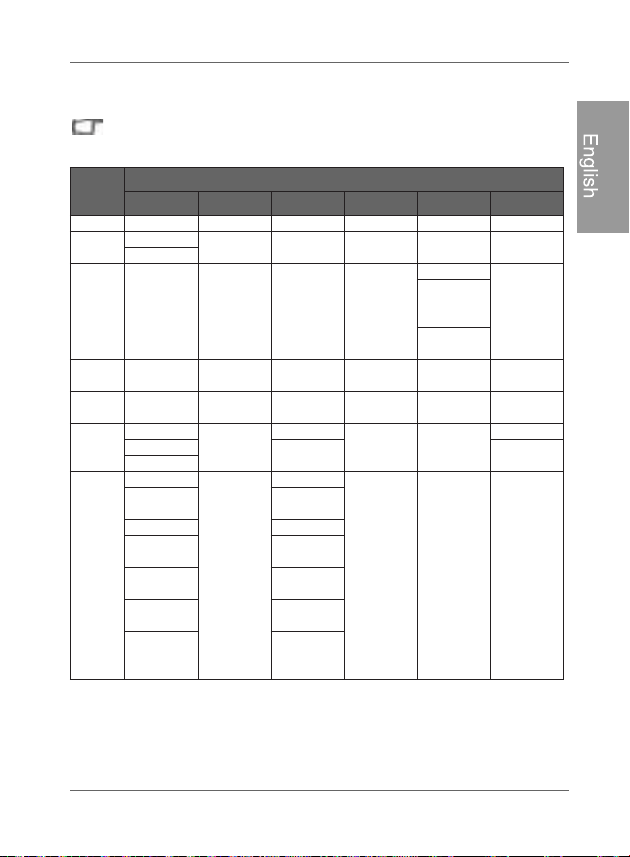
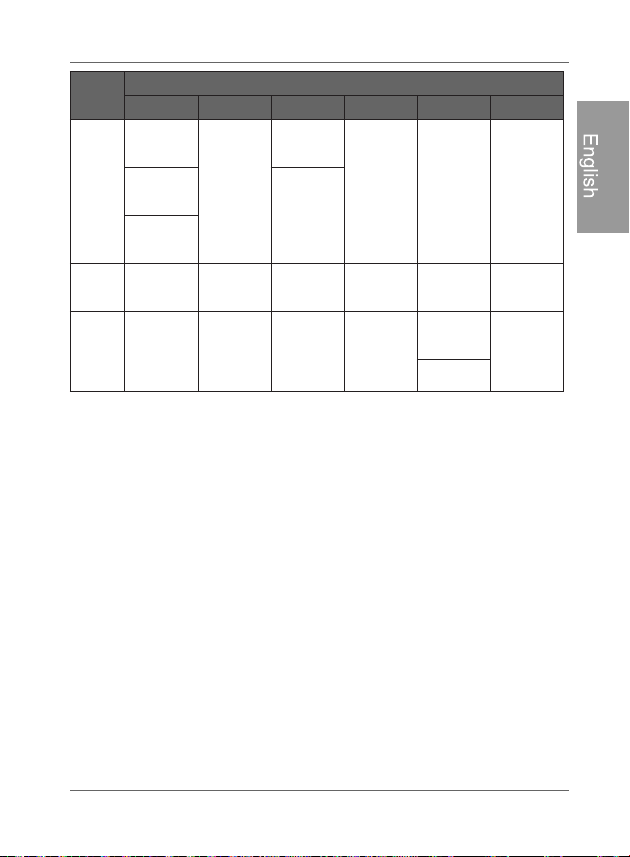
List of compatible memory cards
Not all supported memory cards are included in the table below. For
technical support, contact your nearest service center for assistance.
Capacity
Memory card formats
SD miniSD microSD MMC MS xD
8MB TOSHIBA
32MB
Kodak
Canon
64MB
LEXAR
SanDisk
(MS Pro
Duo)
SONY (MS
Pro Duo)
128MB Panasonic
SanDisk
(M2)
256MB SanDisk RIDATA
OLYMPUS
(M)
512MB
TwinMOS SanDisk
Transcend
FUJIFILM
TOSHIBA
Transcend Kodak (H)
PQI
1GB
Kingston
Panasonic
SanDisk
Transcend FUJIFILM
SanDisk
SanDisk
(Ultra II)
Transcend Transcend
A-DATA
(80X)
TOSHIBA
RIDATA
(66X)
A-DATA
APACER
(60X)
Kingston
Panasonic
(SDHC
Class 4)
Adapter

Philips Digital PhotoFrame
Appendix
EN - 62
English
2GB
Panasonic
(SDHC
Class 4)
Stargem
Silicon
Power
OLYMPUS
(M+)
Panasonic
(SDHC
Class 2)
Panasonic
Kingston
OLYMPUS
(M)
SanDisk Transcend
FUJIFILM
(H)
Transcend A-DATA
TOSHIBA PQI
A-DATA
SanDisk
APACER
(60X)
SanDisk
Silicon
Power
(Ultima II
80X)
4GB
Kingston
(SDHC
Class 6)
Transcend SanDisk
SanDisk
(MS Pro HG
Duo)
A-DATA
(SDHC
Class 6)
SONY (MS
Pro Duo)
Silicon
Power
(SDHC
Class 6)
SanDisk
(MS Pro
Duo)
TOSHIBA
(SDHC
Class 4)
RIDATA
(SDHC
Class 6)
Capacity
Memory card formats
SD miniSD microSD MMC MS xD
Appendix EN - 63
Philips Digital PhotoFrame
English
8GB
A-DATA
(SDHC
Class 6)
Kingston
Transcend
(SDHC
Class 6)
SanDisk
Kingston
(SDHC
Class 6)
16GB
Transcend
(SDHC
Class 6)
TOSHIBA
SanDisk
(MS Pro
Duo)
32GB
SONY (MS
Pro Duo
Mark2)
SONY (MS
Pro Duo)
Capacity
Memory card formats
SD miniSD microSD MMC MS xD

Philips Digital PhotoFrame
Appendix
EN - 64
English
<Memo>

Copyright ES - i
PhotoFrame digital Philips
Español
Copyright
Ninguna parte de esta publicación puede ser reproducida,
transmitida, transcripta, almacenada en un sistema de
recuperación o traducida a ningún idioma o lenguaje informático
de ninguna forma ni con ningún método, ya sea éste electrónico,
mecánico, magnético, óptico, químico, manual o cualquier otro,
sin el consentimiento previo por escrito de la empresa.
Limitación de responsabilidad
La empresa no otorga garantía alguna, de manera explícita o
implícita, con respecto al contenido de este documento y
renuncia expresamente a cualquier garantía, comerciabilidad o
adecuación para un propósito en particular. Además, la empresa
se reserva el derecho de revisar esta publicación y realizar
modificaciones periódicamente en el contenido de este
documento sin la obligación de notificar a nadie sobre dichos
cambios o revisiones.
Instrucciones de seguridad
Antes de utilizar el PhotoFrame, lea detenidamente y siga las
instrucciones que aparecen a continuación.
Conserve este manual del usuario para consulta futura.
Antes de utilizar el producto, lea detenidamente las
instrucciones de seguridad y funcionamiento. Se deberán
tener en cuenta todas las instrucciones que aparecen en el
producto y en las instrucciones de funcionamiento.
No coloque este producto bajo la luz solar directa o cerca de
fuentes de calor, por ejemplo en un automóvil cerrado ubicado al
sol o en una ubicación cercana a una estufa. La cubierta exterior
del producto podría deformarse y los sofisticados sensores
internos podrían sufrir daños causados por el calor excesivo.
No utilice este producto cerca del agua o bajo la lluvia ni
permita que ingresen líquidos al mismo. El agua y la humedad
podrían causar cortocircuitos de los componentes electrónicos
y provocar un funcionamiento defectuoso.

PhotoFrame digital Philips
Instrucciones de seguridad
ES - ii
Español
No utilice este producto cerca de fuentes electromagnéticas
potentes, tales como un horno a microondas. La interferencia
electromagnética podría causar un funcionamiento defectuoso
de este producto.
No deje caer el producto ni lo someta a impactos/vibraciones.
Los impactos fuertes podrían dañar los componentes internos.
No inserte en las ranuras para tarjetas de memoria de este
producto objetos que no sean las tarjetas de memoria
compatibles. Los objetos extraños podrían dañar fácilmente
los contactos metálicos ubicados en el interior de las ranuras.
No utilice un adaptador de alimentación desconocido o que no
sea el que se suministra con el PhotoFrame. La conexión del
producto a un adaptador de alimentación desconocido es
sumamente peligrosa y podría causar un incendio o explosión.
No corte, doble, modifique, coloque objetos pesados encima
ni pise el cable del adaptador de alimentación. De lo contrario,
podría dañarse el aislamiento externo y ello derivar en un
cortocircuito o incendio.
Si existieran olores extraños o calor provenientes de este
producto u otro signo de funcionamiento defectuoso, desconecte
de inmediato el PhotoFrame de la alimentación y póngase en
contacto con el distribuidor para su inspección o servicio técnico.
Utilice un paño suave para limpiar la superficie de la pantalla.
No utilice limpiadores líquidos o limpiadores para vidrios.
Si ingresara al producto una sustancia extraña o agua,
apáguelo de inmediato y desconecte el adaptador de
alimentación. Luego, extraiga la sustancia extraña o el agua y
envíe el producto al centro de servicio técnico más cercano.
No intente desarmar ni modificar el producto. No existen
piezas dentro del producto que el usuario pueda reparar, y
cualquier modificación no autorizada anulará la garantía.
A pesar de que el panel LCD está fabricado con tecnología de
alta precisión y posee un 99,99% o más de píxeles efectivos,
es posible que aparezcan de manera constante en el panel
LCD puntos de luz negros o brillantes (rojos, azules o verdes).
Ésta es una característica estructural del panel LCD y no
representa un funcionamiento defectuoso.

Tabla de contenido ES - iii
PhotoFrame digital Philips
Español
Tabla de contenido
Características principales . . . . . . . . . . . . . . . . . . . . . . . . . . . 1
Elementos incluidos en la caja . . . . . . . . . . . . . . . . . . . . . . . . 2
Generalidades. . . . . . . . . . . . . . . . . . . . . . . . . . . . . . . . . . . . . . 3
Vista derecha . . . . . . . . . . . . . . . . . . . . . . . . . . . . . . . . . . . . . 3
Vista posterior . . . . . . . . . . . . . . . . . . . . . . . . . . . . . . . . . . . . 5
Funcionamiento del PhotoFrame. . . . . . . . . . . . . . . . . . . . . . 6
Utilización de los botones de control . . . . . . . . . . . . . . . . . . . 7
Utilización del control remoto . . . . . . . . . . . . . . . . . . . . . . . . . 8
Reemplazo de la pila del control remoto . . . . . . . . . . . . . 10
Comienzo. . . . . . . . . . . . . . . . . . . . . . . . . . . . . . . . . . . . . . . . . 12
Paso 1: Utilización del pedestal trasero ajustable . . . . . . . . 12
Paso 2: Conexión de la alimentación eléctrica. . . . . . . . . . . 14
Paso 3: Primer uso. . . . . . . . . . . . . . . . . . . . . . . . . . . . . . . . 15
Paso 4: Configuración básica. . . . . . . . . . . . . . . . . . . . . . . . 15
Selección de un idioma . . . . . . . . . . . . . . . . . . . . . . . . . . 15
Configuración de la fecha y hora. . . . . . . . . . . . . . . . . . . 16
Paso 5: Inserción de una tarjeta de memoria o unidad flash
USB . . . . . . . . . . . . . . . . . . . . . . . . . . . . . . . . . . . . . . . . . . . 17
Formatos de tarjetas de memoria compatibles . . . . . . . . 18
Paso 6: Cómo copiar fotografías y/o música a la memoria
interna . . . . . . . . . . . . . . . . . . . . . . . . . . . . . . . . . . . . . . . . . 19
Paso 7: Conexión del PhotoFrame a una computadora. ... . 20
Paso 8: Reemplazo de la esterilla de papel. . . . . . . . . . . . . 21
Utilización del menú principal. . . . . . . . . . . . . . . . . . . . . . . . 23
Gestión de las fotografías . . . . . . . . . . . . . . . . . . . . . . . . . . . 25
Copiado manual de fotografías a la memoria interna . . . . . 25
Rotulación de fotografías en un álbum. . . . . . . . . . . . . . . . . 28
Remoción de fotografías de un álbum. . . . . . . . . . . . . . . 30
Gestión de las fotografías utilizando el álbum
CRONOGRAMA . . . . . . . . . . . . . . . . . . . . . . . . . . . . . . . 31

PhotoFrame digital Philips
Tabla de contenido
ES - iv
Español
Creación de un nuevo álbum . . . . . . . . . . . . . . . . . . . . . . . . .....33
Modificación de un álbum. . . . . . . . . . . . . . . . . . . . . . . . . . ...... 34
Eliminación de un álbum . . . . . . . . . . . . . . . . . . . . . . . . . . ...... 35
Utilización de otras opciones en el menú ÁLBUM DE
FOTOGRAFÍAS . . . . . . . . . . . . . . . .. . . . . . . .. . . . . . . .. . . . 35
Eliminación de fotografías . . . . . . . . . . . . . . . . . . . . . . . . 35
Rotación de fotografías . . . . . . . . . . . . . . . . . . . . . . . . . . 36
Aplicación de efectos fotográficos . . . . . . . . . . . . . . . . . . 37
Visualización de fotografías . . . . . . . . . . . . . . . . . . . . . . . . . 38
Ejecución de una presentación de diapositivas utilizando el
álbum CRONOGRAMA . . . . . . . . . . . . . . . . . . . . . . . . . . . . 40
Utilización del inteligente de energía
TM
. . . . .. . . . . . . . . . . . 41
Utilización de RELOJ (botón de acceso a EZ). . . . . . . . . . . 43
Selección de un tema del reloj . . . . . . . . . . . . . . . . . . . . . . . 43
Conmutación entre Vista de reloj y Vista de presentación. . 44
Configuración de una alarma . . . . . . . . . . . . . . . . . . . . . . . . 45
Utilización del ÁLBUM DE RECORTES . . . . . . . . . . . . . . . . 47
Utilización del CENTRO DE MEDIOS. . . . . . . . . . . . . . . . . . . 49
Visualización de videos . . . . . . . . . . . . . . . . . . . . . . . . . . . . 49
Reproducción de música . . . . . . . . . . . . . . . . . . . . . . . . . . . 51
Utilización de CONFIGURACIÓN. . . . . . . . . . . . . . . . . . . . . . 53
Página de Fecha y hora . . . . . . . . . . . . . . . . . . . . . . . . . . . . 54
Página Configuración general . . . . . . . . . . . . . . . . . . . . . . . 55
Página de información . . . . . . . . . . . . . . . . . . . . . . . . . . . . . 56
Preguntas frecuentes . . . . . . . . . . . . . . . . . . . . . . . . . . . . . . . 57
Regulación y cumplimiento . . . . . . . . . . . . . . . . . . . . . . . . . . 60
Reciclaje. . . . . . . . . . . . . . . . . . . . . . . . . . . . . . . . . . . . . . . . 60
Apéndice . . . . . . . . . . . . . . . . . . . . . . . . . . . . . . . . . . . . . . . . . 61
Especificaciones. . . . . . . . . . . . . . . . . . . . . . . . . . . . . . . . . . 61
Lista de tarjetas de memoria compatibles . . . . . . . . . . . . . . 63

Características principales ES - 1
PhotoFrame digital Philips
Español
Estimado cliente:
Gracias por adquirir nuestro PhotoFrame digital Philips para su
hogar. Este producto le permitirá visualizar su biblioteca de
imágenes digitales en crecimiento con una calidad asombrosa, y
además compartir estupendos recuerdos con amigos y familiares.
Para aprovechar al máximo su nuevo producto Philips
, lea
detenidamente todo este manual del usuario antes de utilizarlo.
Características principales
El PhotoFrame tiene las siguientes características:
Pantalla nítida y brillante.
Le permite exhibir fotografías que estén almacenadas en la
memoria interna, una tarjeta de memoria o una unidad flash USB.
Le permite reproducir música y videos que estén
almacenados en la memoria interna, una tarjeta de memoria o
una unidad flash USB.
Reproducción de video instantánea desde su camcorder USB
portátil. Simplemente conecte el dispositivo, diríjase a CENTRO
DE MEDIOS y elija USB como fuente de la reproducción.
Le permite seleccionar una opción de ahorro de energía
preferida para el PhotoFrame utilizando la función
Economizador inteligente de energía
TM
.
Le permite utilizar álbumes para administrar y ordenar sus
fotografías con facilidad.
Le permite exhibir fotografías en forma de presentación de
diapositivas utilizando diversos tipos de plantillas disponibles
en el ÁLBUM DE RECORTES.
Incluye menús de información en pantalla (OSD, por sus
siglas en inglés) en varios idiomas.
Funciones de reloj, alarma y calendario.
Nuestro PhotoFrame es compatible con la mayoría de los
camcorders USB para permitir la reproducción plug & play. Si su
camcorder no es compatible transfiera los archivos de video a una
tarjeta SD o una unidad USB como alternativa.
PhotoFrame digital Philips
Elementos incluidos en la caja
ES - 2
Español
Elementos incluidos en la caja
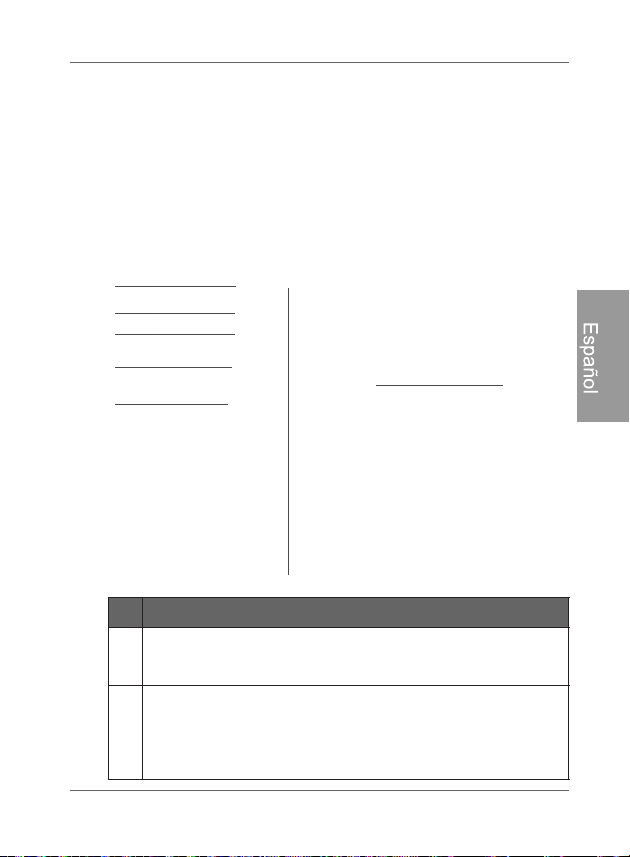
Abra con cuidado la caja y asegúrese de que contenga los
siguientes elementos.
1. PhotoFrame digital x 1
2. Adaptador de alimentación de CA x 1
3. Control remoto magnético (incluye pila de litio CR2025) x 1
4. Cable USB x 1
5. Guía de inicio rápido x 1
6. Manual del usuario x 1
7. Tarjeta de registro x 1
8. Tarjeta de garantía x 1
/DDSDULHQFLDUHDOGHOSURGXFWRSXHGHYDULDUGHDTXHOODTXHDSDUHFH
HQODVLOXVWUDFLRQHVGHHVWHPDQXDOGHOXVXDULR
/RVDFFHVRULRVGLVSRQLEOHVSRGUtDQYDULDUHQIXQFLyQGHOiUHDHQOD
TXHVHDGTXLHUDHO PhotoFrame
Generalidades ES - 3
PhotoFrame digital Philips
Español
Generalidades
Vista derecha
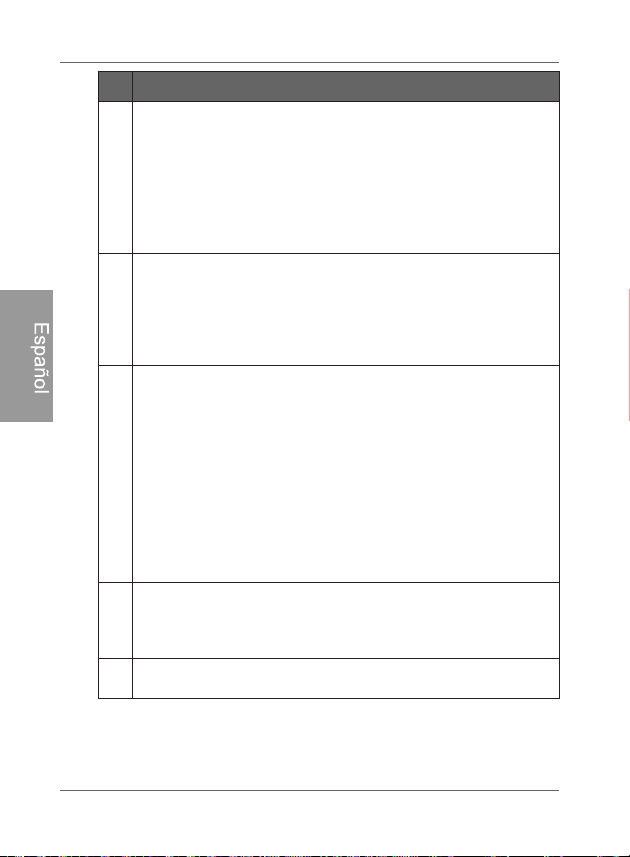
No. Descripción
1
Ped
estal trasero ajustable
Para obtener más información, consulte "Paso 1:
Ut
ilización del pedestal trasero ajustable" en página 12.
2
Bo
tón de encendido
Para encender/apagar el PhotoFrame presione el Botón
de encendido. Para obtener más información, consulte
"Paso 2: Conexión de la alimentación eléctrica" en página
14.
2
3
4
5
6
1
7
PhotoFrame digital Philips
Generalidades
ES - 4
Español
3
Puerto USB
Permite insertar una unidad flash USB.
Reproduzca fotografías, música o videos almacenados
en la unidad insertada.
Copie fotografías o música desde la unidad insertada al
PhotoFrame. Para obtener más información, consulte
"Paso 6: Cómo copiar fotografías y/o música a la
m
emoria interna" en página 19.
4
Pu
erto mini USB
Le permite conectar el PhotoFrame a una computadora
para administrar los archivos presentes en la memoria
interna del mismo. Para obtener más información, consulte
"Paso 7: Conexión del PhotoFrame a
una computadora"
en página 20.
5
Ran
ura para tarjetas de memoria
Permite tarjetas de memoria SD
™
/SDHC
™
,
MultiMediaCard
™
(MMC), Memory Stick
™
(MS), Memory
Stick PRO
™
(MS PRO), Memory Stick Duo
™
(MS Duo) y
xD-Picture Card
™
(xD).
Reproduzca fotografías, música o videos almacenados
en la tarjeta insertada.
Copie fotografías o música desde la tarjeta insertada al
PhotoFrame. Para obtener más información, consulte
"Paso 6: Cómo copiar fotografías y/o música a la
m
emoria interna" en página 19.
6
Co
nector hembra de alimentación eléctrica
Conecte un extremo del adaptador de alimentación CA al
conector de alimentación y enchufe el otro extremo a un
tomacorriente.
7
Almacenamiento del control remoto
Zona magnética para colocar el control remoto.
No. Descripción
Generalidades ES - 5
PhotoFrame digital Philips
Español
Vista posterior
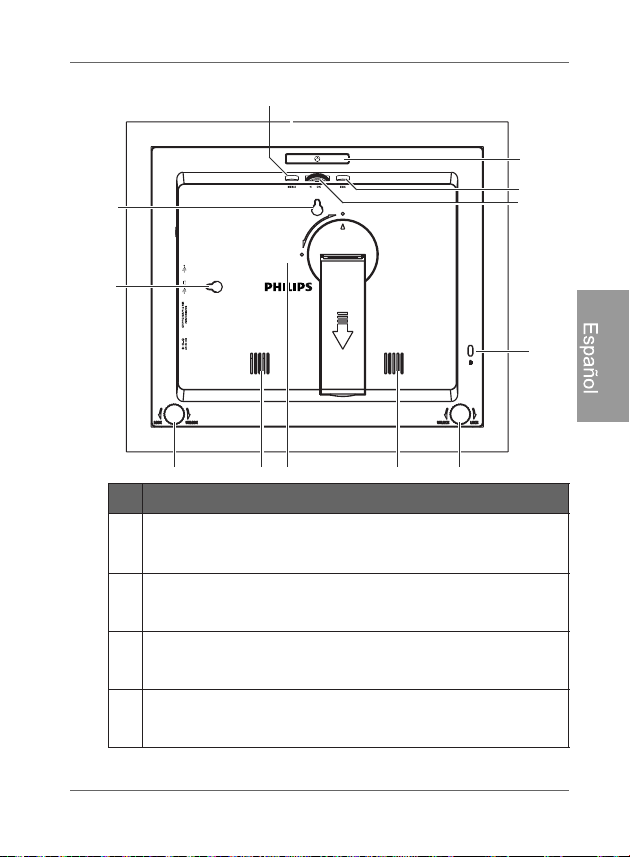
No. Descripción
1
Bo
tón MENÚ
Para obtener más información, consulte "Utilización de los
bot
ones de control" en página 7.
2
Bo
tón de encendido
Para obtener más información, consulte "Utilización de los
bot
ones de control" en página 7.
3
B
otón ESC (botón ESCAPE)
Para obtener más información, consulte "Utilización de los
bot
ones de control" en página 7.
4
Bo
tón Rueda de desplazamiento / OK
Para obtener más información, consulte "Utilización de los
botones de control" en página 7.
1
2
3
4
5
6
7
8
9
7
6
10

PhotoFrame digital Philips
Operación del PhotoFrame
ES - 6
Español
Operación del PhotoFrame
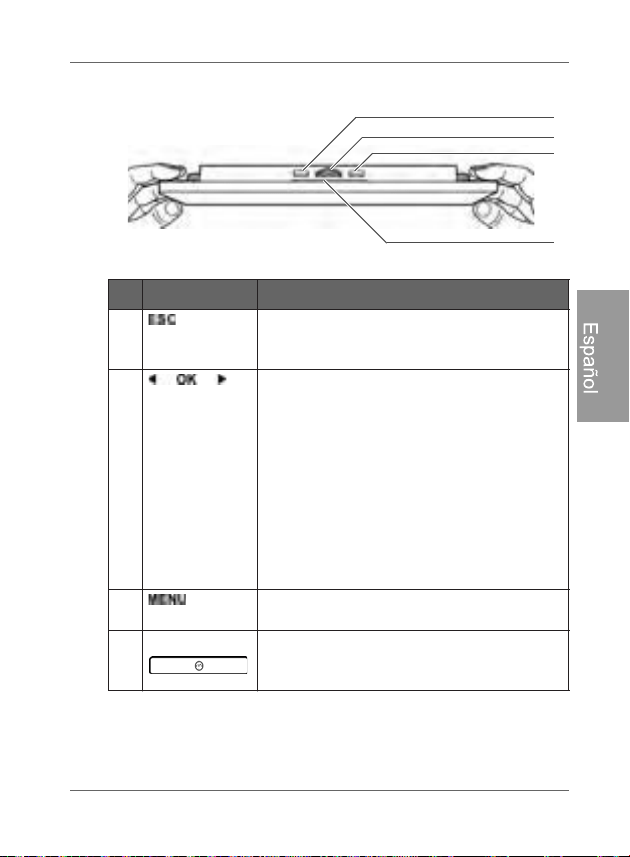
Para operar el PhotoFrame se puede utilizar los botones de
control ubicados en la parte posterior o en el control remoto
suministrado.
En este manual del usuario, las instrucciones o ejemplos
proporcionados se basan en la utilización del control remoto. Para
obtener más información sobre cómo utilizar los botones de control,
consulte "Utilización de los botones de control" en página 7.
5
Ranura de seguridad Kensington
®
Puede colocar en esta ranura un cable con un candado
antirrobo Kensington
®
para evitar posibles robos.
6
Sistema de candado EZ
Se pueden utilizar los tornillos del candado EZ para
bloquear o desbloquear el marco de madera.
7
Altavoces
Reproducen el sonido.
8
Orificio para montaje en pared (para montaje apaisado
en pared)
Le permite colgar el PhotoFrame horizontalmente en una
pared.
9
Orificio para montaje en pared (para montaje vertical en
pared)
Le permite colgar el PhotoFrame verticalmente en una pared.
10
Almacenamiento del control remoto
Zona magnética para colocar el control remoto.
No. Descripción
Operación del PhotoFrame ES - 7
PhotoFrame digital Philips
Español
Utilización de los botones de control
No. Icono Descripción
1
Bo
tón ESC (botón ESCAPE)
Cancela la operación en curso y/o regresa
a la página anterior.
2
Botón Rueda de desplazamiento / OK
Presione este botón para ingresar o
confirmar su operación/selección.
Deslice este botón hacia la izquierda
para desplazarse hacia la izquierda/
arriba, o seleccionar el elemento
anterior.
Deslice este botón hacia la derecha
para desplazarse hacia la derecha/
abajo, o seleccionar el elemento
siguiente.
3
Botón MENÚ
Exhibe el menú emergente.
4
Botón de acceso a EZ
Conmuta entre Vista de reloj y Vista de
presentación.
1
2
3
4
PhotoFrame digital Philips
Operación del PhotoFrame
ES - 8
Español
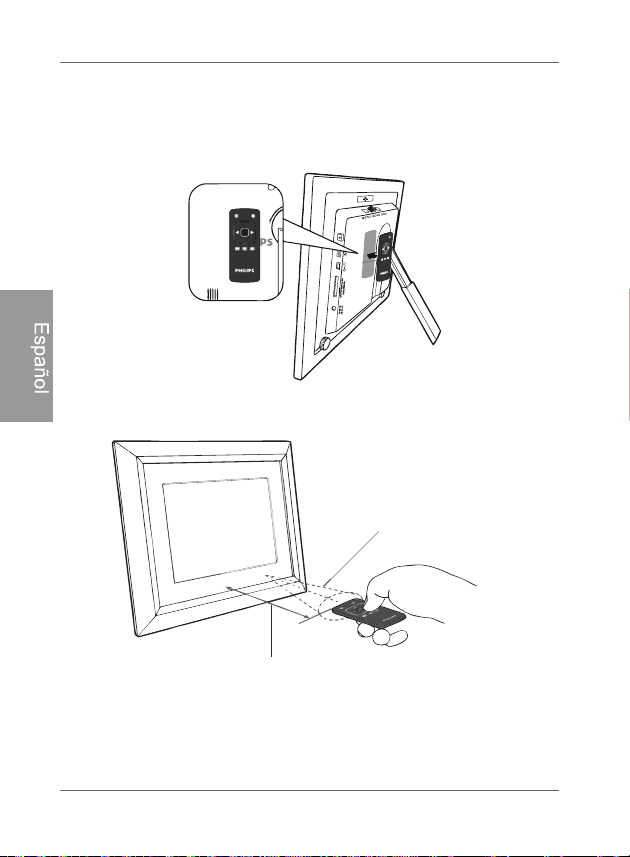
Utilización del control remoto
El control remoto suministrado es magnético. Con su refuerzo
magnético, usted puede guardar el control remoto de manera
segura en la zona indicada mostrada más abajo.
El PhotoFrame tiene un sensor de control remoto integrado
detrás de la esterilla de papel.
Máximo ángulo vertical y
horizontal aproximadamente
30 grados
Aproximadamente 1,4 m (4,6 pies) o menos
OK
ESC
MENU
Operación del PhotoFrame ES - 9
PhotoFrame digital Philips
Español
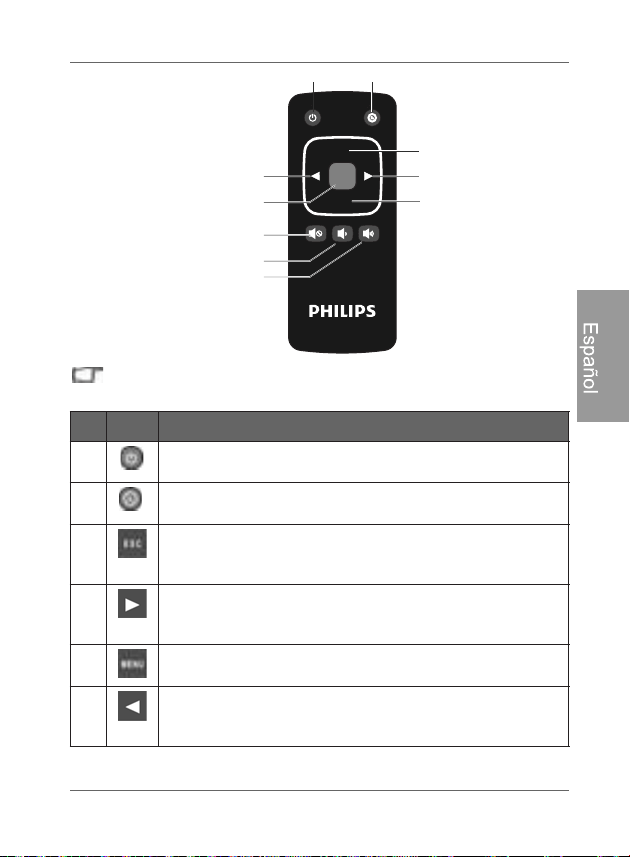
Antes de utilizar el control remoto por primera vez, extraiga la tira
plástica ubicada debajo de la pila.
No. Icono Descripción
1
E
NCENDIDO/APAGADO
Activa/desactiva el aparato.
2
Botón de acceso a EZ
Conmuta entre Vista de reloj y Vista de presentación.
3
ESC (ESCAPE)
Retorna a la página anterior y/o accede a la página del
menú.
4
DERECHA/ABAJO
Desplaza hacia la derecha o abajo, o desplaza hacia el
elemento siguiente.
5
Menú
Exhibe el menú emergente.
6
IZQUIERDA/ARRIBA
Desplaza hacia la izquierda o arriba, o desplaza hacia
elemento anterior.
OK
ESC
MENU
1 2
3
4
5
6
8
9
7
10

PhotoFrame digital Philips
Operación del PhotoFrame
ES - 10
Español
Reemplazo de la pila del control remoto
1. En la parte trasera del control remoto, presione la perilla de
bloqueo ubicada a la derecha.
2. Extraiga el soporte de la pila.
3. Coloque la pila nueva en el soporte. Se deberá colocar la pila
con el polo positivo hacia arriba, tal como muestra la
ilustración que aparece más abajo.
7
OK
Confirma su selección.
8
SILENCIAR
Activa/desactiva el modo Silenciar.
9
AUMENTAR VOLUMEN
Reduce el volumen.
10
REDUCIR VOLUMEN
Aumenta el volumen.
No. Icono Descripción
El polo positivo
apunta hacia
arriba

Operación del PhotoFrame ES - 11
PhotoFrame digital Philips
Español
4. Deslice el soporte de la pila hacia el control remoto.
6LQRVHUHHPSOD]DODSLODGHIRUPDFRUUHFWDHVWRSRGUtD
RFDVLRQDUOHGDxRV
6yORXWLOLFHHOWLSRHVSHFLILFDGRGHEDWHUtD
5HFLFOHRGHVHFKHODVSLODVXVDGDVDGHFXDGDPHQWHGHDFXHUGRFRQ
ODVGLUHFWLYDV\UHJXODFLRQHVORFDOHV
/DVEDWHUtDVVRQDOWDPHQWHLQIODPDEOHVPDQWpQJDODVDOHMDGDVGHO
FDORURKXPHGDGH[FHVLYRV
6LODEDWHUtDHVWiWRWDOPHQWHDJRWDGDRVLQRYDDHVWDUHQXVR
GXUDQWHXQSHUtRGRGHWLHPSRSURORQJDGRUHWtUHODSDUDHYLWDU
SpUGLGDV
PhotoFrame digital Philips
Comienzo
ES - 12
Español
Comienzo
Paso 1: Utilización del pedestal
trasero ajustable
1. Retire suavemente el pedestal trasero tal como se muestra a
continuación.
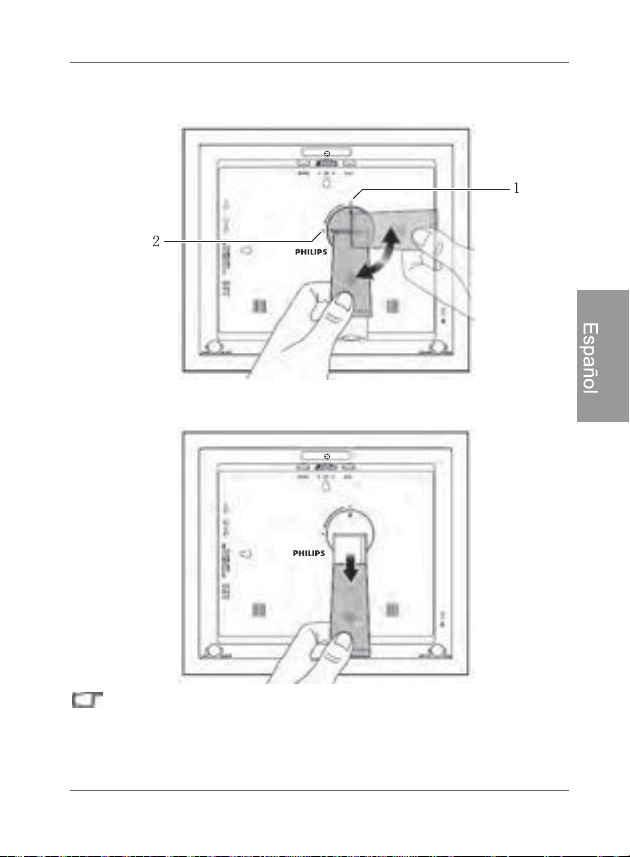
Comienzo ES - 13
PhotoFrame digital Philips
Español
2. Para colocar el PhotoFrame horizontal o verticalmente, se
puede girar el pedestal trasero alineando la marca triangular
con los puntos redondeados (1 o 2).
3. Retire el pedestal trasero y ajuste de acuerdo con el ángulo de
visión preferido.
6HUHFRPLHQGDFRORFDUHOPhotoFrame GHIRUPDKRUL]RQWDOGHELGR
DTXHHVWDRULHQWDFLyQSURSRUFLRQDODPHMRUH[SHULHQFLDGH
YLVXDOL]DFLyQ\XWLOL]DFLyQ
8WLOL]DQGRORVDJXMHURVSDUDPRQWDMHHQSDUHGXVWHGSXHGHFROJDU
HOPhotoFrameKRUL]RQWDORYHUWLFDOPHQWHHQODSDUHG
PhotoFrame digital Philips
Comienzo
ES - 14
Español
Paso 2: Conexión de la alimentación
eléctrica
1. Coloque el PhotoFrame sobre una superficie plana.
2. Conecte el adaptador de alimentación eléctrica tal como se
indica a continuación (1), y presione el Botón de encendido
para activar el PhotoFrame (2).
/RVVLVWHPDVGHDOLPHQWDFLyQHOpFWULFD\ORVWLSRVGHHQFKXIH
SXHGHQYDULDUGHDFXHUGRFRQVXSDtVUHJLyQ
3DUDDSDJDUHOPhotoFrameSUHVLRQHHO%RWyQGHHQFHQGLGR
Comienzo ES - 15
PhotoFrame digital Philips
Español
Paso 3: Primer uso
Para ayudarle a aprovechar al máximo su PhotoFrame,
instalamos un tutorial de video que se comienza a reproducir
automáticamente cuando usted enciende su aparato por primera
vez. Para cancelar el video repetitivo y comenzar a reproducir sus
propias fotografías, presione alguno de los botones de la parte
trasera. Siga el proceso de cinco pasos para familiarizarse con la
manera en que funcionan los botones de control. Este sencillo
proceso queda automáticamente deshabilitado luego del primer
uso. Usted puede activar el tutorial yendo a CONFIGURACIÓN.
Paso 4: Configuración básica
Seleccione un idioma y configure la fecha y la hora durante el
primer uso del PhotoFrame.
Selección de un idioma
1. En el menú principal, presione o para seleccionar
CONFIGURACIÓN , y luego presione .
2. Presione .
Aparecerá la página Configuración general.
PhotoFrame digital Philips
Comienzo
ES - 16
Español
3. Presione , presione para pasar a Idioma, y luego
presione de nuevo.
4. Presione o para seleccionar un idioma que desee
utilizar, y luego presione .
5. Presione para salir.
Configuración de la fecha y hora
1. En el menú principal, presione o para seleccionar
CONFIGURACIÓN , y luego presione .
Aparecerá la página Fecha y hora.
2. Presione para resaltar el campo Año, presione o
para seleccionar un año, y luego presione para
confirmar la configuración.
3. Presione para pasar al campo Mes, presione para
resaltarlo, presione o para seleccionar un mes, y
luego presione para confirmar la configuración.
4. Repita el Paso 3 para los campos restantes, entre ellos Fecha,
Hora, Minuto, Modo, Zona horaria actual y Segunda zona
horaria.
5. Presione para salir.
Comienzo ES - 17
PhotoFrame digital Philips
Español
Paso 5: Inserción de una tarjeta de
memoria o unidad flash USB
Usted puede encender el PhotoFrame y reproducir las
fotografías preinstaladas en la memoria interna sin tarjeta de
memoria o unidad flash USB insertadas.
Para reproducir sus propios archivos, inserte una tarjeta de
memoria o unidad flash USB compatible y que contenga archivos
admitidos en la ranura correspondiente del PhotoFrame, tal
como se ilustra a continuación.
Para obtener más información sobre los formatos de archivo
admitidos, consulte "Especificaciones" en página 61.
SD/SDHC Tarjeta
MultimediaCard
Memory Stick Memory Stick
PRO
Tarjeta
xD-Picture
Memory Stick
Duo
Unidad flash
USB
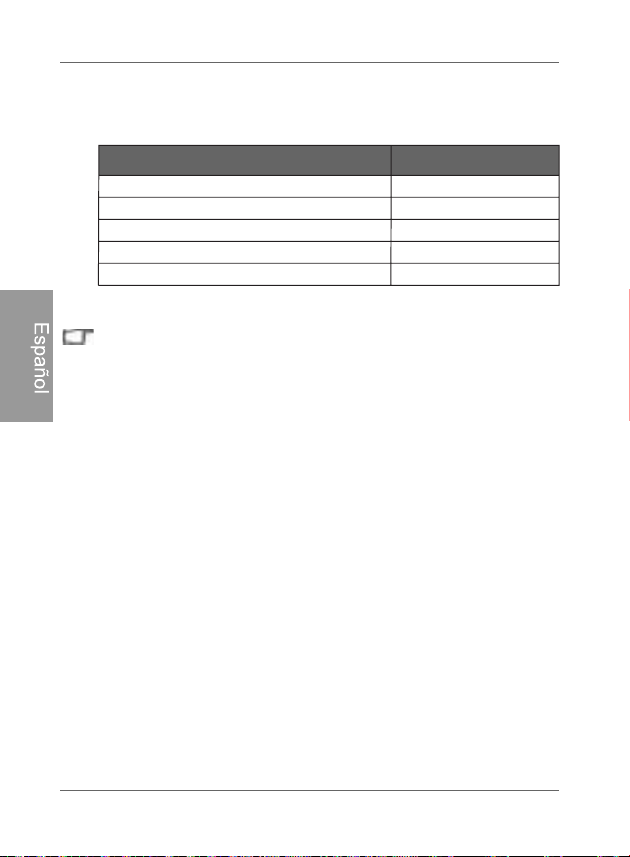
PhotoFrame digital Philips
Comienzo
ES - 18
Español
Formatos de tarjetas de memoria
compatibles
/DVHVSHFLILFDFLRQHVGHFDSDFLGDGPi[LPDTXHVHPHQFLRQDURQ
DQWHULRUPHQWHHVWiQVXMHWDVDFDPELRVVLQSUHYLRDYLVR
/DUDQXUDSDUDWDUMHWDVGHPHPRULDDGPLWHODIXQFLyQGH
LQWHUFDPELRHQFDOLHQWHKRWVZDS(QRWUDVSDODEUDVSXHGH
FDPELDURH[WUDHUODWDUMHWDGHPHPRULDVLQLPSRUWDUVLHO
PhotoFrameHVWiHQFHQGLGRRDSDJDGR
(OPhotoFrameHVFRPSDWLEOHFRQORVVLVWHPDVRSHUDWLYRV
:LQGRZV\0$&6LQHPEDUJRFXDQGRIRUPDWHHVXVWDUMHWDVGH
PHPRULDXWLOLFHVyORORVVLVWHPDVGHDUFKLYRV)$7\)$7HQ
:LQGRZV(OPhotoFrameQRHVFRPSDWLEOHFRQWDUMHWDVGH
PHPRULDIRUPDWHDGDVFRQHOVLVWHPDGHDUFKLYRV17)6RHOVLVWHPD
GHDUFKLYRVGH0$&
3DUDXWLOL]DUXQDWDUMHWDPLFUR6'XQPLQL6'RXQ0HPRU\6WLFN
0LFUR0VHUHTXLHUHXQDGDSWDGRUGHWDUMHWDV
Formatos de tarjeta de memoria Capacidad máxima
32 GB
Mult
iMediaCard (MMC) 1 GB
Memory Stick (MS) 4 GB
Tarjeta xD-Picture (xD) 2 GB
16 GB
SD/SDHC
Unidad flash USB
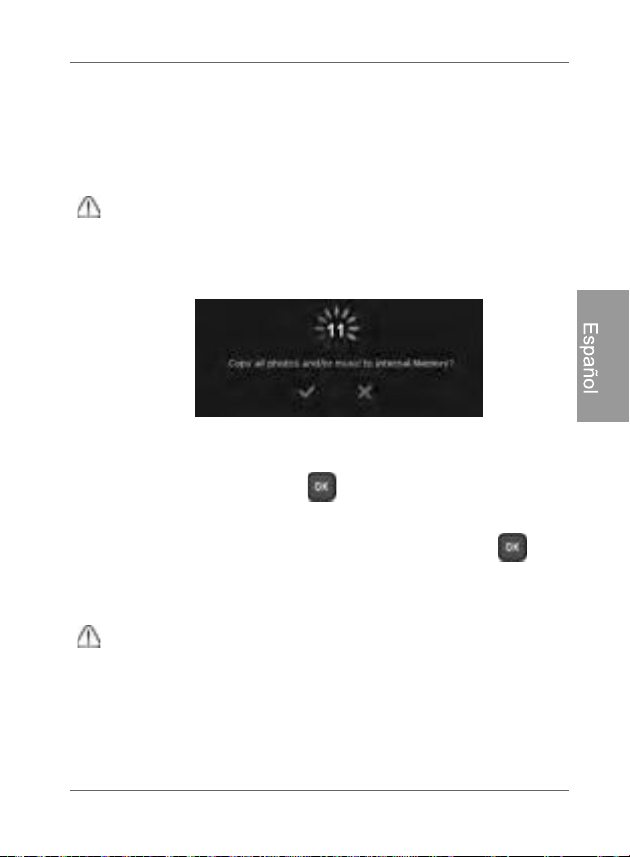
Comienzo ES - 19
PhotoFrame digital Philips
Español
Paso 6: Cómo copiar fotografías y/o
música a la memoria interna
Cuando inserte una tarjeta de memoria o una unidad flash USB,
se le pedirá que copie todas las fotografías y/o música a la
memoria interna.
Si “Copiado inteligente” se configura a “Redimensionar” en
“Configuración general”, las fotografías serán redimensionadas a la
definición de pantalla cuando sean copiadas a la memoria interna para
optimizar la capacidad de almacenamiento. Mantenga una copia de
las fotografías originales en su tarjeta de memoria o unidad flash USB.
Para copiar todas las fotografías y/o la música almacenadas
en la tarjeta de memoria (o en la unidad flash USB),
seleccione y presione para continuar.
Para ver las fotografías sin copiarlas al PhotoFrame,
seleccione la marca en forma de cruz y presione . El
PhotoFrame comenzará la reproducción automática de las
fotografías almacenadas en la tarjeta de memoria o unidad
flash USB insertadas.
1RH[WUDLJDODWDUMHWDGHPHPRULDRODXQLGDGIODVK86%DQWHVGH
que finalice el proceso de copiado.
6LORVDUFKLYRVTXHVHGHVHDFRSLDUGHVGHODWDUMHWDGHPHPRULDR
XQLGDGIODVK86%\DH[LVWHQHQODPHPRULDLQWHUQDGHOPhotoFrame,
serán sobrescritos cuando se seleccione
para continuar.
3DUDFRSLDUYLGHRVFRQHFWHVXPhotoFrame directamente a la PC
con el cable mini USB (incluido). Para obtener detalles consulte la
página siguiente.
PhotoFrame digital Philips
Comienzo
ES - 20
Español
Paso 7: Conexión del PhotoFrame
a una computadora
Usted puede conectar el PhotoFrame a una computadora
utilizando el cable mini USB (incluido) para administrar
sencillamente los archivos presentes en la memoria interna del
mismo.
1. Inicie la computadora y encienda el PhotoFrame.
2. Conecte el extremo más pequeño del cable USB al puerto
mini USB del PhotoFrame.
3. Conecte el otro extremo del cable USB a un puerto USB de la
computadora, asegurándose de que los conectores estén
debidamente insertados.
4. Una vez conectado, el PhotoFrame ingresará
automáticamente al modo de transferencia a la PC.
5. Cuando la computadora haya detectado el PhotoFrame, éste
aparecerá en “Mi PC” como “Disco extraíble”.
Ahora usted puede transferir libremente los archivos del
PhotoFrame tal como lo haría en otra unidad de disco.
8VWHGSXHGHFRSLDUIRWRVP~VLFDRYLGHRVGHVGHODFRPSXWDGRUDDO
PhotoFrame\YLFHYHUVD
/RVDUFKLYRVSUHVHQWHVHQODVWDUMHWDVGHPHPRULD\ODXQLGDGIODVK
86%QRSXHGHQVHUYLVXDOL]DGRVHGLWDGRVDWUDYpVGHXQDFRQH[LyQ
86%
3DUDFRSLDUYLGHRVDODPHPRULDLQWHUQDVHGHEHQWUDQVIHULUD
WUDYpVGHODFRQH[LyQDOD3&
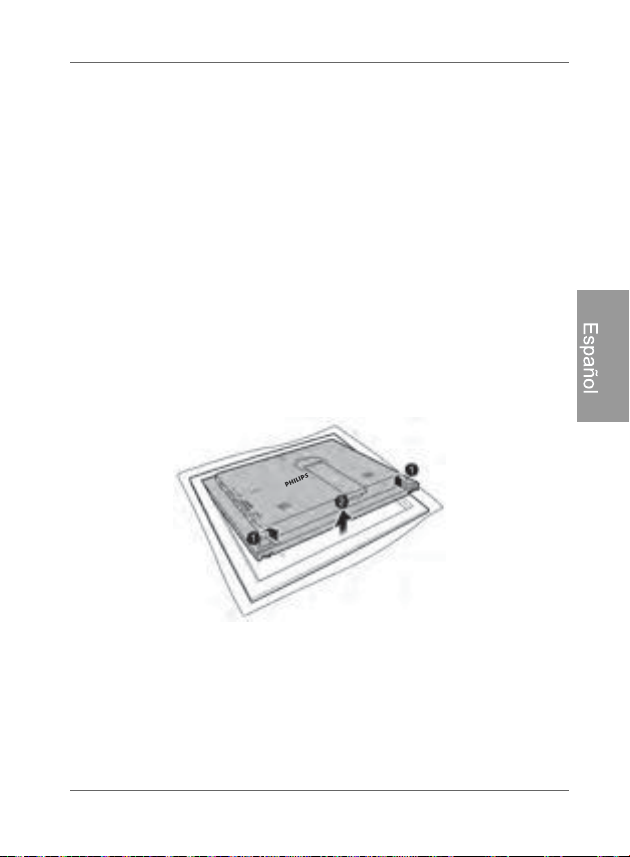
Comienzo ES - 21
PhotoFrame digital Philips
Español
Paso 8: Reemplazo de la esterilla de
papel
Su PhotoFrame puede venir con una o más esterillas de papel
de regalo según sea el modelo adquirido. Se puede reemplazar
la esterilla de papel existente con otra suministrada (si estuviera
disponible). Para reemplazar la esterilla de papel suministrada
siga las instrucciones listadas a continuación.
1. En una superficie plana, coloque cuidadosamente el
PhotoFrame sobre un paño suave apuntando hacia abajo.
Tenga cuidado de no rayar el aparato.
2. Gire los tornillos del candado EZ ubicados en la parte trasera
del PhotoFrame hacia la posición “desbloquear”, y luego
levante cuidadosamente el aparato desde el armazón de
madera.
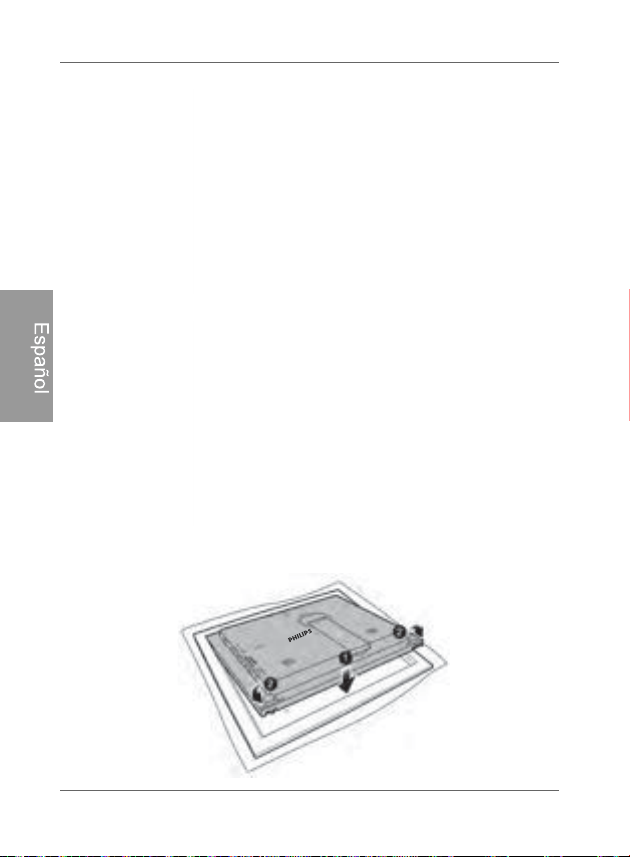
PhotoFrame digital Philips
Comienzo
ES - 22
Español
3. Retire la esterilla de papel existente.
4. Instale la esterilla de papel de regalo suministrada.
5. Instale el PhotoFrame en el marco de madera, y fíjelo apretando
los tornillos del candado EZ hacia la posición “BLOQUEO”.
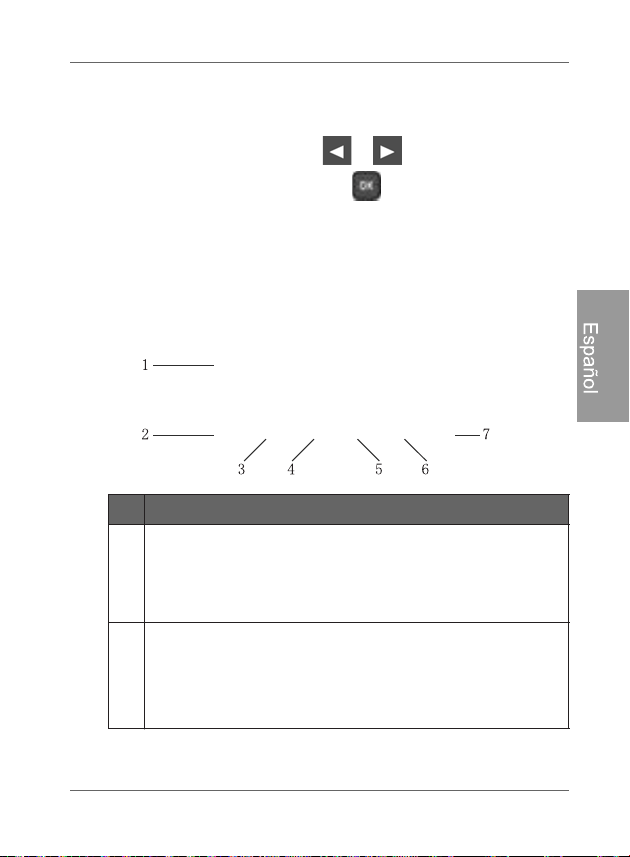
Utilización del menú principal ES - 23
PhotoFrame digital Philips
Español
Utilización del menú principal
Cuando se enciende el PhotoFrame, aparece el siguiente menú
principal. Se puede presionar o para seleccionar el
menú deseado, y luego presionar para ingresar al menú
seleccionado.
No. Descripción
1
Economizador
inteligente de energía
TM
.
Le permite seleccionar una opción de ahorro de energía
para el PhotoFrame.
Para obtener más información, consulte "Utilización del
Planif
icador automático de energía
TM
." en página 41.
2
RELOJ Y CALENDARIO
Le permite configurar sus temas del reloj favoritos.
Le permite configurar una alarma.
Para obtener más información, consulte "Utilización de
RELO
J (botón de acceso a EZ)" en página 43.
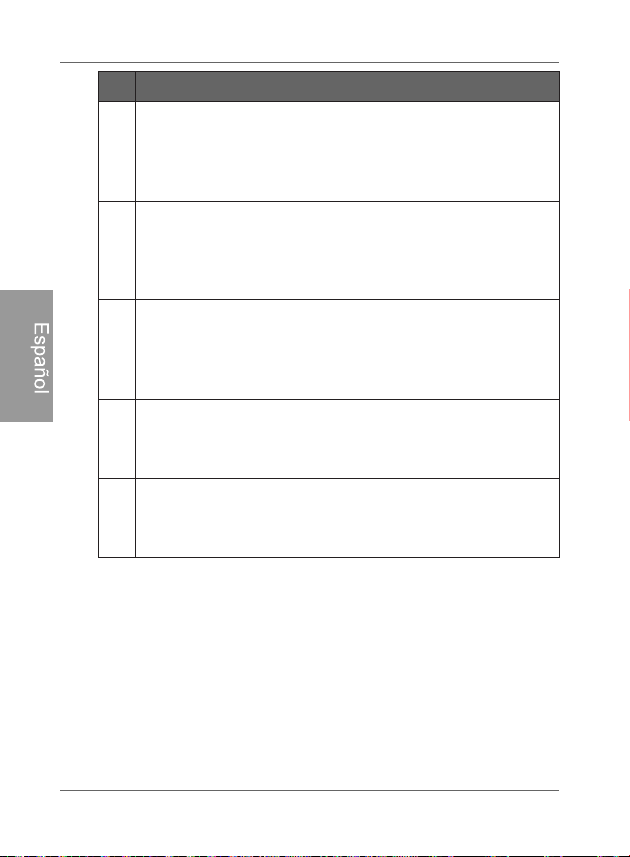
PhotoFrame digital Philips
Utilización del menú principal
ES - 24
Español
3
ÁLBUM DE RECORTES
Le permite exhibir las fotografías en el modo Presentación
de diapositivas con varias plantillas precargadas.
Para obtener más información, consulte "Utilización del
Álbum
de recortes" en página 47.
4
P
RESENTACIÓN DE DIAPOSITIVAS
Le permite exhibir las fotografías en el modo de
presentación de diapositivas.
Para obtener más información, consulte "Visualización de
fotografías" en página 38.
5
ÁL
BUM DE FOTOGRAFÍAS
Le permite administrar y clasificar sus fotos rotulándolas a
diversos álbumes.
Para obtener más información, consulte "Gestión de las
f
otografías" en página 25.
6
CE
NTRO DE MEDIOS
Le permite reproducir videos y música.
Para obtener más información, consulte "Utilización del
CENT
RO DE MEDIOS" en página 49.
7
CONF
IGURACIÓN
Le permite configurar los parámetros del PhotoFrame.
Para obtener más información, consulte "Utilización de
CO
NFIGURACIÓN" en página 53.
No. Descripción
PhotoFrame digital Philips
Gestión de las fotografías
ES - 26
Español
3. Seleccione Tarjeta de memoria y luego presione .
La pantalla muestra las fotografías contenidas en su tarjeta de
memoria.
4. Si hubiera más de una página, puede presionar o
para pasar a la página anterior o siguiente para revisar
fotografías. (De lo contrario, omita este paso.)
5. Presione para habilitar la marca de selección, que se
exhibirá en anaranjado.
6. Presione o para pasar a la fotografía que desea
seleccionar, y luego presione para confirmar la selección.
La fotografía seleccionada tendrá una marca de selección
verde.
Repita el paso 6 para seleccionar más fotografías tal como se desee.
7. Presione .
Si desea seleccionar todas las fotografías mostradas en la página
actual, seleccione “Seleccionar todas” en el menú emergente y
presione . Luego continúe con el paso 7.
Gestión de las fotografías ES - 27
PhotoFrame digital Philips
Español
8. En el menú emergente, presione o para seleccionar
Rotularla, y luego presione .
9. Seleccione un álbum predeterminado deseado para copiar las
fotografías a ese álbum especificado y luego ordenarlas.
PhotoFrame digital Philips
Gestión de las fotografías
ES - 28
Español
Rotulación de fotografías en un
álbum
1. En el menú principal, presione o para seleccionar
ÁLBUMES DE FOTOS y luego presione .
La pantalla mostrará:
los archivos fuente, que incluyen los de la tarjeta USB,
la Tarjeta de memoria y la Memoria interna.
los álbumes predeterminados en la memoria interna,
entre ellos CRONOGRAMA, Biblioteca preinstalada,
No categorizado, Familia, Amigos y Vacaciones.
/RVDUFKLYRVIXHQWH³86%´\³7DUMHWDGHPHPRULD´VyORDSDUHFHUiQ
FXDQGRKD\DQVLGRLQVHUWDGDVHQHOPhotoFrameXQDXQLGDGIODVK
86%\XQDWDUMHWDGHPHPRULD
3DUDREWHQHUGHWDOOHVVREUHHOiOEXP³&5212*5$0$´FRQVXOWH
"Gestión de las fotografías utilizando el álbum CRONOGRAMA" en
pá
gina 31
2. Presione o para seleccionar la fuente de sus
fotografías, tal como el álbum Memoria interna, y luego
presione . (Usted también puede seleccionar USB o
Tarjeta de memoria, si estuvieran disponibles.)
La pantalla muestra todas las fotografías que se encuentran
disponibles en la memoria interna.
Gestión de las fotografías ES - 29
PhotoFrame digital Philips
Español
3. Si hubiera más de una página, puede presionar o
para pasar a la página anterior o siguiente para revisar
fotografías. (De lo contrario, omita este paso.)
4. Presione para habilitar la marca de selección, que se
exhibirá en anaranjado.
5. Presione o para pasar a la fotografía que desea
seleccionar, y luego presione para confirmar la selección.
La fotografía seleccionada tendrá una marca de selección
verde.
Repita el paso 5 para seleccionar más fotografías tal como se desee.
6. Presione .
Si desea seleccionar todas las fotografías mostradas en la página
actual, seleccione “Seleccionar todas” en el menú emergente y
presione . Luego continúe al paso 7.
7. En el menú emergente, presione o para seleccionar
Rotularla, y luego presione .

Gestión de las fotografías ES - 31
PhotoFrame digital Philips
Español
5. En el menú emergente, presione o para seleccionar
No categorizado, y luego presione .
Las fotografías serán removidas del álbum, pero no serán
eliminadas de la memoria interna.
Gestión de las fotografías utilizando el
álbum CRONOGRAMA
En ÁLBUMES DE FOTOS, usted puede utilizar el álbum
CRONOGRAMA para buscar fotografías en la memoria interna
de acuerdo con el intervalo de tiempo especificado.
1. En el menú ÁLBUMES DE FOTOS, presione o para
seleccionar CRONOGRAMA y luego presione .
2. Presione . Cuando aparezcan las marcas < >, presione
o para ajustar los parámetros del campo Año, y
luego oprima de nuevo.
PhotoFrame digital Philips
Gestión de las fotografías
ES - 32
Español
En este paso usted puede también buscar fotografías
tomadas en un período específico de tiempo en el álbum
CRONOGRAMA presionando y seleccionando el
intervalo.
3. Presione para pasar al campo Mes, y repita el Paso 2
para ajustar los parámetros.
4. Presione para pasar a , y luego presione para
comenzar a reproducir.
Aparecerán en la pantalla las fotografías tomadas en el
intervalo de tiempo que fue especificado más arriba.
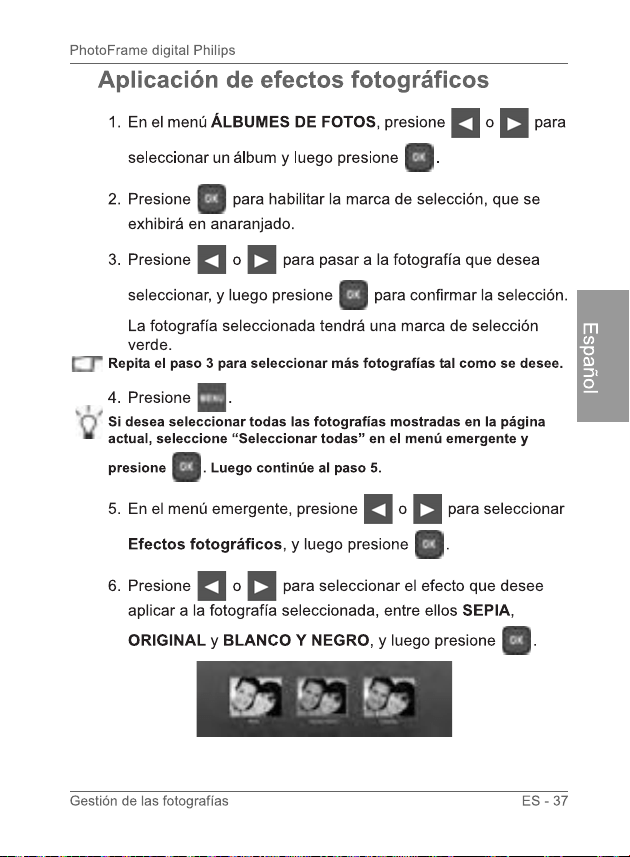
PhotoFrame digital Philips
Visualización de fotografías
ES - 38
Español
1. En el menú principal, presione o para seleccionar
PRESENTACIÓN DE DIAPOSITIVAS y luego presione .
Los álbumes “USB” y “Tarjeta de memoria” sólo aparecerán cuando
hayan sido insertadas en el PhotoFrame una unidad flash USB y
una tarjeta de memoria.
2. Presione o para seleccionar el álbum que contiene
las fotografías que desea exhibir en la presentación de
diapositivas, y luego presione .
Si desea pausar la presentación de diapositivas, presione .
Visualización de
fotografías

Visualización de fotografías ES - 39
PhotoFrame digital Philips
Español
3. Para configurar los parámetros de la presentación de
diapositivas, presione para exhibir el menú emergente.
Usted puede ajustar los siguientes parámetros.
Efecto de transición: selecciona el efecto de la
transición que se desea aplicar a la presentación de
diapositivas.
Intervalo de la presentación de diapositivas:
selecciona el intervalo de tiempo que transcurre entre
cada fotografía.
El efecto de transición predeterminado “Panear y ampliar” no permite
configuraciones de intervalos personalizadas.
Brillo: selecciona el nivel de brillo de la pantalla.
Contraste: selecciona el nivel de contraste.
Saturación: selecciona el nivel de saturación.
MÚSICA: selecciona el nivel del volumen de la música
de fondo.
PhotoFrame digital Philips
Visualización de fotografías
ES - 40
Español
Ejecución de una presentación de
diapositivas utilizando el álbum
CRONOGRAMA
1. En el menú PRESENTACIÓN DE FOTOGRAFÍAS, presione
o para seleccionar CRONOGRAMA y luego
presione .
2. En la pantalla emergente, especifique un intervalo de tiempo
que incluya las fotografías que desea exhibir en la
presentación de diapositivas.
En este paso usted puede también buscar fotografías tomadas
en un período específico de tiempo en el álbum
CRONOGRAMA presionando y seleccionando el intervalo.
3. Seleccione y luego presione para iniciar la
reproducción.
La función CRONOGRAMA sólo rige para las fotografías
almacenadas en la tarjeta de memoria del lector de tarjetas. Si desea
acceder a esta función, copie todas las fotografías presentes en la
unidad USB a la tarjeta de memoria insertada.
PhotoFrame digital Philips
Utilización del Economizador inteligente de energía
TM
.
ES - 42
Español
Para obtener detalles sobre las opciones de ahorro de energía,
consulte la tabla siguiente.
(OKRUDULRQRFWXUQRVHGHILQHFRPRHOLQWHUYDORFRPSUHQGLGRHQWUH
ODVSP\ODVDP
(OKRUDULRGLXUQRVHGHILQHFRPRHOLQWHUYDORFRPSUHQGLGRHQWUHODV
DP\ODVSP
/DXWLOL]DFLyQGHO3ODQLILFDGRUDXWRPiWLFRGHOeconomizador inteligente
GHenergía
TM
no afecta la calidad de las fotografía
2SFLyQ 'HVFULSFLyQ
Apagado Desactiva el Planificador inteligente de
energía
TM
.
Automático
50%
Ahorra el 50% de consumo de energía durante
la noche y reanuda automáticamente el
consumo normal de energía durante el día.
Automático
100%
Pone el PhotoFrame en el modo de reposo
durante la noche y reanuda automáticamente el
consumo normal de energía durante el día.
Ahorrar 20% Economiza siempre un 20% de consumo de
energía.
Ahorrar 50% Economiza siempre un 50% de consumo de
energía.
Utilización de RELOJ (botón de acceso a EZ) ES - 43
PhotoFrame digital Philips
Español
Selección de un tema del reloj
El PhotoFrame suministra varias opciones de temas del reloj y
calendario precargadas. Para establecer un tema del reloj
predeterminado a ser exhibido en la vista Reloj, siga los pasos
detallados a continuación.
1. En el menú principal, presione o para seleccionar
RELOJ Y CALENDARIO y luego presione .
2. Presione o para seleccionar un tema deseado.
Utilización de RELOJ
(botón de acceso a EZ)
PhotoFrame digital Philips
Utilización de RELOJ (botón de acceso a EZ)
ES - 44
Español
3. Presione y seleccione Predeterminado.
4. Presione para establecer como predeterminado el tema
del reloj seleccionado.
Cuando se presione (o ) se exhibirá el tema
de reloj predeterminado.
Conmutación entre Vista de reloj y
Vista de presentación
Se puede presionar para alternar entre la vista
Reloj y la vista Presentación de diapositivas.
&XDQGRVHSDVDGH9LVWDUHORMD9LVWDGHSUHVHQWDFLyQHO
PhotoFrame inicia la presentación de diapositivas que fue
ejecutada previamente.
6LOD~OWLPDSUHVHQWDFLyQGHGLDSRVLWLYDVIXHHMHFXWDGDGHVGHOD
WDUMHWDGHPHPRULDRODXQLGDG86%\\DQRHVWiGLVSRQLEOHHO
PhotoFrameFRPHQ]DUiXQDSUHVHQWDFLyQGHGLDSRVLWLYDVGHVGH
ODPHPRULDLQWHUQDRODELEOLRWHFDSUHLQVWDODGD
Utilización de RELOJ (botón de acceso a EZ) ES - 45
PhotoFrame digital Philips
Español
Configuración de una alarma
Antes de configurar una alarma configure primero la fecha y la hora
en el PhotoFrame. Para obtener más información, consulte
"Configuración de la fecha y hora" en página 16.
1. En el menú principal, presione o para seleccionar
RELOJ y luego presione .
2. Presione y luego presione o para seleccionar
Alarma.
3. Presione .
4. En la pantalla CONFIGURACIÓN DE LA ALARMA que
aparece, presione para resaltar el campo Hora.
5. Presione o para ajustar el valor del campo Hora, y
luego presione para confirmar la configuración y pasar al
campo siguiente.
PhotoFrame digital Philips
Utilización de RELOJ (botón de acceso a EZ
ES - 46
Español
6. Presione o para ajustar el valor del campo Min, y
luego presione para confirmar la configuración y pasar al
campo siguiente.
7. Presione o para seleccionar un timbre de alarma
deseado, y luego presione para confirmar la
configuración y pasar al campo siguiente.
8. Presione o para seleccionar , y luego presione
para completar la configuración.
Si desea configurar más alarmas repita los pasos anteriores.
Utilización del Álbum digital de recortes ES - 47
PhotoFrame digital Philips
Español
La función ÁLBUM DE RECORTES de Philips brinda una
experiencia de usuario totalmente nueva de disfrute de
presentaciones de diapositivas.
1. En el menú principal, presione o para seleccionar
Álbum digital de recortes y luego presione .
2. Presione o para seleccionar una plantilla, y luego
presione .
Utilización del ÁLBUM DE
RECORTES
PhotoFrame digital Philips
Utilización del ÁLBUM DE RECORTES
ES - 48
Español
3. Seleccione un álbum que contenga las fotografías que desea
exhibir en la presentación de diapositivas, y luego presione
.
El PhotoFrame comenzará a exhibir las fotografías en el
modo de presentación de diapositivas utilizando la plantilla
seleccionada.
Utilización del CENTRO DE MEDIOS ES - 49
PhotoFrame digital Philips
Español
Visualización de videos
1. En el menú principal, presione o para seleccionar
CENTRO DE MEDIOS y luego presione .
2. Seleccione Video y luego presione .
3. Presione o para seleccionar una fuente (Memoria
interna, SD o USB), y luego presione .
Para reproducir videos desde su camcorder de video portátil,
seleccione “USB” como fuente luego de haber conectado el
dispositivo.
4. Presione o para seleccionar un video en la lista de
archivos (si la hubiera), y luego presione para comenzar
a reproducir el video.
Utilización del CENTRO DE
MEDIOS
PhotoFrame digital Philips
Utilización del CENTRO DE MEDIOS
ES - 50
Español
5. Usted puede controlar la reproducción de video tal como sigue.
Para pausar la reproducción, presione . Para
reanudar la reproducción, presione de nuevo.
Para rebobinar el video, desplace el botón “Rueda de
desplazamiento / OK” hacia la izquierda y manténgalo
presionado.
Para avanzar rápidamente el video, desplace el botón
“Rueda de desplazamiento / OK” hacia la derecha y
manténgalo presionado.
Para pasar al video anterior, presione .
Para pasar al video Siguiente, presione .
Para controlar el volumen, presione dos veces y
luego presione para aumentar el volumen o
para disminuirlo.
Para detener la reproducción, presione .
/RVYLGHRVVyORSXHGHQVHUFRSLDGRVHQHOPRGRGHWUDQVIHUHQFLD
DOD3&3DUDREWHQHUPiVLQIRUPDFLyQFRQVXOWH3DVR
&
RQH[LyQGHOSPhotoFrame DXQDFRPSXWDGRUDHQSiJLQD
8VWHGVyORSXHGHDFWLYDUODVIXQFLRQHV5HERELQDU$YDQFHUiSLGR
XWLOL]DQGRHOERWyQ³5XHGDGHGHVSOD]DPLHQWR2.´(VWRV
FRQWUROHVQRHVWiQGLVSRQLEOHVHQHOFRQWUROUHPRWR
Utilización del CENTRO DE MEDIOS ES - 51
PhotoFrame digital Philips
Español
Reproducción de música
1. En el menú principal, presione o para seleccionar
CENTRO DE MEDIOS y luego presione .
2. Seleccione Música y luego presione .
3. Presione o para seleccionar una fuente (Memoria
interna, SD o USB), y luego presione .
4. Presione o para seleccionar una pista en la lista de
archivos (si la hubiera), y luego presione para comenzar
a reproducir la música.
5. Usted puede controlar la reproducción de música tal como sigue.
Para pausar la reproducción, presione . Para
reanudar la reproducción, presione de nuevo.
Para reproducir la pista anterior, presione y luego
presione .
PhotoFrame digital Philips
Utilización del CENTRO DE MEDIOS
ES - 52
Español
Para reproducir la pista siguiente, presione y
luego presione .
Para controlar el volumen, presione dos veces y
luego presione para aumentar el volumen o
para disminuirlo.
Para detener la reproducción, presione .
6. Para configurar más opciones de reproducción de música,
presione mientras se está reproduciendo. Seleccione
una opción deseada y luego presione .
Están disponibles las siguientes opciones.
Aleatorizar: reproduce las pistas aleatoriamente.
Repetir una melodía: repite la pista que se está
reproduciendo en ese momento.
Repetir todas las melodías: repite todas las pistas
que están disponibles en la lista de archivos.
Eliminar título: elimina la pista que está
seleccionada.
Utilización de CONFIGURACIÓN ES - 53
PhotoFrame digital Philips
Español
El menú CONFIGURACIÓN le permite configurar los parámetros
del PhotoFrame.
1. En el menú principal, presione o para seleccionar
CONFIGURACIÓN y luego presione .
Aparecerá la página Fecha y hora.
2. Presione o para alternar entre las páginas Fecha y
hora, Configuración general e Información.
3. Presione para ingresar una página, y será resaltada la
primera opción presente en esa página.
Utilización de
CONFIGURACIÓN
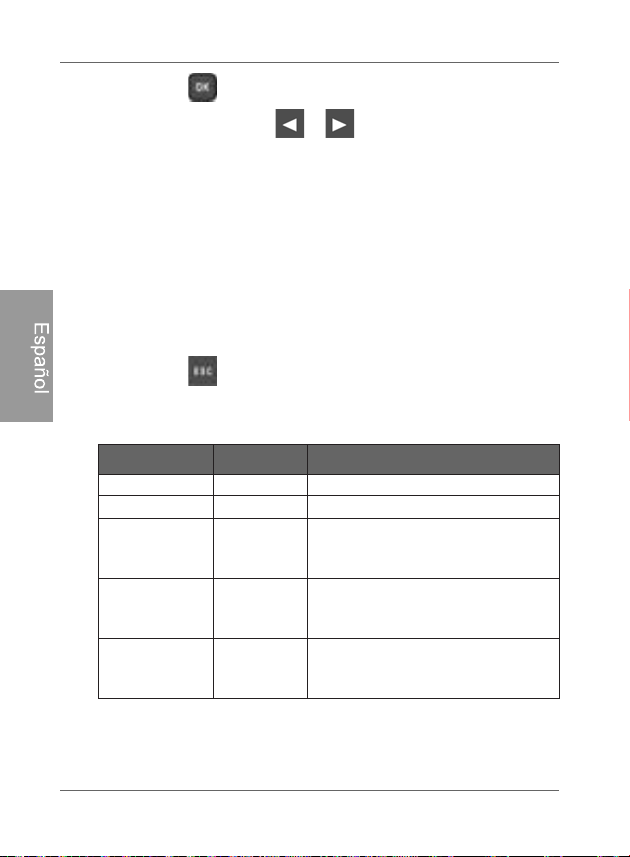
PhotoFrame digital Philips
Utilización de CONFIGURACIÓN
ES - 54
Español
4. Presione de nuevo. Cuando aparezcan en el campo las
marcas < >, presione o para ajustar los parámetros.
5. Presione para salir.
Página de Fecha y hora
Elemento Opción Descripción
Fecha -
Le permite configurar la fecha.
Hora - Le permite configurar la hora.
Modo -
Le permite seleccionar un formato
de hora (reloj de 12 horas o de 24
horas).
Zona horaria
actual
-
Le permite seleccionar la zona
horaria que coincida con la de su
ubicación geográfica actual.
Segunda
zona horaria
-
Le permite configurar
adicionalmente una segunda zona
horaria.
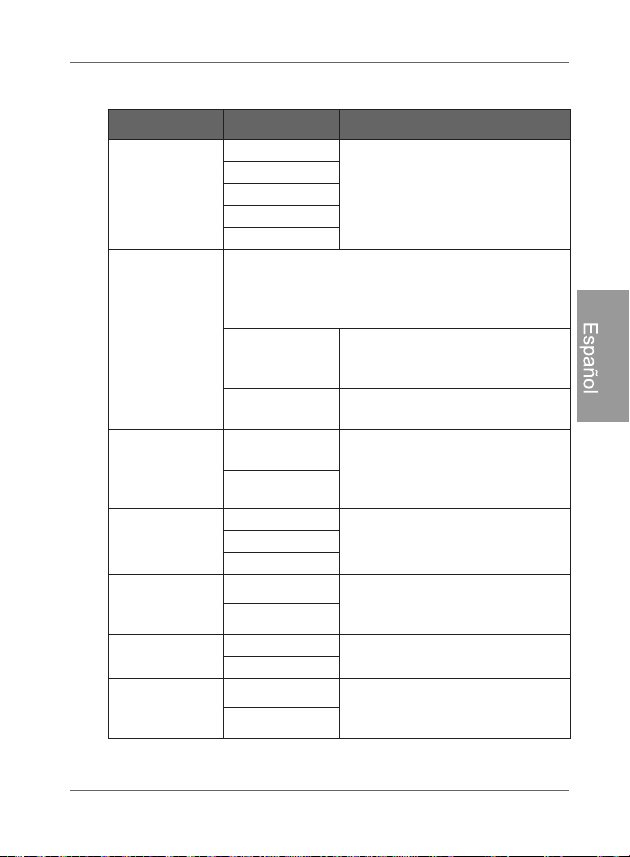
Utilización de CONFIGURACIÓN ES - 55
PhotoFrame digital Philips
Español
Página Configuración general
Elemento Opción Descripción
Brillo
1
Le
permite seleccionar el nivel
de brillo de la pantalla.
2
3
4
5
Copiado
inteligente
Determina cómo son copiadas las fotografías
desde los dispositivos externos de
almacenamiento a la memoria interna cuando
se utiliza la función Copiado inteligente.
Redimensionar
Redimensiona las fotografías
para ahorrar espacio de
memoria.
Original
Mantiene el tamaño de archivo
original.
Recortado
inteligente
Pantalla
completa
Permite seleccionar si las
fotografías se exhibirán en su
tamaño original o en pantalla
completa.
Original
Idioma
Inglés
Permite configurar el idioma del
menú de información en
pantalla (OSD).
Francés
Español
Reinicializar
Sí
Retorna todos los parámetros a
los valores predeterminados
del sistema.
No
Actualización
de FW
Sí
Actualiza el firmware del
PhotoFrame.
No
Introducción
al producto
Encendido
El tutorial de video inicial sobre
las principales características y
funciones.
Apagado
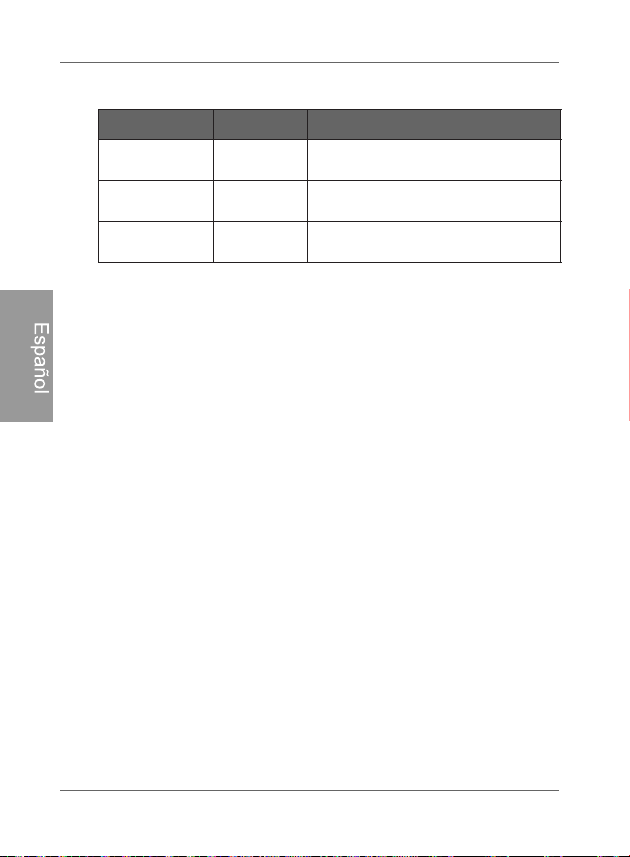
PhotoFrame digital Philips
Utilización de CONFIGURACIÓN
ES - 56
Español
Página de información
Elemento Opción Descripción
Versión -
Muest
ra la versión de firmware
actual.
Memoria total -
Muestra la capacidad total de la
memoria interna.
Memoria libre -
Muestra la capacidad remanente
de la memoria interna.
Preguntas frecuentes ES - 57
PhotoFrame digital Philips
Español
Preguntas frecuentes
¿Qué formatos de tarjeta de memoria son compatibles con
el PhotoFrame?
Son compatibles con el PhotoFrame los formatos de tarjetas
de memoria SD/SDHC, MMC, MS, MS PRO, MS Duo y xD.
Para obtener detalles, consulte "Formatos de tarjetas de
m
emoria compatibles" en página 18.
¿
Por qué algunas fotografías se cargan más rápido que
otras?
Las fotografías con mayor resolución se cargan más
lentamente. Si se utiliza una resolución más baja al tomar las
fotografías, se reducirá el tiempo de carga.
¿Cómo funciona la rotación automática?
El PhotoFrame exhibirá en modo panorama si se lo coloca
sobre su lado más largo (tal como se muestra en la caja de su
producto). Para exhibir sus fotografías en el modo retrato, gire
el PhotoFrame hacia la derecha.
¿Por qué mis fotografías aparecen al revés?
El PhotoFrame está colocado del lado equivocado. Gírelo
hacia el lado opuesto.
¿Qué tipos de archivo de imagen puedo visualizar en mi
PhotoFrame ?
El PhotoFrame admite la reproducción de imágenes JPEG,
BMP, JPEG progresivo y EXIF.
¿Qué tipos de archivos de audio puedo reproducir en mi
PhotoFrame ?
El PhotoFrame admite la reproducción de archivos de audio
MP3, WMA, AAC y WAV.
PhotoFrame digital Philips
Preguntas frecuentes
ES - 58
Español
¿Qué tipos de archivos de video puedo reproducir en mi
PhotoFrame?
El PhotoFrame s admite la reproducción de videos JPEG
animados (M-JPEG), MPEG-4 y H.264 (D1).
¿Puedo conectar mi PhotoFrame directamente a mi
computadora?
Usted puede conectar el PhotoFrame directamente a su
computadora a través de un cable mini USB y copiar archivos
de imagen/audio/video entre el PhotoFrame y su
computadora.
¿Serán reinicializadas las fotografías rotuladas si extraigo
la tarjeta SD?
No. El PhotoFrame Digital (PFD) escribirá información a los
metadatos de las fotografías rotuladas. De modo que el PFD
recordará la categorización en álbum de las fotografías la
próxima vez que la tarjeta SD sea reinsertada en el aparato.
En ciertas fotografías el PhotoFrame se vuelve
significativamente más lento. ¿Qué puedo hacer?
Esto se debe principalmente al tiempo de procesamiento
adicional requerido para decodificar archivos de alta definición
de tamaño muy grande. La función de recortado inteligente del
PFD (ACTIVADA de manera predeterminada) redimensionará
automáticamente el archivo basada en la definición de pantalla
del aparato y reducirá considerablemente el tamaño de la
fotografía, lo que eliminará este problema. Sin embargo,
mantenga siempre en la computadora una copia de las
fotografías originales.
El cuadro se congeló y no responde; ¿qué puedo hacer?
Si el cuadro se congelara, es sencillo reiniciar el PhotoFrame
desenchufándolo del tomacorriente y luego presionando de
nuevo el botón de encendido.

Preguntas frecuentes ES - 59
PhotoFrame digital Philips
Español
¿Por qué razón no está accesible la función CRONOGRAMA
para las fotografías presentes en mi unidad USB?
La función CRONOGRAMA sólo rige para las fotografías
almacenadas en la tarjeta de memoria del lector de tarjetas. Si
desea acceder a esta función, copie todas las fotografías
presentes en la unidad USB a la tarjeta de memoria insertada.
¿Por qué no puedo rotular las fotografías de mi tarjeta SD
en ningún álbum?
Verifique que su tarjeta SD no esté bloqueada, porque para
rotular un álbum el PFD deberá poder escribir la información a
los archivos.
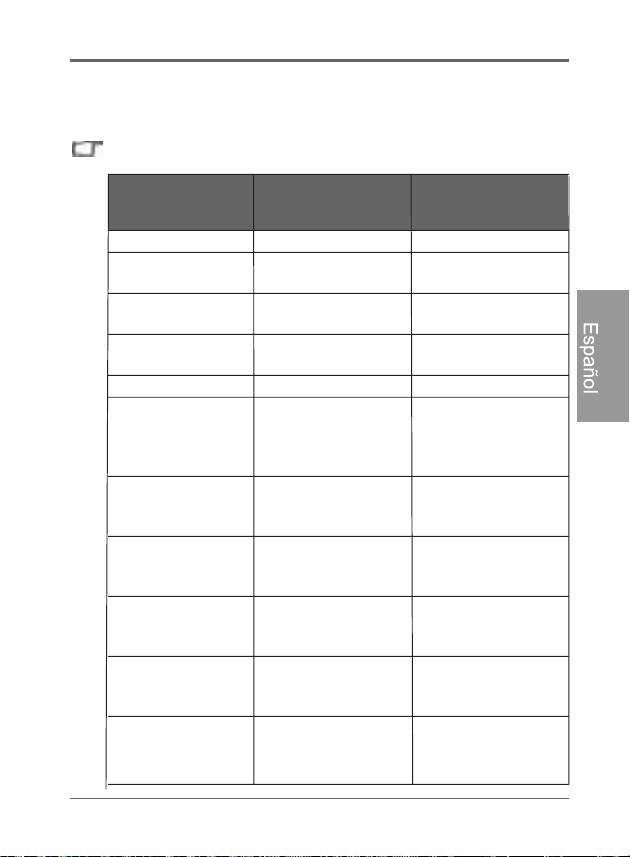
Apéndice
ES - 61
PhotoFrame digital Philips
Español
Apéndice
Especificaciones
Las especificaciones están sujetas a cambios sin aviso previo.
Modelo
SPF4480X/G7
SPF4480/G7
SPF4480T/G7
SPF4400X/G7
SPF4400/G7
SPF4400T/G7
Tipo de LCD LCD digital de 8” LCD digital de 10,4”
Tipodeiluminación
de fondo
LED LED
Relación de
aspecto
4:3 4:3
Definición de la
pantalla
800 x 600 píxeles 800 x 600 píxeles
Brillo 250 nits 300 nits
Memoria interna
integrada (para el
almacenamiento
de datos)
Aproximadamente
2GB
Aproximadamente
2GB
Formatos de
tarjeta de memoria
admitidos
SD,MMC,MS,MS
PRO, MS Duo y xD
SD,MMC,MS,MS
PRO, MS Duo y xD
Unidades flash
admitidas
Unidad flash U
SB
(utilizando el puerto
USB)
Unidad flash USB
(utilizando el puerto
USB)
Formatos de
archivo de imagen
admitidos
JPEG, BMP, JPEG
progresivo y EXIF
JPEG, BMP, JPEG
progresivo y EXIF
Formatos de
archivos de audio
admitidos
MP3, WMA, AAC y
WAV
MP3, WMA, AAC y
WAV
Formatos de
archivos de vide
o
admitidos
JPEG animado
(M-JPEG)/MPEG4/
H.264 (D1)
JPEG animado
(M-JPEG)/MPEG4/
H.264 (D1)
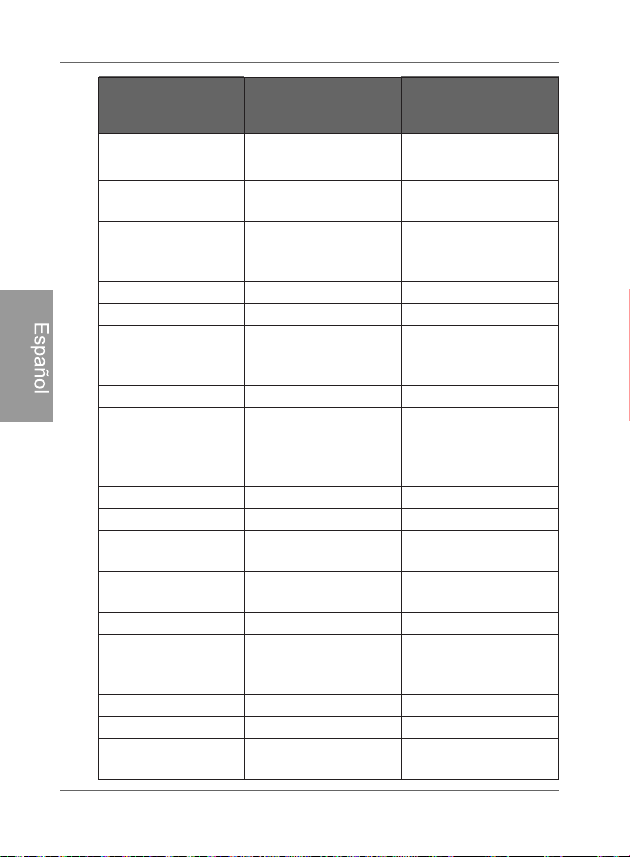
PhotoFrame digital Philips
Apéndice
ES - 62
Español
Puerto USB
Servidor USB
(tipo A) x 1, HS 2.0
Servidor USB
(tipo A) x 1, HS 2.0
Puerto mini USB
Dispositivo USB
(mini B) x 1, HS 2.0
Dispositivo USB
(mini B) x 1, HS 2.0
Ranuras para
tarjetas de
memoria
Ranura para tarjetas
de memoria 6 en 1
Ranura para tarjetas
de memoria 6 en 1
Altavoz 0,5 W x 2 0,5 W x 2
Receptor de RI Sí Sí
Alimentación
eléctrica de
entrada
100-220 V CA 100-220 V CA
Potencia de salida 5 V CC 2 A 5 V CC 2 A
Conmutador de
rotación/ángulo
automático de
imagen
Sí Sí
Reloj/Calendario Sí Sí
Pedestal trasero Sí, plegable Sí, plegable
Idiomas admitidos Inglés, francés y
españ
ol
Inglés, francés y
español
Compatibilidad
plug & play
Windows 7/XP/Vista/
2000, Mac OS X
Windows 7/XP/Vista/
2000, Mac OS X
Control remoto (RI) Sí Sí
Capacidad de
marco
intercambiable
Sí Sí
Marco
Marco de madera x 1 Marco de madera x 1
Esterilla de papel
Sí Sí
Esterilla de regalo Doble esterilla x 1 Doble esterilla x 1,
esterilla de color x 1
Modelo
SPF4480X/G7
SPF4480/G7
SPF4480T/G7
SPF4400X/G7
SPF4400/G7
SPF4400T/G7
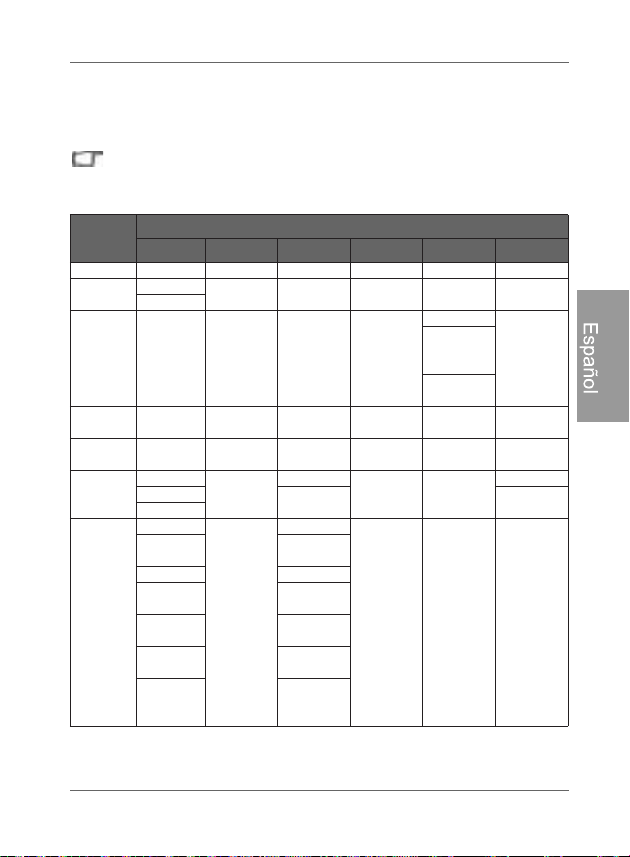
Apéndice ES - 63
PhotoFrame digital Philips
Español
Lista de tarjetas de memoria
compatibles
La siguiente tabla no incluye todas las tarjetas de memoria
compatibles. Para obtener ayuda técnica, póngase en contacto con el
centro de servicio técnico más cercano.
Capacidad
Formatos de tarjeta de memoria
SD miniSD microSD MMC MS xD
8 MB TOSHIBA
32 MB
Kodak
Canon
64 MB
LEXAR
SanDisk
(MS Pro
Duo)
SONY (MS
Pro Duo)
128 MB Panasonic
SanDisk
(M2)
256 MB SanDisk RIDATA
OLYMPUS
(M)
512 MB
TwinMOS SanDisk
Transcend
FUJIFILM
TOSHIBA
Transcend Kodak (H)
PQI
1 GB
Kingston
Panasonic
SanDisk
Transcend FUJIFILM
SanDisk
SanDisk
(Ultra II)
Transcend Transcend
A-DATA
(80X)
TOSHIBA
RIDATA
(66X)
A-DATA
APACER
(60X)
Kingston
Panasonic
(SDHC
clase 4)
Adaptador
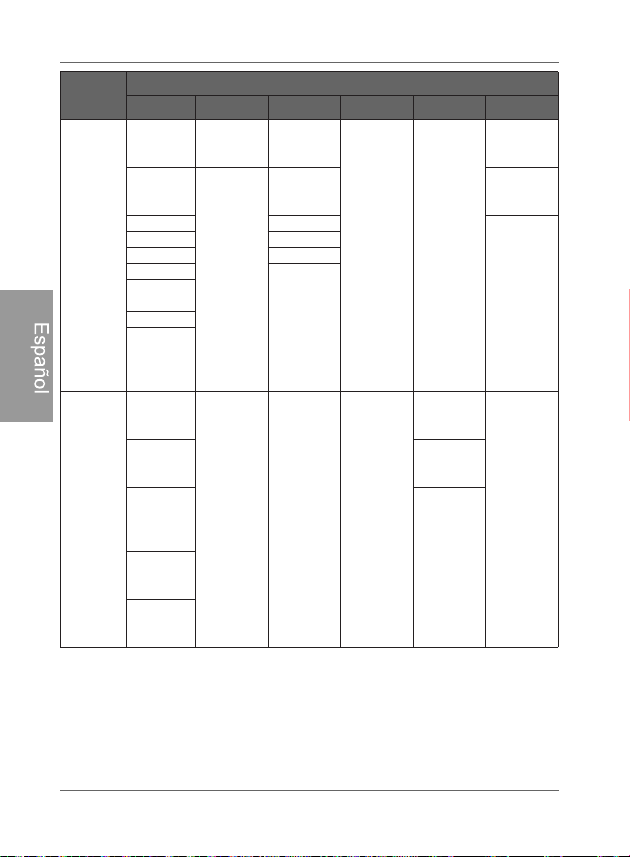
PhotoFrame digital Philips
Apéndice
ES - 64
Español
2 GB
Panasonic
(SDHC
clase 4)
Stargem
Silicon
Power
OLYMPUS
(M+)
Panasonic
(SDHC
clase 2)
Panasonic
Kingston
OLYMPUS
(M)
SanDisk Transcend
FUJIFILM
(H)
Transcend A-DATA
TOSHIBA PQI
A-DATA
SanDisk
APACER
(60X)
SanDisk
Silicon
Power
(Ultima II
80X)
4 GB
Kingston
(SDHC
clase 6)
Transcend SanDisk
SanDisk
(MS Pro HG
Duo)
A-DATA
(SDHC
clase 6)
SONY (MS
Pro Duo)
Silicon
Power
(SDHC
clase 6)
SanDisk
(MS Pro
Duo)
TOSHIBA
(SDHC
clase 4)
RIDATA
(SDHC
clase 6)
Capacidad
Formatos de tarjeta de memoria
SD miniSD microSD MMC MS xD
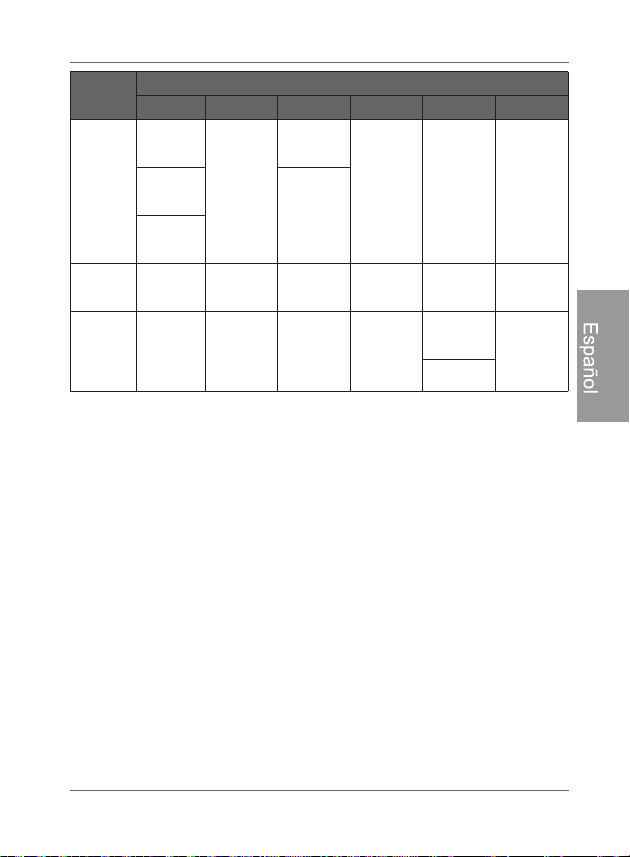
Apéndice ES - 65
PhotoFrame digital Philips
Español
8 GB
A-DATA
(SDHC
clase 6)
Kingston
Transcend
(SDHC
clase 6)
SanDisk
Kingston
(SDHC
clase 6)
16 GB
Transcend
(SDHC
clase 6)
TOSHIBA
SanDisk
(MS Pro
Duo)
32 GB
SONY (MS
Pro Duo
Mark2)
SONY (MS
Pro Duo)
Capacidad
Formatos de tarjeta de memoria
SD miniSD microSD MMC MS xD

PhotoFrame digital Philips
Apéndice
ES - 66
Español
<Memo>

Droits d’auteur FR - i
Cadre photo numérique PhotoFrame
Français
Droits d’auteur
Il est interdit de reproduire, de transmettre, de retranscrire, de
mémoriser dans un systme de recherche documentaire ou de
traduire toute partie de cette publication dans une autre langue
ou dans un autre langage informatique, que ce soit par moyen
électronique, mécanique, magnétique, optique, chimique, manuel
magnétique, optique, chimique, manuel ou autre sans
ou autre sans autorisation écrite préalable de la société.
Clause de non-responsabilité
La société ne fait aucune représentation ou garantie, qu'elle soit
expresse ou implicite, ál'égard du contenu de la présente
publication et nie explicitement toute garantie, de qualité
marchande ou de convenance pour un motif particulier. De plus,
la société se réserve le droit de réviser la présente publication et
d'effectuer des changements de temps á autre du contenu de la
présente publication sans l'obligation d'aviser qui que ce soit
d'une telle révision ou modification.
Consignes de sécurité
AVous offre un choix d'optionsd'économie d'énergie grace á la
fonction Smart Energy Saver
TM
(gestion d'énergie intelligente).
Conservez le présent mode d'emploi pour référence future.
Lisez soigneusement les consignes de sécurité et d'utilisation
avant d'utiliser ce produit. Tous les avertissements sur
l'appareil et dans le mode d'emploi doivent être respectés.
Ne placez pas cet appareil sous les rayons directs du soleil ou
près de sources de chaleur, comme dans une voiture fermée
sous les rayons du soleil, ou encore près d'un poêle. Le boîtier
externe de cet appareil pourraient se déformer et les capteurs
sensibles à l'intérieur pourraient s'endommager lorsque
exposés à une chaleur excessive.

Cadre photo numérique PhotoFrame
Consignes de sécurité
FR - ii
Français
N'utilisez pas ce produit près de l'eau, sous la pluie ou ne
permettez pas à un liquide de s'infiltrer à l'intérieur de cet
appareil. L'eau et l'humidité peuvent causer un court-circuit
des composants électroniques et provoquer un mauvais
fonctionnement.
N'utilisez pas cet appareil près de fortes sources
électromagnétiques, comme un four à micro-ondes.
L'interférence électromagnétique peut causer un mauvais
fonctionnement de cet appareil.
N'échappez pas ou n'appliquez pas de chocs ou de vibrations
à cet appareil. Les impacts forts peuvent endommager les
composants intérieurs de ce produit.
N'insérez pas d'objets autres que les cartes mémoire
compatibles dans les logements de carte mémoire de cet
appareil. Les surfaces de contact métalliques à l'intérieur des
logements peuvent facilement être endommagées par des
corps étrangers.
N'utilisez pas un adaptateur de courant inconnu autre que
celui fourni avec le PhotoFrame. Il est dangereux de brancher
cet appareil à un adaptateur de courant inconnu car cela
pourrait entraîner des risques d'incendie ou d'explosion.
Évitez de couper, plier ou modifier le cordon et ne placez pas
d'objets lourds ou ne marchez pas sur le cordon de
l'adaptateur de courant car cela risquerait d'endommager
l'isolation externe, ce qui pourrait entraîner un court-circuit ou
un incendie.
Si vous sentez que l'appareil émet une odeur étrange, de la
chaleur, ou que celui-ci présente des signes de mauvais
fonctionnement, débranchez immédiatement l'appareil de son
alimentation électrique et communiquez avec votre revendeur
pour une inspection ou de l'assistance.
Utilisez un chiffon lisse et doux pour nettoyer la surface de
l'écran. N'utilisez pas de nettoyants liquides ou de nettoyants
pour vitres.

Consignes de sécurité FR - iii
Cadre photo numérique PhotoFrame
Français
Si une substance étrangère ou de l'eau s'infiltre dans cet
appareil, éteignez-le immédiatement et débranchez
l'adaptateur de courant. Ensuite, éliminez la substance
étrangère ou l'eau, puis expédiez l'appareil à votre centre de
service le plus près.
Ne tentez pas de démonter ou modifier cet appareil. L'intérieur
de cet appareil ne comprend aucune pièce dont l'entretien
peut être effectué par l'utilisateur et toute modification non
autorisée annulera la garantie.
Même si l'écran à cristaux liquides est fabriqué grâce à une
technologie de haute précision et est composé de pixels
efficaces à 99,99 % ou plus, des points noirs ou des points
brilliants de lumière (rouge, bleu ou vert) peuvent apparaître
fréquemment sur l'écran à cristaux liquides. Ce phénomène
tient à une propriété structurale des écrans à cristaux liquides
et ne représente pas un mauvais fonctionnement.

Cadre photo numérique PhotoFrame
Consignes de sécurité
FR - iv
Français
<Note de service>

Table des matières FR - v
Cadre photo numérique PhotoFrame
Français
Table des matières
Caractéristiques principales . . . . . . . . . . . . . . . . . . . . . . . . . . 1
Contenu de l'emballage . . . . . . . . . . . . . . . . . . . . . . . . . . . . . . 2
Vue d'ensemble. . . . . . . . . . . . . . . . . . . . . . . . . . . . . . . . . . . . . 3
Vue de droite . . . . . . . . . . . . . . . . . . . . . . . . . . . . . . . . . . . . . 3
Vue arrière . . . . . . . . . . . . . . . . . . . . . . . . . . . . . . . . . . . . . . . 5
Fonctionnement du PhotoFrame. . . . . . . . . . . . . . . . . . . . . . . 7
Utilisation des boutons de commande . . . . . . . . . . . . . . . . . . 8
Utilisation de la télécommande . . . . . . . . . . . . . . . . . . . . . . . 9
Remplacement de la pile de la télécommande . . . . . . . . 11
Démarrage du PhotoFrame . . . . . . . . . . . . . . . . . . . . . . . . . . 13
Étape 1: Utilisation du pied arrière réglable . . . . . . . . . . . . . 13
Étape 2: Branchement de l'alimentation. . . . . . . . . . . . . . . . 15
Étape 3: Première utilisation . . . . . . . . . . . . . . . . . . . . . . . . 16
Étape 4: Configuration de base . . . . . . . . . . . . . . . . . . . . . . 16
Sélection de la langue d'affichage . . . . . . . . . . . . . . . . . . 16
Réglage de la date et de l'heure . . . . . . . . . . . . . . . . . . . 17
Étape 5: Insertion d'une carte mémoire ou d'une clé USB
dans le cadre photo . . . . . . . . . . . . . . . . . . . . . . . . . . . . . . . 18
Formats de carte mémoire compatibles. . . . . . . . . . . . . . 19
Étape 6: Copier des photos et/ou de la musique vers la
mémoire interne . . . . . . . . . . . . . . . . . . . . . . . . . . . . . . . . . . 20
Étape 7: Connexion du PhotoFrame à un ordinateur . . . . . . 21
Étape 8: Remplacement du passe-partout en papier. . . . . . 22
Utilisation du menu principal. . . . . . . . . . . . . . . . . . . . . . . . . 24
Gestion des photos . . . . . . . . . . . . . . . . . . . . . . . . . . . . . . . . 26
Copier des photos vers la mémoire interne . . . . . . . . . . . . . 26
Assignation de photos à un album . . . . . . . . . . . . . . . . . . . . 29
Retirer des photos d'un album. . . . . . . . . . . . . . . . . . . . . 31
Gestion de vos photos à l'aide de l'album
CHRONOLOGIE . . . . . . . . . . . . . . . . . . . . . . . . . . . . . . . 32

Cadre photo numérique PhotoFrame
Table des matières
FR - vi
Français
Création d'un nouvel album . . . . . . . . . . . . . . . . . . . . . . . . . 34
Modification d'un album existant. . . . . . . . . . . . . . . . . . . . . . 35
Suppression d'un album. . . . . . . . . . . . . . . . . . . . . . . . . . . . 36
Utilisation des autres options du menu ALBUMS PHOTO. . 36
Suppression de photos . . . . . . . . . . . . . . . . . . . . . . . . . . 36
Changement de l'orientation d'une photo. . . . . . . . . . . . . 37
Ajouter des effets photo. . . . . . . . . . . . . . . . . . . . . . . . . . 38
Affichage des photos . . . . . . . . . . . . . . . . . . . . . . . . . . . . . . . 39
Lancement d'un diaporama avec l'album CHRONOLOGIE . 41
Utilisation du Smart Energy Saver
TM
.. . . . . . . . . . . . . . . . . . . 42
Utilisation du menu HORLOGE (bouton EZ Access) . . . . . 44
Sélection d'une apparence d'affichage de l'horloge . . . . . . . 44
Basculement entre les modes horloge et diaporama. . . . . . 45
Définir une alarme . . . . . . . . . . . . . . . . . . . . . . . . . . . . . . . . 46
Utilisation de l'album personnalisé numérique . . . . . . . . . . 48
Utilisation du CENTRE MULTIMÉDIA . . . . . . . . . . . . . . . . . . 49
Regarder des vidéos . . . . . . . . . . . . . . . . . . . . . . . . . . . . . . 49
Écouter de la musique . . . . . . . . . . . . . . . . . . . . . . . . . . . . . 51
Utilisation du menu RÉGLAGES . . . . . . . . . . . . . . . . . . . . . . 53
Menu Date et heure . . . . . . . . . . . . . . . . . . . . . . . . . . . . . . . 54
Menu Réglages généraux . . . . . . . . . . . . . . . . . . . . . . . . . . 55
Menu Information . . . . . . . . . . . . . . . . . . . . . . . . . . . . . . . . . 56
Foire aux questions . . . . . . . . . . . . . . . . . . . . . . . . . . . . . . . . 57
Réglementation et conformité. . . . . . . . . . . . . . . . . . . . . . . . 59
Recyclage. . . . . . . . . . . . . . . . . . . . . . . . . . . . . . . . . . . . . . . 59
Annexe. . . . . . . . . . . . . . . . . . . . . . . . . . . . . . . . . . . . . . . . . . . 60
Spécifications techniques. . . . . . . . . . . . . . . . . . . . . . . . . . . 60
Liste des cartes mémoire compatibles. . . . . . . . . . . . . . . . . 62

Caractéristiques principales FR - 1
Cadre photo numérique PhotoFrame
Français
Cher client:
Merci d'avoir intégré le PhotoFrame numérique PhotoFrame à votre
espace intérieur. Vous serez maintenant capable d'afficher votre
photothèque numérique avec une clarté sensationnelle et de
partager des souvenirs formidables avec vos amis et votre famille.
Pour retirer le maximum de votre nouvel appareil Philips
, veuillez
lire le présent mode d'emploi en entier avant utilisation.
Caractéristiques principales
Ce PhotoFrame numérique présente les caractéristiques suivantes:
Affichage clair et brillant.
Vous permet d'afficher des photos stockées dans une
mémoire interne, sur une carte mémoire ou une clé USB.
Vous permet d'afficher des photos stockées dans une
mémoire interne, sur une carte mémoire ou une clé USB.
Lecture vidéo instantanée depuis votre caméscope portable
via une connexion USB. Il vous suffit de raccorder le
caméscope, d'accéder au CENTRE MULTIMÉDIA et de
sélectionner USB comme source en lecture.
Vous offre un choix d'options d'économie d'énergie grâce à la
fonction Smart Energy Saver
TM
(gestion d'¨¦nergie intelligente).
Vous permet de gérer et classer facilement vos photos par
albums.
Vous permet d'afficher des photos en diaporamas selon
différents modèles disponibles depuis l'ALBUM
PERSONNALISÉ.
Menus d'affichage à l'écran (OSD) multilingues.
Fonctions d'horloge, d'alarme et de calendrier.
Le PhotoFrame est compatible avec la majorité des caméscopes
USB pour une lecture facile grâce à une fonction Plug-and-Play (prêt
à l'utilisation). Vous pouvez également transférer vos fichiers vidéo
vers une carte SD ou un périphérique de stockage USB si votre
caméscope n'est pas compatible.

Cadre photo numérique PhotoFrame
Contenu de l'emballage
FR - 2
Français
Contenu de l'emballage
Ouvrez soigneusement l'emballage et assurez-vous d'avoir les
articles suivants:
1. PhotoFrame numérique x 1
2. Adaptateur de courant CA x 1
3. Télécommande magnétique (pile au lithium CR2025
comprise) x 1
4. Câble USB x 1
5. Guide de démarrage rapide x 1
6. Mode d'emploi x 1
7. Carte d'enregistrement x 1
8. Carte de garantie x 1
/DSSDUHQFHUpHOOHGHODSSDUHLOSHXWGLIIpUHUGHVLOOXVWUDWLRQV
WURXYpHVGDQVOHSUpVHQWPRGHGHPSORL
/HVDFFHVVRLUHVGLVSRQLEOHVSHXYHQWYDULHUVHORQODUpJLRQRYRXV
DYH]DFKHWpOHPKRWRFrame
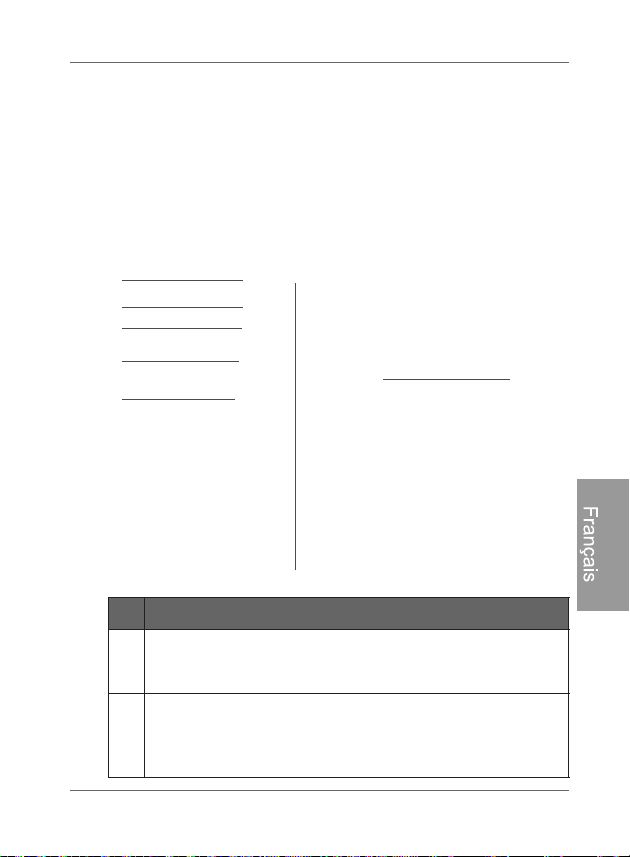
Vue d'ensemble FR - 3
Cadre photo numérique PhotoFrame
Français
Vue d'ensemble
Vue de droite
Nº Description
1
Pi
ed arrière réglable
Voir «Étape 1: Utilisation du pied arrière réglable» à la
p
age 13 pour plus de détails.
2
B
outon d'alimentation
Appuyez sur le bouton d'alimentation pour allumer/
éteindre le PhotoFrame. Voir «Étape 2: Branchement de
l'al
imentation» à la page 15 pour plus de détails.
2
3
4
5
6
1
7
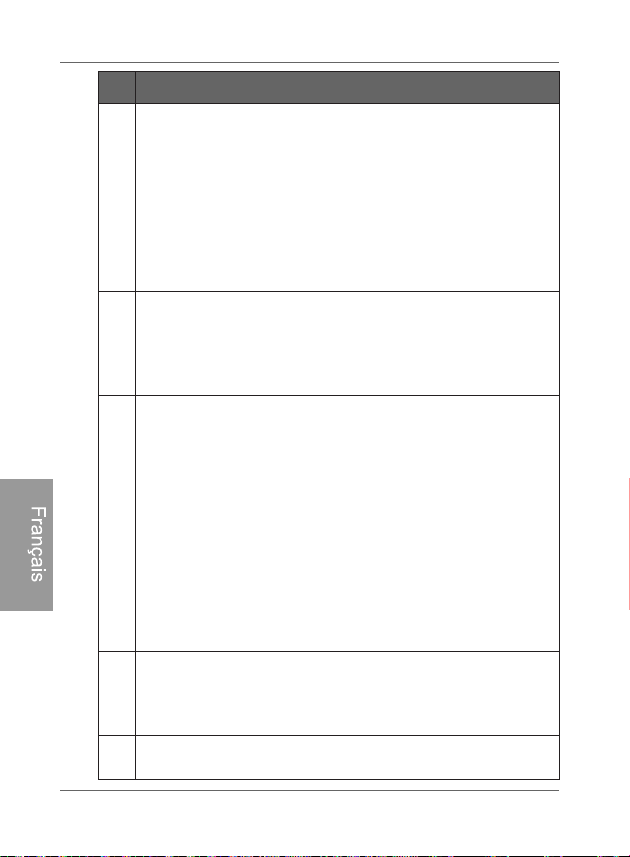
Cadre photo numérique PhotoFrame
Vue d'ensemble
FR - 4
Français
3
Port USB
Permet l'insertion d'une clé USB.
Affichez des images ou faites jouer de la musique et
des vidéos enregistrées sur le périphérique de stockage
inséré dans l'appareil.
Copiez des photos à partir d'un périphérique de
stockage vers le PhotoFrame. Voir «Étape 6: Copier des
phot
os et/ou de la musique vers la mémoire interne» à
la page 20 pour plus de détails.
4
Mi
ni port USB
Vous permet de connecter le PhotoFrame à un ordinateur
pour gérer les fichiers dans la mémoire interne de
l'appareil. Voir «Étape 7: Connexion du Phot
oFrame à un
ordinateur» à la page 21 pour plus de détails.
5
L
ogements pour cartes mémoire
Le PhotoFrame prend en charge les périphériques de
stockage suivants: SD
™
/SDHC
™
, MultiMediaCard
™
(MMC),
Memory Stick
™
(MS), Memory Stick PRO
™
(MS PRO),
Memory Stick Duo
™
(MS Duo) et xD-Picture Card
™
(xD).
Affichez des images ou faites jouer de la musique et
des vidéos enregistrées sur la carte mémoire insérée
dans le PhotoFrame.
Copiez des photos ou de la musique à partir d'une carte
mémoire insérée vers le PhotoFrame. Voir «Étape 6:
Copier de
s photos et/ou de la musique vers la mémoire
interne» à la page 20 pour plus de détails.
6
Pri
se d'alimentation
Branchez une extrémité de l'adaptateur de courant CA
dans la prise d'alimentation du PhotoFrame et l'autre
extrémité dans une prise de courant murale.
7
Emplacement de rangement de la télécommande
Surface magnétique où peut être fixée la télécommande.
Nº Description
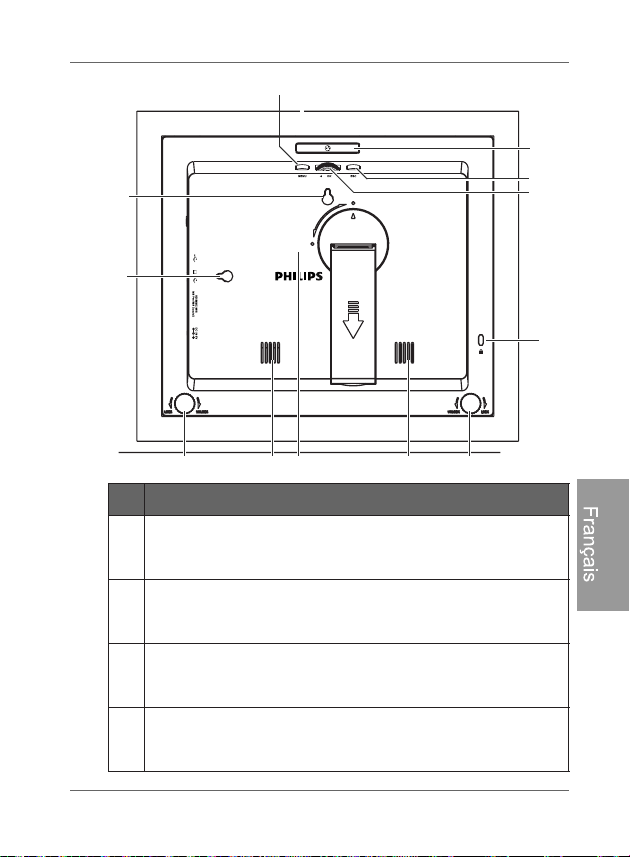
Vue d'ensemble FR - 5
Cadre photo numérique PhotoFrame
Français
Vue arrière
Nº Description
1
B
outon MENU
Voir «Utilisation des boutons de commande» à la page 8
pour plus de détails.
2
B
outon EZ Access
Voir «Utilisation des boutons de commande» à la page 8
pour plus de détails.
3
Bout
on ÉCHAP
Voir «Utilisation des boutons de commande» à la page 8
pour plus de détails.
4
R
oulette de défilement/bouton OK
Voir «Utilisation des boutons de commande» à la page 8
pour plus de détails.
1
2
3
4
5
6
7
8
9
7
6
10
Cadre photo numérique PhotoFrame
Vue d'ensemble
FR - 6
Français
5
Emplacement pour verrou antivol Kensington
®
Vous pouvez fixer un verrou et un câble antivols
Kensington
®
à cet emplacement afin d'aider à protéger
votre PhotoFrame contre le vol.
6
Système de verrouillage EZ Lock
Vous pouvez vous servir des vis de blocage EZ pour
verrouiller ou déverrouiller le cadre en bois.
7
Haut-parleurs
Joue des sons lors de la lecture de fichiers audio et vidéo.
8
Trou de suspension pour fixation murale à l'italienne
(mode paysage)
Vous permet de suspendre le PhotoFrame horizontalement
à un mur.
9
Trou de suspension pour fixation murale à la française
(mode portrait)
Vous permet de suspendre le PhotoFrameverticalement à
un mur.
10
Emplacement de rangement de la télécommande
Surface magnétique où peut être fixée la télécommande.
Nº Description
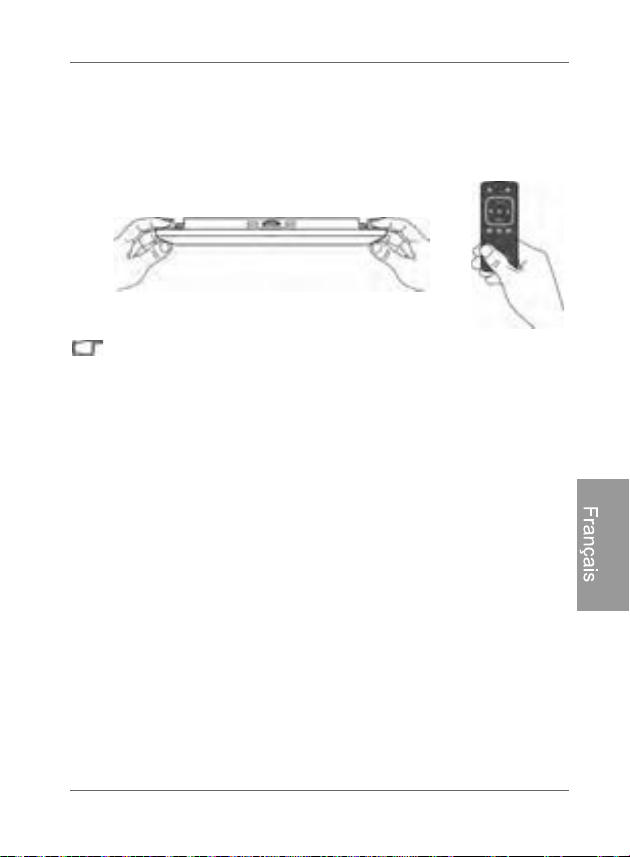
Fonctionnement du PhotoFrame FR - 7
Cadre photo numérique PhotoFrame
Français
Fonctionnement du PhotoFrame
Vous pouvez contrôler le PhotoFrame à l'aide des boutons de
commande se trouvant à l'arrière du cadre, ou encore en vous
servant de la télécommande fournie avec l'appareil.
Dans le présent mode d'emploi, les consignes ou les exemples
fournis sont basés sur l'utilisation de la télécommande. Pour savoir
comment utiliser les boutons de commande, reportez-vous à la
section «Utilisation des boutons de commande» à la page 8.
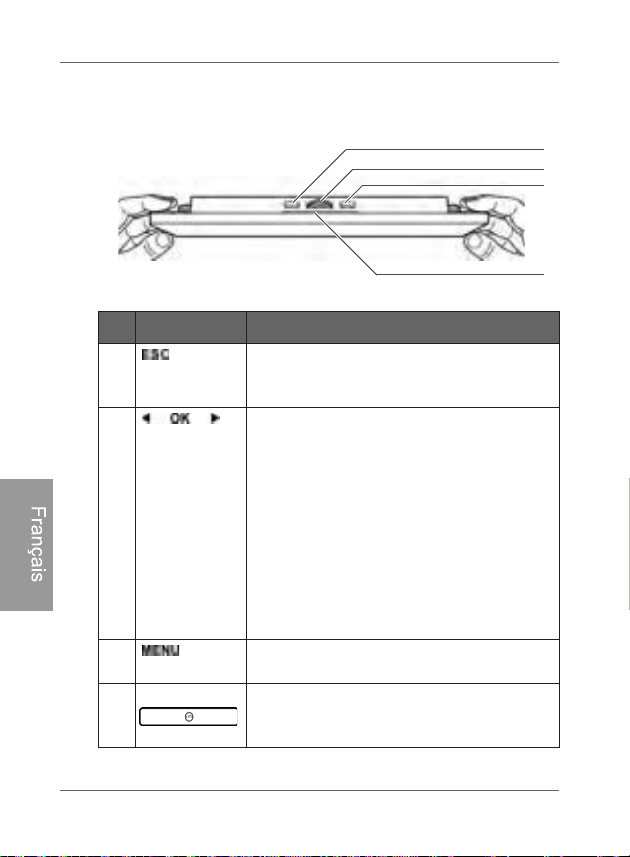
Cadre photo numérique PhotoFrame
Fonctionnement du PhotoFrame
FR - 8
Français
Utilisation des boutons de
commande
Nº Icône Description
1
B
outon ÉCHAP
Annule l'opération en cours et/ou retourne
à l'écran précédent.
2
Roulette de défilement/bouton OK
Appuyez sur ce bouton pour entrer ou
confirmer une opération/sélection.
Faites tourner la roulette vers la gauche
pour déplacer le champ de sélection
vers la gauche ou le haut, ou encore
pour sélectionner l'élément précédent.
Faites tourner la roulette vers la droite
pour déplacer le champ de sélection
vers la droite ou le bas, ou encore pour
sélectionner l'élément suivant.
3
Bouton MENU
Fait apparaître le menu contextuel.
4
Bouton EZ Access
Permet de basculer entre les modes
horloge et diaporama.
1
2
3
4
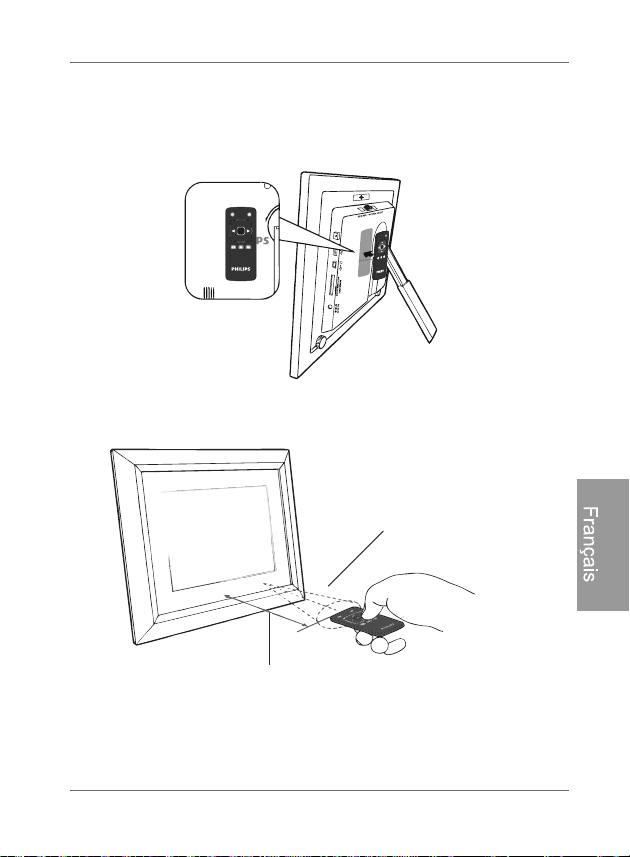
Fonctionnement du PhotoFrame FR - 9
Cadre photo numérique PhotoFrame
Français
Utilisation de la télécommande
La télécommande est munie d'une surface magnétique à l'arrière
qui vous permet de ranger celle-ci derrière le PhotoFrame tel
qu'illustré ci-dessous.
Le PhotoFrame est muni d'un capteur de télécommande intégré
situé sous le cadre passe-partout en papier.
Angle vertical et horizontal
maximum approx. 30 degrés
Approx. 1,4 m (4,6 pi) ou moins
OK
ESC
MENU
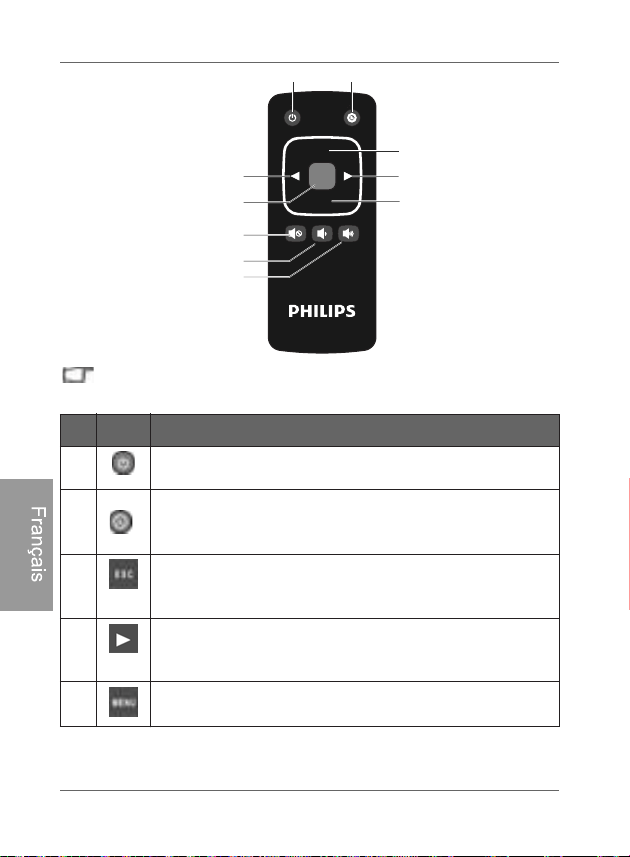
Cadre photo numérique PhotoFrame
Fonctionnement du cadre photo
FR - 10
Français
Veuillez retirer le film plastique sous la pile avant d'utiliser la
télécommande pour la première fois.
Nº Icône Description
1
O
N/OFF (activé/désactivé)
Allume/éteint l'appareil.
2
Bouton EZ Access
Permet de basculer entre les modes horloge et
diaporama.
3
ÉCHAP
Retourne à la page précédente et/ou accède à la page
du menu.
4
DROITE/BAS
Déplace vers la droite ou le bas, ou passe à l'élément
suivant.
5
MENU
Fait apparaître le menu contextuel.
OK
ESC
MENU
1 2
3
4
5
6
8
9
7
10
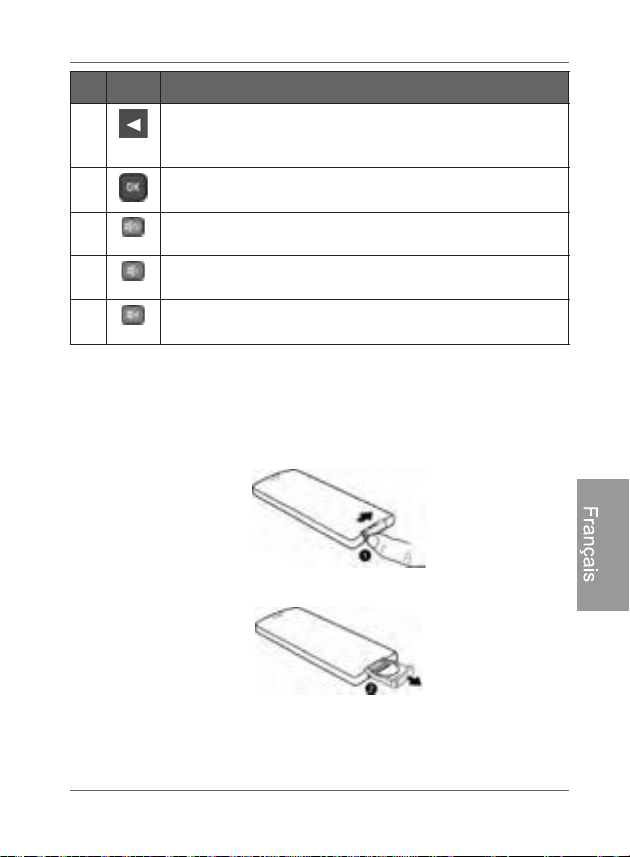
Fonctionnement du PhotoFrame FR - 11
Cadre photo numérique PhotoFrame
Français
Remplacement de la pile de la
télécommande
1. Trouvez la languette de verrouillage située à l'arrière de la
télécommande et poussez-la vers la droite.
2. Tirez le logement de la pile.
6
GAUCHE/HAUT
Déplace vers la gauche ou le haut, ou passe à l'élément
précédent.
7
OK
Confirme votre sélection.
8
MUET
Active/désactive le mode muet.
9
VOLUME -
Diminue le volume.
10
VOLUME +
Augmente le volume.
Nº Icône Description
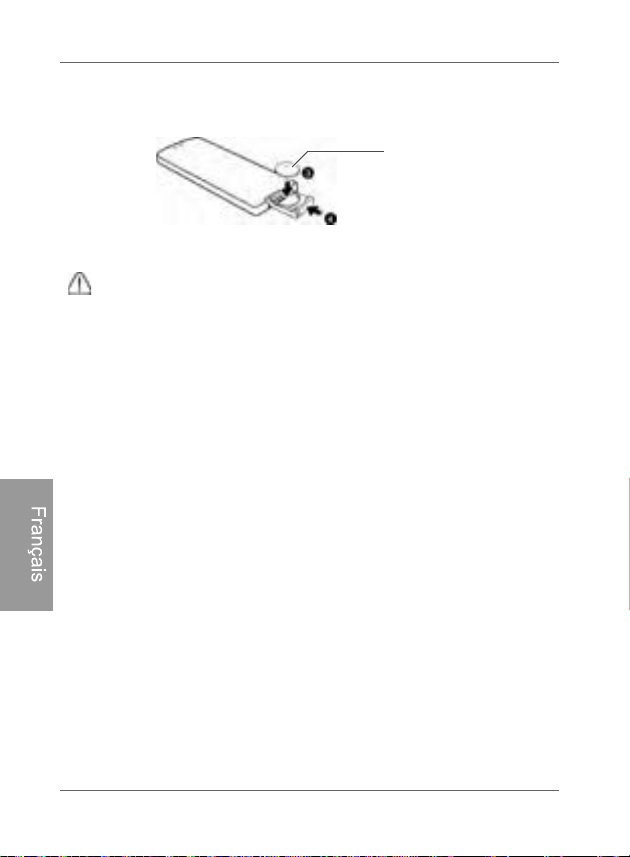
Cadre photo numérique PhotoFrame
Fonctionnement du cadre photo
FR - 12
Français
3. Insérez la nouvelle pile dans son logement. La pile doit être
placée avec la borne positive orientée vers le haut, tel
qu'indiqué sur l'illustration ci-dessous.
4. Repoussez le logement de la pile à l'intérieur de la
télécommande.
1HSDVUHPSODFHUODSLOHGHODPDQLqUHDSSURSULpHSRXUUDLW
HQGRPPDJHUFHOOHFL
8WLOLVH]XQLTXHPHQWGHVSLOHVGHW\SHLQGLTXpGDQVFHPRGH
GHPSORL
5HF\FOH]RXpOLPLQH]OHVSLOHVXVpHVGHPDQLqUHDGpTXDWHHQ
UHVSHFWDQWOHVGLUHFWLYHVHWUpJOHPHQWDWLRQVORFDOHV
/HVSLOHVFRQWLHQQHQWGHVPDWLqUHVKDXWHPHQWLQIODPPDEOHVHW
GRLYHQWrWUHFRQVHUYpHVjGLVWDQFHGHWRXWHQYLURQQHPHQWSRXYDQW
SUpVHQWHUGHVQLYHDX[GHFKDOHXURXGKXPLGLWpH[WUrPHV
6LODSLOHHVWFRPSOqWHPHQWYLGHRXVLYRXVQXWLOLVH]SDVOD
WpOpFRPPDQGHSHQGDQWXQHORQJXHSpULRGHSUHQH]VRLQGHUHWLUHU
ODSLOHDILQGHSUpYHQLUOHVIXLWHV
Borne positive
orientée vers le
haut
Démarrage du PhotoFrame FR - 13
Cadre photo numérique PhotoFrame
Français
Démarrage du PhotoFrame
Étape 1: Utilisation du pied arrière
réglable
1. Tirez doucement le pied arrière tel qu'illustré ci-dessous.
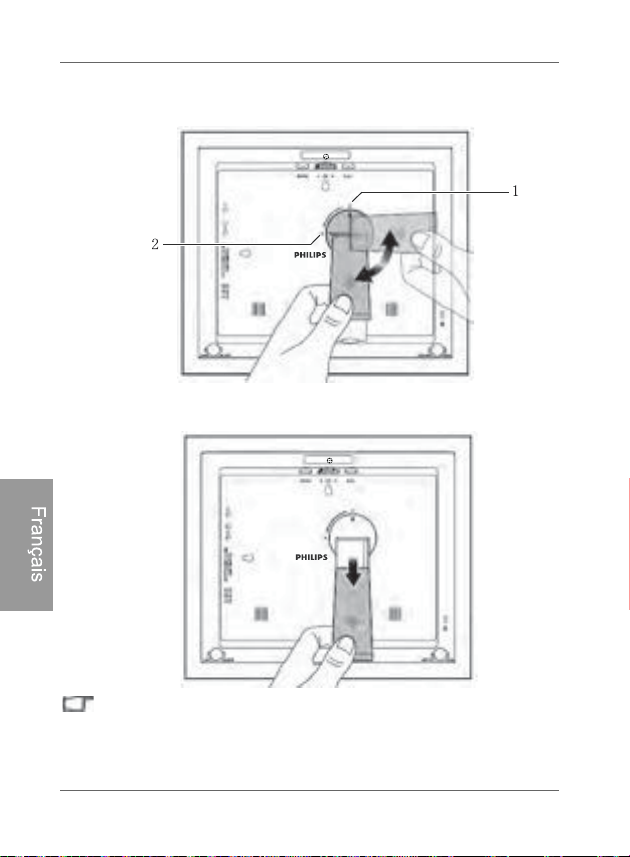
Cadre photo numérique PhotoFrame
Démarrage du PhotoFrame
FR - 14
Français
2. Pour placer le PhotoFrame à l'horizontale ou à la verticale,
vous pouvez faire pivoter le pied arrière en alignant la flèche
sur les points (1 ou 2).
3. Tirez le pied arrière et réglez-le en fonction de l'angle de vue
que vous préférez.
,OHVWUHFRPPDQGpGHSODFHUOHPKRWRFrameKRUL]RQWDOHPHQWpWDQW
GRQQpTXHODGLUHFWLRQRIIUHODPHLOOHXUHH[SpULHQFHGH
YLVLRQQHPHQWHWGXWLOLVDWLRQ
9RXVSRXYH]VXVSHQGUHOHPKRWRFrameKRUL]RQWDOHPHQWRX
YHUWLFDOHPHQWjXQPXUHQYRXVVHUYDQWGHVWURXVGHVXVSHQVLRQ

Démarrage du PhotoFrame FR - 15
Cadre photo numérique PhotoFrame
Français
Étape 2: Branchement de
l'alimentation
1. Placez votre PhotoFrame sur une surface plane.
2. Branchez l'adaptateur de courant tel qu'illustré ci-dessous (1),
puis appuyez sur le bouton d'alimentation pour allumer le
PhotoFrame (2).
/HVV\VWqPHVGDOLPHQWDWLRQHWOHVW\SHVGHILFKHSHXYHQWYDULHU
VHORQYRWUHSD\VRXUpJLRQ
3RXUpWHLQGUHOHPhotoFrameDSSX\H]jQRXYHDXVXUOHERXWRQ
GDOLPHQWDWLRQ
Cadre photo numérique PhotoFrame
Démarrage du cadre photo
FR - 16
Français
Étape 3: Première utilisation
Afin de vous aider à tirer le maximum de votre PhotoFrame, nous
avons enregistré un tutoriel vidéo qui se lance automatiquement
la première fois que vous allumer l'appareil. Pour interrompre la
lecture en boucle du vidéo et commencer à afficher vos propres
photos, appuyez sur l'un des boutons situés à l'arrière du cadre.
Suivez la procédure en cinq étapes pour vous familiariser avec le
fonctionnement des boutons de commande. L'affichage de cette
procédure sera automatiquement désactivé après la première
utilisation du PhotoFrame. Vous pouvez activer l'affichage du
tutoriel en accédant au menu RÉGLAGES.
Étape 4: Configuration de base
Sélectionnez la langue d'affichage et réglez la date et l'heure lors
de votre première utilisation du PhotoFrame.
Sélection de la langue d'affichage
1. Dans le menu principal, appuyez sur ou sur pour
sélectionner RÉGLAGES , puis appuyez sur .
2. Appuyez sur .
Le menu Réglages généraux apparaît.
Démarrage du PhotoFrame FR - 17
Cadre photo numérique PhotoFrame
Français
3. Appuyez sur , puis sur pour accéder à l'option
Langue, puis appuyez à nouveau sur .
4. Appuyez sur ou sur pour sélectionner la langue
d'affichage que vous désirez, puis appuyez sur .
5. Appuyez sur pour quitter.
Réglage de la date et de l'heure
1. Dans le menu principal, appuyez sur ou sur pour
sélectionner RÉGLAGES , puis appuyez sur .
Le menu Date et heure apparaît.
2. Appuyez sur pour mettre en surbrillance le champ
Année, appuyez sur ou pour sélectionner l'année,
puis appuyez sur pour confirmer le réglage.
3. Appuyez sur pour déplacer le champ de sélection
jusqu'au champ Mois, appuyez sur pour mettre en
surbrillance le champ Mois, appuyez sur ou pour
sélectionner un mois, puis appuyez sur pour confirmer le
réglage.
4. Répétez l'étape 3 pour les autres champs: Date, Heure,
Minutes, Mode, Fuseau horaire actuel et Fuseau horaire
secondaire.
5. Appuyez sur pour quitter.
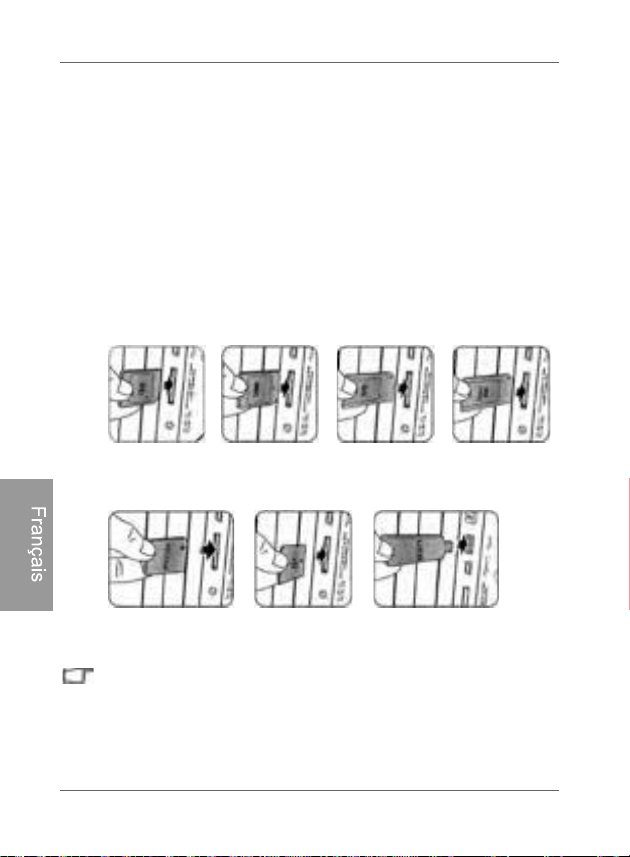
Cadre photo numérique PhotoFrame
Démarrage du cadre photo
FR - 18
Français
Étape 5: Insertion d'une carte
mémoire ou d'une clé USB dans le
PhotoFrame
Vous pouvez allumer le PhotoFrame et afficher les photos
préalablement enregistrées dans la mémoire interne de l'appareil
sans qu'aucune carte mémoire ou clé USB ne soit insérée.
Pour afficher vos propres fichiers, insérez une carte mémoire ou
une clé USB compatible contenant des fichiers pris en charge par
l'appareil dans le logement pour carte mémoire correspondant du
PhotoFrame, tel qu'illustré ci-dessous.
Pour plus d'informations sur les formats de fichier pris en charge par
le PhotoFrame, reportez-vous à la section «Spécifications
te
chniques» à la page 60.
SD/SDHC MultiMediaCard Memory Stick Memory Stick
PRO
xD-Picture
Card
Memory Stick
Duo
Clé USB
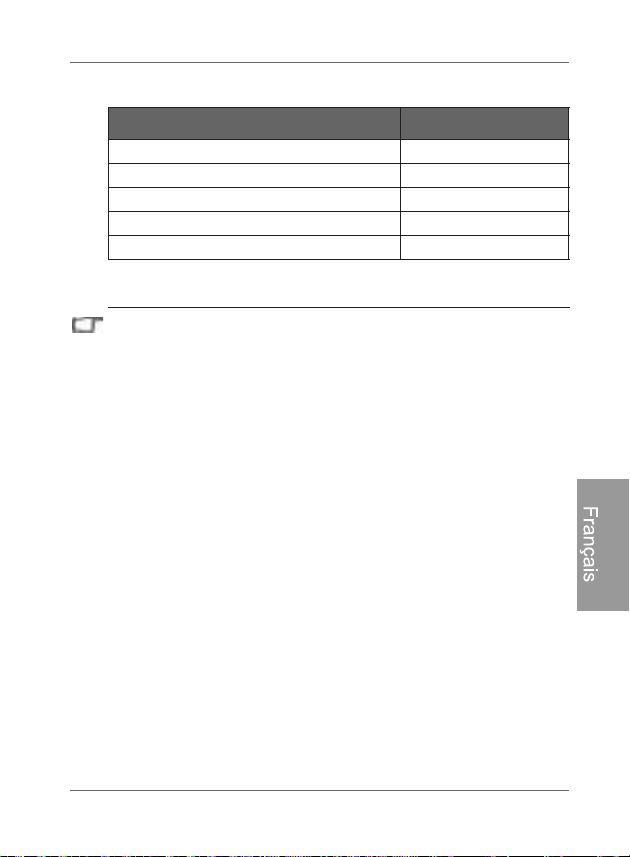
Démarrage du PhotoFrame FR - 19
Cadre photo numérique PhotoFrame
Français
Formats de carte mémoire compatibles
/HVVSpFLILFDWLRQVGHFDSDFLWpVPD[LPXPVpQXPpUpHVFLGHVVXV
VRQWVXMHWWHVjFKDQJHPHQWVDQVSUpDYLV
/HVFDUWHVPpPRLUHSHXYHQWrWUHLQVpUpHVRXUHWLUpHV© jFKDXG ª
(QGDXWUHVPRWVYRXVSRXYH]PRGLILHURXUHWLUHUODFDUWHPpPRLUH
ORUVTXHODOLPHQWDWLRQGXPKRWRFrameHVWVRLWDFWLYpHVRLW
GpVDFWLYpH
/HPKRWRFrameSUHQGHQFKDUJHOHVV\VWqPHVGH[SORLWDWLRQ
:LQGRZVHW0$&7RXWHIRLVORUVGXIRUPDWDJHGHYRVFDUWHV
PpPRLUHDVVXUH]YRXVGHQXWLOLVHUTXHOHVV\VWqPHVGHILFKLHUV
)$7HW)$7VRXV:LQGRZV/HIRUPDWDJHGHVFDUWHVPpPRLUH
DYHF17)6RX0$&QHVWSDVSULVHQFKDUJH
,OHVWQpFHVVDLUHGXWLOLVHUXQDGDSWDWHXUSRXUFDUWHPpPRLUHSRXU
SRXYRLULQVpUHUXQHFDUWHPLFUR6'XQHPLQL6'RXXQHFDUWH
0HPRU\6WLFN0LFUR0GDQVOHPKRWRFrame
Formats de carte mémoire Capacité maximum
BG23CHDS/DS
M
ultiMediaCard (MMC) 1 GB
Memory Stick (MS) 4 GB
xD-Picture Card (xD) 2 GB
BG61BSUélC
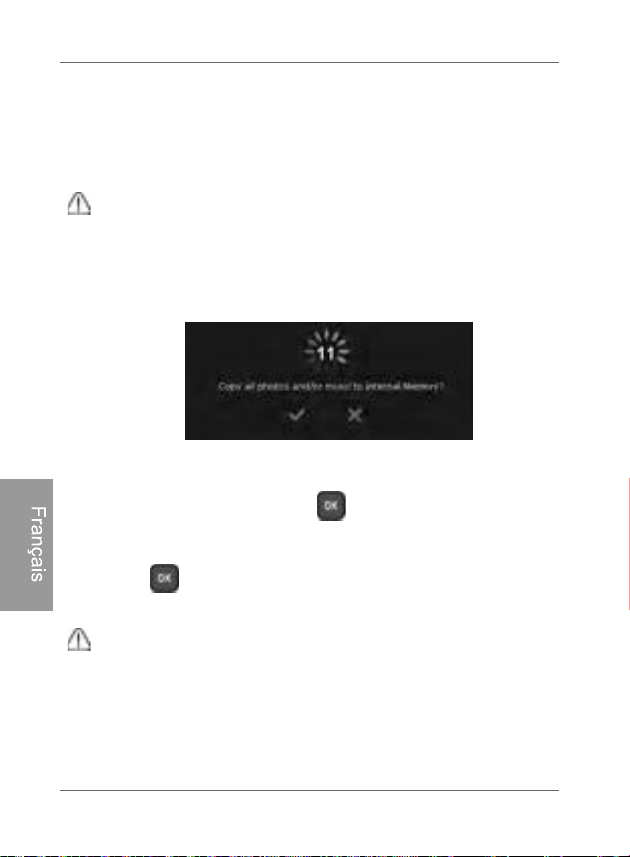
Cadre photo numérique PhotoFrame
Démarrage du cadre photo
FR - 20
Français
Étape 6: Copier des photos et/ou de
la musique vers la mémoire interne
Lorsque vous insérez une carte mémoire ou une clé USB dans le
PhotoFrame, il vous sera demandé si vous souhaitez copier
toutes les photos ou toute la musique vers la mémoire interne.
Si l'option « Copie intelligente » (Smart Copy) sous « Réglages
généraux » est réglée sur « Redimensionner », les photos seront
automatiquement redimensionnées en fonction de la résolution
d'écran lorsque copiées vers la mémoire interne, et ce afin
d'optimiser la capacité de stockage de cette dernière. Veuillez vous
assurer de conserver des copies des photos originales sur votre
carte mémoire ou votre clé USB.
Pour copier tous les fichiers d'images et/ou audio enregistrés
sur la carte mémoire insérée (ou la clé USB), sélectionnez la
coche , puis appuyez sur pour confirmer.
Pour afficher des photos sans les copier vers la mémoire
interne du PhotoFrame, sélectionnez la croix , puis appuyez
sur . Le PhotoFrame commencera automatiquement à
afficher les photos enregistrées sur la carte mémoire ou la clé
USB que vous avez insérée.
1HUHWLUH]SDVODFDUWHPpPRLUHRXODFOp86%DYDQWTXHOH
processus de copie ne soit terminé.
6LOHVILFKLHUVTXHYRXVVRXKDLWH]FRSLHUGHSXLVODFDUWHPpPRLUH
ou clé USB existent déjà dans la mémoire interne du PhotoFrame,
ces fichiers seront remplacés une fois que vous sélectionnerez
pour confirmer.
3RXUFRSLHUGHVYLGpRVFRQQHFWH]YRWUHPhotoFrame directement à
votre ordinateur au moyen du câble mini USB (compris avec le
PhotoFrame). Voir à la page suivante pour plus de détails.

Démarrage du PhotoFrame FR - 21
Cadre photo numérique PhotoFrame
Français
Étape 7: Connexion du PhotoFrame
à un ordinateur
Vous pouvez connecter le PhotoFrame à un ordinateur à l'aide
d'un câble mini USB (compris avec le PhotoFrame) ce qui vous
permettra de gérer facilement les fichiers dans la mémoire
interne de votre PhotoFrame.
1. Démarrez l'ordinateur et allumez le PhotoFrame.
2. Branchez la petite extrémité du câble USB au port mini USB
du PhotoFrame.
3. Branchez l'autre extrémité du câble à un port USB de
l'ordinateur en vous assurant que les connecteurs soient
complètement insérés dans leur port respectif.
4. Une fois connecté, le PhotoFrame basculera automatiquement
en mode transfert PC.
5. Lorsque l'ordinateur détectera le PhotoFrame, ce dernier
apparaîtra dans le « Poste de travail » (« My Computer »)
comme « disque amovible ».
Vous pouvez maintenant transférer librement les fichiers
enregistrés dans le PhotoFrame de la même façon que vous le
feriez avec d'autres types de périphériques de stockage.
9RXVSRXYH]FRSLHUGHVSKRWRVGHODPXVLTXHRXGHVYLGpRV
GHSXLVYRWUHRUGLQDWHXUYHUVOHPhotoFrameHWYLFHYHUVD
/HVILFKLHUVHQUHJLVWUpVVXUOHVFDUWHVPpPRLUHHWODFOp86%QH
SHXYHQWrWUHYXVQLPRGLILpVYLDODFRQQH[LRQ86%
3RXUFRSLHUGHVYLGpRVYHUVODPpPRLUHLQWHUQHGXPhotoFrame
YRXVGHYH]OHVWUDQVIpUHUYLDXQHFRQQH[LRQjXQRUGLQDWHXU
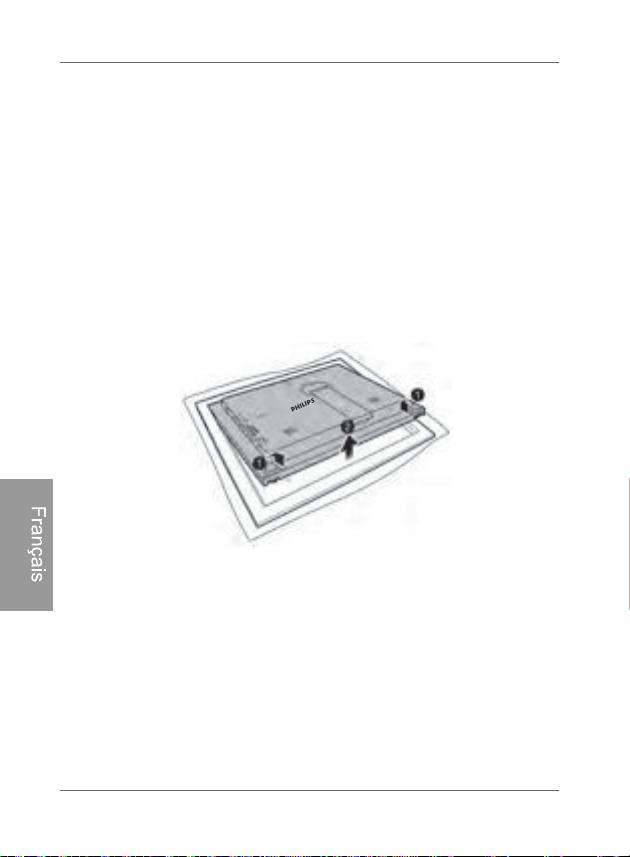
Cadre photo numérique PhotoFrame
Démarrage du cadre photo
FR - 22
Français
Étape 8: Remplacement du
passe-partout en papier
Il se peut que votre PhotoFrame vienne avec un ou plusieurs
passe-partout supplémentaires selon le modèle que vous avez
acheté. Vous pouvez remplacer le passe-partout déjà en place par
l'un de ceux fournis avec le PhotoFrame (si disponible). Suivez les
instructions ci-dessous pour remplacer le passe-partout en papier.
1. Sur une surface plane, posez le PhotoFrame sur une serviette
propre, le côté face vers le bas. Prenez bien soin de ne pas
égratigner l'appareil.
2. Tournez les vis de blocage EZ à l'arrière du PhotoFrame en
position « déverrouillée », puis retirez doucement le corps de
l'appareil de son cadre en bois.
3. Retirez le passe-partout actuellement en place.
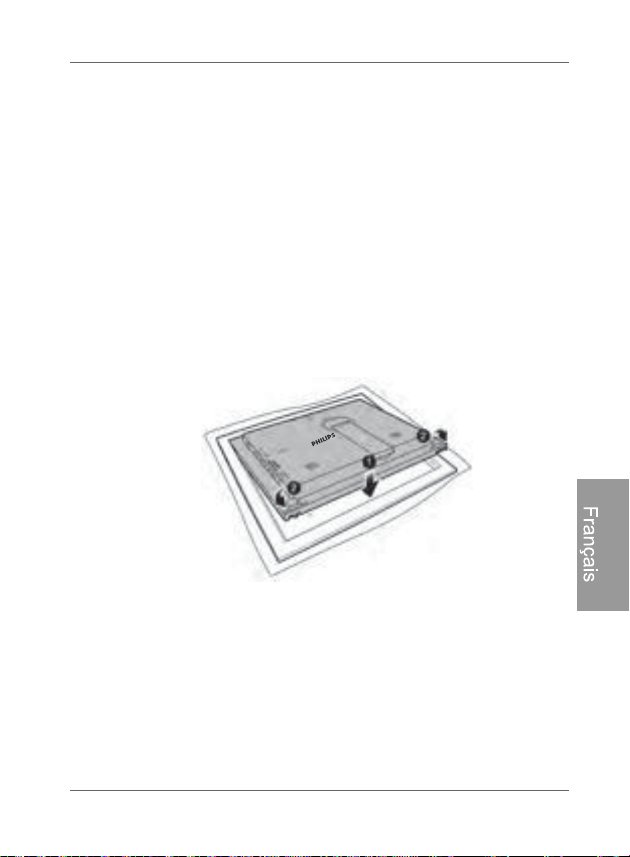
Démarrage du PhotoFrame FR - 23
Cadre photo numérique PhotoFrame
Français
4. Placez le passe-partout de remplacement dans le cadre.
5. Replacez le PhotoFramedans le cadre en bois et fixez-le en
place en tournant les vis de blocage EZ en position
« verrouillée ».
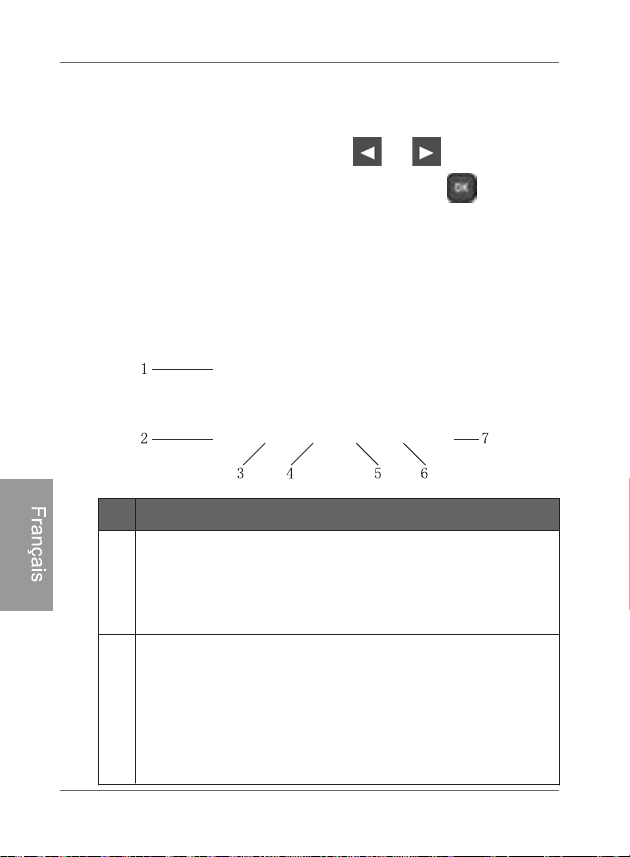
Cadre photo numérique PhotoFrame
Utilisation du menu principal
FR - 24
Français
Utilisation du menu principal
Lorsque vous allumez le PhotoFrame, l'écran principal ci-dessous
apparaît. Vous pouvez appuyer sur ou pour
sélectionner le menu souhaité, puis appuyez sur pour
accéder au menu que vous avez sélectionné.
Nº Description
1
Fonction Smart Energy Saver
TM
(économie d'énergie
intelligente)
Vous permet de sélectionner une option d'économie
d'énergie pour le PhotoFrame.
Voir «Utilisation du Smart Energy Saver
TM
» à la page
42 pour plus de détails.
2
HORLO
GE ET CALENDRIER
Vous permet de choisir vos apparences d'affichage de
l'horloge préférées.
Vous permet de définir une alarme.
Voir «Utilisation du menu HORLOGE (bouton EZ Access)»
à la page 44 pour plus de détails.
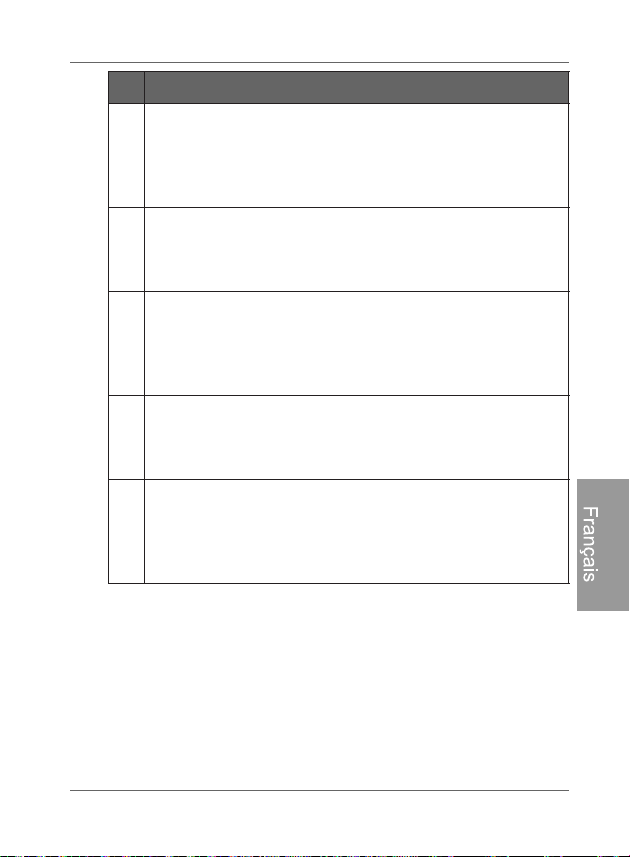
Utilisation du menu principal FR - 25
Cadre photo numérique PhotoFrame
Français
3
Album personnalisé
Vous permet d'afficher des photos en mode diaporama
selon différents modèles préenregistrés.
Voir «Utilisation de l'album personnalisé numérique» à la
p
age 48 pour plus de détails.
4
DIAP
ORAMA
Vous permet d'afficher des photos en mode diaporama.
Voir «Affichage des photos» à la page 39 pour plus de
dét
ails.
5
ALBUMS PHOTO
Vous permet de gérer et classer vos photos en les
assignant à différents albums.
Voir «Gestion des photos» à la page 26 pour plus de
dét
ails.
6
CENTRE MULTIMÉDIA
Vous permet de faire jouer de la musique et des vidéos.
Voir «Utilisation du CENTRE MULTIMÉDIA» à la page 49
pour plus de détails.
7
RÉ
GLAGES
Vous permet de régler les différents paramètres de
configuration du PhotoFrame.
Voir «Utilisation du menu RÉGLAGES» à la page 53 pour
plus de
détails.
Nº Description
Cadre photo numérique PhotoFrame
Gestion des photos
FR - 26
Français
Vous pouvez utiliser les options du menu ALBUMS PHOTO pour gérer les
photos enregistrées dans la mémoire interne, sur une carte
mémoire ou une clé USB.
Copier des photos vers la mémoire
interne
En plus de la fonction automatique de « Copie intelligente » (voir
page 20), vous pouvez copier manuellement des photos depuis
un périphérique de
stockage externe vers la mémoire interne et
étiqueter des photos pour les assigner à un album.
L'exemple ci-dessous indique comment copier des photos depuis
une carte mémoire vers la mémoire interne du PhotoFrame, et
comment étiqueter des photos pour les assigner à un album.
1. Insérez une carte mémoire compatible dans le logement pour
carte mémoire approprié.
2. Dans le menu principal, appuyez sur ou sur pour
sélectionner l'option ALBUMS PHOTO, puis appuyez sur .
Gestion des photos
Gestion des photos FR - 27
Cadre photo numérique PhotoFrame
Français
3. Sélectionnez Carte mémoire, puis appuyez sur .
L'écran affiche les photos enregistrées sur votre carte
mémoire.
4. S'il y a plus d'une page de photos, vous pouvez appuyer sur
ou pour accéder à la page précédente ou suivante
et en parcourir les photos (sinon, omettez cette étape).
5. Appuyez sur pour activer le champ de sélection, affiché
en orangé.
6. Appuyez sur ou pour déplacer le champ de
sélection jusqu'à la photo que vous voulez sélectionner, puis
appuyez sur pour confirmer.
La photo sélectionnée sera marquée d'un cadre vert.
Répétez l'étape 6 pour sélectionner les autres photos que vous
souhaitez sélectionner.
7. Appuyez sur .
Si vous voulez sélectionner toutes les photos affichées sur la page
actuelle, sélectionnez « Tout sélectionner » dans le menu contextuel
et appuyez sur . Passez ensuite à l'étape 7.
Cadre photo numérique PhotoFrame
Gestion des photos
FR - 28
Français
8. Dans le menu contextuel, appuyez sur ou pour
sélectionner Étiqueter ceci, puis appuyez sur .
9. Sélectionnez un album de destination par défaut pour que les
photos y soient copiées et classées.
Gestion des photos FR - 29
Cadre photo numérique PhotoFrame
Français
Assignation de photos à un album
1. Dans le menu principal, appuyez sur ou sur pour
sélectionner l'option ALBUMS PHOTO, puis appuyez sur .
L'écran affichera:
la source du fichier, incluant USB, Carte mémoire et
Mémoire interne.
les albums par défaut se trouvant dans la mémoire
interne, incluant Chronologie, Photothèque
préinstallée, Non classifié, Famille, Amis et
Vacances.
/HVVRXUFHV©86%ªHW©&DUWHPpPRLUHªQDSSDUDLVVHQWTXH
ORUVTXXQHFOp86%HWXQHFDUWHPpPRLUHRQWpWpLQVpUpHVGDQVOH
PhotoFrame.
3RXUSOXVGHGpWDLOVFRQFHUQDQWODOEXP©&+5212/2*,(ªYRLUOD
section ©*HVWLRQGHYRVSKRWRVjODLGHGHODOEXP&+5212/2*,(ª
à la
page 32.
2. Appuyez sur ou pour sélectionner la source de vos
photos, telle que l'album Mémoire interne, puis appuyez sur
. (Le cas échéant, vous pouvez également sélectionner
USB ou Carte mémoire.)
L'écran affiche toutes les photos enregistrées dans la mémoire
interne.
Cadre photo numérique PhotoFrame
Gestion des photos
FR - 30
Français
3. S'il y a plus d'une page de photos, vous pouvez appuyer sur
ou pour accéder à la page précédente ou suivante
et en parcourir les photos. (sinon, omettez cette étape.)
4. Appuyez sur pour activer le champ de sélection, affiché
en orangé.
5. Appuyez sur ou pour déplacer le champ de
sélection jusqu'à la photo que vous voulez sélectionner, puis
appuyez sur pour confirmer.
La photo sélectionnée sera marquée d'un cadre vert.
Répétez l'étape 5 pour sélectionner les autres photos que vous
souhaitez sélectionner.
6. Appuyez sur .
Si vous voulez sélectionner toutes les photos affichées sur la page
actuelle, sélectionnez « Tout sélectionner » dans le menu contextuel
et appuyez sur . Passez ensuite à l'étape 7.
7. Dans le menu contextuel, appuyez sur ou pour
sélectionner Étiqueter ceci, puis appuyez sur .
Gestion des photos FR - 33
Cadre photo numérique PhotoFrame
Français
Dans ce menu, vous pouvez également rechercher des
photos prises pendant une période de temps spécifique avec
l'album CHRONOLOGIE en appuyant sur et en
sélectionnant l'intervalle de temps souhaité.
3. Appuyez sur pour déplacer le champ de sélection
jusqu'au champ Mois, puis répétez l'étape 2 pour régler les
paramètres.
4. Appuyez sur pour déplacer le champ de sélection
jusqu'au symbole , puis appuyez sur pour démarrer
la séquence d'affichage.
Les photos prises à l'intérieur du laps de temps préalablement
spécifié seront affichées sur l'écran.
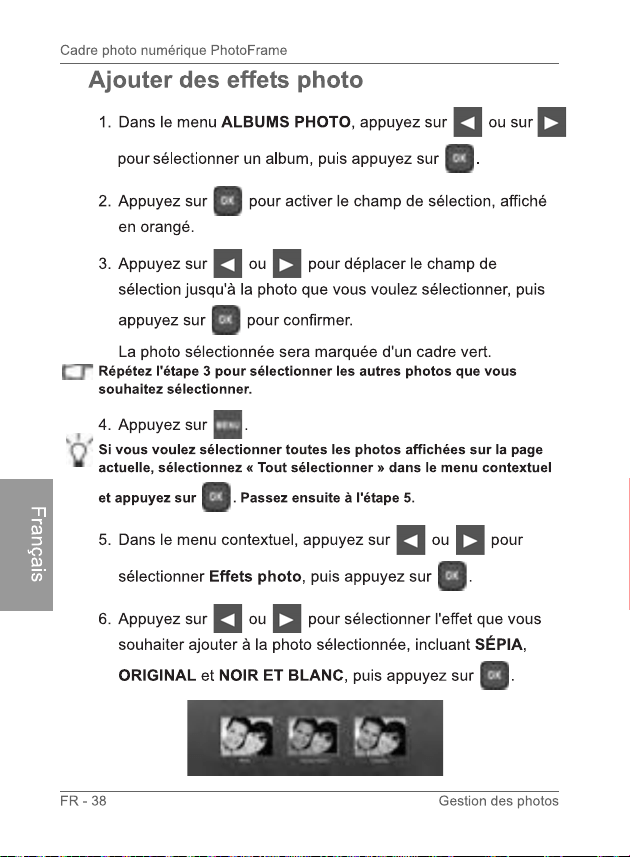
Affichage des photos FR - 39
Cadre photo numérique PhotoFrame
Français
1. Dans le menu principal, appuyez sur ou sur pour
sélectionner l'option DIAPORAMA, puis appuyez sur
.
Les sources « USB » et « Carte mémoire » n'apparaissent que
lorsqu'une clé USB et une carte mémoire ont été insérées dans le
PhotoFrame.
2. Appuyez sur ou pour sélectionner l'album contenant
les photos que vous souhaitez afficher en diaporama, puis
appuyez sur .
Si vous souhaitez interrompre le diaporama, appuyez sur .
Affichage des photos
Cadre photo numérique PhotoFrame
Affichage des photos
FR - 40
Français
3. Pour régler les paramètres de configuration du diaporama,
appuyez sur pour afficher le menu contextuel. Vous
pouvez régler les paramètres ci-dessous.
Effet de transition: sélectionne l'effet de transition
que vous souhaitez attribuer au diaporama.
Intervalle du diaporama: sélectionne la durée
d'intervalle entre les photos du diaporama.
L'effet de transition par défaut « Déplacement et Zoom » ne permet
pas à l'utilisateur de définir l'intervalle qu'il souhaite.
Luminosité: sélectionne le niveau de luminosité de
l'écran.
Contraste: sélectionne le niveau de contraste.
Saturation: sélectionne le niveau de saturation.
Musique: sélectionne le volume de la musique
d'arrière-plan.
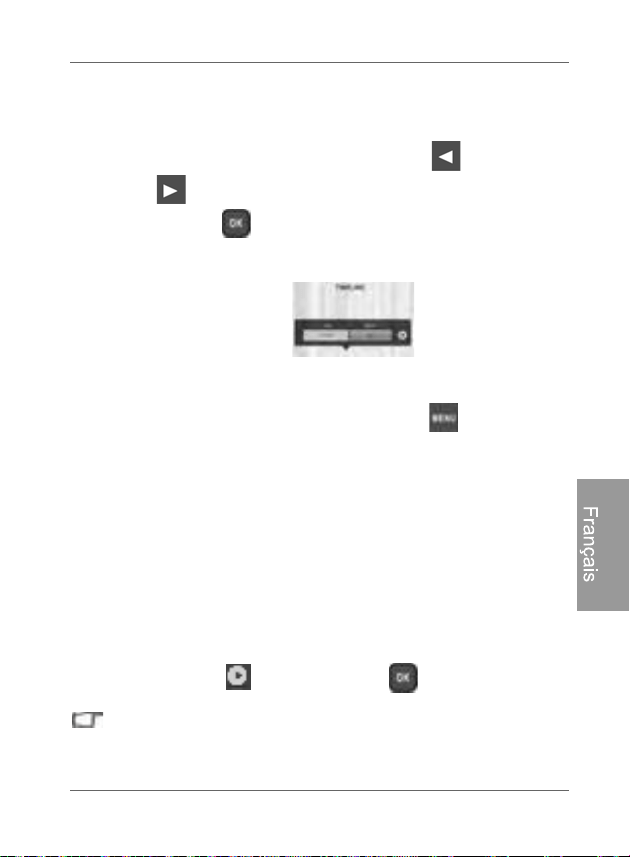
Affichage des photos FR - 41
Cadre photo numérique PhotoFrame
Français
Lancement d'un diaporama avec
l'album CHRONOLOGIE
1. Dans le menu DIAPORAMA, appuyez sur ou
sur pour sélectionner l'option CHRONOLOGIE, puis
appuyez sur .
2. Dans l'écran contextuel, définissez un laps de temps
comprenant un ensemble de photos que vous souhaitez
afficher en diaporama.
Dans ce menu, vous pouvez également rechercher des
photos prises pendant une période de temps spécifique avec
l'album CHRONOLOGIE en appuyant sur et en
sélectionnant l'intervalle de temps souhaité.
3. Sélectionnez , puis appuyez sur pour démarrer la
séquence d'affichage.
La fonction CHRONOLOGIE n'est disponible que pour les photos
enregistrées sur une carte mémoire insérée dans le lecteur de carte.
Veuillez copier vos photos de votre clé USB vers une carte mémoire
insérée si vous souhaitez utiliser cette fonction.
Cadre photo numérique PhotoFrame
Utilisation du Smart Energy Saver
TM
FR - 42
Français
Le menu du Smart Energy Saver
TM
offre une série
d'options prédéfinies vous permettant de réduire la
consommation électrique du PhotoFrame.
1. Dans le menu principal, appuyez sur ou sur pour
sélectionner l'option Smart Energy Saver
TM
, puis
appuyez sur .
2. Appuyez sur ou pour sélectionner l'option que vous
voulez, puis appuyez sur pour confirmer.
Utilisation du
Smart Energy Saver
TM
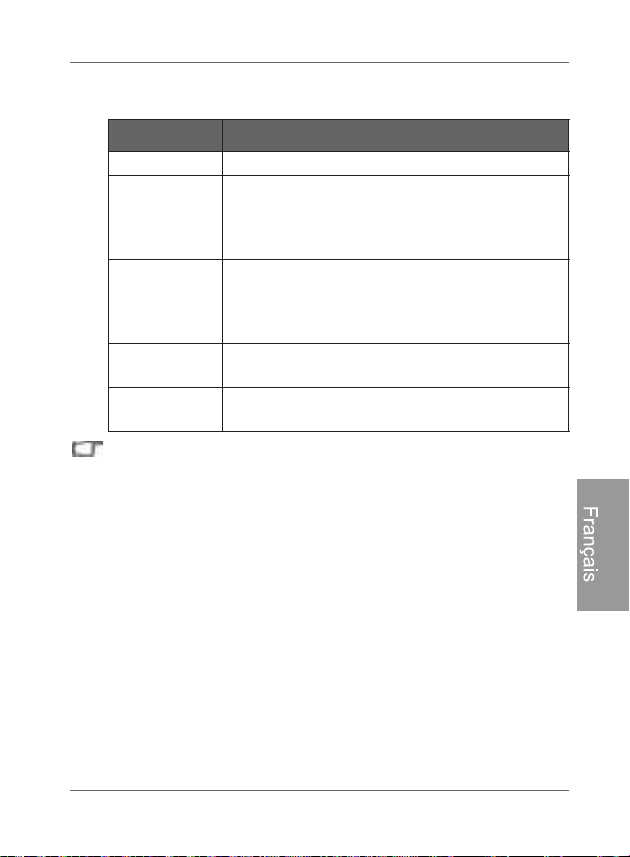
Utilisation du Smart Energy Saver
TM
FR - 43
Cadre photo numérique PhotoFrame
Français
Pour plus de détails concernant les options d'économie
d'énergie, reportez-vous au tableau ci-dessous.
/DSpULRGHGHQXLWHVWGpILQLHFRPPHDOODQWGHKjK
/DSpULRGHGHMRXUHVWGpILQLHFRPPHDOODQWGHKjK
/DFWLYDWLRQGXSmart Energy Saver
TM
QDIIHFWHDXFXQHPHQW
ODTXDOLWpGDIILFKDJHGHVSKRWRV
2SWLRQ 'HVFULSWLRQ
Désactivé Désactive le Smart Energy Saver
TM
.
Auto 50% Économise 50% de la consommation électrique
pendant la nuit et retourne automatiquement à
un niveau normal de consommation pendant le
jour.
Auto 100% Fait basculer le PhotoFrame en mode veille
pendant la nuit et retourne automatiquement à
un niveau normal de consommation pendant le
jour.
20%
d'économie
Réduit la consommation électrique de 20% en
tout temps.
50%
d'économie
Réduit la consommation électrique de 50% en
tout temps.
Cadre photo numérique PhotoFrame
Utilisation du menu HORLOGE (bouton EZ Access)
FR - 44
Français
Sélection d'une apparence
d'affichage de l'horloge
Le PhotoFrame offre une variété d'apparences d'affichage de
l'horloge et du calendrier préenregistrées dans l'appareil. Pour
définir une apparence d'affichage de l'horloge par défaut (pour le
mode horloge), suivez les étapes décrites ci-dessous.
1. Dans le menu principal, appuyez sur ou sur pour
sélectionner l'option HORLOGE ET CALENDRIER, puis
appuyez sur .
2. Appuyez sur ou pour sélectionner l'apparence
d'affichage voulue.
Utilisation du menu
HORLOGE (bouton EZ Access)
Utilisation du menu HORLOGE (bouton EZ Access) FR - 45
Cadre photo numérique PhotoFrame
Français
3. Appuyez sur puis sélectionnez Défaut.
4. Appuyez sur pour définir l'apparence sélectionnée
comme apparence d'affichage d'horloge par défaut.
L'apparence d'affichage d'horloge par défaut sera affichée
lorsque vous appuyez sur (ou sur ).
Basculement entre les modes
horloge et diaporama
Vous pouvez appuyer sur pour basculer entre les
modes horloge et diaporama.
/RUVTXHYRXVEDVFXOHUGXPRGHKRUORJHDXPRGHGLDSRUDPDOH
PhotoFrameODQFHOHGHUQLHUGLDSRUDPDjDYRLUpWpDIILFKp
6LOHGHUQLHUGLDSRUDPDjrWUHDIILFKpSURYHQDLWGXQHFDUWHPpPRLUH
RXGXQHFOp86%D\DQWHQWUHWHPSVpWpUHWLUpHOHPhotoFrame
lancera un diaporama enregistré dans la mémoire interne ou dans
ODSKRWRWKqTXHSUpLQVWDOOpH
Cadre photo numérique PhotoFrame
Utilisation du menu HORLOGE (bouton EZ Access)
FR - 46
Français
Définir une alarme
Vous devez régler la date et l'heure du PhotoFrame avant de définir
une alarme. Voir «Réglage de la date et de l'heure» à la page 17 pour
pl
us de détails.
1. Dans le menu principal, appuyez sur ou sur pour
sélectionner l'option HORLOGE puis appuyez sur .
2. Appuyez sur , puis appuyez sur ou pour
sélectionner l'option Alarme.
3. Appuyez sur .
4. Dans l'écran RÉGLAGE DE L'ALARME qui apparaîtra,
appuyez sur pour mettre le champ Heure en surbrillance.
5. Appuyez sur ou pour régler les paramètres dans le
champ Heure, puis appuyez sur pour confirmer le
réglage et accéder au champ suivant.
Utilisation du menu HORLOGE (bouton EZ Access) FR - 47
Cadre photo numérique PhotoFrame
Français
6. Appuyez sur ou pour régler les paramètres dans le
champ Min, puis appuyez sur pour confirmer le réglage
et accéder au champ suivant.
7. Appuyez sur ou pour sélectionner la sonnerie
d'alarme voulue, puis appuyez sur pour confirmer le
réglage et accéder au champ suivant.
8. Appuyez sur ou pour sélectionner , puis appuyez
sur pour compléter le paramétrage.
Répétez les étapes ci-dessus si vous souhaitez définir des alarmes
additionnelles.
Cadre photo numérique PhotoFrame
Utilisation de l'ALBUM PERSONNALISÉ
FR - 48
Français
La fonction ALBUM PERSONNALISÉ offre une toute nouvelle
expérience utilisateur en matière d'affichage de diaporamas.
1. Dans le menu principal, appuyez sur ou sur pour
sélectionner l'option ALBUM PERSONNALISÉ , puis
appuyez sur .
2. Appuyez sur ou pour sélectionner un modèle, puis
appuyez sur .
3. Sélectionnez un album contenant des photos que vous
souhaitez afficher en diaporama, puis appuyez sur .
Le PhotoFrame commencera à afficher les photos en
diaporama selon le modèle d'affichage sélectionné.
Utilisation de l'ALBUM
PERSONNALISÉ
Utilisation du CENTRE MULTIMÉDIA FR - 49
Cadre photo numérique PhotoFrame
Français
Regarder des vidéos
1. Dans le menu principal, appuyez sur ou sur pour
sélectionner l'option CENTRE MULTIMÉDIA, puis appuyez
sur .
2. Sélectionnez Vidéo, puis appuyez sur .
3. Appuyez sur ou pour sélectionner une source
(Mémoire interne, SD ou USB), puis appuyez sur .
Pour faire jouer des vidéos depuis votre caméscope portable,
sélectionnez « USB » comme source après avoir connecté l'appareil
au PhotoFrame.
4. Appuyez sur ou pour sélectionner une vidéo dans la
liste de fichiers (le cas échéant), puis appuyez sur pour
démarrer la lecture de la vidéo.
Utilisation du CENTRE
MULTIMÉDIA

Cadre photo numérique PhotoFrame
Utilisation du CENTRE MULTIMÉDIA
FR - 50
Français
5. Vous pouvez commander la lecture vidéo de la manière
suivante.
Pour interrompre la lecture, appuyez sur . Pour
reprendre la lecture, appuyez à nouveau sur .
Pour faire reculer la vidéo, faites tourner la « Roulette
de défilement / bouton OK » vers la gauche et tenez le
bouton enfoncé.
Pour faire avancer la vidéo, faites tourner la « Roulette
de défilement / bouton OK » vers la droite et tenez le
bouton enfoncé.
Pour passer à la vidéo précédente, appuyez sur .
Pour passer à la vidéo suivante, appuyez sur .
Pour régler le volume, appuyez deux fois sur ,
puis appuyez sur pour augmenter le volume ou
sur pour le diminuer.
Pour arrêter la lecture, appuyez sur .
/HVYLGpRVQHSHXYHQWrWUHWUDQVIpUpVYHUVYRWUHPKRWRFrameTXH
YLDXQHFRQQH[LRQjXQRUGLQDWHXU9RLU©eWDSH&RQQH[LRQGX
PKRWRFramejXQRUGLQDWHXUªjODSDJHSRXUSOXVGHGpWDLOV
9RXVQHSRXYH]DFWLYHUOHVIRQFWLRQVGHUHPERELQDJHHWGDYDQFH
UDSLGHDXPR\HQGHOD©5RXOHWWHGHGpILOHPHQWERXWRQ2.ª&HV
FRPPDQGHVQHSHXYHQWrWUHDFWLYpHVDXPR\HQGHOD
WpOpFRPPDQGH
Utilisation du CENTRE MULTIMÉDIA FR - 51
Cadre photo numérique PhotoFrame
Français
Écouter de la musique
1. Dans le menu principal, appuyez sur ou sur pour
sélectionner l'option CENTRE MULTIMÉDIA, puis appuyez
sur .
2. Sélectionnez Musique, puis appuyez sur .
3. Appuyez sur ou pour sélectionner une source
(Mémoire interne, SD ou USB), puis appuyez sur .
4. Appuyez sur ou pour sélectionner une piste audio
dans la liste de fichiers (le cas échéant), puis appuyez sur
pour démarrer la lecture de la piste.
5. Vous pouvez commander la lecture audio de la manière
suivante.
Pour interrompre la lecture, appuyez sur . Pour
reprendre la lecture, appuyez à nouveau sur .
Pour lire la piste précédente, appuyez sur , puis
appuyez sur .
Cadre photo numérique PhotoFrame
Utilisation du CENTRE MULTIMÉDIA
FR - 52
Français
Pour lire la piste suivante, appuyez sur , puis
appuyez sur .
Pour régler le volume, appuyez deux fois sur ,
puis appuyez sur pour augmenter le volume ou
sur pour le diminuer.
Pour arrêter la lecture, appuyez sur .
6. Pour activer ou désactiver davantage d'options de lecture de
musique, appuyez sur lorsque de la musique joue.
Sélectionnez l'option voulue puis appuyez sur .
Les options ci-dessous sont disponibles.
Lecture aléatoire: joue les pistes audio de manière
aléatoire.
Répéter une chanson: répète la piste audio
présentement en lecture.
Répéter toute les chansons: répète toute les pistes
audio disponibles dans la liste de fichiers.
Supprimer cette piste: supprime la piste audio
sélectionnée.
Utilisation du menu RÉGLAGES FR - 53
Cadre photo numérique PhotoFrame
Français
Le menu RÉGLAGES vous permet de régler les paramètres de
configuration du PhotoFrame.
1. Dans le menu principal, appuyez sur ou sur pour
sélectionner l'option RÉGLAGES, puis appuyez sur .
Le menu Date et heure apparaît.
2. Appuyez sur ou pour basculer entre les menus Date
et heure, Réglages généraux et Information.
3. Appuyez sur pour accéder à un menu, et la première
option de ce menu sera mise en surbrillance.
Utilisation du menu
RÉGLAGES
Cadre photo numérique PhotoFrame
Utilisation du menu RÉGLAGES
FR - 54
Français
4. Appuyez à nouveau sur . Lorsque les symboles < >
apparaissent dans le champ, appuyez sur ou pour
régler les paramètres.
5. Appuyez sur pour quitter.
Menu Date et heure
Élément Option Description
Date -
Vous permet de régler la date.
Heure - Vous permet de régler l'heure.
Mode -
Vous permet de sélectionner le
format d'affichage de l'heure
(format 12 heures ou format 24
heures).
Fuseau
horaire actuel
-
Vous permet de sélectionner le
fuseau horaire correspondant à
votre emplacement géographique
actuel.
Fuseau
horaire
secondaire
-
Vous permet de définir un fuseau
horaire additionnel.
Utilisation du menu RÉGLAGES FR - 55
Cadre photo numérique PhotoFrame
Français
Menu Réglages généraux
Élément Option Description
Luminosité
1
V
ous permet de régler le niveau
de luminosité de l'écran.
2
3
4
5
Copie
intelligente
Détermine la façon dont les photos sont
copiées depuis les périphériques de stockage
externe vers la mémoire interne lorsque vous
utilisez la fonction Copie intelligente.
Redimensi
onner
Redimensionne automatiquement
les photos pour économiser de
l'espace mémoire.
Original
Conserve la taille d'origine des
fichiers.
Rognage
intelligent
Plein écran
Vous permet de choisir l'affichage
des photos dans leur taille
d'origine ou en plein écran.
Original
Langue
Anglais
Définit la langue d'affichage à
l'écran (OSD).
Français
Espagnol
Réinitialiser
Oui
Renvoie tous les paramètres aux
valeurs par défaut du système.
Non
Mise à niveau
FW
Oui
Met à niveau le microprogramme
(firmware) du PhotoFrame.
Non
Introduction
au produit
Activé
Affiche le tutoriel vidéo présentant
les principales caractéristiques et
fonctions du PhotoFrame.
Désactivé
Cadre photo numérique PhotoFrame
Utilisation du menu RÉGLAGES
FR - 56
Français
Menu Information
Élément Option Description
Version -
Af
fiche la version du
microprogramme (firmware) en
cours d'utilisation.
Mémoire
totale
-
Affiche la capacité mémoire totale
de la mémoire interne.
Mémoire
disponible
-
Affiche la capacité mémoire
disponible de la mémoire interne.
Foire aux questions FR - 57
Cadre photo numérique PhotoFrame
Français
Foire aux questions
Quels formats de carte mémoire sont compatibles avec le
PhotoFrame?
Les formats de carte mémoire SD/SDHC, MMC, MS, MS PRO,
MS Duo et xD sont compatibles avec le PhotoFrame. Pour en
savoir plus, reportez-vous à la section «Formats de carte
m
émoire compatibles» à la page 19.
P
ourquoi certaines photos se chargent plus rapidement
que d'autres?
Les photos haute résolution chargent plus lentement.
L'utilisation d'une résolution inférieure lors de la prise de
photos accélérera la durée de charge.
Comment fonctionne le changement d'orientation
automatique du PhotoFrame?
Le PhotoFrame affichera les photos en mode paysage (à
l'italienne) s'il est posé à l'horizontale (tel qu'illustré sur la boîte
du produit). Pour afficher vos photos en mode portrait (à la
française), tournez le PhotoFrame sur son coté droit.
Pourquoi est-ce que mes photos sont affichées à l'envers?
Le PhotoFrame est posé du mauvais côté. Veuillez le retourner
et le poser sur son côté opposé.
Quels types de fichiers d'images puis-je afficher sur mon
PhotoFrame?
Le PhotoFrame prend en charge les images sous format JPEG,
BMP, JPEG Progressive et EXIF.
Quels types de fichiers audio puis-je lire avec mon
PhotoFrame?
Le PhotoFrame prend en charge les fichiers audio sous format
MP3, WMA, AAC et WAV.
Quels types de fichiers vidéo puis-je lire avec mon
PhotoFrame?
Le PhotoFrame prend en charge les fichiers vidéo sous format
JPEG (MJPEG), MPEG-4 H.264 (D1).
Cadre photo numérique PhotoFrame
Foire aux questions
FR - 58
Français
Puis-je connecter mon PhotoFrame directement à mon
ordinateur?
Vous pouvez connecter votre PhotoFrame directement à votre
ordinateur au moyen d'un câble mini USB et ainsi copier des
fichiers images/audio/vidéo entre votre PhotoFrame et votre
ordinateur.
Est-ce que les étiquettes attribuées aux photos seront
supprimées si je retire la carte SD?
Non. Le PhotoFrame enregistre toutes les informations dans
les métadonnées des photos étiquetées, de sorte que celui-ci
se souviendra des classifications des photos par albums la
prochaine fois que la carte SD est insérée dans l'appareil.
La vitesse de fonctionnement du PhotoFrame diminue
considérablement lors de l'affichage de certaines photos.
Que puis-je faire?
Ceci est essentiellement dû au temps de traitement
supplémentaire nécessaire pour décoder de larges fichiers à
haute résolution. La fonction de Rognage intelligent (activé par
défaut) redimensionne automatiquement les fichiers en fonction
de la résolution d'écran de l'appareil, et réduit considérablement
la taille des photos. Veuillez cependant vous assurer de
conserver des copies des photos originales sur votre ordinateur.
Le PhotoFrame se fige et ne répond plus aux commandes,
que puis-je faire?
Si le PhotoFrame se fige, vous n'avez qu'à le redémarrer en le
débranchant de l'alimentation électrique, puis en appuyant à
nouveau sur le bouton d'alimentation.
Pourquoi la fonction CHRONOLOGIE est-elle non
disponible pour les photos enregistrées sur ma clé USB?
La fonction CHRONOLOGIE n'est disponible que pour les photos
enregistrées sur une carte mémoire insérée dans le lecteur de
carte. Veuillez copier vos photos de votre clé USB vers une carte
mémoire insérée si vous souhaitez utiliser cette fonction.
Pourquoi est-il impossible d'assigner les photos sur ma
carte SD à un album photo?
Veuillez vérifier que votre carte SD ne soit pas verrouillée
contre l'écriture car le PhotoFrame doit être en mesure d'écrire
des informations sur les fichiers pour les assigner à un album.
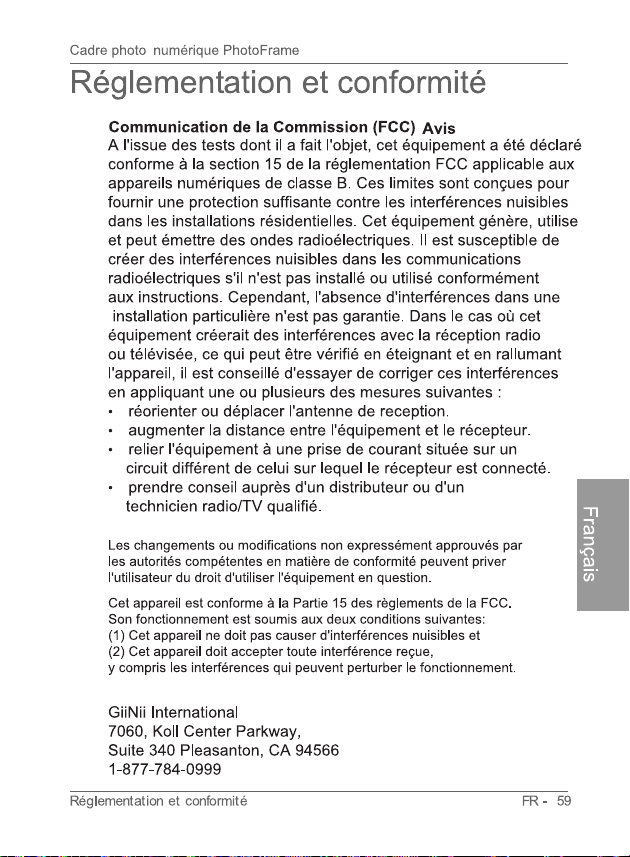
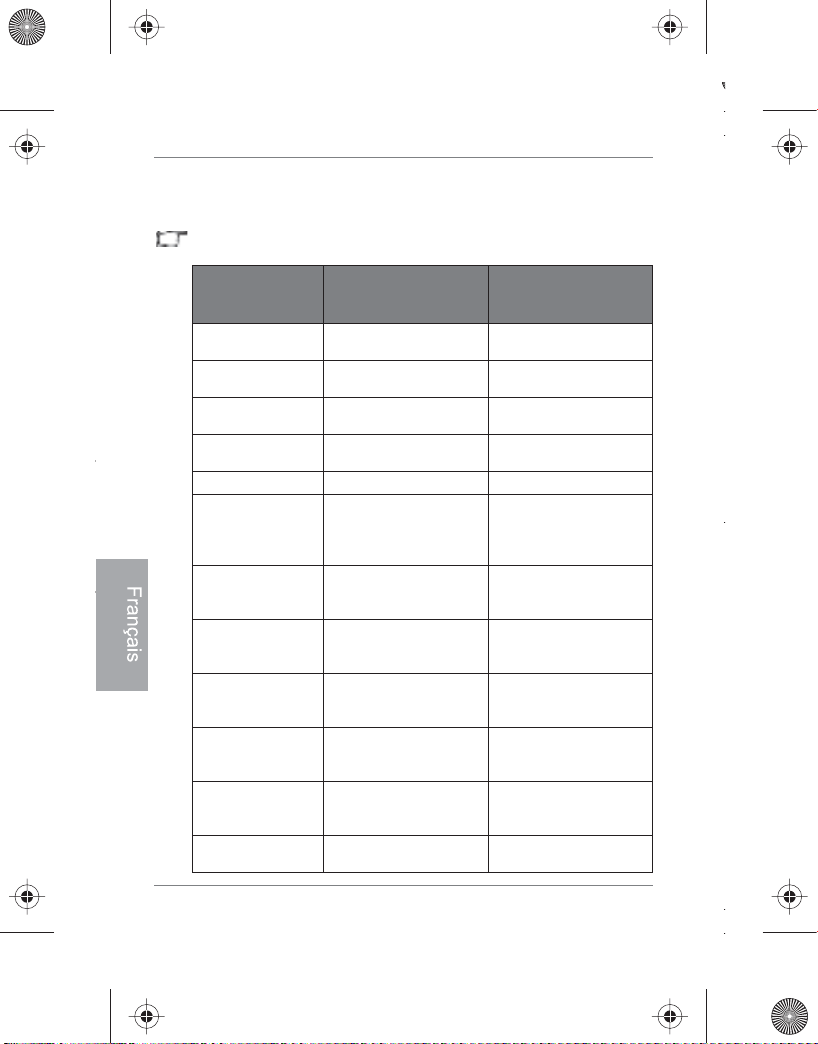
Cadre photo numérique PhotoFrame
Annexe
FR - 60
Français
Annexe
Spécifications techniques
Ces spécifications sont sujettes à changement sans préavis.
Modèle
GPF4480X/G7
SPF4480/G7
SPF4480T/G7
SPF4400X/G7
SPF4400/G7
SPF4400T/G7
Type d'écran
LCD
LCD numérique
8 po
LCD numérique
10,4 po
Type de
rétroéclairage
DEL DEL
Rapport hauteur/
largeur
4:3 4:3
Résolution
d'écran
800 x 600 pixels 800 x 600 pixels
Luminosité
250 cd/m
2
300 cd/m
2
Mémoire interne
intégrée (pour
stockage de
données)
Approx. 2 GB Approx. 2 GB
Formats de carte
mémoire
compatibles
SD, MMC, MS, MS
PRO, MS Duo et xD
SD, MMC, MS, MS
PRO, MS Duo et xD
Périphériques
USB
compatibles
Clé USB (utilisant le
port USB)
Clé USB (utilisant le
port USB)
Formats de
fichiers d'images
compatibles
JPEG, BMP, JPEG
Progressive et EXIF
JPEG, BMP, JPEG
Progressive et EXIF
Formats de
fichiers audio
compatibles
MP3, WMA, AAC et
WAV
MP3, WMA, AAC et
WAV
Formats de
fichiers vidéo
compatibles
Motion JPEG
(M-JPEG)/MPEG4/
H.264 (D1)
Motion JPEG
(M-JPEG)/MPEG4/
H.264 (D1)
Port USB Hôte USB (Type-A) x
1, HS 2,0
Hôte USB (Type-A) x
1, HS 2,0
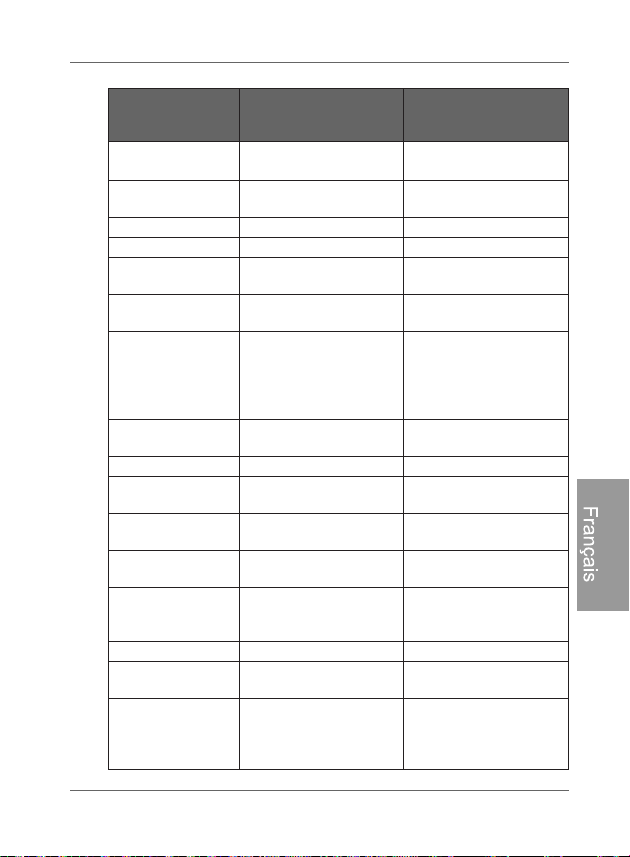
Annexe FR - 61
Cadre photo numérique PhotoFrame
Français
Mini port USB Périphérique USB
(Mini-B) x 1, HS 2,0
Périphérique USB
(Mini-B) x 1, HS 2,0
Logements de
carte mémoire
Logement de carte
mémoire 6 en 1
Logement de carte
mémoire 6 en 1
Haut-parleur 0,5W x 2 0,5W x 2
Récepteur IR Oui Oui
Puissance
d'entrée
CA 100-220 V CA 100-220 V
Puissance de
sortie
CC 5 V 2 A CC 5 V 2 A
Changement
d'orientation/
d'angle
automatique des
images
Oui Oui
Horloge/
Calendrier
Oui Oui
Pied arrière Oui, pliable Oui, pliable
Langues prises
en charge
Anglais, français,
espagnol
Anglais, français,
espagnol
Compatibilité
Plug & Play
Windows 7/XP/Vista/
2000, Mac OS X
Windows 7/XP/Vista/
2000, Mac OS X
Télécommande
(IR)
Oui Oui
Capacité
d'orientation
interchangeable
Oui Oui
Cadre Cadre en bois x 1 Cadre en bois x 1
Passe-partout
en papier
Oui Oui
Passe-partout
supplémentaire
Passe-partout
double x 1
Passe-partout
double x 1,
passe-partout de
couleur x 1
Modèle
SPF4400X/G7
SPF4400/G7
SPF4400T/G7
SPF4480X/G7
SPF4480/G7
SPF4480T/G7
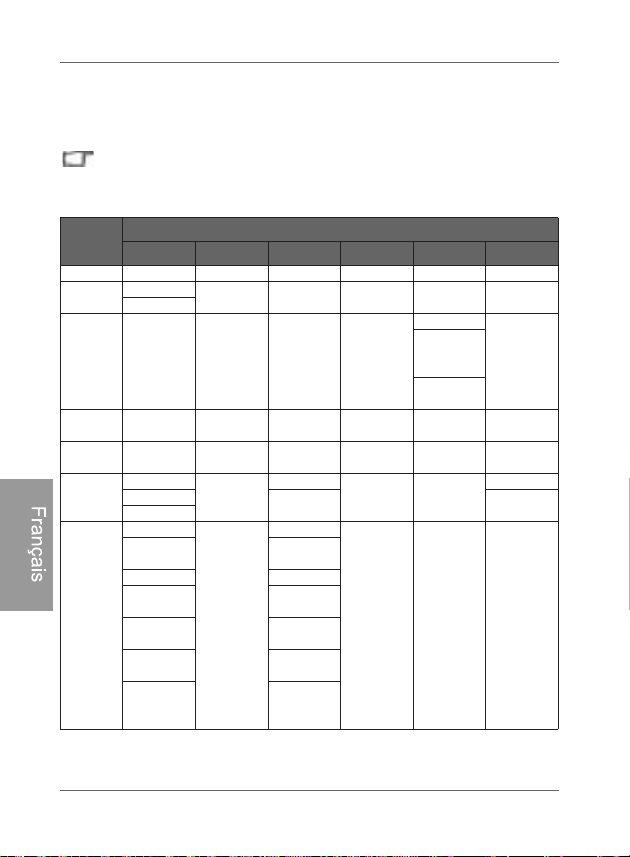
Cadre photo numérique PhotoFrame
Annexe
FR - 62
Français
Liste des cartes mémoire
compatibles
Ce ne sont pas toutes les cartes mémoires compatibles qui sont
indiquées dans le tableau ci-dessous. Pour de l'assistance technique,
communiquez avec votre centre de service le plus près.
Capacité
Formats de carte mémoire
SD miniSD microSD MMC MS xD
8 MB Toshiba
32 MB
Kodak
Canon
64 MB
LEXAR
SanDisk
(MS Pro
Duo)
SONY (MS
Pro Duo)
128 MB Panasonic
SanDisk
(M2)
256 MB SanDisk RIDATA
OLYMPUS
(M)
512 MB
TwinMOS SanDisk
Transcend
FUJIFILM
Toshiba
Transcend Kodak (H)
PQI
1 GB
Kingston
Panasonic
SanDisk
Transcend FUJIFILM
SanDisk
Setisk
(Ultra II)
Transcend Transcend
A-DATA
(80X)
Toshiba
RIDATA
(66X)
A-DATA
APACER
(60X)
Kingston
Panasonic
(SDHC
Classe 4)
Adaptateur
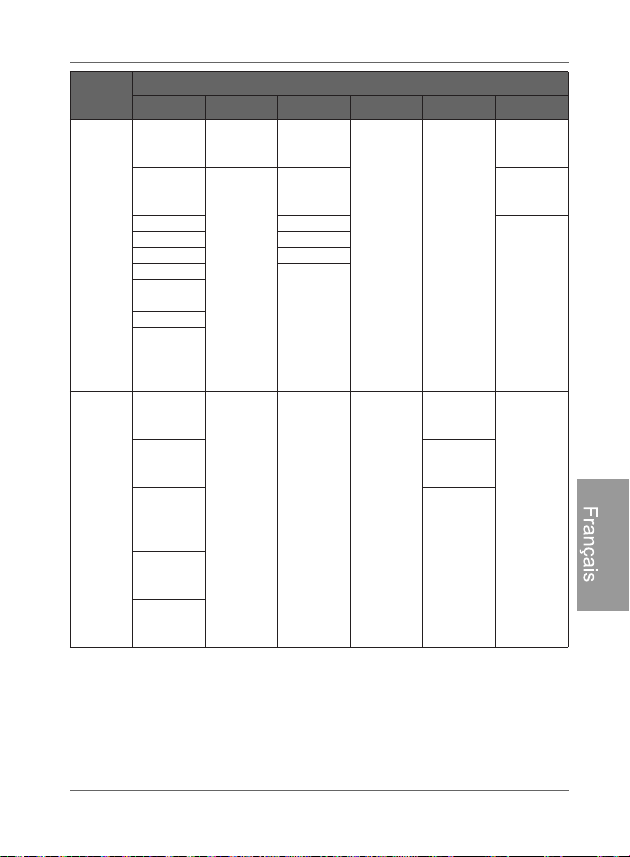
Annexe FR - 63
Cadre photo numérique PhotoFrame
Français
2 GB
Panasonic
(SDHC
Classe 4)
Stargem
Silicon
Power
OLYMPUS
(M+)
Panasonic
(SDHC
Classe 2)
Panasonic
Kingston
OLYMPUS
(M)
SanDisk Transcend
FUJIFILM
(H)
Transcend A-DATA
Toshib a PQI
A-DATA
SanDisk
APACER
(60X)
SanDisk
Silicon
Power
(Ultima II
80X)
4 GB
Kingston
(SDHC
Class 6)
Transcend SanDisk
SanDisk
(MS Pro HG
Duo)
A-DATA
(SDHC
Class 6)
SONY (MS
Pro Duo)
Silicon
Power
(SDHC
Class 6)
SanDisk
(MS Pro
Duo)
TOSHIBA
(SDHC
Class 4)
RIDATA
(SDHC
Class 6)
Capacité
Formats de carte mémoire
SD miniSD microSD MMC MS xD
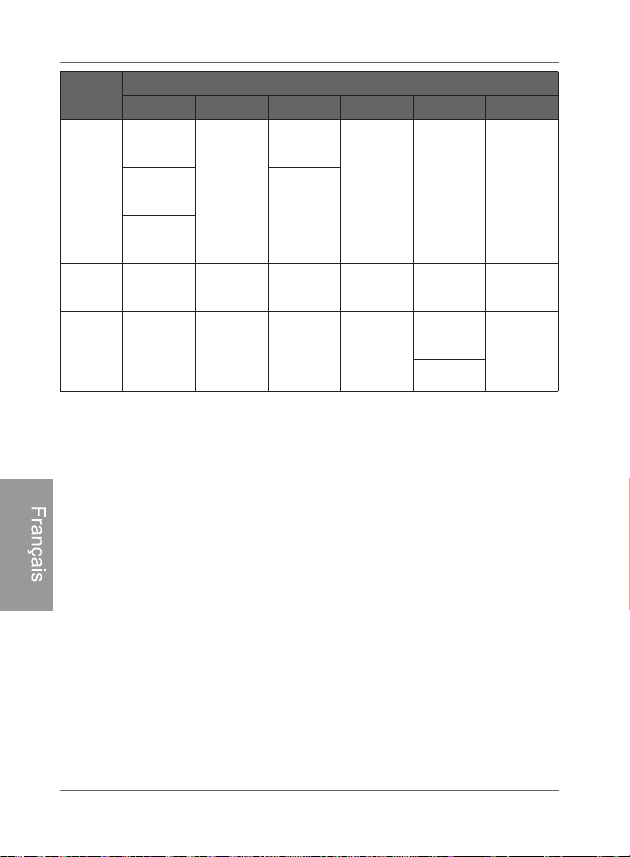
Cadre photo numérique PhotoFrame
Annexe
FR - 64
Français
8 GB
A-DATA
(SDHC
Class 6)
Kingston
Transcend
(SDHC
Class 6)
SanDisk
Kingston
(SDHC
Class 6)
16 GB
Transcend
(SDHC
Class 6)
Toshiba
SanDisk
(MS Pro
Duo)
32 GB
SONY (MS
Pro Duo
Mark2)
SONY (MS
Pro Duo)
Capacité
Formats de carte mémoire
SD miniSD microSD MMC MS xD