M-Series
™
Quantum
User Manual
Scan to
learn more.
Models:
M50Q7-J01, M55Q7-J01, M58Q7-J01,
M65Q7-J01, M70Q7-J03 & M75Q7-J03

ii
Table of Contents
Getting to Know Your TV ........................... 1
Front Panel..................................................1
Rear Panel ..................................................2
Wall-mounting the TV ........................................4
Using the Remote ...........................................5
Using the Voice Remote ......................................6
Completing the First-Time Setup ................... 7
Using the On-Screen Menu ......................... 8
Navigating the On-Screen Menu ...............................8
Changing the Input Source ....................................8
Adjusting the Picture Settings .................................9
Adjusting the Color Temperature...........................9
Changing the Picture Aspect Ratio .........................10
Adjusting Advanced Picture Settings .......................10
Adjusting Picture Input Settings ...........................13
Adjusting the Picture Mode Edit Settings....................13
Adjusting the Audio Settings ..................................15
Sound Bar settings...........................................15
Adjusting the Network Settings ................................16
Setting Up TV Channels.......................................17
Scanning for TV Channels.................................17
Skipping Channels .......................................17
Changing the Analog Audio Language ......................18
Using Parental Controls. . . . . . . . . . . . . . . . . . . . . . . . . . . . . . . . . . . 19
Accessibility Settings.........................................20
Setting Up Closed Captioning .............................20
Changing the Appearance of Digital Closed Captions ......... 20
Changing the System Settings .................................22
Changing the On-Screen Menu Language ...................22
Setting the Time ........................................22
Changing the TV Name ...................................23
Renaming Devices on the Input Menu.......................23
Adjusting the Power Mode ................................23
Using the USB Power Feature..............................24
Turning the Power Indicator On or Off.......................24
Setting Timers ..........................................24
Setting a System PIN Code................................25
Adjusting the CEC Settings................................25
Managing Mobile Devices .................................25
Using the Admin & Privacy Menu ...............................26
Viewing System Information...............................26
Checking for System Updates .............................26
Performing a Soft Power Cycle.............................26
Restoring the TV to Factory Default Settings.................26
Store Demo .............................................26
Viewing Data ............................................27
Managing Advertising Settings ............................27
View VIZIO Privacy Policy .................................27
Using the Info Window ........................................28
™ ........................................................29
SmartCast Home
What is SmartCast Home? ................................29
How to Launch SmartCast Home ..........................29
What you can do with SmartCast Home.....................29
Control your TV with the SmartCast Mobile
™
App.............29
™ .................................................................30
WatchFree+
What is WatchFree+? .....................................30
What you can do with WatchFree+..........................30
How to Launch WatchFree+ ...............................30
Playing USB Media ................................ 31
Preparing Your USB Drive to Play USB Media ................31
Displaying USB Media ....................................31
Removing the USB Drive from the TV .......................31
Product Registration and Technical Support.......... 35
Help Topics ...................................... 36
Specications .................................... 38
Regulatory Information............................ 39
Limited Warranty ................................. 40
Legal Information ................................. 42
iii
Safety & Certication
THANK YOU FOR CHOOSING VIZIO
And congratulations on your new VIZIO TV!
To get the most out of your new VIZIO product, read these instructions before using
your product and retain them for future reference. Be sure to inspect the package
contents to ensure there are no missing or damaged parts.
PRODUCT REGISTRATION
To purchase or inquire about accessories and installation services for your VIZIO
product, visit our website at vizio.com.
We recommend that you register your VIZIO product at vizio.com/product-registration.
WHEN READING THIS MANUAL
Color Text — This is the TV menu feature you should be selecting.
Grey Text — This is an action for you to complete, such as entering in a name.
> — The arrow sign shows the flow of the steps you should take.
1. Lists additional steps you can take for each setting.
• Bullets give more detailed information about each feature.
TIP: When you see this symbol, please read the accompanying
helpful tip.
WARNING: When you see this symbol, please read the
accompanying important warning or notice. It is intended to alert
you to the presence of important operating instructions.
IMPORTANT SAFETY INSTRUCTIONS
Your TV is designed and manufactured to operate within defined design limits.
Misuse may result in electric shock or fire. To prevent your TV from being damaged,
the following instructions should be observed for the installation, use, and
maintenance of your TV. Read the following safety instructions before operating your
TV. Keep these instructions in a safe place for future reference.
• To reduce the risk of electric shock or component damage, switch off the power
before connecting other components to your TV.
• Heed all warnings.
• Follow all instructions.
• Do not use this TV near water.
• Clean only with dry cloth.
• Do not block any ventilation openings. Install in accordance with the
manufacturer’s instructions.
• Do not install near any heat sources such as radiators, heat registers, stoves, or
other appliances (including amplifiers) that produce heat.
• Do not defeat the safety purpose of the polarized or grounding-type plug. A
polarized plug has two blades with one wider than the other. A grounding type
plug has two blades and a third grounding prong. The wide blade or the third
prong are provided for your safety. If the provided plug does not fit into your
outlet, consult an electrician for replacement of the obsolete outlet.
• Protect the power cord from being walked on or pinched particularly at the ends
where the plug is located, near convenience receptacles, or where they exit from
the TV.
• Only use attachments/accessories specified by the manufacturer.
• Use only with the stand, tripod, or bracket specified by the
manufacturer, or sold with the TV.
• When a cart is used, use caution when moving the cart/TV
combination to avoid injury from tip-over.
• Unplug the power cord before cleaning your TV.
• Refer all servicing to qualified service personnel. Servicing is required when
the TV has been damaged in any way, such as power-supply cord or plug is
damaged, liquid has been spilled or objects have fallen into the TV, the TV
has been exposed to rain or moisture, does not operate normally, or has been
dropped.
• CAUTION: Always use a power outlet that is properly grounded.
• Unplug this TV during lightning storms or when unused for long periods of time.
• When moving your TV from an area of low temperature to an area of high
temperature, condensation may form in the housing. Wait before turning on your
TV to avoid causing fire, electric shock, or component damage.
• A distance of at least three feet should be maintained between your TV and any
heat source, such as a radiator, heater, oven, amplifier, etc. Do not install your TV
close to smoke. Operating your TV close to smoke or moisture may cause fire or
electric shock.
• Slots and openings in the back and bottom of the TV are provided for ventilation.
To ensure reliable operation of your TV and to protect it from overheating,
be sure these openings are not blocked or covered. Do not place your TV in a
bookcase or cabinet unless proper ventilation is provided.
• Never push any object into the slots and openings on your TV. Do not place any
objects on the top of your TV. Doing so could short circuit parts causing a fire or
electric shock. Never spill liquids on your TV.
• Your TV should be operated only from the type of power source indicated on
the label. If you are not sure of the type of power supplied to your home, consult
your dealer or local power company.
• Do not apply pressure or throw objects at your TV. This may compromise the
integrity of the TV. The manufacturer’s warranty does not cover user abuse or
improper installations.
• The power cord must be replaced when using different voltage than the voltage
specified. For more information, contact your dealer.
• When connected to a power outlet, power is always flowing into your TV. To
totally disconnect power, unplug the power cord.
• The lightning flash with arrowhead symbol within an equilateral
triangle is intended to alert the user to the presence of un-isolated,
dangerous voltage within the inside of your TV that may be of
sufficient magnitude to constitute a risk of electric shock to persons.
• Do not overload power strips and extension cords. Overloading can result in fire
or electric shock.
• The wall socket should be installed near your TV and easily accessible.
• Only power of the marked voltage can be used for your TV. Any other voltage
than the specified voltage may cause fire or electric shock.
• Do not touch the power cord during lightning. To avoid electric shock, avoid
handling the power cord during electrical storms.
iv
• Unplug your TV during a lightning storm or when it will not be used for long
period of time. This will protect your TV from damage due to power surges.
• Do not attempt to repair or service your TV yourself. Opening or removing the
back cover may expose you to high voltages, electric shock, and other hazards. If
repair is required, contact your dealer and refer all servicing to qualified service
personnel.
• WARNING: Keep your TV away from moisture. Do not expose your TV to rain or
moisture. If water penetrates into your TV, unplug the power cord and contact
your dealer. Continuous use in this case may result in fire or electric shock.
• Do not use your TV if any abnormality occurs. If any smoke or odor becomes
apparent, unplug the power cord and contact your dealer immediately. Do not
try to repair your TV yourself.
• Avoid using dropped or damaged appliances. If your TV is dropped and the
housing is damaged, the internal components may function abnormally. Unplug
the power cord immediately and contact your dealer for repair. Continued use of
your TV may cause fire or electric shock.
• Do not install your TV in an area with heavy dust or high humidity. Operating
your TV in environments with heavy dust or high humidity may cause fire or
electric shock.
• Follow instructions for moving your TV. Ensure that the power cord and any
other cables are unplugged before moving your TV.
• To prevent injury, this apparatus must be securely attached to the furniture/wall
in accordance with the installation instructions.
• Insert batteries in accordance with instructions. Incorrect polarities may cause
the batteries to leak which can damage the remote control or injure the operator.
Do not expose batteries to excessive heat such as sunlight, fire, etc.
• When unplugging your TV, grab the head of the power plug, not the cord. Pulling
on the power cord may damage the wires inside the cord and cause fire or
electric shock. When your TV will not be used for an extended period of time,
unplug the power cord.
• To reduce risk of electric shock, do not touch the connector with wet hands.
• Do not expose TV to liquids, including dripping or splashing.
• Do not place objects filled with liquid, such as vases, on the TV.
• f the main wall plug or the appliance coupler is disconnected, the disconnected
device will remain readily operable upon reconnection to an appropriate power
source.
• If any of the following occurs, contact the dealer:
− The power cord fails or frays.
− Liquid sprays or any object drops into your TV.
− Your TV is exposed to rain or other moisture.
− Your TV is dropped or damaged in any way.
− The performance of your TV changes substantially.
• CAUTION: These servicing instructions are for use by qualified service
personnel only. To reduce the risk of electric shock, do not perform any servicing
other than that contained in the operating instructions unless you are qualified
to do so.
• The lightning flash with arrowhead symbol within an equilateral triangle is
intended to alert the user to the presence of uninsulated DANGEROUS VOLTAGE
within the product’s enclosure that may be of sufficient magnitude to constitute
a risk of electrical shock to persons.
• WARNING: Exposure to loud sounds can damage your hearing causing hearing
loss and tinnitus (ringing or buzzing in the ears). With continued exposure to
loud noises, ears may become accustomed to the sound level, which may result
in permanent damage to hearing without any noticeable discomfort.
• Install the TV where it cannot be pulled, pushed or knocked over.
• Do not allow children to hang onto the product.
• Store the accessories (remote, batteries, etc.) in a location safely out of the
reach of children.
• The American Academy of Pediatrics discourages television viewing for children
younger than two years of age.
• WARNING — Stability Hazard: A television set may fall, causing serious
personal injury or death. Many injuries, particularly to children, can be avoided
by taking simple precautions such as:
• ALWAYS use cabinets or stands or mounting methods recommended by the
manufacturer of the television set.
• ALWAYS use furniture that can safely support the television set.
• ALWAYS ensure the television set is not overhanging the edge of the supporting
furniture.
• ALWAYS educate children about the dangers of climbing on furniture to reach
the television set or its controls.
• ALWAYS route cords and cables connected to your television so they cannot be
tripped over, pulled or grabbed.
• NEVER place a television set in an unstable location.
• NEVER place the television set on tall furniture (for example, cupboards or
bookcases) without anchoring both the furniture and the television set to a
suitable support.
• NEVER place the television set on cloth or other materials that may be located
between the television set and supporting furniture.
• NEVER place items that might tempt children to climb, such as toys and remote
controls, on the top of the television or furniture on which the television is
placed.
• If the existing television set is going to be retained and relocated, the same
considerations as above should be applied.
• Disposal of a battery into fire or a hot oven, or mechanically crushing or cutting
of a battery can result in an explosion.
• Leaving a battery in an extremely high temperature can result in an explosion or
the leakage of flammable liquid or gas.
• A battery subjected to extremely low air pressure may result in an explosion or
the leakage of flammable liquid or gas.
• WARNING: To prevent injury, this apparatus must be securely attached to the
furniture/wall in accordance with the installation instructions.
TELEVISION ANTENNA CONNECTION PROTECTION
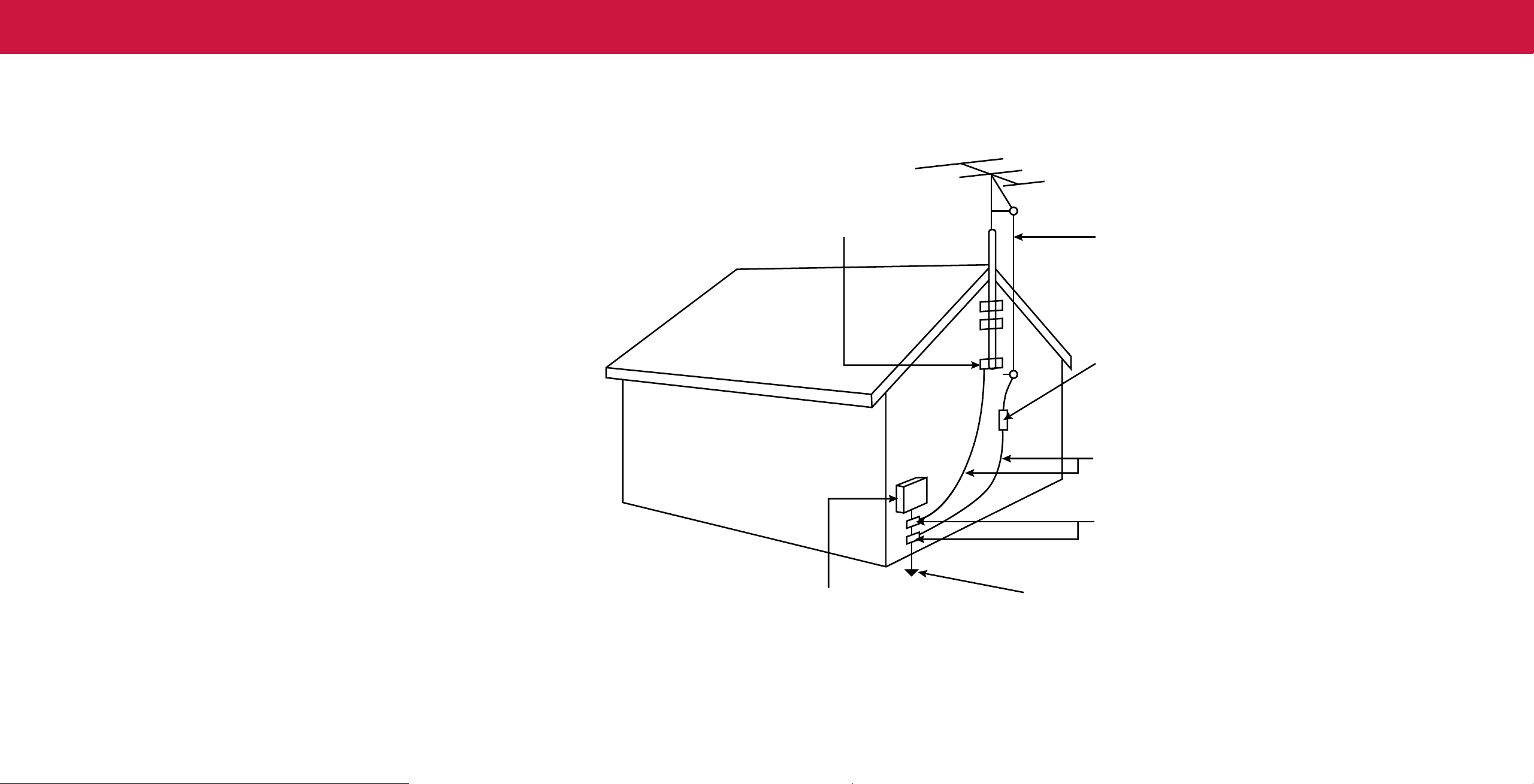
The TV shall be installed in accordance with the applicable provisions of Article 810
and Article 820.
If an outside antenna/satellite dish or cable system is to be connected to the TV,
make sure that the antenna or cable system is electrically grounded to provide some
protection against voltage surges and static charges.
Article 810 of the National Electrical Code, ANSI/NFPSA 70, provides information
with regard to proper grounding of the mast and supporting structure, grounding
of the lead-in wire to an antenna discharge unit, size of the grounding conductors,
location of antenna discharge unit, connection to grounding electrodes, and
requirements of the grounding electrode.
Lightning Protection
For added protection of the TV during a lightning storm or when it is left unattended
or unused for long periods of time, unplug the TV from the wall outlet and disconnect
the antenna or cable system.
Power Lines
Do not locate the antenna near overhead light or power circuits, or where it could
fall into such power lines or circuits. Remember, the screen of the coaxial cable is
intended to be connected to earth in the building installation.
Installation of CATV
The installation instructions states the cable distribution system should be grounded
(earthed) in accordance with ANSI/NFPA 70. the National Electrical Code (NEC), in
particular Section 820.93, Grounding of Outer Conductive Shield of a Coaxial Cable.
Installation of Antenna
The installation instructions states the cable distribution system used for connection
to antennas and dishes should be grounded (earthed) in accordance with ANSI/
NFPA 70. the National Electrical Code (NEC), in particular Section 810.21, Bonding
Conductors and Grounding Electrode Conductors — Receiving Stations.
Ground Clamp
Electric Service Equipment
Antenna Lead In Wire
Antenna Discharge Unit
(NEC Section 810-20)
Grounding Conductors
(NEC Section 810-21)
Ground Clamps
Power Service Grounding Electrode System
(NEC ART 250, part H)
v
vi
DTS
®
Virtual:X
™
Virtualized 3D S ound
DTS-HD
®
High Denition Audio
DTS:X
®
Cinema Quality DTS
®
Virtual:X
™
Immersive Audio
Virtualized 3D Sound
Dolby, Dolby Vision, Dolby Audio, and the double-D symbol are
trademarks of Dolby Laboratories Licensing Corporation. Manufactured
under license from Dolby Laboratories. Confidential unpublished works.
Copyright © 1992-2021 Dolby Laboratories. All rights reserved.
The terms HDMI, HDMI High-Definition Multimedia Interface, and the
HDMI Logo are trademarks or registered trademarks of HDMI Licensing
Administrator, Inc.
For DTS patents, see http://patents.dts.com.
Manufactured under license from DTS, Inc. DTS, DTS:X, Virtual:X, the
DTS:X logo are registered trademarks or trademarks of DTS, Inc. in the
United States and other countries. © 2020 DTS, Inc.
ALL RIGHTS RESERVED.
1
1
Getting to Know Your TV
FRONT PANEL
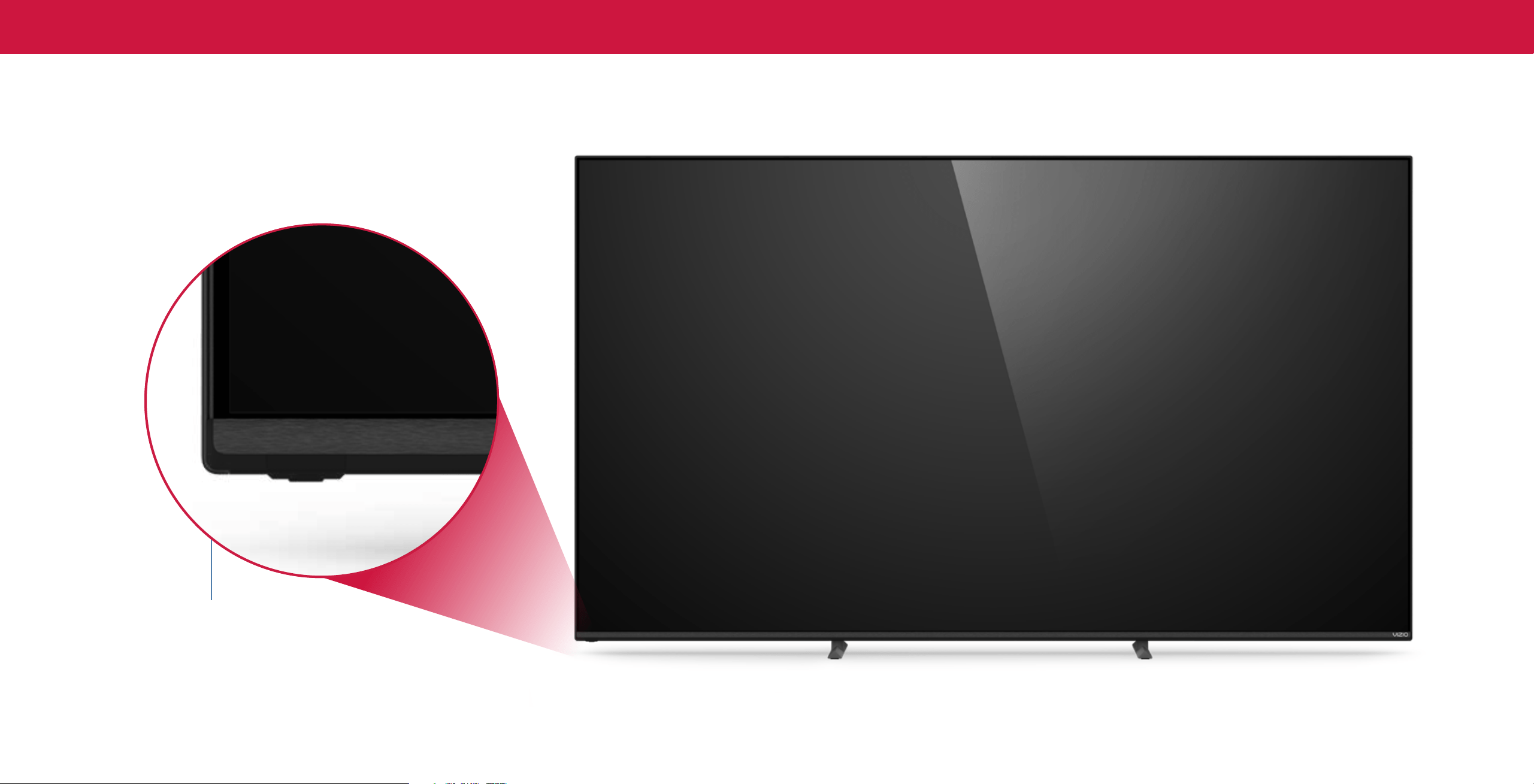
Remote Sensor and Power Indicator
When using the remote, aim it directly at this sensor.
The power indicator flashes on when the TV turns on, then goes out after several seconds.
To keep the power indicator on, see
Power Indicator on page 22
.
POWER/INPUT BUTTON
(located under the sensor)
When TV is OFF:
Press to turn on the TV.
When TV is ON:
Press to change to the next input source.
Press, hold (5 seconds) and release to turn TV off.
Press and hold (20 seconds) to reset TV to default settings.
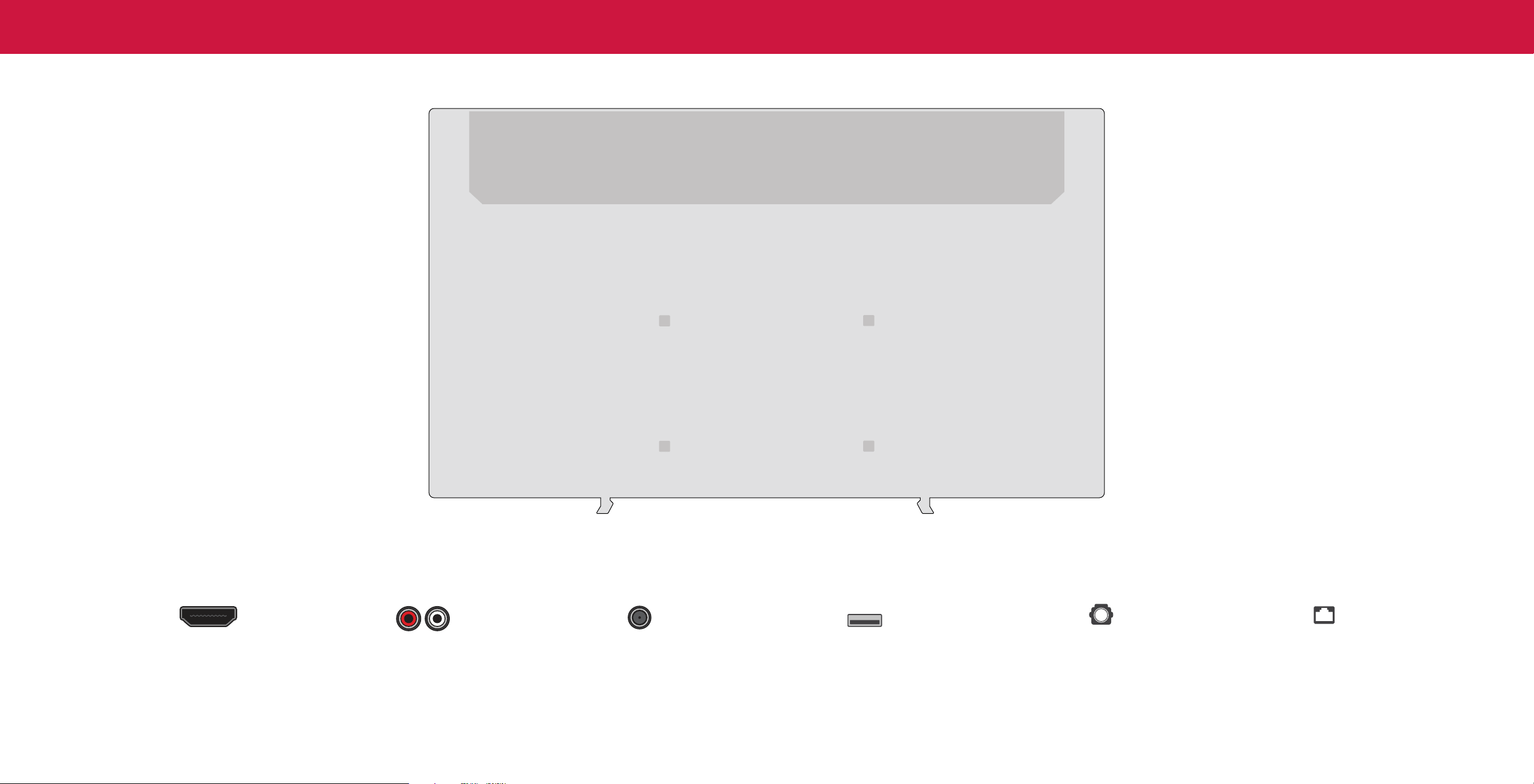
2
1
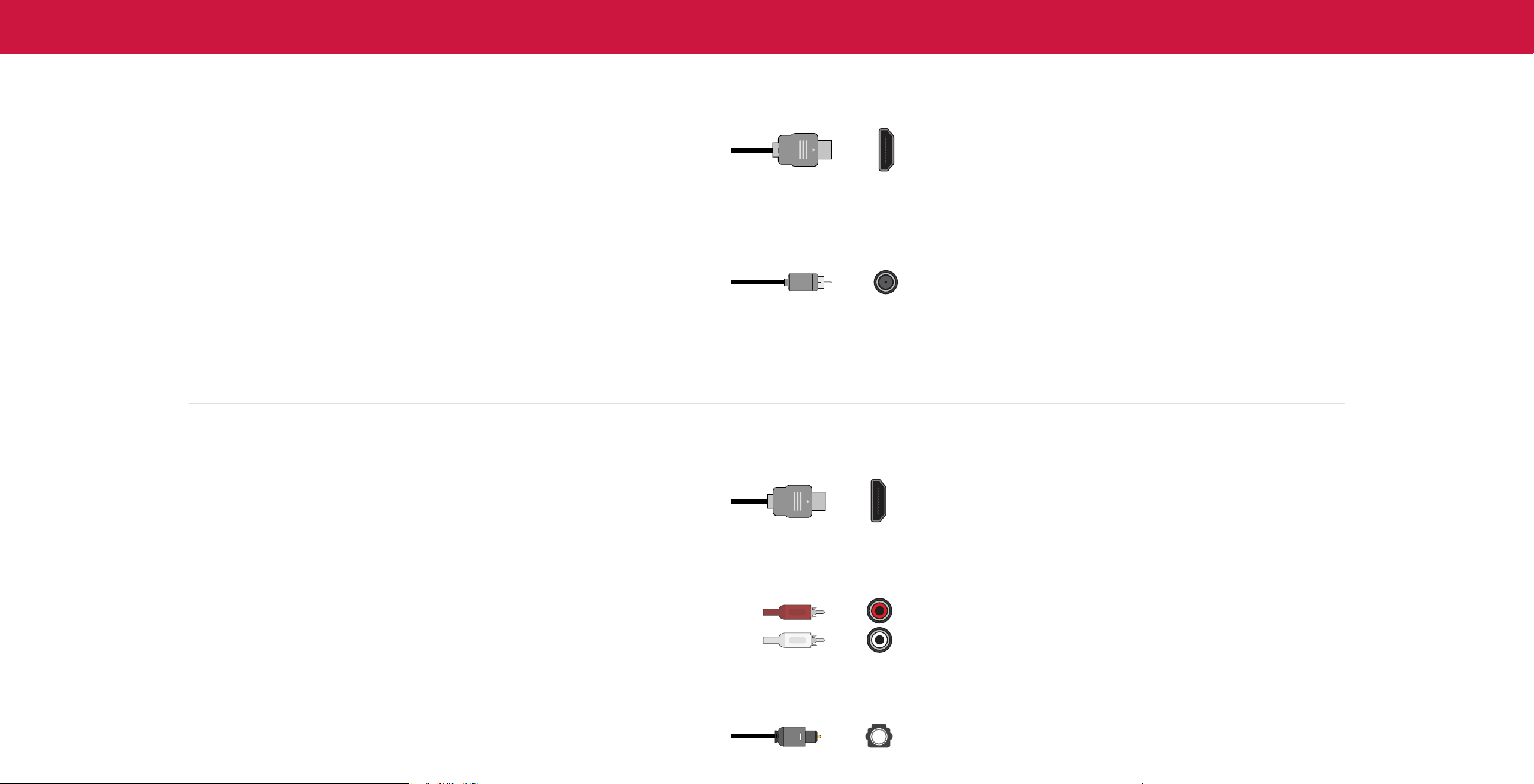
REAR PANEL
Note: The image shown here is for illustrative purposes only and may be subject to change.
The actual number of ports and their locations may vary, depending on the model.
HDMI
Audio Out
Coaxial
USB
Optical Audio Out Ethernet
Connect an HDMI device
Connect to an RCA device,
Connect to a coaxial
Connect a USB thumb drive to
Connect to an optical/SPDIF Connect an Ethernet cable
such as sound bar
cable from cable,
satellite, or antenna
play photo, music, or video
audio device, such as home
audio receiver
to modem/router
1
Optical
Standard
RCA
RCA To 3
5mm
HDMI
Optical
Standard
RCA
RCA To 3
5mm
HDMI
Optical
Standard
RCA
RCA To 3
5mm
HDMI
Optical
Standard
RCA
RCA To 3
5mm
HDMI
Optical
Standard
RCA
RCA To 3
5mm
HDMI
Optical
Standard
RCA
RCA To 3
5mm
HDMI
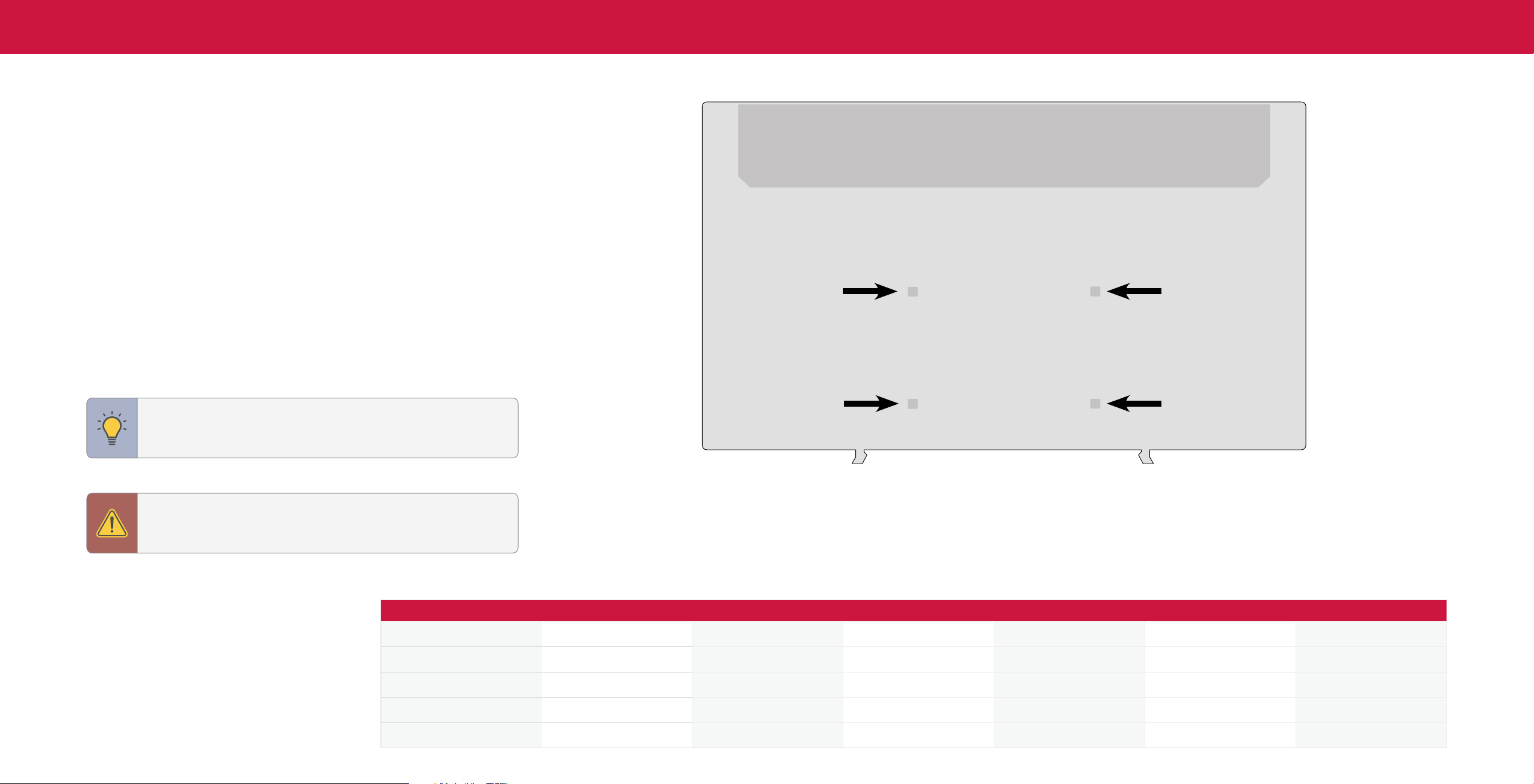
Connecting a device — AUDIO & VIDEO CABLE TYPES
HDMI CABLE
Your TV can be used to display output from most devices.
HDMI
1. Verify that your device has a video port that matches an available port on the TV (HDMI, Composite, etc.).
2. Connect the appropriate cable (not included) to the TV and the device.
3. Turn the TV and your device on.
4. Set the TV’s input to match the connection you used (HDMI-1, HDMI-2, etc.).
COAXIAL CABLE
Coaxial
Connecting a device — AUDIO CABLE TYPES
HDMI CABLE
Your TV can be output sound to an audio device, such as a receiver or sound bar.
HDMI
1. Verify that your device has an audio port that matches an available port on the TV (optical, RCA, etc).
2. Connect the appropriate cable (not included) to the TV and the device.
3. Turn the TV and your device on.
COMPONENT AND/OR COMPOSITE CABLE
R
L
OPTICAL/SPDIF CABLE
Optical
Note: The actual ports and their locations may vary, depending on the TV model.
3
4
1
WALLMOUNTING THE TV
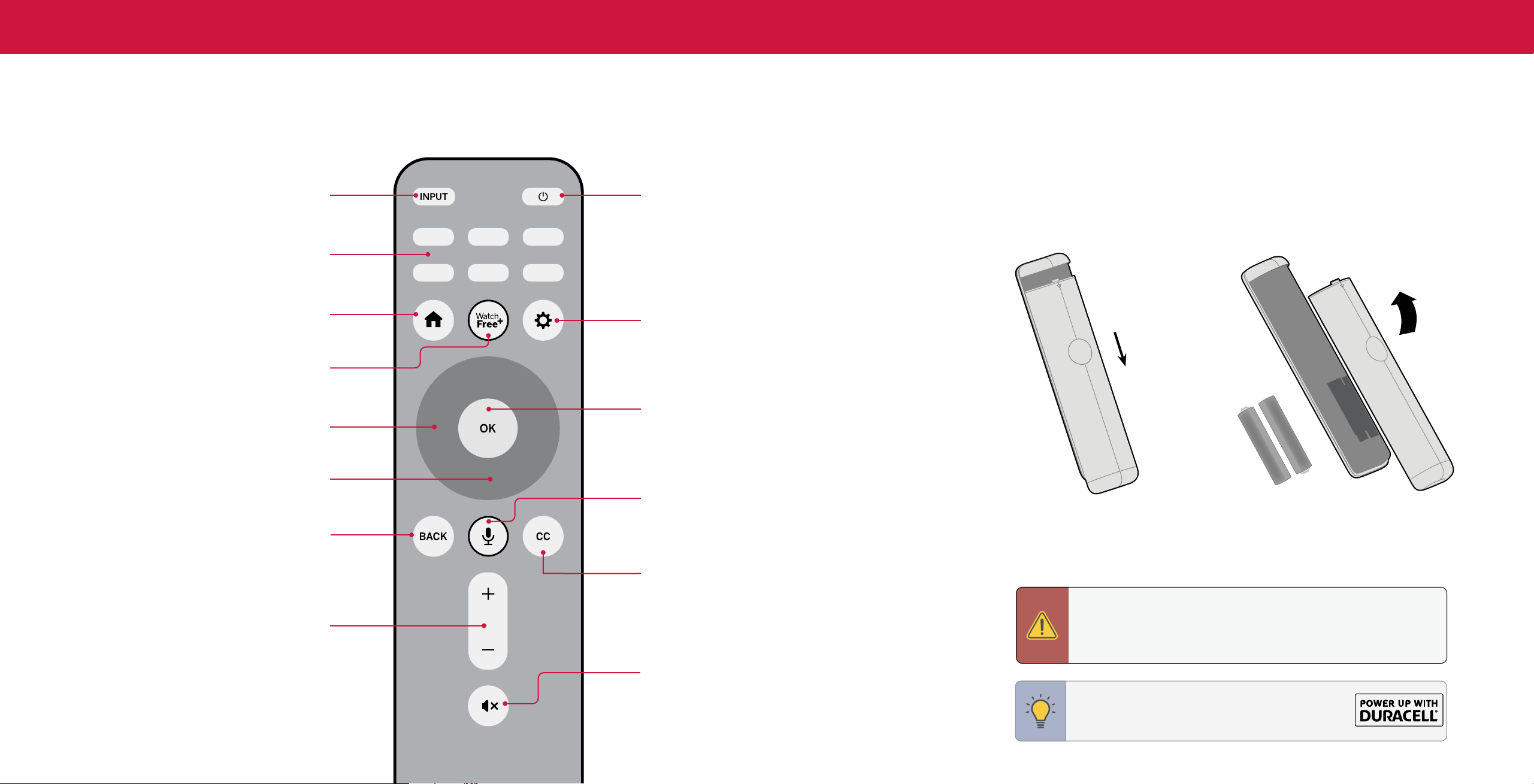
First you will need a wall mount. Consult the provided table below to find the
appropriate mount for your TV.
Be sure the mount you choose is capable of supporting the weight of the TV.
To install your TV on a wall:
1. Disconnect any cables connected to your TV.
2. Place the TV face-down on a clean, flat, stable surface. Be sure the surface is
clear of debris that can scratch or damage the TV.
3. If attached, remove the stands by loosening and removing the screws.
4. Attach your TV and wall mount to the wall by carefully following the instructions
that came with your mount. Use only with a UL-listed wall mount bracket rated
for the weight/load of your TV.
TIP: Installing a TV on a wall requires lifting. To prevent injury or
damage to the TV, ask someone to help you.
WARNING: Do not use the screws that are included inside the wall
mount holes to mount TV.
Note: The image shown here is for illustrative purposes only and may be subject to change. The actual number
of ports and their locations may vary, depending on the model.
M50Q7-J01 M55Q7-J01 M58Q7-J01 M65Q7-J01 M70Q7-J03 M75Q7-J03
Screw Size
M6 x 14 mm M6 x 14 mm M6 x 14 mm M6 x 14 mm M6 M6
# of Screws (not included)
4 4 4 4 4 4
Hole Depth
14 mm 14 mm 14 mm 14 mm 25 mm 25 mm
Hole Pattern
200 mm x 200 mm 300 mm x 200 mm 300 mm x 200 mm 400 mm x 200 mm 400 mm x 200 mm 400 mm x 200 mm
Weight w/o Stand
26.28 lb (11.92 kg) 30.47 lb (13.82 kg) 34.88 lb (15.82 kg) 51.10 lb (23.18 kg) 55.70 lb (25.27 kg) 63.80 lb (28.94 kg)
1
+
AAA
+
AAA
Replacing the Batteries
1. Push and slide the cover down. Then lift the cover to access the battery compartment.
2. Insert two batteries into the remote control. Make sure that the (+) and (-) symbols
on the batteries match the (+) and (-) symbols inside the battery compartment.
Input
Power
Turn television on or off
3. Replace the battery cover and slide to close.
Change the currently displayed input
App Launcher
Quickly launch the pictured app
Lift
SmartCast Home
TM
Button
Menu
Launch or return to the SmartCast Home screen
Display the settings menu
Push
WatchFree+
TM
Access free streaming channels
OK/Play/Pause
Select the highlighted menu option and
Navigation Buttons — Left / Right
play or pause content
Navigate the on-screen menus
Navigation Buttons — Up / Down
Navigate the on-screen menus
Voice
Push and hold to make a voice command
Back
Go to the previous on-screen menu
In many places batteries cannot be thrown away or discarded with household waste. Please ensure you
Closed Caption
properly dispose of your batteries consistent with the laws and/or regulations where you live. For more
Enable or disable close captions
information please visit: www.vizio.com/environment
Long press to open Accessibility menu featuring captions,
talk back, speech rate, and zoom mode
WARNING: Keep the remote control batteries away from children. It may
Volume Up/Down
cause choking and/or lead to a re or chemical burn if mishandled. Do not
Increase or decrease the loudness of the audio
dispose of batteries in re. Replace only with batteries of the correct type.
Risk of re or explosion if the battery is replaced by an incorrect type.
Mute
Turn the audio on or off
TIP: When needed, VIZIO recommends replacing the
batteries that came with this remote with two, new
Duracell ‘AAA’ alkaline batteries.
5
USING THE REMOTE
6
1
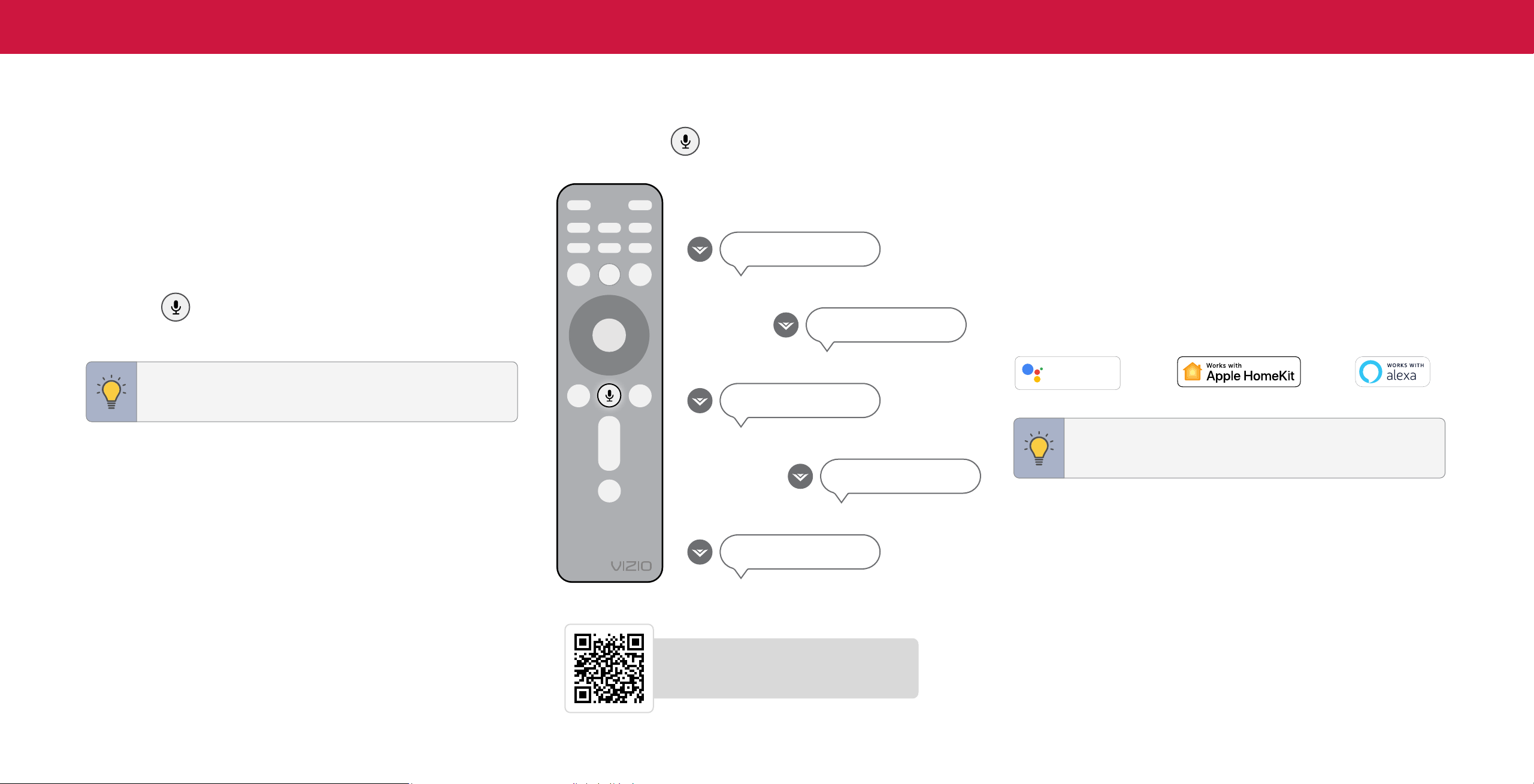
USING THE VOICE REMOTE
How to use the voice control:
You can easily control your TV with the included Voice Remote.
1. Push and hold the
MIC button while speaking a command.
To pair your remote to the TV:
Here are some phrases you can say:
During first-time setup, your remote should automatically pair to your TV with
Bluetooth.
To manually pair:
Press the MIC button to launch pairing mode.
"Switch input to HDMI-2."
"Find free comedy movies."
TIP: The voice remote must be within close enough range of the
TV to pair properly.
"Launch WatchFree+."
"Turn on captions."
"Lower volume to 10."
Scan to learn more.
Scan with your phone camera or QR reader.
vizio.com/qr/XRT260
Using the SmartCast Mobile
™
app for voice control:
You can also use the free VIZIO SmartCast Mobile app as a voice control remote.
Refer to the SmartCast Mobile section on
page 29
for more information.
Connect to other popular voice assistant devices:
VIZIO TVs also work with Google Assistant, Siri, and Alexa-enabled devices for
hands-free voice control.
Hey Google
works with
TIP: If you want to use a voice assistant to turn your TV on, make
sure Quick Start Mode is enabled. Refer to
Adjusting the Power
Mode on page 23.
This device is equipped with the VIZIO Voice feature. By activating the VIZIO Voice feature (either through the
mobile application or Bluetooth remote), you can control your Smart TV, and use many of its features, with
voice commands. In order to provide you the VIZIO Voice feature, some voice commands may be transmitted
to a third-party service provider that will translate your voice command into text and provide VIZIO Voice
features. We may also capture and collect voice commands and associated text(s) in order to provide the
VIZIO Voice feature and evaluate and improve the features. VIZIO will only capture voice commands when you
press the microphone button on your remote or mobile app and speak into the microphone on the remote
control or mobile phone. You may disable the VIZIO Voice feature for your remote at any time by unpairing
your Bluetooth remote.
Where is you VIZIO TV located?
USA
Mexico Canada
How are you using your TV?
Home Use
Store Demo
Let’s set up local channels.
Next
Skip
To search for local broadcast channels, make sure the cable from the
antenna, wall or cable box is properly connected to your VIZIO TV.
Choose a Wi-Fi Network.
Home Network
Public Wi-Fi John’s Network Ana’s Network Encrypted
Rescan Networks Hidden Netwok Help Skip
Which room is your VIZIO TV Located?
Family Room
Living Room
Master
Bedroom Game Room
Add Custom Location+
Congratulations!
Start streaming your favorite
shows now!
Start Watching
By the way...
You can turn your phone into the ultimate remote. The
VIZIO SmartCast
TM
App brings together TV Shows, movies,
and more from multiple apps into one simple experience.
Download now from the App Store or Google Play.
Terms & Conditions.
Skip For Now Accept All
VIZIO Terms &
Conditions
VIZIO Privacy
Policy
Google Privacy
Policy
Google Terms &
Conditons
Your use of this device and software functionality are covered by VIZIO and Google ‘s respective Terms of Service and Privacy Policies.
By pressing “Accept All”, you agree to be bound by the (i) VIZIO Terms of Service and Privacy Policy and (ii) the Google Terms of Service and
Privacy Policy. NOTE: Accepting the terms and policiesis a condition of using the Cast functionality of this device.
Viewing Data
Viewing Data Policy Decline Accept
This unit is equipped with Automated Content Recognition (”ARC”) Technology also known as Viewing Data.
WHAT DATA DOES ACR TECHNOLOGY COLLECT?
When enabled, ACR technology will collect information about the audio and video
programing content playing on this internet-connected display unit including
broadcast television, advertisements and other commercially available content. We
associate this Viewing Data with the IP address for the unit, and a unique device
number we assign. You may change your Viewing Data settings at any time within
the Settings Menu of your TV. Declining Viewing Data collection will not change the
functionality of your device.
WHO DO WE SHARE VIEWING DATA WITH?
When enabled, we share Viewing Data with authorized data partners. We license
Viewing Data to analytics companies, media companies, advertisers, ad agencies,
and other ad tech companies who measure ad effectiveness or aid personalization
of ads. Our authorized cloud service providers may also store this data on and
solely on our behalf, and for no other purposes.
WHAT DO WE DO WITH VIEWING DATA?
VIZIO or its authorized data partners may combine Viewing Data with household
demographic data, or other data about your digital actions, like smartphone
location, web histories or offline purchases, in order to determine the effectiveness
of a particular ad, or choose which ads are likely to be useful or timely, including
during broadcast, cable, satellite, or internet based television programming. VIZIO
and its authorized data partners also use the information to generate summary
analysis and reports of how users engage with content on their TVs and other
devices.
WHAT ELSE DOES VIEWING DATA SHARING MEAN FOR YOU?
Viewing Data is also used to help content publishers, broadcasters or content
distribution services create or recommend more relevant entertainment based on
summary insights. For example, if devices sharing your IP address suggest an
interest in music, fitness, or sports related topics, advertisers might deliver tailored
Choose a language for your TV.
English
Español FrançaisFrançais
How are you using your TV?
Home Use
Store Demo
Let’s set up local channels.
Next
Skip
To search for local broadcast channels, make sure the cable from the
antenna, wall or cable box is properly connected to your VIZIO TV.
Choose a Wi-Fi Network.
Home Network
Public Wi-Fi John’s Network Ana’s Network Encrypted
Rescan Networks Hidden Netwok Help Skip
Which room is your VIZIO TV Located?
Family Room
Living Room
Master
Bedroom Game Room
Add Custom Location+
Congratulations!
Start streaming your favorite
shows now!
Start Watching
By the way...
You can turn your phone into the ultimate remote. The
VIZIO SmartCast
TM
App brings together TV Shows, movies,
and more from multiple apps into one simple experience.
Download now from the App Store or Google Play.
Terms & Conditions.
Skip For Now Accept All
VIZIO Terms &
Conditions
VIZIO Privacy
Policy
Google Privacy
Policy
Google Terms &
Conditons
Your use of this device and software functionality are covered by VIZIO and Google ‘s respective Terms of Service and Privacy Policies.
By pressing “Accept All”, you agree to be bound by the (i) VIZIO Terms of Service and Privacy Policy and (ii) the Google Terms of Service and
Privacy Policy. NOTE: Accepting the terms and policiesis a condition of using the Cast functionality of this device.
Viewing Data
Viewing Data Policy Decline Accept
This unit is equipped with Automated Content Recognition (”ARC”) Technology also known as Viewing Data.
WHAT DATA DOES ACR TECHNOLOGY COLLECT?
When enabled, ACR technology will collect information about the audio and video
programing content playing on this internet-connected display unit including
broadcast television, advertisements and other commercially available content. We
associate this Viewing Data with the IP address for the unit, and a unique device
number we assign. You may change your Viewing Data settings at any time within
the Settings Menu of your TV. Declining Viewing Data collection will not change the
functionality of your device.
WHO DO WE SHARE VIEWING DATA WITH?
When enabled, we share Viewing Data with authorized data partners. We license
Viewing Data to analytics companies, media companies, advertisers, ad agencies,
and other ad tech companies who measure ad effectiveness or aid personalization
of ads. Our authorized cloud service providers may also store this data on and
solely on our behalf, and for no other purposes.
WHAT DO WE DO WITH VIEWING DATA?
VIZIO or its authorized data partners may combine Viewing Data with household
demographic data, or other data about your digital actions, like smartphone
location, web histories or offline purchases, in order to determine the effectiveness
of a particular ad, or choose which ads are likely to be useful or timely, including
during broadcast, cable, satellite, or internet based television programming. VIZIO
and its authorized data partners also use the information to generate summary
analysis and reports of how users engage with content on their TVs and other
devices.
WHAT ELSE DOES VIEWING DATA SHARING MEAN FOR YOU?
Viewing Data is also used to help content publishers, broadcasters or content
distribution services create or recommend more relevant entertainment based on
summary insights. For example, if devices sharing your IP address suggest an
interest in music, fitness, or sports related topics, advertisers might deliver tailored
Where is you VIZIO TV located?
USA
Mexico Canada
Choose a language for your TV.
English
Español FrançaisFrançais
How are you using your TV?
Home Use
Store Demo
Let’s set up local channels.
Next
Skip
To search for local broadcast channels, make sure the cable from the
antenna, wall or cable box is properly connected to your VIZIO TV.
Which room is your VIZIO TV Located?
Family Room
Living Room
Master
Bedroom Game Room
Add Custom Location+
Congratulations!
Start streaming your favorite
shows now!
Start Watching
By the way...
You can turn your phone into the ultimate remote. The
VIZIO SmartCast
TM
App brings together TV Shows, movies,
and more from multiple apps into one simple experience.
Download now from the App Store or Google Play.
Terms & Conditions.
Skip For Now Accept All
VIZIO Terms &
Conditions
VIZIO Privacy
Policy
Google Privacy
Policy
Google Terms &
Conditons
Your use of this device and software functionality are covered by VIZIO and Google ‘s respective Terms of Service and Privacy Policies.
By pressing “Accept All”, you agree to be bound by the (i) VIZIO Terms of Service and Privacy Policy and (ii) the Google Terms of Service and
Privacy Policy. NOTE: Accepting the terms and policiesis a condition of using the Cast functionality of this device.
Viewing Data
Viewing Data Policy Decline Accept
This unit is equipped with Automated Content Recognition (”ARC”) Technology also known as Viewing Data.
WHAT DATA DOES ACR TECHNOLOGY COLLECT?
When enabled, ACR technology will collect information about the audio and video
programing content playing on this internet-connected display unit including
broadcast television, advertisements and other commercially available content. We
associate this Viewing Data with the IP address for the unit, and a unique device
number we assign. You may change your Viewing Data settings at any time within
the Settings Menu of your TV. Declining Viewing Data collection will not change the
functionality of your device.
WHO DO WE SHARE VIEWING DATA WITH?
When enabled, we share Viewing Data with authorized data partners. We license
Viewing Data to analytics companies, media companies, advertisers, ad agencies,
and other ad tech companies who measure ad effectiveness or aid personalization
of ads. Our authorized cloud service providers may also store this data on and
solely on our behalf, and for no other purposes.
WHAT DO WE DO WITH VIEWING DATA?
VIZIO or its authorized data partners may combine Viewing Data with household
demographic data, or other data about your digital actions, like smartphone
location, web histories or offline purchases, in order to determine the effectiveness
of a particular ad, or choose which ads are likely to be useful or timely, including
during broadcast, cable, satellite, or internet based television programming. VIZIO
and its authorized data partners also use the information to generate summary
analysis and reports of how users engage with content on their TVs and other
devices.
WHAT ELSE DOES VIEWING DATA SHARING MEAN FOR YOU?
Viewing Data is also used to help content publishers, broadcasters or content
distribution services create or recommend more relevant entertainment based on
summary insights. For example, if devices sharing your IP address suggest an
interest in music, fitness, or sports related topics, advertisers might deliver tailored
Where is you VIZIO TV located?
USA
Mexico Canada
Choose a language for your TV.
English
Español FrançaisFrançais
Let’s set up local channels.
Next
Skip
To search for local broadcast channels, make sure the cable from the
antenna, wall or cable box is properly connected to your VIZIO TV.
Choose a Wi-Fi Network.
Home Network
Public Wi-Fi John’s Network Ana’s Network Encrypted
Rescan Networks Hidden Netwok Help Skip
Which room is your VIZIO TV Located?
Family Room
Living Room
Master
Bedroom Game Room
Add Custom Location+
Congratulations!
Start streaming your favorite
shows now!
Start Watching
By the way...
You can turn your phone into the ultimate remote. The
VIZIO SmartCast
TM
App brings together TV Shows, movies,
and more from multiple apps into one simple experience.
Download now from the App Store or Google Play.
Terms & Conditions.
Skip For Now Accept All
VIZIO Terms &
Conditions
VIZIO Privacy
Policy
Google Privacy
Policy
Google Terms &
Conditons
Your use of this device and software functionality are covered by VIZIO and Google ‘s respective Terms of Service and Privacy Policies.
By pressing “Accept All”, you agree to be bound by the (i) VIZIO Terms of Service and Privacy Policy and (ii) the Google Terms of Service and
Privacy Policy. NOTE: Accepting the terms and policiesis a condition of using the Cast functionality of this device.
Viewing Data
Viewing Data Policy Decline Accept
This unit is equipped with Automated Content Recognition (”ARC”) Technology also known as Viewing Data.
WHAT DATA DOES ACR TECHNOLOGY COLLECT?
When enabled, ACR technology will collect information about the audio and video
programing content playing on this internet-connected display unit including
broadcast television, advertisements and other commercially available content. We
associate this Viewing Data with the IP address for the unit, and a unique device
number we assign. You may change your Viewing Data settings at any time within
the Settings Menu of your TV. Declining Viewing Data collection will not change the
functionality of your device.
WHO DO WE SHARE VIEWING DATA WITH?
When enabled, we share Viewing Data with authorized data partners. We license
Viewing Data to analytics companies, media companies, advertisers, ad agencies,
and other ad tech companies who measure ad effectiveness or aid personalization
of ads. Our authorized cloud service providers may also store this data on and
solely on our behalf, and for no other purposes.
WHAT DO WE DO WITH VIEWING DATA?
VIZIO or its authorized data partners may combine Viewing Data with household
demographic data, or other data about your digital actions, like smartphone
location, web histories or offline purchases, in order to determine the effectiveness
of a particular ad, or choose which ads are likely to be useful or timely, including
during broadcast, cable, satellite, or internet based television programming. VIZIO
and its authorized data partners also use the information to generate summary
analysis and reports of how users engage with content on their TVs and other
devices.
WHAT ELSE DOES VIEWING DATA SHARING MEAN FOR YOU?
Viewing Data is also used to help content publishers, broadcasters or content
distribution services create or recommend more relevant entertainment based on
summary insights. For example, if devices sharing your IP address suggest an
interest in music, fitness, or sports related topics, advertisers might deliver tailored
Where is you VIZIO TV located?
USA
Mexico Canada
Choose a language for your TV.
English
Español FrançaisFrançais
How are you using your TV?
Home Use
Store Demo
Let’s set up local channels.
Next
Skip
To search for local broadcast channels, make sure the cable from the
antenna, wall or cable box is properly connected to your VIZIO TV.
Choose a Wi-Fi Network.
Home Network
Public Wi-Fi John’s Network Ana’s Network Encrypted
Rescan Networks Hidden Netwok Help Skip
Congratulations!
Start streaming your favorite
shows now!
Start Watching
By the way...
You can turn your phone into the ultimate remote. The
VIZIO SmartCast
TM
App brings together TV Shows, movies,
and more from multiple apps into one simple experience.
Download now from the App Store or Google Play.
Terms & Conditions.
Skip For Now Accept All
VIZIO Terms &
Conditions
VIZIO Privacy
Policy
Google Privacy
Policy
Google Terms &
Conditons
Your use of this device and software functionality are covered by VIZIO and Google ‘s respective Terms of Service and Privacy Policies.
By pressing “Accept All”, you agree to be bound by the (i) VIZIO Terms of Service and Privacy Policy and (ii) the Google Terms of Service and
Privacy Policy. NOTE: Accepting the terms and policiesis a condition of using the Cast functionality of this device.
Viewing Data
Viewing Data Policy Decline Accept
This unit is equipped with Automated Content Recognition (”ARC”) Technology also known as Viewing Data.
WHAT DATA DOES ACR TECHNOLOGY COLLECT?
When enabled, ACR technology will collect information about the audio and video
programing content playing on this internet-connected display unit including
broadcast television, advertisements and other commercially available content. We
associate this Viewing Data with the IP address for the unit, and a unique device
number we assign. You may change your Viewing Data settings at any time within
the Settings Menu of your TV. Declining Viewing Data collection will not change the
functionality of your device.
WHO DO WE SHARE VIEWING DATA WITH?
When enabled, we share Viewing Data with authorized data partners. We license
Viewing Data to analytics companies, media companies, advertisers, ad agencies,
and other ad tech companies who measure ad effectiveness or aid personalization
of ads. Our authorized cloud service providers may also store this data on and
solely on our behalf, and for no other purposes.
WHAT DO WE DO WITH VIEWING DATA?
VIZIO or its authorized data partners may combine Viewing Data with household
demographic data, or other data about your digital actions, like smartphone
location, web histories or offline purchases, in order to determine the effectiveness
of a particular ad, or choose which ads are likely to be useful or timely, including
during broadcast, cable, satellite, or internet based television programming. VIZIO
and its authorized data partners also use the information to generate summary
analysis and reports of how users engage with content on their TVs and other
devices.
WHAT ELSE DOES VIEWING DATA SHARING MEAN FOR YOU?
Viewing Data is also used to help content publishers, broadcasters or content
distribution services create or recommend more relevant entertainment based on
summary insights. For example, if devices sharing your IP address suggest an
interest in music, fitness, or sports related topics, advertisers might deliver tailored
Where is you VIZIO TV located?
USA
Mexico Canada
Choose a language for your TV.
English
Español FrançaisFrançais
How are you using your TV?
Home Use
Store Demo
Choose a Wi-Fi Network.
Home Network
Public Wi-Fi John’s Network Ana’s Network Encrypted
Rescan Networks Hidden Netwok Help Skip
Which room is your VIZIO TV Located?
Family Room
Living Room
Master
Bedroom Game Room
Add Custom Location+
Congratulations!
Start streaming your favorite
shows now!
Start Watching
By the way...
You can turn your phone into the ultimate remote. The
VIZIO SmartCast
TM
App brings together TV Shows, movies,
and more from multiple apps into one simple experience.
Download now from the App Store or Google Play.
Terms & Conditions.
Skip For Now Accept All
VIZIO Terms &
Conditions
VIZIO Privacy
Policy
Google Privacy
Policy
Google Terms &
Conditons
Your use of this device and software functionality are covered by VIZIO and Google ‘s respective Terms of Service and Privacy Policies.
By pressing “Accept All”, you agree to be bound by the (i) VIZIO Terms of Service and Privacy Policy and (ii) the Google Terms of Service and
Privacy Policy. NOTE: Accepting the terms and policiesis a condition of using the Cast functionality of this device.
Viewing Data
Viewing Data Policy Decline Accept
This unit is equipped with Automated Content Recognition (”ARC”) Technology also known as Viewing Data.
WHAT DATA DOES ACR TECHNOLOGY COLLECT?
When enabled, ACR technology will collect information about the audio and video
programing content playing on this internet-connected display unit including
broadcast television, advertisements and other commercially available content. We
associate this Viewing Data with the IP address for the unit, and a unique device
number we assign. You may change your Viewing Data settings at any time within
the Settings Menu of your TV. Declining Viewing Data collection will not change the
functionality of your device.
WHO DO WE SHARE VIEWING DATA WITH?
When enabled, we share Viewing Data with authorized data partners. We license
Viewing Data to analytics companies, media companies, advertisers, ad agencies,
and other ad tech companies who measure ad effectiveness or aid personalization
of ads. Our authorized cloud service providers may also store this data on and
solely on our behalf, and for no other purposes.
WHAT DO WE DO WITH VIEWING DATA?
VIZIO or its authorized data partners may combine Viewing Data with household
demographic data, or other data about your digital actions, like smartphone
location, web histories or offline purchases, in order to determine the effectiveness
of a particular ad, or choose which ads are likely to be useful or timely, including
during broadcast, cable, satellite, or internet based television programming. VIZIO
and its authorized data partners also use the information to generate summary
analysis and reports of how users engage with content on their TVs and other
devices.
WHAT ELSE DOES VIEWING DATA SHARING MEAN FOR YOU?
Viewing Data is also used to help content publishers, broadcasters or content
distribution services create or recommend more relevant entertainment based on
summary insights. For example, if devices sharing your IP address suggest an
interest in music, fitness, or sports related topics, advertisers might deliver tailored
Where is you VIZIO TV located?
USA
Mexico Canada
Choose a language for your TV.
English
Español FrançaisFrançais
How are you using your TV?
Home Use
Store Demo
Let’s set up local channels.
Next
Skip
To search for local broadcast channels, make sure the cable from the
antenna, wall or cable box is properly connected to your VIZIO TV.
Choose a Wi-Fi Network.
Home Network
Public Wi-Fi John’s Network Ana’s Network Encrypted
Rescan Networks Hidden Netwok Help Skip
Which room is your VIZIO TV Located?
Family Room
Living Room
Master
Bedroom Game Room
Add Custom Location+
Congratulations!
Start streaming your favorite
shows now!
Start Watching
By the way...
You can turn your phone into the ultimate remote. The
VIZIO SmartCast
TM
App brings together TV Shows, movies,
and more from multiple apps into one simple experience.
Download now from the App Store or Google Play.
Viewing Data
Viewing Data Policy Decline Accept
This unit is equipped with Automated Content Recognition (”ARC”) Technology also known as Viewing Data.
WHAT DATA DOES ACR TECHNOLOGY COLLECT?
When enabled, ACR technology will collect information about the audio and video
programing content playing on this internet-connected display unit including
broadcast television, advertisements and other commercially available content. We
associate this Viewing Data with the IP address for the unit, and a unique device
number we assign. You may change your Viewing Data settings at any time within
the Settings Menu of your TV. Declining Viewing Data collection will not change the
functionality of your device.
WHO DO WE SHARE VIEWING DATA WITH?
When enabled, we share Viewing Data with authorized data partners. We license
Viewing Data to analytics companies, media companies, advertisers, ad agencies,
and other ad tech companies who measure ad effectiveness or aid personalization
of ads. Our authorized cloud service providers may also store this data on and
solely on our behalf, and for no other purposes.
WHAT DO WE DO WITH VIEWING DATA?
VIZIO or its authorized data partners may combine Viewing Data with household
demographic data, or other data about your digital actions, like smartphone
location, web histories or offline purchases, in order to determine the effectiveness
of a particular ad, or choose which ads are likely to be useful or timely, including
during broadcast, cable, satellite, or internet based television programming. VIZIO
and its authorized data partners also use the information to generate summary
analysis and reports of how users engage with content on their TVs and other
devices.
WHAT ELSE DOES VIEWING DATA SHARING MEAN FOR YOU?
Viewing Data is also used to help content publishers, broadcasters or content
distribution services create or recommend more relevant entertainment based on
summary insights. For example, if devices sharing your IP address suggest an
interest in music, fitness, or sports related topics, advertisers might deliver tailored
Where is you VIZIO TV located?
USA
Mexico Canada
Choose a language for your TV.
English
Español FrançaisFrançais
How are you using your TV?
Home Use
Store Demo
Let’s set up local channels.
Next
Skip
To search for local broadcast channels, make sure the cable from the
antenna, wall or cable box is properly connected to your VIZIO TV.
Choose a Wi-Fi Network.
Home Network
Public Wi-Fi John’s Network Ana’s Network Encrypted
Rescan Networks Hidden Netwok Help Skip
Which room is your VIZIO TV Located?
Family Room
Living Room
Master
Bedroom Game Room
Add Custom Location+
Congratulations!
Start streaming your favorite
shows now!
Start Watching
By the way...
You can turn your phone into the ultimate remote. The
VIZIO SmartCast
TM
App brings together TV Shows, movies,
and more from multiple apps into one simple experience.
Download now from the App Store or Google Play.
Terms & Conditions.
Skip For Now Accept All
VIZIO Terms &
Conditions
VIZIO Privacy
Policy
Google Privacy
Policy
Google Terms &
Conditons
Your use of this device and software functionality are covered by VIZIO and Google ‘s respective Terms of Service and Privacy Policies.
By pressing “Accept All”, you agree to be bound by the (i) VIZIO Terms of Service and Privacy Policy and (ii) the Google Terms of Service and
Privacy Policy. NOTE: Accepting the terms and policiesis a condition of using the Cast functionality of this device.
7
2
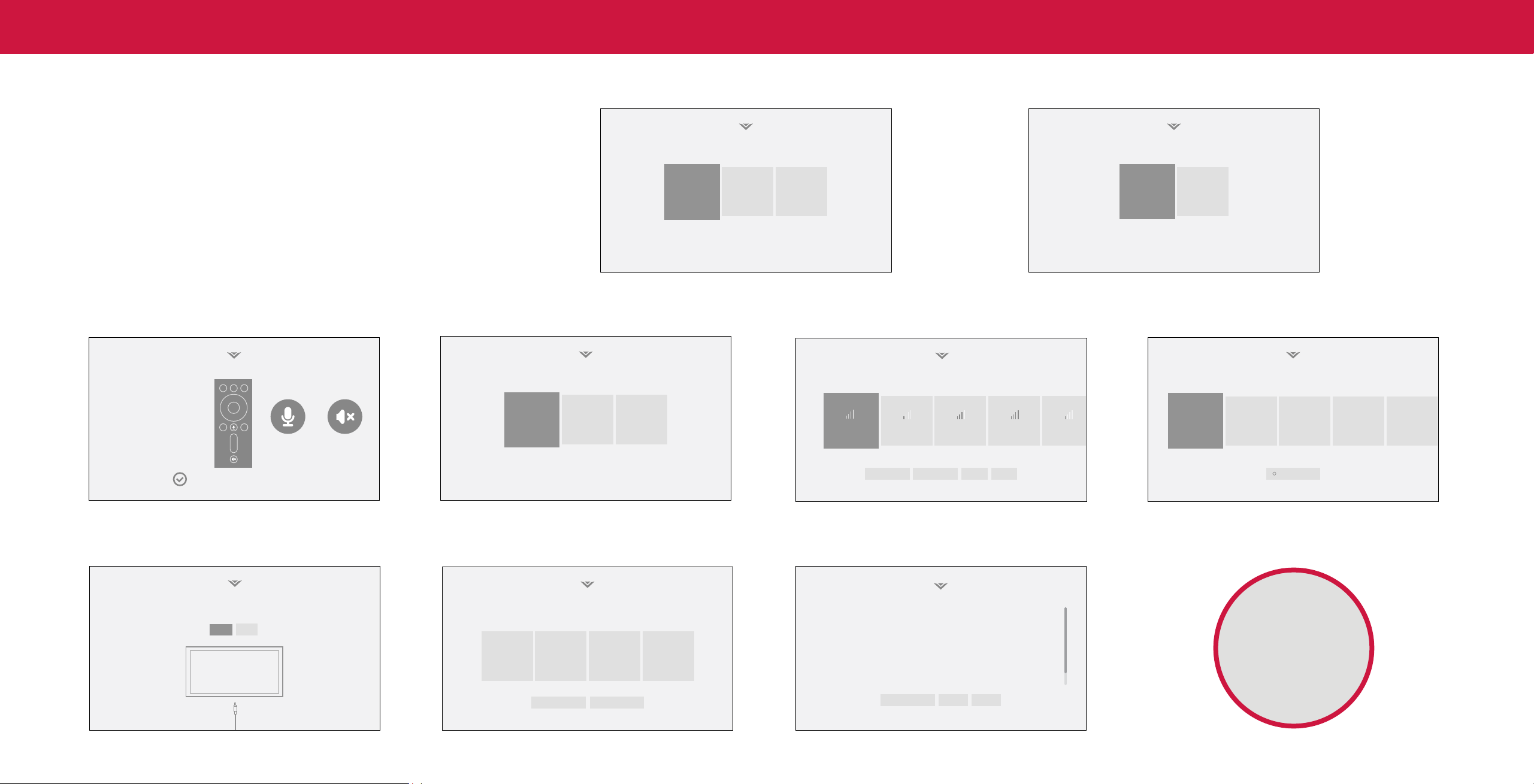
Completing the First-Time Setup
Before you begin the rst-time setup:
• Your TV should be installed and the power cord should be connected to an
Choose a language for your TV.
How are you using your TV?
electrical outlet.
• If you have a wireless network, have the network password ready.
• If you are connecting to your network with an Ethernet cable, connect it to the
Ethernet port on the TV.
English
Home Use
Store Demo
Español FrF ançaisrançais
The first time you turn on the TV, the on-screen instructions will guide you through
each of the steps necessary to get your TV ready for use:
1. Choose your language.
Pressing the CC button will 2. Choose home use.
enable TTS (text-to-speech) functionality.
To begin pairing, press and hold the
Microphone and Mute buttons on your voice
remote for three secons, until the light on
the remote begins to flash.
Pair Your Remote
+
Your Voice Remote has been paired
Where is you VIZIO TV located?
Choose a Wi-Fi Network.
Which room is your VIZIO TV Located?
USA
Mexico Canada
Home Network
Public Wi-Fi John’s Network Ana’s Network Encrypted
Family Room
Living Room
Master
Bedroom Game Room
Rescan Networks Hidden Netwok Help Skip
Add Custom Location+
3. Pair your voice remote. 4. Choose your country. 5. Choose your Wi-Fi network and enter the password. 6. Name your TV.
Let’s set up local channels.
Next
Skip
To search for local broadcast channels, make sure the cable from the
antenna, wall or cable box is properly connected to your VIZIO TV.
7. Scan for channels.
Terms & Conditions.
Viewing Data
This unit is equipped with Automated Content Recognition (”ARC”) Technology also known as Viewing Data.
Your use of this device and software functionality are covered by VIZIO and Google ‘s respective Terms of Service and Privacy Policies.
WHAT DATA DOES ACR TECHNOLOGY COLLECT? WHAT DO WE DO WITH VIEWING DATA?
By pressing “Accept All”, you agree to be bound by the (i) VIZIO Terms of Service and Privacy Policy and (ii) the Google Terms of Service and
Privacy Policy. NOTE: Accepting the terms and policiesis a condition of using the Cast functionality of this device.
When enabled, ACR technology will collect information about the audio and video VIZIO or its authorized data partners may combine Viewing Data with household
programing content playing on this internet-connected display unit including demographic data, or other data about your digital actions, like smartphone
broadcast television, advertisements and other commercially available content. We location, web histories or offline purchases, in order to determine the effectiveness
associate this Viewing Data with the IP address for the unit, and a unique device of a particular ad, or choose which ads are likely to be useful or timely, including
number we assign. You may change your Viewing Data settings at any time within during broadcast, cable, satellite, or internet based television programming. VIZIO
the Settings Menu of your TV. Declining Viewing Data collection will not change the and its authorized data partners also use the information to generate summary
functionality of your device. analysis and reports of how users engage with content on their TVs and other
Skip For Now Accept All
VIZIO Terms &
Conditions
Policy
Policy Conditons
VIZIO Privacy
Google Privacy Google Terms &
devices.
WHO DO WE SHARE VIEWING DATA WITH?
When enabled, we share Viewing Data with authorized data partners. We license WHAT ELSE DOES VIEWING DATA SHARING MEAN FOR YOU?
Viewing Data to analytics companies, media companies, advertisers, ad agencies, Viewing Data is also used to help content publishers, broadcasters or content
and other ad tech companies who measure ad effectiveness or aid personalization distribution services create or recommend more relevant entertainment based on
of ads. Our authorized cloud service providers may also store this data on and summary insights. For example, if devices sharing your IP address suggest an
solely on our behalf, and for no other purposes. interest in music, fitness, or sports related topics, advertisers might deliver tailored
Now you're all set.
Enjoy!
Viewing Data Policy Decline Accept
8. Accept the Terms & Conditions. 9. View and accept VIZIO Viewing Data Policy.
8
3
Using the On-Screen Menu
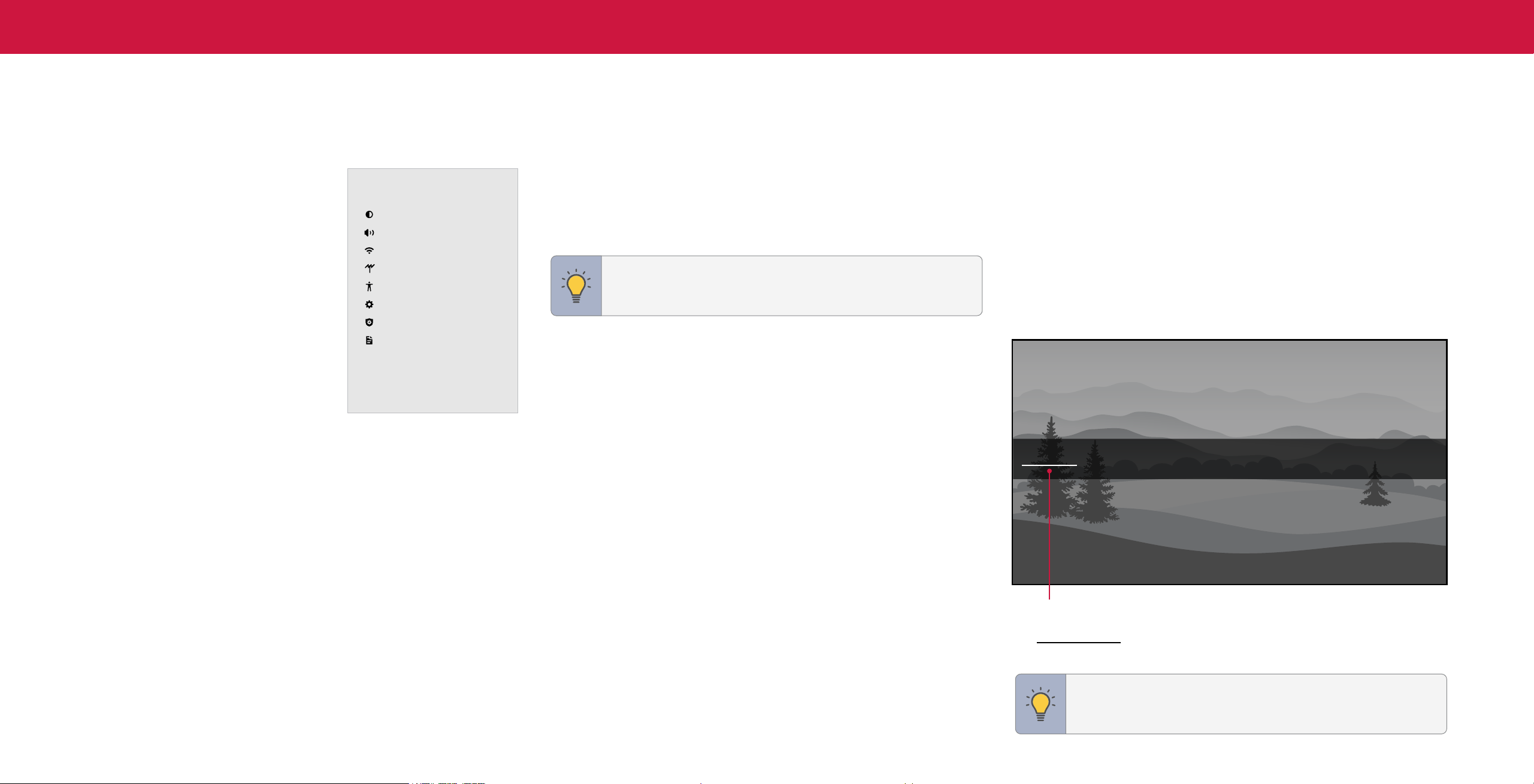
Your TV features an easy-to-use on-screen menu.
To open the on-screen menu, press the MENU button on the remote.
From this menu, you can:
• Adjust the picture settings
• Adjust the audio settings
• Adjust the network settings
• Adjust the TV channel settings
• Adjust accessibility settings
• Adjust TV system settings
• Access admin and privacy settings
• View the user manual
TV Settings
Picture
Audio
Network
TV Channels
Accessibility
System
Admin & Privacy
User Manual
NAVIGATING THE ONSCREEN MENU
To open the on-screen menu:
1. Press the MENU button on the remote.
2. Use the Navigation buttons to highlight a menu option, and press the OK button
to select that option.
TIP: While navigating the on-screen menu, you can press the
BACK button at any time to return to the previous menu screen.
CHANGING THE INPUT SOURCE
External devices, such as DVD players, Blu-ray players, and video game consoles,
can be connected to your TV. To use one of these devices with your TV, you must first
change the input source using the input menu.
To change the input sources:
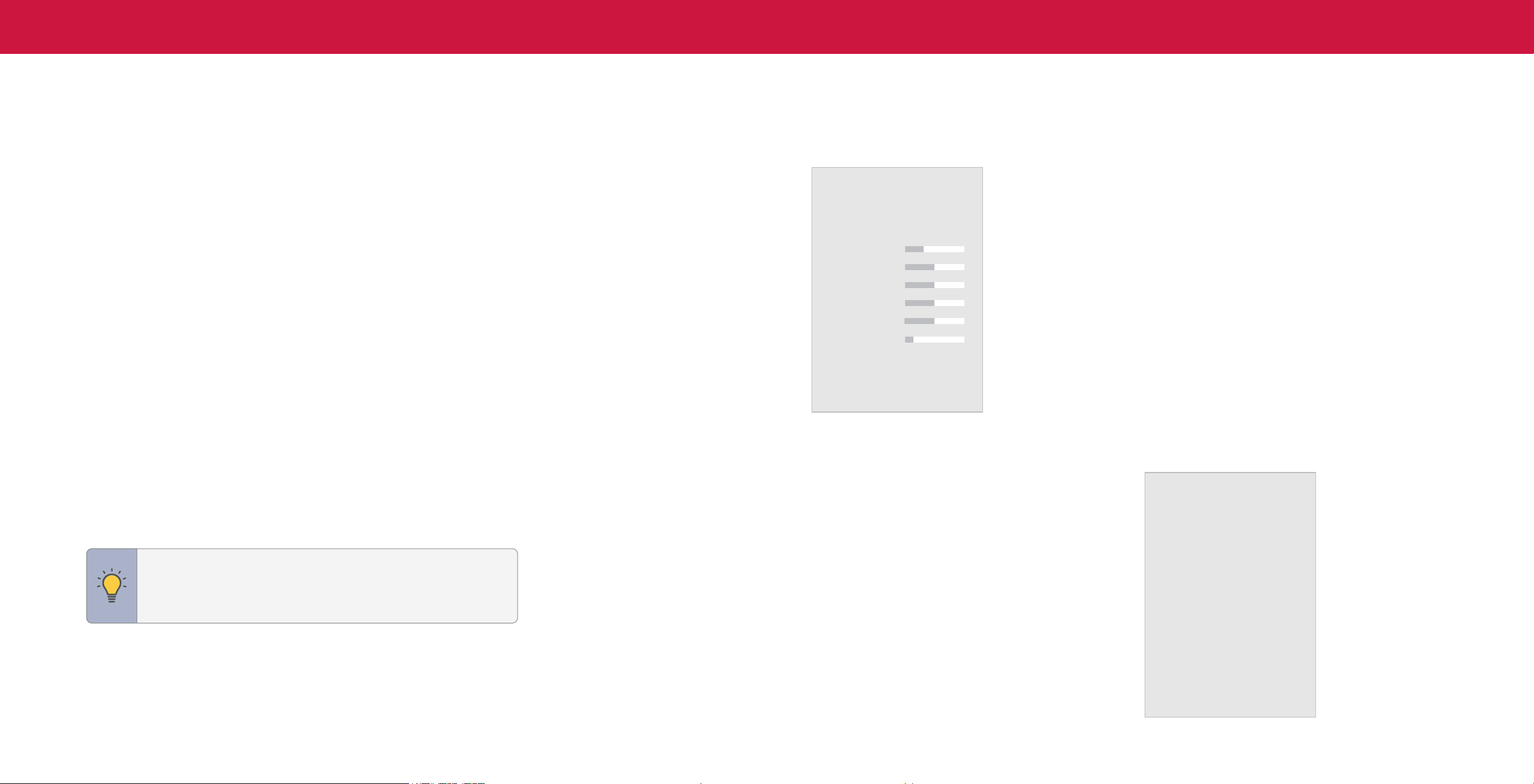
1. Press the INPUT button on the remote. The input menu is displayed.
2. Use the Navigation buttons or the INPUT button on the remote to highlight the
input you wish to view. The corresponding inputs are named on the back of your
TV.
3. Press OK or release the INPUT button. The selected input is displayed.
SMARTCAST
Change Input
HDMI-1 HDMI-2 COMP TVWatchFree+ HDMI-3
Input Name
The underlined input on the left is the current input selected. Inputs may vary by TV.
HDMI-4
TIP: You can change the input names that appear on the Input
menu to make your devices easy to recognize. See Renaming
Devices on the Input Menu
on page 23
.
9
3
ADJUSTING THE PICTURE SETTINGS
Your TV can be adjusted to suit your preferences and viewing conditions.
To adjust the picture mode settings:
Menu > Picture > Picture Mode
1. Use the Navigation buttons on the remote to highlight Picture Mode, then use
the Left/Right Navigation buttons to change the picture mode:
• Vivid — Sets the picture settings to values that produce a brighter, more
vivid picture.
• Bright — Great for viewing everyday TV, such as news and TV shows, that
requires a brighter image with motion enhancements.
• Calibrated — Accurate colors intended for cinema content viewing in a
bright room.
• Calibrated Dark — Accurate colors intended for cinema content viewing in a
dark room or at nighttime.
• Game — Reduces throughput delays and optimizes the picture settings for
displaying game console output. Also the preferred picture mode for computer
mode.
• Sports — Sets the picture settings to values ideal for watching sport events with
motion control setting.
TIP: If you save changes to the setting for a picture mode, an
asterick will appear after its name. See Saving a Custom Picture
Mode on page 13.
2. To manually change each of the picture settings, use the Up/Down Navigation
buttons on the remote to highlight that picture setting, then use the Left/Right
Navigation buttons to adjust the setting:
• Ambient Light Sensor — Detects your
room's light level and automatically adjusts
the background. Select Low for the darkest
picture or High for the brightest picture.
Select Off for manual backlight control.
• Backlight (SDR content) or Tone
Mapping (HDR content) — Adjusts
the LED brightness to affect the overall
brilliance of the picture.
• Brightness — Adjusts the black level of
the picture. When this setting is too low,
the picture may be too dark to distinguish
details. When this setting is too high, the
picture may appear faded or washed out.
• Contrast — Adjusts the white level of the
picture. When this setting is too low, the
Picture
Picture Mode
Ambient Light Sensor
Backlight
Brightness
Contrast
Color
Tint
Sharpness
Color Temperature
Picture Aspect
Advanced Picture
Calibrated
Low
Normal
Normal
picture may appear dark. When this setting
is too high, the picture may appear faded or washed out. If the setting is too
high or too low, detail may be difficult to distinguish in dark or bright areas of
the picture.
• Color — Adjusts the intensity of the picture colors.
• Tint — Adjusts the hue of the picture. This setting is useful in adjusting the flesh
tones in the picture. If flesh appears too orange, reduce the level of color before
adjusting tint.
• Sharpness — Adjusts the edge sharpness of picture elements. It can be used to
sharpen non-HD (high definition) content; however, it will not produce detail that
does not otherwise exist.
Adjusting the Color Temperature
Adjusting the color temperature changes the white balance of the picture.
To adjust the color temperature:
Menu > Picture > Color Temperature
Use the Navigation buttons on the remote to highlight a color temperature preset
and then press OK.
• Warm — Produces an orange-hued picture.
• Cool — Produces a blue-hued picture.
• Normal — Optimized for television viewing.
Color Temperature
Warm
Cool
Normal
10
3
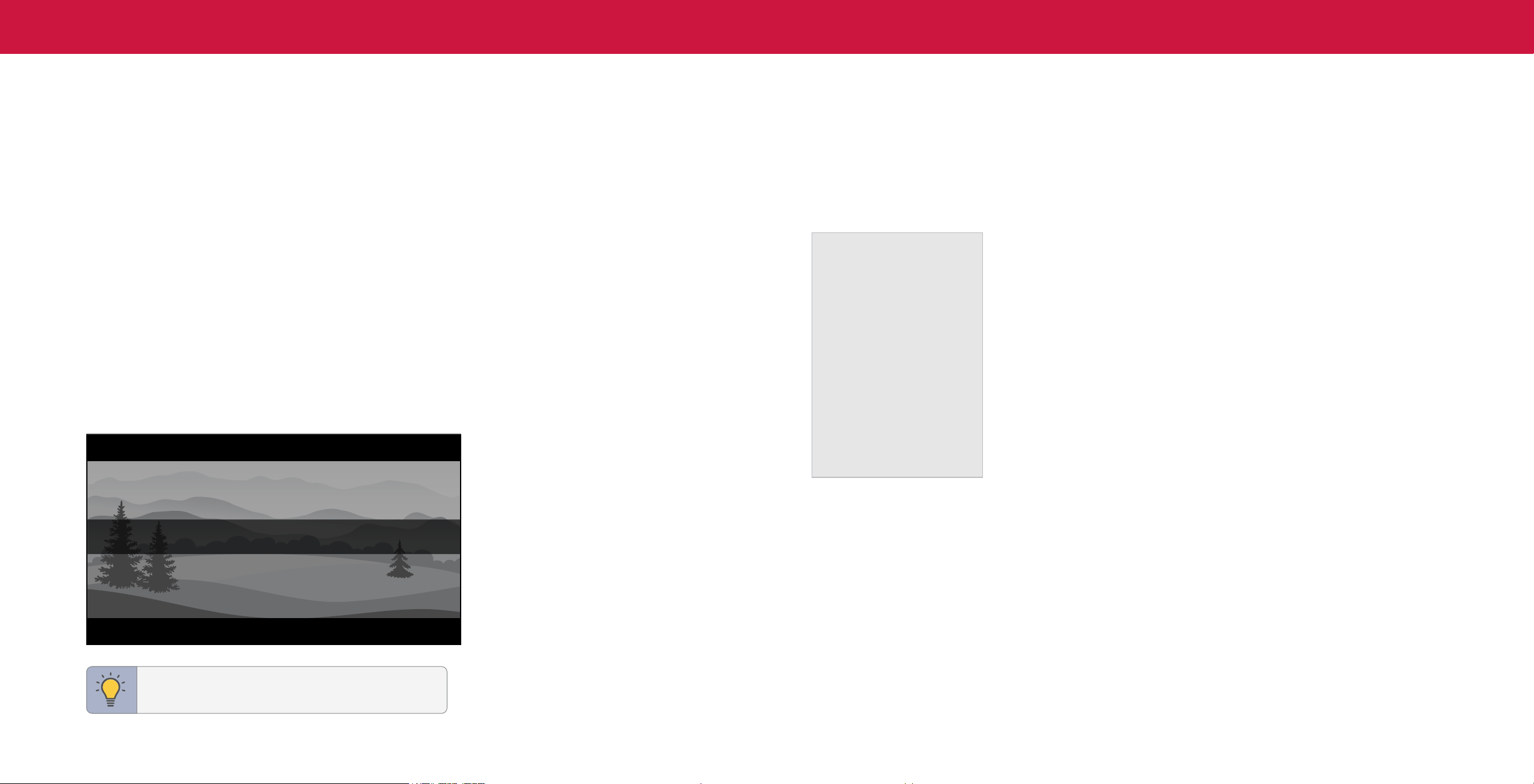
Changing the Picture Aspect Ratio
To change the screen aspect ratio:
Menu > Picture > Aspect Ratio
Use the Navigation buttons to highlight the aspect ratio you wish to view.
Your TV can display images in different modes:
• Normal (default) — No change to aspect ratio.
• Panoramic
*
— Stretches a 4:3 image to fill 16:9 screen with an algorithm so the
center doesn’t look stretched.
• Wide — Stretches a 4:3 aspect ratio to fill 16:9 screen. If a 16:9 image, adds
black bars to top and bottom.
• Zoom — Expands image both horizontally and vertically by 14%.
• Stretch
*
— When the 16:9 signal is a 4:3 image with black bars left and right,
stretches to fill the screen.
Some programs have black bars on the top or sides of the screen so that the
picture keeps its original shape. Examples include widescreen movies and older TV
programs.
Normal
Stretch Wide Zoom
TIP: The aspect ratio cannot be changed for Ultra
HD content or HDR content.
Adjusting Advanced Picture Settings
To adjust advanced picture settings:
Menu > Picture > Advanced Picture
Use the Navigation buttons to highlight the setting you wish to adjust, then press
the Left/Right Navigation buttons to change the setting:
• Black Detail — Adjusts the average
brightness of the picture to compensate for
Advanced Picture
large areas of brightness.
Black Detail Off
• Super Resolution — Configures the
Super Resolution Medium
resolution to enhance dim and blurred
pictures resulting in a sharper image.
Edge Enhancement Low
Local Contrast Low
• Edge Enhancement — Increases the
Active Full Array
TM
Medium
smoothness of edges.
Motion Control
• Local Contrast — Adjust the contrast of
Reduce Noise
the picture locally.
Gaming Engine
• Active Full Array
™
— Based on the
Film Mode On
content, dynamically adjusts and balances
Gamma 2.1 - Normal
the brightness and the contrast ratio of
the picture by locally adjusting backlight
zones.
• Motion Control:
− Clear Action: Reduces blur in scenes with fast action but limits the range for
the Backlight setting.
• Reduce Noise:
− Signal Noise: Reduces background picture noise when viewing analog
sources. This function helps to correct "speckle" noise with a slight reduction
in sharpness.
− Block Noise: Reduces the side effects of digital compression such as
"blocking" and noise on sharp edges. The High setting will cause a slight
reduction in sharpness.
− Contour Smoothing: Removes visible contour noise without loss of the
complex detail.
• Gaming Engine:
− Game Low Latency: Reduces video delay (lag) when gaming. When set to
Auto and Automatic Low Latecy Mode (ALLM) is detected, ALLM will apply
for the duration of the game.
− Variable Refresh Rate: Adjusts the refresh rate of the screen based on the
content.
− Game HDR: Optimizes picture quality for HDR game.
• Film Mode — Optimizes the picture for watching films. Select On or O.
• Gamma — Set the shape of the Gamma curve. Use lower Gamma values for
bright room conditions, and higher values when it’s dark.
• Color Calibration — Calibrate colors using HSB, gain, offset and 20 point white
balance and test or reset colors to defaults.
*
Available aspect ratio settings may vary by input source. Panoramic mode is only available for standard
definition TV (480i/480p) and Stretch mode is only available for high definition TV (720p/1080i/1080p).

11
3
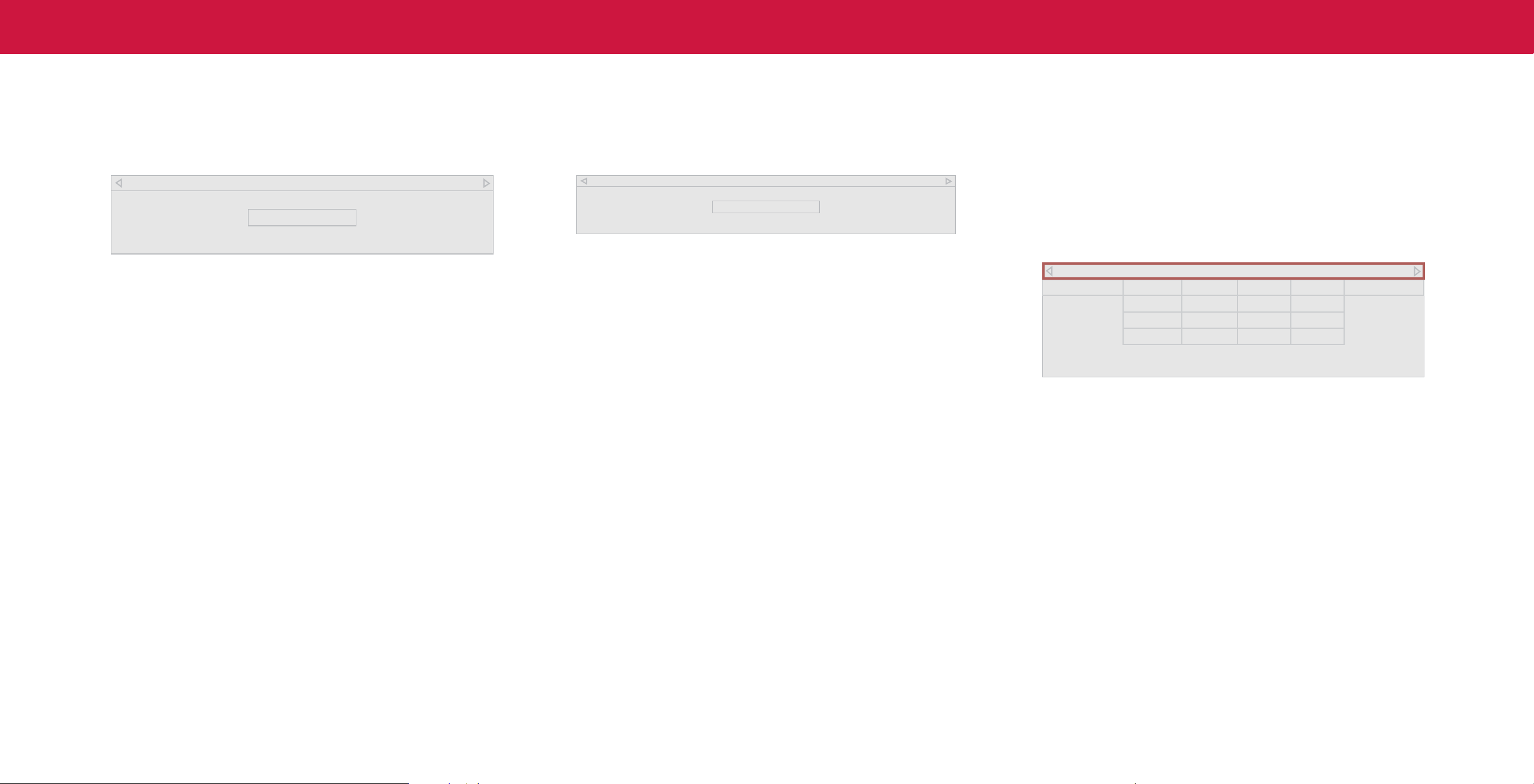
Adjusting the Color Tuner Settings
The Color Tuner settings allow you to adjust the color management system, 20 point
white balance, turn color channels off for testing, and display SMPTE, flat, ramp, and
uniformity analyzer test patterns.
To access the color tuner table:
Menu > Picture > Advanced Picture > Color Calibration > Color
Tuner
WARNING: The Color Tuner, 20 Point White Balance, and
test patterns allow technicians to manually calibrate the TV.
Calibration requires specialized training, an input with precisely
set colors, and a specialized light meter.
To turn color channels o and on:
1. Use the Navigation buttons on the remote to highlight Red, Green, or Blue.
2. Press the OK button to turn the color channel off or on. An X appears over a
color channel that has been turned off.
3. Only two color channels can be turned off at the same time.
TIP: Any changes made affect the color temperature setting.
Select the preferred color temperature setting first. See Adjusting
the Color Temperature on page 9.
To adjust the color management system settings:
1. Use the Navigation buttons on the remote to highlight the Hue, Saturation,
Brightness, Offset, or Gain of the color you wish to adjust. Press the OK button.
2. Use the Left/Right Navigation buttons to adjust the value. When you are
finished press the OK button to save the setting.
Color Tuner
Red Green Blue Cyan Magenta Yellow
Hue 0 0 0 0 25 -14
Saturation -1 5 -4 0 -2 0
Brightness -24 0 -22 0 0 0
To show or hide the SMPTE Test Pattern:
Menu > Picture > Advanced Picture > Color Calibration > Color
Tuner > SMPTE Test Pattern
SMPT Test Pattern
O
1. Use the Navigation buttons on the remote to highlight Off. Use the Left/Right
Navigation buttons to select On to show the SMPTE Pattern.
— — or
2. To hide the SMPTE Test Pattern, use the Left/Right Navigation buttons to
select Off.
To show or hide the Flat Test Pattern:
Menu > Picture > Advanced Picture > Color Calibration > Color
Tuner > Flat Test Pattern
Flat Test Pattern
Off
1. Use the Navigation buttons on the remote to highlight Off. Use the Left/Right
Navigation buttons to select the percentage brightness for the flat test pattern.
Selecting a percentage immediately shows the flat pattern at that brightness.
—or—
2. To disable the Flat Test Pattern, use the Left/Right Navigation buttons to
select Off.
12
3
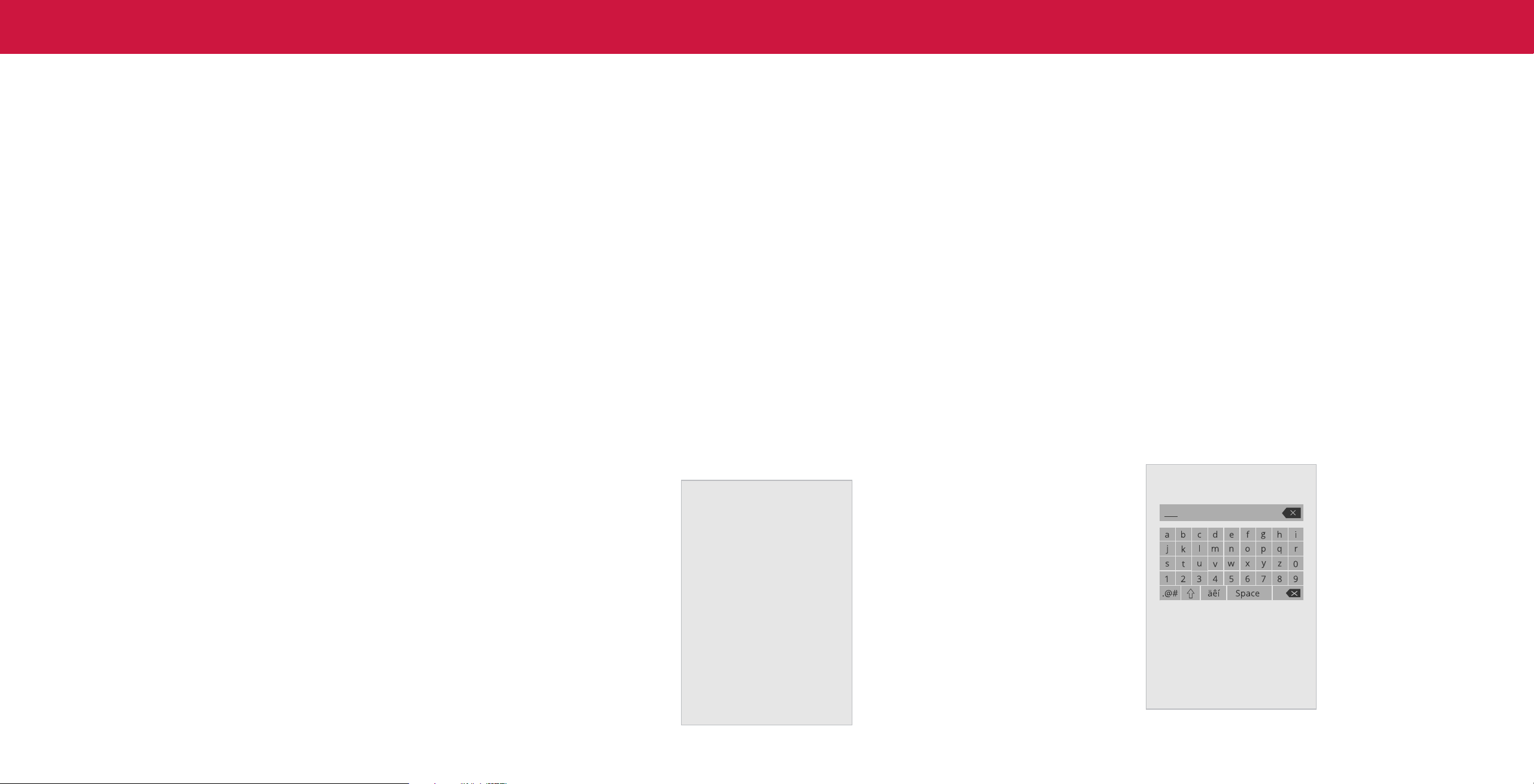
To show or hide the Ramp Test Pattern:
Menu > Picture > Advanced Picture > Color Calibration > Color
Tuner > Ramp Test Pattern
Ramp Test Pattern
Off
1. Use the Navigation buttons on the remote to highlight Off. Use the Left/Right
Navigation buttons to select the color for the ramp test pattern. Selecting a
color immediately shows that color ramp.
—or—
2. To hide the Ramp Test Pattern, use the Left/Right Navigation buttons to
select Off.
To show or hide the Uniformity Analyzer Test Pattern:
Menu > Picture > Advanced Picture > Color Calibration > Color
Tuner > Uniformity Analyzer Test Pattern
Uniformity Analyzer Test Pattern
Off
1. Use the Navigation buttons on the remote to highlight Off. Use the Left/Right
Navigation buttons to select On to show the Uniformity Analyzer Test Pattern.
— — or
2. To hide the Uniformity Analyzer Test Pattern, use the Left/Right Navigation
buttons to select Off.
To adjust the White Balance Tuner settings:
Menu > Picture > Advanced Picture > Color Calibration > White
Balance Tuner
1. Use the Navigation buttons on the remote to highlight the Gain and Color values
you wish to adjust. Press the OK button and use the Left/Right Navigation
buttons to adjust the value. When you are finished, press the OK button to save
the setting.
White Balance Tuner
Red Green Blue
IRE% 5 0 0 0
Oset 0 0 0
Gain 0 0 0
13
3
Adjusting Picture Input Settings
Enable HDMI Mode, Full Color 4:4:4, and adjust picture size and position.
To adjust the Input settings:
Menu > Picture > Input Picture Settings
Use the Navigation buttons to highlight the setting you wish to adjust.
• Picture Size and Position
*
— configure the display size and position of the
picture to the screen.
• HDMI Mode
*
— Expanded color display. Only available for an HDMI input.
• Full Color 4:4:4
*
— Maintains full color data with 4:4:4 content. Some picture
settings will not be available when this setting is On. Only available for an
HDMI input.
• Color Space Range — Select Color Space for the source. Video sources uses
YCbCr, but PC uses RGB.
Adjusting the Picture Mode Edit Settings
Manage custom picture modes and reset preset picture modes.
To adjust the Picture Mode Edit settings:
Menu > Picture > Picture Mode Edit
Use the Navigation buttons to highlight the setting you wish to adjust, then press
OK to change the setting:
• Save Picture Mode — Save a custom picture mode.
• Copy Picture Mode — Copy the settings for a custom picture mode.
• Lock Picture Mode — Prevent changes to custom picture modes.
• Reset Picture Mode —Reset the picture mode settings to factory default values.
Only available on customized preset modes.
• Delete Picture Mode —Delete a custom picture mode. Inputs assigned to the
cusom picture mode will use the Calibrated picture mode.
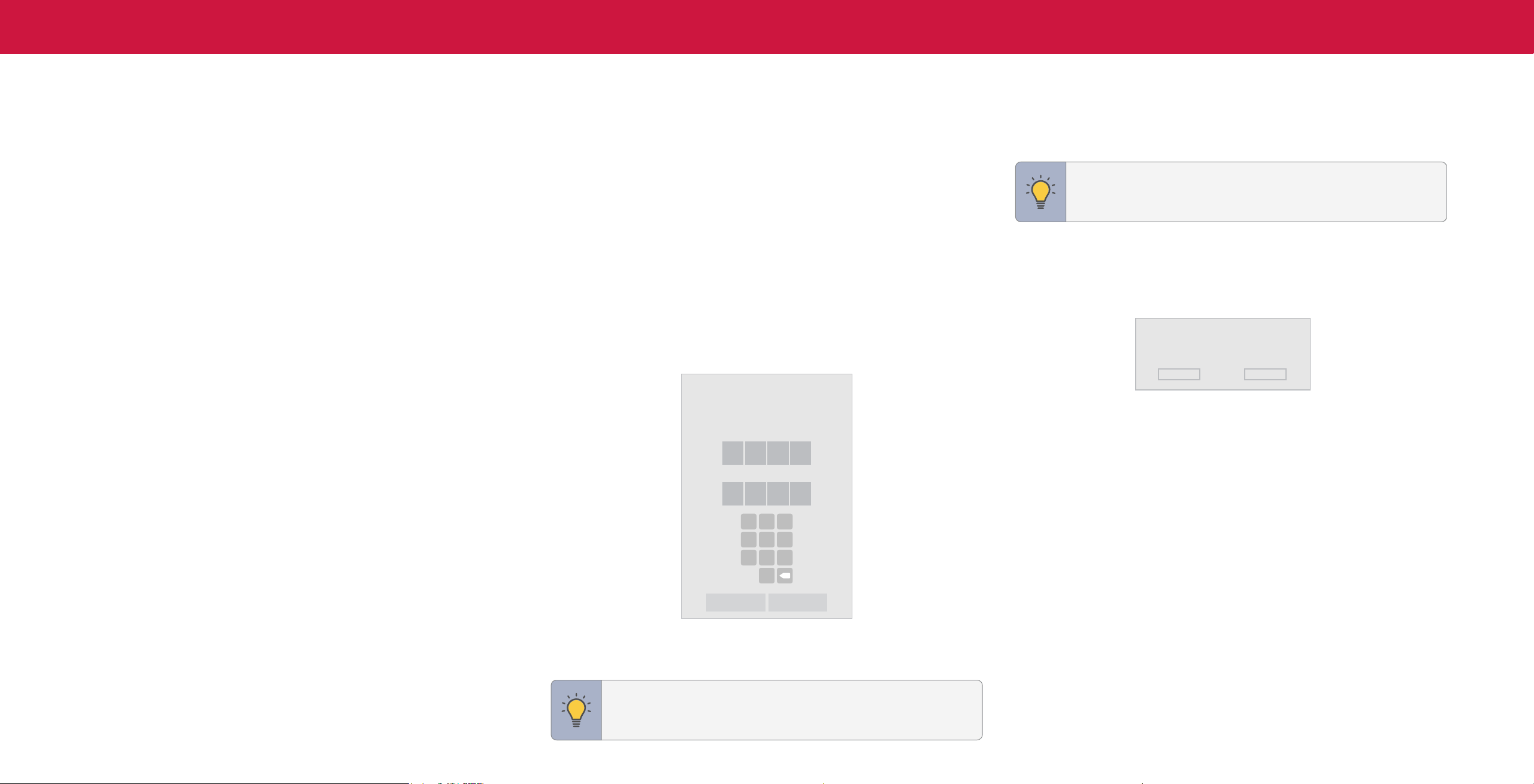
Saving a Custom Picture Mode
Custom picture modes allow you to save a group of custom settings for various
viewing conditions and video sources.
To save a custom picture mode:
Menu > Picture > Picture Mode Edit > Save Picture Mode > Enter
a Name >Save
Custom picture modes allow you to save a group of custom settings for various
viewing conditions and video sources.
• Changes made while on any preset picture mode will add an asterisk on the top
right corner of the preset mode.
• The custom picture mode is not automatically saved.
Save Picture Mode
Picture Mode Edit
Save Picture Mode
Copy Picture Mode
Lock Picture Mode Off
Reset Picture Mode - Bright*
*
Only available if there is an input source. Not available for WatchFree.
Menu items will be grayed out if not available.
14
3
Copy a Picture Mode
Custom picture mode settings can be copied to be applied to other inputs.
1. Complete the desired changes for the selected picture mode.
• Select Save Picture Mode to save picture mode for all inputs.
2. Select the input you want to copy your saved picture mode edits to.
3. Change the picture mode to your custom saved mode: Menu > Picture >
Picture Mode > select saved custom picture mode
4. Copy your custom picture mode: Menu > Picture > Picture Mode Edit > Copy
Picture Mode
5. Select what picture mode you would like to copy over.
6. A notification displays after the copy to your selected picture mode is
completed. Now this picture mode will have your custom settings saved over it
for the selected input.
7. Repeat as needed to customize additional inputs.
Lock a Picture Mode
Custom picture modes can be locked/unlocked with a unique PIN to prevent
accidental changes to their settings. If not previously set, you can set up your system
PIN code here.
To lock all custom picture modes:
Menu > Picture > Picture Mode Edit > Lock Picture Mode > On >
Enter Your PIN > Save
To unlock all custom picture modes:
Menu > Picture > Picture Mode Edit > Lock Picture Mode > O >
Enter Your PIN
Lock Picture Mode
Create a picture control PIN to prevent
changes to all custom picture modes.
New PIN
Confirm PIN
1
4
7
2
5
8
0
3
6
9
X
Cancel Save
Deleting a Picture Mode
Custom picture modes that are no longer needed can be deleted.
TIP: Inputs assigned to deleted custom picture modes become
assigned to the Calibration picture mode.
To delete a custom picture mode:
Menu > Picture > Picture Mode Edit > Delete Picture Mode >
Delete
To delete the user created Custom 1
picture mode, select the Delete button.
Delete
Cancel
Resetting a Picture Mode
A preset picture mode that has been edited can be restored to the factory
default settings.
To reset a customized preset picture mode:
Menu > Picture > Picture Mode Edit > Reset Picture Mode >
Reset
TIP: To set a custom PIN code, see
Setting a System PIN Code on
page 25
.
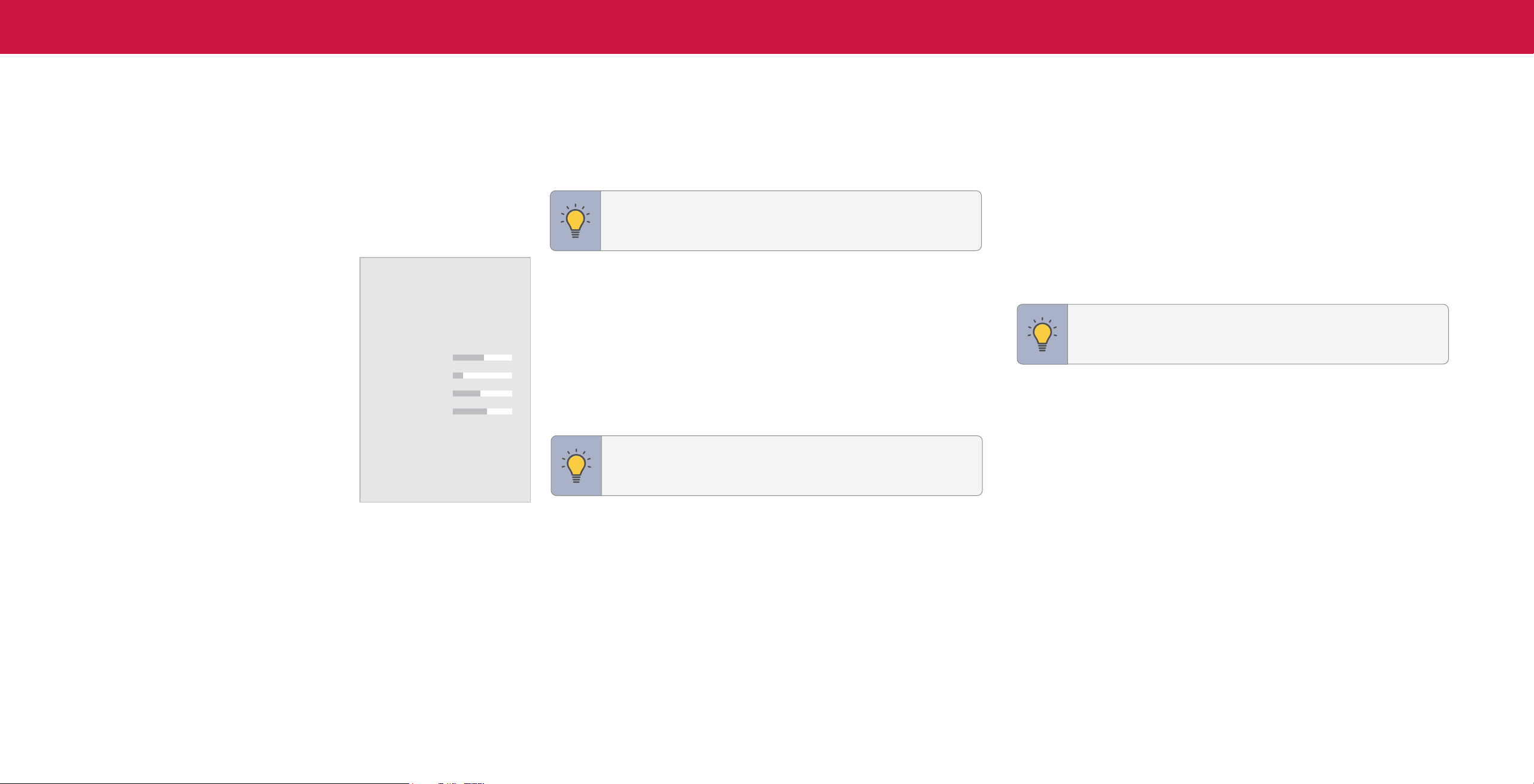
15
3
ADJUSTING THE AUDIO SETTINGS
To adjust the audio settings:
Menu > Audio
Use the Navigation buttons to highlight the setting you wish to adjust, then press
• Digital Audio Out — Select the digital audio output format for both the optical
and HDMI ARC audio devices.
- To hear talk back when Talk Back function is enabled, digital audio out must be
set to PCM.
TIP: You must select Digital for audio with more than two
channels (e.g., 3.0, 5.0, or 5.1).
• Analog Audio Out — Select Variable if you are controlling the volume with the
remote. Select Fixed if an external audio device (sound bar or AV receiver) will
control the volume.
• Dialogue Enhancer — If enabled and the signal source includes Dolby 5.1 AC-4
audio then clarity of dialogue is enhanced.
• eARC — Toggle between ARC (Off) and eARC (On) for audio output using
HDMI 1. If On, audio is sent using eARC and is uncompressed. If Off, audio is
sent using ARC and some audio formats may play in standard Dolby Audio, DTS
Digital Surround, or PCM.
TIP: Your connected sound bar or audio receiver must support
eARC in order to receive uncompressed audio. Check your
device's user manual for more information.
• Equalizer — Only available when Surround Sound is set to OFF. Boosts or
attenuates loudness at different frequencies.
SOUND BAR SETTINGS
If a VIZIO sound bar is detected and connected via CEC (HDMI ARC/eARC), sound
bar settings will appear.
To adjust the sound bar settings:
Menu > Audio > Sound Bar Settings
Use the Navigation buttons to highlight the setting you wish to adjust, then press
Left/Right Navigation buttons to change the setting.
TIP: Available sound bar menu settings will be specific to the type
of VIZIO sound bar connected. See
Adjusting the CEC Settings on
page 25
to enable CEC under the SYSTEM settings.
Left/Right Navigation buttons to change the setting:
• TV Speakers — Built-in speakers
automaticcaly turn off if a sound bar is
discovered. Turn the built-in speakers On or Off.
• Surround Sound — When set to On, enables
surround sound suitable for sports and TV
shows. Virtual:X
™
adds virtualized height
best for movies.
• Volume Leveling — When set On, DTS
TruVolume
™
audio solution levels the speaker
volume.
• Balance — Balance the audio loudness
between the left and right speakers.
• Bass — Increase or decrease the bass level.
• Treble — Increase or decrease the treble level.
• Lip Sync — Synchronize the display image with the audio track.
Audio
TV Speakers Auto
Surround Sound On
Volume Leveling On
Balance
Bass
Treble
Lip Sync
Digital Audio Out Auto
Analog Audio Out Fixed
Dialogue Enhancer Off
eARC On
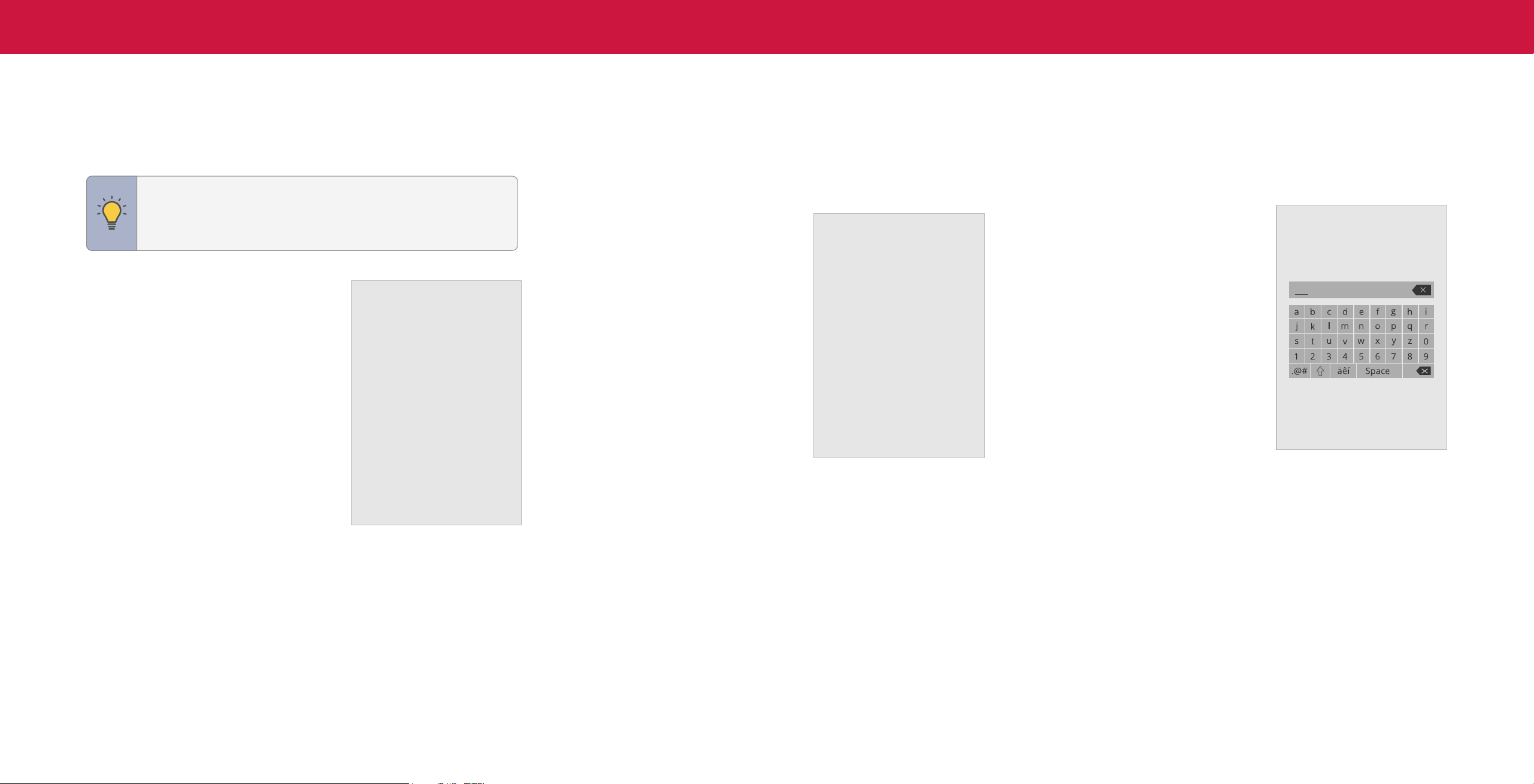
16
3
ADJUSTING THE NETWORK SETTINGS
Your TV is Internet-ready, featuring both an Ethernet port and built-in high-speed
wireless internet.
TIP: If your TV is connected to a network with an Ethernet cable,
you will not see the wireless network connection menu. You must
unplug the Ethernet cable to set a wireless network connection.
Connecting to a Wireless Network
To connect to a wireless network whose
network name (SSID) is being broadcast:
Menu > Network >
Choose your network >
Enter in the password > Connect
Network
Wired Connection
Wireless Access Points
Manual Setup
Hidden Networks
Test Connection
Disconnected
To forget a saved network:
Highlight a saved wireless access point > OK > Forget
If you do not see your wireless network displayed, click on:
More Access Points > Highlight your wireless network > Enter in
the password > Connect
Changing the Manual Setup Settings
Advanced users can fine-tune the network settings using the Manual Setup feature.
The security settings on your router may require you to enter the TV's MAC address.
To change advanced network settings:
Menu > Network > Manual Setup >
DHCP > O
1. Use the Navigation and OK buttons to
adjust each setting:
• IP Address — The IP address assigned to
the TV.
• Subnet Mask — The subnet Exit 2D.
• Default Gateway — Your network’s default
gateway address.
• Pref. DNS Server — Your preferred domain
name server address.
• Alt. DNS Server — Your alternate domain
Manual Setup
DHCP
IP Address
Subnet Mask
Default Gateway
Pref. DNS Server
Alt DNS Server
RJ45 Mac
Wireless Mac
Disconnected
__. __.__.__
__. __.__.__
__. __.__.__
__. __.__.__
__. __.__.__
0:0:0:0:0:0
0:0:0:0:0:0
name server address.
2. Use the Navigation buttons on the remote to highlight Save and press OK.
To nd the TV’s MAC address:
Menu > Network > Manual Setup
You can find your TV's MAC address at the bottom of the list. The MAC addresses for
the connections in use are displayed:
• RJ45 MAC — The Ethernet or RJ45 MAC address may be needed to set up
your network when you have connected the TV to your network when you have
connected the TV to your network with an Ethernet (Cat 5) cable.
• Wireless MAC — The Wireless (Wi-Fi) MAC address may be needed to connect
your TV to your network with Wi-Fi.
Connecting to a Hidden Network
To connect to a wireless network whose network name (SSID) is not being broadcast:
Menu > Network > Hidden Network > Enter the Access Point
Name > Connect > Enter in the password
Testing Your Network Connection
To test your network connection:
Menu > Network > Test Connection
Enter Access Point Name
Enter your access point name. This is used
to connect to an access point with a hidden
SSID.
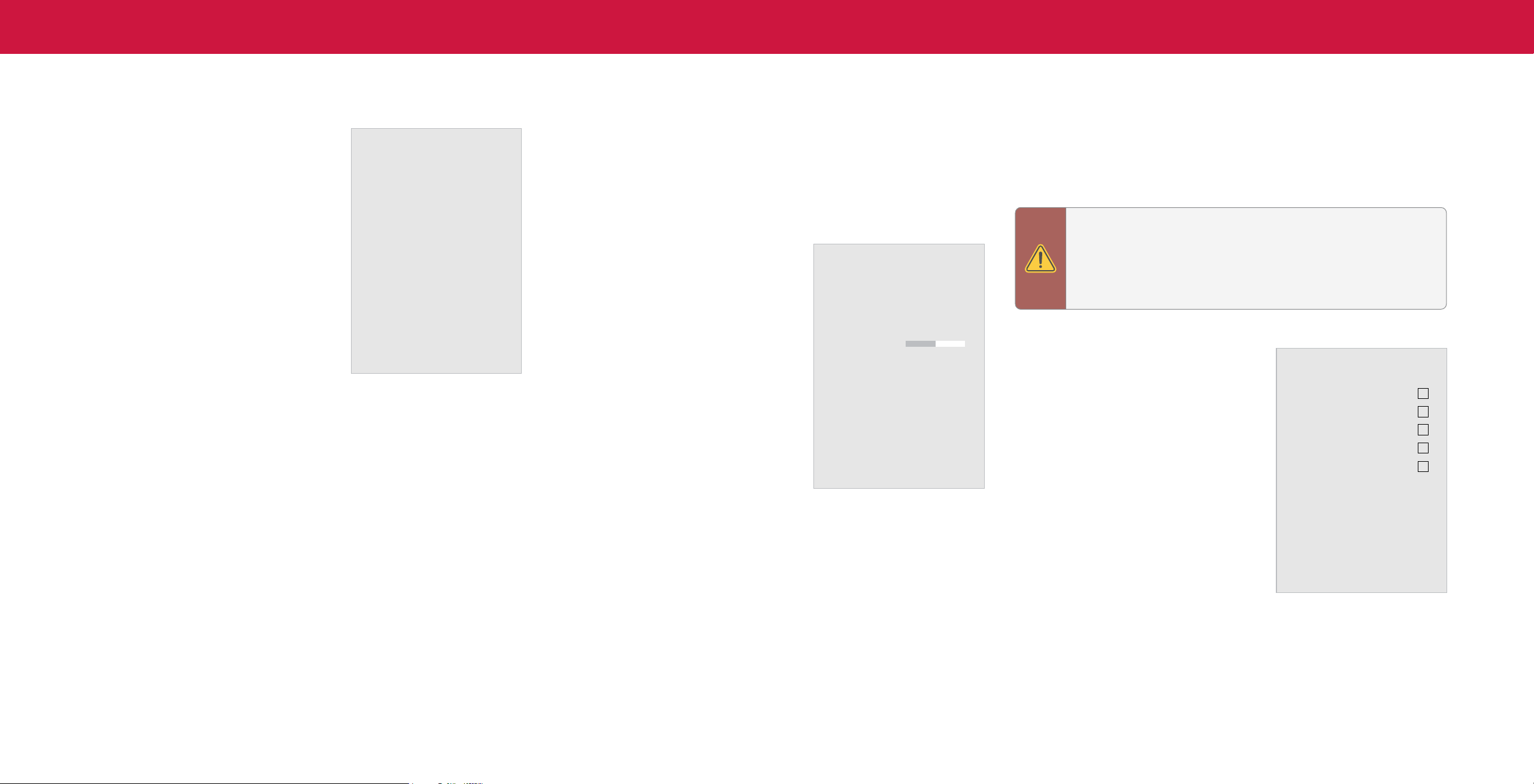
17
3
Scanning for TV Channels
The TV may need to scan for channels before it can display programs and their
associated information. A channel scan is required for free over-the-air channels
(using an antenna) and cable channels from an out-of-the-wall connection (without a
cable box). Moving the TV to an area with different channels requires the TV to scan
for channels again.
Skipping Channels
After a channel scan is completed, you may find that some channels are too weak to
watch comfortably. There may also be some channels you do not want to view. You
can remove these channels from the TV’s memory with the Skip Channel feature.
SETTING UP TV CHANNELS
You can use the TV’s Channels menu to:
• Find channels
• Find new channels
• Select channels to skip
• Select analog audio mode
• Select the language for digital audio
• Set parental controls
TV Channels
Find Channels
Find New Channels
Skip Channel
Analog Audio
Digital Audio
Parental Controls
Stereo
English
To perform an Auto Channel Scan:
Menu > TV Channels > Find
Channels
WARNING: Channels that have been removed with the Skip
Channel feature can still be viewed if the channel is entered using
the number pad.
If you wish to completely block a channgel from being viewed, use
see Locking and Unlocking Channels on page 19.
Wait until the channel scan is 100% complete.
Find Channels
Channels Found
Digital
Analog
8
45% Complete
12
To remove a channel:
Highlight Done and press OK.
1. From the TV CHANNELS menu, highlight
• If the channel scan is canceled, the
Skip Channel, and press OK. The SKIP
channels that were already discovered are
CHANNEL menu is displayed.
retained.
2. For each channel you wish to remove, use
the Up/Down Navigation buttons on
the remote to highlight the channel and
press OK. A
P appears to the right of each
channel you select.
To perform a New Channel Scan:
Menu > TV Channels > Find New Channels
A New Channel Scan saves the current channel map and scans for additional
channels.
Skip Channel
0 Test 0
1 Test 1
2 Test 2
3 Test 3
4 Test 4
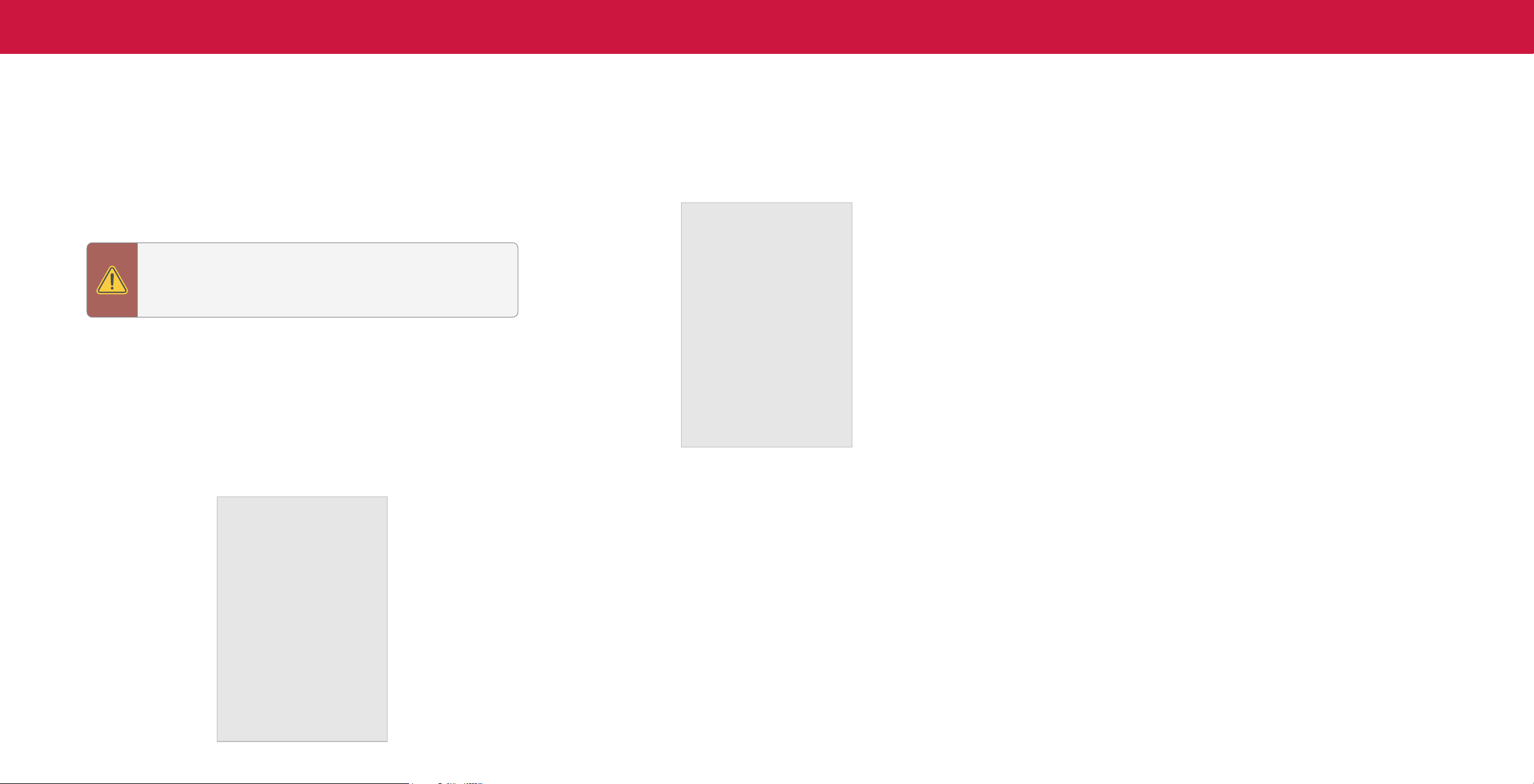
18
3
Changing the Analog Audio Language
Some analog over-the-air (free) and cable channels broadcast programs in more
than one language. The TV’s Analog Audio feature allows you to listen to audio in an
alternate language using Secondary Audio Programming (SAP).
To use the Analog Audio feature:
Menu > TV Channels > Analog Audio
To use the Digital Language feature:
Menu > TV Channels > Digital Audio
Select the preferred audio language. Available languages or video description
depend on the broadcast content.
Digital Audio
WARNING: Not all programs are broadcast in SAP. The Analog
Audio Language feature only works when the program being
viewed is being broadcast with Secondary Audio Programming.
English
Spanish / Video Description
French
• Stereo — More than one speaker channel is being used. Sounds may
be dispersed through different speakers depending on how the audio is
programmed.
• SAP (Secondary Audio Program) — Typically used for audio in a different
language other than the native one used in the program.
• Mono — All speakers are producing the same sound; there is no distinction
between left or right sounds.
Analog Audio
Stereo
SAP
Mono
19
3
Using Parental Controls
The TV’s parental controls allow you to prevent the TV from displaying certain
channels or programs unless a PIN is used.
Accessing the Parental Controls Menu
To access the Parental Controls menu you must first set up a system PIN:
Menu > TV Channels > Parental Controls > Enter in PIN
TIP: to set a custom PIN code, see Setting a System PIN Code on
page 25.
The Parental Controls menu only appears when:
• You are using the tuner to receive your TV signals, such as when you are using an
antenna for Over-the-Air signals or when connected to cable TV directly from the
wall (no cable box).
• You have a device connected using a composite video cable or a coaxial cable,
such as a VCR, satellite or cable box, or DVR.
TIP: Other devices have their own parental control settings.
Enabling or Disabling Program Ratings
To manage program content according to its rating, you must first enable the
Program Rating feature.
To enable or disable the Program Rating feature:
Menu > TV Channels > Parental Controls > Locks > O/On
Locking and Unlocking Channels
When a channel is locked, it cannot be accessed. Locking a channel is a good way to
prevent children from viewing inappropriate material.
To lock or unlock a channel:
Menu > TV Channels > Parental Controls > Channel Locks
Highlight the channel you want to lock or unlock and press OK.
• When a channel is locked, the Lock icon appears
locked. The channel is not
accessible unless the system PIN is entered.
• When a channel is unlocked, the Lock icon appears
unlocked.
Blocking and Unblocking Content by Rating
A channel may sometimes broadcast programs that are meant for a variety of
audiences (some for children and some for adults). You might not want to block the
channel completely using a channel lock, but you can block certain programs from
being viewed.
You can use the TV’s Rating Block feature to block content based on its rating.
To block or unblock content by its rating:
1. From the Parental Controls menu, highlight the content type you want to adjust
and press OK:
• USA TV — USA television program broadcasts.
• USA Movie — USA movie broadcasts.
• Canadian English — Canadian English television program broadcasts.
• Canadian French — Canadian French television program broadcasts.
TIP: For a list of content ratings and their definitions, please visit:
www.tvguidelines.org.
2. For each rating type you want to block or unblock, use the Navigation buttons
to highlight the rating type and press OK.
• When the rating type is blocked, the Lock icon appears
locked. Content with
this rating and all higher ratings cannot be viewed.
• When the rating type is unblocked, the Lock icon appears
unlocked. Content
with this rating and all lower ratings can be viewed.
• If you want to block all unrated content, highlight Block Unrated Shows and use
the Navigation buttons on the remote to select On.
INPUT
MENU INFO
BACK
OK
VOL
PIC
CH
1 2 3
4 5 6
7 8
0
9
—
+
_
+
_
PREV
20
3
ACCESSIBILITY SETTINGS
Setting Up Closed Captioning
Changing the Appearance of Digital Closed Captions
VIZIO is committed to providing intuitive, user-friendly products. Your new VIZIO TV
Your TV can display closed captions for programs that include them. Closed captions Digital closed captions can be displayed according to your preference. See the
offers several accessibility features that can help you with easy navigation.
display a transcription of a program’s dialogue. diagram on the next page for an explanation of the parts of the closed caption area.
To access the Accessibility menu:
Menu > Accessibility
TIP: Closed Captioning is available for tuner, composite and
streaming content (if supported by the app). Note that most apps
will support their own CC from within the app.
To change the appearance of digital closed captions:
Accessibility
Menu > Accessibility > Captions > Digital Style
1. Captions — Activate and customize
Captions
analog and digital closed captions.
Video Description O
1. Use the Left/Right Navigation buttons on the remote to select Custom. The
2. Video Description — If included by
Talk Back O
To activate or deactivate Close Captions for current content:
Digital Style menu appears as shown.
the broadcaster, provides a narrated
Speech Rate
Normal
description of the action for the content.
Menu > Accessibility > Captions > Closed Captions > O/On
Zoom Mode
Off
3. Talk Back
*
— Enables your TV to speak all
— or —
settings changes and adjustments using
the remote in English.
Push the CC button
CC
on the remote.
4. Speech Rate — Adjusts the rate in which
Text-to-Speech is spoken. Select Slow,
1. Use the Navigation buttons on the remote
Closed Captions
Normal (default), or Fast.
to highlight either Analog or Digital Closed
Captions.
Closed Captions
Off
5. Zoom Mode — Enlarges a section of the
screen by approximately 200%.
Analog Closed Captions
CC1
2. Use the Left/Right Navigation buttons on
Digital Closed Captions
CS1
the remote to select the caption channel
Digital Style
you wish to display.
TIP: You can also enable/disable accessibility features using the
included remote. See Using the Remote on page 5.
To access the Video Description menu:
Menu > Accessibility > Video Description > O/On
TIP: The Closed Captions menu does not appear when an HDMI
input is selected. Close captions are available when using the
tuner or a composite video cable.
*Available only in English.
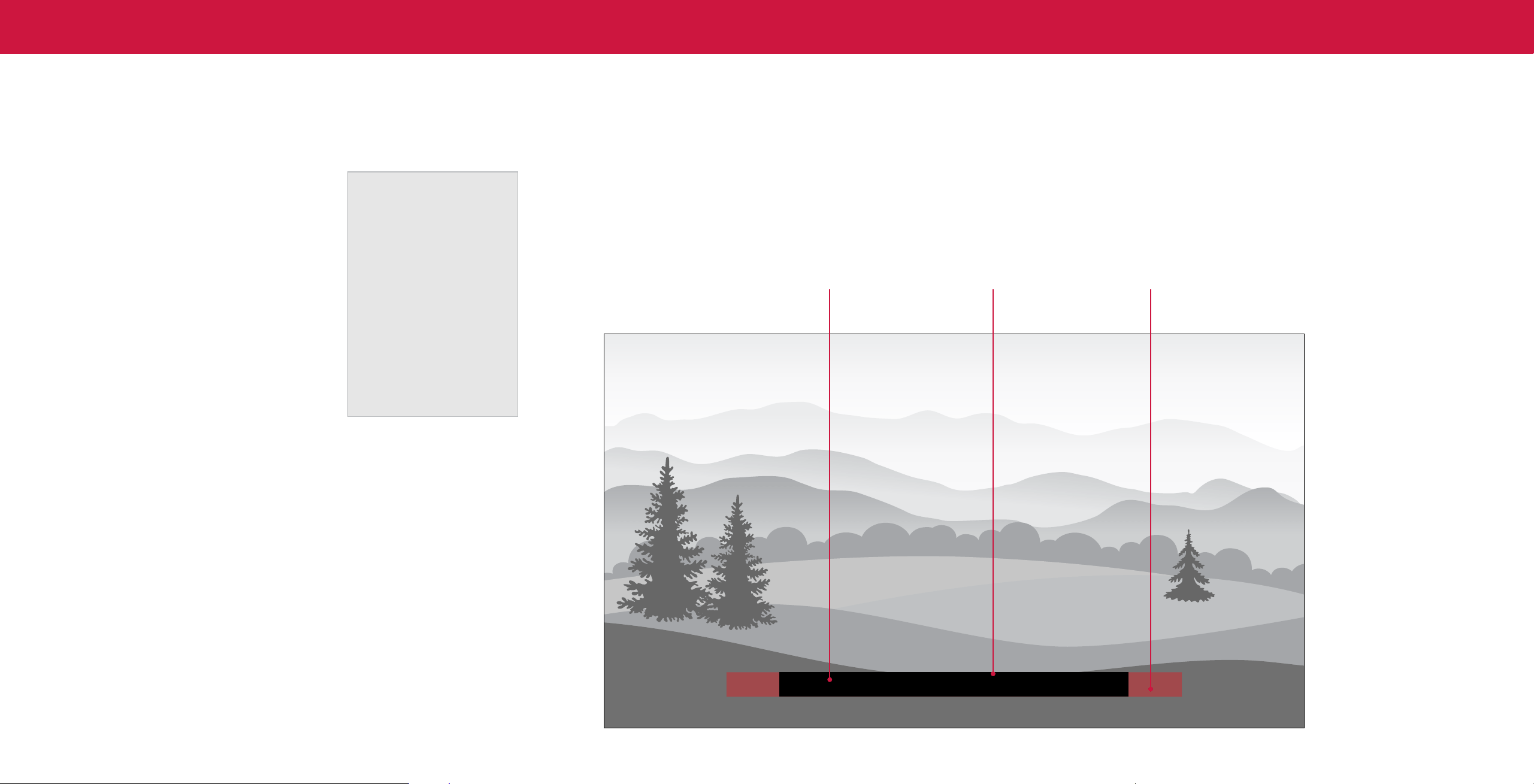
21
3
2. Use the Up/Down Navigation buttons on the remote to highlight the setting
Typical choices include:
you wish to change, then use the Left/Right Navigation buttons to change the
• Opaque background, transparent window — Only a strip of background appears behind the text, expanding as the text appears. This is the typical "As
settings (choose "As Broadcast" to keep default setting):
Broadcast" mode.
• Text Style — Change the font used for the
• Opaque background and window in the same color — When text appears, the entire line fills with color at once.
closed captioning text.
Digital Style
• Text Size — Make the text larger or smaller.
Text Style
As Broadcast
In the example, the closed caption text is green, the background is black, and the window is red.
• Text Color — Change the color of the text.
Text Size
Large
Text Color
• Text Opacity — Change the transparency
Blue
of the text.
Text Opacity
As Broadcast
Tex t Background Window
Text Edges
As Broadcast
• Text Edges — Change the effects at the
Text Edges Color As Broadcast
edges of the text, such as raising the edges
or adding drop shadows.
Background Color As Broadcast
Background Opacity As Broadcast
• Text Edges Color — Change the color of
Window Color As Broadcast
the text edge effects.
Window Opacity As Broadcast
• Background Color — Change the color of
the background directly behind the text.
• Background Opacity — Change the
transparency of the background directly
behind the text.
• Window Color — Change the color of the closed captioning box.
• Window Opacity — Change the opacity of the closed captioning box.
CLOSED CAPTION TEXT SAMPLE
22
3
CHANGING THE SYSTEM SETTINGS
Using the System menu, you can:
Changing the On-Screen Menu Language Setting the Time
Your TV can display the on-screen menu in different languages. To ensure the correct time is displayed when you press the INFO button, set the TV’s
• Change the on-screen menu language
• Set the time zone and local settings
• Name the TV
• Name an input
• Hide inputs not in use
• Adjust the power mode settings
• Set the USB power mode
• Turn the power indicator on or off
• Set up timers
• Set a system PIN code
• Adjust CEC settings
• Manage paired devices
• Manage a voice remote control
System
Menu Language
Time
TV Name
Input Name
Hide from Input List
Power Mode
USB Power
Power Indicator
Timers
System PIN Code
English
Living Room TV
Eco Mode
Always On
O
To change the on-screen menu language:
Menu > System > Menu Language
Highlight your preferred language (English,
Español, or Français) and press OK.
Menu Language
English
Español
Français
time zone:
Menu > System > Time > Time Zone
To turn Daylight Saving Time on or o:
1. Highlight Daylight Saving Time and press OK. The Daylight Saving Time menu is
displayed.
2. Choose On if it is currently Daylight Savings Time, O if it is Standard Time, or
Auto to have the system automatically detect Daylight Savings Settings.
To change Time Format:
1. Highlight Time Format and use the Left/Right Navigation buttons to change
between a 12-hour format or 24-hour format.

23
3
Changing the TV Name
Naming your TV helps differentiate it from other cast devices you may have
in your home.
To edit your TV name:
Menu > System > TV Name > Enter a Name
TV Name
Living Room TV
Renaming Devices on the Input Menu
You can rename the inputs to make them easier to recognize on the Input menu. For
example, if you have a DVD player connected to the HDMI-1 input, you can rename
that input to display “DVD Player.”
See
Changing the Input Source on page 8
.
To change the name of an input:
Menu > System > Input Name
To enter a custom name:
• Highlight the Name Input row and press OK.
• Enter your custom label using the on-screen keyboard and press OK.
TIP: The current input you are on will be the input name you are
changing. You cannot change every input (i.e. WatchFree+ or
SmartCast inputs).
TIP: If you want to use a voice assistant to turn your TV on, make
sure Quick Start Mode is turned on.
To Hide an Input from the List:
Menu > System > Hide from Input List
• Highlight the input name you would like to hide. Hidden inputs will not be
displayed in the input list.
• Use the Left/Right Navigation buttons to toggle from visible and hidden.
Adjusting the Power Mode
Your TV is set to Eco Mode by default. When the TV is powered off, the Eco Mode
setting uses less than 0.5W of power. Quick Start Mode enables your display to
power on faster and also to turn on when powered from another device (such as
when you are casting onto the TV).
WARNING: Please note that by changing this setting the energy
consumptions required to operate this device will change.
To switch between Eco Mode and Quick Start Mode:
Menu > System > Power Mode
Highlight either Eco Mode or Quick Start Mode and press OK.
24
3
Using the USB Power Feature
The USB port can be used to charge devices.
The two options for this feature are:
• Always On — Power is always available.
• O When TV O — Power is only available
with the TV is on.
USB Power
Always On
Off When TV Off
Turning the Power Indicator On or O
The power indicator on the front of your TV normally does not glow when the TV is
on. You can change this setting if you prefer the light to be on.
To turn the Power Indicator Light On or O:
Menu > System > Power Indicator > O/On
Setting Timers
When activated, the TV’s timer will turn the TV
off after a set period of time.
To setup a sleep timer:
Menu > System > Timers > Sleep
Timer
Use the Left/Right Navigation buttons on
the remote to highlight the period of time after
which you want the TV to go to sleep: 30, 60,
90, 120, or 180 minutes. If you don’t want the
sleep timer to activate, change the setting
Timers
Sleep Timer
Auto Power Off
Blank Screen
Off
10 Minutes
to Off.
Setting the Auto Power O Feature
To help save energy, your TV is set by default to turn off after 10 minutes without a
video or audio signal. This feature can be deactivated.
To set the Auto Power O feature:
Menu > System > Timers > Auto Power O > O
Using the Blank Screen Feature
To help save LED life, your TV screen can turn on or off while audio is streaming.
To use the Blank Screen feature:
Menu > System > Timers > Blank Screen
To exit Blank Screen, press any key (except the volume and mute keys).
25
3
Setting a System PIN Code
You can set a system pin to lock content and
picture modes, as well as prevent accidental
system resets. The first time you select System
PIN code, you will need to create a PIN.
To create a PIN:
Menu > System > System PIN Code >
Enter Your PIN > Save
System Pin Code
Change the PIN used for the System PIN.
New PIN
Confirm PIN
1
4
7
2
5
8
0
3
6
9
X
Cancel Save
WARNING: You will need to enter your current PIN code the next
time you access this menu or if you'd like to change your PIN.
Adjusting the CEC Settings
The CEC function on your TV enables you to control devices connected to an HDMI
input with the VIZIO TV remote, without any programming
Menu > System > CEC
Select a setting and then press OK.
• CEC — To use CEC, you must select Enable.
• Device Discovery — To determine if your device is connected and supports CEC,
select Device Discovery and then press OK.
CEC Audio Setup
Connect your audio device to the HDMI-1 (HDMI eARC) input on the TV. On your
audio device, select the HDMI ARC/eARC input.
Using CEC, your VIZIO TV remote can control such features including
(depending on specic device):
• Power On/Off
• Volume and mute
• Play and pause
WARNING: Not all HDMI devices support CEC. See your device's
user manual for details.
Managing Mobile Devices
Your TV can be paired with a mobile device so you can easily control your TV across
multiple devices.
To see a list of paired devices or unpair
a device:
Menu > System > Mobile Devices
Highlight a device name to delete it and
press OK.
Mobile Devices
Djae’s Tablet
Ana’s Phone
Work iPad
Voice Remote
Your TV can be controlled with a VIZIO Voice Remote.
To pair voice remote:
Menu > System > Voice Remote
Press and hold both the MIC and MUTE buttons for 5 seconds to
launch pairing mode.
To use your successfully paired voice remote:
Press and hold the MIC button while speaking a command.
26
3
USING THE ADMIN & PRIVACY MENU
You can use the TV’s Admin & Privacy menu to restore the TV to its factory default
settings as well as access other administrative settings.
Using the ADMIN & PRIVACY menu, you can:
• Force the system to power off and on
Admin & Privacy
• View system information
Reboot TV
• View a customer service support code
System Information
• Check for system updates
Support Code
Check for Updates
• Reset the TV to factory settings
Reset to Factory Settings
• Enable or disable viewing data
Viewing Data On
• Personalize advertising choices
Advertising
VIZIO Privacy Policy
• View the VIZIO Privacy Policy
Store Demo
O
• Start or stop the store demo mode
Performing a Reboot
A reboot forces the TV to turn off then on again.
To retrieve your reboot the TV:
Menu > Admin & Privacy > Reboot TV
Viewing System Information
To view technical data and status information about your TV and network
connection:
Menu > Admin & Privacy > System Information
Accessing the Support Code
Retrieve a customer service support code/PIN or access basic TV information to
assist in a customer service interaction.
To retrieve your support code:
Menu > Admin & Privacy > Support Code
Checking for System Updates
To check for a system update:
Menu > Admin & Privacy > Check for Updates
Restoring the TV to Factory Default Settings
All of the on-screen menu settings can be reset to the factory defaults.
WARNING: If you restore the TV to the factory default settings, all
change you have made to the settings will be lost. This includes
any wireless or picture settings.
To restore the TV to its factory default settings:
Menu > Admin & Privacy > Reset to Factory Settings
1. If you set a system PIN code, enter it now.
2. The TV displays, “Select Reset to restore all TV settings to factory defaults."
3. Highlight Reset and press OK.
4. Wait for the TV to turn off. The TV will turn back on shortly afterward and the
setup process will begin.
If an update is found, the TV will ask to confirm the update. If no update is found, the
screen will note The TV is up-to-date.

27
3
Viewing Data
To turn viewing data on or o:
Menu > Admin & Privacy > Viewing Data
Use the Left/Right Navigation buttons to toggle from on or off
About Viewing Data
WHAT DATA DOES ACR TECHNOLOGY COLLECT?
When enabled, ACR technology will collect information about the audio and video
programing content playing on this internet-connected display unit including
broadcast television, advertisements and other commercially available content. We
associate this Viewing Data with the IP address for the unit, and a unique device
number we assign. You may change your Viewing Data settings at any time within
the Settings Menu of your TV. Declining Viewing Data collection will not change the
functionality of your device.
WHO DO WE SHARE VIEWING DATA WITH?
When enabled, we share Viewing Data with authorized data partners. We license
Viewing Data to analytics companies, media companies, advertisers, ad agencies,
and other ad tech companies who measure ad effectiveness or aid personalization of
ads. Our authorized cloud service providers may also store this data on and solely on
our behalf, and for no other purposes.
WHAT DO WE DO WITH VIEWING DATA?
VIZIO or its authorized data partners may combine Viewing Data with household
demographic data, or other data about your digital actions, like smartphone location,
web histories or offline purchases, in order to determine the effectiveness of a
particular ad, or choose which ads are likely to be useful or timely, including during
broadcast, cable, satellite, or internet based television programming. VIZIO and its
authorized data partners also use the information to generate summary analysis and
reports of how users engage with content on their TVs and other devices.
WHAT ELSE DOES VIEWING DATA SHARING MEAN FOR YOU?
Viewing Data is also used to help content publishers, broadcasters or content
distribution services create or recommend more relevant entertainment based
on summary insights. For example, if devices sharing your IP address suggest an
interest in music, fitness, or sports related topics, advertisers might deliver tailored
ads to this display unit or other devices associated with your IP address.
You can easily turn this feature On or Off in the ADMIN & PRIVACY menu. If you have
trouble enabling or disabling Viewing Data, please contact VIZIO Customer Support
by going to support.vizio.com and selecting Contact Us.
For more information, see vizio.com/viewingdata and review VIZIO’s privacy policy at
vizio.com/privacy.
Managing Advertising Settings
Your advertising choices can be personalized.
Limited Ad Tracking
When enabled, TV Ad ID will not be passed or used for personalized ads on
this device.
To turn on or o:
Menu > Admin & Privacy > Advertising > Limited Ad Tracking
• Use the Left/Right Navigation buttons to toggle from on or off
Reset TV Advertiser ID
An Identifier for Advertising — can be reset to a new identifier at any time.
To reset the TV Advertiser ID:
Menu > Admin & Privacy > Advertising > Reset TV Advertiser ID
> OK
Ad Replacement
Replaces Standard Ads with Personalized Ads in Linear TV.
To turn Ad Replacement on or o:
Menu > Admin & Privacy > Advertising > Ad Replacement
• Use the Left/Right Navigation buttons to toggle from on or off
View VIZIO Privacy Policy
To view VIZIO Privacy Policy:
Menu > Admin & Privacy > VIZIO Privacy Policy > OK
Store Demo
To set to O, Demo 1, or Demo 2:
Menu > Admin & Privacy > Store Demo

28
3
USING THE INFO WINDOW
Press the INFO button to display:
• TV name
• Current input or for tuner: current channel
Current input or
• Picture resolution
for tuner: current channel Resolution Picture Aspect Audio Type
*
Network Name
• Picture aspect
• Audio type
• Network name
• Time
TV Name
Time
Living Room
5:00 PMStereo HDMI-1 Normal1080p HomeWiFi
*When TV speakers are off and Dolby Atmos content is passed through the TV to a sound bar or other audio
device, the Dolby Atmos icon will display with "Audio Out."
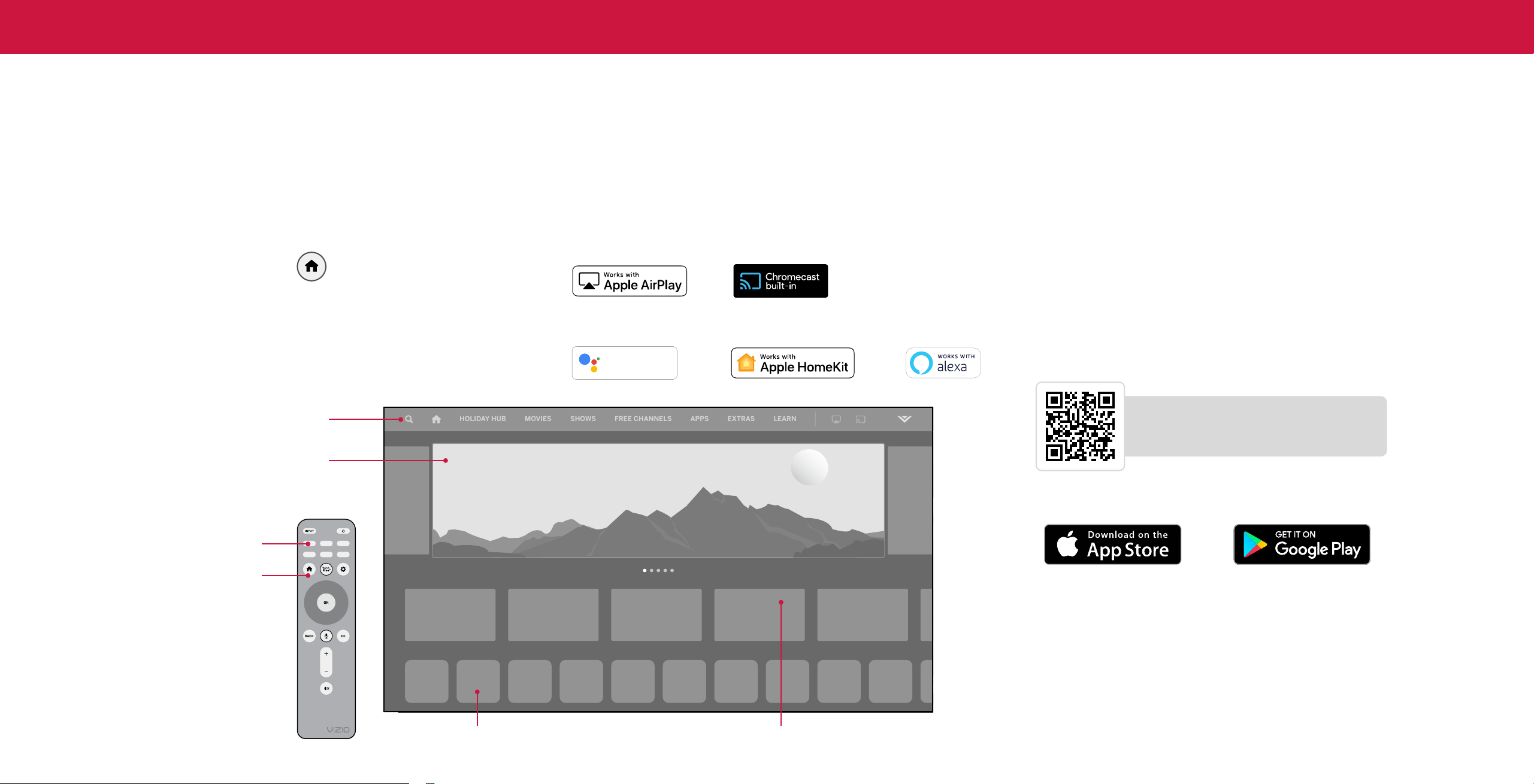
29
4
HOLIDAY HUB
MOVIES
S-OWS
FREE CHANNELS
A--S
L-AR
EXTRAS
Hey Google
works with
SmartCast Home
™
What is SmartCast Home? What you can do with SmartCast Home Control your TV with the SmartCast Mobile
™
App
SmartCast Home lets you discover, stream, and control your content like never
• Stream high quality entertainment.
before! Access top apps, like Netflix, Disney+, and Hulu, by using the remote to easily
• Launch top tier apps directly from the home screen.
browse and launch content directly from the home screen. SmartCast Home makes
finding something to watch easy and fun.
• Access free channels to watch without a subscription through WatchFree+.
• Rearrange apps on your home screen just the way you like it.
How to Launch SmartCast Home
• Mirror your laptop or mobile device onto your TV through Apple Airplay or
To begin streaming with SmartCast Home:
Chromecast built-in
™
.
• Press the SmartCast Home button on your remote.
— — or
• Select SmartCast from the list of inputs.
• Works with Google Assistant, Siri, and Alexa-enabled devices for hands-free voice
control.
Search
Find TV shows, movies and more
Marquee Content
Launch content with one click
Quick Access to Popular Apps
SmartCast Home Button
New Episodes Added
Streaming Apps on your TV
Discover
Download the VIZIO SmartCast Mobile app and turn your smartphone into a remote
to control and configure your TV.
With SmartCast Mobile, you can:
• Power on/off devices, play/pause content, and modify advanced settings, all
from the palm of your hand.
• Control playback and TV settings using your voice.
• Easily enter text onto your TV/display from your mobile device using a
full keyboard.
• Browse and discover movies, TV shows, music, live streams, and more, across
multiple apps at once.
• Access a quick look at show ratings, synopsis, cast, crew, clips, and other details.
Scan to download.
Scan with your phone camera or QR reader.
vizio.com/smartcastapp
New or popular content across multiple apps
Visit www.vizio.com/smartcastapp for minimium requirements.
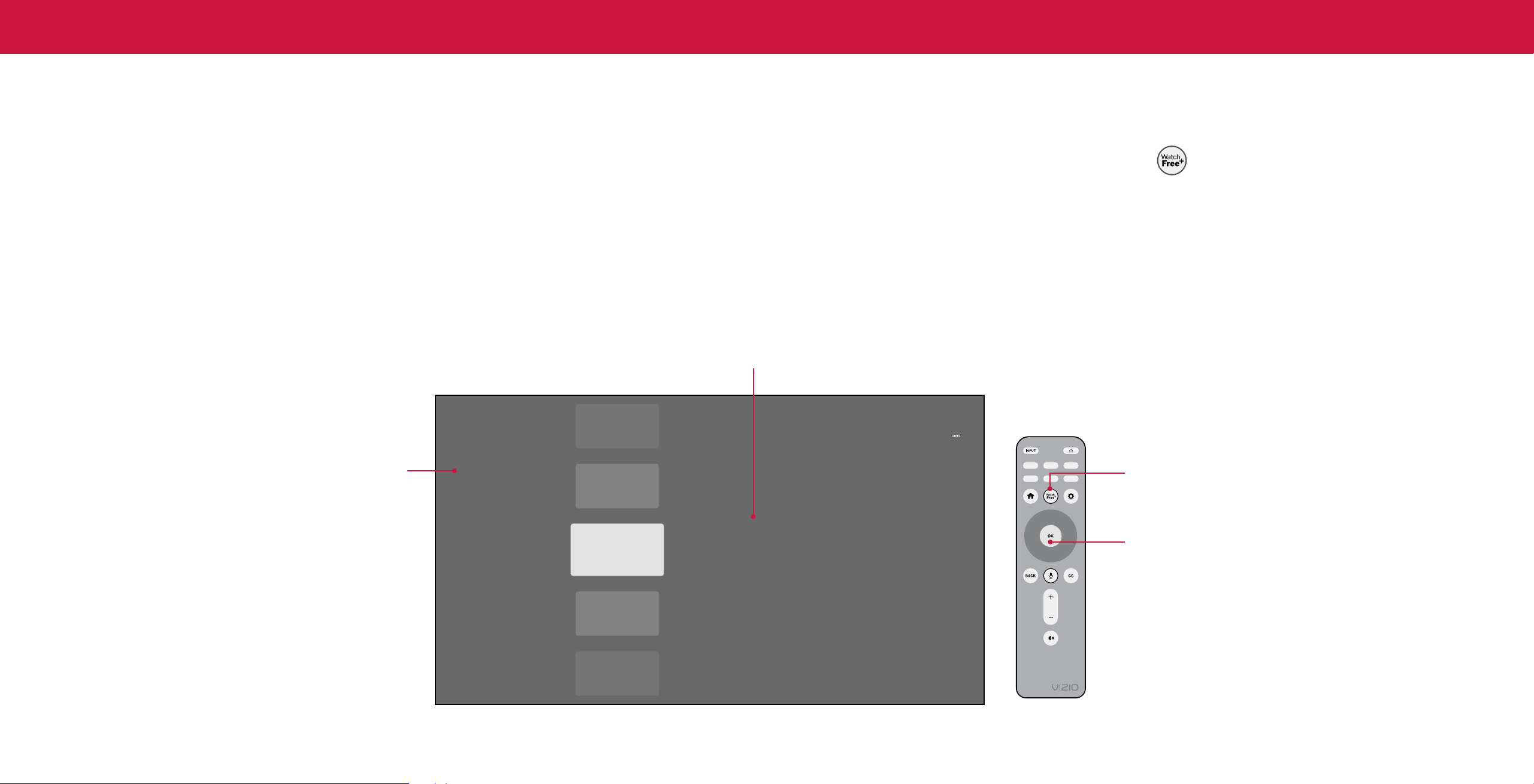
30
4
.
WatchFree+
™
What is WatchFree+?
VIZIO WatchFree+ takes your cord-cutting entertainment experience one step
further! With the simple press of a button, enjoy free streaming TV with hundres of
live TV channels to choose from – news, movies, sports, comedy, music and more. A
built-in on-screen guide makes finding something to watch easier than ever.
And it’s all FREE—no fees, no subscriptions, or logins.
What you can do with WatchFree+
• Stream hundreds of live TV channels absolutely free – news, movies, sports,
comedy, music and more.
• Navigate through channels, organized by genre, with an intuitive on-screen guide.
• Watch the best of internet TV.
• No logins, subscriptions or transactions fees.
Show Details
Find out show information.
On-Screen Guide
Hundreds of live TV and audio channels organized by genre.
RECENT
FAVORITES
FEATURED
MOVIES + TV
NEWS + OPINION
SPORTS
CRIME
HOME + DIY
GAME SHOWS +
REALIT Y
INTERE STS +
LIFESTYLE
KIDS + FAMILY
CHANNEL
250
Content Title, 2021
Lorem ipsum dolor sit amet, consectetuer adipiscing elit, sed diam nonummy nibh
euismod tincidunt ut laoreet dolore magna aliquam erat volutpat Ut wisi enim adis...
30m
NOW • Program
NEXT in 22m • Program
NOW • Program
NOW • Program
NOW • Program
FREE
CHANNELS!
MORE
How to Launch WatchFree+
To launch and begin watching entertainment offered on WatchFree+:
• Press the WatchFree+ button on your remote.
—or—
• Select WatchFree+ from the list of inputs or app row.
WatchFree+ Button
OK Button
Press the OK button to return to the WatchFree+
on-screen guide. Use the up/down Navigation
buttons to scroll through the guide.
.
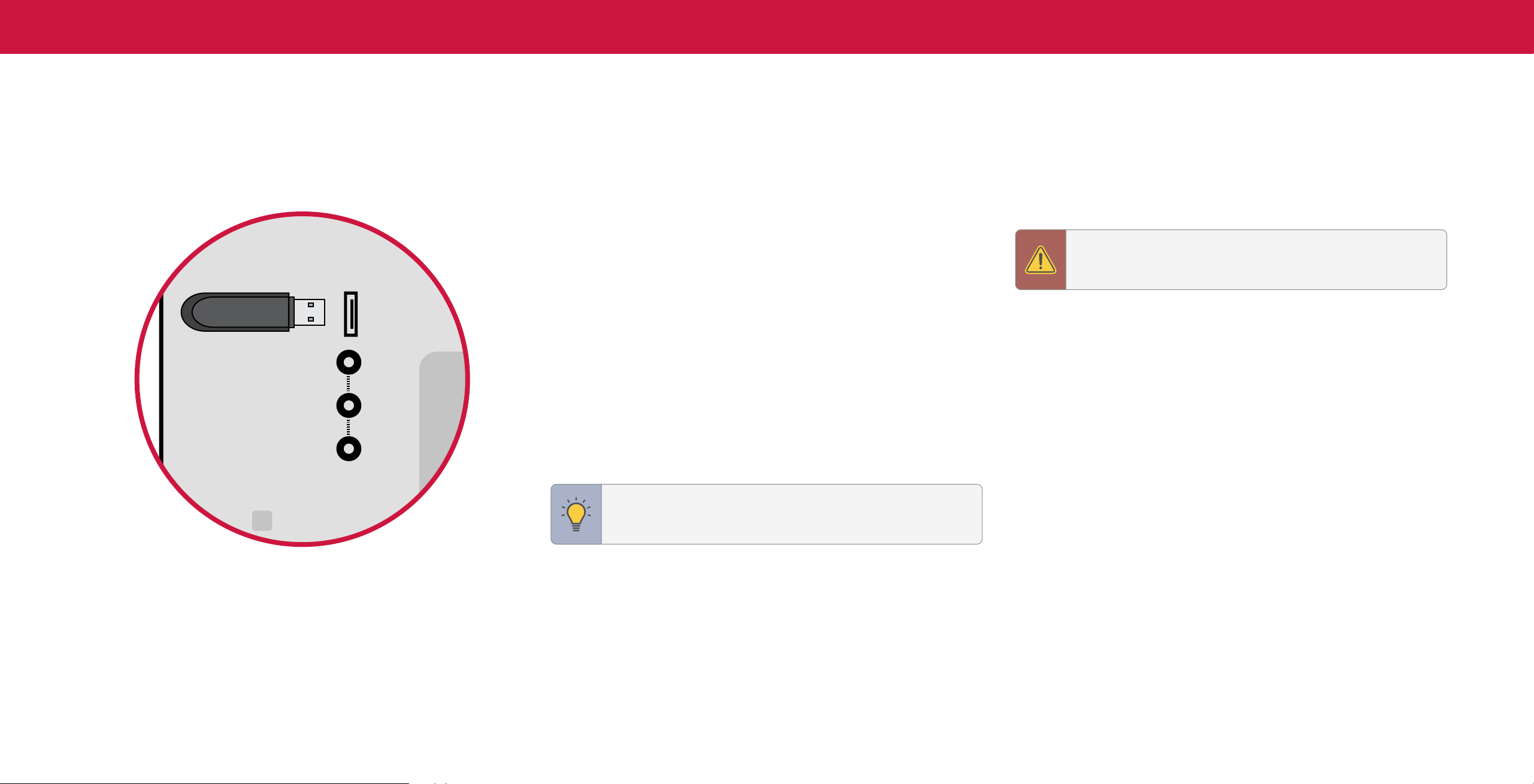
31
4
Playing USB Media
The USB Media Player allows you to connect a USB flash drive to your TV and play
music, video, or photos.
Preparing Your USB Drive to Play USB Media
To display USB media, you must first save your videos onto a USB flash drive:
• The USB flash drive must be formatted as FAT32.
• Files on the USB flash drive must end in a supported file extension ( .mp3, .jpg,
etc).
• The player is not designed to play media from external hard drives, MP3 players,
cameras, or smartphones.
Displaying USB Media
To display your USB media:
1. Connect your USB flash drive to the USB port on the side of the TV.
2. The TV will recognize the USB. Use the Navigation Keys on the remote to select
the content you want to play.
—or—
3. Select USB from the bottom streaming icons on the SmartCast Home
™
page.
TIP: You can display your photos in Fullscreen. Select the photo,
press OK, then highlight Fullscreen and press OK.
Removing the USB Drive from the TV
To safely remove your USB flash drive from the TV:
1. Turn the TV o.
2. Disconnect your USB flash drive from the USB port on the side of the TV.
WARNING: Do not remove the USB drive while the TV is on. Doing
so may damage the drive.
Note: The image shown here is for illustrative purposes only and may be subject to change. The actual
number of ports and their locations may vary, depending on the model.
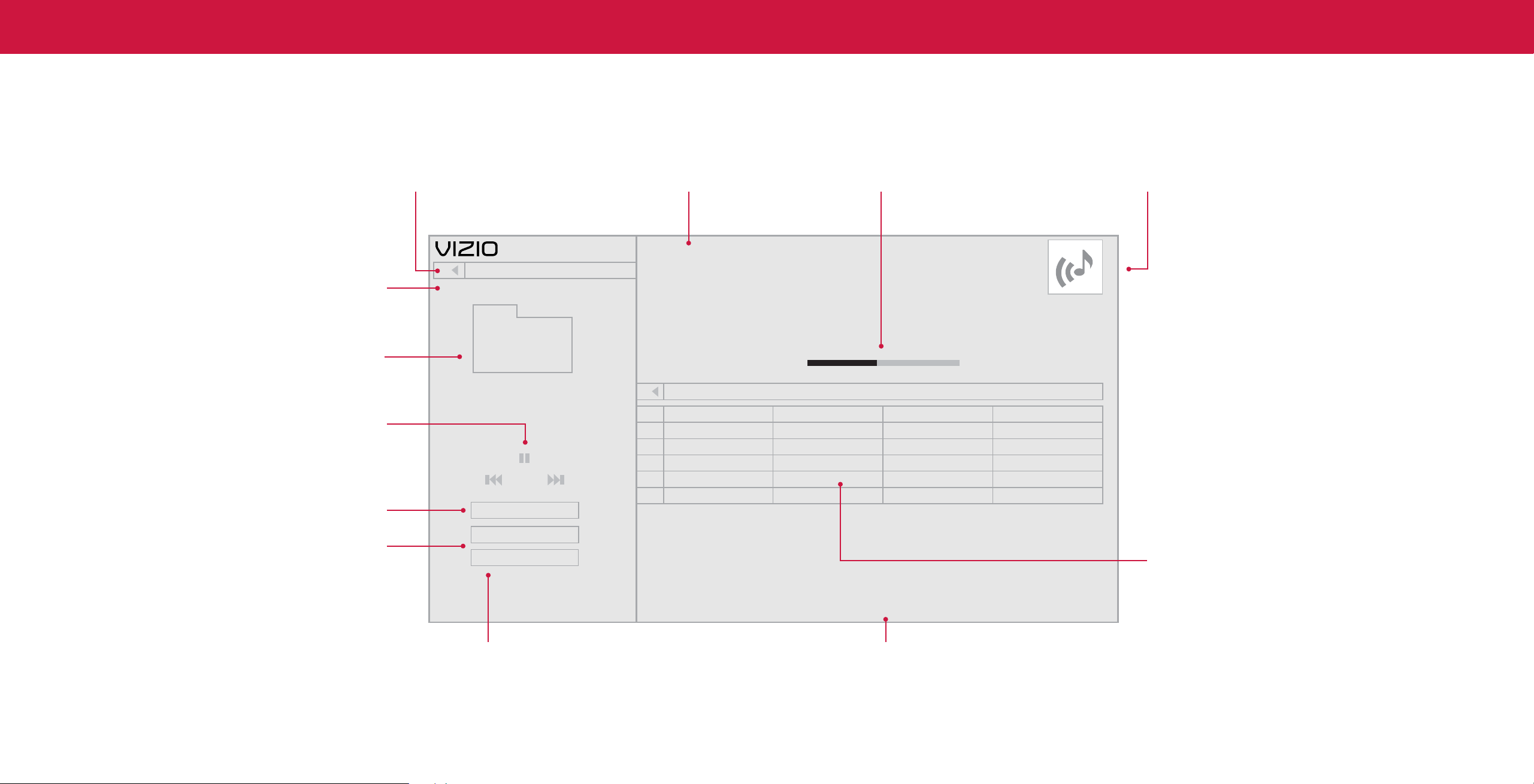
32
4
Playing USB Media: Music
Back Button
Highlight this button and press OK to
return to the previous screen.
Now Playing Information
Displays song title, album title, and
other information.
Progress Bar
Displays the duration of the currently-
playing song. The bar will lengthen as
the song progresses.
Album Art
If included on the USB thumb drive and
associated with your music, the album art
will display here.
Connected Sources
Displays connected USB devices.
Current Folder
Playback Control
Toggle Music/Photos
Browse Photos
Artist A-Z
Music
#
1
3
4
5
MyFlashDrive\Audio\root\My Music
Name:
Title:
Artist:
Album:
Duration:
Director:
Year:
Copyright:
Protected:
File Size:
02 Summer Nights
Summer Nights
DJ Sunset
Summer
00:03:11
Mango Dream Beach Mix
View:
Sort:
All
2
Genre:
-
Electro
2020
-
No
8.3M
1:50 3:11
Track Album Artist Duration
Starry Summer
Summer JCheesy 2:42
Summer Nights DJ Sunset 3:11
Ana Banana 8:46
Crystal Waters The Dash 4:21
Smooth Waves Rio Steve 7:58
Summer
Beach Mix
Breezy Mix
USB1: MyFlashDrive
My Music
Artist: A - Z
Folders
Page 1 of 1
Folder Contents/Playlist
Sort by Album/Artist/Track
This area displays the contents of the currently
selected folder. You can browse among files using
the Arrow and OK buttons on the remote.
View All or View Folders Page Information
Toggle between viewing all content If your USB thumb drive has more files than
and only viewing folders. can be displayed on a single screen, the page
number is displayed here.
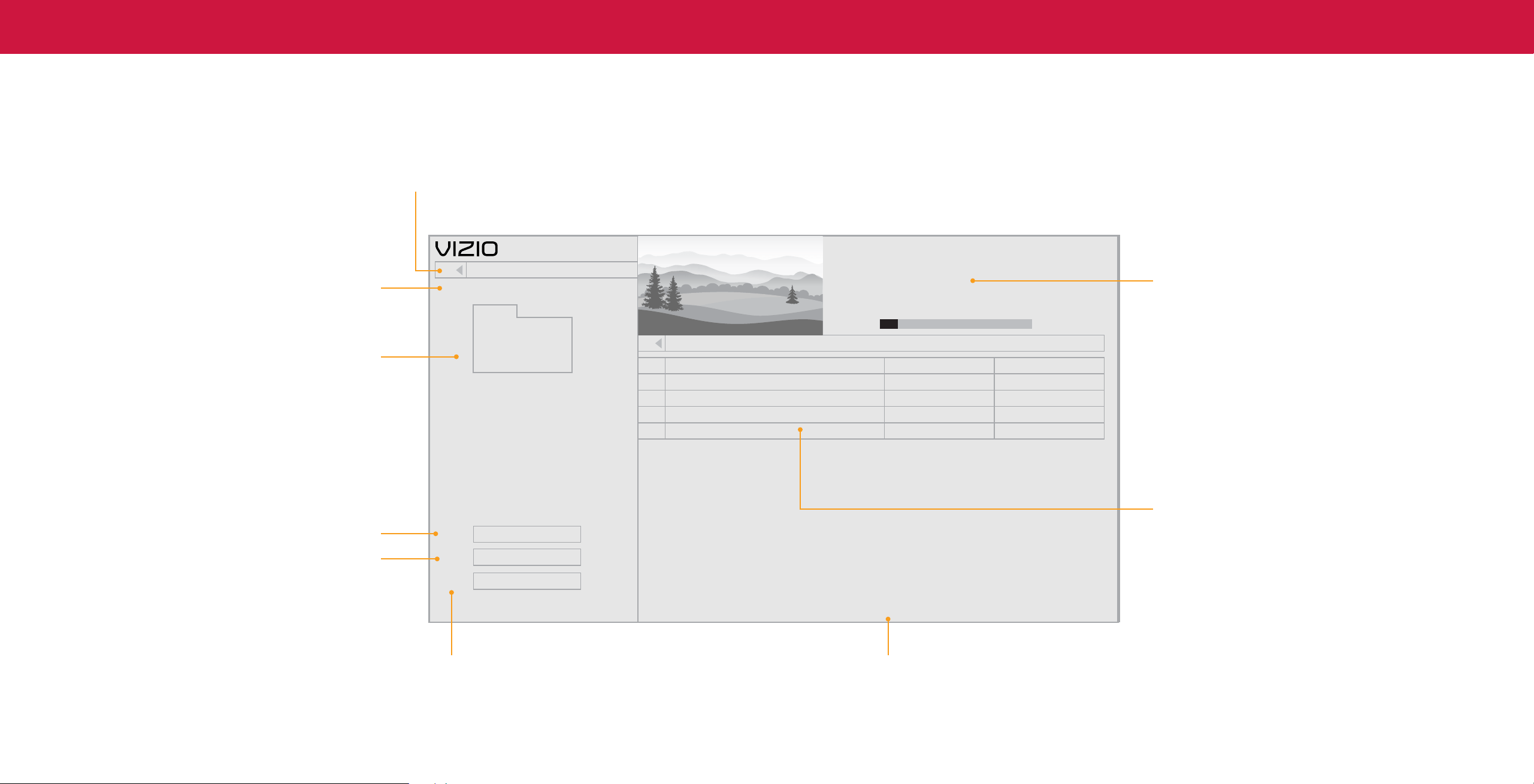
33
4
Playing USB Media: Video
Back Button
Highlight this button and press OK to
return to the previous screen.
Connected Sources
Displays connected USB devices.
Current Folder
Sort by Date or File Name
View All or View Folders
Toggle between viewing all content
and only viewing folders.
Date New-Old
View:
Play
Sort:
Video
MyFlashDrive\Video\root\My Videos
Folders
Once
File Date Duration
#
Family Vacation - California
Press OK for full screen.
File Name: Family Vacation - California
Resolution: 3840 x 2160
Audio: AAC
-
00:23:43
1
28th Birthday Party
-
00:38:182
Korea 2019
-
00:41:083
Sunny’s Graduation
-
00:25:324
Page 1 of 1
USB1: MyFlashDrive
My Videos
00:03:22 00:23:43
Preview Window
Folder Contents/Playlist
This area displays the contents of the currently
selected folder. You can browse among files using
the Arrow and OK buttons on the remote.
Play once or continuously Page Information
If your USB thumb drive has more files than
can be displayed on a single screen, the page
number is displayed here.
34
4
Playing USB Media: Photo
Back Button
Back Button
Highlight this button and press OK to
Highlight and press OK to return
return to the previous screen.
to left column.
Connected Sources
Displays connected USB devices.
Current Folder
Start Fullscreen Slideshow
Sort by Date or File Name
View Thumbnails/Folders
Adjust Slideshow Settings
View Music Files
Start Slideshow
Name A-Z
Thumbnails
Settings
View:
Sort:
VIZIO_2GB\Photo\root
File Name: D 1920x1080
Resolution: 1920x1080
Size: 1607270KB
A.jpg
B.jpg C.jpg
D.jpg
E.jpg F.jpg
G.jpg
H.jpg I.jpg
Page 1 of 1
Current Folder
Displays the folder path.
Browse Music
Photo
USB1: MyFlashDrive
root
Folder Contents/Playlist
This area displays the contents of the currently
selected folder. You can browse among files using
the Arrow and OK buttons on the remote.
Photo Information Page Information
Displays the name, resolution, and file If your USB thumb drive has more files than can
size of the selected photo. be displayed on a single screen, the page number
is displayed here.
35
A
Product Registration and Technical Support
Get helpful tips and register your TV.
Scan with your phone camera or QR reader.
Customized Support
Get live assistance quickly with your information on hand.
Updates and Enhancements
Stay up-to-date with important product updates and notications.
News and Oers
Take advantage of the latest news and special oers from VIZIO.
More questions? Find answers at:
SUPPORT.VIZIO.COM

36
A
Help Topics
The remote is not responding.
• Make sure the batteries are properly inserted matching the - and + symbols.
• Replace the batteries with fresh ones.
The TV displays “No Signal.”
• Press INPUT button on the remote control to select a different input source.
• If you are using cable TV or antenna connected directly to the TV, scan for
channels. See
Scanning for TV Channels on page 17
.
There is no power.
• Ensure the TV is plugged into a working electrical outlet.
• Ensure the power cable is securely attached to the TV.
• Press the Power/Standby button on the remote or on the back of the TV to turn
the TV on.
The power is on, but there is no image on the screen.
• Ensure all cables are securely attached to the TV.
• Ensure all devices are connected correctly. Devices differ; see your device’s user
manual for details.
• Adjust Brightness, Contrast, or Backlight. See
Adjusting the Picture Settings on
page 9
.
• Press the INPUT button on the remote to select a different input source.
The sound is at or dialog is not audible.
• Turn off Volume Leveling. See
Adjusting the Audio Settings on page 15.
Where do I nd information on the accessibility features of this product
and other VIZIO products?
• Please visit vizio.com/accessibility,
• Email us at: Accessibility@vizio.com, or
• Give us a call at 1-877-698-4746.
How do I stream apps like Netix to my VIZIO SmartCast® TV?
• Popular apps are located on the SmartCast Home
™
screen, so you can simply
navigate to the app row on your SmartCast TV to start streaming.
• You can also use Apple AirPlay 2 or Chromecast built-in
™
to stream content from
your device directly to your SmartCast TV. For more information,
please visit:
− VIZIO.com/Apple
− VIZIO.com/Google
The colors on the TV don’t look right.
• Adjust the Color and Tint settings in the Picture menu. See
Adjusting the Picture
Settings on page 9.
• Select a pre-set picture mode. VIZIO recommends selecting Calibrated.
• Check all cables to ensure they are securely attached.
The image quality is not good.
• For the best image quality, view high-definition programs using digital sources.
Connect your devices with HDMI cables.
• If you are using an antenna, the signal strength of the channel may be low.
Ensure your antenna is connected securely to the TV and move the antenna
around the room or close to a window for the best signal.
The picture is distorted.
• Move the TV away from electrical appliances, cars, and fluorescent lights.
• Ensure all cables are securely attached.
The TV image does not cover the entire screen.
• If you are using TV, AV, or Component with 480i input, go to Menu > Picture >
Picture Aspect.
The TV has pixels (dots) that are always dark.
• Your HD TV is precision-manufactured using an extremely high level of
technology. However, sometimes pixels may not display correctly. These types
of occurrences are inherent to this type of product and do not constitute a
defective product.
The buttons on the remote aren’t working.
• Ensure you are only pressing one button at a time.
• Point the remote directly at the TV when pressing a button.
• Replace the remote batteries with new ones. See
Replacing the Batteries on
page 5
.
There is no sound.
• Press Volume Up on the remote control.
• Press the MUTE button on the remote to ensure mute is off.
• Check the audio settings. See
Adjusting the Audio Settings on page 15
.
• Check the audio connections of external devices (Blu-ray player, game console,
cable/satellite box) that are connected to the TV.
• If you are using an antenna, the signal strength of the channel may be low.
Ensure your antenna is connected securely to the TV and move the antenna
around the room or close to a window for the best signal.
• Set eARC to Off and use ARC mode.

37
A
Help Topics
I see “noise” or static on the screen.
• When your TV’s digital capabilities exceed a digital broadcast signal, the signal
is up-converted (improved) to match your TV’s display capabilities. This up-
converting can sometimes cause irregularities in the image.
• If you are using an antenna, the signal strength of the channel may be low.
Ensure your antenna is connected securely to the TV and move the antenna
around the room or close to a window for the best signal.
When I change input source, the TV image changes size.
• The TV remembers the viewing mode on each input source. If the viewing mode
on the new input source differs from the one on the input source you switch
from, the difference may be noticeable.
• See
Changing the Picture Aspect Ratio on page 10
.
How do I download the VIZIO SmartCast Mobile™ App?
• Make sure your phone or tablet is connected to a Wi-Fi network. Open a browser
on your phone or tablet.
• Navigate to vizio.com/smartcastapp and follow the on-screen instructions to
download the VIZIO SmartCast Mobile™ App.
How do I change the Inputs?
• Press the INPUT button on the back of the TV to cycle through the Inputs.
• Press the INPUT button on the remote to cycle through the Inputs.
• Make sure the VIZIO SmartCast Mobile™ app is installed on your phone or
tablet. Open the VIZIO SmartCast Mobile app. Tap on the Device list and select
your TV. Tap on the Input key and select the Input of your choice.
How do I connect to my Wi-Fi network?
• On your TV remote, press the MENU button then go to Network > Select your
Wi-Fi name > Enter password.
• Open the VIZIO SmartCast Mobile™ app on your phone or tablet. Tap on the
Menu Tab > SmartCast Devices > Your TV/Device Name > Network
• Tap on the Settings icon > Network > Wireless Access Points. Select your Wi-Fi
network from the list, enter the Wi-Fi password, and tap Connect.
How do I exit Demo Mode?
• Press and hold the INPUT button on the back of the TV to exit the demo mode.
How do I watch Cable/Antenna TV channels?
• If you subscribe to cable or satellite, simply connect an HDMI cable (not
included) to the receiver.
• If you use external antennas to watch local broadcast channels, use a coaxial
cable to connect.
Some of my Channels are missing.
• Press the MENU button on your TV remote and select the channels option. Then
select Find Channels.
• Open the VIZIO SmartCast Mobile app on your phone or tablet.
• Click on: Menu Tab > SmartCast Devices > Your TV/Device Name > Channels >
Find Channels.
How do I disable/enable Viewing Data?
• Press the MENU button on your remote and select ADMIN & PRIVACY. Then
select Viewing Data to turn the feature on or off.
The television will not turn on using Alexa or Google Assistant.
• Ensure the television is in Quick Start Mode.
• Tap on Menu > System > Power Mode > Quick Start.
How do I know I am getting 4K resolution or HDR content such as Dolby
Vision?
• As you are watching content on the television, press the INFO button on the
remote or VIZIO SmartCast Mobile app. You will see the current resolution being
displayed along with the version of video.
• HDR will show as a Dolby Vision icon, HDR10 or HLG.
38
BSpecications
M50Q7-J01 M55Q7-J01 M58Q7-J01 M65Q7-J01 M70Q7-J03 M75Q7-J03
Size 50" 55" 58" 65" 70" 75"
Viewable Area 49.5” 54.5” 57.5” 64.5" 69.5” 74.5”
PRODUCT DIMENSIONS
Dimensions w/ Stand
43.81” x 27.89” x 10”
(1112.8 x 708.3 x 254 mm)
48.35" x 30.48" x 10.9"
(1228 x 774.1 x 277 mm)
50.66" x 32.07" x 10.9"
(1286.7 x 814.5 x 277 mm)
57.04" x 36.24" x 13.3"
(1448.9 x 920.5 x 339 mm)
61.1" x 38.8" x 13.5"
(1552.0 x 985.0 x 343.0 mm)
65.7" x 41.1" x 14.3"
(1669.0 x 1042.8 x 363.1 mm)
Dimensions w/o Stand
43.81” x 25.48” x 3.41”
(1112.8 x 647.3 x 86.5 mm)
48.35 in x 28.07 in x 3.41"
(1228 x 713.1 x 86.5 mm)
50.66" x 29.86" x 3.43"
(1286.7 x 758.5 x 87 mm)
57.04" x 32.91" x 3.39"
(1448.9 x 835.8 x 86.3 mm)
61.1" x 35.4" x 2.9"
(1552.0 x 898.5 x 73.9 mm)
65.7" x 37.7" x 2.9"
(1669.0 x 956.4 x 73.9 mm)
Weight w/ Stand 27.03 lb (12.26 kg) 31.31 lb (14.2 kg) 35.32 lb (16.02 kg) 52.47 lb (23.8 kg) 57.20 lb (25.95 kg) 65.30 lb (29.62 kg)
Weight w/o Stand 26.28 lb (11.92 kg) 30.47 lb (13.82 kg) 34.88 lb (15.82 kg) 51.10 lb (23.18 kg) 55.70 lb (25.27 kg) 63.80 lb (28.94 kg)
Mounting Screw Size M6 x 14 mm M6 x 14 mm M6 x 14 mm M6 x 14 mm M6 M6
Hole Pattern 200 mm x 200 mm 300 mm x 200 mm 300 mm x 200 mm 400 mm x 200 mm 400 mm x 200 mm 400 mm x 200 mm
# of Screws (not included) 4 4 4 4 4 4
PICTURE QUALITY
Maximum Resolution 3840 x 2160 (UHD) 3840 x 2160 (UHD) 3840 x 2160 (UHD) 3840 x 2160 (UHD) 3840 x 2160 (UHD) 3840 x 2160 (UHD)
LCD Backlight Active Full Array
™
LED Active Full Array
™
LED Active Full Array
™
LED Active Full Array
™
LED Active Full Array
™
LED Active Full Array
™
LED
Dynamic Motion Rate 120 120 120 120 120 120
Cinemawide® Black Bar Detection Ye s Ye s Ye s Ye s Ye s Ye s
INPUTS / OUTPUTS
HDMI Inputs 4 4 4 4 4 4
Ethernet Input 1 1 1 1 1 1
RF Antenna Input 1 1 1 1 1 1
USB 1 1 1 1 1 1
Audio Output
HDMI eARC, Analog Stereo Out,
Digital Optical
HDMI eARC, Analog Stereo Out,
Digital Optical
HDMI eARC, Analog Stereo Out,
Digital Optical
HDMI eARC, Analog Stereo Out,
Digital Optical
HDMI eARC, Analog Stereo Out,
Digital Optical
HDMI eARC, Analog Stereo Out,
Digital Optical
OTHER
Remote Control Type Voice Remote Voice Remote Voice Remote Voice Remote Voice Remote Voice Remote
Power Consumption 82.7 W 103.91 W 100.45 W 135.62 W 165 W 190 W
Standby Power <0.5W <0.5W <0.5W <0.5W <0.5W <0.5W
Voltage 120V 120V 120V 120V 120V 120V
OSD Language English, French, Spanish English, French, Spanish English, French, Spanish English, French, Spanish English, French, Spanish English, French, Spanish
Certication
UL, FCC Class B, IC, HDMI (CEC,
ARC), Dolby Audio, Dolby Vision
UL, FCC Class B, IC, HDMI (CEC,
ARC), Dolby Audio, Dolby Vision
UL, FCC Class B, IC, HDMI (CEC,
ARC), Dolby Audio, Dolby Vision
UL, FCC Class B, IC, HDMI (CEC,
ARC), Dolby Audio, Dolby Vision
UL, FCC Class B, IC, HDMI (CEC,
ARC), Dolby Audio, Dolby Vision
UL, FCC Class B, IC, HDMI (CEC,
ARC), Dolby Audio, Dolby Vision

39
C
Regulatory Information
FCC Class B Radio Interference Statement
This device complies with Part 15 of the FCC Rules. Operation is subject to the
following two conditions: (1) this device may not cause harmful interference, and (2)
this device must accept any interference received, including interference that may
cause undesired operation.
NOTE: This equipment has been tested and found to comply with the limits for a
Class B digital device, pursuant to Part 15 of the FCC Rules. These limits are designed
to provide reasonable protection against harmful interference in a residential
installation. This equipment generates, uses and can radiate radio frequency
energy, and if not installed and used in accordance with the instructions, may cause
harmful interference to radio communications. However, there is no guarantee that
interference will not occur in a particular installation. If this equipment does cause
harmful interference to radio or television reception, which can be determined
by turning the equipment off and on, the user is encouraged to try to correct the
interference by one or more of the following measures:
• Reorient or relocate the receiving antenna.
• Increase the separation between the equipment and receiver.
• Connect the equipment into an outlet on a circuit different from that to which
the receiver is connected.
• Consult the dealer or an experienced radio/TV technician for help.
FCC Caution
Changes or modifications not expressly approved by the party responsible for
compliance could void the user’s authority to operate this equipment.
Notice
The changes or modifications not expressly approved by the party responsible for
compliance could void the user’s authority to operate the equipment.
Shielded interface cables and AC power cord, if any, must be used in order to comply
with the emission limits.
The manufacturer is not responsible for any radio or TV interference caused by
unauthorized modification to this equipment. It is the responsibilities of the user to
correct such interference.
This transmitter must not be co-located or operating in conjunction with any other
antenna or transmitter.
Operations in the 5GHz products are restricted to indoor usage only.
This equipment complies with FCC/ISED radiation exposure limits set forth for an
uncontrolled environment. This equipment should be installed and operated with
minimum distance 20cm between the radiator & your body.
Canada Notice for License-Exempt Radio Apparatus
This device complies with Industry Canada’s license-exempt RSSs. Operation is
subject to the following two conditions: (1) This device may not cause harmful
interference, and (2) this device must accept any interference received, including
interference that may cause undesired operation.
This device operates on a no-protection no-interference basis. Should the user seek
to obtain protection from other radio services operating in the same TV bands, a
radio license is required. Please consult Industry Canada’s document CPC-2-1-28,
Optional Licensing for Low-Power Radio Apparatus in the TV Bands, for details.
Cet appareil est conforme aux CNR exempts de licence d’Industrie Canada. Son
fonctionnement est sujet aux deux conditions suivantes:
1. le dispositif ne doit pas produire de brouillage préjudiciable, et
2. ce dispositif doit accepter tout brouillage reçu, y compris un brouillage
susceptible de provoquer un fonctionnement indésirable
Cet appareil fonctionne sur une base sans protection et sans interférence. Dans
le cas où l’utilisateur cherche à obtenir de la protection des autres services de
radio fonctionnant sur les mêmes bandes TV, aucune license est requise. Veuillez
consulter le document CPC-2-1-28 d’Industrie Canada, License optionnelle pour les
appareils radio de faible puissance, pour plus de détails.
Industry Canada Class B emission compliance statement
This Class B digital apparatus complies with Canadian ICES-003. Cet appareil
numérique de la classe B est conforme à la norme NMB-003 du Canada.

40
D
Limited Warranty
UNITED STATES AND CANADA
By using this VIZIO product, you accept all VIZIO Terms and Conditions,
including all the Terms of Warranty, BINDING ARBITRATION AGREEMENT
(for U.S. Residents Only), and Class Action Waiver. If you do not agree to the
terms of this warranty, do not use the VIZIO product and, within thirty (30) days
of the date of purchase, return it for a refund to the authorized retailer where
you purchased it. If you live in the U.S., you have the right to opt out of the
Arbitration Agreement and Class Action Waiver within 60 calendar days of
your purchase. Please refer to the full section "Binding Arbitration Agreement;
Class Action Waiver" below for more details and instructions for opt-out. Full
Terms and Conditions may be viewed at vizio.com/en/terms/terms-of-service.
How Long This Warranty Lasts
For non-commercial use, VIZIO warrants the product on the terms set forth
below for one (1) year from the date of original purchase. For commercial use,
VIZIO warrants this product on the terms set forth below for ninety (90) days
from the date of original purchase.
What This Warranty Covers
VIZIO warrants the product against defects in materials and workmanship
when the product is used normally in accordance with VIZIO’s user guides and
manuals.
Except where restricted by law, this warranty applies only to the original
purchaser of a new product. The purchase must have been made from an
authorized retailer in the United States (including Puerto Rico) or Canada. The
product must also be located in the country where it was purchased at the time
of warranty service.
Zero Bright Pixel Defect Guarantee (Displays Only)
Your product may qualify for a warranty against “zero bright pixel” defects for
the duration of the warranty on select new product purchases. To determine if
this guarantee applies to your product, refer to the model’s product information
page at www.vizio.com, look for the “zero bright pixel” guarantee on the
box, or contact VIZIO Technical Support at the email address or telephone
number below.
How to Get Service
Before obtaining warranty service, you may visit www.vizio.com for additional
help and troubleshooting. To obtain warranty service, contact VIZIO Customer
Support by going to support.vizio.com and selecting Contact Us.
Your Obligations Before Service
You must obtain pre-authorization before sending your product to a VIZIO
service center. You may be required to supply a purchase receipt (or copy) to
show that the product is within the warranty period. When you return a product
to a VIZIO service center, you must ship the product in its original packaging or
in packaging that aords an equal degree of protection. VIZIO Technical Support
will provide instructions for packing and shipping the product to the VIZIO
service center. ALL USER DATA AND DOWNLOADED APPLICATIONS STORED
ON A PRODUCT WILL BE DELETED IN THE COURSE OF SOME INHOME AND
ALL SHIP-IN WARRANTY SERVICE. If this occurs, your product will be restored
to its original state. You will be responsible for restoring all applicable user data
and downloaded applications. Recovery and reinstallation of user data and
downloaded applications is not covered under this warranty. In order to protect
your personal information, VIZIO recommends that you always clear all personal
information from the product before it is serviced, regardless of the servicer.
VIZIO’s Responsibilities
If VIZIO determines that a product is covered by this warranty, VIZIO will (at its
option) repair or replace it, or refund the purchase price to you. There will be no
charge for parts or labor during the warranty period. Replacement parts may be
new or recertied at VIZIO’s option and sole discretion. Replacement parts and
VIZIO’s labor are warranted for the remaining portion of the original warranty or
for ninety (90) days from warranty service, whichever is longer.
Types of Service
TVs that are 32 inches or larger will usually be serviced in-home. In-home
service requires complete and easy access to the product and does not include
de-installation or re-installation of the product. In-home service is subject to
availability. VIZIO will provide other service options when in-home service is
not available. All other VIZIO products must be sent to a VIZIO service center to
obtain warranty service. VIZIO is not responsible for transportation costs to the
service center, but VIZIO will cover return shipping to the customer.
What This Warranty Does Not Cover
This warranty does not cover: (a) cosmetic damage; (b) normal wear and
tear; (c) improper operation; (d) improper voltage supply or power surges;
(e) signal issues; (f) damage from shipping; (g) acts of God; (h) customer
misuse, modications or adjustments; (i) installation, set-up, or repairs
attempted by anyone other than by a VIZIO authorized service center; (j)
products with unreadable or removed serial numbers; (k) products requiring
routine maintenance; or (l) products sold “AS IS”, “CLEARANCE”, “FACTORY
RECERTIFIED”, or by a non-authorized reseller.
What to Do If You Are Not Satised With Service
If you feel VIZIO has not met its obligations under this warranty, you may
attempt to resolve the issue informally with VIZIO. If you are unable to resolve
the issue informally and wish to le a formal claim against VIZIO, and if you are a
resident of the United States, you must submit your claim to binding arbitration
according to the procedures described below, unless an exception applies.
Submitting a claim to binding arbitration means that you do not have the right
to have your claim heard by a judge or jury. Instead your claim will be heard by a
neutral arbitrator.
Binding Arbitration Agreement; Class Action Waiver (U.S. Residents Only)
UNLESS YOU HAVE BROUGHT AN ELIGIBLE CLAIM IN SMALL CLAIMS
COURT OR HAVE OPTED OUT AS DESCRIBED BELOW, ANY CONTROVERSY
OR CLAIM RELATING IN ANY WAY TO YOUR VIZIO PRODUCT, INCLUDING
ANY CONTROVERSY OR CLAIM ARISING OUT OF OR RELATING TO THIS
WARRANTY, A BREACH OF THIS WARRANTY, OR THE VIZIO PRODUCT’S
SALE, CONDITION OR PERFORMANCE, WILL BE SETTLED BY BINDING
ARBITRATION ADMINISTERED BY THE AMERICAN ARBITRATION
ASSOCIATION AND CONDUCTED BY A SINGLE ARBITRATOR APPOINTED
BY THE AMERICAN ARBITRATION ASSOCIATION, IN ACCORDANCE WITH
ITS COMMERCIAL ARBITRATION RULES AND ITS SUPPLEMENTARY
PROCEDURES FOR CONSUMER-RELATED DISPUTES. You may learn more
about the American Arbitration Association and its rules for arbitration by
visiting www.adr.org or by calling 800-778-7879. Since this warranty concerns a
transaction in interstate or international commerce, the Federal Arbitration Act
will apply.
The ling fees to begin and carry out arbitration will be shared between you and
VIZIO, but in no event will your fees ever exceed the amount allowable by the
American Arbitration Association, at which point VIZIO will cover all additional
administrative fees and expenses. VIZIO waives its right to recover attorneys’
fees in connection with any arbitration under this warranty. If you are the
prevailing party in an arbitration to which the Supplementary Procedures for
Consumer-Related Disputes applies, then you are entitled to recover attorneys’
fees as the arbitrator may determine.
The dispute will be governed by the laws of the state or territory in which
you resided at the time of your purchase (if in the United States). The place
of arbitration will be Irvine, California, or your county of residence (if in the
United States). The arbitrator will have no authority to award punitive or other
damages not measured by the prevailing party’s actual damages, except
as may be required by statute. The arbitrator will not award consequential
damages, and any award will be limited to monetary damages and will include
no equitable relief, injunction, or direction to any party other than the direction

41
D
to pay a monetary amount. Judgment on the award rendered by the arbitrator
will be binding and nal, except for any right of appeal provided by the Federal
Arbitration Act, and may be entered in any court having jurisdiction. Except as
may be required by law, neither you nor VIZIO nor an arbitrator may disclose the
existence, content, or results of any arbitration under this warranty without the
prior written consent of you and VIZIO.
ANY DISPUTE, WHETHER IN ARBITRATION, IN COURT, OR OTHERWISE, WILL
BE CONDUCTED SOLELY ON AN INDIVIDUAL BASIS. VIZIO AND YOU AGREE
THAT NO PARTY WILL HAVE THE RIGHT OR AUTHORITY FOR ANY DISPUTE
TO BE ARBITRATED AS A CLASS ACTION, A PRIVATE ATTORNEY GENERAL
ACTION, OR IN ANY OTHER PROCEEDING IN WHICH EITHER PARTY ACTS
OR PROPOSES TO ACT IN A REPRESENTATIVE CAPACITY.NO ARBITRATION
OR PROCEEDING WILL BE JOINED, CONSOLIDATED, OR COMBINED WITH
ANOTHER ARBITRATION OR PROCEEDING WITHOUT THE PRIOR WRITTEN
CONSENT OF ALL PARTIES TO ANY SUCH ARBITRATION OR PROCEEDING.
Opt-Out Instructions
IF YOU DO NOT WISH TO BE BOUND BY THE BINDING ARBITRATION
AGREEMENT AND CLASS ACTION WAIVER, THEN: (1) you must notify VIZIO in
writing within sixty (60) days of the date that you purchased the product; (2)
your written notication must be mailed to VIZIO at 39 Tesla, Irvine, CA 92618,
Attn: Legal Department; and (3) your written notication must include (a) your
name, (b) your address, (c) the date you purchased the product, and (d) a clear
statement that you wish to opt out of the binding arbitration agreement and
class action waiver.
In addition, you may pursue a claim in small claims court in your county of
residence (if in the United States) or in Orange County, California. In such case
the provisions of the section titled “Binding Arbitration Agreement; Class Action
Waiver (U.S. Residents)” will not apply.
Exclusions and Limitations
TO THE GREATEST EXTENT PERMITTED BY APPLICABLE LAW, THERE ARE
NO EXPRESS WARRANTIES OTHER THAN THOSE DESCRIBED ABOVE.
ANY IMPLIED WARRANTIES, INCLUDING ANY IMPLIED WARRANTY OF
MERCHANTABILITY AND FITNESS FOR A PARTICULAR PURPOSE, WILL BE
LIMITED IN DURATION TO THE WARRANTY PERIOD SET FORTH ABOVE. SOME
STATES AND PROVINCES DO NOT ALLOW LIMITATIONS ON HOW LONG AN
IMPLIED WARRANTY LASTS, SO THE ABOVE LIMITATION MAY NOT APPLY TO
YOU.
VIZIO WILL NOT BE RESPONSIBLE FOR LOSS OF USE, LOSS OF INFORMATION
OR DATA, COMMERCIAL LOSS, LOST REVENUE OR LOST PROFITS, OR OTHER
INDIRECT, SPECIAL, INCIDENTAL OR CONSEQUENTIAL DAMAGES, EVEN IF
VIZIO HAS BEEN ADVISED OF THE POSSIBILITY OF SUCH DAMAGES, AND
EVEN IF THE REMEDY FAILS OF ITS ESSENTIAL PURPOSE. SOME STATES AND
PROVINCES DO NOT ALLOW THE EXCLUSION OR LIMITATION OF INCIDENTAL
OR CONSEQUENTIAL DAMAGES, SO THE ABOVE LIMITATION OR EXCLUSION
MAY NOT APPLY TO YOU.
IN LIEU OF ANY OTHER REMEDY FOR ANY AND ALL LOSSES AND DAMAGES
RESULTING FROM ANY CAUSE WHATSOEVER (INCLUDING VIZIO’S
NEGLIGENCE, ALLEGED DAMAGE, OR DEFECTIVE GOODS, NO MATTER
WHETHER SUCH DEFECTS ARE DISCOVERABLE OR LATENT), VIZIO MAY,
AT ITS SOLE AND EXCLUSIVE OPTION AND IN ITS DISCRETION, REPAIR OR
REPLACE YOUR PRODUCT, OR REFUND ITS PURCHASE PRICE. AS NOTED,
SOME STATES AND PROVINCES DO NOT ALLOW THE EXCLUSION OR
LIMITATION OF INCIDENTAL OR CONSEQUENTIAL DAMAGES, SO THE ABOVE
LIMITATION OR EXCLUSION MAY NOT APPLY TO YOU.
How the Law Applies
This warranty gives you specic legal rights, and you may also have other rights,
which vary from state to state and province to province. This warranty applies to
the greatest extent permitted by applicable law.
General
No employee or agent of VIZIO may modify this warranty. If any term of this
warranty, other than the class action waiver, is found to be unenforceable,
that term will be severed from this warranty and all other terms will remain
in eect. If the class action waiver is found to be unenforceable, then the
entire section titled “Binding Arbitration Agreement; Class Action Waiver (U.S.
Residents Only)” will not apply. This warranty applies to the maximum extent not
prohibited by law.
Changes to Warranty
This warranty may change without notice, but any change will not aect your
original warranty. Check www.vizio.com for the most current version.

42
E
Legal Information
Software Licenses
All software is provided subject to a software license agreement(s) and you agree
that you will be bound by such license agreement(s) in addition to these terms.
Your use of this product is subject to VIZIO’s privacy policy, which may be updated
from time to time, and is available to view at vizio.com/privacy.
Export Regulations
Customer acknowledges that the VIZIO products, which include technology and
software, are subject to customs and export control laws in the United States
(“US”). The products may also be subject to the customs and export control laws
and regulations of the country in which the products are manufactured and/or
received.
Internet Connectivity and App Availability
Network conditions, environmental and other factors may negatively affect
connectivity and the resulting video quality, if any. The applications and content
of the applications pictured herein or described in accompanying documentation
may only be available in certain countries or languages, may require additional fees
or subscription charges, and may be subject to future updates, modifications or
discontinuation without notice. VIZIO has no control over third party applications
or content and assumes no responsibility for the availability or interruption
of such applications or content. Additional third party terms, conditions and
restrictions apply.
© 2021 VIZIO, Inc. All Rights Reserved.
This User Manual may not be copied in whole or in part without the written
permission of VIZIO, Inc. VIZIO, Inc. has made reasonable efforts to ensure
the accuracy of the information provided herein. All product specifications,
functionality, features, configurations, performance, design and other product
information described herein are subject to change without notice. VIZIO, Inc. is not
responsible for typographical, technical, or descriptive errors. To review the most
updated version of this User Manual and the associated Quick Start Guide, go to
vizio.com.
VIZIO, the VIZIO logo, the V logo, VIZIO SmartCast, and other terms and phrases
are trademarks or registered trademarks of VIZIO, Inc.
The terms HDMI, HDMI High-Definition Multimedia Interface, and the HDMI Logo
are trademarks or registered trademarks of HDMI Licensing Administrator, Inc.
For DTS patents, see http://patents.dts.com. Manufactured under license from DTS,
Inc. DTS, DTS:X, Virtual:X, the DTS:X logo are registered trademarks or trademarks of
DTS, Inc. in the United States and other countries. © 2020 DTS, Inc.
ALL RIGHTS RESERVED.
Dolby, Dolby Vision, Dolby Audio, and the double-D symbol are trademarks of
Dolby Laboratories Licensing Corporation. Manufactured under license from
Dolby Laboratories. Confidential unpublished works. Copyright © 1992-2021 Dolby
Laboratories. All rights reserved.
Google, Google Play, and Chromecast Built-in are trademarks of Google LLC.
Amazon, Alexa and all related logos are trademarks of Amazon.com, Inc. or its
affiliates.
Other names of companies, products, and services used in this User Manual may be
trademarks, trade names or service marks of others and VIZIO, Inc. disclaims any
interest in trademarks, trade names or service marks other than its own. Mention of
non-VIZIO products is for informational purposes only.
App services featured on the included IR remote may vary and may not be available
in all regions.
4K or HDR availability varies by app and may be subject to subscription fees,
internet service, and device capabilities.
Battery Disposal
Caution: This product may be shipped with batteries. Do not dispose
of batteries in a fire or with ordinary household waste. Batteries may
explode and can cause damage. Replace batteries only with the same
or equivalent type of battery recommended by VIZIO. The disposal
of batteries may be regulated by your state. For more information on recycling
or properly disposing of your batteries, please check with your state or go
to vizio.com/environment.
Product Recycling
The disposal and recycling of consumer electronic products may be regulated
by your state. Always properly dispose of your VIZIO products in accordance
with local laws and regulations. VIZIO supports the proper recycling of our
products. For information on how to properly recycle your VIZIO products
and to learn more about consumer electronics recycling laws, please go to
vizio.com/environment or call (800) 374-3473.
Packaging Disposal
VIZIO encourages the recycling of the packaging used for this product. Please break-
down all boxes and recycle eligible materials according to local laws and regulations.
For more information please go to vizio.com/environment or call (800) 374-3473.
Accessibility
For information on the accessibility features of this product and other VIZIO
products please visit:
Website: vizio.com/accessibility
Email: Accessibility@vizio.com
Phone: 1-877-698-4746
© 2021 VIZIO INC. All rights reserved.
210604SL