Owner's Guide Television
Connection
Wired Internet Connection
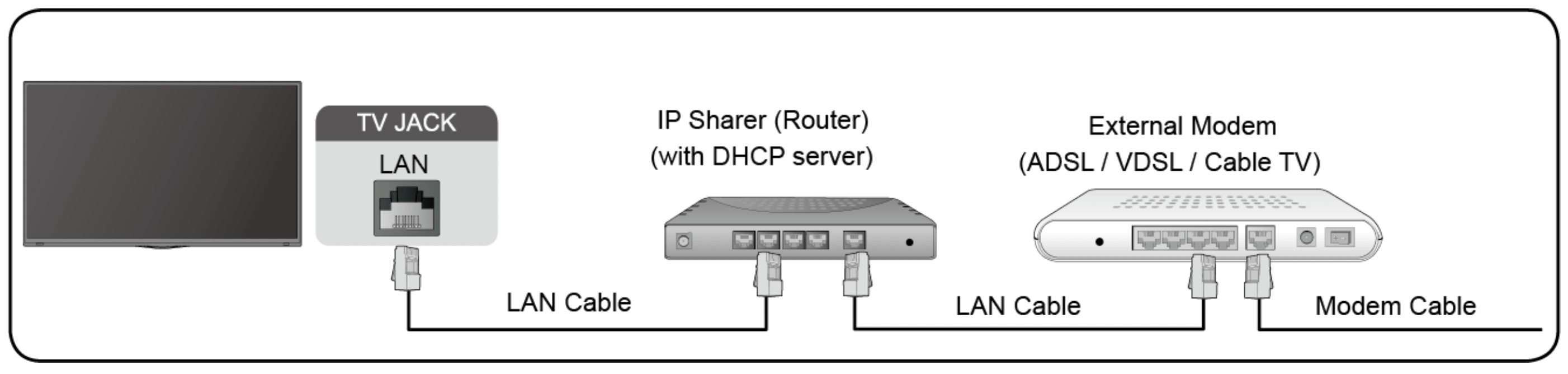
Connecting to a wired (Ethernet) network
To get access to the Internet in a wired way, it is recommended to use a modem or router that supports Dynamic Host Configuration Protocol (DHCP). Modems and routers that support DHCP automatically provide the IP address, subnet mask, gateway, and DNS, so you don't have to enter them manually. Most home networks already have DHCP.
See the illustration below.
After connecting to a wired (Ethernet) network:
 /
/  >
>  Settings > Network > Network Configuration
Set the TV network by selecting Network Configuration and press  button to enter the submenu.
- Connection Type
Choose a wired (Ethernet) network connection to access the Internet.
- Ethernet
Display network status.
- IP Settings
Configure the IP setting for your network connection.
Wake on LAN
/ > Settings > Network > Wake on LAN
Using an Ethernet connection and switching on Wake on LAN, this feature can make you turn on the TV from the standby mode, and push content to be broadcast on the TV with an app supporting the screencast feature in your mobile device.
Note:
- To use this function, make sure your TV and mobile device are connected to the same network environment.
- Enabling this function may result in higher energy consumption.
Wireless Internet Connection
Connecting to a wireless network
To connect to an available wireless network, make sure that you turn on your WiFi and have the wireless router's SSID and password before attempting to connect.
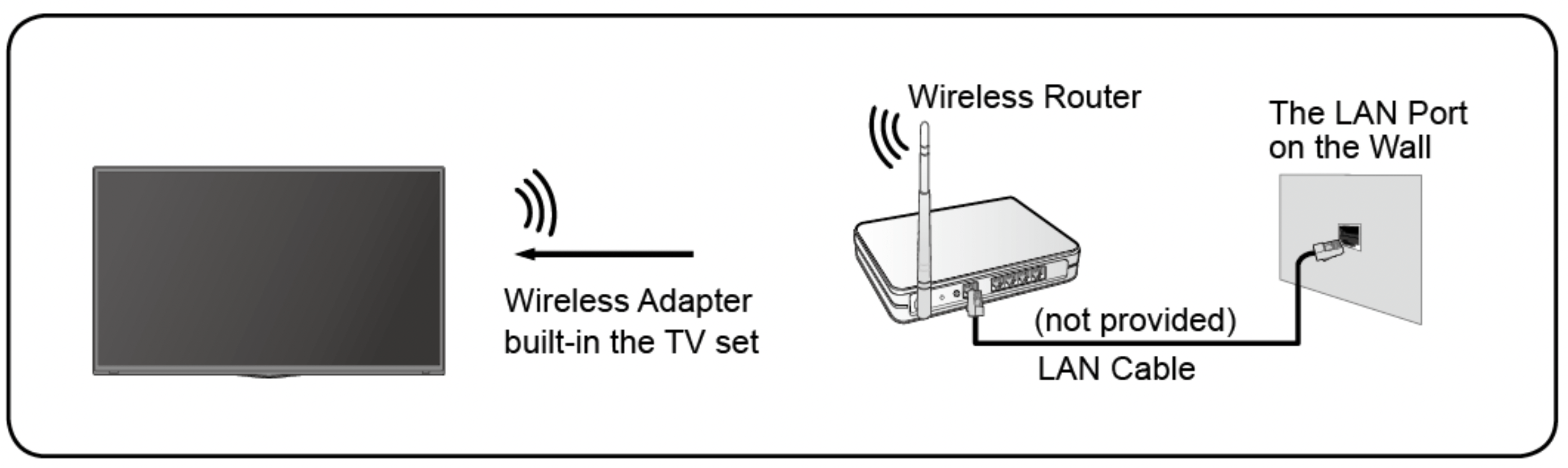
To get access to the Internet in a wireless way:
/ > Settings > Network > Network Configuration
Set the TV network by selecting Network Configuration and press button to enter the submenu.
- Connection Type
Choose a wireless network connection to access the Internet.
- Advanced Settings
Configure the advanced wireless network settings for the TV.
- Add
You can add wireless network.
- Refresh
Refresh wireless network.
Note:
- If no wireless router is found, select Add and enter the network name in the SSID.
- If no wireless router is found, select Refresh.
Wake on wireless network
/ > Settings > Network > Wake on Wireless Network
Using a wireless network connection and switching on Wake on Wireless Network, this feature can make you turn on the TV from the standby mode, and push content to be broadcast on the TV with an app supporting the screencast feature in your mobile device.
For more information about screencast feature, please refer to Multi-screen > Screen Sharing or Content Sharing in this manual.
Note:
- To use this function, make sure your TV and mobile device are connected to the same network environment.
- Enabling this function may result in higher energy consumption.
Connecting Bluetooth Devices
You can connect to devices using Bluetooth technology.
/ > Settings > Network > Bluetooth
Note: Bluetooth function may not be applicable in some models/countries/ regions.
Connecting a Bluetooth remote
Pair the Bluetooth remote with the TV.
- Pair the Bluetooth remote to the TV after you power the TV on, and set / > Settings > Network > Bluetooth to On.
- Keep the remote control within 3 metres from the TV. Press any button (except power and mic button) to pair with the TV.
Note:
- In special cases, press and hold
 /
/  button to pair.
- This function may not be applicable in some models/countries/regions.
- If an unknown error occurred with the remote, it could have been caused by interference. Try to remove what's causing the interference and pair it again.
- If an unknown error occurred with the remote while the battery power is normal, you can take out the batteries, press any key for 1~2 seconds, and insert them back. Then the remote will work normally.
- The remote cannot be paired to the TV while the TV is in standby mode.
Connecting a Bluetooth device
To pair a Bluetooth device, such as Bluetooth headphones, speakers, keyboards, mouse or even mobile devices:
- Set / > Settings > Network > Bluetooth to On.
- Before pairing your Bluetooth devices, make sure they're in pairing mode and put devices within pairing range. To put your Bluetooth devices in pairing mode, refer to the manual of devices.
- Find the Bluetooth device name in / > Settings > Network > Bluetooth > Equipment Management and select it. The device will be automatically connected to the TV.
Note:
- Only one Bluetooth speaker or Bluetooth headphone can be connected to the TV. If a new Bluetooth speaker or headphone connects to the TV, the old one will be disconnected automatically.
- Compatibility issues may occur depending on the Bluetooth device.
- The TV and Bluetooth devices may disconnect depending on the distance between them.
- For more information about Bluetooth headphone settings, please refer to Picture and Sound > Using Headphones in this manual.
Listening to the audio through Bluetooth devices
Pair the Bluetooth audio devices using the TV's Bluetooth function. Refer to the user manual for your audio devices, such as Bluetooth speaker or sound bar, for detailed connection and usage.
After the Bluetooth connection is completed, go to / > Settings > Sound > Speakers > Audio Output, and then select BT Sound Bar option to listen to the audio through bluetooth devices.
Note:
- Compatibility issues may occur depending on the Bluetooth device.
- The TV and Bluetooth device may disconnect depending on the distance between them.
TV Bluetooth speaker
/ > Settings > Network > Bluetooth > TV Bluetooth Speaker
TV Output: Mobile devices are connected to TV with Bluetooth. Sound outputs via TV speaker.
When your mobile device is connected to the TV via Bluetooth, you can play your mobile phone's music through TV built-in speakers. This function makes the TV perform as a speaker.
Go to your mobile Settings to enable Bluetooth, and choose the TV to connect.
To use this function, make sure to select TV Speaker at / > Settings > Sound > Speakers > Audio Output.
Connecting Headphones
You can connect a pair of headphones (not provided) to the HEADPHONE port on your TV. While the headphone is connected, the sound from the built-in speakers will be disabled.
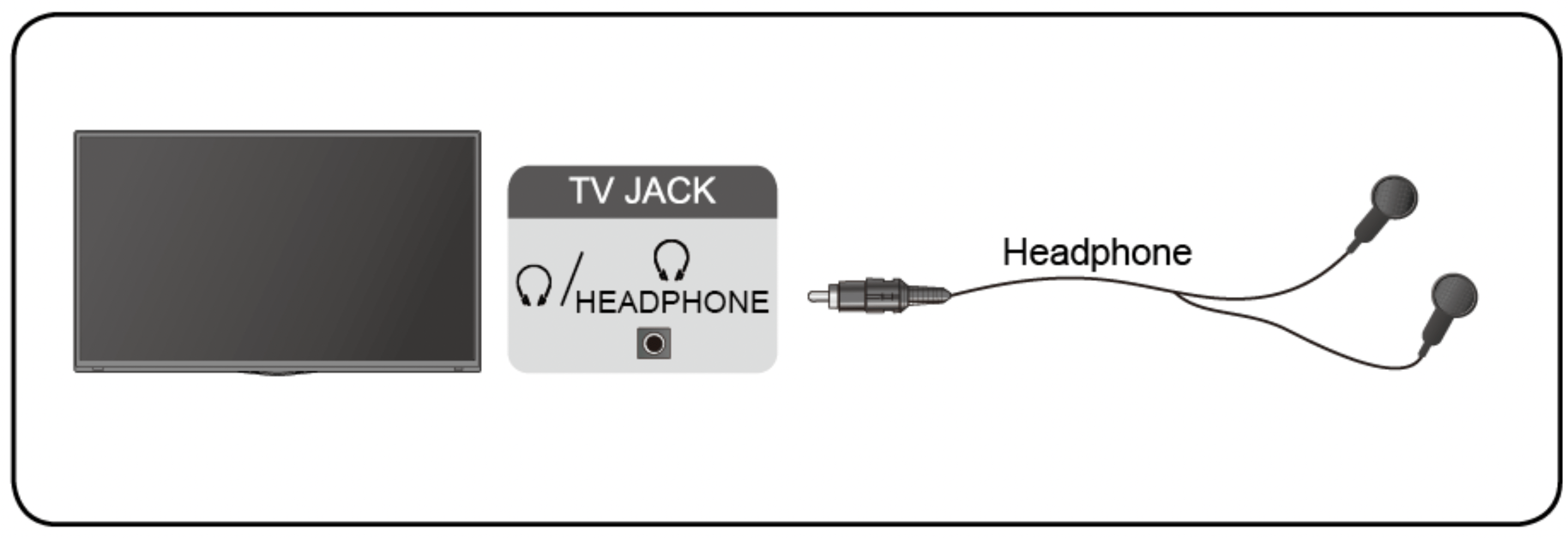
Note:
- Headphone port may not be available in some models.
- Headphones with microphones are not supported.
- If Headphone with Speakers is selected manually in / > Settings > Sound > Headphone > Headphone Mode, the headphone and the TV will have sound output at the same time.
- For more information about headphone settings, please refer to Picture and Sound > Using Headphones in this manual.
Connecting USB Devices
Connect the USB devices, such as hard drives and USB sticks for browsing photos, or listening to music.
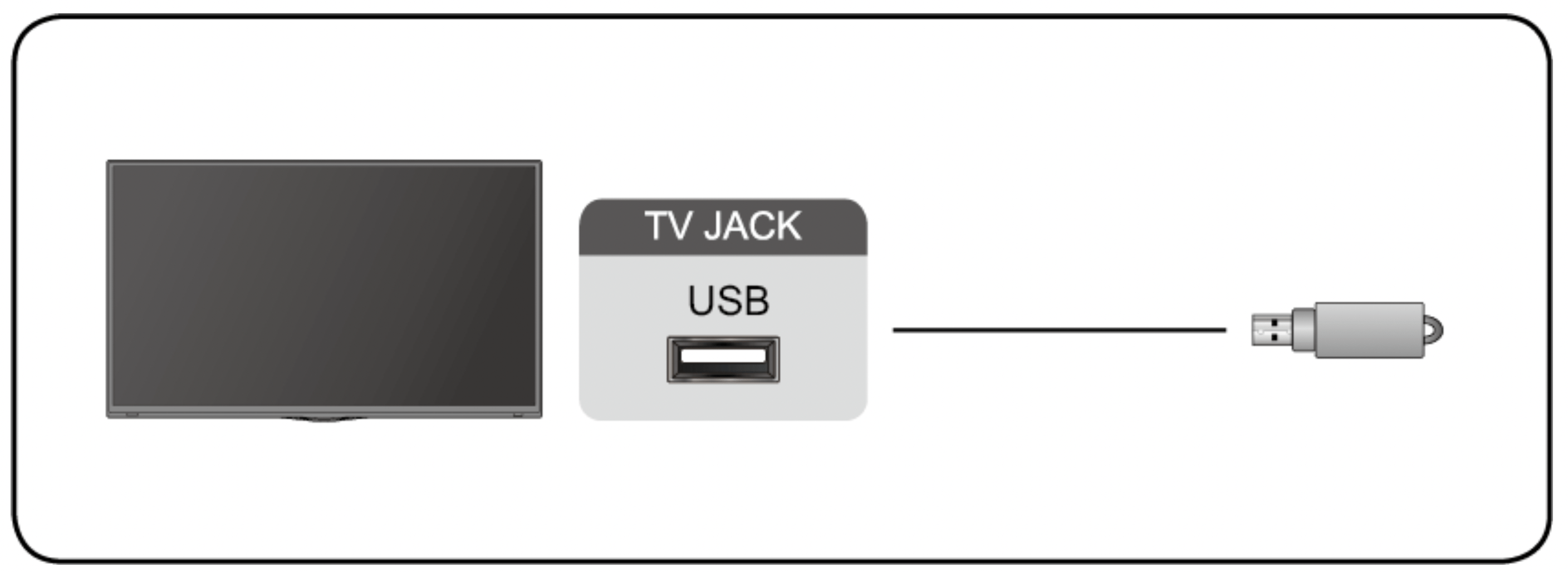
Note:
- Support the USB disk 4G, 8G, 16G, 32G, 64G, 128G and other common market sizes, and 8T hard drive is currently supported.
- Support format: NTFS, FAT32.
- Select the content you want to play or view. For more information, please refer to Smart Functions > Media in this manual.
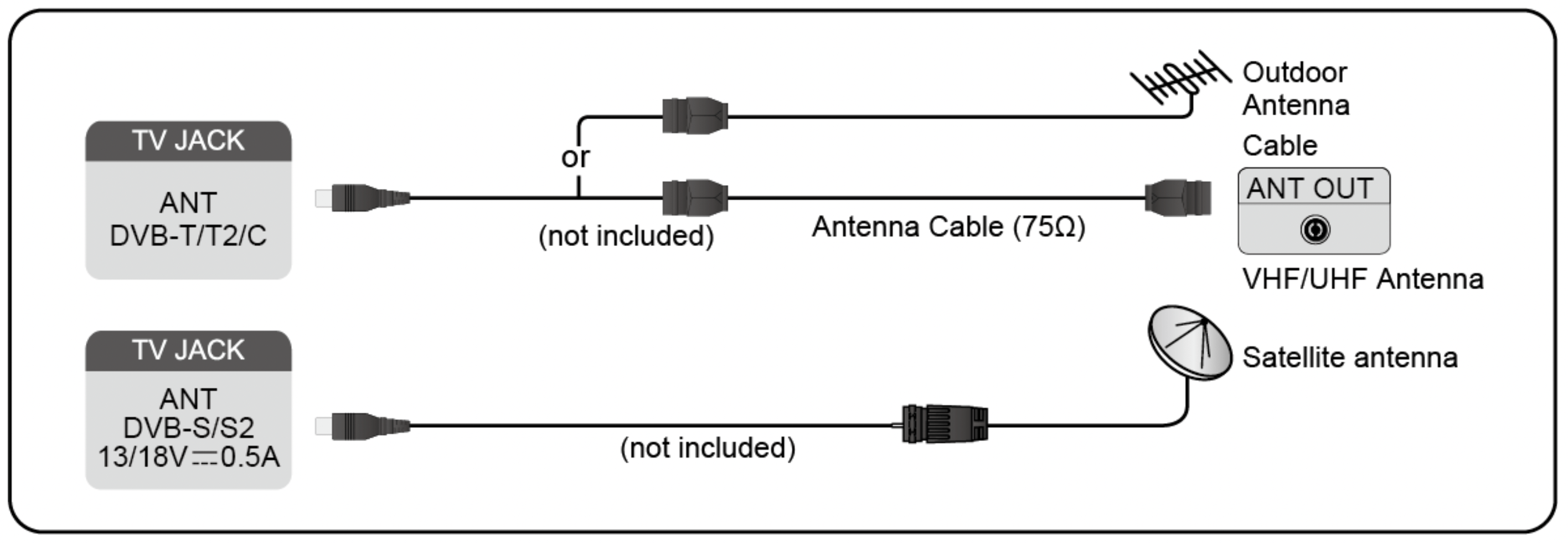
Connecting an Antenna
You can connect an antenna cable to your TV.
Using your remote, select  Input icon in Home screen and select TV as the input source.
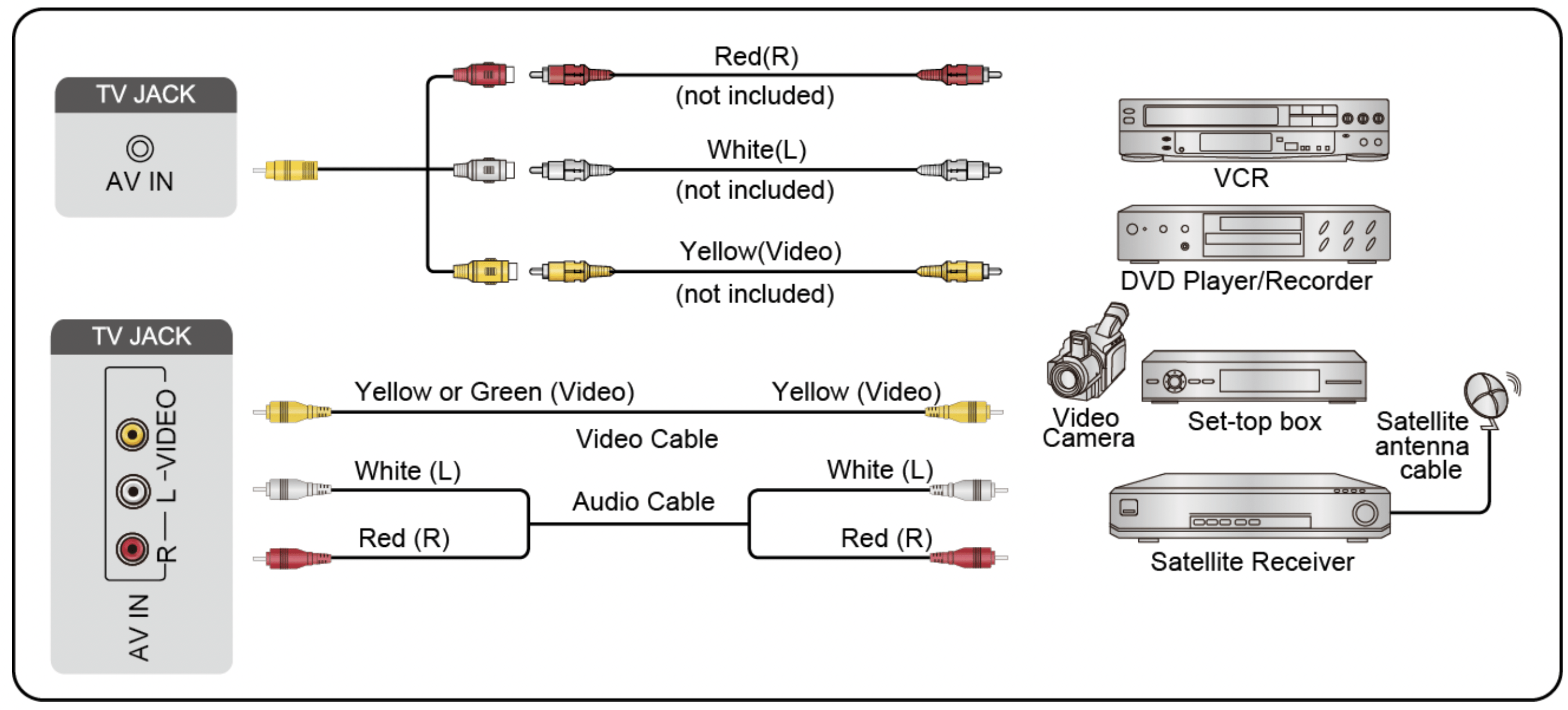
Connecting Audio Visual (AV) Devices
Connecting with a composite video cable
To connect an AV device with a composite video cable (not provided), see the illustration below.
When the connection is finished, using your remote, select Input icon in Home screen, and select AV as the input source.
Note:
- AV IN port(s) may vary depending on models.
- AV IN port(s) may not be available in some models. Please use other port(s) to connect AV devices.
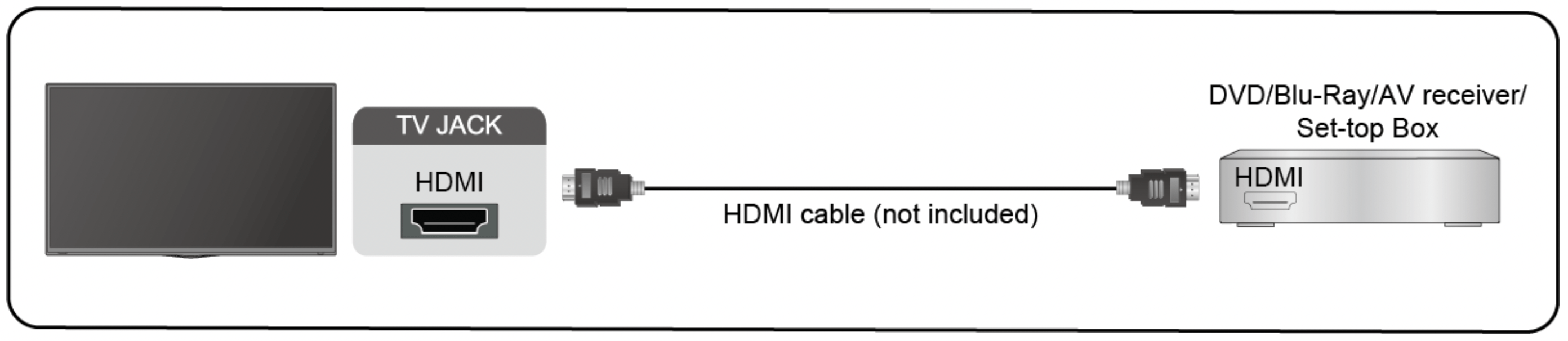
Connecting with an HDMI cable
To connect an AV device with an HDMI cable (not provided), see the illustration below.
When the connection is finished, using your remote, select the Input in Home screen, and select the corresponding HDMI input.
Note:
- Please refer to the User Manual that came with your device for step-by-step instructions.
- Some devices, such as DVD player, require HDMI signal to be set to output in the device's settings. Please consult your device's user manual for instructions.
- If there is no sound from your TV, configure the device's audio settings.
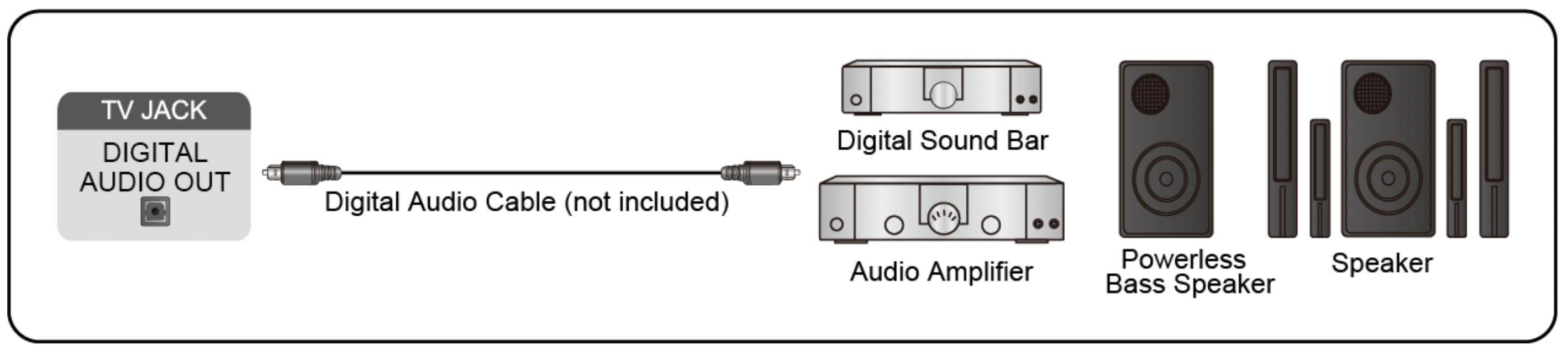
Connecting Speakers or Other Audio Receivers
To connect speakers or other audio receivers with an audio cable (not provided), see the illustration below.
Plug the connected devices into the main power socket before switching on the TV.
When the connection is finished, go to / > Settings > Sound > Speakers > Audio Output, and select the SPDIF Only option.
When a digital audio system is connected to the DIGITAL AUDIO OUT port, decrease the TV volume and your digital audio system volume.
Note:
- If you prefer to use Audio Return Channel/Enhanced Audio Return Channel, please refer to Connection > Connecting a Digital Audio System to Use ARC/eARC in this manual.
- You can connect the DIGITAL AUDIO OUT port on the back of the TV to the optical port on the amplifier. Then go to / > Settings > Sound > Speakers > Digital Audio Out to select Dolby Digital to receive the Dolby Digital audio.
Connecting a Digital Audio System to Use ARC/ eARC
If you'd like to use the Audio Return Channel (ARC)/the Enhanced Audio Return Channel (eARC) feature to send sound from the TV by an HDMI cable to a digital sound system, you can connect it to the HDMI (ARC/eARC) port of your TV.
By using this feature, you can also control the sound system with your TV remote instead of using the remotes for each device.
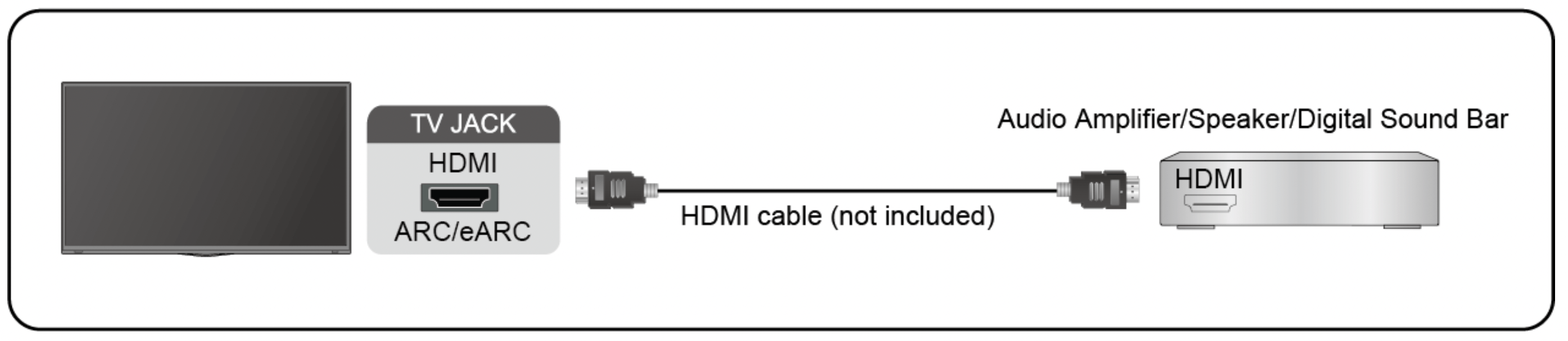
After the connection:
- Power on the sound system.
- Press / button to select Settings icon in the Home screen.
- Select Sound > Speakers > Audio Output, and select ARC option. If the device supports eARC function, press / button to select Settings icon in the Home screen, and select Sound > Speakers > eARC to set eARC to On.
Note:
- It works only when the TV is connected to the audio receiver that supports the ARC/eARC function.
- If the device has an Input Selector feature, then make sure to change it to the TV.
- When this port is used for ARC/eARC function, it can be used as signal input when a DVD is connected to an amplifier and the amplifier is connected to the TV at the same time. Some amplifiers may not support series connection.
- 5.1 CH (channel) audio is available when the TV is connected to an external device that supports 5.1 channel surround sound. You can press / button to select Settings icon in the Home screen, and select Sound > Digital Audio Out to choose Dolby Digital Plus to receive the 5.1 channel audio.
Using HDMI & CEC
Use the TV remote to control external devices that are connected to the TV by an HDMI cable. The external devices need to support HDMI & CEC function.
/ > Settings > System > HDMI & CEC
Connecting an external device through HDMI & CEC function
/ > Settings > System > HDMI & CEC > CEC Control
Allow HDMI devices to control each other.
- Set CEC Control to On.
- Connect an HDMI & CEC compatible device to the TV.
- Turn on the connected external device. The device will be connected to the TV automatically. After connection is finished, you can access the menu of the connected device on your TV screen using your TV remote and control the device.
Enabling device auto power off
/ > Settings > System > HDMI & CEC > Device Auto Power Off
Set to On to turn off HDMI & CEC compatible external devices when the TV is turned off.
Enabling device auto power on
/ > Settings > System > HDMI & CEC > Device Auto Power On
Set to On to turn on HDMI & CEC compatible external devices when the TV is turned on.
This feature is applicable when TV input source is preset to the corresponding external device.
Enabling TV auto power on
/ > Settings > System > HDMI & CEC > TV Auto Power On
Set to On to turn on the TV when HDMI & CEC compatible external devices is turned on.
HDMI format function
/ > Settings > System > HDMI & CEC > HDMI Format
Please select Enhanced format if your HDMI device supports 4K HDR. If it does not support 4K HDR, please select Standard format. If you are not sure, please select Auto.
Note:
- HDMI cables must be used to connect HDMI & CEC compatible devices to your TV.
- The HDMI & CEC feature of the connected device must be turned on.
- If you connect an HDMI device that is not HDMI & CEC compatible, all the HDMI & CEC control features do not work.
- Depending on the connected HDMI device, the HDMI & CEC control feature may not work.
- The HDMI & CEC feature supports One Touch Play, Routing Control, System Standby, Device OSD Name Transfer, Remote Control Pass Through, Give Device Power Status, System Audio Control.
Connecting a PC or a Game Console
PC
You can connect a PC to the TV with an HDMI cable to use your TV as a PC monitor.
After connecting the PC, press the / button, then select Input icon in Home screen or press  button. Select the connected PC as the input source.
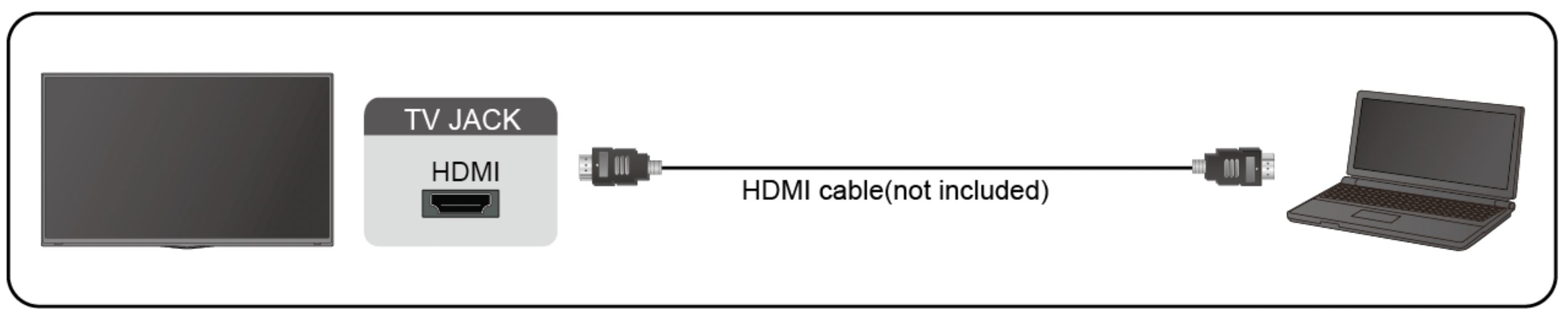
Note:
- For better image quality, set the PC's resolution, and make sure the resolution is supported by the TV.
- If there is no sound from your TV, change the PC's audio settings.
- If you want to connect your PC and TV wirelessly, please refer to Multiscreen > Content Sharing in this manual.
Game console
You can connect your game console with an HDMI cable to the TV.
To start a game from a game console:
- Switch on your game console.
- Press the / button, select Input icon in Home screen or press button. Select the connected game console as the input source.
- Start the game.
You can enable the game mode to optimise your TV's settings when playing games with a game console. For more information, please refer to Picture and Sound > Game Mode Settings in this manual.
Picture and Sound
Adjusting the Picture Quality
Adjust picture mode, picture size and other advanced picture settings.
Choosing a picture mode
/ > Settings > Picture > Picture Mode
Select a preset picture mode to best suit the content you're viewing. Options may differ depending on models. Please refer to the actual product.
- Standard
Best suited for watching normal content, such as News, Drama or Documentary.
- Cinema day
Best suited for watching movies in a bright environment.
- Cinema night
Best suited for watching movies with dark environment.
- Dynamic
Best suited for the content that requires vivid picture quality.
- Sports
Optimized picture for watching sports.
- Auto
The picture mode will be adjusted automatically.
Note:
- Auto mode may not be applicable in some models/countries/regions, and to use this function, you must choose Yes, Enable Enhanced Viewing in the Enhanced Viewing when you turn the TV on for the first time, or at / > Settings > System > Advanced Settings > Enhanced Viewing. For more information, please refer to Accessibility and System > Enhanced Viewing in this manual.
Low Blue Light
Cinema day and Cinema night are designed to reduce the level of blue light to protect your eyes.
Go to / > Settings > Picture > Picture Mode, and select Cinema day/Cinema night.
To reduce the eye strain and protect eyes when you watch TV for a period of time, you are suggested to:
- Take regular and frequent breaks to avoid watching TV for a long period of time. Long time of watching may cause you eye fatigue. It is not recommended to watch TV for more than one hour.
- Look away from the TV screen and look at distance objects during the breaks for at least 10 minutes for eye care.
- Relax yourself during a break by doing eye exercises or outdoor activities.
- The best recommended viewing distance is 3 times the vertical height of the TV screen.
Proper breaks and exercises are proved excellent help to relieve eye strain and fatigue.
This feature may not be applicable in some models/countries/regions.
Changing the aspect ratio
/ > Settings > Picture > Aspect Ratio
Adjust the Aspect Ratio to stretch or zoom in on your picture.
- Automatic
Automatically switch Aspect Ratio between 16:9 and 4:3 based on the signal information.
- 16:9
Best suited for 16:9 Widescreen content. This will also stretch 4:3 content to Widescreen.
- 4:3
Best suited for 4:3 content.
- Panoramic
Provide a full-screen image by stretching the edges whilst leaving the middle untouched.
- Movie Zoom
Provide a full-screen image by zooming in on the movie.
- Direct
Point to point display also known as 1:1 Pixel Mapping.
Enabling Smart Scene function
/ > Settings > Picture > Smart Scene
You can turn on the Smart Scene function, and enable your TV to continually recognize the scene in the content watching and enhance the picture quality on all input sources.
Note:
- Some specific application has explicit constraints that the content recognition is not allowed.
- When Game Mode is turned on, Smart Scene will be switched off automatically and is not available to set.
Configuring advanced picture settings
/ > Settings > Picture > Picture Mode Settings
Adjust display settings for each Picture Mode. You can personalize the picture quality by adjusting the following settings.
- Apply Picture Settings Adjust current picture mode to apply to all sources or just current source.
- Backlight
Set the overall brightness of the screen.
Note:
- The function name may vary depending on models.
The following option may differ depending on models. Please refer to the actual product.
- Dynamic Backlight Control
Enhance the contrast ratio between light and dark areas of the picture. This function may not be applicable in some models/countries/regions.
- Backlight
Adjust how bright you want images to appear, lower settings create darker images (only when Dynamic Backlight Control is off).
This function may not be applicable in some models/countries/regions.
- Automatic Light Sensor
Enable the TV to automatically adjust the picture settings according to the amount of ambient light in you room.
This function may not be applicable in some models/countries/regions.
- Light Sensor Shift
This feature is adjustable only when Automatic Light Sensor is turned on. If you feel the picture is brighter than you expect, decrease the value. If you feel the picture is darker than you expect, increase the value.
This function may not be applicable in some models/countries/regions.
- Local Dimming (or Peak Brightness Dynamic Range for some models)
Enable the TV to automatically adjust the backlight by sections according to the changes in the image and increase the contrast.
This function may not be applicable in some models/countries/regions.
- Brightness
Adjust the Brightness level to generate lighter or darker images.
- Contrast
Adjust the Contrast level to increase or decrease how bright images appear.
- Colour Saturation
Adjust the colour intensity of the picture for a more vibrant image.
- Sharpness
Adjust how sharp or soft edges of images appear.
- Adaptive Contrast
Automatically darken dark areas and lighten light areas of images to see more details.
- Ultra Smooth Motion
Reduce seeing afterimages that are left on the screen when viewing fastmoving objects.
This function may not be applicable in some models/countries/regions.
- Clear Motion
Making motion look clearer when flicker is desired.
This function may not be applicable in some models/countries/regions.
- Noise Reduction
Improve how clear the picture appears by reducing noise.
- MPEG Noise Reduction
Reduce MPEG block noise and provide clearer edge transitions.
- Colour Temperature
Adjust how warm (red) or cool (blue) the white areas of an image appears.
- Expert Settings
Adjust advanced picture settings based on your viewing preference.
- Overscan
Change the video size settings to slightly crop the edges of the displayed image.
This function may not be applicable in some models/countries/regions.
- Reset Current Mode
Restore all the picture settings in the current picture mode to the factory default values.
Configuring expert settings
/ > Settings > Picture > Picture Mode Settings > Expert Settings
Adjust the colour space and Gamma to best suit the content you're viewing.
- Colour Gamut
Change the range of colours the TV displays.
This function may not be applicable in some models/countries/regions.
- Colour Tuner
Adjust the Hue, Saturation and Brightness of colour settings.
- White Balance
Adjust the intensity of red, green and blue lights to view the true colours of all images in the picture.
- Black Level
Adjust the HDMI signal range to be more suitable for the content.
- Gamma Adjustment
Adjust the Gamma to alter how the TV will respond to the grayscale content. In a dark room choose a higher number like 2.4. In a brighter area select a lower number like 2.0. In general, 2.2 is normally recommended.
This function may not be applicable in some models/countries/regions.
- Gamma Calibration
Adjust selected Gamma curve.
This function may not be applicable in some models/countries/regions.
- Viewing Angle
Provide better watching experience with viewing angel.
This function is only available in VAC-supported models.
- RGB Only Mode
View images based on default settings or choose the colour red, blue or green.
- Low Blue Light
Eyes care: reduce the emission of blue light.
This function may not be applicable in some models/countries/regions.
Panel Refresh
Use Panel Refresh to reduce image retention effects.
Due to the optical characteristics of OLED, image pretension may occur after the TV has been used for an extended period of time. Panel Refresh is recommended to correct picture quality issues and prevent image retention. Do not pull the plug from the socket when you want to turn off the TV. Please press the power button on the remote to turn the TV off and Panel Refresh will be operated automatically when TV is in standby mode.
Power indicator light will blink when Panel Refresh is in progress. The whole progress will take about an hour, during the process, the screen will be turned off and TV will be shut down after the refresh completes.
You could also choose to manually start Panel Refresh.
To manually start Panel Refresh:
/ > Settings > Picture > Panel Refresh
Red flashing light indicates Panel Refresh in progress.
Note: This function is only available for OLED models.
Game Mode Settings
Enabling game mode
/ > Settings > Picture > Game Mode
You can turn the Game Mode on to optimize the TV's settings for you to enjoy a comfortable gaming experience with PC or game console connected to the TV.
In the Game Mode:
- Reducing input lag to make sure every press or click matches what's happening on the screen;
- Improving responsiveness to produce very little motion blur;
- Processing YUV 4:4:4 format signals precisely to present accurate image colours.
Note: This function may not be applicable in some input sources or applications.
Enabling auto low latency mode
/ > Settings > Picture > Auto Low Latency Mode
You can enjoy a smooth viewing experience with external devices connected to the TV when Auto Low Latency Mode is turned on.
Note:
- This function may not be applicable in some input sources or applications.
- When Game Mode is turned on, Auto Low Latency Mode will be switched off automatically and is not available to set.
Adjusting the Sound Quality
Adjust sound mode and other advanced sound settings.
Choosing a sound mode
/ > Settings > Sound > Sound Mode
Select a preset sound mode to suit the type of content you are listening to.
- Standard
In Standard mode, the TV delivers a flat frequency response, which preserves the natural characteristics of the original sound.
- Theatre
Theatre mode increases the surround sound effect and provides a more prominent subwoofer response.
- Music
In Music mode, low and high frequencies are emphasized to enhance musical instrument reproduction.
- Speech
In Speech mode, low and high frequencies are attenuated to improve the reproduction and clarity of the human voice.
- Late Night
In Late Night mode, the TV will improve the reproduction and clarity of the human voice with a low volume level.
- Sports
Optimised sound for watching sports programmes.
- Auto
The sound mode will be adjusted automatically.
Note:
- Auto mode may not be applicable in some models/countries/regions, and to use this function, you must choose Yes, Enable Enhanced Viewing in the Enhanced Viewing when you turn the TV on for the first time, or at / > Settings > System > Advanced Settings > Enhanced Viewing. For more information, please refer to Accessibility and System > Enhanced Viewing in this manual.
Dolby Atmos
/ > Settings > Sound > Dolby Atmos
Set Dolby Atmos to On to enhance the richness of sound, and you can enjoy an immersive listening experience.
This function may not be applicable in some models/countries/regions.
Audio Enhancement
/ > Settings > Sound > Audio Enhancement
Set Audio Enhancement to have audio experience provided by Dolby Atmos or DTS Virtual X according to your preference.
This function may not be applicable in some models/countries/regions.
Configuring advanced sound settings
/ > Settings > Sound > Sound Mode Settings
Tune the audio settings of the TV. You can personalise the sound quality by adjusting the following settings.
- Apply Audio Settings
Adjust current sound mode to apply to all source or just the current source.
- Total Sonics
Optimize overall sound quality by increasing bass, making dialogue clear and natural, and widening the sound field.
This function may not be applicable in some models/countries/regions.
- Total Volume
Maintain consistent loudness levels from wide dynamic range programmes, loud commercials, and channel or input changes.
This function may not be applicable in some models/countries/regions.
- Total Surround
Provide surround sound experience with psycho-acoustic processing to place sounds beside, behind, and above the viewer. For best results use with Total Sonics.
This function may not be applicable in some models/countries/regions.
- Bass Boost
Bass Boost uses DTS TruBass™ to enhance the perception of bass frequencies to provide deep, rich bass response from the TV's internal speakers.
This function may not be applicable in some models/countries/regions.
- Surround Sound
Surround sound uses DTS TruSurround™ to deliver an immersive surround sound experience from the TV’s internal speakers.
This function may not be applicable in some models/countries/regions.
- Dialogue Clarity
Dialogue Clarity uses DTS Dialogue Clarity™ to boost the frequency range of the human voice so dialogue is clearly understood and heard above audio or surround effects.
This function may not be applicable in some models/countries/regions.
- TruVolume
Automatic control over drastic volume changes while watching TV programs or films, providing a more comfortable and consistent volume.
This function may not be applicable in some models/countries/regions.
- Equalizer
Boost the volume at different frequencies.
This function is only applicable when TV Speakers is selected at / > Settings > Sound > Speakers > Audio Output.
- Subwoofer
Built-in subwoofer switch.
This function may not be applicable in some models/countries/regions.
- Bass Boost Value
Built-in bass adjustment.
This function may not be applicable in some models/countries/regions.
- Wall Mount Setup
Automatically optimize the sound based on the position of the TV.
This function may not be applicable in some models/countries/regions.
- Auto Volume Control
Activate to prevent the volume from changing when you switch TV channels.
This function may not be applicable in some models/countries/regions.
- Reset Current Mode
Restore all of the audio settings in the current audio mode to the factory default values.
Note: Some models may not support decoding of DTS CD bitstreams. Playback of this format may produce undesirable noise.
Speakers Settings
/ > Settings > Sound > Speakers
Select the speakers which you want to use.
Audio Output
Select the speakers which you want to use.
Digital Audio Out
Select the digital audio output format that best suits the audio device type.
- Auto: the audio device automatically outputs in a supported format.
- Pass Through: the audio device outputs without any processing.
- PCM: the audio device outputs PCM (pulse code modulation) format.
- Dolby Digital: the audio device outputs Dolby Digital audio when connected to the TV via optical port.
- Dolby Digital Plus: the audio device outputs Dolby Digital Plus audio when connected to the TV via HDMI (ARC/eARC) port.
Note:
- This function is only applicable when / > Settings > Sound > Speakers > Audio Output is set to ARC or SPDIF Only.
- When external audio devices are connected to the TV via optical, PCM and Dolby Digital are suggested.
Digital Audio Delay
Adjust the digital audio output delay time to sync sound from an external speaker with the images on the TV.
This function is only applicable when / > Settings > Sound > Speakers > Audio Output is set to ARC or SPDIF Only.
Lip Sync
Synchronize the displayed image with the audio output.
This function may not be applicable in some Audio Output modes.
Balance
Adjust the left and right speaker strength to optimize audio for a specific location.
This function may not be applicable in some Audio Ouput modes.
This function is not applicable when Dolby Atmos is turned on.
eARC
Connect an audio device that supports eARC via HDMI (eARC), and set eARC to On to enjoy higher sound quality. This feature is available to set when / > Settings > Sound > Speakers > Audio Output is set to ARC.
This function may not be applicable in some models/countries/regions.
Using Headphones
/ > Settings > Sound > Headphone
Set the sound output mode through headphones.
After connecting your wireline or Bluetooth headphone, or other external audio amplifiers, you can set up your TV to your preference.
This function may not be applicable in some models/countries/regions.
Headphone Mode
Change the way audio is sent through the type of device that's connected to your TV Audio Out port.
When you select Headphone Only, disable the TV speaker when you are using a headphone, a sound bar, ARC or any other external audio amplifiers. Only external devices have audio output.
When you select Headphone with Speakers, TV speaker and Headphone or other connected external devices have audio output.
Headphone Volume
Independently adjust the volume of audio out devices.
In Headphone Only mode, you can adjust the volume with volume button on your remote or in Headphone Volume menu on screen.
In Headphone with Speakers mode, the TV speaker volume can be adjusted with volume button on your remote normally. The volume of headphone can be adjusted in Headphone Volume menu on screen.
Accessibility and System
Accessibility
/ > Settings > Accessibility
Accessibility function provides menu options and audio description to aid the visually or hearing impaired.
- Menu Scheme
Select menu scheme style from Dark, Light.
- High Contrast Menu
Improve contrast for visually impaired.
- Menu Transparency
Select menu transparency from Off, Medium, High.
- Audio Type
Select the audio type of programmes.
Voiceover Volume
Independently adjust the volume of voiceover.
- Subtitle Settings
Adjust Subtitle Settings for digital broadcast content.
Subtitle
Select whether to apply Subtitle to your TV. Select from Off, Subtitle, Hard of Hearing Subtitles.
Primary Subtitle
Set the default subtitle language for digital broadcast content.
Secondary
Subtitle Set the secondary subtitle language for digital broadcast content.
Note: The above functions may not be applicable in some models/countries/ regions.
Setting Time
/ > Settings > System > Time
Set the current time based on your location.
- Time Format
Set the time to display in a 12 or 24-hour format.
- Date/Time
Set the Date and Time. You can set the date and time to automatically sync with Internet/broadcast or manually setup by yourself.
This function may not be applicable in some models/countries/regions.
- Time Zone
Select your time zone.
This function may not be applicable in some models/countries/regions.
- Daylight Savings
Select whether to apply Daylight Savings Time to the TV.
This function may not be applicable in some models/countries/regions.
Using Timer
/ > Settings > System > Time Settings
Adjust the timer settings to suit your preference.
- Sleep Timer
Set the sleep timer to automatically turn the TV Off within a specified time: Off, 15 Minutes, 30 Minutes, 60 Minutes, 90 Minutes, 120 Minutes or User Defined.
- Power On Timer
Set the clock for the time you want the TV to turn on automatically. You can set the time only once or set the time in specified date by weekly.
- Power Off Timer
Set the clock for the time you want the TV to turn off automatically. You can set the time only once or set the time in specified date by weekly.
- Menu Timeout
Set the amount of time that you would like for the menu to display: Off, 10s, 20s, 30s, 60s, 5 min.
- Auto Sleep
Set the amount of time that you would like for TV auto power off without any activity: Off, 3H, 4H.
This function may not be applicable in some models/countries/regions.
- Auto Standby with No Signal
TV will go standby if there is no signal and the timer times out.
Using Parental Control
/ > Settings > System > Parental Control
Turn on Parental Control to block children from being able to view certain programmes.
If you have not set the PIN code before, create and confirm PIN window displays. Using the D-pad on your remote, create the password.
If you have set the PIN code before, enter PIN window displays.
Set PIN code at / > Settings > System > System PIN.
- Locks
Turn on Locks to enable the Parental Control function.
You will see other Parental Control settings change from a greyed out state to highlighted. When this occurs, Block Time, Channel Block, Content Block, Input Block, App Block, or Reset to Default features are available to set.
- Block Time
Block the whole TV usage for a defined period of time, including Live TV, HDMI and apps.
- Channel Block
Block TV channels when you turn on the Parental Control feature. To use this function, please scan channels first.
- Content Block
Certain programme is blocked by age rating. The rating needs to be provided by the broadcaster.
- Input Block
Block content from devices that are connected to certain TV ports.
- App Block
Block access to certain apps.
- Reset to Default
Restore Parental Control back to the factory default setting.
Setting Language and Location
/ > Settings > System > Language and Location
Select the language used for this TV and your location.
- Location
Choose the location from where you will watch your TV.
- Menu Language
Set the default language for the TV menu.
- Primary Audio
Set the default audio output language for the type of digital broadcast content that you're viewing.
- Secondary Audio
Set the secondary audio output language for digital broadcast content.
- Digital Teletext
Adjust Teletext decoding.
Using Power Indicator
/ > Settings > System > Advanced Settings > Power Indicator
Set the Power Indicator light to stay On or Off when in standby mode.
/ > Settings > System > Advanced Settings > Indicator Light Setting
Set the indicator light from Power, Always or Off.
Note: The above functions may not be applicable in some models/countries/ regions.
Enhanced Viewing
/ > Settings > System > Advanced Settings > Enhanced Viewing
You can turn on Enhanced Viewing features to enhance viewing experience.
- Automatic Content Recognition
Turn on Automatic Content Recognition (ACR) to enjoy amazing picture quality and audio quality adjustment for the content watching.
Note:
- This function may not be applicable in some models/countries/regions.
- To use this function, you should accept End User License Agreement and smart feature privacy policy/terms and conditions, and choose Yes, Enable Enhanced Viewing in the setting process.
You will see the other Enhanced Viewing settings change from a greyed out state to highlighted. When this occurs, Picture Mode Auto Adaptation and Sound Mode Auto Adaptation features will be enabled.
- Picture Mode Auto Adaptation
Automatically switch to the best picture mode for the content watching. This function may not be applicable in some models/countries/regions.
- Sound Mode Auto Adaptation
Automatically switch to the best audio mode for the content watching. This function may not be applicable in some models/countries/regions.
Setting Usage Mode
/ > Settings > System > Advanced Settings > Usage Mode
Set the TV to use in Home or Store mode.
- Home Mode
Select Home Mode for normal TV usage, and use less energy.
If you want to switch to Store Mode when the TV is in Home Mode, press / button to select Settings, and select System > Advanced Settings > Usage Mode, and choose Store Mode.
- Store Mode
Select Store Mode, and the TV will be on display in a retail setting. This mode effects E-Pos and other demo functions, and is only intended for use in retail stores.
When Store Mode is selected, press / button on your remote control to enter store mode settings.
If you want to switch to Home Mode when the TV is in Store Mode, press / button to select Settings, and select System > Advanced Settings > Usage Mode, and choose Home Mode.
Note: Enabling Store Mode could increase energy consumption.
Troubleshooting
Picture Issues
When the TV has a picture problem, these steps may help resolve the problem.
/ > Settings > Support > Self Diagnosis > Picture Test
Before you review the list of problems and solutions below, use Picture Test to determine if the problem is caused by the TV. Picture Test displays a high definition picture that you can examine for flaws or faults.
- If the test picture does not appear or there is noise or distortion, the TV may have a problem. Contact the service company in your country/region.
- If the test picture is displayed properly, there may be a problem with an external device. Please check the connections.
- If the problem persists, check the signal strength or refer to the external device's user manual.
| Problem |
Possible Solutions |
|
No picture, or black and white picture.
|
- Unplug the TV power cord from AC outlet and re-plug after 60 seconds.
- Check if the Colour Saturation is set to 50 or higher at / > Settings > Picture > Picture Mode Settings > Colour Saturation.
- Try different TV channels.
|
|
The picture is distorted.
|
- The compression of video content may cause picture distortions, especially in fast moving pictures from sports programmes and action movies.
- If the signal reception is weak or poor, screen distortion may be visible but it is not a malfunction.
- Mobile phones used close to the TV (within 1m) may cause noise on analogue and digital channels.
|
|
The picture is blurry or flickering, or cuts out momentarily.
|
- / > Settings > Picture > Picture Mode Settings > Sharpness. You can try to increase or decrease the Sharpness.
- If you use an external antenna, check the direction, position and connection of the antenna.
- Adjust the direction of your antenna, or reset or fine tune the channel.
|
|
The picture appears red, purple, pink and other colours.
|
- / > Settings > Picture > Picture Mode Settings > Expert Settings > White Balance. You can try to increase or decrease the White Balance.
|
|
Picture distorted or appear wavy.
|
- Some electrical appliances may affect the TV. If you turn off the appliance and the interference goes away, then move it further away from TV.
- Insert the power plug of the TV into another power outlet.
|
Sound Issues
When the TV has a sound problem, these steps may help resolve the problem.
/ > Settings > Support > Self Diagnosis > Sound Test
If the TV plays the Sound Test melody without distortion, there may be a problem with an external device or the broadcast signal's strength.
| Problem |
Possible Solutions |
|
There is no sound or the sound is too low at maximum volume.
|
- Check the volume control of the device (cable or satellite box, DVD, Blu-ray, etc.) connected to your TV.
|
|
Picture is normal, but no sound.
|
- Check the volume settings.
- Check if 'Mute' mode is set to on.
|
|
The speakers are making an odd sound.
|
- Make sure that the audio cable is connected to the correct audio output connector on the external device.
- For antenna or cable connections, check the signal information.
- A low signal level may cause sound distortions.
|
|
Sound distorted or appears wavy.
|
- Some electrical appliances may affect the TV. If you turn off the appliance and the interference goes away, then move it further away from TV.
- Insert the power plug of the TV set into another power outlet.
|
|
Sound is blurry or cuts out momentarily.
|
- If you use an external antenna, check the direction, position and connection of the antenna.
- Adjust the direction of your antenna or reset or fine tune the channel.
|
Network Issues
When the TV has difficulties in connecting to the Internet, these steps may help resolve the problem.
/ > Settings > Support > Self Diagnosis > Network Test
If the TV network is connected, the screen will display Connected successfully.
| Problem |
Possible Solutions |
|
The TV cannot connect to your network or apps.
|
- Make sure the TV has a network connection.
- Run / > Settings > Support > Self Diagnosis > Network Test.
- Contact your Internet service provider.
|
|
The wireless network connection failed.
|
- Make sure your wireless modem/router is on and connected to the Internet.
|
|
The wireless network signal is too weak.
|
- Position your wireless router, modem router, or access point in a central location. Avoid putting it in a corner.
|
External Device Connection Issues
When the TV has difficulties with external device connection, these solutions may help resolve the problem.
|
Problem
|
Possible Solutions |
|
I have connected an external source to my TV but I get no picture and/or sound.
|
- Check whether the connection between the external device and your TV is correct.
- Make sure you have made the correct selection of input source.
|
|
The cable box is no signal or weak signal.
|
- If there is no signal occasionally, unplug cable from TV and re-plug after 60 seconds.
- If there is always no signal, or the signal cannot be restored after plugging and unplugging, you can try / > Settings > System > HDMI & CEC > HDMI Format, to confirm whether the signal can be recognized.
- Change to another HDMI port.
- Change to another HDMI cable.
|
| There is no sound. |
- Check whether ARC is selected at / > Settings > Sound > Speakers > Audio Out. If not, you need to check whether the external power amplifier device is connected to the ARC/eARC port or optical port of the TV.
- / > Settings > Sound > Speakers > Digital Audio Out. You can try to select PCM, Dolby Digital, or Dolby Digital Plus.
- Whether the power amplifier device port is connected correctly.
- If you select HDMI as input, you can try / > Settings > System > HDMI & CEC > HDMI Format.
|
|
The remote control does not work.
|
- Confirm that TV still has power and is operational.
- Change the new batteries in the remote control.
- Check if the batteries are correctly installed.
- If some buttons don't work, but the volume buttons can work normally, it seems there is a problem with the application.
|
Apps
When some apps aren't playing, this may help resolve the problem.
| Problem |
Possible Solutions |
| Netflix can't be played. |
- / > Settings > System > Application Settings > Netflix > Forced Closure, then reopen to try.
- You can try to reset to the factory settings at / > Settings > Support > Reset to Factory Default.
|
Media Files
When files aren't playing, this may help resolve the problem.
| Problem |
Possible Solutions |
|
Some files can't be played.
|
- Most files can be played back, but you might experience problems with corrupted files or files with high-bitrate, unsupported resolution, unsupported container or codec formats.
|
Voice Service Issues
When some Voice service aren't playing, this may help resolve the problem.
| Problem |
Possible Solutions
|
|
Alexa can't be played.
|
- For more information about Alexa, please refer to Smart Functions > Using Voice Service > Alexa in this manual.
|
|
Google assistant can't beplayed.
|
- You can try to log in Google account.
- If you receive "I don't understand" of the voice recognition, please change account or log out the account.
- After logging in to the Google account, the recognition language may be different. You need to log in to the Google account on the web page to set the voice language.
- For more information about Google Assistant, please refer to Smart Functions > Using Voice Service > Google Assistant in this manual.
|
TV Status Diagnosis
/ > Settings > Support > Self Diagnosis
Perform self diagnosis to test sound, picture and connections.
Use Picture Test to help diagnose video issues and Sound Test to diagnose sound issues. You can also view signal strength information for over-the-air digital signals by using Network Test and Input Connection Test. Additionally, you can view the status of the TV by using Status Check.
Recording/Timeshift Issues
When Timeshift or Schedule recording isn't working, these steps may help resolve the problem.
| Problem |
Possible Solutions
|
|
Schedule Recording cannot be used.
|
- Check if there is a storage device connected to the TV.
- Check the free space of the storage device. The function will not work if there isn't enough storage space in the device.
- Check whether your storage device is damaged. If so, it is suggested to format your storage device.
- Recording will automatically stop if the signal becomes too weak.
- Recording or timeshift function may not work because of the slow speed of read-write for USB flash drive.
- Recording or timeshift function may not work because the storage format of your device is unsupported.
|
- The Recording/Timeshift functions may not be applicable in some models/ countries/regions.
Other Issues
Use these procedures to resolve other issues that may occur.
| Problem |
Possible Solutions
|
|
The TV is hot.
|
- Watching TV for an extended period of time causes the panel to generate heat. The heat from the panelis dissipated through internal vents running along the top of the TV.
- After extended use, you may feel hot when touching it.
This heat, however, is not a defect and does not affect the TV's functionality.
|
|
The TV smells of plastic.
|
- This smell is normal and will dissipate over time.
|
|
The plastic cabinet makes a "clicking" type of sound.
|
- The "clicking" sound can be caused when the temperature of the TV changes. This change causes theTV cabinet to expand or contract, which makes the sound. This is normal and the TV is OK.
|
|
When I turn on my TV, there is a delay for a few seconds before the picture appears. Is this normal?
|
- Yes, this is normal. The TV is initializing and searching for previous setting information.
|