Please read this manual carefully before operating your set.
Retain it for future reference.
Record model number and serial number of the set.
See the label attached on the back cover and quote
this information to your dealer
when you require service.
LCD TV
OWNER’S MANUAL
LCD TV MODELS
37LC2RR
42LC2RR
P/NO : 38289U0577P (0711-REV06)
Printed in Korea
http://www.lge.com
http://ar.lge.com
WARNING
1
WARNING
IMPORTANT SAFETY INSTRUCTIONS
W
WARNING
Read these instructions.
Keep these instructions.
Heed all warnings.
Follow all instructions.
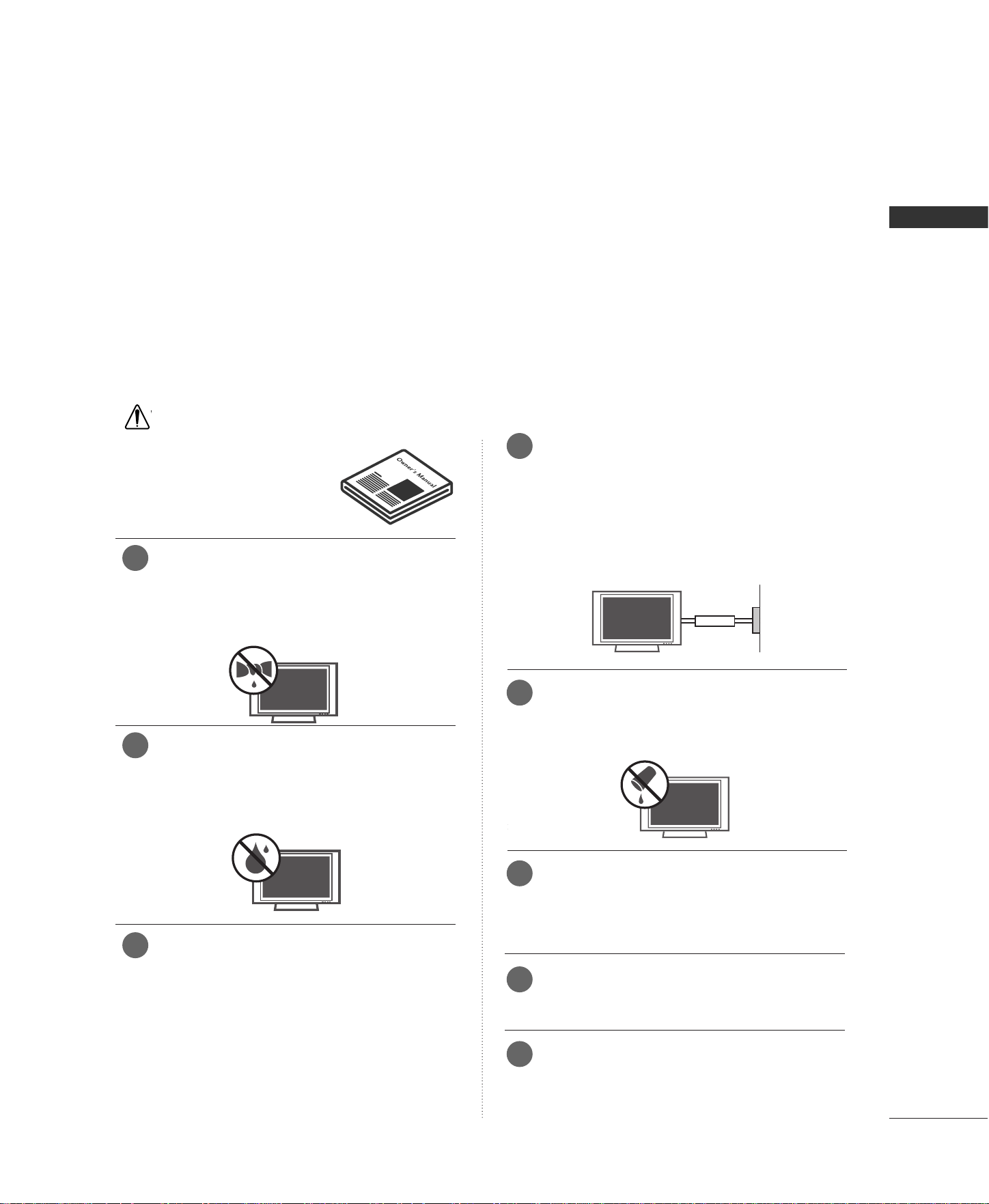
Do not place the product in direct sunlight or
near heat sources such as heat registers,
stove and so on.
This may cause a fire.
Do not use the product in damp place such
as a bathroom or any place where it is likely
to get wet.
This may cause a fire or could give an electric shock.
Bend antenna cable between inside and out-
side building to prevent rain from flowing in.
This may cause water damaged inside the product and could
give an electric shock.
Earth wire should be connected.
If the earth wire is not connected, there is possible a danger
of electric shock caused by the current leakage.
If grounding methods are not possible, a separate circuit
breaker should be employed and installed by a qualified
electrician.
Do not connect ground to telephone wires, lightning rods
or gas pipe.
Do not placing anything containing liquid on
top of the product.
This may cause a fire or could give an electric shock.
Wet Location Marking :
Apparatus shall not be exposed to dripping or splashing and
no objects filled with liquids, such as vases, shall be placed
on the apparatus.
Do not insert any object into the exhaust vent.
This may cause a fire or could give an electric shock.
Do not place heavy objects on the product.
This may cause serious injury to a child or adult.
Important safety instructions shall be provided with each apparatus. This information shall be given in a se-
parate booklet or sheet, or be located before any operating instructions in an instruction for installation for
use and supplied with the apparatus.
This information shall be given in a language acceptable to the country where the apparatus is intended to
be used.
The important safety instructions shall be entitled “Important Safety Instructions”. The following safety
instructions shall be included where applicable, and, when used, shall be verbatim as follows. Additional safe-
ty information may be included by adding statements after the end of the following safety instruction list. At
the manufacturer’s option, a picture or drawing that illustrates the intent of a specific safety instruction may
be placed immediately adjacent to that safety instruction :
Owner Manual
Owner Manual
Owner Manual
Owner Manual
Owner Manual
Owner Manual
Owner Manual
Owner Manual
Power
supplier
Short-circuit
breaker
1
4
5
6
7
8
2
3
WARNING
2
WARNING
IMPORTANT SAFETY INSTRUCTIONS
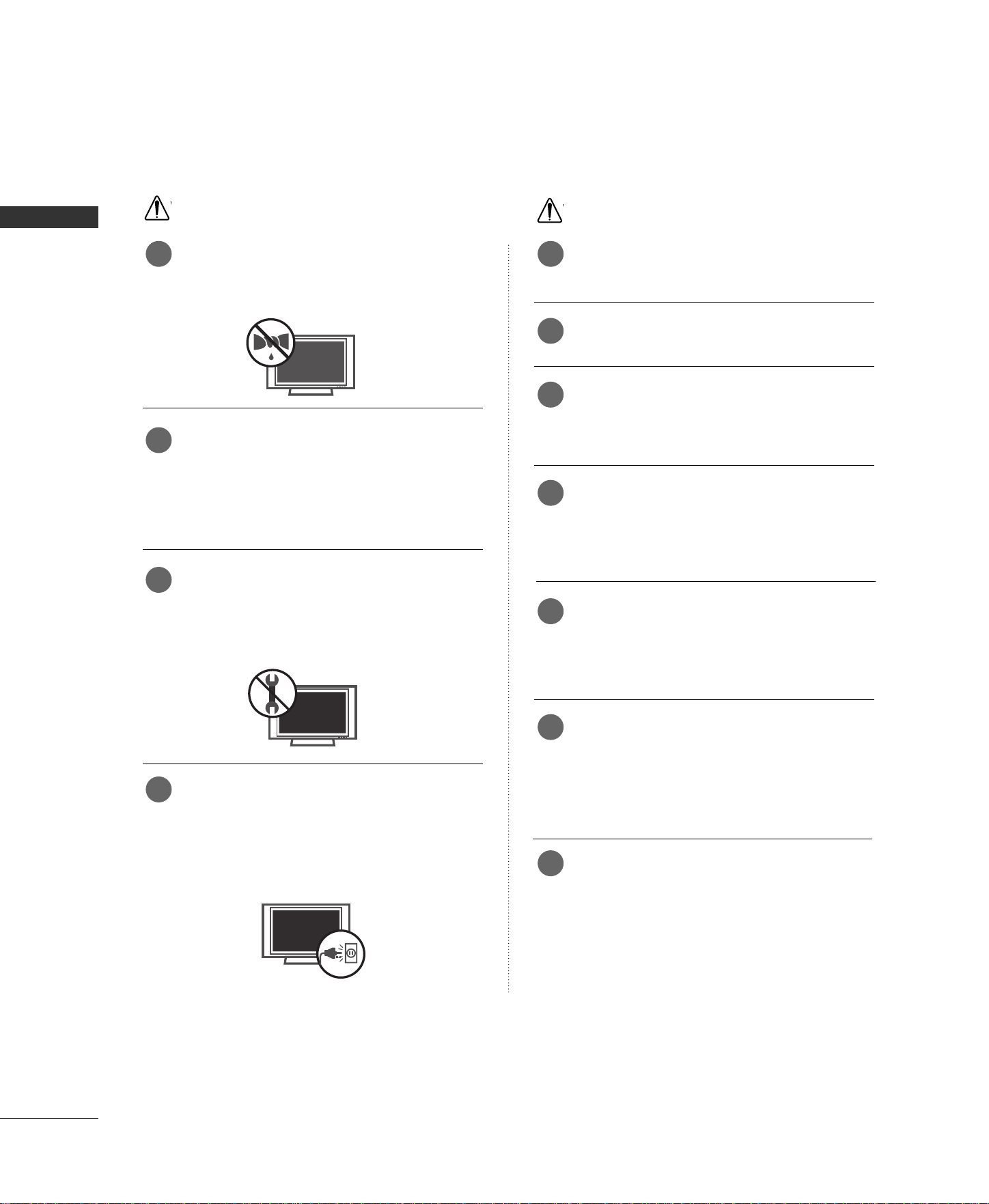
Do not use water the product while cleaning.
This may cause damaged the product or could give an elec-
tric shock.
In case of smoke or strange smell from the
product, switch it off ,unplug it from the wall
outlet and contact your dealer or service
center.
This may cause a fire or could give an electric shock.
Do not attempt to service the product your-
self. Contact your dealer or service center.
This may cause damaged the product or could give an electric
shock.
During a lightning thunder, unplug the product
from the wall outlet and don’t touch an
antenna cable.
This may cause damaged the product or could give an elec-
tric shock.
Never touch the power plug with a wet hand.
This may cause an electric shock.
Disconnect from the mains and remove all
connections before moving.
Do not place the product in a built-in
installation such as a bookcase or rack.
Ventilation required.
When installing the product on a table, be
careful not to place the edge of its stand.
This may cause the product to fall, causing serious injury to
a child or adult, and serious damage to the product.
Do not place an outside antenna in the vicinity
of overhead power lines or other electric light
or power circuits.
This may cause an electric shock.
There should be enough distance between an
outside antenna and power lines to keep the
former from touching the latter even when
the antenna falls.
This may cause an electric shock.
Do not pull the cord but the plug when
unplugging.
This may cause a fire.
Owner Manual
Owner Manual
W
WARNING
W
NOTE
Owner Manual
Owner Manual
9 1
2
3
4
5
6
7
10
11
12
Owner Manual
Owner Manual
WARNING
3
Ensure the power cord doesn’t trail across
any hot objects like a heater.
This may cause a fire or an electric shock.
Do not plug when the power cord or the plug
is damaged or the connecting part of the
power outlet is loose.
This may cause a fire or an electric shock.
Dispose of used batteries carefully to protect
a child from eating them.
In case that it eats them, take it to see a doctor immediately.
When moving the product assembled with
speakers do not carry holding the speakers.
This may cause the product to fall, causing serious injury to
a child or adult, and serious damage to the product.
Unplug this product from the wall outlet
before cleaning. Do not use liquid cleaners or
aerosol cleaners.
This may cause damaged the product or could give an electric
shock.
Contact the service center once a year to
clean the internal part of the product.
Accumulated dust can cause mechanical failure.
The distance between eyes and the screen
should be about 5 - 7 times as long as diag-
onal length of the screen.
If not, eyes will strain.
Unplug the product from the wall outlet when
it is left unattended and unused for long periods
of time.
Accumulated dust may cause a fire or an electric shock from
deterioration or electric leakage.
Only use the specified batteries.
This make cause damaged the product or could give an
electric shock.
W
NOTE
8
9
10
11
12
13
14
15
16

4
CONTENTS
CONTENTS
WARNING
. . . . . . . . . . . . . . . . . . . . . . . . . . . . . . . . . . . . . . . . . . . . . . . 1-3
INTRODUCTION
Accessories
. . . . . . . . . . . . . . . . . . . . . . . . . . . . . . . . . . . . . . . . . . . . . . . . . . . . . . 6
Home Menu . . . . . . . . . . . . . . . . . . . . . . . . . . . . . . . . . . . . . . . . . . . . . . . . . . . . . 7
Controls / Connection Options
. . . . . . . . . . . . . . . . . . . . . 8-9
Remote Control Key Functions
. . . . . . . . . . . . . . . . . . . . 10-11
INSTALLATION
Wire Arrangement . . . . . . . . . . . . . . . . . . . . . . . . . . . . . . . . . . . . . . . . . . . . 12
Attaching the TV to a Wall . . . . . . . . . . . . . . . . . . . . . . . . . . . . . . . 13
Desktop Pedestal Installation
. . . . . . . . . . . . . . . . . . . . . . . . . . . . 13
CONNECTIONS & SETUP
Antenna Connection
. . . . . . . . . . . . . . . . . . . . . . . . . . . . . . . . . . . . . . . . 14
VCR Setup . . . . . . . . . . . . . . . . . . . . . . . . . . . . . . . . . . . . . . . . . . . . . . . . 15-16
External Equipment Connections
. . . . . . . . . . . . . . . . . . . . . . 17
External Stereo
. . . . . . . . . . . . . . . . . . . . . . . . . . . . . . . . . . . . . . . . . . . . . . . . 17
AV out Setup
. . . . . . . . . . . . . . . . . . . . . . . . . . . . . . . . . . . . . . . . . . . . . . . . . . 18
DVD Setup
. . . . . . . . . . . . . . . . . . . . . . . . . . . . . . . . . . . . . . . . . . . . . . . .
19-20
HDSTB (Set-top box) Setup
. . . . . . . . . . . . . . . . . . . . . . 21-23
PC Setup . . . . . . . . . . . . . . . . . . . . . . . . . . . . . . . . . . . . . . . . . . . . . . . . . . . 24-26
BASIC OPERATION
Turning the TV On . . . . . . . . . . . . . . . . . . . . . . . . . . . . . . . . . . . . . . . . . . 27
Channel Selection
. . . . . . . . . . . . . . . . . . . . . . . . . . . . . . . . . . . . . . . . . . . 27
Volume Adjustment . . . . . . . . . . . . . . . . . . . . . . . . . . . . . . . . . . . . . . . . . 27
On-Screen Menus Language Selection
. . . . . . . . . . . . . 28
SPECIAL FUNCTIONS
DVR
(
Digital Video Recorder
)
Time Control
. . . . . . . . . . . . . . . . . . . . . . . . . . . . . . . . . . . . . . . . . . . . . . . . . 29
Progressing the Time Control function . . . . . . .30-31
Recording
. . . . . . . . . . . . . . . . . . . . . . . . . . . . . . . . . . . . . . . . . . . . . . . . . .32-33
Watching & Record . . . . . . . . . . . . . . . . . . . . . . . . . . . . . . . . . . . . . . . . .34
Recorded TV
. . . . . . . . . . . . . . . . . . . . . . . . . . . . . . . . . . . . . . . . . . . . . . . . . . .35
Recorded program Selection and
Popup Menu . . . . . . . . . . . . . . . . . . . . . . . . . . . . . . . . . . . . . . . . . . . . . .35-36
Playing recorded programs
. . . . . . . . . . . . . . . . . . . . . . . . . . . . . .36
Using the remote control
. . . . . . . . . . . . . . . . . . . . . . . . . . . . . . . .37
Manual Recording
. . . . . . . . . . . . . . . . . . . . . . . . . . . . . . . . . . . . . . . . . . .38
Scheduled List
. . . . . . . . . . . . . . . . . . . . . . . . . . . . . . . . . . . . . . . . . . . . . . . .39
Video Quality
. . . . . . . . . . . . . . . . . . . . . . . . . . . . . . . . . . . . . . . . . . . . . . . . . .
39
Format hard disk
. . . . . . . . . . . . . . . . . . . . . . . . . . . . . . . . . . . . . . . . . . . . .40
PIP/Double Window/POP
- Watching PIP/Double Window/POP . . . . . . . . . . . . . . . 41
- TV Program Selection for PIP
. . . . . . . . . . . . . . . . . . . . . . . . . 41
- Selecting an Input Signal Source
for PIP/Double Window
. . . . . . . . . . . . . . . . . . . . . . . . . . . . . . . . . 41
- Sub Picture Sizes Adjustment (PIP mode only) 42
- Moving the PIP Sub Picture(PIP mode only)
. . . 42
- Swaping the PIP/Double Window . . . . . . . . . . . . . . . . . . . 42
- Adjusting PIP Transparency (PIP mode only)
. . . 42
- POP (Picture-out-of-Picture) . . . . . . . . . . . . . . . . . . . . . . . . . 42

5
CONTENTS
TV MENU
On Screen Menus Selection and Adjustment . . . . 43
Setup(Channel)
Auto Program : Channel Search
. . . . . . . . . . . . . . . . . . . . . . . . 44
Manual Program : Adding /Deleting Channels . . . 45
Fine Tuning Adjustment
. . . . . . . . . . . . . . . . . . . . . . . . . . . . . . . . . . . 46
Booster
. . . . . . . . . . . . . . . . . . . . . . . . . . . . . . . . . . . . . . . . . . . . . . . . . . . . . . . . . . 47
Favorite Channels setup
. . . . . . . . . . . . . . . . . . . . . . . . . . . . . . . . . . . 48
Picture Adjustment
Auto Picture Control (APC)
. . . . . . . . . . . . . . . . . . . . . . . . . . . . . 49
Manual Picture Control (APC-User Option)
. . . . . . 50
Auto Color Temperature Control (ACC)
. . . . . . . . . . . 51
Manual Color Temperature Control (ACC-User Option)
. . 52
XD . . . . . . . . . . . . . . . . . . . . . . . . . . . . . . . . . . . . . . . . . . . . . . . . . . . . . . . . . . . . . . . . . 53
Advanced Cinema Mode Setup
. . . . . . . . . . . . . . . . . . . . . . . . 54
Advanced Black Level . . . . . . . . . . . . . . . . . . . . . . . . . . . . . . . . . . . . . . . 55
Reset
. . . . . . . . . . . . . . . . . . . . . . . . . . . . . . . . . . . . . . . . . . . . . . . . . . . . . . . . . . . . . 56
Sound Adjustment
Digital Auto Sound Processing (DASP) . . . . . . . . . . . . . 57
Manual Sound Control (DASP-User Option)
. . . . .
58
Auto Volume Leveler (AVL)
. . . . . . . . . . . . . . . . . . . . . . . . . . . . . . 59
Balance Adjustment
. . . . . . . . . . . . . . . . . . . . . . . . . . . . . . . . . . . . . . . . 60
TV Speaker Setup
. . . . . . . . . . . . . . . . . . . . . . . . . . . . . . . . . . . . . . . . . . . 61
Stereo/SAP Broadcasts Setup
. . . . . . . . . . . . . . . . . . . . . . . . . . 62
Time Setting
Clock Setup
. . . . . . . . . . . . . . . . . . . . . . . . . . . . . . . . . . . . . . . . . . . . . . . . . . . . 63
On/Off Timer Setup
. . . . . . . . . . . . . . . . . . . . . . . . . . . . . . . . . . . . . . . 64
Auto Off
. . . . . . . . . . . . . . . . . . . . . . . . . . . . . . . . . . . . . . . . . . . . . . . . . . . . . . . . . 65
Sleep Timer
. . . . . . . . . . . . . . . . . . . . . . . . . . . . . . . . . . . . . . . . . . . . . . . . . . . . 66
Special Features
Key Lock . . . . . . . . . . . . . . . . . . . . . . . . . . . . . . . . . . . . . . . . . . . . . . . . . . . . . . . . . 67
Closed Captions
. . . . . . . . . . . . . . . . . . . . . . . . . . . . . . . . . . . . . . . . . . . . . 68
XD Demo
. . . . . . . . . . . . . . . . . . . . . . . . . . . . . . . . . . . . . . . . . . . . . . . . . . . . . . . 69
Screen Adjustment
Auto Configure (RGB[PC] Mode Only) . . . . . . . . . . . . 70
Manual Configure
. . . . . . . . . . . . . . . . . . . . . . . . . . . . . . . . . . . . . . . . . . . . 71
Selecting Wide XGA Mode
. . . . . . . . . . . . . . . . . . . . . . . . . . . . . . 72
Aspect Ratio Control (ARC)
. . . . . . . . . . . . . . . . . . . . . . . . . . . . .
73
Initializing (Reset to Original Factory Settings)
. . 74
APPENDIX
External Control Device Setup
. . . . . . . . . . . . . . . . . . . . .75-81
IR Codes
. . . . . . . . . . . . . . . . . . . . . . . . . . . . . . . . . . . . . . . . . . . . . . . . .82-83
Programming the Remote Control
. . . . . . . . . . . . . . . . . . . 84
Programming Codes
. . . . . . . . . . . . . . . . . . . . . . . . . . . . . . . . 84-85
Troubleshooting Checklist . . . . . . . . . . . . . . . . . . . . . . . . . . 86-87
Maintenance
. . . . . . . . . . . . . . . . . . . . . . . . . . . . . . . . . . . . . . . . . . . . . . . . . . . 88
Product Specifications
. . . . . . . . . . . . . . . . . . . . . . . . . . . . . . . . . . . . . 88
6
ACCESSORIES
INTRODUCTION
INTRODUCTION
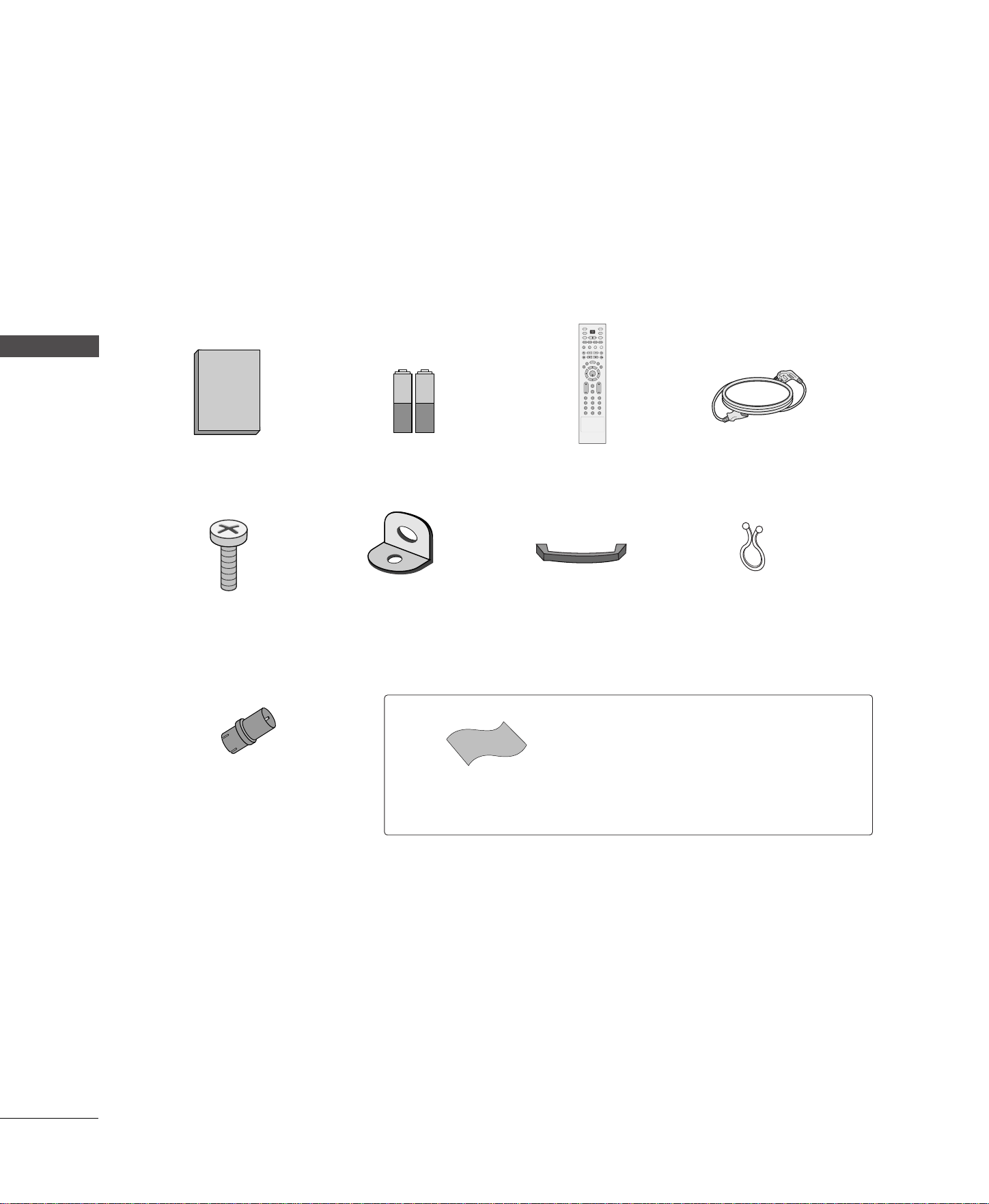
Ensure that the following accessories are included with your product. If an accessory is missing, please con-
tact the dealer where you purchased the product.
Owner's Manual
1.5V 1.5V
Owner’s Manual Batteries
(some models)
ENTER
INPUT
TVTV
INPUT
PIP CH- PIP CH+
PIP INPUT
DVD
ARC
EXIT
VOL
FCR
MUTE
CH
SLEEP
MEMORY/ERASE
CAPTION
PIP SIZE
POSITION
VCR
POWER
123
456
789
0
MTS
MENU
SWAP
LIVE TV
MARK
TIME
CONTROL
TIME
CONTROL
REVIEW
TIME
MACHINE
Remote Control Power Cord
2-TV Bracket Bolts
Cable Management
(Refer to p.12)
Twister Holder
Arrange the wires
with the twister holder.
RF Adapter
You must connect it to the antenna
wire after fixing in Antenna Input.
This adapter is only supplied in
Argentina.
2-TV Brackets,
2-Wall Brackets
* Slightly wipe stained spot on the exterior only with
the polishing cloth for the product exterior if there is
stain or fingerprint on surface of the exterior.
* Do not wipe roughly when removing stain. Please be
cautions of that excessive power may cause scratch or
discoloration.
Polishing Cloth
Polish the screen with the cloth.
7
HOME MENU
INTRODUCTION
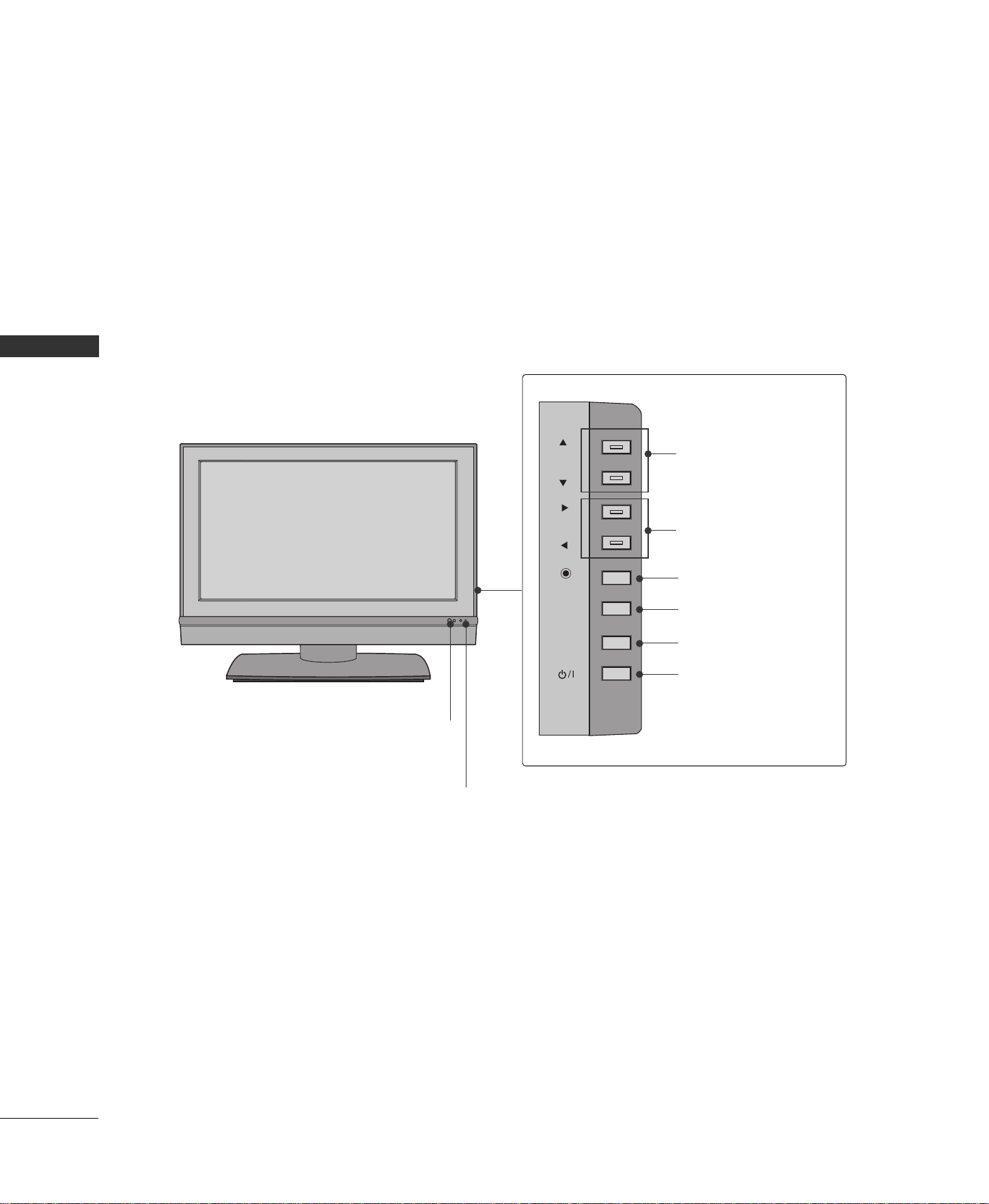
This menu is a contents guide.
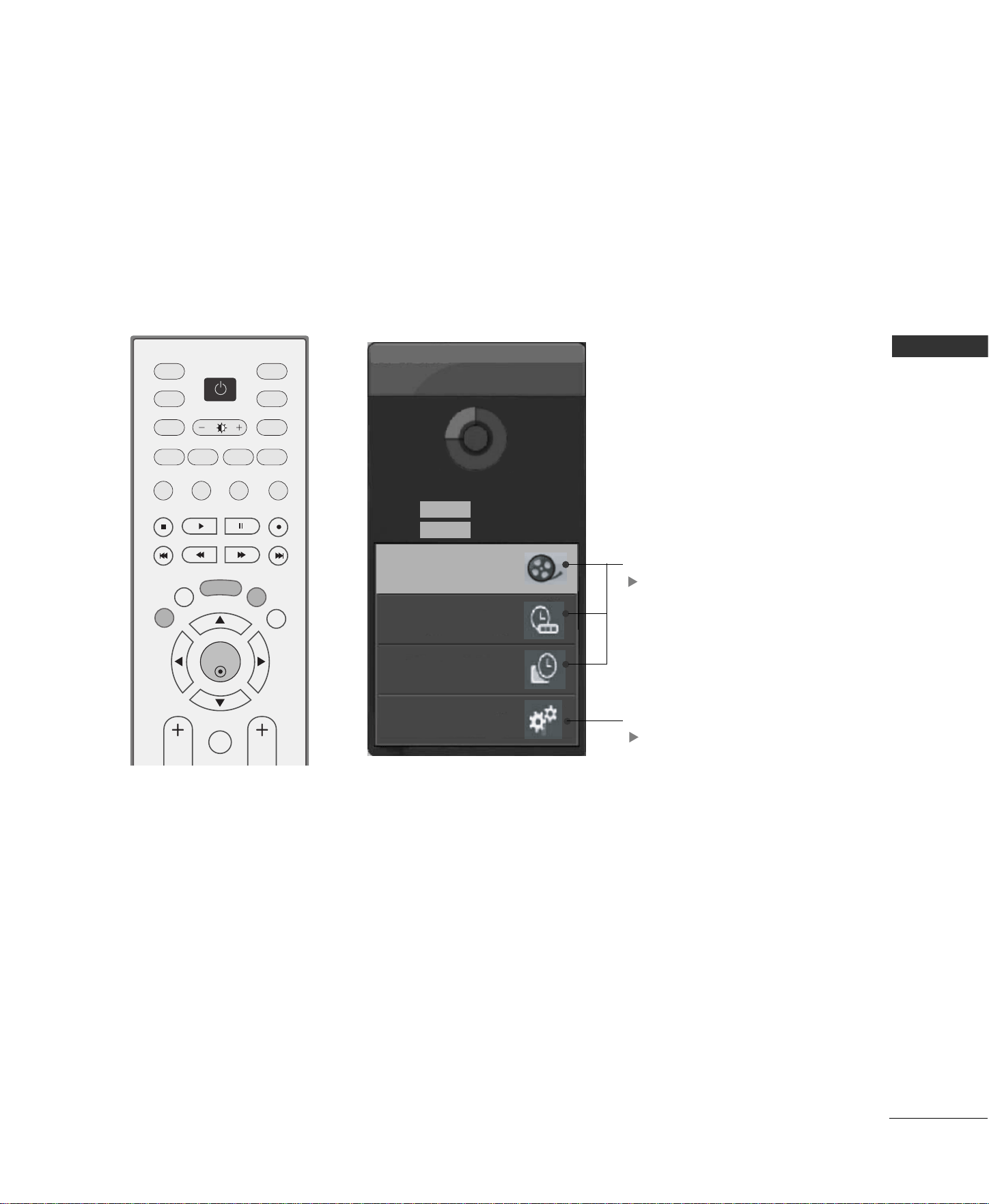
In Home Menu, you enter the Recorded TV, Manual Rec, Scheduled List or TV Menu.
ENTER
INPUT
TVTV
INPUT
PIP CH- PIP CH+
PIP INPUT
DVD
ARC
EXIT
TIME
MACHINE
VOL
FCR
CH
SLEEP
MEMORY/ERASE
CAPTION
PIP SIZE
POSITION
VCR
POWER
MENU
SWAP
LIVE TV
MARK
TIME
CONTROL
TIME
CONTROL
TIME MACHINE
DVR
pp..2299
TV Menu
pp..4433
Home
Free Space
3h 19m
High
Normal 5h 24m
Manual Rec.
Recorded TV
Scheduled List
TV Menu
8
INTRODUCTION
INTRODUCTION
■
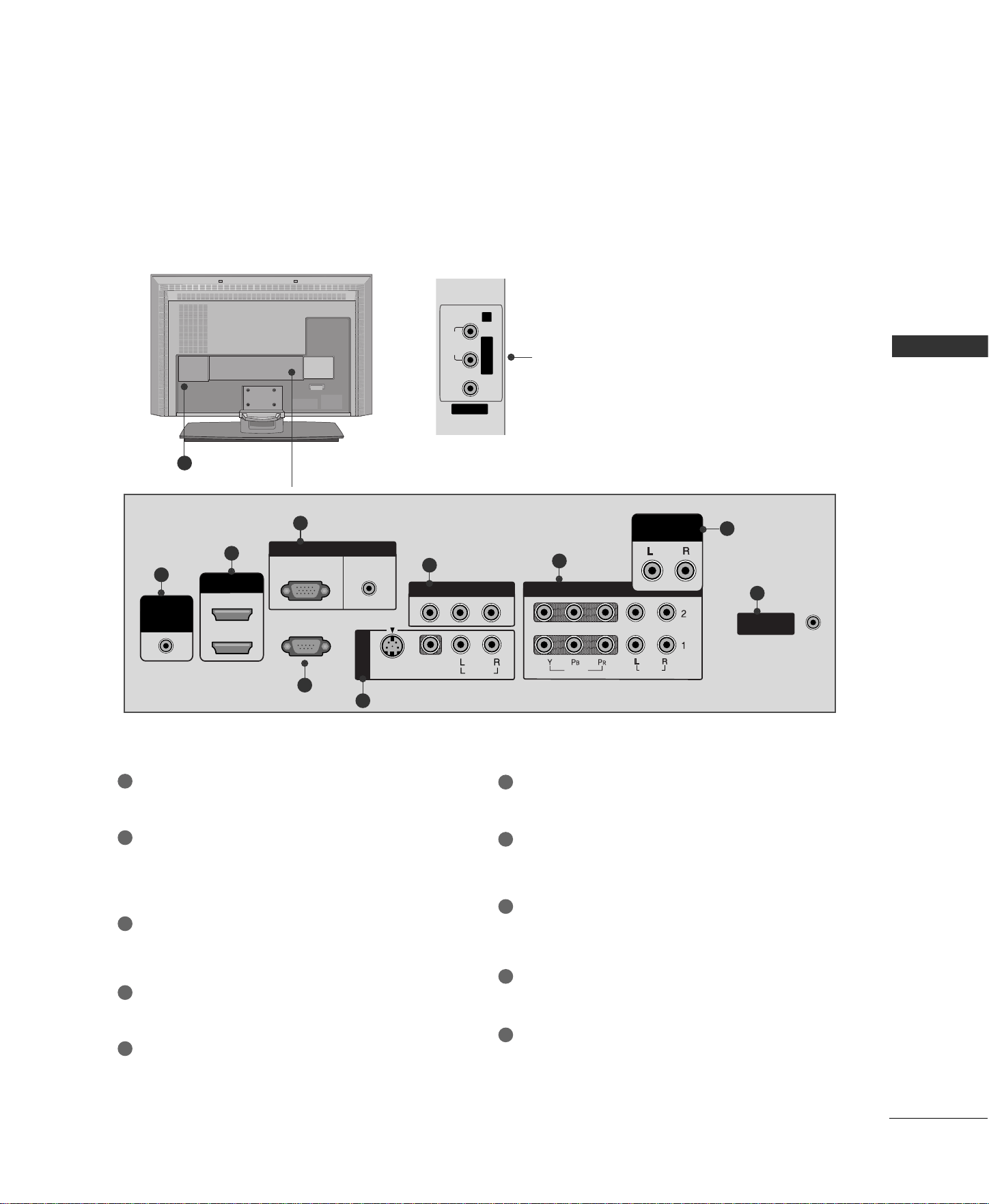
This is a simplified representation of the front panel. Here shown may be somewhat different from your TV.
Front Panel Controls
CHCH
VOLVOL
ENTERENTER
MENUMENU
INPUTINPUT
CHANNEL Buttons
VOLUME Buttons
ENTER Button
MENU Button
INPUT Button
POWER Button
CONTROLS
R
CH
VOL
ENTER
MENU
INPUT
Remote Control Sensor
Power Standby Indicator
Illuminates red in standby mode.
Illuminates white when the set is switched on.
9
CONNECTION OPTIONS
INTRODUCTION
MONO
( )
AUDIO
RS-232C IN
(CONTROL
&
SERVICE)
ANTENNA
IN
VIDEO
S-VIDEO
AV IN 1
RGB IN
AV OUT
VIDEO
AUDIO
HDMI IN
2
1 (DVI)
REMOTE
CONTROL
IN
RGB
(PC/DTV)
AUDIO
(RGB/DVI)
AUDIO OUT
VARIABLE
COMPONENT IN
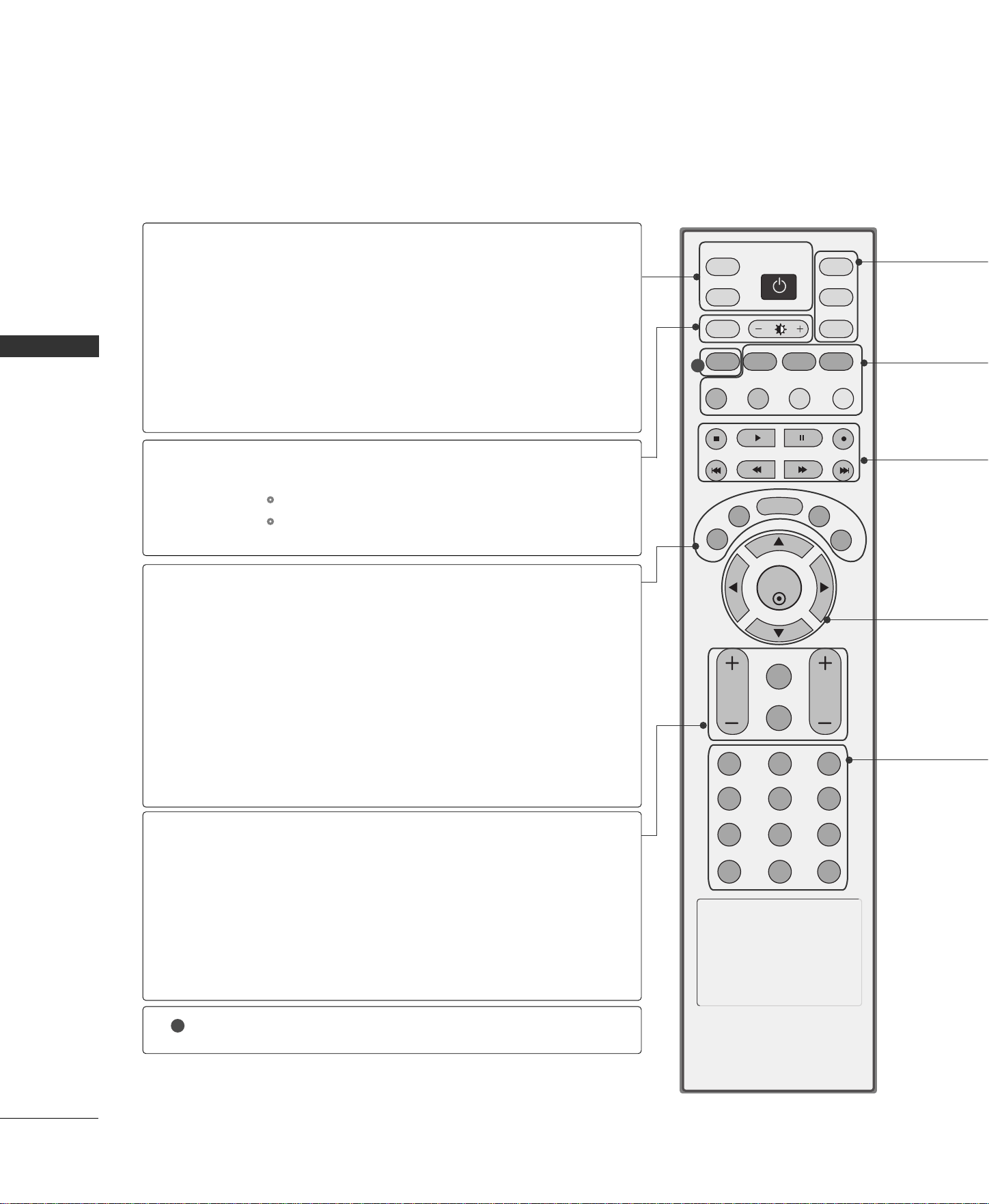
Back Connection Panel
AUDIO Input
Connections are available for listening stereo
sound from an external device.
VIDEO Input
Connects the video signal from a video
device.
Remote Control Port
Connect your wired remote control.
HDMI IN
Connect a HDMI signal.
Or DVI(VIDEO)signal to the this port with a DVI
to HDMI cable.
RGB/AUDIO IN
Connect the output from a settop box or PC to
the appropriate input port.
RS-232C IN (CONTROL &SERVICE) PORT
Connect to the RS-232C port on a PC.
AV (Audio/Video) IN 1
Connect audio/video output from an external
device to these jacks.
S-VIDEO
Connect S-Video out from an S-VIDEO device.
AV OUT
Connect a second TV or monitor.
COMPONENT IN
Connect a component video/audio device to
these jacks.
VARIABLE AUDIO OUT
Connect an external amplifier or add a subwoofer
to your surround sound system.
ANTENNA IN
Connect over-the air signals to this jack.
Power Cord Socket
For operation with AC power.
Caution: Never attempt to operate the TV on DC
power.
1
7
6
8
9
10
2
3
4
5
1
2
3
6
4
5
7
9
8
VIDEO
AV IN 2
L/MONO R
AUDIO
VIDEO
AUDIO
( )
AUDIO
RGB IN
(PC/DTV)
RS-232C IN
(CONTROL
&
SERVICE)
HDMI IN
ANTENNA
IN
VIDEO
S-VIDEO
AV IN 1
AUDIO OUT
VARIABLE
VIDEO
AUDIO
COMPONENT IN
AV OUT
AV IN 2
L/MONO
R
AUDIO
VIDEO
10
■
Here shown may be somewhat different from your TV.
INTRODUCTION
10
INTRODUCTION
REMOTE CONTROL KEY FUNCTIONS
When using the remote control, aim it at the remote control sensor on the TV.
ENTER
INPUT
TVTV
INPUT
PIP CH- PIP CH+
PIP INPUT
DVD
ARC
EXIT
VOL
FCR
MUTE
CH
SLEEP
MEMORY/ERASE
CAPTION
PIP SIZE
POSITION
VCR
POWER
123
456
789
0
MTS
MENU
SWAP
LIVE TV
MARK
REVIEW
TIME
CONTROL
TIME
CONTROL
TIME
MACHINE
POWER
TV INPUT
INPUT
ARC
Brightness
adjustment
EXIT
MEMORY/ERASE
TIME MACHINE
MENU
SLEEP
VOLUME UP
/DOWN
FCR
MUTE
CHANNEL
UP/DOWN
CAPTION
Turns your TV or any other programmed equipment on
or off, depending on mode.
Returns to the TV mode.
If you press the button once, the input source OSD will
appear on screen as shown. Press the
DD
/
EE
button and
then ENTER button to select the desired input source
(TV, AV1, AV2, Component 1, Component 2, RGB,
HDMI1/DVI, or HMDI 2).
Change the aspect ratio.
GG
pp..7733
Adjusts brightness on screen.
It returns to the default settings brightness by changing
mode source.
Clears all on-screen displays and returns to TV viewing
from any menu.
Memorizes or erases selected channel.
GG
pp..4455
Brings up the Home menu.
Displays the main menu.
Select the amount of time before your TV turns off auto-
matically.
GG
pp..6666
Increases/decreases the sound level.
Scroll through the programmed Favorite channels.
Switches the sound on or off.
Select available channels.
Selects CAPTION mode.
GG
pp..6688
1
1
11
INTRODUCTION
■
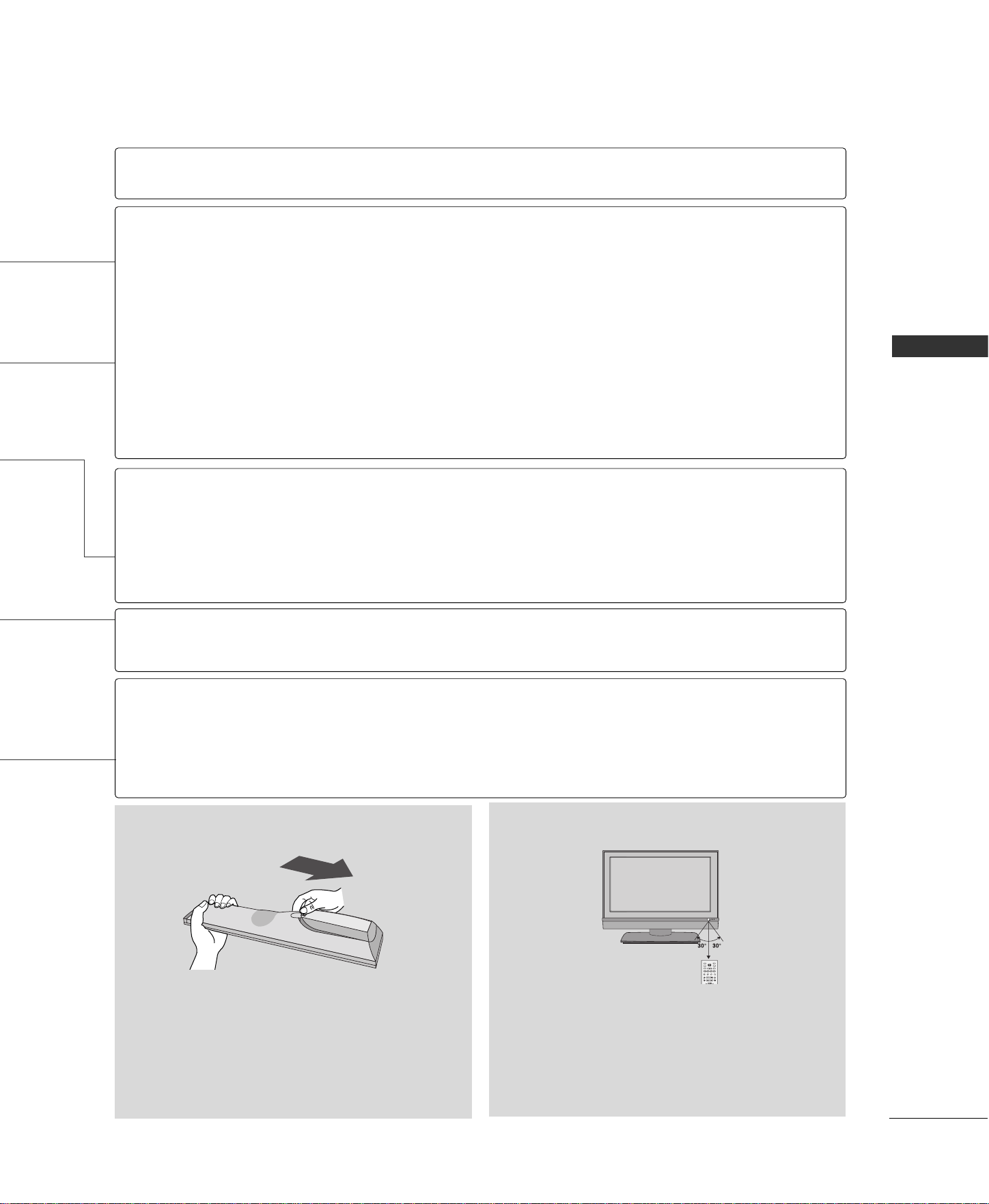
Open the battery compartment cover on the back
side and install the batteries matching correct
polarity
(
+with +,-with -
)
.
■
Install two 1.5V AA batteries. Don’t mix old or
used batteries with new ones.
■
Close cover.
■
Use a remote control up to 7 meters distance and
30 degree (left/right) within the receiving unit
scope.
■
Dispose of used batteries in a recycle bin to
preserve environment.
R
INPUT
TVTV
INPUT
PIP CH- PIP CH+
PIP INPUT
DVD
ARC
MEMORY/ERASE
CAPTION
PIP SIZE
POSITION
VCR
POWER
MENU
SWAP
LIVE TV
MARK
Installing Batteries Remote control effective range
Selects the remote operating mode: TV, VCR, DVD.
Switches the sub picture PIP, DW, POP mode.
GG
pp..4411
Adjusts the sub picture size.
GG
pp..4422
Moves the sub picture.
GG
pp..4422
Selects a channel for the sub picture.
GG
pp..4411
Exchanges the main/sub images in PIP/Double window mode.
GG
pp..4422
Select the connected input source for the sub-picture.
GG
pp..4411
Control video cassette recorders or DVD players.
These buttons are used for TIME MACHINE.
For further details, see the ‘TIME MACHINE’ section.
Selects the wanted functions.
GG
pp..3377
In TV, AV1, AV2, Component 1/2 480i modes, screen returns to the live program.
GG
pp..3377
Navigate the on-screen menus and adjust the system settings to your preference.
Scroll through the programmed Favorite channels.
Selects the MTS sound:
MMoonnoo
,
SStteerreeoo
, or
SSAAPP
.
GG
pp..6622
Tune to the last channel viewed.
NUMBER button
VCR/DVD
control buttons
MODE
PIP
SIZE
POSITION
PIP CH - /+
SWAP
PIP INPUT
MARK
LIVE TV
THUMBSTICK
(Up/Down/Left
/Right/ENTER)
MTS
REVIEW
12
INSTALLATION
INSTALLATION
WIRE ARRANGEMENT
AC IN
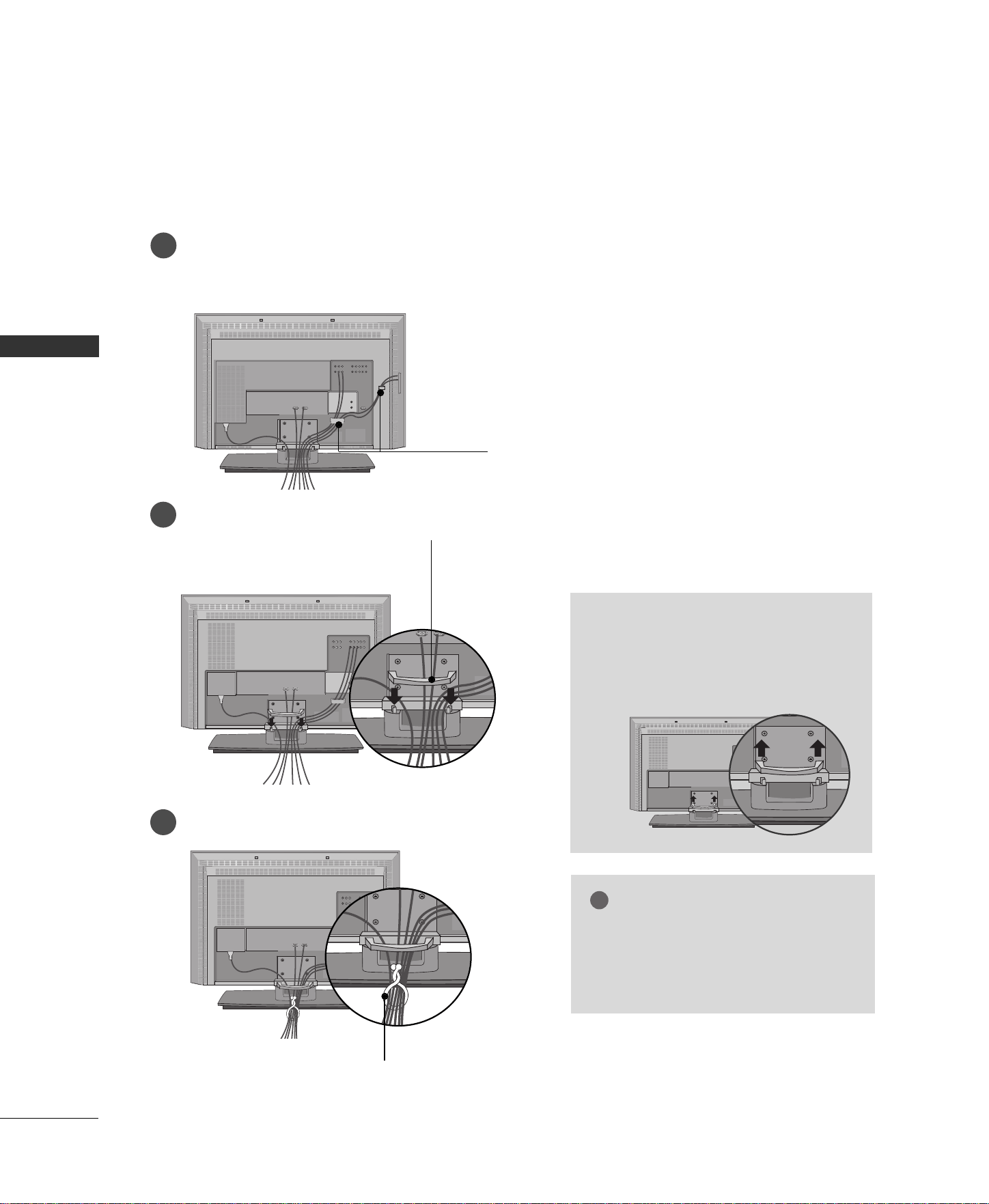
Connect the cables as necessary.
After connecting the cables neatly, arrange the cables to the Cable Holder.
To connect an additional equipment, see the Connections & Setup section.
Install the CABLE MANAGEMENT as shown.
How to remove the CABLE
MANAGEMENT
GG
Hold the CABLE MANAGEMENT
with both hands and pull it upward.
CABLE MANAGEMENT
GG
Do not hold the CABLE MANAGEMENT
when moving the product.
- If the product is dropped, you may be
injured or the product may be broken.
NOTE
!
CABLE HOLDER
1
2
Bundle the cables using the supplied twister holder.
3
TWISTER HOLDER
■
Here shown may be somewhat different from your TV.
13
INSTALLATION
ATTACHING THE TV TO A WALL
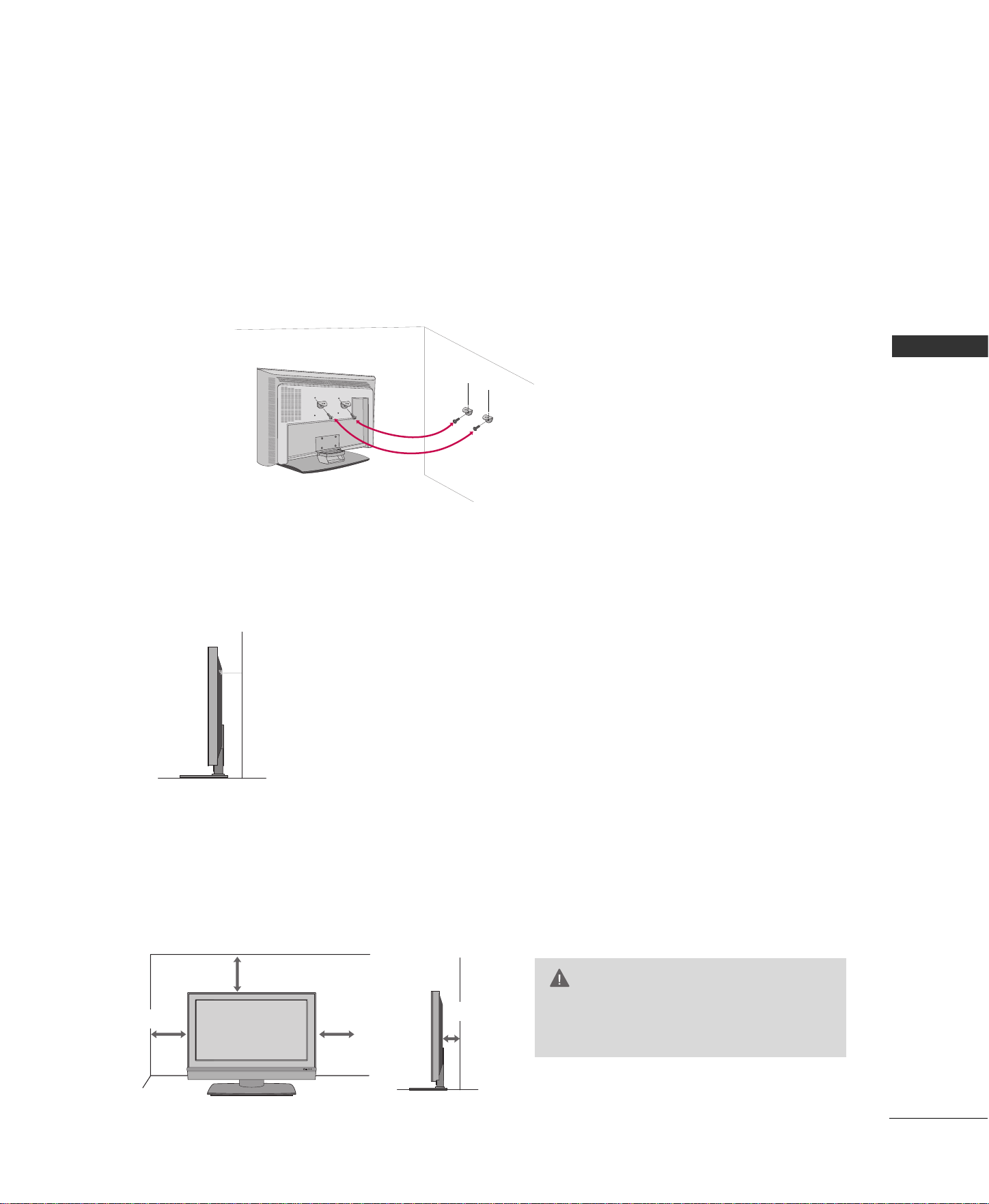
We recommend that you set up the TV close to a wall so it cannot fall over if pushed backwards.
Additionally, we recommend that the TV be attached to a wall so it cannot be pulled in a forward direction,
potentially causing injury or damaging the product.
Caution: Please make sure that children don’t climb on or hang from the TV.
■
Insert the eye-bolts (or TV brackets and bolts) to tighten the product to the wall as shown in the picture.
* If your product has the bolts in the eye-bolts position before inserting the eye-bolts, loosen the bolts.
Secure the wall brackets with the bolts (not provided as parts of the product, must purchase separately) on
the wall. Match the height of the bracket that is mounted on the wall to the holes in the product.
Ensure the eye-bolts or brackets are tightened securely.
■
Use a sturdy rope (not provided as parts of the product, must purchase
separately) to tie the product. It is safer to tie the rope so it becomes
horizontal between the wall and the product.
DESKTOP PEDESTAL INSTALLATION
For proper ventilation, allow a clearance of 4inches on each side from the wall.
R
4 inches
4 inches
GG
Ensure adequate ventilation by follow-
ing the clearance recommendations.
CAUTION
4 inches
4 inches
14
ANTENNA CONNECTION
CONNECTIONS & SETUP
CONNECTIONS & SETUP
■
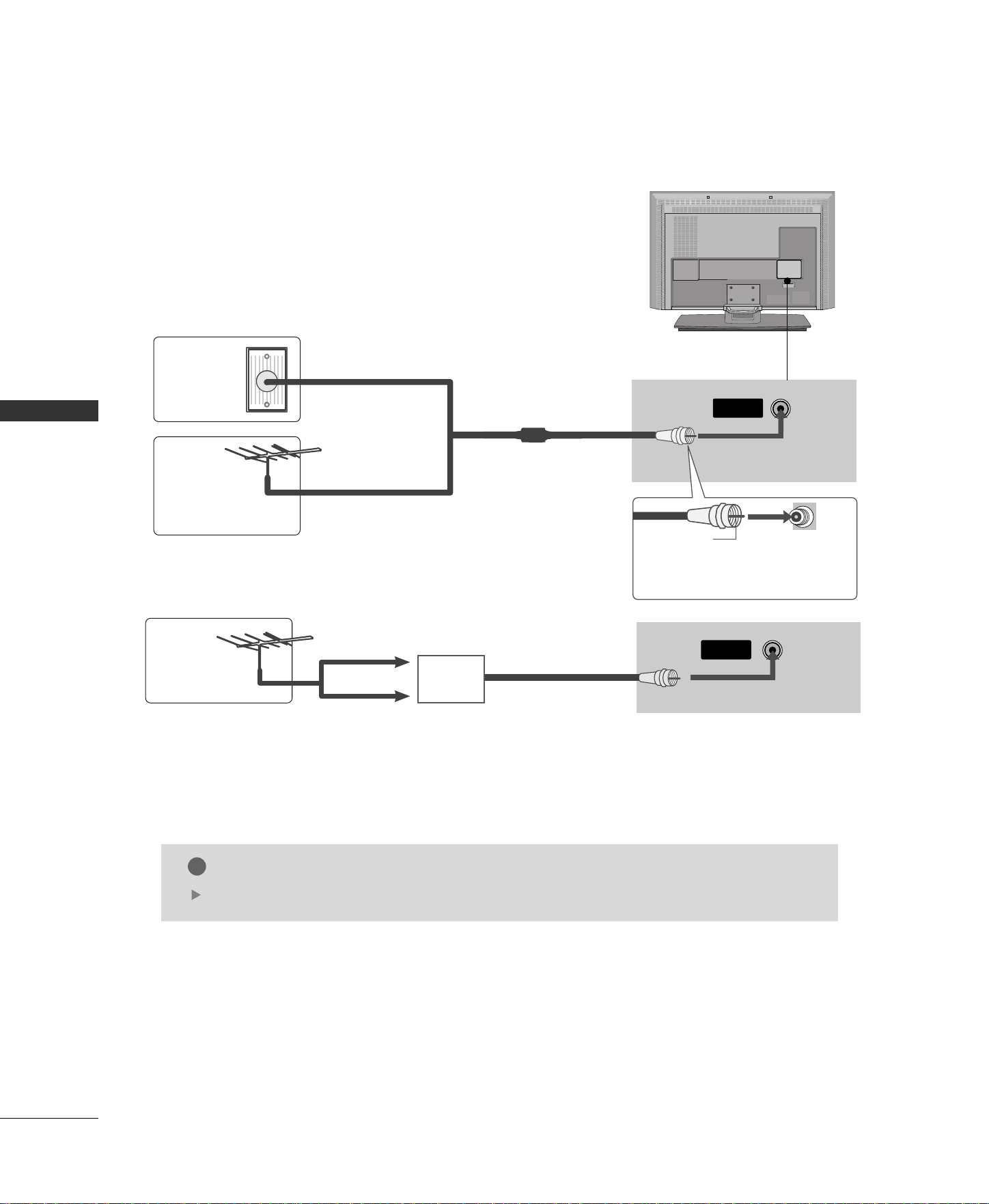
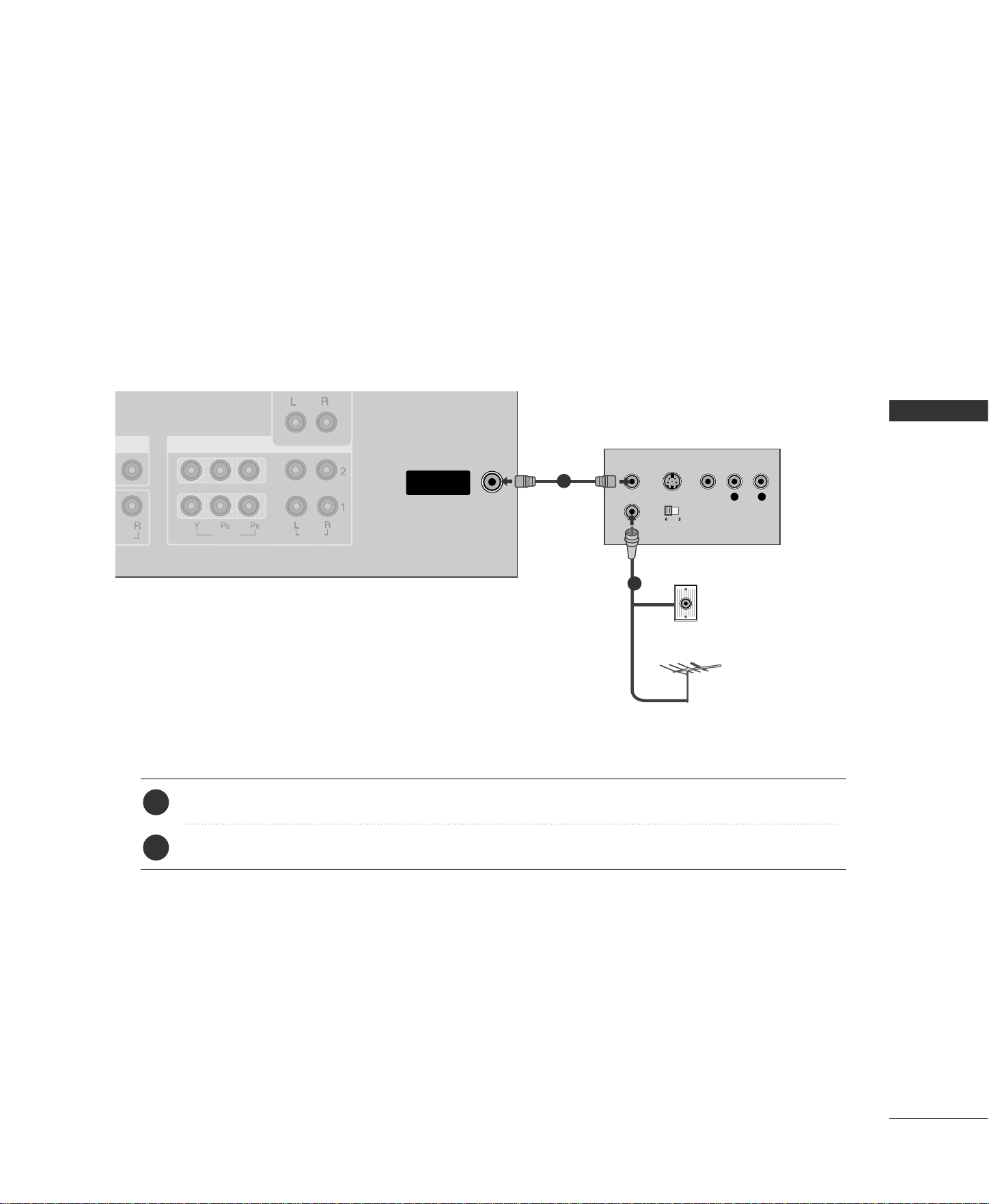
For optimum picture quality, adjust antenna direction.
■
An antenna cable and converter are not supplied.
ANTENNA
IN
Multi-family Dwellings/Apartments
(Connect to wall antenna socket)
Single-family Dwellings /Houses
(Connect to wall jack for outdoor antenna)
Outdoor
Antenna
(VHF, UHF)
Wall
Antenna
Socket
RF Coaxial Wire (75 ohm)
Bronze Wire
Be careful not to bend the bronze
wire when connecting the antenna.
( )
AUDIO
RGB IN
(PC/DTV)
RS-232C IN
(CONTROL
&
SERVICE)
HDMI IN
ANTENNA
IN
VIDEO
S-VIDEO
AV IN 1
AUDIO OUT
VARIABLE
VIDEO
AUDIO
COMPONENT IN
AV OUT
AV IN 2
L/MONO
R
AUDIO
VIDEO
The TV will let you know when the analog and cable channel scans are complete.
NOTE
!
ANTENNA
IN
Antenna
UHF
Signal
Amplifier
VHF
■
To improve the picture quality in a poor signal area, please purchase a signal amplifier and install properly.
■
If the antenna needs to be split for two TV’s, install a 2-Way Signal Splitter.
■
If the antenna is not installed properly, contact your dealer for assistance.
■
To prevent the equipment damage, never plug in any power cords until you have finished connecting all equipment.
CONNECTIONS & SETUP
15
VCR SETUP
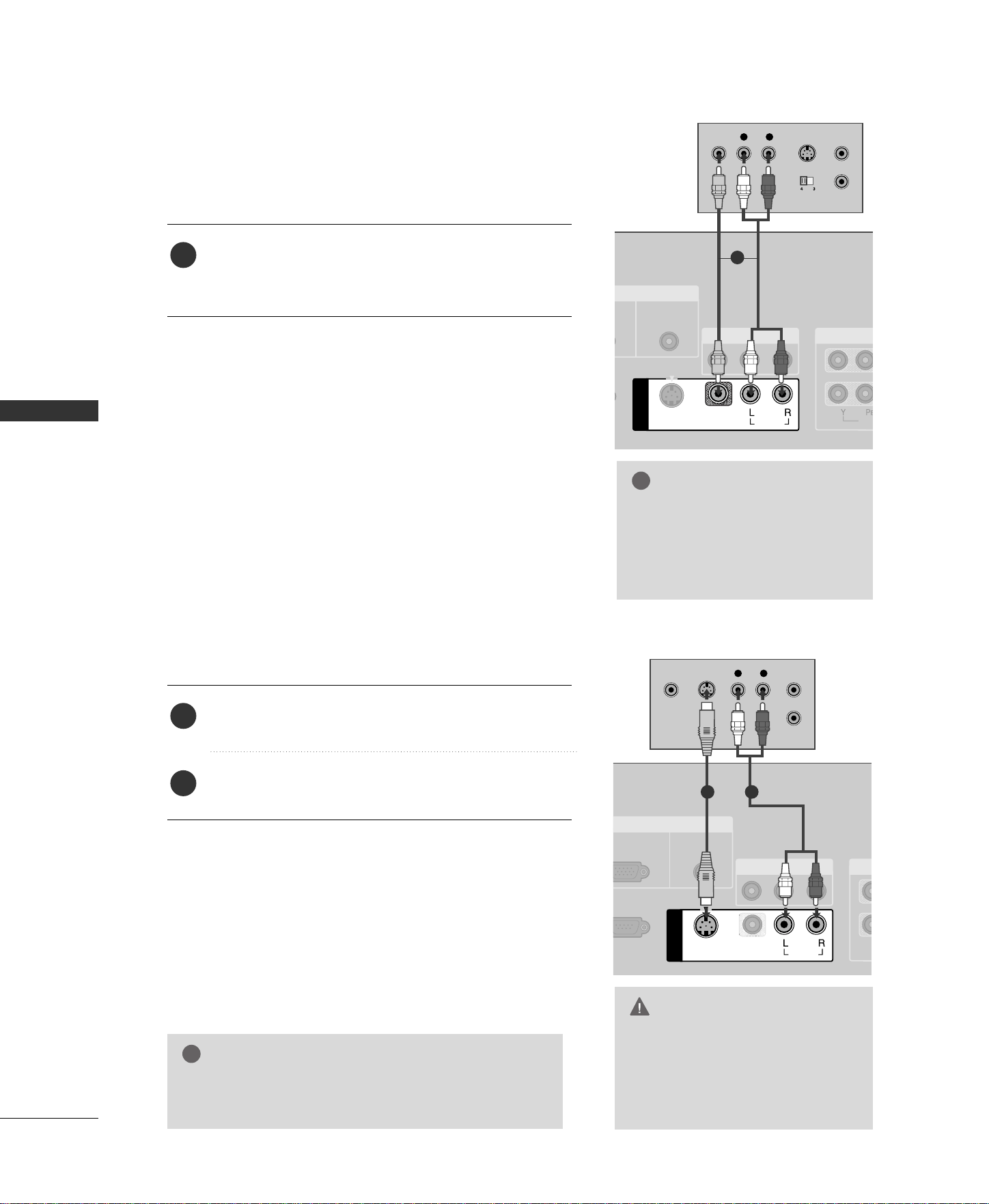
When connecting with an antenna
■
To avoid picture noise
(
interference
)
, leave an adequate distance between the VCR and TV
■
If the 4:3 picture format is used; the fixed images on the sides of the screen may remain visible on the
screen. This phenomenon is common to all manufactures and in consequence the manufactures warranty
does not cover the product bearing this phenomenon.
NO
)
UDIO
ANTENNA
IN
T
VIDEO
AUDIOUDIO
COMPONENT IN
L R
S-VIDEO VIDEO
OUTPUT
SWITCH
ANT IN
ANT OUT
VIDEO
AUDIO
VIDEO
AUDIO
Wall Jack
Antenna
Connect the RF antenna out socket of the VCR to the
AAnntteennnnaa
socket on the set.
Connect the antenna cable to the RF antenna in socket of the VCR.
1. How to connect
■
Set VCR output switch to 3 or 4 and then tune TV to the same channel number.
■
Insert a video tape into the VCR and press PLAY on the VCR.
(
Refer to the VCR owner’s manual.
)
2. How to use
2
1
2
1
16
CONNECTIONS & SETUP
GG
Do not connect to both Video
and S-Video at the same time. In
the event that you connect both
Video and the S-Video cables,
only the S-Video will work.
CAUTION
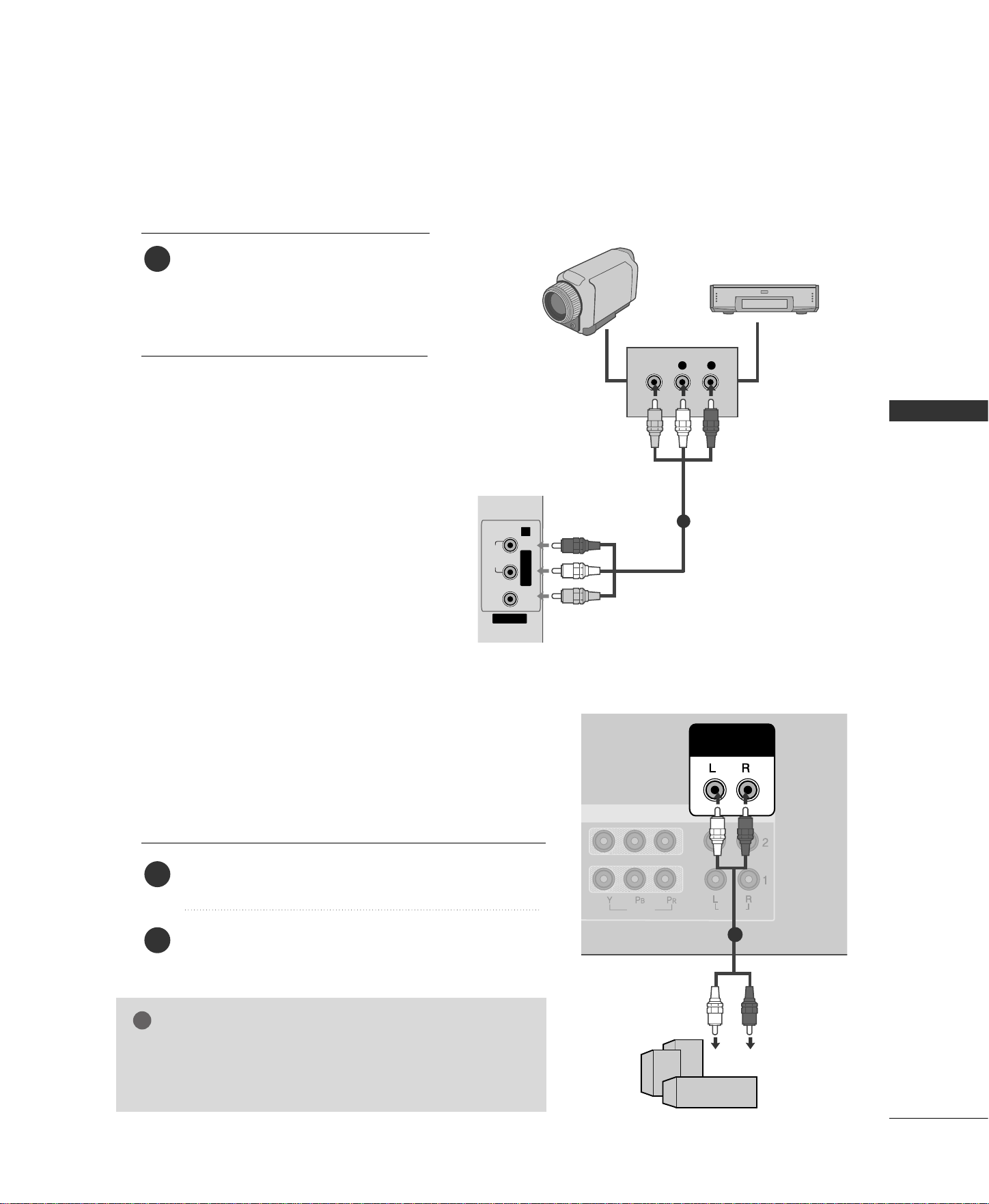
When connecting with a RCA cable
GG
The picture quality is improved: compared to normal
composite (RCA cable) input.
NOTE
!
VIDEO
AUDIO
VIDEO
AUDIO
N
ICE)
S-VIDEO
AV IN 1
GB IN
AV OUT
VIDEVIDEO
AUDIO
AUDIO
(RGB/DVI)
COMPON
MONO
( )
AUDIO
VIDEO
L R
S-VIDEOVIDEO
OUTPUT
SWITCH
ANT IN
ANT OUT
VIDEO
AUDIO
S-232C IN
ROL
&
SERVICE)
VIDEO
AV IN 1
RGB IN
AV OUT
VIDEO
AUDIO
RGB
PC/DTV)
AUDIO
(RGB/DVI)
CO
VIDEO
AUDIO
MONO
( )
AUDIO
S-VIDEO
L R
S-VIDEOVIDEO
OUTPUT
SWITCH
ANT IN
ANT OUT
Connect the
AAUUDDIIOO
/
VVIIDDEEOO
jacks between TV and
VCR. Match the jack colors (Video = yellow, Audio Left
= white, and Audio Right = red)
1. How to connect
2. How to use
■
Insert a video tape into the VCR and press PLAY on the
VCR.
(
Refer to the VCR owner’s manual.
)
■
Select
AAVV11
input source with using the
IINNPPUUTT
button on
the remote control.
■
If connected to
AAVV IINN22
, select
AAVV22
input source.
When connecting with an S-Video cable
Connect the S-VIDEO output of the VCR to the
SS --VVIIDDEEOO
input on the set.
Connect the audio outputs of the VCR to the
AAUUDDIIOO
input jacks on the set.
1. How to connect
2. How to use
■
Insert a video tape into the VCR and press PLAY on the VCR.
(
Refer to the VCR owner’s manual.
)
■
Select
AAVV11
input source with using the
IINNPPUUTT
button on
the remote control.
1
2
1
GG
If you have a mono VCR, con-
nect the audio cable from the
VCR to the
AAUUDDIIOO
LL//MMOONNOO
jack of the set.
NOTE
!
1
1 2
CONNECTIONS & SETUP
17
EXTERNAL EQUIPMENT CONNECTIONS
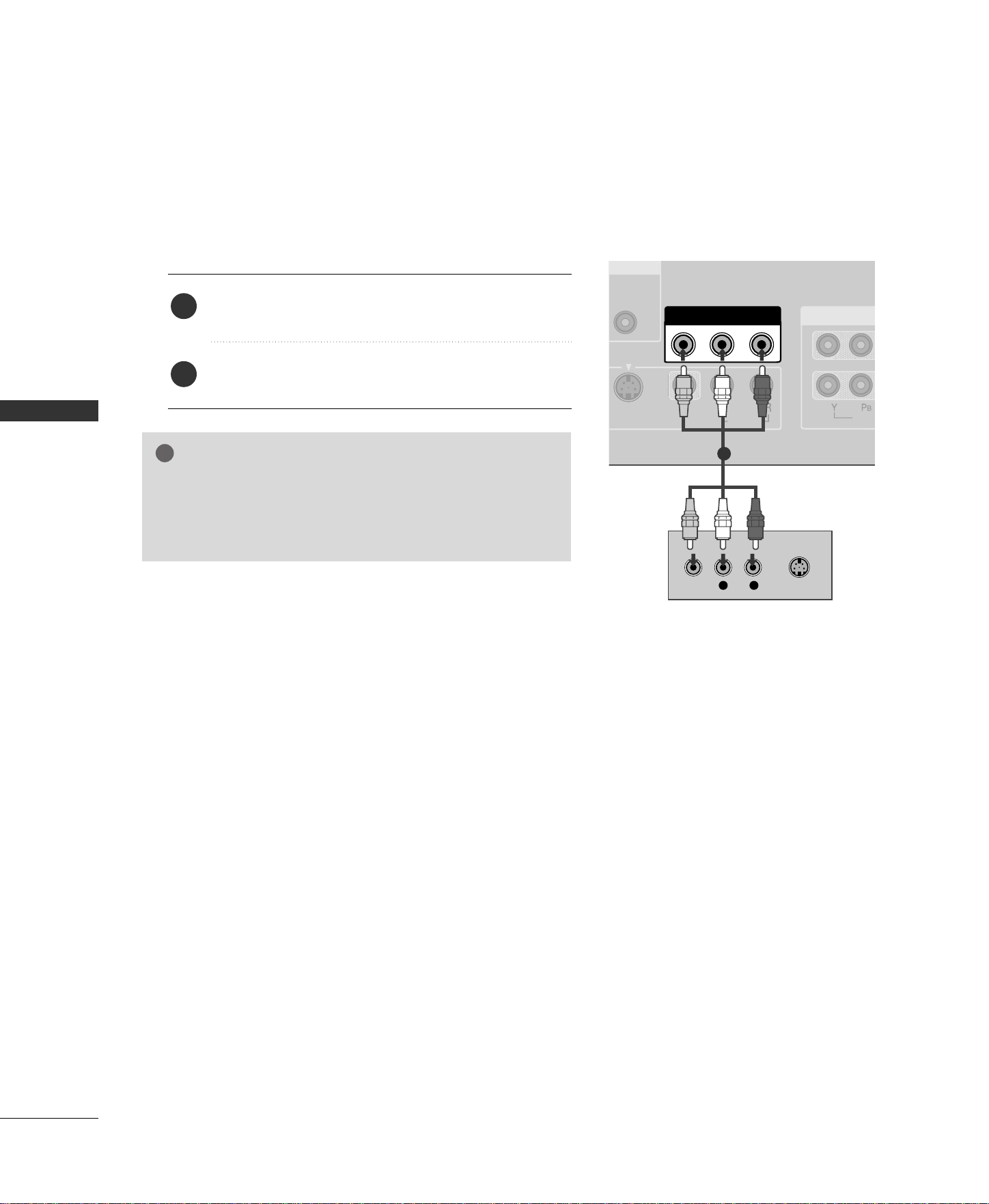
Connect the
AAUUDDIIOO
/
VVIIDDEEOO
jacks
between TV and external equipment.
Match the jack colors
.
(
Video = yellow, Audio Left = white, and
Audio Right = red
)
1. How to connect
2. How to use
■
Select
AAVV11
input source with using the
IINNPPUUTT
button on the remote control.
■
If connected to
AAVV IINN22
, select
AAVV22
input source.
■
Operate the corresponding external
equipment.
1
VIDEO
AV IN 2
L/MONO R
AUDIO
L R
VIDEO
Camcorder
Video Game Set
1
VIDEO
AUDIO
AUDIO OUT
VARIABLE
COMPONENT IN
GG
When connecting with external audio equipments, such as
amplifiers or speakers, please turn the TV speakers off.
(
GG
pp..6611
)
NOTE
!
EXTERNAL STEREO
Use to connected either an external amplifier, or add a sub-
woofer to your surround sound system.
Connect the input jack of the stereos amplifier to the
VVAARRIIAABBLLEE AAUUDDIIOO OOUUTT
jacks on the set.
Set up your speakers through your analog stereo
amplifier, according to the instructions provided with
the amplifier.
1. How to connect
2
1
11
18
AV OUT SETUP
The TV has a special signal output capability which allows you to hook up the second TV or monitor.
CONNECTIONS & SETUP
MONO
( )
AUDIO
VIDEO
S-VIDEO
AV OUT
VIDEO
AUDIO
AUDIO
RGB/DVI)
COMPONE
L R
S-VIDEOVIDEO
Connect the second TV or monitor to the TV’s
AAVV OOUUTT
jacks.
See the Operating Manual of the second TV or monitor
for further details regarding that device’s input settings.
1. How to connect
GG
Component, RGB, HDMI input sources cannot be used for
AV out.
GG
We recommend to use the AV OUT jacks for VCR recording.
NOTE
!
2
1
1
CONNECTIONS & SETUP
19
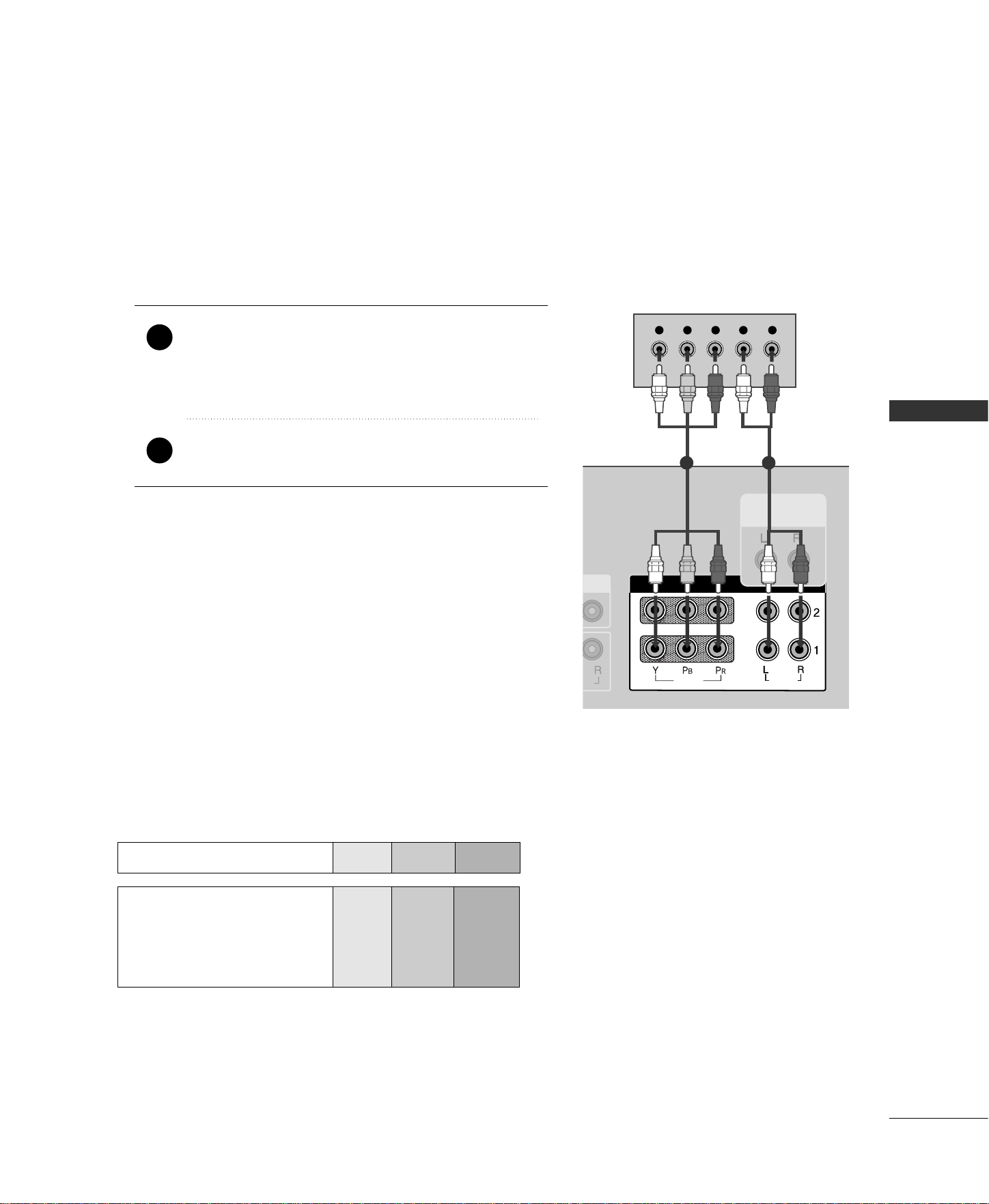
When connecting with a component cable
O
)
IO
AUDIO OUT
VARIABLE
COMPONENT IN
VIDEO
AUDIO
Y L RPB PR
VIDEO
AUDIO
VIDEO
AUDIO
Component Input ports
To get better picture quality, connect a DVD player to the component input ports as shown below.
Component ports on the TV
YPB PR
Video output ports
on DVD player
Y
Y
Y
Y
PB
B-Y
Cb
Pb
P
R
R-Y
Cr
Pr
Connect the video outputs
(
Y, PB
, PR
)
of the DVD to
the
CCOOMMPPOONNEENNTT IINN VVIIDDEEOO11
jacks on the set.
Match the jack colors
(
Y = green, P
B = blue, and PR = red
)
.
Connect the audio outputs of the DVD to the
CCOOMMPPOONNEENNTT IINN AAUUDDIIOO11
jacks on the set.
1. How to connect
2. How to use
■
Turn on the DVD player, insert a DVD.
■
Select
CCoommppoonneenntt 11
input source with using the
IINNPPUUTT
button on the remote control.
■
If connected to
CCOOMMPPOONNEENNTT IINN 22
input, select
CCoommppoonneenntt 22
input source.
■
Refer to the DVD player's manual for operating instructions.
2
1
1 2
DVD SETUP
20
CONNECTIONS & SETUP
CONNECTIONS & SETUP
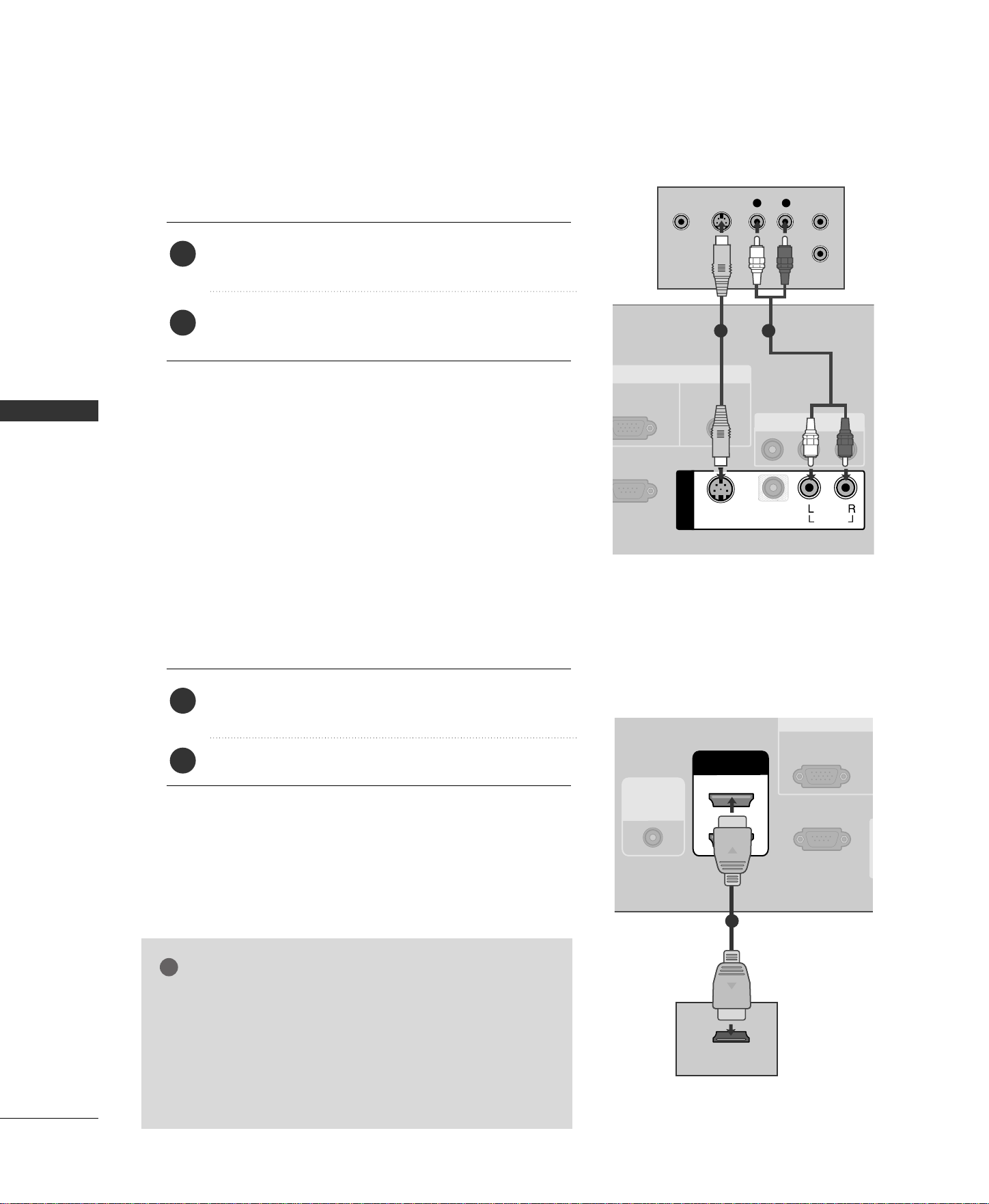
When connecting with an S-Video cable
VIDEO
AUDIO
S-232C IN
TROL
&
SERVICE)
VIDEO
AV IN 1
RGB IN
AV OUT
VIDEO
AUDIO
RGB
PC/DTV)
AUDIO
(RGB/DVI)
MONO
( )
AUDIO
S-VIDEO
L R
S-VIDEOVIDEO
OUTPUT
SWITCH
ANT IN
ANT OUT
VIDEO
AUDIO
VIDEO
AUDIO
VIDEO
AUDIO
RS-232C IN
(CONTROL
&
SERVICE)
RGB IN
VIDEO
AUDIO
HDMI IN
2
1 (DVI)
REMOTE
CONTROL
IN
RGB
(PC/DTV)
HDMI-DVD OUTPUT
Connect the S-VIDEO output of the DVD to the
SS --VVIIDDEEOO
input on the set.
Connect the audio outputs of the DVD to the
AAUUDDIIOO
input jacks on the set.
1. How to connect
2. How to use
■
Turn on the DVD player, insert a DVD.
■
Select
AAVV11
input source with using the
IINNPPUUTT
button on
the remote control.
■
Refer to the DVD player's manual for operating instructions.
When connecting HDMI cable
Connect the HDMI output of the DVD to the
HHDDMMII IINN 11((DDVVII))
or
HHDDMMII 22
jack on the set.
No separated audio connection is necessary.
1. How to connect
2. How to use
■
Select
HHDDMMII11//DDVVII
or
HHDDMMII22
input source with using
the
IINNPPUUTT
button on the remote control.
■
Refer to the DVD player's manual for operating instructions.
2
1
2
1
GG
If the DVD supports Auto HDMI function, the DVD output
resolution will be automatically set to 1280x720p.
GG
If the DVD does not support Auto HDMI, you need to set
the output resolution appropriately.
To get the best picture quality, adjust the output resolution
of the DVD to 1280x720p.
NOTE
!
1
1
2
CONNECTIONS & SETUP
21
HDSTB (SET-TOP BOX) SETUP
AUDIO OUT
VARIABLE
COMPONENT IN
VIDEO
AUDIO
Y L RPB PR
VIDEO
AUDIO
VIDEO
AUDIO
VIDEO
AUDIO
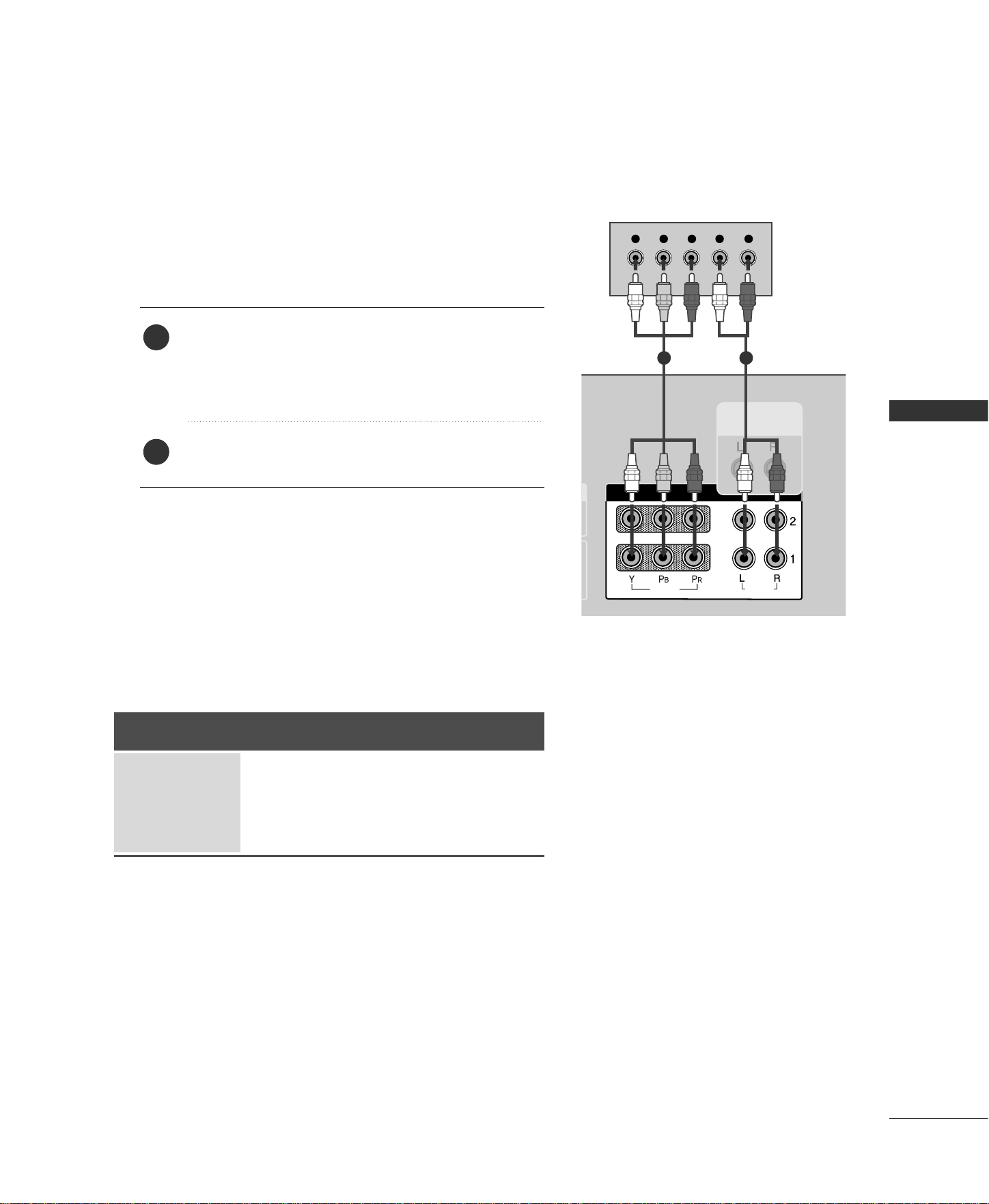
When connecting with a component cable
1. How to connect
Connect the video outputs
(
Y, P
B, PR
)
of the digital set
top box to the
CCOOMMPPOONNEENNTT IINN VVIIDDEEOO 11
jacks
on the set. Match the jack colors
(Y = green, P
B = blue, and PR = red).
Connect the audio output of the digital set-top box to
the
CCOOMMPPOONNEENNTT IINN AAUUDDIIOO 11
jacks on the set.
2
1
2. How to use
■
Turn on the digital set-top box.
(
Refer to the owner’s manual for the digital set-top box.
)
■
Select
CCoommppoonneenntt11
input source with using the
IINNPPUUTT
button on the remote control.
■
If connected to
CCOOMMPPOONNEENNTT IINN22
input, select
CCoommppoonneenntt22
input source.
Signal
480i
480p
720p
1080 i
Component 1/2
Yes
Yes
Yes
Yes
HDMI1/DVI,
RGB-DTV, HDMI2
No
Yes
Yes
Yes
1 2
22
CONNECTIONS & SETUP
CONNECTIONS & SETUP
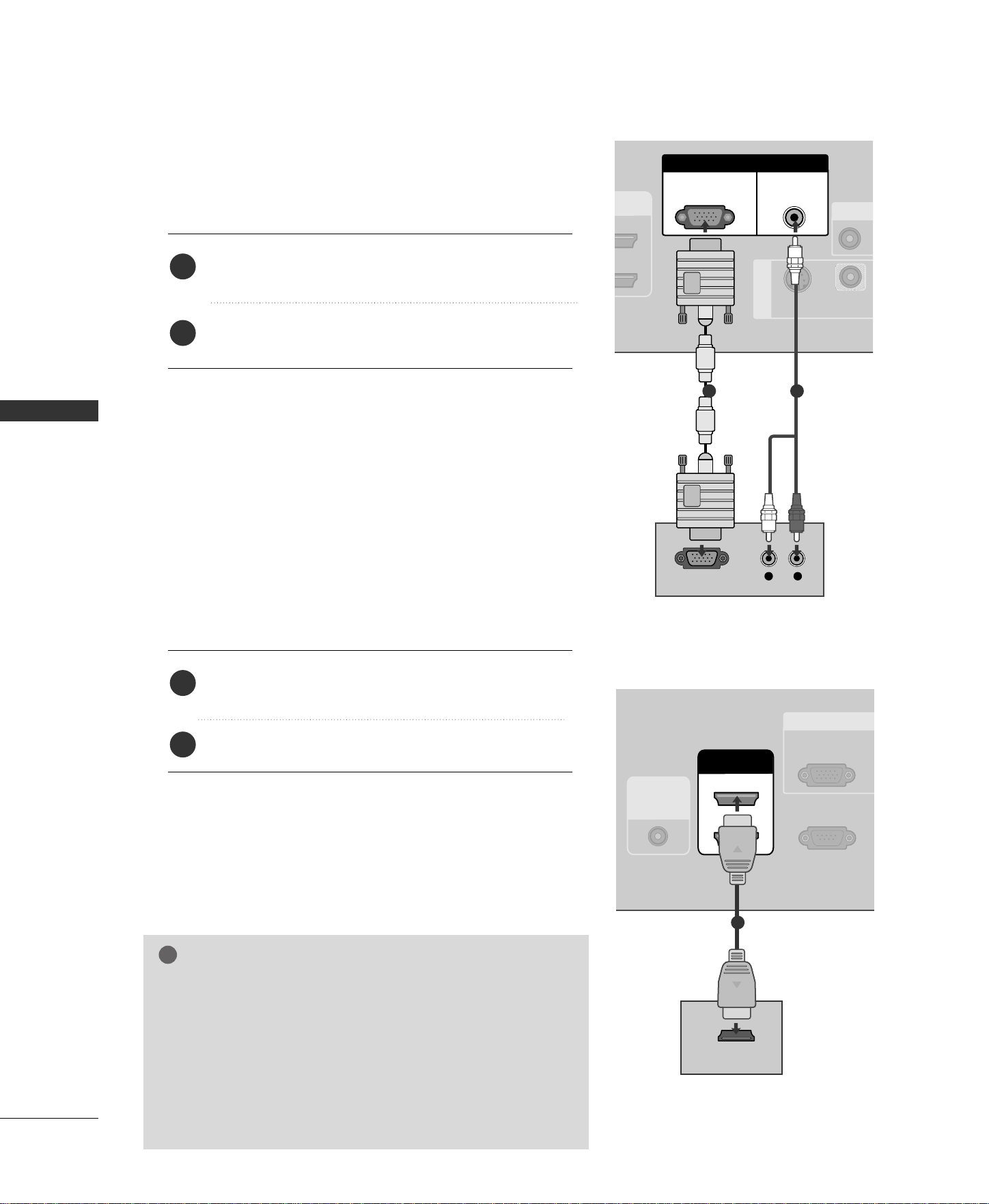
When connecting with a D-sub 15 pin cable
Connect the RGB output of the digital set-top box to
the
RRGGBB
((
PPCC//DDTTVV
))
jack on the set.
Connect the audio outputs of the set-top box to the
AAUUDDIIOO
((
RRGGBB//DDVVII
))
jack on the set.
1. How to connect
2. How to use
■
Turn on the digital set-top box.
(
Refer to the owner’s manual for the digital set-top box.
)
■
Select
RRGGBB--DDTTVV
input source with using the
IINNPPUUTT
button on the remote control.
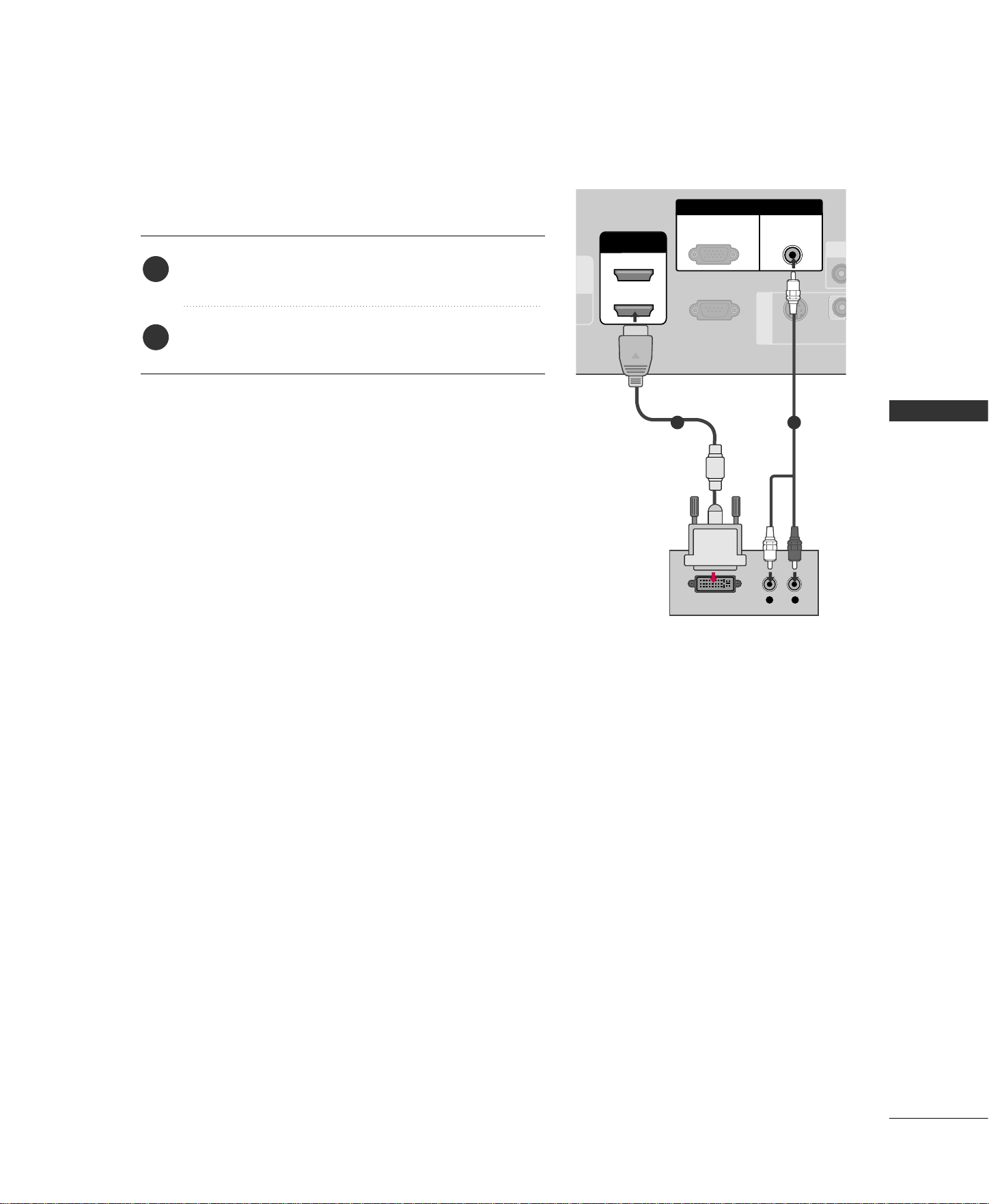
When connecting with a HDMI cable
Connect the digital set-top box to
HHDDMMII IINN 11((DDVVII))
or
HHDDMMII 22
jack on the set.
No separated audio connection is necessary.
1. How to connect
2. How to use
■
Turn on the digital set-top box.
(
Refer to the owner’s manual for the digital set-top box.
)
■
Select
HHDDMMII11//DDVVII
or
HHDDMMII22
input source with using
the
IINNPPUUTT
button on the remote control.
2
1
2
1
VIDEO
AUDIO
VIDEO
AUDIO
RS-232C IN
(CONTROL
&
SERVICE)
VIDEO
S-VIDEO
AV IN 1
RGB IN
A
VIDEO
AUDIO
RGB
(PC/DTV)
AUDIO
(RGB/DVI)
MI IN
2
DVI)
L R
RGB OUTPUT
VIDEO
AUDIO
VIDEO
AUDIO
RS-232C IN
(CONTROL
&
SERVICE)
RGB I
VIDEO
AUDIO
HDMI IN
2
1 (DVI)
REMOTE
CONTROL
IN
RGB
(PC/DTV)
HDMI-DVD OUTPUT
VIDEO
AUDIO
VIDEO
AUDIO
GG
If the digital set-top box supports Auto HDMI function, the
output resolution of the source device will be automatically
set to 1280x720p.
GG
If the digital set-top box player does not support Auto HDMI,
you need to set the output resolution appropriately.
To get the best picture quality, adjust the output resolution of
the source device to 1280x720p.
NOTE
!
1
1
2
CONNECTIONS & SETUP
23
When connecting with a HDMI to DVI cable
L R
DVI-DTV OUTPUT
VIDEO
AUDIO
VIDEO
AUDIO
VIDEO
AUDIO
RS-232C IN
(CONTROL
&
SERVICE)
VID
S-VIDEO
AV IN 1
RGB IN
VIDEO
AUDIO
TE
OL
RGB
(PC/DTV)
AUDIO
(RGB/DVI)
HDMI IN
2
1 (DVI)
1 2
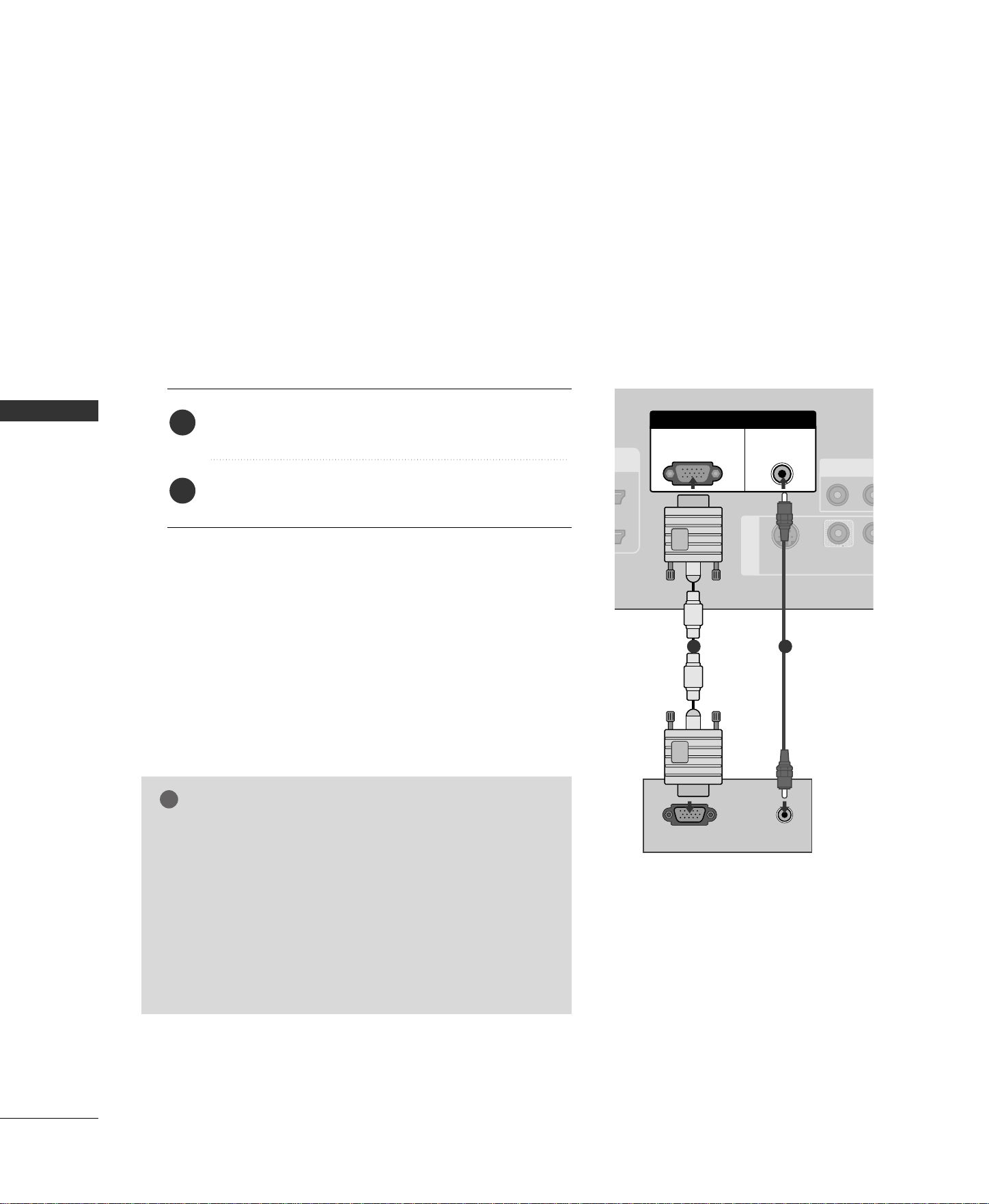
Connect the DVI output of the digital set-top box to the
HHDDMMII IINN 11((DDVVII))
jack on the set.
Connect the audio output of the digital set-top box to
the
AAUUDDIIOO
((
RRGGBB//DDVVII
))
jack on the set.
1. How to connect
2. How to use
■
Turn on the digital set-top box.
(
Refer to the owner’s manu-
al for the digital set-top box.
)
■
Select
HHDDMMII11//DDVVII
input source with using the
IINNPPUUTT
button on the remote control.
2
1
24
PC SETUP
CONNECTIONS & SETUP
CONNECTIONS & SETUP
This TV provides Plug and Play capability, meaning that the PC adjusts automatically to the TV's settings.
When connecting with a D-sub 15 pin cable
GG
Check the image on your TV. There may be noise associ-
ated with the resolution, vertical pattern, contrast or
brightness in PC mode. If noise is present, change the PC
output to another resolution, change the refresh rate to
another rate or adjust the brightness and contrast on the
VIDEO menu until the picture is clear. If the refresh rate
of the PC graphic card can not be changed, change the
PC graphic card or consult the manufacturer of the PC
graphic card.
NOTE
!
RS-232C IN
(CONTROL
&
SERVICE)
VIDEO
S-VIDEO
AV IN 1
RGB IN
AV O
VIDEO
AUDIO
RGB
(PC/DTV)
AUDIO
(RGB/DVI)
N
)
RGB OUTPUT
VIDEO
AUDIO
AUDIO
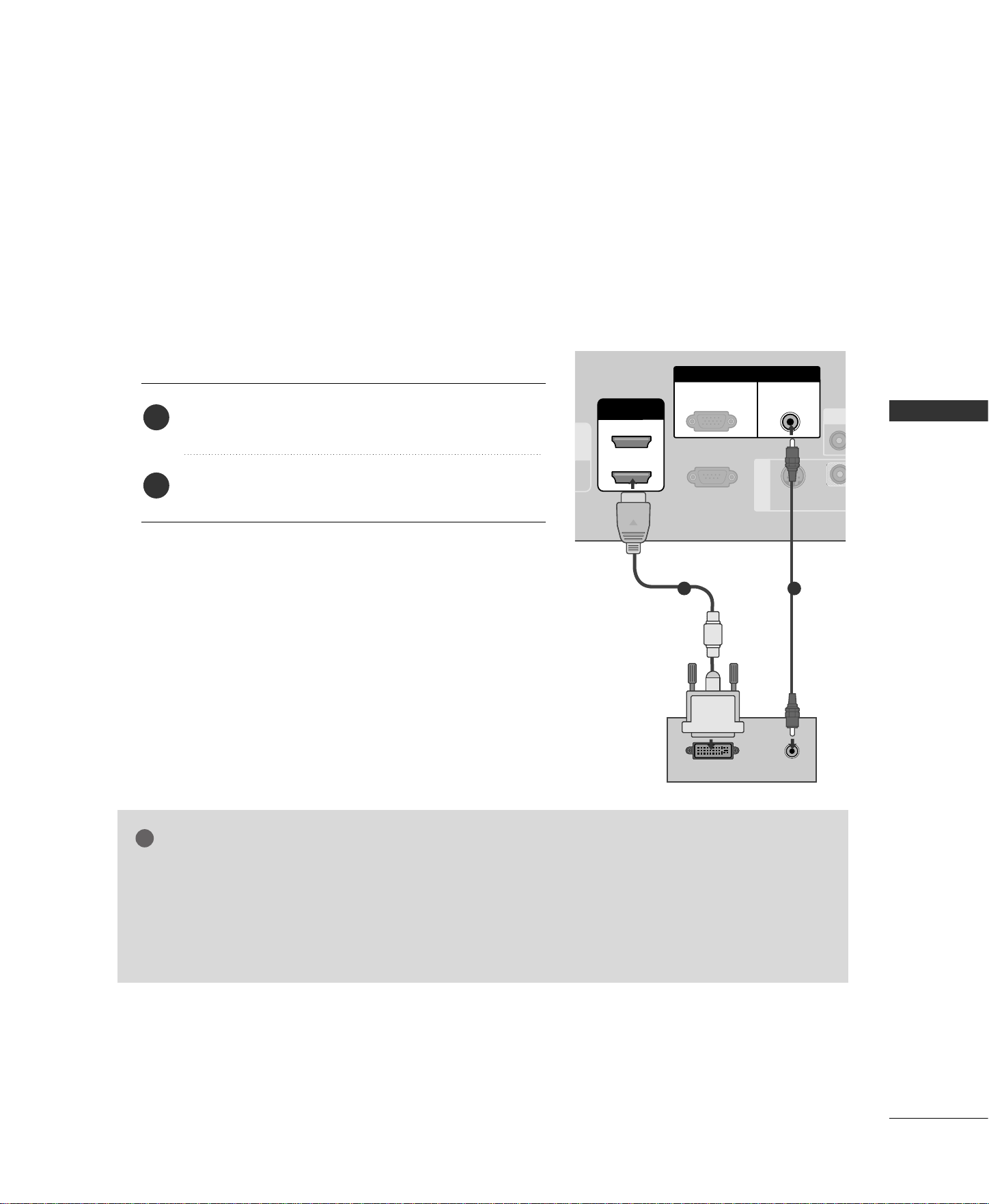
Connect the RGB output of the PC to the
RRGGBB
((
PPCC//DDTTVV
))
jack on the set.
Connect the PC audio output to the
AAUUDDIIOO
((
RRGGBB//DDVVII
))
jack on the set.
1. How to connect
2. How to use
■
Turn on the PC and the set.
■
Select
RRGGBB--PPCC
input source with using the
IINNPPUUTT
button
on the remote control.
2
1
1 2
CONNECTIONS & SETUP
25
When connecting HDMI to DVI cable
GG
HDMI2 source does not support DVI source.
GG
If the PC has a DVI output and no HDMI output, a separated audio connection is necessary.
GG
If the PC does not support Auto DVI, you need to set the output resolution appropriately. To get the
best picture quality, adjust the output resolution of PC graphics card's output resolution to 1360x768,
60Hz.
NOTE
!
DVI-PC OUTPUT
VIDEO
AUDIO
RS-232C IN
(CONTROL
&
SERVICE)
VIDE
S-VIDEO
AV IN 1
RGB IN
VIDEO
AUDIO
TE
OL
RGB
(PC/DTV)
AUDIO
(RGB/DVI)
HDMI IN
2
1 (DVI)
AUDIO
1 2
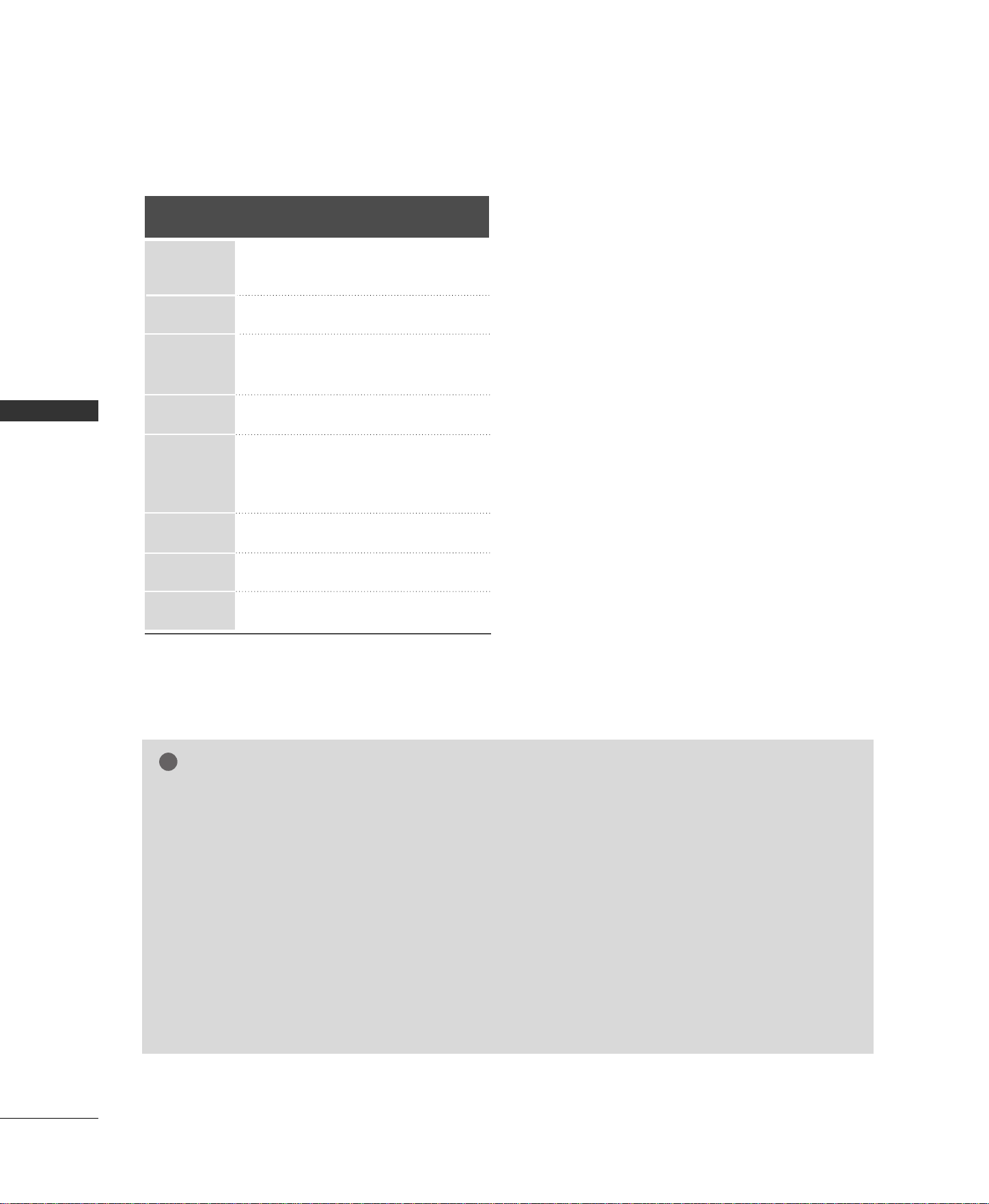
Connect the DVI output of the PC to the
HHDDMMII IINN
11((DDVVII))
jack on the set.
Connect the PC audio output to the
AAUUDD IIOO
((
RRGGBB//DDVVII
))
jack on the set.
1. How to connect
2. How to use
■
Turn on the PC and the set
■
Select
HHDDMMII11//DDVVII
input source with using the
IINNPPUUTT
button on the remote control.
2
1
26
CONNECTIONS & SETUP
CONNECTIONS & SETUP
NOTE
!
GG
We recommend using 1360x768, 60Hz for the PC mode, they provide the best picture quality.
GG
Depending on the graphics card, DOS mode may not work if a HDMI to DVI Cable is in use.
GG
When Source Devices connected with HDMI Input, output TV SET Resolution
(
480p, 720p, 1080i) and
TV SET Display fit EIA/CEA-861-B Specification to Screen. If not, refer to the Manual of HDMI Source
Devices or contact your service center.
GG
If the HDMI Source Device is not connected to the Cable or if there is a poor cable connection, "No sig-
nal" is displayed in the HDMI Input. In this case, that Video Resolution is not supported.
GG
Avoid keeping a fixed image on the screen for a long period of time. The fixed image may become perma-
nently imprinted on the screen.
GG
The synchronization input form for Horizontal and Vertical frequencies is separate.
GG
When you use too long RGB-PC cable, there might be a noise on the screen. We recommend using under
5m of the cable. It provides the best picture quality.
Horizontal Vertical
Frequency(KHz) Frequency(Hz)
31.469 59.94
37.500 75.00
31.469 70.08
37.879 60.31
46.875 75.00
49.725 74.55
48.363 60.00
56.476 70.06
60.023 75.02
47.693 59.99
47.700 60.00
47.700 60.00
Resolution
640x480
720x400
800x600
832x624
1024x768
1280x768
1360x768
1366x768
Supported Display Resolution (RGB[PC]/HDMI [PC] mode)
BASIC OPERATION
27
BASIC OPERATION
TURNING THE TV ON
First, connect power cord correctly.
At this moment, the TV switches to standby mode.
■
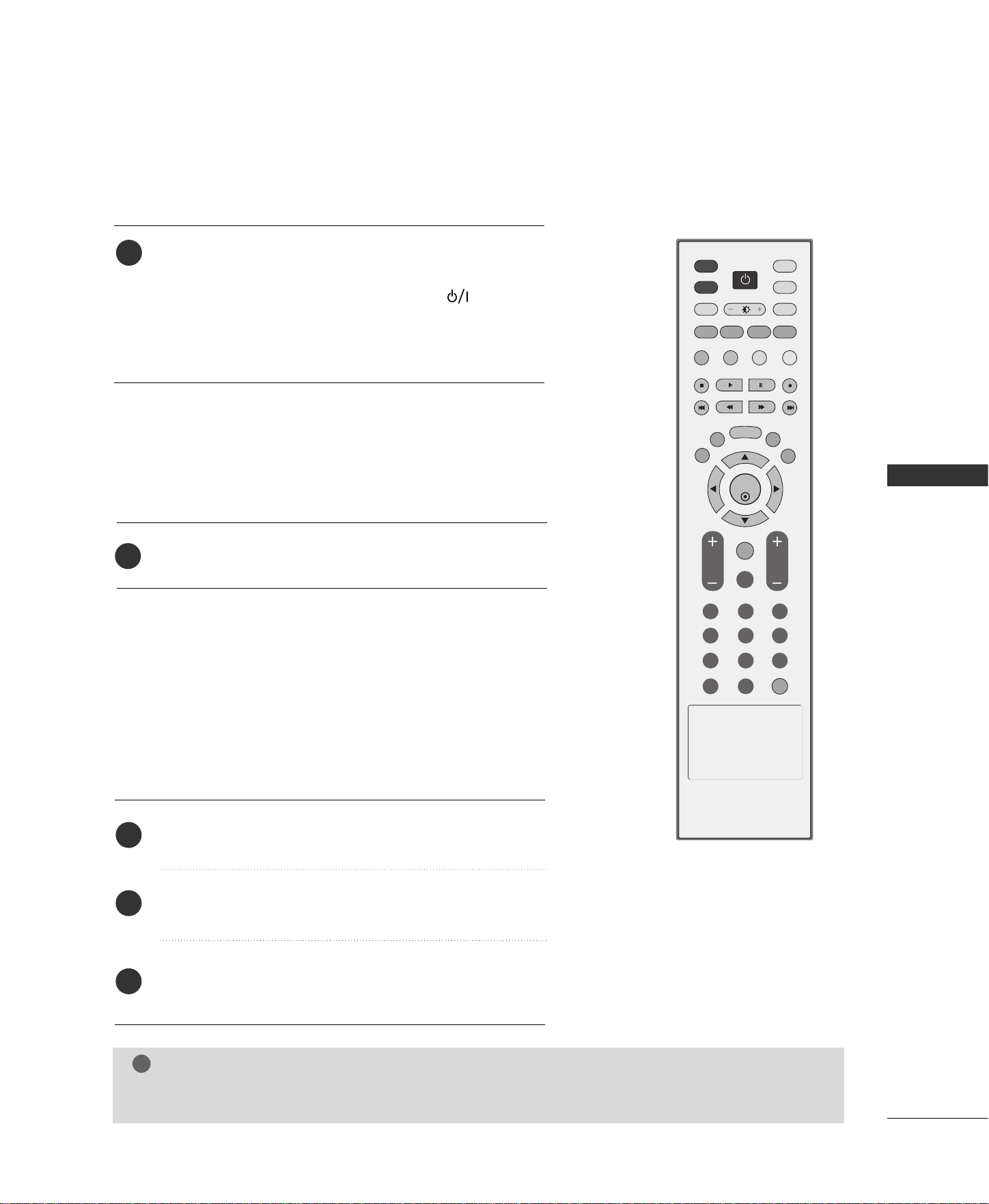
In standby mode to turn TV on, press the ,
IINNPPUUTT
,
CCHH
DD
/
EE
button on the TV or press the
PPOOWWEERR
,
TTVV
,
IINNPPUUTT
,
CCHH ++//--
,
NNuummbbeerr((00
~
99))
button on the remote
control and then the TV will switch on.
ENTER
INPUT
TVTV
INPUT
PIP CH- PIP CH+
PIP INPUT
DVD
ARC
EXIT
VOL
FCR
MUTE
CH
SLEEP
MEMORY/ERASE
CAPTION
PIP SIZE
POSITION
VCR
POWER
123
456
789
0
MENU
SWAP
LIVE TV
MARK
REVIEW
MTS
TIME
MACHINE
TIME
CONTROL
TIME
CONTROL
NOTE
!
GG
If you intend to be away on vacation, disconnect the power plug from wall power outlet.
1
Press the
CCHH ++//--
or
NNUUMMBBEERR
buttons to select a
channel number.
1
VOLUME ADJUSTMENT
CHANNEL SELECTION
Press the
VVOOLL ++//--
button to adjust the volume.
If you want to switch the sound off, press the
MMUUTTEE
button.
You can cancel the Mute function by pressing the
MMUUTTEE
,
VVOOLL ++//--
or
MMTTSS
button.
Adjust the volume to suit your personal preference.
1
2
3
28
ON-SCREEN MENUS LANGUAGE SELECTION
BASIC OPERATION
BASIC OPERATION
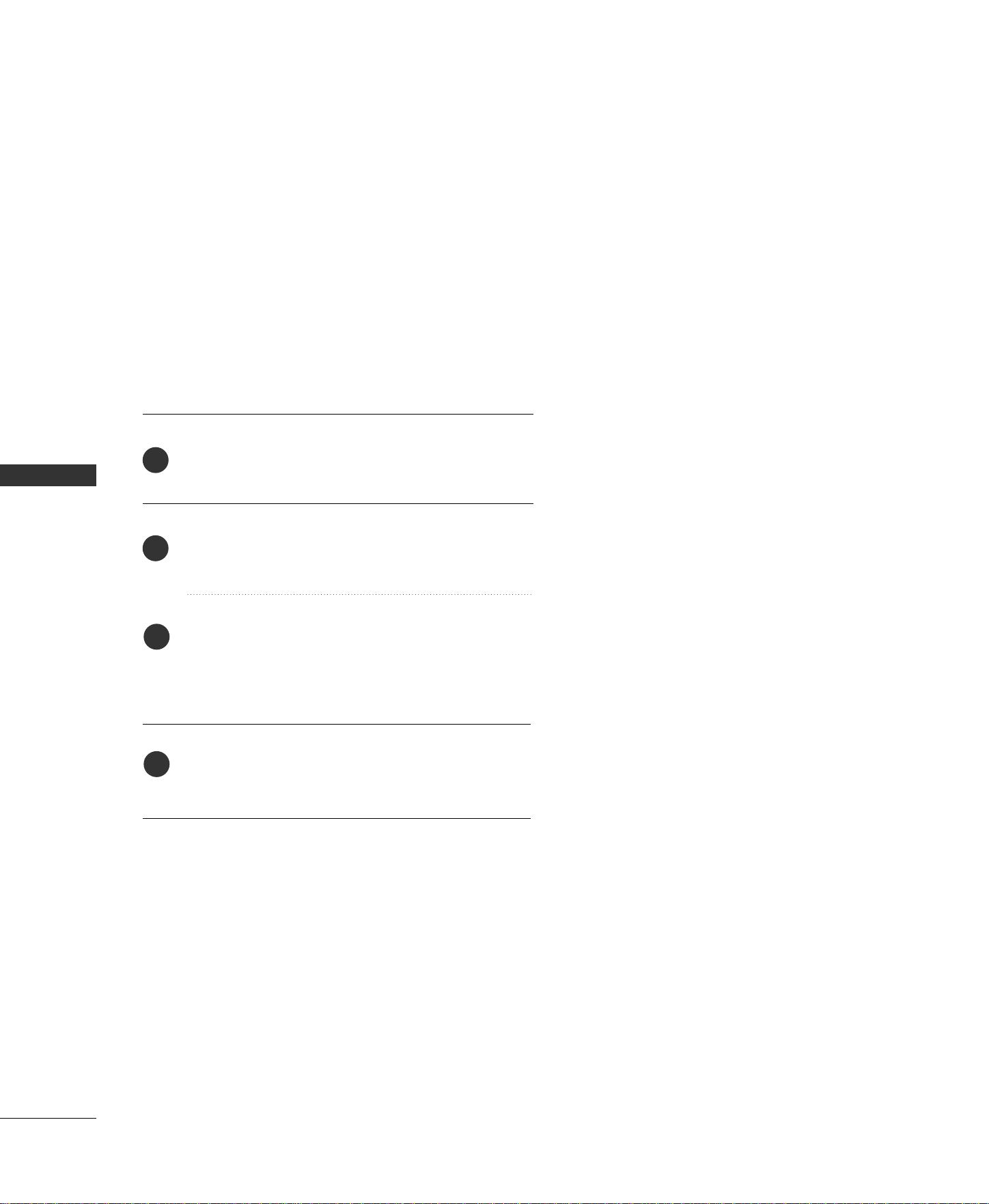
Press the
MMEENNUU
button and then use
DD
or
EE
but-
ton to select the
SSPPEECCIIAALL
menu.
Press the
GG
button and then use
DD
or
EE
button to
select
LLaanngguuaaggee..
Press the
GG
button and then use
DD
or
EE
button to
select your desired language.
From this point on, the on-screen menus will be
shown in the selected language.
Press the
EEXXIITT
button to return to TV viewing or
press
MMEENNUU
to return to the previous menu.
The menus can be shown on the screen in the selected language.
First select your language.
1
2
3
4
SPECIAL FUNCTIONS
29
TIME CONTROL
SPECIAL FUNCTIONS
DVR
(
Digital Video Recorder
)
This function allows the unit to automatically record live
TV and make it available for reviewing at any time.
With Time control turned on, you may pause and rewind
normal TV viewing at any time without missing any of the
live broadcast.
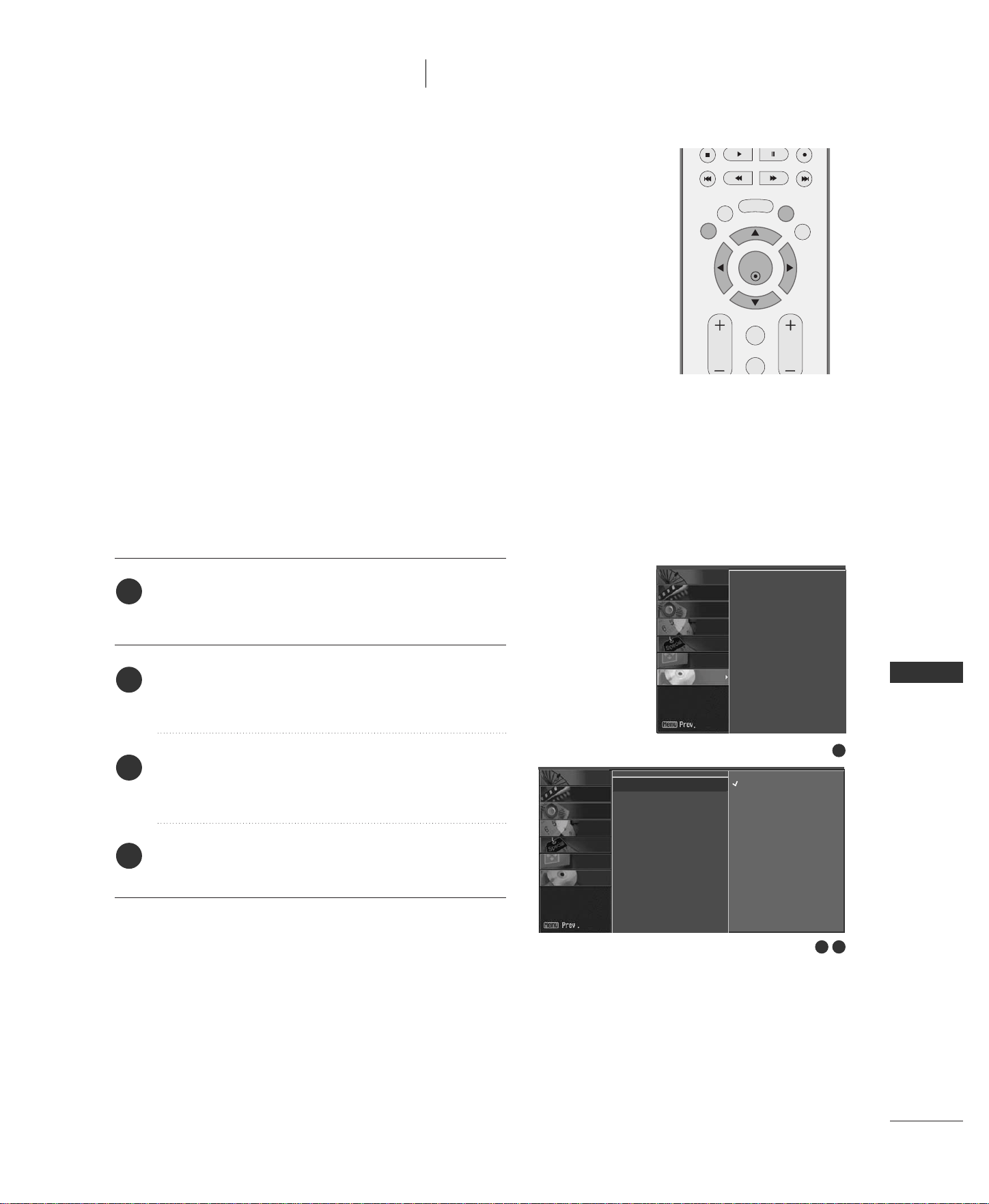
Press the
MMEENNUU
button and then use
DD
or
EE
button
to select the
DDVVRR
menu.
Press the
GG
button and then use
DD
or
EE
button to
select the
TTiimmee ccoonnttrrooll
.
Press the
GG
button and then use
DD
or
EE
button to
select
OOnn
or
OOffff
.
Press the EXIT button to return to normal TV viewing.
2
3
4
1
ENTER
EXIT
VOL
FCR
MUTE
CH
SLEEP
MEMORY/ERASE
MENU
LIVE TV
MARK
TIME
MACHINE
TIME
CONTROL
TIME
CONTROL
2 3
1
Time control G
Recorded TV
Manual Recording
Scheduled List
Video Quality
HDD Format
On
Off
Time control
Recorded TV
Manual Recording
Scheduled List
Video Quality
HDD Format
SCREEN
DVR
SPECIAL
TIMER
SOUND
PICTURE
CHANNEL
SCREEN
DVR
SPECIAL
TIMER
SOUND
PICTURE
CHANNEL
SPECIAL FUNCTIONS
30
PROGRESSING THE TIME CONTROL FUNCTION
SPECIAL FUNCTIONS
DVR
(
Digital Video Recorder
)
After selecting the
TTiimmee ccoonnttrrooll OOnn
, press the
EENNTTEERR
button.
■
As soon as Time control starts, a progress bar indicating
the current recording status is displayed in the bottom of
the screen.
■
Press the
EEXXIITT
button to hide the ‘Progress Bar’ or press
the
EENNTTEERR
button to display the 'Progress Bar'.
■
This function is preserved even change a programme on
progressing the Time control.
When finishing the Time control function, enter the option
menu and turn
TTiimmee ccoonnttrrooll OOffff
.
NOTE
!
GG
DVR
(
Digital Video Recorder
)
: A device which
records and plays broadcast program contents
onto a hard disk in set or SET TOP BOX.
GG
In order to save hard-disk space, nothing is saved
when there is no signal.
GG
The total storage space of the hard-disk is 80
GB. 4 GB minimum is reserved for Time control.
GG
When turning power on, it may take up to maximum
3 minutes to initialize the HDD.
GG
The Recording function will not initiate for a
copy-protected program.
GG
Because an analog broadcast is transfered to a
digital signal, video that contains rapid movement
may show "cross stripes". This happens when the
analog signal is compressed and then restored in
the digital signal. The unit will attempt to reduce
this excessive picture noise.
GG
When using the PIP/DW/POP mode, Time control
is stopped.
GG
Time control is available in TV, AV1, AV2,
Component 1/2 (480i) mode.
GG
Time control is not available for Audio only channels.
2
1
1
2
3 4
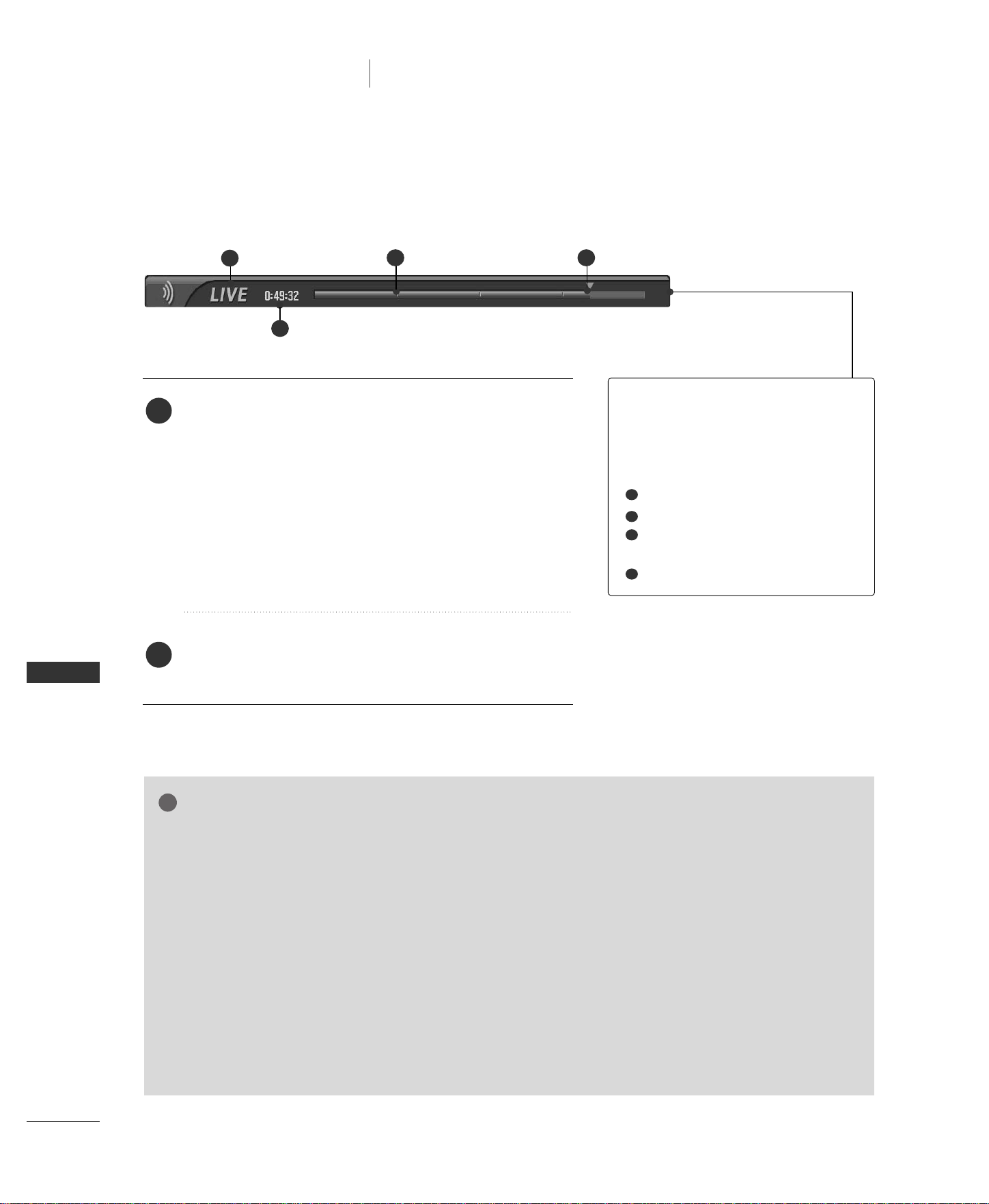
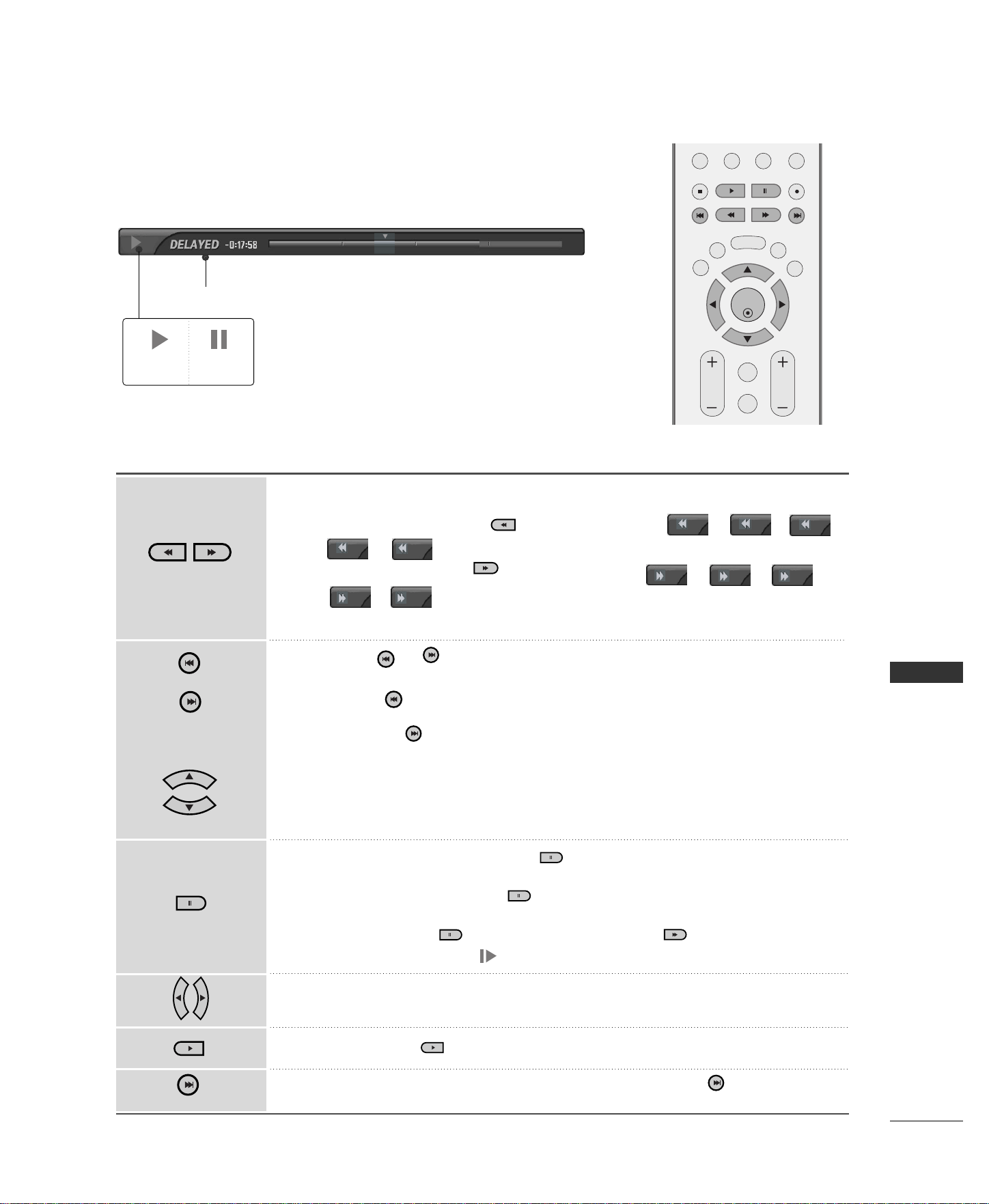
TThhee ‘‘PPrrooggrreessss BBaarr’’??
This function indicates a possible DVR reshowing
section ,a current on-screen and real on-broad-
casting position, a section of section-recording.
Status of current displayed video.
C
urrent save time.
15 minute intervals from Time contol start
time. (Total - one hour).
Indicates current Time contol position.
1
2
3
4
SPECIAL FUNCTIONS
31
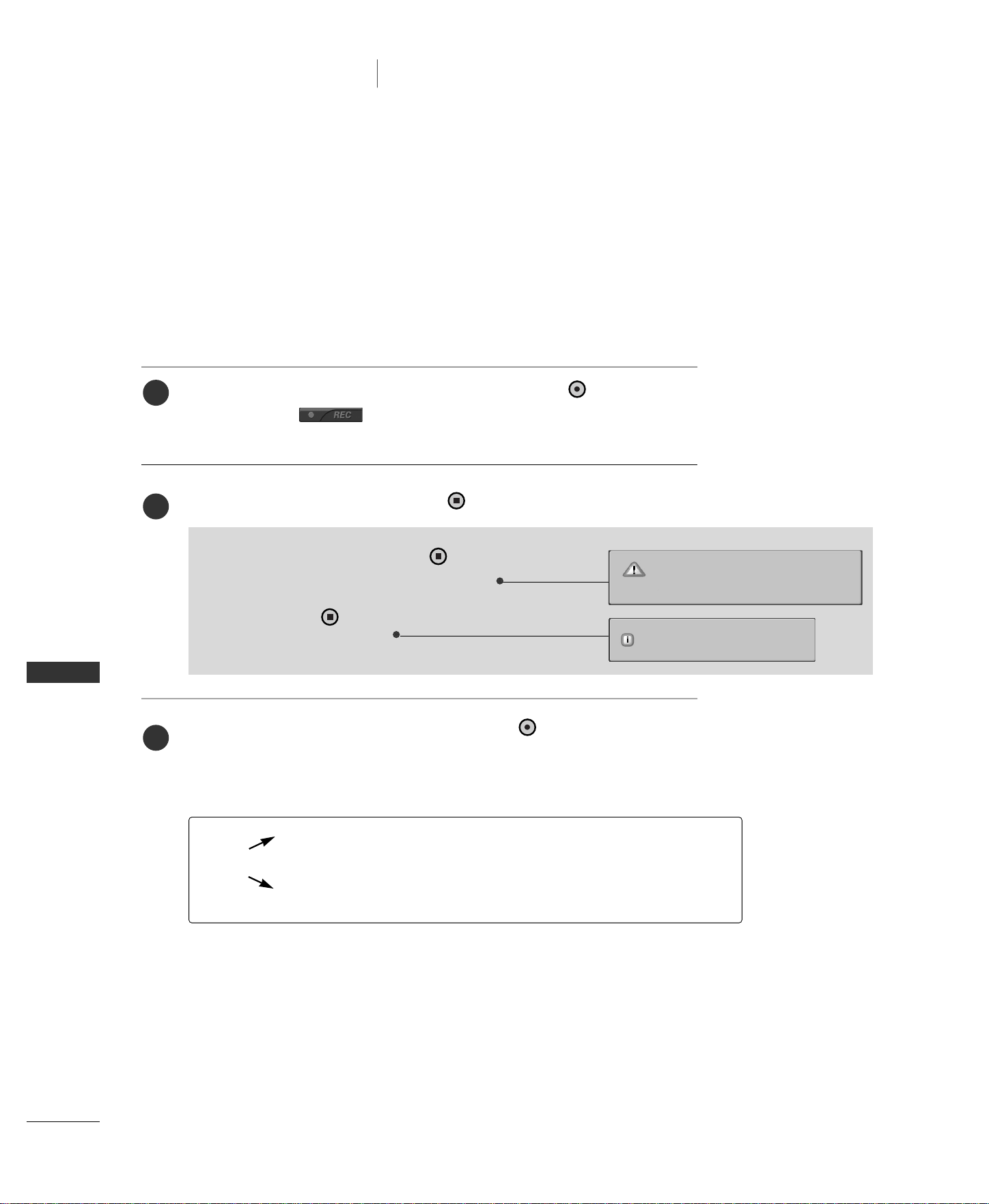
Progressing the Time control function, play
- On progressing Time control, It can do a diversified playing.
Indicates that the current broadcast and displayed video differ.
Using the remote control
You can shift playback to any point within playing the recorded program.
Play Pause
ENTER
PIP CH- PIP CH+
PIP INPUT
EXIT
VOL
FCR
MUTE
CH
SLEEP
MEMORY/ERASE
MENU
SWAP
LIVE TV
MARK
TIME
MACHINE
TIME
CONTROL
TIME
CONTROL
When playing,
repeatedly, press the
RREEWW
(( ))
button to speed up -> ->
-> -> .
repeatedly, press the
FFFF
(( ))
button to speed up -> ->
-> -> .
■
Pressing these buttons repeatedly increases the fast forward/reverse speed.
Press the or button to move back and forth within the current program.
■
Press the button to jump at the front of the programme.
■
Pressing the button to jump at the end of the programme.
Press the
DD
button to jump about 20 seconds forward.
■
Pressing the
EE
button to jump about 8 seconds backward.
During playback, press the
PPaauussee
(( ))
button.
■
Still screen is displayed.
■
Repetedly press the
PPaauussee
(( ))
button to advance frame by frame.
■
Press the
PPaauussee
(( ))
button and then use the
FFFF(( ))
button for slow
motion (as showing the .)
■
When using the
FF
or
GG
button during playback the cursor can be viewed on
the screen.
Press the
PPLLAAYY
(( ))
button to return to normal playback.
If you want to return to the current live broadcast, press the button.
LIVE TV
MARK
LIVE TV
LIVE TV
MARK
MARK
LIVE TV
TIME
CONTROL
TIME
CONTROL
x2
x10
x50
x100
x5
x10
x50
x100
x2
x5
LIVE TV
SPECIAL FUNCTIONS
32
RECORDING
SPECIAL FUNCTIONS
DVR
(
Digital Video Recorder
)
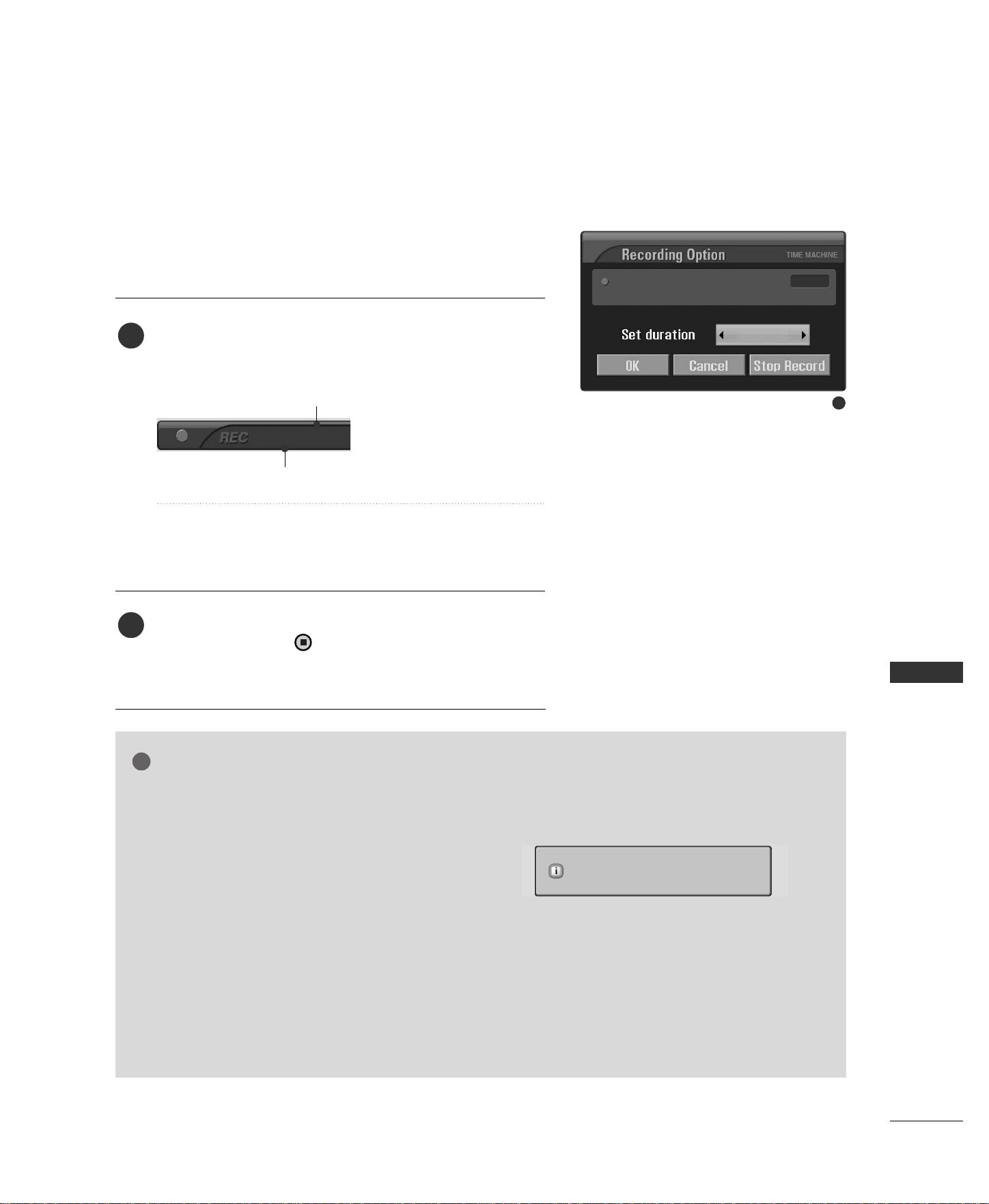
Select the desired programme to record and then press the button.
During recording is displayed. Use this feature to record up to 2
hours of programming.
If you want to stop recording, press the button.
You can add/subtract recording time by pressing the button while recording.
Press the
FF
or
GG
button repeatedly to add/subtract to the recording time.
Each time you press
FF
or
GG
button the recording duration changes as shown
below.
Instant Record
Use this function to record the program you are watching on the main screen.
If you apply Main power off before finish recording it is not recorded the programs
that was recording before.
This function records the currently displayed programme.
++1100mmiinn
--
>> ++2200mmiinn
--
>> ++3300mmiinn
--
>> ++4400mmiinn
--
>> ++5500mmiinn
--
>> ++6600mmiinn
--1100mmiinn
--
>> --2200mmiinn
--
>> --3300mmiinn
--
>> --4400mmiinn
--
>> --5500mmiinn
--
>> --6600mmiinn
NNoo CChhaannggee
■
While recording, if you press the button fewer
than 10 seconds, this message is displayed.
■
If you press the button more than 10 seconds, this
message is displayed.
2
3
1
Recording is completed.
Recording is not completed.
Recording time must exceed 10 seconds.
SPECIAL FUNCTIONS
33
NOTE
!
GG
When recording, if the available storage space
becomes low, the recording will be automatically
stopped.
GG
Recordings of less than 10 seconds will not be
saved.
GG
To save disk space while recording broadcasts, no
data will be saved if there is no signal.
GG
The recording function will not initiate for a copy-
protected program.
GG
The displayed time slightly differ from the actual
time.
GG
In no signal or film source, the displayed time
slightly differ from the actual time.
GG
The recording can not be used with content-pro-
tected programs on progressing Time control.
GG
If the old tape is recoreded, this may cause dam-
age to the recording quality.
GG
It will be stored separately the programme according
to the color system signal.
The extra recording time added to existing setting equals
the final recording time.
After adjusting the recording time, select
EENNTTEERR
. The
Status bar will be displayed.
■
Press the
EEXXIITT
button to hide the Status bar. Press the
EENNTTEERR
button to display the Status bar.
Recording stops when the selected duration is reached or
when you press the button.
Although recording has stopped, the Time control feature
remains active.
Elapsed recording time
Total recording duration
4
5
Stop recording due to copy protection.
0:00 / 2:00
3
1:00 AM
Recording time
1:00 AM~2:00 AM (0 Min recorded)
No change
SPECIAL FUNCTIONS
34
WATCHING & RECORD
SPECIAL FUNCTIONS
DVR
(
Digital Video Recorder
)
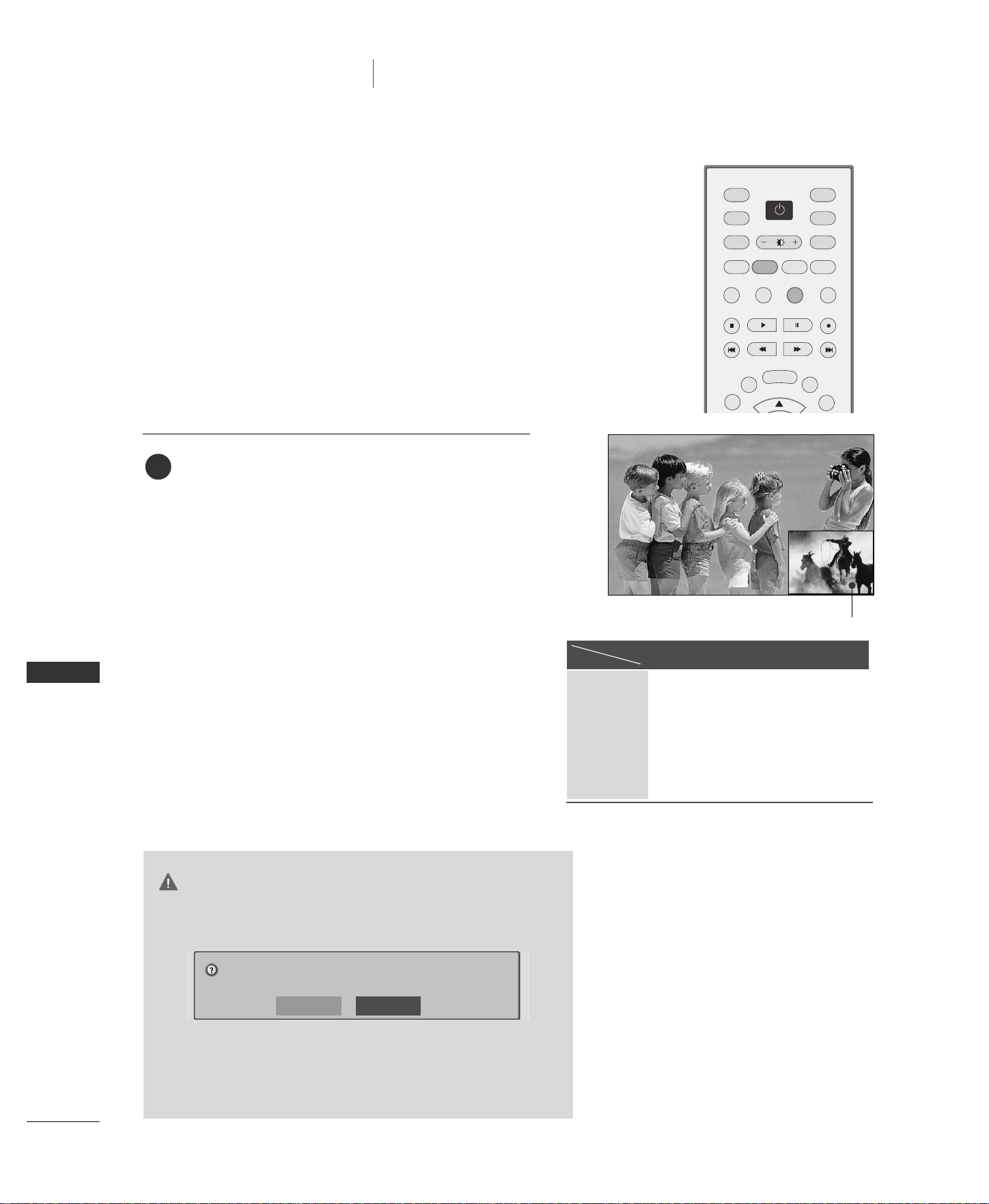
screen being recorded
While recording, you can change programmes or inputs without
disturbing the recording. The broadcast being recorded can be
shown in the lower-right corner of the main screen.
After starting an Instant Record or Reserved Record,
change the program or input.
■
You can check the show being recorded in the
lower-right corner the main screen (as shown
right).
■
Press the
PPIIPP
button to hide or show the program
being recorded.
■
Press the
SSWWAAPP
button to return to the program
being recorded in Watching & Record.
■
When changed to the programme recorded in
Watching & Record, the screen is changed to
Instant Record state or Reserved Record state.
CAUTION
GG
If you turn the power off on recording, this message is
displayed as shown below.
GG
If you selects No, recording stops and then power is off.
GG
If you selects Yes, recording continues and the power is
turned off.
1
INPUT
TVTV
INPUT
PIP CH- PIP CH+
PIP INPUT
DVD
ARC
EXIT
SLEEP
MEMORY/ERASE
PIP SIZE
POSITION
VCR
POWER
MENU
SWAP
LIVE TV
MARK
CAPTION
TIME
MACHINE
Powering off while recording.
Continue recording?
Yes
No
Analog AV1 AV2 Component 1/2(480i)
Analog 0 0 0 0
AV1 0 x 0 0
AV2 0 0 x 0
Component 1 0 0 0 x
Component 2 0 0 0 x
RGB 0 0 0 0
HDMI1/DVI 0 0 0 0
HDMI2 0 0 0 0
Record
Watching
Watching & Record Input
*
It’s not available to select same channel in
Analog mode.
SPECIAL FUNCTIONS
35
RECORDED TV
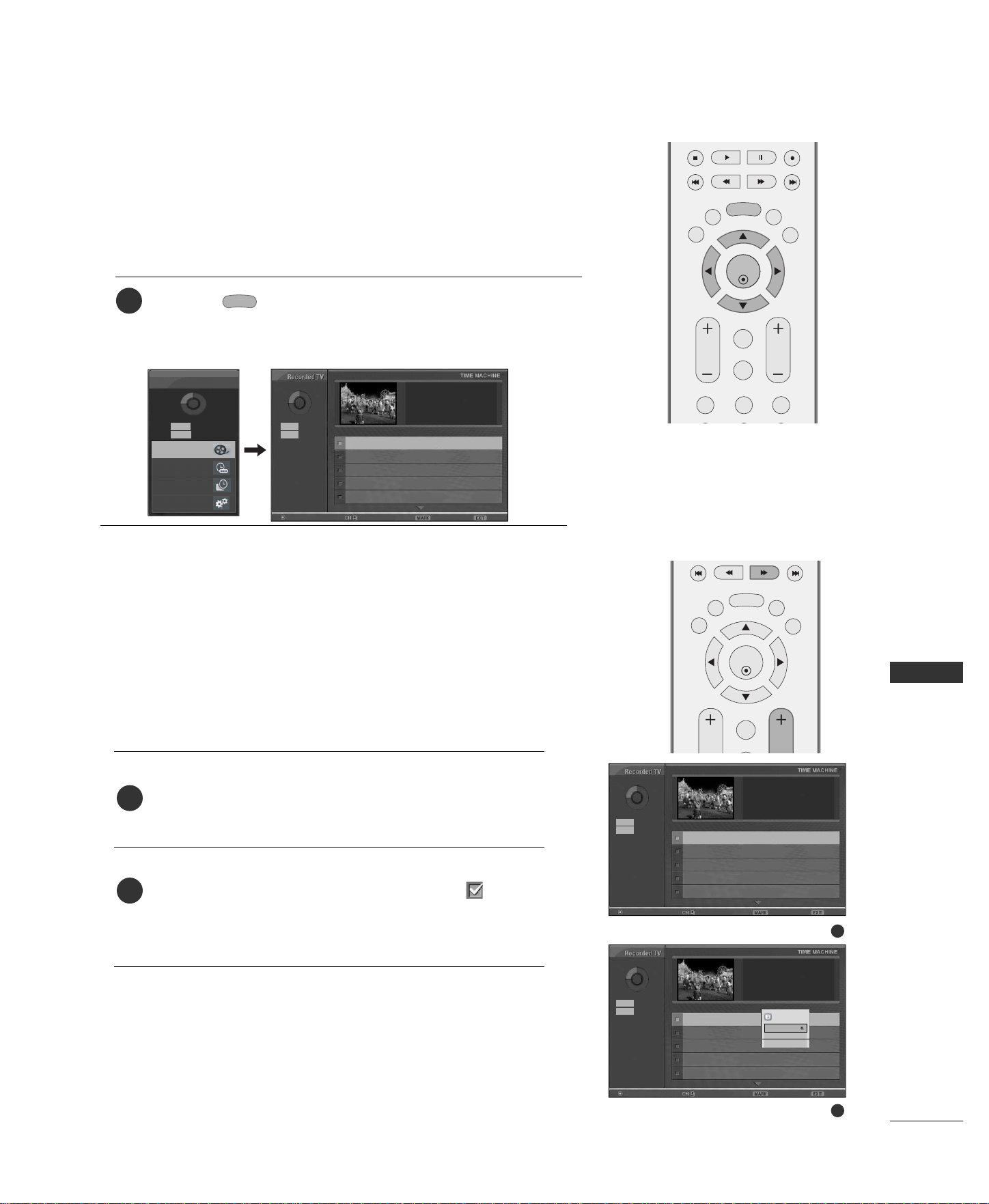
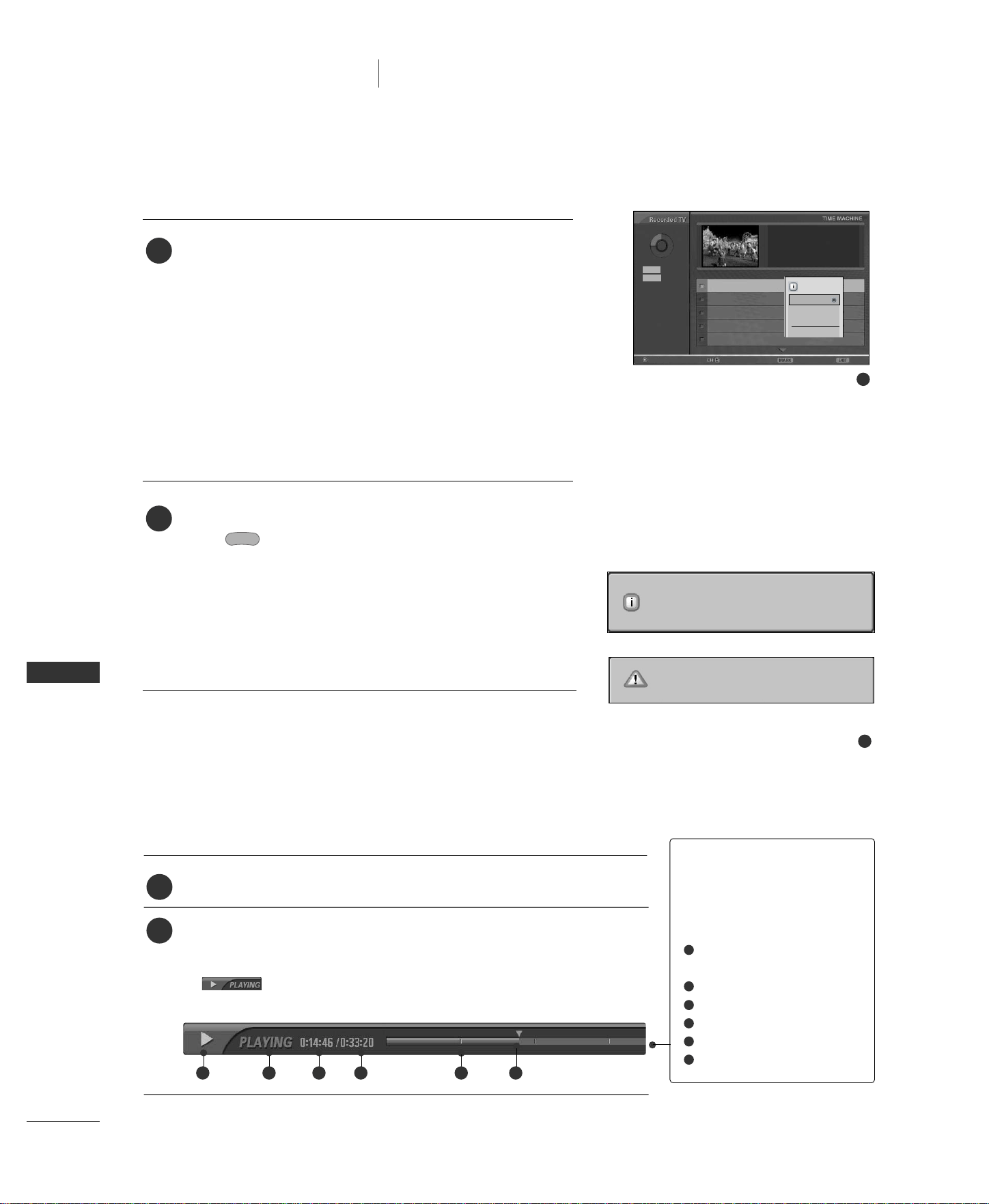
You can watch the recorded program list at a glance.
This function is available to use in DVR menu.
Press the button to display
HHoommee
menu.
Use the
DD
or
EE
button to select the
RReeccoorrddeedd TTVV
and then
use the
EENNTTEERR
or
GG
button.
TIME
MACHINE
1
Use the
CCHH++
or
CCHH--
button for page up/down navigation.
Use the
MMAARRKK
button to delete from the list. A is dis-
played next to the thumbnail photo if an item is marked.
RECORDED PROGRAM SELECTION AND
POPUP MENU
The thumbnail recorded list is shown above.
2
1
ENTER
EXIT
VOL
FCR
CH
SLEEP
MEMORY/ERASE
MENU
LIVE TV
MARK
TIME
MACHINE
TIME
CONTROL
TIME
CONTROL
ENTER
EXIT
VOL
FCR
MUTE
CH
SLEEP
MEMORY/ERASE
123
MENU
LIVE TV
MARK
TIME
MACHINE
TIME
CONTROL
TIME
CONTROL
TIME MACHINE
Home
Free Space
3h 19m
High
Normal
5h 24m
Free Space
3h 19m
High
Normal
5h 24m
Manual Rec.
Recorded TV
Scheduled List
TV Menu
Input : TV 19
Date : Sun.Jan 1 2006
Duration : 1 min
Quality : High
Page 1/2 0 marked
No Title TV 19 Sun.Jan 1 2:47 AM
No Title TV 19 Sun.Jan 1 2:46 AM
No Title TV 53 Sun.Jan 1 3:23 AM
No Title TV 53 Sun.Jan 1 4:18 AM
No Title TV 58 Sun.Jan 1 1:04 AM
Popup Menu Move page Mark Exit
1
2
Free Space
3h 19m
High
Normal
5h 24m
Input : TV 19
Date : Sun.Jan 1 2006
Duration : 1 min
Quality : High
Page 1/2 0 marked
No Title TV 19 Sun.Jan 1 2:47 AM
No Title TV 19 Sun.Jan 1 2:46 AM
No Title TV 53 Sun.Jan 1 3:23 AM
No Title TV 53 Sun.Jan 1 4:18 AM
No Title TV 58 Sun.Jan 1 1:04 AM
Popup Menu Move page Mark Exit
Free Space
3h 19m
High
Normal
5h 24m
Input : TV 19
Date : Sun.Jan 1 2006
Duration : 1 min
Quality : High
Page 1/2 0 marked
No Title TV 19 Sun.Jan 1 2:47 AM
No Title TV 19 Sun.Jan 1 2:46 AM
No Title TV 53 Sun.Jan 1 3:23 AM
No Title TV 53 Sun.Jan 1 4:18 AM
No Title TV 58 Sun.Jan 1 1:04 AM
Popup Menu Move page Mark Exit
Unmark All
Delete
Cancel
1 Marked
SPECIAL FUNCTIONS
36
SPECIAL FUNCTIONS
DVR
(
Digital Video Recorder
)
■
If the HDD has a problem performing a function
(Recording) related to the DVR, this message is displayed.
■
If the temperature is below zero (0°), a warning message
is displayed and you need to initialize the HDD.
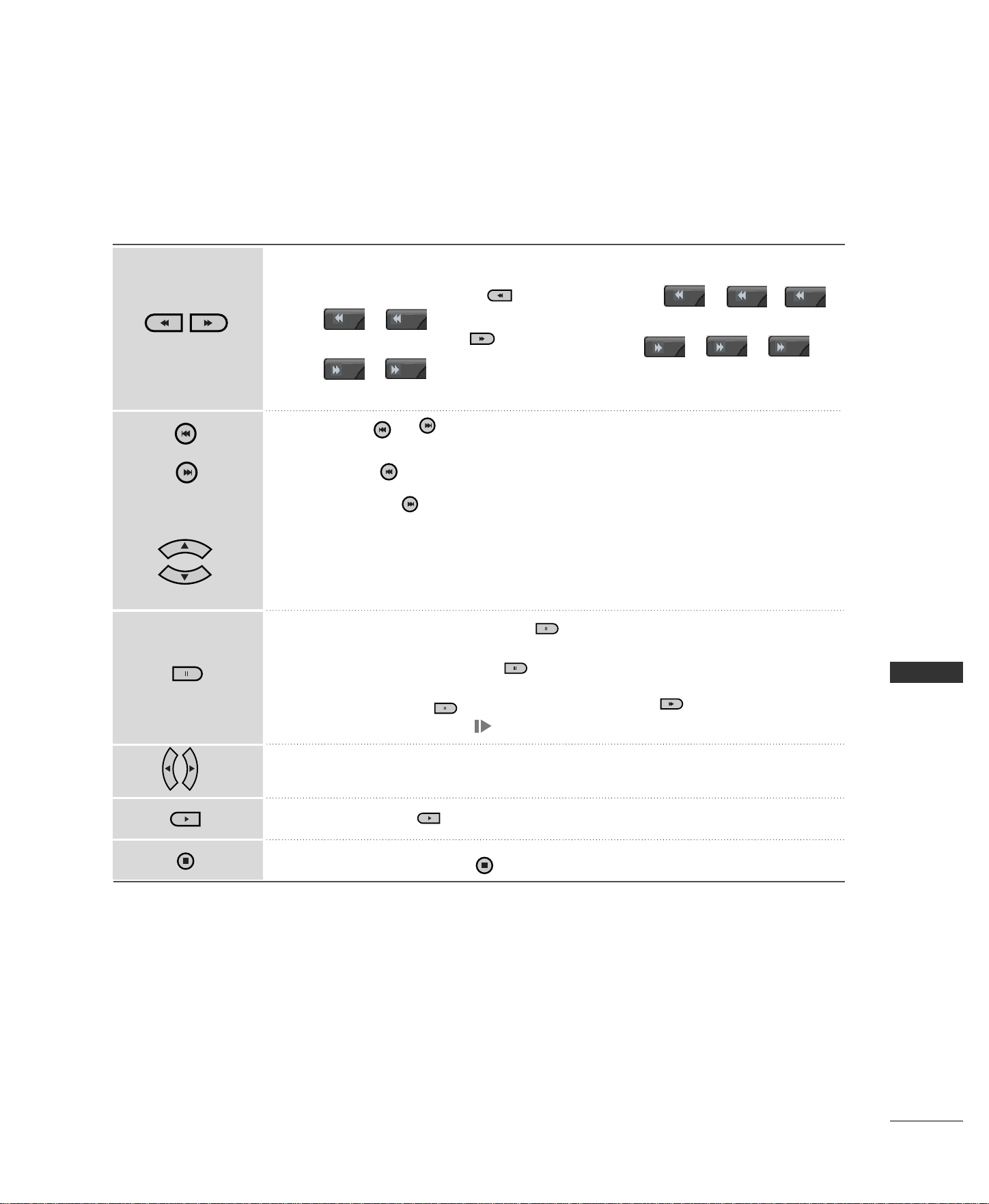
Use
DD EE
FF GG
button to navigate the appropriate thumb-
nail photo, then press the
EENNTTEERR
button to open the Pop-
up Menu.
Repeatedly, press
EEXXIITT
button to return to TV viewing or
press button to return to the
HHoommee
menu.
TIME
MACHINE
GG
PPllaayy
: Begin playback of selected recording.
GG
MMaarrkk AAllll
: mark all photos on the screen.
GG
UUnnmmaarrkk AAllll
: Change marked photos to unmarked photos.
GG
DDeelleettee
: Delete the selected recording.
GG
RReennaammee
: Edit recorded program title.
GG
CCaanncceell
: Close the Pop-up Menu.
4
3
4
PLAYING RECORDED PROGRAMS
You can play the selected program in the recorded program list.
Play a recorded program.
While playing, You can see a diversified playback screen as shown below.
■
At first, an icon showing current playback mode is displayed as marking
. Then press the
EENNTTEERR
button to display the progress bar.
■
To stop displaying the recorded programs icon, press the
EEXXIITT
button.
TThhee ‘‘PPrrooggrreessss BBaarr’’??
This function indicates a possible DVR
reshowing section ,a current on-screen
and real on-broadcasting position, a
section of section-recording.
Indicates movement of recorded
program.
Indicates status of recorded program.
Indicates elasped playback time.
Indicates total playback time.
Indicates a quarter of program runtime.
Indicates current playback position.
2
1
HDD initialisation is in progress.
Cannot operate DVR at low temperature.
1 2 3 4 5 6
1
2
3
4
5
6
3
Free Space
3h 19m
High
Normal
5h 24m
Input : TV 19
Date : Sun.Jan 1 2006
Duration : 1 min
Quality : High
Page 1/2 0 marked
No Title TV 19 Sun.Jan 1 02:47 AM
No Title TV 19 Sun.Jan 1 02:46 AM
No Title TV 53 Sun.Jan 1 00:23 AM
No Title TV 53 Sun.Jan 1 00:18 AM
No Title TV 58 Sun.Jan 1 1:04 AM
Popup Menu Move page Mark Exit
Play
Mark All
Delete
Rename
Cancel
TV 19
2:47PM~2:48AM
SPECIAL FUNCTIONS
37
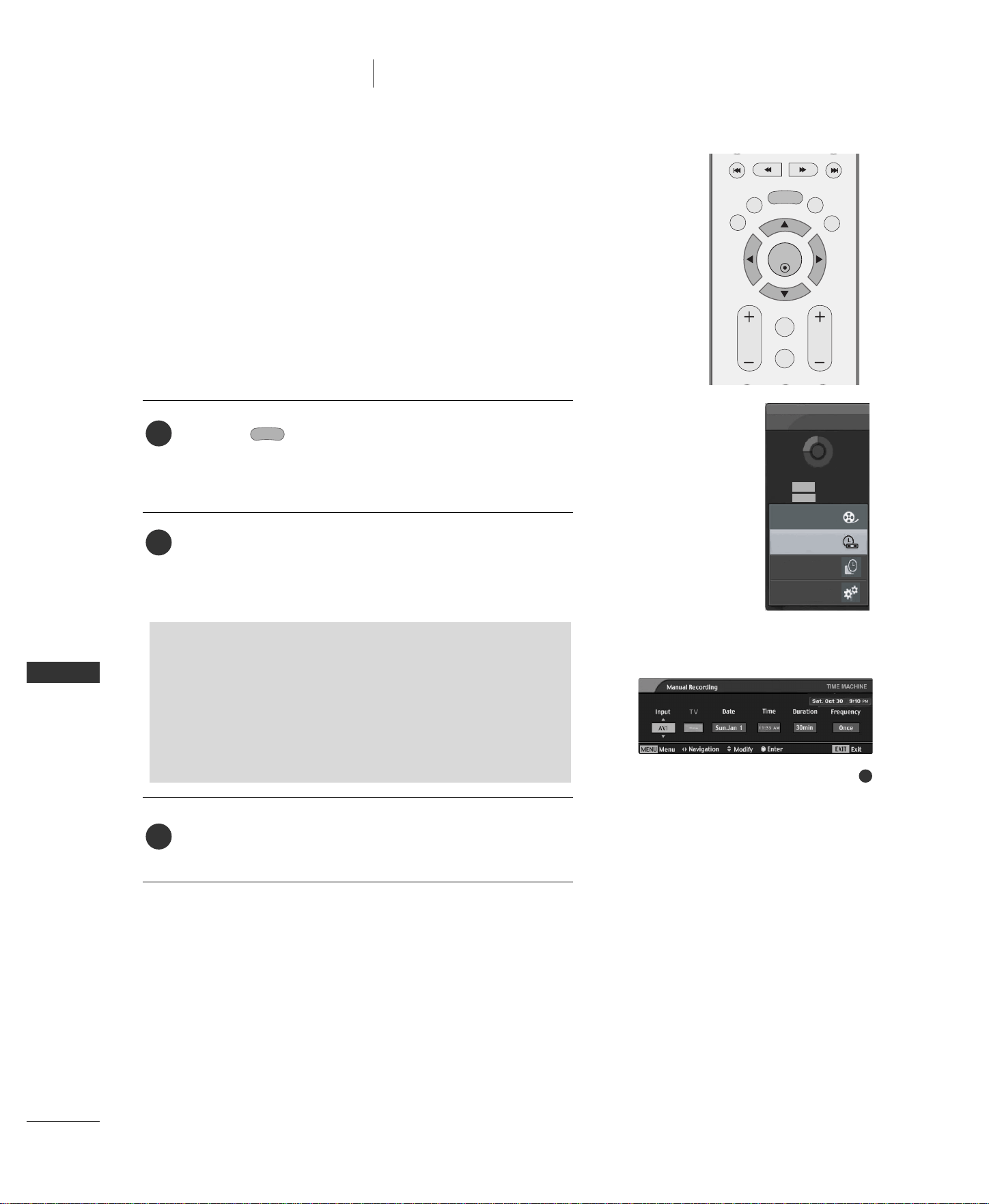
When playing,
repeatedly, press the
RREEWW
(( ))
button to speed up -> ->
-> -> .
repeatedly, press the
FFFF
(( ))
button to speed up -> ->
-> -> .
■
Pressing these buttons repeatedly increases the fast forward/reverse speed.
Press the or button to move back and forth within the current program.
■
Press the button to jump at the front of the programme.
■
Pressing the button to jump at the end of the programme.
Press the
DD
button to jump about 20 seconds forward.
■
Pressing the
EE
button to jump about 8 seconds backward.
During playback, press the
PPaauussee
(( ))
button.
■
Still screen is displayed.
■
Repetedly press the
PPaauussee
(( ))
button to advance frame by frame.
■
Press the
PPaauussee
(( ))
button and then use the
FFFF(( ))
button for slow
motion (as showing the .)
■
When using the
FF
or
GG
button during playback the cursor can be viewed on
the screen.
Press the
PPLLAAYY
(( ))
button to return to normal playback.
■
If you press the
SSTTOOPP(( ))
button, you can watch set.
MARK
LIVE TV
LIVE TV
MARK
USING THE REMOTE CONTROL
MARK
LIVE TV
TIME
CONTROL
TIME
CONTROL
You can shift playback to any point within playing the recorded program.
x2
x10
x50
x100
x5
x10
x50
x100
x2
x5
SPECIAL FUNCTIONS
38
MANUAL RECORDING
SPECIAL FUNCTIONS
DVR
(
Digital Video Recorder
)
This function is easy to register to reserved recording.
This function is available to use in DVR menu.
When Manual Recording, it’s stored the default sound of the
set.
Press the button to display
HHoommee
menu. Use the
DD
or
EE
button to select the
MMaannuuaall RReecc..
and then use
the
EENNTTEERR
or
GG
button.
MMaannuuaall RReecc..
screen is displayed as shown right.
Use the
DD EE
FF GG
button to set the
IInnppuutt
,
TTVV
,
DDaattee
,
TTiimmee
,
DDuurraattiioonn
,
FFrreeqquueennccyy
.
After setting the
MMaannuuaall RReecc..
, press the
EENNTTEERR
button.
TIME
MACHINE
GG
IInnppuutt
: Select the input source from the TV, AV1, AV2,
Component1, Component2.
GG
TTVV
: Select either the current program or a scanned program.
GG
DDaattee
: You can select a date up to one month in the future.
GG
TTiimmee //DDuurraattiioonn
: Ensure you have set correctly.
GG
FFrreeqquueennccyy
: Choose among Once, Daily and Weekly.
2
3
1
ENTER
EXIT
VOL
FCR
MUTE
CH
SLEEP
MEMORY/ERASE
MENU
LIVE TV
MARK
TIME
MACHINE
TIME
CONTROL
TIME
CONTROL
TIME MACHINE
2
Home
Free Space
3h 19m
High
Normal
5h 24m
Manual Rec.
Recorded TV
Scheduled List
TV Menu
SPECIAL FUNCTIONS
39
SCHEDULED LIST
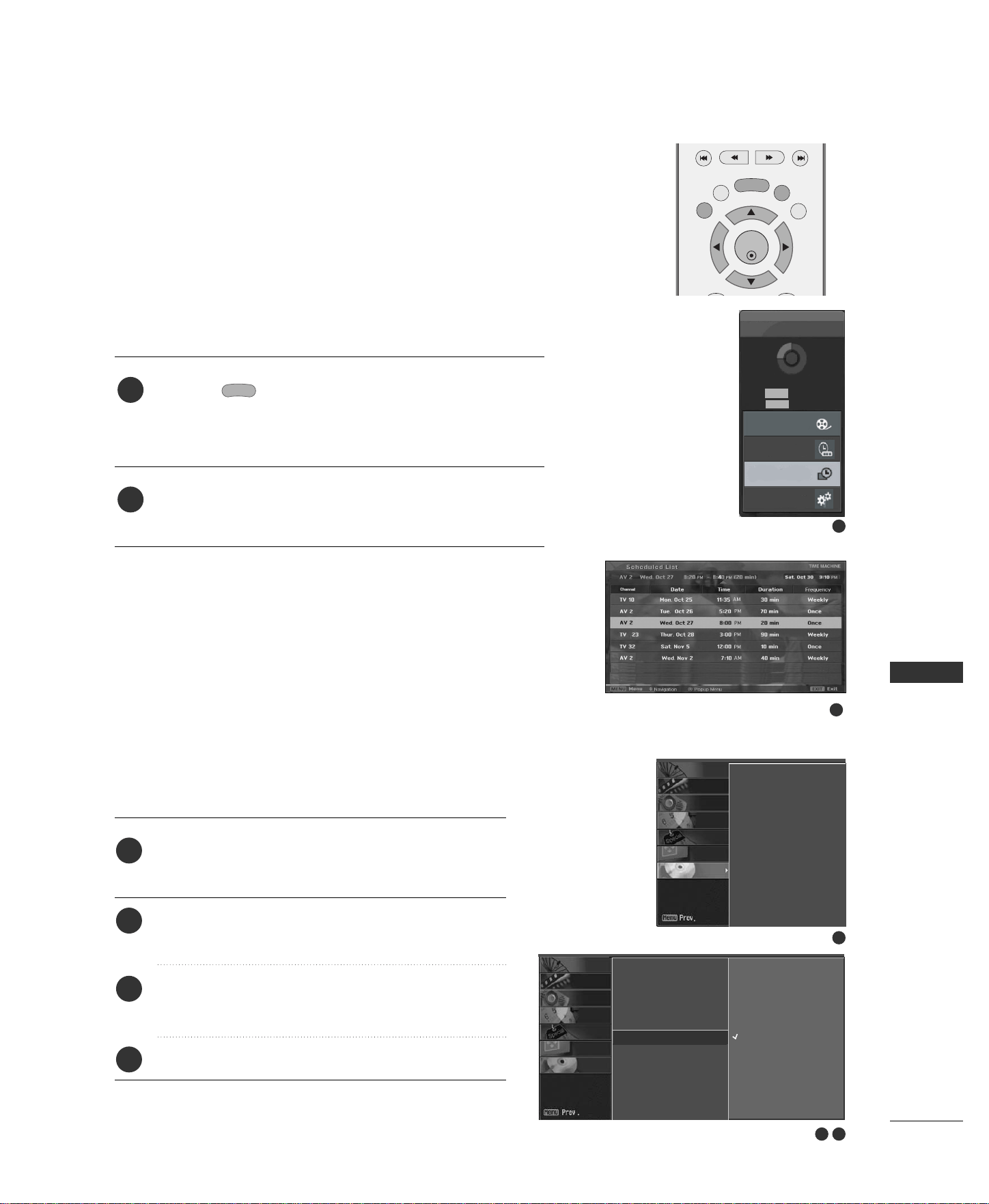
You can store up to 8 programmes.
This function is available to use in DVR menu.
Press the button to display
HHoommee
menu. Use the
DD
or
EE
button to select the
SScchheedduulleedd LLiisstt
and then use
the
EENNTTEERR
or
GG
button.
SScchheedduulleedd LLiisstt
screen is displayed as shown below.
Use the
DD
or
EE
button to select recorded program.
TIME
MACHINE
2
1
Press the
MMEENNUU
button and then use
DD
or
EE
but-
ton to select the
DDVVRR
menu.
Press the
GG
button and then use
DD
or
EE
button to
select the Video Quality.
Press the
GG
button and then use
DD
or
EE
button to
select
HHiigghh
or
NNoorrmmaall
.
Press the EXIT button to return to normal TV viewing.
2
3
4
1
It’s not available to use this function on recording program.
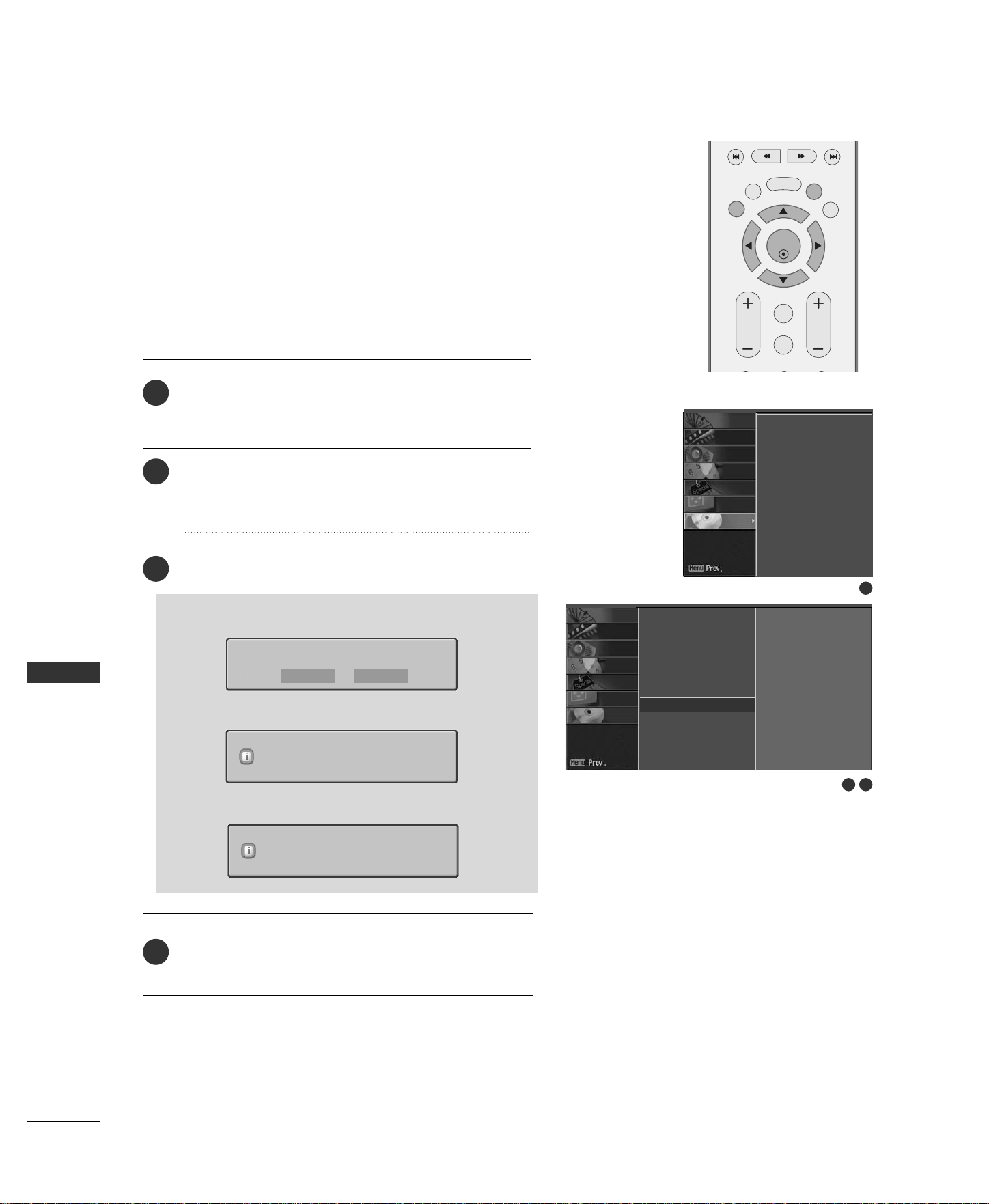
VIDEO QUALITY
ENTER
EXIT
SLEEP
MEMORY/ERASE
MENU
LIVE TV
MARK
TIME
MACHINE
TIME
CONTROL
TIME
CONTROL
2 3
1
Time control
Recorded TV
Manual Recording
Scheduled List
Video Quality
G
HDD Format
High
Normal
Time control
Recorded TV
Manual Recording
Scheduled List
Video Quality
HDD Format
SCREEN
DVR
SPECIAL
TIMER
SOUND
PICTURE
CHANNEL
SCREEN
DVR
SPECIAL
TIMER
SOUND
PICTURE
CHANNEL
2
1
TIME MACHINE
Home
Free Space
3h 19m
High
Normal
5h 24m
Manual Rec.
Recorded TV
Scheduled List
TV Menu
SPECIAL FUNCTIONS
40
FORMAT HARD DISK
SPECIAL FUNCTIONS
Press the
MMEENNUU
button and then use
DD
or
EE
but-
ton to select the
DDVVRR
menu.
Press the
GG
button and then use
DD
or
EE
button to
select the HDD Format.
Press the
GG
button to start HDD Format.
Press the EXIT button to return to normal TV viewing.
1
2
3
4
■
If you press the
GG
button, this message is displayed.
■
If you selects Yes, this message is displayed.
■
When completing, this message is displayed.
HDD Format in progress.
Do you want to format HDD?
HDD Format completed.
Yes No
ENTER
EXIT
VOL
FCR
MUTE
CH
SLEEP
MEMORY/ERASE
MENU
LIVE TV
MARK
TIME
MACHINE
TIME
CONTROL
TIME
CONTROL
DVR
(
Digital Video Recorder
)
2 3
1
Time control
Recorded TV
Manual Recording
Scheduled List
Video Quality
HDD Format
G
To set
Time control
Recorded TV
Manual Recording
Scheduled List
Video Quality
HDD Format
SCREEN
DVR
SPECIAL
TIMER
SOUND
PICTURE
CHANNEL
SCREEN
DVR
SPECIAL
TIMER
SOUND
PICTURE
CHANNEL
SPECIAL FUNCTIONS/ PIP / DOUBLE WINDOW / POP
41
SPECIAL FUNCTIONS
PIP / DOUBLE WINDOW / POP
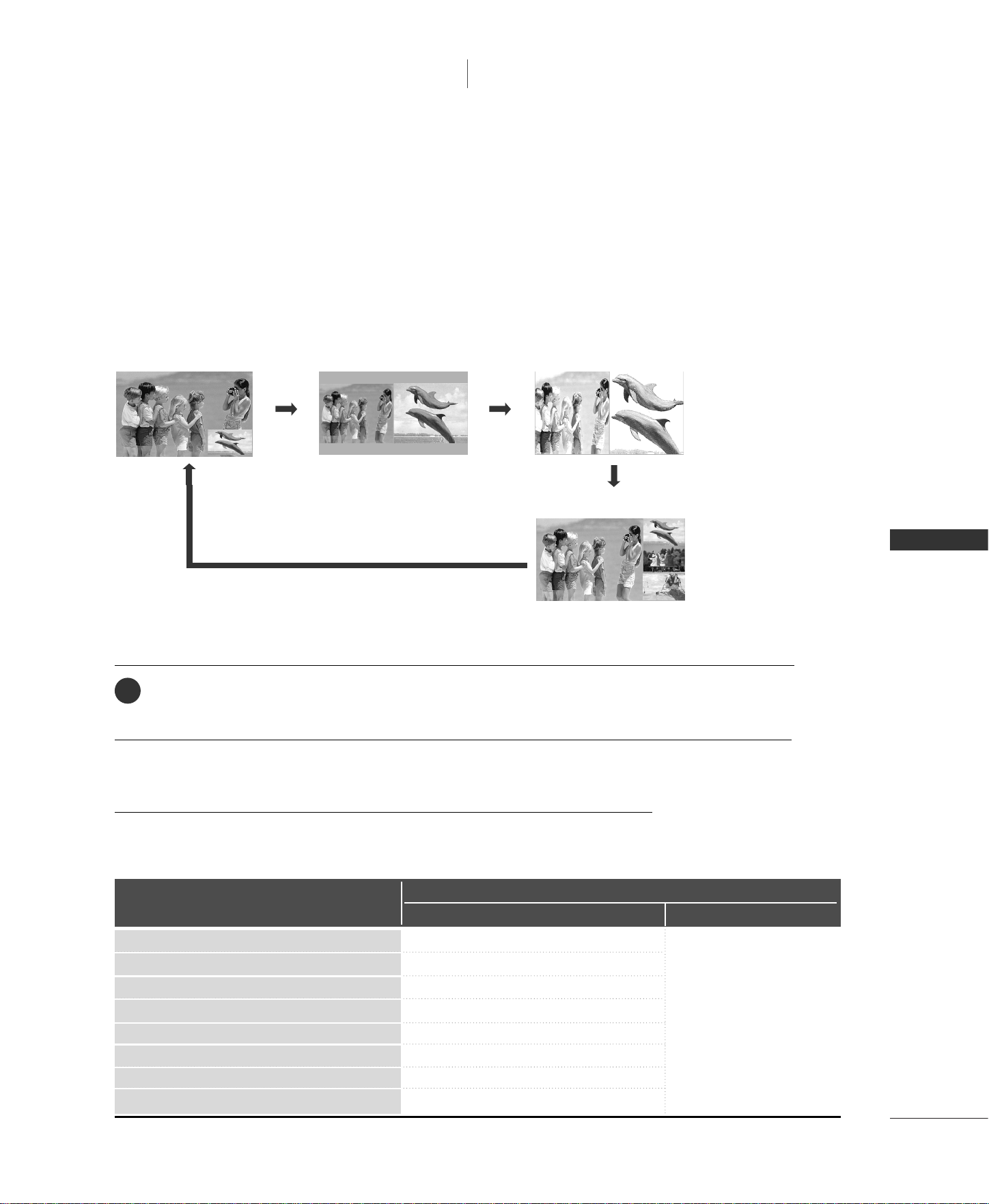
PIP lets you view 2 different inputs (sources) on your TV screen at the same time. One source will be large, and
the other source will show a smaller inset image.
Double Window mode splits the screen into two images, allowing two picture sources to be shown on the TV
screen at the same time. Each source is given half the screen.
Watching PIP/Double Window/POP
Press the
PPIIPP
button to access the sub picture.
Each press of PIP changes the PIP options as shown below.
PIP Mode DW2 Mode
POP Mode
DW1 Mode
Selecting an Input Signal Source for PIP/
Double Window
Use the
PPIIPP IINNPPUUTT
button to select the input source for the sub picture.
Each press of
PPIIPP IINNPPUUTT
button changes the PIP source.
PIP Off
TV Program Selection for PIP
Use the
PPIIPP CCHH ++//--
button to select a channel for the sub picture.
The selected channel number is displayed just below the input source of main picture.
1
TV All
AV1 All (Except AV1)
AV2 All (Except AV2)
Component1 All (Except Component1)
Component2 All (Except Component2)
RGB All (Except RGB)
HDMI1/DVI All (Except HDMI1/DVI, HDMI2)
HDMI2 All (Except HDMI1/DVI, HDMI2)
TV
Main Picture Source
Available Sub Picture Sources
PIP/DW POP
42
SPECIAL FUNCTIONS/ PIP / DOUBLE WINDOW / POP
SPECIAL FUNCTIONS
ENTER
INPUT
TVTV
INPUT
PIP CH- PIP CH+
PIP INPUT
DVD
ARC
EXIT
VOL
FCR
CH
SLEEP
MEMORY/ERASE
VCR
POWER
MENU
SWAP
LIVE TV
MARK
CAPTION
PIP SIZE
POSITION
TIME
CONTROL
TIME
CONTROL
TIME
MACHINE
PIP / DOUBLE WINDOW / POP
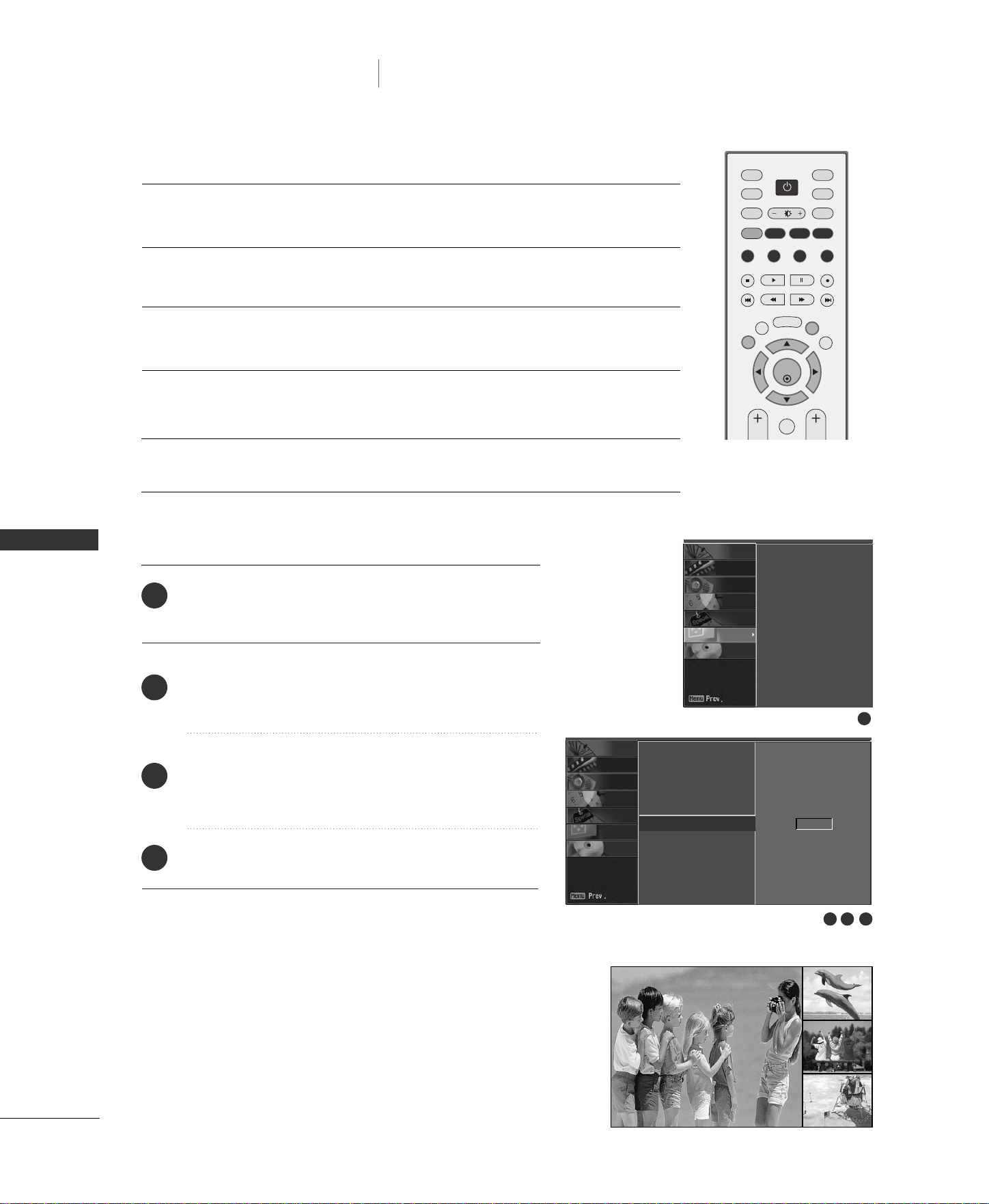
Sub Picture Size Adjustment (PIP mode only)
Press the
SSIIZZEE
button to adjust the sub picture size.
With
SSIIZZEE
button in PIP mode, sub picture is adjusted.
Moving the Sub Picture (PIP mode only)
Adjusting PIP Transparency (PIP mode only)
POP (Picture-out-of-Picture : Channel Scan)
Press the
PPOOSSIITTIIOONN
button.
Repeatedly press the
PPOOSSIITTIIOONN
button then sub picture moves.
Press the
MMEENNUU
button and then
DD
or
EE
button to
select the
SSCCRREEEENN
menu.
Press the
GG
button and then
DD
or
EE
button to select
PPIIPP TTrraannssppaarreennccyy
.
Press the
GG
button and then
FF
or
GG
button to adjust
PPIIPP TTrraannssppaarreennccyy
.
Press the
EEXXIITT
button to return to normal TV viewing.
1
2
3
4
Use POP to search the programs of all the memorized channels
one-by-one on the 3 PIP screen display, (while the main picture
source remains the current channel). The pictures of all the
programmed channels are searched with the 3 POP screens.
When watching TV for main picture, same TV channel for sub
pictures are scanned.
2 3 4
1
Auto config.
Manual config.
XGA Mode
ARC
PIP Transparency
G
Reset
0
Auto config.
Manual config.
XGA Mode
ARC
PIP Transparency
Reset
SCREEN
DVR
SPECIAL
TIMER
SOUND
PICTURE
CHANNEL
SCREEN
SPECIAL
DVR
TIMER
SOUND
PICTURE
CHANNEL
Swapping the PIP/Double Window
Use the
SSWWAAPP
button to switch the main and sub pictures.
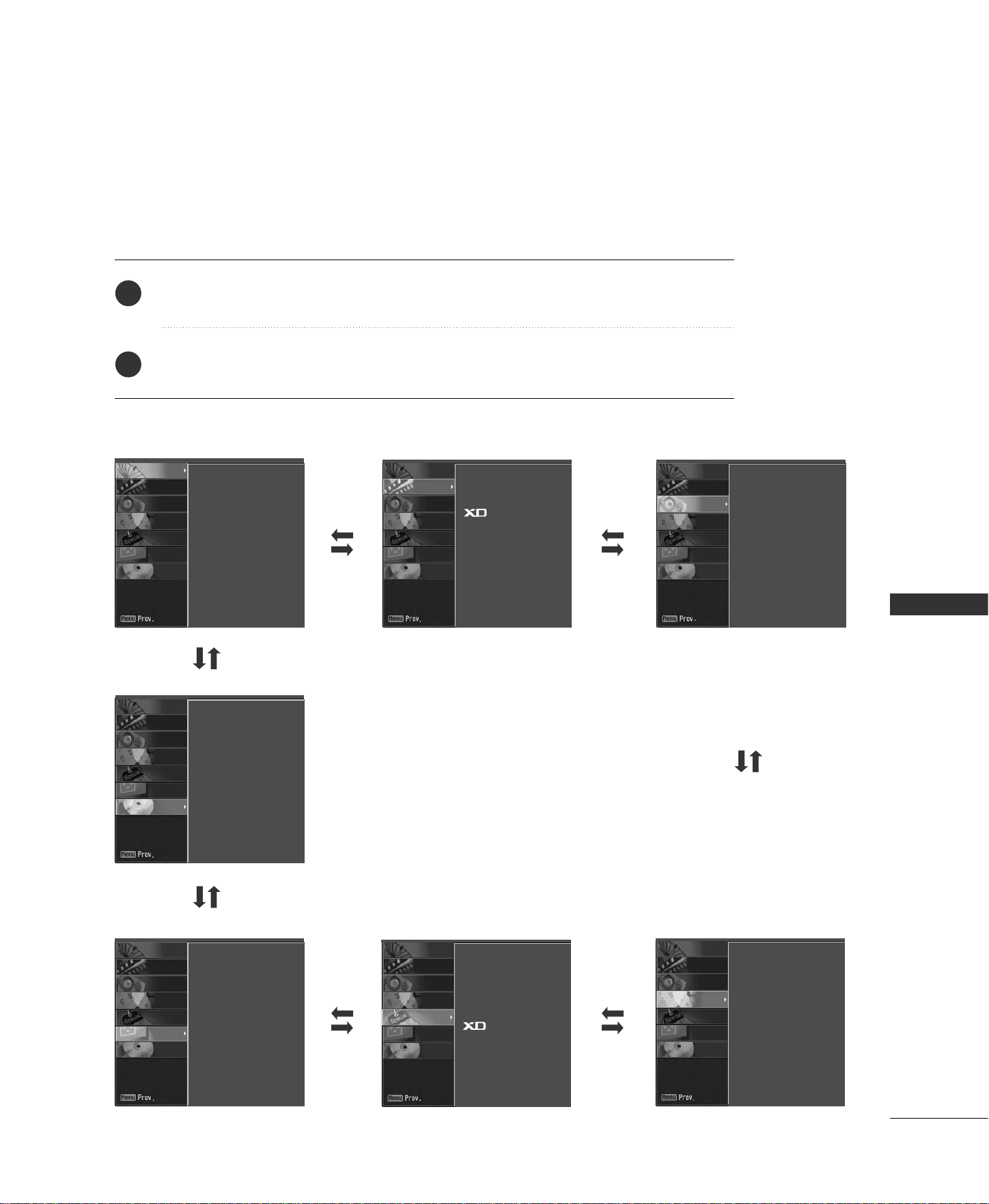
TV MENU
43
ON SCREEN MENUS SELECTION AND ADJUSTMENT
TV MENU
Your TV's OSD
(
On Screen Display
)
may differ slightly from what is shown in this manual.
Press the
MMEENNUU
button and then use
DD
or
EE
button to select the each menu.
Press the
GG
button and then use
DD EE FF GG
button to display the available menus.
2
1
CHANNEL
DVR
PICTURE
SPECIALSCREEN
TIMER
SOUND
Auto program
Manual program
Favorite channel
APC
ACC
Advanced
Reset
DASP
AVL
Balance 0
Speaker
Clock
Off timer
On timer
Auto off
Language
Key lock
Set ID
Caption/Text
Demo
Auto config.
Manual config.
XGA Mode
ARC
PIP Transparency
Reset
SCREEN
DVR
SPECIAL
TIMER
SOUND
PICTURE
CHANNEL
SCREEN
DVR
SPECIAL
TIMER
SOUND
PICTURE
CHANNEL
SCREEN
DVR
SPECIAL
TIMER
SOUND
PICTURE
CHANNEL
SCREEN
DVR
SPECIAL
TIMER
SOUND
PICTURE
CHANNEL
SCREEN
DVR
SPECIAL
TIMER
SOUND
PICTURE
CHANNEL
SCREEN
DVR
SPECIAL
TIMER
SOUND
PICTURE
CHANNEL
Time control
Recorded TV
Manual Recording
Scheduled List
Video Quality
HDD Format
SCREEN
DVR
SPECIAL
TIMER
SOUND
PICTURE
CHANNEL
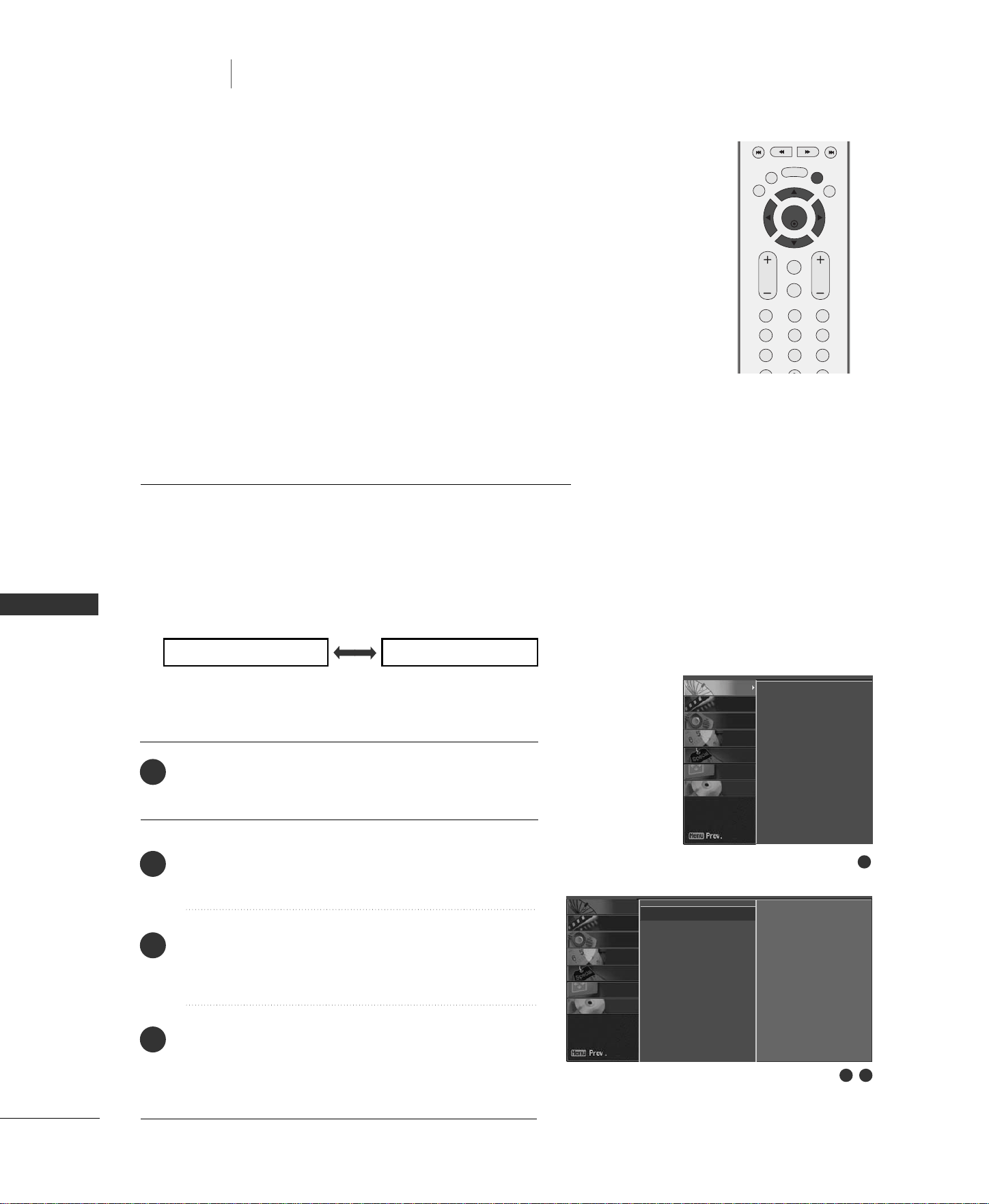
44
AUTO PROGRAM: CHANNEL SEARCH
TV MENU
TV MENU
/
SETUP
(
CHANNEL
)
SETUP (CHANNEL)
ENTER
EXIT
VOL
FCR
MUTE
CH
SLEEP
MEMORY/ERASE
123
456
789
0
MENU
LIVE TV
MARK
TIME
CONTROL
TIME
CONTROL
TIME
MACHINE
Auto Program should be used to memorize all the active channels
in your area before you are able to use the TV.
There are two ways of storing channels in the TV's memory. You
can use either.
One is called AUTO PROGRAM and the other is called MANUAL
PROGRAM.
In AUTO PROGRAM mode, the TV will memorize the channels in
ascending numerical order. If there are additional channels you
want to add or delete, you can manually add or delete those
channels with Manual Program.
Note: When you set up the Recording, Auto program menu is not
available.
- Redo Auto Program if the TV is ever moved to another location.
- Auto Program will search for channels only through the
Antenna jack.
- If channels numbers for broadcast over-the air TV and cable TV
are duplicated where different channels have the same number,
press the same number buttons again to toggle between:
(For example, press 17 to go to the channel, press 17 again to go
to the duplicated channel.)
Press the
MMEENNUU
button and then
DD
or
EE
button to
select the
CCHHAANNNNEELL
menu.
Press the
GG
button and then
DD
or
EE
button to select
AAuuttoo pprrooggrraamm
.
Press the
GG
button.
AAuuttoo pprrooggrraamm
starts the chan-
nel search.
If you want to stop auto programming, press the
EENNTTEERR
button.
Only the channels found up to at that time are mem-
orized.
1
2
3
4
1
2 3
Broadcast TV Channels Cable TV Channels
Auto program G
Manual program
Favorite channel
To start
Auto program
Manual program
Favorite channel
SCREEN
DVR
SPECIAL
TIMER
SOUND
PICTURE
CHANNEL
SCREEN
DVR
SPECIAL
TIMER
SOUND
PICTURE
CHANNEL
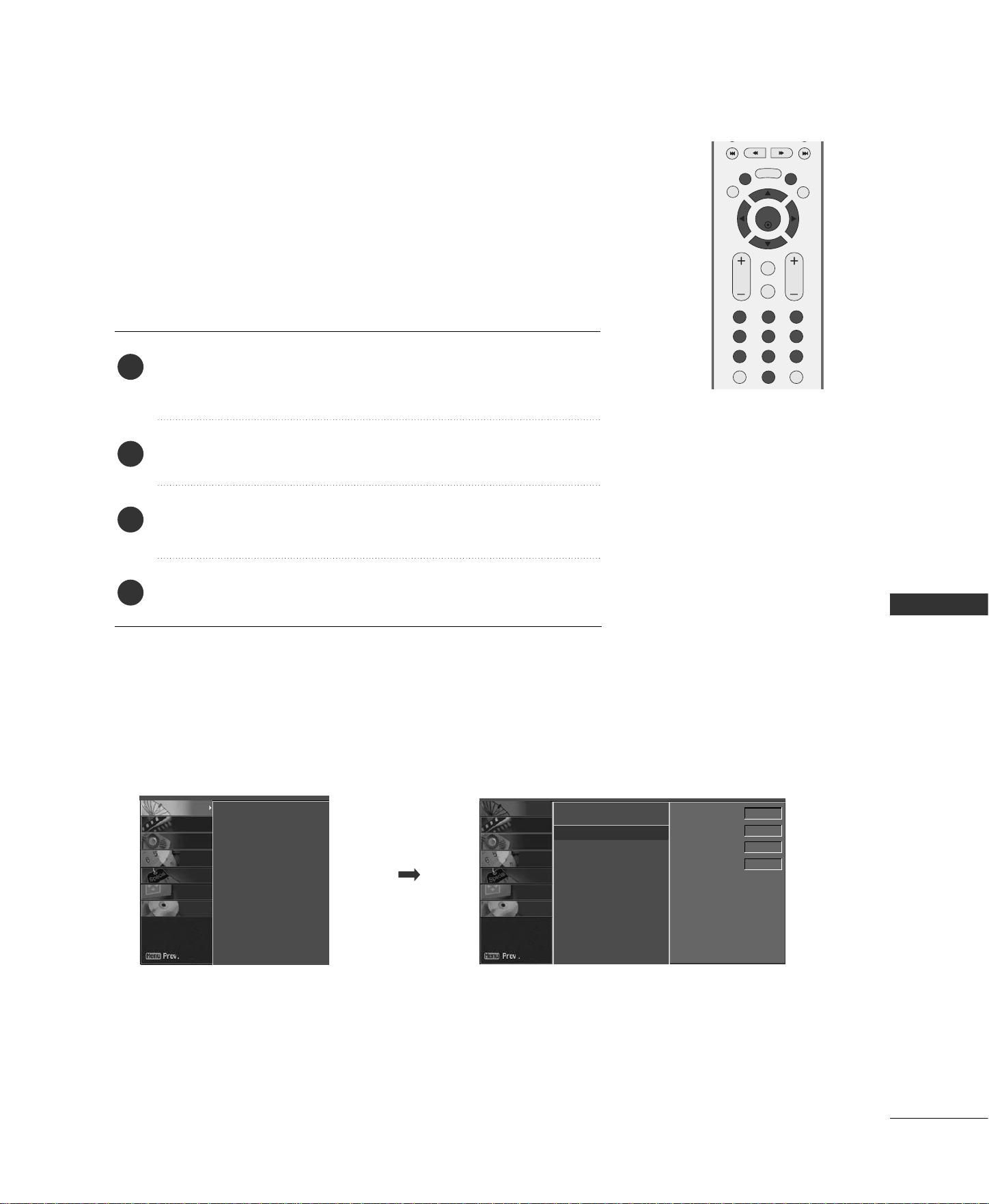
TV MENU
/
SETUP
(
CHANNEL
)
45
MANUAL PROGRAM
: ADDING/DELETING CHANNELS
You can add or delete channels from the channel scan manually.
Note: When you set up the Time coltrol or Recording,
Adding/Deleting channels menu is not available.
ENTER
EXIT
VOL
FCR
MUTE
CH
SLEEP
MEMORY/ERASE
123
456
789
0
MTS
MENU
LIVE TV
MARK
REVIEW
TIME
CONTROL
TIME
CONTROL
TIME
MACHINE
Use the
CCHH--//++
or NUMBER buttons to select the channel number
you want to add or delete.
Press the
MMEEMMOORRYY//EERRAASSEE
button.
Press the
MMEEMMOORRYY//EERRAASSEE
button to select
MMeemmoorryy
or
EErraassee
.
Press the
EENNTTEERR
button.
1
2
3
4
■
You can also use the
CChhaannnneell
menu to adjust
MMaannuuaall pprrooggrraamm
.
Auto program
Manual program
G
Favorite channel
TV 7
Memory On
Fine 0
Booster On
Auto program
Manual program
Favorite channel
SCREEN
DVR
SPECIAL
TIMER
SOUND
PICTURE
CHANNEL
SCREEN
DVR
SPECIAL
TIMER
SOUND
PICTURE
CHANNEL
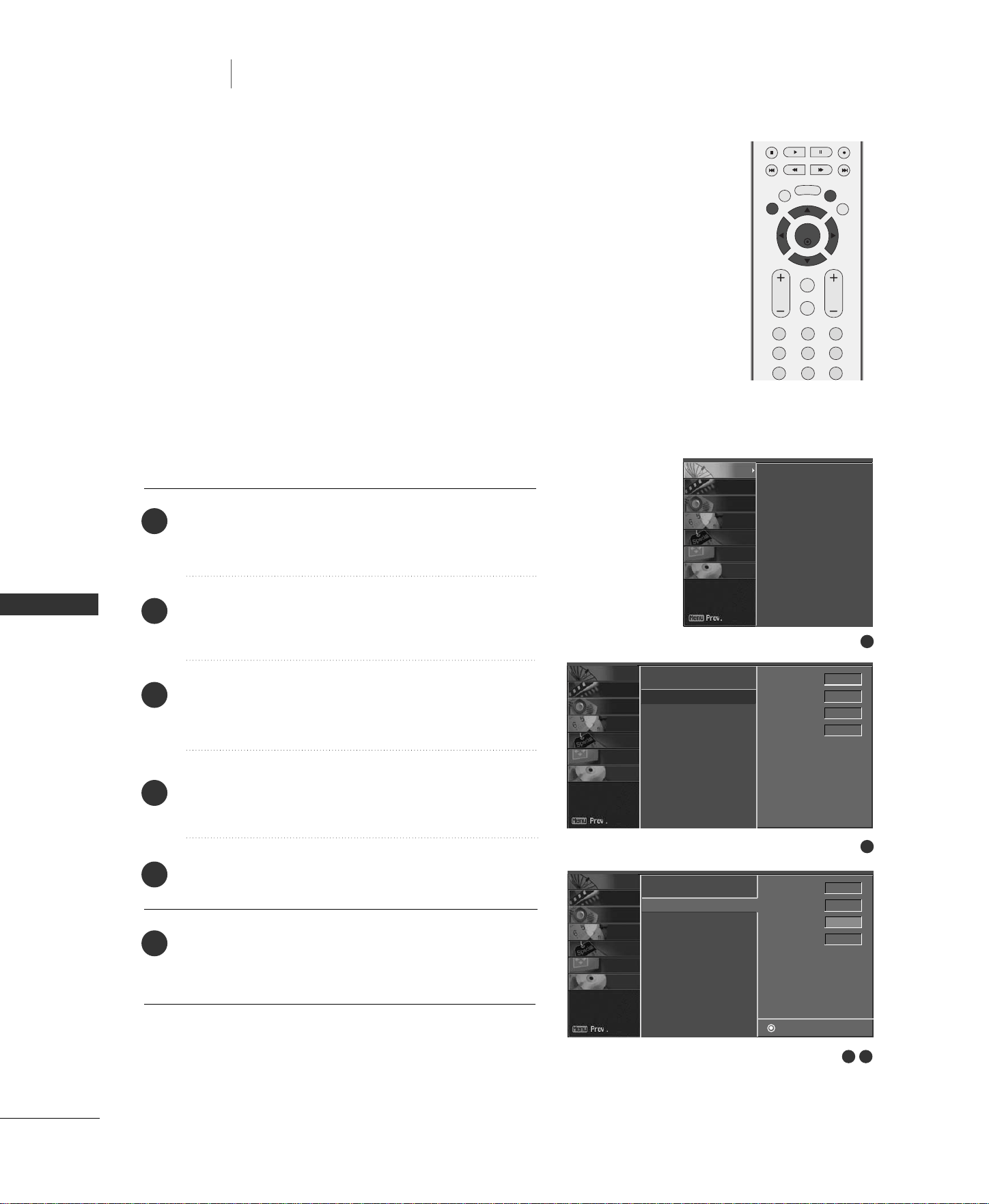
46
FINE TUNING ADJUSTMENT
TV MENU
/
SETUP
(
CHANNEL
)
TV MENU
SETUP (CHANNEL)
Press the
MMEENNUU
button and then
DD
or
EE
button to
select the
CCHHAANNNNEELL
menu.
Press the
GG
button and then
DD
or
EE
button to select
MMaannuuaall pprrooggrraamm
.
Press the
GG
button and then
DD
or
EE
button to select
FFiinnee
.
Press the
FF
or
GG
button to adjust the picture to your
preference.
Press the
EENNTTEERR
button to store it.
Press the
EEXXIITT
button to return to TV viewing or
press the
MMEENNUU
button to return to the previous
menu.
ENTER
EXIT
VOL
FCR
MUTE
CH
SLEEP
MEMORY/ERASE
123
456
789
MENU
LIVE TV
MARK
TIME
CONTROL
TIME
CONTROL
TIME
MACHINE
1
2
3
4
5
6
Normally fine tuning is only necessary if reception is poor.
To remove fine tuning from a channel, reprogram the finely-tuned
channel with Auto program or Manual Program.
If a finely-tuned channel is memorized, the color of the channel
number changes to yellow.
1
Auto program
Manual program
Favorite channel
SCREEN
DVR
SPECIAL
TIMER
SOUND
PICTURE
CHANNEL
3 4
2
Auto program
Manual program
G
Favorite channel
TV 7
Memory On
Fine 0
Booster On
Auto program
Manual program
Favorite channel
Store
SCREEN
DVR
DVR
SPECIAL
TIMER
SOUND
PICTURE
CHANNEL
SCREEN
SPECIAL
TIMER
SOUND
PICTURE
CHANNEL
TV 7
Memory On
Fine
FF GG
0
Booster On
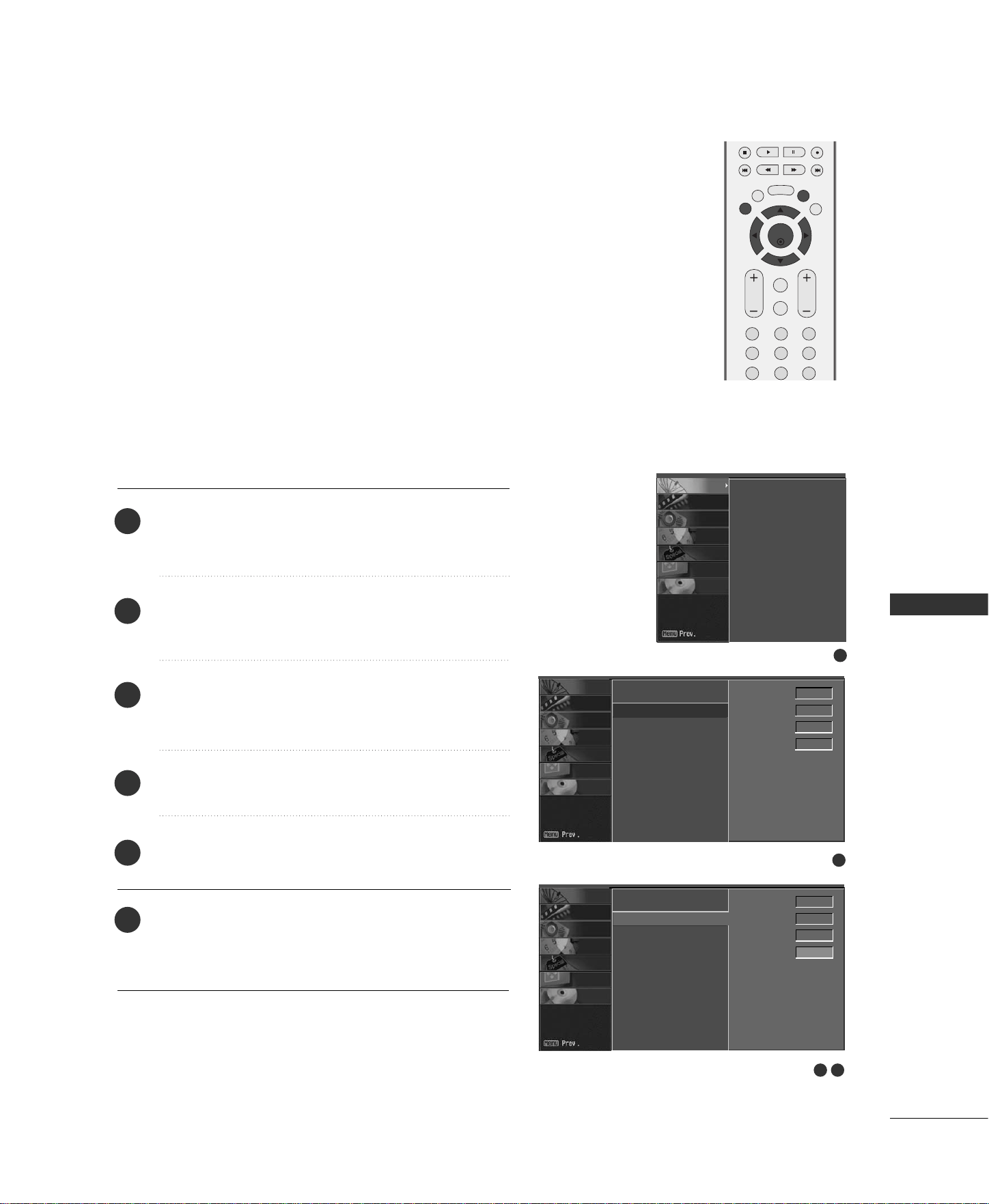
47
BOOSTER
TV MENU
/
SETUP
(
CHANNEL
)
Press the
MMEENNUU
button and then
DD
or
EE
button to
select the
CCHHAANNNNEELL
menu.
Press the
GG
button and then
DD
or
EE
button to select
MMaannuuaall pprrooggrraamm
.
Press the
GG
button and then
DD
or
EE
button to select
BBoooosstteerr
.
Press the
FF
or
GG
button to select
OOnn
or
OOffff..
Press the
EENNTTEERR
button to store it.
Press the
EEXXIITT
button to return to TV viewing or
press the
MMEENNUU
button to return to the previous
menu.
ENTER
EXIT
VOL
FCR
MUTE
CH
SLEEP
MEMORY/ERASE
123
456
789
MENU
LIVE TV
MARK
TIME
CONTROL
TIME
CONTROL
TIME
MACHINE
1
2
3
4
5
6
If the reception is poor at the fringe area of TV signal, select
BBoooosstteerr
to
oonn
.
1
Auto program
Manual program
Favorite channel
SCREEN
DVR
SPECIAL
TIMER
SOUND
PICTURE
CHANNEL
3 4
2
Auto program
Manual program
G
Favorite channel
TV 7
Memory On
Fine 0
Booster On
Auto program
Manual program
Favorite channel
TV 7
Memory On
Fine 0
Booster
FF GG
On
SCREEN
DVR
DVR
SPECIAL
TIMER
SOUND
PICTURE
CHANNEL
SCREEN
SPECIAL
TIMER
SOUND
PICTURE
CHANNEL
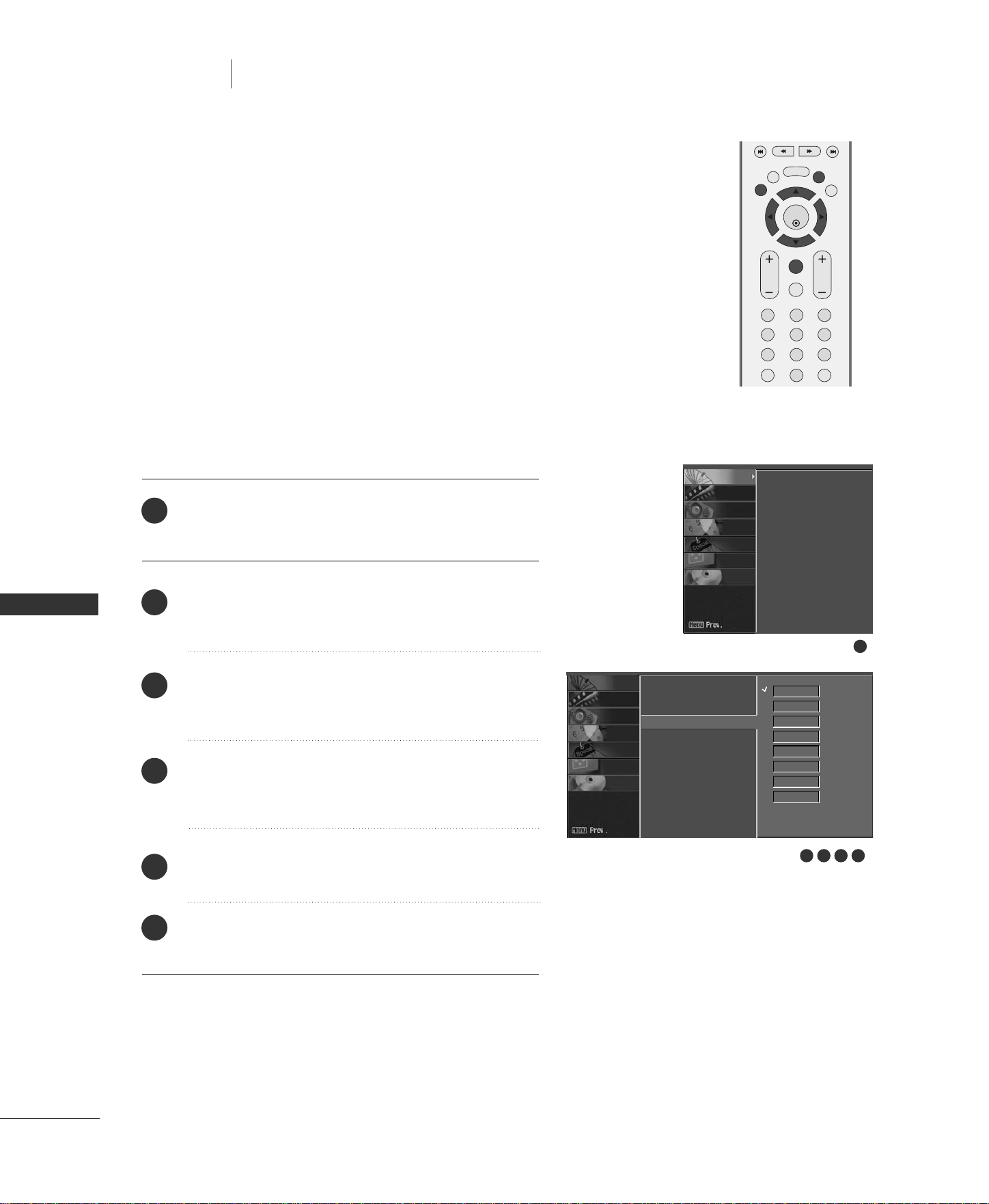
48
FAVORITE CHANNELS SETUP
TV MENU
/
SETUP
(
CHANNEL
)
SETUP (CHANNEL)
TV MENU
Favorite Channels is a convenient feature that lets you quickly
scan up to 8 channels of your choice without having to wait for
the TV to scan through all the in-between channels.
To tune to a favorite channel, press the
FFCCRR
(Favorite Channel
Review) button repeatedly. The 8 favorite channels appear on
the screen in numerical order.
ENTER
EXIT
VOL
FCR
MUTE
CH
SLEEP
MEMORY/ERASE
123
456
789
0
MTS
MENU
LIVE TV
MARK
REVIEW
TIME
CONTROL
TIME
CONTROL
TIME
MACHINE
1
2
3
4
5
6
Press the
MMEENNUU
button and then
DD
or
EE
button to
select the
CCHHAANNNNEELL
menu.
Press the
GG
button and then
DD
or
EE
button to select
FFaavvoorriittee CChhaannnneell
.
Press the
GG
button and then
DD
or
EE
button to select
the first favorite channel position.
Use the
FF
or
GG
button to set the desired channel
number for first favorite channel.
Press the
EEXXIITT
button to return to normal TV viewing.
Repeat steps 3 to 5 to memorize other favorite channels.
1
Auto program
Manual program
Favorite channel
SCREEN
DVR
SPECIAL
TIMER
SOUND
PICTURE
CHANNEL
4 52 3
Auto program
Manual program
Favorite channel
G
---- ---
---- ---
---- ---
---- ---
---- ---
---- ---
---- ---
---- ---
SCREEN
DVR
SPECIAL
TIMER
SOUND
PICTURE
CHANNEL
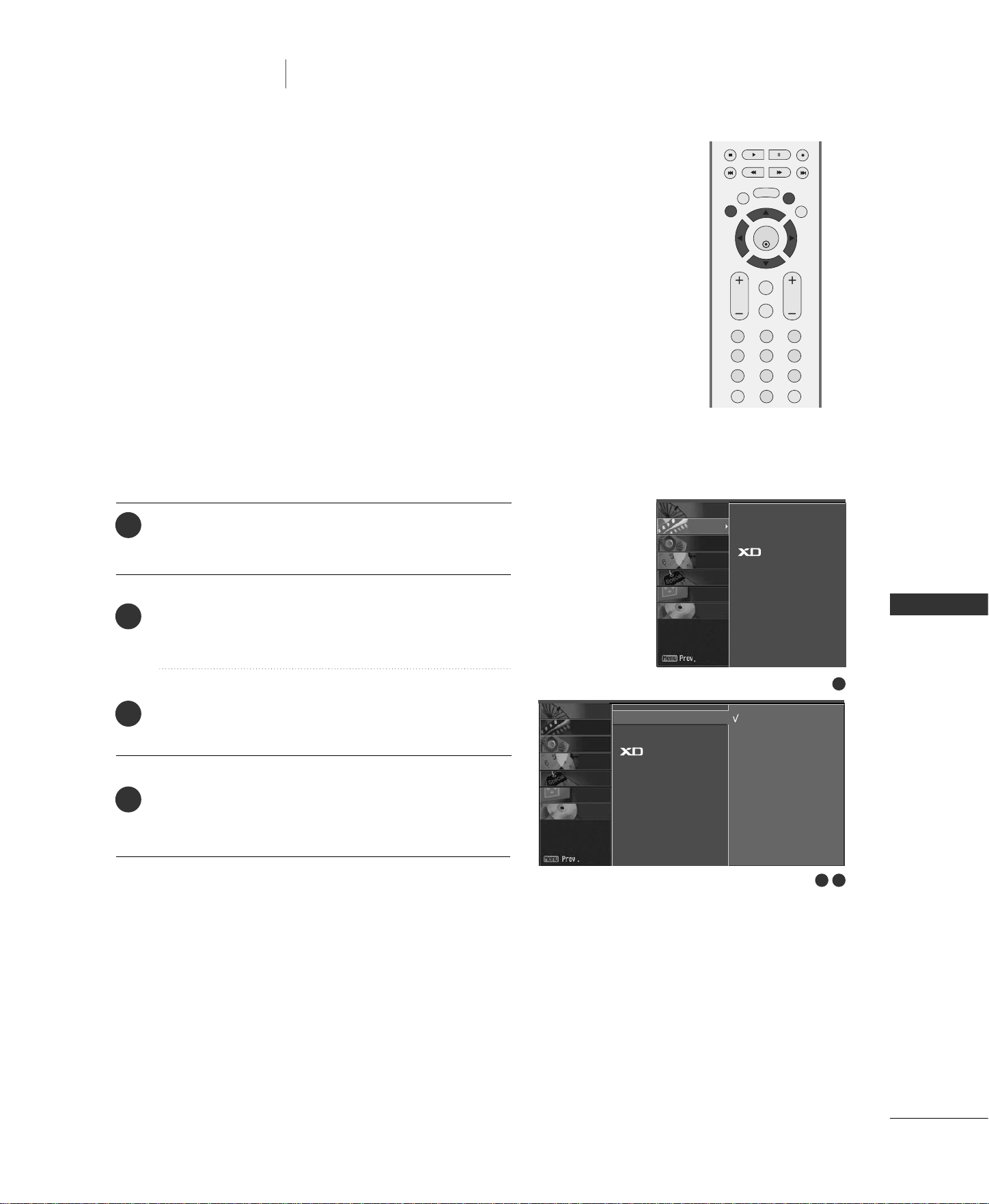
TV MENU
/
PICTURE ADJUSTMENT
49
AUTO PICTURE CONTROL (APC)
PICTURE ADJUSTMENT
TV MENU
ENTER
EXIT
VOL
FCR
MUTE
CH
SLEEP
MEMORY/ERASE
123
456
789
0
MTS
MENU
LIVE TV
MARK
REVIEW
TIME
CONTROL
TIME
CONTROL
TIME
MACHINE
APC adjusts the TV for the best picture appearance. Select the
preset value in the APC menu based on the program category.
CClleeaarr
,
OOppttiimmuumm
,
SSoofftt
Settings are preset for optimum picture
quality at the factory and are not adjustable.
In the
UUsseerr11
and
UUsseerr22
modes only, you can directly adjust
the contrast, brightness, color, sharpness, tint.
Press the
MMEENNUU
button and then
DD
or
EE
button to
select the
PPIICCTTUURREE
menu.
Press the
GG
button and then
DD
or
EE
button to select
AAPPCC
.
Press the
GG
button and then
DD
or
EE
button to select
CClleeaarr
,
OOppttiimmuumm
,
SSoofftt
,
UUsseerr11
or
UUsseerr22
.
Press the
EEXXIITT
button to return to TV viewing or
press the
MMEENNUU
button to return to the previous
menu.
1
2
3
4
2 3
1
APC G
ACC
Advanced
Reset
Clear
Optimum
Soft
User1
User 2
APC
ACC
Advanced
Reset
SCREEN
DVR
SPECIAL
TIMER
SOUND
PICTURE
CHANNEL
SCREEN
DVR
SPECIAL
TIMER
SOUND
PICTURE
CHANNEL
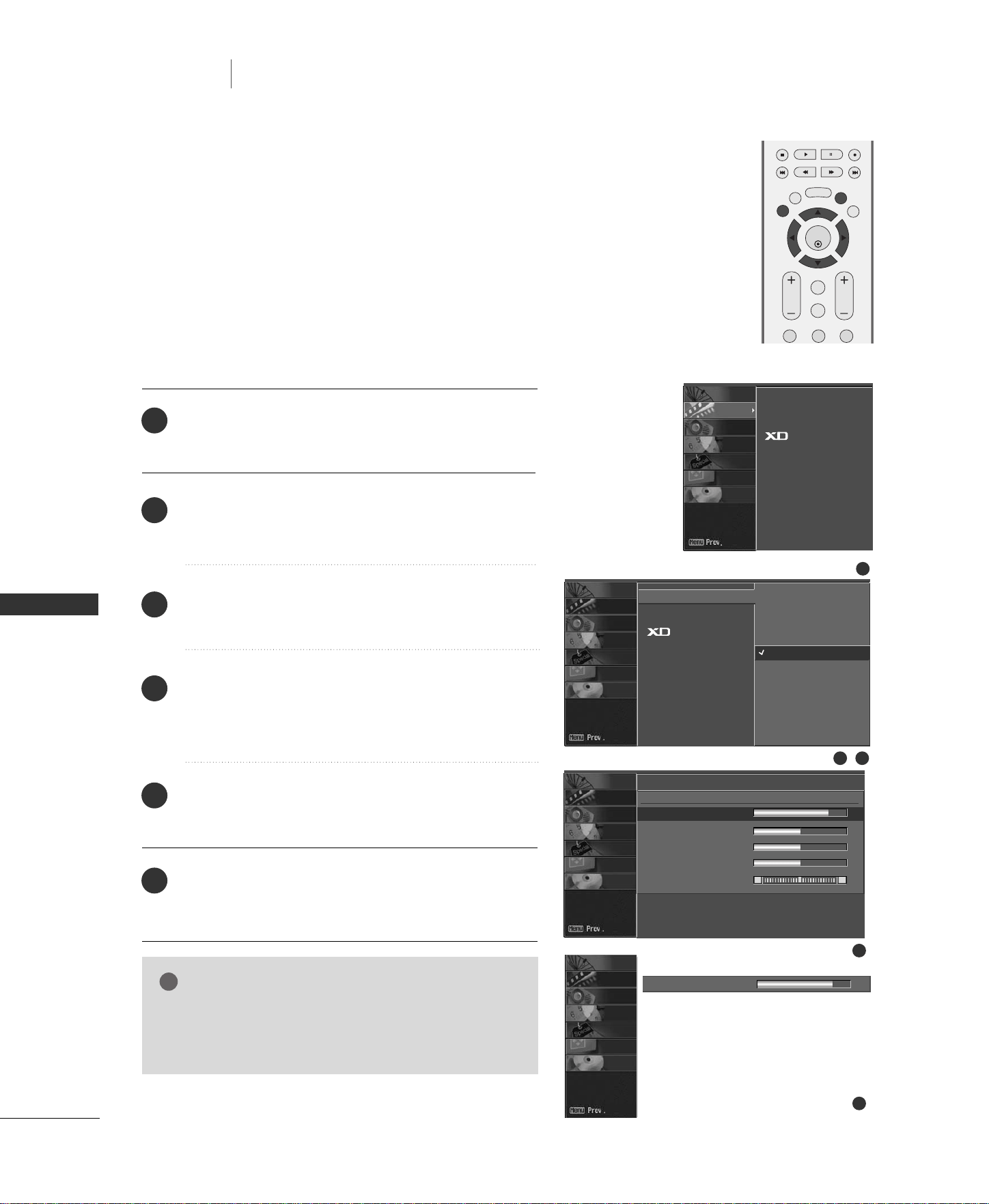
50
MANUAL PICTURE CONTROL (APC-USER OPTION)
TV MENU
TV MENU
/
PICTURE ADJUSTMENT
PICTURE ADJUSTMENT
Press the
MMEENNUU
button and then
DD
or
EE
button to
select the
PPIICCTTUURREE
menu.
Press the
GG
button and then
DD
or
EE
button to select
AAPPCC
.
Press the
GG
button and then
DD
or
EE
button to select
UUsseerr 11
or
UUsseerr 22
.
Press the
GG
button and then
DD
or
EE
button to select
the desired picture option (
CCoonnttrraasstt
,
BBrriigghhttnneessss
,
CCoolloorr
,
SShhaarrppnneessss
, and
TTiinntt
).
Press the
GG
button and then
FF
or
GG
button to make
appropriate adjustments.
Press the
EEXXIITT
button to return to TV viewing or
press the
MMEENNUU
button to return to the previous
menu.
Adjust the picture appearance to suit your preference and view-
ing situations.
ENTER
EXIT
VOL
FCR
MUTE
CH
SLEEP
MEMORY/ERASE
123
MENU
LIVE TV
MARK
TIME
CONTROL
TIME
CONTROL
TIME
MACHINE
NOTE
!
GG
In RGB-PC and HDMI PC mode, you can’t adjust
color, sharpness and tint to the levels you prefer.
1
2
3
4
5
6
APC
ACC
Advanced
Reset
Clear
Optimum
Soft
User1
User 2
Contrast 85
FF
G
EE
User1
Contrast 85
G
Brightness 50
Color 50
Sharpness 50
Tint 0
R G
1
2 3
4
5
APC
ACC
Advanced
Reset
SCREEN
DVR
SPECIAL
TIMER
SOUND
PICTURE
CHANNEL
SCREEN
DVR
DVR
DVR
SPECIAL
TIMER
SOUND
PICTURE
CHANNEL
SCREEN
SPECIAL
TIMER
SOUND
PICTURE
CHANNEL
SCREEN
SPECIAL
TIMER
SOUND
PICTURE
CHANNEL
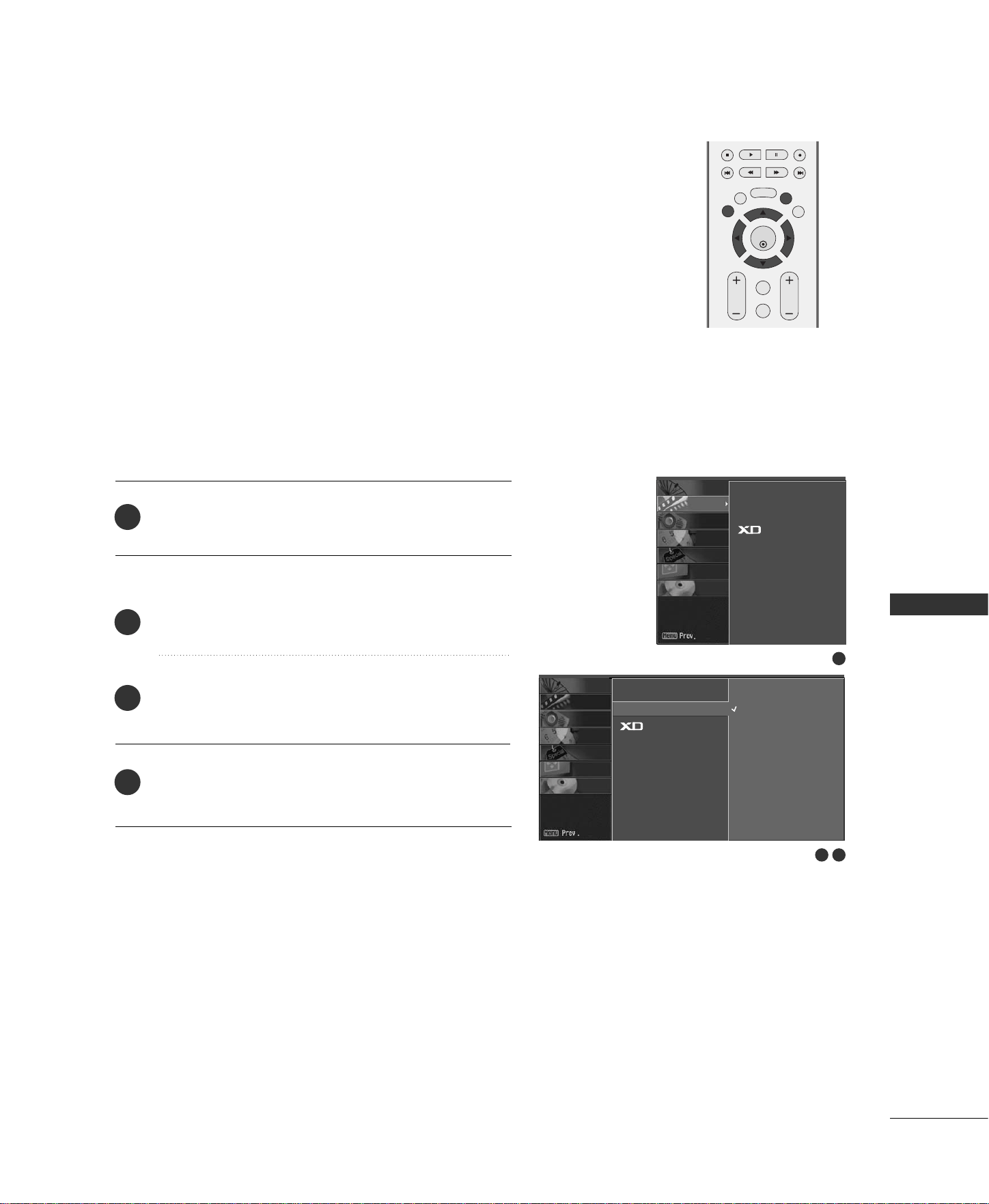
TV MENU
/
PICTURE ADJUSTMENT
51
AUTO COLOR TEMPERATURE CONTROL (ACC)
Choose one of three automatic color adjustments. Set to
warm to enhance hotter colors such as red, or set to cool
to see less intense colors with more blue.
ENTER
EXIT
VOL
FCR
MUTE
CH
SLEEP
MEMORY/ERASE
MENU
LIVE TV
MARK
TIME
CONTROL
TIME
CONTROL
TIME
MACHINE
Press the
MMEENNUU
button and then
DD
or
EE
button to
select the
PPIICCTTUURREE
menu.
Press the
GG
button and then
DD
or
EE
button to select
AACCCC
.
Press the
GG
button and then
DD
or
EE
button to select
either
CCooooll
,
NNoorrmmaall
,
WWaarrmm
, or
UUsseerr
.
Press
EEXXIITT
button to return to TV viewing or press
MMEENNUU
button to return to the previous menu.
1
2
3
4
2 3
1
APC
ACC
G
Advanced
Reset
Cool
Normal
Warm
User
APC
ACC
Advanced
Reset
SCREEN
DVR
SPECIAL
TIMER
SOUND
PICTURE
CHANNEL
SCREEN
DVR
SPECIAL
TIMER
SOUND
PICTURE
CHANNEL
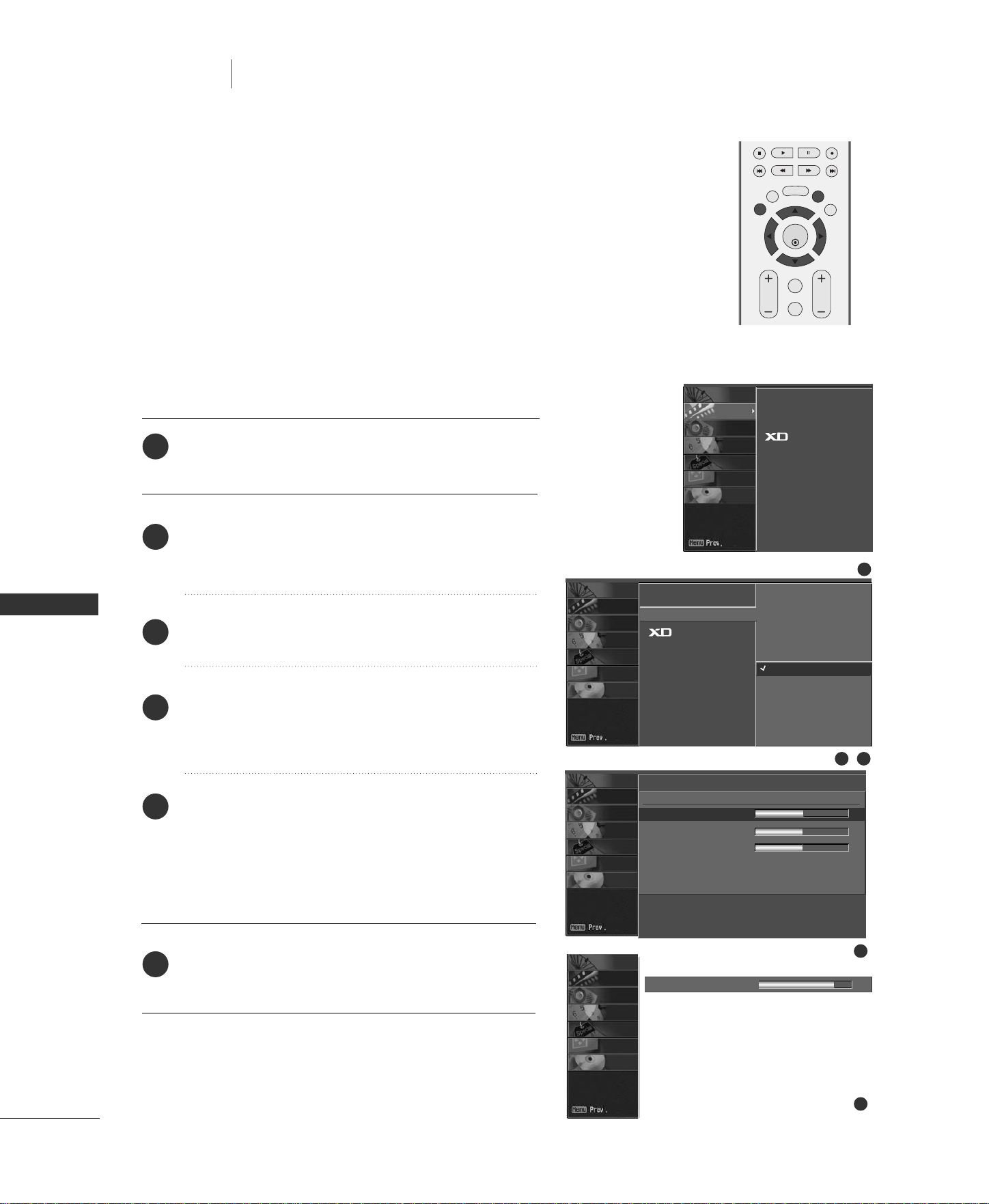
52
MANUAL COLOR TEMPERATURE CONTROL
(ACC - USER OPTION)
TV MENU
TV MENU
/
PICTURE ADJUSTMENT
PICTURE ADJUSTMENT
You can also adjust the detailed settings (Red, Green, Blue) by select-
ing the
uusseerr
menu.
Press the
MMEENNUU
button and then
DD
or
EE
button to
select the
PPIICCTTUURREE
menu.
Press the
GG
button and then
DD
or
EE
button to select
AACCCC
.
Press the
GG
button and then
DD
or
EE
button to select
UUsseerr
.
Press the
GG
button and then
DD
or
EE
button to select
RReedd
,
GGrreeeenn
, or
BBlluuee
.
Press the
GG
button and then
FF
or
GG
button to make
appropriate adjustments.
■
The adjustment range of
RRGGBB
,
GGrreeeenn
, or
BBlluuee
is
-40 ~ +40.
Press the
EEXXIITT
button to return to TV viewing or
press the
MMEENNUU
button to return to the previous
menu.
ENTER
EXIT
VOL
FCR
MUTE
CH
SLEEP
MEMORY/ERASE
MENU
LIVE TV
MARK
TIME
CONTROL
TIME
CONTROL
TIME
MACHINE
1
2
3
4
5
6
APC
ACC
Advanced
Reset
Cool
Normal
Warm
User
EE
User
Red 0
G
Green 0
Blue 0
1
2 3
4
5
Red 35
FF
G
APC
ACC
Advanced
Reset
SCREEN
DVR
SPECIAL
TIMER
SOUND
PICTURE
CHANNEL
SCREEN
DVR
SPECIAL
TIMER
SOUND
PICTURE
CHANNEL
SCREEN
DVR
SPECIAL
TIMER
SOUND
PICTURE
CHANNEL
SCREEN
DVR
SPECIAL
TIMER
SOUND
PICTURE
CHANNEL
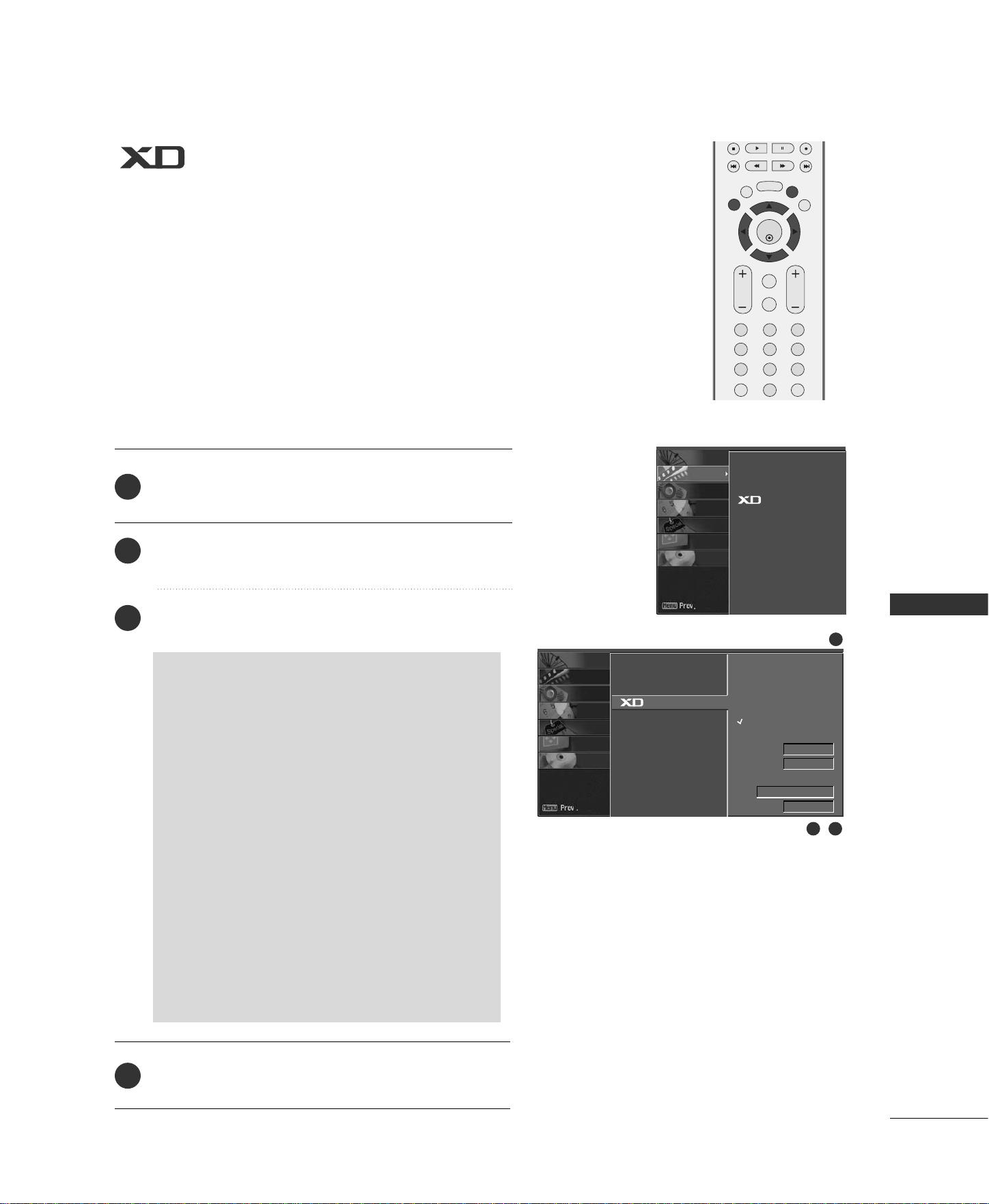
TV MENU
/
PICTURE ADJUSTMENT
53
ENTER
EXIT
VOL
FCR
MUTE
CH
SLEEP
MEMORY/ERASE
123
456
789
0
MTS
MENU
LIVE TV
MARK
REVIEW
TIME
CONTROL
TIME
CONTROL
TIME
MACHINE
XD is LG Electronic’s unique picture improving technology to
display a real HD source through an advanced digital signal
processing algorithm.
When selecting APC options (Clear, Optimum and Soft), XD is
automatically changed to Auto.
When selecting APC options (User 1 and User 2), you can
choose the Auto / Manual.
When selecting the Manual, you can adjust the XD Contrast,
XD color and XD Noise.
It’s not available to use this function in RGB-PC, HDMI-PC mode.
Press the
MMEENNUU
button and then use
DD
or
EE
button
to select the
PPIICCTTUURREE
menu.
Press the
GG
button and then use
DD
or
EE
button to
select
XX DD
.
Press the
GG
button and then use
DD
or
EE
button to
select
AAuuttoo
or
MMaannuuaall
.
Press
EEXXIITT
button to return to TV viewing or press
MMEENNUU
button to return to the previous menu.
2
3
4
1
SSeelleeccttiinngg tthhee MMaannuuaall
1. Press the
GG
button and then use
DD
or
EE
button
to select
XXDD CCoonnttrraasstt
,
XXDD CCoolloorr
or
XXDD NNRR
((NNooiissee))
,
MMPPEEGG NNRR
.
■
XXDD CCoonnttrraasstt::
Optimizing the contrast auto-
matically according to the brightness of the
reflection.
■
XXDD CCoolloorr::
Adjusting the colors of the reflec-
tion automatically to reproduce as closely as
possible to the natural colors.
■
XXDD NNRR ((NNooiissee)) ::
Removing the noise up to
the point where it does not damage the original
picture.
■
MMPPEEGG NNRR ::
To reduce the picture noise which
may appear on the screen during watching the TV.
2. Press the
FF
or
GG
button to select
OOnn
or
OOffff
.
APC
ACC
G
Advanced
Reset
Auto
Manual
XD Contrast
On
XD Color On
XD NR
Off
MPEG NR 0
1
2 3
APC
ACC
Advanced
Reset
SCREEN
DVR
SPECIAL
TIMER
SOUND
PICTURE
CHANNEL
SCREEN
DVR
SPECIAL
TIMER
SOUND
PICTURE
CHANNEL
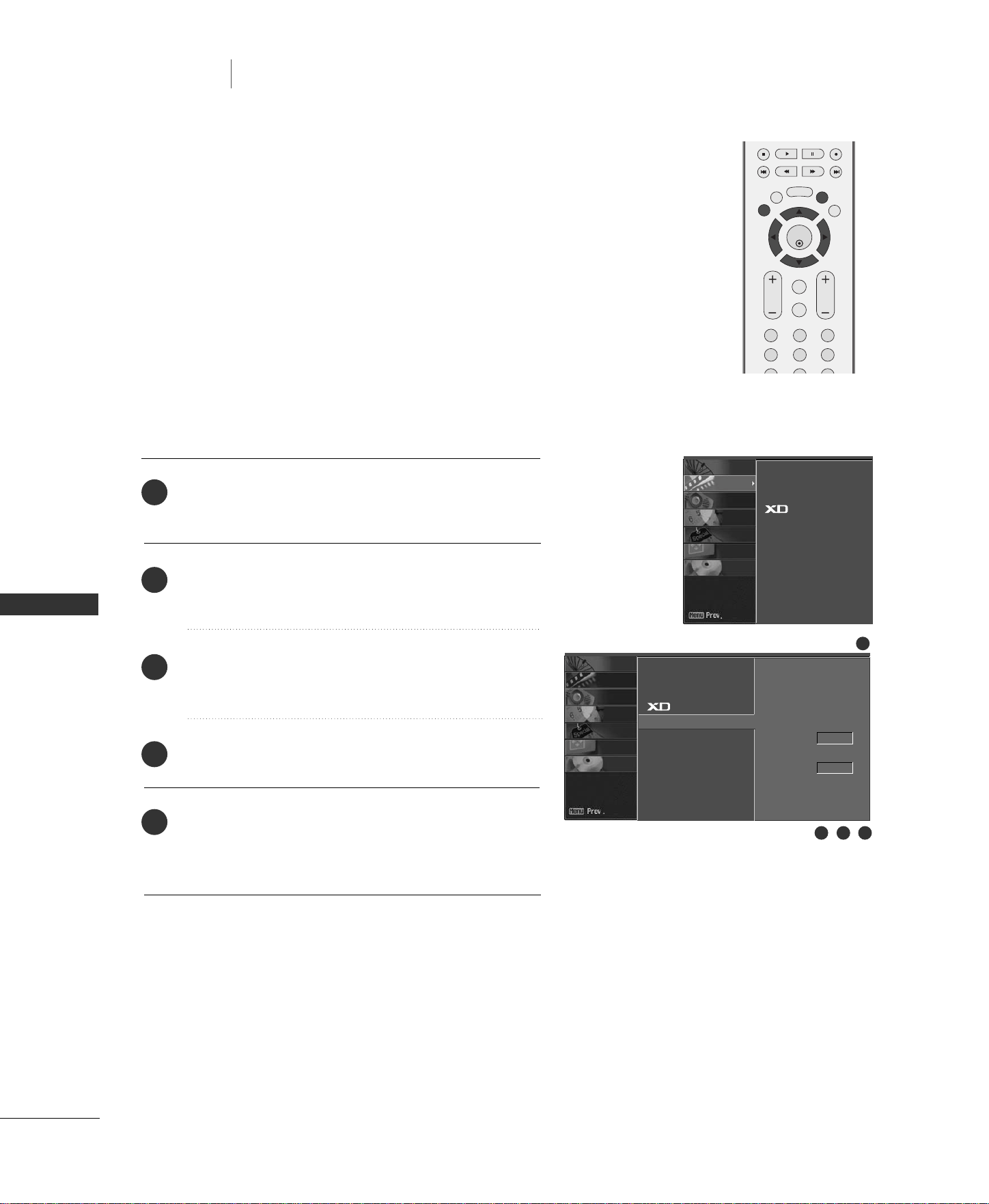
54
ADVANCED-CINEMA MODE SETUP
TV MENU
TV MENU
/
PICTURE ADJUSTMENT
PICTURE ADJUSTMENT
Set up the TV for the best picture appearance for viewing
movies.
When you operate Cinema (3:2 Pull-Down Mode or Cinema
Correction Mode), the TV will adjust 24 fps video from movies
to 30 fps video for display.
This feature operates only in Analog TV, AV and Component
480i mode.
ENTER
EXIT
VOL
FCR
MUTE
CH
SLEEP
MEMORY/ERASE
123
456
789
MENU
LIVE TV
MARK
TIME
CONTROL
TIME
CONTROL
TIME
MACHINE
Press the
MMEENNUU
button and then
DD
or
EE
button to
select the
PPIICCTTUURREE
menu.
Press the
GG
button and then
DD
or
EE
button to select
AAddvvaanncceedd
.
Press the
GG
button and then
DD
or
EE
button to select
CCiinneemmaa
.
Press the
FF
or
GG
button to select
OOnn
or
OOffff..
Press the
EEXXIITT
button to return to TV viewing or
press the
MMEENNUU
button to return to the previous
menu.
1
2
3
4
5
APC
ACC
Advanced G
Reset
Cinema
Off
Black level
Auto
1
2 3 4
APC
ACC
Advanced
Reset
SCREEN
DVR
SPECIAL
TIMER
SOUND
PICTURE
CHANNEL
SCREEN
DVR
SPECIAL
TIMER
SOUND
PICTURE
CHANNEL
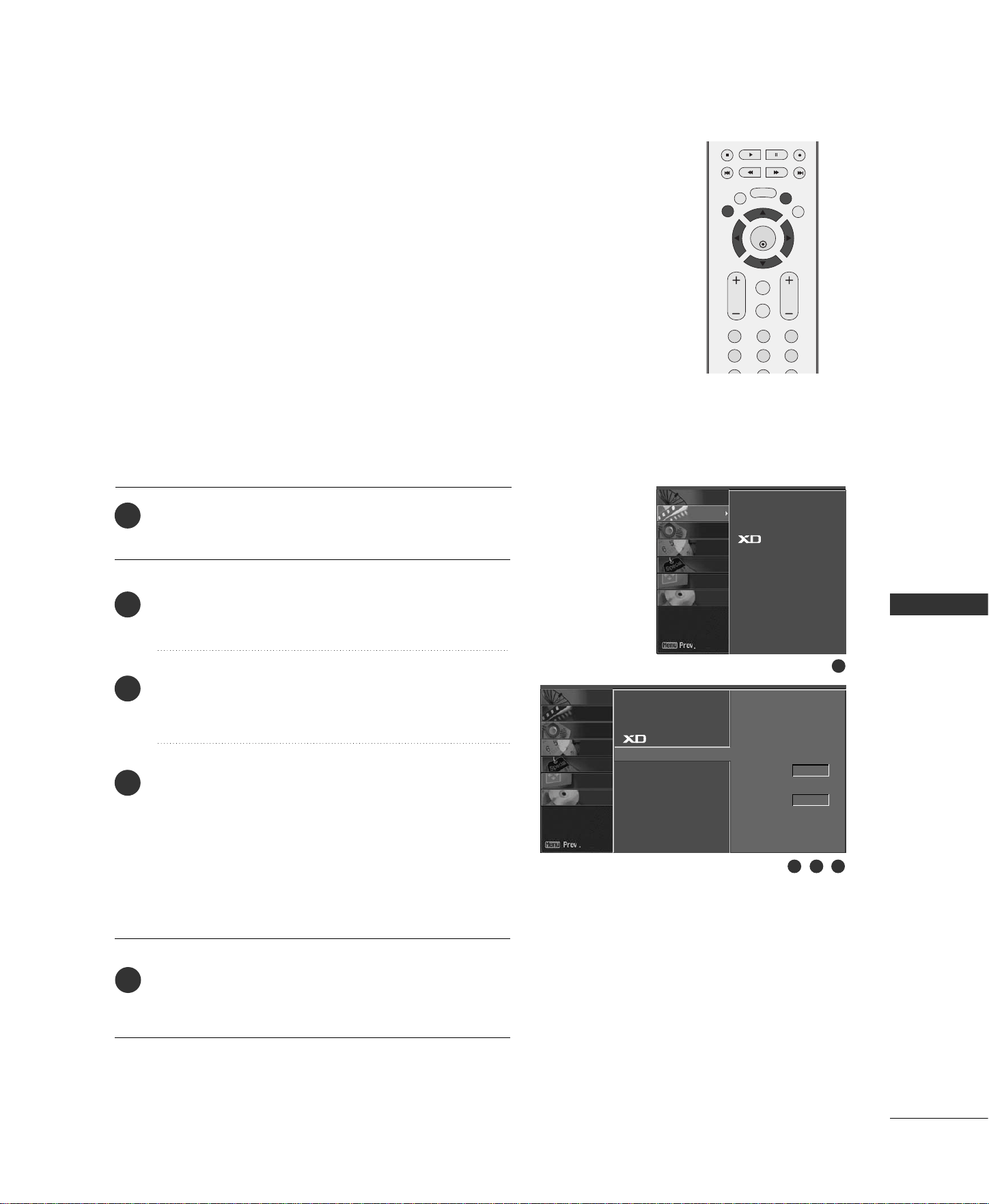
TV MENU
/
PICTURE ADJUSTMENT
55
ADVANCED-BLACK LEVEL
ENTER
EXIT
VOL
FCR
MUTE
CH
SLEEP
MEMORY/ERASE
123
456
MENU
LIVE TV
MARK
TIME
CONTROL
TIME
CONTROL
TIME
MACHINE
Adjusting the contrast and the brightness of the screen using
the black level of the screen.
This feature operates only in AV (NTSC-M) or HDMI mode.
Press the
MMEENNUU
button and then
DD
or
EE
button to
select the
PPIICCTTUURREE
menu.
Press the
GG
button and then
DD
or
EE
button to select
AAddvvaanncceedd
.
Press the
GG
button and then
DD
or
EE
button to select
BBllaacckk LLeevveell
.
Press the
FF
or
GG
button to select
LLooww
or
HHiigghh..
■
LLooww
The screen gets darker.
■
HHiigghh
The screen gets brighter.
Press the
EEXXIITT
button to return to TV viewing or
press the
MMEENNUU
button to return to the previous
menu.
1
2
3
4
5
APC
ACC
Advanced G
Reset
Cinema
Off
Black level
Low
1
2 3 4
APC
ACC
Advanced
Reset
SCREEN
DVR
SPECIAL
TIMER
SOUND
PICTURE
CHANNEL
SCREEN
DVR
SPECIAL
TIMER
SOUND
PICTURE
CHANNEL
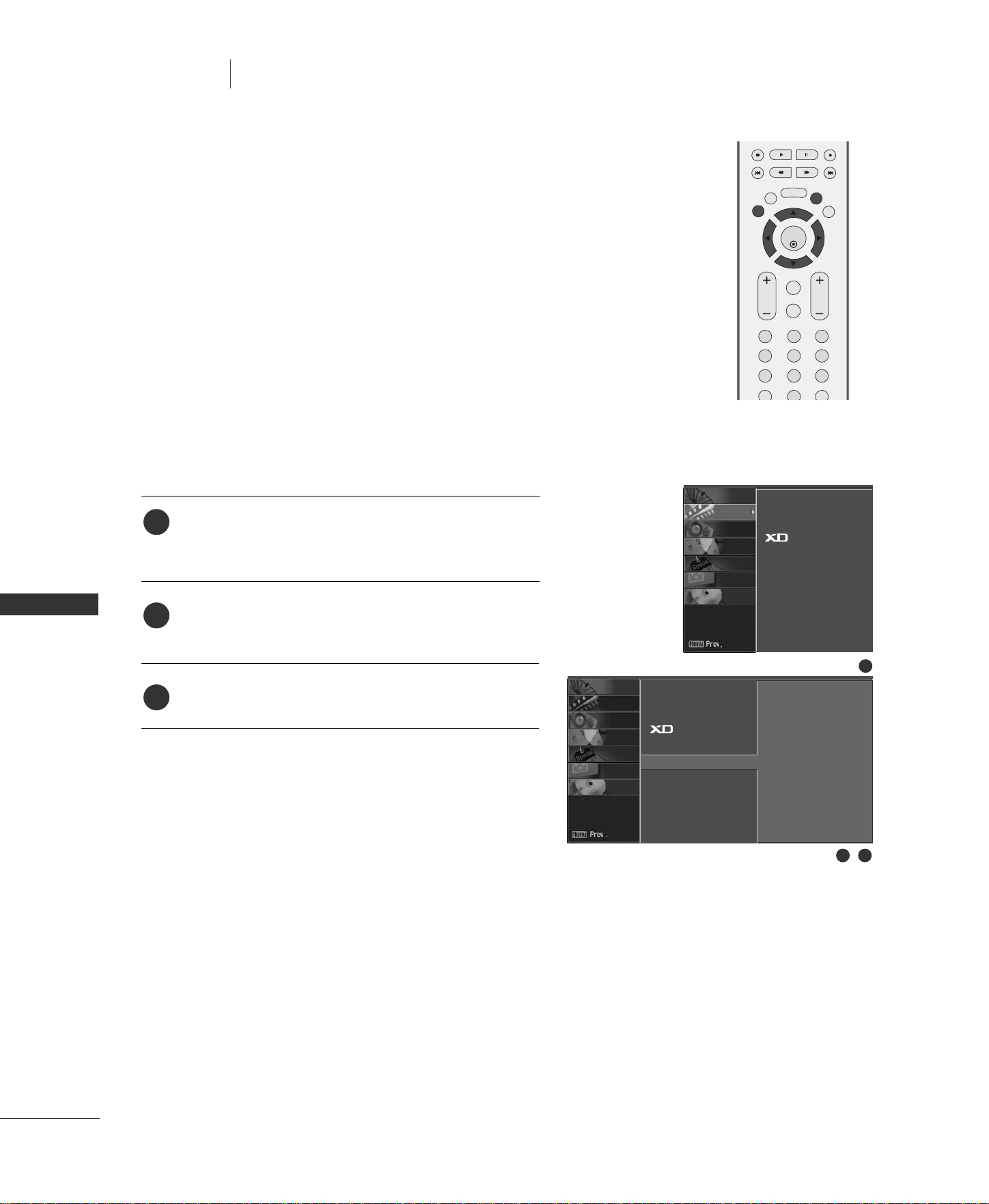
56
RESET
TV MENU
TV MENU
/
PICTURE ADJUSTMENT
PICTURE ADJUSTMENT
Press the
MMEENNUU
button and then
DD
or
EE
button to
select the
PPIICCTTUURREE
menu.
Press the
GG
button and then
DD
or
EE
button to select
RReesseett
.
Press the
GG
button to initialize the adjusted value.
• Returns to the default settings APC, ACC, XD,
Advanced at the factory.
ENTER
EXIT
VOL
FCR
MUTE
CH
SLEEP
MEMORY/ERASE
123
456
789
0
MTS
MENU
LIVE TV
MARK
REVIEW
TIME
CONTROL
TIME
CONTROL
TIME
MACHINE
1
2
3
Use to quickly reset all the Picture menu options to their
original factory preset values.
APC
ACC
Advanced
Reset
G
To set
1
2 3
APC
ACC
Advanced
Reset
SCREEN
DVR
SPECIAL
TIMER
SOUND
PICTURE
CHANNEL
SCREEN
DVR
SPECIAL
TIMER
SOUND
PICTURE
CHANNEL
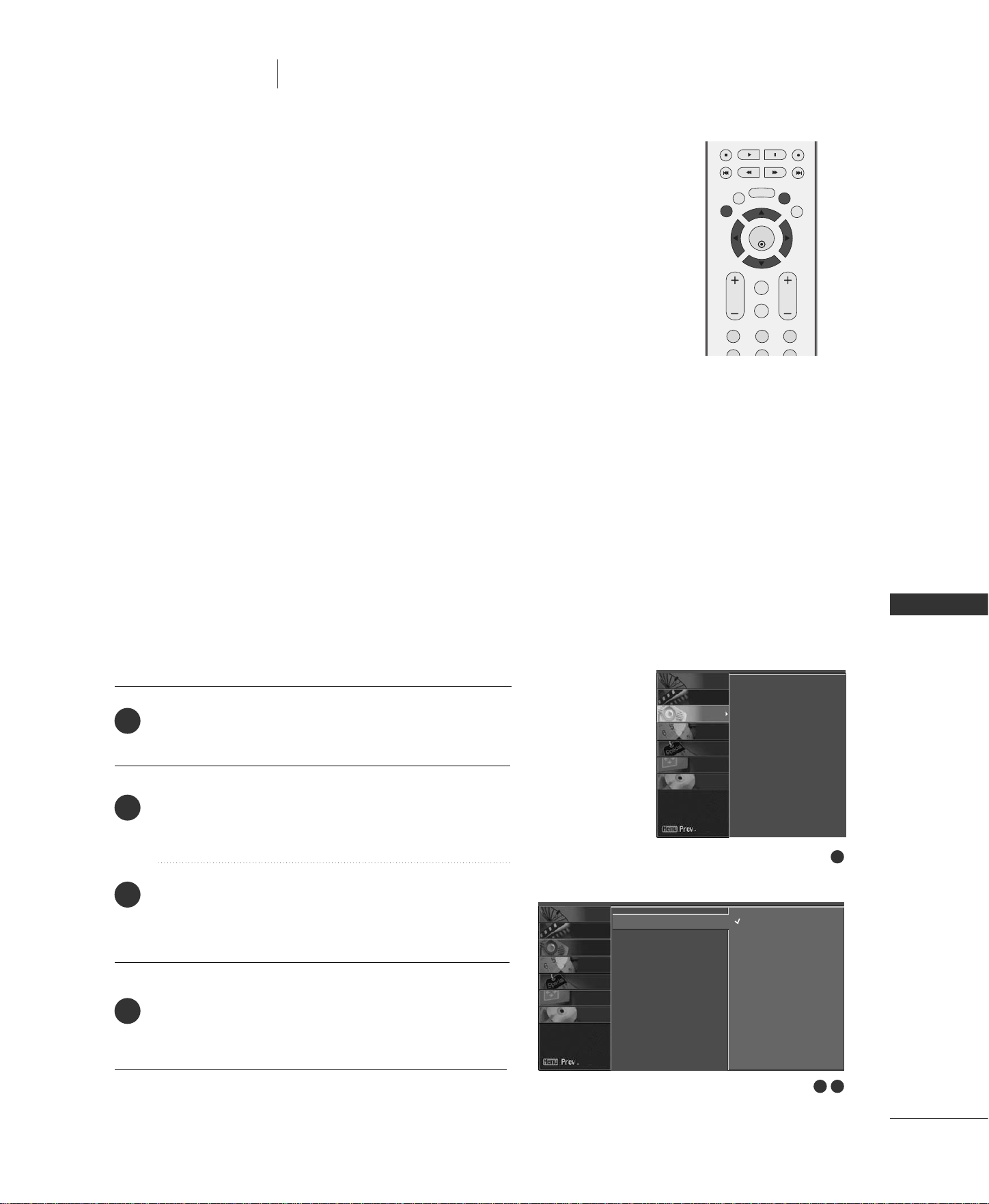
TV MENU
/
SOUND ADJUSTMENT
57
DIGITAL AUTO SOUND PROCESSING (DASP)
TV MENU
SOUND ADJUSTMENT
DASP lets you enjoy the best sound without any special adjustment
because the TV sets the appropriate sound options based on the
program content.
SSuurrrroouunndd MMAAXX
,
FFllaatt
,
MMuussiicc
,
MMoovviiee
, and
SSppoorrttss
are preset
for good sound quality at the factory and are not adjustable.
SSuurrrroouunndd MMAAXX
Select this option to sound realistic.
FFllaatt
The most commanding and natural audio.
MMuussiicc
Select this option to enjoy the original sound when listening
to the music.
MMoovviiee
Select this option to enjoy sublime sound.
SSppoorrttss
Select this option to watch sports broadcasting.
UUsseerr
Select this option to use the user-defined audio
settings.
ENTER
EXIT
VOL
FCR
MUTE
CH
SLEEP
MEMORY/ERASE
123
456
MENU
LIVE TV
MARK
TIME
CONTROL
TIME
CONTROL
TIME
MACHINE
Press the
MMEENNUU
button and then
DD
or
EE
button to
select the
SSOOUUNNDD
menu.
Press the
GG
button and then
DD
or
EE
button to select
DDAASSPP
.
Press the
GG
button and then
DD
or
EE
button to select
SSuurrrroouunndd MMAAXX
,
FFllaatt
,
MMuussiicc
,
MMoovviiee
,
SSppoorrttss
or
UUsseerr
.
Press the
EEXXIITT
button to return to TV viewing or
press the
MMEENNUU
button to return to the previous
menu.
1
2
3
4
1
2 3
DASP
G
AVL
Balance 0
Speaker
Surround MAX
Flat
Music
Movie
Sports
User
DASP
AVL
Balance 0
Speaker
SCREEN
DVR
SPECIAL
TIMER
SOUND
PICTURE
CHANNEL
SCREEN
DVR
SPECIAL
TIMER
SOUND
PICTURE
CHANNEL
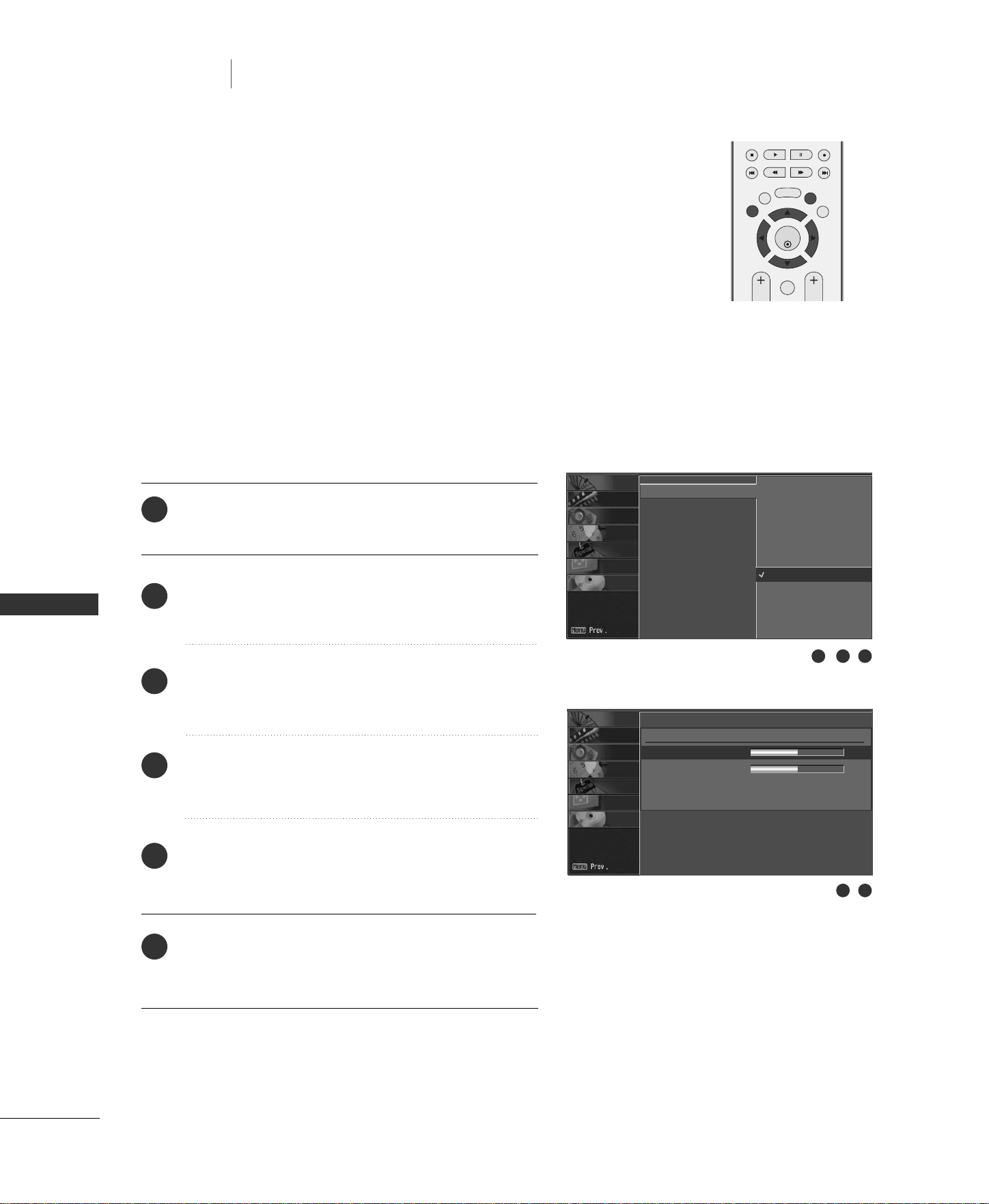
58
MANUAL SOUND CONTROL
(DASP - USER OPTION)
TV MENU
TV MENU
/
SOUND ADJUSTMENT
SOUND ADJUSTMENT
Press the
MMEENNUU
button and then
DD
or
EE
button to
select the
SSOOUUNNDD
menu.
Press the
GG
button and then
DD
or
EE
button to select
DDAASSPP
.
Press the
GG
button and then
DD
or
EE
button to select
UUsseerr
.
Press the
GG
button and then
DD
or
EE
button to select
the desired sound option (
TTrreebbllee
or
BBaassss
).
Press the
GG
button and then use
FF
or
GG
button to
make appropriate adjustments.
Press the
EEXXIITT
button to return to TV viewing or
press the
MMEENNUU
button to return to the previous
menu.
You can adjust sound options Treble, and Bass to the levels you
prefer.
ENTER
EXIT
VOL
FCR
CH
SLEEP
MEMORY/ERASE
MENU
LIVE TV
MARK
TIME
CONTROL
TIME
CONTROL
TIME
MACHINE
1
2
3
4
5
6
DASP
AVL
Balance 0
Speaker
Surround MAX
Flat
Music
Movie
Sports
User
G
User
Treble 50
G
Bass 50
21 3
4 5
SCREEN
DVR
SPECIAL
TIMER
SOUND
PICTURE
CHANNEL
SCREEN
DVR
SPECIAL
TIMER
SOUND
PICTURE
CHANNEL
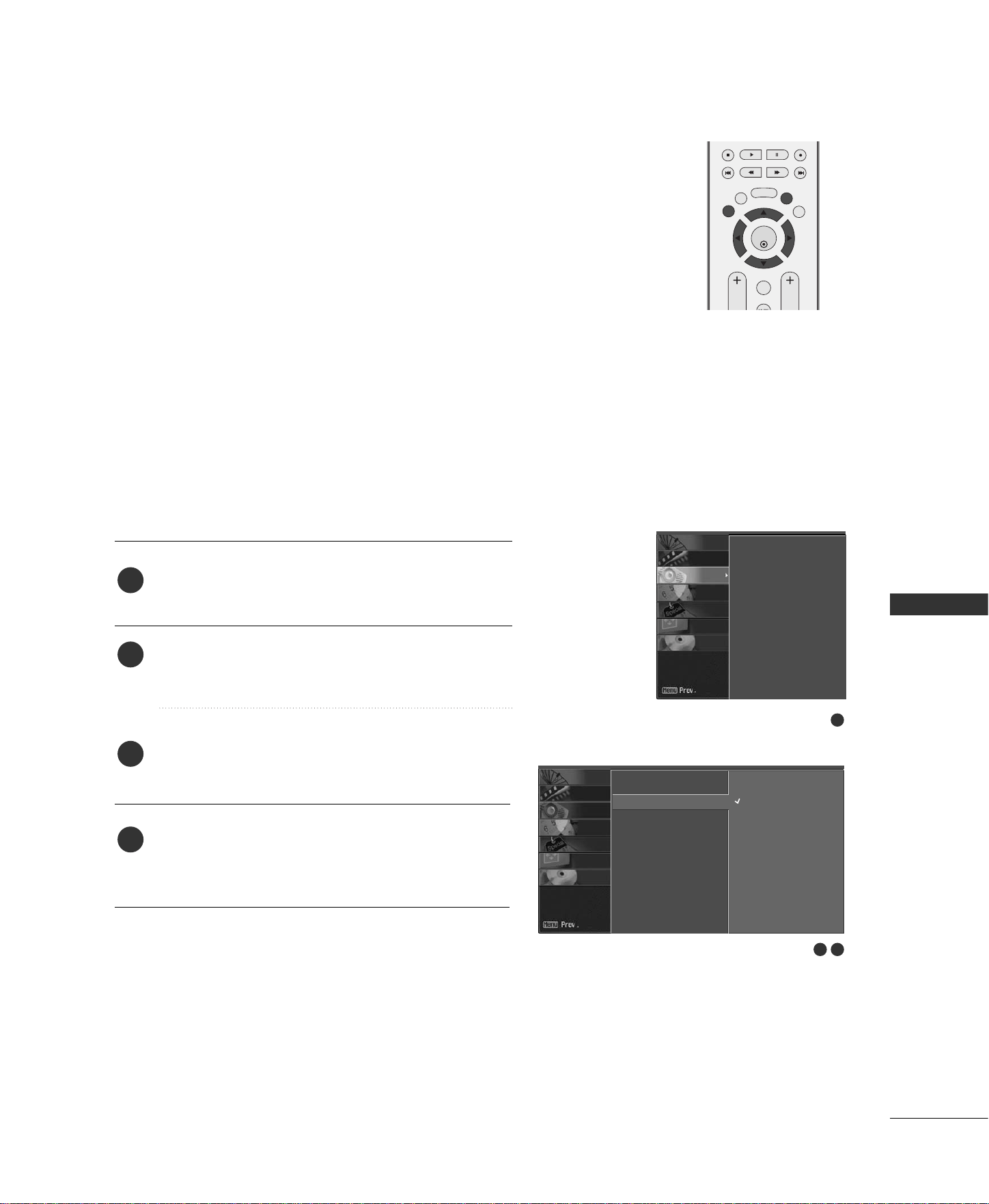
TV MENU
/
SOUND ADJUSTMENT
59
AUTO VOLUME LEVELER (AVL)
Press the
MMEENNUU
button and then
DD
or
EE
button to
select the
SSOOUUNNDD
menu.
Press the
GG
button and then
DD
or
EE
button to select
AAVVLL
.
Press the
GG
button and then
DD
or
EE
button to select
OOnn
or
OOffff
.
Press the
EEXXIITT
button to return to TV viewing or
press the
MMEENNUU
button to return to the previous
menu.
AVL automatically keeps on an equal volume level even if you
change program.
1
2
3
4
1
2 3
DASP
AVL
G
Balance 0
Speaker
On
Off
ENTER
EXIT
VOL
FCR
MUTE
CH
SLEEP
MEMORY/ERASE
MENU
LIVE TV
MARK
TIME
CONTROL
TIME
CONTROL
TIME
MACHINE
DASP
AVL
Balance 0
Speaker
SCREEN
DVR
SPECIAL
TIMER
SOUND
PICTURE
CHANNEL
SCREEN
DVR
SPECIAL
TIMER
SOUND
PICTURE
CHANNEL
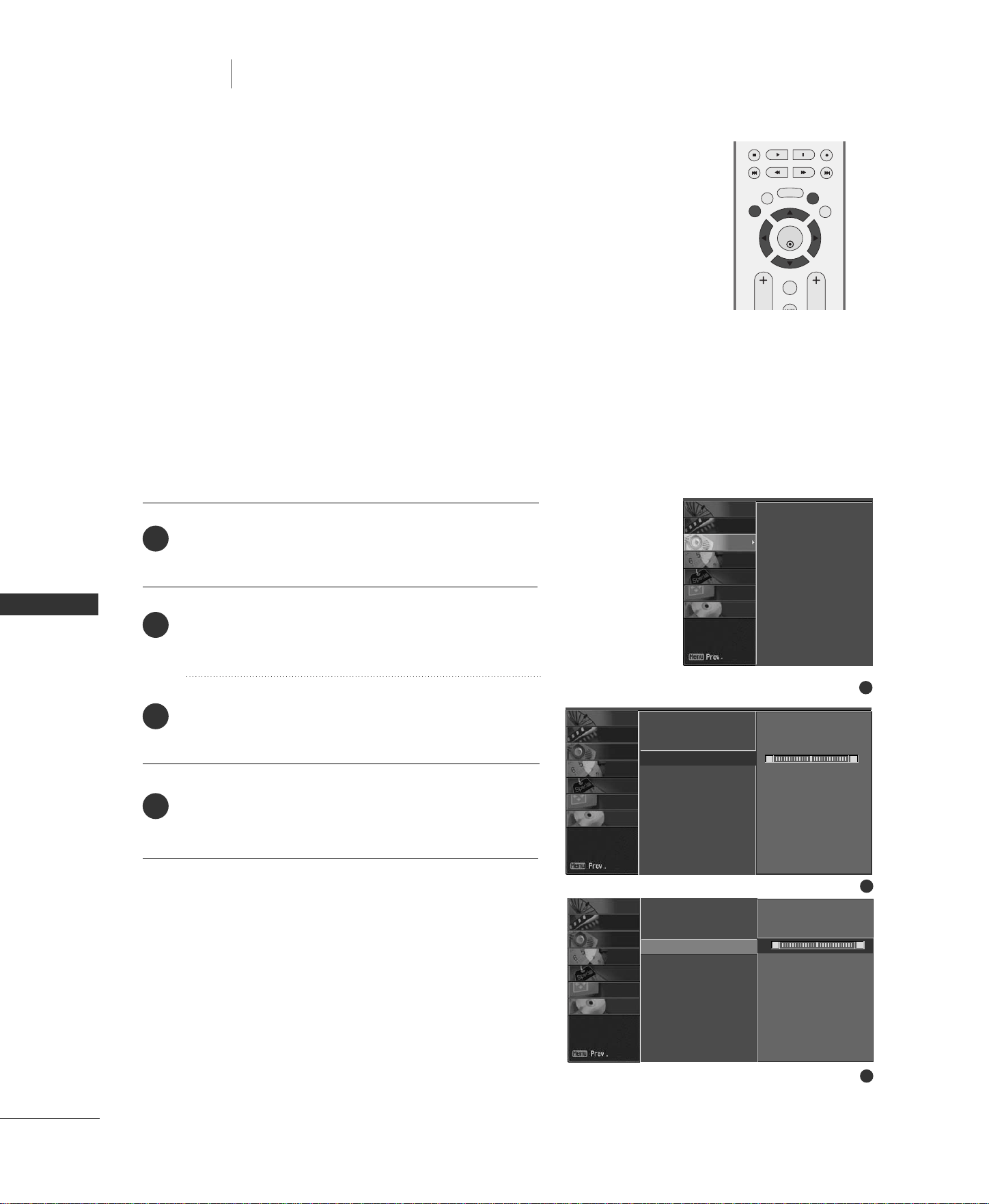
60
BALANCE ADJUSTMENT
TV MENU
TV MENU
/
SOUND ADJUSTMENT
SOUND ADJUSTMENT
ENTER
EXIT
VOL
FCR
MUTE
CH
SLEEP
MEMORY/ERASE
MENU
LIVE TV
MARK
TIME
CONTROL
TIME
CONTROL
TIME
MACHINE
Adjust the left/right sound of speaker to suit your taste and
room situations.
Press the
MMEENNUU
button and then
DD
or
EE
button to
select the
SSOOUUNNDD
menu.
Press the
GG
button and then
DD
or
EE
button to select
BBaallaannccee
.
Press the
GG
button and then
FF
or
GG
button to make
desired adjustment.
Press the
EEXXIITT
button to return to TV viewing or
press the
MMEENNUU
button to return to the previous
menu.
1
2
3
4
1
DASP
AVL
Balance 0
Speaker
SCREEN
DVR
SPECIAL
TIMER
SOUND
PICTURE
CHANNEL
2
3
DASP
AVL
Balance 0
G
Speaker
L R
DASP
AVL
Balance 0
Speaker
FF
G
L R
SCREEN
DVR
SPECIAL
TIMER
SOUND
PICTURE
CHANNEL
SCREEN
DVR
SPECIAL
TIMER
SOUND
PICTURE
CHANNEL
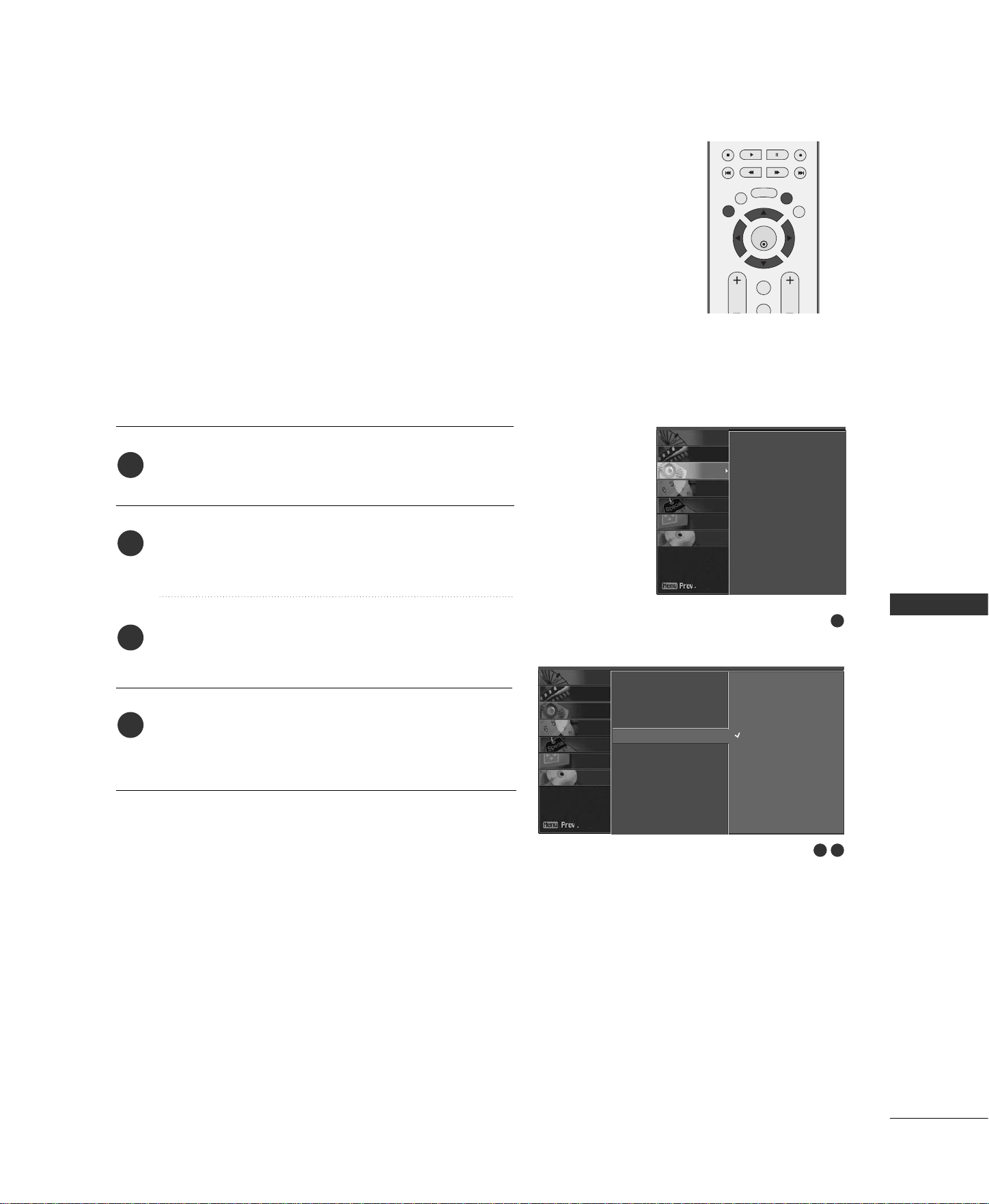
TV MENU
/
SOUND ADJUSTMENT
61
TV SPEAKERS SETUP
You can adjust internal speaker status.
If you want to use your external hi-fi stereo system, turn off the
internal speakers of the set.
Press the
MMEENNUU
button and then
DD
or
EE
button to
select the
SSOOUUNNDD
menu.
Press the
GG
button and then
DD
or
EE
button to select
SSppeeaakkeerr
.
Press the
GG
button and then
DD
or
EE
button to select
OOnn
or
OOffff
.
Press the
EEXXIITT
button to return to TV viewing or
press the
MMEENNUU
button to return to the previous
menu.
ENTER
EXIT
VOL
FCR
MUTE
CH
SLEEP
MEMORY/ERASE
MENU
LIVE TV
MARK
TIME
CONTROL
TIME
CONTROL
TIME
MACHINE
1
2
3
4
1
2 3
DASP
AVL
Balance 0
Speaker
G
On
Off
DASP
AVL
Balance 0
Speaker
SCREEN
DVR
SPECIAL
TIMER
SOUND
PICTURE
CHANNEL
SCREEN
DVR
SPECIAL
TIMER
SOUND
PICTURE
CHANNEL
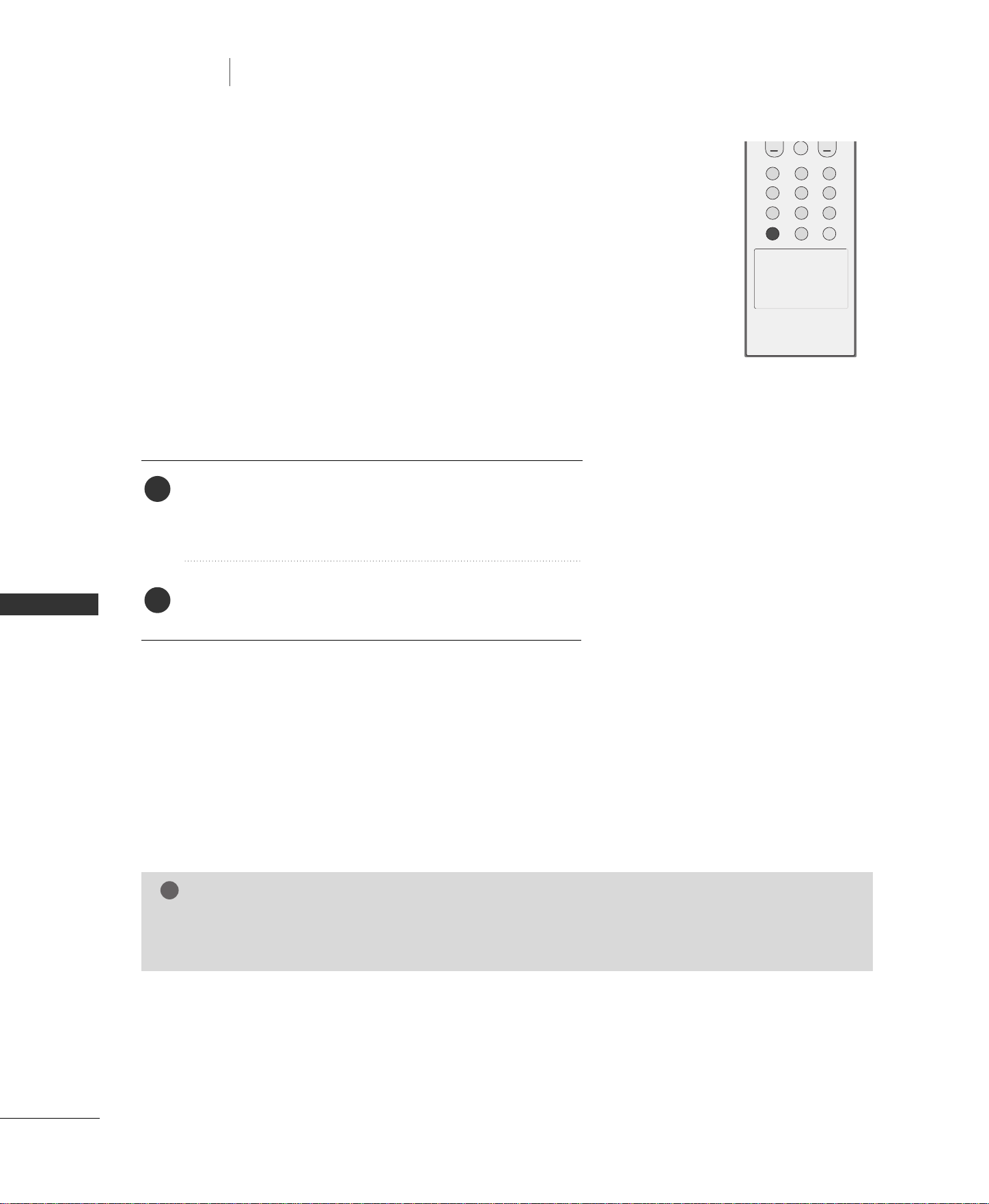
62
STEREO/SAP BROADCASTS SETUP
TV MENU
TV MENU
/
SOUND ADJUSTMENT
SOUND ADJUSTMENT
The TV can receive MTS stereo programs and any SAP
(Secondary Audio Program) that accompanies the stereo pro-
gram; if the broadcaster transmits one additional sound signal
in addition to the original one.
Mono: The primary language is heard from left and right speakers.
Signal mode is mono.
Stereo: The primary language is heard from left and right speakers.
Signal mode is stereo.
SAP: The secondary language is heard from left and right speakers
in mono sound.
Use the
MMTTSS
button to select your desired MTS mode in
analog signal. Each time you press the
MMTTSS
button,
MMoonnoo
,
SStteerreeoo
, or
SSAAPP
appear in turn.
Press
EEXXIITT
button to save and return to TV viewing.
1
2
NOTE
!
GG
Select mono sound mode if the signal is not clear or in poor signal reception areas.
GG
SStteerreeoo
,
SSAAPP
modes are available only if included on the broadcast signal.
MUTE
123
456
789
0
MTS
REVIEW
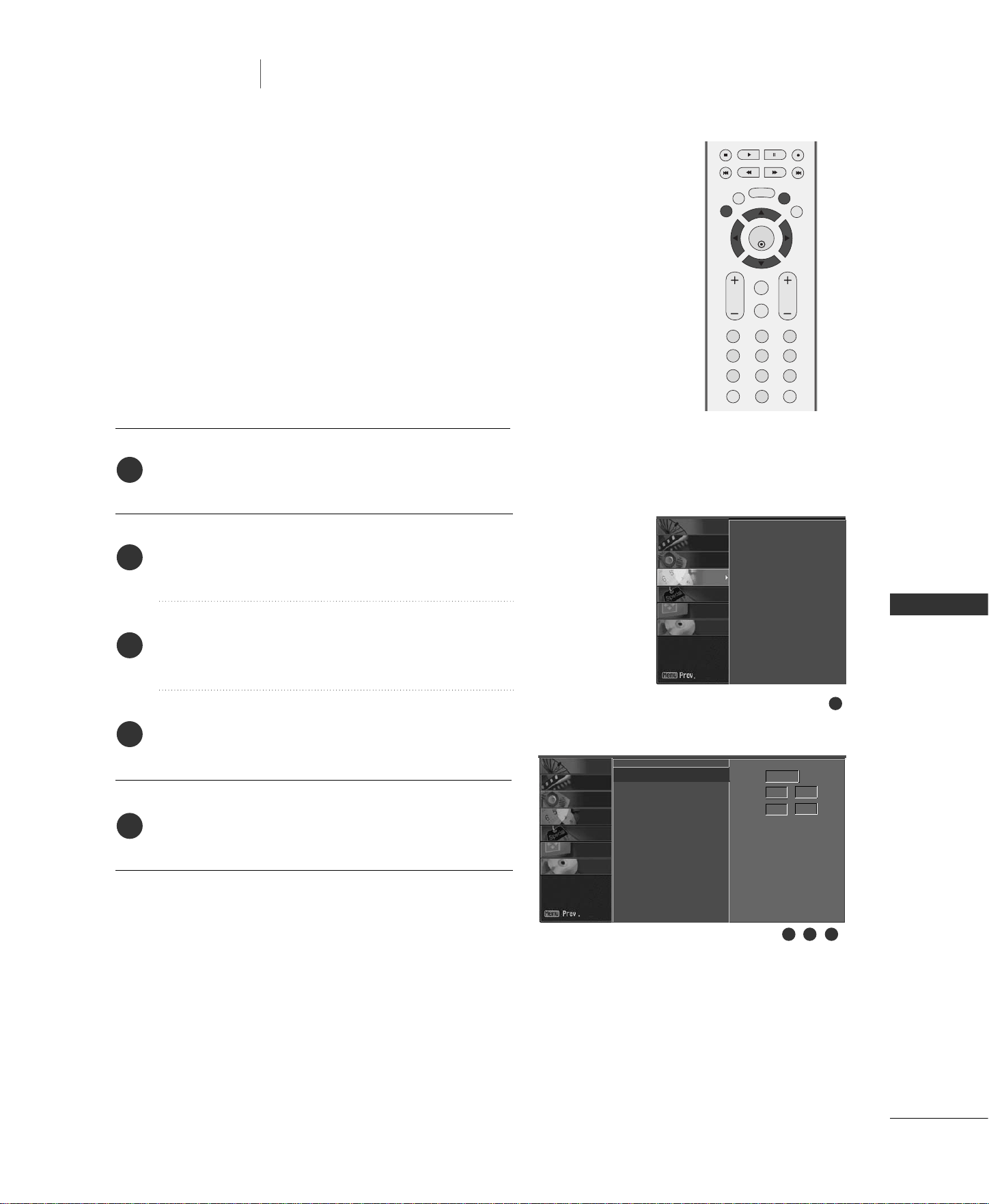
TV MENU
/
TIME SETTING
63
CLOCK SETUP
TV MENU
TIME SETTING
Press the
MMEENNUU
button and then
DD
or
EE
button to
select the
TTIIMMEERR
menu.
Press the
GG
button and then
DD
or
EE
button to select
CClloocckk
.
Press the
GG
button and then use
DD
or
EE
button to
set the Year.
Press the
GG
button and then use
DD
or
EE
button to
set the Date and Time.
Press
EEXXIITT
button to return to TV viewing or press
MMEENNUU
button to return to the previous menu.
If the current time setting is wrong, reset the clock manually.
2
3
4
5
1
ENTER
EXIT
VOL
FCR
MUTE
CH
SLEEP
MEMORY/ERASE
123
456
789
0
MTS
MENU
LIVE TV
MARK
REVIEW
TIME
CONTROL
TIME
CONTROL
TIME
MACHINE
1
2 3 4
Clock
G
Off timer
On timer
Auto off
Year - - - -
Date - - / - -
Time - - : - - AM
Clock
Off timer
On timer
Auto off
SCREEN
DVR
SPECIAL
TIMER
SOUND
PICTURE
CHANNEL
SCREEN
DVR
SPECIAL
TIMER
SOUND
PICTURE
CHANNEL
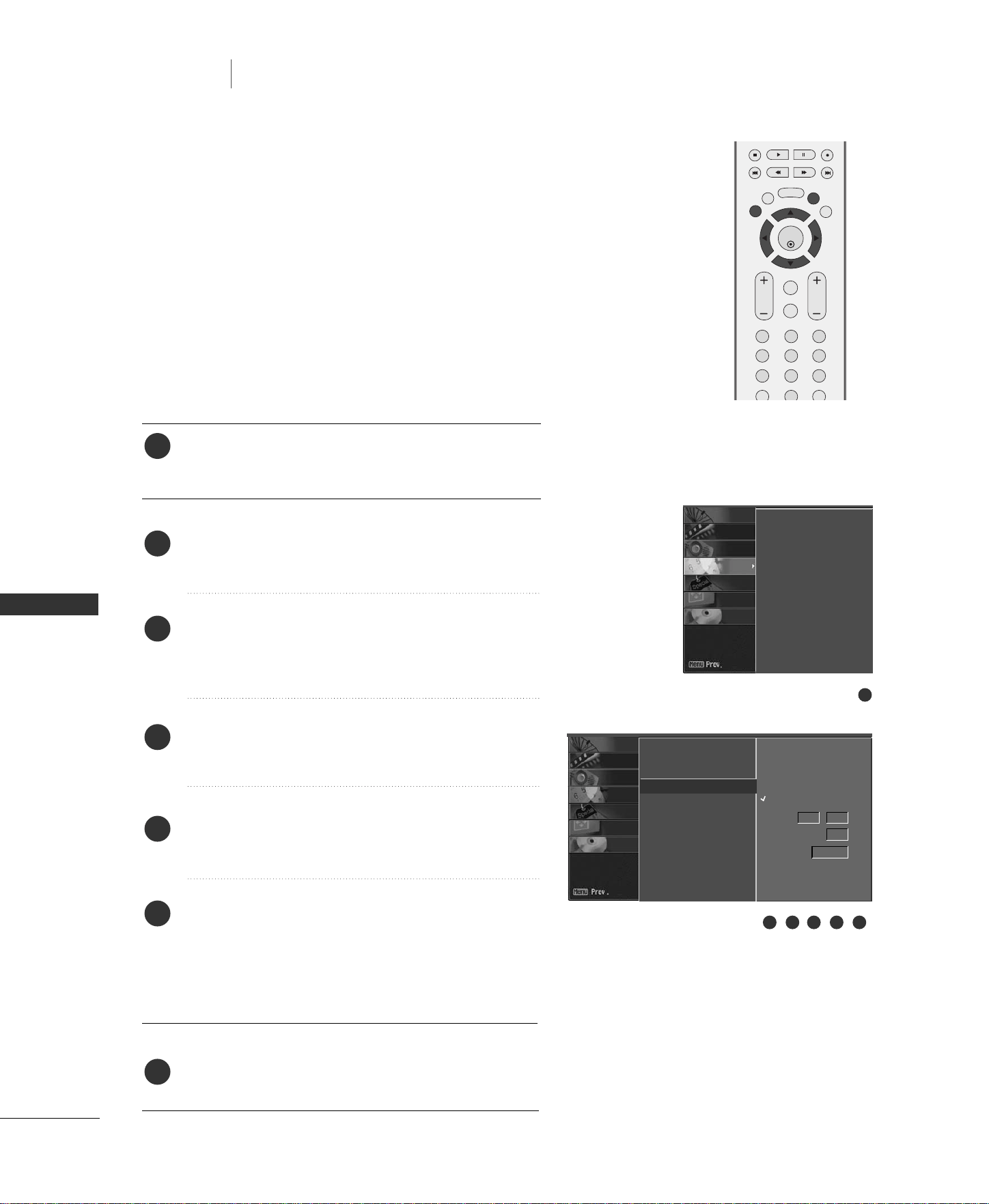
64
ON/OFF TIMER SETUP
TV MENU
TV MENU
/
TIME SETTING
TIME SETTING
Press the
MMEENNUU
button and then
DD
or
EE
button to
select the
TTIIMMEERR
menu.
Press the
GG
button and then use
DD
or
EE
button to
select
OOffff ttiimmeerr
or
OOnn ttiimmeerr
.
Press the
GG
button and then use
DD
or
EE
button to
select
OOnn
.
■
To cancel the
OOnn//OOffff ttiimmeerr
function, select
OOffff
.
Press the
GG
button and then use
DD
or
EE
button to
set the hour.
Press the
GG
button and then use
DD
or
EE
button to
set the minutes.
OOnnllyy OOnn ttiimmeerr
Press the
GG
button and then use
DD
or
EE
to set the
sound level at turn-on.
Press the
GG
button and then use
DD
or
EE
to select
the channel at turn-on.
Press
EEXXIITT
button to return to TV viewing or press
MMEENNUU
button to return to the previous menu.
The timer function operates only if the current time has been
set.
The Off-Timer function overrides the On-Timer function if they
are both set to the same time.
The TV must be in standby mode for the On-Timer to work.
If you do not press any button within 2 hours after the TV turns
on with the On Timer function, the TV will automatically revert
to standby mode.
ENTER
EXIT
VOL
FCR
MUTE
CH
SLEEP
MEMORY/ERASE
123
456
789
0
MTS
MENU
LIVE TV
MARK
REVIEW
TIME
CONTROL
TIME
CONTROL
TIME
MACHINE
1
2
3
4
5
6
7
Clock
Off timer
On timer
G
Auto Off
1
32 54 6
On
Off
- - : - - AM
Vol. 17
Ch.
TV 2
Clock
Off timer
On timer
Auto off
SCREEN
DVR
SPECIAL
TIMER
SOUND
PICTURE
CHANNEL
SCREEN
DVR
SPECIAL
TIMER
SOUND
PICTURE
CHANNEL
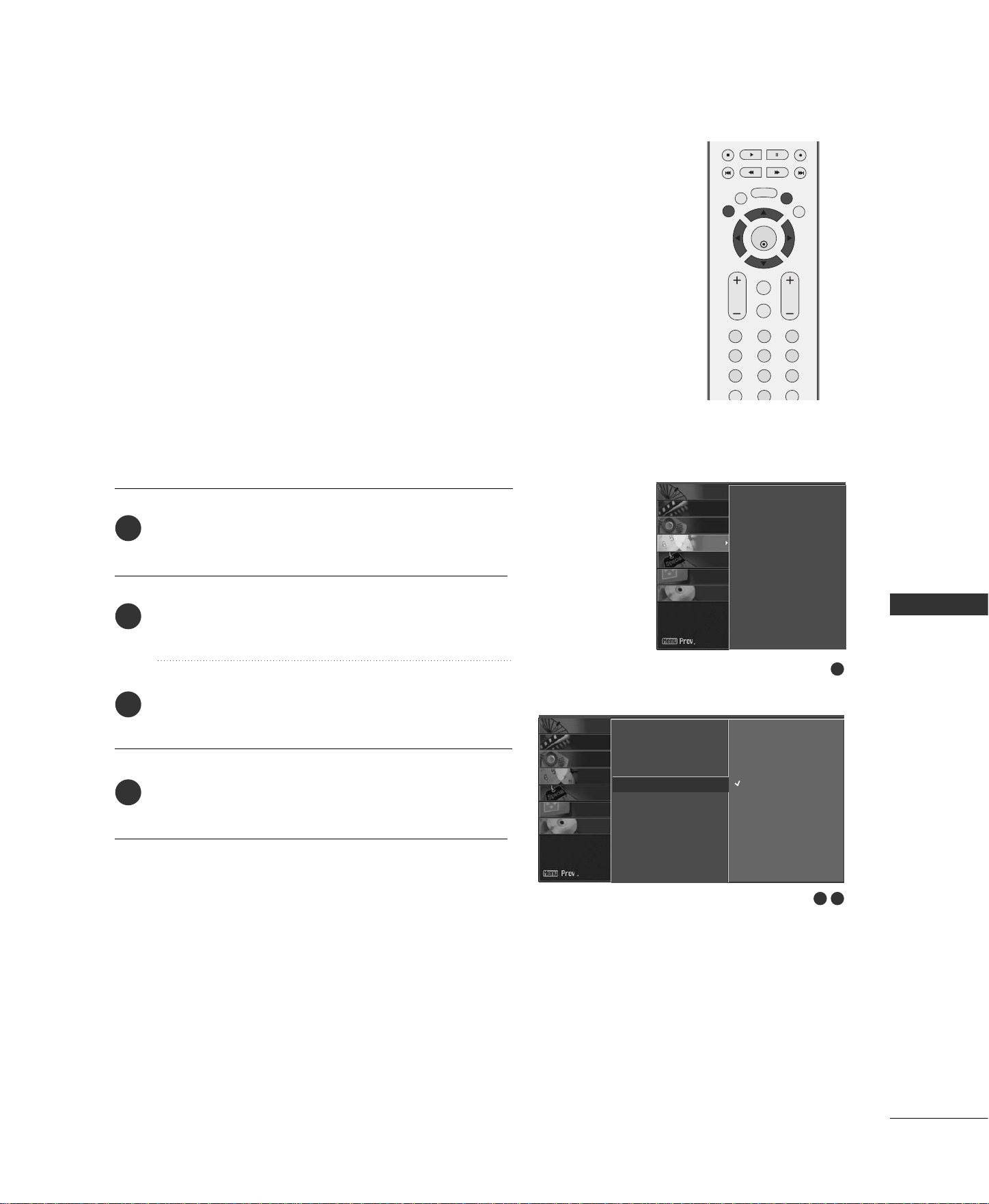
TV MENU
/
TIME SETTING
65
AUTO OFF
If set to on and there is no input signal, the TV turns off
automatically after 10 minutes.
ENTER
EXIT
VOL
FCR
MUTE
CH
SLEEP
MEMORY/ERASE
123
456
789
0
MTS
MENU
LIVE TV
MARK
REVIEW
TIME
CONTROL
TIME
CONTROL
TIME
MACHINE
Press the
MMEENNUU
button and then use
DD
or
EE
button
to select the
TTIIMMEERR
menu.
Press the
GG
button and then use
DD
or
EE
button to
select
AAuuttoo OOffff
.
Press the
GG
button and then use
DD
or
EE
button to
select
OOnn
or
OOffff
.
Press
EEXXIITT
button to return to TV viewing or press
MMEENNUU
button to return to the previous menu.
2
3
4
1
1
2 3
Clock
Off timer
On timer
Auto off
G
On
Off
Clock
Off timer
On timer
Auto off
SCREEN
DVR
SPECIAL
TIMER
SOUND
PICTURE
CHANNEL
SCREEN
DVR
SPECIAL
TIMER
SOUND
PICTURE
CHANNEL
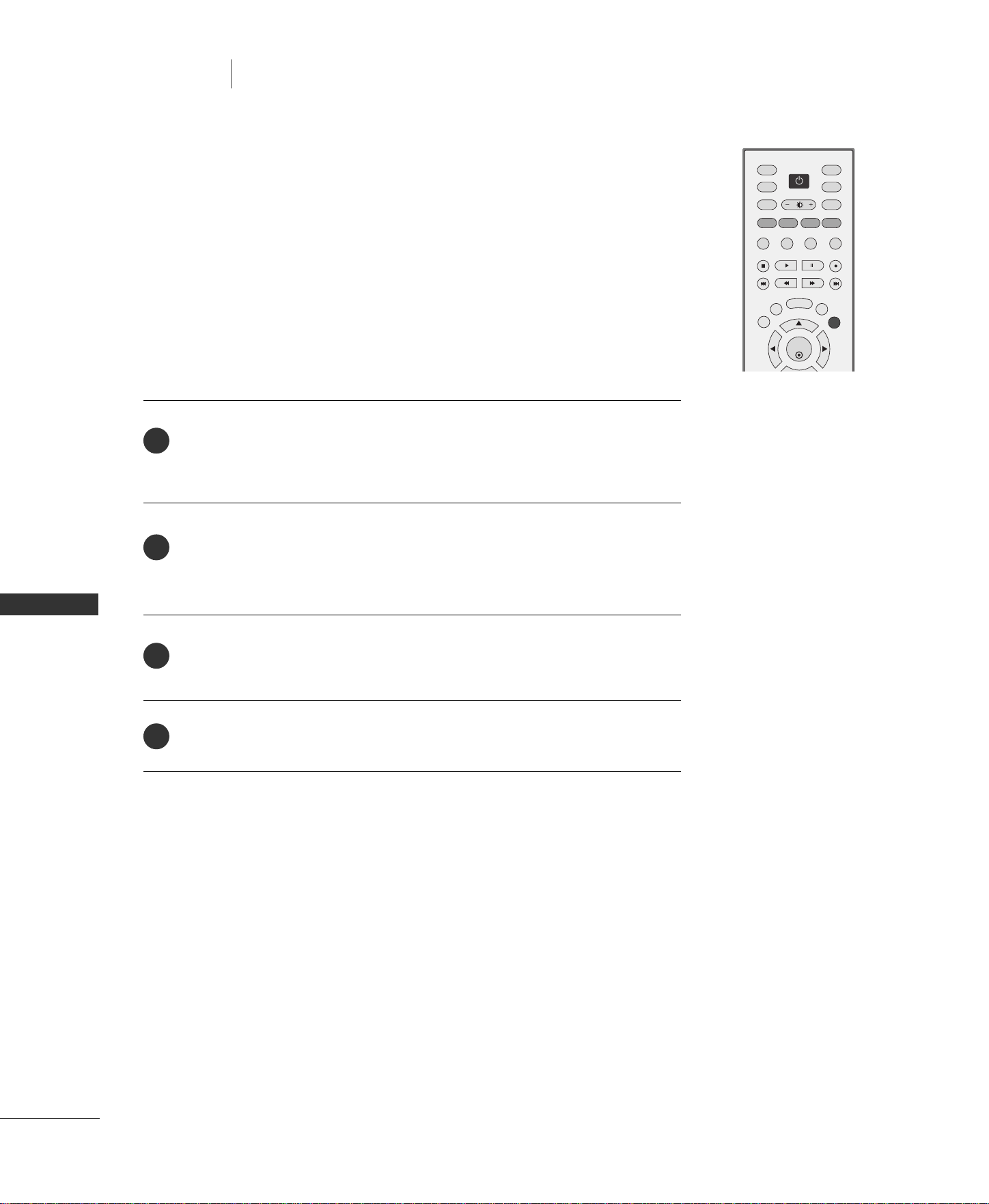
66
SLEEP TIMER
TV MENU
TV MENU
/
TIME SETTING
TIME SETTING
Press the
SSLLEEEEPP
button repeatedly to select the number of minutes. First
the
-- -- --
option appears on the screen, followed by the following sleep
timer options : 10, 20, 30, 60, 90, 120, 180, and 240 minutes.
When the number of minutes you want is displayed on the screen, press the
EENNTTEERR
button. The timer begins to count down from the number of min-
utes selected.
To check the remaining minutes before the TV turns off, press the
SSLLEEEEPP
button once.
To cancel the Sleep Timer, press the
SSLLEEEEPP
button repeatedly to select
-- -- --
.
The Sleep Timer turns the TV off at the preset time.
Note that this setting is cleared when the TV is turned off.
2
3
4
1
ENTER
INPUT
TVTV
INPUT
PIP CH- PIP CH+
PIP INPUT
DVD
ARC
EXIT
SLEEP
MEMORY/ERASE
VCR
POWER
MENU
SWAP
LIVE TV
MARK
CAPTION
PIP SIZE
POSITION
TIME
CONTROL
TIME
CONTROL
TIME
MACHINE
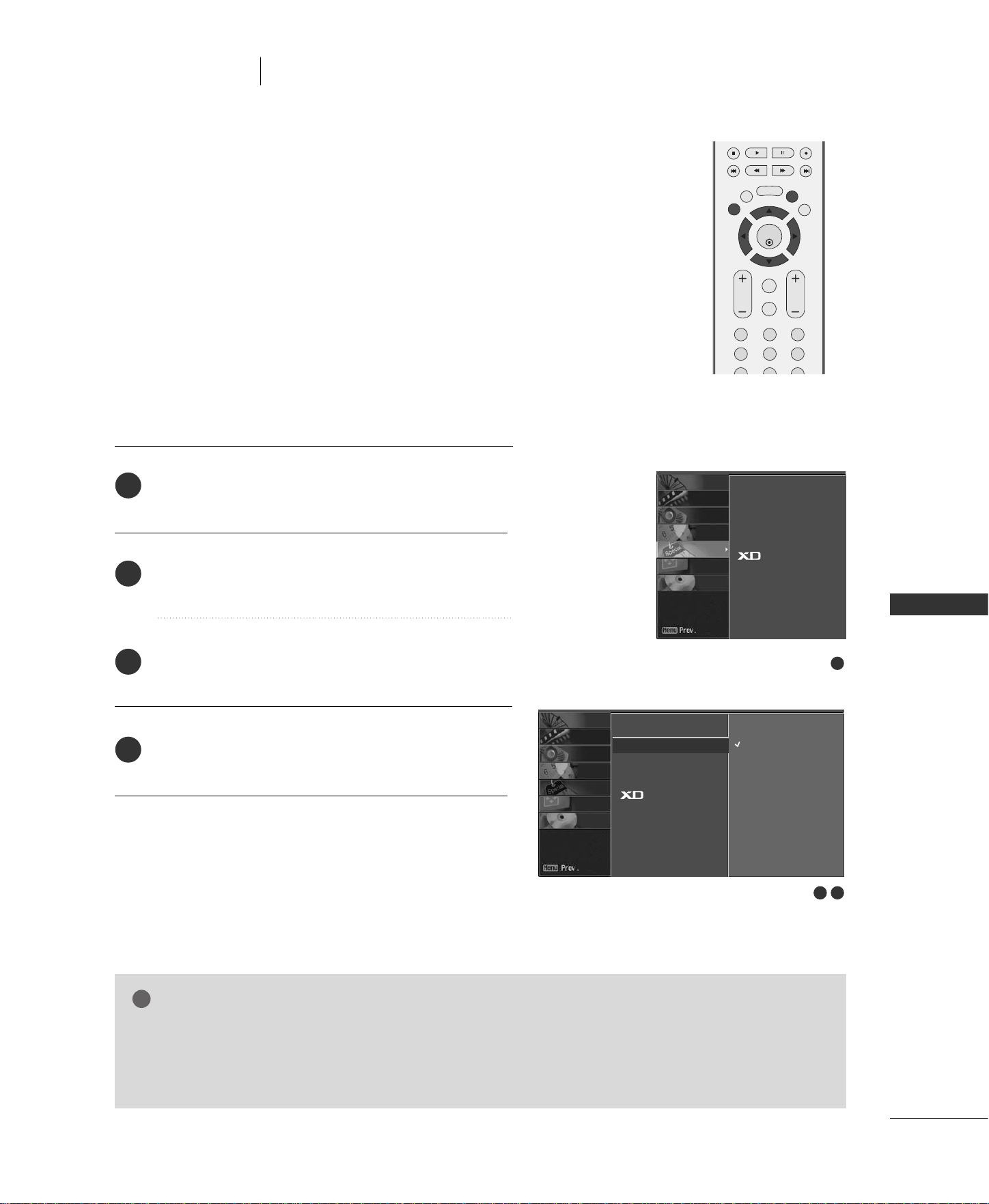
TV MENU
/
SPECIAL FEATURES
67
KEY LOCK
TV MENU
The TV can be set so that the remote control is needed to con-
trol it.
This feature can be used to prevent unauthorized viewing by
locking out the front panel controls.
This TV is programmed to remember which option it was last
set to even if you turn the set off.
ENTER
EXIT
VOL
FCR
MUTE
CH
SLEEP
MEMORY/ERASE
123
456
789
MENU
LIVE TV
MARK
TIME
CONTROL
TIME
CONTROL
TIME
MACHINE
NOTE
!
GG
In
KKeeyy lloocckk
‘
OOnn
’, if the set is turned off, press the
rr // II
,
IINNPPUUTT
,
CCHH
DD
//
EE
button on the set or
PPOOWWEERR
,
IINNPPUUTT
,
TTVV
,
CCHH
++//--
or NUMBER buttons on the remote control.
GG
With the
KKeeyy lloocckk OOnn
, the display ‘
KKeeyy lloocckk
’ appears on the screen if any button on the front panel
is pressed while viewing the set.
Press the
MMEENNUU
button and then use
DD
or
EE
button
to select the
SSPPEECCIIAALL
menu.
Press the
GG
button and then use
DD
or
EE
button to
select
KKeeyy lloocckk
.
Press the
GG
button and then use
DD
or
EE
button to
select
OOnn
or
OOffff
.
Press
EEXXIITT
button to return to TV viewing or press
MMEENNUU
button to return to the previous menu.
2
3
4
1
SPECIAL FEATURES
1
2 3
Language
Key lock
G
Set ID
Caption/Text
Demo
On
Off
Language
Key lock
Set ID
Caption/Text
Demo
SCREEN
DVR
SPECIAL
TIMER
SOUND
PICTURE
CHANNEL
SCREEN
DVR
SPECIAL
TIMER
SOUND
PICTURE
CHANNEL
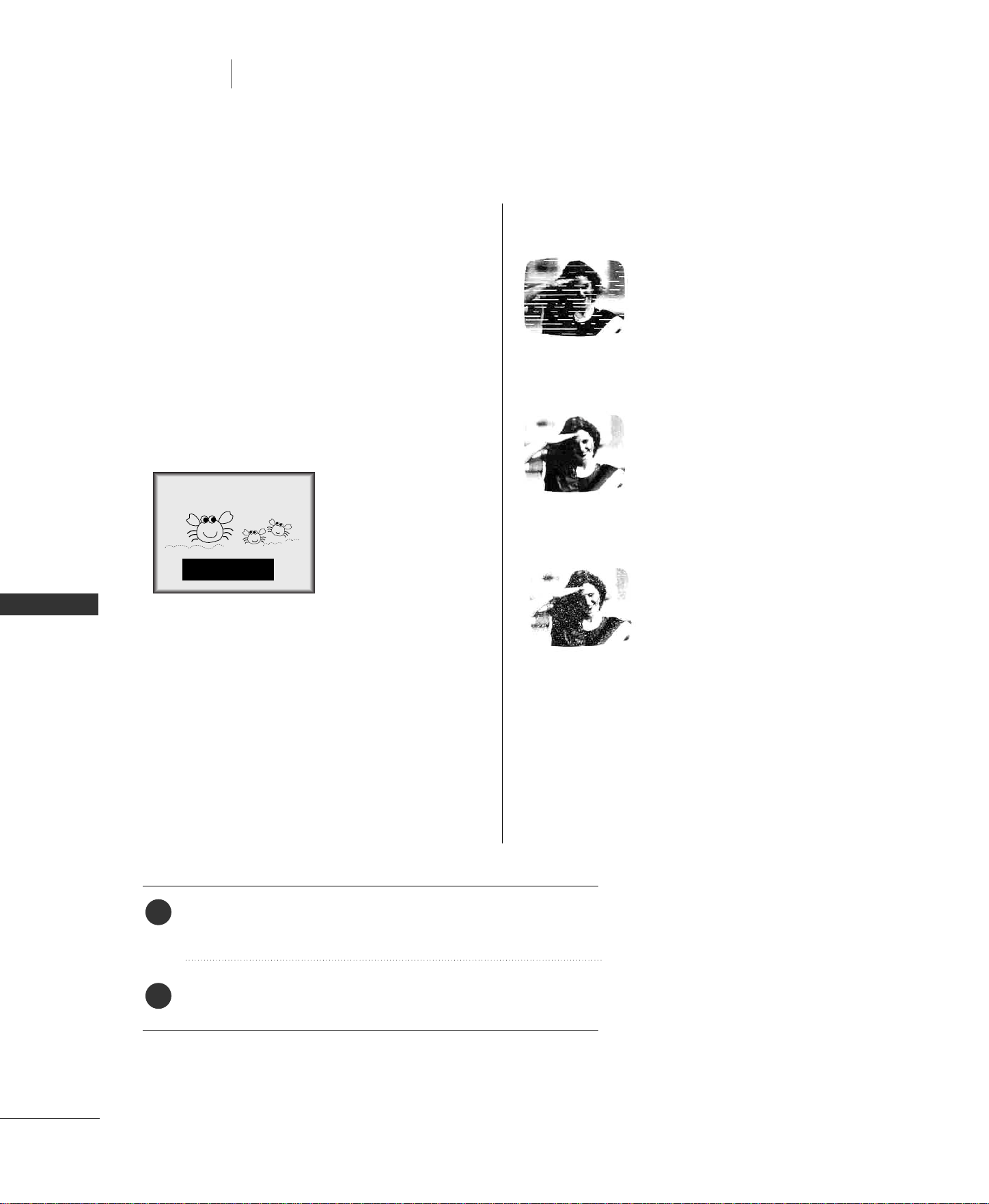
68
TV MENU
TV MENU
/
SPECIAL FEATURES
SPECIAL FEATURES
CLOSED CAPTIONS
2. An old, bad, or illegally recorded tape is being played.
3. Strong, random signals from a car or airplane interfere
with the TV signal.
4. The signal from the antenna is weak.
5. The program wasn’t captioned when it was produced,
transmitted, or taped.
Closed captioning is a process which converts the audio
portion of a television program into written words which
then appear as subtitles on the television screen. Closed
captions allow viewers to read the dialogue and narration
of television programs.
UUssiinngg CClloosseedd CCaappttiioonnss
Captions are the subtitles of the dialogue and narration
of television programs. For prerecorded programs, pro-
gram dialogue can be arranged into captions in advance.
Its possible to caption a live program by using a process
called real-time captioning, which creates captions
instantly. Real-time captioning is normally done by pro-
fessional reporters using a machine shorthand system
and computer for transla-
tion into English.
Captioning is an effective
system for the hearing-
impaired, and it can also
aid in teaching language
skills.
• The picture at left shows a typical caption.
CCaappttiioonn TTiippss
• Not all TV broadcasts include closed caption signals.
• Sometimes TV stations broadcast four different cap-
tion signals on the same channel. By selecting Mode1
to Mode2, you can choose which signal you view.
Mode1 is usually the signal with the captions, while
another mode might show demonstration or program-
ming information.
• Your TV might not receive caption signals normally in
the following situations.
•
IIGGNNIITTIIOONN::
Picture may flutter, drift, suffer from
black spots, or horizontal streaking.
Usually caused by interference from
automobile ignition systems, neon
lamps, electrical drills, and other
electrical appliances.
•
GGHHOOSSTTSS::
Ghosts are caused when the TV sig-
nal splits and follows two paths.
One is the direct path and the other
is reflected off tall buildings, hills or
other objects. Changing the direc-
tion or position of the antenna may
improve reception.
•
SSNNOOWW::
If your receiver is located at the
weak, fringe area of a TV signal, your
picture may be marred by small
dots. It may be necessary to install a
special antenna to improve the pic-
ture.
FOLLOW ME
1. Poor reception conditions are encountered:
■
You can also adjust
CCaappttiioonn//TTeexxtt
in the
SSPPEECCIIAALL
menu.
Use the
CCAAPPTTIIOONN
button repeatedly to select your caption
Mode 1, Mode 2, Text1, Text2, or Off.
Press the
EEXXIITT
button to return to TV viewing.
1
2
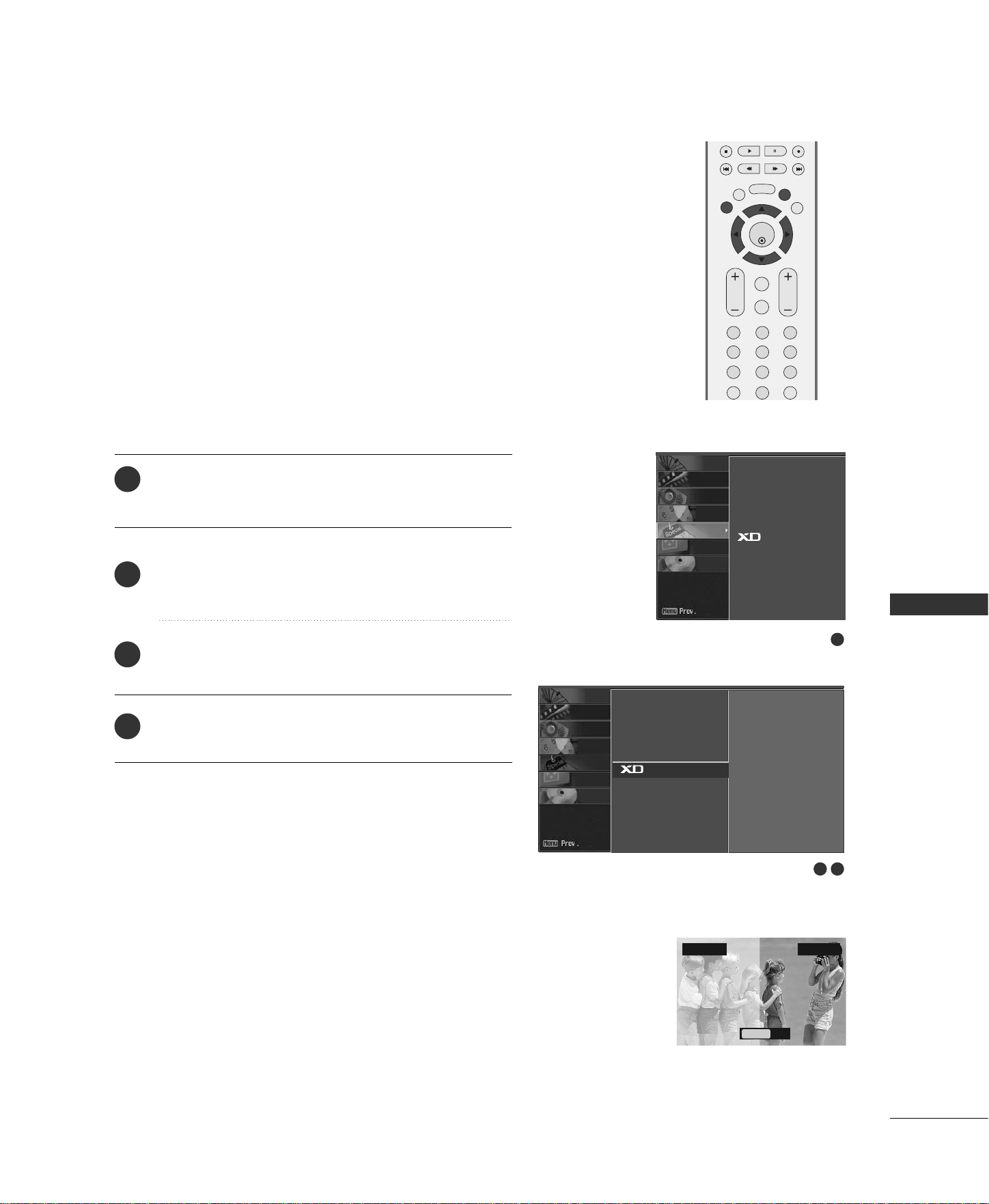
TV MENU
/
SPECIAL FEATURES
69
XD DEMO
Use it to see the difference between XD Demo on and XD
Demo off.
Note: When you set up the Time control, XD Demo menu is not
available.
It’s not available to use this function in RGB-PC,
HDMI-PC
mode.
Press the
MMEENNUU
button and then use
DD
or
EE
button
to select the
SSPPEECCIIAALL
menu.
Press the
GG
button and then use
DD
or
EE
button to
select
XXDD DDeemmoo
.
Press the
GG
button to begin
XXDD DDeemmoo
.
To stop
XXDD DDeemmoo
, press the
MMEENNUU
button.
1
2
3
4
• XD Demo
XD
™
Off XD
™
On
Exit
Menu
ENTER
EXIT
VOL
FCR
MUTE
CH
SLEEP
MEMORY/ERASE
123
456
789
0
MTS
MENU
LIVE TV
MARK
REVIEW
TIME
CONTROL
TIME
CONTROL
TIME
MACHINE
1
2 3
Language
Key lock
Set ID
Caption/Text
Demo
G
To start
Language
Key lock
Set ID
Caption/Text
Demo
SCREEN
DVR
SPECIAL
TIMER
SOUND
PICTURE
CHANNEL
SCREEN
DVR
SPECIAL
TIMER
SOUND
PICTURE
CHANNEL
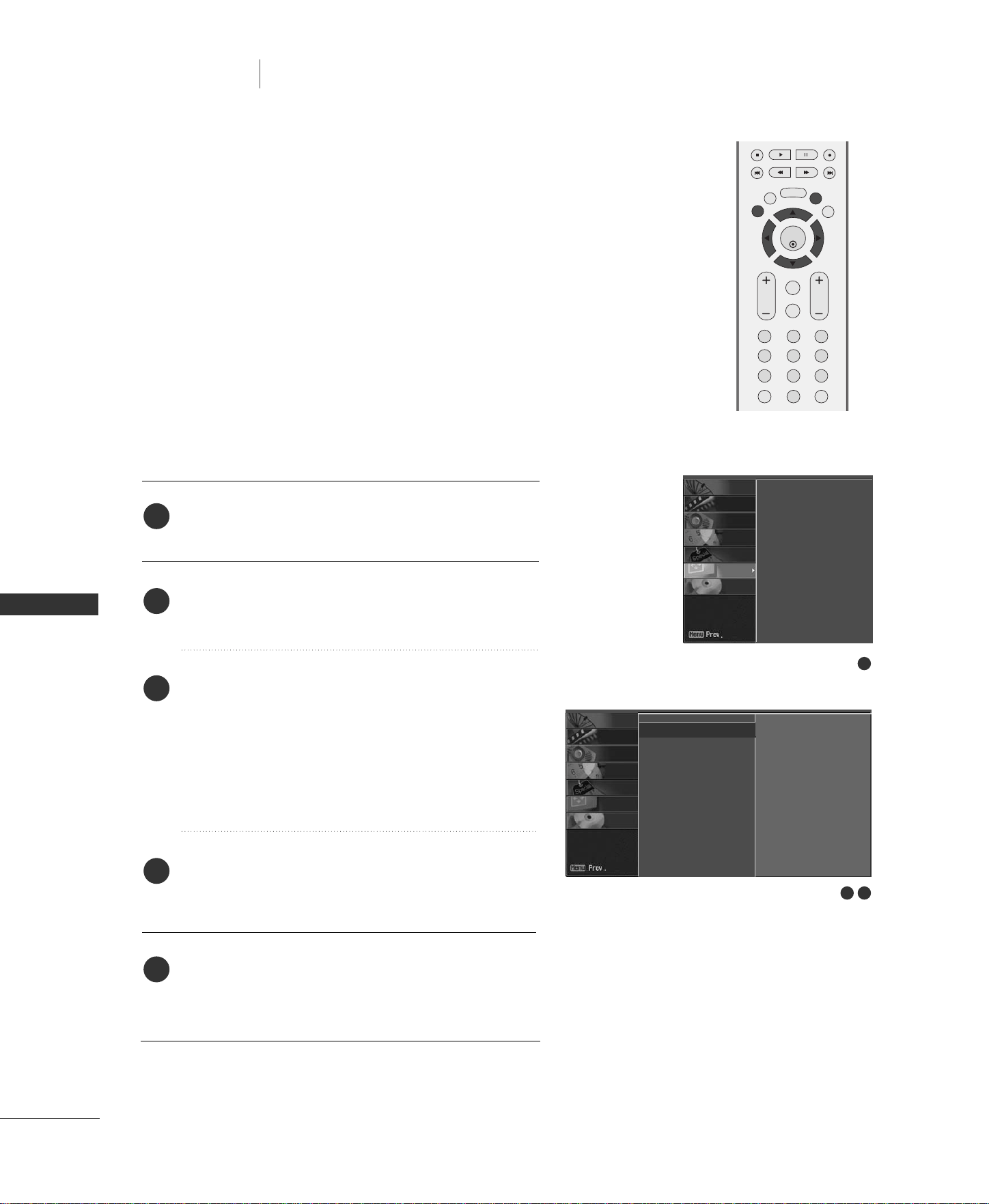
70
TV MENU
/
SCREEN ADJUSTMENT
SCREEN ADJUSTMENT
AUTO CONFIGURE (RGB [PC] MODE ONLY)
TV MENU
Press the
MMEENNUU
button and then use
DD
or
EE
button
to select the
SSCCRREEEENN
menu.
Press the
GG
button and then use
DD
or
EE
button to
select
AAuuttoo ccoonnffiigg..
.
Press the
GG
button to start
AAuuttoo ccoonnffiigg..
.
■
When
AAuuttoo ccoonnffiigg..
has finished,
OOKK
will be
shown on screen.
■
If the position of the image is still not correct, try
Auto adjustment again.
If the picture needs to be adjusted more after Auto
adjustment in RGB (PC), you can adjust the
MMaannuuaall
ccoonnffiigg..
.
Press the
EEXXIITT
button to return to TV viewing or
press the
MMEENNUU
button to return to the previous
menu.
ENTER
EXIT
VOL
FCR
MUTE
CH
SLEEP
MEMORY/ERASE
123
456
789
0
MTS
MENU
LIVE TV
MARK
REVIEW
TIME
CONTROL
TIME
CONTROL
TIME
MACHINE
Automatically adjusts picture position and minimizes image
shaking.
Although the image is still not correct, your set is functioning
properly but needs further adjustment.
1
2
3
4
5
1
2 3
Auto config.
G
Manual config.
XGA Mode
ARC
PIP Transparency
Reset
To set
Auto config.
Manual config.
XGA Mode
ARC
PIP Transparency
Reset
SCREEN
DVR
SPECIAL
TIMER
SOUND
PICTURE
CHANNEL
SCREEN
DVR
SPECIAL
TIMER
SOUND
PICTURE
CHANNEL
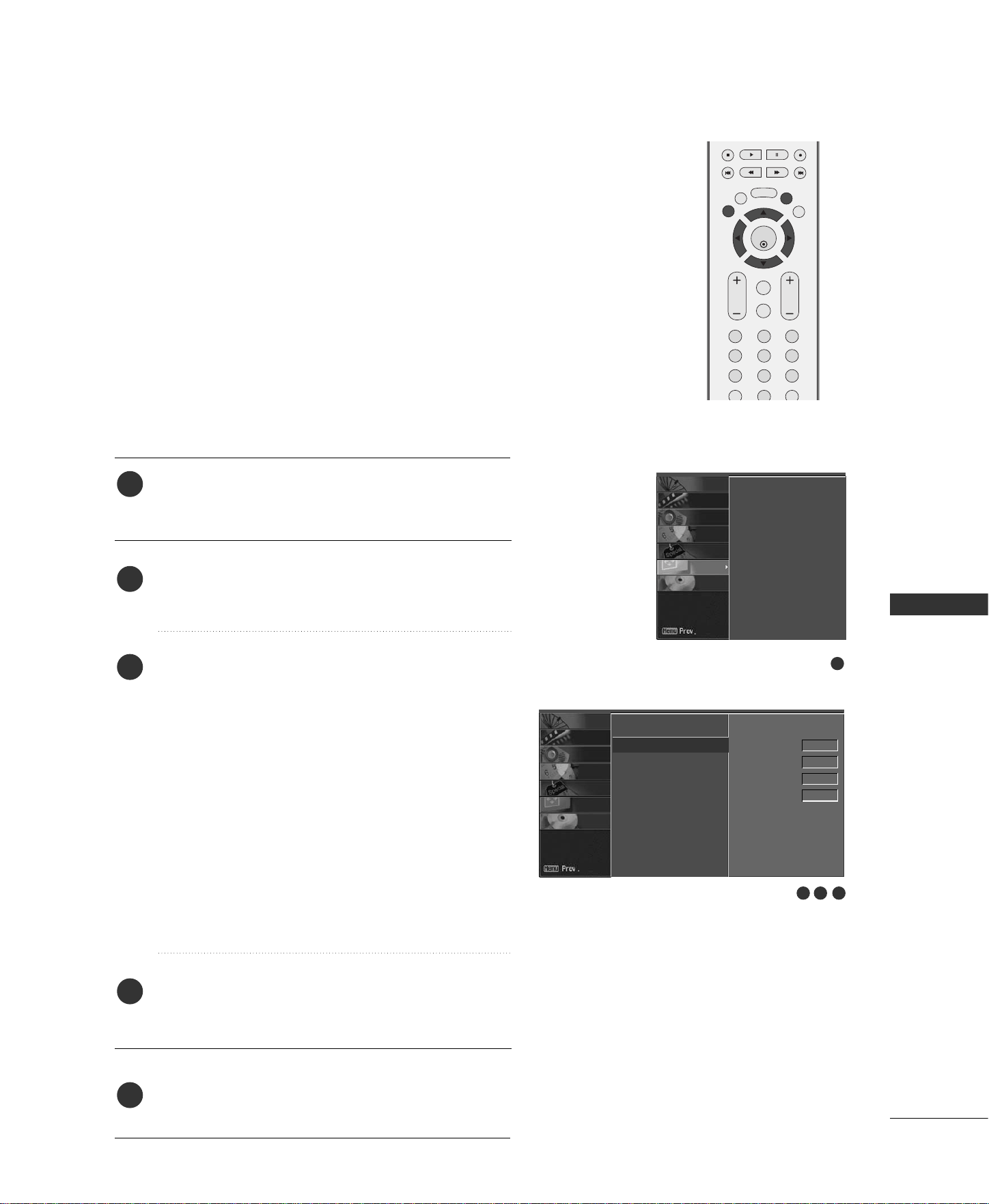
TV MENU
/
SCREEN ADJUSTMENT
71
MANUAL CONFIGURE
If the picture isn’t clear after auto adjustment and especially
if characters are still trembling, adjust the picture phase
manually.
This function works in the following mode : RGB-PC, RGB-
DTV 480p/720p/1080i, Component 480p/720p/1080i,
HDMI 480p/720p/1080i.
It’s not available to use Phase, Clock function in RGB-DTV
480p/720p/1080i, Component 480p/720p/1080i, HDMI
480p/720p/1080i.
Press the
MMEENNUU
button and then use
DD
or
EE
button
to select the
SSCCRREEEENN
menu.
Press the
GG
button and then use
DD
or
EE
button to
select
MMaannuuaall ccoonnffiigg..
.
Press the
GG
button and then use
DD
or
EE
button to
select
PPhhaassee
,
CClloocckk
,
HH--ppoossiittiioonn
or
VV--ppoossiittiioonn
.
■
PPhhaassee
This function allows you to remove any horizontal
noise and clear or sharpen the image of characters.
■
CClloocckk
This function is to minimize any vertical bars or
stripes visible on the screen background. And the
horizontal screen size will also change.
■
HH--ppoossiittiioonn
/
VV--ppoossiittiioonn
This function is to adjust picture to left/right and
up/down as you prefer.
Press the
FF
or
GG
button to make appropriate adjust-
ments.
Press the
EEXXIITT
button to return to TV viewing or
press the
MMEENNUU
button to return to the previous
menu.
ENTER
EXIT
VOL
FCR
MUTE
CH
SLEEP
MEMORY/ERASE
123
456
789
0
MTS
MENU
LIVE TV
MARK
REVIEW
TIME
CONTROL
TIME
CONTROL
TIME
MACHINE
1
2
3
4
5
2 3 4
1
Auto config.
Manual config.
G
XGA Mode
ARC
PIP Transparency
Reset
Phase 0
Clock 0
H-Position 0
V-Position 0
Auto config.
Manual config.
XGA Mode
ARC
PIP Transparency
Reset
SCREEN
DVR
SPECIAL
TIMER
SOUND
PICTURE
CHANNEL
SCREEN
DVR
SPECIAL
TIMER
SOUND
PICTURE
CHANNEL
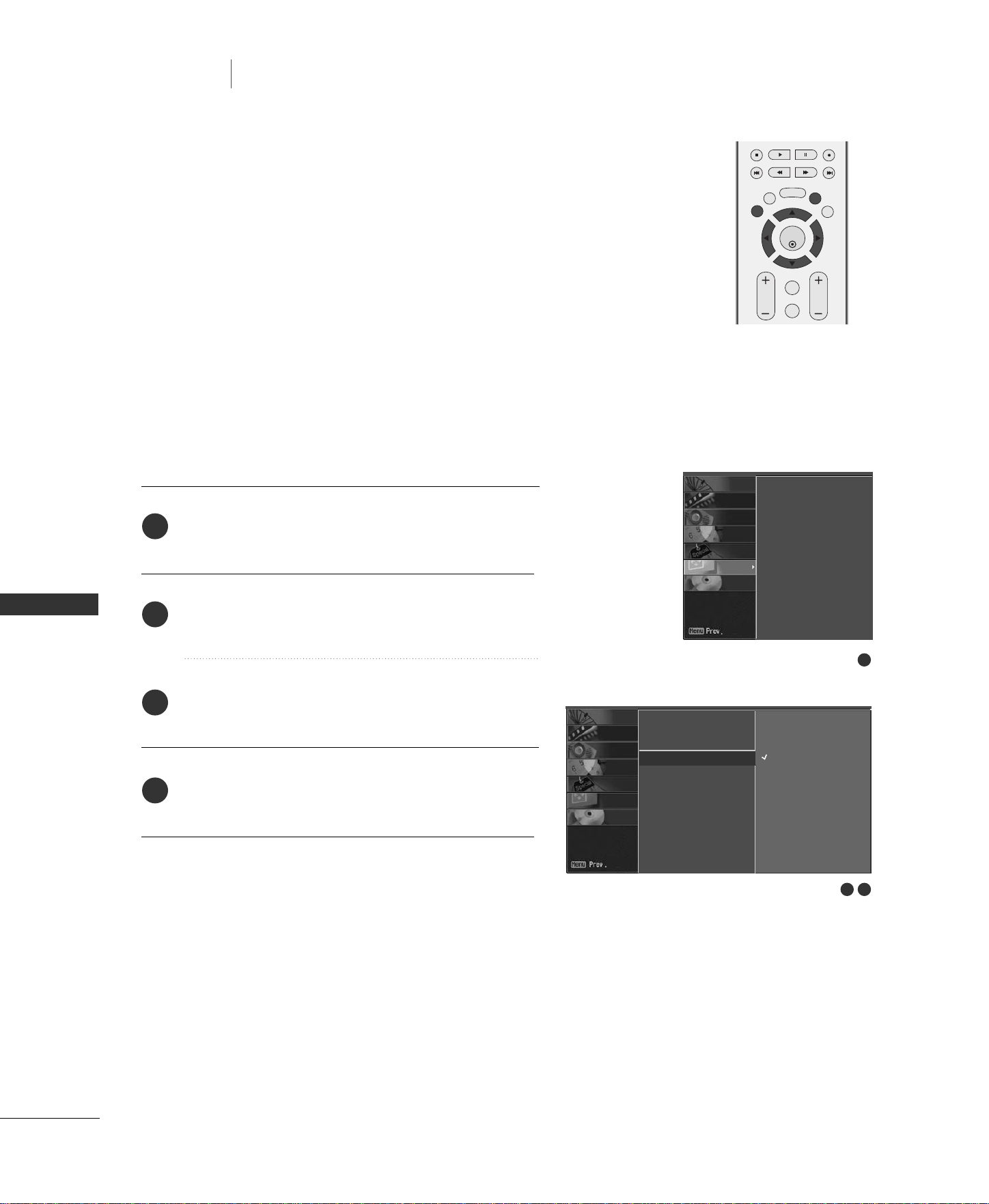
72
SELECTING WIDE XGA MODE
TV MENU
TV MENU
/
SCREEN ADJUSTMENT
SCREEN ADJUSTMENT
To see a normal picture, match the resolution of RGB mode and
selection of XGA mode.
This function works in the following mode: RGB[PC] mode.
ENTER
EXIT
VOL
FCR
MUTE
CH
SLEEP
MEMORY/ERASE
MENU
LIVE TV
MARK
TIME
CONTROL
TIME
CONTROL
TIME
MACHINE
Press the
MMEENNUU
button and then use
DD
or
EE
button
to select the
SSCCRREEEENN
menu.
Press the
GG
button and then use
DD
or
EE
button to
select
XXGGAA mmooddee
.
Press the
GG
button and then use
DD
or
EE
button to
select the desired XGA resolution.
Press
EEXXIITT
button to return to TV viewing or press
MMEENNUU
button to return to the previous menu.
2
3
4
1
1
2 3
Auto config.
Manual config.
XGA Mode
G
ARC
PIP Transparency
Reset
1024x768
1280x768
1360x768
1366x768
Auto config.
Manual config.
XGA Mode
ARC
PIP Transparency
Reset
SCREEN
DVR
SPECIAL
TIMER
SOUND
PICTURE
CHANNEL
SCREEN
DVR
SPECIAL
TIMER
SOUND
PICTURE
CHANNEL
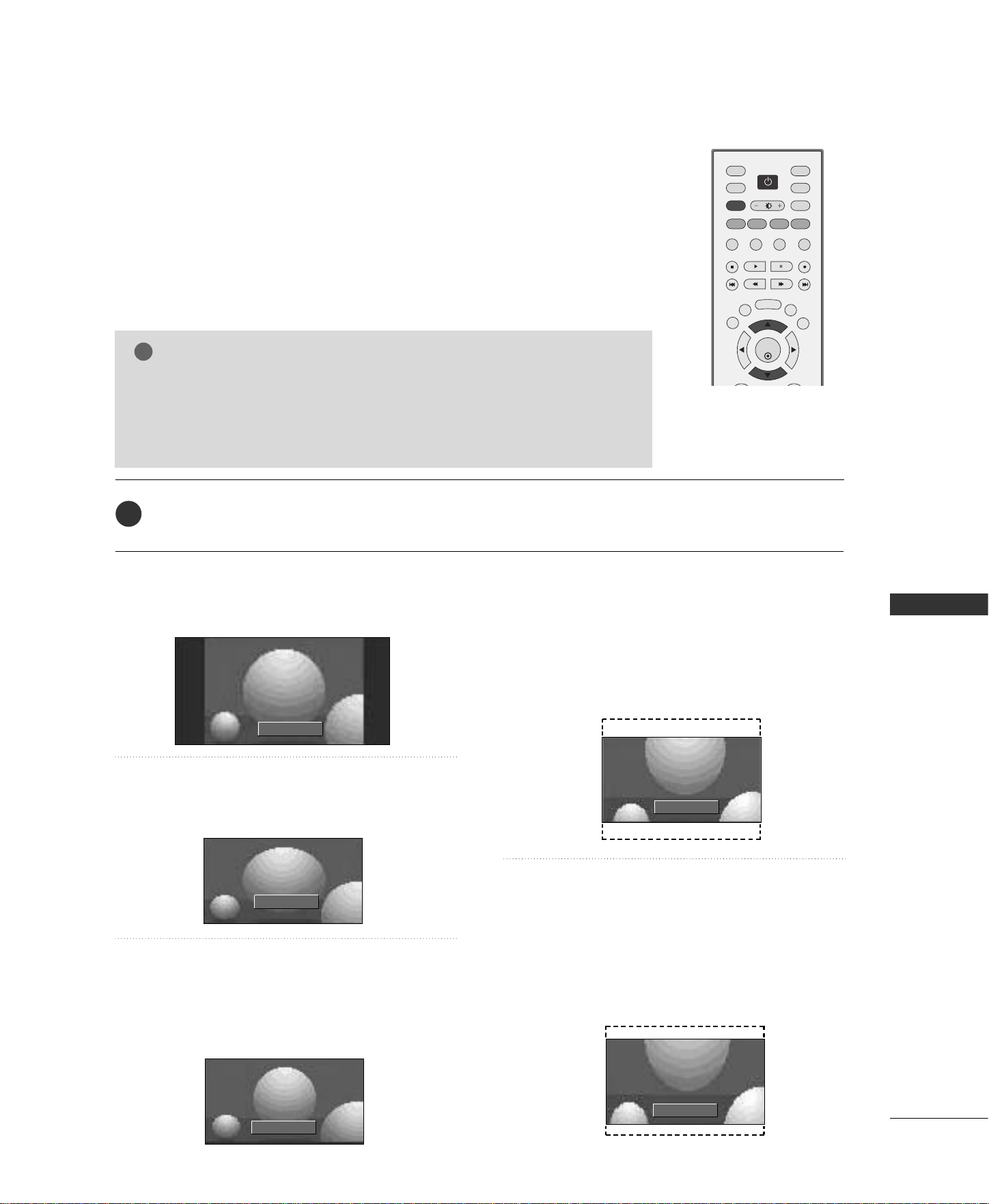
TV MENU
/
SCREEN ADJUSTMENT
73
ASPECT RATIO CONTROL (ARC)
ENTER
INPUT
TVTV
INPUT
PIP CH- PIP CH+
PIP INPUT
DVD
ARC
EXIT
SLEEP
MEMORY/ERASE
VCR
POWER
MENU
SWAP
LIVE TV
MARK
CAPTION
PIP SIZE
POSITION
TIME
CONTROL
TIME
CONTROL
TIME
MACHINE
4:3
Choose 4:3 when you want to view a picture
with an original 4:3 aspect ratio.
16:9
Adjust the picture horizontally, in a linear pro-
portion to fill the entire screen.
Horizon
The screen size is, more enlarged at both
sides, to create a spectacular view.
You can move the Horizon screen using
DD
or
EE
button.
Zoom 1
Choose Zoom 1 when you want to view the
picture without any alteration. However, the
top and bottom portions of the picture will be
cropped.
You can move the Zoom1 screen using
DD
or
EE
button.
Zoom 2
Choose Zoom 2 when you want the picture to
be altered, both vertically extended and
cropped. The picture taking a halfway trade
off between alteration and screen coverage.
You can move the Zoom2 screen using
DD
or
EE
button.
4:3
NOTE
!
GG
If a fixed image is displayed on the screen for a long time, the image may
become imprinted on the screen and remain visible.
This phenomenon is common to all manufactures and in consequence the
manufactures warranty does not cover the product bearing this phenomenon.
Press the
AARRCC
button repeatedly to select the desired picture format.
You can also adjust
AARRCC
in the
SSCCRREEEENN
menu.
1
16:9
Horizon
Zoom 1
Zoom 2
DD
EE
DD
EE
DD
EE
This feature lets you choose the way an analog picture with a 4:3 aspect ratio is
displayed on your TV. When you receive an analog picture with a 4:3 aspect
ratio on your 16:9 TV, you need to specify how the picture is to be displayed.
■
RGB-PC and HDMI PC input source use 4:3 or 16:9 aspect ratio.
■
Component (480p,720p,1080i), RGB-DTV, HDMI1/DVI-DTV, HDMI2-DTV
input source use 4:3, 16:9, Zoom1, and Zoom2 aspect ratio.
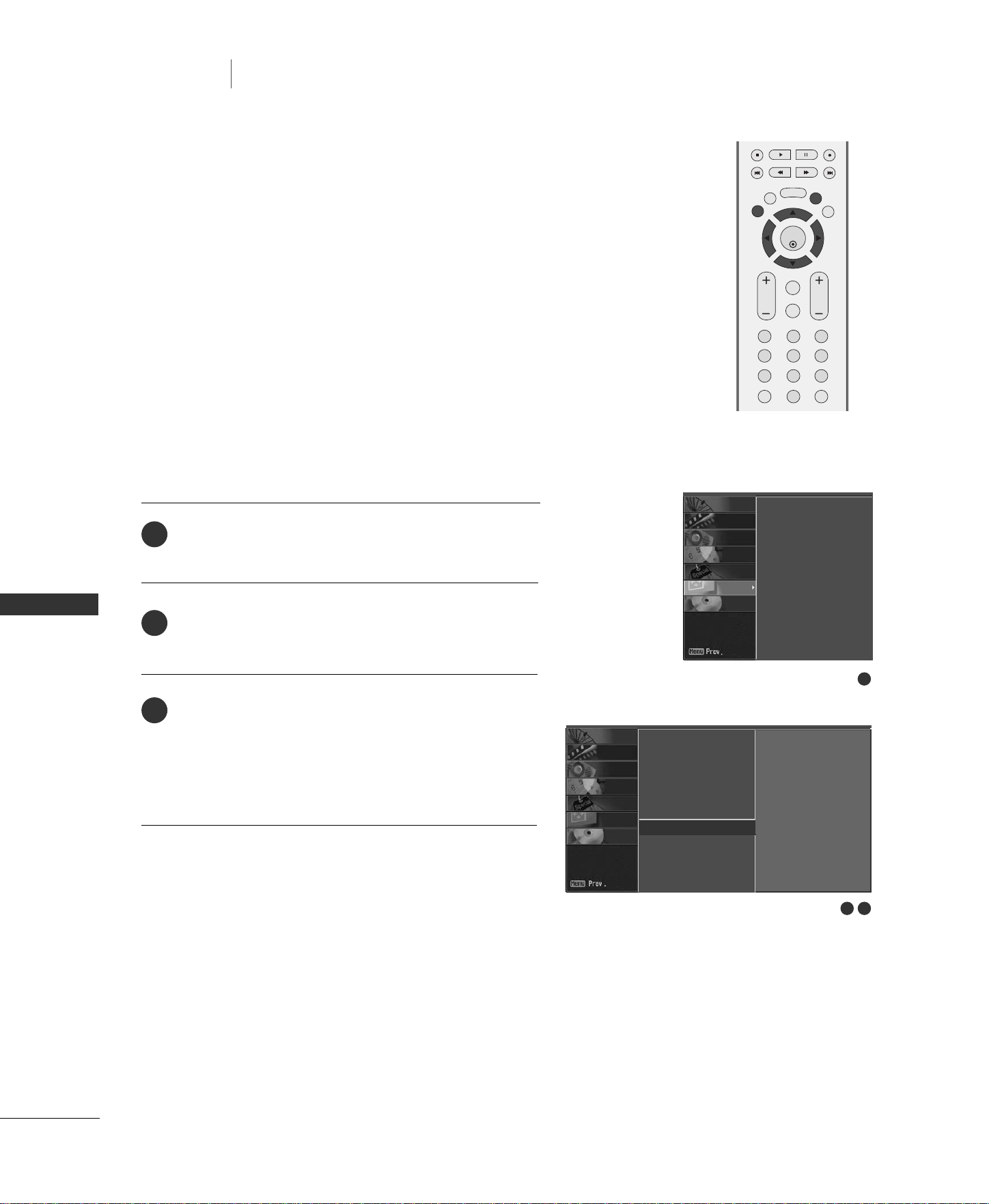
74
INITIALIZING
(RESET TO ORIGINAL FACTORY SETTINGS)
TV MENU
TV MENU
/
SCREEN ADJUSTMENT
SCREEN ADJUSTMENT
This function operates in current mode.
To initialize the adjusted value.
Press the
MMEENNUU
button and then use
DD
or
EE
button
to select the
SSCCRREEEENN
menu.
Press the
GG
button and then use
DD
or
EE
button to
select
RReesseett
.
Press the
GG
button.
• You can initialize Position, PIP size, PIP position. (PIP
size and PIP position are available to work in PIP
mode only.)
1
2
3
ENTER
EXIT
VOL
FCR
MUTE
CH
SLEEP
MEMORY/ERASE
123
456
789
0
MTS
MENU
LIVE TV
MARK
REVIEW
TIME
CONTROL
TIME
CONTROL
TIME
MACHINE
1
2 3
Auto config.
Manual config.
XGA Mode
ARC
PIP Transparency
Reset
G
To set
Auto config.
Manual config.
XGA Mode
ARC
PIP Transparency
Reset
SCREEN
DVR
SPECIAL
TIMER
SOUND
PICTURE
CHANNEL
SCREEN
DVR
SPECIAL
TIMER
SOUND
PICTURE
CHANNEL
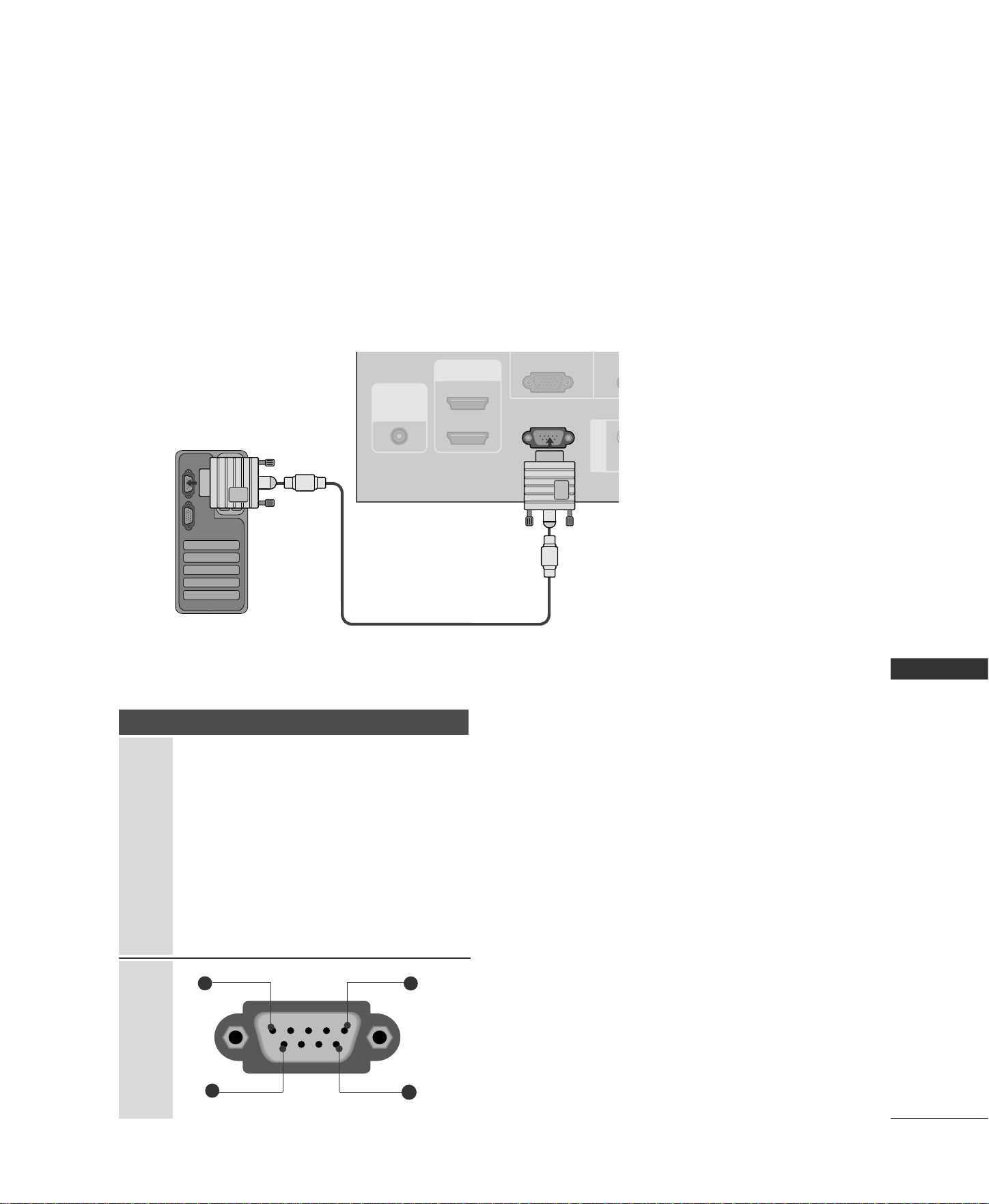
APPENDIX
75
EXTERNAL CONTROL DEVICE SETUP
APPENDIX
RS-232C Setup
Connect the RS-232C (serial port) input jack to an external control device (such as a comput-
er or an A/V control system) to control the product’s functions externally.
Connect the serial port of the control device to the RS-232C jack on the product back panel.
Note: RS-232C connection cables are not supplied with the product.
RS-232C IN
(CONTROL
&
SERVICE)
S
AV IN 1
VIDEO
AUDIO
REMOTE
CONTROL
IN
RGB
(PC/DTV)
AU
(RG
HDMI IN
2
1 (DVI)
PC
Type of Connector; D-Sub 9-Pin Male
RGB IN
(PC/DTV)
HDMI IN
RS-232C IN
(CONTROL
&
SERVICE)
AUDIO OUT
VARIABLE
No. Pin Name
1 No connection
2 RXD
(
Receive data
)
3 TXD
(
Transmit data
)
4 DTR
(
DTE side ready
)
5 GND
6 DSR
(
DCE side ready
)
7 RTS
(
Ready to send
)
8 CTS
(
Clear to send
)
9 No Connection
99
1
5
6
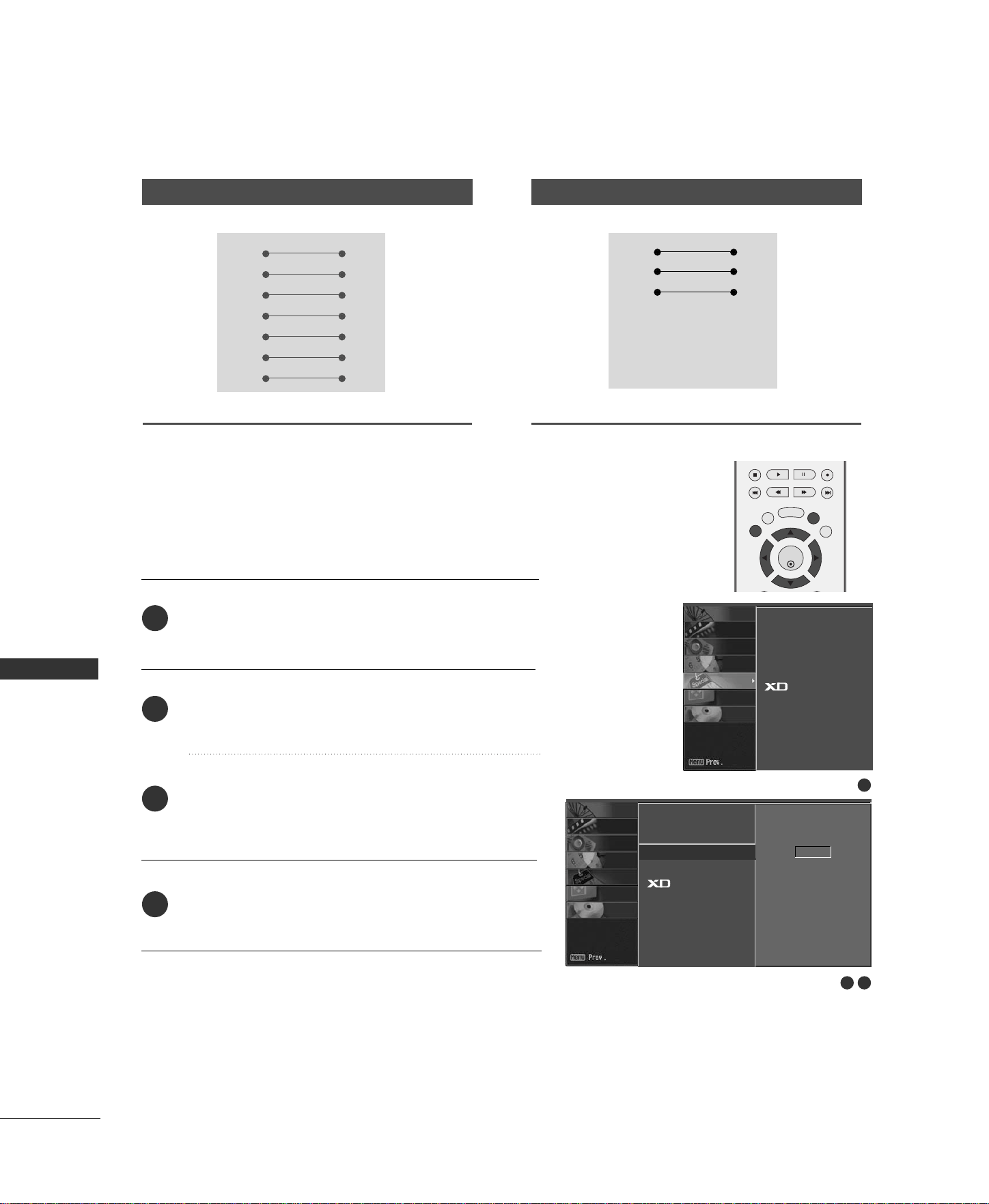
76
APPENDIX
RS-232C Configurations
7-Wire Configurations
(
Standard RS-232C cable
)
PC TV
RXD 2 3 TXD
TXD 3 2 RXD
GND 5 5 GND
DTR 4 6 DSR
DSR 6 4 DTR
RTS 7 8 CTS
CTS 8 7 RTS
D-Sub 9 D-Sub 9
3-Wire Configurations
(
Not standard
)
PC TV
RXD 2 3 TXD
TXD 3 2 RXD
GND 5 5 GND
DTR 4 6 DTR
DSR 6 4 DSR
RTS 7 7 RTS
CTS 8 8 CTS
D-Sub 9 D-Sub 9
ENTER
EXIT
SLEEP
MEMORY/ERASE
MENU
LIVE TV
MARK
TIME
CONTROL
TIME
CONTROL
TIME
MACHINE
APPENDIX
Press the
MMEENNUU
button and then use
DD
or
EE
button
to select the
SSPPEECCIIAALL
menu.
Press the
GG
button and then use
DD
or
EE
button to
select
SSeett IIDD
.
Press the
GG
button and then use
FF
or
GG
button to
adjust
SSeett IIDD
to choose the desired TV ID number.
The adjustment range of Set ID is 1~99.
Press
EEXXIITT
button to return to TV viewing or press
MMEENNUU
button to return to the previous menu.
Use this function to specify a TV ID number.
Refer to ‘Real Data Mapping 1’.
GG
pp..8811
.
Set ID
Communication Parameters
■
Baud rate : 9600 bps
(
UART
)
■
Data length : 8 bits
■
Parity : None
■
Stop bit : 1 bit
■
Communication code : ASCII code
■
Use a crossed (reverse) cable.
2
1
3
4
1
2 3
Language
Key lock
Set ID
G
Caption/Text
Demo
1
Language
Key lock
Set ID
Caption/Text
Demo
SCREEN
DVR
SPECIAL
TIMER
SOUND
PICTURE
CHANNEL
SCREEN
DVR
SPECIAL
TIMER
SOUND
PICTURE
CHANNEL
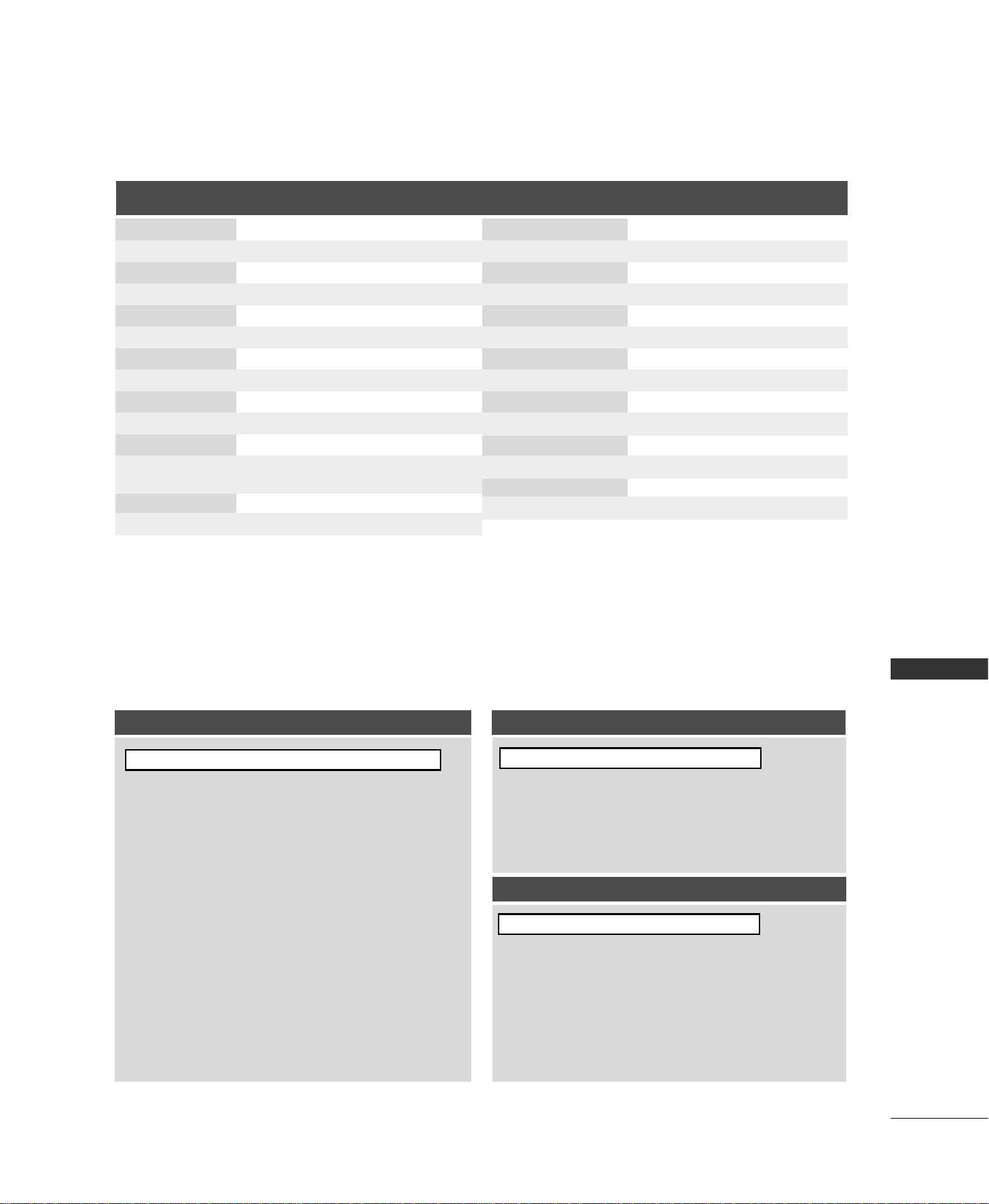
APPENDIX
77
Transmission / Receiving Protocol
TTrraannssmmiissssiioonn
[Command 1] : First command to control the set.
(j,k,mor x)
[Command 2] : Second command to control the set.
[Set ID] : You can adjust the set ID to choose desired TV ID
number in Special menu. Adjustment range is 1
~
99. When selecting Set ID ‘0’, every connected the
TV is controlled. Set ID is indicated as decimal
(
1
~
99
)
on menu and as Hexa decimal
(
0x0~ 0x63
)
on transmission/receiving protocol.
[DATA] : To transmit command data.
Transmit ‘FF’ data to read status of command.
[Cr] : Carriage Return
ASCII code ‘0x0D’
[ ] : ASCII code ‘space (0x20)’
OOKK AAcckknnoowwlleeddggeemmeenntt
The TV transmits ACK (acknowledgement) based on this for-
mat when receiving normal data. At this time, if the data is
data read mode, it indicates present status data. If the data is
data write mode, it returns the data of the PC computer.
EErrrroorr AAcckknnoowwlleeddggeemmeenntt
The TV transmits ACK (acknowledgement) based on this for-
mat when receiving abnormal data from non-viable functions
or communication errors.
Data1: Illegal Code
Data2: Not supported function
Data3: Wait more time
[[CCoommmmaanndd11]][[CCoommmmaanndd22]][[ ]][[SSeett IIDD]][[ ]][[DDaattaa]][[CCrr]]
[[CCoommmmaanndd22]][[ ]][[SSeett IIDD]][[ ]][[OOKK]][[DDaattaa]][[xx]]
[[CCoommmmaanndd22]][[ ]][[SSeett IIDD]][[ ]][[NNGG]][[DDaattaa]][[xx]]
Command Reference List
CCOOMMMMAANNDD11 CCOOMMMMAANNDD22
DATA
(Hexadecimal)
CCOOMMMMAANNDD11 CCOOMMMMAANNDD22
15. Treble k r 0 ~ 64
16 . B a s s k s 0 ~ 64
17. Balance k t 0 ~ 64
18. Color Temperature k u 0 ~ 3
19. Red Adjustment k v 0 ~ 50
20. Green Adjustment k w 0 ~ 50
21. Blue Adjustment k $ 0 ~ 50
22.
Abnormal Status
k z FF
23.
Channel Tuning
m a
GG
P. 8 0
24.
Channel Add/del
m b
GG
P. 8 0
25. Key m c
GG
P. 8 0
26. Auto Configure j u 1
27. Input select (Main) x b
GG
P. 8 0
28. Input select (PIP) x y
GG
P. 8 1
DATA
(Hexadecimal)
01. Power k a 0 ~ 1
02. Aspect Ratio k c
GG
P. 78
03. Screen Mute k d 0 ~ 1
04. Volume Mute k e 0 ~ 1
05. Volume Control k f 0 ~ 64
06. Contrast k g 0 ~ 64
07. Brightness k h 0 ~ 64
08. Color k i 0 ~ 64
09. Tint k j 0 ~ 64
10. Sharpness k k 0 ~ 64
11. OSD Select k l 0 ~ 1
12. Remote Control 0 ~ 1
lock mode
13. PIP/DW/POP k n
GG
P. 79
14. PIP Position k q 0 ~ 3
k m

78
APPENDIX
APPENDIX
0011.. PPoowweerr ((CCoommmmaanndd22::aa))
To control Power On/Off of the TV.
Data 0 : Power Off Data 1 : Power On
Transmission [k][a][ ][Set ID][ ][Data][Cr]
Acknowledgement [a][ ][Set ID][ ][OK][Data][x]
To show Power On/Off.
Transmission [k][a][ ][Set ID][ ][FF][Cr]
* In a like manner, if other functions transmit ‘FF’
data based on this format, Acknowledgement data
feedback presents status about each function.
* To change the Power on input the transmission
more than twice.
Acknowledgement [a][ ][Set ID][ ][OK][Data][x]
0022.. AAssppeecctt RRaattiioo ((CCoommmmaanndd22::cc)) ((MMaaiinn ppiiccttuurree ssiizzee))
To adjust the screen format. (Main picture format)
You can also adjust the screen format using the ARC
(Aspect Ratio Control) button on remote control or
in the Screen menu.
Date 1: Normal screen (4:3)
Date 2: Wide screen (16:9)
Date 3: Horizon
Date 4: Zoom1
Date 5: Zoom2
Transmission [k][c][ ][Set ID][ ][Data][Cr]
Acknowledgement [c][ ][Set ID][ ][OK][Data][x]
* Using the RGB-PC, RGB-DTV, Component or HDMI
input, you select either 16:9 or 4:3 screen aspect
ratio.
0033.. SSccrreeeenn MMuuttee ((CCoommmmaanndd22::dd))
To select screen mute on/off.
Data 0 : Screen mute off (Picture on)
Data 1 : Screen mute on (Picture off)
Transmission [k][d][ ][Set ID][ ][Data][Cr]
Acknowledgement [d][ ][Set ID][ ][OK][Data][x]
0044.. VVoolluummee MMuuttee ((CCoommmmaanndd22::ee))
To control volume mute on/off.
You can also adjust mute using the MUTE button on
remote control.
Data 0 : Volume mute on (Volume off)
Data 1 : Volume mute off (Volume on)
Transmission [k][e][ ][Set ID][ ][Data][Cr]
Acknowledgement [e][ ][Set ID][ ][OK][Data][x]
0055.. VVoolluummee CCoonnttrrooll ((CCoommmmaanndd22::ff))
To adjust volume.
You can also adjust volume with the volume buttons
on remote control.
Data Min : 0 ~ Max : 64
Refer to ‘Real data mapping 1 ’. See page 81.
Transmission [k][f][ ][Set ID][ ][Data][Cr]
Acknowledgement [f][ ][Set ID][ ][OK][Data][x]
0066.. CCoonnttrraasstt ((CCoommmmaanndd22::gg))
To adjust screen contrast.
You can also adjust contrast in the Picture menu.
Data Min : 0 ~ Max : 64
Refer to ‘Real data mapping 1’. See page 81.
Transmission [k][g][ ][Set ID][ ][Data][Cr]
Acknowledgement [g][ ][Set ID][ ][OK][Data][x]
0077.. BBrriigghhttnneessss ((CCoommmmaanndd22::hh))
To adjust screen brightness.
You can also adjust brightness in the Picture menu.
Data Min : 0 ~ Max : 64
Refer to ‘Real data mapping 1’. See page 81.
Transmission [k][h][ ][Set ID][ ][Data][Cr]
Acknowledgement [h][ ][Set ID][ ][OK][Data][x]
0088.. CCoolloorr ((CCoommmmaanndd22::ii))
To adjust the screen color.
You can also adjust color in the Picture menu.
Data Min : 0 ~ Max : 64
Refer to ‘Real data mapping 1’. See page 81.
Transmission [k][i][ ][Set ID][ ][Data][Cr]
Acknowledgement [i][ ][Set ID][ ][OK][Data][x]
0099.. TTiinntt ((CCoommmmaanndd22::jj))
To adjust the screen tint.
You can also adjust tint in the Picture menu.
Data Red : 0 ~ Green : 64
Refer to ‘Real data mapping 1’. See page 81.
Transmission [k][j][ ][Set ID][ ][Data][Cr]
Acknowledgement [j][ ][Set ID][ ][OK][Data][x]

APPENDIX
79
1111.. OOSSDD SSeelleecctt ((CCoommmmaanndd22::ll))
To select OSD (On Screen Display) on/off when con-
trolling remotely.
Data 0: OSD off
Data 1: OSD on
Transmission [k][l][ ][Set ID][ ][Data][Cr]
Acknowledgement [l][ ][Set ID][ ][OK][Data][x]
1122.. RReemmoottee CCoonnttrrooll LLoocckk MMooddee ((CCoommmmaanndd22::mm))
To lock the remote control and the front panel
controls on the set.
Data 0: Lock off Data 1: Lock on
If you’re not using the remote control and front panel
controls on the TV, use this mode. When main power
is on/off, remote control lock is released.
Transmission [k][m][ ][Set ID][ ][Data][Cr]
Acknowledgement [m][ ][Set ID][ ][OK][Data][x]
1133.. PPIIPP // DDWW // PPOOPP ((CCoommmmaanndd22::nn))
To control the PIP (Picture In picture)/Double window.
You can also control the PIP/Double window using
the PIP button on the remote control.
Data 0: PIP/POP/DW off Data 1: PIP
Data 2: DW1 Data 3: DW2
Data5: POP
Transmission [k][n][ ][Set ID][ ][Data][Cr]
Acknowledgement [n][ ][Set ID][ ][OK][Data][x]
1144.. PPIIPP PPoossiittiioonn ((CCoommmmaanndd22::qq))
To select sub picture position for PIP.
You can also adjust the sub picture position using
POSITION button on the remote control.
Data 0: Right down on screen
Data 1: Left down on screen
Data 2: Left up on screen
Data 3: Right up on screen
Transmission [k][q][ ][Set ID][ ][Data][Cr]
Acknowledgement [q][ ][Set ID][ ][OK][Data][x]
1155.. TTrreebbllee ((CCoommmmaanndd22::rr))
To adjust treble.
You can also adjust treble in the Sound menu.
Data Min: 0 ~ Max: 64
Refer to ‘Real data mapping 1’. See page 81.
Transmission [k][r][ ][Set ID][ ][Data][Cr]
Acknowledgement [r][ ][Set ID][ ][OK][Data][x]
1166.. BBaassss ((CCoommmmaanndd22::ss))
To adjust bass.
You can also adjust bass in the Sound menu.
Data Min: 0 ~ Max: 64
Refer to ‘Real data mapping 1’. See page 81.
Transmission [k][s][ ][Set ID][ ][Data][Cr]
Acknowledgement [s][ ][Set ID][ ][OK][Data][x]
1177.. BBaallaannccee ((CCoommmmaanndd22::tt))
To adjust balance.
You can also adjust balance in the Sound menu.
Data Min: 0 ~ Max: 64
Refer to ‘Real data mapping 1’. See page 81.
Transmission [k][t][ ][Set ID][ ][Data][Cr]
Acknowledgement [t][ ][Set ID][ ][OK][Data][x]
1100.. SShhaarrppnneessss ((CCoommmmaanndd22::kk))
To adjust the screen sharpness.
You can also adjust sharpness in the Picture menu.
Data Min: 0 ~ Max: 64
Refer to ‘Real data mapping 1’. See page 81.
Transmission [k][k][ ][Set ID][ ][Data][Cr]
Acknowledgement [k][ ][Set ID][ ][OK][Data][x]
1188.. CCoolloorr TTeemmppeerraattuurree ((CCoommmmaanndd22::uu))
To adjust color temperature.
You can also adjust ACC in the Picture menu.
Data 0: Cool 1: Normal 2: Warm 3: User
Transmission [k][u][ ][Set ID][ ][Data][Cr]
Acknowledgement [u][ ][Set ID][ ][OK][Data][x]
1199.. RReedd AAddjjuussttmmeenntt ((CCoommmmaanndd22::vv))
To adjust red in color temperature.
Data Min: 0 ~ Max: 50
Refer to ‘Real data mapping 2’. See page 81.
Transmission [k][v][ ][Set ID][ ][Data][Cr]
Acknowledgement [v][ ][Set ID][ ][OK][Data][x]
2200.. GGrreeeenn AAddjjuussttmmeenntt ((CCoommmmaanndd22::ww))
To adjust green in color temperature.
Data Min: 0 ~ Max: 50
Refer to ‘Real data mapping 2’. See page 81.
Transmission [k][w][ ][Set ID][ ][Data][Cr]
Acknowledgement [w][ ][Set ID][ ][OK][Data][x]
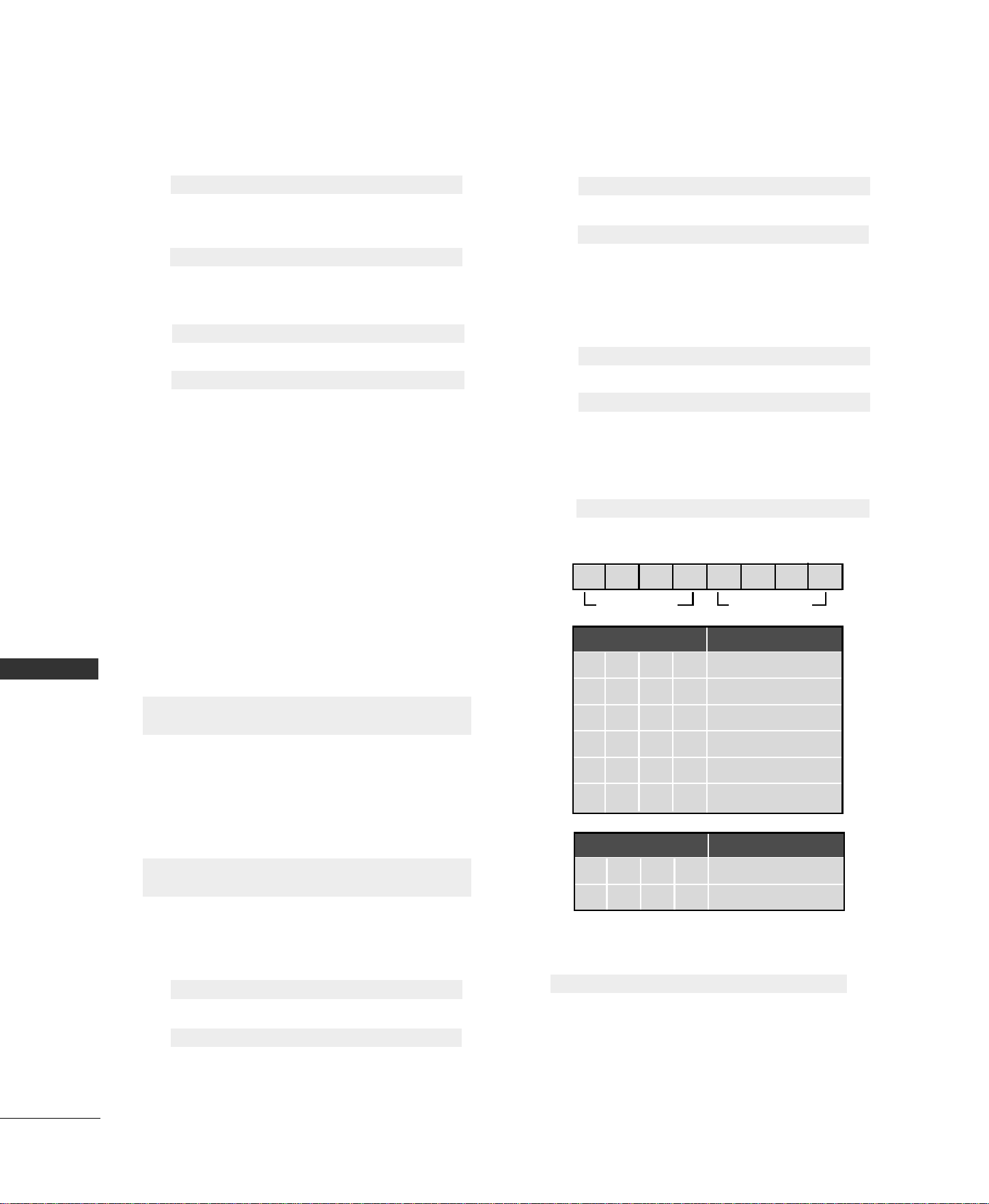
80
APPENDIX
APPENDIX
2222.. AAbbnnoorrmmaall SSttaattee ((CCoommmmaanndd22::zz))
To recognize an abnormal state.
Data FF: Read
Data 0: Normal (Power on and signal exist)
Data 1: No signal (Power on)
Data 2: Turn the TV off by remote control
Data 3: Turn the TV off by sleep time function
Data 4: Turn the TV off by RS-232C function
Data 5: 5V down
Data 6: AC down
Data 7: Turn the TV off by Fan Alarm function (option)
Data 8: Turn the TV off by Off time function
Data 9: Turn the TV off by Auto sleep function
Data a: Turn the TV off by AV borad detect
* This function is “read only”.
Transmission [k][z][ ][Set ID][ ][FF][ ][Cr]
Acknowledgement [z][ ][Set ID][ ][OK][Data][x]
2266 .. AAuuttoo CCoonnffiigguurree ((CCoommmmaanndd11::jj,, CCoommmmaanndd22::uu))
To adjust picture position and minimize image
shaking automatically. It works only in RGB (PC)
mode.
Data 1: To set
Transmission [j][u][ ][Set ID][ ][Data][Cr]
Acknowledgement [u][ ][Set ID][ ][OK][Data][x]
MSB LSB
0 0 0 0 0 0 0 0
External Input
Data
0001
Analog
0010
AV
0100
Component
0101
RGB-DTV
0110
RGB-PC
1001
HDMI
External Input Input Number
Acknowledgement [b][ ][Set ID][ ][OK][Data][x]
2255.. KKeeyy ((CCoommmmaanndd11::mm,, CCoommmmaanndd22::cc))
To send IR remote key code.
Data: Key code - Refer to page 83.
Transmission [m][c][ ][Set ID][ ][Data][Cr]
Acknowledgement [c][ ][Set ID][ ][OK][Data][x]
2244.. CChhaannnneell AAdddd//DDeell ((CCoommmmaanndd11::mm,, CCoommmmaanndd22::bb))
To add and delete the channels
Data 0: Erase Data 1: Memory
Transmission [m][b][ ][Set ID][ ][Data][Cr]
Acknowledgement [b][ ][Set ID][ ][OK][Data][x]
Acknowledgement [a][ ][Set ID][ ][OK][Data0][Data1]
[Data2][Data3][Data4][Data5][x]
2277.. IInnppuutt sseelleecctt ((CCoommmmaanndd11::xx,, CCoommmmaanndd22::bb))
((MMaaiinn PPiiccttuurree IInnppuutt))
To select input source for TV.
Data: Structure
Transmission [x][b][ ][Set ID][ ][Data][Cr]
2233 .. CChhaannnneell TTuunniinngg ((CCoommmmaanndd11::mm,, CCoommmmaanndd22::aa))
Tune channel to following physical number.
Data 0: NTSC air : 02 ~ 45
NTSC cable : 01, 0E ~ 7D
Data 1 ~ 4: Don’t care
Data 5: High -> Main channel: 0, Sub channel: 8
Low -> Air: 0, CATV: 1
Transmission [m][a][ ][Set ID][ ][Data0][ ][Data1][ ]
[Data2][ ][Data3][ ][Data4][ ][Data5][Cr]
2211.. BBlluuee AAddjjuussttmmeenntt ((CCoommmmaanndd22::$$))
To adjust blue in color temperature.
Data Min: 0 ~ Max: 50
Refer to ‘Real data mapping 2’. See page 81.
Transmission [k][$][ ][Set ID][ ][Data][Cr]
Acknowledgement [$][ ][Set ID][ ][OK][Data][x]
Input Number Data
0000
Input1
0001
Input2
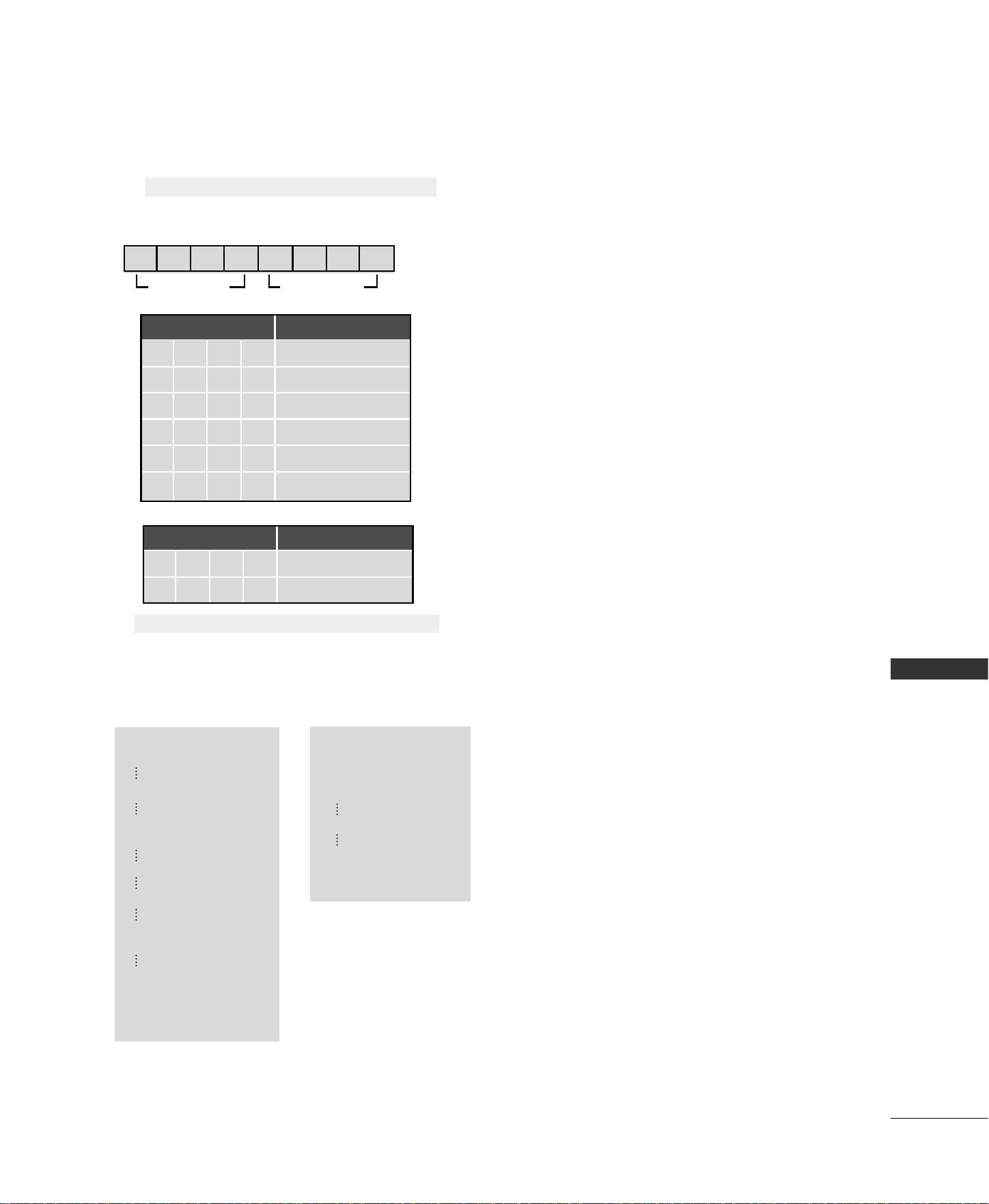
APPENDIX
81
MSB LSB
0 0 0 0 0 0 0 0
External Input Input Number
Acknowledgement [y][ ][Set ID][ ][OK][Data][x]
2288.. IInnppuutt sseelleecctt ((CCoommmmaanndd11::xx,, CCoommmmaanndd22::yy))
To adjust input source for sub picture in PIP mode.
Data: Structure
Transmission [x][y][ ][Set ID][ ][Data][Cr]
**
RReeaall ddaattaa mmaappppiinngg 11
0 : Step 0
A : Step 10 (Set ID 10)
F : Step 15 (Set ID 15)
10 : Step 16 (Set ID 16)
64 : Step 100
6E : Step 110
73 : Step 115
74 : Step 116
C7: Step 199
FE : Step 254
FF : Step 255
**
RReeaall ddaattaa mmaappppiinngg 22
0:-40
1:-39
2:-38
28 : 0
48 : +38
49 : +39
50 : +40
External Input
Data
0001
Analog
0010
AV
0100
Component
0101
RGB-DTV
0110
RGB-PC
1001
HDMI
Input Number Data
0000
Input1
0001
Input2
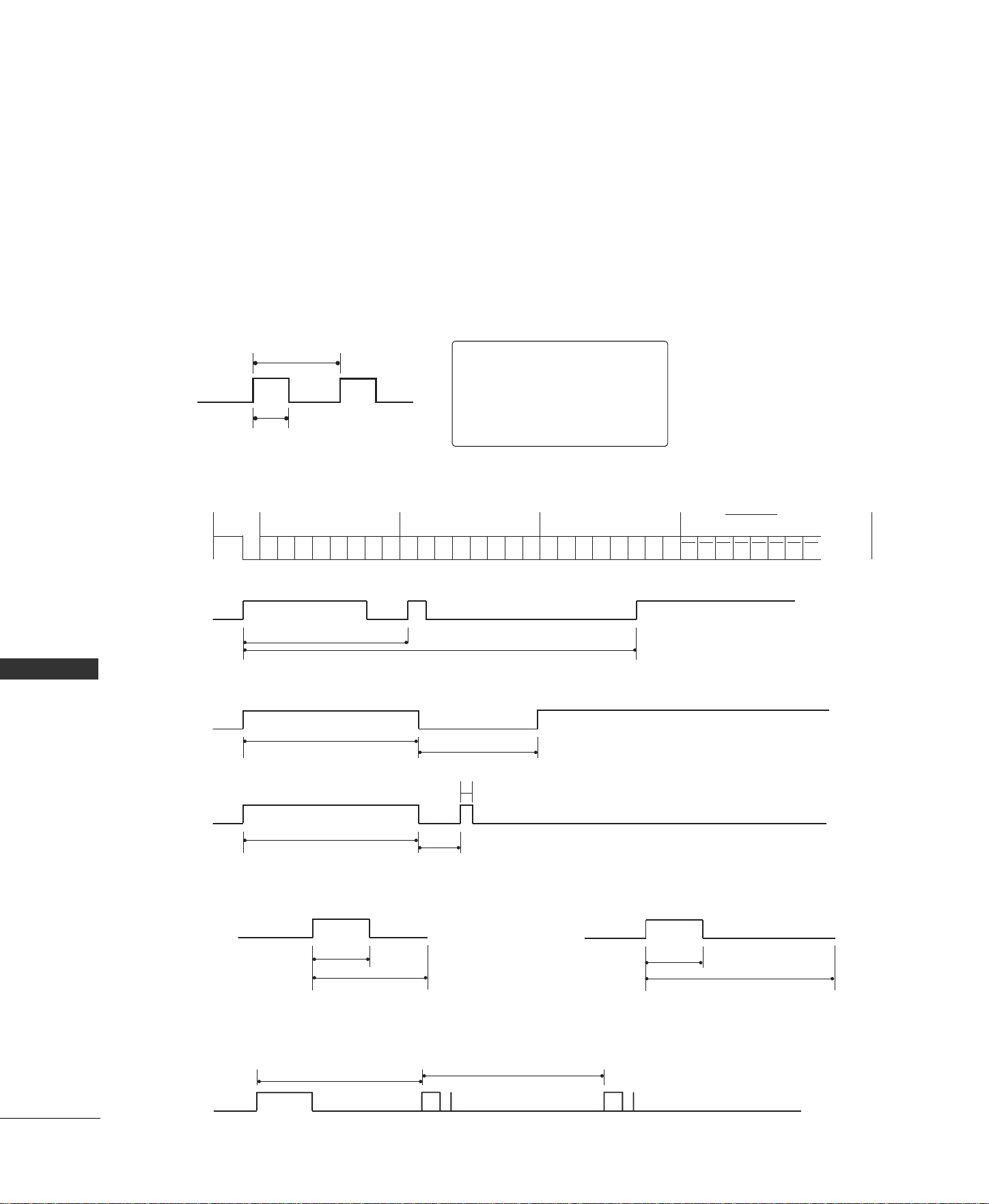
82
APPENDIX
APPENDIX
■
Configuration of frame
1st frame
Repeat frame
■
Lead code
■
Repeat code
■
BBiitt ddeessccrriippttiioonn
■
FFrraammee iinntteerrvvaall:: TTff
The waveform is transmitted as long as a key is depressed.
Low
custom code
Lead
code
High
custom code
Data code
Data code
C0 C1 C2 C3 C4 C5 C6 C7 D0 D1 D2 D3 D4 D5 D6 D7 D0 D1 D2 D3 D4 D5 D6 D7
Repeat code
Tf
4.5 ms
9 ms
2.25 ms
9 ms
0.55 ms
0.56 ms
1.12 ms
Tf Tf
Tf=108ms @455KHz
0.56 ms
2.24 ms
Bit ”0” Bit ”1”
1. How to Connect
■
Connect your wired remote control to the Remote Control port on the TV.
2. Remote Control IR Codes
■
Output waveform
Single pulse, modulated with 37.917KHz signal at 455KHz
T1
Tc
IR CODES
Carrier frequency
FCAR = 1/TC = fOSC/12
Duty ratio = T1/TC = 1/3
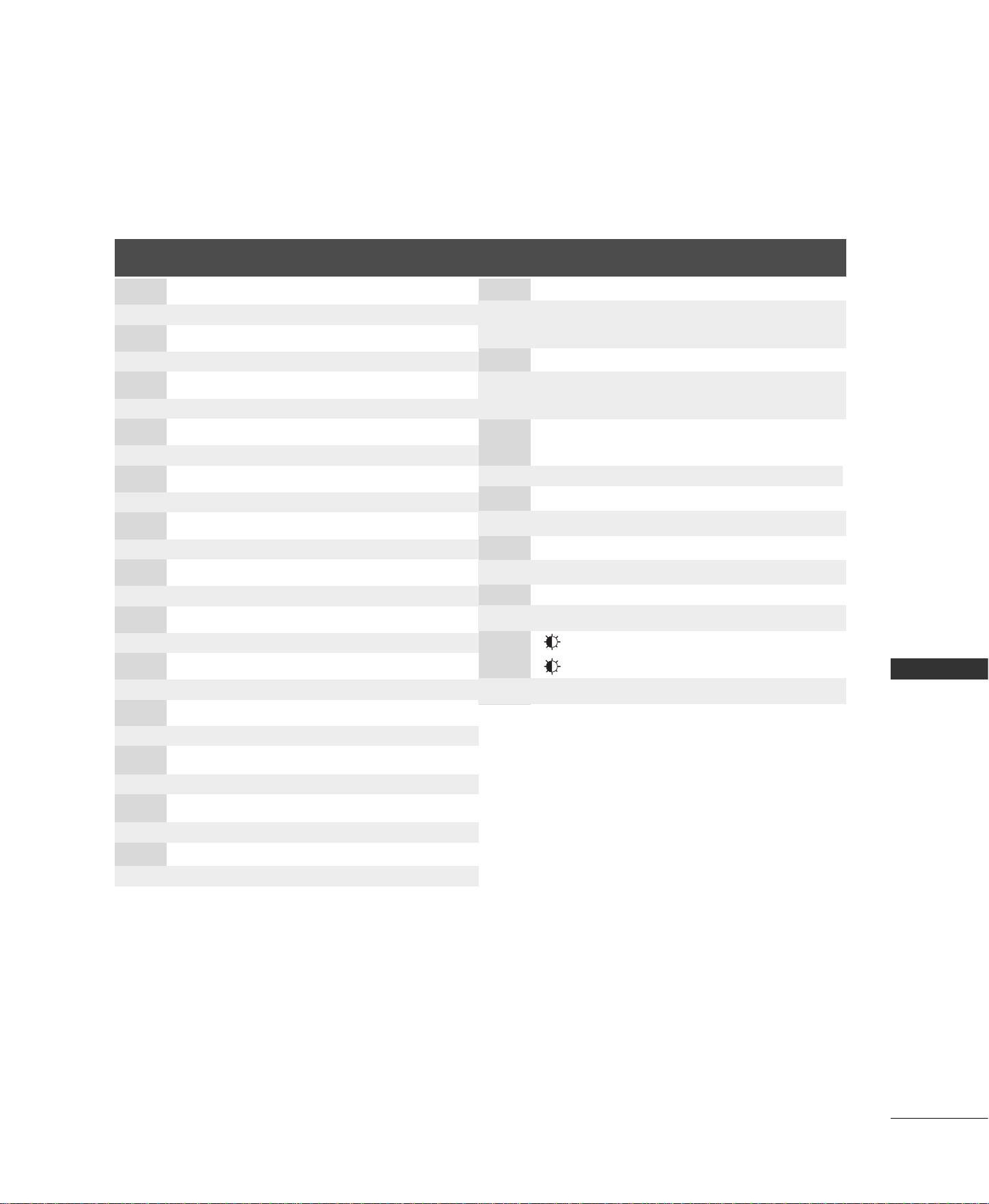
APPENDIX
83
Code
Function Note
(Hexa)
Code
Function Note
(Hexa)
44 ENTER Remote control Button
72 PIP CH- Remote control Button
71 PIP CH+ Remote control Button
61 PIP INPUT Remote control Button
02 VOL + Remote control Button
03 VOL - Remote control Button
00 CH + Remote control Button
01 CH - Remote control Button
09 MUTE Remote control Button
55 Memory/Erase Remote control Button
10 ~ 19 Number Key 0 ~ 9 Remote control Button
1E FCR Remote control Button
1A REVIEW Remote control Button
64 SIZE Remote control Button
62 POSITION Remote control Button
E0 + Remote control Button
E1 - Remote control Button
63 SWAP Remote control Button
0F TV Remote control Button
0B INPUT Remote control Button
08 POWER
Remote control Button (Power On/Off)
C4 POWER ON Discrete IR Code (Only Power On)
C5 POWER OFF Discrete IR Code (Only Power OFF)
60 PIP Remote control Button
0E SLEEP Remote control Button
39 Caption Remote control Button
0A MTS Remote control Button
43 MENU Remote control Button
79 ARC Remote control Button
5B EXIT Remote control Button
07
FF
Remote control Button
06
GG
Remote control Button
40
DD
Remote control Button
41
EE
Remote control Button
B3 LIVE TV Remote control Button
B0 PLAY Remote control Button
BA PAUSE Remote control Button
B1 STOP Remote control Button
BD REC Remote control Button
B4 REW Remote control Button
B5 FF Remote control Button
B2 GO TO PREV Remote control Button
B3 GO TO NEXT Remote control Button
C8 TIME MACHINE Remote control Button
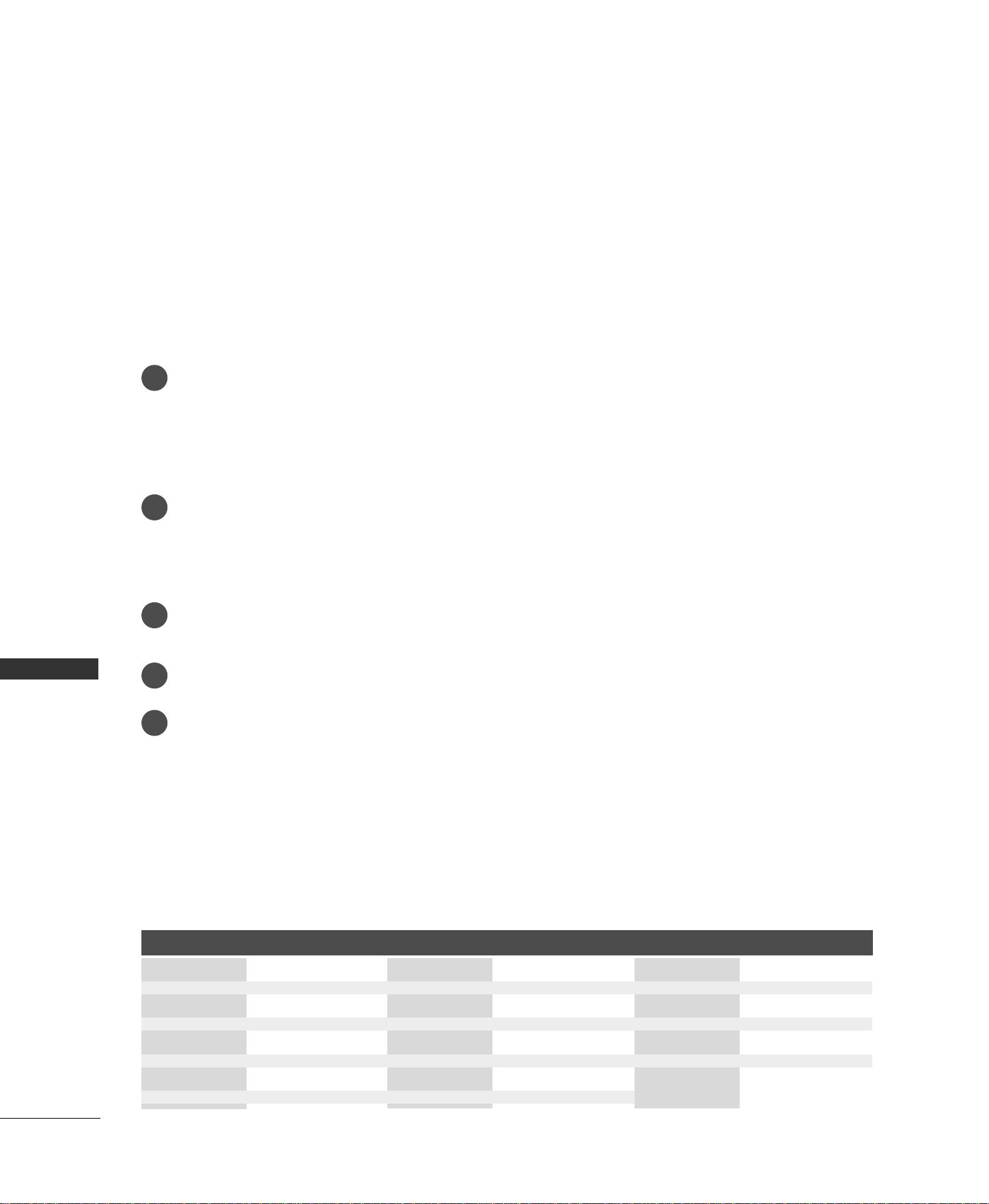
84
APPENDIX
APPENDIX
PROGRAMMING THE REMOTE CONTROL
Programming a code into a remote mode
To find out whether your remote control can operate each device without programming, turn on the device
(such as a VCR) and press the corresponding mode button on the remote.
After that, press the
PPOOWWEERR
button. If the device is turned off and it responds properly the remote control
need not be programmed. If not, the remote should be programmed to operate the device. The program-
ming procedures are explained below.
Press the
MMEENNUU
and
MMUUTTEE
button continuously at the same time for two seconds; the currently selected
device button is illuminated.
If you don't press any button for 20 seconds, the light on the mode button will be turned off. In that case,
you have to repeat from step 2.
Enter the appropriate code from the code table on the following pages. When pressing the button, the light
blinks at a time. If the device turned off, the programming is successful.
Press the
MMEENNUU
button to store the code. After blinking twice, this code is stored.
Test the remote control functions to see if the device responds properly. If not, steps 2-5.
The provided universal remote control can be programmed to operate most remote-controllable devices.
Note that the remote may not control all models of other brands.
1
2
3
4
5
PROGRAMMING CODES
Brand Codes Brand Codes Brand Codes
DVD
APEX DIGITAL 022
DENON 020 014
GE 005 006
HARMAN KARDON 027
JVC 012
LG 001 010 016 025
MAGNAVOX 013
MARANTZ 024
MITSUBISHI 002
NAD 023
ONKYO 008 017
PANASONIC 003 009
PHILIPS 013
PIONEER 004 026
PROCEED 021
PROSCAN 005 006
RCA 005 006
SAMSUNG 011 015
SONY 007
THOMPSON 005 006
TOSHIBA 019 008
YAMAHA 009 018
ZENITH 010 016 025
APPENDIX
85
VCRs
Brand Codes Brand Codes Brand Codes
AIWA 034
AKAI 016 043 046 124
125 146
AMPRO 072
ANAM 031 033 103
AUDIO DYNAMICS
012 023 039 043
BROKSONIC 035 037 129
CANON 028 031 033
CAPEHART 108
CRAIG 003 040 135
CURTIS MATHES 031 033 041
DAEWOO 005 007 010 064
065 108 110 111
112 116 117 119
DAYTRON 108
DBX 012 023 039 043
DYNATECH 034 053
ELECTROHOME 059
EMERSON 006 017 025 027
029 031 034 035
036 037 046 101
129 13 1 138 153
FISHER 003 008 009 010
FUNAI 034
GE 031 033 063 072
10 7 10 9 14 4 147
GO VIDEO 132 136
HARMAN KARDON 012 045
HITACHI 004 018 026 034
043 063 137 150
INSTANTREPLAY 031 033
JCL 031 033
JCPENNY 012 013 015 033
040 066 101
JENSEN 043
JVC 012 031 033 043
048 050 055 060
130 150 152
KENWOOD 014 034 039 043
047 048
LG (GOLDSTAR) 001 012 013 020
101 106 114 123
LLOYD 034
LXI 003 009 013 014
017 034 101 106
MAGIN 040
MAGNAVOX 031 033 034 041
067 068
MARANTZ 012 031 033 067
069
MARTA 101
MATSUI 027 030
MEI 031 033
MEMOREX 003 010 014 031
033 034 053 072
101 102 13 4 13 9
MGA 045 046 059
MINOLTA 013 020
MITSUBISHI 013 020 045 046
049 051 059 061
151
MTC 034 040
MULTITECH 024 034
NEC 012 023 039 043
048
NORDMENDE 043
OPTONICA 053 054
PANASONIC 066 070 074 083
13 3 140 145
PENTAX 013 020 031 033
063
PHILCO 031 034 067
PHILIPS 031 033 034 054
067 071 101
PILOT 101
PIONEER 013 021 048
PORTLAND 108
PULSAR 072
QUARTZ 011 014
QUASAR 033 066 075 145
RCA 013 020 033 034
040 041 062 063
107 109 140 144
14 5 14 7
REALISTIC 003 008 010 014
031 033 034 040
053 054 101
RICO 058
RUNCO 148
SALORA 014
SAMSUNG 032 040 102 104
10 5 10 7 10 9 112
113 115 12 0 12 2
12 5
SANSUI 022 043 048 135
SANYO 003 007 010 014
10 2 13 4
S C OT T 017 0 37 112 129
131
SEARS 003 008 009 010
013 014 017 020
031 042 073 081
101
SHARP 031 054 149
SHINTOM 024
SONY 003 009 031 052
056 057 058 076
077 078 149
SOUNDESIGN 034
STS 013
SYLVANIA 031 033 034 059
067
SYMPHONIC 034
TANDY 010 034
TATUNG 039 043
TEAC 034 039 043
TECHNICS 031 033 070
TEKNIKA 019 031 033 034
101
THOMAS 034
TMK 006
TOSHIBA 008 013 042 047
059 082 112 131
TOTEVISION 040 101
UNITECH 040
VECTOR RESEARCH
012
VICTOR 048
VIDEO CONCEPTS
012 034 046
VIDEOSONIC 040
WARDS 003 013 017 024
031 033 034 040
053 054 131
YAMAHA 012 034 039 043
ZENITH 034 048 056
058 072 080 101
86
APPENDIX
APPENDIX
TROUBLESHOOTING CHECKLIST
TThhee ooppeerraattiioonn ddooeess nnoott wwoorrkk nnoorrmmaallllyy..
TThhee rreemmoottee ccoonnttrrooll
ddooeessnn’’tt wwoorrkk
PPoowweerr iiss ssuuddddeennllyy
ttuurrnneedd ooffff
TThhee vviiddeeoo ffuunnccttiioonn ddooeess nnoott wwoorrkk..
NNoo ppiiccttuurree &&
NNoo ssoouunndd
NNoo oorr ppoooorr ccoolloorr
oorr ppoooorr ppiiccttuurree
PPoooorr rreecceeppttiioonn oonn
ssoommee cchhaannnneellss
LLiinneess oorr ssttrreeaakkss iinn
ppiiccttuurreess
HHoorriizzoonnttaall//vveerrttiiccaall
bbaarrss oorr ppiiccttuurree sshhaakkiinngg
PPiiccttuurree aappppeeaarrss ssllooww--
llyy aafftteerr sswwiittcchhiinngg oonn
■
Check whether the product is turned on.
■
Try another channel. The problem may be with the broadcast.
■
Is the power cord inserted into wall power outlet?
■
Check your antenna direction and/or location.
■
Test the wall power outlet, plug another product’s power cord into the outlet
where the product’s power cord was plugged in.
■
This is normal, the image is muted during the product startup process. Please
contact your service center, if the picture has not appeared after five minutes.
■
Adjust Color in menu option.
■
Keep a sufficient distance between the product and the VCR.
■
Try another channel. The problem may be with the broadcast.
■
Are the video cables installed properly?
■
Activate any function to restore the brightness of the picture.
■
Check for local interference such as an electrical appliance or power tool.
■
Station or cable product experiencing problems, tune to another station.
■
Station signal is weak, reorient antenna to receive weaker station.
■
Check for sources of possible interference.
■
Check antenna (Change the direction of the antenna).
■
Check to see if there is any object between the product and the remote control
causing obstruction. Ensure you are pointing the remote control directly at the TV.
■
Ensure that the batteries are installed with correct polarity (+ to +, - to -).
■
Ensure that the correct remote operating mode is set: TV, VCR etc.
■
Install new batteries.
■
Is the sleep timer set?
■
Check the power control settings. Power interrupted.
■
No broadcast on station tuned with Auto off activated.
APPENDIX
87
■
Press the VOL or VOLUME button.
■
Sound muted? Press MUTE button.
■
Try another channel. The problem may be with the broadcast.
■
Are the audio cables installed properly?
■
Adjust Balance in menu option.
■
A change in ambient humidity or temperature may result in an unusual noise
when the product is turned on or off and does not indicate a fault with the
product.
PPiiccttuurree OOKK &&
NNoo ssoouunndd
UUnnuussuuaall ssoouunndd ffrroomm
iinnssiiddee tthhee pprroodduucctt
NNoo oouuttppuutt ffrroomm oonnee
ooff tthhee ssppeeaakkeerrss
TThheerree iiss aa pprroobblleemm iinn PPCC mmooddee.. ((OOnnllyy PPCC mmooddee aapppplliieedd))
■
Adjust resolution, horizontal frequency, or vertical frequency.
■
Check the input source.
■
Work the Auto configure or adjust clock, phase, or H/V position. (Option)
■
Check the signal cable.
■
Reinstall the PC video card.
TThhee ssiiggnnaall iiss oouutt ooff
rraannggee..
SSccrreeeenn ccoolloorr iiss
uunnssttaabbllee oorr ssiinnggllee
ccoolloorr
VVeerrttiiccaall bbaarr oorr
ssttrriippee oonn bbaacckk--
ggrroouunndd && HHoorriizzoonnttaall
NNooiissee && IInnccoorrrreecctt
ppoossiittiioonn
TThhee aauuddiioo ffuunnccttiioonn ddooeess nnoott wwoorrkk..
88
APPENDIX
APPENDIX
MAINTENANCE
Early malfunctions can be prevented. Careful and regular cleaning can extend the amount of time you will
have your new TV. Be sure to turn the power off and unplug the power cord before you begin any cleaning.
Cleaning the Screen
Here’s a great way to keep the dust off your screen for a while. Wet a soft cloth in a mixture of lukewarm
water and a little fabric softener or dish washing detergent. Wring the cloth until it’s almost dry, and then
use it to wipe the screen.
Make sure the excess water is off the screen, and then let it air-dry before you turn on your TV.
Cleaning the Cabinet
■
To remove dirt or dust, wipe the cabinet with a soft, dry, lint-free cloth.
■
Please be sure not to use a wet cloth.
Extended Absence
If you expect to leave your TV dormant for a long time (such as a vacation), it’s a good idea to unplug
the power cord to protect against possible damage from lightning or power surges.
CAUTION
1
2
PRODUCT SPECIFICATIONS
■
The specifications shown above may be changed without prior notice for quality improvement.
42LC2RR
(42LC2RR-ML)
37LC2RR
(37LC2RR-ML)
MODEL
Dimensions
(Width x Height x
Depth)
Weight
Power Consumption
Power requirement
Television System
Program Coverage
External Antenna Impedance
Environment condition
41.4 x 32.0 x 11.2 inches
1054.0 x 813.0 x 286.0 mm
41.4 x 29.3 x 5.3 inches
1054.0 x 746.0 x 136.8 mm
93.2 pounds / 42.3 kg
78.7 pounds / 35.7 kg
250W
37.1 x 28.7 x 11.2 inches
944.0 x 729.0 x 286.0 mm
37.1 x 26.0 x 5.1 inches
944.0 x 659.3 x 129.7 mm
70.98 pounds / 32.2 kg
56.2 pounds / 25.5 kg
200 W
AC100-240V
~ 50/60Hz
NTSC, PAL-M/N
VHF 2
~ 13, UHF 14 ~ 69, CATV 1 ~ 125
75 ohm
32 ~ 104°F (0 ~ 40°C)
Less than 80%
-4 ~ 140°F (-20 ~ 60°C)
Less than 85%
including stand
excluding stand
including stand
excluding stand
Operating Temperature
Operating Humidity
Storage Temperature
Storage Humidity

Please read this manual carefully before operating your set.
Retain it for future reference.
Record model number and serial number of the set.
See the label attached on the back cover and quote
this information to your dealer
when you require service.
LCD TV
OWNER’S MANUAL
LCD TV MODELS
37LC2RR
42LC2RR
P/NO : 38289U0577P (0711-REV06)
Printed in Korea
http://www.lge.com
http://ar.lge.com