Personal Computer
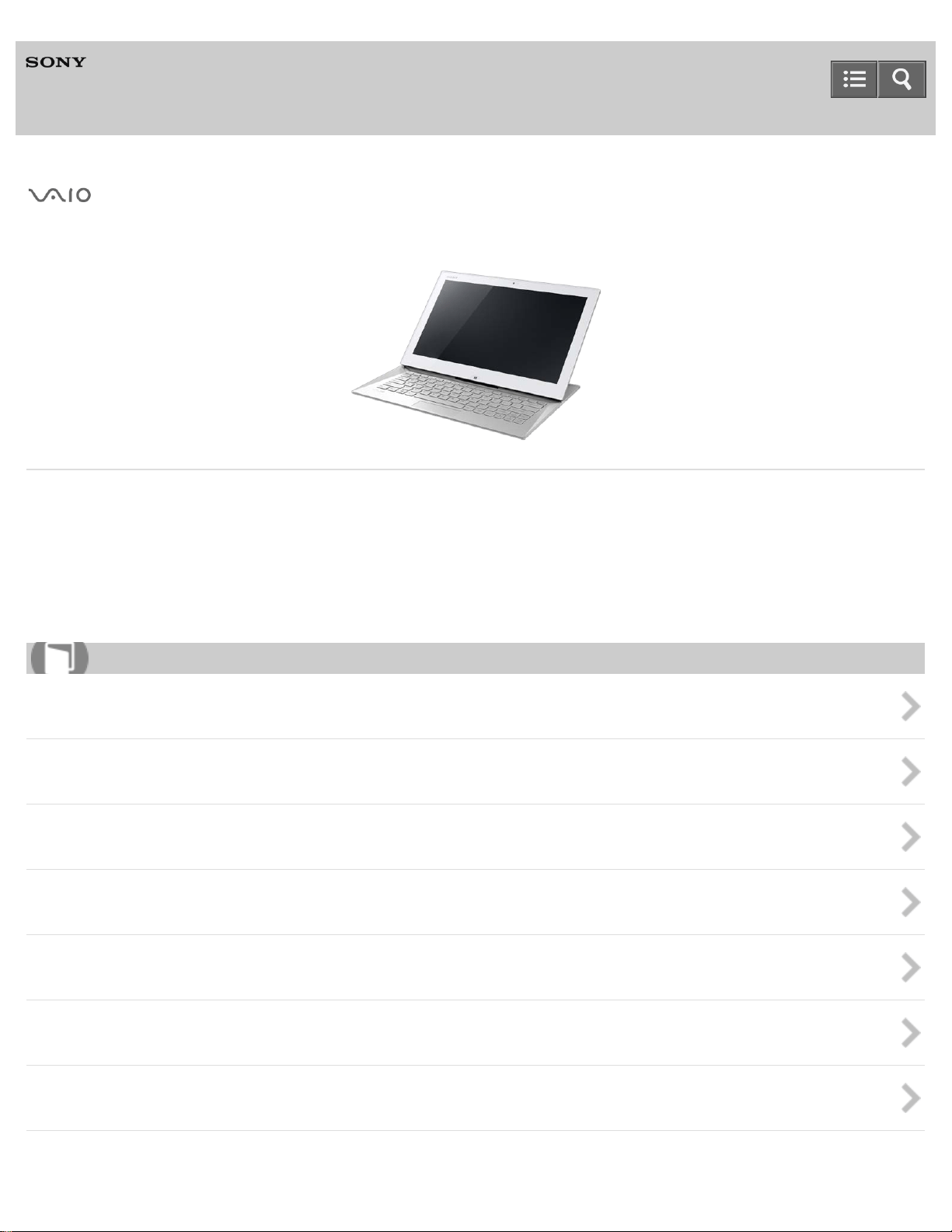
VAIO Duo 13 SVD1323
Use this manual if you encounter any problems, or have any questions about your VAIO computer.
About This Manual
Visit the VAIO support website that provides up-to-date information on your VAIO computer.
http://www.sony.com/am/vaiosupport/
Windows 8: The Basics
Parts Description
Setup
Network / Internet
Connections
Settings
Backup / Recovery
Security
User Guide
How to Use

Table Of Contents
User Guide i.......................................................................................................................................
Windows 8: The Basics 1..................................................................................................................
User account 42..........................................................................................................................
Power 43.....................................................................................................................................
Display 45....................................................................................................................................
Internet 47...................................................................................................................................
Password 48................................................................................................................................
Apps 49.......................................................................................................................................
Windows 50.................................................................................................................................
Menu 51.......................................................................................................................................
Windows 8 52..............................................................................................................................
Store 53.......................................................................................................................................
Help and Support 54....................................................................................................................
Parts Description 2............................................................................................................................
VAIO computer 55.......................................................................................................................
Setup 3..............................................................................................................................................
VAIO computer 56.......................................................................................................................
Power 57.....................................................................................................................................
Battery 59....................................................................................................................................
Display 60....................................................................................................................................
Keyboard 62................................................................................................................................
Supplied items 63........................................................................................................................
Windows 8 64..............................................................................................................................
Network / Internet 4...........................................................................................................................
Internet 65...................................................................................................................................
LAN 67.........................................................................................................................................
Wi-Fi 68.......................................................................................................................................
Apps 70.......................................................................................................................................
Store 71.......................................................................................................................................
Wireless WAN 72........................................................................................................................
Connections 5....................................................................................................................................
Power 73.....................................................................................................................................
Display 75....................................................................................................................................
HDMI 77......................................................................................................................................
Peripheral device 78....................................................................................................................
CD/DVD/BD 79............................................................................................................................
Audio 80......................................................................................................................................
Speakers 81................................................................................................................................
TOC-1

Headphones 82...........................................................................................................................
Optical digital output 83...............................................................................................................
Internet 84...................................................................................................................................
LAN 86.........................................................................................................................................
Wi-Fi 87.......................................................................................................................................
BLUETOOTH 89..........................................................................................................................
USB 90........................................................................................................................................
Location information 91...............................................................................................................
Wireless WAN 92........................................................................................................................
Settings 7...........................................................................................................................................
User account 93..........................................................................................................................
VAIO computer 94.......................................................................................................................
Power 96.....................................................................................................................................
Display 98....................................................................................................................................
HDMI 101....................................................................................................................................
Peripheral device 102..................................................................................................................
CD/DVD/BD 103..........................................................................................................................
Audio 104....................................................................................................................................
Speakers 105..............................................................................................................................
Microphone 106...........................................................................................................................
Optical digital output 107.............................................................................................................
Button 108...................................................................................................................................
Recovery 109..............................................................................................................................
Keyboard 110..............................................................................................................................
Touch pad 111.............................................................................................................................
Camera 112.................................................................................................................................
Internet 113.................................................................................................................................
Password 114..............................................................................................................................
Memory module 115....................................................................................................................
BIOS 116.....................................................................................................................................
Service and support 117..............................................................................................................
Touch panel 118..........................................................................................................................
Location information 119.............................................................................................................
Sensor 120..................................................................................................................................
Security 121.................................................................................................................................
Menu 122.....................................................................................................................................
Windows 8 123............................................................................................................................
Pen 124.......................................................................................................................................
Face Recognition 125..................................................................................................................
Backup / Recovery 9.........................................................................................................................
TOC-2

VAIO computer 126.....................................................................................................................
CD/DVD/BD 127..........................................................................................................................
Button 128...................................................................................................................................
Recovery 129..............................................................................................................................
BIOS 131.....................................................................................................................................
Backup 132..................................................................................................................................
Service and support 133..............................................................................................................
Built-in storage device 134..........................................................................................................
Partition 135................................................................................................................................
Refresh 136.................................................................................................................................
Security 10.........................................................................................................................................
VAIO computer 137.....................................................................................................................
Internet 138.................................................................................................................................
Password 139..............................................................................................................................
BIOS 140.....................................................................................................................................
Service and support 141..............................................................................................................
Face Recognition 142..................................................................................................................
Other Operations 13..........................................................................................................................
Power 160...................................................................................................................................
Battery 162..................................................................................................................................
Display 163..................................................................................................................................
Keyboard 165..............................................................................................................................
Touch pad 166.............................................................................................................................
Camera 167.................................................................................................................................
USB 168......................................................................................................................................
Memory card 169.........................................................................................................................
Built-in storage device 171..........................................................................................................
Touch panel 172..........................................................................................................................
Partition 173................................................................................................................................
NFC/One-touch functions 174.....................................................................................................
Windows 175...............................................................................................................................
Windows 8 176............................................................................................................................
Help and Support 177..................................................................................................................
Pen 178.......................................................................................................................................
Notifications 15..................................................................................................................................
Read this first 179........................................................................................................................
VAIO computer 180.....................................................................................................................
Care and maintenance 181.........................................................................................................
Important notice 182....................................................................................................................
Service and support 183..............................................................................................................
TOC-3

Product registration 184..............................................................................................................
Supplied items 185......................................................................................................................
Security 186.................................................................................................................................
Hardware 16......................................................................................................................................
Power 187...................................................................................................................................
Battery 189..................................................................................................................................
Display 190..................................................................................................................................
HDMI 192....................................................................................................................................
Audio 193....................................................................................................................................
Microphone 194...........................................................................................................................
Keyboard 195..............................................................................................................................
Touch pad 196.............................................................................................................................
Camera 197.................................................................................................................................
LAN 198.......................................................................................................................................
Wi-Fi 199.....................................................................................................................................
BLUETOOTH 200........................................................................................................................
Password 201..............................................................................................................................
BIOS 202.....................................................................................................................................
USB 203......................................................................................................................................
Memory card 204.........................................................................................................................
Software 205...............................................................................................................................
Computer 206..............................................................................................................................
Touch panel 207..........................................................................................................................
NFC/One-touch functions 208.....................................................................................................
Location information 209.............................................................................................................
Sensor 210..................................................................................................................................
Pen 211.......................................................................................................................................
Wireless WAN 212......................................................................................................................
Apps 18.............................................................................................................................................
Display 213..................................................................................................................................
Software 215...............................................................................................................................
Network / Internet 19.........................................................................................................................
LAN 216.......................................................................................................................................
Wi-Fi 217.....................................................................................................................................
BLUETOOTH 218........................................................................................................................
Wireless WAN 219......................................................................................................................
Backup / Recovery 20.......................................................................................................................
Recovery 220..............................................................................................................................
Security 21.........................................................................................................................................
Password 221..............................................................................................................................
TOC-4

BIOS 222.....................................................................................................................................
Peripheral Devices 22.......................................................................................................................
USB 223......................................................................................................................................
Printer 224...................................................................................................................................
How to Use 23...................................................................................................................................
Troubleshooting 35............................................................................................................................
TOC-5

Personal Computer
VAIO Duo 13 SVD1323
About This Manual
Congratulations on your purchase of this VAIO(R) computer.
About your VAIO computer’s configuration
To find out about the configuration of your VAIO computer, visit the Sony online support website. See About Online
Support Website for more information.
Some features, options, and supplied items may not be available on your VAIO computer.
Features
Available features vary depending on the model or options you selected. Not all features described in this manual are
available depending on your model.
Illustrations
Illustrations, photos, or screenshots in this manual may look slightly different depending on the model or options you
selected.
Apps
The preinstalled apps may vary depending on the model or options you selected. The apps described in this manual
may not be preinstalled on your VAIO computer.
Supplied manuals
The following manuals are supplied with your VAIO computer.
On-screen documentation
User Guide - Introduction Version (Welcome)
A preinstalled manual with limited information of your VAIO computer, focused on support and Internet connection.
The User Guide - Introduction Version is replaced with a complete version of the User Guide (this manual),
after update.
User Guide (this manual)
General information and operation instructions about your VAIO computer including support and troubleshooting
information
Select the item you want to check from the navigation pane on the left, then the keyword from the right pane. The list
of topics relating to the keyword will be displayed. If you cannot find the topic you are looking for, select List of
Topics to display all of the topics in this User Guide, or enter the keyword in the search box at the top of each
page.
Printed documentation
Quick Start Guide
User Guide
How to Use
11

An overview of how to set up and get started with your VAIO computer
Recovery, Backup and Troubleshooting Guide
Information on how to recover and back up your VAIO computer, as well as troubleshooting information
Safety Regulations
Read carefully before activating the wireless functions such as the wireless LAN and BLUETOOTH technology.
Other references
Windows Help and Support
A comprehensive resource for practical advice, tutorials, and demonstrations to help you learn to use your VAIO
computer.
To open Windows Help and Support, see Opening Windows Help and Support.
App help files
App help files may be included with the preinstalled apps on your VAIO computer. You may be able to access the
help files from the help menu.
Notice
Copyright 2013 Sony Corporation. All rights reserved.
This manual and the software described herein, in whole or in part, may not be reproduced, translated, or reduced to
any machine-readable form without prior written approval.
Sony Corporation provides no warranty with regard to this manual, the software, or other information contained herein
and hereby expressly disclaims any implied warranties or merchantability or fitness for any particular purpose with
regard to this manual, the software, or such other information. In no event shall Sony Corporation be liable for any
incidental, consequential, or special damages, whether based on tort, contract, or otherwise, arising out of or in
connection with this manual, the software, or other information contained herein or the use thereof.
In the manual, the (TM) or (R) marks are not specified.
Sony Corporation reserves the right to make any modification to this manual or the information contained herein at
any time without notice.
The software described herein is governed by the terms of a separate user license agreement.
Sony Corporation is not liable and will not compensate for any lost recordings made to your VAIO computer, external
recording media, or recording devices or any relevant losses, including when recordings are not made due to reasons
including the computer failure, or when the contents of a recording are lost or damaged as a result of the computer
failure or repair undertaken to the computer. Sony Corporation will not restore, recover, or replicate the recorded
contents made to the computer, external recording media, or recording devices under any circumstances.
Features and specifications are subject to change without notice.
Related Topic
About Online Support Website
Notes on use
Copyright 2013 Sony Corporation
12

Personal Computer
VAIO Duo 13 SVD1323
How to Use
Windows 8: The Basics
User account
Switching from a Local Account to a Microsoft Account
About User Account Types
Power
Entering Sleep Mode, Shutting Down, or Restarting
Using Sleep Mode
Restarting Your VAIO Computer
Controlling the Power State of Your VAIO Computer (Sleep Mode/Shutdown)
Display
Opening the Desktop
Searching Content
Opening the App List
About the Start Screen and Menu
Internet
Installing Apps from Windows Store
Password
Switching from a Local Account to a Microsoft Account
About User Account Types
Apps
Switching User Accounts
Switching Apps
Viewing Running Apps
Closing Apps
Starting Apps
Installing Apps from Windows Store
Opening the App Menu
Windows
Opening Windows Help and Support
Starting Help+Tips
Menu
User Guide
List of Topics
23

Opening Control Panel
Opening the Charms
Opening the Desktop
Searching Content
Opening the App List
About the Start Screen and Menu
Windows 8
Using Sleep Mode
Restarting Your VAIO Computer
Controlling the Power State of Your VAIO Computer (Sleep Mode/Shutdown)
Store
Switching User Accounts
Installing Apps from Windows Store
Help and Support
Opening Windows Help and Support
Starting Help+Tips
Parts Description
VAIO computer
Parts and Controls on the Back
Parts and Controls on the Front
Parts and Controls on the Sides
Parts and Controls on the Bottom
Setup
VAIO computer
Checking Supplied Items
Raising the LCD Screen
Setting Up an Appropriate Work Environment
Power
Charging the Battery Pack
Turning On Your VAIO Computer
Connecting a Power Source
Controlling the Power State of Your VAIO Computer (Sleep Mode/Shutdown)
Battery
Notes on Using the Battery Pack
Charging the Battery Pack
Display
Raising the LCD Screen
Keyboard
Raising the LCD Screen
24

Supplied items
Checking Supplied Items
Windows 8
Controlling the Power State of Your VAIO Computer (Sleep Mode/Shutdown)
Network / Internet
Internet
Stopping Wi-Fi(R) (Wireless LAN) Communications
Notes on Using the Wi-Fi(R) (Wireless LAN) Function
About the Wi-Fi(R) (Wireless LAN) Standards
Inserting a Micro SIM Card (Wireless WAN equipped models)
Before Using the Wireless WAN (Wireless WAN equipped models)
Removing a Micro SIM Card (Wireless WAN equipped models)
About the Internet Connection Services
Starting Wireless WAN Communications (Wireless WAN equipped models)
Stopping Wireless WAN Communications (Wireless WAN equipped models)
Installing Apps from Windows Store
Starting Wi-Fi(R) (Wireless LAN) Communications
Using the Antivirus App for Your VAIO Computer
About a Security Key for Wi-Fi(R) (Wireless LAN)
Disabling the Wi-Fi(R) (Wireless LAN) Function
About the Network (LAN)
LAN
About the Wi-Fi(R) (Wireless LAN) Standards
About the Internet Connection Services
About a Security Key for Wi-Fi(R) (Wireless LAN)
About the Network (LAN)
Wi-Fi
Stopping Wi-Fi(R) (Wireless LAN) Communications
Notes on Using the Wi-Fi(R) (Wireless LAN) Function
About the Wi-Fi(R) (Wireless LAN) Standards
About the Internet Connection Services
Starting Wi-Fi(R) (Wireless LAN) Communications
About a Security Key for Wi-Fi(R) (Wireless LAN)
Disabling the Wi-Fi(R) (Wireless LAN) Function
Apps
Installing Apps from Windows Store
Store
Installing Apps from Windows Store
Wireless WAN
Inserting a Micro SIM Card (Wireless WAN equipped models)
25

Before Using the Wireless WAN (Wireless WAN equipped models)
Removing a Micro SIM Card (Wireless WAN equipped models)
Starting Wireless WAN Communications (Wireless WAN equipped models)
Stopping Wireless WAN Communications (Wireless WAN equipped models)
Connections
Power
Connecting a Power Source
Display
Changing the Resolution (Size) of the Screen Image on an HDMI-Connected Device
Selecting Display Modes
Using the Multiple Monitors Function
Connecting a TV with an HDMI Input Port
Notes on the LCD screen
HDMI
Changing the Resolution (Size) of the Screen Image on an HDMI-Connected Device
Connecting a TV with an HDMI Input Port
Peripheral device
Selecting Display Modes
Using the Multiple Monitors Function
Connecting a TV with an HDMI Input Port
Notes on the LCD screen
Changing the Sound Output Device
Connecting a High-Quality Digital Sound Output Device between Your VAIO Computer and a TV
CD/DVD/BD
Connecting an External Drive
Audio
Connecting External Speakers/Headphones/Headset
Changing the Sound Output Device
Connecting a High-Quality Digital Sound Output Device between Your VAIO Computer and a TV
Speakers
Connecting External Speakers/Headphones/Headset
Headphones
Connecting External Speakers/Headphones/Headset
Optical digital output
Connecting a High-Quality Digital Sound Output Device between Your VAIO Computer and a TV
Internet
Stopping Wi-Fi(R) (Wireless LAN) Communications
Notes on Using the Wi-Fi(R) (Wireless LAN) Function
About the Wi-Fi(R) (Wireless LAN) Standards
Inserting a Micro SIM Card (Wireless WAN equipped models)
26

Before Using the Wireless WAN (Wireless WAN equipped models)
Removing a Micro SIM Card (Wireless WAN equipped models)
About the Internet Connection Services
Starting Wireless WAN Communications (Wireless WAN equipped models)
Stopping Wireless WAN Communications (Wireless WAN equipped models)
Starting Wi-Fi(R) (Wireless LAN) Communications
About a Security Key for Wi-Fi(R) (Wireless LAN)
Disabling the Wi-Fi(R) (Wireless LAN) Function
About the Network (LAN)
LAN
About the Wi-Fi(R) (Wireless LAN) Standards
About the Internet Connection Services
About a Security Key for Wi-Fi(R) (Wireless LAN)
About the Network (LAN)
Wi-Fi
Stopping Wi-Fi(R) (Wireless LAN) Communications
Notes on Using the Wi-Fi(R) (Wireless LAN) Function
About the Wi-Fi(R) (Wireless LAN) Standards
About the Internet Connection Services
Starting Wi-Fi(R) (Wireless LAN) Communications
About a Security Key for Wi-Fi(R) (Wireless LAN)
Disabling the Wi-Fi(R) (Wireless LAN) Function
BLUETOOTH
About BLUETOOTH(R) Security
Notes on Using the BLUETOOTH(R) Function
About the BLUETOOTH(R) Function
Communicating with Another BLUETOOTH(R) Device such as a Mouse
Stopping BLUETOOTH(R) Communications
USB
Connecting a USB Device
Charging a USB Device
Location information
Disabling the Download of the Location Information (GNSS equipped models)
Downloading the Location Information (GNSS equipped models)
Wireless WAN
Inserting a Micro SIM Card (Wireless WAN equipped models)
Before Using the Wireless WAN (Wireless WAN equipped models)
Removing a Micro SIM Card (Wireless WAN equipped models)
Starting Wireless WAN Communications (Wireless WAN equipped models)
Stopping Wireless WAN Communications (Wireless WAN equipped models)
27

Settings
User account
Switching from a Local Account to a Microsoft Account
VAIO computer
About the ASSIST Button
Viewing the System Information
Customizing Your VAIO Computer
Booting Your VAIO Computer from External Devices
Using VAIO Update
Keeping Your VAIO Computer in Optimum Condition (VAIO Care)
Updating Your VAIO Computer
Power
Notes on Sleep Mode
Selecting a Power Plan
Notes on Using the Power Source
Using Sleep Mode
Display
Displaying Clear and Vivid Images (X-Reality for mobile installed models)
Changing the LCD Brightness
Adjusting the LCD Brightness Automatically
Changing the Resolution (Size) of the Screen Image on an HDMI-Connected Device
Selecting Display Modes
Using the Multiple Monitors Function
Connecting a TV with an HDMI Input Port
Notes on the LCD screen
Changing the Resolution (Size) of the Screen Image
Notes on Using the Touch Screen (Touch screen equipped models)
Enlarging the Text Size (DPI) (Touch screen equipped models)
How to Use the Touch Screen (Touch screen equipped models)
About Built-In Sensors
Notes on Built-In Sensors
HDMI
Changing the Resolution (Size) of the Screen Image on an HDMI-Connected Device
Connecting a TV with an HDMI Input Port
Peripheral device
Selecting Display Modes
Using the Multiple Monitors Function
Connecting a TV with an HDMI Input Port
Notes on the LCD screen
Changing the Sound Output Device
Connecting a High-Quality Digital Sound Output Device between Your VAIO Computer and a TV
28

CD/DVD/BD
Booting Your VAIO Computer from External Devices
Audio
Adjusting the Speakers Volume
Adjusting the Volume in Windows
Changing the Sound Output Device
Adjusting the Microphone Volume
Connecting a High-Quality Digital Sound Output Device between Your VAIO Computer and a TV
Playing Optimized Sound for Your VAIO Computer Using ClearAudio+
Speakers
Adjusting the Speakers Volume
Playing Optimized Sound for Your VAIO Computer Using ClearAudio+
Microphone
Adjusting the Microphone Volume
Optical digital output
Connecting a High-Quality Digital Sound Output Device between Your VAIO Computer and a TV
Button
About the ASSIST Button
Recovery
About the ASSIST Button
Keyboard
Changing the Keyboard Backlight Settings (Keyboard backlight equipped models)
Touch pad
Enabling/Disabling the Gesture Function
Enabling/Disabling the Touch Pad
Using the Touch Pad
Disabling the Tapping Function on the Touch Pad
Camera
Using the Built-in Camera
Internet
Using the Antivirus App for Your VAIO Computer
Password
Switching from a Local Account to a Microsoft Account
Creating/Changing/Removing Your Windows Password
Setting/Changing the Power-on Password
Signing In to Windows Using Face Recognition
Removing the Power-on Password
Memory module
Viewing the System Information
BIOS
29

About the ASSIST Button
Booting Your VAIO Computer from External Devices
Setting/Changing the Power-on Password
Removing the Power-on Password
Service and support
Using VAIO Update
Keeping Your VAIO Computer in Optimum Condition (VAIO Care)
Updating Your VAIO Computer
Touch panel
Notes on Using the Touch Screen (Touch screen equipped models)
Enlarging the Text Size (DPI) (Touch screen equipped models)
How to Use the Touch Screen (Touch screen equipped models)
Location information
Disabling the Download of the Location Information (GNSS equipped models)
Downloading the Location Information (GNSS equipped models)
Sensor
About Built-In Sensors
Notes on Built-In Sensors
Security
Updating Your VAIO Computer
Menu
Opening Control Panel
Windows 8
Using Sleep Mode
Pen
Starting Your Preferred App when You Detach the Pen (Digitizer Stylus supplied models)
Face Recognition
Using Face Recognition
Notes on Face Recognition
Signing In to Windows Using Face Recognition
Backup / Recovery
VAIO computer
About the ASSIST Button
Booting Your VAIO Computer from External Devices
Keeping Your VAIO Computer in Optimum Condition (VAIO Care)
CD/DVD/BD
Booting Your VAIO Computer from External Devices
Button
About the ASSIST Button
30

Recovery
About the ASSIST Button
Recovering from the Recovery Area
Refreshing Your VAIO Computer (Refresh function supported models)
Removing Recovery Content to Free up Disk Space
Recovering from Recovery Media
Checking the Volume of the Recovery Area
About Recovery
Creating Recovery Media
Notes on Recovery
BIOS
About the ASSIST Button
Booting Your VAIO Computer from External Devices
Backup
Restoring System Files Using the Restore Point when You cannot Start Windows
About Backup
About Types of Backup
Creating a Restore Point
Backing Up Your Data when You cannot Start Windows
Restoring Your Data with VAIO Data Restore Tool
Service and support
Keeping Your VAIO Computer in Optimum Condition (VAIO Care)
Built-in storage device
Removing Recovery Content to Free up Disk Space
Creating Other Drives (Modifying Partitions)
Creating Partitions
Checking the Volume of the Recovery Area
Partition
Creating Other Drives (Modifying Partitions)
Creating Partitions
Refresh
Refreshing Your VAIO Computer (Refresh function supported models)
About Recovery
Security
VAIO computer
Using VAIO Update
Keeping Your VAIO Computer in Optimum Condition (VAIO Care)
Internet
Using the Antivirus App for Your VAIO Computer
Password
31

Creating/Changing/Removing Your Windows Password
Setting/Changing the Power-on Password
Signing In to Windows Using Face Recognition
Removing the Power-on Password
BIOS
Setting/Changing the Power-on Password
Removing the Power-on Password
Service and support
Using VAIO Update
Keeping Your VAIO Computer in Optimum Condition (VAIO Care)
Face Recognition
Using Face Recognition
Notes on Face Recognition
Signing In to Windows Using Face Recognition
Other Operations
Power
Using Sleep Mode
Charging the Battery Pack
Turning On Your VAIO Computer
Charge Indicator Status List
Restarting Your VAIO Computer
Controlling the Power State of Your VAIO Computer (Sleep Mode/Shutdown)
About Sleep Mode
Battery
Checking the Battery Charge Capacity
Charging the Battery Pack
Charge Indicator Status List
Extending the Battery Life
About Sleep Mode
Display
About the Touch Screen (Touch screen equipped models)
Notes on Using the Touch Screen (Touch screen equipped models)
How to Use the Touch Screen (Touch screen equipped models)
Keyboard
Combinations and Functions with the Fn Key
Entering Characters with Touch Screen Operations (Touch screen equipped models)
Touch pad
Using the Touch Pad
Camera
Notes on the Built-in Camera
32

Using the Built-in Camera
Scanning Content (VAIO Scan)
USB
Connecting a USB Device
Charging a USB Device
Memory card
Notes on Using SD Memory Cards
About "Memory Stick"
Formatting "Memory Stick"
Removing "Memory Stick"
Notes on Using "Memory Stick"
Removing SD Memory Cards
Inserting SD Memory Cards
Compatible "Memory Stick"
Inserting "Memory Stick"
Built-in storage device
Creating Other Drives (Modifying Partitions)
Creating Partitions
Touch panel
Entering Characters with Touch Screen Operations (Touch screen equipped models)
About the Touch Screen (Touch screen equipped models)
Notes on Using the Touch Screen (Touch screen equipped models)
How to Use the Touch Screen (Touch screen equipped models)
Partition
Creating Other Drives (Modifying Partitions)
Creating Partitions
NFC/One-touch functions
Notes on NFC/One-touch functions (NFC supported models)
About NFC (NFC supported models)
About One-touch functions (NFC supported models)
Disabling NFC/One-touch functions (NFC supported models)
Using NFC/One-touch functions (NFC supported models)
Playing Music by Touching an NFC/One-touch functions Supported Device to Your VAIO Computer (One-touch listening) (NFC
supported models)
Stopping the One-touch listening Connection (One-touch listening) (NFC supported models)
Windows
Opening Windows Help and Support
Starting Help+Tips
Windows 8
Using Sleep Mode
Restarting Your VAIO Computer
33

Controlling the Power State of Your VAIO Computer (Sleep Mode/Shutdown)
Help and Support
Opening Windows Help and Support
Starting Help+Tips
Pen
Clipping an Image Displayed on the Computer Screen (VAIO Clip)
Starting the Note Taking App (VAIO Paper)
Using the Pen Stand (Digitizer Stylus supplied models)
Using the Pen Hook (Digitizer Stylus supplied models)
Replacing the Battery of the Pen (Digitizer Stylus supplied models)
Replacing the Nib (Digitizer Stylus supplied models)
How to Use the Pen (Digitizer Stylus supplied models)
Notifications
Read this first
About This Manual
VAIO computer
Checking Supplied Items
Setting Up an Appropriate Work Environment
Updating Your VAIO Computer
Care and maintenance
Cleaning Your VAIO computer/LCD screen
Important notice
Handling the Built-in Storage Device
About the International ENERGY STAR(R) Program
About the Software License
Trademarks
Safety Information
Service and support
Solving Common Problems with Your VAIO Computer
About Online Support Website
Updating Your VAIO Computer
Product registration
About Online Support Website
Supplied items
Checking Supplied Items
Security
Updating Your VAIO Computer
Notes on use
34
Personal Computer
VAIO Duo 13 SVD1323
Troubleshooting
Hardware
Power
Why does my VAIO computer automatically turn off?
Why does a message appear and Windows fail to start when I turn on my VAIO computer?
What should I do if Hibernate mode is not available or my VAIO computer does not enter Hibernate mode?
What should I do if the screen remains blank when I press the power button?
What should I do if my VAIO computer does not turn on?
What should I do if I cannot turn off my VAIO computer?
What should I do if my VAIO computer does not turn on or the power button does not work (the charge indicator light blinks
fast)?
What should I do if the VAIO Care (Rescue Mode) screen appears when I turn on my VAIO computer?
Battery
Why is my VAIO computer running slowly and the CPU clock frequency low while the computer is running on battery power?
What should I do if my battery pack is not fully charged?
What should I do if my battery pack does not work properly?
Display
Why does the LCD brightness automatically change?
What should I do if color gradients are not displayed correctly on my computer screen?
Why doesn't the computer screen rotate?
What should I do if videos are not displayed on the computer screen?
What should I do if videos are not displayed smoothly?
What should I do if no image is displayed on my TV screen or external display connected to the HDMI output port?
How do I change the LCD brightness?
What should I do if some items do not fit on the computer screen?
What should I do if no image is displayed on my external display or TV screen?
Why do sound interruptions and/or dropped frames occur when I play high-definition videos, such as those recorded with the
AVCHD digital video camcorder?
What should I do if my computer screen goes blank?
Why does the viewfinder show no images or poor-quality images?
What should I do if captured images contain dropped frames and audio interruptions?
What should I do if captured images flicker?
What should I do if my computer screen flickers or fades to white? (Intel graphics accelerator installed models)
User Guide
List of Topics
35

What should I do if the touch screen does not work correctly? (Touch screen equipped models)
HDMI
What should I do if no image is displayed on my TV screen or external display connected to the HDMI output port?
Audio
What should I do if I do not hear sound from speakers or headphones?
What should I do if my microphone does not work?
What should I do if I hear microphone feedback from speakers when using my microphone?
What should I do if sound interruptions occur during video or audio playback?
What should I do if I do not hear sound from a digital audio device connected to the digital output port, such as the HDMI output
port?
Microphone
What should I do if my microphone does not work?
What should I do if I hear microphone feedback from speakers when using my microphone?
Keyboard
What should I do if the pointer does not move?
What should I do if my VAIO computer screen freezes?
What should I do if I cannot enter certain characters with my keyboard?
What should I do if my keyboard configuration is wrong?
Touch pad
How do I disable the touch pad?
Why can't I use the touch pad?
What should I do if the pointer does not move?
How do I avoid unintentional clicks caused by a light touch on the touch pad?
What should I do if my VAIO computer screen freezes?
Camera
Why does the viewfinder show no images or poor-quality images?
What should I do if captured images contain dropped frames and audio interruptions?
Why are captured images poor in quality?
Why is the video input from the built-in camera suspended momentarily?
What should I do if captured images flicker?
LAN
What should I do if I do not know the SSID or security key for the access point?
What should I do if I cannot play back movies or audio tracks received via Wi-Fi(R) (Wireless LAN), or their playback is
interrupted? Why is the data transfer speed slow?
How can I find the physical address (MAC address) of the built-in wireless network interface of my VAIO computer?
What should I do if I cannot connect my VAIO computer to an access point (or the Internet)?
What should I do if I cannot use the Wi-Fi(R) (Wireless LAN) function?
Wi-Fi
What should I do if I do not know the SSID or security key for the access point?
What should I do if I cannot play back movies or audio tracks received via Wi-Fi(R) (Wireless LAN), or their playback is
interrupted? Why is the data transfer speed slow?
36

How can I find the physical address (MAC address) of the built-in wireless network interface of my VAIO computer?
What should I do if I cannot connect my VAIO computer to an access point (or the Internet)?
What should I do if I cannot use the Wi-Fi(R) (Wireless LAN) function?
BLUETOOTH
What should I do if other BLUETOOTH(R) devices cannot connect to my VAIO computer?
What should I do if I cannot find the BLUETOOTH(R) device I want to communicate with?
Why is my BLUETOOTH(R) connection slow?
Why can't I use the BLUETOOTH(R) function when I sign in to my VAIO computer as a user with a standard user account?
Why can't I use BLUETOOTH(R) devices when I switch users?
What should I do if I cannot use the BLUETOOTH(R) function?
What should I do if the BLUETOOTH(R) icon is not displayed in the desktop notification area?
Password
What should I do if I forget the Windows password?
What should I do if the Enter Onetime Password message appears and Windows does not start after I enter a wrong power-on
password three times consecutively?
What should I do if I forget the power-on password to start my VAIO computer?
BIOS
What should I do if I forget the power-on password to start my VAIO computer?
USB
What should I do if I cannot charge the device connected to the USB port that supports USB charging?
Memory card
Why can't I write data to a memory card?
Software
Why do sound interruptions and/or dropped frames occur when I play high-definition videos, such as those recorded with the
AVCHD digital video camcorder?
Computer
Why is my VAIO computer running slowly and the CPU clock frequency low while the computer is running on battery power?
Touch panel
What should I do if the touch screen does not work correctly? (Touch screen equipped models)
NFC/One-touch functions
What should I do if I cannot use NFC/One-touch functions?
Location information
What should I do if I cannot download the location information?
Sensor
Why doesn't the built-in digital compass show the correct direction?
Why doesn't the computer screen rotate?
Pen
Why doesn't my preferred app start when I detach the pen (Digitizer Stylus)?
Why does the message "The digitizer stylus (pen) has been pulled out." appear even when I do not detach the pen?
Wireless WAN
What should I do if my VAIO computer cannot connect to the wireless WAN?
37

Apps
Display
Why do sound interruptions and/or dropped frames occur when I play high-definition videos, such as those recorded with the
AVCHD digital video camcorder?
Software
Why do sound interruptions and/or dropped frames occur when I play high-definition videos, such as those recorded with the
AVCHD digital video camcorder?
What should I do if my game app does not work or it keeps crashing?
Network / Internet
LAN
What should I do if I do not know the SSID or security key for the access point?
What should I do if I cannot play back movies or audio tracks received via Wi-Fi(R) (Wireless LAN), or their playback is
interrupted? Why is the data transfer speed slow?
How can I find the physical address (MAC address) of the built-in wireless network interface of my VAIO computer?
What should I do if I cannot connect my VAIO computer to an access point (or the Internet)?
What should I do if I cannot use the Wi-Fi(R) (Wireless LAN) function?
Wi-Fi
What should I do if I do not know the SSID or security key for the access point?
What should I do if I cannot play back movies or audio tracks received via Wi-Fi(R) (Wireless LAN), or their playback is
interrupted? Why is the data transfer speed slow?
How can I find the physical address (MAC address) of the built-in wireless network interface of my VAIO computer?
What should I do if I cannot connect my VAIO computer to an access point (or the Internet)?
What should I do if I cannot use the Wi-Fi(R) (Wireless LAN) function?
BLUETOOTH
What should I do if other BLUETOOTH(R) devices cannot connect to my VAIO computer?
What should I do if I cannot find the BLUETOOTH(R) device I want to communicate with?
Why is my BLUETOOTH(R) connection slow?
Why can't I use the BLUETOOTH(R) function when I sign in to my VAIO computer as a user with a standard user account?
Why can't I use BLUETOOTH(R) devices when I switch users?
What should I do if I cannot use the BLUETOOTH(R) function?
What should I do if the BLUETOOTH(R) icon is not displayed in the desktop notification area?
Wireless WAN
What should I do if my VAIO computer cannot connect to the wireless WAN?
Backup / Recovery
Recovery
How can I reinstall the original apps and drivers?
What should I do if I cannot recover my VAIO computer from the recovery area?
How can I restore my VAIO computer system to its factory default settings?
How do I create Recovery Media?
38

What should I do if I cannot start/complete the recovery process?
What should I do if I cannot create Recovery Media?
What should I do if my VAIO computer becomes unstable (Windows starts)?
What should I do if my VAIO computer becomes unstable (Windows does not start)?
Security
Password
What should I do if I forget the Windows password?
What should I do if the Enter Onetime Password message appears and Windows does not start after I enter a wrong power-on
password three times consecutively?
What should I do if I forget the power-on password to start my VAIO computer?
BIOS
What should I do if I forget the power-on password to start my VAIO computer?
Peripheral Devices
USB
What should I do if I cannot print a document?
What should I do if my VAIO computer does not recognize the USB device?
Printer
What should I do if I cannot print a document?
What should I do if my VAIO computer does not recognize the USB device?
Notes on use
Copyright 2013 Sony Corporation
39
Personal Computer
VAIO Duo 13 SVD1323
Notes on use
Before use
To make full use of this content, please read the following notes thoroughly. Please note that they are subject to change
without prior notice.
June 2013
Recommended system environment
The following system environments are recommended for displaying this content. You may not be able to view the
content on other system environments.
For viewing on a computer
Recommended browser
With Microsoft Windows
Microsoft Internet Explorer 8 or later
Mozilla Firefox: latest version
Google Chrome™ : latest version
With Apple Mac OS
Apple Safari Ver. 5 or later
Mozilla Firefox: latest version
Google Chrome : latest version
For viewing on a smartphone or tablet
Basic operation has been confirmed on the standard browser for the noted devices running the following operating
systems.
Android™ 2.3 or later: Xperia series, Walkman running Android
iOS 4 or later: iPhone, iPod touch, iPad
JavaScript
JavaScript is used with this content for viewing convenience. If JavaScript is disabled in your web browser settings,
the content may not operate properly or it may not be displayed correctly.
Style Sheets
Cascading Style Sheets are used in designing this content. Page layout may not be as intended if you view the
content with style sheets disabled or on a web browser that is not compatible with style sheets. However, operation
will not be affected.
Cookies
This content uses cookies. To use services incorporating cookies, you need to set your browser to allow cookies.
Handling of personal information obtained from websites
User Guide
40

Personal Computer
VAIO Duo 13 SVD1323
User account
Switching from a Local Account to a Microsoft Account
In Windows 8, you can switch between a local account and a Microsoft account.
About User Account Types
There are two types of user accounts available in Windows 8: a local account and a Microsoft account.
Notes on use
Copyright 2013 Sony Corporation
User Guide
How to Use
42
Personal Computer
VAIO Duo 13 SVD1323
Power
Entering Sleep Mode, Shutting Down, or Restarting
You can place your VAIO computer into Sleep mode or shut down/restart the computer by following these steps.
Using Sleep Mode
In Sleep mode, you can step away from your VAIO computer while retaining the computer’s state including data you are
working on.
Restarting Your VAIO Computer
After changing the settings or installing an app on your VAIO computer, you may be required to restart the computer.
Controlling the Power State of Your VAIO Computer (Sleep Mode/Shutdown)
By default, your VAIO computer automatically enters Sleep mode after a certain period of inactivity.
You might be looking for the following topics:
Charging the Battery Pack
Turning On Your VAIO Computer
Connecting a Power Source
Notes on Sleep Mode
Selecting a Power Plan
Notes on Using the Power Source
Charge Indicator Status List
About Sleep Mode
Why does my VAIO computer automatically turn off?
Why does a message appear and Windows fail to start when I turn on my VAIO computer?
What should I do if Hibernate mode is not available or my VAIO computer does not enter Hibernate mode?
What should I do if the screen remains blank when I press the power button?
User Guide
How to Use
43

What should I do if my VAIO computer does not turn on?
What should I do if I cannot turn off my VAIO computer?
What should I do if my VAIO computer does not turn on or the power button does not work (the charge indicator light blinks
fast)?
What should I do if the VAIO Care (Rescue Mode) screen appears when I turn on my VAIO computer?
Notes on use
Copyright 2013 Sony Corporation
44
Personal Computer
VAIO Duo 13 SVD1323
Display
Opening the Desktop
You can access the desktop from a tile, just like an app. Open the desktop by following the instruction below.
Searching Content
With the Search charm, you can search files, settings, or web content.
Opening the App List
You can open the list of the installed apps (the Apps screen) on your VAIO computer.
About the Start Screen and Menu
You can add shortcuts to apps, the desktop, and websites that you use the most.
You might be looking for the following topics:
Raising the LCD Screen
Changing the Resolution (Size) of the Screen Image on an HDMI-Connected Device
Selecting Display Modes
Using the Multiple Monitors Function
Connecting a TV with an HDMI Input Port
Notes on the LCD screen
Displaying Clear and Vivid Images (X-Reality for mobile installed models)
Changing the LCD Brightness
Adjusting the LCD Brightness Automatically
Changing the Resolution (Size) of the Screen Image
Notes on Using the Touch Screen (Touch screen equipped models)
Enlarging the Text Size (DPI) (Touch screen equipped models)
User Guide
How to Use
45

How to Use the Touch Screen (Touch screen equipped models)
About Built-In Sensors
Notes on Built-In Sensors
About the Touch Screen (Touch screen equipped models)
Why does the LCD brightness automatically change?
What should I do if color gradients are not displayed correctly on my computer screen?
Why doesn't the computer screen rotate?
What should I do if videos are not displayed on the computer screen?
What should I do if videos are not displayed smoothly?
What should I do if no image is displayed on my TV screen or external display connected to the HDMI output port?
How do I change the LCD brightness?
What should I do if some items do not fit on the computer screen?
What should I do if no image is displayed on my external display or TV screen?
Why do sound interruptions and/or dropped frames occur when I play high-definition videos, such as those recorded with the
AVCHD digital video camcorder?
What should I do if my computer screen goes blank?
Why does the viewfinder show no images or poor-quality images?
What should I do if captured images contain dropped frames and audio interruptions?
What should I do if captured images flicker?
What should I do if my computer screen flickers or fades to white? (Intel graphics accelerator installed models)
What should I do if the touch screen does not work correctly? (Touch screen equipped models)
Notes on use
Copyright 2013 Sony Corporation
46
Personal Computer
VAIO Duo 13 SVD1323
Internet
Installing Apps from Windows Store
You can install apps from Windows Store.
You might be looking for the following topics:
Stopping Wi-Fi(R) (Wireless LAN) Communications
Notes on Using the Wi-Fi(R) (Wireless LAN) Function
About the Wi-Fi(R) (Wireless LAN) Standards
Inserting a Micro SIM Card (Wireless WAN equipped models)
Before Using the Wireless WAN (Wireless WAN equipped models)
Removing a Micro SIM Card (Wireless WAN equipped models)
About the Internet Connection Services
Starting Wireless WAN Communications (Wireless WAN equipped models)
Stopping Wireless WAN Communications (Wireless WAN equipped models)
Starting Wi-Fi(R) (Wireless LAN) Communications
Using the Antivirus App for Your VAIO Computer
About a Security Key for Wi-Fi(R) (Wireless LAN)
Disabling the Wi-Fi(R) (Wireless LAN) Function
About the Network (LAN)
Notes on use
Copyright 2013 Sony Corporation
User Guide
How to Use
47
Personal Computer
VAIO Duo 13 SVD1323
Password
Switching from a Local Account to a Microsoft Account
In Windows 8, you can switch between a local account and a Microsoft account.
About User Account Types
There are two types of user accounts available in Windows 8: a local account and a Microsoft account.
You might be looking for the following topics:
Creating/Changing/Removing Your Windows Password
Setting/Changing the Power-on Password
Signing In to Windows Using Face Recognition
Removing the Power-on Password
What should I do if I forget the Windows password?
What should I do if the Enter Onetime Password message appears and Windows does not start after I enter a wrong power-
on password three times consecutively?
What should I do if I forget the power-on password to start my VAIO computer?
Notes on use
Copyright 2013 Sony Corporation
User Guide
How to Use
48
Personal Computer
VAIO Duo 13 SVD1323
Apps
Switching User Accounts
You can switch to another user account by following these steps.
Switching Apps
You can switch between apps that are currently running.
Viewing Running Apps
You can view running apps by displaying the list on the Start screen.
Closing Apps
You can close currently running apps by following the instruction below.
Starting Apps
You can start apps by following these steps.
Installing Apps from Windows Store
You can install apps from Windows Store.
Opening the App Menu
Many apps have app menus that you can use to control your app. Follow the instructions below to open the app menu.
Notes on use
Copyright 2013 Sony Corporation
User Guide
How to Use
49
Personal Computer
VAIO Duo 13 SVD1323
Menu
Opening Control Panel
You can open Control Panel by following these steps.
Opening the Charms
You can open the charms to search for apps and files, share content, play content on other devices or print, and set up your
VAIO computer.
Opening the Desktop
You can access the desktop from a tile, just like an app. Open the desktop by following the instruction below.
Searching Content
With the Search charm, you can search files, settings, or web content.
Opening the App List
You can open the list of the installed apps (the Apps screen) on your VAIO computer.
About the Start Screen and Menu
You can add shortcuts to apps, the desktop, and websites that you use the most.
Notes on use
Copyright 2013 Sony Corporation
User Guide
How to Use
51
Personal Computer
VAIO Duo 13 SVD1323
Windows 8
Using Sleep Mode
In Sleep mode, you can step away from your VAIO computer while retaining the computer’s state including data you are
working on.
Restarting Your VAIO Computer
After changing the settings or installing an app on your VAIO computer, you may be required to restart the computer.
Controlling the Power State of Your VAIO Computer (Sleep Mode/Shutdown)
By default, your VAIO computer automatically enters Sleep mode after a certain period of inactivity.
Notes on use
Copyright 2013 Sony Corporation
User Guide
How to Use
52
Personal Computer
VAIO Duo 13 SVD1323
VAIO computer
Parts and Controls on the Back
Describes the features on the back of the VAIO computer, such as connection ports.
Parts and Controls on the Front
Describes the features on the front of the VAIO computer, such as buttons and indicator lights.
Parts and Controls on the Sides
Describes the features on the sides of the VAIO computer, such as connection ports.
Parts and Controls on the Bottom
Describes the features on the bottom of the VAIO computer.
You might be looking for the following topics:
Checking Supplied Items
Raising the LCD Screen
Setting Up an Appropriate Work Environment
About the ASSIST Button
Viewing the System Information
Customizing Your VAIO Computer
Booting Your VAIO Computer from External Devices
Using VAIO Update
Keeping Your VAIO Computer in Optimum Condition (VAIO Care)
Updating Your VAIO Computer
User Guide
How to Use
55
Personal Computer
VAIO Duo 13 SVD1323
VAIO computer
Checking Supplied Items
Check all items packed with the product before use.
Raising the LCD Screen
To use the keyboard, you need to raise the LCD screen.
Setting Up an Appropriate Work Environment
This topic describes where to or not to place your VAIO computer and ergonomic instructions.
You might be looking for the following topics:
Parts and Controls on the Back
Parts and Controls on the Front
Parts and Controls on the Sides
Parts and Controls on the Bottom
About the ASSIST Button
Viewing the System Information
Customizing Your VAIO Computer
Booting Your VAIO Computer from External Devices
Using VAIO Update
Keeping Your VAIO Computer in Optimum Condition (VAIO Care)
Updating Your VAIO Computer
Notes on use
Copyright 2013 Sony Corporation
User Guide
How to Use
56
Personal Computer
VAIO Duo 13 SVD1323
Power
Charging the Battery Pack
The battery pack can be charged even while you are using your VAIO computer when the computer is connected to a power
source. The charging time may vary depending on operating conditions.
Turning On Your VAIO Computer
Turn on your VAIO computer to start Windows.
Connecting a Power Source
Connect your VAIO computer to an AC power source.
Controlling the Power State of Your VAIO Computer (Sleep Mode/Shutdown)
By default, your VAIO computer automatically enters Sleep mode after a certain period of inactivity.
You might be looking for the following topics:
Entering Sleep Mode, Shutting Down, or Restarting
Using Sleep Mode
Restarting Your VAIO Computer
Notes on Sleep Mode
Selecting a Power Plan
Notes on Using the Power Source
Charge Indicator Status List
About Sleep Mode
Why does my VAIO computer automatically turn off?
Why does a message appear and Windows fail to start when I turn on my VAIO computer?
What should I do if Hibernate mode is not available or my VAIO computer does not enter Hibernate mode?
What should I do if the screen remains blank when I press the power button?
User Guide
How to Use
57

What should I do if my VAIO computer does not turn on?
What should I do if I cannot turn off my VAIO computer?
What should I do if my VAIO computer does not turn on or the power button does not work (the charge indicator light blinks
fast)?
What should I do if the VAIO Care (Rescue Mode) screen appears when I turn on my VAIO computer?
Notes on use
Copyright 2013 Sony Corporation
58
Personal Computer
VAIO Duo 13 SVD1323
Battery
Notes on Using the Battery Pack
Before using the battery pack, read the following precautions for correct use.
Charging the Battery Pack
The battery pack can be charged even while you are using your VAIO computer when the computer is connected to a power
source. The charging time may vary depending on operating conditions.
You might be looking for the following topics:
Checking the Battery Charge Capacity
Charge Indicator Status List
Extending the Battery Life
About Sleep Mode
Why is my VAIO computer running slowly and the CPU clock frequency low while the computer is running on battery power?
What should I do if my battery pack is not fully charged?
What should I do if my battery pack does not work properly?
Notes on use
Copyright 2013 Sony Corporation
User Guide
How to Use
59
Personal Computer
VAIO Duo 13 SVD1323
Display
Raising the LCD Screen
To use the keyboard, you need to raise the LCD screen.
You might be looking for the following topics:
Opening the Desktop
Searching Content
Opening the App List
About the Start Screen and Menu
Changing the Resolution (Size) of the Screen Image on an HDMI-Connected Device
Selecting Display Modes
Using the Multiple Monitors Function
Connecting a TV with an HDMI Input Port
Notes on the LCD screen
Displaying Clear and Vivid Images (X-Reality for mobile installed models)
Changing the LCD Brightness
Adjusting the LCD Brightness Automatically
Changing the Resolution (Size) of the Screen Image
Notes on Using the Touch Screen (Touch screen equipped models)
Enlarging the Text Size (DPI) (Touch screen equipped models)
How to Use the Touch Screen (Touch screen equipped models)
About Built-In Sensors
Notes on Built-In Sensors
About the Touch Screen (Touch screen equipped models)
User Guide
How to Use
60

Why does the LCD brightness automatically change?
What should I do if color gradients are not displayed correctly on my computer screen?
Why doesn't the computer screen rotate?
What should I do if videos are not displayed on the computer screen?
What should I do if videos are not displayed smoothly?
What should I do if no image is displayed on my TV screen or external display connected to the HDMI output port?
How do I change the LCD brightness?
What should I do if some items do not fit on the computer screen?
What should I do if no image is displayed on my external display or TV screen?
Why do sound interruptions and/or dropped frames occur when I play high-definition videos, such as those recorded with the
AVCHD digital video camcorder?
What should I do if my computer screen goes blank?
Why does the viewfinder show no images or poor-quality images?
What should I do if captured images contain dropped frames and audio interruptions?
What should I do if captured images flicker?
What should I do if my computer screen flickers or fades to white? (Intel graphics accelerator installed models)
What should I do if the touch screen does not work correctly? (Touch screen equipped models)
Notes on use
Copyright 2013 Sony Corporation
61
Personal Computer
VAIO Duo 13 SVD1323
Keyboard
Raising the LCD Screen
To use the keyboard, you need to raise the LCD screen.
You might be looking for the following topics:
Changing the Keyboard Backlight Settings (Keyboard backlight equipped models)
Combinations and Functions with the Fn Key
Entering Characters with Touch Screen Operations (Touch screen equipped models)
What should I do if the pointer does not move?
What should I do if my VAIO computer screen freezes?
What should I do if I cannot enter certain characters with my keyboard?
What should I do if my keyboard configuration is wrong?
Notes on use
Copyright 2013 Sony Corporation
User Guide
How to Use
62
Personal Computer
VAIO Duo 13 SVD1323
Windows 8
Controlling the Power State of Your VAIO Computer (Sleep Mode/Shutdown)
By default, your VAIO computer automatically enters Sleep mode after a certain period of inactivity.
You might be looking for the following topics:
Using Sleep Mode
Restarting Your VAIO Computer
Notes on use
Copyright 2013 Sony Corporation
User Guide
How to Use
64
Personal Computer
VAIO Duo 13 SVD1323
Internet
Stopping Wi-Fi(R) (Wireless LAN) Communications
You can stop Wi-Fi communications by following these steps.
Notes on Using the Wi-Fi(R) (Wireless LAN) Function
Before using the Wi-Fi function, read the following precautions for correct use.
About the Wi-Fi(R) (Wireless LAN) Standards
Wi-Fi allows your VAIO computer to connect to a network through a wireless connection.
Inserting a Micro SIM Card (Wireless WAN equipped models)
This topic explains how to insert a micro SIM card.
Before Using the Wireless WAN (Wireless WAN equipped models)
A Wide Area Network (WAN) is a widespread communications network that makes it possible to connect local computer
networks in remote locations together, and it is often available with communication facilities provided by carriers, such as
telecom operators.
Removing a Micro SIM Card (Wireless WAN equipped models)
This topic explains how to remove a micro SIM card.
About the Internet Connection Services
The following types of Internet connection services are available.
Starting Wireless WAN Communications (Wireless WAN equipped models)
You can establish wireless WAN (WWAN) communications using Mobile Broadband.
Stopping Wireless WAN Communications (Wireless WAN equipped models)
You can stop wireless WAN (WWAN) communications by following these steps.
Installing Apps from Windows Store
You can install apps from Windows Store.
User Guide
How to Use
65
Starting Wi-Fi(R) (Wireless LAN) Communications
You can establish Wi-Fi communications between your VAIO computer and an access point (not supplied).
Using the Antivirus App for Your VAIO Computer
Protect your VAIO computer against computer viruses by using the antivirus app.
About a Security Key for Wi-Fi(R) (Wireless LAN)
A security key is a security protocol for Wi-Fi that encrypts data transmitted on Wi-Fi. It is also referred to as an encryption key
or a WEP (Wired Equivalent Privacy) key.
Disabling the Wi-Fi(R) (Wireless LAN) Function
You can disable the Wi-Fi function by following these steps.
About the Network (LAN)
The network (LAN) enables you to connect your VAIO computer to the Internet and transfer data between the computer and
other devices.
Notes on use
Copyright 2013 Sony Corporation
66
Personal Computer
VAIO Duo 13 SVD1323
LAN
About the Wi-Fi(R) (Wireless LAN) Standards
Wi-Fi allows your VAIO computer to connect to a network through a wireless connection.
About the Internet Connection Services
The following types of Internet connection services are available.
About a Security Key for Wi-Fi(R) (Wireless LAN)
A security key is a security protocol for Wi-Fi that encrypts data transmitted on Wi-Fi. It is also referred to as an encryption key
or a WEP (Wired Equivalent Privacy) key.
About the Network (LAN)
The network (LAN) enables you to connect your VAIO computer to the Internet and transfer data between the computer and
other devices.
You might be looking for the following topics:
What should I do if I do not know the SSID or security key for the access point?
What should I do if I cannot play back movies or audio tracks received via Wi-Fi(R) (Wireless LAN), or their playback is
interrupted? Why is the data transfer speed slow?
How can I find the physical address (MAC address) of the built-in wireless network interface of my VAIO computer?
What should I do if I cannot connect my VAIO computer to an access point (or the Internet)?
What should I do if I cannot use the Wi-Fi(R) (Wireless LAN) function?
Notes on use
Copyright 2013 Sony Corporation
User Guide
How to Use
67
Personal Computer
VAIO Duo 13 SVD1323
Wi-Fi
Stopping Wi-Fi(R) (Wireless LAN) Communications
You can stop Wi-Fi communications by following these steps.
Notes on Using the Wi-Fi(R) (Wireless LAN) Function
Before using the Wi-Fi function, read the following precautions for correct use.
About the Wi-Fi(R) (Wireless LAN) Standards
Wi-Fi allows your VAIO computer to connect to a network through a wireless connection.
About the Internet Connection Services
The following types of Internet connection services are available.
Starting Wi-Fi(R) (Wireless LAN) Communications
You can establish Wi-Fi communications between your VAIO computer and an access point (not supplied).
About a Security Key for Wi-Fi(R) (Wireless LAN)
A security key is a security protocol for Wi-Fi that encrypts data transmitted on Wi-Fi. It is also referred to as an encryption key
or a WEP (Wired Equivalent Privacy) key.
Disabling the Wi-Fi(R) (Wireless LAN) Function
You can disable the Wi-Fi function by following these steps.
You might be looking for the following topics:
What should I do if I do not know the SSID or security key for the access point?
What should I do if I cannot play back movies or audio tracks received via Wi-Fi(R) (Wireless LAN), or their playback is
interrupted? Why is the data transfer speed slow?
How can I find the physical address (MAC address) of the built-in wireless network interface of my VAIO computer?
What should I do if I cannot connect my VAIO computer to an access point (or the Internet)?
User Guide
How to Use
68

Personal Computer
VAIO Duo 13 SVD1323
Apps
Installing Apps from Windows Store
You can install apps from Windows Store.
You might be looking for the following topics:
Switching User Accounts
Switching Apps
Viewing Running Apps
Closing Apps
Starting Apps
Opening the App Menu
Notes on use
Copyright 2013 Sony Corporation
User Guide
How to Use
70
Personal Computer
VAIO Duo 13 SVD1323
Wireless WAN
Inserting a Micro SIM Card (Wireless WAN equipped models)
This topic explains how to insert a micro SIM card.
Before Using the Wireless WAN (Wireless WAN equipped models)
A Wide Area Network (WAN) is a widespread communications network that makes it possible to connect local computer
networks in remote locations together, and it is often available with communication facilities provided by carriers, such as
telecom operators.
Removing a Micro SIM Card (Wireless WAN equipped models)
This topic explains how to remove a micro SIM card.
Starting Wireless WAN Communications (Wireless WAN equipped models)
You can establish wireless WAN (WWAN) communications using Mobile Broadband.
Stopping Wireless WAN Communications (Wireless WAN equipped models)
You can stop wireless WAN (WWAN) communications by following these steps.
You might be looking for the following topics:
What should I do if my VAIO computer cannot connect to the wireless WAN?
Notes on use
Copyright 2013 Sony Corporation
User Guide
How to Use
72
Personal Computer
VAIO Duo 13 SVD1323
Power
Connecting a Power Source
Connect your VAIO computer to an AC power source.
You might be looking for the following topics:
Entering Sleep Mode, Shutting Down, or Restarting
Using Sleep Mode
Restarting Your VAIO Computer
Controlling the Power State of Your VAIO Computer (Sleep Mode/Shutdown)
Charging the Battery Pack
Turning On Your VAIO Computer
Notes on Sleep Mode
Selecting a Power Plan
Notes on Using the Power Source
Charge Indicator Status List
About Sleep Mode
Why does my VAIO computer automatically turn off?
Why does a message appear and Windows fail to start when I turn on my VAIO computer?
What should I do if Hibernate mode is not available or my VAIO computer does not enter Hibernate mode?
What should I do if the screen remains blank when I press the power button?
What should I do if my VAIO computer does not turn on?
What should I do if I cannot turn off my VAIO computer?
What should I do if my VAIO computer does not turn on or the power button does not work (the charge indicator light blinks
fast)?
User Guide
How to Use
73

Personal Computer
VAIO Duo 13 SVD1323
Display
Changing the Resolution (Size) of the Screen Image on an HDMI-Connected Device
You can change the screen resolution or size of your VAIO computer’s screen image displayed on an external display, such as
a TV, connected to the computer with an HDMI cable (not supplied).
Selecting Display Modes
You can switch the display output between the computer screen and an external display connected to your VAIO computer.
Using the Multiple Monitors Function
The Multiple Monitors function allows you to distribute portions of your desktop across separate displays.
Connecting a TV with an HDMI Input Port
You can connect a TV with an HDMI input port to your VAIO computer with an HDMI cable (not supplied).
Notes on the LCD screen
Read the following precautions for correct use of the LCD screen.
You might be looking for the following topics:
Opening the Desktop
Searching Content
Opening the App List
About the Start Screen and Menu
Raising the LCD Screen
Displaying Clear and Vivid Images (X-Reality for mobile installed models)
Changing the LCD Brightness
Adjusting the LCD Brightness Automatically
Changing the Resolution (Size) of the Screen Image
User Guide
How to Use
75

Notes on Using the Touch Screen (Touch screen equipped models)
Enlarging the Text Size (DPI) (Touch screen equipped models)
How to Use the Touch Screen (Touch screen equipped models)
About Built-In Sensors
Notes on Built-In Sensors
About the Touch Screen (Touch screen equipped models)
Why does the LCD brightness automatically change?
What should I do if color gradients are not displayed correctly on my computer screen?
Why doesn't the computer screen rotate?
What should I do if videos are not displayed on the computer screen?
What should I do if videos are not displayed smoothly?
What should I do if no image is displayed on my TV screen or external display connected to the HDMI output port?
How do I change the LCD brightness?
What should I do if some items do not fit on the computer screen?
What should I do if no image is displayed on my external display or TV screen?
Why do sound interruptions and/or dropped frames occur when I play high-definition videos, such as those recorded with the
AVCHD digital video camcorder?
What should I do if my computer screen goes blank?
Why does the viewfinder show no images or poor-quality images?
What should I do if captured images contain dropped frames and audio interruptions?
What should I do if captured images flicker?
What should I do if my computer screen flickers or fades to white? (Intel graphics accelerator installed models)
What should I do if the touch screen does not work correctly? (Touch screen equipped models)
Notes on use
Copyright 2013 Sony Corporation
76
Personal Computer
VAIO Duo 13 SVD1323
HDMI
Changing the Resolution (Size) of the Screen Image on an HDMI-Connected Device
You can change the screen resolution or size of your VAIO computer’s screen image displayed on an external display, such as
a TV, connected to the computer with an HDMI cable (not supplied).
Connecting a TV with an HDMI Input Port
You can connect a TV with an HDMI input port to your VAIO computer with an HDMI cable (not supplied).
You might be looking for the following topics:
What should I do if no image is displayed on my TV screen or external display connected to the HDMI output port?
Notes on use
Copyright 2013 Sony Corporation
User Guide
How to Use
77
Personal Computer
VAIO Duo 13 SVD1323
Peripheral device
Selecting Display Modes
You can switch the display output between the computer screen and an external display connected to your VAIO computer.
Using the Multiple Monitors Function
The Multiple Monitors function allows you to distribute portions of your desktop across separate displays.
Connecting a TV with an HDMI Input Port
You can connect a TV with an HDMI input port to your VAIO computer with an HDMI cable (not supplied).
Notes on the LCD screen
Read the following precautions for correct use of the LCD screen.
Changing the Sound Output Device
If there is no sound coming from an external device connected to your VAIO computer, you need to change the device for
sound output.
Connecting a High-Quality Digital Sound Output Device between Your VAIO Computer and a TV
You can connect a high-quality home theater receiver or other surround sound decoder devices between your VAIO computer
and a TV using an HDMI connection.
Notes on use
Copyright 2013 Sony Corporation
User Guide
How to Use
78
Personal Computer
VAIO Duo 13 SVD1323
CD/DVD/BD
Connecting an External Drive
Connect an external disc drive or hard disk drive to a USB port on your VAIO computer.
You might be looking for the following topics:
Booting Your VAIO Computer from External Devices
Notes on use
Copyright 2013 Sony Corporation
User Guide
How to Use
79
Personal Computer
VAIO Duo 13 SVD1323
Audio
Connecting External Speakers/Headphones/Headset
You can connect external sound output devices (such as speakers, headphones, or a headset) to your VAIO computer.
Changing the Sound Output Device
If there is no sound coming from an external device connected to your VAIO computer, you need to change the device for
sound output.
Connecting a High-Quality Digital Sound Output Device between Your VAIO Computer and a TV
You can connect a high-quality home theater receiver or other surround sound decoder devices between your VAIO computer
and a TV using an HDMI connection.
You might be looking for the following topics:
Adjusting the Speakers Volume
Adjusting the Volume in Windows
Adjusting the Microphone Volume
Playing Optimized Sound for Your VAIO Computer Using ClearAudio+
What should I do if I do not hear sound from speakers or headphones?
What should I do if my microphone does not work?
What should I do if I hear microphone feedback from speakers when using my microphone?
What should I do if sound interruptions occur during video or audio playback?
What should I do if I do not hear sound from a digital audio device connected to the digital output port, such as the HDMI
output port?
Notes on use
Copyright 2013 Sony Corporation
User Guide
How to Use
80
Personal Computer
VAIO Duo 13 SVD1323
Speakers
Connecting External Speakers/Headphones/Headset
You can connect external sound output devices (such as speakers, headphones, or a headset) to your VAIO computer.
You might be looking for the following topics:
Adjusting the Speakers Volume
Playing Optimized Sound for Your VAIO Computer Using ClearAudio+
Notes on use
Copyright 2013 Sony Corporation
User Guide
How to Use
81
Personal Computer
VAIO Duo 13 SVD1323
Optical digital output
Connecting a High-Quality Digital Sound Output Device between Your VAIO Computer and a TV
You can connect a high-quality home theater receiver or other surround sound decoder devices between your VAIO computer
and a TV using an HDMI connection.
Notes on use
Copyright 2013 Sony Corporation
User Guide
How to Use
83
Personal Computer
VAIO Duo 13 SVD1323
Internet
Stopping Wi-Fi(R) (Wireless LAN) Communications
You can stop Wi-Fi communications by following these steps.
Notes on Using the Wi-Fi(R) (Wireless LAN) Function
Before using the Wi-Fi function, read the following precautions for correct use.
About the Wi-Fi(R) (Wireless LAN) Standards
Wi-Fi allows your VAIO computer to connect to a network through a wireless connection.
Inserting a Micro SIM Card (Wireless WAN equipped models)
This topic explains how to insert a micro SIM card.
Before Using the Wireless WAN (Wireless WAN equipped models)
A Wide Area Network (WAN) is a widespread communications network that makes it possible to connect local computer
networks in remote locations together, and it is often available with communication facilities provided by carriers, such as
telecom operators.
Removing a Micro SIM Card (Wireless WAN equipped models)
This topic explains how to remove a micro SIM card.
About the Internet Connection Services
The following types of Internet connection services are available.
Starting Wireless WAN Communications (Wireless WAN equipped models)
You can establish wireless WAN (WWAN) communications using Mobile Broadband.
Stopping Wireless WAN Communications (Wireless WAN equipped models)
You can stop wireless WAN (WWAN) communications by following these steps.
Starting Wi-Fi(R) (Wireless LAN) Communications
You can establish Wi-Fi communications between your VAIO computer and an access point (not supplied).
User Guide
How to Use
84
About a Security Key for Wi-Fi(R) (Wireless LAN)
A security key is a security protocol for Wi-Fi that encrypts data transmitted on Wi-Fi. It is also referred to as an encryption key
or a WEP (Wired Equivalent Privacy) key.
Disabling the Wi-Fi(R) (Wireless LAN) Function
You can disable the Wi-Fi function by following these steps.
About the Network (LAN)
The network (LAN) enables you to connect your VAIO computer to the Internet and transfer data between the computer and
other devices.
You might be looking for the following topics:
Installing Apps from Windows Store
Using the Antivirus App for Your VAIO Computer
Notes on use
Copyright 2013 Sony Corporation
85
Personal Computer
VAIO Duo 13 SVD1323
LAN
About the Wi-Fi(R) (Wireless LAN) Standards
Wi-Fi allows your VAIO computer to connect to a network through a wireless connection.
About the Internet Connection Services
The following types of Internet connection services are available.
About a Security Key for Wi-Fi(R) (Wireless LAN)
A security key is a security protocol for Wi-Fi that encrypts data transmitted on Wi-Fi. It is also referred to as an encryption key
or a WEP (Wired Equivalent Privacy) key.
About the Network (LAN)
The network (LAN) enables you to connect your VAIO computer to the Internet and transfer data between the computer and
other devices.
You might be looking for the following topics:
What should I do if I do not know the SSID or security key for the access point?
What should I do if I cannot play back movies or audio tracks received via Wi-Fi(R) (Wireless LAN), or their playback is
interrupted? Why is the data transfer speed slow?
How can I find the physical address (MAC address) of the built-in wireless network interface of my VAIO computer?
What should I do if I cannot connect my VAIO computer to an access point (or the Internet)?
What should I do if I cannot use the Wi-Fi(R) (Wireless LAN) function?
Notes on use
Copyright 2013 Sony Corporation
User Guide
How to Use
86
Personal Computer
VAIO Duo 13 SVD1323
Wi-Fi
Stopping Wi-Fi(R) (Wireless LAN) Communications
You can stop Wi-Fi communications by following these steps.
Notes on Using the Wi-Fi(R) (Wireless LAN) Function
Before using the Wi-Fi function, read the following precautions for correct use.
About the Wi-Fi(R) (Wireless LAN) Standards
Wi-Fi allows your VAIO computer to connect to a network through a wireless connection.
About the Internet Connection Services
The following types of Internet connection services are available.
Starting Wi-Fi(R) (Wireless LAN) Communications
You can establish Wi-Fi communications between your VAIO computer and an access point (not supplied).
About a Security Key for Wi-Fi(R) (Wireless LAN)
A security key is a security protocol for Wi-Fi that encrypts data transmitted on Wi-Fi. It is also referred to as an encryption key
or a WEP (Wired Equivalent Privacy) key.
Disabling the Wi-Fi(R) (Wireless LAN) Function
You can disable the Wi-Fi function by following these steps.
You might be looking for the following topics:
What should I do if I do not know the SSID or security key for the access point?
What should I do if I cannot play back movies or audio tracks received via Wi-Fi(R) (Wireless LAN), or their playback is
interrupted? Why is the data transfer speed slow?
How can I find the physical address (MAC address) of the built-in wireless network interface of my VAIO computer?
What should I do if I cannot connect my VAIO computer to an access point (or the Internet)?
User Guide
How to Use
87

Personal Computer
VAIO Duo 13 SVD1323
BLUETOOTH
About BLUETOOTH(R) Security
The BLUETOOTH wireless technology has an authentication function, which allows you to control communication with other
devices.
Notes on Using the BLUETOOTH(R) Function
Before using the BLUETOOTH function, read the following precautions for correct use.
About the BLUETOOTH(R) Function
You can establish wireless communications between your VAIO computer and other BLUETOOTH devices, such as another
computer, a smartphone, a mobile phone, a headset, or a mouse.
Communicating with Another BLUETOOTH(R) Device such as a Mouse
You can connect BLUETOOTH devices to your VAIO computer.
Stopping BLUETOOTH(R) Communications
You can stop BLUETOOTH communications by following these steps.
You might be looking for the following topics:
What should I do if other BLUETOOTH(R) devices cannot connect to my VAIO computer?
What should I do if I cannot find the BLUETOOTH(R) device I want to communicate with?
Why is my BLUETOOTH(R) connection slow?
Why can't I use the BLUETOOTH(R) function when I sign in to my VAIO computer as a user with a standard user account?
Why can't I use BLUETOOTH(R) devices when I switch users?
What should I do if I cannot use the BLUETOOTH(R) function?
What should I do if the BLUETOOTH(R) icon is not displayed in the desktop notification area?
User Guide
How to Use
89
Personal Computer
VAIO Duo 13 SVD1323
USB
Connecting a USB Device
You can connect a Universal Serial Bus (USB) device such as a mouse, floppy disk drive, speaker or printer to your VAIO
computer.
Charging a USB Device
You can charge a USB device even while your VAIO computer is off or in Sleep mode by enabling the USB charging settings.
You might be looking for the following topics:
What should I do if I cannot charge the device connected to the USB port that supports USB charging?
What should I do if I cannot print a document?
What should I do if my VAIO computer does not recognize the USB device?
Notes on use
Copyright 2013 Sony Corporation
User Guide
How to Use
90
Personal Computer
VAIO Duo 13 SVD1323
Location information
Disabling the Download of the Location Information (GNSS equipped models)
You can disable the download of the location information collected by the Global Navigation Satellite System (GNSS). Follow
these steps to disable the setting.
Downloading the Location Information (GNSS equipped models)
You can download the location information of your VAIO computer using the Global Navigation Satellite System (GNSS).
You might be looking for the following topics:
What should I do if I cannot download the location information?
Notes on use
Copyright 2013 Sony Corporation
User Guide
How to Use
91
Personal Computer
VAIO Duo 13 SVD1323
Wireless WAN
Inserting a Micro SIM Card (Wireless WAN equipped models)
This topic explains how to insert a micro SIM card.
Before Using the Wireless WAN (Wireless WAN equipped models)
A Wide Area Network (WAN) is a widespread communications network that makes it possible to connect local computer
networks in remote locations together, and it is often available with communication facilities provided by carriers, such as
telecom operators.
Removing a Micro SIM Card (Wireless WAN equipped models)
This topic explains how to remove a micro SIM card.
Starting Wireless WAN Communications (Wireless WAN equipped models)
You can establish wireless WAN (WWAN) communications using Mobile Broadband.
Stopping Wireless WAN Communications (Wireless WAN equipped models)
You can stop wireless WAN (WWAN) communications by following these steps.
You might be looking for the following topics:
What should I do if my VAIO computer cannot connect to the wireless WAN?
Notes on use
Copyright 2013 Sony Corporation
User Guide
How to Use
92
Personal Computer
VAIO Duo 13 SVD1323
User account
Switching from a Local Account to a Microsoft Account
In Windows 8, you can switch between a local account and a Microsoft account.
You might be looking for the following topics:
About User Account Types
Notes on use
Copyright 2013 Sony Corporation
User Guide
How to Use
93
Personal Computer
VAIO Duo 13 SVD1323
VAIO computer
About the ASSIST Button
Press the ASSIST button to perform regular maintenance of your VAIO computer or to solve problems you might encounter
when using the computer.
Viewing the System Information
You can view the system information of your VAIO computer.
Customizing Your VAIO Computer
VAIO Control Center allows you to change settings of various kinds of functions such as display and sounds.
Booting Your VAIO Computer from External Devices
You can boot your VAIO computer from external devices, such as an optical disc drive, a USB floppy disk drive, or a USB flash
drive by using the BIOS function.
Using VAIO Update
VAIO Update provides a service that informs you of available update information, such as important notices or update
programs, to keep your VAIO computer up to date.
Keeping Your VAIO Computer in Optimum Condition (VAIO Care)
With VAIO Care, you can perform the following operations to keep your VAIO computer running at an optimum level.
Updating Your VAIO Computer
Be sure to update your VAIO computer by installing the following apps to enhance its efficiency, security and functionality.
You might be looking for the following topics:
Parts and Controls on the Back
Parts and Controls on the Front
Parts and Controls on the Sides
Parts and Controls on the Bottom
User Guide
How to Use
94

Personal Computer
VAIO Duo 13 SVD1323
Power
Notes on Sleep Mode
Read the following precautions before using Sleep mode.
Selecting a Power Plan
Power management helps you set up power plans to suit your requirements for power consumption.
Notes on Using the Power Source
Read the following precautions before using the power source.
Using Sleep Mode
In Sleep mode, you can step away from your VAIO computer while retaining the computer’s state including data you are
working on.
You might be looking for the following topics:
Entering Sleep Mode, Shutting Down, or Restarting
Restarting Your VAIO Computer
Controlling the Power State of Your VAIO Computer (Sleep Mode/Shutdown)
Charging the Battery Pack
Turning On Your VAIO Computer
Connecting a Power Source
Charge Indicator Status List
About Sleep Mode
Why does my VAIO computer automatically turn off?
Why does a message appear and Windows fail to start when I turn on my VAIO computer?
What should I do if Hibernate mode is not available or my VAIO computer does not enter Hibernate mode?
What should I do if the screen remains blank when I press the power button?
User Guide
How to Use
96

What should I do if my VAIO computer does not turn on?
What should I do if I cannot turn off my VAIO computer?
What should I do if my VAIO computer does not turn on or the power button does not work (the charge indicator light blinks
fast)?
What should I do if the VAIO Care (Rescue Mode) screen appears when I turn on my VAIO computer?
Notes on use
Copyright 2013 Sony Corporation
97
Personal Computer
VAIO Duo 13 SVD1323
Display
Displaying Clear and Vivid Images (X-Reality for mobile installed models)
You can display clear and vivid images using the X-Reality for mobile engine that is high-quality image technology.
Changing the LCD Brightness
You can adjust the LCD brightness.
Adjusting the LCD Brightness Automatically
Your VAIO computer measures ambient light intensity to adjust the LCD brightness automatically.
Changing the Resolution (Size) of the Screen Image on an HDMI-Connected Device
You can change the screen resolution or size of your VAIO computer’s screen image displayed on an external display, such as
a TV, connected to the computer with an HDMI cable (not supplied).
Selecting Display Modes
You can switch the display output between the computer screen and an external display connected to your VAIO computer.
Using the Multiple Monitors Function
The Multiple Monitors function allows you to distribute portions of your desktop across separate displays.
Connecting a TV with an HDMI Input Port
You can connect a TV with an HDMI input port to your VAIO computer with an HDMI cable (not supplied).
Notes on the LCD screen
Read the following precautions for correct use of the LCD screen.
Changing the Resolution (Size) of the Screen Image
You can change the screen resolution to adjust the size of the characters and images on the computer screen.
Notes on Using the Touch Screen (Touch screen equipped models)
Before using the touch screen, read the following precautions for correct use.
User Guide
How to Use
98
Enlarging the Text Size (DPI) (Touch screen equipped models)
Changing the DPI to enlarge the text and icon size enables you to operate the touch screen easier.
How to Use the Touch Screen (Touch screen equipped models)
You can tap the touch screen or make a simple motion with your fingers to operate your VAIO computer.
About Built-In Sensors
A built-in accelerometer, digital compass (magnetometer), and gyro sensor enable you to use the following functions.
Notes on Built-In Sensors
Before using built-in sensors, read the following precautions for correct use.
You might be looking for the following topics:
Opening the Desktop
Searching Content
Opening the App List
About the Start Screen and Menu
Raising the LCD Screen
About the Touch Screen (Touch screen equipped models)
Why does the LCD brightness automatically change?
What should I do if color gradients are not displayed correctly on my computer screen?
Why doesn't the computer screen rotate?
What should I do if videos are not displayed on the computer screen?
What should I do if videos are not displayed smoothly?
What should I do if no image is displayed on my TV screen or external display connected to the HDMI output port?
How do I change the LCD brightness?
What should I do if some items do not fit on the computer screen?
What should I do if no image is displayed on my external display or TV screen?
Why do sound interruptions and/or dropped frames occur when I play high-definition videos, such as those recorded with the
AVCHD digital video camcorder?
What should I do if my computer screen goes blank?
Why does the viewfinder show no images or poor-quality images?
99

What should I do if captured images contain dropped frames and audio interruptions?
What should I do if captured images flicker?
What should I do if my computer screen flickers or fades to white? (Intel graphics accelerator installed models)
What should I do if the touch screen does not work correctly? (Touch screen equipped models)
Notes on use
Copyright 2013 Sony Corporation
100
Personal Computer
VAIO Duo 13 SVD1323
HDMI
Changing the Resolution (Size) of the Screen Image on an HDMI-Connected Device
You can change the screen resolution or size of your VAIO computer’s screen image displayed on an external display, such as
a TV, connected to the computer with an HDMI cable (not supplied).
Connecting a TV with an HDMI Input Port
You can connect a TV with an HDMI input port to your VAIO computer with an HDMI cable (not supplied).
You might be looking for the following topics:
What should I do if no image is displayed on my TV screen or external display connected to the HDMI output port?
Notes on use
Copyright 2013 Sony Corporation
User Guide
How to Use
101
Personal Computer
VAIO Duo 13 SVD1323
Peripheral device
Selecting Display Modes
You can switch the display output between the computer screen and an external display connected to your VAIO computer.
Using the Multiple Monitors Function
The Multiple Monitors function allows you to distribute portions of your desktop across separate displays.
Connecting a TV with an HDMI Input Port
You can connect a TV with an HDMI input port to your VAIO computer with an HDMI cable (not supplied).
Notes on the LCD screen
Read the following precautions for correct use of the LCD screen.
Changing the Sound Output Device
If there is no sound coming from an external device connected to your VAIO computer, you need to change the device for
sound output.
Connecting a High-Quality Digital Sound Output Device between Your VAIO Computer and a TV
You can connect a high-quality home theater receiver or other surround sound decoder devices between your VAIO computer
and a TV using an HDMI connection.
Notes on use
Copyright 2013 Sony Corporation
User Guide
How to Use
102
Personal Computer
VAIO Duo 13 SVD1323
CD/DVD/BD
Booting Your VAIO Computer from External Devices
You can boot your VAIO computer from external devices, such as an optical disc drive, a USB floppy disk drive, or a USB flash
drive by using the BIOS function.
You might be looking for the following topics:
Connecting an External Drive
Notes on use
Copyright 2013 Sony Corporation
User Guide
How to Use
103
Personal Computer
VAIO Duo 13 SVD1323
Audio
Adjusting the Speakers Volume
You can change the volume level of the speakers and headphones.
Adjusting the Volume in Windows
You can adjust the volume on each device and app from Control Panel.
Changing the Sound Output Device
If there is no sound coming from an external device connected to your VAIO computer, you need to change the device for
sound output.
Adjusting the Microphone Volume
You can adjust the volume level of the microphone.
Connecting a High-Quality Digital Sound Output Device between Your VAIO Computer and a TV
You can connect a high-quality home theater receiver or other surround sound decoder devices between your VAIO computer
and a TV using an HDMI connection.
Playing Optimized Sound for Your VAIO Computer Using ClearAudio+
ClearAudio+ enables high quality sound that is optimized for your VAIO computer using digital signal processing technologies
originally developed by Sony.
You might be looking for the following topics:
Connecting External Speakers/Headphones/Headset
What should I do if I do not hear sound from speakers or headphones?
What should I do if my microphone does not work?
What should I do if I hear microphone feedback from speakers when using my microphone?
What should I do if sound interruptions occur during video or audio playback?
What should I do if I do not hear sound from a digital audio device connected to the digital output port, such as the HDMI
User Guide
How to Use
104
Personal Computer
VAIO Duo 13 SVD1323
Speakers
Adjusting the Speakers Volume
You can change the volume level of the speakers and headphones.
Playing Optimized Sound for Your VAIO Computer Using ClearAudio+
ClearAudio+ enables high quality sound that is optimized for your VAIO computer using digital signal processing technologies
originally developed by Sony.
You might be looking for the following topics:
Connecting External Speakers/Headphones/Headset
Notes on use
Copyright 2013 Sony Corporation
User Guide
How to Use
105
Personal Computer
VAIO Duo 13 SVD1323
Microphone
Adjusting the Microphone Volume
You can adjust the volume level of the microphone.
You might be looking for the following topics:
What should I do if my microphone does not work?
What should I do if I hear microphone feedback from speakers when using my microphone?
Notes on use
Copyright 2013 Sony Corporation
User Guide
How to Use
106
Personal Computer
VAIO Duo 13 SVD1323
Optical digital output
Connecting a High-Quality Digital Sound Output Device between Your VAIO Computer and a TV
You can connect a high-quality home theater receiver or other surround sound decoder devices between your VAIO computer
and a TV using an HDMI connection.
Notes on use
Copyright 2013 Sony Corporation
User Guide
How to Use
107
Personal Computer
VAIO Duo 13 SVD1323
Recovery
About the ASSIST Button
Press the ASSIST button to perform regular maintenance of your VAIO computer or to solve problems you might encounter
when using the computer.
You might be looking for the following topics:
Recovering from the Recovery Area
Refreshing Your VAIO Computer (Refresh function supported models)
Removing Recovery Content to Free up Disk Space
Recovering from Recovery Media
Checking the Volume of the Recovery Area
About Recovery
Creating Recovery Media
Notes on Recovery
How can I reinstall the original apps and drivers?
What should I do if I cannot recover my VAIO computer from the recovery area?
How can I restore my VAIO computer system to its factory default settings?
How do I create Recovery Media?
What should I do if I cannot start/complete the recovery process?
What should I do if I cannot create Recovery Media?
What should I do if my VAIO computer becomes unstable (Windows starts)?
What should I do if my VAIO computer becomes unstable (Windows does not start)?
Notes on use
User Guide
How to Use
109
Personal Computer
VAIO Duo 13 SVD1323
Keyboard
Changing the Keyboard Backlight Settings (Keyboard backlight equipped models)
You can turn on and off the keyboard backlight by changing the keyboard backlight settings.
You might be looking for the following topics:
Raising the LCD Screen
Combinations and Functions with the Fn Key
Entering Characters with Touch Screen Operations (Touch screen equipped models)
What should I do if the pointer does not move?
What should I do if my VAIO computer screen freezes?
What should I do if I cannot enter certain characters with my keyboard?
What should I do if my keyboard configuration is wrong?
Notes on use
Copyright 2013 Sony Corporation
User Guide
How to Use
110
Personal Computer
VAIO Duo 13 SVD1323
Touch pad
Enabling/Disabling the Gesture Function
You can enable/disable the gesture function of the touch pad on your VAIO computer.
Enabling/Disabling the Touch Pad
You can enable/disable the touch pad on your VAIO computer.
Using the Touch Pad
By sliding your finger on the touch pad, you can move the pointer on the computer screen.
Disabling the Tapping Function on the Touch Pad
You can disable the tapping function to avoid unintentional clicks caused by a light touch on the touch pad during the keyboard
operations.
You might be looking for the following topics:
How do I disable the touch pad?
Why can't I use the touch pad?
What should I do if the pointer does not move?
How do I avoid unintentional clicks caused by a light touch on the touch pad?
What should I do if my VAIO computer screen freezes?
Notes on use
Copyright 2013 Sony Corporation
User Guide
How to Use
111
Personal Computer
VAIO Duo 13 SVD1323
Camera
Using the Built-in Camera
You can make a video call through the Internet using the built-in camera and communication apps.
You might be looking for the following topics:
Notes on the Built-in Camera
Scanning Content (VAIO Scan)
Why does the viewfinder show no images or poor-quality images?
What should I do if captured images contain dropped frames and audio interruptions?
Why are captured images poor in quality?
Why is the video input from the built-in camera suspended momentarily?
What should I do if captured images flicker?
Notes on use
Copyright 2013 Sony Corporation
User Guide
How to Use
112
Personal Computer
VAIO Duo 13 SVD1323
Internet
Using the Antivirus App for Your VAIO Computer
Protect your VAIO computer against computer viruses by using the antivirus app.
You might be looking for the following topics:
Installing Apps from Windows Store
Stopping Wi-Fi(R) (Wireless LAN) Communications
Notes on Using the Wi-Fi(R) (Wireless LAN) Function
About the Wi-Fi(R) (Wireless LAN) Standards
Inserting a Micro SIM Card (Wireless WAN equipped models)
Before Using the Wireless WAN (Wireless WAN equipped models)
Removing a Micro SIM Card (Wireless WAN equipped models)
About the Internet Connection Services
Starting Wireless WAN Communications (Wireless WAN equipped models)
Stopping Wireless WAN Communications (Wireless WAN equipped models)
Starting Wi-Fi(R) (Wireless LAN) Communications
About a Security Key for Wi-Fi(R) (Wireless LAN)
Disabling the Wi-Fi(R) (Wireless LAN) Function
About the Network (LAN)
Notes on use
Copyright 2013 Sony Corporation
User Guide
How to Use
113
Personal Computer
VAIO Duo 13 SVD1323
Password
Switching from a Local Account to a Microsoft Account
In Windows 8, you can switch between a local account and a Microsoft account.
Creating/Changing/Removing Your Windows Password
Setting a Windows password allows you to protect your VAIO computer from unauthorized access by requiring password entry
when the computer is turned on or returns from power saving mode to Normal mode.
Setting/Changing the Power-on Password
You can set a password (power-on password) for booting up your VAIO computer, using the BIOS function. Entry of the
power-on password will be prompted after the VAIO logo appears to start the computer.
Signing In to Windows Using Face Recognition
You can sign in to Windows using face recognition in place of entering the Windows password if you have already set the
Windows password.
Removing the Power-on Password
If power-on password input for booting up your VAIO computer is no longer necessary, follow these steps to remove the
machine password and user password.
You might be looking for the following topics:
About User Account Types
What should I do if I forget the Windows password?
What should I do if the Enter Onetime Password message appears and Windows does not start after I enter a wrong power-
on password three times consecutively?
What should I do if I forget the power-on password to start my VAIO computer?
Notes on use
Copyright 2013 Sony Corporation
User Guide
How to Use
114
Personal Computer
VAIO Duo 13 SVD1323
BIOS
About the ASSIST Button
Press the ASSIST button to perform regular maintenance of your VAIO computer or to solve problems you might encounter
when using the computer.
Booting Your VAIO Computer from External Devices
You can boot your VAIO computer from external devices, such as an optical disc drive, a USB floppy disk drive, or a USB flash
drive by using the BIOS function.
Setting/Changing the Power-on Password
You can set a password (power-on password) for booting up your VAIO computer, using the BIOS function. Entry of the
power-on password will be prompted after the VAIO logo appears to start the computer.
Removing the Power-on Password
If power-on password input for booting up your VAIO computer is no longer necessary, follow these steps to remove the
machine password and user password.
You might be looking for the following topics:
What should I do if I forget the power-on password to start my VAIO computer?
Notes on use
Copyright 2013 Sony Corporation
User Guide
How to Use
116
Personal Computer
VAIO Duo 13 SVD1323
Service and support
Using VAIO Update
VAIO Update provides a service that informs you of available update information, such as important notices or update
programs, to keep your VAIO computer up to date.
Keeping Your VAIO Computer in Optimum Condition (VAIO Care)
With VAIO Care, you can perform the following operations to keep your VAIO computer running at an optimum level.
Updating Your VAIO Computer
Be sure to update your VAIO computer by installing the following apps to enhance its efficiency, security and functionality.
You might be looking for the following topics:
Solving Common Problems with Your VAIO Computer
About Online Support Website
Notes on use
Copyright 2013 Sony Corporation
User Guide
How to Use
117
Personal Computer
VAIO Duo 13 SVD1323
Touch panel
Notes on Using the Touch Screen (Touch screen equipped models)
Before using the touch screen, read the following precautions for correct use.
Enlarging the Text Size (DPI) (Touch screen equipped models)
Changing the DPI to enlarge the text and icon size enables you to operate the touch screen easier.
How to Use the Touch Screen (Touch screen equipped models)
You can tap the touch screen or make a simple motion with your fingers to operate your VAIO computer.
You might be looking for the following topics:
Entering Characters with Touch Screen Operations (Touch screen equipped models)
About the Touch Screen (Touch screen equipped models)
What should I do if the touch screen does not work correctly? (Touch screen equipped models)
Notes on use
Copyright 2013 Sony Corporation
User Guide
How to Use
118
Personal Computer
VAIO Duo 13 SVD1323
Location information
Disabling the Download of the Location Information (GNSS equipped models)
You can disable the download of the location information collected by the Global Navigation Satellite System (GNSS). Follow
these steps to disable the setting.
Downloading the Location Information (GNSS equipped models)
You can download the location information of your VAIO computer using the Global Navigation Satellite System (GNSS).
You might be looking for the following topics:
What should I do if I cannot download the location information?
Notes on use
Copyright 2013 Sony Corporation
User Guide
How to Use
119
Personal Computer
VAIO Duo 13 SVD1323
Sensor
About Built-In Sensors
A built-in accelerometer, digital compass (magnetometer), and gyro sensor enable you to use the following functions.
Notes on Built-In Sensors
Before using built-in sensors, read the following precautions for correct use.
You might be looking for the following topics:
Why doesn't the built-in digital compass show the correct direction?
Why doesn't the computer screen rotate?
Notes on use
Copyright 2013 Sony Corporation
User Guide
How to Use
120
Personal Computer
VAIO Duo 13 SVD1323
Menu
Opening Control Panel
You can open Control Panel by following these steps.
You might be looking for the following topics:
Opening the Charms
Opening the Desktop
Searching Content
Opening the App List
About the Start Screen and Menu
Notes on use
Copyright 2013 Sony Corporation
User Guide
How to Use
122
Personal Computer
VAIO Duo 13 SVD1323
Windows 8
Using Sleep Mode
In Sleep mode, you can step away from your VAIO computer while retaining the computer’s state including data you are
working on.
You might be looking for the following topics:
Restarting Your VAIO Computer
Controlling the Power State of Your VAIO Computer (Sleep Mode/Shutdown)
Notes on use
Copyright 2013 Sony Corporation
User Guide
How to Use
123
Personal Computer
VAIO Duo 13 SVD1323
Pen
Starting Your Preferred App when You Detach the Pen (Digitizer Stylus supplied models)
By detaching the supplied pen (Digitizer Stylus) from the pen hook, you can start your preferred app.
You might be looking for the following topics:
Clipping an Image Displayed on the Computer Screen (VAIO Clip)
Starting the Note Taking App (VAIO Paper)
Using the Pen Stand (Digitizer Stylus supplied models)
Using the Pen Hook (Digitizer Stylus supplied models)
Replacing the Battery of the Pen (Digitizer Stylus supplied models)
Replacing the Nib (Digitizer Stylus supplied models)
How to Use the Pen (Digitizer Stylus supplied models)
Why doesn't my preferred app start when I detach the pen (Digitizer Stylus)?
Why does the message "The digitizer stylus (pen) has been pulled out." appear even when I do not detach the pen?
Notes on use
Copyright 2013 Sony Corporation
User Guide
How to Use
124
Personal Computer
VAIO Duo 13 SVD1323
Face Recognition
Using Face Recognition
Face recognition provides you with secure, convenient functions.
Notes on Face Recognition
Read the following precautions before using face recognition.
Signing In to Windows Using Face Recognition
You can sign in to Windows using face recognition in place of entering the Windows password if you have already set the
Windows password.
Notes on use
Copyright 2013 Sony Corporation
User Guide
How to Use
125
Personal Computer
VAIO Duo 13 SVD1323
VAIO computer
About the ASSIST Button
Press the ASSIST button to perform regular maintenance of your VAIO computer or to solve problems you might encounter
when using the computer.
Booting Your VAIO Computer from External Devices
You can boot your VAIO computer from external devices, such as an optical disc drive, a USB floppy disk drive, or a USB flash
drive by using the BIOS function.
Keeping Your VAIO Computer in Optimum Condition (VAIO Care)
With VAIO Care, you can perform the following operations to keep your VAIO computer running at an optimum level.
You might be looking for the following topics:
Parts and Controls on the Back
Parts and Controls on the Front
Parts and Controls on the Sides
Parts and Controls on the Bottom
Checking Supplied Items
Raising the LCD Screen
Setting Up an Appropriate Work Environment
Viewing the System Information
Customizing Your VAIO Computer
Using VAIO Update
Updating Your VAIO Computer
Notes on use
User Guide
How to Use
126
Personal Computer
VAIO Duo 13 SVD1323
CD/DVD/BD
Booting Your VAIO Computer from External Devices
You can boot your VAIO computer from external devices, such as an optical disc drive, a USB floppy disk drive, or a USB flash
drive by using the BIOS function.
You might be looking for the following topics:
Connecting an External Drive
Notes on use
Copyright 2013 Sony Corporation
User Guide
How to Use
127

Personal Computer
VAIO Duo 13 SVD1323
Recovery
About the ASSIST Button
Press the ASSIST button to perform regular maintenance of your VAIO computer or to solve problems you might encounter
when using the computer.
Recovering from the Recovery Area
You can recover your VAIO computer from the recovery area on the built-in storage device. This recovery method is faster
than using Recovery Media.
Refreshing Your VAIO Computer (Refresh function supported models)
If your VAIO computer has become unstable, it is recommended that you use the refresh function provided by Windows.
Refresh the computer by following these steps.
Removing Recovery Content to Free up Disk Space
Your built-in storage device contains the recovery area where the data for system recovery is stored. If your VAIO computer
includes a solid state drive (SSD), you might want to minimize the recovery area by removing such data to free up disk space
on the C: drive (or the last drive in your drive list, for example D: drive).
Recovering from Recovery Media
If the recovery area data has been corrupted or erased, you can use Recovery Media to recover your VAIO computer.
Checking the Volume of the Recovery Area
Your built-in storage device contains the recovery area where the data for the system recovery is stored.
About Recovery
Recovery is the process of restoring the built-in storage device back to its original factory condition. Refresh is the process of
reinstalling the operating system with the main settings and personal data retained.
Creating Recovery Media
Follow the instructions below to create Recovery Media.
Notes on Recovery
Read the following notes thoroughly before recovering your VAIO computer.
User Guide
How to Use
129
You might be looking for the following topics:
How can I reinstall the original apps and drivers?
What should I do if I cannot recover my VAIO computer from the recovery area?
How can I restore my VAIO computer system to its factory default settings?
How do I create Recovery Media?
What should I do if I cannot start/complete the recovery process?
What should I do if I cannot create Recovery Media?
What should I do if my VAIO computer becomes unstable (Windows starts)?
What should I do if my VAIO computer becomes unstable (Windows does not start)?
Notes on use
Copyright 2013 Sony Corporation
130
Personal Computer
VAIO Duo 13 SVD1323
BIOS
About the ASSIST Button
Press the ASSIST button to perform regular maintenance of your VAIO computer or to solve problems you might encounter
when using the computer.
Booting Your VAIO Computer from External Devices
You can boot your VAIO computer from external devices, such as an optical disc drive, a USB floppy disk drive, or a USB flash
drive by using the BIOS function.
You might be looking for the following topics:
Setting/Changing the Power-on Password
Removing the Power-on Password
What should I do if I forget the power-on password to start my VAIO computer?
Notes on use
Copyright 2013 Sony Corporation
User Guide
How to Use
131
Personal Computer
VAIO Duo 13 SVD1323
Backup
Restoring System Files Using the Restore Point when You cannot Start Windows
When you cannot start Windows, follow these steps to restore computer system files.
About Backup
The backup process creates a backup copy of your data stored on the built-in storage device and saves it to another location.
About Types of Backup
You can use the Windows Backup and Restore feature to back up your valuable data.
Creating a Restore Point
A restore point enables you to restore your computer system files to a previous state, depending on when the restore point
was created.
Backing Up Your Data when You cannot Start Windows
If you cannot start Windows, back up your data with VAIO Care (Rescue Mode): VAIO recovery solutions.
Restoring Your Data with VAIO Data Restore Tool
You can use VAIO Data Restore Tool to restore files previously backed up using VAIO Care (Rescue Mode): VAIO recovery
solutions.
Notes on use
Copyright 2013 Sony Corporation
User Guide
How to Use
132
Personal Computer
VAIO Duo 13 SVD1323
Service and support
Keeping Your VAIO Computer in Optimum Condition (VAIO Care)
With VAIO Care, you can perform the following operations to keep your VAIO computer running at an optimum level.
You might be looking for the following topics:
Using VAIO Update
Updating Your VAIO Computer
Solving Common Problems with Your VAIO Computer
About Online Support Website
Notes on use
Copyright 2013 Sony Corporation
User Guide
How to Use
133
Personal Computer
VAIO Duo 13 SVD1323
Built-in storage device
Removing Recovery Content to Free up Disk Space
Your built-in storage device contains the recovery area where the data for system recovery is stored. If your VAIO computer
includes a solid state drive (SSD), you might want to minimize the recovery area by removing such data to free up disk space
on the C: drive (or the last drive in your drive list, for example D: drive).
Creating Other Drives (Modifying Partitions)
Partitions are divided areas on your built-in storage device. Dividing the built-in storage device into more than one partition
may have various advantages, such as separating the system files from your data files.
Creating Partitions
This topic describes how to create partitions.
Checking the Volume of the Recovery Area
Your built-in storage device contains the recovery area where the data for the system recovery is stored.
Notes on use
Copyright 2013 Sony Corporation
User Guide
How to Use
134
Personal Computer
VAIO Duo 13 SVD1323
Partition
Creating Other Drives (Modifying Partitions)
Partitions are divided areas on your built-in storage device. Dividing the built-in storage device into more than one partition
may have various advantages, such as separating the system files from your data files.
Creating Partitions
This topic describes how to create partitions.
Notes on use
Copyright 2013 Sony Corporation
User Guide
How to Use
135
Personal Computer
VAIO Duo 13 SVD1323
Refresh
Refreshing Your VAIO Computer (Refresh function supported models)
If your VAIO computer has become unstable, it is recommended that you use the refresh function provided by Windows.
Refresh the computer by following these steps.
About Recovery
Recovery is the process of restoring the built-in storage device back to its original factory condition. Refresh is the process of
reinstalling the operating system with the main settings and personal data retained.
Notes on use
Copyright 2013 Sony Corporation
User Guide
How to Use
136
Personal Computer
VAIO Duo 13 SVD1323
VAIO computer
Using VAIO Update
VAIO Update provides a service that informs you of available update information, such as important notices or update
programs, to keep your VAIO computer up to date.
Keeping Your VAIO Computer in Optimum Condition (VAIO Care)
With VAIO Care, you can perform the following operations to keep your VAIO computer running at an optimum level.
You might be looking for the following topics:
Parts and Controls on the Back
Parts and Controls on the Front
Parts and Controls on the Sides
Parts and Controls on the Bottom
Checking Supplied Items
Raising the LCD Screen
Setting Up an Appropriate Work Environment
About the ASSIST Button
Viewing the System Information
Customizing Your VAIO Computer
Booting Your VAIO Computer from External Devices
Updating Your VAIO Computer
Notes on use
Copyright 2013 Sony Corporation
User Guide
How to Use
137
Personal Computer
VAIO Duo 13 SVD1323
Internet
Using the Antivirus App for Your VAIO Computer
Protect your VAIO computer against computer viruses by using the antivirus app.
You might be looking for the following topics:
Installing Apps from Windows Store
Stopping Wi-Fi(R) (Wireless LAN) Communications
Notes on Using the Wi-Fi(R) (Wireless LAN) Function
About the Wi-Fi(R) (Wireless LAN) Standards
Inserting a Micro SIM Card (Wireless WAN equipped models)
Before Using the Wireless WAN (Wireless WAN equipped models)
Removing a Micro SIM Card (Wireless WAN equipped models)
About the Internet Connection Services
Starting Wireless WAN Communications (Wireless WAN equipped models)
Stopping Wireless WAN Communications (Wireless WAN equipped models)
Starting Wi-Fi(R) (Wireless LAN) Communications
About a Security Key for Wi-Fi(R) (Wireless LAN)
Disabling the Wi-Fi(R) (Wireless LAN) Function
About the Network (LAN)
Notes on use
Copyright 2013 Sony Corporation
User Guide
How to Use
138
Personal Computer
VAIO Duo 13 SVD1323
Password
Creating/Changing/Removing Your Windows Password
Setting a Windows password allows you to protect your VAIO computer from unauthorized access by requiring password entry
when the computer is turned on or returns from power saving mode to Normal mode.
Setting/Changing the Power-on Password
You can set a password (power-on password) for booting up your VAIO computer, using the BIOS function. Entry of the
power-on password will be prompted after the VAIO logo appears to start the computer.
Signing In to Windows Using Face Recognition
You can sign in to Windows using face recognition in place of entering the Windows password if you have already set the
Windows password.
Removing the Power-on Password
If power-on password input for booting up your VAIO computer is no longer necessary, follow these steps to remove the
machine password and user password.
You might be looking for the following topics:
Switching from a Local Account to a Microsoft Account
About User Account Types
What should I do if I forget the Windows password?
What should I do if the Enter Onetime Password message appears and Windows does not start after I enter a wrong power-
on password three times consecutively?
What should I do if I forget the power-on password to start my VAIO computer?
Notes on use
Copyright 2013 Sony Corporation
User Guide
How to Use
139
Personal Computer
VAIO Duo 13 SVD1323
BIOS
Setting/Changing the Power-on Password
You can set a password (power-on password) for booting up your VAIO computer, using the BIOS function. Entry of the
power-on password will be prompted after the VAIO logo appears to start the computer.
Removing the Power-on Password
If power-on password input for booting up your VAIO computer is no longer necessary, follow these steps to remove the
machine password and user password.
You might be looking for the following topics:
About the ASSIST Button
Booting Your VAIO Computer from External Devices
What should I do if I forget the power-on password to start my VAIO computer?
Notes on use
Copyright 2013 Sony Corporation
User Guide
How to Use
140
Personal Computer
VAIO Duo 13 SVD1323
Service and support
Using VAIO Update
VAIO Update provides a service that informs you of available update information, such as important notices or update
programs, to keep your VAIO computer up to date.
Keeping Your VAIO Computer in Optimum Condition (VAIO Care)
With VAIO Care, you can perform the following operations to keep your VAIO computer running at an optimum level.
You might be looking for the following topics:
Updating Your VAIO Computer
Solving Common Problems with Your VAIO Computer
About Online Support Website
Notes on use
Copyright 2013 Sony Corporation
User Guide
How to Use
141
Personal Computer
VAIO Duo 13 SVD1323
Face Recognition
Using Face Recognition
Face recognition provides you with secure, convenient functions.
Notes on Face Recognition
Read the following precautions before using face recognition.
Signing In to Windows Using Face Recognition
You can sign in to Windows using face recognition in place of entering the Windows password if you have already set the
Windows password.
Notes on use
Copyright 2013 Sony Corporation
User Guide
How to Use
142
Personal Computer
VAIO Duo 13 SVD1323
About Online Support Website
The online support website provides information concerning your VAIO computer, as well as a selection of frequently
asked questions.
Sony online support website
http://www.sony.com/am/vaiosupport/
Hint
If you experience any problem or have a technical question about your VAIO computer, launch VAIO Care first,
which offers you various options to help you solve the problem. See Keeping Your VAIO Computer in Optimum
Condition (VAIO Care) for more information.
When you contact VAIO support, you may be asked for the serial number and the model number of your VAIO
computer. The serial number is a 15-digit number that can be found:
in the VAIO Care window;
on the bottom, on the back panel of the computer, inside the back panel or inside the battery compartment;
on the original VAIO box.
The model number is located at the lower right corner of the display on the VAIO computer.
Other websites
You can also find useful information at the following Web sites.
Sony products
http://www.sony.net/
http://www.sony.net/electronics/
Operating system online support website
For Microsoft Windows operating system support, visit the Microsoft customer support site.
http://support.microsoft.com/
In Store Service & Support (available in USA only)
Make an appointment with a Sony certified technician at a U.S. Sony Store and get personalized service and support for
your VAIO computer. Sony Technicians can assist with the setup of your new VAIO computer, system optimization, data
rescue, and any repair service you might need.
http://www.sony.com/store/
Sony Community
Visit our community support site to ask for help and share your knowledge.
http://community.sony.com/
User Guide
How to Use
143
Environmental sustainability
For Sony’s environmental initiatives and recycling of your products, visit our sustainability site.
http://www.sony.com/green/
Hint
You can find a link to register your computer online in VAIO Care. To start VAIO Care, see Starting Apps.
Related Topic
About This Manual
Keeping Your VAIO Computer in Optimum Condition (VAIO Care)
Notes on use
Copyright 2013 Sony Corporation
144
Personal Computer
VAIO Duo 13 SVD1323
Welcome
Congratulations on the purchase of this VAIO computer.
This User Guide - Introduction Version provides you with limited information about your VAIO computer.
To update this file to the complete version of the User Guide, see Updating the User Guide to the Latest
Version for more information.
Your VAIO computer may not support touch screen operations depending on the model you purchased. In such a case,
use a mouse or a touch pad for computer operations.
Content in this guide is subject to change without notice.
Read This First
Updating the User Guide to the Latest Version
By updating this User Guide - Introduction Version through the Internet, you can get the complete version of the
User Guide with detailed information on your VAIO computer.
Once the User Guide is updated to the complete version, you can access it anytime even if you are offline.
With the complete version of the User Guide, you can view information about:
Parts description
Feature and operating instructions
Precautions
Troubleshooting information
Windows basic operations
To update the User Guide to the complete version
1. Connect your VAIO computer to the Internet.
2. Exit this User Guide - Introduction Version.
After a while, the User Guide - Introduction Version will be updated to the latest complete version of the
User Guide automatically.
Hint
It may take some time to complete the update.
If the User Guide - Introduction Version is not updated, start VAIO Update and find the User Guide to
download it manually.
The User Guide is displayed on VAIO Care.
To view help files for Windows OS and app operations
When you have trouble operating your VAIO computer, try referring to Windows Help and Support or help files
included with your apps.
User Guide
notnavigate
145
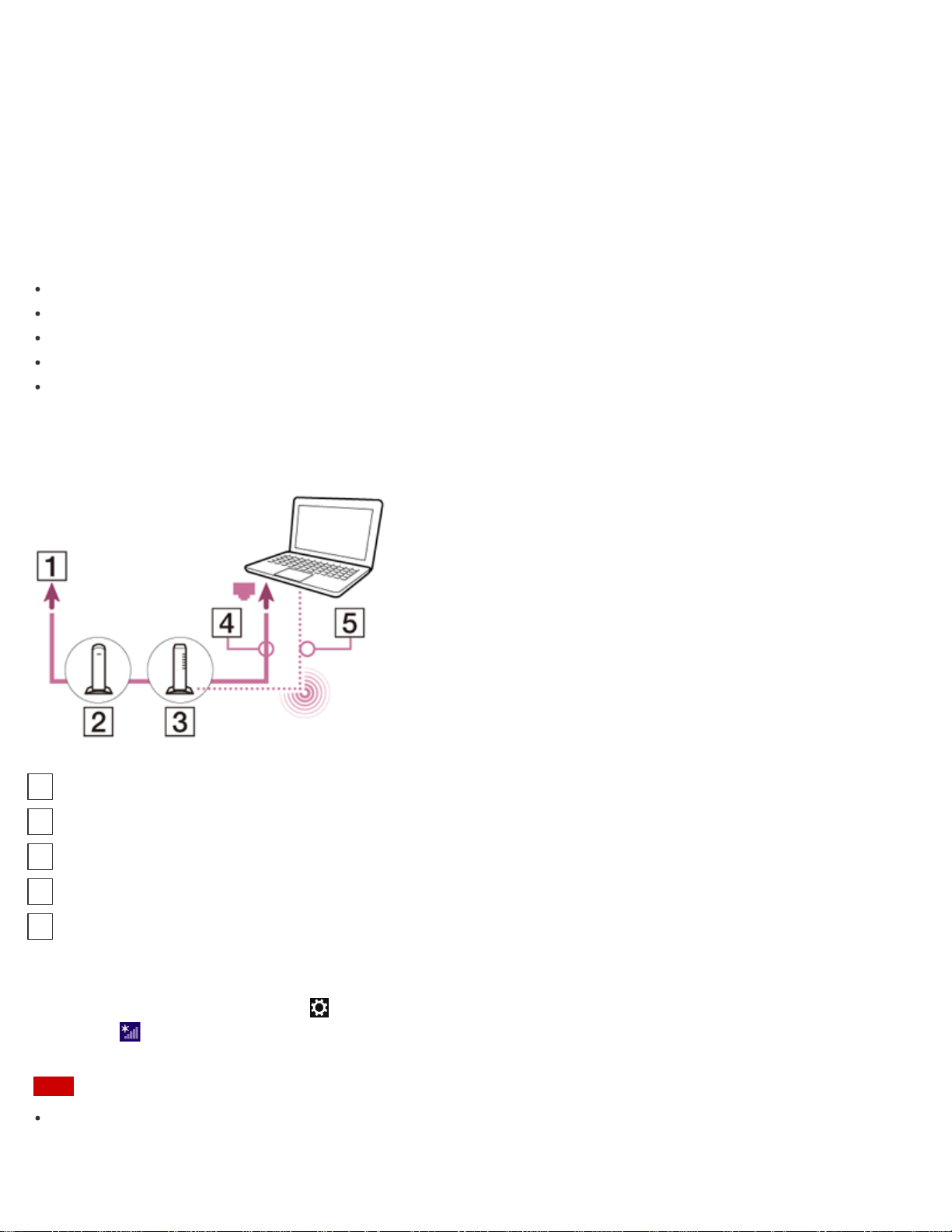
To access Windows Help and Support, open the charms and enter "Help and Support" in the search box.
Connecting to the Internet
You will need to connect your VAIO computer to the Internet before updating to the complete version of the User
Guide.
Before connecting to the Internet
Before using the Internet, you will need to sign up with an Internet Service Provider (ISP) and set up devices required for
connecting your VAIO computer to the Internet.
The following types of Internet connection services may be available from your ISP:
Fiber to the Home (FTTH)
Digital Subscriber Line (DSL)
Cable modem
Satellite
Dial-up
For more information on devices required for Internet access and how to connect your VAIO computer to the Internet,
ask your ISP.
The following is one of the Internet connection methods as an example.
To use the Wi-Fi network
1. Open the charms and select the Settings charm.
2. Select (the network icon).
3. Select your desired network (SSID) from the list and Connect.
Note
For detailed information on network settings and devices, refer to the information from your Internet Service Provider
(ISP) or the manuals that came with your network devices.
Internet
1
Modem
2
Router/access point
3
LAN cable (not supplied)
4
Wi-Fi(R) (Wireless LAN)
5
146
To use the network (LAN) (LAN port equipped models)
You can connect your VAIO computer to networks with a LAN cable. Connect one end of a LAN cable to the LAN port
on the computer and the other end to your network. For detailed settings and devices required for LAN access, ask your
network administrator.
Note
The connection, setting method, or required devices may vary depending on your network environment.
Updating Your VAIO Computer
Be sure to update your VAIO computer to enhance the computer's efficiency, security, and functionality.
Note
Your VAIO computer must be connected to the Internet to download the updates.
To use Windows Update
Windows Update enables you to make your VAIO computer more stable.
1. Open the charms and select the Search charm.
2. Enter "Windows Update" in the search box to search Windows Update.
3. Select Windows Update from the list.
4. Follow the on-screen instructions to complete the updates.
To use VAIO Update
VAIO Update automatically notifies you of new updates available on the Internet then downloads and installs them on
your VAIO computer.
1. Open the charms and select the Search charm.
2. Enter "VAIO Update" in the search box to search VAIO Update.
3. Select VAIO Update from the list.
4. Follow the on-screen instructions to complete the updates.
To update the antivirus app
The antivirus app helps protect your VAIO computer against security threats by keeping the app current with the latest
updates. You can download and install the updates from the website of the manufacturer.
1. Open the charms and select the Search charm.
2. Enter the antivirus app name in the search box to search the app.
3. Select the antivirus app from the list.
4. Follow the on-screen instructions to complete the updates.
Solving Problems on Your VAIO Computer Using VAIO Care
With VAIO Care, you can regularly conduct performance checks and system tune-ups on your VAIO computer to keep
it running at optimum level. Start VAIO Care whenever a problem arises. VAIO Care will provide appropriate
measures and support information to solve the problem.
To start VAIO Care
Press the ASSIST button while Windows is running.
Below is an example of a screenshot in English.
147
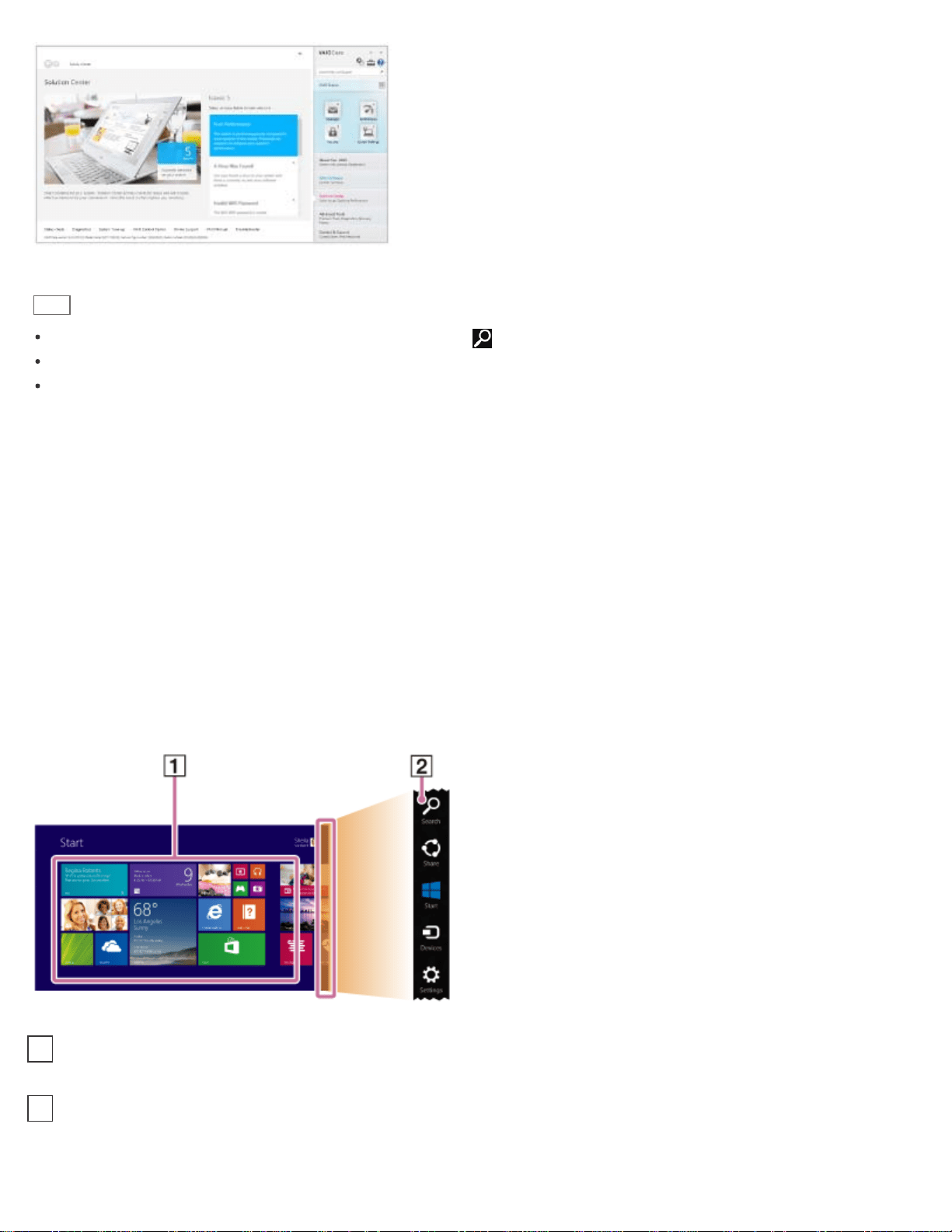
* Design and content of the screen are subject to change.
Hint
Alternatively, search for VAIO Care (Desktop) on the Search charm to start VAIO Care.
Refer to the help file included with VAIO Care for more information.
Pressing the ASSIST button while your VAIO computer is off displays the VAIO Care (Rescue Mode) screen. In
this screen, you can start the recovery process of the computer in case of emergency, for example, when Windows
does not start.
Finding Support Information
The Sony online support website provides instant access to information on commonly encountered problems. You can
find support information such as the support website URL in Contact & Support on VAIO Care or the supplied
Quick Start Guide.
Windows : How to Start
About the Start Screen and Menu
You can add shortcuts to apps, the desktop, and websites that you use the most.
Overview
Tiles
Select a tile to start an app and personalize the Start screen by adding and rearranging tiles.
1
Charms
Search for apps and files, share content, play content on other devices or print, and set up your VAIO computer.
2
148
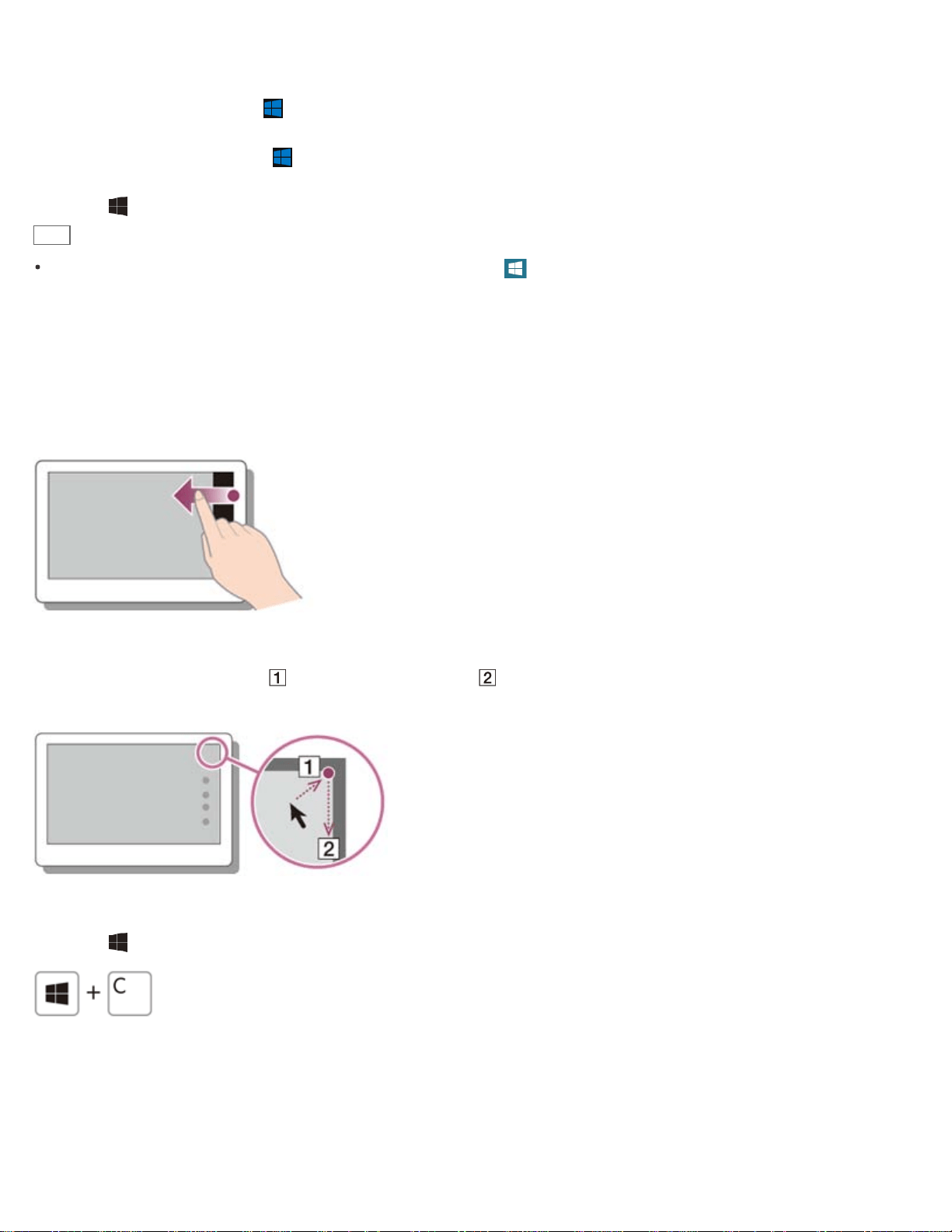
To open the Start screen
Touch operation (Touch screen equipped models)
Open the charms, then tap the Start charm.
Mouse/Touch pad operation
Open the charms, then click the Start charm.
Keyboard operation
Press the (Windows) key.
Hint
On the desktop, you can open the Start screen by selecting (Start) in the lower left corner.
Opening the Charms
You can open the charms to search for apps and files, share content, play content on other devices or print, and set up
your VAIO computer.
Touch operation (Touch screen equipped models)
Swipe in from the right edge.
Mouse/Touch pad operation
Point to the upper-right corner ( ), then move downward ( ).
With a touch pad, you can also swipe in from the right edge.
Keyboard operation
Press the (Windows) key and the C key at the same time.
Opening the App List
You can open the list of the installed apps (the Apps screen) on your VAIO computer.
Touch operation (Touch screen equipped models)
Swipe up on the Start screen.
149
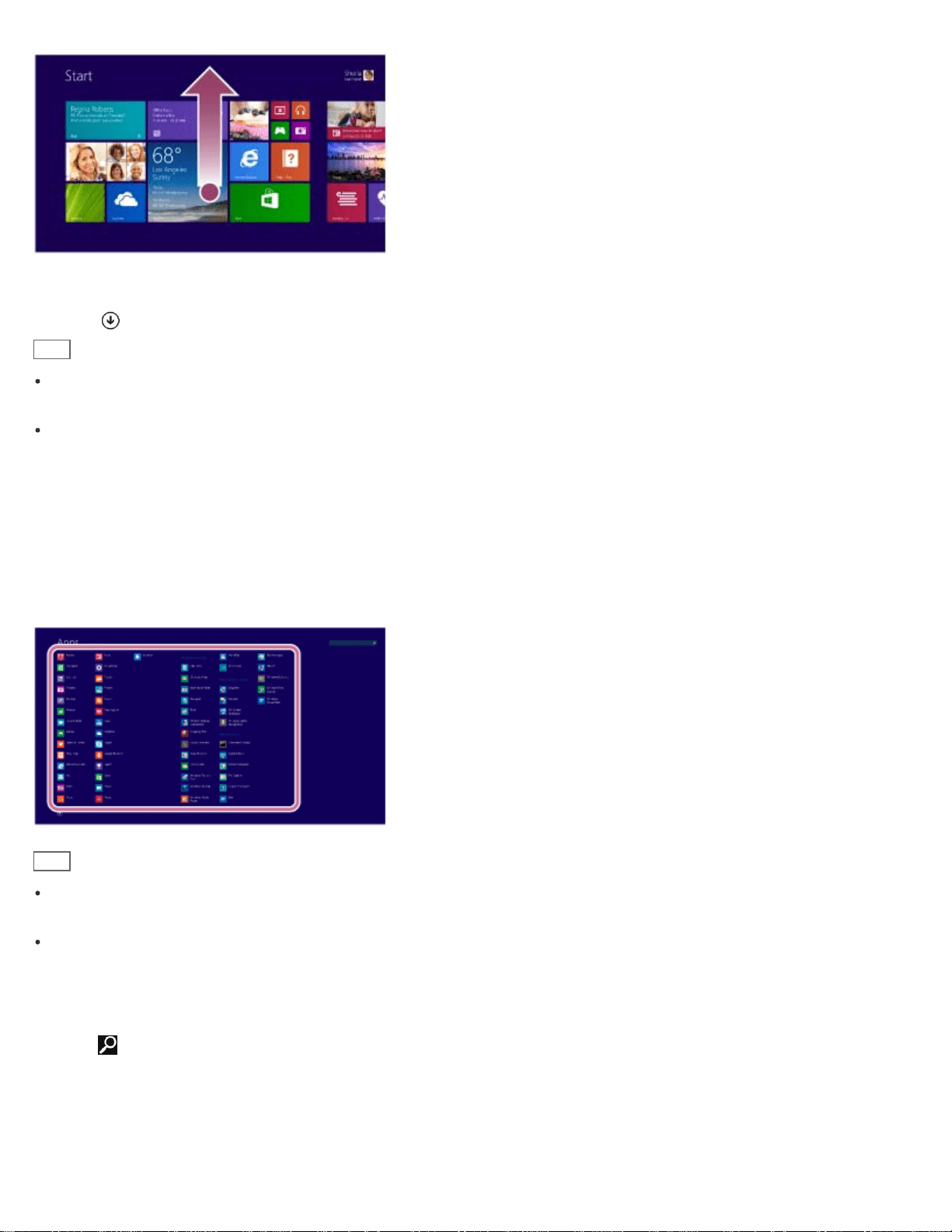
Mouse/Touch pad operation
Click the icon at the lower-left of the Start screen.
Hint
It is useful to pin the apps that you use the most to the Start screen. To pin the apps, right-click an app icon on the
Apps screen and select the pin icon on the menu that appears on the bottom of the screen.
You can search apps from the search box on the upper-right corner of the Apps screen. When you have installed
many apps, it is useful to search from the search box.
Starting Apps
You can start apps by following these steps.
1. Open the Start screen or the Apps screen.
2. Select your desired app.
Hint
It is useful to pin the apps that you use the most to the Start screen. To pin the apps, right-click an app icon on the
Apps screen and select the pin icon on the menu that appears on the bottom of the screen.
You can search apps from the search box on the upper-right corner of the Apps screen. When you have installed
many apps, it is useful to search from the search box.
Searching Content
With the Search charm, you can search files, settings, or web content.
To open the charms, see Opening the Charms.
1. Enter a keyword (e.g. Windows) in the search box.
150
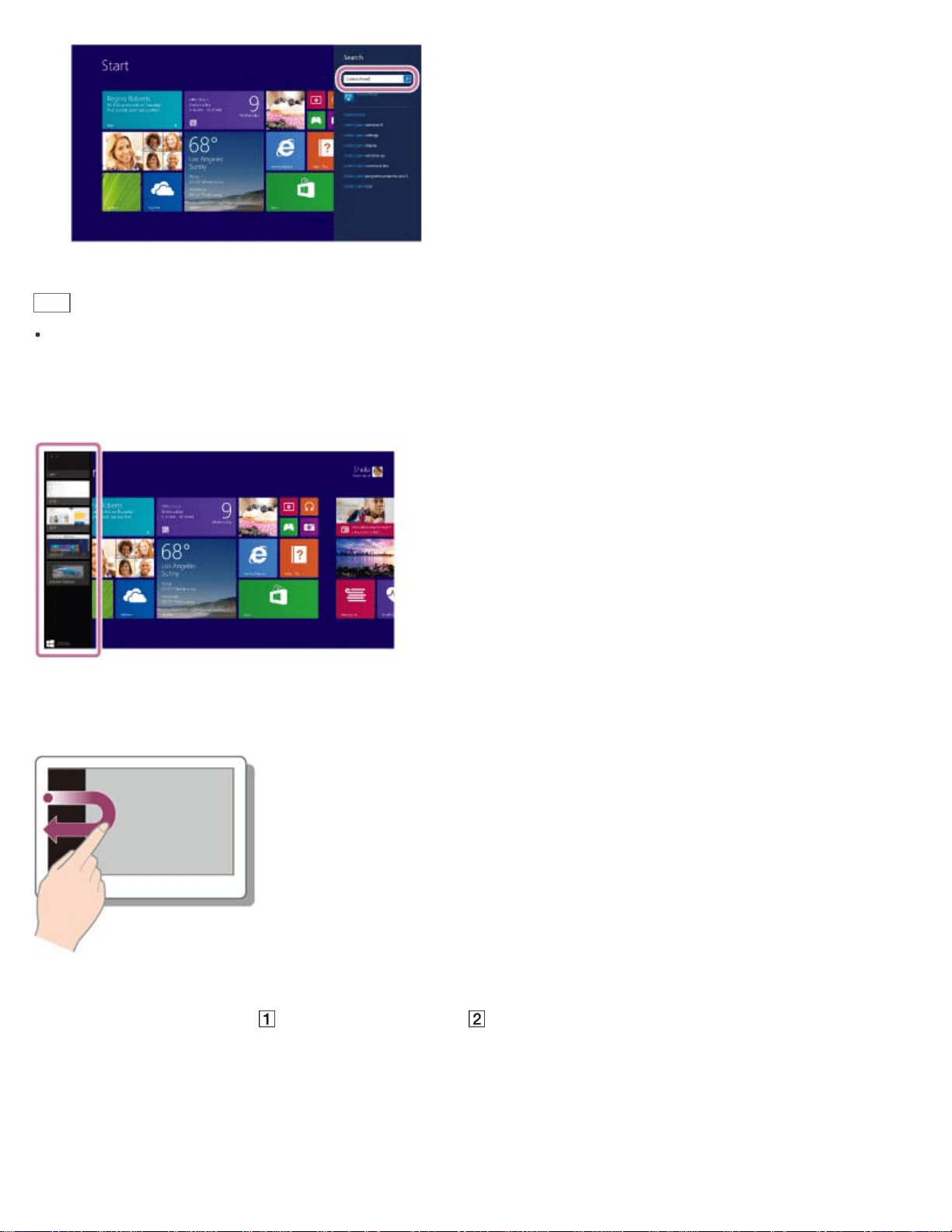
2. Select your desired icon or file from the search result.
Hint
You can select the search target to narrow the search result.
Viewing Running Apps
You can view running apps by displaying the list on the Start screen.
Touch operation (Touch screen equipped models)
Swipe in from the left edge until a small app icon appears, then drag the icon back towards the left edge.
Mouse/Touch pad operation
Point to the upper-left corner ( ), then move downward ( ).
151
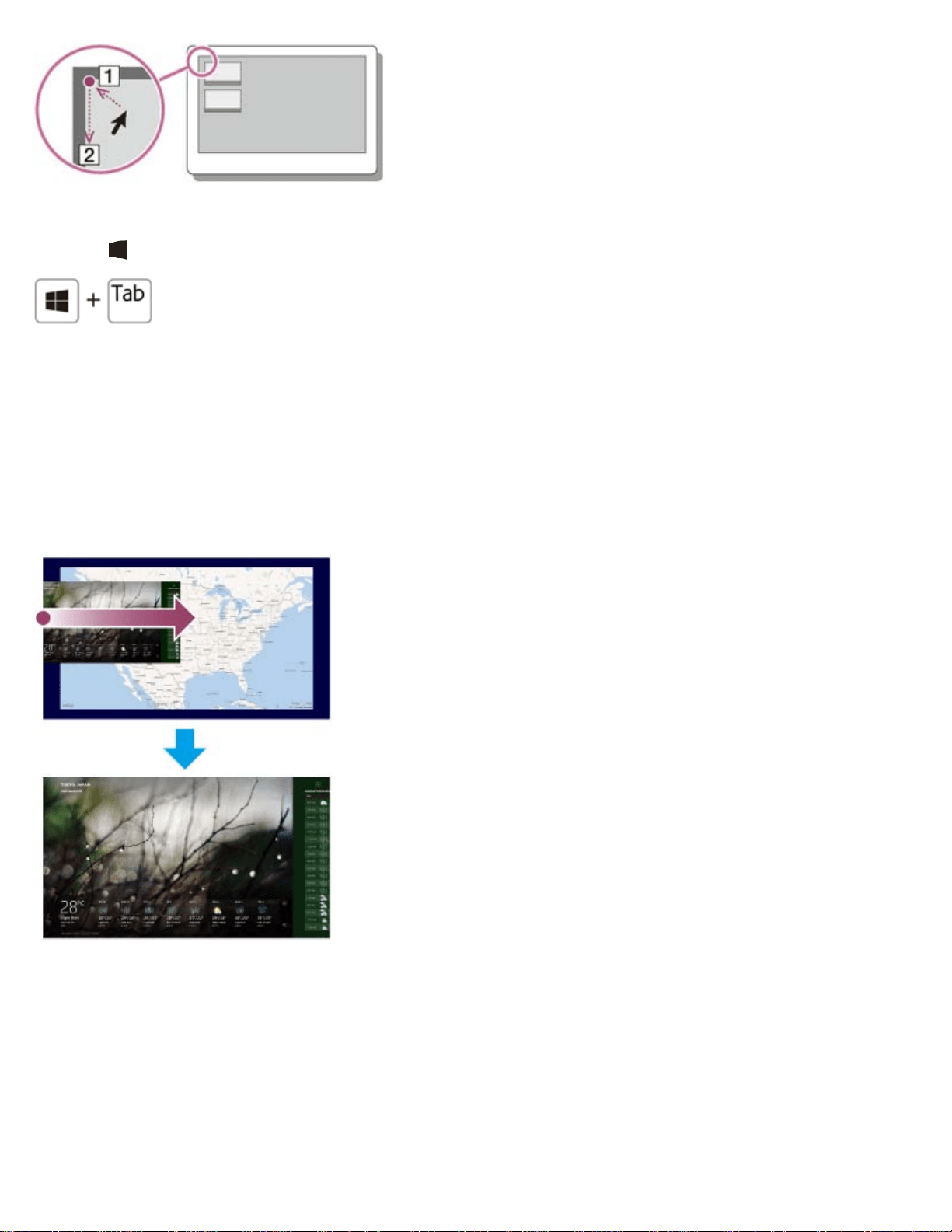
Keyboard operation
Press the (Windows) key and the Tab key at the same time.
Switching Apps
You can switch between apps that are currently running.
Touch operation (Touch screen equipped models)
Display currently running apps, touch and swipe in your desired app icon from the left edge.
Mouse/Touch pad operation
Display currently running apps and drag your desired app icon from the left edge to the center.
Opening the App Menu
Many apps have app menus that you can use to control your app. Follow the instructions below to open the app menu.
Touch operation (Touch screen equipped models)
Swipe up from the bottom edge.
152
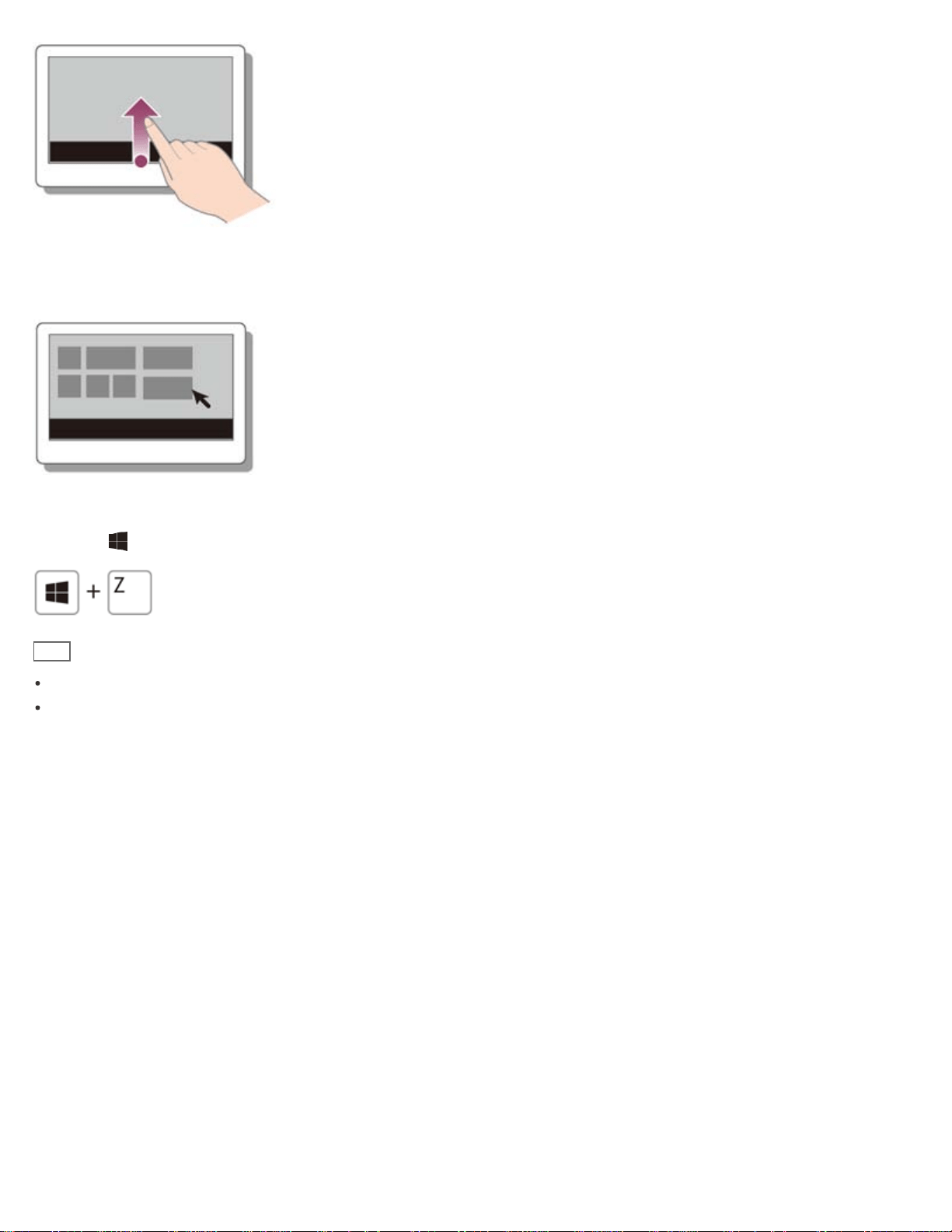
Mouse/Touch pad operation
When an app is open, right-click anywhere on the screen. On a touch pad, click the bottom-right corner.
Keyboard operation
Press the (Windows) key and the Z key at the same time.
Hint
Open the app menu when an app is displayed on the computer screen.
App commands vary depending on the app that is currently displayed on the computer screen.
Closing Apps
You can close currently running apps by following the instruction below.
Touch operation (Touch screen equipped models)
1. When an app is open, point to the top-center of the screen.
2. Drag the app to the bottom of the screen until the app disappears from the screen.
Mouse/Touch pad operation
1. When an app is open, move the cursor to the top-center of the screen until the hand icon appears.
2. Drag the app to the bottom of the screen until the app disappears from the screen.
153
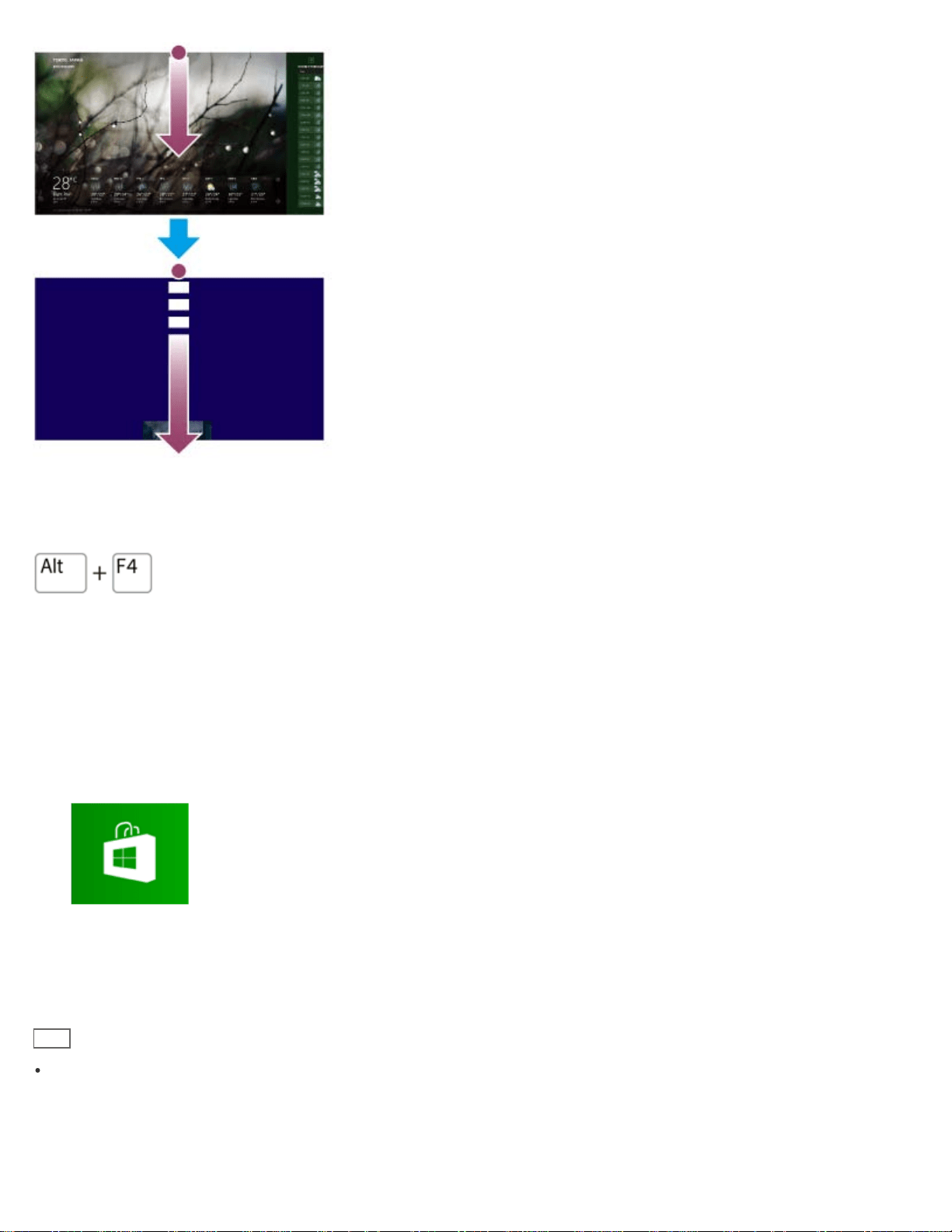
Keyboard operation
Press the Alt key and the F4 key at the same time.
Installing Apps from Windows Store
You can install apps from Windows Store.
You will need a Microsoft account to use certain apps or services, including Windows Store.
On how to create and what you can do with the Microsoft account, refer to Windows Help and Support.
1. Connect to the Internet.
2. Open the Start screen and select the Store tile.
3. Find an app to install.
4. Follow the on-screen instructions to install the app.
After the installation is complete, the app icon appears on the Apps screen. To open the Apps screen, see
Opening the App List.
Hint
It is useful to pin the apps that you use the most to the Start screen. To pin the apps, right-click an app icon on the
Apps screen and select the pin icon on the menu that appears on the bottom of the screen.
Opening Control Panel
154
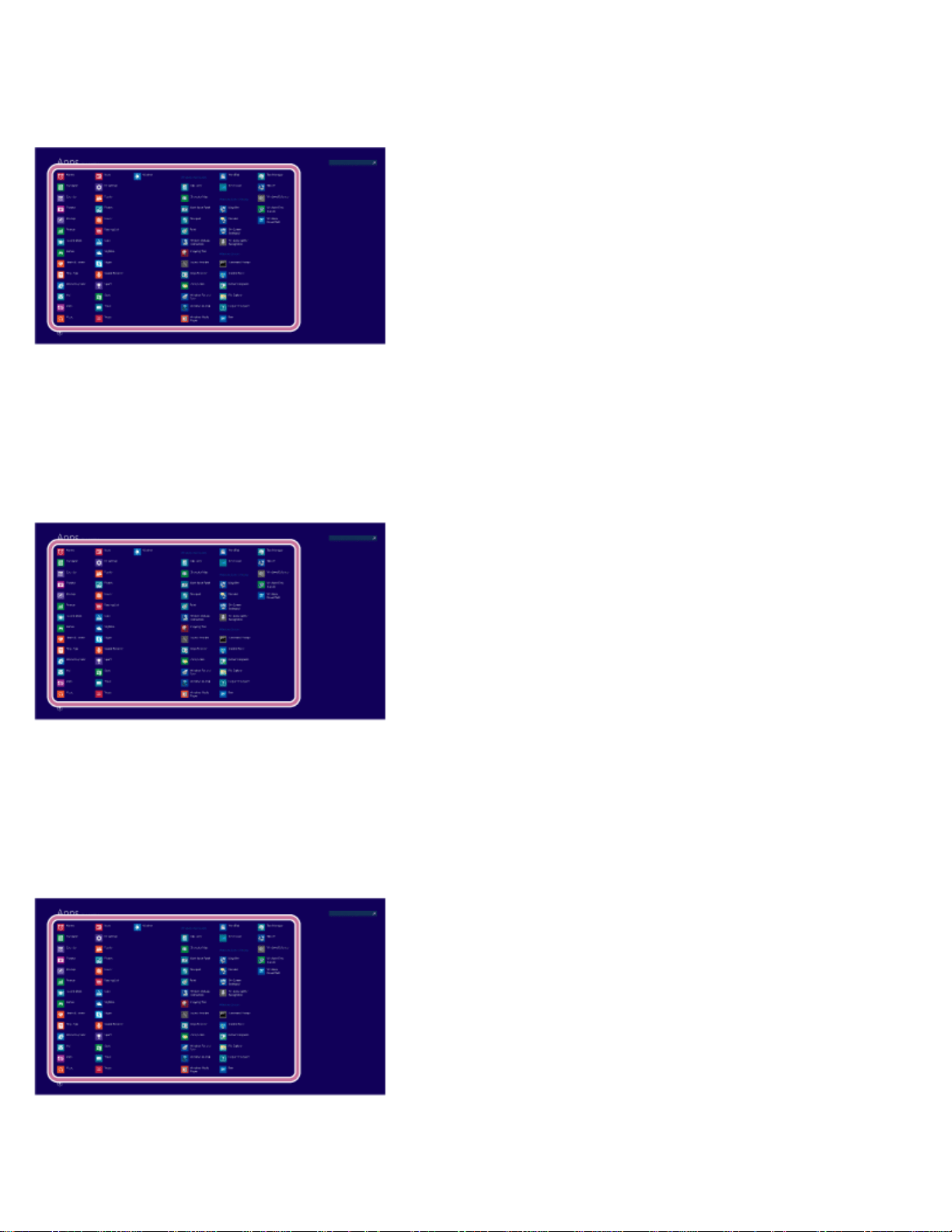
You can open Control Panel by following these steps.
1. Open the Apps screen.
2. Select Control Panel.
Opening Windows Help and Support
You can open Windows Help and Support by following these steps.
1. Open the Apps screen.
2. Select Help and Support.
Starting Help+Tips
You can start Help+Tips that explains the Windows 8 basic operations.
1. Open the Apps screen.
2. Select Help+Tips.
Entering Sleep Mode, Shutting Down, or Restarting
155
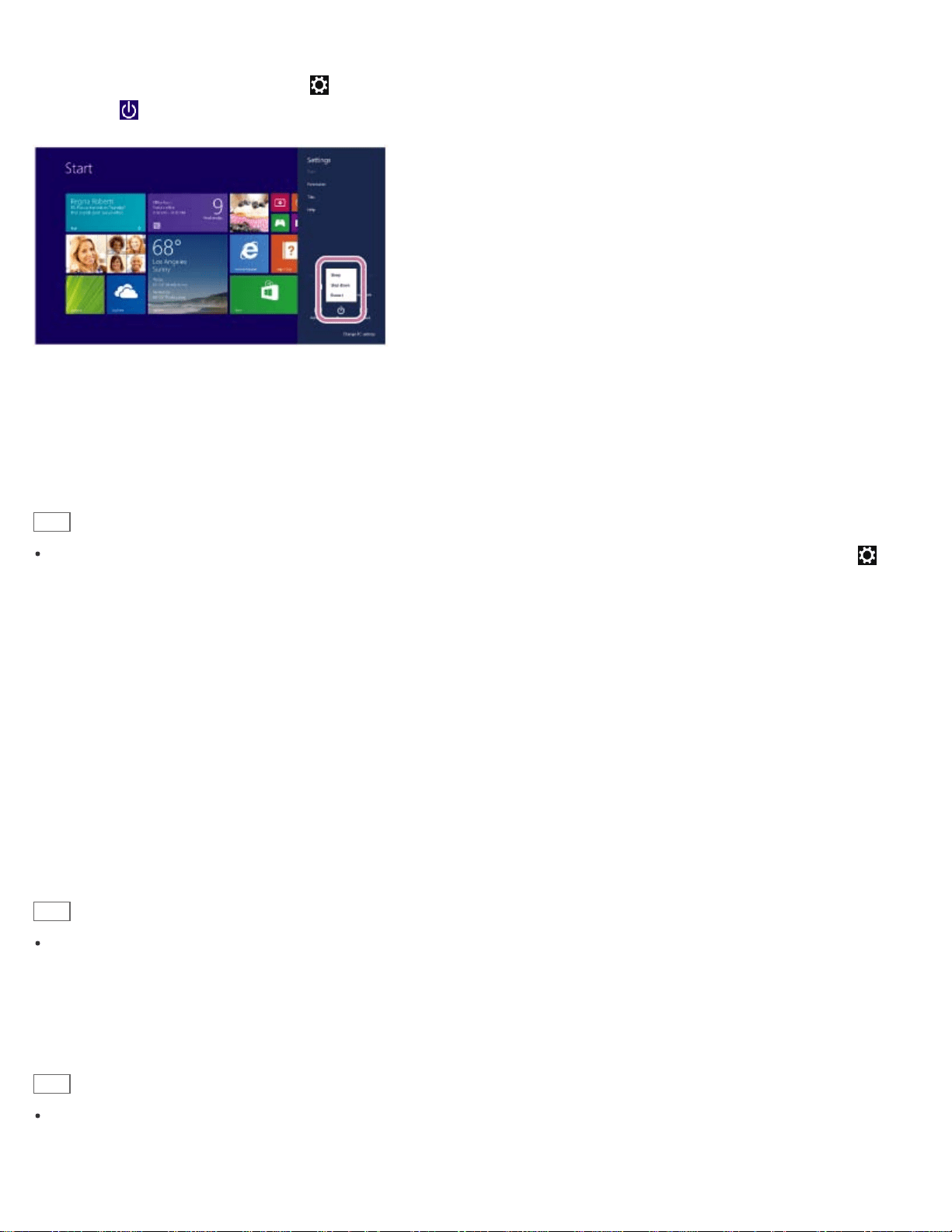
You can place your VAIO computer into Sleep mode or shut down/restart the computer by following these steps.
1. Open the charms and select the Settings charm.
2. Select Power and Sleep, Shut down, or Restart.
Switching User Accounts
You can switch to another user account by following these steps.
1. Open the Start screen and select an account name at the upper-right corner of the computer screen.
2. Select your desired account name.
Hint
To create a new user account, you need to sign in as an administrator. Then, open the charms and select the
Settings charm. Select Change PC settings in the lower right corner, and select Accounts and Other
accounts in the left pane.
Opening the Desktop
You can access the desktop from a tile, just like an app. Open the desktop by following the instruction below.
1. Open the Start screen and select the Desktop tile.
About User Account Types
There are two types of user accounts available in Windows 8: a local account and a Microsoft account.
Local account
A local account is a user name and password that you set on your VAIO computer. Because one local account is
expected to be used for a single computer, you cannot share the same account on multiple computers.
Hint
Setting a local account password is optional. If you forget your local account password, recover your VAIO computer.
Microsoft account
A Microsoft account is an email address and password that you use to sign in to Microsoft services. Because a Microsoft
account can be set for each user, you can share the same account on multiple computers. To download apps from
Windows Store, you need to switch from a local account to a Microsoft account.
Hint
Setting a Microsoft account password is required. If you forget your Microsoft account password, contact Microsoft
support services.
156
Switching from a Local Account to a Microsoft Account
In Windows 8, you can switch between a local account and a Microsoft account.
By switching from a local account to a Microsoft account, you can download apps from Windows Store.
To create or switch to a Microsoft account, follow these steps.
1. Open the charms and select the Settings charm.
2. Select Change PC settings in the lower right corner.
3. Select Accounts and Your account in the left pane of the PC settings screen.
4. Select Connect to a Microsoft account.
5. Follow the on-screen instructions.
Hint
To switch to a local account, select Disconnect in step 4 instead of Connect to a Microsoft account.
If you forget your Microsoft account password, contact Microsoft support services.
Trademarks
SONY and the SONY logo are registered trademarks of Sony Corporation.
VAIO, the VAIO logo, and other Sony product or service names are trademarks or registered trademarks of Sony
Corporation or any of its affiliates.
Windows and the Windows logo are either registered trademarks or trademarks of Microsoft Corporation in the United
States and/or other countries.
Wi-Fi is a trademark or registered trademark of Wi-Fi Alliance.
All other names of system, products, and services are trademarks of their respective owners.
In the manual, the TM or (R) marks are not specified.
About the International ENERGY STAR(R) Program
The following information is applicable to ENERGY STAR qualified/certified products only.
ENERGY STAR logos are attached or electronically displayed on the following locations of ENERGY STAR
qualified/certified products.
The top or the front of the product or Control Panel
The product packaging
To confirm the ENERGY STAR logo on the computer screen, open Control Panel, select System and Security
and System. To open Control Panel, see Opening Control Panel.
As an ENERGY STAR Partner, Sony confirmed that this product meets the ENERGY STAR standards for energy
efficiency.
The International ENERGY STAR Office Equipment Program is an international program that promotes energy saving
through the use of energy efficient computers and office equipment. The program supports the development and
dissemination of products with functions that effectively reduce energy consumption to contribute to cost savings and
reduction of environmental burdens.
157

For detailed information on the ENERGY STAR Program, visit the following websites:
http://www.energystar.gov/ (USA)
http://www.eu-energystar.org/ (Europe)
This computer is designed in compliance with the ENERGY STAR standards and delivered with the following power
saving settings that apply to the computer running on AC power:
The LCD backlight is turned off automatically after no more than 15 minutes of inactivity.
The computer enters Sleep mode automatically after no more than 30 minutes of inactivity.
Press the
(Power) button to bring the computer back into Normal mode.
Notes on use
Copyright 2013 Sony Corporation
158
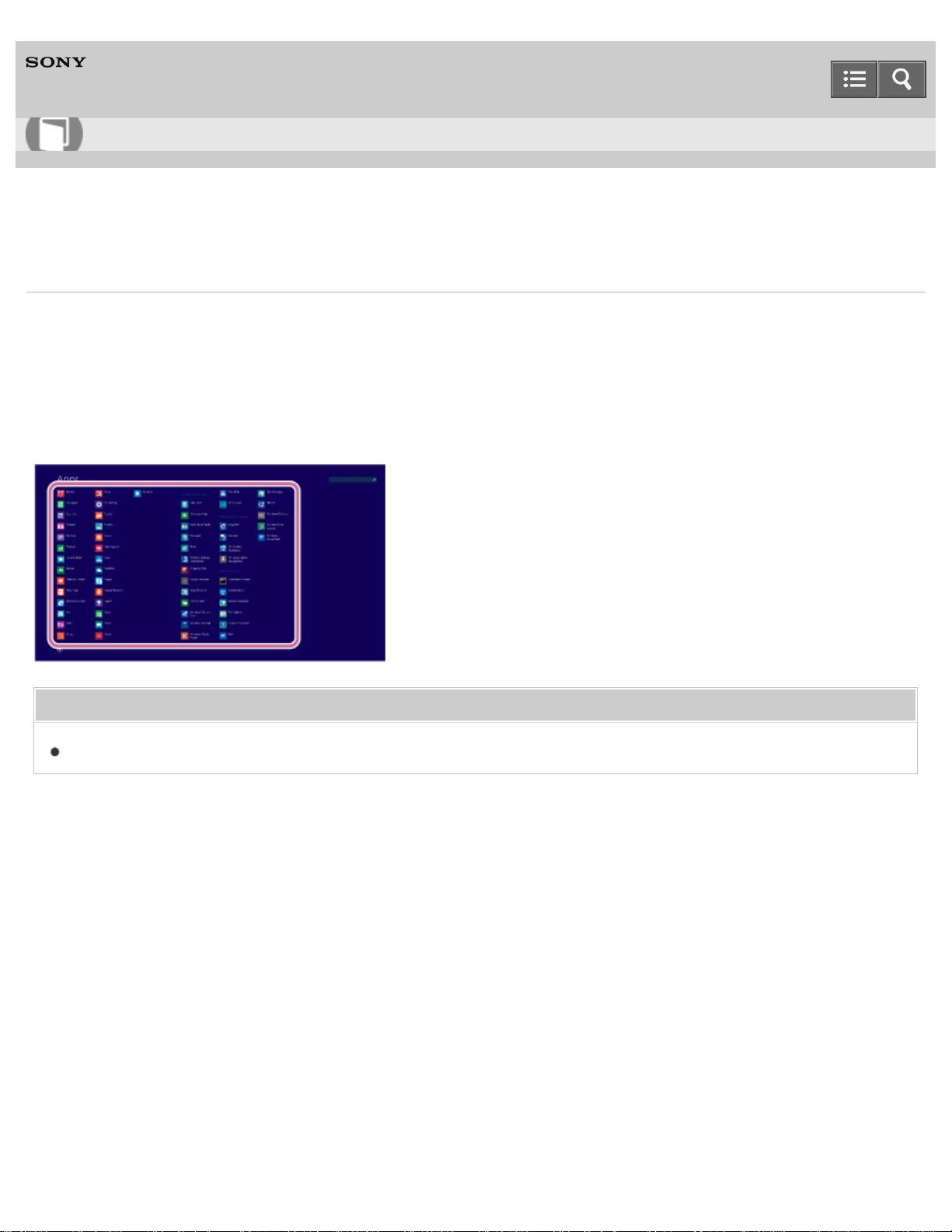
Personal Computer
VAIO Duo 13 SVD1323
Opening Windows Help and Support
You can open Windows Help and Support by following these steps.
1. Open the Apps screen. (See Opening the App List to open the Apps screen.)
2. Select Help and Support.
Related Topic
Starting Help+Tips
Notes on use
Copyright 2013 Sony Corporation
User Guide
How to Use
159
Personal Computer
VAIO Duo 13 SVD1323
Power
Using Sleep Mode
In Sleep mode, you can step away from your VAIO computer while retaining the computer’s state including data you are
working on.
Charging the Battery Pack
The battery pack can be charged even while you are using your VAIO computer when the computer is connected to a power
source. The charging time may vary depending on operating conditions.
Turning On Your VAIO Computer
Turn on your VAIO computer to start Windows.
Charge Indicator Status List
The charge indicator light turns on or blinks differently according to conditions.
Restarting Your VAIO Computer
After changing the settings or installing an app on your VAIO computer, you may be required to restart the computer.
Controlling the Power State of Your VAIO Computer (Sleep Mode/Shutdown)
By default, your VAIO computer automatically enters Sleep mode after a certain period of inactivity.
About Sleep Mode
Sleep mode enables you to take a break and retain the computer’s state, including data you are working on.
You might be looking for the following topics:
Entering Sleep Mode, Shutting Down, or Restarting
Connecting a Power Source
Notes on Sleep Mode
Selecting a Power Plan
User Guide
How to Use
160

Notes on Using the Power Source
Why does my VAIO computer automatically turn off?
Why does a message appear and Windows fail to start when I turn on my VAIO computer?
What should I do if Hibernate mode is not available or my VAIO computer does not enter Hibernate mode?
What should I do if the screen remains blank when I press the power button?
What should I do if my VAIO computer does not turn on?
What should I do if I cannot turn off my VAIO computer?
What should I do if my VAIO computer does not turn on or the power button does not work (the charge indicator light blinks
fast)?
What should I do if the VAIO Care (Rescue Mode) screen appears when I turn on my VAIO computer?
Notes on use
Copyright 2013 Sony Corporation
161
Personal Computer
VAIO Duo 13 SVD1323
Battery
Checking the Battery Charge Capacity
The battery pack is consumable. The capacity gradually declines through repeated cycles of recharging and discharging. As a
result, the battery life becomes short even if it is fully charged and eventually the battery pack reaches the end of its life.
Charging the Battery Pack
The battery pack can be charged even while you are using your VAIO computer when the computer is connected to a power
source. The charging time may vary depending on operating conditions.
Charge Indicator Status List
The charge indicator light turns on or blinks differently according to conditions.
Extending the Battery Life
When your VAIO computer is running on battery power, you can extend the battery life using the following methods.
About Sleep Mode
Sleep mode enables you to take a break and retain the computer’s state, including data you are working on.
You might be looking for the following topics:
Notes on Using the Battery Pack
Why is my VAIO computer running slowly and the CPU clock frequency low while the computer is running on battery power?
What should I do if my battery pack is not fully charged?
What should I do if my battery pack does not work properly?
Notes on use
Copyright 2013 Sony Corporation
User Guide
How to Use
162
Personal Computer
VAIO Duo 13 SVD1323
Display
About the Touch Screen (Touch screen equipped models)
The touch screen enables direct interaction with your VAIO computer using your finger(s). You can perform various gestures on
the touch screen.
Notes on Using the Touch Screen (Touch screen equipped models)
Before using the touch screen, read the following precautions for correct use.
How to Use the Touch Screen (Touch screen equipped models)
You can tap the touch screen or make a simple motion with your fingers to operate your VAIO computer.
You might be looking for the following topics:
Opening the Desktop
Searching Content
Opening the App List
About the Start Screen and Menu
Raising the LCD Screen
Changing the Resolution (Size) of the Screen Image on an HDMI-Connected Device
Selecting Display Modes
Using the Multiple Monitors Function
Connecting a TV with an HDMI Input Port
Notes on the LCD screen
Displaying Clear and Vivid Images (X-Reality for mobile installed models)
Changing the LCD Brightness
Adjusting the LCD Brightness Automatically
Changing the Resolution (Size) of the Screen Image
User Guide
How to Use
163

Enlarging the Text Size (DPI) (Touch screen equipped models)
About Built-In Sensors
Notes on Built-In Sensors
Why does the LCD brightness automatically change?
What should I do if color gradients are not displayed correctly on my computer screen?
Why doesn't the computer screen rotate?
What should I do if videos are not displayed on the computer screen?
What should I do if videos are not displayed smoothly?
What should I do if no image is displayed on my TV screen or external display connected to the HDMI output port?
How do I change the LCD brightness?
What should I do if some items do not fit on the computer screen?
What should I do if no image is displayed on my external display or TV screen?
Why do sound interruptions and/or dropped frames occur when I play high-definition videos, such as those recorded with the
AVCHD digital video camcorder?
What should I do if my computer screen goes blank?
Why does the viewfinder show no images or poor-quality images?
What should I do if captured images contain dropped frames and audio interruptions?
What should I do if captured images flicker?
What should I do if my computer screen flickers or fades to white? (Intel graphics accelerator installed models)
What should I do if the touch screen does not work correctly? (Touch screen equipped models)
Notes on use
Copyright 2013 Sony Corporation
164
Personal Computer
VAIO Duo 13 SVD1323
Keyboard
Combinations and Functions with the Fn Key
Press and hold down the Fn key and another key simultaneously to perform a keyboard shortcut action.
Entering Characters with Touch Screen Operations (Touch screen equipped models)
You can operate the on-screen Touch Keyboard with touch screen operations for text entry.
You might be looking for the following topics:
Raising the LCD Screen
Changing the Keyboard Backlight Settings (Keyboard backlight equipped models)
What should I do if the pointer does not move?
What should I do if my VAIO computer screen freezes?
What should I do if I cannot enter certain characters with my keyboard?
What should I do if my keyboard configuration is wrong?
Notes on use
Copyright 2013 Sony Corporation
User Guide
How to Use
165
Personal Computer
VAIO Duo 13 SVD1323
Touch pad
Using the Touch Pad
By sliding your finger on the touch pad, you can move the pointer on the computer screen.
You might be looking for the following topics:
Enabling/Disabling the Gesture Function
Enabling/Disabling the Touch Pad
Disabling the Tapping Function on the Touch Pad
How do I disable the touch pad?
Why can't I use the touch pad?
What should I do if the pointer does not move?
How do I avoid unintentional clicks caused by a light touch on the touch pad?
What should I do if my VAIO computer screen freezes?
Notes on use
Copyright 2013 Sony Corporation
User Guide
How to Use
166
Personal Computer
VAIO Duo 13 SVD1323
Camera
Notes on the Built-in Camera
Using the Built-in Camera
You can make a video call through the Internet using the built-in camera and communication apps.
Scanning Content (VAIO Scan)
You can use VAIO Scan instead of a scanner. Shooting a document or whiteboard with VAIO Scan enables you to save
images with less distortion.
You might be looking for the following topics:
Why does the viewfinder show no images or poor-quality images?
What should I do if captured images contain dropped frames and audio interruptions?
Why are captured images poor in quality?
Why is the video input from the built-in camera suspended momentarily?
What should I do if captured images flicker?
Notes on use
Copyright 2013 Sony Corporation
User Guide
How to Use
167
Personal Computer
VAIO Duo 13 SVD1323
USB
Connecting a USB Device
You can connect a Universal Serial Bus (USB) device such as a mouse, floppy disk drive, speaker or printer to your VAIO
computer.
Charging a USB Device
You can charge a USB device even while your VAIO computer is off or in Sleep mode by enabling the USB charging settings.
You might be looking for the following topics:
What should I do if I cannot charge the device connected to the USB port that supports USB charging?
What should I do if I cannot print a document?
What should I do if my VAIO computer does not recognize the USB device?
Notes on use
Copyright 2013 Sony Corporation
User Guide
How to Use
168
Personal Computer
VAIO Duo 13 SVD1323
Memory card
Notes on Using SD Memory Cards
Before using SD memory cards, read the following precautions for correct use.
About "Memory Stick"
"Memory Stick" is a compact, portable, and versatile IC recording media especially designed for exchanging and sharing digital
data with compatible products, such as digital cameras and other devices. Because it is removable, it can be used for external
data storage.
Formatting "Memory Stick"
"Memory Stick" is formatted in the specific FAT format by default and is ready for use.
Removing "Memory Stick"
This topic explains how to remove "Memory Stick".
Notes on Using "Memory Stick"
Before using "Memory Stick", read the following precautions for correct use.
Removing SD Memory Cards
This topic explains how to remove an SD memory card.
Inserting SD Memory Cards
Your VAIO computer is equipped with an SD memory card slot. You can use this slot to transfer data among digital cameras,
camcorders, music players, and other audio/video devices.
Compatible "Memory Stick"
The "Memory Stick" slot on your VAIO computer can accommodate the following sizes and types of media:
Inserting "Memory Stick"
This topic explains how to insert "Memory Stick".
You might be looking for the following topics:
User Guide
How to Use
169

Personal Computer
VAIO Duo 13 SVD1323
Built-in storage device
Creating Other Drives (Modifying Partitions)
Partitions are divided areas on your built-in storage device. Dividing the built-in storage device into more than one partition
may have various advantages, such as separating the system files from your data files.
Creating Partitions
This topic describes how to create partitions.
You might be looking for the following topics:
Removing Recovery Content to Free up Disk Space
Checking the Volume of the Recovery Area
Notes on use
Copyright 2013 Sony Corporation
User Guide
How to Use
171
Personal Computer
VAIO Duo 13 SVD1323
Touch panel
Entering Characters with Touch Screen Operations (Touch screen equipped models)
You can operate the on-screen Touch Keyboard with touch screen operations for text entry.
About the Touch Screen (Touch screen equipped models)
The touch screen enables direct interaction with your VAIO computer using your finger(s). You can perform various gestures on
the touch screen.
Notes on Using the Touch Screen (Touch screen equipped models)
Before using the touch screen, read the following precautions for correct use.
How to Use the Touch Screen (Touch screen equipped models)
You can tap the touch screen or make a simple motion with your fingers to operate your VAIO computer.
You might be looking for the following topics:
Enlarging the Text Size (DPI) (Touch screen equipped models)
What should I do if the touch screen does not work correctly? (Touch screen equipped models)
Notes on use
Copyright 2013 Sony Corporation
User Guide
How to Use
172
Personal Computer
VAIO Duo 13 SVD1323
Partition
Creating Other Drives (Modifying Partitions)
Partitions are divided areas on your built-in storage device. Dividing the built-in storage device into more than one partition
may have various advantages, such as separating the system files from your data files.
Creating Partitions
This topic describes how to create partitions.
Notes on use
Copyright 2013 Sony Corporation
User Guide
How to Use
173
Personal Computer
VAIO Duo 13 SVD1323
NFC/One-touch functions
Notes on NFC/One-touch functions (NFC supported models)
Before using the NFC/One-touch functions, read the following precautions for correct use.
About NFC (NFC supported models)
Near Field Communication (NFC) is a short-range wireless technology.
About One-touch functions (NFC supported models)
One-touch functions are Sony original functions which use NFC.
Disabling NFC/One-touch functions (NFC supported models)
You can disable NFC/One-touch functions by following these steps.
Using NFC/One-touch functions (NFC supported models)
Easily connect an NFC/One-touch functions supported device to your VAIO computer by simply touching the computer with the
device.
Playing Music by Touching an NFC/One-touch functions Supported Device to Your VAIO Computer (One-touch
listening) (NFC supported models)
One-touch listening enables your VAIO computer to pair (register) with an NFC/One-touch functions supported device
(speakers, headphones, etc.) through BLUETOOTH communications. To pair them, simply touch the device to the computer.
Stopping the One-touch listening Connection (One-touch listening) (NFC supported models)
You can stop the One-touch listening connection.
You might be looking for the following topics:
What should I do if I cannot use NFC/One-touch functions?
Notes on use
User Guide
How to Use
174
Personal Computer
VAIO Duo 13 SVD1323
Windows 8
Using Sleep Mode
In Sleep mode, you can step away from your VAIO computer while retaining the computer’s state including data you are
working on.
Restarting Your VAIO Computer
After changing the settings or installing an app on your VAIO computer, you may be required to restart the computer.
Controlling the Power State of Your VAIO Computer (Sleep Mode/Shutdown)
By default, your VAIO computer automatically enters Sleep mode after a certain period of inactivity.
Notes on use
Copyright 2013 Sony Corporation
User Guide
How to Use
176
Personal Computer
VAIO Duo 13 SVD1323
Help and Support
Opening Windows Help and Support
You can open Windows Help and Support by following these steps.
Starting Help+Tips
You can start Help+Tips that explains the Windows 8 basic operations.
Notes on use
Copyright 2013 Sony Corporation
User Guide
How to Use
177
Personal Computer
VAIO Duo 13 SVD1323
Pen
Clipping an Image Displayed on the Computer Screen (VAIO Clip)
With VAIO Clip, you can easily clip an image displayed on the computer screen.
Starting the Note Taking App (VAIO Paper)
You can use VAIO Paper in substitution for real notebooks. With VAIO Paper, you can take notes easily on your VAIO
computer and share the notes with others.
Using the Pen Stand (Digitizer Stylus supplied models)
You can keep the supplied pen (Digitizer Stylus) standing upright by using the pen stand.
Using the Pen Hook (Digitizer Stylus supplied models)
By using the pen hook, you can carry your VAIO computer with the supplied pen (Digitizer Stylus) attached to the computer.
Replacing the Battery of the Pen (Digitizer Stylus supplied models)
Replace the battery when the pen (Digitizer Stylus) begins to function incorrectly.
Replacing the Nib (Digitizer Stylus supplied models)
The writing feeling of the supplied nib differs from the feeling of the attached nib. Replace the nib with the supplied one to
change the feeling.
How to Use the Pen (Digitizer Stylus supplied models)
Using the supplied pen (Digitizer Stylus), you can operate your VAIO computer intuitively, by touching the screen softly or
tracing something on the screen.
You might be looking for the following topics:
Starting Your Preferred App when You Detach the Pen (Digitizer Stylus supplied models)
Why doesn't my preferred app start when I detach the pen (Digitizer Stylus)?
Why does the message "The digitizer stylus (pen) has been pulled out." appear even when I do not detach the pen?
User Guide
How to Use
178
Personal Computer
VAIO Duo 13 SVD1323
VAIO computer
Checking Supplied Items
Check all items packed with the product before use.
Setting Up an Appropriate Work Environment
This topic describes where to or not to place your VAIO computer and ergonomic instructions.
Updating Your VAIO Computer
Be sure to update your VAIO computer by installing the following apps to enhance its efficiency, security and functionality.
You might be looking for the following topics:
Parts and Controls on the Back
Parts and Controls on the Front
Parts and Controls on the Sides
Parts and Controls on the Bottom
Raising the LCD Screen
About the ASSIST Button
Viewing the System Information
Customizing Your VAIO Computer
Booting Your VAIO Computer from External Devices
Using VAIO Update
Keeping Your VAIO Computer in Optimum Condition (VAIO Care)
Notes on use
Copyright 2013 Sony Corporation
User Guide
How to Use
180
Personal Computer
VAIO Duo 13 SVD1323
Important notice
Handling the Built-in Storage Device
The built-in storage device (hard disk drive or solid state drive) has a high storage density and reads or writes data in a short
time. However, it can be easily damaged if improperly used.
About the International ENERGY STAR(R) Program
About the Software License
This product contains software owned by Sony and licensed by third parties. Use of such software is subject to the terms and
conditions of license agreements enclosed with this product.
Trademarks
Safety Information
Refer to the supplied safety manual for detailed safety information.
Notes on use
Copyright 2013 Sony Corporation
User Guide
How to Use
182
Personal Computer
VAIO Duo 13 SVD1323
Service and support
Solving Common Problems with Your VAIO Computer
If you have any problem operating your VAIO computer, try these suggestions before contacting an authorized Sony
service/support center or your local Sony dealer directly.
About Online Support Website
The online support website provides information concerning your VAIO computer, as well as a selection of frequently asked
questions.
Updating Your VAIO Computer
Be sure to update your VAIO computer by installing the following apps to enhance its efficiency, security and functionality.
You might be looking for the following topics:
Using VAIO Update
Keeping Your VAIO Computer in Optimum Condition (VAIO Care)
Notes on use
Copyright 2013 Sony Corporation
User Guide
How to Use
183
Personal Computer
VAIO Duo 13 SVD1323
Power
Why does my VAIO computer automatically turn off?
Why does a message appear and Windows fail to start when I turn on my VAIO computer?
What should I do if Hibernate mode is not available or my VAIO computer does not enter Hibernate mode?
What should I do if the screen remains blank when I press the power button?
What should I do if my VAIO computer does not turn on?
What should I do if I cannot turn off my VAIO computer?
What should I do if my VAIO computer does not turn on or the power button does not work (the charge indicator
light blinks fast)?
What should I do if the VAIO Care (Rescue Mode) screen appears when I turn on my VAIO computer?
You might be looking for the following topics:
Entering Sleep Mode, Shutting Down, or Restarting
Using Sleep Mode
Restarting Your VAIO Computer
Controlling the Power State of Your VAIO Computer (Sleep Mode/Shutdown)
Charging the Battery Pack
Turning On Your VAIO Computer
Connecting a Power Source
User Guide
Troubleshooting
187

Personal Computer
VAIO Duo 13 SVD1323
Battery
Why is my VAIO computer running slowly and the CPU clock frequency low while the computer is running on
battery power?
What should I do if my battery pack is not fully charged?
What should I do if my battery pack does not work properly?
You might be looking for the following topics:
Notes on Using the Battery Pack
Charging the Battery Pack
Checking the Battery Charge Capacity
Charge Indicator Status List
Extending the Battery Life
About Sleep Mode
Notes on use
Copyright 2013 Sony Corporation
User Guide
Troubleshooting
189
Personal Computer
VAIO Duo 13 SVD1323
Display
Why does the LCD brightness automatically change?
What should I do if color gradients are not displayed correctly on my computer screen?
Why doesn't the computer screen rotate?
What should I do if videos are not displayed on the computer screen?
What should I do if videos are not displayed smoothly?
What should I do if no image is displayed on my TV screen or external display connected to the HDMI output
port?
How do I change the LCD brightness?
What should I do if some items do not fit on the computer screen?
What should I do if no image is displayed on my external display or TV screen?
Why do sound interruptions and/or dropped frames occur when I play high-definition videos, such as those
recorded with the AVCHD digital video camcorder?
What should I do if my computer screen goes blank?
Why does the viewfinder show no images or poor-quality images?
What should I do if captured images contain dropped frames and audio interruptions?
User Guide
Troubleshooting
190
What should I do if captured images flicker?
What should I do if my computer screen flickers or fades to white? (Intel graphics accelerator installed models)
What should I do if the touch screen does not work correctly? (Touch screen equipped models)
You might be looking for the following topics:
Opening the Desktop
Searching Content
Opening the App List
About the Start Screen and Menu
Raising the LCD Screen
Changing the Resolution (Size) of the Screen Image on an HDMI-Connected Device
Selecting Display Modes
Using the Multiple Monitors Function
Connecting a TV with an HDMI Input Port
Notes on the LCD screen
Displaying Clear and Vivid Images (X-Reality for mobile installed models)
Changing the LCD Brightness
Adjusting the LCD Brightness Automatically
Changing the Resolution (Size) of the Screen Image
Notes on Using the Touch Screen (Touch screen equipped models)
Enlarging the Text Size (DPI) (Touch screen equipped models)
How to Use the Touch Screen (Touch screen equipped models)
About Built-In Sensors
Notes on Built-In Sensors
About the Touch Screen (Touch screen equipped models)
Notes on use
191
Personal Computer
VAIO Duo 13 SVD1323
HDMI
What should I do if no image is displayed on my TV screen or external display connected to the HDMI output
port?
You might be looking for the following topics:
Changing the Resolution (Size) of the Screen Image on an HDMI-Connected Device
Connecting a TV with an HDMI Input Port
Notes on use
Copyright 2013 Sony Corporation
User Guide
Troubleshooting
192
Personal Computer
VAIO Duo 13 SVD1323
Audio
What should I do if I do not hear sound from speakers or headphones?
What should I do if my microphone does not work?
What should I do if I hear microphone feedback from speakers when using my microphone?
What should I do if sound interruptions occur during video or audio playback?
What should I do if I do not hear sound from a digital audio device connected to the digital output port, such as
the HDMI output port?
You might be looking for the following topics:
Connecting External Speakers/Headphones/Headset
Changing the Sound Output Device
Connecting a High-Quality Digital Sound Output Device between Your VAIO Computer and a TV
Adjusting the Speakers Volume
Adjusting the Volume in Windows
Adjusting the Microphone Volume
Playing Optimized Sound for Your VAIO Computer Using ClearAudio+
Notes on use
Copyright 2013 Sony Corporation
User Guide
Troubleshooting
193
Personal Computer
VAIO Duo 13 SVD1323
Microphone
What should I do if my microphone does not work?
What should I do if I hear microphone feedback from speakers when using my microphone?
You might be looking for the following topics:
Adjusting the Microphone Volume
Notes on use
Copyright 2013 Sony Corporation
User Guide
Troubleshooting
194
Personal Computer
VAIO Duo 13 SVD1323
Keyboard
What should I do if the pointer does not move?
What should I do if my VAIO computer screen freezes?
What should I do if I cannot enter certain characters with my keyboard?
What should I do if my keyboard configuration is wrong?
You might be looking for the following topics:
Raising the LCD Screen
Changing the Keyboard Backlight Settings (Keyboard backlight equipped models)
Combinations and Functions with the Fn Key
Entering Characters with Touch Screen Operations (Touch screen equipped models)
Notes on use
Copyright 2013 Sony Corporation
User Guide
Troubleshooting
195
Personal Computer
VAIO Duo 13 SVD1323
Touch pad
How do I disable the touch pad?
Why can't I use the touch pad?
What should I do if the pointer does not move?
How do I avoid unintentional clicks caused by a light touch on the touch pad?
What should I do if my VAIO computer screen freezes?
You might be looking for the following topics:
Enabling/Disabling the Gesture Function
Enabling/Disabling the Touch Pad
Using the Touch Pad
Disabling the Tapping Function on the Touch Pad
Notes on use
Copyright 2013 Sony Corporation
User Guide
Troubleshooting
196
Personal Computer
VAIO Duo 13 SVD1323
Camera
Why does the viewfinder show no images or poor-quality images?
What should I do if captured images contain dropped frames and audio interruptions?
Why are captured images poor in quality?
Why is the video input from the built-in camera suspended momentarily?
What should I do if captured images flicker?
You might be looking for the following topics:
Using the Built-in Camera
Notes on the Built-in Camera
Scanning Content (VAIO Scan)
Notes on use
Copyright 2013 Sony Corporation
User Guide
Troubleshooting
197
Personal Computer
VAIO Duo 13 SVD1323
LAN
What should I do if I do not know the SSID or security key for the access point?
What should I do if I cannot play back movies or audio tracks received via Wi-Fi(R) (Wireless LAN), or their
playback is interrupted? Why is the data transfer speed slow?
How can I find the physical address (MAC address) of the built-in wireless network interface of my VAIO
computer?
What should I do if I cannot connect my VAIO computer to an access point (or the Internet)?
What should I do if I cannot use the Wi-Fi(R) (Wireless LAN) function?
You might be looking for the following topics:
About the Wi-Fi(R) (Wireless LAN) Standards
About the Internet Connection Services
About a Security Key for Wi-Fi(R) (Wireless LAN)
About the Network (LAN)
Notes on use
Copyright 2013 Sony Corporation
User Guide
Troubleshooting
198
Personal Computer
VAIO Duo 13 SVD1323
Wi-Fi
What should I do if I do not know the SSID or security key for the access point?
What should I do if I cannot play back movies or audio tracks received via Wi-Fi(R) (Wireless LAN), or their
playback is interrupted? Why is the data transfer speed slow?
How can I find the physical address (MAC address) of the built-in wireless network interface of my VAIO
computer?
What should I do if I cannot connect my VAIO computer to an access point (or the Internet)?
What should I do if I cannot use the Wi-Fi(R) (Wireless LAN) function?
You might be looking for the following topics:
Stopping Wi-Fi(R) (Wireless LAN) Communications
Notes on Using the Wi-Fi(R) (Wireless LAN) Function
About the Wi-Fi(R) (Wireless LAN) Standards
About the Internet Connection Services
Starting Wi-Fi(R) (Wireless LAN) Communications
About a Security Key for Wi-Fi(R) (Wireless LAN)
Disabling the Wi-Fi(R) (Wireless LAN) Function
Notes on use
Copyright 2013 Sony Corporation
User Guide
Troubleshooting
199
Personal Computer
VAIO Duo 13 SVD1323
BLUETOOTH
What should I do if other BLUETOOTH(R) devices cannot connect to my VAIO computer?
What should I do if I cannot find the BLUETOOTH(R) device I want to communicate with?
Why is my BLUETOOTH(R) connection slow?
Why can't I use the BLUETOOTH(R) function when I sign in to my VAIO computer as a user with a standard
user account?
Why can't I use BLUETOOTH(R) devices when I switch users?
What should I do if I cannot use the BLUETOOTH(R) function?
What should I do if the BLUETOOTH(R) icon is not displayed in the desktop notification area?
You might be looking for the following topics:
About BLUETOOTH(R) Security
Notes on Using the BLUETOOTH(R) Function
About the BLUETOOTH(R) Function
Communicating with Another BLUETOOTH(R) Device such as a Mouse
Stopping BLUETOOTH(R) Communications
Notes on use
Copyright 2013 Sony Corporation
User Guide
Troubleshooting
200
Personal Computer
VAIO Duo 13 SVD1323
Password
What should I do if I forget the Windows password?
What should I do if the Enter Onetime Password message appears and Windows does not start after I enter a
wrong power-on password three times consecutively?
What should I do if I forget the power-on password to start my VAIO computer?
You might be looking for the following topics:
Switching from a Local Account to a Microsoft Account
About User Account Types
Creating/Changing/Removing Your Windows Password
Setting/Changing the Power-on Password
Signing In to Windows Using Face Recognition
Removing the Power-on Password
Notes on use
Copyright 2013 Sony Corporation
User Guide
Troubleshooting
201
Personal Computer
VAIO Duo 13 SVD1323
BIOS
What should I do if I forget the power-on password to start my VAIO computer?
You might be looking for the following topics:
About the ASSIST Button
Booting Your VAIO Computer from External Devices
Setting/Changing the Power-on Password
Removing the Power-on Password
Notes on use
Copyright 2013 Sony Corporation
User Guide
Troubleshooting
202
Personal Computer
VAIO Duo 13 SVD1323
USB
What should I do if I cannot charge the device connected to the USB port that supports USB charging?
You might be looking for the following topics:
Connecting a USB Device
Charging a USB Device
What should I do if I cannot print a document?
What should I do if my VAIO computer does not recognize the USB device?
Notes on use
Copyright 2013 Sony Corporation
User Guide
Troubleshooting
203
Personal Computer
VAIO Duo 13 SVD1323
Memory card
Why can't I write data to a memory card?
You might be looking for the following topics:
Notes on Using SD Memory Cards
About "Memory Stick"
Formatting "Memory Stick"
Removing "Memory Stick"
Notes on Using "Memory Stick"
Removing SD Memory Cards
Inserting SD Memory Cards
Compatible "Memory Stick"
Inserting "Memory Stick"
Notes on use
Copyright 2013 Sony Corporation
User Guide
Troubleshooting
204
Personal Computer
VAIO Duo 13 SVD1323
Software
Why do sound interruptions and/or dropped frames occur when I play high-definition videos, such as those
recorded with the AVCHD digital video camcorder?
You might be looking for the following topics:
What should I do if my game app does not work or it keeps crashing?
Notes on use
Copyright 2013 Sony Corporation
User Guide
Troubleshooting
205
Personal Computer
VAIO Duo 13 SVD1323
Touch panel
What should I do if the touch screen does not work correctly? (Touch screen equipped models)
You might be looking for the following topics:
Notes on Using the Touch Screen (Touch screen equipped models)
Enlarging the Text Size (DPI) (Touch screen equipped models)
How to Use the Touch Screen (Touch screen equipped models)
Entering Characters with Touch Screen Operations (Touch screen equipped models)
About the Touch Screen (Touch screen equipped models)
Notes on use
Copyright 2013 Sony Corporation
User Guide
Troubleshooting
207
Personal Computer
VAIO Duo 13 SVD1323
NFC/One-touch functions
What should I do if I cannot use NFC/One-touch functions?
You might be looking for the following topics:
Notes on NFC/One-touch functions (NFC supported models)
About NFC (NFC supported models)
About One-touch functions (NFC supported models)
Disabling NFC/One-touch functions (NFC supported models)
Using NFC/One-touch functions (NFC supported models)
Playing Music by Touching an NFC/One-touch functions Supported Device to Your VAIO Computer (One-touch listening)
(NFC supported models)
Stopping the One-touch listening Connection (One-touch listening) (NFC supported models)
Notes on use
Copyright 2013 Sony Corporation
User Guide
Troubleshooting
208
Personal Computer
VAIO Duo 13 SVD1323
Location information
What should I do if I cannot download the location information?
You might be looking for the following topics:
Disabling the Download of the Location Information (GNSS equipped models)
Downloading the Location Information (GNSS equipped models)
Notes on use
Copyright 2013 Sony Corporation
User Guide
Troubleshooting
209
Personal Computer
VAIO Duo 13 SVD1323
Sensor
Why doesn't the built-in digital compass show the correct direction?
Why doesn't the computer screen rotate?
You might be looking for the following topics:
About Built-In Sensors
Notes on Built-In Sensors
Notes on use
Copyright 2013 Sony Corporation
User Guide
Troubleshooting
210
Personal Computer
VAIO Duo 13 SVD1323
Pen
Why doesn't my preferred app start when I detach the pen (Digitizer Stylus)?
Why does the message "The digitizer stylus (pen) has been pulled out." appear even when I do not detach the
pen?
You might be looking for the following topics:
Starting Your Preferred App when You Detach the Pen (Digitizer Stylus supplied models)
Clipping an Image Displayed on the Computer Screen (VAIO Clip)
Starting the Note Taking App (VAIO Paper)
Using the Pen Stand (Digitizer Stylus supplied models)
Using the Pen Hook (Digitizer Stylus supplied models)
Replacing the Battery of the Pen (Digitizer Stylus supplied models)
Replacing the Nib (Digitizer Stylus supplied models)
How to Use the Pen (Digitizer Stylus supplied models)
Notes on use
Copyright 2013 Sony Corporation
User Guide
Troubleshooting
211
Personal Computer
VAIO Duo 13 SVD1323
Wireless WAN
What should I do if my VAIO computer cannot connect to the wireless WAN?
You might be looking for the following topics:
Inserting a Micro SIM Card (Wireless WAN equipped models)
Before Using the Wireless WAN (Wireless WAN equipped models)
Removing a Micro SIM Card (Wireless WAN equipped models)
Starting Wireless WAN Communications (Wireless WAN equipped models)
Stopping Wireless WAN Communications (Wireless WAN equipped models)
Notes on use
Copyright 2013 Sony Corporation
User Guide
Troubleshooting
212
Personal Computer
VAIO Duo 13 SVD1323
Display
Why do sound interruptions and/or dropped frames occur when I play high-definition videos, such as those
recorded with the AVCHD digital video camcorder?
You might be looking for the following topics:
Opening the Desktop
Searching Content
Opening the App List
About the Start Screen and Menu
Raising the LCD Screen
Changing the Resolution (Size) of the Screen Image on an HDMI-Connected Device
Selecting Display Modes
Using the Multiple Monitors Function
Connecting a TV with an HDMI Input Port
Notes on the LCD screen
Displaying Clear and Vivid Images (X-Reality for mobile installed models)
Changing the LCD Brightness
Adjusting the LCD Brightness Automatically
Changing the Resolution (Size) of the Screen Image
Notes on Using the Touch Screen (Touch screen equipped models)
Enlarging the Text Size (DPI) (Touch screen equipped models)
How to Use the Touch Screen (Touch screen equipped models)
About Built-In Sensors
Notes on Built-In Sensors
User Guide
Troubleshooting
213

About the Touch Screen (Touch screen equipped models)
Why does the LCD brightness automatically change?
What should I do if color gradients are not displayed correctly on my computer screen?
Why doesn't the computer screen rotate?
What should I do if videos are not displayed on the computer screen?
What should I do if videos are not displayed smoothly?
What should I do if no image is displayed on my TV screen or external display connected to the HDMI output port?
How do I change the LCD brightness?
What should I do if some items do not fit on the computer screen?
What should I do if no image is displayed on my external display or TV screen?
What should I do if my computer screen goes blank?
Why does the viewfinder show no images or poor-quality images?
What should I do if captured images contain dropped frames and audio interruptions?
What should I do if captured images flicker?
What should I do if my computer screen flickers or fades to white? (Intel graphics accelerator installed models)
What should I do if the touch screen does not work correctly? (Touch screen equipped models)
Notes on use
Copyright 2013 Sony Corporation
214
Personal Computer
VAIO Duo 13 SVD1323
Software
Why do sound interruptions and/or dropped frames occur when I play high-definition videos, such as those
recorded with the AVCHD digital video camcorder?
What should I do if my game app does not work or it keeps crashing?
Notes on use
Copyright 2013 Sony Corporation
User Guide
Troubleshooting
215
Personal Computer
VAIO Duo 13 SVD1323
LAN
What should I do if I do not know the SSID or security key for the access point?
What should I do if I cannot play back movies or audio tracks received via Wi-Fi(R) (Wireless LAN), or their
playback is interrupted? Why is the data transfer speed slow?
How can I find the physical address (MAC address) of the built-in wireless network interface of my VAIO
computer?
What should I do if I cannot connect my VAIO computer to an access point (or the Internet)?
What should I do if I cannot use the Wi-Fi(R) (Wireless LAN) function?
You might be looking for the following topics:
About the Wi-Fi(R) (Wireless LAN) Standards
About the Internet Connection Services
About a Security Key for Wi-Fi(R) (Wireless LAN)
About the Network (LAN)
Notes on use
Copyright 2013 Sony Corporation
User Guide
Troubleshooting
216
Personal Computer
VAIO Duo 13 SVD1323
Wi-Fi
What should I do if I do not know the SSID or security key for the access point?
What should I do if I cannot play back movies or audio tracks received via Wi-Fi(R) (Wireless LAN), or their
playback is interrupted? Why is the data transfer speed slow?
How can I find the physical address (MAC address) of the built-in wireless network interface of my VAIO
computer?
What should I do if I cannot connect my VAIO computer to an access point (or the Internet)?
What should I do if I cannot use the Wi-Fi(R) (Wireless LAN) function?
You might be looking for the following topics:
Stopping Wi-Fi(R) (Wireless LAN) Communications
Notes on Using the Wi-Fi(R) (Wireless LAN) Function
About the Wi-Fi(R) (Wireless LAN) Standards
About the Internet Connection Services
Starting Wi-Fi(R) (Wireless LAN) Communications
About a Security Key for Wi-Fi(R) (Wireless LAN)
Disabling the Wi-Fi(R) (Wireless LAN) Function
Notes on use
Copyright 2013 Sony Corporation
User Guide
Troubleshooting
217
Personal Computer
VAIO Duo 13 SVD1323
BLUETOOTH
What should I do if other BLUETOOTH(R) devices cannot connect to my VAIO computer?
What should I do if I cannot find the BLUETOOTH(R) device I want to communicate with?
Why is my BLUETOOTH(R) connection slow?
Why can't I use the BLUETOOTH(R) function when I sign in to my VAIO computer as a user with a standard
user account?
Why can't I use BLUETOOTH(R) devices when I switch users?
What should I do if I cannot use the BLUETOOTH(R) function?
What should I do if the BLUETOOTH(R) icon is not displayed in the desktop notification area?
You might be looking for the following topics:
About BLUETOOTH(R) Security
Notes on Using the BLUETOOTH(R) Function
About the BLUETOOTH(R) Function
Communicating with Another BLUETOOTH(R) Device such as a Mouse
Stopping BLUETOOTH(R) Communications
Notes on use
Copyright 2013 Sony Corporation
User Guide
Troubleshooting
218
Personal Computer
VAIO Duo 13 SVD1323
Wireless WAN
What should I do if my VAIO computer cannot connect to the wireless WAN?
You might be looking for the following topics:
Inserting a Micro SIM Card (Wireless WAN equipped models)
Before Using the Wireless WAN (Wireless WAN equipped models)
Removing a Micro SIM Card (Wireless WAN equipped models)
Starting Wireless WAN Communications (Wireless WAN equipped models)
Stopping Wireless WAN Communications (Wireless WAN equipped models)
Notes on use
Copyright 2013 Sony Corporation
User Guide
Troubleshooting
219
Personal Computer
VAIO Duo 13 SVD1323
Recovery
How can I reinstall the original apps and drivers?
What should I do if I cannot recover my VAIO computer from the recovery area?
How can I restore my VAIO computer system to its factory default settings?
How do I create Recovery Media?
What should I do if I cannot start/complete the recovery process?
What should I do if I cannot create Recovery Media?
What should I do if my VAIO computer becomes unstable (Windows starts)?
What should I do if my VAIO computer becomes unstable (Windows does not start)?
You might be looking for the following topics:
About the ASSIST Button
Recovering from the Recovery Area
Refreshing Your VAIO Computer (Refresh function supported models)
Removing Recovery Content to Free up Disk Space
Recovering from Recovery Media
Checking the Volume of the Recovery Area
About Recovery
Creating Recovery Media
User Guide
Troubleshooting
220
Personal Computer
VAIO Duo 13 SVD1323
Password
What should I do if I forget the Windows password?
What should I do if the Enter Onetime Password message appears and Windows does not start after I enter a
wrong power-on password three times consecutively?
What should I do if I forget the power-on password to start my VAIO computer?
You might be looking for the following topics:
Switching from a Local Account to a Microsoft Account
About User Account Types
Creating/Changing/Removing Your Windows Password
Setting/Changing the Power-on Password
Signing In to Windows Using Face Recognition
Removing the Power-on Password
Notes on use
Copyright 2013 Sony Corporation
User Guide
Troubleshooting
221
Personal Computer
VAIO Duo 13 SVD1323
BIOS
What should I do if I forget the power-on password to start my VAIO computer?
You might be looking for the following topics:
About the ASSIST Button
Booting Your VAIO Computer from External Devices
Setting/Changing the Power-on Password
Removing the Power-on Password
Notes on use
Copyright 2013 Sony Corporation
User Guide
Troubleshooting
222
Personal Computer
VAIO Duo 13 SVD1323
USB
What should I do if I cannot print a document?
What should I do if my VAIO computer does not recognize the USB device?
You might be looking for the following topics:
Connecting a USB Device
Charging a USB Device
What should I do if I cannot charge the device connected to the USB port that supports USB charging?
Notes on use
Copyright 2013 Sony Corporation
User Guide
Troubleshooting
223
Personal Computer
VAIO Duo 13 SVD1323
Switching from a Local Account to a Microsoft Account
In Windows 8, you can switch between a local account and a Microsoft account.
By switching from a local account to a Microsoft account, you can download apps from Windows Store.
To create or switch to a Microsoft account, follow these steps.
1. Open the charms and select the Settings charm. (See Opening the Charms to open the charms.)
2. Select Change PC settings in the lower right corner.
3. Select Accounts and Your account in the left pane of the PC settings screen.
4. Select Connect to a Microsoft account.
5. Follow the on-screen instructions.
Hint
To switch to a local account, select Disconnect in step 4 instead of Connect to a Microsoft account.
If you forget your Microsoft account password, contact Microsoft support services.
Related Topic
About User Account Types
Installing Apps from Windows Store
Notes on use
Copyright 2013 Sony Corporation
User Guide
How to Use
225
Personal Computer
VAIO Duo 13 SVD1323
About User Account Types
There are two types of user accounts available in Windows 8: a local account and a Microsoft account.
Local account
A local account is a user name and password that you set on your VAIO computer. Because one local account is
expected to be used for a single computer, you cannot share the same account on multiple computers.
Hint
Setting a local account password is optional. If you forget your local account password, recover your VAIO computer.
Microsoft account
A Microsoft account is an email address and password that you use to sign in to Microsoft services. Because a Microsoft
account can be set for each user, you can share the same account on multiple computers. To download apps from
Windows Store, you need to switch from a local account to a Microsoft account.
Hint
Setting a Microsoft account password is required. If you forget your Microsoft account password, contact Microsoft
support services.
Related Topic
Switching from a Local Account to a Microsoft Account
Notes on use
Copyright 2013 Sony Corporation
User Guide
How to Use
226
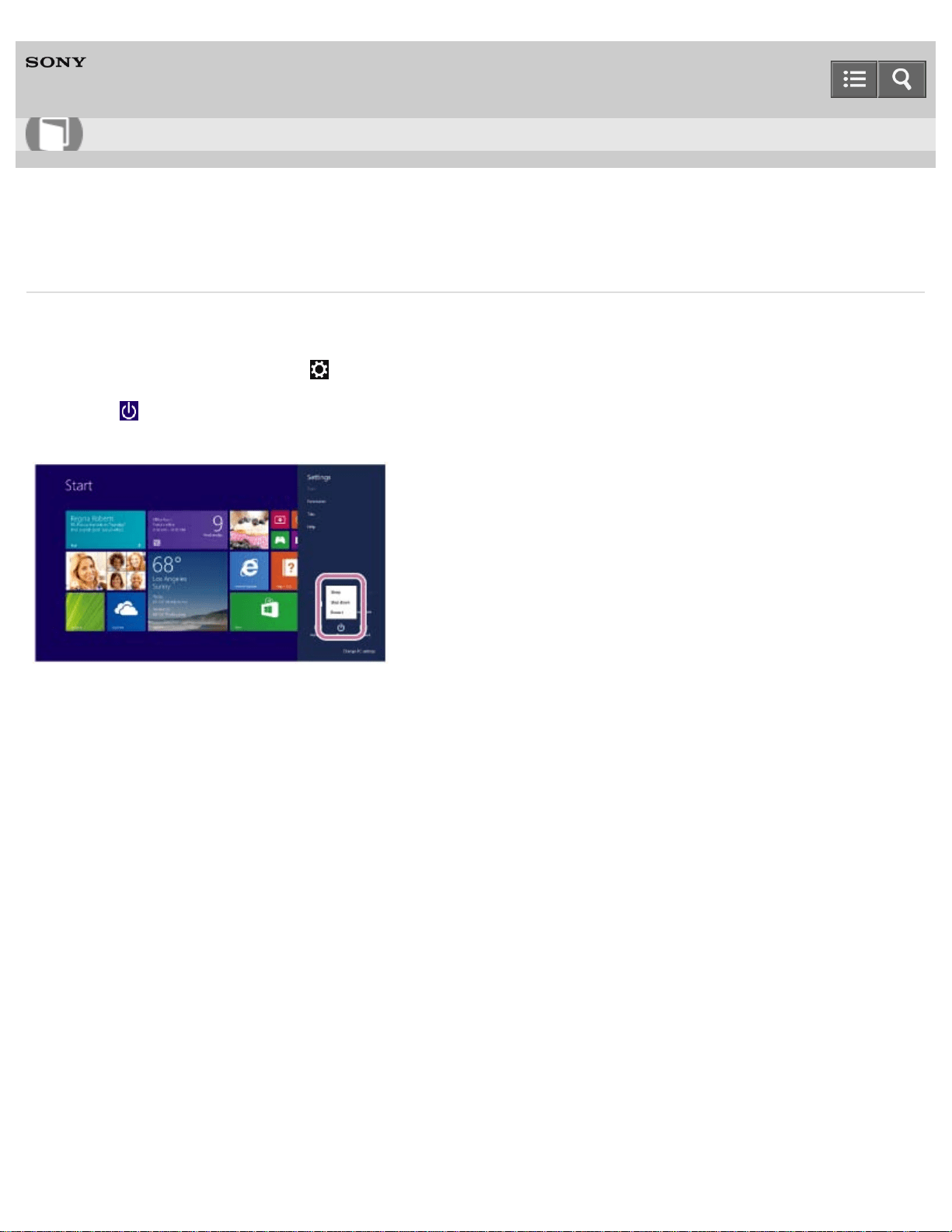
Personal Computer
VAIO Duo 13 SVD1323
Entering Sleep Mode, Shutting Down, or Restarting
You can place your VAIO computer into Sleep mode or shut down/restart the computer by following these steps.
1. Open the charms and select the Settings charm. (See Opening the Charms to open the charms.)
2. Select Power and Sleep, Shut down, or Restart.
Notes on use
Copyright 2013 Sony Corporation
User Guide
How to Use
227
Personal Computer
VAIO Duo 13 SVD1323
Using Sleep Mode
In Sleep mode, you can step away from your VAIO computer while retaining the computer’s state including data you are
working on.
To activate Sleep mode
1. Open the charms and select the Settings charm. (See Opening the Charms to open the charms.)
2. Select Power and Sleep.
To return to Normal mode
1. Press the (Power) button.
Note
If you press and hold down the (Power) button for more than 4 or 10 seconds, your VAIO computer will turn off
automatically. Doing this will erase all unsaved data.
By default, your VAIO computer automatically enters Hibernate mode when the battery pack is running out of power.
However, depending on the operating conditions, the computer may fail to enter Hibernate mode.
If this occurs and the battery pack is running out of power, the computer will be turned off, resulting in loss of unsaved
data.
While the computer is running on battery power, save data frequently.
Before moving your VAIO computer, make sure that the computer is off to avoid impact or vibration to the running
hard disk drive.
Hint
By default, your VAIO computer enters Sleep mode automatically after a certain period of inactivity.
The operations below also place your VAIO computer into Sleep mode.
Press the (Power) button (with the default setting).
The operations below also restore your VAIO computer from Sleep mode to Normal mode.
Press any key on the keyboard.
Press the
(Windows) button.
Plugging or unplugging the AC adapter also restores your VAIO computer from Sleep mode to Normal mode.
You can restore your VAIO computer from Sleep mode to Normal mode by opening or raising the LCD screen.
To change the action when you open or raise the LCD screen, start VAIO Control Center and change the settings
in Power and Battery. To start VAIO Control Center, see Starting Apps.
Related Topic
User Guide
How to Use
228

Personal Computer
VAIO Duo 13 SVD1323
Restarting Your VAIO Computer
After changing the settings or installing an app on your VAIO computer, you may be required to restart the computer.
1. Save your data and close all running apps.
2. Open the charms and select the Settings charm. (See Opening the Charms to open the charms.)
3. Select Power and Restart.
Your VAIO computer will restart.
Related Topic
Turning On Your VAIO Computer
Controlling the Power State of Your VAIO Computer (Sleep Mode/Shutdown)
Notes on use
Copyright 2013 Sony Corporation
User Guide
How to Use
230
Personal Computer
VAIO Duo 13 SVD1323
Controlling the Power State of Your VAIO Computer (Sleep Mode/Shutdown)
By default, your VAIO computer automatically enters Sleep mode after a certain period of inactivity.
In Sleep mode, the computer will retain its current state, including data you are working on, while you take a break.
See Using Sleep Mode for more information on Sleep mode.
When you do not use your VAIO computer for a while
To avoid losing unsaved data, follow these steps to shut down your VAIO computer.
1. Save your data and close all running apps.
2. Turn off any peripherals connected to your VAIO computer.
3. Open the charms, and then select the Settings charm. (See Opening the Charms to open the charms.)
4. Select Power and Shut down.
After a short time, your VAIO computer automatically turns off. If the computer is equipped with the power indicator,
the green power indicator light turns off.
Note
An improper shutdown may cause loss of unsaved data or cause your VAIO computer to malfunction.
To disconnect your VAIO computer completely from an AC power source, turn off the computer, and then unplug the
power cord from the AC outlet.
Hint
If you select Shut down while holding down the Shift key in step 4, you can place your VAIO computer into the
minimum power consumption state (ACPI S5 mode). In this case, the fast boot function is temporarily disabled on the
next start-up.
Related Topic
Turning On Your VAIO Computer
Restarting Your VAIO Computer
Notes on Using the Power Source
User Guide
How to Use
231
Personal Computer
VAIO Duo 13 SVD1323
Opening the Desktop
You can access the desktop from a tile, just like an app. Open the desktop by following the instruction below.
1. Open the Start screen and select the Desktop tile. (See About the Start Screen and Menu to open the Start
screen.)
Related Topic
About the Start Screen and Menu
Notes on use
Copyright 2013 Sony Corporation
User Guide
How to Use
232
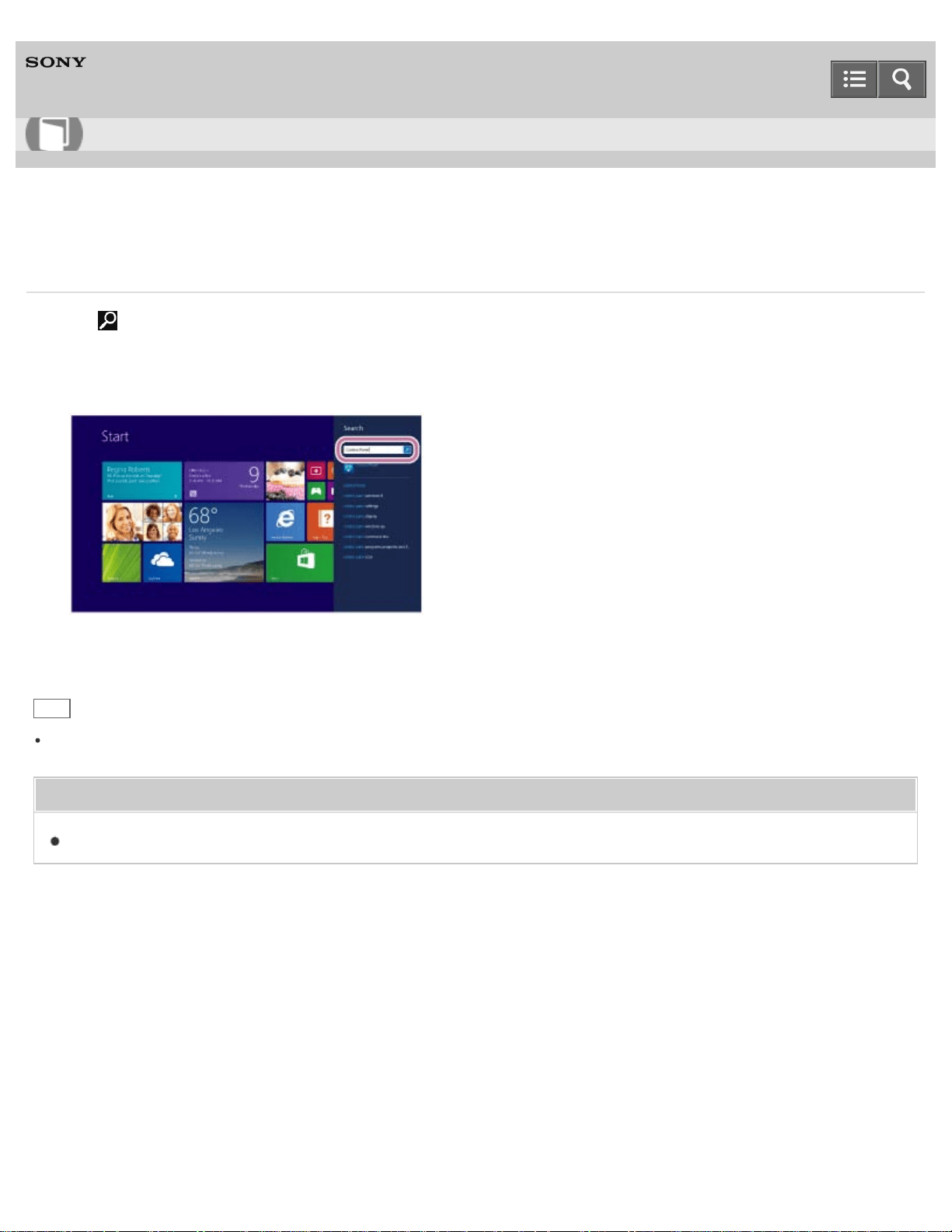
Personal Computer
VAIO Duo 13 SVD1323
Searching Content
With the Search charm, you can search files, settings, or web content.
To open the charms, see Opening the Charms.
1. Enter a keyword (e.g. Windows) in the search box.
2. Select your desired icon or file from the search result.
Hint
You can select the search target to narrow the search result.
Related Topic
Opening the App List
Notes on use
Copyright 2013 Sony Corporation
User Guide
How to Use
233
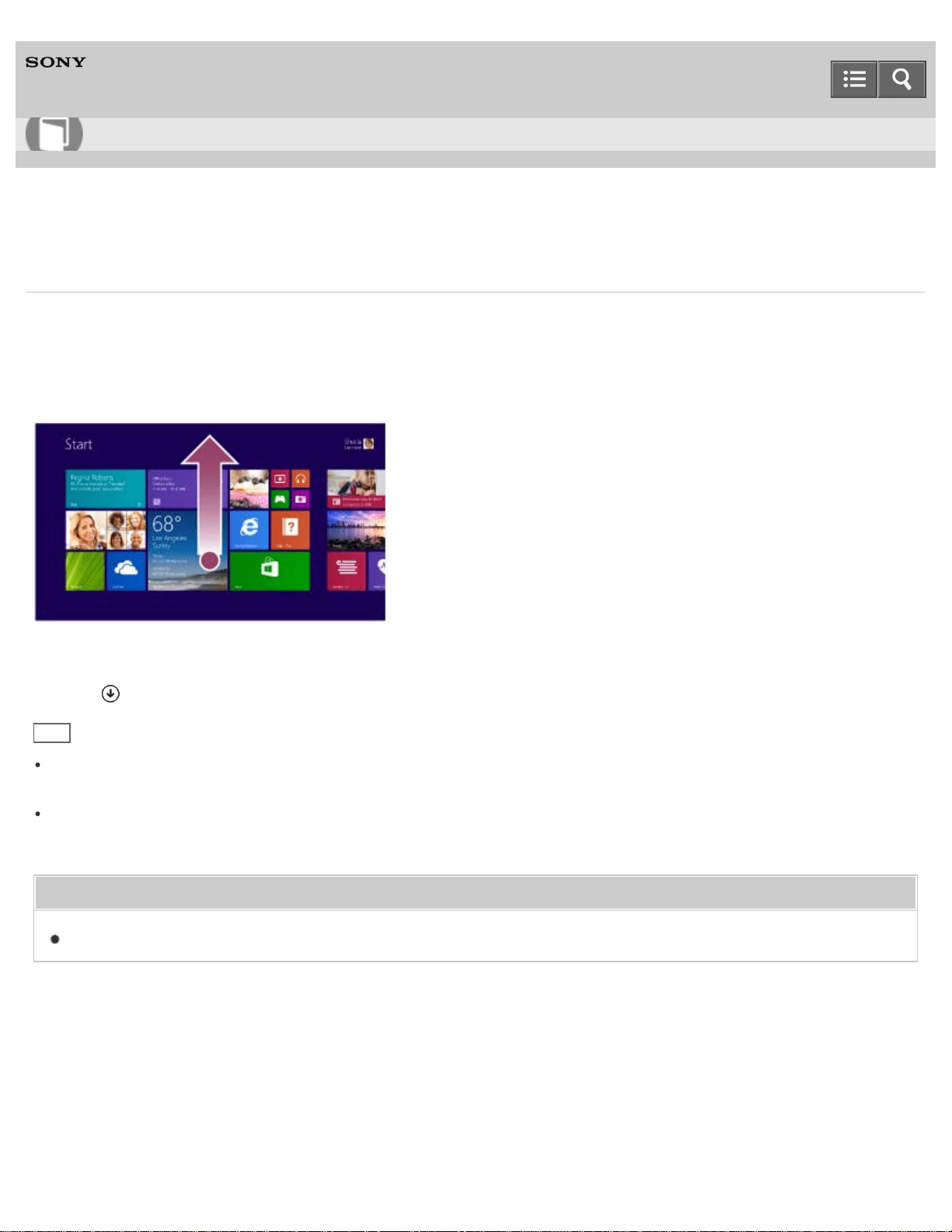
Personal Computer
VAIO Duo 13 SVD1323
Opening the App List
You can open the list of the installed apps (the Apps screen) on your VAIO computer.
Touch operation (Touch screen equipped models)
Swipe up on the Start screen.
Mouse/Touch pad operation
Click the icon at the lower-left of the Start screen.
Hint
It is useful to pin the apps that you use the most to the Start screen. To pin the apps, right-click an app icon on the
Apps screen and select the pin icon on the menu that appears on the bottom of the screen.
You can search apps from the search box on the upper-right corner of the Apps screen. When you have installed
many apps, it is useful to search from the search box.
Related Topic
Searching Content
Notes on use
Copyright 2013 Sony Corporation
User Guide
How to Use
234
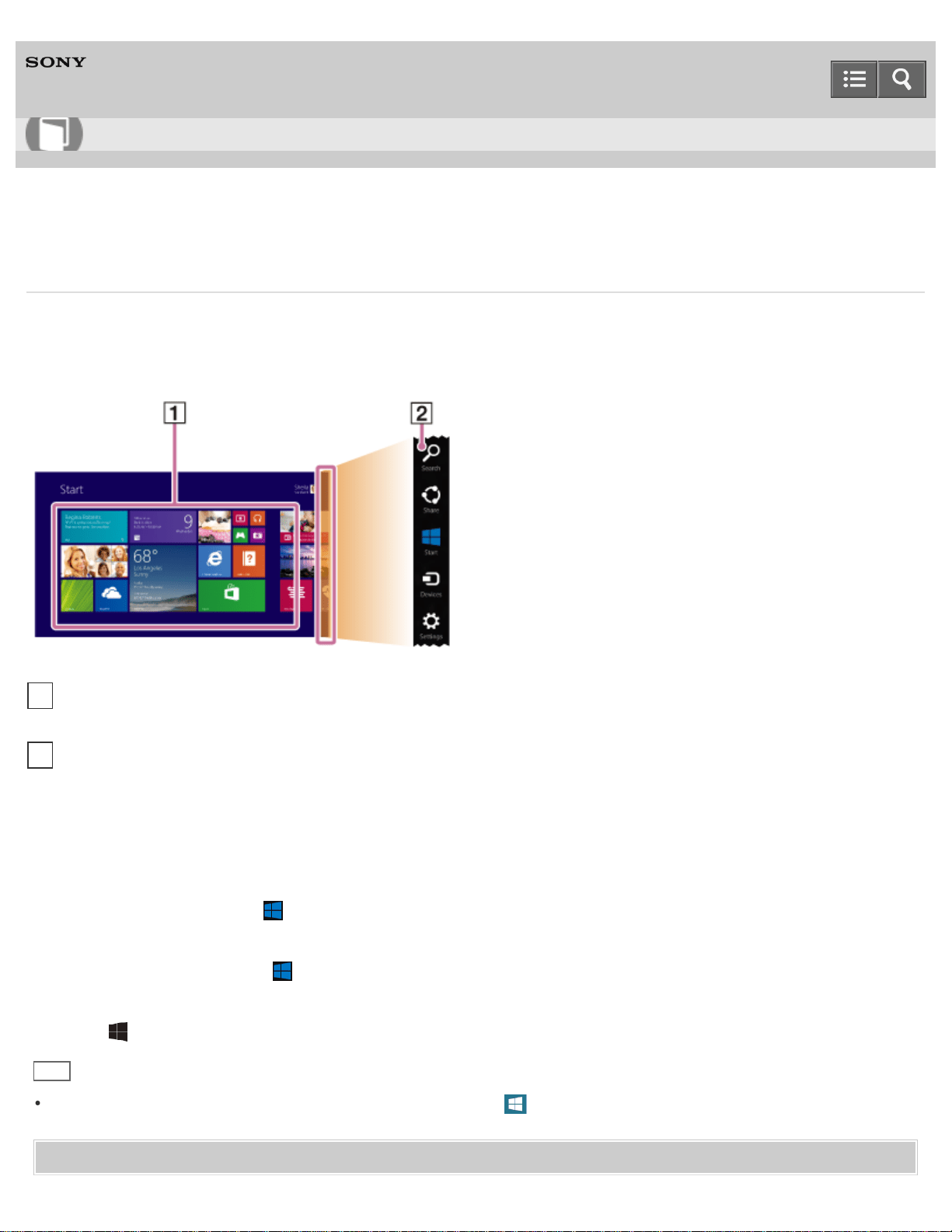
Personal Computer
VAIO Duo 13 SVD1323
About the Start Screen and Menu
You can add shortcuts to apps, the desktop, and websites that you use the most.
Overview
To open the Start screen
Touch operation (Touch screen equipped models)
Open the charms, then tap the Start charm. (See Opening the Charms to open the charms.)
Mouse/Touch pad operation
Open the charms, then click the Start charm. (See Opening the Charms to open the charms.)
Keyboard operation
Press the (Windows) key.
Hint
On the desktop, you can open the Start screen by selecting (Start) in the lower left corner.
Related Topic
User Guide
How to Use
Tiles
Select a tile to start an app and personalize the Start screen by adding and rearranging tiles.
1
Charms
Search for apps and files, share content, play content on other devices or print, and set up your VAIO computer.
2
235

Personal Computer
VAIO Duo 13 SVD1323
Installing Apps from Windows Store
You can install apps from Windows Store.
You will need a Microsoft account to use certain apps or services, including Windows Store.
On how to create and what you can do with the Microsoft account, refer to Windows Help and Support (Opening
Windows Help and Support).
1. Connect to the Internet.
See Starting Wi-Fi(R) (Wireless LAN) Communications for more information on how to connect to the Internet.
2. Open the Start screen and select the Store tile. (See About the Start Screen and Menu to open the Start
screen.)
3. Find an app to install.
4. Follow the on-screen instructions to install the app.
After the installation is complete, the app icon appears on the Apps screen. To open the Apps screen, see
Opening the App List.
Hint
It is useful to pin the apps that you use the most to the Start screen. To pin the apps, right-click an app icon on the
Apps screen and select the pin icon on the menu that appears on the bottom of the screen.
Related Topic
Starting Apps
Searching Content
Opening the App Menu
Closing Apps
Switching Apps
User Guide
How to Use
237
Personal Computer
VAIO Duo 13 SVD1323
Switching User Accounts
You can switch to another user account by following these steps.
1. Open the Start screen and select an account name at the upper-right corner of the computer screen. (See About
the Start Screen and Menu to open the Start screen.)
2. Select your desired account name.
Hint
To create a new user account, you need to sign in as an administrator. Then, open the charms and select the
Settings charm. Select Change PC settings in the lower right corner, and select Accounts and Other
accounts in the left pane.
To open the charms, see Opening the Charms.
Notes on use
Copyright 2013 Sony Corporation
User Guide
How to Use
238
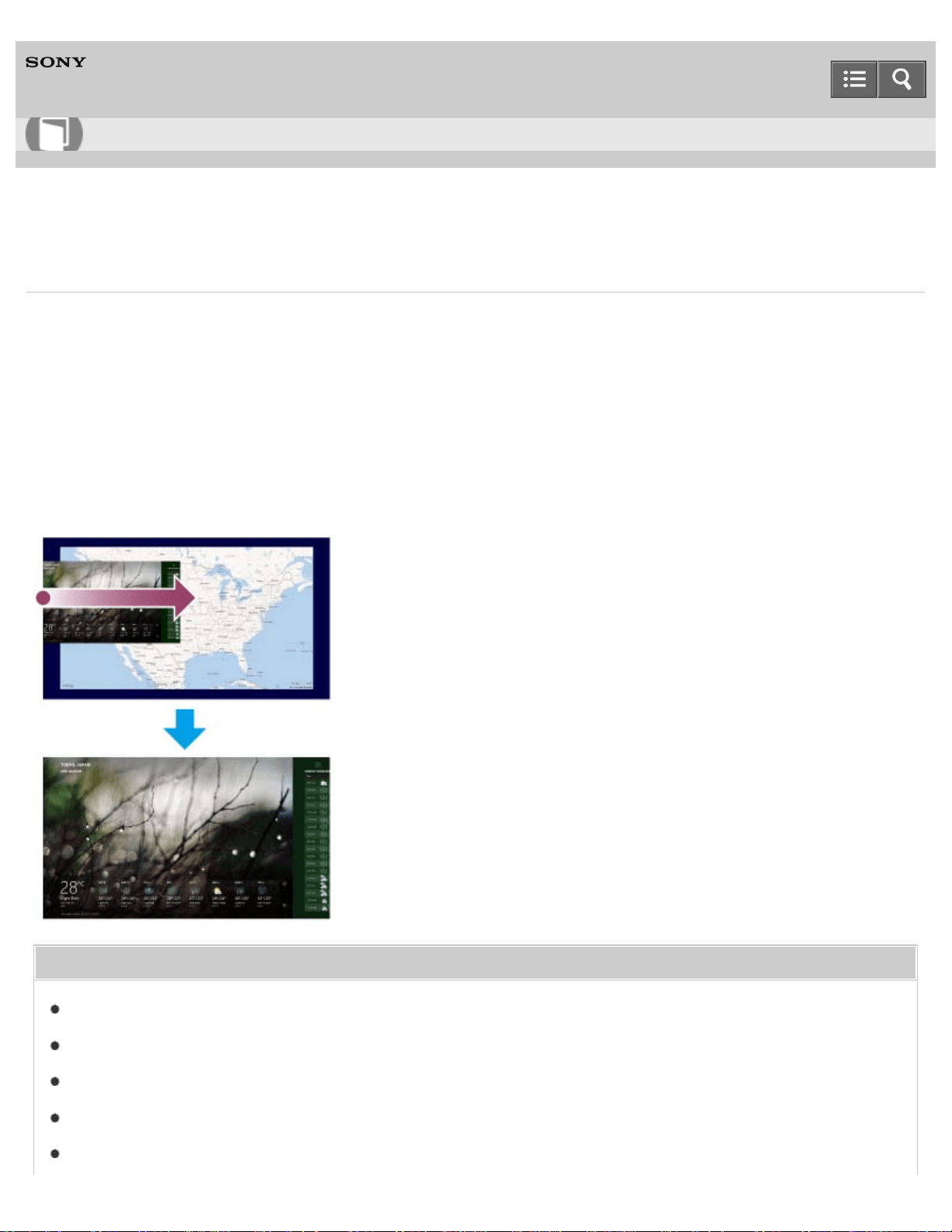
Personal Computer
VAIO Duo 13 SVD1323
Switching Apps
You can switch between apps that are currently running.
Touch operation (Touch screen equipped models)
Display currently running apps, touch and swipe in your desired app icon from the left edge. To display the currently
running apps, see Viewing Running Apps.
Mouse/Touch pad operation
Display currently running apps and drag your desired app icon from the left edge to the center. To display the currently
running apps, see Viewing Running Apps.
Related Topic
Starting Apps
Searching Content
Opening the App Menu
Viewing Running Apps
Closing Apps
User Guide
How to Use
239

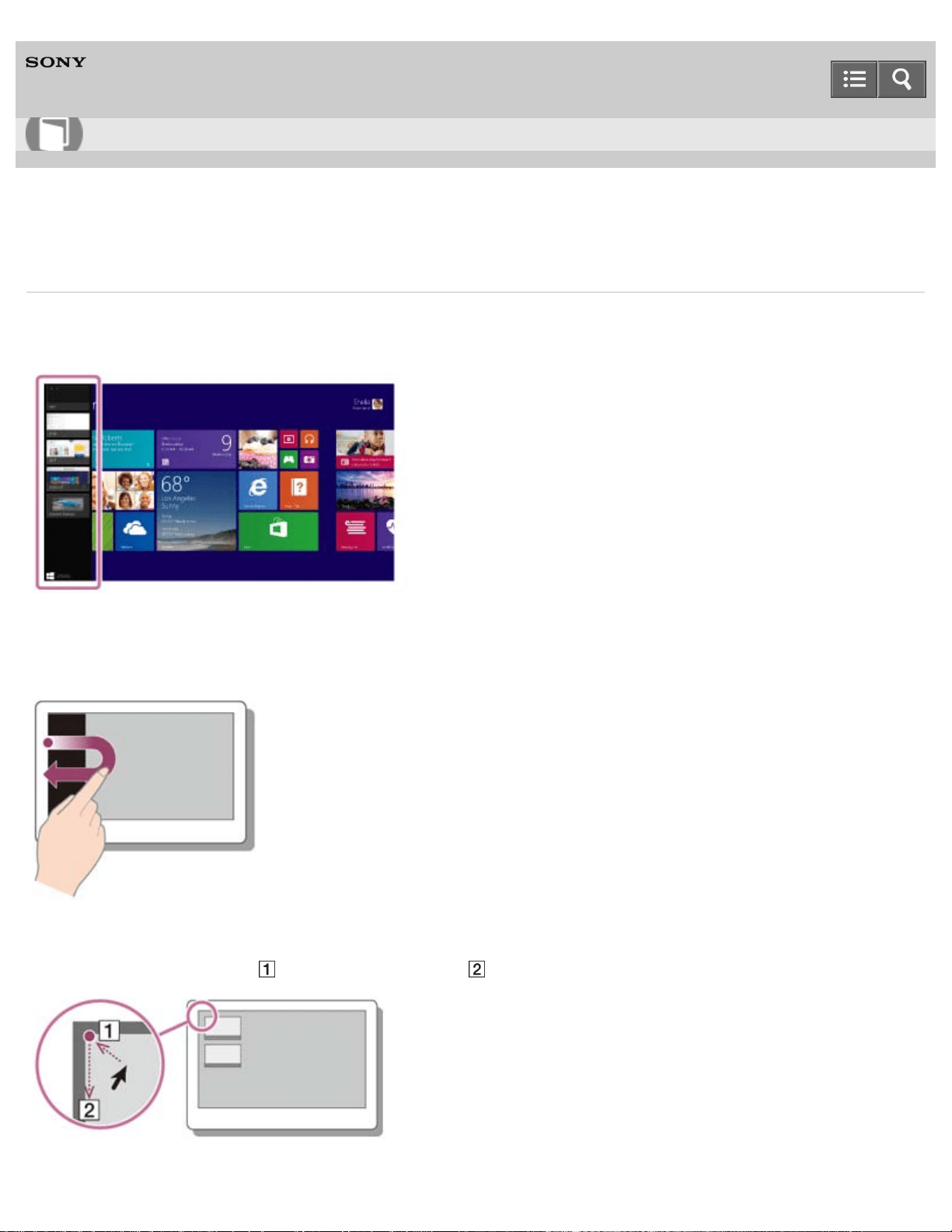
Personal Computer
VAIO Duo 13 SVD1323
Viewing Running Apps
You can view running apps by displaying the list on the Start screen. See About the Start Screen and Menu for more
information.
Touch operation (Touch screen equipped models)
Swipe in from the left edge until a small app icon appears, then drag the icon back towards the left edge.
Mouse/Touch pad operation
Point to the upper-left corner ( ), then move downward ( ).
User Guide
How to Use
241
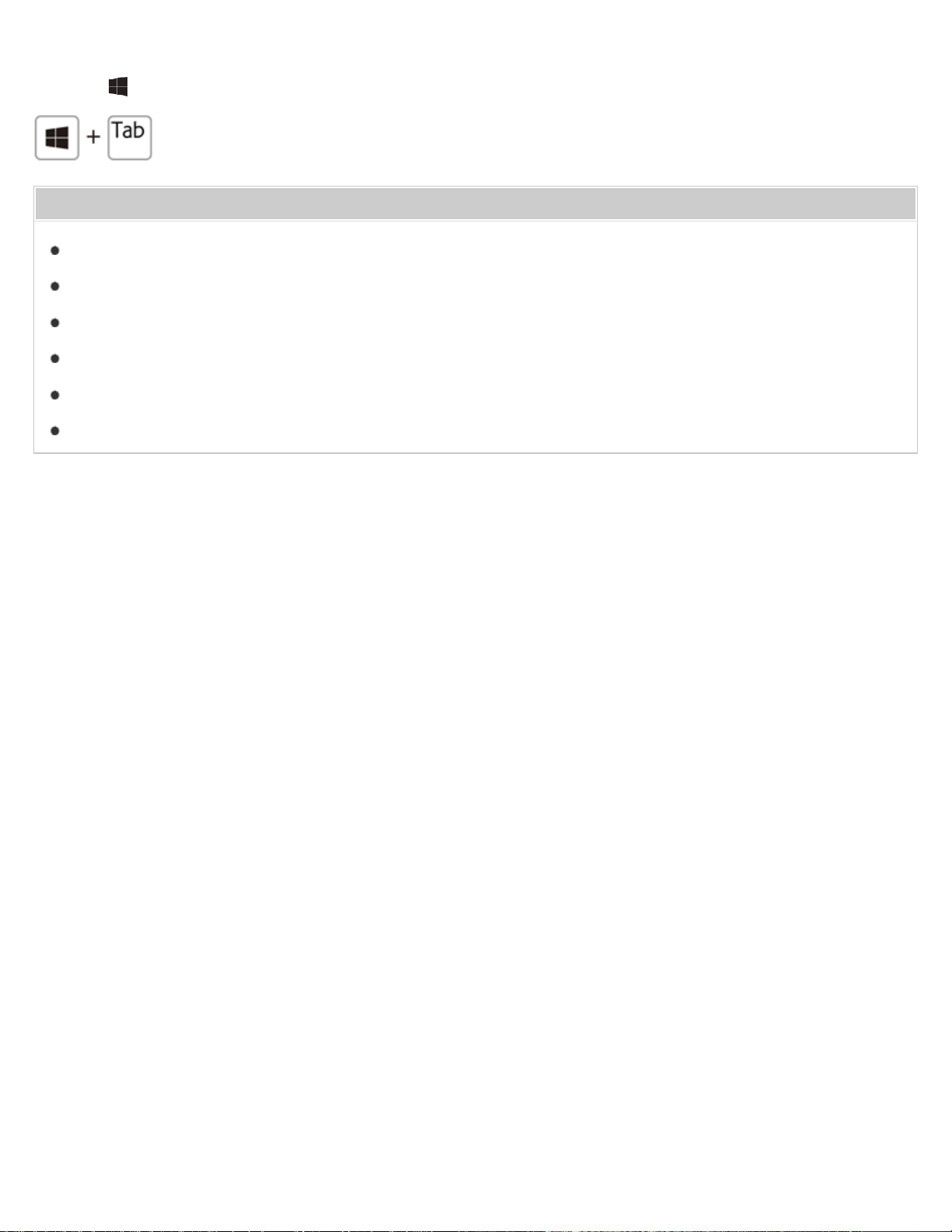
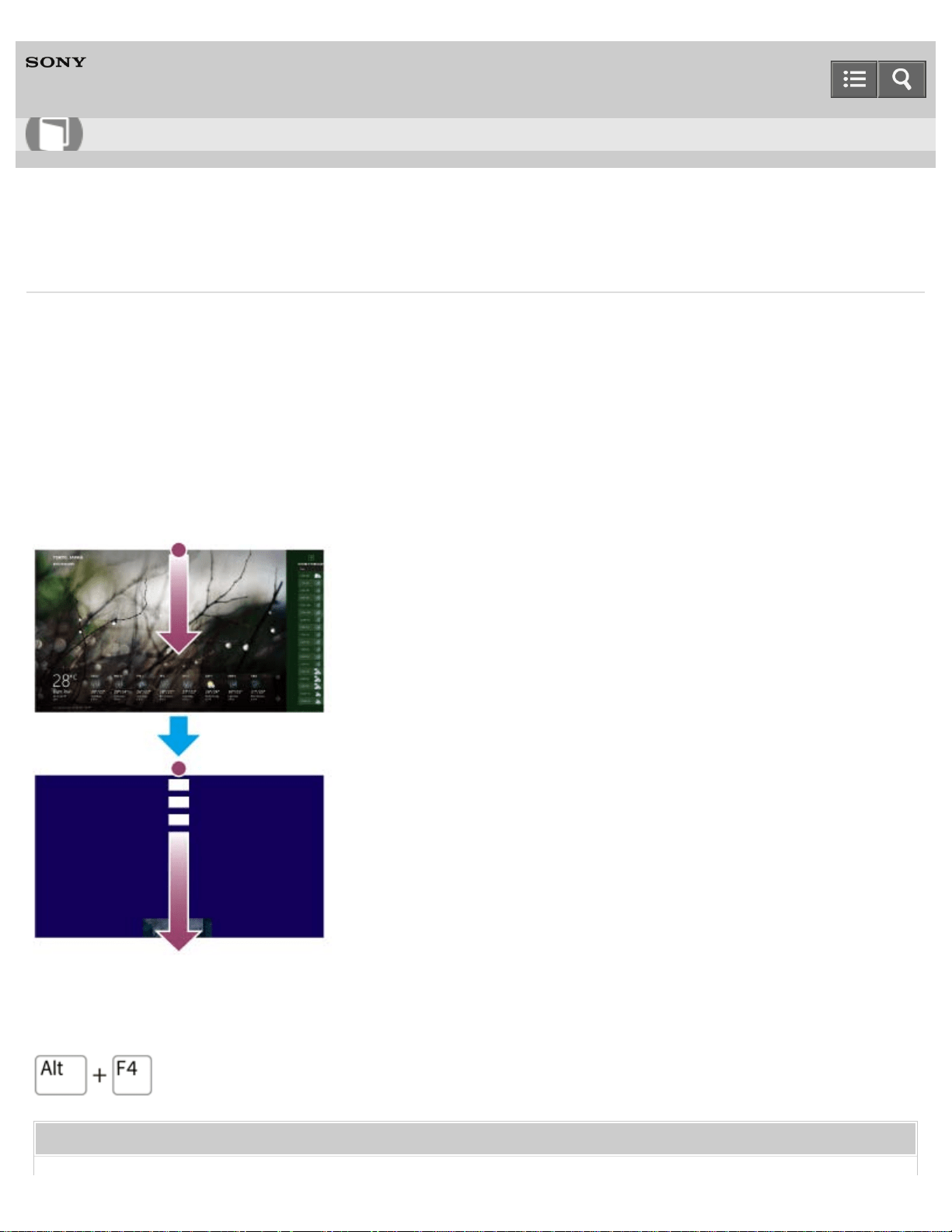
Personal Computer
VAIO Duo 13 SVD1323
Closing Apps
You can close currently running apps by following the instruction below.
Touch operation (Touch screen equipped models)
1. When an app is open, point to the top-center of the screen.
2. Drag the app to the bottom of the screen until the app disappears from the screen.
Mouse/Touch pad operation
1. When an app is open, move the cursor to the top-center of the screen until the hand icon appears.
2. Drag the app to the bottom of the screen until the app disappears from the screen.
Keyboard operation
Press the Alt key and the F4 key at the same time.
Related Topic
User Guide
How to Use
243

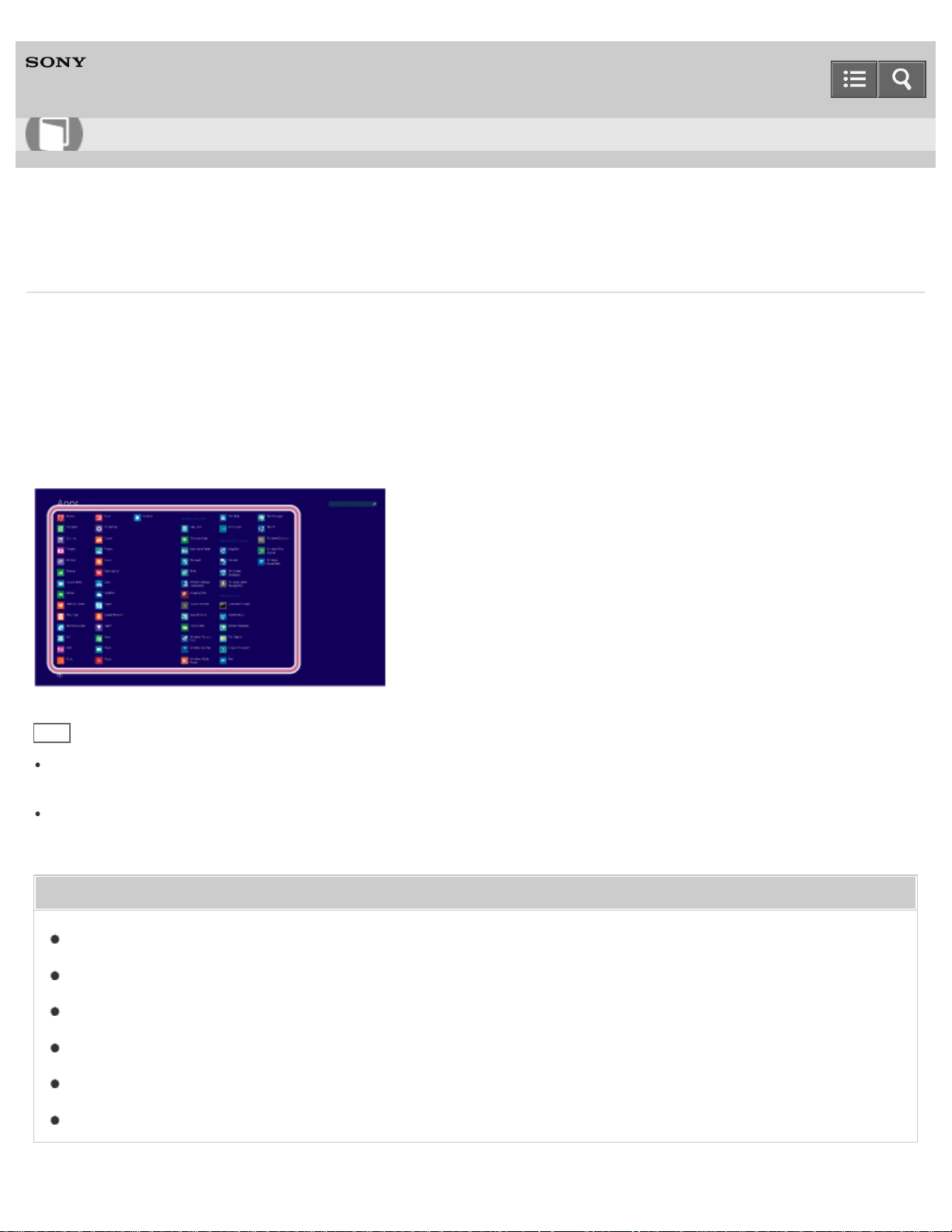
Personal Computer
VAIO Duo 13 SVD1323
Starting Apps
You can start apps by following these steps.
1. Open the Start screen or the Apps screen. (See About the Start Screen and Menu to open the Start screen or
Opening the App List to open the Apps screen.)
2. Select your desired app.
Hint
It is useful to pin the apps that you use the most to the Start screen. To pin the apps, right-click an app icon on the
Apps screen and select the pin icon on the menu that appears on the bottom of the screen.
You can search apps from the search box on the upper-right corner of the Apps screen. When you have installed
many apps, it is useful to search from the search box.
Related Topic
Opening the App Menu
Opening the Charms
Closing Apps
Viewing Running Apps
Switching Apps
Installing Apps from Windows Store
User Guide
How to Use
245
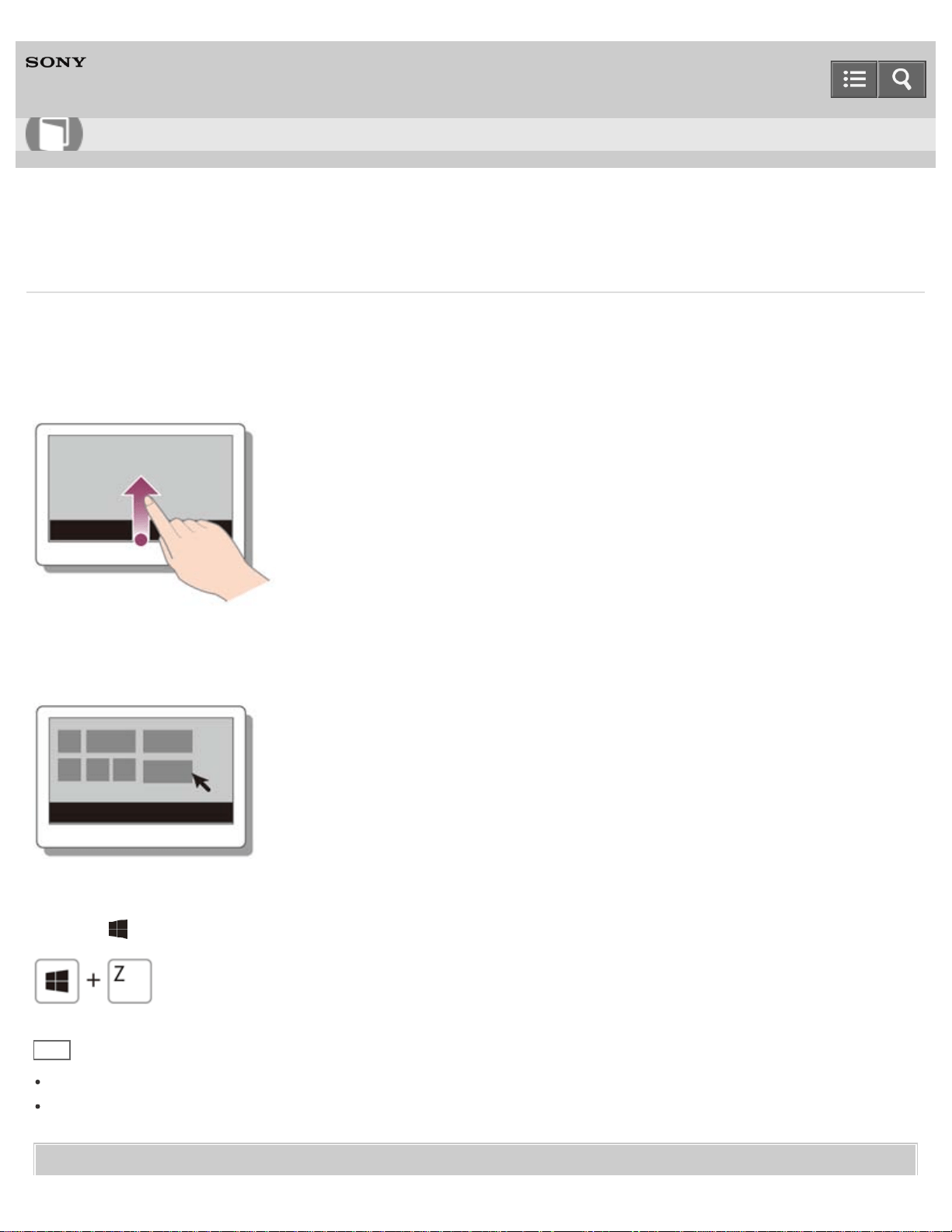
Personal Computer
VAIO Duo 13 SVD1323
Opening the App Menu
Many apps have app menus that you can use to control your app. Follow the instructions below to open the app menu.
Touch operation (Touch screen equipped models)
Swipe up from the bottom edge.
Mouse/Touch pad operation
When an app is open, right-click anywhere on the screen. On a touch pad, click the bottom-right corner.
Keyboard operation
Press the (Windows) key and the Z key at the same time.
Hint
Open the app menu when an app is displayed on the computer screen.
App commands vary depending on the app that is currently displayed on the computer screen.
Related Topic
User Guide
How to Use
246

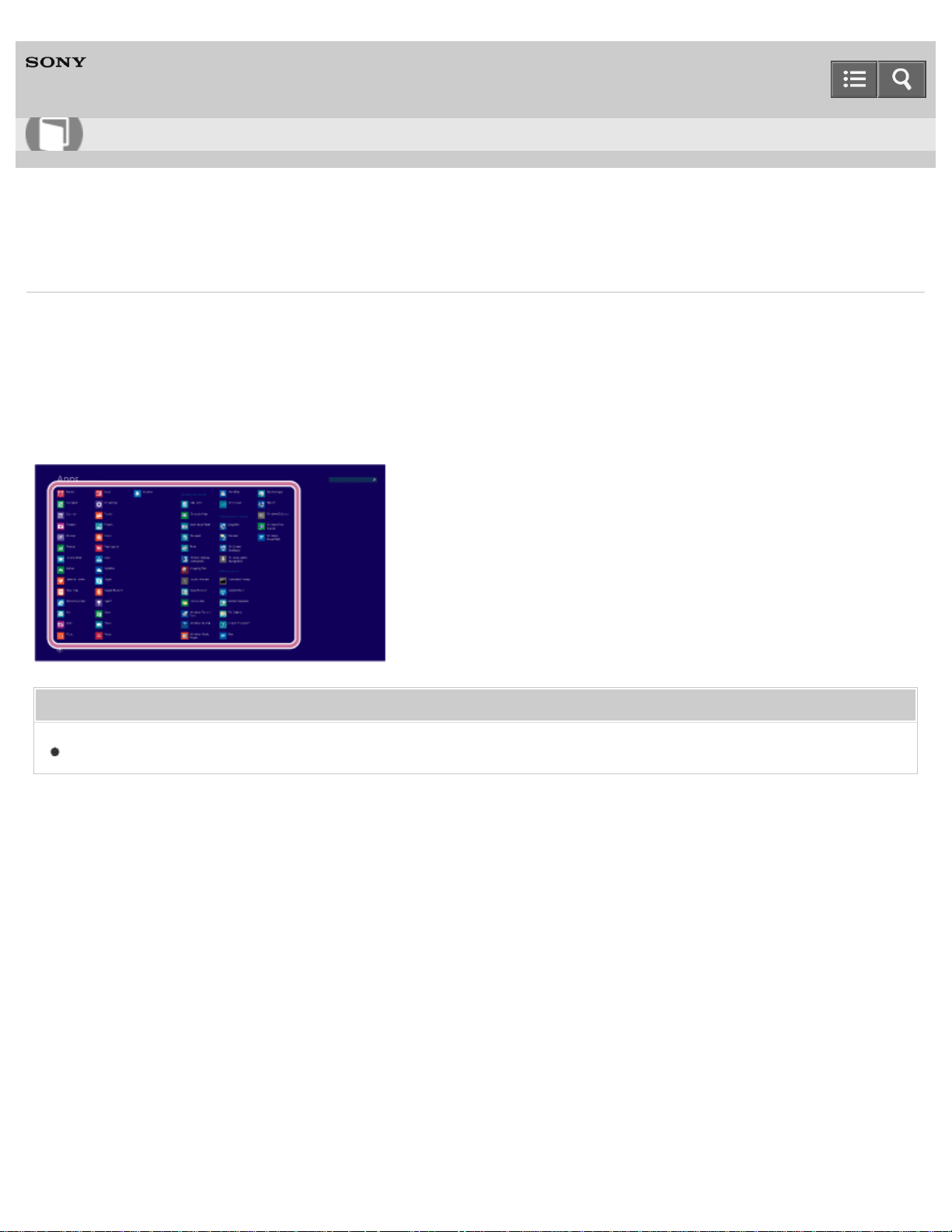
Personal Computer
VAIO Duo 13 SVD1323
Starting Help+Tips
You can start Help+Tips that explains the Windows 8 basic operations.
1. Open the Apps screen. (See Opening the App List to open the Apps screen.)
2. Select Help+Tips.
Related Topic
Opening Windows Help and Support
Notes on use
Copyright 2013 Sony Corporation
User Guide
How to Use
248
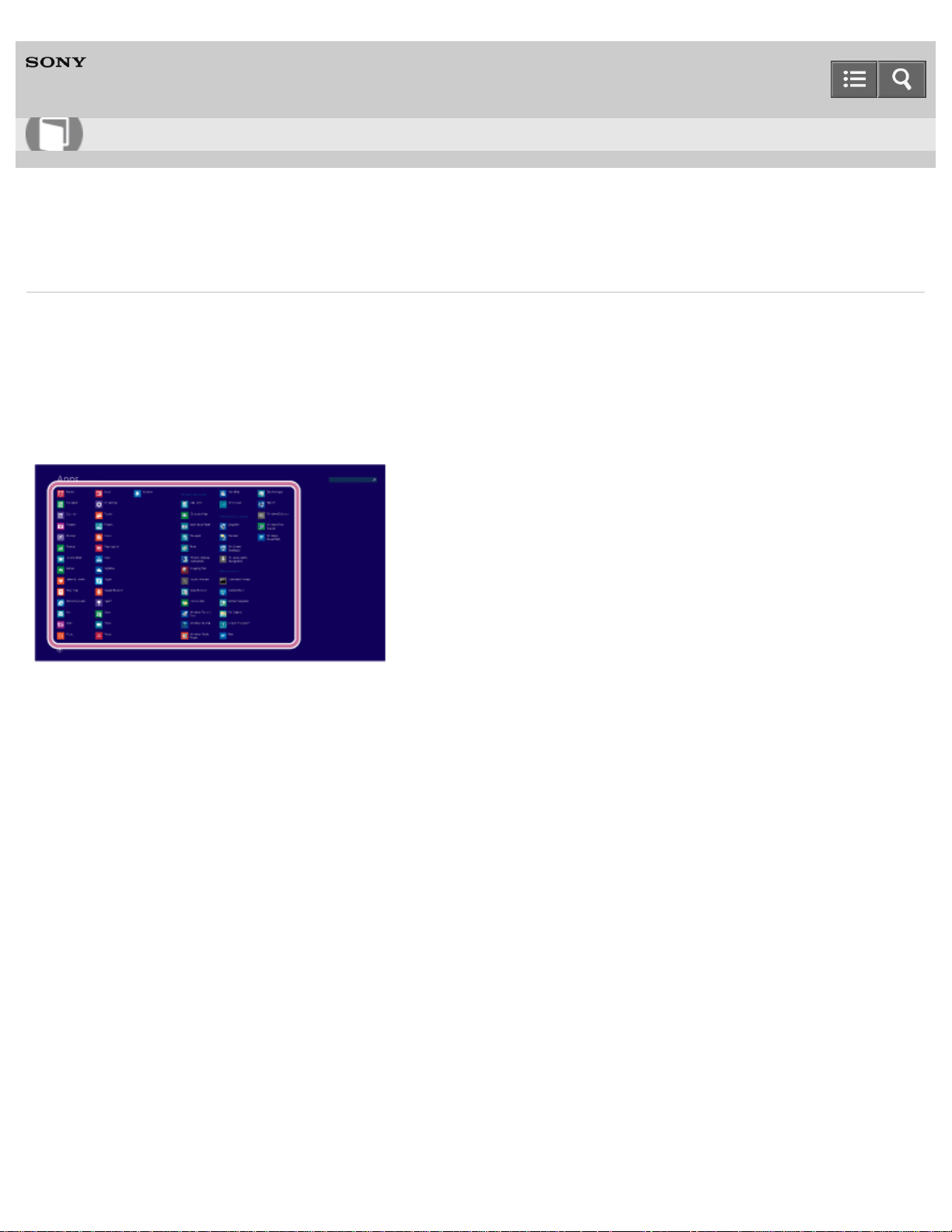
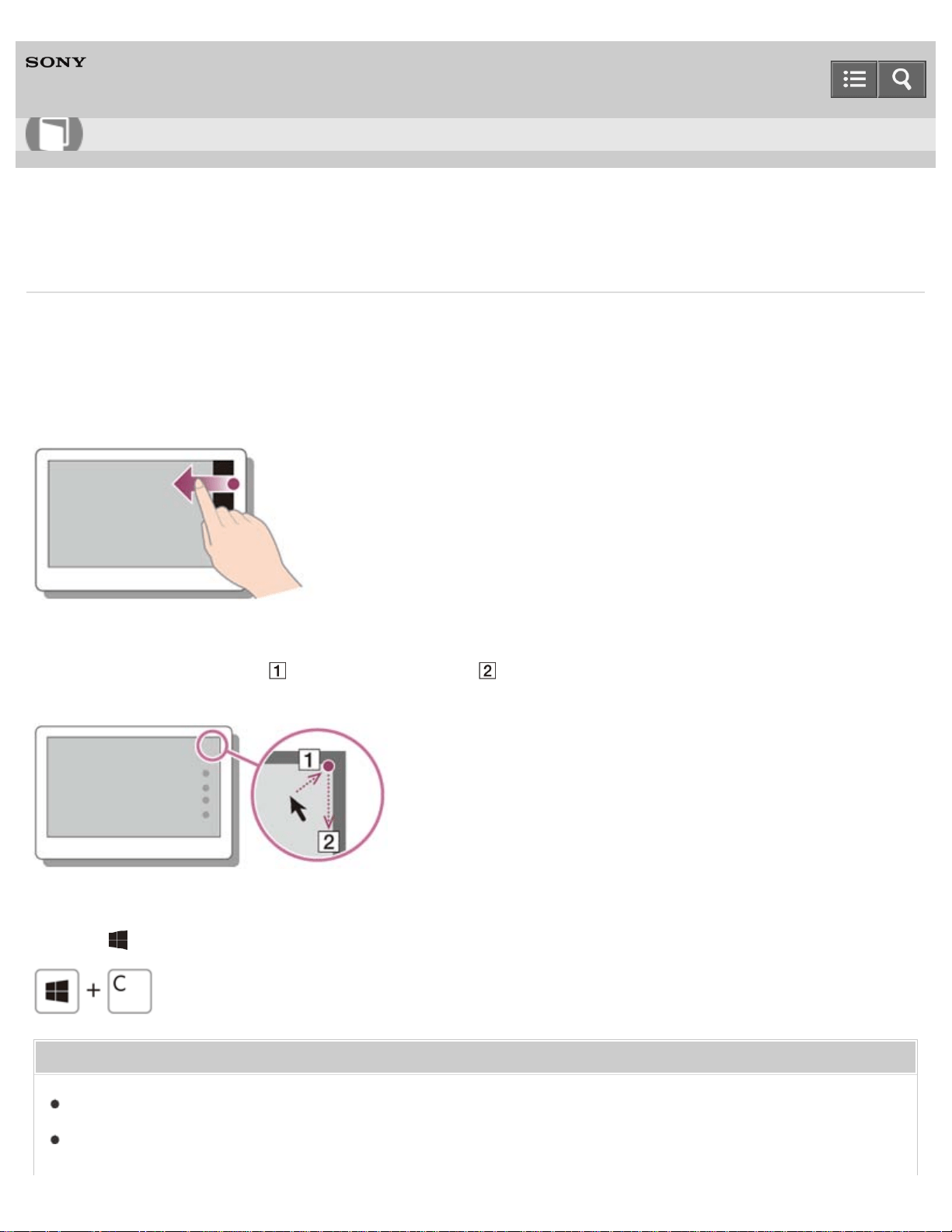
Personal Computer
VAIO Duo 13 SVD1323
Opening the Charms
You can open the charms to search for apps and files, share content, play content on other devices or print, and set up
your VAIO computer.
Touch operation (Touch screen equipped models)
Swipe in from the right edge.
Mouse/Touch pad operation
Point to the upper-right corner ( ), then move downward ( ).
With a touch pad, you can also swipe in from the right edge.
Keyboard operation
Press the (Windows) key and the C key at the same time.
Related Topic
About the Start Screen and Menu
Starting Apps
User Guide
How to Use
250

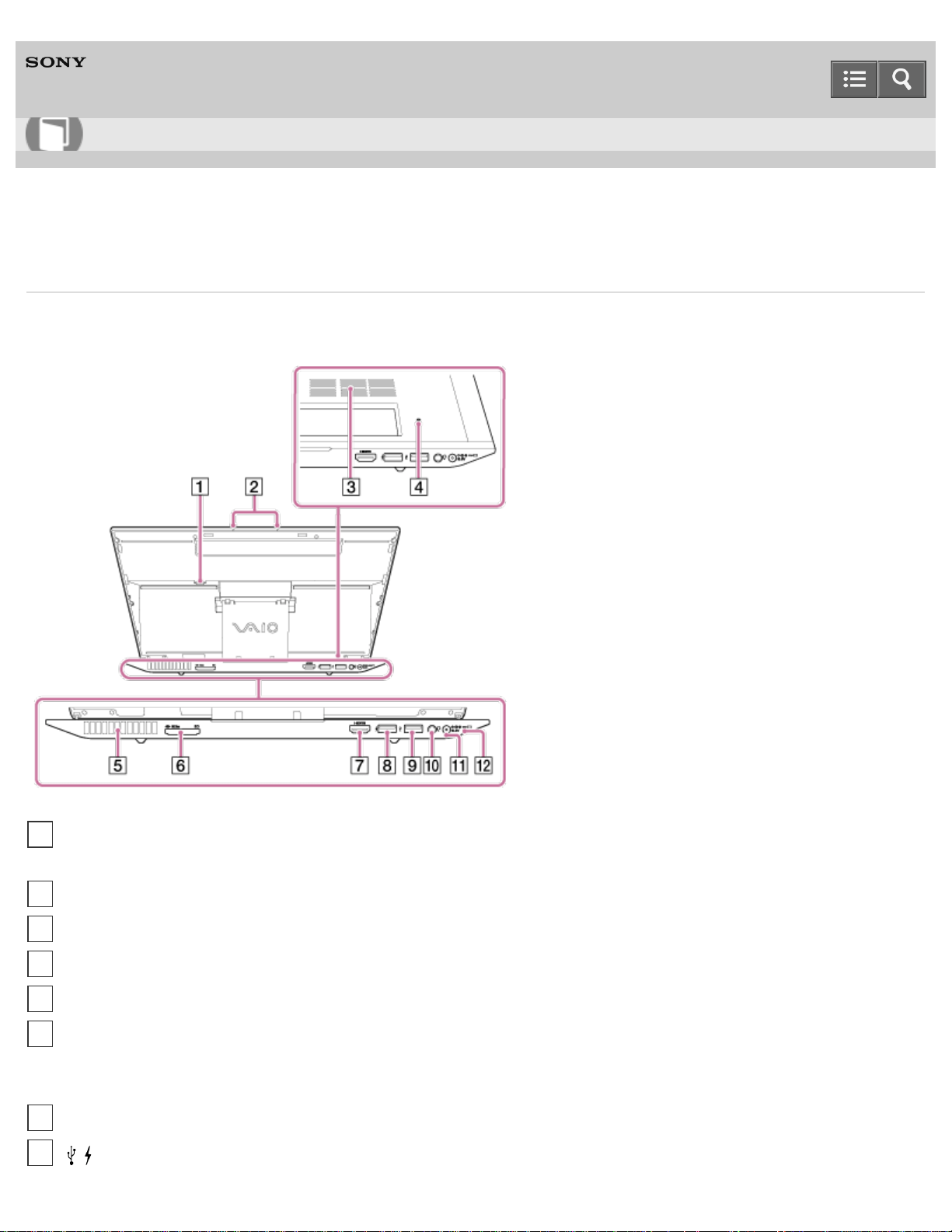
Personal Computer
VAIO Duo 13 SVD1323
Parts and Controls on the Back
Describes the features on the back of the VAIO computer, such as connection ports.
User Guide
How to Use
micro SIM card slot (Wireless WAN equipped models) (Inserting a Micro SIM Card (Wireless WAN equipped
models))
1
Built-in dual microphones (Using the Built-in Camera)
2
Air intake vent
3
Battery off button
4
Air exhaust vent
5
“Memory Stick Duo” / SD memory card combined slot (“Memory Stick Duo” (Inserting "Memory Stick"), SD memory
card (Inserting SD Memory Cards))
“Memory Stick Duo” and an SD memory card cannot be inserted into the slot simultaneously.
6
HDMI output port (Connecting a TV with an HDMI Input Port)
7
USB port (Connecting a USB Device)
8
252
Note
If the battery off button is pressed while the VAIO computer is running, unsaved data may be lost. Be sure to save
your working data and turn off the VAIO computer before pressing the battery off button.
The air exhaust vent may get hot during use. Take care when touching it.
Related Topic
Parts and Controls on the Front
Parts and Controls on the Sides
Parts and Controls on the Bottom
Notes on use
Copyright 2013 Sony Corporation
This USB port supports USB charging. See Charging a USB Device for more information.
USB port (Connecting a USB Device)
9
Headset compatible headphone jack (Connecting External Speakers/Headphones/Headset)
10
DC IN port (Connecting a Power Source)
11
Charge indicator (Charge Indicator Status List)
12
253
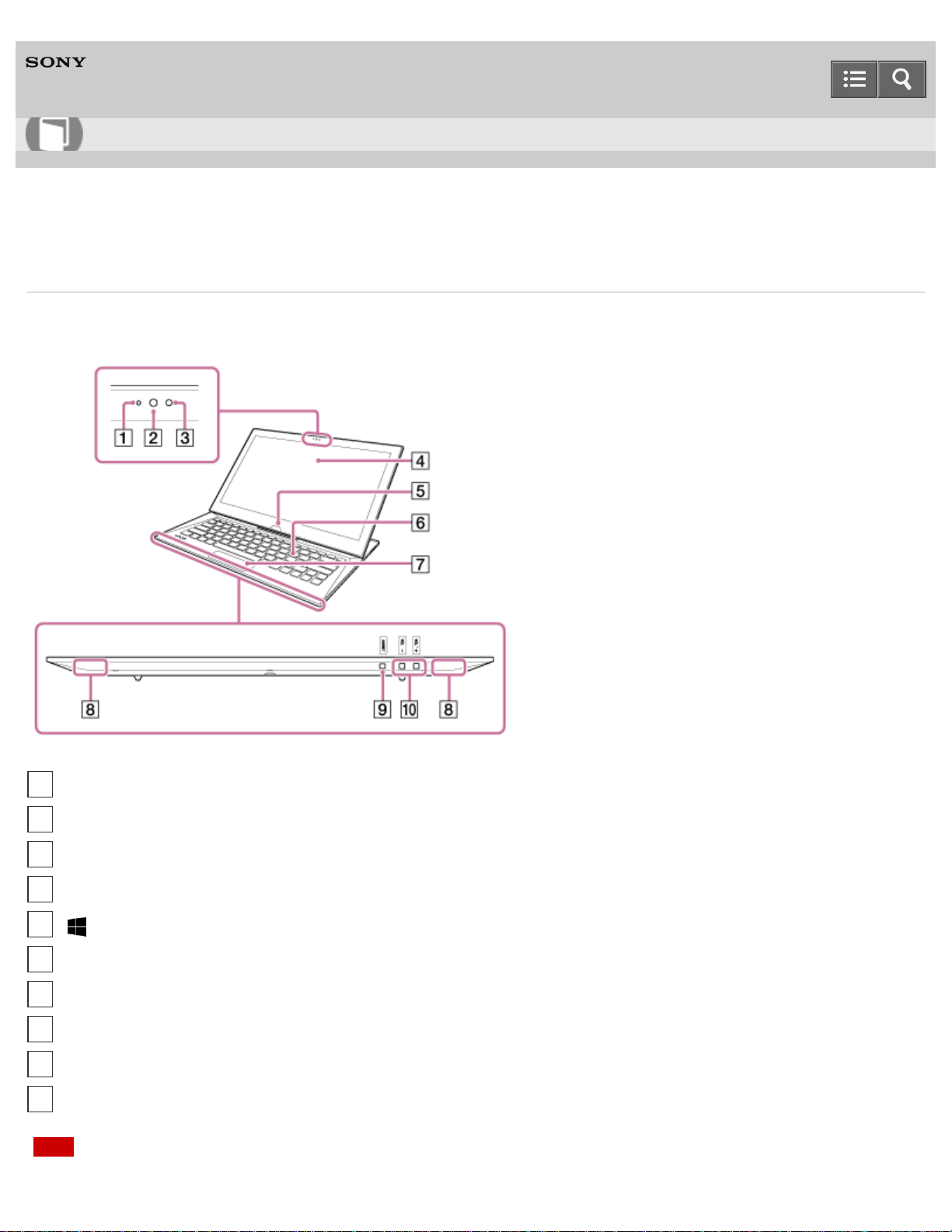
Personal Computer
VAIO Duo 13 SVD1323
Parts and Controls on the Front
Describes the features on the front of the VAIO computer, such as buttons and indicator lights.
Note
User Guide
How to Use
Built-in front camera indicator (Using the Built-in Camera)
1
Built-in front camera (Using the Built-in Camera)
2
Ambient light sensor (Adjusting the LCD Brightness Automatically)
3
LCD screen or touch screen (How to Use the Touch Screen (Touch screen equipped models))
4
Windows button
5
Keyboard
6
Touch pad (Using the Touch Pad)
7
Built-in stereo speakers
8
ASSIST button (About the ASSIST Button)
9
VOL (Volume) buttons
10
254

Do not place credit cards etc., which are affected by magnetism, near your VAIO computer, especially the areas in
front of the left and right corners of the keyboard. It may cause data corruption by the magnetic components of the
computer.
Related Topic
Parts and Controls on the Sides
Parts and Controls on the Bottom
Parts and Controls on the Back
Notes on use
Copyright 2013 Sony Corporation
255
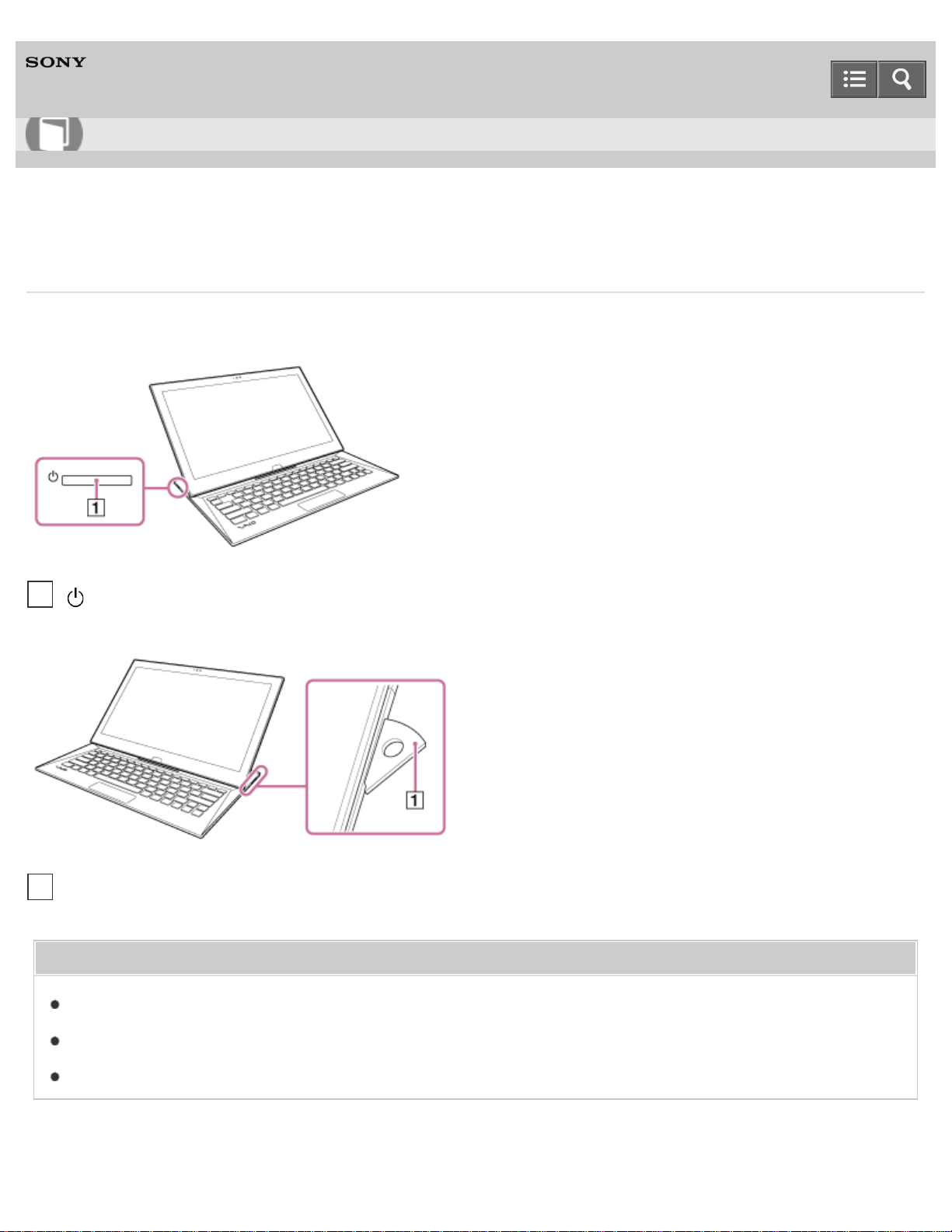
Personal Computer
VAIO Duo 13 SVD1323
Parts and Controls on the Sides
Describes the features on the sides of the VAIO computer, such as connection ports.
Related Topic
Parts and Controls on the Front
Parts and Controls on the Bottom
Parts and Controls on the Back
User Guide
How to Use
Power button (Turning On Your VAIO Computer)
1
Pen stand (Using the Pen Stand (Digitizer Stylus supplied models))
1
256
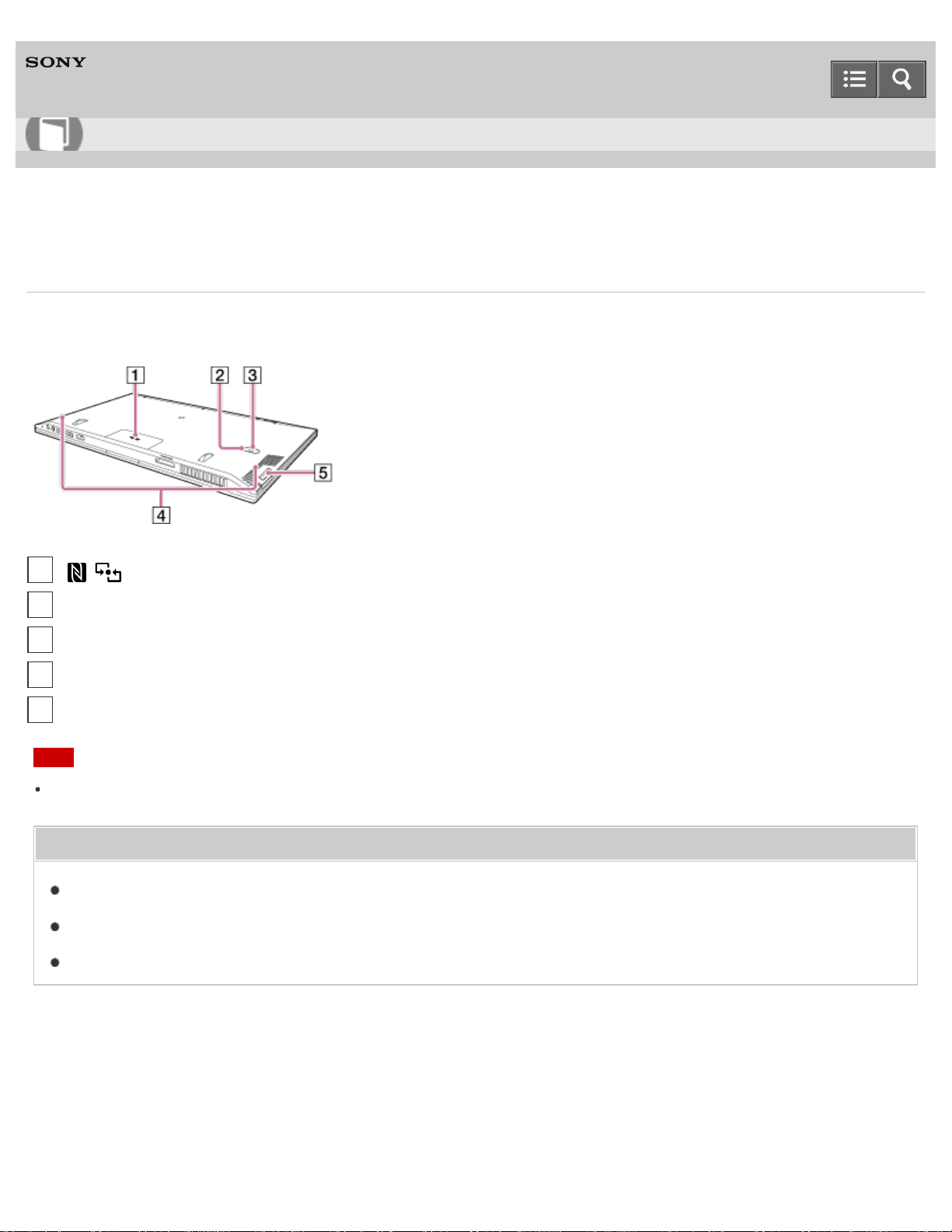
Personal Computer
VAIO Duo 13 SVD1323
Parts and Controls on the Bottom
Describes the features on the bottom of the VAIO computer.
Note
The memory of your VAIO computer cannot be replaced.
Related Topic
Parts and Controls on the Front
Parts and Controls on the Sides
Parts and Controls on the Back
Notes on use
Copyright 2013 Sony Corporation
User Guide
How to Use
Touch mark (NFC supported models) (Using NFC/One-touch functions (NFC supported models))
1
Built-in rear camera indicator (Using the Built-in Camera)
2
Built-in rear camera (Using the Built-in Camera)
3
Air intake vents
4
A hole for the pen hook (Using the Pen Hook (Digitizer Stylus supplied models))
5
257
Personal Computer
VAIO Duo 13 SVD1323
Checking Supplied Items
Check all items packed with the product before use.
AC adapter
Power cord
Digitizer stylus
Pen hook
VGA adapter
(Not supplied with all models. Availability depends on your computer’s specifications.)
USB IR Adapter
(Not supplied with all models. Availability depends on your computer’s specifications.)
Hint
No Recovery Media is included because your VAIO computer can be recovered using data stored in the hard disk
drive or SSD. See Recovering from the Recovery Area for more information.
Notes on use
Copyright 2013 Sony Corporation
User Guide
How to Use
258
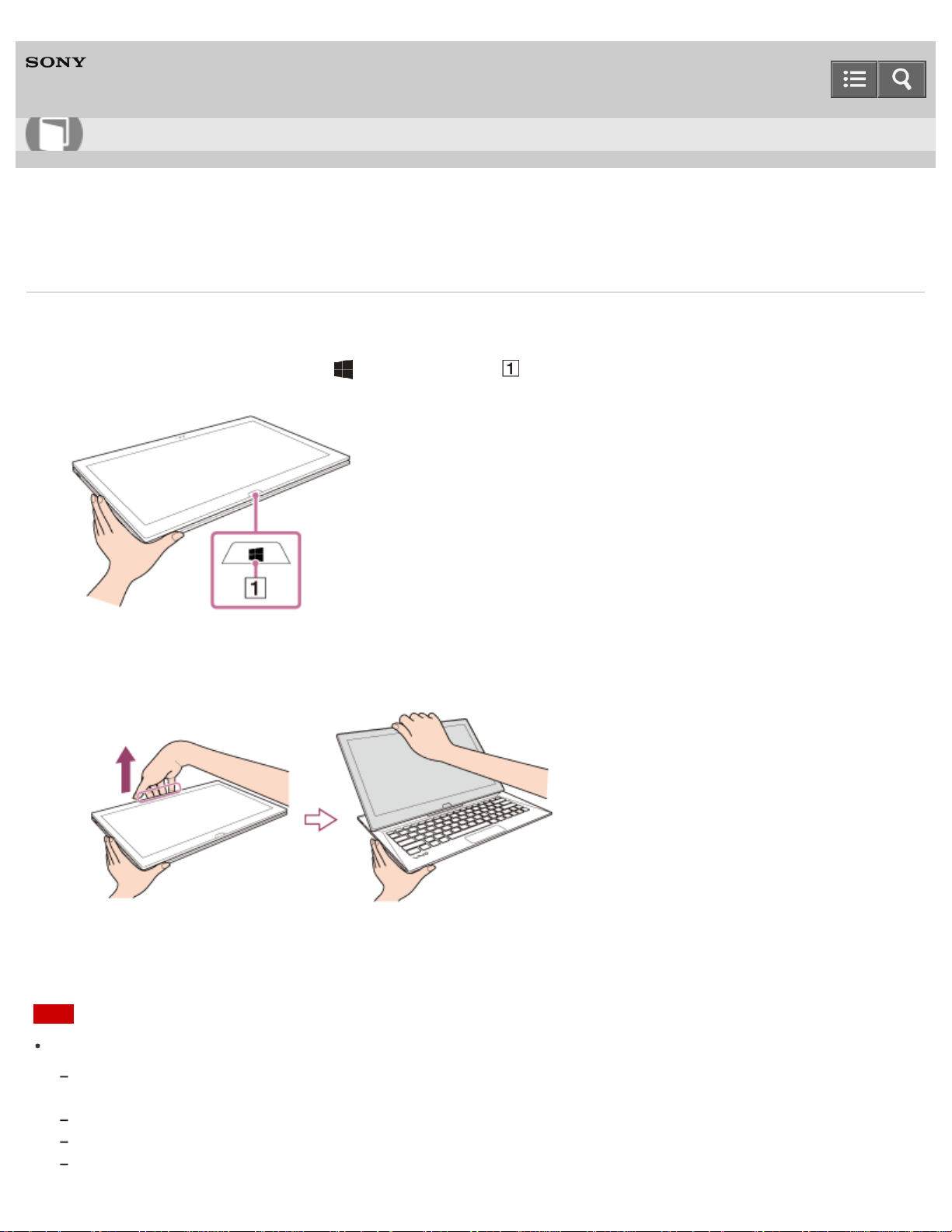
Personal Computer
VAIO Duo 13 SVD1323
Raising the LCD Screen
To use the keyboard, you need to raise the LCD screen.
1. Place your VAIO computer with the (Windows) button ( ) on your side and hold the edge of the computer with
your hand.
2. Place your fingers on the projection of the LCD screen with the other hand and gently raise the LCD screen. Before
using your VAIO computer, make sure the LCD screen is secured to the computer with the metal hooks on the
computer.
To fold the LCD screen
Grasp the top-center edge of the LCD screen with your hand and gently push it down to the end.
Note
Observe the following when raising or folding the LCD screen.
Do not raise or fold the LCD screen with excessive pressure on it, as it may cause damage to the part of your VAIO
computer.
Be careful not to catch your finger in the LCD screen.
Make sure other people and objects are out of range of slide motion.
Do not exert excessive pressure on the LCD screen.
User Guide
How to Use
259

Do not fold the LCD screen by pushing the VAIO logo stand behind the LCD screen.
Do not raise the LCD screen forcibly from the bottom edge of the LCD screen.
The LCD screen may unfold abruptly if you lift your VAIO computer with the back side up.
Be sure to hold the computer from both the front and back sides with your hands when lifting the computer.
Notes on use
Copyright 2013 Sony Corporation
260
Personal Computer
VAIO Duo 13 SVD1323
Setting Up an Appropriate Work Environment
This topic describes where to or not to place your VAIO computer and ergonomic instructions.
Where to place your VAIO computer
When placing your VAIO computer, ensure that:
You have easy access to a power source and necessary ports.
You leave enough space around the computer.
The computer is placed on a flat surface that is wide enough and you can face the computer screen as you operate it.
You can place the computer in front of you where you can sit upright and keep your forearms parallel to the floor.
Where not to place your VAIO computer
Placing your VAIO computer in an inappropriate location may cause damage or a malfunction. Do not place the
computer in a location subject to:
Direct sunlight
Magnetic items or sources
Heat sources, such as residential heating equipment
Excessive dust
High humidity
Poor ventilation
Note
The area around the air exhaust vent may become extremely hot while your VAIO computer is on. Be careful before
touching the area.
Do not place any object near the air exhaust vent that may block the vent.
Hint
Your VAIO computer uses high-frequency radio signals and may cause interference to radio or TV reception. If this
occurs, move the computer a suitable distance away from the radio or TV.
Ergonomic considerations
Whenever possible, you should attempt to take account of the following ergonomic considerations.
Furniture and posture
Sit in a chair with good back support. Adjust the level of the chair so your feet are flat on the floor. A footrest may make
you more comfortable.
Sit in a relaxed, upright posture and avoid slouching forward or leaning far backwards.
User Guide
How to Use
261

Lighting
Choose a location where windows and lights do not cause glare and reflection on the computer screen. Use indirect
lighting to avoid bright spots on the computer screen. Proper lighting adds to your comfort and work efficiency.
Hint
The same considerations apply when you use an external display.
Notes on handling your VAIO computer
Observe the following to avoid malfunctions and damage to your VAIO computer.
Place your VAIO computer gently on a flat surface to avoid a mechanical shock.
Be sure to turn off your VAIO computer before moving the computer. Moving the computer that is turned on may
cause a hard disk malfunction. Be sure to disconnect all cables connected to the computer before moving it.
Do not drop or hit your VAIO computer. Even a slight shock or vibration may cause a hard disk malfunction.
Do not place your VAIO computer in an unstable position.
Notes on use
Copyright 2013 Sony Corporation
262
Personal Computer
VAIO Duo 13 SVD1323
Charging the Battery Pack
The battery pack can be charged even while you are using your VAIO computer when the computer is connected to a
power source. The charging time may vary depending on operating conditions.
1. Plug your VAIO computer into an AC outlet. (See Connecting a Power Source.)
Hint
The charging time varies depending on ambient temperature.
Note that at a low ambient temperature, it takes longer time to charge the battery pack.
Open the desktop and select the battery icon, such as (on battery) or (plugged in), in the desktop notification
area to check the built-in battery status of your VAIO computer. To open the desktop, see Opening the Desktop.
Related Topic
Charge Indicator Status List
Checking the Battery Charge Capacity
Extending the Battery Life
Notes on use
Copyright 2013 Sony Corporation
User Guide
How to Use
263
Personal Computer
VAIO Duo 13 SVD1323
Turning On Your VAIO Computer
Turn on your VAIO computer to start Windows.
Carefully read the precautions in Notes on Using the Power Source before turning on.
1. Connect your VAIO computer to an AC outlet. (See Connecting a Power Source.)
2. Press the (Power) button.
If your VAIO computer is equipped with the power indicator, it turns on in green.
The computer is turned on, and Windows starts after a while.
Note
If you press and hold down the (Power) button for more than four seconds, your VAIO computer will not turn on.
When moving the LCD screen, do not hold the built-in camera as it may cause your VAIO computer to malfunction.
Do not touch the touch screen when turning on your VAIO computer as it may cause the computer to malfunction.
(Touch screen equipped models)
Hint
By default, your VAIO computer automatically enters Sleep mode after a certain period of inactivity while the computer
is connected to an AC outlet. See Using Sleep Mode for more information.
Related Topic
Charging the Battery Pack
Notes on Using the Battery Pack
Connecting a Power Source
Controlling the Power State of Your VAIO Computer (Sleep Mode/Shutdown)
Restarting Your VAIO Computer
Notes on Using the Power Source
Notes on use
Copyright 2013 Sony Corporation
User Guide
How to Use
264
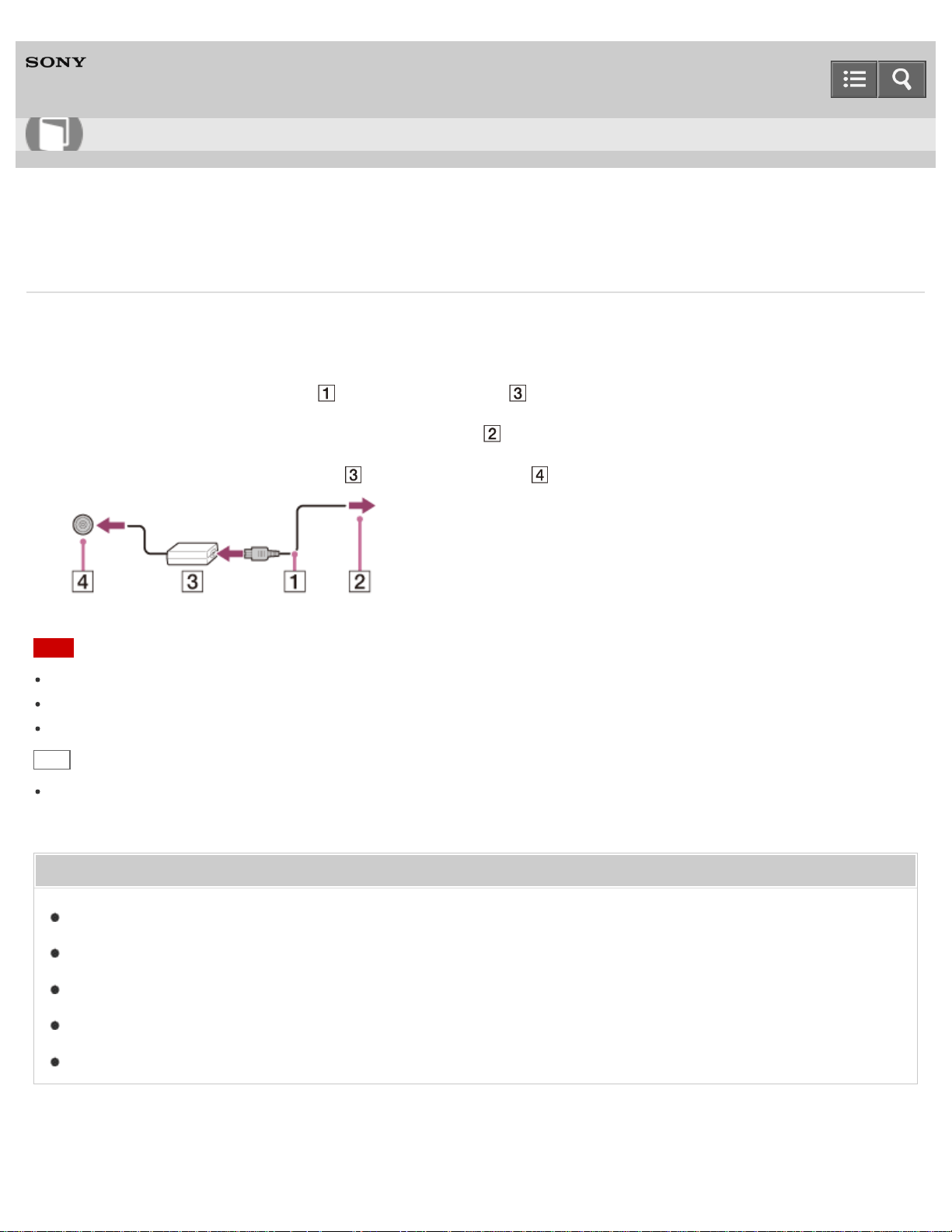
Personal Computer
VAIO Duo 13 SVD1323
Connecting a Power Source
Connect your VAIO computer to an AC power source.
Carefully read the precautions in Notes on Using the Power Source before connection.
1. Plug one end of the power cord ( ) into the AC adapter ( ).
2. Plug the other end of the power cord into an AC outlet ( ).
3. Plug the cable from the AC adapter ( ) into the DC IN port ( ) on your VAIO computer.
Note
Do not plug more than one device into the same AC outlet.
The shape of the AC adapter varies depending on the model you purchased.
Make sure that the power plug is firmly plugged into your VAIO computer.
Hint
You can purchase a power strip with a surge protector to help prevent damage to your VAIO computer caused by
sudden power surges (in an electrical storm, for example).
Related Topic
Charging the Battery Pack
Notes on Using the Battery Pack
Turning On Your VAIO Computer
Controlling the Power State of Your VAIO Computer (Sleep Mode/Shutdown)
Notes on Using the Power Source
Notes on use
User Guide
How to Use
265
Personal Computer
VAIO Duo 13 SVD1323
Notes on Using the Battery Pack
Before using the battery pack, read the following precautions for correct use.
About the battery pack
The battery pack built in your VAIO computer is not removable.
For safety reasons, battery charging may be suspended at higher or lower temperatures.
The battery pack is not fully charged at the time of delivery.
While the battery pack is in use or being charged, heat builds up in the battery pack. This is normal and is not cause
for concern.
About battery discharge
After battery charge, the battery pack will gradually discharge over time even while not in use. If it is left unused for an
extended period of time, the battery power may be depleted. It is recommended that you recharge the battery pack
before use.
About battery life
Battery life varies depending on usage and settings.
About battery deterioration and replacement
The battery pack is consumable. The capacity gradually declines through repeated cycles of recharging and
discharging, and depending on the ambient temperature during use or storage. As a result, the battery life becomes
short even if it is fully charged and eventually the battery pack reaches the end of its life.
If the battery pack quickly runs out of power after being fully charged or it has reached the end of its life, replace it
with a new one.
Contact an authorized Sony service/support center and replace the battery pack with a new one specified by Sony.
When the battery pack is running out of power
If the battery pack runs out and your VAIO computer is not plugged in, power will be cut off and any data you are
working on will be lost.
While your VAIO computer is running on battery power, save data frequently.
Related Topic
Notes on Using the Power Source
User Guide
How to Use
266
Personal Computer
VAIO Duo 13 SVD1323
Stopping Wi-Fi(R) (Wireless LAN) Communications
You can stop Wi-Fi communications by following these steps.
1. Open the charms and select the Settings charm. (See Opening the Charms to open the charms.)
2. Select (the network icon).
3. Select the desired access point and Disconnect.
Note
Do not disable the Wi-Fi function while accessing remote documents, files, or resources, as it may result in data loss.
Related Topic
About the Wi-Fi(R) (Wireless LAN) Standards
Starting Wi-Fi(R) (Wireless LAN) Communications
Notes on Using the Wi-Fi(R) (Wireless LAN) Function
Disabling the Wi-Fi(R) (Wireless LAN) Function
Notes on use
Copyright 2013 Sony Corporation
User Guide
How to Use
267
Personal Computer
VAIO Duo 13 SVD1323
Notes on Using the Wi-Fi(R) (Wireless LAN) Function
Before using the Wi-Fi function, read the following precautions for correct use.
In some countries or regions, using the Wi-Fi products may be restricted by the local regulations.
Wi-Fi devices work on the 2.4 GHz band, which is used by a variety of devices. They use the technology to minimize
radio interference from other devices that use the same band; however, radio interference may still slow
communication speeds, reduce communication range, or cause communication failure.
If both the BLUETOOTH function and the 2.4 GHz Wi-Fi function of your VAIO computer are enabled, interference
may occur and cause slower communication speeds or other problems.
To communicate via Wi-Fi while you are on the road, you may need to contract with a Wi-Fi connection service
provider.
The communication speed and range may vary depending on the following conditions:
Distance between devices
Existence of obstacles between devices
Device configuration
Radio conditions
Ambient environment (including wall material, etc.)
Apps in use
Communications may be cut off depending on radio conditions.
The data transfer rate specified in the specification is the theoretical maximum, and may not reflect actual data
transfer rate.
Actual communication speed may not be as fast as the one displayed on your VAIO computer.
The 2.4 GHz and 5 GHz Wi-Fi frequency bands are not communicable with one another.
The data transfer rate of IEEE 802.11g and IEEE 802.11n (2.4 GHz) may be affected by interference when used with
an IEEE 802.11b product. Also, IEEE 802.11g and IEEE 802.11n automatically lower the transfer rate to maintain
compatibility with an IEEE 802.11b product. The transfer rate may be regained by changing the channel settings of
your access point.
To stop the Wi-Fi function abruptly, turn off your VAIO computer and the wireless devices (if any).
The WLAN standard includes the encryption methods: Wired Equivalent Privacy (WEP), which is a security protocol,
Wi-Fi Protected Access 2 (WPA2), and Wi-Fi Protected Access (WPA). Proposed jointly by the IEEE and Wi-Fi
Alliance, both WPA2 and WPA are specifications of standards based on interoperable security enhancements that
increase the level of data protection and access control for existing Wi-Fi networks. WPA is designed to be forward
compatible with the IEEE 802.11i specification. It utilizes the enhanced data encryption Temporal Key Integrity
Protocol (TKIP) in addition to user authentication using 802.1X and Extensible Authentication Protocol (EAP). Data
encryption protects the vulnerable wireless link between clients and access points. Besides that, there are other
typical LAN security mechanisms to ensure privacy, such as: password protection, end-to-end encryption, virtual
private networks, and authentication. WPA2, the second generation of WPA, provides stronger data protection and
User Guide
How to Use
268
network access control and is also designed to secure all versions of 802.11 devices, including 802.11b, 802.11a,
802.11g, 802.11n, and 802.11ac (draft) standards, multi-band and multi-mode. In addition, based on the ratified IEEE
802.11i standard, WPA2 provides government grade security by implementing the National Institute of Standards and
Technology (NIST) FIPS 140-2 compliant AES encryption algorithm and 802.1X-based authentication. WPA2 is
backward compatible with WPA.
Related Topic
About the Wi-Fi(R) (Wireless LAN) Standards
Starting Wi-Fi(R) (Wireless LAN) Communications
Stopping Wi-Fi(R) (Wireless LAN) Communications
Notes on Using the BLUETOOTH(R) Function
Notes on use
Copyright 2013 Sony Corporation
269
Personal Computer
VAIO Duo 13 SVD1323
About the Wi-Fi(R) (Wireless LAN) Standards
Wi-Fi allows your VAIO computer to connect to a network through a wireless connection.
Wi-Fi uses the following IEEE 802.11a/b/g/n/ac (draft) standard, which specifies the type of technology used. Refer to
the specifications to find out about the configuration of the computer.
IEEE 802.11a (Frequency band: 5 GHz)
Exclusive to models compliant with the IEEE 802.11a/b/g/n/ac (draft) standard.
IEEE 802.11b/g (Frequency band: 2.4 GHz)
The IEEE 802.11g standard provides higher-speed communications than the IEEE 802.11b.
IEEE 802.11n (Frequency band: 2.4 GHz/5 GHz)
For models compliant with the IEEE 802.11b/g/n standard, only 2.4 GHz band can be used.
IEEE 802.11ac (draft) (Frequency band: 5 GHz)
Exclusive to models compliant with the IEEE 802.11a/b/g/n/ac (draft) standard.
Related Topic
Starting Wi-Fi(R) (Wireless LAN) Communications
Stopping Wi-Fi(R) (Wireless LAN) Communications
Notes on Using the Wi-Fi(R) (Wireless LAN) Function
Notes on use
Copyright 2013 Sony Corporation
User Guide
How to Use
270
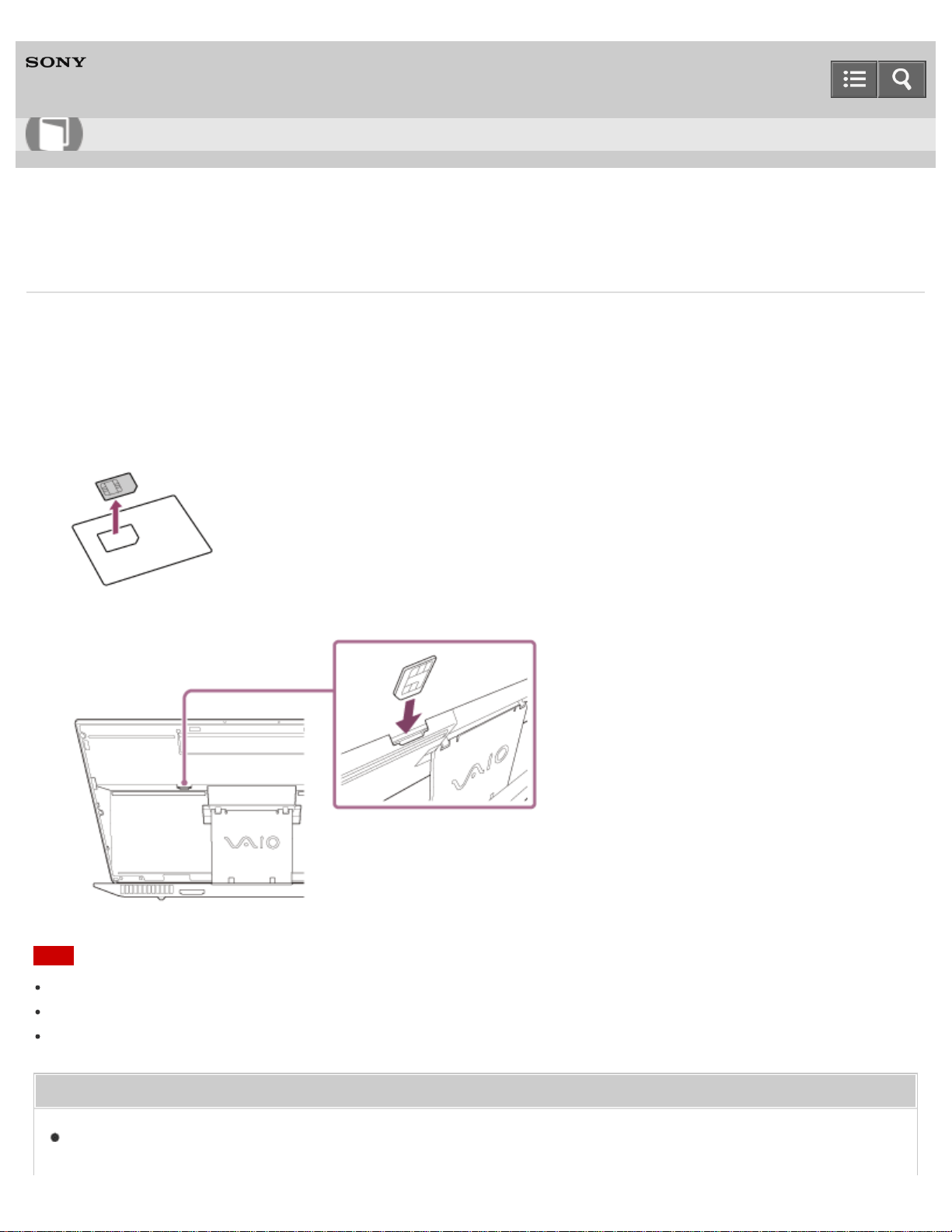
Personal Computer
VAIO Duo 13 SVD1323
Inserting a Micro SIM Card (Wireless WAN equipped models)
This topic explains how to insert a micro SIM card.
1. Turn off your VAIO computer.
2. Raise the LCD screen. (See Raising the LCD Screen.)
3. Remove the micro SIM card by pushing it out from the base plate.
4. Insert the micro SIM card into the micro SIM card slot with its printed circuit facing toward you.
Note
Do not touch the printed circuit on the micro SIM card.
Be sure to hold your VAIO computer firmly before inserting the micro SIM card.
Do not damage the micro SIM card in any way, either by bending or exerting pressure on the card.
Related Topic
Before Using the Wireless WAN (Wireless WAN equipped models)
User Guide
How to Use
271

Personal Computer
VAIO Duo 13 SVD1323
Before Using the Wireless WAN (Wireless WAN equipped models)
A Wide Area Network (WAN) is a widespread communications network that makes it possible to connect local computer
networks in remote locations together, and it is often available with communication facilities provided by carriers, such as
telecom operators.
Using the wireless WAN (WWAN) allows your VAIO computer to connect to the Internet through the wireless network
wherever there is mobile phone coverage.
Depending on your country and model, you may need to insert a micro SIM card into the micro SIM card holder or slot
on the computer to use the wireless WAN function.
Note
The wireless WAN may not be available in some countries and regions.
Use of certain features and apps may require access to the Internet with the wireless WAN function. You may incur
data connection charges while your VAIO computer is connected to the Internet. Contact your wireless service
provider for more information.
Hint
Depending on your country and model, you might receive an offer from a VAIO selected carrier. In that case the micro
SIM card is either in the carrier’s SIM pack inside the carton box or already inserted in the micro SIM card holder or
slot. If the micro SIM card is not provided with your VAIO computer, you can purchase one from your preferred carrier.
Related Topic
Inserting a Micro SIM Card (Wireless WAN equipped models)
Removing a Micro SIM Card (Wireless WAN equipped models)
Starting Wireless WAN Communications (Wireless WAN equipped models)
Stopping Wireless WAN Communications (Wireless WAN equipped models)
Notes on use
Copyright 2013 Sony Corporation
User Guide
How to Use
273
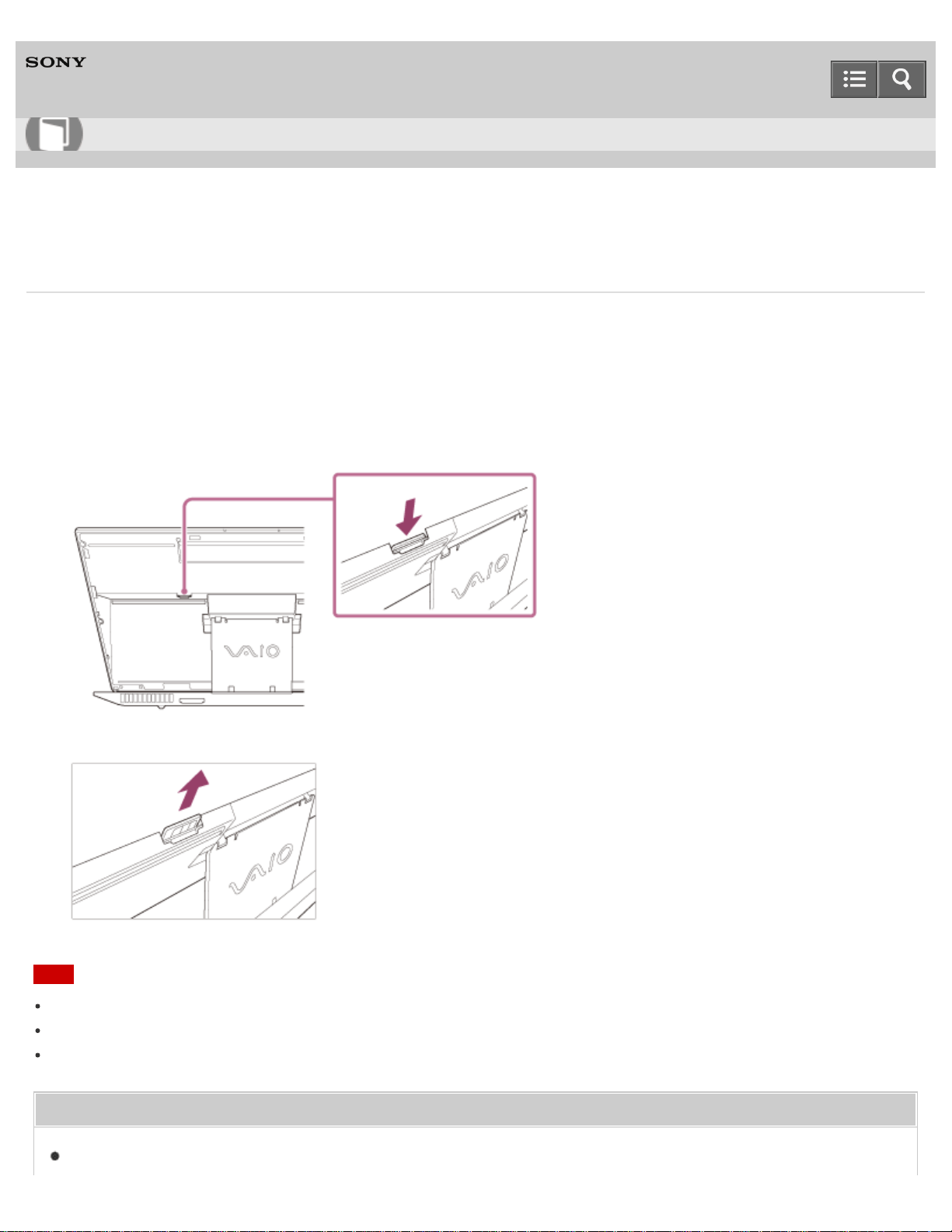
Personal Computer
VAIO Duo 13 SVD1323
Removing a Micro SIM Card (Wireless WAN equipped models)
This topic explains how to remove a micro SIM card.
1. Turn off your VAIO computer.
2. Raise the LCD screen. (See Raising the LCD Screen.)
3. Push in the micro SIM card and quickly release.
4. Pull the micro SIM card out of the slot.
Note
Do not touch the printed circuit on the micro SIM card.
Be sure to hold your VAIO computer firmly before removing the micro SIM card.
Do not damage the micro SIM card in any way, either by bending or exerting pressure on the card.
Related Topic
Before Using the Wireless WAN (Wireless WAN equipped models)
User Guide
How to Use
274

Personal Computer
VAIO Duo 13 SVD1323
About the Internet Connection Services
The following types of Internet connection services are available.
You can select from among the services according to your preference, for example, communication speed or a usage
fee. For detailed information on a variety of connection services, contact Internet Service Providers (ISPs).
Fiber to the Home (FTTH)
Cable modem
Digital Subscriber Line (DSL)
Satellite
Dial-up
Related Topic
Starting Wi-Fi(R) (Wireless LAN) Communications
Notes on use
Copyright 2013 Sony Corporation
User Guide
How to Use
276
Personal Computer
VAIO Duo 13 SVD1323
Starting Wireless WAN Communications (Wireless WAN equipped models)
You can establish wireless WAN (WWAN) communications using Mobile Broadband.
1. Open the charms and select the Settings charm. (See Opening the Charms to open the charms.)
2. Select (the network icon).
3. Make sure Airplane mode is Off and change the Mobile Broadband setting to On.
4. Select a carrier name or service name and Connect.
After the connection is established, Connected appears.
To disconnect from the Internet
Open the charms and select the Settings charm. Select (the network icon), a carrier name or service name, and
Disconnect.
To open the charms, see Opening the Charms.
Note
Make sure the micro SIM card is properly inserted in the micro SIM card slot on your VAIO computer. Otherwise, the
wireless WAN function may not work.
See Inserting a Micro SIM Card (Wireless WAN equipped models) for information on how to insert the micro SIM card.
Hint
For more information on how to use the wireless WAN function, refer to your carrier's instructions.
Related Topic
Before Using the Wireless WAN (Wireless WAN equipped models)
Inserting a Micro SIM Card (Wireless WAN equipped models)
Removing a Micro SIM Card (Wireless WAN equipped models)
Stopping Wireless WAN Communications (Wireless WAN equipped models)
Notes on use
Copyright 2013 Sony Corporation
User Guide
How to Use
277
Personal Computer
VAIO Duo 13 SVD1323
Stopping Wireless WAN Communications (Wireless WAN equipped models)
You can stop wireless WAN (WWAN) communications by following these steps.
1. Open the charms and select the Settings charm. (See Opening the Charms to open the charms.)
2. Select (the network icon).
3. Change the Mobile Broadband setting to Off.
Note
Turning off the wireless WAN function while accessing remote documents, files, or resources may result in data loss.
Related Topic
Before Using the Wireless WAN (Wireless WAN equipped models)
Inserting a Micro SIM Card (Wireless WAN equipped models)
Removing a Micro SIM Card (Wireless WAN equipped models)
Starting Wireless WAN Communications (Wireless WAN equipped models)
Notes on use
Copyright 2013 Sony Corporation
User Guide
How to Use
278
Personal Computer
VAIO Duo 13 SVD1323
Starting Wi-Fi(R) (Wireless LAN) Communications
You can establish Wi-Fi communications between your VAIO computer and an access point (not supplied).
Before using Wi-Fi, make sure a Wi-Fi access point is on and operating.
1. Connect an access point to your VAIO computer.
Refer to Windows Help and Support (Opening Windows Help and Support) and the manual that came with the
access point for more information.
2. Open the charms and select the Settings charm. (See Opening the Charms to open the charms.)
3. Select (the network icon).
4. Change the Wi-Fi setting to On.
5. Select the desired access point and Connect.
After the connection is established, Connected appears in the selected wireless access point field.
If a security key entry window appears, enter the security key as required and select OK. See About a Security Key
for Wi-Fi(R) (Wireless LAN) for more information.
Note that security keys are case-sensitive.
To check Wi-Fi connection status
Open the desktop and move the mouse pointer over (the Network icon) in the desktop notification area to check the
Wi-Fi connection status, such as the access point currently connected to your VAIO computer.
To open the desktop, see Opening the Desktop.
Note
On IEEE 802.11a/b/g/n/ac (draft) equipped models, when only the 2.4 GHz Wi-Fi function is enabled, your VAIO
computer cannot connect to a 5 GHz Wi-Fi access point. Also, when only the 5 GHz Wi-Fi function is enabled, the
computer cannot connect to a 2.4 GHz Wi-Fi access point.
On IEEE 802.11b/g/n equipped models, when the 2.4 GHz Wi-Fi function is disabled, the computer cannot connect to
an access point. Also, the computer cannot connect to a 5 GHz Wi-Fi access point.
It may take some time to find and connect to a Wi-Fi access point before starting communications via Wi-Fi.
Hint
Refer to Windows Help and Support (Opening Windows Help and Support) for more information on Airplane
mode.
Once you connect your VAIO computer to the access point by entering the security key, the access point will be
registered in the computer. You do not have to enter the security key for subsequent connections.
User Guide
How to Use
279

Personal Computer
VAIO Duo 13 SVD1323
Using the Antivirus App for Your VAIO Computer
Protect your VAIO computer against computer viruses by using the antivirus app.
You can keep the antivirus app current with the latest updates by downloading and installing the updates from the
website of the app publisher. To update the antivirus app, find the antivirus app installed on your VAIO computer from
the following and follow these steps.
1. Make sure your VAIO computer is connected to the Internet.
2. Perform any of these operations according to the preinstalled antivirus app.
For Trend Micro:
Start Trend Micro Titanium Maximum Security.
For McAfee:
Start McAfee LiveSafe - Internet Security, McAfee Internet Security, or McAfee Total
Protection.
For Windows Defender:
Start Windows Defender.
For Kaspersky Internet Security:
Start Kaspersky Internet Security.
3. Follow the on-screen instructions.
Note
The actual procedure may be different from the above depending on the version of the app installed on your VAIO
computer. In such a case, follow the on-screen instructions.
Hint
To start the antivirus app, see Starting Apps.
Refer to the help file included with your app for more information.
Notes on use
Copyright 2013 Sony Corporation
User Guide
How to Use
281
Personal Computer
VAIO Duo 13 SVD1323
About a Security Key for Wi-Fi(R) (Wireless LAN)
A security key is a security protocol for Wi-Fi that encrypts data transmitted on Wi-Fi. It is also referred to as an
encryption key or a WEP (Wired Equivalent Privacy) key.
The security key allows wireless devices that have the same key, such as a Wi-Fi access point and a computer, to
communicate with each other on Wi-Fi.
The security key is assigned to each access point by default. (Make sure the default security key has been changed to
protect data from unauthorized use.) If you cannot find the default security key, refer to the manual that came with your
access point.
If you enter a wrong security key and your VAIO computer fails to connect to an access point, follow these steps to
establish the connection.
1. Open the charms and select the Settings charm. (See Opening the Charms to open the charms.)
2. Select (the network icon).
3. Change the Wi-Fi setting to On.
4. Select the desired Wi-Fi access point and Connect.
Related Topic
About the Wi-Fi(R) (Wireless LAN) Standards
Starting Wi-Fi(R) (Wireless LAN) Communications
Notes on Using the Wi-Fi(R) (Wireless LAN) Function
Notes on use
Copyright 2013 Sony Corporation
User Guide
How to Use
282
Personal Computer
VAIO Duo 13 SVD1323
Disabling the Wi-Fi(R) (Wireless LAN) Function
You can disable the Wi-Fi function by following these steps.
1. Open the charms and select the Settings charm. (See Opening the Charms to open the charms.)
2. Select (the network icon).
3. Change the Wi-Fi setting to Off.
Hint
To disable all wireless functions, turn on Airplane mode.
Refer to Windows Help and Support (Opening Windows Help and Support) for more information on Airplane
mode.
Related Topic
About the Wi-Fi(R) (Wireless LAN) Standards
Starting Wi-Fi(R) (Wireless LAN) Communications
Notes on Using the Wi-Fi(R) (Wireless LAN) Function
Notes on use
Copyright 2013 Sony Corporation
User Guide
How to Use
283
Personal Computer
VAIO Duo 13 SVD1323
About the Network (LAN)
The network (LAN) enables you to connect your VAIO computer to the Internet and transfer data between the computer
and other devices.
You can connect your VAIO computer to a network through a wireless connection.
For information on peripheral devices required for LAN access, ask your Internet Service Provider (ISP) or refer to the
manual that came with the device you use.
For information on how to connect your VAIO computer to the network, refer to your ISP’s instructions or the manual that
came with the device to which you connect the computer. If you require information on the network settings at your
workplace, ask the network administrator.
Related Topic
About the Internet Connection Services
Starting Wi-Fi(R) (Wireless LAN) Communications
Notes on use
Copyright 2013 Sony Corporation
User Guide
How to Use
284
Personal Computer
VAIO Duo 13 SVD1323
Changing the Resolution (Size) of the Screen Image on an HDMI-Connected Device
You can change the screen resolution or size of your VAIO computer’s screen image displayed on an external display,
such as a TV, connected to the computer with an HDMI cable (not supplied).
1. Connect your VAIO computer to an HDMI equipped TV with an HDMI cable. (See Connecting a TV with an HDMI
Input Port for more information.)
2. Turn on the TV.
3. Start VAIO Control Center and select Image Quality. (See Starting Apps to start VAIO Control Center.)
4. Select Details in External Display Resolution.
5. On the Select Resolution tab, select the desired resolution.
After a few seconds, the selected resolution is applied.
6. If the computer image does not fit the displayable region of the TV, select the Adjust Resolution tab to adjust
the display size.
Note
Some resolution options may not be available, depending on the model or the HDMI-connected device.
The function to adjust the screen resolution may be disabled depending on the selected resolution.
Related Topic
Connecting a TV with an HDMI Input Port
Selecting Display Modes
Notes on use
Copyright 2013 Sony Corporation
User Guide
How to Use
285
Personal Computer
VAIO Duo 13 SVD1323
Selecting Display Modes
You can switch the display output between the computer screen and an external display connected to your VAIO
computer.
1. Turn on an external display.
2. Press the Fn+F7 keys several times to select your desired display output, and then press the Enter key.
Note
If you disconnect a display cable (not supplied) while only an external display is selected as the display output, it is
hard to operate your VAIO computer because the computer screen is blank.
To switch the display output to the computer screen, press the Fn+F7 keys twice, and then press the Enter key.
The display switch may become unavailable or your VAIO computer may become unstable during video playback. Exit
the video playback app before switching the display output.
The display switch may not be available depending on the type of external display or projector.
Related Topic
Using the Multiple Monitors Function
Connecting a TV with an HDMI Input Port
Notes on use
Copyright 2013 Sony Corporation
User Guide
How to Use
286
Personal Computer
VAIO Duo 13 SVD1323
Using the Multiple Monitors Function
The Multiple Monitors function allows you to distribute portions of your desktop across separate displays.
For example, if you have an external display connected to the monitor port, the computer screen and the external display
can function as a single desktop.
1. Right-click on the desktop and select Screen resolution. (See Opening the Desktop to open the desktop.)
2. Select Extend these displays from the drop-down list next to Multiple Displays and OK.
The setting options vary depending on the number of the connected external displays.
Note
Your external display may not support the Multiple Monitors function.
Certain apps may not be compatible with the Multiple Monitors settings.
Do not change the display settings while using video/image apps or playing DVDs, as it may cause unsuccessful
playback/display or unstable system operations.
Change the display settings after you exit the video/image app.
Hint
You can set the screen resolution for each display used for the Multiple Monitors function.
Related Topic
Changing the Resolution (Size) of the Screen Image
Selecting Display Modes
Connecting a TV with an HDMI Input Port
Notes on use
Copyright 2013 Sony Corporation
User Guide
How to Use
287
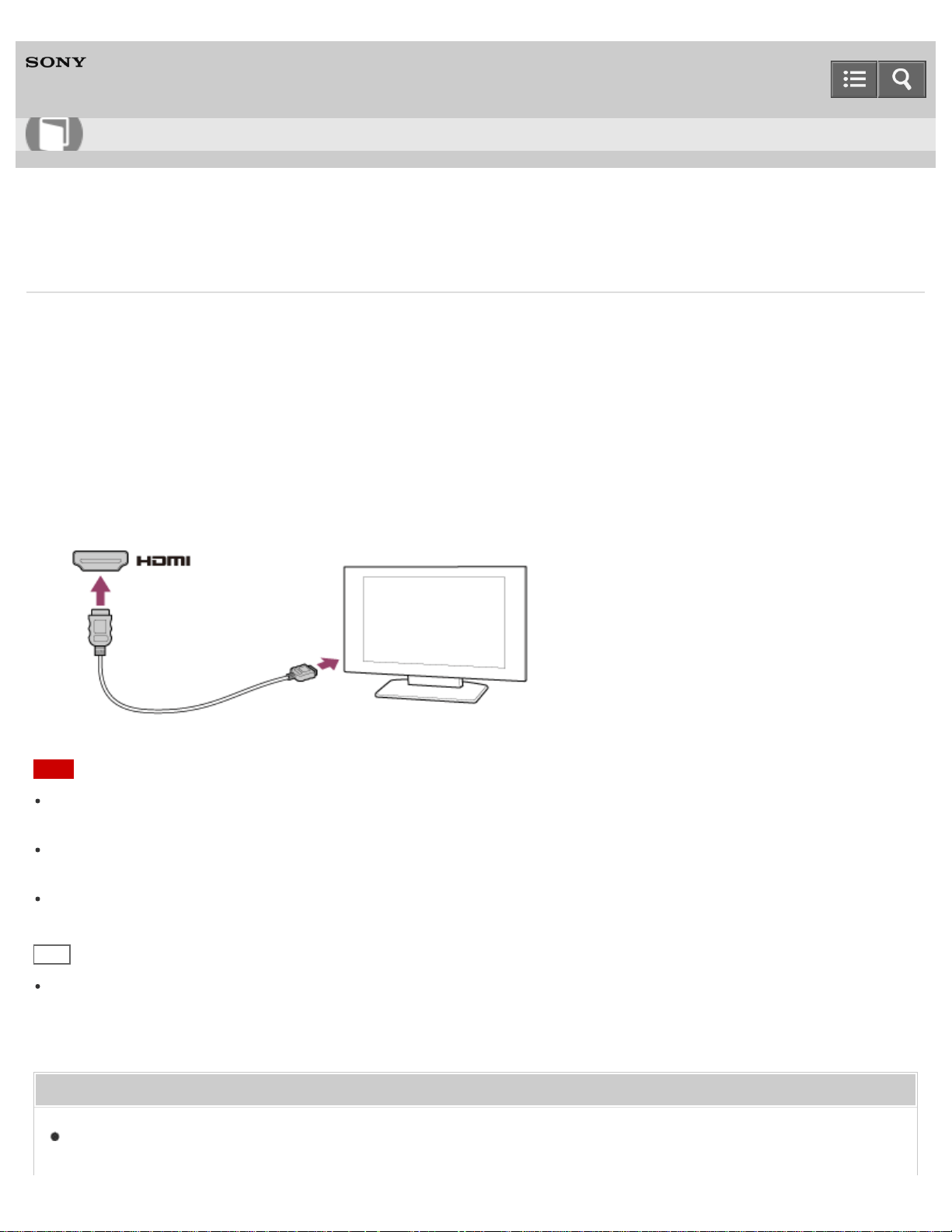
Personal Computer
VAIO Duo 13 SVD1323
Connecting a TV with an HDMI Input Port
You can connect a TV with an HDMI input port to your VAIO computer with an HDMI cable (not supplied).
Refer to the manual that came with your TV for more information on installation and use.
1. Plug the power cord of your TV into an AC outlet and turn it on.
2. Connect one end of an HDMI cable to the HDMI output port (Parts and Controls on the Back) on your VAIO
computer and the other end to the TV.
3. Set the TV input to the external input.
The screen image of your VAIO computer is displayed on the TV.
Note
The shape of the HDMI output port varies depending on the model you purchased. Be sure to use an HDMI cable
that is compatible with the HDMI output port on your VAIO computer.
If a device driver other than the one provided by Sony is used, the image will not be displayed and audio will not be
heard. Always use the device driver provided by Sony for updates.
To hear sound from a device connected to the HDMI output port, you need to change the sound output device. For
detailed instructions, see Changing the Sound Output Device.
Hint
The HDMI output port on your VAIO computer is compliant with the High-bandwidth Digital Content Protection
(HDCP) standard and capable of encrypting the transmission channel of digital video signals for the purpose of
copyright protection, which enables you to view a wide variety of copyright protected and high-quality content.
Related Topic
Selecting Display Modes
User Guide
How to Use
288

Personal Computer
VAIO Duo 13 SVD1323
Notes on the LCD screen
Read the following precautions for correct use of the LCD screen.
The LCD screen is manufactured using high-precision technology. You may, however, see tiny black points and/or
bright points (red, blue, or green) that continuously appear on the LCD screen. This is a normal result of the
manufacturing process and does not indicate a malfunction.
Do not scratch the surface of the LCD screen or exert pressure on it. This could cause damage.
Do not exert pressure on the LCD screen with the screen folded as it may scratch the LCD screen or soil it.
The LCD screen may become warm during operation. This is normal and does not indicate a malfunction.
Due to the mechanical design of your VAIO computer’s LCD screen/touch screen, the screen surface may become
warm while you are using the computer for an extended period of time. This is normal and does not indicate a
malfunction. (Touch screen equipped models)
The LCD screen/touch screen is made of reinforced glass to implement high durability, however, treat the screen with
care as it is not 100% unbreakable. In case the screen breaks into small pieces, be careful not to cut yourself on the
pieces of broken glass. (Touch screen equipped models)
Do not leave the LCD screen facing the sun. This could damage the LCD screen. Be sure to block direct sunlight
when using your VAIO computer near a window.
Do not exert pressure on the LCD screen or its edges. The LCD screen may be sensitive to pressure or added
stress, and exerting pressure may damage the screen or cause it to malfunction.
Using your VAIO computer in low temperature conditions may produce a residual image on the LCD screen. This
does not indicate a malfunction. When the computer returns to normal temperature, the screen returns to normal.
A residual image may appear on the LCD screen if the same image is displayed for an extended period of time. The
residual image disappears after a while. You can use a screen saver to prevent residual images.
Notes on use
Copyright 2013 Sony Corporation
User Guide
How to Use
290
Personal Computer
VAIO Duo 13 SVD1323
Changing the Sound Output Device
If there is no sound coming from an external device connected to your VAIO computer, you need to change the device
for sound output.
1. Open Control Panel and select Hardware and Sound. (See Opening Control Panel to open Control
Panel.)
2. Select Sound.
3. Select the Playback tab.
4. Ensure there is a check mark next to the icon of the device you intend to output computer sound from.
If there is no check mark next to the icon, select it and Set Default.
5. Select OK.
To change the sound rate and bit depth
The sound rate and bit depth of the digital audio output signal should be set according to your digital audio device.
Follow the above steps 1 to 3, and then select the HDMI device icon and Properties. On the Advanced tab, select
the sample rate and bit depth (for example, 16 bit, 48000 Hz (DVD quality)) which the device supports, and then OK.
Related Topic
Connecting External Speakers/Headphones/Headset
Connecting a High-Quality Digital Sound Output Device between Your VAIO Computer and a TV
Notes on use
Copyright 2013 Sony Corporation
User Guide
How to Use
291
Personal Computer
VAIO Duo 13 SVD1323
Connecting a High-Quality Digital Sound Output Device between Your VAIO Computer and a TV
You can connect a high-quality home theater receiver or other surround sound decoder devices between your VAIO
computer and a TV using an HDMI connection.
1. Make sure the HDMI connection has been set up between the TV and the home theater receiver or surround sound
decoder device.
2. Change the device for sound output to the HDMI output. (See Changing the Sound Output Device for more
information.)
3. Turn on the TV and set its input to the HDMI input.
4. Turn on the home theater receiver or surround sound decoder device and set its input to the HDMI input.
5. Plug one end of an HDMI cable to the HDMI input port on the home theater receiver or surround sound decoder
device and the other end to the HDMI output port on your VAIO computer.
Hint
You can adjust the screen resolution of the connected TV with your VAIO computer. See Changing the Resolution
(Size) of the Screen Image on an HDMI-Connected Device for more information.
With the HDMI connection, the volume can be adjusted by the connected audio device only. Your VAIO computer has
no control over the output volume of any connected devices.
Related Topic
Changing the Sound Output Device
Changing the Resolution (Size) of the Screen Image
Connecting a TV with an HDMI Input Port
Notes on use
Copyright 2013 Sony Corporation
User Guide
How to Use
292
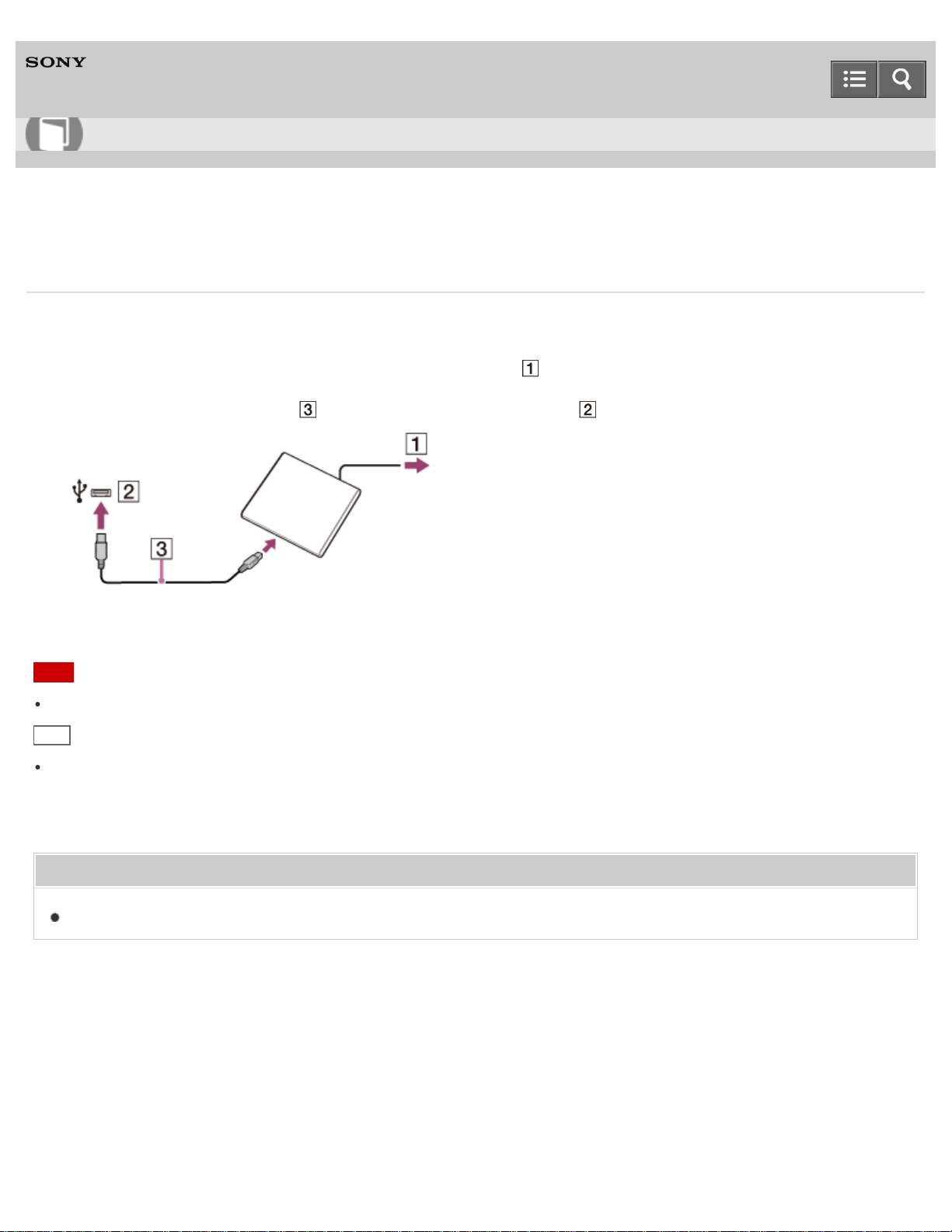
Personal Computer
VAIO Duo 13 SVD1323
Connecting an External Drive
Connect an external disc drive or hard disk drive to a USB port on your VAIO computer.
1. Plug the power cord of your external drive into an AC outlet ( ).
2. Plug one end of a USB cable ( ) (not supplied) into the USB port ( ), and the other end to the external drive.
See Connecting a USB Device for information on the USB connection.
Note
Be sure to connect an external drive to a power source with an AC adapter (if supplied).
Hint
You may need to install a driver depending on the external drive you use.
In addition, procedures to connect and use an external drive vary depending on the drive you use. Refer to the
manual that came with your external drive for more information.
Related Topic
Connecting a USB Device
Notes on use
Copyright 2013 Sony Corporation
User Guide
How to Use
293
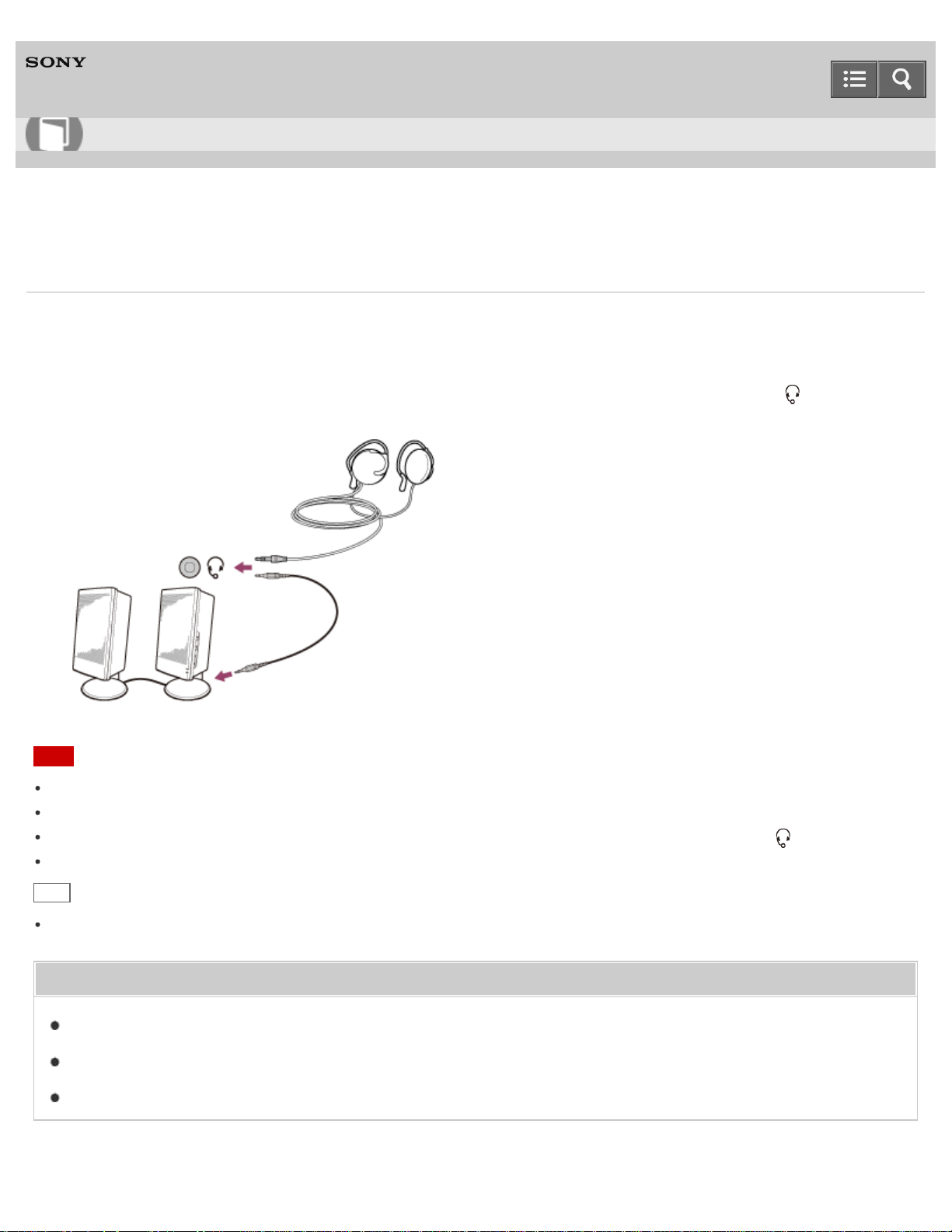
Personal Computer
VAIO Duo 13 SVD1323
Connecting External Speakers/Headphones/Headset
You can connect external sound output devices (such as speakers, headphones, or a headset) to your VAIO computer.
Use a Sony smartphone compatible headset (not supplied) to make an Internet call and voice chat.
1. Connect external speakers, headphones, or a headset to the headset compatible headphone jack (Parts and
Controls on the Back).
Note
Turn down the volume of the speakers before turning them on.
Your headset may not work correctly with your VAIO computer.
An external microphone does not work if you connect it to the headset compatible headphone jack .
The remote of your headset does not work with your VAIO computer.
Hint
Refer to the manual that came with your speakers, headphones, or headset.
Related Topic
Adjusting the Speakers Volume
Changing the Sound Output Device
Adjusting the Volume in Windows
User Guide
How to Use
294
Personal Computer
VAIO Duo 13 SVD1323
About BLUETOOTH(R) Security
The BLUETOOTH wireless technology has an authentication function, which allows you to control communication with
other devices.
The authentication function helps you prevent unwanted anonymous BLUETOOTH devices from accessing your VAIO
computer. The first time two BLUETOOTH devices communicate, a common passcode (a password required for
authentication) should be identified to register both devices. Once a device is registered, there is no need to re-enter the
passcode.
For details, open Windows Help and Support (Opening Windows Help and Support), and enter "BLUETOOTH" in
the search box.
Related Topic
About the BLUETOOTH(R) Function
Communicating with Another BLUETOOTH(R) Device such as a Mouse
Stopping BLUETOOTH(R) Communications
Notes on Using the BLUETOOTH(R) Function
Notes on use
Copyright 2013 Sony Corporation
User Guide
How to Use
295
Personal Computer
VAIO Duo 13 SVD1323
Notes on Using the BLUETOOTH(R) Function
Before using the BLUETOOTH function, read the following precautions for correct use.
In some countries or regions, using the BLUETOOTH function may be restricted by the local regulations.
The BLUETOOTH function may not work with some devices, depending on the manufacturer or the app version
employed by the manufacturer. Check the system requirements of the BLUETOOTH device before purchasing.
For information on BLUETOOTH devices, visit the VAIO Support website.
Some BLUETOOTH devices require authentication (pairing) before establishing connection with another device.
Perform the authentication process before connecting to such devices.
BLUETOOTH devices work on the 2.4 GHz band, which is used by a variety of devices. BLUETOOTH devices use
the technology to minimize radio interference from other devices that use the same band; however, radio interference
may still cause slower communication speeds, reduce communication range, or in some cases, cause communication
failure.
Communication speed and range may vary depending on the following conditions:
Distance between communication devices
Existence of obstacles between devices
Ambient environment that includes existence of walls and materials of such walls
Device configuration
Apps in use
Radio conditions
Communications may be cut off depending on radio conditions.
If your VAIO computer is compliant with BLUETOOTH high speed technology and you intend to use it for high-speed
communications, enable both the wireless LAN and BLUETOOTH functions on the computer.
Large files may occasionally be corrupted during continuous transfer due to limitations of the BLUETOOTH standard
and electromagnetic interference in the environment.
Connecting multiple BLUETOOTH devices to your VAIO computer may cause channel congestion, resulting in poor
device performance. This is normal with BLUETOOTH technology and does not indicate a malfunction.
Video and audio may not be synchronized if you play videos on your VAIO computer with audio output from a
connected BLUETOOTH device. This is a frequent occurrence with BLUETOOTH technology and does not indicate a
malfunction.
All BLUETOOTH devices must be certified through the procedure stipulated by Bluetooth SIG to ensure that they are
compliant with the BLUETOOTH standard.
Even if the BLUETOOTH devices are compliant with the BLUETOOTH standard, individual device performance,
specifications, and operation procedures may vary. Data exchange may not be possible in all situations.
Not all BLUETOOTH devices are guaranteed of compatibility with your VAIO computer.
If you urgently need to disable the BLUETOOTH function, turn off your VAIO computer.
User Guide
How to Use
296

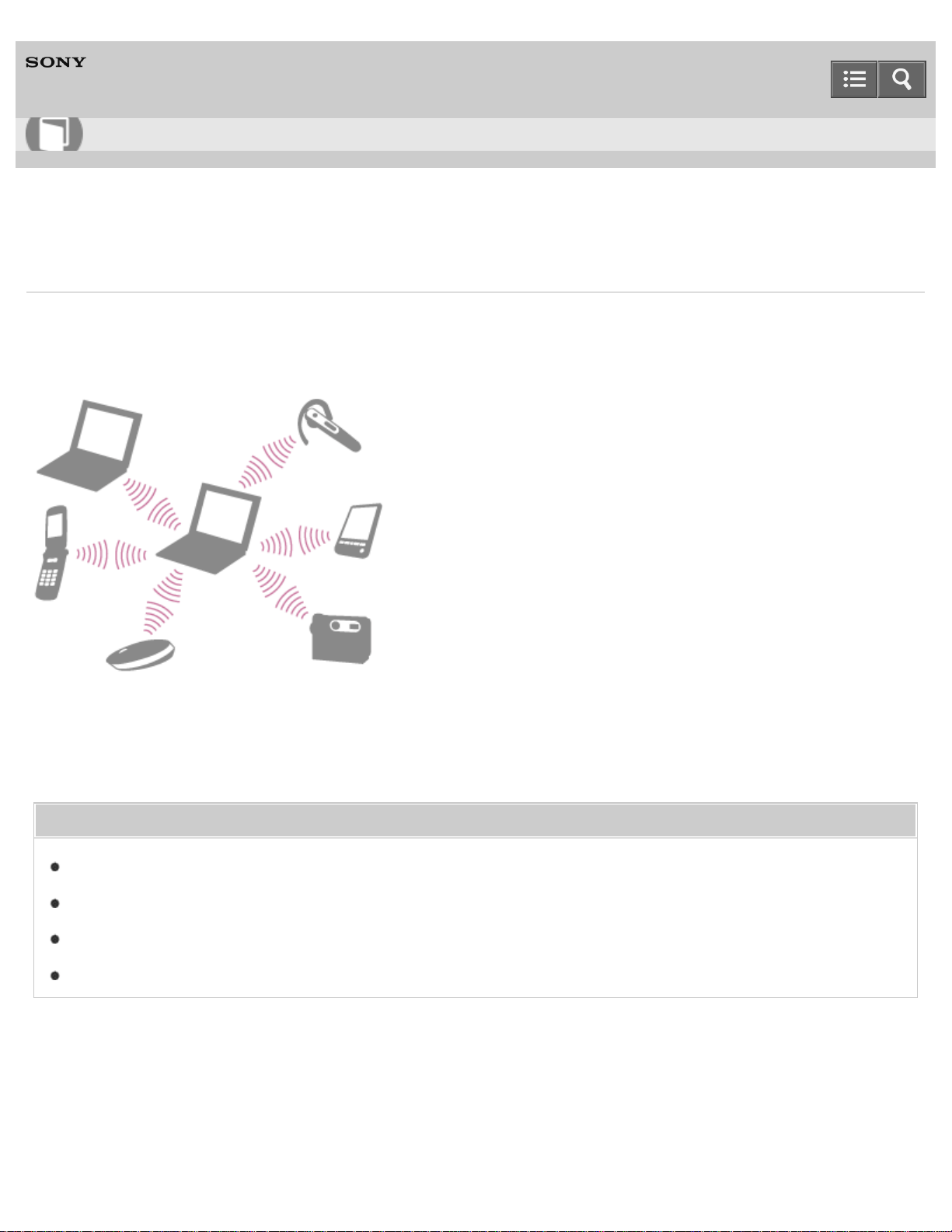
Personal Computer
VAIO Duo 13 SVD1323
About the BLUETOOTH(R) Function
You can establish wireless communications between your VAIO computer and other BLUETOOTH devices, such as
another computer, a smartphone, a mobile phone, a headset, or a mouse.
You can transfer data between these devices without cables at a range of up to 33 feet / 10 meters in an open area.
One BLUETOOTH device can connect with up to seven devices via wireless network to exchange data.
When a device requires connection to another device, it sends out an inquiry to neighboring BLUETOOTH devices. If
any device responds to the inquiry, the two devices can connect with each other.
Related Topic
Communicating with Another BLUETOOTH(R) Device such as a Mouse
Stopping BLUETOOTH(R) Communications
Notes on Using the BLUETOOTH(R) Function
About BLUETOOTH(R) Security
Notes on use
Copyright 2013 Sony Corporation
User Guide
How to Use
298
Personal Computer
VAIO Duo 13 SVD1323
Communicating with Another BLUETOOTH(R) Device such as a Mouse
You can connect BLUETOOTH devices to your VAIO computer.
For details on BLUETOOTH communication, see About the BLUETOOTH(R) Function.
1. Open the charms and select the Settings charm. (See Opening the Charms to open the charms.)
2. Select Change PC settings in the lower right corner.
3. Select PC and devices and Bluetooth in the left pane of the PC settings screen.
4. Change the Bluetooth settings to On.
Your VAIO computer searches for devices and displays a device list.
5. When connecting a BLUETOOTH mouse, turn it on and press the button to connect the mouse.
Refer to the manual that came with your BLUETOOTH device for the procedure to ready the device for connection.
6. Select the desired device and Pair.
Follow the on-screen instructions to register your device.
Note
Depending on the BLUETOOTH device, it may take some time for your VAIO computer to find the device.
If your device does not appear in the list, repeat the procedure to ready the device for connection (for example,
pressing the button for connection).
Depending on the BLUETOOTH device, the procedure to establish connection may vary. Refer to the manual that
came with the device for the procedure.
Hint
If your VAIO computer is compliant with BLUETOOTH high speed technology and you intend to use it for high-speed
communications, enable the Wi-Fi setting. See Starting Wi-Fi(R) (Wireless LAN) Communications for more
information on how to enable the setting.
A window appears for passcode input if a BLUETOOTH device is requesting authentication to establish connection.
Follow the on-screen instructions to share the passcode between the BLUETOOTH device and your VAIO computer.
If you do not wish to connect, select the Cancel button in the window.
A passcode is a secret number that is entered by a user to use for the authentication process to allow two BLUETOOTH
devices to communicate with each other. Enter the same alphanumeric string (case-sensitive) for both devices to allow
them to communicate with each other. You can change the passcode every time you perform authentication, providing you
enter the same passcode for both devices during the authentication process. For details on the passcode of a
BLUETOOTH device, refer to the manual that came with the device. If no BLUETOOTH passcode is entered for a certain
User Guide
How to Use
299
time, the connection process will be terminated for security. In this case, try again.
For details on the operations, open Windows Help and Support (Opening Windows Help and Support), and
enter "BLUETOOTH" in the search box.
Related Topic
About the BLUETOOTH(R) Function
Stopping BLUETOOTH(R) Communications
Notes on Using the BLUETOOTH(R) Function
About BLUETOOTH(R) Security
Notes on use
Copyright 2013 Sony Corporation
300
Personal Computer
VAIO Duo 13 SVD1323
Stopping BLUETOOTH(R) Communications
You can stop BLUETOOTH communications by following these steps.
1. Open the charms and select the Settings charm. (See Opening the Charms to open the charms.)
2. Select Change PC settings in the lower right corner.
3. Select PC and devices and Bluetooth in the left pane of the PC settings screen.
4. Change the Bluetooth setting to Off.
Related Topic
About the BLUETOOTH(R) Function
Communicating with Another BLUETOOTH(R) Device such as a Mouse
Notes on Using the BLUETOOTH(R) Function
Notes on use
Copyright 2013 Sony Corporation
User Guide
How to Use
301
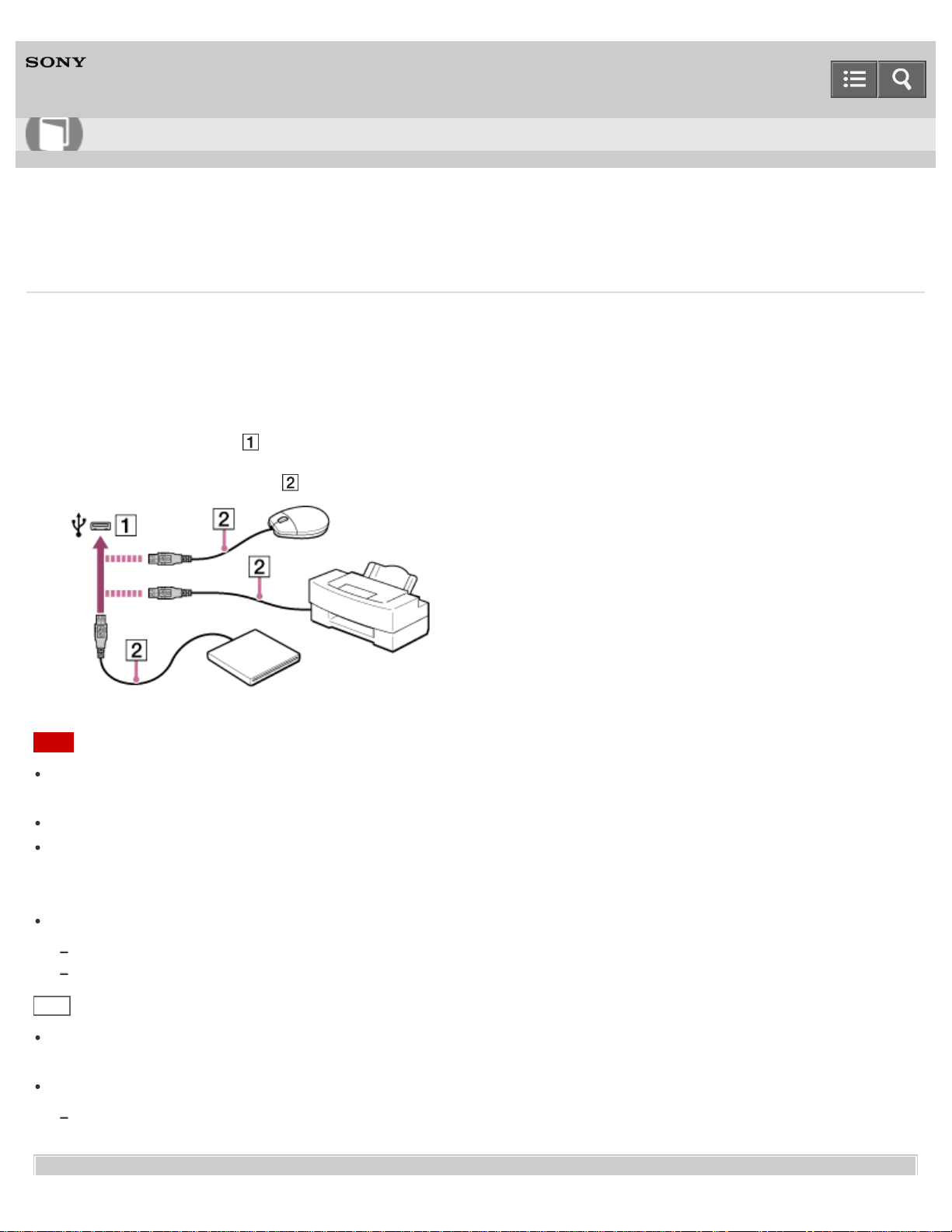
Personal Computer
VAIO Duo 13 SVD1323
Connecting a USB Device
You can connect a Universal Serial Bus (USB) device such as a mouse, floppy disk drive, speaker or printer to your
VAIO computer.
Installation of the device driver supplied with the USB device may be required when connecting.
Refer to the manual that came with the device for more information.
1. Choose the USB port ( ) you prefer to use.
2. Plug the USB device cable ( ) (not supplied) into the USB port.
Note
You may need to install the driver supplied with your USB device before use. Refer to the manual that came with the
USB device for more information.
In order to print documents, be sure the USB printer is compatible with your version of Windows.
Before disconnecting USB speakers from your VAIO computer, stop DVD or music playback or turn off the computer.
If you disconnect the USB speakers during playback, it may cause a malfunction.
For information on how to remove a USB device, refer to the manual that came with the device.
To protect your VAIO computer and/or USB devices from damage, observe the following:
When moving your VAIO computer with USB devices connected, avoid exposing the USB ports to shock or impact.
Do not put your VAIO computer in a bag or carrying case with USB devices connected.
Hint
The USB ports on your VAIO computer are compliant with the USB 2.0 standard and/or USB 3.0 standard.
USB ports that are compliant with the USB 3.0 standard are identifiable by their blue color.
In addition to the USB 2.0 standard transfer modes, the USB 3.0 standard specifies the following transfer mode:
SuperSpeed: Transfer rate of 5 Gbps.
User Guide
How to Use
302

Personal Computer
VAIO Duo 13 SVD1323
Charging a USB Device
You can charge a USB device even while your VAIO computer is off or in Sleep mode by enabling the USB charging
settings.
Change the settings while the USB device is disconnected from the USB port that supports USB charging.
1. Start VAIO Control Center and select Hardware. (See Starting Apps to start VAIO Control Center.)
2. Enable the USB Charging setting.
3. Connect a USB device to the USB port with the mark printed around it.
If charging does not start even when you connect a USB device to the USB port that supports USB charging,
disconnect and connect the device.
Note
With the USB charging settings enabled, power consumption when your VAIO computer is off or in Sleep mode
increases because the computer supplies power to the USB port even when a USB device is not connected to the
port.
When the USB charging settings are enabled, you cannot use the remote wake-up function on the USB device
connected to the USB port that supports USB charging.
Some USB devices do not support USB charging when your VAIO computer is in Sleep mode.
Hint
The USB charging settings are disabled by default.
Notes on use
Copyright 2013 Sony Corporation
User Guide
How to Use
304
Personal Computer
VAIO Duo 13 SVD1323
Disabling the Download of the Location Information (GNSS equipped models)
You can disable the download of the location information collected by the Global Navigation Satellite System (GNSS).
Follow these steps to disable the setting.
1. Open the charms and select the Settings charm. (See Opening the Charms to open the charms.)
2. Select Change PC settings in the lower right corner.
3. Select Network and Airplane mode in the left pane of the PC settings screen.
4. Change the GNSS setting under Wireless devices to Off.
Notes on use
Copyright 2013 Sony Corporation
User Guide
How to Use
305
Personal Computer
VAIO Duo 13 SVD1323
Downloading the Location Information (GNSS equipped models)
You can download the location information of your VAIO computer using the Global Navigation Satellite System (GNSS).
1. Open the charms and select the Settings charm. (See Opening the Charms to open the charms.)
2. Select Change PC settings in the lower right corner.
3. Select Network and Airplane mode in the left pane of the PC settings screen.
4. Change Airplane mode to Off and the GNSS setting under Wireless devices to On.
Notes on use
Copyright 2013 Sony Corporation
User Guide
How to Use
306
Personal Computer
VAIO Duo 13 SVD1323
About the ASSIST Button
Press the ASSIST button to perform regular maintenance of your VAIO computer or to solve problems you might
encounter when using the computer.
While the computer is on, the ASSIST button starts VAIO Care.
While the computer is off, the ASSIST button displays the VAIO Care (Rescue Mode) screen.
VAIO Care (Rescue Mode): VAIO recovery solutions can be used to recover the computer in case of
emergency, for example, when Windows does not start.
Note
If the VAIO Care (Rescue Mode) screen is displayed and five minutes pass without any operation, your VAIO
computer automatically turns off.
Related Topic
Keeping Your VAIO Computer in Optimum Condition (VAIO Care)
Recovering from the Recovery Area
Backing Up Your Data when You cannot Start Windows
Restoring Your Data with VAIO Data Restore Tool
Notes on use
Copyright 2013 Sony Corporation
User Guide
How to Use
307
Personal Computer
VAIO Duo 13 SVD1323
Viewing the System Information
You can view the system information of your VAIO computer.
1. Start VAIO Care (Desktop). (See Starting Apps to start VAIO Care (Desktop).)
2. Select About Your VAIO and System information.
The system information of your VAIO computer is displayed.
Related Topic
Keeping Your VAIO Computer in Optimum Condition (VAIO Care)
Notes on use
Copyright 2013 Sony Corporation
User Guide
How to Use
308
Personal Computer
VAIO Duo 13 SVD1323
Customizing Your VAIO Computer
VAIO Control Center allows you to change settings of various kinds of functions such as display and sounds.
1. Start VAIO Control Center. (See Starting Apps to start VAIO Control Center.)
2. Select your desired item and change the settings.
Hint
Some of the items will not be visible if you sign in as a user without administrative rights.
Notes on use
Copyright 2013 Sony Corporation
User Guide
How to Use
309
Personal Computer
VAIO Duo 13 SVD1323
Booting Your VAIO Computer from External Devices
You can boot your VAIO computer from external devices, such as an optical disc drive, a USB floppy disk drive, or a
USB flash drive by using the BIOS function.
1. Connect an external device to your VAIO computer.
2. Press the ASSIST button while your VAIO computer is off.
The VAIO Care (Rescue Mode) screen appears.
3. Select Start from media (USB device/optical disc).
The booting process from the external device starts.
Note
Disconnect all devices from your VAIO computer except for the external device from which you intend to boot up.
Some devices cannot be used to boot the computer, or cannot be used with the computer.
If an AC adapter is supplied with the external device, be sure to connect it to an AC power source in advance.
Notes on use
Copyright 2013 Sony Corporation
User Guide
How to Use
310
Personal Computer
VAIO Duo 13 SVD1323
Using VAIO Update
VAIO Update provides a service that informs you of available update information, such as important notices or update
programs, to keep your VAIO computer up to date.
Through the Internet, VAIO Update automatically detects the update programs that are necessary for enhancing your
computer’s performance or new apps that are available, and let you download and install with simple steps.
1. Start VAIO Update and follow the on-screen instructions. (See Starting Apps to start VAIO Update.)
Hint
You can also start VAIO Update from VAIO Care (Desktop).
Related Topic
Keeping Your VAIO Computer in Optimum Condition (VAIO Care)
Notes on use
Copyright 2013 Sony Corporation
User Guide
How to Use
311
Personal Computer
VAIO Duo 13 SVD1323
Keeping Your VAIO Computer in Optimum Condition (VAIO Care)
With VAIO Care, you can perform the following operations to keep your VAIO computer running at an optimum level.
Conduct regular performance checks and tune-ups.
Find support information (the support website URL and the contact information).
Start VAIO Care just by pressing the ASSIST button and search for appropriate measures if you have any problem.
1. Press the ASSIST button while your VAIO computer is on.
VAIO Care starts.
Refer to the help file included with VAIO Care for more information.
Hint
Pressing the ASSIST button while your VAIO computer is off displays the VAIO Care (Rescue Mode) screen.
VAIO Care (Rescue Mode): VAIO recovery solutions can be used to recover the computer in case of
emergency, for example, if Windows does not start.
Alternatively, open the Apps screen and select VAIO Care.
To open the Apps screen, see Opening the App List.
Related Topic
Recovering from the Recovery Area
Backing Up Your Data when You cannot Start Windows
Restoring Your Data with VAIO Data Restore Tool
Notes on use
Copyright 2013 Sony Corporation
User Guide
How to Use
312
Personal Computer
VAIO Duo 13 SVD1323
Updating Your VAIO Computer
Be sure to update your VAIO computer by installing the following apps to enhance its efficiency, security and
functionality.
Note
To perform the update settings below, your VAIO computer must be connected to the Internet.
Windows Update
Windows Update enables you to make your VAIO computer more stable.
1. Open the charms and select the Search charm. (See Opening the Charms to open the charms.)
2. Enter "Windows Update" in the search box.
3. Select Windows Update from the list and follow the on-screen instructions to complete the updates.
VAIO Update
VAIO Update automatically notifies you of new updates available on the Internet, and downloads and installs them on
your VAIO computer.
1. Start VAIO Update and follow the on-screen instructions. (See Starting Apps to start VAIO Update.)
To update Windows Store apps
Be sure to update the Windows Store app. If an update is required, a number will appear in the Store tile of the
Start screen.
1. Open the Start screen and select the Store tile. (See About the Start Screen and Menu to open the Start
screen.)
2. Select Updates in the upper right of the screen.
The number in the bracket shows the number of programs you can use.
3. Set a check mark for the apps you want to update, then select Install.
To update the apps later, remove the check mark.
Related Topic
Using VAIO Update
Installing Apps from Windows Store
User Guide
How to Use
313
Personal Computer
VAIO Duo 13 SVD1323
Notes on Sleep Mode
Read the following precautions before using Sleep mode.
Some USB devices may not support Sleep mode. When your VAIO computer resumes from Sleep mode, the
computer may not recognize such USB devices, depending on the type and number of connected USB devices.
If you cannot place the computer into Sleep mode, disconnect all USB devices and try again.
Your VAIO computer may return to Normal mode from Sleep mode with mouse operation depending on the mouse
you use.
If your VAIO computer enters Sleep mode when the computer is unstable, it may not resume from Sleep mode. The
following operations are recommended:
Before placing your VAIO computer into Sleep mode, save your files and exit all running apps.
Shut down your VAIO computer periodically.
Depending on the current state of Windows, your VAIO computer might not be able to enter Sleep mode.
If your VAIO computer enters Sleep mode while running a task, such as DVD writing, the task may be suspended.
When your VAIO computer is not connected to the Internet, you cannot obtain the latest updates on email, Social
Networking Services (SNSs), etc.
Your VAIO computer may become warm during Sleep mode.
Related Topic
Using Sleep Mode
Notes on Using the Power Source
Notes on Using the Battery Pack
Notes on use
Copyright 2013 Sony Corporation
User Guide
How to Use
314
Personal Computer
VAIO Duo 13 SVD1323
Selecting a Power Plan
Power management helps you set up power plans to suit your requirements for power consumption.
1. Open Control Panel. (See Opening Control Panel.)
2. Select Hardware and Sound and Power Options.
3. Select your desired power plan.
4. If you want to change the power plan settings, select Change plan settings on the right of your desired power
plan in the Power Options window.
By selecting Change advanced power settings, you can change the advanced settings.
Refer to Windows Help and Support (Opening Windows Help and Support) for more information on the power
plan settings.
Hint
The power status icon indicates what kind of power source your VAIO computer is currently using, and you can see
the computer’s power status by selecting this icon.
Notes on use
Copyright 2013 Sony Corporation
User Guide
How to Use
315
Personal Computer
VAIO Duo 13 SVD1323
Notes on Using the Power Source
Read the following precautions before using the power source.
Notes on the AC adapter
Use the AC adapter supplied with your VAIO computer or with genuine Sony products. Do not use any other AC
adapter as it may cause a malfunction.
Do not connect the AC adapter to a power conversion device such as a travel power converter. It may cause
overheating or a malfunction.
If the AC adapter cable becomes damaged or broken, do not use it.
Notes on turning on your VAIO computer
Because your VAIO computer contains magnetic components, keep magnetic storage media away from the computer,
as it may cause data corruption.
Keep magnetic devices away from your VAIO computer.
Related Topic
Connecting a Power Source
Turning On Your VAIO Computer
Controlling the Power State of Your VAIO Computer (Sleep Mode/Shutdown)
Restarting Your VAIO Computer
Notes on use
Copyright 2013 Sony Corporation
User Guide
How to Use
316
Personal Computer
VAIO Duo 13 SVD1323
Displaying Clear and Vivid Images (X-Reality for mobile installed models)
You can display clear and vivid images using the X-Reality for mobile engine that is high-quality image technology.
1. Start VAIO Control Center and select Image Quality. (See Starting Apps to start VAIO Control Center.)
2. Set the X-Reality for mobile setting to On.
Note
The setting does not change between on and off while images are displayed.
Notes on use
Copyright 2013 Sony Corporation
User Guide
How to Use
317
Personal Computer
VAIO Duo 13 SVD1323
Changing the LCD Brightness
You can adjust the LCD brightness.
1. Press the Fn+F5 keys or Fn+F6 keys.
To decrease lighting intensity, keep pressing the Fn+F5 keys. To increase lighting intensity, keep pressing the
Fn+F6 keys.
Hint
The LCD brightness setting is retained even after your VAIO computer is turned off and restarted.
Related Topic
Adjusting the LCD Brightness Automatically
Combinations and Functions with the Fn Key
Notes on use
Copyright 2013 Sony Corporation
User Guide
How to Use
318
Personal Computer
VAIO Duo 13 SVD1323
Adjusting the LCD Brightness Automatically
Your VAIO computer measures ambient light intensity to adjust the LCD brightness automatically.
1. Start VAIO Control Center and select Image Quality. (See Starting Apps to start VAIO Control Center.)
2. Enable/disable the automatic adjustment setting in Display Brightness.
Hint
Ambient light intensity is measured by the ambient light sensor. Blocking the ambient light sensor may decrease the
LCD brightness.
Related Topic
Parts and Controls on the Front
Changing the LCD Brightness
Notes on use
Copyright 2013 Sony Corporation
User Guide
How to Use
319
Personal Computer
VAIO Duo 13 SVD1323
Changing the Resolution (Size) of the Screen Image
You can change the screen resolution to adjust the size of the characters and images on the computer screen.
Refer to Windows Help and Support (Opening Windows Help and Support) for more information.
1. Right-click on the desktop and select Screen resolution. (See Opening the Desktop to open the desktop.)
2. Select the current screen resolution next to Resolution and move the slider to change the screen resolution.
Note
You may not be able to play high-resolution videos depending on the amount of video memory on your VAIO
computer. In such a case, lower the screen resolution.
Do not change the display resolution while using video/image apps or playing DVDs, as it may cause unsuccessful
playback/display or unstable system operations.
Related Topic
Connecting a TV with an HDMI Input Port
Notes on the LCD screen
Notes on use
Copyright 2013 Sony Corporation
User Guide
How to Use
320
Personal Computer
VAIO Duo 13 SVD1323
Notes on Using the Touch Screen (Touch screen equipped models)
Before using the touch screen, read the following precautions for correct use.
Do not push the touch screen roughly.
Gentle touches always work as your VAIO computer is equipped with a capacitive touch screen.
The touch screen may not work properly if you turn on your VAIO computer while touching the screen or if the
computer is affected by electromagnetic waves during the start-up process. In such a case, restart the computer.
The touch screen may not work for several seconds after your VAIO computer returns to Normal mode from Sleep
mode. In such a case, wait for a while before using the touch screen.
Keep the touch screen clean for good touch sensitivity. Dirt may cause damage or a malfunction.
Notes on use
Copyright 2013 Sony Corporation
User Guide
How to Use
321

Personal Computer
VAIO Duo 13 SVD1323
Enlarging the Text Size (DPI) (Touch screen equipped models)
Changing the DPI to enlarge the text and icon size enables you to operate the touch screen easier.
1. Open Control Panel and select Appearance and Personalization and Make text and other items
larger or smaller. (See Opening Control Panel to open Control Panel.)
2. Select the desired settings from the options on the screen and Apply.
3. If a message appears and recommends signing out, select Sign out now.
4. Sign in again.
The text font size for Windows changes.
Notes on use
Copyright 2013 Sony Corporation
User Guide
How to Use
322
Personal Computer
VAIO Duo 13 SVD1323
How to Use the Touch Screen (Touch screen equipped models)
You can tap the touch screen or make a simple motion with your fingers to operate your VAIO computer.
Basic operations
To click (tap)
Tap on the touch screen once with a finger. You can select a button, such as OK and Cancel, or an item in a menu by
tapping it.
To double-click (double-tap)
Tap on the touch screen twice in quick succession with a finger.
You can start an app, such as a word processor or a spreadsheet program, or open a file by double-tapping its icon.
To drag
Put a finger on the desired point on the touch screen and slide the finger. You can move a file or change the window
size with this motion.
To drag and drop
Touch the desired file icon, slide to another folder, window or app icon, and then lift your finger off the screen. You can
move or copy a file with this motion.
Advanced operations
You can make a simple motion (gesture) with your fingers on the touch screen to operate your VAIO computer.
The response to a gesture varies depending on the apps.
To right-click (touch and hold)
Touch and hold the desired point on the touch screen for a few seconds and lift your finger off the screen. Depending on
the point you touch, you can display various menus.
To scroll
Touch and slide a scrollable area of a window, such as an Internet Explorer window. You can also drag the slider on
the vertical scroll bar of the selected window to scroll the window.
To zoom in or out on an image such as a photo (zoom)
Pinch on the touch screen with two fingers for zooming on an image, such as a photo on Photos. Pinch open to zoom
in or pinch close to zoom out.
User Guide
How to Use
323
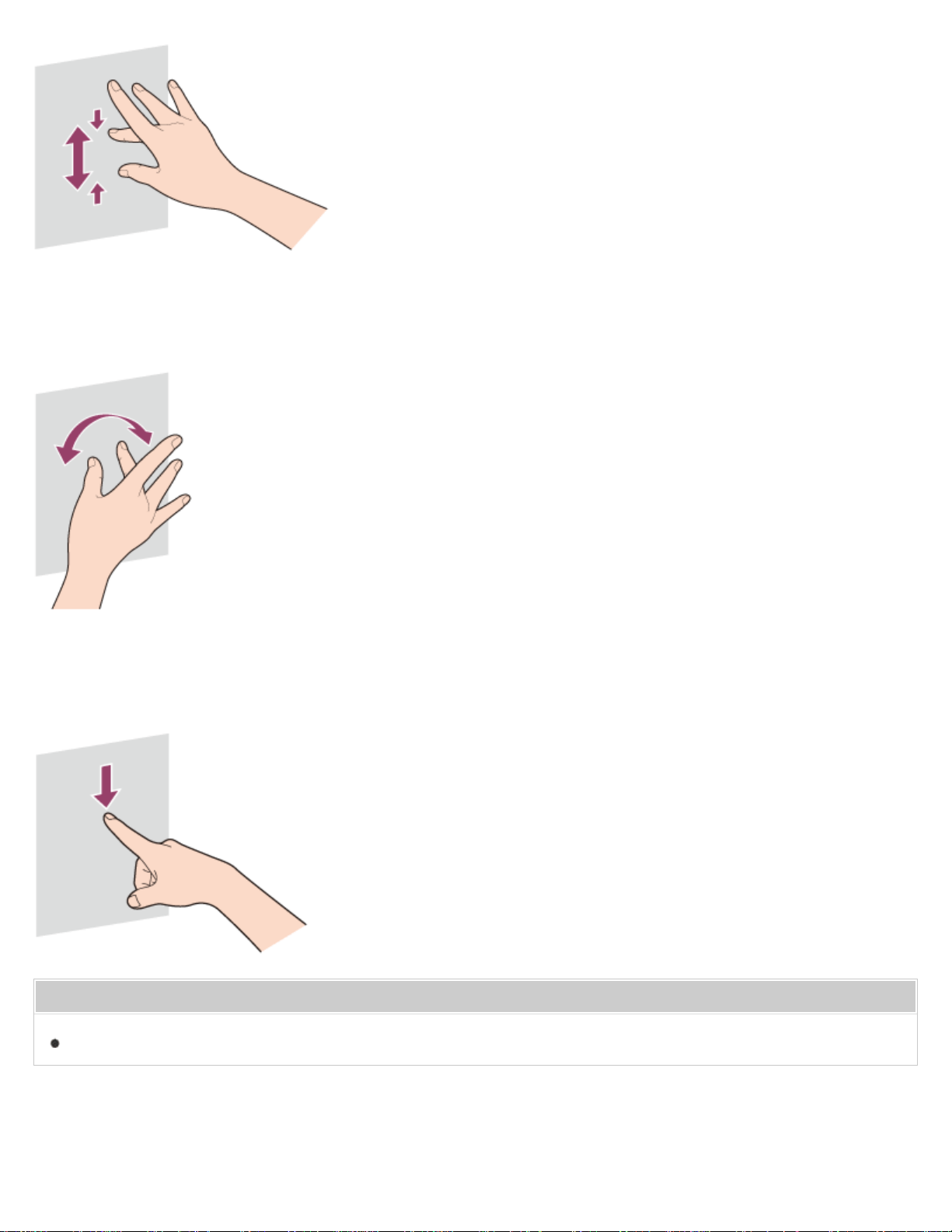
To rotate an image such as a photo (rotate)
Put two fingers on the touch screen and slide them in circles to rotate an image, such as a photo. You cannot rotate
images depending on the apps you are using.
To select by swiping
Slide your finger in short distance in the direction that the screen does not scroll.
You can select an item, such as an app tile or a picture.
Related Topic
How to Use the Pen (Digitizer Stylus supplied models)
Notes on use
324
Personal Computer
VAIO Duo 13 SVD1323
About Built-In Sensors
A built-in accelerometer, digital compass (magnetometer), and gyro sensor enable you to use the following functions.
Screen rotation using the built-in accelerometer
When you rotate your VAIO computer with the LCD screen folded, the built-in accelerometer automatically detects the
movement and rotates the computer screen to portrait or landscape orientation depending on the computer orientation.
Navigation assistance using the built-in digital compass
The built-in digital compass provides navigation assistance on compatible apps by detecting the direction your VAIO
computer is facing.
App operation using the built-in gyro sensor
The built-in gyro sensor detects angular movement of your VAIO computer, which allows you to perform actions with
apps, such as a game app.
Hint
You need to calibrate the built-in digital compass when the app does not show the direction correctly. See Notes on
Built-In Sensors for more information.
Notes on use
Copyright 2013 Sony Corporation
User Guide
How to Use
325
Personal Computer
VAIO Duo 13 SVD1323
Notes on Built-In Sensors
Before using built-in sensors, read the following precautions for correct use.
Notes on using the built-in accelerometer
You cannot change the computer screen orientation while your VAIO computer is connected to an external display. If
you connect the computer to an external display while using the computer in portrait orientation, the computer screen
will automatically change to landscape (horizontal) orientation.
The computer screen may become distorted if you change the computer screen orientation while the screen saver is
activated.
Some apps do not support portrait orientation and may not work correctly. In this case, use your VAIO computer in
landscape orientation.
Notes on using the built-in digital compass
The built-in digital compass works by detecting a magnetic direction. Do not rely solely on the location information the
built-in digital compass provides.
The accuracy of the digital compass can be easily affected by magnetic interference and may not work properly,
particularly in the following locations:
Inside an elevator or a room built with ferrous materials, such as iron frames or reinforced concrete
Near a reinforced concrete structure, such as a footbridge or a concourse of an airport or train station
Near or inside a train or a car
Near a transformer on the ground or high-voltage power lines
Near a metallic product, such as a metal frame desk or metallic furniture
Near a material that has a high level of magnetic interference, such as a magnet, a magnetic holder, or speakers
The supplied pen (Digitizer Stylus) contains a magnet. If you bring the pen close to the magnetometer (
) on your VAIO
computer or put it on the keyboard near the magnetometer, the digital compass may not work properly. (Digitizer Stylus
supplied models)
User Guide
How to Use
326
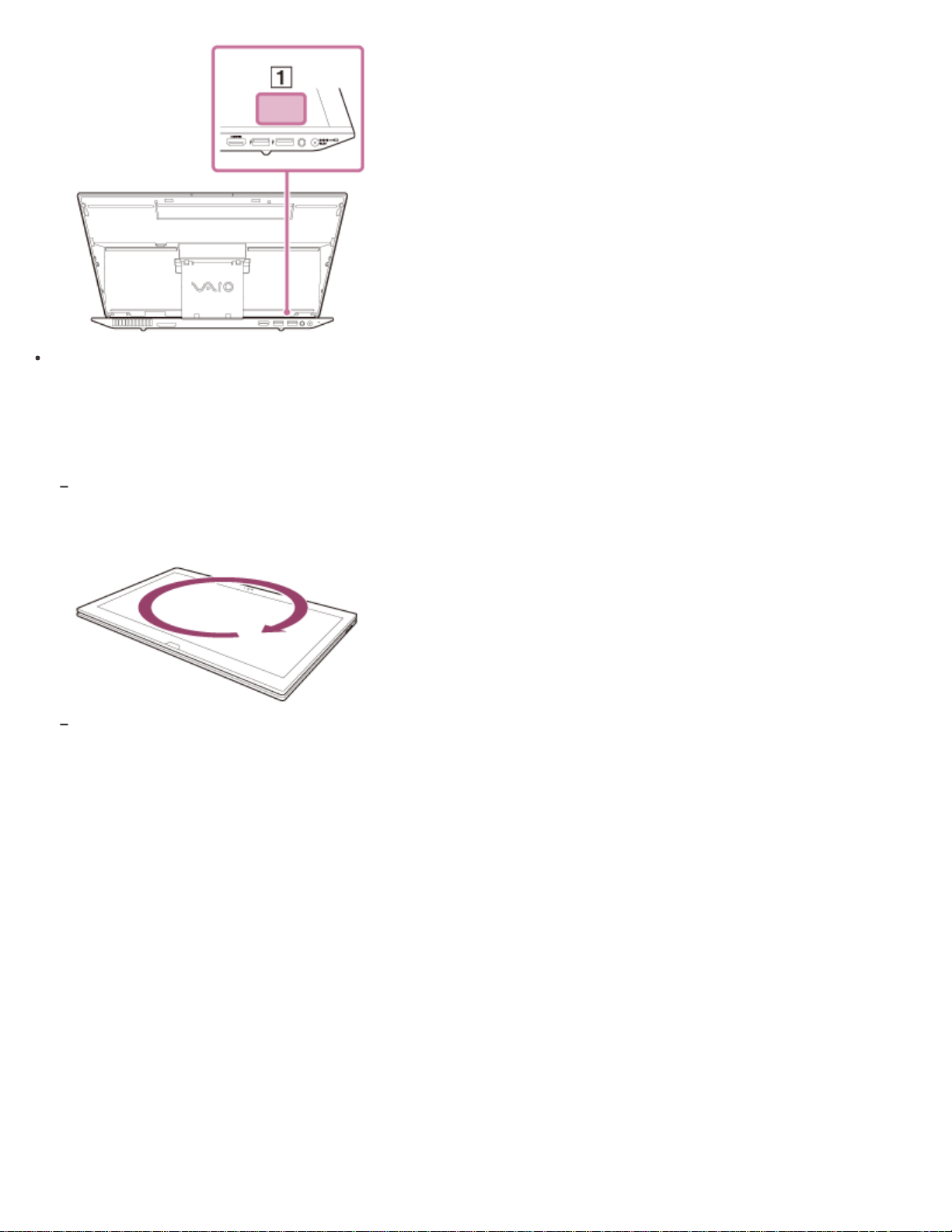
When magnetism around your VAIO computer is unstable, the accuracy of the built-in digital compass may decrease;
however, this is normal and does not indicate a malfunction. In such a case, you need to calibrate the digital compass.
Move away from materials that cause magnetic interference, such as metallic products or magnets, and perform the
following operations while running an app that uses the digital compass.
On the pen supplied models, perform the operations while keeping the pen away from your VAIO computer.
Place your VAIO computer on a flat surface, hold the computer with both hands, then rotate it 360 degrees clockwise with
the LCD screen up.
Normally rotate your VAIO computer about 5 to 10 times. In a location subject to strong magnetic interference, rotate the
computer about 10 to 20 times.
If the problem persists, use your VAIO computer in a location with less magnetic interference.
Notes on use
Copyright 2013 Sony Corporation
327
Personal Computer
VAIO Duo 13 SVD1323
Adjusting the Speakers Volume
You can change the volume level of the speakers and headphones.
To adjust the volume using the Fn key
Press the F3 key while holding down the Fn key to turn down the volume. Press the F4 key while holding down the Fn
key to turn up the volume.
Alternatively, press the VOL (Volume) buttons (Parts and Controls on the Front) on your VAIO computer to adjust the
volume.
To turn off the volume using the Fn key
Press the F2 key while holding down the Fn key to turn off the volume of the speakers and headphones.
Press the Fn+F2 keys again to turn on the volume.
Alternatively, press the Fn+F3 or Fn+F4 keys to turn on the volume.
Related Topic
Adjusting the Volume in Windows
Adjusting the Microphone Volume
Connecting External Speakers/Headphones/Headset
Notes on use
Copyright 2013 Sony Corporation
User Guide
How to Use
328
Personal Computer
VAIO Duo 13 SVD1323
Adjusting the Volume in Windows
You can adjust the volume on each device and app from Control Panel.
1. Open Control Panel and select Hardware and Sound. (See Opening Control Panel to open Control
Panel.)
2. Select Adjust system volume under Sound.
3. Move the slider under Device or Applications up and down to your desired volume level.
When the volume is turned off ( ), select (Deactivate muting) to turn on the volume ( ). When the volume
is low, turn the volume up with the slider.
Related Topic
Adjusting the Speakers Volume
Adjusting the Microphone Volume
Connecting External Speakers/Headphones/Headset
Notes on use
Copyright 2013 Sony Corporation
User Guide
How to Use
329
Personal Computer
VAIO Duo 13 SVD1323
Adjusting the Microphone Volume
You can adjust the volume level of the microphone.
1. Open Control Panel and select Hardware and Sound. (See Opening Control Panel to open Control
Panel.)
2. Select Sound.
3. Select the Recording tab.
4. Double-click the microphone icon.
5. Select the Levels tab in the Microphone Properties window.
6. Move the slider under Microphone right and left to your desired volume level.
If the microphone volume is still not loud enough even at the maximum volume level, move the slider under
Microphone Boost right and left to adjust the volume level.
7. Select OK.
Related Topic
Adjusting the Speakers Volume
Adjusting the Volume in Windows
Notes on use
Copyright 2013 Sony Corporation
User Guide
How to Use
330
Personal Computer
VAIO Duo 13 SVD1323
Playing Optimized Sound for Your VAIO Computer Using ClearAudio+
ClearAudio+ enables high quality sound that is optimized for your VAIO computer using digital signal processing
technologies originally developed by Sony.
With a simple operation, you can enjoy rich sound with clear highs and deep lows.
1. Start VAIO Control Center and select Sound Quality. (See Starting Apps to start VAIO Control Center.)
2. Select the audio mode in Sound Effects.
The optimized sound is reproduced when you select ClearAudio+ that matches your audio source.
Hint
You can also adjust the sound effects to suit your preferences in Details under Sound Effects.
Related Topic
Adjusting the Speakers Volume
Adjusting the Volume in Windows
Notes on use
Copyright 2013 Sony Corporation
User Guide
How to Use
331
Personal Computer
VAIO Duo 13 SVD1323
Changing the Keyboard Backlight Settings (Keyboard backlight equipped models)
You can turn on and off the keyboard backlight by changing the keyboard backlight settings.
1. Start VAIO Control Center and select Input Device. (See Starting Apps to start VAIO Control Center.)
2. Change the keyboard backlight settings in Keyboard Backlight.
The settings window appears. Follow the on-screen instructions to change the settings.
Hint
You can set the keyboard backlight to automatically turn on and off according to ambient light intensity.
If you enable this function, you can also set a time period to turn off the keyboard backlight after inactivity of keyboard
operations.
Ambient light intensity is measured by the ambient light sensor. Blocking the ambient light sensor may turn on the
keyboard backlight.
Related Topic
Parts and Controls on the Front
Notes on use
Copyright 2013 Sony Corporation
User Guide
How to Use
332
Personal Computer
VAIO Duo 13 SVD1323
Enabling/Disabling the Gesture Function
You can enable/disable the gesture function of the touch pad on your VAIO computer.
With the gesture function, you can perform the following operations.
Scroll
Back/Forward
Zoom in/Zoom out
Open the app menu
Open the charms
Switch apps
Follow these steps to enable/disable the gesture function.
1. Start VAIO Control Center and select Input Device. (See Starting Apps to start VAIO Control Center.)
2. Select Details under Touchpad Operations.
3. Select or clear the Enable multi-touch functions check box.
Select the check box to enable the function or clear it to disable the function.
Related Topic
Using the Touch Pad
Enabling/Disabling the Touch Pad
Disabling the Tapping Function on the Touch Pad
Notes on use
Copyright 2013 Sony Corporation
User Guide
How to Use
333
Personal Computer
VAIO Duo 13 SVD1323
Enabling/Disabling the Touch Pad
You can enable/disable the touch pad on your VAIO computer.
1. Press and hold down the Fn key and press the F1 key.
Each time you press the keys, the touch pad is enabled/disabled.
Hint
Be sure to connect a mouse before disabling the touch pad. If you disable the touch pad before connecting a mouse,
you will be able to use only the keyboard for pointing operations. (Non touch screen equipped models)
Related Topic
Using the Touch Pad
Disabling the Tapping Function on the Touch Pad
Enabling/Disabling the Gesture Function
Notes on use
Copyright 2013 Sony Corporation
User Guide
How to Use
334
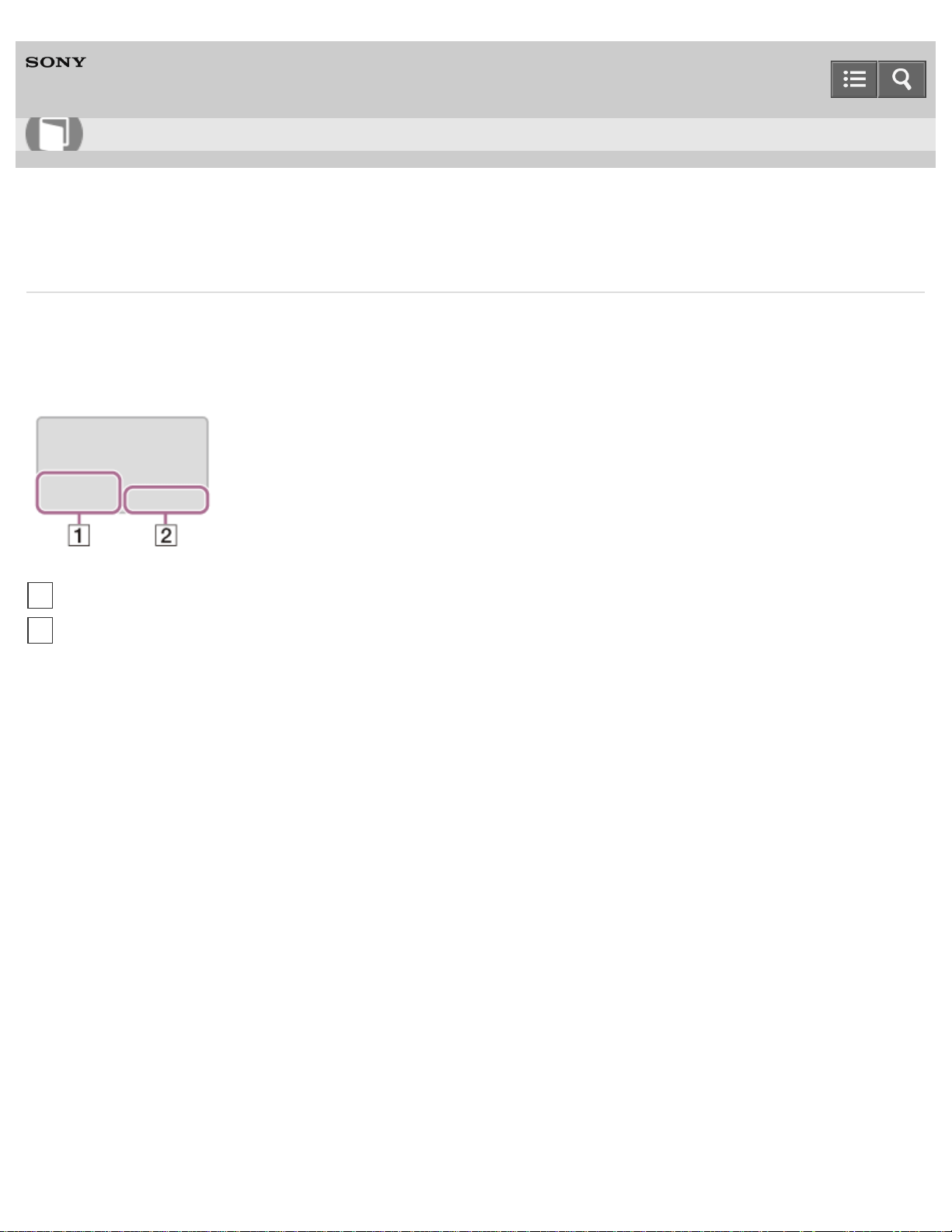
Personal Computer
VAIO Duo 13 SVD1323
Using the Touch Pad
By sliding your finger on the touch pad, you can move the pointer on the computer screen.
With the pointer on your desired item or object, press the left button zone or the right button zone to execute various
commands or display menus.
To click
With the pointer on your desired item or object, press the left button zone once.
Alternatively, tap on the touch pad once.
To double-click
With the pointer on your desired item or object, press the left button zone twice quickly.
Alternatively, tap on the touch pad twice quickly.
To right-click
With the pointer on your desired item or object, press the right button zone once.
Alternatively, tap on the touch pad with two fingers.
Depending on the location of the pointer, you can display various shortcut menus.
To drag
With the pointer on your desired item or object, press the left button zone once, and while holding down the zone, slide
your finger on the touch pad.
Alternatively, tap on the touch pad twice quickly, and on the second tap, slide your finger.
To drag and drop
Drag an icon, such as a file, to your desired location and release your finger from the left button zone.
Alternatively, tap the icon twice quickly, and on the second tap, slide your finger to your desired location and lift the
User Guide
How to Use
Left button zone
1
Right button zone
2
335
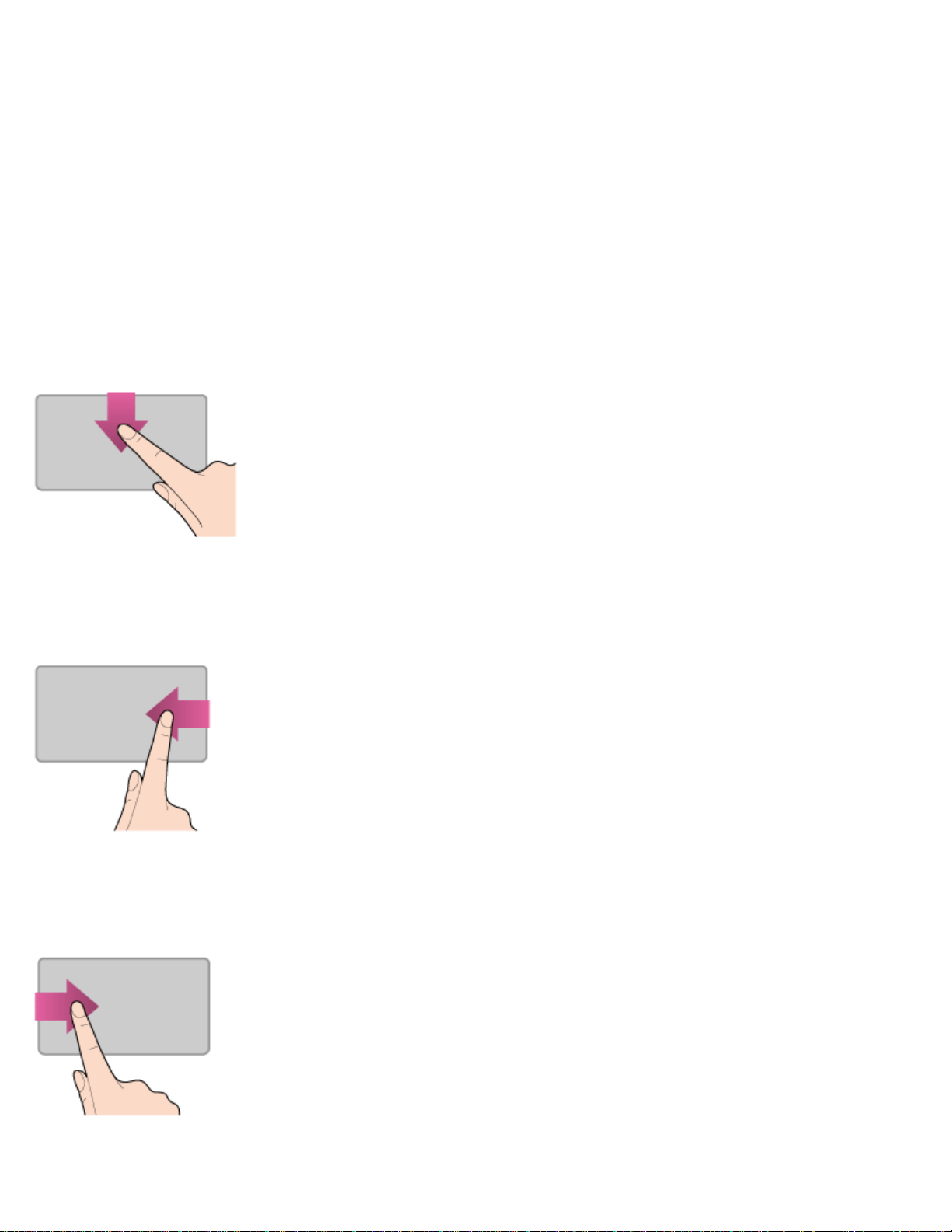
finger off the touch pad.
To scroll
Slide two fingers up and down on the touch pad to scroll vertically on the screen.
Slide two fingers from side to side on the touch pad to scroll horizontally on the screen.
To back or forward without moving the pointer
While viewing websites, pictures, etc., put three fingers on the touch pad and slide them from side to side to perform the
back/forward operation without moving the pointer.
To zoom in or out
While viewing websites, pictures, etc., pinch on the touch pad with two fingers for zooming. Pinch open to zoom in or
pinch close to zoom out.
To open the app menu
Put your finger on the top edge of the touch pad and slide the finger down.
The app menu does not appear if an app does not support the app menu.
To open the charms
Put your finger on the right edge of the touch pad and slide the finger left. See Opening the Charms for more
information.
To switch apps
Put your finger on the left edge of the touch pad and slide the finger right to switch to the running app. When more than
336
one app is running, repeat this action to switch apps in descending order from the last-used app.
Note
The gesture function (scroll, back/forward, zoom in/zoom out, open the app menu, open the charms, switch apps)
may not work depending on the operating condition of your VAIO computer or the touch pad settings.
Hint
The shape of the touch pad varies depending on the model you purchased.
For detailed information on how to use the touch pad, start VAIO Control Center, click Input Device, and follow
the instruction movies. To start VAIO Control Center, see Starting Apps.
Related Topic
Enabling/Disabling the Touch Pad
Disabling the Tapping Function on the Touch Pad
Enabling/Disabling the Gesture Function
Notes on use
Copyright 2013 Sony Corporation
337
Personal Computer
VAIO Duo 13 SVD1323
Disabling the Tapping Function on the Touch Pad
You can disable the tapping function to avoid unintentional clicks caused by a light touch on the touch pad during the
keyboard operations.
1. Start VAIO Control Center and select Input Device. (See Starting Apps to start VAIO Control Center.)
2. Select Details under Touchpad Operations.
3. Clear the Enable tap functions check box.
4. Select OK.
Related Topic
Using the Touch Pad
Enabling/Disabling the Touch Pad
Enabling/Disabling the Gesture Function
Notes on use
Copyright 2013 Sony Corporation
User Guide
How to Use
338
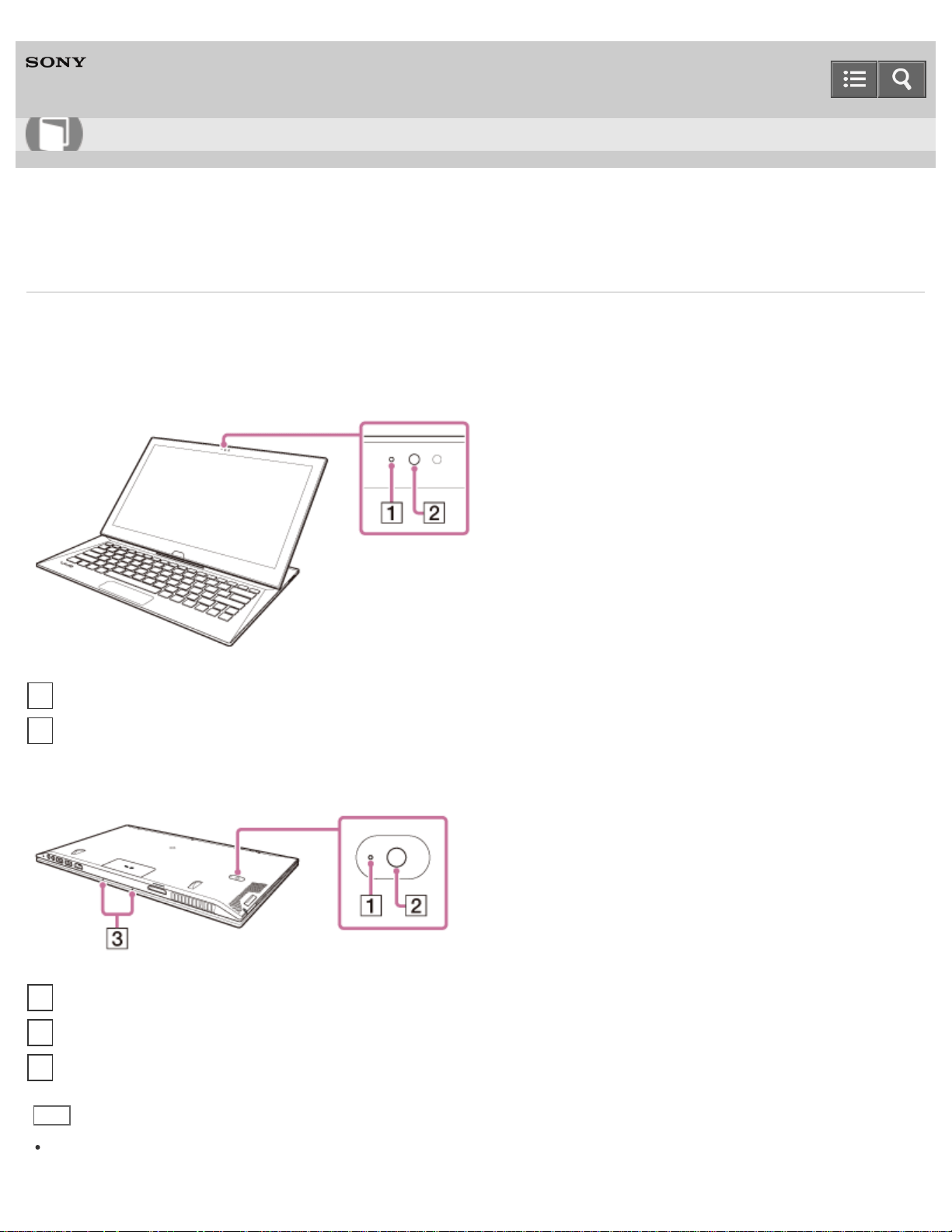
Personal Computer
VAIO Duo 13 SVD1323
Using the Built-in Camera
You can make a video call through the Internet using the built-in camera and communication apps.
The built-in camera indicator light is on while the built-in camera is in use.
Front
Bottom
Hint
The apps installed on your VAIO computer vary depending on the computer’s configurations.
User Guide
How to Use
Built-in front camera indicator
1
Built-in front camera
2
Built-in rear camera indicator
1
Built-in rear camera
2
Built-in dual microphones
3
339

Some apps may not support all the resolution settings of the built-in camera.
If the power frequency in your location is different from the one you set on the camera app, the autofocus system of
the built-in rear camera may not work.
Related Topic
Notes on the Built-in Camera
Notes on use
Copyright 2013 Sony Corporation
340
Personal Computer
VAIO Duo 13 SVD1323
Creating/Changing/Removing Your Windows Password
Setting a Windows password allows you to protect your VAIO computer from unauthorized access by requiring password
entry when the computer is turned on or returns from power saving mode to Normal mode.
Refer to Windows Help and Support (Opening Windows Help and Support) for more information on the Windows
password.
1. Open the charms and select the Settings charm. (See Opening the Charms to open the charms.)
2. Select Change PC settings in the lower right corner.
3. Select Accounts and Sign-in options in the left pane of the PC settings screen.
4. Select Add or Change under Password.
5. Follow the on-screen instructions to enter your password.
Note
Do not forget your password. Write down the password and keep it in a secure place.
Hint
You can enter a hint in order to recall your password if you forget it. You can also create a password reset disc that
can be used to create a new password. Refer to Windows Help and Support (Opening Windows Help and
Support) for more information on the Windows password.
Related Topic
Setting/Changing the Power-on Password
Notes on use
Copyright 2013 Sony Corporation
User Guide
How to Use
341
Personal Computer
VAIO Duo 13 SVD1323
Setting/Changing the Power-on Password
You can set a password (power-on password) for booting up your VAIO computer, using the BIOS function. Entry of the
power-on password will be prompted after the VAIO logo appears to start the computer.
There are two types of passwords. Set the machine password first.
Machine password (for administrators):
Allows users with administrative rights to change all the setup options in the BIOS setup screen, as well as to start
your VAIO computer.
User password (for users without administrative rights):
Allows standard users to change some of the BIOS setup options, as well as to start your VAIO computer. To set the
user password, you must first set the machine password.
1. Press the ASSIST button while your VAIO computer is off.
The VAIO Care (Rescue Mode) screen appears.
2. Select Start BIOS setup.
Enter a password if it has already been set.
The BIOS setup screen appears.
3. Press the
or key to select the Security tab, select Set Machine Password or Set User Password,
and then press the Enter key.
The password entry screen appears.
4. Enter the password and press the Enter key.
To change the password, enter the current password and a new password. The password can be set up to 32
alphanumeric characters long (including spaces) and it is case-sensitive.
5. Press the or key to select Password when Power On, press the Enter key, and select Enabled.
6. Press the or key to select the Exit tab, select Exit Setup, and then press the Enter key.
7. At the confirmation prompt, press the Enter key.
Note
Be sure to write down the password to avoid forgetting it.
If you forget the password, you cannot boot up your VAIO computer.
You can reset the user password at the BIOS setup screen by entering the machine password.
If you forget the machine password, the password must be reset by authorized Sony service/support center. (The
User Guide
How to Use
342

Personal Computer
VAIO Duo 13 SVD1323
Signing In to Windows Using Face Recognition
You can sign in to Windows using face recognition in place of entering the Windows password if you have already set the
Windows password.
See Creating/Changing/Removing Your Windows Password for more information on the Windows password.
1. Select the Click here to enable Face Recognition check box in the Windows sign-in screen.
2. Follow the on-screen instructions to register your face.
After the registration is complete, you can use face recognition on the sign-in screen or lock screen.
Note
With the face recognition settings enabled, you cannot use the built-in front camera when starting a camera app on
the lock screen; however, face recognition with the built-in front camera works, which may cause an unexpected sign-
in.
Hint
If multiple users share your VAIO computer or there is a possibility that any person other than you uses the computer,
it is recommended that you enhance the security strength as follows in the FastAccess settings window:
Enhancing the security strength
Rejecting the recognition with a photo
If your VAIO computer fails to recognize your face, move your head so that the face is located in the center of the
computer screen and a green frame is displayed.
If it takes time for face recognition, you can improve the face recognition rate by signing in to Windows with password
entry while a green frame is displayed on the computer screen.
Related Topic
Using Face Recognition
Notes on Face Recognition
Notes on use
Copyright 2013 Sony Corporation
User Guide
How to Use
344
Personal Computer
VAIO Duo 13 SVD1323
Removing the Power-on Password
If power-on password input for booting up your VAIO computer is no longer necessary, follow these steps to remove the
machine password and user password.
1. Press the ASSIST button while your VAIO computer is off.
The VAIO Care (Rescue Mode) screen appears.
2. Select Start BIOS setup.
Enter a password if it has already been set.
The BIOS setup screen appears.
3. Press the or key to select the Security tab, select Set Machine Password or Set User Password,
and then press the Enter key.
The password entry screen appears.
4. Leave the Enter New Password and Confirm New Password fields blank and press the Enter key.
5. Press the or key to select the Exit tab, select Exit Setup, and then press the Enter key.
At the confirmation prompt, press the Enter key.
Related Topic
Setting/Changing the Power-on Password
What should I do if I forget the power-on password to start my VAIO computer?
Notes on use
Copyright 2013 Sony Corporation
User Guide
How to Use
345
Personal Computer
VAIO Duo 13 SVD1323
Starting Your Preferred App when You Detach the Pen (Digitizer Stylus supplied models)
By detaching the supplied pen (Digitizer Stylus) from the pen hook, you can start your preferred app.
1. Start VAIO Control Center and select Hardware. (See Starting Apps to start VAIO Control Center.)
2. Enable the Action When Pen Pulled Out setting.
Note
With this function, you cannot start Windows Store apps other than VAIO Paper, Note Anytime for VAIO,
and Microsoft Office OneNote.
Hint
Detaching the pen during Sleep mode restores your VAIO computer to Normal mode and starts your preferred app. If
the sign-in screen is displayed when you detach the pen, face recognition or a picture password enables you to sign
in to the computer without using the keyboard. To sign in to the computer using face recognition, see Signing In to
Windows Using Face Recognition.
Related Topic
Using the Pen Hook (Digitizer Stylus supplied models)
How to Use the Pen (Digitizer Stylus supplied models)
Notes on use
Copyright 2013 Sony Corporation
User Guide
How to Use
346
Personal Computer
VAIO Duo 13 SVD1323
Using Face Recognition
Face recognition provides you with secure, convenient functions.
You can use the following functions by setting up the face recognition settings in advance.
A substitute for password entry to sign in to Windows
You can substitute face recognition for Windows password entry when signing in to Windows. See Signing In to Windows
Using Face Recognition for more information.
Quick website access with the web log-in function
You can substitute face recognition for entering your user information (user accounts, passwords, etc.) required to
access the password-protected websites.
To use this function, you need to set up the web log-in settings in the FastAccess window in advance. To start
FastAccess, see Starting Apps.
Note
You may not be able to use the web log-in function depending on the website you access.
Hint
With face recognition, you can sign in to Windows without entering a password. It is convenient if you set up your
VAIO computer to start your preferred app when detaching the pen (Digitizer Stylus) from the computer. See Starting
Your Preferred App when You Detach the Pen (Digitizer Stylus supplied models) for more information.
You can set up the web log-in settings and the security strength settings for face recognition in the FastAccess
window. Refer to the help file included with FastAccess for information on each setting.
Related Topic
Signing In to Windows Using Face Recognition
Notes on Face Recognition
Notes on use
Copyright 2013 Sony Corporation
User Guide
How to Use
347
Personal Computer
VAIO Duo 13 SVD1323
Notes on Face Recognition
Read the following precautions before using face recognition.
Face recognition is not available as a complete substitution for the Windows password.
The face recognition technology does not ensure complete user authentication or complete protection of your data
and hardware. Sony assumes no liability for any problems and damages arising out of your use of or inability to use
the face recognition.
The face recognition rate depends on your operating conditions and varies among individuals as well.
Related Topic
Using Face Recognition
Signing In to Windows Using Face Recognition
Notes on use
Copyright 2013 Sony Corporation
User Guide
How to Use
348
Personal Computer
VAIO Duo 13 SVD1323
Recovering from the Recovery Area
You can recover your VAIO computer from the recovery area on the built-in storage device. This recovery method is
faster than using Recovery Media.
See Notes on Recovery before recovering the computer.
1. Press the ASSIST button while your VAIO computer is off.
The VAIO Care (Rescue Mode) screen appears.
2. Select Start troubleshooting (recovery).
Follow the on-screen instructions until the Choose an option screen appears.
It takes some time before the Choose an option screen appears, so wait for a while.
3. Select Troubleshoot and VAIO recovery solutions.
Follow the on-screen instructions until the VAIO Care (Rescue Mode): VAIO recovery solutions screen
appears.
4. Select Start recovery wizard.
5. Follow the on-screen instructions.
Hint
If the display language selection window appears, select your desired language, then OK.
To perform custom recovery, select Tools and Start advanced recovery wizard.
Related Topic
About Recovery
Creating Recovery Media
Recovering from Recovery Media
Notes on Recovery
Notes on use
Copyright 2013 Sony Corporation
User Guide
How to Use
349
Personal Computer
VAIO Duo 13 SVD1323
Refreshing Your VAIO Computer (Refresh function supported models)
If your VAIO computer has become unstable, it is recommended that you use the refresh function provided by Windows.
Refresh the computer by following these steps.
Note
The 64 GB or 128 GB SSD equipped models do not support the refresh function. If you want to check the capacity of
the SSD, press the ASSIST button while your VAIO computer is off to display the VAIO Care (Rescue Mode)
screen, and select Start BIOS setup.
1. Open the charms and select the
Settings charm. (See Opening the Charms to open the charms.)
2. Select Power, press and hold down the Shift key, and select Shut down.
Your VAIO computer fully shuts down.
3. Press the ASSIST button while your VAIO computer is off.
The VAIO Care (Rescue Mode) screen appears.
4. Select Start troubleshooting (recovery).
Follow the on-screen instructions until the Choose an option screen appears.
It takes some time before the Choose an option screen appears, so wait for a while.
5. Select Troubleshoot and Refresh your PC.
Most user data saved on your built-in storage device, some Windows settings and all apps downloaded from Windows
Store will be retained even after you refresh your VAIO computer. However, some app settings or files in the specific
folders may not be retained.
Confirm the following list for details of which settings are retained, and which data is erased after you refresh the
computer.
Settings retained after you refresh your VAIO computer
The following settings will be retained after you refresh your VAIO computer.
Library settings
User accounts (local, domain, Microsoft account), and group memberships
Domain settings
Windows Update settings
Start screen and lock screen background
Desktop themes
International settings
User Guide
How to Use
350
Wireless network profiles
Settings configured in Windows Welcome
Data erased after you refresh your VAIO computer
The data in the folders specified below will be erased after you refresh your VAIO computer.
\Windows
\Program Files
\Program Files(x86)
\ProgramData
\Users\(User name)\AppData
Note
Save important data in advance.
Copyright protected data, such as digital broadcast data or music files organized by digital media playback apps may
not be available, even if the data is retained in the same location after you refresh your VAIO computer.
Refer to the help file included with the app you are using for instructions.
Hint
The apps installed at the time of delivery and installed from Windows Store are retained, whereas all Desktop
apps that you installed after the purchase will be erased.
Related Topic
About Recovery
Recovering from the Recovery Area
Recovering from Recovery Media
Notes on Recovery
Notes on use
Copyright 2013 Sony Corporation
351
Personal Computer
VAIO Duo 13 SVD1323
Removing Recovery Content to Free up Disk Space
Your built-in storage device contains the recovery area where the data for system recovery is stored. If your VAIO
computer includes a solid state drive (SSD), you might want to minimize the recovery area by removing such data to free
up disk space on the C: drive (or the last drive in your drive list, for example D: drive).
You need Recovery Media to remove the data for system recovery or to recover the computer after you remove the
data.
Note that removing recovery content makes it impossible to use the refresh function.
If you use Recovery Media (optical discs) on the model without a built-in optical disc drive, connect an external optical
disc drive (not supplied) to the computer. See Connecting an External Drive for more information on how to connect the
external optical disc drive.
If an AC adapter or a power cable is supplied, plug it into a power source.
1. Create Recovery Media if you have not yet created it.
See Creating Recovery Media for more information on how to create Recovery Media.
2. Insert the Recovery Media into the optical disc drive or connect a USB flash drive (not supplied) to the USB port on
your VAIO computer while the computer is in Normal mode.
3. Turn off your VAIO computer.
4. Press the ASSIST button to display the VAIO Care (Rescue Mode) screen and select Start from media
(USB device/optical disc).
Follow the on-screen instructions until the VAIO Care (Rescue Mode): VAIO recovery solutions screen
appears.
5. Select Tools and Remove recovery partition.
6. Follow the on-screen instructions.
Related Topic
Creating Other Drives (Modifying Partitions)
Creating Partitions
User Guide
How to Use
352
Personal Computer
VAIO Duo 13 SVD1323
Recovering from Recovery Media
If the recovery area data has been corrupted or erased, you can use Recovery Media to recover your VAIO computer.
However, recovering the computer using the Recovery Media will take longer than using the recovery area.
If you use Recovery Media (optical discs) on the model without a built-in optical disc drive, connect an external optical
disc drive (not supplied) to the computer. See Connecting an External Drive for more information on how to connect the
external optical disc drive.
If an AC adapter or a power cable is supplied, plug it into a power source.
1. Insert Recovery Media (optical discs) into the optical disc drive or connect a USB flash drive to the USB port on
your VAIO computer while the computer is in Normal mode.
2. Turn off your VAIO computer.
3. Press the ASSIST button to display the VAIO Care (Rescue Mode) screen and select Start from media
(USB device/optical disc).
Follow the on-screen instructions until the VAIO Care (Rescue Mode): VAIO recovery solutions screen
appears.
4. Select Start recovery wizard.
5. Follow the on-screen instructions.
Hint
If the display language selection window appears, select your desired language, then OK.
To perform custom recovery, select Tools and Start advanced recovery wizard.
If you cannot recover your VAIO computer using the USB flash drive, connect the drive to another USB port on the
computer, and then try recovering the computer again.
Related Topic
About Recovery
Creating Recovery Media
Recovering from the Recovery Area
Notes on Recovery
User Guide
How to Use
353

Personal Computer
VAIO Duo 13 SVD1323
Checking the Volume of the Recovery Area
Your built-in storage device contains the recovery area where the data for the system recovery is stored.
To check the volume of the recovery area, follow these steps:
1. Open the Apps screen. (See Opening the App List to open the Apps screen.)
2. Select This PC.
3. Select Computer on the menu bar and Manage.
4. Select Disk Management under Storage in the left pane.
The volume of the recovery area and the total volume of the C: drive are displayed in the Disk 0 row in the center
pane.
Notes on use
Copyright 2013 Sony Corporation
User Guide
How to Use
354
Personal Computer
VAIO Duo 13 SVD1323
About Recovery
Recovery is the process of restoring the built-in storage device back to its original factory condition. Refresh is the
process of reinstalling the operating system with the main settings and personal data retained.
Refresh your VAIO computer first if the computer becomes unstable. If the problem persists, recover the computer.
There are two ways to recover the computer:
From Recovery Media
From the recovery area
Note
The 64 GB or 128 GB SSD equipped models do not support the refresh function. If you want to check the capacity of
the SSD, press the ASSIST button while your VAIO computer is off to display the VAIO Care (Rescue Mode)
screen, and select Start BIOS setup.
When do I have to perform recovery or refresh?
If your VAIO computer has become unstable
If your VAIO computer has been infected with a computer virus
If your VAIO computer is experiencing problems which cannot be solved through troubleshooting
If you have formatted the C: drive by mistake
Which apps should I use to recover or refresh my VAIO computer or create
Recovery Media?
Use the following apps.
VAIO Care
Creating Recovery Media
Checking your computer hardware
VAIO Care (Rescue Mode): VAIO recovery solutions
Recovering your VAIO computer
Rescuing (backing up) your data
Erasing all the data on your built-in storage device
Windows Recovery Environment (Windows RE)
Refresh
Hint
Refer to the help file included with VAIO Care and VAIO Care (Rescue Mode): VAIO recovery solutions
User Guide
How to Use
355
for more information.
You can also recover your VAIO computer from Windows Recovery Environment (Windows RE).
What is a recovery area?
The recovery area on the built-in storage device contains data for system and app recovery. Typically, you cannot
modify or delete data in this area, however, there are commercially available apps designed for this purpose.
Why do I have to create Recovery Media?
Recovery Media are used to restore your VAIO computer back to its original factory condition. If Windows does not start
and you have deleted the recovery area, you will need the Recovery Media to perform recovery.
Create the Recovery Media immediately after the computer is ready for use.
Related Topic
Creating Recovery Media
Refreshing Your VAIO Computer (Refresh function supported models)
Recovering from the Recovery Area
Recovering from Recovery Media
Notes on Recovery
Notes on use
Copyright 2013 Sony Corporation
356
Personal Computer
VAIO Duo 13 SVD1323
Creating Recovery Media
Follow the instructions below to create Recovery Media.
You can use DVDs, Blu-ray Disc, or a USB flash drive as Recovery Media.
On the model without a built-in optical disc drive:
Use a USB flash drive.
On the model with a built-in optical disc drive:
It is recommended that you use DVD-R media, because data can be accidently deleted from a USB flash drive. You
can also use BD-R/BD-R DL/DVD-R DL/DVD+R/DVD+R DL media; however, the type of media your VAIO computer
supports and the number of discs you need vary depending on the model you purchased. You will be notified of such
information during the creation process.
Note
USB ports that are compliant with the USB 3.0 standard do not support recovery with a USB flash drive that is
compliant with the USB 3.0 standard. On models without the USB ports that are compliant with only the USB 2.0
standard, be sure to create Recovery Media using the USB flash drive that is not compliant with the USB 3.0
standard.
1. Connect your VAIO computer to the Internet and download and install the latest updates using VAIO Update.
2. If you create Recovery Media (optical discs) on the model without a built-in optical disc drive, connect an external
optical disc drive (not supplied) to your VAIO computer. (See Connecting an External Drive for more information on
how to connect the external optical disc drive.)
If an AC adapter or a power cable is supplied, plug it into a power source.
3. Press the ASSIST button while your VAIO computer is on to start VAIO Care.
If the User Account Control window appears, select Yes.
The VAIO Care window appears.
4. Select Advanced Tools, Restore and recovery, and Create Recovery Media.
5. Read the on-screen instructions carefully, and then select Next.
6. Follow the on-screen instructions.
Note
It may take some time for the current status of the process to display.
Do not eject or disconnect the media while creating Recovery Media, as doing so may result in a failure.
User Guide
How to Use
357
Keep Recovery Media in a secure place.
Hint
If you are signed in to your VAIO computer as a standard user, you may be prompted to enter an administrator name
and a password.
Notes on creating Recovery Media
When you create Recovery Media, use VAIO Care. If you create the Recovery Media in any other way and perform
recovery, your VAIO computer may not be restored to its factory condition. Sony does not guarantee the compatibility
of the computer with such Recovery Media.
Recovery Media is specific to your VAIO computer of which it was created.
You cannot refresh your VAIO computer using Recovery Media.
Create Recovery Media immediately after your VAIO computer is ready for use. In the following cases, you may not
be able to recover the computer from the recovery area and Recovery Media will be necessary:
You have modified the recovery area with apps designed for data modification.
You have installed an operating system different from the preinstalled operating system on the computer.
You have formatted your built-in storage device without using VAIO Care (Rescue Mode): VAIO recovery
solutions.
Do not touch or allow the surface of the discs to become dirty. Fingerprints or dust on the surface may cause
read/write errors.
To create Recovery Media, you may need to use the free space on your C: drive more than double capacity of media
you use. Depending on your model, you cannot create Recovery Media even at the time of purchase due to the
shortage of free space, regardless if the optical disc drive supports Blu-ray Disc or Double/Dual Layer DVD media.
Refer to the help file included with VAIO Care before using a USB flash drive as Recovery Media.
Related Topic
About Recovery
Recovering from the Recovery Area
Recovering from Recovery Media
Notes on Recovery
Notes on use
Copyright 2013 Sony Corporation
358
Personal Computer
VAIO Duo 13 SVD1323
Notes on Recovery
Read the following notes thoroughly before recovering your VAIO computer.
Important notes on recovery
Recovering your VAIO computer will delete all the data on the built-in storage device and restore all the settings to
the original factory settings. Make sure you have a backup copy of your valuable data.
If you want to retain the main settings and personal data, refresh the computer. See Refreshing Your VAIO Computer
(Refresh function supported models) for more information.
Disconnect all peripherals from your VAIO computer except the power cord, the AC adapter, or devices required for
recovery before recovering the computer.
Keep the power cord or the AC adapter connected to your VAIO computer during the recovery process.
Do not stop the recovery process until the process is complete.
If you have forgotten the password and cannot start the recovery process, contact an authorized Sony service/support
center to reset it. A reset fee will be charged.
Notes on apps
Recovering your VAIO computer can restore only the preinstalled apps. The app(s) that has been installed on your
own or the data you have created since purchase cannot be restored. In addition, you cannot restore only Windows.
Certain preinstalled apps include options that allow the apps to uninstall or install themselves. However, the apps may
not work properly on your VAIO computer if such options are used.
Installing apps to modify partition sizes may disable recovery or Recovery Media creation. To avoid this, create the
Recovery Media immediately after your VAIO computer is ready for use. See Creating Recovery Media for more
information.
Related Topic
About Recovery
Creating Recovery Media
Recovering from the Recovery Area
Recovering from Recovery Media
Notes on use
User Guide
How to Use
359
Personal Computer
VAIO Duo 13 SVD1323
Restoring System Files Using the Restore Point when You cannot Start Windows
When you cannot start Windows, follow these steps to restore computer system files.
1. Turn off your VAIO computer.
2. Press the ASSIST button to display the VAIO Care (Rescue Mode) screen and select Start
troubleshooting (recovery).
Follow the on-screen instructions until the Choose an option screen appears.
It takes some time before the Choose an option screen appears, so wait for a while.
3. Select Troubleshoot, Advanced options, and System Restore.
Follow the on-screen instructions until the System Restore window appears.
4. Select Next.
5. Select a restore point and Next.
The confirmation window of the selected restore point appears.
6. Select Finish to confirm the restore point.
Your VAIO computer restarts after system files are restored.
Related Topic
About Backup
About Types of Backup
Backing Up Your Data when You cannot Start Windows
Restoring Your Data with VAIO Data Restore Tool
Creating a Restore Point
Notes on use
Copyright 2013 Sony Corporation
User Guide
How to Use
360
Personal Computer
VAIO Duo 13 SVD1323
About Backup
The backup process creates a backup copy of your data stored on the built-in storage device and saves it to another
location.
Due to unexpected events or computer viruses, you might lose various data stored on your built-in storage device. To
restore the lost data, its backup copy is needed.
It is strongly recommended that you back up your data regularly.
If you can start Windows, back up and restore your data with the Windows feature.
To use the feature, open Control Panel and select System and Security and File History.
Related Topic
About Types of Backup
Backing Up Your Data when You cannot Start Windows
Restoring Your Data with VAIO Data Restore Tool
Creating a Restore Point
Restoring System Files Using the Restore Point when You cannot Start Windows
Notes on use
Copyright 2013 Sony Corporation
User Guide
How to Use
361
Personal Computer
VAIO Duo 13 SVD1323
About Types of Backup
You can use the Windows Backup and Restore feature to back up your valuable data.
There are several types of backup to meet your needs, as described below.
Backing up files
You can select and back up folders and files stored on your VAIO computer to an external hard disk drive.
For details on how to back up data, refer to Windows Help and Support (Opening Windows Help and Support).
Backing up system images
You can create a backup copy of the whole system of your VAIO computer. If the built-in storage device or the computer
ever stops working, you can use the system image to restore the computer as it was when backed up.
To create a system image, you need an optional hard disk drive formatted in NTFS format. You can also back up a
system image to optical discs such as Blu-ray Disc or DVD disc.
For details on how to create a system image, refer to Windows Help and Support (Opening Windows Help and
Support).
Note
We will not restore or compensate for any lost or damaged data under any circumstances including failure of your
VAIO computer.
Create Recovery Media soon after purchasing your VAIO computer. In the event that you cannot make a backup
copy of your data with the Windows feature due to computer malfunctions, you can use the backup tool included in
the Recovery Media to back up your data.
For information on how to create the Recovery Media, see Creating Recovery Media.
Hint
If your VAIO computer is equipped with no disc drive, you need to connect an external device, such as an external
hard disk drive or DVD drive, to the computer before backup, or you need to resize the partition of your C: drive and
create another partition before backup. See Creating Partitions for more information.
Related Topic
About Backup
Backing Up Your Data when You cannot Start Windows
Restoring Your Data with VAIO Data Restore Tool
Restoring System Files Using the Restore Point when You cannot Start Windows
User Guide
How to Use
362
Personal Computer
VAIO Duo 13 SVD1323
Creating a Restore Point
A restore point enables you to restore your computer system files to a previous state, depending on when the restore
point was created.
Typically, restore points are created automatically, for example when you install a driver. However, we recommend that
you create a new restore point manually before installing any apps or drivers on your VAIO computer.
Refer to Windows Help and Support (Opening Windows Help and Support) for information on creating a restore
point.
Related Topic
Restoring Your Data with VAIO Data Restore Tool
Restoring System Files Using the Restore Point when You cannot Start Windows
Notes on use
Copyright 2013 Sony Corporation
User Guide
How to Use
363
Personal Computer
VAIO Duo 13 SVD1323
Backing Up Your Data when You cannot Start Windows
If you cannot start Windows, back up your data with VAIO Care (Rescue Mode): VAIO recovery solutions.
1. Press the ASSIST button while your VAIO computer is off.
The VAIO Care (Rescue Mode) screen appears.
2. Select Start troubleshooting (recovery).
Follow the on-screen instructions until the Choose an option screen appears.
It takes some time before the Choose an option screen appears, so wait for a while.
3. Select Troubleshoot and VAIO recovery solutions.
Follow the on-screen instructions until the VAIO Care (Rescue Mode): VAIO recovery solutions screen
appears.
4. Select Tools and Rescue Data.
5. Follow the on-screen instructions.
Hint
If the display language selection window appears in step 3, select your desired language, then OK.
Alternatively, you can start VAIO Care (Rescue Mode): VAIO recovery solutions with Recovery Media. See
Recovering from Recovery Media for more information.
It is recommended that you select an external hard disk drive as a location to save rescued files if you select
Custom rescue.
Notes on using VAIO Care (Rescue Mode): VAIO recovery solutions
Handle rescued files with care to protect from unauthorized access.
Disable the Windows hard disk drive encryption feature before using VAIO Care (Rescue Mode): VAIO
recovery solutions to back up and restore your data.
However, rescued files which are not encrypted on the built-in storage device can be easily accessed by unauthorized
users using Recovery Media and this app. Therefore, after using the app, be sure to set the power-on or hard disk
password, enable the Windows hard disk drive encryption feature, and keep the Recovery Media in a secure place to
protect rescued files from unauthorized access.
To restore copyright protected data, such as music files organized by digital media playback apps, use a backup tool
specified by the app you used to import such data. Sony does not guarantee the playback compatibility of data which
is not restored with the specified backup tool.
VAIO Care (Rescue Mode): VAIO recovery solutions does not support backup of a file whose name
User Guide
How to Use
364
including the path is over 260 characters.
Using VAIO Care (Rescue Mode): VAIO recovery solutions does not guarantee backup of all the data on
your built-in storage device.
Sony assumes no liabilities for any loss of your data arising out of the backup process.
Use the power cord or the AC adapter to power your VAIO computer while using VAIO Care (Rescue Mode):
VAIO recovery solutions.
Your VAIO computer automatically restarts 72 hours after VAIO Care (Rescue Mode): VAIO recovery
solutions starts. If 72 hours have passed during the backup process, the process will be stopped and the computer
will restart. There is no way to resume the process.
Rescued files may be divided into two or more files and saved in a specified location or renamed, depending on the
location you select. Use VAIO Data Restore Tool to restore the rescued files. See Restoring Your Data with VAIO
Data Restore Tool for more information.
If an external hard disk drive or optical disc drive does not support the USB connection, you need to install a driver.
Related Topic
About Backup
About Types of Backup
Restoring Your Data with VAIO Data Restore Tool
Creating a Restore Point
Restoring System Files Using the Restore Point when You cannot Start Windows
Notes on use
Copyright 2013 Sony Corporation
365
Personal Computer
VAIO Duo 13 SVD1323
Restoring Your Data with VAIO Data Restore Tool
You can use VAIO Data Restore Tool to restore files previously backed up using VAIO Care (Rescue Mode):
VAIO recovery solutions.
For instructions on how to use the app, refer to the help file included with the app.
1. Open the Apps screen. (See Opening the App List to open the Apps screen.)
2. Select VAIO Data Restore Tool.
The VAIO Data Restore Tool window appears.
3. Select Next.
If the User Account Control window appears, select Yes.
4. Follow the on-screen instructions.
Note
To restore copyright protected data, such as music files organized by digital media playback apps, use a backup tool
specified by the app you used to import such data. Sony does not guarantee the playback compatibility of data which
is not restored with the specified backup tool.
Hint
If you are signed in to your VAIO computer as a standard user, you may be prompted to enter an administrator name
and password.
If necessary, move the restored files to the original location.
Related Topic
About Backup
About Types of Backup
Backing Up Your Data when You cannot Start Windows
Creating a Restore Point
Restoring System Files Using the Restore Point when You cannot Start Windows
User Guide
How to Use
366
Personal Computer
VAIO Duo 13 SVD1323
Creating Other Drives (Modifying Partitions)
Partitions are divided areas on your built-in storage device. Dividing the built-in storage device into more than one
partition may have various advantages, such as separating the system files from your data files.
Your VAIO computer has only one partition (C: drive) as the factory default setting.
If you want to store data in another partition, such as D: drive, change the partition size and create a new partition.
For more information on how to create partitions, see Creating Partitions.
Hint
Some models may have D: drive as the factory default setting.
Related Topic
Creating Partitions
Removing Recovery Content to Free up Disk Space
Notes on use
Copyright 2013 Sony Corporation
User Guide
How to Use
367
Personal Computer
VAIO Duo 13 SVD1323
Creating Partitions
This topic describes how to create partitions.
Note
If you reduce the volume of the C: drive partition, you may not create Recovery Media or complete the recovery
process successfully because the free space on the built-in storage device is not sufficient.
1. Open Control Panel, select System and Security, and select Create and format hard disk partitions
under Administrative Tools. (See Opening Control Panel to open Control Panel.)
If the User Account Control window appears, select Yes.
2. Right-click the C: drive and select Shrink Volume.
3. Enter the size of the partition to be created in Enter the amount of space to shrink in MB and select
Shrink.
4. Right-click Unallocated and select New Simple Volume.
5. Follow the on-screen instructions.
Hint
If you are signed in to your VAIO computer as a standard user, you may be prompted to enter an administrator name
and password.
Related Topic
Creating Other Drives (Modifying Partitions)
Removing Recovery Content to Free up Disk Space
Notes on use
Copyright 2013 Sony Corporation
User Guide
How to Use
368
Personal Computer
VAIO Duo 13 SVD1323
Charge Indicator Status List
The charge indicator light turns on or blinks differently according to conditions.
Lit in orange
The battery pack is charging. (Turns off when charging is completed.)
Blinks in orange
The battery pack is running out of power. (Normal mode)
If your VAIO computer is equipped with the power indicator, it blinks along with the charge indicator.
Blinks fast in orange
A battery error has occurred due to a failed battery pack, an unlocked battery pack (Removable battery pack supplied
models), etc.
Related Topic
Charging the Battery Pack
Checking the Battery Charge Capacity
Extending the Battery Life
Notes on use
Copyright 2013 Sony Corporation
User Guide
How to Use
369
Personal Computer
VAIO Duo 13 SVD1323
About Sleep Mode
Sleep mode enables you to take a break and retain the computer’s state, including data you are working on.
Your VAIO computer connects to the Internet regularly and enables you to receive contact via email or call apps and
obtain the latest updates on the tiles of the Start screen even if the computer is in Sleep mode.
Related Topic
Controlling the Power State of Your VAIO Computer (Sleep Mode/Shutdown)
Using Sleep Mode
Notes on Sleep Mode
Notes on use
Copyright 2013 Sony Corporation
User Guide
How to Use
370
Personal Computer
VAIO Duo 13 SVD1323
Checking the Battery Charge Capacity
The battery pack is consumable. The capacity gradually declines through repeated cycles of recharging and discharging.
As a result, the battery life becomes short even if it is fully charged and eventually the battery pack reaches the end of its
life.
If the battery life has become short, replace the battery pack with a new one specified by Sony. Refer to the help file for
more information on battery charge status and capacity decrease.
1. Start VAIO Control Center and select Power and Battery. (See Starting Apps to start VAIO Control
Center.)
2. Select Details in Battery or Battery Care Function.
Detailed battery pack information, such as charging capacity, is displayed.
Hint
Enable the battery care function to maximize the battery lifespan. With this function, you can reduce battery
degradation by limiting the maximum charging capacity. When the function is enabled, the battery pack is not fully
charged.
Related Topic
Extending the Battery Life
Notes on Using the Battery Pack
Charging the Battery Pack
Notes on use
Copyright 2013 Sony Corporation
User Guide
How to Use
371
Personal Computer
VAIO Duo 13 SVD1323
Extending the Battery Life
When your VAIO computer is running on battery power, you can extend the battery life using the following methods.
Use Sleep mode.
When you do not need to use your VAIO computer temporarily, you can use Sleep mode. To extend the battery life,
use Sleep mode frequently. If you do not intend to use the computer for an extended period of time, turn off the
computer.
Resuming the computer from Sleep mode is faster than from booting up the computer.
See Using Sleep Mode for more information.
Decrease the LCD brightness of the computer screen.
See Changing the LCD Brightness for more information.
Turn down the volume of the speakers and headphones.
See Adjusting the Speakers Volume for more information.
Disconnect peripheral devices that are not in use.
Related Topic
Checking the Battery Charge Capacity
Charging the Battery Pack
Notes on Using the Battery Pack
Using Sleep Mode
Notes on use
Copyright 2013 Sony Corporation
User Guide
How to Use
372
Personal Computer
VAIO Duo 13 SVD1323
About the Touch Screen (Touch screen equipped models)
The touch screen enables direct interaction with your VAIO computer using your finger(s). You can perform various
gestures on the touch screen.
Your VAIO computer supports multi-touch input.
Note
Your VAIO computer is equipped with a capacitive touch screen. When using it, note the following characteristics of
the capacitive touch screen.
The touch screen will not work if you touch it with fingernails, or if you wear gloves.
If tapping triggers an unintentional operation, make sure that no other parts of your body are in contact with the touch
screen.
The surface of the touch screen may get hot. This is normal and does not indicate a malfunction.
Even though the surface of the touch screen is tempered glass, it could still become damaged. Treat it with adequate care.
If it breaks, small granular shards may scatter and cause injury.
Do not drop the touch screen or subject it to a strong impact. Do not scratch the surface. A surface flaw may cause the
glass to break.
A protection sheet may be attached to the LCD screen frame at the factory. Remove the sheet before use; otherwise the
touch screen may not work correctly.
Some apps do not accept touch screen operations.
Related Topic
How to Use the Touch Screen (Touch screen equipped models)
Notes on use
Copyright 2013 Sony Corporation
User Guide
How to Use
373
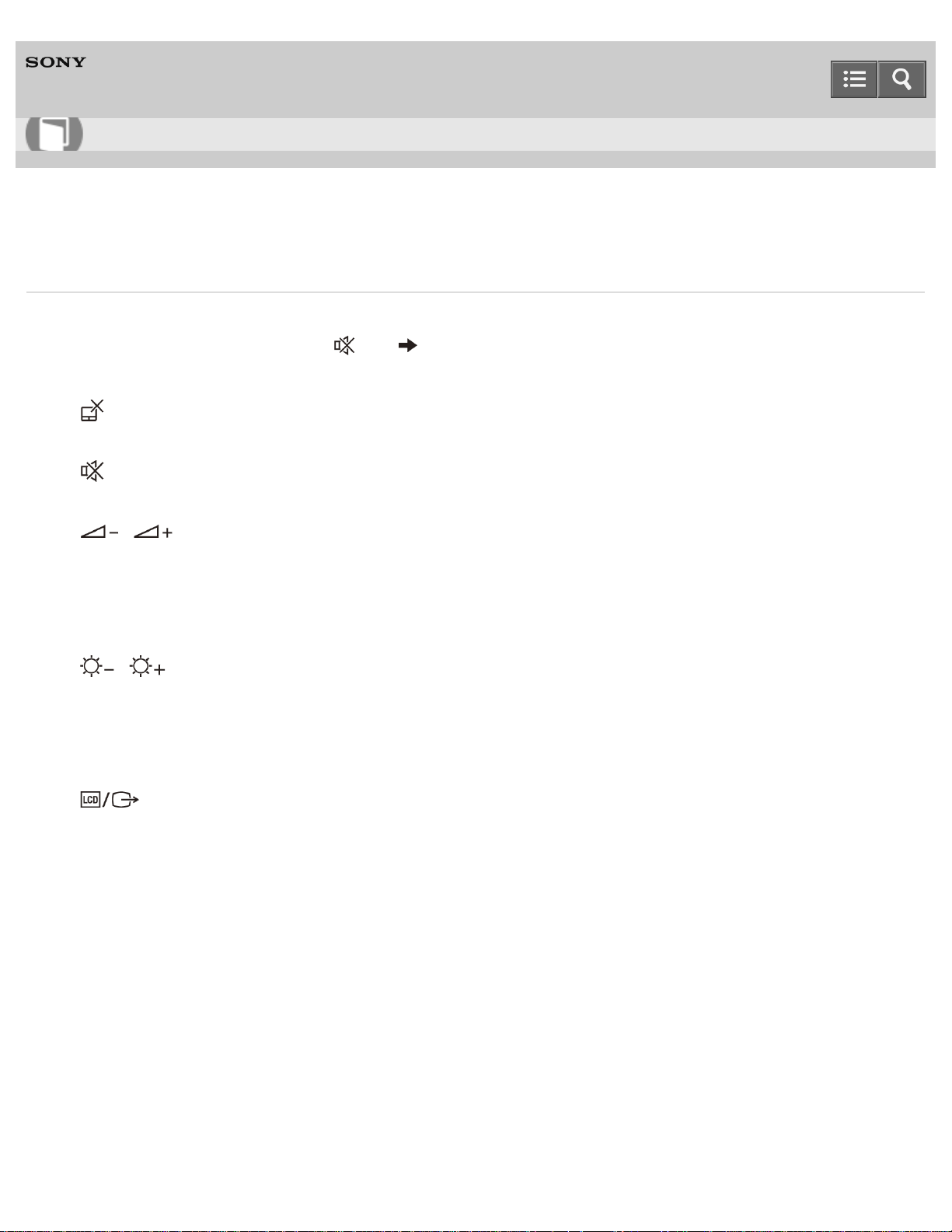
Personal Computer
VAIO Duo 13 SVD1323
Combinations and Functions with the Fn Key
Press and hold down the Fn key and another key simultaneously to perform a keyboard shortcut action.
For example, to turn off the sound: Fn + (F2) Press and hold down the Fn key, then press the F2 key.
Some keyboard functions can only be used while Windows is running.
Fn + (F1)
Disables and enables the touch pad. See Enabling/Disabling the Touch Pad for more information.
Fn + (F2)
Turns on and off the speakers or the headphones.
Fn + / (F3/F4)
Press the button repeatedly to adjust the volume level of the speakers and the headphones. See Adjusting the Speakers
Volume for more information.
To decrease the volume, press the Fn+F3 keys.
To increase the volume, press the Fn+F4 keys.
Fn + / (F5/F6)
Press the button repeatedly to adjust the LCD brightness of your computer screen. See Changing the LCD Brightness
for more information.
To decrease lighting intensity, press the Fn+F5 keys.
To increase lighting intensity, press the Fn+F6 keys.
Fn + (F7)
Switches the display output to an external display.
Press the Fn+F7 keys several times to select the desired display output destination, and then press the Enter key to
confirm. See Selecting Display Modes for more information.
Fn + 1
Starts VAIO Clip. See Clipping an Image Displayed on the Computer Screen (VAIO Clip) for more information.
Fn + Scr Lk (Scroll Lock)
Works differently depending on the apps you use. Refer to the help file included with the app for more information.
Fn + Pg Up (Page Up)
Goes to the previous page.
Fn + End (End)
Moves the cursor to the end of a line or page.
Fn + Pg Dn (Page Down)
User Guide
How to Use
374

Personal Computer
VAIO Duo 13 SVD1323
Entering Characters with Touch Screen Operations (Touch screen equipped models)
You can operate the on-screen Touch Keyboard with touch screen operations for text entry.
1. Open the desktop and select (the Touch Keyboard icon) in the desktop notification area. (See Opening the
Desktop to open the desktop.)
Notes on use
Copyright 2013 Sony Corporation
User Guide
How to Use
376
Personal Computer
VAIO Duo 13 SVD1323
Notes on the Built-in Camera
Do not scratch or soil the area on and around the built-in camera, as it may cause poor-quality images.
Do not let direct sunlight enter the lens of the built-in camera regardless of your VAIO computer’s power state, as it
may cause the camera to malfunction.
Care and cleaning of the built-in camera
If the area on and around the built-in camera is soiled, gently wipe it with a soft cloth, such as a lens cleaning cloth.
Do not rub the area too hard, as it can be easily scratched.
Related Topic
Using the Built-in Camera
Notes on use
Copyright 2013 Sony Corporation
User Guide
How to Use
377
Personal Computer
VAIO Duo 13 SVD1323
Scanning Content (VAIO Scan)
You can use VAIO Scan instead of a scanner. Shooting a document or whiteboard with VAIO Scan enables you to
save images with less distortion.
You can also import the images saved on your VAIO computer or the clipboard and compensate for the distortion in the
images.
1. Start VAIO Scan. (See Starting Apps to start VAIO Scan.)
Hint
With the Share charm, you can import the scanned content to VAIO Paper or VAIO Tabletop.
Related Topic
Starting the Note Taking App (VAIO Paper)
Notes on use
Copyright 2013 Sony Corporation
User Guide
How to Use
378
Personal Computer
VAIO Duo 13 SVD1323
Notes on Using SD Memory Cards
Before using SD memory cards, read the following precautions for correct use.
Keep an SD memory card out of reach of children. There is a risk of swallowing it.
Do not touch the SD memory card connector with your finger or metal objects.
An SD memory card contains delicate electronic components. Do not impact, bend or drop it.
Do not disassemble or modify an SD memory card.
Do not wet an SD memory card.
Do not use or store in a location subject to:
Extremely high temperature, such as in a car parked in the sun
Direct sunlight
High humidity or corrosive substances
Excessive dust
Do not attempt to insert a memory card or memory card adaptor of a different type into the SD memory card slot.
Incompatible cards and adaptors may get stuck in the slot, causing damage to your VAIO computer.
You cannot write data to an SD memory card that is write-protected.
It is recommended that you make a backup copy of important data.
Stored data may be lost or corrupted if:
You remove an SD memory card or turn off your VAIO computer while data is being read from or written to the SD
memory card.
You use an SD memory card at a place where static electricity or electrical noise may disturb the card.
When carrying an SD memory card, be sure to put it in its case to avoid static electricity.
Before using an SD memory card with a device other than a computer, such as a digital camera or a portable audio,
format (initialize) the SD memory card using the device.
Some devices may not support the file format for computers and show you a message that recommends you to format
the SD memory card. In this case, copy data from the card to your VAIO computer and format the card using the
device. All data in the SD memory card will be deleted when you format it.
Refer to the manual that came with the device for more information.
Do not insert foreign objects into the SD memory card slot.
The SD memory card slot can be used for reading/writing supported memory cards only, and cannot be used for
other purposes.
SD memory cards (up to 2 GB), SDHC memory cards (up to 32 GB) and SDXC memory cards (up to 128 GB)
available as of August 2013 have been tested and found compatible with your VAIO computer. However, it is not
guaranteed that all SD memory cards, SDHC memory cards or SDXC memory cards will be compatible with the
computer.
Some types of SD memory cards, for example ones with the UHS (Ultra High Speed data transfer feature), may
User Guide
How to Use
379

Personal Computer
VAIO Duo 13 SVD1323
About "Memory Stick"
"Memory Stick" is a compact, portable, and versatile IC recording media especially designed for exchanging and sharing
digital data with compatible products, such as digital cameras and other devices. Because it is removable, it can be used
for external data storage.
For the latest information about "Memory Stick", visit http://www.sony.net/memorycard/.
Related Topic
Compatible "Memory Stick"
Inserting "Memory Stick"
Removing "Memory Stick"
Formatting "Memory Stick"
Notes on Using "Memory Stick"
Notes on use
Copyright 2013 Sony Corporation
User Guide
How to Use
381
Personal Computer
VAIO Duo 13 SVD1323
Formatting "Memory Stick"
"Memory Stick" is formatted in the specific FAT format by default and is ready for use.
Be sure to use the device that is designed to format the media and supports "Memory Stick" when formatting the media.
If you want to reformat the media with your VAIO computer, follow these steps.
Note
Formatting "Memory Stick" erases the entire data stored on the media. Be sure to make a backup copy of important
data to avoid erasing it.
Do not remove "Memory Stick" from the slot while formatting. This could cause a malfunction.
1. Locate the "Memory Stick" slot.
2. Carefully slide "Memory Stick" into the slot until it clicks into place.
See Inserting "Memory Stick" for more information.
3. Open This PC.
To open This PC, see Starting Apps.
4. Right-click the "Memory Stick" icon and select Format.
5. Select Restore device defaults.
The size of the allocation unit and file system will change to default settings. (Do not select NTFS from the File
system drop-down list as it may cause a malfunction.)
The formatting process will be completed more quickly if you select Quick Format in Format options.
6. Select Start.
Follow the on-screen instructions.
Hint
The "Memory Stick" slot on your computer also works as an SD memory card slot.
It may take time to format "Memory Stick" depending on the media type.
Related Topic
About "Memory Stick"
Compatible "Memory Stick"
User Guide
How to Use
382

Personal Computer
VAIO Duo 13 SVD1323
Removing "Memory Stick"
This topic explains how to remove "Memory Stick".
1. Locate the "Memory Stick" slot.
2. Open This PC.
To open This PC, see Starting Apps.
3. Right-click the "Memory Stick" icon and select Eject.
4. Push in "Memory Stick" toward your VAIO computer and release.
5. Pull "Memory Stick" out of the slot.
Note
Do not remove "Memory Stick" while data is being read from or written to "Memory Stick". If you do, you may lose
data. Large volumes of data may take time to load, so be sure to remove "Memory Stick" after the loading is
complete.
Be sure to remove "Memory Stick" gently, or it may pop out unexpectedly.
Hint
The "Memory Stick" slot on your computer also works as an SD memory card slot.
Related Topic
About "Memory Stick"
Compatible "Memory Stick"
Inserting "Memory Stick"
Formatting "Memory Stick"
Notes on Using "Memory Stick"
Notes on use
Copyright 2013 Sony Corporation
User Guide
How to Use
384
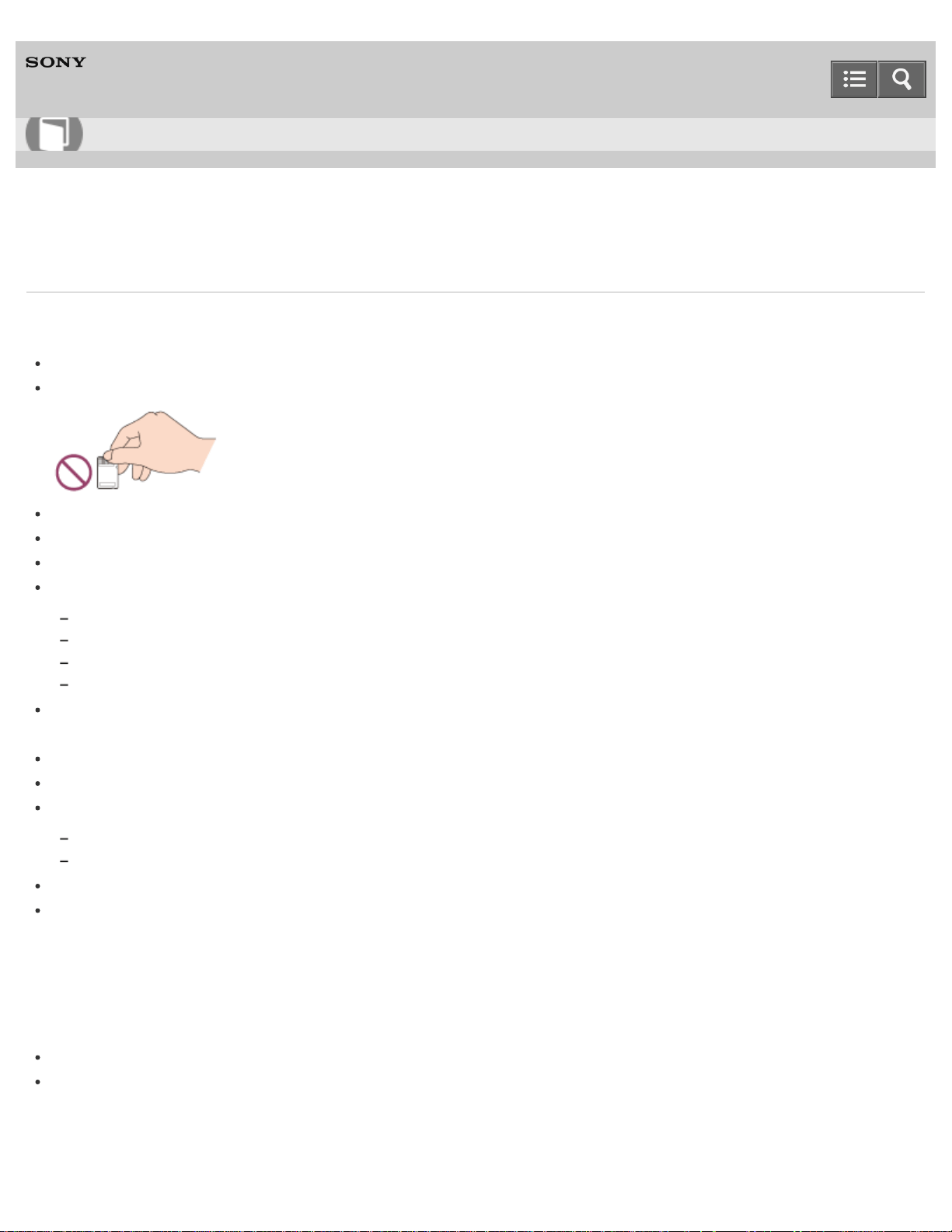
Personal Computer
VAIO Duo 13 SVD1323
Notes on Using "Memory Stick"
Before using "Memory Stick", read the following precautions for correct use.
Keep "Memory Stick" out of reach of children. There is a risk of swallowing it.
Do not touch the "Memory Stick" connector with your finger or metal objects.
"Memory Stick" contains delicate electronic components. Do not impact, bend or drop it.
Do not disassemble or modify "Memory Stick".
Do not wet "Memory Stick".
Do not use or store in a location subject to:
Extremely high temperature, such as in a car parked in the sun
Direct sunlight
High humidity or corrosive substances
Excessive dust
Be sure to use "Memory Stick" and adaptors that are compliant with the standards supported by your VAIO computer.
Incompatible cards and adaptors may get stuck in the slot, causing damage to the computer.
You cannot write data to "Memory Stick" that is write-protected.
It is recommended that you make a backup copy of important data.
Stored data may be lost or corrupted if:
You remove "Memory Stick" or turn off your VAIO computer while data is being read from or written to "Memory Stick".
You use "Memory Stick" at a place where static electricity or electrical noise may disturb the card.
When carrying "Memory Stick", be sure to put it in its case to avoid static electricity.
Before using "Memory Stick" with a device other than a computer, such as a digital camera or a portable audio, format
(initialize) "Memory Stick" using the device.
Some devices may not support the file format for computers and show you a message that recommends you to format
"Memory Stick". In this case, copy data from "Memory Stick" to your VAIO computer and format "Memory Stick" using
the device. All data in "Memory Stick" will be deleted when you format it.
Refer to the manual that came with the device for more information.
Do not insert foreign objects into the "Memory Stick" slot.
The "Memory Stick" slot can be used for reading/writing supported "Memory Stick" only, and cannot be used for other
purposes.
Notes on Using "Memory Stick Duo"
User Guide
How to Use
385
When using "Memory Stick Duo", do not use a fine-tipped pen to write on the label adhered to "Memory Stick Duo".
Exerting pressure on the media may damage internal components.
Notes on Using "Memory Stick Micro"
Before using "Memory Stick Micro" ("M2"), be sure to insert it into an "M2" Duo adaptor. If you insert the media
directly into the "Memory Stick Duo" slot without the adaptor, you may not be able to remove it from the slot.
Keep "Memory Stick Micro" and "M2" Duo adaptors away from children. They are harmful if swallowed.
Related Topic
About "Memory Stick"
Compatible "Memory Stick"
Inserting "Memory Stick"
Removing "Memory Stick"
Formatting "Memory Stick"
Notes on use
Copyright 2013 Sony Corporation
386
Personal Computer
VAIO Duo 13 SVD1323
Removing SD Memory Cards
This topic explains how to remove an SD memory card.
1. Locate the SD memory card slot.
2. Open This PC.
To open This PC, see Starting Apps.
3. Right-click the SD memory card icon and select Eject.
4. Push in the SD memory card toward your VAIO computer and release.
5. Pull the SD memory card out of the slot.
Hint
The SD slot on your computer also works as a "Memory Stick" slot.
Related Topic
Inserting SD Memory Cards
Notes on Using SD Memory Cards
Notes on use
Copyright 2013 Sony Corporation
User Guide
How to Use
387
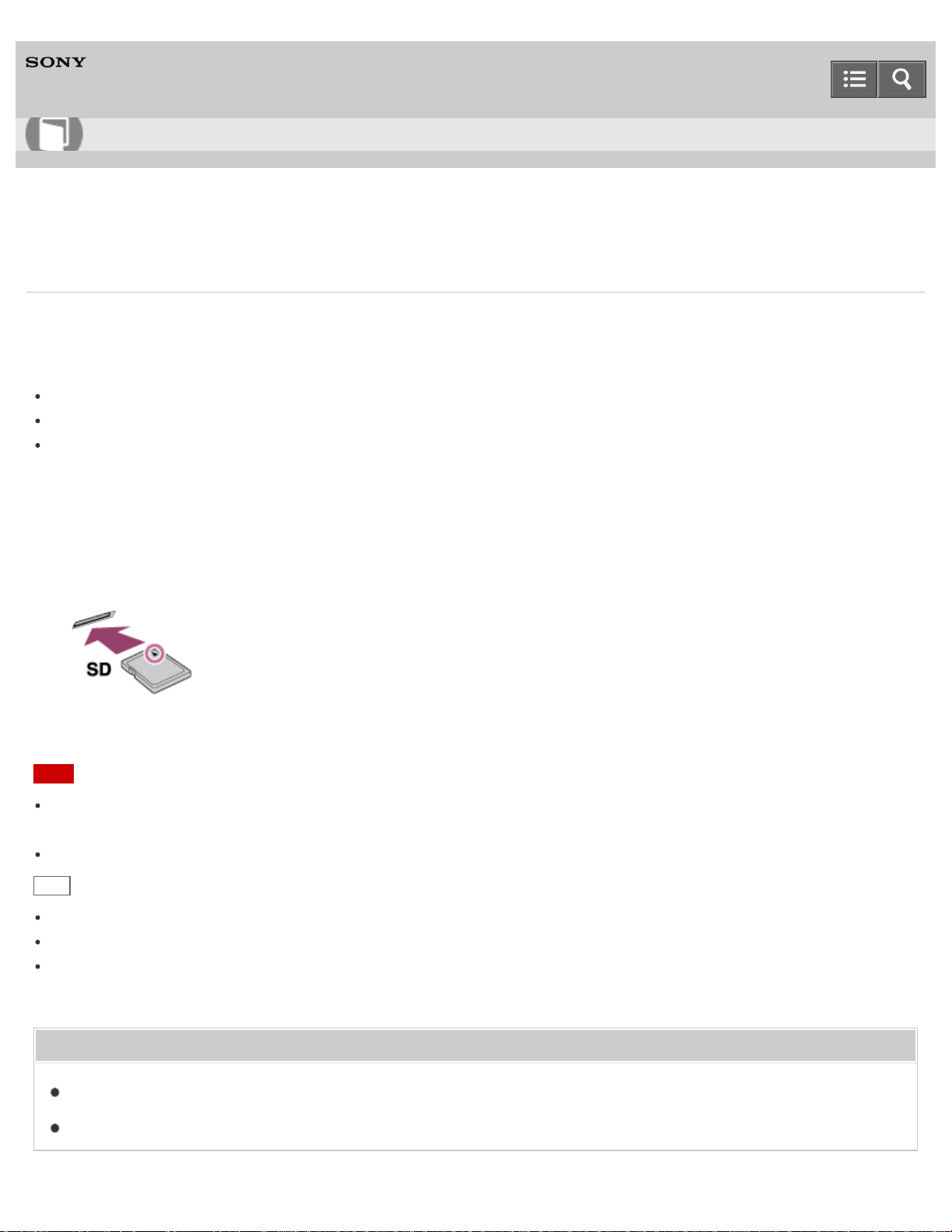
Personal Computer
VAIO Duo 13 SVD1323
Inserting SD Memory Cards
Your VAIO computer is equipped with an SD memory card slot. You can use this slot to transfer data among digital
cameras, camcorders, music players, and other audio/video devices.
The SD memory card slot on the computer can accommodate the following memory cards:
SD memory card
SDHC memory card
SDXC memory card
To insert an SD memory card, follow these steps.
1. Locate the SD memory card slot.
2. Hold the SD memory card with the arrow pointing toward the slot, and carefully slide it into the slot until it clicks into
place.
The SD memory card icon will appear in the This PC window after you insert the card into the slot.
Note
Be careful not to insert an SD memory card in the wrong orientation. If you force it into the slot upside down, the slot
may be damaged. Refer to the manual that came with the SD memory card for more information.
The SD memory card icon will not appear in the This PC window until you insert the card into the slot.
Hint
To open the This PC window, see Starting Apps.
The SD slot on your computer also works as a "Memory Stick" slot.
When you insert the SD memory card into the slot for the first time, you may be prompted to install a driver. If
prompted, follow the on-screen instructions to install the driver.
Related Topic
Removing SD Memory Cards
Notes on Using SD Memory Cards
User Guide
How to Use
388
Personal Computer
VAIO Duo 13 SVD1323
Compatible "Memory Stick"
The "Memory Stick" slot on your VAIO computer can accommodate the following sizes and types of media:
"Memory Stick Duo"
"Memory Stick PRO Duo"
"Memory Stick PRO-HG Duo"
"Memory Stick Micro"
About "MagicGate"
"MagicGate" refers to copyright protection technology developed by Sony. An authentication process is performed
between the "MagicGate" compatible device and "Memory Stick" to check whether they can correctly store and play back
data, and the data will be encrypted. The authentication is also performed before the data is played back, and only when
they are properly authenticated, the data is decrypted and played back. The copyright protected data can be played
back by authenticated devices only.
Note
Your VAIO computer supports only Duo-size "Memory Stick", and does not support standard-size "Memory Stick".
Before using "Memory Stick Micro" ("M2"), be sure to insert it into an "M2" Duo adaptor. If you insert the media
directly into the "Memory Stick Duo" slot without the adaptor, you may not be able to remove it from the slot.
Your VAIO computer has been tested and found compatible with any Sony branded "Memory Stick" of up to 32 GB,
available as of January 2013. However, "Memory Stick" compatibility is not guaranteed in all cases.
Except for personal use, it is against copyright law to use any audio and/or image data you record without prior
consent from the respective copyright holder(s). Accordingly, "Memory Stick" with such copyrighted data can be used
only within the law.
Use "Memory Stick" with the "MagicGate" logo to take advantage of this technology.
The "Memory Stick" slot on your VAIO computer does not support “MagicGate” technology of "Memory Stick" with
capacity of up to 256 MB.
If you use "Memory Stick" in a place subject to static electricity or electrical noise, stored data may be lost.
The maximum possible size for a file on "Memory Stick PRO Duo" or "Memory Stick PRO-HG Duo" is less than 4 GB,
as defined in the file system specification.
Related Topic
About "Memory Stick"
Inserting "Memory Stick"
Removing "Memory Stick"
User Guide
How to Use
389

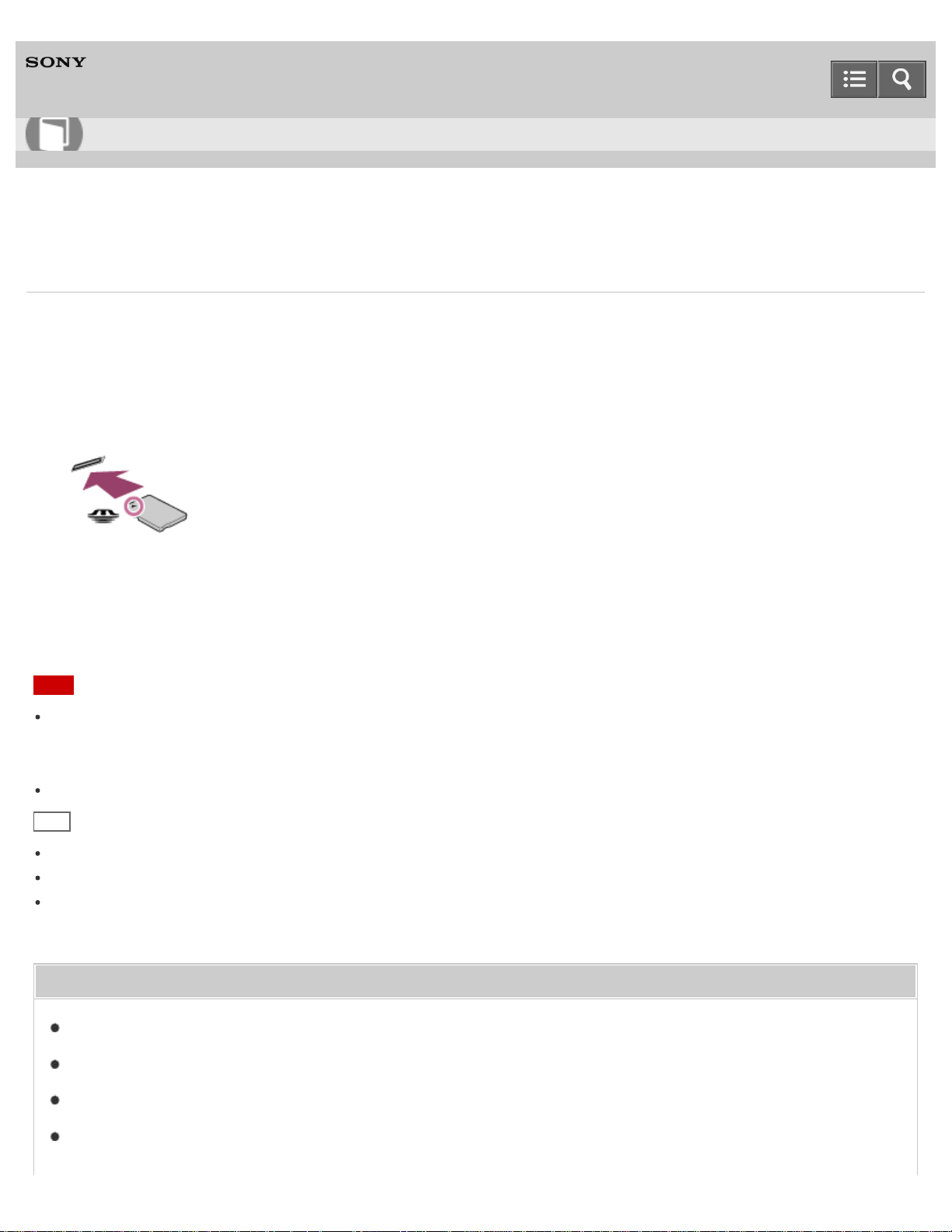
Personal Computer
VAIO Duo 13 SVD1323
Inserting "Memory Stick"
This topic explains how to insert "Memory Stick".
1. Locate the "Memory Stick" slot.
2. Hold "Memory Stick" with the arrow pointing toward the slot, and carefully slide it into the slot until it clicks into
place.
"Memory Stick" is automatically detected by your system and the contents of "Memory Stick" are displayed*. If nothing
appears on the desktop, open This PC and double-click the "Memory Stick" icon*.
*
The drive letter for the "Memory Stick" slot, such as "E:", may vary depending on the system configuration of your VAIO
computer.
Note
If "Memory Stick" cannot be inserted easily, remove it gently, and verify you are inserting it in the proper direction. Be
sure to hold "Memory Stick" with the arrow pointing in the correct direction as you insert it into the slot. To avoid
damaging your VAIO computer or the media, do not force "Memory Stick" into the slot if you cannot insert it smoothly.
The "Memory Stick" icon will not appear in the This PC window until you insert "Memory Stick" into the slot.
Hint
To open the This PC window, see Starting Apps.
The "Memory Stick" slot on your computer also works as an SD memory card slot.
When you insert "Memory Stick" into the slot for the first time, you may be prompted to install a driver. If prompted,
follow the on-screen instructions to install the driver.
Related Topic
About "Memory Stick"
Compatible "Memory Stick"
Removing "Memory Stick"
Formatting "Memory Stick"
User Guide
How to Use
391

Personal Computer
VAIO Duo 13 SVD1323
Notes on NFC/One-touch functions (NFC supported models)
Before using the NFC/One-touch functions, read the following precautions for correct use.
In some countries or regions, using NFC/One-touch functions may be restricted by local regulations.
If you urgently need to disable NFC/One-touch functions, turn off your VAIO computer.
Related Topic
About NFC (NFC supported models)
About One-touch functions (NFC supported models)
Using NFC/One-touch functions (NFC supported models)
Playing Music by Touching an NFC/One-touch functions Supported Device to Your VAIO Computer (One-touch listening)
(NFC supported models)
Stopping the One-touch listening Connection (One-touch listening) (NFC supported models)
Disabling NFC/One-touch functions (NFC supported models)
Notes on use
Copyright 2013 Sony Corporation
User Guide
How to Use
393
Personal Computer
VAIO Duo 13 SVD1323
About NFC (NFC supported models)
Near Field Communication (NFC) is a short-range wireless technology.
The communication distance of NFC is approximately 4 inches / 10 cm.
Related Topic
About One-touch functions (NFC supported models)
Using NFC/One-touch functions (NFC supported models)
Playing Music by Touching an NFC/One-touch functions Supported Device to Your VAIO Computer (One-touch listening)
(NFC supported models)
Stopping the One-touch listening Connection (One-touch listening) (NFC supported models)
Disabling NFC/One-touch functions (NFC supported models)
Notes on NFC/One-touch functions (NFC supported models)
Notes on use
Copyright 2013 Sony Corporation
User Guide
How to Use
394
Personal Computer
VAIO Duo 13 SVD1323
About One-touch functions (NFC supported models)
One-touch functions are Sony original functions which use NFC.
Simply touch two One-touch functions supported devices to easily establish communication, without complicated
settings.
Related Topic
About NFC (NFC supported models)
Using NFC/One-touch functions (NFC supported models)
Playing Music by Touching an NFC/One-touch functions Supported Device to Your VAIO Computer (One-touch listening)
(NFC supported models)
Stopping the One-touch listening Connection (One-touch listening) (NFC supported models)
Disabling NFC/One-touch functions (NFC supported models)
Notes on NFC/One-touch functions (NFC supported models)
Notes on use
Copyright 2013 Sony Corporation
User Guide
How to Use
395
Personal Computer
VAIO Duo 13 SVD1323
Disabling NFC/One-touch functions (NFC supported models)
You can disable NFC/One-touch functions by following these steps.
1. Open the charms and select the Settings charm. (See Opening the Charms to open the charms.)
2. Select Change PC settings in the lower right corner.
3. Select Network and Airplane mode in the left pane of the PC settings screen.
4. Change the NFC setting under Wireless devices to Off.
Hint
To use NFC/One-touch functions, change Airplane mode to Off and the NFC setting under Wireless devices
to On.
When Airplane mode is Off, the wireless function setting is enabled.
Refer to Windows Help and Support (Opening Windows Help and Support) for more information on Airplane
mode.
Related Topic
About NFC (NFC supported models)
About One-touch functions (NFC supported models)
Using NFC/One-touch functions (NFC supported models)
Playing Music by Touching an NFC/One-touch functions Supported Device to Your VAIO Computer (One-touch listening)
(NFC supported models)
Stopping the One-touch listening Connection (One-touch listening) (NFC supported models)
Notes on NFC/One-touch functions (NFC supported models)
Notes on use
Copyright 2013 Sony Corporation
User Guide
How to Use
396
Personal Computer
VAIO Duo 13 SVD1323
Using NFC/One-touch functions (NFC supported models)
Easily connect an NFC/One-touch functions supported device to your VAIO computer by simply touching the computer
with the device.
1. Open the charms and select the Settings charm. (See Opening the Charms to open the charms.)
2. Select Change PC settings in the lower right corner.
3. Select Network and Airplane mode in the left pane of the PC settings screen.
4. Change Airplane mode to Off and the NFC setting under Wireless devices to On.
5. When touching your VAIO computer (Parts and Controls on the Bottom) with an NFC/One-touch functions
supported device, ensure that the touch mark on each device faces each other.
A message will appear the moment the device is recognized.
Follow the on-screen instructions.
Hint
Refer to Windows Help and Support (Opening Windows Help and Support) for more information on Airplane
mode.
You may need to change the device settings depending on the NFC/One-touch functions supported device you use.
For detailed information, refer to the manual that came with your device.
Related Topic
About NFC (NFC supported models)
About One-touch functions (NFC supported models)
Playing Music by Touching an NFC/One-touch functions Supported Device to Your VAIO Computer (One-touch listening)
(NFC supported models)
Stopping the One-touch listening Connection (One-touch listening) (NFC supported models)
Disabling NFC/One-touch functions (NFC supported models)
User Guide
How to Use
397

Personal Computer
VAIO Duo 13 SVD1323
Playing Music by Touching an NFC/One-touch functions Supported Device to Your VAIO Computer (One-touch
listening) (NFC supported models)
One-touch listening enables your VAIO computer to pair (register) with an NFC/One-touch functions supported device
(speakers, headphones, etc.) through BLUETOOTH communications. To pair them, simply touch the device to the
computer.
Also refer to the manual that came with the device for information on NFC pairing.
1. Enable NFC/One-touch functions on your VAIO computer and touch an NFC/One-touch functions supported device
to the (touch mark) on the computer. (See Using NFC/One-touch functions (NFC supported models).)
2. Follow the on-screen instructions to pair the computer and the device.
3. Start a music app and then play music.
Note
Depending on your network environment and device, it may take about a minute to establish a connection.
The procedure may vary depending on your device.
Hint
The connected device is displayed on the device list after the connection is established.
To display the device list, open the charms and select the Settings charm, Change PC settings in the lower
right corner, PC and devices, and Bluetooth.
To open the charms, see Opening the Charms.
You can check the connection status on the connected device.
You can disconnect your VAIO computer from the connected device and connect to another NFC/One-touch functions
supported device by touching the new device to the computer.
Related Topic
About NFC (NFC supported models)
About One-touch functions (NFC supported models)
Using NFC/One-touch functions (NFC supported models)
Stopping the One-touch listening Connection (One-touch listening) (NFC supported models)
Disabling NFC/One-touch functions (NFC supported models)
User Guide
How to Use
399

Personal Computer
VAIO Duo 13 SVD1323
Stopping the One-touch listening Connection (One-touch listening) (NFC supported models)
You can stop the One-touch listening connection.
1. Turn off the NFC/One-touch functions supported device connected to your VAIO computer.
Hint
The procedure may vary depending on your device. Also refer to the manual that came with the device for information
on how to stop the connection.
Related Topic
About NFC (NFC supported models)
About One-touch functions (NFC supported models)
Using NFC/One-touch functions (NFC supported models)
Playing Music by Touching an NFC/One-touch functions Supported Device to Your VAIO Computer (One-touch listening)
(NFC supported models)
Disabling NFC/One-touch functions (NFC supported models)
Notes on NFC/One-touch functions (NFC supported models)
Notes on use
Copyright 2013 Sony Corporation
User Guide
How to Use
401
Personal Computer
VAIO Duo 13 SVD1323
Clipping an Image Displayed on the Computer Screen (VAIO Clip)
With VAIO Clip, you can easily clip an image displayed on the computer screen.
You can save the image you clipped and use it in a document in another app such as VAIO Paper.
1. Press and hold down the Fn key and press the 1 key.
Hint
Alternatively, put the supplied pen (Digitizer Stylus) close to the LCD screen and press the lower button of the pen to
start VAIO Clip. (Digitizer Stylus supplied models)
When you start VAIO Clip from the app list or the tile on the Start screen, the list of the clipped images is
displayed. You can select your preferred image from the list of the images and edit the image. To start VAIO Clip
from the app list, see Opening the App List.
Related Topic
How to Use the Pen (Digitizer Stylus supplied models)
Starting the Note Taking App (VAIO Paper)
Notes on use
Copyright 2013 Sony Corporation
User Guide
How to Use
402
Personal Computer
VAIO Duo 13 SVD1323
Starting the Note Taking App (VAIO Paper)
You can use VAIO Paper in substitution for real notebooks. With VAIO Paper, you can take notes easily on your
VAIO computer and share the notes with others.
1. Start VAIO Paper. (See Starting Apps to start VAIO Paper.)
Hint
Alternatively, put the supplied pen (Digitizer Stylus) close to the LCD screen and press the upper button of the pen to
directly open the note creation screen of VAIO Paper. You can take notes easily and instinctively, so you do not
miss a chance to take notes. (Digitizer Stylus supplied models)
Related Topic
How to Use the Pen (Digitizer Stylus supplied models)
Clipping an Image Displayed on the Computer Screen (VAIO Clip)
Scanning Content (VAIO Scan)
Notes on use
Copyright 2013 Sony Corporation
User Guide
How to Use
403
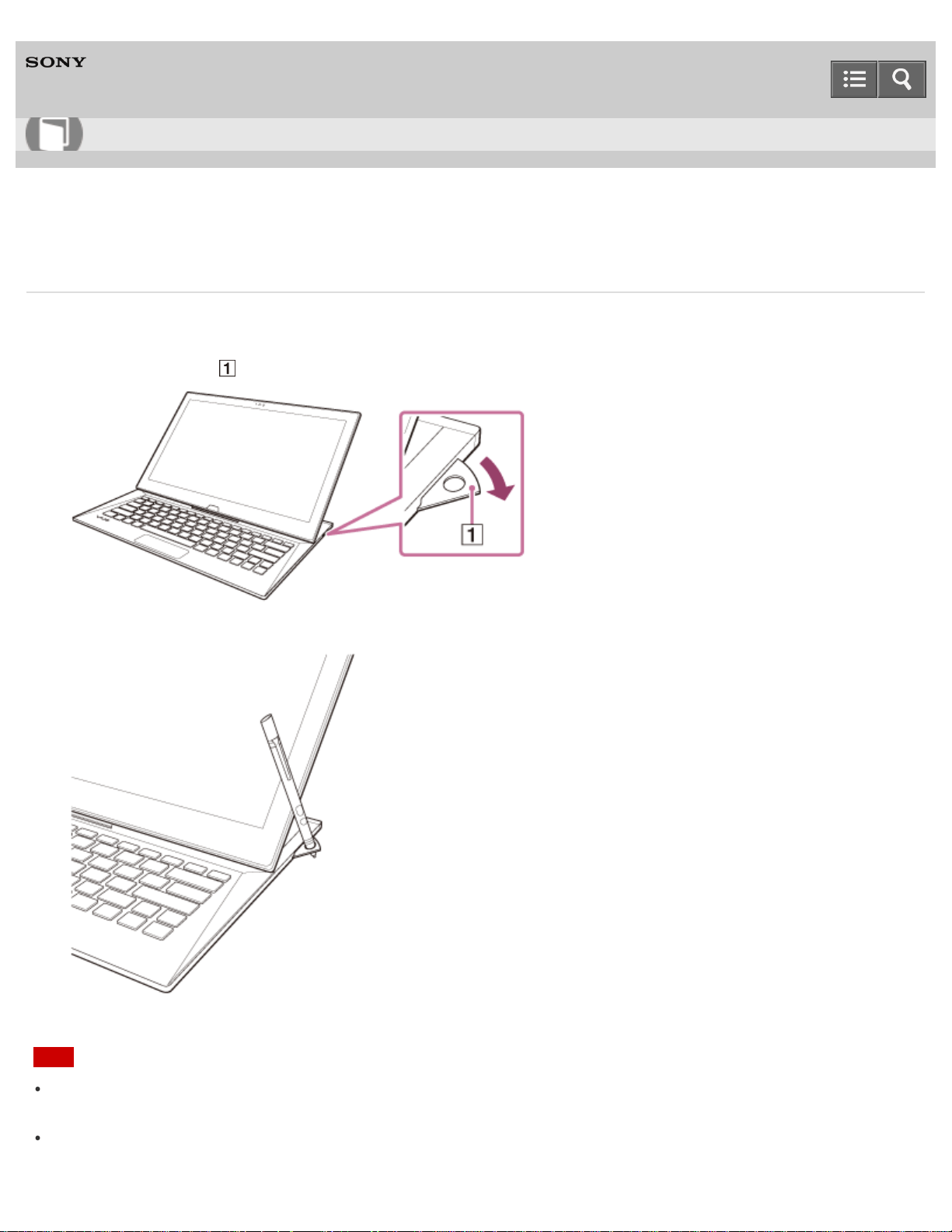
Personal Computer
VAIO Duo 13 SVD1323
Using the Pen Stand (Digitizer Stylus supplied models)
You can keep the supplied pen (Digitizer Stylus) standing upright by using the pen stand.
1. Pull the pen stand ( ) out of the side of your VAIO computer.
2. Place the pen in the pen stand.
Note
The Tail cap contains a magnet. Do not bring an object easily affected by magnetic interference (such as a credit
card) close to the pen. Doing so may result in loss of recorded data.
Do not exert excessive pressure on the pen stand with the stand pulled out, as it may cause damage to the part of
your VAIO computer.
User Guide
How to Use
404

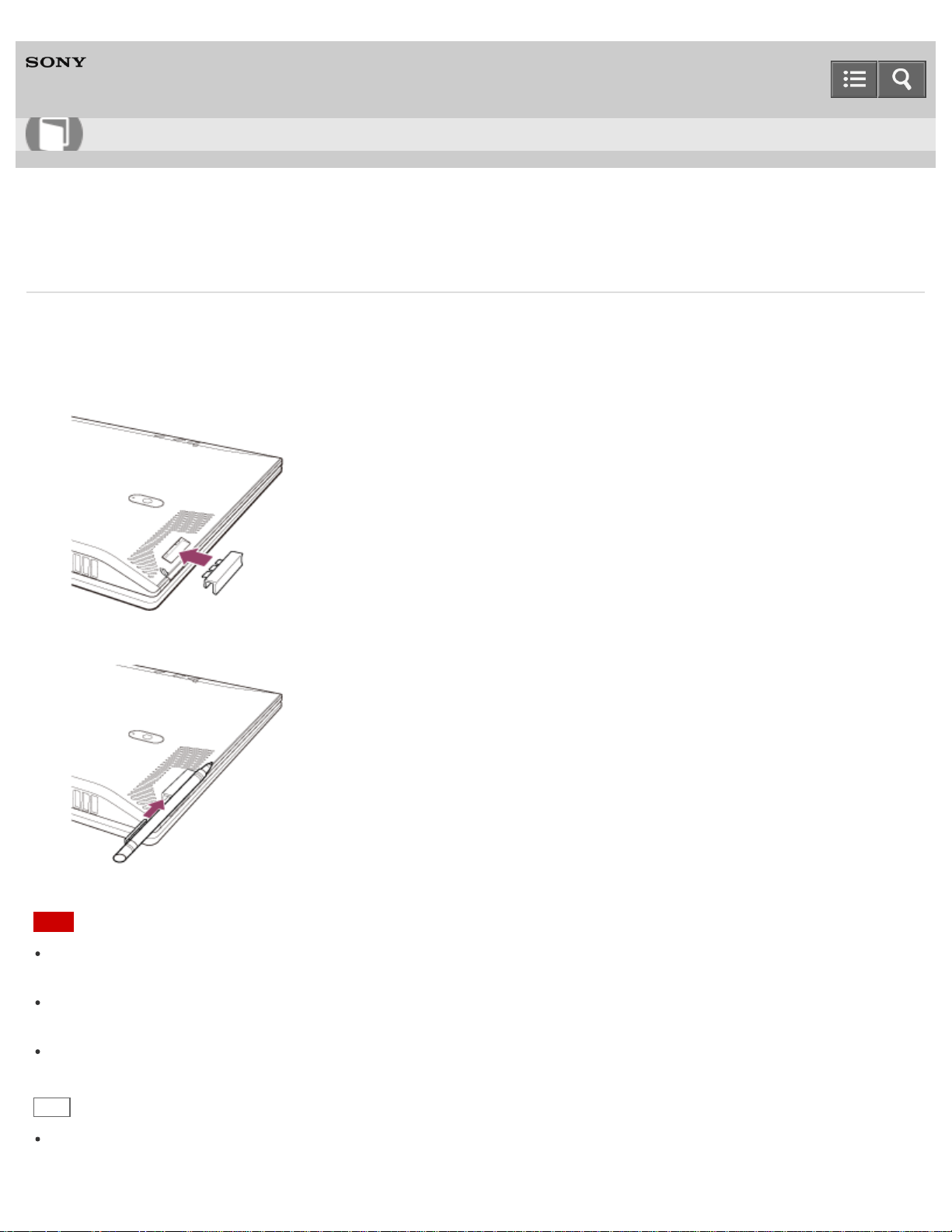
Personal Computer
VAIO Duo 13 SVD1323
Using the Pen Hook (Digitizer Stylus supplied models)
By using the pen hook, you can carry your VAIO computer with the supplied pen (Digitizer Stylus) attached to the
computer.
1. Attach the pen hook to the hole on the bottom of your VAIO computer.
2. Insert the pen clip into the pen hook.
Note
The Tail cap contains a magnet. Do not bring an object easily affected by magnetic interference (such as a credit
card) close to the pen. Doing so may result in loss of recorded data.
When attaching the pen hook to your VAIO computer, be sure to protect the glass surface of the LCD screen. Lay the
computer on a soft cloth to avoid damage to the LCD screen.
To prevent them from being swallowed, keep small parts (such as the nib, Tail cap, pen hook, and battery) out of
reach of children.
Hint
Detaching the pen from the pen hook starts your preferred app automatically. See Starting Your Preferred App when
You Detach the Pen (Digitizer Stylus supplied models) for more information.
User Guide
How to Use
406

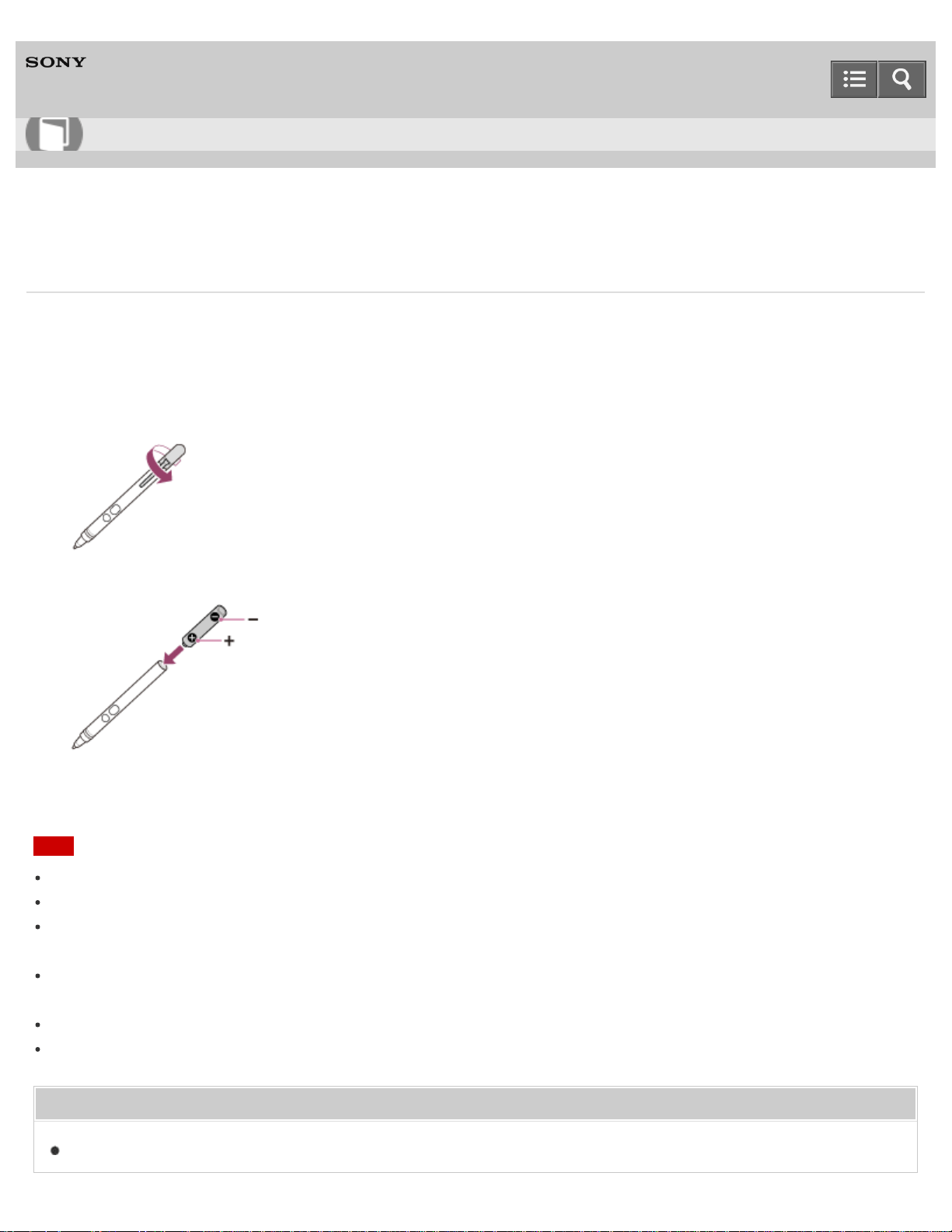
Personal Computer
VAIO Duo 13 SVD1323
Replacing the Battery of the Pen (Digitizer Stylus supplied models)
Replace the battery when the pen (Digitizer Stylus) begins to function incorrectly.
Based on usage of approximately 4 hours a day, expect to replace the battery every 18 months. Use an LR61
(LR8D425) alkaline battery.
1. Remove the Tail cap from the pen, then remove the battery.
2. Insert the battery into the pen with the + side toward the nib.
3. Reattach the Tail cap.
Note
Do not remove the Tail cap except for when replacing the battery.
If you do not intend to use the pen for a while, remove the battery.
The pen should not be used with a commercially available rechargeable battery. Using a rechargeable battery may
result in battery leakage and malfunction.
When the battery power becomes low, replace with a new battery promptly. Keeping a depleted battery in the pen may
cause battery leakage.
Do not attempt to recharge a battery.
Refer to the supplied safety manual.
Related Topic
How to Use the Pen (Digitizer Stylus supplied models)
User Guide
How to Use
408
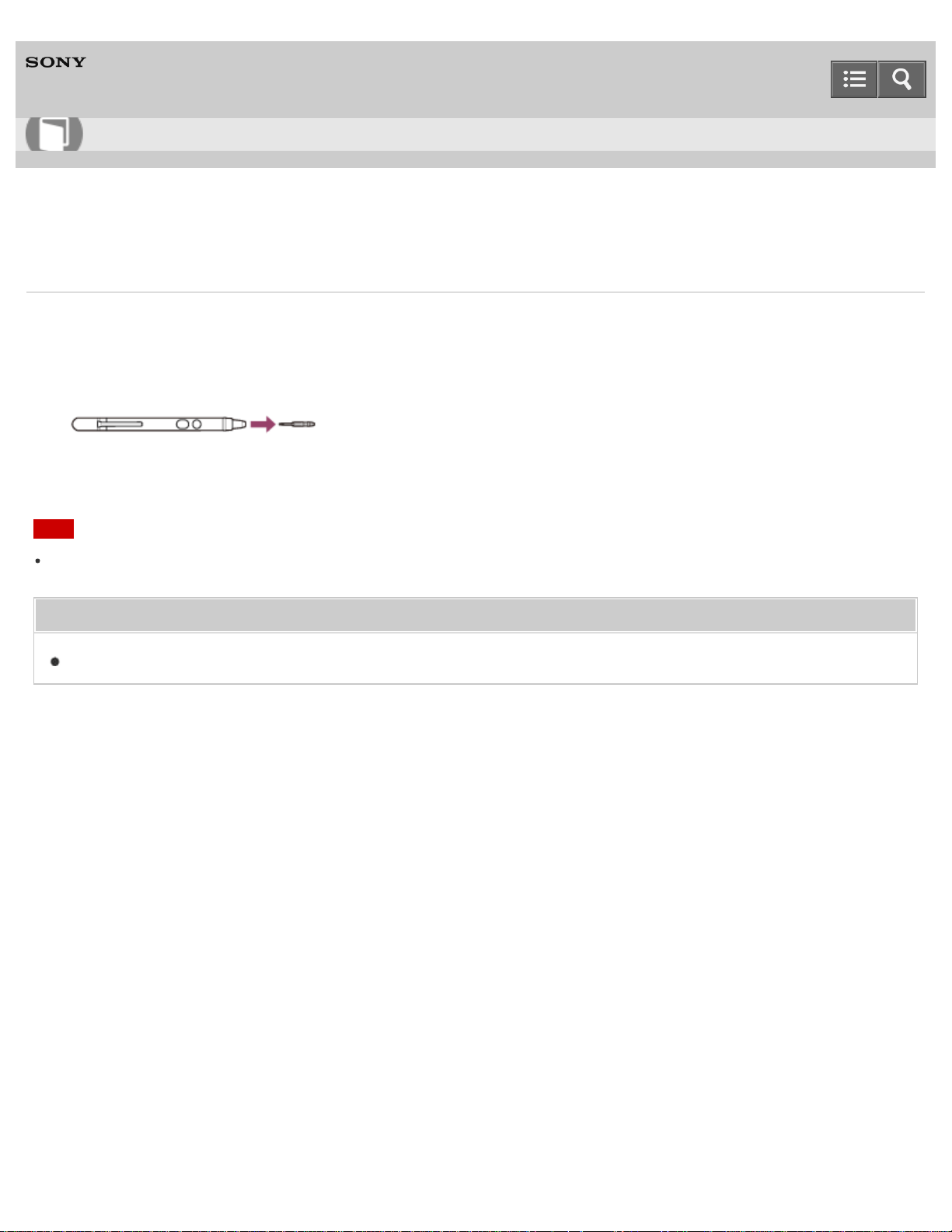
Personal Computer
VAIO Duo 13 SVD1323
Replacing the Nib (Digitizer Stylus supplied models)
The writing feeling of the supplied nib differs from the feeling of the attached nib. Replace the nib with the supplied one
to change the feeling.
1. Grasp the tip of the pen, then pull out straight.
2. Check the direction of the new nib and insert it into the barrel of the pen.
Note
If the pen’s nib is lost or broken, contact an authorized Sony service/support center.
Related Topic
How to Use the Pen (Digitizer Stylus supplied models)
Notes on use
Copyright 2013 Sony Corporation
User Guide
How to Use
409
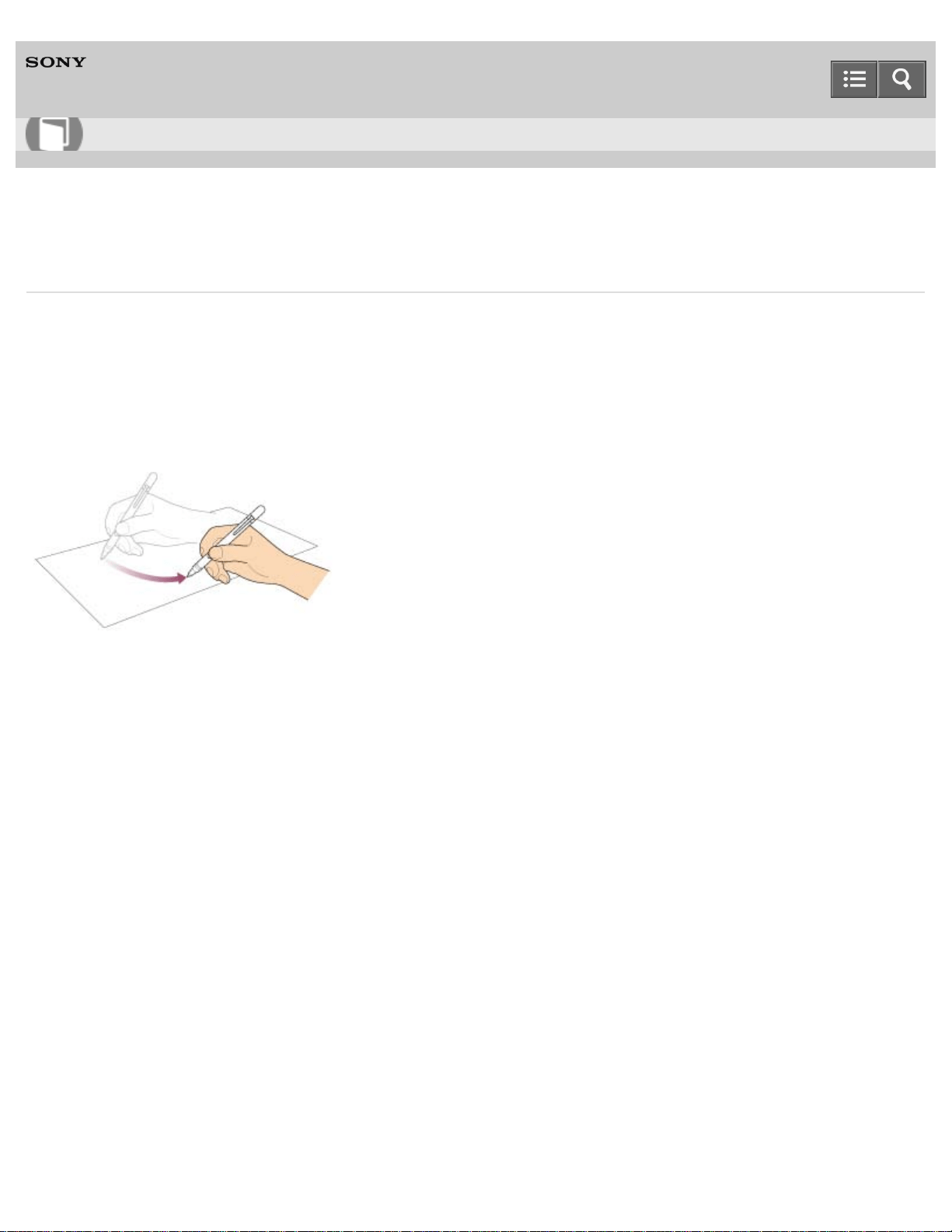
Personal Computer
VAIO Duo 13 SVD1323
How to Use the Pen (Digitizer Stylus supplied models)
Using the supplied pen (Digitizer Stylus), you can operate your VAIO computer intuitively, by touching the screen softly
or tracing something on the screen.
To move the pointer on the screen
Hold the pen close to the screen without touching the screen. A small pointer appears on the screen. Move the pen in
the desired direction.
To click (tap)
Tap the desired point on the screen with the pen.
Use this action to select an option, such as OK or Cancel; to select a menu item; or to perform other operations, such
as when you would normally use the left mouse button.
To double-click (double-tap)
Tap the desired point on the screen twice in quick succession with the pen.
You can start an app, or open a file by double-tapping its icon.
To right-click (press and hold down)
Press and hold down the lower button of the pen, then tap once on the desired point on the screen. Depending on where
you tapped the screen, a drop-down menu may appear.
User Guide
How to Use
410
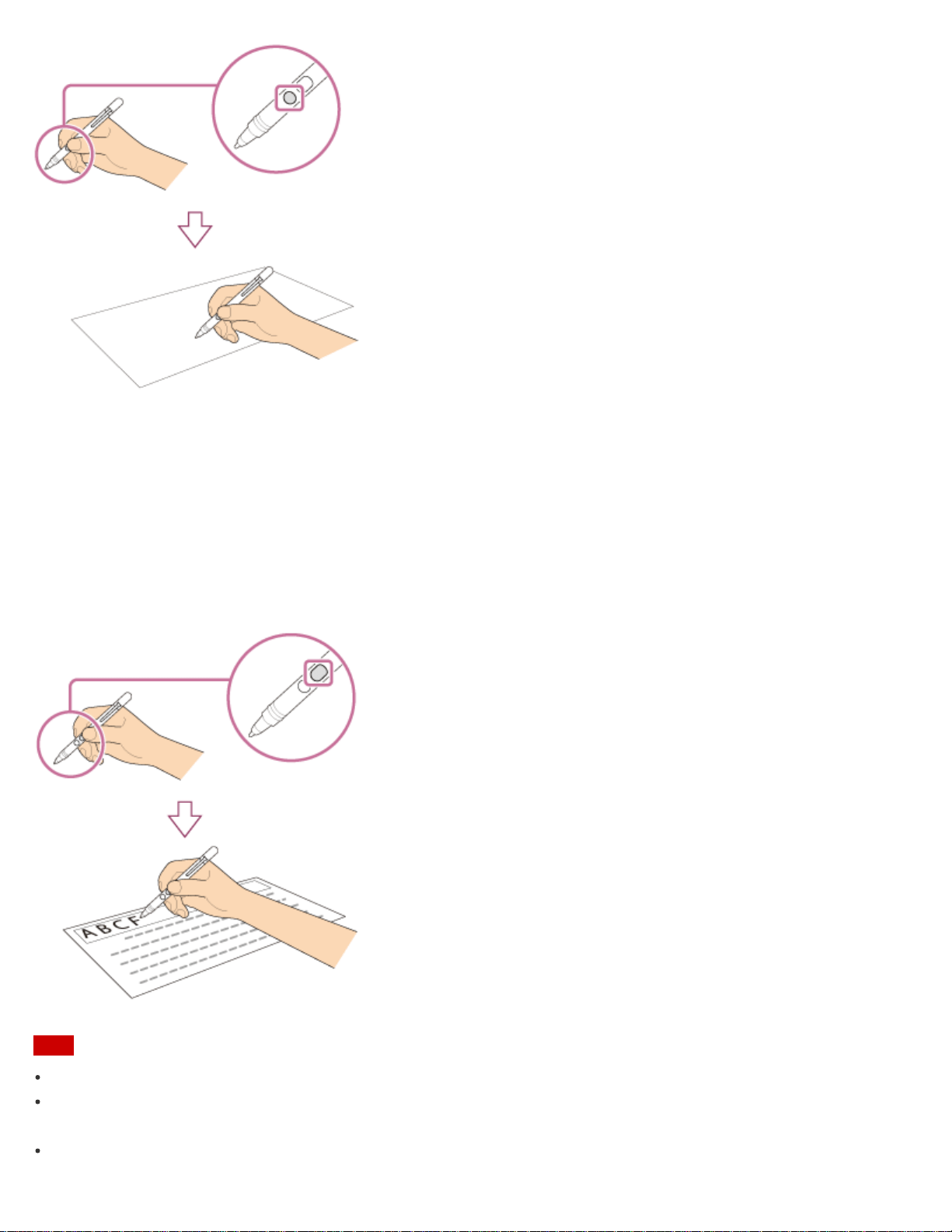
You can also perform the same operation by holding the pen at the desired point for a few seconds.
To drag (move an item)
Gently place the pen on the item to be moved, then drag the item on the screen to move it.
To erase text
Depending on the app, you may erase text.
Press and hold down the upper button of the pen, gently place the pen on the first text item to be erased, then trace the
pen over the text to the last text item to be erased. Press Delete or Backspace to erase the text.
Note
Use the supplied pen.
The Tail cap contains a magnet. Do not bring an object easily affected by magnetic interference (such as a credit
card) close to the pen. Doing so may result in loss of recorded data.
If you use an app that uses the digital compass, keep the pen away from your VAIO computer to prevent the built-in
411
magnet of the Tail cap from affecting the magnetometer on the computer.
You can use the pen with your hand resting on the screen. If you move the pen towards the touch screen, you cannot
control the touch screen with fingers.
Depending on the screen, you may not be able to use the pen to scroll the screen.
This pen does not have a power supply switch. Insert the required battery in the pen to operate.
If the pen does not function correctly, replace the battery. See Replacing the Battery of the Pen (Digitizer Stylus
supplied models) for more information.
The writing feeling of the supplied nib differs from the feeling of the attached nib. Replace the nib with the supplied
one to change the feeling. See Replacing the Nib (Digitizer Stylus supplied models) for more information.
To prevent them from being swallowed, keep small parts (such as the nib, Tail cap, pen hook, and battery) out of
reach of children.
Hint
Some apps sense the pressure of the pen and will change the thickness of the pen’s line accordingly.
Push the button of the pen near the screen to start the app. See Clipping an Image Displayed on the Computer
Screen (VAIO Clip) and Starting the Note Taking App (VAIO Paper) for more information.
Detaching the pen from the pen hook starts your preferred app automatically. See Starting Your Preferred App when
You Detach the Pen (Digitizer Stylus supplied models) for more information.
Related Topic
How to Use the Touch Screen (Touch screen equipped models)
Clipping an Image Displayed on the Computer Screen (VAIO Clip)
Starting the Note Taking App (VAIO Paper)
Notes on use
Copyright 2013 Sony Corporation
412
Personal Computer
VAIO Duo 13 SVD1323
Cleaning Your VAIO computer/LCD screen
Before cleaning your VAIO computer, read the following precautions for the correct cleaning procedure.
When cleaning your VAIO computer
Turn off your VAIO computer and unplug the AC adapter before cleaning the computer.
Use a soft, dry cloth to wipe debris and dust off your VAIO computer.
Be sure to use a soft, dry cloth when cleaning your VAIO computer. If the computer is badly soiled, fog the surface of
the computer with your breath and wipe off the dirt, or clean off with a lightly wet cloth and then wipe remaining
moisture away with a dry cloth.
Do not use solvents such as benzine, acetone, alcohol, thinner, or commercially available cleaners, as these may
cause damage to the surface or coating of your VAIO computer.
Use a blower to blow off debris and dust underneath the keys (keycaps). Do not remove any keycap from the
keyboard.
Do not use a vacuum cleaner, as it may cause a malfunction.
When cleaning your LCD screen
Be sure to use a soft, dry cloth when cleaning your VAIO computer. If the LCD screen is badly soiled, fog the surface
of the LCD screen with your breath and wipe off the dirt, or clean off with a lightly wet cloth and then wipe remaining
moisture away with a dry cloth.
Do not use solvents such as benzine, acetone, alcohol, thinner, or commercially available cleaners, as these may
cause damage to the LCD screen.
Notes on use
Copyright 2013 Sony Corporation
User Guide
How to Use
413
Personal Computer
VAIO Duo 13 SVD1323
Handling the Built-in Storage Device
The built-in storage device (hard disk drive or solid state drive) has a high storage density and reads or writes data in a
short time. However, it can be easily damaged if improperly used.
If the built-in storage device is damaged, the data cannot be restored. To prevent losing data, you should be careful
when handling your VAIO computer.
To avoid damaging your built-in storage device
Do not subject your VAIO computer to sudden movements.
Keep your VAIO computer away from magnets.
Do not place your VAIO computer in a location subject to mechanical vibration or in an unstable position.
Do not turn off the power or restart your VAIO computer while reading or writing data to the storage device.
Do not use your VAIO computer in a place subject to extreme changes in temperature.
Do not remove the storage device from your VAIO computer.
Notes on use
Copyright 2013 Sony Corporation
User Guide
How to Use
414
Personal Computer
VAIO Duo 13 SVD1323
About the International ENERGY STAR(R) Program
The following information is applicable to ENERGY STAR qualified/certified products only.
ENERGY STAR logos are attached or electronically displayed on the following locations of ENERGY STAR
qualified/certified products.
The top or the front of the product or Control Panel
The product packaging
To confirm the ENERGY STAR logo on the computer screen, open Control Panel, select System and Security
and System. To open Control Panel, see Opening Control Panel.
As an ENERGY STAR Partner, Sony confirmed that this product meets the ENERGY STAR standards for energy
efficiency.
The International ENERGY STAR Office Equipment Program is an international program that promotes energy saving
through the use of energy efficient computers and office equipment. The program supports the development and
dissemination of products with functions that effectively reduce energy consumption to contribute to cost savings and
reduction of environmental burdens.
For detailed information on the ENERGY STAR Program, visit the following websites:
http://www.energystar.gov/ (USA)
http://www.eu-energystar.org/ (Europe)
This computer is designed in compliance with the ENERGY STAR standards and delivered with the following power
saving settings that apply to the computer running on AC power:
The LCD backlight is turned off automatically after no more than 15 minutes of inactivity.
The computer enters Sleep mode automatically after no more than 30 minutes of inactivity.
Press the
(Power) button to bring the computer back into Normal mode.
Notes on use
Copyright 2013 Sony Corporation
User Guide
How to Use
415
Personal Computer
VAIO Duo 13 SVD1323
About the Software License
This product contains software owned by Sony and licensed by third parties. Use of such software is subject to the terms
and conditions of license agreements enclosed with this product.
Related Topic
About This Manual
Notes on use
Copyright 2013 Sony Corporation
User Guide
How to Use
416
Personal Computer
VAIO Duo 13 SVD1323
Trademarks
© 2013 Sony Electronics Inc. All rights reserved. Reproduction in whole or in part without written permission is
prohibited.
Sony and the Sony logo are trademarks or registered trademarks of Sony Corporation.
VAIO, the VAIO logo and other Sony product or service names are trademarks or registered trademarks of Sony
Corporation or any of its affiliates.
i.LINK is a name to denote IEEE 1394.
Intel, Intel Inside, Intel Core, Pentium, Intel SpeedStep, and Atom are trademarks or registered trademarks of Intel
Corporation in the United States and/or other countries.
Windows and the Windows logo are either registered trademarks or trademarks of Microsoft Corporation in the United
States and/or other countries.
Blu-ray Disc™, Blu-ray™, Blu-ray 3D™, the Blu-ray Disc logo, and the Blu-ray 3D logo are trademarks of the Blu-ray
Disc Association.
The BLUETOOTH word mark and logos are registered trademarks owned by Bluetooth SIG, Inc. and any use of such
marks by Sony Corporation is under license. Other trademarks and trade names are those of their respective owners.
Power2Go is trademark of CyberLink.Inc.
PowerDVD is trademark of CyberLink.Inc.
NVIDIA and 3D Vision are registered trademarks and/or trademarks of NVIDIA Corporation in the United States and
other countries.
ArcSoft and the ArcSoft logo are registered trademarks of ArcSoft, Inc. ArcSoft WebCam Companion is a trademark
of ArcSoft, Inc.
AMD, the AMD Arrow logo, ATI, and combinations thereof, Radeon, AMD Phenom, AMD Turion, AMD Athlon, AMD
Virtualization, AMD-V are trademarks of Advanced Micro Devices, Inc.
SD Logo is a trademark.
SDHC Logo is a trademark.
SDXC Logo is a trademark.
microSD Logo is a trademark.
microSDHC Logo is a trademark.
microSDXC Logo is a trademark.
The ExpressCard word mark and logos are owned by the PCMCIA and any use of such marks by Sony Corporation
is under license. Other trademarks and trade names are those of their respective owners.
The terms HDMI and HDMI High-Definition Multimedia Interface, and the HDMI Logo are trademarks or registered
trademarks of HDMI Licensing LLC in the United States and other countries.
CompactFlash® is a trademark of SanDisk Corporation.
"PlaceEngine" is a registered trademark of Koozyt, Inc.
"PlaceEngine" was developed by Sony Computer Science Laboratories, Inc. and is licensed by Koozyt, Inc.
User Guide
How to Use
417

"AVCHD" is a trademark of Panasonic Corporation and Sony Corporation.
Manufactured under license from Dolby Laboratories. Dolby and the double-D symbol are trademarks of Dolby
Laboratories.
ENERGY STAR and the ENERGY STAR mark are registered U.S. marks.
The N Mark is a trademark or registered trademark of NFC Forum, Inc. in the United States and in other countries.
Wi-Fi is a trademark or registered trademark of Wi-Fi Alliance.
All other names of systems, products, and services are trademarks of their respective owners. In the manual, the ™ or ®
marks are not specified.
Features and specifications are subject to change without notice.
All other trademarks are trademarks of their respective owners.
Not all the software listed above may be delivered with your model.
Notes on use
Copyright 2013 Sony Corporation
418
Personal Computer
VAIO Duo 13 SVD1323
Safety Information
Refer to the supplied safety manual for detailed safety information.
Computer
If you drop a solid object or any liquid onto your VAIO computer, shut down the computer, unplug it, and remove the
battery pack if it is removable. You may want to have the computer checked by qualified personnel before operating it
again.
Use only specified peripheral equipment and interface cables.
Keep small parts such as memory cards and memory card adaptors out of reach of children. There is a risk of
swallowing them.
The temperature of the surface and the bottom of your VAIO computer, the AC adapter, and the battery may rise due
to the CPU load or an electric current generated while the battery is being charged. This is normal and does not
indicate a malfunction. The amount of heat generation varies depending on external devices or apps in use.
If your VAIO computer or the AC adapter becomes extraordinarily hot, turn off the computer, unplug the AC adapter,
remove the battery pack if it is removable, and then contact an authorized Sony service/support center.
Power source
Do not place heavy objects on the power cord, or this could cause a fire.
To disconnect the power cord, pull it out by holding the plug. Never pull the cord itself.
Do not use cut or damaged connection cables.
Unplug your VAIO computer from the AC outlet if you are not planning to use the computer for an extended period of
time.
Headphones
Do not use headphones while driving, cycling, or operating any motorized vehicle. It may create a traffic hazard and is
illegal in some areas. It can also be potentially dangerous to play loud music while walking, especially at pedestrian
crossings.
Avoid using headphones at high volume. Hearing experts advise against continuous, loud and extended play. If you
experience a ringing in your ears, reduce the volume or discontinue use.
Notes on use
Copyright 2013 Sony Corporation
User Guide
How to Use
419
Personal Computer
VAIO Duo 13 SVD1323
Solving Common Problems with Your VAIO Computer
If you have any problem operating your VAIO computer, try these suggestions before contacting an authorized Sony
service/support center or your local Sony dealer directly.
1. See other sections in this on-screen manual.
2. Start VAIO Care (Desktop) and perform necessary operations. (See Starting Apps to start VAIO Care
(Desktop).)
3. Visit the VAIO online support website and find necessary information.
Related Topic
Keeping Your VAIO Computer in Optimum Condition (VAIO Care)
About This Manual
About Online Support Website
Notes on use
Copyright 2013 Sony Corporation
User Guide
How to Use
420
Personal Computer
VAIO Duo 13 SVD1323
Why does my VAIO computer automatically turn off?
When the battery pack is running out of power, your VAIO computer automatically enters Hibernate mode and
eventually turns off.
Connect the AC adapter to the computer or charge the battery pack.
Notes on use
Copyright 2013 Sony Corporation
User Guide
Troubleshooting
421
Personal Computer
VAIO Duo 13 SVD1323
Why does a message appear and Windows fail to start when I turn on my VAIO computer?
If another message on how to solve the problem appears after the first message, follow the on-screen instructions.
Notes on use
Copyright 2013 Sony Corporation
User Guide
Troubleshooting
422
Personal Computer
VAIO Duo 13 SVD1323
What should I do if Hibernate mode is not available or my VAIO computer does not enter Hibernate mode?
You cannot place your VAIO computer into Hibernate mode from the charms. Use Sleep mode or shut down the
computer when you do not intend to use the computer. See Controlling the Power State of Your VAIO Computer
(Sleep Mode/Shutdown) for more information.
Notes on use
Copyright 2013 Sony Corporation
User Guide
Troubleshooting
423
Personal Computer
VAIO Duo 13 SVD1323
What should I do if the screen remains blank when I press the power button?
Make sure the brightness and contrast controls are adjusted correctly.
An external display may be selected as the display output.
Press the Fn+F7 keys several times to select your desired display output, and then press the Enter key.
If you are using an external display, make sure it is plugged into an AC outlet and is on. Make sure the brightness
and contrast controls are adjusted correctly.
Refer to the manual that came with your display for information on how to change the settings.
Press the Alt+F4 keys several times to close the app window.
An app error may have occurred.
If you wait for a while and the computer screen remains blank, restart your VAIO computer by following the
procedures below in order. Note that following these procedures may cause working data to become corrupted.
Disconnect all peripheral devices, such as a printer or a USB device, and your VAIO computer from the network, if any.
Press and hold down the
(Power) button for more than 4 or 10 seconds and make sure your VAIO computer is off.
Then, turn on the computer again.
If the problem persists, reset the battery pack.
Press and hold down the (Power) button for more than 4 or 10 seconds. Disconnect all cables connected to your
VAIO computer, such as the AC adapter, and push and hold the battery off button for three to five seconds with a thin,
straight object (such as a paper clip).
Wait about five minutes and then put all cables back in place and turn on the computer again.
If you bring your VAIO computer directly from a cold location to a warm one, or use it in a high humidity location,
moisture may condense inside the computer.
In such a case, allow at least one hour before turning on the computer.
Do not use the computer in a high humidity location (a relative humidity of more than 80%), as it may cause the
computer to malfunction.
Notes on use
Copyright 2013 Sony Corporation
User Guide
Troubleshooting
424
Personal Computer
VAIO Duo 13 SVD1323
What should I do if my VAIO computer does not turn on?
Make sure all cables are securely connected to devices, such as between your VAIO computer and the AC adapter;
the AC adapter and the power cord; and the power cord and an AC outlet. See Connecting a Power Source.
If you plug the power cord of your VAIO computer into a power strip with a switch, make sure the switch is turned on
and the power cord of the power strip is securely plugged into an AC outlet.
If you do not turn off your VAIO computer through the normal procedure, the power controller may be suspended due
to a program error.
Disconnect all cables and peripheral devices, such as the power cord and the USB device, and push and hold the
battery off button for three to five seconds with a thin, straight object (such as a paper clip).
Wait about five minutes and then put all cables and devices back in place and turn on the computer again.
Before using your VAIO computer for the first time, you need to connect the computer to a power source with the AC
adapter.
Check that you are using the supplied Sony AC adapter.
For your safety, use only the genuine Sony AC adapter, which is supplied by Sony for your VAIO computer.
The battery pack may have run out of power.
Note that if you press and hold down the (Power) button for more than 4 or 10 seconds, your VAIO computer will
turn off.
If you bring your VAIO computer directly from a cold location to a warm one, or use it in a high humidity location,
moisture may condense inside the computer.
In such a case, allow at least one hour before turning on the computer.
Do not use the computer in a high humidity location (a relative humidity of more than 80%), as it may cause the
computer to malfunction.
Notes on use
Copyright 2013 Sony Corporation
User Guide
Troubleshooting
425
Personal Computer
VAIO Duo 13 SVD1323
What should I do if I cannot turn off my VAIO computer?
Follow any of these procedures to exit all running apps and then turn off your VAIO computer again.
Drag the app from the top center of the screen to the bottom center. See Closing Apps for more information.
Press the Alt+F4 keys.
If there is unsaved data, save it at the confirmation prompt.
If you have installed a new app on your VAIO computer, check if the app is working properly, its data is normal, and
you have operated it correctly.
Contact the app publisher or designated provider for technical support.
If you connect peripheral devices, such as a printer or a USB device, to your VAIO computer or connect the computer
to your network, disconnect all peripheral devices or the computer’s network connection and then turn off the
computer.
While the computer is communicating with a peripheral device or the network, Windows does not allow you to turn off
the computer. In addition, some peripheral device drivers for the peripheral devices do not support the feature to force
the computer to shut down.
If the computer screen freezes, press the Ctrl+Alt+Delete keys, select (Shut down) in the lower right corner
of the computer screen, and then select Shut down.
If your VAIO computer freezes with a message indicating the settings are being saved or the computer is shutting
down displayed, follow these procedures in order.
Press the Enter key.
Wait for a while.
If the problem persists, press the Ctrl+Alt+Delete keys.
Wait for a while.
If you still cannot turn off your VAIO computer even after you follow all the above procedures in this topic, perform the
following operations.
Note that performing these operations may cause working data to become corrupted. Be sure to disconnect the
computer from the network before performing the following operations.
Press the Ctrl+Alt+Delete keys, select (Shut down) in the lower right corner of the computer screen, and then
select Shut down.
Press and hold down the
(Power) button for more than 4 or 10 seconds.
Unplug the AC adapter, and push and hold the battery off button for three to five seconds with a thin, straight object (such
as a paper clip).
Notes on use
Copyright 2013 Sony Corporation
User Guide
Troubleshooting
426
Personal Computer
VAIO Duo 13 SVD1323
What should I do if my VAIO computer does not turn on or the power button does not work (the charge indicator
light blinks fast)?
Your VAIO computer may not recognize the battery pack.
In this case, push and hold the battery off button for three to five seconds with a thin, straight object (such as a paper
clip).
If the problem persists, contact an authorized Sony service/support center and replace the battery pack with a new
one specified by Sony.
Notes on use
Copyright 2013 Sony Corporation
User Guide
Troubleshooting
427
Personal Computer
VAIO Duo 13 SVD1323
What should I do if the VAIO Care (Rescue Mode) screen appears when I turn on my VAIO computer?
You may have accidently pressed the ASSIST button rather than the (Power) button.
Close the VAIO Care (Rescue Mode) screen and locate the (Power) button on your VAIO computer.
Notes on use
Copyright 2013 Sony Corporation
User Guide
Troubleshooting
428
Personal Computer
VAIO Duo 13 SVD1323
Why is my VAIO computer running slowly and the CPU clock frequency low while the computer is running on
battery power?
While your VAIO computer is running on battery power, the CPU clock frequency is reduced for power conserving
purposes, which causes the computer to run slowly. This is normal and does not indicate a malfunction.
Notes on use
Copyright 2013 Sony Corporation
User Guide
Troubleshooting
429
Personal Computer
VAIO Duo 13 SVD1323
What should I do if my battery pack is not fully charged?
Check the battery care function settings. Start VAIO Control Center and check the settings in the Power and
Battery window. To start VAIO Control Center, see Starting Apps.
If ambient temperature is outside the specified range or the power consumption of your VAIO computer is high when
you charge the battery pack, the charge current may be reduced.
Notes on use
Copyright 2013 Sony Corporation
User Guide
Troubleshooting
430
Personal Computer
VAIO Duo 13 SVD1323
What should I do if my battery pack does not work properly?
Start VAIO Care to check the status of your battery pack. See Keeping Your VAIO Computer in Optimum Condition
(VAIO Care) for more information.
Notes on use
Copyright 2013 Sony Corporation
User Guide
Troubleshooting
431
Personal Computer
VAIO Duo 13 SVD1323
Why does the LCD brightness automatically change?
The automatic brightness adjustment function is enabled. Disable the function in VAIO Control Center. See
Adjusting the LCD Brightness Automatically for detailed information.
Notes on use
Copyright 2013 Sony Corporation
User Guide
Troubleshooting
432
Personal Computer
VAIO Duo 13 SVD1323
What should I do if color gradients are not displayed correctly on my computer screen?
Depending on the model you purchased, your computer screen may not temporarily display smooth gradients when
the computer screen pauses because of the power saving function.
To avoid this, right-click on the desktop and select Graphics Properties to display the Intel graphics control panel,
and then disable Panel Self-Refresh under Power. If you select On battery, the setting screen may appear.
Note that the battery life becomes short if you disable this setting.
Notes on use
Copyright 2013 Sony Corporation
User Guide
Troubleshooting
433
Personal Computer
VAIO Duo 13 SVD1323
Why doesn't the computer screen rotate?
The screen rotation may be disabled.
Open the charms and select the Settings charm, and then check the display settings.
To open the charms, see Opening the Charms.
The screen rotation is disabled while your VAIO computer is connected to an external display.
If you connect the computer to an external display while using the computer in portrait orientation, the computer
screen automatically changes to landscape (horizontal) orientation.
With the LCD screen raised and the keyboard available, the screen rotation is not available.
Notes on use
Copyright 2013 Sony Corporation
User Guide
Troubleshooting
434
Personal Computer
VAIO Duo 13 SVD1323
What should I do if videos are not displayed on the computer screen?
Your VAIO computer may not have sufficient video memory to display high resolution videos. In such a case, lower
the resolution of the LCD screen. See Changing the Resolution (Size) of the Screen Image for more information.
If you have selected to use an external display using the Fn+F7 keys and the external display is disconnected from
your VAIO computer, the computer screen may be unable to display the video.
In such a case, stop video playback, press the Fn+F7 keys several times to select the computer screen as the
display output, and then press the Enter key. Then, restart video playback.
Notes on use
Copyright 2013 Sony Corporation
User Guide
Troubleshooting
435
Personal Computer
VAIO Duo 13 SVD1323
What should I do if videos are not displayed smoothly?
It is recommended you disable your screen saver.
If the screen saver is enabled, it may be activated during DVD playback and prevent the playback from running
successfully.
If you have set the display output to both the computer screen and an external display, change the display output to
either of them.
Some videos may not be displayed smoothly depending on the type or bit rate of videos. Lowering the screen
resolution may improve video playback performance. See Changing the Resolution (Size) of the Screen Image for
more information.
If data access to a memory card is in progress, wait until the data access ends and then start playback again.
If you are playing a video stored on the memory card, copy it to the built-in storage device and then play the copied
video.
If the CPU and cooling fan settings are configurable with VAIO Control Center, changing the settings may
improve the performance. To start VAIO Control Center, see Starting Apps.
On models with the X-Reality for mobile engine, disable the X-Reality for mobile setting in VAIO Control
Center. This may improve video playback performance. See Displaying Clear and Vivid Images (X-Reality for mobile
installed models) for more information.
Notes on use
Copyright 2013 Sony Corporation
User Guide
Troubleshooting
436
Personal Computer
VAIO Duo 13 SVD1323
What should I do if no image is displayed on my TV screen or external display connected to the HDMI output port?
Reconnect the HDMI cable (not supplied). See Connecting a TV with an HDMI Input Port for more information.
Make sure you are using an HDCP-compliant display. The copyright protected content is not displayed on a non-
HDCP compliant display.
Change the screen resolution of the connected TV or external display. Images may appear on the screen. See
Changing the Resolution (Size) of the Screen Image for more information.
Notes on use
Copyright 2013 Sony Corporation
User Guide
Troubleshooting
437
Personal Computer
VAIO Duo 13 SVD1323
How do I change the LCD brightness?
Press the Fn+F5 or Fn+F6 keys to adjust the LCD brightness of your VAIO computer. See Changing the LCD
Brightness for more information.
To adjust the LCD brightness of the connected external display, such as a computer display or a TV, use the
brightness control on the external display.
Notes on use
Copyright 2013 Sony Corporation
User Guide
Troubleshooting
438
Personal Computer
VAIO Duo 13 SVD1323
What should I do if some items do not fit on the computer screen?
Check the font size settings in Windows.
Due to the font size settings, some items, for example an app menu, may not be displayed correctly, depending on
the apps you are using. In such a case, move the slider to adjust the settings.
Notes on use
Copyright 2013 Sony Corporation
User Guide
Troubleshooting
439
Personal Computer
VAIO Duo 13 SVD1323
What should I do if no image is displayed on my external display or TV screen?
Press the Fn+F7 keys several times to select your desired display output, and then press the Enter key. See
Selecting Display Modes for more information.
Notes on use
Copyright 2013 Sony Corporation
User Guide
Troubleshooting
440
Personal Computer
VAIO Duo 13 SVD1323
Why do sound interruptions and/or dropped frames occur when I play high-definition videos, such as those
recorded with the AVCHD digital video camcorder?
Playing high-definition videos requires substantial hardware resources, such as CPU, GPU, or system memory
performance on your VAIO computer. During the video playback, some operations and/or functions may become
unavailable, and sound interruptions, dropped frames, and playback failure may occur depending on the configuration
of the computer.
Notes on use
Copyright 2013 Sony Corporation
User Guide
Troubleshooting
441
Personal Computer
VAIO Duo 13 SVD1323
What should I do if my computer screen goes blank?
Make sure your VAIO computer is on and not in a power saving mode. See Using Sleep Mode for more information.
Make sure your VAIO computer is securely plugged into an AC outlet. If the computer is equipped with the power
indicator, make sure it is on. See Connecting a Power Source for more information.
The computer screen may be off.
Press any key on the keyboard.
The display output may be set to an external display.
Press the Fn+F7 keys several times to select your desired display output, and then press the Enter key. See
Selecting Display Modes for more information.
If you wait for a while and the computer screen remains blank, follow the procedures below:
Press and hold down the (Power) button for more than 4 or 10 seconds. If your VAIO computer is equipped with the
power indicator, check that it is off, and then turn on the computer.
If the problem persists, press and hold down the
(Power) button for more than 4 or 10 seconds. If your VAIO computer
is equipped with the power indicator, check that it is off. Disconnect all cables and peripheral devices, such as the power
cord and the USB device, and wait about five minutes. Then, put them back in place and turn on the computer again.
Notes on use
Copyright 2013 Sony Corporation
User Guide
Troubleshooting
442
Personal Computer
VAIO Duo 13 SVD1323
Why does the viewfinder show no images or poor-quality images?
Some camera apps may not work correctly when another camera app is running. Exit the current app before starting
another.
You may not be able to use another camera app that uses the built-in camera while using the gesture function.
The viewfinder may show some noise, for example horizontal streaks, when you are viewing a rapid-moving object.
This is normal and does not indicate a malfunction.
If the problem persists, restart your VAIO computer.
Notes on use
Copyright 2013 Sony Corporation
User Guide
Troubleshooting
443
Personal Computer
VAIO Duo 13 SVD1323
What should I do if captured images contain dropped frames and audio interruptions?
The effect settings on your app may cause dropped frames. Refer to the help file included with the app for more
information.
There may be more app running than your VAIO computer can handle. Exit the apps that you are not currently using.
This problem may occur while your VAIO computer is running on the power saving plan, which reduces the CPU
performance. See Selecting a Power Plan to check the current power plan.
Notes on use
Copyright 2013 Sony Corporation
User Guide
Troubleshooting
444
Personal Computer
VAIO Duo 13 SVD1323
What should I do if captured images flicker?
This problem occurs when you use the built-in camera under fluorescent lights and is due to a mismatch between the
lighting output frequency and the shutter speed.
To reduce flicker noise, change the direction of your VAIO computer so that you can adjust the direction of the built-in
camera. Some apps offer adjustable parameters, such as brightness or power frequencies, to eliminate flicker noise.
Notes on use
Copyright 2013 Sony Corporation
User Guide
Troubleshooting
445
Personal Computer
VAIO Duo 13 SVD1323
What should I do if my computer screen flickers or fades to white? (Intel graphics accelerator installed models)
Depending on the model you purchased, the computer screen may flicker or fade to white when the power saving
function is enabled and the computer screen switches.
To avoid this, right-click on the desktop and select Graphics Properties to display the Intel graphics control panel,
and then disable Display Power Saving Technology under Power. If you select On battery, the setting
screen may appear.
Note that the battery life becomes short if you disable this setting.
Notes on use
Copyright 2013 Sony Corporation
User Guide
Troubleshooting
446
Personal Computer
VAIO Duo 13 SVD1323
What should I do if the touch screen does not work correctly? (Touch screen equipped models)
Turn off your VAIO computer, and then turn it on again.
Electromagnetic waves may cause the touch screen to work incorrectly. Try these suggestions.
Move your VAIO computer away from a fluorescent light or a motor that emits electromagnetic waves.
Connect the AC adapter directly to an AC outlet or use other outlets if you are using a power strip.
Remove any USB device or cable connected to your VAIO computer, if any.
If your AC adapter has a 3-pin plug, make sure it is properly grounded.
Notes on use
Copyright 2013 Sony Corporation
User Guide
Troubleshooting
447
Personal Computer
VAIO Duo 13 SVD1323
What should I do if I do not hear sound from speakers or headphones?
Check if the volume from speakers or headphones is not minimized.
Keep pressing the Fn+F4 keys to turn up the volume loud enough to hear sound. See Combinations and Functions with
the Fn Key for more information.
Check if the volume in Windows is not turned off or minimized. See Adjusting the Volume in Windows for more
information.
When the volume is turned off ( ), select (Deactivate muting) to turn on the volume ( ). When the volume is
minimized, turn up the volume.
When connecting external speakers or headphones, check the following:
Make sure external speakers or headphones are properly connected to your VAIO computer. See Connecting External
Speakers/Headphones/Headset for more information.
If external speakers require external power, make sure the speakers are securely connected to an AC outlet.
Make sure external speakers are turned on.
Make sure the volume from external speakers is not minimized.
Make sure the sound output device is correctly selected. See Changing the Sound Output Device for more
information.
Check the volume on the playback app you are using.
Notes on use
Copyright 2013 Sony Corporation
User Guide
Troubleshooting
448
Personal Computer
VAIO Duo 13 SVD1323
What should I do if my microphone does not work?
Check if your microphone is selected as a recording device.
Open Control Panel and select Hardware and Sound. (To open Control Panel, see Opening Control Panel.)
Select Sound and check if there is a check mark on your desired microphone icon on the Recording tab.
If not, select the icon and Set Default.
If the icon is not displayed, make sure the microphone is properly connected to your VAIO computer.
An external microphone with a 3-pole mini plug does not work with the headset compatible headphone jack .
The microphone of your headset may not work with your VAIO computer. Use a Sony smartphone compatible
headset.
Notes on use
Copyright 2013 Sony Corporation
User Guide
Troubleshooting
449
Personal Computer
VAIO Duo 13 SVD1323
What should I do if I hear microphone feedback from speakers when using my microphone?
Microphone feedback may occur when your microphone receives the sound from a sound output device, such as
speakers.
Keep the microphone away from a sound output device.
Turn down the volume of the speakers and the microphone.
Notes on use
Copyright 2013 Sony Corporation
User Guide
Troubleshooting
450
Personal Computer
VAIO Duo 13 SVD1323
What should I do if sound interruptions occur during video or audio playback?
Sound interruptions may occur when the CPU load is high. In this case, reduce the CPU load by exiting all running
apps other than a playback app, or by disabling unnecessary audio effects applied to playback.
Notes on use
Copyright 2013 Sony Corporation
User Guide
Troubleshooting
451
Personal Computer
VAIO Duo 13 SVD1323
What should I do if I do not hear sound from a digital audio device connected to the digital output port, such as the
HDMI output port?
To output sound from a digital audio device connected to the digital output port on your VAIO computer, you need to
change the sound output to the digital audio device. See Changing the Sound Output Device for more information.
Notes on use
Copyright 2013 Sony Corporation
User Guide
Troubleshooting
452
Personal Computer
VAIO Duo 13 SVD1323
What should I do if the pointer does not move?
If your finger reaches an edge of the touch pad, the pointer will not move. You will need to lift your finger, and then
place it back on the center of the touch pad.
The pointer may not move temporarily as expected depending on the condition of your VAIO computer.
In such a case, wait for a while before moving the pointer again.
If the pointer still does not move, press the Ctrl+Alt+Delete keys, select (Shut down) in the lower right corner
of the computer screen, and then select Shut down.
If the problem persists, press and hold down the (Power) button for more than 4 or 10 seconds.
Turning off the computer with the Ctrl+Alt+Delete keys or the (Power) button may cause loss of unsaved data.
The touch pad may be disabled. See Why can't I use the touch pad? for more information.
Notes on use
Copyright 2013 Sony Corporation
User Guide
Troubleshooting
453
Personal Computer
VAIO Duo 13 SVD1323
What should I do if my VAIO computer screen freezes?
Restart your VAIO computer.
Press the Ctrl+Alt+Delete keys, select (Shut down) in the lower right corner of the computer screen, and then
select Restart.
If the problem persists, press and hold down the (Power) button for more than 4 or 10 seconds.
Notes on use
Copyright 2013 Sony Corporation
User Guide
Troubleshooting
454
Personal Computer
VAIO Duo 13 SVD1323
What should I do if I cannot enter certain characters with my keyboard?
Check if the Caps Lock indicator light on the Caps Lock key is on or off.
When the indicator light is on, characters typed will appear in uppercase (or lowercase if you also hold down the
Shift key).
Press the Caps Lock key to turn the Caps Lock indicator light on or off.
Notes on use
Copyright 2013 Sony Corporation
User Guide
Troubleshooting
455
Personal Computer
VAIO Duo 13 SVD1323
What should I do if my keyboard configuration is wrong?
The language layout of your keyboard is labeled on the packaging box. If you choose a different regional keyboard
when you complete the Windows setup, the key configuration will be mismatched. To change the keyboard
configuration, refer to Windows Help and Support (Opening Windows Help and Support).
Notes on use
Copyright 2013 Sony Corporation
User Guide
Troubleshooting
456
Personal Computer
VAIO Duo 13 SVD1323
How do I disable the touch pad?
Press the Fn+F1 keys to disable the touch pad. See Enabling/Disabling the Touch Pad for more information.
Alternatively, start VAIO Control Center, then disable the touch pad. To start VAIO Control Center, see
Starting Apps.
Notes on use
Copyright 2013 Sony Corporation
User Guide
Troubleshooting
457
Personal Computer
VAIO Duo 13 SVD1323
Why can't I use the touch pad?
The touch pad is disabled.
Press the Fn+F1 keys to enable the touch pad. See Enabling/Disabling the Touch Pad for more information.
Alternatively, start VAIO Control Center, then enable the touch pad. To start VAIO Control Center, see Starting
Apps.
If a mouse is connected to your VAIO computer, disconnect it.
See Using the Touch Pad for information on how to use the touch pad.
Notes on use
Copyright 2013 Sony Corporation
User Guide
Troubleshooting
458
Personal Computer
VAIO Duo 13 SVD1323
How do I avoid unintentional clicks caused by a light touch on the touch pad?
To avoid unintentional operation, disable the tapping function. See Disabling the Tapping Function on the Touch Pad.
Notes on use
Copyright 2013 Sony Corporation
User Guide
Troubleshooting
459
Personal Computer
VAIO Duo 13 SVD1323
Why are captured images poor in quality?
Images captured under fluorescent light may contain light reflections.
A dark portion in captured images may contain noise.
The area on and around the built-in camera is soiled. Clean the area. See Notes on the Built-in Camera for more
information on how to clean the camera.
Notes on use
Copyright 2013 Sony Corporation
User Guide
Troubleshooting
460
Personal Computer
VAIO Duo 13 SVD1323
What should I do if I do not know the SSID or security key for the access point?
You can find the key in the setting screen of your access point.
Refer to the manual that came with your access point for more information.
Notes on use
Copyright 2013 Sony Corporation
User Guide
Troubleshooting
462
Personal Computer
VAIO Duo 13 SVD1323
What should I do if I cannot play back movies or audio tracks received via Wi-Fi(R) (Wireless LAN), or their
playback is interrupted? Why is the data transfer speed slow?
Move your VAIO computer away from obstructions, or closer to any access point you may be using.
Connection capability is affected by distance, obstructions, device configuration, radio wave strength/interference, wall
materials, running apps, etc.
If you are using an access point, the device may be temporarily overloaded depending on how many other devices
are communicating via the access point.
Wait for a while and try again.
Change the channel setting of your access point. By changing the channel, interference on your wireless network may
be reduced and data transfer speed may improve.
If access point channel interference occurs, data transfer speed may be reduced.
If your access point interferes with other access points, change the access point channel.
Refer to the manual that came with your access point for more information.
Make sure that a microwave oven is not operating near your Wi-Fi devices.
The 2.4 GHz frequency band, on which Wi-Fi operates, is used by various devices and apparatus. If you use a
microwave oven while communicating via Wi-Fi, data transfer rate may slow down, communication range may narrow,
or communication may be interrupted.
Notes on use
Copyright 2013 Sony Corporation
User Guide
Troubleshooting
463
Personal Computer
VAIO Duo 13 SVD1323
How can I find the physical address (MAC address) of the built-in wireless network interface of my VAIO
computer?
If MAC address filtering of your access point is enabled, register the MAC address of your VAIO computer in the
setup screen of the access point. Otherwise, the computer cannot connect to the access point.
Open Command Prompt, enter "ipconfig /all", and then press the Enter key. You can find the physical address
(MAC address) in the Physical Address field under Wireless LAN adapter Wi-Fi.
To open Command Prompt, see Starting Apps.
Notes on use
Copyright 2013 Sony Corporation
User Guide
Troubleshooting
464
Personal Computer
VAIO Duo 13 SVD1323
What should I do if I cannot connect my VAIO computer to an access point (or the Internet)?
See What should I do if I cannot use the Wi-Fi(R) (Wireless LAN) function?.
Make sure the access point is on.
Check the access point settings.
In the following settings, your VAIO computer may fail to connect to an access point, or the connection may be
unstable.
When the access point is set to refuse communication with a device whose SSID is set to "ANY," and the SSID of your
VAIO computer or the access point is set to "ANY."
When the access point is in stealth mode.
For more information, refer to the manual that came with your access point, or consult your Wi-Fi service provider.
Make sure your VAIO computer and access point are connected to one another. See Starting Wi-Fi(R) (Wireless
LAN) Communications for more information.
Connection capability is affected by distance, obstructions, device configuration, radio wave strength/interference, wall
materials, running apps, etc.
Move your VAIO computer away from obstructions or closer to any access point you may be using.
Open the charms and select the Settings charm and (the network icon).
Check that your access point is displayed.
To open the charms, see Opening the Charms.
Notes on use
Copyright 2013 Sony Corporation
User Guide
Troubleshooting
465
Personal Computer
VAIO Duo 13 SVD1323
What should I do if I cannot use the Wi-Fi(R) (Wireless LAN) function?
Enable the Wi-Fi function.
Open the charms and select the Settings charm.
Select (the network icon) and change the Wi-Fi setting to On.
To open the charms, see Opening the Charms.
To use the Wi-Fi function on your VAIO computer, you need to configure the Wi-Fi settings.
Check the Wi-Fi settings of the computer. See Starting Wi-Fi(R) (Wireless LAN) Communications for more
information.
If a connection utility app supplied with a third-party Wi-Fi product is installed, uninstall it.
If a connection utility app is installed, Windows may fail to configure the Wi-Fi settings. Be sure to take a note of your
settings, (such as security keys) before uninstalling.
Notes on use
Copyright 2013 Sony Corporation
User Guide
Troubleshooting
466
Personal Computer
VAIO Duo 13 SVD1323
What should I do if other BLUETOOTH(R) devices cannot connect to my VAIO computer?
See What should I do if I cannot find the BLUETOOTH(R) device I want to communicate with?.
Make sure that the authentication (pairing) between the device and your VAIO computer has been properly
performed.
Some BLUETOOTH devices require authentication (pairing) before establishing connection with another device.
Perform the authentication process before connecting to such devices.
Make sure that your VAIO computer allows BLUETOOTH devices to find the computer.
Select (arrow) in the desktop notification area, right-click (the BLUETOOTH icon), and select Open Settings
to open the settings window.
Select the Options tab and make sure that the Allow Bluetooth devices to find this computer check box
is selected.
To open the desktop, see Opening the Desktop.
Notes on use
Copyright 2013 Sony Corporation
User Guide
Troubleshooting
467
Personal Computer
VAIO Duo 13 SVD1323
What should I do if I cannot find the BLUETOOTH(R) device I want to communicate with?
Shorten the distance between your VAIO computer and the BLUETOOTH device within 33 feet/10 meters.
If the computer is more than 33 feet/10 meters away from the BLUETOOTH device, communication will not be
possible.
The computer may not be able to communicate with the BLUETOOTH device even within 33 feet/10 meters due to
obstacles between the devices, radio wave quality, ambient environment that includes existence of walls and
materials of such walls, or apps in use. In such a case, move the computer away from obstructions or closer to the
device.
Check that the BLUETOOTH function of the device you want to communicate with is on, and the device is not in the
power saving mode.
Check that the BLUETOOTH function of the device you want to communicate with is enabled.
Refer to the manual that came with the device for more information.
If the device you want to communicate with is already communicating with another BLUETOOTH device, it may not be
found or it may not be able to communicate with your VAIO computer.
Notes on use
Copyright 2013 Sony Corporation
User Guide
Troubleshooting
468
Personal Computer
VAIO Duo 13 SVD1323
Why is my BLUETOOTH(R) connection slow?
Data transfer speed depends on obstructions and/or the distance between the two devices, radio wave quality, and
the device configuration or apps in use.
Move your VAIO computer and BLUETOOTH device closer to each other.
If a version of a BLUETOOTH standard employed on the BLUETOOTH device with which you want to communicate is
not the same version as the one employed on your VAIO computer, the communication speed may become slower.
If your VAIO computer is compliant with BLUETOOTH high speed technology and the following two conditions are
met, high-speed communications are available. However, some BLUETOOTH profiles do not support high-speed
communications.
The BLUETOOTH device with which you want to communicate supports BLUETOOTH high speed technology.
Both the Wi-Fi(R) (Wireless LAN) and BLUETOOTH functions on the computer are enabled.
Notes on use
Copyright 2013 Sony Corporation
User Guide
Troubleshooting
469
Personal Computer
VAIO Duo 13 SVD1323
Why can't I use the BLUETOOTH(R) function when I sign in to my VAIO computer as a user with a standard user
account?
The BLUETOOTH function may not be available to a user with a standard user account on your VAIO computer.
Sign in to the computer as a user with administrative rights.
Notes on use
Copyright 2013 Sony Corporation
User Guide
Troubleshooting
470
Personal Computer
VAIO Duo 13 SVD1323
What should I do if I cannot use the BLUETOOTH(R) function?
Make sure the BLUETOOTH function is enabled.
Open the charms and select the Settings charm.
Select Change PC settings in the lower right corner, then select PC and devices and Bluetooth in the left
pane.
Change the Bluetooth setting to On.
To open the charms, see Opening the Charms.
Notes on use
Copyright 2013 Sony Corporation
User Guide
Troubleshooting
472
Personal Computer
VAIO Duo 13 SVD1323
What should I do if the BLUETOOTH(R) icon is not displayed in the desktop notification area?
Make sure the BLUETOOTH function is enabled.
Open the charms and select the Settings charm.
Select Change PC settings in the lower right corner, then select PC and devices and Bluetooth in the left
pane.
Change the Bluetooth setting to On.
To open the charms, see Opening the Charms.
Check the BLUETOOTH settings.
Open Control Panel and select Hardware and Sound and Devices and Printers.
Right-click the computer icon and select Bluetooth settings and the Show the Bluetooth icon in the
notification area check box.
To open Control Panel, see Opening Control Panel.
Notes on use
Copyright 2013 Sony Corporation
User Guide
Troubleshooting
473
Personal Computer
VAIO Duo 13 SVD1323
What should I do if I forget the Windows password?
The Windows password is case-sensitive. Check your password and enter again.
Sign in using a user account that has system administrator privileges to reset your password.
If you forget all passwords for system administrator accounts, you cannot reset any Windows passwords. You need to
perform system recovery. See About Recovery for more information.
Notes on use
Copyright 2013 Sony Corporation
User Guide
Troubleshooting
474
Personal Computer
VAIO Duo 13 SVD1323
What should I do if the Enter Onetime Password message appears and Windows does not start after I enter a
wrong power-on password three times consecutively?
Press and hold down the (Power) button for more than 4 or 10 seconds. If your VAIO computer is equipped with
the power indicator, check that it is off. Then, restart the computer and enter the correct password.
The password is case-sensitive, so be sure to check letters for the current case before you enter the password.
If you forget the power-on password, you cannot start your VAIO computer. See What should I do if I forget the
power-on password to start my VAIO computer? for more information.
Notes on use
Copyright 2013 Sony Corporation
User Guide
Troubleshooting
475
Personal Computer
VAIO Duo 13 SVD1323
What should I do if I forget the power-on password to start my VAIO computer?
If you forget the password (Setting/Changing the Power-on Password), you cannot start your VAIO computer.
When you forget your user password:
Enter the machine password to reset the user password at the BIOS setup screen.
When you forget your machine password:
The password needs to be reset and a fee will be charged. To reset the password, contact an authorized Sony
service/support center.
Notes on use
Copyright 2013 Sony Corporation
User Guide
Troubleshooting
476
Personal Computer
VAIO Duo 13 SVD1323
What should I do if I cannot charge the device connected to the USB port that supports USB charging?
Make sure that the USB Charging setting is enabled. See Charging a USB Device for more information.
Notes on use
Copyright 2013 Sony Corporation
User Guide
Troubleshooting
477
Personal Computer
VAIO Duo 13 SVD1323
Why can't I write data to a memory card?
Some types of memory cards are equipped with an erasure prevention switch to protect data from unintentional
erasure or overwriting. Make sure the erasure prevention switch is off.
Notes on use
Copyright 2013 Sony Corporation
User Guide
Troubleshooting
478
Personal Computer
VAIO Duo 13 SVD1323
What should I do if I cannot use NFC/One-touch functions?
Bring your NFC/One-touch functions supported device toward your VAIO computer as close as possible.
If the NFC/One-touch functions still do not work, slightly move the device up or down, or separate the device from the
computer for about 10 seconds, and then touch the computer with the device again.
Make sure that NFC/One-touch functions are enabled on the supported device.
You may need to change the device settings depending on the device you use. For detailed information, refer to the
manual that came with your device.
Enable NFC/One-touch functions.
Open the charms and select the Settings charm.
Select Change PC settings in the lower-right corner, and select Network and Airplane mode in the left pane.
Turn off Airplane mode and change the NFC setting under Wireless devices to On.
To open the charms, see Opening the Charms.
Do not bring metal objects other than devices supported with the NFC/One-touch functions close to your VAIO
computer.
Do not touch your VAIO computer with more than one device supported with the NFC/One-touch functions at a time.
If NFC/One-touch functions still do not work after you perform above operations, restart your VAIO computer.
Notes on use
Copyright 2013 Sony Corporation
User Guide
Troubleshooting
479
Personal Computer
VAIO Duo 13 SVD1323
What should I do if I cannot download the location information?
Check that the Global Navigation Satellite System (GNSS) settings are correctly configured.
See Downloading the Location Information (GNSS equipped models) for more information.
You may be in the place where you cannot receive signals from GNSS satellites.
Avoid using the GNSS in a tunnel, a basement, or doors, behind high buildings or trees, etc.
Notes on use
Copyright 2013 Sony Corporation
User Guide
Troubleshooting
480
Personal Computer
VAIO Duo 13 SVD1323
Why doesn't the built-in digital compass show the correct direction?
The built-in digital compass works by detecting a magnetic direction. Do not rely solely on the location information the
built-in digital compass provides.
Especially at the following locations, the accuracy of the digital compass can be easily affected by magnetic
interference and it may not work correctly.
Inside an elevator or a room built with ferrous materials, such as iron frames or reinforced concrete
Near a reinforced concrete structure, such as a footbridge or an airport or a train station concourse
Near or inside a train or a car
Near a transformer on the ground or high-voltage power lines
Near a metallic product, such as a metal frame desk or metallic furniture
Near a material that has a high level of magnetic interference, such as a magnet, a magnetic holder, or speakers
Calibrating the built-in digital compass may correct the direction. See Notes on Built-In Sensors for more information.
Notes on use
Copyright 2013 Sony Corporation
User Guide
Troubleshooting
481
Personal Computer
VAIO Duo 13 SVD1323
Why doesn't my preferred app start when I detach the pen (Digitizer Stylus)?
You may have changed the file name or path for the specified app or uninstalled the app. Assign the app again in
VAIO Control Center. See Starting Your Preferred App when You Detach the Pen (Digitizer Stylus supplied
models) for more information.
Notes on use
Copyright 2013 Sony Corporation
User Guide
Troubleshooting
482
Personal Computer
VAIO Duo 13 SVD1323
Why does the message "The digitizer stylus (pen) has been pulled out." appear even when I do not detach the
pen?
You can set up your VAIO computer to start your preferred app automatically when detaching the pen (Digitizer
Stylus) from the pen hook. When the setting is enabled, the sensor on the computer may incorrectly detect the
movement of the magnetic items. To start the app when detaching the pen, see Starting Your Preferred App when
You Detach the Pen (Digitizer Stylus supplied models).
Notes on use
Copyright 2013 Sony Corporation
User Guide
Troubleshooting
483
Personal Computer
VAIO Duo 13 SVD1323
What should I do if my VAIO computer cannot connect to the wireless WAN?
Make sure the battery pack is charged.
Make sure the micro SIM card is 3G or LTE data enabled and activated by your telecom operator. When inserting the
micro SIM card, be sure to follow the steps in Inserting a Micro SIM Card (Wireless WAN equipped models).
Make sure you have adequate mobile coverage in your area. Check with your carrier for additional coverage
information for your location.
Make sure Airplane mode is Off on the PC settings screen.
Make sure the Mobile Broadband setting is On on the PC settings screen.
Make sure that the Access Point Name (APN) is properly configured in the network setting. If not, contact your
telecom operator to get the correct APN to use.
Hint
For more information on the wireless WAN function, visit the VAIO support website.
Notes on use
Copyright 2013 Sony Corporation
User Guide
Troubleshooting
484
Personal Computer
VAIO Duo 13 SVD1323
What should I do if my game app does not work or it keeps crashing?
Check the website of the game if there are any patches or updates to download.
Make sure you have installed the latest video driver.
On some VAIO computer models, the graphics memory is shared with the system. The optimal graphics performance
in such a case is not guaranteed.
Notes on use
Copyright 2013 Sony Corporation
User Guide
Troubleshooting
485
Personal Computer
VAIO Duo 13 SVD1323
How can I reinstall the original apps and drivers?
You can restore the preinstalled apps and drivers using VAIO Care. To restore them, start VAIO Care (Keeping
Your VAIO Computer in Optimum Condition (VAIO Care)) and then select Advanced Tools, Restore and
recovery, and Reinstall Applications and Drivers.
Refer to the help file included with VAIO Care for more information.
Notes on use
Copyright 2013 Sony Corporation
User Guide
Troubleshooting
486
Personal Computer
VAIO Duo 13 SVD1323
What should I do if I cannot recover my VAIO computer from the recovery area?
Recover your VAIO computer from Recovery Media if you have used apps to modify the recovery area, installed a
different operating system from the preinstalled one, or formatted the built-in storage device without using VAIO
Care (Rescue Mode): VAIO recovery solutions.
If the problem persists, visit the VAIO online support website for further assistance.
Notes on use
Copyright 2013 Sony Corporation
User Guide
Troubleshooting
487
Personal Computer
VAIO Duo 13 SVD1323
How can I restore my VAIO computer system to its factory default settings?
There are two ways to recover your VAIO computer system: Recovering from Recovery Media and Recovering from
the Recovery Area.
Notes on use
Copyright 2013 Sony Corporation
User Guide
Troubleshooting
488
Personal Computer
VAIO Duo 13 SVD1323
What should I do if I cannot start/complete the recovery process?
Disconnect all unnecessary external devices from your VAIO computer.
Try the suggestions below:
Check the condition of Recovery Media. If you are using optical discs, check the discs for dirt or damage. If the discs are
not clean, clean them and try recovering your VAIO computer again.
If you cannot recover your VAIO computer from the recovery area, restart the computer and recover the computer from the
recovery area again, or use Recovery Media.
If you cannot recover your VAIO computer using a USB optical drive or USB flash drive, connect the drive to another USB
port or to the USB port that is compliant with the USB 2.0 standard (if any). Then, turn off the computer and try recovering
it again. See Recovering from the Recovery Area for more information.
If the problem persists, visit the VAIO online support website for further assistance.
Notes on use
Copyright 2013 Sony Corporation
User Guide
Troubleshooting
490
Personal Computer
VAIO Duo 13 SVD1323
What should I do if I cannot create Recovery Media?
Try the suggestions below:
Download and install the latest updates using VAIO Update. See Using VAIO Update for more information.
Restart your VAIO computer. And then, try to create Recovery Media again.
If an AC adapter is supplied with an external optical disc drive, plug the AC adapter into a power source.
Try other reliable media.
If the problem persists, visit the VAIO online support website for further assistance.
Notes on use
Copyright 2013 Sony Corporation
User Guide
Troubleshooting
491
Personal Computer
VAIO Duo 13 SVD1323
What should I do if my VAIO computer becomes unstable (Windows starts)?
Try the suggestions below:
Start VAIO Care to search for a solution. See Keeping Your VAIO Computer in Optimum Condition (VAIO Care) for more
information.
Restore computer system files.
Use the restore point that you created before your VAIO computer becomes unstable. See Restoring System Files Using
the Restore Point when You cannot Start Windows for more information.
Uninstall an app or a driver if your VAIO computer has become unstable after you installed the app or the driver.
Reinstall the preinstalled apps or drivers on your VAIO computer if such apps or drivers have not been working properly.
See How can I reinstall the original apps and drivers? for more information.
Restore your VAIO computer from a system image backup if you have created the backup. Refer to Windows Help and
Support (Opening Windows Help and Support) for more information.
If the problem persists, follow the instructions in Refreshing Your VAIO Computer (Refresh function supported models)
to reinstall the operating system.
If the problem persists after you refresh your VAIO computer, follow the instructions in Recovering from the Recovery
Area to recover the computer.
The computer may not support the refresh function depending on the model you purchased.
If you have not yet created Recovery Media, create the Recovery Media. See Creating Recovery Media.
Be sure to make a backup copy of your valuable data before recovering your VAIO computer. Refer to Windows Help
and Support (Opening Windows Help and Support) for more information.
Note
Recovering your VAIO computer will delete all the data on the built-in storage device.
Notes on use
Copyright 2013 Sony Corporation
User Guide
Troubleshooting
492
Personal Computer
VAIO Duo 13 SVD1323
What should I do if my VAIO computer becomes unstable (Windows does not start)?
Try the suggestions below:
Restore computer system files.
Use the restore point that you created before your VAIO computer becomes unstable. See Restoring System Files Using
the Restore Point when You cannot Start Windows for more information.
Restore your VAIO computer from a system image backup if you have created the backup. Refer to Windows Help and
Support (Opening Windows Help and Support) for more information.
Any file you have created or changed after you created the system image backup will not be restored.
You need to back up such a file with VAIO Care (Rescue Mode): VAIO recovery solutions. See Backing Up Your
Data when You cannot Start Windows for more information.
Use VAIO Hardware Diagnostics to identify problems on your VAIO computer.
With the app, you can check if the computer hardware (a CPU, a memory module, and a built-in storage device) needs to
be replaced.
To start VAIO Hardware Diagnostics, select Tools and VAIO Hardware Diagnostics in VAIO Care (Rescue
Mode): VAIO recovery solutions.
Follow the instructions in Recovering from the Recovery Area to recover your VAIO computer.
If you have not backed up your data, be sure to make a backup copy of your valuable data using VAIO Care (Rescue
Mode): VAIO recovery solutions before recovering your VAIO computer. See Backing Up Your Data when You
cannot Start Windows for more information.
If you have a backup created with the Windows backup feature before your VAIO computer becomes unstable, but you
have created or changed the file after that, back up such a file with VAIO Care (Rescue Mode): VAIO recovery
solutions.
Note
Recovering your VAIO computer will delete all the data on the built-in storage device.
Notes on use
Copyright 2013 Sony Corporation
User Guide
Troubleshooting
493
Personal Computer
VAIO Duo 13 SVD1323
What should I do if I cannot print a document?
Make sure your printer is compatible with Windows installed on your VAIO computer.
When you connect a new printer, you first need to set up the printer driver.
For information on how to set up the printer driver, visit the website of the manufacturer, or refer to the manual that
came with your printer.
Make sure the printer settings are correctly configured.
For information on the printer settings, refer to the manual that came with your printer.
Make sure your printer is on.
Refer to the manual that came with your printer for more information.
Make sure the connections between the printer’s power cord and AC adapter and between the AC adapter and an AC
outlet are securely made.
Make sure the status of your printer is displayed as online or ready.
Then, make sure the printer settings are correctly configured as instructed in the manual that came with the printer.
Make sure your printer is set to Set as Default Printer.
Refer to Windows Help and Support (Opening Windows Help and Support) for more information.
Make sure your printer is connected to your network (LAN).
If the printer is directly connected to the network (LAN), make sure a router or a hub is on.
If the printer is connected to a printer server, make sure an error message is not displayed on the printer server.
Make sure your app is working properly.
The app may not support your document format. In such a case, your document will not be printed properly.
Contact the app publisher or the manufacturer of your printer.
Make sure the correct printer port for your printer is selected.
For more information on the printer port settings, refer to the manual that came with the printer, or contact the
manufacturer.
Notes on use
Copyright 2013 Sony Corporation
User Guide
Troubleshooting
494
Personal Computer
VAIO Duo 13 SVD1323
What should I do if my VAIO computer does not recognize the USB device?
Check if the USB device is on and using its own power supply.
If you are using a digital camera, check if the battery is charged.
If you are using a printer, check if the power cable is connected properly to an AC outlet.
You may need to install a USB driver for the USB device before connecting the device. Refer to the manual that came
with the USB device for more information.
Try using another USB port on your VAIO computer. The USB driver could be installed to the specific port you used
the first time you connected the device.
USB hubs may prevent the USB device from working because of a power distribution failure. We recommend you
connect the device directly to your VAIO computer without a hub.
Notes on use
Copyright 2013 Sony Corporation
User Guide
Troubleshooting
495