1
EnglishDeutschFrançaisNederlands
3104 315 2457.1
Read this first !
Help?
If this instruction manual does not give an answer or if ‘Before calling service’ do not solve your TV
problem, you can call your Local Philips Customer or Service Centre. See the supplied World-wide
guarantee booklet.
Please, have the Model and Product number which you can find at the back of your television set or
on the packaging, ready, before calling the Philips helpline.
Model: 32PF9967D/10; 42PF9967D/10; 50PF9967D/10
Product No:
Care of the screen
Do not touch, push or rub or strike the screen with anything hard as this may scratch, mar or damage
the screen permanently. And please do not rub with dust clothes with chemical treatment.
Do not touch the surface with bare hands or greasy cloth (some cosmetics are detrimental to the
screen). Unplug the TV before cleaning the screen.
When the surface becomes dusty, please wipe gently with absorbent cotton or other soft materials
like chamois soaks. Do not use acetone, toluene and alcohol because they cause chemical damage. Do
not use liquid cleaners or aerosol cleaners.Wipe off saliva or water drops as soon as possible.Their
long time contact with the screen causes deformations and colour fading.
Recycling
R The packaging of this product is intended to be recycled.Apply to the local authorities for correct
disposal.
Disposal of your old product
Your product is designed and manufactured with highly quality material and components, which can
be recycled and reused.When this crossed-out wheeled bin symbol is attached to a product, it
means the product is covered by the European Directive 2002/976/EC.
Please inform yourself about the local separate collection system for electrical and electronic
products. Please act according to your local rules and do not dispose of your old products with your
normal household waste.The correct disposal of your old product will help prevent potential
negative consequences for the environment and human health.
EasyLink features are based on the “one touch operation” approach.This means
that a sequence of actions are executed at the same time in both the television
and the recorder, provided both are fitted with the EasyLink function and
connected with the eurocable supplied with your recorder.
24571.1 en.qxd 31-08-2005 11:59 Pagina 1

2
Safety warnings . . . . . . . . . . . . . . . . . . . . . . . . . . . . . . . . . . . . . . . . . . . . . . . . . . . . . . . . . . 3
Connect antenna and peripheral equipment . . . . . . . . . . . . . . . . . . . . . . . . . . . . . . . . . . . 3
Remote control . . . . . . . . . . . . . . . . . . . . . . . . . . . . . . . . . . . . . . . . . . . . . . . . . . . . . . . . . . 3
Switch the TV on . . . . . . . . . . . . . . . . . . . . . . . . . . . . . . . . . . . . . . . . . . . . . . . . . . . . . . . .3
Use of the remote control RC4312 . . . . . . . . . . . . . . . . . . . . . . . . . . . . . . . . . . . . . . . . . . 4
Digital mode
Switch on for the first time . . . . . . . . . . . . . . . . . . . . . . . . . . . . . . . . . . . . . . . . . . . . . . 7
Understanding the information in the banner . . . . . . . . . . . . . . . . . . . . . . . . . . . . . . . 8
Rearrange services . . . . . . . . . . . . . . . . . . . . . . . . . . . . . . . . . . . . . . . . . . . . . . . . . . . . 9
View or Listen to new services . . . . . . . . . . . . . . . . . . . . . . . . . . . . . . . . . . . . . . . . . . . 9
Add new services . . . . . . . . . . . . . . . . . . . . . . . . . . . . . . . . . . . . . . . . . . . . . . . . . . . . . 10
Reinstall all services . . . . . . . . . . . . . . . . . . . . . . . . . . . . . . . . . . . . . . . . . . . . . . . . . . . 10
Test reception . . . . . . . . . . . . . . . . . . . . . . . . . . . . . . . . . . . . . . . . . . . . . . . . . . . . . . . 11
Language and location preferences . . . . . . . . . . . . . . . . . . . . . . . . . . . . . . . . . . . . . . . 11
Access restrictions . . . . . . . . . . . . . . . . . . . . . . . . . . . . . . . . . . . . . . . . . . . . . . . . . . . . 12
Setting up your favourite list . . . . . . . . . . . . . . . . . . . . . . . . . . . . . . . . . . . . . . . . . . . . 13
Information . . . . . . . . . . . . . . . . . . . . . . . . . . . . . . . . . . . . . . . . . . . . . . . . . . . . . . . . . 14
Using the Options menu . . . . . . . . . . . . . . . . . . . . . . . . . . . . . . . . . . . . . . . . . . . . . . . 14
TV guide . . . . . . . . . . . . . . . . . . . . . . . . . . . . . . . . . . . . . . . . . . . . . . . . . . . . . . . . . . . 15
Recording function . . . . . . . . . . . . . . . . . . . . . . . . . . . . . . . . . . . . . . . . . . . . . . . . . . . 16
Analogue mode
To use the menus . . . . . . . . . . . . . . . . . . . . . . . . . . . . . . . . . . . . . . . . . . . . . . . . . . . . . 17
Installation . . . . . . . . . . . . . . . . . . . . . . . . . . . . . . . . . . . . . . . . . . . . . . . . . . . . . . . . . .17
Select the menu language and country . . . . . . . . . . . . . . . . . . . . . . . . . . . . . . . . . . . . 17
Store TV channels . . . . . . . . . . . . . . . . . . . . . . . . . . . . . . . . . . . . . . . . . . . . . . . . . . . . 18
Automatic installation . . . . . . . . . . . . . . . . . . . . . . . . . . . . . . . . . . . . . . . . . . . . . . . . . . . . . . 18
Manual installation . . . . . . . . . . . . . . . . . . . . . . . . . . . . . . . . . . . . . . . . . . . . . . . . . . . . . . . . . 18
Give name . . . . . . . . . . . . . . . . . . . . . . . . . . . . . . . . . . . . . . . . . . . . . . . . . . . . . . . . . . . . . . . 19
Reshuffle the programme list . . . . . . . . . . . . . . . . . . . . . . . . . . . . . . . . . . . . . . . . . . . . . . . . . 19
Select Favourite TV channels . . . . . . . . . . . . . . . . . . . . . . . . . . . . . . . . . . . . . . . . . . . . . . . . . 19
TV Setup . . . . . . . . . . . . . . . . . . . . . . . . . . . . . . . . . . . . . . . . . . . . . . . . . . . . . . . . . . . 20
General . . . . . . . . . . . . . . . . . . . . . . . . . . . . . . . . . . . . . . . . . . . . . . . . . . . . . . . . . . . . . . . . . 20
Source . . . . . . . . . . . . . . . . . . . . . . . . . . . . . . . . . . . . . . . . . . . . . . . . . . . . . . . . . . . . . . . . . . 21
Decoder . . . . . . . . . . . . . . . . . . . . . . . . . . . . . . . . . . . . . . . . . . . . . . . . . . . . . . . . . . . . . . . . 21
Demo . . . . . . . . . . . . . . . . . . . . . . . . . . . . . . . . . . . . . . . . . . . . . . . . . . . . . . . . . . . . . .22
TV menu . . . . . . . . . . . . . . . . . . . . . . . . . . . . . . . . . . . . . . . . . . . . . . . . . . . . . . . . . . . 22
Picture menu . . . . . . . . . . . . . . . . . . . . . . . . . . . . . . . . . . . . . . . . . . . . . . . . . . . . . . . . . . . . . 22
Active Control . . . . . . . . . . . . . . . . . . . . . . . . . . . . . . . . . . . . . . . . . . . . . . . . . . . . . . . . . . . . 23
Sound menu . . . . . . . . . . . . . . . . . . . . . . . . . . . . . . . . . . . . . . . . . . . . . . . . . . . . . . . . . . . . . 24
Ambilight . . . . . . . . . . . . . . . . . . . . . . . . . . . . . . . . . . . . . . . . . . . . . . . . . . . . . . . . . . . . . . . . 24
Features menu . . . . . . . . . . . . . . . . . . . . . . . . . . . . . . . . . . . . . . . . . . . . . . . . . . . . . . . . . . . . 26
Digital Teletext . . . . . . . . . . . . . . . . . . . . . . . . . . . . . . . . . . . . . . . . . . . . . . . . . . . . . . . 26
Analogue Teletext . . . . . . . . . . . . . . . . . . . . . . . . . . . . . . . . . . . . . . . . . . . . . . . . . . . . 27
Teletext menu . . . . . . . . . . . . . . . . . . . . . . . . . . . . . . . . . . . . . . . . . . . . . . . . . . . . . . . . . . . 28
Equipment to connect to the side connections . . . . . . . . . . . . . . . . . . . . . . . . . . . . . . . . 29
Connect Peripheral Equipment . . . . . . . . . . . . . . . . . . . . . . . . . . . . . . . . . . . . . . . . . . . . 29
Recorder (vcr-dvd+rw) . . . . . . . . . . . . . . . . . . . . . . . . . . . . . . . . . . . . . . . . . . . . . . . . . . . . . . . . 30
Recorder and other equipment . . . . . . . . . . . . . . . . . . . . . . . . . . . . . . . . . . . . . . . . . . . . . . . . . . 31
MultiChannel Surround receiver . . . . . . . . . . . . . . . . . . . . . . . . . . . . . . . . . . . . . . . . . . . . . . . . .32
Equipment to connect to a DVI connector . . . . . . . . . . . . . . . . . . . . . . . . . . . . . . . . . . . . . . . . . 33
Connect extra subwoofer . . . . . . . . . . . . . . . . . . . . . . . . . . . . . . . . . . . . . . . . . . . . . . . . . . . . . . 34
Common Interface . . . . . . . . . . . . . . . . . . . . . . . . . . . . . . . . . . . . . . . . . . . . . . . . . . . . . . . . . . . 34
Recorder or DVD with EasyLink . . . . . . . . . . . . . . . . . . . . . . . . . . . . . . . . . . . . . . . . . . . . . . . . . 35
To select connected equipment . . . . . . . . . . . . . . . . . . . . . . . . . . . . . . . . . . . . . . . . . . . . 35
Audio- and video equipment keys . . . . . . . . . . . . . . . . . . . . . . . . . . . . . . . . . . . . . . . . . . . 36
Before calling service . . . . . . . . . . . . . . . . . . . . . . . . . . . . . . . . . . . . . . . . . . . . . . . . . . . . 37
Centre Frequencies Table (in KHz) . . . . . . . . . . . . . . . . . . . . . . . . . . . . . . . . . . . . . . . . . . 38
Contents
24571.1 en.qxd 31-08-2005 11:59 Pagina 2
3
English
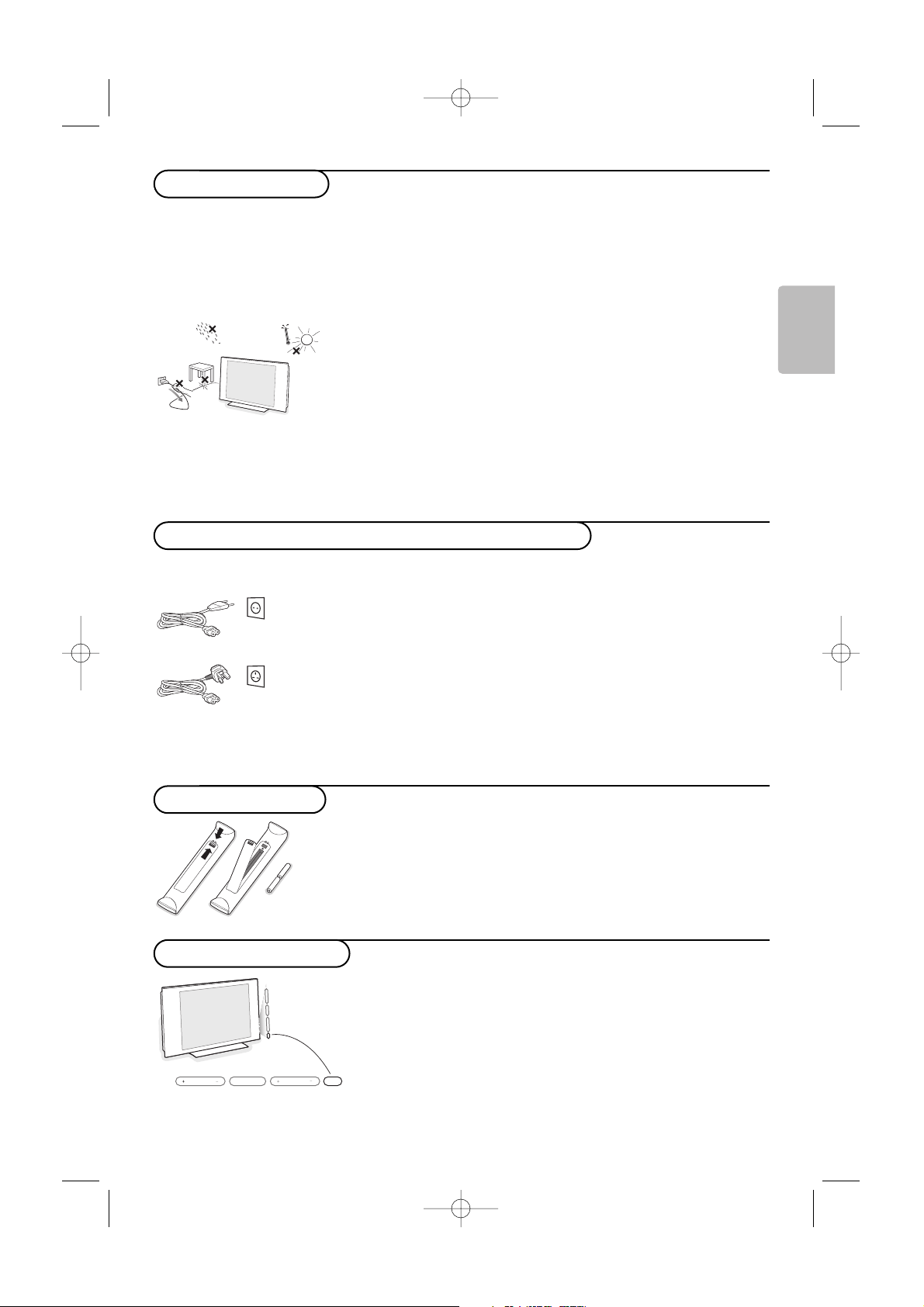
& Wall mounting instructions/Table stand
According to the type of TV you’ve purchased a wall mount bracket
and/or stand may be supplied. How to mount the supplied stand and/or
wall mount bracket, see the supplied separate leaflet. Make sure that the
wall mount is being fixed securely enough so that it meets safety
standards.
The weight of the TV (excl. packaging) is about 20 kg (32PF9967D);
42 kg (42PF9967D); 58 kg (50PF9967D).
é Place or hang the TV wherever you want, but make sure that air can
circulate freely through the ventilation slots. Do not install the TV in a
confined space such as a book case or a similar unit.
To prevent any unsafe situations, no naked flame sources, such as lighted
candles, should be placed in the vicinity. Avoid heat, direct sunlight and
exposure to rain or water.
The equipment shall not be exposed to dripping or splashing.
& Before installing your TV, connect all your peripheral equipment.
See How to connect peripheral equipment, p. 29.
é Insert the aerial plug firmly into the aerial socket x at the bottom of
the TV. For best picture quality use the suppressor-aerial cable
supplied.
“ Insert the mains cord supplied into the mains at the bottom of the TV
and in the wall socket having a mains voltage of 198-264V.
To prevent damaging the power (AC) cord which could cause a fire or
electric shock, do not place the TV on the cord.
Do not insert the power plug in a wall socket before all connections are made.
UK - EIRE
Insert the two R6-type batteries (supplied) making sure that they are
the right way round.
The batteries supplied do not contain the heavy metals mercury and
cadmium. Please check on how to dispose of exhausted batteries according to
local regulations.
Press the power switch B at the right side of the TV.
An indicator on the front of the TV lights up and the screen comes on.
If the TV is in standby mode, press the
-P+ keys or the B key on the
remote control.
The first time (and only the first time !) the TV is switched on, a
congratulation message will appear on screen. Follow the instructions
on screen or go to p. 7, Switch on for the first time.
MENU P/CHV
B
Switch the TV on
Remote control
Connect antenna and peripheral equipment
Safety warnings
24571.1 en.qxd 31-08-2005 11:59 Pagina 3
4
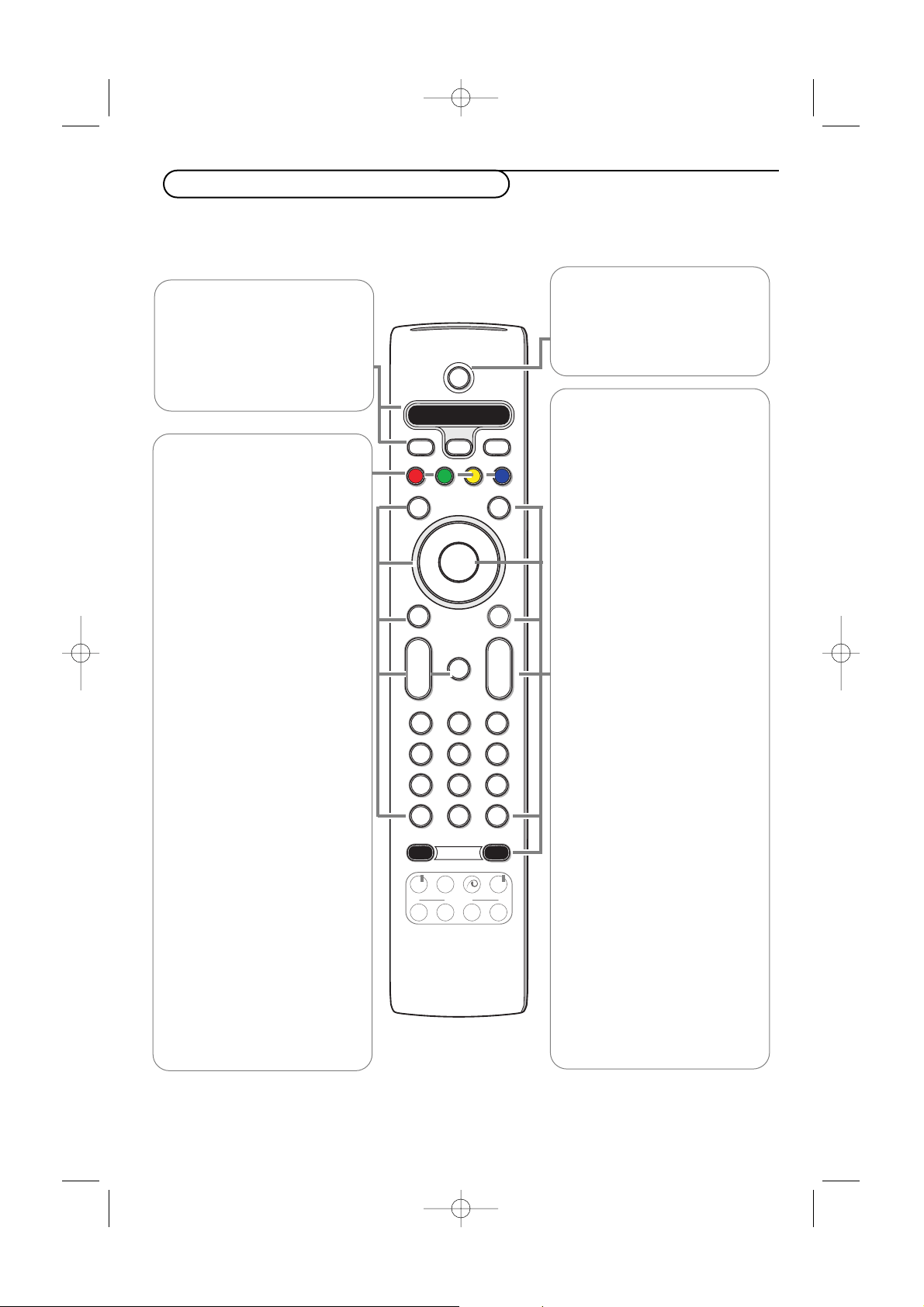
MODEON/OFF
Ambilight
+
-
+
-
DVD/R SAT TV VCR AUX
MENU MENU
123
456
789
0
Ò
®
‡
π
º
†
®
®
®
®
OPTIONS
MHEG
CANCEL
Select
DIGITAL
b
q
h
b
æ
j
i
0
A/D
TV
DIGITAL
OK
B
v
¬
P
V
Note: For most keys pressing a key once will activate the function. Pressing a second time will de-activate it.
When a key enables multiple options, a small list will be shown. Press repeatedly to select the next item in the list.
The list will be removed automatically after 6 seconds or press
OK to remove immediately.
DVD/R SAT TV VCR AUX
See ‘Audio- and Video equipment
keys’, p. 36.
v Select your peripherals
See p. 35.
B Standby
Press to switch the TV on or off
from or to standby mode.
When switched off, a red indicator
on the TV lights up.
b Teletext On/Off see p. 27.
For UK: Hold down for 3 seconds to
switch the teletext on.
OK Press this key
• to activate your choice, when in the
menus.
• to display the programme list.
MENU DIGITAL
To display or exit from the digital
menus (when the TV is in digital
mode).
PProgramme selection
To browse through the TV channels
and sources stored in the favourite
list or to select a page in digital
menus.
0/9 Digit keys
To select a TV channel.
For a two or three digit programme
number, enter the second or third
digit before the dash disappears.To
switch immediately to a selected one
digit TV channel, keep the digit key
pressed a bit longer.
0 Previous programme
Press to alternate between the
currently viewed and the previously
viewed TV channel.
Ambilight see also p. 24.
•
ON/OFF
Press to switch Ambilight on or off.
•
MODE
Press repeatedly to select one of the
predefined ambient light settings.
Note:When the TV is switched to
standby, and you switch Ambilight On,
Ambilight will be active. Only then less
modes are available.
®Ò‡π†º
Audio and Video equipment keys,
see p. 36.
A/D
To s witch between analogue and
digital mode.
Cursor keys
Press the cursor keys up/down,
left/right to navigate through the
menus.
MENU TV
To display or exit from the analogue
menus.
VTo adjust the volume.
¬ Interrupt the sound or restore it.
i On Screen information
In analogue mode:
Press to display (when available)
information about the selected TV
channel and programme.
In digital mode:
-Press once to display the
information banner.
-Press twice to get more
information on the programme.
-Press a third time to remove it.
Menu/Remote control info
When a menu is on screen (only in
analogue mode), press
i to display
info on the selected menu item.
While the menu info is displayed,
press any key (except the menu or
digit keys) to display remote control
info.The normal function of the key is
not executed.
Use of the remote control RC4312
24571.1 en.qxd 31-08-2005 11:59 Pagina 4
5
English
MODEON/OFF
Ambilight
+
-
+
-
DVD/R SAT TV VCR AUX
MENU MENU
123
456
789
0
Ò
®
‡
π
º
†
®
®
®
®
OPTIONS
MHEG
CANCEL
Select
DIGITAL
b
q
h
b
æ
j
i
0
A/D
TV
DIGITAL
OK
B
v
¬
P
V
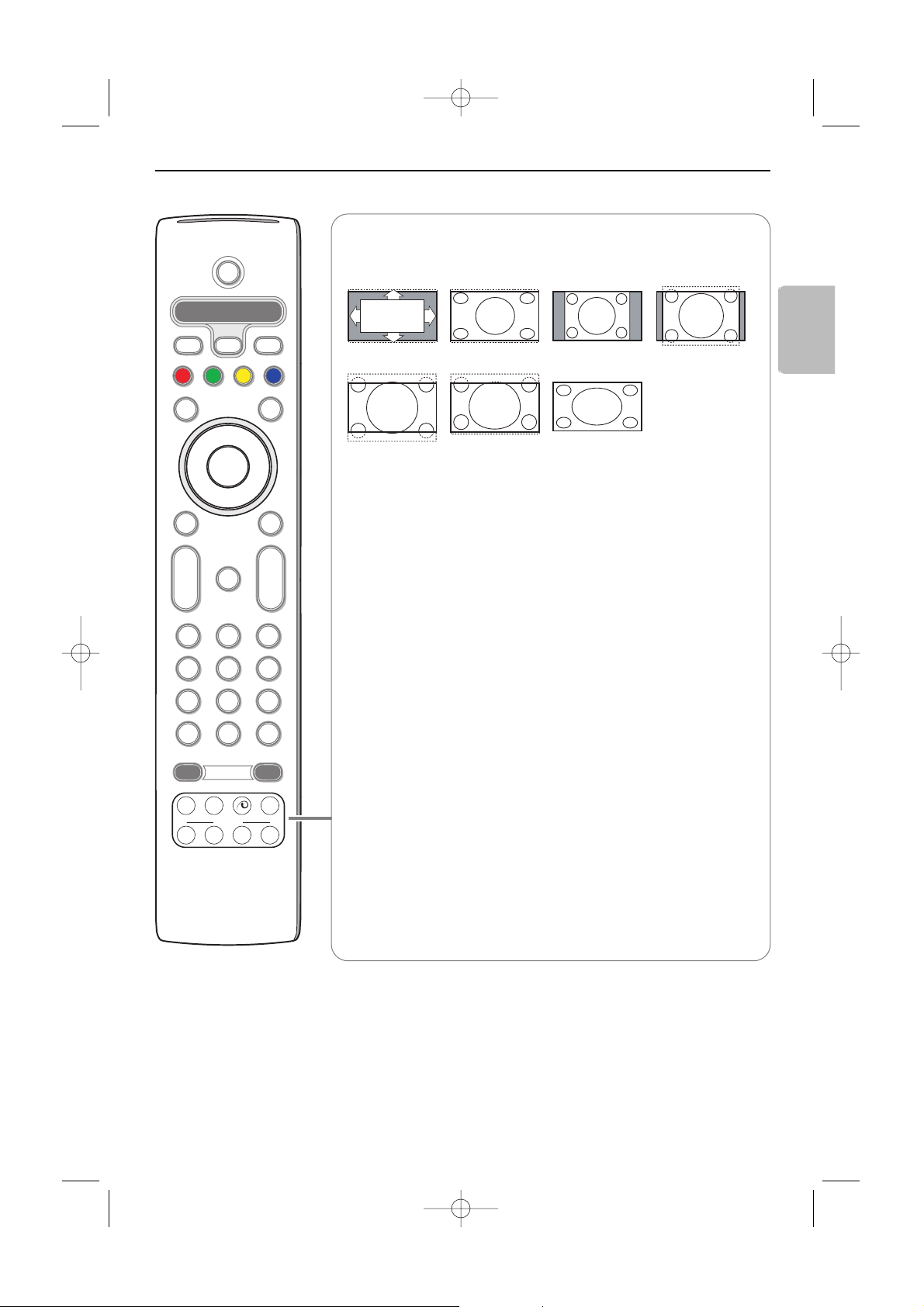
q Picture format
Press this key repeatedly or press the cursor up/down to select another
picture format:Auto format, Super zoom, 4:3, Movie Expand 14:9, Movie
Expand 16:9, Subtitle zoom or Wide screen.
Auto format makes the picture fill the screen as much as possible.
In case of subtitles in the bottom black bar, Auto format makes the subtitles
visible.
In case of a broadcaster logo in the corner of the top black bar, the logo
disappears from the screen.
Super zoom removes the black bars on the sides of 4:3 programs with
minimal distortion.
When in Movie Expand 14:9, Movie Expand 16:9, Super zoom or Subtitle
zoom picture format, you can make subtitles visible with the cursor up/down.
Note:With signals via the
DVI connector less picture formats are selectable.
h Active control see p. 23.
x Pixel Plus 2 demo on/off
•Press to switch the Pixel Plus 2 demo on or off. In the right part of the
screen Pixel Plus 2 is switched on.
•Press longer to display the list of digital options settings. Use the cursor
up/down to select one of the settings.
See also Picture menu, Digital options, p. 23.
b Dual screen (in analogue mode only)
& Press the b key.
Press the
b key to show Teletext on the right half of the screen.
é Press the b key to switch off Dual screen.
Active screen selection
When in dual screen picture/teletext, enter the desired page number with
the digit keys or with the
-P+ key, then press the MENU TV key, then select
the left screen (with the blue ball at the top).You can now select a
compressed or full screen view of the picture screen with the
q key.
Auto format Super zoom 4:3 Movie expand 14:9
Movie expand 16:9 Subtitle zoom Wide screen
24571.1 en.qxd 31-08-2005 11:59 Pagina 5
6
MODEON/OFF
Ambilight
+
-
+
-
DVD/R SAT TV VCR AUX
MENU MENU
123
456
789
0
Ò
®
‡
π
º
†
®
®
®
®
OPTIONS
MHEG
CANCEL
Select
DIGITAL
b
q
h
b
æ
j
i
0
A/D
TV
DIGITAL
OK
B
v
¬
P
V
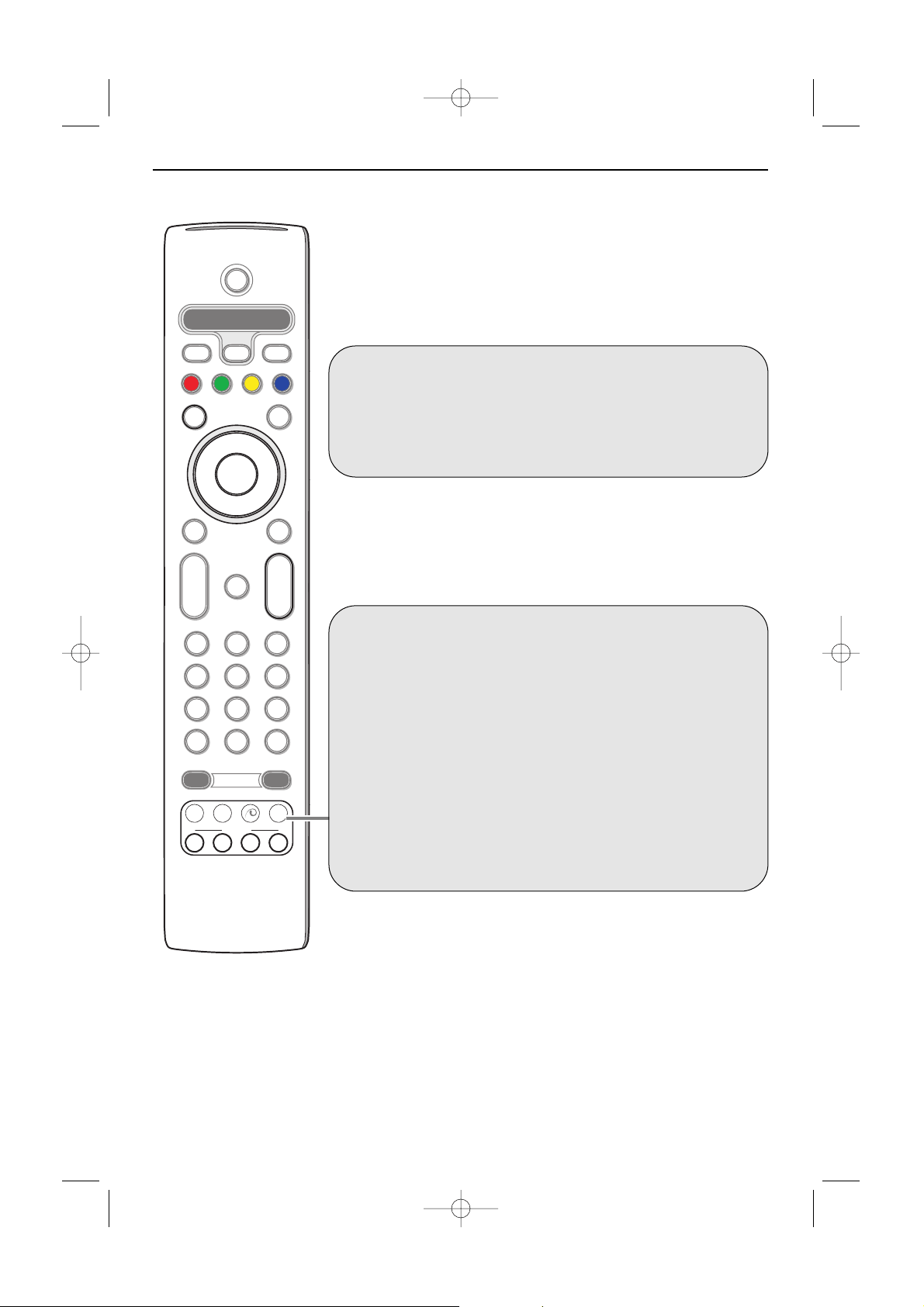
Digital or Analogue TV channels ?
To r eceive TV channels, your television is equipped with 2 tuners. One is
for digital channels, the other is for analogue channels.
Use the
A/D key on the remote control to switch the TV between
analogue or digital channels.
Then use the
-P+ key or the digit keys to select TV channels.
Only for digital channels
j
Continuous subtitles on/off
Press this key to activate/deactivate the subtitle mode.
See Setup, Language and location preferences menu, p. 11.
OPTIONS
Options menu on/off, see p. 14.
MHEG CANCEL (UK only)
Some Digital TV channels transmit interactive television applications
(signalled by the
MHEG icon in the banner).
Press this key to cancel those special services (and the function bar at
the bottom of the screen).
æ TV Guide, see p. 15.
To open and close Now and Next Programme Guide.
24571.1 en.qxd 31-08-2005 11:59 Pagina 6
7
English
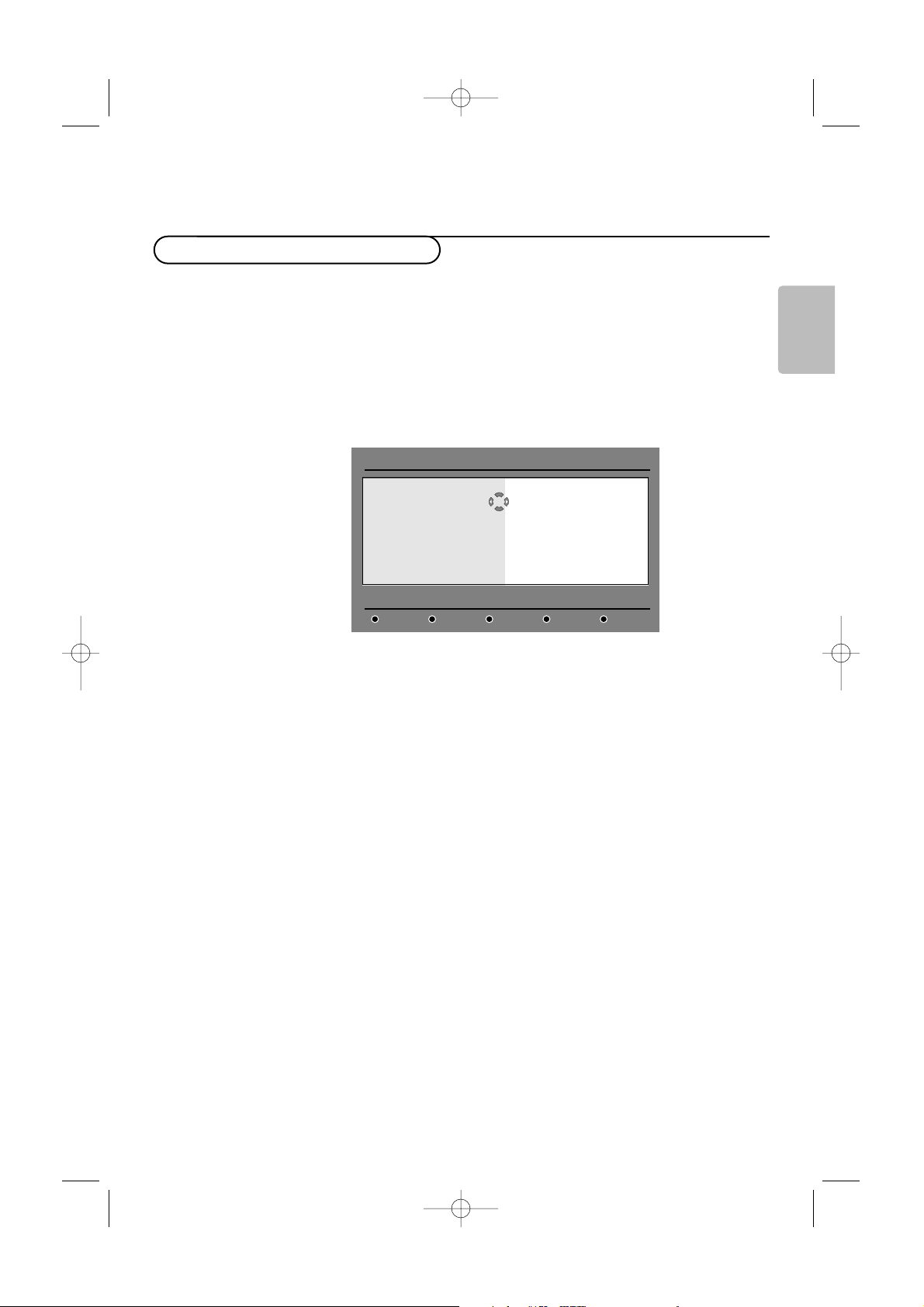
The first time the TV is switched on, a congratulation message will
appear on screen.The language of which changes every 5 seconds.
Note: If the menu is not displayed, see Reinstall all services, p. 10.
& Press the OK key on the remote control, the moment your preferred
language is visible on the screen
.The Setup menu is displayed.
é With the cursor keys, select Language, Country or Time zone and
check if the adjustment is according to your preferences. If necessary,
use the cursor keys to make your adjustment and press
OK to exit.
Caution : if you select a wrong country, the channel numbering will not be
according to the standard for your country.
‘ Select Service scan from the menu and press OK to start the
installation.The service scan menu is displayed.
All digital and analogue programmes are searched for and stored
automatically.When the search is complete, the menu will indicate the
number of digital services and analogue programmes found.
( Press the OK key twice to start watching TV.
The television then displays the current programme.The installation is
now complete.
Digital TV mode
Switch on for the first time
Installation
Set options and start a service scan
Language •
Country
•
Time Zone •
Service Scan •
English
Español
Français
Italiano
Suomi
24571.1 en.qxd 31-08-2005 11:59 Pagina 7
8
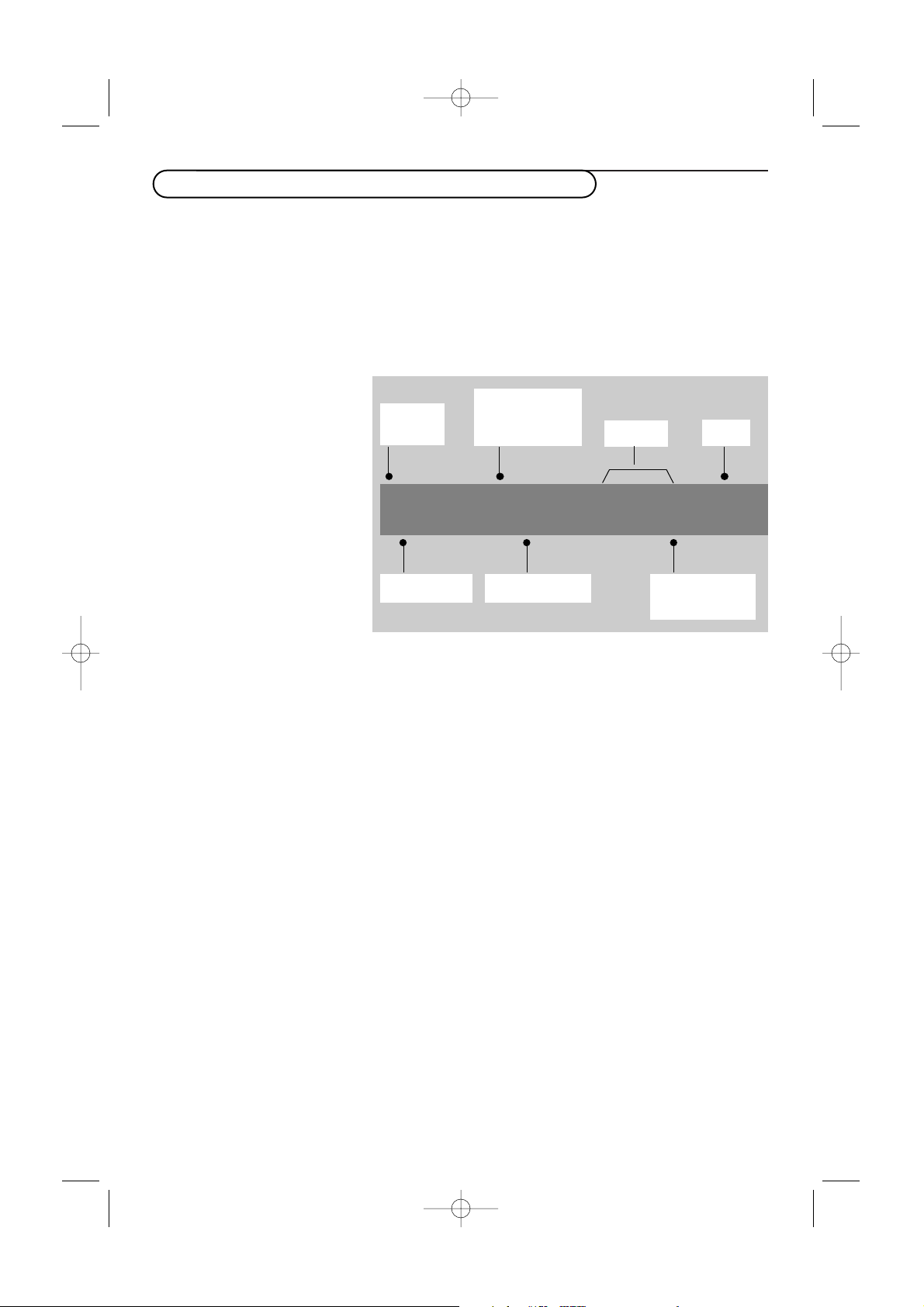
When you select a digital programme, an information banner is
displayed for a few seconds at the top of the screen.
Note:You can also use the i key of the remote control to display this
banner.
A second press displays more information about the programme (when
available).
The banner contains information on the channel number, channel
name, programme duration, transmission clock, programme title and
the time remaining of the current programme.
Symbols description :
i more information about this programme is available.
Press the i key to display or remove it.
j subtitling is available.
If you want to display them, press the j key or the
OPTIONS key to access the OPTIONS menu and select
subtitles.
X Other audio languages are available and can be selected in the
OPTIONS menu.
s The selected Favourite list is displayed in the one of the
colour (red, green, yellow or blue) of the activated list.
Note : A white colour s will appear if the programme is stored in
one or more of the favourite list which is currently not activated.
Understanding the information in the banner
2 11:06 - 11:09 i j X s 11:46
BBC2 Snooker Minutes left: 14
preset
number
channel name programme title
remaining time
of programme
symbols
clock
programme
start and end
time
24571.1 en.qxd 31-08-2005 11:59 Pagina 8
9
English
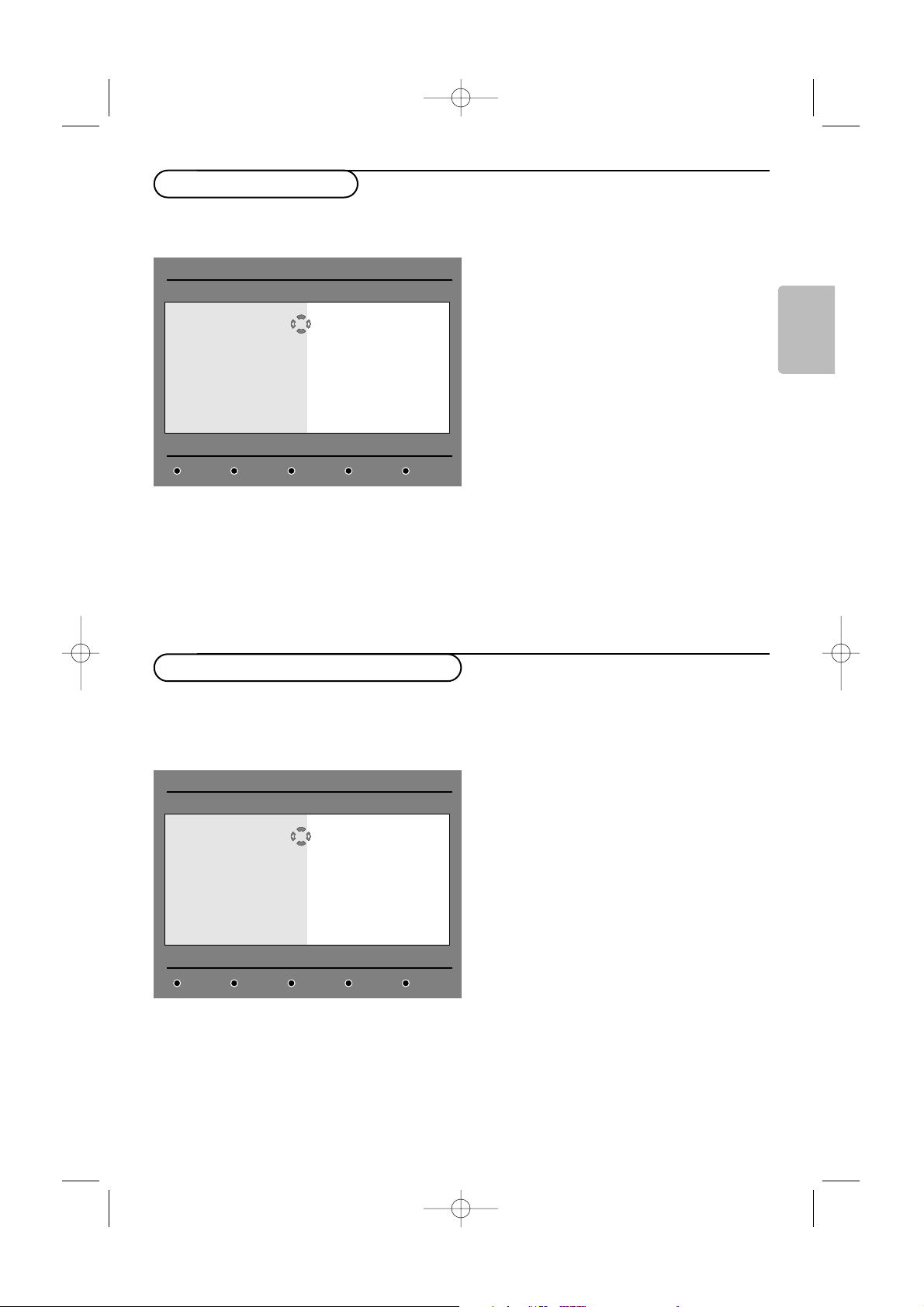
This menu allows you to change the order of the
stored digital channels and radio stations.
& From the digital mode, press the DIGITAL
MENU key to display the Setup menu.
Note: If the digital menu does not appear, the TV
might be in analogue mode. Press the
A/D key to
switch the TV to digital mode and press the
DIGITAL MENU key again.
é Use the cursor down to select Installation
and press the cursor right twice to select the
Service lists menu.
“ Use the cursor up/down to select Rearrange
services
and press the cursor right.
‘ Use the cursor up/down to select the channel
you want to exchange.
( Press the OK key to activate.
Note: If you want to uninstall the selected channel,
press the red colour key.
§ Use the cursor up/down to select the new
channel number you want to exchange it with.
è Press the OK key to confirm.The exchange is
done.
! Repeat the operations ‘ to è until all the
channels are in the required order.
ç Press the
DIGITAL MENU key to exit the
menu.
This menu allows you to check the availability of
new TV channels or new radio stations that have
been launched by the broadcaster after the initial
installation.
& From the digital mode, press the DIGITAL
MENU key to display the Setup menu.
é Use the cursor down to select Installation
and press the cursor right twice to select the
Service lists menu.
“ Use the cursor up/down to select View new
TV channels
or Listen to new Radio
stations
.
‘ If new services are available, press the cursor
right to enter into the list and use the cursor
up/down to move through the list.
( Press the DIGITAL MENU key to exit the
menu.
View or Listen to new services
Rearrange services
Setup
Installation
Manage service lists
Service lists •
Service setup •
Test reception •
Rearrange services
View new TV channels
Listen to new Radio stations
Close
Setup
Installation
Manage service lists
Service lists •
Service setup •
Test reception •
Rearrange services
View new TV channels
Listen to new Radio stations
Close
24571.1 en.qxd 31-08-2005 11:59 Pagina 9
10
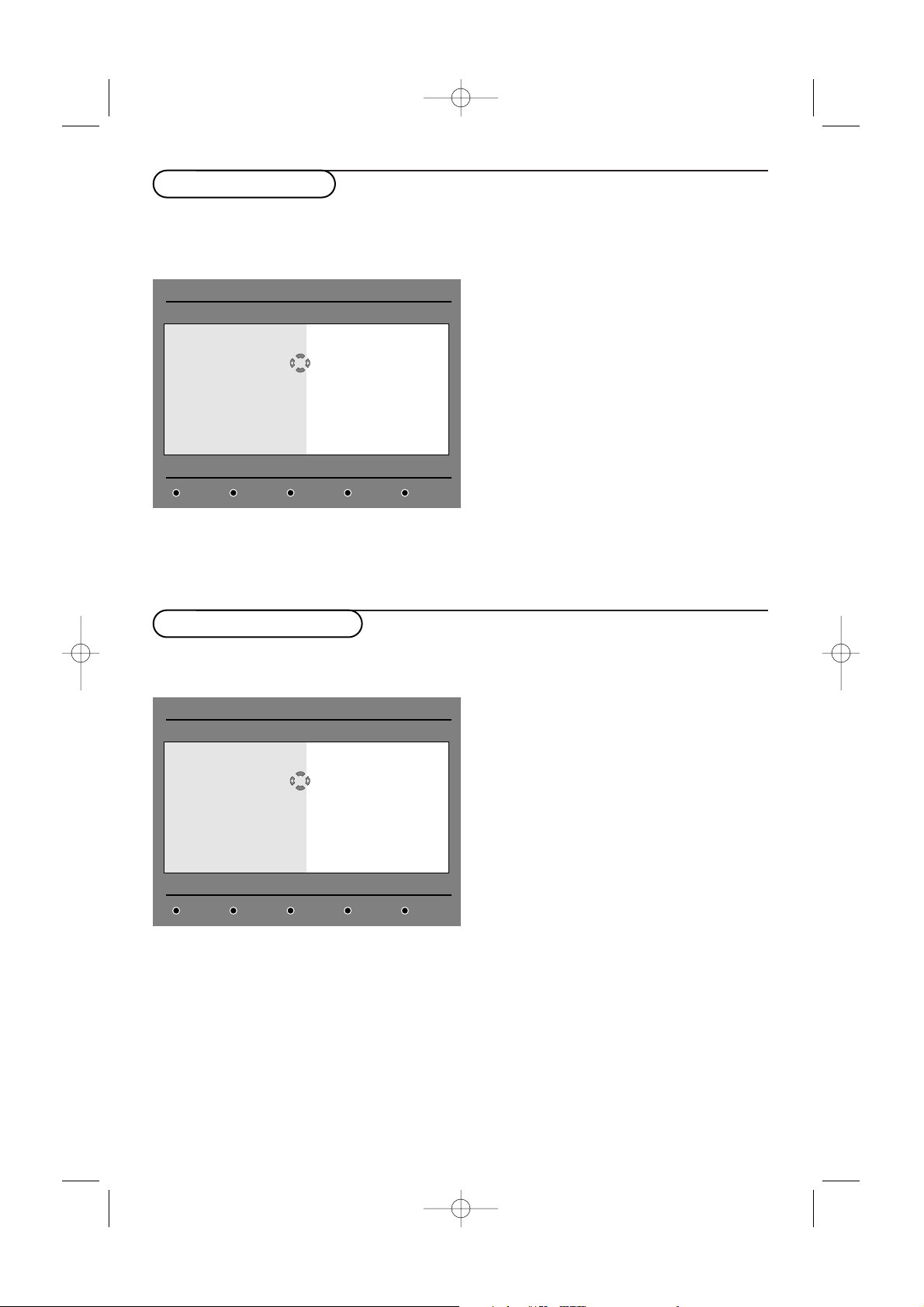
This menu allows you to search for new TV
channels or radio stations that have been launched
by the broadcaster after the initial installation.
& From the digital mode, press the DIGITAL
MENU
key to display the Setup menu.
é Use the cursor down to select Installation
and press the cursor right.
“ Select Service setup with the cursor down
and press the cursor right.
‘ Use the cursor right to select Add new
services
and press the OK key to activate the
installation.
The search begins and only new channels will
be stored and added to the channel list menu.
The percentage of the installation that has been
completed and the number of channels found is
displayed.
( When the search is complete, select Store and
press the
OK key to accept the new services.
§ Press the DIGITAL MENU key to exit the
menu.
This menu allows you to reinstall all the digital TV
channels and radio stations.
& From the digital mode, press the DIGITAL
MENU key to display the Setup menu.
é Use the cursor down to select Installation
and press the cursor right.
“ Use the cursor down to select Service setup
and press the cursor right.
‘ Use the cursor down to select Reinstall all
services
and press the cursor right.
( Press the OK key to start the installation.
A search is then made for all digital services
which are then stored automatically.When the
search is completed, the menu will indicate the
number of digital services found.
§ When the search is complete, press the OK
key to store the services.
è Press the DIGITAL MENU key to exit the
menu.
Reinstall all services
Add new services
Setup
Installation
Install and manage services
Service lists •
Service setup •
Test reception •
Add new services
Reinstall all services
Close
Setup
Installation
Install and manage services
Service lists •
Service setup •
Test reception •
Add new services
Reinstall all services
Close
24571.1 en.qxd 31-08-2005 11:59 Pagina 10
11
English
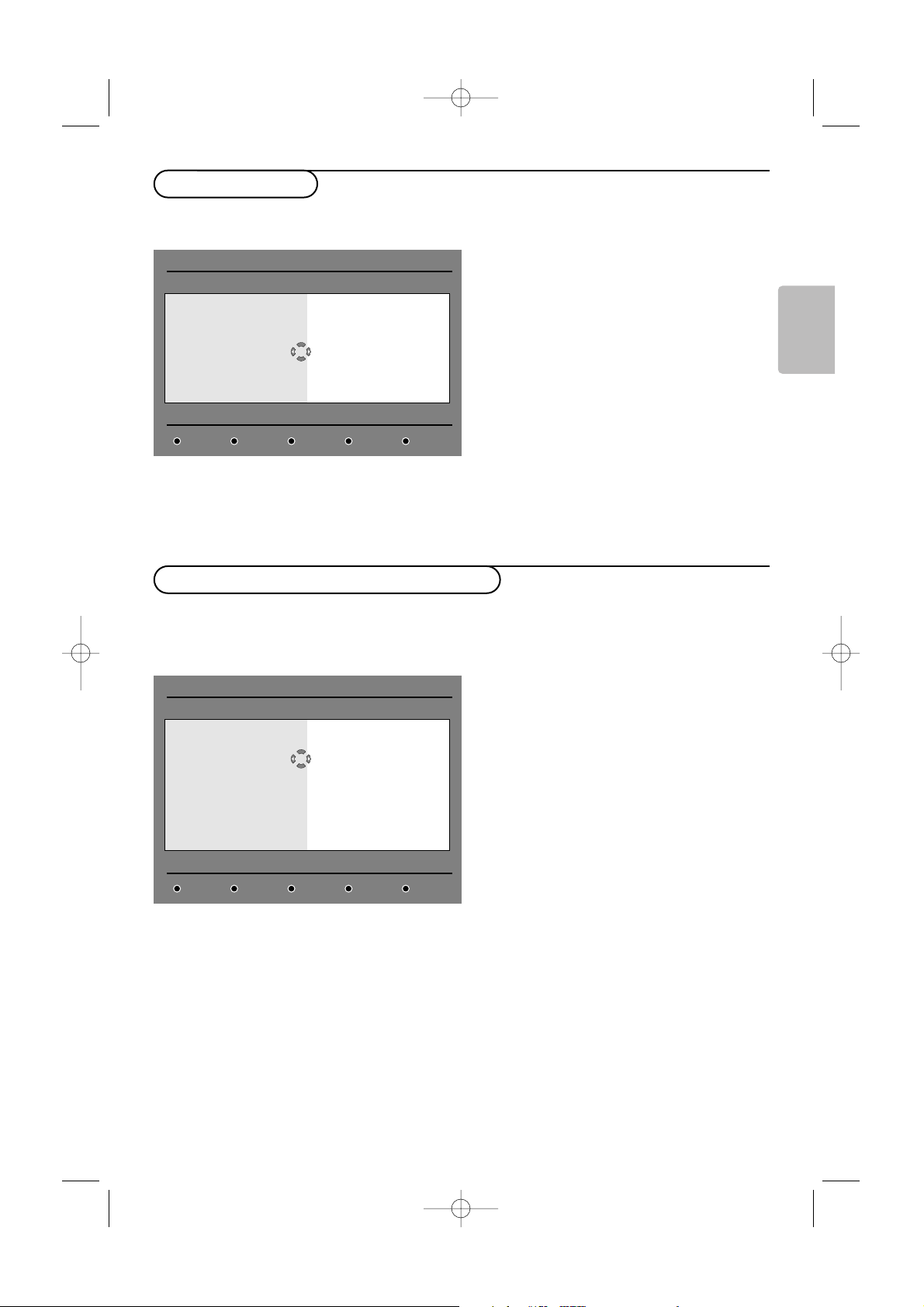
This menu allows you to check the strength of the
signal you are receiving through your aerial.
& From the digital mode, press the DIGITAL
MENU key to display the Setup menu.
é Use the cursor down to select Installation
and press the cursor right to display the
Installation menu.
“ Use the cursor down to select Test reception
and press the cursor right.
You obtain an indication of the actual
programme frequency, the network name, the
signal quality and strength.
‘ You now have to enter the frequency of the
digital channel you want to test.
Your TV magazine can provide the list of digital
channel numbers. Use the table on page 38 to get
the frequency.
( If the signal quality and strength is poor, a
message appears at the bottom of the menu
prompting you to enter the frequency between
the lower and the higher limit.
If after keying the frequency, the reception is
still poor, you can try improving, renewing,
adjusting or updating the aerial. It is however
advisable to contact a specialised aerial installer
in order to achieve best results.
This menu allows you to select your preferred
language for audio, subtitle, teletext and menu and
make changes to the location (country and time
zone).
& From the digital mode, press the DIGITAL
MENU key to display the Setup menu.
é Use the cursor down to select Preferences
and press the cursor right.
“ Use the cursor up/down to select Languages,
Location or Digital Audio Output and press
the cursor right.
‘ Use the cursor up/down to select a setting and
press the cursor right to enter into the sub-
menu. Make your adjustment and press the
OK
key or the cursor left to exit.
Language default settings
•
Audio : to select the audio sound language.
•
Subtitle/Teletext : to select the
subtitle/teletext language.
•
Subtitling mode : off, on or auto (subtitle
only displayed in case of original audio
transmission).
•
Subtitles for hearing impaired : to activate
or deactivate the specific subtitle for hearing
impaired (if made available by the
broadcaster).
•
System : to select the menu language.
Location settings
•
Country : to select the country where you
are located.
•
Time zone : to select the time zone where
you are located.
Digital Audio Output settings
• Select
AC3 (if the signal is broadcasted and if
the amplifier connected supports the Dolby
Digital format).
• Select
PCM if the amplifier connected doesn’t
support Dolby Digital format. See also
Connect Peripheral Equipment, MultiChannel
Surround receiver, p. 32.
( Press the DIGITAL MENU key to exit the
menu.
Language and location preferences
Test reception
Setup
Installation
Test signal quality
Service lists •
Service setup •
Test reception •
Frequency
Network name
Signal quality
Signal strength
Close
Setup
Preferences
Select your preferred language
Languages •
Location •
Digital Audio Output •
Audio
Subtitle / Teletext
Subtitling mode
Subtitling for hearing impaired
System
Close
24571.1 en.qxd 31-08-2005 11:59 Pagina 11
12
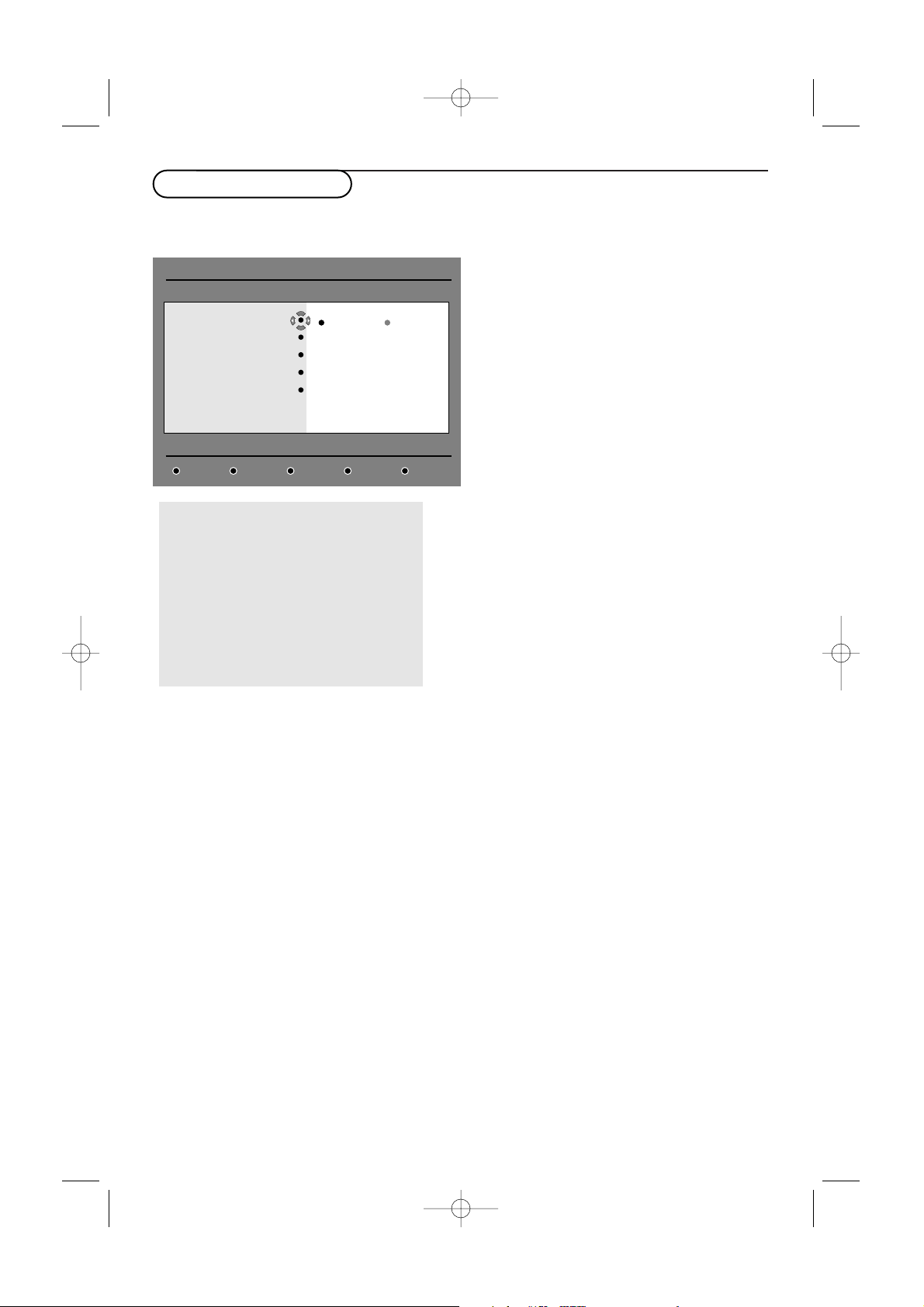
This menu allows you to setup the access
restrictions of the digital channels.
& From the digital mode, press the DIGITAL
MENU
key to display the Setup menu.
é Use the cursor down to select Access
restriction
and press the cursor right.
“ Press the cursor right to enter into the Set
pin code protection
menu.
‘ Use the cursor left/right to set to On and
press the
OK key to exit.
You can then access the other adjustments:
Warning : the moment you use any kind of access
restriction, you need to fill in the pin code when you
schedule a program for recording.
•
Maturity rating : select your preferred rating
to lock the channel.
Maturity rating will only block certain programmes
if the broadcaster provides data with the
programme.
•
TV channels : select the TV channel you
want to lock and press the
OK key.
•
Radio station : select the radio station you
want to lock and press the
OK key.
•
Change pin code :press the cursor right to
enter in the menu. Follow the on-screen
instruction to change your access code.
The default pin code is 1234. If you have
forgotten your personal code, you can reset to the
default pin code (1234) by enter the universal
code 0711.
( Press the DIGITAL MENU key to exit the
menu.
The TV is equipped with a Common Interface
(CI) slot (see p. 34).A CI module can enable
additional services, for example Pay TV.The
Access Restrictions menu will show the CI
Access Restrictions when a CI module is
installed.The CI module is responsible for the
messages and texts on screen. In case of
failure or strange behaviour, you must call
your CI service provider.
Access restrictions
Setup
Access restrictions
Switch pin code protections “on” or “off”
Set pin code protection
Maturity rating
TV channels
Radio stations
Change pin code
Close
On Off
24571.1 en.qxd 31-08-2005 11:59 Pagina 12
13
English
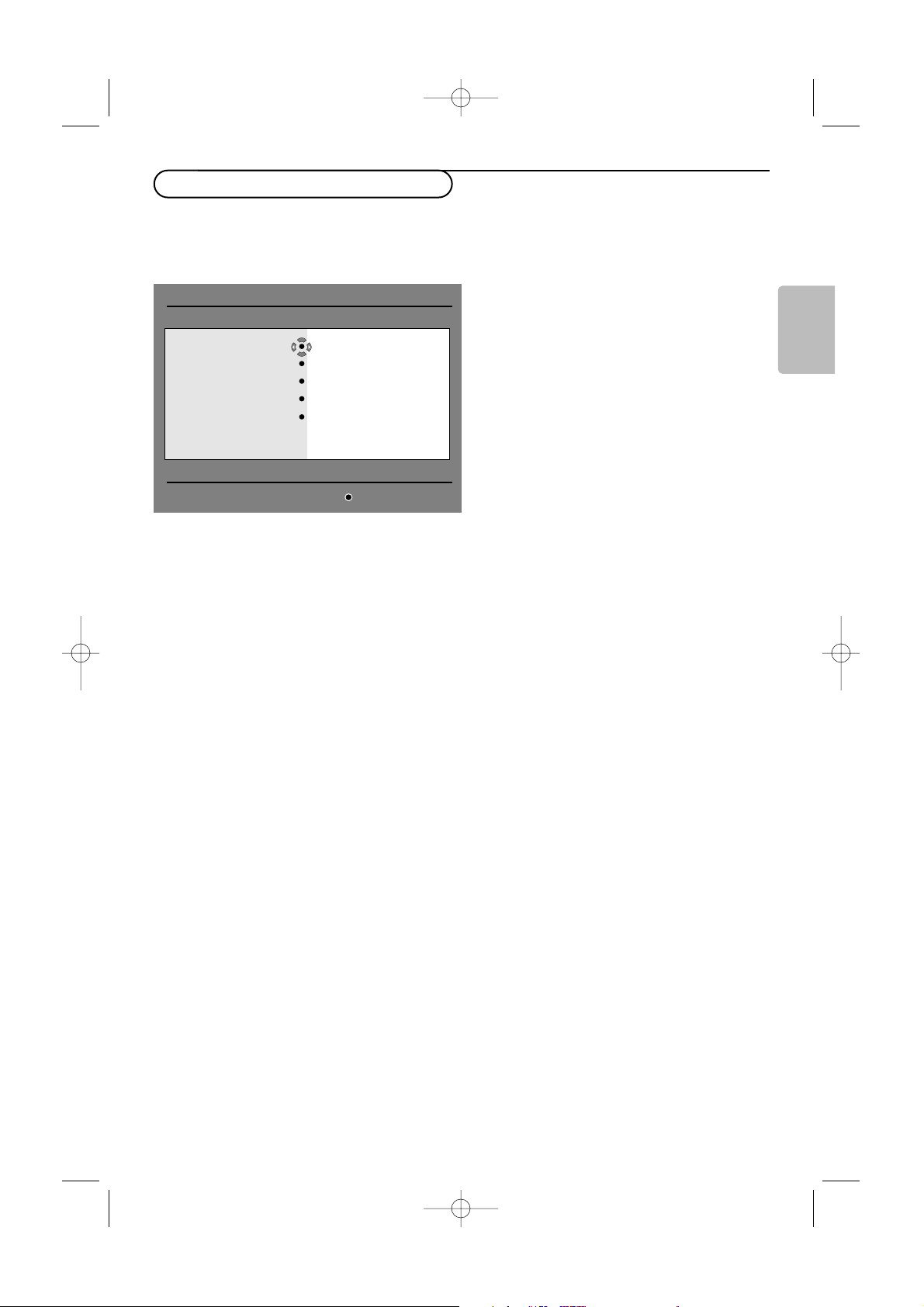
This menu enables you to create a favourite list
with your preferred TV channels and radio stations.
For example, each member of your family can
create his/her own favourite list.
& From the digital mode, press the DIGITAL
MENU key to display the Setup menu.
é Press the cursor right to enter into the
Favourites list menu.
You have the choice to create 4 different
favourite lists.
“ Use the cursor up/down to select your
favourite list :
List 1, List 2, List 3 or List 4
and press the cursor right.
‘ Use the cursor up/down to select a setting and
press the cursor right to enter into the sub-
menu.
•
Name : use the cursor left/right to move
around the name display area (16 characters)
and the
-P+ keys to select the
characters.When the name has been entered,
press the
OK key to exit.
•
Select TV channels : use the cursor up/down
to select your favourite TV channels and
confirm with the
OK key. Press the cursor left
to exit.
•
Select radio stations : use the cursor
up/down to select your favourite radio station
and confirm with the
OK key. Press the
cursor left to exit.
•
Add all services :press the OK key if you
want to add all the services into your
favourite list.
•
Remove all services :press the OK key if
you want to remove all the service from your
favourite list.
( Press the DIGITAL MENU key to exit the
menu.
§ Your favourite list can be selected using the
options menu (see next page).
Setting up your favourite list
Setup
Make changes to your lists of favourite services
Favourites
Preferences
Information
Access restrictions
Installation
List 1
List 2
List 3
List 4
Close
24571.1 en.qxd 31-08-2005 11:59 Pagina 13
14
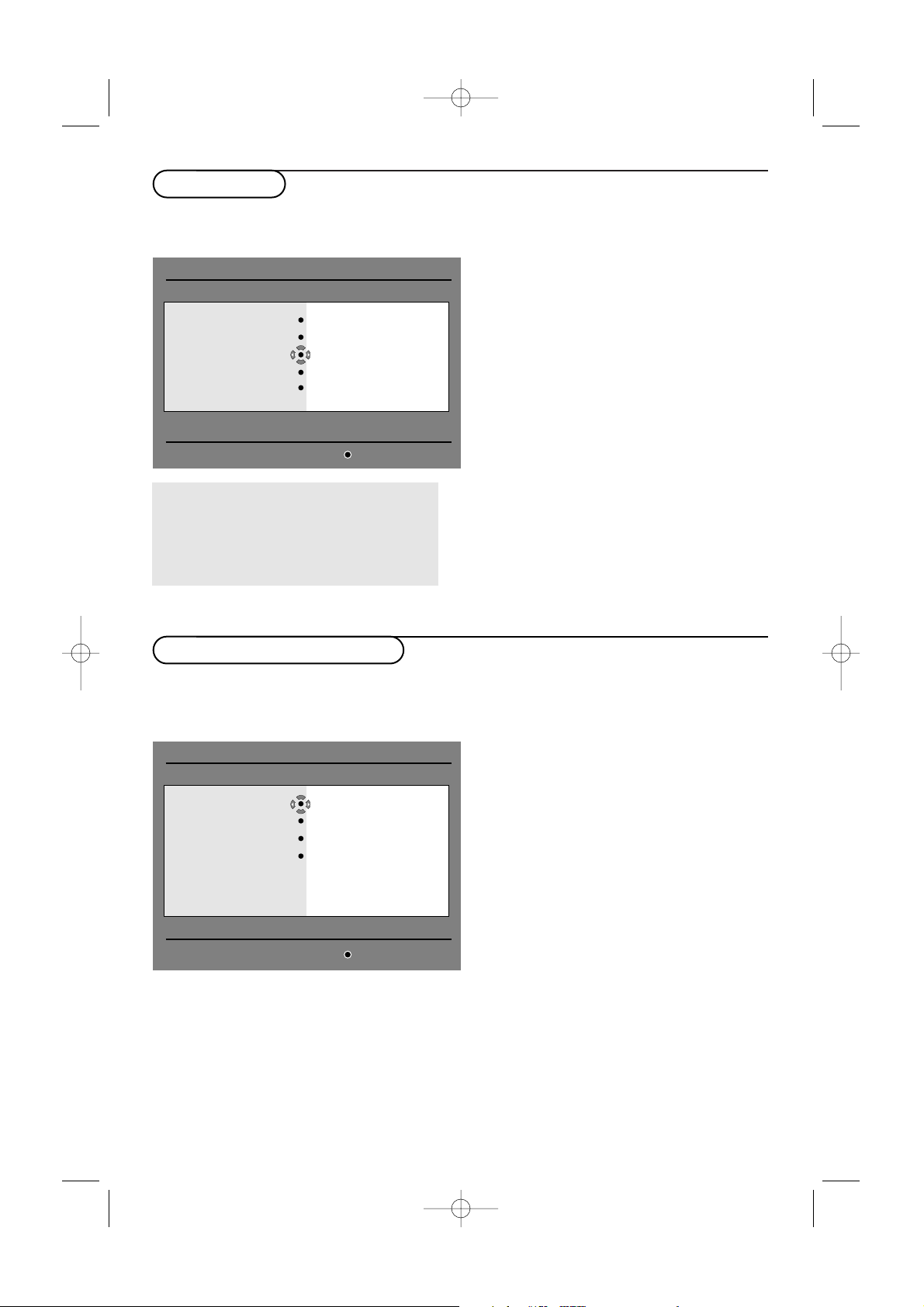
This menu provides information about the software
version and the installation of new software.
& From the digital mode, press the DIGITAL
MENU key to display the setup menu.
é Use the cursor down to select Information
and press the cursor right twice.The software
version is displayed.
“ You can activate the menu to automatically
accept any software update of your digital TV.
Normally the product will detect if an update is
available while it is in standby mode. Next time
the television is turned on a banner will appear
at the bottom of the screen indicating new
software is available. Selecting
OK activates the
software download.
The software download menu will give a
description of the software together with the
date and time of the download.This may
update certain menus, functions or add new
features, but the general way in which the TV
operate will not change. Once accepted the
download will take place at the designated time
and date.
Note:The TV must be put into standby when the
download is due in order for it to take place.
‘ Press the DIGITAL MENU key to exit the
menu.
Whenever a new software is available, it is
advisable to always accept and download the
software. In case new software is available,
you will see a message when you switch on
the TV.
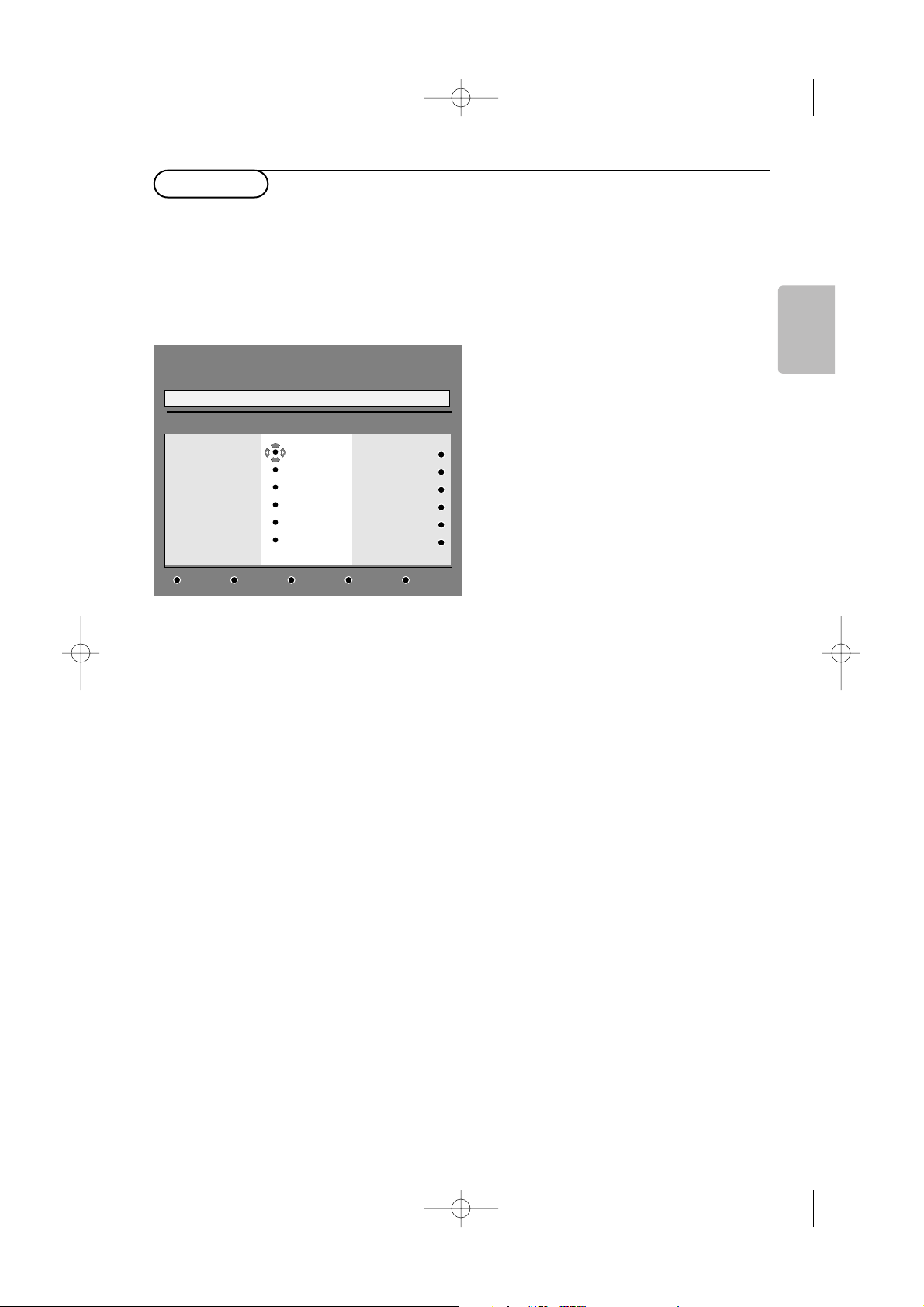
This menu gives you direct access to the favourite
list, the language selection and some other
selections.
& From the digital mode, press the OPTIONS
key on the remote control to display the
options menu.
é Use the cursor up/down to select a setting and
press the cursor right to enter the sub-menu.
•
Favourites : use the cursor up/down to
select your favourite list and confirm with the
OK key.
The
None option deactivates any favourite list.
To create your own favourite list, see page 13.
•
Subtitle language : use the cursor up/down
to temporarily change the language and
confirm with the
OK key.
•
Audio language : to temporarily change the
audio sound language.
To permanently change the audio and subtitle
languages, use the Preferences menu (p. 11).
•
Mode :you can choose to only have radio
stations,TV channels or services without
audio or video.
Remark : for the UK only, the TV list will contain
both radio stations and TV channels.
•
Banner duration : to select the duration for
which the banner is visible.
“ Press the OPTIONS key to exit the menu.
Using the Options menu
Information
Setup
Provides information on problem reports and....
Favourites
Preferences
Information
Access restrictions
Instalation
System software
Close
Options
Selects the active favourite list
Favourites
Subtitle language
Audio language
Mode
Banner duration
None
List 1
List 2
List 3
List 4
Exit
24571.1 en.qxd 31-08-2005 11:59 Pagina 14
15
English
The TV guide is an Electronic Service Guide that
allows you to look up digital programmes as you
would in a newspaper or TV magazine.
You can navigate through the list of digital
programmes and obtain detailed information on
the programmes.You can also program the TV to
provide a digital channel to be recorded.
& From the digital mode, press the æ key to
display the TV guide :
A list of all the digital programmes in the
currently selected favourite list is displayed.
é Use the cursor down to enter into the
Preset/service list or press the cursor right to
access
Today list.
“ Use the cursor up/down to select a
programme.
‘ The TV guide features are displayed at the
bottom of the screen. Use the coloured keys
red, green, yellow, blue or white to activate
them :
•
Record (red key) : this feature enables you to
record a digital channel even the TV is in
standby mode.You will still have to program
your video recorder.
•
Record list (green key) : this menu gives the
list of recording schedules.You can check,
modify, delete or add a new schedule by using
the cursor or coloured keys as indicated on
the screen.
•
To p (yellow key) : to go directly to the top of
the list.
•
Close (blue key) : to exit from the TV guide.
•
Options (white † key) : with this menu,
you can select your favourite list, mode or
themes.Themes are areas of interest.
You can for example decide to display only :
drama, news, movie, ...
( Press the i key if you want to display more
information about the selected programme (if
available).
§ Press the æ key to exit the menu.
TV guide
BBC ONE
1 17:15 17:24
Now/Next Today
Preset/Service Now Next
1 BBC ONE
2 BBC TWO
3 ITV Channel 3
4 Channel 4
5 ITV 2
6 BBC CHOICE
See it
Snooker
Trisha
-
Soccer
News
Microscoop
Ice skating
This morning
-
This afternoon
Bodger & Badger
CloseRecord Rec.list To p Options
24571.1 en.qxd 31-08-2005 11:59 Pagina 15
16
This feature enables you to record a digital channel
while the TV is in standby mode.You will still have
to program your video recorder.
If you wish to continue watching another digital
channel after setting a timer, you can do so by
changing channels in the normal way.
Important :The video recorder must be connected to
EXT2 (see Connect Peripheral Equipment, p. 30). Please
note that it is NOT possible to record one channel and
watch another channel at the same time.
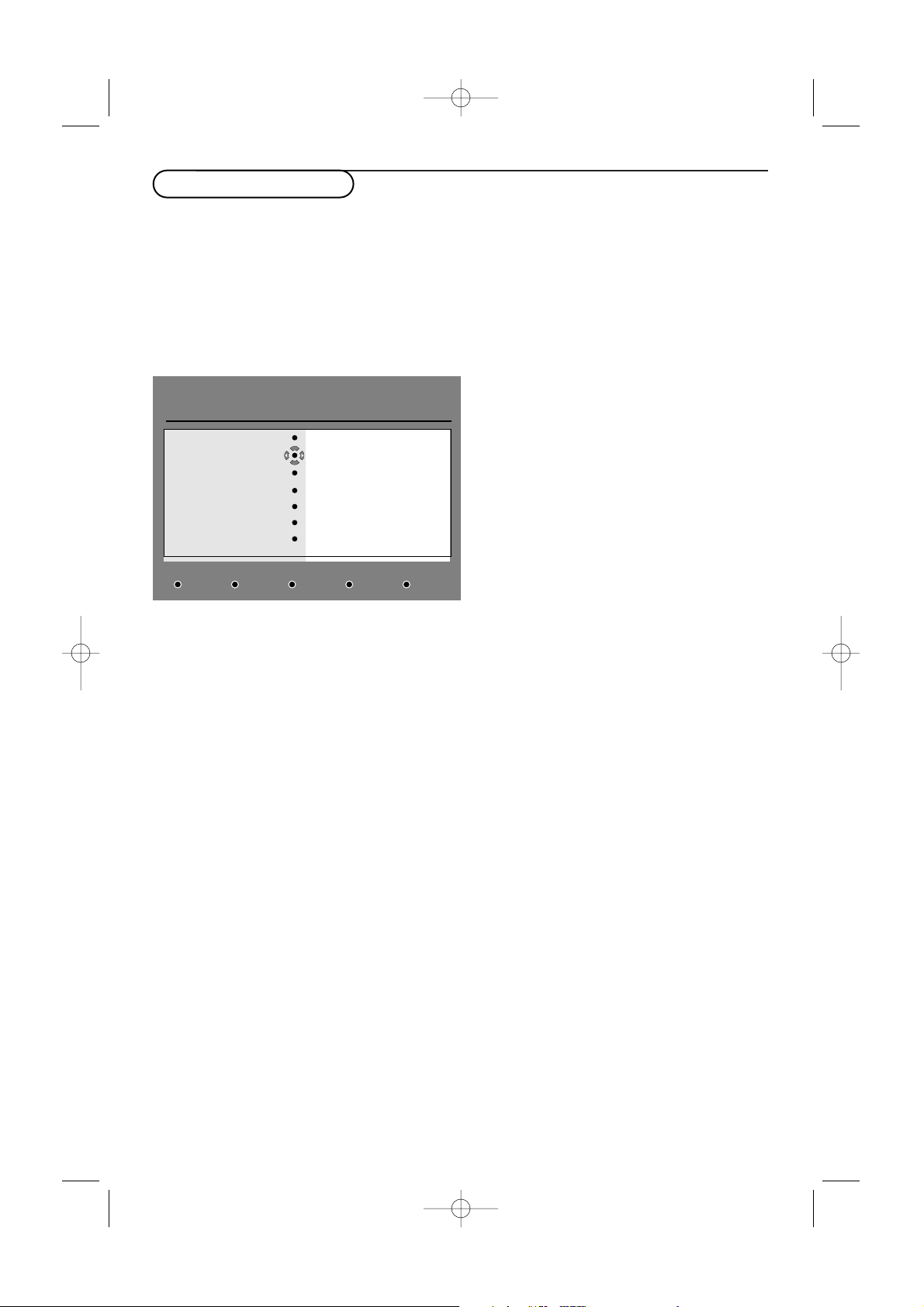
& From the digital mode, press the æ key to
display the TV guide.
é Use the cursor down to enter into the
Preset/service list or press the cursor right to
access
Today list.
“ Press the red colour key to call the Record
menu.
‘ Use the cursor up/down to select a setting and
press the cursor right to enter into the sub-
menu. Make your adjustment and press the
OK
key or the cursor left to exit.
•
Name : the selected programme will be
displayed here.
•
Service :you can change the number of the
programme you want to record. Press the
OK
key to confirm.
Note : it is only possible to change to a number
that is in the currently selected favourite list.
•
Enter your pin code if locked : enter your
secret code only if you have activated the
access restriction feature (see p. 12).
Press
OK to confirm.
•
Day & Month : enter the date by using the
digit keys or the
-P+ keys. Press the OK key
to exit
•
Start time : enter the start time.
•
End time : enter the end time.
•
Audio language : select your language and
confirm with the
OK key.
•
Subtitle language : make your selection and
confirm with the
OK key.
•
Subtitles for hearing impaired : select Ye s
or No and confirm with the OK key.
•
Occurrence : select Once, Daily or Weekly
and confirm with the
OK key.
( Press the red colour key to store your
recording.The TV guide reappears.
You can press the green colour key to display
the list of recordings you have set.
§ If you have finished watching television, you
must leave it in standby in order for the
recording program to be activated.
Important
:never switch off the TV with the
power button when a recording has been
programmed, but use the standby B key on
the remote control.
è If you wish to continue watching another digital
channel after setting a timer, you can do so by
changing channels in the normal way.
Important : In digital mode, if you change the
channel when the recording starts, the TV will record
the last channel. you have selected.
! When the timer is due to start a digital
channel, while you are watching another
channel, the programmed digital channel is
displayed and the recording starts.A warning
message is displayed.
ç If a digital recording is in progress, when trying
to change a channel, a confirmation is displayed
to continue recording or to cancel recording.
When you select cancel recording, the newly
selected channel is displayed.
Recording function
BBC 2
17:24
Name
Service
Enter yourpin if locked
Day & Month
Start time
End time
Audio lanugage
See it saw
1 TVE
10/08
12:15
15:44
English
CloseStore Cancel
24571.1 en.qxd 31-08-2005 11:59 Pagina 16
17
English
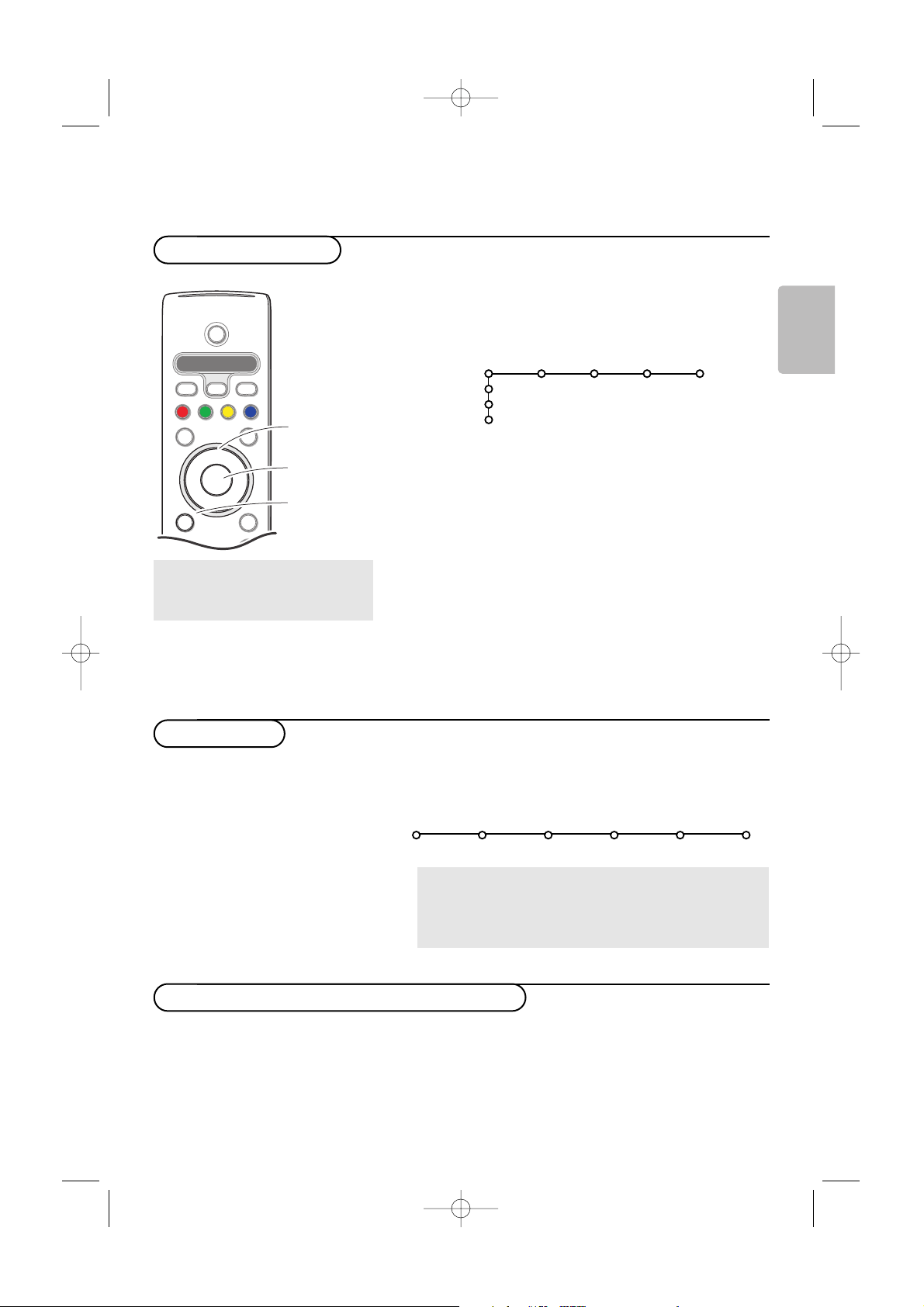
& Make sure you are in Analogue mode. If necessary, press
the
A/D key on the remote control.
é Press the MENU TV key on the remote control to
summon the main menu.At any moment you can exit
the menu by pressing the
MENU TV key again.
“ Use the cursor in the up/down direction to select the
TV, Setup, Demo or Install menu items.
Use the cursor left/right to select
Picture, Sound,
Ambilight or Features.
Note: Sometimes not all the menu items are visible on the
screen (indicated by a cluster of blue balls). Use the cursor
down or right to reveal all items.
‘ Use the cursor in the left/right direction to select the
menu item.
( Use the cursor up/down again to select the control you
want to select or to adjust.
Note: Items temporary not available or not relevant are displayed
in a light grey colour and cannot be selected.
The
Install menu allows you to reinstall all the analogue TV
channels and contains the following items:
If you want to change your menu language and/or the
country where you are now located, go to Language and
location preferences, p. 11.
Analogue TV mode
++
DVD/R SAT TV VCR AUX
MENU MENU
Ò
®
‡
π
º
†
®
®
®
®
Select
DIGITAL
b
A/D
TV
OK
B
v
¬
P
V
cursor to select
adjustments
OK key to
activate
return or switch
main menu on/off
Press the i key to get
information about the selected
menu item.
EasyLink
If your recorder has an EasyLink function, during installation, the
language, country and available channels are automatically
transmitted to the recorder.
TV
Setup
Demo
Install
Picture Sound Ambilight Features
Install
Automatic Manual Give name Reshuffle Favourite
install install programmes
Select the menu language and country
Installation
To use the menus
24571.1 en.qxd 31-08-2005 11:59 Pagina 17
18
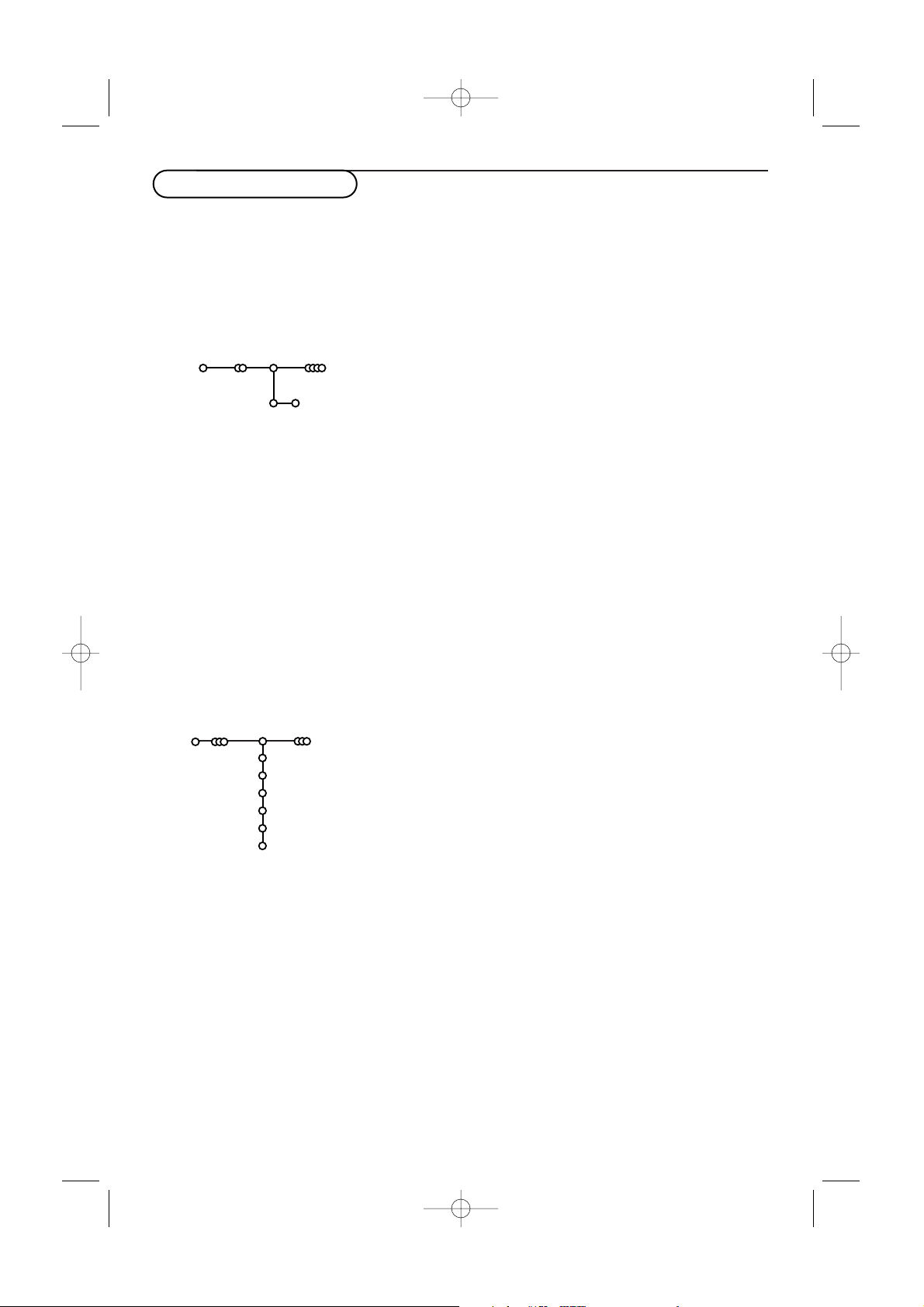
You can search for and store the analogue TV channels in two different ways: using Automatic Installation
or Manual Installation (tuning-in channel by channel).
Select your choice with the cursor right.
Manual install
Install
Selection mode
System
Programme
Search
Fine tune
Store
Automatic install
Install Start
Install
& Select Automatic install in the Install menu.
Note: All channels must be unlocked in order to autoprogram. If
requested, enter your code to unlock all channels. (See TV, Features
menu, Childlock, p. 26.)
é Press the cursor down.
The autoprogramming option label
Start appears.
“ Press the cursor right.
‘ The message Searching appears and the progress of
autoprogramming is displayed.
If a cable system or a TV channel which broadcasts ACI (Automatic
Channel Installation) is detected, a programme list appears.Without
ACI broadcast, the channels are numbered according your language
and country selection.You can use Reshuffle to renumber them. See
p. 19.
It is possible that the cable company or the TV channel displays a
broadcast selection menu. Layout and items are defined by the cable
company or the TV channel. Make your choice with the cursor and press
the
OK key.
Manual installation
Automatic installation
Store TV channels
Searching for and storing TV channels is done channel by channel.
You must go
through every step of the Manual Installation menu.
& Select Manual install in the Install menu.
é Press the cursor down.
Follow the instructions on screen.
Note: Search or direct selection of a TV channel.
If you know the frequency, the C- or S-channel number, enter the 3 or
2 digits of the frequency or the channel number directly with the digit
keys 0 to 9 (e.g. 048).
Repeat to search for another TV channel after you have stored
the selected TV channel.
24571.1 en.qxd 31-08-2005 11:59 Pagina 18
19
English
It is possible to change the name stored in the
memory or to assign a name to a TV channel or
external for which a name has not yet been
entered.A name with up to 5 letters or numbers
can be given to the programme numbers 0 to 99
and to the externals.
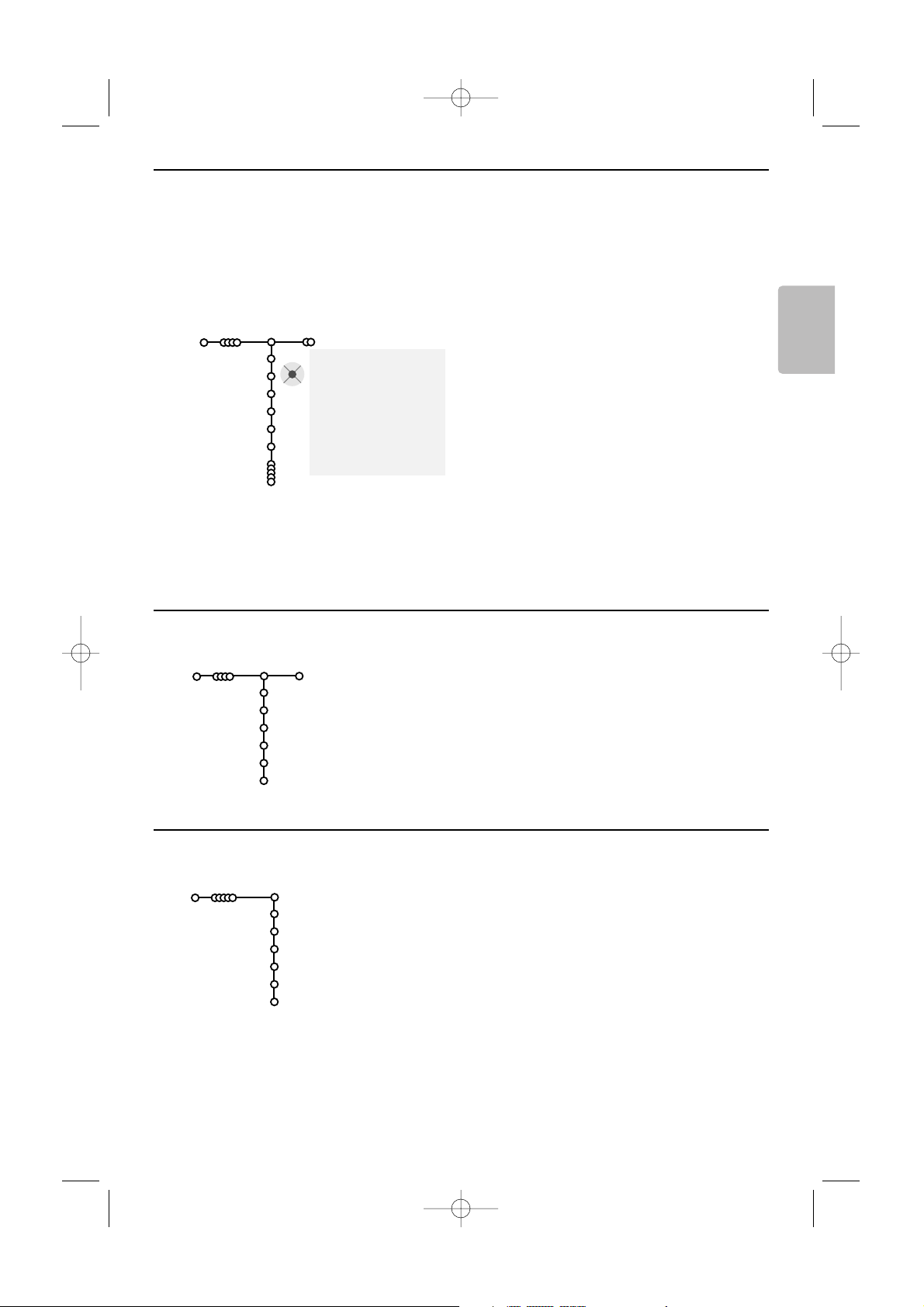
& Select Give Name in the Install menu and
press the cursor down.
é Select the programme number.
Note: keep the cursor up/down pressed to scroll
through the programme list quickly.
“ Press the cursor right.
A keyboard appears on the screen.
Press the cursor right to enter the keyboard.
Press the cursor up/down, left/right to select
the first character and press
OK. Repeat for
every character you want to enter.
Select
Space to enter a space; Delete to erase
the highlighted character in the name entered;
Shift to display upper- or lowercase characters
on the keyboard; Special to display special
characters on the keyboard. Press
OK to
confirm.
‘ Press the cursor left repeatedly when you have
finished the name giving.
( Select another programme number and repeat
steps
“ to ‘.
pπ
® Space ® Delete
ABCDEFG 123
HIJKLMN 456
OPQRSTU 789
VWXYZ 0
® Shift ® Special
Give name
Install
VCR1
BBC1
BBC2
CNN
TVE
.....
You can change the order of the stored TV channels.
& Select Reshuffle in the Installation menu.
é Follow the instructions on screen.
& Select Favourite programmes in the Install menu.
é Select your programme number with the cursor up/down.
“ Select Ye s or No with the cursor right.
‘ Repeat é and “ for every TV channel or external you want
to make a favourite or a non-favourite TV channel or external.
Reshuffle
Install
BBC1
BBC2
TV1
CNN
ARD
NED 1
Favourite programmes
Install
Ye s
Ye s
No
Ye s
Ye s
No
BBC1
BBC2
TV1
CNN
ARD
NED 1
Select Favourite TV channels
Reshuffle the programme list
Give name
24571.1 en.qxd 31-08-2005 11:59 Pagina 19

This menu allows you to change various settings
that are presumably adjusted less frequently than
most other settings.
Menu background
Select
Ye s or No to turn the menu background
on or off.
Factory settings
This resets the picture and sound settings to
their predefined factory values, but maintains
the channel installation settings.
OSD (On Screen Display)
& Select OSD.
é Select Normal to activate the continuous
display of the programme number and
extended display of TV channel and programme
information on screen.
Minimum to activate
the display of reduced channel information.
Note:When subtitles is switched on, see Features,
p. 26, display of the programme number is not
possible.
Programme title
Select
Programme title Yes or No.
When selected
Ye s, after the selection of a TV
programme or after pressing the i key on
the remote control, a TV channel which
broadcasts teletext may transmit the name of
the TV channel or the programme title.
When selected
No, the programme title will
only appear after pressing the i key and not
after the selection of a TV channel.
Teletext 2.5
Some broadcasters offer the opportunity to
see more colours, other background colours
and nicer pictures in the teletext pages.
& Select Teletext 2.5.
é Press the cursor right to select Teletext 2.5
On
to take advantage of this feature.
“ Press the cursor right again to select Teletext
2.5 Off
if you like the more neutral teletext
layout.
The selection made is valid for all channels
which broadcast teletext 2.5.
Note: It may take a few seconds before teletext
broadcast switches over to Teletext 2.5.
Auto Surround
Sometimes the broadcaster transmits special
signals for Surround Sound encoded
programmes.
The TV automatically switches to the best
surround sound mode when
Auto Surround is
switched On.
Subwoofer
Select
Ye s if you installed an external
subwoofer. See Connect Peripheral Equipment,
Connect extra subwoofer, p. 34.
20
The Setup menu contains items that control the settings
of the TV’s functions, features, services and peripherals
you may have connected.
The
General menu allows you to change settings that
will typically be accessed only occasionally.
The
Source menu allows you to select a source.
The
Decoder menu allows you to define one or more
programme numbers as decoder programme numbers.
General Source Decoder
Menu background
Factory settings
OSD
Programme title
Teletext 2.5
Auto surround
Subwoofer
Set/Change code
Setup
Press the i key to get information about the selected menu item.
General
TV Setup
24571.1 en.qxd 31-08-2005 11:59 Pagina 20
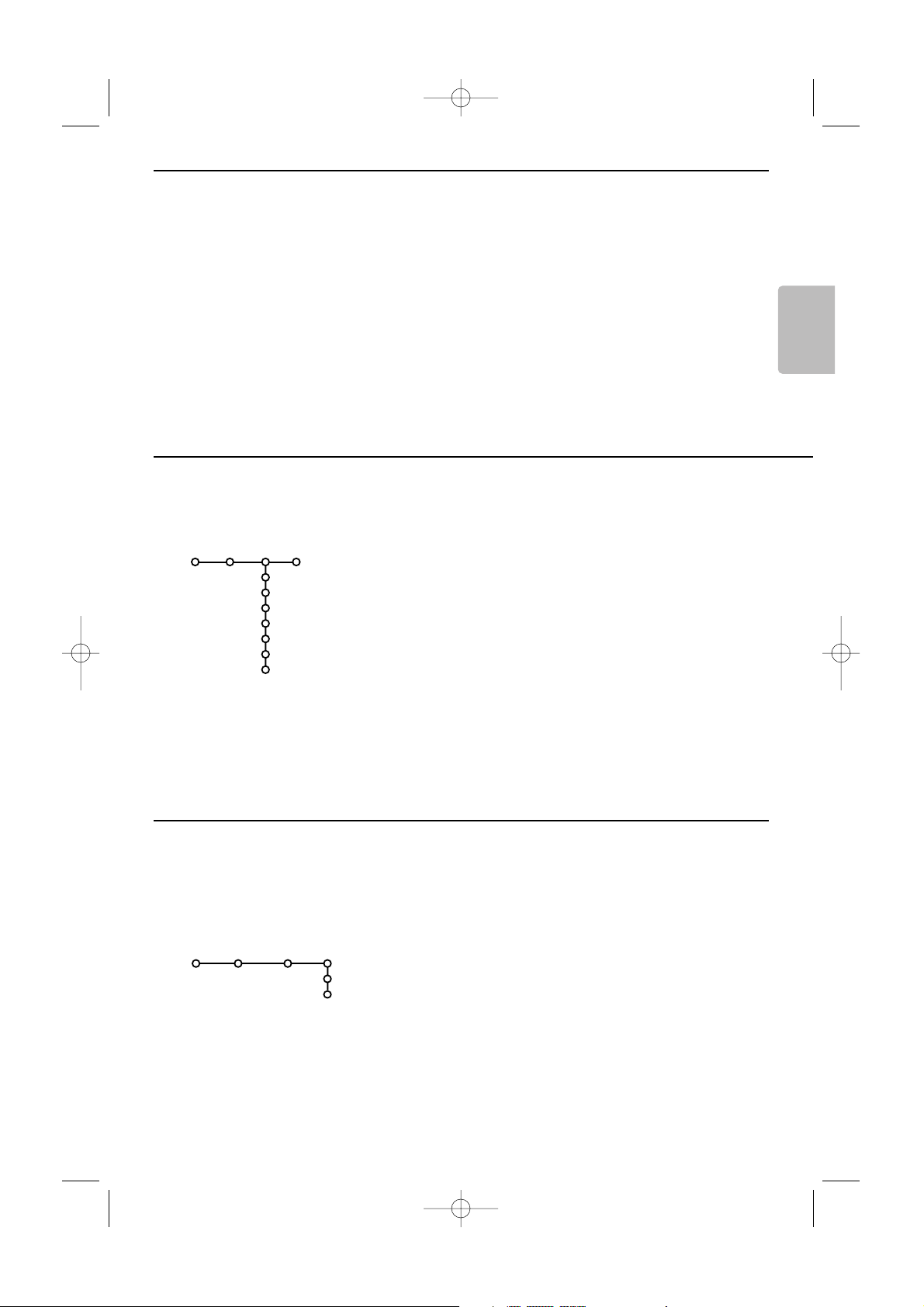
If a decoder or a descrambler is connected, see
p. 30, you can define one or more programme
numbers as decoder programme numbers.
& Select Decoder with the cursor right.
é Select Programme.
“ Select the programme number under which
you have stored the programme coming from
your decoder.
‘ Select Status.
• Select the input used to connect your
decoder:
None or EXT1.
• Select
None if you do not want the selected
programme number being activated as a
decoder programme number.
This menu allows you to indicate the peripheral
you connected to one of the external inputs.
& Press the cursor right to enter the list of types
of peripherals attached to the selected input.
é Select the peripheral device with the cursor
up/down.
Once you have selected the source type, e.g. DVD,
this source will automatically be selected when
your remote control is in DVD mode, see p. 4, and
when you press the v key on the remote
control.
Centre input - Centre in volume
When you have connected a surround receiver to
the TV, see p. 32, the loudspeakers of the TV can
act as centre speaker, making a separate centre
speaker unnecessary.
Select
Centre input On.
When having selected
On,you can adjust the
Centre in volume with the cursor left/right to
correct volume level differences of the external
audio receiver and speakers.
21
English
Set/Change code
The Child lock feature (see TV, Features, p. 26)
allows you to lock channels to prevent others
from watching certain programmes.To watch
locked channels, a 4-digit code must be
entered.The Set/Change code menu item
allows you to create or change a Personal
Identification Number (PIN).
& Select Set/Change code.
é If no code exists yet, the menu item is set to
Set code.
If a code has previously been entered, the menu
item is set to
Change code.Follow the
instructions on screen.
Important:You have forgotten your code!
& Select Change code in the General menu and
press
OK.
é Press the cursor right and enter the overriding
code 8-8-8-8.
“ Press the cursor again and enter a new
personal 4-digit code.The previous code is
erased and the new code is stored.
Source
EXT1
EXT2
EXT3
DVI-I
Side
Centre input
Centre in volume
Setup
Decoder
Programme
Status
Setup
Decoder
Source
24571.1 en.qxd 31-08-2005 11:59 Pagina 21
22
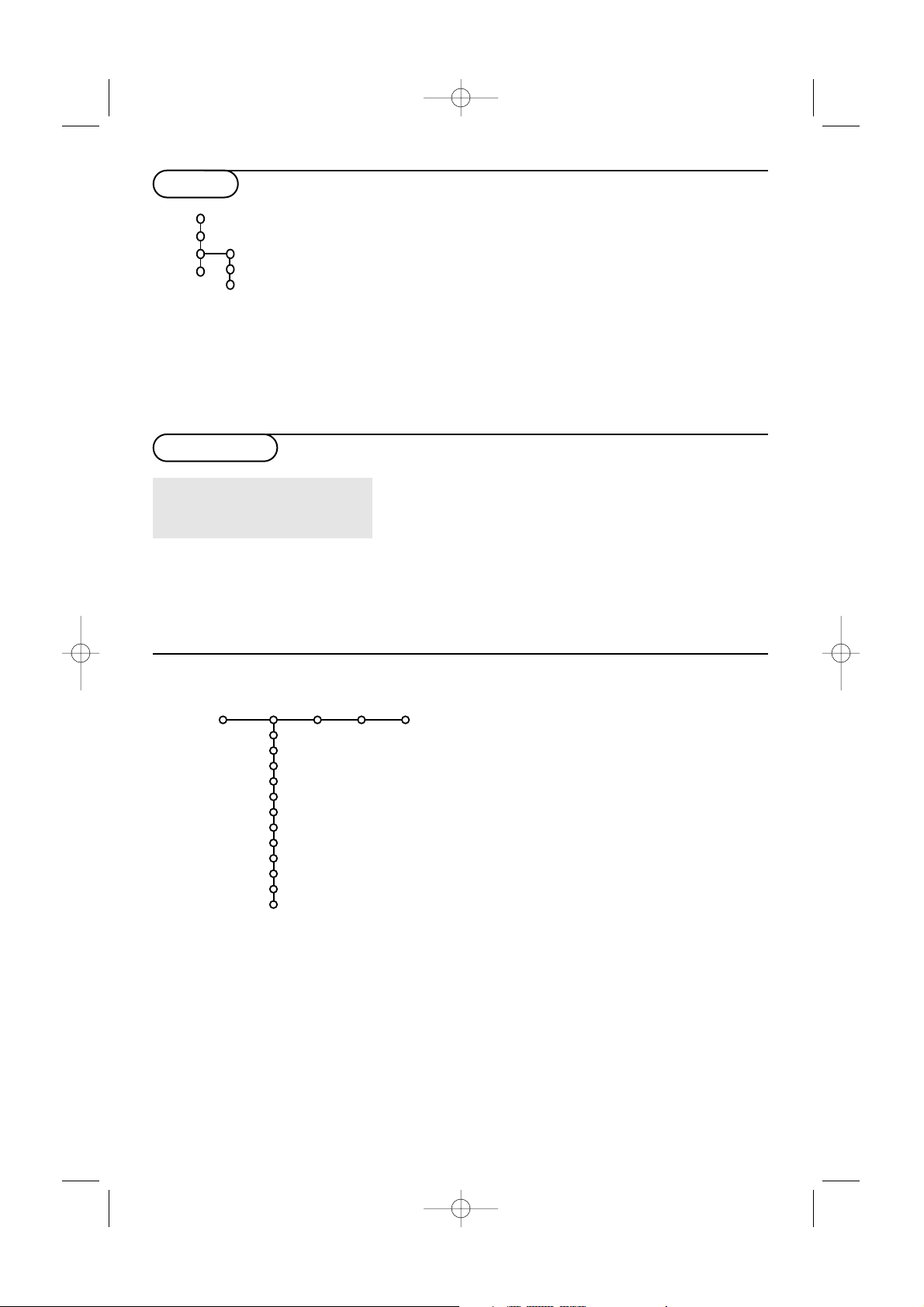
The Demo menu allows to demonstrate the TV features
separately or in a loop.
Note:Toggling through all the Ambilight modes will display
each mode for 10 seconds each. Before switching to the next
mode the light will first fade to off and then fade up in the
next mode.
Ambilight
Teletext
Active Control
TV
Setup
Demo
Install
Press the MENU TV key on the remote control to
summon the main menu.
Notes:
- Dependent on the input signal, one or more menu items
may not be selectable.
- Some analogue menus can also be displayed when in
digital mode.
& Press the cursor right to select Picture.
é Select the menu items in the Picture menu with the
cursor up/down.
“ Adjust the settings with the cursor left/right or
enter the list of submenu items with the cursor
right. Select a submenu item with the cursor
up/down.
Note:To remove the menu background before adjusting
the picture settings, see Select TV setup, General, p. 20.
Press the i key to get
information about the selected
menu item.
Picture Sound Ambilight Features
Smart picture
Contrast
Brightness
Colour
Sharpness
Tint
Digital options
Dynamic contrast
DNR
Colour enhancement
(Hue)
Picture format
TV
Picture menu
TV menu
Demo
24571.1 en.qxd 31-08-2005 11:59 Pagina 22

23
English
Smart picture
Select
Smart picture to display a list of
predefined picture settings, each corresponding
with specific factory settings.
Personal refers to the personal preference
settings of picture in the picture menu.
Note:This Philips TV has been set at the factory to
look best in bright store environments which use
fluorescent lighting.As your home will likely not be
as well lit as a store, we recommend you that you
cycle through the various Smart picture modes to
find the one that best suits your own viewing
conditions. Most consumers will find that Natural is
the correct choice.
Digital options
Pixel Plus 2 is the most ideal setting, doubles
the horizontal resolution and increases the
number of lines by 33%.
You may consider to select Movie Plus in case a
halo effect should disturb you. Dependent on
your own preference, select Progressive scan.
Dynamic contrast
Sets the level at which the TV automatically
enhances the details in dark, middle and light
areas of the picture.
DNR
This sets the level at which noise is measured
and reduced in the picture.
Colour enhancement
This makes the colours more vivid and
improves the resolution of details in bright
colours.
Hue
This compensates for the colour variations in
NTSC encoded transmissions.
Picture format
This will adjust the size of the picture
dependent on the broadcast format and your
preferred setting.
See also Use of the remote control, Picture
format, p. 4.
The TV continuously measures and corrects all
incoming signals in order to provide the best
picture possible.The ambient light sensor adjusts
the settings according to the viewing conditions in
the room (only when having selected the Active
control value Maximum).
& Press the h key on the remote control.
Note: Switch off all menus on screen.
é The Active Control menu appears.
“ Press the cursor up/down to select the Active
Control values
Off, Minimum, Medium or
Maximum.
The picture settings are being optimised
continuously and automatically which is
displayed by bars.Those menu items can not be
selected.
‘ Press the cursor right to select Smart
Picture
.
( Press the cursor up/down to select one of the
predefined picture settings.
§ Press the cursor right to select Active
Display
.
è Press the cursor up/down to select Show bars,
Pixel Plus 2, Digital Natural Motion or Off.
When you select Pixel Plus 2 or Digital Natural
Motion, the TV screen is divided into two parts:
in the left part the selected picture quality
setting is switched off; in the right part it is
switched on.
! Press the h key again to switch off the Active
Control menu.
Active Control
24571.1 en.qxd 31-08-2005 11:59 Pagina 23
24
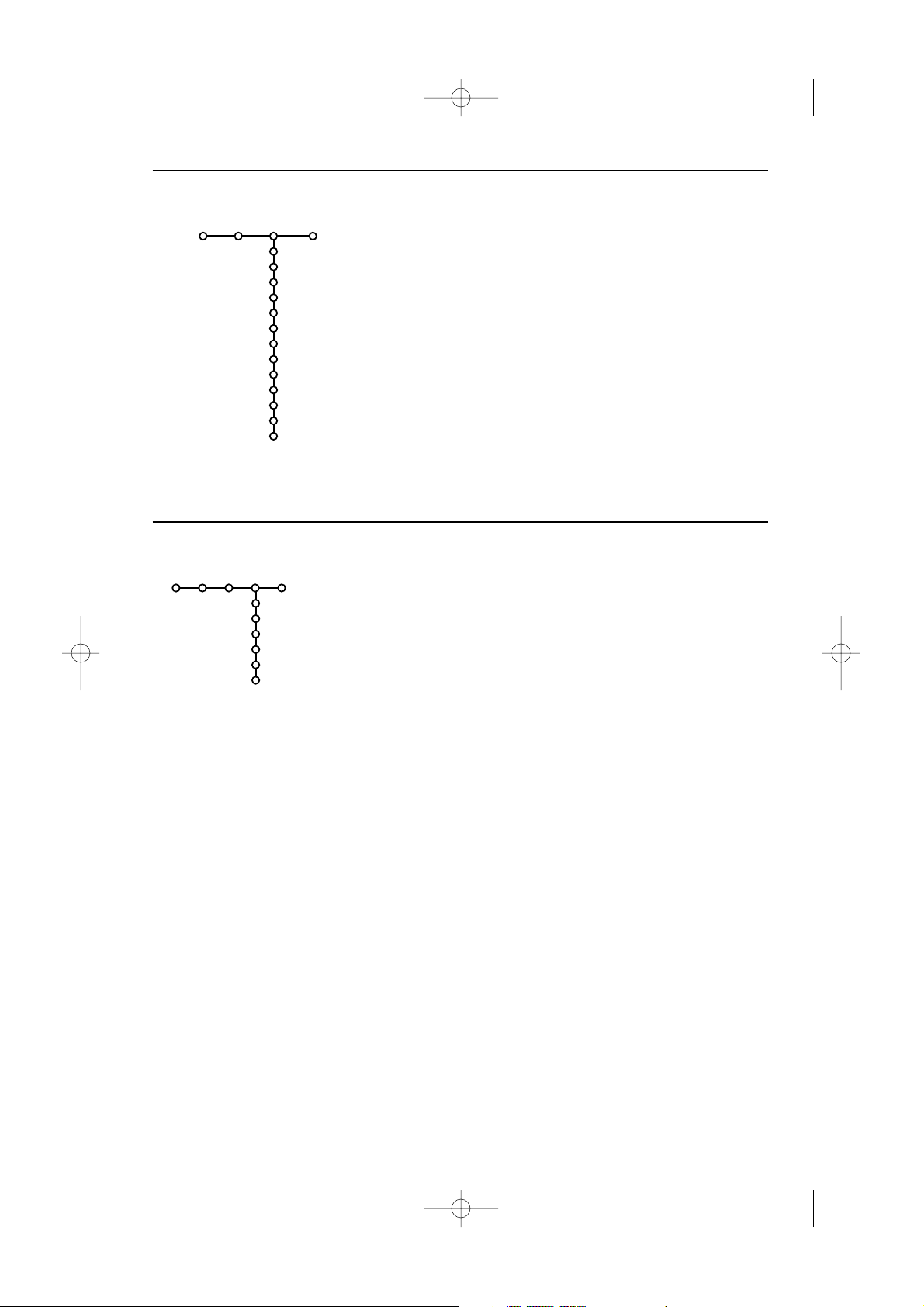
& Press the cursor right to select Sound.
é Select the menu items in the Sound menu with the cursor
up/down and adjust the settings with the cursor
left/right.Remember, control settings are at normal mid-range
levels when the bar scale is centred.
Smart sound
Select Smart sound to display a list of predefined sound settings,
each corresponding with specific factory settings of Treble and
Bass.
Personal refers to the personal preference settings of
sound in the sound menu.
Notes:
- Dual X is only available with dual sound transmission.
- Mono/Stereo is only selectable in case of analogue stereo
transmission.
- Nicam/Analogue is only selectable in case of Nicam transmission.
Sound
Smart sound
Equalizer
Volume
Balance
Loudness
Headphone volume
Surround mode
(Dual I-II)
(Mono/Stereo)
(Nicam/Analogue)
(3D effect)
AVL
Delta volume
TV
Ambilight is an innovative lighting concept using light with fully
adjustable colours at the back of the TV to enhance the viewing
experience.Analysis of the picture content adapts the colours
continuously, or the lights can be set to any fixed colour and many
shades of white.Ambilight creates the ideal viewing environment for
your TV resulting in improved relaxed viewing, improved perceived
picture detail, contrast and colour.
In standby mode the lights can be set/operated to any colour and
create a unique ambiance in the room.
& Select Ambilight in the TV menu.
é Press the cursor down to enter the Ambilight menu.
“ Select Ambilight and press the cursor right to select Off or On.
•
Off: will switch off the ambient lights and downlight all other
menu items.
•
On: the ambient lights will be on. Refine the light settings in
the menus below.
‘ Select Brightness to adjust the light output of the ambient
lights.
( Select Mode and press the cursor right to select Colour,
Ambiance, Relaxed, Movie or Action.
•
Colour: this will show constant light according to the settings
in the Ambilight colour menu. See below.
• The options
Ambiance, Relaxed, Movie and Action will
dynamically match brightness and colour to the screen
content.
The mode selection made will effect the speed and/or
saturation and/or intensity which determines the viewing
impression.
Ambilight
Ambilight
Brightness
Mode
(Colour)
(Palette)
(Saturation)
TV
Ambilight
Sound menu
24571.1 en.qxd 31-08-2005 11:59 Pagina 24

25
English
E.g. in Relaxed mode, the rate of brightness and colour
change is smoothly and soft which gives you a more immersive
yet relaxed viewing.
Ambiance is the rate of brightness and colour change as
predefined in the factory.
Movie will influence the perception of a movie whereas
Action mode will influence the dynamic impression.
Notes:
- The rate of change is limited, as not to cause uncomfortable
sensations.
- According to the selection made, some Ambilight menu items will be
downlighted and can not be selected.
Ambilight in Standby mode
When the TV is switched off, the ambient lights will also be
switched off.When the TV is in standby mode, ambilight can be
used to provide a unique ambience for the room. Press the
ambilight on/off key on the remote control to switch between
Ambilight Off or On.
Infrared interference on external devices
To avoid bad remote control reception, place your external
devices out of sight of the ambient lights of your TV set.
Note: Ambilight does not function well when the room temperature is
less than 15°C.
Smart Colour modes:
•
Personal: Select any Colour or hue to match to your personal
taste, e.g. your interior, the program content (sports, movie,
etc.), the mood you are in, etc.
•
Warm white:The Colour is matched to that of most normal
lightbulbs. Select this setting if you want the Ambilight to fit
best with normal living room lighting.
•
Cool white:The Colour is matched to that of normal daylight
(6500K). Select this setting if you prefer more cool lighting.
Note: the 6500 K is the SMPTE recommended setting for ambient
backlighting of displays.
•
Blue:The blue Colour is preferred by most consumers to
create a cool, modern and /or mystical atmosphere. Select this
setting according to your personal taste or mood.
24571.1 en.qxd 31-08-2005 11:59 Pagina 25

26
& Press the cursor right to select Features.
é Select the menu items with the cursor
up/down and adjust the settings with the
cursor left/right.
Programme list
Press the
OK key to switch over to the
selected TV channel or external.
Select subtitles
The subtitle page must be stored for each TV
channel:
Switch on teletext and select the proper
subtitle page from the index. Switch off
teletext.
Subtitle On will automatically display them on
the selected TV channels if subtitles are in the
transmission.A symbol will indicate that the
mode is on.
Select
On during mute when you want to
have the subtitles automatically displayed only
when the sound has been muted with the ¬
key on the remote control.
Sleeptimer
This sets a time period after which the TV
automatically switches to standby.
Child lock
& Select Child lock.
é Press the cursor right to enter the Child lock
menu.You’re summoned to enter your code.
Note:You have to re-enter your code each time you
enter the child lock menu.
Important:You have forgotten your code !
See p. 21.
“ Select one of the menu items of the child lock
menu:
•
Lock if you want to lock all channels and
externals.
•
Custom lock and press the cursor right.
Select:
-
Lock after if you want to lock all
programmes from a certain time onwards.
Press the cursor right and enter the time
with the cursor up/down and right. Press the
OK key to validate.
-
Programme lock if you want to lock a
certain TV channel or external;
• Select
Unlock to disable all locks you have set.
Off
On
On during mute
Features
Programme list
Subtitle
Sleeptimer
Child lock
TV
Child lock
Lock
Custom lock
Unlock
Lock after
Programme lock
Press the i key to get information about
the selected menu item.
& Press b to switch the teletext on.
UK only:
- MHEG is displayed when programmes are
carrying
TEXT-MHEG interactive elements,
signalled by an
MHEG icon in the banner.
- to switch teletext on, hold b down for 3
seconds.
é To use the digital teletext, follow the
instructions on screen.
“ Depending on the service, you may be asked to
use the cursor keys, the
OK key, the coloured
keys, the teletext key and sometimes the digit
keys.
‘ When you have finished watching teletext;
select a different channel with the
-P+ keys or
follow the instructions on screen to return to
picture.
Te xt info
Some digital channels also offer information on
the programme being broadcast. In that case a
message may appear at the bottom of the
screen for a few seconds. Follow the
instructions on screen and use the cursor keys
to scroll through the text pages.
Some digital channels, which you select like any other channel, offer dedicated teletext services (for
instance BBC TEXT).
Digital Teletext
Features menu
24571.1 en.qxd 31-08-2005 11:59 Pagina 26

27
English
Switch Teletext on and off
Press b to switch the teletext on.
Select a Teletext page
- Enter the desired page number with the digit
keys, the cursor keys up/down, left/right or
with the
-P+ key.
- Select the options at the bottom of the screen
with the colour keys.
Previously selected teletext page
(Only possible in case there is no list of favourite
teletext pages available. See p. 28
Press the 0 key.
Select the index teletext page
Press the white colour key † to display the
main index (usually p.100).
Only for T.O.P teletext broadcasts :
Press i.A T.O.P. overview of the teletext
subjects available is displayed.
Select with the cursor up/down, left/right the
desired subject and press the
OK key.
Not all TV channels broadcast T.O.P. teletext.
Select subpages
When a selected teletext page consists of
different subpages, a list of available subpages
appears on the screen.
Press the cursor left or right to select the next
or previous subpage.
Picture/Teletext
& Press the b key. Press the b key to show
Teletext on the right of the screen.
é Press the b key to switch off dual screen.
Enlarge a Teletext page
Press q repeatedly to display the upper
teletext part, the lower teletext part and then
to return to the normal teletext page size.
When the teletext page is enlarged, you can
scroll the text, line by line using the cursor
up/down.
Hypertext
With hypertext you can quickly jump to a
pagenumber or search for a specific word
shown on the current teletext page.
& Press the OK key to highlight the first word or
a number on the page.
é Use the cursor up/down, left/right to select any
other word or number you want to search for.
“ Press the OK key to confirm.The search starts.
A message appears at the bottom of the screen
to indicate the searching, or that the word or
page is not found.
‘ Use the cursor up to exit hypertext.
Most analogue TV channels broadcast information via teletext.This TV has a 1200 pages memory that will
store most broadcasted pages and subpages to reduce waiting time. After each programme change, the
memory is refreshed.
LIONS RECORD ANOTHER WIN 430
Index 100 News 300
BBC Info 110 Headlines 305
Children 120 Weather 400
Cookery 150 Sports 415
Education 200 Radio 500
Lottery 230 Travel 550
Finance 240 Subtitling 888
Music 280 TV Listings 600
Red Green Yellow Blue
102 «03 04 05 06 07 08 09 10 11 12»
BBC CEEFAX 102 Mon 05 Feb 16.35.22
BBC CEEFAX
Analogue Teletext
24571.1 en.qxd 31-08-2005 11:59 Pagina 27
Teletext menu
& Press the MENU TV key to activate the menu.
é Press the cursor up/down to select the menu
items.
“ Press the cursor right to activate.
Reveal
Reveals/conceals hidden information on a page,
such as solutions to riddles and puzzles.
Press the cursor right to activate.
Favourite
You may create a list of eight favourite teletext
pages in total, selected from various TV
channels.
To add a favourite page to the list:
& Select a favourite teletext page.
é Select Favourite in the teletext menu and
press the cursor right to enter the list.
“ Press the cursor right again to add the page.
‘ Press the MENU TV key to watch the current
page.
To watch a favourite page from the list:
When in Teletext, use the 0 key to browse
through the favourite pages of the TV channel
actually selected.
Note: only the pages of the current channel can be
selected.
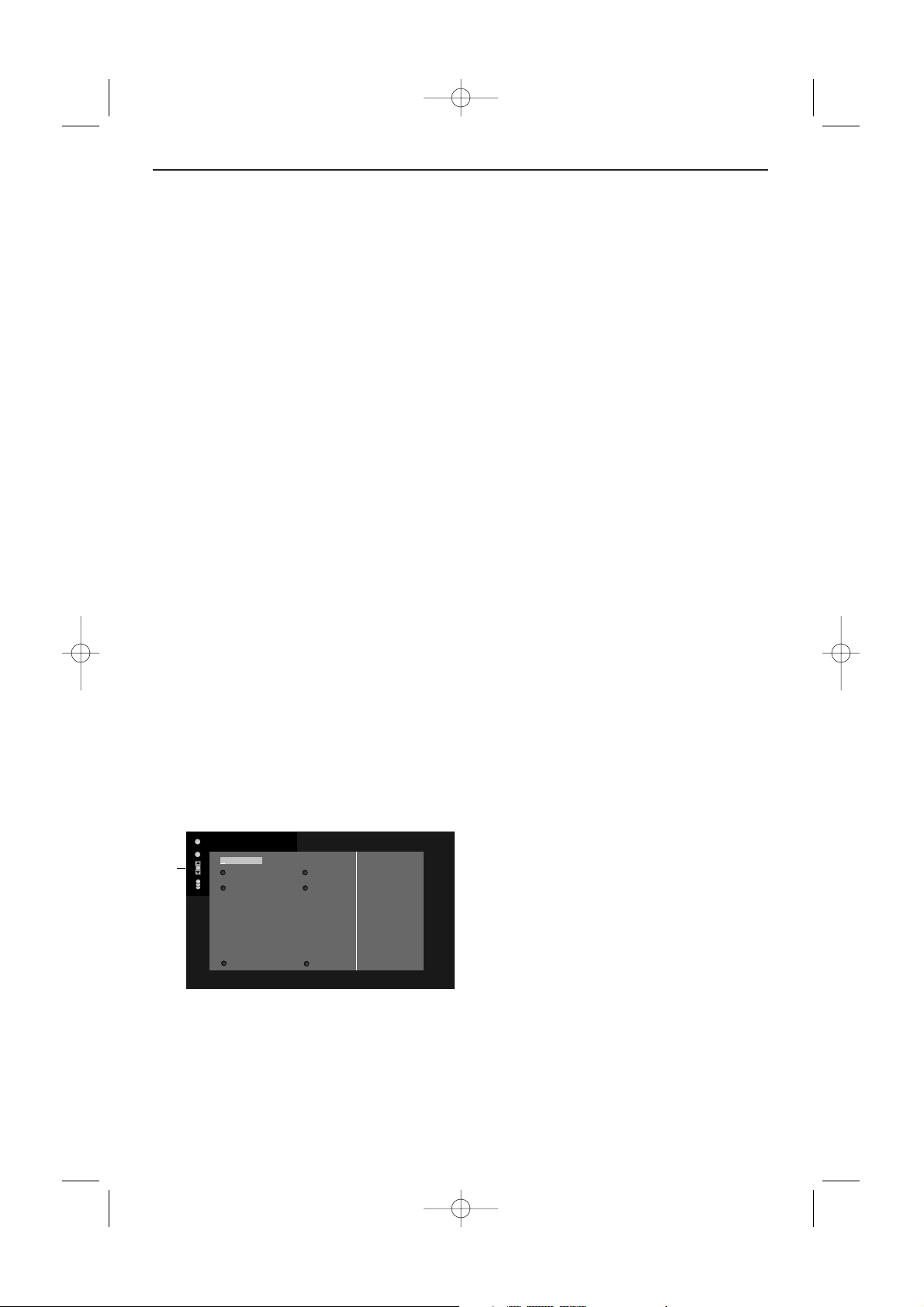
Search
Selecting a word
On the keyboard on screen you can type in a
random word you want to search for in the
teletext pages.Whether upper- or lowercase is
used has no influence.
& Press the cursor right to enter the keyboard.
é Press the cursor left/right, up/down to select
the characters, words or functions.
“ Press the OK key to confirm each character
selected.
‘ Select Cancel to cancel the word; Space to
enter a space;
Delete to delete the last
character selected;
Shift to switch between
lowercase or capital characters;
Special to
display special characters on the keyboard and
press the
OK key.
( Press the cursor left repeatedly to return to
the Teletext menu again.
Searching a word
& Type in the word on screen or select a word
from the history list on the right and press
OK.
é Select Accept and press OK again.The
message Searching appears.
“ To cancel the searching or to search for a new
word, select
Keyboard and press OK.
‘ When a word is not found, a message appears.
When the word is found, it is highlighted in the
teletext page.To continue the search, press the
OK key.
Cycle subpages (if available)
Makes the subpages cycle automatically.
Press the cursor right to activate and to de-
activate again.
Timed page
To display a specific page from a selected TV
channel at a certain time.
& Press the cursor right and select Yes or No.
é Enter the time and pagenumber with the
cursor keys or the digit keys.
Note:Teletext does not have to remain switched on,
but you should watch the TV channel you have
selected the specific page from.
“ Press the cursor left to return to the TV menu
again.
Language
If the displayed characters on screen do not
correspond with the characters used by the
teletext broadcaster, you can change the
language group here.
Select
Group 1 or Group 2 with the cursor
right.
Press the
MENU TV key to leave the Teletext
menu.
28
102 mo 08 may 17:08:39
TELETEXT
BBC1
Red Green Yellow Blue
puck
Cancel Accept
Space Delete
ABCDEFG 1 2 3
HIJKLMN 4 5 6
OP QRSTU 7 8 9
V W X Y Z 0
Shift Special
WORD
NAME
FOOTBALL
24571.1 en.qxd 31-08-2005 11:59 Pagina 28
29
English
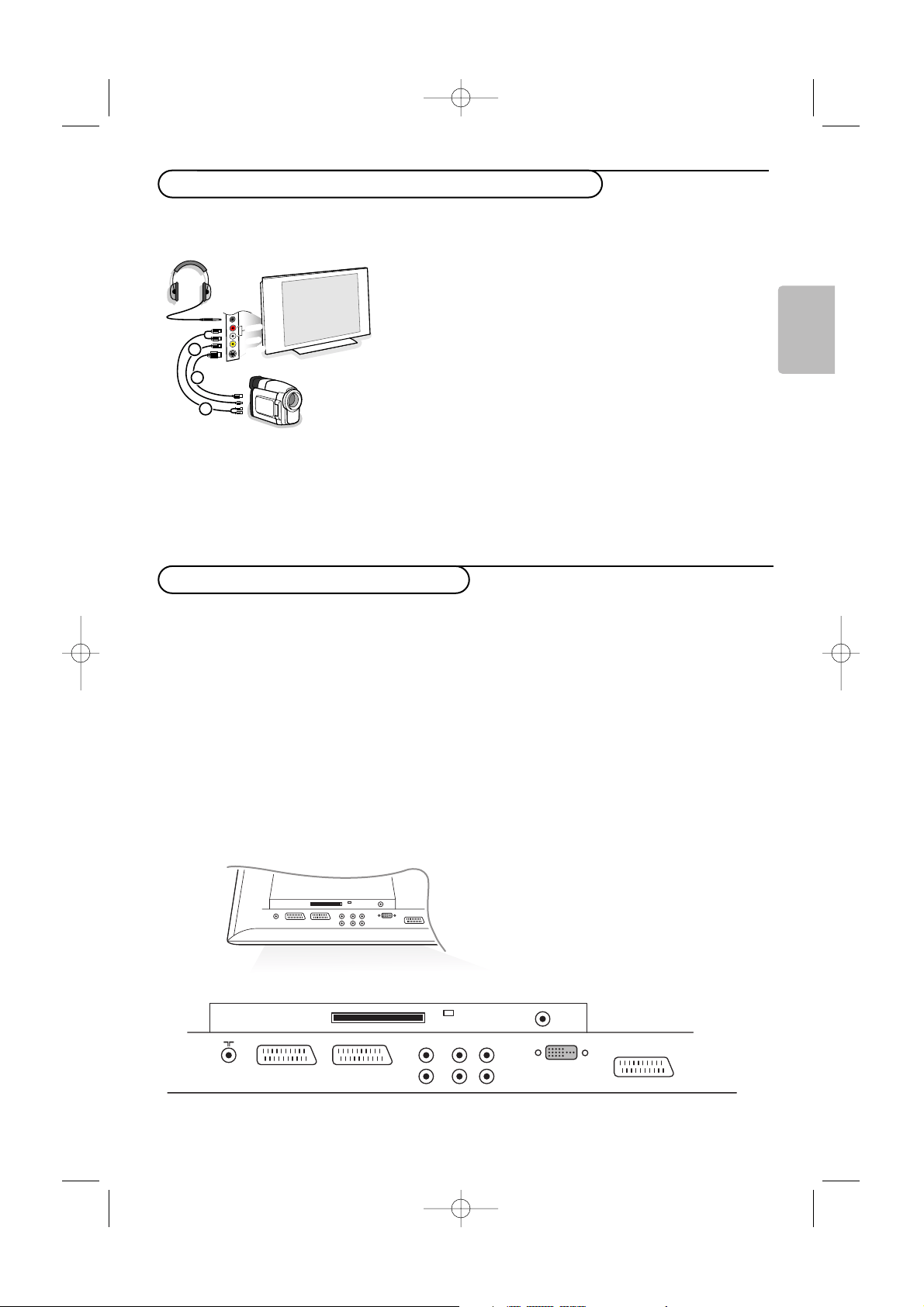
There is a wide range of audio and video equipment that can be connected to your TV.
The following connection diagrams show you how to connect them.
Note:
EXT1 can handle CVBS, RGB and Audio L/R;
EXT2 CVBS,Y/C, RGB and Audio L/R;
EXT3 CVBS and Audio L/R;
DVI can handle VGA, SVGA, XGA and 480p, 576p, 720p, 1080i and 1152i
Side can handle CVBS, S-VIDEO and Audio L/R.
It is preferable to connect peripherals with RGB output to
EXT1 or EXT2 as RGB provides a better picture quality.
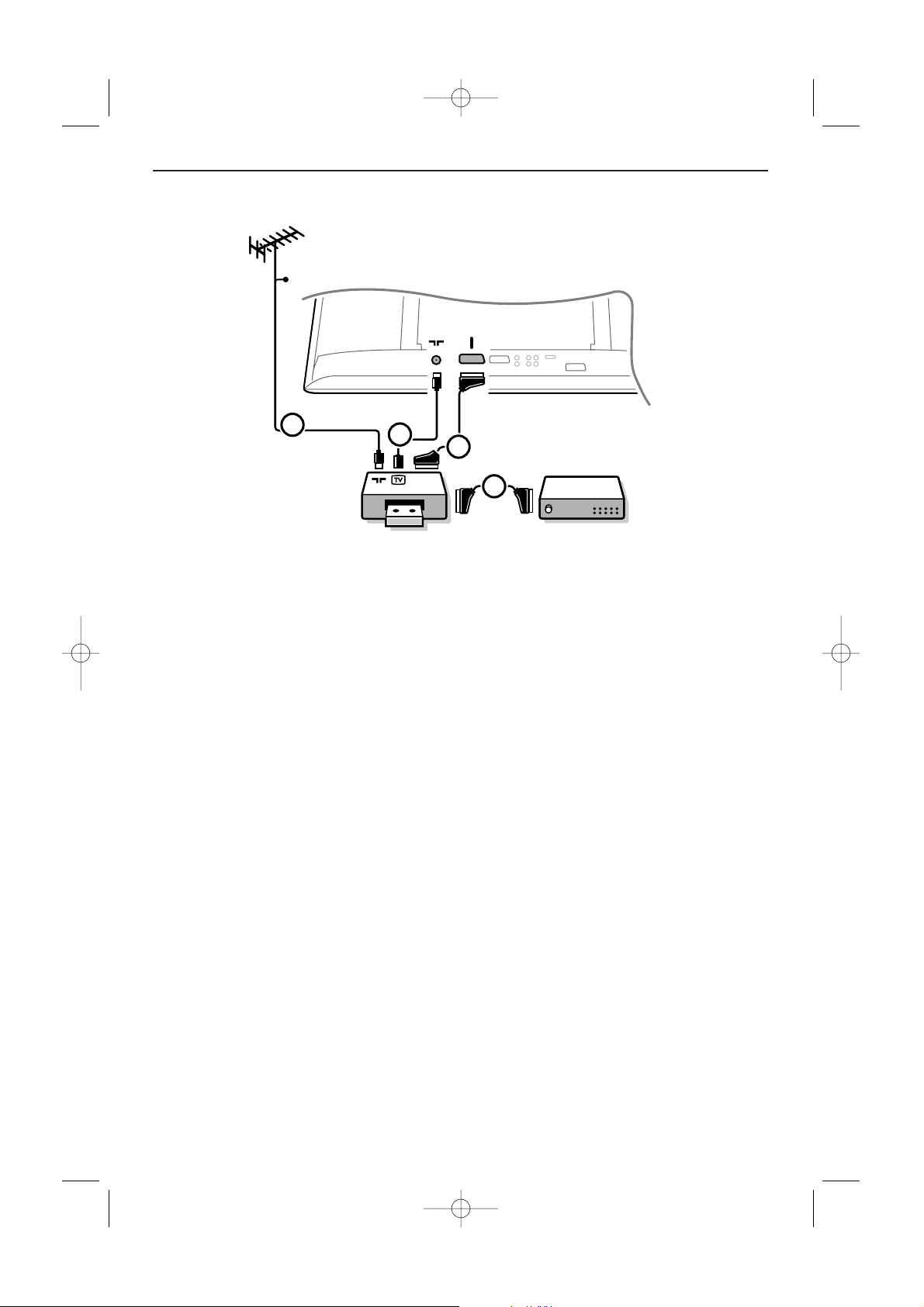
Note: If your recorder is provided with the EasyLink function, it should be connected to
EXT2 to benefit from the
EasyLink functionality.
EXT2 EXT1 DVIAUDIO
AUDIO
OUT
CENTRE
SUBW
IN
ANTENNA
R
L
R
L
EXT3
Camera, Camcorder or Game
& Connect your camera, camcorder or Game as shown.
é Connect to VIDEO 2 and AUDIO L 3 for mono
equipment. For stereo equipment also connect
AUDIO R 3.
S-VHS quality with an S-VHS camcorder is obtained by
connecting the S-VHS cables with the
S-VIDEO input 1 and
AUDIO inputs 3.
Do not connect cable 1 and 2 at the same time.This may cause
picture distortion !
Headphone
& Insert the plug into the headphone socket L as shown.
é Press ¬ on the remote control to switch off the internal
loudspeakers of the TV.
The headphone impedance must be between 8 and 4000 Ohm.The
headphone socket has a 3.5 mm jack.
In the Sound menu select
Headphone volume to adjust the
headphone volume.
VIDEO
3
2
1
S•VIDEO
AUDIO
Connect Peripheral Equipment
Equipment to connect to the side connections
24571.1 en.qxd 31-08-2005 11:59 Pagina 29
30
Note: Do not place your recorder too close to the screen as some recorders may be susceptible for signals from the
display. Keep a minimum distance of 0,5 m from the screen.
Connect the aerial cables 1, 2 and, to obtain the optimum picture quality, eurocable 3 as shown.
If your recorder does not have a euroconnector, the only possible connection is via the aerial cable.You
will therefore need to tune in your recorder’s test signal and store the test signal under a programme
number between 90 and 99, see Manual installation, p. 18.
See the handbook of your recorder.
Decoder and Recorder
Connect a eurocable 4 to your decoder and to the special euroconnector of your recorder. See also
the recorder handbook.
See Decoder, p. 21. You can also connect your decoder directly to
EXT1 with a eurocable.
RECORDER DECODER
4
1
2
3
EXT2
CABLE
Recorder (VCR-DVD+RW)
24571.1 en.qxd 31-08-2005 11:59 Pagina 30
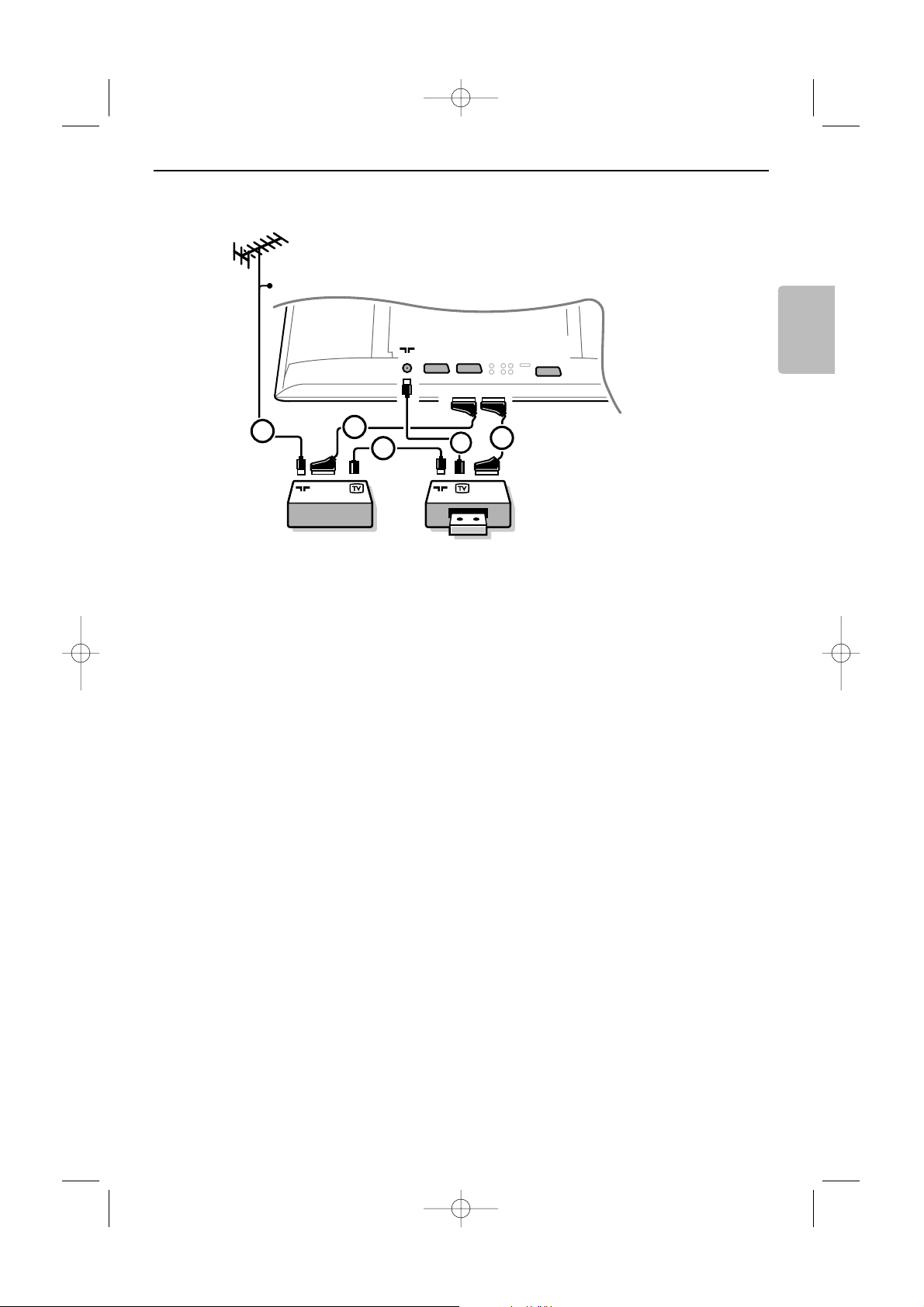
31
English
& Connect the aerial cables 1, 2 and 3 as shown (only if your peripheral has TV aerial in-/output).
Connect your recorder to
EXTERNAL 2 with a eurocable 5.
Connect the other equipment with a eurocable 4 to one of the euroconnectors
EXTERNAL 1 or
EXTERNAL 3 to obtain a better picture quality.
If your recorder does not have a euroconnector, the only possible connection is via the aerial cable.
You will therefore need to tune in your recorder’s test signal and store the test signal under a
programme number between 90 and 99, see Manual installation, p. 18. See the handbook of your
recorder.
é Make a selection in the Setup, Source menu, p. 21.
CABLE
EXTERNAL
CABLE
1
2
RECORDER
4
3
5
Recorder and other equipment
24571.1 en.qxd 31-08-2005 11:59 Pagina 31
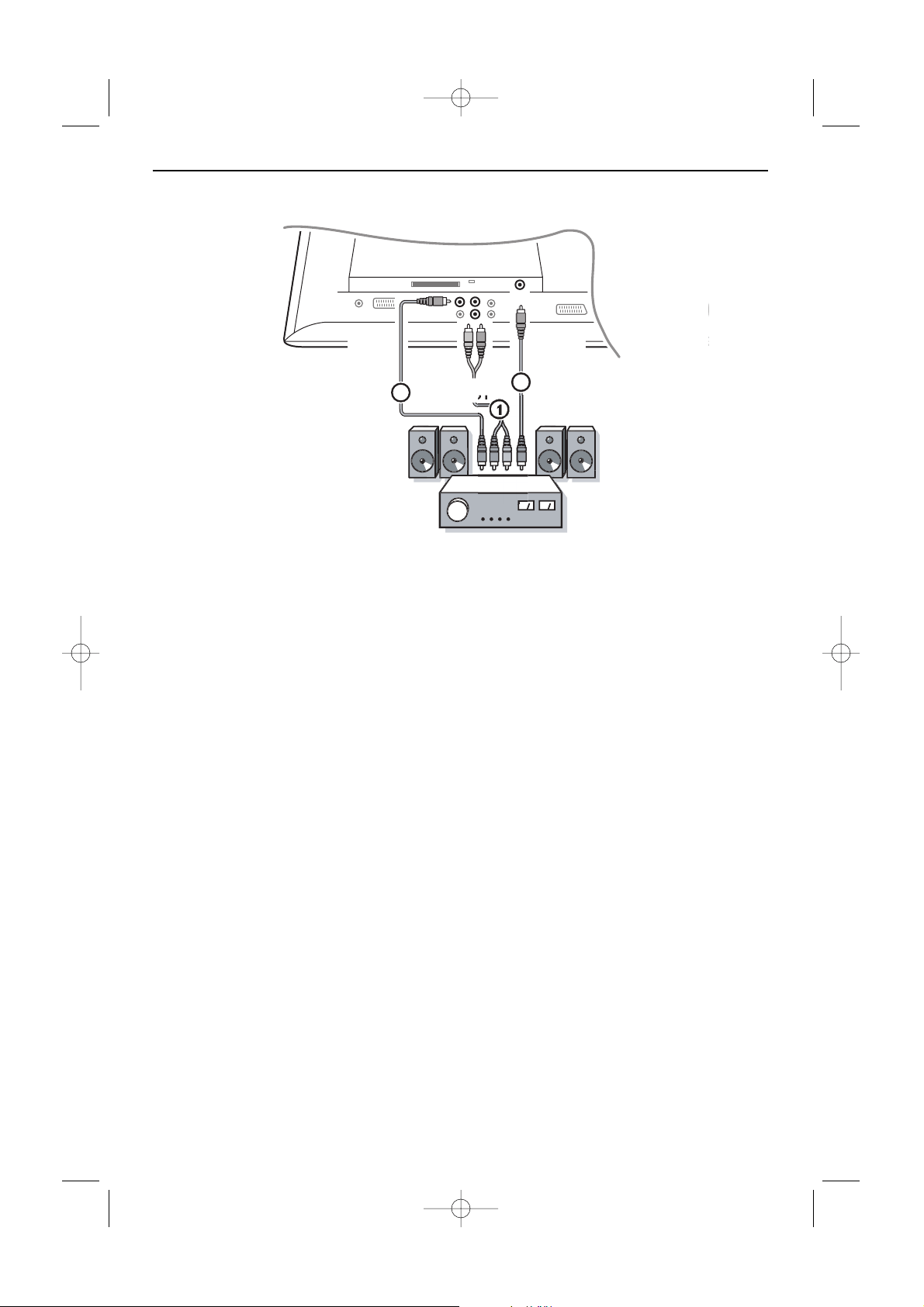
32
DIGITAL
AUDIO
OUT
AUDIO
OUT
CENTRE
IN
3
2
& Connect the audio cable to the MultiChannel Surround receiver and to AUDIO OUT L and R at the
bottom of your TV 1.
é If you want the loudspeakers of your TV to act as centre speaker, also connect an audiocable to the
multi channel Surround receiver and to the
CENTRE IN at the bottom of your TV 2.
“ Select Centre Input On in the Source menu. See p. 21.
Digital sound
& Connect your Digital MultiChannel Surround receiver also to the DIGITAL AUDIO OUT connector
3 to have digital sound being reproduced.
é Digital sound will be reproduced if the selected digital channel is broadcasted with AC3 sound
transmission.
“ Select AC3 in the digital Setup menu, Preferences, Digital Audio Output. See p. 11.
‘ Select Digital Audio input on your digital MultiChannel Surround receiver.
Warning:
If no
AC3 signal is transmitted, there will be no sound on the digital audio out output.
Note: No sound will be heard when a TV channel or external source is locked via the Features/Child lock menu
(see p. 26).
MultiChannel Surround receiver
24571.1 en.qxd 31-08-2005 11:59 Pagina 32
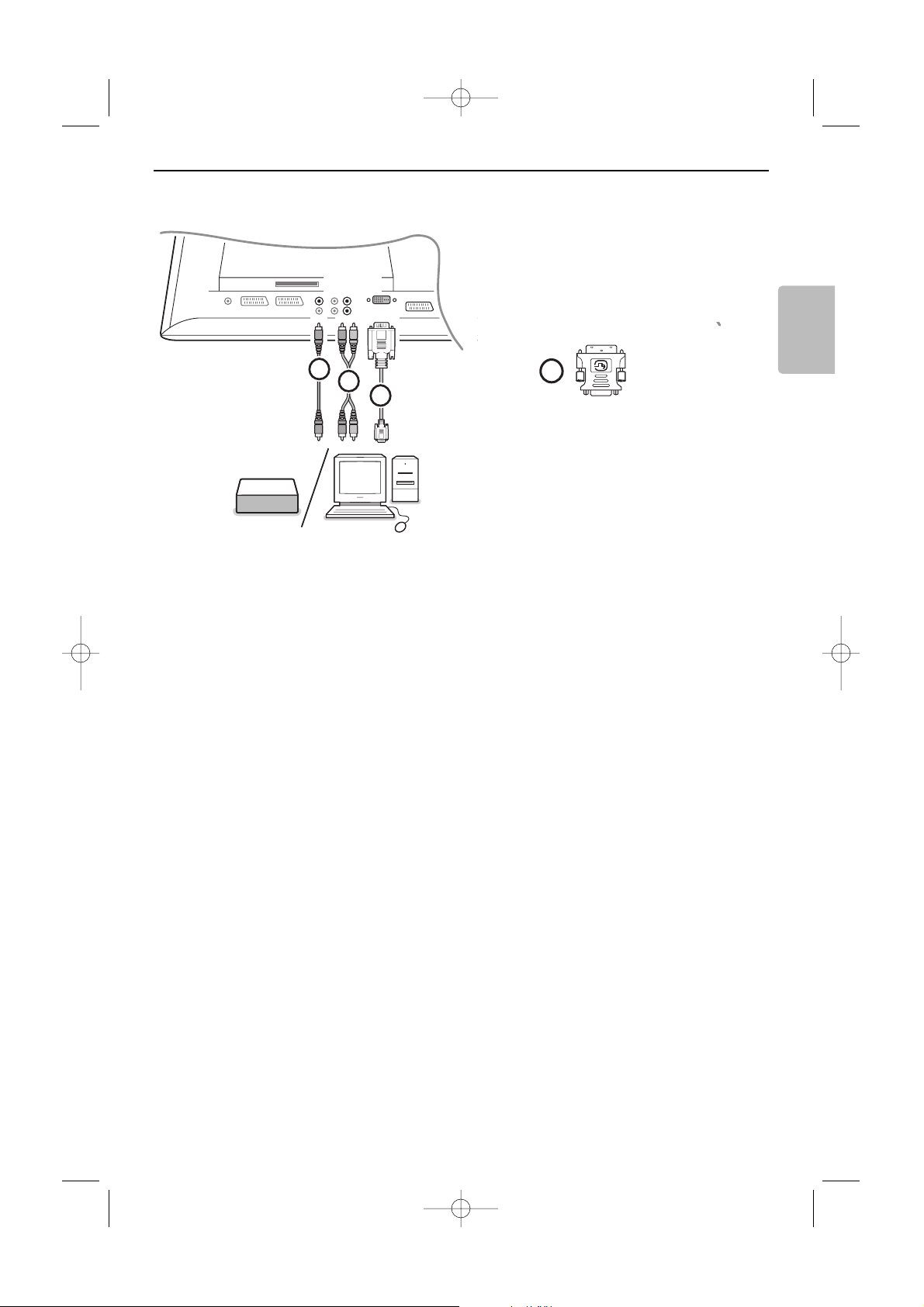
33
English
The DVI connector allows the following TV and monitor display modes, via the v key on the remote
control, for High Definition (HD) and computer (PC) equipment:
HD
Standard Definition TV (SDTV) 640x480i
720x576i
Enhanced Definition TV (EDTV) 640x480p
720x576p
High Definition TV (HDTV) 1920x1080i
1280x720p
PC VGA 640x480 60 Hz
SVGA 800x600 60 Hz
XGA 1024x768 60 Hz (not for 42PF9967D)
Note: If necessary, you can adjust the picture position to the centre of the screen with the cursor keys.
& Connect your equipment to the DVI connector of your TV 1.
According to the type of connector of your equipment, you may have to use an appropriate adapter.
DVD
Connect the DVI to DVI cable to the DVI connector of your TV 1.
Computer (PC):
- with a DVI connector: connect the DVI to DVI cable to the DVI connector of your TV 1.
- with a VGA connector: connect the VGA cable to a VGA to DVI adapter 4 and connect to the
DVI
connector of your TV 1.
é Connect the audio cable 2 to the DVIAUDIO R (right) and L (left) inputs of the TV when the TV
expects analogue audio for a connected peripheral equipment to come from an analogue audio input
OR
Connect the audio cable 3 to one of the DIGITAL AUDIO IN connectors of the TV when the TV
expects digital audio for a connected peripheral equipment to come from a digital audio input.
Then also make your selection of the source to which the peripheral equipment with digital audio
input has been connected in the Setup, Source menu, p. 21.
....
....
DVI
CENTRE IN
1
2
3
R
L
AUDIO
DVI
VGA
4
Equipment to connect to a DVI connector
24571.1 en.qxd 31-08-2005 11:59 Pagina 33
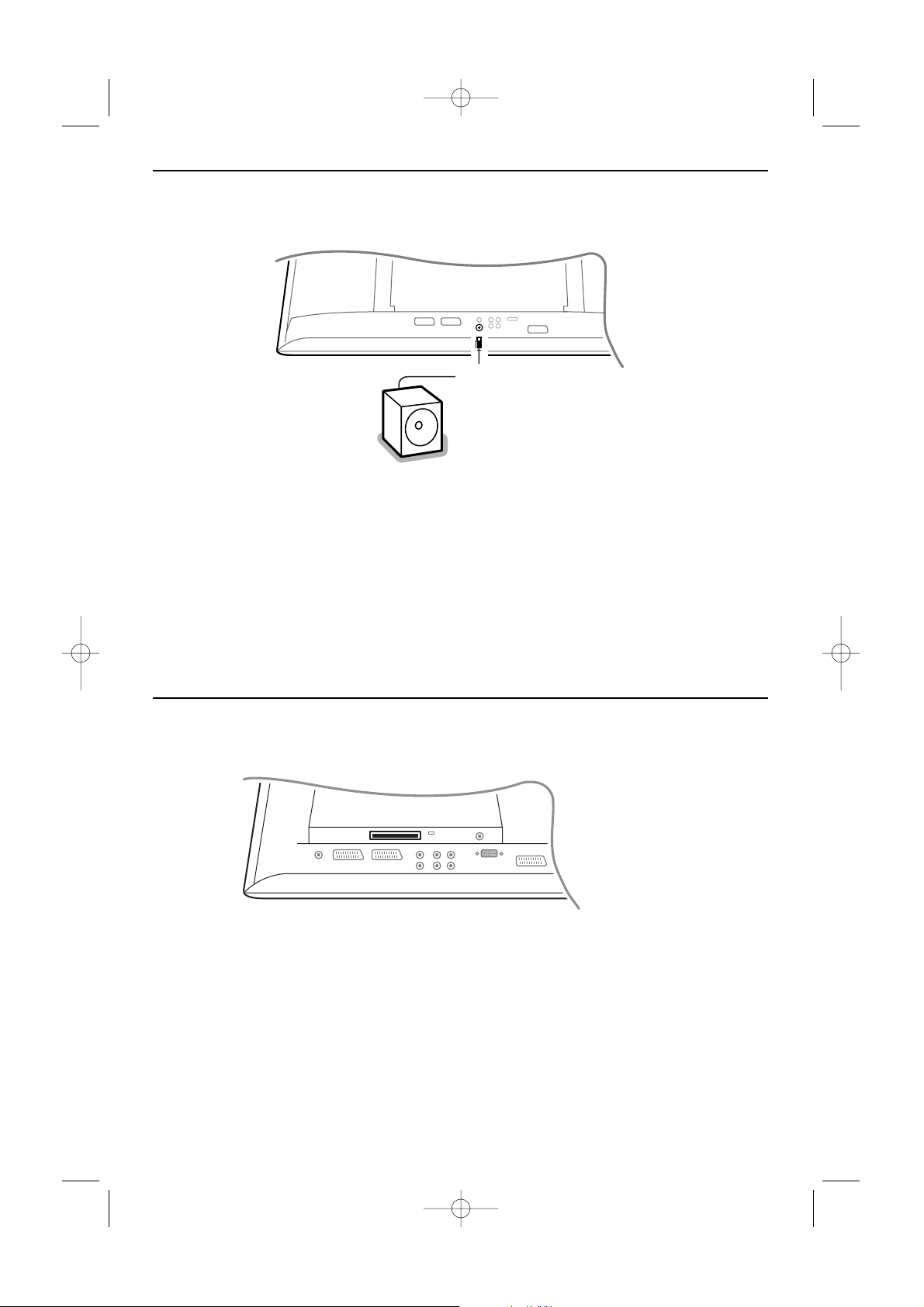
34
To enhance the sound reproduction of your TV you can connect an externally powered subwoofer
(between 20 and 250 Hz).
& Connect the audio cable of the external subwoofer to the SUBWOOFER socket at the rear of your
TV.
é Select Subwoofer in the Setup, General menu, p. 20.
“ Adjust the frequency of the external subwoofer to 100-120 Hz (according to your personal
preference) if present on the subwoofer.
‘ Adjust the volume level of the external subwoofer, presumed this control is present on the subwoofer.
See also the instruction manual of the external subwoofer.
SUBWOOFER
A common interface is available to connect a CAM (Conditional Access Module) and a SmartCard.
Please contact your service provider to get more information about these modules.
Note:The television should always be switched off before any module is inserted in the common interface slot.
COMMON INTERFACE
Common Interface
Connect extra subwoofer
24571.1 en.qxd 31-08-2005 11:59 Pagina 34
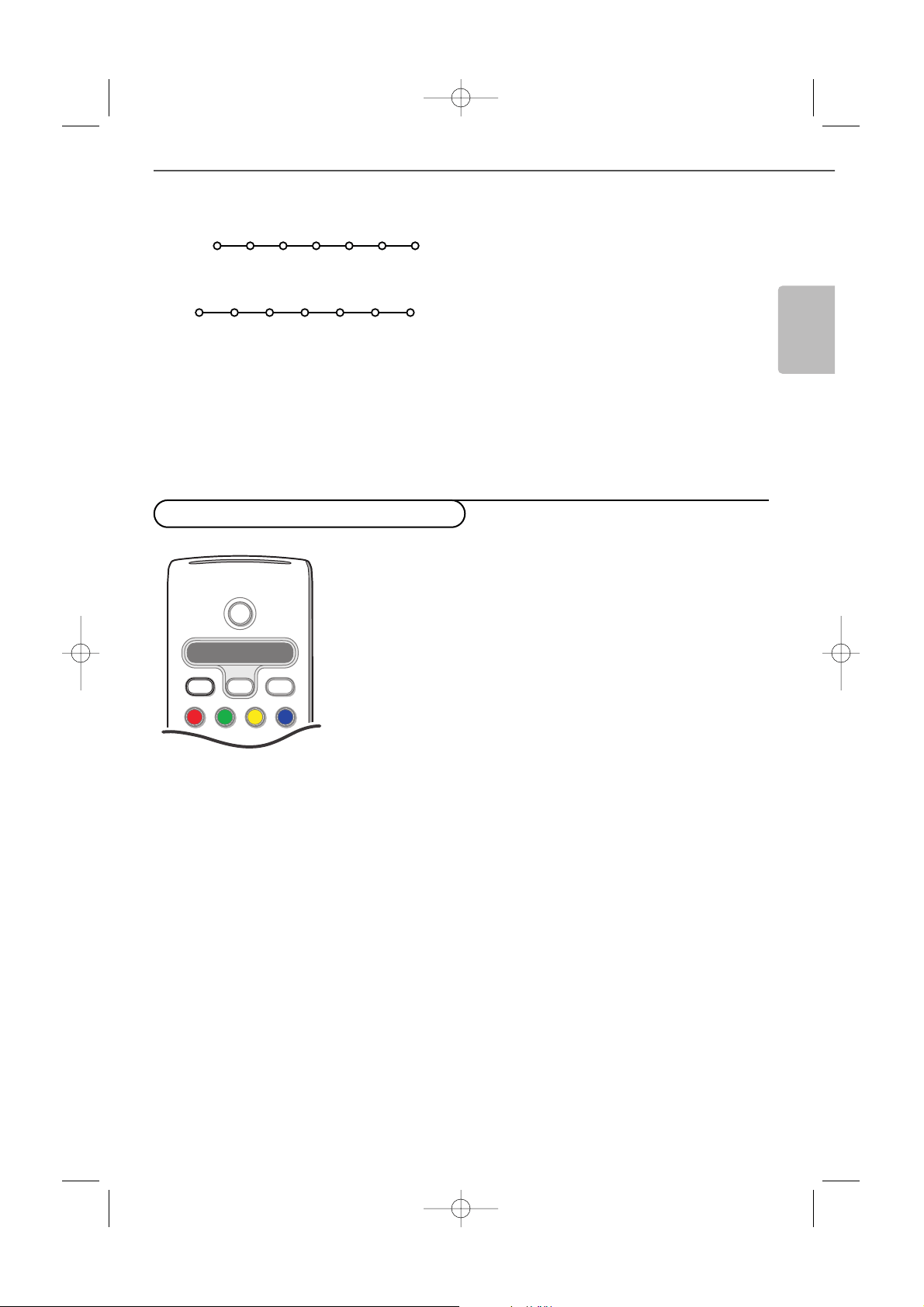
35
English
The recorder or DVD can be operated with the remote
control via the
Recorder or DVD menu on screen.
& Press the MENU TV key on the remote control.
é Select the Recorder or DVD menu with the cursor
up/down.
“ Press the cursor left/right, up/down to select one of
the recorder or DVD functions.
The key ® for recording can be operated in the TV
mode.
If your EasyLink recorder has the system standby
function, when you press the B key for 3 seconds, both
TV and the recorder are switched to standby.
Òp‡π † Ï
Rwd Play Stop Play Ffw Eject
Recorder
Òp ‡ π † Ï
Prev. Play Stop Play Next Eject
DVD
Press the v key on the remote control repeatedly to
select
EXT1, EXT2, EXT3, Side or DVI according to
where you connected your equipment.
Remark : Most equipment (decoder, recorder) carries out the
switching itself, when it is switched on.
DVD/R SAT TV VCR AUX
Ò
®
‡
π
º
†
®
®
®
®
Select
b
A/D
B
v
To select connected equipment
Recorder or DVD with EasyLink
24571.1 en.qxd 31-08-2005 11:59 Pagina 35
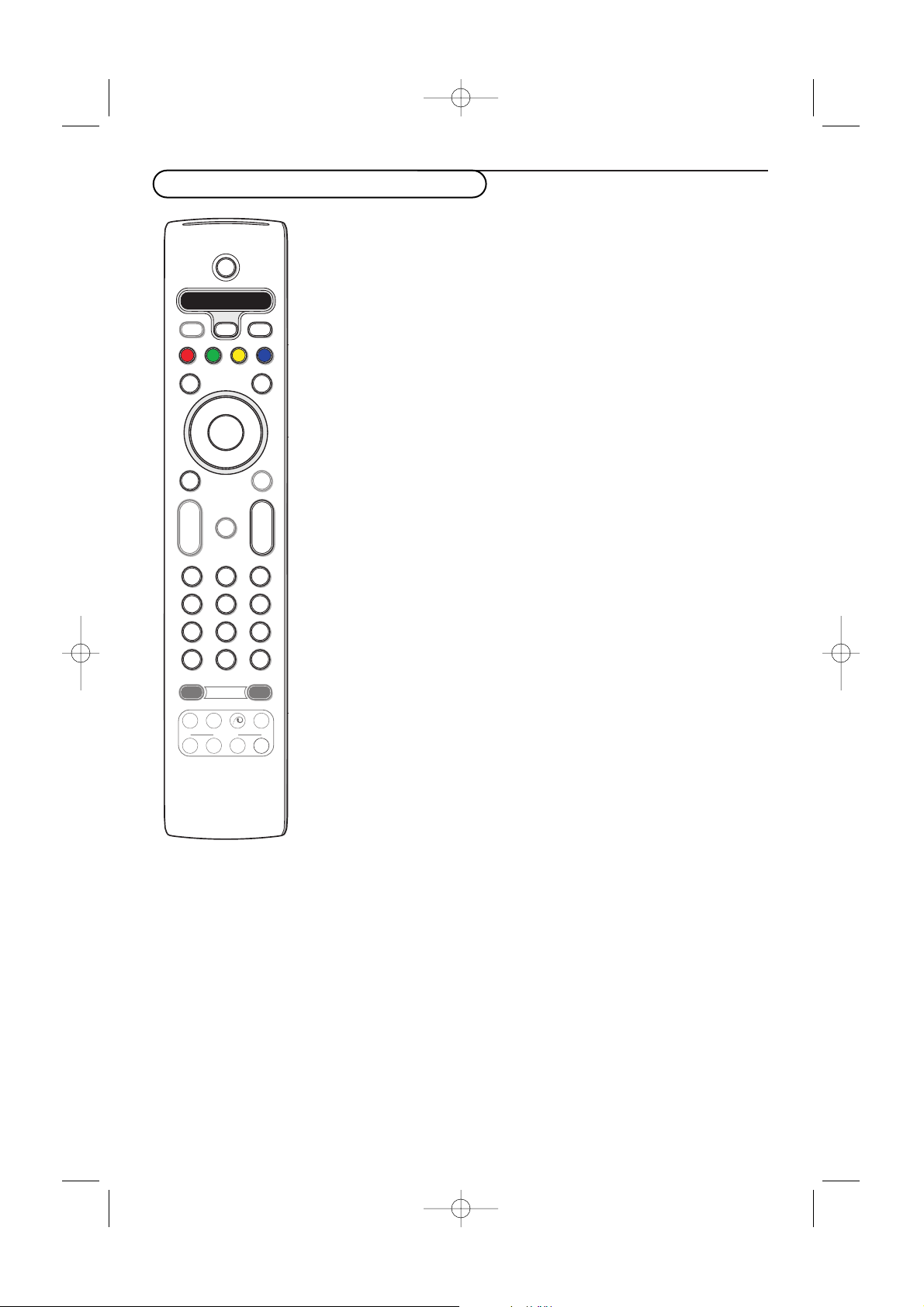
36
This system remote control operates the following Philips equipment:TV,
VCR, DVD, DVD/R, SAT (RC5/RC6),AMP (+TUNER), CD, CD/R.
Press the
Select key to operate any of the equipment indicated in the
display
(
AUX = CD, CDR,VCR; DVD/R = DVD, SAT = SAT (RC5).Another device
can be selected by pressing
Select repeatedly within 2 seconds.The led will
blink slowly to indicate the device.
Press one of the keys on the remote control to operate the peripheral
equipment.
To r eturn to TV mode press
Select while the led is blinking.
When no action is taken within 60 seconds, the remote goes back to TV
mode.
When you do not want the remote to go back to TV mode, and to stay in
the mode selected, proceed as follows:
Select the desired mode with the
Select key. Wait until no LED is lit. Press
the
Select key again simultaneously with the OK key for at least 2 seconds.
The remote will not go back to TV mode from now on and will remain in
the mode selected.
To go back to the default setting of the remote (TV mode) repeat what is
explained above, selecting the TV mode.
Note:When the
Select key is pressed and held for more than 2 seconds, the
RC5/RC6 system select command is transmitted.
MODEON/OFF
Ambilight
+
-
+
-
DVD/R SAT TV VCR AUX
MENU MENU
123
456
789
0
Ò
®
‡
π
º
†
®
®
®
®
OPTIONS
MHEG
CANCEL
Select
DIGITAL
b
q
h
b
æ
j
i
0
A/D
TV
DIGITAL
OK
B
v
¬
P
V
B to switch to standby
ºæ for pause (
VCR, DVD, CD)
RDS news/TA (AMP);
to shuffle play (
CD/R)
® for record
Ò for rewind (
VCR, CD);
search down (
DVD, AMP)
‡ for stop
π for play
† for fast forward (
VCR, CD);
search up (
DVD, AMP)
b RDS display (
AMP);
to select your choice of
subtitle language (
DVD);
i display information
MENU TV to switch the menu
on or off
- P + for chapter, channel, track
selection
0 to 9 digit entry
0 tape index (
VCR),
select a DVD title/chapter,
select a frequency (
AMP)
cursor up/down
to select the next or the
previous disc (
CD)
cursor left/right
to select the previous or
following track (
CD)
search up/down (
AMP)
Additionally the DVD/R, SAT and AUX indicator
can be programmed to operate the DVD-R, DVD +
receiver, DVD-R + receiver, SAT (RC6), CD-R and
VCR instead.
& Select TV with the Select key.
é To program
•DVD-R,press the OK key + digit 2;
•
SAT (RC6),press the OK key + digit 4;
•
CD-R,press the OK key + digit 6;
•
DVD + receiver,press the OK key + digit 7;
•
DVD-R + receiver,press the OK key + digit 8;
•
VCR,press the OK key + digit 9.
“ Select the corresponding DVD/R, SAT, AUX
indicator.The remote control will operate your
DVD-R, DVD or DVD-R in combination with a
receiver (
DVD/R), SAT (RC6) (SAT), CD-R or
VCR (
AUX).
Note:To return to the modes programmed in the
factory, either remove the batteries for a few
minutes, or press the
OK key + digit 1 (DVD
mode); or + digit 3 (SAT-RC5) or + digit 5 (CD
mode).
Audio- and video equipment keys
24571.1 en.qxd 31-08-2005 11:59 Pagina 36
37
English
Symptoms Items to Check and Actions to follow
Poor Picture •Have you selected the correct TV system in the manual installation menu?
• Is your TV or house aerial located too close to loudspeakers, non-earthed audio
equipment or neon lights, etc?
• Mountains or high buildings can cause double pictures or ghost images.
Sometimes you can improve the picture quality by changing the direction of the
aerial.
• Is the picture or teletext unrecognisable? Check if you have entered the correct
frequency. See Installation, Manual installation, p. 18.
•Are brightness, sharpness and contrast out of adjustment?
Select Factory settings in the Setup, General menu, p. 20.
No Picture •Are the supplied cables connected properly ? (The aerial cable to the TV, the
other aerial to your recorder, the VGA cables to the display, the power cables.)
• Has the child lock been switched off ?
• Is your PC switched on ?
• Do you see a black screen and the indicator in front of the TV lights up blue,
this means that the display mode is not supported. Switch your VGA-source to
a correct display mode.
• In case of weak or bad signal, consult your dealer.
Digital distortion The low quality of some digital picture material may be the cause of digital image
distortion. In this case select the Soft setting using the Picture menu, Smart
Picture, without changing the picture settings manually.
No sound • No sound on any channel? Check the volume isn’t at minimum.
• Is the sound interrupted with the mute key ¬?
No solution found Switch your TV off and then on again once. Never attempt to repair a defective
for your picture or TV yourself. Check with your dealer or call a TV technician.
sound problem ?
Scanning has failed
(After checking the installation/signal from aerial) Either:
•Your aerial is not pointing properly at the digital TV transmitter;
•Your aerial installation needs to be upgraded:
•You are not in the coverage area to correctly receive digital television.
For a proper diagnosis, call our electrical retailer.
Remote control • Check if the remote control is in the correct mode.
• If your TV no longer responds to the remote control, the batteries may be dead.
•You can still use the
MENU key and the -/+ keys on the right side of your TV.
Standby Your TV consumes energy in the standby mode. Energy consumption contributes
to air and water pollution. Power consumption: 2 W.
No stable or not Check if you have selected the correct VGA mode in your PC.
synchronised VGA
picture
Before calling service
24571.1 en.qxd 31-08-2005 11:59 Pagina 37
38
Warning concerning stationary images on the TV screen
A characteristic of Plasma Display Panels is that displaying the same image for a long time can
cause a permanent after-image to remain on the screen.This is called phosphor burn in.
Normal use of the TV should involve the showing of pictures that contain constantly moving and
changing images that fill the screen.
Examples of stationary images (this is not an all-inclusive list, you may encounter others in your
viewing):
•
TV and DVD menus: listings of DVD disk content;
•
Black bars: when black bars appear at the left and right side of the screen, it is recommended
to change to a picture format so that the picture fills the entire screen;
•
PIP and Multipip: do not view for long periods of time using the PIP function or Multipip
function;
•
TV channel logo:present a problem if they are bright and stationary. Moving or low-contrast
graphics are less likely to cause uneven aging of the screen;
•
Stock market stickers:presented at the bottom of the TV screen;
•
Shopping channel logos and pricing displays: bright and shown constantly or repeatedly in
the same location on the TV screen.
Examples of still pictures also include logos, computer images, time display, teletext and images
displayed in 4:3 mode, static images or characters, etc.
Notes:
- reduce contrast and brightness when viewing
- once burn-in occurs it will never disappear completely.
21 . . . . . . . . . . . . . . 474000
22 . . . . . . . . . . . . . . 482000
23 . . . . . . . . . . . . . . 490000
24 . . . . . . . . . . . . . . 498000
25 . . . . . . . . . . . . . . 506000
26 . . . . . . . . . . . . . . 514000
27 . . . . . . . . . . . . . . 522000
28 . . . . . . . . . . . . . .530000
29 . . . . . . . . . . . . . . 538000
30 . . . . . . . . . . . . . . 546000
31 . . . . . . . . . . . . . . 554000
32 . . . . . . . . . . . . . . 562000
33 . . . . . . . . . . . . . . 570000
34 . . . . . . . . . . . . . . 578000
35 . . . . . . . . . . . . . . 586000
36 . . . . . . . . . . . . . . 594000
37 . . . . . . . . . . . . . . 602000
38 . . . . . . . . . . . . . . 610000
39 . . . . . . . . . . . . . . 618000
40 . . . . . . . . . . . . . . 626000
41 . . . . . . . . . . . . . . 634000
42 . . . . . . . . . . . . . . 642000
43 . . . . . . . . . . . . . . 650000
44 . . . . . . . . . . . . . . 658000
45 . . . . . . . . . . . . . . 666000
46 . . . . . . . . . . . . . . 674000
47 . . . . . . . . . . . . . . 682000
48 . . . . . . . . . . . . . . 690000
49 . . . . . . . . . . . . . . 698000
50 . . . . . . . . . . . . . . 706000
51 . . . . . . . . . . . . . . 714000
52 . . . . . . . . . . . . . . 722000
53 . . . . . . . . . . . . . . 730000
54 . . . . . . . . . . . . . . 738000
55 . . . . . . . . . . . . . . 746000
56 . . . . . . . . . . . . . . 754000
57 . . . . . . . . . . . . . . 762000
58 . . . . . . . . . . . . . . 770000
59 . . . . . . . . . . . . . . 778000
60 . . . . . . . . . . . . . . 786000
61 . . . . . . . . . . . . . . 794000
62 . . . . . . . . . . . . . . 802000
63 . . . . . . . . . . . . . . 810000
64 . . . . . . . . . . . . . . 818000
65 . . . . . . . . . . . . . . 826000
66 . . . . . . . . . . . . . . 834000
67 . . . . . . . . . . . . . . 842000
68 . . . . . . . . . . . . . . 850000
69 . . . . . . . . . . . . . . 858000
Digital Frequency
Channel
Nominal Centre
Frequency KHz
Digital Frequency
Channel
Nominal Centre
Frequency KHz
Centre Frequencies Table (in KHz)
24571.1 en.qxd 31-08-2005 11:59 Pagina 38