Foreword
Welcome to SUBARU STARLINK ......................................................................4
Introduction
The SUBARU STARLINK Experience ..............................................................5
SUBARU STARLINK
Enrollment
How to Enroll .....................................................................................................6
SUBARU STARLINK ..........................................................................................7
STARLINK Safety Plus ..................................................................................7
STARLINK Security Plus ...............................................................................7
STARLINK Concierge ...................................................................................7
WiFi Hotspot .................................................................................................7
SUBARU STARLINK Features List ....................................................................8
Getting Started is Easy
Accessing SUBARU STARLINK
Features ......................................................... 9
MySubaru
Making Ownership Easy ..................................................................................10
Setting or changing your PIN ........................................................................... 11
SUBARU STARLINK Features
STARLINK Safety Plus
Advanced Automatic Collision Notification .......................................................12
SOS Emergency Service ................................................................................. 13
Enhanced Roadside Assistance ......................................................................14
24-Hour Roadside Assistance .........................................................................15
Diagnostic Alerts ..............................................................................................16
Vehicle Health .................................................................................................. 16
Maintenance Notifications ...............................................................................16
Service Appointment Scheduler ......................................................................17
STARLINK Security Plus
Stolen Vehicle Recovery Plus ..........................................................................18
Stolen Vehicle Immobilizer ............................................................................... 18
Vehicle Security Alarm Notification .................................................................. 19
Remote Services .............................................................................................20
Remote Engine Start with Climate Control .................................................20
Remote Door Lock & Unlock .......................................................................22
Remote Horn & Lights ................................................................................23
Remote Vehicle Locator ..............................................................................24
Continued...
Table of Contents

Vehicle Alerts ...................................................................................................25
Boundary Alert ............................................................................................25
Speed Alert .................................................................................................26
Curfew Alert ................................................................................................27
STARLINK Concierge
We’re Here to Help ...........................................................................................28
Destination to Vehicle ......................................................................................29
WiFi Hotspot .........................................................................................................30
SUBARU STARLINK System Update ..................................................................31
Index ....................................................................................................................32
Troubleshooting ...................................................................................................33
Communication Error Codes ...........................................................................34
FAQs ....................................................................................................................35
This device complies with Part 15 of the FCC Rules. Operation is subject to the
following two conditions: (1) this device may not cause harmful interference, and
(2) this device must accept any interference received, including interference that
may cause undesired operation.
4
Foreword
Welcome to SUBARU STARLINK
For over 50 years, Subaru has been designing vehicles to help protect you and
your passengers. Building on our long history of engineering safe vehicles, we
are pleased to bring you SUBARU STARLINK vehicle technology, that provides
additional security and peace of mind you’ve come to expect from Subaru.
SUBARU STARLINK is a technology feature that allows you to stay connected to
your Subaru vehicle and receive important information to help keep you and your
vehicle safe.
SUBARU STARLINK uses the nationwide 4G LTE cellular network (where available).
This technology is completely separate from your smartphone device and uses
automatic roaming, optimizes connections and prioritizes emergency requests.
Housed inside your vehicle, SUBARU STARLINK uses voice-response technology
with the addition of a live assistance team for features such as Advanced Automatic
Collision Notification (AACN), SOS Emergency Assistance, Enhanced Roadside
Assistance and Concierge Service.
With SUBARU STARLINK features, you are able to:
• Receive automatic emergency assistance in the event of a collision
• Receive assistance in the event your vehicle is stolen
• Remotely access vehicle features
• Monitor the status of your vehicle’s health
In addition, SUBARU STARLINK can keep you informed and up-to-date on your
vehicle’s status via email, text messaging or push notifications.
Use your MySubaru account to access SUBARU STARLINK features and alerts.
In order to do this, you will need to complete the enrollment details and set your
preferences for SUBARU STARLINK. You can enroll via MySubaru.com (Refer to
“How to Enroll - page 6”). Enrollment might have occurred at your Retailer, so be
sure to look for a confirmation email with your temporary password before creating
a new account.
MySubaru also provides you access to a wealth of safety and remote features
such as Remote Lock & Unlock, Remote Engine Start, Remote Vehicle Locator
and many more.
SUBARU STARLINK service is only available in the Continental U.S., Alaska,
Hawaii, the District of Columbia and Canada. For complete details applicable
to your SUBARU STARLINK subscription, please refer to the SUBARU
STARLINK Service Agreement Terms and Conditions.
NOTE
Foreword
5
Introduction
With the SUBARU STARLINK system integrated into your vehicle, advanced safety and
security technology is just a button press away. The SUBARU STARLINK experience
includes in-vehicle call center support, maintenance and diagnostic alerts as well as
remote services that keep you connected to your Subaru vehicle. This Owner’s Manual
will help to familiarize you with the features of SUBARU STARLINK.
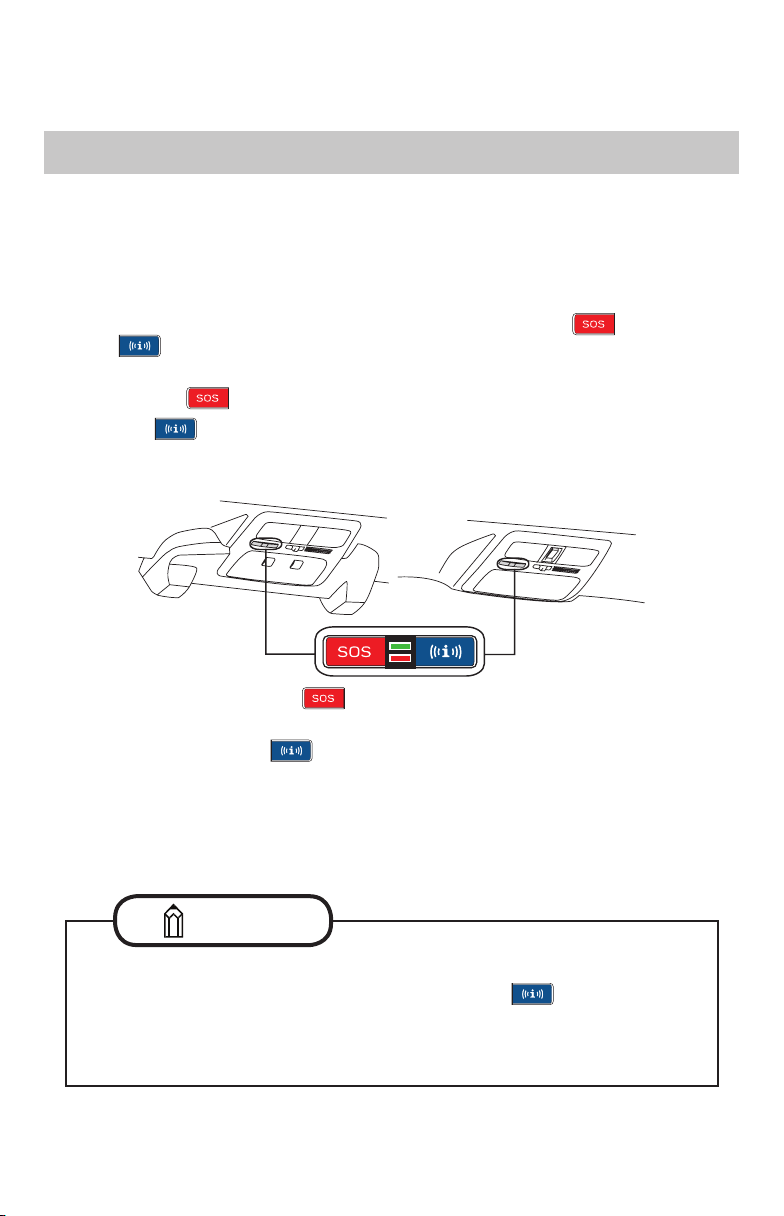
Located in the overhead console of your vehicle are the red SOS
and blue
i-button
. Both buttons link you to the SUBARU STARLINK call centers that are
there to support you 24 hours a day, 7 days a week.
The SOS button is for SOS Emergency Assistance.
The i-button
is for Enhanced Roadside Assistance or Concierge (if subscribed).
• Press the SOS button
for SOS Emergency Assistance*
(Refer to “Using SOS Emergency Assistance - page 15)
• Press the i-button for Enhanced Roadside Assistance* or Concierge*
(if subscribed).* (Refer to “Enhanced Roadside Assistance - page 14 or
STARLINK Concierge - page 28”)
• To cancel a SOS Emergency Assistance, Enhanced Roadside Assistance or
a Concierge call, press and hold the same button for approximately 2 seconds
or select the “End Call” button displayed on the head unit
* In order to utilize these services, you must be an active STARLINK subscriber.
Overhead console
with EyeSight
®
Overhead console
without EyeSight
®
If you subscribed to SUBARU STARLINK’s Concierge services, an option
screen will display on the head unit when the i-button is pressed. From
the option screen you can select either Enhanced Roadside Assistance
or Concierge Services. If you do not choose a service then Roadside
Assistance will automatically be called in approximately 10 sec.
NOTE
Introduction
The SUBARU STARLINK Experience
6
SUBARU STARLINK Enrollment
You can enroll in SUBARU STARLINK online at the MySubaru website
(MySubaru.com), the MySubaru Mobile App, at your retailer or by calling the
STARLINK call center at 1-855-753-2495. MySubaru is the Subaru owner website
that allows you vehicle access to remote services, user preferences, diagnostic alerts
and other useful features enabled by your STARLINK Safety Plus, STARLINK Security
Plus and STARLINK Concierge subscription.
To enroll in SUBARU STARLINK, you first need to create or update your MySubaru
account. MySubaru is the owners portal for all things about your Subaru vehicle.
To create an account please visit MySubaru.com.
Please have your Vehicle Identification Number (VIN) available, as you will
need it to complete this step. After the enrollment process, you will learn more
about the features in detail at MySubaru.com.
NOTE
SUBARU STARLINK
Enrollment
How to Enroll
7
SUBARU STARLINK
With SUBARU STARLINK you are given the freedom to choose a package with
the features that you want. To see the current plans and package details please visit
the MySubaru website (MySubaru.com) or MySubaru Mobile App.
• STARLINK Safety Plus - Choosing Safety Plus includes our call center
support features: Advanced Automatic Collision Notification, SOS
Emergency Service and Enhanced Roadside Assistance as well as giving
you more access to your vehicle’s health. Also included is the new in-vehicle
Service Appointment Scheduler, making it even easier to schedule service
at your preferred Subaru Retailer.
• STARLINK Security Plus - With Security Plus you get all the benefits of
STARLINK Safety Plus and your vehicle is protected with features like Stolen
Vehicle Recovery Plus with Immobilizer and Security Alarm Notifications.
Stay connected to your vehicle with features like Remote Engine Start with
Climate Control and Vehicle Alerts that include Boundary Alert, Speed Alert
and Curfew Alert.
• STARLINK Concierge - Concierge includes all the benefits of STARLINK
Safety Plus and Security Plus as well as providing personalized call
center support for locating and sending Destinations to your in-vehicle
navigation system (if equipped), along with assisting in scheduling Service
Appointments with your preferred Subaru Retailer.
• WiFi Hotspot - Whether traveling to the store or across the country,
SUBARU STARLINK now includes an in-vehicle WiFi Hotspot on AT&T’s
nationwide cellular network. Setting up the service is quick and easy, you
can connect your vehicle to an already existing AT&T wireless account or
choose from one of the simple pay-as-you go plans. See page 30 for details
on how to subscribe to the WiFi Hotspot.
SUBARU STARLINK
Depending on how your vehicle is equipped, some features might not be
available. Check with your Retailer or MySubaru to see what SUBARU
STARLINK features are applicable to your vehicle.
NOTE

8
SUBARU STARLINK
SUBARU STARLINK Features List
STARLINK Safety Plus
SOS Emergency Assistance
Enhanced Roadside Assistance
Advanced Automatic Collision Notification (AACN)
Maintenance Notifications
Vehicle Health Report
Remote Vehicle Condition Check
Service Appointment Scheduler
STARLINK Security Plus
Stolen Vehicle Recovery Plus
Stolen Vehicle Immobilizer
Vehicle Security Alarm Notifications
Remote Lock & Unlock
Remote Horn & Lights
Remote Vehicle Locator
Remote Engine Start with Climate Control
Boundary Alert
Speed Alert
Curfew alert
STARLINK Concierge
Destination to Vehicle
See MySubaru for more details
9
Getting Started is Easy
The MySubaru website (MySubaru.com) and MySubaru Mobile App are your portal
to remote services, user preferences as well as other convenient features enabled
by your STARLINK subscription. All you need to do is log on to the website or mobile
app to access the following features:
MySubaru Mobile Application
You can download the MySubaru Mobile App to your compatible smartphone from
the following sites:
• iPhone
®
- Apple
®
App store
• Android
®
- Google Play Store
After downloading the MySubaru Mobile App to your smartphone, all you have
to do to get started is login with your MySubaru username and password
for authentication.
If you have multiple SUBARU STARLINK equipped vehicles, please make
sure to select the vehicle you want to access. The vehicle you have selected
will be displayed at the top of the website or mobile app.
NOTE
• Remote Services
• Vehicle Health Report
• Maintenance Schedules
• Service History
• Service Campaigns and Recalls
• Warranty Information
• STARLINK Profile
• STARLINK PIN
• STARLINK Packages and Pricing
• STARLINK Subscriptions
• MySubaru Account Settings
• and much more...
Getting Started is Easy
Access to SUBARU STARLINK Features
If you received a temporary password for your MySubaru account you will
need to complete your registration on the MySubaru.com website.
NOTE
10
The connection between you and your vehicle has never been simpler and the
MySubaru website (MySubaru.com) and MySubaru Mobile Application are the best
way to stay in touch with your Subaru vehicle. From MySubaru you can access the
following information and services:
• Remote Services
• Vehicle Health
• Usage Reports
• Appointment Scheduler
• Vehicle Maintenance Schedules
• Service History
• Support Resources
You can also use the MySubaru website (MySubaru.com) or MySubaru Mobile App
to manage:
• Basic account information
• Interests and activities
• Email and Mail communications
• Authorized Users
• Authorized Devices
• Preferred Retailer
• Your Subaru vehicles
• Alert settings
• Communication Preferences
• Personal Identification Number (PIN)
• Billing Information
• STARLINK Subscriptions
• WiFi Hotspot Subscription
MySubaru
To use any of the STARLINK Remote Services from MySubaru.com or the
Mobile App you must enter your STARLINK PIN first.
NOTE
MySubaru
Making Ownership Easy

11
In order to protect your privacy and vehicle information, a secure STARLINK Personal
Identification Number (PIN) is required to use many of the STARLINK features and
the MySubaru Mobile App.
• You will be asked to set your STARLINK PIN, security questions or
verification process during the STARLINK enrollment process
• You can change your STARLINK PIN at any time after enrollment by
choosing the STARLINK menu then the STARLINK Update PIN link on the
MySubaru website or from the STARLINK Change PIN link in the My Profile
menu on the Mobile App
MySubaru
Setting or changing your PIN
12
Advanced Automatic Collision Notification (AACN)
Upon receiving the Advanced Automatic Collision Notification*, a STARLINK
Customer Care Advisor will attempt to establish voice communication with the
vehicle occupants and alert appropriate services. Your advisor will respond promptly,
24/7/365 via SUBARU STARLINK to determine the nature of the emergency.
• If you are unable to answer, the advisor will let you know that emergency
assistance has been notified and is on its way
• The advisor will remain on the line until help arrives or until the vehicle’s
battery loses power
*In order to utilize these services, you must be an active STARLINK subscriber.
SUBARU STARLINK Features
SUBARU STARLINK Features
STARLINK Safety Plus
• There are many types of collisions which might not necessarily
require deployment of an SRS airbag. Please refer to your vehicle
Owner’s Manual for more details. If you are involved in a collision
in which the Advanced Automatic Collision Notification (AACN) is
activated, depending upon the nature of the collision and the level of
accident forces involved, airbag deployment may not always result.
• The Advanced Automatic Collision Notification feature requires
adequate cellular coverage and signal strength. This feature is only
available in the Continental U.S., Alaska, Hawaii, the District of
Columbia and Canada.
NOTE
At any time after initiating a voice call you can adjust the volume of the call by
using the volume knob on your vehicle’s head unit.
NOTE
Icon Exploration
Diagnostic Alerts
PHEV - Remote Battery Charge
PHEV - Remote Climate Control
Stolen Vehicle Recovery Service
Stolen Vehicle Immobilizer
Vehicle Security Alarm Notifications
Remote Climate Control / Heated Seats
SOS Emergency Assistance
Enhanced Roadside Assistance
Automatic Collision Notification
Maintenance Notifications
Approved
For review
Pending
13
SOS Emergency Service (SOS)
In the event of an emergency other than the Advanced Automatic Collision
Notification*, your SUBARU STARLINK Customer Care Advisor will be ready to assist
you. Press the red SOS button on the overhead console to promptly connect to
your advisor from anywhere in the Continental U.S., Alaska, Hawaii and the District
of Columbia.
• Press the red SOS button
• A STARLINK Customer Care Advisor will attempt to establish
communication with you to ask about the nature of the emergency and then
dispatch the appropriate emergency assistance
• If you are unable to answer, the advisor will let you know that emergency
assistance has been notified and is on its way
• The advisor will remain on the line until help arrives or until the vehicle’s
battery loses power
• To cancel the SOS call, press and hold the red SOS button for
approximately 2 seconds or press the “End Call” button on the head unit
display
*In order to utilize these services, you must be an active STARLINK subscriber.
SUBARU STARLINK Features
The SOS Emergency Assistance feature requires adequate cellular coverage
and signal strength. This feature is only available in the Continental U.S.,
Alaska, Hawaii, the District of Columbia and Canada.
NOTE
At any time after initiating a voice call you can adjust the volume of the call by
using the volume knob on your vehicle’s head unit.
NOTE
Icon Exploration
Diagnostic Alerts
PHEV - Remote Battery Charge
PHEV - Remote Climate Control
Stolen Vehicle Recovery Service
Stolen Vehicle Immobilizer
Vehicle Security Alarm Notifications
Remote Climate Control / Heated Seats
SOS Emergency Assistance
Enhanced Roadside Assistance
Automatic Collision Notification
Maintenance Notifications
Approved
For review
Pending
14
Enhanced Roadside Assistance
Enhanced Roadside Assistance connects you directly with Subaru’s Roadside
Assistance provider. Should you need assistance, STARLINK will know your exact
GPS location coordinates and exactly where to find you.
Roadside Assistance can help you with the following:
• Jump starts
• Emergency lockout service
• Gasoline (up to 2 gallons)
• Flat tire change
• Minor fluid replacement
How to use:
• Press the blue i-button or use the Roadside Assistance soft button,
which is found by selecting the MySubaru icon on the head unit home screen
• A STARLINK Customer Care Advisor for Roadside Assistance will attempt
to establish a voice communication with you to ask about the nature of
the situation and then dispatch the appropriate roadside assistance to
the scene
• With STARLINK, the advisor will be able to inform Roadside Assistance of
your exact location
• To cancel an Enhanced Roadside Assistance call, press and hold the blue
i-button
for approximately 2 seconds or press the “End Call” button on
the head unit display
SUBARU STARLINK Features
Check your warranty for your Roadside Assistance coverage. Your retailer
has full coverage details.
NOTE
At any time after initiating a voice call you can adjust the volume of the call by
using the volume knob on your vehicle’s head unit.
NOTE
Icon Exploration
Diagnostic Alerts
PHEV - Remote Battery Charge
PHEV - Remote Climate Control
Stolen Vehicle Recovery Service
Stolen Vehicle Immobilizer
Vehicle Security Alarm Notifications
Remote Climate Control / Heated Seats
SOS Emergency Assistance
Enhanced Roadside Assistance
Automatic Collision Notification
Maintenance Notifications
Approved
For review
Pending
If you subscribed to SUBARU STARLINK’s Concierge services, an option
screen will display on the head unit when the i-button
is pressed. From
the option screen you can select either Enhanced Roadside Assistance
or Concierge Services. If you do not choose a service then Roadside
Assistance will automatically be called in approximately 10 sec.
NOTE

15
24-Hour Roadside Assistance
Along with Enhanced Roadside Assistance, SUBARU STARLINK provides 24-Hour
Roadside Assistance from the MySubaru website or Mobile App. Getting help is as
easy as calling from your phone or sending a request through MySubaru. All the
same services provided by Enhanced Roadside Assistance are at your fingertips.
From the MySubaru (MySubaru.com) website or MySubaru Mobile App:
• Navigate to the “24-Hour Roadside Assistance” page from the main menu
• From the “24-Hour Roadside Assistance” page you can choose to call the
toll free number or select to submit an online request
• If you select to submit an online request you will be asked to fill out the
following information:
о Reason for Assistance (Locked out, Tow, Flat Tire, etc.)
о Provide Details About Your Needs
о Contact Information (First / Last Name and Callback Number)
о Current Location (If known)
о Preferred Contact Method
(Email, Text Message or Contact Mobile Number)
о Vehicle Information
• Once you completed the online request select the “Request Help Now”
button to submit
• After you’ve submitted your request you can track the progress of your
Roadside Assistance request from the Roadside Assistance submission
screen which will display periodic updates
Icon Exploration
Diagnostic Alerts
PHEV - Remote Battery Charge
PHEV - Remote Climate Control
Stolen Vehicle Recovery Service
Stolen Vehicle Immobilizer
Vehicle Security Alarm Notifications
Remote Climate Control / Heated Seats
SOS Emergency Assistance
Enhanced Roadside Assistance
Automatic Collision Notification
Maintenance Notifications
Approved
For review
Pending
SUBARU STARLINK Features
16
Diagnostic Alerts
SUBARU STARLINK monitors critical vehicle systems. If a warning light illuminates
on the dashboard, you will receive an email, text or push notification explaining the
issue and how to help resolve it. With more serious issues, the SUBARU STARLINK
Service Appointment Scheduler will display on the head unit and assist you in
scheduling an appointment at your preferred Subaru Retailer.
Vehicle Health
Taking care of your vehicle and monitoring its health is easy and convenient. The
MySubaru website (MySubaru.com) and MySubaru Mobile App can provide you
important vehicle health statuses so you can make better and more informed
decisions on the maintenance and care of your Subaru vehicle.
Maintenance Notifications
Maintenance Notifications help to keep your Subaru vehicle in proper running
condition. When your vehicle requires maintenance, you can be notified via email,
text, push notifications, or even from your vehicle’s head unit. This feature allows
you to more easily maintain your vehicle, while helping to ensure that your vehicle
receives the proper care at the proper time.
SUBARU STARLINK Features
You can change your STARLINK Communication Preferences at any time
by choosing the My Profile menu then the Communication Preferences
link on the MySubaru website (MySubaru.com) or from the STARLINK
TM
Communication Preferences link in the My Profile menu on the MySubaru
Mobile App.
NOTE
17
Service Appointment Scheduler
Whether it’s time for regular maintenance or even when your vehicle tells you it’s time
to see a certified Subaru Service Technician, setting an appointment at your preferred
Subaru Retailer for service is just a few “clicks” away. With SUBARU STARLINK
Service Appointment Scheduler you can set an appointment from the MySubaru
website, Mobile App or the vehicle’s head unit. Getting your Subaru vehicle to the
Subaru professionals for service is easy, no matter where you are. If you are away
from your preferred Retailer for service, you can always use Service Appointment
Scheduler to locate any of our certified Subaru Retailers near your location.
STARLINK Service Appointment Scheduler on your head unit is a convenient way to
set a service appointment. Simply select the MySubaru icon on the home screen and
choose “Make an Appointment” to get started:
• Schedule a new or view any existing service appointments with your
preferred Retailer.
• Choose the date you would like to schedule an appointment from the
options displayed
• Set a timeframe for your appointment (AM or PM)
• Select an available time
• Confirm your appointment
Have a question for your Retailer or need directions? STARLINK Service
Appointment Scheduler has the following options to help:
• Locate a Retailer near your location
• Place a phone call to your Retailer (via Bluetooth)
• Get directions to your Retailer (Navigation System Only)
Subaru is there to help when your vehicle needs service. In the event that a
Maintenance interval, Diagnostic Alert or Recall campaign occurs, the SUBARU
STARLINK Service Appointment Scheduler will assist you in making sure your
vehicle gets the attention it needs to stay healthy and on the road.
Depending on how your vehicle is equipped, some features might not be
available. Check with your Retailer or MySubaru to see what SUBARU
STARLINK features are applicable to your vehicle.
NOTE
SUBARU STARLINK Features
Before using Service Appointment Scheduler for the first time, be sure to pair
your smartphone with the vehicle’s head unit, sync your contacts and allow
notifications. This will help set the vehicle’s internal clock to your location.
NOTE

18
SUBARU STARLINK Features
Stolen Vehicle Recovery Plus
If your Subaru vehicle is ever stolen, you can get extra peace of mind knowing that
a SUBARU STARLINK Customer Care Advisor will work with local law enforcement
to help attempt to recover your vehicle. Once a police report is filed, a STARLINK
Customer Care Advisor will help provide the authorities with relevant location
information to assist in the recovery of your vehicle.
• In order for this service to be activated, you must first file a police report and
then call 1-855-753-2495 to inform STARLINK of the theft of your vehicle
• STARLINK Customer Care Advisor will come online to assist you and ask
you to verify your information and provide verification that a police report
has been filed, including the case number
• Once verified a STARLINK Customer Care Advisor will initiate a stolen
vehicle recovery signal that can pin-point the vehicle’s location as well
as remotely flash the vehicle’s lights to assist your local law enforcement
department with the recovery of your vehicle.
STARLINK Security Plus
For your own safety, you should NEVER locate your vehicle on your own
if it has been stolen. The Stolen Vehicle Recovery Plus feature should be
used instead. Your local law enforcement department will inform you of the
vehicle’s disposition.
NOTE
Stolen Vehicle Immobilizer is included as a part of Stolen Vehicle Recovery
Plus. This feature can only be authorized by local authorities after Stolen
Vehicle Recovery Plus has been activated.
NOTE
Icon Exploration
Diagnostic Alerts
PHEV - Remote Battery Charge
PHEV - Remote Climate Control
Stolen Vehicle Recovery Service
Stolen Vehicle Immobilizer
Vehicle Security Alarm Notifications
Remote Climate Control / Heated Seats
SOS Emergency Assistance
Enhanced Roadside Assistance
Automatic Collision Notification
Maintenance Notifications
Approved
For review
Pending
Stolen Vehicle Immobilizer
Included with Stolen Vehicle Recovery is Subaru’s Engine Immobilizer technology.
When activated, the next time the vehicle’s engine is turned off, Subaru’s Immobilizer
will restrict the vehicle from starting again, allowing local law enforcement to locate
and retrieve the vehicle.
Icon Exploration
Diagnostic Alerts
PHEV - Remote Battery Charge
PHEV - Remote Climate Control
Stolen Vehicle Recovery Service
Stolen Vehicle Immobilizer
Vehicle Security Alarm Notifications
Remote Climate Control / Heated Seats
SOS Emergency Assistance
Enhanced Roadside Assistance
Automatic Collision Notification
Maintenance Notifications
Approved
For review
Pending
19
Vehicle Security Alarm Notification
Your SUBARU STARLINK system will automatically notify you when your
security alarm is activated. When your security alarm is triggered, this feature will
automatically notify any preselected persons of your choice by text message, email
or push notification. You can update your Communication Preferences from My Profile
section of the MySubaru website (MySubaru.com) and the MySubaru Mobile App.
SUBARU STARLINK Features
This feature will not work under the following conditions:
• If your vehicle has not been started for 14 days
• GPS signal is not available
• Weak signal area
NOTE
Icon Exploration
Diagnostic Alerts
PHEV - Remote Battery Charge
PHEV - Remote Climate Control
Stolen Vehicle Recovery Service
Stolen Vehicle Immobilizer
Vehicle Security Alarm Notifications
Remote Climate Control / Heated Seats
SOS Emergency Assistance
Enhanced Roadside Assistance
Automatic Collision Notification
Maintenance Notifications
Approved
For review
Pending
20
SUBARU STARLINK Features
Remote Engine Start with Climate Control
Start your vehicle and set the climate control system temperature with the push of
a button from the MySubaru website (MySubaru.com) or MySubaru Mobile App.
Choose your preferred heating or air conditioning settings to help bring the interior
temperature to a more comfortable level before you enter. SUBARU STARLINK
Remote Engine Start with Climate Control gives you more options to make sure your
drive is convenient and comfortable.
• Log on to the MySubaru website (MySubaru.com) or MySubaru Mobile App
• Select “Remote Services”
• Select Remote Engine Start with Climate Control and choose the following
options:
о Set the climate control system temperature*
о Choose the Engine Runtime**
о Select Rear Climate Zone (if equipped) and it will mirror the climate
control settings chosen
о Select the Front and/or Rear defroster
о Select Driver or Passenger seat heater and the power mode
preferred (if equipped)
о Air Mode (Ventilation, Ventilation II, Bi-level, Heats, Heat-Defrost)
о Fan Speed (1-7)
о Air Circulation
о If the “Auto” option is selected, the vehicle will automatically control
Air Mode, Fan Speed, and Air circulation
о Set a time delay and click “Next”
• Enter your STARLINK PIN
* Depending on environmental conditions or air conditioner performance, the interior
temperature of the vehicle may not reach the desired setting.
** Remote Engine Start will only operate for a total runtime of 20 minutes before the
vehicle will need to be manually started from within the vehicle.
Remote Services
Continued...
21
Remote Engine Start with Climate Control
An “Engine Stop” button will display, once your vehicle’s engine has successfully
started. If you choose to stop your vehicle, press the “Engine Stop” button and enter
your STARLINK PIN to send the command.
Depending on how your vehicle is equipped, some features might not be
available. Check with your Retailer or MySubaru to see what SUBARU
STARLINK features are applicable to your vehicle.
NOTE
SUBARU STARLINK Features
This feature will not work under the following conditions:
• Ignition is ACC or ON
• Vehicle is moving
• Any vehicle door / engine hood / tailgate or trunk is ajar
• If your vehicle has not been started for 14 days
• Weak signal area
NOTE
22
Remote Door Lock & Unlock
With the Remote Door Lock & Unlock feature, you can lock or unlock your vehicle
door from virtually anywhere via the MySubaru website (MySubaru.com), MySubaru
Mobile App, or dialing 1-855-753-2495. In order to use this feature, a STARLINK
Personal Identification Number (PIN) is required.
To Activate Remote Door Lock & Unlock from the MySubaru website
(MySubaru.com) or the MySubaru Mobile App:
• Log on to the MySubaru website (MySubaru .com) or MySubaru Mobile App
• Select “Remote Services”
• Select “Lock Doors” or “Unlock Doors”
о If you choose to “Unlock Doors” you can select to unlock
“All Doors” or “Just Driver Door”
• Set a time delay, if desired
• Enter your STARLINK PIN
• The command will be sent to your vehicle and your door(s) will then be
unlocked or locked
* Depending on how your vehicle is equipped, some features might not be available.
Check with your Retailer or MySubaru to see what SUBARU STARLINK features
are applicable to your vehicle.
SUBARU STARLINK Features
These features will not work under the following conditions:
• Remote Door Lock when Key is in the ignition*
• Remote Door Lock while Ignition is ACC or ON
• Vehicle is moving
• If your vehicle has not been started for 14 days
• Weak signal area
NOTE
If any door or rear gate is not opened within 60 seconds after using the
Remote Door Unlock function, the doors will automatically re-lock. A series
of notification beeps will sound approximately 5 seconds before the door(s)
automatically re-lock.
NOTE
23
SUBARU STARLINK Features
Remote Horn & Lights
When you are unsure of where you parked your vehicle, you can remotely activate
your lights or horn and lights through the MySubaru Website (MySubaru .com) and
MySubaru Mobile App.
To use Remote Vehicle Locator:
• Log on to the MySubaru website (MySubaru.com) or MySubaru Mobile App
• Select “Remote Services”
• Select “Horn & Lights”
• Choose “Horn & Lights or just “Lights”
• Set a time delay, if desired
• Enter your STARLINK PIN
• The command will be sent to your vehicle
• Your Lights or Horn & Lights will be activated
A “Stop” button will display, once your “Horn & Lights or just “Lights” command has
successfully started. To stop the service after it has begun, just press the “Stop”
button to send the command.
By phone: Dial toll-free 1-855-753-2495 and follow the voice prompts.
This feature will not work under the following conditions:
• Ignition is ON
• Vehicle is moving
• If your vehicle has not been started for 14 days
• Weak signal area
NOTE
24
SUBARU STARLINK Features
Remote Vehicle Locator
You can quickly and easily find the specific location of your vehicle using the Remote
Vehicle Locator.
To use Remote Vehicle Locator:
• Log on to the MySubaru website (MySubaru.com) or MySubaru Mobile App
• Select “Remote Services”
• Select “Locate Vehicle”
• Enter your STARLINK PIN
• The command will be sent to your vehicle
• Your vehicle’s location will then display on the map
By phone: Dial toll-free 1-855-753-2495 and follow the voice prompts.
This feature will not work under the following conditions:
• If your vehicle has not been started for 14 days
• GPS signal is not available
• Weak signal area
NOTE

25
Vehicle Alerts
You can always monitor the safety of your teenage drivers and your vehicle
with SUBARU STARLINK Vehicle Alerts. Choose from Boundary Alert, Speed Alert
and Curfew Alert to reinforce responsible driving habits while your children are
behind the wheel.
Boundary Alert
Set geographic boundaries and be notified by email, text or push notification when
your vehicle has incorrectly entered or exited any saved designated area.
Creating a Boundary Alert:
• Log on to the MySubaru website or Mobile App
• Select “Vehicle Alerts”
• Select “Boundary Alert”
• Choose a center point location on the map and set a pin
• Select “Boundary Type” (Exits Area or Enters Area)
• Select a shape to set the Boundary (circle or square)
• Reshape the Boundary shape if necessary by selecting any point
on the shape
• Click “Save” when you have completed your selections
• Set a name for the Boundary Alert
• Select “Time Until Alert” (30, 60, 90 or 120 seconds)
• Click “Continue” when complete
Activating a Boundary:
• Choose a saved Boundary Alert and select it. Swipe right and choose “Send
to Vehicle”. (Only one saved Boundary Alert can be active at a time)
• Enter your STARLINK PIN
• The selected Boundary Alert will be sent to your vehicle.
• Your vehicle will then notify you if it enters or exits the designated area
Edit a Boundary Alert:
• Choose a saved Boundary Alert and swipe right, then choose “Edit Alert”
• Change any of the settings as desired
SUBARU STARLINK Features

26
Speed Alert
Choose a speed limit for your vehicle and get notified by email, text or push
notification when your vehicle has exceeded the set speed limit.
Creating a Speed Alert:
• Log on to the MySubaru website (MySubaru .com) or MySubaru Mobile App
• Select “Vehicle Alerts”
• Select “Speed Alert”
• Select “Create a New Speed Alert”
• Decide the “Max Speed”
• Select “Duration Until Alert” (30, 60, 90 or 120 seconds)
• Click “Save” when you have completed your selections
• Set a name for the Speed Alert and click “Continue”
Activating a Speed Alert:
• Choose a saved Speed Alert and select it. Swipe right and choose “Send to
Vehicle”. (Only one saved Speed Alert can be active at a time)
• Enter your STARLINK PIN
• The selected Speed Alert will be sent to your vehicle
• Your vehicle will then notify you when it exceeds the maximum speed
you’ve chosen
Edit a Speed Alert:
• Choose a saved Speed Alert and swipe right, then choose “Edit Alert”
• Change any of the settings as desired
SUBARU STARLINK Features
27
Curfew Alert
Decide on a time frame (12 hour maximum) that your vehicle should not be in
operation and be notified by email, text or push notification when the ignition has
been turned on during your designated time. Every time the vehicle is turned on
15 minutes prior to the set curfew time executing, the vehicle’s head unit will display
a message letting the driver know that the curfew time is approaching.
Creating a Curfew:
• Log on to the MySubaru website (MySubaru .com) or MySubaru Mobile App
• Select “Vehicle Alerts”
• Select “Curfew Alert”
• Select “Create a new Curfew Alert”
• Choose a day of the week
• Select a Start and End Time, including AM and PM
• Set your vehicle’s Time Zone
• Click “Save” when you have completed your selections
• Set a name for the Curfew Alert and click “Continue”
Activating a Curfew:
• Choose a saved Curfew and select it. Swipe right and choose “Send to
Vehicle”. (Only one saved Curfew can be active at a time)
• Enter your STARLINK PIN
• The selected Curfew will be sent to your vehicle
• Your vehicle will then notify you when it is in operation during the time(s) set
Edit a Curfew Alert:
• Choose a saved Curfew Alert and swipe right, then choose “Edit Alert”
• Change any of the settings as desired
SUBARU STARLINK Features
You can apply the settings of a selected day to all days of the week by
selecting a day then clicking “Apply to All”.
NOTE

28
SUBARU STARLINK Features
We’re Here to Help
SUBARU STARLINK’s Concierge feature is your own personal call center. Need
directions to a hotel sent to your vehicle while you’re driving? Need to find a
new French restaurant for your anniversary? All you need to do is ask. SUBARU
STARLINK Concierge service can also help schedule a service appointment at
any Subaru Retailer. STARLINK Concierge Call Center Agents are there to help at
anytime, 24 hours a day.
SUBARU STARLINK Concierge Call Center Agents can help you with the following:
• Locate a Destination for you
• Send Destinations to your vehicle’s embedded navigation system
(if equipped)*
• Book a reservation at a restaurant or hotel
• Schedule an appointment at any Subaru Retailer and more
How to use:
• Press the blue i-button or the Concierge soft button which is found by
selecting the MySubaru icon from the head unit home screen
• A STARLINK Customer Care Advisor for Concierge will attempt to establish
a voice communication with you then provide assistance with your request
• To cancel a Concierge call, press and hold the blue i-button
for
approximately 2 seconds or press the “End Call” button on the head
unit display
STARLINK Concierge
At any time after initiating a voice call you can adjust the volume of the call by
using the volume knob on your vehicle’s head unit.
NOTE
If you subscribed to SUBARU STARLINK’s Concierge services, an option
screen will display on the head unit when the i-button
is pressed. From
the option screen you can select either Enhanced Roadside Assistance
or Concierge Services. If you do not choose a service then Roadside
Assistance will automatically be called in approximately 10 sec.
NOTE
29
Destination to Vehicle
Need assistance locating a Destination while on the road? A Concierge Call
Center Agent is able to help you search for any Destination and send it to your
vehicle’s navigation system. With SUBARU STARLINK Concierge, locating a
Destination is easy:
• Request a Destination or a Destination type to a Concierge Call Center
Agent. For example, if you were looking for a restaurant you could say the
name or ask the agent to search for Destinations by requesting restaurant
types like BBQ, Pizza, etc.
• Once you have decided on a Destination you can ask the agent to have
your choice directly sent to your vehicle’s navigation system
• Once the Destination is accepted on your embedded navigation system just
select “Go” from the main Navigation screen to begin your route
MySubaru is always working to provide our customers with a better connected
experience and in the future, you’ll have more control of Destinations. Searching,
organizing and sending Destinations will soon be available from the convenience of
the MySubaru website (MySubaru .com) and MySubaru Mobile App.
SUBARU STARLINK Features
If your navigation system has an existing route when the Destination is
received, the head unit will present the following options for you to choose:
• Add Waypoint - Add the new Destination to the existing route
• Replace Route - Cancel the existing Route and begin navigating
to the new Destination
• Cancel - Ignore the new Destination and continue with the
current route
NOTE

30
Stay Connected
SUBARU STARLINK’s in-vehicle WiFi Hotspot keeps you and your family connected
using AT&T’s 4G LTE nationwide cellular network. Whether watching movies, playing
games or even listening to music, your family won’t miss a beat with SUBARU
STARLINK’s in-vehicle WiFi Hotspot.
Set up is quick and easy:
• Select “Settings” from the head unit Home screen
• Scroll down and select “WiFi Hotspot” to turn it on (if the WiFi Hotpot is
already on then proceed to the next step). When finished, click the “Back”
button in the top left corner of the screen
• Select WiFi Hotspot Settings to view or update the following settings:
о WiFi Network Name (SSID)
о SSID Broadcast (Network ON / OFF)
о Security Type (WPA / WPA2)
о Password
о Connected Devices (Maximum of 8 devices)
When finished click the “Back” button in the top left corner of the screen to return to
the last menu.
How to enroll:
• Connect your tablet, smartphone or laptop to the SUBARU STARLINK WiFi
Hotspot network listed in the settings menu and open your preferred web
browser on the device connected
• Once the SUBARU STARLINK WiFi Hotspot homepage loads, follow the
on screen instructions to create a new account or to add your vehicle to an
already existing AT&T Wireless account. You can also subscribe to the WiFi
Hotspot from the MySubaru website or Mobile App
SUBARU STARLINK Features
WiFi Hotspot
While driving your vehicle, please remember that only passengers should
use mobile devices connected to the SUBARU STARLINK WiFi Hotspot.
NOTE
31
SUBARU STARLINK’s System Update ensures that your vehicle is up-to-date
by providing an easy and convenient process. In order to make the process as simple
as possible, System Updates will only display when you turn your vehicle
off and update while you’re away. This will minimize any interruptions to your
STARLINK services, so the next time you enter your vehicle the system is ready
for the trip ahead.
How it works:
• Once an update is available, a notification will display on your head unit
when your vehicle is turned off
• The notification will provide an approximate installation time for the update
to complete and important information about the installation process
• You can choose to start the update process by selecting “Install” or
postpone the update by choosing “Cancel” or “Remind Me Later”
• When the update process is complete, a completion screen will display
on your vehicle’s head unit and the green status light on the overheard
console will illuminate
SUBARU STARLINK System Update
An update can be postponed up to two times. After the second reminder, the
system will automatically update the next time you turn off your vehicle.
NOTE
SUBARU STARLINK Features
While the update installation is in process your STARLINK services will
be unavailable, this includes AACN, SOS, Roadside Assistance and
Concierge.
WARNING
!

32
Index
Index
Advanced Automatic Collision Notification ................................................................ 12
Boundary Alert .......................................................................................................... 25
Concierge ................................................................................................................. 28
Curfew Alert .............................................................................................................. 27
Destination to Vehicle ............................................................................................... 29
Diagnostic Alerts ....................................................................................................... 16
Enhanced Roadside Assistance ............................................................................... 14
FAQs ......................................................................................................................... 32
Maintenance Notifications ........................................................................................ 16
Remote Engine Start with Climate Control ............................................................... 20
Remote Door Lock & Unlock .................................................................................... 22
Remote Horn & Lights .............................................................................................. 23
Remote Vehicle Locator ............................................................................................ 24
Service Appointment Scheduler ............................................................................... 17
SOS Emergency Service .......................................................................................... 13
Speed Alert ............................................................................................................... 26
Stolen Vehicle Recovery Plus ................................................................................... 18
Stolen Vehicle Immobilizer ........................................................................................ 18
SUBARU STARLINK System Update ....................................................................... 31
Troubleshooting ........................................................................................................ 33
Vehicle Health ........................................................................................................... 16
Vehicle Security Alarm Notification ........................................................................... 19
WiFi Hotspot ............................................................................................................. 30

33
Troubleshooting
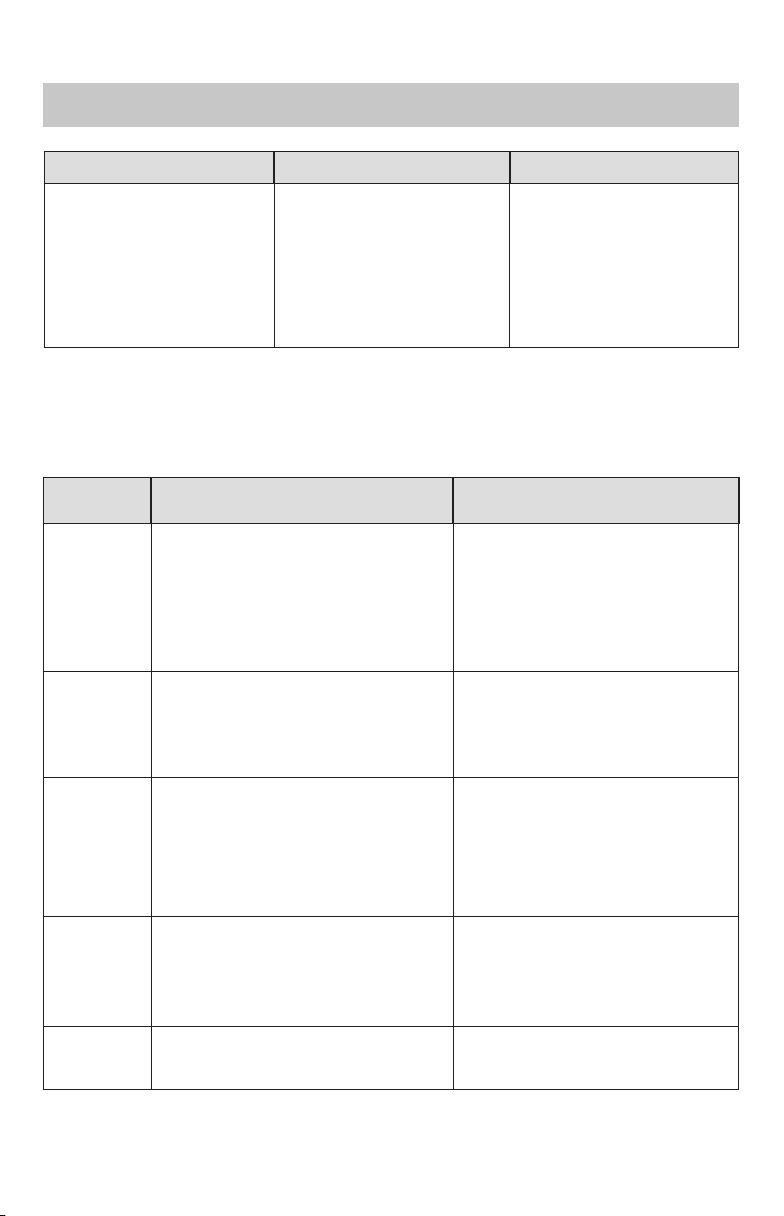
If there is a problem with SUBARU STARLINK, start by checking the table below.
Troubleshooting
Symptom Possible Cause Solution
The system is unable
to connect to SUBARU
STARLINK when you
press the SOS button or
i-button.
A subscription to the
SUBARU STARLINK
service has not been
established.
Sign up for a subscription
to the SUBARU
STARLINK service.
The telecommunications
line is experiencing higher
than normal call volume.
Terminate the call and try
again later.
The vehicle is in a location
where it is difficult to
receive cellular network
signal.
If possible, move the
vehicle to an area where
the signal strength
may be better and
communication will be
restored.
The call connection
is interrupted or the
call connection with a
STARLINK Customer
Care Advisor is
interrupted.
The telecommunications
line or location of the base
station could be out of
signal range.
This is not a malfunction.
If possible, move the
vehicle and try again.
Red Status light on the
overhead console is
illuminated.
A system malfunction has
occurred. (Short circuit
or disconnection of the
connector, etc.)
Contact your Subaru
Retailer for an inspection.
Status light does
not illuminate on the
overhead console.
A subscription to the
SUBARU STARLINK
service has not been
established.
Sign up for a subscription
to the SUBARU
STARLINK service.
Remote Engine Start
doesn’t execute.
The vehicle’s Security
Alarm has been activated.
Manually start and stop
your vehicle, then try
again.
The vehicle has been
manually turned off while
Remote Engine Start was
in operation.
Continued...
34
Troubleshooting
Communication Error Codes
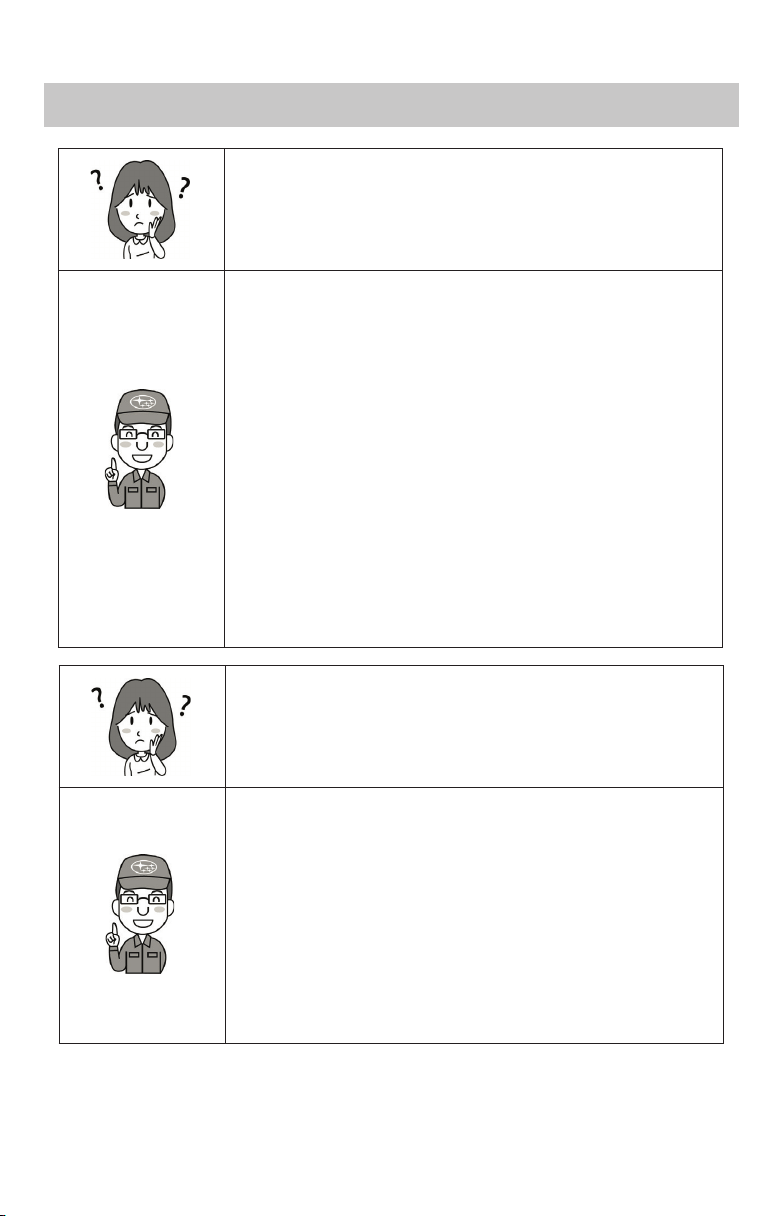
If a Communication Error message displays on the head unit screen, please use the
chart below for descriptions on possible causes.
Error Code Possible Cause Solution
101
The vehicle system’s internal clock
has not been set
Pair your smartphone with the
head unit and sync your contacts
and allow notifications or use the
Vehicle Settings menu on the
Multi-Function Display to set the
clock.
102
Unable to communicate with the
SUBARU STARLINK service
If possible, move the vehicle
to an area where the signal
strength may be better and
communication will be restored.
103
The SUBARU STARLINK service is
unavailable
If possible, move the vehicle
to an area where the signal
strength may be better and
communication will be restored or
contact your Subaru Retailer for
an inspection.
104
A communication issue occured at
the vehicle
Check the network signal
strength and attempt Service
Appointment Scheduler
again later.
105
A communication issue occured at
the SUBARU STARLINK service
Please try Service Appointment
Scheduler again later.
Symptom Possible Cause Solution
SUBARU STARLINK
Service Appointment
Scheduler does not
initiate when selected on
the head unit
The vehicle’s internal clock
has not been set
Pair your smartphone
with the head unit and
sync your contacts and
allow notifications or use
the Vehicle Settings menu
on the Multi-Function
Display to set the clock.
Troubleshooting
35
FAQs
FAQs
What is SUBARU STARLINK?
SUBARU STARLINK is your in-vehicle technology that
provides hands-free connectivity, entertainment, and the
security you need to keep you and your vehicle safe.
There are two ways to connect using your smartphone.
– STARLINK Multimedia services can be accessed via
the SUBARU STARLINK Mobile App.
– STARLINK Safety Plus, Security Plus and Concierge
features can be accessed via the MySubaru website
(MySubaru.com) or MySubaru Mobile App.
If subscribed your vehicle can connect with a STARLINK
Customer Care Advisor via the red SOS button or blue
i-button on your overhead console. SOS/i-button
Connection with a Customer Agent is not limited to any
STARLINK subscription plan.
What do the buttons on my overhead console do?
The SUBARU STARLINK buttons:
• Provide access to a SUBARU STARLINK Customer
Care Advisor.
– Pressing the red SOS button connects users with a
live advisor who can provide emergency assistance.
• Provide access to Subaru Roadside Assistance.
– Pressing the blue i-button connects you to Subaru
Roadside Assistance or Concierge Services (if
subscribed).
36
FAQs
Will SUBARU STARLINK use my smartphone connection to
provide me emergency assistance?
SUBARU STARLINK allows you to use both SOS
Emergency Assistance, Enhanced Roadside Assistance
and Concierge functions (if subscribed) without the use
of your smartphone. However, all STARLINK Remote
Access features do require using your smartphone or
MySubaru.com to activate remote services.
Why do I need to download the mobile apps to my
smartphone? What is the difference between the SUBARU
STARLINK App and MySubaru App?
Downloading either the SUBARU STARLINK App or
MySubaru App allows you to bring content from your
smartphone into your vehicle, while keeping your hands on
the wheel and your eyes on the road.
The SUBARU STARLINK App is your link to SUBARU
STARLINK in-vehicle technology that offers cloud services
via your smartphone and cellular network data plan. It
provides hands-free connectivity and entertainment for your
next adventure.
The MySubaru App allows you access to remote services,
user preferences, diagnostic alerts and other great features
enabled by your STARLINK subscription.
37
FAQs
What are the SUBARU STARLINK Safety Plus, Security
Plus and Concierge features?
SUBARU STARLINK Safety Plus gives you peace of mind
in case an emergency occurs when you are in your vehicle.
SUBARU STARLINK Security Plus features provide Stolen
Vehicle Recovery Plus with Immobilizer and Security Alarm
Notifications. Security Plus also adds Remote Door Lock
& Unlock, Stolen Vehicle Recovery Plus, Remote Vehicle
Locator, Remote Engine Start and more.
SUBARU STARLINK Concierge provides you with
personalized call center support.
Depending on how your vehicle is equipped, some
features might not be available. Check with your Retailer or
MySubaru to see what SUBARU STARLINK features are
applicable to your vehicle.
How does Enhanced Roadside Assistance work?
Pressing the blue i-button enables your Enhanced
Roadside Assistance working in conjunction with your
vehicle’s Subaru Roadside Assistance coverage 24/7/365.
No matter where you are, your STARLINK Customer Care
Advisor will know your exact GPS location and will be able
to send help.
What do I do if I forgot or want to update my PIN?
Log in to MySubaru choose the STARLINK menu then
the STARLINK Update PIN link on the MySubaru website
(MySubaru.com) or from the STARLINK Change PIN link in
the My Profile menu on the MySubaru Mobile App.
38
How do I contact a SUBARU STARLINK Customer Care
Advisor?
If you have any questions about SUBARU STARLINK,
please call a STARLINK Customer Care Advisor at
1-855-753-2495.
What smartphones are compatible with the MySubaru
Mobile App?
Please go to www.Subaru.com/STARLINK to check for the
most current list of supported devices.
FAQs
How does Stolen Vehicle Recovery Plus work with local law
enforcement to help recover my Subaru vehicle?
If your Subaru vehicle is stolen, you will need to first file
a police report with local law enforcement. The SUBARU
STARLINK Customer Care Advisor will need a police report
number to help local law enforcement find the location of
your vehicle.
Once your vehicle has been returned, you will need to
contact a Customer Care Advisor and request that Stolen
Vehicle Recovery Plus and Stolen Vehicle Immobilizer (if
applicable) be deactivated.

39
FAQs
How do I change my notifications email or phone number?
Log in to MySubaru.com, select your vehicle and click on
“My Profile” link in the center navigation bar and choose
“Account settings”. You can modify the notification to be one
of the following; phone, email, text or push notification (if
applicable).
What kind of warranty coverage does SUBARU STARLINK
have?
SUBARU STARLINK equipment is covered under the
3-Year/36,000-Mile Subaru Limited Warranty.
The information contained in this SUBARU STARLINK manual was correct at the
time of printing. However, specifications and equipment can change without notice.
Subaru reserves the right to change product specifications and equipment at
any time without incurring obligations. Some vehicles are equipped with optional
equipment. Specifications apply to U.S. vehicles only. Please contact your Subaru
Retailer for current specifications.