
www.lg.com
OWNER’S MANUAL
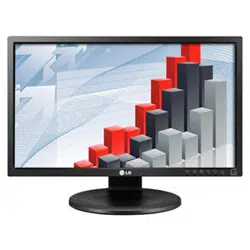
IPS LED MONITOR
(LED LCD MONITOR)
19MB35D
22MB35D
24MB35D
Please read this manual carefully before operating
your set and retain it for future reference.
IPS LED(LED LCD) MONITOR MODEL
ENGLISH

WARNING: This product contains chemicals known to the State of California to cause cancer and birth defects or other
reproductive harm. Wash hands after handling.

2
ENG
ENGLISH
TABLE OF CONTENTS
CONTENTS
3 ASSEMBLINGANDPREPAR-
ING
3 Unpacking
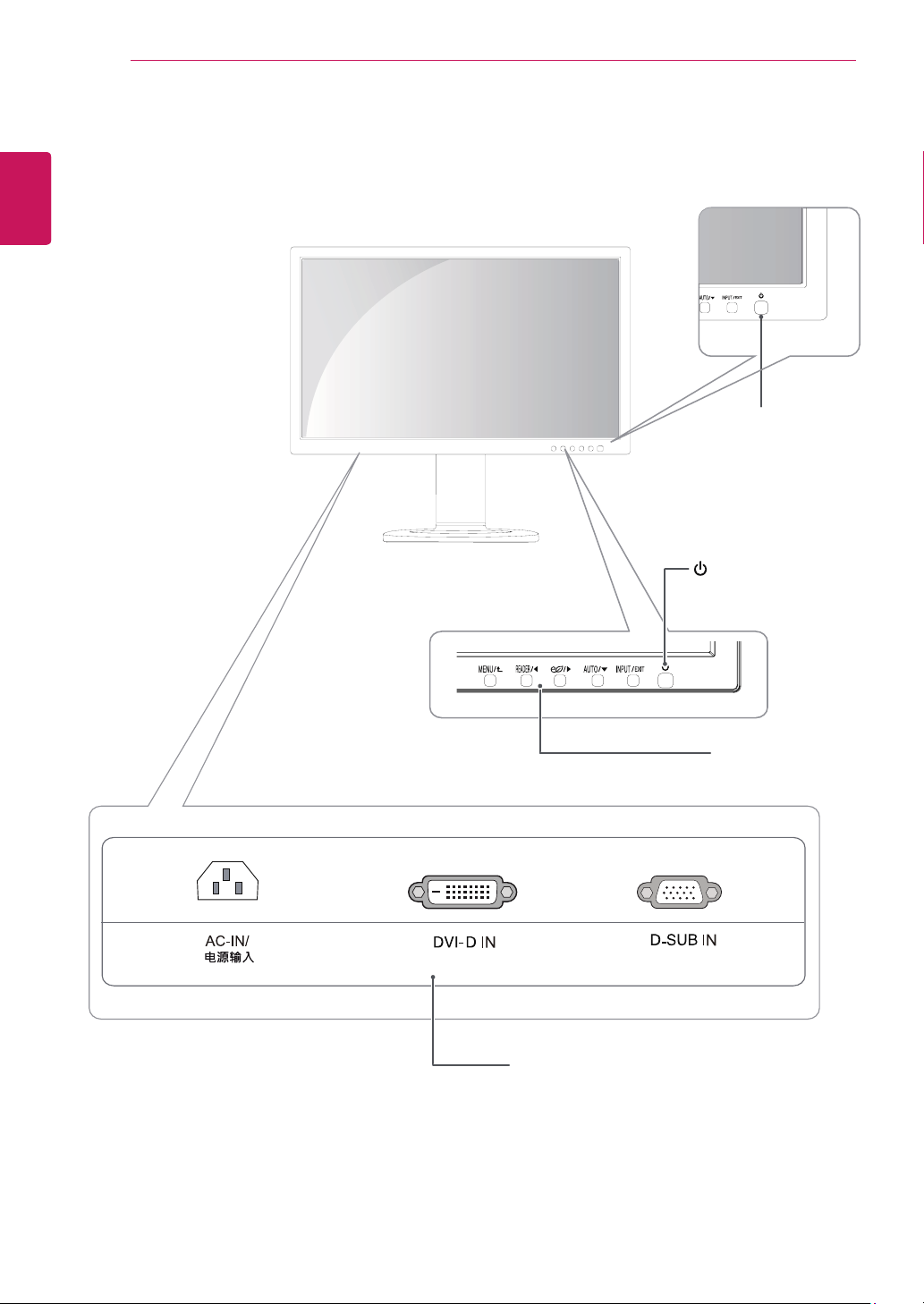
4 Parts and buttons
5 Setting up the Monitor set
5 - Attaching the Stand Base
5 - Detaching the Stand Base
6 - Mounting on a table
7 - Using the Kensington locking device
8 - Mounting on a wall
9 USINGTHEMONITORSET
9 Connecting to a PC
9 - D-SUB connection
9 - DVI-D connection
11 CUSTOMIZINGSETTINGS
12 Customizing Settings
12 - Menu Settings
13 - Picture
14 - Color
15 - Display
16 - Others
17 READER Setting
18 - SMART ENERGY SAVING
19 TROUBLESHOOTING
21 SPECIFICATIONS
21 19MB35D
22 22MB35D
23 24MB35D
24 Preset Modes (Resolution)
24 Indicator
25 PROPERPOSTURE
25 Proper posture for using the Monitor set.
3
ENG
ENGLISH
ASSEMBLING AND PREPARING
ASSEMBLINGANDPREPARING
Unpacking
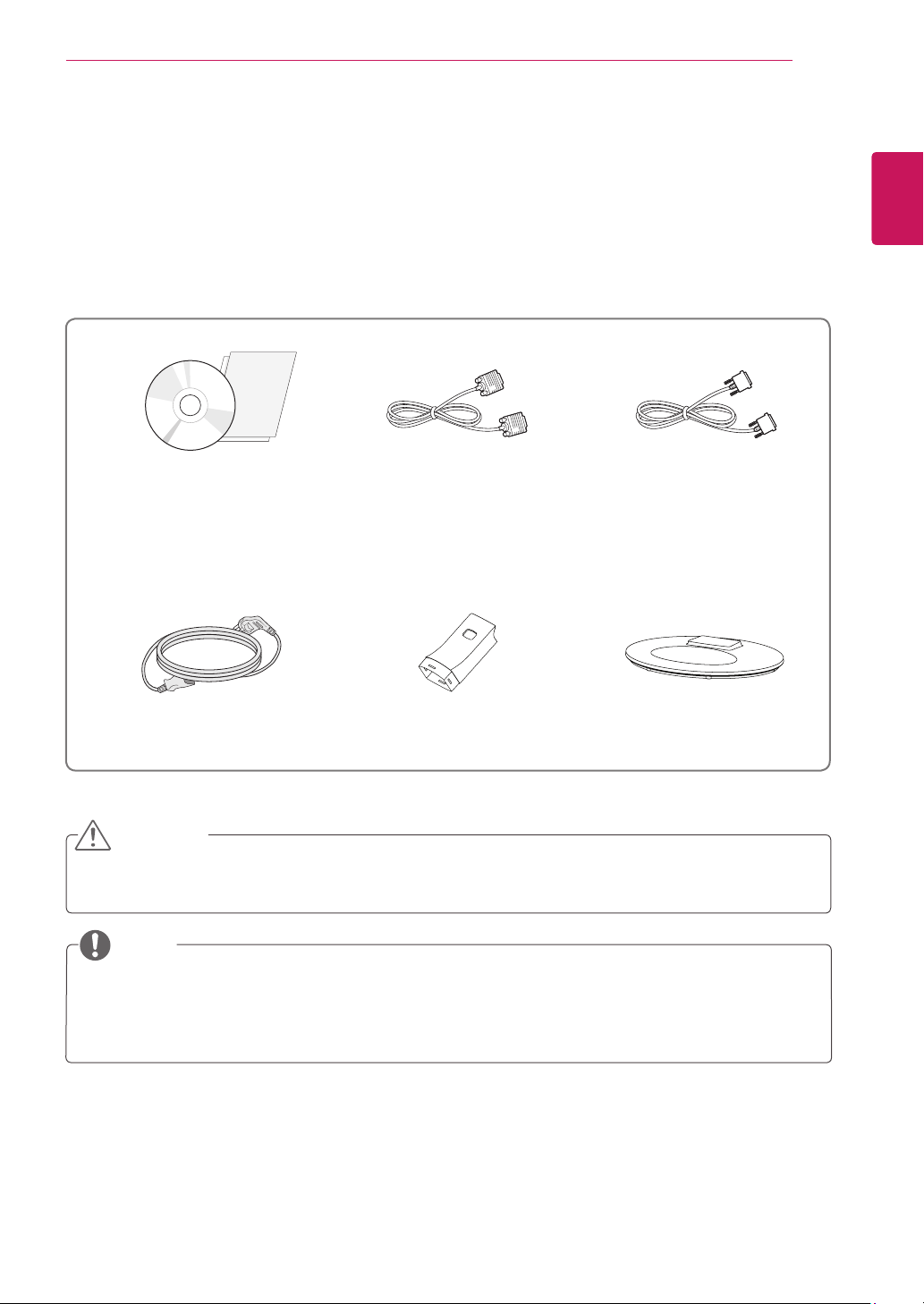
Check your product box for the following items. If there are any missing accessories, contact the local
dealer where you purchased your product. The illustrations in this manual may differ from the actual product
and accessories.
Do not use any unapproved accessories to ensure the safety and product life span.
Any damages or injuries by using unapproved accessories are not covered by the warranty.
The accessories supplied with your product may vary depending on the model.
Product specifications or contents in this manual may be changed without prior notice due to upgrade
of product functions.
CAUTION
NOTE
CD(Owner'sManual)/
Card
D-SUBCable
(This cable is not included in all
countries.)
PowerCord
DVI-DCable
(This cable is not included in all
countries.)
StandBody
StandBase
5
ENG
ENGLISH
ASSEMBLING AND PREPARING
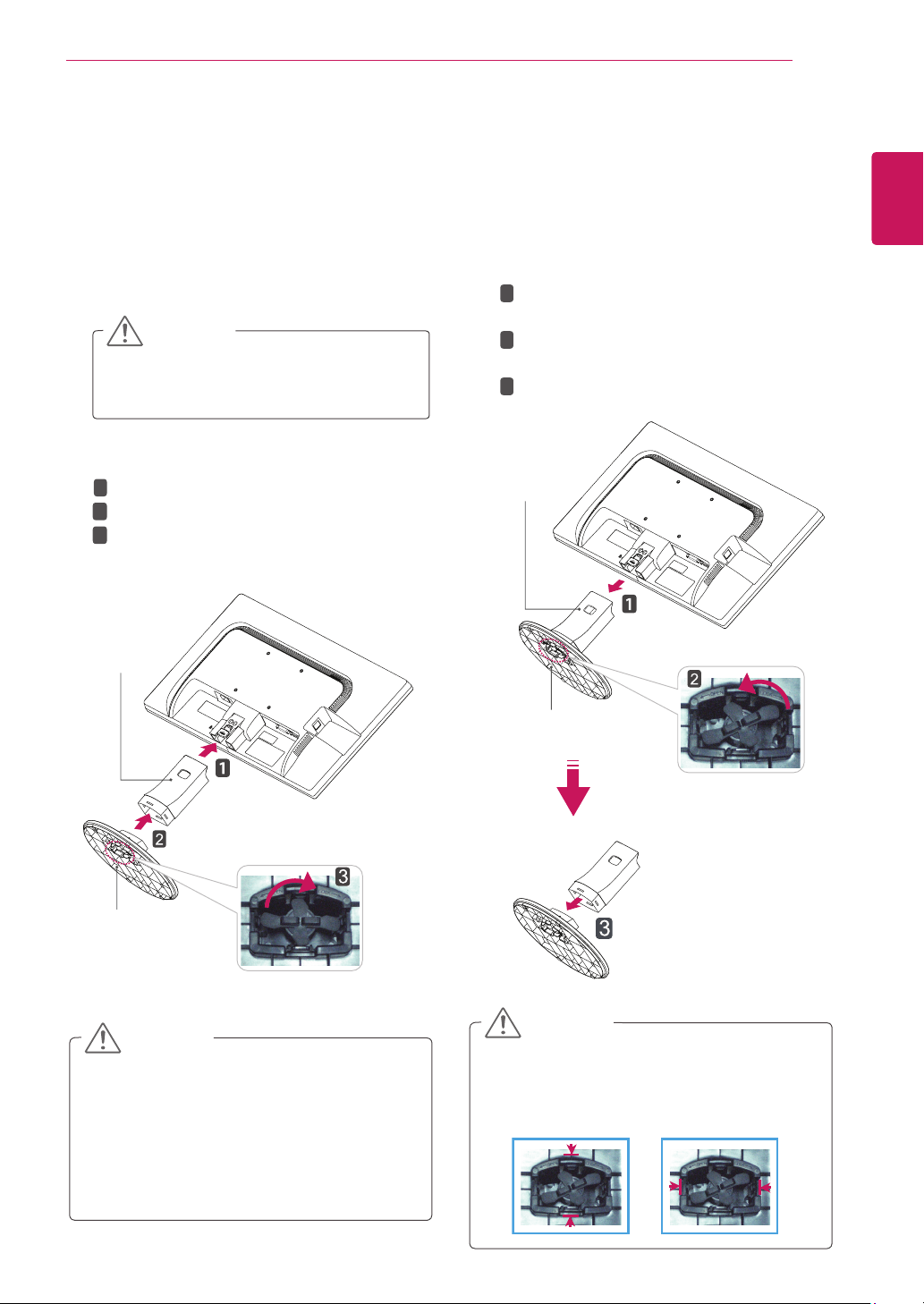
Attach the
StandBody
to the monitor set.
Attach the
StandBase
.
Tie down the base lock to perpendicularity
direction.
SettinguptheMonitorset
AttachingtheStandBase
1
Place the Monitor set with the screen side
down on a flat and cushioned surface.
Lay a foam mat or soft protective cloth
on the surface to protect the screen from
damage.
CAUTION
2
StandBase
StandBody
1
2
3
DetachingtheStandBase
1
Place the Monitor set with the screen side
down on a flat and cushioned surface.
StandBase
StandBody
Pushing the PUSH button, Take the
Stand
Body
from the monitor set.
Change your lock on the product as it
follows and turnit in the arrow direction.
Pull out the
StandBase
.
1
2
3
2
If you can't release the stand base even the
locking knob is at a release position, Please
push the indicated knob down and retry it.
CAUTION
This illustration depicts the general model of
connection. Your monitor may differ from the
items shown in the picture.
Do not carry the product upside down holding
only the stand base. The product may fall
and get damaged or injure your foot.
CAUTION

6
ENG
ENGLISH
ASSEMBLING AND PREPARING
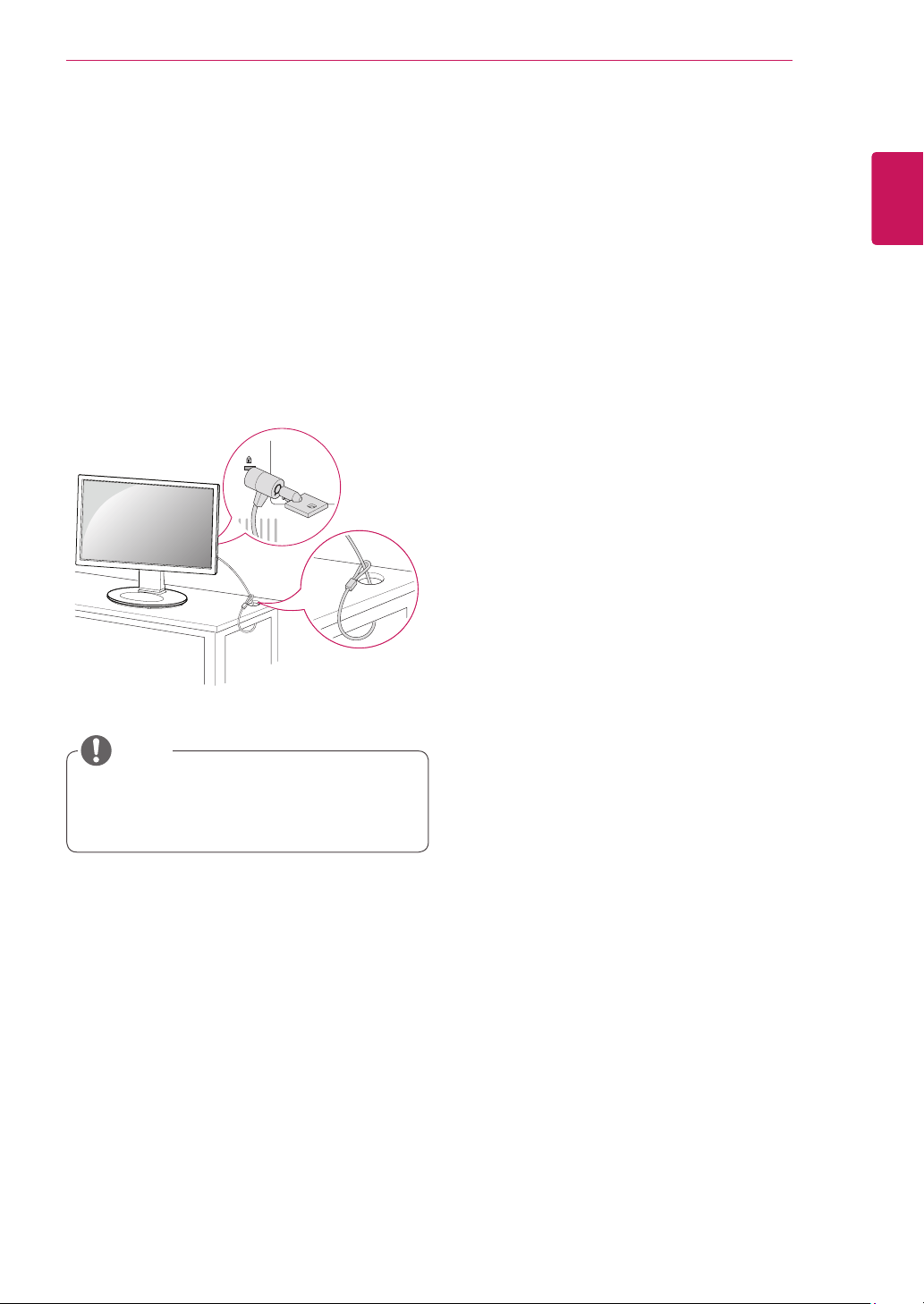
Mountingonatable
1
Lift the monitor and place it on the table in an
upright position.
Install at least
10cm
away from the wall to
ensure sufficient ventilation.
2
3
Press the (Power) button on the front of the
monitor to turn on the monitor.
10 cm
10 cm
10 cm
10 cm
Unplug the power cord prior to moving or
installing the monitor. There is risk of electric
shock.
CAUTION
Connect the Power cord to the monitor, then
plug the power cord into the wall outlet.
When you adjust the angle, do not hold the
bottom of the Monitor set frame as shown on
the following illustration, as may injure your
fingers.
Do not touch or press the screen when
adjusting the angle of the monitor.
Do not hold this set like below picture.Monitor
screen can detach from stand base and injure
your body.
WARNING
Tilt from +20 to -5 degrees up or down to adjust
the angle of the Monitor set to suit your view.
NOTE
Front Rear
7
ENG
ENGLISH
ASSEMBLING AND PREPARING
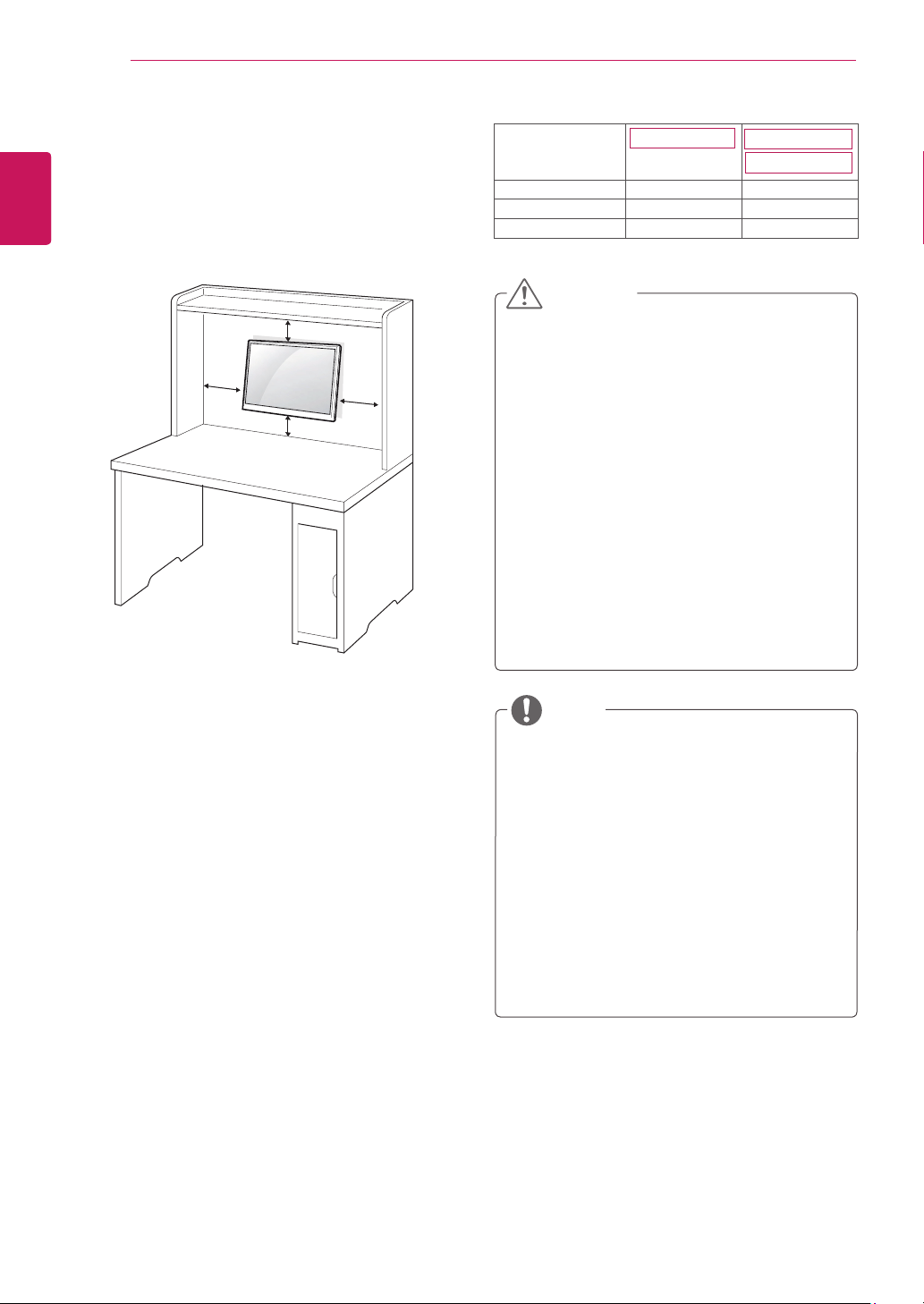
Using the Kensington locking
device
The connector for the Kensington lock is located
on the rear of the monitor.
For more information on installation and usage,
refer to the Kensington lock user manual or visit
the website at http://www.kensington.com.
Connect the monitor to the table with the Kensing-
ton lock cable.
Using the Kensington lock is optional. The
accessories can be purchased at your local
electronics store.
NOTE
8
ENG
ENGLISH
ASSEMBLING AND PREPARING
Mountingonawall
For proper ventilation, allow a clearance of 10 cm
on each side and from the wall. Detailed
instructions are available from your dealer, see the
optional Tilt Wall Mounting Bracket Installation and
Setup Guide.
If you intend to mount the Monitor set to a wall,
attach Wall mounting interface (optional parts) to
the back of the set.
When you install the Monitor set using a wall
mounting interface (optional parts), attach it
carefully so it will not drop.
1
Please, Use the screw and wall mount interface
in accordance with VESA Standards.
2
If you use screw longer than standard, the
monitor might be damaged internally.
3
If you use improper screw, the product might be
damaged and drop from mounted position. In
this case, LG Electronics is not responsible for
it.
4
VESA compatible.
5
Please use VESA standard as below.
784.8 mm (30.9 inch) and under
* Wall Mount Pad Thickness : 2.6 mm
* Screw : Φ 4.0 mm x Pitch 0.7 mm x
Length 10 mm
787.4 mm (31.0 inch) and above
* Please use VESA standard wall mount pad
and screws.
10 cm
10 cm
10 cm
10 cm
Disconnect the power cord first, and then
move or install the Monitor set. Otherwise
electric shock may occur.
If you install the Monitor set on a ceiling or
slanted wall, it may fall and result in severe
injury.
Use only an authorized LG wall mount
and contact the local dealer or qualified
personnel.
Do not over tighten the screws as this may
cause damage to the Monitor set and void
your warranty.
Use only screws and wall mounts that
meet the VESA standard. Any damages
or injuries by misuse or using an improper
accessory are not covered by the warranty.
Use the screws that are listed on the VESA
standard screw specifications.
The wall mount kit will include an installation
manual and necessary parts.
The wall mount bracket is optional. You can
obtain additional accessories from your local
dealer.
The length of screws may differ depending
on the wall mount. Be sure to use the proper
length.
For more information, refer to the
instructions supplied with the wall mount.
CAUTION
NOTE
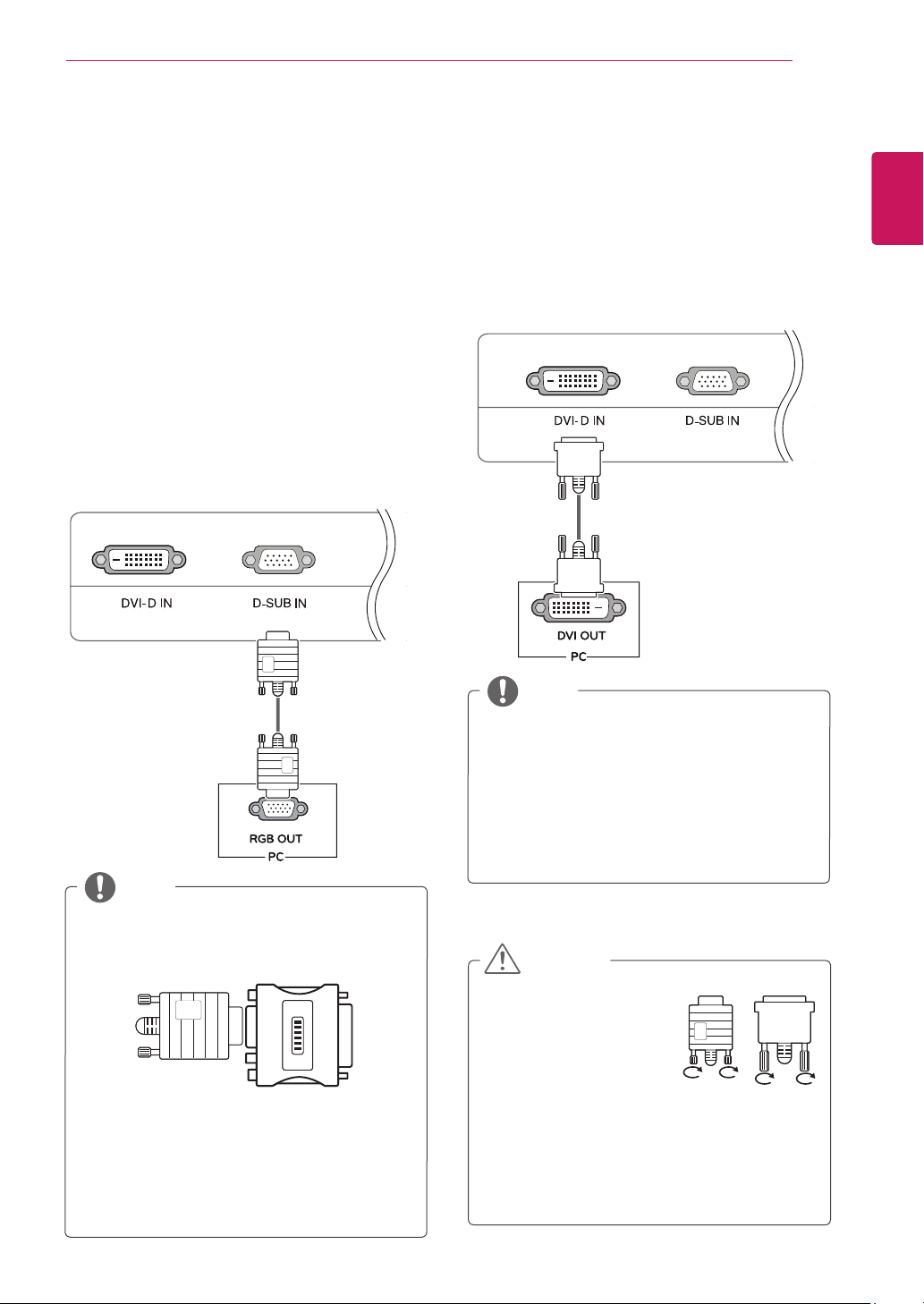
Modeli
19MB35D
VESA(AxB) 75 x 75 100 x 100
Vidëstandarde M4 M4
Numriividave 4 4
24MB35D
22MB35D
9
ENG
ENGLISH
USING THE MONITOR SET
USINGTHEMONITORSET
ConnectingtoaPC
Your Monitor set supports Plug & Play*.
*Plug & Play: A PC recognizes a connected
device that users connect to a PC and turn
on, without device configuration or user
intervention.
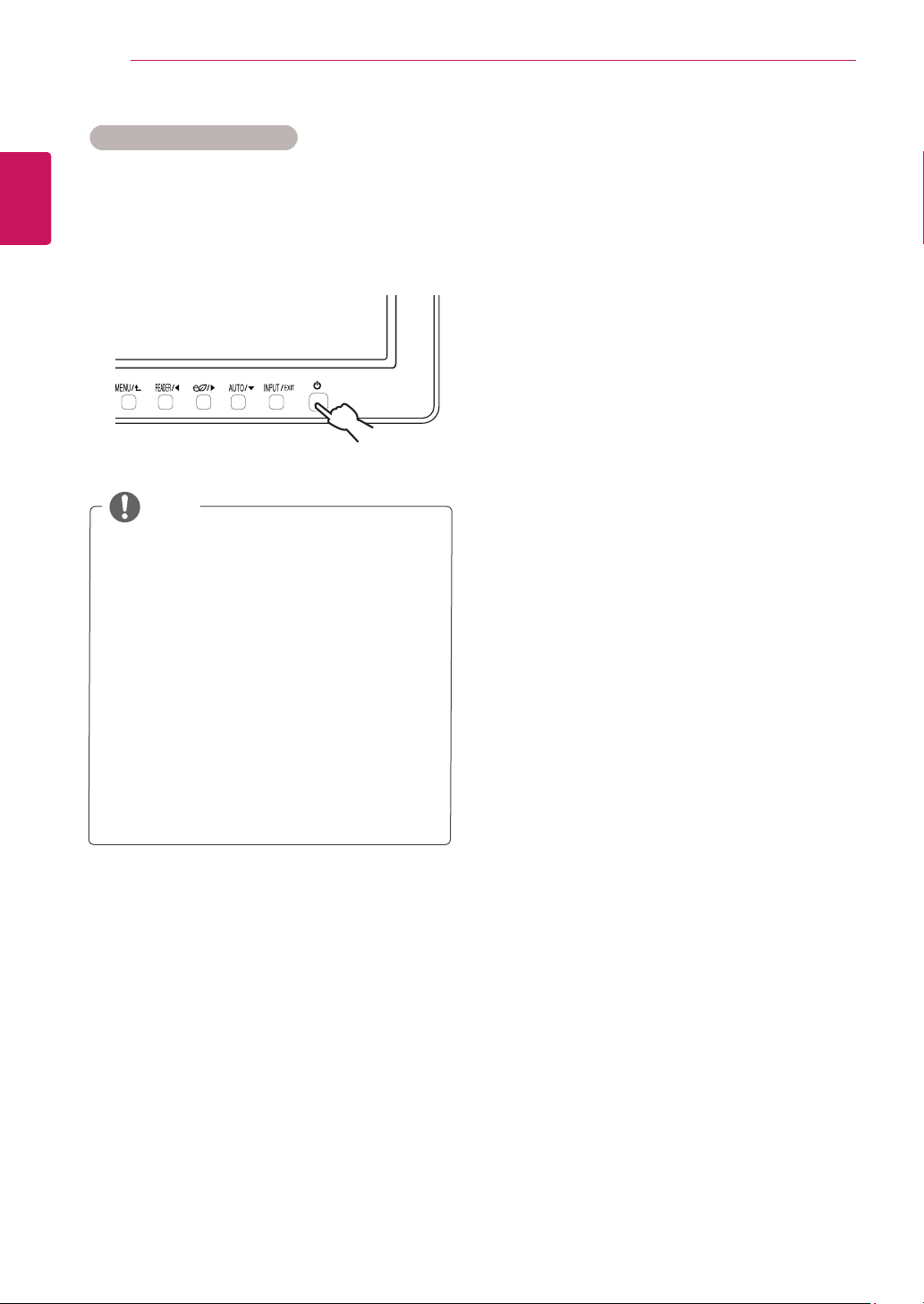
D-SUBconnection
Transmits analog video from your PC to the
Monitor set. Connect the PC and the Monitor set
with the supplied D-sub 15 pin signal cable as
shown in the following illustrations.
Macadapter
For Apple Macintosh use, a separate plug
adapter is needed to change the 15 pin
high density (3 row) D-SUB VGA connector
on the supplied cable to a 15 pin 2 row
connector.
When using a D-Sub signal input cable
connector for Macintosh
NOTE
DVI-Dconnection
Transmits a digital video signal from your PC to
the Monitor set. Connect the PC and the Monitor
set with a DVI cable as shown in the following
illustrations.
When you want to use two PC in our Monitor,
please connect the signal cable(D-SUB/
DVI-D) respectively in Monitor set.
If you turn the Monitor set on while it is cold,
the screen may flicker. This is normal.
Some red, green, or blue spots may appear
on the screen. This is normal.
NOTE
Connect the signal
input cable and tighten
it by turning the screws
clockwise.
Do not press the screen
with your finger for a long time as this may
result in temporary distortion on the screen.
Avoid displaying a fixed image on the
screen for a long period of time to prevent
image burn. Use a screensaver if possible.
CAUTION
10
ENG
ENGLISH
USING THE MONITOR SET
"SelfImageSetting"Function.
This function provides the user with optimal
display settings.When the user connects
the monitor for the first time, this function
automatically adjusts the display to optimal
settings for individual input signals.(Only
supported in Analog Mode)
‘AUTO’Function.
When you encounter problems such as
blurry screen, blurred letters, screen flicker
or tilted screen while using the device or
after changing screen resolution, press the
AUTO function button to improve resolution.
(Only supported in Analog Mode)
NOTE
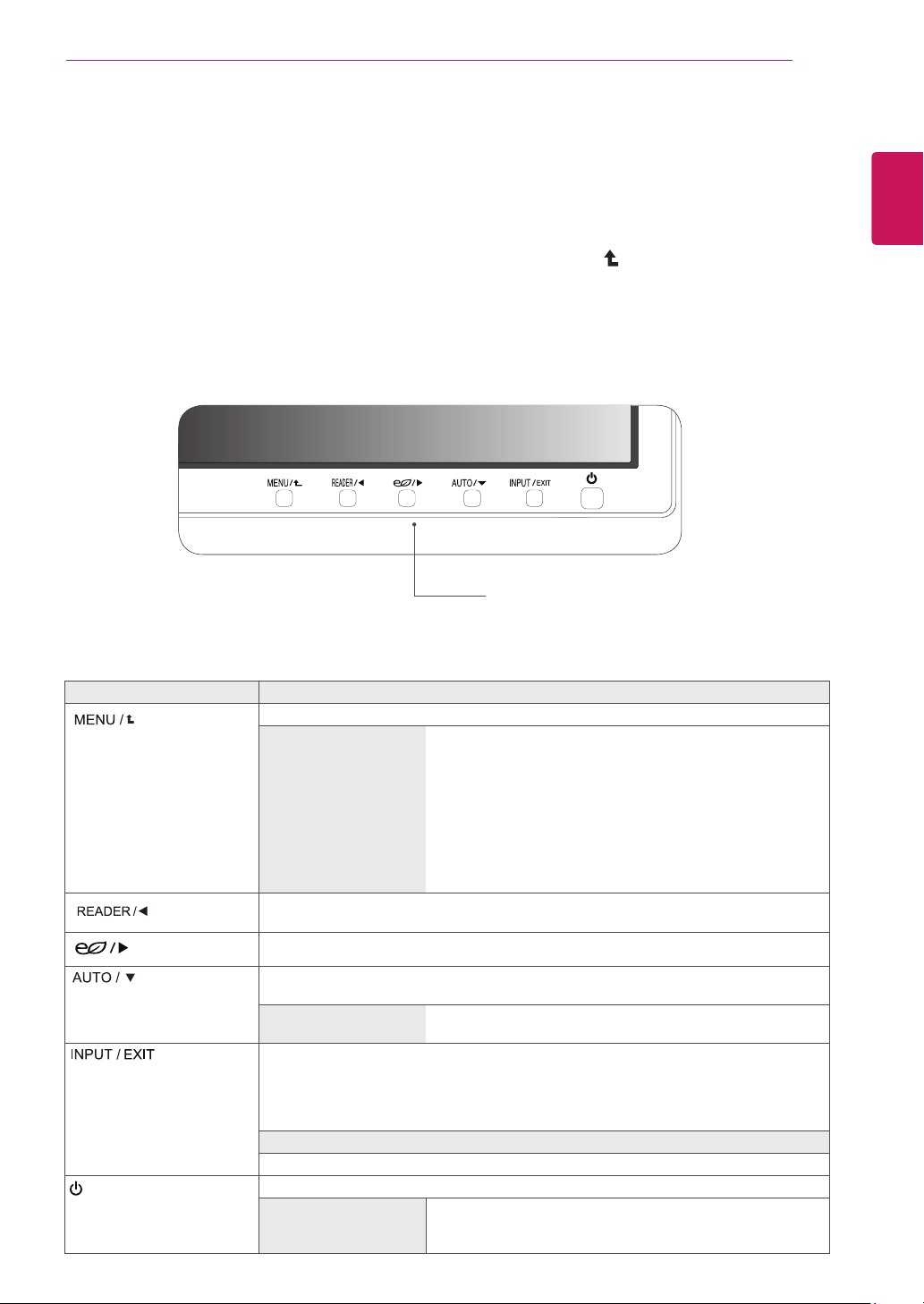
Self Image Setting Function
Press the power button on the bottom panel to
turn the power on. When monitor power is turned
on, the "
SelfImageSetting
" Function is executed
automatically. (Only supported in Analog Mode)
11
ENG
ENGLISH
CUSTOMIZING SETTINGS
CUSTOMIZINGSETTINGS
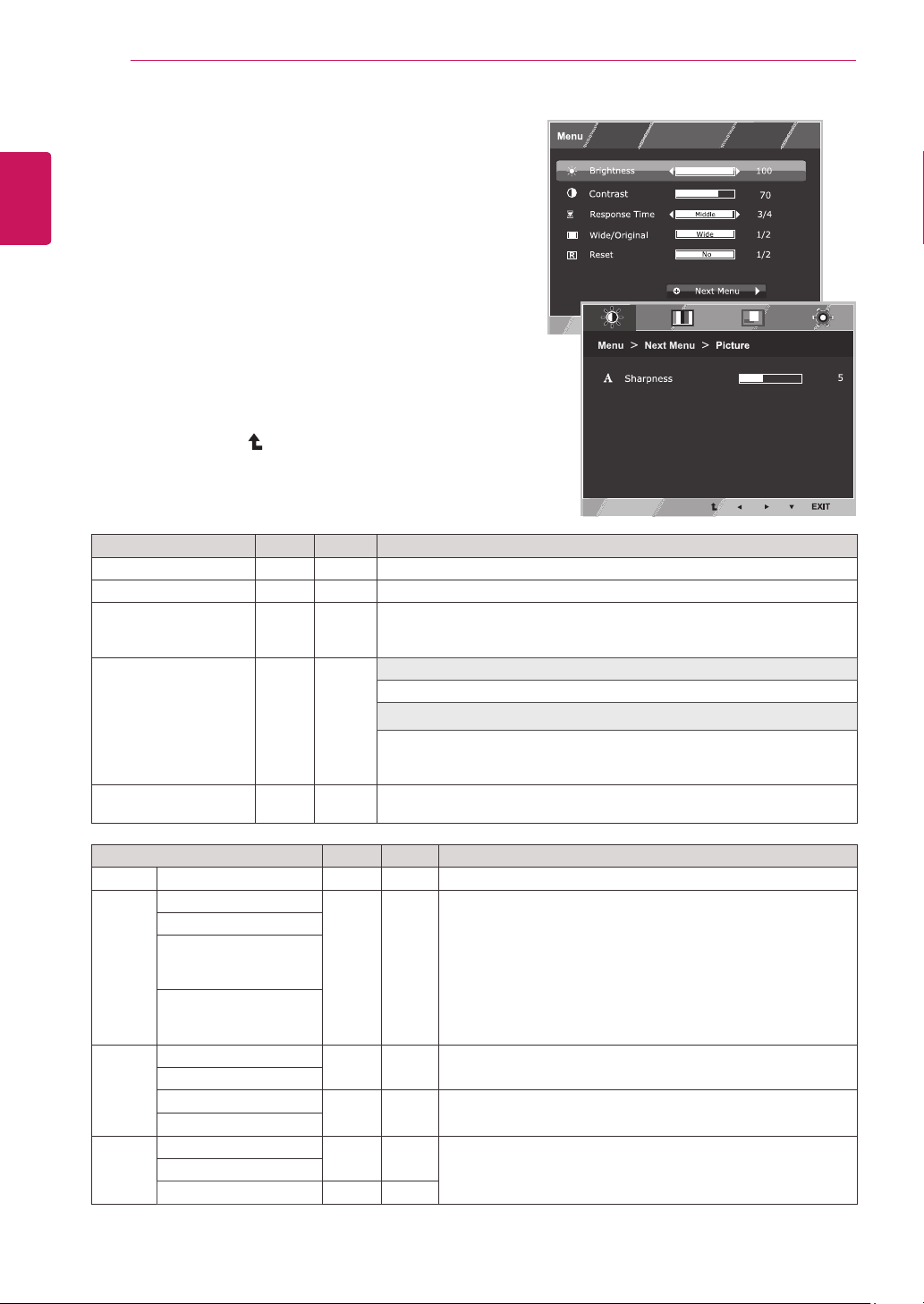
1
Press the desired button on the bottom of the Monitor set.
2
Change the value of the menu item by pressing the buttons on the bottom of the Monitor set.
To return to the upper menu or set other menu items, use the up arrow ( ) button.
3
Select
EXIT
to leave the OSD menu.
MonitorsetButtons
Button Description
Accesses the main menus.(See p.12)
OSDLocked/OSD
Unlocked
This function allow you to lock the current control settings, so
that they cannot be inadvertently changed.
Press and hold the MENU button for several seconds. Then
OSD of “OSD Lock” will appear. After that, user can select
lock or unlock by pressing left/right button.
If user selects the “Lock” icon by pressing the “OK” button,
the message “OSD Locked” will appear. Otherwise, “OSD
Unlocked” will appear. After selecting the “Lock”, If you want
to change to Unlock, you can push the “MENU” button for
several seconds. The message “OSD Unlocked” will appear.
Use this button to enter Reader Mode menu. Its function works to display screen as
paper-like picture for Eye comfort.If you want to more information.(See p.17)
Use this button to enter SMART ENERGY SAVING menu.(See p.18)
When adjusting your display settings, always press the AUTO button on the MONITOR
SETUP OSD. (Only supported in Analog Mode)
Thebestdisplaymode
19MB35D:1280 x 1024
22MB35D/24MB35D:1920 x 1080
You can choose the input signal.
• When two input signals are connected, you can select the input signal (D-SUB/DVI)
you want.
• When only one signal is connected, it is automatically detected. The default setting is
D-SUB.
EXIT
Exit the OSD(On Screen Display).
(Power Button)
Turns the power on or off.
PowerIndicator
The power indicator stays white if the display is running
properly (On Mode). If the display is in Sleep Mode, the power
indicator blinks white.
12
ENG
ENGLISH
CUSTOMIZING SETTINGS
CustomizingSettings
MenuSettings
1
Press
MENU
button on the bottom of the Monitor set
to display the
Menu
OSD.
2
Set the options by pressing the ◄ or ► or ▼
buttons.
3
Select the "
NextMenu
" button to enter the more
option settings.
4
Select
EXIT
to leave the OSD menu.
To return to the upper menu or set other menu items,
use the up arrow ( ) button.
Each option is explained below.
Menu>NextMenu Analog Digital Description
Picture
Sharpness ● ●
To adjust the clearness of the screen
Color Gamma
● ●
To customize the color of the screen
ColorTemp
SixColor
(Onlyfor19MB35D/
22MB35D-I*/24MB35D)
ColorReset
(Onlyfor19MB35D/
22MB35D-I*/24MB35D)
Display Horizontal
●
To adjust the position of the screen
Vertical
Clock
●
To improve the clarity and stability of the screen
Phase
Others Language
● ●
To customize the screen status for a user's operating
environment
PowerIndicator
OffTimeSetting ● ●
Analog:
D-SUB(Analog signal) input.
Digital:
DVI-D(Digital signal) input.
Menu
Analog Digital
Description
Brightness
● ●
To adjust the brightness of the screen
Contrast ● ●
To adjust the contrast of the screen
ResponseTime
(Onlyfor19MB35D/
22MB35D-I*/24MB35D)
● ●
You can set a response time for displayed pictures based on the speed
of the screen. For a normal environment, it is recommended that you use
'Off'. For a fast-moving picture, it is recommended that you use 'High'.
Wide/Original
(Onlyfor22MB35D/
24MB35D)
● ●
Wide
Switch to full screen mode according to input image signal.
Original
Change the input image signal ratio to original.
* This function works only if input resolution is lower than Monitor set ratio
(16:9).
Reset
● ●
Restore all factory default settings. Press the
◄
,
►
buttons to reset
immediately.
13
ENG
ENGLISH
CUSTOMIZING SETTINGS
Picture
1
Press
MENU
button on the bottom of the Monitor set
to display the
Menu
OSD.
2
Select the "
NextMenu
" button to enter the more
option settings.
3
Enter to
Picture
by pressing the ▼ button.
4
Set the options by pressing the ◄ or ► buttons.
5
Select
EXIT
to leave the OSD menu.
To return to the upper menu or set other menu items,
use the up arrow ( ) button.
Each option is explained below.
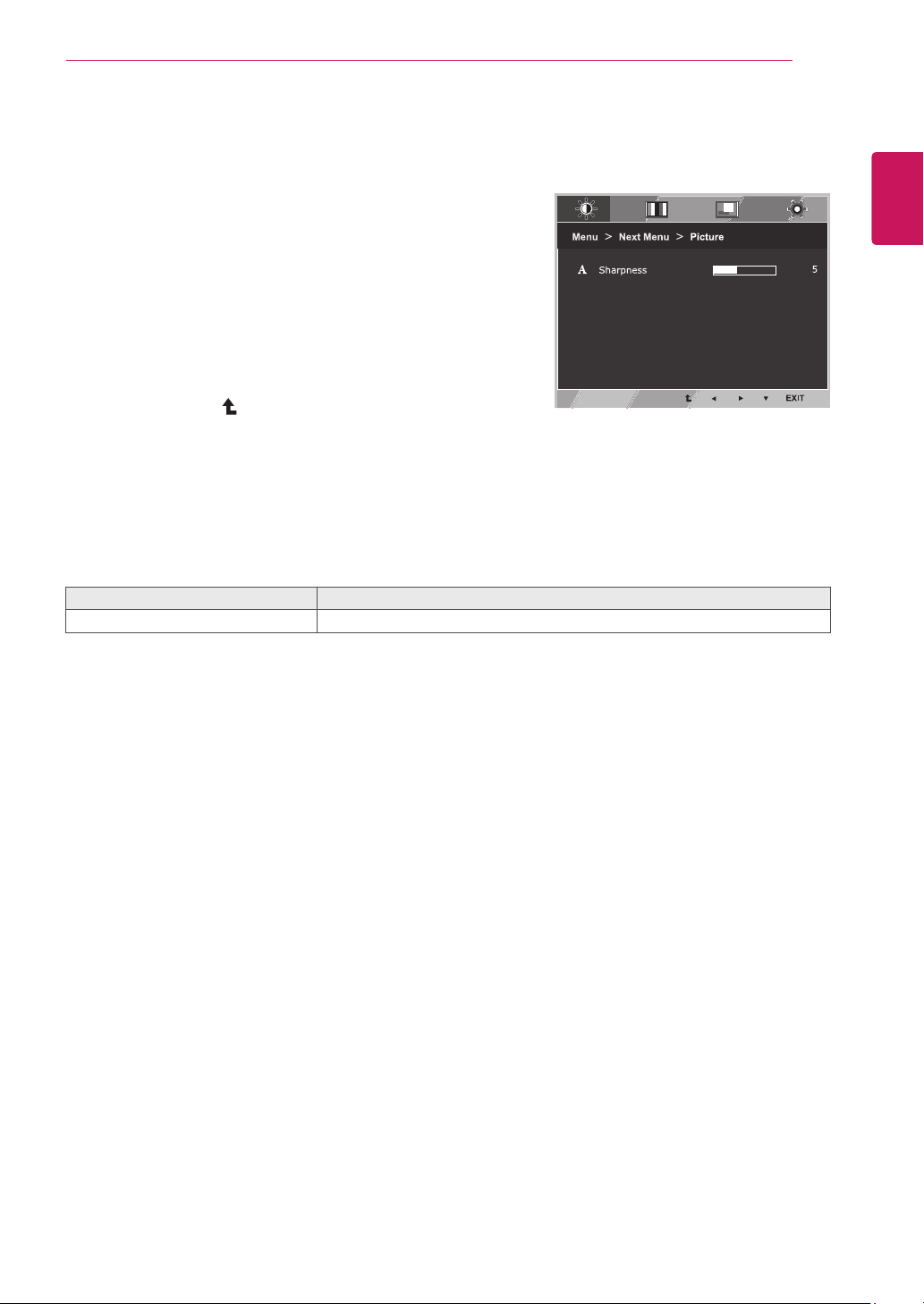
Menu>NextMenu>Picture Description
Sharpness
To adjust the clearness of the screen.
14
ENG
ENGLISH
CUSTOMIZING SETTINGS
Color
1
Press
MENU
button on the bottom of the Monitor set
to display the
Menu
OSD.
2
Select the "
NextMenu
" button to enter the more
option settings.
3
Select
Color
by pressing the ► button.
4
Enter to
Color
by pressing the ▼ button.
5
Set the options by pressing the ◄ or ► or ▼
buttons.
6
Select
EXIT
to leave the OSD menu.
To return to the upper menu or set other menu items,
use the up arrow ( ) button.
Each option is explained below.
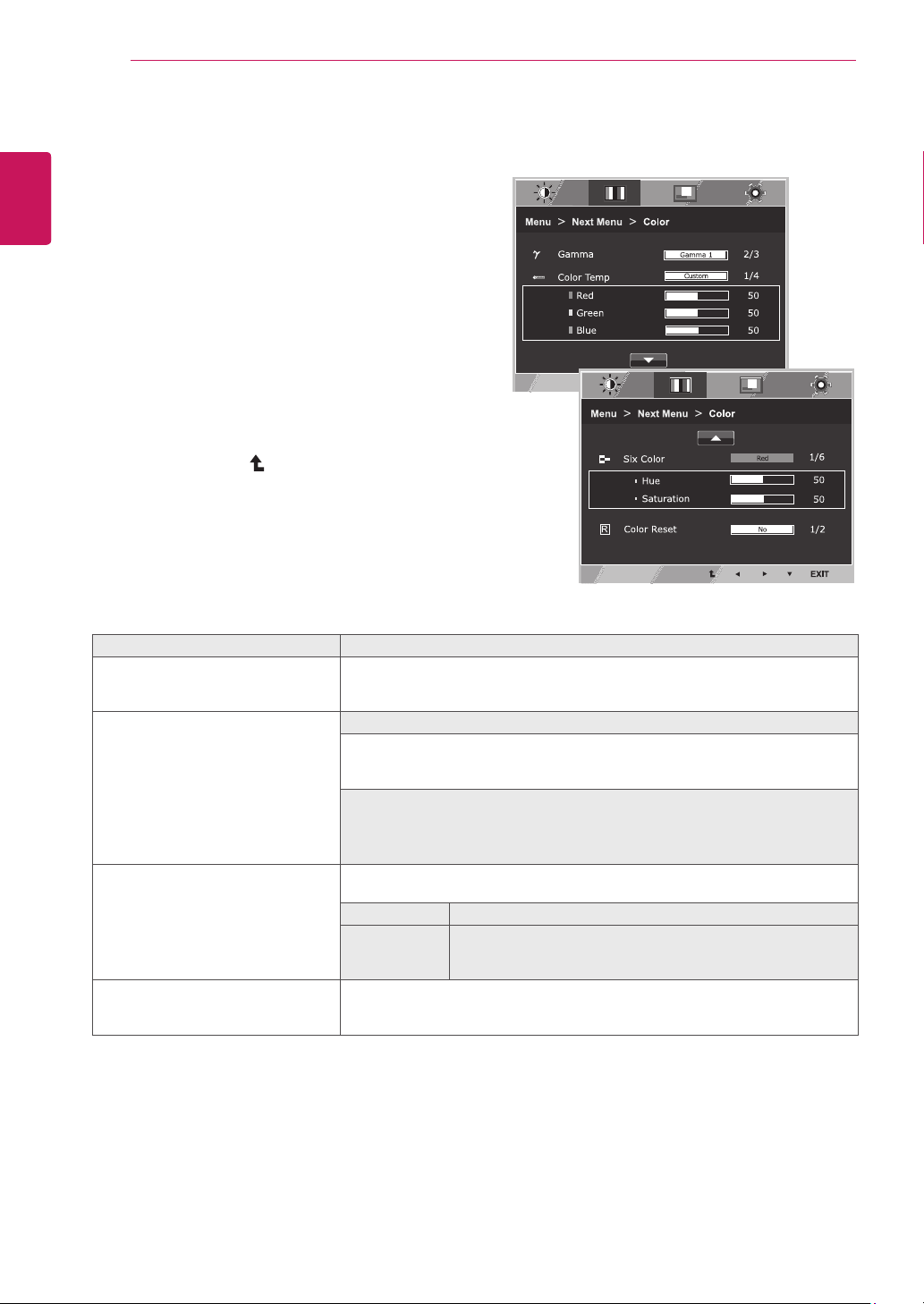
Menu>NextMenu>Color Description
Gamma Set your own gamma value. : Gamma 0, Gamma 1, Gamma 2 on the monitor,
high gamma values display whitish images and low gamma values display
blackish images.
ColorTemp Custom
•Red:
Set your own red color levels.
•Green:
Set your own green color levels.
•Blue:
Set your own blue color levels.
Select the screen color.
Warm:
Set the screen to warm color temperature (more red).
Medium:
Set the screen to medium color temperature.
Cool:
Set the screen to cool color temperature (more blue).
SixColor
(Onlyfor19MB35D/22MB35D-I*/
24MB35D)
Sets and stores the hue and saturation for six colors(Red/Green/Blue/Cyan/
Magenta/Yellow) to satisfy the color requirements of a user.
Hue Adjusts the screen hue.
Saturation Adjusts the color sharpness on the screen. Lower values make
the color sharpness weaker and colors lighter while higher
values make the color sharpness stronger and colors dark.
ColorReset
(Onlyfor19MB35D/22MB35D-I*/
24MB35D)
Resets the color settings to the factory default settings for the current input
device.
15
ENG
ENGLISH
CUSTOMIZING SETTINGS
Display
1
Press
MENU
button on the bottom of the Monitor set
to display the
Menu
OSD.
2
Select the "
NextMenu
" button to enter the more
option settings.
3
Select
Display
by pressing the ► button.
4
Enter to
Display
by pressing the ▼ button.
5
Set the options by pressing the ◄ or ► or ▼
buttons.
6
Select
EXIT
to leave the OSD menu.
To return to the upper menu or set other menu items,
use the up arrow ( ) button.
Each option is explained below.
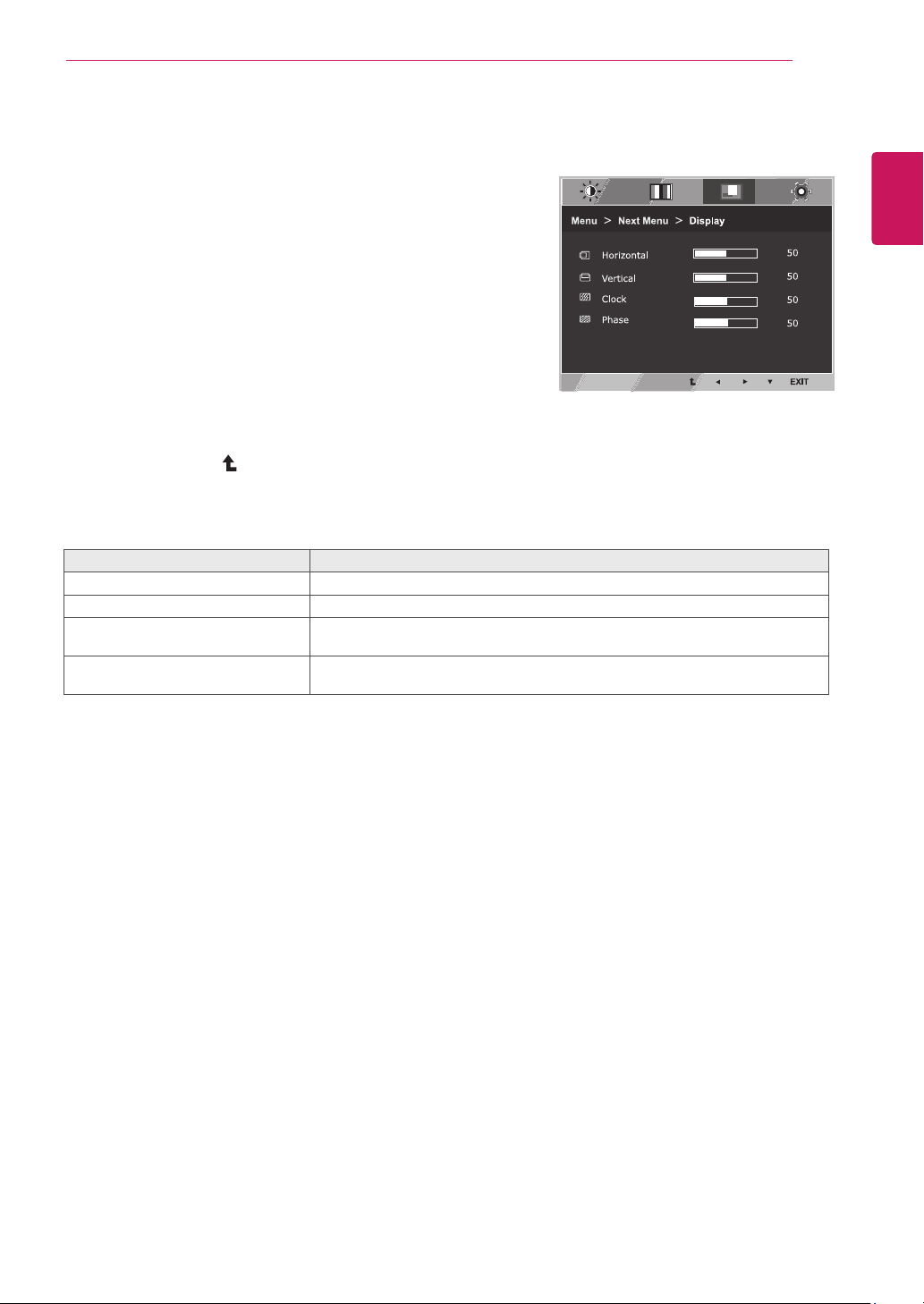
Menu>NextMenu>Display Description
Horizontal
To move image left and right.
Vertical
To move image up and down.
Clock
To minimize any vertical bars or stripes visible on the screen background.The
horizontal screen size will also change.
Phase
To adjust the focus of the display. This item allows you to remove any horizontal
noise and clear or sharpen the image of characters.
16
ENG
ENGLISH
CUSTOMIZING SETTINGS
Others
1
Press
MENU
button on the bottom of the Monitor set
to display the
Menu
OSD.
2
Select the "
NextMenu
" button to enter the more
option settings.
3
Select
Others
by pressing the ► button.
4
Enter to
Others
by pressing the ▼ button.
5
Set the options by pressing the ◄ or ► or ▼
buttons.
6
Select
EXIT
to leave the OSD menu.
To return to the upper menu or set other menu items,
use the up arrow ( ) button.
Each option is explained below.
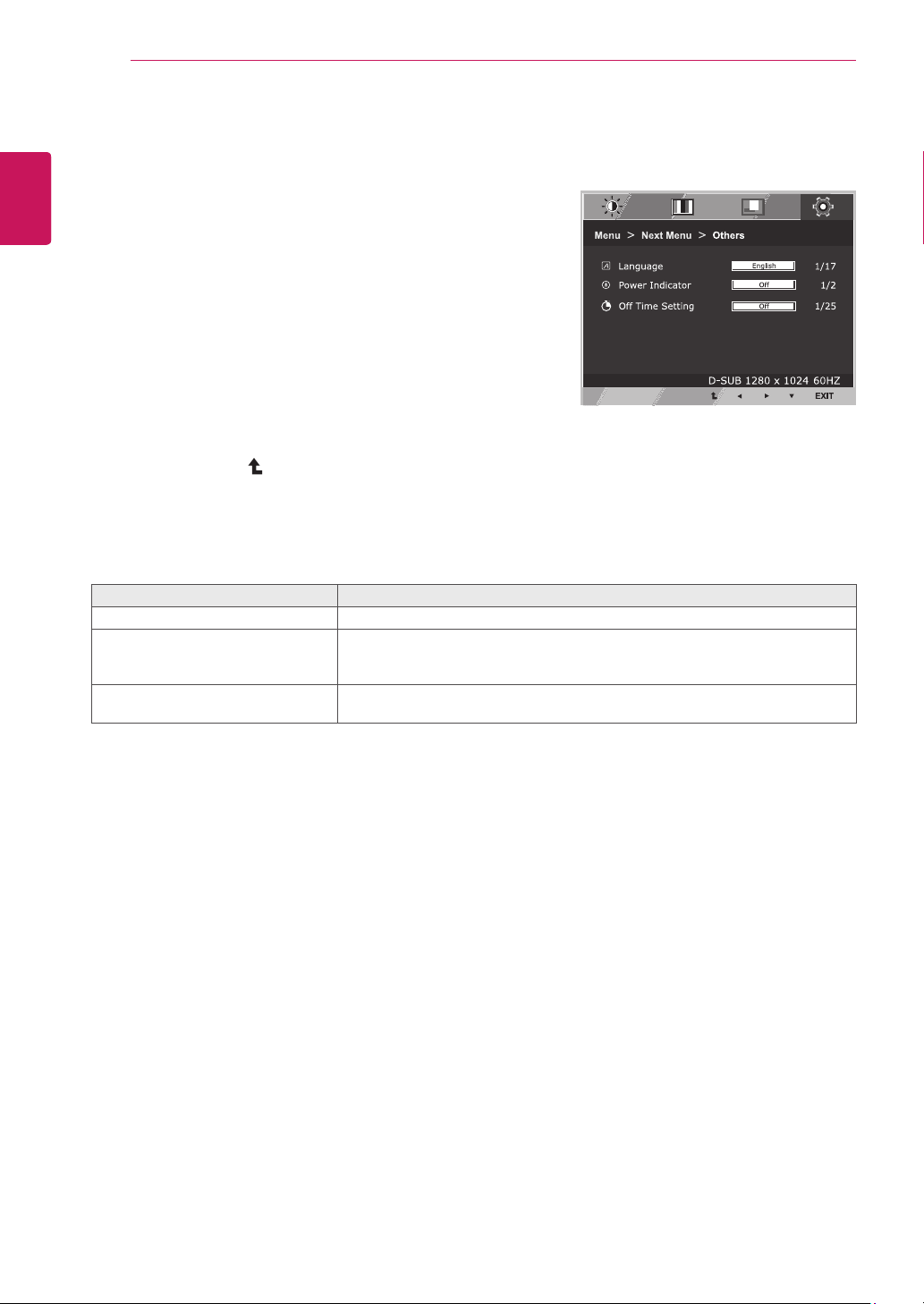
Menu>NextMenu>Others Description
Language
To choose the language in which the control names are displayed.
PowerIndicator
Use this function to set the power indicator on the bottom side of the monitor to
On or Off.If you set Off, it will go off.
If you set On at any time, the power indicator will automatically be turned on.
OffTimeSetting
The monitor set will switch to power off mode after the time to be chosen by user
(1 ~ 24 hours)
17
ENG
ENGLISH
CUSTOMIZING SETTINGS
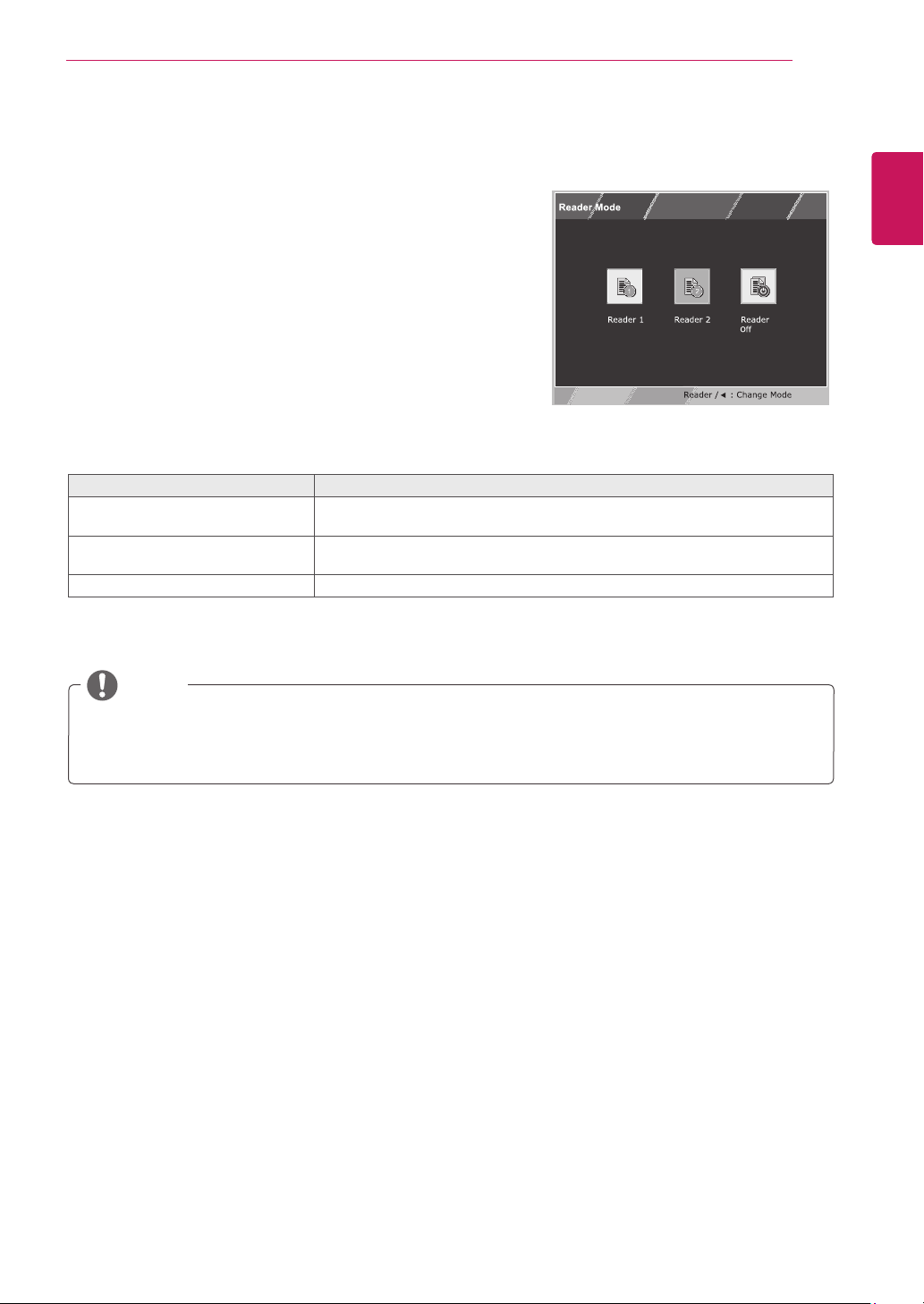
READERSetting
1
Press
READER
button on the bottom of the Monitor
set to display the
ReaderMode
OSD.
2
Set the options by pressing the ◄ buttons.
ReaderMode Description
Reader1 It is a mode that the screen is adjusted to the best for the newspaper. If you
want screen more bright, you can control brightness in Menu OSD.
Reader2 It is a mode that the screen is adjusted to the best for the cartoon. If you want
screen more bright, you can control brightness in Menu OSD.
ReaderOff It is a mode that reader mode is off.
Each option is explained below.
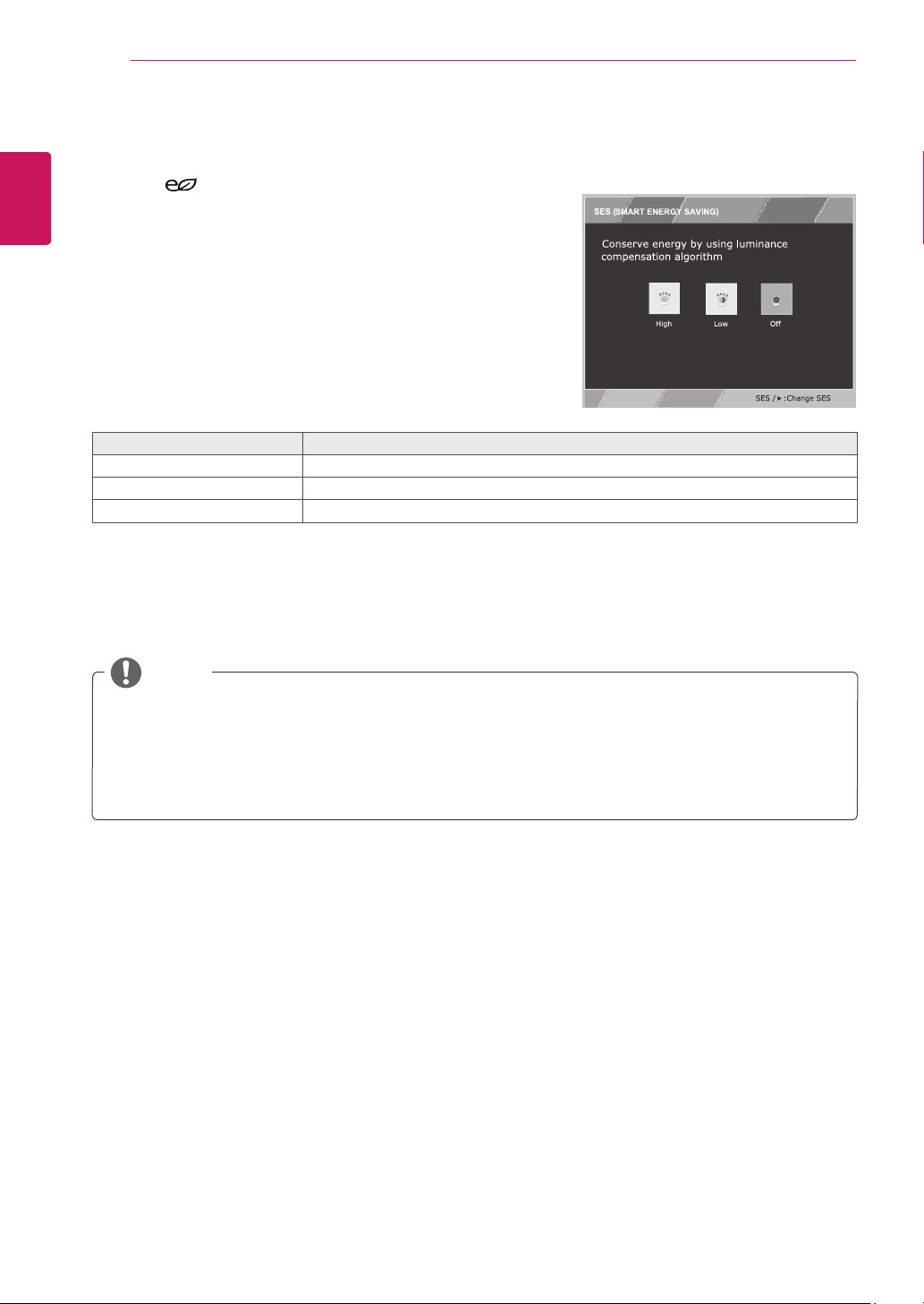
NOTE
If option of Reader Mode is Reader 1 or Reader 2, Picture Mode will automatically be Custom and
SMART ENERGY SAVING will automatically be Off.
18
ENG
ENGLISH
CUSTOMIZING SETTINGS
Saving Data depends on the Panel. So,those values should be different from each panel and panel
vendor.If option of SMART ENERGY SAVING is High or Low, monitor luminance become higher or
lower depend on source.
If option of SMART ENERGY SAVING is High or Low, Picture Mode will automatically be Custom and
Reader Mode will automatically be Reader Off.
NOTE
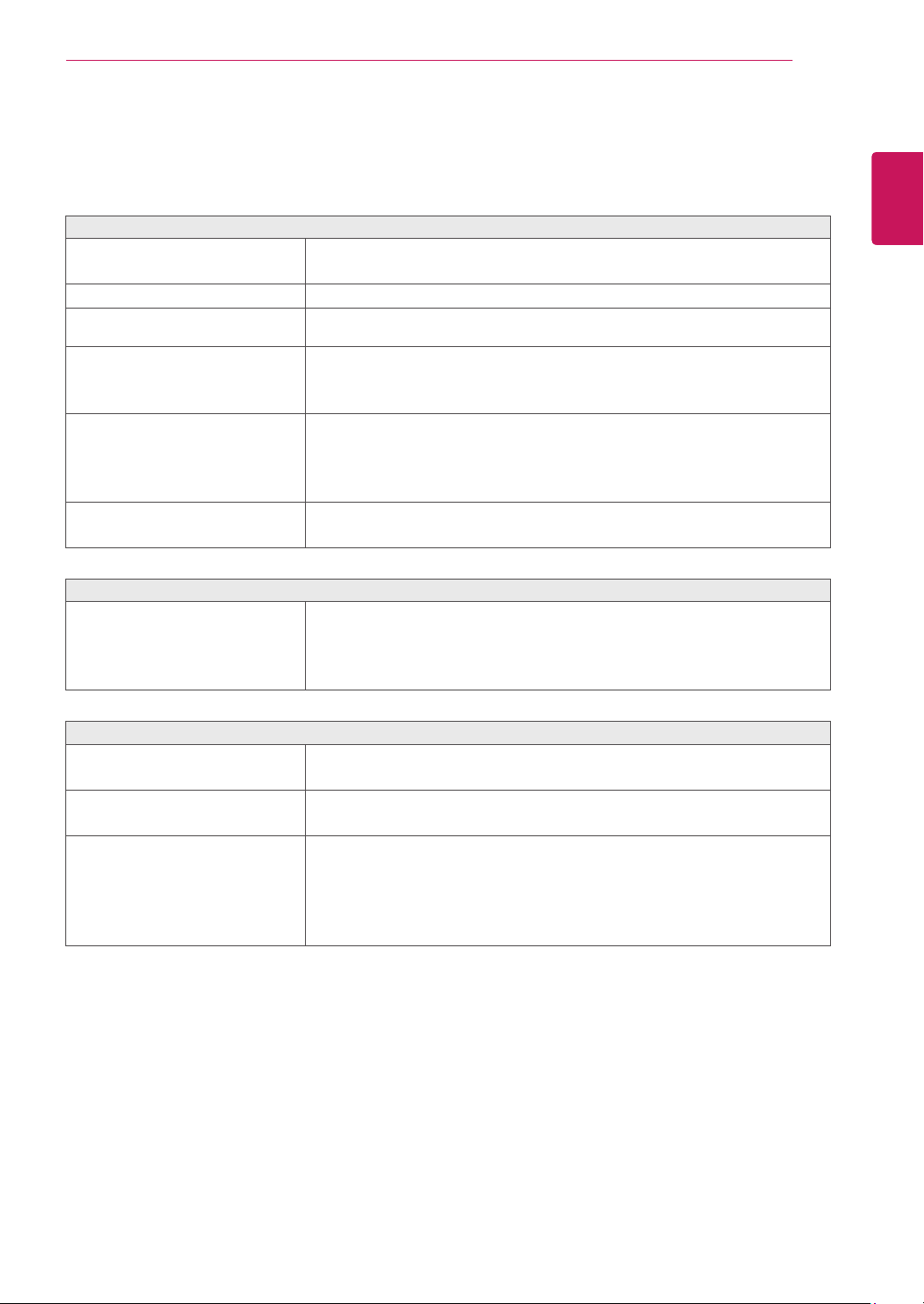
SMARTENERGYSAVING
1
Press
button on the bottom of the Monitor set to
display the
SMARTENERGYSAVING
OSD.
2
Set the options by pressing the ► buttons.
Each option is explained below.
SMARTENERGYSAVING Description
High
Enables SMART ENERGY SAVING you can save energy with this energy- high efficient function.
Low
Enables SMART ENERGY SAVING you can save energy with this energy- low efficient function.
Off Disables SMART ENERGY SAVING.
*
SMARTENERGYSAVING:
Conserve energy by using luminance compensation algorithm.
19
ENG
ENGLISH
TROUBLESHOOTING
TROUBLESHOOTING
Checkthefollowingbeforecallingforservice.
Noimageappears
Is the power cord of the display
connected?
Check and see if the power cord is connected properly to the power
outlet.
Is the power indicator light on?
Press the Power button.
Is the power on and the power
indicator White?
Adjust the brightness and the contrast.
Is the power indicator flickering?
If the display is in power saving mode, try moving the mouse or
pressing any key on the keyboard to bring up the screen.
Try to turn on the PC.
Do you see an "OUT OF RANGE"
message on the screen?
This message appears when the signal from the PC (video card) is
out of horizontal or vertical frequency range of the display. See the
'Specifications' section of this manual and configure your display
again.
Do you see a "NO SIGNAL"
message on the screen?
When the monitor is on "No-Signal" in 5 minutes, the monitor goes to
DPM mode.
Doyouseea"OSDLOCKED"messageonthescreen?
Do you see “OSD LOCKED” when
you push MENU button?
You can secure the current control settings, so that they cannot be
inadvertently changed. You can unlock the OSD controls at any time
by pushing the MENU button for several seconds: the message “OSD
UNLOCKED” will appear.
Displayimageisincorrect
Display Position is incorrect.
Press the
AUTO
button to automatically adjust your display image to
the ideal setting.
On the screen background, vertical
bars or stripes are visible.
Press the
AUTO
button to automatically adjust your display image to
the ideal setting.
Any horizontal noise appearing in
any image or characters are not
clearly portrayed.
Press the
AUTO
button to automatically adjust your display image to
the ideal setting.
Check
ControlPanel►Display►Settings
and adjust the display
to the recommended resolution or adjust the display image to the ideal
setting. Set the color setting higher than 24 bits (true color).
20
ENG
ENGLISH
TROUBLESHOOTING
Displayimageisincorrect
The screen color is mono or
abnormal.
Check if the signal cable is properly connected and use a screwdriver
to fasten if necessary.
Make sure the video card is properly inserted in the slot.
Set the color setting higher than 24 bits (true color) at
ControlPanel
►
Settings
.
The screen blinks.
Check if the screen is set to interlace mode and if yes, change it to the
recommend resolution.
Doyouseean"Unrecognizedmonitor,Plug&Play(VESADDC)monitorfound"message?
Have you installed the display
driver?
Be sure to install the display driver from the display driver CD (or
diskette) that comes with your display. Or, you can also download the
driver from our web site: http://www.lg.com.
Make sure to check if the video card supports Plug&Play function.
Check
ControlPanel►Display►Settings
and see if the frequency or the resolution were
changed. If yes, readjust the video card to the recommend resolution.
If the recommended resolution (optimal resolution) is not selected, letters may be blurred and the
screen may be dimmed, truncated or biased. Make sure to select the recommend resolution.
The setting method can differ by computer and O/S (Operation System), and resolution mentioned
above may not be supported by the video card performance. In this case, please ask to the computer
or the video card manufacturer.
CAUTION
21
ENG
ENGLISH
SPECIFICATIONS
SPECIFICATIONS
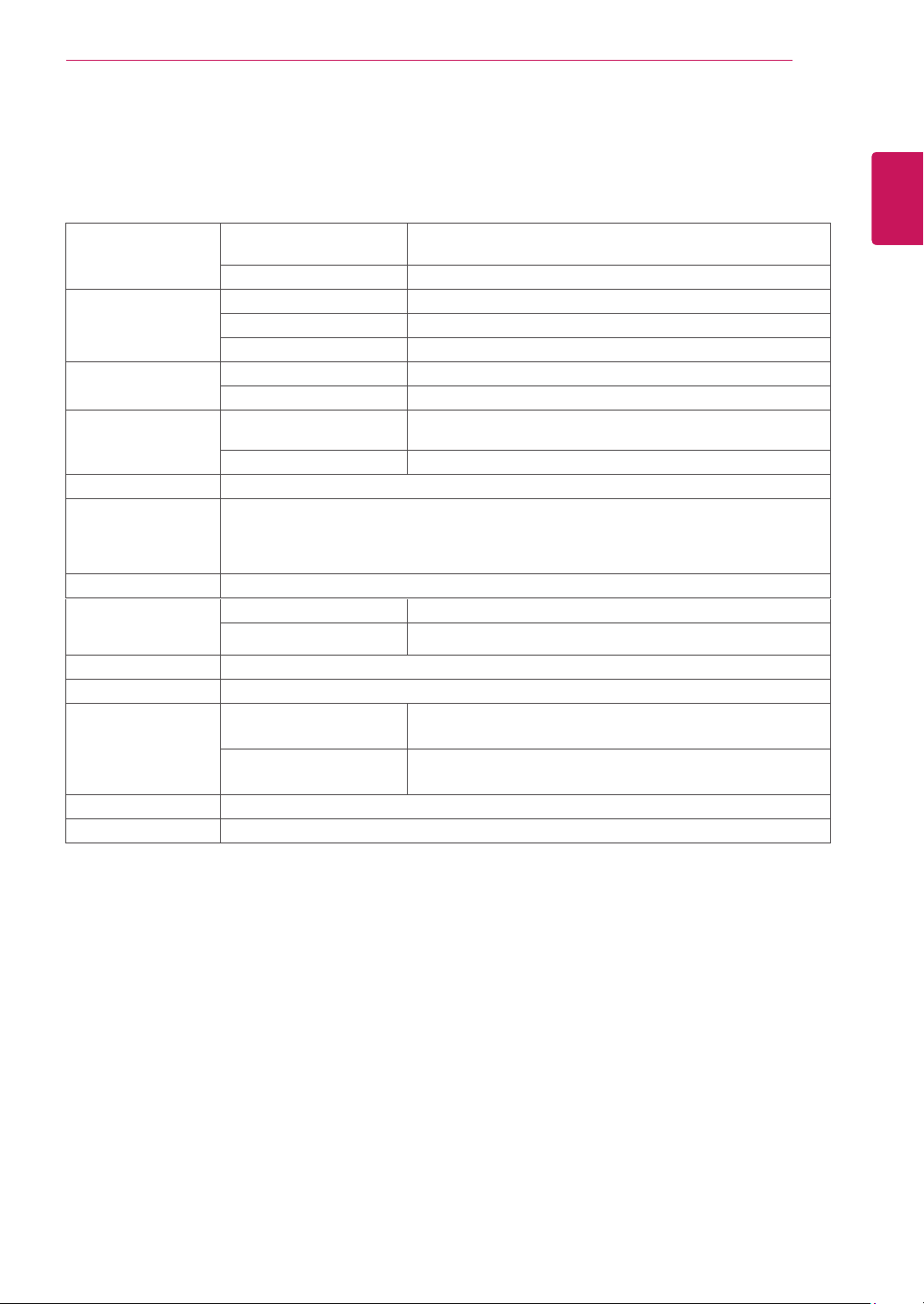
Display ScreenType Flat Panel Active matrix-TFT LCD
Anti-Glare coating
PixelPitch 0.2928 mm x 0.2928 mm (Pixel Pitch)
SyncInput HorizontalFrequency 30 kHz to 83 kHz (Automatic)
VerticalFrequency 56Hz to 75Hz (D-SUB,DVI-D)
InputForm Separate Sync. Digital
VideoInput SignalInput 15 pin D-SUB Connector /DVI-D Connector (Digital)
InputForm RGB Analog (0.7 Vp-p/ 75 ohm), Digital
Resolution Max D-SUB(Analog) : 1280 x 1024 @ 60 Hz
DVI (Digital) : 1280 x 1024 @ 60 Hz
Recommend VESA 1280 x 1024 @ 60 Hz
Plug&Play DDC 2B(Analog,Digital)
Power
Consumption
On Mode : 13.8 W Typ. (ENERGY STAR® standard)*
17.9 W Typ.(Outgoing condition)**
Sleep Mode ≤ 0.3 W
Off Mode ≤ 0.3 W
PowerInput AC 100-240V ~ 50/60Hz 0.8 A
Dimensions
(WidthxHeightx
Depth)
WithStand 40.9 cm x 42.5 cm x 21.0 cm
WithoutStand 40.9 cm x 33.8 cm x 5.8 cm
Weight 2.8 kg
TiltRange -5° to 20°
Environmental
conditions
OperatingTemperature
OperatingHumidity
10°C to 35 °C
10 % to 80 %
StorageTemperature
StorageHumidity
-20°C to 60 °C
5 % to 90 % non-Condensing
StandBase Attached ( ), Detached (O)
Powercord Wall-outlet type
Product specifications shown above may be changed without prior notice due to upgrade of product
functions.
* The power consumption level can be different by operating condition and monitor setting.
* The On mode power consumption is measured with ENERGY STAR® test standard.
**The On mode power consumption is measured with LGE test standard(Full White pattern,Maximum
resolution).
19MB35D
22
ENG
ENGLISH
SPECIFICATIONS
SPECIFICATIONS
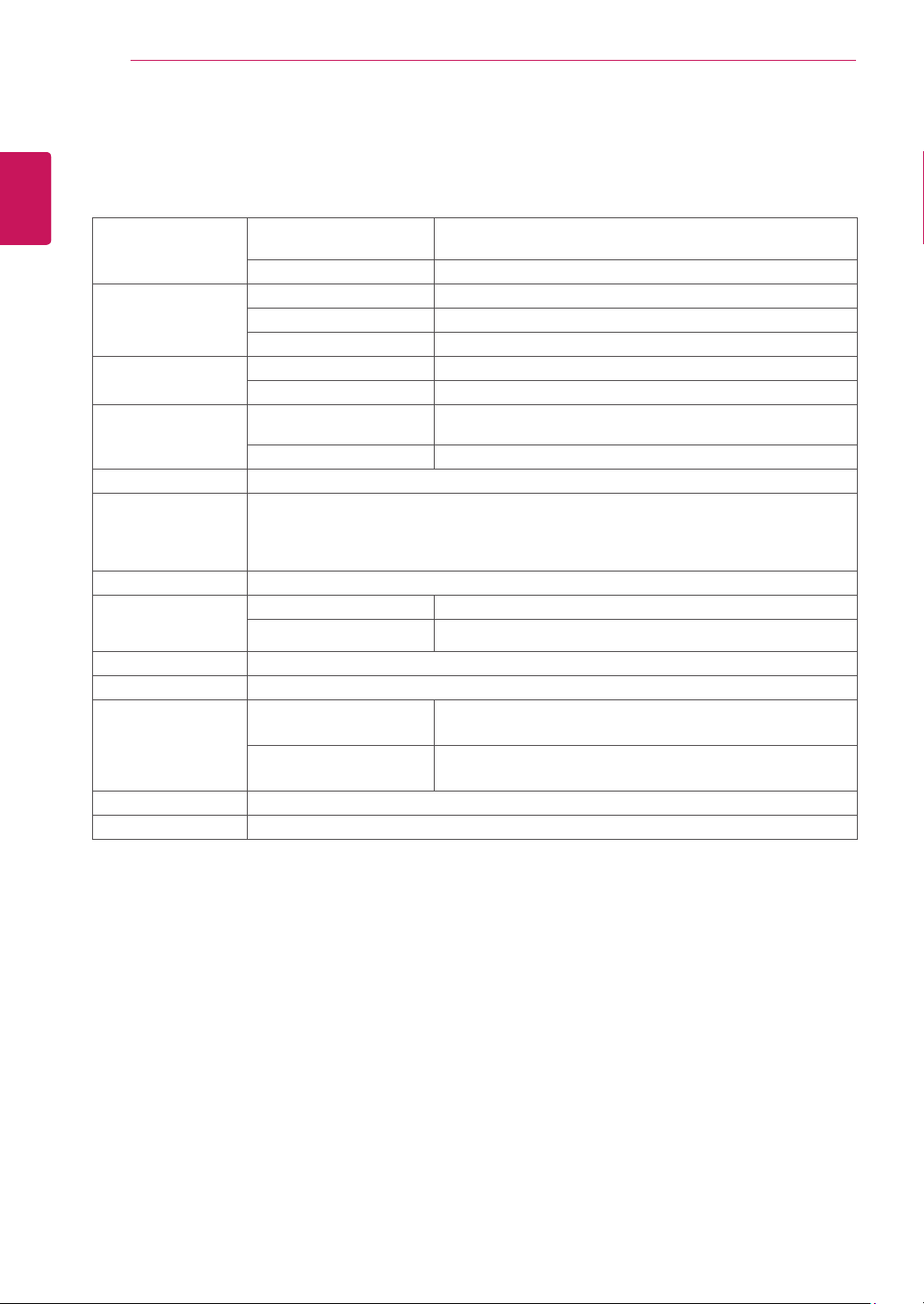
22MB35D
Display ScreenType Flat Panel Active matrix-TFT LCD
Anti-Glare coating
PixelPitch 0.248 mm x 0.248 mm (Pixel Pitch)
SyncInput HorizontalFrequency 30 kHz to 83 kHz (Automatic)
VerticalFrequency 56Hz to 75Hz (D-SUB,DVI-D)
InputForm Separate Sync. Digital
VideoInput SignalInput 15 pin D-SUB Connector /DVI-D Connector (Digital)
InputForm RGB Analog (0.7 Vp-p/ 75 ohm), Digital
Resolution Max D-SUB(Analog) : 1920 x 1080 @ 60 Hz
DVI (Digital) : 1920 x 1080 @ 60 Hz
Recommend VESA 1920 x 1080 @ 60 Hz
Plug&Play DDC 2B(Analog,Digital)
Power
Consumption
On Mode : 15.9 W Typ. (ENERGY STAR® standard)*
20.3 W Typ.(Outgoing condition)**
Sleep Mode ≤ 0.3 W
Off Mode ≤ 0.3 W
PowerInput AC 100-240V ~ 50/60Hz 1.0 A
Dimensions
(WidthxHeightx
Depth)
WithStand 50.9 cm x 39.8 cm x 21.0 cm
WithoutStand 50.9 cm x 30.4 cm x 6.2 cm
Weight 3.1 kg
TiltRange -5° to 20°
Environmental
conditions
OperatingTemperature
OperatingHumidity
10°C to 35 °C
10 % to 80 %
StorageTemperature
StorageHumidity
-20°C to 60 °C
5 % to 90 % non-Condensing
StandBase Attached ( ), Detached (O)
Powercord Wall-outlet type
Product specifications shown above may be changed without prior notice due to upgrade of product
functions.
* The power consumption level can be different by operating condition and monitor setting.
* The On mode power consumption is measured with ENERGY STAR® test standard.
**The On mode power consumption is measured with LGE test standard(Full White pattern,Maximum
resolution).
23
ENG
ENGLISH
SPECIFICATIONS
SPECIFICATIONS
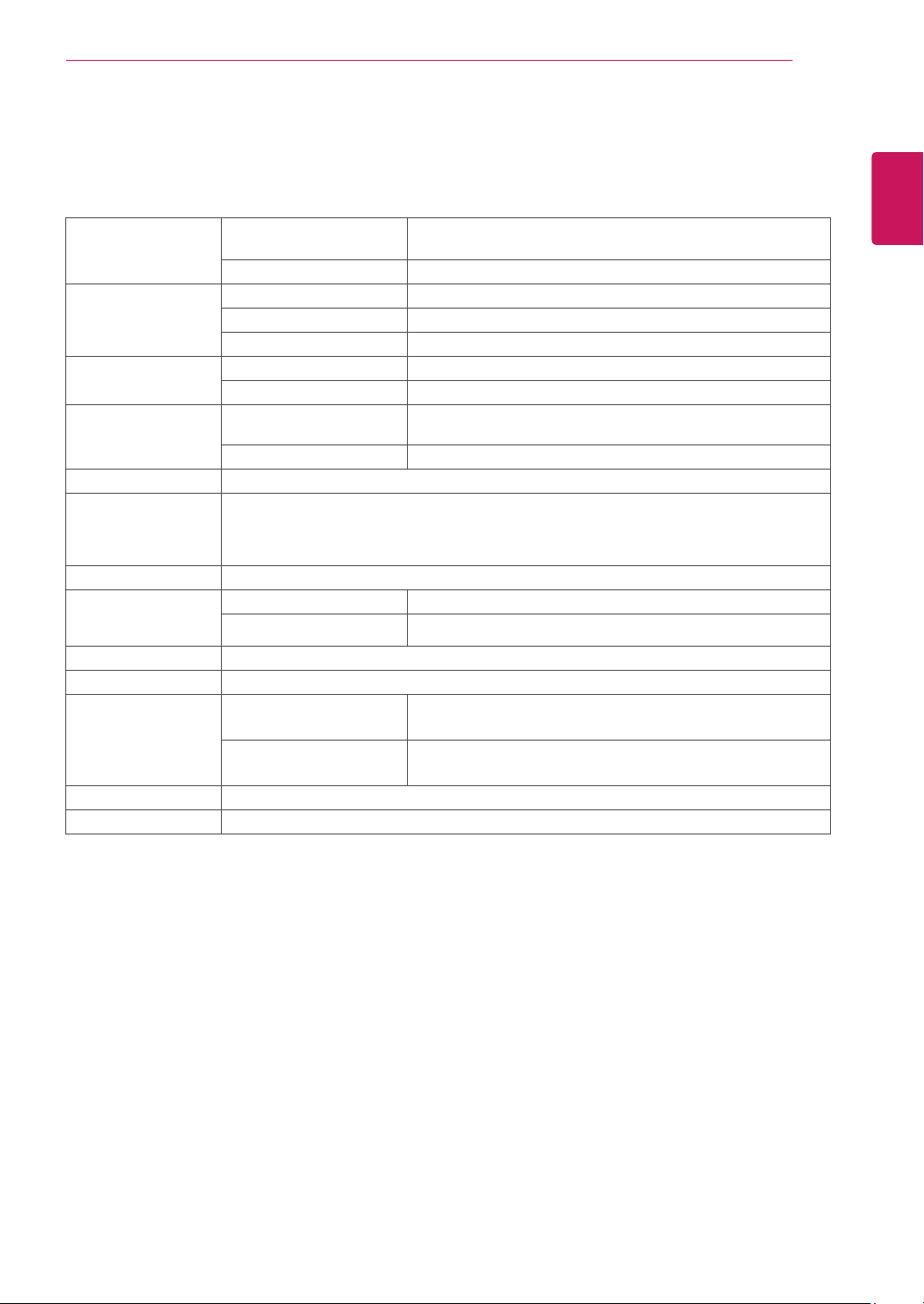
24MB35D
Display ScreenType Flat Panel Active matrix-TFT LCD
Anti-Glare coating
PixelPitch 0.2745 mm x 0.2745 mm (Pixel Pitch)
SyncInput HorizontalFrequency 30 kHz to 83 kHz (Automatic)
VerticalFrequency 56Hz to 75Hz (D-SUB,DVI-D)
InputForm Separate Sync. Digital
VideoInput SignalInput 15 pin D-SUB Connector /DVI-D Connector (Digital)
InputForm RGB Analog (0.7 Vp-p/ 75 ohm), Digital
Resolution Max D-SUB(Analog) : 1920 x 1080 @ 60 Hz
DVI (Digital) : 1920 x 1080 @ 60 Hz
Recommend VESA 1920 x 1080 @ 60 Hz
Plug&Play DDC 2B(Analog,Digital)
Power
Consumption
On Mode : 17.1 W Typ. (ENERGY STAR® standard)*
24.3 W Typ.(Outgoing condition)**
Sleep Mode ≤ 0.3 W
Off Mode ≤ 0.3 W
PowerInput AC 100-240V ~ 50/60Hz 1.2 A
Dimensions
(WidthxHeightx
Depth)
WithStand 56.9 cm x 43.3 cm x 21.0 cm
WithoutStand 56.9 cm x 34.2 cm x 6.3 cm
Weight 3.9 kg
TiltRange -5° to 20°
Environmental
conditions
OperatingTemperature
OperatingHumidity
10°C to 35 °C
10 % to 80 %
StorageTemperature
StorageHumidity
-20°C to 60 °C
5 % to 90 % non-Condensing
StandBase Attached ( ), Detached (O)
Powercord Wall-outlet type
Product specifications shown above may be changed without prior notice due to upgrade of product
functions.
* The power consumption level can be different by operating condition and monitor setting.
* The On mode power consumption is measured with ENERGY STAR® test standard.
**The On mode power consumption is measured with LGE test standard(Full White pattern,Maximum
resolution).
24
ENG
ENGLISH
SPECIFICATIONS
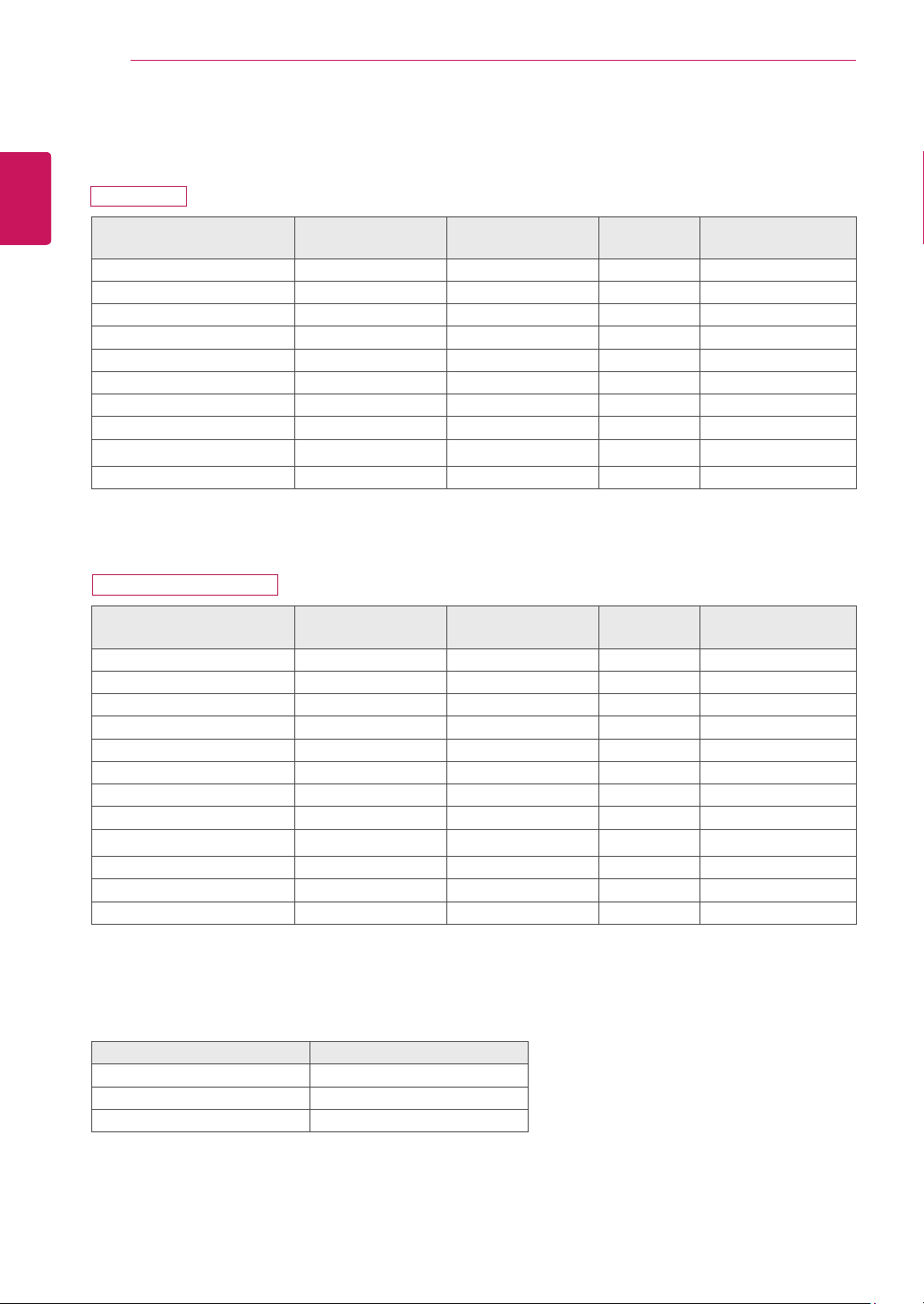
PresetModes(Resolution)
DisplayModes(Resolution)
Horizontal
Frequency(kHz)
Vertical
Frequency(Hz)
Polarity(H/V)
720 x 400 31.468 70 -/+
640 x 480 31.469 60 -/-
640 x 480 37.500 75 -/-
800 x 600 37.879 60 +/+
800 x 600 46.875 75 +/+
1024 x 768 48.363 60 -/-
1024 x 768 60.023 75 +/+
1152 x 864 67.500 75 +/+
1280 x 1024 63.981 60 +/+
1280 x 1024 79.976 75 +/+ Recommend Mode
DisplayModes(Resolution)
Horizontal
Frequency(kHz)
Vertical
Frequency(Hz)
Polarity(H/V)
720 x 400 31.468 70 -/+
640 x 480 31.469 60 -/-
640 x 480 37.500 75 -/-
800 x 600 37.879 60 +/+
800 x 600 46.875 75 +/+
1024 x 768 48.363 60 -/-
1024 x 768 60.023 75 +/+
1152 x 864 67.500 75 +/+
1280 x 1024 63.981 60 +/+
1280 x 1024 79.976 75 +/+
1680 x 1050 65.290 60 -/+
1920 x 1080 67.500 60 +/+ Recommend Mode
Indicator
Mode LEDColor
On Mode White
Sleep Mode Blinking White
Off Mode Off
19MB35D
22MB35D/24MB35D
25
ENG
ENGLISH
PROPER POSTURE
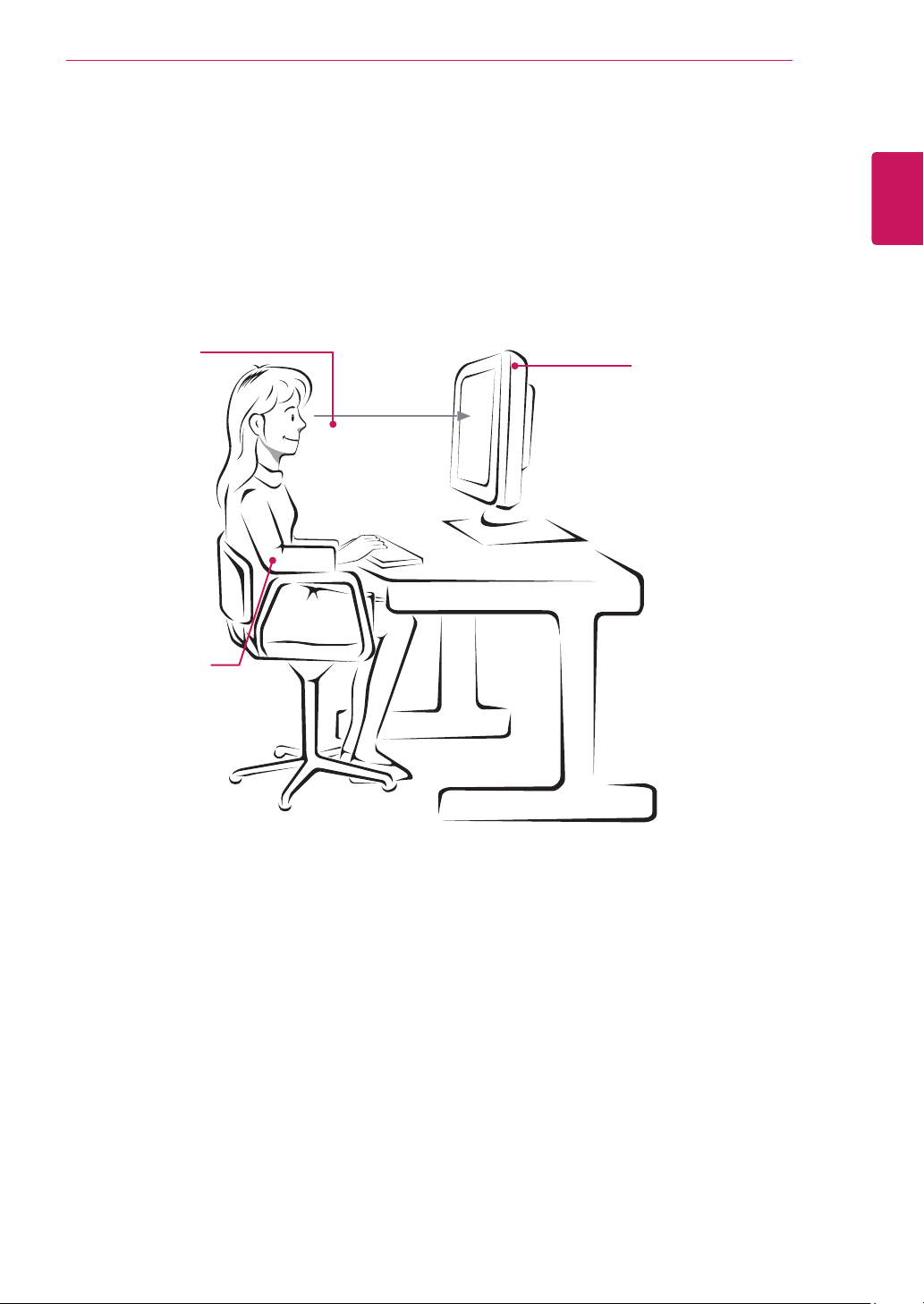
ProperpostureforusingtheMonitorset.
PROPERPOSTURE
Adjust the
Monitor set and
your posture to
allow you to view
images at the
optimal viewing
angle.
Place your hands
gently on the
keyboard, keeping
your arms bent at
the elbows and
horizontally outright.
Adjust the location of the
Monitor set to avoid it
reflecting light.
Make sure to read the Safety Precautions before
using the product.
Keep the Owner’s Manual (CD) in an accessible
place for future reference.
The model and serial number of the SET is
located on the back and one side of the SET.
Record it below should you ever need service.
As an ENERGY STAR Partner LGE
U. S. A.,Inc. has determined that this
product meets the ENERGY STAR
guidelines for energy efficiency.
ENERGY STAR is a set of power-saving
guidelines issued by the U.S.Environmental
Protection Agency(EPA).
MODEL
SERIAL
*above information is only for USA FCC Regulatory
Declaration of Conformity
Trade Name: LG
Model : 19MB35DE, 22MB35DE,
24MB35DE
Responsible Party: LG Electronics Inc.
Address : 1000 Sylvan Ave. Englewood Cliffs
NJ 07632 U.S.A
TEL: 201-266-2534