KDL-65W5100
KDL-52W5100
KDL-52W5150
KDL-46W5100
KDL-46W5150
KDL-40W5100
LCD Digital
Color TV
© 2009 Sony Corporation
Operating Instructions
Sony Customer Support
U.S.A.: www.sony.com/tvsupport
Canada: www.sony.ca/support
United States
1.800.222.SONY
Canada
1.877.899.SONY
Please Do Not Return
the Product to the Store
2
CAUTION
To prevent electric shock and blade exposure, do not use
this polarized AC plug with an extension cord, receptacle or
other outlet unless the blades can be fully inserted.
❑ Operate the TV only on 120-240 V AC.
❑ Avoid operating the TV at temperatures below 41°F
(5°C).
Licensing Information
Macintosh is a trademark of Apple Inc., registered in the U.S. and
other countries.
HDMI, the HDMI logo and High-Definition Multimedia Interface
are trademarks or registered trademarks of HDMI Licensing, LLC.
Fergason Patent Properties, LLC:
U.S. Patent No. 5,717,422
U.S. Patent No. 6,816,141
Manufactured under license from Dolby Laboratories. Dolby and
the double-D symbol are trademarks of Dolby Laboratories.
In the United States, TV Guide and other related marks are
trademarks of Gemstar-TV Guide International, Inc. and/or its
subsidiaries. In Canada, TV Guide is a registered mark of
Transcontinental Inc., and is used under license by Gemstar-TV
Guide International, Inc. and/or its subsidiaries.
The TV Guide On Screen system is manufactured under license
from Gemstar-TV Guide International, Inc. and/or its subsidiaries.
The TV Guide On Screen system is protected by one or more of the
following United States patents 6,498,895; 6,850,693; 6,396,546;
5,940,073; 6,239,794 to Gemstar-TV Guide International, Inc. and/
or its subsidiaries.
Gemstar-TV Guide International, Inc. and/or its related affiliates are
not in any way liable for the accuracy or availability of the program
schedule information or other data in the TV Guide On Screen
system and cannot guarantee service availability in your area. In no
event shall Gemstar-TV Guide International, Inc. and/or its related
affiliates be liable for any damages in connection with the accuracy
or availability of the program schedule information or other data in
the TV Guide On Screen system.
Blu-ray Disc is a trademark.
“BRAVIA” and , S-Force, Motionflow, BRAVIA Sync,
, and DMe
x
are trademarks or registered marks of Sony
Corporation.
“XrossMediaBar” is a trademark of Sony Corporation. “XMB” is a
trademark of Sony Corporation and Sony Computer Entertainment
Inc.
“PlayStation” is a registered trademark and “PS3” is a trademark of
Sony Computer Entertainment Inc.
DLNA
®
, the DLNA Logo and DLNA CERTIFIED™ are
trademarks, service marks, or certification marks of the Digital
Living Network Alliance.
Your BRAVIA TV is ENERGY STAR
®
qualified
in the “Home” mode.
It meets strict energy efficiency guidelines set by
the U.S. Environmental Protection Agency and
Department of Energy. ENERGY STAR is a joint
program of these government agencies, designed
to promote energy efficient products and
practices.
Changes to certain features, settings, and functionalities of this TV
(i.e. TV Guide, Picture/Sound, Light Sensor, Power Savings) can
increase or change the power consumption.
Depending upon such changed settings, the power consumption
may exceed the limits required for the ENERGY STAR
qualification in the “Home” mode.
Owner’s Record
The model and serial numbers are located at the side and the rear
of the TV. Record these numbers in the spaces provided below.
Refer to them whenever you call upon your Sony dealer
regarding this TV.
Model Name
Serial No.
This manual is for the 40, 46, 52 inch and 65 class BRAVIA KDL-W series models with screen size measured diagonally. The 65 class has a
64.5 inch viewable image size (measured diagonally).
3
Contents
Introducing Your BRAVIA
®
TV
Experiencing Stunning HD with
Your BRAVIA TV . . . . . . . . . . . . . . . . . . . . .4
The Four Steps to a Full HD Experience . . . .4
TV Feature Highlights . . . . . . . . . . . . . . . . . . .5
Getting Started
Setting Up Your TV . . . . . . . . . . . . . . . . . . . . .6
Using a Wall-Mount Bracket . . . . . . . . . . . . . .6
Securing the TV . . . . . . . . . . . . . . . . . . . . . . .7
Locating Inputs and Outputs . . . . . . . . . . . . . .8
Connecting the TV . . . . . . . . . . . . . . . . . . . .10
Connecting Internet & DLNA Certified™
Networks. . . . . . . . . . . . . . . . . . . . . . . . . . .13
Connecting Other Equipment . . . . . . . . . . . .14
Bundling the Connecting Cables. . . . . . . . . .15
Installing the TV Against a Wall or
Enclosed Area . . . . . . . . . . . . . . . . . . . . . .15
Running Initial Setup. . . . . . . . . . . . . . . . . . .16
Operating the TV
Using the Remote Control. . . . . . . . . . . . . . .17
Remote Control Button Description . . . . . . .18
TV Controls and Indicators . . . . . . . . . . . . . .21
Exploring the XMB
™
and TV
Features
Category Icons . . . . . . . . . . . . . . . . . . . . . . .23
Accessing Photo, Music, and Video
Content . . . . . . . . . . . . . . . . . . . . . . . . . . . .24
BRAVIA Internet Video . . . . . . . . . . . . . . . . .25
Photo, Music, and Video. . . . . . . . . . . . . . . .26
BRAVIA Internet Widgets . . . . . . . . . . . . . . .28
Favorites . . . . . . . . . . . . . . . . . . . . . . . . . . . .30
TV Guide On Screen
®
. . . . . . . . . . . . . . . . .31
Background TV . . . . . . . . . . . . . . . . . . . . . . .33
Inputs . . . . . . . . . . . . . . . . . . . . . . . . . . . . . .33
Wide Mode . . . . . . . . . . . . . . . . . . . . . . . . . .34
BRAVIA
®
Sync™ with Control
for HDMI . . . . . . . . . . . . . . . . . . . . . . . . . . .35
Other Information
How to Care for Your BRAVIA . . . . . . . . . . .36
Troubleshooting . . . . . . . . . . . . . . . . . . . . . .36
Specifications . . . . . . . . . . . . . . . . . . . . . . . .38
Index . . . . . . . . . . . . . . . . . . . . . . . . . . . . . . .39
Welcome to the World of BRAVIA
®
HDTV
Thank you for purchasing this Sony
BRAVIA
®
high-definition television. Use the
documentation listed below to get the most out of your TV.
Safety Booklet
Provides precautionary
measures to keep you and your
TV safe. Read this information
prior to setting up your TV.
Quick Setup Guide
Provides TV setup information,
illustrates sample optional
equipment connection diagrams,
and highlights TV features.
Operating Instructions
Provides general TV operation
information.
Reference Book
Offers the most complete TV
operation information available for
your TV and presents advanced
customization details. Access it at
www.sony.com/referencebook
.
The TV operation information above has been designed in an eco-friendly
manner to reduce the consumption of natural resources.
4
Introducing Your BRAVIA
®
TV
Experiencing Stunning HD with Your BRAVIA
TV
To experience the stunning detail of your new
BRAVIA
TV, you need access to high-definition
(HD) programming. Your
BRAVIA
TV can receive and display HD programming from:
• Over-the-air broadcasting via HD-quality antenna
• HD cable subscription
• HD satellite subscription
• Blu-ray Disc™ player or other HD compatible external equipment
Contact your cable, satellite or HD service provider for information on upgrading to HD
programming.
The Four Steps to a Full HD Experience
Set, Source, Sound, and Setup
Along with your BRAVIA TV set, a complete HD system requires a source of HD
programming, an HD sound system, and a proper connection setup. Refer to the Quick
Setup Guide, enclosed separately, for connecting other optional equipment.
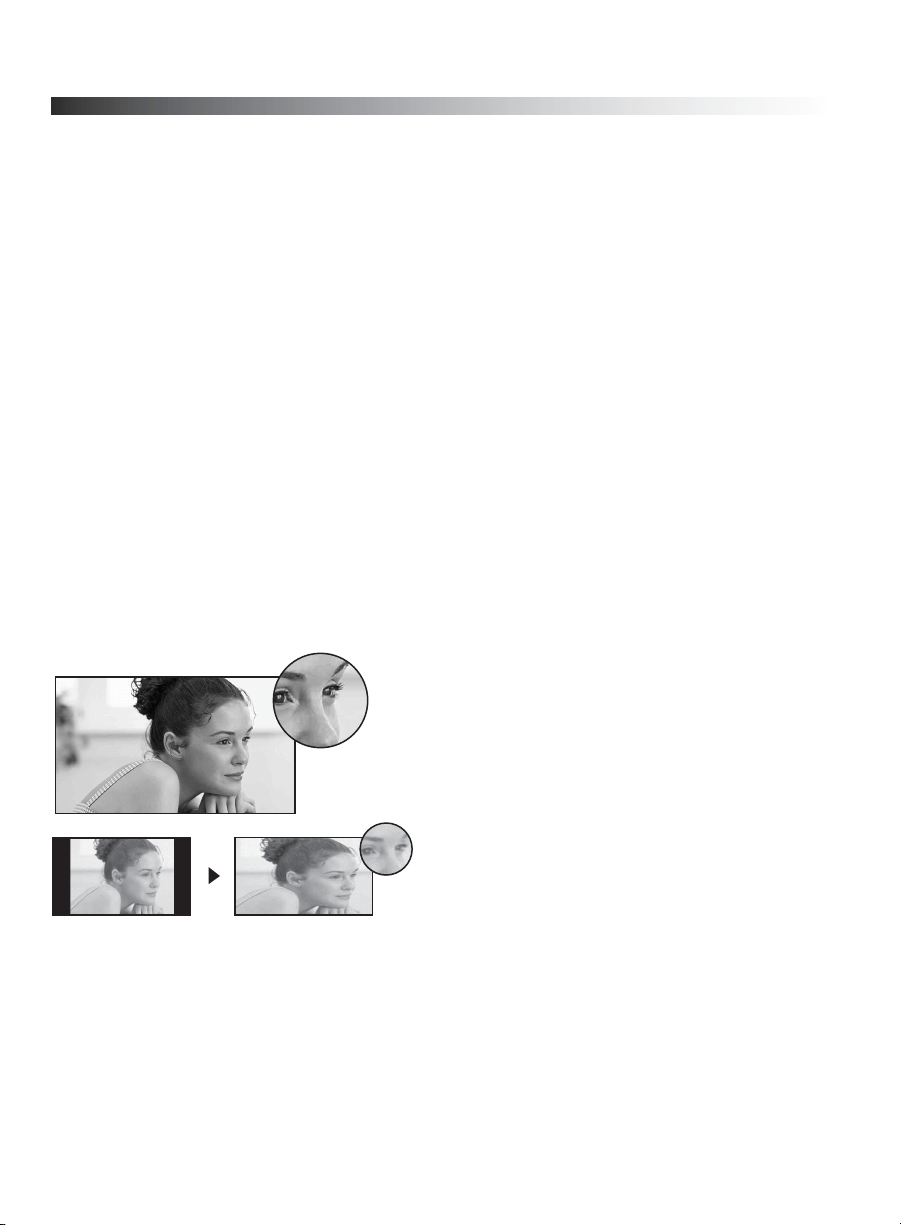
You can enjoy crisp, clear images, smooth
movement, and high-impact visuals from
1080 HD signals as shown here.
When you compare a high-definition signal to
a standard definition signal, you will notice a
big difference in picture quality. If black bars
appear as shown here, press WIDE on the
remote control to fill the screen.
Introducing Your BRAVIA
®
TV
5
TV Feature Highlights
Yo u r BRAVIA TV is equipped with the latest in TV technology.
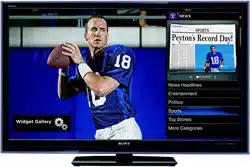
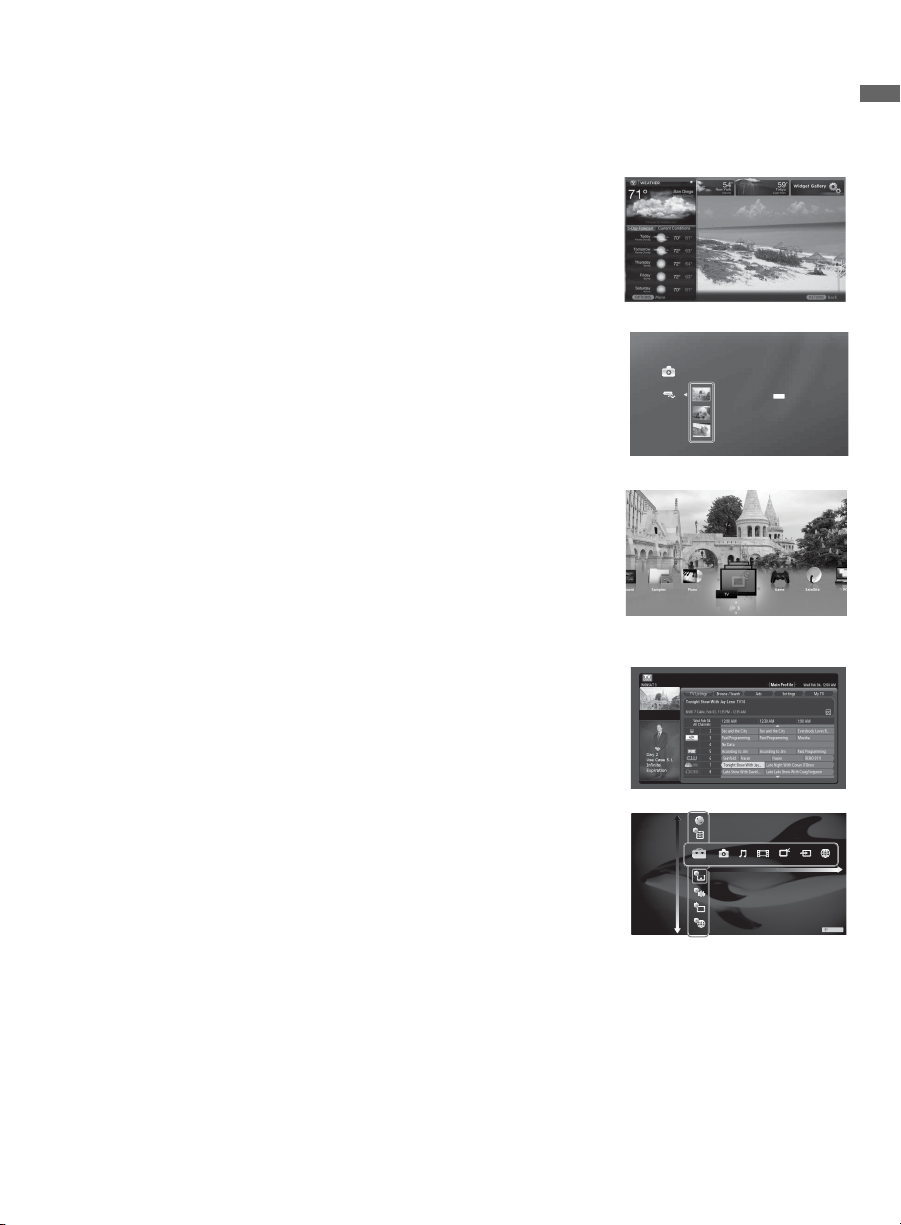
➢ Broadband Internet Connectivity: BRAVIA Internet
Video brings videos, movies and much more from the
Internet to your TV (page 25). BRAVIA Internet Widgets
allow you to access local weather, news, and much more.
Displayed here is Widgets (page 28).
➢ Digital Media Accessibility: Use the Photo, Music, and
Video Category icons to access photo, music, and video
files from DLNA Certified
TM
networked equipment or Sony
USB equipment. Displayed here is Photo USB (page 26).
➢ Central Location for Your Favorite Items: The
Favorites feature centralizes your favorite BRAVIA
Internet Video and Widgets items, Photo, Music, Video
content, TV channels, External Inputs, and Background
TV themes for quick and easy access (page 30).
➢ Channel Programming Information: TV Guide On
Screen
®
provides TV programming information (page 31).
➢ TV Home Menu: XMBTM (XrossMediaBar) TV menu
provides you access to TV settings, photo, music, video,
TV channel listings, and more (page 22).
Photo
DSC02991
Fri 5/25/2007 12:06 PM
JPG
DSC00140.JPG
DSC00141.JPG
Product Support
Picture & Display
Preferences
Sound
Channels & Inputs
Settings
Network
TV
6
Getting Started
Setting Up Your TV
Some TV models are packaged with a
detached Table-Top Stand so you can mount
your TV to a wall right away. If you are not
mounting the TV to a wall, you will need to
attach the Table-Top Stand. You will need a
Phillips screwdriver and the supplied screws to
complete the task. Look for the attachment
instructions provided with the TV.
Be sure to consider the following while setting
up your TV:
• Disconnect all cables when carrying the
TV.
• Carry the TV with the adequate number of
people; larger size TVs require two or
more people.
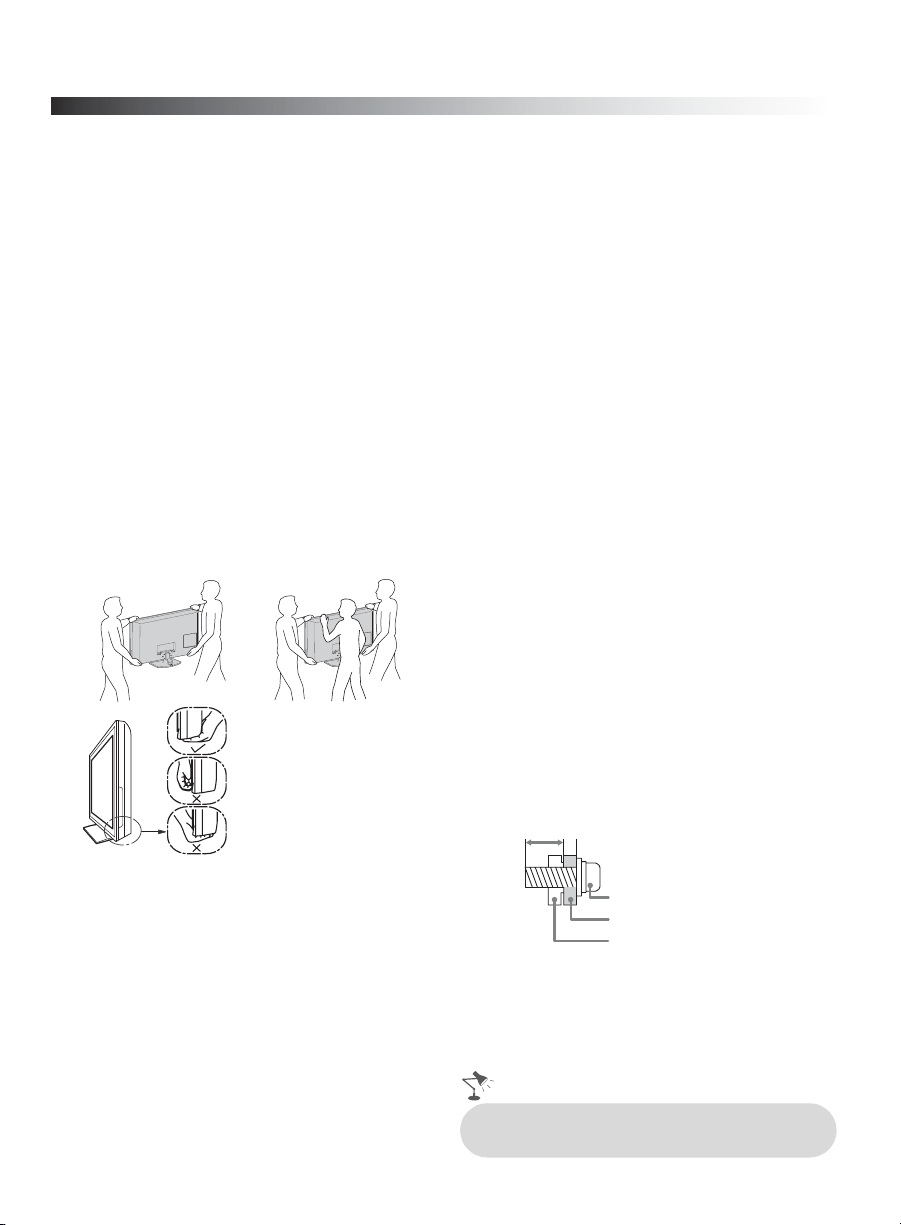
• Correct hand placement while carrying the
TV is very important for safety and to
avoid damage.
• Ensure your TV has adequate ventilation,
see page 15.
• For best picture quality, do not expose the
screen to direct illumination or sunlight.
• Avoid installing the TV in a room with
reflective wall and floor materials.
• Avoid moving the TV from a cold area to a
warm area. Sudden room temperature
changes may cause moisture condensation.
This may cause the TV to show poor
picture and/or poor color. Should this
occur, allow moisture to evaporate
completely before powering the TV on.
Using a Wall-Mount Bracket
Your TV can be mounted on a wall using a
Wall-Mount Bracket (not supplied) out of the
box as packaged. Some larger size TV may
require removing the Table-Top Stand; refer to
the instructions provided with the TV.
Prepare the TV for the Wall-Mount Bracket
before making cable connections.
For product protection and safety reasons,
Sony strongly recommends that you use the
Wall-Mount Bracket designed for your TV
and the installation should be performed by a
Sony dealer or licensed contractor
.
•
Follow the instruction guide provided with the
Wall-Mount Bracket for your model. You may
also need to refer to the online Reference Book
for additional information for your TV model.
Sufficient expertise is required in installing
this TV, especially to determine the strength of
the wall for withstanding the TV’s weight
.
•
Be sure to use the screws supplied with the
Wall-Mount Bracket when attaching the
mounting hooks to the TV set. (Do not use
the screws that are intended for the Table-
Top Stand attachment.)
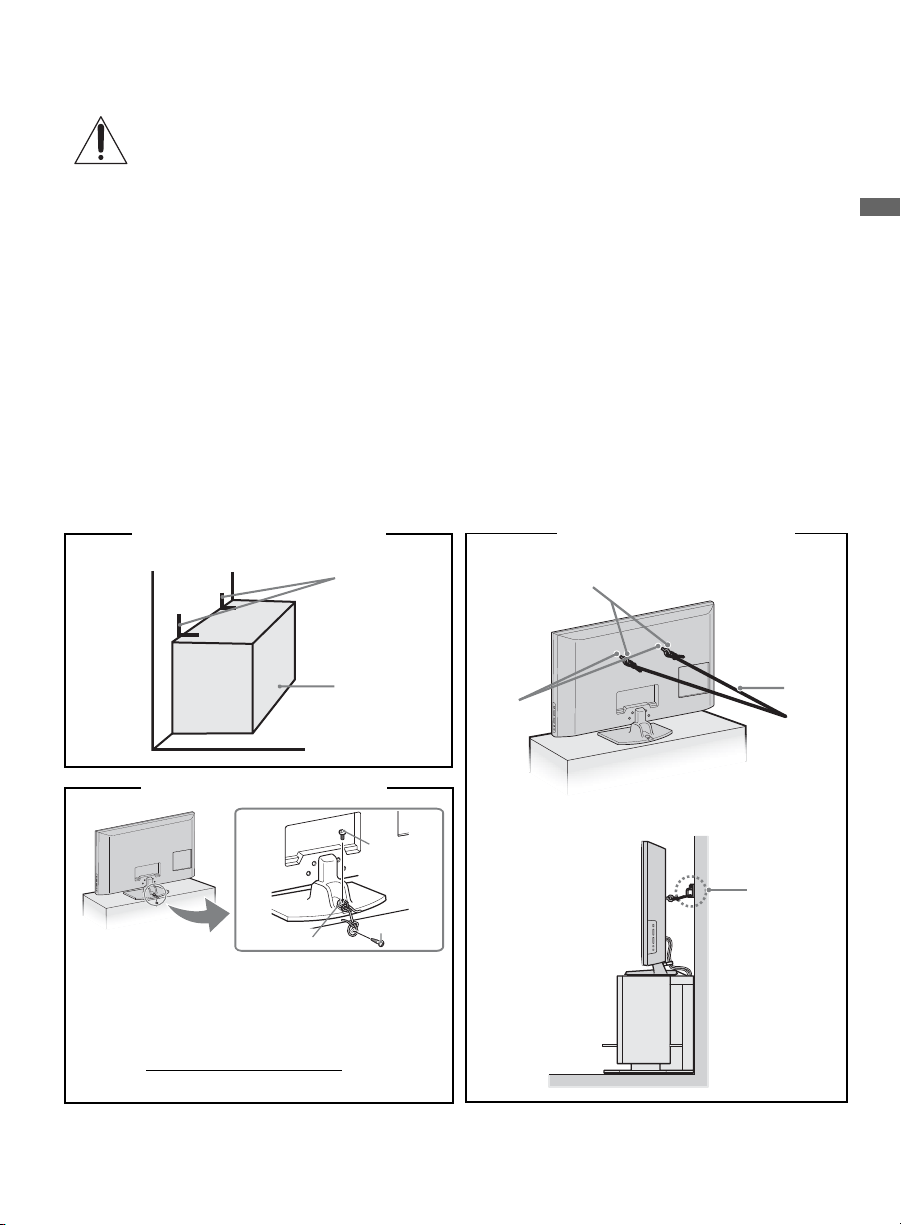
The supplied M6 screws are designed so
that they are 8 mm to 12 mm in length
when measured from the attaching surface
of the mounting hook.
Use of screws other than those supplied
with the bracket may result in internal
damage to the TV set or cause it to fall, etc.
• Be sure to store the unused screws and
Table-Top Stand in a safe place until you
are ready to attach the Table-Top Stand.
Keep the screws away from small children.
KDL-65W5100
8-12 mm
M6 screw
(supplied with the
Wall-Mount Bracket)
Mounting Hook
Rear of the TV set
• Read the supplied Safety Booklet for
additional safety information.
Getting Started
7
Securing the TV
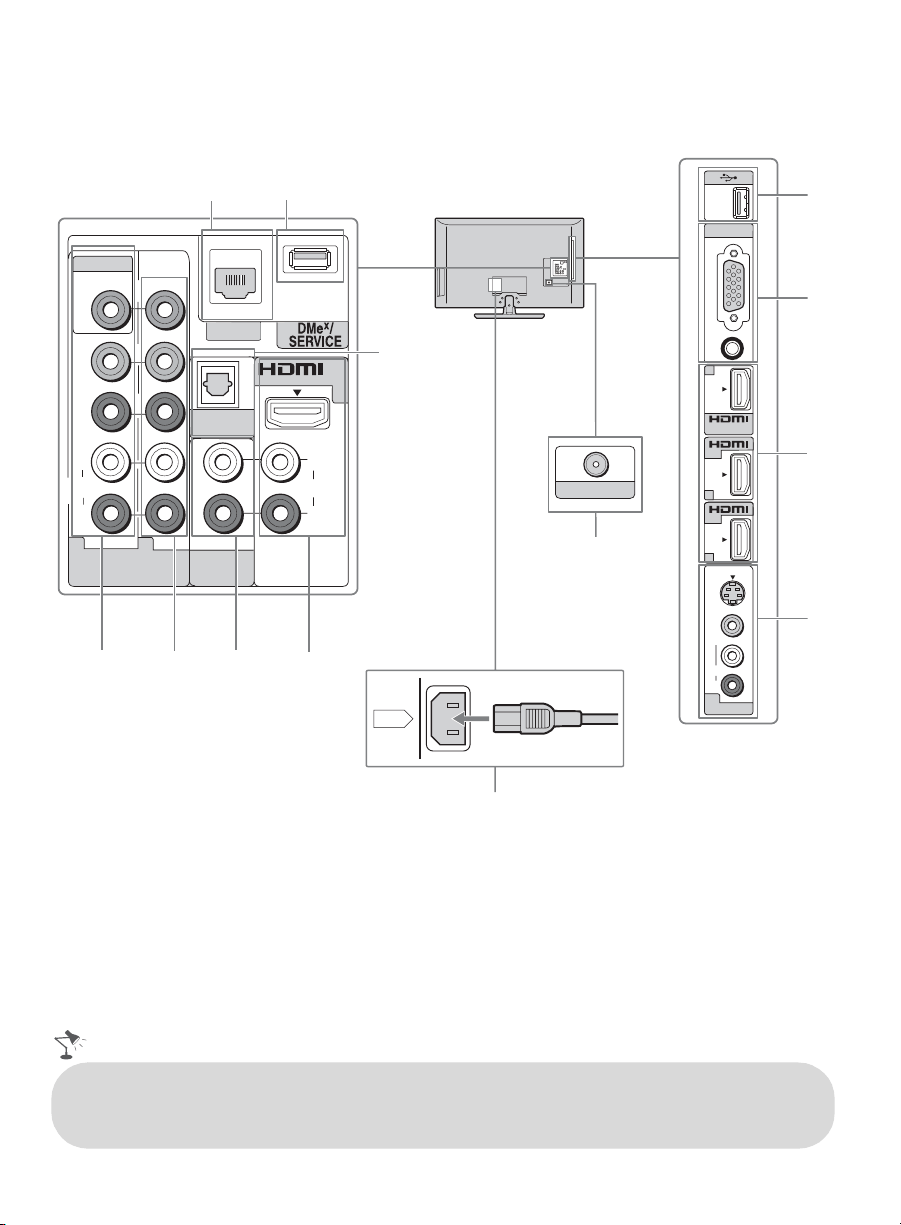
Sony strongly recommends taking measures to prevent the TV from toppling over.
Unsecured TVs may topple and result in property damage, serious bodily injury or even
death.
Preventing the TV from Toppling
❑ Secure the TV to a wall and/or stand.
❑ Do not allow children to play or climb on furniture and TV sets.
❑ Avoid placing or hanging items on the TV.
❑ Never install the TV on:
• slippery, unstable and/or uneven surfaces.
• furniture that can easily be used as steps, such as a chest of drawers.
❑ Install the TV where it cannot be pulled, pushed, or knocked over.
❑ Route all AC power cords and connecting cables so that they are not accessible to curious
children.
Detailed information available in the online Reference Book
Stand
Angle
brace
Secure the Stand for the TV
Anchor the TV to the Wall
Anchor bolts
Wall-
mount
holes
Rope
or
chain
Wall-
anchor
Contact Sony Customer Support to obtain the
optional Support Belt Kit by providing your TV
model name.
• For United States call: 1-800-488-7669
or visit: www.sony.com/accessories
• For Canada call: 1-877-899-7669
M4
×
20
machine screw
(KDL-65W5100
use M6
×
18)
Screw
Screw hole on the
Table-Top Stand
Secure the TV to the Stand
8
Locating Inputs and Outputs
PC IN
RGB
AUDIO
IN
IN
IN
AUDIO
R
VIDEO
(MONO)
L
VIDEO IN
S
VIDEO
P
R
P
B
Y
VIDEO IN
VIDEO
LAN
DIGITAL
AUDIO OUT
(OPTICAL)
AUDIO
L
R
AUDIO
R
AUDIO OUT
(VAR/FIX)
COMPONENT IN
(1080p/1080i/720p/480p/480i)
1 2
AUDIO
1
IN
L
3
4
2
2
CABLE / ANTENNA
AC IN
1
3
4
5
6
7
9
6
0
qa
2
Side Panel
Rear Panel
8
qs
• An HDMI or Component video (YPBPR) connection is required to view 480i, 480p, 720p, 1080i
and 1080p video formats. The 1080/24p video format is available only with HDMI connection.
This TV displays all video input signals in a resolution of 1,920 dots × 1,080 lines.
Getting Started
9
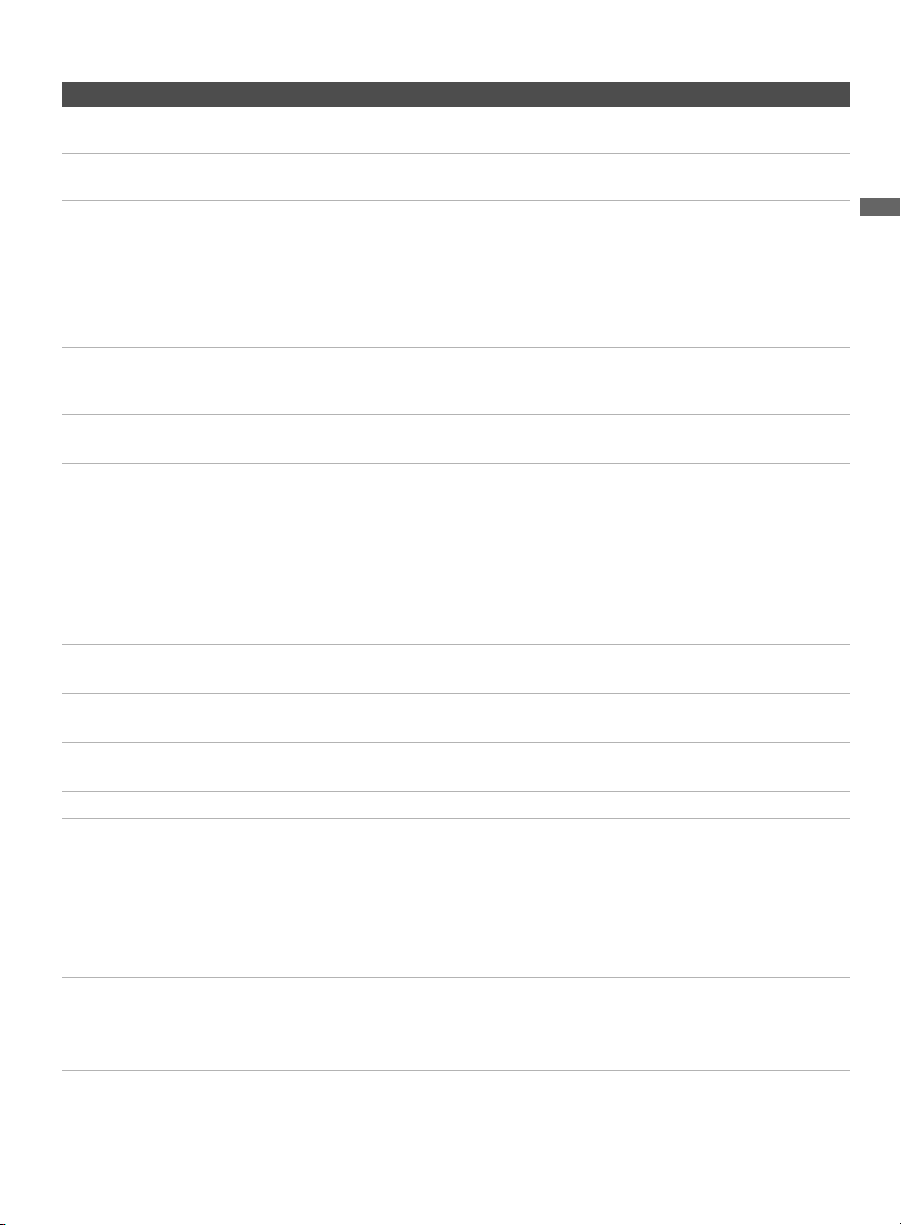
Item Description
1 LAN Connects to an existing network using an Ethernet cable. Be sure to complete
Network Setup (page 16).
2 DMe
x
/SERVICE This USB port is only for service unless you are connecting an optional BRAVIA
Link module (DMe
x
).
3 VIDEO IN 1/
COMPONENT
IN 1 (1080p/
1080i/720p/
480p/480i)/
L-AUDIO-R
This input port can be used as composite video input (VIDEO 1) or as component
video input (COMPONENT 1). For composite use, connect the yellow jack to Y for
video and use audio (L/R) for audio signals. For component connection, use Y, P
B
,
P
R
for video signals and also connect the audio (L/R) for audio signals.
By default, this TV will automatically detect and switch between VIDEO 1 and
COMPONENT 1. To manually set the input type, press HOME, select Settings,
then Channels & Inputs, then select Video/Component 1 Selection.
4 COMPONENT
IN 2
Component video provides better picture quality than the S Video and composite
video.
Audio connection is required for the COMPONENT IN ports, connect audio (L/R).
5 AUDIO OUT
(VAR/FIX)
Connects to the left and right audio input jacks of your analog audio equipment. You
can use these outputs to listen to your TV’s audio through your stereo system.
6 HDMI IN 1/2/3/4
L-AUDIO-R
HDMI (High-Definition Multimedia Interface) provides an uncompressed, all-
digital audio/video interface between this TV and any HDMI-equipped audio/video
equipment, such as a set-top box, DVD player, and A/V receiver. HDMI supports
enhanced, or high-definition video, plus digital audio. Be sure to use only an HDMI
cable that bears the HDMI logo.
Use the HDMI IN 1 port when connecting DVI equipment with a DVI-to-HDMI
cable or adapter (not supplied). Equipment using a DVI connection also requires an
additional audio connection using an audio cable connected to AUDIO (L/R).
7 DIGITAL AUDIO
OUT (OPTICAL)
Connects to the optical audio input of digital audio equipment that is PCM/Dolby*
Digital compatible.
8 AC IN Connects to your power source. Connect the supplied power cord to AC IN and the
nearest wall outlet.
9 CABLE/
ANTENNA
RF input that connects to your cable or over-the-air antenna.
0 USB Connects to USB equipment to access photo, music, and video files.
qa PC IN
(RGB/AUDIO)
Connects to a personal computer’s video and audio output connector. Can also be
connected to other analog RGB equipment.
For some Apple Macintosh computers, it may be necessary to use an adapter (not
supplied). If an adapter is used, connect the adapter to the computer before
connecting the HD15-HD15 cable.
You may need to adjust the TV settings or your PC’s resolution and timing (see
page 12).
qs VIDEO IN 2
S VIDEO/VIDEO
L (MONO)-
AUDIO-R
Connects to the S VIDEO output jack of video equipment. If both composite video
and S VIDEO are connected, S VIDEO signal has priority.
If you have mono equipment, connect its audio output port to the TV’s L (MONO)
audio input port.
* Manufactured under license from Dolby Laboratories. Dolby and the double-D symbol are trademarks of Dolby
Laboratories.
10
Connecting the TV
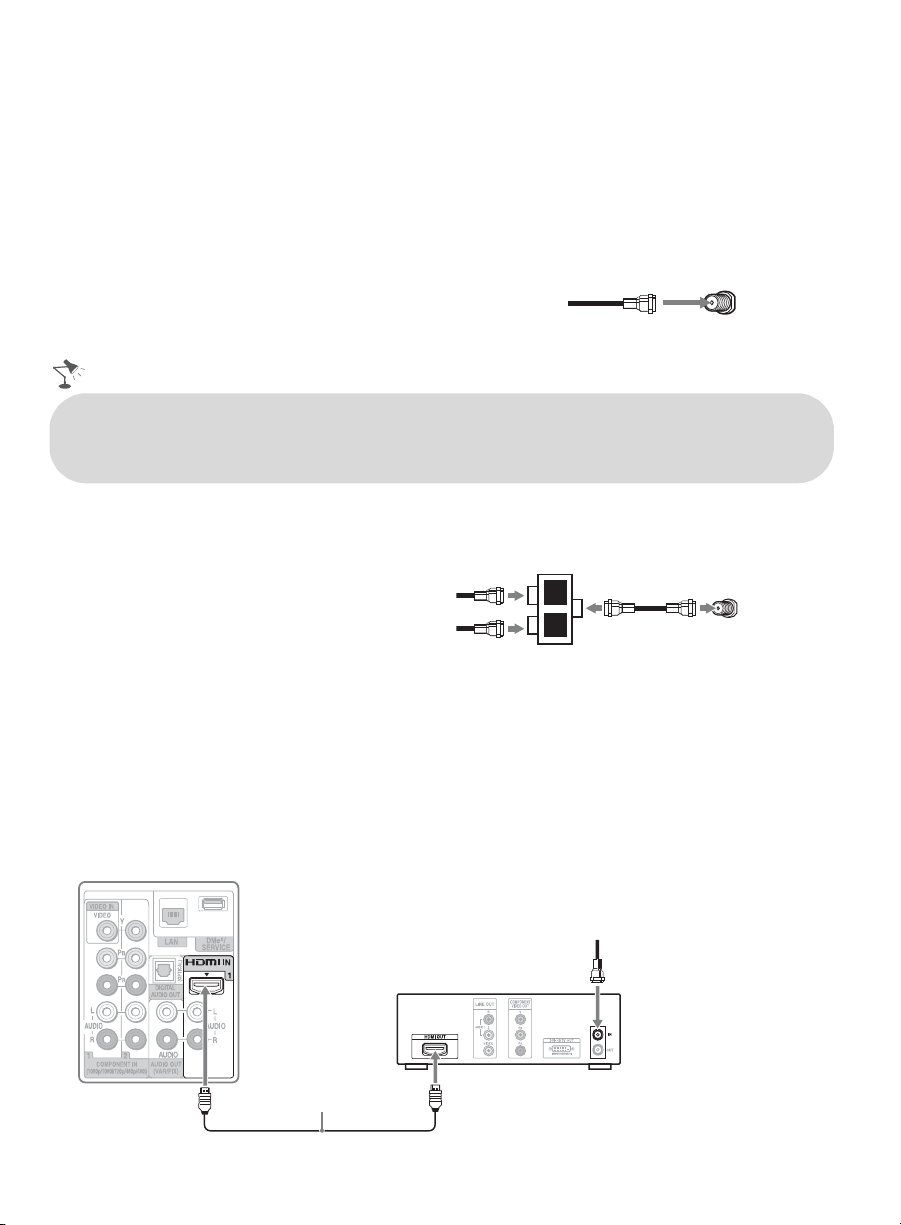
Cable System or VHF/UHF Antenna System
You can enjoy high-definition and standard-definition digital programming (if available in your
area) along with standard-definition analog programming.
This TV is capable of receiving unscrambled digital programming for both cable (QAM and
8VSB) and external VHF/UHF antenna (ATSC).
Cable or VHF/UHF (or VHF only)
Cable System and VHF/UHF Antenna System
Use an optional A-B RF switch (not
supplied) to switch between the cable
and over-the-air antenna programming,
as shown here.
Set the Cable/Antenna setting found
under the Settings on the XMB
™
to Cable or Antenna for the type of input signal you choose.
HD Cable Box/HD Satellite Box
You can enjoy high-definition programming by subscribing to a high-definition service or a high-
definition satellite service. For the best possible picture, make sure you connect this equipment to
your TV via the HDMI or component video (with audio) input located on the back of your TV.
Shown with HDMI Connection
75-ohm coaxial cable Rear of TV
CABLE/ANTENNA
• It is strongly recommended that you connect the CABLE/ANTENNA input using a 75-ohm
coaxial cable to receive optimum picture quality. A 300-ohm twin lead cable can easily be affected
by radio frequency interference, resulting in signal degradation.
B
A
Cable
Antenna
A-B RF Switch
Rear of TV
CABLE/ANTENNA
Rear of TV
HDMI cable
HD cable box/
HD satellite box
CATV/Satellite antenna cable
Getting Started
11
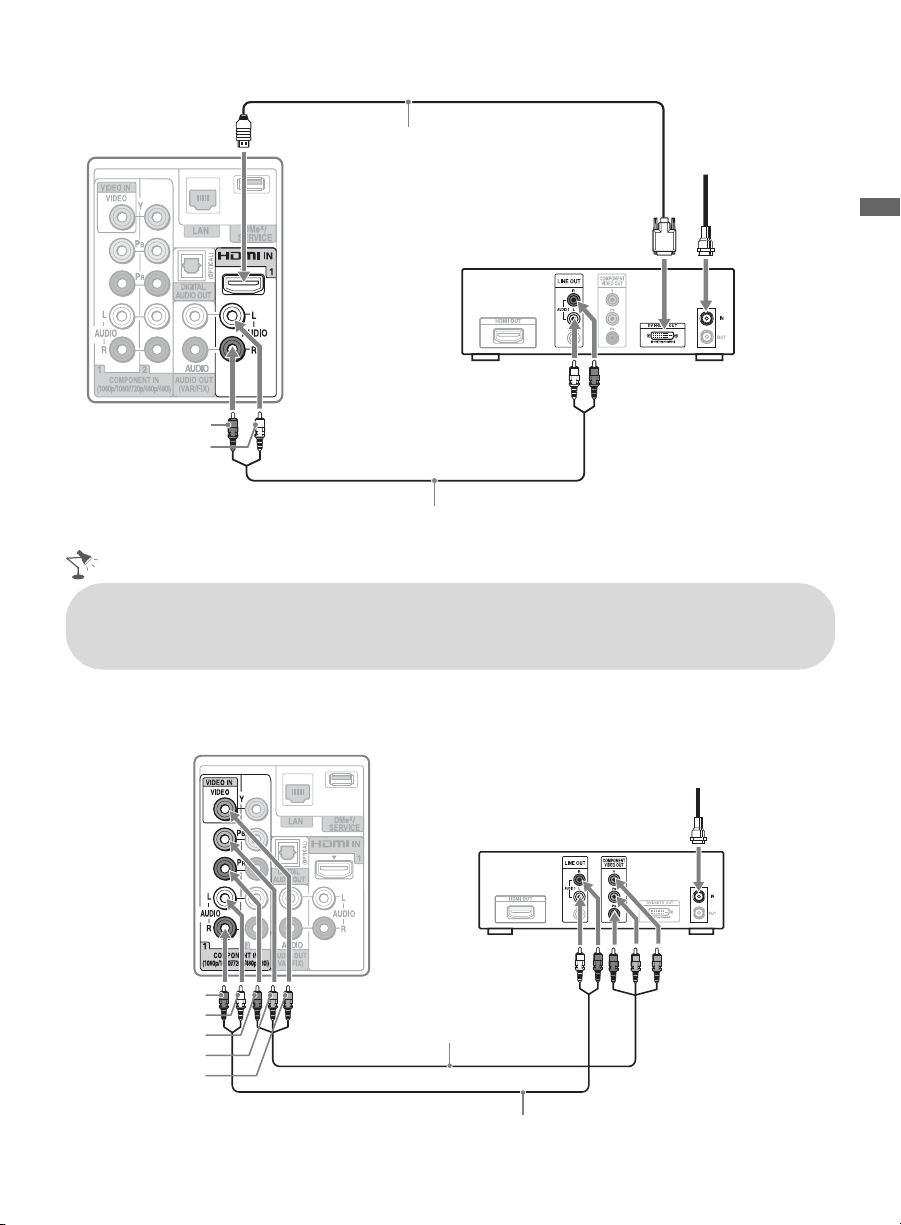
Shown with DVI Connection
Shown with Component Connection
Rear of TV
DVI-to-HDMI cable
HD cable box/
HD satellite box
AUDIO-R (red)
AUDIO-L (white)
CATV/
Satellite
antenna
cable
Audio cable
• If your equipment has a DVI output and not an HDMI output, connect the DVI output to the
HDMI IN 1 (with DVI-to-HDMI cable or adapter) and connect the audio output to the AUDIO
IN (L/R) of HDMI IN 1.
Rear of TV
CATV/Satellite antenna cable
AUDIO-R (red)
AUDIO-L (white)
Component video cable
Audio cable
P
R
(red)
P
B
(blue)
Y (green)
HD cable box/
HD satellite box
(Continued)
12
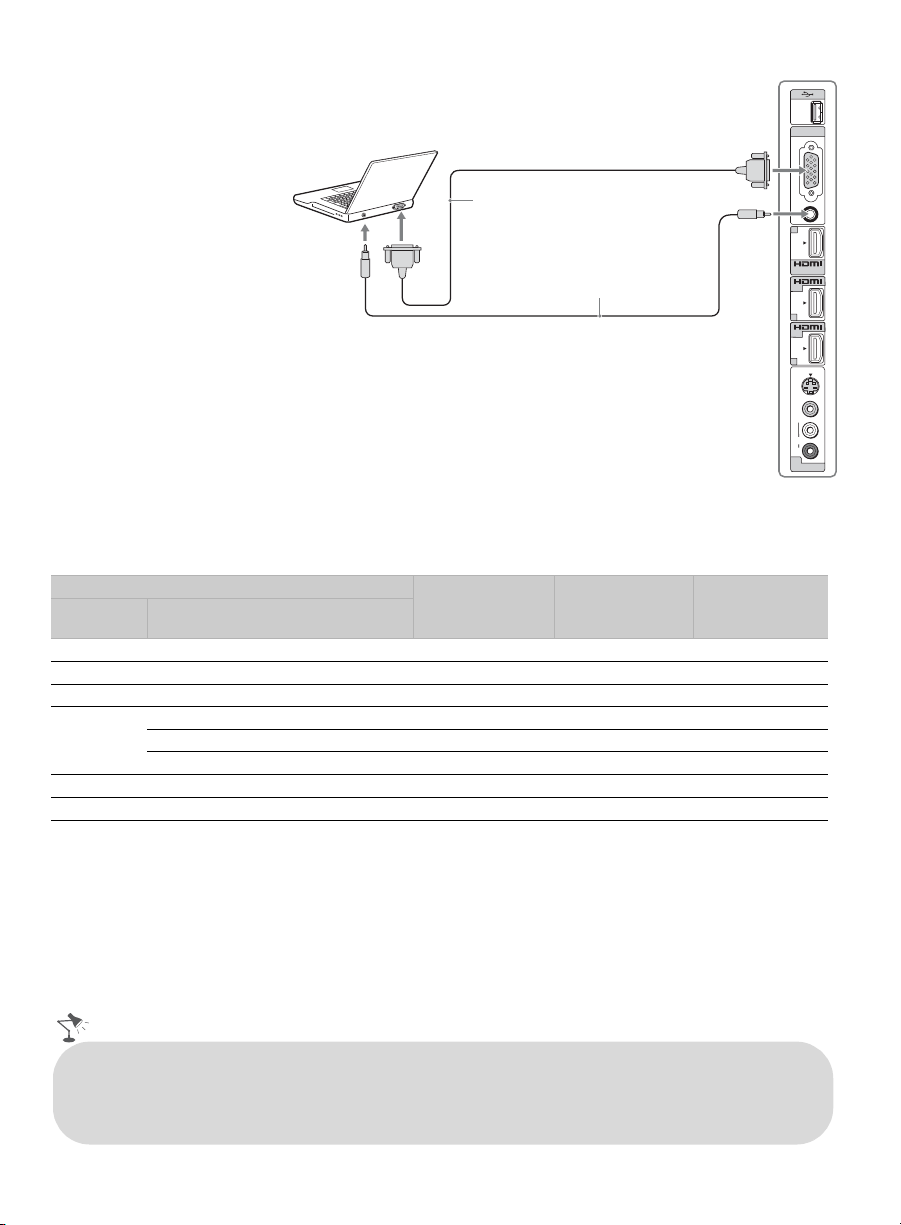
Shown with PC connection
Use the TV as a monitor for
your PC by connecting an
HD15-HD15 cable
connection as shown to the
right.
This TV can also be
connected to a PC with a
DVI or HDMI output.
(Refer to the supplied Quick
Setup Guide.)
PC Input Signal Reference Chart
After connecting the PC to the TV, set the output signal from your PC according to the supported
resolutions and timings indicated below.
~
• This TV’s PC input does not support Sync on Green or Composite Sync.
• This TV’s PC VGA input does not support interlaced signals.
• For the best picture quality, it is recommended to use the signals in the above chart. In plug and play, signals
with a 60 Hz vertical frequency will be detected automatically. (PC reboot may be necessary.)
* The 1080p timing when applied to the HDMI input will be treated as a video timing and not PC timing. This
affects Picture settings and Wide Mode settings. To view PC content set Scene Select to Graphics,
Wide Mode to Full, and Display Area to Full Pixel.
Supported resolutions
Horizontal
frequency (kHz)
Vertical
frequency (Hz)
Standard
Signal Horizontal
(Pixel)
× Vertical
(Line)
VGA 640
×
480 31.5 60 VGA
SVGA
800
×
600 37.9 60 VESA Guidelines
XGA
1,024
×
768 48.4 60 VESA Guidelines
WXGA
1,280
×
768 47.4 60 VESA
1,280
×
768 47.8 60 VESA
1,360
×
768 47.7 60 VESA
SXGA
1,280
×
1,024 64.0 60 VESA
HDTV*
1,920
×
1,080 67.5 60 CEA-861*
PC IN
RGB
AUDIO
IN
IN
IN
AUDIO
R
VIDEO
(MONO)
L
VIDEO IN
S
VIDEO
3
4
2
2
Side panel
HD15-HD15 cable
(analog RGB)
Audio cable
(stereo mini plugs)
• Connect the PC IN jack to the PC using an HD15-HD15 cable with ferrite core (analog RGB) and
audio cable (see page 9).
• The TV enters the standby mode automatically when the PC is connected to the TV and no signal
has been output from the PC for more than 30 seconds, see the online Reference Book for details.
Getting Started
13
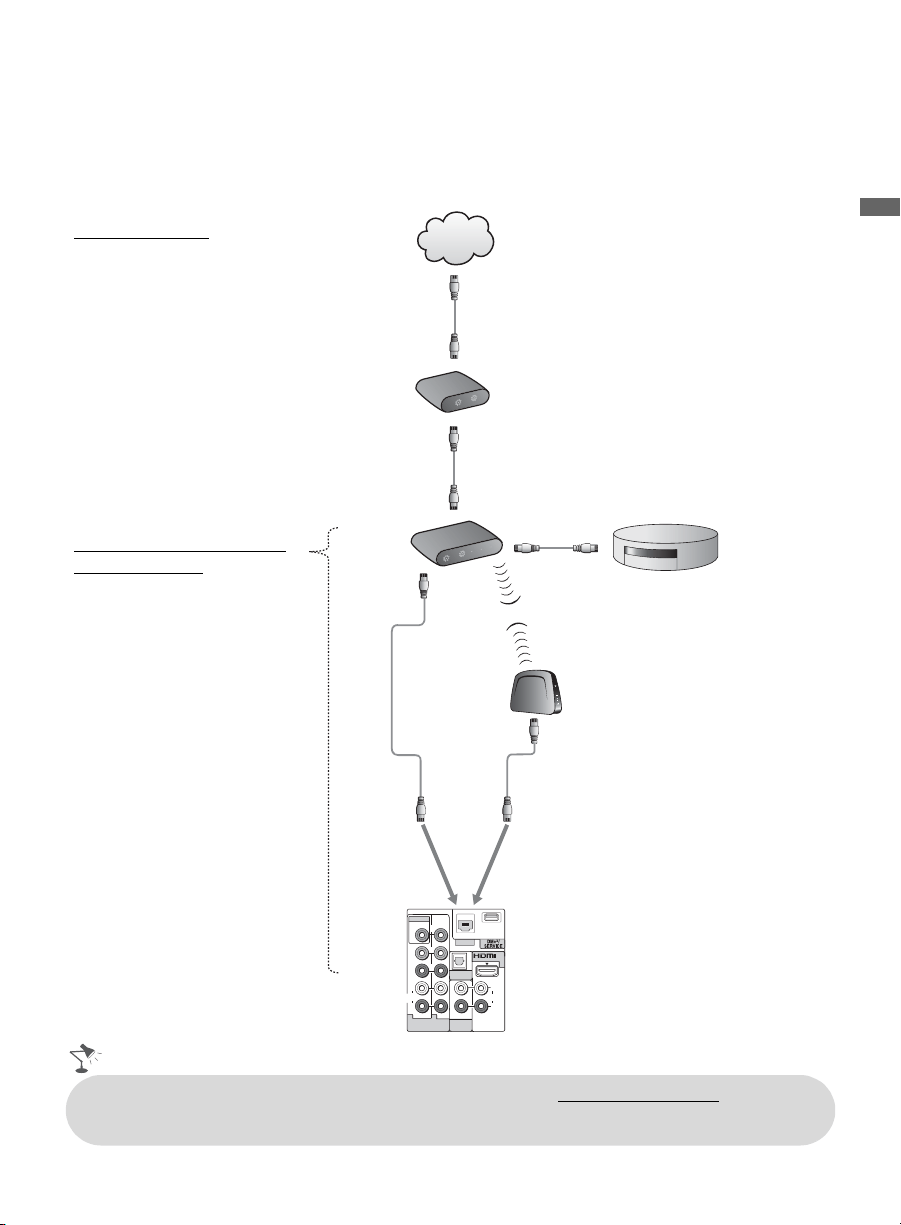
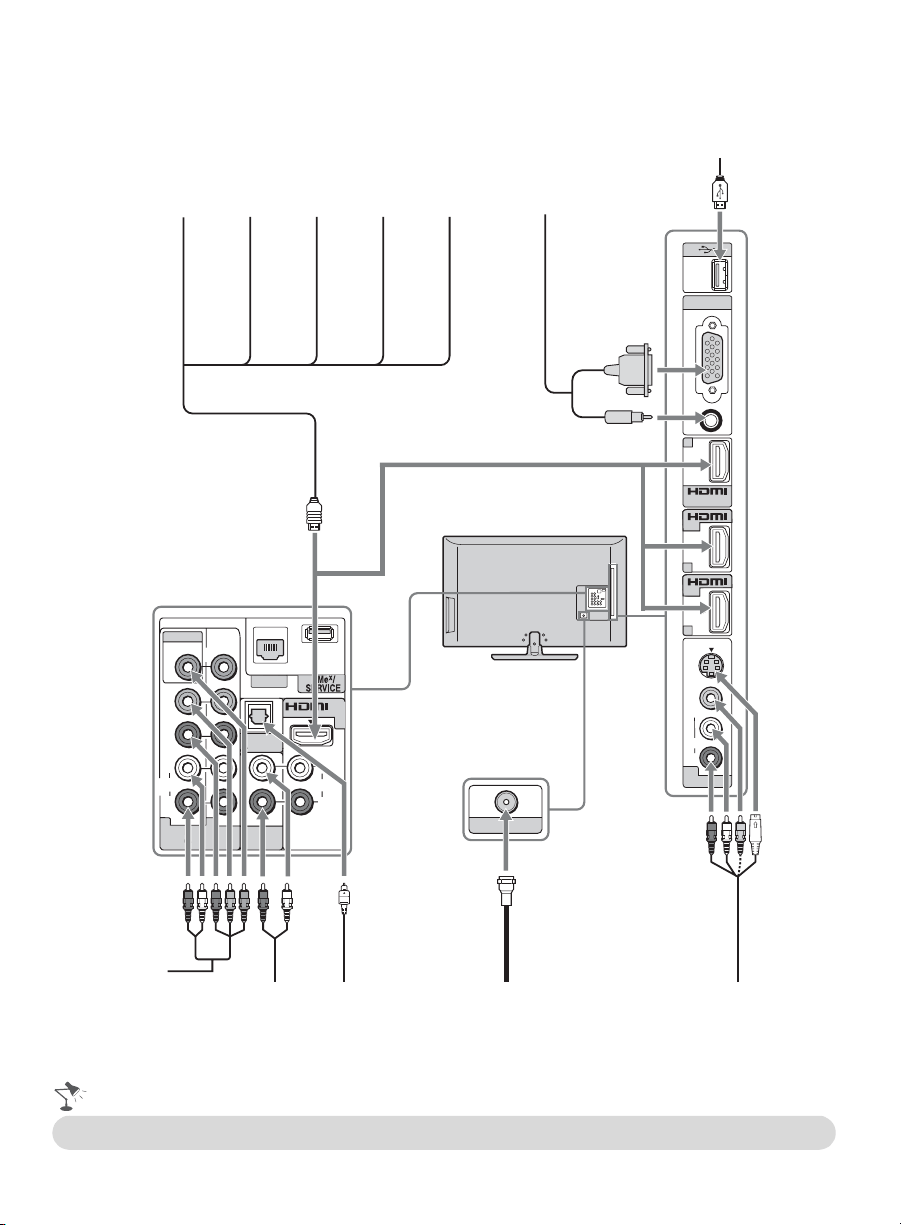
Connecting Internet & DLNA Certified™ Networks
Connect an Ethernet cable from your home network to the LAN input of your TV to enjoy
BRAVIA Internet features and/or connect to DLNA Certified™ media servers, see page 25 to
learn more about these features.
Sample Network Connection Diagram
POWER
PORT 1
P
O
W
P
O
1
RT
OR
PORT 2
PORT 3
PORT 4
W
E
R
POWER
INTERNET
P
O
W
N
T
E
R
N
T
E
R
W
E
R
P
R
P
B
Y
VIDEO IN
VIDEO
LAN
(OPTICAL)
AUDIO
L
R
AUDIO
R
AUDIO OUT
(VAR/FIX)
COMPONENT IN
(1080p/1080i/720p/480p/480i)
1 2
AUD IO
1
IN
L
DIGITAL
AUDIO OUT
!
Internet
Modem
Router
or
Wireless Bridge
Internet Features
• BRAVIA Internet Video
• BRAVIA Internet Widgets
DLNA Certified™ Media
Player Features
• Photo
•Music
•Video
DLNA Certified™ Media Server
• For more information about compatible wireless bridges, visit https://internet.sony.tv
• Refer to your DLNA Certified equipment’s operating instructions for setup and connection
information.
14
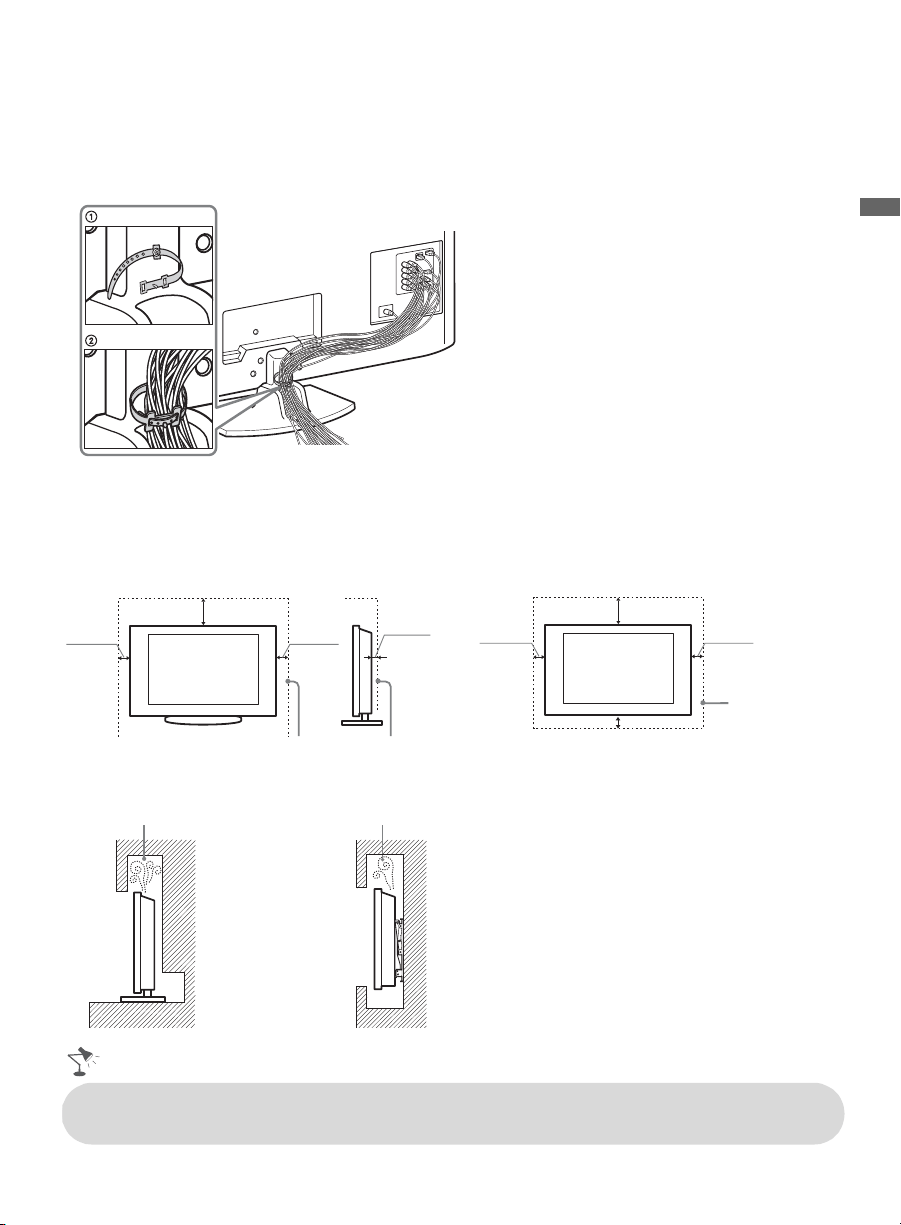
Connecting Other Equipment
PC IN
RGB
AUDIO
IN
IN
IN
AUDIO
R
VIDEO
(MONO)
L
VIDEO IN
S
VIDEO
3
4
2
2
P
R
P
B
Y
VIDEO IN
VIDEO
LAN
DIGITAL
AUDIO OUT
(OPTICAL)
AUDIO
L
R
AUDIO
R
AUDIO OUT
(VAR/FIX)
COMPONENT IN
(1080p/1080i/720p/480p/480i)
1 2
AUDIO
1
IN
L
CABLE / ANTENNA
IN
IN
Personal
computer
Blu-ray
Disc Player/
“PS3”
DVD
player
Digital
satellite
receiver
VCR/
Game system/
Camcorder
Digital
recorder
Analog audio
equipment
(A/V Receiver/Home Theater)
Digital audio
equipment
CABLE/ANTENNA
Digital
cable box
Audio
system
USB
• Refer to the Quick Setup Guide (supplied) when connecting other equipment to your TV.
Getting Started
15
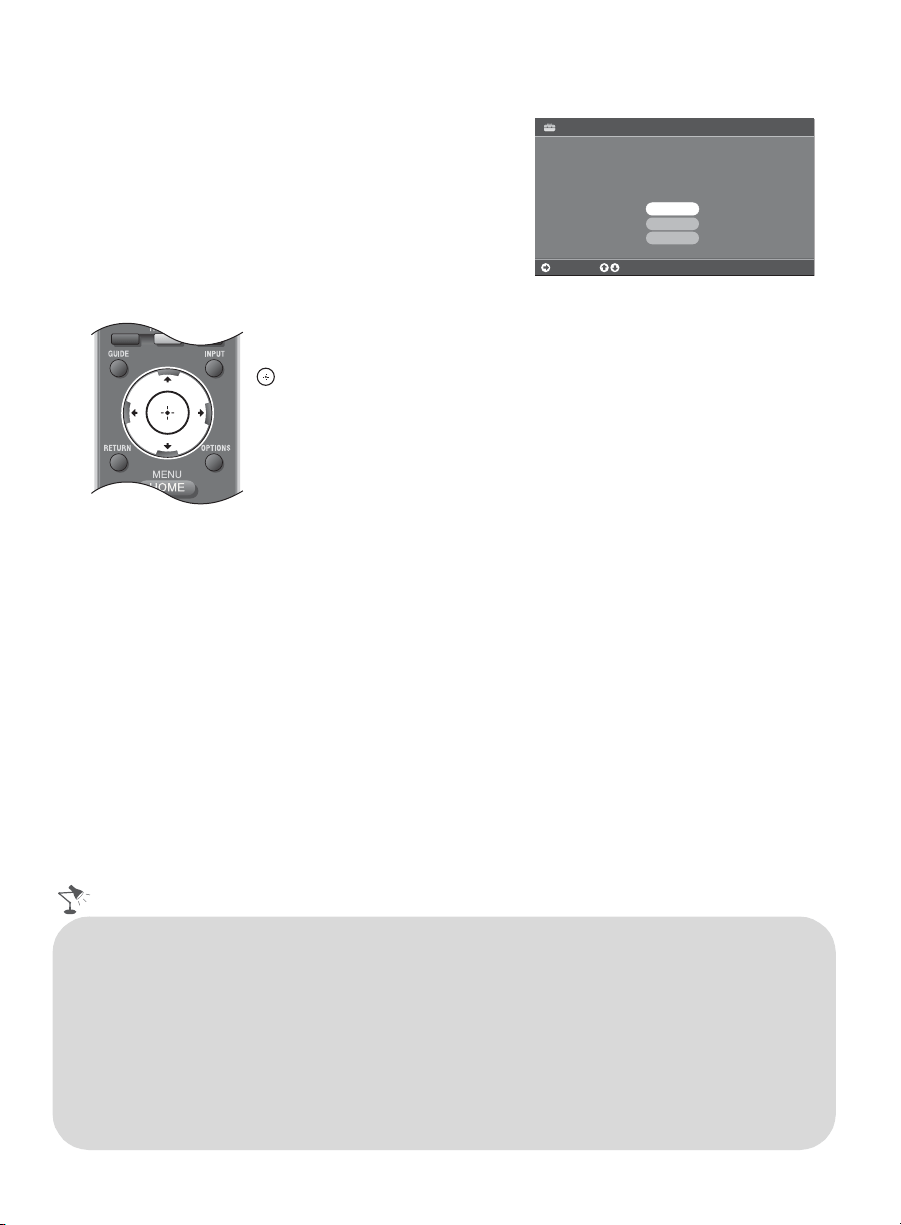
Bundling the Connecting Cables
Use the attached cable clamper to bundle the connecting cables. The cable clamper is located on
the Table-Top Stand as illustrated. Refer to the online Reference Book when mounting the TV to a
wall.
Do not bundle the AC power cord with other connecting cables. This can affect the picture quality.
Installing the TV Against a Wall or Enclosed Area
Make sure that your TV has adequate ventilation. Allow enough space around the TV as shown
below. Avoid operating the TV at temperatures below 41 °F (5 °C).
(30 cm)
11
7
/
8
inches
(6 cm)
inches
4 inches
(10 cm)
4 inches
(10 cm)
2
3
/
8
Leave at least this much space around the set.
Installed with stand
inches
11
7
/
8
4 inches
(10 cm)
4 inches
(10 cm)
4 inches (10 cm)
(30 cm)
Installed on the wall
Leave at least
this much space
around the set.
Never install the TV set as follows:
Air circulation is blocked.
Air circulation is blocked.
Wall
Wall
• Inadequate ventilation can lead to overheating of the TV and may cause TV damage or cause
a fire.
16
Running Initial Setup
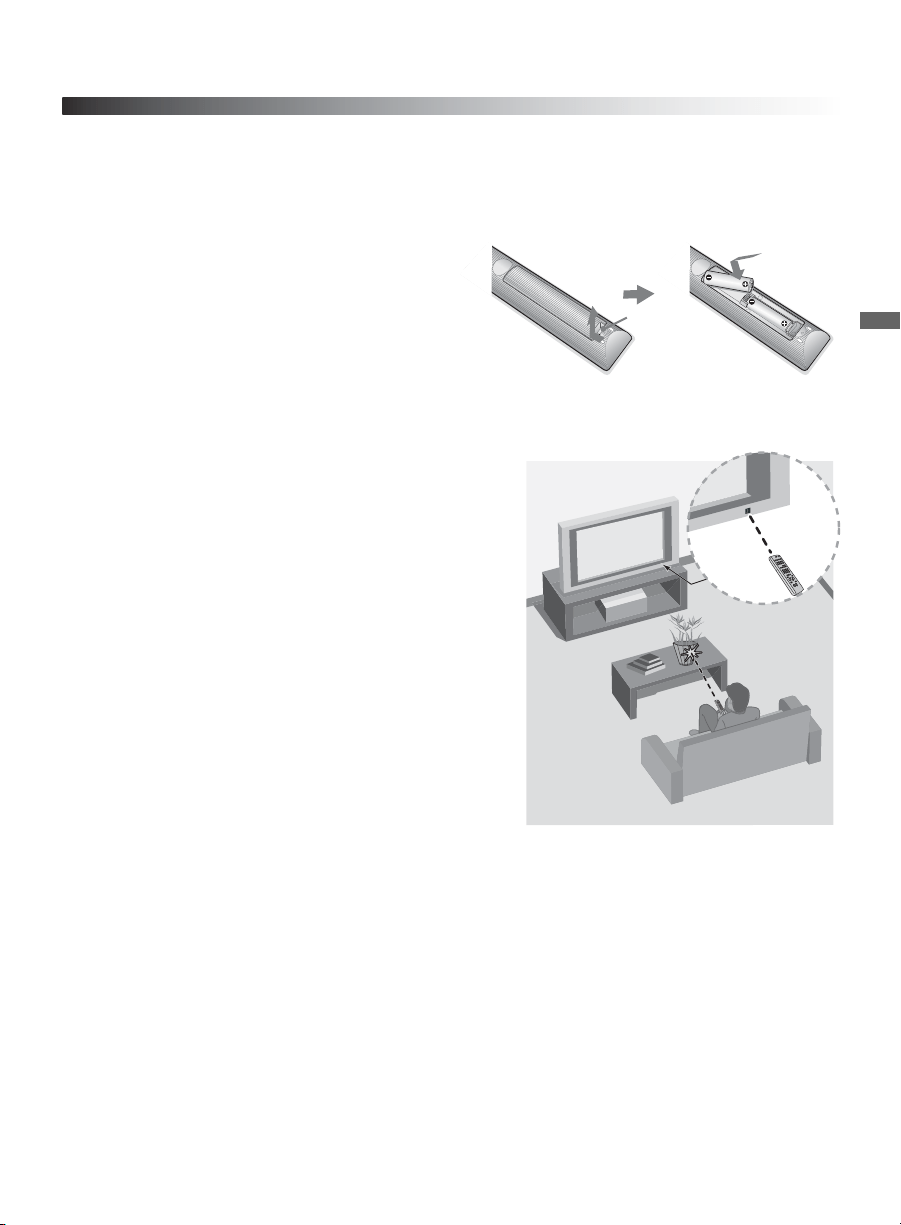
The Initial Setup screen appears when you turn on the
TV for the first time.
1 Complete your cable connections before proceeding
with the Initial Setup (refer to the Quick Setup
Guide and the online Reference Book for additional
information).
2 Use the following remote control buttons to navigate
through the Initial Setup.
3 Select the language for the on-screen display (OSD) text.
4 Select your viewing environment. Home mode sets the TV display to settings optimized for
home viewing (this setting is ENERGY STAR compliant). Retail mode changes the display
settings to a default more appropriate for a store environment.
5 Select your country and enter your ZIP or Postal code.
6 Set the clock to the current date and time.
7 Select Continue to scan for available channels and enable the TV Guide On Screen
®
feature. If you receive channels from a cable box or satellite receiver and do not wish to use
the TV’s built-in tuner, select Skip. Selecting Skip will disable the TV Guide On Screen
feature, which is only available when the TV’s tuner is used.
8 To benefit from the network features included on this TV, connect to your existing home
network (see page 13). Follow the instructions on the screen to complete Network Setup, or
select Skip to complete it at a later time (optional). Refer to the online Reference Book for
more details.
Initial Setup is complete. You can now begin watching your new TV.
V/v button:
Allows you to highlight options where applicable.
button:
Allows you to select the highlighted option.
B button:
Allows you to move back to the previous screen, where applicable.
b button:
Allows you to move to the next screen, where applicable.
Welcome! Please select a language.
¡Bienvenido! Seleccione el idioma.
Bienvenue! Sélectionner la langue.
Initial Setup
ChooseContinue
English
RETURN
Español
Français
WIDE SCENE
• Enabling the TV Guide On Screen feature will increase the amount of time the TV is in Download
Acquisition Mode (DAM); see page 38.
• For more information on TV Guide On Screen, see page 31.
• If the language that you selected in the
Language
setting is available from the broadcaster as an
Alternate Audio
language, your TV will automatically switch to the matching language with the
Alternate Audio
feature. To change the audio settings, access the
Alternate Audio
menu by
pressing
OPTIONS
on the remote control when an alternate audio stream is available from the
broadcaster.
Alternate Audio
is only available for digital programs (see the online Reference Book).
• To complete Network Setup at a later time, access the XMB
™
and select the Network icon on the
Settings menu. Then select Network Setup.
Operating the TV
17
Operating the TV
Using the Remote Control
Inserting Batteries into the Remote Control
Insert two size AA batteries (supplied) by
matching e and E on the batteries to the
diagram inside the battery compartment of
the remote control.
Guidelines for Remote Control
Push to
open
• Point your remote control directly at the IR sensor
located on your TV.
• Make sure that no objects are blocking the path
between the remote control and the IR sensor on your
TV.
• Fluorescent lamps can interfere with your remote
control; try turning off the fluorescent lamps.
• If you are having problems with the remote control,
reinsert or replace your batteries and make sure that
they are correctly inserted.
18
Remote Control Button Description
Button Description
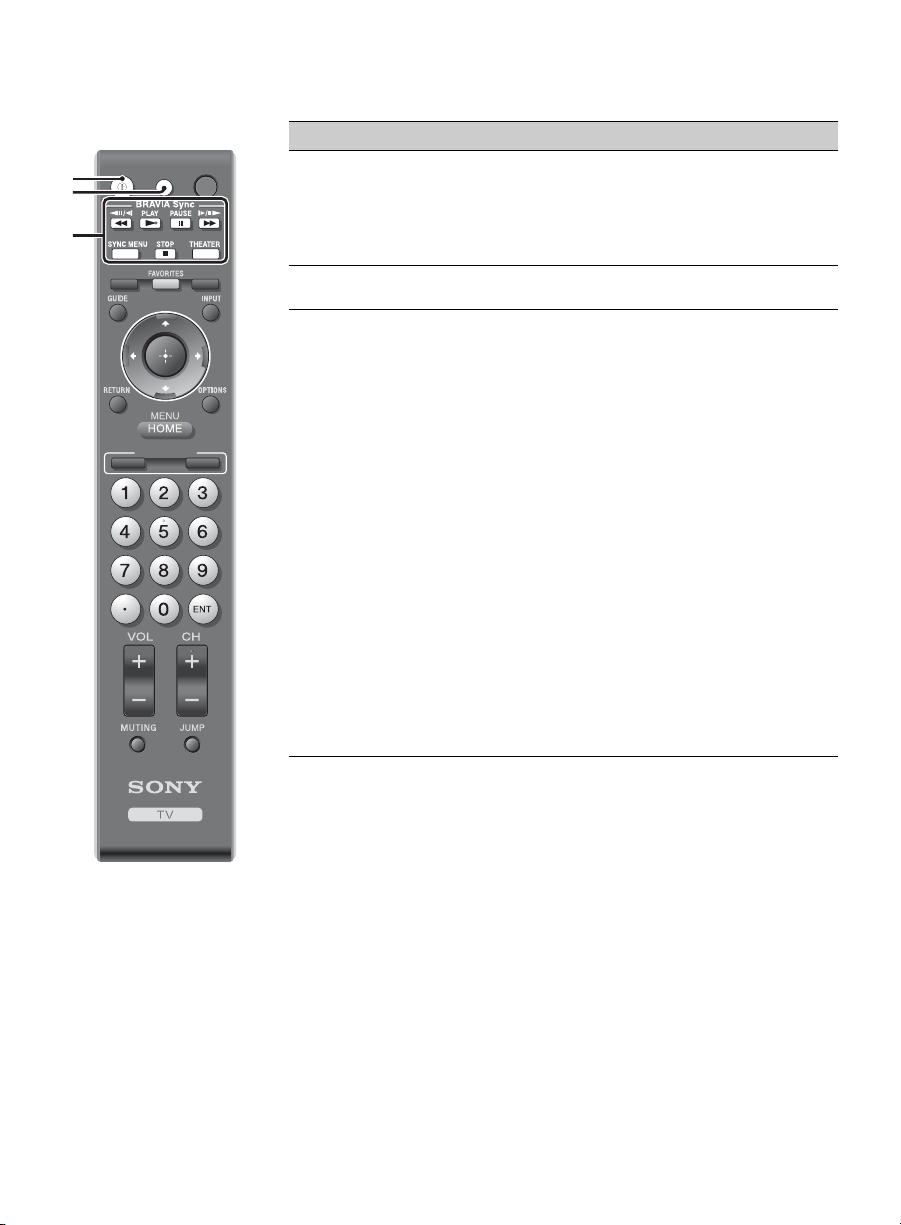
1 DISPLAY Press once to display information about the
channel/program/input you are viewing. The
information will time out in a few seconds or press
again to exit. You can change the display preference,
press HOME and go to Preferences to set Info
Banner to Small, Medium or Large.
2 CC Press to turn Closed Captions (CC) on, off, or
automatically display CC when sound is muted.
3 BRAVIA
Sync
These buttons are used to control the connected
equipment with the Control for HDMI function (not
available on all Control for HDMI equipment).
Some other buttons on the remote control may also
operate BRAVIA
®
Sync
TM
equipment.
m (fast reverse): Press to play a program in fast
rewind mode.
N PLAY: Press to play a program at a normal speed.
X PAUSE: Press to pause playback.
M (fast forward): Press to play a program in fast
forward mode.
SYNC MENU:
Press once to display the
Sync’d HDMI
Devices
(while a
Control for HDMI
device is not
selected). Select the HDMI device and then press
SYNC
MENU
to display the menu of connected equipment (not
available on all
Control for HDMI
equipment).
x STOP: Press to stop playback.
THEATER:
Press to turn on and off the
Theater
Mode
. The picture settings will be set for a cinema-like
experience and the audio will be switched to the audio
output of the attached speakers of your
BRAVIA
Sync
audio system. Your
BRAVIA
Sync audio system must
be connected by an HDMI connection to your TV (see
page 35 for details).
DISPLAY CC POWER
WIDE SCENE
VIDEO
BRAVIA INTERNET
WIDGETS
~
•The 5, PLAY and CH +
buttons have a tactile
dot. Use them as a
reference when
operating the TV.
1
3
2
Operating the TV
19
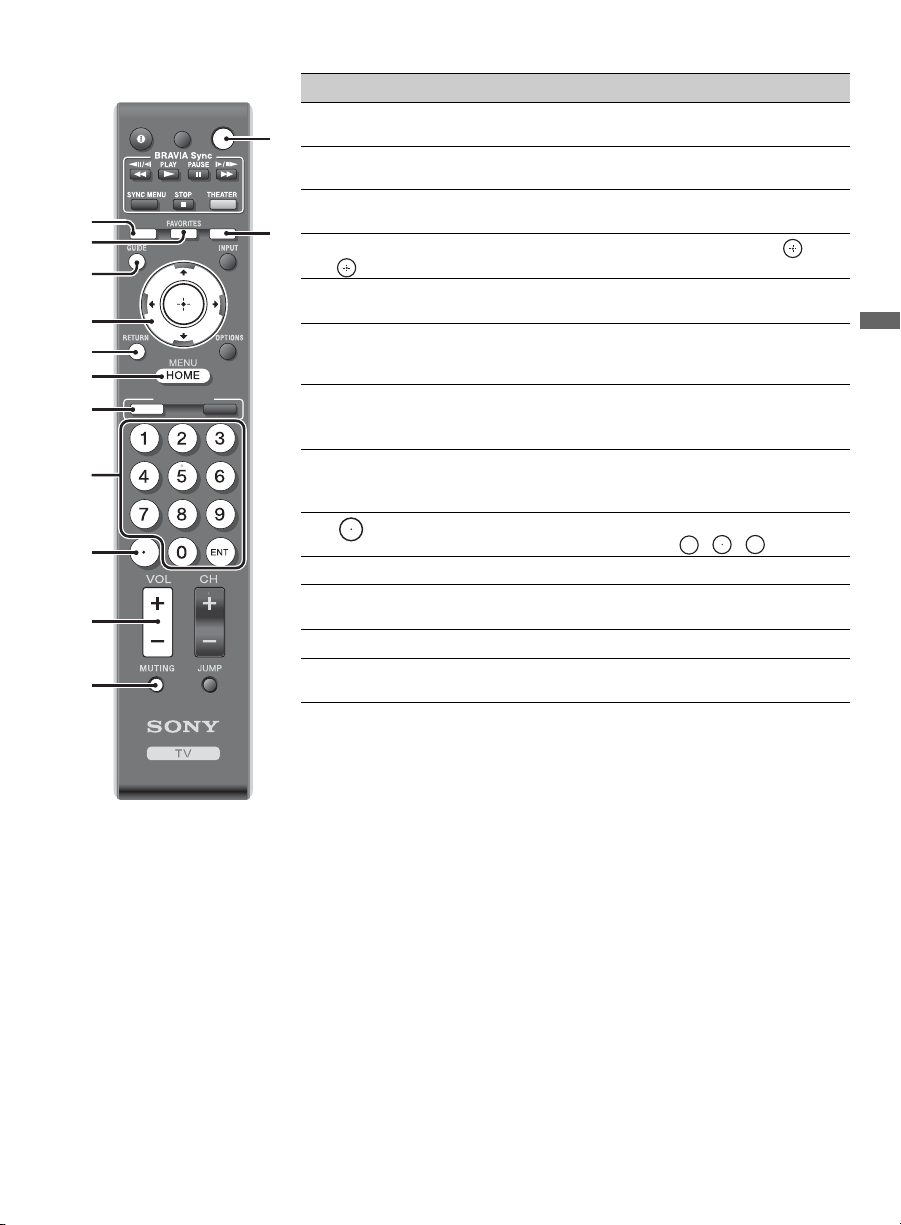
4 WIDE Press repeatedly to cycle through the available Wide
Mode settings (see page 34).
5 FAVORITES Press to display Favorites menu. Press again to exit
from the Favorites menu (see page 30).
6 GUIDE Press to open the TV Guide On Screen. Press again
to exit the Guide (see page 31).
7 V/v/B/b Press V/v/B/b to move focus/highlight. Press to
select/confirm an item.
8 RETURN Press to go back to the previous screen or exit from the
screen when displaying menu items and settings.
9 HOME Press to display TV Home Menu/XMB
™
to access
TV Settings and other media and network related
content (see page 22).
0
BRAVIA
INTERNET
VIDEO
Press to display the XMB
™
with highlight on the most
recently viewed Internet content provider (see
page 25).
qa 0-9 ENT Press 0-9 to select a channel; the channel changes after
two seconds. Press ENT to change channels
immediately.
qs Use with 0-9 and ENT to select digital channels.
For example, to enter 2.1, press , , and ENT.
qd VOL +/– Press to adjust the volume.
qf MUTING Press to mute the sound. Press again or press VOL + to
restore the sound.
qg POWER Press to turn on and off the TV.
qh SCENE Press to select the best picture and sound settings for
the particular type of content you are viewing.
Button Description
DISPLAY CC POWER
WIDE SCENE
VIDEO
BRAVIA INTERNET
WIDGETS
4
5
6
7
8
9
0
qa
qs
qh
qg
qd
qf
2
1
(Continued)
20
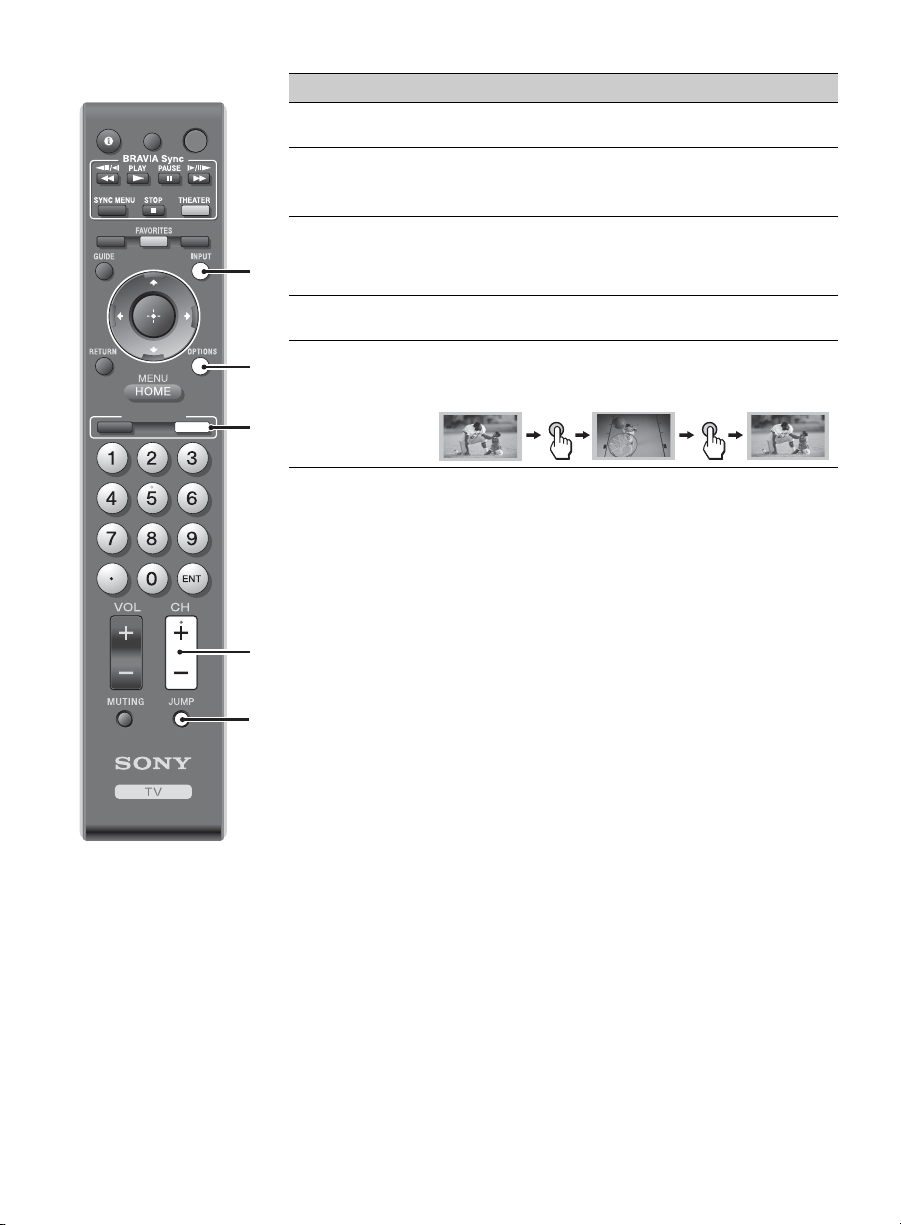
qj INPUT Press to display the list of inputs. Press repeatedly to
toggle through the inputs (see page 33).
qk
OPTIONS
Press to display a list of convenient functions and menu
shortcuts. The Options menu items vary based on
current input and/or content.
ql
BRAVIA
INTERNET
WIDGETS
Press to display the BRAVIA Internet Widgets. While
the BRAVIA Internet Widgets are displayed on the
screen, press again to remove the Widgets from the
screen (see page 28).
w; CH +/– Press to scan through channels. To scan quickly
through channels, press and hold down either +/–.
wa JUMP Press to jump back and forth between two channels or
inputs. The TV alternates between the current channel
or input and the last channel or input that was selected.
Button Description
DISPLAY CC POWER
WIDE SCENE
VIDEO
BRAVIA INTERNET
WIDGETS
qk
ql
qj
wa
w;
JUMP JUMP
Operating the TV
21
TV Controls and Indicators
PIC OFF / TIMER
POWER/STANDBY
INPUT
POWER
CHANNEL
VOLUME
HOME
HD SIGNAL
1
3
4
5
6
7
8
9
q;
2
Item Description
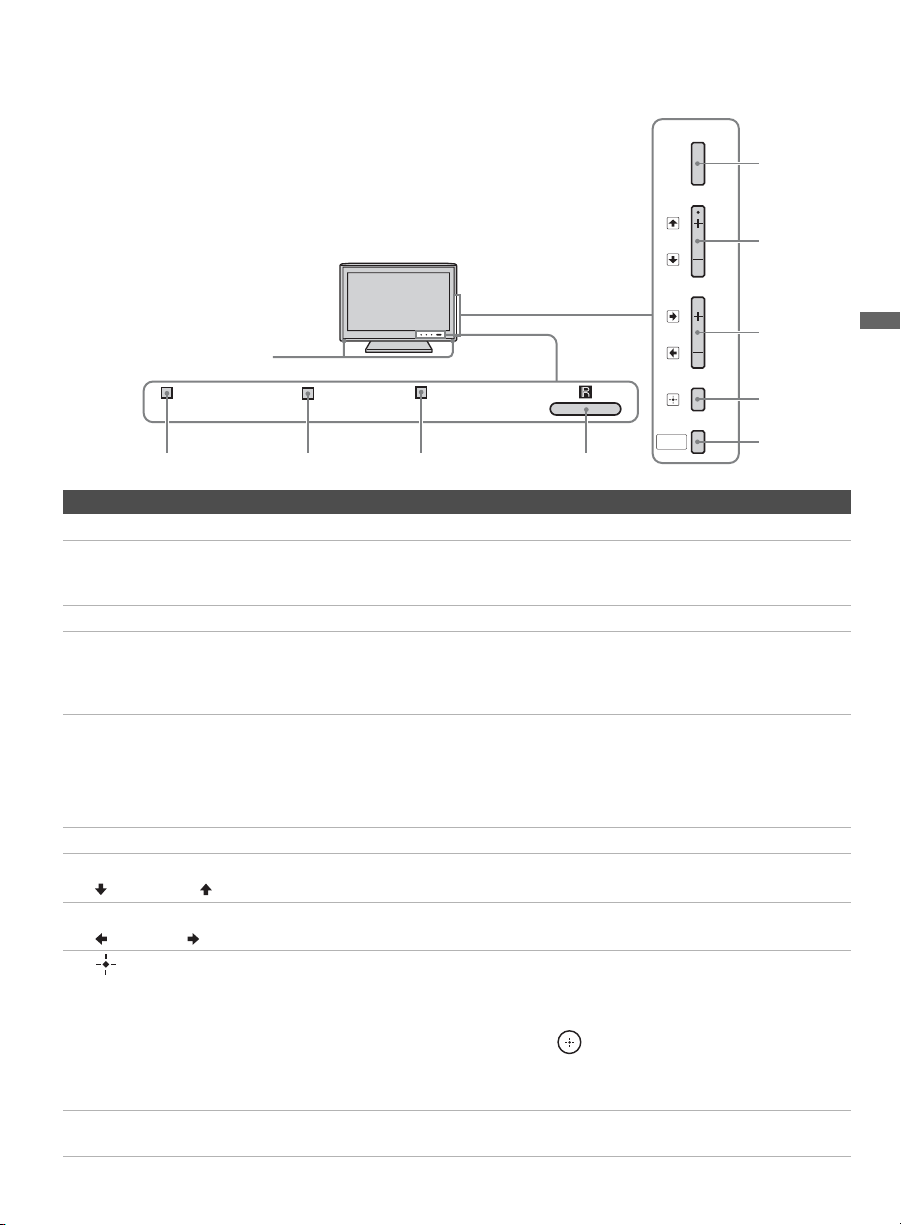
1 Speaker Outputs audio signal.
2 PIC OFF/
TIMER
Lights up in orange when the Timer or Sleep Timer is set. Lights up and/or blinks
in orange during a software upgrade.
Lights up in green when the Power Saving is set to Picture Off.
3 HD SIGNAL Lights up when the TV receives HD signal including up converted signals.
4
POWER/
STANDBY
Lights up in red when your TV is in PC power saving mode or during the software
upgrade. Lights up in green when the TV is turned on. If the LED blinks in red
continuously, this may indicate that the TV needs servicing (see contacting Sony
information on the front cover).
5 (IR) Infrared
Receiver
Receives IR signals from the remote control. Do not block this area, as it may
interfere with remote control operation.
Light Sensor Senses room light level and adjusts the screen brightness accordingly. Do not put
anything near the sensor or the nearby general area (as shown above), as its function
may be affected.
6 POWER Press to turn on and off the TV.
7 – CHANNEL + Press to scan through channels. To scan quickly through channels, press and hold
down either +/–. In the MENU screen, these buttons serve as up/down buttons.
8 – VOLUME +
Press to adjust the volume. In the
MENU
screen, these buttons serve as left/right buttons.
9
INPUT
Press to display the list of inputs or confirm your selection. Press repeatedly to toggle
through the inputs.
~
• Inputs can be changed by pressing V/v and while the list of external inputs is
displayed.
• Refer to page 33 for information about setting up the external inputs labels.
In the MENU screen, this button serves to confirm the selection or setting.
0 HOME Press to display TV Home Menu/XMB
™
to access TV Settings and other media
and network related content.
22
Exploring the XMB
™
and TV Features
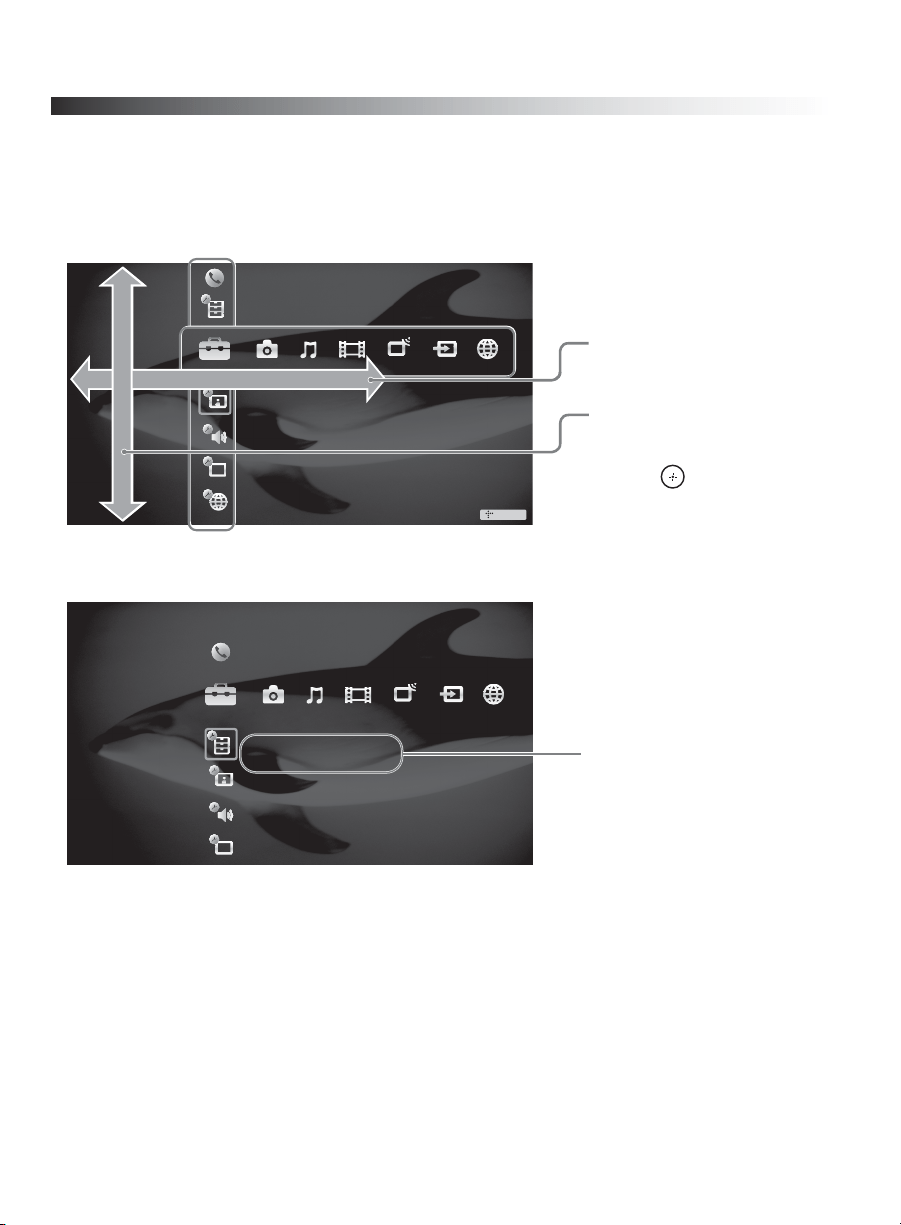
Most TV functions are available from this menu screen called the TV Home Menu/XMB
™
(XrossMediaBar).
Press HOME to access the TV Home Menu/XMB
™
.
The XMB
™
displays help text that describes options available within an item.
Product Support
Picture & Display
Preferences
Sound
Channels & Inputs
Settings
Network
TV
Category
Item
1 Select a Category icon
using the
B/b buttons.
2 Highlight an Item using
the
V/v buttons.
3 Press to select an
item.
Preferences
Settings
Customize TV features to suit personal
preferences
Shown with Preferences
highlighted.
Exploring the XMB
™
and TV Features
23
Category Icons
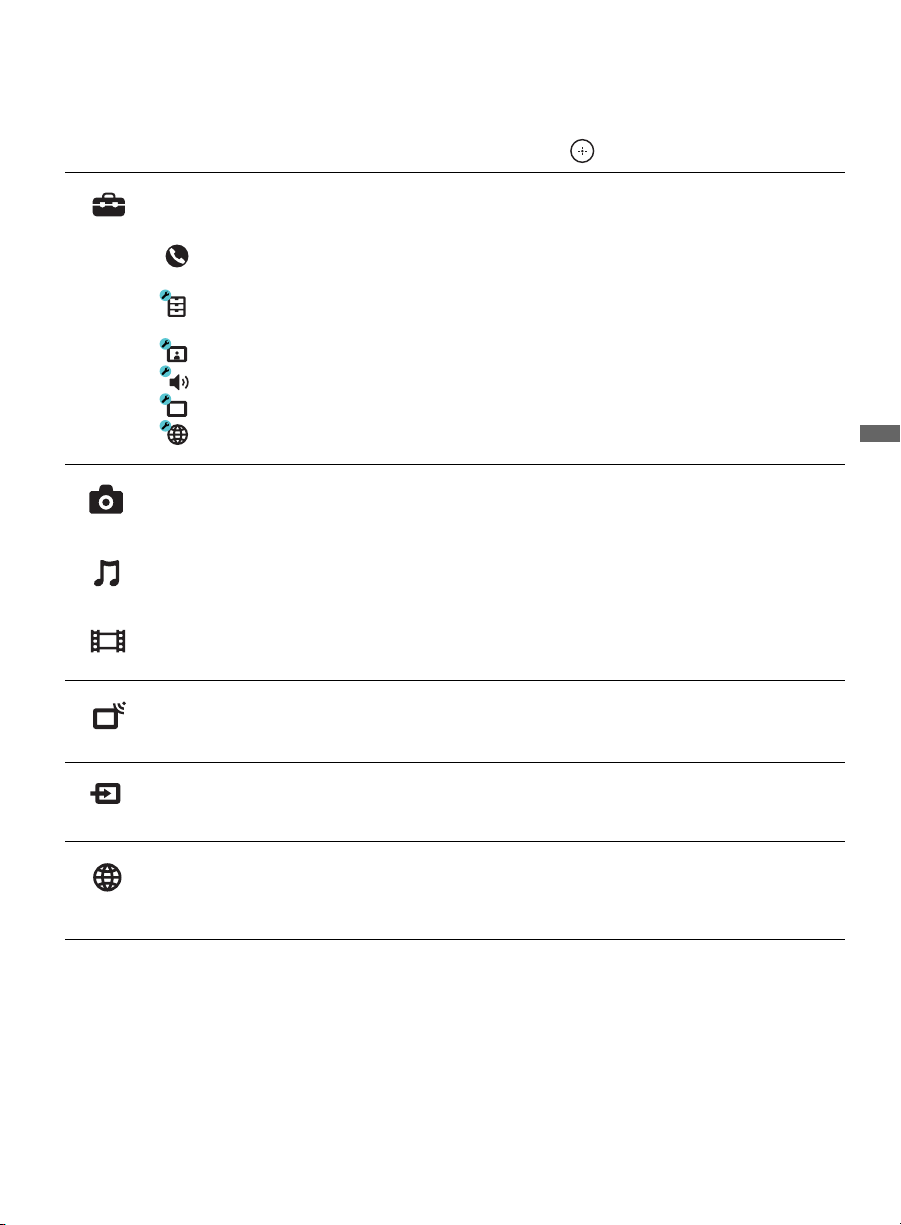
The Category icons organize your TV settings and TV features for quick and easy access. Press
V/v to highlight an item within a Category icon and then press to make a selection.
The Settings icon contains all of the necessary configurations to customize your
TV settings.
Product Support for troubleshooting and TV software information and
updates.
Preferences for customizing TV settings such as Timers, Parental Lock,
Language, and much more.
Picture & Display for adjusting picture and display settings.
Sound for adjusting sound and speaker related settings.
Channels & Inputs for setting up TV channel list and external inputs.
Network for setting up Network related settings.
The Photo, Music, and Video icons organize your photo, music, and video files
from Internet content providers, DLNA Certified media servers, and Sony USB
connected equipment. Be sure to select the correct icon when accessing files. Refer to
the feature section for more information on these icons.
The TV icon provides you access to the TV channel list. You can select the
TV Guide On Screen
®
icon located at the top of the channels list from this icon.
The External Inputs icon provides access to your connected equipment, see
page 14.
The Network icon lists downloaded BRAVIA Internet Widgets. You can access the
Widget Gallery from this icon. Refer to the feature section for more information on
this icon.
Settings
Photo
Music
Video
TV
External
Inputs
Network
24
Accessing Photo, Music, and Video Content
You can access a variety of Internet content by connecting to your existing home network with
Internet connectivity. Your photo, music, and video files can also be accessed once you have set up
a DLNA Certified equipment or after plugging in Sony USB equipment directly to your TV.
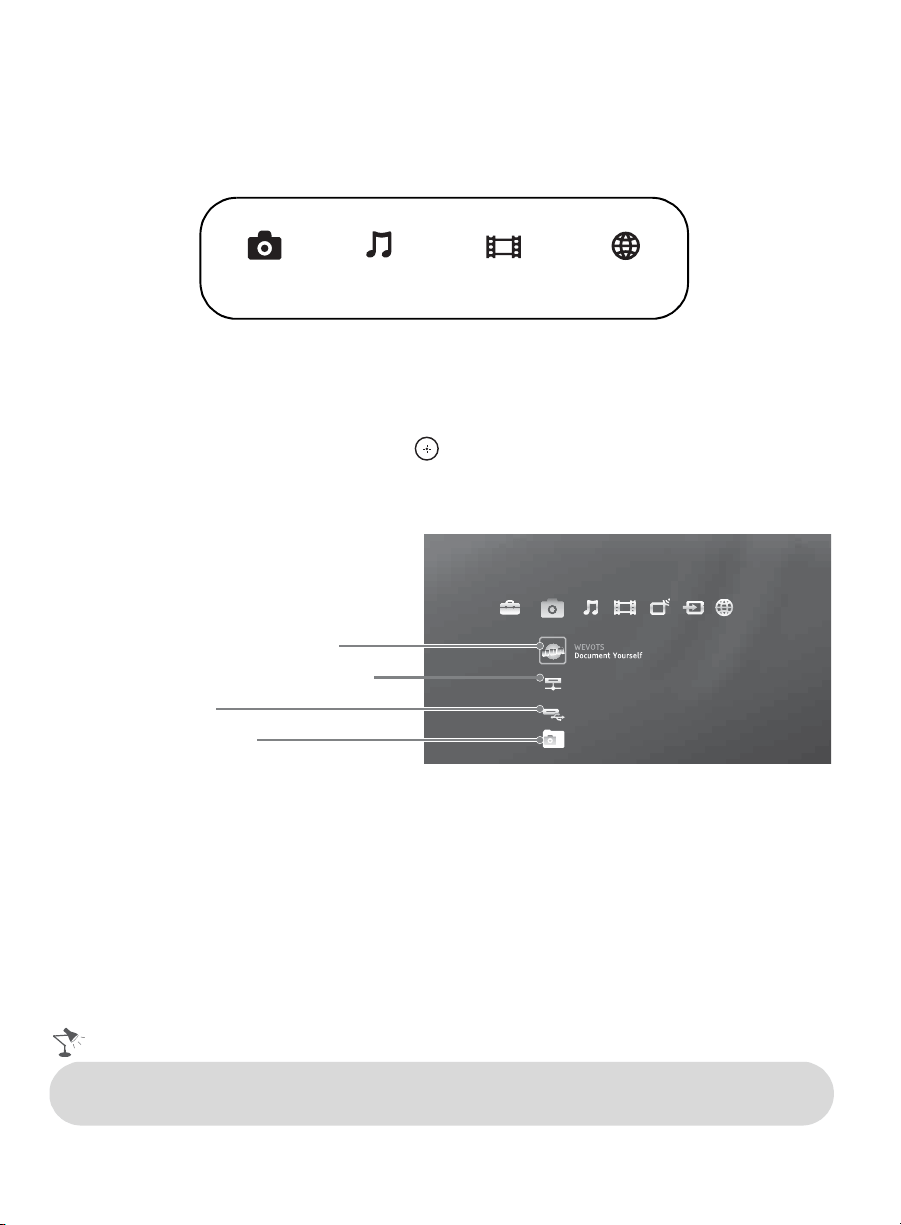
To display content under Photo, Music, Video, or Network:
1 Press HOME to display the XMB
™
.
2 Press B/b to highlight the Photo, Music, Video, or Network Category icon.
3 Press V/v to highlight an item and press to select an item.
Photo
Video
Music
Network
Shown here is the XMB
™
with the Photo icon highlighted.
Photo
Internet content provider, page 25
DLNA Certified media server, page 26
Sample Images, page 26
Sony USB, page 26
• The items displayed may vary for each category icon, your connected equipment, and the
availability of Internet services.
Exploring the XMB
™
and TV Features
25
BRAVIA Internet Video
BRAVIA Internet Video serves as a gateway delivering select Internet content and a variety of on-
demand entertainment straight to your BRAVIA TV.
To connect to the BRAVIA Internet Video service, make sure that your TV is connected to your
broadband home network and that you have completed the Initial Setup and Network Setup
(see page 16).
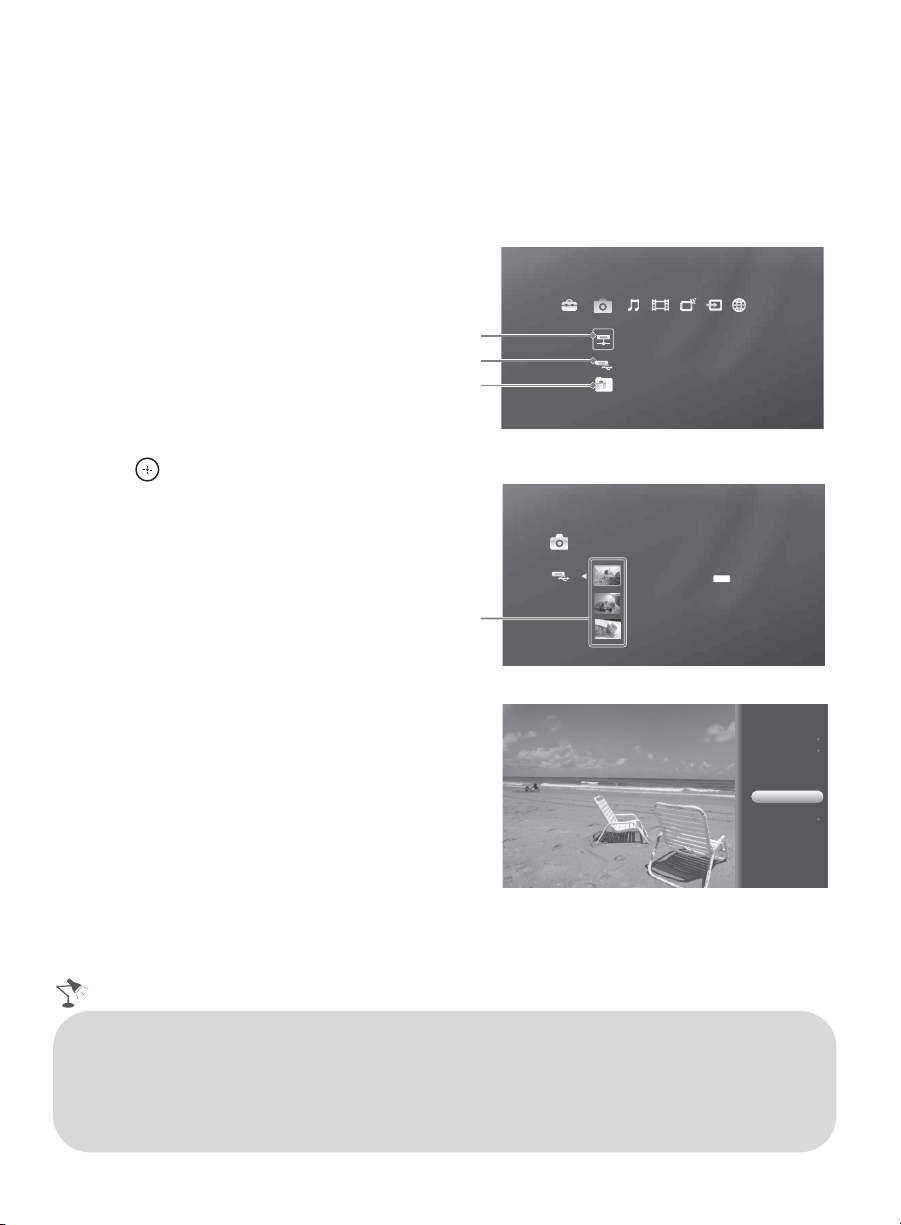
The Internet content provider icons appear under the
Photo
,
Music
,
Video
, and
Network
icons
on the
XMB
™
. Highlight an icon and press to open the Internet content provider’s service.
Press V/v/B/b to navigate and to make a selection.
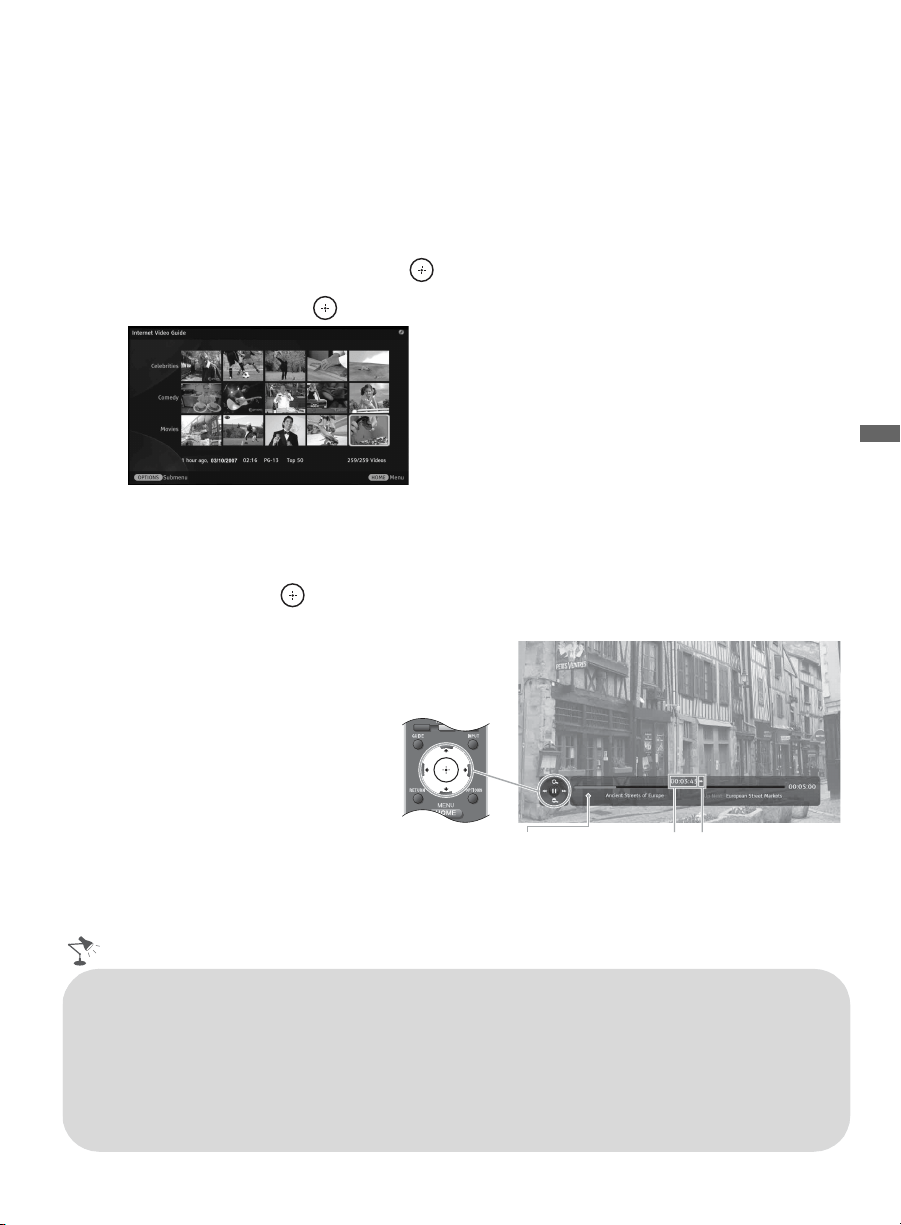
Seeking Forwards and Backwards
Some Internet content providers allow you to seek forward or seek backward. Press b or M to
move forward in the video. Press B or m to move backward.
The Control Panel appears with a dot indicating the point at which the playback will resume.
To resume playback, press or N. See the illustration below for details.
To change the speed of the seek, press the corresponding button up to three times.
Saving to Favorites
You can save an Internet content provider to your
Favorites
; see “
Adding to Favorites
” on page 30.
The look and feel of Internet content providers
may vary.
WIDE SCENE
Press the corresponding buttons
to control playback.
Control Panel
Playback
resume point
Arrows indicate
speed of the seek
• Some Internet content providers arrange videos by Categories; press OPTIONS to view more
categories.
• Press DISPLAY to see more information on the highlighted video.
•The Parental Lock function set on the TV blocks video content based on the appropriate TV or
Movie Rating. Refer to the online Reference Book.
• Recommended connection speed: Standard Definition video - 2.5 Mbps, High Definition video - 10 Mbps.
• To update the BRAVIA Internet Video content providers, select the Network icon from the
Settings menu on the XMB
™
, then select Refresh Internet Content.
26
Photo, Music, and Video
Media files from DLNA Certified media servers or Sony USB equipment can easily be accessed
from the Photo, Music, and Video Category icons. For a list of supported file formats, see
page 38.
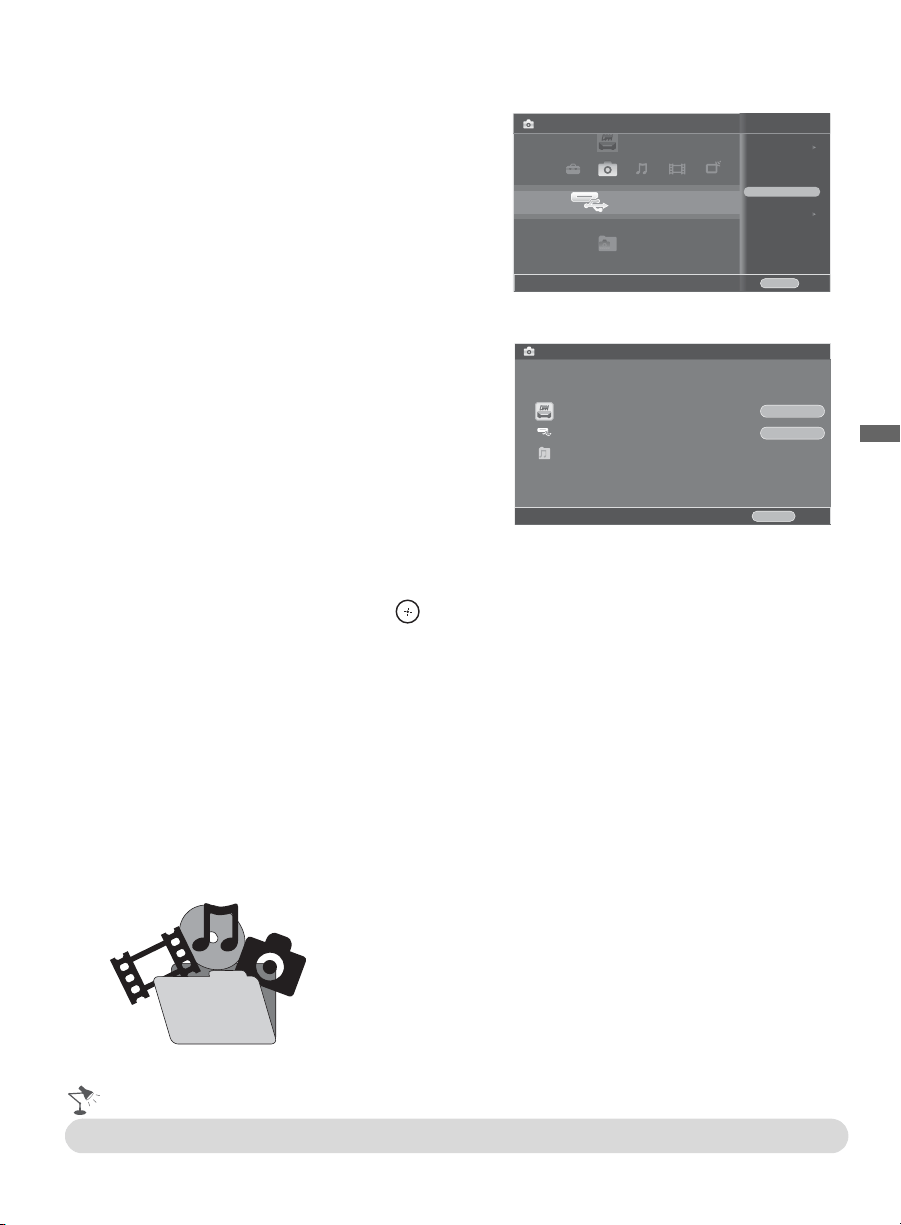
Accessing Media Files
1 Press HOME to display the
XMB
™
.
2 Select a Category icon.
3 Select a DLNA Certified media
server, Sony USB or sample
folder. (Pressing OPTIONS will
display additional menu items,
see “Media File Options Menu”
below.)
4 Press to select an item from
the List View.
Media File Options Menu
Press OPTIONS after accessing a
media file to display a list of
available options such as Playback
Method, Start Slideshow, Add
to Favorites, and Device
Actions.
The Options Menu for each Category
icon and media file selected may
vary.
US0013A92B6949: server:
Photo
DLNA Certified
media server
USB
Samples
Shown with
Photo
Category icon selected.
Photo
DSC02991
Fri 5/25/2007 12:06 PM
JPG
DSC00140.JPG
DSC00141.JPG
List View
Shown with
Photo
USB media location selected.
Picture & Display
Playback Method
Start Slideshow
Add to Favorites
File Actions
Shown here is a photo file after pressing
OPTIONS
.
• Internet content may appear under each icon if the TV Network Setup has been completed
(see page 16).
• Media files cannot be saved in the TV but can be added to Favorites and accessed when the
equipment containing the media file is connected.
• Refer to page 13 for a sample DLNA Certified equipment or page 14 for Sony USB equipment
connection diagrams.
Exploring the XMB
™
and TV Features
27
Adding Music to a Slideshow
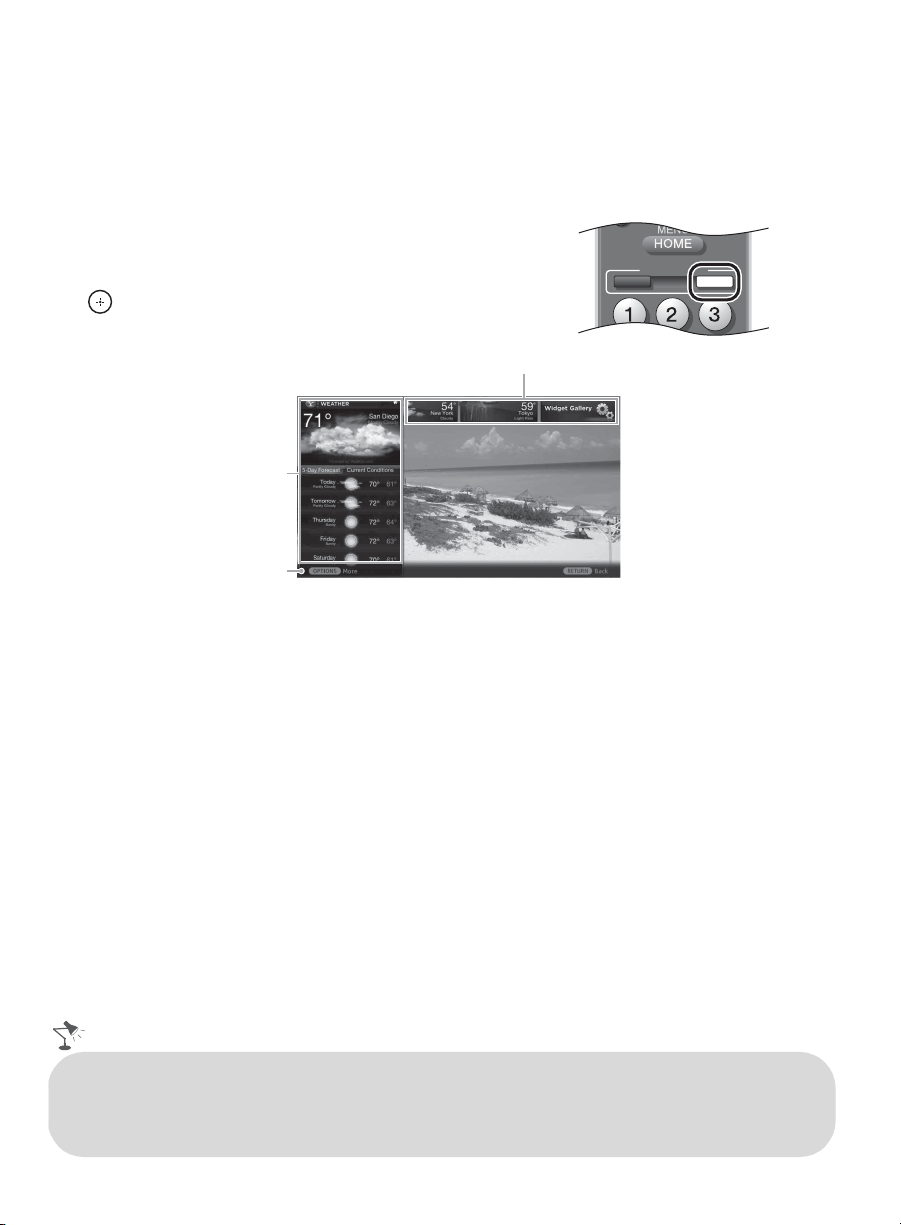
1 Highlight the Photo icon. Select from
your DLNA Certified media servers,
Sony USB connected equipment, or
the sample folder.
2 Highlight the folder to display as a
slideshow, press OPTIONS and then
select Playback Method.
3 Select Slideshow Music, then select
Browse Music.
4 Highlight and select an item from the
list of available DLNA Certified media
servers, Sony USB connected
equipment, or sample folder.
5 Press v/V to highlight the music file or
folder you would like to add to your
slideshow and select OK.
Playing Music or Video
When playing music or video files, press to pause or play the file. Press and hold B to move
backward or press and hold b to move forward.
Functionality of USB Equipment and DLNA Certified Media Servers
The USB functionality on this TV is compatible with most Sony brand digital cameras, MICRO
VAULT USB Flash Drives, and DLNA Certified media servers but not all. Sony cannot guarantee
or assure compatibility with all formats, products or in the following cases:
• Use of non-Sony brand USB equipment
• Use of video or audio clips processed on a computer
• Use of files obtained from the Internet or from printed film processing center.
Playback Method
Start Slideshow
Add to Favorites
Device Actions
USB
Sony - Storage Media
Close
OPTIONS
Photo
Browse Music
Cancel
RETURN
OK
Cancel
Highlight a folder or file and select “OK” to set as slideshow music
WINXP-DIXIM-DLNA-1
USB
Samples
Prevent losing your files, be sure to back up all of your media
files stored on USB equipment to prevent data corruption.
Sony cannot accept responsibility for lost or damaged data
stored on USB equipment.
• For more information on this feature, refer to the online Reference Book.
28
BRAVIA Internet Widgets
The
BRAVIA
Internet Widgets are small downloadable applications that provide you access to the
latest in news, weather, stocks and interactive content when your TV is connected to the Internet.
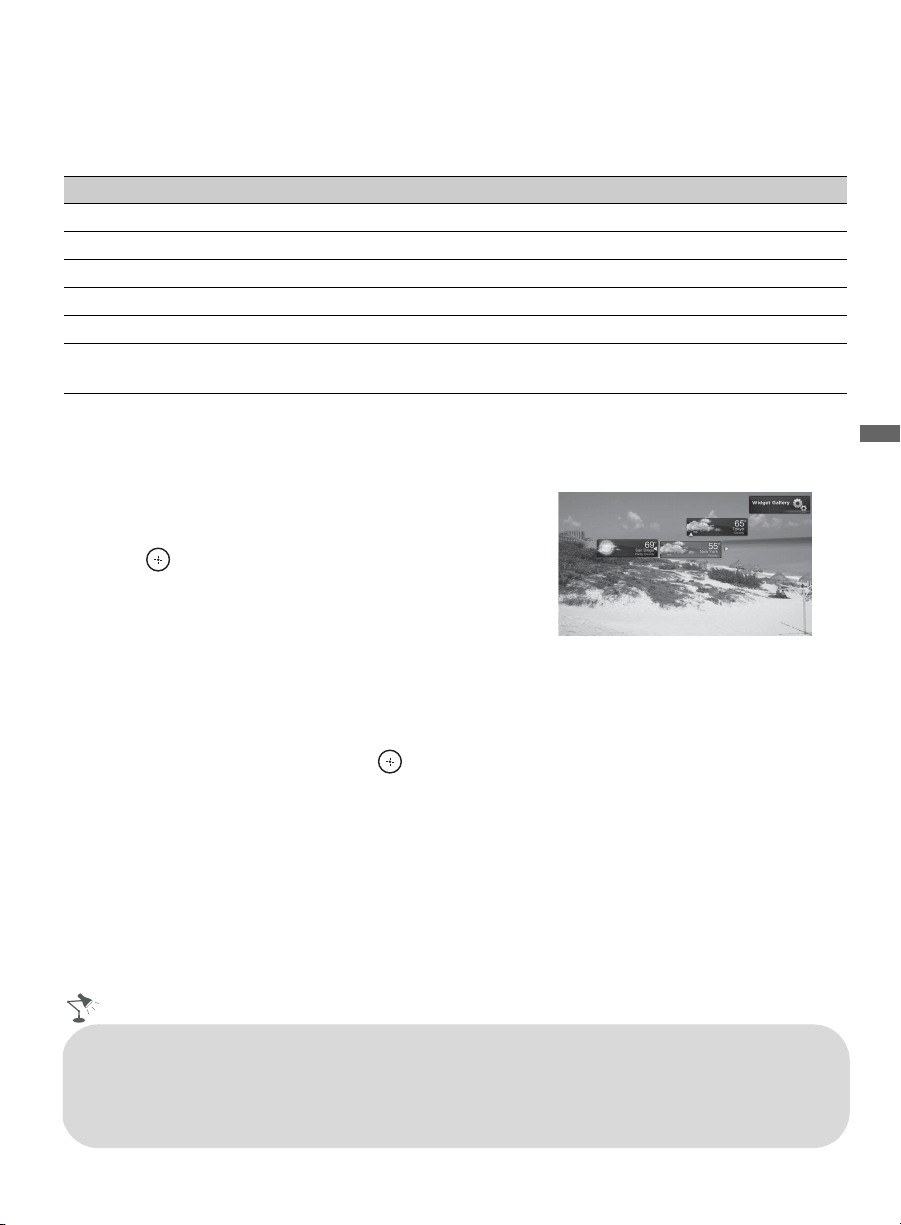
Displaying Widgets
1 Press WIDGETS. Minimized Widgets called
Snippets will appear.
2 Press V/v/B/b to highlight a Snippet then press
to launch it. The Snippet will expand into a
Widget.
Minimizing a Widget
Press RETURN to minimize an expanded Widget into a Snippet or press OPTIONS and select
Minimize to Snippet.
Hiding Widgets
Press WIDGETS or RETURN to hide all of the Widgets from the screen or press OPTIONS and
select Hide All. To display the Widgets again, press WIDGETS.
Closing a Widget
Press OPTIONS then select Close Widget. When closing a Widget, all Snippets associated with
the Widget will close. To relaunch the Widget, see “Launching Widgets” page 29.
Widget Gallery
Use the Widget Gallery to browse and install new Widgets. Downloaded Widgets can be launched
from the Network Category icon of the XMB
™
, see “Launching Widgets” page 29.
VIDEO
BRAVIA INTERNET
WIDGETS
Widget
Footer
Snippets
• The Widget content that appears on the screen may be updated, modified or deleted at any time
by the Widget provider.
• Some Widgets can be customized to your preferences such as viewing weather for your local
region or viewing your preferred stocks.
Exploring the XMB
™
and TV Features
29
Widgets Options Menu
Highlight a Widget or Snippet and press OPTIONS to access additional feature menu items. The
menu items may vary depending on the state of the Widget/Snippet. A sample feature options
menu is shown below.
Moving Snippets on the Screen
Snippets can be moved when they are undocked.
1 Highlight a Snippet, press OPTIONS and then
select Move.
2 Press V/v/B/b to move the Snippet and then
press to set it in your preferred location.
Launching Widgets
Hidden or closed Widgets can be launched from the Network Category icon of the XMB
™
.
1 Press HOME.
2 Highlight the Network Category icon.
3 Highlight a Widget and then press .
Press OPTIONS while under the Network Category icon to access additional menu items.
Deleting Widgets
From the Network Category icon, highlight a Widget, press OPTIONS then select Delete.
Option Description
Dock Aligns Widgets/Snippets to the bottom of the TV screen.
Undock Allows you to move Widgets/Snippets to any location on the TV screen.
Move Allows you to move Widgets/Snippets to your preferred location.
Close Widget Allows you to close a Widget and all associated Snippets.
Hide Widgets Allows you to hide all Widgets/Snippets from the TV screen.
Hide/Show
Footer
Hides or shows the footer. The footer may provide additional information and may
appear for an extended period of time.
Snippets in Move Mode
• When downloading new Widgets, existing Widgets may need to be deleted from the Network
Category icon if memory space has been exceeded.
• An expanded Widget cannot be moved using the remote control arrow buttons.
• Some Widgets may fill your entire TV screen when expanded into a full view.
• Widgets available on PCs or other devices may not be available on your TV.
30
Favorites
With Favorites, you can manage your preferred TV channels, External Inputs, Photo, Music,
and Video content from a DLNA server or USB connected equipment, Internet content,
Widgets, and Background TV themes for easy access.
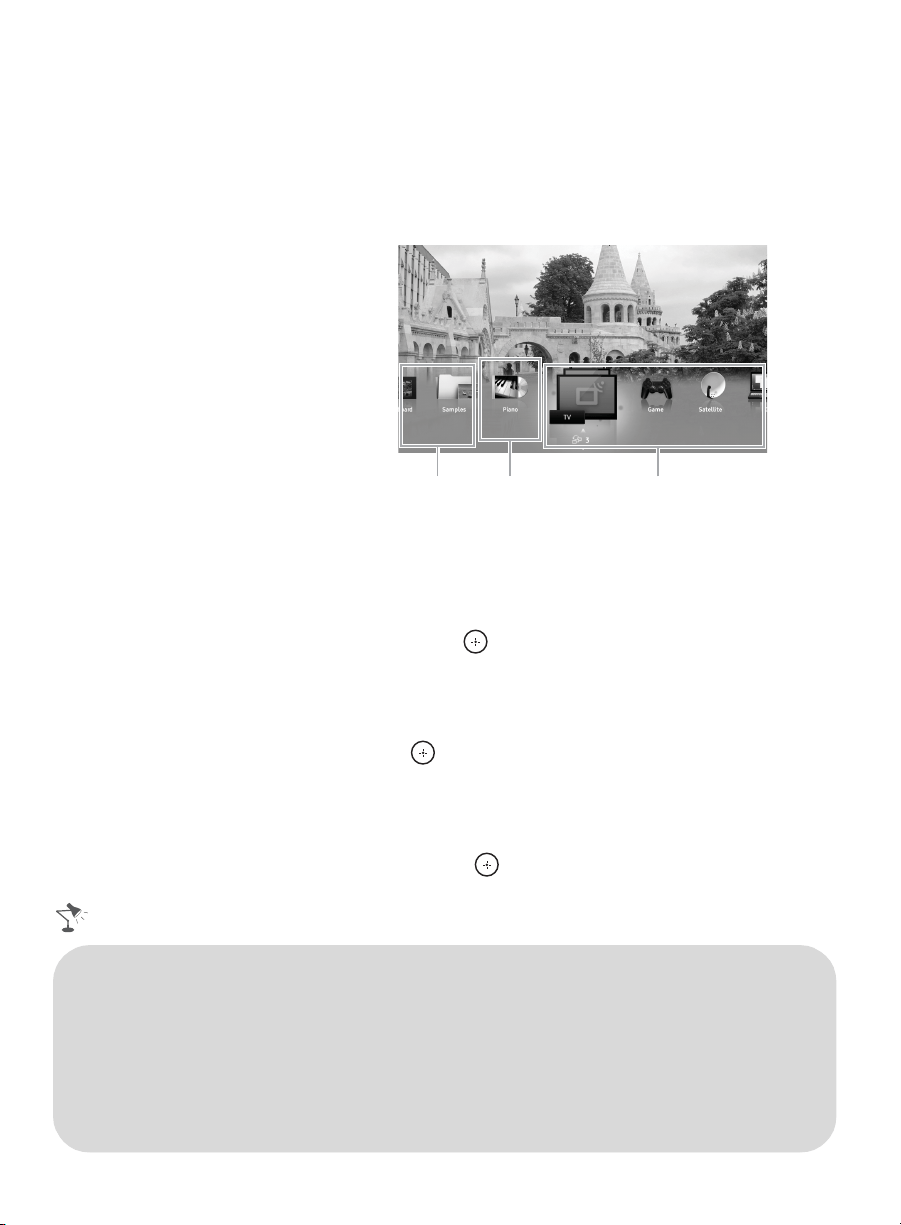
Displaying Favorites
Navigating Favorites
1 Press B/b to move between saved selections in a carousel-like fashion.
2 When the Recently Viewed list is highlighted, press V/v to move between the items.
3 To tune to an item, highlight its icon and press .
Adding to Favorites
1 On the XMB
™
, highlight the icon of an item you wish to add and press OPTIONS.
2 Highlight Add to Favorites and press .
Removing from Favorites
1 In the Favorites screen, highlight the item to remove and press OPTIONS.
2 Highlight Remove from Favorites and press .
Saved Media Files/Folders
Recently Viewed
Items
Saved Inputs
Press FAVORITES.
• To organize items saved to Favorites based on type (such as TV channels or Photos), press
OPTIONS from the Favorites screen, select Favorites View, then choose Stacked.
• You can also add or remove an item while tuned to it, or while it is highlighted in Favorites.
Press OPTIONS and select either Add to Favorites or Remove from Favorites.
• To clear your Recently Viewed items, highlight the list in Favorites and press OPTIONS, then
select Clear Recently Viewed. Recently Viewed items are also cleared when the TV is powered
off.
• Auto Program will clear your TV channels from Favorites (see page 16).
• Initial Setup will clear Favorites back to factory default.
Exploring the XMB
™
and TV Features
31
TV Guide On Screen
®
Use the Guide to find the program that you want to watch. The Guide allows you to organize and
personalize the program listings.
The Guide is available with connection to your cable service or with over-the-air antenna signal.
You must connect your signal directly to the TV’s CABLE/ANTENNA input without using a
cable box.
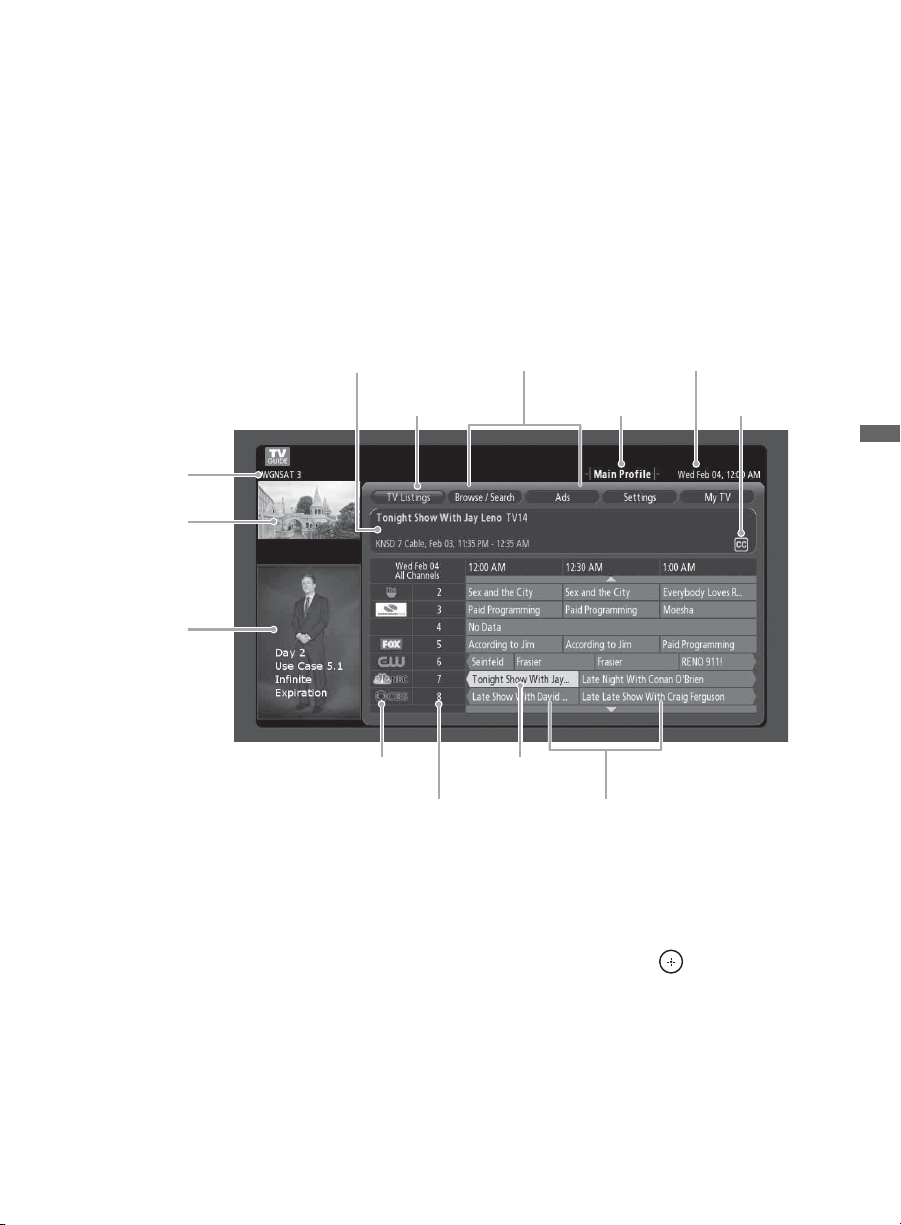
TV Guide On Screen System Elements
• Press GUIDE to display the TV Guide On Screen.
• Press OPTIONS to get back to the Guide Menu Bar. The CH +/– buttons can be used to page up/down
through listings.
TV Listings
Up to 24 hours of program listings are available. You can also organize the program listings by
categories, while TV Listings is highlighted on the Guide menu bar, press to display a popup
menu that allows you to customize the listings. For example, if you are an avid sports fan, you can
customize the listings to only show sports-related channels.
Browse/Search
You can look for a program by browsing through categories or by entering a keyword or title.
Info Box
Highlighted
(Current)
Menu Area
Guide
Menu Bar
Profile
Name
Clock
Icons for
Highlighted
Program Title
Broadcast
Information
PIP (Video Window)
(unpopulated)
Ad Panel
Channel Logo
Channel Call No.
Highlighted (Current)
Program Title
Listings Grid
(Continued)
32
Ads
Provides advertisements from TV Guide sponsors.
Settings
Under the Settings menu, you will find the Guide information and be able to set up Guide settings
or profiles: Guide Information Screen, Guide Settings, Profile Settings, Reset Guide,
Edit Channels, Update TV Listings, Select Channel Lineup.
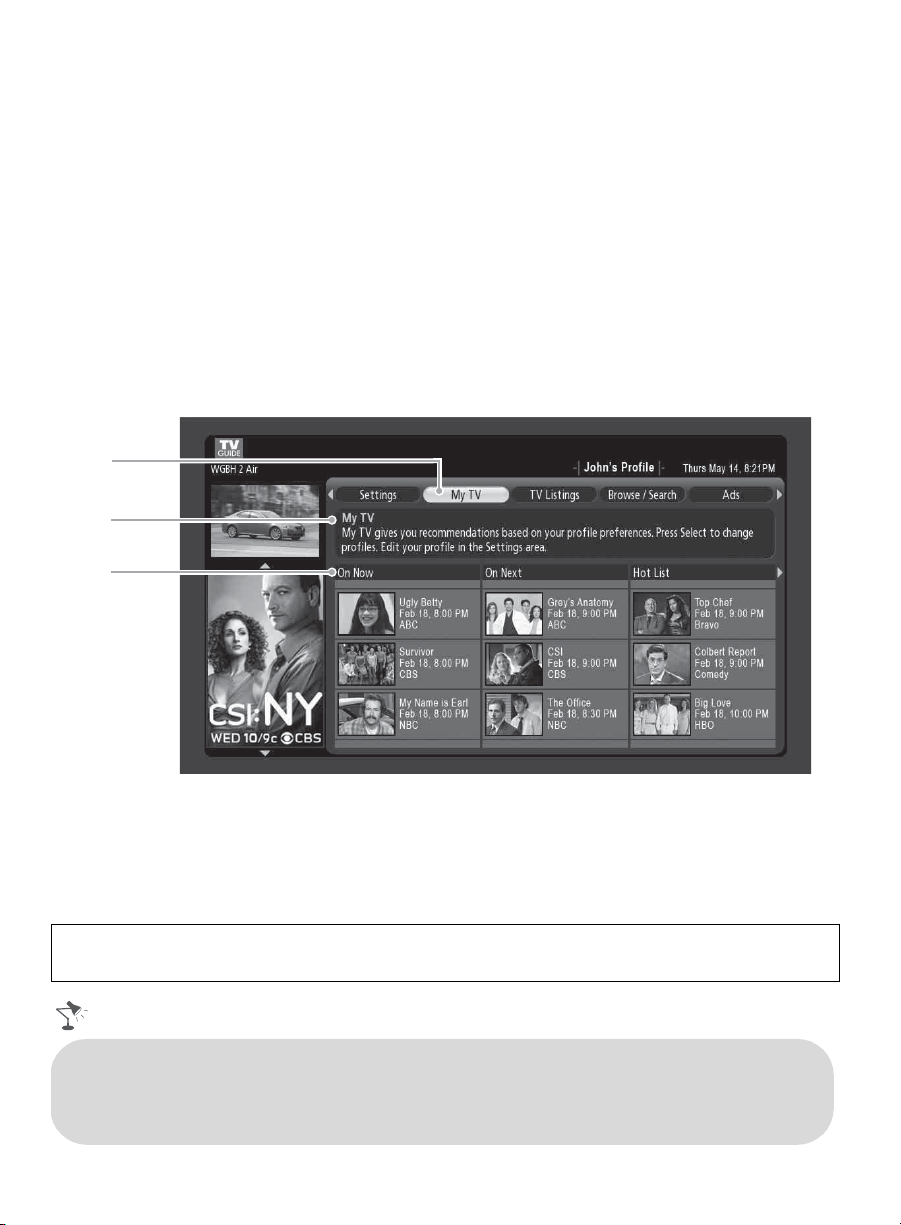
My TV
The My TV feature allows you to organize the program listings by profiles such as Movie, Sport,
or Kids. You can also create your own profile name and organize your favorite programs or
channels.
When you add a favorite channel using the OPTIONS button while watching your program, your
favorite channel will be added to the Main Profile under My TV. The channels you add to My TV
will also automatically appear as your favorite channel in the TV’s Favorites.
My TV
is highlighted
Info Box describes
My TV
My TV
Submenu
• Enabling the TV Guide On Screen feature will increase the amount of time the TV is in
Download Acquisition Mode (DAM); see page 38.
• Refer to the online Reference Book for details on how to customize the Guide or create personal
profiles.
To disable the Guide feature, press HOME then select Preferences menu from the Settings on
the XMB
™
. Look for Program Information Source then select the Broadcaster option.
Exploring the XMB
™
and TV Features
33
Background TV
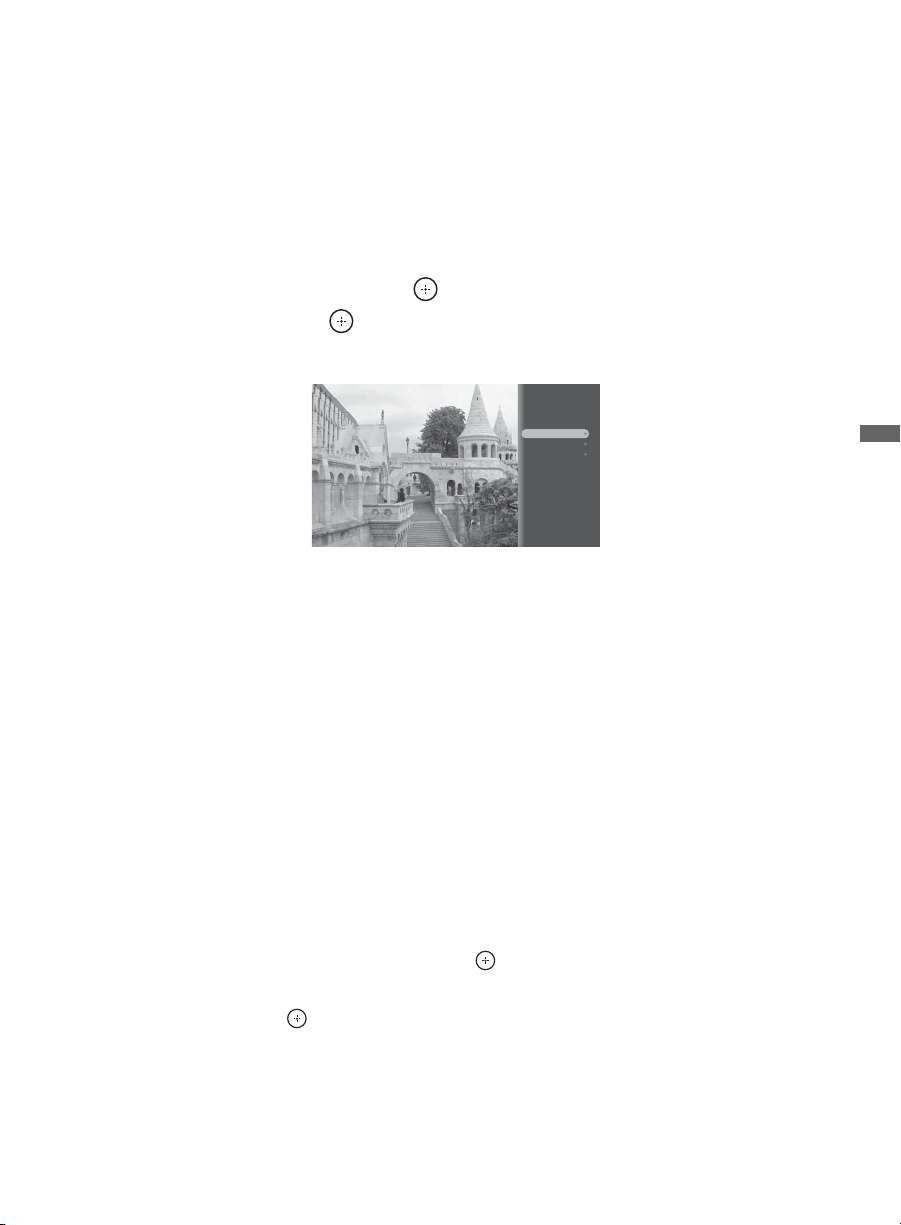
Background TV uses the current video on your TV to create images that are similar to a screen
saver.
Navigating Background TV
1 Tune to a channel or input.
2 Press OPTIONS.
3 Highlight Background TV and press .
4 Highlight a theme and press . The TV will display the current channel or input using the
selected Background TV theme.
5 Press RETURN to exit the Background TV and return to the current channel or input.
~
• Background TV themes may also be saved to Favorites, so that you can launch these themes from the
Favorites screen.
Inputs
Press INPUT to display the Input menu and toggle through the External Inputs to select the video
source. The Input menu consists of TV mode and other equipment connected to the TV.
You can label your External Inputs for easy identification by the connected equipment name rather
than the name of the input.
How to Label an Input
1 From the Settings icon on the XMB
™
, select Channels & Inputs. Then, select Manage
Inputs.
Press V/v to highlight the video input (Video/Component 1, Video 2, Component 2, HDMI
1-4) to which you want to assign a label, press to select the input of your choice.
2 Press V/v to highlight one of the displayed labels corresponding to the equipment connected
to that input then press to label the equipment.
3 If you have an open input port where no equipment is connected, that input is grayed-out and
skipped on the Input menu. You can Enable input ports so that they are always selectable.
Refer to the online Reference Book for instructions.
Picture Adjustments
Sound Adjustments
Background TV
Motionflow
Speakers
Add to Favorites
34
Wide Mode
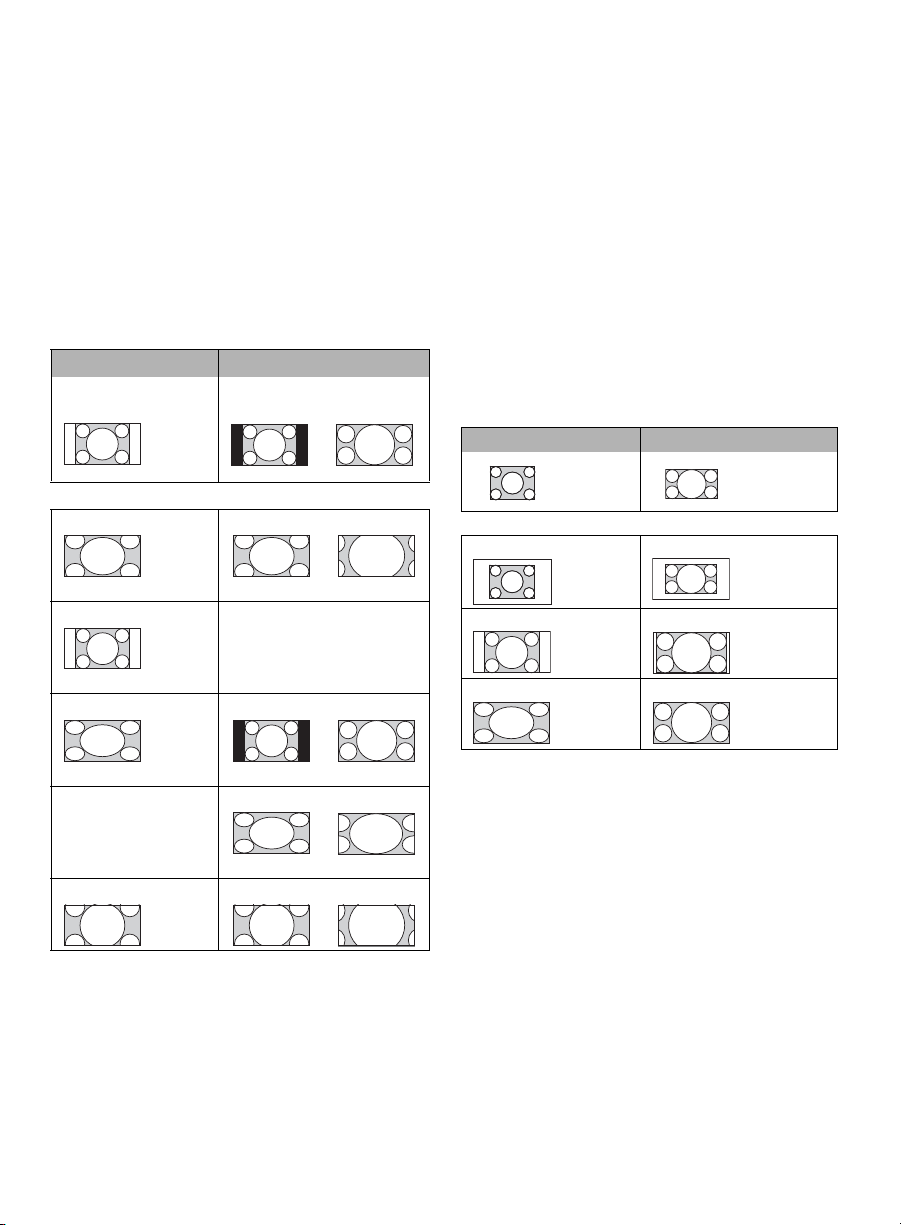
The Wide Mode feature allows you to select the screen display of your preference. Based on the
original signal source, a black frame or black bars may surround the picture.
You can manually change the Wide Mode setting while watching TV by pressing the WIDE
button on your remote control. For more information on customizing Wide Mode settings, refer
to the online Reference Book.
Changing the Wide Screen Mode
Press WIDE repeatedly to cycle through the
available modes.
• Normal is only available with 480i or 480p
sources.
•
H Stretch is only available with 720p, 1080i,
1080p and 1080/24p sources.
Changing the Wide Screen Mode for PC
Timing
Wide Mode is also available while in the PC
input mode. Press WIDE repeatedly to cycle
through the available modes while in the PC
input mode.
4:3 Original source 16:9 Original source
Standard-definition
source
High-definition source
mm
Wide Zoom Wide Zoom
Normal Normal
This mode is not available.
Full Full
H Stretch
This mode is not
available.
H Stretch
Zoom Zoom
Incoming PC signal Incoming PC signal
mm
Normal Normal
Full 1 Full 1
Full 2 Full 2
800 × 600
1,280 × 768
Exploring the XMB
™
and TV Features
35
BRAVIA
®
Sync™ with Control for HDMI
The BRAVIA Sync function allows this TV to communicate with other Sony equipment
supporting the Control for HDMI function.
To connect Sony equipment with Control for HDMI
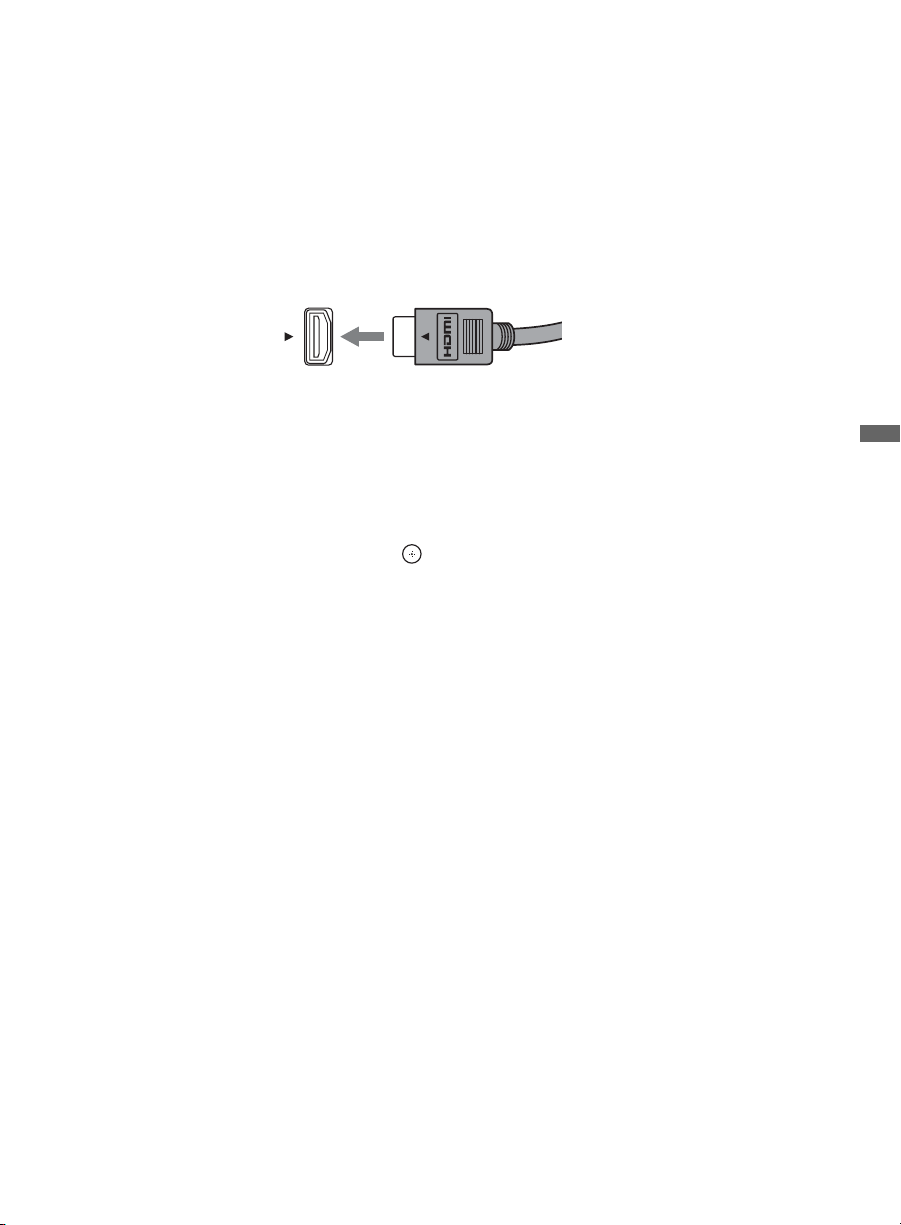
Use an HDMI cable that bears the HDMI logo for connection.
Line up the triangle on the head of the HDMI cable with the triangle on the label of the HDMI
input when connecting the HDMI cable.
Setting the Control for HDMI
The Control for HDMI function must be set up in order for the TV to communicate with other
Control for HDMI enabled equipment.
To setup the TV’s Control for HDMI:
1 Select Channels & Inputs on the Settings menu.
2 Highlight HDMI Settings and press .
3 Select Control for HDMI and set it to On.
To verify connected devices, select Device List from the HDMI Settings menu.
For other equipment, refer to its operating instructions.
Available options using Control for HDMI
The following operations are available after you connect the supported Sony equipment with
Control for HDMI function to your TV:
• Automatically turn off the connected equipment when you turn off the TV.
• The connected equipment and TV are turned on by One-Touch-Play.
• Possible operations with BRAVIA Sync buttons, see page 18.
When a Sony A/V receiver with BRAVIA Sync is connected, the following additional operations
are possible:
• Turning on the A/V receiver when the TV is turned on.
• Automatically switching to the audio output of the A/V receiver’s attached speakers.
• Adjusting the volume and muting of the A/V receiver with the TV’s remote control.
36
Other Information
How to Care for Your BRAVIA
Safety is very important, please read and follow the safety documentation (Safety Booklet) separately
provided.
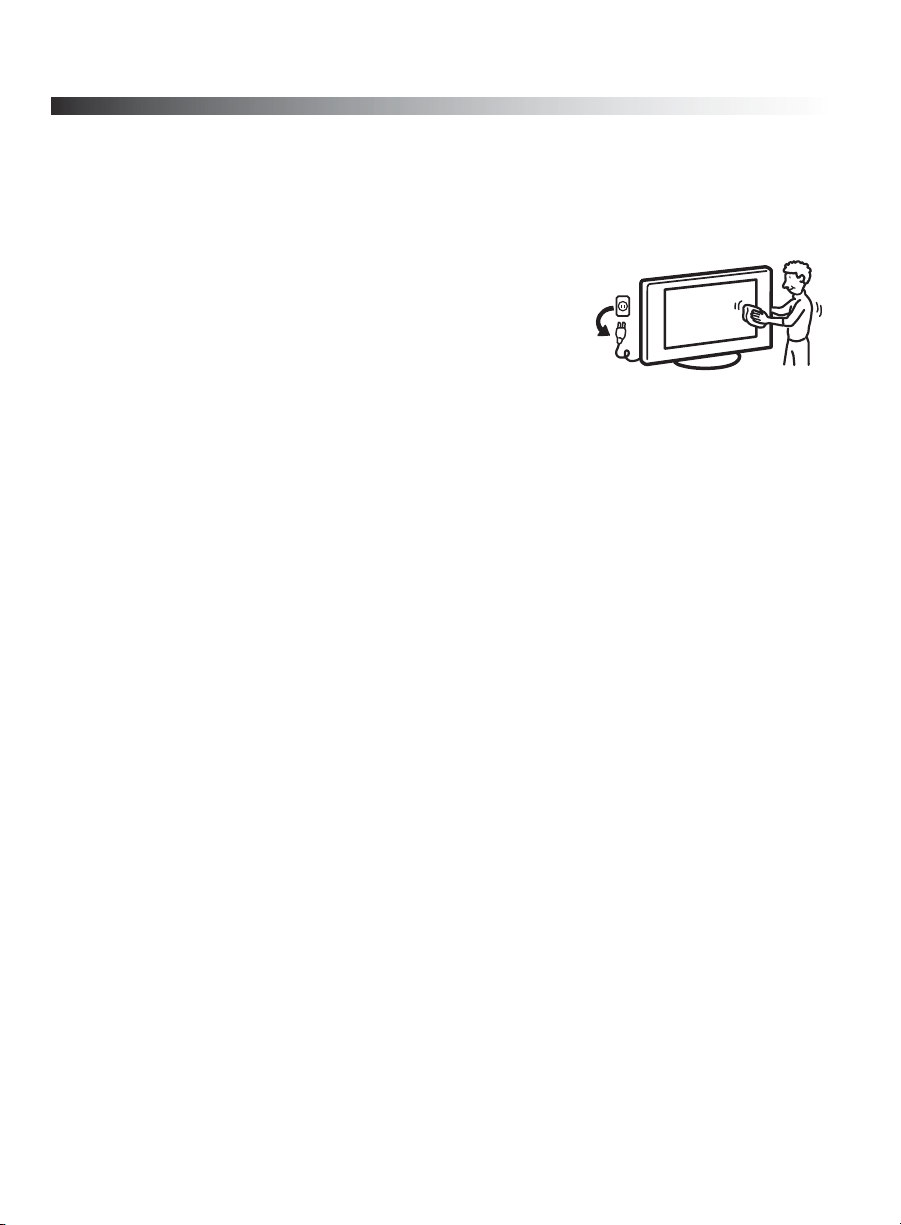
Unplug the TV and other connected equipment from the wall outlet
before you begin cleaning your TV.
• Wipe the LCD screen gently with a soft cloth.
• Stubborn stains may be removed with a cloth slightly moistened
with a solution of mild soap and warm water.
• If using a chemically pretreated cloth, please follow the instruction
provided on the package.
• Never use strong solvents such as a thinner, alcohol or benzine for cleaning.
• Do not plug in the TV into the wall outlet until the moisture from cleaning has evaporated.
The TV should also be placed on a stable surface to prevent it from toppling over (see page 7). If you have
young children or pets at home, check regularly to insure the TV is securely fastened.
Troubleshooting
Many problems with picture and sound quality are related to improper cable connection; refer to the Quick
Setup Guide provided for sample connections.
Things to consider
• Check the Input selection by pressing INPUT. You may be watching the wrong input.
• You may have accidentally pressed the MUTING button on your remote control; press MUTING again or
press VOL + to deactivate muting.
• The batteries may be installed incorrectly or may be low.
• An object or fluorescent light may be interfering with the remote control’s operation.
• To reset the TV to factory default settings:
1 Turn on the TV.
2 While pressing V on the Remote Control, press POWER on the TV. (The TV will turn itself off, then
back on again.)
WARNING: The reset will clear all of your customized settings including the Parental Lock setting.
If you have forgotten your password, enter the master password: 4357. This password clears your previous
password and allows you to enter a new password.
The online Reference Book (www.sony.com/referencebook) provides additional information on
troubleshooting. Contact Sony if you need further assistance.
Other Information
37
For customers in Canada
This Class B digital apparatus complies with Canadian
ICES-003.
FCC Related Information
This equipment has been tested and found to comply with
the limits for a Class B digital device, pursuant to Part 15
of the FCC Rules. These limits are designed to provide
reasonable protection against harmful interference in a
residential installation. This equipment generates, uses and
can radiate radio frequency energy and, if not installed and
used in accordance with the instructions, may cause
harmful interference to radio communications. However,
there is no guarantee that interference will not occur in a
particular installation. If this equipment does cause
harmful interference to radio or television reception, which
can be determined by turning the equipment off and on, the
user is encouraged to try to correct the interference by one
or more of the following measures:
❑ Reorient or relocate the receiving antenna.
❑ Increase the separation between the equipment and
receiver.
❑ Connect the equipment into an outlet on a circuit
different from that to which the receiver is connected.
❑ Consult the dealer or an experienced radio/TV
technician for help.
Note
This television includes a QAM demodulator which should
allow you to receive unscrambled digital cable television
programming via subscription service to a cable service
provider. Availability of digital cable television
programming in your area depends on the type of
programming and signal provided by your cable service
provider.
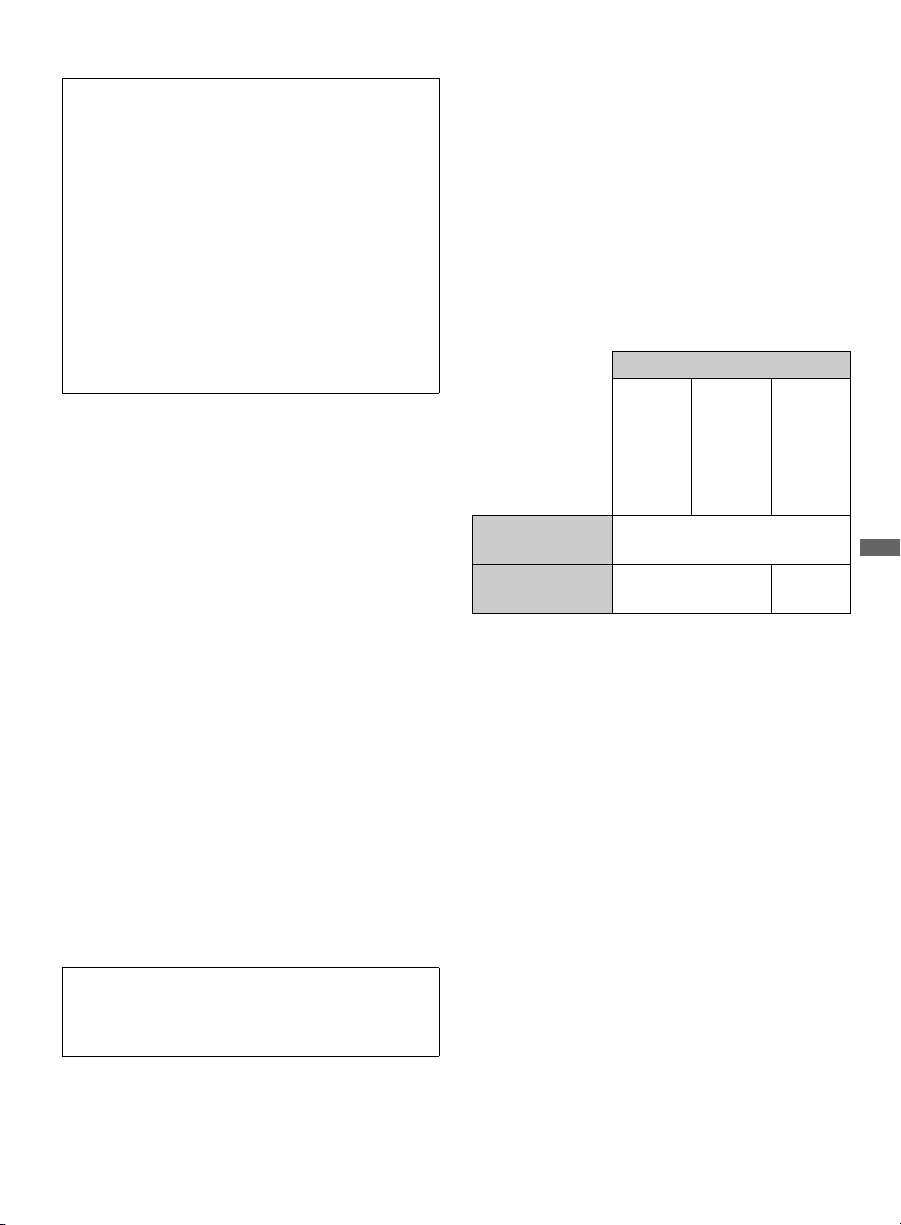
Compatible Wall-Mount Bracket and
Speaker Bar Information
Use the following Sony Wall-Mount Bracket or
Speaker Bar with your TV model.
Use with other Wall-Mount Brackets or speaker bars may
cause instability and could result in property damages or
injury.
To Customers
Sufficient expertise is required for TV installations. Be
sure to subcontract the installation to a Sony dealer or
licensed contractor and pay adequate attention to safety
during the installation.
For Customers in the United States
The lamp in this product contains mercury.
Disposal of these materials may be regulated
due to environmental considerations. For
disposal or recycling information, please
contact your local authorities or the Electronic
Industries Alliance (www.eiae.org).
Declaration of Conformity
Trade Name: SONY
Model: KDL-40W5100/KDL-46W5100/
KDL-52W5100/KDL-65W5100/KDL-46W5150/
KDL-52W5150
Responsible Party: Sony Electronics Inc.
Address: 16530 Via Esprillo,
San Diego, CA 92127 U.S.A.
Telephone Number: 858-942-2230
This device complies with part 15 of the FCC rules.
Operation is subject to the following two conditions:
(1) This device may not cause harmful interference, and
(2) this device must accept any interference received,
including interference that may cause undesired
operation.
Pursuant to FCC regulations, you are cautioned that any
changes or modifications not expressly approved in this
manual could void your authority to operate this
equipment.
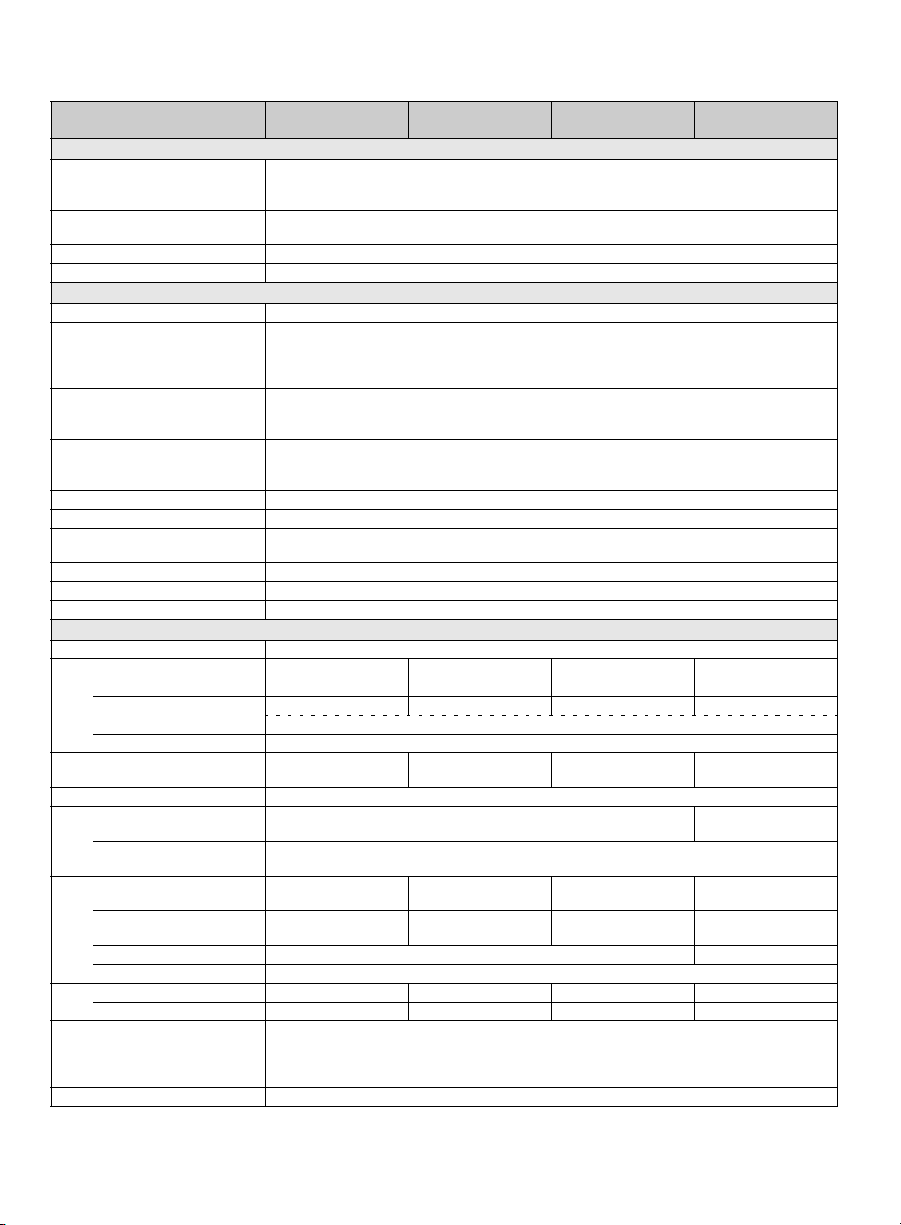
Sony TV Model No.
KDL-
40W5100
KDL-
46W5100/
KDL-
46W5150
KDL-
52W5100/
KDL-
52W5150/
KDL-
65W5100
Sony Wall-Mount
Bracket Model No.
SU-WL500
Sony Speaker Bar
Model No.
HT-CT500
–
38
Specifications
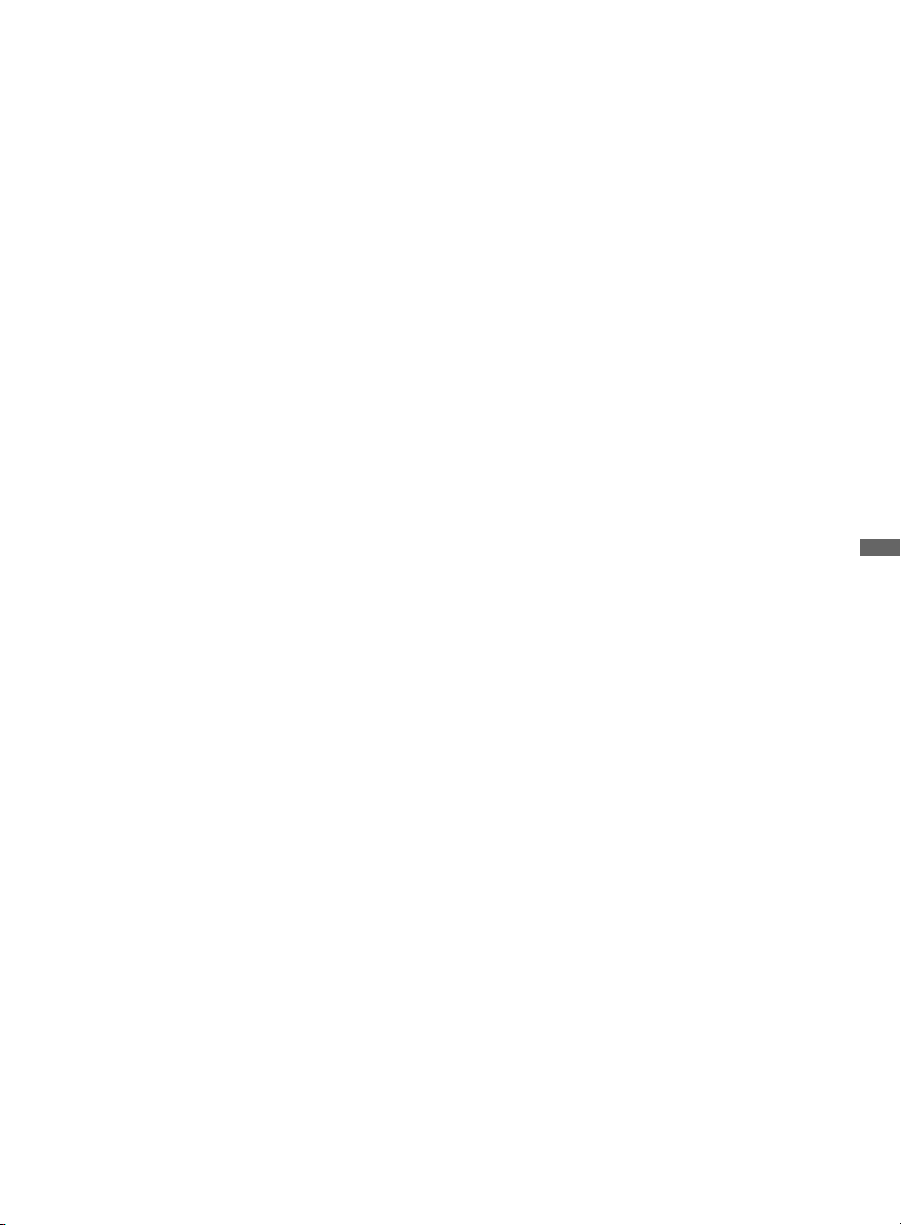
* Download Acquisition Mode (DAM) is used for software updates and/or collecting data for TV Guide On Screen.
• Optional accessories availability depends on its stock.
• Design and specifications are subject to change without notice.
Model KDL-40W5100 KDL-46W5100/
KDL-46W5150
KDL-52W5100/
KDL-52W5150
KDL-65W5100
System
Television system NTSC: American TV standard
ATSC (8VSB terrestrial): ATSC compliant 8VSB
QAM on cable: ANSI/SCTE 07 2000 (Does not include CableCARD functionality)
Channel coverage Analog terrestrial: 2 - 69 / Digital terrestrial: 2 - 69
Analog Cable: 1 - 135 / Digital Cable: 1 - 135
Panel system LCD (Liquid Crystal Display) Panel
Speaker output 10 W + 10 W
Input/Output jacks
CABLE/ANTENNA 75-ohm external terminal for RF inputs
VIDEO IN 1/2 S VIDEO (4-pin mini DIN) (VIDEO 2 only): Y: 1.0 Vp-p, 75 ohms unbalanced, sync negative /
C: 0.286 Vp-p (Burst signal), 75 ohms
VIDEO: 1 Vp-p, 75 ohms unbalanced, sync negative
AUDIO: 500 mVrms (Typical) / Impedance: 47 kilohms
COMPONENT IN 1/2
YP
B
P
R
(Component Video): Y: 1.0 Vp-p, 75 ohms unbalanced, sync negative / P
B
: 0.7 Vp-p, 75 ohms /
P
R
: 0.7 Vp-p, 75 ohms / Signal format: 480i, 480p, 720p, 1080i, 1080p
AUDIO: 500 mVrms (Typical) / Impedance: 47 kilohms
HDMI IN 1/2/3/4
HDMI: Video: 480i, 480p, 720p, 1080i, 1080p, 1080/24p
HDMI: Audio: Two channel linear PCM 32, 44.1 and 48 kHz, 16, 20 and 24 bits, Dolby Digital
AUDIO (HDMI IN 1 only): 500 mVrms (Typical) / Impedance: 47 kilohms
AUDIO OUT 500 mVrms (typical)
DIGITAL AUDIO OUT (OPTICAL)
PCM/Dolby Digital optical signal
PC IN D-sub 15-pin, analog RGB, 0.7 Vp-p, 75 ohms, positive
See the PC Input Signal Reference Chart on page 12.
PC AUDIO INPUT Stereo mini jack, 500 mVrms, (Typical) / Impedance: 47 kilohms
USB MPEG2, MP3, and JPEG.
DLNA MPEG2, LPCM, MP3, and JPEG.
Power and others
Power requirement 120-240 V AC, 50/60 Hz
Power consumption
205 W 240 W 300 W 430 W
in use
in DAM* 20 W 20 W 20 W 22 W
(You may hear a clicking noise during the download but this is normal.)
in standby All models less than 0.1 W with 120 V AC and with 240 V AC less than 0.3 W
Screen size
(inches measured diagonally)
40 46 52
64.5
(65 class)
Display resolution 1,920 dots (horizontal) × 1,080 lines (vertical)
Speaker/Full range (2) (mm)
with speaker box (inches)
45
×
200
1
3
/4
×
7
7
/8
45
×
120
1
3
/4
×
4
3
/4
Tweeter (2) (mm)
(inches)
16
5
/
8
Dimensions with stand (mm)
(inches)
958
×
649
×
303
37
3
/4
×
25
5
/8
×
12
1,091
×
725
×
330
43
×
28
5
/8
×
13
1,240
×
821
×
358
48
7
/8
×
32
3
/8
×
14
1
/8
1,549 × 1,014 × 423
61 × 40 × 16
3
/
4
without stand (mm)
(inches)
958
×
596
×
86
37
3
/4
×
23
1
/2
×
3
1
/2
1,091
×
672
×
86
43
×
26
1
/2
×
3
1
/2
1,240
×
767
×
86
48
7
/8
×
30
1
/4
×
3
1
/2
1,549 × 960 × 115
61 × 37
7
/
8
× 4
5
/
8
wall-mount hole pattern (mm)
300 × 300 400 × 300
wall-mount screw size (mm)
M6 (length: refer to diagram on page 6.)
Mass with stand (kg)/(lb.) 19.1/42.1 23.8/52.5 29.9/65.9 56.1/123.6
without stand (kg)/(lb.) 16.4/36.2 20.5/45.2 25.9/57.1 48.8/107.5
Supplied accessories
Remote control RM-YD027 (1) / Size AA batteries (2) / AC power cord (1) / Cable clamper (1 attached to the Table-
Top Stand) / Operating Instructions (1) / Quick Setup Guide (1) / Warranty Card (1) / Safety and Regulatory Booklet
(1) / Attaching the Table-Top Stand (1) / Screws (4) (Only for models for which the Table-Top Stand requires
installation.)
Optional accessories Connecting cables / Support Belt Kit / Wall-Mount Bracket / Speaker Bar: see page 37
39
Other Information
Index
0-9 buttons 19
A
AC IN 9
AUDIO OUT jack, described 9
Auto Program 16
B
Background TV 33
BRAVIA INTERNET VIDEO button 19
BRAVIA INTERNET WIDGETS button 20
BRAVIA Sync buttons 18
C
CABLE/ANTENNA input, described 9
CC button 18
CH +/– button 20, 21
COMPONENT IN (1080p/1080i/720p/480p/480i) 9
D
DIGITAL AUDIO OUT (OPTICAL) 9
DISPLAY button 18
DLNA 13, 24
DMe
x
/SERVICE 9
E
ENT button 19
F
Favorites 30
FAVORITES button 19
G
GUIDE button 19
H
HD SIGNAL LED 21
HDMI IN 1/2/3/4 L-AUDIO-R 9
HOME button 19, 21
I
Infrared Receiver (IR) 21
INPUT button 20, 21
J
JUMP button 20
L
LAN 9
Light Sensor 21
M
MUTING button 19
O
OPTIONS button 20
P
PC IN 9
PIC OFF/TIMER LED 21
POWER button 19, 21
POWER/STANDBY LED 21
R
RETURN button 19
S
SCENE button 19
Speaker 21
T
Troubleshooting 36
U
USB 9
V
VIDEO IN 1/ COMPONENT IN 1 (1080p/1080i/720p/
480p/480i)/L-AUDIO-R
9
VIDEO IN 2 S VIDEO/VIDEO L (MONO)-AUDIO-R 9
VOL +/– button 19, 21
W
WIDE button 19
Printed in U.S.A.
4-147-081-15(1)
For Your Convenience
Online
Reference
Book:
To learn more about your TV, visit the
online Reference Book at:
http://www.sony.com/referencebook
Online
Registration:
Be sure to register your TV.
United States
Canada
http://productregistration.sony.com
http://www.SonyStyle.ca/registration
Software
Updates:
Your TV is capable of receiving software updates. For the
latest information about software updates for your TV, visit:
United States
Canada
http://www.sony.com/tvsupport
http://www.sony.ca/support
NOTE: If your TV is connected to the Internet, you can check
for software updates by selecting Settings, Product
Support and then Software Update.