

WARNING: This product contains chemicals known to the State of California to cause cancer and birth defects or other
reproductive harm. Wash hands after handling.

2
ENG
ENGLISH
TABLE OF CONTENTS
TABLE OF CONTENTS
3 LICENSES
4 ASSEMBLING AND
PREPARING
4 Accessories
5 Parts and Buttons
6 Installing the Guide Brackets
7 REMOTE CONTROL
9 USING THE TSP500 SET
9 Connecting to a PC
9 - RGB Connection
10 - DVI Connection
10 - HDMI Connection
11 Adjusting the Screen
11 - Selecting an Image Mode
11 - Customizing Image Options
12 - Customizing PC Display Options
12 Adjusting the Sound
12 - Selecting an Sound Mode
13 - Customizing Sound Options
13 Using Additional Options
13 - Adjusting Aspect Ratio
15 - Using the Input List
16 ENTERTAINMENT
16 - Connecting to a Wired Network
17 - Network Status
18 - Connecting USB Storage Devices
19 - Browsing Files
21 - Viewing Movies
24 - Viewing Photos
27 - Listening to Music
29 - Viewing the Contents List
30 - DivX® VOD Guide
31 - Using PIP/PBP
32 CUSTOMIZING SETTINGS
32 Accessing the Main Menus
33 - PICTURE Settings
36 - Power Sequence
37 - AUDIO Settings
38 - TIME Settings
39 - OPTION Settings
44 Picture ID
45 - NETWORK Settings
46 MAKING CONNECTIONS
47 Connecting to a HD Receiver, DVD
Player, Camcorder, Camera, Gaming
Device or VCR
47 - DVI Connection
47 - HDMI Connection
48 - Component Connection
48 - AV(CVBS) Connection
49 Connecting to the LAN
49 Connecting to a USB
50 TROUBLESHOOTING
53 SPECIFICATIONS
55 IR CODES
56 CONTROLLING THE MULTIPLE
PRODUCT
56 Command Reference List
58 Transmission / Receiving Protocol
ENGLISH
3
LICENSES
LICENSES
Supported licenses may differ by model. For more information of the licenses, visit www.lg.com.
The terms HDMI and HDMI High-Definition Multimedia Interface, and the
HDMI logo are trademarks or registered trademarks of HDMI Licensing LLC in
the United States and other countries.
ABOUT DIVX VIDEO: DivX is a digital video format created by DivX, LLC, a
subsidiary of Rovi Corporation. This is an official DivX Certified device that
plays DivX video. Visit divx.com for more information and software tools to
convert your files into DivX videos.
ABOUT DIVX VIDEO-ON-DEMAND: This DivX Certified device must be
registered in order to play purchased DivX Video-on-Demand (VOD) movies.
To obtain your registration code, locate the DivX VOD section in your device
setup menu. Go to vod.divx.com for more information on how to complete
your registration.
DivX Certified to play DivX video up to HD 1080p, including premium
content.
DivX , DivX Certified and associated logos are trademarks of Rovi
Corporation or its subsidiaries and are used under license.
Covered by one or more of the following U.S. patents: 7,295,673; 7,460,668;
7,515,710; 7,519,274
Manufactured under license from Dolby Laboratories. Dolby and the double-D
symbol are trademarks of Dolby Laboratories.
y
The warranty will not cover any damages caused by using the product in an excessively dusty
environment.
NOTE
4
ENG
ENGLISH
ASSEMBLING AND PREPARING
ASSEMBLING AND PREPARING
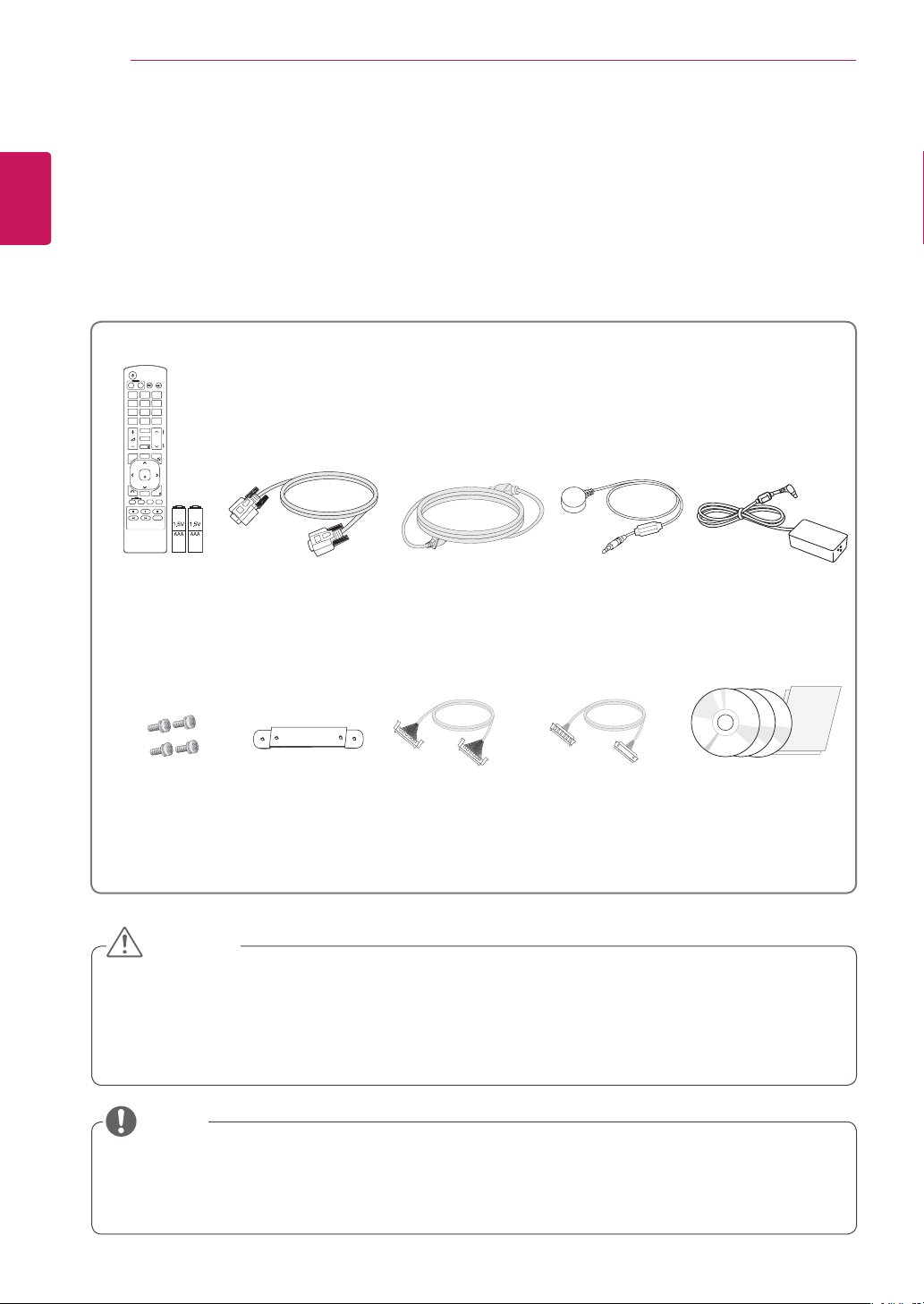
Accessories
Check your product box for the following items. If there are any missing accessories, contact the local
dealer where you purchased your product. The illustrations in this manual may differ from the actual product
and accessories.
y
Do not use any pirated items to ensure the safety and product life span.
y
Any damages or injuries by using pirated items are not covered by the warranty.
y
Risk of explosion if battery is replaced by an incorrect type.
y
Dispose of used batteries according to the instructions.
CAUTION
y
The accessories supplied with your product may vary depending on the model.
y
Product specifications or contents in this manual may be changed without prior notice due to upgrade
of product functions.
NOTE
Remote Control
and Batteries
Power Cord
CD (Owner's Manual,
SuperSign Elite-w,
SuperSign Elite-c
Program/SuperSign
Manual) / Cards
P
A
G
E
INPUT
ENERGY
SAVING
MARK
ARC
ON
OFF
. , !
ABC
DEF
GHI
JKL
MNO
PQRS
TUV
1/a/A
- * #
WXYZ
CLEAR
MONITOR
PSM
AUTO
MUTE
BRIGHT
NESS
MENU
POWER
OK
S.MENU
ID
BACK
TILE
ON
OFF
EXIT
RGB Cable
IR Receiver
Screws
(For Guide Bracket)
Adaptor
Guide Bracket
LVDS
Cable
for FHD
LVDS
Cable
for HD
5
ENG
ENGLISH
ASSEMBLING AND PREPARING
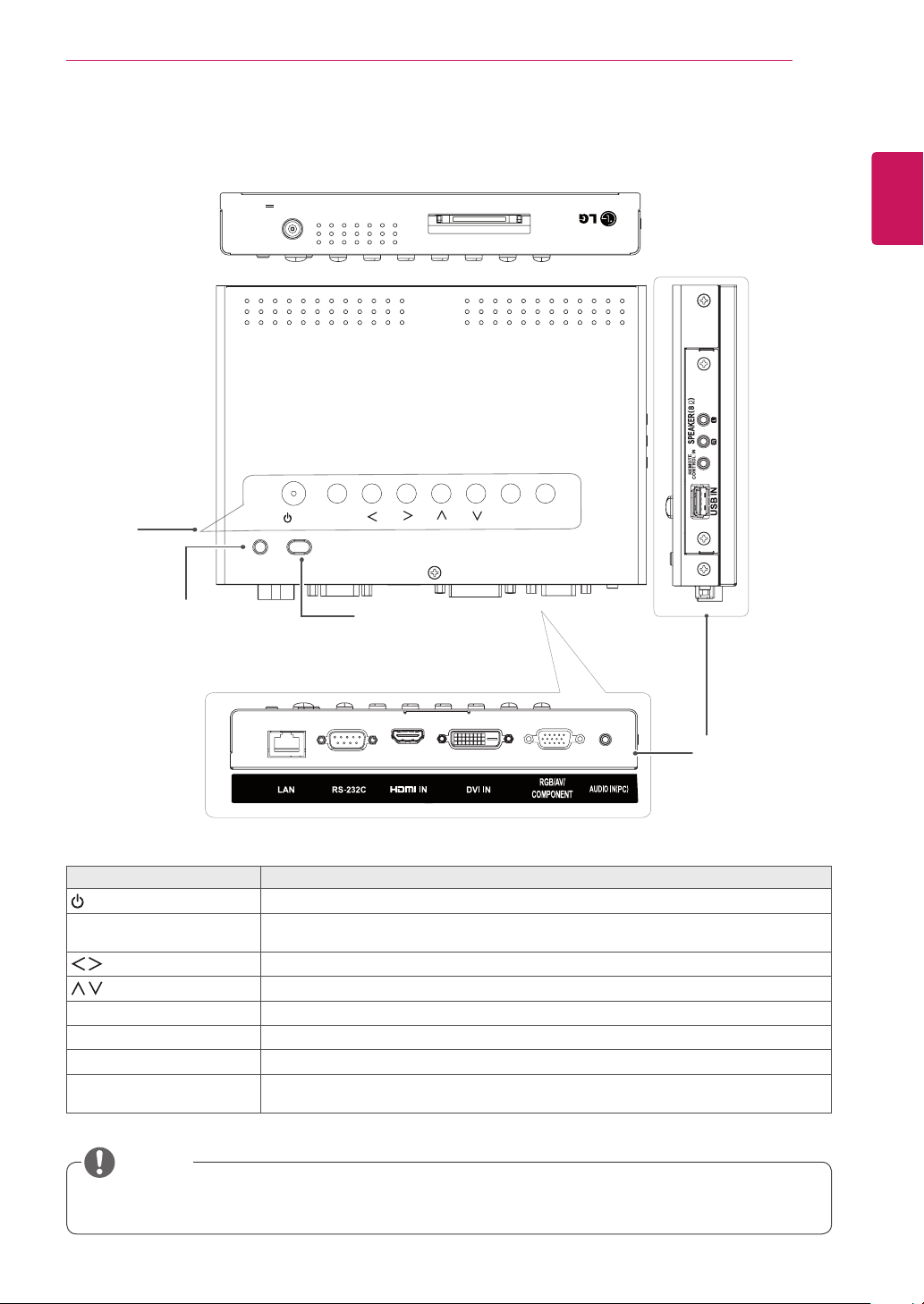
Parts and Buttons
Screen Marks Description
/ I
Turns the power on or off.
AUTO/SET Displays the current signal and mode.
Press this button to adjust the screen automatically (available only in RGB mode)
Adjusts the volume level.
Adjusts the up and down.
MENU Accesses the main menus, or saves your input and exits the menus.
INPUT Changes the input source.
IR Receiver This is where the unit receives signals from the remote control.
Power Indicator Turns red when the TSP500 set is turned on; blinks amber when it is in Energy Saving
mode.
y
You can set the Power indicator to on or off by selecting OPTION in the main menu.
NOTE
2#L
DXWR2VHW#
PHQX LQSXW
OYGV#RXW
GF#LQ#+4<#Y####,
Connection Panel
Buttons
Power Indicator
y
LED On(Red) : Power is on.
y
LED On(Amber) : DPM
y
LED Off : Power is off.
IR Receiver
6
ENG
ENGLISH
ASSEMBLING AND PREPARING
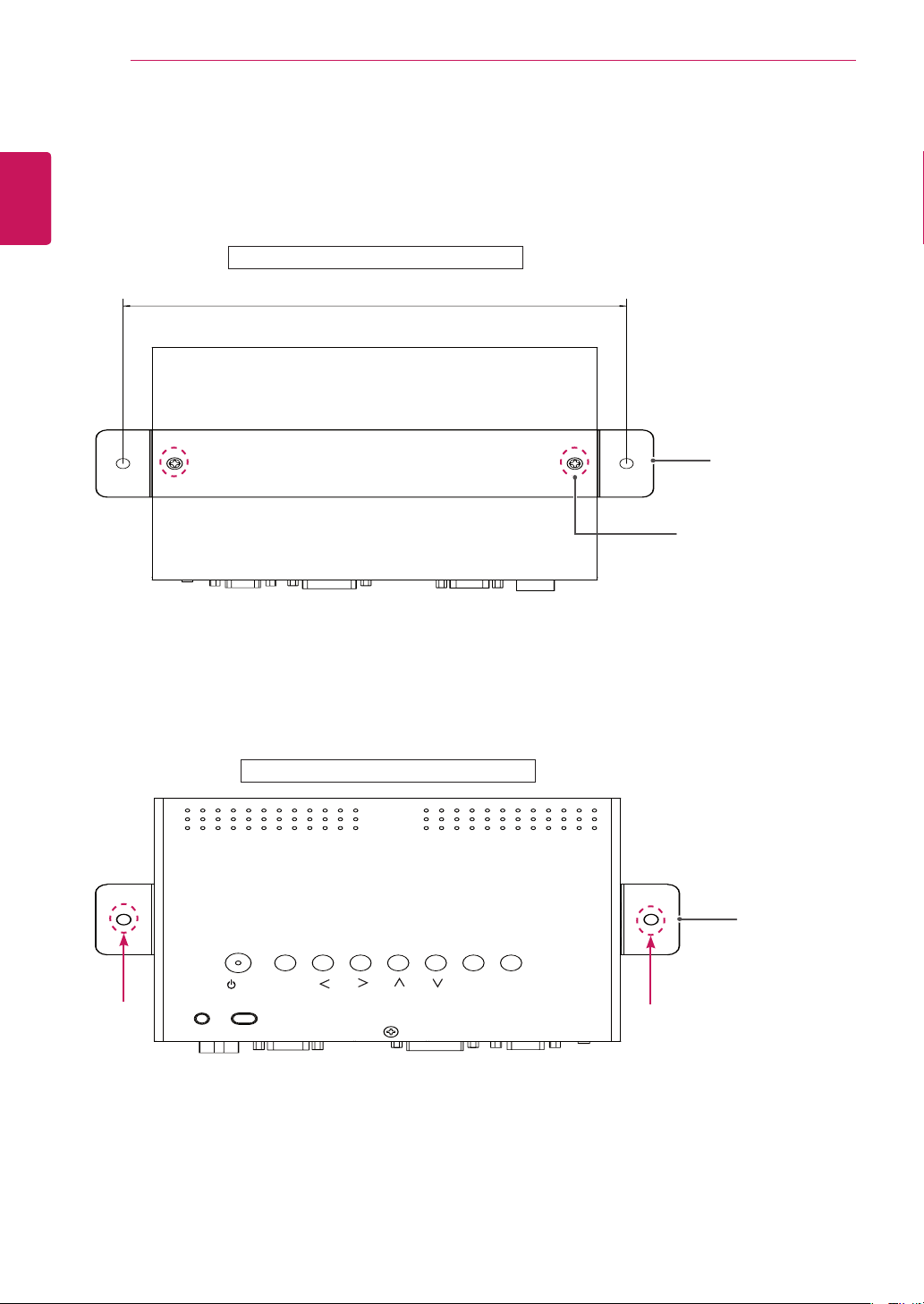
Installing the Guide Brackets
1
Install the guide brackets to the set using the screws supplied as accessories.
2
Fix the set with the guide brackets installed using the screws supplied as accessories.
2#L
DXWR2VHW#
PHQX LQSXW
Back of the Product
224.2 mm
Guide Bracket
Screws (For Guide Bracket)
2#L
DXWR2VHW#
PHQX LQSXW
Front of the Product
Guide Bracket
7
ENG
ENGLISH
REMOTE CONTROL
REMOTE CONTROL
P
A
G
E
INPUT
ENERGY
SAVING
MARK
ARC
ON
OFF
1
. , !
2
ABC
3
DEF
4
GHI
5
JKL
6
MNO
7
PQRS
8
TUV
9
1/a/A
0
- * #
WXYZ
CLEAR
OK
S.MENU
MONITOR
PSM
AUTO
MUTE
BRIGHT
NESS
MENU
ID
BACK
TILE
ON
OFF
EXIT
POWER
P
A
G
E
INPUT
ENER
GY
SAVING
MARK
ARC
1
.
,
!
2
ABC
3
D
E
F
4
G
HI
5
J
K
L
6
M
N
O
7
PQ
R
S
7
7
8
T
U
V
9
1/a/A
0
- * #
WXYZ
C
LEA
R
ON
OF
F
MONITOR
MONITOR
PSM
MU
T
E
BRI
G
H
T
NESS
PO
WE
R
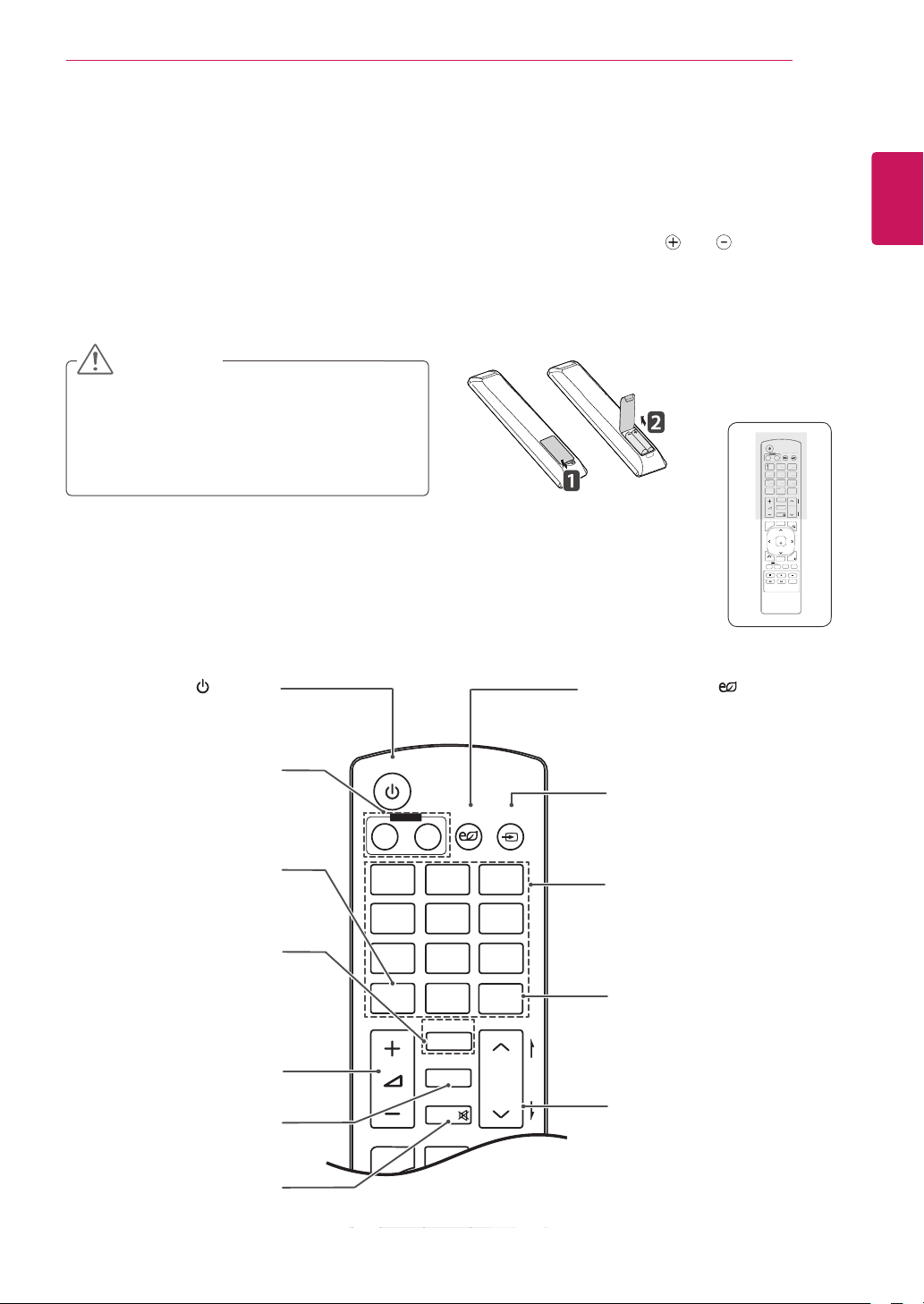
The descriptions in this manual are based on the buttons of the remote control. Please read this manual
carefully and use the TSP500 set correctly.
To replace batteries, open the battery cover, replace batteries (1.5 V AAA) matching and ends to the
label inside the compartment, and close the battery cover.
To remove the batteries, perform the installation actions in reverse.
y
Do not mix old and new batteries, as this
may damage the remote control.
y
Make sure to point the remote control to the
remote control sensor on the TSP500 set.
CAUTION
P
A
G
E
INPUT
ENERGY
SAVING
MARK
ARC
ON
OFF
. , !
ABC
DEF
GHI
JKL
MNO
PQRS
TUV
1/a/A
- * #
WXYZ
CLEAR
OK
S.MENU
MONITOR
PSM
AUTO
MUTE
BRIGHT
NESS
MENU
ID
BACK
TILE
ON
OFF
EXIT
POWER
(POWER)
Turns the TSP500 set on or off.
Monitor On / Off
Turn off the TSP500 and then
turn it back on.
1/a/A Button
Toggles between numerical
and alphabetical.
ENERGY SAVING( )
Adjusts the brightness of
the screen to reduce energy
consumption.
INPUT
Selects the input mode.
Number and Alphabet Buttons
Enters numerical or alphabetical
characters depending on the
setting.
CLEAR
Deletes the entered numerical
or alphabetical character.
PSM
Selects the Picture Status
Mode.
MUTE
Mutes all sounds.
ARC
Selects the Aspect Ratio
Mode.
MARK
Selects a specific file in the
USB mode.
Volume Up / Down
Adjusts the volume level.
Brightness Key
Adjust the brightness by
pressing the Up and Down
buttons on the remote control.
In USB mode, the OSD menu
has the Page function to
move to the next file list.
8
ENG
ENGLISH
REMOTE CONTROL
P
A
G
E
INPUT
ENERGY
SAVING
MARK
ARC
ON
OFF
. , !
ABC
DEF
GHI
JKL
MNO
PQRS
TUV
1/a/A
- * #
WXYZ
CLEAR
OK
S.MENU
MONITOR
PSM
AUTO
MUTE
BRIGHT
NESS
MENU
ID
BACK
TILE
ON
OFF
EXIT
POWER
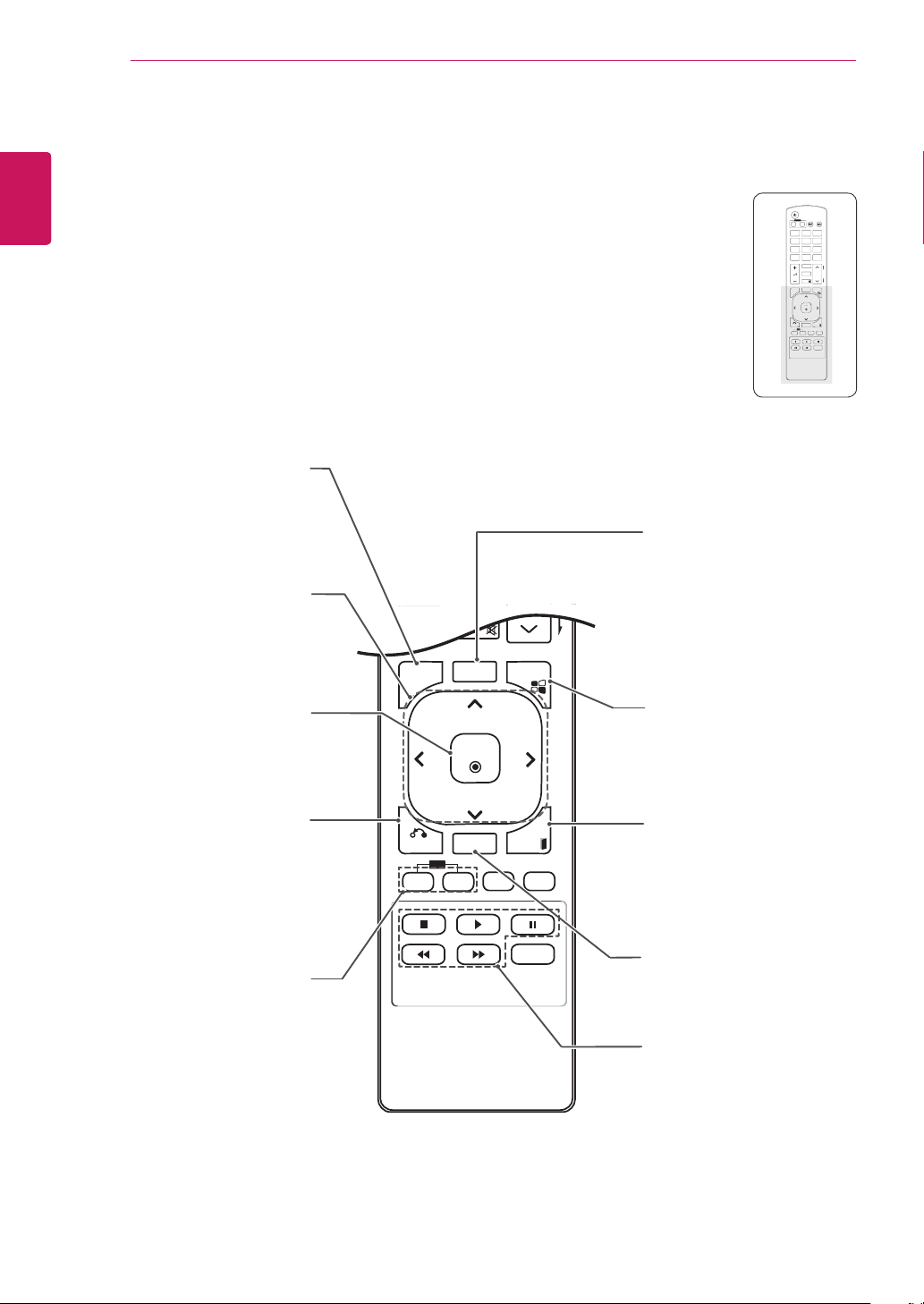
S.MENU
(SuperSign Menu Key)
This button selection is not
applicable.
EXIT
Clears all on-screen displays
and returns to the TSP500
set viewing from any menu.
TILE
Selects the TILE Mode.
MENU
Accesses the main menus
or saves your input and exit
menus.
Navigation Buttons
Scrolls through menus or
options.
OK
Selects menus or options and
confirms your input.
BACK
Allows the user to move back
one step in user interaction
function.
USB Menu Control Buttons
Controls media playback.
ID ON/OFF
When the number of Picture
ID is equal to Set ID you can
control the TSP500 which
you want in the multi TSP500
condition.
AUTO
Automatically adjusts picture
position and minimizes image
instability.(RGB input only)
P
A
G
E
INPUT
ENERGY
SAVING
MARK
ARC
ON
OFF
1
. , !
2
ABC
3
DEF
4
GHI
5
JKL
6
MNO
7
PQRS
8
TUV
9
1/a/A
0
- * #
WXYZ
CLEAR
OK
S.MENU
MONITOR
PSM
AUTO
MUTE
BRIGHT
NESS
MENU
ID
BACK
TILE
ON
OFF
EXIT
POWER
OK
S
.MEN
U
A
U
T
O
MEN
U
ID
BA
C
K
T
IL
E
ON
O
FF
E
XIT
9
ENG
ENGLISH
USING THE TSP500 SET
USING THE TSP500 SET
Connecting to a PC
The TSP500 does not include the monitor. You
can connect TSP500 to a transparent open frame
(model: 26TS30MF, 47TS30MF, 47TS50MF) to
view the picture on it.
Your TSP500 set supports the Plug & Play* feature.
* Plug & Play: A PC will have a built-in driver for
TSP500, no extra software is needed.
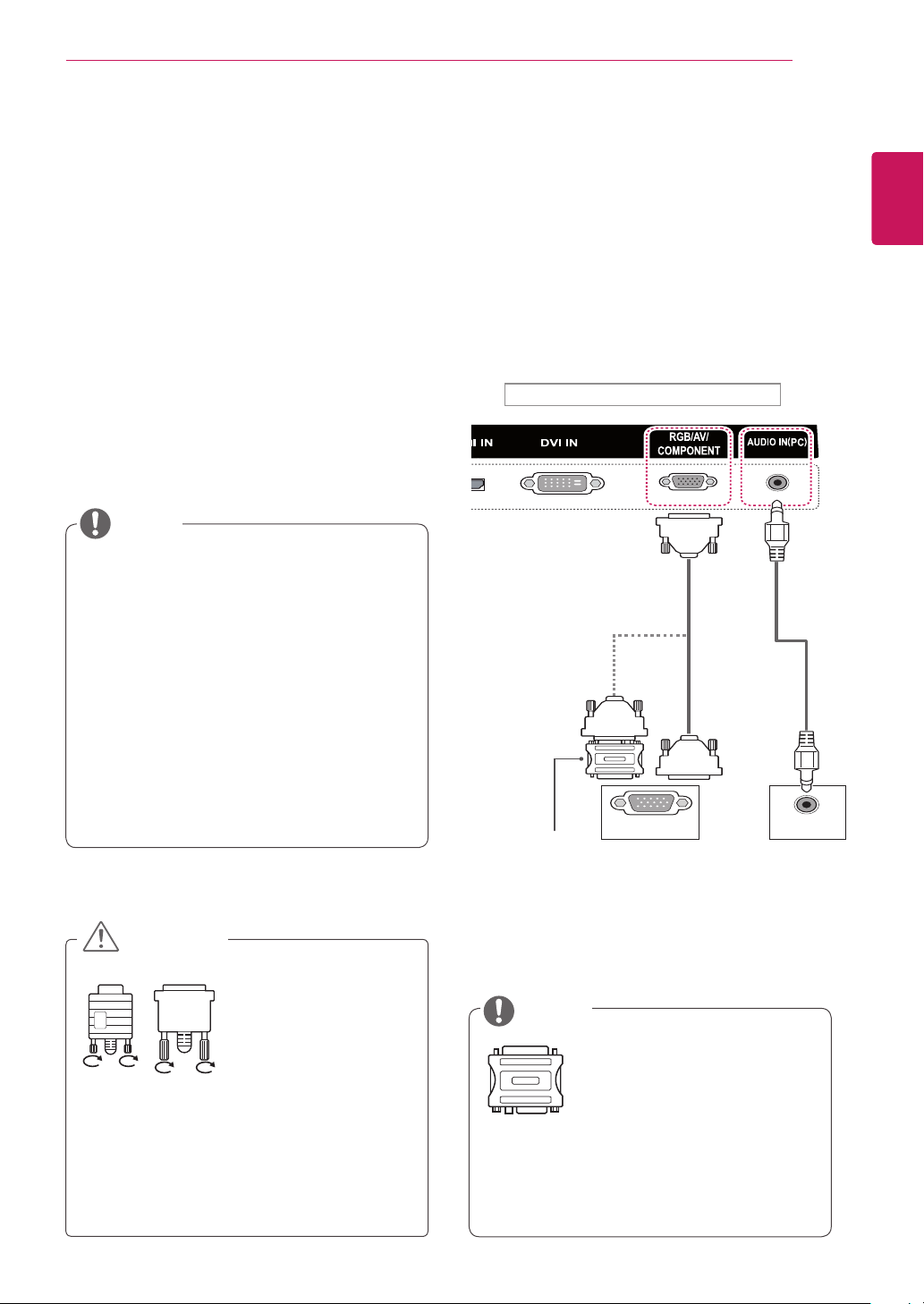
RGB Connection
Transmits the analog video signal from your PC
to TSP500. Connect the PC and TSP500 with
a 15 pin signal cable as shown the following
illustrations.
Select RGB input.
NOTE
y
It is recommended to use the TSP500 set
with an HDMI connection for the best image
quality.
y
To comply with the specifications of the
product, use a shielded interface cable
with ferrite core, such as the D-sub 15 pin
cable and DVI/HDMI cable provided with the
product.
y
If you turn the TSP500 set on when the
TSP500 is cold, the screen may flicker. This
is normal.
y
Some red, green, or blue spots may appear
on the screen. This is normal.
y
Connect the signal
input cable and tighten
it by turning the screws
clockwise.
y
Do not press the screen with your finger for
a long time as this may result in temporary
distortion on the screen.
y
Avoid displaying a fixed image on the screen
for a long period of time to prevent image
burn. Use a screensaver if possible.
CAUTION
y
Apple computers may require an adapter
to connect to this TSP500. Call or visit their
web site for more information.
y
Use the standard Macintosh
adapter since an incompatible
adapter is available in the
market. (Different signaling
system)
NOTE
RGB OUT AUDIO OUT
Side of the Product
Macintosh
Adapter
(not included)
(not
included)
PC/MAC PC
10
ENG
ENGLISH
USING THE TSP500 SET
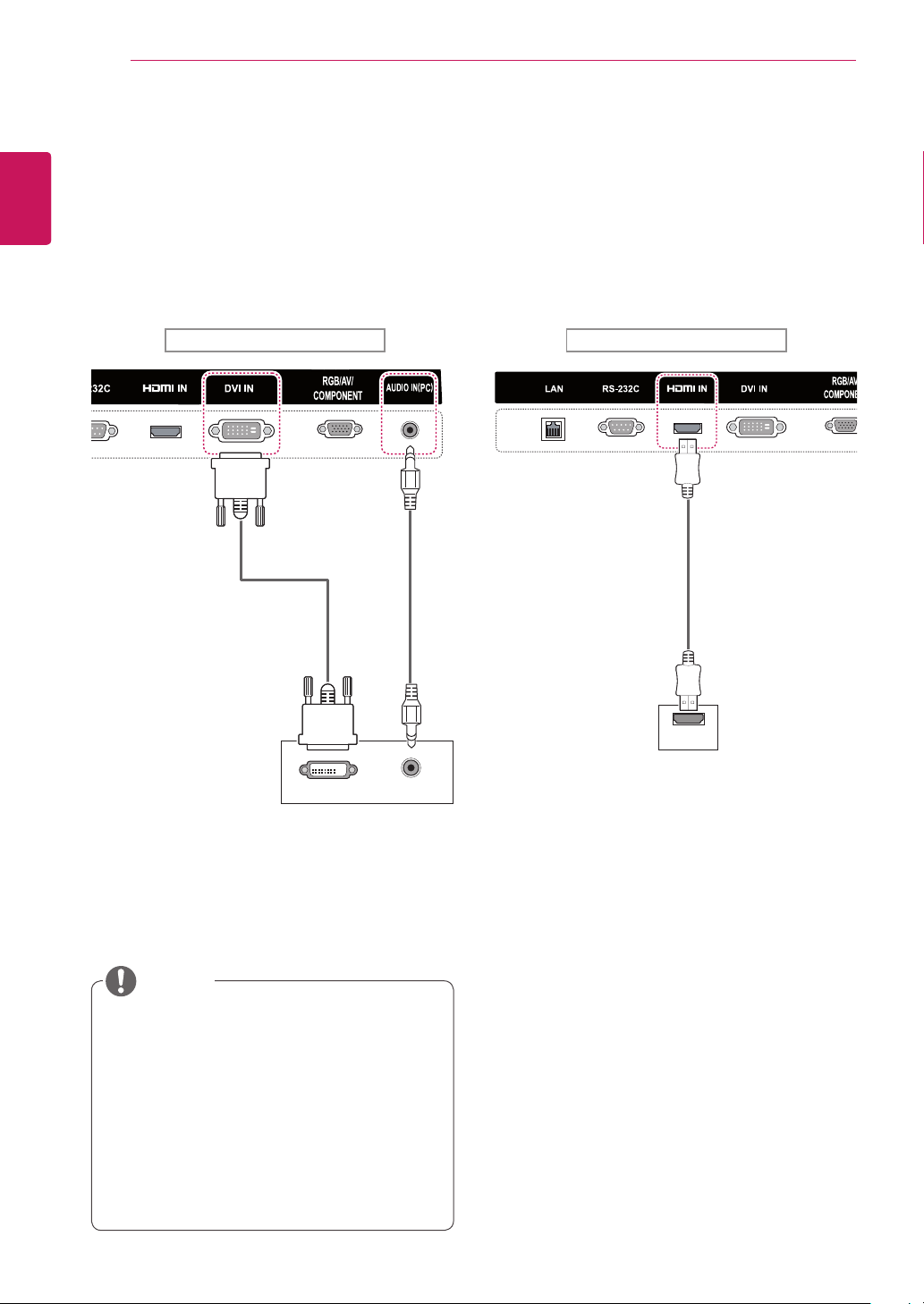
HDMI Connection
Transmits digital video and audio signals from your
PC to the TSP500 set. Connect the PC and the
TSP500 set with an HDMI cable as shown in the
following illustrations.
Select HDMI input.
y
Use a High Speed HDMI™ Cable.
y
Please check the PC environment if you
cannot hear the sound in HDMI mode. Some
PCs require you to manually change the
default audio output to HDMI.
y
If you want to use HDMI-PC mode, you must
set the input label to PC mode.
y
When HDMI PC is used, a compatibility
problem could occur.
NOTE
PC
Side of the Product
(not included)
HDMI
DVI Connection
Transmits a digtal video signal from your PC to
the TSP500 set. Connect the PC and the TSP500
set with a DVI cable as shown the following
illustrations.
Select DVI input.
DVI OUT AUDIO OUT
PC
Side of the Product
(not
included)
(not included)
11
ENG
ENGLISH
USING THE TSP500 SET
Adjusting the Screen
Selecting an Image Mode
Display images in its optimized settings by
selecting one of the preset image modes.
1
Press MENU to access the main menus.
2
Press the Navigation buttons to scroll to
PICTURE and press OK.
3
Press the Navigation buttons to scroll to
Picture Mode and press OK.
4
Press the Navigation buttons to scroll to an
image mode you want and press OK.
Customizing Image Options
Customize basic and advanced options of each
image mode for the best screen performance.
1
Press MENU to access the main menus.
2
Press the Navigation buttons to scroll to
PICTURE and press OK.
3
Press the Navigation buttons to scroll to
Picture Mode and press OK.
4
Press the Navigation buttons to scroll to an
image mode you want and press OK.
5
Select and adjust the following options, and
then press OK.
Mode Description
Vivid Adjusts the video image for a retail
environment by enhancing the contrast,
brightness, color, and sharpness.
Standard Adjusts the image for a normal
environment.
Cinema Optimizes the video image for a cinematic
look to enjoy movies as if you are in a
movie theater.
Sport Optimizes the video image for high and
dynamic actions by emphasizing primary
colors such as white, grass, or sky blue.
Game Optimizes the video image for a fast
gaming screen such as PCs or games.
5
When you are finished, press EXIT.
When you return to the previous menu, press
BACK.
Option Description
Contrast Increases or decreases the gradient
of the video signal. You may use
Contrast when the bright part of the
picture is saturated.
Brightness Adjusts the base level of the signal in
the picture. You may use Brightness
when the dark part of the picture is
saturated.
Sharpness Adjusts the level of crispness in the
edges between the light and dark
areas of the picture. The lower the
level, the softer the image.
Color Adjusts intensity of all colors.
Tint Adjusts the balance between red and
green levels.
Color Temp. Set to warm to enhance hotter Colors
such as red, or set to cool to make
picture bluish.
Advanced
Control
Customizes the advanced options.
Refer to the Advanced image options.
Picture Reset Restores the options to the default
setting.
6
When you are finished, press EXIT.
When you return to the previous menu, press
BACK.
12
ENG
ENGLISH
USING THE TSP500 SET
Customizing PC Display Options
Customize options of each image mode for the
best image quality.
y
This function works in the following mode:
RGB[PC] mode.
1
Press MENU to access the main menus.
2
Press the Navigation buttons to scroll to
PICTURE and press OK.
3
Press the Navigation buttons to scroll to
Screen and press OK.
4
Select and adjust following options, and then
press OK.
Option Description
Resolution Selects a proper resolution. See
“Customizing PC display options”.
Auto
Config.
Sets to adjust the screen position, clock,
and phase automatically.
The displayed image may be unstable for
a few seconds while the configuration is
in progress.
Position/
Size/Phase
Adjusts the options when the picture is
not clear, especially when characters are
shaky, after the auto configuration.
Reset Restores the options to the default
setting.
5
When you are finished, press EXIT.
When you return to the previous menu, press
BACK.
Adjusting the Sound
Selecting an Sound Mode
Play the sound in its optimized settings by
selecting one of the preset sound modes.
1
Press MENU to access the main menus.
2
Press the Navigation buttons to scroll to
AUDIO and press OK.
3
Press the Navigation buttons to scroll to Sound
Mode and press OK.
4
Press the Navigation buttons to scroll to a
sound mode you want and press OK.
Mode Description
Standard Select when you want standard-quality
sound.
Music Select when you listen to music.
Cinema Select when you watch movies.
Sports Select when you watch sports events.
Game Select when you play games.
5
When you are finished, press EXIT.
When you return to the previous menu, press
BACK.
13
ENG
ENGLISH
USING THE TSP500 SET
Customizing Sound Options
Customize options of each sound mode for the
best sound quality.
1
Press MENU to access the main menus.
2
Press the Navigation buttons to scroll to
AUDIO and press OK.
3
Press the Navigation buttons to scroll to Sound
Mode and press OK.
4
Press the Navigation buttons to scroll to a
sound mode you want and press OK.
5
Select and adjust following options, and then
press OK.
Option Description
Infinite
Sound
LG's Infinity Sound option provides 5.1
channel stereo sound quality from two
speakers.
Treble Increases the intensity of the high
frequency part of audio.
Bass Increases the intensity of the low
frequency part of audio.
Reset Resets the sound mode to the default
setting.
6
When you are finished, press EXIT.
When you return to the previous menu, press
BACK.
Using Additional Options
Adjusting Aspect Ratio
Resize the image to view the image at its optimal
size by pressing ARC while you are watching the
display set.
y
If a fixed image displays on the screen for a
long period of time, it could be imprinted and
become a permanent disfigurement on the
screen. This is “image burn” or “burn-in” and
not covered by the warranty.
y
If the aspect ratio is set to 4:3 for a long
period of time, image burn may occur on the
letterboxed area of the screen.
CAUTION
y
You can also change the image size by
accessing the main menus.
NOTE
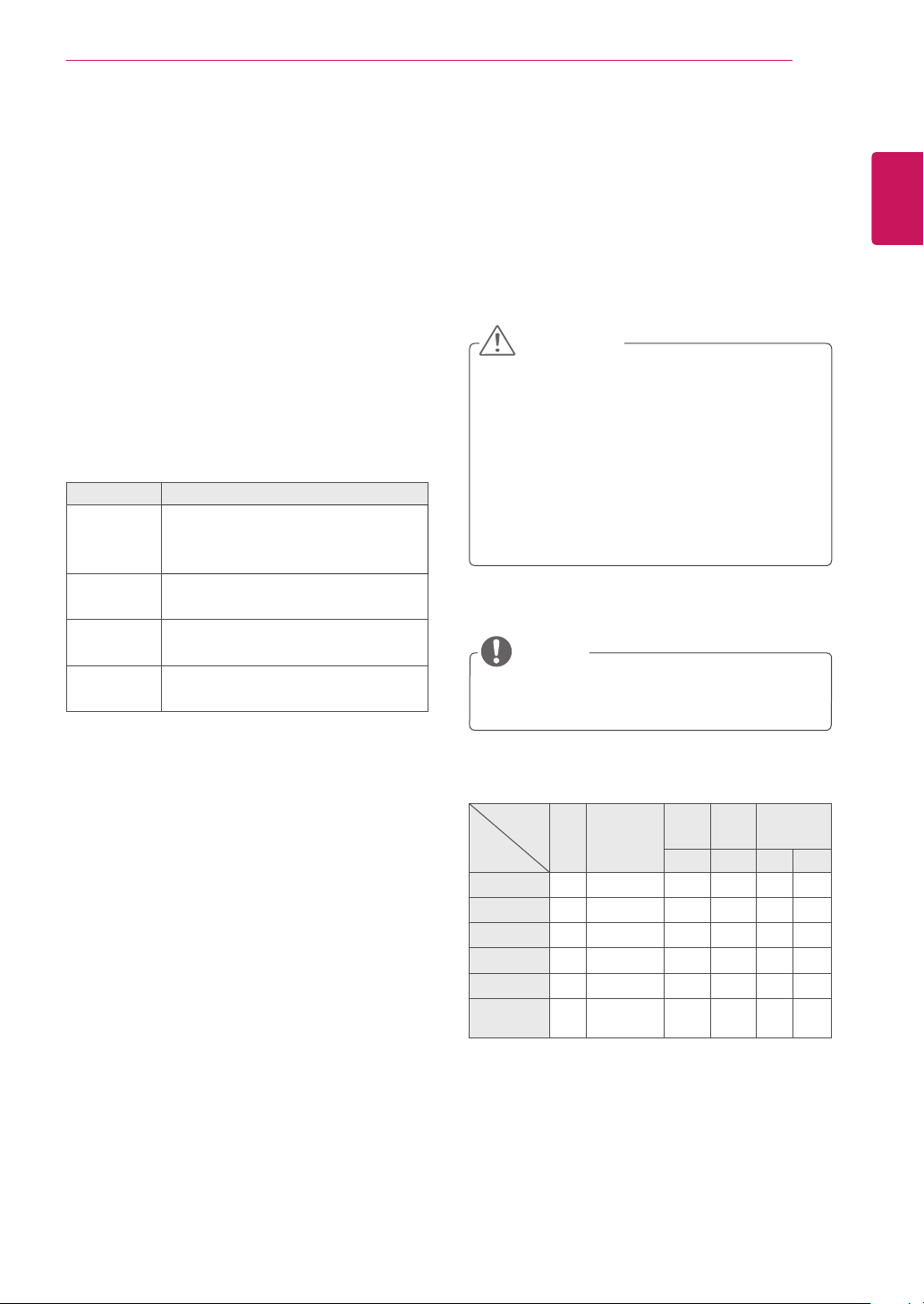
MODE
ARC
AV Component RGB DVI-D HDMI
PC PC DTV PC
16:9 o o o o o o
Just Scan x o x x o x
1:1 x x o o x o
4:3 o o o o o o
Zoom o o x x o x
Cinema
Zoom
o o x x o x
14
ENG
ENGLISH
USING THE TSP500 SET
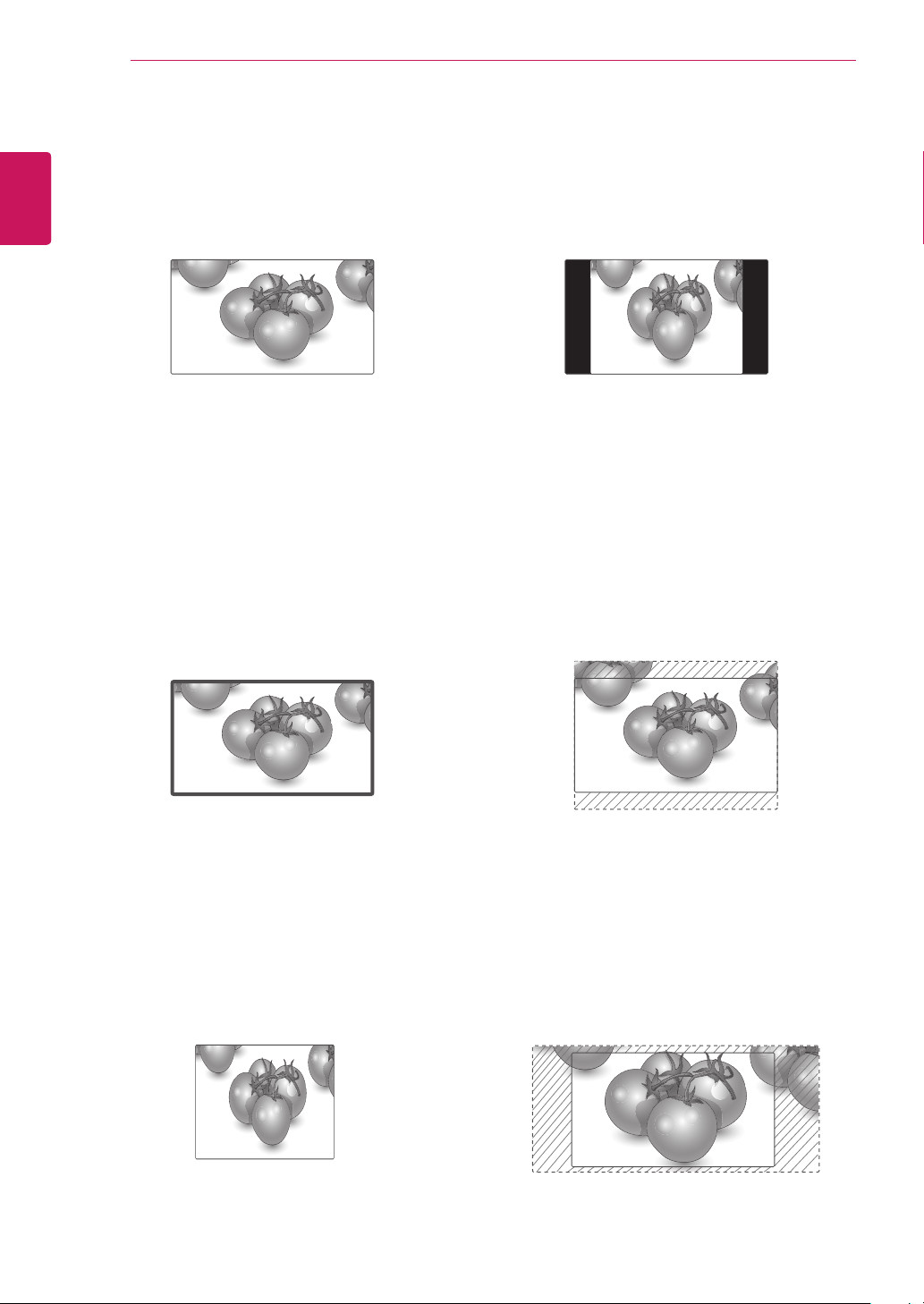
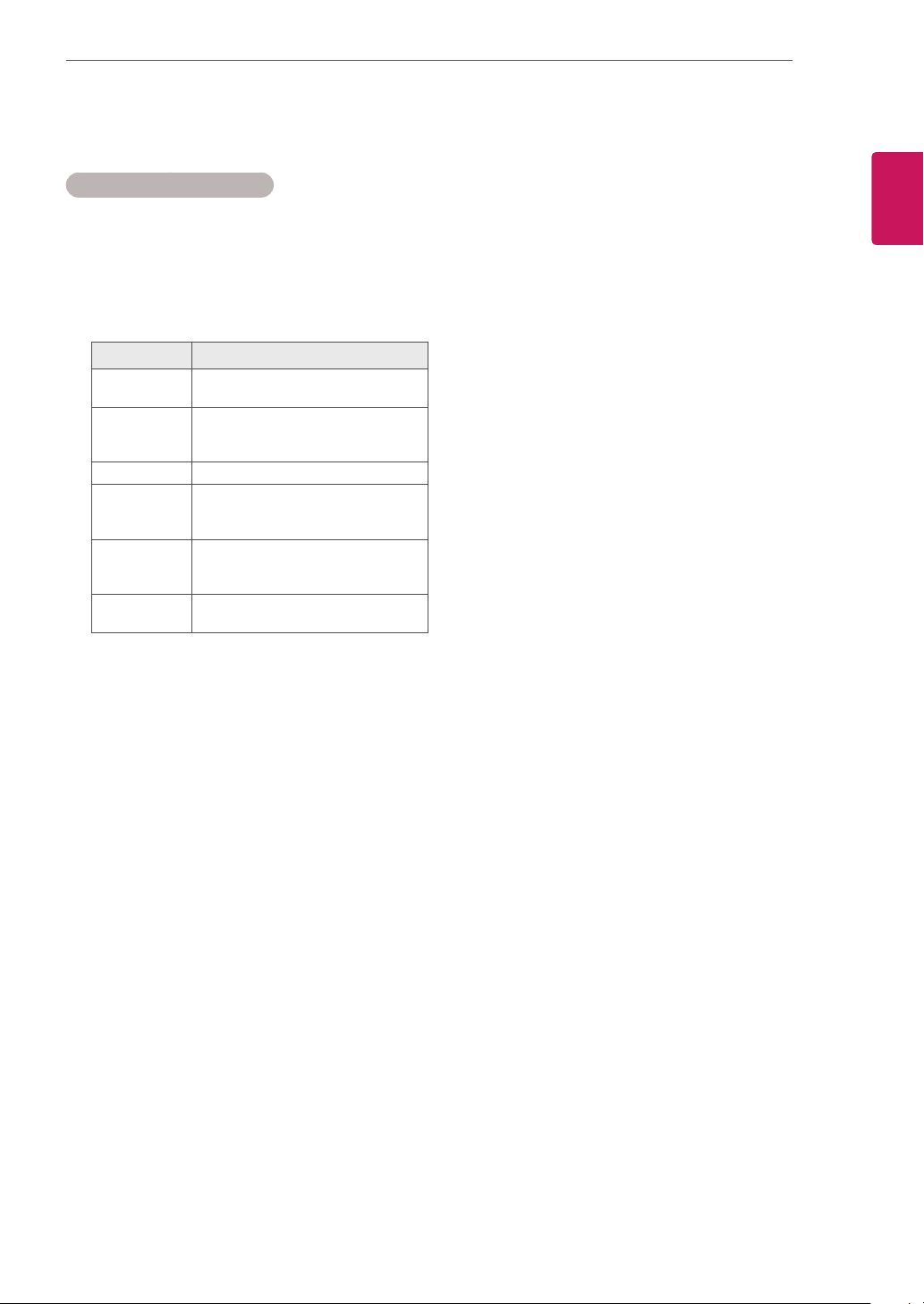
- 4:3 : This selection will allow you to view a
picture with an original 4:3 aspect ratio, black
bars will appear on both the left and right of the
screen.
- Zoom : This selection will allow you to view the
picture without any alteration, while filling the
entire screen. However, the top and bottom of
the picture will be cropped.
- Cinema Zoom : Choose Cinema Zoom when
you want to enlarge the picture in correct
proportion.
Note: When enlarging or reducing the picture,
the image may become distorted.
- 16:9 : This selection will allow you to adjust the
picture horizontally, in linear proportion, to fill the
entire screen(useful for viewing 4:3 formatted
DVDs).
- Just Scan : This Selection will allow you view
the picture of best quality without loss of original
picture in high resolution image.
Note: If there is noise in original Picture, You can
see the noise at the edge.
- 1:1 : The aspect ratio is not adjusted from the
original. (Only HDMI PC, DVI-D PC, RGB PC)
Just Scan
15
ENG
ENGLISH
USING THE TSP500 SET
Using the Input List
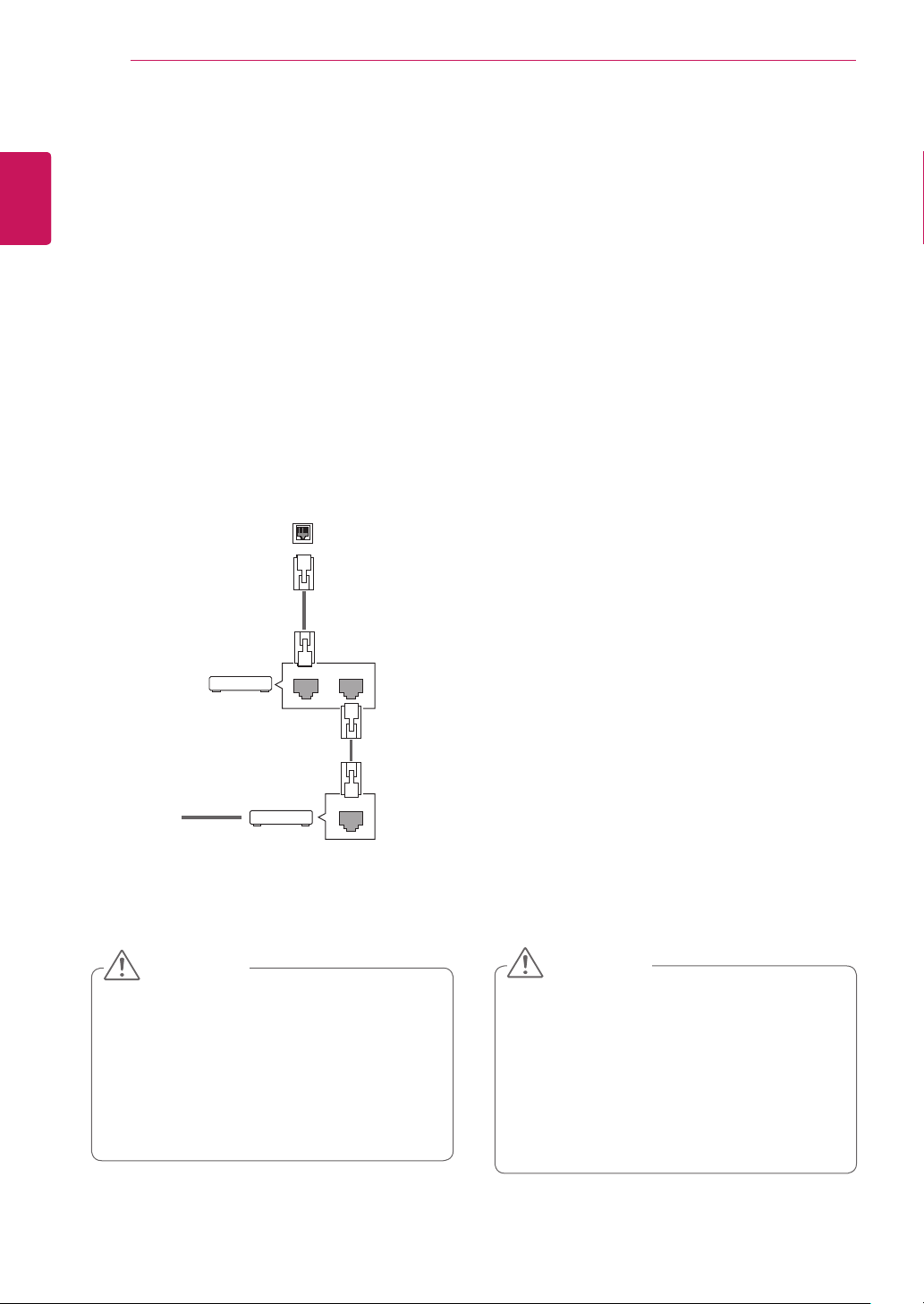
Selecting an Input Source
1
Press INPUT to access the input source list.
2
Press the Navigation buttons to scroll to one of
the input sources and press OK.
Input source Description
AV(CVBS) Watch video from a VCR or other
external devices.
Component Watch the content from a DVD or
other external devices, or through a
digital set-top box.
RGB View a PC display on the screen.
DVI-D Watch contents from a PC, DVD
of Digital set-top box other high
definition devices.
HDMI Watch contents from a PC, DVD
of Digital set-top box other high
definition devices.
USB Plays the multimedia file saved in
the USB.
16
ENG
ENGLISH
ENTERTAINMENT
ENTERTAINMENT
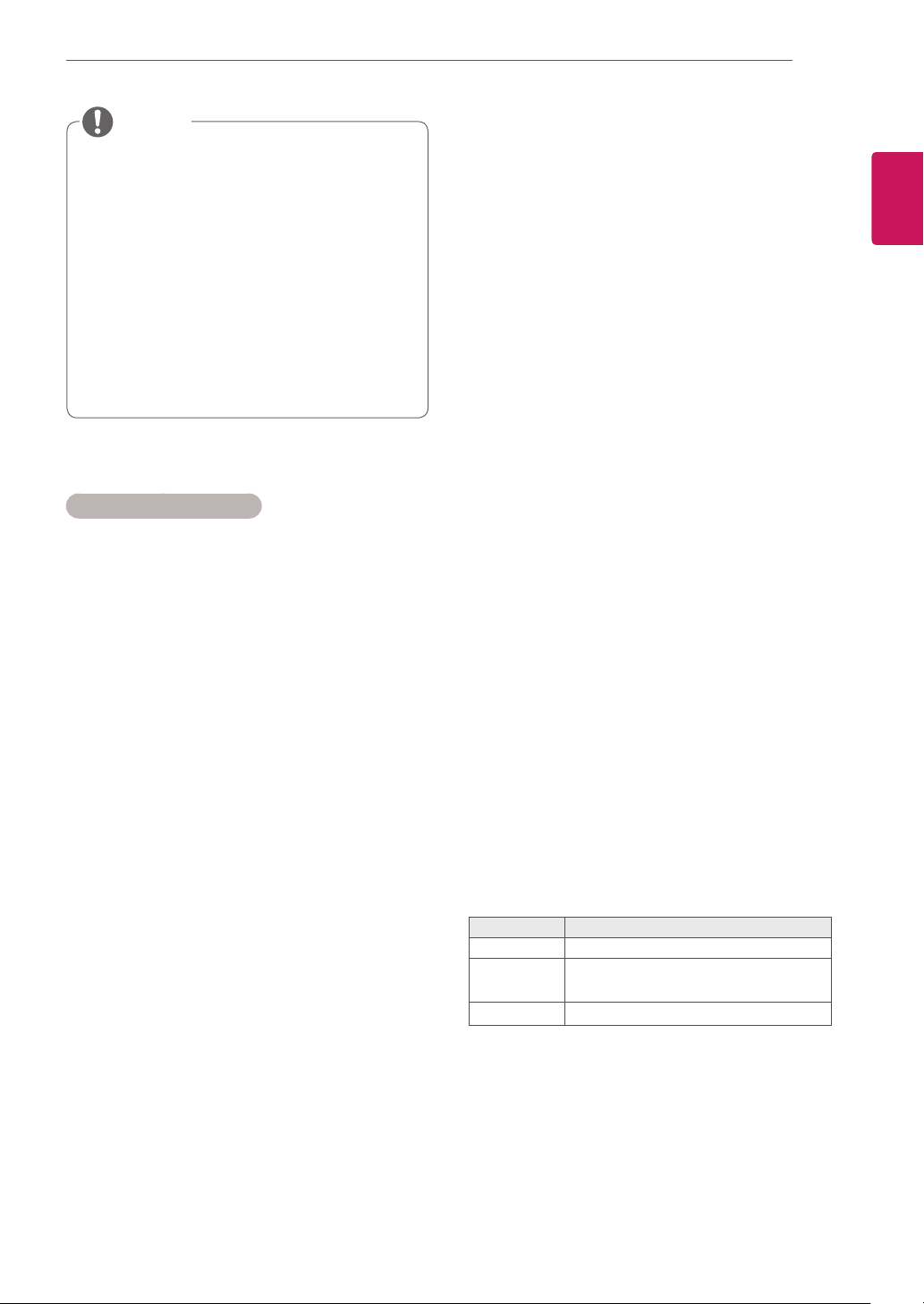
Connecting to a Wired Network
Connect the display to a local area network (LAN)
via the LAN port as shown on the following illustra-
tion and set up the network settings.
The TSP500 only supports wired network connec-
tion. After making a physical connection, a small
number of networks may require the display net-
work settings to be adjusted. For most networks,
the display will connect to automatically without
any adjustments.
For detail information, contact your internet pro-
vider or router manual.
To set up the network settings: (Even if your dis-
play has already connected automatically, running
setup again will not harm anything),
1 Press MENU to access the main menus.
2 Press the Navigation buttons to scroll to NET-
WORK and press OK.
3 Press the Navigation buttons to select Net-
work Setting and press OK.
4 If you already set Network Setting, select
Resetting. The new connection settings resets
the current network settings.
5 Select IP Auto Setting or IP Manual Setting.
- If selecting IP Manual Setting, press the
Navigation and Number buttons. IP address-
es will need to be input manually.
- IP Auto Setting: Select this if there is a
DHCP server (Router) on the local area net-
work (LAN) via wired connection, the display
will automatically be allocated an IP address.
If you’re using a broadband router or broad-
band modem that has a DHCP (Dynamic
Host Configuration Protocol) server function.
The IP address will automatically be deter-
mined.
6 When you are finished, press EXIT.
LAN
Router
LAN WAN
Cable modem
ETHERNET
@
Internet
Internet
Cable modem
Router
y Network setting menu will not be avail-
able until the display connected to physical
network.
y Since there are various connection meth-
ods, please follow the specifications of your
telecommunication carrier or internet service
provider.
CAUTION
y Do not connect a modular phone cable to the
LAN port.
y Since there are various connection meth-
ods, please follow the specifications of your
telecommunication carrier or internet service
provider.
CAUTION
17
ENG
ENGLISH
ENTERTAINMENT
Tips for Network Setting
y Use a standard LAN cable with this display.
Cat5 or better with a RJ45 connector.
y Many network connection problems during set
up can often be fixed by re-setting the router
or modem. After connecting the display to the
network, quickly power off and/or disconnect
the power cable of the network router or cable
modem. Then power on and/or connect the
power cable again.
y Depending on the internet service provider
(ISP), the number of devices that can receive
internet service may be limited by the applica-
ble terms of service. For details, contact your
ISP.
y LG is not responsible for any malfunction of the
display and/or the internet connection feature
due to communication errors/malfunctions as-
sociated with your internet connection, or other
connected equipment.
y LG is not responsible for problems within your
internet connection.
y You may experience undesired results if the
network connection speed does not meet the
requirements of the content being accessed.
y Some internet connection operations may not
be possible due to certain restrictions set by
the Internet service provider (ISP) supplying
your Internet connection.
y Any fees charged by an ISP including, without
limitation, connection charges are your respon-
sibility.
y A 10 Base-T or 100 Base-TX LAN port is
required when using a wired connection to this
display. If your internet service does not allow
for such a connection, you will not be able to
connect the display.
y A DSL modem is required to use DSL service
and a cable modem is required to use cable
modem service. Depending on the access
method of and subscriber agreement with your
ISP, you may not be able to use the internet
connection feature contained in this display or
you may be limited to the number of devices
you can connect at the same time. (If your ISP
limits sub-scription to one device, this display
may not be allowed to connect when a PC is
already connected.)
y The use of a “Router” may not be allowed or its
usage may be limited depending on the poli-
cies and restrictions of your ISP. For details,
contact your ISP directly.
Network Status
1 Press MENU to access the main menus.
2 Press the Navigation buttons to scroll to NET-
WORK and press OK.
3 Press the Navigation buttons to select Net-
work Status.
4 Press OK to check the network status.
5 When you are finished, press EXIT.
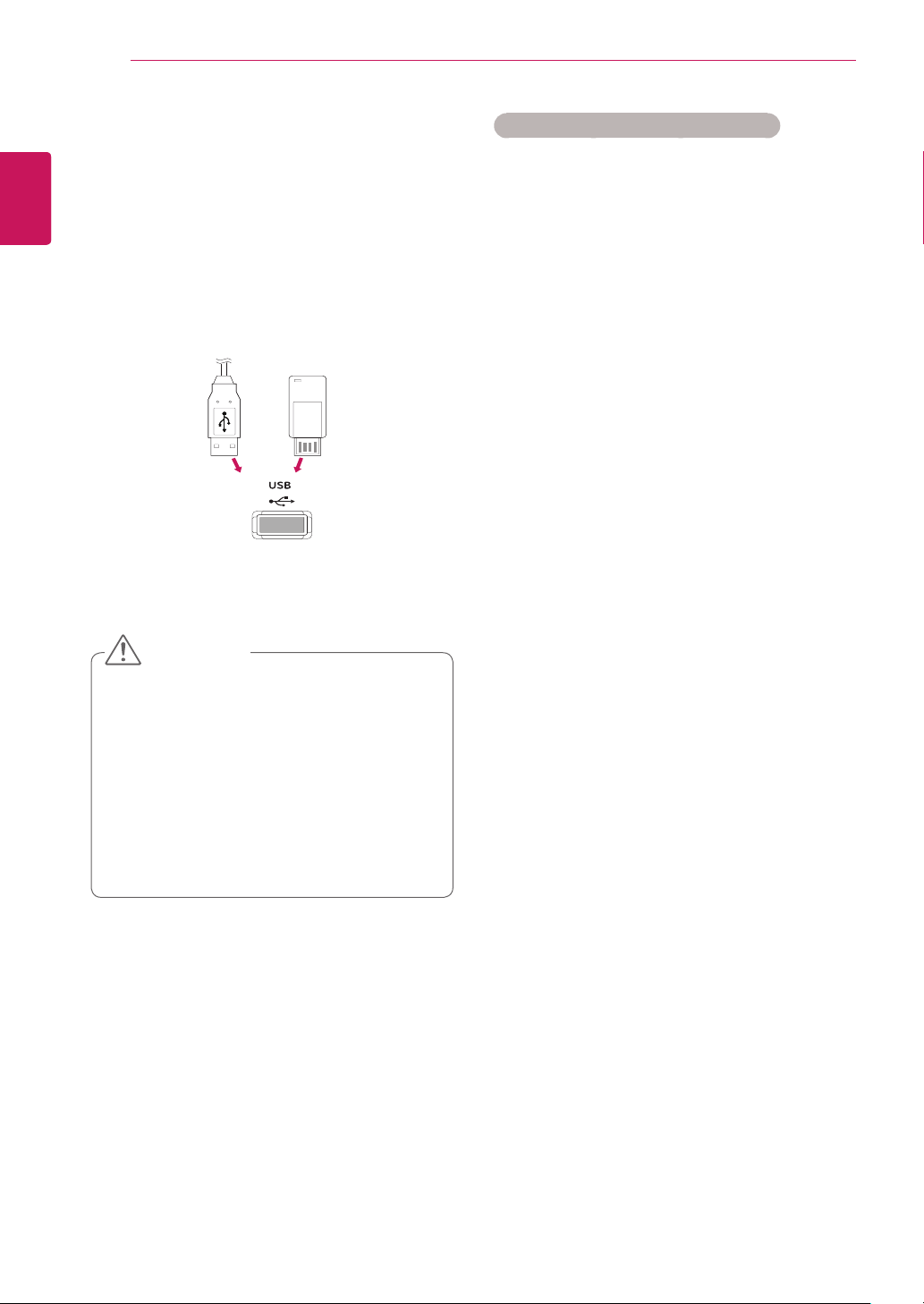
Option Description
Setting Return to the network setting menu.
Test
Test the current network status after set-
ting the network.
Close Return to the previous menu.
y If you want to access the Internet directly on
your display, the internet connection should
always be on.
y If you cannot access the Internet, check
the network conditions from a PC on your
network.
y When you use Network Setting, check the
LAN cable or check if DHCP in the router is
turned on.
y If you do not complete the network settings,
the network may not work properly.
NOTE
18
ENG
ENGLISH
ENTERTAINMENT
Tips for Using USB Storage Devices
y Only a USB storage device is recognizable.
y If the USB storage device is connected
through a USB hub, the device is not recog-
nizable.
y A USB storage device using an automatic
recognition program may not be recognized.
y A USB storage device which uses its own
driver may not be recognized.
y The recognition speed of a USB storage
device may depend on each device.
y Please do not turn off the display or unplug
the USB device when the connected USB
storage device is working. When such device
is suddenly separated or unplugged, the
stored files or the USB storage device may
be damaged.
y Please do not connect the USB storage
device which was artificially maneuvered on
the PC. The device may cause the product to
malfunction or fail to be played. Only use a
USB storage device which has normal music
files, image files or movie files.
y Please only use a USB storage device which
was formatted as a FAT32 file system, NTFS
file system provided with the Windows op-
erating system. In case of a storage device
formatted as a different utility program which
is not supported by Windows, it may not be
recognized.
y Please connect power to a USB storage
device(over 0.5 A) which requires an external
power supply. If not, the device may not be
recognized.
y Please connect a USB storage device with
the cable offered by the device maker.
y Some USB storage devices may not be sup-
ported or operated smoothly.
y File alignment method of USB storage
device is similar to Window XP and filename
can recognize up to 100 English characters.
y Be sure to back up important files since data
stored in a USB memory device may be
damaged. We will not be responsible for any
data loss.
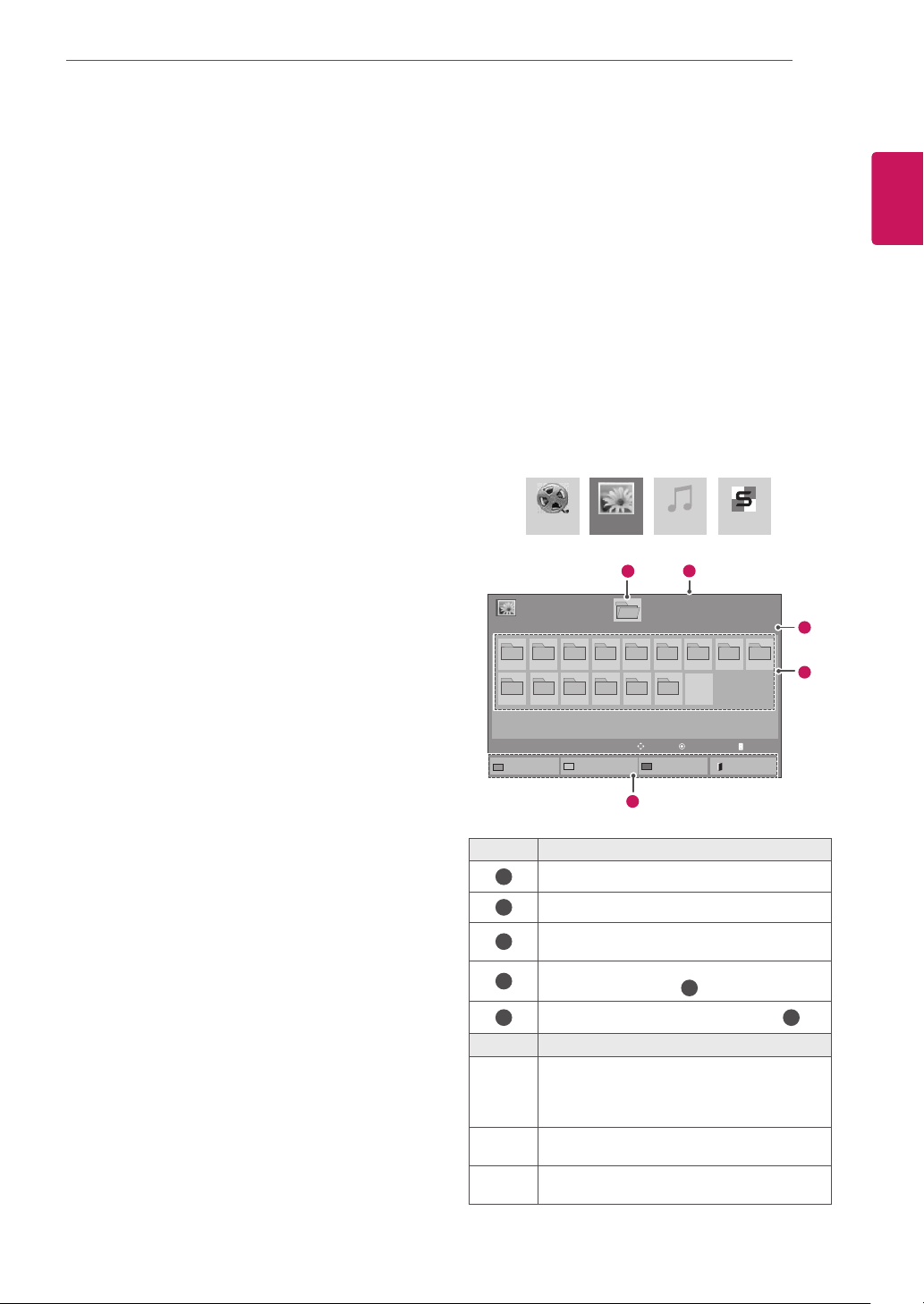
Connecting USB Storage Devices
Connect USB storage devices such as a USB
flash memory or external hard drive to the display
to use multimedia features.
Connect a USB flash memory or USB memory
card reader to the Display as shown in the follow-
ing illustration. The My media screen appears.
or
y Do not turn the display off or remove a USB
storage device while the EMF(my media)
Menu is activated, as this could result in
loss of files or damage to the USB storage
device.
y Back up your files saved on a USB storage
device frequently, as you may lose or dam-
age the files and this may be not covered by
the warranty.
CAUTION
19
ENG
ENGLISH
ENTERTAINMENT
y If the USB HDD does not have an external
power source, the USB device may not be
detected. So be sure to connect the external
power source.
- Please use a power adaptor for an external
power source. We do not guarantee an USB
cable for an external power source.
y If your USB memory device has multiple
partitions, or if you use a USB multi-card
reader, you can use up to 4 partitions or USB
memory devices.
y If a USB memory device is connected to a
USB multi-card reader, its volume data may
not be detected.
y If the USB memory device does not work
properly, disconnect and reconnect it.
y How fast a USB memory device is detected
differs from device to device.
y If the USB is connected in Standby Mode,
specific hard disk will automatically be
loaded when the display is turned on.
y The recommended capacity is 1 TB or less
for a USB external hard disk and 32 GB or
less for USB memory.
y Any device with more than the recommended
capacity may not work properly.
y If a USB external hard disk with a “Energy
Saving” function does not work, turn the
hard disk off and on again to make it work
properly.
y USB storage devices below USB 2.0 are
supported as well. But they may not work
properly in the movie list.
y Maximum of 999 folders or files can be rec-
ognized under one folder.
y A USB 3.0 storage device may not work.
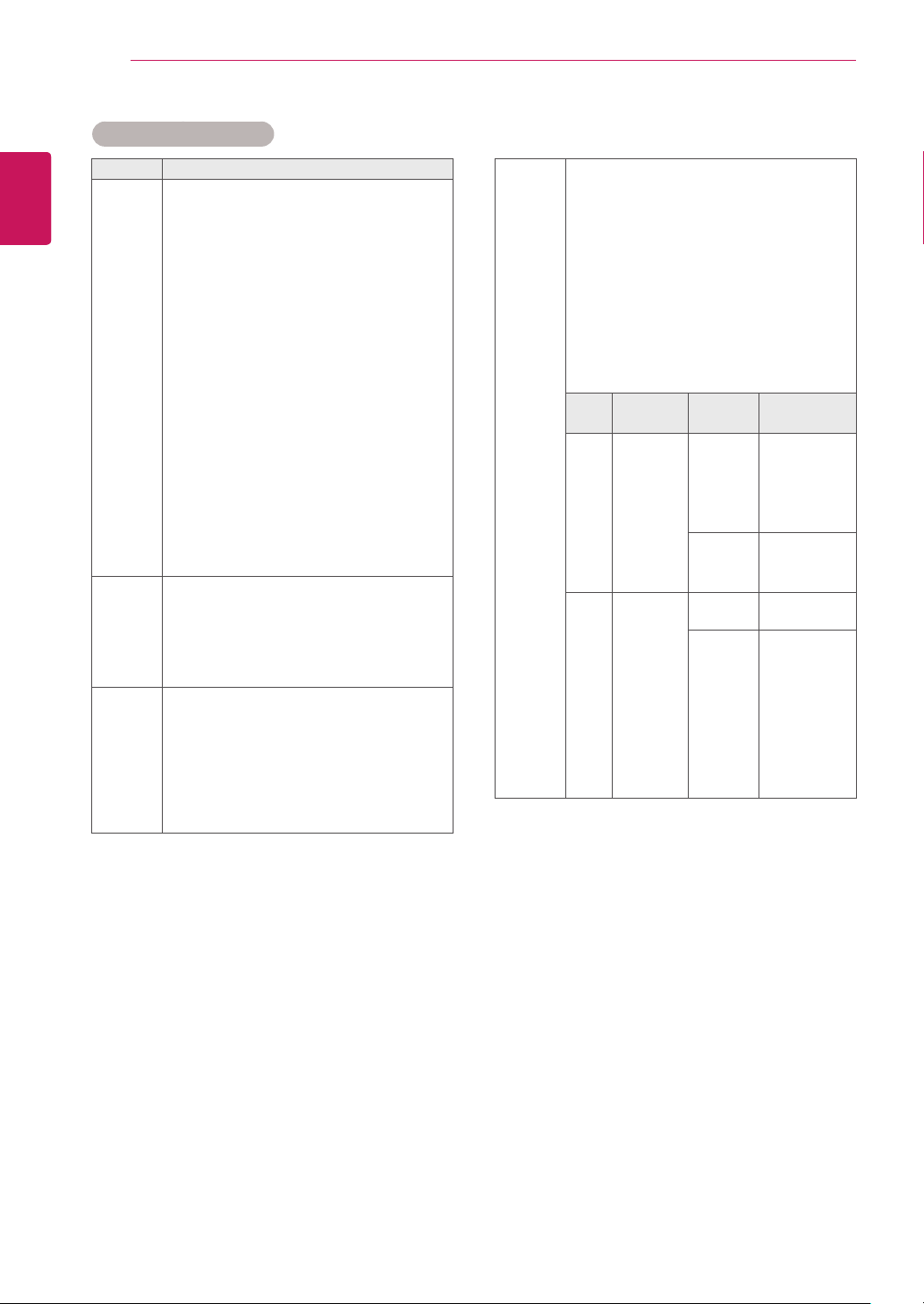
Browsing Files
Access the photo, music, or movie lists and browse
files.
1
Connect a USB storage device.
2
Press MENU to access the main menus.
3
Press the Navigation buttons to scroll to My
Media and press OK.
4
Press the Navigation buttons to choose
from Movie List, Photo List, Music List or
Contents List and press OK.
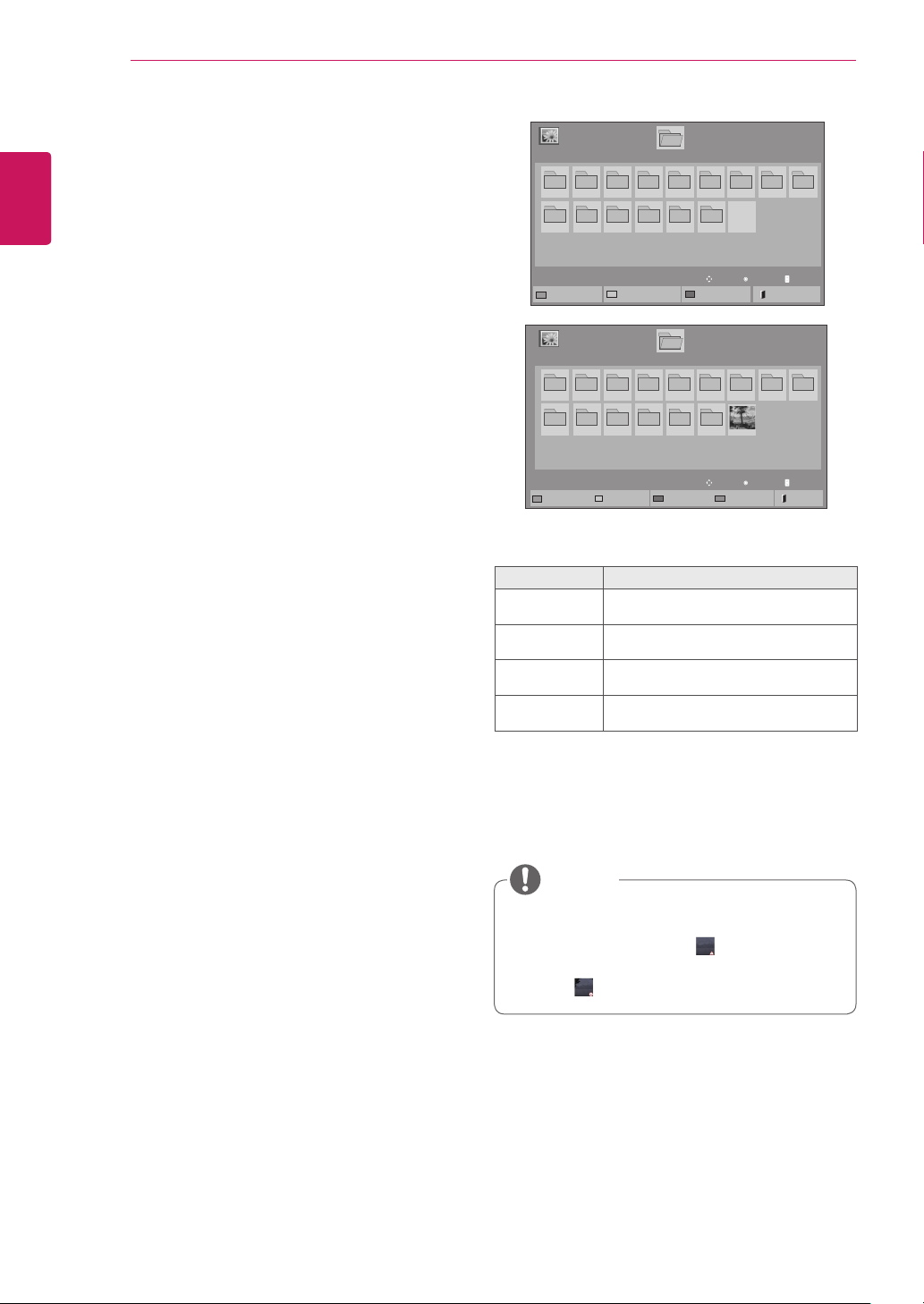
No. Description
1
Moves to upper level folder
2
Current page/Total pages
3
Corresponding buttons on the
remote control
4
Current page/ total pages of contents under
the folder focused on
1
5
Contents under the folder focused on
1
Button Description
Green
Button
Press the green button to toggle between
Photo List -> Music List, Music List ->
Contents List, Contents List -> Movie List
or Movie List -> Photo List.
Yellow
Button
A method to view in 5 large thumbnail or
simple list.
Blue
Button
Convert to Mark Mode.
Movie List
Music List
Photo List
Contents List
Page 1/1
Photo List
Drive1
Page 1/1
USB External
001
010 011 012 013 014 015
002 003 004 005 006 007
008
009
To Music List
Change Numbers
Mark Mode
Exit
View
Move
11
2
3
4
5
P Page Change
20
ENG
ENGLISH
ENTERTAINMENT
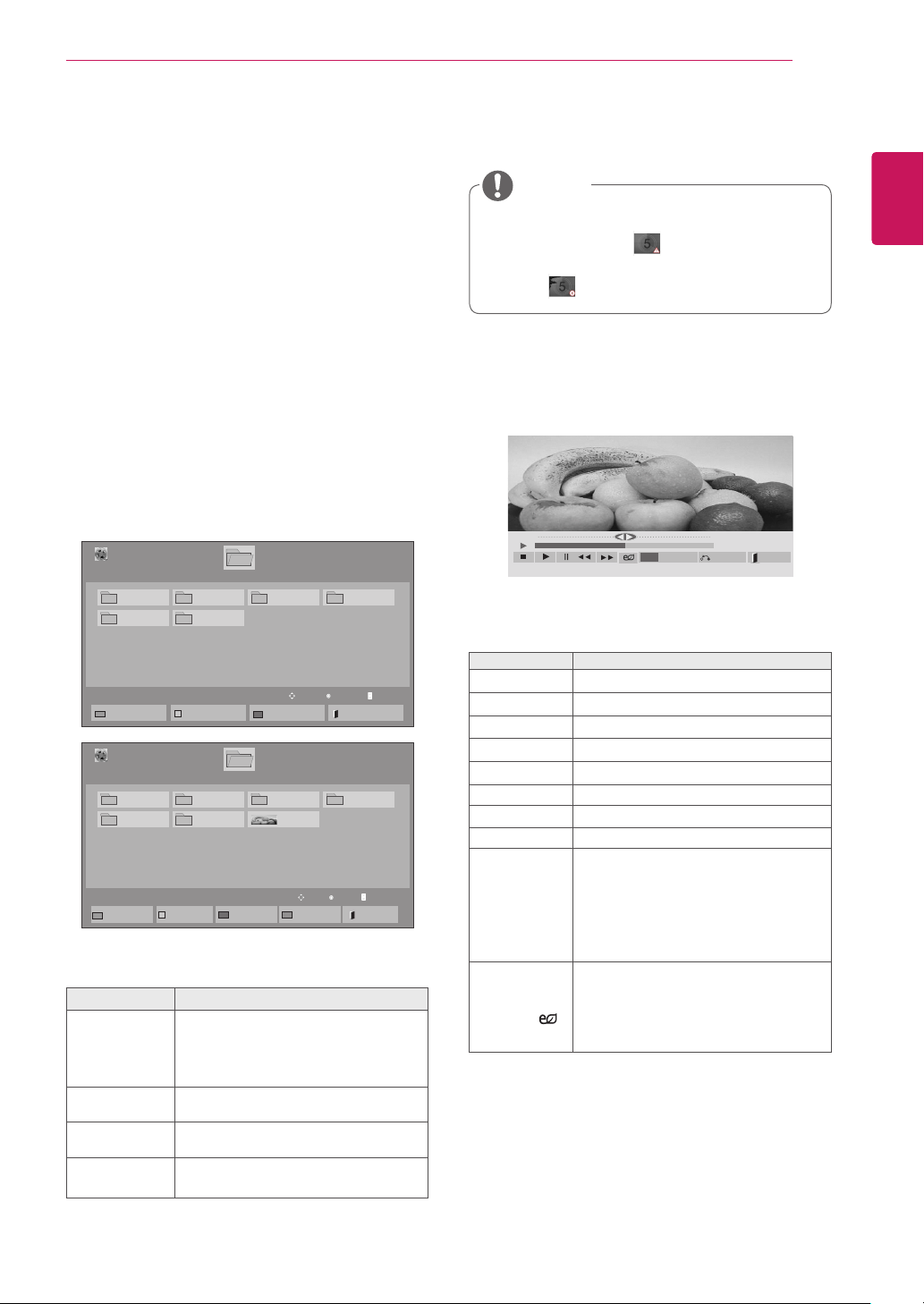
Supported File Format
Type Supported file format
Movie DAT,MPG,MPEG,VOB,AVI,DIVX,MP4,MKV,TS,T
RP,TP,ASF,WMV,FLV)
Movie(*.mpg/*.mpeg/*dat/*.ts/*.trp/*.tp/*.vob/*.
mp4/*.mov/*.mkv/*.divx/*.avi/*.asf/*.wmv/*.flv/*.
avi(motion-jpeg)/*.
mp4(motion-jpeg)/*.mkv(motion-jpeg))supporting
file
Video format : DivX 3.11, DivX4, DivX5. DivX6
Xvid1.00, Xvid1.01, Xvid1.02, Xvid1.03, Xvid1.10
beta-1/beta-2,
Mpeg-1, Mpeg-2, Mpeg-4, H.264/AVC, VC1,
JPEG, Sorenson H.263
Audio format : Dolby Digital, AAC, Mpeg, MP3,
LPCM, HE-AAC, ADPCM, WMA
Bit rate : within 32 kbps to 320 kbps(MP3)
External Subtitle format : *.smi/*.srt/*.sub
(MicroDVD,Subviewer1.0/2.0)/*.ass/*.ssa/*.
txt(TMPlayer)/*.psb(PowerDivX)
Internal Subtitle format : only, XSUB (It is the
subtitle format used in DivX6 files)
Photo JPEG
Baseline : 64 x 64 to 15360 x 8640
Progressive : 64 x 64 to 1920 x 1440
y You can play JPEG files only.
y Non-supported files are displayed in the form
of predefined icon.
Music MP3
Bit rate 32 to 320
y Sampling rate MPEG1 Layer3 : 32 kHz, 44.1
kHz, 48 kHz
y Sampling rate MPEG2 Layer3 : 16 kHz, 22.05
kHz, 24 kHz
y Sampling rate MPEG2.5 Layer3 : 8 kHz,
11.025 kHz, 12 kHz
Content
(when
using
SuperSign
Manager)
File Extensions : *.cts/ *.cse
Movie
File Extensions: *.mpg/*.mpeg/*.dat/*.ts/*.
trp/*.tp/*.vob/*.mp4/*.mov/*.mkv/*.avi/*.asf/*.
wmv/*.avi(motion JPEG)/*.mp4(motion JPEG)/*.
mkv(motion JPEG)
Video format: MPEG1, MPEG2, MPEG4,H.264/
AVC, DivX 3.11, DivX4, DivX5. DivX6
Xvid 1.00, Xvid 1.01, Xvid 1.02, Xvid 1.03,Xvid
1.10-beta1/2, JPEG, VC1(WVC1/WMV3)
Audio format: MP2,MP3,Dolby Digital, LPCM,
AAC, HE-AAC,LPCM, ADPCM, WMA, MP3
File
Extensions
Item Profile
Photo JPEG
JPG
BMP
supported
file format
SOF0: baseline
SOF1: Extend
Sequential
SOF2:
Progressive
Photo size Min: 64 x 64
Max Type:
1366 x 768
Music MP3 Bit rate 32 kbps to 320
kbps
Sampling
rate
32 kHz, 44.1
kHz, 48 kHz
(MPEG1 L3)
16 kHz, 22.05
kHz, 24 kHz
(MPEG2 L3)
8kHz, 11.025
kHz, 12 kHz
(MPEG2.5 L3)
21
ENG
ENGLISH
ENTERTAINMENT
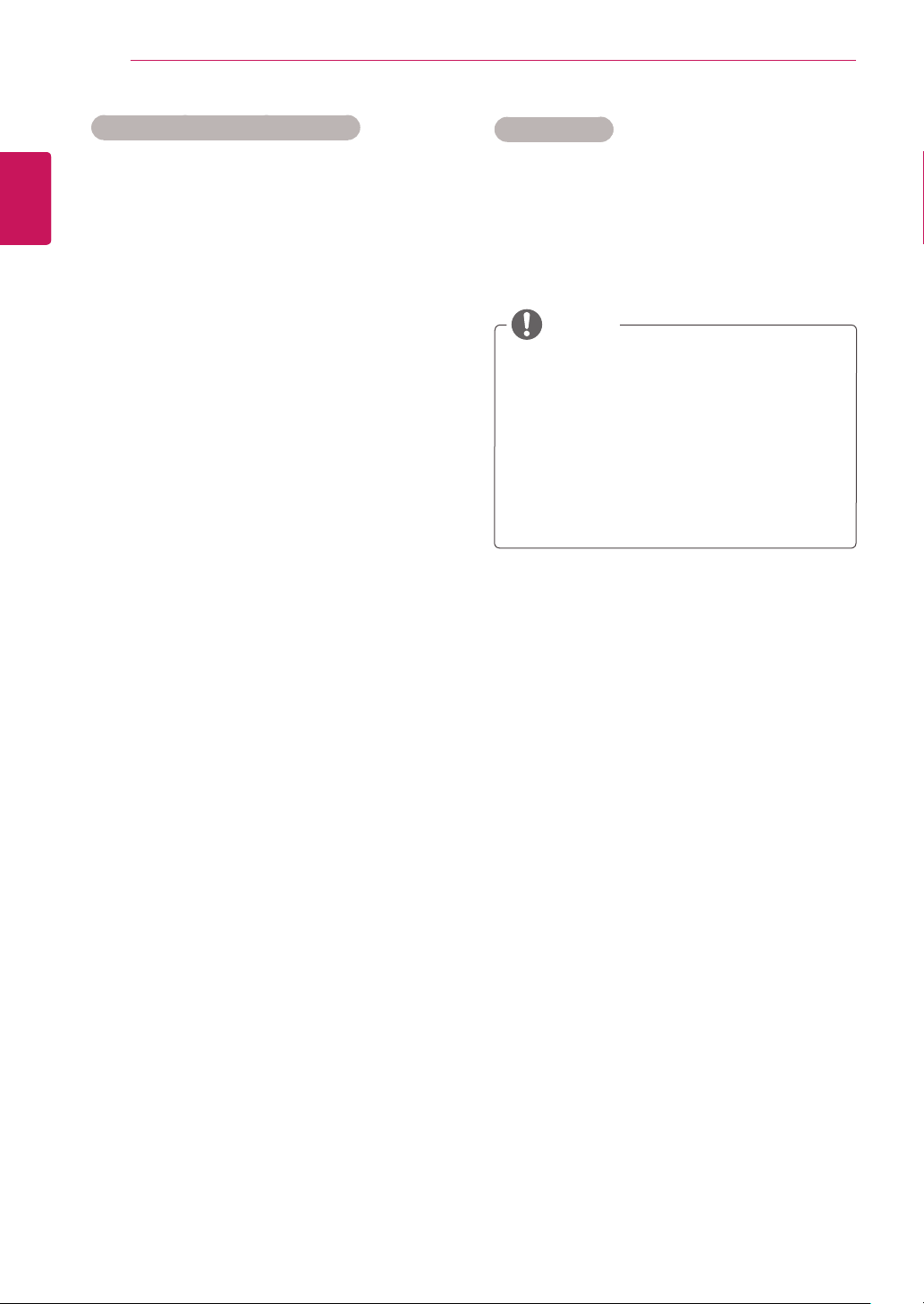
Viewing Movies
Play video files on display. Your display shows all
of the video files saved in a USB storage device or
shared folder on a PC.
1 Press the Navigation buttons to scroll to My
Media and press OK.
2 Press the Navigation buttons to scroll to Movie
List and press OK.
3 Press the Navigation buttons to scroll to a
folder you want and press OK.
4 Press the Navigation buttons to scroll to a file
you want and press OK.
Menu Description
Play Marked Play the selected movie file.
Once a movie file finishes playing,
the next selected one will be played
automatically.
Mark All Mark all movie files on the screen.
Unmark All Deselect all marked movie files.
Exit Mark
Mode
Exit the Mark Mode.
5 Play a movie.
6 Control playback by using the following buttons.
Button Description
r
Stops the playback
s
Plays a video
t
Pauses or resumes the playback
v
Scans backward in a file
w
Scans forward in a file
MENU Show the Option menu.
HIDE Hide the menu on the full-sized screen.
EXIT Return to Movie List.
< or >
Skips to specific points in a file dur-
ing playback. The time of a specific
point will appear on the status bar. In
some files, this function may not work
properly.
ENERGY
SAVING( )
Press the ENERGY SAVING button
repeatedly to increase the brightness
of your screen.
*Backlight function is not supported.
Page 1/1
Movie List
USB1 USB Drive
Drive1
Page 1/1
To Photo list
Change Numbers
Mark Mode
Exit
003
001 002
004
005 006
Play
Move
Page ChangeP
01:02:30 / 02:30:25
Option
MENU
Hide
Exit
y Non-supported files are displayed the preview
image by icon only .
y Abnormal files are displayed in the form of
bitmap .
NOTE
Page 1/1
Movie List
USB1 USB Drive
Drive1
Page 1/1
Play Marked
Mark All
Unmark All
Exit
003
001 002
004
005 006
Mark Mode
Exit Mark Mode
051. Apple_ ......
02:30:25
Mark
Move
Page ChangeP
22
ENG
ENGLISH
ENTERTAINMENT
Video Options
1 Press MENU to access the Pop-Up menus.
2 Press the Navigation buttons to scroll to Set
Video Play., Set Video. or Set Audio. and
press OK.
Tips for Using Playing Video Files
y Some user-created subtitles may not work
properly.
y Some special characters are not supported
in subtitles.
y HTML tags are not supported in subtitles.
y Subtitles in languages other than the sup-
ported languages are not available.
y The screen may suffer temporary interrup-
tions (image stoppage, faster playback, etc.)
when the audio language is changed.
y A damaged movie file may not be played
correctly, or some player functions may not
be usable.
y Movie files produced with some encoders
may not be played correctly.
y If the video and audio structure of recorded
file is not interleaved, either video or audio is
outputted.
y Videos with resolutions higher than
1920X1080@25/30P may not work properly
depending on the frame.
y Movie files other than the specified types and
formats may not work properly.
y Max bitrate of playable movie file is 20 Mbps.
(only, Motion JPEG : 10 Mbps)
y We do not guarantee smooth playback of
profiles encoded level 4.1 or higher in H.264/
AVC.
y DTS Audio codec is not supported.
y A movie file more than 30 GB in file size is
not supported for playback.
y A DivX movie file and its subtitle file must be
located in the same folder.
y A video file name and its subtitle file name
must be identical for it to be displayed.
y Playing a video via a USB connection that
doesn’t support high speed may not work
properly.
y Files encoded with GMC(Global Motion
Compensation) may not be played.
y When you are watching the movie by Movie
List function, you can adjust an image by
Energy Saving key on the remote control.
User setup for each image mode does not
operate.
y Option values changed in Movie List does
not affect Photo List and Music List.
y Option value changed in Photo List and Mu-
sic List are changed likewise in Photo List
and Music List excluding Movie List.
y When replaying the video file after stopping,
you can play from where it stopped previ-
ously.
NOTE
23
ENG
ENGLISH
ENTERTAINMENT
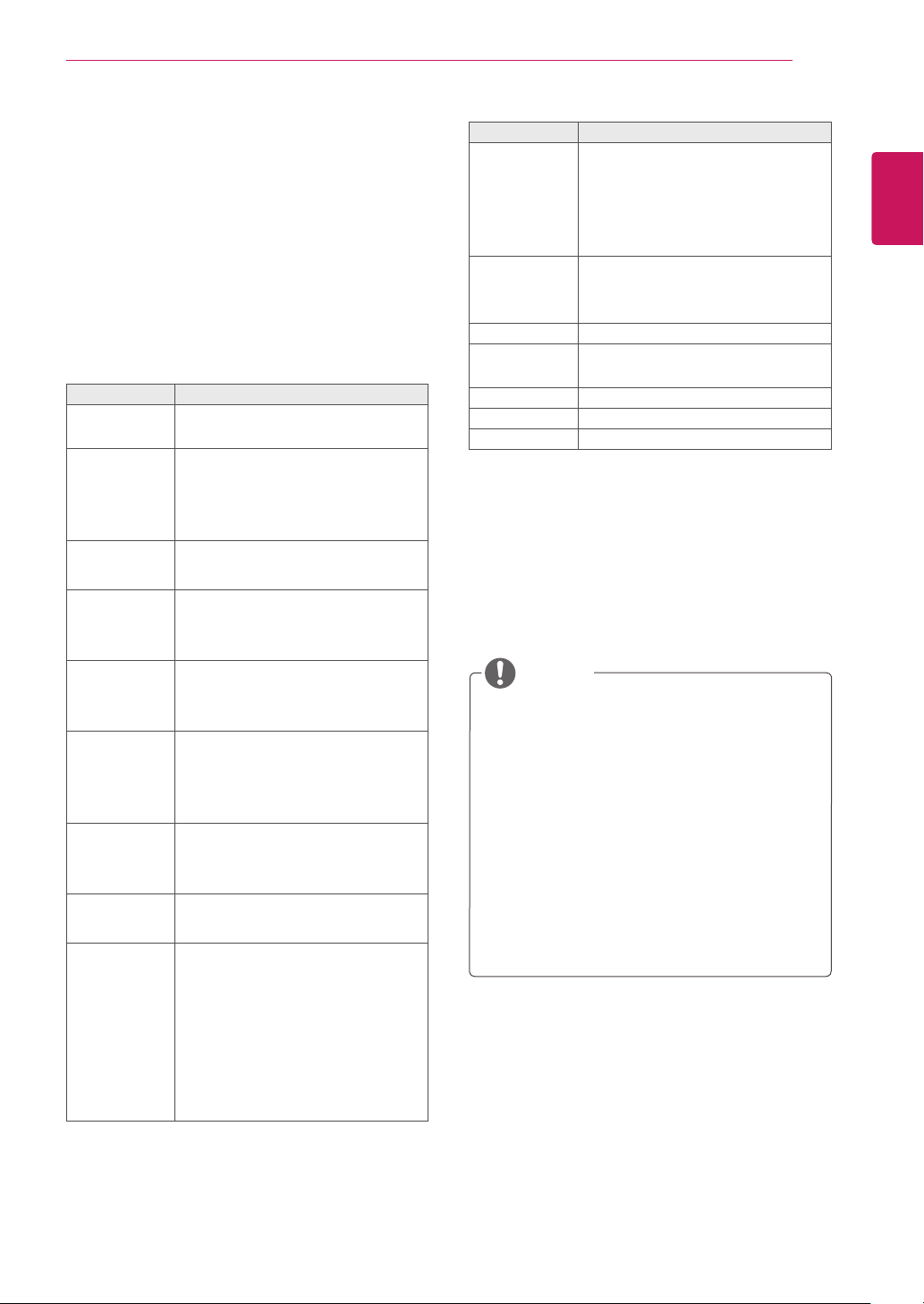
Code Page Support Language
Latin1 English, Spanish, French,
German, Italian, Portuguese,
Danish, Romanian, Norwegian,
Albanian, Gaelic, Welsh, Irish,
Catalan,Valencian
Latin2 Bosnian, Polish, Croatian, Czech,
Slovak, Slovenian, Serbian,
Hungarian
Latin4 Estonian, Latvian, Lithuanian
Cyrillic Bulgarian, Macedonian, Russian,
Ukrainian, Kazakh
Greek Greek
Turkish Turkish
Korean Korean
When you select the Set Video Play,
1 Press the Navigation buttons to scroll to show
the Picture Size, Audio Language, Subtitle
Language or Repeat.
2 Press the Navigation buttons to scroll to make
appropriate adjustments.
Menu Description
Picture Size Selects your desired picture
format during movie play.
Audio
Language
Changes the Language Group of the
audio during movie play. Files
with a single audio track cannot be
selected.
Subtitle
Language
Turn on/off the subtitle.
Language Activated for SMI subtitle and
can select the language within the
subtitle.
Code Page Can select the font for subtitle.
When set to default, same font as
general menu will be used.
Sync Adjusts the time synchronization of
the subtitle from -10 secs to +10 secs
by steps of 0.5 secs during movie
play.
Position Changes the position of the
subtitle either up or down during
movie play.
Size Selects your desired Subtitle size
during movie play.
Repeat Turn on/off repeat function of
movie playback. When turned on, the
file within the folder will be played
back repeatedly. Even when the
repeated playback is turned off, it can
run the playback if the file name is
similar to the previous file.
y Only 10,000 of sync blocks can be supported
within the subtitle file.
y When playing a video, you can adjust the
Picture Size by pressing the ARC button.
y Subtitles in your language are only sup-
ported when the OSD menu is also in this
language.
y The code page options may be disabled de-
pending on the language of the subtitle files.
y Select the appropriate code page for the
subtitle files.
NOTE
24
ENG
ENGLISH
ENTERTAINMENT
When you select the Set Video,
1 Press the Navigation buttons to scroll to make
appropriate adjustments.
When you select the Set Audio,
1 Press the Navigation buttons to scroll to show
the Sound Mode, Clear Voice II or Balance.
2 Press the Navigation buttons to scroll to make
appropriate adjustments.
Viewing Photos
View image files saved on a USB storage device.
The displays on the screen may differ from the
model.
1 Press the Navigation buttons to scroll to My
Media and press OK.
2 Press the Navigation buttons to scroll to Photo
List and press OK.
3 Press the Navigation buttons to scroll to a
folder you want and press OK.
4 Press the Navigation buttons to scroll to a file
you want and press OK.
5 View photos.
Menu Description
View Marked Display the selected photo file.
Mark All Mark all photo files on the screen.
Unmark All Deselect all marked photo files.
Exit Mark Mode Exit the Mark Mode.
y Non-supported files are displayed the pre-
view image by icon only .
y Abnormal files are displayed in the form of
bitmap .
NOTE
Page 1/1
Photo List
Drive1
Page 1/1
USB1 USB Drive
001
010 011 012 013 014 015
002 003 004 005 006 007
008
009
To Music List
Change Numbers
Mark Mode
Exit
Page 1/1
Photo List
Drive1
Page 1/1
USB1 USB Drive
001
010 011 012 013 014 015
002 003 004 005 006 007
008
009
Mark Mode
View Marked
Mark All
Unmark All
Exit
Exit Mark Mode
View
Move
Page ChangeP
Mark
Move
Page ChangeP
25
ENG
ENGLISH
ENTERTAINMENT
ENERGY
SAVING( )
Press the ENERGY SAVING button
repeatedly to change the brightness of
your screen.
*Backlight function is not supported.
Option y Slide Speed: Selects a slideshow
speed (Fast, Medium, Slow).
y TransitionEffect: Set the view mode
of the slideshow.
y BGM: Selects a music folder for
the background music. Press the
Navigation buttons to scroll to select
the Repeat or Random. Press the
Navigation buttons to scroll to make
appropriate adjustments.
Hide Hides the option window.
To display the options, press OK.
EXIT Return to Photo List.
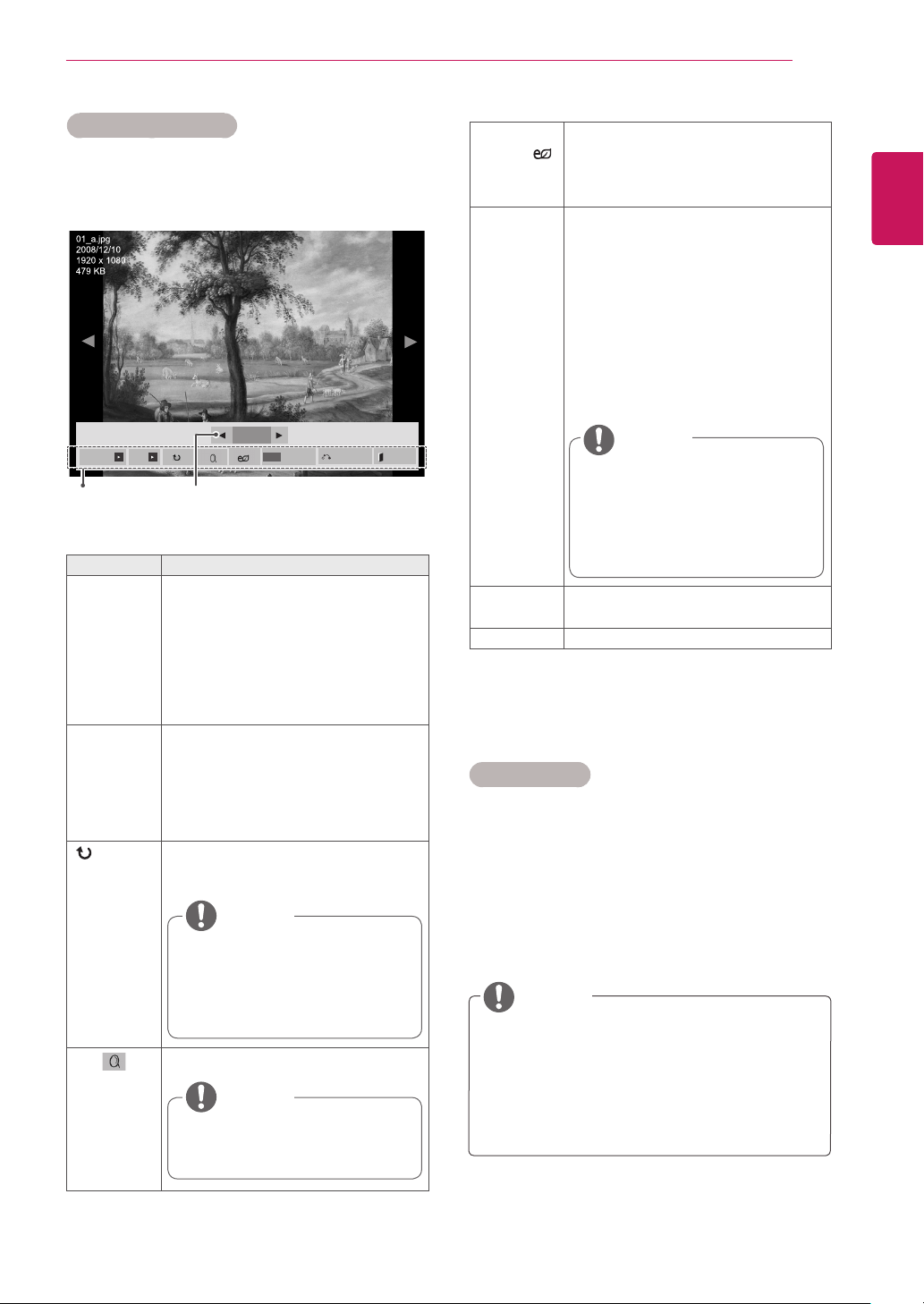
Photo Options
1 Press MENU to show the Option menus.
2 Press the Navigation buttons to scroll to Set
Photo View, Set Video or Set Audio and press
OK.
Option Description
Slideshow Starts or stops a slideshow with selected
photos.
If there are no selected photos, all pho-
tos saved in the current folder display
during a slideshow.
To set a slideshow speed, select Op-
tion.
BGM Turns the background music on or off.
To set the background music folder,
select Option.
You can adjust Option by MENU button
on the remote control.
(Rotate)
Rotates photos clockwise (90°, 180°,
270°, 360°).
View the photo by zoom in 2, 4 times.
Using Photo Options
Use the following options while viewing photos.
y The supported photo size is
limited. You cannot rotate a
photo if the resolution of the
rotated width is larger than the
supported resolution size.
NOTE
y Photos with a resolution of
960x540 or less cannot be
enlarged.
NOTE
y You cannot change the music
folder while the background music
is playing.
y You can only select the MP3 fold-
er saved on the device that cur-
rently displays the photo.
NOTE
y Option values changed in Movie List does
not affect Photo List and Music List.
y Option value changed in Photo List and Mu-
sic List are changed likewise in Photo List
and Music List excluding Movie List.
NOTE
Number of selected photosOptions
2/13
Slideshow BGM
Hide
Option
MENU
Exit
26
ENG
ENGLISH
ENTERTAINMENT
When you select the Set Photo View,
1 Press the Navigation buttons to scroll to select Slide Speed,Transition Effect or BGM.
2 Press the Navigation buttons to scroll to make appropriate adjustments.
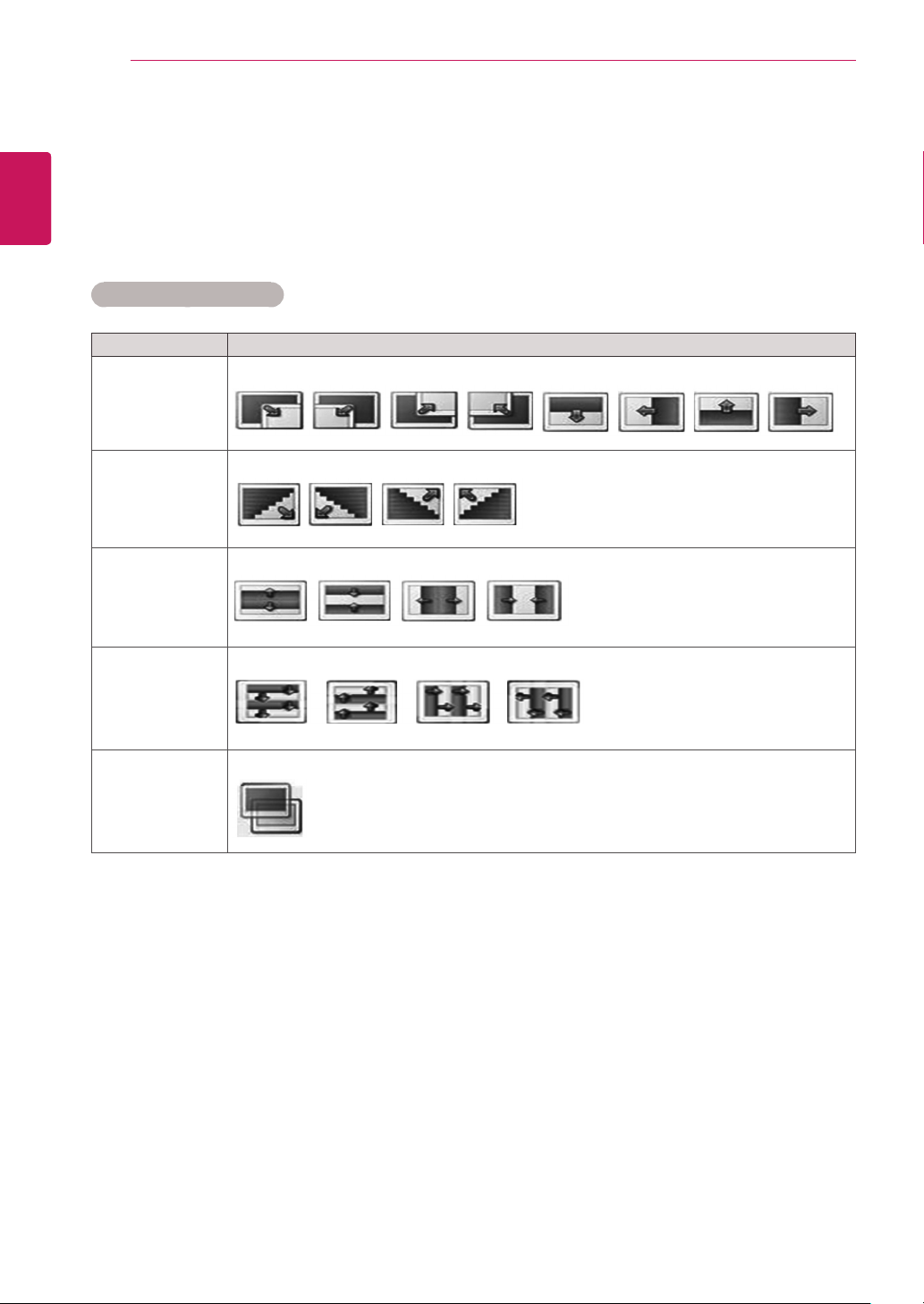
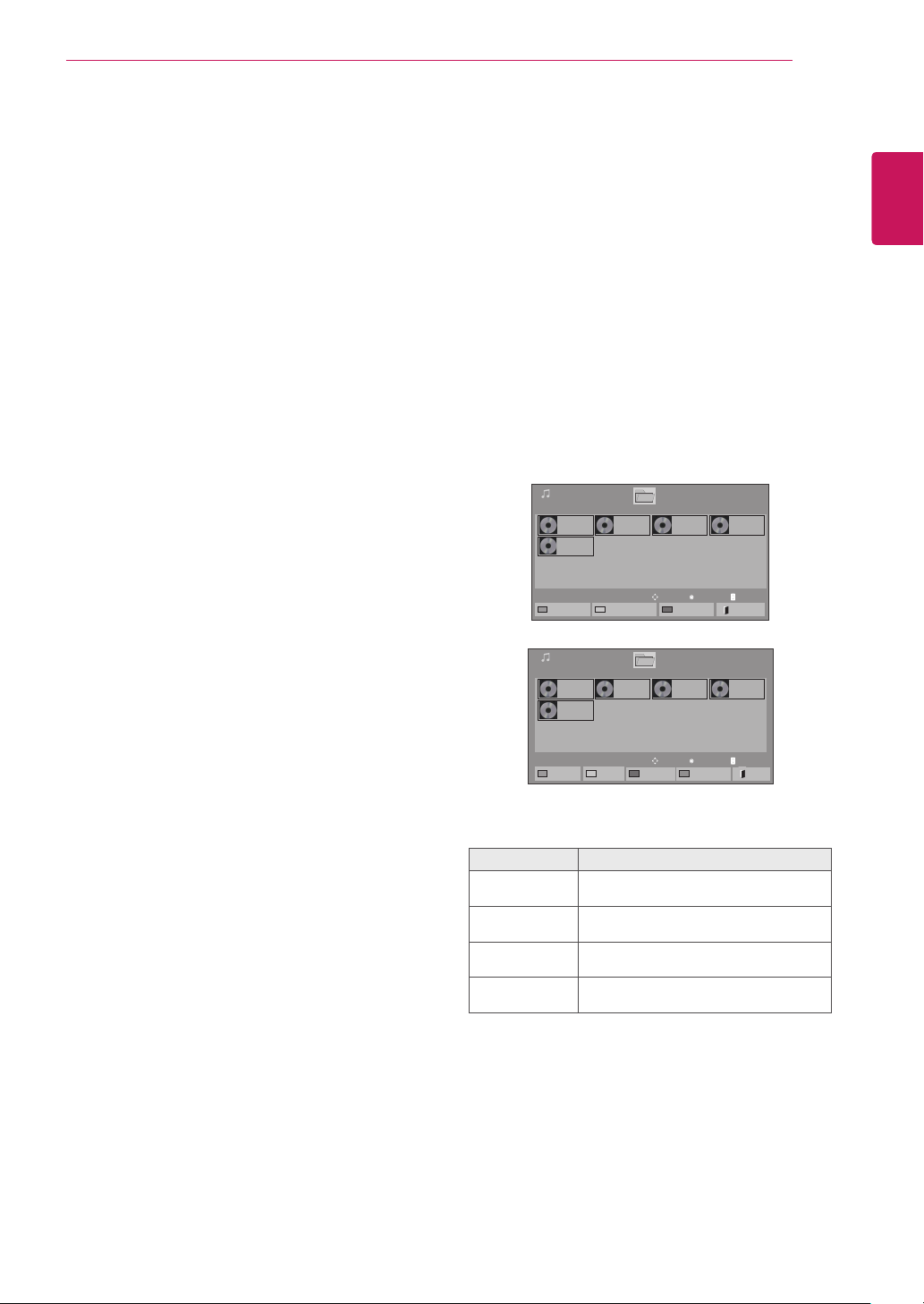
Transition Effect Option
Option Description
Sliding Pushes the current slide out of view as it plays to the next slide.
Stairs Pushes the current slide in a staircase shape as it plays to the next slide.
Door Open
/Close
Pushes the current slide like opening or closing the door as it plays to the next slide.
Shutter Pushes the current slide like drawing or pulling down the blind as it plays to the next slide
Fade In Fades the slide out slowly before playing to the next slide.
27
ENG
ENGLISH
ENTERTAINMENT
When you select the Set Video,
1 Press the Navigation buttons to scroll to make
appropriate adjustments.
When you select the Set Audio,
1 Press the Navigation buttons to scroll to show
the Sound Mode, Clear Voice II or Balance.
2 Press the Navigation buttons to scroll to make
appropriate adjustments.
5 Play music.
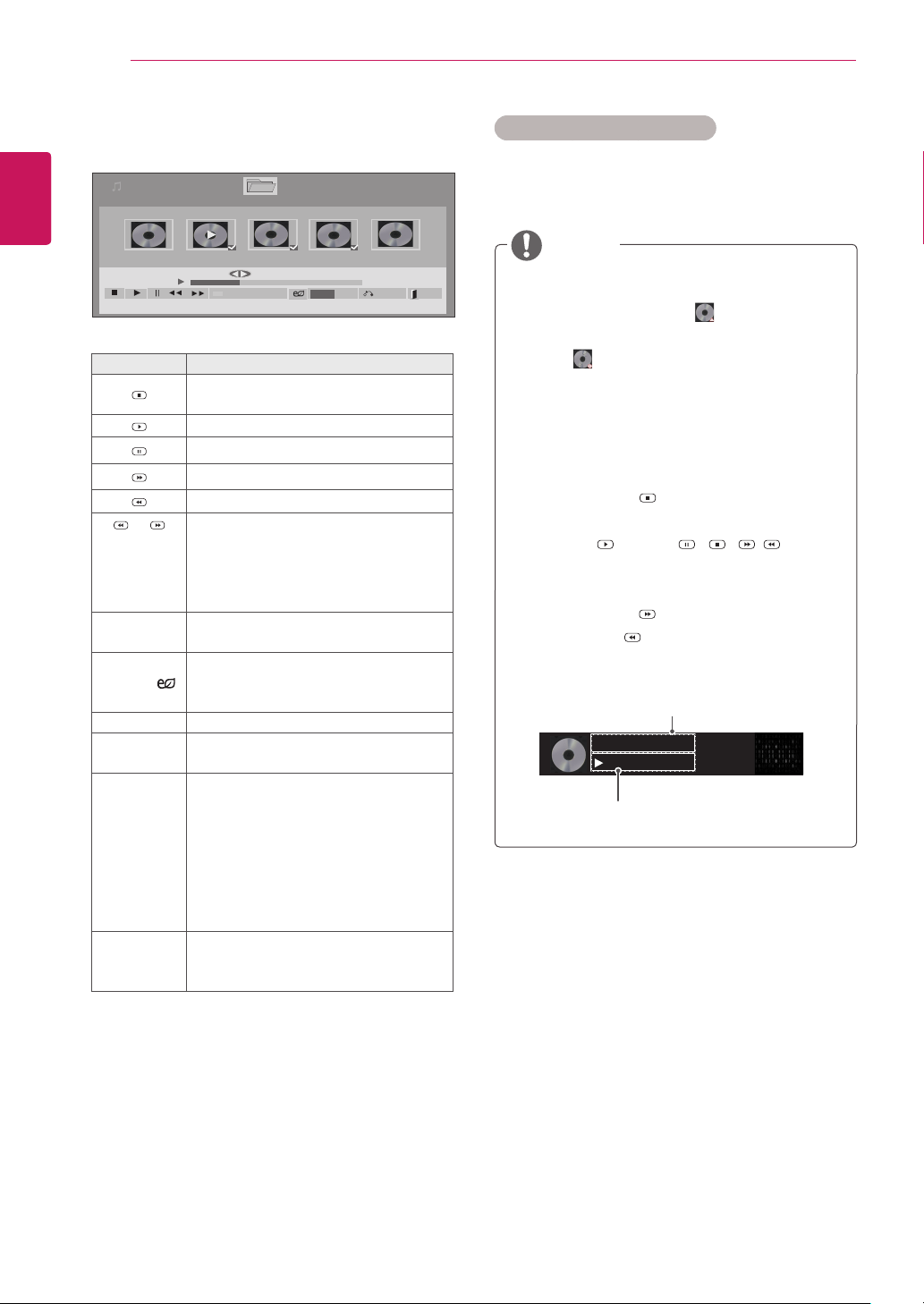
Listening to Music
1 Press the Navigation buttons to scroll to My Me-
dia and press OK.
2 Press the Navigation buttons to scroll to Music
List and press OK.
3 Press the Navigation buttons to scroll to a folder
you want and press OK.
4 Press the Navigation buttons to scroll to a file
you want and press OK.
Menu Description
Play Marked Display the selected music file.
Mark All Mark all music files on the screen.
Unmark All Deselect all marked music files.
Exit Mark Mode Exit the Mark Mode.
Page 1/1
Music List
Drive1
Page 1/1
001. - B01.mp3
00:00
002. -B02.mp3
00:00
003. B03.mp3
00:00
004. - B04.mp3
00:00
005. - B05.mp3
00:00
USB1 USB Drive
To Movie List
Change Numbers
Mark Mode
Exit
Page 1/1
Music List
Drive1
Page 1/1
001. - B01.mp3
00:00
002. -B02.mp3
00:00
003. B03.mp3
00:00
004. - B04.mp3
00:00
005. - B05.mp3
00:00
USB1 USB Drive
Play Marked
Mark All
Unmark All
Exit
Mark Mode
Exit Mark Mode
Play
Move
Page ChangeP
Mark
Move
Page ChangeP
28
ENG
ENGLISH
ENTERTAINMENT
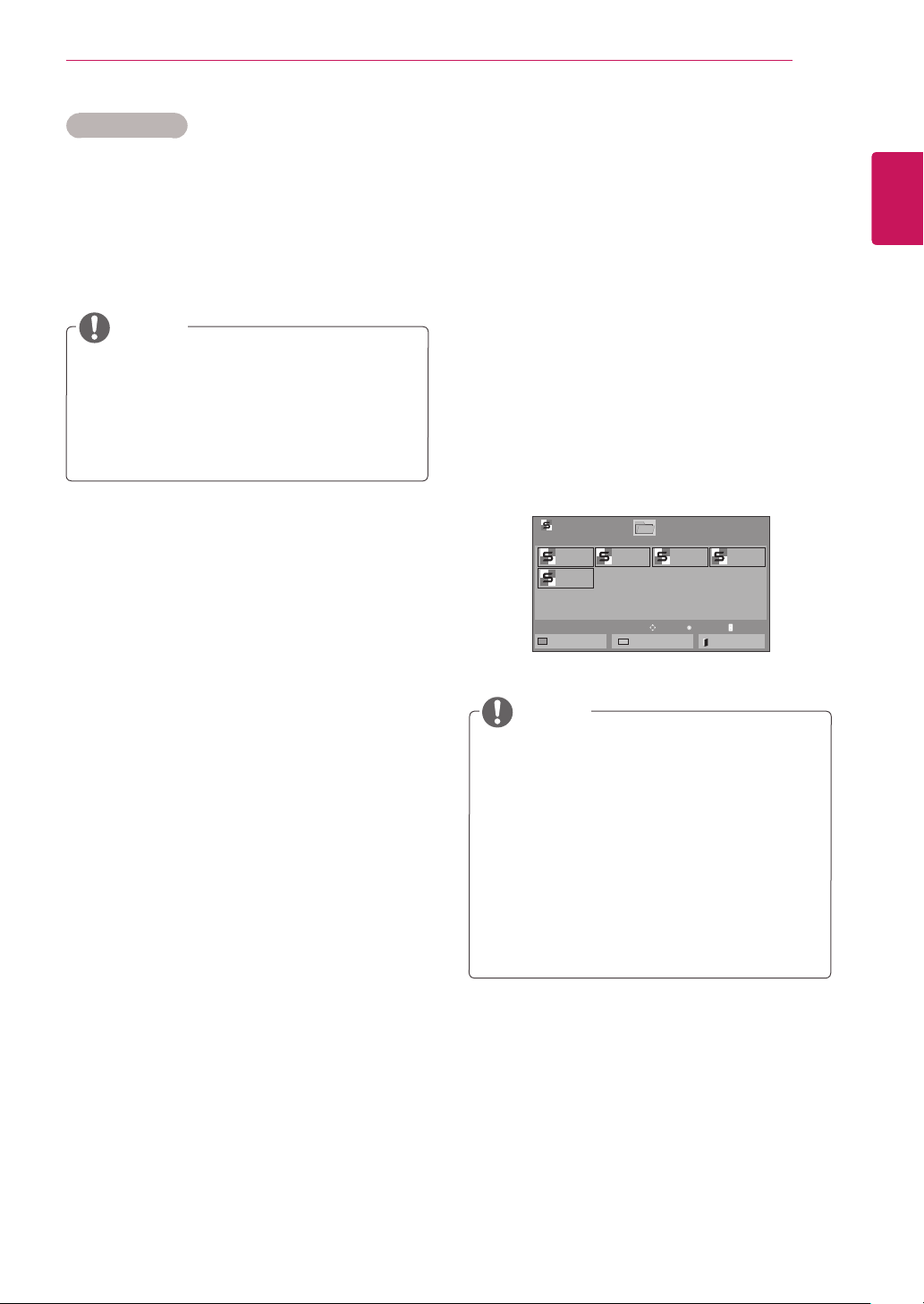
6 Control playback by using the following buttons.
Page 1/1
Music List
Drive1 Page 1/1
3 file(s) Marked
004. - B04.mp3
00:00
005. - B05.mp3
00:00
006. - B06.mp3
00:00
007. - B07.mp3
00:00
008. - B08.mp3
00:00
005. - B05.mp3
02:30 / 03:25
Hide Exit
Option
MENU
Play with Photo
Button Description
Stops playing back the file and moves
back to the music list.
Plays a music file
Pauses or resumes playback
Skips to the next file
Skips to the previous file
or
When playing,
When you press the v button, the previ-
ous music file will be played.
When you press the w button, the next
music file will be played.
Green
button
Start playing the selected music files and
then move to the Photo List.
ENERGY
SAVING( )
Press the ENERGY SAVING button re-
peatedly to change the brightness of
your screen.
MENU Show the Option menu.
Hide
Hides the option window.
To display the options, press OK.
EXIT
When you press the EXIT button while
the Music player is displayed, only the
music will be stopped and the player will
not return to normal viewing.
When you press the EXIT button while
the music is stopped or while the music
player is hidden, the player will return to
normal viewing.
< or >
When using the < or > button during
playback a cursor indicating the position
can be played.
Tips for Playing Music Files
y
This unit cannot support the ID3 Tag
embedded MP3 files.
Time elapsed /Duration
002. B02.mp3
00:31 / 04:04
file name
y Non-supported files are displayed the pre-
view image by icon only .
y Abnormal files are displayed in the form of
bitmap .
y A damaged or corrupted music does not play
but displays 00:00 in playtime.
y A music downloaded from a paid service with
copyright protection does not start but dis-
plays inappropriate information in playtime.
y If you press OK, buttons, screen saver is
stopped.
y The PLAY( ), Pause( ), , , buttons
on the remote control are also available in
this mode.
y You can use the button to select the next
music and the button to select the previ-
ous music.
NOTE
29
ENG
ENGLISH
ENTERTAINMENT
1 Press MENU to access the Pop-Up menus.
2 Press the Navigation buttons to scroll to Set Au-
dio Play or Set Audio and press OK.
Music Options
When you select the Set Audio Play,
1 Press the Navigation buttons to scroll to select
the Repeat or Random.
2 Press the Navigation buttons to scroll to make
appropriate adjustments.
When you select the Set Audio,
1 Press the Navigation buttons to scroll to select
the Sound Mode, Clear Voice II or Balance.
2 Press the Navigation buttons to scroll to make
appropriate adjustments.
y Option values changed in Movie List does
not affect Photo List and Music List.
y Option value changed in Photo List and
Music List are changed likewise in Photo
List and Music List excluding Movie List.
NOTE
y While playing media files from Contents List,
only the BACK, EXIT or Volume button are
available. Selecting the BACK or EXIT button
stops playing media files and returns to the
screen view mode.
y If there is the AutoPlay folder in the USB
device and its files are in supported formats,
they can be played back automatically when
the USB device is connected to the TSP500
set.
NOTE
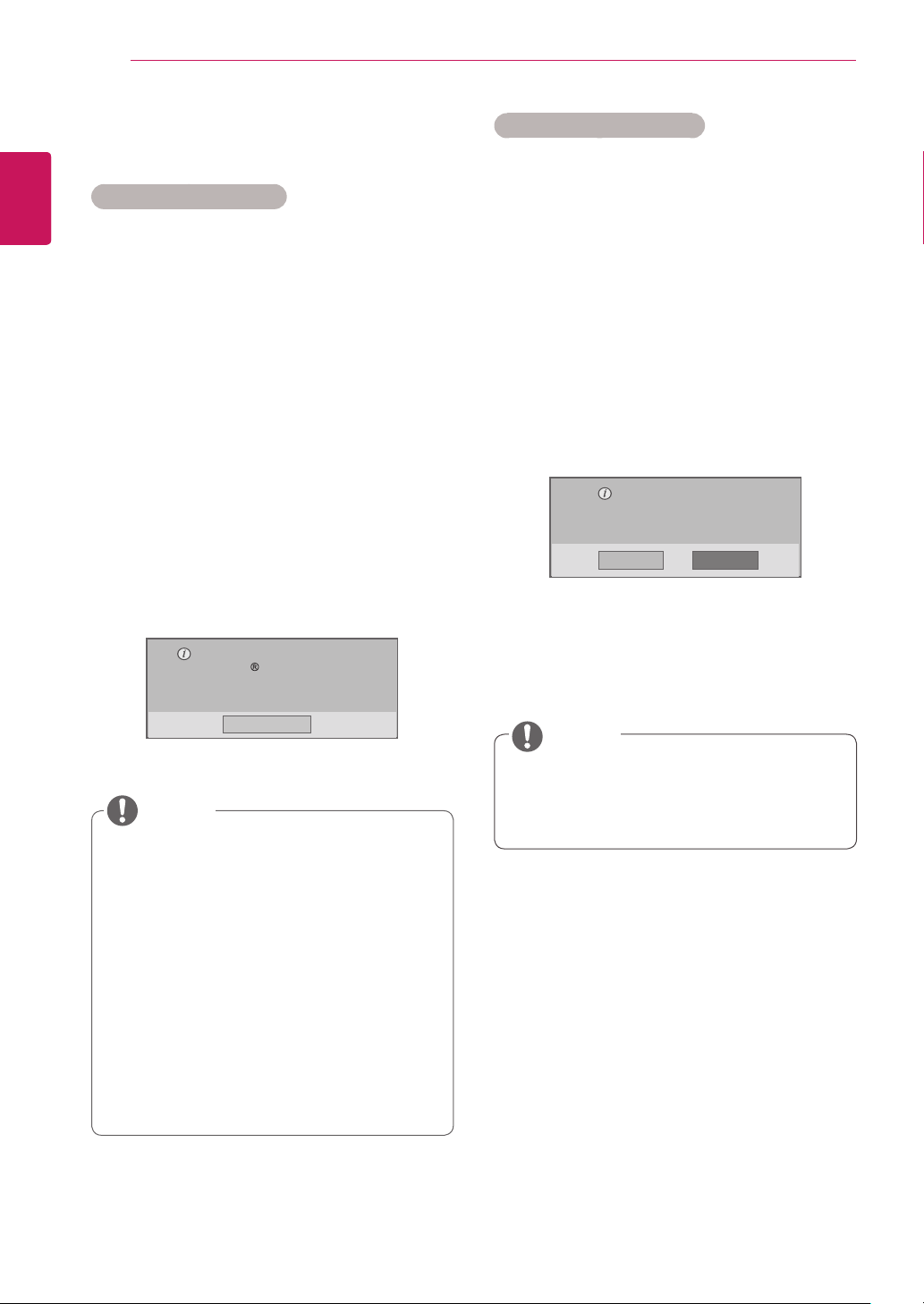
Viewing the Contents List
Plays back the stored files using the Export option
in SuperSign Manager.
1 Press the Navigation buttons to scroll to My
Media and press OK.
2 Press the Navigation buttons to scroll to Con-
tents List and press OK.
3 Press the Navigation buttons to scroll to a
folder you want and press OK.
4 Press the Navigation buttons to scroll to a file
you want and press OK.
Page 1/1
Contents List
Drive1
Page 1/1
test1.cts
07/01/2011
test2.cts
07/01/2011
test3.cts
07/01/2011
test4.cts
07/01/2011
test5.cts
07/01/2011
USB1 USB Drive
To Movie List
Change Numbers
Exit
Play
Move
Page ChangeP
30
ENG
ENGLISH
ENTERTAINMENT
DivX® VOD Guide
DivX® VOD Registration
In order to play purchased or rented DivX® VOD
contents, you should register your device with 10
digit DivX registration code from your device at
www.divx.com/vod.
1 Press MENU to access the main menus.
2 Press the Navigation buttons to scroll to MY
MEDIA and press OK.
3 Press the Blue button.
4 Press the Navigation buttons to scroll to DivX
Reg. Code and press OK.
5 View the registration code of your display.
6 When you are finished, press EXIT.
When you return to the previous menu, press
BACK.
You must register your device to
play DivX protected videos.
Registration code : **********
Register at http://vod.divx.com
Close
y While you are checking the registration code,
some buttons may not work.
y If you use the DivX registration code of
another device, you cannot play the rented
or purchased DivX file. Make sure to use
the DivX registration code assigned to your
product.
y The video or audio files that are not con-
verted by the standard DivX codec may be
corrupted or not be played.
y The DivX VOD code allows you to activate
up to 6 devices under one account.
NOTE
DivX® VOD Deregistration
You should deregister your device with 8 digit DivX
deregistration code from your device at www.divx.
com/vod.
1 Press MENU to access the main menus.
2 Press the Navigation buttons to scroll to MY
MEDIA and press OK.
3 Press the Blue button.
4 Press the Navigation buttons to scroll to Deacti-
vation and press OK.
5 Press the Navigation buttons to select Yes to
confirm.
Deregistration code :
********
Deregister at http://vod.divx.com
Continue with registration?
Yes No
6 When you are finished, press EXIT.
When you return to the previous menu, press
BACK.
y
Once the deregistration is executed, you
must register your device again to see
DivX® VOD contents.
NOTE
31
ENG
ENGLISH
ENTERTAINMENT
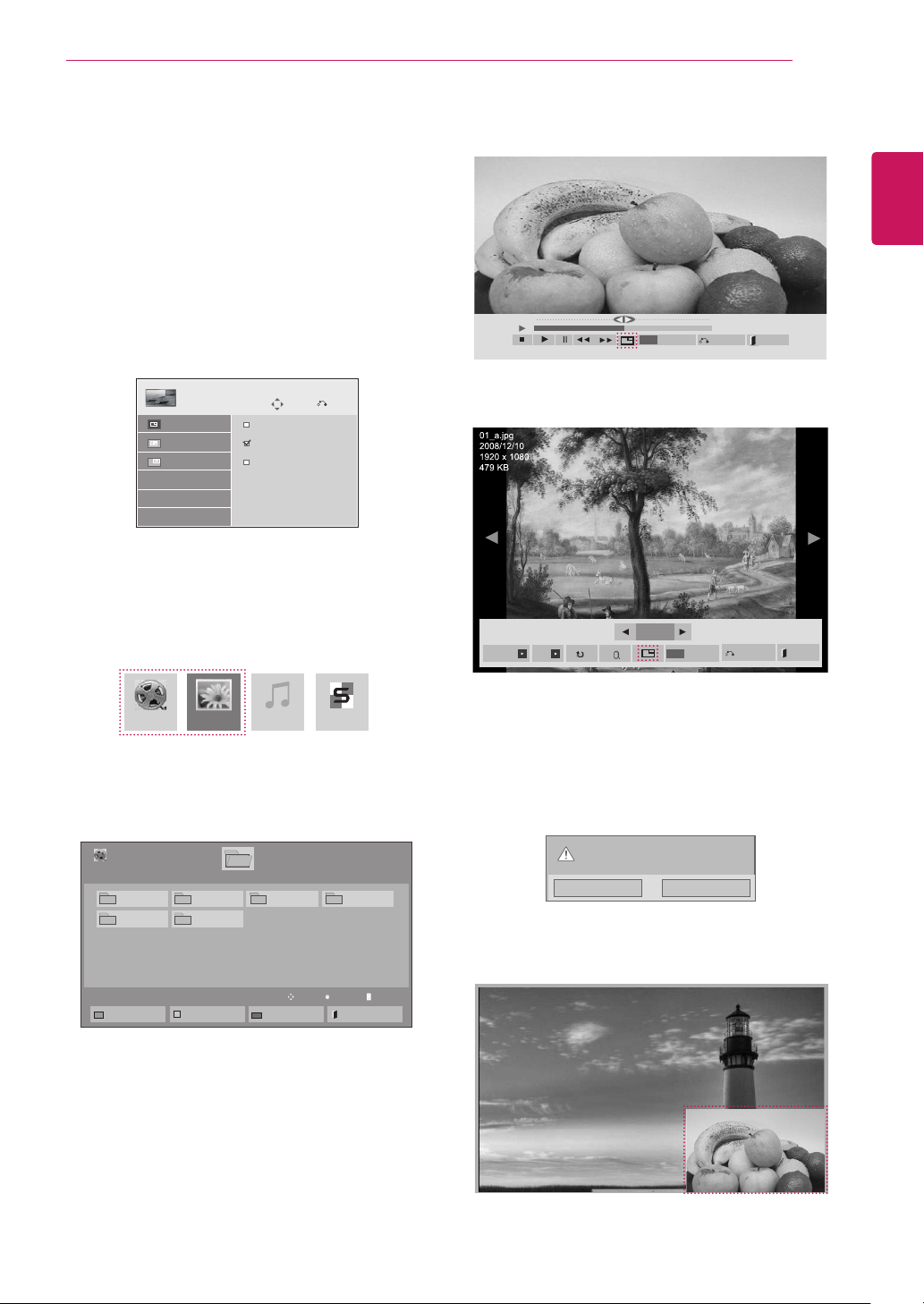
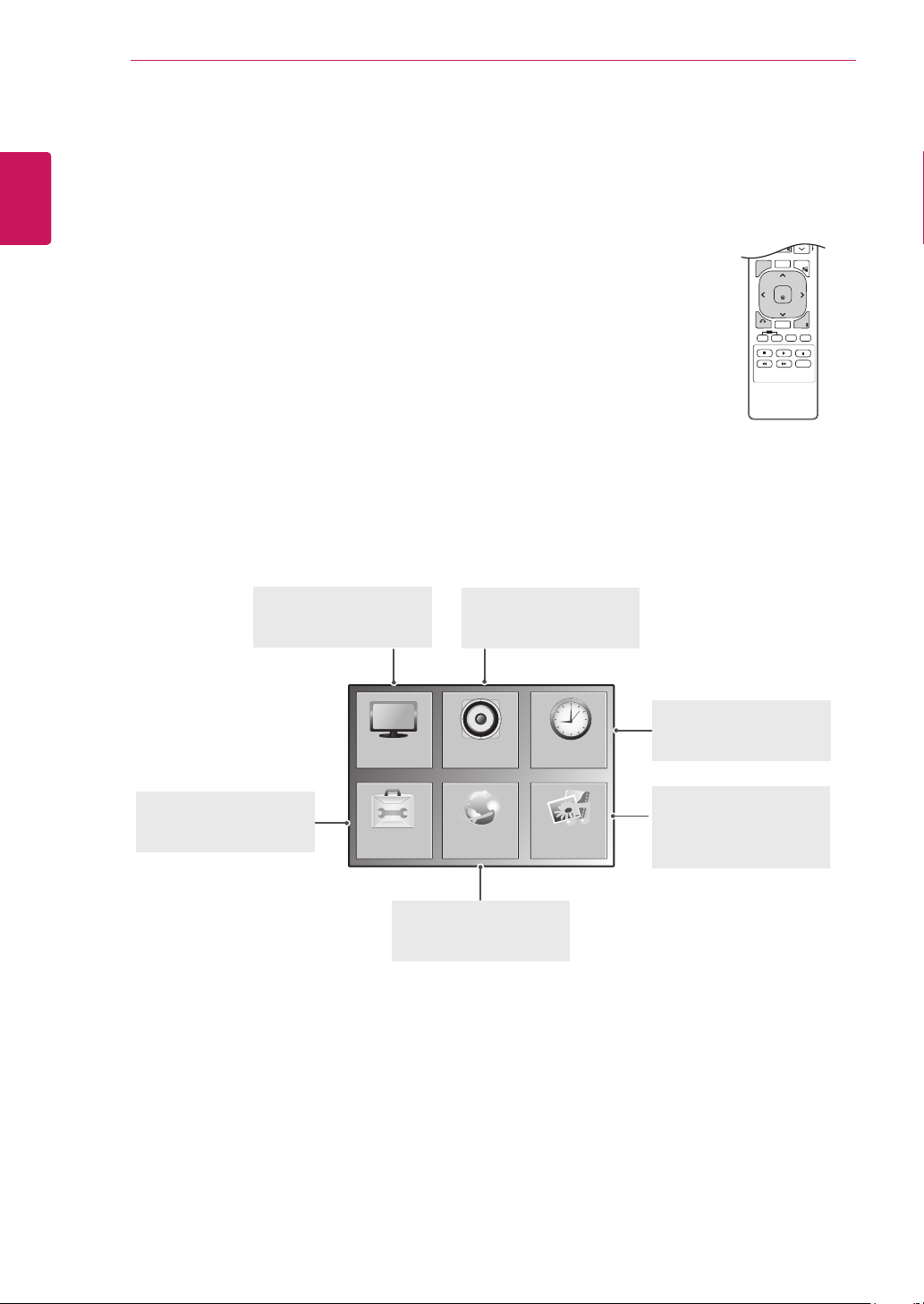
Using PIP/PBP
Displays videos or photos stored on a USB device
on a single display by dividing it into the main and
sub screens.
1 Press the MENU button to move to OPTION
and press OK.
2 Press PIP/PBP to select PIP or PBP and then
press OK.
3 Select Movie List or Photo List from My
Media. (With PIP/PBP selected, the Music
List and Contents List are deactivated.)
Move
PIP/PBP
Off
PIP
PBP
Pre.
Mode
Position
Size
4 Select a file you want and then press OK.
5 Select the PIP or PBP icon from the play list.
01:02:30 / 02:30:25
Option
MENU
Hide
Exit
< Movie List >
< Photo List >
6 Select either Main or Sub for sound. You must
to select the output sound before running the
PIP or PBP function.
7 The sub screen is displayed on the main
screen.
Select the sound path.
Main Sub
Movie List Music ListPhoto List Contents List
Page 1/1
Movie List
USB1 USB Drive
Drive1
Page 1/1
To Photo list
Change Numbers
Mark Mode
Exit
003
001 002
004
005 006
Play
Move
Page ChangeP
2/13
Slideshow BGM
Hide
Option
MENU
Exit
32
ENG
ENGLISH
CUSTOMIZING SETTINGS
CUSTOMIZING SETTINGS
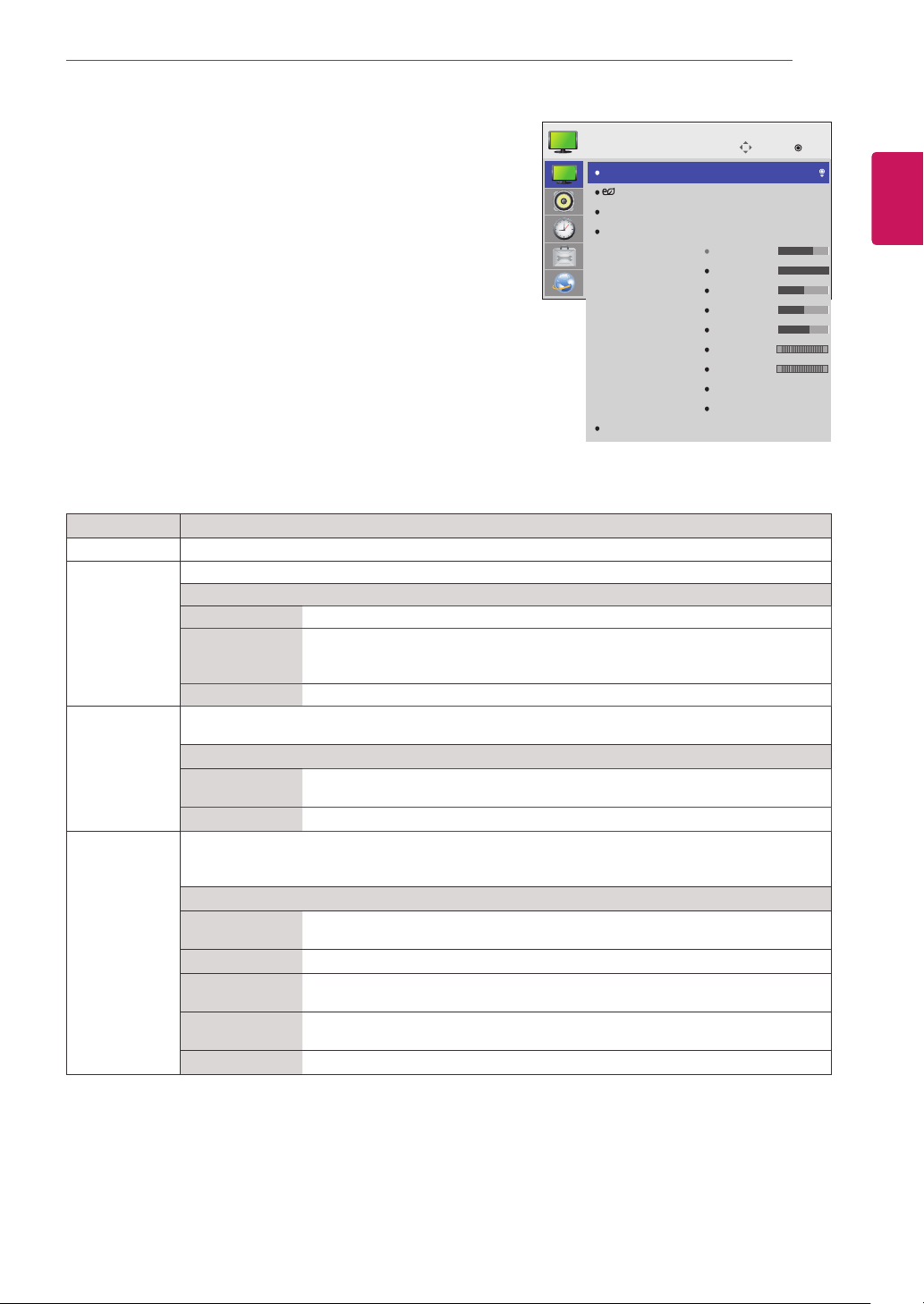
Accessing the Main Menus
1
Press MENU to access the main menus.
2
Press the Navigation buttons to scroll to one of the following menus and
press OK.
3
Press the Navigation buttons to scroll to the setting or option you want
and press OK.
4
When you are finished, press EXIT.
When you return to the previous menu, press BACK.
P
A
G
E
MARK
ARC
OK
S.MENU
PSM
AUTO
MUTE
BRIGHT
NESS
MENU
ID
BACK
TILE
ON
OFF
EXIT
OPTION
PICTURE
NETWORK
AUDIO TIME
MY MEDIA
PICTURE
Adjusts the image size,
quality, or effect.
AUDIO
Adjusts the sound quality,
effect, or volume level.
NETWORK
Sets up the network
setting.
OPTION
Customizes the general
settings.
TIME
Sets the time, date, or
Timer feature.
MY MEDIA
Display and play movie,
photo and music content
stored on your USB.
33
ENG
ENGLISH
CUSTOMIZING SETTINGS
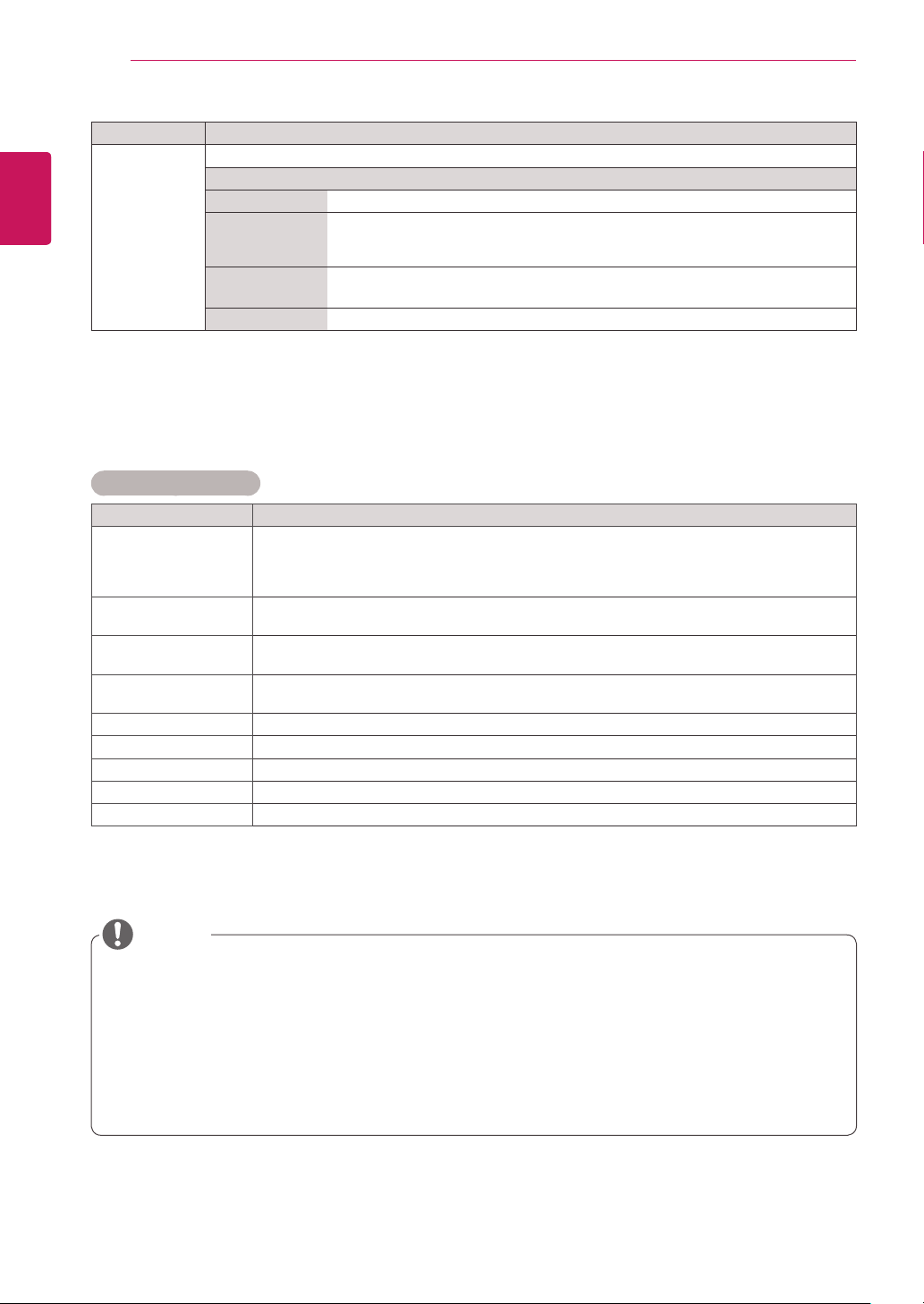
PICTURE Settings
1
Press MENU to access the main menus.
2
Press the Navigation buttons to scroll to PICTURE and
press OK.
3
Press the Navigation buttons to scroll to the setting or
option you want and press OK.
- To return to the previous level, press BACK.
4
When you are finished, press EXIT.
When you return to the previous menu, press
BACK.
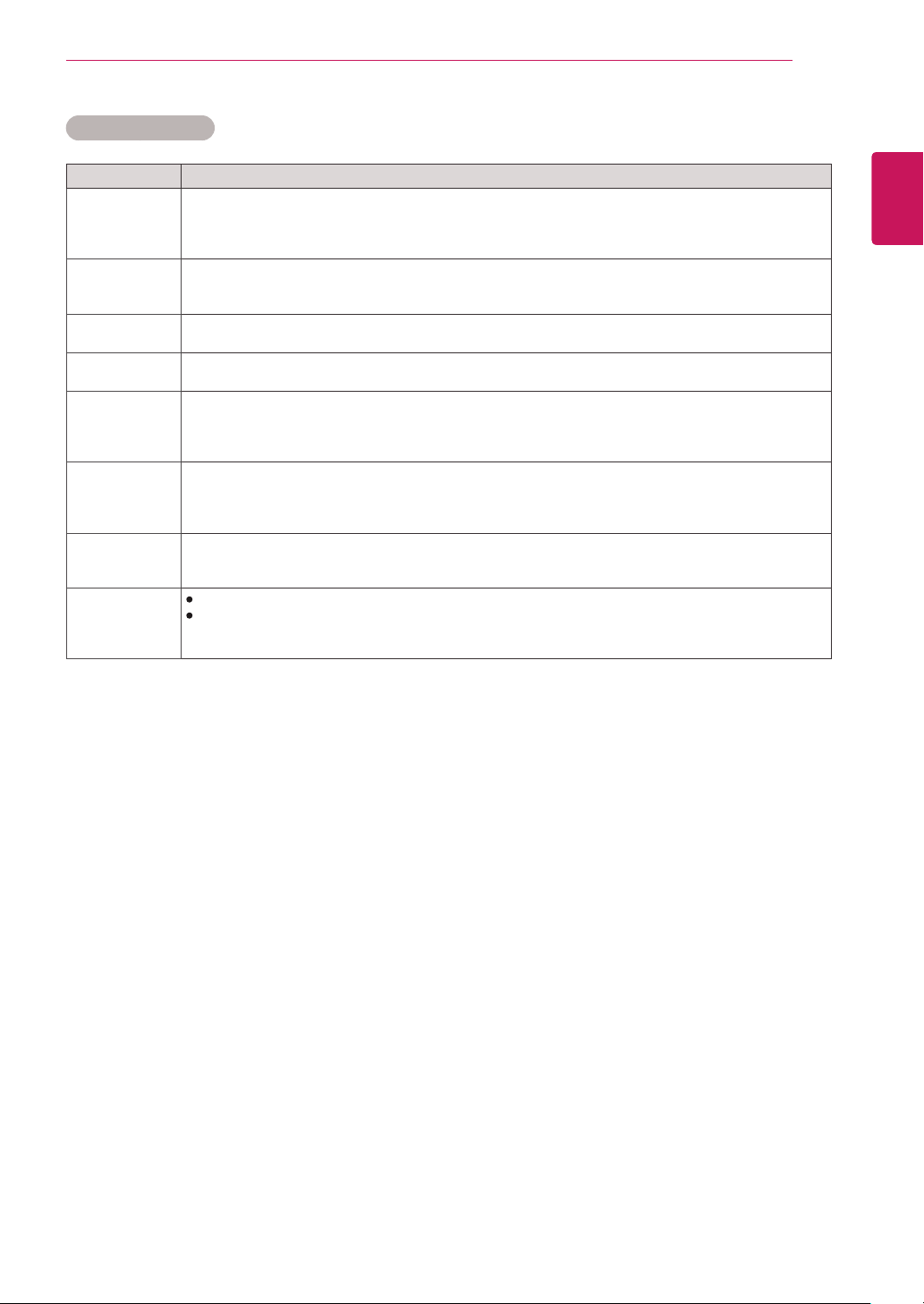
The available picture settings are described in the following:
Setting Description
Aspect Ratio Changes the image size to view images at its optimal size.
Energy Saving Sets to automatically adjust the screen brightness corresponding to the surroundings.
Level
Off Disables Energy Saving function.
Minimum/
Medium/
Maximum
Selects the brightness level of the backlight.
*Backlight function is not supported.
Screen Off The screen turns off in 3 seconds.
Smart Energy
Saving
Adjusts the backlight and contrast depending on the screen brightness.
*Backlight function is not supported.
Level
On Enables the Smart Energy Saving function to save power consumption as much
as the value set in the smart energy saving rate.
Off Disables the Smart Energy Saving function.
Picture Mode Selects one of the preset image or customizes options in each mode for the best screen performance.
You are also able to customize advanced options of each mode.
The available preset picture modes vary depending on the display set.
Mode
Vivid Adjusts the video image for the retail environment by enhancing the contrast,
brightness, Color, and sharpness.
Standard Adjusts the image for the normal environment.
Cinema Optimizes the video image for a cinematic look to enjoy movies as if you are in a
movie theater.
Sport Optimizes the video image for high and dynamic actions by emphasizing primary
Colors such as white, grass, or sky blue.
Game Optimizes the video image for a fast gaming screen such as PCs or games.
Move
OK
PICTURE
Aspect Ratio
Energy Saving
Smart Energy Saving
Picture Mode
Screen
: 16:9
: Off
: Off
: Standard
Backlight
Contrast
Brightness
Sharpness
Color
Tint
Color Temp.
Advanced Control
Picture Reset
70
100
50
50
60
0
0
R G
W C
34
ENG
ENGLISH
CUSTOMIZING SETTINGS
Basic Image Options
Setting Description
Backlight Adjusts the brightness of the screen by controlling the LCD backlight. If you decrease the
brightness level, the screen becomes darker and the power consumption will be reduced
without any video signal loss.
*Backlight function is not supported.
Contrast Increases or decreases the gradient of the video signal. You may use Contrast when the
bright part of the picture is saturated.
Brightness Adjusts the base level of the signal in the picture. You may use Brightness when the dark part
of the picture is saturated.
Sharpness Adjusts the level of crispness in the edges between the light and dark areas of the picture.
The lower the level, the softer the image.
Color Adjusts intensity of all colors.
Tint Adjusts the balance between red and green levels.
Color Temp . Set to warm to enhance hotter Colors such as red, or set to cool to make picture bluish.
Advanced Control Customizes the advanced options. Refer to the Advanced image options.
Picture Reset Restores the options to the default setting.
Setting Description
SCREEN
(In RGB
Mode Only)
Customizes the PC display options in RGB mode.
Option
Resolution Selects a proper resolution. See “Customizing PC display options”.
Auto Configure Sets to adjust the screen position, clock, and phase automatically.
The displayed image may be unstable for a few seconds while the configuration is
in progress.
Position/Size/
Phase
Adjusts the options when the picture is not clear, especially when characters are
shaky, after the auto configuration.
Reset Restores the options to the default setting.
y
If the 'Picture Mode' setting in the Picture menu is set to Vivid, Standard, Cinema, Sport or Game
the subsequent menus will be automatically set.
y
You cannot adjust color and tint in the RGB-PC/ DVI-D-PC(DTV)/ HDMI-PC mode.
y
When using the Smart Energy Saving function, the screen may look saturated in the white area of a
still image.
y
If Energy Saving is set to Minimum, Medium, or Maximum, the Smart Energy Saving function is
disabled.
NOTE
35
ENG
ENGLISH
CUSTOMIZING SETTINGS
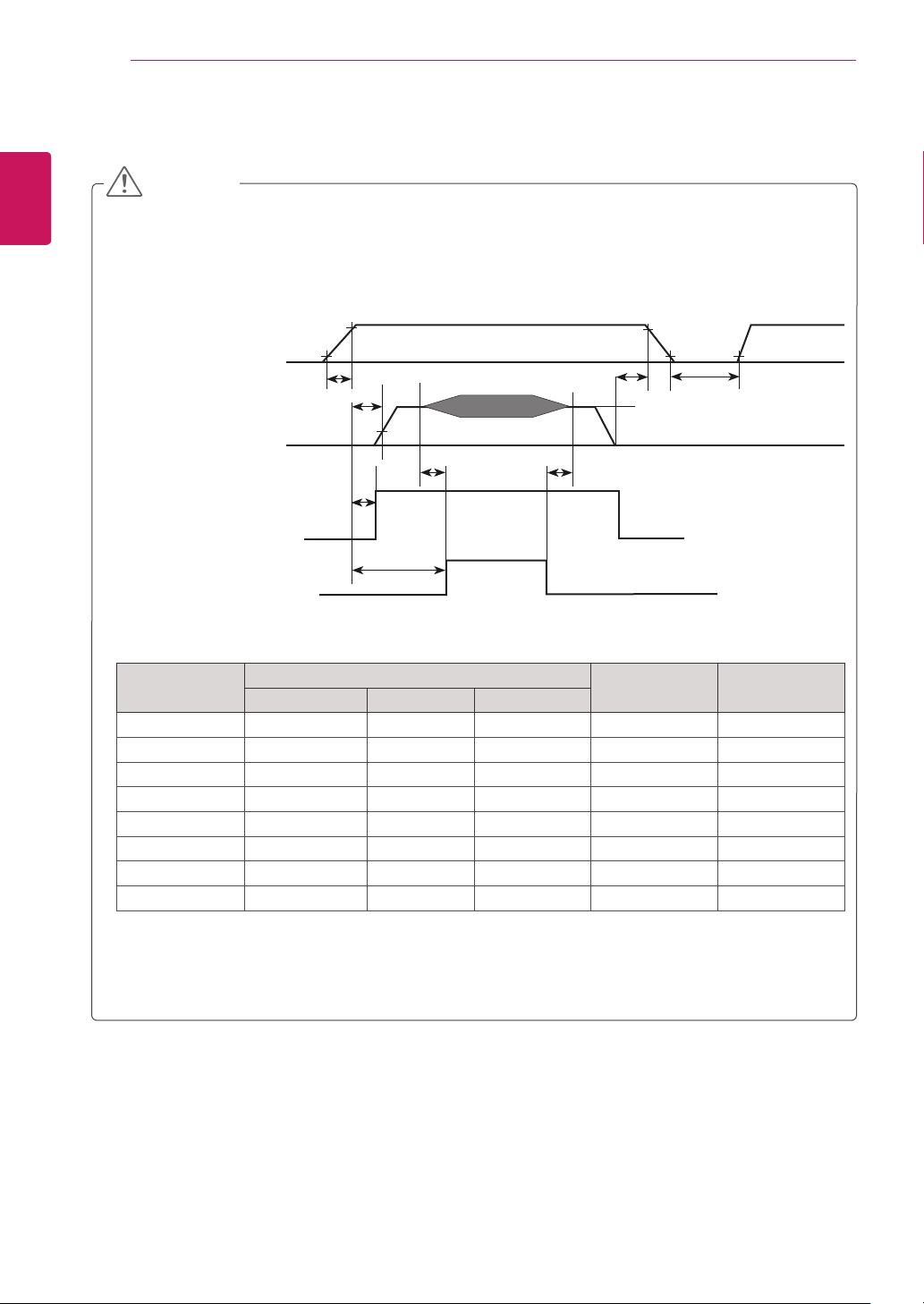
Setting Description
Dynamic
Contrast
(Off/High/
Medium/Low)
Adjusts the contrast to keep it at the best level according to the brightness of the screen. The
picture is improved by making bright parts brighter and dark parts darker. (This function can be used
only under Component.)
Dynamic Color
(Off/High/Low)
Adjusts screen Colors so that they look livelier, richer and clearer. This feature enhances
hue, saturation and luminance so that red, blue, green and white look more vivid. (This function can
be used only Component.)
Clear White
(Off/High/Low)
Make the white area of screen brighter and more white.
Skin Color
(-5 to 5)
It detects the skin area of video and adjusts it to express a natural skin color.
Noise
Reduction
(Off/High/
Medium/Low)
Reduces screen noise without compromising video quality. (This function can be used only under
Component.)
Digital Noise
Reduction
(Off/High/
Medium/Low)
This option reduces the noise produced while creating digital video signals.
Gamma
(High/Medium/
Low)
Set your own gamma value. On the display, high gamma values display whitish images and low
gamma values display high contrast images.
Black Level
(High/Low)
Low: The picture of the screen gets darker.
High: The picture of the screen gets brighter.
Set black level of the screen to proper level.
(Function works in the following mode - Component, HDMI-DTV, DVI-D)
Advanced Control
36
ENG
ENGLISH
CUSTOMIZING SETTINGS
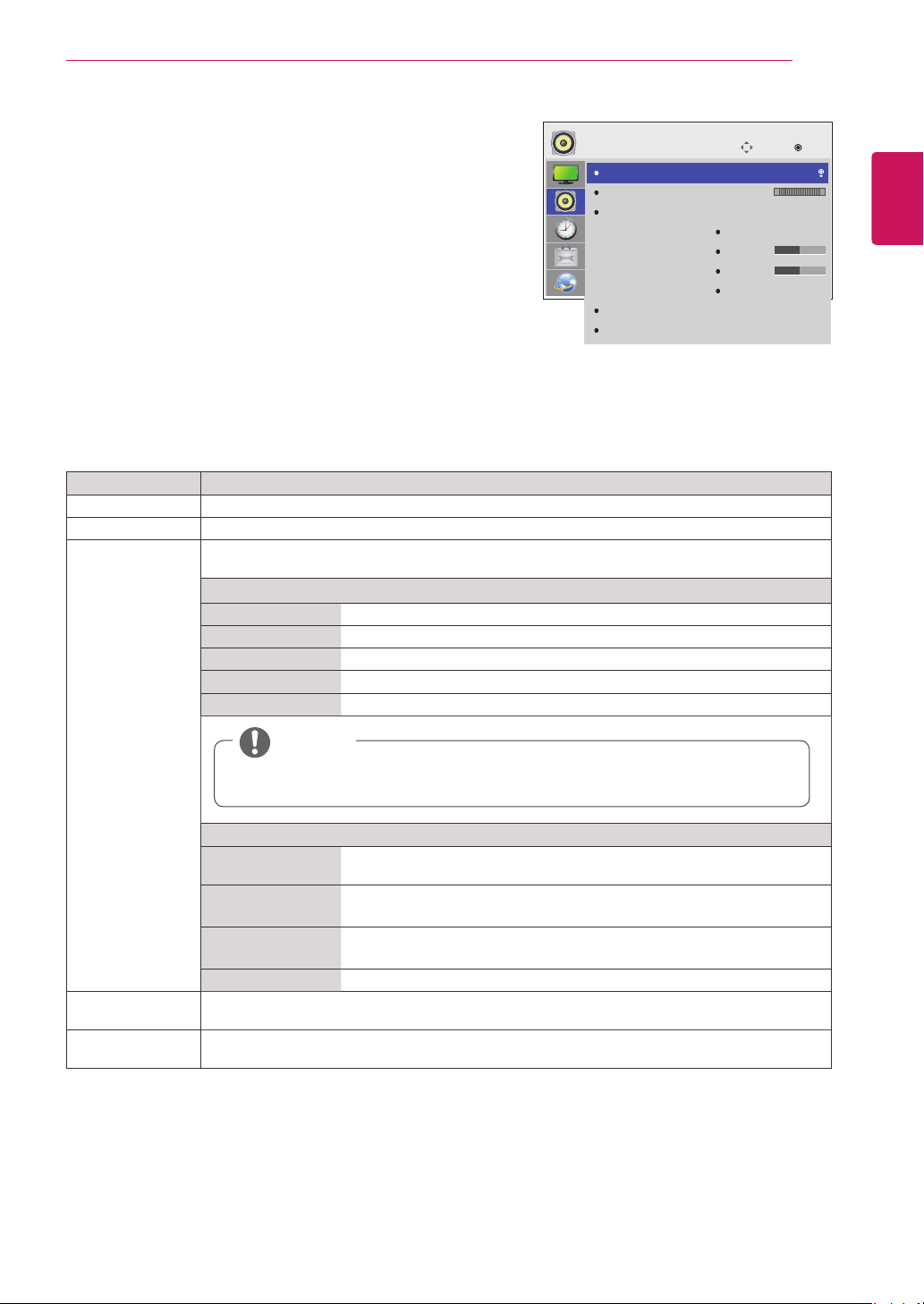
Parameter
Value
Unit Notes
Min Typ Max
T1 0.5 - 20 ms
T2 0 - - ms 4
T3 200 - - ms 3
T4 200 - - ms 3
T5 1.0 - - s 5
T6 - - T2 ms 4
T7 0.5 - - s
T8 100 - - ms 6
y
The T3 / T4 is recommended value, the case when failed to meet a minimum specification,
abnormal display would be shown. There is no reliability problem.
Power Sequence
y
TSP500 requires additional transparent display and backlight in order to display image properly.
y
If you do not follow the booting sequence below while launching backlight, the screen may be
displayed abnormally (blinking or vertical stripes).
Power Supply For LCD
V
LCD
Interface Signal (Tx)
User Control Signal
(LVDS_select, BIT_select)
Power for Lamp
T1
0V
10%
90%
10% 10%
90%
T5
T8
30%
0V
T2
Vcm : LVDS Common mode Voltage
T6
100%
T3
T4
Lamp ON
T7
Valid Data
CAUTION
37
ENG
ENGLISH
CUSTOMIZING SETTINGS
AUDIO Settings
1
Press MENU to access the main menus.
2
Press the Navigation buttons to scroll to AUDIO and press
OK.
3
Press the Navigation buttons to scroll to the setting or
option you want and press OK.
- To return to the previous level, press BACK.
4
When you are finished, press EXIT.
When you return to the previous menu, press BACK.
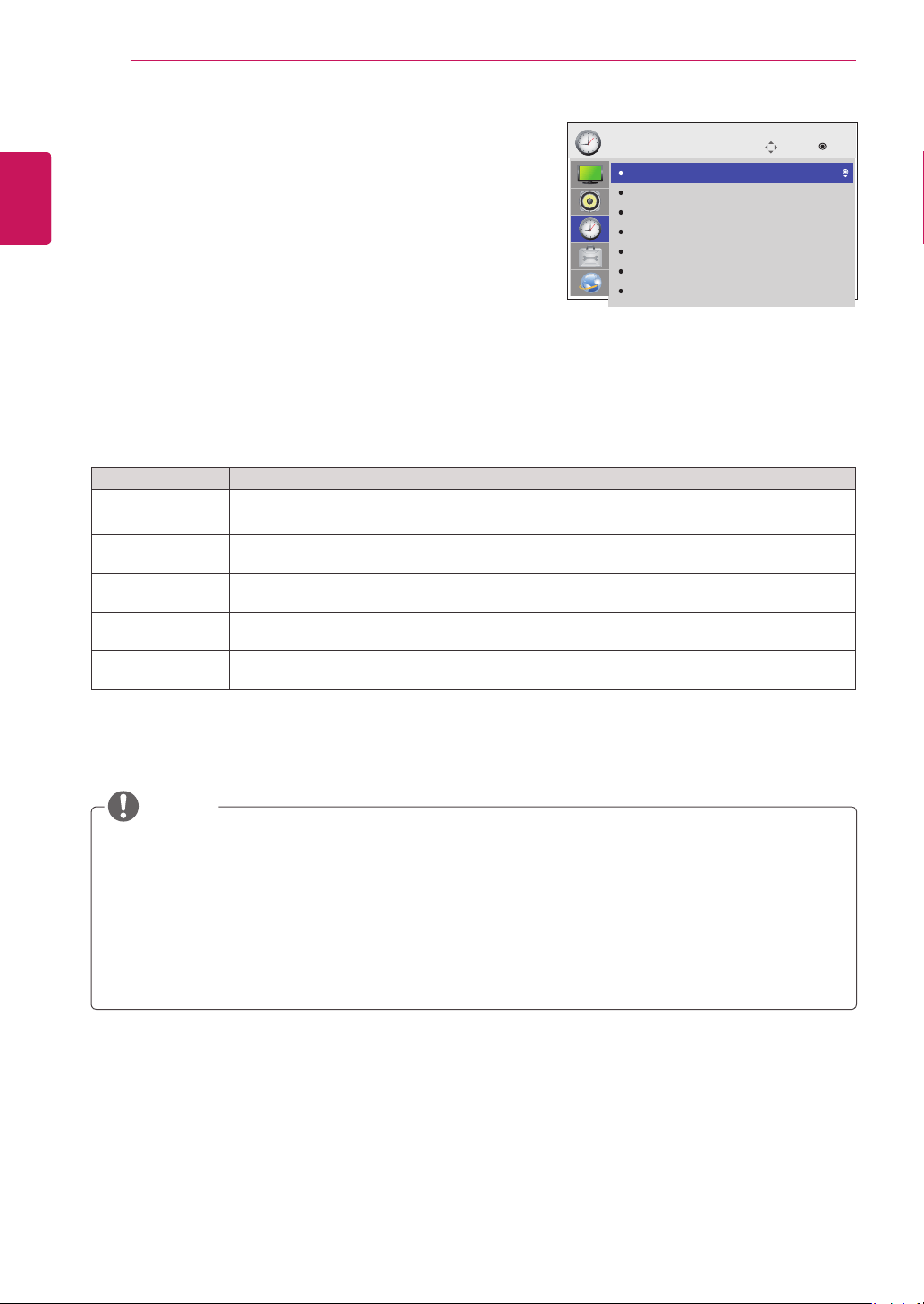
The available audio options are described in the following:
Setting Description
Clear Voice ll By differentiating the human sound range from others, it helps users make dialog more clear.
Balance Adjusts balance between the left and right speakers according to your room environment.
Sound Mode The best sound tone quality will be selected automatically depending on the video type that you're
currently watching.
Mode
Standard The most commanding and natural audio.
Music Select this option to enjoy the original sound when listening to the music.
Cinema Select this option to enjoy sublime sound.
Sport Select this option to watch sports broadcasting.
Game To enjoy dynamic sound when playing a game.
Option
Infinite Sound LG's Infinity Sound option provides 5.1 channel stereo sound from two
speakers.
Treble Controls the dominant sounds in the output. When you turn up the treble, it
will increase the output to the higher frequency range.
Bass Makes the output sound softer. When you turn up the bass, it will increase
the output to the lower Frequency.
Reset Resets the sound mode to the default setting.
Digital Audio
Input
HDMI: Outputs the sound of digital signal from HDMI through the TSP500 speaker.
Audio In: Outputs the sound through the TSP500 by connecting HDMI to the Audio In port.
Speaker ON: Enables sound to the TSP500 speaker. (* The TSP500 speaker is sold separately.)
OFF: Disables sound to the TSP500 speaker. Use this option when using an external sound device.
NOTE
If sound quality or volume is not at the level you want, it is recommended to use a separate
home theater system or amplier to cope with different user environments.
Move
OK
AUDIO
Clear Voice II
Balance
Sound Mode
Digital Audio Input
Speaker
: Off
: Standard
Infinite Sound : Off
Treble
Bass
Reset
: Audio In
: On
0
50
50
L R
38
ENG
ENGLISH
CUSTOMIZING SETTINGS
TIME Settings
1
Press MENU to access the main menus.
2
Press the Navigation buttons to scroll to TIME and press
OK.
3
Press the Navigation buttons to scroll to the setting or option
you want and press OK.
- To return to the previous level, press BACK.
4
When you are finished, press EXIT.
When you return to the previous menu, press BACK.
The available time settings are described in the following:
Setting Description
Clock Sets the time feature.
On/Off Time Sets the time to turn on or off the TSP500 set.
Sleep Timer Sets the length of time until the TSP500 set to turns off. When you turn the TSP500 set off and
turn it on again, the Sleep Timer will be set to off.
Power on delay When connecting multiple TSP500s and turning the power on, the TSP500s are turned on
individually to prevent overload.
Auto off If Auto off is active and there is no input signal, the TSP500 set switches to off mode automatically
after 15 minutes.
Automatic
Standby
If you do not use the TSP500 for more than 4 hours, it will be in standby mode automatically.
y
Once the on or off time is set, these functions operate daily at the preset time.
y
The scheduled power-off function works properly only when the TSP500 set time is set correctly.
y
When the scheduled power-on and power-off times are the same, the power-off time has priority over the
power-on time if the set is turned on, and vice versa if the TSP500 set is turned off.
y
The "Auto Off, Automatic Standby" function may not be available depending on the country.
y
If time has not been reset for a long period of time, tolerance may occur due to environmental
conditions, for example temperature.
NOTE
Move OK
TIME
Clock
Off Time
On Time
Sleep Timer
Power On Delay
Auto Off
Automatic Standby
: Off
: Off
: Off
: Off
: 15 min.
: Off
‘허허허’
39
ENG
ENGLISH
CUSTOMIZING SETTINGS
Setting Description
Language To choose the language in which the control names are displayed.
Power Indicator Use this function to set the power indicator on the front side of the product to On or Off.
ISM Method A frozen or still picture from a PC/Video game displayed on the screen for prolonged periods
could result in a ghost image remaining even when you change the image. Avoid allowing a fixed
image to remain on the screen for a long period of time.
Setting
Normal Leave on normal if you don't foresee image burn in being a problem.
Orbiter May help prevent ghost images. However, it is best not to allow any fixed
image to remain on the screen. To avoid a permanent image on the screen,
the screen will move every 2 minutes.
Inversion This function inverts the panel color of the screen. The panel color is
automatically inverted every 30 minutes.
White Wash White wash fills the screen with solid white. This helps removes permanent
images burned into the screen. A permanent image may be impossible to clear
entirely with white wash.
DPM Select A user can choose to turn the power saving mode on / off.
Fail Over If there is no input signal, it automatically switches to another input with signal.
Setting
Off Stops auto switch of the input source.
Auto Switches to another input source with video signal if no video signal comes
from the current input source.
Manual Selects the priority of input source for auto switch.
When several input sources are found, the input source with a higher priority
will be selected.
Factory Reset Select this option to return to the default factory settings.
Set ID You can assign a unique Set ID NO (name assignment) to each product when several products
are connected for display. Specify the number (1 to 255) using the button and exit. Use the
assigned Set ID to individually control each product using the Product Control Program.
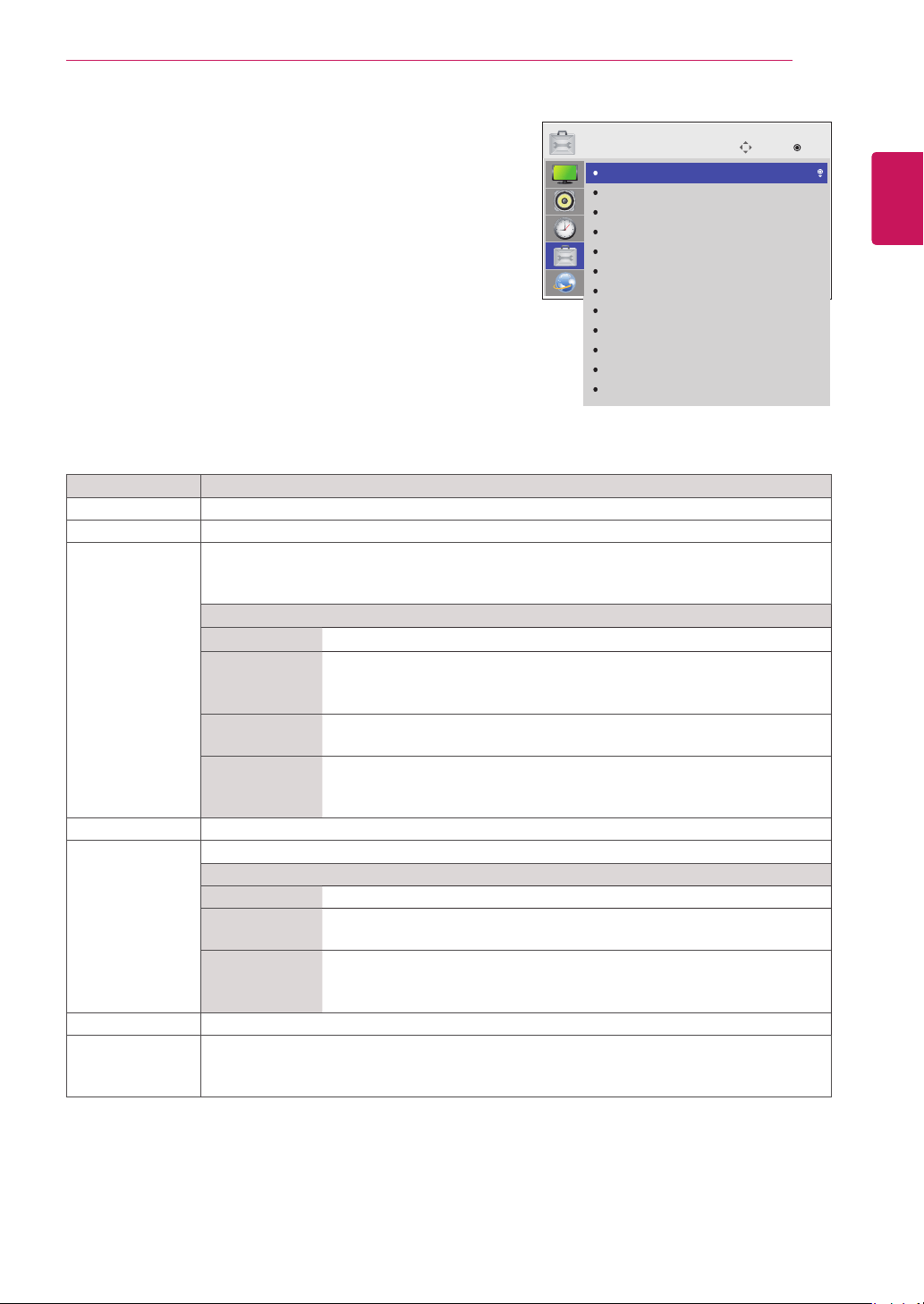
OPTION Settings
1
Press MENU to access the main menus.
2
Press the Navigation buttons to scroll to OPTION and press
OK.
3
Press the Navigation buttons to scroll to the setting or option
you want and press OK.
- To return to the previous level, press BACK.
4
When you are finished, press EXIT.
When you return to the previous menu, press BACK.
The available option settings are described in the following:
Move
OK
OPTION
Language
Power Indicator
ISM Method
DPM Select
Fail Over
Factory Reset
Set ID
Tile Mode
PIP/PBP
Key Lock
Product/Service Info.
Portrait Mode
: Normal
: On
: Off
: 1
: Off
40
ENG
ENGLISH
CUSTOMIZING SETTINGS
Setting Description
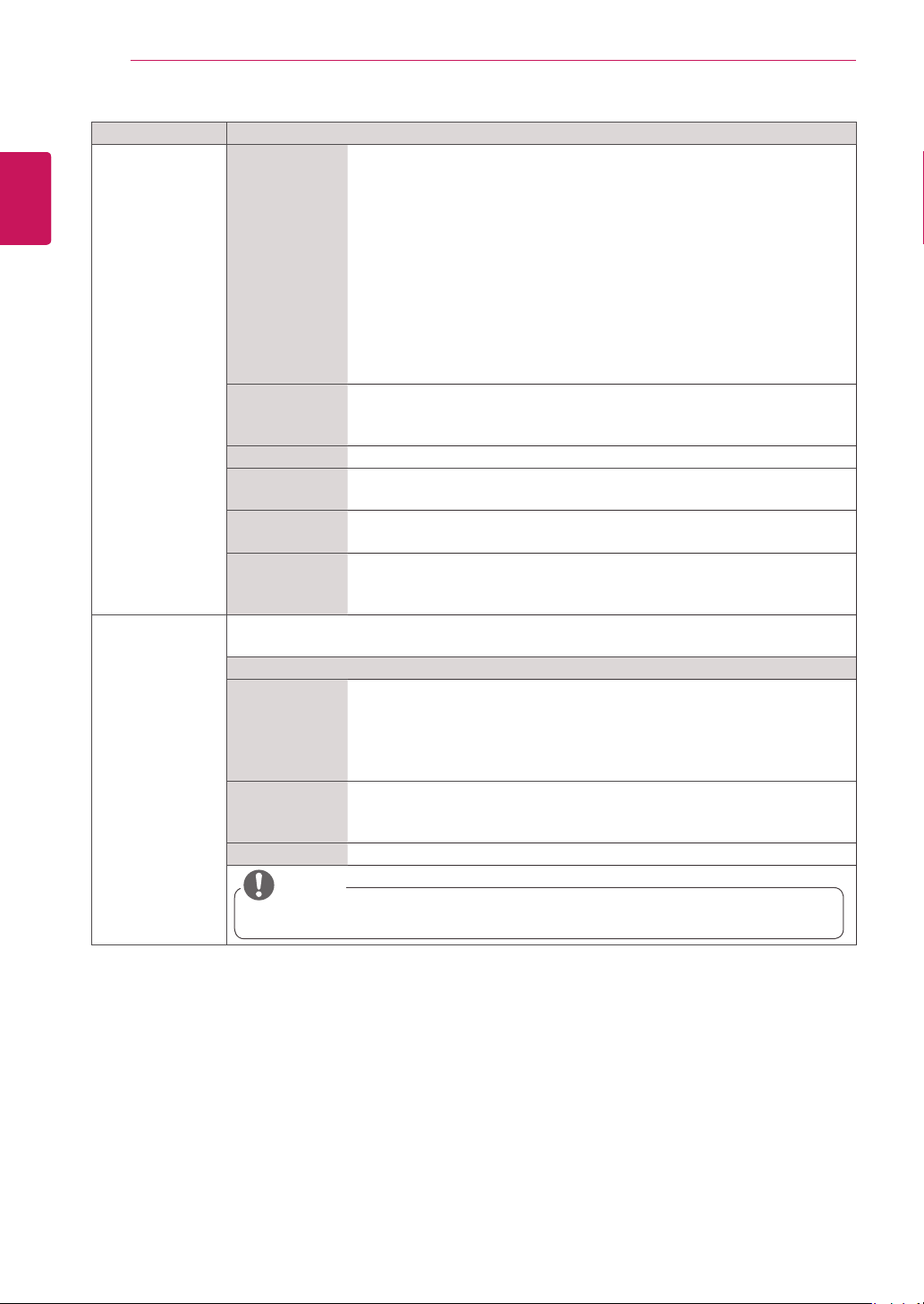
Tile Mode Tile Mode To use this function
- Must be displayed with various other products.
- Must be in a function that can be connected to RGB Cable by distributor and
RS-232C.
Tile mode and choose Tile alignment and set the ID of the current product to
set location.
* Only after pressing the SET button the adjustments made to the settings will
be saved.
- Tile mode : column x row ( c = 1 to 15 r = 1 to 15)
- 15 x 15 available.
- Configuration of an integration screen is also available as well as
configuration of One by one Display.
Auto Config. Sets to adjust the screen position, clock, and phase automatically.
The displayed image may be unstable for a few seconds while the
configuration is in progress.
Position Moving the screen position horizontally and vertically.
Size Adjust the horizontal and vertical size of the screen taking into account the size
of the bezel.
Natural The image is omitted by the distance between the screens to be naturally
shown.
Reset Function to initialize and release Tile.
All Tile setting are released when selecting Tile recall and the screen returns to
Full screen.
PIP/PBP Displays videos or photos stored in the USB device on a single display by dividing it into the main
and sub screens.
Option
Mode Sets the type of secondary screen.
*OFF: Disables the secondary screen.
*PIP (Picture In Picture): Displays the secondary screen in the main screen.
*PBP (Picture By Picture): Displays the secondary screen next to the main
screen.
Position Adjusts the position of the sub screen (top left, bottom left, top right, bottom
right).
The default value is the bottom right.
Size Adjusts the size of the sub screen (Size 0 to 10).
NOTE
y
The Position and Size options are enabled only in PIP mode.
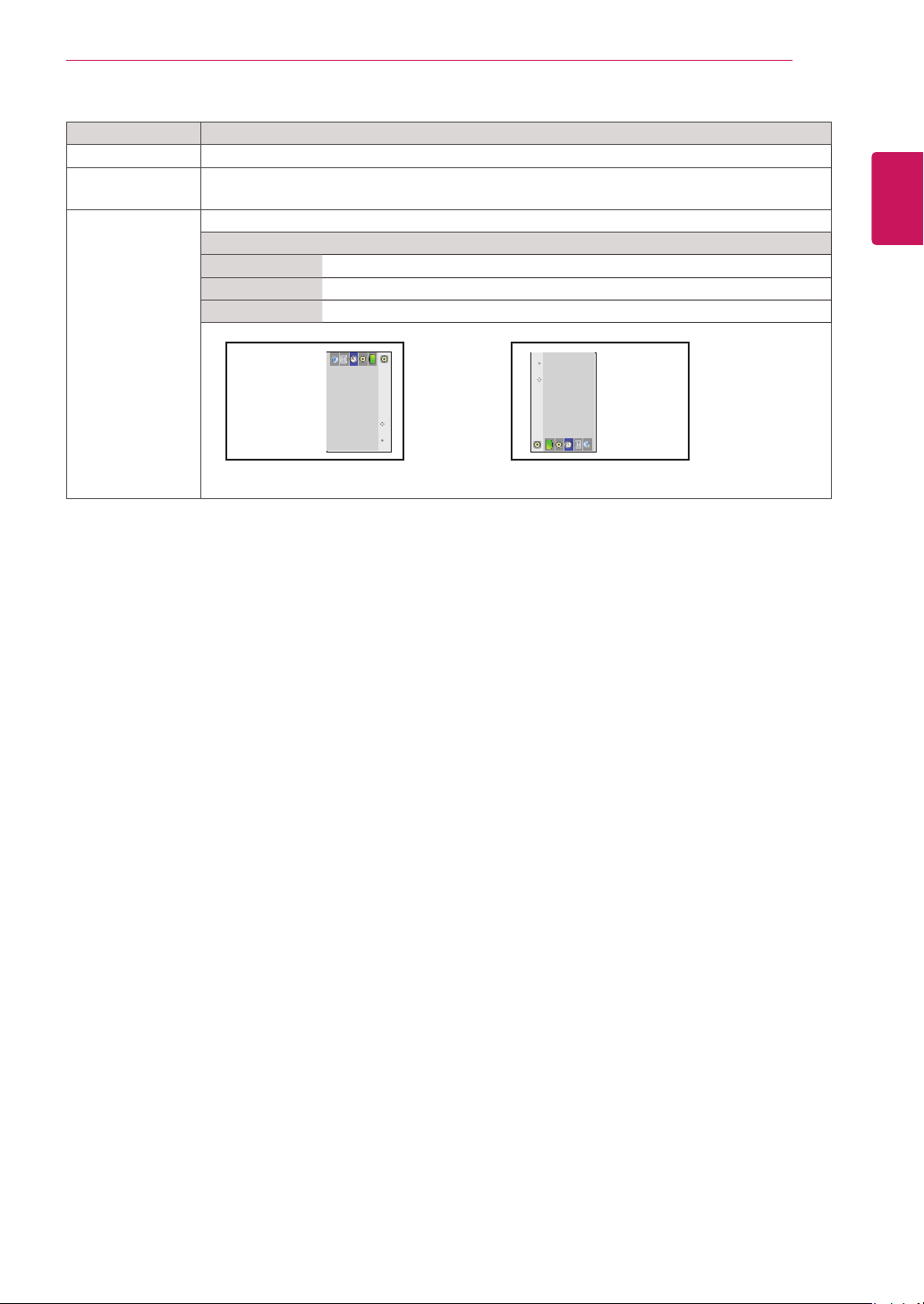
41
ENG
ENGLISH
CUSTOMIZING SETTINGS
Setting Description
Key Lock Key input does not work. This prevents invalid key input.
Product/Service
Info.
Displays the model name, software version, serial number, IP address, MAC address and home
page.
Portrait mode Rotate OSD clockwise (90°, 270°)
Option
Off Disables the Portrait mode.
90° Rotate OSD clockwise 90°.
270° Rotate OSD clockwise 270°.
Move OK
AUDIO
Clear Voice II
Balance
Sound Mode
Digital Audio Out
Speaker
270°
Move OK
AUDIO
Clear Voice II
Balance
Sound Mode
Digital Audio Out
Speaker
90°
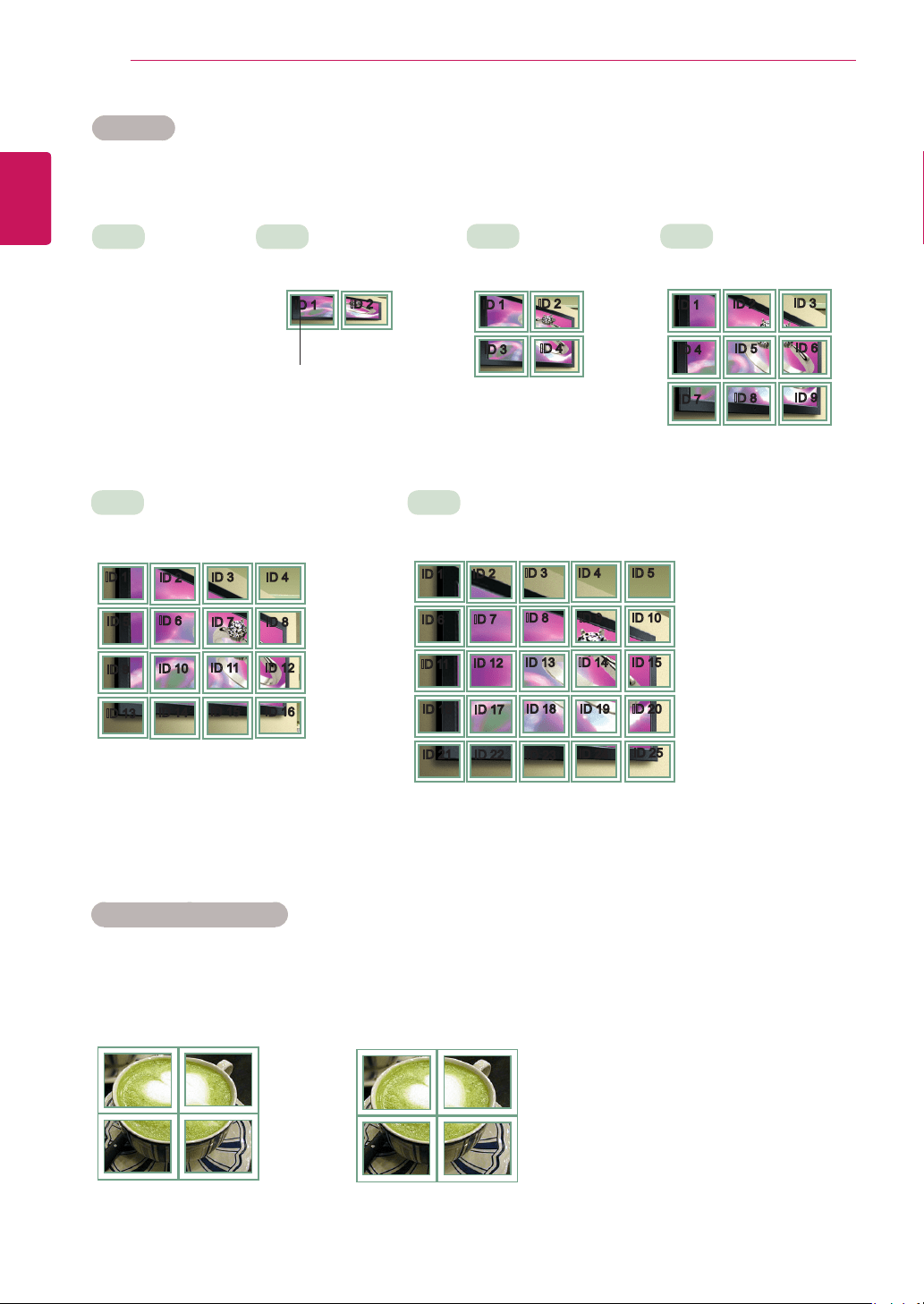
42
ENG
ENGLISH
CUSTOMIZING SETTINGS
Tile Mode
This TSP500 set can be tiled with additional displays to create a large tiled display.
Tile Mode - Natural Mode
When active, the part of the image that would normally be displayed in the gap between the displays is
omitted.
ID 1
ID 2
ID 3
ID 4
ID 1
ID 2
ID 4
ID 5
ID 3
ID 6
ID 7
ID 8
ID 9
3X3
When using 9 displays
ID 1
ID 2
ID 5
ID 6
ID 3
ID 7
ID 9
ID 10
ID 11
ID 4
ID 8
ID 12
ID 13
ID 14
ID 15
ID 16
ID 1
ID 2
ID 6
ID 7
ID 3
ID 8
ID 11
ID 12
ID 13
ID 4 ID 5
ID 9 ID 10
ID 14 ID 15
ID 16
ID 21
ID 17
ID 22
ID 18
ID 23
ID 19
ID 24
ID 20
ID 25
•Off
When the Tile Mode
option is disabled
•1X2
When using 2 displays
•2X2
When using 4 displays
•5X5
When using 25 displays
•4X4
When using 16 displays
ID 1
ID 2
Tile ID
Before After
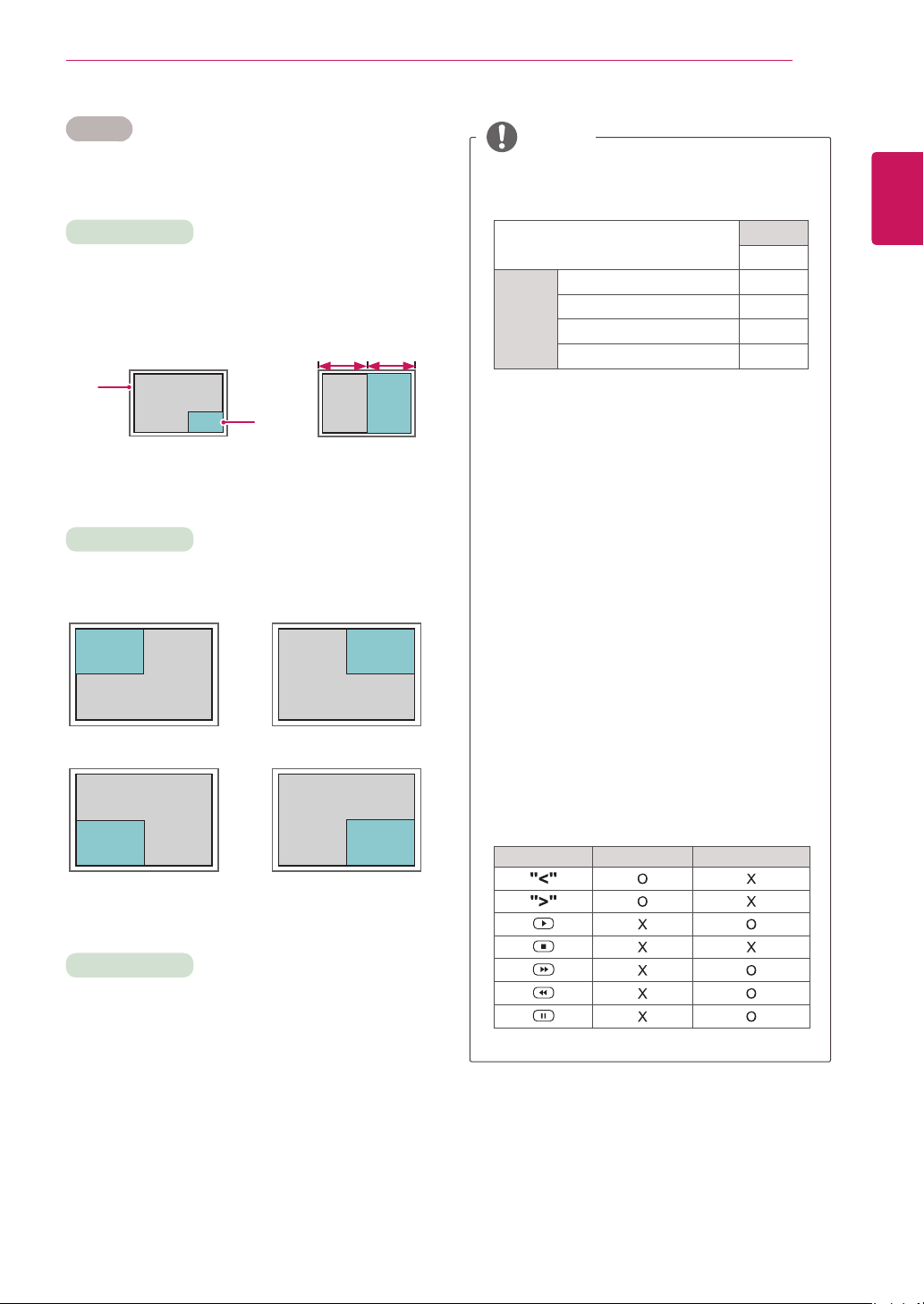
43
ENG
ENGLISH
CUSTOMIZING SETTINGS
PIP/PBP
Displays videos or photos stored in the USB device
on a single display by dividing it into the main and
sub screens.
Position
Mode
Size
top left top right
bottom left bottom right
*PIP(Picture In Picture): Displays the Sub screen
in the main screen.
*PBP(Picture By Picture): Displays the Sub
screen next to the main screen.
Adjusts the position of the subscreen (top left,
bottom left, top right, bottom right)
Adjusts the size of the subscreen (Size 0-10).
y
The subscreen is only supported when using the
USB device.
Sub
USB
Main
Component O
RGB O
HDMI/DVI-D O
AV X
y
You can only change the size and position in PIP
mode.
y
With PBP selected, the Aspect Ratio option in the
PICTURE menu is disabled (Fixed as 16:9).
y
While running the PBP function, the Tile Mode function
does not work.
y
You must select the output sound before running
the PIP or PBP functions. (Select either Main or
Sub.)
y
If you fail to select Main or Sub from the sound
selection box, and if the OSD disappears after
either a period of time or when the Exit or Back
key is pressed, the PIP/PBP subscreen is not
activated.
y
You cannot change the sound while running the
PIP or PBP functions. If you want to change the
sound, please restart PIP/PBP.
y
The picture quality of the subscreen is set
according to the values selected in the main menu,
not the USB device.
y
If you play videos you selected in PIP/PBP mode,
the videos will play back repeatedly in succession.
y
The buttons below work in PIP mode.
Button Photo Movie
NOTE
Main
screen
Sub
screen
PIP
PBP
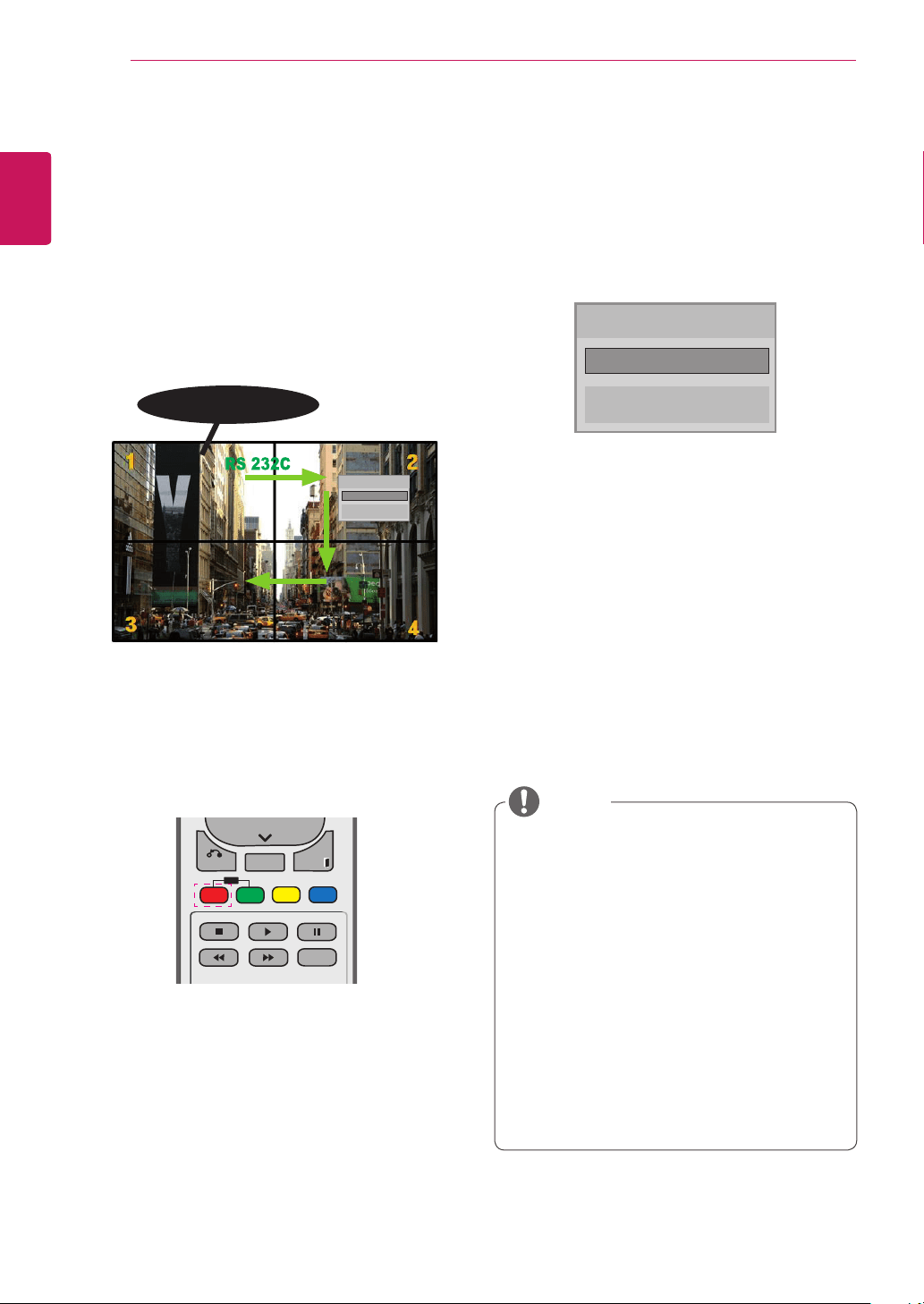
44
ENG
ENGLISH
CUSTOMIZING SETTINGS
Picture ID
Picture ID is used to change the settings of a
specic display using a single IR receiver for
multi-vision. The set receiving the IR signal
communicates with another set via an RS-232C
connection. Each set is identied by a Set ID. If
you assign the Picture ID using the remote control,
only displays with the same Picture ID and Set ID
can be controlled remotely.
1 Press the red ON button on the remote control
to assign the Picture ID.
2 If you press the left/right buttons or press the
ON button repeatedly, the Picture ID cycles
through OFF and 1 to 4. Assign the ID you
want.
y
If you assign the Set ID to each set with
multi-vision, and then assign the Picture ID
using the red button on the remote control,
the key command is displayed for the set
with the same Set ID and Picture ID. A set
with different Set IDs and Picture IDs cannot
be controlled by IR signals.
y
For more information on how to assign the
Set ID, see "Set ID". See p.39
y
The maximum value of the Picture ID can be
set in the Total Set ID menu.
y
Please refer to the Installation Manual for
more information on Total Set ID assignment.
P
A
G
E
INPUT
ENERGY
SAVING
MARK
ARC
ON
OFF
. , !
ABC
DEF
GHI
JKL
MNO
PQRS
TUV
1/a/A
- * #
WXYZ
CLEAR
OK
S.MENU
MONITOR
PSM
AUTO
MUTE
BRIGHT
NESS
MENU
ID
BACK
TILE
ON
OFF
EXIT
POWER
P
A
G
E
INPUT
ENERGY
SAVING
MARK
ARC
ON
OFF
. , !
ABC
DEF
GHI
JKL
MNO
PQRS
TUV
1/a/A
- * #
WXYZ
CLEAR
OK
S.MENU
MONITOR
PSM
AUTO
MUTE
BRIGHT
NESS
MENU
ID
BACK
TILE
ON
OFF
EXIT
POWER
y
For example, if the Picture ID is assigned
to 2, the upper right display (Set ID: 2) can
be controlled by IR signals.
y
For each set, you can change the
settings for the PICTURE, AUDIO, TIME,
NETWORK and MY MEDIA menus or the
hot keys on the remote control.
y
If you press the green OFF button for
Picture IDs, the Picture IDs for all sets are
turned off. If you then press any button
on the remote control, all sets will start
working again.
y
Picture ID will be disabled while using the
MY MEDIA menu.
NOTE
Picture ID
Close
◀
Off
▶
2X2 Multi-Vision (Total Set ID: 4)
Set IDs are assigned as shown in the picture.
AUDIO
(RGB/DVI)
REMOTE
CONTROL IN
RS-232C OUT
RS-232C IN
RS-232C OUT
RS-232C IN
RS-232C OUT
RS-232C IN
IR Receiver
Picture ID
Close
◄ Off ►
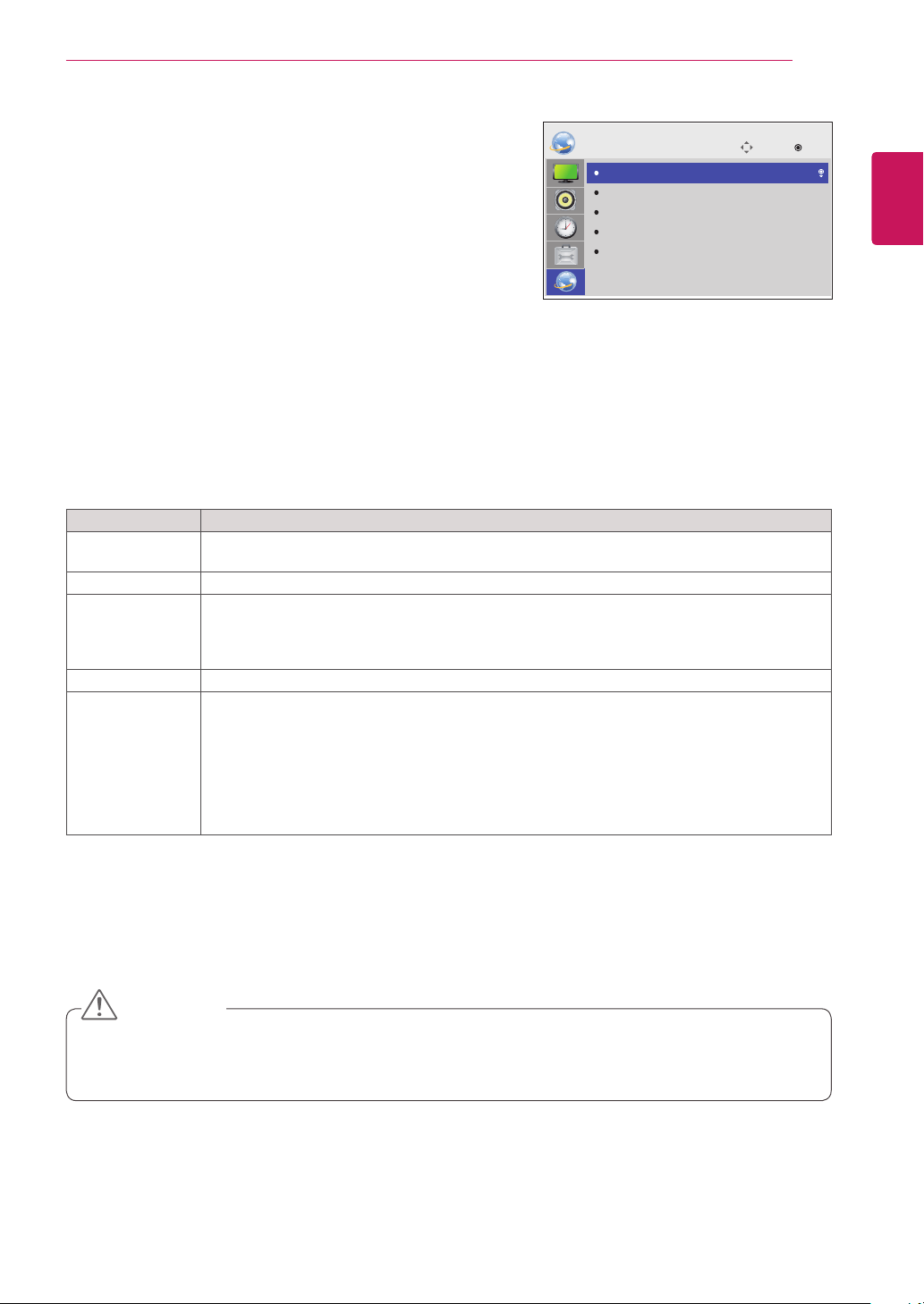
45
ENG
ENGLISH
CUSTOMIZING SETTINGS
Setting Description
Player Name
Setting
Sets the player name used in SuperSign Manager.(Up to 20 characters)
Network Setting Configure the network settings.
Network Status
Display the network status.
- Internet is connected : Externally connected
- Network is connected : Only internally connected
- Not connected : When there is no network connection
Server IP Setting Sets the IP address of the computer (server) on which SuperSign Manager is installed.
Server IP Status Displays the connection status with the server.
- Not connected : When there is no network connection with SuperSign server
- Waiting for approval : When network connection with SuperSign server has been made, but
access to server has not been approved by the server
- Rejected : When network connection with SuperSign server has been made, but access to
server has been rejected by the server
- Internet is connected : When network connection with SuperSign server has been made and
access to server has also been approved by the server
NETWORK Settings
1
Press MENU to access the main menus.
2
Press the Navigation buttons to scroll to NETWORK and
press OK.
3
Press the Navigation buttons to scroll to the setting or option
you want and press OK.
- To return to the previous level, press BACK.
4
When you are finished, press EXIT.
When you return to the previous menu, press BACK.
The available option settings are described in the following:
y
When setting the Player Name, input delay may occur if you press the buttons on the remote control
continuously.
CAUTION
Move
OK
NETWORK
Player Name Setting
Network Setting
Network Status
Server IP Setting
Server IP Status
: None
: Not connected
: Not connected
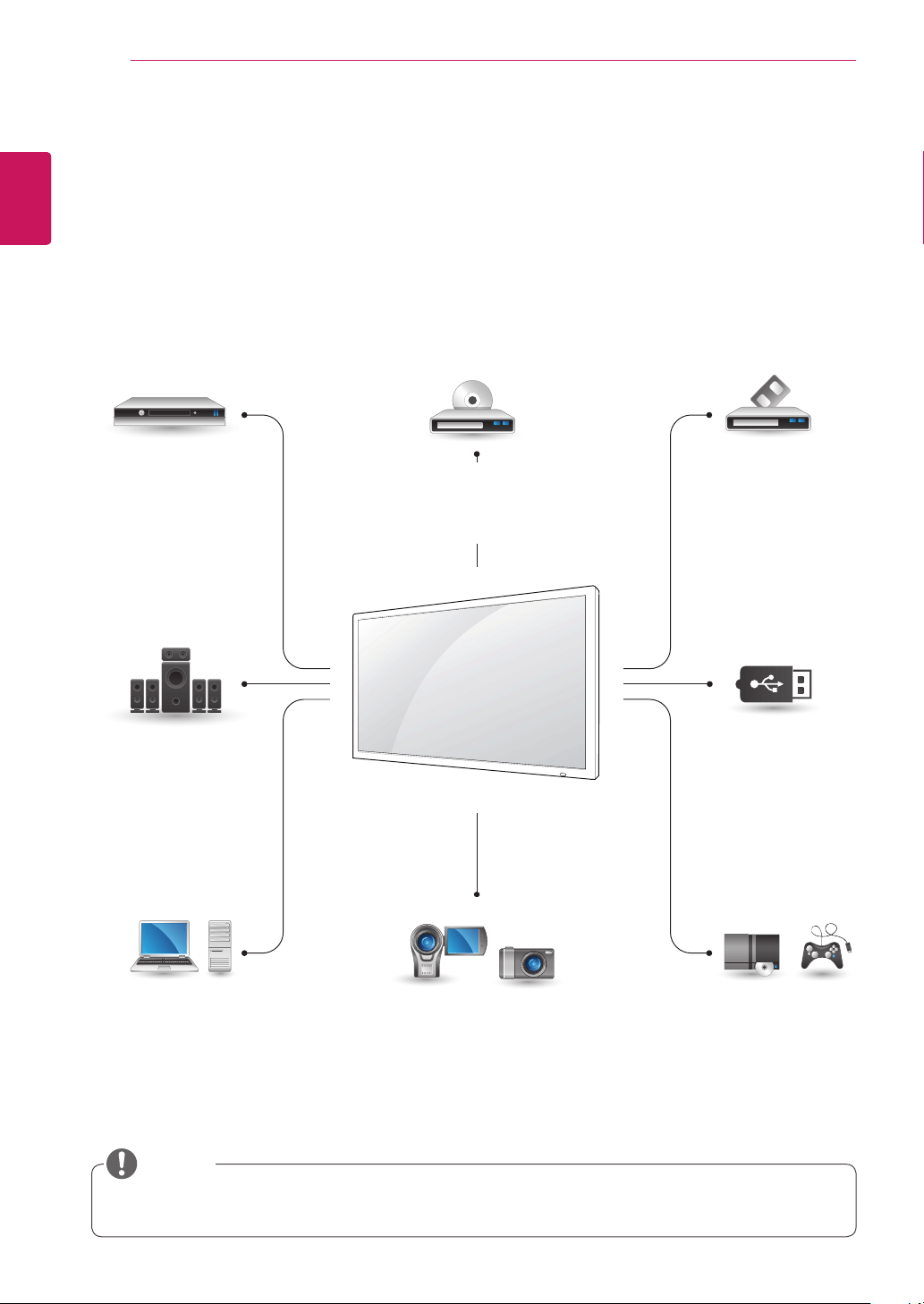
46
ENG
ENGLISH
MAKING CONNECTIONS
MAKING CONNECTIONS
Connect various external devices to the ports on the TSP500 set’s panel.
1
Find an external device you want to connect to your TSP500 set shown on the following illustration.
2
Check the connection type of the external device.
3
Go to the appropriate illustration and check the connection details.
y
If you connect a gaming device to the TSP500 set, use the cable supplied with the gaming device.
NOTE
HDMI - See p.47
DVI - See p.47
AV(CVBS) - See p.48
Component - See p.48
HDMI - See p.10
DVI - See p.10
RGB - See p.9
LAN - See p.49
HDMI - See p.47
DVI - See p.47
AV(CVBS) - See p.48
Component - See p.48
AV(CVBS) - See p.48
Component
- See p.48
HDMI - See p.47
DVI - See p.47
AV(CVBS) - See p.48
Component - See p.48
HDMI - See p.47
AV(CVBS) - See p.48
Component - See p.48
Memory storage
– See p.18
HD Receiver DVD VCR
USB
PC
Camcorder/Camera Gaming Device
Speaker
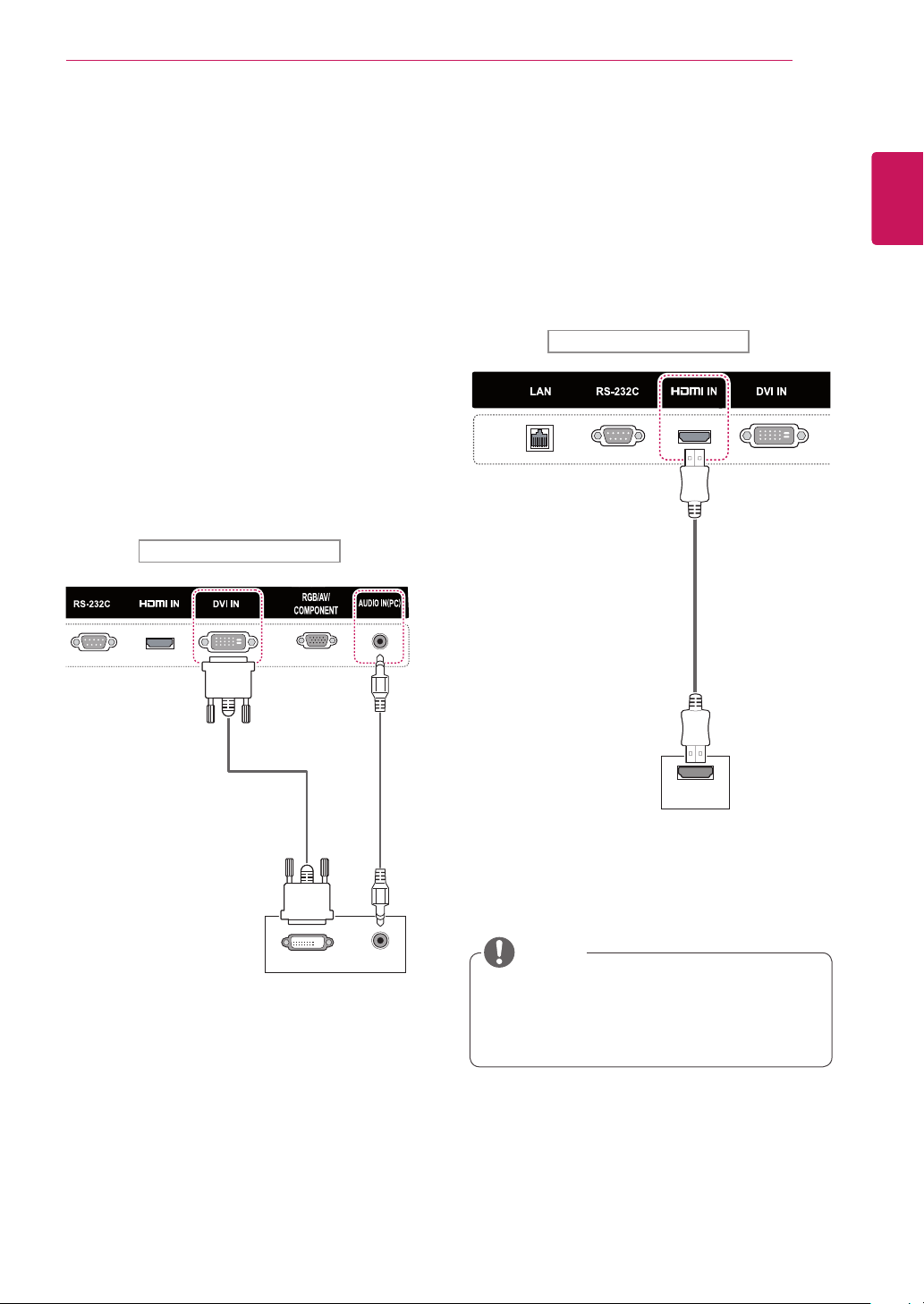
47
ENG
ENGLISH
MAKING CONNECTIONS
Connecting to a HD Receiver,
DVD Player, Camcorder,
Camera, Gaming Device or
VCR
Connect a HD receiver, DVD player, or VCR to the
TSP500 set and select an appropriate input mode.
HDMI Connection
Transmits the digital video and audio signals from
an external device to the TSP500 set. Connect the
external device and the TSP500 set with the HDMI
cable as shown on the following illustration.
y
Use a High Speed HDMI™ Cable.
y
High Speed HDMI™ Cables are tested to
carry an HD signal up to 1080p and higher.
NOTE
DVI Connection
Transmits the digital video signal from an external
device to the TSP500 set. Connect the external
device and the TSP500 set with the DVI cable as
shown in the following illustration. To transmit an
audio signal, connect an optional audio cable.
DVI OUT AUDIO OUT
Side of the Product
(not
included)
(not included)
Side of the Product
(not included)
HDMI
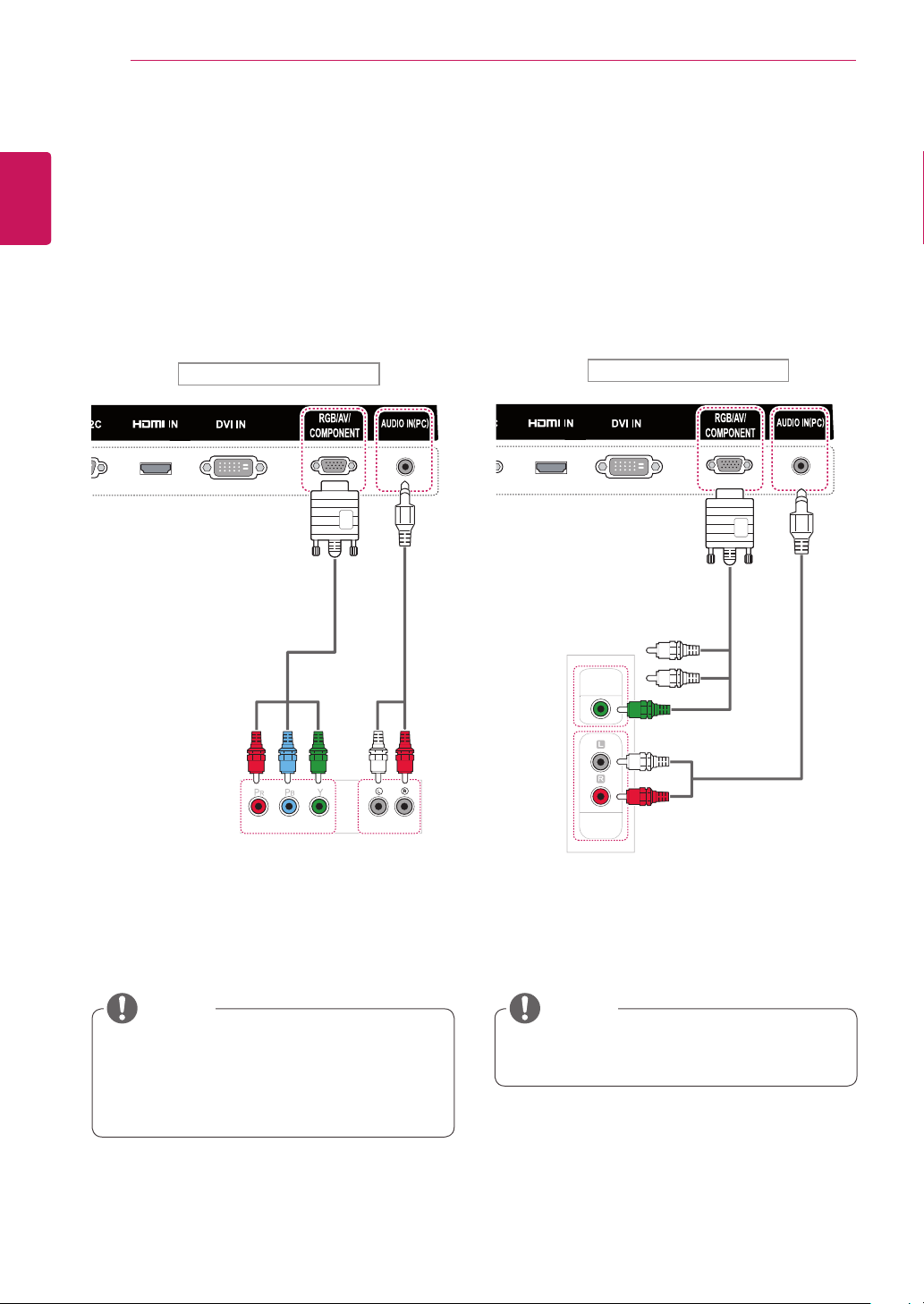
48
ENG
ENGLISH
MAKING CONNECTIONS
AV(CVBS) Connection
Transmits the analog video and audio signals from
an external device to the TSP500 set. Connect
the external device and the TSP500 set with
the Composite cable as shown in the following
illustration.
Component Connection
Transmits the analog video and audio signals from
an external device to the TSP500 set. Connect
the external device and the TSP500 set with the
RCA-Component cable as shown in the following
illustration. To display images by using progressive
scan, make sure to use the component cable.
V
IDE
O
AU
DI
O
OU
T
Side of the Product
(not included)
(not
included)
AU
DI
O
OUT
V
IDE
O
OU
T
(not included)
(not included)
Side of the Product
y
When connecting to the AV or Component
port using the shared interface, the port must
match up to the input source. Otherwise,
noise may occur.
NOTE NOTE
y
For AV (CVBS) connection, the red and blue
cables in a shared interface are not in use.
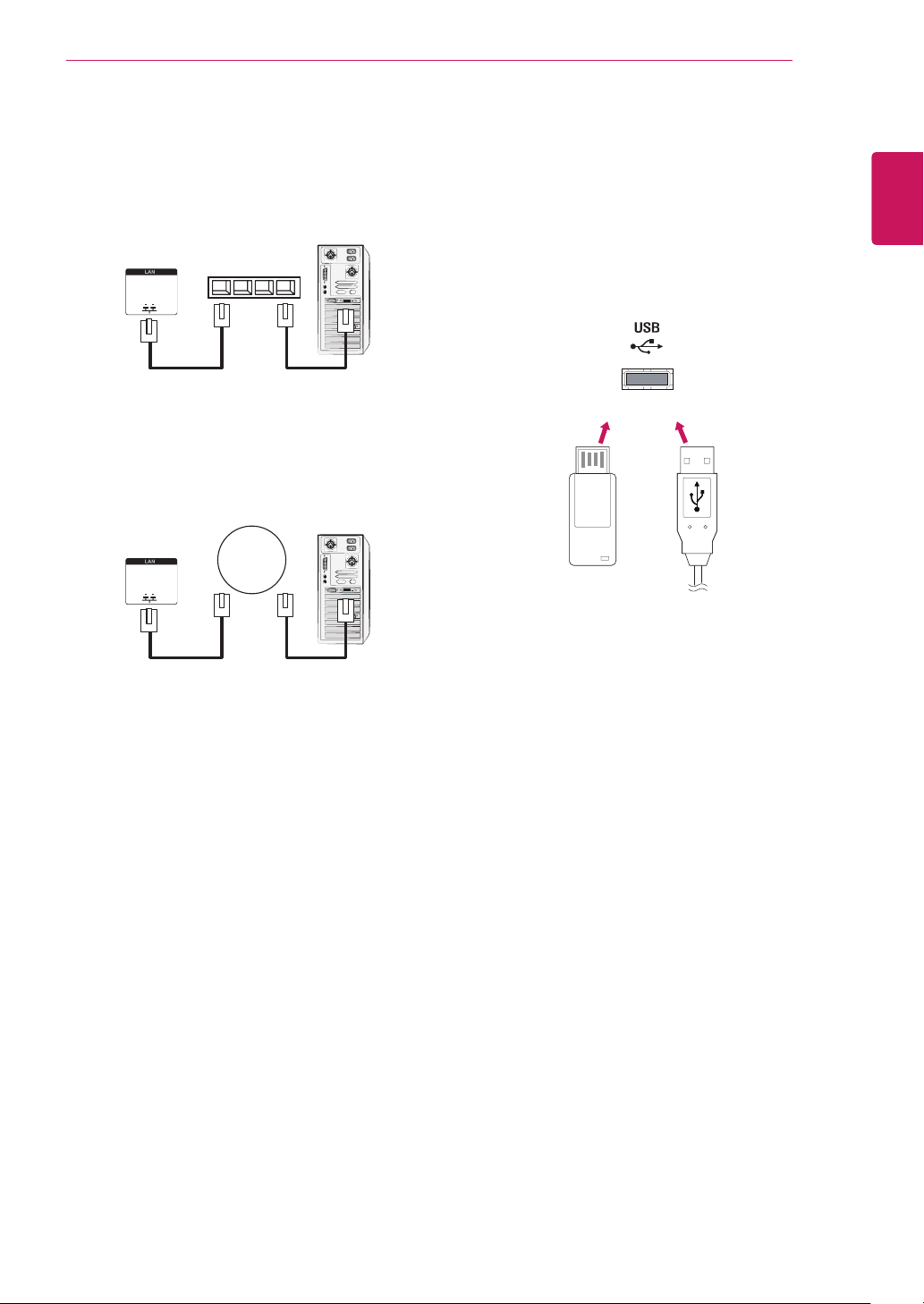
49
ENG
ENGLISH
MAKING CONNECTIONS
Connecting to the LAN
A
Using a router(Switch)
TSP500 Set
Network
PC
LAN
Switch
TSP500 Set
Network
PC
LAN
B
Using the Internet.
Connecting to a USB
Connect a USB storage device such as a USB
flash memory, external hard drive, MP3 player or a
USB memory card reader to the TSP500 set and
access the USB menu to use various multimedia
files.
or
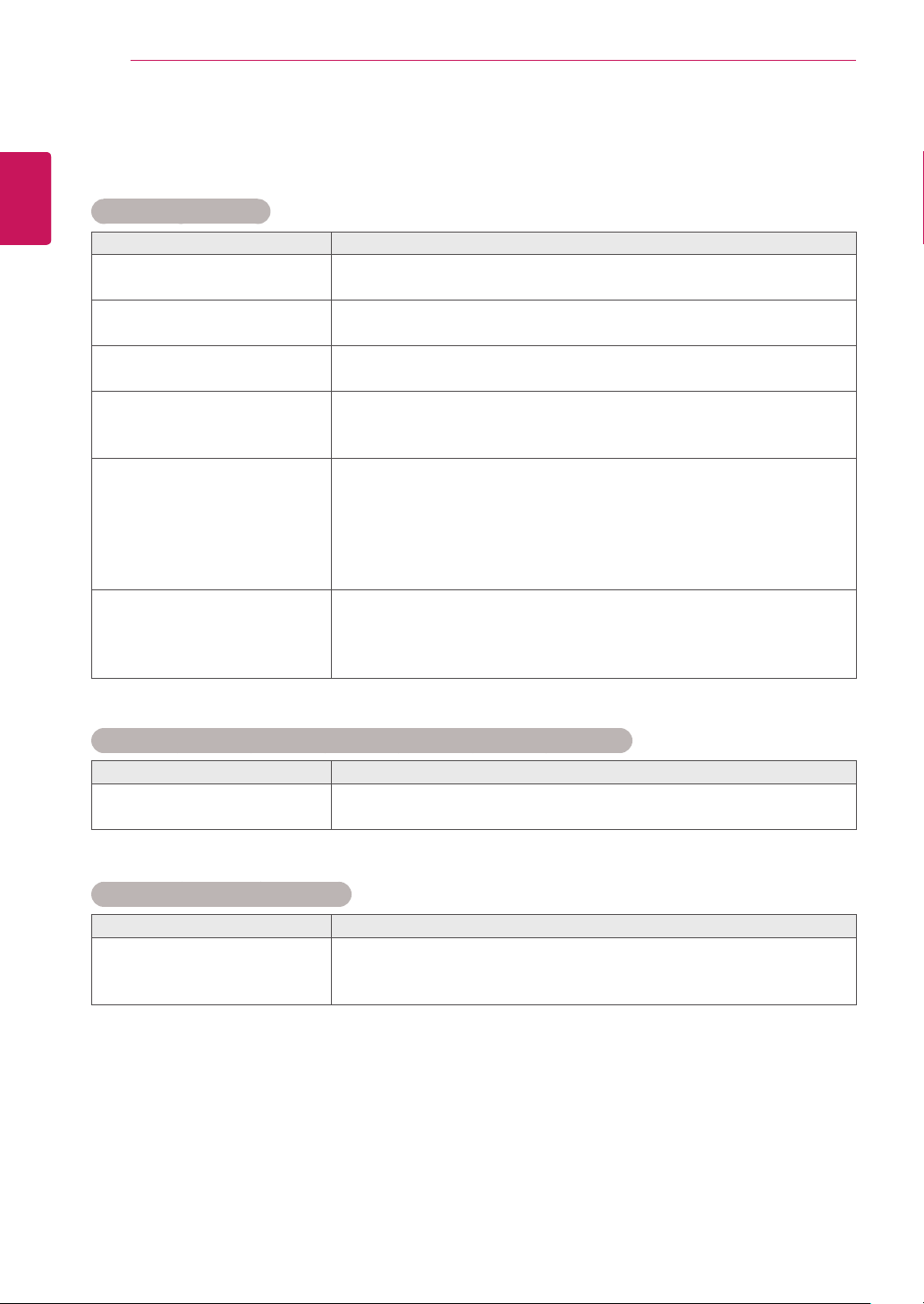
50
ENG
ENGLISH
TROUBLESHOOTING
TROUBLESHOOTING
No image is displayed
Problem Resolution
Is the product power cord
connected?
y
See if the power cord is properly connected to the outlet.
Is the power indicator light on?
y
See if the power switch is turned on.
y
May need service.
Power is on but the screen
appears extremely dark.
y
Adjust brightness and contrast again.
The power indicator is blinking?
y
If the product is in power saving mode, move the mouse or press any
key.
y
Turn both devices off and then back on.
Does the 'Invalid Format'
message appear?
y
The signal from the PC (video card) is out of the vertical or horizontal
frequency range of the product. Adjust the frequency range by
referring to the Specifications in this manual.
* Maximum resolution
RGB : 1920 x 1080 @ 60 Hz
HDMI/DVI : 1920 x 1080 @ 60 Hz
Does the 'No signal' message
appear?
y
The signal cable between PC and product is not connected. Check
the signal cable.
y
Press the 'INPUT' menu in the remote Control to check the input
signal.
'Unknown Product' message appears when the product is connected.
Problem Resolution
Did you install the driver?
y
See if the plug&play function is supported by referring to the video
card user manual.
'Key Lock On' message appears.
Problem Resolution
The 'Key Lock On' message
appears when pressing the
Menu button.
y
The Lock function prevents the OSD settings from being changed
inadvertently. To release the lock, go to Menu and Option and disable
the Key Lock option.
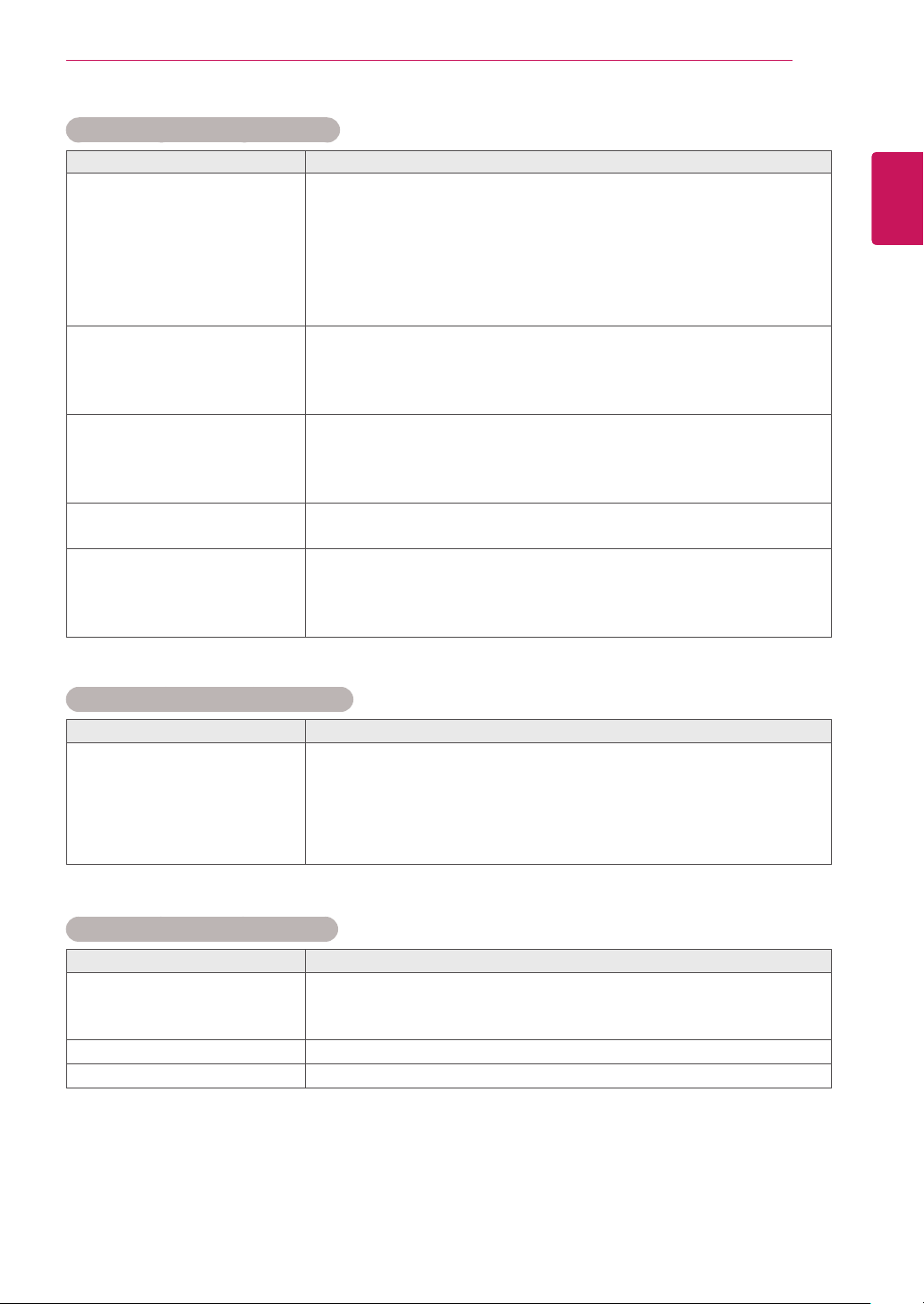
51
ENG
ENGLISH
TROUBLESHOOTING
The screen image looks abnormal.
Problem Resolution
Is the screen position wrong?
y
D-Sub analog signal - Press the "AUTO" button in the remote control
to automatically select the optimal screen status that fits into the
current mode. If adjustment is not satisfactory, use the Position OSD
menu.
y
See if the video card resolution and frequency are supported by the
product. If the frequency is out of range, set to the recommended
resolution in the Control Panel "Display" Setting menu.
Do thin lines appear on the
background screen?
y
D-Sub analog signal - Press the "AUTO" button in the remote control
to automatically select an optimal screen status that fits into the
current mode. If adjustment is not satisfactory, use the Clock OSD
menu.
Horizontal noise appears or the
characters look blurred.
y
D-Sub analog signal - Press the "AUTO" button in the remote control
to automatically select an optimal screen status that fits into the
current mode. If adjustment is not satisfactory, use the Phase OSD
menu.
The screen is displayed
abnormally.
y
The proper input signal is not connected to the signal port. Connect
the signal cable that matches with the source input signal.
Vertical, horizontal lines and
meshes appear on the screen
momentarily and they are
shaking.
y
Stop using items such as wireless telephones, hair dryers, or electrical
drills, etc. because the problem is caused by high frequency electronic
devices or strong electro-magnetic sources. If you use the product
near these devices, it may be powered off.
After-image appears on the product.
Problem Resolution
After-image appears when the
product is turned off.
y
If you use a fixed image for a long time, the pixels may be damaged
quickly. Use the screen-saver function.
y
When a dark image is displayed on the screen after an image with
high contrast (black and white or gray), this may cause image sticking.
This is normal for LCD screen.
The audio function does not work.
Problem Resolution
No sound?
y
See if the audio cable is connected properly.
y
Adjust the volume.
y
See if the sound is set properly.
Sound is too dull.
y
Select the appropriate equalize sound.
Sound is too low.
y
Adjust the volume.
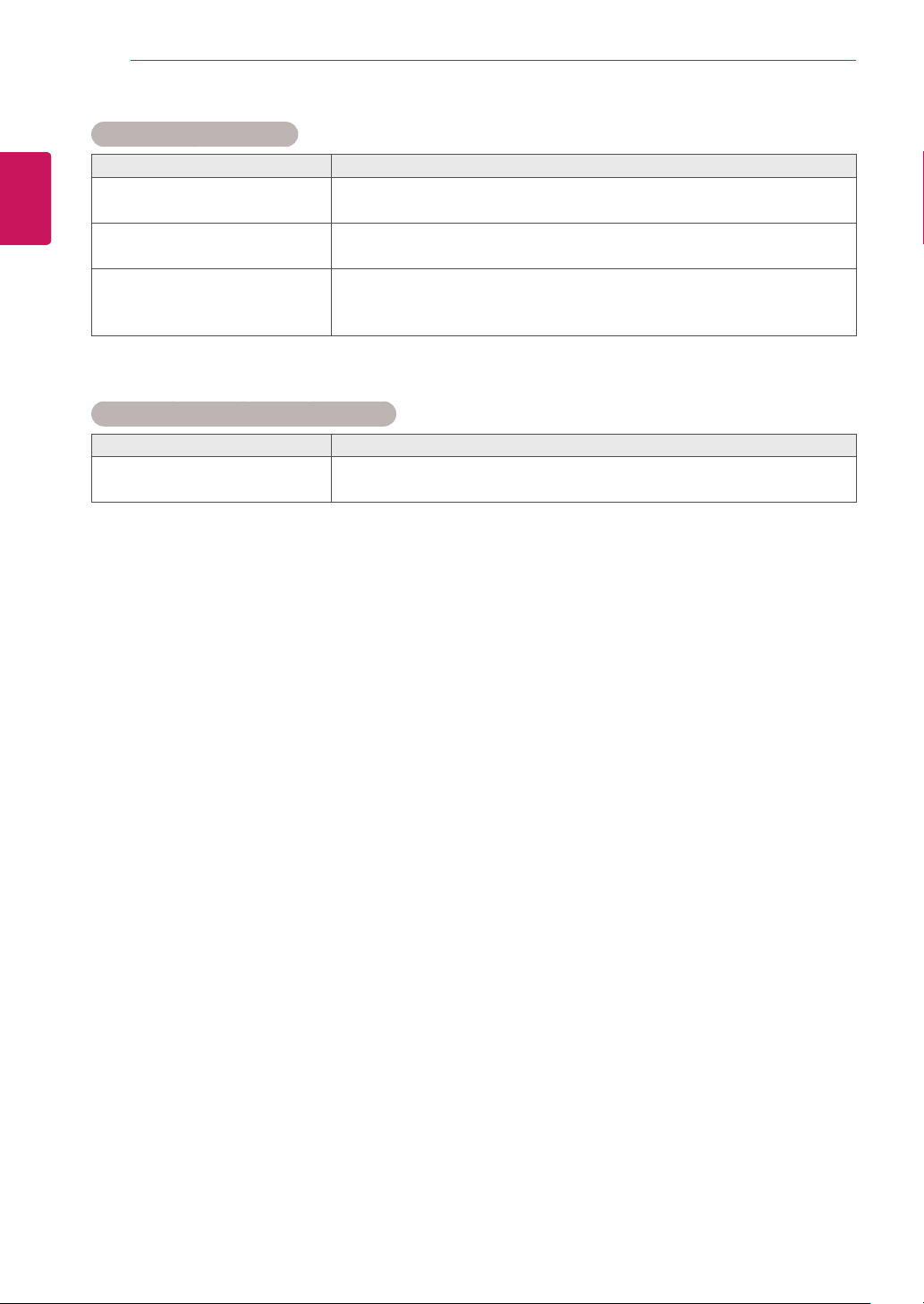
52
ENG
ENGLISH
TROUBLESHOOTING
Screen color is abnormal.
Problem Resolution
Screen has poor color resolution
(16 colors).
y
Set the number of colors to more than 24 bits (true color) Select
Control Panel - Display - Settings - Color Table menu in Windows.
Screen color is unstable or
mono-colored.
y
Check the connection status of the signal cable. Or, re-insert the PC
video card.
Do black spots appear on the
screen?
y
Several pixels (red, green, white or black color) may appear on the
screen, which can be attributable to the unique characteristics of the
LCD panel. It is not a malfunction of the LCD.
The operation does not work normally.
Problem Resolution
The power suddenly turned off.
y
Is the sleep timer set?
y
Check the power control settings. Power interrupted.
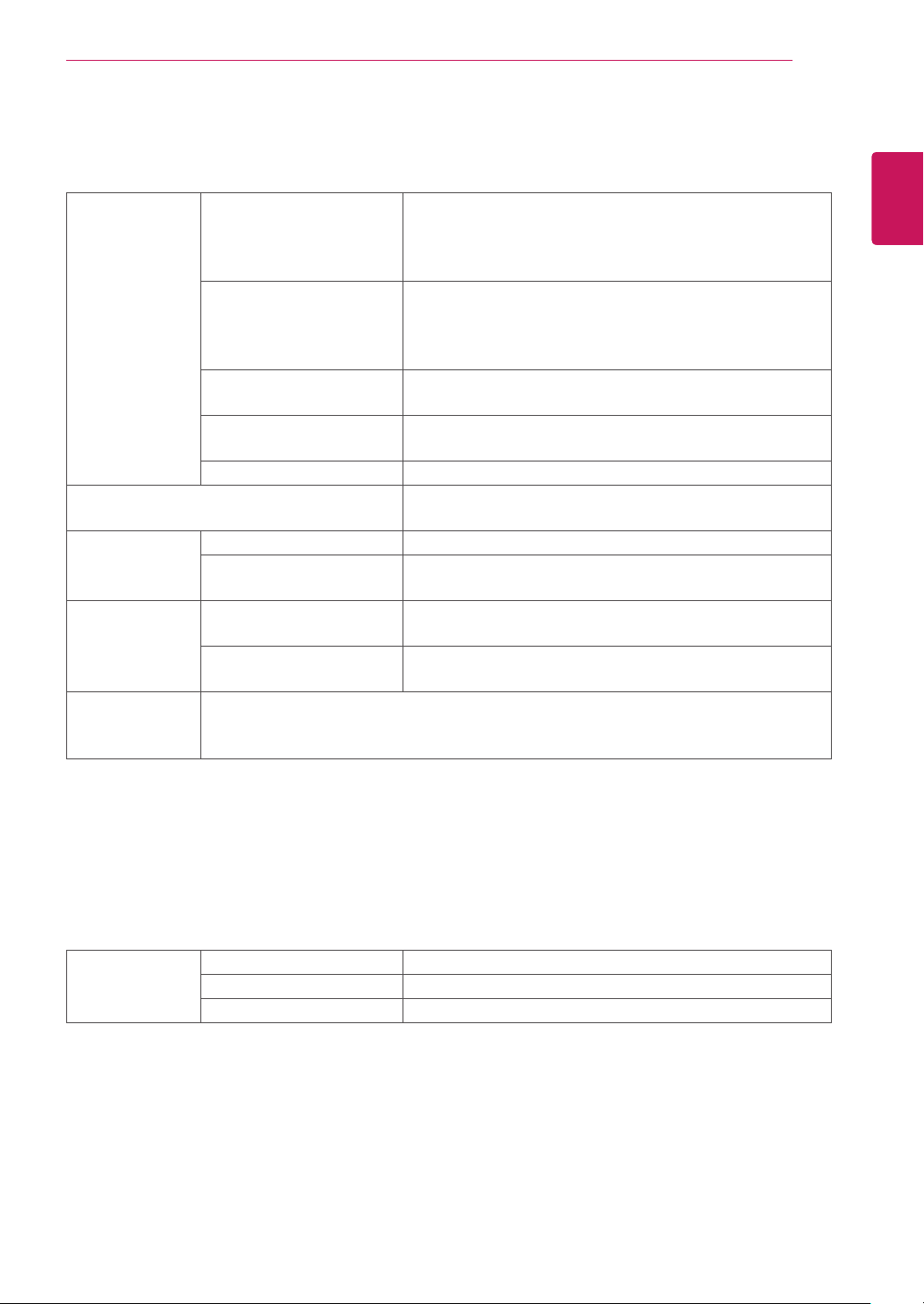
53
ENG
ENGLISH
SPECIFICATIONS
SPECIFICATIONS
Video Signal Max. Resolution RGB : 1920 x 1080 @ 60 Hz
HDMI/DVI : 1920 x 1080 @ 60 Hz
- It may not be supported depending on the OS or video
card type.
Recommended Resolution RGB : 1920 x 1080 @ 60 Hz
HDMI/DVI : 1920 x 1080 @ 60 Hz
- It may not be supported depending on the OS or video
card type.
Horizontal Frequency RGB : 30 kHz to 83 kHz
HDMI/DVI : 30kHz to 83 kHz
Vertical Frequency RGB : 56 Hz to 60 Hz
HDMI/DVI : 56 Hz to 60 Hz
Synchronization Type
Separate Sync, Composite Sync, Digital, SOG
Input Connector 15-pin D-Sub type (RGB), HDMI/DVI(digital), RS-232C,
LAN, USB
Power Rated Voltage DC 19 V / 3.42 A
Power Consumption On Mode : 18 W Typ.
Off Mode : = < 1 W
Environmental
conditions
Operating Temperature
Operating Humidity
0 °C to 40 °C
10 % to 80 %
Storage Temperature
Storage Humidity
-20 °C to 60 °C
5 % to 95 %
Dimensions
(Width x Height x
Depth) / Weight
198.2 mm x 144.7 mm x 29.3 mm / 700 g
Product specifications shown above may be changed without prior notice due to upgrade of product
functions.
* Applicable only for models that support the speakers
Audio RMS Audio Output 5 W + 5 W (R + L)
Input Sensitivity 0.7 Vrms
Speaker Impedance 8 Ω
Product specifications shown above may be changed without prior notice due to upgrade of product
functions.
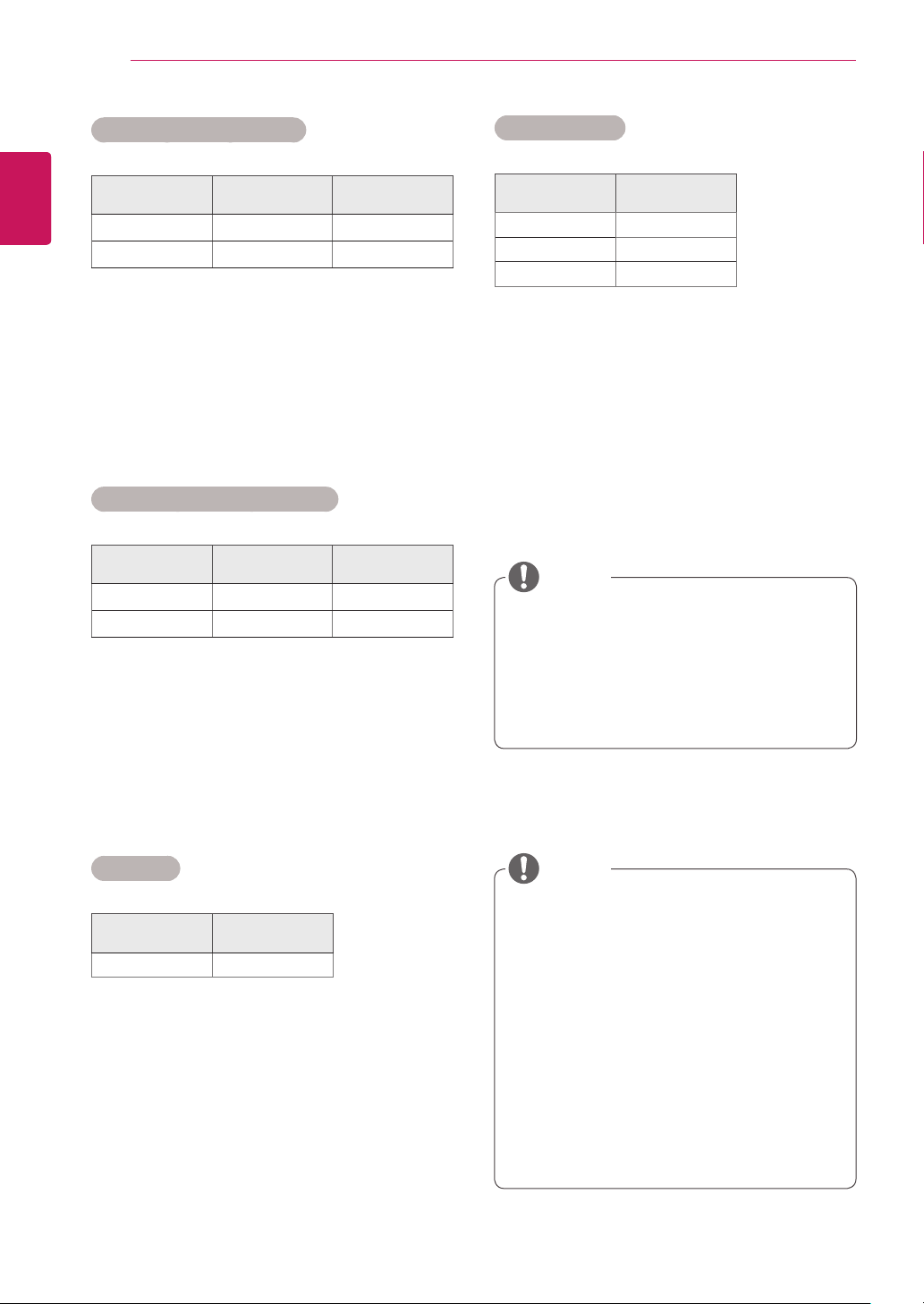
54
ENG
ENGLISH
SPECIFICATIONS
RGB (PC) Supported Mode
Resolution
Horizontal
Frequency(kHz)
Vertical
Frequency(Hz)
1366 x 768
47.7 60
1920 x 1080
67.5 60
TSP500 supports resolution of FHD (1920 x 1080)
or HD (1366 x 768) depending on the connected
display set.
HDMI/DVI(PC) Supported Mode
Resolution
Horizontal
Frequency(kHz)
Vertical
Frequency(Hz)
1366 x 768
47.7 60
1920 x 1080
67.5 60
TSP500 supports resolution of FHD (1920 x 1080)
or HD (1366 x 768) depending on the connected
display set.
DTV Mode
Resolution HDMI(DTV)
1080p o
Power Indicator
Mode Product
On Mode Red
Sleep Mode Amber
Off Mode -
y
PC resolutions available as the input label
option in RGB and HDMI/DVI input mode :
640 x 480 / 60 Hz, 1280 x 720 / 60 Hz, 1920
x 1080 / 60 Hz and DTV resolutions : 480p,
720p, 1080p.
NOTE
y
Vertical frequency: To enable the user to
watch the product display, screen image
should be changed tens of times every
second like a fluorescent lamp. The vertical
frequency or refresh rate is the times of
image display per second. The unit is Hz.
y
Horizontal frequency: The horizontal interval
is the time to display one vertical line. When
1 is divided by the horizontal interval, the
number of horizontal lines displayed every
second can be tabulated as the horizontal
frequency. The unit is kHz.
NOTE
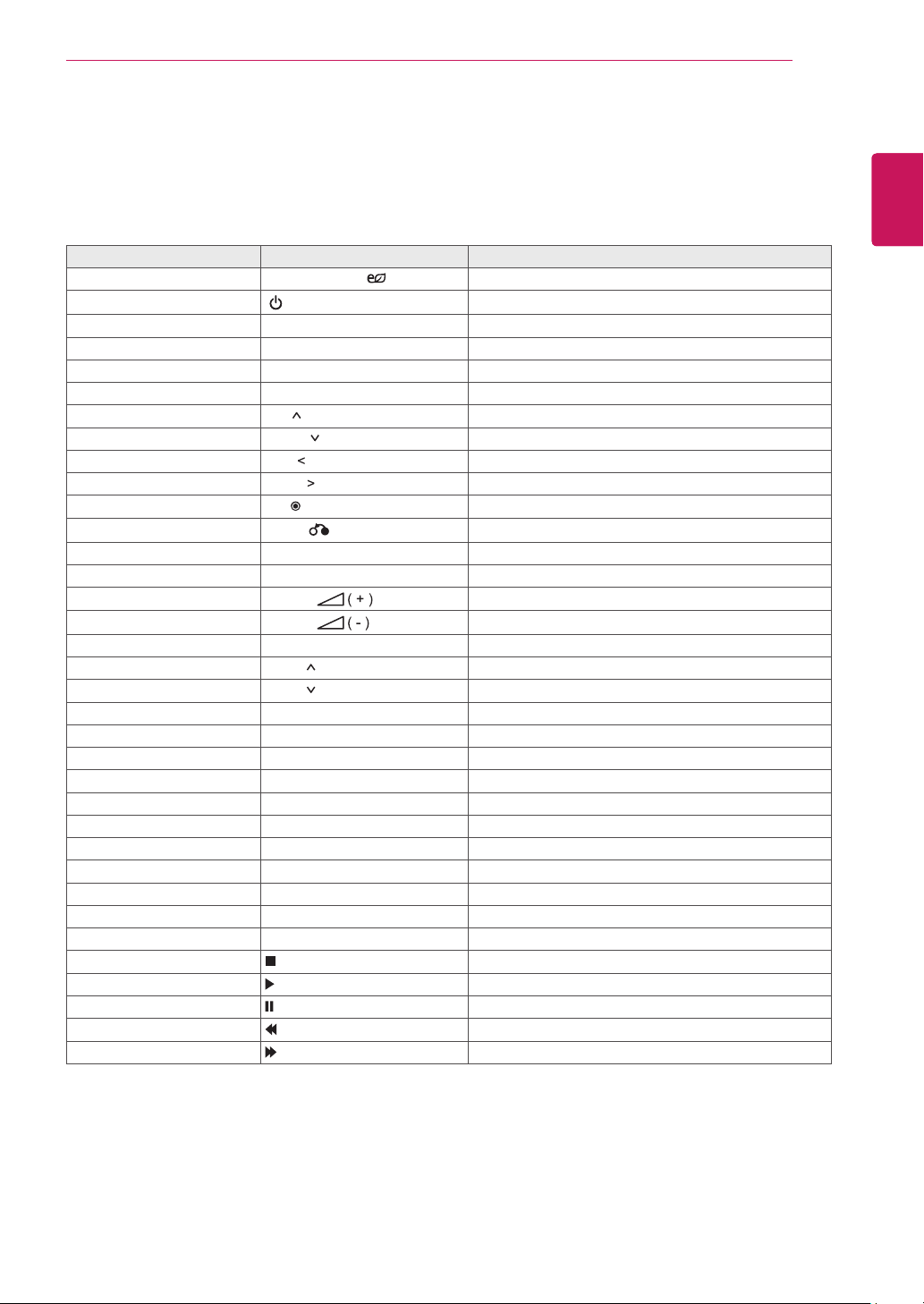
55
ENG
ENGLISH
IR CODES
Code (Hexa) Function Note
95 Energy Saving ( ) R/C BUTTON
08
POWER
R/C BUTTON (ON/OFF)
0B INPUT R/C BUTTON
C4 Monitor On R/C BUTTON
C5 Monitor Off R/C BUTTON
43 MENU R/C BUTTON
40 Up ( ) R/C BUTTON
41 Down ( ) R/C BUTTON
07 Left ( ) R/C BUTTON
06 Right ( ) R/C BUTTON
44 OK( ) R/C BUTTON
28
BACK( )
R/C BUTTON
5B EXIT R/C BUTTON
4D PSM R/C BUTTON
02
Volume
R/C BUTTON
03
Volume
R/C BUTTON
09 MUTE R/C BUTTON
E0 Bright (Page UP) R/C BUTTON
E1 Bright (Page Down) R/C BUTTON
10 to 19 Number Key 0 to 9 R/C BUTTON
72 Red Key (ID ON) R/C BUTTON
71 Green Key (ID OFF) R/C BUTTON
63 Yellow Key R/C BUTTON
61 Blue Key R/C BUTTON
7B TILE R/C BUTTON
76 ARC (4:3) R/C BUTTON
77 ARC (16:9) R/C BUTTON
AF ARC (ZOOM) R/C BUTTON
79 ARC (MARK) R/C BUTTON
99 Auto Config. R/C BUTTON
B1 R/C BUTTON
B0 R/C BUTTON
BA R/C BUTTON
8F R/C BUTTON
8E R/C BUTTON
IR CODES
y
All models do not support the HDMI/USB function.
y
Some key codes are not supported depending on the model.
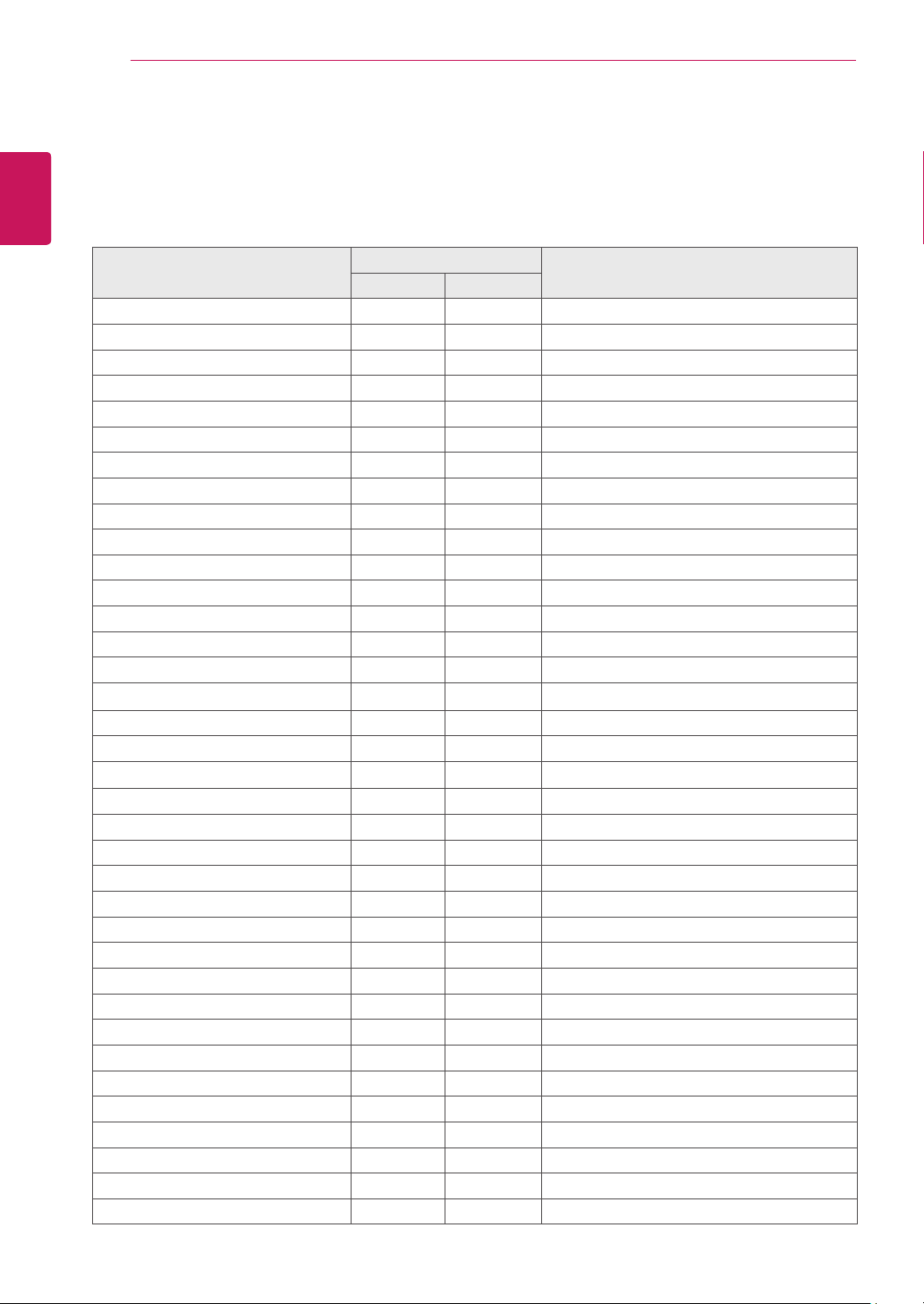
56
ENG
ENGLISH
CONTROLLING THE MULTIPLE PRODUCT
Command Reference List
CONTROLLING THE MULTIPLE PRODUCT
COMMAND
DATA
(Hexadecimal)
1 2
01. Power
k a
00 to 01
02. Input Select x b Refer to ‘Input Select.’
03. Aspect Ratio k c Refer to ‘Aspect Ratio.’
04. Energy Saving
j q
Refer to ‘Energy Saving.’
05. Picture mode d x Refer to ‘Picture mode.’
06. Contrast
k g
00 to 64
07. Brightness
k h
00 to 64
08. Sharpness k k 00 to 64
09. Color k i 00 to 64
10. Tint k j 00 to 64
11. Color Temperature x u 00 to 64
12. H Position f q 00 to 64
13. V Position f r 00 to 64
14. H Size f s 00 to 64
15. Auto configuration j u 01
16. Balance k t 00 to 64
17. Sound mode d y Refer to ‘Sound mode.’
18. Treble k r 00 to 64
19. Bass k s 00 to 64
20. Speaker d v 00 to 01
21. Volume Mute k e 00 to 01
22. Volume Control k f 00 to 64
23. Time 1(Years/ Months/ Days) f a Refer to ‘Time 1.’
24. Time 2(Hours/ Minutes/Seconds) f x Refer to ‘Time 2.’
25. Off Timer(Repeat mode/ Time)
f e
Refer to ‘Off Timer.’
26. On Timer(Repeat Mode/ Time)
f d
Refer to ‘On Timer.’
27. On Timer Input
f u
Refer to ‘On Timer Input.’
28. Sleep Time f f 00 to 08
29. Power On Delay f h 00 to 64
30. Automatic Standby m n 00 to 01
31. Auto Off f g 00 to 01
32. Language f i Refer to ‘Language.’
33. Power Indicator(Standby Light) f o 00 to 01
34. Power Indicator(Power Light) f p 00 to 01
35. ISM mode j p Refer to ‘ISM Method.’
36. Fail Over Select m i 00H to 02H
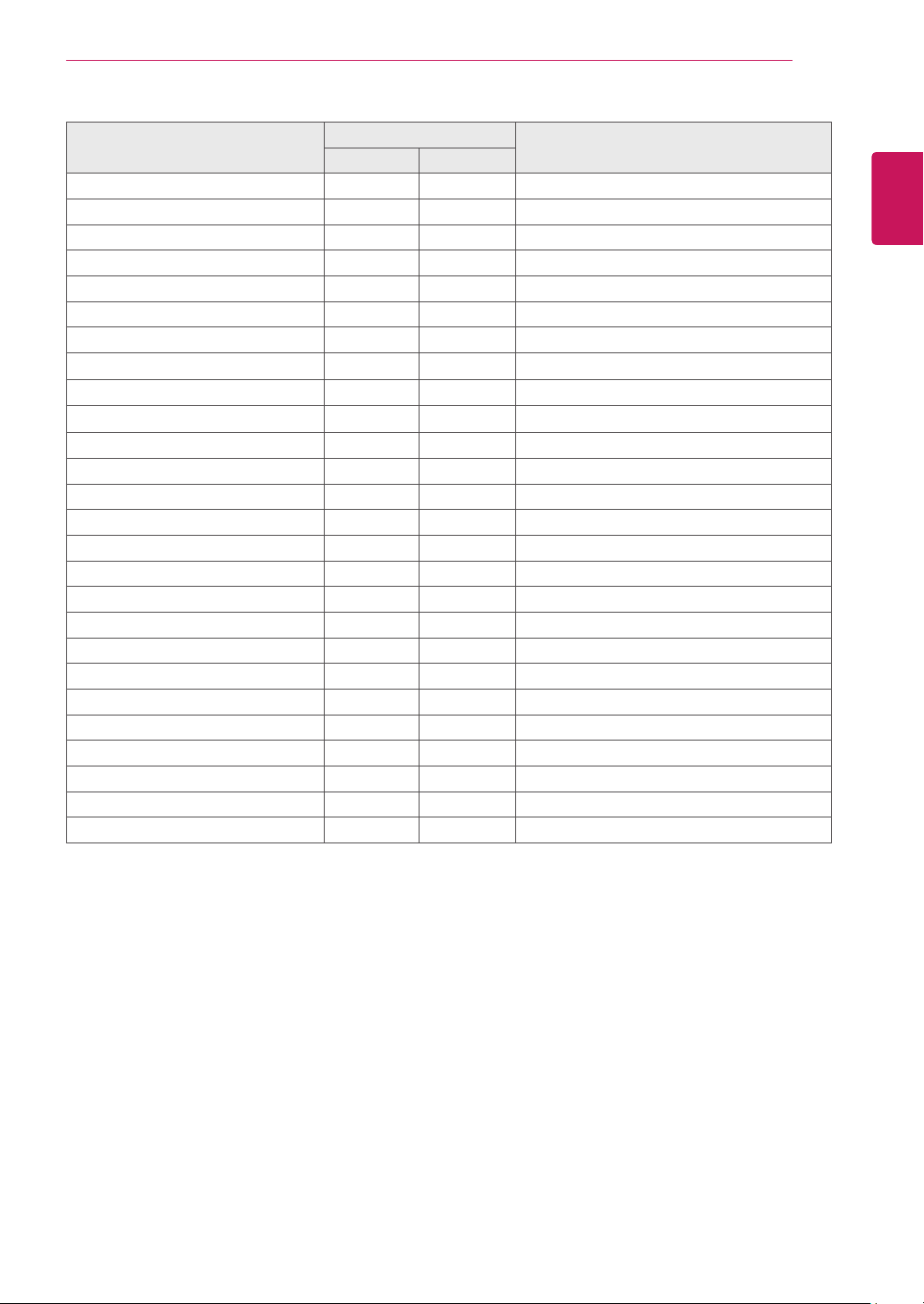
57
ENG
ENGLISH
CONTROLLING THE MULTIPLE PRODUCT
COMMAND
DATA
(Hexadecimal)
1 2
37. Fail Over Input Select
m j
Refer to ‘Fail Over Input Select.’
38. Reset f K 00 to 02
39. Tile Mode d d 00 to 01
40. Tile Mode Check
d z
FF
41. Tile ID d i Refer to ‘Tile ID.’
42. Tile H Position d e 00 to 32
43. Tile V Position d f 00 to 32
44. Tile H Size d g 00 to 32
45. Tile V Size d h 00 to 32
46. Natural Mode (In Tile mode) d j 00 to 01
47. DPM Select f j 00 to 01
48. FAN Control d o 00 to 03
49. FAN Fault Check d w FF
50. Temperature Value d n FF
51. Remote Lock/ key Lock k m 00 to 01
52. Key
m c
Refer to ‘Key.’
53. OSD Select k l 00 to 01
54. Elapsed time return
d l
FF
55. Serial No. Check f y FF
56. S/W Version f z FF
57. White Balance Red Gain j m 00 to FE
58. White Balance Green Gain
j
n 00 to FE
59. White Balance Blue Gain
j
o 00 to FE
60. Backlight
m
g 00 to 64
61. PC Power Control
d
t 00 to 01
62. PC Power
d
s 00 to 01
y
Note : During USB operations such as Dvix or EMF, all commands except Power(k a) and Key(m c)
are not executed and treated as NG.

58
ENG
ENGLISH
CONTROLLING THE MULTIPLE PRODUCT
Transmission / Receiving Protocol
Transmission
[Command1][Command2][ ][Set ID][ ][Data][Cr]
* [Command1]: First command to control the set.
* [Command2]: Second command to control the set.
* [Set ID]: Set ID with which you want to communicate. Enter [Set ID] = ‘00(0x00’ to communicate with all sets
regardless of their Set ID numbers.
* [Data]: Information passed to the set.
* [Data1]: Information passed to the set.
* [Data2]: Information passed to the set.
* [Data3]: Information passed to the set.
* [Cr]: Carriage Return. ASCII code ‘0x0D’.
* [ ]: ASCII code space ‘0x20’
Acknowledgement
[Command2][ ][Set ID][ ][OK/NG][Data][x]
* When the product receives data normally, it sends an acknowledgement (ACK) in the format above. If data is
in read mode, it indicates the data that shows the current status. If data is in read mode, it simply indicates the
data that is sent from the PC.
* If a command is sent with Set ID '00' (=0x00), the data is reflected to all monitor sets and they do send any
acknowledgement (ACK).
* If the data value 'FF' is sent in control mode via RS-232C, the current setting value of a function can be
checked (only for some functions).
* Some commands are not supported depending on the model.

59
ENG
ENGLISH
CONTROLLING THE MULTIPLE PRODUCT
04. Energy Saving (Command: j q)
To set the Energy Saving function.
Transmission
[j][q][ ][Set ID][ ][Data][Cr]
Data 00: Off
01: Minimum
02: Medium
03. Maximum
04: Auto
05. Screen Off
Acknowledgement
[q][ ][Set ID][ ][OK/NG][Data][x]
** It may not be supported depending on the model.
05. Picture Mode (Command: d x)
To select the Picture Mode.
Transmission
[d][x][ ][Set ID][ ][Data][Cr]
Data 00: Vivid
01: Standard
02. Cinema
03. Sport
04: Game
Acknowledgement
[x][ ][Set ID][ ][OK/NG][Data][x]
06. Contrast (Command: k g)
To adjust the screen contrast.
Transmission
[k][g][ ][Set ID][ ][Data][Cr]
Data 00 to 64: Contrast 0 to 100
Acknowledgement
[g][ ][Set ID][ ][OK/NG][Data][x]
01. Power (Command: k a)
To control the Power On/Off the display.
Transmission
[k][a][ ][Set ID][ ][Data][Cr]
Data 00 : Off
01 : On
Acknowledgement
[a][ ][Set ID][ ][OK/NG][Data][x]
* Only when the monitor set is fully powered on, the
Acknowledgement signal is returned properly.
* There may be a certain time of delay between the
Transmission and Acknowledgement signals.
02. Input Select (Command: x b)
To select the Input Source for display.
Transmission
[x][b][ ][Set ID][ ][Data][Cr]
Data 20: Input (AV)
40: Component
60: RGB
70: DVI-D(PC)
80: DVI-D(DTV)
90: HDMI(HDMI1)(DTV)
A0: HDMI(HDMI1)(PC)
C0: Display Port(DTV)
D0: Display Port(PC)
91: HDMI2/SDI(DTV)
A1: HDMI2/SDI(PC)
B0: SuperSign
Acknowledgement
[b][ ][Set ID][ ][OK/NG][Data][x]
* Some input signals may not be supported
depending on the model.
03. Aspect Ratio (Command: k c)
To adjust the screen format.
Transmission
[k][c][ ][Set ID][ ][Data][Cr]
Data 01: 4:3
02: 16:9
04: Zoom
09: Just scan (720p or more)
(Component, HDMI/ DVI-D/ Display Port DTV)
* RGB, DVI-D, HDMI/Display Port PC mode
(1:1)
10 to 1F: Cinema Zoom 1 to 16
(AV, Component, HDMI DTV)
* Available data types differ depending on the input
signal. For more information, see the aspect ratio
section of the owner's manual.
* The aspect ratio may differ depending on the
model's input configuration.
Acknowledgement
[c][ ][Set ID][ ][OK/NG][Data][x]

60
ENG
ENGLISH
CONTROLLING THE MULTIPLE PRODUCT
07. Brightness (Command: k h)
To adjust the screen brightness.
Transmission
[k][h][ ][Set ID][ ][Data][Cr]
Data 00 to 64: Brightness 0 to 100
Acknowledgement
[h][ ][Set ID][ ][OK/NG][Data][x]
08. Sharpness (Command: k k)
To adjust the screen sharpness.
* This function is available only in AV/Component
input.
Transmission
[k][k][ ][Set ID][ ][Data][Cr]
Data 00 to 64: Sharpness 0 to 100
Acknowledgement
[k][ ][Set ID][ ][OK/NG][Data][x]
09. Color (Command: k i)
To adjust the screen color.
* This function is available only in AV/Component
input.
Transmission
[k][i][ ][Set ID][ ][Data][Cr]
Data 00 to 64: Color 0 to 100
Acknowledgement
[i][ ][Set ID][ ][OK/NG][Data][x]
10. Tint (Command: k j)
To adjust the screen tint.
* This function is available only in AV/Component
input.
Transmission
[k][j][ ][Set ID][ ][Data][Cr]
Data 00 to 64: Tint R50 to G50
Acknowledgement
[j][ ][Set ID][ ][OK/NG][Data][x]
11. Color Temperature (Command: x u)
To adjust the screen Color Temperature.
Transmission
[x][u][ ][Set ID][ ][Data][Cr]
Data 00 to 64: Warm 50 to Cool 50
Acknowledgement
[u][ ][Set ID][ ][OK/NG][Data][x]
12. H Position (Command: f q)
To adjust the screen Horizontal Position.
* This function is available only when the Tile Mode is
set to Off.
* The operational range varies depending on the
RGB input resolution.
(Only available for RGB-PC input.)
Transmission
[f][q][ ][Set ID][ ][Data][Cr]
Data 00 to 64: min. -50 (Left) to max. 50 (Right)
Acknowledgement
[q][ ][Set ID][ ][OK/NG][Data][x]

61
ENG
ENGLISH
CONTROLLING THE MULTIPLE PRODUCT
13. V Position (Command: f r)
To adjust the screen Vertical Position.
* This function is available only when the Tile Mode is
set to Off.
* The operational range varies depending on the
RGB input resolution.
(Only available for RGB-PC input.)
Transmission
[f][r][ ][Set ID][ ][Data][Cr]
Data 00 to 64: min. -50 (Bottom) to max. 50 (Top)
Acknowledgement
[r][ ][Set ID][ ][OK/NG][Data][x]
14. H Size (Command: f s)
To adjust the screen Horizontal Size.
* This function is available only when the Tile Mode is
set to Off.
* The operational range varies depending on the
RGB input resolution.
(Only available for RGB-PC input.)
Transmission
[f][s][ ][Set ID][ ][Data][Cr]
Data 00 - 64: Min. -50 (Reduce) - Max. 50 (Expand)
Acknowledgement
[s][ ][Set ID][ ][OK/NG][Data][x]
15. Auto Configuration (Command: j u)
To adjust the picture position and minimize image
shaking automatically.
(Only available for RGB-PC input.)
Transmission
[j][u][ ][Set ID][ ][Data][Cr]
Data 01 : Set
Acknowledgement
[u][ ][Set ID][ ][OK/NG][Data][x]
16. Balance (Command: k t)
To adjust the sound balance.
Transmission
[k][t][ ][Set ID][ ][Data][Cr]
Data 00 to 64: Left 50 to Right 50
Acknowledgement
[t][ ][Set ID][ ][OK/NG][Data][x]
17. Sound Mode (Command: d y)
To select the Sound Mode.
Transmission
[d][y][ ][Set ID][ ][Data][Cr]
Data 01: Standard
02: Music
03: Cinema
04: Sport
05. Game
Acknowledgement
[y][ ][Set ID][ ][OK/NG][Data][x]
18. Treble (Command: k r)
To adjust the Treble values.
Transmission
[k][r][ ][Set ID][ ][Data][Cr]
Data 00 to 64: Treble 0 to 100
Acknowledgement
[r][ ][Set ID][ ][OK/NG][Data][x]

62
ENG
ENGLISH
CONTROLLING THE MULTIPLE PRODUCT
22. Volume Control (Command: k f)
To set the playback volume.
Transmission
[k][f][ ][Set ID][ ][Data][Cr]
Data 00 to 64: Volume 0 to 100
Acknowledgement
[f][ ][Set ID][ ][OK/NG][Data][x]
23. Time 1(Year/ Month/ Day) (Command: f a)
To set the Time 1(Year/ Month/ Day) values.
Transmission
[f][a][ ][Set ID][ ][Data1][ ][Data2][ ][Data3][Cr]
Data 1 00 to 14: 2010 to 2030
Data 2 01 to 0C: January to December
Data 3 01 to 1F: 1 to 31
* Enter “fa [Set ID] ff” for checking Time 1(Year/
Month/ Day) values.
Acknowledgement
[a][ ][Set ID][ ][OK/NG][Data1][Data2][Data3][x]
24. Time 2(Hour/ Minute/ Second) (Command: f x)
To set the Time 2(Hour/ Minute/ Second) values.
Transmission
[f][x][ ][Set ID][ ][Data1][ ][Data2][ ][Data3][Cr]
Data1 00 to 17: 00 to 23 hours
Data2 00 to 3B: 00 to 59 minutes
Data3 00 to 3B: 00 to 59 seconds
* Enter “fx [Set ID] ff” for checking Time 2(Hour/
Minute/ Second) values.
** This command won’t work if Time 1(Year/ Month/
Day) has not been set in advance.
Acknowledgement
[x][ ][Set ID][ ][OK/NG][Data1][Data2][Data3][x]
19. Bass (Command: k s)
To adjust the Bass values.
Transmission
[k][s][ ][Set ID][ ][Data][Cr]
Data 00 to 64: Bass 0 to 100
Acknowledgement
[s][ ][Set ID][ ][OK/NG][Data][x]
20. Speaker (Command: d v)
To select the speaker on/off.
Transmission
[d][v][ ][Set ID][ ][Data][Cr]
Data 00: Off
01: On
Acknowledgement
[v][ ][Set ID][ ][OK/NG][Data][x]
21. Volume Mute (Command: k e)
To control the Volume Mute on/off.
Transmission
[k][e][ ][Set ID][ ][Data][Cr]
Data 00 : Mute (Volume Off)
01 : Current volume (Volume On)
Acknowledgement
[e][ ][Set ID][ ][OK/NG][Data][x]

63
ENG
ENGLISH
CONTROLLING THE MULTIPLE PRODUCT
25. Off Timer(Repeat Mode/ Time) (Command: f e)
To set the Off Timer(Repeat Mode/ Time) function.
Transmission
[f][e][ ][Set ID][ ][Data1][ ][Data2][ ][Data3][Cr]
Data1
1. f1h to f7h (Read data)
F1: Read the 1st Off Time data
F2: Read the 2nd Off Time data
F3: Read the 3rd Off Time data
F4: Read the 4th Off Time data
F5: Read the 5th Off Time data
F6: Read the 6th Off Time data
F7: Read the 7th Off Time data
2. e1h-e7h (Delete one index), e0h (Delete all
indexes)
E0: Delete all Off Time data
E1: Delete the 1st Off Time data
E2: Delete the 2nd Off Time data
E3: Delete the 3rd Off Time data
E4: Delete the 4th Off Time data
E5: Delete the 5th Off Time data
E6: Delete the 6th Off Time data
E7: Delete the 7th Off Time data
3. 01h to 06h (Set the day of week for Off Time)
00: Off
01: Once
02. Daily
03: Monday to Friday
04: Monday to Saturday
05: Saturday to Sunday
06. Sunday
07. Monday
08. Tuesday
09. Wednesday
0A. Thursday
0B. Friday
0C. Saturday
Data2 00 to 17: 00 to 23 Hours
Data3 00 to 3B: 00 to 59 Minutes
* To read or delete the Off Time list, set FFH for
[Data2] and [Data3].
(Example 1: fe 01 f1 ff ff - Read the 1st Off Time
data.)
(Example 2: fe 01 e1 ff ff - Delete the 1st Off Time
data.)
(Example 3: fe 01 04 02 03 - Set the Off Time to
"Monday to Saturday, 02:03".)
* This function is supported only when 1 (Year/Month/
Day) and 2 (Hour/Minute/Second) are set.
Acknowledgement
[e][ ][Set ID][ ][OK/NG][Data1][Data2][Data3][x]
26. On Timer(Repeat Mode/ Time) (Command: f d)
To set the On Timer(Repeat mode/ Time) function.
Transmission
[f][d][ ][Set ID][ ][Data1][ ][Data2][ ][Data3][Cr]
Data1
1. f1h to f7h (Read data)
F1: Read the 1st On Time data
F2: Read the 2nd On Time data
F3: Read the 3rd On Time data
F4: Read the 4th On Time data
F5: Read the 5th On Time data
F6: Read the 6th On Time data
F7: Read the 7th On Time data
2. e1h-e7h (Delete one index), e0h (Delete all
indexes)
E0: Delete all On Time data
E1: Delete the 1st On Time data
E2: Delete the 2nd On Time data
E3: Delete the 3rd On Time data
E4: Delete the 4th On Time data
E5: Delete the 5th On Time data
E6: Delete the 6th On Time data
E7: Delete the 7th On Time data
3. 01h to 06h (Set the day of week for On Time)
00: Off
01: Once
02. Daily
03: Monday to Friday
04: Monday to Saturday
05: Saturday to Sunday
06. Sunday
07. Monday
08. Tuesday
09. Wednesday
0A. Thursday
0B. Friday
0C. Saturday
Data2 00 to 17: 00 to 23 Hours
Data3 00 to 3B: 00 to 59 Minutes
* To read or delete the Off Time list, set FFH for
[Data2] and [Data3].
(Example 1: fd 01 f1 ff ff - Read the 1st On Time
data.)
(Example 2: fd 01 e1 ff ff - Delete the 1st On Time
data.)
(Example 3: fd 01 04 02 03 - Set the On Time to
"Monday to Saturday, 02:03".)
* This function is supported only when 1 (Year/Month/
Day) and 2 (Hour/Minute/Second) are set.
Acknowledgement
[d][ ][Set ID][ ][OK/NG][Data1][Data2][Data3][x]

64
ENG
ENGLISH
CONTROLLING THE MULTIPLE PRODUCT
27. On Timer Input (Command: f u)
To select an external input for the current On Time
setting and add a new schedule or change the
existing schedule.
Transmission
[f][u][ ][Set ID][ ][Data1][Cr]
[f][u][ ][Set ID][ ][Data1][Data2][Cr]
Data (Add schedule)
20: Input (AV)
40: Component
60. RGB
70: DVI-D
90: HDMI (HDMI1)
70: DVI-D
90: HDMI (HDMI1)
C0: Display Port
91: HDMI2/SDI
B0:SuperSign
Data1 (Change schedule)
1. f1h to f4h (Read data)
F1: Select the 1st schedule input
F2: Select the 2nd schedule input
F3: Select the 3rd schedule input
F4: Select the 4th schedule input
F5: Select the 5th schedule input
F6: Select the 6th schedule input
F7: Select the 7th schedule input
Data2
20: Input (AV)
40: Component
60: RGB
70: DVI-D
90: HDMI (HDMI1)
C0: Display Port
91: HDMI2/SDI
B0:SuperSign
* To read the schedule input, enter FFH for [Data2].
If no schedule is available for [Data1] when
attempting to read or change the schedule data, the
text NG will be displayed and the operation fails.
(Example 1: fu 01 60 - Move each schedule input
down one row and save the 1st schedule input in
RGB mode.)
(Example 2: fu 01 f1 ff - Read the 1st schedule input.)
(Example 3: fu 01 f3 20 - Change the 3rd data
schedule input to the current On Time and AV input.
If there is no third schedule, the text NG will be
displayed and the operation fails.)
* This function is supported only when Time 1 (Year/
Month/Day), Time 2 (Hour/Minute/Second), On Time
(Repeat Mode/Time) are set.
** It may not be supported depending on the model.
Acknowledgement
[u][ ][Set ID][ ][OK/NG][Data][x]
[u][ ][Set ID][ ][OK/NG][Data1][Data2][x]
28. Sleep Time (Command: f f)
To set the Sleep Time.
Transmission
[f][f][ ][Set ID][ ][Data][Cr]
Data 00: Off (Sleep Timer off)
01: 10 min.
02: 20 min.
03: 30 min.
04: 60 min.
05: 90 min.
06: 120 min.
07: 180 min.
08: 240 min.
Acknowledgement
[f][ ][Set ID][ ][OK/NG][Data][x]
29. Power On Delay (Command: f h)
To set the schedule delay when the power is turned
on. (Unit: Second)
Transmission
[f][h][ ][Set ID][ ][Data][Cr]
Data 00 to 64: min. 0 to max. 100 (sec.)
Acknowledgement
[h][ ][Set ID][ ][OK/NG][Data][x]
30. Automatic Standby (Command: m n)
To set the Automatic Standby function.
Transmission
[m][n][ ][Set ID][ ][Data][Cr]
Data 00: Off (No off after 4 hours)
01: 4 Hours (Off after 4 hours)
Acknowledgement
[n][ ][Set ID][ ][OK/NG][Data][x]

65
ENG
ENGLISH
CONTROLLING THE MULTIPLE PRODUCT
31. Auto Off (Command: f g)
To set the Auto Off function.
Transmission
[f][g][ ][Set ID][ ][Data][Cr]
Data 00: Off (No off after 15 minutes)
01: 15 min.(Off after 15 minutes)
Acknowledgement
[g][ ][Set ID][ ][OK/NG][Data][x]
32. Language (Command: f i)
To set the language for OSD.
Transmission
[f][i][ ][Set ID][ ][Data][Cr]
Data 00: Czech
01: Danish
02: German
03: English
04: Spanish (EU)
05: Greek
06: French
07: Italian
08: Dutch
09: Norwegian
0A: Portuguese
0B: Portuguese (BR)
0C: Russian
0D: Finnish
0E: Swedish
0F: Korean
10: Chinese (Mandarin)
11: Japanese
12: Yue Chinese (Cantonese)
Acknowledgement
[i][ ][Set ID][ ][OK/NG][Data][x]
33. Power Indicator (Standby Light) (Command: f o)
To set the Power Indicator (Standby Light) function.
Transmission
[f][o][ ][Set ID][ ][Data][Cr]
Data 00: Off
01: On
** It may not be supported depending on the model.
Acknowledgement
[o][ ][Set ID][ ][OK/NG][Data][x]
34. Power Indicator (Power Light) (Command: f p)
To set the Power Indicator (Power Light) function.
Transmission
[f][p][ ][Set ID][ ][Data][Cr]
Data 00: Off
01: On
** It may not be supported depending on the model.
Acknowledgement
[p][ ][Set ID][ ][OK/NG][Data][x]
35. ISM mode (Command: j p)
To select ISM method for avoiding having a fixed
image remain on screen.
Transmission
[j][p][ ][Set ID][ ][Data][Cr]
Data 01: Inversion
02: Orbiter
04: White Wash
08. Normal
Acknowledgement
[p][ ][Set ID][ ][OK/NG][Data][x]
36. Fail Over Select (Command: m i)
To set the Fail Over function.
Transmission
[m][i][ ][Set ID][ ][Data][Cr]
Data 00: Off
01: Auto
02: Manual
Acknowledgement
[i][ ][Set ID][ ][OK/NG][Data][x]

66
ENG
ENGLISH
CONTROLLING THE MULTIPLE PRODUCT
37. Fail Over Input Select (Command: m j)
To select the input source for auto switch.
* This command is only available when the fail over
(auto) mode is set to Custom.
Transmission
[m][j][ ][Set ID][ ][Data1][ ][Data2][ ][Data3][Cr]
[ ][Data4][ ][Data5][Cr]
Data 1 to 5 (Priority 1 to 5)
60: RGB
70: DVI-D
90: HDMI(HDMI1)
C0: Display Port
91: HDMI2/SDI
* The number of data items differs depending on the
model.
Acknowledgement
[j][ ][SetID][ ][OK/NG][Data1][Data2][Data3][Data4]
[ ][Data5][x]
Data 1 to 5 (Priority 1 to 5)
60: RGB
70: DVI-D
90: HDMI(HDMI1)
C0: Display Port
91: HDMI2/SDI
* The number of data items differs depending on the
model.
38. Reset (Command: f k)
To execute the Picture, Screen, Audio and Factory
reset function.
(Screen Reset can only be performed in RGB input
mode.)
Transmission
[f][k][ ][Set ID][ ][Data][Cr]
Data 00: Picture Reset
01: Screen Reset
02: Factory Reset
03: Audio Reset
Acknowledgement
[k][ ][Set ID][ ][OK/NG][Data][x]
39. Tile Mode (Command: d d)
To set a Tile Mode and Tile Column/ Row values.
Transmission
[d][d][ ][Set ID][ ][Data][Cr]
Data 00 to FF: 1st byte - Tile Row
2nd byte - Tile Column
*00, 01, 10, 11 means Tile Mode Off.
Acknowledgement
[d][ ][Set ID][ ][OK/NG][Data][x]
** It may not be supported depending on the model.
40. Tile Mode Check (Command: d z)
To check Tile Mode status.
Transmission
[d][z][ ][Set ID][ ][Data][Cr]
Data FF: Check Tile Mode status.
** It may not be supported depending on the model.
Acknowledgement
[z][ ][Set ID][ ][OK/NG][Data1][Data2][Data3][x]
Data1 00: Tile Mode Off
01: Tile Mode On
Data2 00 to 0F: Tile Row
Data3 00 to 0F: Tile Column
41. Tile ID (Command: d i)
To set Tile ID.
Transmission
[d][i][ ][Set ID][ ][Data][Cr]
Data 01 to E1: Tile ID 01 to 225**
FF: Check Tile ID
** Data could not be set over (Tile Column) x (Tile
Row).
** It may not be supported depending on the model.
Acknowledgement
[i][ ][Set ID][ ][OK/NG][Data][x]
*NG will be return if data is over (Tile Column) x (Tile
Row), except 0xFF.
42. Tile H Position (Command: d e)
To adjust the Tile Horizontal position.
* This function is available only when the Natural
option of the Tile Mode is set to Off while the Tile
Mode set to On.
Transmission
[d][e][ ][Set ID][ ][Data][Cr]
Data 00 to 32: -50 (Left) to 0 (Right)
*Left/Right values depend on Tile H size.
** It may not be supported depending on the model.
Acknowledgement
[e][ ][Set ID][ ][OK/NG][Data][x]

67
ENG
ENGLISH
CONTROLLING THE MULTIPLE PRODUCT
43. Tile V Position (Command: d f)
To adjust the Tile Vertical position.
* This function is available only when the Natural
option of the Tile Mode is set to Off while the Tile
Mode set to On.
Transmission
[d][f][ ][Set ID][ ][Data][Cr]
Data 0 to 32: 0 (Bottom) to 50 (Top)
* Bottom/Top values depend on Tile Vertical size.
** It may not be supported depending on the model.
Acknowledgement
[f][ ][Set ID][ ][OK/NG][Data][x]
44. Tile H Size (Command: d g)
To adjust the Tile Horizontal Size.
*Set Tile H Position to 0x32 before setting Tile H
Size.
* This function is available only when the Natural
option of the Tile Mode is set to Off while the Tile
Mode set to On.
Transmission
[d][g][ ][Set ID][ ][Data][Cr]
Data 00 to 32: 0 to 50
** It may not be supported depending on the model.
Acknowledgement
[g][ ][Set ID][ ][OK/NG][Data][x]
45. Tile V Size (Command: d h)
To adjust the Tile Vertical size.
*Set Tile V Position to 0x00 before setting Tile V
Size.
* This function is available only when the Natural
option of the Tile Mode is set to Off while the Tile
Mode set to On.
Transmission
[d][h][ ][Set ID][ ][Data][Cr]
Data 00 to 32: 0 to 50
** It may not be supported depending on the model.
Acknowledgement
[h][ ][Set ID][ ][OK/NG][Data][x]
46. Natural Mode (In Tile Mode) (Command : d j)
To display the image naturally, the part of the image
that would normally be displayed in the gap between
the monitors is omitted.
Transmission
[d][j][ ][Set ID][ ][Data][Cr]
Data 00: Off
01: On
Acknowledgement
[j][ ][Set ID][ ][OK/NG][Data][x]
47. DPM Select (Command: f j)
To set the DPM (Display Power Management)
function.
Transmission
[f][j][ ][Set ID][ ][Data][Cr]
Data 00: Off
01: On
Acknowledgement
[j][ ][Set ID][ ][OK/NG][Data][x]
48. FAN Control (Command : d o)
To set the Fan mode.
Transmission
[d][o][ ][Set ID][ ][Data][Cr]
Data 00: Auto
01: On
02: Manual
03: Off
** It may not be supported depending on the model.
Acknowledgement
[o][ ][Set ID][ ][OK/NG][Data][x]

68
ENG
ENGLISH
CONTROLLING THE MULTIPLE PRODUCT
49. FAN Fault Check (Command: d w)
To check the fan errors.
Transmission
[d][w][ ][Set ID][ ][Data][Cr]
Data FF: Read the status
Acknowledgement
[w][ ][Set ID][ ][OK/NG][Data][x]
Data 00: Fan fault
01: Fan OK
02: Model without a Fan
50. Temperature Value (Command: d n)
To check the inside temperature value.
Transmission
[d][n][ ][Set ID][ ][Data][Cr]
Data FF: Check the status
Acknowledgement
[n][ ][Set ID][ ][OK/NG][Data][x]
* Temperature is displayed in hexadecimal.
51. Remote Controller Lock/ Key Lock
(Command: k m)
When the remote control and front keys are locked in
standby mode, the power cannot be turned on using
the remote control or front power button.
Transmission
[k][m][ ][Set ID][ ][Data][Cr]
Data 00: Off (Lock Off)
01: On (Lock On)
* Display will not be turned on by power on key of
remote controller and front panel control keys, if key
is locked on in standby mode.
Acknowledgement
[m][ ][Set ID][ ][OK/NG][Data][x]
52. Key (Command: m c)
To send a key code of the IR remote control.
Transmission
[m][c][ ][Set ID][ ][Data][Cr]
Data IR_KEY_CODE
Acknowledgement
[c][ ][Set ID][ ][OK/NG][Data][x]
For a key code, see the IR Code.
* Some key codes are not supported depending on
the model.
53. OSD Select (Command: k l)
To select OSD(On Screen Display) on/off.
Transmission
[k][l][ ][Set ID][ ][Data][Cr]
Data 00: Off
01: On
Acknowledgement
[l][ ][Set ID][ ][OK/NG][Data][x]
54. Elapsed time return (Command: d l)
To check the panel used time.
Transmission
[d][l][ ][Set ID][ ][Data][Cr]
Data FF: Read the status
Acknowledgement
[l][ ][Set ID][ ][OK/NG][Data][x]
* Returned data means used hours in hexadecimal.

69
ENG
ENGLISH
CONTROLLING THE MULTIPLE PRODUCT
55. Serial No.Check (Command: f y)
To check the Serial Numbers.
Transmission
[f][y][ ][Set ID][ ][Data][Cr]
Data FF: Check the product Serial Number
Acknowledgement
[y][ ][Set ID][ ][OK/NG][Data][x]
* Data is ASCII code.
56. S/W Version (Command: f z)
To check the Software Version.
Transmission
[f][z][ ][Set ID][ ][Data][Cr]
Data FF: Check the Software version
Acknowledgement
[z][ ][Set ID][ ][OK/NG][Data][x]
57. White Balance Red Gain (Command: j m)
To set the White Balance Red Gain.
Transmission
[j][m][ ][Set ID][ ][Data][Cr]
Data 00 to FE: Red Gain 0 to 254
Acknowledgement
[m][ ][Set ID][ ][OK/NG][Data][x]
58. White Balance Green Gain (Command: j n)
To set the White Balance Green Gain.
Transmission
[j][n][ ][Set ID][ ][Data][Cr]
Data 00 to FE: Green Gain 0 to 254
Acknowledgement
[n][ ][Set ID][ ][OK/NG][Data][x]
59. White Balance Blue Gain (Command: j o)
To set the White Balance Blue Gain.
Transmission
[j][o][ ][Set ID][ ][Data][Cr]
Data 00 to FE: Blue Gain 0 to 254
Acknowledgement
[o][ ][Set ID][ ][OK/NG][Data][x]
60. Backlight (Command: m g)
To adjust the screen backlight.
Transmission
[m][g][ ][Set ID][ ][Data][Cr]
Data 00 to 64: Backlight 0 to 100
Acknowledgement
[g][][set ID][][OK/NG][Data][x]
** It may not be supported depending on the model.

70
ENG
ENGLISH
CONTROLLING THE MULTIPLE PRODUCT
61. PC Power Control (Command: d t)
To control the PC power if the PC and the monitor
are synchronized.
Transmission
[d][t][ ][Set ID][ ][Data][Cr]
Data
00: Synchronized (When the monitor is off, the PC is
also turned off.)
01: Not synchronized (The monitor is off but the PC
is on.)
** It may not be supported depending on the model.
Acknowledgement
[t][ ][Set ID][ ][OK][Data][x]
Data
00: Synchronized (When the monitor is off, the PC is
also turned off.)
01: Not synchronized (The monitor is off but the PC
is on.)
62. PC Power (Command: d s)
To control the PC power when the PC and the
monitor are not synchronized.
Transmission
[d][s][ ][Set ID][ ][Data][Cr]
Data 00: PC is turned off.
01: PC is turned on.
** It may not be supported depending on the model.
Acknowledgement
[s][ ][Set ID][ ][OK][Data][x]
Data 00: PC is turned off.
01: PC is turned on.
To obtain the source code under GPL, LGPL,
MPL and other open source licenses, that is
contained in this product, please visit http://
opensource.lge.com.
In addition to the source code, all referred
license terms, warranty disclaimers and
copyright notices are available for download.
LG Electronics will also provide open source
code to you on CD-ROM for a charge covering
the cost of performing such distribution (such
as the cost of media, shipping and handling)
upon email request to opensource@lge.com.
This offer is valid for three (3) years from the
date on which you purchased the product.
Make sure to read the Safety Precautions
before using the product.
Keep the Owner's Manual(CD) in an accessible
place for future reference.
The model and serial number of the SET is
located on the back and one side of the SET.
Record it below should you ever need service.
MODEL
SERIAL
Temporary noise is normal when powering ON or
OFF this device.
WARNING -This is a class A product. In a domestic
e n vi r o n m e n t t hi s p r o d uc t m a y c a u se r a di o
interference in which case the user may be required
to take adequate measures.
CHILD SAFETY:
It Makes A Difference How and Where
You Use Your Flat Panel Display.
Congratulations on your purchase! As you enjoy your new product,
please keep these safety tips in mind:
THE ISSUE
• The home theater entertainment experience is a growing trend and larger flat
panel displays are popular purchases. However, flat panel displays are not always
supported on the proper stands or installed according to the manufacturer’s
recommendations.
• Flat panel displays that are inappropriately situated on dressers, bookcases,
shelves, desks, speakers, chests or carts may fall over and cause injury.
THIS MANUFACTURER CARES!
• The consumer electronics industry is committed to making home entertainment
enjoyable and safe.
TUNE INTO SAFETY
• One size does NOT fit all. Follow the manufacturer’s recommendations for the
safe installation and use of your flat panel display.
• Carefully read and understand all enclosed instructions for proper use of this
product.
• Don’t allow children to climb on or play with furniture and television sets.
• Don’t place flat panel displays on furniture that can easily be used as steps,
such as a chest of drawers.
• Remember that children can become excited while watching a program,
especially on a “lager than life” flat panel display. Care should be taken to place
or install the display where it cannot be pushed, pulled over, or knocked down.
• Care should be taken to route all cords and cables connected to the flat panel
display so that they cannot be pulled or grabbed by curious children.
WALL MOUNTING: IF YOU DECIDE TO WALL
MOUNT YOURS FLAT PANEL DISPAY, ALWAYS:
• Use a mount that has been recommended by the display manufacturer and/ or
listed by an independent laboratory (such as UL, CSA, ETL).
• Follow all instructions supplied by the display and wall mount manufacturers.
• If you have any doubts about your ability to safely install your flat panel display,
contact your retailer about professional installation.
• Make sure that the wall where you are mounting the display is appropriate.
Some wall mounts are not designed to be mounted to walls with steel studs or
old cinder block construction. If you are unsure, contact a professional installer.
• A minimum of two people are required for installation. Flat panel displays can
be heavy.



