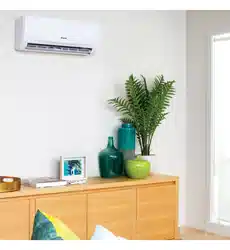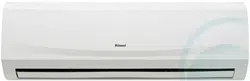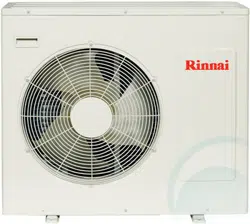

This appliance shall be installed in accordance with:
• Manufacturer’s Installation Instructions
• Current AS/NZS 3000
• Local Regulations and Municipal Building Codes including local OH&S requirements
This appliance must be installed, maintained and removed only by an Authorised Person.
For continued safety of this appliance it must be installed and maintained in
accordance with the manufacturers instructions.
31°C
Cooling
22
.0
WiFi Operation Manual
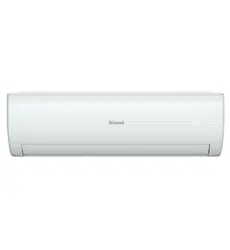
Split Type Wall Mounted Air Conditioner
Rinnai Systems Models
System Indoor Outdoor
HSNRQ25B HINRQ25B HONRQ25B
HSNRQ35B HINRQ35B HONRQ35B
HSNRQ50B HINRQ50B HONRQ50B
HSNRQ70B HINRQ70B HONRQ70B
HSNRQ80B HINRQ80B HONRQ80B
1. DEFINITIONS
App means the AC Freedom App you can download to your Device to operate your Rinnai Q Series.
Australian Consumer Law (‘ACL’) is Schedule 2 of the Competition and Consumer Act 2010.
Device means your smart phone/ tablet (Android. 4.1+ or Apple iOS6.0+) through which you have downloaded the App.
Rinnai Q Series means a Q Series Inverter Split System, comprising the following models:
Q Series Models HSNRQ25B HSNRQ35B HSNRQ50B HSNRQ70B HSNRQ80B
Rinnai, we, our or us means Rinnai Australia Pty Ltd (ABN 74 005 138 769).
WiFi Operations Manual means the WiFi operations manual which details how to download and operate the App.
you or your means a customer who uses the Rinnai Q Series and App.
2. GENERAL
2.1 By downloading the App, you agree to be bound by these Terms & Conditions.
2.2 These Terms & Conditions should be read in conjunction with the WiFi Operations Manual.
2.3 Rinnai may make updates to these Terms & Conditions from time to time. You should download and understand all
relevant updates to ensure you understand your obligations and Rinnai’s obligations under the Terms & Conditions.
2.4 Rinnai may make updates to the App from time to time. You should download and understand all relevant updates to
ensure you have access to the functions of your Rinnai Q Series and App.
3. THE AUSTRALIAN CONSUMER LAW (‘ACL’)
Our goods come with guarantees that cannot be excluded under the ACL. You are entitled to a replacement or refund for
a major failure and compensation for any other reasonably foreseeable loss or damage. You are also entitled to have the
goods repaired or replaced if the goods fail to be of acceptable quality and the failure does not amount to a major failure.
All the clauses under these Terms & Conditions apply subject to the ACL.
4. USE OF THE APP
4.1 You may download the App to your Device for your personal use only.
4.2 You are responsible for all costs incurred in accessing, downloading and using the App. This includes but is not limited to
fees charged by your internet service provider, smartphone or app data access charges and any other access charges
or device usage charges.
4.3 You must follow the instructions in the WiFi Operations Manual to operate the Rinnai Q Series via the App.
4.4 You must not use the App for any prohibited or unlawful purpose.
4.5 The App is available as another means to control and monitor the Rinnai Q Series, but should not be used for critical
heating or cooling applications.
5. TERMINATION
5.1 You may terminate these Terms & Conditions by deleting and ceasing use of the App.
5.2 Rinnai may terminate these Terms & Conditions immediately through the App or by any other appropriate means if you
are in breach of the Terms & Conditions.
6. INTELLECTUAL PROPERTY
6.1 If you download the App, Rinnai grants you a limited, non-exclusive, non-transferable, and non-assignable royalty free
licence solely in order to access and use the App.
6.2 All intellectual property rights in the Rinnai Q Series and the App are owned by Rinnai or licensed to Rinnai by third
parties. You do not acquire any express or implied rights in any these intellectual property rights, other than those granted
in clause 6.1 and within the context of these Terms & Conditions.
6.3 You may not modify, copy, sell, reproduce, interfere with or distribute the App in any way.
7. DISCLAIMER
To the extent permitted by law:
7.1 Rinnai makes no warranties that the App will be error-free, secure or free from any virus, malicious code or other adverse
elements. Rinnai therefore excludes any liability which may arise as a result of you downloading, accessing or using
the App. Rinnai does not exclude or restrict liability to the extent provided for by the ACL under the Competition and
Consumer Act 2010.
7.2 Rinnai will not be liable for any indirect, incidental, special or consequential loss.
8. FORCE MAJEURE
Unless prohibited by law, Rinnai shall be released from its obligations in the event of national emergency, war, prohibitive
governmental regulation, or if any other cause beyond the control of the parties renders the App or Rinnai Q Series
inoperable.
Rinnai 2 Split AC WiFi OM
TERMS & CONDITIONS

Rinnai 3 Split AC WiFi OM
WIFI COMPATIBILITY / CONNECTIVITY
Rinnai Split Type Wall Mounted Air Conditioner models HSNRQ25B, HSNRQ35B, HSNRQ50B, HSNRQ70B and
HSNRQ80B are tted with built-in WiFi connectivity. Using the AC Freedom App (available from Apple App Store
or Google Play) it is then possible to use a smart phone or tablet to operate these appliances remotely. Multiple
compatible appliances can be added as required.
A WiFi router (paired with the appliance via AC Freedom App) is used to control the Air Conditioner(s).
IMPORTANT
The Air Conditioner(s) MUST BE installed in a location that has WiFi router coverage.
If the controlling mobile device is outside of the WiFi router's coverage i.e. operating remotely,
then the WiFi router will require an internet connection to communicate with the controlling
mobile device.
1
3
4
6
5
2
Within Wi-Fi router coverage
Outside Wi-Fi router coverage
1. Indoor air conditioning unit (AC Device)
2. Smart phone or tablet (using WiFi)
3. WiFi router
4. Internet connection
5. Internet cloud
6. Smart phone or tablet (using internet cloud)
MINIMUM REQUIREMENTS
•
Rinnai Split Type Wall Mounted Air Conditioner models: HSNRQ25B, HSNRQ35B, HSNRQ50B, HSNRQ70B
and HSNRQ80B
•
WiFi Router, 2.4G frequency range supporting 802.11b/g/n mode, with coverage of the Appliance(s) location
•
For remote cloud based operation WiFi router / modem with active internet connection
•
Smart phone / Tablet (Android 4.1+ or Apple iOS 6.0+) with AC Freedom App installed
Android QR code
or search AC Freedom in Google Play
iOS QR code
or search AC Freedom in Apple App Store
INTRODUCTION
Rinnai 4 Split AC WiFi OM
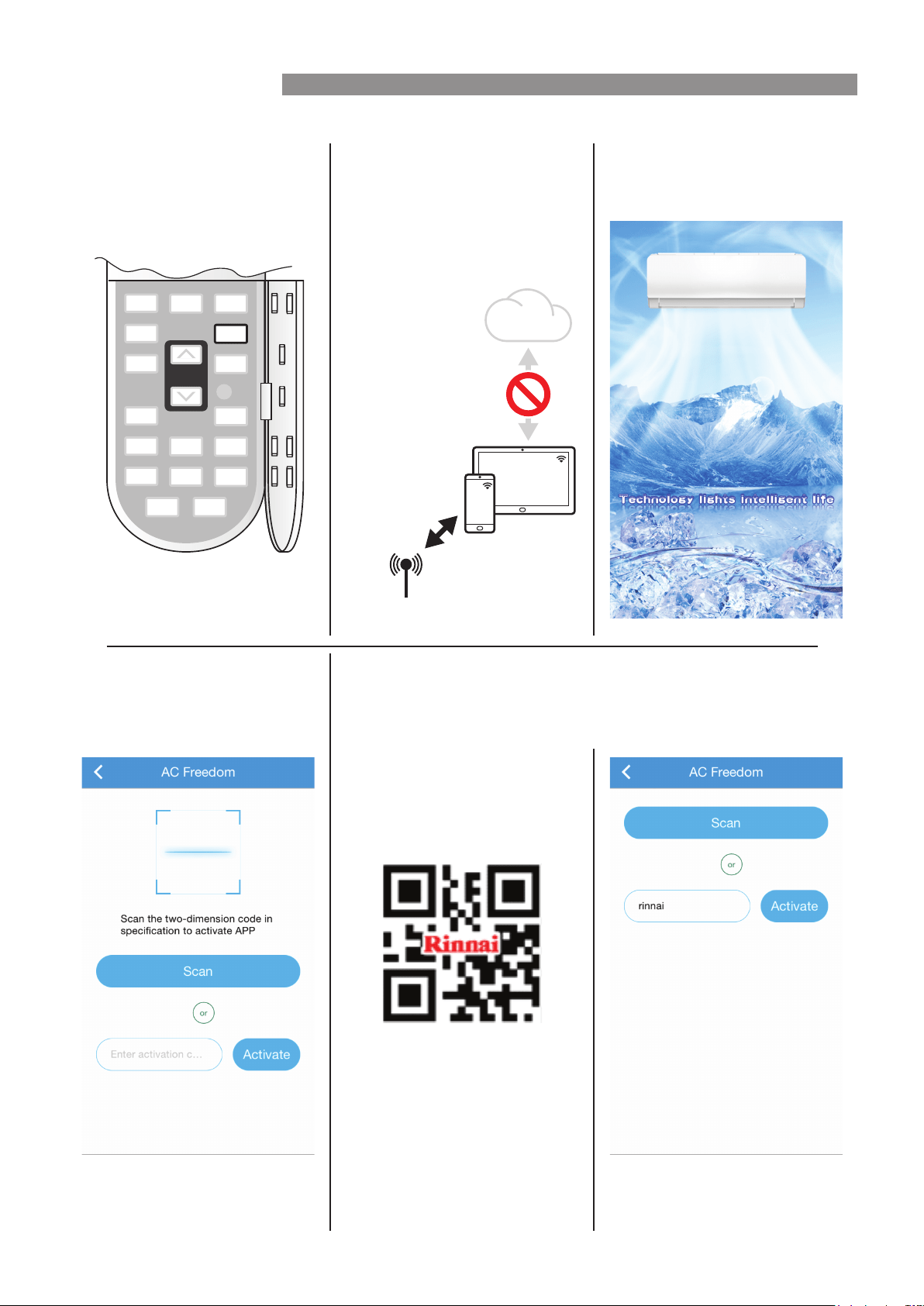
Pairing With Mobile device & WiFi Network
1. Turn on the Air Conditioner
that is to be paired, then
activate the WiFi module by
pressing the HEALTH button
on the remote control 8 times.
A double beep conrms that the
WiFi module is activated and will be
available to pair for 30 minutes.
2. Select the mobile device for
pairing (for best results only
pair one mobile device and
one AC device at a time). Turn
o the mobile data for the
mobile device , then connect it
to the desired WiFi network.
3. Open the AC Freedom App,
the following intro / loading
page is displayed briey.
--
4. Before the AC Freedom App
can be used it will need to be
activated, by either a QR code
or by an Activation code.
QR code method - Select scan and use the mobile device's camera to
capture the QR code below.
Activation code method - Type rinnai into the enter activation code eld
and select activate.
Please note that if so prompted,
give the App permission to use the
mobile device's camera.
The activation code is case sensitive
(all lower case).
DISPLAY
TIMER
ECO
SWING
SPOT
ROOM°C
CLEAN
FRESH
SLEEP
QUIET
TURBO
ON/OFF
HEALTH
FAN
MODE
WiFi
WiFi
Mobile
Data
WiFi
Nominated mobil device:
smartphone, tablet, etc
WIFI SET UP
Rinnai 5 Split AC WiFi OM
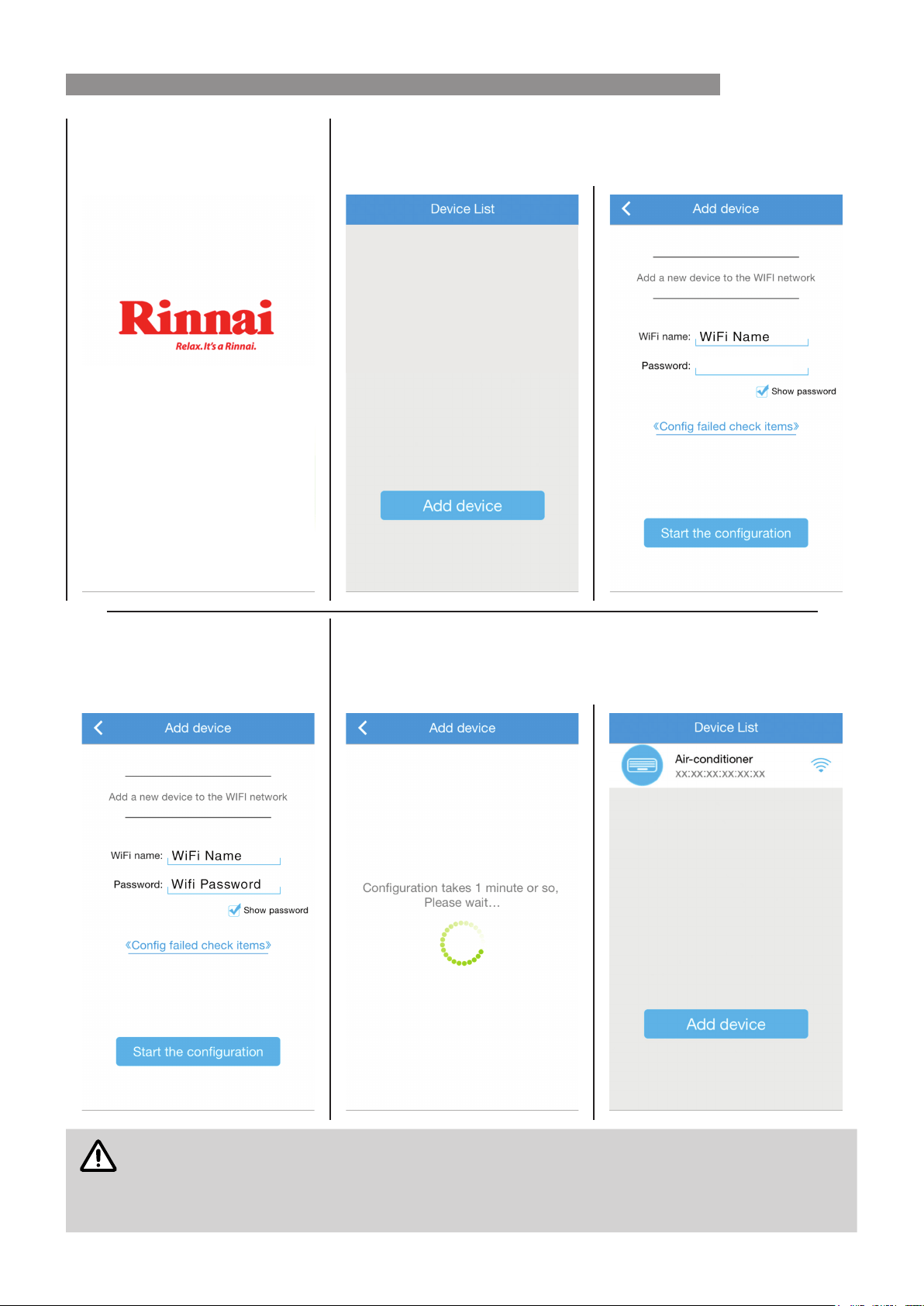
5. A Rinnai welcome page is
displayed briey to conrm a
successful activation.
The Device List page will open, select Add device to continue on to the
conguration page and the name of WiFi network selected in step 2 will
automatically ll the WiFi name: eld to conrm that this network was found.
--
6. Enter the password for the WiFi
network into the Password:
eld and select Start the
conguration.
The conguration process may take up to a minute or more depending
upon signal strength. The Device List page will be displayed with the new
AC device listed when conguration is complete. Repeat steps 1, 6, 7 & 8
to add additional AC devices to the current mobile device.
NOTE
If the conguration is unsuccessful, conrm that WiFi network is still up. If the WiFi network is
working correctly then repeat steps 1, 6 7 and 8.
If conguration continues to fail contact Rinnai.
Repeat steps 1 through 8 to pair additional mobile devices.
WIFI SET UP
Rinnai 6 Split AC WiFi OM
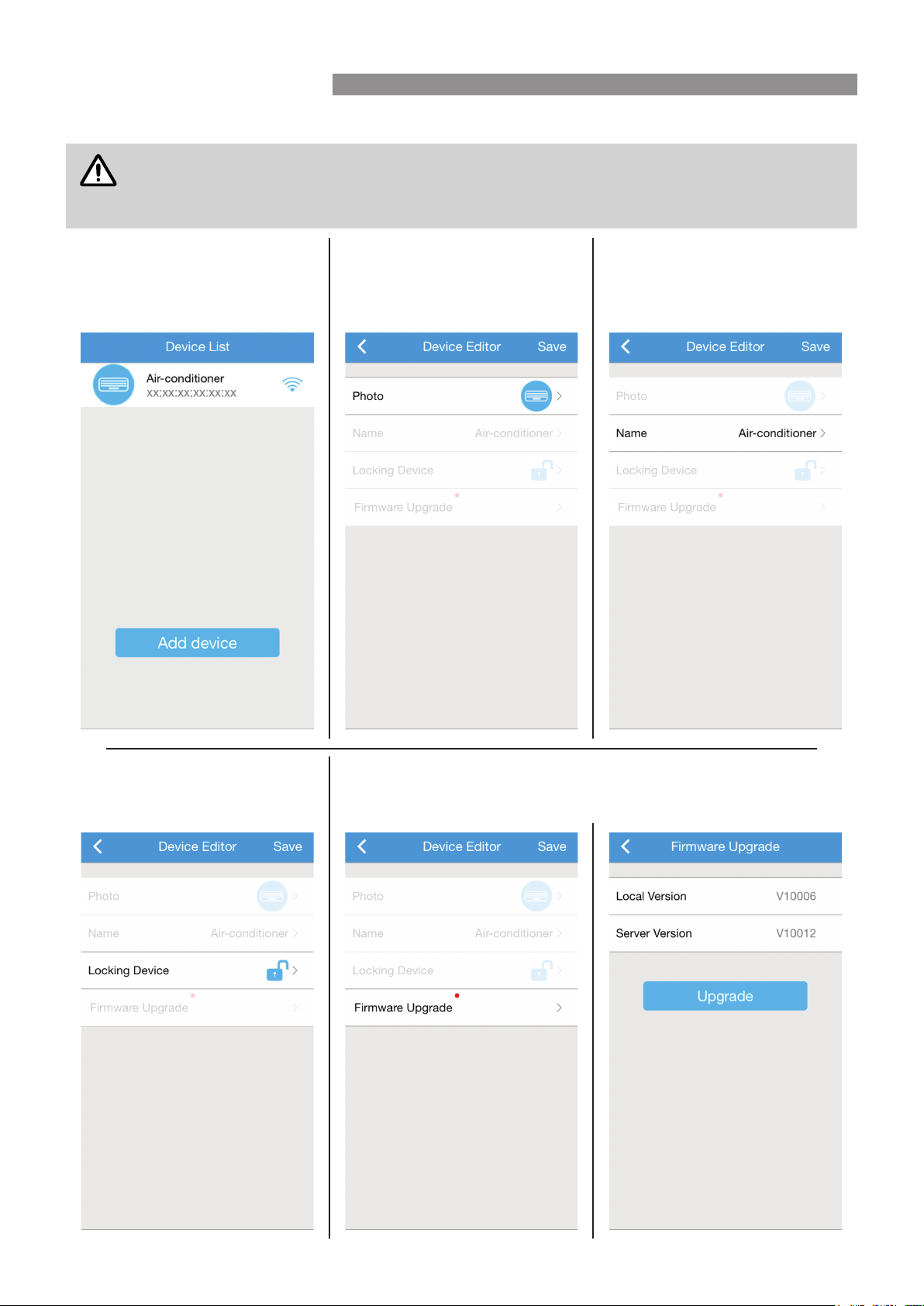
Device Editor allows customising of the App to AC device interface and access to AC device rmware updates.
NOTE
The AC device to be edited MUST BE on and connected to the WiFi Network.
Before exiting the Device Editor, Save changes, as all unsaved changes will be LOST.
Locking only restricts the ability to pair any additional mobile devices to an AC device.
To enter the Device Editor, at the
Device List page press on the Icon
to the left of the desired device's
name for 3 seconds.
To change the AC devices icon for a
specic mobile device, select Photo
icon, and follow the on screen
prompts to choose a new image.
To change the AC devices name for
all mobile devices, select the Name
text eld and type a new name (e.g.
Bedroom, Upstairs, etc).
--
To restrict mobile device access
select the padlock icon, blue / open
is unlocked, red / closed is locked.
To update rmware, select Firmware Upgrade, if local and server versions
are dierent select Upgrade, once updated both versions will be the same.
The Wi router MUST have an internet connection for rmware updates.
DEVICE EDITOR
Rinnai 7 Split AC WiFi OM
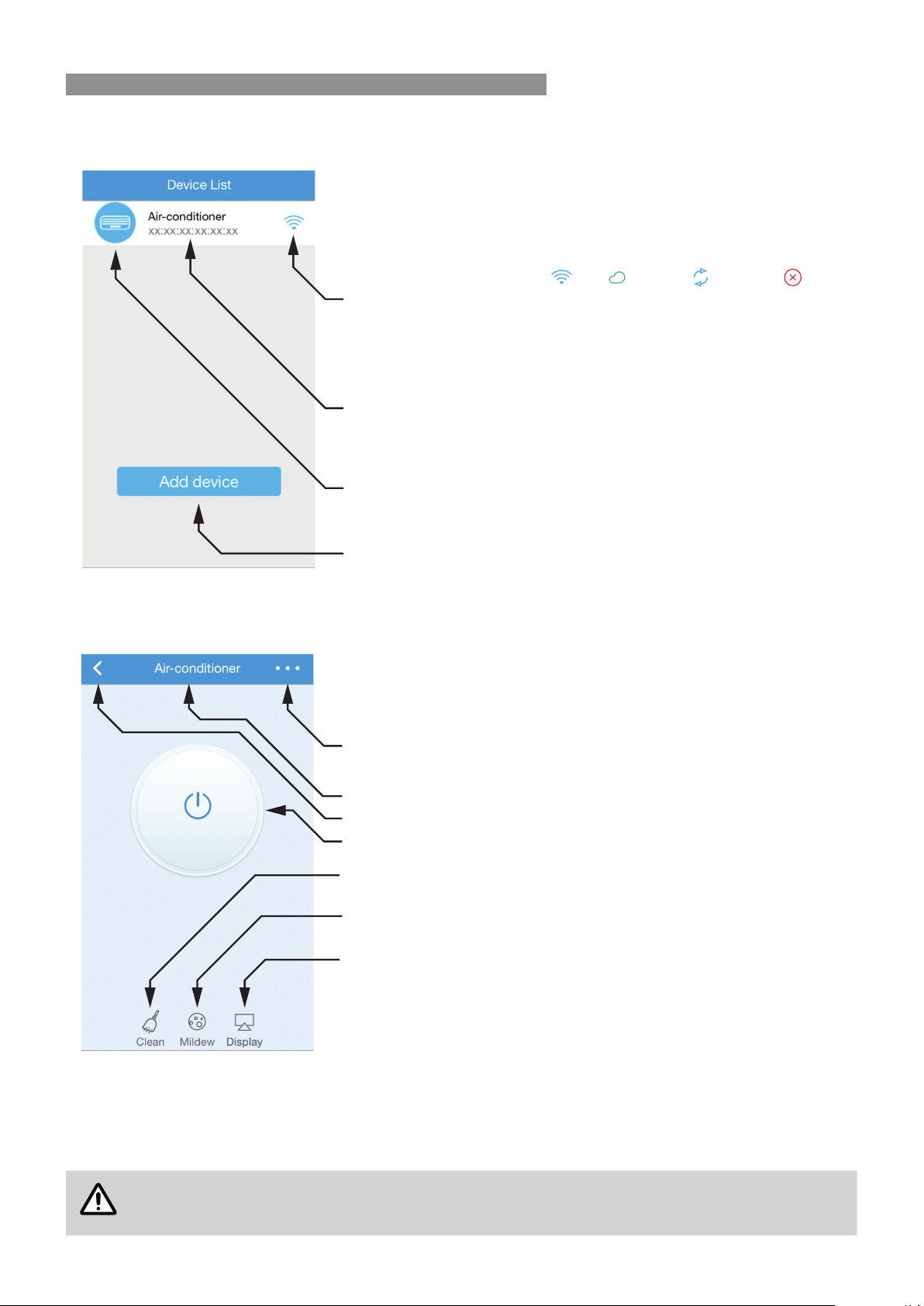
DEVICE LIST PAGE
After opening the App the Device List page is displayed, select the desired AC device that you wish to control.
STANDBY MODE PAGE
Air Conditioner is plugged in with the power turned on, but is not in an operational mode.
Select On button, opens AC device’s operational pages
Select Mildew (Fresh) button to enter dehumidifying mode
Select Clean button to enter cleaning operation
Select Display to turn the Air Conditioner’s large digital display on or off
The currently selected AC device’s name
Exit / Back button
Advanced App settings
CLEAN BUTTON
Cooling and dehumidifying operations can generate moisture inside the appliance. If the appliance is not going to
be used for a long period (in excess of one month), it is suggested to run the cleaning operation to remove dust
and moisture and avoid odours before leaving. Select the Clean button to start the cleaning operation.
NOTE
This cleaning operation takes approximately 35mins and the appliance automatically shuts o at
completion of the cleaning cycle.
Select icon/image to enter the AC device’s Edit Device page
Select Add device button to pair with additional AC devices
Select “name” to enter the AC device’s operation pages
Connection state display: WiFi Cloud Refresh WiFi Off line
BASIC OPERATION
Rinnai 8 Split AC WiFi OM
MILDEW (FRESH)
Cooling and dehumidifying operations can generate moisture inside the appliance. Using the "FRESH" function
removes such moisture by allowing the fan to run for 3 minutes after every shut-down, avoiding odours and
keeping the unit fresh. Select the Mildew button to enable the Fresh operational mode.
DISPLAY
Turns the large digital display that is built into the appliance and illuminates through the front cover
of the indoor unit on or o.
(EXIT / BACK) BUTTON
Exits the AC device page and returns to the Device list page, or returns to previous page when in a lower sub-menu.
Selecting the (exit / back) button does not aect current operational status of the Air Conditioner.
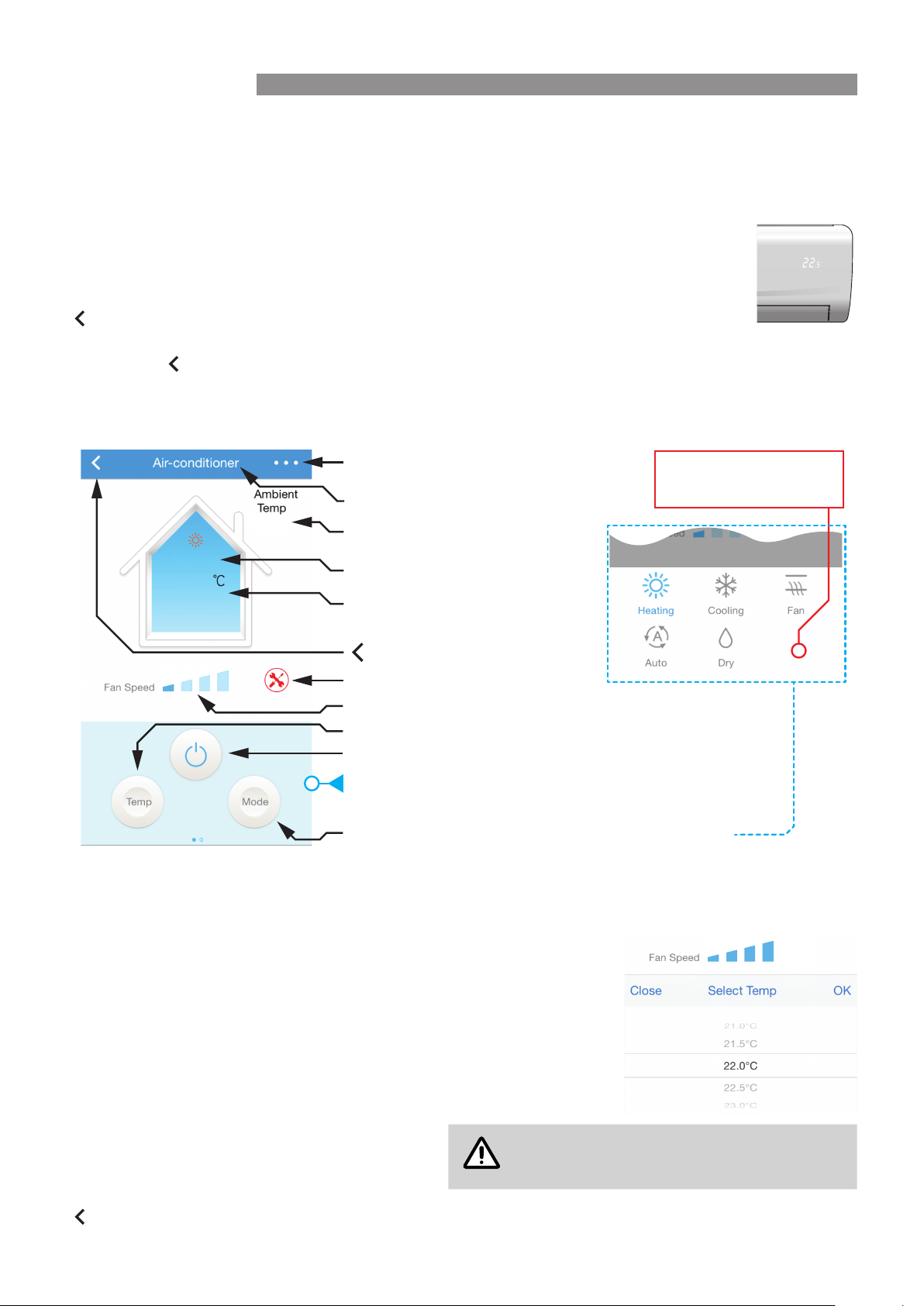
BASIC OPERATION PAGE
On this page all basic operational controls (Heating, Cooling, Fan Speed, Set Temperature, etc) can be accessed.
ON / OFF BUTTON
When selected (and conrmed) the appliance will shut down into standby mode, the standby page is then displayed.
FAN SPEED SLIDER
The fan speed can be adjusted manually or set to automatic. The available fan
speeds are Low , Mid, High or Auto. Select "Auto" if you wish the fan speed to
be adjusted automatically by the appliance.
TEMP (TEMPERATURE) BUTTON
When selected use the temperature wheel to scroll to the desired temperature
(0.5°C increments), then choose OK to save, or Close to make no change.
OPERATIONAL ERROR WARNING
Displays when the appliance has an error or fault
condition.
NOTE
Refer to the CARE & MAINTENANCE section
of the AC device's operation manual for fault
diagnostic and clearance procedures.
(EXIT / BACK) BUTTON (Same as above)
11°C
Heating
Low
Select Temp button, to adjust set temperature
Select On/Off button, to place the AC device in Standby mode
Fan Speed slider (Low, Mid, High, Auto)
Select Mode button, to choose a basic operation mode
The currently selected AC device’s name
(exit / back) button
Advanced App settings
Current room temperature
Set temperature
Current operational mode
22.0
Operational error warning
Select a basic operation
mode or tap on the blank
area to exit tab
Swipe basic operation tab left to access advanced operations
Auto
BASIC OPERATION
Rinnai 9 Split AC WiFi OM
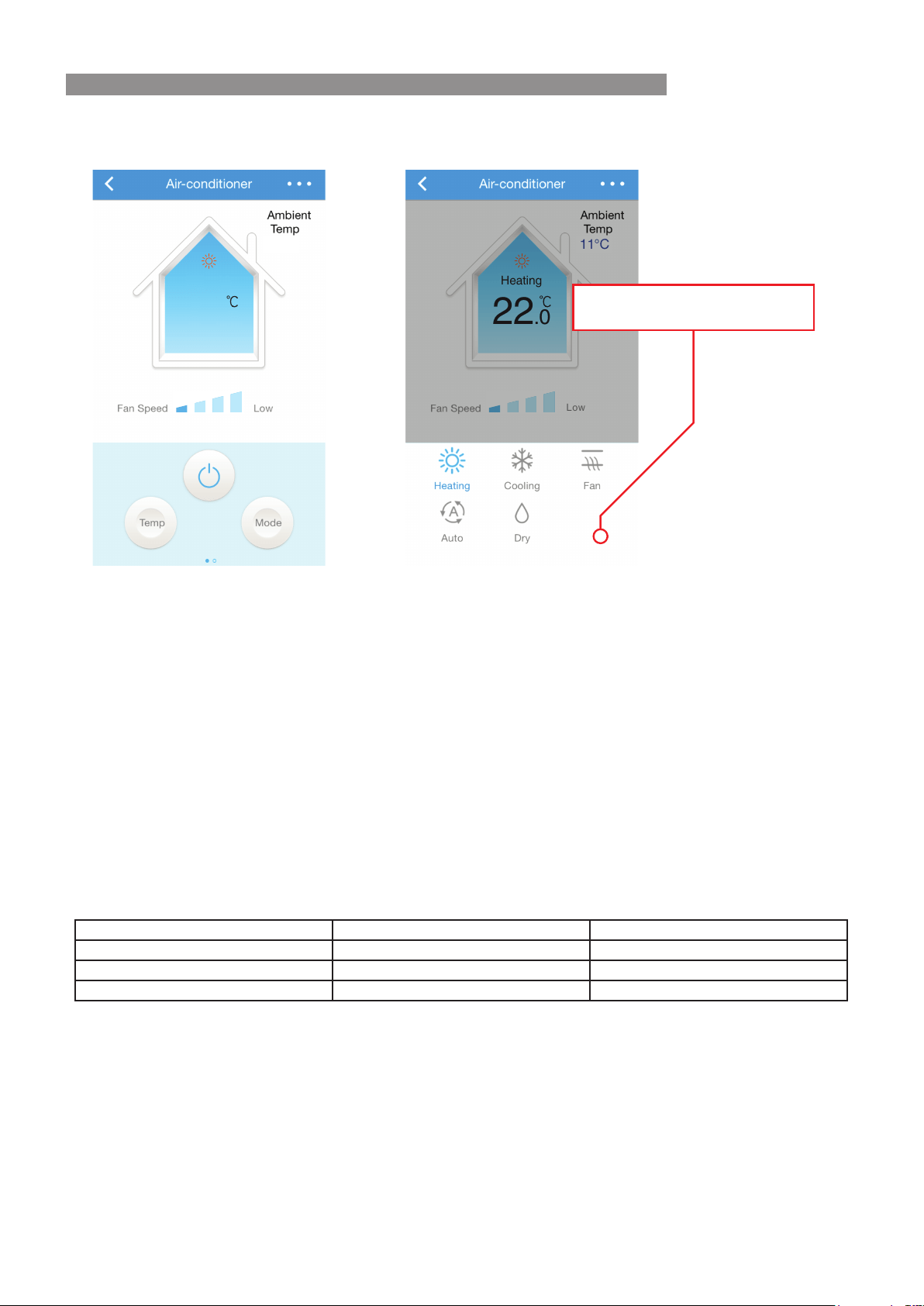
MODE BUTTON
This opens the basic operation mode selection tab.
HEATING
When selected this mode operates the Air Conditioner as a heating appliance (the available temperature range is
16°C ~ 32°C in 0.5°C increments).
COOLING
When selected this mode operates the Air Conditioner as a cooling appliance (the available temperature range is
16°C ~ 32°C in 0.5°C increments).
FAN
This mode uses the fan to circulate room air without changing the room temperature.
AUTO
In this mode, the fan speed, heating or cooling mode and the temperature are all adjusted automatically by the
appliance, based on the current room temperature.
The table below describes the relationship between room temperature and modes of operation when set to Auto.
Room Temperature Set Temperature Operation Mode
≥ 27°C 24°C Cooling Mode
20°C ~ 27°C 24°C Dry Mode
≤ 20°C 24°C Heating Mode
DRY (DEHUMIDIFYING)
In periods of high humidity this mode removes excess moisture from the room, in order to prevent mould and
mildew and increase comfort.
This mode adjusts the room temperature and the fan speed automatically to maintain the optimal level of humidity.
ADVANCED APP SETTINGS
See Advanced Operation on the following page.
11°C
Heating
22.0
Low
11°C
Heating
22.0
Select a basic operation mode or
tap on the blank area to exit tab
BASIC OPERATION
Rinnai 10 Split AC WiFi OM
ADVANCED APP SETTINGS
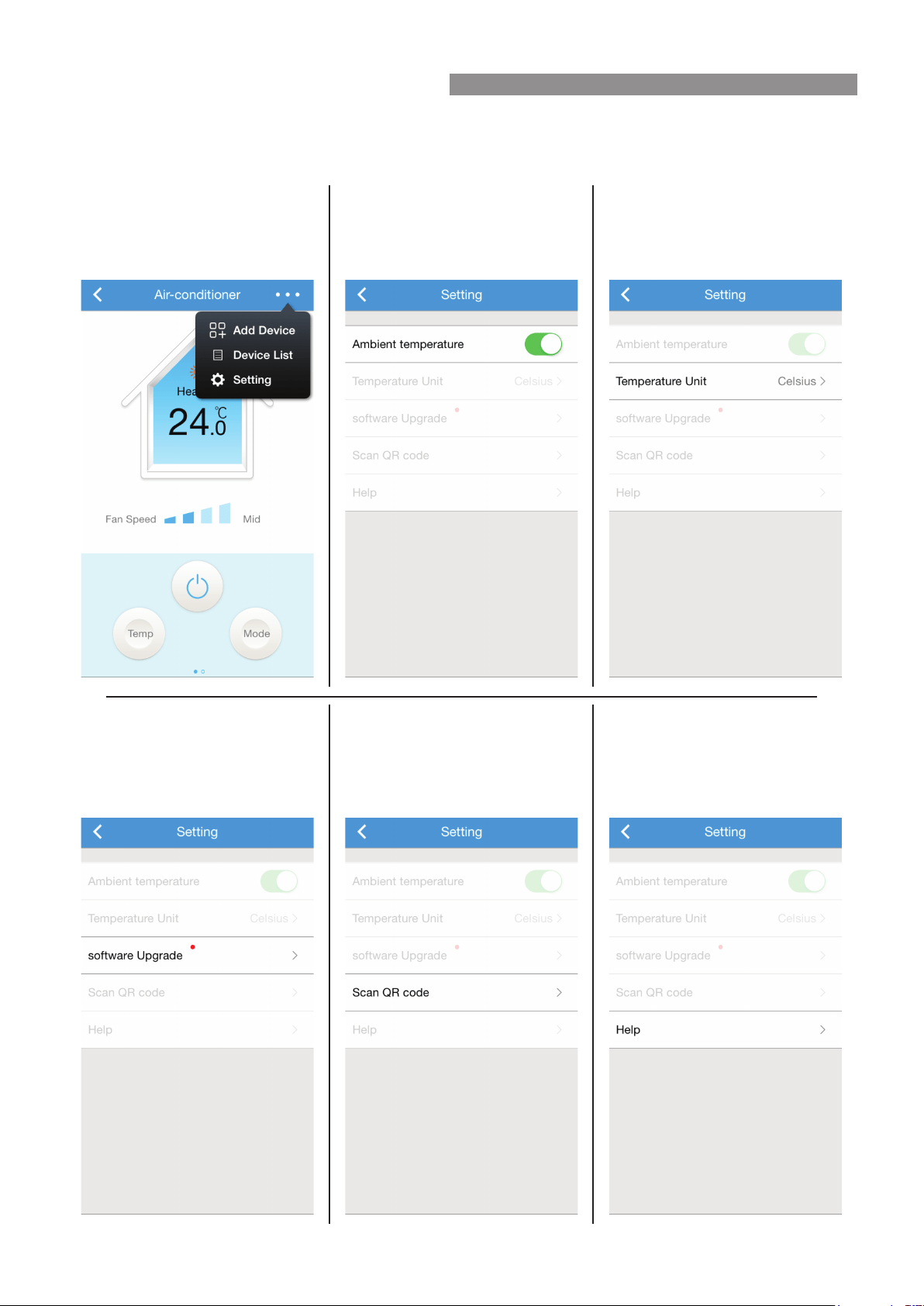
Direct access to the previously described AC Device related pages Add Device and Device List, is provided,
while the third option Setting enables access to additional App and AC device related settings.
Selecting the horizontal three dots
at the top right on the relevant pages
opens the advanced App setting
dialogue box.
Ambient Temperature, this toggle
shows or hides the current room
temperature display.
Temperature Unit, used to select
either Celsius or Fahrenheit as the
display unit of measure.
--
software Upgrade, checks for
updates to the AC Freedom App.
Either the Wi router or mobile
device MUST have an internet
connection to get App updates.
Scan QR code, same as described
in "WiFi Set Up" on page 4.
Help, App help instructions.
ADVANCED OPERATION
Rinnai 11 Split AC WiFi OM
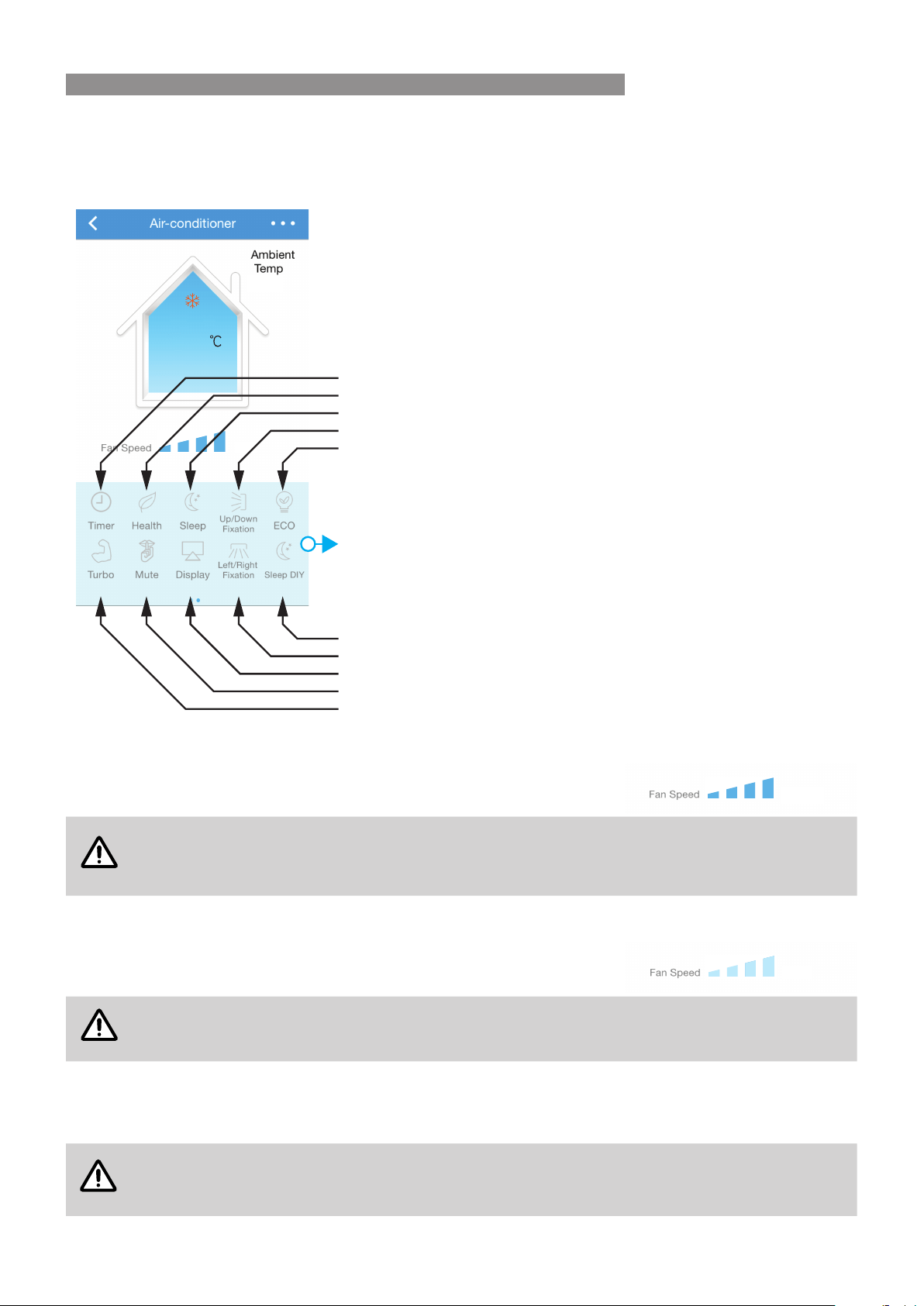
A set of more advanced control operations are also available. To open the advanced operation tab, swipe the on
the basic tab to the left.
To exit the advanced operation tab and return to the basic operation page swipe the advanced operation tab to the
right.
TURBO
Select this mode to achieve the quickest cooling times in summer or the quickest
heating times in winter.
NOTE
When the appliance is operating in AUTO, FAN or DRY modes the Turbo function is not available.
In turbo mode the fan is set to operate at the maximum output. Attempting to alter the fan speed
during TURBO mode operation will cancel this mode and return the appliance to manual operation.
MUTE (QUIET)
Select this mode to operate the appliance at it's quietest, ideal for when minimal
noise levels are desired. In Mute mode the Fan Speed slide bar displays mute.
NOTE
Attempting to alter the fan speed during Quiet mode operation will cancel this mode and return
the appliance to manual operation.
ECO - ECONOMY (COOLING ONLY)
In this mode the appliance automatically sets the operation to achieve the most economical cooling of the room.
NOTE
ECO mode operation runs for an 8 hour period, after which normal cooling operations will be
resumed, reselect ECO mode after this period to restart ECO mode operations again.
Be aware that ECO mode cooling times may be longer than those for non ECO mode cooling.
Cooling
22.0
31°C
Auto
Select Mute to operate the appliance at it's quietest
Select Turbo to cool or warm most quickly
Select Display to turn the Air Conditioner’s large digital display on or off
Select Left/Right to start or stop the hoizontal movement of air flow
Select Sleep DIY to create or load a customised a sleep mode
Select Up/Down to start or stop the verticle movement of air flow
Select Sleep to run the Air Conditioner in sleep mode
Health (currently has no funtion for the listed Air conditioner models)
Select Timer to set On and Off timers
Select ECO to achieve the most economical cooling of the room
Swipe advanced operations tab right to exit advanced operations
31°C
Cooling
22.0
Turbo
31°C
Cooling
22.0
Mute
ADVANCED OPERATION
Rinnai 12 Split AC WiFi OM
UP/DOWN (SWING)
Continuous Circulation: To adjust the direction of the air ow vertically for an even air circulation, select the Up/
Down button, this activates a continuous cyclic movement of the louvre.
Fixed Direction: Select the Up/Down button at any time to stop the cyclic movement of the louvre as desired.
CAUTION
DO NOT attempt to adjust the air deector louvres manually as this can result in damage to the
louvre movement mechanisms.
LEFT/RIGHT (SWING)
Continuous Circulation: To adjust the direction of the air ow Horizontally for an even air circulation, select the
Left/Right button, this activates a continuous cyclic movement of the louvre.
Fixed Direction: Select the Left/Right button at any time to stop the cyclic movement of the louvre as desired.
CAUTION
DO NOT attempt to adjust the air deector louvres manually as this can result in damage to the
louvre movement mechanisms.
DISPLAY
Turns the large digital display that is built into appliance and illuminates through the front cover of
the indoor unit on or o.
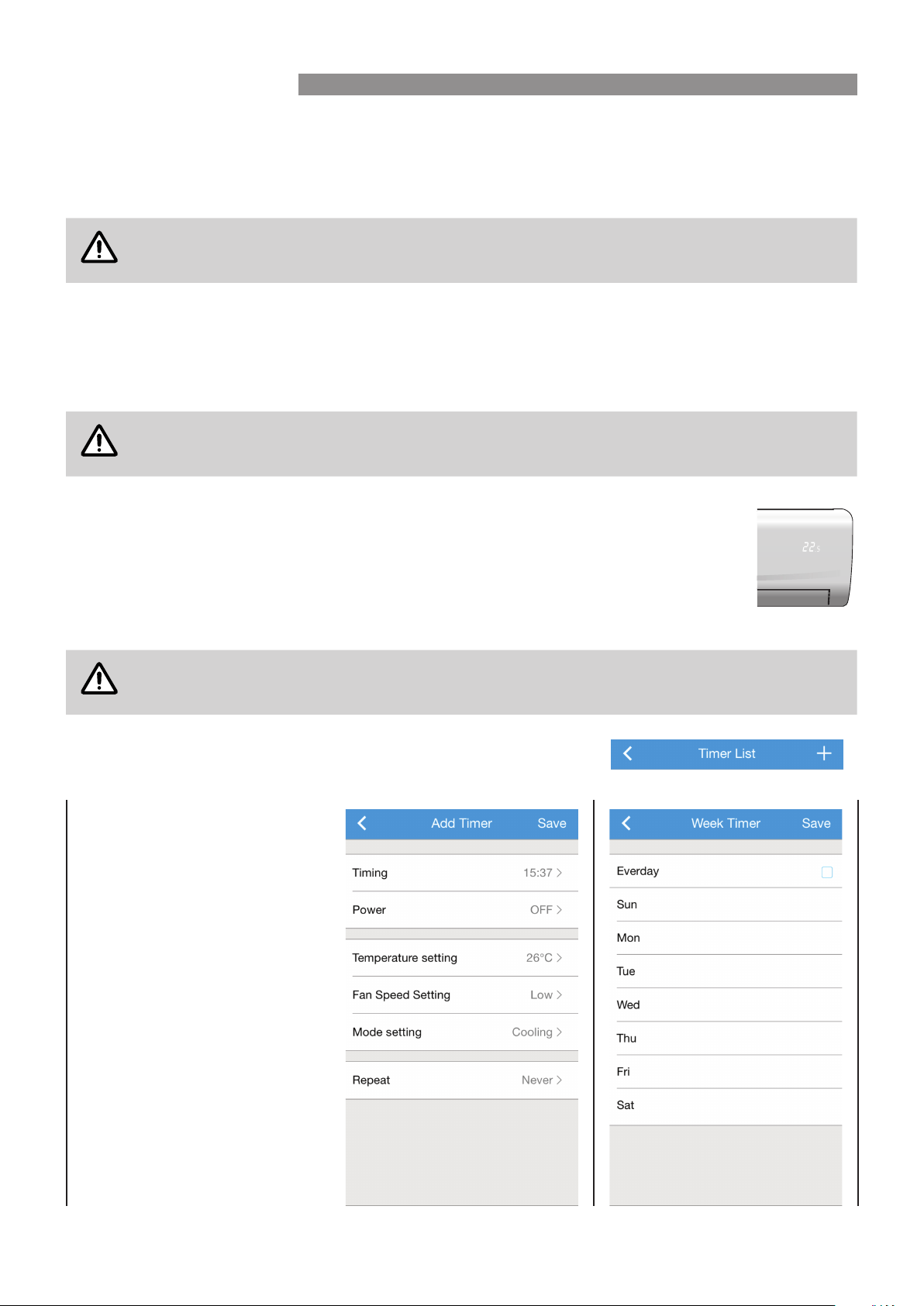
TIMER (ON / OFF Delay Timers)
To create, edit or delete a delay timer, select Timer, to open the Timer List page.
NOTE
Pages with a Save option will require saving before exiting. Exiting such a page without saving
will result in the loss of any unsaved edits.
Creating a new Delay Timer:
To add a new delay timer, select the + sign at the top right of the Timer list
page to open the Add Timer page.
Select and edit each of the following
as required.
Timing: sets the desired time delay.
Power: sets ON or OFF timer type.
Temperature: sets the temperature.
Fan Speed: sets the fan speed.
Mode: sets the operational mode
Repeat: opens the Week Timer
page, select the desired level of
frequency, select save the Add timer
page.
Save: after the timer parameters
have been set select Save, the new
timer will be added to the Timer List
page.
ADVANCED OPERATION
Rinnai 13 Split AC WiFi OM
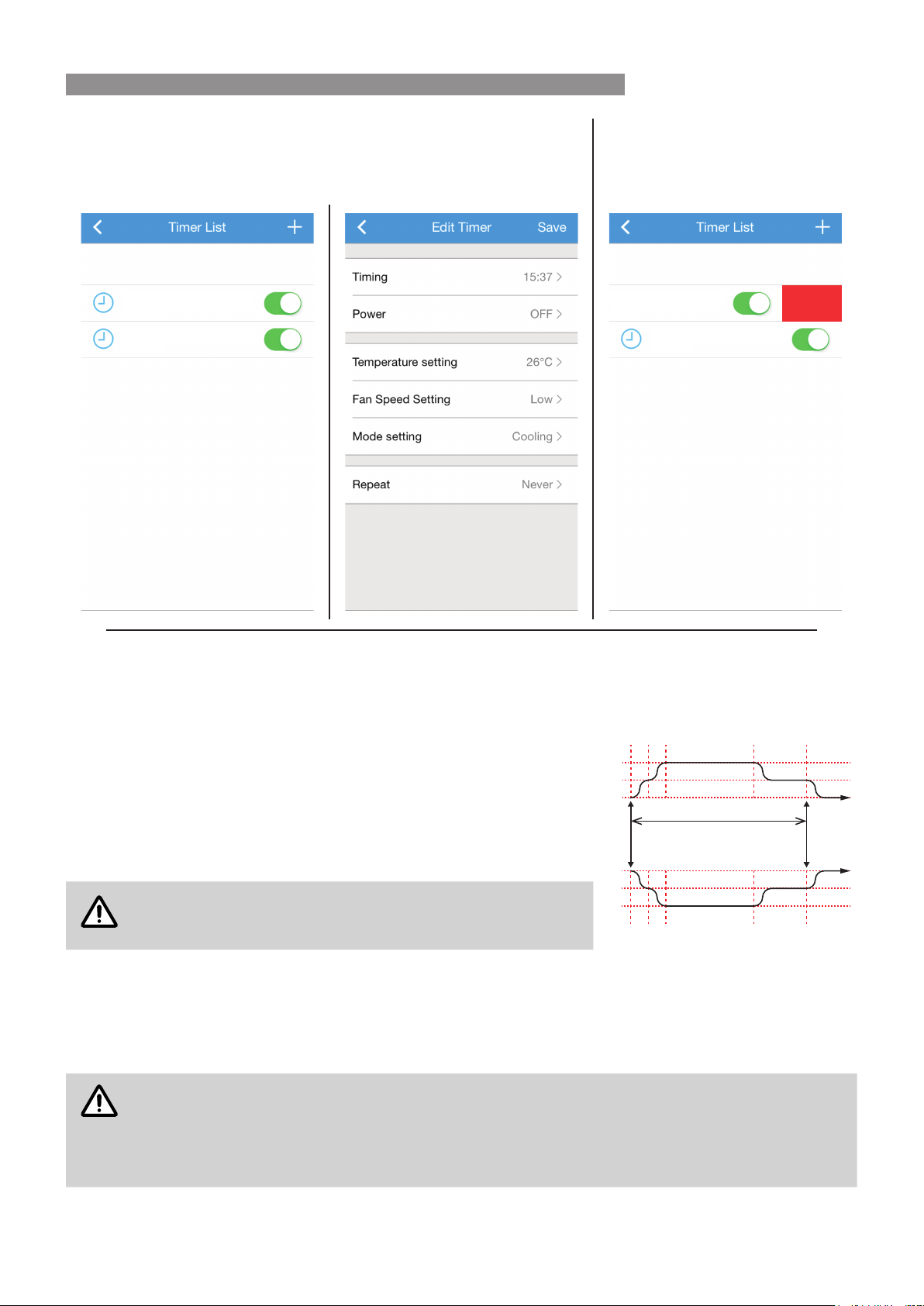
Editing a Delay Timer:
To edit an existing listing from the Timer list page, tap on the name of the
desired listing, this will open the Edit Timer page which functions the same
as the Add Timer page. Saved listings may then be toggled ON or OFF.
To permanently delete listings swipe
the selected listing to the left and
select Delete.
Everyday
Never
08:15
22:30
ON 22°C LMid Coolling
OFF 24°C Low Coolling
Never
08:15
Everyday
22:30
ON 22°C LMid Coolling
OFF 24°C Low Coolling
Delete
--
HEALTH
Currently has no function for the listed Air Conditioner models.
SLEEP
For Cooling: Allows the set temperature to increase and decrease over a
10 hour period at pre-set time intervals to maintain your comfort while saving
energy (see graph right).
For Heating: Allows the set temperature to decrease and increase over a
10 hour period at pre-set time intervals to maintain your comfort while saving
energy (see graph right).
NOTE
Sleep mode is not available in FAN only mode.
The Delay O Timer can be used in conjunction with SLEEP
mode to turn o the Air Conditioner automatically.
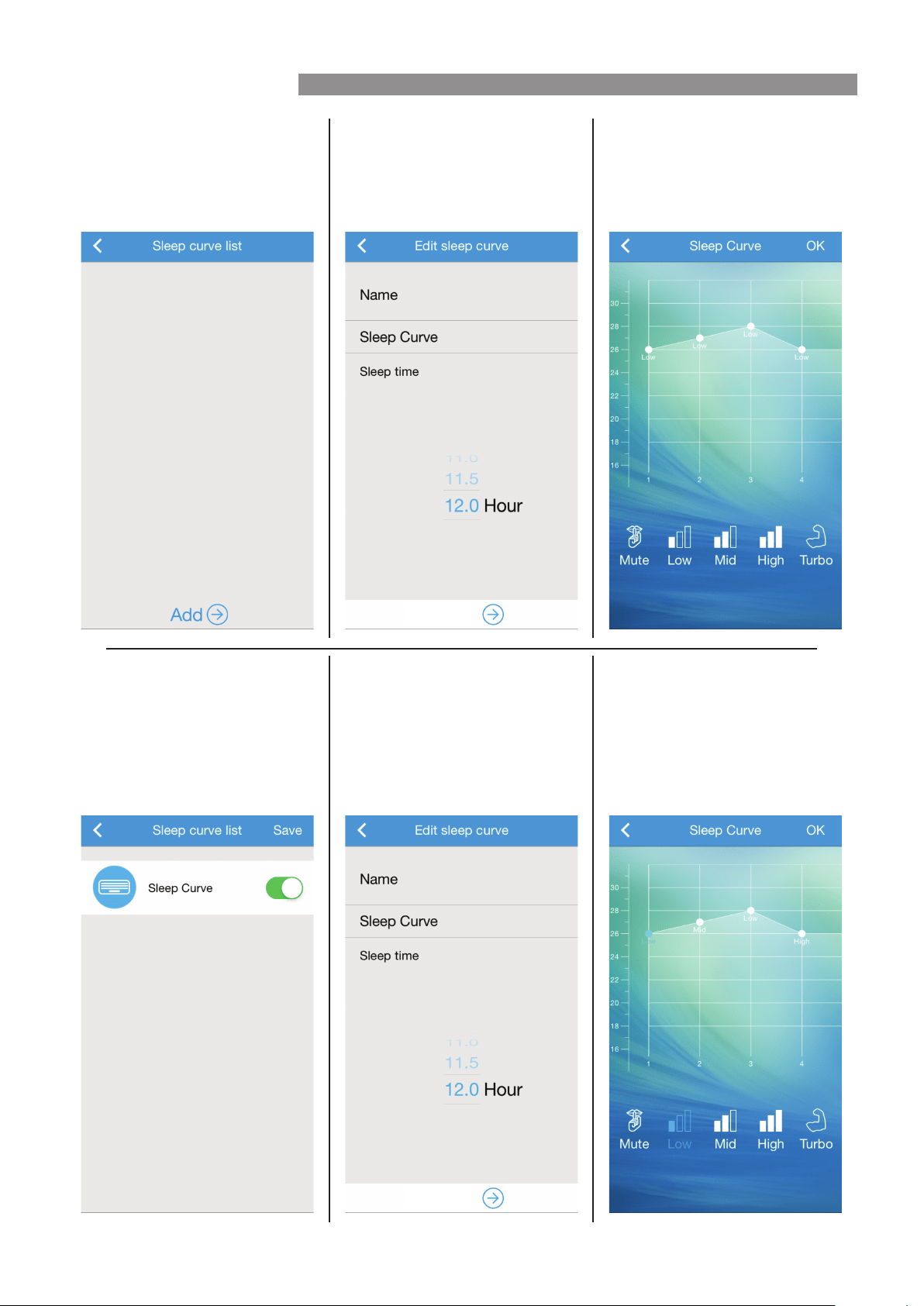
SLEEP DIY
This is a user denable version of the Sleep function, allowing the user to create a customised sleep curve based
Time (from a minimum of 0.5 hour to 12 hours in 0.5 hour increments), Temperature and Fan Speed (choose from
Low, Mid and High or use the Mute and Turbo functions) via an interactive graph.
NOTE
Only one sleep curve program can be saved at any time. It is important to note that if the power
supply to the Air Conditioner is interrupted or turned o then the settings for the saved sleep
curve will be lost and will need to be re-entered.
Pages with a Save option will require saving before exiting. Exiting such a page without saving
will result in the loss of any unsaved edits.
-1°C
-1°C
C°C = Set cooling temperature
H°C = Set heating temperature
2
Sleep mode 1O hours
1 107
1°C
C°C
H°C
1°C
Sleep Mode
Finishes
Sleep Mode
Starts
0
21 1070
ADVANCED OPERATION
Rinnai 14 Split AC WiFi OM
Select Sleep DIY to open Sleep
curve list page and select Add from
the bottom of the page.
This opens the Edit sleep curve
page, type in a name and select the
desired sleep operation time, then
select Create from the bottom of
the page.
Use the interactive graph to edit fan
and temperature settings for desired
plot points (it maybe necessary
to swipe right to access other plot
points), select OK to nish.
Create
--
Select Save to add the Sleep curve
to the Sleep curve list page.
Toggle the sleep curve ON or OFF
as required, noting that the toggle
state MUST BE saved for it to take
eect.
To edit the Sleep curve, press on the
Name of that listing for 3 seconds.
This opens the Edit sleep curve
page, type in a new name (optional)
and select the desired sleep
operation time, then select Edit
from the bottom of the page.
Use the interactive graph to edit fan
and temperature settings for desired
plot points), select OK to nish.
Ensure to select Save before exiting
the following Sleep curve list page
to save the edited changes.
Edit
ADVANCED OPERATION

Rinnai 15 Split AC WiFi OM
NOTES
Rinnai 16 Split AC Q Series WiFi OM Issue 1 - August 2018
CONTACTS
Rinnai has a Service and Spare Parts network with personnel
who are fully trained and equipped to give the best service on
your Rinnai appliance. If your appliance requires service,
please call our National Help Line. Rinnai recommends that this
appliance be serviced at least every 2 years.
With our policy of continuous improvement, we reserve the
right to change, or discontinue at any time, specifications or
designs without notice.
Australia Pty. Ltd.
ABN 74 005 138 769
100 Atlantic Drive
Keysborough, Victoria 3173
P.O. Box 460
Braeside, Victoria 3195
AU45204
Product Sales & Service National Help Line
Tel: 1300 555 545* Fax: 1300 555 655
*
Monday to Friday, 8.00am to 5.30pm EST
For further information visit www.rinnai.com.au
or email enquir[email protected]