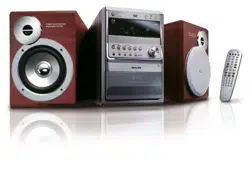
MCD708
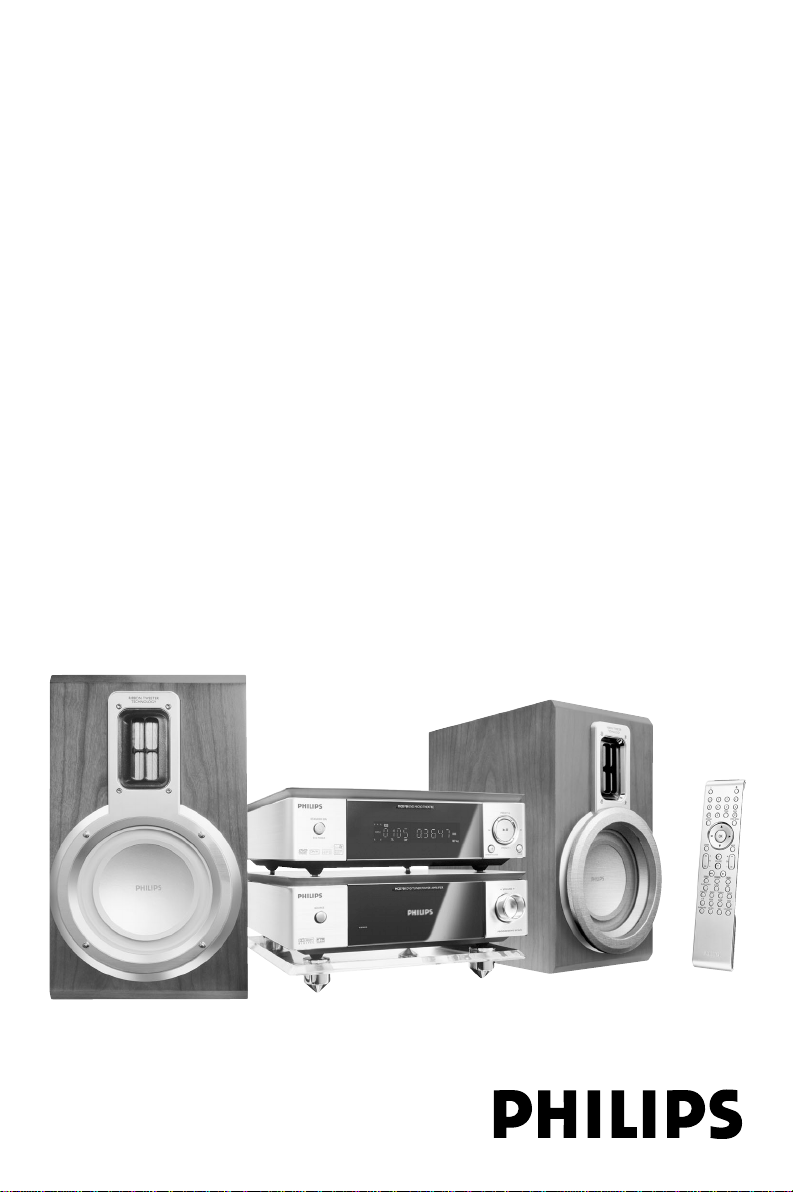
DVD Micro Theatre
User manual
Manuel d'utilisation
Manual del usuario
Benutzerhandücher
Gebruikershandleidingen
Manuale per l'utente
Användarhandböckerna
Brugermanual
pg 001-039_MCD708_-22 2006.10.31, 15:461
2
Important notes for users in the
U.K.
Mains plug
This apparatus is fitted with an approved 13
Amp plug. To change a fuse in this type of plug,
proceed as follows:
1 Remove fuse cover and fuse.
2 Fit new fuse, which should be a BS1362 3-
Amp, A.S.T.A. or BSI approved type.
3 Refit the fuse cover.
If the fitted plug is not suitable for your socket
outlets, it should be cut off and an appropriate
plug fitted in its place.
If the mains plug contains a fuse, it should have
a value of 3 Amp. If a plug without a fuse is
used, the fuse at the distribution board should
not be greater than 3 Amp.
Note: The severed plug must be disposed of to
avoid a possible shock hazard should it be
inserted into a 13-Amp socket elsewhere.
How to connect a plug
The wires in the mains lead are coloured with
the following code: blue = neutral (N),
brown = live (L).
¶ As these colours may not correspond with the
colour markings identifying the terminals in
your plug, proceed as follows:
– Connect the blue wire to the terminal
marked N or coloured black.
– Connect the brown wire to the terminal
marked L or coloured red.
– Do not connect either wire to the earth
terminal in the plug marked E (or e) or
coloured green (or green and yellow).
Before replacing the plug cover, make certain
that the cord grip is clamped over the sheath
of the lead - not simply over the two wires.
Copyright in the U.K.
Recording and playback of material may
require consent. See Copyright Act 1956 and
The Performer’s Protection Acts 1958 to 1972.
Norge
Typeskilt finnes på apparatens underside.
Observer: Nettbryteren er sekundert
innkoplet. Den innebygde netdelen er
derfor ikke frakoplet nettet så lenge
apparatet er tilsluttet nettkontakten.
For å redusere faren for brann eller elektrisk
støt, skal apparatet ikke utsettes for regn eller
fuktighet.
Italia
DICHIARAZIONE DI CONFORMITA’
Si dichiara che l’apparecchio MCD708 Philips
risponde alle prescrizioni dell’art. 2 comma 1
del D.M. 28 Agosto 1995 n. 548.
Fatto a Eindhoven
Philips Consumer Electronics
Philips, Glaslaan 2
5616 JB Eindhoven, The Netherlands
CAUTION
Use of controls or adjustments or
performance of procedures other than
herein may result in hazardous
radiation exposure or other unsafe
operation.
VAROITUS
Muiden kuin tässä esitettyjen
toimintojen säädön tai asetusten
muutto saattaa altistaa vaaralliselle
säteilylle tai muille vaarallisille
toiminnoille.
pg 001-039_MCD708_-22 2006.10.31, 15:462

3
This product incorporates copyright protection
technology that is protected by method claims of
certain U.S. patents and other intellectual
property rights owned by Macrovision
Corporation and other rights owners. Use of this
copyright protection technology must be
authorized by Macrovision Corporation, and is
intended for home and other limited viewing
purposes only unless otherwise authorized by
Macrovision Corporation. Reverse engineering
or disassembly is prohibited.
DivX, DivX Certified,
and associated logos
are trademarks of
DivXNetworks, Inc
and are used under
license.
Windows Media is a trademark of
Microsoft Corporation.
Manufactured under license from Dolby
Laboratories.
"Dolby", "Pro Logic" and the double-D symbol
are trademarks of Dolby Laboratories.
MANUFACTURED UNDER LICENSE FROM
DIGITAL THEATER SYSTEMS, INC. US PAT. NO
5,451,942,5,956,674, 5,974,380, 5,978,762 AND
OTHER WORLDWIDE PATENTS ISSUED AND
PENDING. "DTS" AND "DTS DIGITAL
SURROUND" ARE RESISTERED TRADEMARKS
OF DIGITAL THEATER SYSTEMS, INC.
COPYRIGHT 1996, 2000 DIGITAL THEATER
SYSTEMS, INC. ALL RIGHTS
RESERVED.
DK
Advarsel: Usynlig laserstråling ved åbning
når sikkerhedsafbrydere er ude af funktion.
Undgå utsættelse for stråling.
Bemærk: Netafbryderen er sekundært
indkoblet og ofbryder ikke strømmen fra
nettet. Den indbyggede netdel er derfor
tilsluttet til lysnettet så længe netstikket
sidder i stikkontakten.
S
Klass 1 laseraparat
Varning! Om apparaten används på annat
sätt än i denna bruksanvisning specificerats,
kan användaren utsättas för osynlig
laserstrålning, som överskrider gränsen för
laserklass 1.
Observera! Stömbrytaren är sekundärt
kopplad och bryter inte strömmen från
nätet. Den inbyggda nätdelen är därför
ansluten till elnätet så länge stickproppen
sitter i vägguttaget.
SF
Luokan 1 laserlaite
Varoitus! Laitteen käyttäminen muulla kuin
tässä käyttöohjeessa mainitulla tavalla
saattaa altistaa käyttäjän
turvallisuusluokan 1 ylittävälle
näkymättömälle lasersäteilylle.
Oikeus muutoksiin varataan. Laite ei saa
olla alttiina tippu-ja roiskevedelle.
Huom. Toiminnanvalitsin on kytketty
toisiopuolelle, eikä se kytke laitetta irti
sähköverkosta. Sisäänrakennettu verkko-
osa on kytkettynä sähköverkkoon aina
silloin, kun pistoke on pistorasiassa.
pg 001-039_MCD708_-22 2006.10.31, 15:463
4
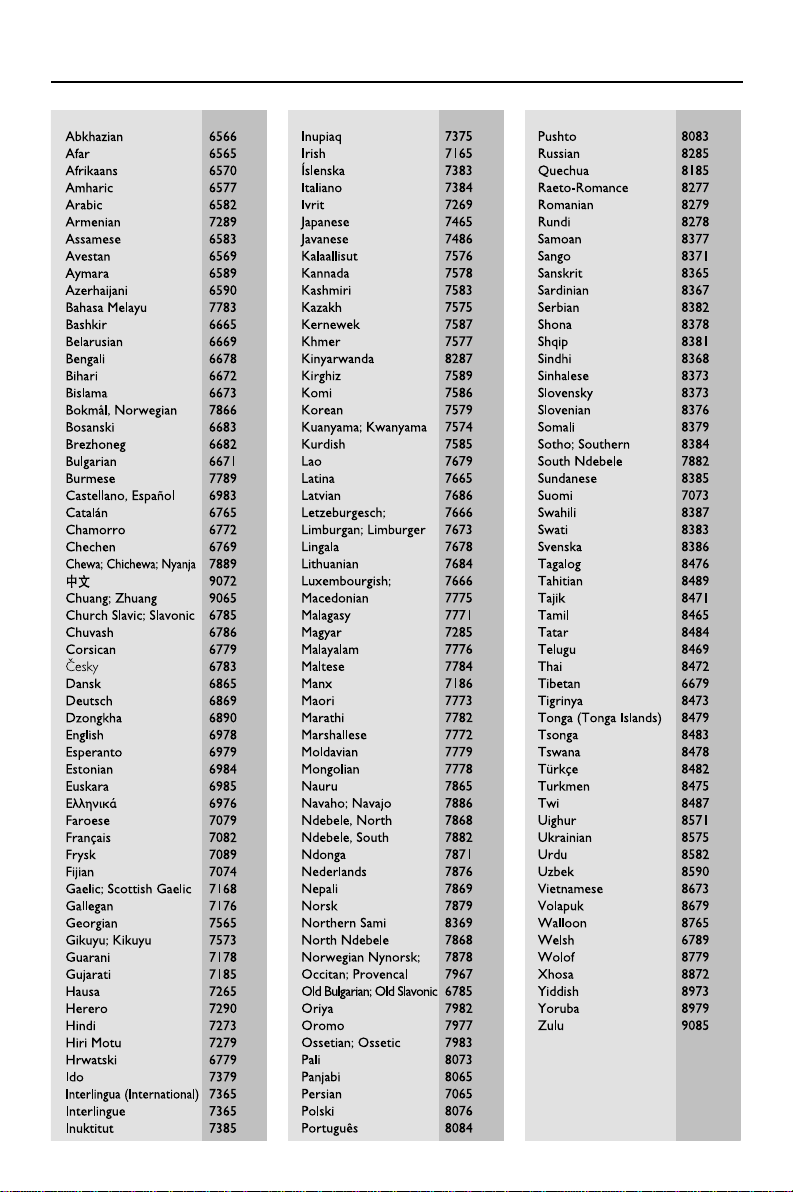
Language Code
pg 001-039_MCD708_-22 2006.10.31, 15:464
5
English
Français
EspañolDeutschNederlandsItalianoSvenskaDansk
Index
English ------------------------------------------------ 6
Français -------------------------------------------- 40
Español --------------------------------------------- 74
Deutsch ------------------------------------------- 109
Nederlands -------------------------------------- 145
Italiano -------------------------------------------- 179
Svenska ------------------------------------------- 214
Dansk --------------------------------------------- 248
pg 001-039_MCD708_-22 2006.10.31, 15:465
6
English
General Information
Features .................................................................. 8
Supplied accessories ............................................ 8
Environment information ................................... 8
Installation .............................................................. 8
Maintenance .......................................................... 9
Connections
Step 1: Placing speakers .................................... 10
Step 2: Connecting speakers ............................ 11
Step 3: Connecting the control cable ............ 11
Step 4: Connecting TV ................................ 11~13
Using SCART jack
Using Composite Video jack
Using Component Video jacks
Using S-Video jack
Using an accessory RF modulator
Step 5: Connecting FM/MW antennas ........... 13
Step 6: Connecting the power cord ............... 14
Additional: Connecting additional equipment14
Functional Overview
DVD player and power amplifier .................... 15
Remote control ........................................... 16~17
Getting Started
Step 1: Inserting batteries into the Remote
Control ................................................................. 18
Using the Remote Control to operate the Player
Step 2: Setting up the TV ........................... 18~19
Setting up Progressive Scan feature
To deactivate Progressive manually
Step 3: Setting language preference ................ 20
Setting the OSD Language
Setting the Audio, Subtitle and Disc Menu language
Basic Functions
Switching the system on/off ............................. 21
Switching the system to Eco Power Standby
mode ..................................................................... 21
Power-saving automatic standby ..................... 21
Volume control ................................................... 21
Sound control ..................................................... 21
DBB (Dynamic Bass Boost)
DSC (Digital Sound Control)
LOUDNESS
Dimming the display screen ............................. 21
Disc Operations
Playable Discs ...................................................... 22
Playing discs ......................................................... 22
Using the Disc Menu ......................................... 23
Basic playback controls .............................. 23~25
Pausing playback (DVD/VCD/CD/MP3/WMA)
Selecting a track/chapter/title (DVD/VCD/CD/
MP3/WMA)
Resuming playback from the last stopped point
(DVD/VCD/CD/MP3/WMA)
Zoom (DVD/VCD/JPEG)
Repeat (DVD/VCD/CD/MP3/WMA)
Repeat A-B (DVD/VCD/CD/MP3/WMA)
Slow Motion (DVD/VCD)
Program (not for Picture CD)
Forward/Reverse Searching (DVD/VCD/CD/MP3/
WMA)
Time search & search by chapter/track number
(DVD/VCD/CD/MP3/WMA)
Information display during playback (not for
Picture CD)
Special disc features ........................................... 25
Playing a Title (DVD)
Camera Angle (DVD)
Changing the Audio Language (for DVD recorded
with multiple languages)
Changing the Audio Channel (for VCD only)
Subtitles (DVD)
Playing MP3/WMA/JPEG Picture disc ............ 25
Playing MP3/WMA disc ..................................... 25
General operation
Playback selection
Playing JPEG Picture CD ................................... 26
General operation
Playback selection
Special JPEG features ......................................... 26
Preview function (JPEG)
Zoom picture (JPEG)
Slide show playback modes (JPEG)
Playback with multi-angles (JPEG)
Playing a DivX disc ............................................. 27
Contents
pg 001-039_MCD708_-22 2006.10.31, 15:466

7
English
Contents
System Menu Options
Basic Operations ................................................ 28
General Setup Page ............................................ 28
TV Display
OSD Language
Screen Saver
DIVX(R) VOD registration code
Audio Setup Page ........................................ 29~30
Digital Audio Setup
Dolby Digital Setup
3D Processing
HDCD
Night Mode
Video Setup Page......................................... 30~31
Video Output
TV Mode
Color Setting
Preference Page ............................................ 31-32
Parental
Default
Password Setup Page ......................................... 32
Password mode
Password
Other Functions
Radio reception .................................................. 33
Tuning to radio stations
Presetting radio stations
Listening to preset radio stations
RDS ....................................................................... 33
Setting the RDS clock ....................................... 33
Setting the clock ................................................. 33
Setting sleep/wake-up timer ............................ 34
Sleep timer setting
Wake-up timer setting
Specifications ........................................... 35
Tr oubleshooting ............................. 36~36
Glossary ......................................................... 39
pg 001-039_MCD708_-22 2006.10.31, 15:467

8
English
Features
Your DVD Micro Theatre with 2.0 channel full
digital amplifier creates the same dynamic sound
qualities that you find in full-fledged cinemas and
incorporates some of the best features in home
theater technology.
Other features include:
Built-in DTS and Dolby Digital decoder,
supporting Incredible Surround and DSC sound
setting.
Additional Component Connections
Lets you connect other audio and audio/visual
components to the DVD micro theatre.
Night mode
Lets you compress the dynamic range, reducing
the difference in loudness between different
sounds in Dolby Digital mode.
Parental Control (Rating Level)
Lets you set a rating level so that your children
cannot watch a DVD that has a rating higher
than you set.
Sleep/Wake-up Timer
Enables the system to switch on/off automatically
at a preset time.
Progressive Scan
Provides high quality flicker-free images for film
based sources. When a picture refreshes, its
vertical resolution can double to 525 lines.
Note:
–To fully enjoy the progressive scan feature, you
need a progressive scan TV.
Supplied accessories
– Remote control with two AAA batteries
– MW loop antenna
– FM wire antenna
– Audio (white, red) and composite video
(yellow) cables (2-in-1)
–SCART cable
– Control cable
– Stand for the DVD player and power
amplifier
–2 loudspeaker boxes including 2 speaker
cables
– This User Manual and a Quick Start Guide
If any item is damaged or missing, contact
your retailer or Philips.
Environmental information
All unnecessary packaging has been omitted. We
have tried to make the packaging easily separable
into three materials: cardboard (box),
polystyrene foam (buffer) and polyethylene (bags,
protective foam sheet).
Your system consists of materials which can be
recycled and reused if disassembled by a
specialised company. Please observe the local
regulations regarding the disposal of packaging
materials, exhausted batteries and old
equipment.
Installation
● Place the system on a flat, hard, and stable
surface.
● If installed in a cabinet, allow about 10cm (4
inches) of free space all around the system for
adequate ventilation.
General Information
pg 001-039_MCD708_-22 2006.10.31, 15:468
9
English
General Information
● Keep the system away from extreme
temperatures or humidity.
● Never expose the system to drippings or
splashings.
● Never place objects filled with liquids such as
vases on the system.
● Never place sources of naked flame such as
lighted candles on the system.
● Install the system near the AC outlet where the
AC power plug can be reached easily.
● The ventilation should not be impeded by
covering the ventilation openings with items,
such as newpapers, table-cloths, curtains, etc.
Maintenance
● When a disc becomes dirty, clean it with a
cleaning cloth. Wipe the disc from the center out,
in a straight line.
● Do not expose the player, batteries or discs to
humidity, rain, sand or excessive heat (caused by
heating equipment or direct sunlight). Always
keep the disc tray closed to avoid dust on the
lens.
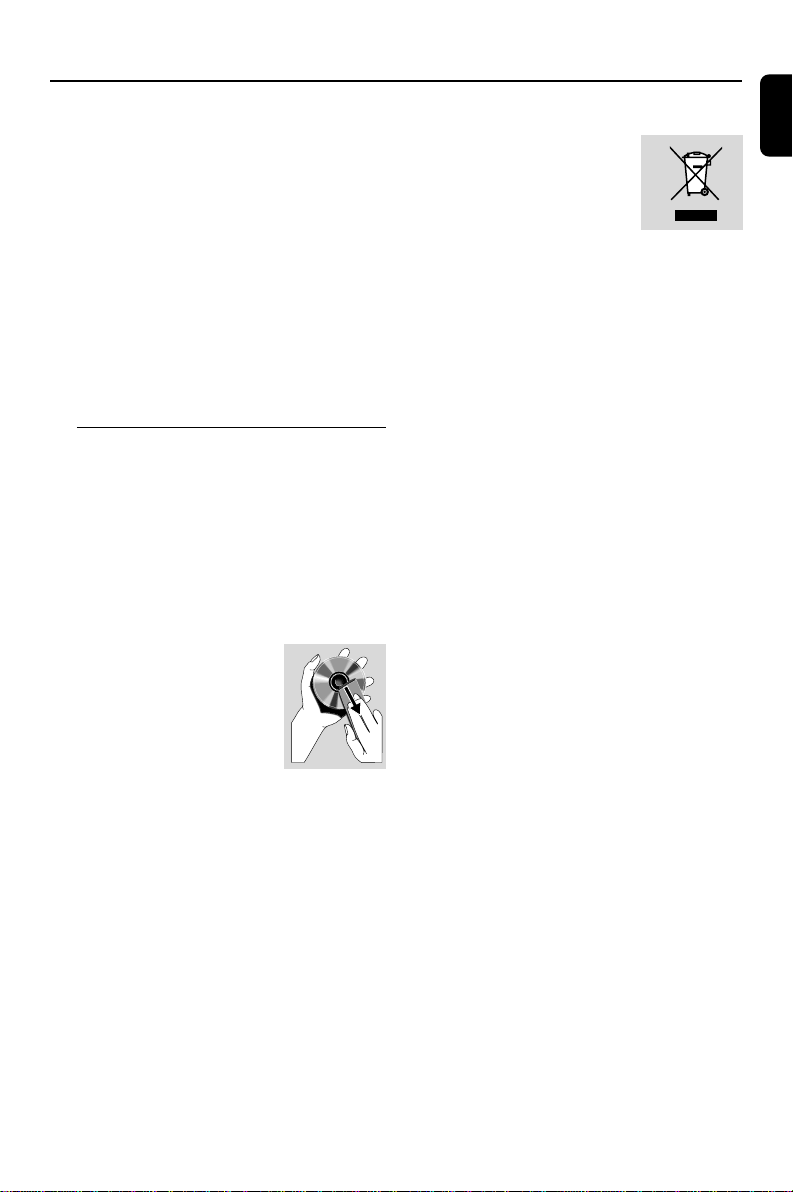
● Do not use solvents such as
benzene, thinner, commercially
available cleaners, or anti-static
spray intended for colour discs.
● The lens may cloud over when
the player is suddenly moved
from a cold to warm environment, making it
impossible to play a disc. Leave the player in a
warm environment until the moisture
evaporates.
Disposal of your old product
Your product is designed and
manufactured with high quality
materials and components,
which can be recycled and
reused.
When this crossed-out wheeled bin symbol is
attached to a product, it means the product is
covered by the European Directive 2002/96/EC.
Please obtain information regarding the local
separate collection system for electrical and
electronic products.
Please act according to your local rules and do
not dispose of your old products with your
normal household waste. The correct disposal of
your old product will help prevent potential
negative impact on the environment and human
health.
pg 001-039_MCD708_-22 2006.10.31, 15:469
10
English
IMPORTANT!
– The type plate is located at the
bottom of the system.
– Before connecting the AC power cord
to the wall outlet, ensure that all
other connections have already been
made.
–Never make or change any
connections with the power switched on.
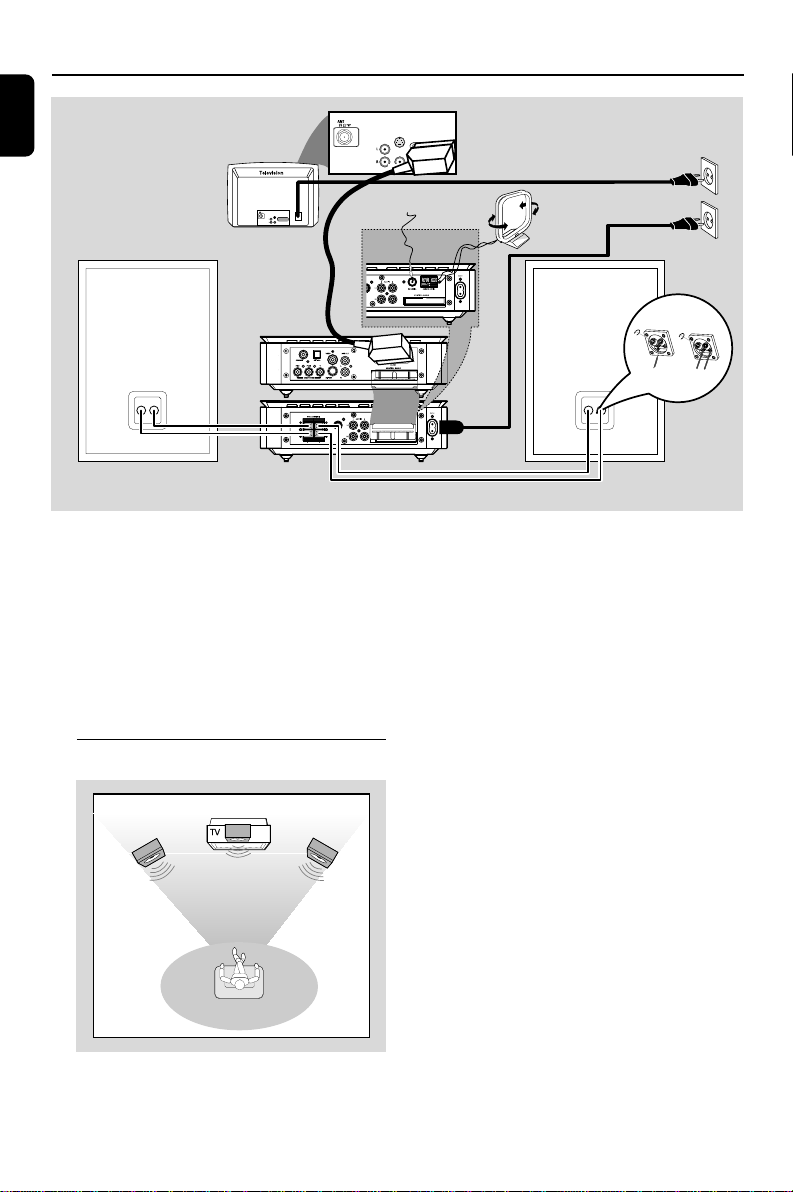
Step 1: Placing speakers
Front
speaker
( left )
Front
speaker
( right )
VIEWING AREA
Place the front left and right speakers at equal
distances from the TV set and at an angle of
approximately 45 degrees from the listening
position.
Connections
Notes:
–To avoid magnetic interference, do not place
the front speakers too close to your TV set.
– Allow adequate ventilation around the DVD
system.
AUDIO
IN
S-VIDEO
IN
VIDEO IN
TV IN
AUDIO
IN
S-VIDEO
IN
VIDEO IN
TV IN
SUB WOOFER
LINE OUT
O
OFER
1
2
AC power cord
Speaker
(right)
Speaker
(left)
FM antenna
MW antenna
pg 001-039_MCD708_-22 2006.10.31, 15:4610
11
English
Connections
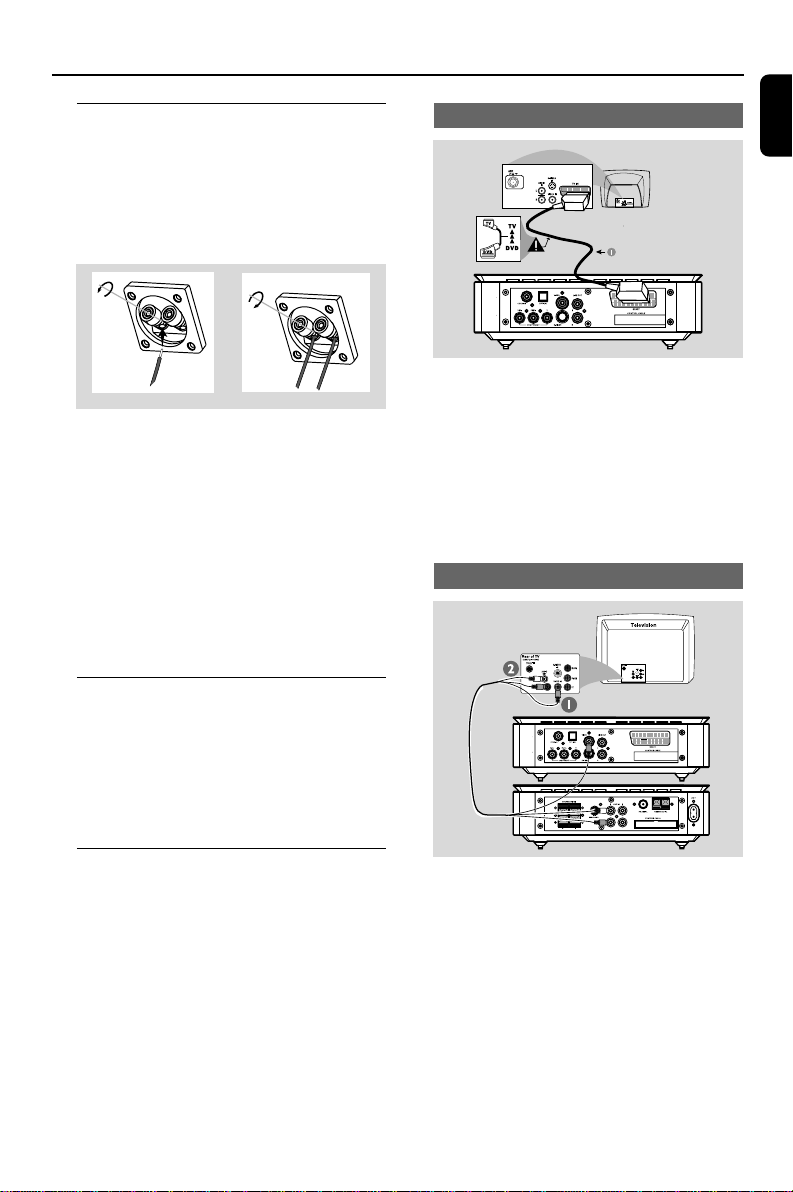
Step 2: Connecting speakers
Connect the speaker cables to the SPEAKERS
terminals-right speaker to “R” and left speaker to
“L”, coloured (marked) cable to “+” and black
(unmarked) cable to “–”. Fully insert the stripped
portion of the speaker wire into the terminal as
shown.
1
2
Notes:
– Ensure that the speaker cables are correctly
connected. Improper connections may damage the
system in the event of short-circuit.
–For optimal sound performance, use the
supplied speakers.
– Do not connect more than one speaker to any
one pair of +/- speaker jacks.
– Do not connect speakers with an impedance
lower than the speakers supplied. Please refer to
the SPECIFICATIONS section of this manual.
Step 3: Connecting the control
cable
● Connect the serial port marked “CONTROL
CABLE” at the rear of the DVD player to the
same port at the rear of the power amplifier
with the supplied flat control cable.
Step 4: Connecting TV
IMPORTANT!
–You only need to make one video
connection from the following options,
depending on the capabilities of your TV.
– Connect the DVD system directly to
the TV.
–A SCART connection allows you to
use features both Audio and Video
features on the DVD Player.
Using SCART jack
● Use the SCART cable (black) to connect the
SCART jack (SCART) on the DVD player to
the corresponding SCART input jacks on the TV.
Note:
– Ensure that the “TV” marking on the SCART
cable is connected to the TV set and “DVD”
marking on the SCART cable is connected to the
DVD Player.
Using Composite Video jack
1 Use the composite video connectors (yellow) of
the supplied audio and composite video cables
(2-in-1) to connect the VIDEO OUT jack on
the DVD system to the video input jack (or
labeled as A/ V In, CVBS, Composite or
Baseband) on the TV.
2 To listen to the TV channels through the DVD
system, use the audio connectors (white/ red) of
the supplied audio and composite video cables
(2-in-1) to connect the AUX IN jacks to the
corresponding AUDIO OUT jacks on the TV.
pg 001-039_MCD708_-22 2006.10.31, 15:4611
12
English
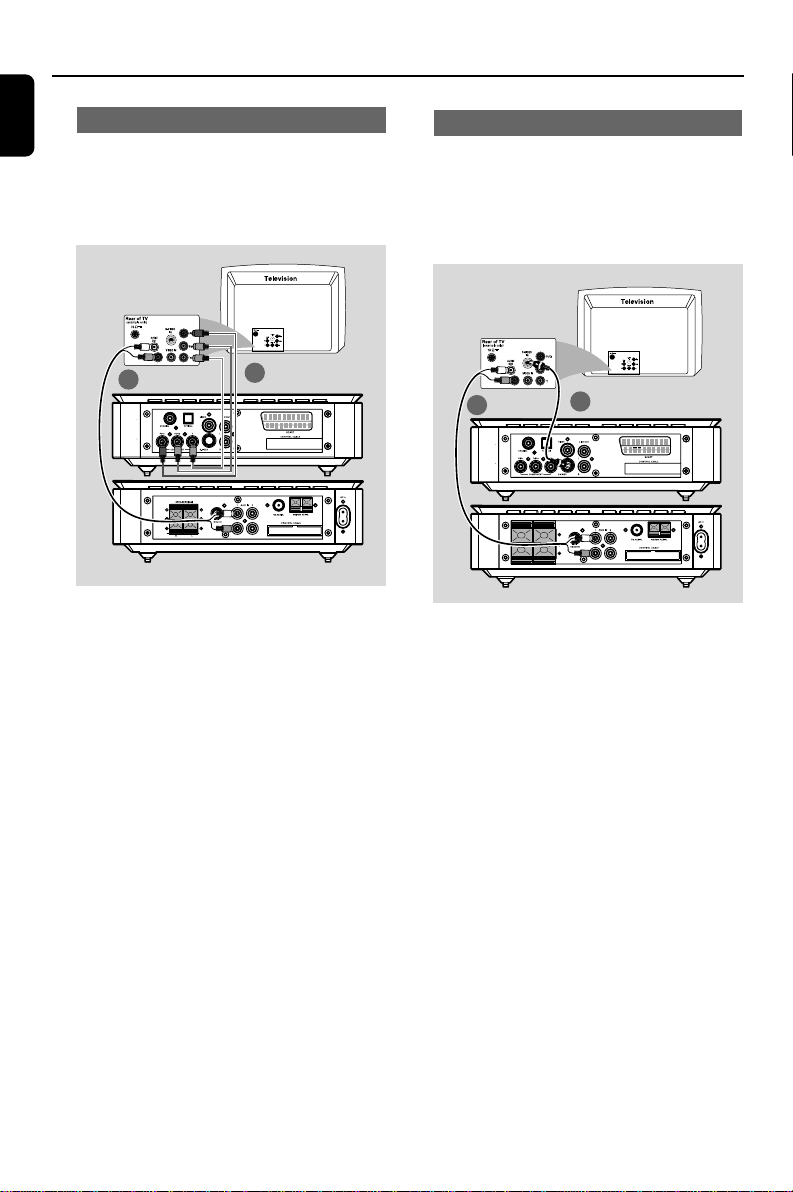
Using S-Video jack
IMPORTANT!
– If S-Video is used for DVD playback
connection, the VIDEO OUT setting on
the system will have to be changed
accordingly.
1
2
1 Use an S-Video cable (not supplied) to connect
the S-VIDEO jack of the DVD system to the S-
Video input jack (or labeled as Y/C or S-VHS) on
the TV.
2 To listen to the TV channels through the DVD
system, use the audio connectors (white/ red) of
the supplied audio and composite video cables
(2-in-1) to connect AUX IN jacks to the
corresponding AUDIO OUT jacks on the TV.
Connections
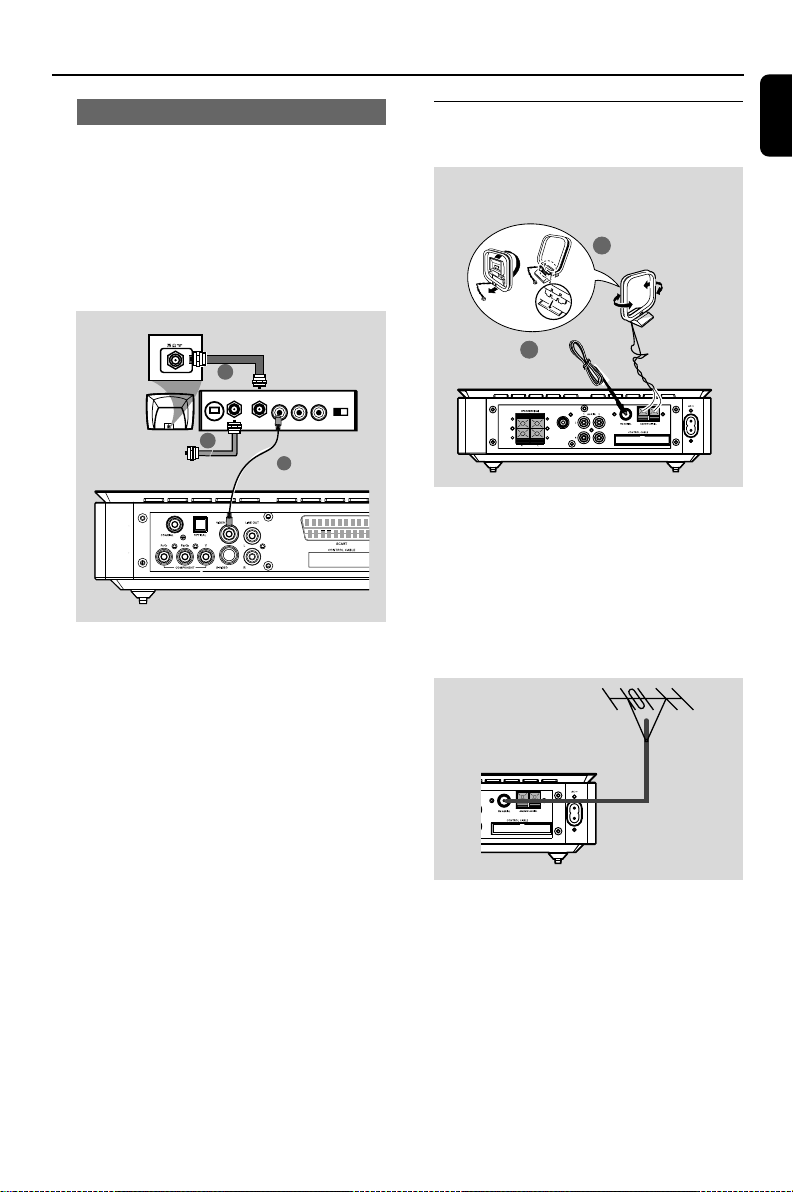
Using Component Video jacks (Y Pb Pr)
IMPORTANT!
– The progressive scan video quality is
only possible when using Y Pb Pr. A
progressive scan TV is required.
1
2
1 Use the component video cables (red/blue/
green - not supplied) to connect the Y Pb Pr
jacks of the DVD system to the corresponding
Component video input jacks (or labeled as Y
Pb/Cb Pr/Cr or YUV) on the TV.
2 To listen to the TV channels through the DVD
system, use the audio connectors (white/ red) of
the supplied audio and composite video cables
(2-in-1) to connect AUX IN jacks to the
corresponding AUDIO OUT jacks on the TV.
3 If you are using a Progressive Scan TV
(Progressive scan or Proscan feature has to be
indicated on the TV), to activate TV Progressive
Scan, please refer to your TV user manual. For
DVD system Progressive Scan function, see
“Getting Started-Setting up Progressive Scan
feature”.
Note:
– If your TV does not support Progressive Scan,
you will not be able to view the picture.
Press SYSTEM on the remote control to exit the
system menu followed by DISC to exit progressive
scan.
pg 001-039_MCD708_-22 2006.10.31, 15:4612
13
English
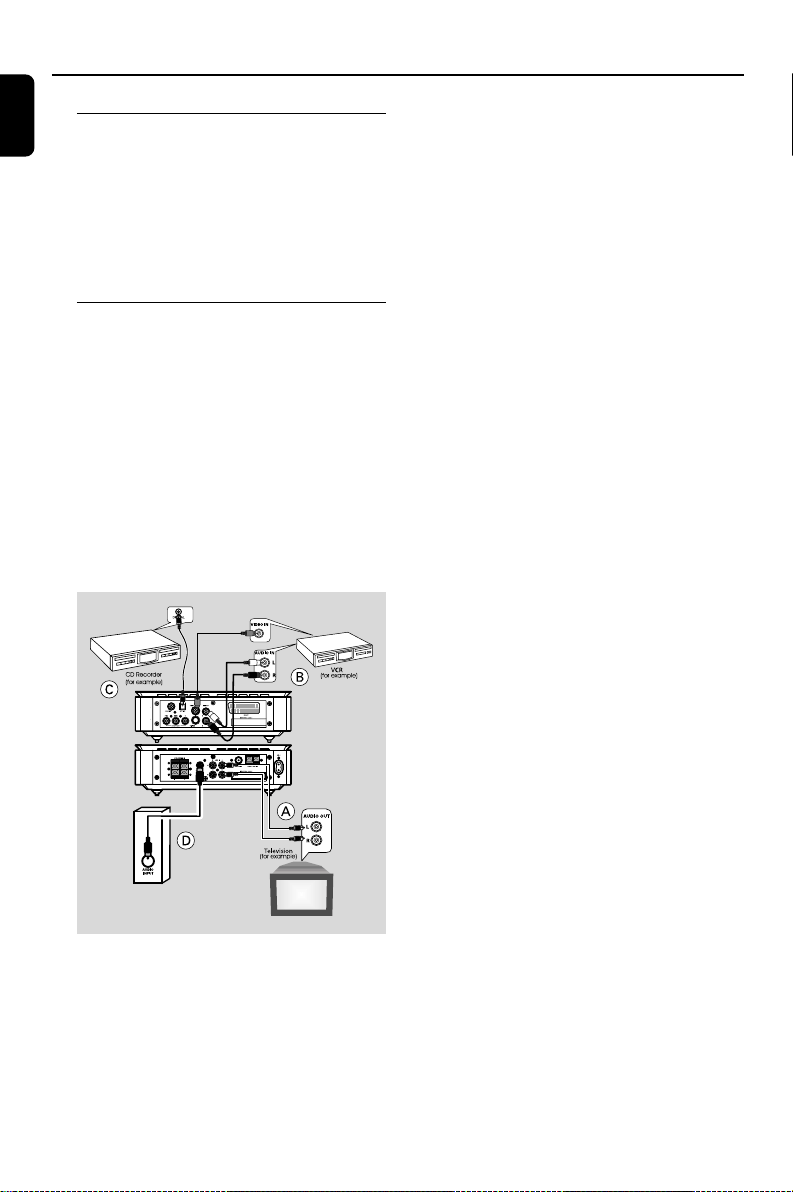
Step 5: Connecting FM/MW
antennas
SUB WOOFER
1
2
FM
antenna
MW
antenna
fix the claw into
the slot
1 Connect the supplied MW loop antenna to the
MW jack. Place the MW loop antenna on a shelf
or attach it to a stand or wall.
2 Connect the supplied FM antenna to the FM (75
Ω) jack. Extend the FM antenna and fix its end to
the wall.
For better FM stereo reception, connect an
external FM antenna (not supplied).
Note:
– Adjust the position of the antennas for optimal
reception.
– Place the antennas as far as possible from your
TV, VCR or other radiation sources to prevent
interference.
Connections
Using an accessory RF modulator
IMPORTANT!
– If your TV only has a single Antenna In
jack (labeled as 75 ohm or RF In), you
will need an RF modulator in order to
view DVD playback on the TV. Visit your
electronics retailer or contact Philips for
details on RF modulator availability and
operations.
3
2
AUDIO IN
R L
VIDEO
IN
TO TVINT IN
CH3 CH4
ANT IN
RF coaxial cable to TV
1
1 Use the composite video cable (yellow) to
connect the VIDEO OUT jack on the DVD
system to the video input jack on the RF
modulator.
2 Use an RF coaxial cable (not supplied) to
connect the ANTENNA OUT or TO TV jack on
the RF modulator to the Antenna IN jack on
your TV.
3 Connect the Antenna or Cable TV service signal
to the ANTENNA IN or RF IN jack on the RF
modulator. (It may have been connected to your
TV previously. Disconnect it from the TV.)
pg 001-039_MCD708_-22 2006.10.31, 15:4613
14
English
Connections
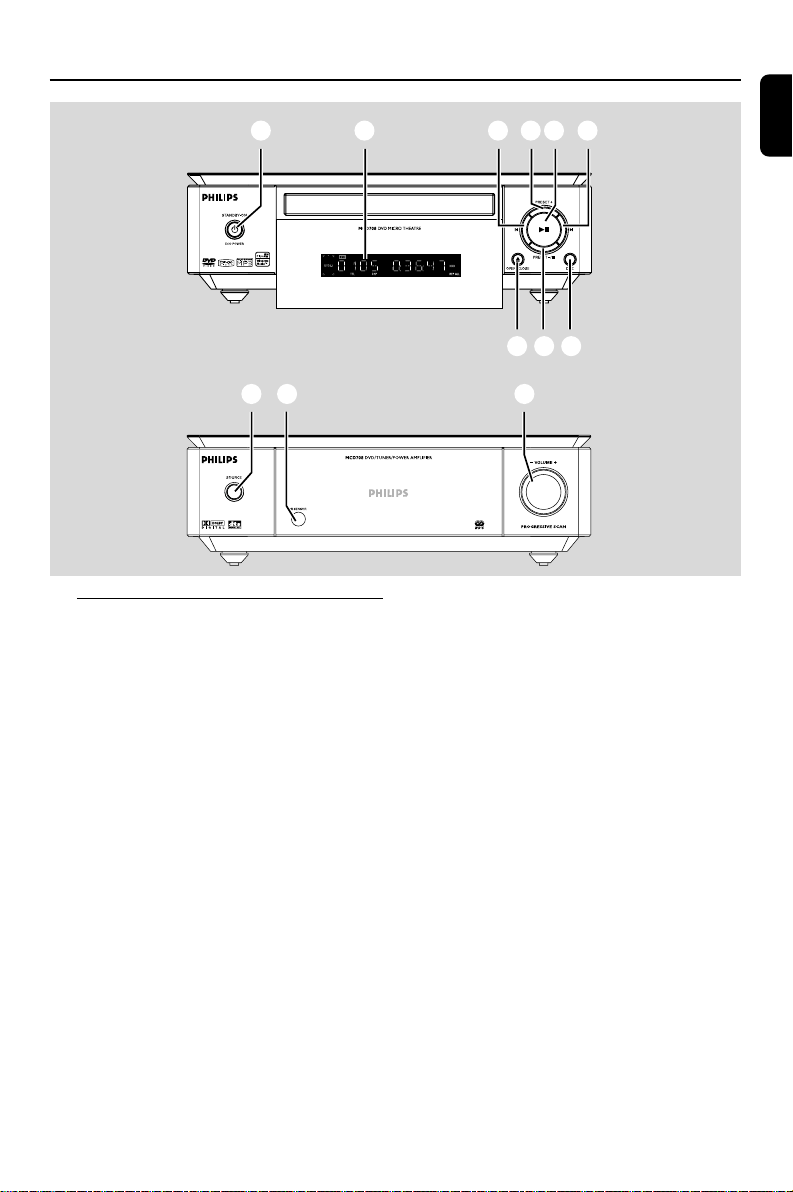
Viewing and listening to the playback of
other equipment A
● Connect the AUX IN (R/L) jacks on the
system to the AUDIO OUT jacks on the other
audio/visual device (such as a TV, VCR, Laser Disc
player or cassette deck).
Before operation, press SOURCE on the front
panel to select AUX or press AUX on the
remote control in order to activate the input
source.
Using the VCR for recording DVDs B
● Connect one of the VIDEO jacks on the system
to the corresponding VIDEO IN jack and the
LINE OUT (R/L) jacks to the AUDIO IN jacks
on the VCR. This will allow you to make analogue
stereo (two channels, right and left) recordings.
Recording (digital) C
● Connect the COAXIAL or OPTICAL jack
on the system to the DIGITAL IN jack on a
digital recording device (such as a DTS-Digital
Theatre compatible, with Dolby Digital decoder).
Before operation, set the DIGITAL OUT
according to the audio connection. (See
"DIGITAL OUT".)
Connecting an active subwoofer D
● Connect the SUBWOOFER jack on the DVD
micro system to the AUDIO INPUT jack on an
active subwoofer (not supplied).
Step 6: Connecting the power
cord
After everything has been connected
properly, plug in the AC power cord to
the power outlet.
Never make or change any connections with the
power switched on.
Additional: Connecting
additional equipment
IMPORTANT!
– Some discs are copy-protected. You
cannot record the disc through a VCR or
digital recording device.
–When making connections, make sure
the colour of cables matches the colour
of jacks.
–Always refer to the owner’s manual of
the other equipment for complete
connection and usage details.
pg 001-039_MCD708_-22 2006.10.31, 15:4614
15
English
Functional Overview
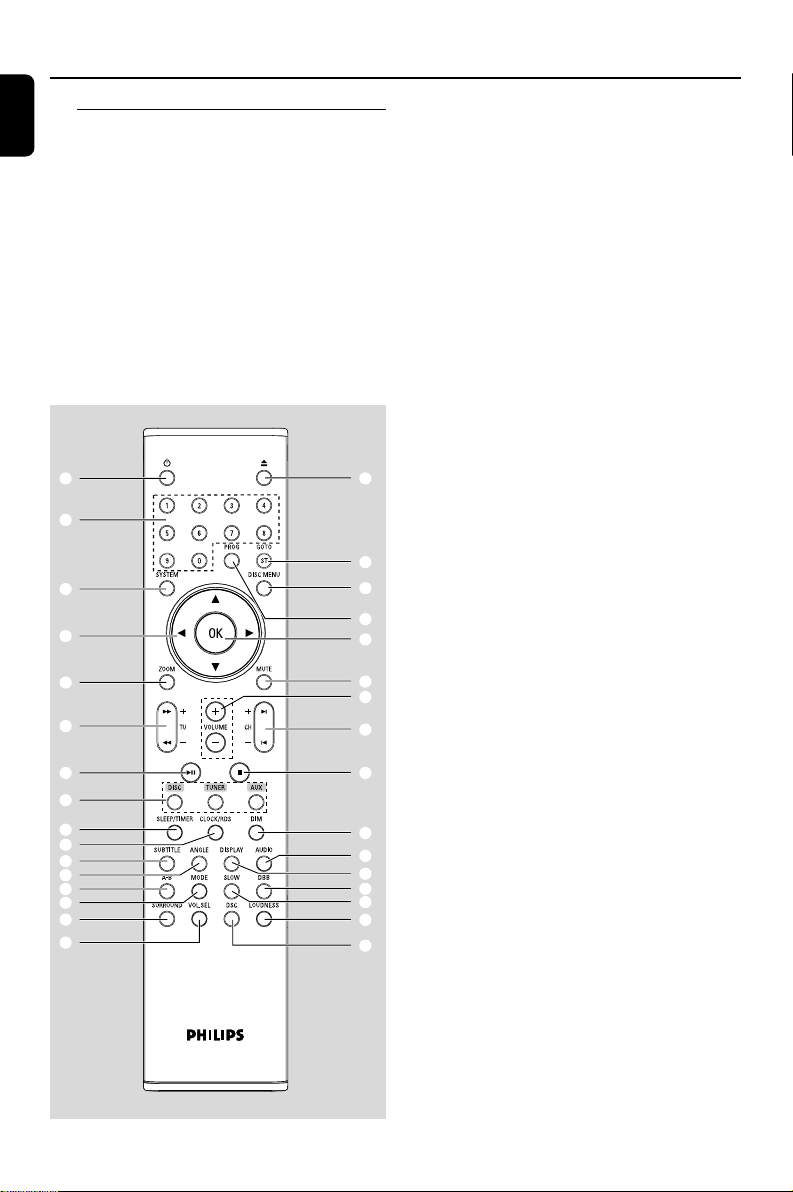
DVD player and power amplifier
1 ECO POWER/STANDBY-ON y
– switches on the system or puts it on to Eco
power/normal standby mode.
2 Display
– shows the current status of the DVD player.
3 ÉÅ
– starts or interrupts disc playback.
4 PRESET +
– in tuner mode, selects a preset radio station
forward.
5 PRESET-/9
– stops disc playback or erases a program.
– in tuner mode, selects a preset radio station
backward.
6 ¡/™
Disc:
– skips to the previous/next chapter/title/track.
Tuner:
– tunes to a higher/lower radio frequency.
1 2 43
857
9 0 !
6 6
– press and hold, then release the key to
start automatic search for a lower/higher radio
frequency.
7 OPEN•CLOSE ç
– opens or closes the disc tray.
8 DSC
– selects from the following different preset sound
equalizer settings: FLAT, POPS, JAZZ, CLASSIC
or ROCK.
9 SOURCE
– selects from the following different sound
sources: DVD/AUX1/AUX2/FM/MW.
– switches on the system.
0 IR SENSOR
– point the remote control towards this sensor.
! VOLUME -/+
– adjusts the volume down/up.
– in clock/timer setting mode, adjusts the hours
and minutes.
– switches the set timer ON or OFF.
pg 001-039_MCD708_-22 2006.10.31, 15:4615
16
English
Remote control
1 B
– switches on the system or puts it on to Eco
power/normal standby mode.
2 0
– opens or closes the disc tray.
3 Numeric Keypad (0-9)
– inputs a track/title/chapter number of the disc.
– inputs the number of a preset radio station.
Functional Overview
4 PROG
–DVD/VCD/CD: enters the program menu.
– MP3/WMA-CD: adds/deletes a programmed
track to/from the program list.
– Picture CD: selects a slide show mode during
playback.
–Tuner: programs preset radio stations.
5 GOTO/ST
– Disc: fast searches in a disc by entering a time,
title, chapter or track.
– FM: sets stereo or mono sound mode.
6 SYSTEM (disc mode only)
– enters or exits the system menu.
7 DISC MENU (disc mode only)
–DVD/VCD: enters or exits the disc contents
menu.
– VCD2.0: switches the playback control mode on
or off .
– MP3/WMA: switches between Album and Filelist.
8 4 / 3 / 2 / 1
– selects an item in a menu.
–moves an enlarged picture down/up/right/left.
9 OK
– confirms a selection.
0 ZOOM
–DVD/VCD/Picture CD: enlarges or reduces a
picture or active image on the TV screen.
! MUTE
– disables or enables audio output.
2
5
7
9
!
$
^
)
•
¤
⁄
≥
≤
£
#
4
1
3
6
8
0
@
%
&
*
¡
∞
ª
º
§
™
(
pg 001-039_MCD708_-22 2006.10.31, 15:4616

17
English
Functional Overview
@ TU +/- (à / á )
Tuner
– press to tune to a lower/higher radio frequency
in order of waveband.
– press and hold, then release the key to start
automatic search for a lower/higher radio
frequency.
Disc
– searches backward/forward in a disc at different
speeds.
# VOLUME +/-
– adjusts the volume upward/downward.
– adjusts the hours and minutes in clock/timer
setting mode.
– switches the set timer ON or OFF.
$ CH +/- (¡ / ™)
– Disc: skips to the previous/next chapter/title/
track
–Tuner: selects a preset radio station.
% ÉÅ
– starts or interrupts disc playback.
^ 9
– stops disc playback or erases a program.
& DISC/TUNER/AUX
– selects the respective sound source for DVD/
AUX1/AUX2/FM/MW.
– For tuner (TUNER): press to switch between
MW and FM
– exits P-SCAN (progressive scan). (Only for
DISC)
* SLEEP/TIMER
Standby mode
– sets time for switching on the system
automatically.
Power-on mode
– sets the sleep timer function (auto off).
( CLOCK/RDS
Standby mode
– sets the system clock.
Playback mode
– displays the system clock.
) DIM
– selects different levels of brightness for the
display screen.
¡ SUBTITLE
– selects a subtitle language.
™ ANGLE
– selects a DVD camera angle.
£ DISPLAY
– displays information on the TV screen during
playback
≤ AUDIO
for VCD/DivX
– sets Stereo, Mono-Left or Mono-Right sound
mode.
for DVD
– selects an audio language.
∞ A-B
– repeats playback of a specific section on a disc.
§ MODE
– selects various repeat modes or the shuffle play
mode for a disc.
≥ SLOW
– selects different slow playback modes for a
DivX/VCD/SVCD/DVD.
• DBB
– enables or disables bass enhancement.
ª SURROUND (unavailable for this
version)
– selects 2.1 channel output (2.1CH) or 5.1
channel output (SUR5.1 or DVD5.1).
º VOL.SEL (unavailable for this version)
– adjusts volume level for individual speakers.
⁄ DSC
– selects from the following different preset
sound equalizer settings: FLAT, POPS, JAZZ,
CLASSIC or ROCK.
¤ LOUDNESS
– enables or disables automatic loudness
adjustment.
pg 001-039_MCD708_-22 2006.10.31, 15:4617
18
English
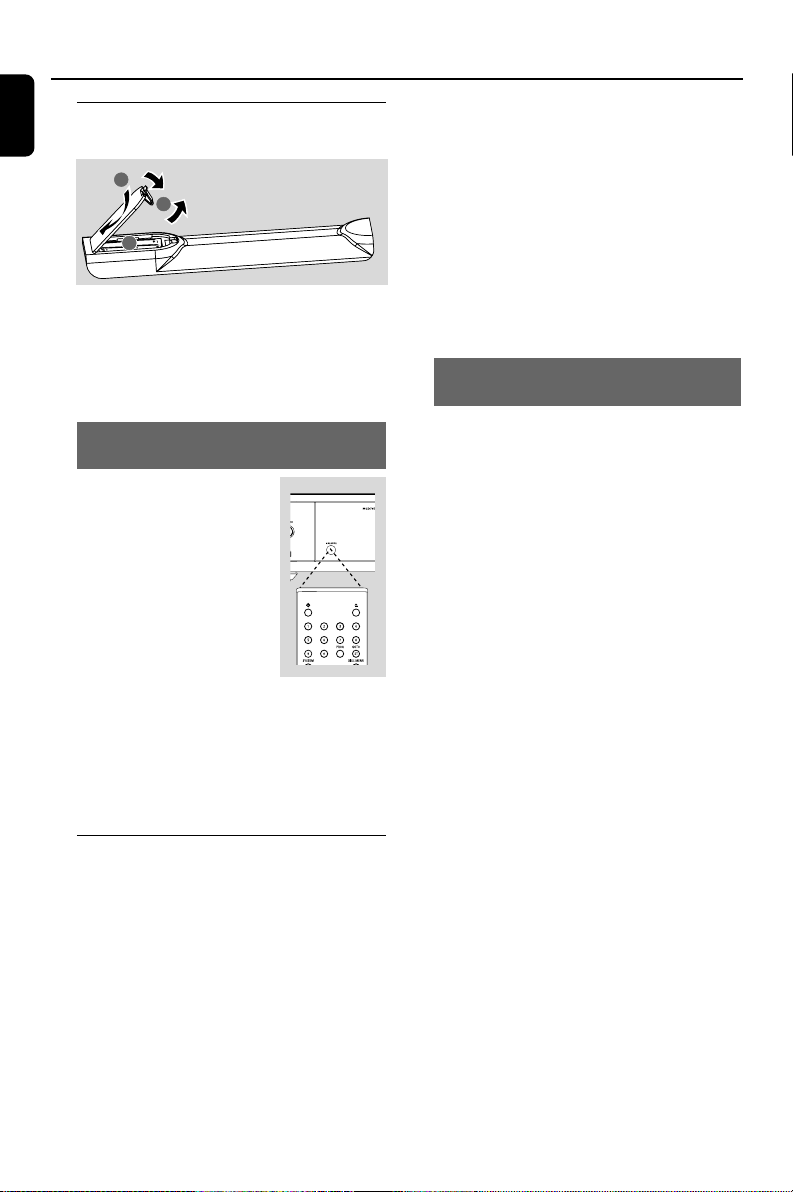
Step 1: Inserting batteries into
the Remote Control
1
3
2
1 Open the battery compartment.
2 Insert two AAA batteries following the
indications (+/-) inside the compartment.
3 Close the cover.
Using the Remote Control to operate
the Player
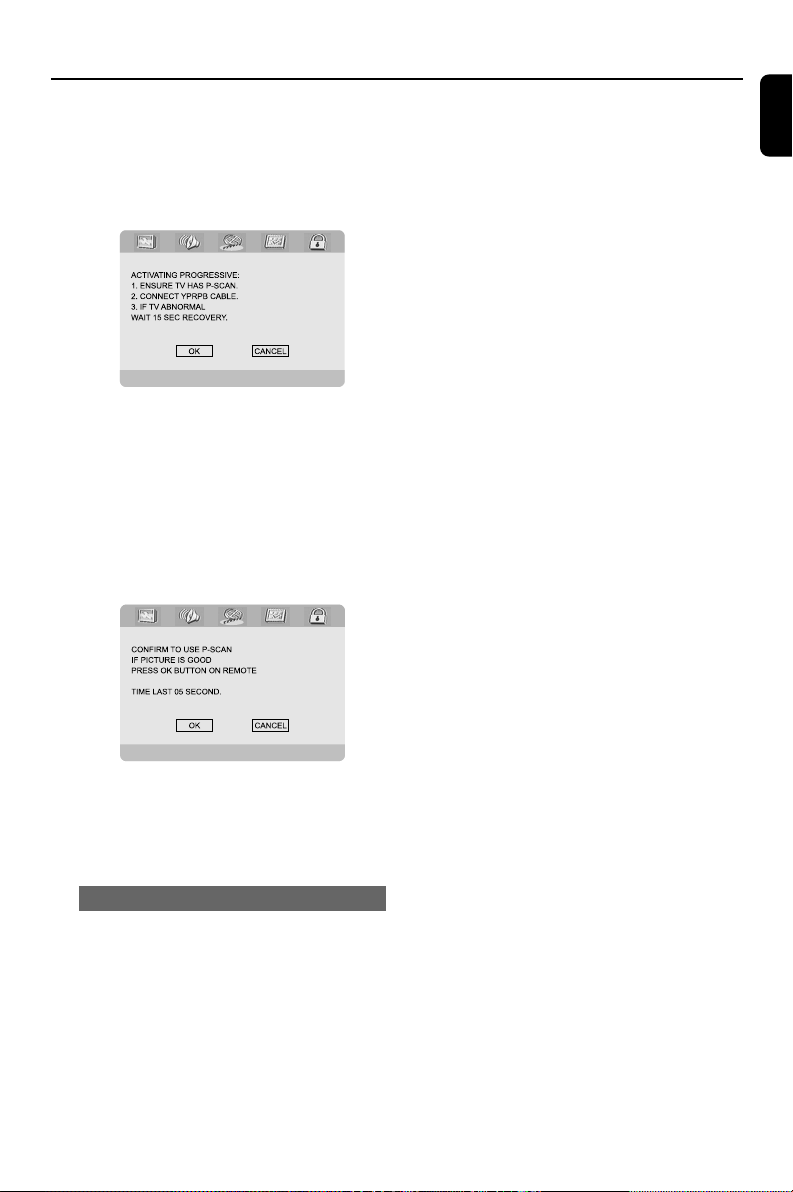
1 Point the Remote Control
directly at the remote sensor
(IR) on the front panel.
2 Do not place any objects in
between the Remote Control
and the DVD Player while
operating the DVD Player.
CAUTION!
– Remove batteries if
they are exhausted or if the Remote
Control will not be used for a long time.
– Do not use old and new or different
types of batteries in combination.
– Batteries contain chemical substances,
so they should be disposed of properly.
Step 2: Setting up the TV
IMPORTANT!
Make sure that you have completed all
necessary connections. (See
“Connecting TV”).
1 Switch on the DVD system and then select DISC
source. (See “Switching the system on/off”).
2 Switch on the TV and set it to the correct video-
in channel. You should see the blue Philips DVD
background screen on the TV.
➜ Usually these channels are between the
lowest and highest channels and may be called
FRONT, A/V IN, or VIDEO. Refer to your TV
user’s manual for more details.
➜ Or, you may go to channel 1 on your TV, then
press the Channel down button repeatedly until
you see the Video In channel.
➜ Or, the TV Remote Control may have a
button or switch that lets you choose between
the different video modes.
➜ Or, set the TV to channel 3 or 4 if you are
using an RF modulator.
Setting up Progressive Scan feature (for
Progressive Scan TV only)
The progressive scan displays twice the number
of frames per seconds than interlaced scanning
(ordinary normal TV system). With nearly double
the number of lines, progressive scan offers
higher picture resolution and quality.
IMPORTANT!
Before enabling the progressive scan
feature, you must ensure:
1) Your TV can accept progressive signals, a
progressive scan TV is required.
2) You have connected the DVD player to your
TV using Y Pb Pr (see “Connections-Step 5:
Connecting TV- Using Component Video jacks”.)
1 Switch on your TV.
2 Tu rn off your TV progressive scan mode or turn
on interlaced mode (refer to your TV user
manual).
3 Press ECO POWER/STANDBY-ON B (B
on the remote) to switch on the DVD player.
4 Select the correct Video Input channel.
➜ The DVD background screen appears on the
TV.
5 Press SYSTEM.
Getting Started
pg 001-039_MCD708_-22 2006.10.31, 15:4618
19
English
Getting Started
6 Press 1 2 repeatedly to select "VIDEO
SETUP PAGE".
7 Select "TV MODE" to "P-SCAN", then OK to
confirm.
➜ The instruction menu appears on the TV.
8 Press 1 2 to highlight OK in the menu and
press OK to confirm.
There will be a distorted picture on your
TV at this state until you turn on the
progressive scan mode on your TV.
9 Tu rn on your TV progressive scan mode (refer
to your TV user’s manual).
➜ The below menu appears on the TV.
0 Press 1 2 to highlight OK in the menu and
press OK to confirm.
➜ The setup is complete now and you can start
to enjoy the high quality picture.
To deactivate Progressive manually
● When the distorted sign still appears on
the TV, it may be due to the connected TV
does not accept progressive signals, and
progressive is set by mistake. You must reset the
unit to interlace format.
1 Tu rn off your TV progressive scan mode or turn
on to interlaced mode (refer to your TV user
manual).
2 Press SYSTEM on the remote control to exit
the system menu and then press DISC to exit
progressive scan.
➜ The DVD blue background screen will appear
on the TV.
Note:
– In the progressive scan mode, pressing DISC
button during normal playback will exit the
progressive scan mode.
pg 001-039_MCD708_-22 2006.10.31, 15:4619
20
English
Step 3: Setting language
preference
You can select your preferred language settings.
This DVD system will automatically switch to the
selected language whenever you load a disc. If
the language selected is not available on the disc,
the default language for the disc will be used
instead. The OSD language in the system menu
will remain once selected.
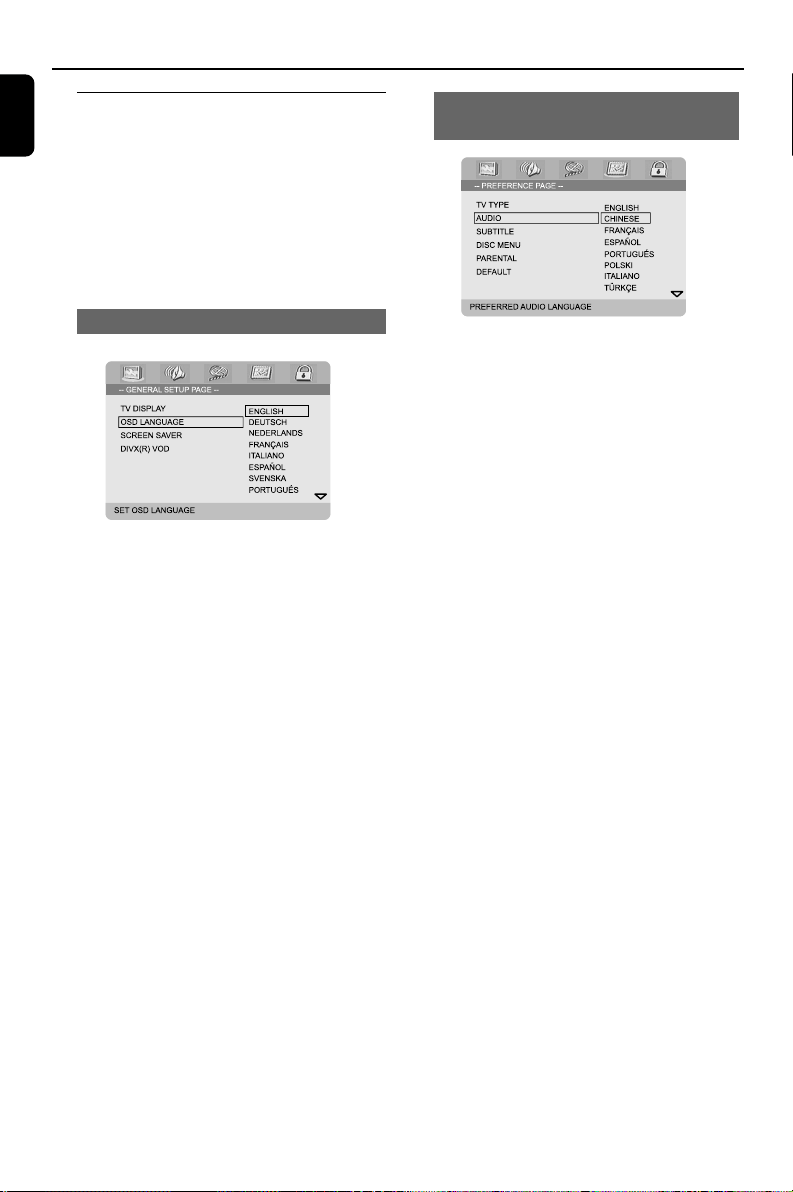
Setting the OSD Language
1 Press SYSTEM.
2 Press 1 2 to select “GENERAL SETUP
PAGE”.
3 Use 1 2 3 4 on the remote control to
navigate in the menu.
Move to “OSD LANGUAGE” and press 2.
4 Select a language and press OK.
To exit from the menu
● Press SYSTEM again.
Getting Started
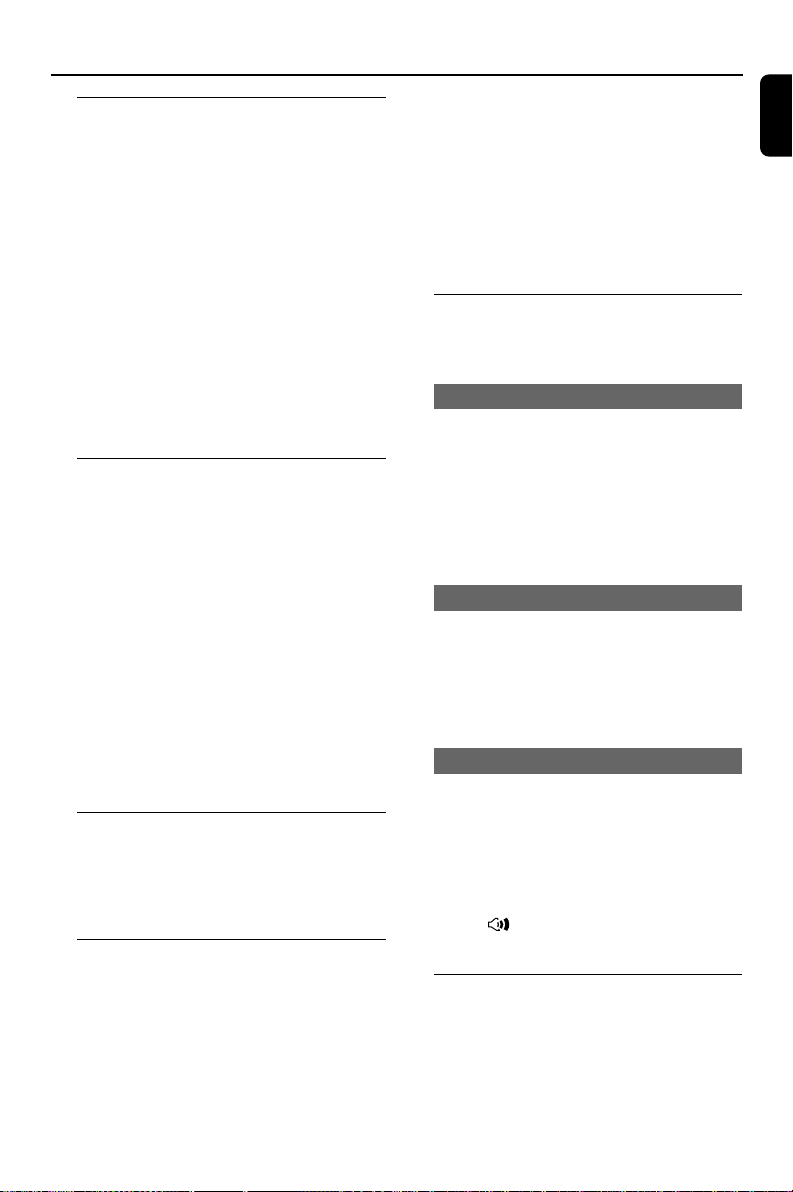
Setting the Audio, Subtitle and Disc
Menu language
1 Press SYSTEM in stop mode.
2 Press 1 2 to select “PREFERENCE PAGE”.
3 Press 3 4 to highlight the following in the
Preference Page.
–“AUDIO” (disc’s soundtrack)
–“SUBTITLE” (disc’s subtitles)
–“DISC MENU” (disc’s menu)
4 Enter its submenu by pressing 2.
5 Select a language and press OK.
6 Repeat steps 3~5 for other language settings.
To exit from the menu
● Press SYSTEM again.
If you choose OTHERS in Audio, Subtitle
or Disc Menu,
1 Press 3 4 to highlight “OTHERS”.
2 Press OK.
3 When you are asked to enter a language code,
enter a language code using the Numeric
Keypad (0-9).
4 Press OK to confirm.
pg 001-039_MCD708_-22 2006.10.31, 15:4620
21
English
Switching the system on/off
● Press ECO POWER/STANDBY-ON B (or
B on the remote control).
➜ “HELLO” is displayed briefly. The system will
switch to the last selected source.
● Press DISC, TUNER or AUX on the remote
control.
➜ The system will switch to the selected source.
To switch the system to standby mode
● Press ECO POWER/STANDBY-ON B (or
B on the remote control).
➜ “BYE BYE” is displayed briefly. The interactive
sound settings, last selected source and tuner
presets will be retained in the player’s memory.
Switching the system to Eco
Power Standby mode
● Press ECO POWER/STANDBY-ON B in
active mode.
➜ The system enters Eco power standby (the
ECO POWER LED is on) or normal standby
mode with clock display.
● The volume level (up to a maximum volume
level of 12), interactive sound settings, last
selected mode, source and tuner presets will be
retained in the player's memory.
● If the system is in normal standby mode with
clock display, press and hold ECO POWER/
STANDBY-ON B for 3 seconds or more to
switch to Eco power standby or vice versa.
Power-saving automatic standby
As a power-saving feature, the system will
automatically switch to Standby mode if you do
not press any buttons within 15 minutes after a
disc has stopped playing.
Volume control
Tur n VOLUME (-/+) clockwise or anticlockwise
(or press VOLUME +/- on the remote control)
to increase or decrease the volume level.
➜ ”VOL XX” is displayed on the display panel.
“XX” denotes the volume level.
To switch off the volume temporarily
● Press MUTE on the remote control.
➜ Playback will continue without sound and
“MUTING” flashes.
● To activate sound reproduction, you can:
– press MUTE again;
– adjust the volume controls;
– change source.
Sound control
DBB, DSC and LOUDNESS sound features
cannot be activated at the same time.
DBB (Dynamic Bass Boost)
DBB enhances the bass response.
● Press DBB on the remote control to enable/
disable DBB feature.
➜ Some discs might be recorded in high
modulation, which causes a distortion at high
volume. If this occurs, switch off DBB or reduce
the volume.
DSC (Digital Sound Control)
DSC provides a different type of preset sound
equalizer setting.
● Press DSC on the system or remote control
repeatedly to select: FLAT, POPS, JAZZ,
CLASSIC or ROCK.
LOUDNESS
The LOUDNESS feature enables the system to
automatically increase the treble and bass sound
effect at low volume (the higher the volume, the
lower the treble and bass increase).
● Press LOUDNESS on the remote to enable
or disable LOUDNESS feature.
➜ The icon appears/disappears after this
feature is enabled/disabled.
Dimming the display screen
● Press DIM repeatedly to select different levels
of brightness for the display screen.
Basic Operations
pg 001-039_MCD708_-22 2006.10.31, 15:4621
22
English
IMPORTANT!
– Depending on the DVD or VIDEO CD,
some operations may be different or
restricted.
– Do not push the disc tray or put any
objects other than a disc on the disc tray.
Doing so may cause the disc player to
malfunction.
– If the inhibit icon (ø) appears on the
TV screen when a button is pressed, it
means the function is not available on
the current disc or at the current time.
Playable Discs
Your DVD Player can play:
– Digital Video Discs (DVDs)
– Video CDs (VCDs)
– Super Video CDs (SVCDs)
– Digital Video Discs + Rewritable (DVD+RW)
– Compact Discs (CDs)
– Picture (Kodak, JPEG) files on CDR(W)
– DivX(R) disc on CD-R(W):
– DivX 3.11, 4.x and 5.x
– WMA
– Supported MP3-CD format.
• ISO 9660
• Max. title/album name –12 characters
Max. title number plus album is 255.
• Max. nested directory is 8 levels.
• The max. album number is 32.
• The max. MP3 track number is 999.
• Supported sampling frequencies for MP3 disc:
32 kHz, 44.1 kHz, 48 kHz.
• Supported Bit-rates of MP3 disc are: 32, 64,
96, 128, 192, 256 (kbps).
– The following formats are not supported:
• The files like *.VMA, *.AAC, *.DLF, *.M3U,
*.PLS, *.WAV
• Non-English Album/Title name
• The discs recorded under Joliet format
• MP3 Pro and MP3 with ID3 tag
Disc Operations
Region Codes
DVDs must be labeled for ALL regions or Region
2 in order to play on this DVD system. You
cannot play discs that are labeled for other
regions.
Note:
– If you are having trouble playing a certain disc,
remove the disc and try a different one. Improperly
formatted disc will not play on this DVD Player.
Playing discs
1 Connect the power cords of the system and TV
(or any optional stereo or AV receiver) to a
power outlet.
2 Switch on the TV and set to the correct Video In
channel. (See “Setting up the TV”).
3 Press ECO POWER/STANDBY-ON B on
the DVD Player front panel (or B on the
remote control).
➜ You should see the blue Philips DVD
background screen on the TV.
4 Press OPEN•CLOSE to open the disc tray
and load in a disc, then press the same button
again to close the disc tray.
➜ Make sure the label side is facing up.
5 Playback will start automatically (depending on
the disc type).
➜ If a disc menu appears on the TV, see “Using
the Disc Menu”.
➜ If the disc is locked by parental control, you
must enter your four-digit password. (See
“Password Setup Page”).
6 At any time, simply press PRESET-/9 (or 9 on
the remote control) to stop playback.
ALL
2
pg 001-039_MCD708_-22 2006.10.31, 15:4622
23
English
Disc Operations
Using the Disc Menu
Depending on the disc, a menu may appear on
the TV screen once you load the disc.
To select a playback feature or item
● Use 1 2 3 4 and OK, or the Numeric
Keypad (0-9) on the remote control.
➜ Playback will start automatically.
To access or exit from the menu
● Press DISC MENU on the remote control.
For VCD with Playback Control (PBC)
feature (version 2.0 only)
PBC playback allows you to play Video CDs
interactively, following the menu on the display.
● During playback, press DISC MENU.
➜ If PBC was ON, it will switch to OFF and
continue playback.
➜ If PBC was OFF, it will switch to ON and
return to menu screen.
Basic playback controls
Pausing playback (DVD/VCD/CD/MP3/
DivX/WMA)
1 During playback, press ÉÅ .
➜ Playback will pause and sound will be muted.
2 Press ÉÅ again to resume.
Selecting a track/chapter/title (DVD/
VCD/DivX/CD)
1 Press ™ (CH + ™ on the remote) during
playback to go to the next chapter/track
2 Press ¡ (CH - ¡ on the remote) to go to the
previous chapter/track.
3 To go directly to any chapter/track/title, enter the
chapter/track/title number using the Numeric
Keypad (0-9).
Resuming playback from the last
stopped point (DVD/VCD/CD)
● In stop mode and when a disc has not been
removed, pressÉÅ.
To cancel resume mode
● In stop mode, press PRESET-/9 (or 9 on the
remote control) again.
Zoom (DVD/VCD/DivX/JPEG)
Zooming allows you to enlarge or reduce the
video image during playback.
1 Press ZOOM repeatedly to enlarge or reduce
the video image during playback.
2 Press 1 2 3 4 to pan across the TV screen.
Repeat (DVD/VCD/CD/MP3/DivX/
WMA)
For DVD/VCD/CD
● During playback, press MODE on the remote
control repeatedly to choose a repeat mode
during playback.
CHAPTER (DVD)
– repeats playback of the current chapter.
TRACK (CD/VCD)/TITLE (DVD)
– repeats playback of the current track (CD/
SVCD/VCD)/title (DVD).
ALL
– repeats playback of the whole disc.
SHUFFLE
– repeats playback at random order.
For MP3/WMA/DivX
● Press MODE on the remote control repeatedly
to choose betweeen the following different
repeat modes.
➜ Shuffle: plays all files in the selected folder in
random order.
➜ Repeat One: plays an MP3/WMA file
repeatedly.
➜ Repeat All: plays all files repeatedly.
➜ Off: switches off the shuffle or repeat mode.
pg 001-039_MCD708_-22 2006.10.31, 15:4623
24
English
Disc Operations
Repeat A-B (DVD/VCD/CD/MP3/DivX/
WMA)
1 Press A-B on the remote control at the chosen
starting point.
2 Press A-B again at the chosen end point.
➜ The section A and B can be set only within
the same chapter/track.
➜ The section will now repeat continuously.
3 To exit the sequence, press A-B again.
Slow Motion (DVD/VCD)
1 Press SLOW on the remote control during
playback to select the required speed: 1/2, 1/4, 1/
8 or 1/16 (backward or forward).
➜ Sound will be muted.
2 To return to normal speed, press ÉÅ.
Note:
– Slow backward is not possible on VCDs.
Program (not for Picture CD)
To select favourite tracks/chapters for playback in
preferred sequence.
For DVD/VCD/CD
(DVD program for example)
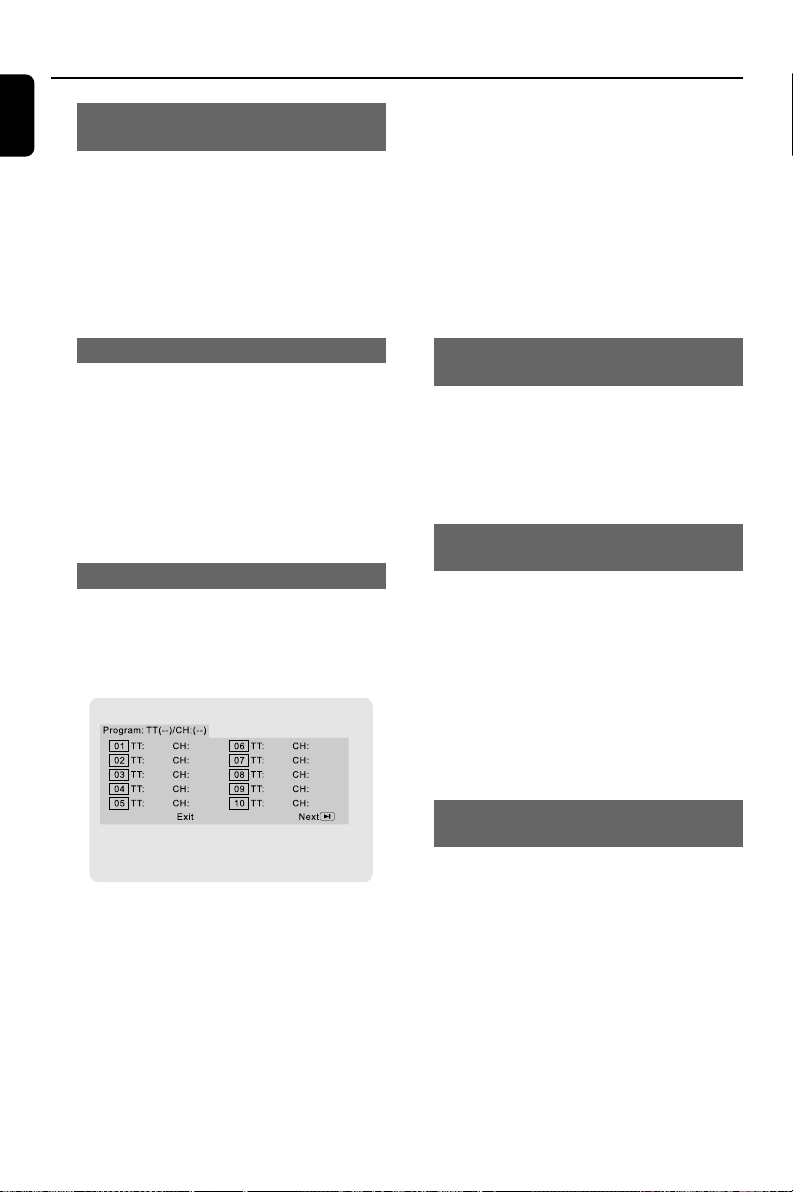
1 Press PROG on the remote control to enter
the program mode.
2 Use the Numerical Keypad (0-9) to enter
the tracks or chapters (single track number with
digit “0” in front, for example “05”) directly.
3 Move the cursor by pressing 1 2 3 4 to
select START.
4 Press OK to start playback.
For MP3/WMA
1 In stop mode, press DISC MENU to switch
between Album and Filelist of the menu.
2 When the Filelist is on the screen, press 3 4 to
select the files and press PROG to add the files
to the program list.
3 Press DISC MENU to display the program list.
4 Press PROG to delete unwanted files from the
program list.
Forward/Reverse Searching (DVD/VCD/
DivX/CD/MP3/WMA)
1 Press TU +/- (or 5 6 ) during playback to
select the required speed: 2X, 4X, 8X, 16X or
32X (backward or forward).
➜ Sound will be muted.
2 To return to normal speed, press ÉÅ.
Time search & search by chapter/track
number (DVD/VCD/CD/MP3/WMA)
1 Press GOTO/ST on the remote control until
the time or chapter/track edit box appears.
2 Enter hours, minutes and seconds from left to
right in the time edit box using the numerical
keypad on the remote control.
OR
Enter your desired chapter/track number in the
chapter/track edit box using the numerical
keypad on the remote control.
Information display during playback
(not for Picture CD)
● During playback, press DISPLAY to show disc
information on the TV screen.
For DVD
➜ Title/Chapter Elapsed: displays the
elapsed time of the current title/chapter.
➜ Title/Chapter Remain: displays the
remaining time of the current title/chapter.
➜ Display Off: switches time display off.
pg 001-039_MCD708_-22 2006.10.31, 15:4624
25
English
Disc Operations
For Super VCD/VCD/DivX/CD
➜ Single/Total Elapsed: displays the elapsed
time of the current single/total track.
➜ Single/Total Remain: displays the
remaining time of the current single/total track.
➜ Display Off: switches time display off.
Special disc features
Playing a Title (DVD)
1 Press DISC MENU on the remote control.
➜ The disc title menu appears on the TV screen.
2 Use 1 2 3 4 or Numeric Keypad (0-9) to
select a play option.
3 Press OK to confirm.
Camera Angle (DVD)
● Press ANGLE repeatedly to select different
desired angles.
Changing the Audio Language (for
DVD recorded with multiple languages)
● Press AUDIO repeatedly to select different
audio languages.
Changing the Audio Channel (for VCD
only)
● Press AUDIO to select the available audio
channels provided by the disc (Mono Left, Mono
Right or Stereo).
Subtitles (DVD)
● Press SUBTITLE repeatedly to select different
subtitle languages.
Playing MP3/WMA/JPEG Picture
CD
IMPORTANT!
You have to switch on your TV and set to
the correct Video In channel. (See
“Setting up the TV”).
Playing MP3/WMA disc
IMPORTANT!
For DRM protected WMA files, use
Windows Media Player 10 (or later
versions) for CD burning/conversion. Visit
www.microsoft.com for details about
Windows Media Player and WM DRM
(Windows Media Digital Rights
Management).
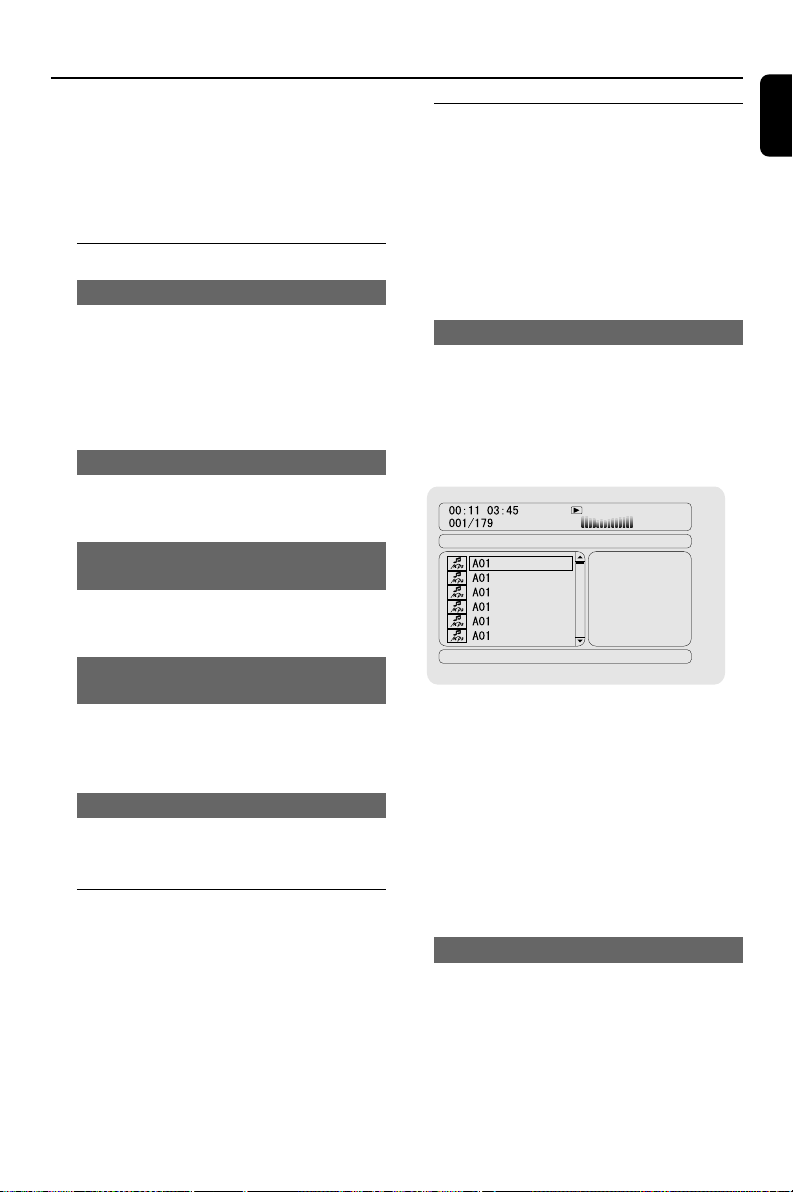
General operation
1 Load an MP3/WMA disc.
➜ The data disc menu appears on the TV
screen.
2 Use 3 4 to select an album and press OK to
open the album.
3 Press 3 4 or use the Numeric Keypad (0-9)
to highlight a track.
4 Press OK to confirm.
➜ The playback will start from the selected
track to the end of the album.
Note:
– The disc reading time may exceed 10 seconds
due to large number of songs compiled onto the
disc.
Playback selection
During playback, you can:
● Press ¡ / ™ (or CH +/- ¡ / ™ on the remote
control) to select another track in the current
album.
● Press ÉÅ repeatedly to pause/resume playback.
● Press DISC MENU on the remote control to
switch between Album and Filelist.
pg 001-039_MCD708_-22 2006.10.31, 15:4625
26
English
Disc Operations
Playing JPEG Picture CD
General operation
1 Load a JPEG Picture CD.
➜ The data disc menu appears on the TV
screen.
2 Use 3 4 to select a folder and press OK to
open the folder.
3 Press 3 4 or use the Numeric Keypad (0-9)
to highlight a picture file.
4 Press OK to confirm.
➜ The playback will start from the selected
picture to the end of the folder.
Playback selection
During playback, you can:
● Press ¡ / ™ (or CH +/- ¡ / ™ on the remote
control) to select another file in the current
folder.
● Use 1 2 3 4 on the remote control to
rotate/flip the picture files.
● Press ÉÅ to either pause or resume playback.
● Press DISC MENU on the remote control to
switch between Folder and Filelist.
Special JPEG features
Preview function (JPEG)
This function displays the content of the current
folder or the whole disc.
1 Press PRESET-/9 (or 9 on the remote
control) during playback.
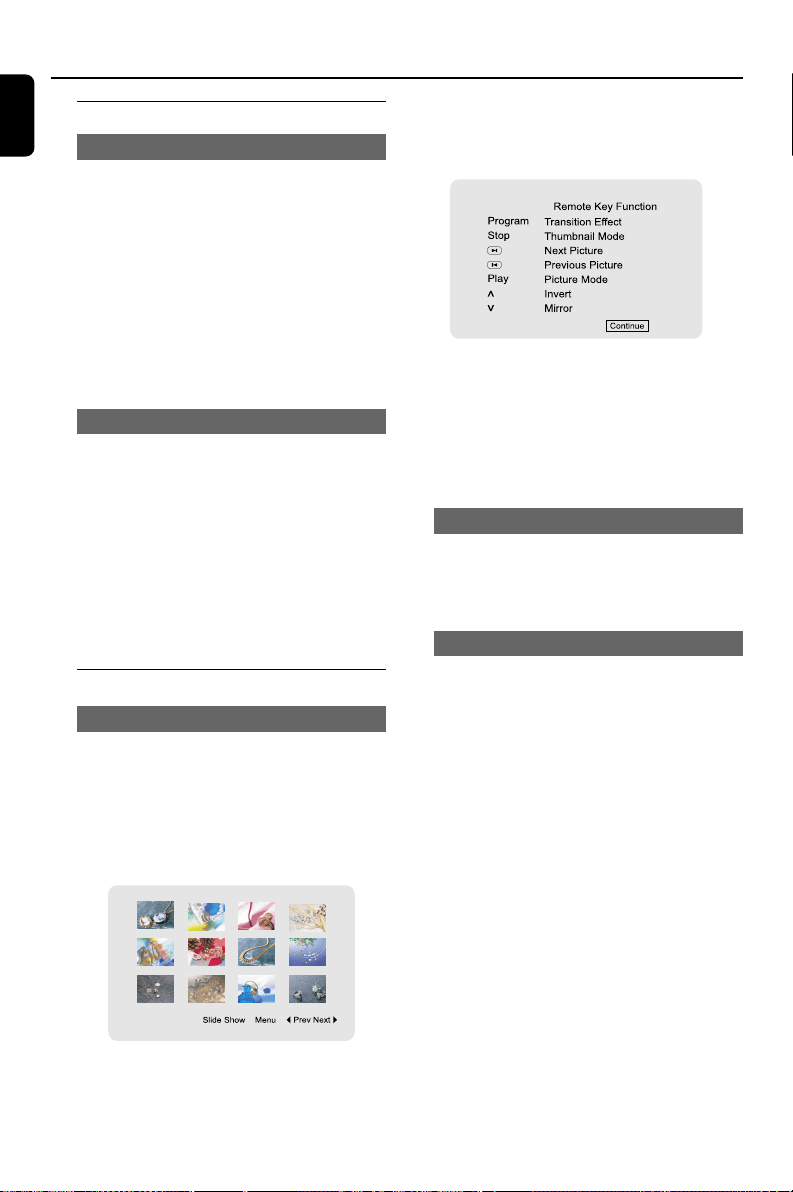
➜ Thumbnails of 12 pictures appears on the TV
screen.
2 Use 1 2 3 4 to highlight either one of the
pictures or ”Slide Show”. Then press OK to start
playback of the selected picture or the slide
show.
To enter the remote key function menu
● Use 1 2 3 4 to highlight “Menu” and press
OK.
To display the other pictures on the
previous/next page
● Press ¡ / ™ (or CH +/- ¡ / ™ on the remote
control).
● Use 1 2 3 4 to highlight “Prev” or “Next” and
press OK.
Zoom picture (JPEG)
● During playback, press ZOOM repeatedly to
display the picture with different scales.
● Use 1 2 3 4 to view the zoomed picture.
Slide show playback modes (JPEG)
● During playback, press PROG on the remote
control repeatedly to select the following
different slide-show playback modes:
Mode 0: None
Mode 1: Wipe Top
Mode 2: Wipe Bottom
Mode 3: Wipe Left
Mode 4: Wipe Right
Mode 5: Diagonal Wipe Left Top
Mode 6: Diagonal Wipe Right Top
Mode 7: Diagonal Wipe Left Bottom
Mode 8: Diagonal Wipe Right Bottom
Mode 9: Extend From Center H
Mode 10: Extend From Center V
Mode 11: Compress To Center H
Mode 12: Compress To Center V
Mode 13: Window H
Mode 14: Window V
Mode 15: Wipe From Edge To Center
Mode 16: Move In From Top
pg 001-039_MCD708_-22 2006.10.31, 15:4626

27
English
Disc Operations
Playback with multi-angles (JPEG)
● During playback, press 1 2 3 4 to rotate the
picture on the TV screen.
3: flip the picture vertically.
4: flip the picture horizontally.
1: rotate the picture anti-clockwise.
2: rotate the picture clockwise.
Playing a DivX disc
This DVD player supports the playback of DivX
movies downloaded from your computer onto a
CD-R/RW (see “System Menu Options-DIVX
R
VOD registration code” for more information).
1 Load a DivX disc.
➜ Playback will start automatically. If not, press
ÉÅ.
2 If the DivX movie contains external subtitles, the
subtitle menu will appear on the TV screen for
your selection.
● In this case, pressing SUBTITLE on the remote
control will turn the subtitles on or off.
● If multilingual subtitles are embedded on the
DivX disc, pressing SUBTITLE will change the
subtitle language during playback.
Note:
– Subtitle files with the following filename
extensions (.srt, .smi, .sub, .ssa, .ass) are supported
but do not appear on the file navigation menu.
– The subtitle filename have to be the same as
the filename of the movie.
pg 001-039_MCD708_-22 2006.10.31, 15:4627
28
English
System Menu Options
Basic operations
1 Press SYSTEM on the remote to enter the
Setup Menu.
2 Press 1 2 to select a page to be set.
3 Press 3 4 to highlight an option.
4 Enter its submenu by pressing 2 or OK.
5 Press 3 4 to move the cursor and highlight the
selected item.
➜ In cases of value setting, press 1 2 to adjust
values.
6 Press OK to confirm.
To return to the upper-level menu
● Press 1 or OK (in cases of value adjustment).
To exit from the menu
● Press SYSTEM again.
➜ The settings will be stored in the player’s
memory even if the player is switched off.
Note:
– Some of the features in the System Menu
Options are described in “Getting Started”.
General Setup Page
The options included in General Setup page are:
“TV DISPLAY”, “OSD LANGUAGE”, “SCREEN
SAVER”and “DIVX(R) VOD”.
TV Display
Set the aspect ratio of the DVD Player according
to the TV you have connected.
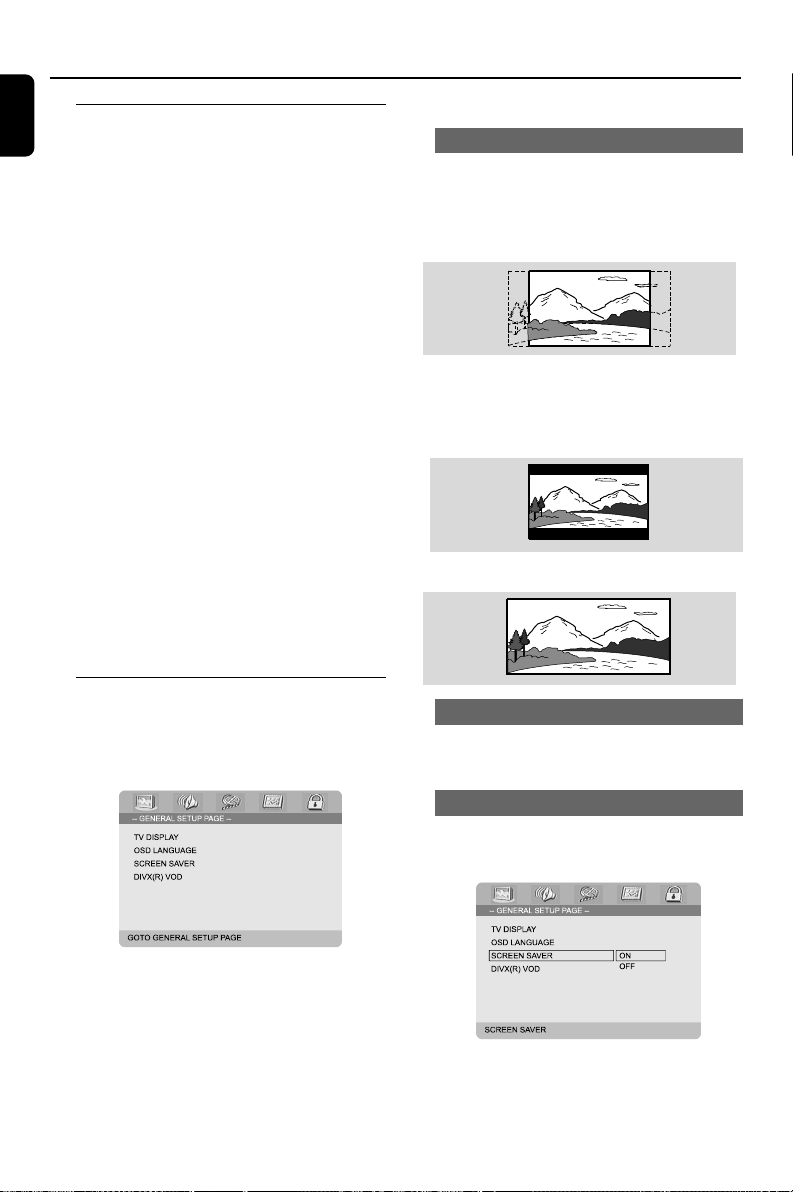
➜ 4:3 PANSCAN: If you have a normal TV
and want both sides of the picture to be
trimmed or formatted to fit your TV screen.
➜ 4:3 LETTER BOX: If you have a normal TV.
In this case, a wide picture with black bands on
the upper and lower portions of the TV screen
will be displayed.
➜ 16:9: If you have a wide-screen TV.
OSD Language
See “Getting Started - Step 3: Setting language
preference”.
Screen Saver
This function is used to turn the screen saver on
or off.
➜ On: In STOP, PAUSE or No DISC mode, if no
actions are performed within approximately 3
minutes, the screen saver will be activated.
➜ Off: Screen saver is disabled.
pg 001-039_MCD708_-22 2006.10.31, 15:4628
29
English
System Menu Options
DIVX
R
VOD registration code
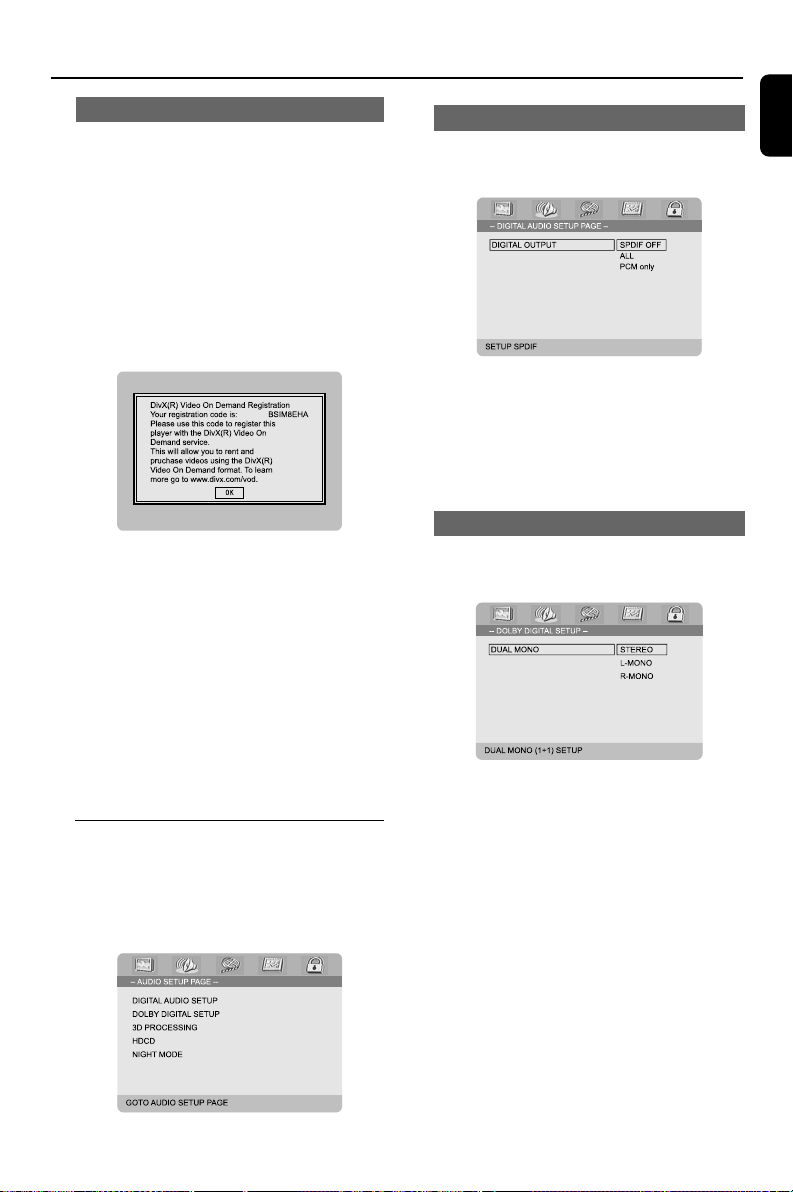
Philips has provided you with a DivX
®
VOD
(Video On Demand) registration code that
allows you to rent and purchase videos using the
DivX
®
VOD service.
For more information, visit us at www.divx.com/
vod.
1 In ‘GENERAL SETUP PAGE’, press 3 4 to
highlight DIVX
R
VOD, then press 2 or OK to
ener its submenu and press OK again to
confirm.
➜ The registration code will appear.
2 Press OK to exit.
3 Use the registration code to purchase or rent
videos from DivX
®
VOD service at
www.divx.com/vod. Follow the instructions and
download the video onto a CD-R for playback
on this DVD player.
Notes:
– All downloaded videos from DivX
®
V OD can
only be played back on this DVD player.
– Time search feature is not available during
DivX movie playback.
Audio Setup Page
The options included in Audio Setup page are:
“DIGITAL AUDIO SETUP”, “DOLBY DIGITAL
SETUP”, “3D PROCESSING”, “HDCD” and
“NIGHT MODE”.
Digital Audio Setup
The options included in Digital Audio Setup are:
“SPDIF OFF”, “ALL” and “PCM only”.
➜ SPDIF OFF: Tu r ns off the SPDIF output.
➜ ALL: If you have connected your DIGITAL
OUT (COAXIAL or OPTICAL) to a multi-
channel decoder/receiver.
➜ PCM only: Only if your receiver is not
capable of decoding multi-channel audio.
Dolby Digital Setup
The option included in Dolby Digital Setup is:
“DUAL MONO”.
Dual Mono
Select the setting that matches the number of
speakers you have connected.
➜ STEREO: Left mono sound will send output
signals to Left speaker and Right mono sound will
send output signals to Right speaker.
➜ L-MONO: Left mono sound will send output
signals to Left speaker and Right speaker.
➜ R-MONO: Right mono sound will send
output signals to Left speaker and Right speaker.
pg 001-039_MCD708_-22 2006.10.31, 15:4629
30
English
3D Processing
The option included in the 3D Processing menu
is: “REVERB MODE”.
Reverb Mode
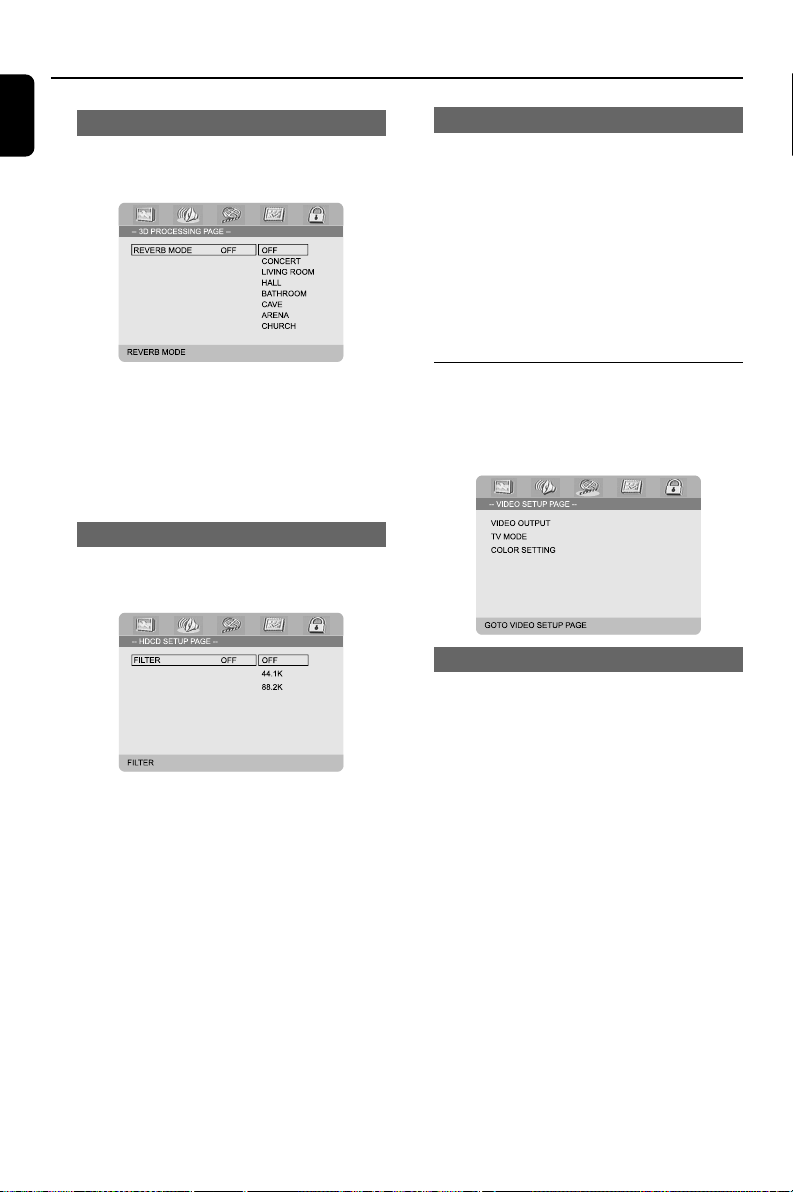
Reverb mode creates a virtual surround sound
experience using just two speakers.
➜ OFF, CONCERT, LIVING ROOM,
HALL, BATHROOM, CAVE, ARENA and
CHURCH.
HDCD
The option included in HDCD (High Definition
Compatible Digital) menu is: “FILTER”.
Filter
Sets the audio output cutoff frequency point
when playing an HDCD disc.
➜ OFF, 44.1K and 88.2K.
System Menu Options
Night Mode
In this mode, the high volume outputs are
softened and low volume outputs are increased
to an audible level. This function is useful as you
will be able to watch your favourite action movie
late at night without disturbing others.
➜ ON: Select ON to level out the volume. This
feature is only available for movies with Dolby
Digital mode.
➜ OFF: Select OFF when you want to enjoy
the surround sound in its full dynamic range.
Video Setup Page
The options included in Video Setup page are:
“VIDEO OUTPUT”, “TV MODE” and “COLOR
SETTING”.
Video Output
Sets the video output according to your video
connection. This setting is not required if you are
using the VIDEO OUTPUT jack (yellow) to
connect the DVD micro system to your TV.
➜ Pr/Cr Pb/Cb Y: Select this if you have
connected the DVD micro system to your TV
using Component video jacks.
➜ S-Video: Select this if you have connected
the DVD micro system to your TV using S-Video
jack.
➜ RGB: Select this for SCART connection.
Note:
– When the player is set to Y Pb Pr (YUV), some
TV may not properly synchronise with the player
on the SCART connector.
pg 001-039_MCD708_-22 2006.10.31, 15:4630
31
English
System Menu Options
TV Mode
Selects the interlace or P-SCAN video output
mode when Pr/Cr Pb/Cb Y is selected.
➜ P-SCAN and INTERLACE.
In progressive scan mode, you can enjoy high
quality picture with less flickers. It only works
when you have connected the DVD player's Y
Pb Pr jacks to your TV that supports progressive
video input. Otherwise, a distorted picture will
appear on the TV. For proper progressive scan
set up, see page 18-19.
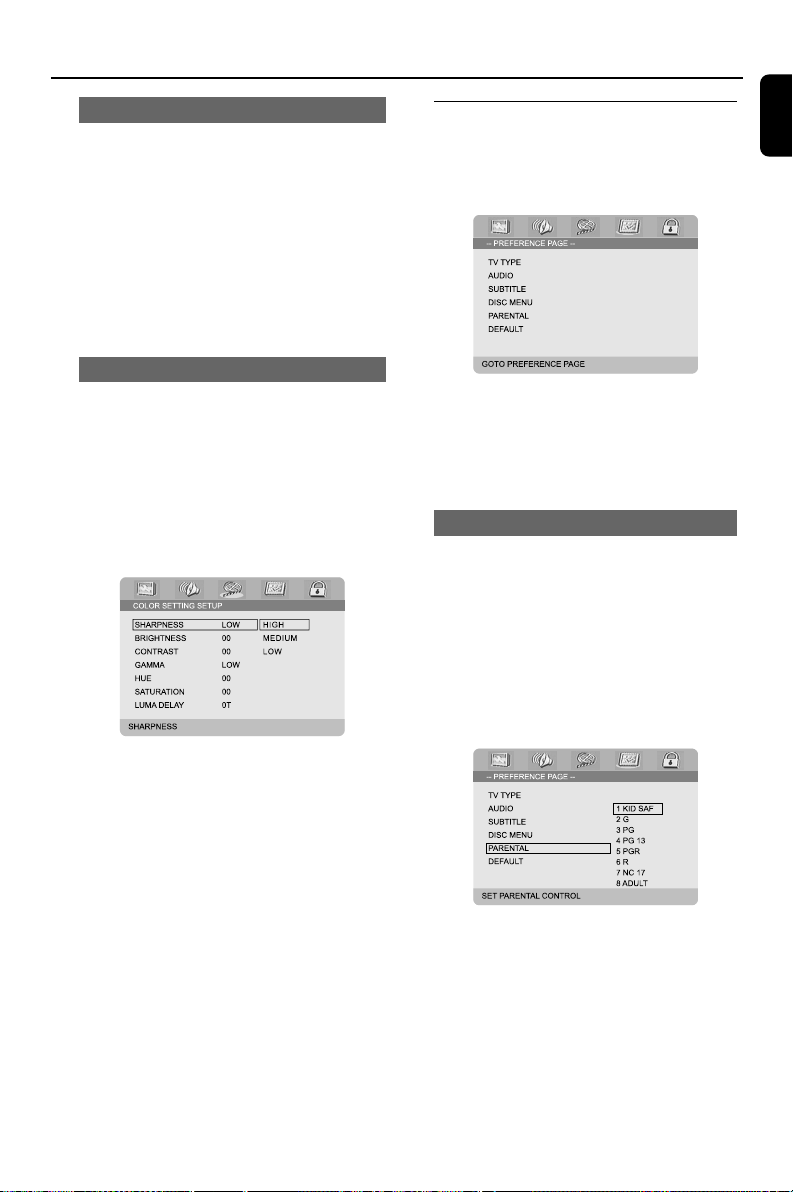
Color Setting
This menu helps you set the video quality.
1 Press 3 4 to highlight “COLOR SETTING”.
2 Press 2 or OK to enter Color Setting Setup.
The options included in Color Setting Setup
page are: “SHARPNESS”, “BRIGHTNESS”,
“CONTRAST”, “GAMMA”, “HUE”,
“SATURATION” and “LUMA DELAY”.
Sharpness
Adjusts the sharpness level.
➜ HIGH, MEDIUM and LOW.
Brightness
Adjusts the brightness level. Range: -20-+20.
Contrast
Adjusts the contrast level. Range: -16-+16.
Gamma
Adjusts the gamma level.
➜ HIGH, MEDIUM, LOW and NONE.
Hue
Adjusts the hue level. Range: -9-+9.
Saturation
Adjusts the saturation level. Range: -9-+9.
Luma Delay
Adjusts the luma delay.
➜ 0 T and 1 T.
Preference Page
The options included in Preference page are:
“TV TYPE”, “AUDIO”, “SUBTITLE”, “DISC
MENU”, “PARENTAL” and “DEFAULT”.
Note:
–Preference features can be selected only when
no disc is in the player or when playback has
stopped completely.
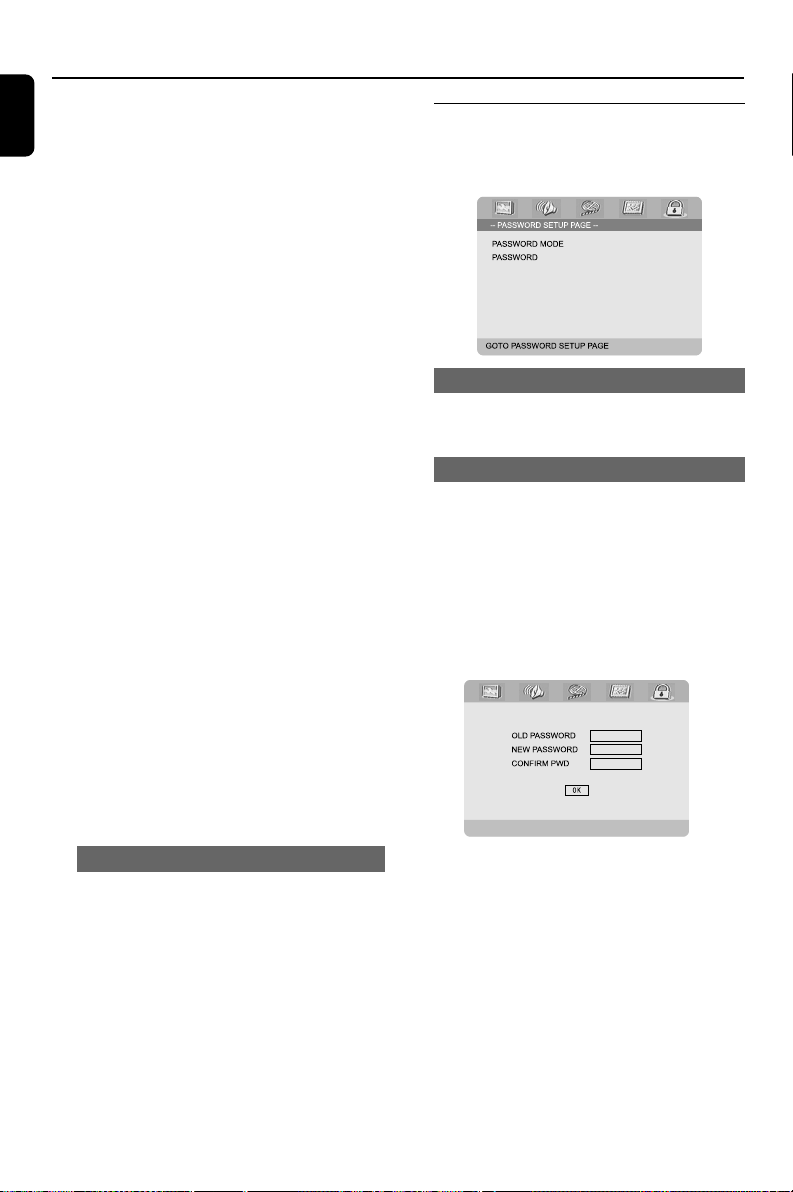
Parental
Some DVDs may have a parental level assigned
to the disc itself or for certain scenes on the
disc. This feature lets you set a playback rating
level.
The rating levels are from 1 to 8 and are
country-dependent. You can prohibit the
playback of certain discs that are not suitable
for your children, or have certain discs played
with alternative scenes.
● VCD, SVCD and CD have no rating level
indication, hence parental control function has
no effect on such discs. This applies to most
illegal DVD discs.
1 Press 3 4 to highlight “PARENTAL”.
2 Enter its submenu by pressing 2.
3 Use 3 4 to highlight a rating level for the disc
inserted.
pg 001-039_MCD708_-22 2006.10.31, 15:4631
32
English
System Menu Options
➜ DVDs that are rated above the level you
selected will not play unless you enter your four-
digit password and choose a higher rating level.
Note:
– Some DVDs are not encoded with a rating
though the movie rating may be printed on the
Disc cover. The rating level feature does not work
for such Discs.
Rating explanations
1 KID SAF
– Kids material; recommended especially for
children and viewers of all ages.
2 G
– General Audience; recommended as
acceptable for viewers of all ages.
3 PG
–Parental Guidance suggested.
4 PG 13
– Material is unsuitable for children under age
13.
5-6 PGR, R
–Parental Guidance - Restricted; parents are
recommended to restrict children under 17
from viewing or to only allow viewing when
supervised by a parent or adult guardian.
7 NC-17
– No children under age 17; viewing is not
recommended for children under age 17.
8 Adult
– Mature materials; should be viewed only by
adults due to the graphic sexual references,
violence or language contents.
Default
Setting the “Default” function will reset all your
options and your personal settings to the factory
defaults and all your personal settings will be
erased.
Caution!
– When this function is activated, all
settings will be reset to factory defaults.
Password Setup Page
The options included in Password Setup page
are: “PASSWORD MODE” and “PASSWORD”.
Password Mode
This feature is used to enable/disable password
by selecting “ON”/”OFF”.
Password
Enter your four digit password when a prompt is
displayed on the screen. The default password is
1234.
1 Press 3 4 to highlight “PASSWORD”.
2 Enter its submenu by pressing 2.
3 Press OK to open the page for inputting a new
password.
4 Enter the existing 4-digit code.
5 Enter the new 4-digit code.
6 Enter the new 4-digit code a second time to
confirm.
➜ The new 4-digit code will take effect.
7 Press OK to exit.
Notes:
– If the password has been changed, the parental
and disc lock code will also be changed.
– The default password (1234) is always active
even the password has been changed.
pg 001-039_MCD708_-22 2006.10.31, 15:4632

33
English
Radio Reception
Tuning to radio stations
1 Press ECO POWER/STANDBY-ON B (or
B on the remote control) to switch on the last
selected source.
2 Press SOURCE (or TUNER on the remote
control) to select TUNER mode.
3 Press TUNER on the remote again to select
the desired band: FM or MW.
4 Press and hold ¡ / ™ (or TU +/- à / á on
the remote control) until the frequency
indication starts to change.
➜ The system automatically tunes to the next
radio station with strong reception.
● To tune to a weaker station, press ¡ / ™ (or TU
+/- à / á on the remote control) briefly and
repeatedly until an optimal level of reception is
reached.
5 Repeat Step 4, if necessary, until finding your
desired radio station.
Presetting radio stations
You can preset up to 40 stations (20 in each
band) regardless of the reception.
Automatic progamming
● Press PROG on the remote control for more
than two seconds to activate programming.
➜ All available stations are programmed.
Manual progamming
1 Tune to your desired radio station (refer to
“Tuning to radio stations”).
2 Press PROG on the remote control.
➜ ”PROG” icon flashes.
3 Press PRESET+ or PRESET-/9 (or CH +/-
(¡ / ™) on the remote control) to select the
desired preset number.
➜ If “PROG” icon goes off before you are able
to select the desired preset number, press
PROG on the remote control.
4 Press PROG on the remote control again to
store the radio station.
● Repeat steps 1-4 to store other radio stations.
Other Functions
Listening to preset radio stations
● In tuner mode, press PRESET+ or PRESET-/9
(or CH +/- (¡ / ™) on the remote control) to
select the desired preset number.
➜ The preset number, radio frequency, and
waveband are displayed.
RDS
Radio Data System is a service that allows
FM stations to display additional information. If
you are receiving a RDS station, and the
station name will be displayed.
Scrolling through different RDS
information
● Press CLOCK/RDS briefly and repeatedly to
scroll through the following information (if
available):
– Station name
– RDS clock
– Programme type such as NEWS, SPORT,
POP M ...
– Frequency
Setting the RDS clock
Some RDS radio station may be transmitting a
real-time clock at an interval of every minute. It
is possible to set the clock by using a time signal
which is broadcast together with the RDS signal.
1 Tune to a RDS station from FM band (refer to
“Tuning to radio stations”).
2 Press CLOCK/RDS.
➜ "RDS 00: OO" appears..
➜ If the RDS station does not transmit RDS
time, "RDS CLOCK" appears.
Note:
– Some RDS radio station may be transmitting a
real-time clock at a minute interval. The accuracy
of the transmitted time depends on the
transmitting RDS radio station.
pg 001-039_MCD708_-22 2006.10.31, 15:4633

34
English
Other Functions
Setting the clock
1 In Standby mode, press and hold CLOCK/RDS
on the remote control until the time flashes on
the display.
➜ ”CLOCK SET” is displayed briefly. Then, the
hour digits flash on the display screen.
2 Tur n VOLUME -/+ clockwise or anticlockwise
or press VOLUME +/- on the remote control
to set the hours.
3 Press CLOCK/RDS to confirm.
➜ The minute digits flash on the display screen.
4 Tur n VOLUME -/+ clockwise or anticlockwise
or press VOLUME +/- on the remote control
to set the minutes.
5 Press CLOCK/RDS again to confirm the clock
setting.
Notes:
– This system only supports the 24-hour mode.
– The clock settings will be erased when the
system is disconnected from the power supply.
– The system will exit clock setting mode when
no button is pressed within 30 seconds.
Setting sleep/wake-up timer
Sleep timer setting
In power-on mode, the sleep timer setting
enables the system to automatically switch to
standby mode at a preset time.
1 In power-on mode, press SLEEP/TIMER on
the remote control repeatedly to select a preset
time.
➜ The selections are as follows (time in
minutes):
00 ➜ 10 ➜ 20 ➜ 30 ➜ 40 ➜ 50 ➜ 60 ➜ 70
➜ 80 ➜ 90 ➜ 00
2 When you reach the desired length of time,
release SLEEP/TIMER.
➜ ”SLEEP” appears.
To deactivate the sleep timer
● Press SLEEP/TIMER repeatedly until “00” is
displayed, or press ECO POWER/
STANDBY-ON B (or B on the remote
control).
In standby mode, the timer setting enables
the system to switch on automatically at a preset
time.
Wake-up timer setting
IMPORTANT!
– Before setting the timer, ensure that
the clock is set correctly.
1 Press and hold SLEEP/TIMER until the time
flashes on the display.
➜ ”TIME SET” scrolls. Then, the hour digits
flash on the display screen.
2 Tu r n VOLUME -/+ clockwise or anticlockwise
or press VOLUME -/+ on the remote control
to set the hours.
3 Press SLEEP/TIMER to confirm.
➜ The minute digits flash on the display screen.
4 Tu r n VOLUME -/+ clockwise or anticlockwise
or press VOLUME -/+ on the remote control
to set the minutes.
5 Press SLEEP/TIMER to confirm the time
setting.
➜ ”OFF” flashes on the display screen.
6 Tu rn VOLUME -/+ clockwise or anticlockwise
or press VOLUME -/+ on the remote control
to select “ON”.
➜ icon appears on the display screen.
To deactivate the timer
● Select “OFF” at Step 6.
pg 001-039_MCD708_-22 2006.10.31, 15:4634

35
English
SYSTEM
Power supply ............................ 220 – 240 V / 50 Hz
Rated working power consumption (1/8 rated
output power) ........................................................ ≤ 55W
AUX input sensitivity ..................................... ≤ 350mV
Channel Separation ............................................. ≥ 40dB
Distortion ....................................................................... 0.7%
Eco power Standby................................................ < 1W
DVD
Frequency response ........... 100Hz-20kHz (±1dB)
Video output ................................................................ 1 V
P-P
Horizontal definition................................... 500 (TV)
Dimensions ....... 232 (W) x 75.5 (H) x 223.5 (D)
mm
Weight ....................................................................... 1.85 kg
AMPLIFIER
Rated output power (THD = 10%) ..........................
................ 2 x 50W RMS/ 2 x 100 W Music Power
Frequency response ........... 100Hz-20kHz (±1dB)
S/N Ratio ................................................................... ≥ 60dB
Loaded impedance ..................................................... 4 Ω
Dimensions ....... 232 (W) x 75.5 (H) x 223.5 (D)
mm
Weight .......................................................................... 3.3 kg
TUNER
FM Frequency range .......................... 87.5-108 MHz
FM Noise limit sensitivity .......................... ≤ 20µ V/M
FM S/N ........................................................................ ≥ 46dB
MW Frequency range ........................ 531-1602 kHz
MW Noise limit sensitivity ...................... ≤ 3.0µ V/m
MW S/N .................................................................... ≥ 40dB
Specifications
SPEAKERS
Impedance........................................................................ 4 Ω
Sensitivity .............................................................. 80 ± 4dB
Frequency response ................................ 80Hz-16kHz
Dimensions . 160 (W) x 270 (H) x 225 (D) mm
Weight .............................................................. 3.1 kg/each
REMOTE
Distance ............................................................................... 6m
Angle ............................................................................... ± 30
0
Specifications subject to change without
prior notice
pg 001-039_MCD708_-22 2006.10.31, 15:4635

36
English
WARNING
Under no circumstances should you try to repair the system yourself, as this will
invalidate the warranty. Do not open the system as there is a risk of electric shock.
If a fault occurs, first check the points listed below before taking the system for repair. If you
are unable to remedy a problem by following these hints, consult your dealer or Philips for
help.
Troubleshooting
Problem
Solution
No power.
No picture.
Distorted or poor picture.
Completely distorted picture or black/
white picture.
✔ Check if the AC power cord is properly
connected.
✔ Press ECO POWER/STANDBY-ON B on
the DVD player or B on the remote control to
switch on the power.
✔ Check if the TV is switched on.
✔ Check the video connection.
✔ Press SOURCE on the DVD player repeatedly
to select “DVD” or press DISC on the remote
control.
✔ Set your TV to the correct Video In channel. This
channel is usually near channel 00. There might
also be a button on the TV remote control that
selects the Auxiliary or A/V IN channel. Refer to
your TV user’s manual for details. Alternatively,
change channels at the TV until you see DVD
screen on the TV.
✔ For instances whereby the progressive scan
feature is activated but the connected TV does
not support progressive signals, or when the
cables have not been appropriately connected,
see page 18-19 for proper progressive scan
setup or deactivate the progressive scan feature
as follows:
1) Turn off the TV progressive scan mode or turn
on the interlaced mode.
2) Press SYSTEM on the remote control to exit
the system menu and then DISC to exit
progressive scan.
✔ Sometimes the picture might appear to be
slightly distorted. This is not a malfunction.
✔ Clean the disc.
✔ The TV has a colour system standard. If the
colour system of the disc or the DVD system is
different than your TV colour system, the picture
may be distorted or appear black and white.
pg 001-039_MCD708_-22 2006.10.31, 15:4636

37
English
The aspect ratio of the screen cannot be
changed even though you have set the TV
shape.
No sound or distorted sound.
The micro DVD player does not start
playback.
The DVD micro system does not
respond when the buttons are pressed.
Unable to activate some features, such as
Angles, Subtitles, or multi-language
Audio.
Considerable noise in radio broadcasts.
✔ The aspect ratio is fixed on the DVD disc.
✔ Depending on the TV, it may not be possible to
change the aspect ratio.
✔ Adjust the volume.
✔ Check that the speakers are connected
correctly.
✔ Replace the speaker cables.
✔ Disconnect the headphones.
✔ If the system is in pause, slow motion or fast
forward/reverse mode, press PRESET/ÉÅ
(or ÉÅ on the remote) to resume normal
play mode.
✔ Insert a readable disc with the playback side
facing down.
✔ Check the disc type, colour system and regional
code. Check for any scratches or smudges on
the disc.
✔ Press SYSTEM to turn off the setup menu
screen.
✔ Cancel the parental control rating function or
change the rating level.
✔ Moisture has condensed inside the system.
Remove the disc and leave the system switched
on for about an hour.
✔ Disconnect the power plug from the outlet and
connect again.
✔ Multi-language sound or subtitle is not
recorded on the DVD.
✔ Changing the language for the sound or subtitle
is prohibited on the DVD.
✔ The features may not be available on the disc.
✔ Tune in to the correct frequency.
✔ Connect the antennas.
✔ Fully extend the FM wire antenna. Adjust the
position for best reception and secure the
antenna to a wall.
✔ Connect an outdoor FM or AM antenna.
✔ Adjust the direction and position for best
reception.
✔ Place the antenna farther away from any
equipment that may be causing the noise.
✔ Increase the distance between the system and
your TV or other equipment.
Tr oubleshooting
pg 001-039_MCD708_-22 2006.10.31, 15:4637

38
English
The remote control does not function.
The display is dark.
Low hum or buzz sound.
Low bass response.
Unable to select Progressive Scan
No sound and picture
✔ Select the correct source (DISC or TUNER, for
example) before pressing the function button.
✔ Point the remote control at the remote sensor
of the unit.
✔ Move closer to the player.
✔ Remove any possible obstacles.
✔ Replace the batteries with new ones.
✔ Check that the batteries are loaded correctly.
✔ Press DIM again.
✔ Place the DVD micro system as far away as
possible from electrical devices that may be
causing interference.
✔ Check all speakers for correct polarity.
✔ Check that the output of the video signal is
switched to 'Ypbpr'.
✔ Check that the RGB/SCART cable is connected
to the correct device (See Connecting TV).
Troubleshooting
pg 001-039_MCD708_-22 2006.10.31, 15:4638
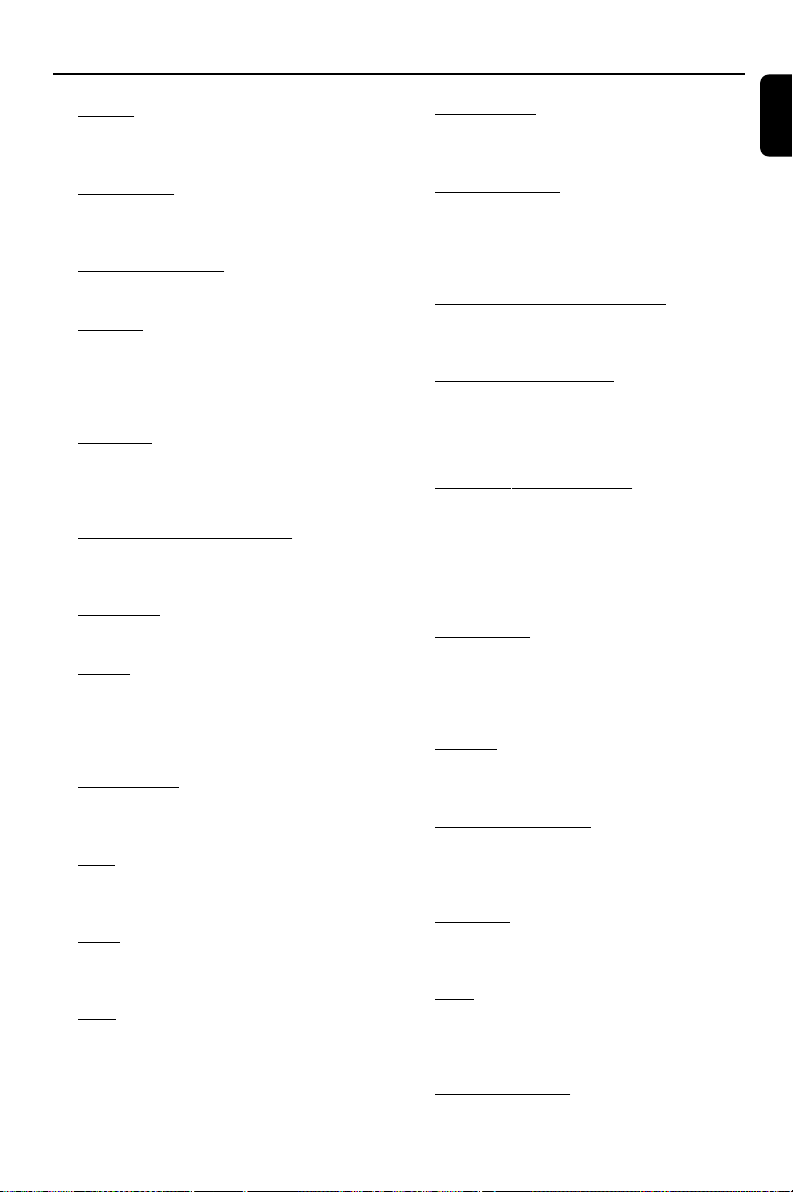
39
English
Glossary
Analog: Sound that has not been turned into
numbers. Analog sound varies, while digital sound
has specific numerical values. These jacks send
audio through two channels, the left and right.
Aspect ratio: The ratio of vertical and
horizontal sizes of a displayed image. The
horizontal vs. vertical ratio of conventional TVs. is
4:3, and that of wide-screens is 16:9.
AUDIO OUT Jacks: Jacks on the back of the
DVD System that send audio to another system
(TV set, Stereo, etc.).
Bit Rate: The amount of data used to hold a
given length of music; measured in kilobits per
second, or kbps. Or, the speed at which you
record. Generally, the higher the bit rate the
better the sound quality. However, higher bit
rates use more space on a Disc.
Chapter: Sections of a picture or a music
piece on a DVD that are smaller than titles. A
title is composed of several chapters. Each
chapter is assigned a chapter number enabling
you to locate the chapter you want.
Component Video Out Jacks: Jacks on the
back of the DVD System that send high-quality
video to a TV set that has Component Video In
jacks (R/G/B, Y/Pb/Pr, etc.).
Disc menu: A screen display prepared for the
selection of images, sound, subtitles, multi-angles,
etc recorded on a DVD.
Digital: Sound that has been converted into
numerical values. Digital sound is available when
you use the DIGITAL AUDIO OUT COAXIAL
or OPTICAL jacks. These jacks send audio
through multiple channels, instead of just two
channels as analog does.
Dolby Digital: A surround sound system
developed by Dolby Laboratories containing up
to six channels of digital audio (front left and
right, surround left and right and center).
DTS: Digital Theater Systems. This is a surround
sound system, but different from Dolby Digital.
The formats were developed by different
companies.
JPEG: A still-picture data compression system
proposed by the Joint Photographic Expert
Group, which features small decrease in image
quality in spite of its high compression ratio.
MP3: A file format with a sound data
compression system, “MPE” is the abbreviation of
Motion Picture Experts Group 1 (or MPEG-1)
Audio Layer 3. Through the MP3 format, one
CD-R or CD-RW can contain about 10 times as
much data volume as a regular CD can.
Multichannel: DVD is specified to have all
sound tracks constitute one sound field.
Multichannel refers to a structure of sound
tracks having three or more channels.
Parental control: A function of the DVD to
limit playback of the disc by the age of the users
according to the limitation level in each country.
The limitation varies from disc to disc; when it is
activated, playback will be prohibited if the
software’s level is higher than the user-set level.
PCM (Pulse Code Modulation): A system
for converting analog sound signal to digital
signal for later processing without data
compression.
Playback control (PBC): Refers to the signal
recorded on video CDs or SVCDs for
reproduction control. By using screen menus
recorded on a Video CD or SVCD that supports
PBC, you can enjoy interactive-type software as
well as software having a search function.
Progressive Scan (P-Scan): It displays all the
horizontal lines of a picture at one time, as a
signal frame. This system can convert interlaced
video from DVD into progressive format for
connection to a progressive display. It
dramatically increases the vertical resolution. A
progressive scan TV set is needed to receive
progressive scan output from the system.
Region code: A system allowing discs to be
played only in preset regions. This unit will only
play discs that have compatible region codes. You
can find the region code of your unit from the
product label. Some discs are compatible with
more than one region (or ALL regions).
S-Video: Produces a clear picture by sending
separate signals for luminance and the color. You
can use S-Video only if your TV set has S-Video
In jack.
Sampling Frequency: Frequency of data
sampling when analog data is converted to
digital data. Sampling frequency numerically
represents how many times the original analog
signal is sampled per second.
Surround: A system for users to create
realistic three-dimensional sound fields full of
realism by arranging multiple speakers around
the listener.
Title: The longest section of a picture or music
feature on DVD, music, etc., in video software, or
the entire album in audio software. Each title is
assigned a title number enabling you to locate
the title you want.
VIDEO OUT jack: Jack on the back of the
DVD System that sends video to TV.
pg 001-039_MCD708_-22 2006.10.31, 15:4639