NW-HD3.GB.2-584-484-11(1)
© 2004 Sony Corporation
Network Walkman
Portable Hard Disk
Audio Player
Operating Instructions
GB
NW-HD3
To go to the section you want to read, click the title
in the PDF Bookmarks, the title in the “Table of
Contents” of the Operating Instructions, or the page
in the sentences.

For the customers in the USA
INFORMATION:
This equipment has been tested and found to comply
with the limits for a Class B digital device, pursuant
to Part 15 of the FCC Rules. These limits are
designed to provide reasonable protection against
harmful interference in a residential installation. This
equipment generates, uses, and can radiate radio
frequency energy and, if not installed and used in
accordance with the instructions, may cause harmful
interference to radio communications. However, there
is no guarantee that interference will not occur in a
particular installation. If this equipment does cause
harmful interference to radio or television reception,
which can be determined by turning the equipment
off and on, the user is encouraged to try to correct the
interference by one or more of the following measures:
– Reorient or relocate the receiving antenna.
– Increase the separation between the equipment and
receiver.
– Connect the equipment into an outlet on a circuit
different from that to which the receiver is
connected.
– Consult the dealer or an experienced radio/TV
technician for help.
You are cautioned that any changes or modifi cations
not expressly approved in this manual could void your
authority to operate this equipment.
If you have any questions about this product:
Visit: www.sony.com/walkmansupport
Contact:
Sony Customer Information Service Center at
1-(866)-456-7669
Write:
Sony Customer Information Services Center
12451 Gateway Blvd.,
Fort Myers, FL 33913
Declaration of Conformity
Trade Name: SONY
Model No.: NW-HD3
Responsible Party: Sony Electronics Inc.
Address: 16450 W. Bernardo Dr,
San Diego, CA 92127 USA
Telephone Number: 858-942-2230
This device complies with Part 15 of the FCC Rules.
Operation is subject to the following two conditions:
(1) This device may not cause harmful interference,
and (2) this device must accept any interference
received, including interference that may cause
undesired operation.
“WALKMAN” is a registered trademark of
Sony Corporation to represent Headphone
Stereo products.
is a
trademark of Sony Corporation.
Owner’s Record
The model and serial numbers are located
at the rear of the player. Record the serial
number in the space provided below. Refer
to these numbers whenever you call upon
your Sony dealer regarding this product.
Model No. NW-HD3
Serial No. ___________________________
WARNING
To prevent fi re or shock hazard,
do not expose the unit to rain
or moisture.
Do not install the appliance in a confi ned
space, such as a bookcase or built-in cabinet.
To prevent fi re, do not cover the ventilation
of the apparatus with newspapers, table
cloths, curtains, etc. And don’t place lighted
candles on the apparatus.
To prevent fi re or shock hazard, do not place
objects fi lled with liquids, such as vases, on
the apparatus.
Note on installation
If you use the unit at a place subject to static
or electrical noise, the track’s transferring
information may be corrupted. This would
prevent successful transferring authorization
on your computer.
For the customers in the USA and Canada
RECYCLING LITHIUM-ION BATTERIES
Lithium-ion batteries are recyclable.
You can help preserve our environment
by returning your used rechargeable
batteries to the collection and recycling
location nearest you.
For more information regarding recycling of
rechargeable batteries, call toll free 1-800-822-8837,
or visit http://www.rbrc.org/.
Caution: Do not handle damaged or leaking
Lithium-ion batteries.
For the Customers in Russia
Для покyпaтeлeй в Pоccии
Этот знaк отноcитcя только
к aдaптepy пepeмeнного токa.
Портативный плеер со встроенным жёстким диском
2
GB

Table of Contents
Notice for Users
..............................................
4
Precautions
.......................................................
5
On safety................................................................. 5
On installation
....................................................... 5
On heat build-up
.................................................. 5
On the headphones
.............................................. 5
On cleaning
............................................................ 5
Getting Started
Checking the Supplied Accessories
......
6
Guide to Parts and Controls
......................
7
About the serial number.................................... 7
Preparing a Power Source
..........................
8
Charging the battery using a USB
connection
............................................................. 9
Checking the remaining power of the
battery
..................................................................... 9
Installing SonicStage
on Your Computer
.......................................
10
Preparing the required system....................... 10
Installing SonicStage
........................................11
Importing Audio Data
to Your Computer
........................................
12
Transferring Audio Data
to the Player
..................................................
14
Using SonicStage Help....................................16
Playback
Playing Back
..................................................
18
Locking the controls (HOLD) .................. 19
Basic playback operations
(Play, stop, search)...................................20
Checking information in the display
..........20
Playing Back Tracks Selected by MODE
(Artist, Album, Genre, Group, etc.)..... 21
MODE displays..................................................23
Adding a bookmark
(Bookmark track play)............................. 24
Changing Playback Options
(Play Mode) ..........................................25
Playback options (Play Mode) .................26
Playing tracks repeatedly (Repeat play)...28
Changing Sound Quality
and Settings
..................................................
29
Setup items...........................................................30
Customizing sound quality
(Sound EQ - Custom) ..............................32
Adjusting treble and bass emphasis
(Digital Sound Preset) .............................33
Other Functions
Transferring Audio Data Back
to Your Computer
........................................
34
Connecting Other Devices
......................
35
Storing Data Other Than Audio Files
...
36
Resetting to the Factory Settings
........
36
Initializing Hard Disk
..................................
37
Additional Information
Notes on Disposing of the Unit
.............
39
Troubleshooting
...........................................
41
Error Messages
............................................
46
Specifi cations
...............................................
48
Index
.................................................................
48
3 GB

Notice for Users
On the supplied software
• Copyright laws prohibit reproducing the
software or the manual accompanying it
in whole or in part, or renting the software
without the permission of the copyright
holder.
• In no event will SONY be liable for
any fi nancial damage, or loss of profi ts,
including claims made by third parties,
arising out of the use of the software
supplied with this player.
• In the event a problem occurs with
this software as a result of defective
manufacturing, SONY will replace
it. However, SONY bears no other
responsibility.
• The software provided with this player
cannot be used with equipment other than
that which is so designated.
• Please note that, due to continued efforts to
improve quality, the software specifi cations
may be changed without notice.
• Operation of this player with software other
than that provided is not covered by the
warranty.
• The ability to display the languages on the
software will depend on the installed OS on
your PC. For better results, please ensure
that the installed OS is compatible with the
desired language you want to display.
- We do not guarantee all the languages will
be able to be displayed properly on the
software.
- User-created characters and some special
characters may not be displayed.
• Depending on the type of the text and
characters, the text shown on the software
may not be displayed properly on the
device. This is due to:
- The capability of the connected device.
- The device is not functioning normally.
Program ©2001, 2002, 2003, 2004 Sony
Corporation
Documentation ©2004 Sony Corporation
• SonicStage and SonicStage logo are
trademarks or registered trademarks of Sony
Corporation.
• OpenMG, ATRAC3plus and their logos are
trademarks of Sony Corporation.
• Microsoft, Windows, Windows NT
and Windows Media are trademarks
or registered trademarks of Microsoft
Corporation in the United States and/or
other countries.
• IBM and PC/AT are registered trademarks
of International Business Machines
Corporation.
• Macintosh is a trademark of Apple
Computer, Inc. in the United States and/or
other countries.
• Pentium is a trademark or a registered
trademark of Intel Corporation.
• Adobe and Adobe Reader are trademarks
or registered trademarks of Adobe Systems
Incorporated in the United States and/or
other countries.
• US and foreign patents licensed from Dolby
Laboratories.
• All other trademarks and registered
trademarks are trademarks or registered
trademarks of their respective holders.
• In this manual,
TM
and ® marks are not
specifi ed.
• CD and music-related data from Gracenote,
Inc., copyright © 2000-2003 Gracenote.
Gracenote CDDB
®
Client Software,
copyright 2000-2003 Gracenote.
This product and service may practice
one or more of the following U.S. Patents:
#5,987,525; #6,061,680; #6,154,773,
#6,161,132, #6,230,192, #6,230,207,
#6,240,459, #6,330,593 and other patents
issued or pending.
Gracenote and CDDB are registered
trademarks of Gracenote. The Gracenote
logo and logotype, the Gracenote CDDB
logo, and the “Powered by Gracenote” logo
are trademarks of Gracenote.
4
GB
Precautions
On safety
• Do not put any foreign objects in the DC IN
jack of the USB adaptor.
• Be sure not to short-circuit the terminals of
the USB adaptor with other metallic objects.
On installation
• Never use the player where it will be
subjected to extremes of light, temperature,
moisture or vibration.
• Never wrap the player in anything when it
is being used with the AC power adaptor.
Heat build-up in the player may cause
malfunction or damage.
On heat build-up
Heat may build up in the player or USB
adaptor while charging if it is used for an
extended period of time.
On the headphones
Road safety
Do not use headphones while driving, cycling,
or operating any motorized vehicle. It may
create a traffi c hazard and is illegal in many
areas. It can also be potentially dangerous
to play at a high volume while walking,
especially at pedestrian crossings. You should
exercise extreme caution or discontinue use in
potentially hazardous situations.
Preventing hearing damage
Avoid using the headphones at a high volume.
Hearing experts advise against continuous,
loud and extended play. If you experience a
ringing in your ears, reduce the volume or
discontinue use.
Caring for others
Keep the volume at a moderate level. This
will allow you to hear outside sounds and to
be considerate to the people around you.
Warning
If there is lightning when you are using the
player, take off the headphones immediately.
On cleaning
• Clean the player casing with a soft cloth
slightly moistened with water or a mild
detergent solution.
• Clean the headphone plug periodically.
Notes
• Do not use any type of abrasive pad,
scouring powder or solvent such as alcohol
or benzene as it may mar the fi nish of the
casing.
• Be careful not to let water into the USB
adaptor or the recording USB adaptor from
the clearance at the connection part.
If you have any questions or problems
concerning the player, consult your nearest
Sony dealer.
NOTES
• The recorded music is limited to private
use only. Use of the music beyond this
limit requires permission of the copyright
holders.
• Sony is not responsible for incomplete
recording/downloading or damaged
data due to problems of the player or
computer.
5 GB
Getting Started
Checking the Supplied
Accessories
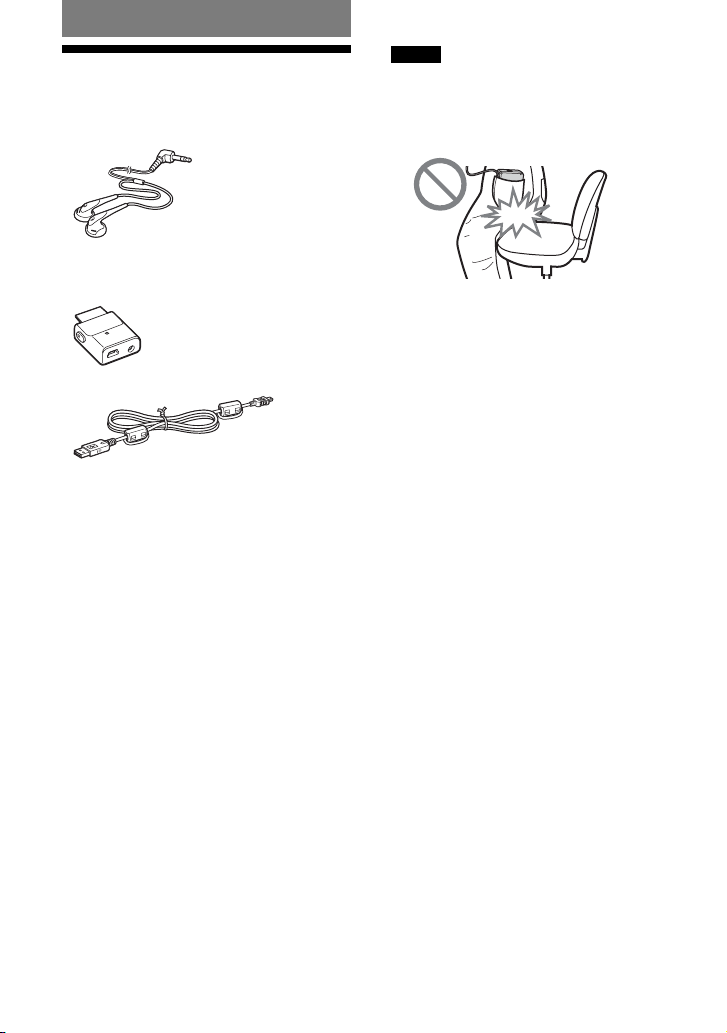
• Headphones (1)
• USB adaptor (1)
(For connecting to the supplied USB cable
and the supplied AC power adaptor)
• Dedicated USB cable (1)
• AC power adaptor (1)
• Carrying case (1)
• CD-ROM (1) *
(SonicStage, PDF of Operating Instructions)
• Quick Start Guide (1)
* Do not play this CD-ROM on an audio CD player.
For customers in the US
The AC power adaptor supplied with this
unit is not intended to be serviced. Should
the AC power adaptor cease to function in its
intended manner during the warranty period,
the adaptor should be returned to your nearest
Sony Service Center or Sony Authorized
Repair Center for replacement, or if a
problem occurs after the warranty period has
expired, the adaptor should be discarded.
Notes
When using this unit, remember to follow the
precautions below in order to avoid warping the
cabinet or causing the unit to malfunction.
– Make sure not to sit down with the unit in your
back pocket.
– Make sure not to put the unit into a bag with
the remote control or the headphones/earphones
cord wrapped around it and then subject the bag
to strong impact.
6 GB
Guide to Parts and
Controls
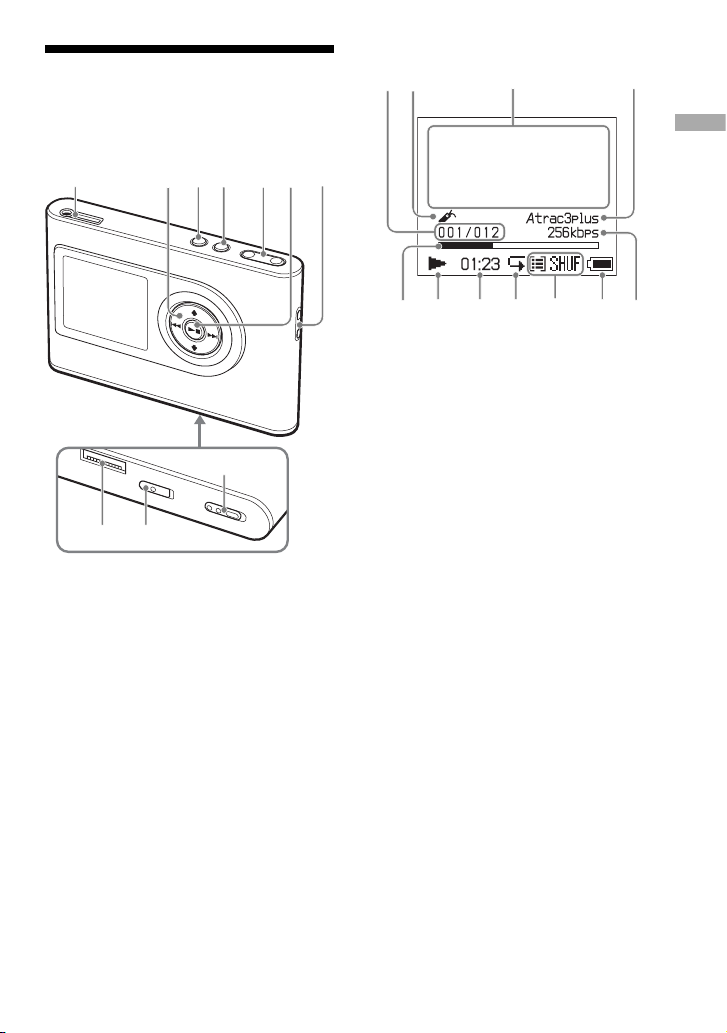
Player
(headphones)/LINE OUT jack
(
page 18)
, , , buttons (
page 20, 21)
MENU button (
page 25, 29)
MODE button (
page 21)
VOLUME +*/– buttons (
page 18)
(play/stop) button (
page 18, 20)
Hole for hand strap**
USB adaptor connector
(
page 8, 15)
BUILT-IN BATTERY switch (
page 8)
HOLD switch (
page 19)
* This button has a tactile dot.
** You can attach your own hand strap.
Player display
Track number indicator (
page 20)
Bookmark indicator (
page 24)
Character information display
(
page 20)
Atrac3plus/MP3 indicator (
page 19)
Playback progress bar (
page 20)
Playback indicator (
page 20)
Playing time (
page 20)
Repeat indicator (
page 28)
Play mode indicator (
page 25),
Sound indicator (when adjusting the
volume,
page 30)
Battery indicator (
page 9)
Bit rate (
page 13)
About the serial number
The serial number provided for this player is
required for the customer registration. The
number is on a label on the rear of the player.
7 GB
Getting Started
Preparing a Power
Source
Charge the built-in lithium-ion rechargeable
battery before using it for the fi rst time or
when it is depleted.
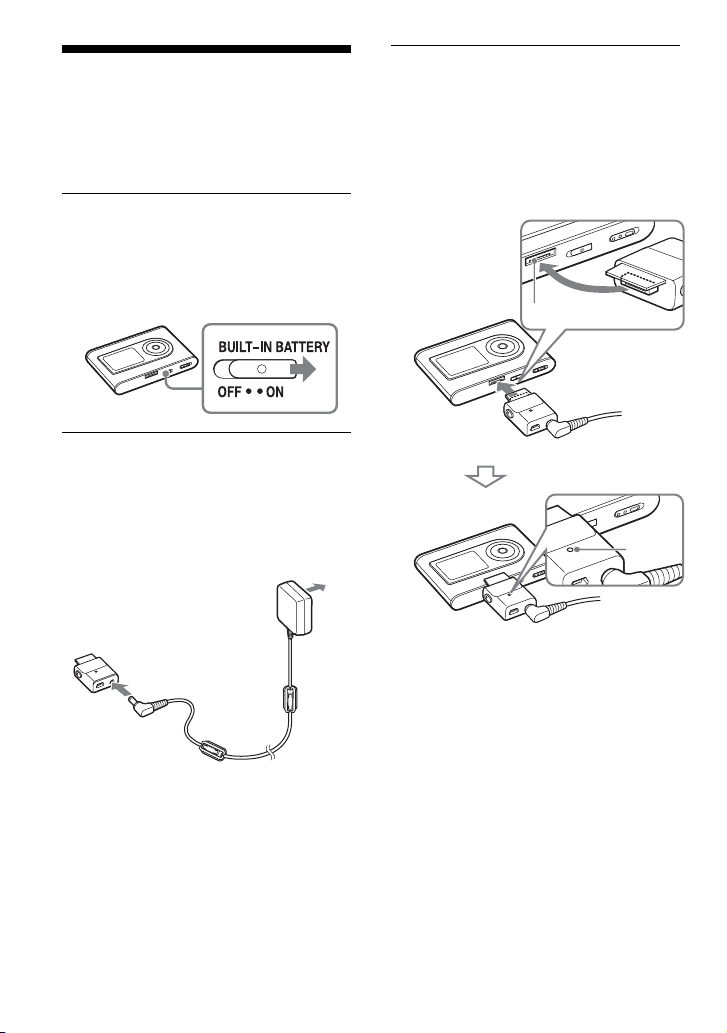
1
Slide the BUILT-IN BATTERY switch
to ON.
The protection for the built-in
rechargeable battery is released and power
is supplied to the player. Keep the switch
to ON position.
2
Connect the the AC power adaptor
to the USB adaptor.
Connect the DC plug of the AC power
adaptor to the DC IN jack of the USB
adaptor, and then connect the AC plug to
a wall outlet.
to an AC outlet
AC power
adaptor
to DC IN
jack
USB adaptor
3
Connect the USB adaptor to the
player.
Insert the USB adaptor as shown below
until it clicks into place.
Charging of the battery starts. The CHG
lamp lights up on the USB adaptor, and
if the player is on, the battery indicator in
the display changes.
USB adaptor connector
CHG
lamp
USB adaptor
Charging is completed and the CHG lamp
goes off in approximately 3 hours*. The
lightning mark lights up in the display if
the player is on.
To charge quickly, turn the display off and
disconnect the USB cable from the USB
adaptor, and then it takes approximately 1
hour* to charge up to 80%.
* This is the approximate charging time for an
empty battery charged under room temperature.
When the display is on, it takes approximately
5 hours to charge. The charging time will
differ depending on the remaining power and
battery condition. If the battery is charged in a
low-temperature environment, the charging time
will be longer.
8 GB
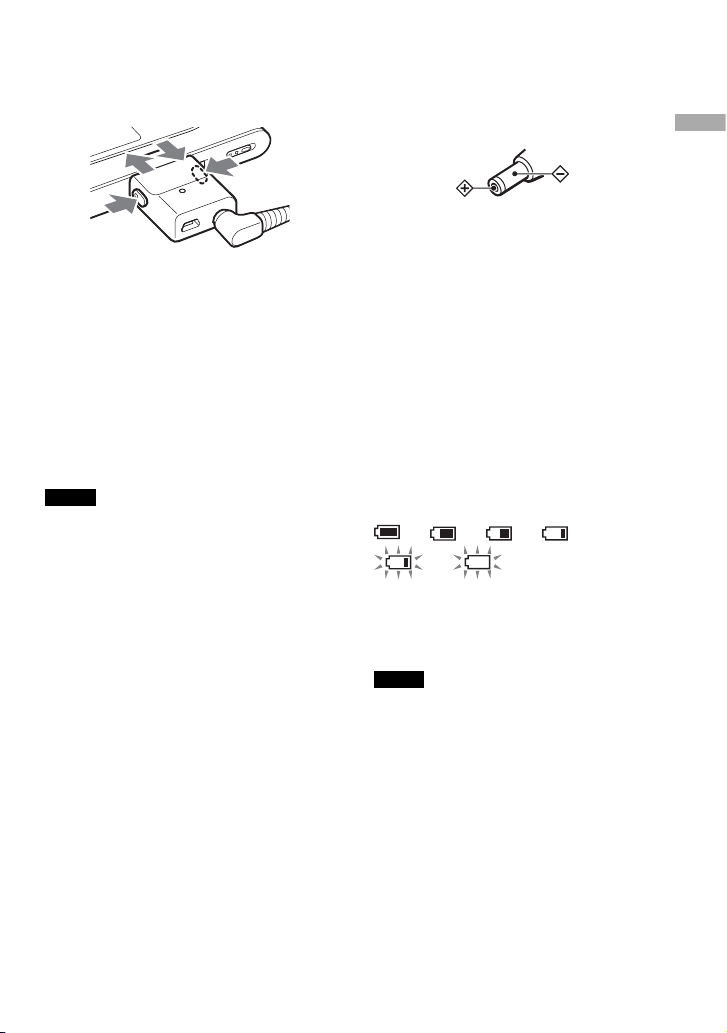
To remove the USB adaptor from the player
While pressing the gray buttons on both sides,
push the USB adaptor inward, and then pull
it outward.
Charging the battery using
a USB connection
Turn on your computer and connect the USB
cable to your computer (
page 14). The
CHG lamp lights up on the USB adaptor
and charging of the battery starts. It takes
approximately 5 hours to charge. When the
player is connected to the AC power adaptor,
the power is supplied from the AC power
adaptor.
Notes
• When charging the battery using a USB
connection, if your computer’s power supply is
insuffi cient, the charging time will be longer.
• When charging the battery using a USB
connection, the charging will stop depending on
your system environment.
• If the player is connected to the computer for
a long time while charging, charging may stop
to prevent the temperature of the player from
increasing too much. In this case, the CHG lamp
goes out. Remove the USB adaptor from the
player and start charging again after a while.
• If the player will not be used for three months or
more, set the BUILT-IN BATTERY switch to OFF
to prevent degradation of the battery.
• Charge the battery in an ambient temperature of
between 5 to 35ºC (41 to 95ºF).
Notes on the AC power adaptor
• Use only the AC power adaptor and the
USB adaptor supplied with the player. Do
not use any other AC power adaptor since
this may cause the player to malfunction.
• The player is not disconnected from the
AC power source (mains) as long as it is
connected to the wall outlet, even if the
player itself has been turned off.
• If you are not going to use the player for a
long time, be sure to disconnect the power
supply. To remove the AC power adaptor
from the wall outlet, grasp the adaptor plug
itself; never pull the cord.
Checking the remaining
power of the battery
The remaining power of the battery is
indicated in the display. As the black indicator
section decreases, the remaining power is
depleted further.
*
* “LOW BATTERY” appears in the display and
beep sounds.
When the battery is depleted, recharge the
battery.
Notes
• The display shows the approximate battery power
remaining. For example, one section does not
always indicate one-fourth of the battery power.
• Depending on the operating conditions, the display
may increase or decrease relative to the actual
power remaining.
Battery life (continuous use)
Playing time for ATRAC3plus 48 kbps is
approximately 30 hours. Playing time for
MP3 128 kbps is approximately 22 hours.
The amount varies depending on how the
player is used.
9 GB
Getting Started
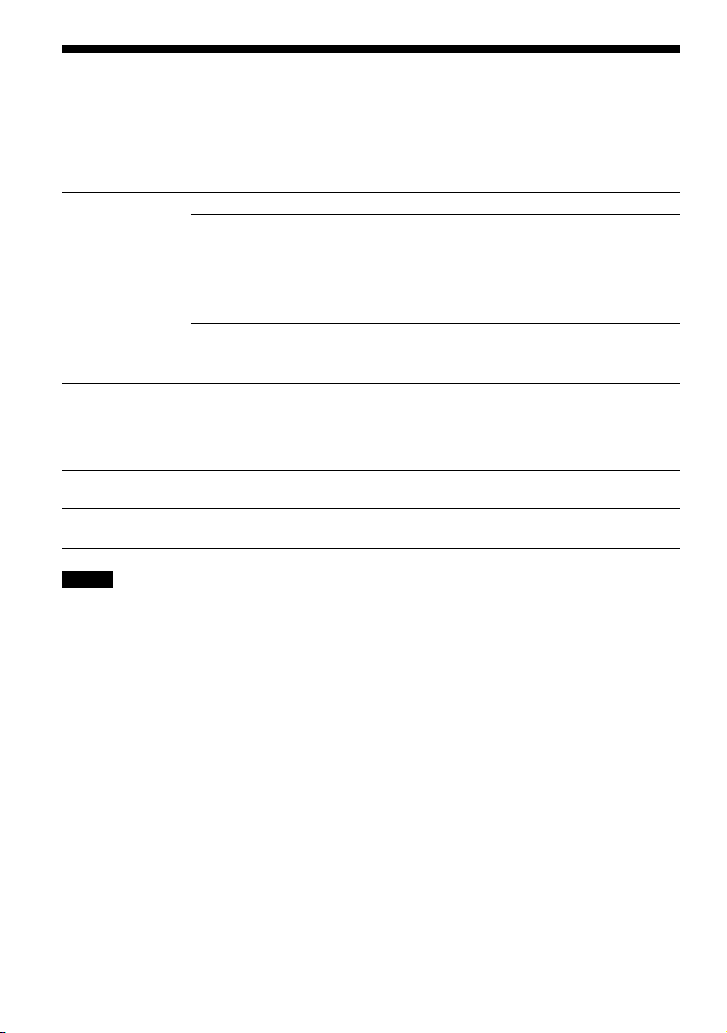
Installing SonicStage on Your Computer
Using the supplied CD-ROM, install the SonicStage on your computer.
Preparing the required system
The following system environment is required.
Computer
IBM PC/AT or Compatible
• CPU: Pentium II 400 MHz or higher (Pentium III 450 MHz or higher is
recommended.)
• Hard disk drive space: 200 MB or more (1.5 GB or more is recommended.) (The
amount of space will vary according to the Windows version and the number of
music fi les stored on the hard disk.)
• RAM: 64 MB or more (128 MB or more is recommended.)
Others • CD drive (capable of digital playback by WDM)
• Sound Board
• USB port (Hi-Speed USB is supported.)
Operating System
Factory installed:
Windows XP Media Center Edition 2005/Windows XP Media Center Edition 2004/
Windows XP Media Center Edition/Windows XP Professional/
Windows XP Home Edition/Windows 2000 Professional/
Windows Millennium Edition/Windows 98 Second Edition
Display
High Color (16 bit) or higher, 800 × 600 dots or better (1024 × 768 dots or better is
recommended.)
Others
• Internet access: for Web registration, EMD services and CDDB
• Windows Media Player (version 7.0 or higher) installed for playing WMA fi les
Notes
• SonicStage is not supported by the following environments:
– Operating systems other than those the indicated above
– Personally constructed PCs or operating systems
– An environment that is an upgrade of the original manufacturer-installed operating system
– Multi-boot environment
– Multi-monitor environment
– Macintosh
• We do not guarantee trouble-free operation on all computers that satisfy the system requirement.
• The NTFS format of Windows XP/Windows 2000 Professional can be used only with the standard (factory)
settings.
• For Windows 2000 Professional users, install Service Pack 3 or later version before using the software.
• We do not guarantee trouble-free operation of the system suspend, sleep, or hibernation function on the
computers.
10 GB
Installing SonicStage
Check the following before installing the
SonicStage software.
• Make sure to close all other software,
including any virus-check software, as such
software usually demands a large amount of
system resources.
• Make sure to use the supplied CD-ROM for
installing SonicStage.
– If OpenMG Jukebox or SonicStage has
been installed, the existing software will
be overwritten by the new version with the
new functions.
– If SonicStage Premium, SonicStage
Simple Burner, or MD Simple Burner has
been installed, the existing software will
co-exist with SonicStage.
– You will still be able to use audio data
registered by the existing software. As
a precaution, we recommend that you
back up your audio data. To back up the
data, refer to “Backing Up My Library”
– “Backing Up Data to a Disk” on
SonicStage Help.
1
Turn on your computer and start up
Windows.
2
Insert the supplied CD-ROM into the
CD drive of your computer.
The setup program starts up automatically
and the installation window appears.
Depending on the region, a window
may appear asking you to select your
country. In this case, follow the displayed
instructions.
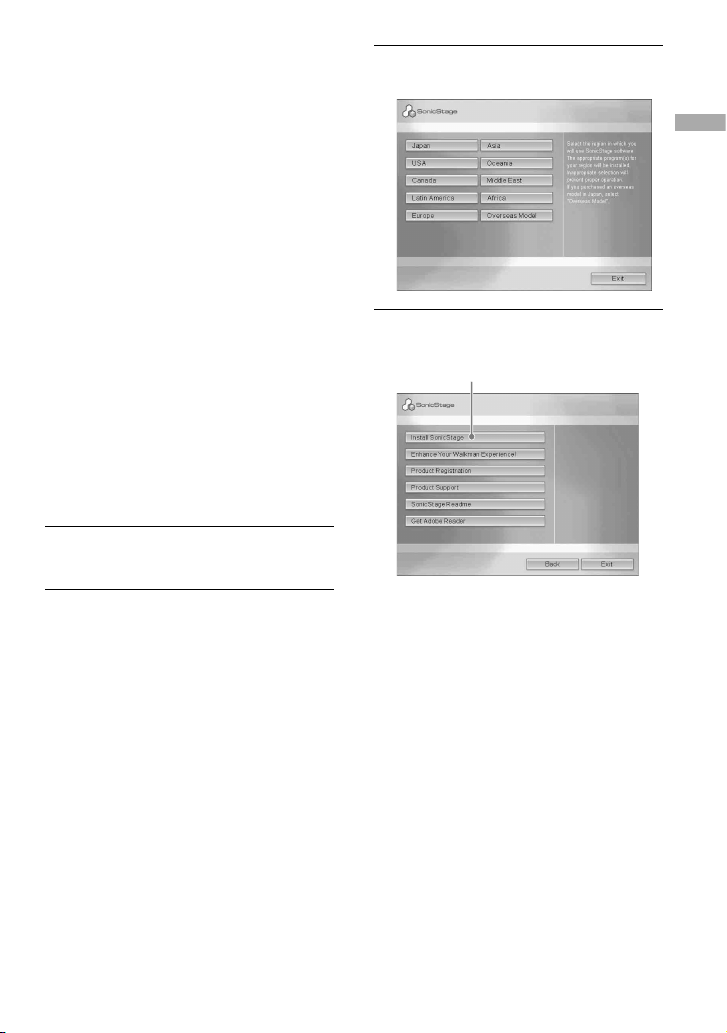
3
Click the region in which you will
use SonicStage software.
4
Click “Install SonicStage,” and then
follow the displayed instructions.
“Install SonicStage”
Read the instructions carefully.
Depending on your region, the buttons
other than “Install SonicStage” may differ
from those in the illustration above.
The installation may take 20 to 30
minutes, depending on your system
environment.
Make sure to restart your computer only
after the installation is completed.
If any trouble occurs during the
installation, see “Troubleshooting” (
page 43).
Note on uninstalling
“OpenMG Secure Module” is installed when
you install SonicStage. If you uninstall
SonicStage, do not delete OpenMG Secure
Module since it may be used by other
software.
11 GB
Getting Started
Importing Audio Data
to Your Computer
Record and store tracks (audio data) from an
audio CD to the SonicStage “ My Library” on
the hard disk drive of your computer.
You can record or import tracks from
other sources such as the Internet and your
computer’s hard disk. Refer to SonicStage
Help for details (
page 16).
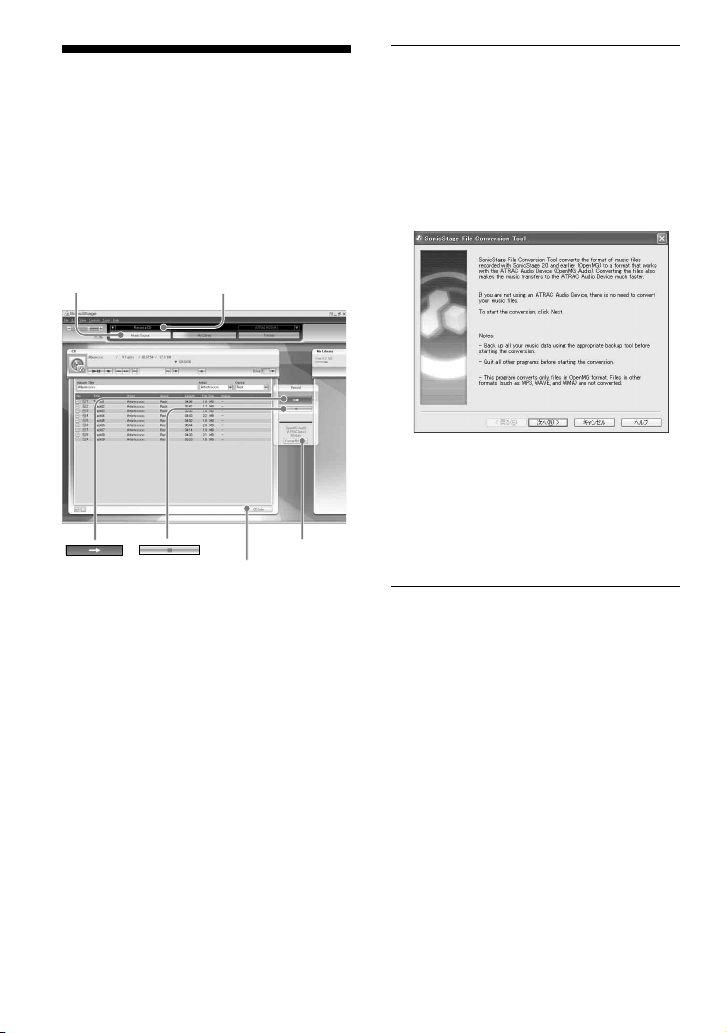
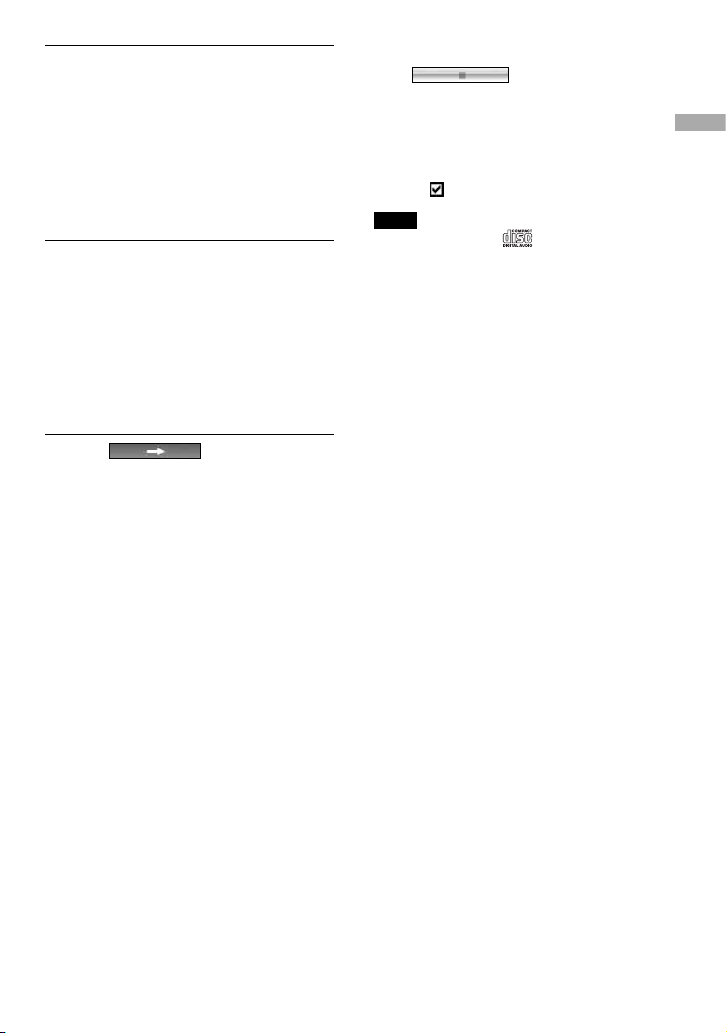
Source indication
“Format/Bit Rate”
“CD Info”
“Music Source”
1
Select “Start” – “All Programs”* –
“SonicStage” – “SonicStage.”
SonicStage starts up.
If you use the earlier version of
SonicStage, the “SonicStage fi le
conversion tool”
**
window appears when
you start up SonicStage for the fi rst time
after installing it. Follow the instructions
in the window.
* “Programs” in the case of Windows Millennium
Edition/Windows 2000 Professional/Windows
98 Second Edition
**This tool converts the audio fi les that were
imported to your computer with SonicStage2.0
or a prior version into the optimum data format
(OpenMG) for this player, in order to transfer
audio data to the player at high speed.
2
Insert the audio CD that you want
to record into the CD drive of your
computer.
The source indication in the top-left of the
SonicStage window changes to “Record
a CD.”
12 GB
3
Click “Music Source” on the
SonicStage window.
The contents of the audio CD appear in
the music source list. If CD information
such as album title, artist name, and
track names could not be obtained
automatically, connect your computer to
the Internet and click “CD Info” on the
right side of the window.
4
If necessary, change the format and
bit rate for audio CD recording.
Click “Format/Bit Rate” on the right side
of the SonicStage window to display “CD
Recording Format [My library]” dialog
box.
The default setting is OpenMG Audio
(ATRAC3plus) for format and 64 kbps for
bit rate.
5
Click on the
SonicStage window.
The recording of the selected tracks starts.
To stop recording
Click on the SonicStage
window.
To select the tracks you do not want to
record
Before step 5, click the track number to
uncheck
on the SonicStage window.
Note
Only audio CDs with a mark can be used with
SonicStage. We do not guarantee normal operation
in the case of the copy-controlled CDs.
13 GB
Getting Started
Transferring Audio
Data to the Player
Transfer the tracks (audio data) stored in
SonicStage “ My Library” on your computer
to the player in ATRAC3plus/MP3
format.
The audio data to be transferred includes the
information, such as an artist name and an
album name (original album name) in the CD
information.
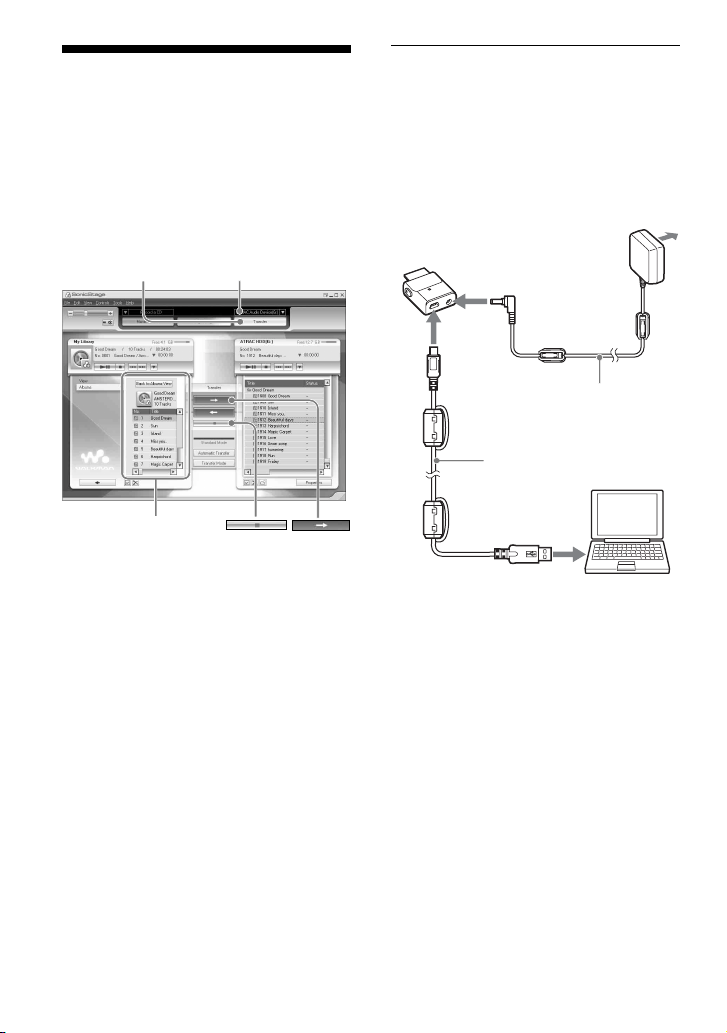
My Library list
“Transfer”
“ATRAC Audio Device”
1
Connect the USB adaptor to
your computer and the AC power
adaptor.
Connect from to as shown below.
Connect the large connector of the USB
cable to a USB port on your computer and
the small connector to the USB jack on
the USB adaptor.
to USB port
to USB
jack
to an AC outlet
USB cable (supplied)
to DC IN jack
AC power adaptor
(supplied)*
USB adaptor
* When transferring audio data, make sure to
connect the AC power adaptor to the USB
adaptor. You cannot transfer audio data if they
are not connected.
14 GB
2
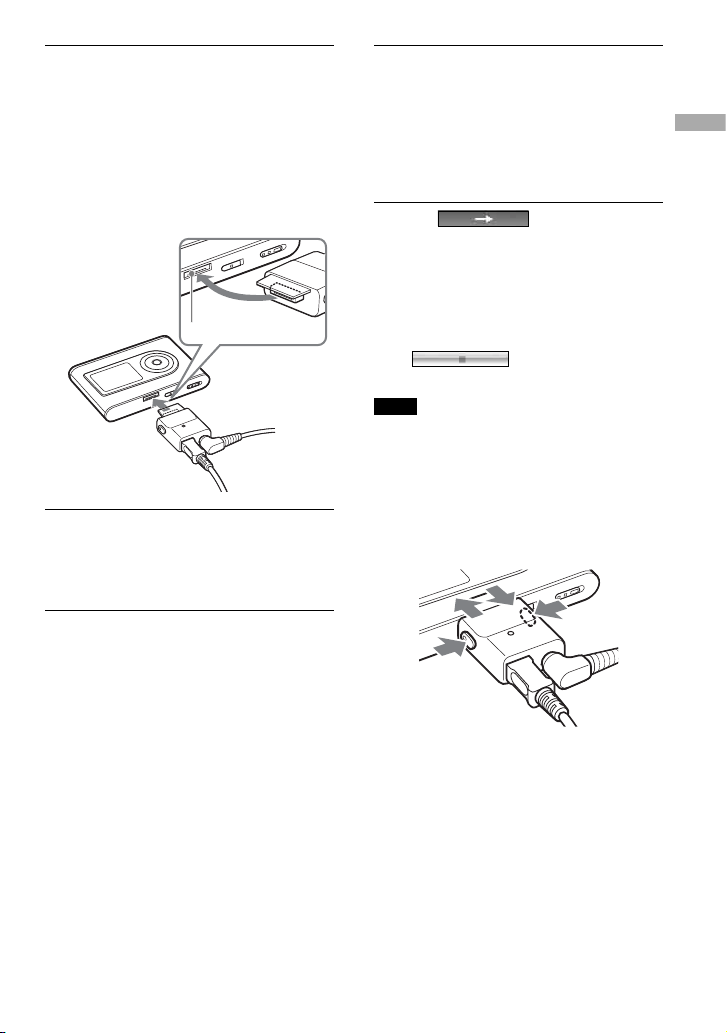
Connect the USB adaptor to the
player.
Insert the USB adaptor as shown below
until it clicks into place.
“PC Connect” appears in the display.
The setup display for automatic transfer
appears in the SonicStage window. Follow
the instructions in the window. For details,
see the SonicStage Help (
page 16).
USB adaptor
USB adaptor connector
3
Click “Transfer” on the right side of
the SonicStage window.
The screen is switched to the Transfer
window.
4
Select “ATRAC Audio Device” from
the Transfer Destination list on
the right side of the SonicStage
window.
5
Click the tracks you want to transfer
from the My Library list on the left
side of the SonicStage window.
To transfer more than one track, hold
down the “Ctrl” key while selecting the
tracks. To transfer all tracks of the album,
click the album.
6
Click on the
SonicStage window.
Transfer of the selected tracks starts.
You can check the transferring status on
the SonicStage window.
To stop transferring
Click on the SonicStage
window.
Note
Do not use the player where it will be subjected to
vibration when transferring audio data. Also, do not
place the player near magnetic objects.
To remove the USB adaptor from the player
While pressing the gray buttons on both sides,
push the USB adaptor inward, and then pull
it outward.
Continued
15
GB
Getting Started
Notes
• Do not disconnect the USB cable or the USB
connector while the data is being transferred.
If you do, the data being transferred may be
destroyed.
• Use of the player with a USB hub or a USB
extension cable is not guaranteed. Always connect
the player to the computer directly using the
supplied USB cable.
• Some USB devices connected to the computer
may interfere with the proper operation of the
player.
• The control buttons on the player are all disabled
while it is connected to a computer. If you attach
the player to the USB adaptor connected to the
computer during playback, playback stops and
“PC Connect” appears in the player display.
• When there is not enough free space on the player
for audio data to be transferred, the transfer will
fail.
• During the transfer, the system suspend, sleep, or
hibernation function will not operate.
• Depending on the type of the text and number of
characters, the text entered by SonicStage may
not be displayed on the player. This is due to the
limitations of the player.
• If the player is connected for a while to a computer
that is powered, or after lots of data is transferred
to the player, the player may get warm. However,
this is not a malfunction. Disconnect the player
from the USB adaptor and leave it aside for a
while.
Using SonicStage Help
SonicStage Help provides further details on
how to use SonicStage. SonicStage Help
allows you to search easily for information
from a list of operations, such as “Importing
audio data” or “Transferring audio data,” or
from large list of keywords, or by typing in
words that might lead you to the appropriate
explanations.
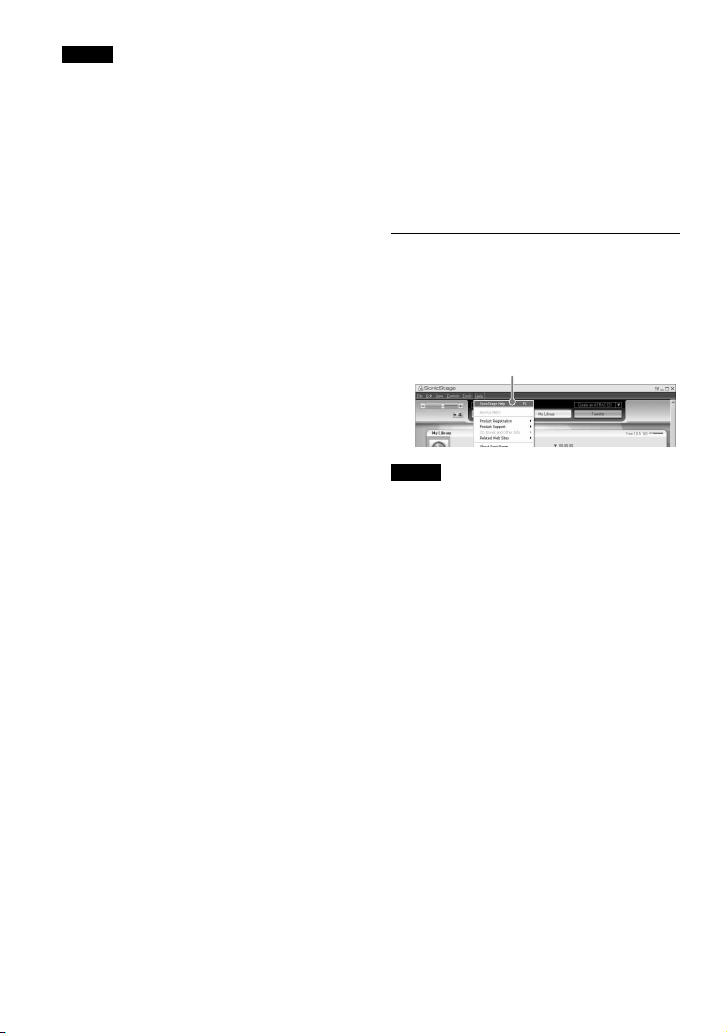
1
Click “Help” – “SonicStage Help”
while SonicStage is running.
Help appears.
The player is explained as “ATRAC Audio
Device” in SonicStage Help.
“SonicStage Help”
Notes
• In SonicStage Help, “Device/Media” is the general
term for this player.
• Follow the instructions of your internet provider
regarding such things as recommended system.
16 GB
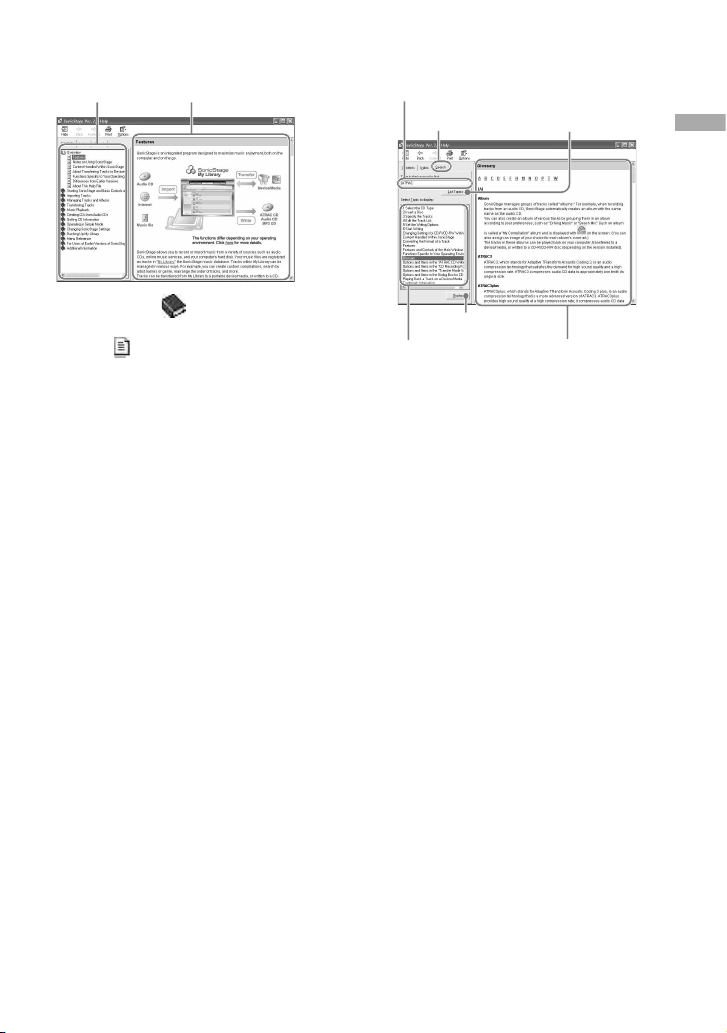
To understand SonicStage Help
The left side
frame
The right side
frame
1 Double click “ Overview” in the left-
side frame of SonicStage Help.
2 Click “
About This Help File.”
The explanation will appear in the right-
side frame.
Scroll the display if necessary. Click
underlined words to jump to their
explanations.
To search for a word inside an explanation
A list of the typed
words
“Display”
“Type in the keyword to fi nd”
text box
“Search”
An explanations of
the selected item
“List Topics”
1 Click “Search.”
2 Type in the words.
3 Click “List Topics.”
A list of the typed words is displayed.
4 Click to select the desired item among
those displayed.
5 Click “Display.”
An explanation of the selected item is
displayed.
17 GB
Getting Started
Playback
Playing Back
Transfer audio data from your computer to the
player beforehand (
page 14).
You can change the language to your own for
the menu and the messages in the display (
page 31).
1
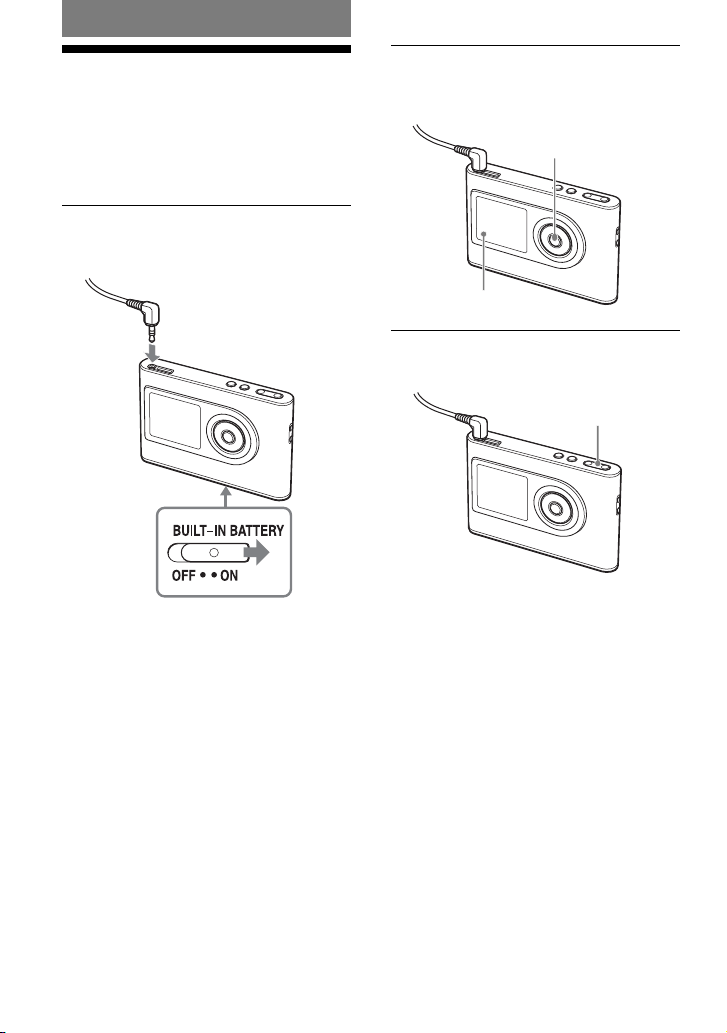
After setting the BUILT-IN BATTERY
switch to ON (
page 8), connect
headphones to the player.
Headphones
to (headphones)/
LINE OUT jack
2
Press .
(play) appears on the left bottom of
the display and the player starts playback.
appears.
3
Adjust the volume by pressing
VOLUME
+
/–.
VOLUME
+
/–
18 GB

Playable audio data
This player can play audio data compressed in
the ATRAC3plus/ MP3 formats.
ATRAC3plus (Adaptive Transform Acoustic
Coding3plus) is an audio compression
technology that satisfi es the demand for high
sound quality and high compression rates.
ATRAC3plus can compress audio fi les to
about 1/20 of their original size at 64 kbps.
Playable MP3 fi le formats are as follows:
– MPEG-1 Audio Layer-3
– Bit rate 32 to 320 kbps (CBR/VBR)
– Sampling frequencies 32/44.1/48 kHz
Notes
• MP3 format fi les that are not playable on the
player can still be transferred to the player.
• When trying to play an MP3 audio track that
cannot be played on this player, playback will
stop. Press to select other tracks.
• When using the built-in battery, if the player is not
operated for about 30 seconds while in stop mode,
the display automatically turns off. When scrolling
track titles, etc., the display turns off about 30
seconds after scrolling is fi nished.
• When using the AC power adaptor, if the player
is not operated for about 3 minutes while in stop
mode, the display automatically turns off. When
scrolling track titles, etc., the display turns off
about 3 minutes after scrolling is fi nished.
• If playback does not start, make sure that the
HOLD switch is set to off (
right).
Locking the controls
( HOLD)
You can prevent accidental button presses
while carrying the player by locking the
controls. “HOLD” fl ashes on the display
if you press any button when the HOLD
function is activated.
1
Slide the HOLD switch in the
direction of the arrow.
To unlock the controls
Slide the HOLD switch in the direction
opposite to that of the arrow.
Continued
19 GB
Playback
Basic playback operations
(Play, stop, search)
To Operation
Play from a point where you stopped the
player previously
Press
. Playback starts from the point where you
stopped.
Stop playback
Press
.
Find the beginning of the current track
Press
once.
Find the beginning of previous tracks*
Press
repeatedly.
Find the beginning of the next track*
Press
once.
Find the beginning of succeeding tracks*
Press
repeatedly.
Go backwards quickly
Press and hold
.
Go forward quickly
Press and hold
.
* When shuffl e play or play unit shuffl e play (
page 26) is selected, playback order is different.
To turn off the player
Press and hold MENU until the display disappears.
To turn on the player again, press any button.
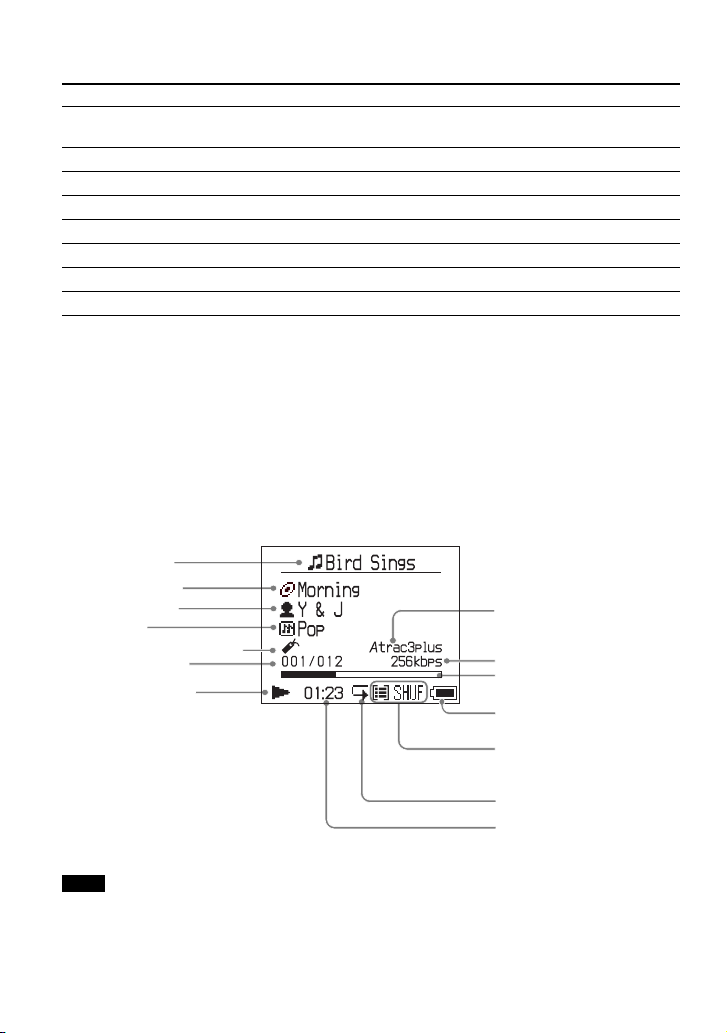
Checking information in the display
You can check audio data and the playback status in the player display.
Player display during playback
Genre
Artist name
Album name
Track number
Playback progress bar
Repeat (
page 28)
Play mode (
page 25),
sound (when adjusting the
volume,
page 30)
Remaining power of the
battery (
page 9)
Elapsed playing time
Playing status
: Playback
: Stop
: Fast forward
: Fast reverse
/: Locating the
beginning of the track
Track name
Bit rate (
page 13)
Bookmark (
page 24)
Atrac3plus/MP3
indicator (
page 19)
Note
The characters A to Z, a to z, 0 to 9, and symbols (except / ) can be displayed.
20 GB
Playing Back Tracks
Selected by MODE
(Artist, Album, Genre,
Group, etc.)
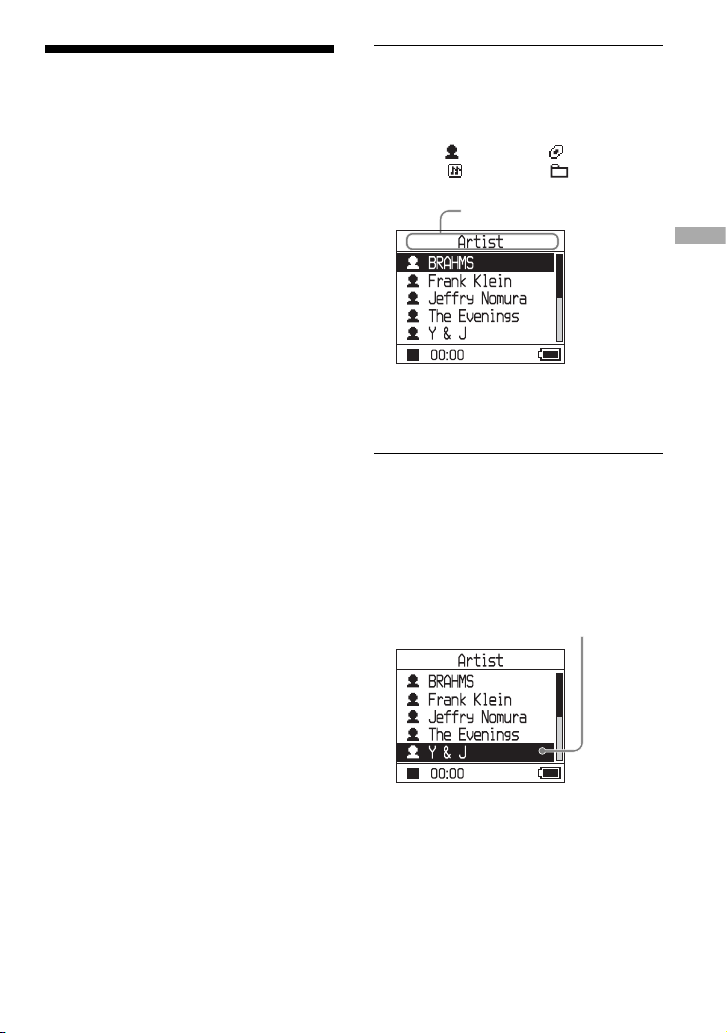
By grouping the tracks in the player into a
“ MODE,” such as by “Artist” or “Album,”
you can select tracks you want to listen to.
There are fi ve MODEs, and the steps here
use the displays of the “Artist” MODE as an
example.
For details about the displays of each MODE,
see
page 23.
You can also play the selected tracks
repeatedly (
page 28) or randomly (shuffl e
play,
page 26).
1
Press MODE repeatedly to select a
MODE.
Each press of the button changes the
MODE as follows:
Artist (
)
Album ( )
*
Genre (
)
Group ( )
**
Others
Return to Artist
MODE appears.
* An album name (original album name) in the
CD information of SonicStage is displayed.
**An album in SonicStage is recognized as a
group.
2
Press or to select an item in the
MODE.
To start playback here, press .
Playback starts from the fi rst track in
the fi rst album of the artist you selected.
All the albums of the artists listed after
the selected artist are played in the track
number order.
Artist you want to listen to.
Continued
21 GB
Playback
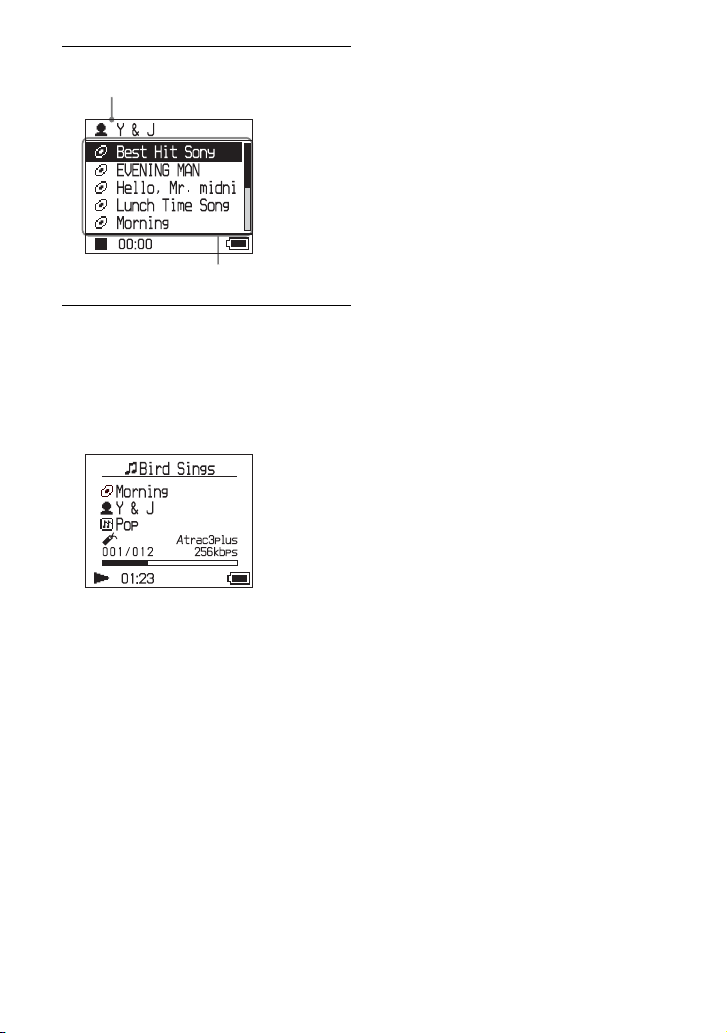
3
To search tracks more, press .
Artist selected in step 2.
Albums of the selected artist appear.
4
Press or to select an item, and
then press
.
Playback starts from the track you
selected or the fi rst track of the item
(artist, album, etc.) you selected. All the
tracks listed after the selected items are
played in the track number order.
To return to the display where you start
playback
Press and hold MODE.
To return to the display where you select
a MODE
Press MODE.
To return to the track list
Press or .
To stop playback when selecting a MODE
or in the list display
Press and hold .
22 GB
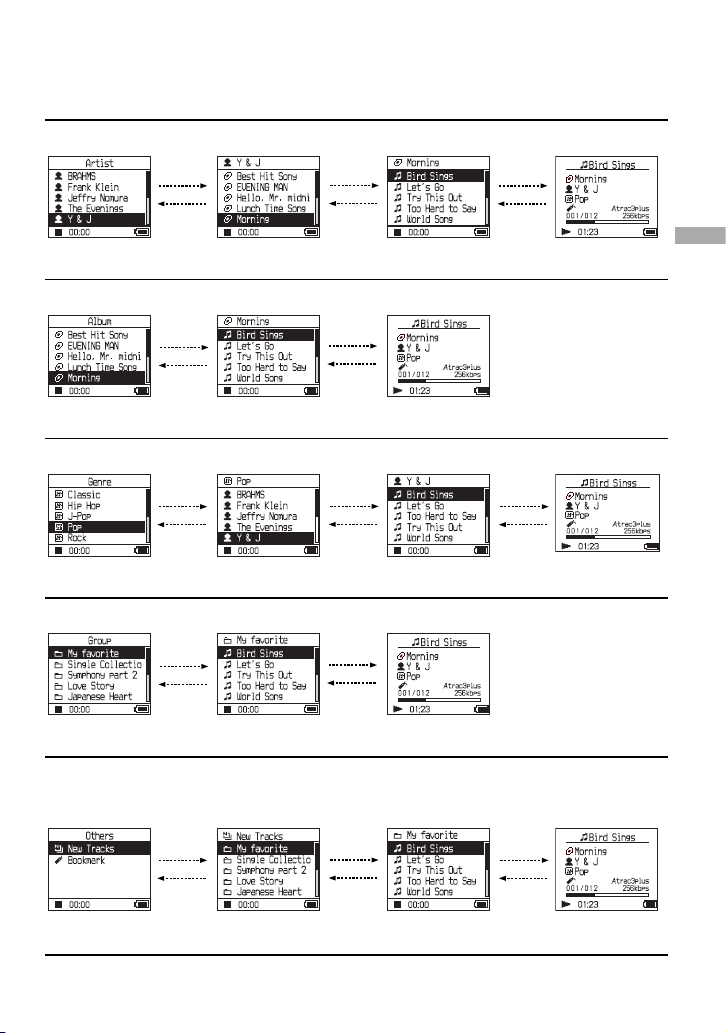
M ODE displays
The display differs depending on the MODE.
You can start playback by pressing
in all the displays.
Artist
List of artists Albums of the artist
selected
Tracks of the album
selected
Playing back
Album: displaying an album name (original album name) in the CD information of SonicStage
List of albums Tracks of the album
selected
Playing back
Genre
List of genres Artists of the genre
selected
Tracks of the artist
selected
Playing back
Group: playing tracks in the groups of albums created in SonicStage
List of groups Tracks of the group
selected
Playing back
Others
• “ New Tracks”: Tracks in groups newly transferred to the player (the 5 latest times)
• “ Bookmark”: Bookmarked tracks (for how to add the bookmark,
page 24)
Groups (New Tracks)
or tracks (Bookmark)
Tracks of the group
selected (New Tracks)
Playing back
Continued
/
/
/
/
/
23 GB
Playback

Adding a bookmark
( Bookmark track play)
You can play your favorite tracks by adding
a Bookmark to them. To play bookmarked
tracks, select “Others” MODE (
page 21).
1
During playback of the track where
you want to add a Bookmark, press
and hold
or .
The number of bookmarks (the number
of bookmarked tracks/the number of
possible bookmark) appears, and then
(Bookmark) lights up.
2
If you want to add a Bookmark to
two or more tracks, repeat step 1.
You can add Bookmarks to up to 100
tracks.
To play the bookmarked tracks
1 Press MODE repeatedly to select “Others”
MODE.
2 Press
or to select “Bookmark,” and
then press
.
To playback all the bookmarked tracks,
press
.
3 Press
or to select a track, and then
press
.
To remove bookmarks
During playback of the track where you want
to remove a Bookmark, press and hold
or
.
“Off” appears and
disappears from the
display.
Note
You can add or remove a bookmark only during
playback.
24 GB
Changing Playback
Options
(Play Mode)
You can use various playback options, such
as selecting songs you want to listen to and
playing songs in random order.
For details about playback options (Play
Mode), see
page 26, 27.
You can also play songs repeatedly using the
playback options you choose (repeat play,
page 28).
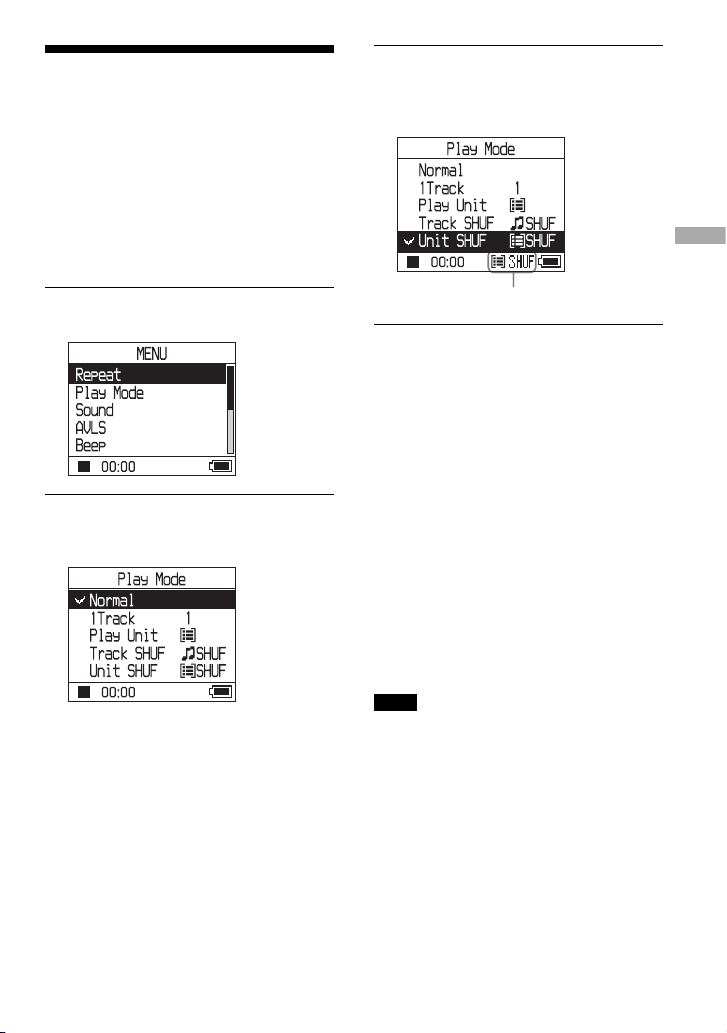
1
Press MENU.
The MENU display appears.
2
Press or to select “Play Mode,”
and then press
.
The Play Mode display appears.
3
Press or to select the playback
options, and then press
.
The default setting is “Normal” (normal
play).
Playback options appear.
4
Press MENU twice to go to the
playback display, and then press
.
Playback starts in the selected playback
option.
To cancel set up
Press MENU to return to the MENU display.
Press and hold MODE or press MENU in the
MENU display to return to the display before
step 1.
To return to normal play
In step 3, select “Normal.”
To return to the display where you select
a MODE
Press MODE.
Note
When you change the Play Mode, the play unit (
page 27) also changes to all the tracks recorded in
the player.
To play only the selected play mode, select the item
(artist, album, track, etc.) in the list display.
Continued
25 GB
Playback

Playback options
( Play Mode)
A range of tracks to be played (“Play unit”
page 27) differs depending on the MODE
(
page 21) where you start playback.
In the MENU display/icon Explanation
Normal/No icon
( Normal play)
All the tracks after the selected track are played once in the track
number order.
When you select an item (album, artist, etc.) other than a track, all
the tracks are played once from the fi rst track of the item in the track
number order.
1 Track/ 1
( Single play)
The selected track is played once.
When you select an item (album, artist, etc.) other than a track, only
the fi rst track is played once.
Play Unit/
( Play unit play)
All the tracks of the selected play unit are played once in a track
number order.
Track SHUF/
SHUF
( Shuffl e play)
All the tracks of the selected play unit are played once in random
order.
In the display where you select a MODE, all the recorded tracks are
played once in random order.
Unit SHUF/
SHUF
( Play unit shuffl e play)
All the tracks in the selected play unit are played once in random
order for every play unit.
26 GB
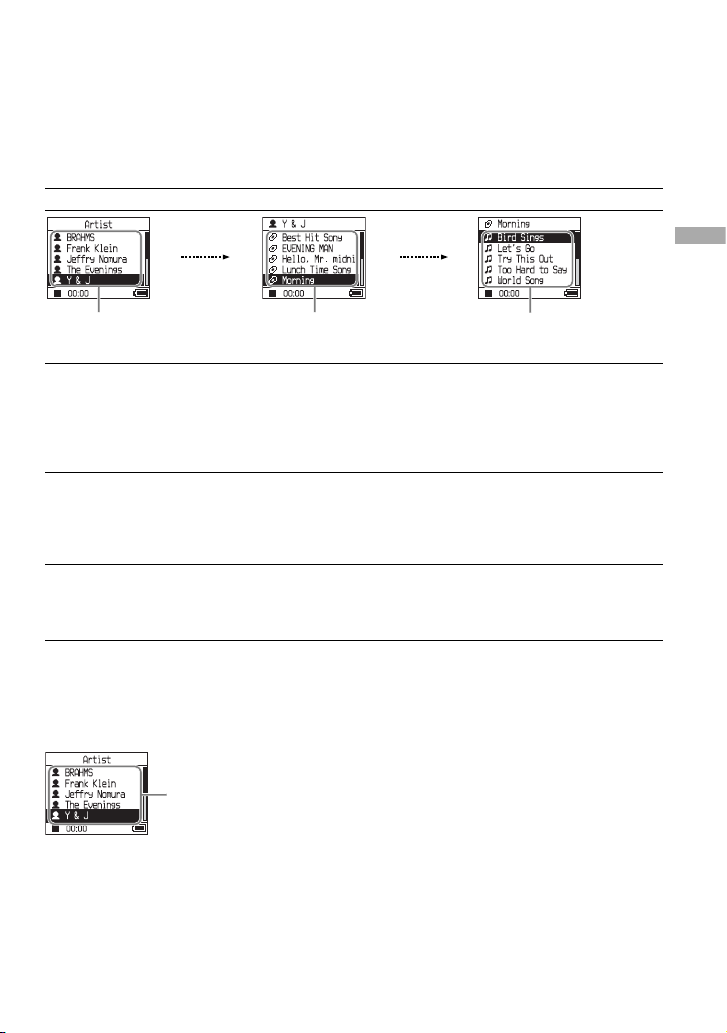
What is a “ play unit” ?
All the items (an artist, an album, a track, etc.) on the list when you start playback is called a “play
unit.”
When you change the Play Mode, the play unit changes to all the tracks recorded in the player.
On playback of a play unit
Example: When you select Artist MODE
Artists Albums Tracks
All the tracks of all the artists
make a play unit.
All the tracks in all the albums
of the artist “Y & J” make a
play unit.
All the tracks in the album
“Morning” of the artist “Y & J”
make a play unit.
When selecting “Play Unit” (Play unit play)
• Playback starts from the
tracks of “Y & J” and stops
after playing all the tracks of
“The Evenings.”
• Playback starts from the
album “Morning” and stops
after playing all the tracks
of the album “Lunch Time
Song.”
• Playback starts from the fi rst
track of the album “Morning”
and stops after playing all the
tracks.
When selecting “Unit SHUF” (Play unit shuffl e play)
• Playback is in random order
for every artist. Albums or
tracks of the artist are played
in order.
• Playback is in random order
for every album. Tracks of the
album are played in order.
• The tracks in the album
“Morning” are played in
random order.
When selecting “Track SHUF” (Shuffl e play)
• All the recorded tracks are
played in random order.
• The tracks in all the albums
of “Y & J” are played in
random order.
• The tracks in the album
“Morning” are played in
random order.
On Shuffl e play
For example, to play all the tracks recorded in the player randamly, display a MODE other than
“Others” (“Artist” MODE, etc.), and then start playback selecting “Track SHUF” as the Play Mode
(
page 25). All the tracks recorded in the player are played once in random order.
In the artist list, all the
tracks recorded are played
in random order.
Continued
27 GB
Playback
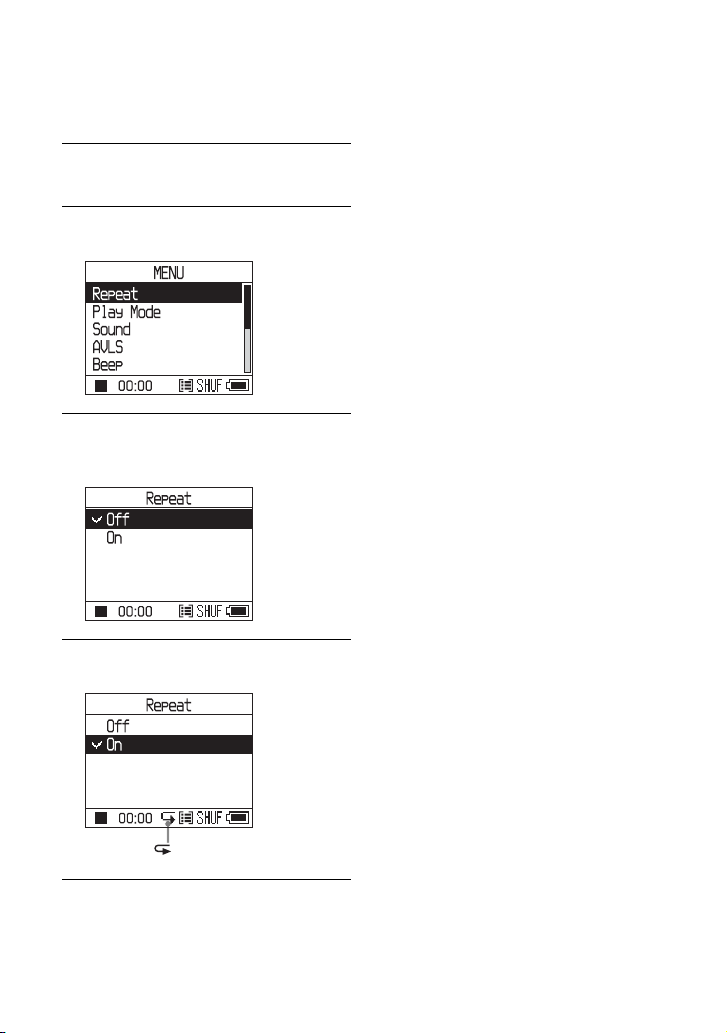
Playing tracks repeatedly
( Repeat play)
Playback of tracks repeats in the playback
options selected in
page 25.
1
Select the playback option you want
to repeat (
page 25).
2
Press MENU.
The MENU display appears.
3
Press or to select “Repeat,” and
then press
.
The Repeat display appears.
4
Press to select “On,” and then
press
.
appears.
5
Press MENU twice to go to the
playback display, and then press
.
The current playback option repeats.
To repeat all the tracks
Select a MODE other than “Others” (“Artist”
MODE, etc.) and then follow steps 1 to 5.
To cancel set up
Press MENU to return to the MENU display.
Press and hold MODE or press MENU in the
MENU display to return to the display before
step 2.
To return to normal play
In step 4, select “Off” on the Repeat display.
To return to the display where you select
a MODE
Press MODE.
28 GB
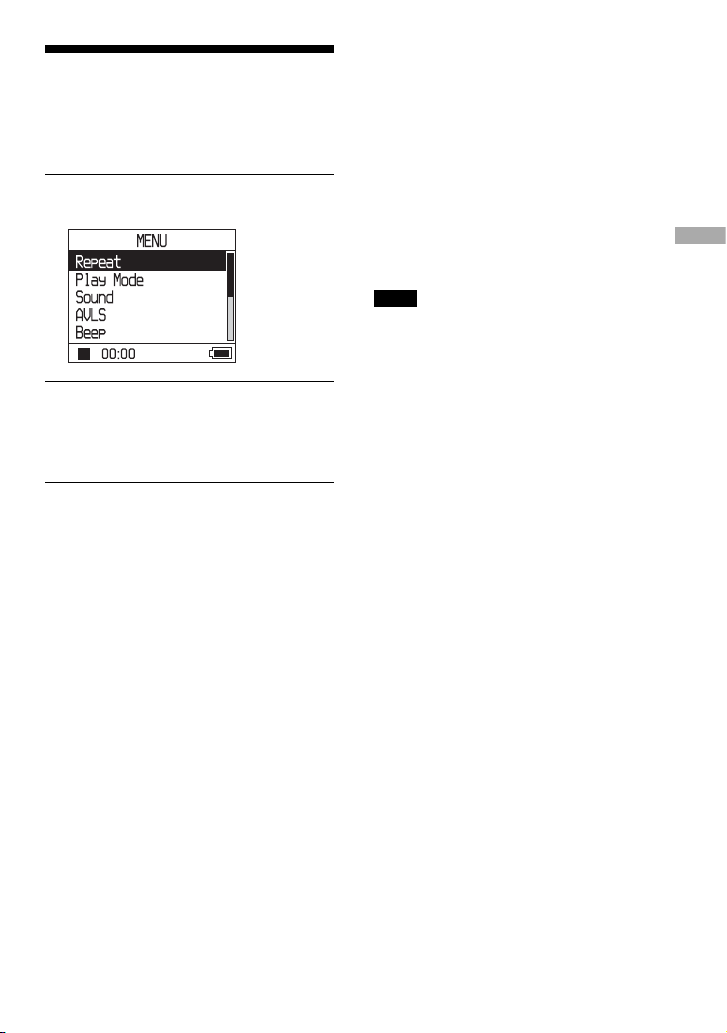
Changing Sound
Quality and Settings
For details about various setting items, see
page 30.
1
Press MENU.
The MENU display appears.
2
Press or to select the item, and
then press
.
The display to set the selected item
appears.
3
Press or to select an option,
and then press
.
To change sound quality
After step 3, press or to select an option
(
page 30), and then press
.
When you select “Custom1” , “Custom2”,
“Custom3” or “Custom4” you can customize
sound quality (
page 32).
To return to the previous display
Press .
To cancel set up
Press MENU to return to the MENU display.
Press and hold MODE or press MENU in the
MENU display to return to the display before
step 1.
To return to the display where you select
a MODE
Press MODE.
Note
When “V-SUR” or “Sound EQ” is selected, the
sound settings do not work for MP3 tracks. To
change sound quality of MP3 tracks, adjust the
“Digital Sound Preset” sound setting.
Continued
29 GB
Playback

Setup items
Item
Options (
: Default setting)
Sound
(Sound setting)
Off
Plays tracks in normal sound quality.
V-SUR
1) 2)
Studio
(VS)
Recreates the sound of a recording studio.
Live
(VL)
Recreates the sound of a concert hall.
Club
(VC)
Recreates the sound of a dance hall.
Arena
(VA)
Recreates the sound of a stadium.
Sound
EQ
1) 2)
Heavy
(SH)
Plays tracks in powerful sounds, further emphasizing
high and low ranges compared with Pops sound.
Pops
(SP)
Plays tracks in sound for vocal, stressing middle range
audio.
Jazz
(SJ)
Plays tracks in lively sounds, emphasizing high and low
range audio.
Unique
(SU)
Plays tracks in special sounds, emphasizing high and
low range audio more than middle range.
Custom1
(S1)
Plays tracks in customized sound (
page 32 for
details).
Custom2
(S2)
Plays tracks in customized sound (
page 32 for
details).
Digital
Sound
Preset
2)
Custom3
(S3)
Plays tracks with preset treble and bass sound (
page
33 for details).
Custom4
(S4)
Plays tracks with preset treble and bass sound (
page
33 for details).
AVLS
3)
(Limiting volume)
On The maximum volume is limited to protect your hearing.
Off
The volume changes without limiting the volume level.
Beep
(Sound of
operation)
On
The beep sounds when you operate the player.
Off The beep is turned off.
Audio Out
(External audio
output)
Headphone
Select this when you connect the supplied headphones.
Line Out Select this when you connect other devices such as
speakers with an audio cord (
page 35).
Contrast
(Adjustment of the
display)
Second
from the
right
The display is moderately bright. If the body color of
the player is black, the default setting is second from
the left.
– to + Set toward – to make the display brighter and toward +
to make it darker.
1) The settings work only when playing ATRAC3plus audio tracks. When playing an MP3 audio track, the
settings do not work.
2) The sound settings appear in the display as the letters in parentheses (
page 7).
3) AVLS is an abbreviation of the Automatic Volume Limiter System.
30 GB
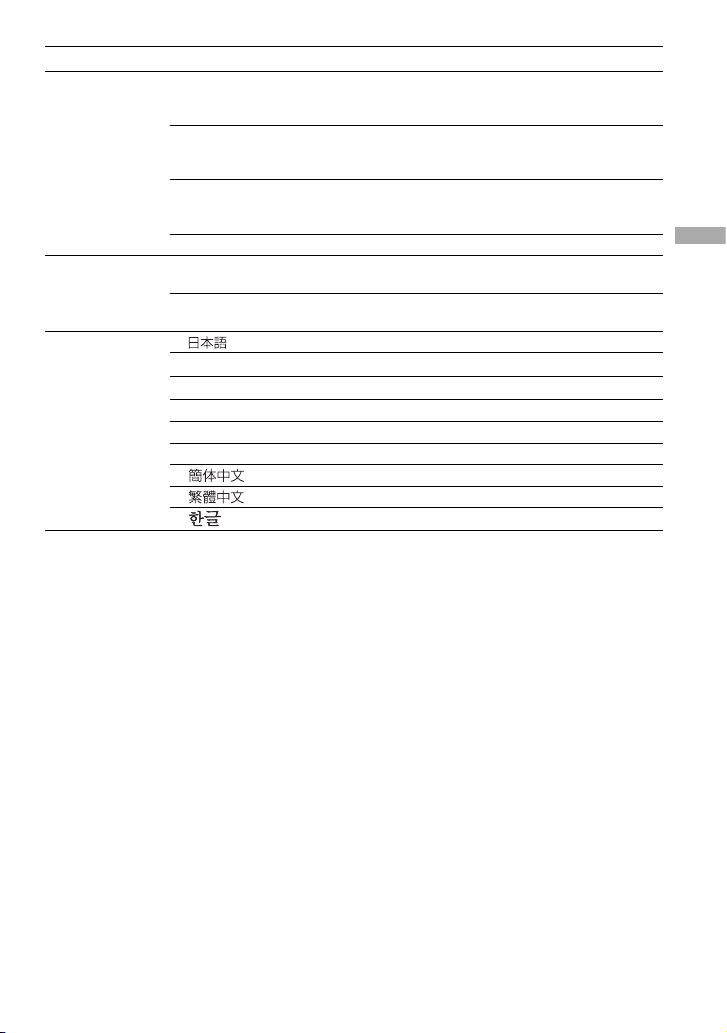
Items
Options (
: Default settings)
Backlight
(LCD backlight of
the display)
Auto
The display lights up for about 10 seconds when you
press a button and keeps lighting up while you scroll the
track titles, etc.
10 seconds The display lights up for about 10 seconds when you
press a button. The light turns off in about 10 seconds
even if you are scrolling the track titles, etc.
30 seconds The display lights up for about 30 seconds when you
press a button. The light turns off in about 30 seconds
even if you are scrolling the track titles, etc.
Off The display is turned off to save power.
Reverse Display
(Turning over the
display)
Positive
Characters and icons appear in black and the
background in white.
Negative Characters and icons appear in white and the
background in black.
Language
(Display language)
The messages and the menus are in Japanese.
English
The messages and the menus are in English.
Français The messages and the menus are in French.
Deutsch The messages and the menus are in German.
Italiano The messages and the menus are in Italian.
Español The messages and the menus are in Spanish.
* The messages and the menus are in Simple Chinese.
*
The messages and the menus are in Traditional Chinese.
*
The messages and the menus are in Korean.
* These languages are not displayed depending on the country where you use the player.
Continued
31 GB
Playback
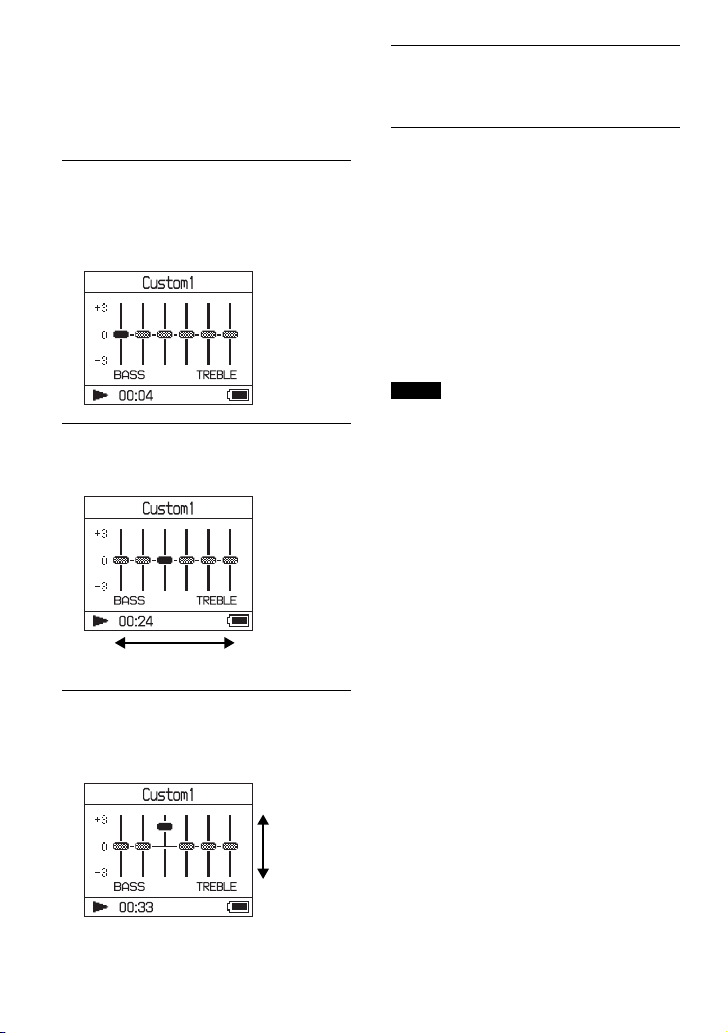
Customizing sound quality
(Sound EQ - Custom)
You can adjust the sound quality for each
frequency range individually, checking the
settings on the display.
1
After selecting “Sound” in step
2 in “Changing Sound Quality
and Settings” (
page 29), select
“Custom1” or “Custom2” of “Sound
EQ.”
2
Press or to select the
frequency range.
There are six frequency ranges.
Frequency range
3
Press or to select the sound
level.
The sound level can be adjusted in seven
levels.
Sound level
4
Repeat steps 2 and 3 to make
adjustments for the remaining
frequency ranges.
5
Press .
The MENU display appears.
To cancel set up
Press MENU to return to the MENU display.
Press and hold MODE or press MENU in the
MENU display to return to the display before
step 1.
To return to the display where you select
a MODE
Press MODE.
Notes
• If the sound is distorted by your sound settings
when you turn up the volume, turn the volume
down.
• If you feel difference in sound volume between
the “Custom1” or “Custom2” sound setting and
other sound settings, adjust the volume to your
preference.
32 GB
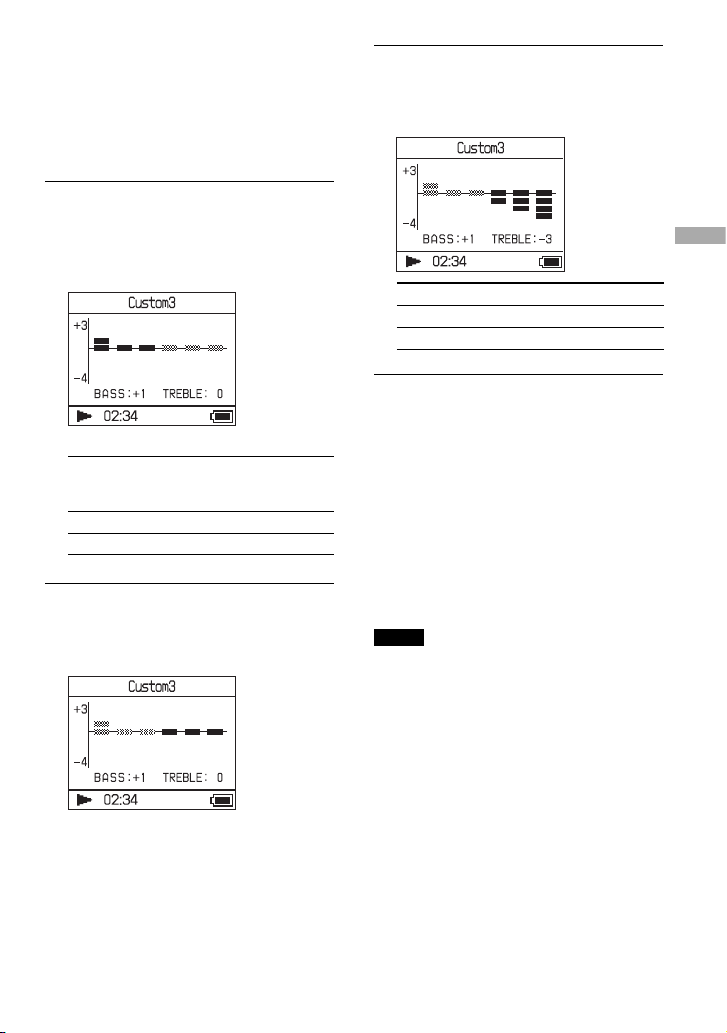
Adjusting treble and bass
emphasis
( Digital Sound Preset)
You can preset the treble and bass levels to
your preference. While checking the display,
adjust the emphasis settings.
1
After selecting “Sound” in step 2
in “Changing Sound Quality and
Settings” (
page 29), select
“Custom3” or “Custom4” of “Digital
Sound Preset”.
Default settings
Sound
quality
Custom3
(S3)
Custom4
(S4)
OFF
(NORMAL
SOUND)
Bass
+1 +3 ±0
Treble
±0 ±0 ±0
2
Press or to select “Treble”
or “Bass”.
You can adjust the sound quality of the
treble and bass.
3
Press or to select the sound
level.
The sound level can be adjusted in eight
levels.
Sound quality Emphasis level
Bass
-4 to +3
Treble
-4 to +3
4
Press .
The MENU display appears.
To cancel set up
Press MENU to return to the MENU display.
Press and hold MODE or press MENU in the
MENU display to return to the display before
step 1.
To return to the display where you select
a MODE
Press MODE.
Notes
• The treble and bass sound levels appear on the
right and left ends of the “Custom3” or “Custom4”
chart. You cannot adjust the in-between levels
individually because they are linked to the treble
and bass levels and change automatically.
• If the sound is distorted by your sound settings
when you turn up the volume, turn the volume
down.
• If you feel difference in sound volume between
the “Custom3” or “Custom4” sound setting and
other sound settings, adjust the volume to your
preference.
33 GB
Playback
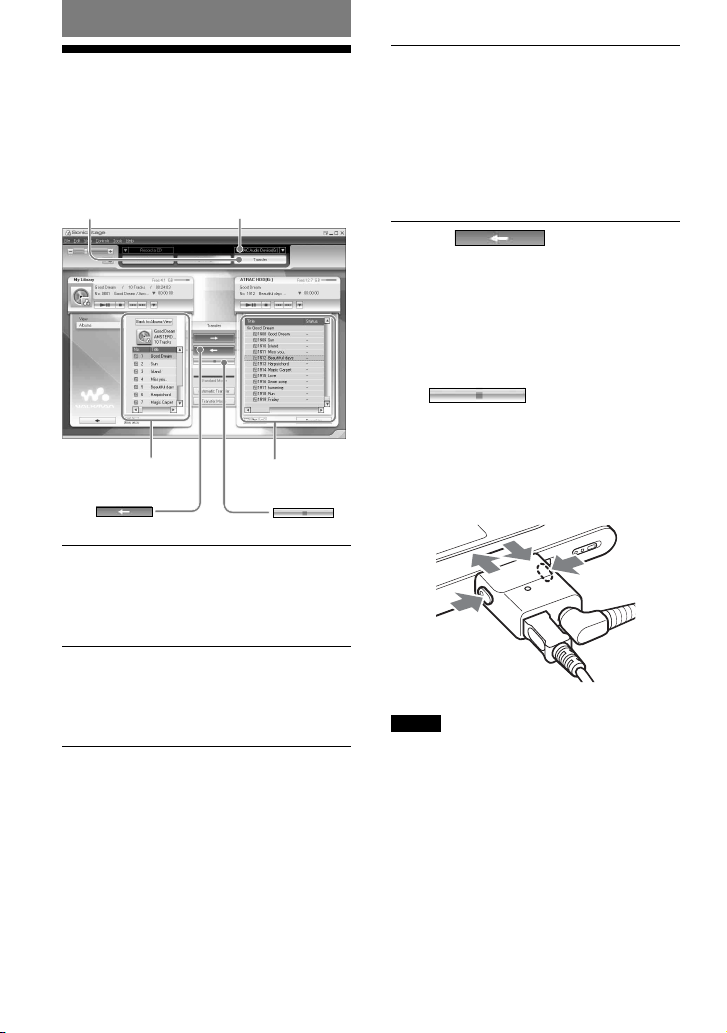
Other Functions
Transferring Audio
Data Back to Your
Computer
Audio data can be transferred back to
SonicStage “ My Library” on your computer.
“Transfer”
“ATRAC Audio Device”
My Library list
List of tracks on the
player
1
Connect the player to your
computer (see steps 1 and 2 in
“Transferring audio data to the
player,”
page 14).
2
Click “Transfer” on the right side of
the SonicStage window.
The screen is switched to the Transfer
window.
3
Select “ATRAC Audio Device” from
the Transfer Destination list on
the right side of the SonicStage
window.
4
Click the tracks you want to transfer
to My Library in the Network
Walkman list on the right side of the
SonicStage window.
To transfer more than one track, hold
down the “Ctrl” key while selecting the
tracks. To transfer all tracks of the album,
click the album.
5
Click on the
SonicStage window.
Transfer of the tracks selected in step 4
starts.
You can check the transferring status on
the SonicStage window.
To stop transferring
Click on the SonicStage
window.
To remove the USB adaptor from the player
While pressing the gray buttons on both sides,
push the USB adaptor inward, and then pull
it outward.
Notes
• Tracks transferred to the player from another
computer cannot be transferred to My Library on
your computer.
• Do not disconnect the USB cable or the USB
adaptor while the data is being transferred. If you
do, the data being transferred may be destroyed.
34 GB
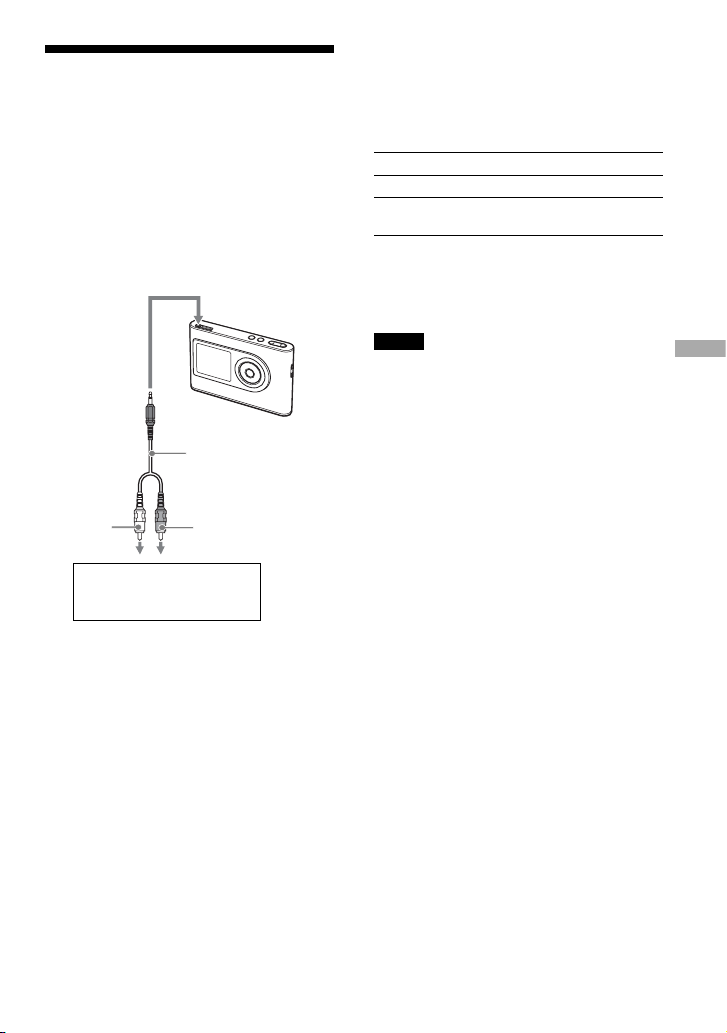
Connecting Other
Devices
You can listen to tracks through a stereo
system and record tracks in the player
onto a MiniDisc or a cassette tape. See the
instruction manual that comes with the device
you want to connect.
Be sure to turn off all devices before making
the connections and changing the settings and
explained below.
to (headphones)/
LINE OUT jack
Connecting cord
(minijack, not supplied)
Left (white) Right (red)
MiniDisc recorder, AV amplifi er,
active speaker, cassette
recorder, etc.
You need to change the setting for “Audio
Out” in the MENU display to output sound
to the connected device. The settings of
“ Audio Out” are shown below. To make those
settings, see
page 29.
Connected device Setting
Headphones
Headphone
Device connected using the
connecting cord
Line Out
When you connect another device, set this to
“Line Out.” When the setting is “Line Out,”
volume cannot be adjusted, and the settings in
“Sound” is not available and do not work.
Notes
• When the supplied headphone is connected to the
player, do not set “Audio Out” to “Line Out.” If it
is set to “Line Out,” the volume cannot be adjusted
and the sound will be distorted and noisy.
• Before playback, turn down the volume of the
connected device to avoid damaging the connected
speaker.
35 GB
Other Functions
Storing Data Other
Than Audio Files
You can transfer data from the hard disk of
a computer to the built-in hard disk of this
player using Windows Explorer.
The built-in hard disk of the player is
displayed in Windows Explorer as an external
drive (as a removable storage).
Notes
• Do not use SonicStage while operating the hard
disk of the player using Windows Explorer.
• If WAV and MP3 fi les are transferred to the player
using Explorer, they cannot be played. Transfer
them using SonicStage.
• Do not disconnect the USB cable while the data
is transferred. The data being transferred may be
destroyed.
• Do not initialize the hard disk of the player on the
computer.
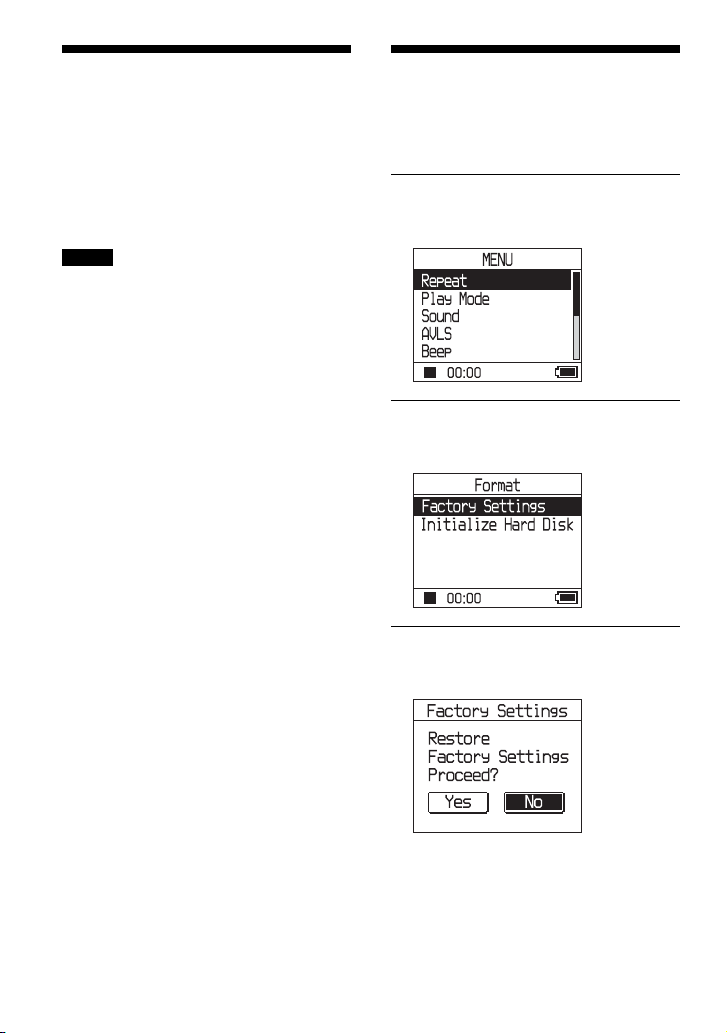
Resetting to the
Factory Settings
Reset all the settings in the MENU display to
the factory settings.
1
While the player is stopped, press
MENU.
The MENU display appears.
2
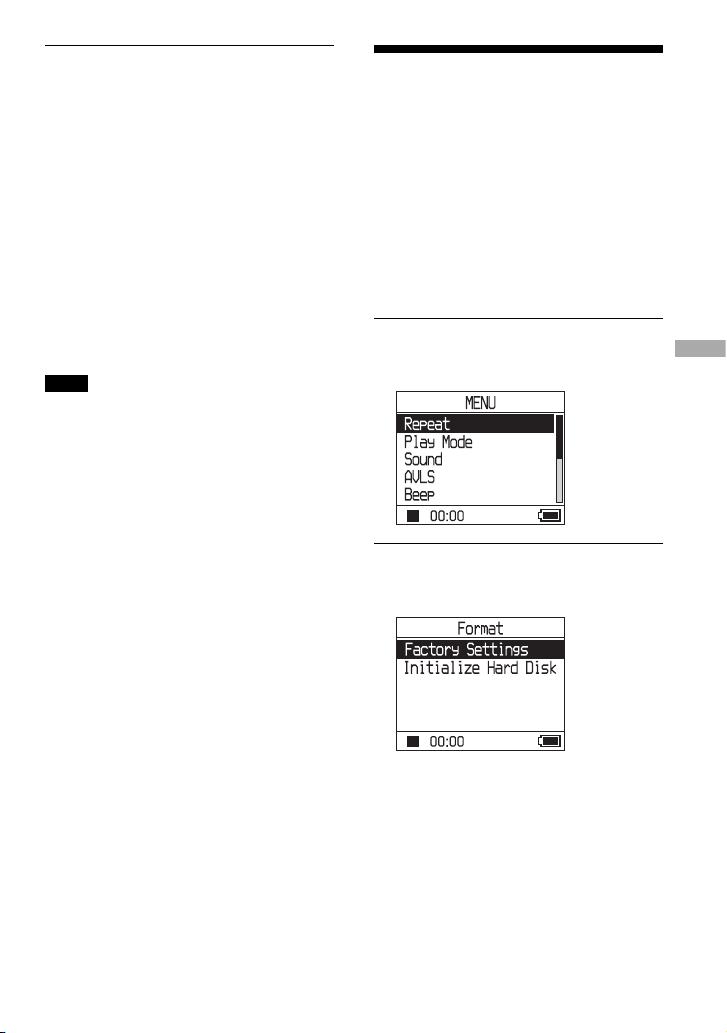
Press or to select “Format,” and
then press
.
The Format display appears.
3
Press while selecting “Factory
Settings.”
The Factory Settings display appears.
36 GB
4
Press to select “Yes,” and then
press
.
The message appears, and then the Format
display appears.
To cancel set up
In step 4, select “No,” and then press .
The Format display appears.
Press MENU to return to the MENU display.
Press and hold MODE or press MENU in the
MENU display to return to the display before
step 1.
To return to the display where you select
a MODE
Press MODE.
Note
You cannot reset to the factory settings during
playback.
Initializing Hard Disk
You can initialize the built-in hard disk of the
player. If the hard disk is initialized, all the
audio data and the other data stored will be
erased. Be sure to verify the data stored in the
hard disk prior to initializing.
If tracks are erased by initializing, SonicStage
recognizes them as tracks to be transferred
back to the computer when the player is
connected to your computer. Therefore,
the remaining transferable count increases
automatically.
1
While the player is stopped, press
MENU.
The MENU display appears.
2
Press or to select “Format,” and
then press
.
The Format display appears.
Continued
37 GB
Other Functions
3
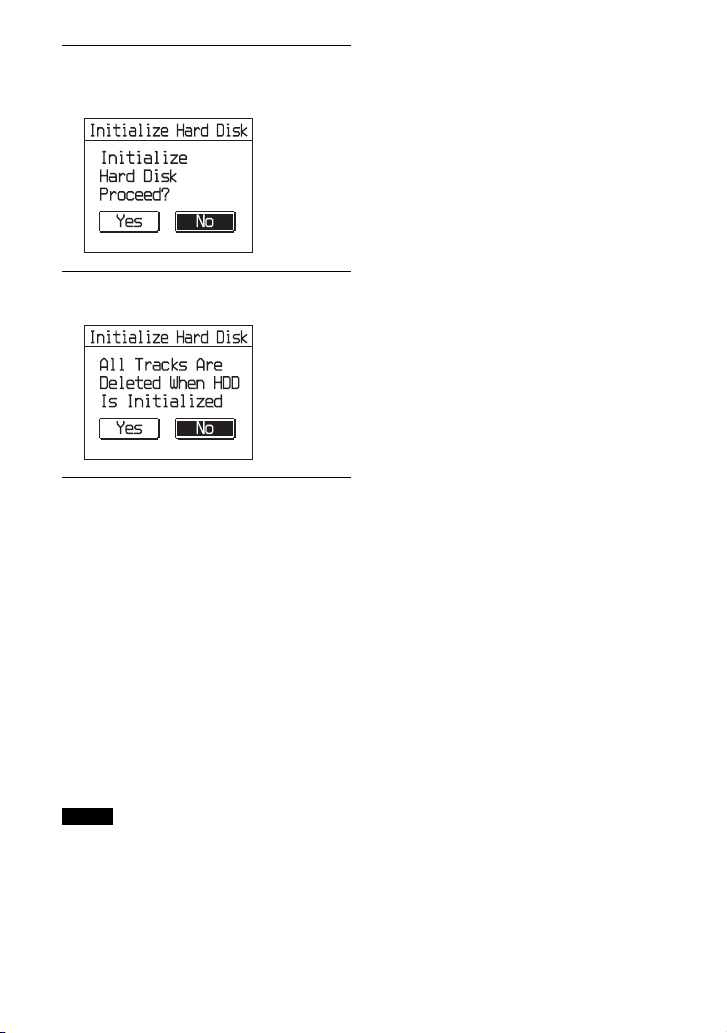
Press to select “Initialize Hard
Disk,” and then press
.
The Initialize Hard Disk display appears.
4
Press to select “Yes,” and then
press
.
5
Press to select “Yes,” and then
press
.
The message appears, and then the Format
display appears.
To cancel set up
In step 5, select “No,” and then press .
The Format display appears.
Press MENU to return to the MENU display.
Press and hold MODE or press MENU in the
MENU display to return to the display before
step 1.
To return to the display where you select
a MODE
Press MODE.
Notes
• Do not initialize the hard disk of the player on the
computer.
• You cannot format the hard disk during playback.
• All the audio data and the fi les other than audio
data are deleted if the player is initialized.
38 GB
Additional Information
Notes on Disposing of
the Unit
This player has a built-in lithium-ion
rechargeable battery. When you dispose of the
player, be sure to dispose of it properly.
Certain countries may regulate disposal of
the battery used to power this product.
Please consult with your local authority.
Notes
• Never disassemble the player except when
disposing it.
• Be careful of handling the inside metallic part,
especially its edge.
To remove the built-in rechargeable
battery
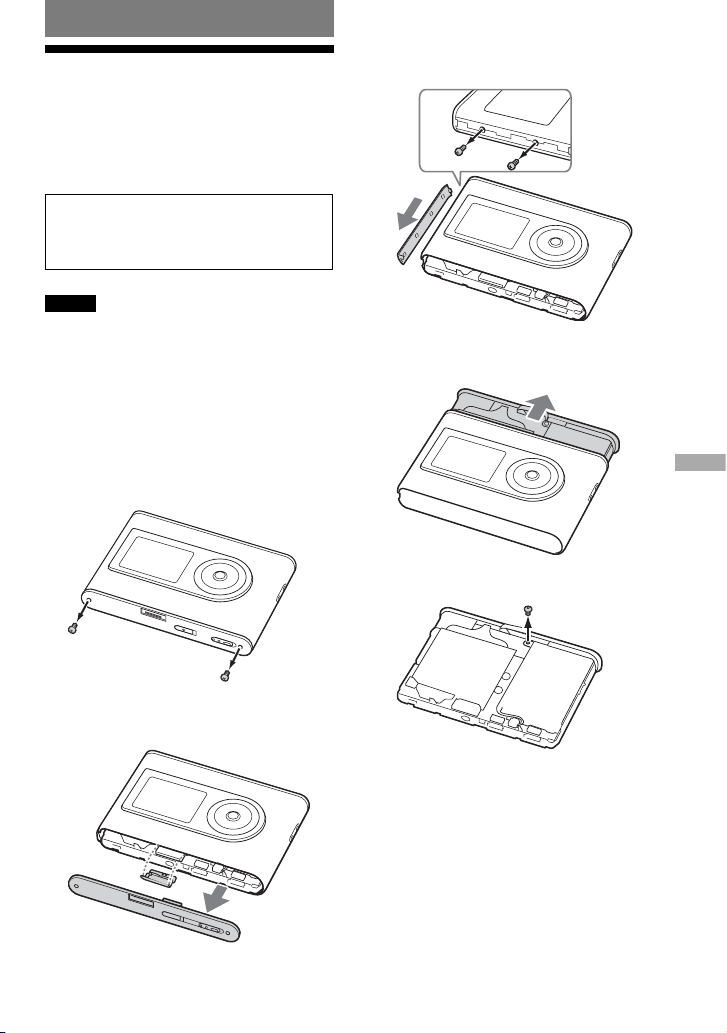
1 Slide the BUILT-IN BATTERY switch on
the bottom of the player to OFF.
2 Remove the two screws on the bottom.
3 Remove the plate on the bottom () and
the USB bracket (). If necessary, use
the tools such as tweezers.
4 Slide the side part () and remove the
two screws () on the side of this player.
5 Push the bottom into the player with your
fi nger and pull out the inside of the player
in the direction of the arrow below.
6 Remove the screw on the side of the
battery.
Continued
39 GB
Additional Information
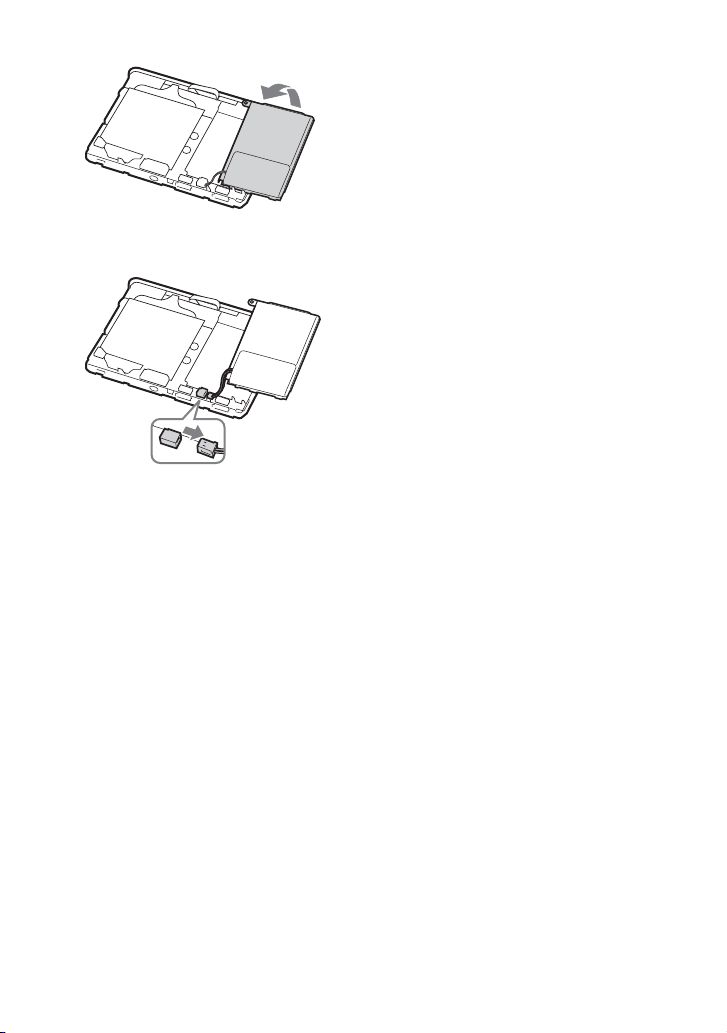
7 Remove the built-in battery.
8 Pull the connecting cord between the
battery and the player to separate the
connector.
40 GB
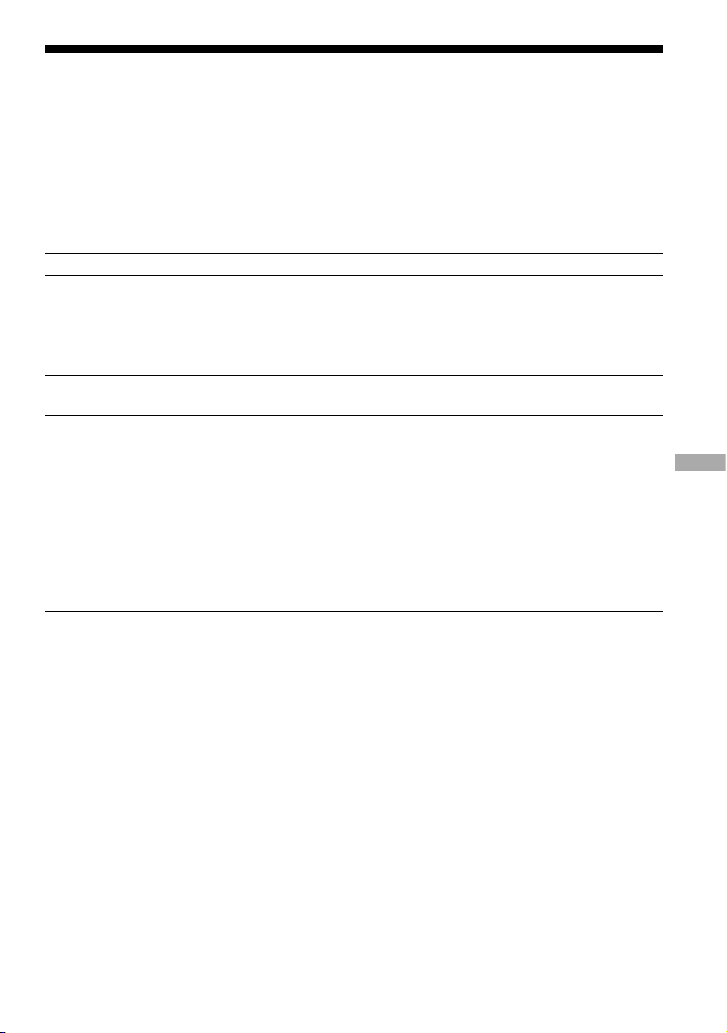
Troubleshooting
If you experience trouble with your player, try the following solutions.
1 Set the BUILT-IN BATTERY switch to OFF, and then set to ON again. The data is not lost
when you set it to OFF.
2 Check the symptoms in “Troubleshooting.”
3 If the problem persists, consult your nearest Sony dealer.
Power
Symptom Case and/or corrective action
The CHG lamp does not light.
The terminals of the USB adaptor are dirty. Wipe them with a
soft, dry cloth.
The player is not connected to the USB adaptor.
Insert the
USB adaptor securely until it reaches to the end and clicks
into place
(
page 8).
The CHG lamp fl ashes.
The temperature is not appropriate.
Charge the battery in an
ambient temperature of between 5 to 35ºC (41 to 95ºF).
Battery life is short.
The operating temperature is below 5°C (41°F). This is due to
the battery characteristics and not a malfunction.
You have not used the player for a prolonged period. Effi ciency
of the battery will be improved by repeatedly charging and
discharging.
The battery needs to be replaced. Consult your nearest Sony
dealer.
Battery charging time is not enough. The player requires 15
minutes to check the battery condition to protect it before
a quick recharge starts. Keep charging the battery until it is
complete (until the CHG lamp goes out).
Continued
41 GB
Additional Information
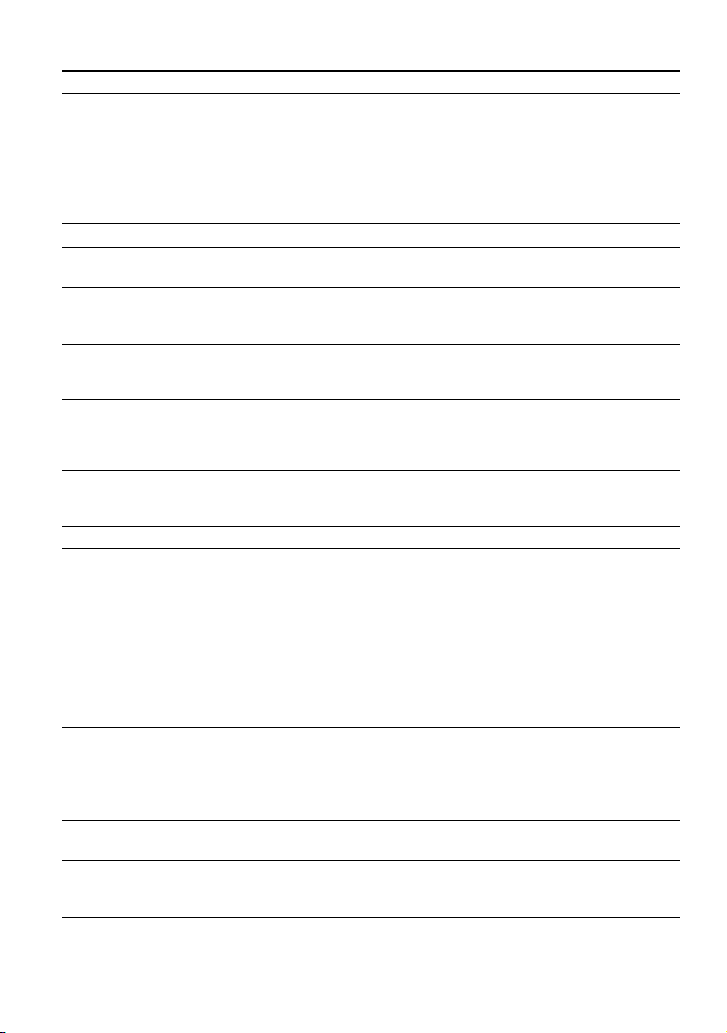
Sound
Symptom Case and/or corrective action
There is no sound. Noise is heard.
The volume level is set to zero. Turn the volume up
(
page 18).
The headphone plug is not connected properly. Connect it to
(headphones)/LINE OUT jack securely (
page 18).
The headphone plug is dirty. Clean the headphone plug with a
soft dry cloth.
No audio data is stored in the hard disk.
The volume does not increase.
“AVLS” is set to “On.” Set it to “Off” (
page 30).
There is no sound from the right
channel of the headphones.
The headphone plug is not connected properly. Connect it to
(headphones)/LINE OUT jack securely (
page 18).
The volume cannot be adjusted.
“Audio Out” is set to “Line Out.” Adjust the volume using the
volume control on the connected device, or set “Audio Out” to
“Headphone” (
page 30).
When using the player with a
stereo system connected, the
sound is distorted or noisy.
“Audio Out” is set to “Headphone.” Set it to “Line Out” (
page 30).
When playing an MP3 audio track,
the sound does not change even if
the “V-SUR” and “SOUND EQ” in
“Sound” have been set.
Only the settings in “Digital Sound Preset” work when playing
an MP3 audio track (
page 30).
Operation/Playback
Symptom Case and/or corrective action
Buttons do not work.
The buttons are locked. Slide the HOLD switch back
(
page 19).
Moisture condensation has occurred. Leave the player aside for
a few hours until the moisture evaporates.
The remaining battery power is insuffi cient. Charge the battery
(
page 8).
When the player is connected to your computer that is powered,
if the USB adaptor is connected to the player, button operations
are disabled. Remove the USB adaptor from the player (
page 9).
Playback has stopped suddenly.
The remaining battery power is insuffi cient. Charge the battery
(
page 8).
When trying to play an MP3 audio track that cannot be played
on this player, playback will stop. Press to select other
tracks (
page 19).
The backlight is not turned on.
“Backlight” is set to “Off.” Set it to “Auto,” “10 seconds,” or
“30 seconds” (
page 31).
“” is displayed for a title.
Characters that cannot be displayed on the player are
involved. Use the SonicStage software to rename the title with
appropriate characters.
42 GB
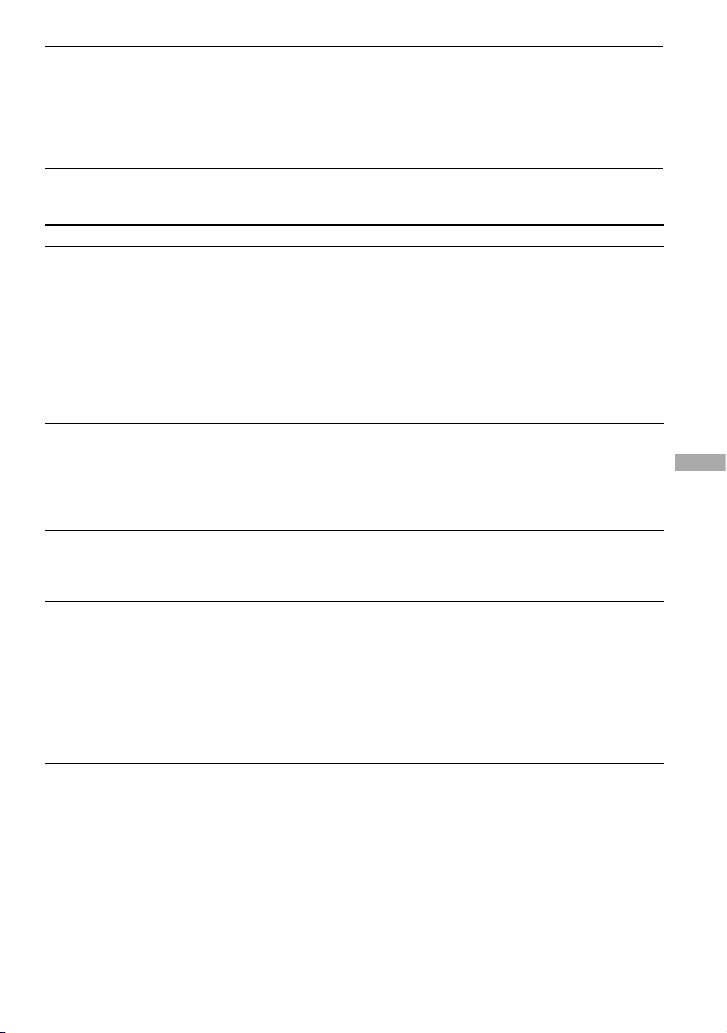
The display turns off.
The display automatically turns off if there is no operation for
about 30 seconds (when using the battery) or about 3 minutes
(when using the AC power adaptor) in stop mode. When
scrolling track titles, etc., the display turns off about 30 seconds
or about 3 minutes after scrolling is fi nished. Also, the display
turns off when pressing and holding MENU. For all the cases,
press any button to turn on the display again.
Connection with the computer/SonicStage
Symptom Case and/or corrective action
The SonicStage software cannot
be installed.
An operating system not compatible with the software is used
(
page 10).
All Windows applications are not closed. If you start the
installation while other programs are running, a malfunction
may occur. This is especially true for programs that require
large amounts of system resources, such as virus-check
software.
There is not enough space on the hard disk of your computer.
You need 200 MB or more free space. Delete the unnecessary
fi les on your computer.
The installation appears to have
stopped before it has fi nished.
Check for the appearance of an error message beneath the
installation window. Press the “Tab” key while holding
down the “Alt” key. If an error message has appeared, press
the “Enter” key. The installation will resume. If there is no
message, the installation is still in progress. Wait for a little
while longer.
The progress bar on the display of
your computer is not moving. The
access lamp of your computer has
not lit for a few minutes.
The installation is progressing normally. Please wait. The
installation may take 30 minutes or more, depending on your
CD drive or system environment.
“PC Connect” is not displayed
when connecting to the computer
with the USB cable.
Please wait for the authentication of the SonicStage software.
Another application is running on the computer. Wait for a
while and reconnect the USB cable. If the problem persists,
disconnect the USB cable, restart the computer, and then
reconnect the USB cable.
The USB cable is not connected properly. Disconnect the USB
cable and then reconnect it.
A USB hub is used. Connecting via a USB hub is not
guaranteed. Connect the USB cable directly to the computer.
Continued
43 GB
Additional Information

Symptom Case and/or corrective action
The player is not recognized by the
computer when it is connected to
the computer.
The USB adaptor is not connected correctly to the player.
Insert the USB adaptor securely until it reaches to the end
and clicks into place
(
page 8).
The USB cable is not connected properly. Disconnect the USB
cable and then reconnect it.
A USB hub is used. Connecting via a USB hub is not
guaranteed. Connect the USB cable directly to the computer.
The driver fi le for the player has not been installed. Reinstall
the SonicStage software for the player using the supplied
CD-ROM (
page 11) to install the driver together.
The installation of the SonicStage software had been failed.
Disconnect the player and your computer, and then reinstall the
software again using the supplied CD-ROM (
page 11).
Slide the BUILT-IN BATTERY switch to ON.
Audio data cannot be transferred
to the player from your computer.
The USB cable is not connected properly. Disconnect the USB
cable and then reconnect it.
The track has already been transferred to the player three
times. Transfer back the track to the computer to increase the
transferable count (
page 34), and then transfer it to the
player again.
The free space of the hard disk in the player is insuffi cient.
Transfer back any unnecessary tracks to your computer to
increase the free space (
page 34).
You have already transferred over 65,535 tracks or over 4,096
groups to the hard disk of the player. Or you have already
transferred over 999 tracks for a group.
Tracks with a limited playing period or playing count may not
be transferred due to restrictions set by copyright holders. For
details on the settings of each audio fi le, contact the distributor.
The number of tracks that can be
transferred to the player is not
much. (Available recording time
is short.)
The free space in the hard disk of the player is not enough for
the size of audio data you tried to transfer. Transfer back any
unnecessary tracks to increase the free space (
page 34).
Data other than audio data is stored in the hard disk of the
player. Move data other than audio data to the computer to
increase the free space.
Audio data cannot be transferred
back to your computer from the
player.
A computer other than the one used for transfer to the player is
selected as the transfer target. Audio data cannot be transferred
back to a computer other than the one used for transfer to the
player.
The audio data has been deleted from computer you used to
transfer to the player. The audio data cannot be transferred back
to your computer if the track is deleted from the computer used
to transfer to the player.
44 GB

Symptom Case and/or corrective action
Audio data is transferred back
to your computer and remaining
transferable count increases
without operations occasionally
when the player is connected to
the computer.
If a track is deleted from the player using the SonicStage
software installed on a computer other than the one used
for transfer to the player, the track will be transferred back
automatically when the player is connected to the computer that
you used for transfer to the player. Therefore, the remaining
transferable count increases automatically.
The operation of the player
becomes unstable while it is
connected to the computer.
A USB hub or USB extension cable is used. Connecting via
a USB hub or USB extension is not guaranteed. Connect the
USB cable directly to the computer.
“Failed to authenticate Device/
Media.” is displayed on the
computer screen when the player
is connected to the computer.
The player is not connected to the computer properly. Quit
the SonicStage software and verify the connection of the USB
cable. Restart the SonicStage software.
Others
Symptom Case and/or corrective action
There is no beep sound when the
player is operated.
“Beep” is set to “Off.” Set it to “On” (
page 30).
The player or the USB adaptor
gets warm.
The player and the USB adaptor may get warm when the
battery is being charged and just after charging because of
quick charge. Besides, the player and the USB adaptor may get
warm when transferring a large number of tracks. Leave the
player aside for a while.
The sound is heard from the inside
of the player. The player shakes.
When the built-in hard disk of the player moves, the sound of
operation may be heard, and the vibration of the player occurs.
This is not a malfunction.
45 GB
Additional Information
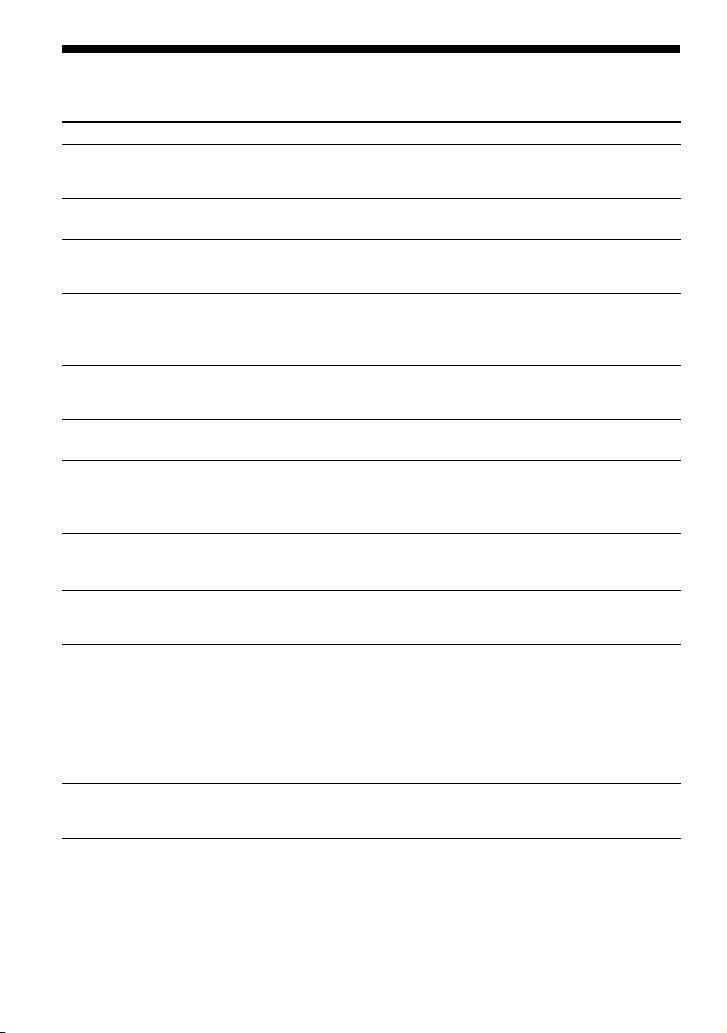
Error Messages
Follow the instructions below if an error message appears in the display.
Message Meaning Corrective action
AVLS
NO VOLUME
OPERATION
The volume exceeds the maximum
volume of AVLS.
Set “AVLS” to “Off” (
page 30).
BOOKMARK
FULL
The number of bookmarks exceeds
the limit.
Remove unnecessary bookmarks (
page 24).
CANNOT
OPERATE
STOP
“Format” in the MENU display is
selected during playback.
Stop playback and select “Format”
again.
CANNOT
OPERATE
WHEN
STOPPED
You are trying to add a bookmark
while the player is stopped.
Add a bookmark during playback (
page 24).
CANNOT PLAY
CONNECT
TO PC
The clock in the player is not working.
Connect to the computer (
page 14).
CANNOT PLAY
TRACK ERROR
Audio data is broken.
Transfer audio data to the player again
(
page 14).
CANNOT PLAY
TRACK ON
THIS DEVICE
• The track is not permitted to be
played back on the player.
• The tracks with a limited playing
count are playing.
You cannot play back tracks that are
not permitted to be played back on the
player.
CANNOT PLAY
UNAVAILABLE
FOR PLAYBACK
You are trying to play a track before or
after its limited playing period.
Tracks with a limited playing time
can only be played back within the
designated playing period.
CHARGE
5°C – 35°C
41F – 95F
You are charging the player in an
ambient temperature out of the 5 to
35°C (41 to 95ºF) range.
Charge in an ambient temperature of
between 5 to 35°C (41 to 95ºF).
CONNECT
AC POWER
ADAPTER
• The player is connected to the
computer but the AC power adaptor
is not connected to the DC IN jack
of the USB adaptor.
• The AC power adaptor is
disconnected from the USB adaptor
while the player is connected to the
computer.
Connect the AC power adaptor to the
USB adaptor (
page 14).
HARD DISC
WRITABLE
5°C – 35°C
You are transferring the audio data to
the player in an ambient temperature
out of the 5 to 35°C (41 to 95ºF) range.
Operate in an ambient temperature of
between 5 to 35°C (41 to 95ºF).
46 GB

Message Meaning Corrective action
HDD NOT
INITIALIZED
CORRECTLY
• The hard disk of the player is not
correctly initialized.
• The hard disk of the player was
initialized on the computer.
• The hard disk of the player has
not been initialized because it was
changed.
Initialize the hard disk of the player
again (
page 37).
HOLD
The HOLD switch is set to ON.
Unlock the controls by sliding the
HOLD switch in the direction opposite
to that of the arrow (
page 19).
LINE OUT NO
OPERATION
When “Audio Out” is set to “Line
Out,” you are trying to change the
volume or the setting of “Sound.”
Set “Audio Out” to “Headphone” (
page 30).
LOW BATTERY
There is no remaining battery power.
Charge the battery (
page 8).
MAX NO OF
GROUPS
EXCEEDED
The number of groups (albums, artists,
etc.) exceeds the limit (8,192).
The total number of items in the list
display (except track list) exceeds
8,192. Check the MODE and transfer
any unnecessary tracks back to your
computer (
page 34).
MISMATCH IN
SYSTEM FILES
There is mismatch in the system fi les.
Initialize the hard disk of the player
(
page 37) and transfer audio data to
the player again (
page 14).
NO DATABASE
FOUND
When disconnecting from the
computer, there are no tracks
transferred to the player, or there is
lack of MODE information.
Transfer audio data to the player (
page 14).
NO TRACK
There are no tracks in the track list.
Go to a track list with tracks.
Transfer audio data to the player (
page 14).
SYSTEM
ERROR
<No. ***>
(Number
appears in
parenthesis.)
There is a system error.
Write down the number and consult
your nearest Sony dealer.
47 GB
Additional Information
Specifi cations
Maximum recordable number of track
(Approx.)*
ATRAC3 ATRAC3plus MP3
5,000
(132 kbps)
2,500
(256 kbps)
5,000
(128 kbps)
6,000
(105 kbps)
10,000
(64 kbps)
10,000
(64 kbps)
10,000
(66 kbps)
13,000
(48 kbps)
* When transferring four-minute tracks
Sampling frequency
44.1 kHz (ATRAC3plus), 32/44.1/48 kHz (MP3)
Audio compression technology
Adaptive Transform Acoustic Coding3plus
(ATRAC3plus), MPEG-1 Audio Layer-3 (MP3)
Frequency response
20 to 20,000 Hz
(single signal measurement during playback)
Output
(headphones)/LINE OUT* :
Stereo minijack/194 mV
* The jack is used for both headphones and LINE OUT.
Operating temperature
5 to 35ºC (41 to 95ºF)
Power source
DC IN 6 V (from built-in rechargeable battery)
Battery life (continuous playback)
ATRAC3plus format (48 kbps): Approx. 30 hours
MP3 format (128 kbps): Approx. 22 hours
Dimension
Not including projecting parts:
90.0 × 62.1 × 14.8 (the thinnest part 13.8) mm
(3 5/8 × 2 1/2 × 19/32 (the thinnest part 9/16)
inches) (w/h/d)
Including projecting parts:
90.8 × 63.4 × 15.7 mm
(3 5/8 × 2 1/2 × 5/8 inches) (w/h/d)
Mass
Approx. 130 g (4.6 oz)
US and foreign patents licensed from Dolby
Laboratories.
Design and specifi cations are subject to change
without notice.
Index
Symbols
(Album) 21
(Artist) 21
(Battery) 9
(Bookmark) 24
(Genre) 21
(Group) 21
(New Tracks) 23
(Play unit play) 26
SHUF (Play unit shuffl e play) 26
(repeat) 28
SHUF (Shuffl e play) 26
1 (Single play) 26
1 Track 26
A
AC power adaptor 6, 8
Album 23
Arena 30
Artist 23
ATRAC3plus 19
Audio Out 30, 35
AV L S 3 0
B
Backlight 31
Battery life 9
Beep 30
Bit rate 13, 20
Bookmark 23
Bookmark track play 24
Built-in rechargeable battery 8
C
Carrying case 6
CD-ROM (SonicStage) 6
Charging time 8
Club 30
Computer 10
Contrast 30
Custom 30, 32
48 GB

D
Deutsch 31
Digital Sound Preset 30, 33
E
English 31
Español 31
F
Find the beginning of a track 20
Français 31
G
Genre 23
Group 23
Grouping tracks 21
H
Headphone 30, 35
Headphones 6
Heavy 30
HOLD function 19
I
Italiano 31
J
Japanese 31
Jazz 30
K
Korean 31
L
Language 31
Line Out 30, 35
Live 30
M
MODE 21
MP3 19
My Library (SonicStage) 12, 14, 34
N
Negative 31
New Tracks 23
Normal play 26
O
Others 23
P
Player display 7, 20
Play Mode 26
Play Unit 27
Play unit play 26
Play unit shuffl e play 26
Pops 30
Positive 31
R
Remove the built-in rechargeable battery 39
Repeat play 28
Reverse Display 31
S
Search 20
Search (SonicStage) 16, 17
Shuffl e play 26
Simple Chinese 31
Single play 26
SonicStage 11
Sound 30
Sound EQ 30
Stop 20
Studio 30
T
Tracks with a limited playing count 46
Tracks with a limited playing period 46
Track SHUF 26
Traditional Chinese 31
U
Uninstall 11
Unique 30
Unit SHUF 26
USB adaptor 6, 8, 14
USB cable 6
V
V-SUR 30
Volume 18
W
Windows Explorer 36
49 GB
Additional Information

Sony Corporation