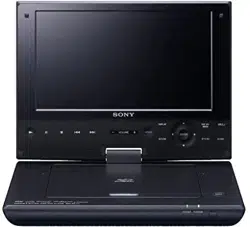
Portable Blu-ray
Disc™ / DVD Player
Operating Instructions
BDP-SX1000
4-264-055-13(1)
BDP-SX1000
4-264-055-13(1)
Preparations
Playback
Settings and Adjustments
Additional Information
2
WARNING
To reduce the risk of fire or electric
shock, do not expose this apparatus
to rain or moisture.
To avoid electrical shock, do not
open the cabinet. Refer servicing to
qualified personnel only.
The AC power cord must be
changed only at a qualified service
shop.
Batteries or batteries installed
apparatus shall not be exposed to
excessive heat such as sunshine,
fire or the like.
CAUTION
The use of optical instruments with
this product will increase eye
hazard. As the laser beam used in
this Blu-ray Disc/DVD player is
harmful to eyes, do not attempt to
disassemble the cabinet.
Refer servicing to qualified
personnel only.
This label is located on the bottom
of the unit.
This symbol is
intended to alert the
user to the presence
of uninsulated
“dangerous voltage”
within the product’s enclosure that
may be of sufficient magnitude to
constitute a risk of electric shock to
persons.
This symbol is
intended to alert the
user to the presence
of important
operating and
maintenance (servicing)
instructions in the literature
accompanying the appliance.
Precautions
• To prevent fire or shock hazard,
do not place objects filled with
liquids, such as vases, on the
apparatus.
• Install this unit so that the AC
power cord can be unplugged
from the wall socket
immediately in the event of
trouble.
• The player is not disconnected
from the AC power source as
long as it is connected to the wall
outlet, even if the player itself
has been turned off.
FCC WARNING
You are cautioned that any
changes or modifications not
expressly approved in this
manual could void your
authority to operate this
equipment.
The shielded Interface cable
(LAN cable) must be used with
the equipment in order to
comply with the limits for a
digital device pursuant to
Subpart B of Part 15 of FCC
Rules.
b
This equipment has been tested
and found to comply with the
limits for a Class B digital
device, pursuant to Part 15 of the
FCC Rules. These limits are
designed to provide reasonable
protection against harmful
interference in a residential
installation. This equipment
generates, uses, and can radiate
radio frequency energy and, if
not installed and used in
accordance with the instructions,
may cause harmful interference
to radio communications.
However, there is no guarantee
that interference will not occur
in a particular installation. If this
equipment does cause harmful
interference to radio or
television reception, which can
be determined by turning the
equipment off and on, the user is
encouraged to try to correct the
interference by one or more of
the following measures:
– Reorient or relocate the
receiving antenna.
– Increase the separation
between the equipment and
receiver.
– Connect the equipment into an
outlet on a circuit different
from that to which the receiver
is connected.
– Consult the dealer or an
experienced radio/TV
technician for help.
Owner’s Record
The model and serial numbers are
located at the bottom of the unit.
Record the serial number in the
space provided below. Refer to
them whenever you call upon your
Sony dealer regarding this product.
Model No.______________
Serial No.______________
If this product is not working
properly, please call 1-866-909-
7669.
3
Important Safety
Instructions
1) Read these instructions.
2) Keep these instructions.
3) Heed all warnings.
4) Follow all instructions.
5) Do not use this apparatus near
water.
6) Clean only with dry cloth.
7) Do not block any ventilation
openings. Install in accordance
with the manufacturer’s
instructions.
8) Do not install near any heat
sources such as radiators, heat
registers, stoves, or other
apparatus (including
amplifiers) that produce heat.
9) Do not defeat the safety
purpose of the polarized or
grounding-type plug. A
polarized plug has two blades
with one wider than the other.
A grounding type plug has two
blades and a third grounding
prong. The wide blade or the
third prong are provided for
your safety. If the provided
plug does not fit into your
outlet, consult an electrician for
replacement of the obsolete
outlet.
10)Protect the power cord from
being walked on or pinched
particularly at plugs,
convenience receptacles, and
the point where they exit from
the apparatus.
11)Only use attachments/
accessories specified by the
manufacturer.
12)Use only with the cart, stand,
tripod, bracket, or table
specified by the manufacturer,
or sold with the apparatus.
When a cart is used, use caution
when moving the cart/
apparatus combination to avoid
injury from tip-over.
13)Unplug this apparatus during
lightning storms or when
unused for long periods of
time.
14)Refer all servicing to qualified
service personnel. Servicing is
required when the apparatus
has been damaged in any way,
such as power-supply cord or
plug is damaged, liquid has
been spilled or objects have
fallen into the apparatus, the
apparatus has been exposed to
rain or moisture, does not
operate normally, or has been
dropped.
Do not take apart or remodel the
player. Doing so can result in
electric shock. Consult your
nearest Sony dealer or Sony
Service Center for exchange of
rechargeable batteries, internal
checks or repair.
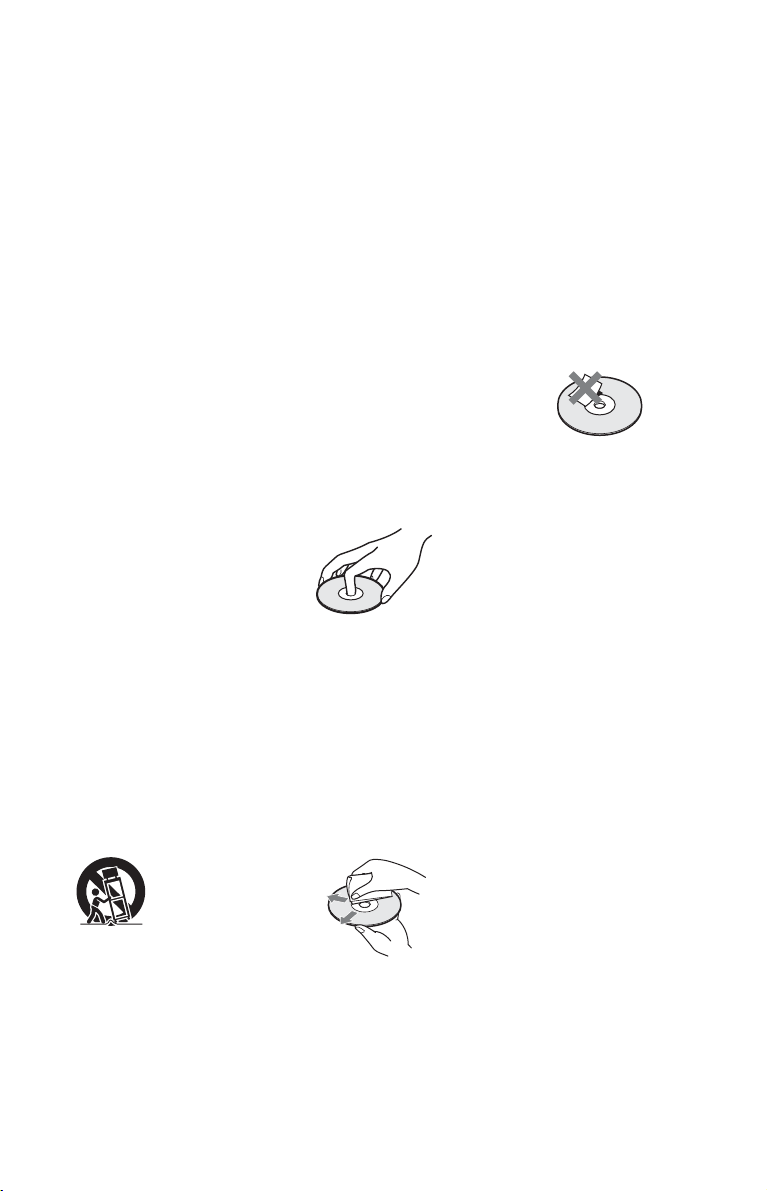
Notes About the Discs
• To keep the disc clean, handle
the disc by its edge. Do not
touch the surface.
Dust, fingerprints, or scratches
on the disc may cause it to
malfunction.
• Do not expose the disc to
direct sunlight or heat sources
such as hot air ducts, or leave it
in a car parked in direct
sunlight as the temperature
may rise considerably inside
the car.
• After playing, store the disc in
its case.
• Clean the disc with a cleaning
cloth. Wipe the disc from the
center out.
• Do not use solvents such as
benzine, thinner,
commercially available disc/
lens cleaners, or anti-static
spray intended for vinyl LPs.
• If you have printed the disc’s
label, dry the label before
playing.
• Do not use the following discs.
– A lens cleaning disc.
– A disc that has a non-
standard shape (e.g., card,
heart).
– A disc with a label or sticker
on it.
– A disc that has cellophane
tape or sticker adhesive on it.
• Do not resurface the playing
side of a disc to remove
surface scratches.

4
Precautions
Road safety
Do not use the monitor unit and
headphones while driving,
cycling, or operating any
motorized vehicle. Doing so
may create a traffic hazard and is
illegal in some areas. It can also
be potentially dangerous to play
your headsets at high volume
while walking, especially at
pedestrian crossings. You
should exercise extreme caution
or discontinue use in potentially
hazardous situations.
On safety
Should any solid object or liquid
fall into the cabinet, unplug the
player and have it checked by
qualified personnel before
operating it any further.
On power sources
• If you are not going to use the
player for a long time, be sure
to disconnect the player from
the wall outlet. To disconnect
the AC power cord, grasp the
plug itself; never pull the cord.
• Do not touch the AC power
cord or the AC adaptor with
wet hands. Doing so may
cause shock hazard.
• Use a commercially available
AC plug adaptor, if necessary,
depending on the design of the
wall outlet.
• Do not connect the AC power
cord to a traveler’s electric
transformer, which may
generate heat and cause a
malfunction.
On temperature increases
Heat may build up inside the
player during charging or if it is
being used for a long time. This
is not a malfunction.
On placement
• Do not place the player in a
confined space such as a
bookshelf or similar unit.
• Do not cover the ventilation of
the player with newspapers,
tablecloths, curtains, etc. And
do not place the player on a
soft surface, such as a rug.
• Do not place the player and
adaptors in a location near heat
sources, or in a place subject to
direct sunlight, excessive dust,
sand, moisture, rain, or
mechanical shock, or in a car
with its windows closed.
• Do not place the player in an
inclined position. It is
designed to be operated in a
horizontal position only.
• Keep the player and discs
away from equipment with
strong magnet, such as
microwave ovens, or large
loudspeakers.
• Do not drop or apply strong
shock.
Do not place heavy objects on
the player and accessories.
On operation
• If the player is brought directly
from a cold to a warm location,
or is placed in a very damp
room, moisture may condense
on the lenses inside the player.
Should this occur, the player
may not operate properly. In
this case, remove the disc and
leave the player for about half
an hour until the moisture
evaporates. Wipe off moisture
attached to the LCD surface
with tissue etc. Turn on the
power again later.
• Keep the lens on the player
clean and do not touch it.
Touching the lens may
damage the lens and cause the
player to malfunction. Leave
the disc lid closed except when
you insert or remove discs.
• Do not use the player in an
area subject to excessive dust
or cigarette smoke. Dust build-
up or cigarette smoke residue
on internal components such
as the lens may cause the
player to malfunction.
On Liquid Crystal Display
• Although manufactured with
high precision technology, the
LCD may occasionally display
dots of various colors. That is
not a malfunction.
• Do not place or drop any
object onto the LCD surface.
Also, do not apply pressure
from hands or elbows.
• Do not damage the LCD
surface with a sharp edged
tool.
Wall
outlet
AC plug adaptor
(not supplied)
AC power cord
(supplied)
5
On rechargeable battery
• Because of the battery’s
limited life, its capacity
gradually deteriorates over
time and repeated use.
Exchange a new one for the
old one when the battery holds
about only half the normal
period.
• To prevent battery
deterioration, charge the
battery at least once every half
a year or every year.
• Certain countries may regulate
disposal of the battery used to
power this product. Please
consult with your local
authority.
On AC adaptor and car
battery adaptor
• Use the supplied adaptors for
the player, as other adaptors
may cause a malfunction.
• Do not disassemble or reverse-
engineer.
• Do not touch the metal parts,
as it may cause a short and
damage the adaptors,
especially if touched by other
metal objects.
On adjusting volume
Do not turn up the volume while
listening to a section with very
low level inputs or no audio
signals. If you do, the speakers
may be damaged when a peak
level section is played.
On headphones
• Preventing hearing damage:
Avoid using headphones at
high volumes. Hearing experts
advise against continuous,
loud, and extended play. If you
experience a ringing in your
ears, reduce the volume or
discontinue use.
• Showing consideration for
others: Keep the volume at a
moderate level. This will allow
you to hear external sounds
and still be considerate to the
people around you.
On cleaning
• Clean the cabinet, panel, and
controls with a soft cloth
slightly moistened with a mild
detergent solution. Do not use
any type of abrasive pad,
scouring powder or solvent
such as alcohol or benzine.
• Wipe the LCD surface with the
soft dry cloth lightly. To
prevent dirt buildup, wipe it
frequently.
Do not wipe the LCD surface
with a wet cloth. If water
enters, a malfunction may
result.
• If picture/sound is distorted,
the lens may be covered with
dust. In this case, use a
commercially-available
blower brush for camera
lenses to clean the lens.
Avoid touching the lens
directly during cleaning.
On cleaning discs, disc/
lens cleaners
Do not use cleaning discs or
disc/lens cleaners (including wet
or spray types). These may cause
the apparatus to malfunction.
On replacement of parts
In the events that this player is
repaired, repaired parts may be
collected for reuse or recycling
purposes.
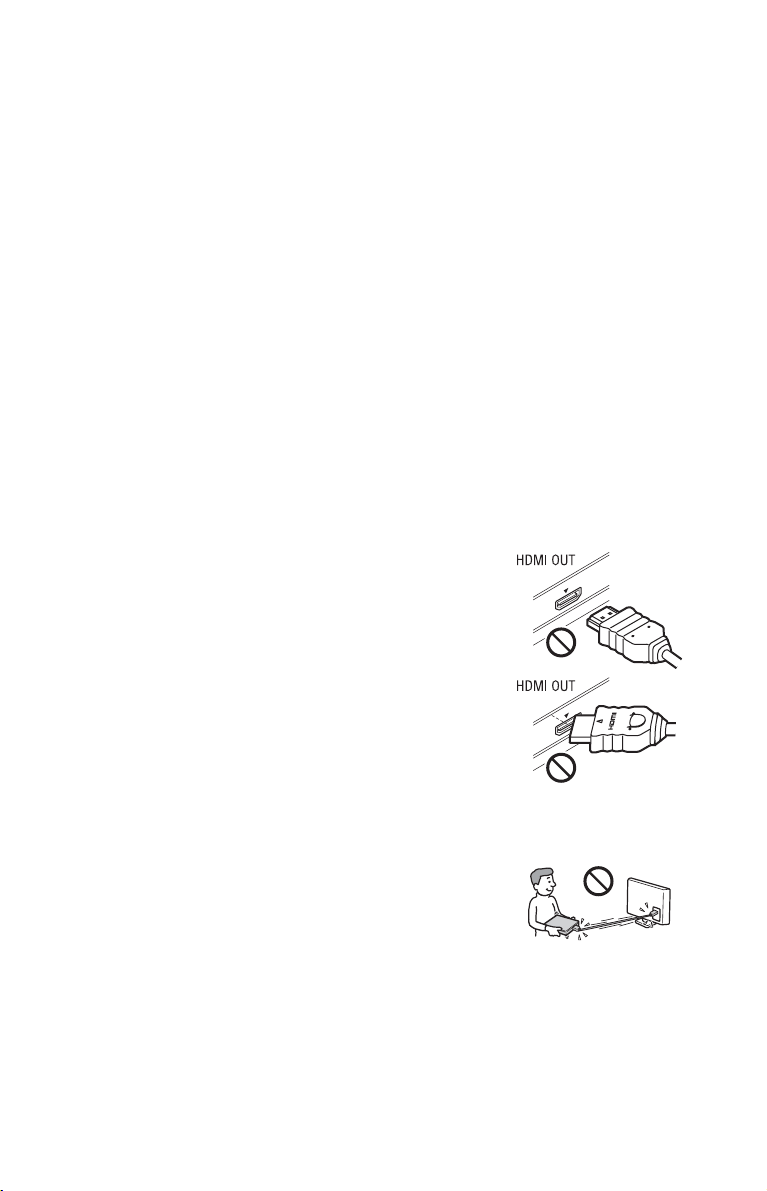
On connecting to the HDMI
OUT jack
Observe the following as
improper handling may damage
the HDMI OUT jack and the
connector.
• Carefully align the HDMI
OUT jack on the right of the
player and the HDMI
connector by checking their
shapes. Make sure the
connector is not upside down
or tilted.
• Be sure to disconnect the
HDMI cable when moving the
player.
• Hold the HDMI connector
straight when connecting or
disconnecting the HDMI
cable. Do not twist or force the
HDMI connector into the
HDMI OUT jack.
,continued

6
If you have any questions or
problems concerning your
player, please consult your
nearest Sony dealer.
IMPORTANT NOTICE
Caution: This player is
capable of holding a still
video image or on-screen
display image on your
television screen
indefinitely. If you leave the
still video image or on-
screen display image
displayed on your TV for an
extended period of time you
risk permanent damage to
your television screen.
Plasma display panel
televisions and projection
televisions are susceptible to
this.

7
Table of Contents
WARNING . . . . . . . . . . . . . . . . . . . . . . . . . . . . . . . . . . . . . . . . . . . . . . . . . . . . 2
Precautions . . . . . . . . . . . . . . . . . . . . . . . . . . . . . . . . . . . . . . . . . . . . . . . . . . .4
Guide to Parts and Controls . . . . . . . . . . . . . . . . . . . . . . . . . . . . . . . . . . . . . .8
Rotating and Folding Down the LCD Panel . . . . . . . . . . . . . . . . . . . . . . . . . . 10
Preparations
Checking the Supplied Accessories . . . . . . . . . . . . . . . . . . . . . . . . . . . . . . . 11
Charging the Rechargeable Battery . . . . . . . . . . . . . . . . . . . . . . . . . . . . . . . 11
Using the Car Battery Adaptor . . . . . . . . . . . . . . . . . . . . . . . . . . . . . . . . . . . . 12
Connecting to the Network . . . . . . . . . . . . . . . . . . . . . . . . . . . . . . . . . . . . . . 13
Connecting to Other Equipment . . . . . . . . . . . . . . . . . . . . . . . . . . . . . . . . . . 13
Playback
Playing a Disc . . . . . . . . . . . . . . . . . . . . . . . . . . . . . . . . . . . . . . . . . . . . . . . . 15
Playing from a USB Device . . . . . . . . . . . . . . . . . . . . . . . . . . . . . . . . . . . . . . 16
Available Options . . . . . . . . . . . . . . . . . . . . . . . . . . . . . . . . . . . . . . . . . . . . . . 17
Settings and Adjustments
Using the Settings Displays . . . . . . . . . . . . . . . . . . . . . . . . . . . . . . . . . . . . . . 19
Network Update . . . . . . . . . . . . . . . . . . . . . . . . . . . . . . . . . . . . . . . . . . . . . . . 19
Screen Settings . . . . . . . . . . . . . . . . . . . . . . . . . . . . . . . . . . . . . . . . . . . . . . . 19
Audio Settings . . . . . . . . . . . . . . . . . . . . . . . . . . . . . . . . . . . . . . . . . . . . . . . . 21
BD/DVD Viewing Settings . . . . . . . . . . . . . . . . . . . . . . . . . . . . . . . . . . . . . . . 22
Parental Control Settings . . . . . . . . . . . . . . . . . . . . . . . . . . . . . . . . . . . . . . . . 22
System Settings . . . . . . . . . . . . . . . . . . . . . . . . . . . . . . . . . . . . . . . . . . . . . . . 23
Network Settings . . . . . . . . . . . . . . . . . . . . . . . . . . . . . . . . . . . . . . . . . . . . . . 23
Resetting . . . . . . . . . . . . . . . . . . . . . . . . . . . . . . . . . . . . . . . . . . . . . . . . . . . . 23
Additional Information
Troubleshooting . . . . . . . . . . . . . . . . . . . . . . . . . . . . . . . . . . . . . . . . . . . . . . . 24
Specifications . . . . . . . . . . . . . . . . . . . . . . . . . . . . . . . . . . . . . . . . . . . . . . . . . 27
Index . . . . . . . . . . . . . . . . . . . . . . . . . . . . . . . . . . . . . . . . . . . . . . . . . . . . . . . 31
8
Guide to Parts and
Controls
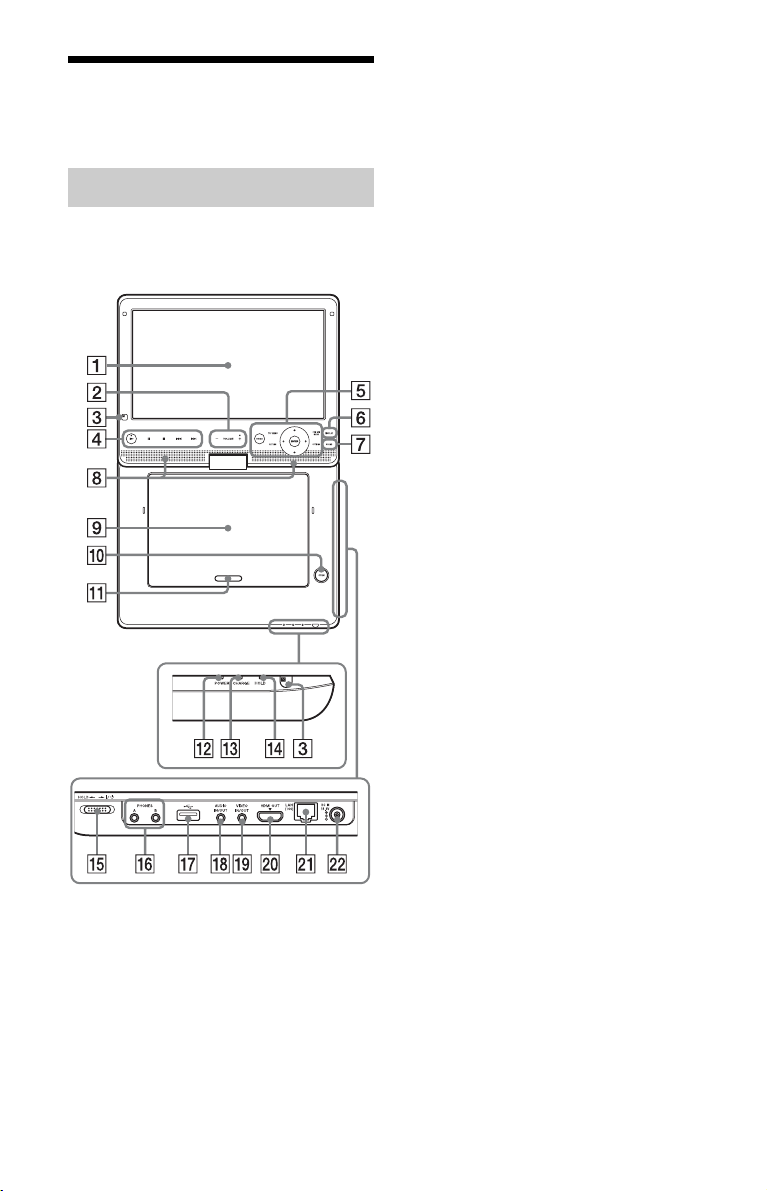
The available functions of the player and
remote differ depending on the disc or the
situation.
z
The VOLUME + and N (play) buttons have a
tactile dot. Use the tactile dot as a reference when
operating the player.
A LCD panel
B VOLUME (sound volume) +/–
Adjusts the volume.
C Remote sensor
The main remote sensor is located next to
the HOLD indicator. The sub remote
sensor is located at the lower left side of
the LCD panel.
D N (play)
Starts or re-starts playback.
X (pause)
Pauses or re-starts playback.
x (stop)
Stops playback and remembers the stop
point (resume point).
The resume point for a title/track is the
last point you played or the last photo for
a photo folder.
./> (previous/next)
Skips to the previous/next chapter, track,
or file.
Hold down
./> on the player to
reverse/fast forward (1 level only).
E HOME
Enters the player’s home menu.
Displays the wallpaper when pressed on
the category icon of the home menu.
TOP MENU
Opens or closes the BD’s or DVD’s Top
Menu.
POP UP/MENU
Opens or closes the BD-ROM’s Pop-up
Menu, or the DVD’s menu.
OPTIONS (page 17)
The options menu that can be selected
appears on the screen.
RETURN
Returns to the previous display.
</M/m/,
Moves the highlight to select a displayed
item.
ENTER (center button)
Enters the selected item.
F DISPLAY (page 16)
Displays the playback information on the
screen.
Player
9
G SOUND
Switches among 4 different sound modes
each time pressed.
This function is available for the sound
output from the player’s speaker.
H Speaker
I Disc lid
J OPEN button
Opens the disc lid.
K PUSH CLOSE
Closes the disc lid.
L POWER indicator
Lights up when the player is turned on.
M CHARGE indicator
Lights up when charging the
rechargeable battery.
Flashes when the battery is empty.
N HOLD indicator
Lights up when the ?/1/HOLD switch is
set in the direction of HOLD.
O ?/1 (on/standby)/HOLD switch
• Turns on the player, or sets to standby
mode.
• To avoid accidental button operation of
the player, set the switch in the
direction of HOLD. All the buttons on
the player are locked, while the buttons
on the remote remain operable.
P PHONES (headphones) jack A, B
Q (USB) jack
Connect a USB device to this jack.
R AUDIO IN/OUT jack
S VIDEO IN/OUT jack
T HDMI OUT jack
U LAN (100) terminal
V DC IN 14.3V jack
Connect the AC adaptor or car battery
adaptor.
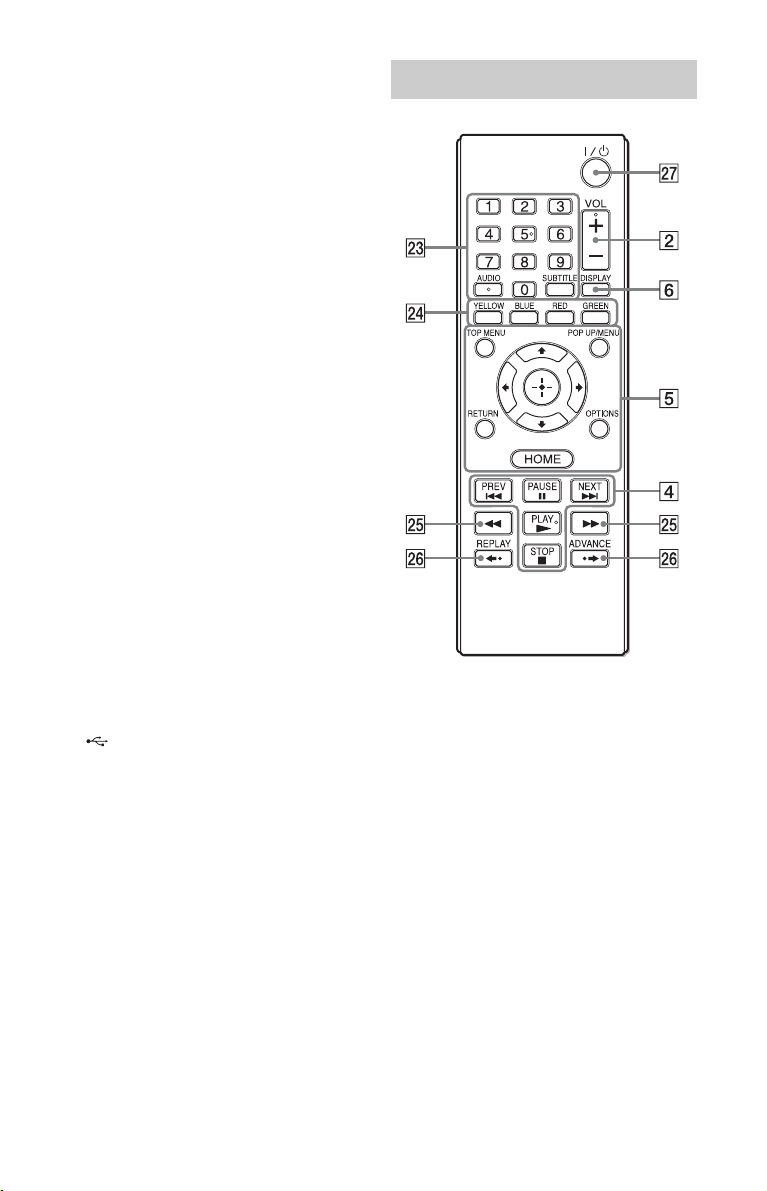
z
Number 5, AUDIO, VOL +, and N PLAY buttons
have a tactile dot. Use the tactile dot as a reference
when operating the player.
W Number buttons (0 - 9)
Enters the title/chapter numbers, etc.
AUDIO (page 22)
Selects the language track when multi-
lingual tracks are recorded on BD-
ROMs/DVD VIDEOs.
Selects the sound track on CDs.
SUBTITLE (page 22)
Selects the subtitle language when multi-
lingual subtitles are recorded on BD-
ROMs/DVD VIDEOs.
X Color buttons (YELLOW/BLUE/
RED/GREEN)
Shortcut keys for interactive functions.
Remote
,continued
10
Y m/M (fast reverse/fast
forward)
• Fast reverses/fast forwards the disc
when pressed during playback. Each
time you press the button during
playback of videos, the search speed
changes.
• Plays in slow motion, when pressed for
more than one second in pause mode.
This function is available when the
remote is pointed at the main remote
sensor.
• Plays one frame at a time, when pressed
briefly in pause mode.
Z / (replay/advance)
Briefly replays the current scenes for
10 seconds/briefly fast forwards the
current scenes for 15 seconds.
wj [/1 (on/standby)
Turns on the player, or sets to standby
mode.
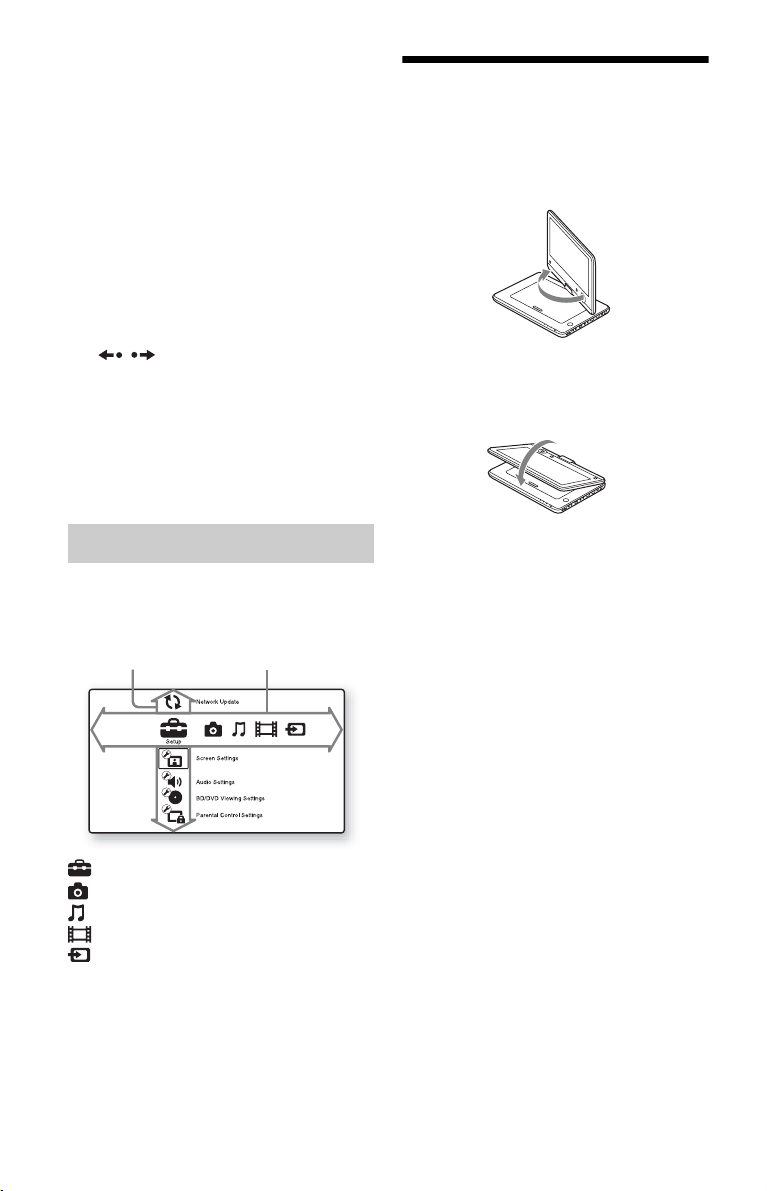
The home menu appears when you press
HOME. Select a category using </,.
Select an item using M/m, and press ENTER.
(Setup): Adjusts the player settings.
(Photo): Displays photos.
(Music): Plays music.
(Video): Plays videos.
(Input): Plays videos/music/photos from
other equipment.
Rotating and Folding
Down the LCD Panel
Open the LCD panel to the vertical position,
then slowly rotate it 180 degrees.
After rotating the LCD panel 180 degrees
clockwise, push the LCD panel down onto
the main body of the player. In this position
the panel is facing up.
To return the LCD panel to its original
position
Open the LCD panel to the vertical position
and slowly rotate the LCD panel counter-
clockwise.
b
Return the LCD panel to its original position after
use, so the LCD panel will not be damaged by
sudden shocks or rough treatment.
Home menu display
Item Category
11
Preparations
Preparations
Checking the Supplied
Accessories
Check that you have the following items:
• AC power cord (1)
• AC adaptor (1)
• Car battery adaptor (1)
• Audio/video cable (mini plug × 2 y
phono plug × 3) (1)
• Remote commander (remote) (1)
• Size AA (R6) batteries (2)
To prepare the remote
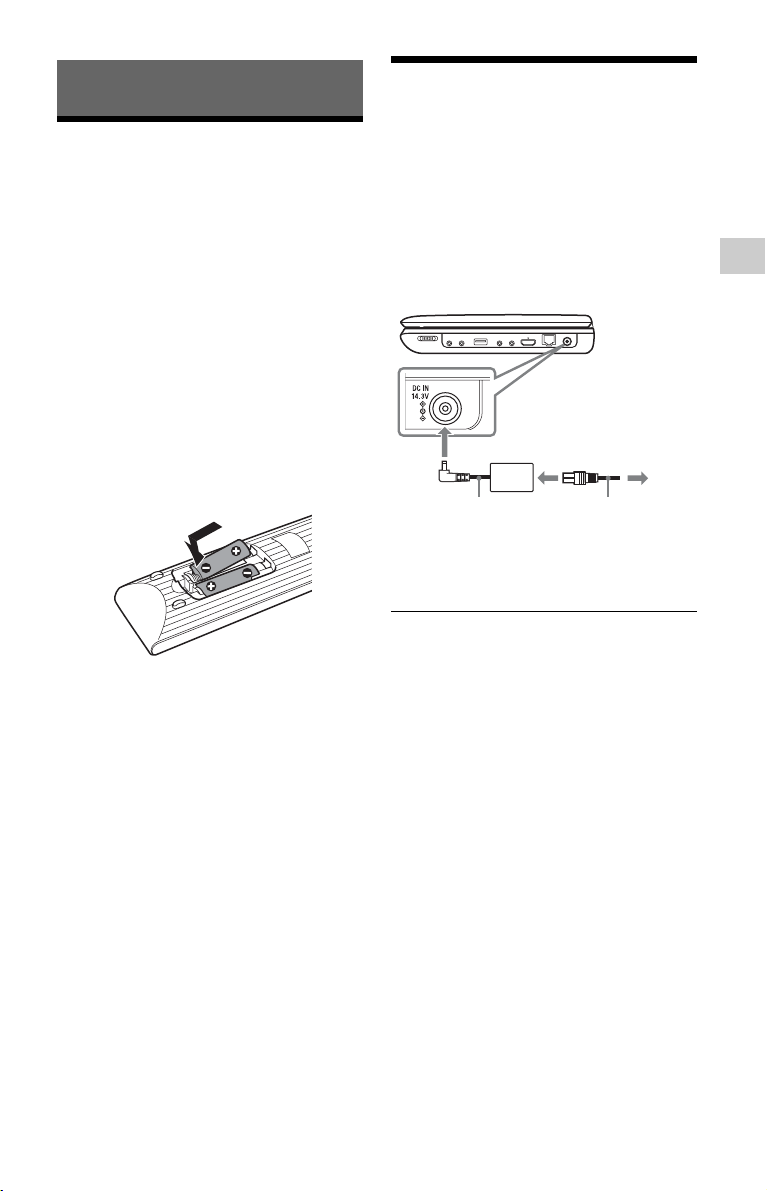
Insert two Size AA (R6) batteries by
matching the 3 and # ends on the batteries
to the markings inside the battery
compartment.
Charging the
Rechargeable Battery
Charge the rechargeable battery before using
the player for the first time, or when the
battery is depleted.
Connect the AC adaptor.
When charging begins, the CHARGE
indicator lights up in orange.
When charging ends, the CHARGE indicator
lights off.
Disconnect the AC adaptor.
z
Charging takes longer if the player is turned on.
When you only want to charge the battery, turn off
the player.
b
Charge the battery in an ambient temperature of
between 5°C (41°F) and 35°C (95°F).
Charging time and playing time
Charging time: approx. 6 hours
Playing time: approx. 5 hours
Times indicated are under the following
conditions:
• Charging time
– moderate temperature (20°C (68°F))
– power-off
• Playing time
– moderate temperature (20°C (68°F))
– headphone use
– backlight set to minimum
Depending on the ambient temperature or
rechargeable battery condition, charging time
may be longer, or playing time may be
reduced.
To a wall outlet
AC adaptor
(supplied)
AC power cord
(supplied)
,continued
12
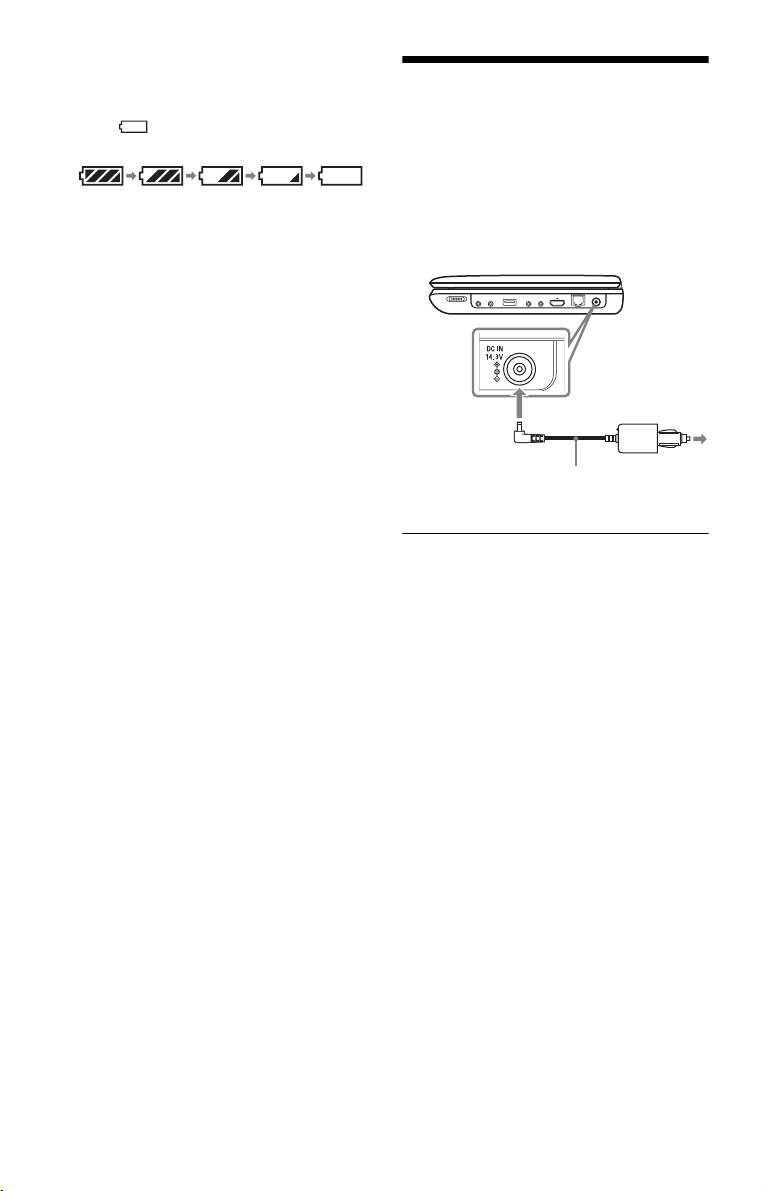
To check the battery level
When the player is stopped, the battery
indicator is displayed. When the battery is
empty, is displayed or the CHARGE
indicator flashes.
Using the Car Battery
Adaptor
The car battery adaptor is for a 12V car
battery, negative earth (do not use it with a
24V car battery, positive earth).
Connect the car battery adaptor.
After using the player in a car
Disconnect the car battery adaptor from the
cigarette lighter socket.
b
• The driver should not connect or disconnect the
car battery adaptor while driving.
• Arrange the cord so as not to interfere with the
driver. Also, do not place the LCD panel where
the driver can watch.
• Clean the cigarette lighter socket. If dirty, the
cigarette lighter socket may cause contact failure
or malfunction.
• Use the car battery adaptor with the car engine
running. If it is used with the car engine off, the
car battery may become depleted.
• Do not leave the player or accessories in the car.
Full Empty
To cigarette
lighter socket
Car battery adaptor
(supplied)
13
Preparations
Connecting to the
Network
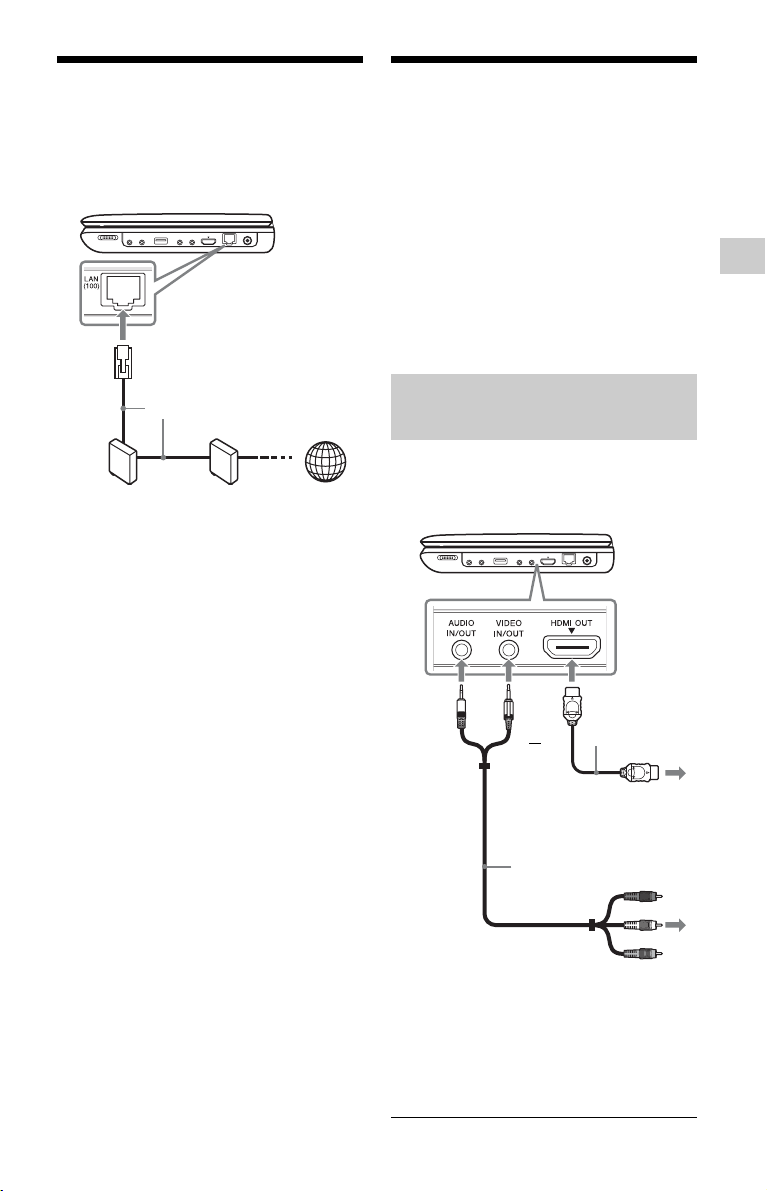
Use a LAN cable to connect to the LAN (100)
terminal on the player.
To set the network settings
Select “Network Settings,” “Internet
Settings,” then “Wired Setup” (page 23), and
follow the on-screen instructions to complete
the setup.
Connecting to Other
Equipment
By connecting the player to your TV or other
equipment, you can increase your viewing
options.
b
• Refer to the instruction manual supplied with the
equipment to be connected.
• Before connecting, turn off the player and the
equipment to be connected, then unplug them
from their wall sockets.
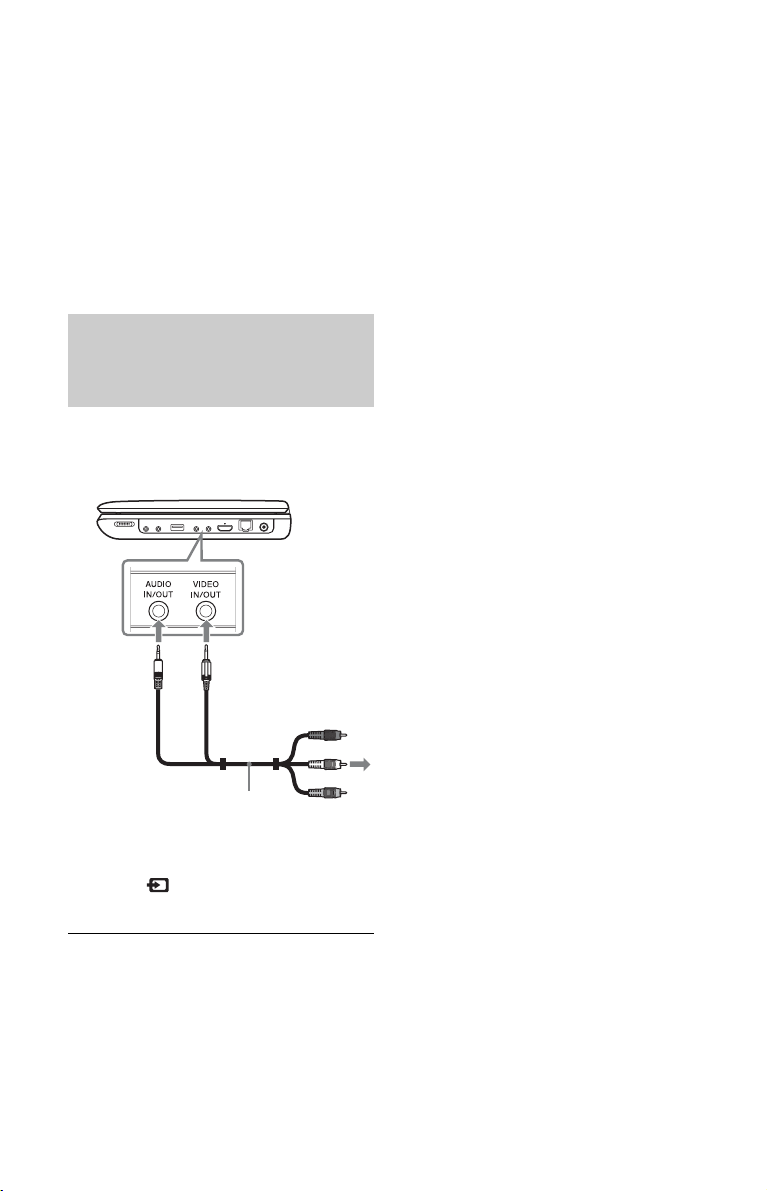
1 Connect the player to your TV or
monitor using the audio/video or
HDMI cable.
2 Turn on the player.
For HDMI connections, check the
“HDMI/LCD Video Format” settings in
the “Screen Settings” setup (page 20).
ADSL modem/
Cable modem
Broadband
router
LAN cable (not supplied)
Internet
Enjoying images on a
connected TV
or
Audio/video cable
(supplied)
HDMI cable
(not supplied)
To AUDIO/VIDEO input jacks
of a TV or monitor
To HDMI input jack
of a TV or monitor
,continued
14
z
• The player can connect to an AV amplifier in the
same way as a TV.
• Use an HDMI cable to enjoy high quality digital
pictures and sound.
b
• Do not connect the player through a VCR. Video
signals fed through VCRs may be affected by
copyright protection systems and the picture will
be distorted on the television.
• No sound is output from the player’s speaker
when connecting with an HDMI cable.
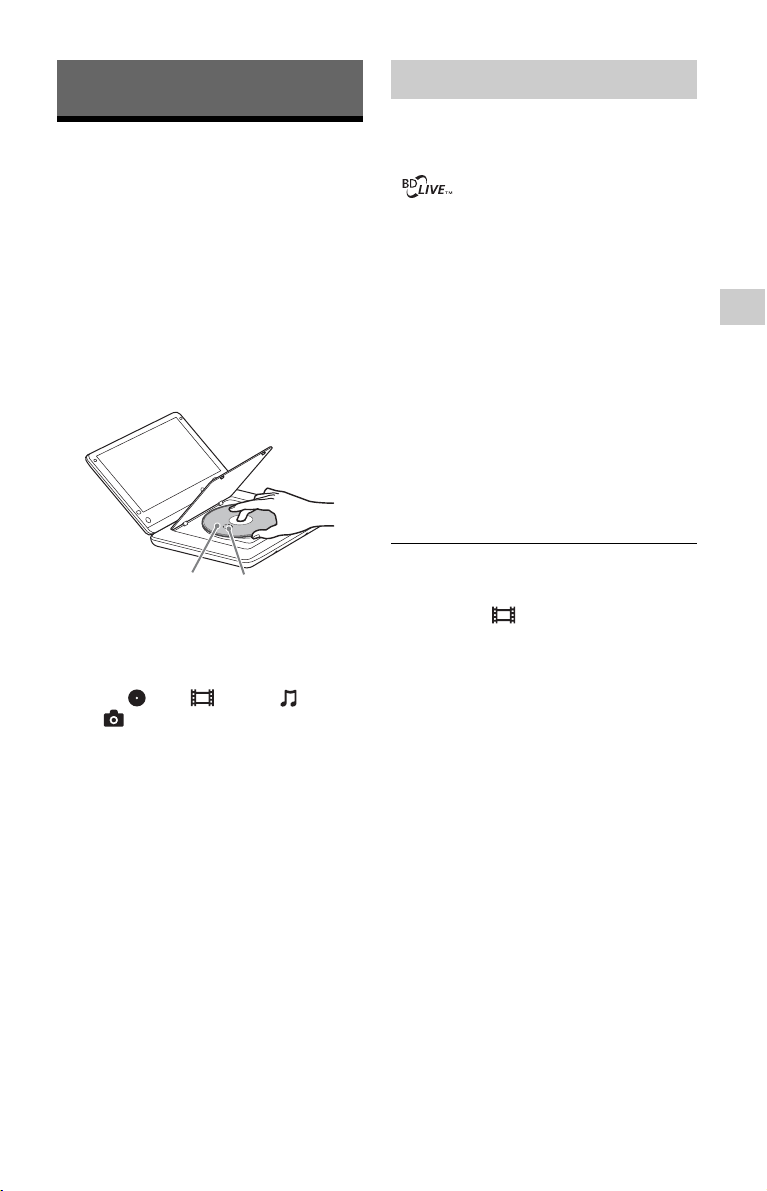
1 Connect the player to your video
player or camcorder using the audio/
video cable.
2 Turn on the player.
3 Select (Input) on the home menu
using </,, and press ENTER.
To return to the home menu
Press HOME.
Enjoying images output from
other equipment on the
player’s LCD screen
Audio/video cable
(supplied)
To AUDIO/VIDEO
output jacks of a video
player or camcorder
15
Playback
Playback
Playing a Disc
For playable discs, see “Playable discs”
(page 27).
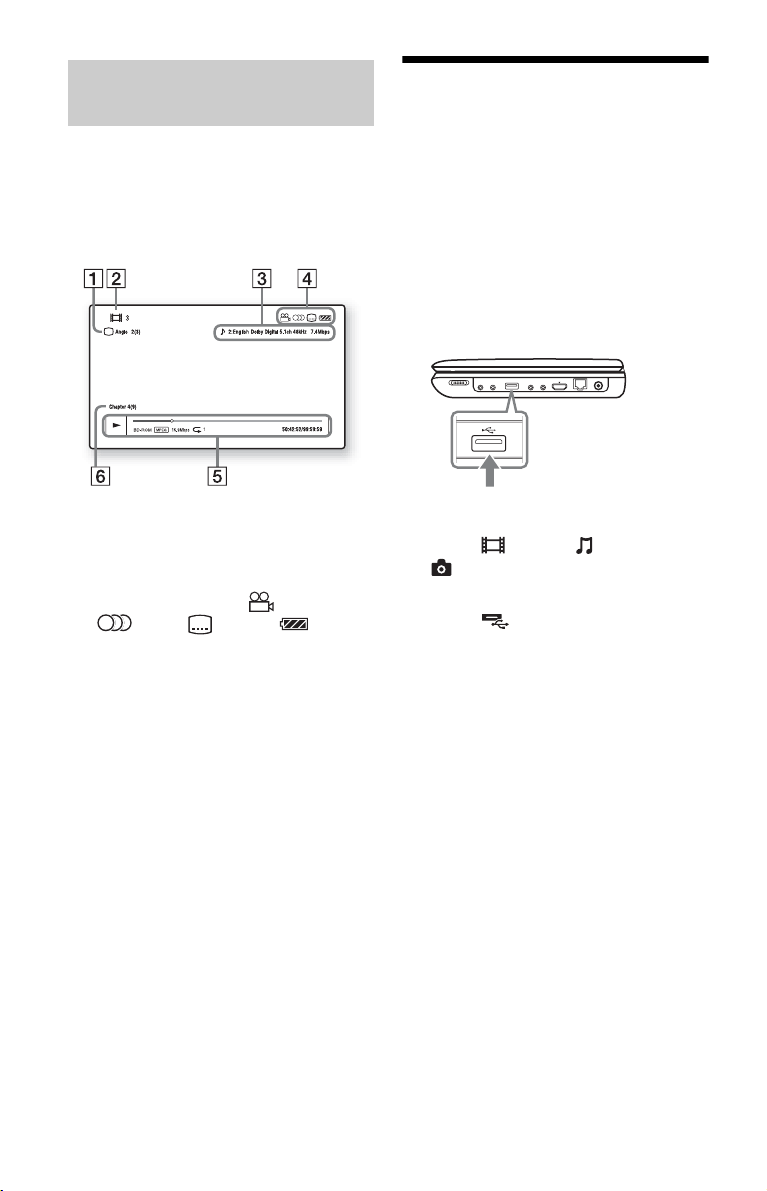
1 Open the LCD panel, and turn on the
player.
2 Press OPEN to open the disc lid, and
place the disc.
Place with the playback side down and
push gently until it clicks. Do not touch
the lens surface.
3 Close the disc lid.
Playback starts.
If playback does not start automatically,
select in the (Video), (Music),
or (Photo) category, and press
ENTER.
Some BD-ROMs with the “BD-LIVE” logo*
have bonus content and other data that can be
downloaded for enjoyment.
*
1 Connect a USB memory to the USB
jack on the player (page 9).
As your local storage, use a 1 GB or
larger USB memory.
2 Prepare for BD-LIVE (BD-LIVE only).
• Connect the player to a network
(page 13).
• Set “BD Internet Connection” to
“Allow” (page 22).
3 Insert a BD-ROM with BONUSVIEW/
BD-LIVE.
The operation method differs depending
on the disc. Refer to the instruction
manual supplied with the disc.
z
To delete data in the USB memory, select “Erase
BD Data” in the (Video), and press ENTER.
All data stored in the buda/budb folder will be
erased.
Playing side facing
down
Lens
Enjoying BONUSVIEW/BD-LIVE
,continued
16
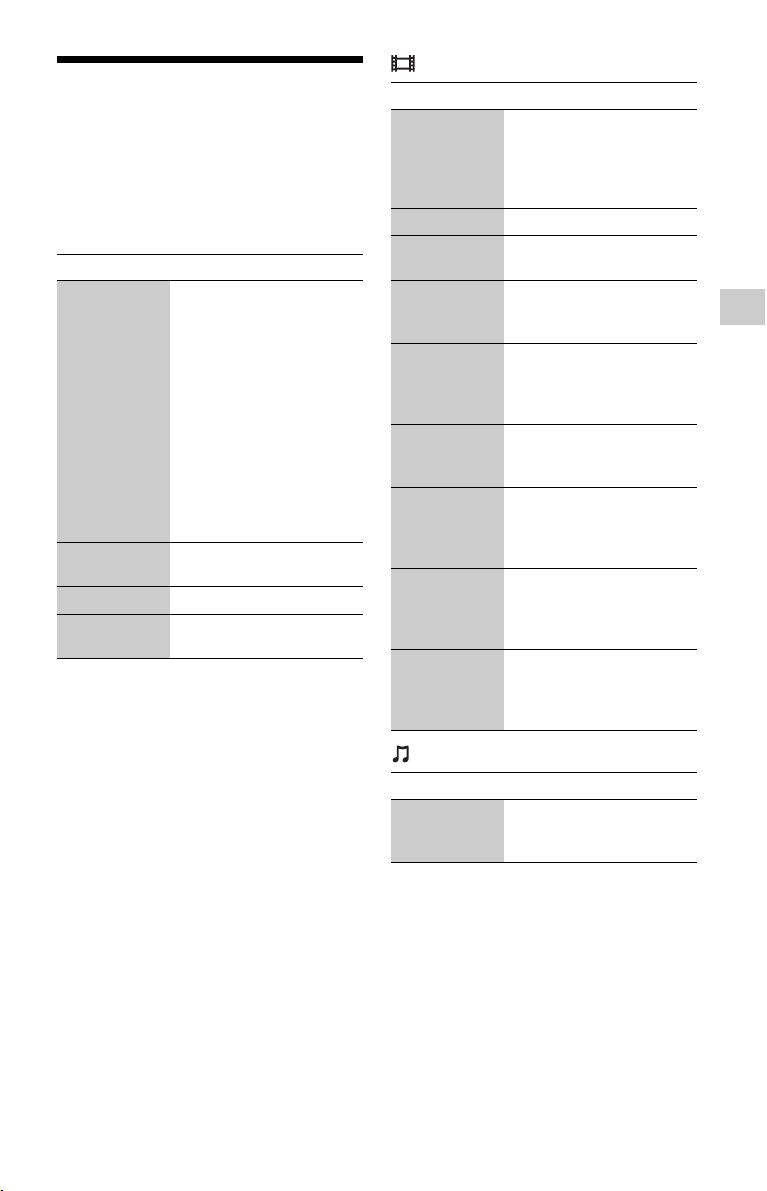
You can check the playback information,
etc., by pressing DISPLAY.
The displayed information differs depending
on the disc type and player status.
Example: when playing a BD-ROM
A The currently selected angle
B Title number or name
C The currently selected audio setting
D Available functions ( angle,
audio, subtitle, battery
status)
E Displays the Play mode, Playing status
bar, Disc type, Video codec, Bitrate,
Repeat type, Elapsed time, and Total
playing time.
F Chapter number
Playing from a USB
Device
You can play video/music/photo files on the
connected USB device.
For playable USB devices, see “Playable
types of files” (page 28).
1 Connect the USB device to the USB
jack on the player.
Refer to the instruction manual supplied
with the USB device before connecting.
2 Select (Video), (Music), or
(Photo) on the home menu using
</,.
3 Select (USB device) using M/m,
and press ENTER.
Displaying the playback
information
USB device
17
Playback
Available Options
Various settings and playback operations are
available by pressing OPTIONS. The
available items differ depending on the
situation.
Common options
(Video) only
(Music) only
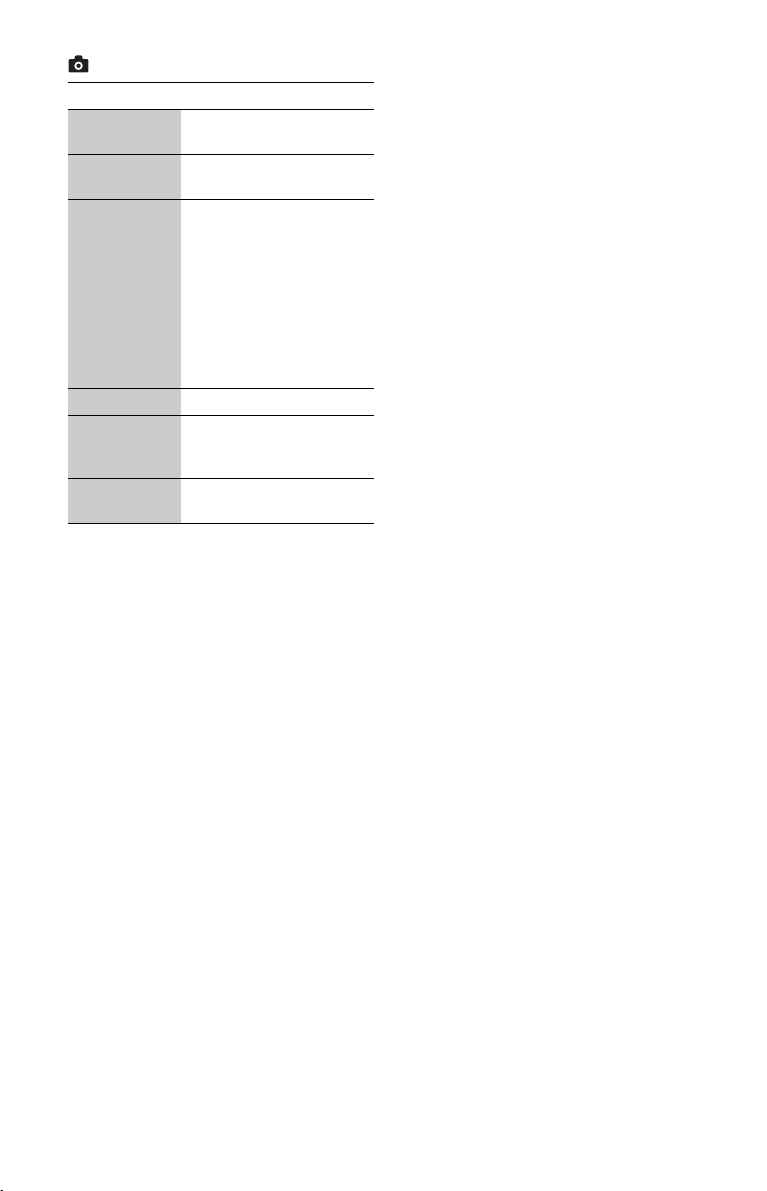
Item Details
LCD Mode • LCD Aspect: Changes the
picture size.
• Backlight: Adjusts the
brightness.
• Contrast: Adjusts the
difference between light
and dark areas.
• Hue: Adjusts the red and
green color balance.
• Color: Adjusts the richness
of colors.
• Default: Returns all
settings to the factory
defaults.
Repeat
Setting
Sets the repeat mode.
Play/Stop Starts or stops the playback.
Play from
beginning
Plays the item from the
beginning.
Item Details
A/V SYNC Adjusts the gap between
picture and sound, by
delaying the sound output in
relation to the picture output
(0 to 120 milliseconds).
Pause Pauses the playback.
Top Menu Displays the BD’s or DVD’s
Top Menu.
Menu/Popup
Menu
Displays the BD-ROM’s
Pop-up Menu or DVD’s
menu.
Title Search Searches for a title on BD-
ROMs/DVD VIDEOs and
starts playback from the
beginning.
Chapter
Search
Searches for a chapter and
starts playback from the
beginning.
Angle Switches to other viewing
angles when multi-angles
are recorded on BD-ROMs/
DVD VIDEOs.
Audio Switches the language track
when multi-lingual tracks
are recorded on BD-ROMs/
DVD VIDEOs.
Subtitle Switches the subtitle
language when multi-lingual
subtitles are recorded on
BD-ROMs/DVD VIDEOs.
Item Details
Add
Slideshow
BGM
Registers music files in the
USB memory as slideshow
background music (BGM).
,continued
18
(Photo) only
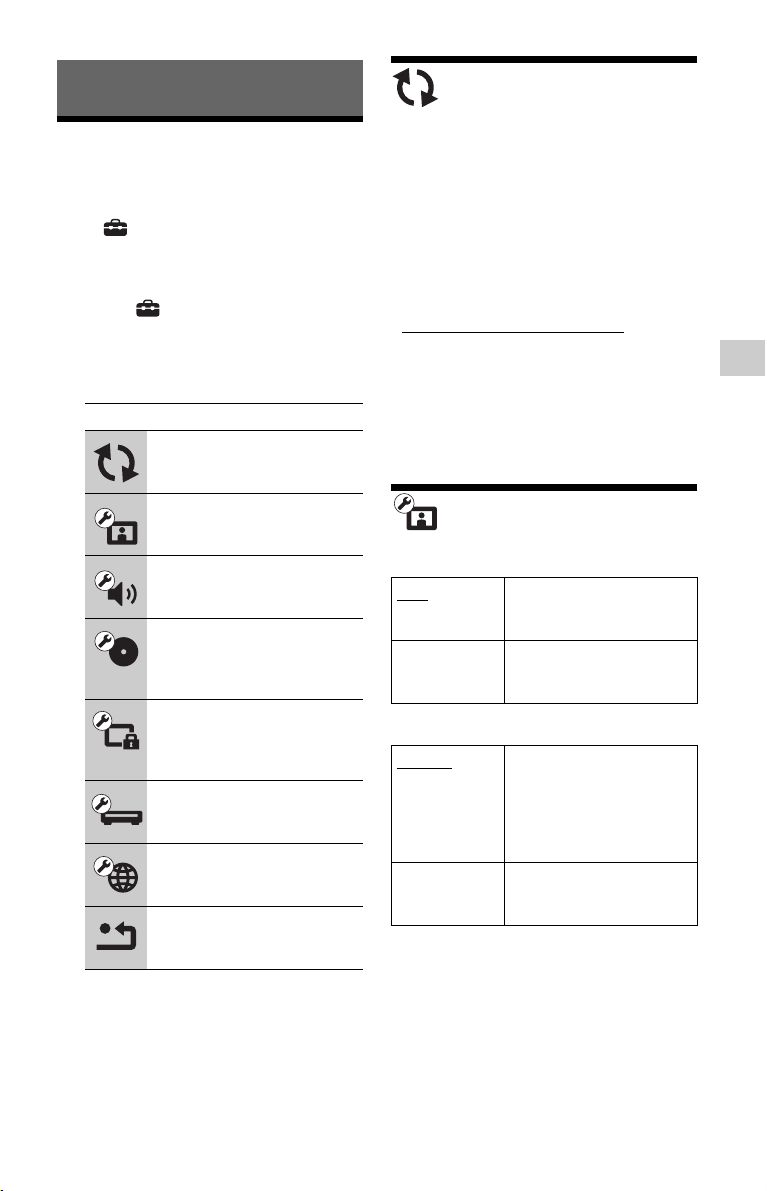
Item Details
Slideshow
Speed
Changes the slideshow
speed.
Slideshow
Effect
Sets the effect for
slideshows.
Slideshow
BGM
• Off: Turns off the
function.
• My Music from USB: Sets
the music files registered
in “Add Slideshow BGM.”
If no music file is
registered, “(Not
registered)” is displayed.
• Play from Music CD: Sets
the tracks in CD-DAs.
Slideshow Plays a slideshow.
Rotate Left Rotates the photo
counterclockwise by
90 degrees.
Rotate Right Rotates the photo clockwise
by 90 degrees.
19
Settings and Adjustments
Settings and Adjustments
Using the Settings
Displays
Select (Setup) on the home menu when
you need to change the settings of the player.
The default settings are underlined.
1 Select (Setup) on the home menu
using </,.
2 Select the setup category icon using
M/m, and press ENTER.
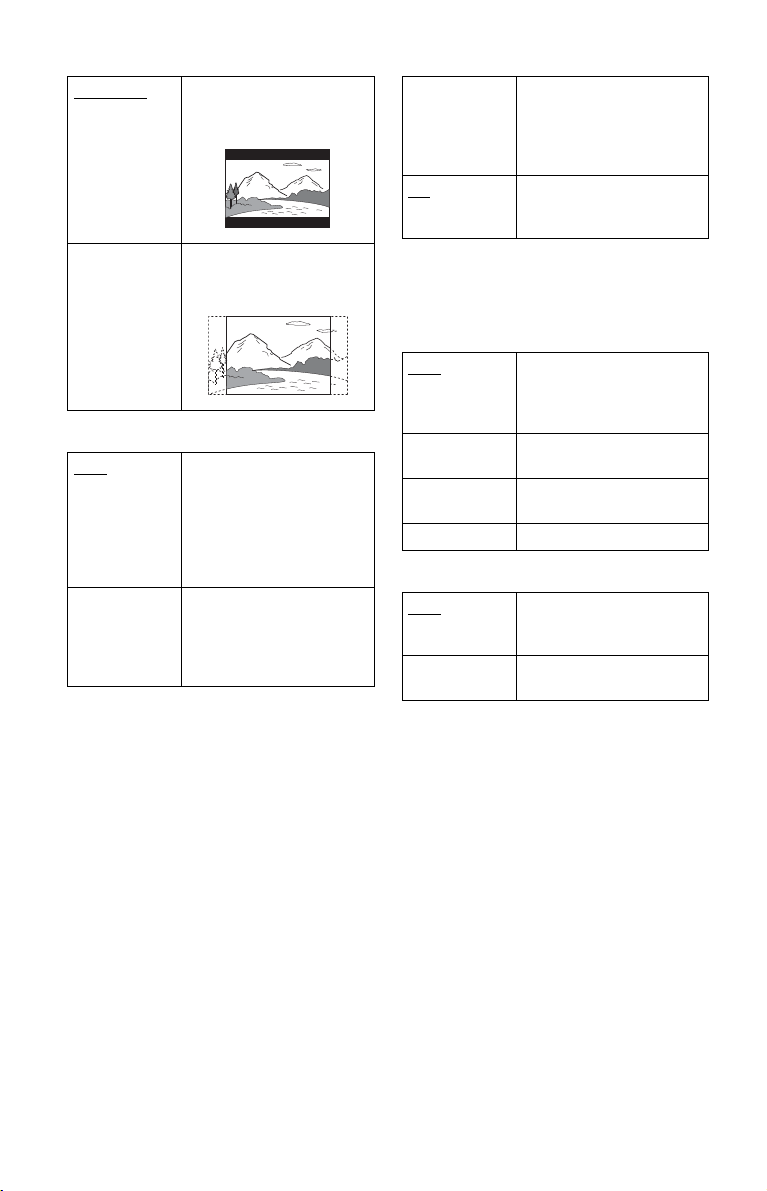
Network Update
Connect the AC adaptor for the network
update.
Select “OK” to update the player’s software
via the network.
z
• We recommend the network update every 2
months or so.
• For information about update functions, visit the
following website:
http://www.sony.com/bluraysupport/
b
• Do not disconnect the AC adaptor until the
network update completes.
• Make sure that the rechargeable battery is
sufficiently charged before starting the update.
Screen Settings
TV Type
Screen Format
Icon Explanation
Network Update (page 19)
Updates the software of the
player.
Screen Settings (page 19)
Makes the video settings.
Audio Settings (page 21)
Makes the audio settings.
BD/DVD Viewing Settings
(page 22)
Makes detailed settings for BD/
DVD playback.
Parental Control Settings
(page 22)
Makes detailed settings for the
Parental Control function.
System Settings (page 23)
Makes the player-related
settings.
Network Settings (page 23)
Makes detailed settings for the
Internet and network.
Resetting (page 23)
Resets the player to the factory
settings.
16:9 Select this when connecting
to a wide-screen TV or a TV
with a wide mode function.
4:3 Select this when connecting
to a 4:3 screen TV without a
wide mode function.
Original
Select this when connecting
to a TV with a wide mode
function. Displays a 4:3
screen picture in 16:9 aspect
ratio even on a wide-screen
TV.
Fixed Aspect
Ratio
Changes the picture size to
fit the screen size with the
original picture aspect ratio.
,continued
20
DVD Aspect Ratio
Cinema Conversion Mode
HDMI/LCD Video Format
Normally select “Auto.”
Select “Original Resolution” to output the
resolution recorded on the disc. When the
resolution is lower than the SD resolution, it
is scaled up to the SD resolution.
z
If no picture appears on the connected TV after
setting the resolution, try another resolution setting.
BD/DVD-ROM 1080/24p Output
b
No picture appears on the LCD screen when 24p
video signals are output from the HDMI OUT jack.
YCbCr/RGB (HDMI)
Pause Mode
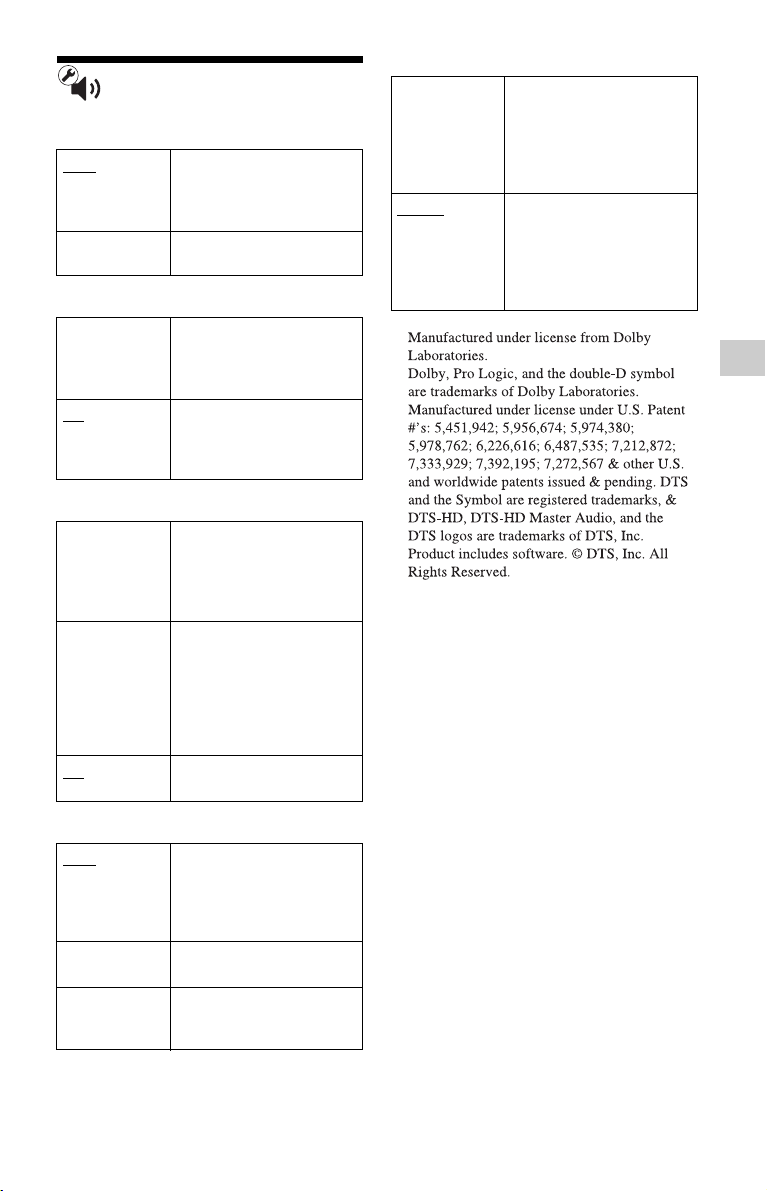
Letter Box Displays a wide picture with
black bands on the top and
bottom.
Pan & Scan Displays a full-height
picture on the entire screen,
with trimmed sides.
Auto
Normally select this. The
player automatically detects
whether the material is
video-based or film-based,
and switches to the
appropriate conversion
method.
Video The conversion method
suited for video-based
material will always be
selected regardless of the
material.
Auto Outputs 1920 × 1080p/
24 Hz video signals only
when connecting a 1080/
24p-compatible TV using
the HDMI OUT jack.
Off
Normally select this when
your TV is not compatible
with 1080/24p video signals.
Auto
Automatically detects the
connected TV type, and
switches to the matching
color setting.
YCbCr (4:2:2) Outputs YCbCr 4:2:2 video
signals.
YCbCr (4:4:4) Outputs YCbCr 4:4:4 video
signals.
RGB Outputs RGB video signals.
Auto
Normally select this.
Dynamic moving pictures
appear without blurring.
Frame Displays static pictures at
high resolution.
21
Settings and Adjustments
Audio Settings
Audio (HDMI)
BD Audio MIX Setting
DTS Neo:6
Audio DRC
Downmix
Auto Normally select this.
Outputs audio signals
according to the status of the
connected HDMI device.
PCM Outputs PCM signals from
the HDMI OUT jack.
On Outputs the audio obtained
by mixing the interactive
and secondary audio to the
primary audio.
Off
Outputs the primary audio
only. Select this to output
HD audio signals to an AV
amplifier (receiver).
Cinema Performs “DTS Neo:6
Cinema” mode decoding. A
source recorded in 2-channel
format is decoded into 7
channels.
Music Performs “DTS Neo:6
Music” mode decoding. A
source recorded in 2-channel
format is decoded into 7
channels. This setting is
ideal for normal stereo
sources such as CDs.
Off
Turns off “DTS Neo:6”
decoding.
Auto Performs playback at the
dynamic range specified by
the disc (BD-ROM only).
Other discs are played back
at the “On” level.
On Performs playback at a
standard compression level.
Off No compression works. A
more dynamic sound is
produced.
Surround Outputs audio signals with
surround effects. Select this
when connecting an audio
device that supports Dolby
Surround (Pro Logic)
*1
or
DTS Neo:6
*2
.
Stereo
Outputs audio signals
without surround effects.
Select this when connecting
an audio device that does not
support Dolby Surround
(Pro Logic) or DTS Neo:6.
*1
*2
22
BD/DVD Viewing
Settings
BD/DVD Menu
Selects the default menu language for BD-
ROMs or DVD VIDEOs.
When you select “Select Language Code,”
the display for entering the language code
appears. Enter the code for your language by
referring to “Language code list” (page 30).
Audio
Selects the default track language for BD-
ROMs or DVD VIDEOs.
When you select “Original,” the language
given priority in the disc is selected.
When you select “Select Language Code,”
the display for entering the language code
appears. Enter the code for your language by
referring to “Language code list” (page 30).
Subtitle
Selects the default subtitle language for BD-
ROMs or DVD VIDEOs.
When you select “Select Language Code,”
the display for entering the language code
appears. Enter the code for your language by
referring to “Language code list” (page 30).
BD Hybrid Disc Playback Layer
BD Internet Connection
Parental Control
Settings
Password
Sets or changes the password for the Parental
Control function. A password allows you to
set a restriction on BD-ROMs or DVD
VIDEOs playback. If necessary, you can
differentiate the restriction levels for BD-
ROMs and DVD VIDEOs.
Parental Control Area Code
Playback of some BD-ROMs or DVD
VIDEOs can be limited according to the
geographic area. Scenes may be blocked or
replaced with different scenes. Follow the on-
screen instructions and enter your four-digit
password.
BD Parental Control
Playback of some BD-ROMs can be limited
according to the age of the users. Scenes may
be blocked or replaced with different scenes.
Follow the on-screen instructions and enter
your four-digit password.
DVD Parental Control
Playback of some DVD VIDEOs can be
limited according to the age of the users.
Scenes may be blocked or replaced with
different scenes. Follow the on-screen
instructions and enter your four-digit
password.
BD Plays BD layer.
DVD/CD Plays DVD or CD layer.
Allow Normally select this.
Do not allow
Prohibits Internet
connection from BD
content.
23
Settings and Adjustments
System Settings
OSD
Selects your language for the player on-
screen displays.
Control for HDMI
z
For details, refer to the instruction manual supplied
with the TV or components.
HDMI: Linked to TV-off
Auto Standby
Auto Display
Screen Saver
Software Update Notification
System Information
Displays the player’s software version
information and the MAC address, etc.
Network Settings
Internet Settings
Connect the player to the network
beforehand. For details, see “Connecting to
the Network” (page 13).
Network Connection Diagnostics
You can run the network diagnostic to check
if the network connection has been properly
made.
Resetting
Reset to Factory Default Settings
You can reset the player settings to the
factory default by selecting the group of
settings. All the settings within the group will
be reset.
On The following BRAVIA
sync features are available:
– One-Touch Play
–System Power-Off
– Language Follow
Off Turns off the function.
On Automatically turns off the
player and HDMI-
compatible components
when the connected TV
enters standby mode
(BRAVIA sync).
Off
Turns off the function.
On
Turns on the “Auto
Standby” function.
Automatically returns to
standby mode if no button
on the player or remote is
pressed for more than 30
minutes.
Off Turns off the function.
On
Automatically displays
information on the screen
when changing the viewing
titles, picture modes, audio
signals, etc.
Off Displays information only
when you press DISPLAY.
On Turns on the screen saver
function. The screen saver
image appears when the
player is not used for more
than 10 minutes while
displaying an on-screen
display.
Off Turns off the function.
On
Sets the player to inform you
of newer software version
information (page 19).
Off Turns off the function.
View Network
Status
Displays the current
network status.
Wired Setup
Connects the player to a
broadband router directly.
24
Additional Information
Troubleshooting
If you experience any of the following
difficulties while using the player, use this
troubleshooting guide to help remedy the
problem before requesting repairs. Should
any problem persist, consult your nearest
Sony dealer.
The power is not turned on.
, Check that the AC adaptor is securely
connected (page 11).
, Check that the rechargeable battery is
sufficiently charged (page 11).
The rechargeable battery cannot be
charged or charging time is long.
, If the CHARGE indicator flashes with the
AC adaptor connected, the ambient
temperature is not appropriate. Charge the
battery in an ambient temperature of
between 5°C (41°F) and 35°C (95°F).
, Charging takes longer if the player is turned
on. Before charging, turn off the player.
, If you have not used the player for more
than a year, the battery may have
deteriorated. Consult your nearest Sony
dealer.
There is no picture or the picture is not
output correctly.
, The pictures on the LCD are displayed in
standard quality when the audio/video cable
is connected. Disconnect the audio/video
cable to enjoy high quality digital pictures
on the LCD.
, Some digital content in commercially
available BDs cannot be displayed on the
LCD screen when the audio/video cable is
connected. Disconnect the audio/video
cable to enjoy such content on the LCD
screen.
, No picture appears on the LCD screen when
24p video signals are output from the
HDMI OUT jack. Set “BD/DVD-ROM
1080/24p Output” to “Off” in the “Screen
Settings” setup (page 20).
The black points appear and the red, blue,
green points remain on the LCD.
, This is a structural property of the LCD and
not a malfunction.
There is no sound.
, The player is in pause mode or in slow play
mode.
, The player is in fast forward or fast reverse
mode.
The HD Audio (Dolby Digital Plus, Dolby
TrueHD, DTS-HD High Resolution Audio,
and DTS-HD Master Audio) is not output
by bitstream.
, Set “BD Audio MIX Setting” to “Off” in
the “Audio Settings” setup (page 21).
The interactive audio is not output.
, Set “BD Audio MIX Setting” to “On” in the
“Audio Settings” setup (page 21).
The sound mode is not switched.
, Only “Standard” is available when the
audio/video cable is connected. Disconnect
the audio/video cable to enjoy other sound
modes on the player.
The disc does not play.
, The disc is dirty or skewed.
, The disc is not set until it clicks (page 15).
, The disc is upside down. Insert the disc with
the playback side facing down.
, The disc has a format that cannot be played
back by this player (page 27).
, The player cannot play a recorded disc that
is not correctly finalized.
, The region code on the BD or DVD does
not match the player (page 28).
Power
Picture
Sound
Disc

25
Additional Information
Playback does not start from the
beginning of content.
, Press OPTIONS, and select “Play from
beginning.”
Playback does not start from the resume
point where you last stopped playing.
, The resume point may be cleared from
memory when
– you open the disc lid.
– you disconnect the USB device.
– you play other content.
– you turn off the player.
– you change some settings under the
“Setup.”
The player does not respond to any button.
, The ?/1/HOLD switch is set in the
direction of HOLD.
, Moisture has condensed inside the player
(page 4).
, Disconnect the AC power cord from the
wall outlet and slide the ?/1/HOLD switch
in the direction of ?/1 and hold for 10
seconds until the POWER indicator on the
player turns off.
The player does not detect a USB device
connected to the player.
, Make sure that the USB device is securely
connected to the USB jack.
, Check if the USB device or a cable is
damaged.
, Check if the USB device is on.
, If the USB device is connected via a USB
hub, connect the USB device directly to the
player.
The player cannot connect to the network.
, Check the network connection (page 13)
and the network settings (page 23).
The message “A new software version is
available. Please go to the "Setup" section
of the menu and select "Network update"
to perform the update.” appears on the
screen when turning the player on.
, See “Network Update” (page 19) to update
the player to a newer software version.
There is no picture or the picture is not
output correctly.
, Check that all the connecting cables are
securely connected.
, Switch the input selector on your TV to
display the signal from the player.
, For HDMI connections, try the following:
1Turn the player off and on again. 2Turn
the connected equipment off and on again.
3Disconnect and then reconnect the HDMI
cable.
, The HDMI OUT jack is connected to a DVI
device that does not support copyright
protection technology.
, For HDMI connections, check the “HDMI/
LCD Video Format” settings in the “Screen
Settings” setup (page 20).
, For BD-ROMs, check the “BD/DVD-ROM
1080/24p Output” setting in the “Screen
Settings” setup (page 20).
, The pictures are displayed in standard
quality on the HDMI-connected TV when
the audio/video cable is connected at the
same time. Disconnect the audio/video
cable to enjoy high quality digital pictures
on the HDMI-connected TV.
Operations
USB device
Network connection
Hookup
,continued

26
There is no sound or the sound is not
output correctly.
, Check that all the connecting cables are
securely connected.
, For HDMI connections, try the following:
1Turn the player off and on again. 2Turn
the connected equipment off and on again.
3Disconnect and then reconnect the HDMI
cable.
, The HDMI OUT jack is connected to a DVI
device (DVI jacks do not accept audio
signals).
, The device connected to the HDMI OUT
jack does not support the audio format of
the player. Check the audio settings
(page 21).
, For HDMI connections, Set “Audio
(HDMI)” to “Auto” in the “Audio Settings”
setup (page 21).
, When both the HDMI and the audio/video
cables are connected at the same time, no
signal is output from the AUDIO IN/OUT
jack. Disconnect the HDMI cable to enjoy
sound on the equipment connected with the
audio/video cable.
, The sound mode can be switched only for
the sound output from the player’s speaker.
Only “Standard” is available for the sound
output from the HDMI or AUDIO IN/OUT
jack.
The display language on the screen
switches automatically when connected to
the HDMI OUT jack.
, When “Control for HDMI” is set to “On”
(page 23), the display language on the
screen automatically switches according to
the language setting of the connected TV (if
you change the setting on your TV, etc.).
The “Control for HDMI” function does not
work (BRAVIA Sync).
, Check that “Control for HDMI” is set to
“On” (page 23).
, If you change the HDMI connection, turn
the player off and on again.
, If power failure occurs, set “Control for
HDMI” to “Off,” then set “Control for
HDMI” to “On” (page 23).
, Check the following and refer to the
instruction manual supplied with the
component.
– the connected component is compatible
with the “Control for HDMI” function.
– the connected component’s setting for
the “Control for HDMI” function is
correct.
The System Power-Off function does not
work (BRAVIA Sync).
, Check that “Control for HDMI” and
“HDMI: Linked to TV-off” are set to “On”
(page 23).
“Control for HDMI” (BRAVIA
Sync)
27
Additional Information
Specifications
System
Laser: Semiconductor laser
Signal format system
: NTSC
Inputs/Outputs
VIDEO IN/OUT (video input/output):
Minijack
AUDIO IN/OUT (
audio input/output):
Stereo minijack
PHONES (headphones) A/B:
Stereo minijack
USB:
USB jack Type A (For connecting a USB
memory, memory card reader, digital still
camera, and digital video camera)
HDMI OUT:
HDMI 19-pin standard connector
LAN (100):
100BASE-TX Terminal
Liquid Crystal Display
Panel size (approx.):
10.1 inches wide (diagonal)
Driving system:
TFT active matrix
Resolution:
1024 × 600
General
Power requirements:
DC 14.3 V 1.6 A (AC adaptor/Car battery
adaptor)
Power consumption:
15 W (when playing a BD-ROM using
headphones)
Dimensions (approx.):
259 mm × 204 mm × 40.2 mm
(10
1
/
4
in. × 8
1
/
8
in. × 1
5
/
8
in.)
(width/depth/height) incl. projecting parts
Mass (approx.):
1.53 kg (3.37 lbs)
Operating temperature:
5ºC to 35ºC (41°F to 95°F)
Operating humidity:
25 % to 80 %
AC adaptor:
110-240 V AC, 50/60 Hz
Car battery adaptor:
12 V DC
Supplied accessories
See page 11.
Specifications and design are subject to
change without notice.
*1
Since the Blu-ray Disc specifications are new
and evolving, some discs may not be playable
depending on the disc type and the version.
The audio output differs depending on the
source, connected output jack, and selected
audio settings.
*2
BD-RE: Ver.2.1
BD-R: Ver.1.1, 1.2, 1.3 including organic
pigment type BD-R (LTH type)
The BD-Rs recorded on a PC cannot be played if
postscripts are recordable.
*3
A CD or DVD disc will not play if it has not been
correctly finalized. For more information, refer
to the instruction manual supplied with the
recording device.
Discs that cannot be played
• BDs with cartridge
•BDXLs
• DVD-RAMs
• HD DVDs
• DVD Audio discs
•PHOTO CDs
• Data part of CD-Extras
• VCDs/Super VCDs
• HD layer on Super Audio CDs
• Audio material side on DualDiscs
• A disc recorded in a color system other than
NTSC, such as PAL (this player conforms
to the NTSC color system).
Playable discs
Blu-ray
Disc
*1
BD-ROM
BD-R
*2
/BD-RE
*2
DVD
*3
DVD-ROM
DVD-R/DVD-RW
DVD+R/DVD+RW
CD
*3
CD-DA (Music CD)
CD-ROM
CD-R/CD-RW
,continued
28
Note on Discs
This product is designed to playback discs
that conform to the Compact Disc (CD)
standard. DualDiscs and some of the music
discs encoded with copyright protection
technologies do not conform to the Compact
Disc (CD) standard, therefore, these discs
may not be playable by this product.
Note on playback operations of BDs/DVDs
Some playback operations of BDs/DVDs
may be intentionally set by software
producers. Since this player plays BDs/
DVDs according to the disc contents the
software producers designed, some playback
features may not be available.
Note about double-layer BDs/DVDs
The playback pictures and sound may be
momentarily interrupted when the layers
switch.
Region code (BD-ROM/DVD VIDEO only)
The system that is used to protect copyrights.
The region code is shown on the BD-ROM/
DVD VIDEO packages according to the
region of sale.
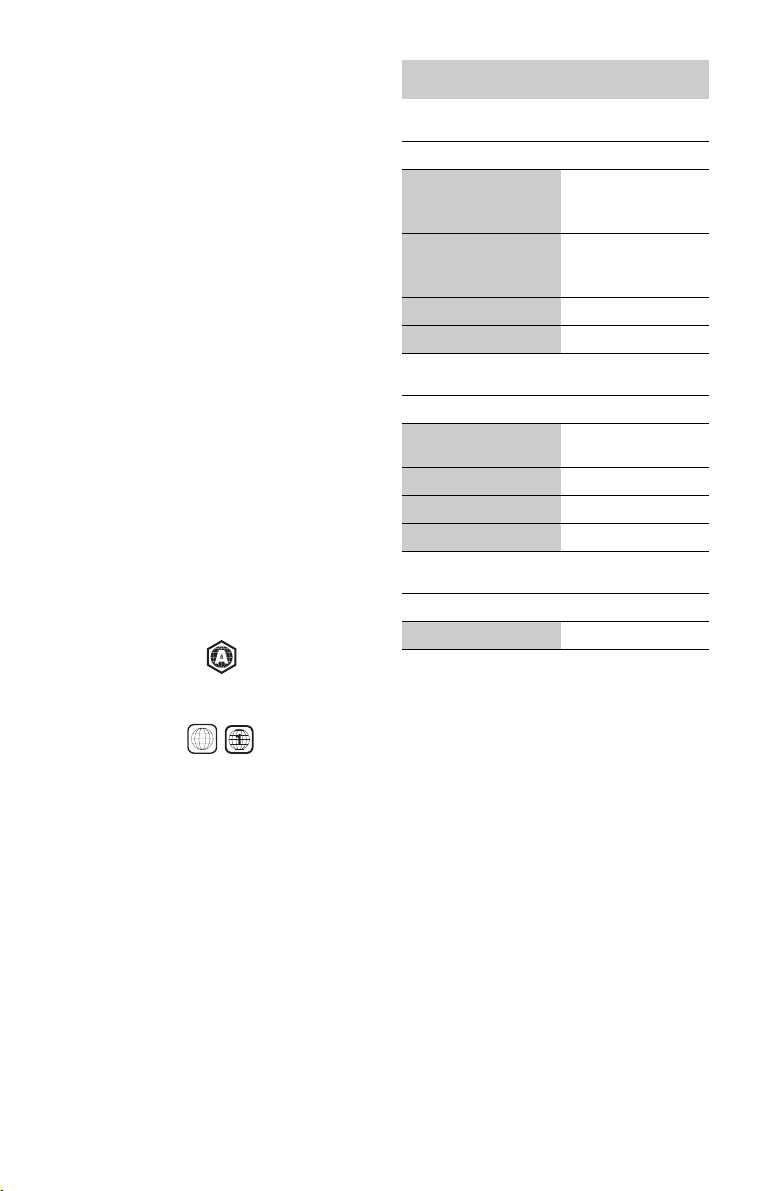
BD-ROMs labeled “A” will play on the
player.
DVD VIDEOs labeled “ALL” or “1” will
play on the player.
Video
Music
Photo
*1
The player does not play coded files such as
DRM.
*2
The player plays AVCHD format files that are
recorded on a digital video camera, etc. The
AVCHD format disc will not play if it has not
been correctly finalized.
*3
The player does not play coded files such as
Lossless.
ALL
Playable types of files
File format Extensions
MPEG-1 Video/PS
*1
MPEG-2 Video/PS,
TS
*1
“.mpg,” “.mpeg,”
“.m2ts,” “.mts”
MPEG-4 AVC
*1
“.mkv,” “.mp4,”
“.m4v,” “.m2ts,”
“.mts”
WMV9
*1
“.wmv,” “.asf”
AVCHD
*2
File format Extensions
MP3 (MPEG-1 Audio
Layer III)
“.mp3”
AAC
*1*3
“.m4a”
WMA9 Standard
*1*3
“.wma”
LPCM “.wav”
File format Extensions
JPEG “.jpg,” “.jpeg”

29
Additional Information
b
• Some files may not play depending on the format,
the encoding, or recording condition.
• Some files edited on a PC may not play.
• The player can recognize the following files or
folders in BDs, DVDs, CDs and USB devices:
– up to folders in the 5th tree
– up to 500 files in a single tree
The number of files or folders differs depending
on the conditions.
• Some USB devices may not work with this
player.
• The player can recognize Mass Storage Class
(MSC) devices such as flash memory, as well as
Still Image Capture Device (SICD) class devices.
• To avoid data corruption or damage to the USB
memory or devices, turn the player off when
connecting or removing the USB memory or
devices.
• The player may not play high bit rate video files
on DATA CDs smoothly. You are recommended
to play such files using DATA DVDs.
• “AVCHD” and the “AVCHD” logo are
trademarks of Panasonic Corporation and Sony
Corporation.
• Java, the coffee cup logo, and all Java based
marks are trademarks or registered trademarks of
Sun Microsystems, inc. in the U.S. or other
countries.
• , “XMB,” and “xross media bar” are
trademarks of Sony Corporation and Sony
Computer Entertainment Inc.
• This product incorporates High-Definition
Multimedia Interface (HDMI™) technology.
HDMI, the HDMI Logo, and High-Definition
Multimedia Interface are trademarks or registered
trademarks of HDMI Licensing LLC in the
United States and other countries.
• “Blu-ray Disc” is a trademark.
• “Blu-ray Disc,” “DVD+RW,” “DVD-RW,”
“DVD+R,” “DVD-R,” “DVD VIDEO,” and
“CD” logos are trademarks.
• “BD-LIVE,” “BD-LIVE” logo, and
“BONUSVIEW” are trademarks of Blu-ray Disc
Association.
• “BRAVIA” is a trademark of Sony Corporation.
• “PhotoTV HD” and the “PhotoTV HD” logo are
trademarks of Sony Corporation.
• MPEG Layer-3 audio coding technology and
patents licensed from Fraunhofer IIS and
Thomson.
• Other system and product names are generally
trademarks or registered trademarks of the
manufacturers. ™ and ® marks are not indicated
in this document.
Copyrights and Trademarks
,continued
30
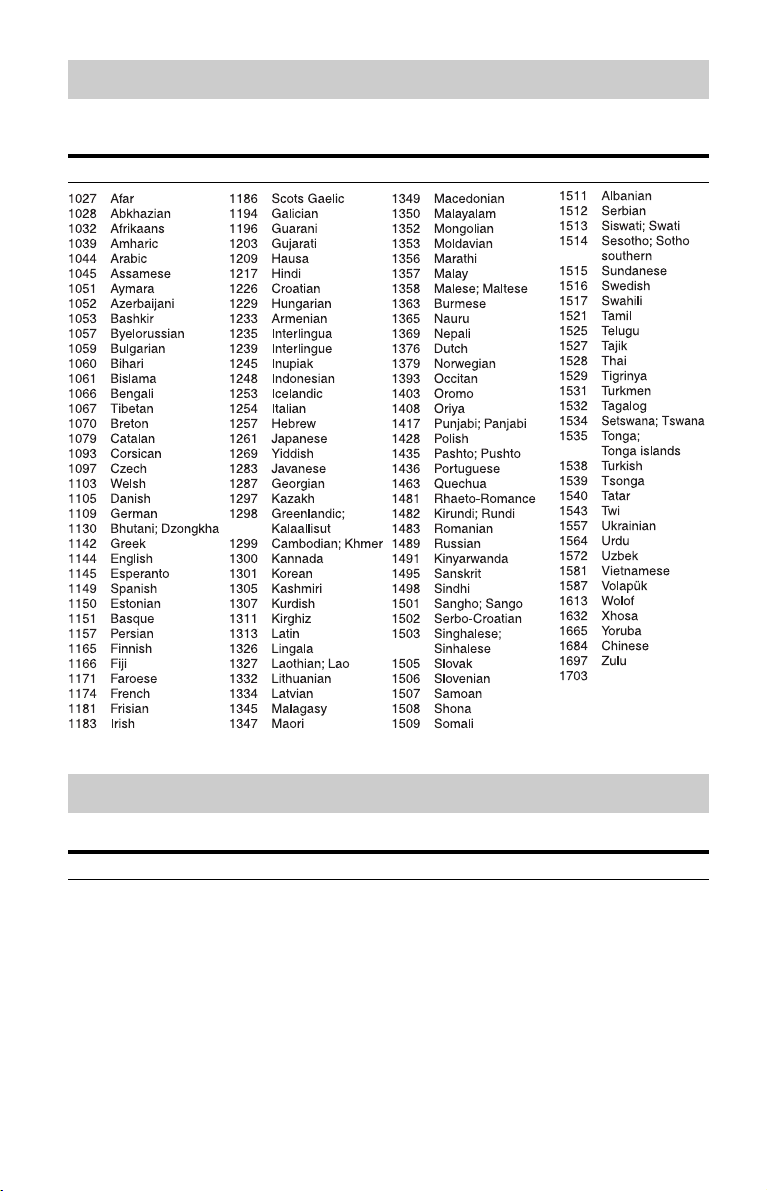
For details, see “BD/DVD Viewing Settings” (page 22).
The language spellings conform to the ISO 639: 1988 (E/F) standard.
For details, see “Parental Control Area Code” (page 22).
Language code list
Code Language
not specified
Parental control area code
Code Area
2044 Argentina
2047 Australia
2046 Austria
2057 Belgium
2070 Brazil
2090 Chile
2092 China
2093 Colombia
2115 Denmark
2165 Finland
2174 France
2109 Germany
2200 Greece
2219 Hong Kong
2248 India
2238 Indonesia
2239 Ireland
2254 Italy
2276 Japan
2304 Korea
2333 Luxembourg
2363 Malaysia
2362 Mexico
2376 Netherlands
2390 New Zealand
2379 Norway
2427 Pakistan
2424 Philippines
2428 Poland
2436 Portugal
2489 Russia
2501 Singapore
2149 Spain
2499 Sweden
2086 Switzerland
2543 Taiwan
2528 Thailand
2184 United Kingdom

31
Index
Words in quotations appear
in the on-screen displays.
A
AUDIO 9
“Audio Settings”
21
“Auto Standby”
23
B
Batteries 11
“BD/DVD Viewing
Settings” 22
BD-LIVE
15
BD-R
27
BD-RE
27
Bitstream
24
Blu-ray Disc
27
BONUSVIEW
15
BRAVIA Sync
26
C
CD 27
Charging time and playing
time
11
Color buttons
9
Connecting
Network
13
Other equipment
13
“Control for HDMI”
23,
26
D
DISPLAY 8
Dolby Digital
21
DTS
21
DVD
27
H
HDMI 20, 21
HOME
8, 19
Home menu
19
L
“LCD Mode” 17
M
MAC address 23
N
“Network Settings” 23
“Network Update”
19
O
OPTIONS 8
“OSD”
23
P
Parental Control 22
“Parental Control Settings”
22
Playable discs
27
Playback information
16
POP UP/MENU
8
R
Region code 28
Remote
9, 11
“Resetting”
23
Resetting the player
23
Resume
8, 25
S
“Screen Settings” 19
“Setup”
19
Software update
19, 23
SOUND
9
SUBTITLE
9
“System Settings”
23
T
TOP MENU 8
Troubleshooting
24
“TV Type”
19
U
Update 19
USB
16
© 2011 Sony Corporation Printed in China
4-264-055-13(1)
The software of this player may be updated in the future. To find out details on any available
updates, please visit: http://www.sony.com/bluraysupport/