ModelName: 31000_PAPER_NTSC
PartNumber: 4-121-425-12(1)
ModelName: 31000_PAPER_NTSC
PartNumber: 4-121-425-12(1)
4-121-425-12(1)
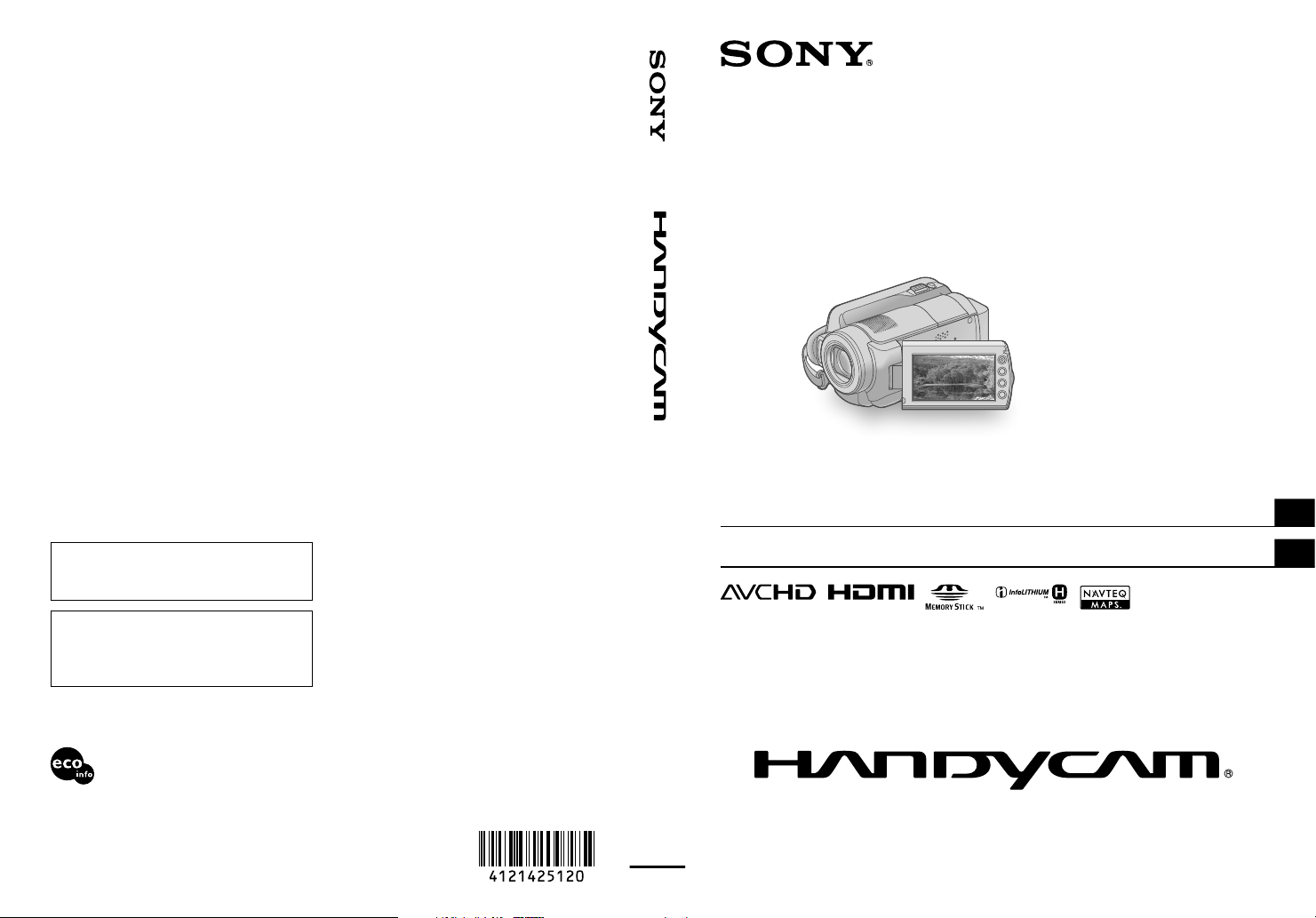
Digital HD Video Camera Recorder
2009 Sony Corporation
US/ES
Additional information on this product and
answers to frequently asked questions can
be found at our Customer Support Website.
Puede encontrar más información sobre
este producto y respuestas a las preguntas
más frecuentes en nuestro sitio Web de
atención al cliente.
http://www.sony.net/
Printed on 70% or more recycled
paper using VOC (Volatile Organic
Compound)-free vegetable oil based ink.
Impreso en papel reciclado en un 70%
o más utilizando tinta hecha con aceite
vegetal exento de compuesto orgánico
volátil (COV).
Printed in Japan
Operating Guide
US
Guía de operaciones
ES
HDR-XR100/XR101/XR200/XR200V
2
US
Owner’s Record
The model and serial numbers are located
on the bottom. Record the serial number
in the space provided below. Refer to these
numbers whenever you call your Sony
dealer regarding this product.
Model No. HDR-
Serial No.
Model No. AC-
Serial No.
WARNING
To reduce fire or shock hazard, do not expose
the unit to rain or moisture.
Do not expose the batteries to excessive heat
such as sunshine, fire or the like.
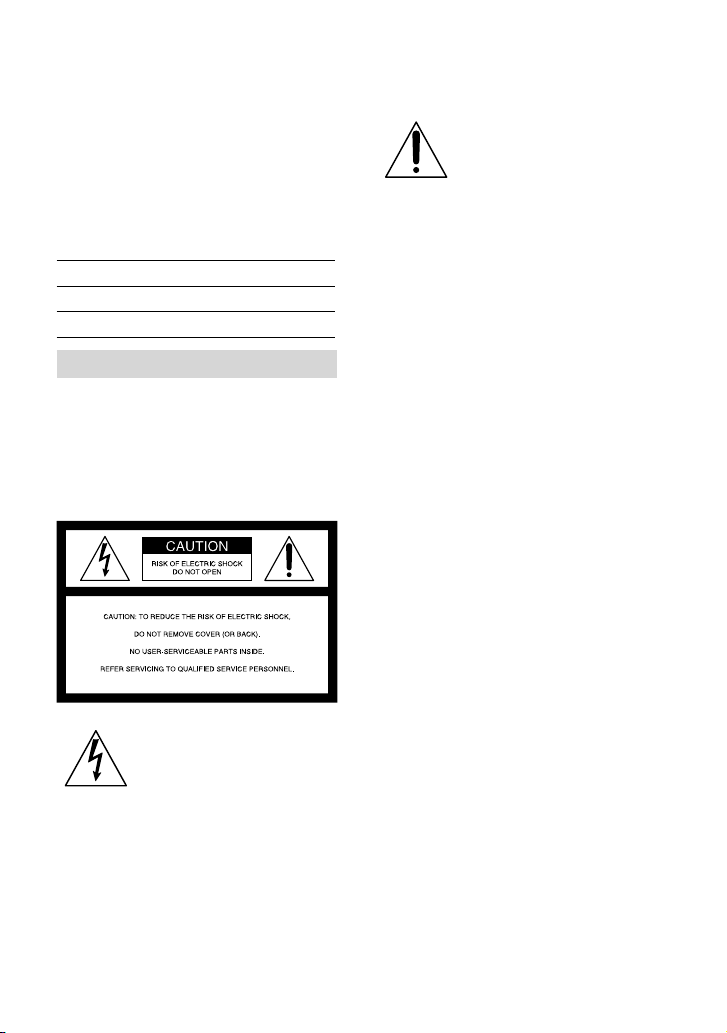
This symbol is intended to
alert the user to the presence of
uninsulated “dangerous voltage”
within the product’s enclosure
that may be of sufficient
magnitude to constitute a risk of
electric shock to persons.
This symbol is intended to
alert the user to the presence
of important operating and
maintenance (servicing)
instructions in the literature
accompanying the appliance.
3
US
SAVE THESE INSTRUCTIONS.
DANGER - TO REDUCE THE RISK OF FIRE
OR ELECTRIC SHOCK,
CAREFULLY FOLLOW THESE
INSTRUCTIONS.
Read these instructions.
Keep these instructions.
Heed all warnings.
Follow all instructions.
Do not use this apparatus near water.
Clean only with dry cloth.
Do not block any ventilation openings. Install in accordance with the manufacturer’s
instructions.
Do not install near any heat sources such as radiators, heat registers, stoves, or other
apparatus (including amplifiers) that produce heat.
Do not defeat the safety purpose of the polarized or grounding-type plug. A polarized plug
has two blades with one wider than the other. A grounding type plug has two blades and a
third grounding prong. The wide blade or the third prong are provided for your safety. If
the provided plug does not fit into your outlet, consult an electrician for replacement of the
obsolete outlet.
Protect the power cord from being walked on or pinched particularly at plugs, convenience
receptacles, and the point where they exit from the apparatus.
Only use attachments/accessories specified by the manufacturer.
Use only with the cart, stand, tripod, bracket, or table specified by the manufacturer, or
sold with the apparatus. When a cart is used, use caution when moving the cart/apparatus
combination to avoid injury from tip-over.
Unplug this apparatus during lightning storms or when unused for long periods of time.
Refer all servicing to qualified service personnel. Servicing is required when the apparatus
has been damaged in any way, such as power-supply cord or plug is damaged, liquid has
been spilled or objects have fallen into the apparatus, the apparatus has been exposed to
rain or moisture, does not operate normally, or has been dropped.
If the shape of the plug does not fit the power outlet, use an attachment plug adaptor of the
proper configuration for the power outlet.
US

4
US
Read this first
Before operating the unit, please read this
manual thoroughly, and retain it for future
reference.
CAUTION
Battery pack
If the battery pack is mishandled, the
battery pack can burst, cause a fire or even
chemical burns. Observe the following
cautions.
Do not disassemble.
Do not crush and do not expose the battery
pack to any shock or force such as hammering,
dropping or stepping on it.
Do not short circuit and do not allow metal
objects to come into contact with the battery
terminals.
Do not expose to high temperature above 60°C
(140°F) such as in direct sunlight or in a car
parked in the sun.
Do not incinerate or dispose of in fire.
Do not handle damaged or leaking lithium ion
batteries.
Be sure to charge the battery with Sony battery
charger or the device that can charge the battery
pack.
Keep the battery pack out of the reach of small
children.
Keep the battery pack dry.
Replace only with the same or equivalent type
recommended by Sony.
Dispose of used battery promptly according to
the instructions.
Replace the battery with the specified type
only. Otherwise, fire or injury may result.
AC Adaptor
Do not use the AC Adaptor placed in a
narrow space, such as between a wall and
furniture.
Use the nearby wall outlet (wall socket)
when using the AC Adaptor. Disconnect
the AC Adaptor from the wall outlet (wall
socket) immediately if any malfunction
occurs while using your camcorder.
Even if your camcorder is turned off, AC
power source (mains) is still supplied to
it while connected to the wall outlet (wall
socket) via the AC Adaptor.
For customers in the U.S.A. and CANADA
RECYCLING LITHIUM-ION BATTERIES
Lithium-Ion batteries are
recyclable.
You can help preserve our
environment by returning
your used rechargeable
batteries to the collection
and recycling location
nearest you.
For more information
regarding recycling of
rechargeable batteries, call
toll free 1-800-822- 8837, or
visit http://www.rbrc.org/
Caution: Do not handle damaged or
leaking Lithium-Ion batteries.
Battery pack
This device complies with Part 15 of the
FCC Rules. Operation is subject to the
following two conditions: (1) This device
may not cause harmful interference, and
(2) this device must accept any interference
received, including interference that may
cause undesired operation.
This Class B digital apparatus complies
with Canadian ICES-003.
For customers in the U.S.A.
If you have any questions about this
product, you may call:
Sony Customer Information Center 1-800-
222-SONY (7669).
The number below is for the FCC related
matters only.

5
US
Regulatory Information
Declaration of Conformity
Trade Name: SONY
Model No.: HDR-XR200V
Responsible Party: Sony Electronics Inc.
Address: 16530 Via Esprillo, San Diego,
CA 92127 U.S.A.
Telephone number: 858-942-2230
This device complies with Part 15 of the
FCC Rules. Operation is subject to the
following two conditions: (1) This device
may not cause harmful interference,
and (2) this device must accept any
interference received, including
interference that may cause undesired
operation.
Declaration of Conformity
Trade Name: SONY
Model No.: HDR-XR100
Responsible Party: Sony Electronics Inc.
Address: 16530 Via Esprillo, San Diego,
CA 92127 U.S.A.
Telephone number: 858-942-2230
This device complies with Part 15 of the
FCC Rules. Operation is subject to the
following two conditions: (1) This device
may not cause harmful interference,
and (2) this device must accept any
interference received, including
interference that may cause undesired
operation.
CAUTION
You are cautioned that any changes or
modifications not expressly approved in
this manual could void your authority to
operate this equipment.
Note
This equipment has been tested and found
to comply with the limits for a Class B
digital device, pursuant to Part 15 of the
FCC Rules.
These limits are designed to provide
reasonable protection against harmful
interference in a residential installation.
This equipment generates, uses, and
can radiate radio frequency energy and,
if not installed and used in accordance
with the instructions, may cause harmful
interference to radio communications.
However, there is no guarantee that
interference will not occur in a particular
installation. If this equipment does cause
harmful interference to radio or television
reception, which can be determined by
turning the equipment off and on, the
user is encouraged to try to correct the
interference by one or more of the following
measures:
Reorient or relocate the receiving antenna.
Increase the separation between the
equipment and receiver.
Connect the equipment into an outlet on
a circuit different from that to which the
receiver is connected.
Consult the dealer or an experienced radio/
TV technician for help.
The supplied interface cable must be used
with the equipment in order to comply with
the limits for a digital device pursuant to
Subpart B of Part 15 of FCC Rules.
For the State of California, USA only
Perchlorate Material - special handling may
apply, See
www.dtsc.ca.gov/hazardouswaste/
perchlorate
Perchlorate Material: Lithium battery
contains perchlorate.

6
US
Representative plug of power supply cord of countries/regions around the world.
A Type
(American
Type)
B Type
(British Type)
BF Type
(British Type)
B3 Type
(British Type)
C Type
(CEE Type)
SE Type
(CEE Type)
O Type
(Ocean Type)
The representative supply voltage and plug type are described in this chart.
Depend on an area, Different type of plug and supply voltage are used.
Attention: Power cord meeting demands from each country shall be used.
-For only the United States
Use a UL Listed, 1.5-3 m (5-10 ft.), Type SPT-2 or NISPT-2, AWG no. 18 power supply cord, rated for 125
V 7 A, with a NEMA 1-15P plug rated for 125 V 15 A.”
Europe
Countries/regions Voltage Frequency (Hz) Plug type
Austria 230 50 C
Belgium 230 50 C
Czech 220 50 C
Denmark 230 50 C
Finland 230 50 C
France 230 50 C
Germany 230 50 C
Greece 220 50 C
Hungary 220 50 C
Iceland 230 50 C
Ireland 230 50 C/BF
Italy 220 50 C
Luxemburg 230 50 C
Netherlands 230 50 C
Norway 230 50 C
Poland 220 50 C
Portugal 230 50 C
Romania 220 50 C
Russia 220 50 C
Slovak 220 50 C
Spain 127/230 50 C
Sweden 230 50 C
Switzerland 230 50 C
UK 240 50 BF
Asia
Countries/regions Voltage Frequency (Hz) Plug type
China 220 50 A
Hong Kong 200/220 50 BF
India 230/240 50 C
Indonesia 127/230 50 C
Japan 100 50/60 A
Korea (rep) 220 60 C
Malaysia 240 50 BF
Philippines 220/230 60 A/C
Singapore 230 50 BF
Taiwan 110 60 A
Thailand 220 50 C/BF
Vietnam 220 50 A/C

7
US
Oceania
Countries/regions Voltage Frequency (Hz) Plug type
Australia 240 50 O
New Zealand 230/240 50 O
North America
Countries/regions Voltage Frequency (Hz) Plug type
Canada 120 60 A
USA 120 60 A
Central America
Countries/regions Voltage Frequency (Hz) Plug type
Bahamas 120/240 60 A
Costa Rica 110 60 A
Cuba 110/220 60 A/C
Dominican (rep) 110 60 A
El Salvador 110 60 A
Guatemala 120 60 A
Honduras 110 60 A
Jamaica 110 50 A
Mexico 120/127 60 A
Nicaragua 120/240 60 A
Panama 110/220 60 A
South America
Countries/regions Voltage Frequency (Hz) Plug type
Argentina 220 50 C/BF/O
Brazil 127/220 60 A/C
Chile 220 50 C
Colombia 120 60 A
Peru 220 60 A/C
Venezuela 120 60 A
Middle East
Countries/regions Voltage Frequency (Hz) Plug type
Iran 220 50 C/BF
Iraq 220 50 C/BF
Israel 230 50 C
Saudi Arabia 127/220 50 A/C/BF
Turkey 220 50 C
UAE 240 50 C/BF
Africa
Countries/regions Voltage Frequency (Hz) Plug type
Algeria 127/220 50 C
Congo (dem) 220 50 C
Egypt 220 50 C
Ethiopia 220 50 C
Kenya 240 50 C/BF
Nigeria 230 50 C/BF
South Africa 220/230 50 C/BF
Tanzania 230 50 C/BF
Tunisia 220 50 C
8
US
Supplied items
The numbers in ( ) are the supplied
quantity.
AC Adaptor (1)
Power cord (Mains lead) (1)
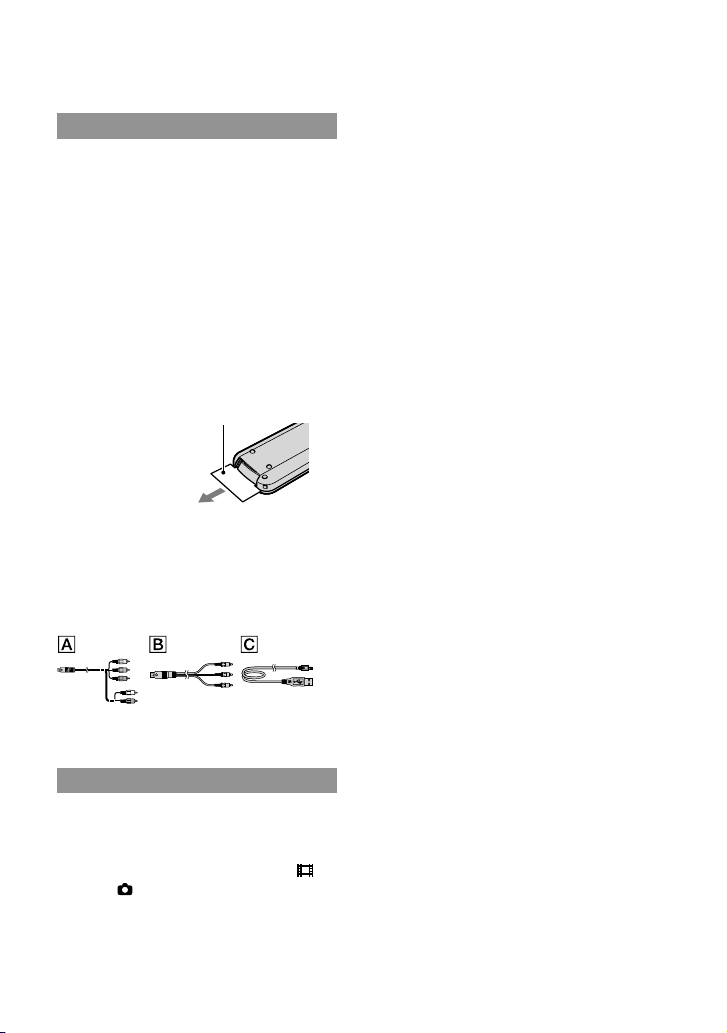
Component A/V cable (1)
A/V connecting cable (1)
USB cable (1)
Wireless Remote Commander (1)
(only for HDR-XR200/XR200V)
A button-type lithium battery is already
installed. Remove the insulation sheet before
using the Wireless Remote Commander.
Insulation sheet
Rechargeable battery pack NP-FH60 (1)
CD-ROM “Handycam Application
Software” (1)
“PMB” (software, including “PMB Guide”)
“Handycam Handbook” (PDF)
“Operating Guide” (This manual) (1)
See page 44 for the “Memory Stick” media you
can use with this camcorder.
Notes on use
Using the camcorder
The camcorder is not dustproofed, dripproofed
or waterproofed. See “Precautions” (p. 54).
Do not do any of the following when the
(Movie)/ (Photo) mode lamps (p. 15) or the
ACCESS lamps (p. 13), the access lamp (p. 44)
are lit or flashing. Otherwise, the recording
media may be damaged, recorded images may
be lost or other malfunctions could occur.
ejecting the “Memory Stick PRO Duo” media
removing the battery pack or AC Adaptor
from the camcorder
Do not apply shock or vibration to the
camcorder. The camcorder may not be able to
record or play movies and photos.
Do not use the camcorder in very loud areas.
The camcorder may not be able to record or
play movies and photos.
When connecting the camcorder to another
device with communication cables, be sure to
insert the connector plug in the correct way.
Pushing the plug forcibly into the terminal
will damage the terminal and may result in a
malfunction of the camcorder.
Do not close the LCD screen when the
camcorder is connected to another device with
the USB cable. Your recorded images may be
lost.
Even if the camcorder is turned off, the GPS
function is working as long as the GPS switch
is set to ON. Make sure that the GPS switch is
set to OFF during take off and landing of an
airplane (HDR-XR200V).
To protect the internal hard disk from shock
by dropping, the camcorder has drop sensor
function. When a drop occurs, or under a non-
gravity condition, the block noise made when
this function is activated by the camcorder may
also be recorded. If the drop sensor catches a
drop repeatedly, recording/playback may be
stopped.
When the temperature of the camcorder
becomes extremely high or extremely low, you
may not be able to record or play back on the
camcorder, due to the protection features of the
camcorder being activated in such situations. In
this case, a message appears on the LCD screen
(p. 53).
Do not turn on the camcorder in a low-pressure
area, where the altitude is more than 5,000
meters (16,000 feet). Doing so may damage the
hard disk drive of the camcorder.
If you repeat recording/deleting images for
a long time, fragmentation of data occurs on
the recording media. Images cannot be saved
or recorded. In such a case, save your images

9
US
on some type of external media first, and then
perform [MEDIA FORMAT] (p. 42).
The LCD screen is manufactured using
extremely high-precision technology, so over
99.99% of the pixels are operational for effective
use. However, there may be some tiny black
points and/or bright points (white, red, blue,
or green in color) that appear constantly on the
LCD screen. These points are normal results of
the manufacturing process and do not affect the
recording in any way.
On recording
Before starting to record, test the recording
function to make sure the image and sound are
recorded without any problems.
Compensation for the contents of recordings
cannot be provided, even if recording or
playback is not possible due to a malfunction of
the camcorder, recording media, etc.
TV color systems differ depending on the
country/region. To view your recordings on a
TV, you need a NTSC system-based TV.
Television programs, films, video tapes,
and other materials may be copyrighted.
Unauthorized recording of such materials may
be contrary to the copyright laws.
To prevent your image data from being lost,
save all your recorded images on external media
periodically. It is recommended that you save
the image data on a disc such as DVD-R using
your computer. Also, you can save your image
data using a VCR, or a DVD/HDD recorder.
On playing back recorded images on
other devices
The camcorder is compatible with MPEG-4
AVC/H.264 High Profile for high definition
image quality (HD) recording. Therefore, you
cannot play back images recorded with high
definition image quality (HD) on the camcorder
with the following devices;
Other AVCHD format compatible devices
which are not compatible with High Profile
Devices which are not compatible with the
AVCHD format
Discs recorded with high definition
image quality (HD)
This camcorder captures high definition footage
in the AVCHD format. DVD media containing
AVCHD footage should not be used with DVD
based players or recorders, as the DVD player/
recorder may fail to eject the media and may
erase its contents without warning. DVD media
containing AVCHD footage may be played on
a compatible Blu-ray Disc player/recorder or
other compatible device.
About language setting
The on-screen displays in each local language
are used for illustrating the operating
procedures. Change the screen language before
using the camcorder if necessary (p. 16).
About this manual
The images of the LCD screen used in this
manual for illustration purposes are captured
using a digital still camera, and therefore may
appear different from the actual images of the
LCD screen.
In this Operating Guide, the hard disk of the
camcorder and “Memory Stick PRO Duo”
media are called “recording media.”
In this Operating Guide, both “Memory Stick
PRO Duo” media and “Memory Stick PRO-HG
Duo” media are referred as “Memory Stick PRO
Duo” media.
You will find the “Handycam Handbook” (PDF)
on the supplied CD-ROM (p. 51).
The screenshots are from Windows Vista. The
scenes may vary depending on the operating
system of the computer.
10
US
Operation flow
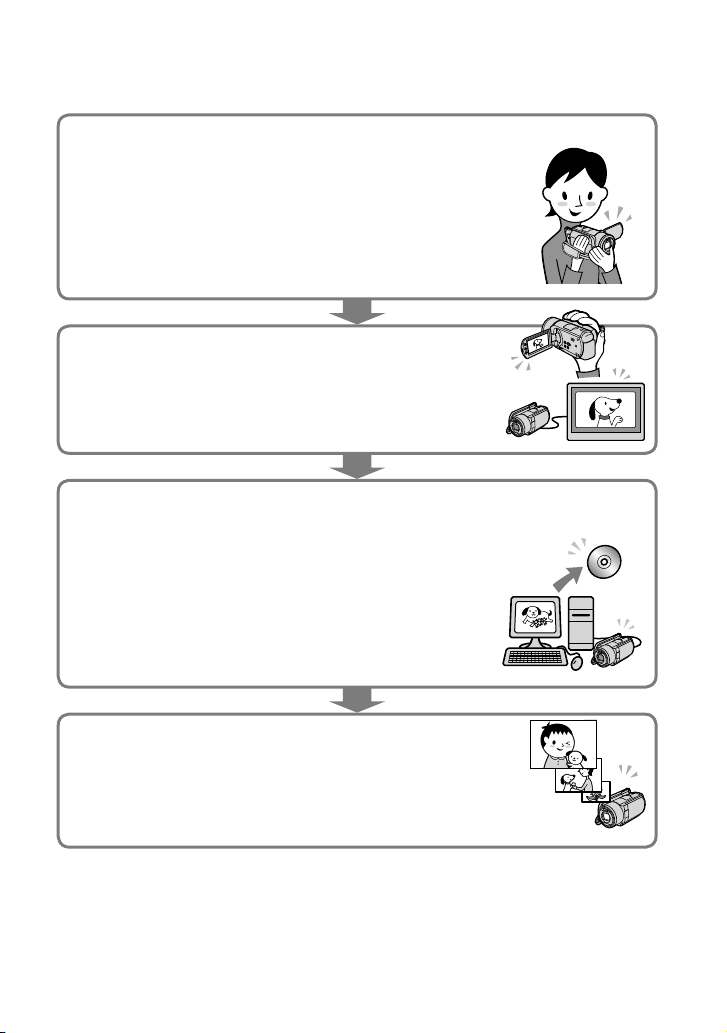
Recording movies and photos (p. 17)
In the default settings, movies are recorded with high definition
image quality (HD) on the internal hard disk.
In the default settings, photos are recorded on the internal hard
disk.
You can change the recording media selected, and the image
quality of movies (p. 43, 48).
Playing movies and photos (p. 22)
Playing movies and photos on your camcorder (p. 22)
Playing movies and photos on a connected TV (p. 25).
Saving movies and photos on a disc
Saving movies and photos with a computer (p. 27)
You can create a disc with either high definition image quality
(HD) or standard definition image quality (SD) from high
definition image quality (HD) movies imported to the computer.
See page 30 on the characteristics of each type of disc.
Creating a disc with a DVD writer or a recorder (p. 38)
Deleting movies and photos (p. 42)
You can free recording space by deleting movies and photos that
you have saved on other media, from the internal hard disk.

11
Table of contents
US
Table of contents
IMPORTANT SAFETY INSTRUCTIONS . . . . . . . . . . . . . . . . . . . . . . . . . . . . . . . . . . . . . . . . . . . . . . . . . . . . . . . . . . . . 3
Read this first . . . . . . . . . . . . . . . . . . . . . . . . . . . . . . . . . . . . . . . . . . . . . . . . . . . . . . . . . . . . . . . . . . . . . . . . . . . . . . . . . . . . . . . . . 4
Operation flow . . . . . . . . . . . . . . . . . . . . . . . . . . . . . . . . . . . . . . . . . . . . . . . . . . . . . . . . . . . . . . . . . . . . . . . . . . . . . . . . . . . . . 10
Getting started
Step 1: Charging the battery pack . . . . . . . . . . . . . . . . . . . . . . . . . . . . . . . . . . . . . . . . . . . . . . . . . . . . . . . . . . . . . 13
Charging the battery pack abroad . . . . . . . . . . . . . . . . . . . . . . . . . . . . . . . . . . . . . . . . . . . . . . . . . . . . 14
Step 2: Turning the power on, and setting the date and time . . . . . . . . . . . . . . . . . . . . . . . . . . . 15
Changing the language setting . . . . . . . . . . . . . . . . . . . . . . . . . . . . . . . . . . . . . . . . . . . . . . . . . . . . . . . 16
Recording
Recording . . . . . . . . . . . . . . . . . . . . . . . . . . . . . . . . . . . . . . . . . . . . . . . . . . . . . . . . . . . . . . . . . . . . . . . . . . . . . . . . . . . . . . . . . . . 17
Recording and playing movies and photos easily
(Easy Handycam operation) . . . . . . . . . . . . . . . . . . . . . . . . . . . . . . . . . . . . . . . . . . . . . . . . . . . . . . . . . . . . 21
Acquiring recording location information using the GPS (HDR-XR200V) . . . . . 21
Playback
Playback on the camcorder . . . . . . . . . . . . . . . . . . . . . . . . . . . . . . . . . . . . . . . . . . . . . . . . . . . . . . . . . . . . . . . . . . . . . 22
Playing images on a TV . . . . . . . . . . . . . . . . . . . . . . . . . . . . . . . . . . . . . . . . . . . . . . . . . . . . . . . . . . . . . . . . . . . . . . . . . . 25
Saving movies and photos with a computer
Preparing a computer
(Windows) . . . . . . . . . . . . . . . . . . . . . . . . . . . . . . . . . . . . . . . . . . . . . . . . . . . . . . . . . . . . . . . 27
When using a Macintosh . . . . . . . . . . . . . . . . . . . . . . . . . . . . . . . . . . . . . . . . . . . . . . . . . . . . . . . . . . . . . . . . 27
Selecting the method for creating a disc (computer) . . . . . . . . . . . . . . . . . . . . . . . . . . . . . . . . . . . . . . 30
Creating a disc with one touch (One Touch Disc Burn) . . . . . . . . . . . . . . . . . . . . . . . . . . . . . . . . . . . . 32
Importing movies and photos to a computer (Easy PC Back-up) . . . . . . . . . . . . . . . . . . . . . . . . 33
Changing the destination drive or folder for movies and photos . . . . . . . . . . . . . . . 33
Starting PMB (Picture Motion Browser) . . . . . . . . . . . . . . . . . . . . . . . . . . . . . . . . . . . . . . . . . . . . . . . . . . . . . . . 34
Creating a high definition image quality (HD) disc . . . . . . . . . . . . . . . . . . . . . . . . . . . . . . . . . . . . . . . . . 34
Playing a high definition image quality (HD) disc on a computer . . . . . . . . . . . . . . 35
Creating a Blu-ray disc . . . . . . . . . . . . . . . . . . . . . . . . . . . . . . . . . . . . . . . . . . . . . . . . . . . . . . . . . . . . . . . . . . . 35
Creating a standard definition image quality (SD) disc that can be played
on ordinary DVD players . . . . . . . . . . . . . . . . . . . . . . . . . . . . . . . . . . . . . . . . . . . . . . . . . . . . . . . . . . . . . . . . . . . . . . . . . 36
Copying a disc . . . . . . . . . . . . . . . . . . . . . . . . . . . . . . . . . . . . . . . . . . . . . . . . . . . . . . . . . . . . . . . . . . . . . . . . . . . . . 36
Editing movies . . . . . . . . . . . . . . . . . . . . . . . . . . . . . . . . . . . . . . . . . . . . . . . . . . . . . . . . . . . . . . . . . . . . . . . . . . . . 37
Capturing photos from a movie . . . . . . . . . . . . . . . . . . . . . . . . . . . . . . . . . . . . . . . . . . . . . . . . . . . . . . . 37
Saving images with a DVD writer, recorder
Selecting the method for creating a disc (DVD writer/recorder) . . . . . . . . . . . . . . . . . . . . . . . . 38
Creating a high definition image quality (HD) disc with a DVD writer, etc.
(USB cable connection) . . . . . . . . . . . . . . . . . . . . . . . . . . . . . . . . . . . . . . . . . . . . . . . . . . . . . . . . . . . . . . . . . . . . . . . . . . 39

12
US
Creating a standard definition image quality (SD) disc with a recorder, etc.
(A/V connecting cable connection) . . . . . . . . . . . . . . . . . . . . . . . . . . . . . . . . . . . . . . . . . . . . . . . . . . . . . . . . . . . 40
Making good use of your camcorder
Deleting movies and photos . . . . . . . . . . . . . . . . . . . . . . . . . . . . . . . . . . . . . . . . . . . . . . . . . . . . . . . . . . . . . . . . . . . . 42
Coping with shooting conditions . . . . . . . . . . . . . . . . . . . . . . . . . . . . . . . . . . . . . . . . . . . . . . . . . . . . . . . . . . . . . . 43
Changing the recording medium . . . . . . . . . . . . . . . . . . . . . . . . . . . . . . . . . . . . . . . . . . . . . . . . . . . . . . . . . . . . . . 43
To check the recording media settings . . . . . . . . . . . . . . . . . . . . . . . . . . . . . . . . . . . . . . . . . . . . . . . 44
Dubbing or copying movies and photos from the internal hard disk to a
“Memory Stick PRO Duo” media . . . . . . . . . . . . . . . . . . . . . . . . . . . . . . . . . . . . . . . . . . . . . . . . . . . . . . . 45
Customizing your camcorder with menus . . . . . . . . . . . . . . . . . . . . . . . . . . . . . . . . . . . . . . . . . . . . . . . . . . . 45
Using the HELP function . . . . . . . . . . . . . . . . . . . . . . . . . . . . . . . . . . . . . . . . . . . . . . . . . . . . . . . . . . . . . . . . 46
Getting detailed information from the “Handycam Handbook” . . . . . . . . . . . . . . . . . . . . . . . . . 51
Additional information
Troubleshooting . . . . . . . . . . . . . . . . . . . . . . . . . . . . . . . . . . . . . . . . . . . . . . . . . . . . . . . . . . . . . . . . . . . . . . . . . . . . . . . 52
Precautions . . . . . . . . . . . . . . . . . . . . . . . . . . . . . . . . . . . . . . . . . . . . . . . . . . . . . . . . . . . . . . . . . . . . . . . . . . . . . . . . . . . . . . . . . 54
Specifications . . . . . . . . . . . . . . . . . . . . . . . . . . . . . . . . . . . . . . . . . . . . . . . . . . . . . . . . . . . . . . . . . . . . . . . . . . . . . . . . . . . . . . 57
Screen indicators . . . . . . . . . . . . . . . . . . . . . . . . . . . . . . . . . . . . . . . . . . . . . . . . . . . . . . . . . . . . . . . . . . . . . . . . . . . . . . . . . . 61
Parts and controls . . . . . . . . . . . . . . . . . . . . . . . . . . . . . . . . . . . . . . . . . . . . . . . . . . . . . . . . . . . . . . . . . . . . . . . . . . . . . . . . . 62
Index . . . . . . . . . . . . . . . . . . . . . . . . . . . . . . . . . . . . . . . . . . . . . . . . . . . . . . . . . . . . . . . . . . . . . . . . . . . . . . . . . . . . . . . . . . . . . . . . . 65
Getting started
13
US
Getting started
Step 1: Charging the battery pack
You can charge the “InfoLITHIUM” battery pack (H series) after attaching it to your
camcorder.
You cannot attach any “InfoLITHIUM” battery pack other than the H series to your camcorder.
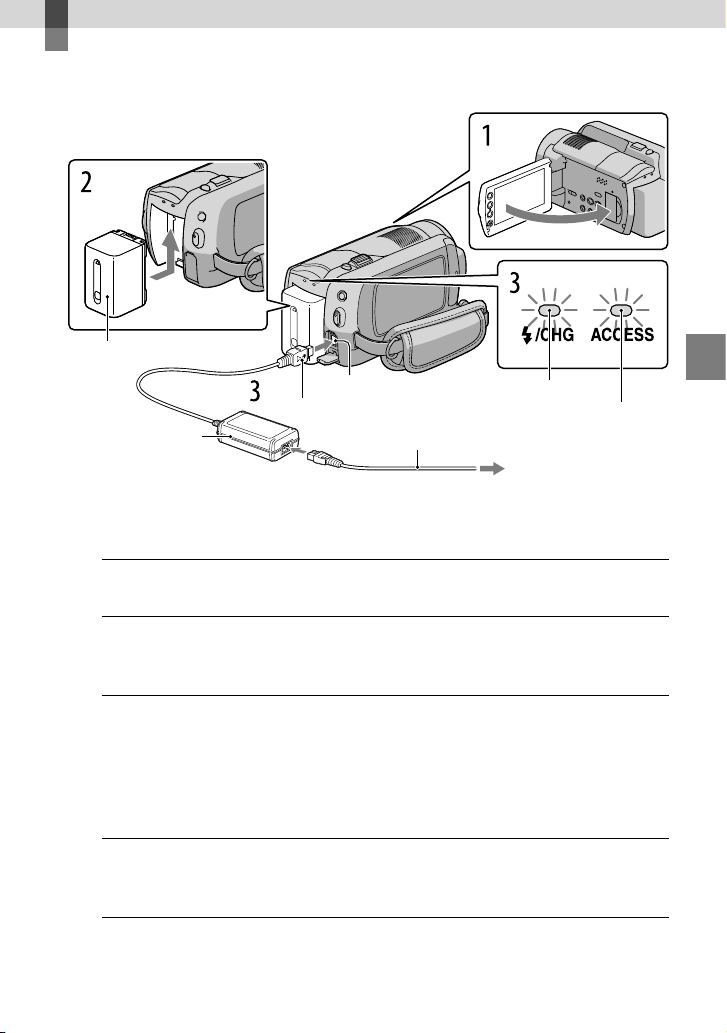
1
Turn off your camcorder by closing the LCD screen.
2
Attach the battery pack by sliding it in the direction of the arrow until it
clicks.
3
Connect the AC Adaptor and the power cord (mains lead) to your
camcorder and the wall outlet (wall socket).
Be sure that the mark on the DC plug is facing the right.
The charge lamp lights up and charging starts. The charge lamp turns off when the
battery pack is fully charged.
4
When the battery is charged, disconnect the AC Adaptor from the DC IN
jack of your camcorder.
See page 58 on charging, recording and playing time.
When your camcorder is on, you can check the approximate amount of remaining battery power with the
remaining battery indicator at the upper left on the LCD screen.
Battery pack
DC IN jack
DC plug
AC Adaptor
Power cord (mains lead)
ACCESS lamp
(hard disk)
Charge lamp
To the wall outlet (wall socket)
14
US
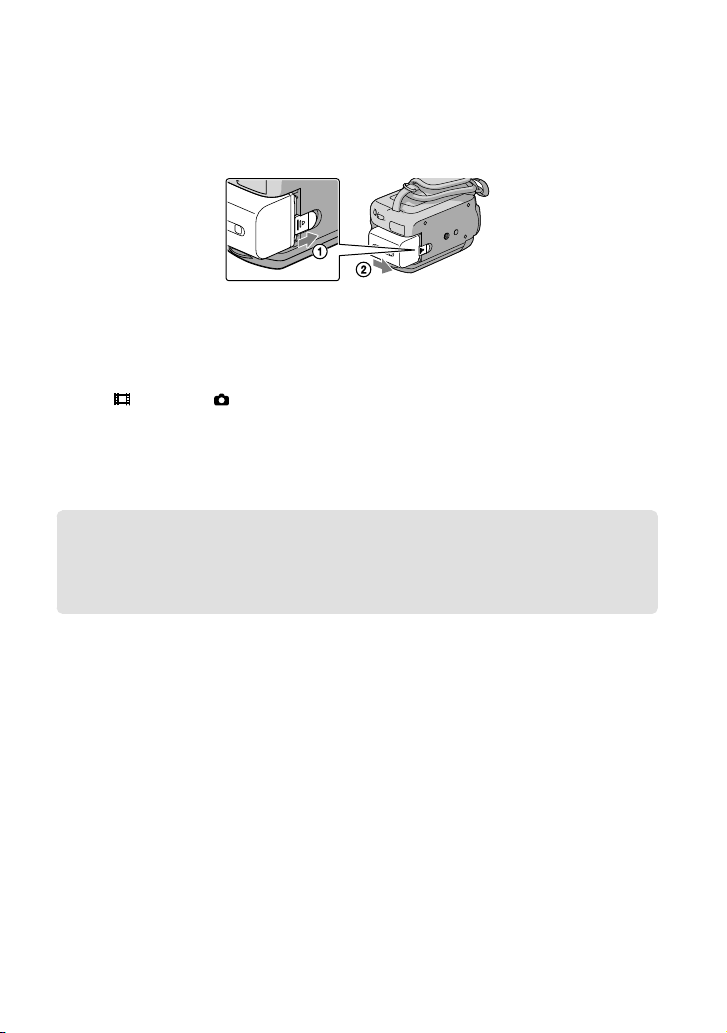
To remove the battery pack
Close the LCD screen. Slide the BATT (battery) release lever and remove the battery pack
.
To use a wall outlet (wall socket) as a power source
Make the same connections as “Step 1: Charging the battery pack.”
Notes on the battery pack and the AC Adaptor
When you remove the battery pack or disconnect the AC Adaptor, close the LCD screen and make sure
that the (Movie) lamp/ (Photo) lamp (p. 15)/ACCESS lamps (p. 13)/access lamp(p. 44) are turned
off.
Do not short-circuit the DC plug of the AC Adaptor or battery terminal with any metallic objects. This
may cause a malfunction.
In the default setting, the power turns off automatically if you leave your camcorder without any
operation for approximately 5 minutes, to save battery power ([A.SHUT OFF]).
Charging the battery pack abroad
You can charge the battery pack in any countries/regions using the AC Adaptor supplied
with your camcorder within the AC 100 V - 240 V, 50 Hz/60 Hz range.
Do not use an electronic voltage transformer.
15
Getting started
US
Step 2: Turning the power on, and setting the
date and time
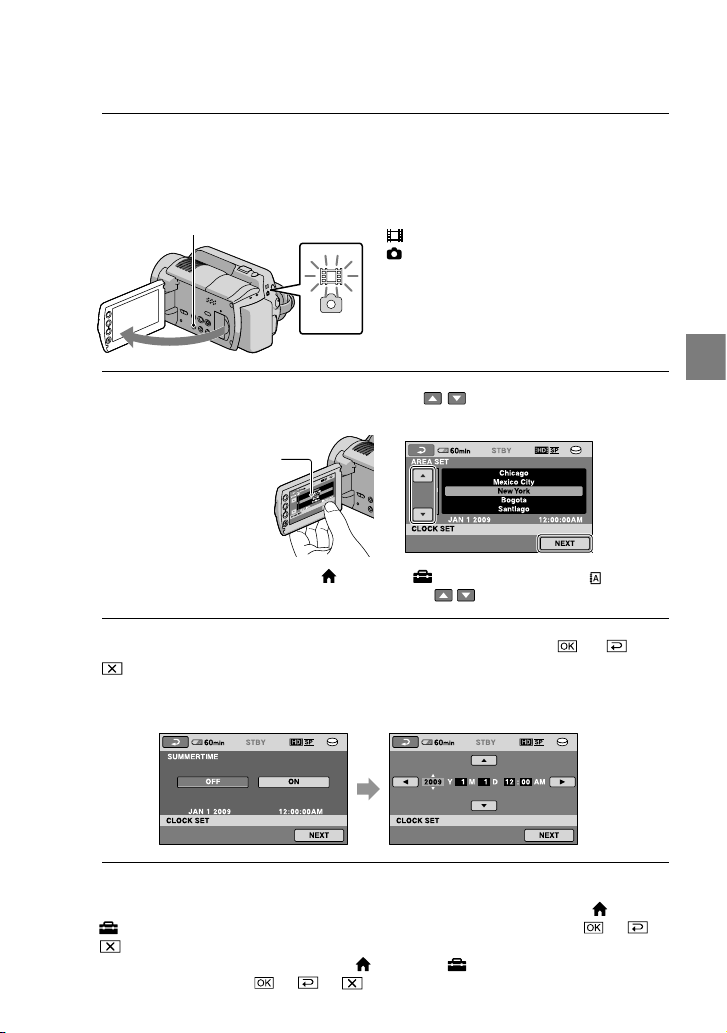
1
Open the LCD screen of your camcorder.
Your camcorder is turned on.
To turn on your camcorder when the LCD screen is open, press POWER.
POWER
2
Select the desired geographical area with / , then touch [NEXT].
To set the date and time again, touch (HOME) (SETTINGS) [CLOCK/ LANG]
[CLOCK SET]. When an item is not on the screen, touch / until the item appears.
3
Set [DST SET] or [SUMMERTIME], date and time, then touch
.
The clock starts.
If you set [DST SET] or [SUMMERTIME] to [ON], the clock advances 1 hour.
The date and time does not appear during recording, but they are automatically recorded on the
recording media, and can be displayed during playback. To display the date and time, touch (HOME)
(SETTINGS) [VIEW IMAGES SET] [DATA CODE] [DATE/TIME]
.
You can turn off the operation beeps by touching (HOME) (SETTINGS) [SOUND/DISP
SET] [BEEP] [OFF] .
(Movie): To record movies
(Photo): To record photos
Touch the button on the
LCD screen.
16
US
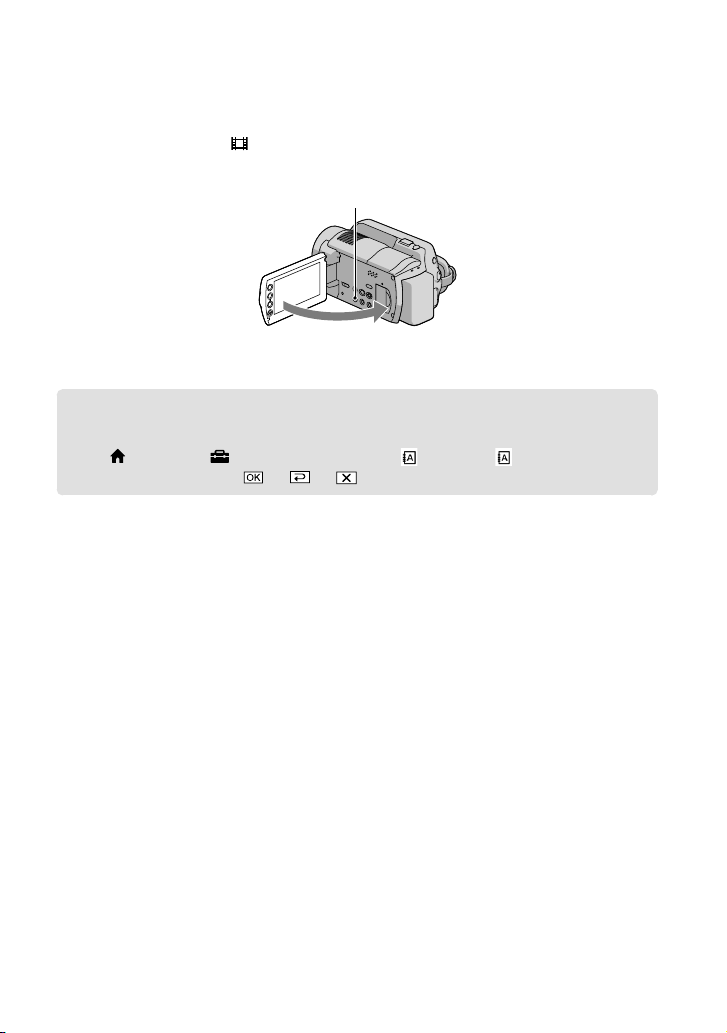
To turn off the power
Close the LCD screen. The (Movie) lamp flashes several seconds, then the camcorder is
turned off.
POWER
You can turn off your camcorder also by pressing POWER.
When [POWER ON BY LCD] (p. 49) is set to [OFF], turn off your camcorder by pressing POWER.
Changing the language setting
You can change the on-screen displays to show messages in a specified language.
Touch (HOME) (SETTINGS) [CLOCK/ LANG] [ LANGUAGE SET]
the desired language .
Recording
17
US
Recording
Recording
Recording movies
In the default setting, movies are recorded with
high definition image quality (HD) on the hard disk
(p. 43, 48).
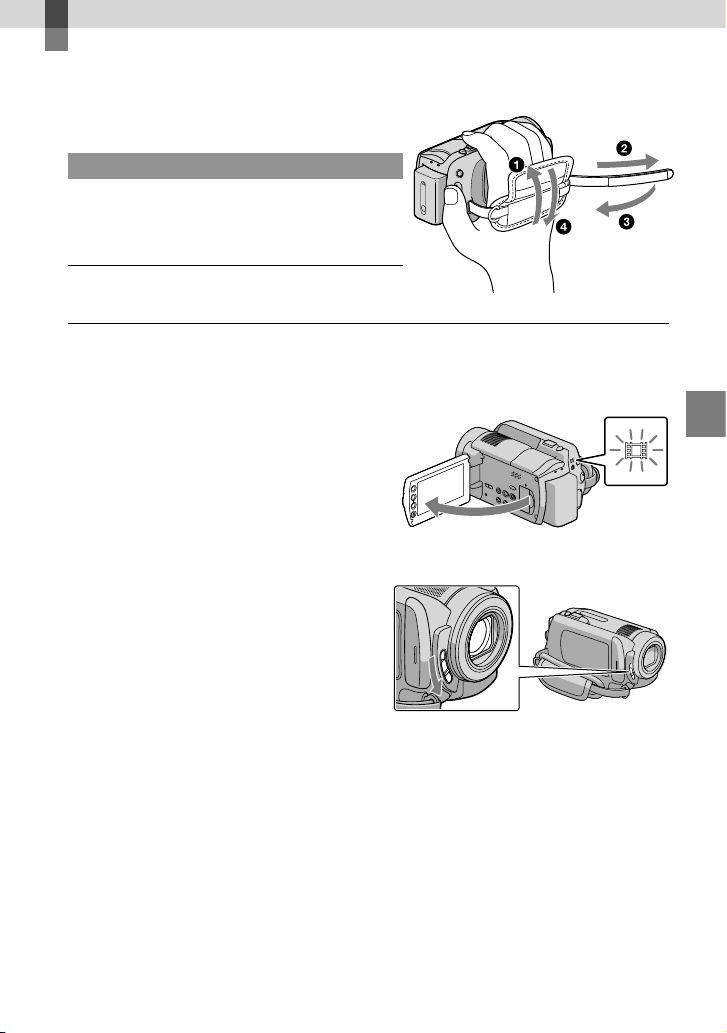
Fasten the grip belt.
Open the LCD screen of your camcorder.
Your camcorder is turned on.
To turn on your camcorder when the LCD screen is already open, press POWER.
For HDR-XR100/XR101
Open the lens cover.
18
US
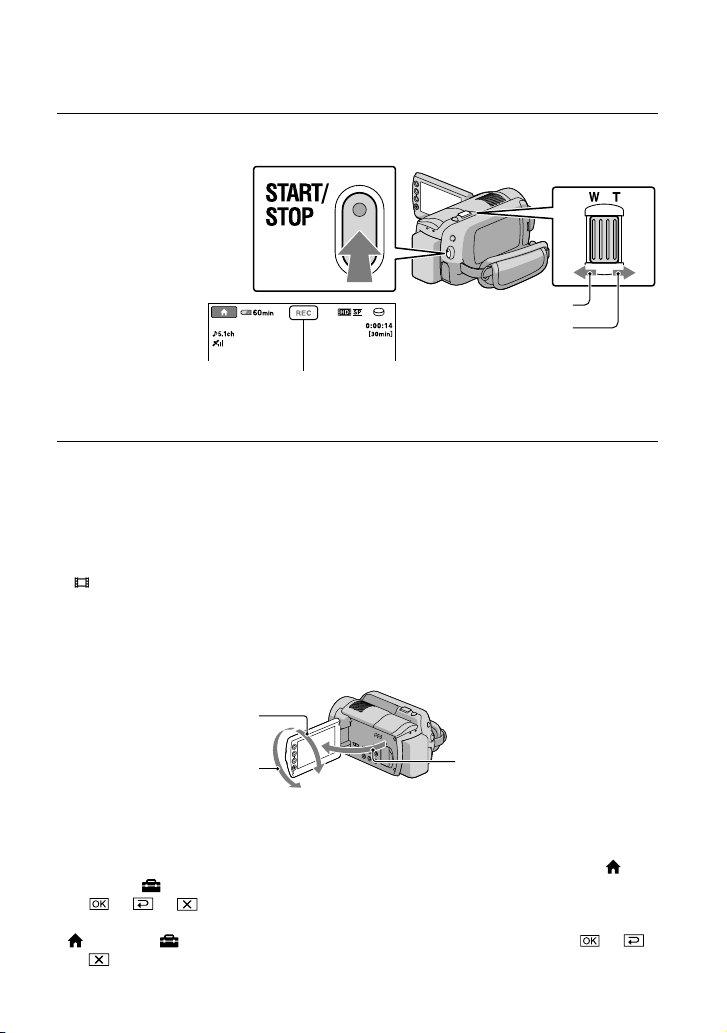
Press START/STOP to start recording.
To stop recording, press START/STOP again.
Move the power zoom lever slightly for a slower zoom. Move it further for a faster zoom.
If you close the LCD screen during recording, the camcorder stops recording.
See page 59 on the recordable time of movies.
The maximum continuous recordable time of movies is about 13 hours.
When a movie file exceeds 2 GB, the next movie file is created automatically.
You can change the recording media and image quality (p. 43, 48).
You can change the recording mode of movies (p. 48).
[ STEADYSHOT] is set as follows in the default setting.
HDR-XR100/XR101: [ON]
HDR-XR200/XR200V: [ACTIVE]
To adjust the angle of the LCD panel, first open the LCD panel 90 degrees to the camcorder (), and
then adjust the angle (). If you rotate the LCD panel 180 degrees to the lens side (), you can record
movies/photos in mirror mode.
In the default setting, a photo is recorded automatically when the camcorder detects the smile of a person
during movie recording ([SMILE SHUTTER]). An orange frame appears around a face targeted for
possible smile detection shot. You can change the setting in the menu.
You can increase the zooming level by using the digital zoom. Set the zooming level by touching
(HOME) (SETTINGS) [MOVIE SETTINGS] [DIGITAL ZOOM] the desired setting
.
When viewing movies on an x.v.Color-compliant TV, record movies with the x.v.Color function. Touch
(HOME) (SETTINGS) [MOVIE SETTINGS] [X.V.COLOR] [ON]
. Some settings may be required on a TV to view the movies. Refer to the instruction manuals of
the TV.
90 degrees (max.)
90 degrees to the camcorder
180 degrees (max.)
Zoom lever
Wide
Telephoto
[STBY] [REC]
19
Recording
US
Shooting photos
In the default setting, photos are recorded on the hard disk (p. 43).
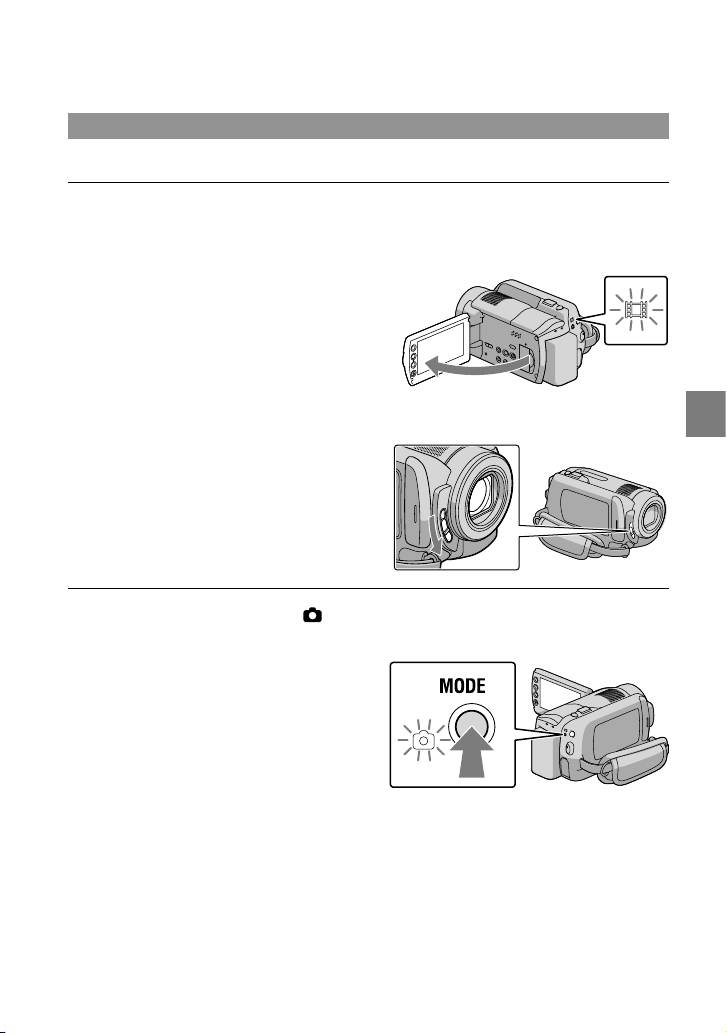
Open the LCD screen of your camcorder.
Your camcorder is turned on.
To turn on your camcorder when the LCD screen is already open, press POWER.
For HDR-XR100/XR101
Open the lens cover.
Press MODE to turn on the (Photo) lamp.
The aspect ratio of the screen becomes 4:3.
20
US
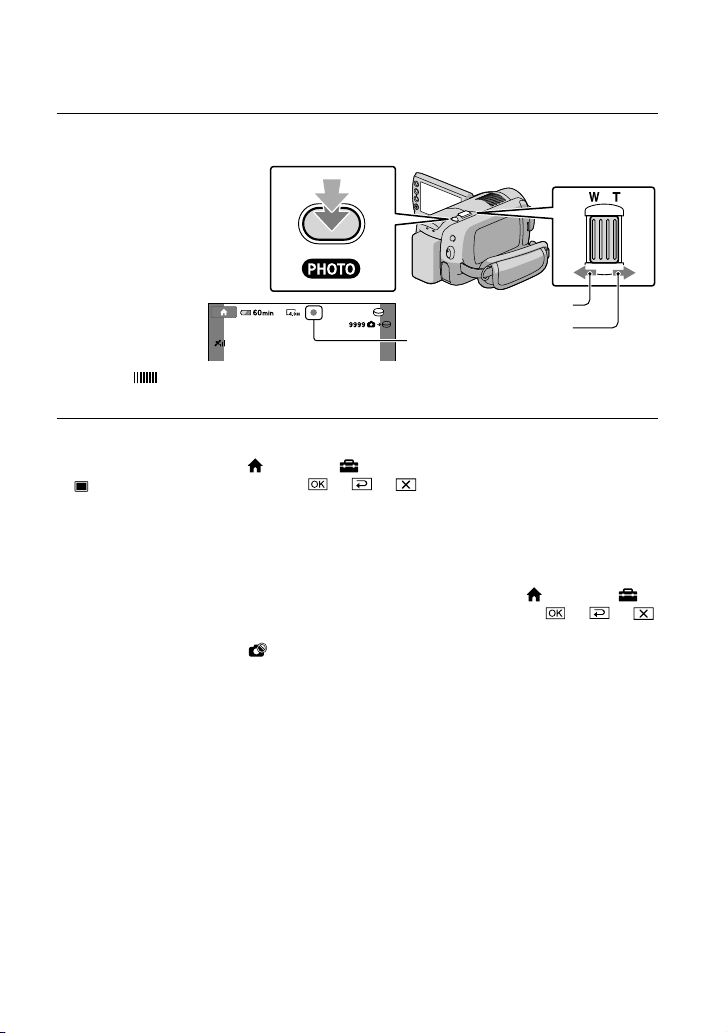
Press PHOTO lightly to adjust the focus, then press it fully.
When disappears, the photo is recorded.
Move the power zoom lever slightly for a slower zoom. Move it further for a faster zoom.
You can check the recordable number of photos on the LCD screen (p. 61).
To change the image size, touch (HOME) (SETTINGS) [PHOTO SETTINGS]
[ IMAGE SIZE] a desired setting .
You can record photos during movie recording by pressing PHOTO. The image file size is as follows
when recording high definition image quality (HD) movies;
HDR-XR100/XR101: 2.3M
HDR-XR200/XR200V: 3.0M
Your camcorder flashes automatically when there is insufficient ambient light. The flash does not work
during movie recording. You can change how your camcorder flashes by touching (HOME)
(SETTINGS) [PHOTO SETTINGS] [FLASH MODE] a desired setting
(HDR-XR200/XR200V).
You cannot record photos while is displayed.
Flashes Lights up
Zoom lever
Wide
Telephoto
21
Recording
US
Recording and playing movies and photos easily (Easy Handycam
operation)
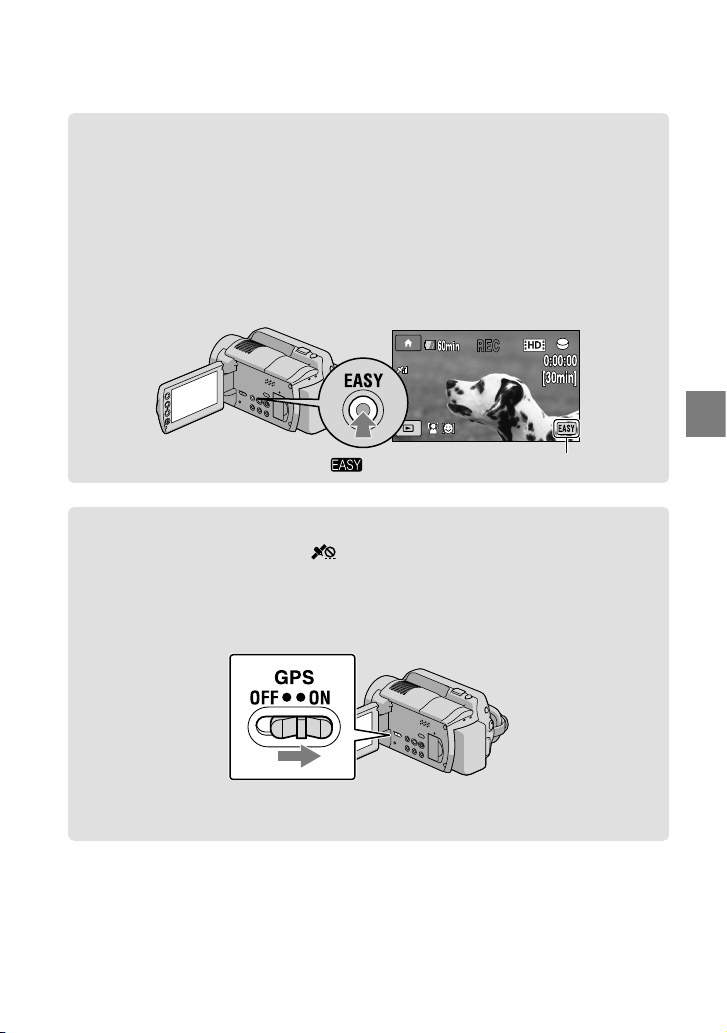
Simply press EASY.
To cancel Easy Handycam operation, press EASY again after you finish recording, or menu
operations. During Easy Handycam operation, you can set basic options, such as changing
the image size or deleting images, among the setting and adjustment items. Other items are
set automatically.
When Easy Handycam operation is started, nearly all menu settings are reset to the default settings
automatically. (Some menu items retain the settings that were made before Easy Handycam
operation.)
appears during Easy Handycam operation mode.
Acquiring recording location information using the GPS (HDR-XR200V)
When you set the GPS switch to ON, appears on the LCD screen, and your camcorder
acquires the location information from the GPS satellites. Acquiring the location information
enables you to use functions such as the Map Index.
The indicator changes according to the strength of GPS signal reception.
Make sure that the GPS switch is set to OFF during take off and landing of an airplane.
Built-in map is powered by companies as follows; Map of Japan by ZENRIN CO., LTD., other areas
by NAVTEQ.
22
US
Playback
Playback on the camcorder
In the default setting, movies and photos on the internal hard disk are played (p. 43).
Playing movies
Open the LCD screen of your camcorder.
Your camcorder is turned on.
To turn on your camcorder when the LCD screen is already open, press POWER.
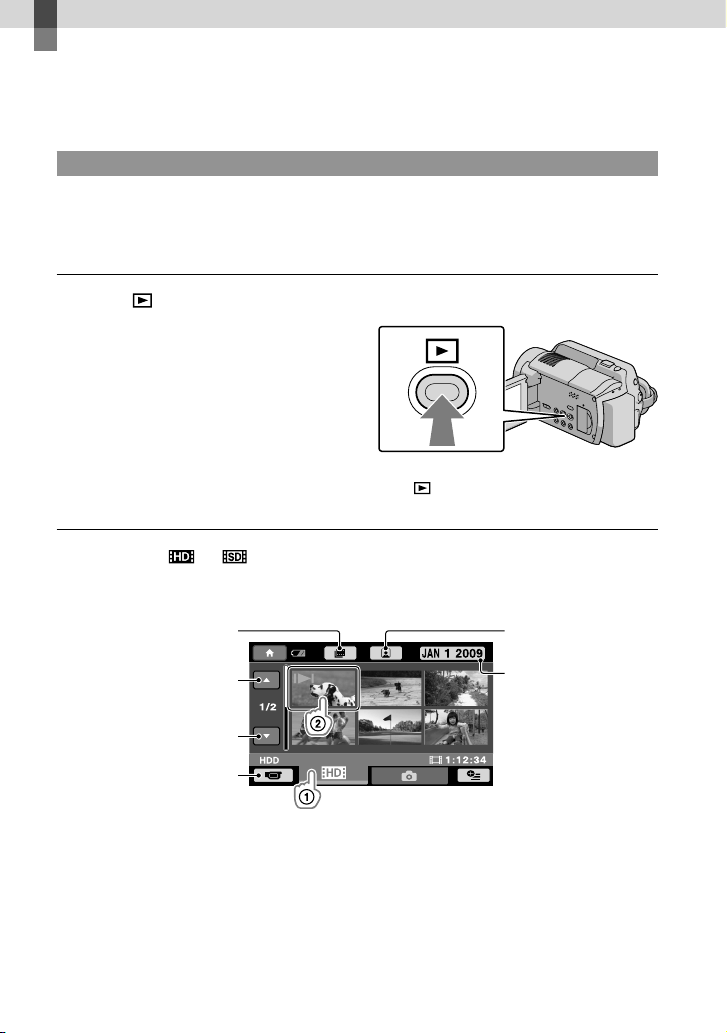
Press (VIEW IMAGES).
The VISUAL INDEX screen appears after some seconds.
You can display the VISUAL INDEX screen by pressing (VIEW IMAGES) on the LCD screen
as well.
Touch the (or ) tab a desired movie .
HDR-XR100/XR101
/ appears on the movie/photo that was played or recorded most recently. Touch the image to
continue playing from the scene.
Previous
Next
To return to recording
mode
To the list of recording
dates
To the index screen
of scenes by a certain
interval (Film Roll Index)
To the index screen of
face scenes (Face Index)
23
Playback
US
HDR-XR200/XR200V
/
appears on the movie/photo that was played or recorded most recently. Touch the image to
continue playing from the scene.
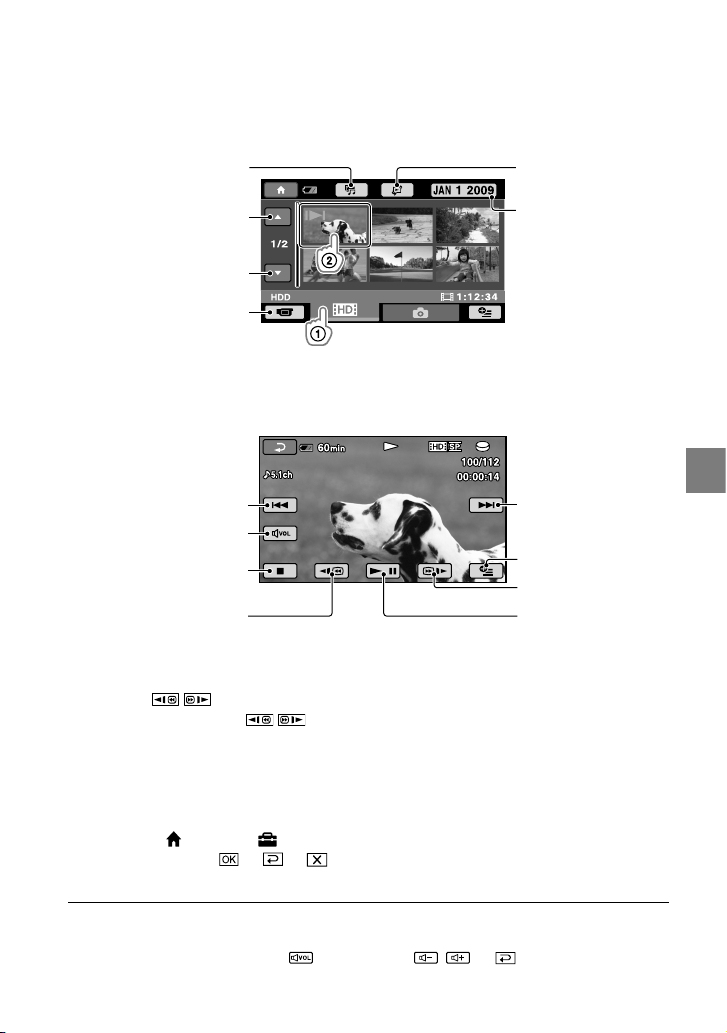
Your camcorder starts playing the selected movie.
When playback from the selected movie reaches the last movie, the screen returns to the VISUAL
INDEX screen.
Touch / during pause to play back movies slowly.
As you repeat touching / during playback, movies are played as fast as about 5 times
about 10 times
about 30 times
about 60 times.
You can turn on or off the on-screen display by pressing DISP located on the panel behind the LCD
panel.
The recording date, time, and shooting conditions are recorded automatically during recording.
This information are not displayed during recording, but you can display it during playback by
touching (HOME)
(SETTINGS)
[
VIEW IMAGES SET]
[
DATA CODE]
a
desired setting
.
Protected demonstration movie has been provided on your camcorder when you buy it.
To adjust the sound volume of movies
While playing back movies, touch adjust with / .
You can adjust the sound volume from the OPTION MENU (p. 46).
Previous
To stop
Next
To fast-reverse
OPTION MENU
To fast-forward
To pause/play
Volume
To the HIGHLIGHT
PLAYBACK screen
To the screen to select
the index type
Previous
Next
To return to recording
mode
To the list of recording
dates
24
US
Viewing photos
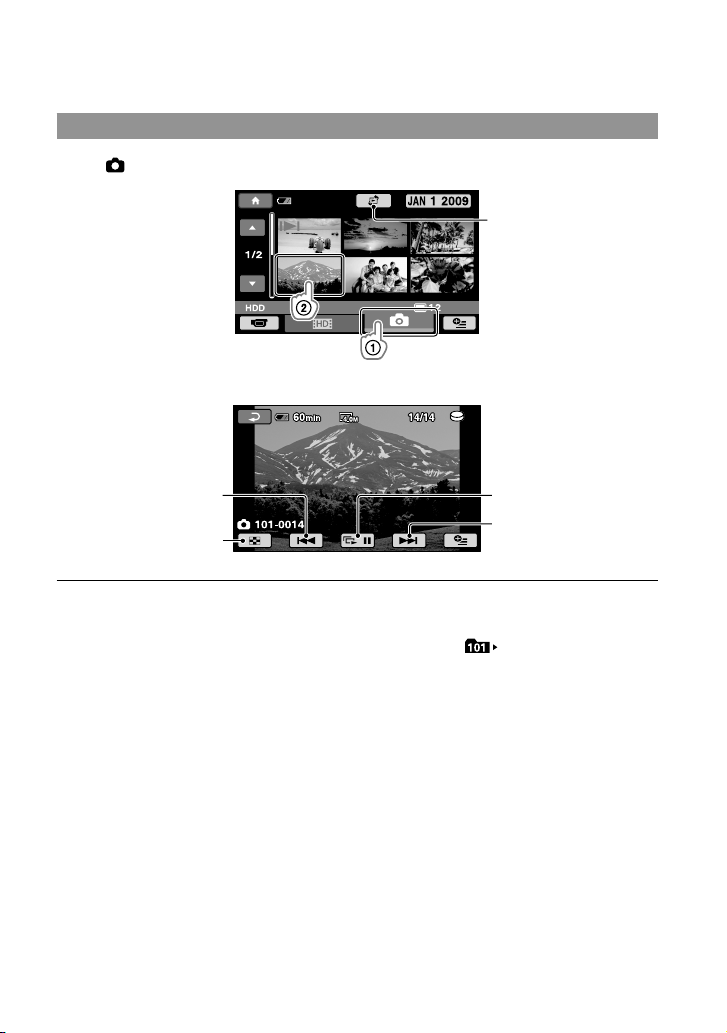
Touch (Photo) a desired photo on the VISUAL INDEX screen.
Your camcorder displays the selected photo.
You can zoom in the photo by moving the zoom lever while viewing photos (PB ZOOM). If you touch a
point in the PB ZOOM frame, the point comes to the center in the frame.
When viewing photos recorded on a “Memory Stick PRO Duo” media, (playback folder) appears
on the screen.
Previous
To start/stop slide show
To the VISUAL INDEX
screen
Next
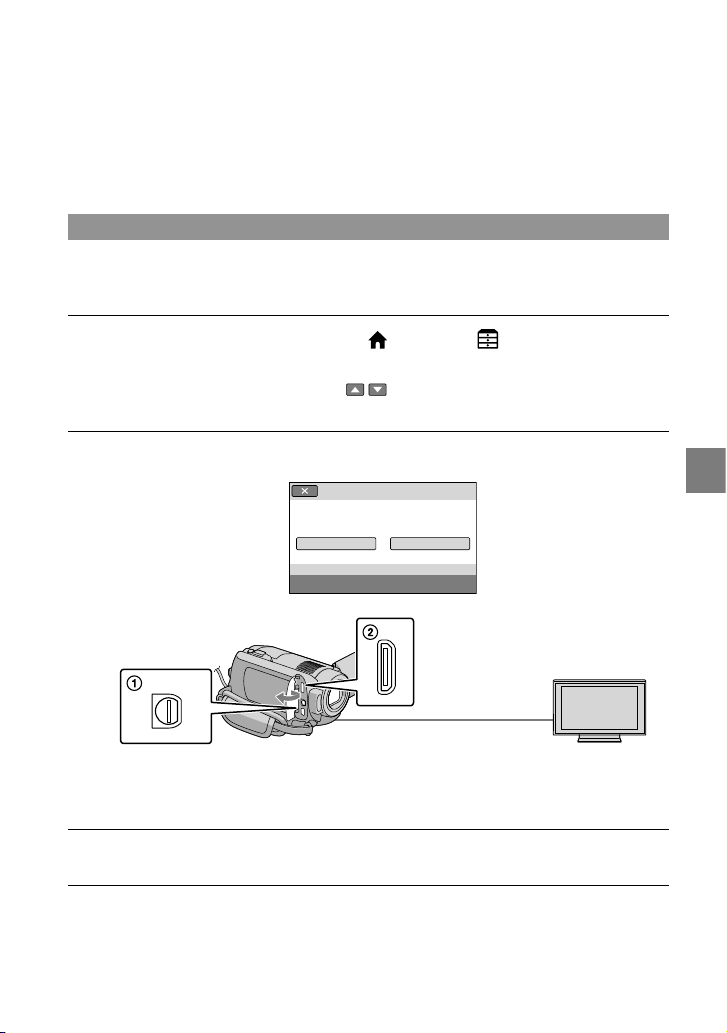
Displays the Map Index
screen (p. 47) (HDR-
XR200V)
25
Playback
US
Playing images on a TV
Connection methods and the image quality (high definition (HD) or standard definition
(SD)) played on the TV screen differ depending on what type of TV is connected, and the
connectors used. You can connect your camcorder to the TV easily following the instructions
of [TV CONNECT Guide].
Connecting a TV using [TV CONNECT Guide]
Switch the input on the TV to the connected jack.
Refer to the instruction manuals of the TV.
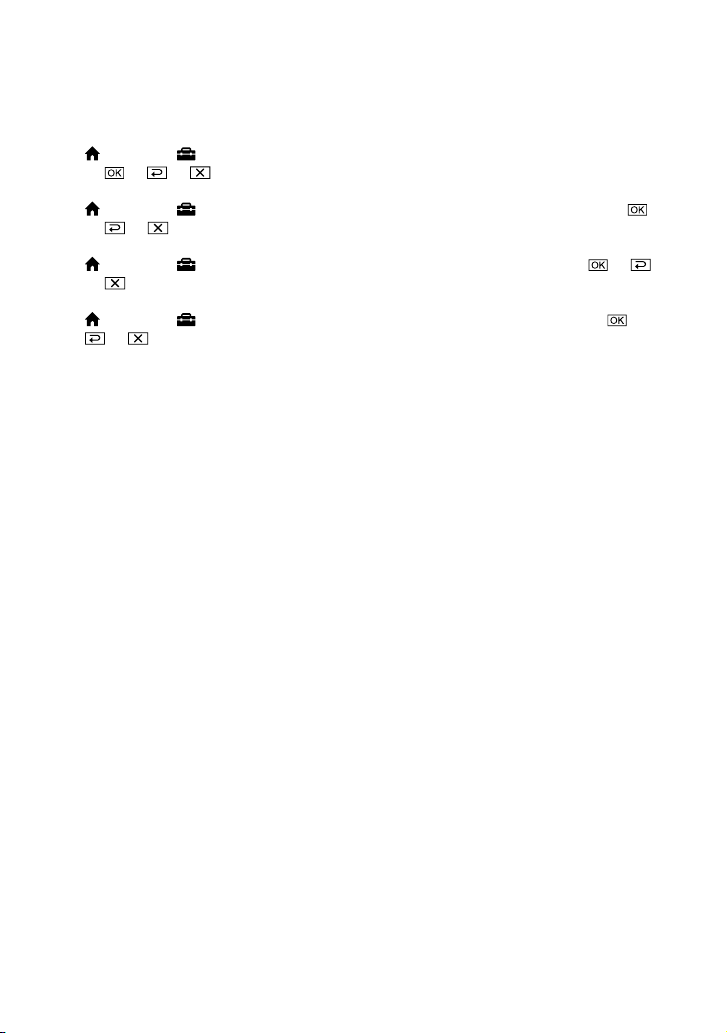
Turn on your camcorder, and touch (HOME) (OTHERS) [TV
CONNECT Guide] on the LCD screen.
When an item is not on the screen, touch / until the item appears.
Use the supplied AC Adaptor as the power source (p. 14).
Connect your camcorder and TV referring to [TV CONNECT Guide].
High Definition TV
Select the TV type.
TV CONNECT Guide
16:9 or 4:3 TV
A/V Remote Connector
HDMI OUT (mini) jack
When the A/V connecting cable is used to output movies, movies are output with standard
definition image quality (SD).
Play back movies and photos on your camcorder (p. 22).
Connectors on your camcorder
Input connectors on
the TV
26
US
Make the required output settings on your camcorder.
To connect a high definition TV via component video jacks:
(HOME) (SETTINGS) [OUTPUT SETTINGS] [COMPONENT] [1080i/480i]
To connect a non-high-definition TV via component video jacks:
(HOME) (SETTINGS) [OUTPUT SETTINGS] [COMPONENT] [480i]
To connect a 4:3 TV:
(HOME) (SETTINGS) [OUTPUT SETTINGS] [TV TYPE] [4:3]
To activate “BRAVIA” Sync:
(HOME) (SETTINGS) [GENERAL SET] [CTRL FOR HDMI] [ON]
On “PhotoTV HD”
This camcorder is compatible with the “PhotoTV HD” standard. “PhotoTV HD” allows for
highly-detailed, photo-like depiction of subtle textures and colors. By connecting Sony’s
PhotoTV HD-compatible devices using an HDMI cable (sold separately)* or the component
A/V cable (supplied)**, a whole new world of photos can be enjoyed in breathtaking full HD
quality.
* The TV will automatically switch to the appropriate mode when displaying photos.
** Setup of the TV will be necessary. Please refer to the instruction manual of your PhotoTV HD-
compatible TV for details.
Saving movies and photos with a computer
27
US
Saving movies and photos with a computer
Preparing a computer
(Windows)
You can perform following operations using
“PMB (Picture Motion Browser).”
Importing images to a computer
Viewing and editing imported images
Creating a disc
Uploading movies and photos to websites
To save movies and photos using a
computer, install “PMB” from the supplied
CD-ROM beforehand.
Do not format the hard disk of your camcorder
from a computer. Your camcorder may not
operate correctly.
This camcorder captures high definition footage
in the AVCHD format. Using the enclosed
PC software, high definition footage can be
copied onto DVD media. However, DVD media
containing AVCHD footage should not be used
with DVD based players or recorders, as the
DVD player/recorder may fail to eject the media
and may erase its contents without warning.
Step 1 Checking the computer
system
OS*
1
Microsoft Windows XP SP3*
2
/Windows Vista
SP1*
3
CPU
Intel Pentium 4 2.8 GHz or faster (Intel
Pentium 4 3.6 GHz or faster, Intel Pentium D
2.8 GHz or faster, Intel Core Duo 1.66 GHz or
faster, or Intel Core 2 Duo 1.66 GHz or faster
is recommended.)
However, Intel Pentium III 1 GHz or faster is
sufficient for the following operations:
Importing the movies and photos to the
computer
One Touch Disc Burn
Creating an Blu-ray disc/AVCHD format
disc/DVD-video (Intel Pentium 4, 2.8 GHz
or faster, is required when creating a DVD
video by converting high definition image
quality (HD) to standard definition image
quality (SD).)
Copying a disc
Software
DirectX 9.0c or later
(This product is based on DirectX
technology. It is necessary to have DirectX
installed)
Memory
For Windows XP: 512 MB or more (1 GB or
more is recommended.)
However, 256 MB or more is sufficient for
processing only the movies with standard
definition image quality (SD).
For Windows Vista: 1 GB or more
Hard disk
Disk volume required for installation:
Approximately 500 MB (10 GB or more may
be necessary when creating AVCHD format
discs. 50 GB maximum may be necessary
when creating Blu-ray discs.)
Display
Minimum 1,024 × 768 dots
Others
USB port (this must be provided as standard,
Hi-Speed USB (USB 2.0 compatible)), Blu-
ray disc/DVD burner (CD-ROM drive is
necessary for installation)
Either NTFS or exFAT file system is
recommended as the hard disk file system.
Operation with all computer environments is
not assured.
*
1
Standard installation is required. Operation is
not assured if the OS has been upgraded or in a
multi-boot environment.
*
2
64-bit editions and Starter (Edition) are not
supported.
*
3
Starter (Edition) is not supported.
When using a Macintosh
The supplied software “PMB” is not
supported by Macintosh computers.
To process photos using a Macintosh
computer connected to your camcorder,
see the following website.
http://guide.d-imaging.sony.co.jp/mac/
ms/us/
28
US
Step 2 Installing the supplied
software “PMB”
Install “PMB” before connecting your
camcorder to a computer.
If a version of “PMB” supplied with another
device has already been installed on the
computer, check the version. (The version
number is displayed by clicking [Help] - [About
PMB].) Compare the version number of the
supplied CD-ROM with that of the previously
installed “PMB,” check to ensure that the
versions have been installed in order, from the
lower to the higher. If the version number of
the previously installed “PMB” is higher than
that of the “PMB” of your camcorder, uninstall
“PMB” from the computer and then re-install
it in order, from lower to higher. If you install a
higher version of “PMB” first, some functions
may not work correctly.
See page 51 on the “Handycam Handbook.”
Confirm that your camcorder is
not connected to the computer.
Turn on the computer.
Log on as an Administrator for
installation.
Close all applications running on the
computer before installing the software.
Place the supplied CD-ROM in
the disc drive of your computer.
The installation screen appears.
If the screen does not appear, click
[Start] [Computer] (in Windows
XP, [My Computer]), then double click
[SONYPICTUTIL (E:)] (CD-ROM).
Click [Install].
Select the language for the
application to be installed, then
click [Next].
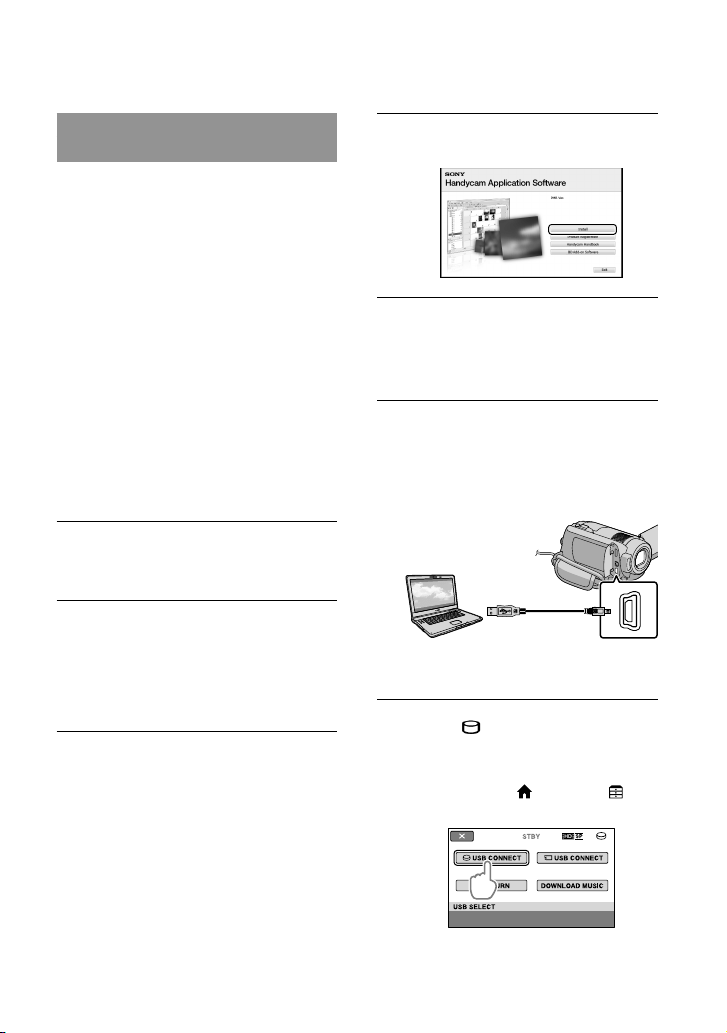
Turn on your camcorder, then
connect the camcorder to the
computer using the supplied USB
cable.
The [USB SELECT] screen appears on
the camcorder screen automatically.
Touch [ USB CONNECT] on the
camcorder screen.
If the [USB SELECT] screen does
not appear, touch (HOME)
(OTHERS) [USB CONNECT].
29
Saving movies and photos with a computer
US
Click [Continue].
Confirm the license agreement,
and if you accept the terms,
change to click [Next]
[Install] on the computer
screen.
Follow the on-screen instructions
to install the software.
Depending on the computer, you may
need to install third party software. If
the installation screen appears, follow
the instructions to install the required
software.
Restart the computer if required to
complete the installation.
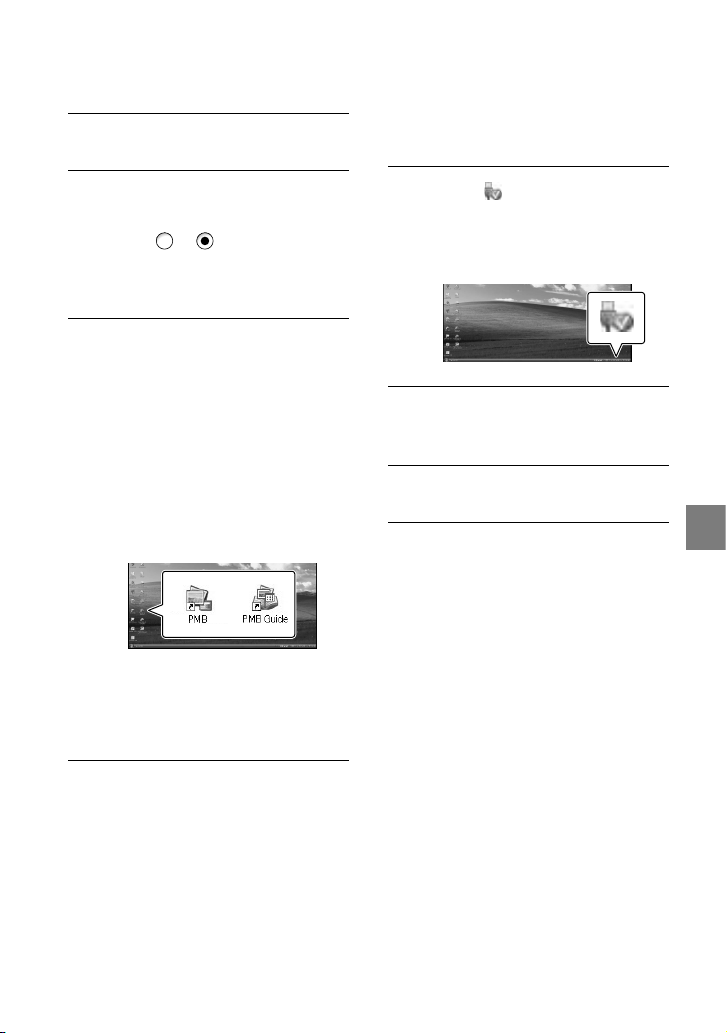
When the installation is completed,
following icons will appear.
Other icons may appear.
No icon may appear depending on the
installation procedure.
The Handycam Handbook is not installed
in this procedure (p. 51).
To disconnect your camcorder from the
computer
Click the icon at the bottom
right of the desktop of the
computer [Safely remove USB
Mass Storage Device].
Touch [END] [YES] on the
camcorder screen.
Disconnect the USB cable.
You can create a Blu-ray disc by using a
computer with a Blu-ray disc burner. Install the
BD Add-on Software for “PMB” (p. 35).
30
US
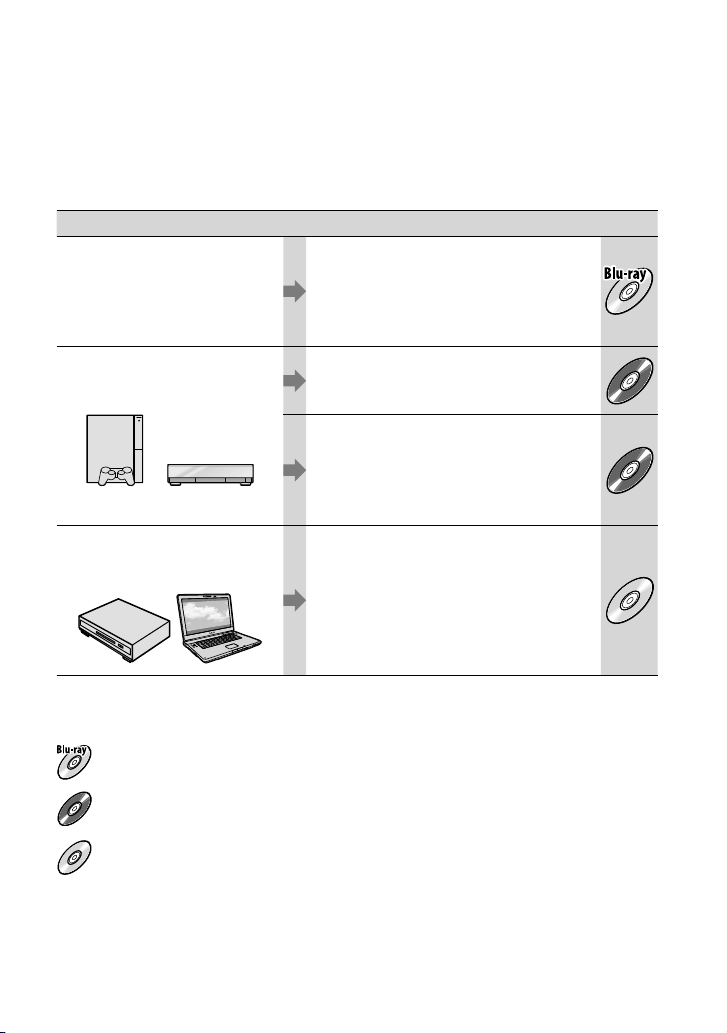
Selecting the method for creating a disc
(computer)
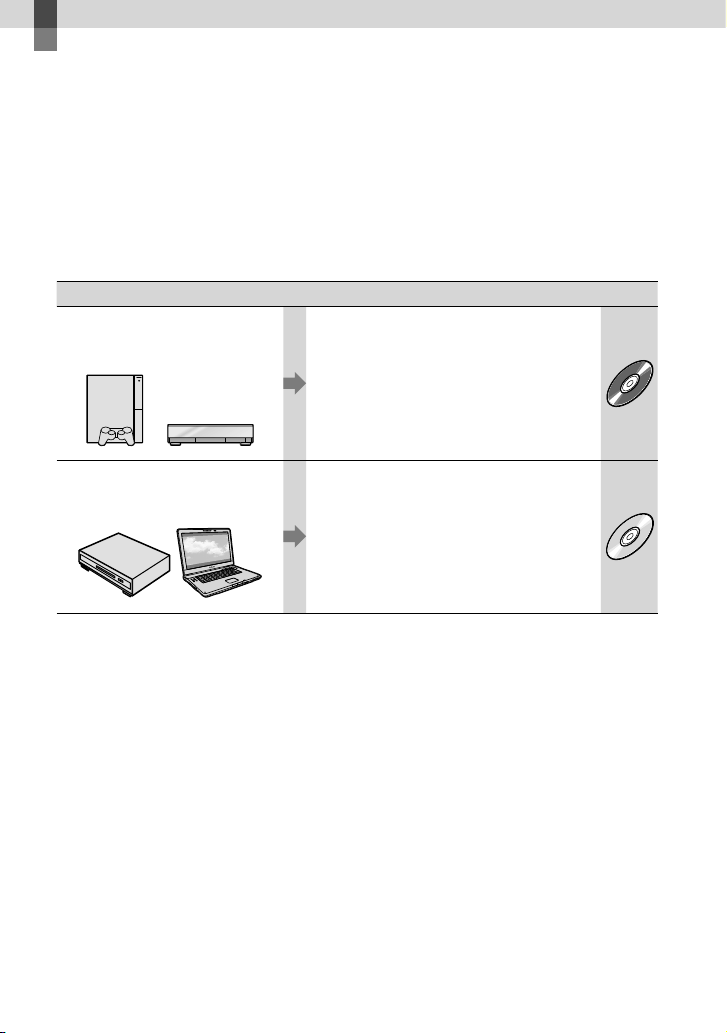
Several methods for creating a high definition image quality (HD) disc or a standard
definition image quality (SD) disc from high definition image quality (HD) movies or
photos recorded on your camcorder are described here. Select the method that suits your
disc player.
Player Choosing a method and disc type
Blu-ray disc playback
devices (a Blu-ray disc player,
PLAYSTATION
3, etc.)
Importing movies and photos to a
computer (Easy PC Back-up) (p. 33)
Creating a Blu-ray disc* with high
definition image quality (HD) (p. 35)
AVCHD format playback devices
(a Sony Blu-ray disc player,
PLAYSTATION
3, etc.)
Creating a disc with one touch (One Touch
Disc Burn) (p. 32)
HD
Importing movies and photos to a
computer (Easy PC Back-up) (p. 33)
Creating a AVCHD format disc with high
definition image quality (HD) (p. 34)
HD
Ordinary DVD playback devices
(a DVD player, a computer that
can play DVDs, etc.)
Importing movies and photos to a
computer (Easy PC Back-up) (p. 33)
Creating a standard definition image
quality (SD) disc (p. 36)
SD
* To create a Blu-ray disc, the BD Add-on Software for “PMB” must be installed (p. 35).
Characteristics of each type of disc
Using a Blu-ray disc enables you to record high definition image quality (HD) movies of a longer
duration than DVD discs.
HD
High definition image quality (HD) movie can be recorded on DVD media, such as DVD-R discs,
and a high definition image quality (HD) disc is created.
SD
Standard definition image quality (SD) movie converted from high definition image quality (HD)
movie can be recorded on DVD media, such as DVD-R discs, and a standard image quality (SD)
disc is created.

31
Saving movies and photos with a computer
US
Discs you can use with “PMB”
You can use 12 cm discs of following type with “PMB.” For Blu-ray disc, see page 35.
Disc type Features
DVD-R/DVD+R/DVD+R DL Unrewritable
DVD-RW/DVD+RW Rewritable
Always maintain your PLAYSTATION
3 to use the latest version of the PLAYSTATION
3 system
software.
The PLAYSTATION
3 may not be available in some countries/regions.
32
US
Creating a disc with
one touch
(One Touch Disc Burn)
You can save movies and photos on a
disc by simply pressing the (DISC
BURN) button on your camcorder. Movies
and photos recorded on your camcorder
that have not yet been saved with One
Touch Disc Burn can be saved on a disc
automatically. Movies and photos are saved
on a disc with their recorded image quality.
High definition image quality (HD) movies
(the default setting) will make a high definition
image quality (HD) disc. You cannot play a high
definition image quality (HD) disc on DVD
players.
Creating a Blu-ray disc is not available with One
Touch Disc Burn.
To create a standard definition image quality
(SD) disc from high definition image quality
(HD) movies, import movies to a computer first
(p. 33), and then create a standard definition
image quality (SD) disc (p. 36).
Install “PMB” beforehand (p. 28), however, do
not start “PMB.”
Connect your camcorder to the wall outlet (wall
socket) using the AC Adaptor supplied for this
operation (p. 14).
With the
(DISC BURN) button, you
can save movies and photos recorded on the
internal hard disk only.
1
Turn on your computer, and place
an empty disc on the DVD drive.
See page 30 for the type of discs you can
use.
If any other software than “PMB” starts
automatically, shut it down.
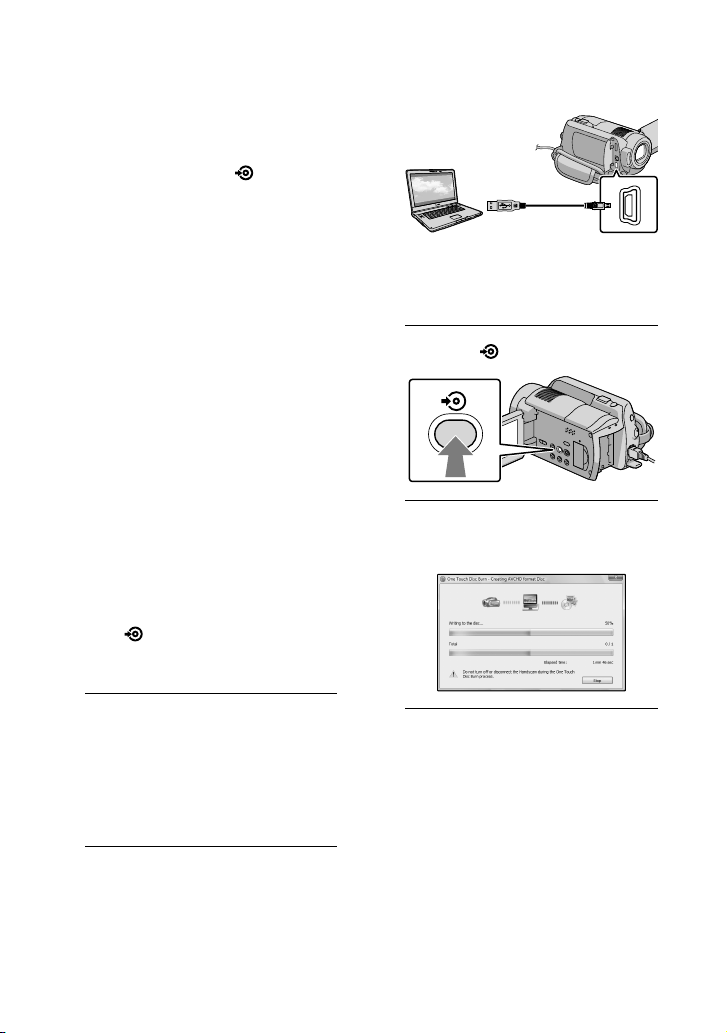
2
Turn on your camcorder, and
connect it to the computer using
the USB cable.
Do not close the LCD screen when the
camcorder is connected to another device
with the USB cable. Your recorded images
may be lost.
3
Press the (DISC BURN) button.
4
Follow the instructions on the
computer screen.
Movies and photos are not saved on the
computer when you perform One Touch Disc
Burn.
33
Saving movies and photos with a computer
US
Importing movies and
photos to a computer
(Easy PC Back-up)
Movies and photos recorded on your
camcorder that have not yet been saved
with Easy PC Back-up can be imported
to a computer automatically. Turn on the
computer beforehand.
Connect your camcorder to the wall outlet (wall
socket) using the AC Adaptor supplied for this
operation (p. 14).
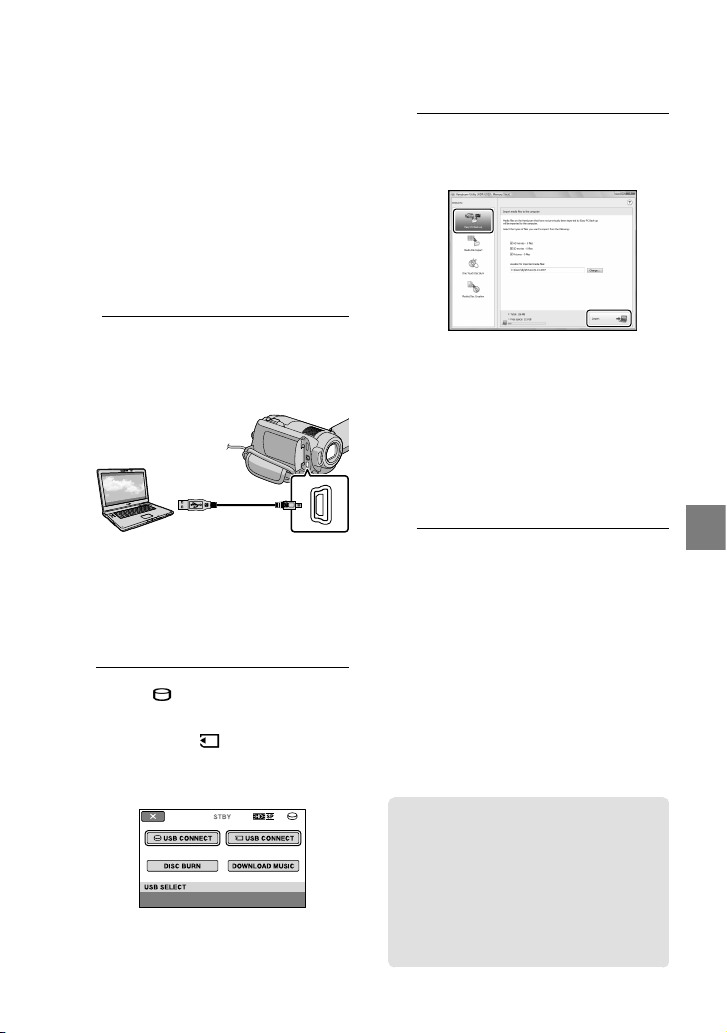
1
Turn on your camcorder, and
connect it to the computer
using the USB cable.
The [USB SELECT] screen appears on
the camcorder screen.
Do not close the LCD screen when the
camcorder is connected to another device
with the USB cable. Your recorded images
may be lost.
2
Touch [ USB CONNECT] to
import images from the internal
hard disk, or [ USB CONNECT]
to import images from a
“Memory Stick PRO Duo” media.
The [Handycam Utility] window
appears on the computer screen.
3
On the computer screen, click
[Easy PC Back-up] [Import].
Movies and photos are imported to
your computer.
When the operation is completed, the
“PMB” screen appears.
When the operation is completed, a screen
to indicate that movies are being analyzed
may appear. It may take a long time to
analyze movies. In the meantime, you can
operate “PMB.”
You can create either high definition image
quality (HD) discs (Blu-ray disc/AVCHD
format disc) (p. 34) or standard definition
image quality (SD) discs (p. 36) from imported
high definition image quality (HD) movies.
See PMB Guide on importing selected movies
and photos (p. 34).
You can export high definition image quality
(HD) movies from your computer to your
camcorder. On the “PMB” screen, click
[Manipulate] [Export to] [Handycam
(Hard Disk Drive)]/[Handycam (Memory
Stick)]. See PMB Guide for details (p. 34).
Changing the destination drive
or folder for movies and photos
On the [Handycam Utility] screen in
step 3 above, click [Easy PC Back-up]
[Change]. On the screen displayed, you
can select the drive or folder where the
images are to be saved.
34
US
Creating a high
definition image
quality (HD) disc
You can create a high definition image
quality (HD) disc by putting together high
definition image quality (HD) movies
previously imported to your computer
(p. 33).
In this section, the procedure for recording a
high definition image quality (HD) movie on a
DVD disc (p. 30) is explained.
You can play a high definition image quality
(HD) disc on AVCHD format playback devices,
such as a Sony Blu-ray disc player and a
PLAYSTATION
3. You cannot play the disc on
ordinary DVD players (p. 30).
1
Turn on your computer, and place
an empty disc on the DVD drive.
See page 31 for the type of discs you can
use.
If any software starts automatically, shut
it down.
2
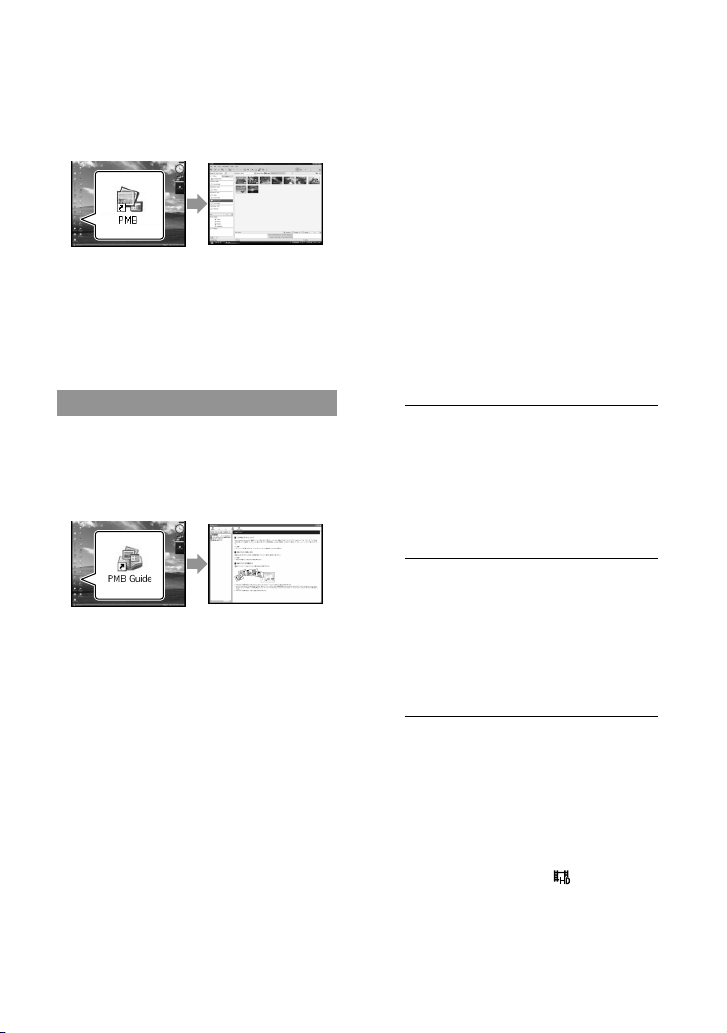
Double-click the “PMB” short-cut
icon on the computer screen to
start “PMB.”
You may start “PMB” also by clicking
[Start] [All Programs] [Sony
Picture Utility] [PMB].
3
Click [Folders] or [Calendar] on
the left side in the window, and
select the folder or date, then
select the high definition image
quality (HD) movies.
High definition image quality (HD)
movies are marked with .
You cannot save photos on a disc.
To select plural movies, hold the Ctrl key
down and click thumbnails.
Starting PMB (Picture
Motion Browser)
Double-click the “PMB” short-cut icon on
the computer screen.
If the icon is not displayed on the computer
screen, click [Start] [All Programs]
[Sony Picture Utility] [PMB] to start “PMB.”
You can view, edit, or create discs of movies
and photos using “PMB.”
Reading “PMB Guide”
Refer to the PMB Guide for details of the
“PMB.” Double-click the PMB Guide short-
cut icon on the computer screen to open
the PMB Guide.
If the icon is not displayed on the computer
screen, click [Start] [All Programs]
[Sony Picture Utility] [Help] [PMB
Guide]. You can also open the PMB Guide from
[Help] of “PMB.”
35
Saving movies and photos with a computer
US
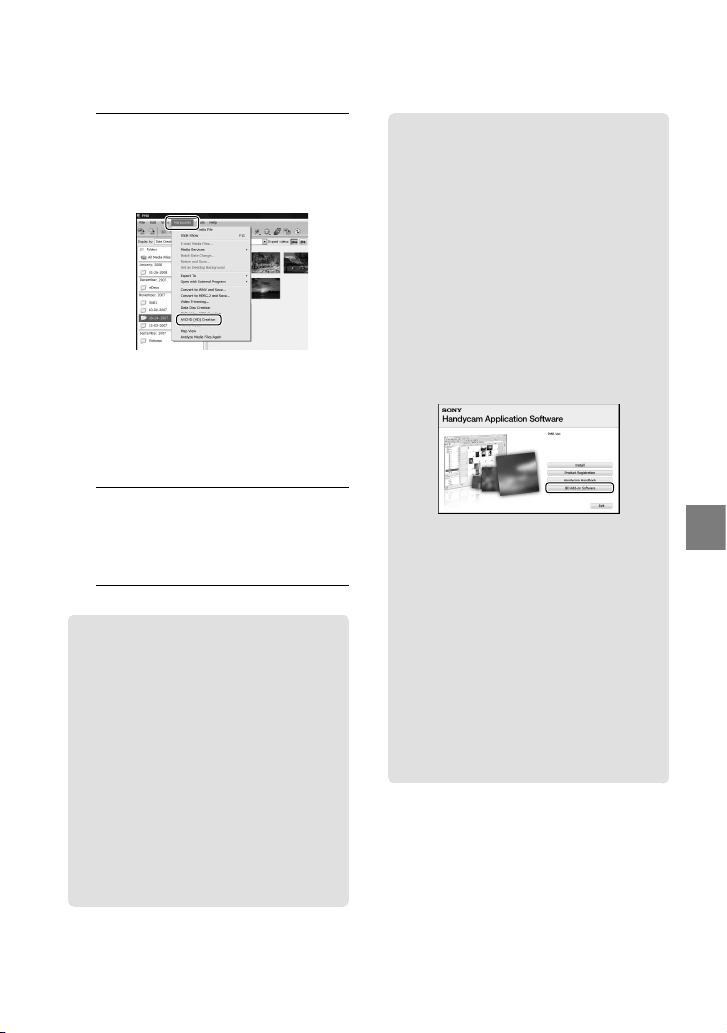
4
At the top of the window, click
[Manipulate] [AVCHD (HD)
Creation].
The window used to select movies
appears.
To add movies to the previously selected
ones, select the movies in the main
window and drag and drop onto the
window for selecting movies.
5
Follow the instructions on the
screen to create a disc.
It may take a long time to create a disc.
Playing a high definition image
quality (HD) disc on a computer
You can play back high definition image
quality (HD) discs using “Player for
AVCHD” that is installed together with
“PMB.”
To start “Player for AVCHD,” Click
[Start] [All Programs] [Sony
Picture Utility] [Player for AVCHD].
See the “Player for AVCHD” help on the
operation.
Movies may not be played smoothly
depending on the computer environment.
Creating a Blu-ray disc
You can create a Blu-ray disc with a high
definition image quality (HD) movie
previously imported to a computer
(p. 33).
To create a Blu-ray disc, the BD Add-on
Software for “PMB” must be installed.
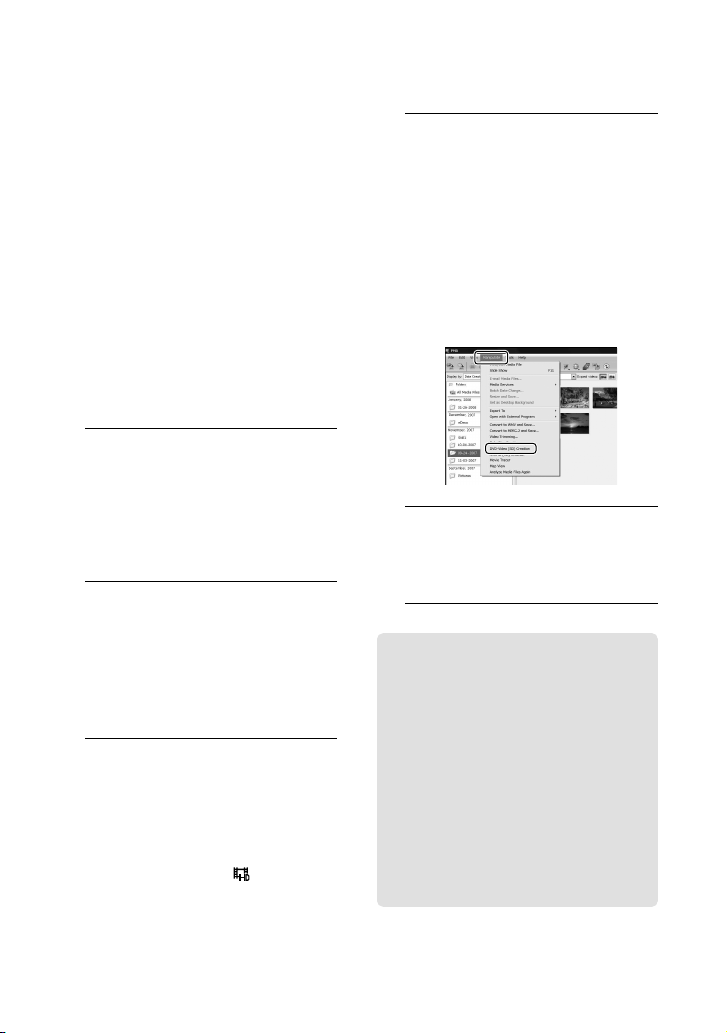
Click [BD Add-on Software] on the
installation screen of “PMB,” and install
this plug-in according to the on-screen
instructions.
Connect your computer to the internet
when you install [BD Add-on Software].
Place an empty Blu-ray disc in the disc
drive, and click [Manipulate] [Blu-
ray Disc (HD) Creation] in step 4 of
“Creating a high definition image quality
(HD) disc” (p. 34). Other procedures
are the same as that for creating a high
definition image quality (HD) disc.
Your computer must support the creation of
Blu-ray discs.
BD-R (unrewritable) and BD-RE
(rewritable) media are available for creating
Blu-ray discs. You cannot add contents to
either type of disc after creating the disc.
36
US
Creating a standard
definition image
quality (SD) disc that
can be played on
ordinary DVD players
You can create a standard definition image
quality (SD) disc by selecting movies
and photos previously imported to your
computer (p. 33).
You may select high definition image quality
(HD) movies as sources. However, image
quality is converted from high definition
(HD) to standard definition (SD). It will take a
longer time for converting the image quality of
the movies than it took to actually record the
movies.
1
Turn on your computer, and place
an empty disc on the DVD drive.
See page 31 for the type of discs you can
use.
If any software starts automatically, shut
it down.
2
Double-click the “PMB” short-cut
icon on the computer screen to
start “PMB.”
You may start “PMB” also by clicking
[Start] [All Programs] [Sony
Picture Utility] [PMB].
3
Click [Folders] or [Calendar] on
the left side in the window, and
select the folder or date, then
select the movies and photos.
High definition image quality (HD)
movies are marked with .
To select plural movies and photos, hold
the Ctrl key down and click thumbnails.
4
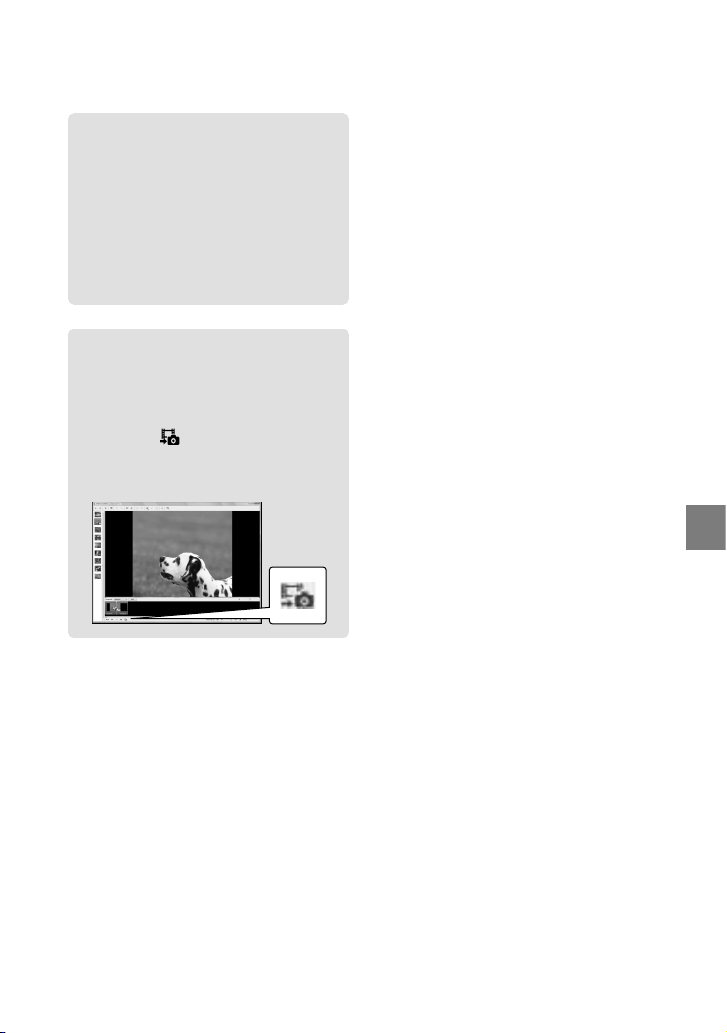
At the top of the window, click
[Manipulate] [DVD-Video (SD)
Creation].
The window used to select movies and
photos appears.
To add movies and photos to the
previously selected ones, select the movies
and photos in the main window and drag
and drop onto the window for selecting
movies and photos.
5
Follow the instructions on the
screen to create a disc.
It may take a long time to create a disc.
Copying a disc
You can copy a recorded disc to another
disc using “Video Disc Copier.”
You can also copy a disc by converting
high definition image quality (HD)
movies to standard definition image
quality (SD) movies.
Click [Start] [All Programs] [Sony
Picture Utility] [Video Disc Copier]
to start the software. See the “Video Disc
Copier” help on the operation.
You cannot copy to a Blu-ray disc.
37
Saving movies and photos with a computer
US
Editing movies
You can cut out only necessary parts
from a movie and save it as another file.
Using “PMB,” select the movie you
want to edit, then click [Manipulate]
[Video Trimming] on the menu to
display the Video Trimming window. See
the PMB Guide on the operation (p. 34).
Capturing photos from a movie
You can save a frame of a movie as a
photo file.
On the movie playback window of
“PMB,” click to display [Save Frame]
windows. See the PMB Guide on the
operation (p. 34).
38
US
Saving images with a DVD writer, recorder
Selecting the method for creating a disc (DVD
writer/recorder)
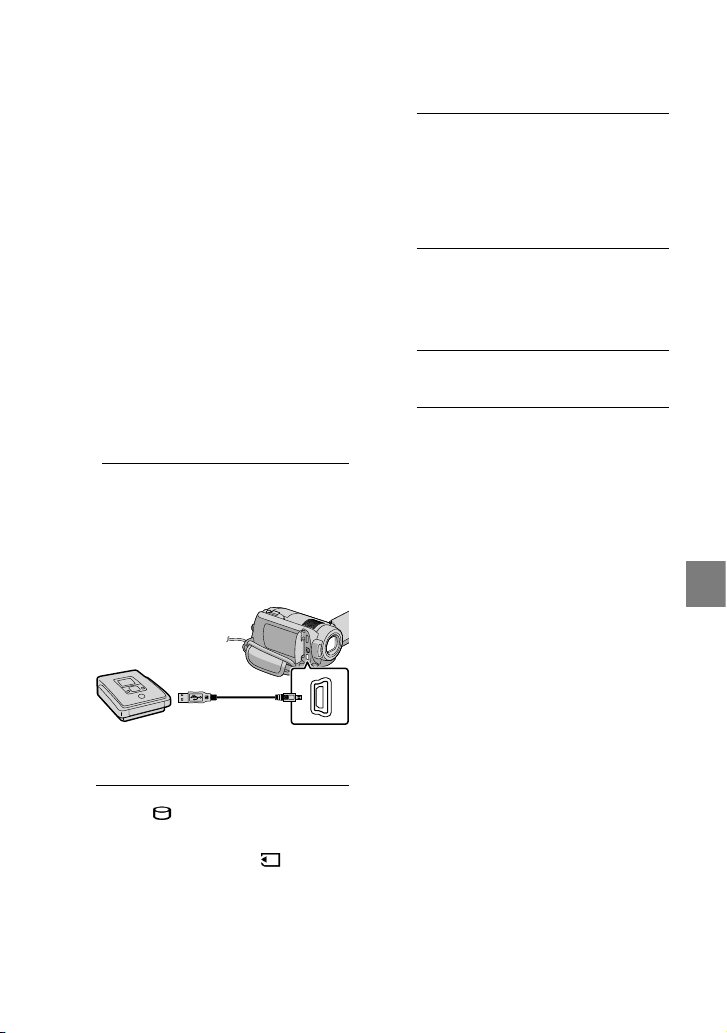
Several methods for creating a high definition image quality (HD) disc or a standard
definition image quality (SD) disc from high definition image quality (HD) movies or
photos recorded on your camcorder are described here. Select the method that suits your
disc player.
Prepare a DVD disc such as a DVD-R, for creating a disc.
See page 35 to create a Blu-ray disc.
Player Choosing a method and disc type
AVCHD format playback devices
(a Sony Blu-ray disc player,
PLAYSTATION
3, etc.)
Creating a high definition image quality
(HD) disc with a DVD writer, etc. (USB cable
connection) (p. 39)
HD
Ordinary DVD playback devices
(a DVD player, a computer that
can play DVDs, etc.)
Creating a standard definition image
quality (SD) disc with a disc recorder, etc.
(A/V connecting cable connection) (p. 40)
SD
Always maintain your PLAYSTATION
3 to use the latest version of the PLAYSTATION
3 system
software.
The PLAYSTATION
3 may not be available in some countries/regions.
39
Saving images with a DVD writer, recorder
US
Creating a high
definition image
quality (HD) disc with a
DVD writer, etc.
(USB cable connection)
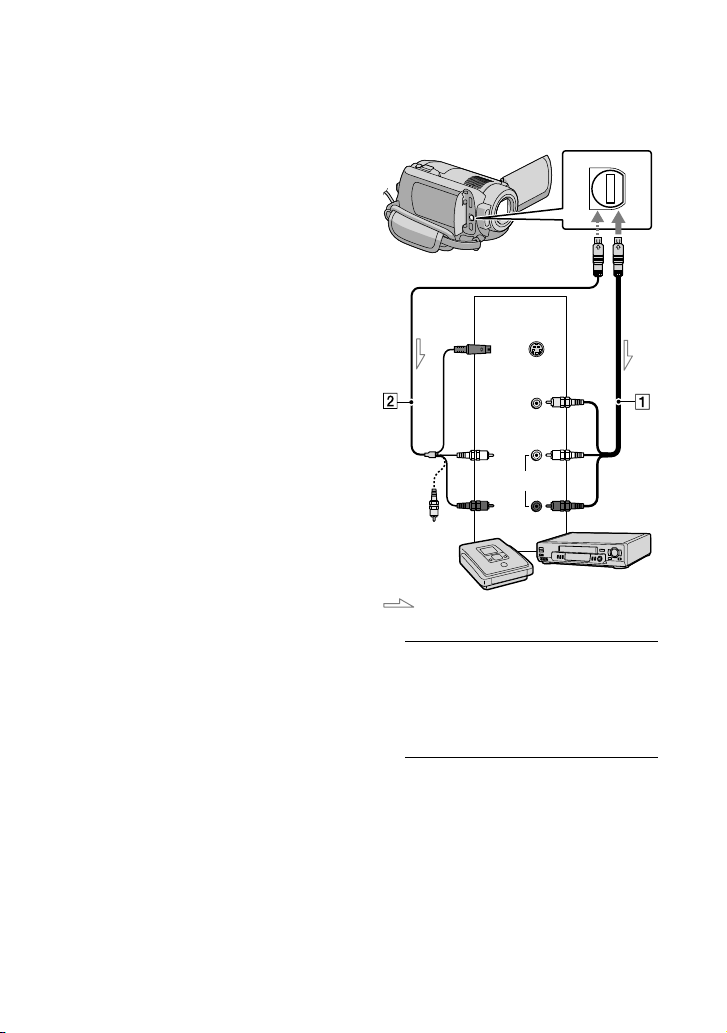
You can save high definition image quality
(HD) movies on a disc by connecting
your camcorder to disc creation devices,
such as a Sony DVD writer, with the USB
cable. Refer also to the instruction manuals
supplied with the devices to be connected.
The method used to create a disc by
connecting your camcorder to a Sony DVD
writer with the USB cable is described here.
Connect your camcorder to the wall outlet (wall
socket) using the AC Adaptor supplied for this
operation (p. 14).
1
Turn on your camcorder, and
connect a DVD writer, etc.
to the (USB) jack of your
camcorder with the USB cable
(supplied).
The [USB SELECT] screen appears on
the camcorder screen.
2
Touch [ USB CONNECT] when
movies are recorded on the
internal hard disk, or [ USB
CONNECT] when movies are
recorded on a “Memory Stick PRO
Duo” media on the camcorder
screen.
3
Record movies on the connected
device.
For details, refer to the instruction
manuals supplied with the device to be
connected.
4
After the operation is completed,
touch [END] [YES] on the
camcorder screen.
5
Disconnect the USB cable.
The high definition image quality (HD) disc
that you created should not be used in DVD
players/recorders. Because DVD players/
recorders are not compatible with the AVCHD
format, DVD players/recorders may fail to eject
the disc.
Sony DVD writer may not be available in some
countries/regions.
40
US
Creating a standard
definition image
quality (SD) disc with a
recorder, etc.
(A/V connecting cable
connection)
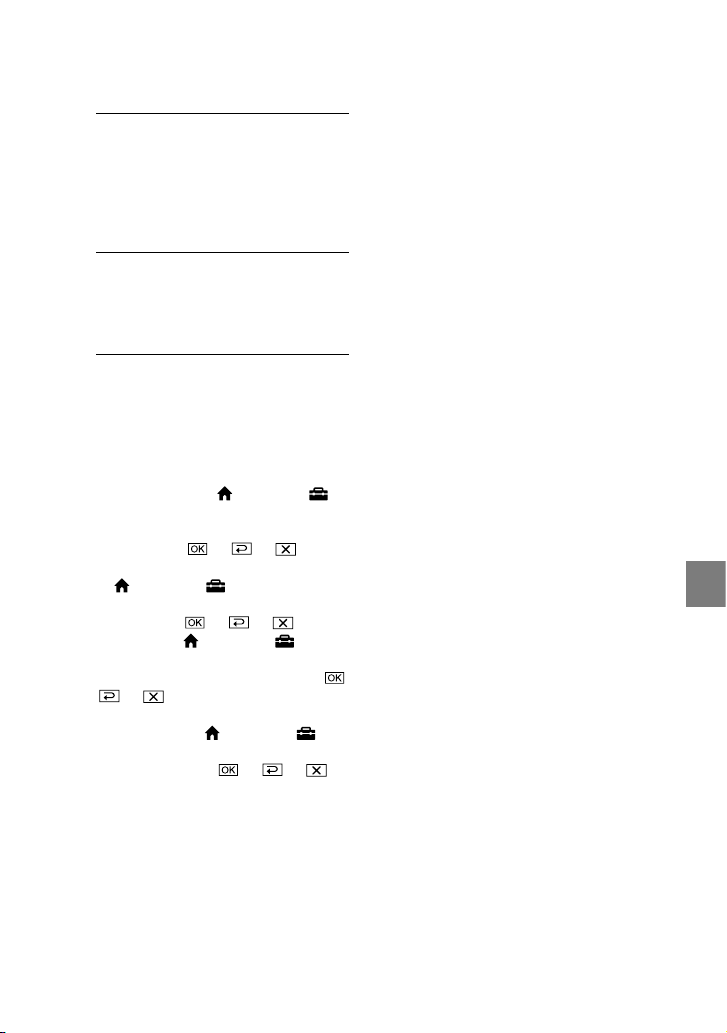
You can dub images played back on your
camcorder on a disc or video cassette,
by connecting your camcorder to a disc
recorder or a Sony DVD writer, etc. with
the A/V connecting cable. Connect the
device in either way of or . Refer
also to the instruction manuals supplied
with the devices to be connected. Select the
recording media that contains movies you
want to dub before starting the operation
(p. 43).
Connect your camcorder to the wall outlet (wall
socket) using the AC Adaptor supplied for this
operation (p. 14).
High definition image quality (HD) movies
will be dubbed with standard definition image
quality (SD).
A/V connecting cable (supplied)
Your camcorder is equipped with A/V
Remote Connector (p. 62). Connect the
A/V connecting cable to your camcorder.
A/V connecting cable with S VIDEO (sold
separately)
When connecting to another device
via the S VIDEO jack, by using an A/V
connecting cable with an S VIDEO cable
(sold separately), higher quality images can
be produced than with an A/V connecting
cable. Connect the white and red plug
(left/right audio) and the S VIDEO plug
(S VIDEO channel) of the A/V connecting
cable with an S VIDEO cable. If you
connect the S VIDEO plug only, you will
hear no sound. The yellow plug (video)
connection is not necessary.
1
Insert the recording media in the
recording device.
If your recording device has an input
selector, set it to the input mode.
2
Connect your camcorder to the
recording device (a disc recorder,
etc.) with the A/V connecting
cable (supplied) or an A/V
connecting cable with S VIDEO
(sold separately).
Connect your camcorder to the input jacks
of the recording device.
Signal flow
A/V Remote
Connector
S VIDEO
VIDEO
(Yellow)
(White)
AUDIO
(Red)
Input
(Yellow)
41
Saving images with a DVD writer, recorder
US
3
Start playback on your
camcorder, and record it on the
recording device.
Refer to the instruction manuals supplied
with your recording device for details.
4
When dubbing is finished, stop
the recording device, and then
your camcorder.
Since dubbing is performed via analog data
transfer, the image quality may deteriorate.
You cannot dub images to recorders connected
with an HDMI cable.
To hide the screen indicators (such as a
counter, etc.) on the screen of the monitor
device connected, touch (HOME)
(SETTINGS) [OUTPUT SETTINGS]
[DISP OUTPUT] [LCD PANEL] (the
default setting) .
To record the date/time or camera settings data,
touch (HOME) (SETTINGS)
[VIEW IMAGES SET] [DATA CODE] a
desired setting .
In addidion touch (HOME)
(SETTINGS) [OUTPUT SETTINGS]
[DISP OUTPUT] [V-OUT/PANEL]
.
When the screen size of display devices
(TV, etc.) is 4:3, touch (HOME)
(SETTINGS) [OUTPUT SETTINGS]
[TV TYPE] [4:3] .
When you connect a monaural device, connect
the yellow plug of the A/V connecting cable
to the video input jack, and the white (left
channel) or the red (right channel) plug to the
audio input jack on the device.
Sony DVD writer may not be available in some
countries/regions.
42
US
Making good use of your camcorder
Deleting movies and
photos
You can free media space by deleting
movies and photos from recording media.
Select the recording medium that contains
the movies and photos you want to delete
before starting the operation (p. 43).
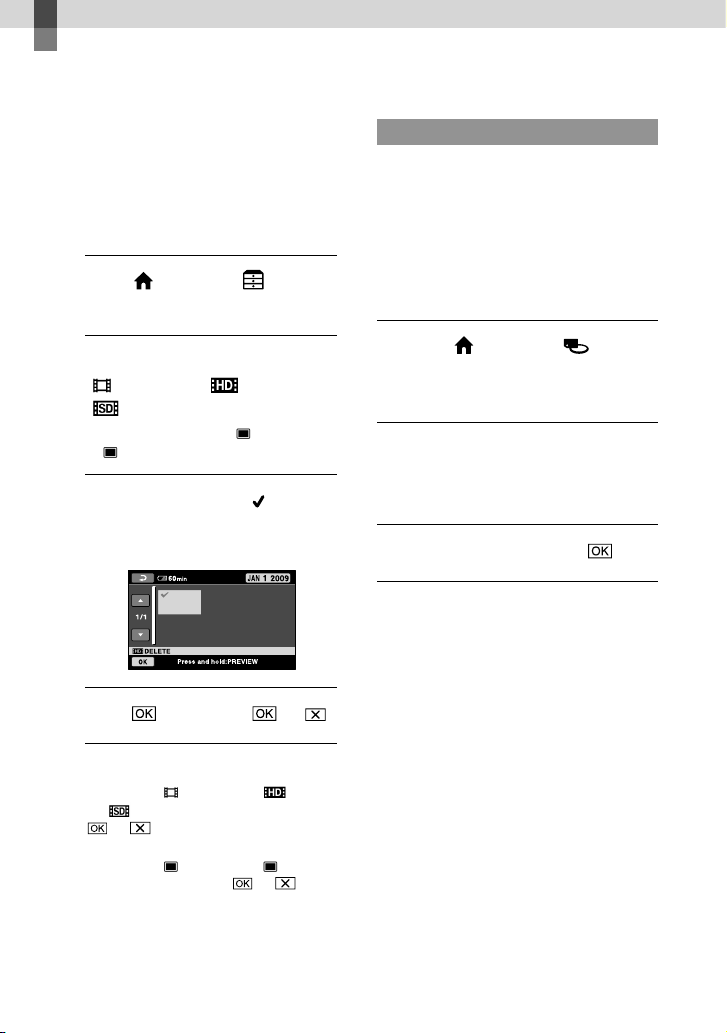
1
Touch (HOME) (OTHERS)
[DELETE].
2
To delete movies, touch
[ DELETE] [ DELETE] or
[ DELETE].
To delete photos, touch [ DELETE]
[ DELETE].
3
Touch and display the mark
on the movies or photos to be
deleted.
4
Touch
[YES] .
To delete all movies at one time
In step 2, touch [ DELETE] [ DELETE
ALL]/[ DELETE ALL] [YES] [YES]
.
To delete all photos at one time
In step 2, touch [ DELETE] [ DELETE
ALL] [YES] [YES] .
Formatting the recording media
Formatting deletes all the movies and
photos to recover recordable free space.
Connect your camcorder to the wall outlet (wall
socket) using the AC Adaptor supplied for this
operation (p. 14).
To avoid the loss of important images, you
should save them (p. 30, 38) before formatting
the recording media.
Touch (
HOME
)
(MANAGE MEDIA) [MEDIA
FORMAT].
Touch the recording media to be
formatted ([HDD] or [MEMORY
STICK]).
Touch [
YES
] [
YES
] .
While [Executing…] is displayed, do not
operate the POWER switch or other buttons,
disconnect the AC Adaptor, or eject the
“Memory Stick PRO Duo” media from your
camcorder. (The ACCESS/access lamp is lit or
flashing while formatting the medium.)
Protected movies and photos will also be
deleted.
43
Making good use of your camcorder
US
Coping with shooting
conditions
Many settings and adjustment options are
available on the menu (p. 45).
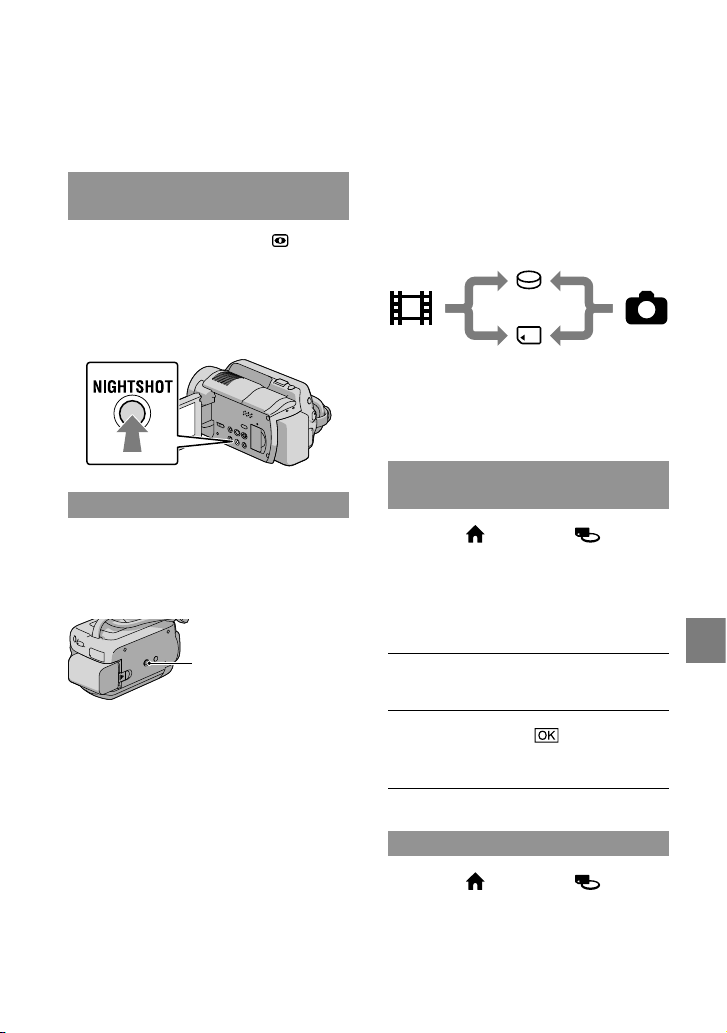
Recording in dark places
(NightShot)(HDR-XR200/XR200V)
When you press NIGHTSHOT, appears.
You can record images in dark places.
To cancel the NightShot function, press
NIGHTSHOT again.
Using NightShot in bright places will cause a
malfunction of your camcorder.
Using a tripod
Attach the tripod (sold separately) to the
tripod receptacle using a tripod screw (sold
separately, the length of the screw must be
less than 5.5 mm (7/32 in.)).
Tripod receptacle
Changing the
recording medium
You can select the internal hard disk or
“Memory Stick PRO Duo” media as the
recording, playback, or editing medium on
your camcorder. Select the medium to be
used for movies and photos separately. In
the default setting, both movies and photos
are recorded on the hard disk.
You can do recording, playback, and editing
operations on the selected medium.
See page 59 for the recordable time of movies.
Selecting the recording media for
movies
Touch (HOME)
(MANAGE MEDIA) [MOVIE
MEDIA SET].
The [MOVIE MEDIA SET] screen
appears.
Touch the desired medium.
Touch [YES] .
The recording medium is changed.
Selecting the media for photos
Touch (HOME)
(MANAGE MEDIA) [PHOTO
MEDIA SET].
The [PHOTO MEDIA SET] screen
appears.
Movies
Hard disk
“Memory Stick” media
Photos
44
US
Touch the desired recording
medium.
Touch [YES] .
The recording medium is changed.
To check the recording media
settings
Light up the (Movie) lamp to check
the recording medium used for movies,
or the (Photo) lamp for photos. The
media icon is displayed at the top right
corner of the screen.
: Internal hard disk
: “Memory Stick PRO Duo” media
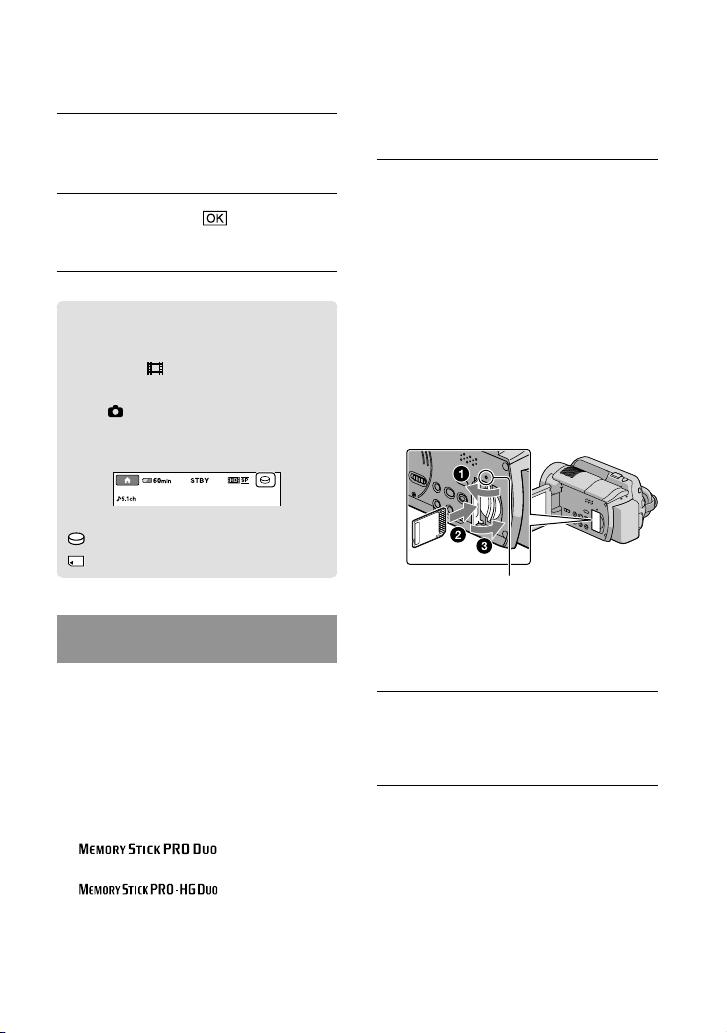
Inserting a “Memory Stick PRO
Duo” media
Set the recording medium to [MEMORY
STICK] to record movies and/or photos on a
“Memory Stick PRO Duo” media (p. 43).
Types of “Memory Stick” media you can
use with your camcorder
For recording movies, it is recommended that
you use the “Memory Stick PRO Duo” media of
1 GB or larger marked with:
(“Memory Stick
PRO Duo” media)*
(“Memory Stick
PRO-HG Duo” media)
* Marked with Mark2 or not, either can
be used.
“Memory Stick PRO Duo” media of up to 16 GB
is confirmed to work with this camcorder.
Open the “Memory Stick Duo”
media cover, and insert the
“Memory Stick PRO Duo” media
into the “Memory Stick Duo”
media slot until it clicks.
If you force the “Memory Stick PRO Duo”
media into the slot in the wrong direction,
the “Memory Stick PRO Duo” media, the
“Memory Stick Duo” media slot, or image
data may be damaged.
Close the “Memory Stick Duo” media
cover after inserting the “Memory Stick
PRO Duo” media.
Access lamp
(“Memory Stick PRO Duo” media)
The [Create a new Image Database
File.] screen appears when you insert a
new “Memory Stick PRO Duo” media.
Touch [YES].
To record only photos on a “Memory Stick
PRO Duo” media, touch [NO].
If [Failed to create a new Image Database File.
It may be possible that there is not enough
free space.] is displayed in step 2, format the
“Memory Stick PRO Duo” media (p. 42).
45
Making good use of your camcorder
US
To eject the “Memory Stick PRO Duo”
media
Open the “Memory Stick PRO Duo” media
cover and lightly push the “Memory Stick
PRO Duo” media in once.
Do not open the “Memory Stick Duo” media
cover during recording.
When inserting or ejecting the “Memory
Stick PRO Duo” media, be careful so that the
“Memory Stick PRO Duo” media does not pop
out and drop.
Dubbing or copying movies and
photos from the internal hard
disk to a “Memory Stick PRO
Duo” media
Touch (HOME) (OTHERS)
[MOVIE DUB]/[PHOTO COPY],
then follow the displays on the screen.
Customizing your
camcorder with menus
Menu items are described in more details with
color photos in the “Handycam Handbook”
(p. 51).
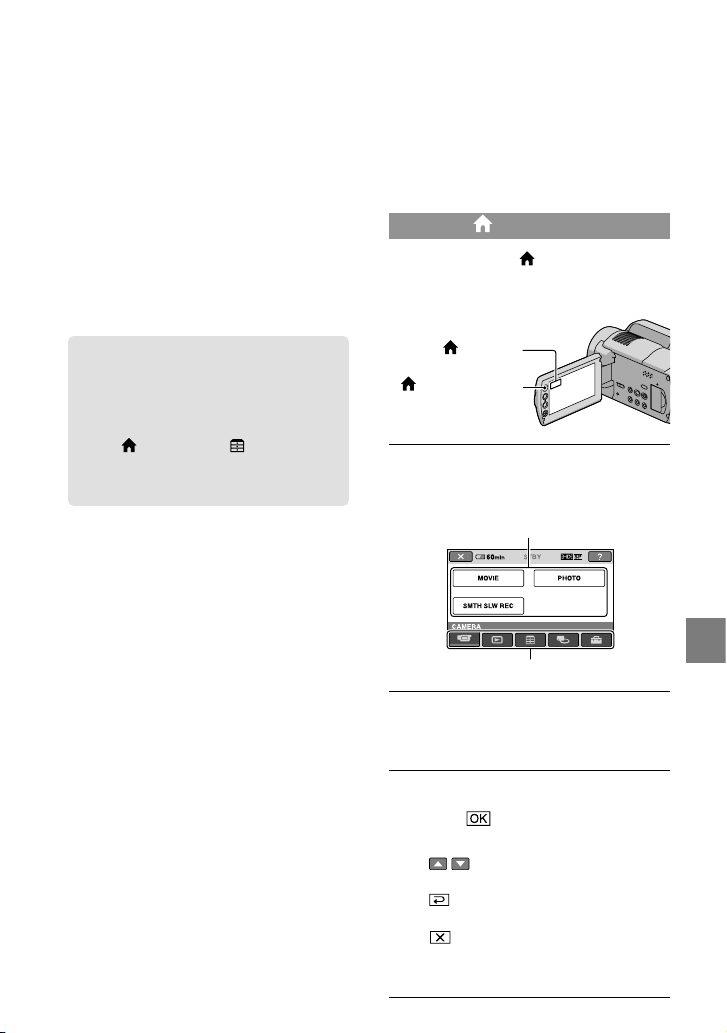
Using the HOME MENU
When you press the (HOME) button, the
HOME MENU appears. You can change the
settings of your camcorder.
Touch the desired category
the menu item to be changed.
Menu item
Category
Follow the instruction on the
screen.
After completing the setting,
touch .
When the item is not on the screen, touch
/ .
To return to the previous screen, touch
.
To hide the HOME MENU screen, touch
.
You cannot select the grayed items or
settings.
(HOME)
(HOME) button
46
US
Using the HELP function
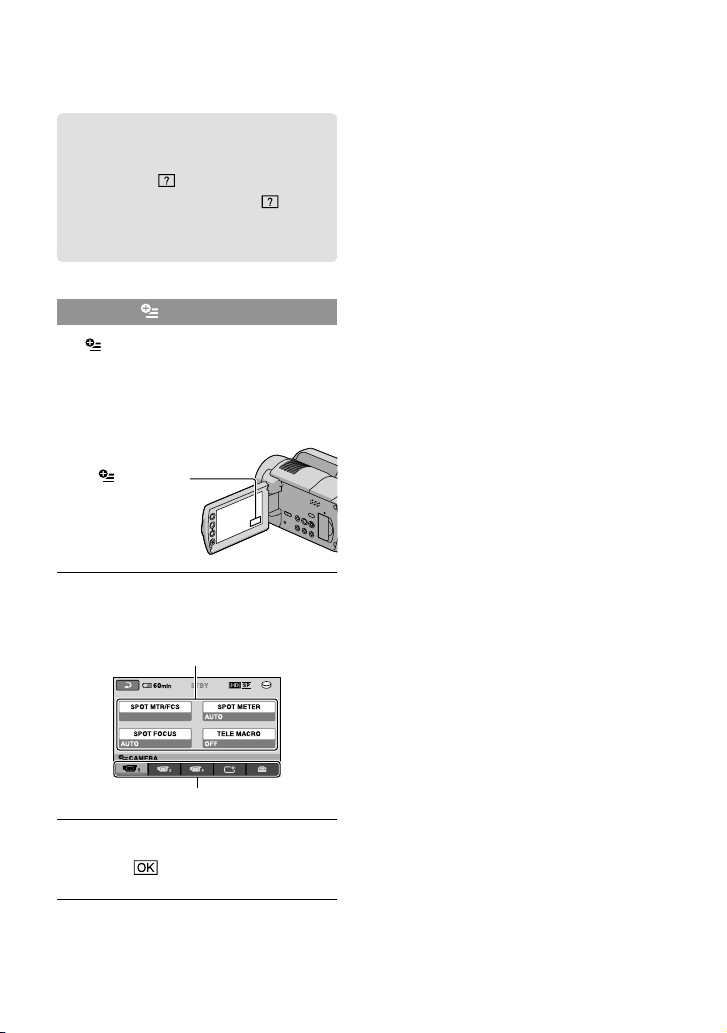
To see the descriptions on the HOME
MENU, touch (HELP) on the HOME
MENU screen. (The bottom of turns
orange.) Then, touch the menu item you
want to know about.
Using the OPTION MENU
The OPTION MENU appears just like
the pop-up window that appears when you
right-click the mouse on a computer. The
menu items you can change in the context
appears.
Touch the desired tab
the
item to change the setting.
Menu item
Tab
After completing the setting,
touch .
(OPTION)
When the item you want is not on the screen,
touch another tab. (There may be no tab.)
You cannot use the OPTION MENU during
Easy Handycam operation.
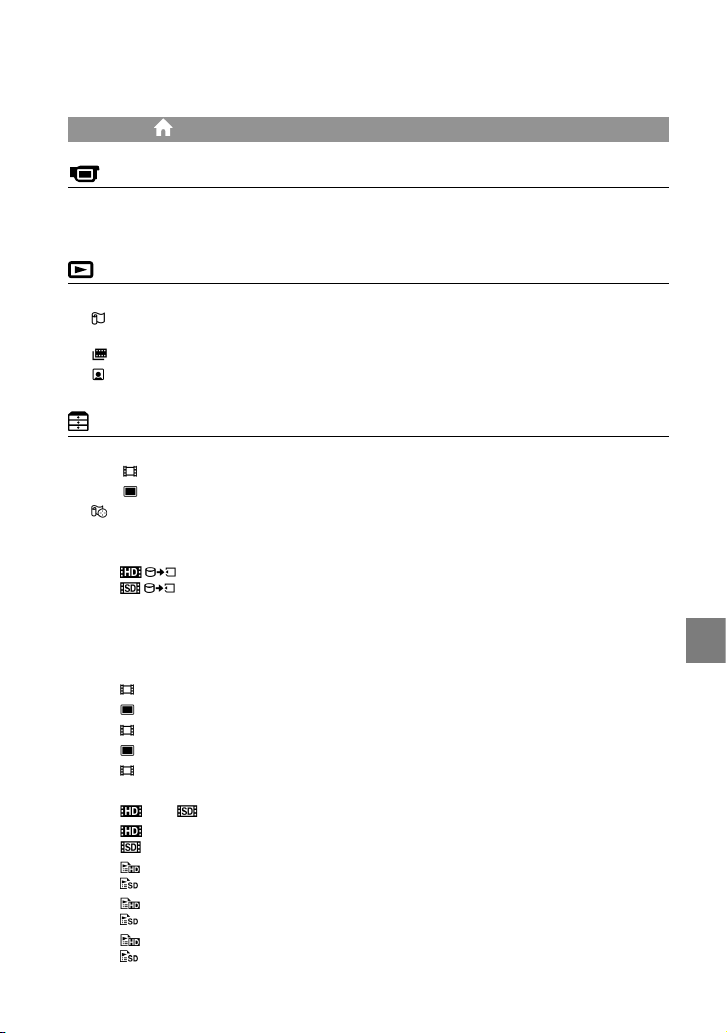
47
Making good use of your camcorder
US
List of the HOME MENU
(CAMERA) category
MOVIE .........................................p. 17
PHOTO ........................................ p. 19
SMTH SLW REC .........................Records fast moving subjects in slow-motion.
(VIEW IMAGES) category
VISUAL INDEX ...........................p. 22
MAP* ......................................Displays the Map Index for searching for movies and photos by recording
location.
FILM ROLL ........................... p. 22
FACE........................................p. 22
PLAYLIST.....................................Displays and plays the playlist of movies.
(OTHERS) category
DELETE
DELETE ....................... p. 42
DELETE .......................p. 42
YOUR LOCATION* .............. Displays the current location on a map.
PHOTO CAPTURE ....................Captures photos from desired scenes of movies.
MOVIE DUB
DUB/
DUB .................p. 45
PHOTO COPY
COPY by select ...............p. 45
COPY by date ..................p. 45
EDIT
DELETE ........................ p. 42
DELETE ........................p. 42
PROTECT ..................... Sets the protection to avoid deleting movies.
PROTECT .....................Sets the protection to avoid deleting photos.
DIVIDE .........................Divides movies.
PLAYLIST EDIT
ADD/ ADD ........Adds movies in a playlist.
ADD by date/
ADD by date............Adds movies recorded on a same day at one time in a playlist.
ERASE/
ERASE ......................... Erases movies from a playlist.
ERASE ALL/
ERASE ALL .................Erases all movies from a playlist.
MOVE/
MOVE..........................Changes the order of movies in a playlist.
48
US
USB CONNECT
USB CONNECT ..........Connects the internal hard disk via USB.
USB CONNECT ..........Connects the “Memory Stick PRO Duo” media via USB.
DISC BURN ....................... p. 32
DOWNLOAD MUSIC** ..Download music files that can be played with HIGHLIGHT PLAYBACK.
TV CONNECT Guide ...............p. 25
MUSIC TOOL
DOWNLOAD MUSIC** ..Download music files that can be played with HIGHLIGHT PLAYBACK.
EMPTY MUSIC** .............Deletes music files.
BATTERY INFO ..........................Displays the battery information.
(MANAGE MEDIA) category
MOVIE MEDIA SET ..................p. 43
PHOTO MEDIA SET .................p. 43
MEDIA INFO ..............................Displays information on the recording media, such as free space.
MEDIA FORMAT .......................p. 42
REPAIR IMG.DB F.. ....................p. 53
(SETTINGS) category
MOVIE SETTINGS
/ SET ....................Sets image quality for recording, playback, or editing movies.
REC MODE........................Sets the mode to record movies. When recording fast moving subject, a
high image quality, such as [FH], is recommended.
AUDIO MODE .................. Sets the recording sound format (5.1ch surround./2ch stereo).
NIGHTSHOT LIGHT** ....Emits infrared light when using NIGHTSHOT.
WIDE SELECT................... Sets the horizontal to vertical ratio when recording movies with standard
definition image quality (SD).
DIGITAL ZOOM ...............p. 18
STEADYSHOT ............ p. 18
AUTO SLW SHUTTR .......Adjusts the shutter speed automatically.
X.V.COLOR ........................ p. 18
GUIDEFRAME .................. Displays the frame to make sure the subject is horizontal or vertical.
REMAINING SET .......Sets how the remaining recording time of the media is to be displayed.
FLASH MODE** ..............Sets how the flash is activated.
FLASH LEVEL** ............... Sets the brightness of flash.
REDEYE REDUC** ...........Prevents redeye when shooting with flash.
CONVERSION LENS .......Optimizes the Steadyshot function and focus according to the attached
lens.
AUTO BACK LIGHT.........Adjusts the exposure for backlit subjects automatically.
PHOTO SETTINGS
IMAGE SIZE ................ Sets the photo size.
FILE NO. ............................Sets how to assign the file number.
NIGHTSHOT LIGHT** ....Emits infrared light when using NIGHTSHOT.
STEADYSHOT** ........ Sets the SteadyShot function when recording photos.

49
Making good use of your camcorder
US
AUTO SLW SHUTTR .......Adjusts the shutter speed automatically.
GUIDEFRAME .................. Displays the frame to make sure the subject is horizontal or vertical
position.
FLASH MODE** ..............Sets how the flash is activated.
FLASH LEVEL** ............... Sets the brightness of flash.
REDEYE REDUC** ...........Prevents redeye when shooting with flash.
CONVERSION LENS .......Optimizes the SteadyShot function (HDR-XR200/XR200V) and the focus
according to the attached lens.
AUTO BACK LIGHT.........Adjusts the exposure for backlit subjects automatically.
FACE FUNC. SET
FACE DET. SETTING .......Changes the [FACE DETECTION] and [FRAME SETTING] setting.
SMILE SHUTTER .............Changes the [DETECTION SET], [SMILE SENSITIVITY], [SMILE
PRIORITY] and [FRAME SETTING] setting.
VIEW IMAGES SET
/ SET ....................Sets image quality for recording, playback, or editing movies.
DATA CODE ......................Displays the detailed recording data during playback.
SOUND/DISP SET
VOLUME ............................ p. 23
BEEP ................................... p. 15
LCD BRIGHT ..................... Adjusts the brightness of the LCD screen.
LCD BL LEVEL ..................Adjusts the backlight of the LCD screen.
LCD COLOR ......................Adjusts the color intensity of the LCD screen.
OUTPUT SETTINGS
TV TYPE ............................. p. 26
DISP OUTPUT ..................Sets whether the on-screen displays appears on the TV screen or not.
COMPONENT ..................p. 26
HDMI RESOLUTION .......Sets the output image resolution when connecting your camcoder to a TV
with an HDMI cable.
CLOCK/ LANG
CLOCK SET .......................p. 15
AREA SET .......................... p. 15
AUTO CLOCK ADJ* ........ Sets whether the camcorder adjusts the clock automatically by acquiring
the time from GPS or not.
AUTO AREA ADJ* ........... Sets whether the camcorder compensates for a time differences
automatically by acquiring the current area information from GPS or not.
SUMMERTIME .................p. 15
LANGUAGE SET .........p. 16
GENERAL SET
DEMO MODE...................Sets whether the demonstration appears or not.
REC LAMP** .....................Sets the recording lamp to light up or not.
CALIBRATION ..................Calibrates the touch panel.
A.SHUT OFF ..................... Changes the [A.SHUT OFF] setting (p. 14).
POWER ON BY LCD .......Sets whether the camcoder is turned on and off when you open and close
the LCD screen.
50
US
REMOTE CTRL** .............Sets whether the Wireless Remote Commander is to be used or not.
DROP SENSOR ................ p. 8
CTRL FOR HDMI .............p. 26
[SOUND/DISP SET] is changed to [SOUND SETTINGS] during Easy Handycam operation.
* HDR-XR200V
**
HDR-XR200/XR200V
List of the OPTION MENU
Following items are available on the OPTION MENU only.
tab
SPOT MTR/FCS................Adjusts the brightness and focus for the seleted subject simultaneously.
SPOT METER ....................Adjusts the brightness of images to a subject you touch on the screen.
SPOT FOCUS .................... Focuses on a subject you touch the screen.
TELE MACRO ...................Shoots a subject in focus with the background out of focus.
EXPOSURE ........................Adjusts the brightness of movies and photos.
FOCUS ............................... Focuses manually.
SCENE SELECTION ......... Selects an appropriate recording setting according to the type of scene,
such as night view or beach.
WHITE BAL.. .....................Adjusts the white balance.
tab
FADER ................................ Fades scenes in or out.
tab
BLT-IN ZOOM MIC .......... Records movies with directional sound as you zoom in or out.
MICREF LEVEL .................Sets the microphone level.
SELF-TIMER ...................... Used during photo recording.
TIMING ..............................Sets the timing to be used to start recording for [SMTH SLW REC].
The tab depends on the situation / no tab
SLIDE SHOW ....................Plays a series of photos.
SLIDE SHOW SET............Sets the repetition option for the slide show.
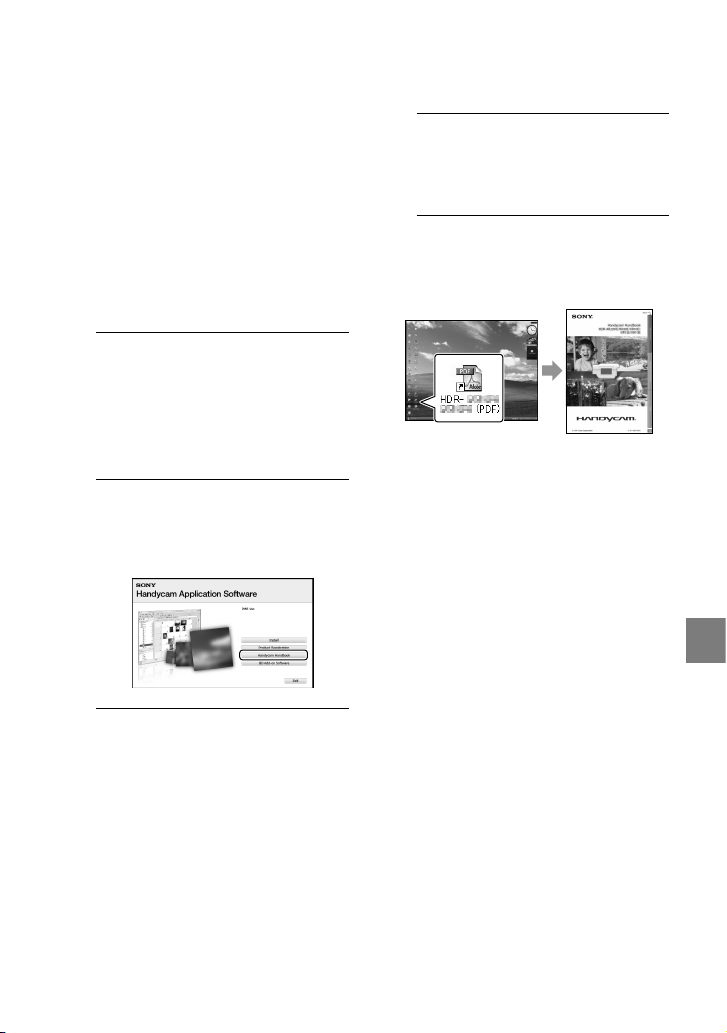
51
Making good use of your camcorder
US
Getting detailed
information from
the “Handycam
Handbook”
The “Handycam Handbook” is a users
guide designed to be read on a computer
screen. The functions of your camcorder
are described, some of them with color
photos. The “Handycam Handbook” is
intended to be read when you want to know
more about operating your camcorder.
1
To install the “Handycam
Handbook” on a Windows
computer, place the supplied
CD-ROM in the disc drive of your
computer.
2
On the installation screen
displayed, click [Handycam
Handbook].
3
Select the desired language
and the model name of your
camcorder, then click [Handycam
Handbook (PDF)].
The model name of your camcorder is
printed on its bottom surface.
4
Click [Exit] [Exit], then
remove the CD-ROM from your
computer.
To view the “Handycam Handbook,”
double-click the short-cut icon on the
computer screen.
When using a Macintosh, open the [Handbook]
– [US] folder in the CD-ROM, then copy
[Handbook.pdf].
You need Adobe Reader to read “Handycam
Handbook.”
http://www.adobe.com/
Refer to the “PMB Guide” for details on the
supplied software “PMB” (p. 34).
52
US
Additional information
Troubleshooting
If you run into any problems using your
camcorder, use the following table to
troubleshoot the problem. If the problem
persists, disconnect the power source and
contact your Sony dealer.
Notes before sending your camcorder for repair
Your camcorder may be required to initialize or
change the current hard disk of your camcorder,
depending on the problem. In the event of this,
the data stored on the hard disk will be deleted.
Be sure to save the data on the internal hard
disk on other media (backup) before sending
your camcorder for repair (p. 30, 38). We will
not compensate you for any loss of hard disk
data.
During repair, we may check a minimum
amount of data stored on the hard disk in order
to investigate the problem. However, your Sony
dealer will neither copy nor retain your data.
See the Handycam Handbook (p. 51) for details
on the symptoms of your camcorder, and “PMB
Guide” (p. 34) on connecting your camcorder
to a computer.
The power does not turn on.
Attach a charged battery pack to the
camcorder (p. 13).
Connect the plug of the AC Adaptor to the
wall outlet (wall socket) (p. 14).
The camcorder does not operate even
when the power is set to on.
It takes a few seconds for your camcorder to
be ready to shoot after the power is turned on.
This is not a malfunction.
Disconnect the AC Adaptor from the wall
outlet (wall socket) or remove the battery
pack, then reconnect it after about 1 minute. If
your camcorder still does not work, press the
RESET button (p. 63) using a pointed object:
(If you press the RESET button, all settings,
including the clock setting, are reset.)
The temperature of your camcorder is
extremely high. Turn off the camcorder and
leave it for a while in a cool place.
The temperature of your camcorder is
extremely low. Leave the camcorder with the
power turned on. If you still cannot operate
your camcorder, turn off the camcorder and
take it to a warm place. Leave the camcorder
there for a while, then turn on the camcorder.
The camcorder gets warm.
Your camcorder may become warm during
operation. This is not a malfunction.
The power abruptly turns off.
Use the AC Adaptor (p. 14).
Turn on the power again.
Charge the battery pack (p. 13).
Pressing START/STOP or PHOTO does not
record images.
Press MODE to turn on the (Movie) or
(Photo) lamp (p. 15).
Your camcorder is recording the image you
have just shot on the recording media. You
cannot make new recording during this
period.
The recording media is full. Delete
unnecessary images (p. 42).
Total number of movie scenes or photos
exceeds the recordable capacity of your
camcorder. Delete unnecessary images (p. 42).
The recording stops.
The temperature of your camcorder is
extremely high/low. Turn off your camcorder
and leave it for a while in a cool/warm place.
”PMB” cannot be installed.
Check the computer environment or
installation procedure required to install
“PMB” (p. 27).
”PMB” does not work correctly.
Quit “PMB” and restart your computer.
53
Additional information
US
The camcorder is not recognized by the
computer.
Disconnect devices from the USB jack of the
computer other than the keyboard, mouse,
and your camcorder.
Disconnect the USB cable from the computer
and your camcorder, and restart the computer,
then connect the computer and your
camcorder again in the proper order.
Self-diagnosis display/Warning
indicators
If indicators appear on the LCD screen,
check the following.
If the problem persists even after you
have tried to fix a couple of times, contact
your Sony dealer or local authorized Sony
service facility.
C:04:
The battery pack is not an “InfoLITHIUM”
battery pack (H series). Use an
“InfoLITHIUM” battery pack (H series)
(p. 13).
Connect the DC plug of the AC Adaptor to the
DC IN jack of your camcorder securely (p. 13).
C:13: / C:32:
Remove the power source. Reconnect it and
operate your camcorder again.
E:20: / E:31: / E:61: / E:62:
/ E:91: / E:94: / E:95: /
E:96:
Your camcorder need to be repaired. Contact
your Sony dealer or local authorized Sony
service facility. Inform them of the 5-digit
code, which starts from “E.”
101-0001
When the indicator flashes slowly, the file is
damaged or unreadable.
The hard disk of your camcorder is full. Delete
unnecessary images on the hard disk (p. 42).
An error may have occurred with the hard
disk drive in your camcorder.
Battery power is low.
The temperature of your camcorder is getting
high. Turn off your camcorder and leave it in
a cool place.
The temperature of your camcorder is low.
Make the camcorder warm.
No “Memory Stick PRO Duo” media is
inserted (p. 44).
When the indicator flashes, there is not
enough free space for recording images. Delete
unnecessary images (p. 42), or format the
“Memory Stick PRO Duo” media (p. 42) after
storing the images on other media.
The Image Database File is damaged. Check
the Image Database File by touching
(HOME) (MANAGE MEDIA)
[REPAIR IMG.DB F.] recording media.
The “Memory Stick PRO Duo” media is
damaged. Format the “Memory Stick PRO
Duo” media with your camcorder (p. 42).
An incompatible “Memory Stick Duo” media
is inserted (p. 44).
54
US
Access to the “Memory Stick PRO Duo” media
was restricted on another device.
(HDR-XR200/XR200V)
There is something wrong with the flash.
The amount of light is not sufficient. Use the
flash. (HDR-XR200/XR200V)
The camcorder is unsteady. Hold the camcorder
steady with both hands. However, note that
the camera-shake warning indicator does not
disappear.
The drop sensor function is activated. You
may not be able to record nor play back
images.
The recording media is full. Delete unnecessary
images (p. 42).
Photos cannot be recorded during processing.
Wait for a while, then record.
Precautions
On use and care
Do not use or store the camcorder and
accessories in the following locations:
Anywhere extremely hot, cold or humid.
Never leave them exposed to temperatures
above 60 C (140 °F), such as under direct
sunlight, near heaters or in a car parked in
the sun. They may malfunction or become
deformed.
Near strong magnetic fields or mechanical
vibration. The camcorder may malfunction.
Near strong radio waves or radiation. The
camcorder may not be able to record properly.
Near AM receivers and video equipment.
Noise may occur.
On a sandy beach or anywhere dusty. If
sand or dust gets in your camcorder, it may
malfunction. Sometimes this malfunction
cannot be repaired.
Near windows or outdoors, where the LCD
screen or the lens may be exposed to direct
sunlight. This damages the inside of the LCD
screen.
Operate your camcorder on DC 6.8 V/7.2 V
(battery pack) or DC 8.4 V (AC Adaptor).
For DC or AC operation, use the accessories
recommended in these operating instructions.
Do not let your camcorder get wet, for example,
from rain or sea water. If your camcorder
gets wet, it may malfunction. Sometimes this
malfunction cannot be repaired.
If any solid object or liquid gets inside the
casing, unplug your camcorder and have it
checked by a Sony dealer before operating it
any further.
Avoid rough handling, disassembling,
modifying, physical shock, or impact such
as hammering, dropping or stepping on the
product. Be particularly careful of the lens.
Keep the camcorder turning off when you are
not using your camcorder.
Do not wrap your camcorder with a towel, for
example, and operate it. Doing so might cause
heat to build up inside.
When disconnecting the power cord (mains
lead), pull it by the plug and not the cord (lead).

55
Additional information
US
Do not damage the power cord (mains lead)
such as by placing anything heavy on it.
Do not use a deformed or damaged battery
pack.
Keep metal contacts clean.
Keep the Wireless Remote Commander and
button-type battery out of children’s reach. If
the battery is accidentally swallowed, consult a
doctor immediately.
If the battery electrolytic liquid has leaked:
Consult your local authorized Sony service
facility.
Wash off any liquid that may have contacted
your skin.
If any liquid gets in your eyes, wash with
plenty of water and consult a doctor.
When not using your camcorder for a
long time
To keep your camcorder in optimum state for a
long time, turn it on and let it run by recording
and playing back images about once a month.
Use up the battery pack completely before
storing it.
LCD screen
Do not exert excessive pressure on the LCD
screen, as it may cause damage.
If your camcorder is used in a cold place, a
residual image may appear on the LCD screen.
This is not a malfunction.
While using your camcorder, the back of
the LCD screen may heat up. This is not a
malfunction.
To clean the LCD screen
If fingerprints or dust make the LCD screen
dirty, it is recommended that you use a soft
cloth to clean it. When you use the LCD
Cleaning Kit (sold separately), do not apply the
cleaning liquid directly to the LCD screen. Use
cleaning paper moistened with the liquid.
On handling the casing
If the casing is soiled, clean the camcorder body
with a soft cloth lightly moistened with water,
and then wipe the casing with a dry soft cloth.
Avoid the following to avoid damage to the
finish:
Using chemicals such as thinner, benzine,
alcohol, chemical cloths, repellent, insecticide
and sunscreen
Handling the camcorder with above
substances on your hands
Leaving the casing in contact with rubber or
vinyl objects for a long period of time
About care and storage of the lens
Wipe the surface of the lens clean with a soft
cloth in the following instances:
When there are fingerprints on the lens
surface
In hot or humid locations
When the lens is exposed to salty air such as
at the seaside
Store in a well-ventilated location subject to
little dirt or dust.
To prevent mold, periodically clean the lens as
described above.
On charging the pre-installed
rechargeable battery
Your camcorder has a pre-installed rechargeable
battery to retain the date, time, and other settings
even when the camcorder is turned off. The pre-
installed rechargeable battery is always charged
while your camcorder is connected to the wall
outlet (wall socket) via the AC Adaptor or while
the battery pack is attached. The rechargeable
battery will be fully discharged in about 3 months
if you do not use your camcorder at all. Use
your camcorder after charging the pre-installed
rechargeable battery. However, even if the pre-
installed rechargeable battery is not charged, the
camcorder operation will not be affected as long
as you are not recording the date.
Procedures
Connect your camcorder to a wall outlet (wall
socket) using the supplied AC Adaptor, and leave
it with the LCD screen closed for more than 24
hours.

56
US
Note on disposal/transfer of the
camcorder
Even if you perform [MEDIA FORMAT] or
formatting the hard disk of the camcorder,
you may not delete data from the hard disk
completely. When you transfer the camcorder, it
is recommended that you perform [ EMPTY]
(See “Getting detailed information from the
“Handycam Handbook”” (p. 51).) to prevent the
recovery of your data. Also, when you dispose
of the camcorder, it is recommended that you
destroy the actual body of the camcorder.
Note on disposal/transfer of the
“Memory Stick PRO Duo” media
Even if you delete data in the “Memory Stick PRO
Duo” media or format the “Memory Stick PRO
Duo” media on your camcorder or a computer,
you may not delete data from the “Memory Stick
PRO Duo” media completely. When you give the
“Memory Stick PRO Duo” media to somebody, it
is recommended that you delete date completely
using data deletion software on a computer. Also,
when you dispose of the “Memory Stick PRO
Duo” media, it is recommended that you destroy
the actual body of the “Memory Stick PRO Duo”
media.
To change the battery of the Wireless
Remote Commander (HDR-XR200/
XR200V)
While pressing on the tab, inset your fingernail
into the slit to pull out the battery case.
Place a new battery with the + side facing up.
Insert the battery case back into the Wireless
Remote Commander until it clicks.
WARNING
Battery may explode if mistreated. Do not
recharge, disassemble or dispose of in fire.
Tab
When the lithium battery becomes weak, the
operating distance of the Wireless Remote
Commander may shorten, or the Wireless
Remote Commander may not function
properly. In this case, replace the battery with
a Sony CR2025 lithium battery. Use of another
battery may present a risk of fire or explosion.

57
Additional information
US
Specifications
System
Video signal: NTSC color, EIA standards
HDTV 1080/60i specification
Recording format:
Video: HD: MPEG-4 AVC/H.264 AVCHD
format compatible
SD: MPEG2-PS
Audio: Dolby Digital 2ch/5.1ch
Dolby Digital 5.1 Creator
Photo file format: DCF Ver.2.0 compatible
Exif Ver.2.21 compatible
MPF Baseline compatible
Recording medium:
Hard disk:
HDR-XR100/XR101: 80 GB
HDR-XR200/XR200V: 120 GB
“Memory Stick PRO Duo” media
When measuring media capacity, 1 GB equals
1 billion bytes, a portion of which is used for
data management.
Image device: 3.6 mm (1/5 type) CMOS sensor
Recording pixels (photo, 4:3):
Max. 4.0 mega (2 304 1 728) pixels*
Gross: Approx. 2 360 000 pixels
Effective (movie, 16:9):
HDR-XR100/XR101: Approx. 1 430 000 pixels
HDR-XR200/XR200V: Approx. 1 490 000 pixels
Effective (photo, 16:9):
Approx. 1 490 000 pixels
Effective (photo, 4:3):
Approx. 1 990 000 pixels
Lens:
HDR-XR100/XR101:
Carl Zeiss Vario-Tessar
10 (Optical), 20 , 120 (HDR-XR100),
150 (HDR-XR101) (Digital)
Filter diameter: 30 mm (1 3/16 in.)
F1.8 ~ 2.2
Focal length:
f=3.2 ~ 32.0 mm (5/32 ~ 1 5/16 in.)
When converted to a 35 mm still camera
For movies**: 42 ~ 497 mm (1 11/16 ~
19 5/8 in.) (16:9)
For photos: 38 ~ 380 mm (1 1/2 ~ 15 in.) (4:3)
HDR-XR200/XR200V:
Carl Zeiss Vario-Sonnar T
15 (Optical), 30 , 180 (Digital)
Filter diameter: 30 mm (1 3/16 in.)
F1.8 ~ 2.6
Focal length:
f=3.1 ~ 46.5 mm (1/8 ~ 1 7/8 in.)
When converted to a 35 mm still camera
For movies: 40 ~ 600 mm (1 5/8 ~ 23 5/8 in.)
(16:9)
For photos: 37 ~ 555 mm (1 1/2 ~ 21 7/8 in.)
(4:3)
Color temperature: [AUTO], [ONE PUSH],
[INDOOR] (3 200 K), [OUTDOOR] (5 800
K)
Minimum illumination: 5 lx (lux) ([AUTO SLW
SHUTTR] [ON], Shutter speed 1/30 sec) 0 lx
(lux) (during NightShot function (HDR-
XR200/XR200V))
* The unique pixel array of Sony’s ClearVid
and the image processing system
(BIONZ) allow still image resolution
equivalent to the sizes described.
** The focal length figures are actual figures
resulting from wide angle pixel readout.
Input/Output connectors
A/V Remote Connector: Component/video and
audio output jack
HDMI OUT jack: HDMI mini connector
USB jack: mini-B
LCD screen
Image: 6.7 cm (2.7 type, aspect ratio 16:9)
Total dot number: 211 200 (960 220)
General
Power requirements: DC 6.8 V/7.2 V (battery
pack) DC 8.4 V (AC Adaptor)
Average power consumption:
HDR-XR100/XR101: During camera
recording with normal brightness:
Hard disk: HD: 3.9 W SD: 3.2 W
“Memory Stick PRO Duo” media: HD: 3.6 W
SD: 3.1 W
HDR-XR200/XR200V: During camera
recording with normal brightness:
Hard disk: HD: 4.1 W SD: 3.4 W
“Memory Stick PRO Duo” media: HD: 3.8 W
SD: 3.1 W
Operating temperature: 0 C to 40 C (32 °F to
104 °F)
Storage temperature: –20 C to + 60 C (-4 °F to
+ 140 °F)
Dimensions (approx.):
HDR-XR100/XR101: 69 68 118 mm
(2 3/4 2 3/4 4 3/4 in.) (w/h/d) including
the projecting parts
69 68 129 mm (2 3/4 2 3/4 5 1/8 in.)
(w/h/d) including the projecting parts,
and the supplied rechargeable battery pack
attached
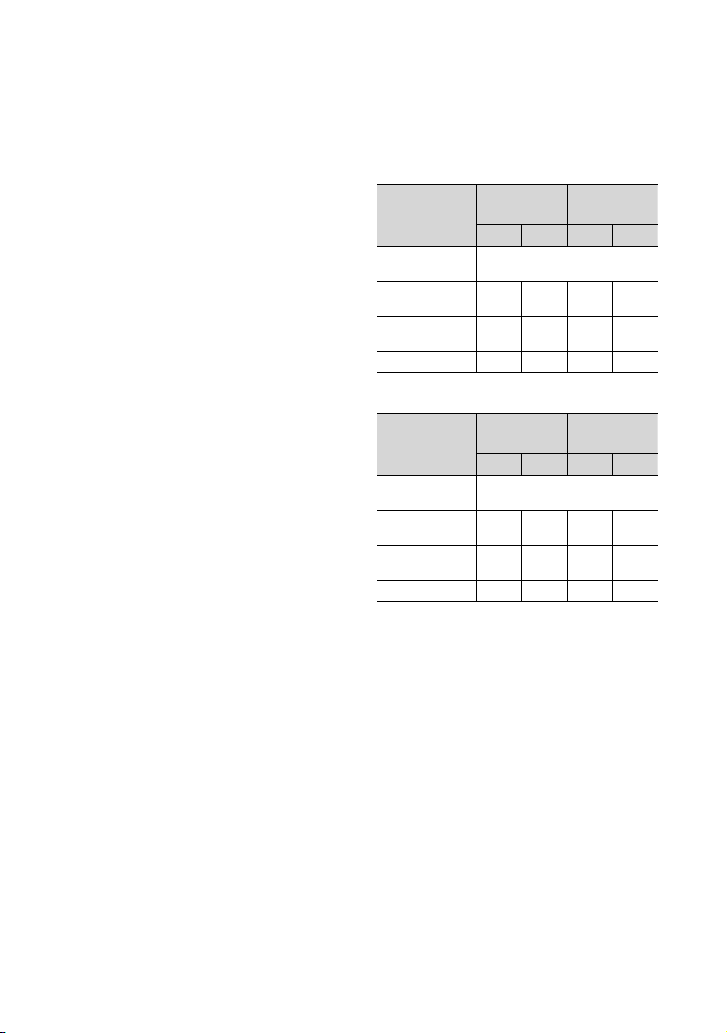
58
US
HDR-XR200/XR200V: 70 68 122 mm
(2 7/8 2 3/4 4 7/8 in.) (w/h/d) including
the projecting parts
70 68 133 mm (2 7/8 2 3/4 5 1/4 in.)
(w/h/d) including the projecting parts,
and the supplied rechargeable battery pack
attached
Mass (approx.):
HDR-XR100/XR101: 330 g (11 oz) main
unit only
410 g (14 oz) including the supplied
rechargeable battery pack
HDR-XR200/XR200V: 390 g (13 oz) main
unit only
470 g (1 lb) including the supplied
rechargeable battery pack
AC Adaptor AC-L200C/AC-L200D
Power requirements: AC 100 V - 240 V,
50 Hz/60 Hz
Current consumption: 0.35 A - 0.18 A
Power consumption: 18 W
Output voltage: DC 8.4 V*
Operating temperature: 0 C to 40 C (32 °F to
104 °F)
Storage temperature: –20 C to + 60 C (-4 °F to
+ 140 °F)
Dimensions (approx.): 48 29 81 mm (1 15/16
1 3/16 3 1/4 in.) (w/h/d) excluding the
projecting parts
Mass (approx.): 170 g (6.0 oz) excluding the
power cord (mains lead)
* See the label on the AC Adaptor for other
specifications.
Rechargeable battery pack NP-FH60
Maximum output voltage: DC 8.4 V
Output voltage: DC 7.2 V
Maximum charge voltage: DC 8.4 V
Maximum charge current: 2.12 A
Capacity: 7.2 Wh (1 000 mAh)
Type: Li-ion
Design and specifications of your camcorder and
accessories are subject to change without notice.
Manufactured under license from Dolby
Laboratories.
Expected charging and running time
for the supplied battery pack (minute)
HDR-XR100/XR101
Recording media
Hard disk
“Memory Stick PRO
Duo” media
HD SD HD SD
Charging time
(full charge)
135
Continuous
recording time
105 130 115 135
Typical recording
time
50 65 55 65
Playback time 150 170 170 195
HDR-XR200/XR200V
Recording media
Hard disk
“Memory Stick PRO
Duo” media
HD SD HD SD
Charging time
(full charge)
135
Continuous
recording time
100 125 110 135
Typical recording
time
50 60 55 65
Playback time 140 150 165 195
Recording and playback time is approximate
time available using a fully charged battery
pack.
High definition image quality (HD)/Standard
definition image quality (SD)
Recording condition: Recording mode [SP],
LCD backlight [ON]
Typical recording time shows the time when
you repeat recording start/stop, turning the
power on/off and zooming.
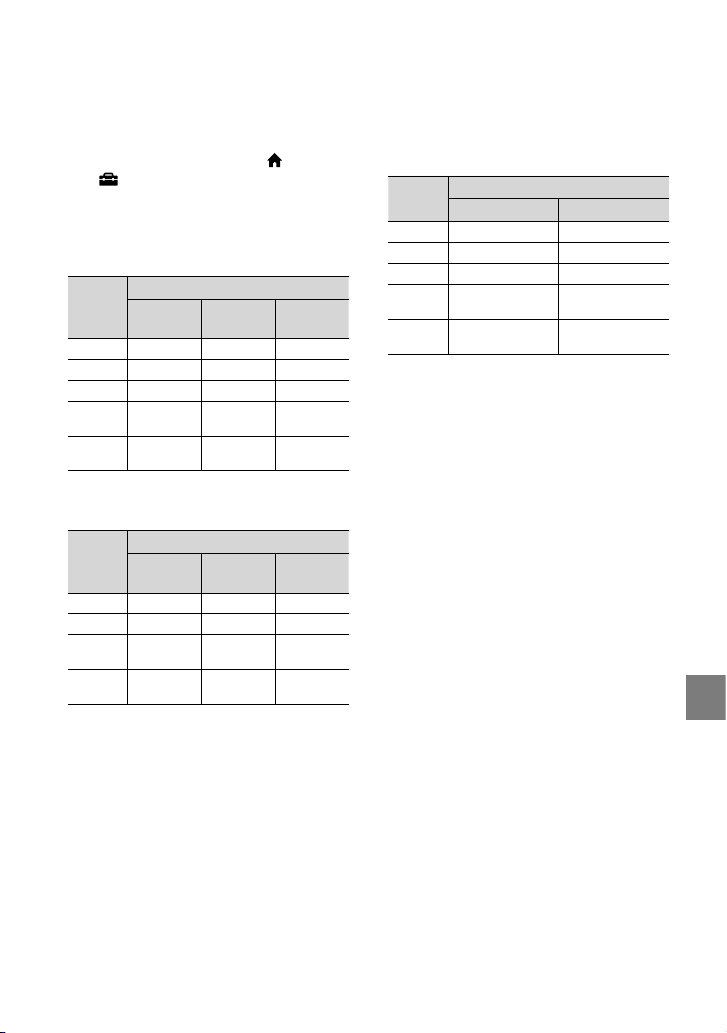
59
Additional information
US
Expected recording time of movies in
the internal hard disk
To set the recording mode, touch (HOME)
(SETTINGS) [MOVIE SETTINGS]
[REC MODE]. In the default setting, the
recording mode is [HD SP] (p. 48).
High definition image quality (HD) in h (hour) m
(minute)
Recording
mode
Recording time
HDR-XR100/
XR101
HDR-XR200 HDR-XR200V
[HD FH] 9 h 40 m 14 h 30 m 14 h 30 m
[HD HQ] 19 h 40 m 29 h 40 m 29 h 30 m
[HD SP] 24 h 0 m 36 h 0 m 35 h 50 m
[HD LP]
(5.1 ch)*
32 h 0 m 48 h 10 m 47 h 50 m
[HD LP]
(2 ch)*
33 h 30 m 50 h 30 m 50 h 10 m
Standard definition image quality (SD) in h (hour) m
(minute)
Recording
mode
Recording time
HDR-XR100/
XR101
HDR-XR200 HDR-XR200V
[SD HQ] 19 h 40 m 29 h 40 m 29 h 30 m
[SD SP] 29 h 10 m 43 h 50 m 43 h 40 m
[SD LP]
(5.1 ch)*
56 h 0 m 84 h 10 m 83 h 40 m
[HD LP]
(2 ch)*
61 h 0 m 91 h 50 m 91 h 20 m
Example of expected recording time
of movies in a “Memory Stick PRO Duo”
media
Recording
mode
For 4 GB capacity in minute
High definition (HD) Standard definition (SD)
[FH] 25 (25) --
[HQ] 55 (35) 55 (50)
[SP] 65 (45) 80 (50)
[LP]
(5.1 ch)*
90 (70) 160 (105)
[LP]
(2 ch)*
95 (70) 170 (110)
* You can change the recording sound format
with [AUDIO MODE] (p. 48).
The number in ( ) is the minimum recordable
time.
A Sony “Memory Stick PRO Duo” media is
used.
The recording time will vary depending on the
recording conditions and the type of “Memory
Stick” media used.
On charging/recording/playback time
Measured when using the camcorder at 25 C
(77 ˚F) (10 C to 30 C (50 ˚F to 86 ˚F) is
recommended)
The recording and playback time will be
shorter in low temperatures, or depending
on the conditions under which you use your
camcorder.

60
US
On trademarks
“Handycam” and are
registered trademarks of Sony Corporation.
“AVCHD” and “AVCHD” logotype are
trademarks of Panasonic Corporation and Sony
Corporation.
“Memory Stick,” “ ,” “Memory Stick Duo,” “
,” “Memory Stick PRO Duo,”
“ ,” “Memory Stick
PRO-HG Duo,” “ ,”
“MagicGate,” “ ,” “MagicGate
Memory Stick” and “MagicGate Memory Stick
Duo” are trademarks or registered trademarks
of Sony Corporation.
“InfoLITHIUM” is a trademark of Sony
Corporation.
“x.v.Color” is a trademark of Sony Corporation.
“BIONZ” is a trademark of Sony Corporation.
“BRAVIA” is a trademark of Sony Corporation.
“Blu-ray Disc” and the logo are trademarks.
Dolby and the double-D symbol are trademarks
of Dolby Laboratories.
HDMI, the HDMI logo and High-Definition
Multimedia Interface are trademarks or
registered trademarks of HDMI Licencing LLC.
Microsoft, Windows, Windows Media,
Windows Vista, and DirectX are either
registered trademarks or trademarks of
Microsoft Corporation in the United States and/
or other countries.
Macintosh and Mac OS are registered
trademarks of Apple Inc. in the U.S. and other
countries.
Intel, Intel Core, and Pentium are trademarks
or registered trademarks of Intel Corporation
or its subsidiaries in the United States and other
countries.
“PLAYSTATION” is a registered trademark of
Sony Computer Entertainment Inc.
Adobe, the Adobe logo, and Adobe Acrobat
are either registered trademarks or trademarks
of Adobe Systems Incorporated in the United
States and/or other countries.
“NAVTEQ” and “NAVTEQ MAPS” logo are
trademarks of NAVTEQ in the U.S. and other
countries.
All other product names mentioned herein may
be the trademarks or registered trademarks of
their respective companies. Furthermore, and
are not mentioned in each case in this manual.
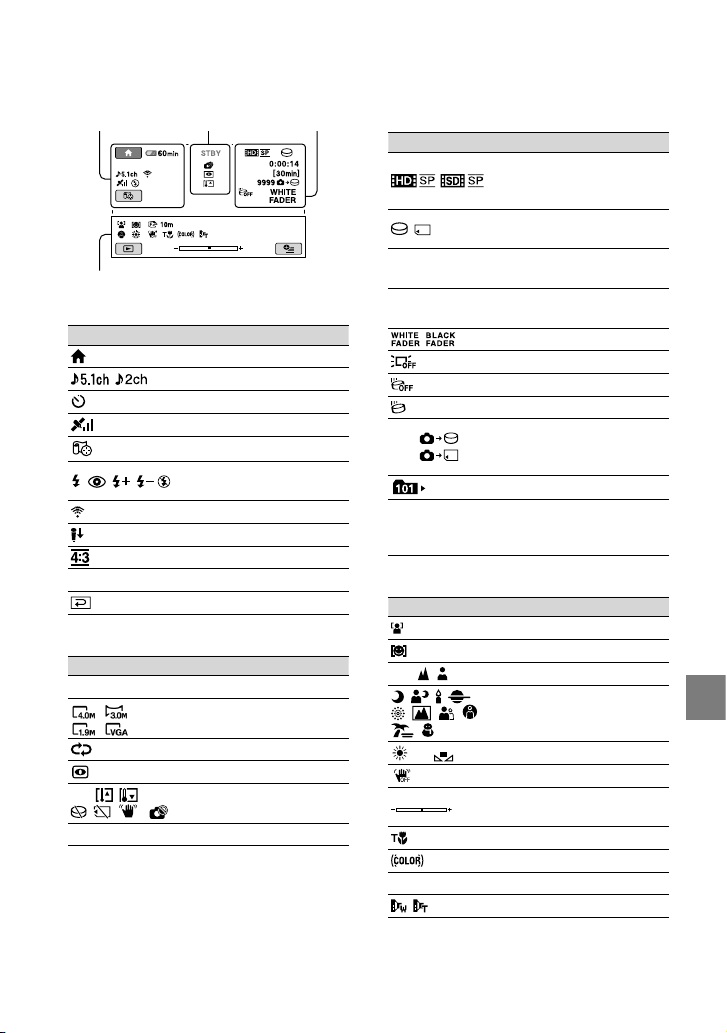
61
Additional information
US
Screen indicators
Upper left Center Upper right
Bottom
Upper left
Indicator Meaning
HOME button
AUDIO MODE
Self-timer recording
GPS tracking status
Current location
Flash, REDEYE REDUC
BLT-IN ZOOM MIC
MICREF LEVEL low
WIDE SELECT
60 min
Remaining battery
Return button
Center
Indicator Meaning
[STBY]/[REC]
Recording status
Photo size
Slide show set
NightShot
Warning
Playback mode
Upper right
Indicator Meaning
/
Recording quality (HD/
SD) and recording mode
(FH/HQ/SP/LP)
Recording/playback media
0:00:00
Counter (hour:minute:
seond)
[00min]
Expected recording
remaining time
FADER
LCD backlight off
Drop sensor off
Drop sensor activated
9999
9999
Approximate number of
recordable photos and
recording media
Playback folder
100/112
Current playing movie or
photo/Number of total
recorded movies or photos
Bottom
Indicator Meaning
FACE DETECTION
Smile detection set
Manual focus
SCENE SELECTION
White balance
SteadyShot off
EXPOSURE/SPOT
METER
TELE MACRO
X.V.COLOR
Protected image
CONVERSION LENS
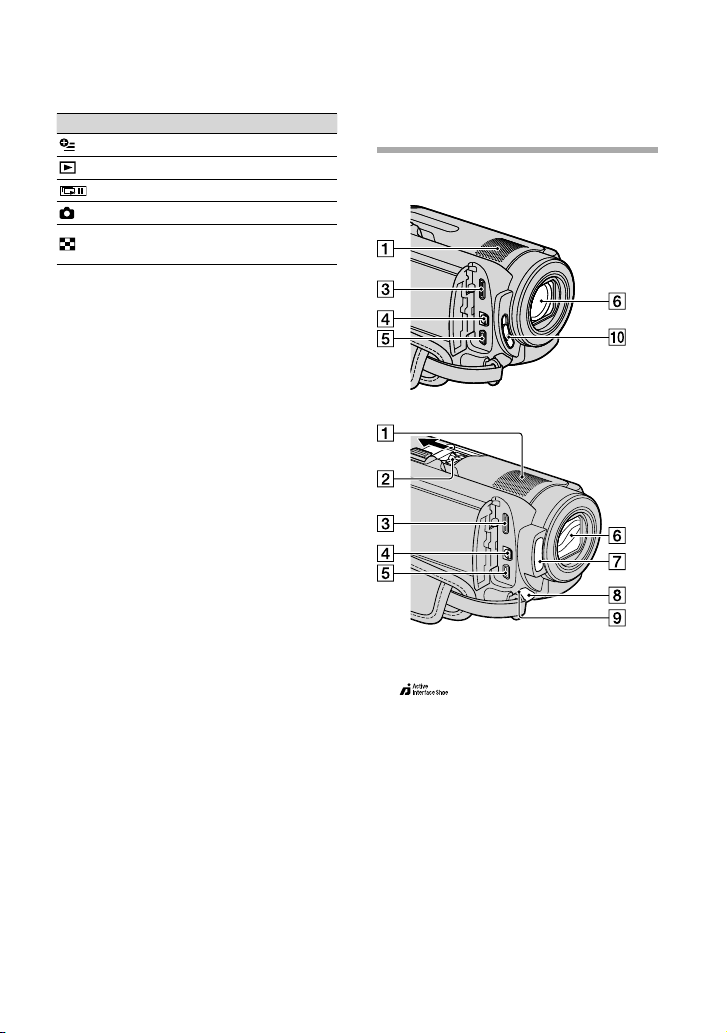
62
US
Parts and controls
Figures in ( ) are reference pages.
HDR-XR100/XR101
HDR-XR200/XR200V
Built-in microphone
Active Interface Shoe
The Active Interface Shoe supplies power to
optional accessories such as a video light, a
flash, or a microphone. The accessory can be
turned on or off as you operate the POWER
switch on your camcorder.
HDMI OUT (mini) jack (25)
A/V Remote Connector (25, 40)
(USB) jack (28, 32, 33, 39)
Lens (Carl Zeiss lens)
Flash (20)
Indicator Meaning
OPTION button
VIEW IMAGES button
Slide show button
101-0005
Data file name
VISUAL INDEX button
Indicators and their positions are approximate
and may differ from what you actually see.
Depending on the models of camcorder, some
indicator may not be displayed.
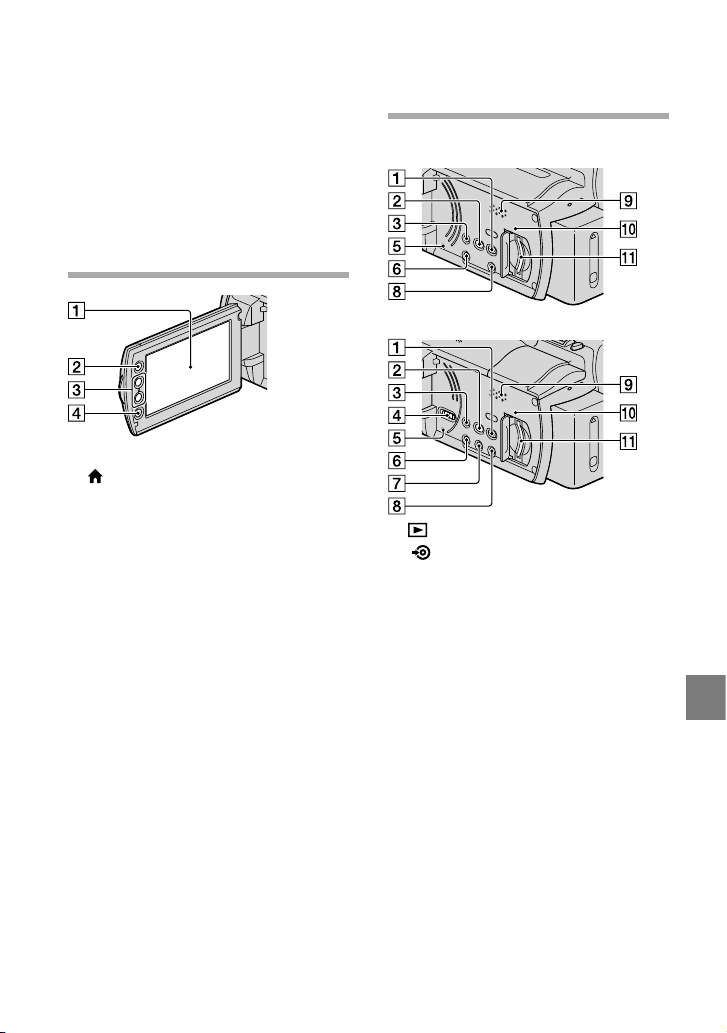
63
Additional information
US
Camera recording lamp (49)
The camera recording lamp lights up in red
during recording. The lamp flashes when the
remaining recording media capacity or battery
power is low.
Remote sensor/Infrared port
LENS COVER switch
LCD screen/Touch panel (15)
(HOME) button (45)
Zoom buttons (18, 20, 24)
START/STOP button (18)
HDR-XR100/XR101
HDR-XR200/XR200V
(VIEW IMAGES) button (22)
(DISC BURN) button (32)
EASY button (21)
GPS switch (HDR-XR200V) (21)
RESET button
Press RESET to initialize all the settings
including the clock setting.
POWER button (16)
NIGHTSHOT button (43)
DISP (display) button (23)
To turn off the backlight of the LCD screen,
press and hold DISP down. To turn it on, press
and hold DISP down again.
Speaker
Access lamp (“Memory Stick PRO Duo”
media) (44)
While the lamp is lit or flashing, the
camcorder is reading or writing data.
“Memory Stick PRO Duo” media slot (44)
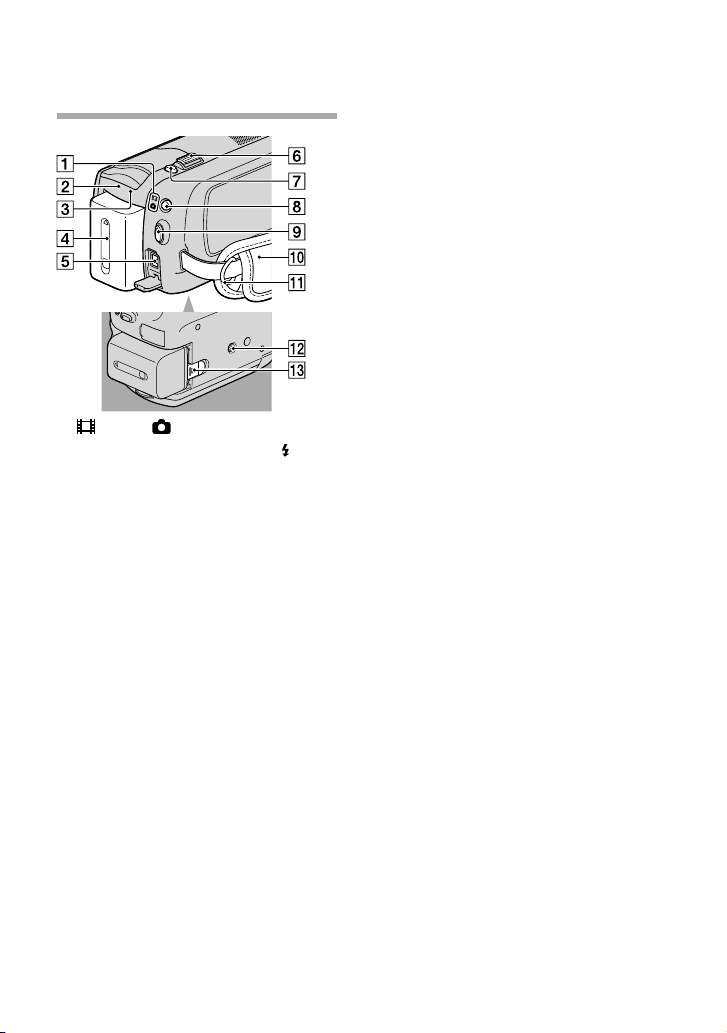
64
US
(Movie)/ (Photo) lamps (15)
CHG lamp (HDR-XR100/XR101)/ /CHG
lamp (HDR-XR200/XR200V) (13)
ACCESS lamp (Hard disk) (13)
While the lamp is lit or flashing, the
camcorder is reading or writing data.
Battery pack (13)
DC IN jack (13)
Power zoom lever (18, 20, 24)
PHOTO button (20)
MODE button (19)
START/STOP button (18)
Grip belt (17)
Hook for a shoulder belt
Tripod receptacle (43)
BATT (battery) release lever (14)

65
Additional information
US
You will find the menu lists
on pages 47 to 50.
Index
A
Active Interface Shoe .................62
AVCHD..................................30, 38
A/V connecting cable.................40
B
Battery ..........................................13
Blu-ray disc ..................................35
C
Capturing photos from
a movie .........................................37
Care ..............................................54
Charging the battery abroad .....14
Charging the battery pack .........13
Computer.....................................27
Computer system ........................27
Copy .............................................45
Copying a disc .............................36
Creating a disc ......................30, 38
Creating a high definition image
quality (HD) disc ........................34
Creating a standard definition
image quality (SD) disc ..............36
D
Delete ...........................................42
Destination drive or folder ........33
Disc recorder ...............................40
Dubbing .......................................45
DVD writer..................................39
E
Easy Handycam operation ........21
Easy PC Back-up ........................33
Editing movies ............................37
F
Format ..........................................42
H
Handycam Handbook ................51
HELP function ............................46
High definition image quality
(HD) .............................................43
HOME MENU ......................45, 47
I
Image quality ...............................43
Install ............................................28
L
Language ......................................16
M
Macintosh ....................................27
“Memory Stick” ...........................44
“Memory Stick PRO Duo”.........44
Menu ............................................45
Movies ....................................17, 22
N
NightShot .....................................43
O
One Touch Disc Burn ................32
Operation beeps..........................15
Operation flow ............................10
OPTION MENU ..................46, 50
P
Parts and controls .......................62
Photos ....................................19, 24
Playback .......................................22
Playing a high definition image
quality (HD) disc ........................35
PMB (Picture Motion
Browser) .................................27, 28
PMB Guide ..................................34
Precautions ..................................54
R
Recording ....................................17
Recording and playback time ...58
Recording media.........................43
Repair ...........................................52
RESET ..........................................63
S
Screen indicators ........................61
Self-diagnosis display .................53
Setting the date and time ...........15
Software .......................................28
Specifications ..............................57
Standard definition image quality
(SD) ..............................................43
Supplied items ...............................8
T
Tripod...........................................43
Troubleshooting ..........................52
Turning the power on ................15
TV .................................................25
TV CONNECT Guide ...............25
U
USB .........................................27, 39
Using a wall outlet (wall socket)
as a power source ........................14
V
VISUAL INDEX .........................22
Volume .........................................23
W
Warning indicators .....................53
Windows ......................................27
Wireless Remote Commander
battery ..........................................56
Z
Zoom ............................... 18, 20, 24

2
ES
Antes de poner en funcionamiento la
unidad, lea detenidamente este manual y
consérvelo para futuras consultas.
Nombre del producto: Videocámara
Modelo: HDR-XR100/XR101/XR200/XR200V
ADVERTENCIA
Para reducir el riesgo de incendios o
electrocución, no exponga la unidad a la
lluvia ni a la humedad.
No exponga las pilas a fuentes de calor
excesivo, como la luz solar directa, el fuego
o similares.
PRECAUCIÓN
Batería
Si la batería se manipula indebidamente,
puede explotar y causar un incendio o
provocarle quemaduras químicas. Tenga en
cuenta las siguientes precauciones.
No desmonte el producto.
No aplaste ni exponga la batería a impactos tales
como golpes o caídas, ni la deje caer o la pise.
No provoque un cortocircuito en la batería
ni permita que objetos metálicos entren en
contacto con sus terminales.
No exponga la batería a temperaturas superiores
a 60 °C como a la luz solar directa, o en el
interior de un automóvil estacionado al sol.
No la incinere ni la arroje al fuego.
No manipule baterías de iones de litio dañadas
o que presenten fugas.
Asegúrese de cargar la batería con un
cargador de baterías original de Sony o con un
dispositivo que pueda cargarla.
Mantenga la batería fuera del alcance de niños
pequeños.
Mantenga la batería seca.
Sustitúyala únicamente por otra del mismo tipo
o equivalente recomendada por Sony.
Deshágase de la baterías usada lo antes posible
según el procedimiento que se describe en las
instrucciones.
Sustituya la batería únicamente por otra del
tipo especificado. De lo contrario, es posible
que se produzcan incendios o lesiones.
Adaptador de alimentación de ca
No utilice el adaptador de alimentación
de ca colocado en un espacio angosto, tal
como entre una pared y los muebles.
Si utiliza el adaptador de alimentación de
ca conéctelo a un tomacorriente de pared
cercano. Si se produce alguna falla de
funcionamiento al utilizar la videocámara,
desconecte el adaptador de alimentación de
ca del tomacorriente de inmediato.
Aunque la videocámara esté apagada,
seguirá recibiendo adaptador de
alimentación de ca (corriente doméstica)
mientras esté conectada a la toma de pared
mediante el adaptador de alimentación de
ca
Lea esto primero
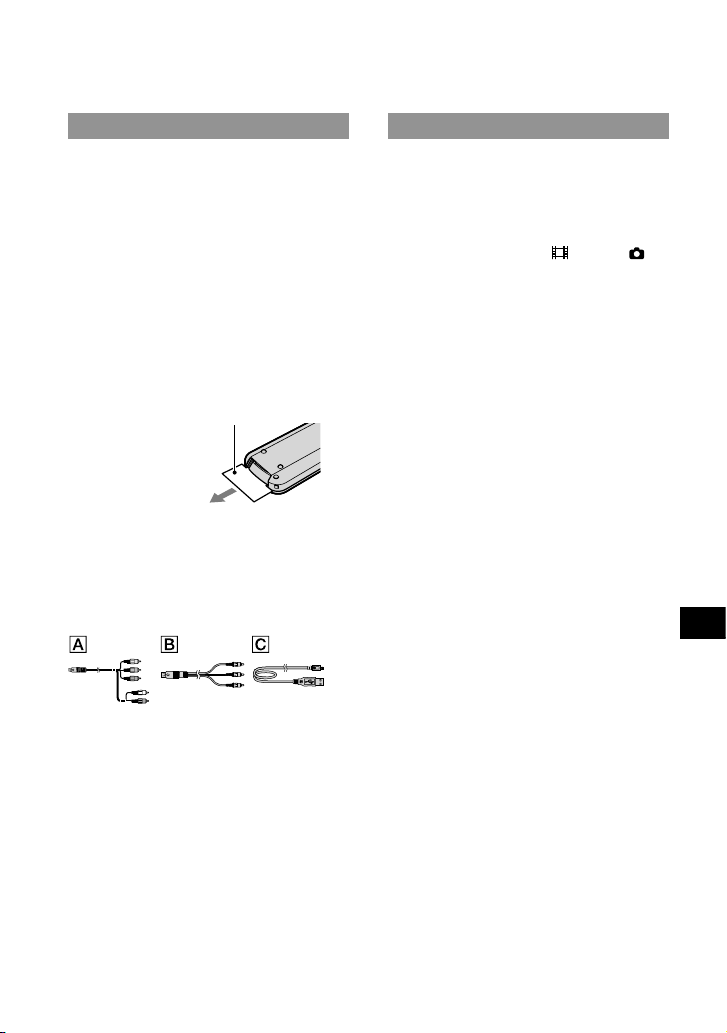
3
ES
ES
Elementos suministrados
Los números entre ( ) indican la cantidad
suministrada.
Adaptador de alimentación de ca (1)
Cable de alimentación (1)
Cable de A/V de componente (1)
A/V cable de conexión (1)
Cable USB (1)
Control remoto inalámbrico (1)
(sólo para HDR-XR200/XR200V)
La pila de litio tipo botón ya viene instalada.
Retire la lámina de aislamiento del control
remoto inalámbrico antes de utilizarlo.
Lámina de aislamiento
Batería recargable NP-FH60 (1)
CD-ROM “Handycam Application
Software” (1)
“PMB” (software, incluida la “Guía de PMB”)
“Guía práctica de Handycam” (PDF)
“Guía de operaciones” (Este manual) (1)
Consulte la página 42 para conocer los tipos
de “Memory Stick” que puede usar con esta
videocámara.
Notas sobre el uso
Uso de la videocámara
La videocámara no está protegida contra el
polvo, las salpicaduras ni el agua. Consulte el
apartado “Precauciones” (pág.
54).
No realice ninguna de las siguientes acciones
si los indicadores de modo (Película)/
(Foto) (pág.
11) o los indicadores ACCESS
(pág.
9), el indicador de acceso (pág. 43) están
encendidos o parpadeando. Si lo hace, podría
dañar el soporte de grabación, perder las
imágenes grabadas u ocasionar otras fallas de
funcionamiento.
expulsar el “Memory Stick PRO Duo”
extraer la batería o el adaptador de
alimentación de ca de la videocámara
No someta la videocámara a golpes o
vibraciones. Es posible que no pueda grabar o
reproducir películas y fotos.
No use la videocámara en áreas demasiado
ruidosas. Es posible que no pueda grabar o
reproducir películas y fotos.
Cuando conecte la videocámara a otro
dispositivo mediante cables de comunicación,
asegúrese de insertar la clavija del conector en
la dirección correcta. Si inserta la clavija a la
fuerza en el terminal, dañará el terminal, lo que
podría ocasionar una falla de funcionamiento
en la videocámara.
No cierre la pantalla de cristal líquido cuando la
videocámara esté conectada a otro dispositivo
mediante el cable USB. Puede perder las
imágenes grabadas.
Aunque la videocámara esté apagada, la función
GPS funciona mientras el interruptor GPS esté
ajustado en ON. Asegúrese de que el interruptor
GPS esté ajustado en OFF durante el despegue y
el aterrizaje de un avión (HDR-XR200V).

4
ES
Para proteger el disco duro interno de golpes
en una caída, la videocámara cuenta con una
función de sensor de caída. Cuando se produce
una caída o en condiciones donde no hay
gravedad, puede que el ruido de bloqueo que
emite la videocámara cuando esta función está
activada también sea grabado. Si el sensor de
caída detecta una caída reiteradas veces, es
posible que la grabación o reproducción se
detenga.
Cuando la temperatura de la videocámara es
extremadamente alta o baja, es posible que no
pueda grabar o reproducir en ella debido a las
características de protección que se activan en la
videocámara en tales situaciones. En este caso,
aparece un mensaje en la pantalla de cristal
líquido (pág.
52).
No encienda la videocámara en un área de baja
presión donde la altitud sea superior a los 5 000
metro. Hacerlo puede dañar la unidad de disco
duro de la videocámara.
Si graba o elimina imágenes repetidamente
durante mucho tiempo, los datos del soporte de
grabación se fragmentarán. Las imágenes no se
pueden guardar ni grabar. En tal caso, guarde
las imágenes en algún tipo de soporte externo
primero y, a continuación, ejecute [FORMAT.
SOPORTE] (pág.
40).
La pantalla de cristal líquido se ha fabricado
con tecnología de alta precisión, lo que hace que
más del 99,99% de los píxeles sean operativos
para uso efectivo. Sin embargo, es posible que
aparezcan constantemente algunos pequeños
puntos negros o brillantes (blancos, rojos,
azules o verdes) en la pantalla de cristal líquido.
Estos puntos son el resultado normal del
proceso de fabricación y no afectan en modo
alguno a la grabación.
Grabación
Antes de comenzar a grabar, pruebe las
funciones de grabación para asegurarse de que
la imagen y el sonido se graben sin problemas.
No es posible compensar el contenido de
las grabaciones, aun si la grabación o la
reproducción no son posibles a causa de una
falla de funcionamiento de la videocámara, de
los soportes de grabación, etc.
Los sistemas de televisión en color varían en
función del país o la región. Si desea ver su
grabación en un televisor, necesita un televisor
con sistema NTSC.
Los programas de televisión, películas, cintas de
video y demás materiales pueden estar sujetos a
derechos de autor. La grabación no autorizada
de tales materiales puede ir en contra de las
leyes sobre los derechos de autor.
Para evitar que se pierdan sus datos de imagen,
guarde periódicamente todas las imágenes
grabadas en soportes externos. Se recomienda
guardar los datos de imagen en un disco
como, por ejemplo, un DVD-R mediante la
computadora. También puede guardar los datos
de imagen mediante una videograbadora o una
grabadora de DVD/HDD.
Reproducción de imágenes grabadas
en otros dispositivos
La videocámara es compatible con MPEG-4
AVC/H.264 High Profile para la grabación de
imágenes con calidad de alta definición (HD).
Por lo tanto, no es posible reproducir en la
videocámara imágenes grabadas en calidad
de imagen de alta definición (HD) con los
siguientes dispositivos:
Otros dispositivos compatibles con el formato
AVCHD que no sean compatibles con High
Profile
Dispositivos que no sean compatibles con el
formato AVCHD

5
ES
Discos grabados con calidad de imagen
de alta definición (HD)
Esta videocámara captura imágenes de alta
definición en formato AVCHD. Los soportes
DVD que contengan imágenes en formato
AVCHD no deben usarse con reproductores
o grabadoras de DVD, ya que es posible que
dichos dispositivos no puedan expulsar el
soporte y borren su contenido sin previo
aviso. Los soportes DVD con imágenes en
formato AVCHD se pueden reproducir en un
reproductor o grabadora de Blu-ray Disc u
otro dispositivo compatible.
Acerca del ajuste de idioma
Para ilustrar los procedimientos operativos
se utilizan indicaciones en pantalla en cada
idioma local. Si es necesario, cambie el idioma
de la pantalla antes de utilizar la videocámara
(pág.
12).
Acerca de este manual
Las imágenes de la pantalla de cristal líquido
que se utilizan en este manual con fines
ilustrativos se tomaron con una cámara digital
de imágenes fijas, por lo que pueden parecer
diferentes a las mostradas en la pantalla de
cristal líquido.
En este Guía de operaciones, el disco duro de
la videocámara y el “Memory Stick PRO Duo”
reciben el nombre de “soportes de grabación”.
En este Guía de operaciones, tanto el “Memory
Stick PRO Duo” como el “Memory Stick PRO-
HG Duo” reciben el nombre de “Memory Stick
PRO Duo”.
Encontrará la “Guía práctica de Handycam”
(PDF) en el CD-ROM suministrado (pág.
50).
Las capturas de pantalla corresponden a
Windows Vista. Las escenas pueden variar
en función del sistema operativo de la
computadora.
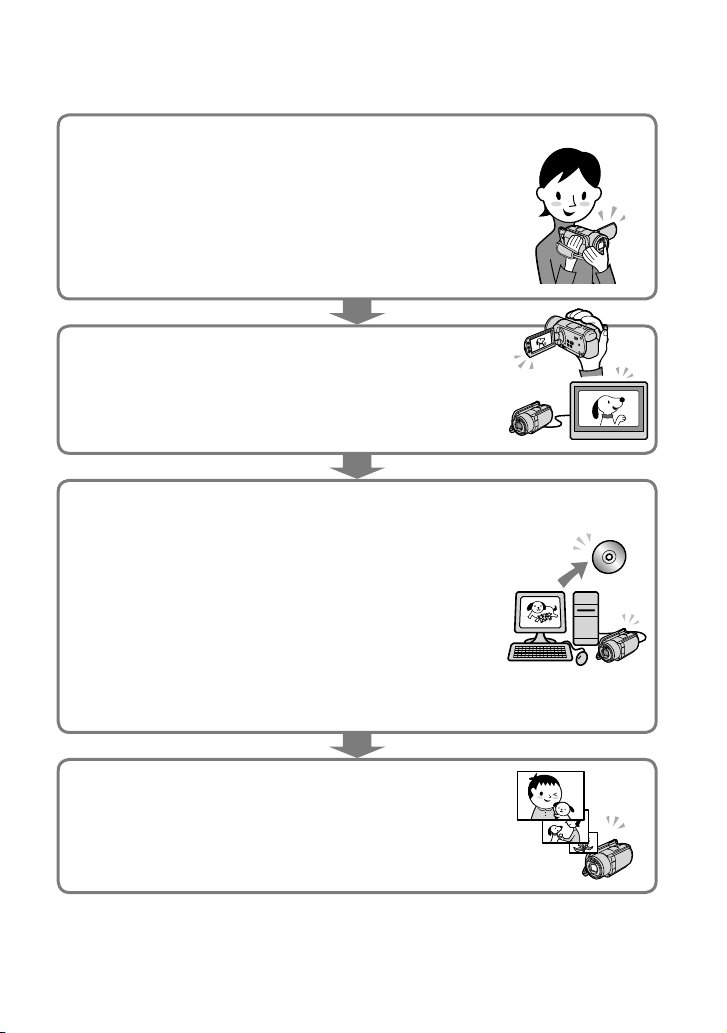
6
ES
Flujo de funcionamiento
Grabación de películas y fotos (pág. 13)
En los ajustes predeterminados, las películas se graban con calidad
de imagen de alta definición (HD) en el disco duro interno.
En los ajustes predeterminados, las fotos se graban en el disco
duro interno.
Puede cambiar el soporte de grabación seleccionado y la calidad
de la imagen de las películas (pág.
41, 46).
Reproducción de películas y fotos (pág. 18)
Reproducción de películas y fotos en la videocámara (pág. 18)
Reproducción de películas y fotos en un televisor conectado (pág. 21)
Almacenamiento de películas y fotos en
un disco
Almacenamiento de películas y fotos con una computadora (pág. 23)
Puede crear un disco con calidad de imagen de alta definición
(HD) o con calidad de imagen de definición estándar (SD) a
partir de películas con calidad de imagen de alta definición
(HD) importadas a la computadora. Consulte la página 27 para
conocer las características de cada tipo de disco.
Creación de un disco con una grabadora de DVD (pág. 36)
Eliminación de películas y fotos (pág. 40)
Puede liberar espacio de grabación al eliminar del disco duro
interno las películas y fotos que haya guardado en otro soporte.

7
Índice
ES
Índice
Lea esto primero . . . . . . . . . . . . . . . . . . . . . . . . . . . . . . . . . . . . . . . . . . . . . . . . . . . . . . . . . . . . . . . . . . . . . . . . . . . . . . . . . . . . 2
Flujo de funcionamiento . . . . . . . . . . . . . . . . . . . . . . . . . . . . . . . . . . . . . . . . . . . . . . . . . . . . . . . . . . . . . . . . . . . . . . . . . . 6
Procedimientos iniciales
Paso 1: Carga de la batería . . . . . . . . . . . . . . . . . . . . . . . . . . . . . . . . . . . . . . . . . . . . . . . . . . . . . . . . . . . . . . . . . . . . . . . . 9
Carga de la batería en el extranjero . . . . . . . . . . . . . . . . . . . . . . . . . . . . . . . . . . . . . . . . . . . . . . . . . . . 10
Paso 2: Encendido y ajuste de la fecha y la hora . . . . . . . . . . . . . . . . . . . . . . . . . . . . . . . . . . . . . . . . . . . . 11
Cambio del ajuste de idioma . . . . . . . . . . . . . . . . . . . . . . . . . . . . . . . . . . . . . . . . . . . . . . . . . . . . . . . . . . 12
Grabación
Grabación . . . . . . . . . . . . . . . . . . . . . . . . . . . . . . . . . . . . . . . . . . . . . . . . . . . . . . . . . . . . . . . . . . . . . . . . . . . . . . . . . . . . . . . . . . . 13
Grabación y reproducción sencilla de películas y fotos (Funcionamiento en
modo Easy Handycam) . . . . . . . . . . . . . . . . . . . . . . . . . . . . . . . . . . . . . . . . . . . . . . . . . . . . . . . . . . . . . . . . . . 17
Adquisición de la información de ubicación de la grabación usando el GPS
(HDR-XR200V) . . . . . . . . . . . . . . . . . . . . . . . . . . . . . . . . . . . . . . . . . . . . . . . . . . . . . . . . . . . . . . . . . . . . . . . . . . . . . 17
Reproducción
Reproducción en la videocámara . . . . . . . . . . . . . . . . . . . . . . . . . . . . . . . . . . . . . . . . . . . . . . . . . . . . . . . . . . . . . . 18
Reproducción de imágenes en un televisor . . . . . . . . . . . . . . . . . . . . . . . . . . . . . . . . . . . . . . . . . . . . . . . . . 21
Almacenamiento de películas y fotos con una computadora
Preparación de una computadora
(Windows) . . . . . . . . . . . . . . . . . . . . . . . . . . . . . . . . . . . . . . . . . . . . . . . . . 23
Si usa un equipo Macintosh . . . . . . . . . . . . . . . . . . . . . . . . . . . . . . . . . . . . . . . . . . . . . . . . . . . . . . . . . . . . 24
Selección del método para la creación de un disco (computadora) . . . . . . . . . . . . . . . . . . . . 27
Creación de un disco con un solo toque (One Touch Disc Burn) . . . . . . . . . . . . . . . . . . . . . . . . 29
Importación de películas y fotos a una computadora (Easy PC Back-up) . . . . . . . . . . . . . . 30
Cambio de la unidad o carpeta de destino de las películas y fotos . . . . . . . . . . . . . 31
Inicio de PMB (Picture Motion Browser) . . . . . . . . . . . . . . . . . . . . . . . . . . . . . . . . . . . . . . . . . . . . . . . . . . . . . . 31
Creación de un disco con calidad de imagen de alta definición (HD) . . . . . . . . . . . . . . . . . . 32
Reproducción de un disco con calidad de imagen de alta definición (HD) en
una computadora . . . . . . . . . . . . . . . . . . . . . . . . . . . . . . . . . . . . . . . . . . . . . . . . . . . . . . . . . . . . . . . . . . . . . . . . 33
Creación de un disco Blu-ray . . . . . . . . . . . . . . . . . . . . . . . . . . . . . . . . . . . . . . . . . . . . . . . . . . . . . . . . . . . 33
Creación de un disco con calidad de imagen de definición estándar (SD) compatible
con reproductores de DVD comunes . . . . . . . . . . . . . . . . . . . . . . . . . . . . . . . . . . . . . . . . . . . . . . . . . . . . . . . . . 34
Copia de un disco . . . . . . . . . . . . . . . . . . . . . . . . . . . . . . . . . . . . . . . . . . . . . . . . . . . . . . . . . . . . . . . . . . . . . . . . . 35
Edición de películas . . . . . . . . . . . . . . . . . . . . . . . . . . . . . . . . . . . . . . . . . . . . . . . . . . . . . . . . . . . . . . . . . . . . . . 35
Captura de fotos desde una película . . . . . . . . . . . . . . . . . . . . . . . . . . . . . . . . . . . . . . . . . . . . . . . . . 35

8
ES
Almacenamiento de imágenes con una grabadora de DVD
Selección del método para la creación de un disco (grabadora de DVD) . . . . . . . . . . . . . . 36
Creación de un disco con calidad de imagen de alta definición (HD) mediante una
grabadora de DVD, etc. (Conexión de cable USB) . . . . . . . . . . . . . . . . . . . . . . . . . . . . . . . . . . . . . . . . . . 37
Creación de un disco con calidad de imagen de definición estándar (SD) con una
grabadora, etc. (A/V cable de conexión) . . . . . . . . . . . . . . . . . . . . . . . . . . . . . . . . . . . . . . . . . . . . . . . . . . . . . . 38
Uso correcto de la videocámara
Eliminación de películas y fotos . . . . . . . . . . . . . . . . . . . . . . . . . . . . . . . . . . . . . . . . . . . . . . . . . . . . . . . . . . . . . . . . 40
Copia con condiciones de filmación . . . . . . . . . . . . . . . . . . . . . . . . . . . . . . . . . . . . . . . . . . . . . . . . . . . . . . . . . . 41
Cambio del soporte de grabación . . . . . . . . . . . . . . . . . . . . . . . . . . . . . . . . . . . . . . . . . . . . . . . . . . . . . . . . . . . . . 41
Para comprobar los ajustes del soporte de grabación . . . . . . . . . . . . . . . . . . . . . . . . . . . . 42
Copia de películas y fotos desde el disco duro interno a un “Memory Stick PRO
Duo” . . . . . . . . . . . . . . . . . . . . . . . . . . . . . . . . . . . . . . . . . . . . . . . . . . . . . . . . . . . . . . . . . . . . . . . . . . . . . . . . . . . . . . . . . 43
Personalización de la videocámara con menús . . . . . . . . . . . . . . . . . . . . . . . . . . . . . . . . . . . . . . . . . . . . . 43
Uso de la función HELP . . . . . . . . . . . . . . . . . . . . . . . . . . . . . . . . . . . . . . . . . . . . . . . . . . . . . . . . . . . . . . . . . . 44
Obtención de información detallada con la “Guía práctica de Handycam” . . . . . . . . . . . 50
Información complementaria
Solución de problemas . . . . . . . . . . . . . . . . . . . . . . . . . . . . . . . . . . . . . . . . . . . . . . . . . . . . . . . . . . . . . . . . . . . . . . . 51
Precauciones . . . . . . . . . . . . . . . . . . . . . . . . . . . . . . . . . . . . . . . . . . . . . . . . . . . . . . . . . . . . . . . . . . . . . . . . . . . . . . . . . . . . . . . 54
Especificaciones . . . . . . . . . . . . . . . . . . . . . . . . . . . . . . . . . . . . . . . . . . . . . . . . . . . . . . . . . . . . . . . . . . . . . . . . . . . . . . . . . . . 56
Indicadores de la pantalla . . . . . . . . . . . . . . . . . . . . . . . . . . . . . . . . . . . . . . . . . . . . . . . . . . . . . . . . . . . . . . . . . . . . . . . 60
Piezas y controles . . . . . . . . . . . . . . . . . . . . . . . . . . . . . . . . . . . . . . . . . . . . . . . . . . . . . . . . . . . . . . . . . . . . . . . . . . . . . . . . . 62
Índice . . . . . . . . . . . . . . . . . . . . . . . . . . . . . . . . . . . . . . . . . . . . . . . . . . . . . . . . . . . . . . . . . . . . . . . . . . . . . . . . . . . . . . . . . . . . . . . . 64
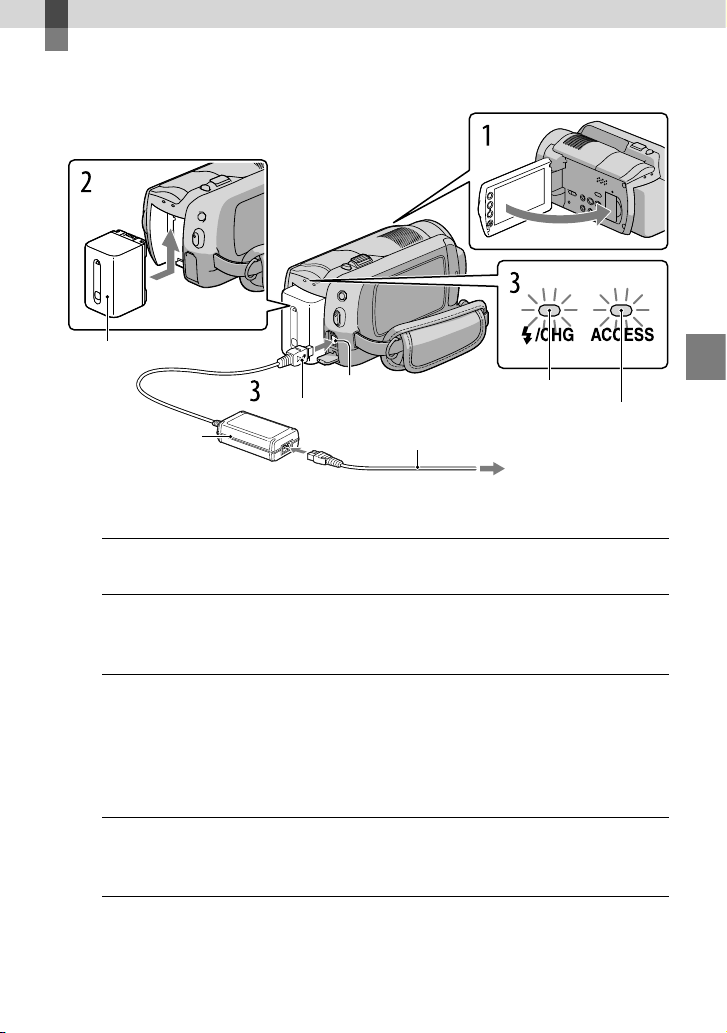
Procedimientos iniciales
9
ES
Procedimientos iniciales
Paso 1: Carga de la batería
Puede cargar la batería “InfoLITHIUM” (serie H) luego de instalarla en la videocámara.
No puede conectar ninguna batería “InfoLITHIUM” que no sea de la serie H en la videocámara.
1
Apague la videocámara cerrando la pantalla de cristal líquido.
2
Instale la batería deslizándola en el sentido de la flecha hasta que haga
clic.
3
Conecte el adaptador de alimentación de ca y el cable de alimentación a
la videocámara y al enchufe de pared.
Compruebe que la marca de la clavija de cc esté orientada hacia la derecha.
El indicador de carga se enciende y se inicia el proceso de carga. El indicador de carga se
apaga cuando la batería está totalmente cargada.
4
Una vez cargada la batería, desconecte el adaptador de alimentación de
ca de la toma DC IN de la videocámara.
Consulte la página 58 para conocer los tiempos de carga, grabación y reproducción.
Cuando la videocámara está encendida, puede comprobar la cantidad aproximada de energía restante de
la batería con el indicador de batería restante que aparece en la parte superior izquierda de la pantalla de
cristal líquido.
Batería
Toma DC IN
Enchufe de cc
Adaptador de
alimentación de ca
Cable de alimentación
Indicador ACCESS
(disco duro)
Indicador de carga
Al tomacorriente de pared
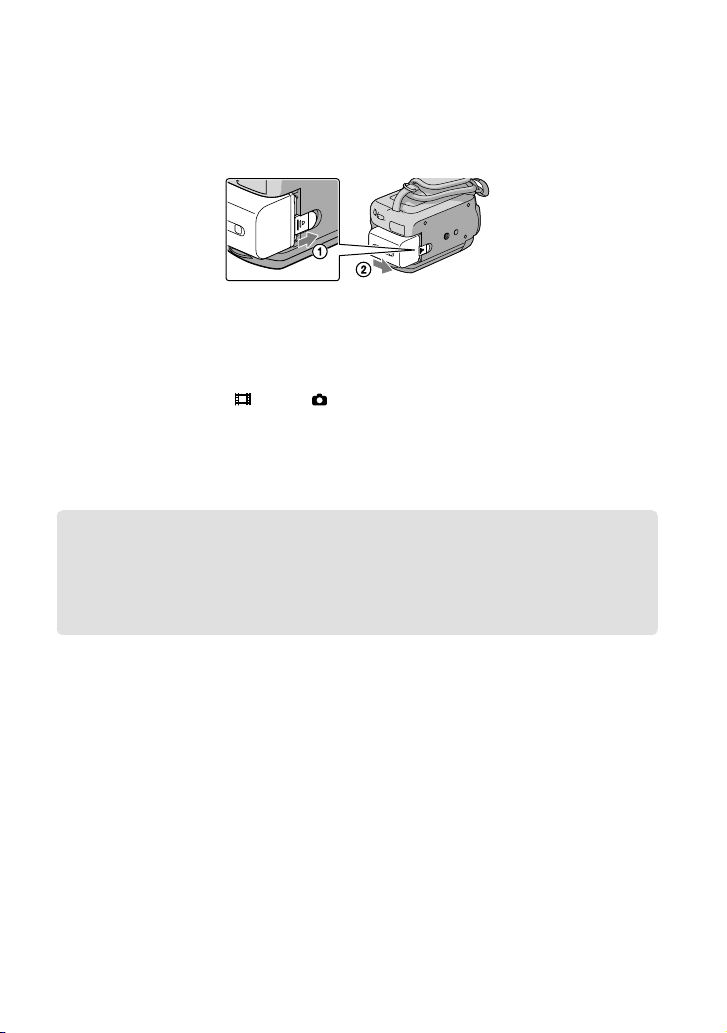
10
ES
Para extraer la batería
Cierre la pantalla de cristal líquido. Deslice la palanca de desbloqueo BATT (batería) y
extraiga la batería .
Para usar un enchufe de pared como fuente de alimentación
Realice la misma conexión que en el “Paso 1: Carga de la batería”.
Notas sobre la batería y el adaptador de alimentación de ca
Antes de extraer la batería o el adaptador de alimentación de ca, cierre la pantalla de cristal líquido y
asegúrese de que el indicador (Película)/ (Foto) (pág. 11)/indicadores ACCESS (pág. 9)/indicador
de acceso (pág.
43) estén apagados.
No provoque un cortocircuito en la clavija de cc del adaptador de alimentación de ca ni en el terminal de
la batería con ningún objeto metálico. Si lo hace, puede ocasionar una falla de funcionamiento.
En el ajuste predeterminado, la alimentación se apaga automáticamente si no utiliza la videocámara
durante unos 5 minuto aproximadamente, para ahorrar energía de la batería ([APAGADO AUTO]).
Carga de la batería en el extranjero
Puede cargar la batería en cualquier país o región con el adaptador de alimentación de
ca suministrado con la videocámara dentro de un rango de ca de entre 100 V y 240 V
50 Hz/60 Hz
No utilice un transformador de voltaje electrónico.
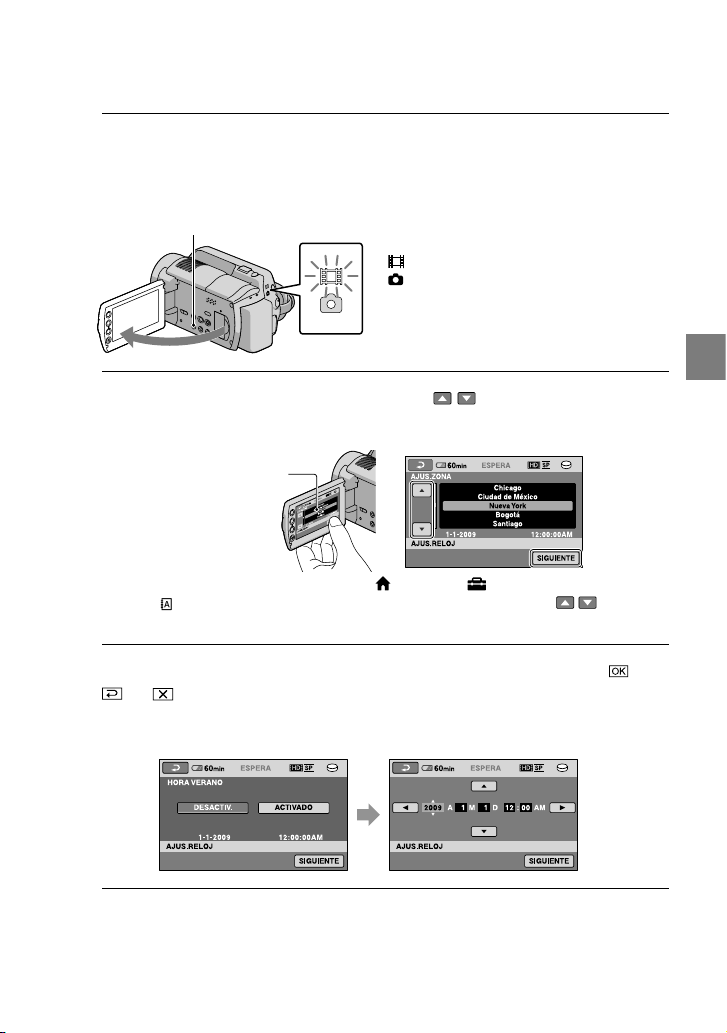
11
Procedimientos iniciales
ES
Paso 2: Encendido y ajuste de la fecha y la hora
1
Abra la pantalla de cristal líquido de la videocámara.
La videocámara se enciende.
Para encender la videocámara cuando la pantalla de cristal líquido está abierta, presione POWER.
POWER
2
Seleccione la zona geográfica deseada con / , y, a continuación, toque
[SIGUIENTE].
Para ajustar la fecha y hora nuevamente, toque (HOME) (AJUSTES) [AJ.REL./
IDIOM. ] [AJUS.RELOJ]. Si un elemento no aparece en la pantalla, toque / hasta que
aparezca.
3
Ajuste [HORA VERANO], la fecha y la hora y, a continuación, toque
.
El reloj empezará a funcionar.
Si ajusta [HORA VERANO] en [ACTIVADO], el reloj se adelanta 1 hora.
(Película): Para grabar películas
(Foto): Para grabar fotos
Toque el botón que aparece
en la pantalla de cristal
líquido.
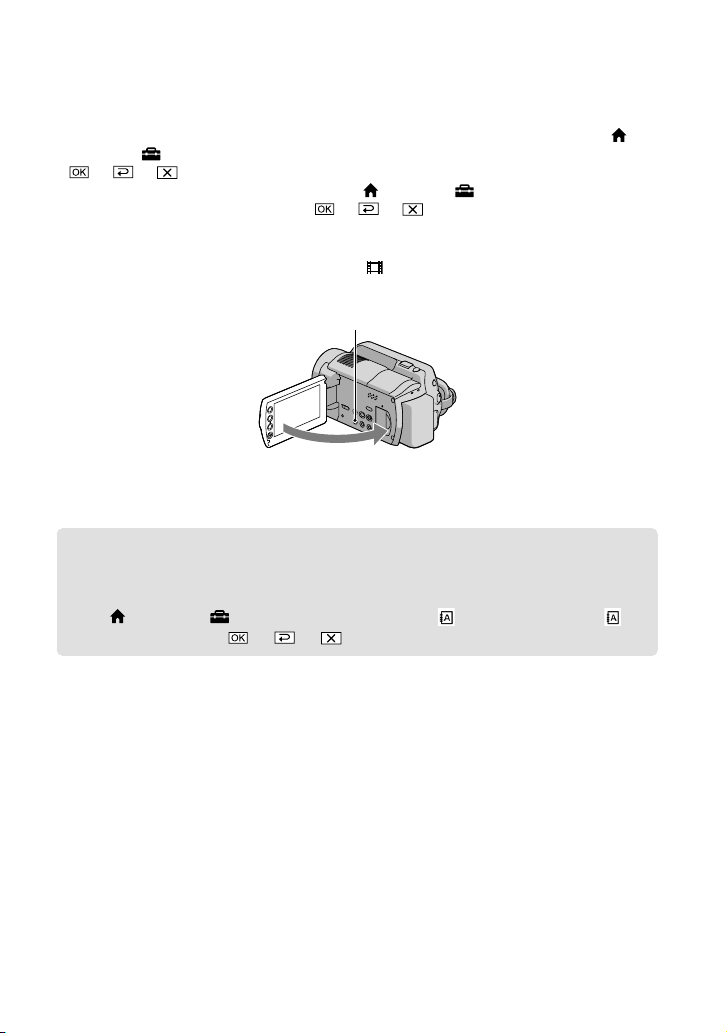
12
ES
La fecha y la hora no aparecen durante la grabación, aunque se graban automáticamente en el soporte
de grabación y se pueden mostrar durante la reproducción. Para mostrar la fecha y la hora, toque
(HOME) (AJUSTES) [VIS.AJUSTES IMÁG] [CÓDIGO DATOS] [FECHA/HORA]
.
Para desactivar los pitidos de funcionamiento, toque (HOME) (AJUSTES) [AJUS.SON./
PANT.] [PITIDO] [DESACTIV.] .
Para apagar la videocámara
Cierre la pantalla de cristal líquido. El indicador (Película) parpadea varios segundos y, a
continuación la videocámara se apaga.
POWER
También puede apagar la videocámara presionando POWER.
Si [ENCEND.CON LCD] (pág.
48) está ajustado en [DESACTIV.], apague la videocámara presionando
POWER.
Cambio del ajuste de idioma
Puede modificar las indicaciones en pantalla para que muestren los mensajes en un idioma
determinado.
Toque (HOME) (AJUSTES) [AJ.REL./IDIOM. ] [AJUSTE IDIOMA ]
el idioma deseado .
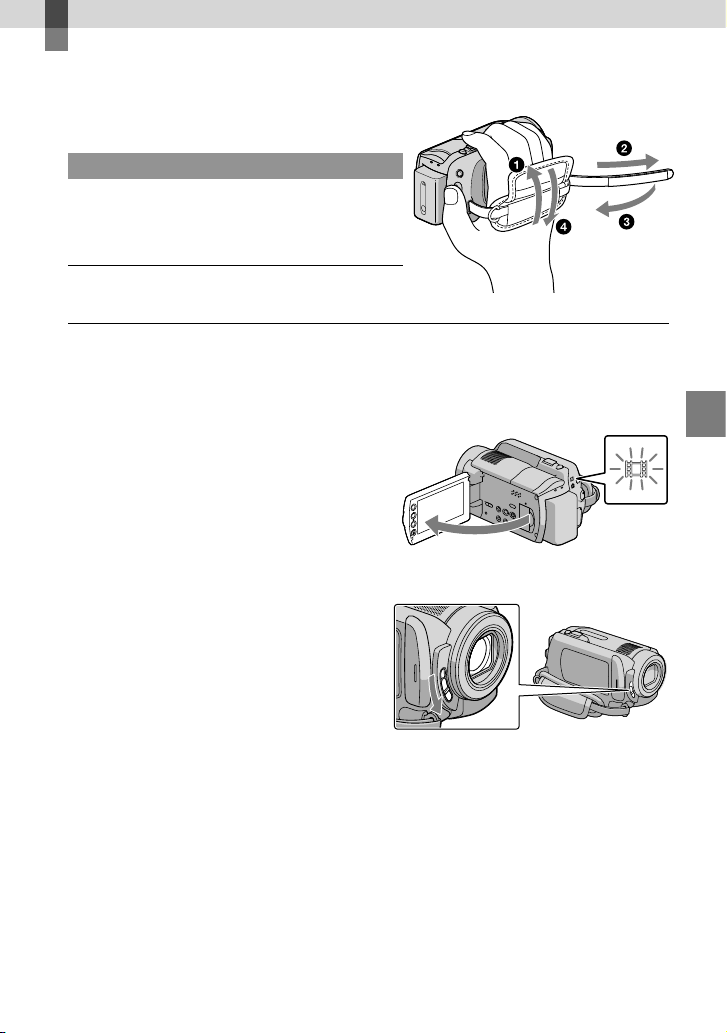
Grabación
13
ES
Grabación
Grabación
Grabación de películas
En el ajuste predeterminado, las películas se graban
con calidad de imagen de alta definición (HD) en el
disco duro (pág.
41, 46).
Ajuste la correa de sujeción.
Abra la pantalla de cristal líquido de la videocámara.
La videocámara se enciende.
Para encender la videocámara cuando la pantalla de cristal líquido ya está abierta, presione
POWER.
Para HDR-XR100/XR101
Abra la tapa del objetivo.
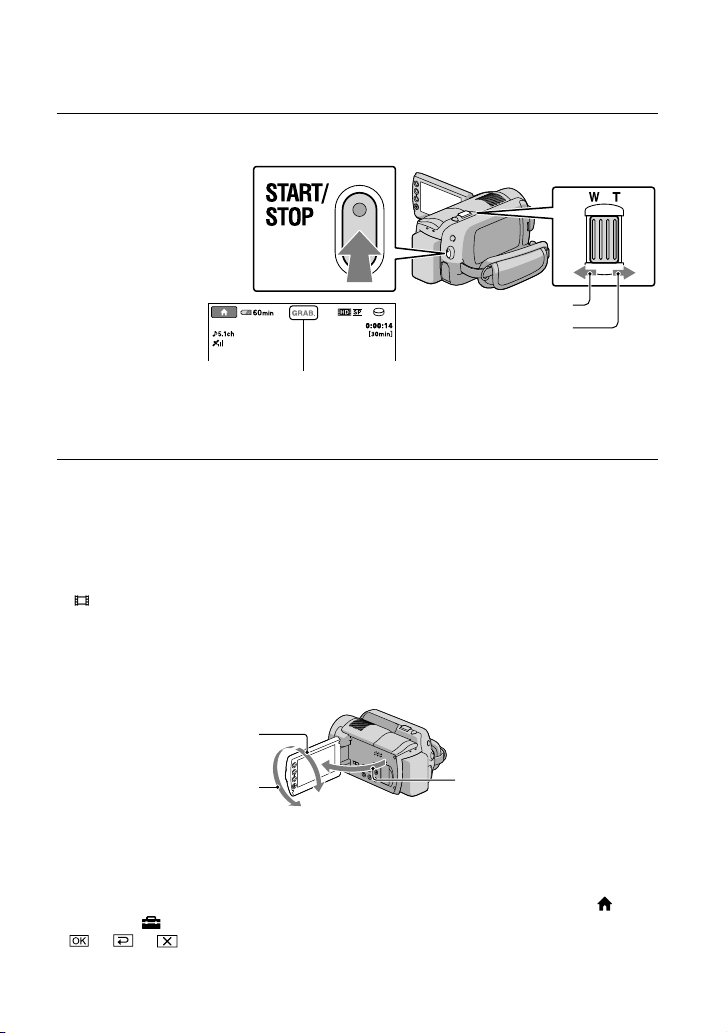
14
ES
Presione START/STOP para iniciar la grabación.
Para detener la grabación, presione START/STOP de nuevo.
Mueva la palanca del zoom motorizado levemente para realizar un zoom más lento. Muévala con
más intensidad para realizar un zoom más rápido.
Si cierra la pantalla de cristal líquido durante la grabación, la videocámara detendrá la grabación.
Consulte la página 58 para conocer el tiempo de grabación de las películas.
El tiempo máximo de grabación continua de películas es de unas 13 hora.
Cuando un archivo de película supera los 2 GB automáticamente se crea un siguiente archivo de película.
Puede cambiar el soporte de grabación y la calidad de la imagen (pág.
41, 46).
Puede cambiar el modo de grabación de las películas (pág.
46).
[ STEADYSHOT] está ajustado de la siguiente manera en el ajuste predeterminado.
HDR-XR100/XR101: [ACTIVADO]
HDR-XR200/XR200V: [ACTIVO]
Para ajustar el ángulo del panel de cristal líquido, primero abra el panel de cristal líquido 90 grados con
respecto a la videocámara () y ajuste el ángulo (). Puede girar el panel de cristal líquido 180 grados
hacia el lado del objetivo () para grabar películas o capturar fotos en modo de espejo.
En los ajustes predeterminados, se captura una foto automáticamente cuando la videocámara detecta la
sonrisa de una persona durante la grabación de la película ([CAPT.SONRISAS]). Aparecerá un marco
naranja alrededor de la cara marcada para una posible captura con detección de sonrisa. Puede cambiar
el ajuste en el menú.
Puede aumentar el nivel de zoom al usar el zoom digital. Puede ajustar el nivel de zoom si toca
(HOME) (AJUSTES) [AJUSTES PEL.CÁM] [ZOOM DIGITAL] el ajuste deseado
.
Palanca del zoom
Gran angular
Teleobjetivo
[ESPERA] [GRAB.]
90 grados (máx.)
90 grados respecto a la
videocámara
180 grados (máx.)
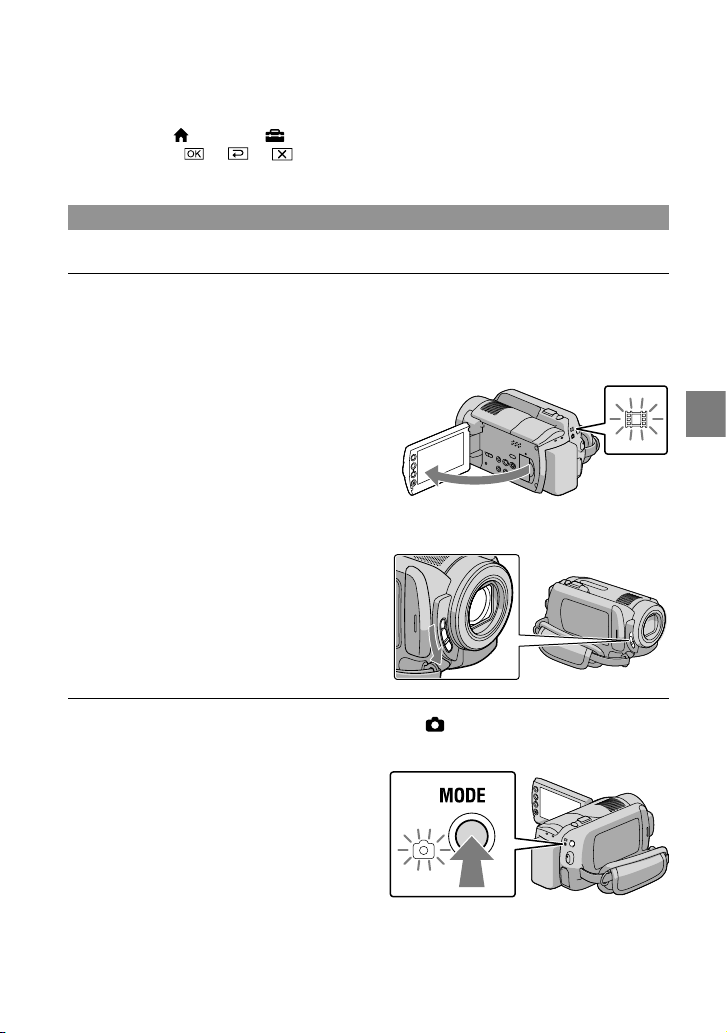
15
Grabación
ES
Si desea ver las películas en un televisor compatible con x.v.Color, grabe las películas con la función
x.v.Color. Toque (HOME) (AJUSTES) [AJUSTES PEL.CÁM] [X.V.COLOR]
[ACTIVADO] . Es posible que deba realizar algunos ajustes en el televisor para
ver las películas. Consulte los manuales de instrucciones del televisor.
Captura de fotos
En el ajuste predeterminado, las fotos se graban en el disco duro (pág. 41).
Abra la pantalla de cristal líquido de la videocámara.
La videocámara se enciende.
Para encender la videocámara cuando la pantalla de cristal líquido ya está abierta, presione
POWER.
Para HDR-XR100/XR101
Abra la tapa del objetivo.
Presione MODE para encender el indicador (Foto).
El formato de la pantalla se ajusta en 4:3.
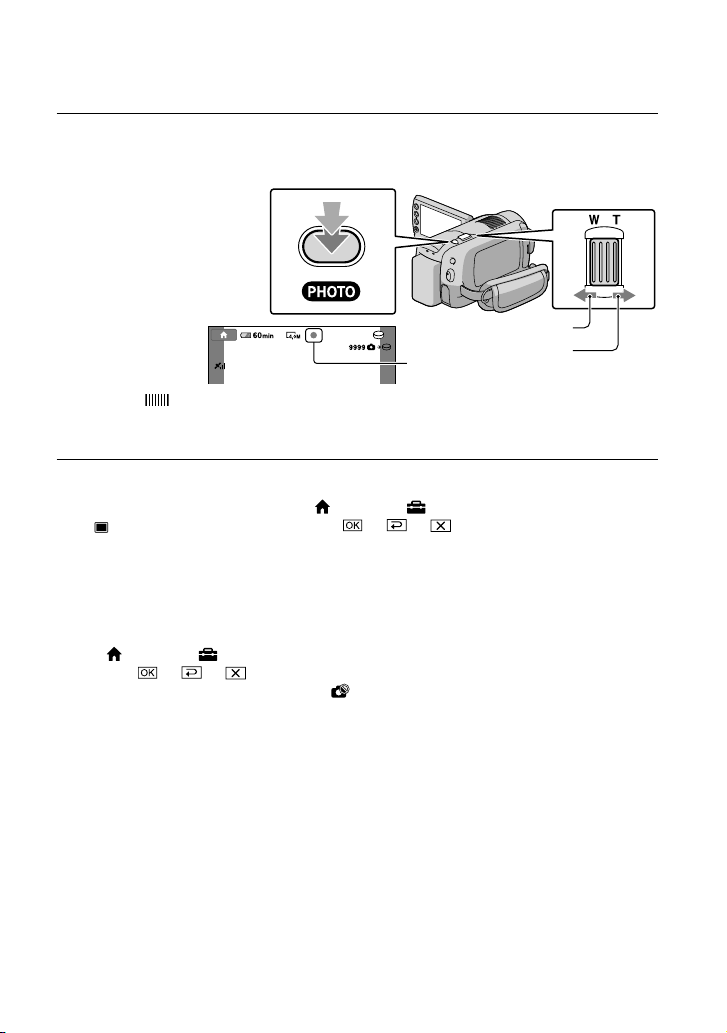
16
ES
Presione PHOTO levemente para ajustar el enfoque y luego presiónelo
completamente.
Cuando desaparece, se graba la foto.
Mueva la palanca del zoom motorizado levemente para realizar un zoom más lento. Muévala con
más intensidad para realizar un zoom más rápido.
Puede ver en la pantalla de cristal líquido el número de fotos que puede grabar (pág.
60).
Para cambiar el tamaño de la imagen, toque (HOME) (AJUSTES) [AJUST.FOTO CÁM.]
[ TAM.IMAGEN] el ajuste deseado .
Para capturar fotos durante la grabación de una película, presione PHOTO. El tamaño del archivo de
imagen es el siguiente cuando graba películas con calidad de imagen de alta definición (HD);
HDR-XR100/XR101: 2,3M
HDR-XR200/XR200V: 3,0M
La videocámara dispara el flash automáticamente cuando la luz ambiente es insuficiente. El flash no
funciona durante la grabación de una película. Puede cambiar la manera en que la cámara usa el flash
si toca (HOME) (AJUSTES) [AJUST.FOTO CÁM.] [MODO FLASH] el ajuste
deseado (HDR-XR200/XR200V).
No es posible grabar fotos mientras se muestra .
Parpadea Se enciende
Palanca del zoom
Gran angular
Teleobjetivo
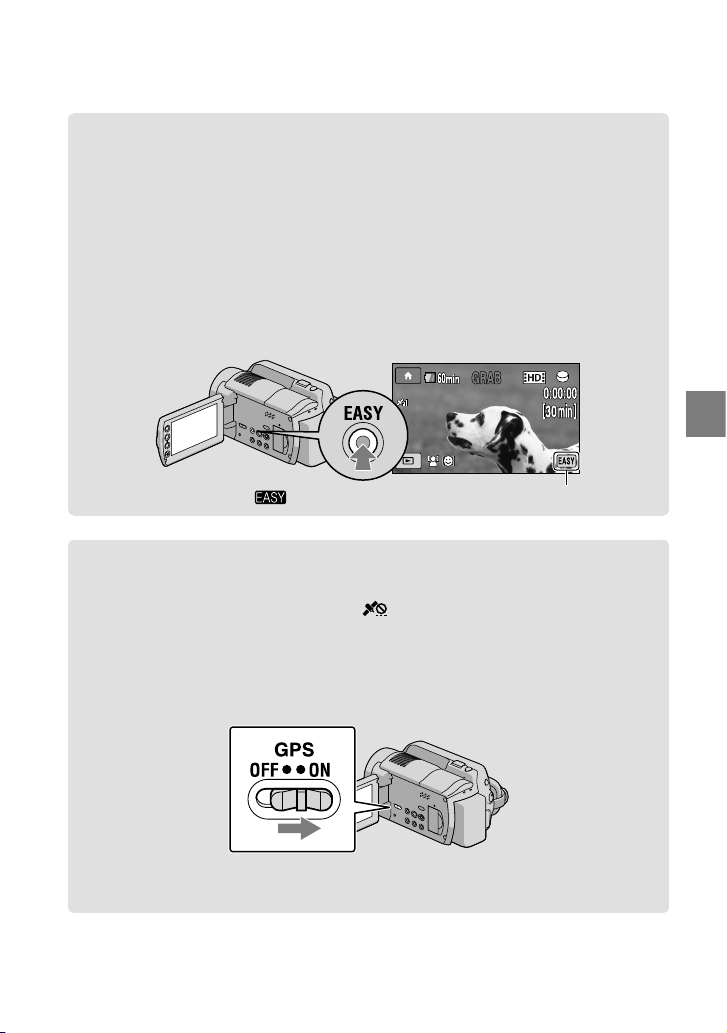
17
Grabación
ES
Grabación y reproducción sencilla de películas y fotos (Funcionamiento en
modo Easy Handycam)
Simplemente presione EASY.
Para cancelar el funcionamiento en modo Easy Handycam, presione EASY nuevamente
después de finalizar la grabación o las operaciones en el menú. Durante el funcionamiento
en modo Easy Handycam, puede ajustar opciones básicas, como cambiar el tamaño de la
imagen o eliminar imágenes, entre los elementos de configuración y ajuste. Otros elementos
se ajustan automáticamente.
Cuando se inicia el funcionamiento en modo Easy Handycam, prácticamente todos los elementos de
menú se restablecen automáticamente a sus ajustes predeterminados. (Algunos elementos de menú
conservan los ajustes que tenían antes del funcionamiento en modo Easy Handycam.)
aparece durante el funcionamiento en modo Easy Handycam.
Adquisición de la información de ubicación de la grabación usando el GPS
(HDR-XR200V)
Si ajusta el interruptor GPS en ON, aparecerá en la pantalla de cristal líquido, y la
videocámara adquirirá la información de ubicación mediante los satélites GPS. Adquirir la
información de ubicación le permite usar funciones tales como el Índice de mapas.
El indicador cambia según la intensidad de la recepción de la señal GPS.
Asegúrese de que el interruptor GPS esté ajustado en OFF durante el despegue y el aterrizaje de un
avión.
El mapa incorporado es suministrado por las siguientes empresas: Mapa de Japón de ZENRIN CO.,
LTD., otras áreas de NAVTEQ.
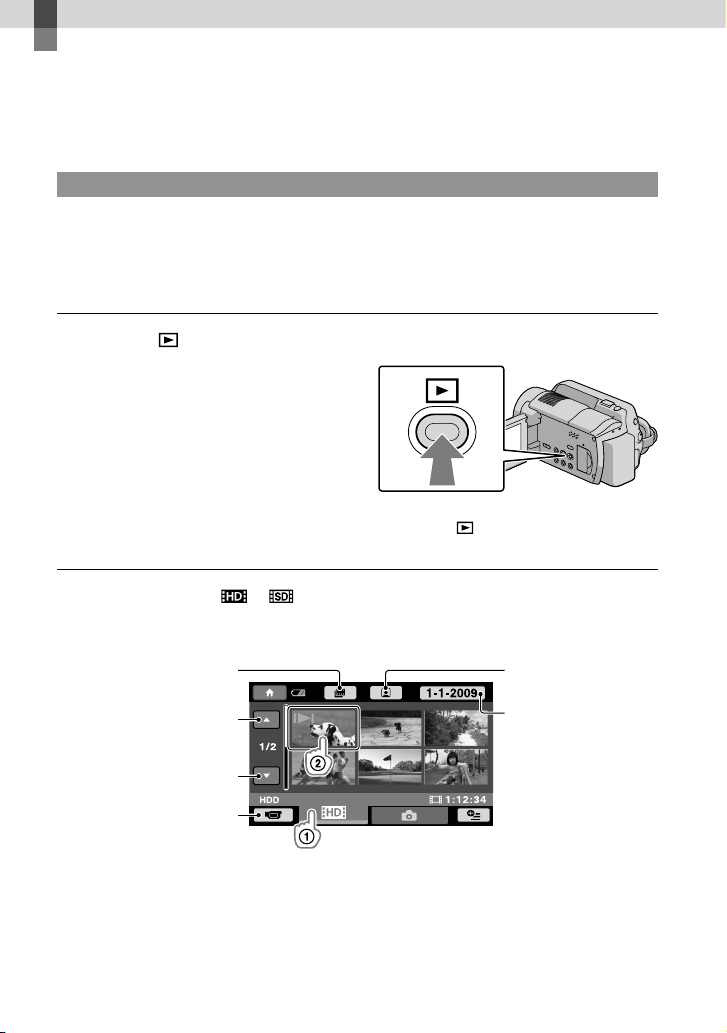
18
ES
Reproducción
Reproducción en la videocámara
En el ajuste predeterminado, se reproducen las películas y fotos del disco duro interno
(pág.
41).
Reproducción de películas
Abra la pantalla de cristal líquido de la videocámara.
La videocámara se enciende.
Para encender la videocámara cuando la pantalla de cristal líquido ya está abierta, presione
POWER.
Presione (VISUALIZAR IMÁGENES).
Luego de unos segundos, aparece la pantalla VISUAL INDEX.
También, puede visualizar la pantalla VISUAL INDEX tocando (VISUALIZAR IMÁGENES) en
la pantalla de cristal líquido.
Toque la pestaña (o ) la película deseada .
HDR-XR100/XR101
/ aparece junto con la película o foto que se reprodujo o se grabó más recientemente. Toque la
imagen para continuar la reproducción a partir de esa escena.
Anterior
Siguiente
Para regresar al modo
de grabación
A la lista de fechas de
grabación
A la pantalla de índice de
escenas por un intervalo
determinado (Índice de
rollos de película)
A la pantalla de índice
de escenas de caras
(Índice de caras)
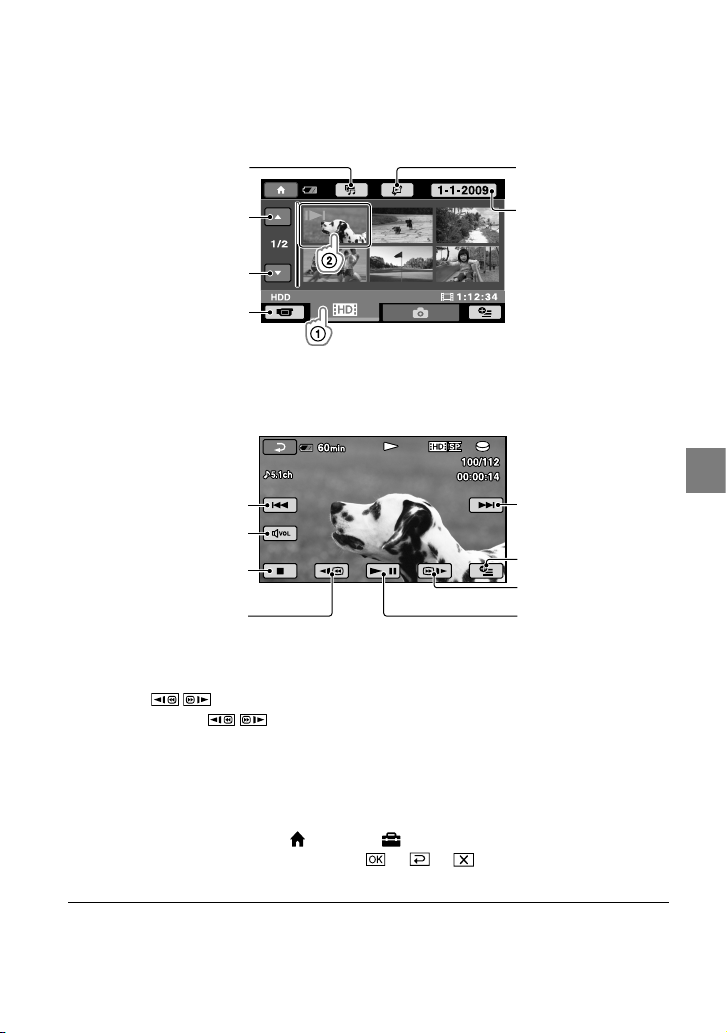
19
Reproducción
ES
HDR-XR200/XR200V
/
aparece junto con la película o foto que se reprodujo o se grabó más recientemente. Toque la
imagen para continuar la reproducción a partir de esa escena.
La videocámara comienza a reproducir la película seleccionada.
Cuando la reproducción desde la película seleccionada llega a la última película, vuelve a mostrarse
la pantalla VISUAL INDEX.
Toque / durante la pausa para reproducir la película a cámara lenta.
Si sigue tocando / durante la reproducción, las películas se reproducen con un aumento
de velocidad de aproximadamente 5 veces
10 veces
30 veces
60 veces.
Puede activar o desactivar los mensajes en pantalla al presionar el botón DISP que se encuentra en
el panel detrás de la pantalla de cristal líquido.
La fecha y hora de grabación, así como las condiciones de filmación, se guardan automáticamente
durante la grabación. Esta información no se muestra durante la grabación, pero puede visualizarla
durante la reproducción si toca (HOME)
(AJUSTES)
[
VIS.AJUSTES IMÁG]
[
CÓDIGO DATOS]
el ajuste deseado
.
La videocámara incluye de fábrica una película de demostración protegida.
A la pantalla
REPRODUCCIÓN
DE SELECCIÓN
A la pantalla para
seleccionar el tipo de
índice
Anterior
Siguiente
Para regresar al modo
de grabación
A la lista de fechas de
grabación
Anterior
Detención
Siguiente
Rebobinado rápido
OPTION MENU
Avance rápido
Pausa/reproducción
Volumen
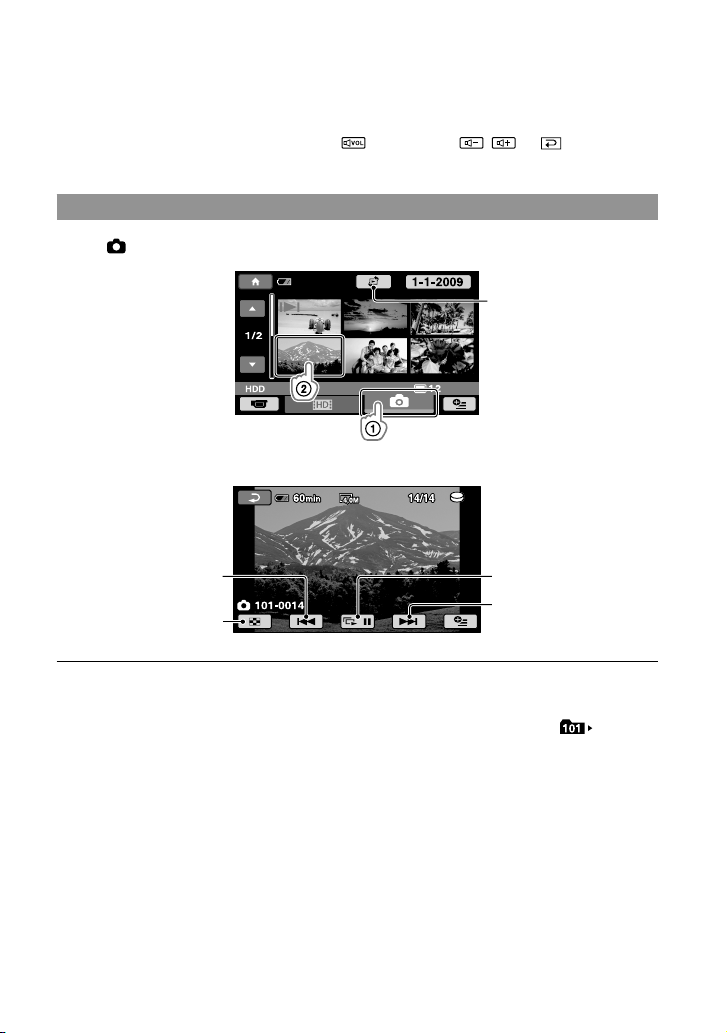
20
ES
Para ajustar el volumen del sonido de las películas
Durante la reproducción de películas, toque ajuste con / .
Puede ajustar el volumen del sonido desde el OPTION MENU (pág. 44).
Visualización de fotos
Toque (Foto) la foto deseada en la pantalla VISUAL INDEX.
La videocámara muestra la foto seleccionada.
Puede acercar la foto al mover la palanca del zoom mientras visualiza la foto (PB ZOOM). Si toca un
punto en el marco de PB ZOOM, el punto se coloca en el centro del marco.
Cuando visualiza fotos grabadas en un “Memory Stick PRO Duo”, en la pantalla aparece (carpeta
de reproducción).
Muestra la pantalla
Índice de mapas
(pág.
45) (HDR-
XR200V)
Anterior
Inicio/detención
de presentación de
diapositivas
Ir a la pantalla VISUAL
INDEX
Siguiente
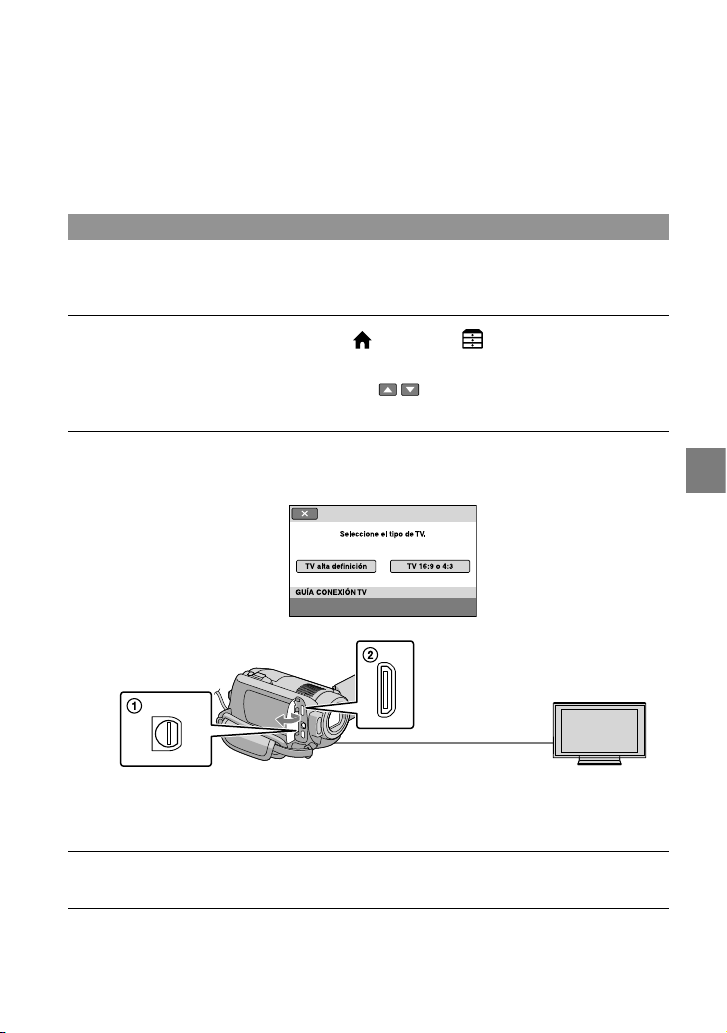
21
Reproducción
ES
Reproducción de imágenes en un televisor
Los métodos de conexión y la calidad de la imagen (alta definición (HD) o definición
estándar (SD)) que se reproduce en el televisor dependen del tipo de televisor conectado y de
los conectores utilizados. Puede conectar la videocámara al televisor fácilmente si sigue las
instrucciones de [GUÍA CONEXIÓN TV].
Conexión de un televisor mediante [GUÍA CONEXIÓN TV]
Cambie la entrada en el televisor según el enchufe conectado.
Consulte los manuales de instrucciones del televisor.
Encienda la videocámara y toque (HOME) (OTROS) [GUÍA
CONEXIÓN TV] en la pantalla de cristal líquido.
Si un elemento no aparece en la pantalla, toque / hasta que aparezca.
Utilice el adaptador de alimentación de ca suministrado como fuente de alimentación (pág.
10).
Consulte la [GUÍA CONEXIÓN TV] para conectar la videocámara y el
televisor.
Conector remoto de A/V
Minienchufe HDMI OUT
Cuando el A/V cable de conexión se utiliza para emitir las películas, éstas se emiten con calidad de
imagen de definición estándar (SD).
Reproduzca películas y fotos en la videocámara (pág.
18).
Conectores de la videocámara
Conectores de entrada del
televisor

22
ES
Realice los ajustes de salida necesarios en la videocámara.
Para conectar un televisor de alta definición a través de enchufes de video de componente:
(HOME) (AJUSTES) [AJUSTES SALIDA] [COMPONENTE] [1080i/480i]
Para conectar un televisor que no sea de alta definición a través de tomas de video de componente:
(HOME) (AJUSTES) [AJUSTES SALIDA] [COMPONENTE] [480i]
Para conectar un televisor 4:3:
(HOME) (AJUSTES) [AJUSTES SALIDA] [TIPO TV] [4:3]
Para activar “BRAVIA” Sync:
(HOME) (AJUSTES) [AJUST.GENERALES] [CTRL.PARA HDMI]
[ACTIVADO]
Acerca de “PhotoTV HD”
Esta videocámara es compatible con el estándar “PhotoTV HD”. “PhotoTV HD” es un
formato que permite la reproducción de imágenes con un alto nivel de detalle, con una sutil
representación de las texturas y los colores que hace que parezcan fotografías. Al conectar
dispositivos Sony compatibles con PhotoTV HD mediante un cable HDMI (se vende por
separado)* o un cable de A/V de componente (suministrado) **, es posible disfrutar de todo
un mundo nuevo con fotografías que disponen de una calidad HD impresionante.
* El televisor cambiará automáticamente al modo adecuado al reproducir las fotos.
** Es necesaria la configuración del televisor. Para obtener más información, consulte el manual de
instrucciones del televisor compatible con PhotoTV HD.

Almacenamiento de películas y fotos con una computadora
23
ES
Almacenamiento de películas y fotos con una computadora
Preparación de una
computadora
(Windows)
Puede realizar las siguientes operaciones
usando “PMB (Picture Motion Browser)”.
Importación de imágenes a una
computadora
Visualización y edición de imágenes
importadas
Creación de un disco
Carga de películas y fotos a sitios Web
Para guardar películas y fotos usando
una computadora, debe instalar primero
“PMB”, que se encuentra en el CD-ROM
suministrado.
No formatee el disco duro de la videocámara
usando una computadora. Puede que la
videocámara no funcione correctamente.
Esta videocámara captura imágenes de alta
definición en formato AVCHD. Usando
el software para PC adjunto, puede copiar
imágenes de alta definición en soportes DVD.
Sin embargo, los soportes DVD que contengan
imágenes en formato AVCHD no deben usarse
con reproductores o grabadoras de DVD, ya que
es posible que dichos dispositivos no puedan
expulsar el soporte y borren su contenido sin
previo aviso.
Paso 1 Comprobación del sistema
de computadora
SO*
1
Microsoft Windows XP SP3*
2
/Windows Vista
SP1*
3
CPU
Intel Pentium 4 de 2,8 GHz o superior (se
recomienda Intel Pentium 4 de 3,6 GHz
o superior, Intel Pentium D de 2,8 GHz o
superior, Intel Core Duo de 1,66 GHz o
superior, o Intel Core 2 Duo de 1,66 GHz o
superior).
Sin embargo, Intel Pentium III de 1 GHz
o superior es suficiente para realizar las
siguientes operaciones:
Importar las películas y fotos a la
computadora
One Touch Disc Burn
Crear un disco Blu-ray /disco con formato
AVCHD/video DVD (se requiere Intel
Pentium 4 de 2,8 GHz o superior al crear
un video DVD convirtiendo la calidad de
imagen de alta definición (HD) en calidad
de imagen de definición estándar (SD)).
Copiar un disco
Software
DirectX 9.0c o posterior
(Este producto se basa en la tecnología
DirectX. Es necesario tener DirectX
instalado)
Memoria
Para Windows XP: 512 MB o más (se
recomienda 1 GB o más).
Sin embargo, 256 MB o más es suficiente para
procesar sólo películas con calidad de imagen
de definición estándar (SD).
Para Windows Vista: 1 GB o más
Disco duro
Volumen de disco requerido para la
instalación: 500 MB aproximadamente
(puede necesitar 10 GB o más al crear discos
con formato AVCHD. Puede necesitar un
máximo de 50 GB al crear discos Blu-ray).
Pantalla
1 024 × 768 puntos como mínimo

24
ES
Otros
Puerto USB (se debe proporcionar como
estándar, USB de alta velocidad (compatible
con USB 2.0)), grabadora de disco Blu-ray/
DVD (se necesita una unidad de CD-ROM
para la instalación)
Se recomienda usar el sistema de archivos
NTFS o exFAT para el disco duro.
No se asegura el funcionamiento con todos los
entornos de computadoras.
*
1
Se requiere instalación estándar. No se asegura
el funcionamiento si el sistema operativo se ha
actualizado o si se trata de un entorno de inicio
múltiple.
*
2
Las ediciones de 64 bits y Starter Edition no son
compatibles.
*
3
Starter Edition no es compatible.
Si usa un equipo Macintosh
El software “PMB” suministrado no
es compatible con computadoras
Macintosh. Para procesar fotos usando
una computadora Macintosh conectada
a la videocámara, consulte el siguiente
sitio Web.
http://guide.d-imaging.sony.co.jp/mac/
ms/es/
Paso 2 Instalación del software
“PMB” suministrado
Instale “PMB” antes de conectar la
videocámara a una computadora.
Si ya tiene instalada una versión de “PMB”
suministrada con otro dispositivo, compruebe
la versión. (El número de versión aparece al
hacer clic en [Ayuda] - [Acerca de PMB].)
Compare el número de versión del CD-ROM
suministrado con el número de versión del
software “PMB” que ya tiene instalado para
asegurarse de que las versiones se hayan
instalado en orden, de menor a mayor. Si
el número de versión del software “PMB”
instalado anteriormente es superior al del
software “PMB” de la videocámara, desinstale
“PMB” de la computadora y vuelva a instalarlo
en orden, de menor a mayor. Si instala primero
una versión superior de la “PMB”, es posible
que algunas características no funcionen
correctamente.
Consulte la página 50 en la “Guía práctica de
Handycam”.
Confirme que la videocámara no
esté conectada a la computadora.
Encienda la computadora.
Inicie sesión como administrador para la
instalación.
Cierre todas las aplicaciones que se estén
ejecutando en la computadora antes de
instalar el software.
Coloque el CD-ROM suministrado
en la unidad de disco de la
computadora.
Aparecerá la pantalla de instalación.
Si la pantalla no aparece, haga clic en
[Inicio] [Equipo] (en Windows XP,
[Mi PC]) y luego haga doble clic en
[SONYPICTUTIL(E:)] (CD-ROM).
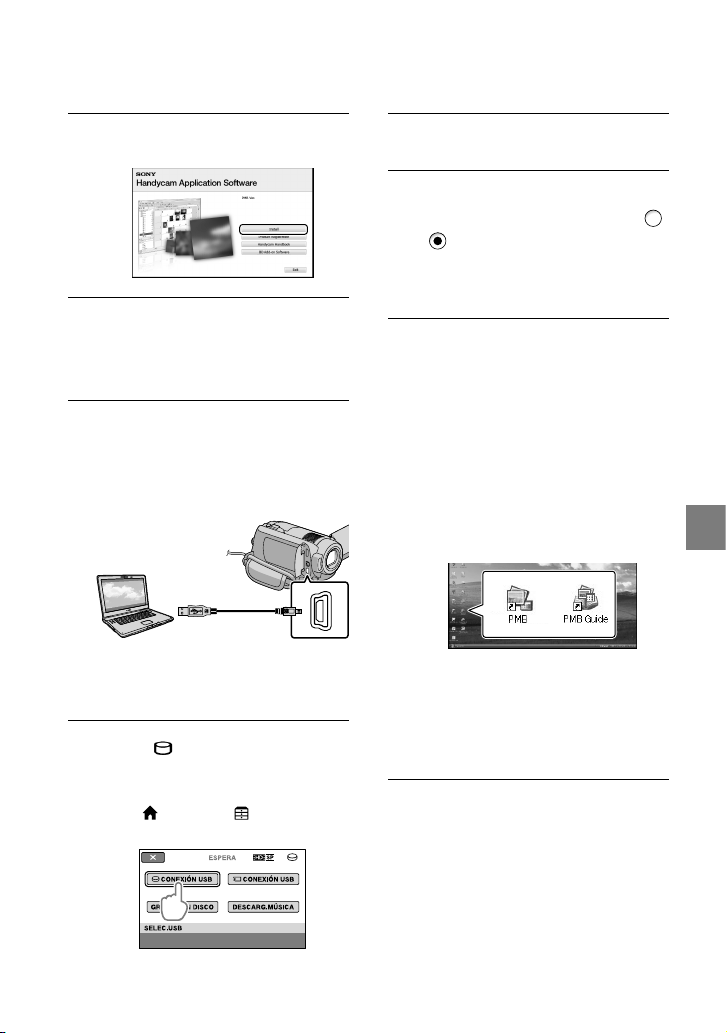
25
Almacenamiento de películas y fotos con una computadora
ES
Haga clic en [Instalar].
Seleccione el idioma de la
aplicación que se instalará, luego
haga clic en [Siguiente].
Encienda la videocámara, luego
conéctela a la computadora
usando el cable USB
suministrado.
La pantalla [SELEC.USB] aparece
automáticamente en la pantalla de la
videocámara.
Toque [ CONEXIÓN USB] en la
pantalla de la videocámara.
Si la pantalla [SELEC.USB] no aparece,
toque (HOME) (OTROS)
[CONEXIÓN USB].
Haga clic en [Continuar].
Confirme el acuerdo de licencia y
si acepta los términos, cambie
a haga clic en [Siguiente]
[Instalar] en la pantalla de la
computadora.
Siga las instrucciones en la
pantalla para instalar el software.
Dependiendo de la computadora, es
posible que deba instalar software
de terceros. Si aparece la pantalla de
instalación, siga las instrucciones para
instalar el software requerido.
Reinicie la computadora si es necesario
para completar la instalación.
Cuando finalice la instalación,
aparecerán los siguientes iconos.
Pueden aparecer otros iconos.
Es posible que no aparezca ningún icono,
dependiendo del procedimiento de
instalación.
La Guía práctica de Handycam no se
instala en este procedimiento (pág.
50).
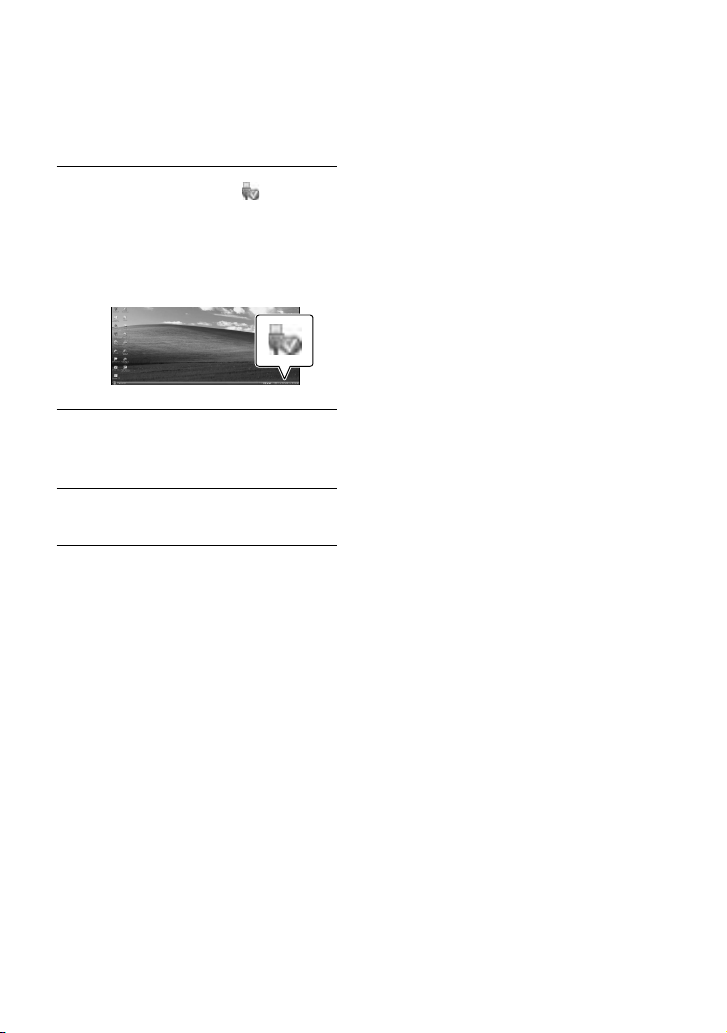
26
ES
Para desconectar la videocámara de la
computadora
Haga clic en el icono en
la parte inferior derecha del
escritorio de la computadora
[Extracción segura de Dispositivo
de almacenamiento masivo USB].
Toque [FIN] [SÍ] en la pantalla
de la videocámara.
Desconecte el cable USB.
Puede crear un disco Blu-ray si usa una
computadora con grabadora de discos Blu-ray.
Instale el Software Complementario de BD
para “PMB” (pág.
33).
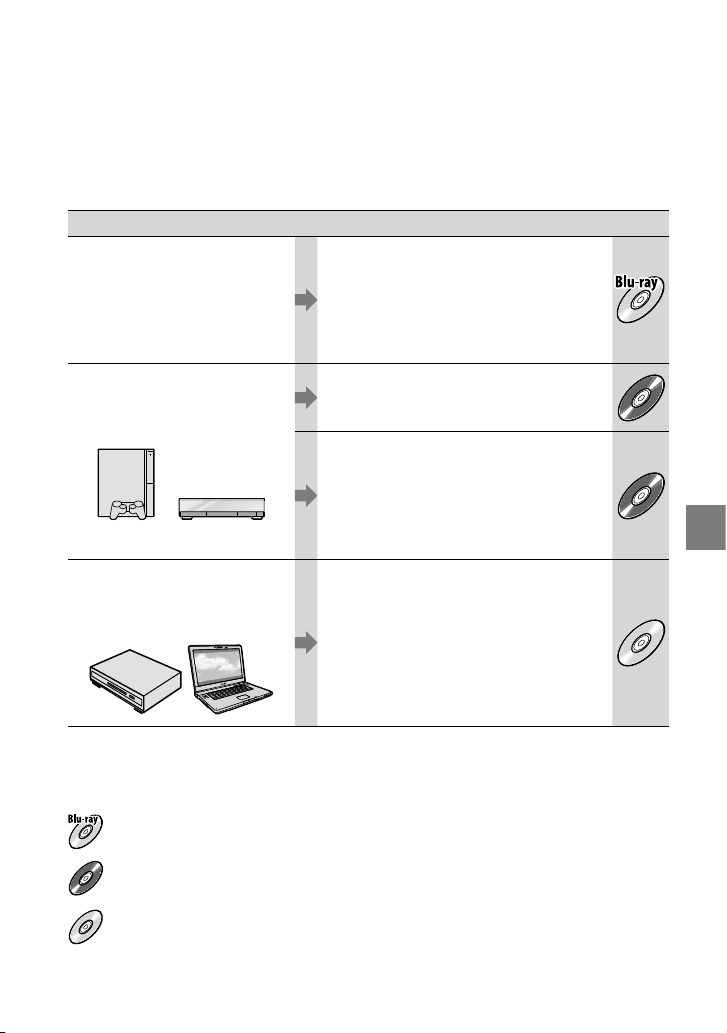
27
Almacenamiento de películas y fotos con una computadora
ES
Selección del método para la creación de un
disco (computadora)
Aquí se describen diversos métodos para crear un disco con calidad de imagen de alta
definición (HD) o un disco con calidad de imagen de definición estándar (SD) a partir
de películas y fotos con calidad de imagen de definición estándar (HD) grabadas en la
videocámara. Seleccione el método más adecuado para su reproductor de discos.
Reproductor Selección de un método y tipo de disco
Dispositivos de reproducción
de discos Blu-ray (un
reproductor de discos Blu-ray,
PLAYSTATION
3, etc.)
Importación de películas y fotos a una
computadora (Easy PC Back-up) (pág.
30)
Creación de un disco Blu-ray* con
calidad de imagen de alta definición
(HD) (pág.
33)
Dispositivos de reproducción de
formato AVCHD (un reproductor
de discos Sony Blu-ray,
PLAYSTATION
3, etc.)
Creación de un disco con un solo toque
(One Touch Disc Burn) (pág.
29)
HD
Importación de películas y fotos a una
computadora (Easy PC Back-up) (pág.
30)
Creación de un disco de formato AVCHD
con calidad de imagen de alta definición
(HD) (pág.
32)
HD
Dispositivos de reproducción de
DVD comunes (un reproductor
de DVD, una computadora que
puede reproducir DVD, etc.)
Importación de películas y fotos a una
computadora (Easy PC Back-up) (pág.
30)
Creación de un disco con calidad de
imagen de definición estándar (SD)
(pág.
34)
SD
* Para crear un disco Blu-ray, debe tener instalado el Software Complementario de BD para “PMB”
(pág.
33).
Características de cada tipo de disco
El uso de discos Blu-ray le permite grabar películas con calidad de imagen de alta definición (HD)
de mayor duración que los discos DVD.
HD
La película con calidad de imagen de alta definición (HD) se puede grabar en soportes DVD, como
por ejemplo, discos DVD-R y se crea un disco con calidad de imagen de alta definición (HD).
SD
Una película con calidad de imagen de definición estándar (SD) convertida a partir de una película
con calidad de imagen de alta definición (HD) se puede grabar en soportes DVD, como por ejemplo,
discos DVD-R, y se crea un disco con calidad de imagen estándar (SD).

28
ES
Discos que puede usar con “PMB”
Puede usar discos de 12 cm de los siguientes tipos con “PMB”. Para obtener información sobre
discos Blu-ray, consulte la página 33.
Tipo de disco Características
DVD-R/DVD+R/DVD+R DL No regrabable
DVD-RW/DVD+RW Regrabable
Siempre mantenga el PLAYSTATION
3 actualizado con la versión más reciente del software de sistema
de PLAYSTATION
3.
Es posible que PLAYSTATION
3 no esté disponible en algunos países o regiones.
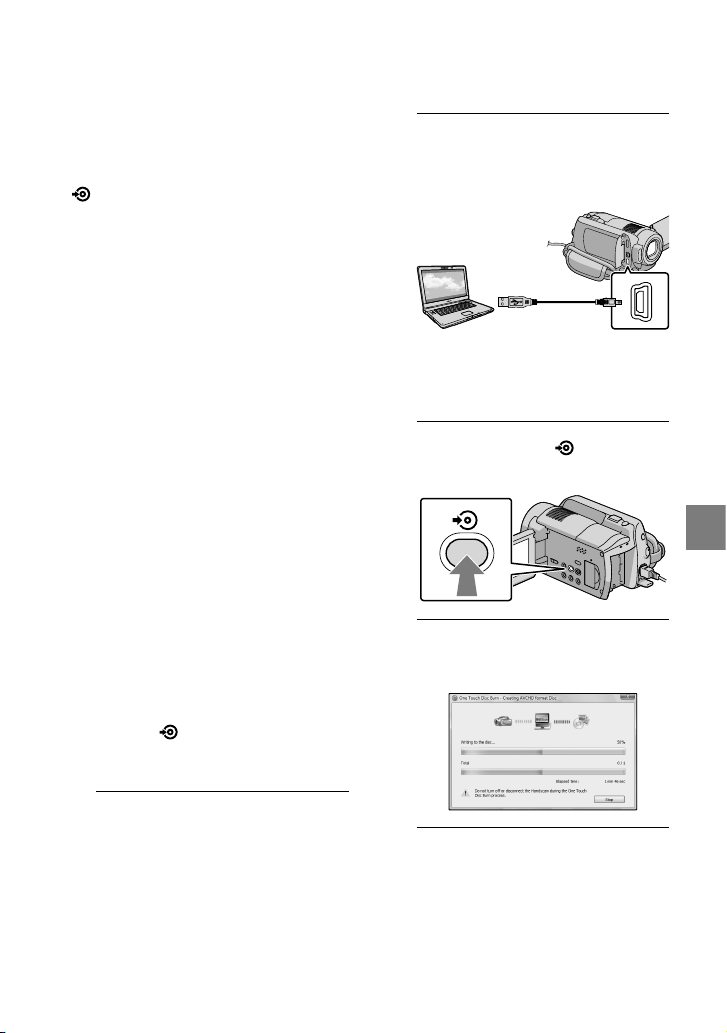
29
Almacenamiento de películas y fotos con una computadora
ES
Creación de un disco
con un solo toque
(One Touch Disc Burn)
Puede guardar películas y fotos en un
disco simplemente al presionar el botón
(DISC BURN) en la videocámara.
Las películas y fotos grabadas en la
videocámara que aún no se hayan guardado
con One Touch Disc Burn se pueden
guardar en un disco automáticamente. Las
películas y fotos se guardan en el disco
con la calidad de imagen con que fueron
grabadas.
La películas con calidad de imagen de alta
definición (HD) (el ajuste predeterminado)
crearán una disco con calidad de imagen de alta
definición (HD). No puede reproducir un disco
con calidad de imagen de alta definición (HD)
en reproductores de DVD.
La función One Touch Disc Burn no puede
usarse para crear discos Blu-ray.
Para crear un disco con calidad de imagen de
definición estándar (SD) a partir de películas
con calidad de imagen de alta definición (HD),
importe primero las películas a la computadora
(pág.
30) y, a continuación, cree un disco con
calidad de imagen de definición estándar (SD)
(pág.
34).
Primero instale “PMB” (pág.
24), pero no lo
inicie todavía.
Conecte la videocámara al tomacorriente de
pared mediante el adaptador de alimentación de
ca suministrado para esta operación (pág.
10).
Con el botón (DISC BURN), puede grabar
películas y fotos guardadas en el disco duro
interno solamente.
1
Encienda la computadora y
coloque un disco vacío en la
unidad de DVD.
Consulte la página 27 para obtener
información sobre los tipos de disco que
puede usar.
Si se inicia automáticamente algún
software que no sea “PMB”, ciérrelo.
2
Encienda la videocámara y
conéctela a la computadora
usando el cable USB.
No cierre la pantalla de cristal líquido
cuando la videocámara esté conectada a
otro dispositivo con el cable USB, ya que
podría perder las imágenes grabadas.
3
Presione el botón (DISC
BURN).
4
Siga las instrucciones que
aparecen en la pantalla.
La películas y fotos no se guardan en la
computadora cuando ejecuta One Touch Disc
Burn.
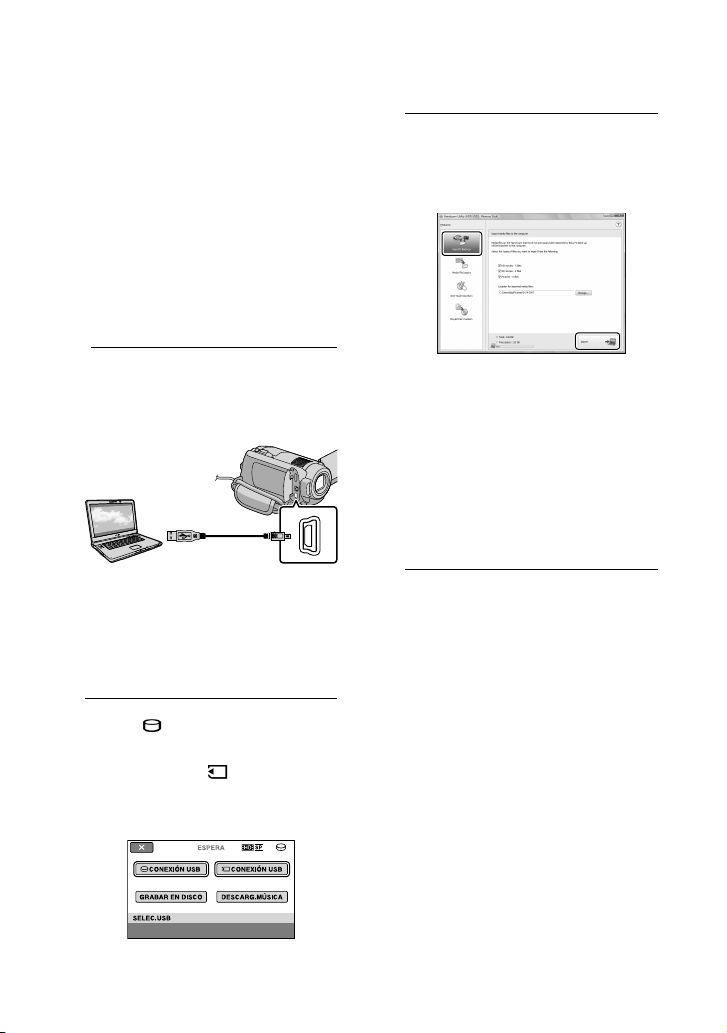
30
ES
Importación de
películas y fotos a una
computadora
(Easy PC Back-up)
Las películas y fotos grabadas en la
videocámara que aún no se hayan guardado
con Easy PC Back-up se pueden importar
a una computadora automáticamente.
Primero encienda la computadora.
Conecte la videocámara al tomacorriente de
pared mediante el adaptador de alimentación de
ca suministrado para esta operación (pág.
10).
1
Encienda la videocámara y
conéctela a la computadora
usando el cable USB.
Aparece la pantalla [SELEC.USB] en la
pantalla de la videocámara.
No cierre la pantalla de cristal líquido
cuando la videocámara esté conectada a
otro dispositivo con el cable USB, ya que
podría perder las imágenes grabadas.
2
Toque [ CONEXIÓN USB] para
importar imágenes del disco
duro interno, o [ CONEXIÓN
USB] para importar imágenes de
un “Memory Stick PRO Duo”.
Aparece la ventana [Handycam Utility]
en la pantalla de la computadora.
3
En la pantalla de la computadora,
haga clic en [Easy PC Back-up]
[Importar].
Las películas y fotos se importan a la
computadora.
Al finalizar la operación, aparece la
pantalla “PMB”.
Cuando finaliza la operación, puede
aparecer una pantalla para indicar que se
están analizando las películas. Es posible
que el análisis de las películas tarde
bastante tiempo. Mientras tanto, puede
utilizar “PMB”.
Puede crear discos con calidad de imagen de
alta definición (HD) (disco Blu-ray/disco con
formato AVCHD) (pág.
32) o discos con calidad
de imagen de definición estándar (SD) (pág.
34)
a partir de las películas con calidad de imagen
de alta definición (HD) importadas.
Consulte la Guía de PMB para obtener
información sobre la importación de películas y
fotos seleccionadas (pág.
31).
Puede exportar películas con calidad de imagen
de alta definición (HD) desde la computadora a
la videocámara. En la pantalla “PMB”, haga clic
en [Manipular] [Exportar a] [Handycam
(Unidad de disco duro)]/[Handycam (Memory
Stick)]. Consulte la “Guía de PMB” para obtener
más información (pág.
31).
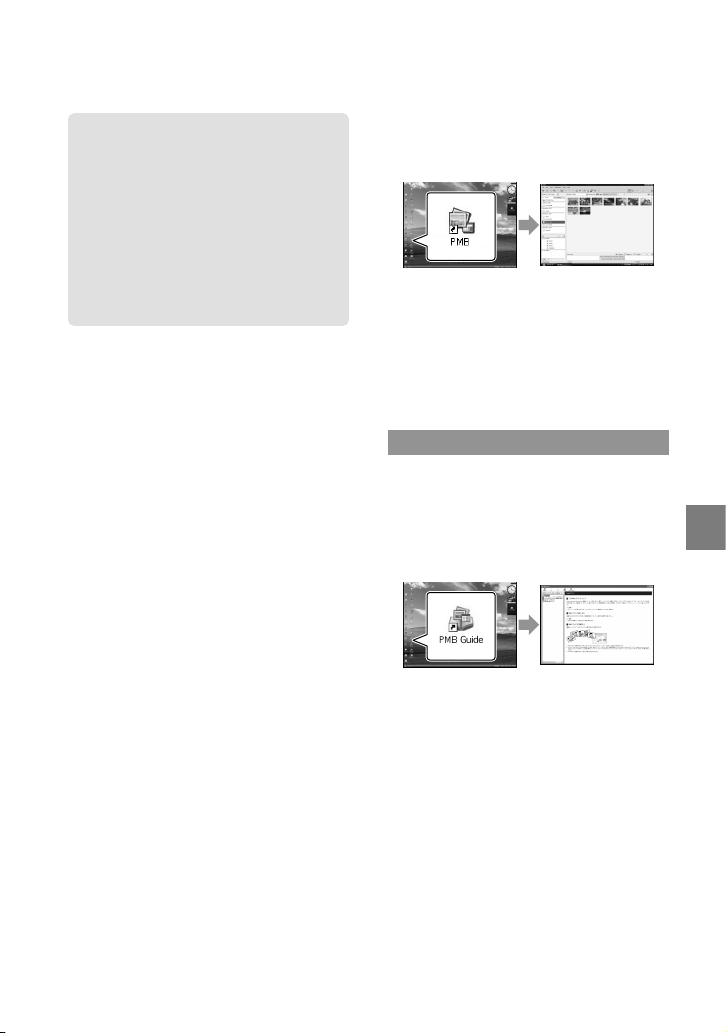
31
Almacenamiento de películas y fotos con una computadora
ES
Inicio de PMB (Picture
Motion Browser)
Haga doble clic en el icono de acceso
directo “PMB” en la pantalla de la
computadora.
Si el icono no se muestra en la pantalla de la
computadora, haga clic en [Inicio] [Todos
los programas] [Sony Picture Utility]
[PMB] para iniciar “PMB”.
Puede ver, editar o crear discos de películas
y fotos usando “PMB”.
Lectura de la “Guía de PMB”
Consulte la Guía de PMB para obtener más
información sobre “PMB”. Haga doble clic
en el icono de acceso directo Guía de PMB
en la pantalla de la computadora para abrir
la Guía de PMB.
Si el icono no aparece en la pantalla de la
computadora, haga clic en [Inicio] [Todos
los programas] [Sony Picture Utility]
[Ayuda] [Guía de PMB]. También puede
abrir la Guía de PMB desde la [Ayuda] de
“PMB”.
Cambio de la unidad o carpeta
de destino de las películas y
fotos
En la pantalla [Handycam Utility] en el
paso 3 anterior , haga clic en [Easy PC
Back-up] [Cambiar]. En la pantalla
que aparece, puede seleccionar la
unidad o carpeta donde se guardarán las
imágenes.
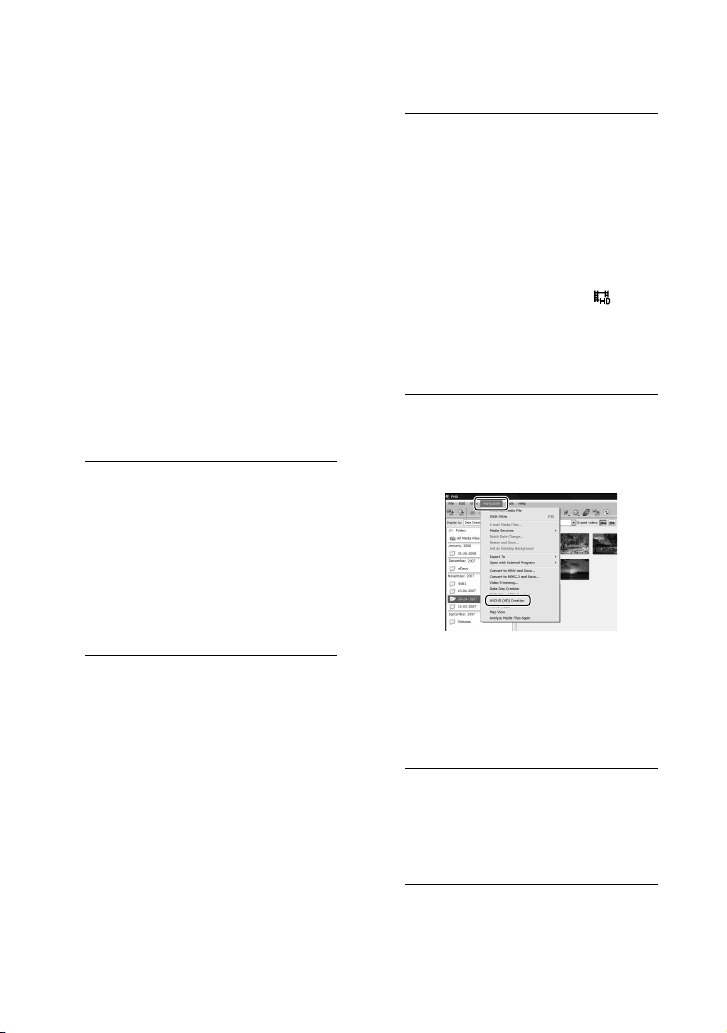
32
ES
Creación de un disco
con calidad de imagen
de alta definición (HD)
Puede crear un disco con calidad de imagen
de alta definición (HD) al juntar películas
con calidad de imagen de alta definición
(HD) importadas previamente a su
computadora (pág.
30).
En esta sección, se explica el procedimiento
para grabar una película con calidad de imagen
de alta definición (HD) en un disco DVD
(pág.
27).
Puede reproducir un disco con calidad de
imagen de alta definición (HD) en dispositivos
de reproducción de formato AVCHD, como
un reproductor de discos Blu-ray de Sony y
un PLAYSTATION
3. No puede reproducir
el disco en reproductores de DVD comunes
(pág.
27).
1
Encienda la computadora y
coloque un disco vacío en la
unidad de DVD.
Consulte la página 28 para obtener
información sobre los tipos de disco que
puede usar.
Si algún software se inicia
automáticamente, ciérrelo.
2
Haga doble clic en el icono
de acceso directo “PMB” en la
pantalla de la computadora para
iniciar “PMB”.
También puede iniciar “PMB” al hacer clic
en [Inicio] [Todos los programas]
[Sony Picture Utility] [PMB].
3
Haga clic en [Carpetas] o
[Calendario] en el lado izquierdo
de la ventana y seleccione la
carpeta o fecha y, a continuación,
las películas con calidad de
imagen de alta definición (HD).
Las películas con calidad de imagen de alta
definición (HD) se marcan con .
No puede guardar fotos en un disco.
Para seleccionar varias películas y fotos,
mantenga presionada la tecla Ctrl y haga
clic en las imágenes en miniatura.
4
En la parte superior de la
ventana, haga clic en [Manipular]
[Creación de AVCHD (HD)].
Aparece la ventana que se usa para
seleccionar películas.
Para agregar otras películas a la selección,
seleccione las películas en la ventana
principal y arrástrelas y suéltelas en la
ventana de selección.
5
Siga las instrucciones en la
pantalla para crear un disco.
Es posible que la creación de un disco
tarde bastante tiempo.
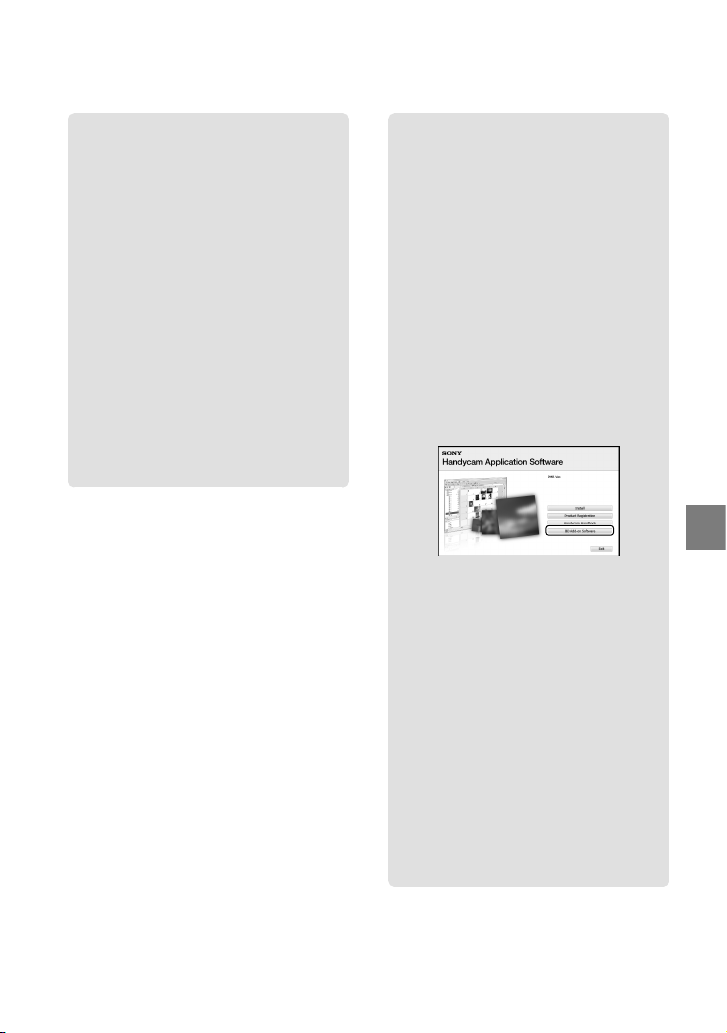
33
Almacenamiento de películas y fotos con una computadora
ES
Reproducción de un disco
con calidad de imagen de
alta definición (HD) en una
computadora
Puede reproducir discos con calidad de
imagen de alta definición (HD) usando
el programa “Player for AVCHD” que se
instala junto con “PMB”.
Para iniciar “Player for AVCHD”, haga
clic en [Inicio] [Todos los programas]
[Sony Picture Utility] [Player for
AVCHD]. Consulte la ayuda de “Player
for AVCHD” para obtener información
sobre su funcionamiento.
Es posible que las películas no se
reproduzcan correctamente, dependiendo
del entorno de la computadora.
Creación de un disco Blu-ray
Puede crear un disco Blu-ray con
una película con calidad de imagen
de alta definición (HD) importada
anteriormente a una computadora
(pág.
30).
Para crear un disco Blu-ray debe tener
instalado Software Complementario de
BD para “PMB”. Haga clic en [Software
Complementario de BD] en la pantalla
de instalación de “PMB” e instale
este complemento de acuerdo con las
instrucciones que aparecen en la pantalla.
Conecte la computadora a Internet cuando
instale [Software Complementario de BD].
Coloque un disco Blu-ray vacío en
la unidad de disco y haga clic en
[Manipular] [Creación de Disco Blu-
ray (HD)] en el paso 4 de “Creación de
un disco con calidad de imagen de alta
definición (HD)” (pág. 32). Los demás
procedimientos son los mismos que se
usan para crear un disco con calidad de
imagen de alta definición (HD).
La computadora debe admitir la creación de
discos Blu-ray.
Existen soportes BD-R (no regrabables)
y BD-RE (regrabables) disponibles para
la creación de discos Blu-ray. Ninguno de
estos tipos de disco permite agregar más
contenido después de crear el disco.
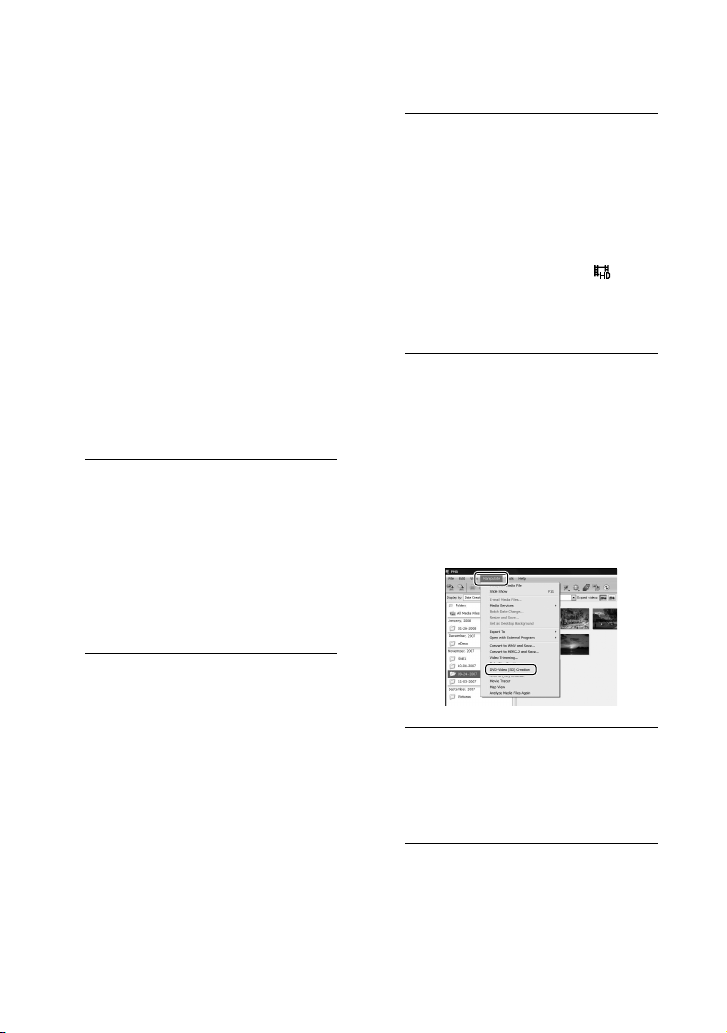
34
ES
Creación de un disco
con calidad de imagen
de definición estándar
(SD) compatible con
reproductores de DVD
comunes
Puede crear un disco con calidad de imagen
de definición estándar (SD) al seleccionar
películas y fotos importadas anteriormente
a su computadora (pág.
30).
Puede seleccionar películas con calidad de
imagen de alta definición (HD) como el origen.
Sin embargo, la calidad de imagen se convierte
de alta definición (HD) a definición estándar
(SD). Convertir la calidad de imagen de las
películas toma más tiempo que el que se tardó
en grabar las películas.
1
Encienda la computadora y
coloque un disco vacío en la
unidad de DVD.
Consulte la página 28 para obtener
información sobre los tipos de disco que
puede usar.
Si algún software se inicia
automáticamente, ciérrelo.
2
Haga doble clic en el icono
de acceso directo “PMB” en la
pantalla de la computadora para
iniciar “PMB”.
También puede iniciar “PMB” al hacer clic
en [Inicio] [Todos los programas]
[Sony Picture Utility] [PMB].
3
Haga clic en [Carpetas] o
[Calendario] en el lado izquierdo
de la ventana y seleccione la
carpeta o fecha y, a continuación,
seleccione las películas y fotos.
Las películas con calidad de imagen de alta
definición (HD) se marcan con .
Para seleccionar varias películas y fotos,
mantenga presionada la tecla Ctrl y haga
clic en las imágenes en miniatura.
4
En la parte superior de la
ventana, haga clic en [Manipular]
[Creación de DVD-Video (SD)].
Aparece la ventana que se usa para
seleccionar películas y fotos.
Para agregar otras películas y fotos a la
selección, seleccione las películas y fotos
en la ventana principal y arrástrelas y
suéltelas en la ventana de selección.
5
Siga las instrucciones en la
pantalla para crear un disco.
Es posible que la creación de un disco
tarde bastante tiempo.
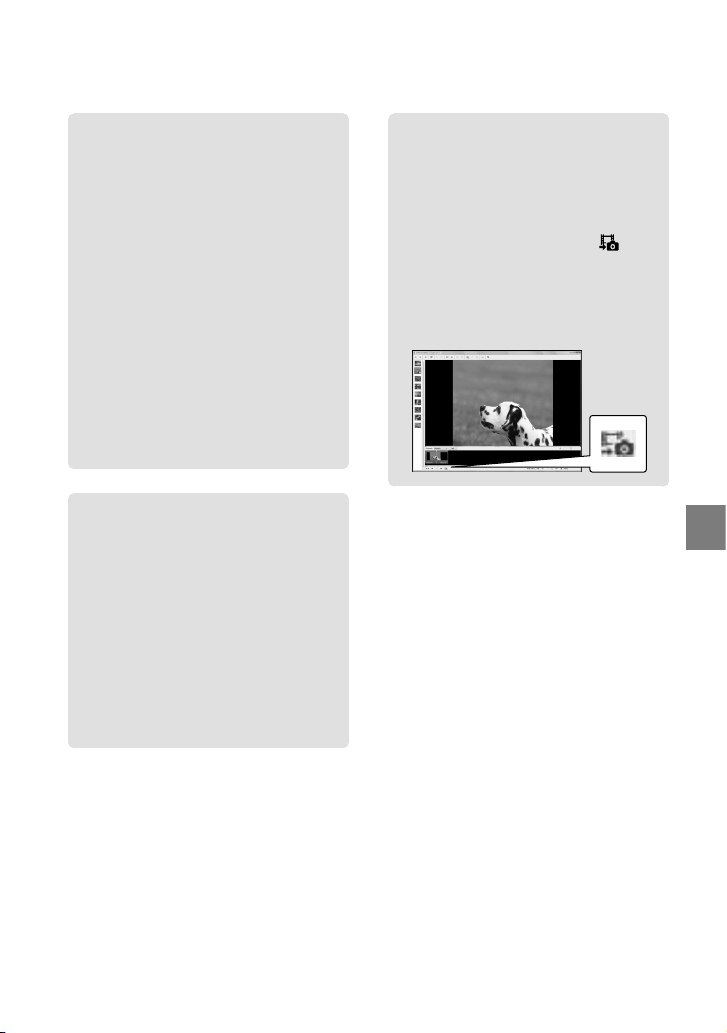
35
Almacenamiento de películas y fotos con una computadora
ES
Copia de un disco
Puede copiar un disco grabado a otro
disco usando “Video Disc Copier”.
También puede copiar un disco al
convertir películas con calidad de imagen
de alta definición (HD) en películas con
calidad de imagen de definición estándar
(SD).
Haga clic en [Inicio] [Todos los
programas] [Sony Picture Utility]
[Video Disc Copier] para iniciar el
software. Consulte la ayuda de “Video
Disc Copier” para obtener información
sobre su funcionamiento.
No puede crear una copia en un disco
Blu-ray.
Edición de películas
Puede cortar sólo partes necesarias de
una película y guardarlas como otro
archivo.
Use “PMB” para seleccionar la película
que desea editar y, a continuación,
haga clic en [Manipular] [Video
Trimming] en el menú para abrir la
ventana Video Trimming. Consulte la
“Guía de PMB” para obtener información
sobre su funcionamiento (pág.
31).
Captura de fotos desde una
película
Puede guardar un marco de una película
como un archivo de foto.
En la ventana de reproducción de
películas de “PMB”, haga clic en para
abrir la ventana [Guardar fotograma].
Consulte la “Guía de PMB” para obtener
información sobre su funcionamiento
(pág.
31).
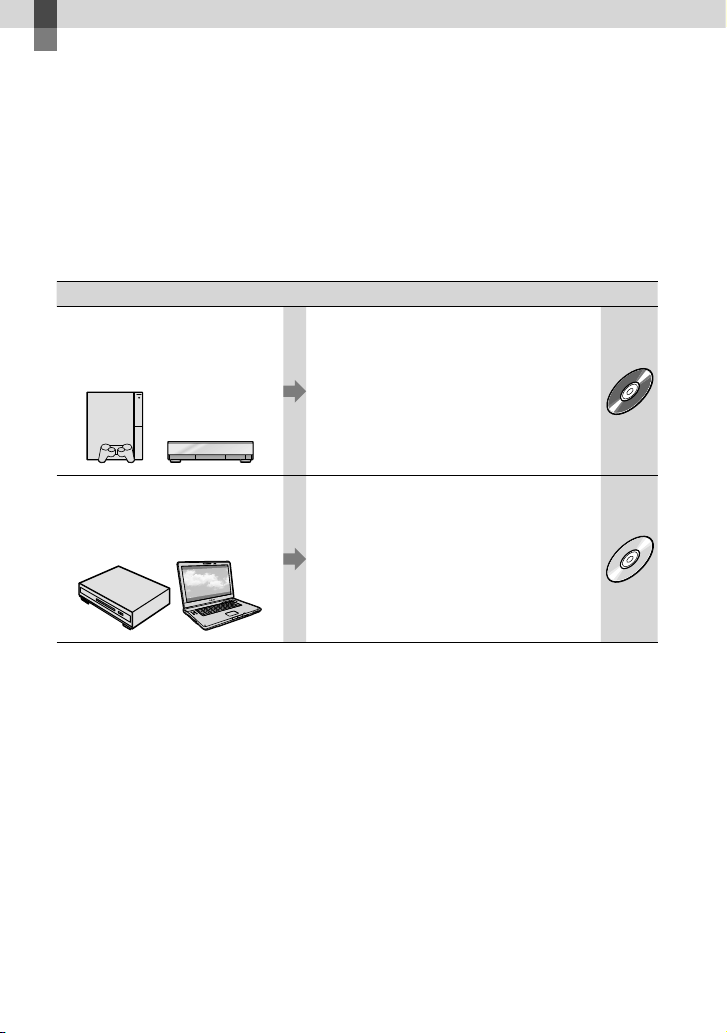
36
ES
Almacenamiento de imágenes con una grabadora de DVD
Selección del método para la creación de un
disco (grabadora de DVD)
Aquí se describen diversos métodos para crear un disco con calidad de imagen de alta
definición (HD) o un disco con calidad de imagen de definición estándar (SD) a partir
de películas y fotos con calidad de imagen de definición estándar (HD) grabadas en la
videocámara. Seleccione el método más adecuado para su reproductor de discos.
Prepare un disco DVD como por ejemplo, un DVD-R, para crear un disco.
Consulte la página 33 para crear un disco Blu-ray.
Reproductor Selección de un método y tipo de disco
Dispositivos de reproducción de
formato AVCHD (un reproductor
de discos Sony Blu-ray,
PLAYSTATION
3, etc.)
Creación de un disco con calidad de
imagen de alta definición (HD) mediante
una grabadora de DVD, etc. (conexión de
cable USB) (pág.
37)
HD
Dispositivos de reproducción de
DVD comunes (un reproductor
de DVD, una computadora que
puede reproducir DVD, etc.)
Creación de un disco con calidad de
imagen de definición estándar (SD) con
una grabadora de disco, etc. (A/V cable de
conexión) (pág.
38)
SD
Siempre mantenga el PLAYSTATION
3 actualizado con la versión más reciente del software de sistema
de PLAYSTATION
3.
Es posible que PLAYSTATION
3 no esté disponible en algunos países o regiones.
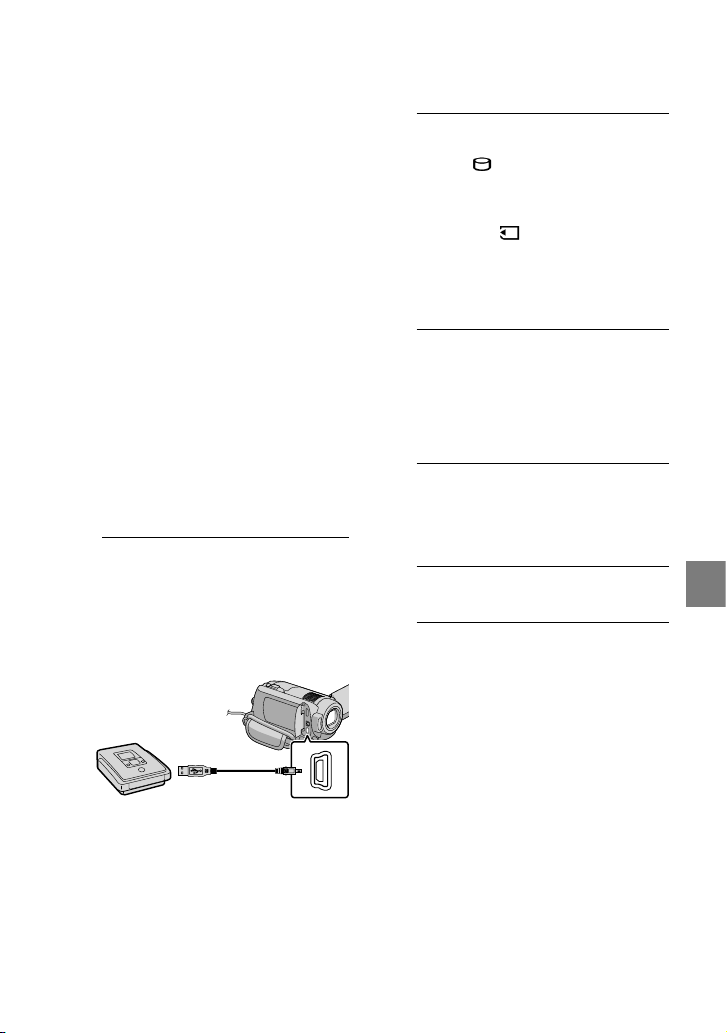
37
Almacenamiento de imágenes con una grabadora de DVD
ES
Creación de un disco
con calidad de imagen
de alta definición
(HD) mediante una
grabadora de DVD, etc.
(Conexión de cable USB)
Puede guardar películas con calidad de
imagen de alta definición (HD) en un disco
si conecta la videocámara a un dispositivo
de creación de discos, como una grabadora
de Sony DVD, con el cable USB. Consulte
además el manual de instrucciones de los
dispositivos que conecte.
A continuación se describe el método que
se usa para crear un disco conectando la
videocámara a una grabadora de DVD de
Sony con el cable USB.
Conecte la videocámara al tomacorriente de
pared mediante el adaptador de alimentación de
ca suministrado para esta operación (pág.
10).
1
Encienda la videocámara y
conecte una grabadora de DVD,
etc. a la toma (USB) de la
videocámara mediante el cable
USB (suministrado).
Aparece la pantalla [SELEC.USB] en la
pantalla de la videocámara.
2
En la pantalla de la videocámara,
toque [ CONEXIÓN USB]
cuando las películas estén
grabadas en el disco duro
interno, o [ CONEXIÓN USB]
cuando las películas estén
grabadas en un “Memory Stick
PRO Duo”.
3
Grabe las películas en el
dispositivo conectado.
Para obtener más detalles, consulte el
manual de instrucciones de los dispositivos
que conecte.
4
Al finalizar la operación, toque
[FIN] [SÍ] en la pantalla de la
videocámara.
5
Desconecte el cable USB.
El disco con calidad de imagen de alta
definición (HD) que creó no debe usarse
en dispositivos de reproducción/grabación
de DVD. Debido a que los dispositivos de
reproducción/grabación de DVD no son
compatibles con el formato AVCHD, DVD es
posible que no puedan expulsar el disco.
Es posible que la grabadora de DVD de Sony no
esté disponible en algunos países o regiones.
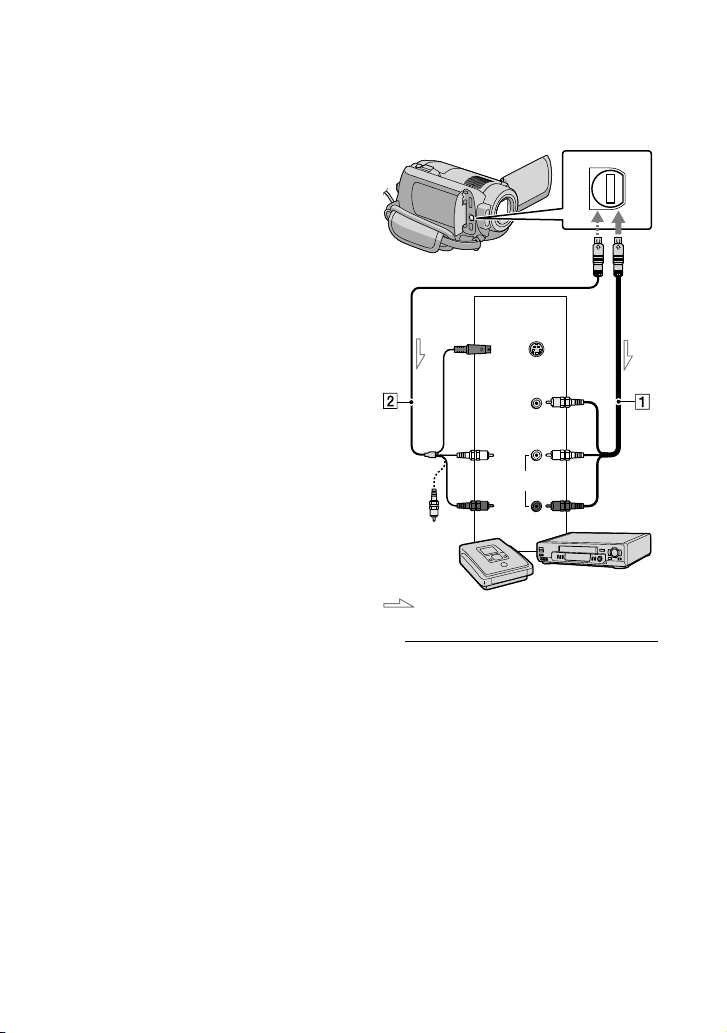
38
ES
Creación de un
disco con calidad de
imagen de definición
estándar (SD) con una
grabadora, etc.
(A/V cable de conexión)
Puede copiar imágenes reproducidas en la
videocámara en un disco o videocasete si
conecta la videocámara a una grabadora de
discos o grabadora de DVD de Sony, etc.,
con el A/V cable de conexión. Conecte el
dispositivo de la manera o . Consulte
además el manual de instrucciones de
los dispositivos que conecte. Seleccione
el soporte de grabación que contiene
las películas que desea copiar antes de
comenzar la operación (pág.
41).
Conecte la videocámara al tomacorriente de
pared mediante el adaptador de alimentación de
ca suministrado para esta operación (pág.
10).
Las películas con calidad de imagen de alta
definición (HD) se copian con calidad de
imagen de definición estándar (SD).
A/V cable de conexión (suministrado)
La videocámara está equipada con
Conector remoto de A/V (pág.
62).
Conecte el A/V cable de conexión a la
videocámara.
A/V cable de conexión con S VIDEO (se
vende por separado)
Al establecer la conexión a otro dispositivo
a través de la enchufe S VIDEO mediante
un A/V cable de conexión con un cable S
VIDEO (se vende por separado), pueden
producirse imágenes de mayor calidad que
con un A/V cable de conexión. Conecte los
enchufes blanco y rojo (Audio izquierdo/
derecho) y el enchufe de S VIDEO (canal
S VIDEO) del A/V cable de conexión
con un cable de S VIDEO. Si conecta sólo
el enchufe de S VIDEO, no escuchará
el sonido. No es necesario conectar el
enchufe (video).
1
Introduzca el soporte de
grabación en el dispositivo de
grabación.
Si el dispositivo de grabación tiene un
selector de entrada, ajústelo en el modo
de entrada.
Flujo de señales
Conector
remoto de A/V
S VIDEO
VIDEO
(amarillo)
(blanco)
AUDIO
(rojo)
Entrada
(amarillo)
39
Almacenamiento de imágenes con una grabadora de DVD
ES
2
Conecte la videocámara al
dispositivo de grabación
(grabadora de discos, etc.) con
el A/V cable de conexión
(suministrado) o un A/V cable
de conexión con S VIDEO (se
vende por separado).
Conecte la videocámara a las tomas de
entrada del dispositivo de grabación.
3
Inicie la reproducción en la
videocámara y grabe en el
dispositivo de grabación.
Para obtener más información, consulte los
manuales de instrucciones suministrados
con el dispositivo de grabación.
4
Cuando haya finalizado la
copia, detenga el dispositivo
de grabación y, a continuación,
detenga la videocámara.
Debido a que la copia se realiza a través de la
transferencia de datos analógica, es posible que
la calidad de imagen se deteriore.
No es posible realizar copias de imágenes en
grabadoras conectadas con un cable HDMI.
Para ocultar los indicadores de la pantalla
(como un contador, etc.), en la pantalla del
dispositivo monitor conectado, toque
(HOME) (AJUSTES) [AJUSTES
SALIDA] [SALIDA PANT.] [LCD]
(ajuste predeterminado)
.
Para grabar la fecha/hora o los datos de ajuste
de la cámara, toque (HOME)
(AJUSTES) [VIS.AJUSTES IMÁG]
[CÓDIGO DATOS] el ajuste deseado
.
Además, toque (HOME) (AJUSTES)
[AJUSTES SALIDA] [SALIDA PANT.]
[SAL-V/LCD] .
Si el tamaño de pantalla de los dispositivos
de visualización (TV, etc.) es 4:3, toque
(HOME) (AJUSTES) [AJUSTES
SALIDA] [TIPO TV] [4:3]
.
Si conecta la videocámara a un dispositivo
monoaural, introduzca el enchufe amarillo del
A/V cable de conexión en la entrada de video,
y el enchufe blanco (canal izquierdo) o el rojo
(canal derecho) en la entrada de audio del
dispositivo.
Es posible que la grabadora de DVD de Sony no
esté disponible en algunos países o regiones.
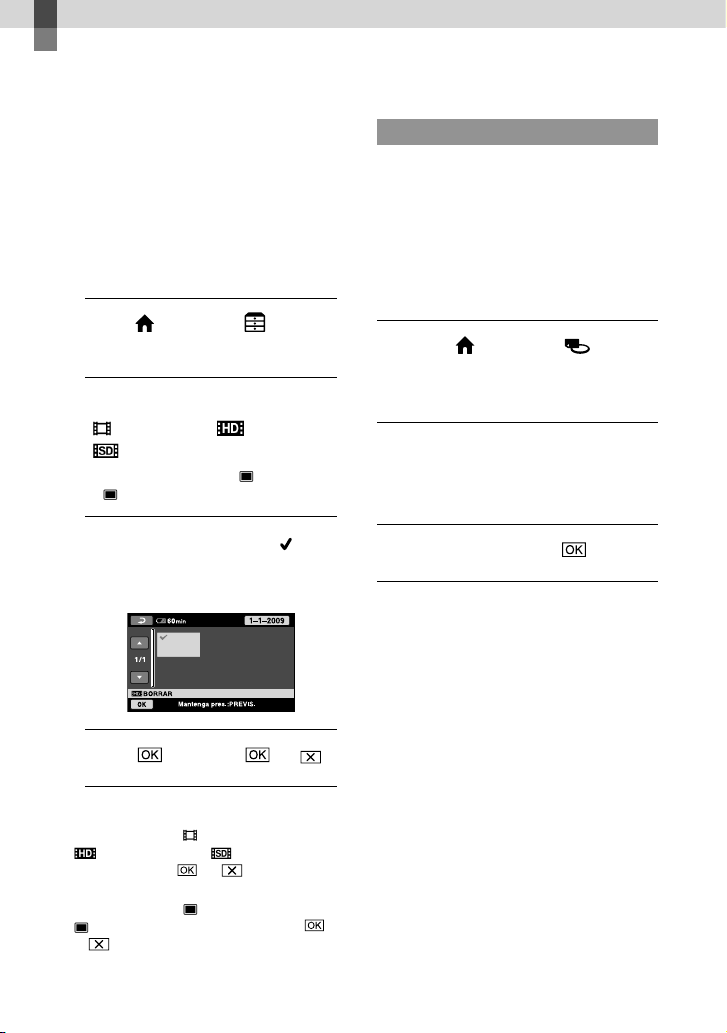
40
ES
Uso correcto de la videocámara
Eliminación de
películas y fotos
Puede liberar espacio en el soporte de
grabación si elimina películas y fotos
almacenadas en él.
Seleccione el soporte de grabación que
contiene las películas y fotos que desea
borrar antes de comenzar la operación
(pág.
41).
1
Toque (HOME) (OTROS)
[BORRAR].
2
Para borrar películas, toque
[ BORRAR] [ BORRAR] o
[ BORRAR].
Para borrar fotos, toque [ BORRAR]
[ BORRAR].
3
Toque y muestre la marca en
las películas o fotos que desea
borrar.
4
Toque
[SÍ] .
Para borrar todas las películas de una vez
En el paso 2, toque [ BORRAR]
[ BORRAR TODO]/[ BORRAR TODO]
[SÍ] [SÍ] .
Para borrar todas las fotos de una vez
En el paso 2, toque [ BORRAR]
[ BORRAR TODO] [SÍ] [SÍ]
.
Formateo del soporte de grabación
El formateo borra todas las películas y fotos
para recuperar espacio libre grabable.
Conecte la videocámara al tomacorriente de
pared mediante el adaptador de alimentación de
ca suministrado para esta operación (pág.
10).
Para evitar la pérdida de imágenes importantes,
debe guardarlas (pág.
27, 36) antes de formatear
el soporte de grabación.
Toque (
HOME
)
(GESTIONAR SOPORTE)
[FORMAT.SOPORTE].
Toque el soporte de grabación
que desea formatear ([HDD] o
[MEMORY STICK]).
Toque [
SÍ
] [
SÍ
] .
Mientras aparece el mensaje [En ejecución…],
no mueva el interruptor POWER ni toque
otros botones, no desconecte el adaptador de
alimentación de ca ni expulse el “Memory Stick
PRO Duo” de la videocámara. (El indicador
ACCESS/acceso está encendido o parpadea
mientras se formatea el soporte.)
Las películas y fotos protegidas también se
eliminarán.
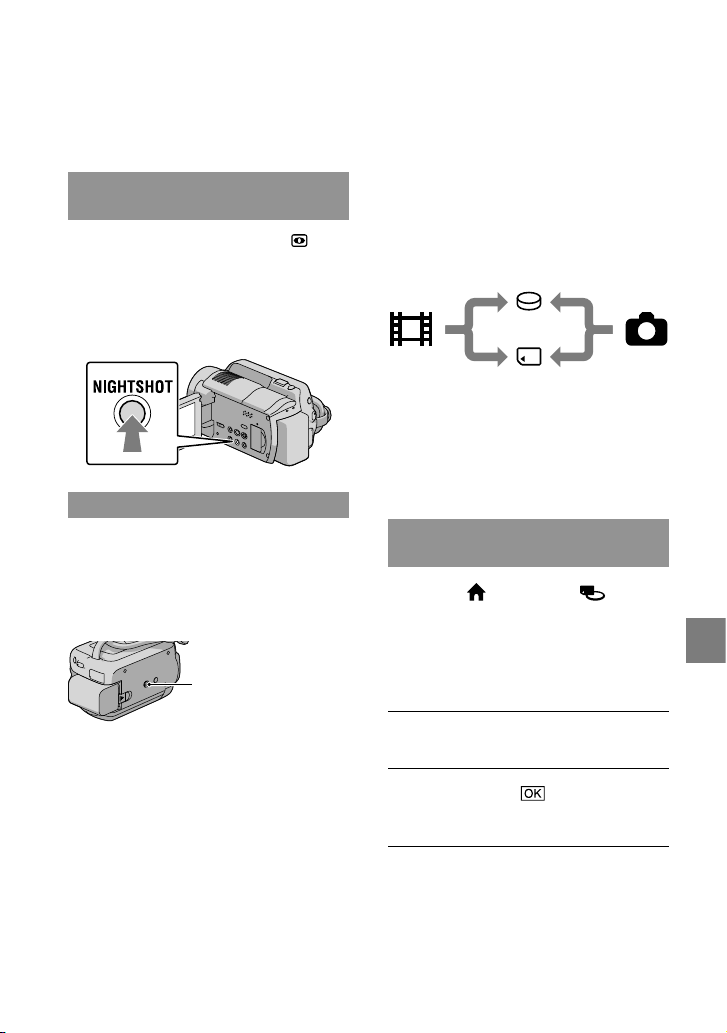
41
Uso correcto de la videocámara
ES
Cambio del soporte de
grabación
Puede seleccionar el disco duro interno o
“Memory Stick PRO Duo” como el soporte
de grabación, reproducción o edición en
la videocámara. Seleccione el soporte
que desea usar para películas y fotos por
separado. En el ajuste predeterminado, las
películas y las fotos se graban en el disco
duro.
Puede realizar operaciones de grabación,
reproducción o edición en el soporte
seleccionado.
Consulte la página 58 para conocer el tiempo de
grabación de las películas.
Selección del soporte de grabación
para las películas
Toque (HOME)
(GESTIONAR SOPORTE) [AJ.
SOPORTE PEL.].
Aparecerá la pantalla [AJ.SOPORTE
PEL.].
Toque el soporte deseado.
Toque [SÍ] .
El soporte de grabación se cambia.
Películas
Disco duro
“Memory Stick”
Fotos
Copia con condiciones
de filmación
El menú cuenta con muchas opciones de
configuración y ajustes (pág.
43).
Grabación en lugares oscuros
(NightShot)(HDR-XR200/XR200V)
Si presiona NIGHTSHOT, aparece . Es
posible grabar imágenes en lugares oscuros.
Para cancelar la función NightShot,
presione NIGHTSHOT nuevamente.
Si usa NightShot en lugares brillantes causará
fallas de funcionamiento en la videocámara.
Uso de un trípode
Puede colocar un trípode (se vende
por separado) en el receptáculo
correspondiente mediante un tornillo para
trípode (se vende por separado, la longitud
del tornillo debe ser inferior a 5,5 mm)
Receptáculo del trípode
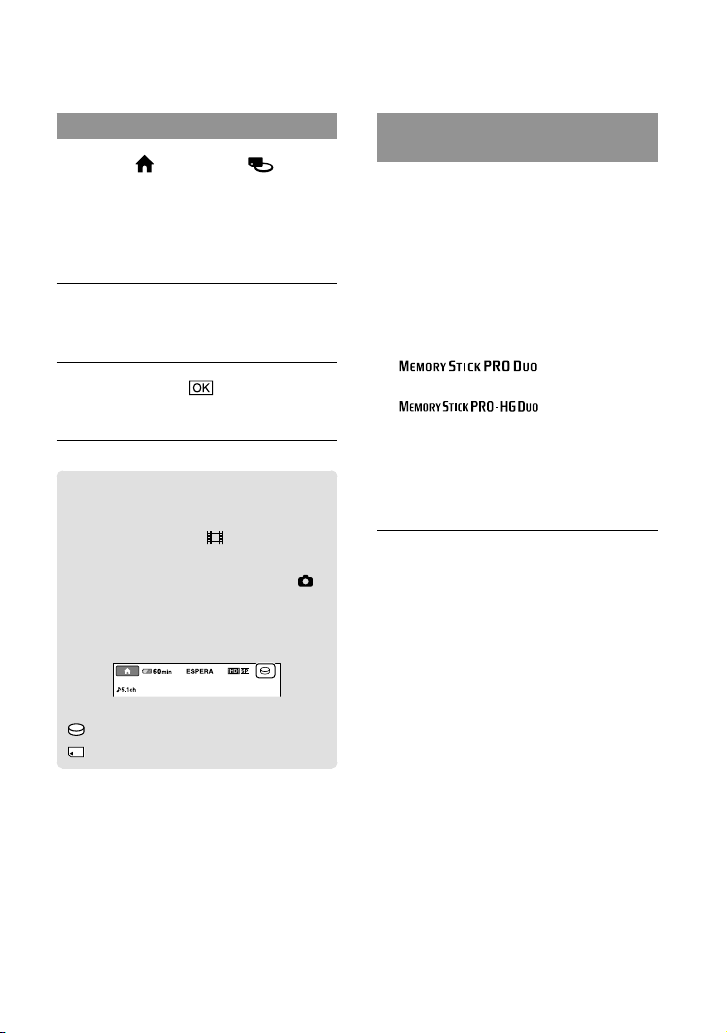
42
ES
Selección del soporte para las fotos
Toque (HOME)
(GESTIONAR SOPORTE) [AJ.
SOPORTE FOTO].
Aparecerá la pantalla [AJ.SOPORTE
FOTO].
Toque el soporte de grabación
deseado.
Toque [SÍ] .
El soporte de grabación se cambia.
Para comprobar los ajustes del
soporte de grabación
Encienda el indicador (Película) para
comprobar el soporte de grabación que
se usará para películas o el indicador
(Foto) en el caso de las fotos. El icono de
soporte aparece en la esquina superior
derecha de la pantalla.
: disco duro interno
: “Memory Stick PRO Duo”
Inserción de un “Memory Stick
PRO Duo”
Ajuste el soporte de grabación en [MEMORY
STICK] para grabar películas y/o fotos en un
“Memory Stick PRO Duo” (pág.
41).
Tipos de “Memory Stick” que puede
usar con esta videocámara
Para grabar películas, se recomienda utilizar
el “Memory Stick PRO Duo” de 1 GB o de
capacidad superior con una de las siguientes
marcas:
(“Memory Stick
PRO Duo”)*
(“Memory Stick
PRO-HG Duo”)
* Puede utilizarse lleve la marca Mark2
o no.
Esta videocámara es compatible con “Memory
Stick PRO Duo” de hasta 16 GB
Abra la tapa del “Memory Stick
Duo” e inserte el “Memory Stick
PRO Duo” en la ranura para
“Memory Stick Duo” hasta que
haga clic.
Si inserta a la fuerza el “Memory Stick
PRO Duo” en la ranura en la dirección
incorrecta, es posible que se dañen el
“Memory Stick PRO Duo”, la ranura
para “Memory Stick Duo” o los datos de
imágenes.
Cierre la tapa del “Memory Stick Duo”
luego de insertar el “Memory Stick PRO
Duo”.
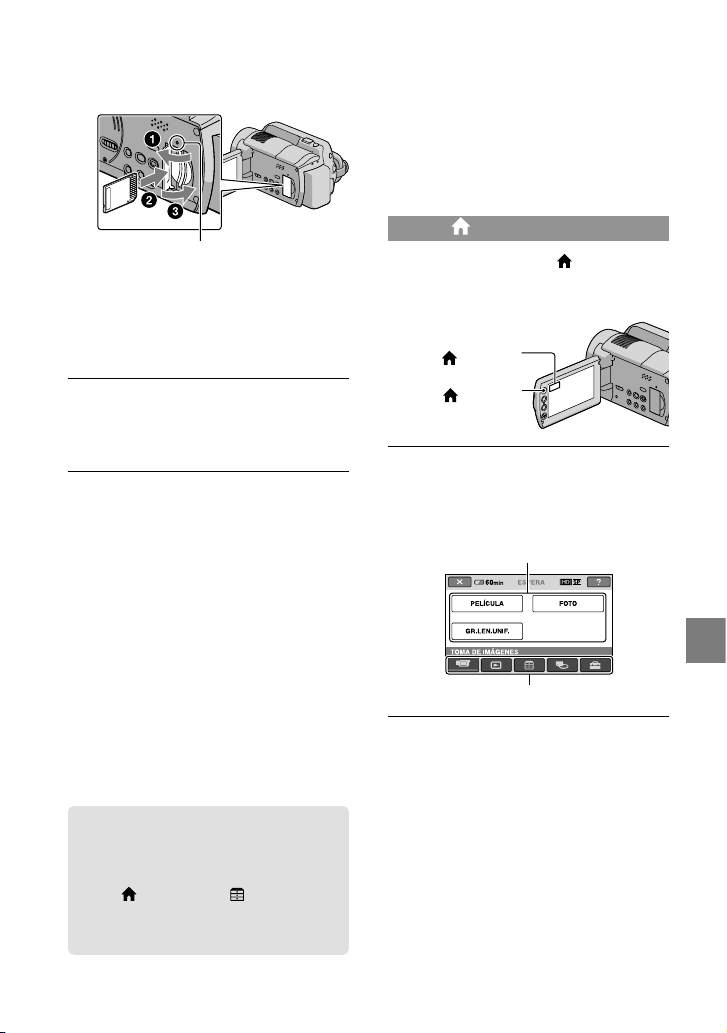
43
Uso correcto de la videocámara
ES
Personalización de
la videocámara con
menús
Los elementos de menú se describen de manera
más detallada con fotos en color en la “Guía
práctica de Handycam” (pág.
50).
Uso de HOME MENU
Cuando presiona el botón (HOME),
aparece el HOME MENU. Puede cambiar
los ajustes de la videocámara.
Toque la categoría que desea
el elemento de menú que desea
cambiar.
Elemento de menú
Categoría
Siga las instrucciones que
aparecen en la pantalla.
(HOME)
Botón (HOME)
Indicador de acceso
(“Memory Stick PRO Duo”)
Cuando inserta un nuevo “Memory
Stick PRO Duo”, aparece la pantalla
[Crear nuevo arch.base de datos de
imágenes.].
Toque [SÍ].
Para grabar solamente fotos en un
“Memory Stick PRO Duo”, toque [NO].
Si en el paso 2 aparece el mensaje [Error al crear
un nuevo archivo de base de datos de imágenes.
Es posible que no exista suficiente espacio
libre.], formatee el “Memory Stick PRO Duo”
(pág.
40).
Para expulsar el “Memory Stick PRO
Duo”
Abra la tapa del “Memory Stick PRO Duo”
y presione ligeramente el “Memory Stick
PRO Duo”.
No abra la tapa del “Memory Stick Duo”
durante la grabación.
Al insertar o expulsar el “Memory Stick PRO
Duo”, tenga cuidado de que éste no salga
expulsado y se caiga.
Copia de películas y fotos desde
el disco duro interno a un
“Memory Stick PRO Duo”
Toque (HOME) (OTROS)
[COPIA PELÍCULA]/[COPIAR FOTO]
y siga las instrucciones en la pantalla.
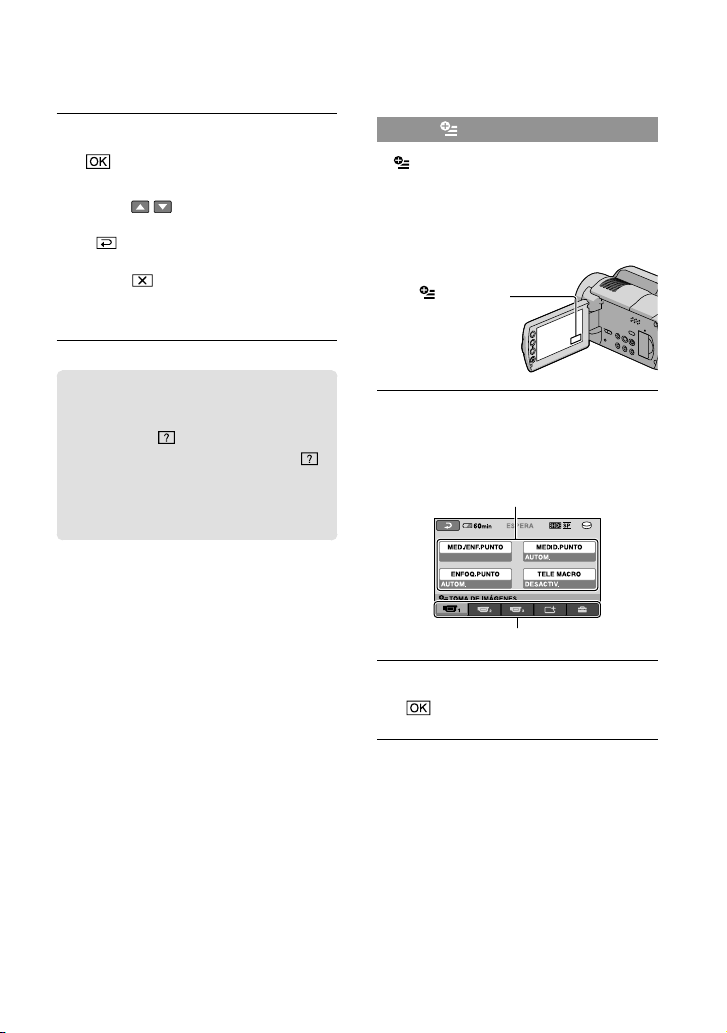
44
ES
Cuando finalice el ajuste, toque
.
Si el elemento no aparece en la pantalla,
toque / .
Para volver a la pantalla anterior, toque
.
Para ocultar la pantalla HOME MENU,
toque .
No puede seleccionar los elementos o
ajustes que aparecen atenuados.
Uso de la función HELP
Para ver las descripciones del HOME
MENU, toque (HELP) en la pantalla
HOME MENU. (La parte inferior del
se ilumina en naranja.) Luego, toque el
elemento de menú del que desea obtener
información.
Uso de OPTION MENU
El OPTION MENU se abre igual que las
ventanas emergentes que aparece al hacer
clic con el botón derecho del mouse de una
computadora. Aparecen los elementos de
menú que puede cambiar en el contexto.
Toque la ficha deseada
el
elemento cuyo ajuste desea
cambiar.
Elemento de menú
Ficha
Cuando finalice el ajuste, toque
.
Si el elemento que desea no se muestra en la
pantalla, toque otra ficha. (Es posible que no
haya fichas.)
No puede usar el OPTION MENU durante el
funcionamiento en modo Easy Handycam.
(OPTION)
45
Uso correcto de la videocámara
ES
Lista del HOME MENU
Categoría (TOMA DE IMÁGENES)
PELÍCULA ................................... pág. 13
FOTO ............................................ pág. 15
GR.LEN.UNIF. .............................Graba en cámara lenta motivos que se mueven rápidamente.
Categoría (VISUALIZAR IMÁGENES)
VISUAL INDEX ...........................pág. 18
MAPA* .................................... Muestra el Índice de mapas para buscar películas y fotos por ubicación de
grabación.
ROLLO PELÍC. ......................pág. 18
CARA ......................................pág. 18
PLAYLIST.....................................Muestra y reproduce la playlist de películas.
Categoría (OTROS)
BORRAR
BORRAR .....................pág. 40
BORRAR ......................pág. 40
SU UBICACIÓN* .................. Muestra la ubicación actual en un mapa.
TOMA FOTOGRÁF. ...................Captura fotos a partir de las escenas de película que desee.
COPIA PELÍCULA
COPIAR/
COPIAR .......... pág. 43
COPIAR FOTO
COPIAR por selec. .......... pág. 43
COPIAR por fecha .......... pág. 43
EDIT
BORRAR ......................pág. 40
BORRAR .......................pág. 40
PROTEGER ..................Activa la protección para evitar borrar películas.
PROTEGER .................. Activa la protección para evitar borrar fotos.
DIVIDIR .......................Divide películas.
EDICIÓN PLAYLIST
AÑADIR/
AÑADIR .....................Agrega películas en una playlist.
AÑAD.p.fecha/
AÑAD.p.fecha ......... Agrega de una vez a la playlist las películas grabadas en un mismo día.
BORRAR/
BORRAR ..................... Borra las películas de una playlist.
BORRAR TODO/
BORRAR TODO ........ Borra todas las películas de una playlist.
MOVER/
MOVER ....................... Cambia el orden de las películas en una playlist.
46
ES
CONEXIÓN USB
CONEXIÓN USB ........Conecta el disco duro interno mediante USB.
CONEXIÓN USB ........ Conecta el “Memory Stick PRO Duo” mediante USB.
GRABAR EN DISCO ........pág. 29
DESCARG.MÚSICA**.....Descarga archivos de música que se pueden reproducir con
REPRODUCCIÓN DE SELECCIÓN.
GUÍA CONEXIÓN TV ...............pág. 21
HERRAM.MÚSICA
DESCARG.MÚSICA**.....Descarga archivos de música que se pueden reproducir con
REPRODUCCIÓN DE SELECCIÓN.
VACIAR MÚSICA** ......... Elimina los archivos de música.
BATTERY INFO ..........................Muestra la información de la batería.
Categoría (GESTIONAR SOPORTE)
AJ.SOPORTE PEL. .....................pág. 41
AJ.SOPORTE FOTO ..................pág. 42
INFO SOPORTE ......................... Muestra información sobre el soporte de grabación, como por ejemplo, el
espacio libre.
FORMAT.SOPORTE ..................pág. 40
REP.ARCH.BD.IM.. ..................... pág. 53
Categoría (AJUSTES)
AJUSTES PEL.CÁM
AJUSTE / ...........Define la calidad de la imagen para grabar, reproducir o editar películas.
MODO GRAB. .................. Define el modo para grabar las películas. Al grabar objetos que se mueven
a gran velocidad, se recomienda usar una alta calidad de imagen, como
[FH].
MODO AUDIO .................Define el formato de sonido de la grabación (envolvente de 5,1 canales/
estéreo de 2 canales).
ILUM.NIGHTSHOT** ......Emite luz infrarroja cuando se usa NIGHTSHOT.
SELEC.PANOR. .................Define el formato horizontal a vertical cuando se graban películas con
calidad de imagen de definición estándar (SD).
ZOOM DIGITAL ...............pág. 14
STEADYSHOT ............ pág. 14
OB.LENTO AUTO ............ Ajusta automáticamente la velocidad del obturador.
X.V.COLOR ........................ pág. 15
GUÍA FOTOG. ..................Muestra el marco que le ayuda a comprobar si el objeto aparece horizontal
o vertical.
RESTANTE AJ. ............Define cómo se mostrará el tiempo de grabación restante del soporte.
MODO FLASH** .............Define cómo se activa el flash.
NIVEL FLASH**................Define el brillo del flash.
R.OJOS ROJ.** ................. Evita la aparición de ojos rojos cuando se toman fotos con flash.
OBJETIVO CONVER. ......Optimiza la función Steadyshot y el enfoque según el objetivo instalado.
CONTRALUZ AUTO. .......Ajusta automáticamente la exposición de objetos a contraluz.

47
Uso correcto de la videocámara
ES
AJUST.FOTO CÁM.
TAM.IMAGEN .............Ajusta el tamaño de la foto.
NÚM.ARCHIVO .............. Define cómo se asigna el número de archivo.
ILUM.NIGHTSHOT** ......Emite luz infrarroja cuando se usa NIGHTSHOT.
STEADYSHOT** ........ Ajusta la función SteadyShot cuando se toman fotos.
OB.LENTO AUTO ............ Ajusta automáticamente la velocidad del obturador.
GUÍA FOTOG. ..................Muestra el marco que le ayuda a comprobar si el objeto aparece horizontal
o vertical.
MODO FLASH** .............Define cómo se activa el flash.
NIVEL FLASH**................Define el brillo del flash.
R.OJOS ROJ.** ................. Evita la aparición de ojos rojos cuando se toman fotos con flash.
OBJETIVO CONVER. ......Optimiza la función SteadyShot (HDR-XR200/XR200V) y el enfoque
según el objetivo instalado.
CONTRALUZ AUTO. .......Ajusta automáticamente la exposición de motivos a contraluz.
AJ.FUNC.CARAS
AJ.DETEC.CARA ..............Cambia el ajuste [DETECCIÓN DE CARA] y [AJUSTE DE MARCO].
CAPT.SONRISAS .............Cambia el ajuste [AJUSTE DETEC.], [SENSIB.SONRISA], [PRIORID.
SONRISA] y [AJUSTE DE MARCO].
VIS.AJUSTES IMÁG
AJUSTE / ...........Define la calidad de la imagen para grabar, reproducir o editar películas.
CÓDIGO DATOS..............Muestra datos detallados de la grabación durante la reproducción.
AJUS.SON./PANT.
VOL. ....................................pág. 20
PITIDO ...............................pág. 12
BRILLO LCD ...................... Puede ajustar el brillo de la pantalla de cristal líquido.
NIV LUZ LCD ....................Ajusta la luz de fondo de la pantalla de cristal líquido.
COLOR LCD ......................Ajusta la intensidad del color de la pantalla de cristal líquido.
AJUSTES SALIDA
TIPO TV .............................. pág. 22
SALIDA PANT. ..................Define si los mensajes de la pantalla aparecen en la pantalla del televisor o
no.
COMPONENTE ................ pág. 22
RESOLUCIÓN HDMI ......Define la resolución de la imagen de salida cuando conecta la videocámara
a un televisor con un cable HDMI.
AJ.REL./IDIOM.
AJUS.RELOJ ...................... pág. 11
AJUS.ZONA ......................pág. 11
AJUS.AUTO RELOJ* ....... Define si la videocámara ajusta automáticamente el reloj al adquirir la
hora desde GPS.
AJUS.AUTO ZONA* ....... Define si la videocámara compensa automáticamente una diferencia
horaria al adquirir la información del área actual desde GPS.
HORA VERANO ............... pág. 11
AJUSTE IDIOMA ........pág. 12

48
ES
AJUST.GENERALES
MODO DEMO..................Define si se muestra o no la demostración.
IND.GRAB.** ..................... Define si indicador de grabación se enciende o no.
CALIBRACIÓN .................Calibra el panel táctil.
APAGADO AUTO ............Cambia el ajuste [APAGADO AUTO] (pág. 10).
ENCEND.CON LCD .........Define si la videocámara se enciende y se apaga al abrir y cerrar la pantalla
de cristal líquido.
CTRL REMOTO** ............Define si se usa o no el control remoto inalámbrico.
SENSOR CAÍDA ...............pág. 4
CTRL.PARA HDMI ...........pág. 22
[AJUS.SON./PANT.] cambia a [AJUSTES SONIDO] durante el funcionamiento en modo Easy
Handycam.
* HDR-XR200V
**
HDR-XR200/XR200V
49
Uso correcto de la videocámara
ES
Lista del OPTION MENU
Los siguientes elementos se encuentran disponibles en el OPTION MENU solamente.
Ficha
MED./ENF.PUNTO .......... Ajusta el brillo y enfoca el objeto seleccionado simultáneamente.
MEDID.PUNTO ................Ajusta el brillo de las imágenes de acuerdo a un objeto que toque en
pantalla.
ENFOQ.PUNTO ............... Enfoca un objeto que toque en pantalla.
TELE MACRO ...................Graba un objeto enfocado con el fondo desenfocado.
EXPOSICIÓN ....................Ajusta el brillo de películas y fotos.
ENFOQUE .........................Enfoca manualmente.
SELEC.ESCENA ................Selecciona un ajuste de grabación adecuado de acuerdo al tipo de escena,
como por ejemplo una vista nocturna o una playa.
BAL.BLANCOS] ..............Ajusta el balance de blancos.
Ficha
DESVANECEDOR ............Desvanece o aumenta gradualmente la escena.
Ficha
MIC.ZOOM INCOR. ........ Graba películas con sonido direccional a medida que lo acerca o lo aleja.
NIVEL REFMIC .................Ajusta el nivel del micrófono.
AUTODISPAR. .................. Se usa durante la grabación de fotos.
TEMPORIZ. ....................... Ajusta el tiempo que se usará para iniciar la grabación de [GR.LEN.
UNIF.].
La ficha depende de la situación/sin ficha
PRES.DIAP. ........................ Reproduce una serie de fotos.
AJUS.PASE DIAPO. .........Ajusta la opción de repetición de las diapositivas.
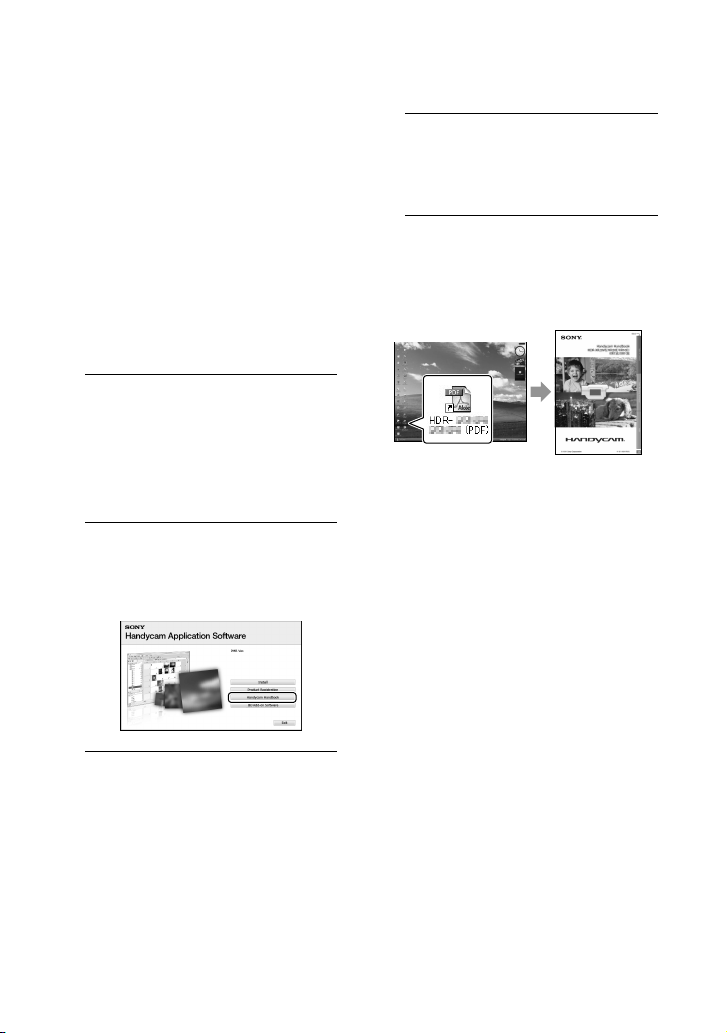
50
ES
Obtención de
información detallada
con la “Guía práctica de
Handycam”
La “Guía práctica de Handycam” es una
guía para el usuario diseñada para leerse
en la pantalla de una computadora.
En ella se describen las funciones de la
videocámara, en algunos casos con fotos
en color. Puede leer la “Guía práctica de
Handycam” cuando desee obtener más
información acerca del funcionamiento de
la videocámara.
1
Para instalar la “Guía práctica de
Handycam” en una computadora
con Windows, coloque el CD-
ROM suministrado en la unidad
de disco de su computadora.
2
En la pantalla de instalación
que aparece, haga clic en [Guía
práctica de Handycam].
3
Seleccione el idioma deseado y
el modelo de la videocámara y, a
continuación, haga clic en [Guía
práctica de Handycam (PDF)].
El modelo de la videocámara está impreso
en la superficie inferior del aparato.
4
Haga clic en [Exit] [Exit] y, a
continuación, retire el CD-ROM
de la computadora.
Haga doble clic en el icono de acceso
directo para ver la “Guía práctica
de Handycam” en la pantalla de la
computadora.
Si utiliza un equipo Macintosh, abra la carpeta
[Handbook] – [ESUS] en el CD-ROM y, a
continuación, copie [Handbook.pdf].
Necesita Adobe Reader para leer la “Guía
práctica de Handycam”.
http://www.adobe.com/
Consulte la “Guía de PMB” para obtener
información sobre el software “PMB”
suministrado (pág.
31).

Información complementaria
51
ES
Información complementaria
Solución de
problemas
Si surge algún problema al utilizar la
videocámara, consulte la tabla siguiente
para solucionarlo. Si el problema persiste,
desconecte la fuente de alimentación y
póngase en contacto con su distribuidor
de Sony.
Notas antes de enviar la videocámara a reparación
Es posible que la videocámara deba inicializarse
o que necesite un reemplazo del disco duro
actual, dependiendo del problema. En tal
caso, los datos almacenados en el disco duro
se eliminarán. Asegúrese de guardar los datos
del disco duro interno en otro medio (copia
de seguridad) antes de enviar la videocámara a
reparación (pág.
27, 36). No ofrecemos ningún
tipo de compensación por la pérdida de los
datos del disco duro.
Durante la reparación, es posible que revisemos
una cantidad mínima de los datos almacenados
en el disco duro a fin de investigar el problema.
Sin embargo, el distribuidor de Sony no copiará
ni conservará sus datos.
Consulte la Guía práctica de Handycam
(pág.
50) para obtener detalles sobre los
síntomas de la videocámara y “Guía de PMB”
(pág.
31) para obtener instrucciones para
conectar la videocámara a una computadora.
La videocámara no se enciende.
Instale una batería cargada en la videocámara
(pág.
9).
Conecte el enchufe del adaptador de
alimentación de ca al enchufe de pared
(pág.
10).
La videocámara no opera aun cuando la
alimentación está encendida.
Después de encender la videocámara, tarda
unos cuantos segundos en estar lista para
tomar imágenes. No se trata de una falla de
funcionamiento.
Desconecte el adaptador de alimentación ca
del enchufe de pared o extraiga la batería y
vuelva a realizar la conexión transcurrido
aproximadamente 1 minuto. Si la videocámara
todavía no funciona, presione el botón RESET
(pág.
63) con un objeto puntiagudo: (Al
presionar el botón RESET, se reestablecen
todos los ajustes, incluido el del reloj.)
La temperatura de la videocámara es
extremadamente alta. Apague la videocámara
y déjela reposar un momento en un lugar frío.
La temperatura de la videocámara es
extremadamente baja. Deje la videocámara
encendida. Si todavía no puede operar la
videocámara, apáguela y llévela a un lugar
cálido. Déjela reposar unos momentos y luego
enciéndala.
La videocámara se calienta.
La videocámara puede calentarse durante el
funcionamiento. No se trata de una falla de
funcionamiento.
La alimentación se desconecta
repentinamente.
Utilice el adaptador de alimentación de ca
(pág.
10).
Encienda la videocámara de nuevo.
Cargue la batería (pág.
9).

52
ES
Al presionar START/STOP o PHOTO no se
graban las imágenes.
Presione MODE para encender el indicador
(Película) o (Foto) (pág. 11).
La videocámara está grabando en el soporte de
grabación la imagen que acaba de tomar. No
se pueden realizar nuevas grabaciones durante
este período.
El soporte de grabación está lleno. Elimine las
imágenes innecesarias (pág.
40).
El número total de escenas de película o
fotos supera la capacidad de grabación
de la videocámara. Elimine las imágenes
innecesarias (pág.
40).
La grabación se detiene.
La temperatura de la videocámara es
extremadamente alta o baja. Apague la
videocámara y déjela reposar un momento en
un lugar frío/cálido.
”PMB” no se puede instalar.
Revise el entorno de la computadora o el
procedimiento necesario para instalar “PMB”
(pág.
23).
”PMB” no funciona correctamente.
Cierre “PMB” y reinicie la computadora.
La computadora no reconoce la
videocámara.
Desconecte los dispositivos de la toma USB
de la computadora, a excepción del teclado, el
mouse y la videocámara.
Desconecte el cable USB de la computadora
y la videocámara. Reinicie la computadora
y, a continuación, vuelva a conectar la
computadora y la videocámara en el orden
correcto.
Visualización de autodiagnóstico/
Indicadores de advertencia
Si aparecen indicadores en la pantalla de
cristal líquido, compruebe lo siguiente.
Si el problema persiste aun después de
intentar solucionarlo varias veces, póngase
en contacto con su distribuidor de Sony
o con un centro de servicio técnico local
autorizado de Sony.
C:04:
La batería no es una batería “InfoLITHIUM”
(serie H). Utilice una batería “InfoLITHIUM”
(serie H) (pág.
9).
Conecte firmemente el enchufe de cc del
adaptador de ca a la toma DC IN de la
videocámara (pág.
9).
C:13: / C:32:
Desconecte la fuente de alimentación.
Conéctela de nuevo y vuelva a poner en
funcionamiento la videocámara.
E:20: / E:31: / E:61: / E:62:
/ E:91: / E:94: / E:95: /
E:96:
La videocámara necesita reparación. Póngase
en contacto con su distribuidor de Sony o con
un centro de servicio técnico local autorizado
de Sony. Indíquele el código de 5 dígitos que
comienza con la letra “E”.
101-0001
Si el indicador parpadea lentamente, significa
que el archivo está dañado o que no se puede
leer.
53
Información complementaria
ES
El disco duro de la videocámara está lleno.
Elimine del disco duro las imágenes que no
necesita (pág.
40).
Se produjo un error en el disco duro de la
videocámara.
La batería dispone de poca energía.
La temperatura de la videocámara está
aumentando. Apague la videocámara y déjela
en un lugar frío.
La temperatura de la videocámara es baja.
Caliente la videocámara.
No se insertó ningún “Memory Stick PRO
Duo” (pág.
42).
Si el indicador parpadea, significa que no
queda espacio libre suficiente para grabar
imágenes. Elimine las imágenes innecesarias
(pág.
40), o formatee el “Memory Stick PRO
Duo” (pág.
40) después de almacenar las
imágenes en otro soporte.
Archivo de base de datos de imágenes dañado.
Compruebe el archivo de base de datos
de imágenes al tocar (HOME)
(GESTIONAR SOPORTE) [REP.ARCH.
BD.IM.] el soporte de grabación.
El “Memory Stick PRO Duo” está dañado.
Formatee el “Memory Stick PRO Duo” con la
videocámara (pág.
40).
Se insertó un “Memory Stick Duo”
incompatible (pág.
42).
Se restringió el acceso al “Memory Stick PRO
Duo” en otro dispositivo.
(HDR-XR200/XR200V)
Existe algún tipo de problema con el flash.
La cantidad de luz no es suficiente. Use el flash.
(HDR-XR200/XR200V)
La videocámara se encuentra en posición
inestable. Sostenga la videocámara firmemente
con ambas manos. No obstante, tenga en cuenta
que el indicador de advertencia de vibración de
la cámara no desaparecerá.
Se activa la función del sensor de caída. Es
posible que no pueda grabar o reproducir
imágenes.
El soporte de grabación está lleno. Elimine las
imágenes innecesarias (pág.
40).
No es posible grabar fotos durante el
procesamiento. Espere un momento y, a
continuación, grabe.

54
ES
Precauciones
Uso y cuidados
No utilice ni almacene la videocámara y los
accesorios en los siguientes lugares:
En lugares extremadamente cálidos, fríos
o húmedos. Nunca los deje expuestos a
temperaturas superiores a 60 C como, por
ejemplo, bajo la luz solar directa, cerca de
calefactores o en un automóvil estacionado
bajo el sol, ya que podrían deformarse o sufrir
fallas de funcionamiento.
Cerca de campos magnéticos intensos o
vibraciones mecánicas. La videocámara
podría sufrir fallas de funcionamiento.
Cerca de ondas radiofónicas potentes o
radiaciones. Es posible que la videocámara no
pueda grabar correctamente.
Cerca de receptores de AM y de equipos de
video. Es posible que se produzcan ruidos.
En una playa o cualquier lugar con
mucho polvo. Si entra arena o polvo en la
videocámara, pueden causar una falla de
funcionamiento. En ocasiones, esta falla de
funcionamiento puede resultar irreparable.
Cerca de ventanas o en el exterior, donde la
pantalla de cristal líquido o el objetivo pueden
quedar expuestos a la luz solar directa. Esto
dañaría el interior de la pantalla de cristal
líquido.
Alimente la videocámara con cc de 6,8 V/7,2 V
(batería) o cc de 8,4 V (adaptador de
alimentación de ca)
Para alimentar la videocámara con cc o ca
utilice los accesorios recomendados en este
manual de instrucciones.
No permita que la videocámara se moje; por
ejemplo, bajo la lluvia o por el agua del mar.
Si la videocámara se moja, podría sufrir fallas
de funcionamiento. En ocasiones, esta falla de
funcionamiento puede resultar irreparable.
Si dentro de la videocámara entra algún objeto
o líquido, desconéctela y haga que la revise un
distribuidor de Sony antes de volver a utilizarla.
Evite manipular, desmontar o modificar la
videocámara bruscamente y exponerla a
golpes o impactos como martillazos, caídas o
pisotones. Sea especialmente cuidadoso con el
objetivo.
Mantenga la videocámara apagada cuando no
la esté usando.
No utilice la videocámara envuelta en
una toalla, por ejemplo. Si lo hace, puede
recalentarse internamente.
Cuando desconecte el cable de alimentación,
tire del enchufe y nunca del cable.
Procure no dañar el cable de alimentación al
colocar un objeto pesado sobre él.
No use la batería si está deformada o dañada.
Mantenga limpios los contactos metálicos.
Mantenga el control remoto inalámbrico y
la pila de tipo botón fuera del alcance de los
niños. En caso de ingestión accidental de la pila,
consulte a un médico de inmediato.
Si se producen fugas del líquido electrolítico
de la pila:
Póngase en contacto con un centro de servicio
técnico local autorizado de Sony.
Límpiese con agua cualquier líquido que haya
entrado en contacto con su piel.
Si le entra líquido en los ojos, láveselos con
agua abundante y acuda a un médico.
Cuando no utilice la videocámara
durante un tiempo prolongado
Para mantener la videocámara en óptimo estado
durante mucho tiempo, enciéndala y déjela
funcionar grabando y reproduciendo imágenes
aproximadamente una vez al mes.
Agote la batería completamente antes de
guardarla.
Pantalla de cristal líquido
No ejerza excesiva presión sobre la pantalla de
cristal líquido porque puede dañarse.
Cuando utilice la videocámara en un lugar frío,
es posible que en la pantalla de cristal líquido
aparezca una imagen residual. No se trata de
una falla de funcionamiento.
Mientras utiliza la videocámara, la parte
posterior de la pantalla de cristal líquido se
puede calentar. No se trata de una falla de
funcionamiento.

55
Información complementaria
ES
Para limpiar la pantalla de cristal líquido
Si la pantalla de cristal líquido se ensucia de
huellas dactilares o polvo, se recomienda el uso
de un paño suave para limpiarla. Si utiliza el kit
de limpieza para la pantalla de cristal líquido (se
vende por separado), no aplique el líquido de
limpieza directamente sobre la pantalla. Utilice
papel de limpieza humedecido con el líquido.
Manipulación de la unidad
Si la unidad está sucia, limpie el cuerpo de la
videocámara con un paño suave ligeramente
humedecido con agua y, a continuación, limpie
la unidad con un paño suave y seco.
No realice ninguna de las acciones siguientes
para evitar dañar el acabado:
Usar productos químicos como diluyentes,
bencina, alcohol, paños con productos
químicos, repelentes, insecticidas y pantallas
solares
Utilizar la videocámara con las sustancias
mencionadas en las manos
Dejar la unidad en contacto con objetos de
goma o vinilo durante un tiempo prolongado
Cuidado y almacenamiento del
objetivo
Frote la superficie del objetivo con un paño
suave en los casos siguientes:
Cuando haya huellas dactilares en la
superficie del objetivo
En lugares cálidos o húmedos
Cuando el objetivo esté expuesto al aire salado
como, por ejemplo, a orillas del mar
Guárdelo en un lugar bien ventilado donde no
haya suciedad ni mucho polvo.
Para evitar la aparición de moho, limpie el
objetivo periódicamente como se ha descrito
anteriormente.
Carga de la pila recargable preinstalada
La videocámara contiene una batería recargable
preinstalada para conservar la fecha, la hora y
otros ajustes incluso cuando está apagada. La pila
recargable preinstalada siempre se carga mientras
la videocámara está conectada al tomacorriente
de pared a través del adaptador de alimentación
de ca o cuando tiene la batería insertada. La
batería recargable se descargará completamente
transcurridos aproximadamente 3 meses si
no utiliza la videocámara en absoluto. Utilice
la videocámara después de cargar la batería
recargable preinstalada. Sin embargo, aunque no
esté cargada, el funcionamiento de la videocámara
no se verá afectado, siempre que no se esté
grabando la fecha.
Procedimientos
Conecte la videocámara a un enchufe pared
mediante el adaptador de alimentación de ca
suministrado y déjela con el interruptor ajustado
en la posición durante más de 24 hora.
Nota sobre la eliminación o
transferencia de la videocámara
Aunque ejecute [FORMAT.SOPORTE] o formatee
el disco duro de la videocámara, es posible que
no borre completamente los datos del disco duro.
Si transfiere la videocámara, es recomendable
que ejecute [ VACIAR] para impedir que sus
datos sean recuperados (consulte “Obtención de
información detallada con la “Guía práctica de
Handycam”” (pág. 50). Además, cuando deseche
la videocámara, se recomienda que destruya el
cuerpo real del aparato.
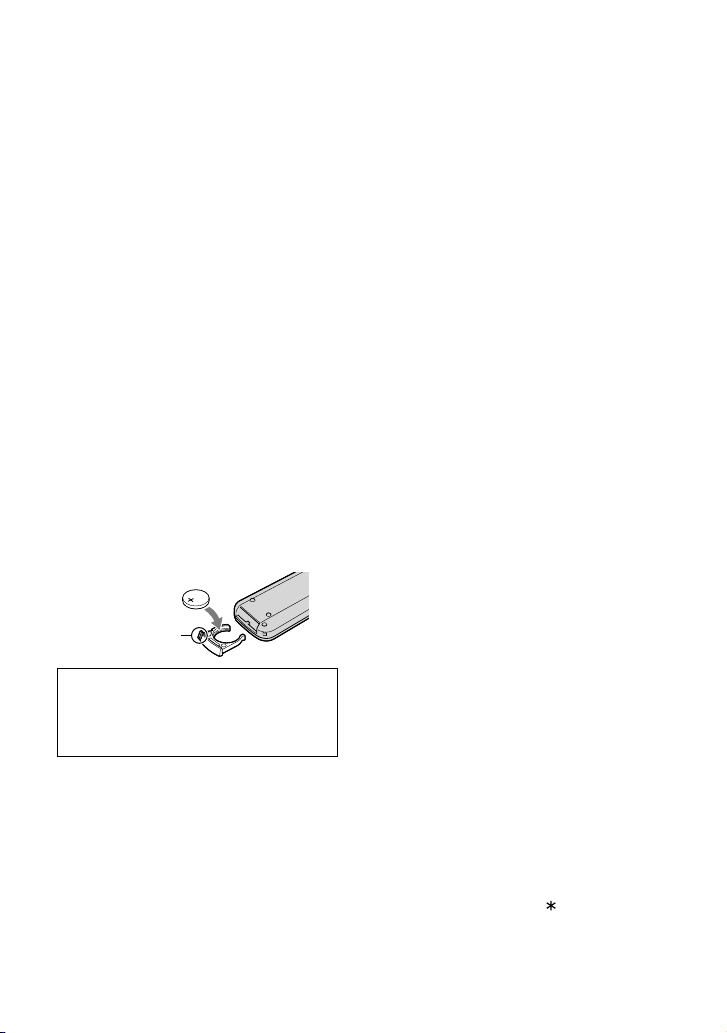
56
ES
Nota sobre la eliminación o
transferencia “Memory Stick PRO Duo”
Aunque borre los datos del “Memory Stick PRO
Duo” o aunque formatee el “Memory Stick PRO
Duo” en su videocámara o en una computadora,
es posible que no borre los datos completamente.
Si le entrega el “Memory Stick PRO Duo” a otra
persona, es recomendable eliminar los datos
completamente usando software de eliminación
de datos en una computadora. Además,
cuando deseche el “Memory Stick PRO Duo”,
es recomendable destruir el cuerpo real del
“Memory Stick PRO Duo”.
Para cambiar la pila del control remoto
inalámbrico (HDR-XR200/XR200V)
Al tiempo que mantiene presionada la lengüeta,
inserte la uña en la ranura para extraer la
cubierta del compartimiento de la batería.
Coloque una nueva pila con el lado + hacia
arriba.
Inserte nuevamente la cubierta del
compartimiento de la batería en el control
remoto inalámbrico hasta que haga clic.
ADVERTENCIA
La pila puede explotar si se utiliza de manera
incorrecta. No la recargue, no la desmonte ni
la arroje al fuego.
Si la pila de litio dispone de poca energía, es
posible que la distancia de funcionamiento del
control remoto inalámbrico se reduzca o que
éste no funcione correctamente. En ese caso,
sustitúyala por una pila de litio Sony CR2025.
Si utiliza otro tipo de pila, podría producirse un
incendio o una explosión.
Ficha
Especificaciones
Sistema
Señal de video: estándares NTSC color, EIA
Especificación HDTV 1080/60i
Formato de grabación:
Video: HD: compatible con el formato
MPEG-4 AVC/H.264 AVCHD
SD: MPEG2-PS
Audio: Dolby Digital de 2 canales/5,1 canales
Dolby Digital 5.1 Creator
Formato de los archivos de foto:
compatible con DCF Ver.2,0
compatible con Exif Ver.2,21
compatible con MPF Baseline
Soporte de grabación:
Disco duro: HDR-XR100/XR101: 80 GB
HDR-XR200/XR200V: 120 GB
“Memory Stick PRO Duo”
En el cálculo de la capacidad del soporte,
1 GB equivale a mil millones de bytes, parte
de los cuales se utiliza para la administración
de datos.
Dispositivo de imagen: Sensor CMOS de 3,6 mm
(tipo 1/5)
Píxeles de grabación (foto, 4:3):
Máx. 4,0 mega (2 304 1 728) píxeles*
Bruto: Aprox. 2 360 000 píxeles
Efectivos (película, 16:9):
HDR-XR100/XR101:
Aprox. 1 430 000 píxeles
HDR-XR200/XR200V:
Aprox. 1 490 000 píxeles
Efectivos (foto, 16:9):
Aprox. 1 490 000 píxeles
Efectivos (foto, 4:3):
Aprox. 1 990 000 píxeles
Objetivo:
HDR-XR100/XR101:
Carl Zeiss Vario-Tessar
10 (Óptico), 20 , 120 (HDR-XR100),
150 (HDR-XR101) (Digital)
Diámetro del filtro: 30 mm
F1,8 ~ 2,2
Distancia focal: f=3,2 ~ 32,0 mm
Cuando se convierte a una cámara de
imágenes fijas de 35 mm
Para películas**: 42 ~ 497 mm (16:9)
Para fotos: 38 ~ 380 mm (4:3)
HDR-XR200/XR200V:
Carl Zeiss Vario-Sonnar T
15 (Óptico), 30 , 180 (Digital)
Diámetro del filtro: 30 mm
F1,8 ~ 2,6
Distancia focal: f=3,1 ~ 46,5 mm

57
Información complementaria
ES
Dimensiones (aproximadas):
HDR-XR100/XR101: 69 68 118 mm
(an./al./prof.), incluidas las partes salientes
69 68 129 mm (an./al./prof.), incluidas
las partes salientes y con la batería recargable
instalada
HDR-XR200/XR200V: 70 68 122 mm
(an./al./prof.), incluidas las partes salientes
70 68 133 mm (an./al./prof.), incluidas
las partes salientes y con la batería recargable
instalada
Peso (aprox.):
HDR-XR100/XR101: 330 g únicamente la
unidad principal
410 g incluida la batería recargable
suministrada
HDR-XR200/XR200V: 390 g únicamente la
unidad principal
470 g incluida la batería recargable
suministrada
Adaptador de alimentación de ca AC-
L200C/AC-L200D
Requisitos de alimentación: ca de 100 V a 240 V
50 Hz/60 Hz
Consumo de corriente: 0,35 A - 0,18 A
Consumo de energía: 18 W
Voltaje de salida: cc 8,4 V
1,5 A ó 1,7 A (refiérase a la etiqueta del
adaptador suministrado)
Temperatura de funcionamiento: 0 C a 40 C
Temperatura de almacenamiento: –20 C a
+ 60 C
Dimensiones (aproximadas): 48 29 81 mm
(an./al./prof.), excluyendo las partes salientes
Peso (aprox.): 170 g sin incluir el cable de
alimentación
Batería recargable NP-FH60
Voltaje máximo de salida: cc 8,4 V
Voltaje de salida: cc 7,2 V
Voltaje máximo de carga: cc 8,4 V
Corriente máxima de carga: 2,12 A
Capacidad: 7,2 wh (1 000 mAh)
Tipo: Li-ion
El diseño y las especificaciones de la videocámara
y los accesorios están sujetos a modificaciones sin
previo aviso.
Fabricado bajo licencia de Dolby Laboratories.
Cuando se convierte a una cámara de
imágenes fijas de 35 mm
Para películas: 40 ~ 600 mm (16:9)
Para fotos: 37 ~ 555 mm (4:3)
Temperatura de color: [AUTOM.], [UNA PULS.],
[INTERIOR] (3 200 K), [EXTERIOR]
(5 800 K)
Iluminación mínima: 5 lx (lux) ([OB.LENTO
AUTO] [ACTIVADO], Velocidad del
obturador de 1/30 seg) 0 lx (lux) (durante la
función NightShot (HDR-XR200/XR200V))
* La exclusiva matriz de píxeles del
sensor ClearVid de Sony y el sistema de
procesamiento de imágenes (BIONZ)
permiten una resolución para las
imágenes fijas equivalente a los tamaños
descritos.
**
Las cifras de distancia focal son cifras
reales resultantes de la lectura de los
píxeles del gran angular.
Conectores de entrada/salida
Conector remoto de A/V: Toma de salida de
componente/audio y video
Toma HDMI OUT: miniconector HDMI
Toma USB: mini B
Pantalla de cristal líquido
Imagen: 6,7 cm (tipo 2,7, formato 16:9)
Número total de puntos: 211 200 (960
220)
General
Requisitos de alimentación: cc 6,8 V/7,2 V
(batería) cc 8,4 V (adaptador de alimentación
de ca)
Consumo medio de energía:
HDR-XR100/XR101: Durante la grabación
con brillo normal:
Disco duro: HD: 3,9 W SD: 3,2 W
“Memory Stick PRO Duo”: HD: 3,6 W SD:
3,1 W
HDR-XR200/XR200V: Durante la grabación
con brillo normal:
Disco duro: HD: 4,1 W SD: 3,4 W
“Memory Stick PRO Duo”: HD: 3,8 W SD:
3,1 W
Temperatura de funcionamiento: 0 C a 40 C
Temperatura de almacenamiento: –20 C a
+ 60
C
58
ES
Tiempo esperado de carga y
funcionamiento de la batería
suministrada (minutos)
HDR-XR100/XR101
Soportes de grabación
Disco duro
“Memory Stick
PRO Duo”
HD SD HD SD
Tiempo de carga
(carga completa)
135
Tiempo de
grabación
continua
105 130 115 135
Tiempo de
grabación normal
50 65 55 65
Tiempo de
reproducción
150 170 170 195
HDR-XR200/XR200V
Soportes de grabación
Disco duro
“Memory Stick
PRO Duo”
HD SD HD SD
Tiempo de carga
(carga completa)
135
Tiempo de
grabación
continua
100 125 110 135
Tiempo de
grabación normal
50 60 55 65
Tiempo de
reproducción
140 150 165 195
El tiempo de grabación y reproducción es el
tiempo aproximado disponible cuando se usa
una batería completamente cargada.
Calidad de imagen de alta definición (HD)/
Calidad de imagen de definición estándar (SD).
Condición de grabación: Modo de grabación
[SP], Luz de fondo de la pantalla de cristal
líquido [ACTIVADO].
El tiempo de grabación normal indica el
tiempo de grabación al repetir las operaciones
de inicio/parada, conexión/desconexión de la
alimentación y utilización del zoom.
Tiempo de grabación esperado de
películas en el disco duro interno
Para ajustar el modo de grabación, toque
(HOME) (AJUSTES) [AJUSTES
PEL.CÁM] [MODO GRAB.]. En el ajuste
predeterminado, el modo de grabación es [HD
SP] (pág.
46).
Calidad de imagen de alta definición (HD) en h (hora)
m (minuto)
Modo de
grabación
Tiempo de grabación
HDR-XR100/
XR101
HDR-XR200 HDR-XR200V
[HD FH] 9 h 40 m 14 h 30 m 14 h 30 m
[HD HQ] 19 h 40 m 29 h 40 m 29 h 30 m
[HD SP] 24 h 0 m 36 h 0 m 35 h 50 m
[HD LP]
(5,1
canales)*
32 h 0 m 48 h 10 m 47 h 50 m
[HD LP]
(2
canales)*
33 h 30 m 50 h 30 m 50 h 10 m
Calidad de imagen de definición estándar (SD) en h
(hora) m (minuto)
Modo de
grabación
Tiempo de grabación
HDR-XR100/
XR101
HDR-XR200 HDR-XR200V
[SD HQ] 19 h 40 m 29 h 40 m 29 h 30 m
[SD SP] 29 h 10 m 43 h 50 m 43 h 40 m
[SD LP]
(5,1
canales)*
56 h 0 m 84 h 10 m 83 h 40 m
[SD LP]
(2
canales)*
61 h 0 m 91 h 50 m 91 h 20 m
59
Información complementaria
ES
Ejemplo de tiempo de grabación
esperado de películas en un “Memory
Stick PRO Duo”
Modo de
grabación
Para 4 GB de capacidad en minutos
Alta definición (HD) Definición estándar (SD)
[FH] 25 (25) --
[HQ] 55 (35) 55 (50)
[SP] 65 (45) 80 (50)
[LP]
(5,1
canales)*
90 (70) 160 (105)
[LP]
(2
canales)*
95 (70) 170 (110)
* Puede cambiar el formato del sonido de
grabación con [MODO AUDIO] (pág.
46).
Los números entre paréntesis ( ) indican el
tiempo mínimo de grabación.
Se usa un Sony “Memory Stick PRO Duo”.
El tiempo de grabación varía según las
condiciones de grabación y el tipo de “Memory
Stick” que se utilice.
Acerca del tiempo de
carga/grabación/reproducción
Medido usando la videocámara a 25
C (se
recomienda una temperatura de 10
C a
30
C)
En ambientes de baja temperatura o en
función de las condiciones en las que utilice
la videocámara, es posible que el tiempo de
grabación y reproducción se vea reducido.
Marcas comerciales
“Handycam” y son marcas
comerciales registradas de Sony Corporation.
“AVCHD” y el logotipo de “AVCHD” son
marcas comerciales registradas de Panasonic
Corporation y Sony Corporation.
“Memory Stick,” “ ,” “Memory Stick Duo,”
“ ,” “Memory Stick PRO
Duo,” “ ,” “Memory
Stick PRO-HG Duo,”
“ ,” “MagicGate,”
“ ,” “MagicGate Memory
Stick” y “MagicGate Memory Stick Duo” son
marcas comerciales o marcas comerciales
registradas de Sony Corporation.
“InfoLITHIUM” es una marca comercial de
Sony Corporation.
“x.v.Color” es una marca comercial de Sony
Corporation.
“BIONZ” es una marca comercial de Sony
Corporation.
“BRAVIA” es una marca comercial de Sony
Corporation.
“Blu-ray Disc” y el logotipo son marcas
comerciales.
Dolby y el logotipo de la doble D son marcas
comerciales de Dolby Laboratories.
HDMI, el logotipo de HDMI y High-Definition
Multimedia Interface son marcas comerciales
o marcas comerciales registradas de HDMI
Licencing LLC.
Microsoft, Windows, Windows Media,
Windows Vista y DirectX son marcas
comerciales registradas o marcas comerciales de
Microsoft Corporation en los Estados Unidos
y/o en otros países.
Macintosh y Mac OS son marcas comerciales
registradas de Apple Inc. en los EE.UU. y en
otros países.
Intel, Intel Core y Pentium son marcas
comerciales o marcas comerciales registradas
de Intel Corporation o sus subsidiarias en los
Estados Unidos y en otros países.
“PLAYSTATION” es una marca comercial de
Sony Computer Entertainment Inc.
Adobe, el logotipo de Adobe y Adobe Acrobat
son marcas comerciales registradas o marcas
comerciales de Adobe Systems Incorporated en
los Estados Unidos y/o en otros países.
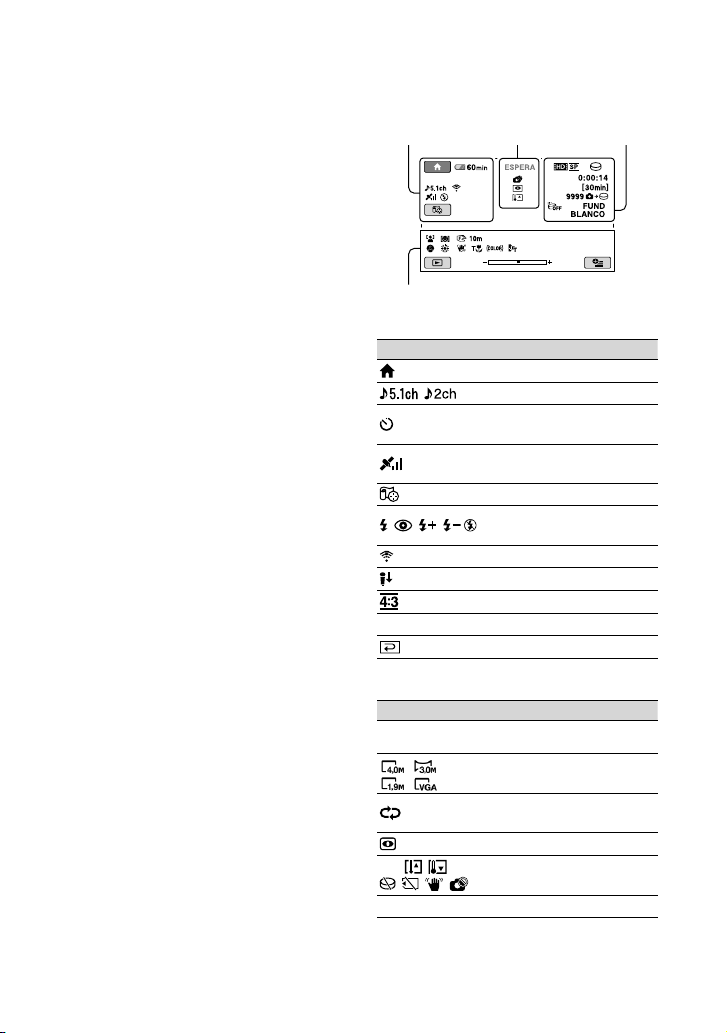
60
ES
Indicadores de la
pantalla
Parte superior izquierda Parte central
Parte superior derecha
Parte inferior
Parte superior izquierda
Indicador Significado
Botón HOME
MODO AUDIO
Grabación con disparador
automático
Estado de seguimiento
de GPS
Ubicación actual
Flash, R.OJOS ROJ.
MIC.ZOOM INCOR.
NIVEL REFMIC bajo
SELEC.PANOR.
60 min
Batería restante
Botón Volver
Parte central
Indicador Significado
[ESPERA] /
[GRAB.]
Estado de la grabación
Tamaño de la imagen
Presentación de
diapositivas ajustada
NightShot
Advertencia
Modo de reproducción
“NAVTEQ” y el logotipo de “NAVTEQ MAPS”
son marcas comerciales de NAVTEQ en los
Estados Unidos y en otros países.
Todos los demás nombres de productos
mencionados en este manual pueden ser marcas
comerciales o marcas comerciales registradas de
sus respectivas compañías. Además, y no se
incluyen de forma expresa en todos los casos en
este manual.
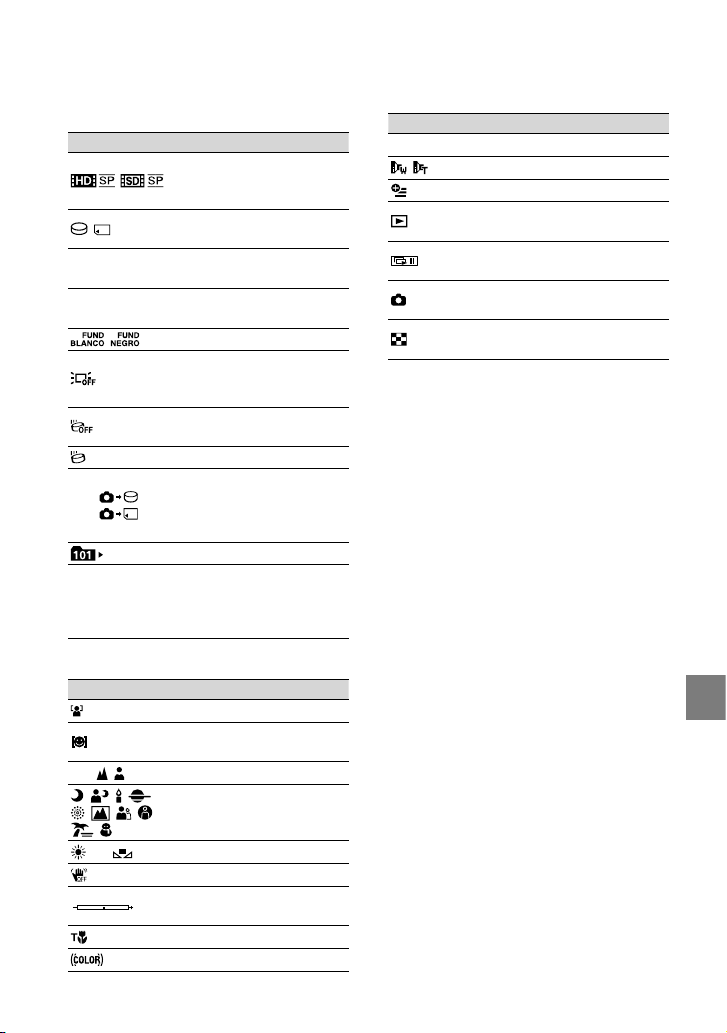
61
Información complementaria
ES
Parte superior derecha
Indicador Significado
/
Calidad de grabación
(HD/SD) y modo de
grabación (FH/HQ/SP/LP)
Soporte de grabación/
reproducción
0:00:00
Contador (hora:minuto:
segundo)
[00min]
Tiempo de grabación
restante esperado
DESVANECEDOR
Luz de fondo de la
pantalla de cristal líquido
desactivada
Sensor de caída
desactivado
Sensor de caída activado
9999
9999
Número aproximado
de imágenes que puede
grabar y soporte de
grabación
Carpeta de reproducción
100/112
Película o imagen en
reproducción/Número
total de películas o
imágenes grabadas
Parte inferior
Indicador Significado
DETECCIÓN CARA
Detección de sonrisa
ajustada
Enfoque manual
SELEC.ESCENA
Balance de blancos
SteadyShot desactivado
EXPOSICIÓN/MEDID.
PUNTO
TELE MACRO
X.V.COLOR
Indicador Significado
Imagen protegida
OBJETIVO CONVER.
Botón OPTION
Botón VISUALIZAR
IMÁGENES
Botón de presentación de
diapositivas
101-0005
Nombre del archivo de
datos
Botón VISUAL INDEX
Los indicadores y sus posiciones son
aproximados y pueden variar respecto de su
apariencia real.
Dependiendo del modelo de la videocámara, es
posible que no aparezcan algunos indicadores.
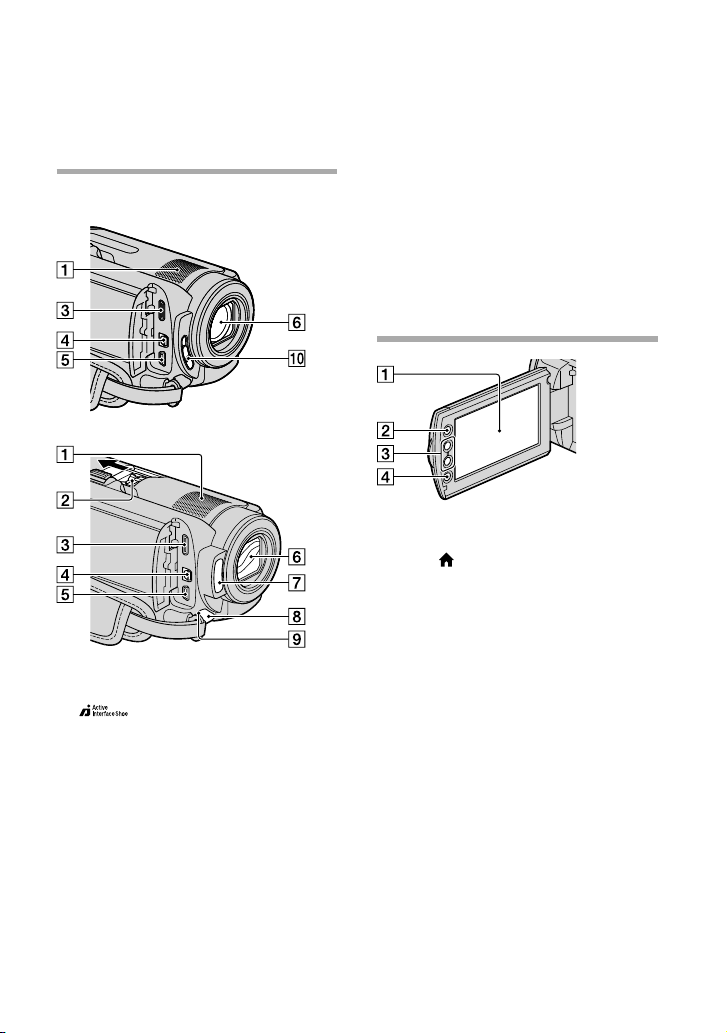
62
ES
Objetivo (objetivo Carl Zeiss)
Flash (16)
Indicador de grabación de la cámara (48)
El indicador de grabación de la cámara se
ilumina en rojo durante la grabación. El
indicador parpadea cuando queda poca
capacidad restante en el soporte de grabación
o cuando la batería dispone de poca energía.
Sensor remoto/puerto de infrarrojos
Interruptor LENS COVER
Pantalla de cristal líquido/panel táctil
(11)
Botón (HOME) (43)
Botones del zoom (14, 16, 20)
Botón START/STOP (14)
Piezas y controles
Los números entre ( ) corresponden a las
páginas de referencia.
HDR-XR100/XR101
HDR-XR200/XR200V
Micrófono incorporado
Active Interface Shoe
La Active Interface Shoe suministra
alimentación a accesorios opcionales como,
por ejemplo, una luz de video, un flash o un
micrófono. El accesorio se puede encender o
apagar al utilizar el interruptor POWER de la
videocámara.
Toma HDMI OUT (mini) (21)
Conector remoto de A/V (21, 38)
Toma (USB) (24, 29, 30, 37)
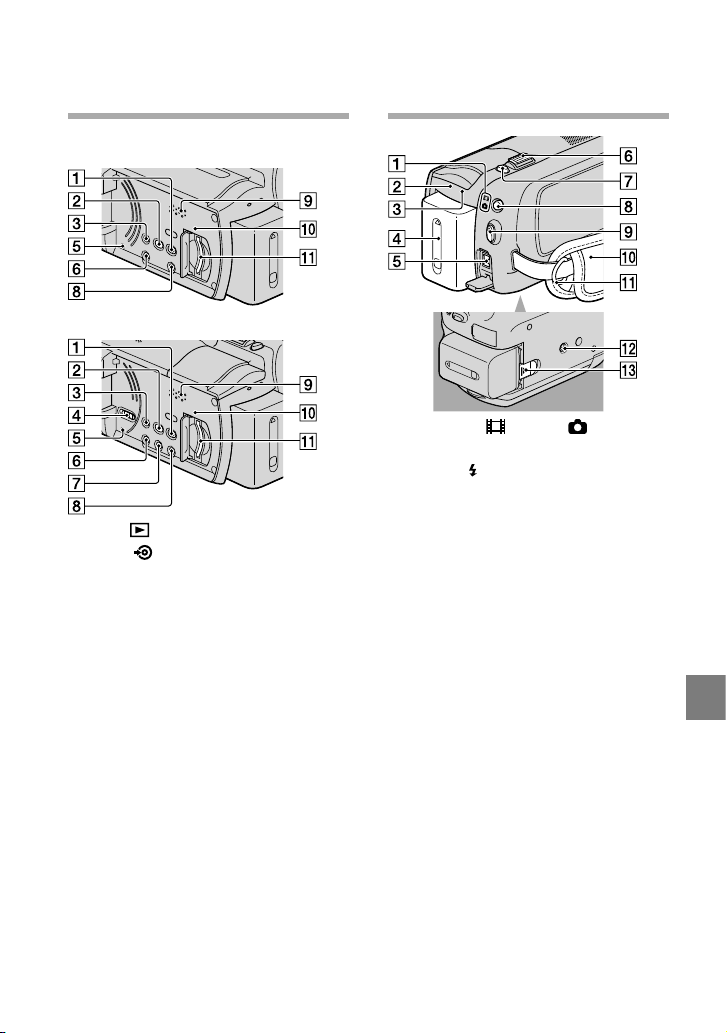
63
Información complementaria
ES
HDR-XR100/XR101
HDR-XR200/XR200V
Botón (VISUALIZAR IMÁGENES) (18)
Botón (DISC BURN) (29)
Botón EASY (17)
Interruptor GPS (HDR-XR200V) (17)
Botón RESET
Presione RESET para inicializar todos los
ajustes, incluido el del reloj.
Botón POWER (12)
Botón NIGHTSHOT (41)
Botón DISP (pantalla) (19)
Para desactivar la luz de fondo de la pantalla
de cristal líquido, mantenga presionado
el botón DISP. Para activarla, mantenga
presionado DISP nuevamente.
Altavoz
Indicador de acceso (“Memory Stick PRO
Duo”) (43)
Si el indicador está encendido o parpadeando,
significa que la videocámara está leyendo o
escribiendo datos.
Ranura para “Memory Stick PRO Duo”
(42)
Indicadores (Película)/ (Foto) (11)
Indicador CHG (HDR-XR100/XR101)/
indicador /CHG (HDR-XR200/XR200V)
(9)
Indicador ACCESS (Disco duro) (9)
Si el indicador está encendido o parpadeando,
significa que la videocámara está leyendo o
escribiendo datos.
Batería (9)
Toma DC IN (9)
Palanca del zoom motorizado (14, 16,
20)
Botón PHOTO (16)
Botón MODE (15)
Botón START/STOP (14)
Correa de sujeción (13)
Gancho para la bandolera
Receptáculo del trípode (41)
Palanca BATT de liberación de la batería
(10)

64
ES
Las listas de menú
aparecen en las páginas
45 a 49.
Índice
A
A/V cable de conexión ...............38
Active Interface Shoe .................62
AVCHD..................................27, 36
B
Batería ............................................9
Blu-ray disc ..................................33
Borrar ...........................................40
C
Calidad de imagen ......................41
Calidad de imagen de alta
definición (HD) ..........................41
Calidad de imagen de definición
estándar (SD) ..............................41
Captura de fotos desde una
película .........................................35
Carga de la batería ........................9
Carga de la batería en el
extranjero .....................................10
Computadora ..............................23
Configuración de fecha y hora .11
Copia ............................................43
Copia de un disco .......................35
Copiar ..........................................43
Creación de un disco............27, 36
Creación de un disco con calidad
de imagen de alta definición
(HD) .............................................32
Creación de un disco con calidad
de imagen de definición estándar
(SD) ..............................................34
Cuidado .......................................54
E
Easy PC Back-up ........................30
Edición de películas ...................35
Elementos suministrados ............3
Encendido....................................11
Especificaciones ..........................56
F
Flujo de funcionamiento .............6
Formato........................................40
Fotos .......................................15, 20
Funcionamiento en modo Easy
Handycam ...................................17
Función HELP ............................44
G
Grabación ....................................13
Grabadora de discos ...................38
Grabadora de DVD ....................37
GUÍA CONEXIÓN TV .............21
Guía de PMB ...............................31
Guía práctica de Handycam ......50
H
HOME MENU ......................43, 45
I
Idioma ..........................................12
Indicadores de advertencia .......52
Indicadores de la pantalla ..........60
Instalación ...................................24
M
Macintosh ....................................24
“Memory Stick” ...........................42
“Memory Stick PRO Duo”.........42
Menú ............................................43
N
NightShot .....................................41
O
One Touch Disc Burn ................29
OPTION MENU ..................44, 49
P
Películas .................................13, 18
Piezas y controles ........................62
Pila del control remoto
inalámbrico .................................56
Pitidos de funcionamiento ........12
PMB (Picture Motion
Browser) .................................23, 24
Precauciones ................................54
R
Reparación ...................................51
Reproducción ..............................18
Reproducción de un disco
con calidad de imagen de alta
definición (HD) ..........................33
RESET ..........................................63
S
Sistema de computadora ...........23
Software .......................................24
Solución de problemas ...............51
Soportes de grabación ................41
T
Televisor .......................................21
Tiempo de grabación y
reproducción ...............................58
Trípode .........................................41
U
Unidad o carpeta de destino .....31
USB .........................................24, 37
Uso de un enchufe de pared
como fuente de alimentación ....10
V
VISUAL INDEX .........................18
Visualización de
autodiagnóstico...........................52
Volumen ......................................20
W
Windows ......................................23
Z
Zoom ............................... 14, 16, 20