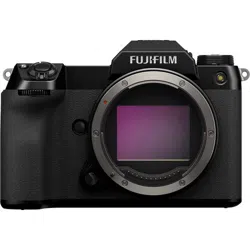

Owner’s Manual
BL00004880-205
EN
ii
Introduction
Thank you for your purchase of this product. Be sure that
you have read this manual and understood its contents be-
fore using the camera. Keep the manual where it will be
read by all who use the product.
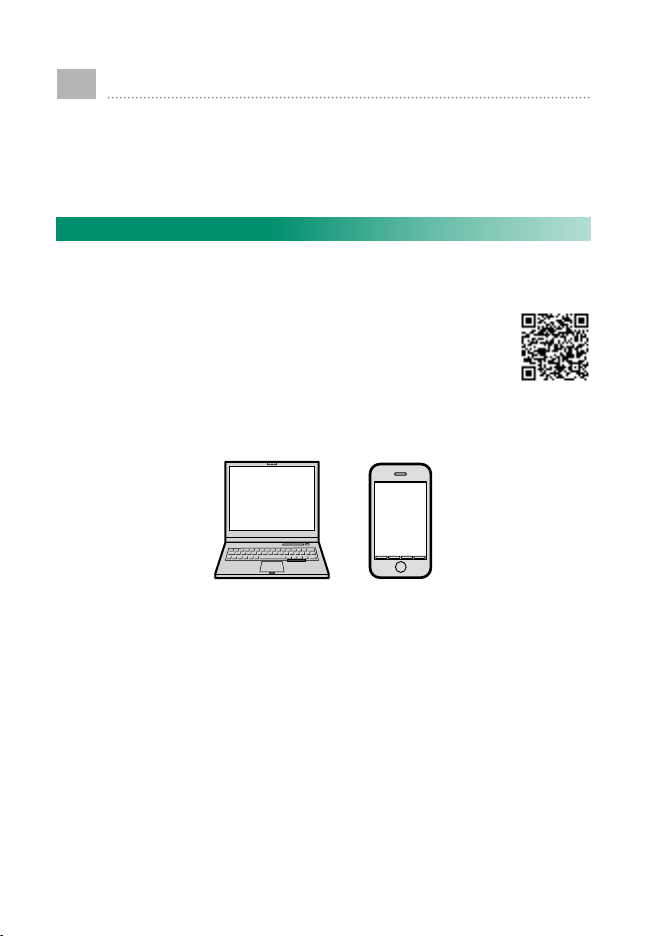
For the Latest Information
For the latest information on this product, including the latest
versions of the manuals and sample color photographs, visit:
http://fujifilm-dsc.com/manuals/
The site can be accessed not only from your computer but also
from smartphones and tablets.
iii
Menu List
iv
1 Before You Begin
1
2 First Steps
23
3 Basic Photography and Playback
39
4 Movie Recording and Playback
45
5 Taking Photographs
51
6 The Shooting Menus
85
7 Playback and the Playback Menu
119
8 The Setup Menus
145
9 Shortcuts
175
10 Peripherals and Optional Accessories
187
11 Connections
207
12 Technical Notes
217
P
Chapter Index
iv
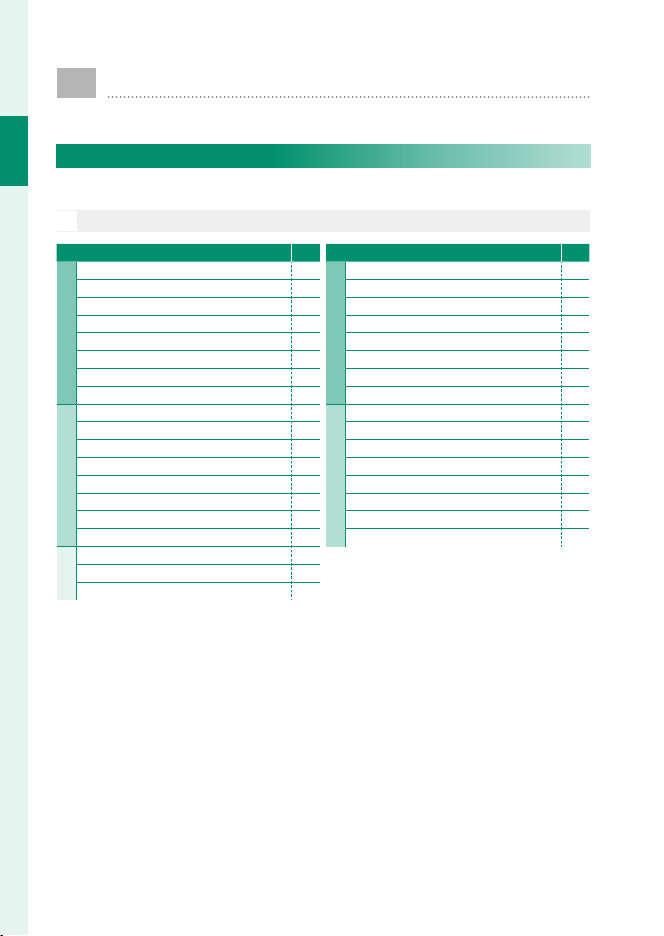
Menu List
Menu List
Camera menu options are listed below.
Shooting Menus
Adjust settings when shooting photos or movies.
N
See page 85 for details.
H IMAGE QUALITY SETTING
P
1⁄
1⁄
IMAGE SIZE 86
IMAGE QUALITY 87
RAW RECORDING 87
FILM SIMULATION 88
GRAIN EFFECT 89
COLOR CHROME EFFECT 89
DYNAMIC RANGE 89
WHITE BALANCE 90
2⁄
2⁄
HIGHLIGHT TONE 93
SHADOW TONE 93
COLOR 93
SHARPNESS 93
NOISE REDUCTION 94
LONG EXPOSURE NR 94
LENS MODULATION OPTIMIZER 94
COLOR SPACE 94
3⁄
3⁄
PIXEL MAPPING 95
SELECT CUSTOM SETTING 95
EDIT/SAVE CUSTOM SETTING 96
G AF/MF SETTING
P
1⁄
1⁄
FOCUS AREA 97
AF MODE 97
STORE AF MODE BY ORIENTATION 98
RAPID AF 98
AF POINT DISPLAY
yz
98
NUMBER OF THE FOCUS POINTS 99
PRE-AF 99
FACE/EYE DETECTION SETTING 100
2⁄
2⁄
AF+MF 101
MF ASSIST 101
FOCUS CHECK 102
INTERLOCK SPOT AE & FOCUS AREA 102
INSTANT AF SETTING 102
DEPTH-OF-FIELD SCALE 103
RELEASE/FOCUS PRIORITY 103
TOUCH SCREEN MODE 103
v
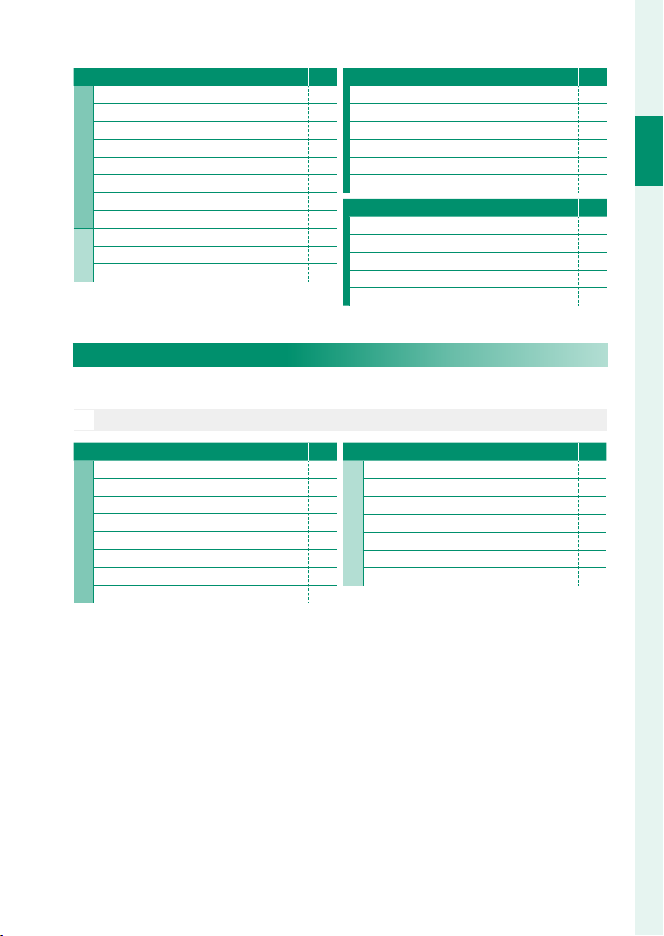
Menu List
Menu List
A SHOOTING SETTING
P
1⁄
1⁄
SELF-TIMER 104
SAVE SELF-TIMER SETTING 105
INTERVAL TIMER SHOOTING 105
AE BKT SETTING 106
FILM SIMULATION BKT 106
PHOTOMETRY 107
SHUTTER TYPE 108
IS MODE 109
2⁄
2⁄
ISO AUTO SETTING 109
MOUNT ADAPTOR SETTING 110
WIRELESS COMMUNICATION 112
F FLASH SETTING
P
FLASH FUNCTION SETTING 113
RED EYE REMOVAL 113
TTL-LOCK MODE 114
LED LIGHT SETTING 114
MASTER SETTING 115
CH SETTING 115
B MOVIE SETTING
P
MOVIE MODE 116
MOVIE AF MODE 116
HDMI OUTPUT INFO DISPLAY 117
HDMI REC CONTROL 117
MIC LEVEL ADJUSTMENT 117
The Playback Menu
Adjust playback settings.
N
See page 126 for details.
C PLAY BACK MENU
P
1⁄
1⁄
SWITCH SLOT 126
RAW CONVERSION 127
ERASE 129
CROP 131
RESIZE 132
PROTECT 133
IMAGE ROTATE 134
RED EYE REMOVAL 135
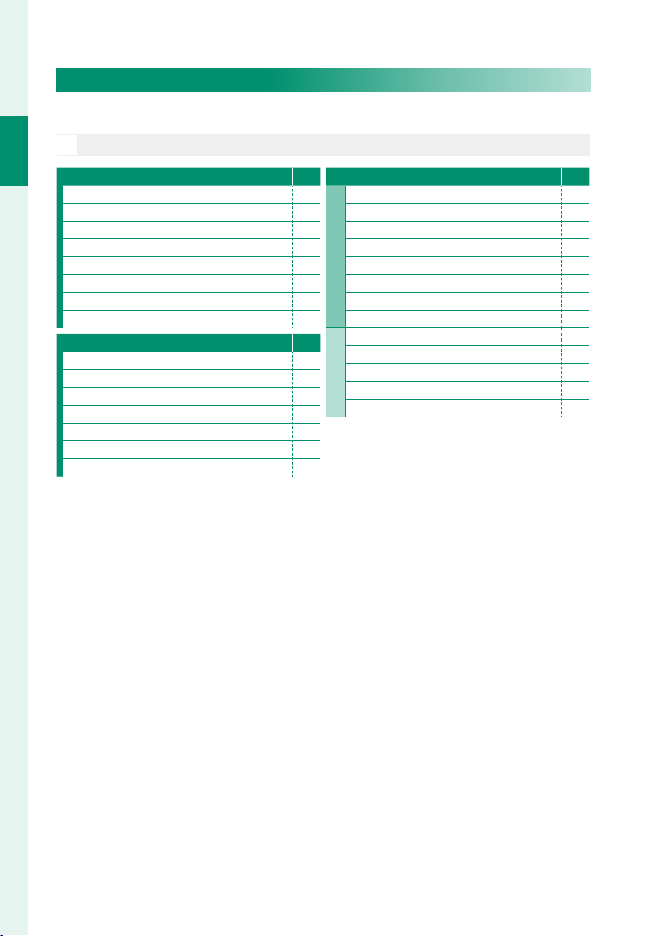
C PLAY BACK MENU
P
2⁄
2⁄
VOICE MEMO SETTING 136
COPY 137
WIRELESS COMMUNICATION 138
PHOTOBOOK ASSIST 139
PRINT ORDER (DPOF) 141
instax PRINTER PRINT 142
DISP ASPECT 143
vi
Menu List
Setup Menus
Adjust basic camera settings.
N
See page 145 for details.
D USER SETTING
P
FORMAT 146
DATE/TIME 147
TIME DIFFERENCE 147
a 148
MY MENU SETTING 148
SENSOR CLEANING 149
BATTERY AGE 149
RESET 150
D SOUND SETTING
P
AF BEEP VOL. 151
SELF-TIMER BEEP VOL. 151
OPERATION VOL. 151
HEADPHONES VOLUME 152
SHUTTER VOLUME 152
SHUTTER SOUND 152
PLAYBACK VOLUME 152
D SCREEN SETTING
P
1⁄
1⁄
EVF BRIGHTNESS 153
EVF COLOR 153
LCD BRIGHTNESS 153
LCD COLOR 153
IMAGE DISP. 154
AUTOROTATE DISPLAYS 154
PREVIEW EXP./WB IN MANUAL MODE 155
PREVIEW PIC. EFFECT 155
2⁄
2⁄
FRAMING GUIDELINE 156
AUTOROTATE PB 157
FOCUS SCALE UNITS 157
DISP. CUSTOM SETTING 158
SUB MONITOR SETTING 159
vii
Menu List
Menu List
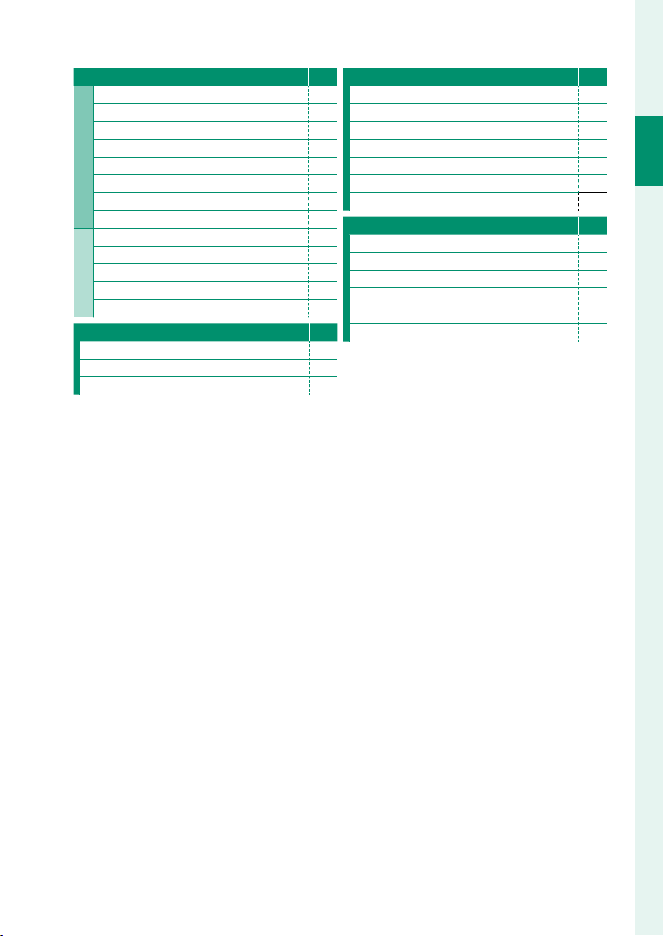
D BUTTON/DIAL SETTING
P
1⁄
1⁄
FOCUS LEVER SETTING 160
EDIT/SAVE QUICK MENU 161
FUNCTION (Fn) SETTING 162
SELECTOR BUTTON SETTING 164
COMMAND DIAL SETTING 164
SHUTTER AF 164
SHUTTER AE 165
SHOOT WITHOUT LENS 165
2⁄
2⁄
FOCUS RING 165
AE/AF-LOCK MODE 165
EXPO. COMP. BUTTON SETTING 166
TOUCH SCREEN SETTING 166
LOCK 166
D POWER MANAGEMENT
P
AUTO POWER OFF 167
SHOOTING STAND BY MODE 167
AUTO POWER SAVE 168
D SAVE DATA SETTING
P
FRAME NO. 169
SAVE ORG IMAGE 170
EDIT FILE NAME 170
CARD SLOT SETTING (STILL IMAGE) 170
SWITCH SLOT (SEQUENTIAL) 170
MOVIE FILE DESTINATION 171
COPYRIGHT INFO 171
D CONNECTION SETTING
P
WIRELESS SETTINGS 172
PC CONNECTION SETTING 173
GEOTAGGING SET-UP 173
instax PRINTER CONNECTION
SETTING
173
PC SHOOT MODE 174

viii
1
Introduction
P
Table of Contents
Introduction ........................................................................................................... ii
For the Latest Information ............................................................................................ ii
Menu List................................................................................................................ iv
Shooting Menus ................................................................................................................iv
The Playback Menu ..........................................................................................................v
Setup Menus ........................................................................................................................vi
Supplied Accessories ......................................................................................xvii
About This Manual ..........................................................................................xviii
Symbols and Conventions .....................................................................................xviii
Terminology ....................................................................................................................xviii
1
Before You Begin 1
Before You Begin 1
Parts of the Camera ............................................................................................. 2
The Selector...........................................................................................................................5
The Focus Stick ....................................................................................................................5
The Shutter Speed and Sensitivity Dials ..............................................................5
The Command Dials ........................................................................................................6
The Drive Button ................................................................................................................7
The Indicator Lamp ..........................................................................................................8
The LCD Monitor ................................................................................................................9
The View nder ....................................................................................................10
Attaching the View nder ...........................................................................................11
The Eye Cup .......................................................................................................................11
Focusing the View nder .............................................................................................11
Camera Displays .................................................................................................12
The Electronic View nder ..........................................................................................12
Display Rotation ...............................................................................................................13
The LCD Monitor .............................................................................................................14
Choosing a Display Mode .........................................................................................16
Adjusting Display Brightness ................................................................................... 16
The DISP/BACK Button ................................................................................................17
Customizing Standard Indicators .........................................................................19
The Secondary LCD Monitor ....................................................................................21
Using the Menus ................................................................................................22

ix
1
Introduction
Table of Contents
2
First Steps 23
First Steps 23
Attaching the Shoulder Strap ........................................................................24
Attaching a Lens .................................................................................................26
Charging the Battery ........................................................................................27
Inserting the Battery .........................................................................................30
Inserting Memory Cards ..................................................................................32
Using Two Cards ..............................................................................................................33
Compatible Memory Cards ......................................................................................34
Turning the Camera On and O ...................................................................35
Checking the Battery Level.............................................................................36
Basic Setup ...........................................................................................................37
Choosing a Di erent Language.............................................................................38
Changing the Time and Date .................................................................................. 38
3
Basic Photography and Playback 39
Basic Photography and Playback 39
Taking Photographs (Mode P) .......................................................................40
a Viewing Pictures ...........................................................................................43
b Deleting Pictures ...........................................................................................44
4
Movie Recording and Playback 45
Movie Recording and Playback 45
F Recording Movies ........................................................................................46
Adjusting Movie Settings ...........................................................................................48
a Viewing Movies ............................................................................................49
5
Taking Photographs 51
Taking Photographs 51
P, S, A, and M Modes ..........................................................................................52
Mode P: Program AE ..................................................................................................... 52
Mode S: Shutter-Priority AE ...................................................................................... 54
Mode A: Aperture-Priority AE ..................................................................................58
Mode M: Manual Exposure .......................................................................................60
Autofocus ..............................................................................................................62
Focus Mode ........................................................................................................................63
Autofocus Options (AF Mode) ................................................................................65
Focus-Point Selection...................................................................................................67
Touch Focus Controls .......................................................................................70
Manual Focus.......................................................................................................71
Checking Focus ................................................................................................................73

x
1
Introduction
N Sensitivity .......................................................................................................74
Auto Sensitivity (A) .........................................................................................................75
C Metering .........................................................................................................76
d Exposure Compensation...........................................................................77
Focus/Exposure Lock ........................................................................................78
The AF-L and AE-L Buttons .......................................................................................79
BKT Bracketing ......................................................................................................80
O AE BKT ............................................................................................................................80
W ISO BKT ..........................................................................................................................80
X FILM SIMULATION BKT ........................................................................................80
V WHITE BALANCE BKT ............................................................................................81
Y DYNAMIC RANGE BKT ..........................................................................................81
I Continuous Shooting (Burst Mode) ......................................................82
j Multiple Exposures ......................................................................................83
6
The Shooting Menus 85
The Shooting Menus 85
H IMAGE QUALITY SETTING ..........................................................................86
IMAGE SIZE ..........................................................................................................................86
IMAGE QUALITY ...............................................................................................................87
RAW RECORDING ............................................................................................................87
FILM SIMULATION ...........................................................................................................88
GRAIN EFFECT ...................................................................................................................89
COLOR CHROME EFFECT............................................................................................89
DYNAMIC RANGE ............................................................................................................89
WHITE BALANCE ..............................................................................................................90
HIGHLIGHT TONE ............................................................................................................93
SHADOW TONE ................................................................................................................93
COLOR ....................................................................................................................................93
SHARPNESS .........................................................................................................................93
NOISE REDUCTION .........................................................................................................94
LONG EXPOSURE NR .....................................................................................................94
LENS MODULATION OPTIMIZER ............................................................................94
COLOR SPACE ....................................................................................................................94
PIXEL MAPPING ................................................................................................................95
SELECT CUSTOM SETTING .........................................................................................95
EDIT/SAVE CUSTOM SETTING ..................................................................................96

xi
1
Introduction
Table of Contents
G AF/MF SETTING .............................................................................................97
FOCUS AREA ......................................................................................................................97
AF MODE ..............................................................................................................................97
STORE AF MODE BY ORIENTATION .......................................................................98
RAPID AF...............................................................................................................................98
AF POINT DISPLAYyz ...........................................................................................98
NUMBER OF THE FOCUS POINTS .......................................................................... 99
PRE-AF ....................................................................................................................................99
FACE/EYE DETECTION SETTING .......................................................................... 100
AF+MF ................................................................................................................................ 101
MF ASSIST ......................................................................................................................... 101
FOCUS CHECK ................................................................................................................ 102
INTERLOCK SPOT AE & FOCUS AREA................................................................ 102
INSTANT AF SETTING ................................................................................................. 102
DEPTH-OF-FIELD SCALE ........................................................................................... 103
RELEASE/FOCUS PRIORITY ..................................................................................... 103
TOUCH SCREEN MODE ............................................................................................. 103
A SHOOTING SETTING .................................................................................. 104
SELF-TIMER ....................................................................................................................... 104
SAVE SELF-TIMER SETTING...................................................................................... 105
INTERVAL TIMER SHOOTING .................................................................................. 105
AE BKT SETTING ............................................................................................................ 106
FILM SIMULATION BKT .............................................................................................. 106
PHOTOMETRY ................................................................................................................. 107
SHUTTER TYPE ...............................................................................................................108
IS MODE ............................................................................................................................. 109
ISO AUTO SETTING ...................................................................................................... 109
MOUNT ADAPTOR SETTING .................................................................................. 110
WIRELESS COMMUNICATION ............................................................................... 112
F FLASH SETTING ........................................................................................... 113
FLASH FUNCTION SETTING ................................................................................... 113
RED EYE REMOVAL ...................................................................................................... 113
TTL-LOCK MODE ........................................................................................................... 114
LED LIGHT SETTING .................................................................................................... 114
MASTER SETTING ......................................................................................................... 115
CH SETTING ..................................................................................................................... 115

xii
1
Introduction
B MOVIE SETTING .......................................................................................... 116
MOVIE MODE .................................................................................................................. 116
MOVIE AF MODE .......................................................................................................... 116
HDMI OUTPUT INFO DISPLAY............................................................................... 117
HDMI REC CONTROL .................................................................................................. 117
MIC LEVEL ADJUSTMENT ........................................................................................ 117
7
Playback and the Playback Menu 119
Playback and the Playback Menu 119
The Playback Display ..................................................................................... 120
The DISP/BACK Button ............................................................................................. 121
Viewing Pictures .............................................................................................. 123
Playback Zoom .............................................................................................................. 124
Multi-Frame Playback ................................................................................................ 124
Playback Touch Controls .........................................................................................125
C The Playback Menu ...................................................................................126
SWITCH SLOT .................................................................................................................. 126
RAW CONVERSION ...................................................................................................... 127
ERASE ................................................................................................................................... 129
CROP .................................................................................................................................... 131
RESIZE .................................................................................................................................. 132
PROTECT ............................................................................................................................ 133
IMAGE ROTATE ............................................................................................................... 134
RED EYE REMOVAL ...................................................................................................... 135
VOICE MEMO SETTING ............................................................................................. 136
COPY ....................................................................................................................................137
WIRELESS COMMUNICATION ............................................................................... 138
PHOTOBOOK ASSIST .................................................................................................. 139
PRINT ORDER (DPOF) ................................................................................................. 141
instax PRINTER PRINT ................................................................................................. 142
DISP ASPECT ................................................................................................................... 143
8
The Setup Menus 145
The Setup Menus 145
D USER SETTING ............................................................................................. 146
FORMAT ............................................................................................................................. 146
DATE/TIME ........................................................................................................................ 147
TIME DIFFERENCE ........................................................................................................ 147
a ..................................................................................................................... 148

xiii
1
Introduction
Table of Contents
MY MENU SETTING ..................................................................................................... 148
SENSOR CLEANING ..................................................................................................... 149
BATTERY AGE .................................................................................................................. 149
RESET ................................................................................................................................... 150
D SOUND SETTING ........................................................................................ 151
AF BEEP VOL. ................................................................................................................... 151
SELF-TIMER BEEP VOL. ............................................................................................... 151
OPERATION VOL. ........................................................................................................... 151
HEADPHONES VOLUME ........................................................................................... 152
SHUTTER VOLUME ....................................................................................................... 152
SHUTTER SOUND ......................................................................................................... 152
PLAYBACK VOLUME .................................................................................................... 152
D SCREEN SETTING ........................................................................................ 153
EVF BRIGHTNESS ........................................................................................................... 153
EVF COLOR ....................................................................................................................... 153
LCD BRIGHTNESS .......................................................................................................... 153
LCD COLOR ...................................................................................................................... 153
IMAGE DISP. ...................................................................................................................... 154
AUTOROTATE DISPLAYS ............................................................................................ 154
PREVIEW EXP./WB IN MANUAL MODE ............................................................. 155
PREVIEW PIC. EFFECT ................................................................................................. 155
FRAMING GUIDELINE ................................................................................................. 156
AUTOROTATE PB ........................................................................................................... 157
FOCUS SCALE UNITS .................................................................................................. 157
DISP. CUSTOM SETTING ............................................................................................ 158
SUB MONITOR SETTING ........................................................................................... 159
D BUTTON/DIAL SETTING ........................................................................... 160
FOCUS LEVER SETTING ............................................................................................. 160
EDIT/SAVE QUICK MENU.......................................................................................... 161
FUNCTION (Fn) SETTING ......................................................................................... 162
SELECTOR BUTTON SETTING ................................................................................ 164
COMMAND DIAL SETTING ..................................................................................... 164
SHUTTER AF..................................................................................................................... 164
SHUTTER AE..................................................................................................................... 165
SHOOT WITHOUT LENS ............................................................................................ 165
FOCUS RING .................................................................................................................... 165
AE/AF-LOCK MODE ..................................................................................................... 165

xiv
1
Introduction
EXPO. COMP. BUTTON SETTING .......................................................................... 166
TOUCH SCREEN SETTING ........................................................................................ 166
LOCK..................................................................................................................................... 166
D POWER MANAGEMENT ............................................................................ 167
AUTO POWER OFF ....................................................................................................... 167
SHOOTING STAND BY MODE ................................................................................ 167
AUTO POWER SAVE ..................................................................................................... 168
D SAVE DATA SETTING .................................................................................. 169
FRAME NO. ....................................................................................................................... 169
SAVE ORG IMAGE ......................................................................................................... 170
EDIT FILE NAME ............................................................................................................. 170
CARD SLOT SETTING (STILL IMAGE) .................................................................. 170
SWITCH SLOT (SEQUENTIAL) ................................................................................. 170
MOVIE FILE DESTINATION ....................................................................................... 171
COPYRIGHT INFO ......................................................................................................... 171
D CONNECTION SETTING ............................................................................ 172
WIRELESS SETTINGS ................................................................................................... 172
PC CONNECTION SETTING ..................................................................................... 173
GEOTAGGING SET-UP ................................................................................................ 173
instax PRINTER CONNECTION SETTING ......................................................... 173
PC SHOOT MODE ......................................................................................................... 174
9
Shortcuts 175
Shortcuts 175
Shortcut Options ............................................................................................. 176
The Q (Quick Menu) Button ......................................................................... 177
The Quick Menu Display ......................................................................................... 177
Viewing and Changing Settings ......................................................................... 178
Editing the Quick Menu ........................................................................................... 179
The Fn (Function) Buttons ...........................................................................180
Assigning Roles to the Function Buttons ...................................................... 182
E MY MENU ...................................................................................................... 184
MY MENU SETTING ..................................................................................................... 185

xv
1
Introduction
Table of Contents
10
Peripherals and Optional Accessories 187
Peripherals and Optional Accessories 187
Lenses ..................................................................................................................188
Lens Parts .......................................................................................................................... 188
Lens Care ........................................................................................................................... 189
Removing Lens Caps ................................................................................................. 189
Attaching Lens Hoods .............................................................................................. 189
Vertical Battery Grips ..................................................................................... 190
Attaching the VB-GF1 ................................................................................................ 191
Inserting a Battery ....................................................................................................... 192
View nder Tilt Adapters ............................................................................... 194
Attaching the EVF-TL1 .............................................................................................. 195
Using the EVF-TL1 ........................................................................................................ 196
External Flash Units ........................................................................................ 197
Flash Settings ................................................................................................................. 198
SYNC TERMINAL ............................................................................................................ 199
SHOE MOUNT FLASH ................................................................................................ 200
MASTER(OPTICAL) ....................................................................................................... 203
11
Connections 207
Connections 207
HDMI Output .................................................................................................... 208
Connecting to HDMI Devices .............................................................................. 208
Shooting ............................................................................................................................ 209
Playback .............................................................................................................................209
Wireless Transfer .............................................................................................. 210
Wireless Connections: Smartphones ............................................................... 210
Connecting to Computers via USB ........................................................... 211
Tethered Shooting ...................................................................................................... 211
Copying Pictures to a Computer ........................................................................ 212
Connecting the Camera .......................................................................................... 213
instax SHARE Printers .................................................................................... 215
Establishing a Connection ..................................................................................... 215
Printing Pictures ............................................................................................................ 216

xvi
1
Introduction
Table of Contents
12
Technical Notes 217
Technical Notes 217
Accessories from FUJIFILM .......................................................................... 218
For Your Safety ................................................................................................. 221
Product Care ..................................................................................................... 230
Cleaning the Image Sensor ......................................................................... 231
Firmware Updates ...........................................................................................232
Checking the Firmware Version .......................................................................... 232
Troubleshooting .............................................................................................. 233
Warning Messages and Displays ............................................................... 239
Memory Card Capacity ................................................................................. 242
Speci cations ................................................................................................... 243

xvii
1
Introduction
Supplied Accessories
The following are included with the camera:
•
NP-T125 rechargeable battery
•
BC-T125 battery charger
•
Plug adapter
•
EVF-GFX1 interchangeable electronic view nder
•
Body cap
•
Strap clips (× 2)
•
Clip locks (× 2)
•
Shoulder strap
•
Cable protector
•
Hot shoe cover (comes attached to hot shoe)
•
Sync terminal cap (comes attached to camera)
•
Vertical battery grip connector cover (comes attached to
camera)
•
Owner’s Manual (this manual)
N
The plug adapter supplied with the camera varies with the country
or region of purchase; be sure to use the adapter appropriate to your
country or region as described in the enclosed notice. The view nder
can be removed, but the text that follows assumes that it is attached.

xviii
1
Introduction
About This Manual
This manual contains instructions for your FUJIFILM GFX 50S
digital camera. Be sure you have read and understood its
contents before proceeding.
Symbols and Conventions
The following symbols are used in this manual:
O
Information that should be read to prevent damage to the
product.
N
Additional information that may be helpful when using the
product.
P
Pages on which related information may be found.
Menus and other text in the displays are shown in bold. Illustrations
are for explanatory purposes only; drawings may be simpli ed,
while photographs are not necessarily taken with the model of
camera described in this manual.
Terminology
The optional SD, SDHC, and SDXC memory cards the camera uses
to store pictures are referred to as “memory cards”. The electronic
view nder may be referred to as the “EVF” and the LCD monitor
as the “LCD”.

1
Before You Begin
2
1
Before You Begin
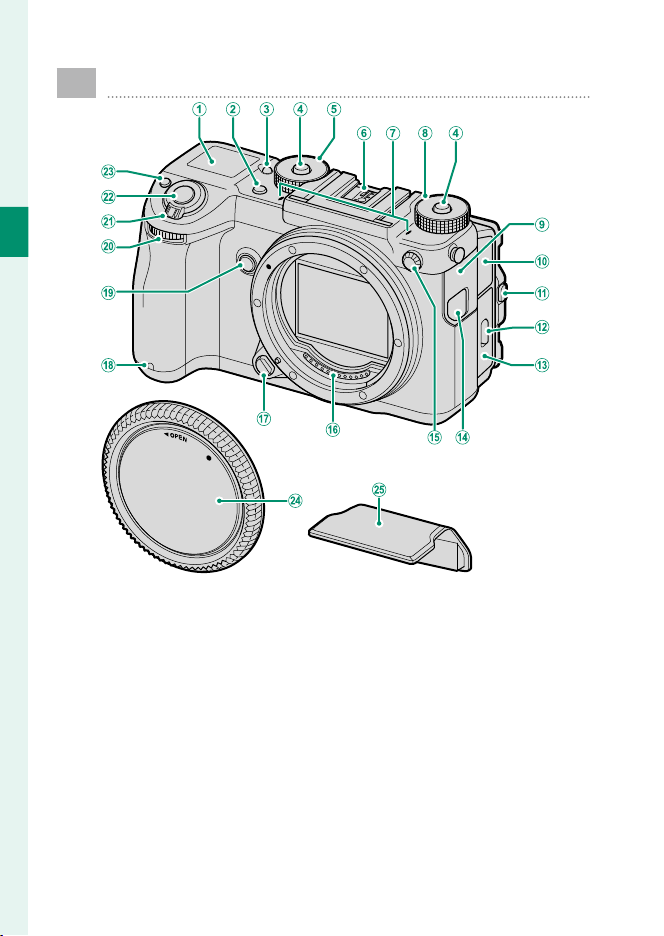
Parts of the Camera
A
Secondary LCD monitor................................21
B
Drive button ........................................................7
C
Secondary monitor backlight button ....... 21
D
Dial lock release .................................................5
E
Shutter speed dial
.......................................................
5, 52, 54, 58, 60
F
Hot shoe .................................................194, 200
G
Microphone ............................................. 47, 117
H
Sensitivity dial .....................................5, 74, 109
I
Connector cover 1 ..................29, 57, 208, 213
J
Connector cover 2 .........................47, 117, 152
K
Tilt lock release....................................................9
L
Battery-chamber cover latch ...................... 30
M
Battery-chamber cover .................................30
N
Remote release connector cover ................ 57
O
Sync terminal .................................................199
P
Lens signal contacts ..............................26, 188
Q
Lens release button ........................................ 26
R
Self-timer lamp .............................................104
S
Fn2 button ......................................................180
T
Front command dial ............................... 6, 164
U
ON/OFF switch .................................................35
V
Shutter button .................................................42
W
Fn1 button ......................................................180
d (exposure compensation) button ...... 77
X
Body cap ............................................................ 26
Y
Hot shoe cover ......................................194, 200
3
1
Before You Begin
Parts of the Camera
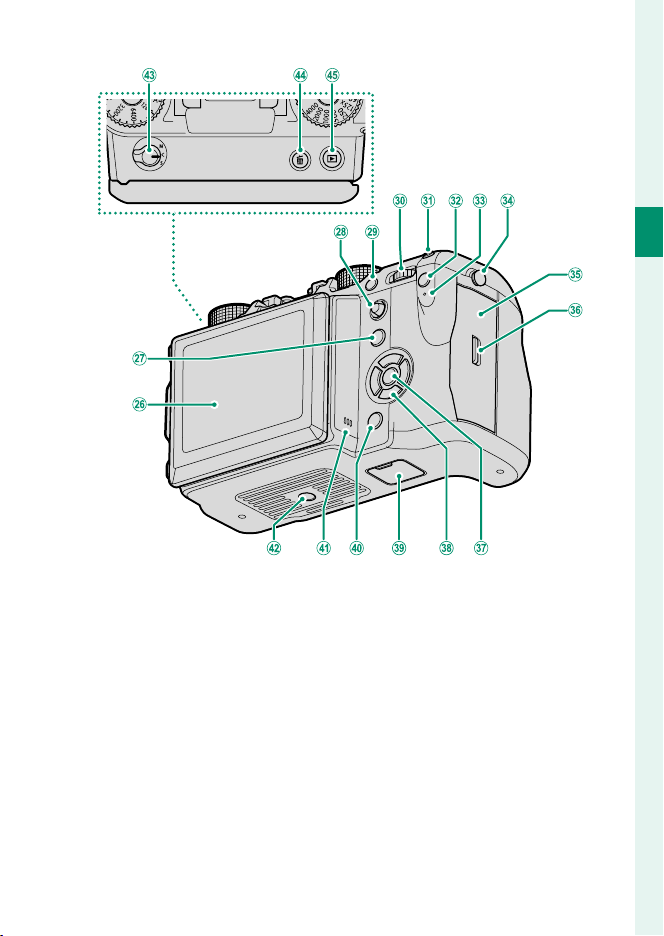
Z
LCD monitor ..............................................9, 14, 16
Touch screen ...........................
70, 103, 125, 166
a
Fn5 button ......................................................180
b
Focus stick (focus lever) ....................5, 67, 160
c
Fn4 button ......................................................180
d
Rear command dial .......................6, 123, 164
e
Fn3 button ......................................................180
f
Q (quick menu) button ................................177
g
Indicator lamp ....................................8, 29, 193
h
Strap anchor .................................................... 24
i
Memory card slot cover ................................32
j
Memory card slot cover latch ...................... 32
k
MENU/OK button .........................................5, 22
l
Selector buttons ....................................... 5, 164
m
Vertical battery grip connector cover .....190
n
DISP (display)/BACK button ................17, 121
o
Speaker .....................................................49, 152
p
Tripod mount
q
Focus mode selector ......................................63
r
b (delete) button ...........................................44
s
a (playback) button ...................................43
4
1
Before You Begin
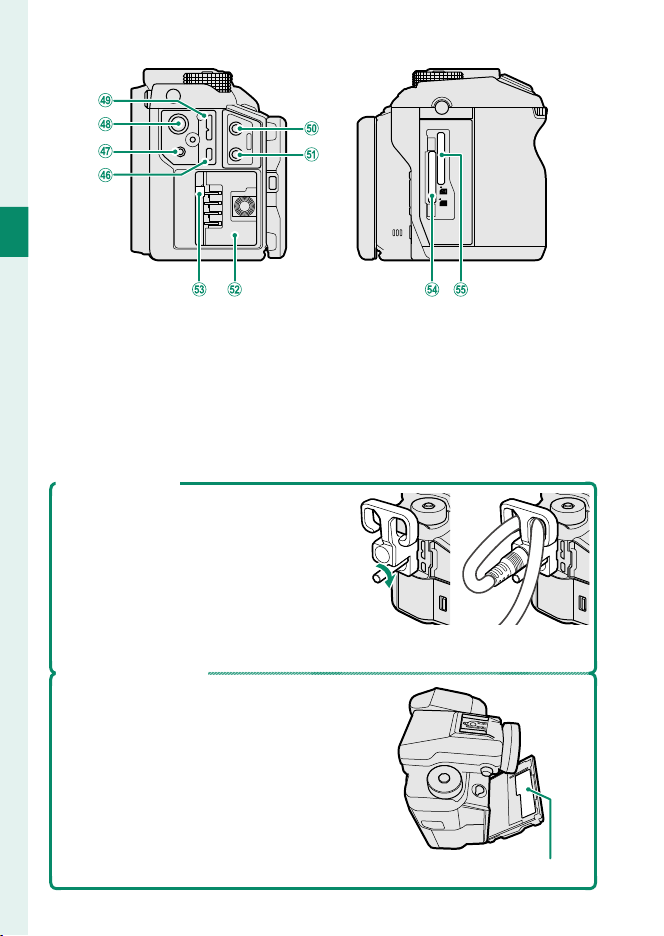
t
HDMI Micro connector (Type D) ..............208
u
Remote release connector (⌀2.5mm) .....57
v
15 V DC-IN connector .................................... 29
w
Micro USB (Micro-B) USB 3.0/
USB 2.0
connector ..................................57, 213
x
Microphone jack (⌀3.5mm) .............47, 117
y
Headphone jack ............................................152
z
Battery chamber .............................................30
0
Battery latch ..................................................... 31
1
Memory card slot 1 ........................................32
2
Memory card slot 2 ........................................32
The Cable Protector
A
The cable protector prevents ac-
cidental disconnection of the USB
cable or AC adapter. Attach the pro-
tector as shown and tighten the lock
screw.
B
Connect the cable and pass it through
the protector as shown.
A B
The Serial Number Plate
Do not remove the serial number plate,
which provides the FCC ID, KC mark, se-
rial number, and other important infor-
mation.
Serial number plate
5
1
Before You Begin
Parts of the Camera
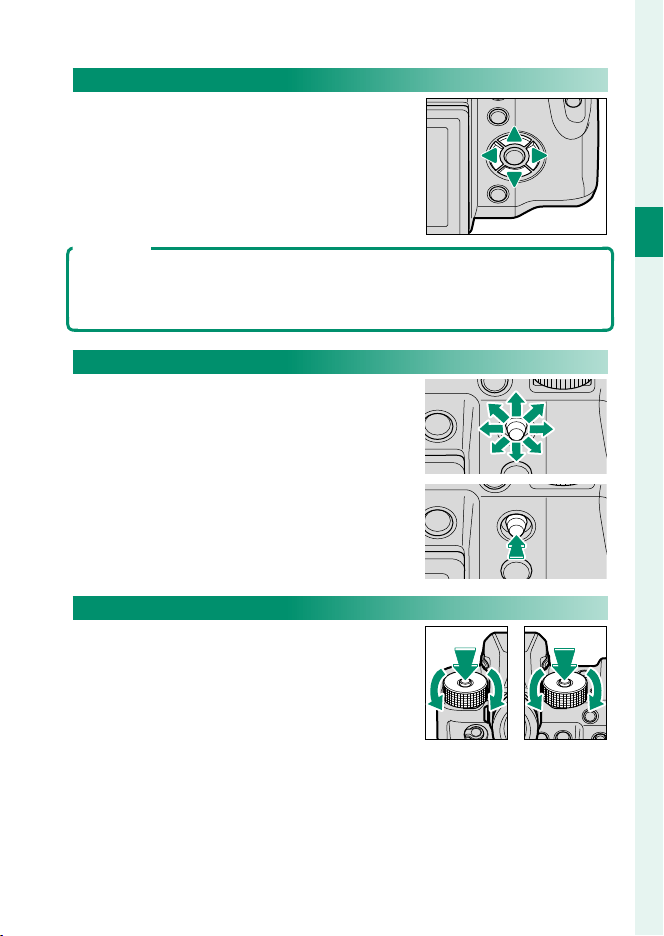
The Selector
Press the selector up (e), right (h),
down (f), or left (g) to highlight items.
The up, right, down, and left buttons also
double as function buttons Fn6 through
Fn9 (
P
180).
Control Lock
To prevent accidental operation of the selector and the Q and Fn5 buttons
during shooting, press MENU/OK until X is displayed. The controls can be
unlocked by pressing MENU/OK until X is no longer displayed.
The Focus Stick
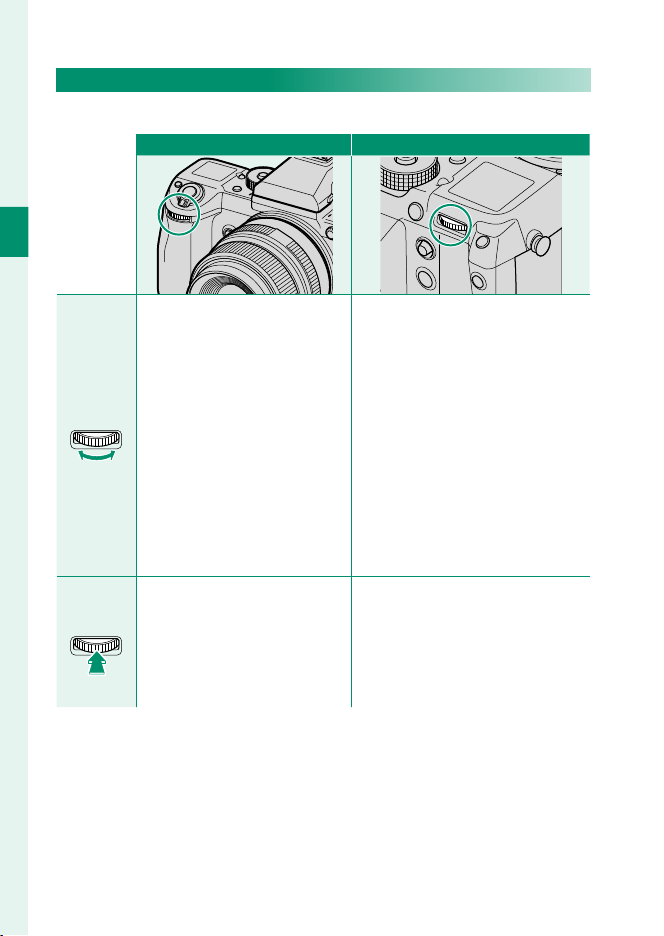
Tilt or press the focus stick to select the
focus area.
The Shutter Speed and Sensitivity Dials
Press the dial lock release to release the
dial before rotating it to the desired set-
ting. Press the release again to lock the
dial in place.
Sensitivity
Shutter
speed
6
1
Before You Begin
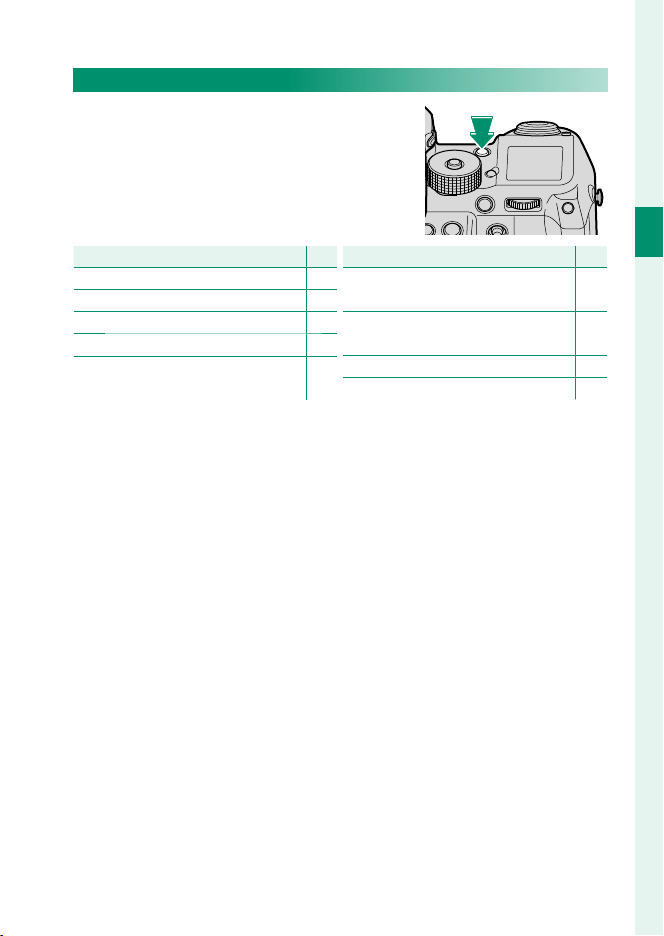
The Command Dials
Rotate or press the command dials to:
Front command dial Rear command dial
Rotate
Rotate
•
Choose the desired combina-
tion of shutter speed and ap-
erture (program shift)
•
Adjust aperture
•
Adjust sensitivity when is C se-
lected with the sensitivity dial
•
View other pictures during
playback
•
Select menu tabs or page
through menus
•
Choose the desired combination
of shutter speed and aperture
(program shift)
•
Choose a shutter speed
•
Adjust exposure compensation
by pressing the d button and
rotating the dial
•
Adjust settings in the quick menu
•
Choose the size of the focus frame
•
Zoom in or out during focus zoom
or in full frame or multi-frame
playback
•
Highlight menu items
Press
Press
Switch back and forth between
aperture and sensitivity when C
is selected with sensitivity dial.
•
Perform the function assigned to
function button Fn10
•
Zoom in on the active focus point
during playback
•
Press and hold to choose the
manual focus mode focus display
7
1
Before You Begin
Parts of the Camera
The Drive Button
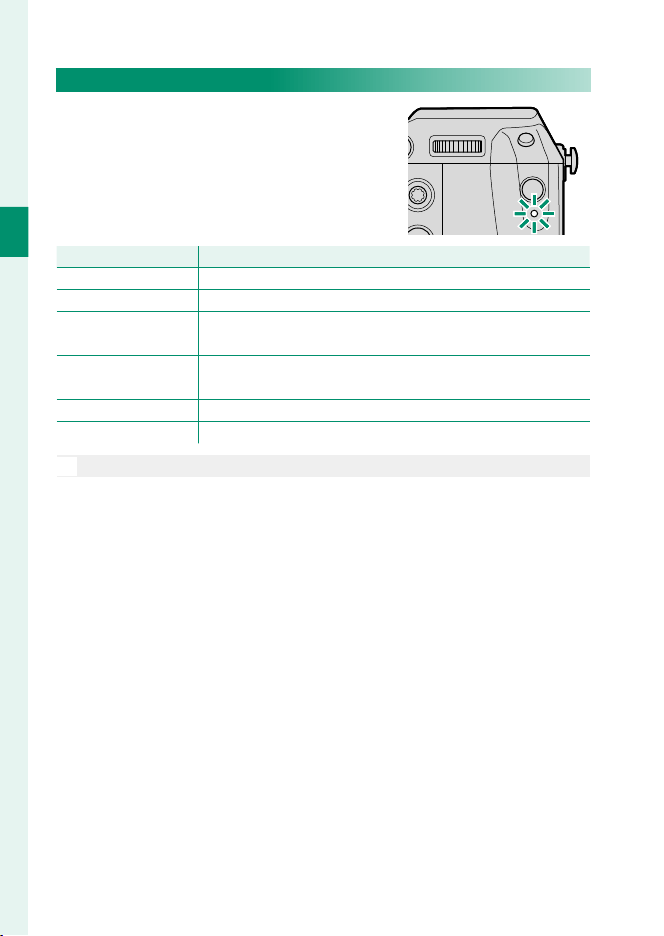
Pressing the drive button displays the fol-
lowing drive mode options.
Mode
Mode
P
P
B
B
STILL IMAGE (single frame) 40
I
I
CONTINUOUS (burst mode) 82
O
O
AE BKT (exposure bracketing) 80
W
W
ISO BKT (sensitivity bracketing) 80
X
X
FILM SIMULATION BKT
( lm simulation bracketing)
80
Mode
Mode
P
P
V
V
WHITE BALANCE BKT
(white balance bracketing)
81
Y
Y
DYNAMIC RANGE BKT
(dynamic range bracketing)
81
j
j
MULTIPLE EXPOSURE 83
F
F
MOVIE 46
8
1
Before You Begin
The Indicator Lamp
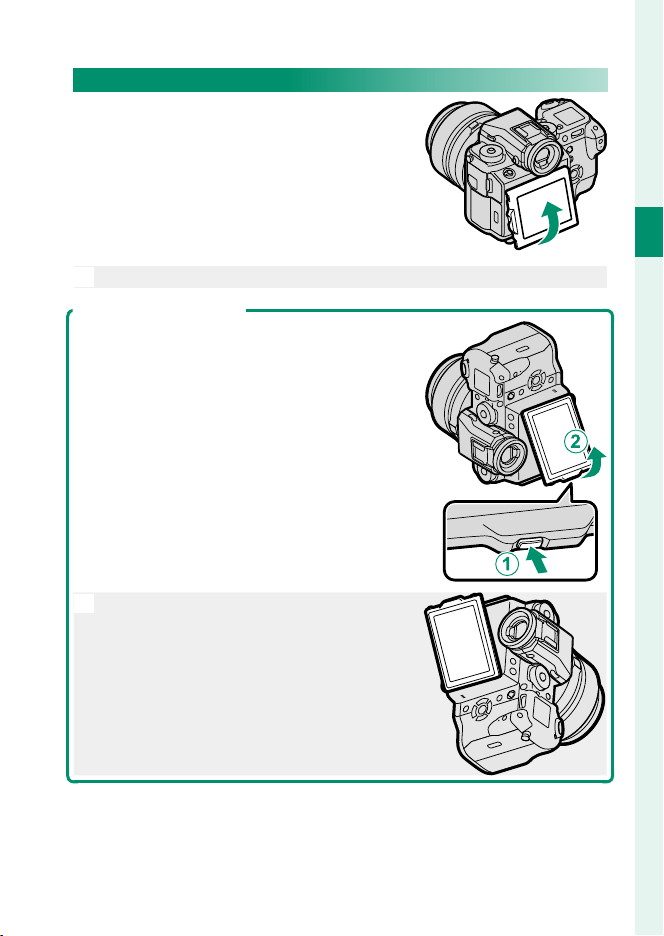
When the view nder is not in use, cam-
era status is shown by the indicator lamp.
Indicator lamp
Indicator lamp
Camera status
Camera status
Glows green Focus locked.
Blinks green Focus or slow shutter speed warning. Pictures can be taken.
Blinks green and
orange
Recording pictures. Additional pictures can be taken.
Glows orange
Recording pictures. No additional pictures can be taken at
this time.
Blinks orange Flash charging; fl ash will not fi re when picture is taken.
Blinks red Lens or memory error.
N
Warnings may also appear in the display.
9
1
Before You Begin
Parts of the Camera
The LCD Monitor
The LCD monitor can be tilted for eas-
ier viewing, but be careful not to touch
the wires or trap ngers or other objects
behind the monitor. Touching the wires
could cause camera malfunction.
N
The LCD monitor also functions as a touch screen (
P
70, 125).
“Tall” (Portrait) Orientation
When the camera is rotated to take pictures in
“tall” (portrait) orientation, you can press the tilt
lock release and tilt the display as shown. This
is particularly useful when taking pictures from
low or high angles.
N
Hold the camera as shown when taking
“tall” (portrait) orientation pictures from
high angles.
10
1
Before You Begin
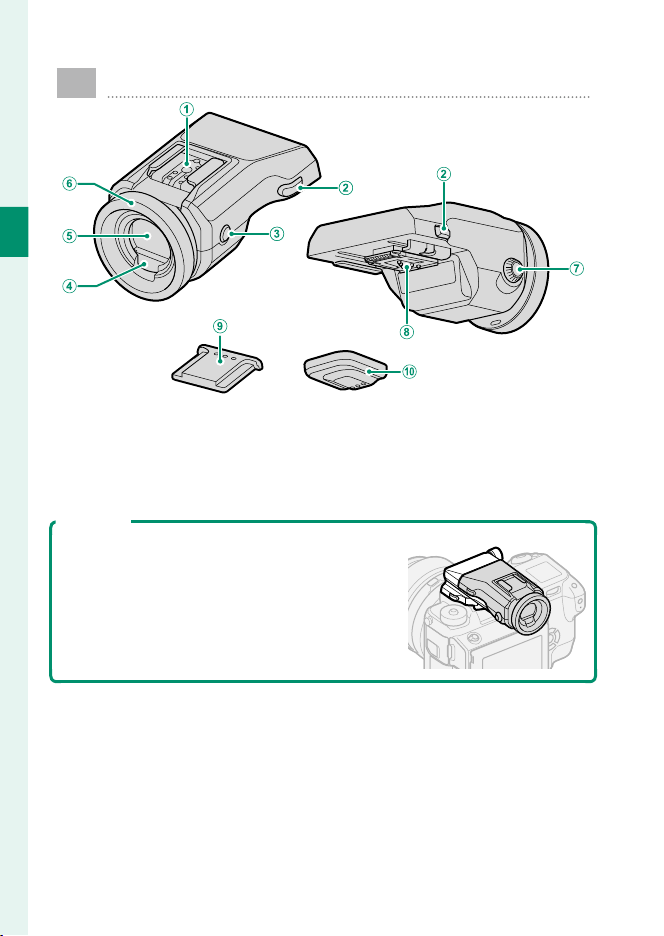
The View nder
A
Hot shoe .................................................194, 200
B
Viewfi nder lock releases ................................ 11
C
VIEW MODE button ......................................... 16
D
Eye sensor .......................................................... 16
E
Electronic viewfi nder (EVF) ...................12, 16
F
Eye cup ............................................................... 11
G
Diopter adjustment control ......................... 11
H
Connectors........................................................11
I
Hot shoe cover
J
Connector cover
The EVF-TL1
The optional EVF-TL1 tilt adapter lets you swivel
the view nder left or right ±45° or up or down
between 0° and 90° (
P
194 ).
11
1
Before You Begin
The View nder
Attaching the View nder
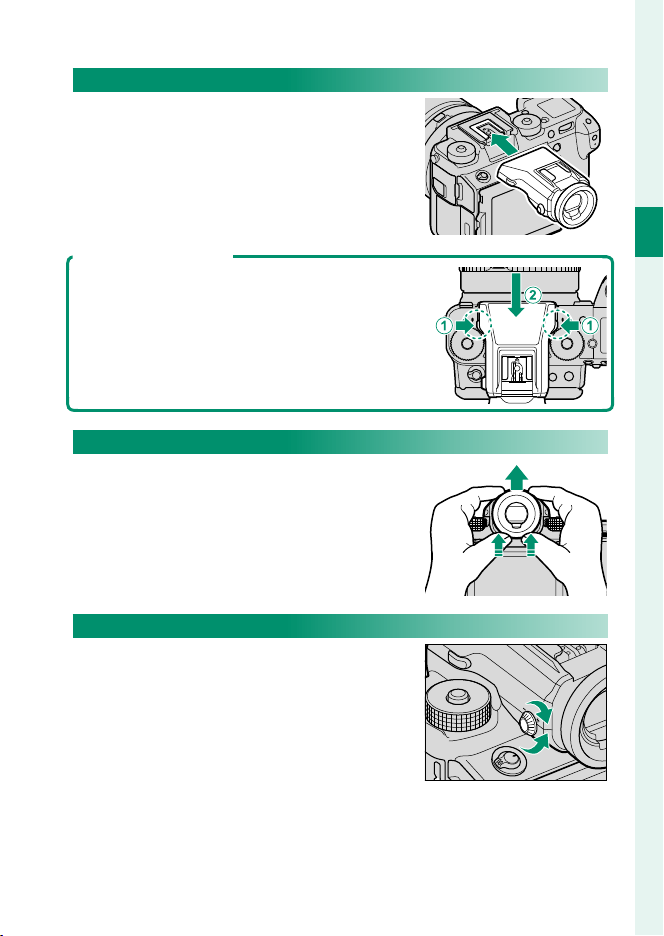
Using the view nder makes it easier to
frame your subject accurately. Remove
the hot shoe cover from the camera and
slide the view nder onto the hot shoe,
stopping when it clicks into place.
Removing the View nder
Keeping the lock releases pressed (
A
), press
down on the front of the view nder (
B
) and
slide it o as shown.
The Eye Cup
To remove the eye cup, press the bottom
in with both thumbs and slide eye cup
up.
Focusing the View nder
The camera is equipped with diopter
adjustment in the range −4 to +2 m
–1
to
accommodate individual di erences in
vision. Rotate the diopter adjustment
control until the view nder display is in
sharp focus.
12
1
Before You Begin
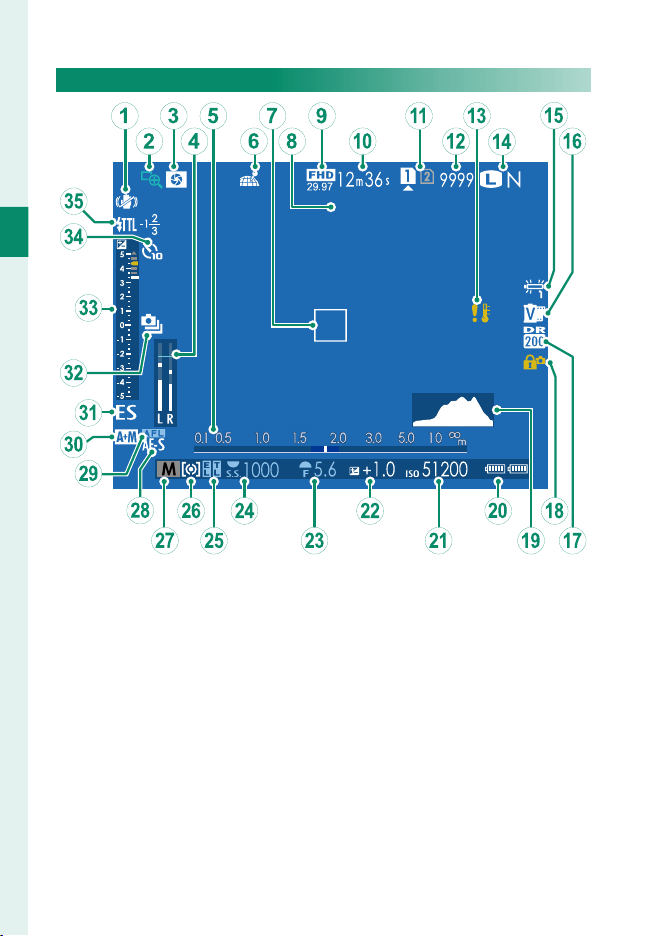
Camera Displays
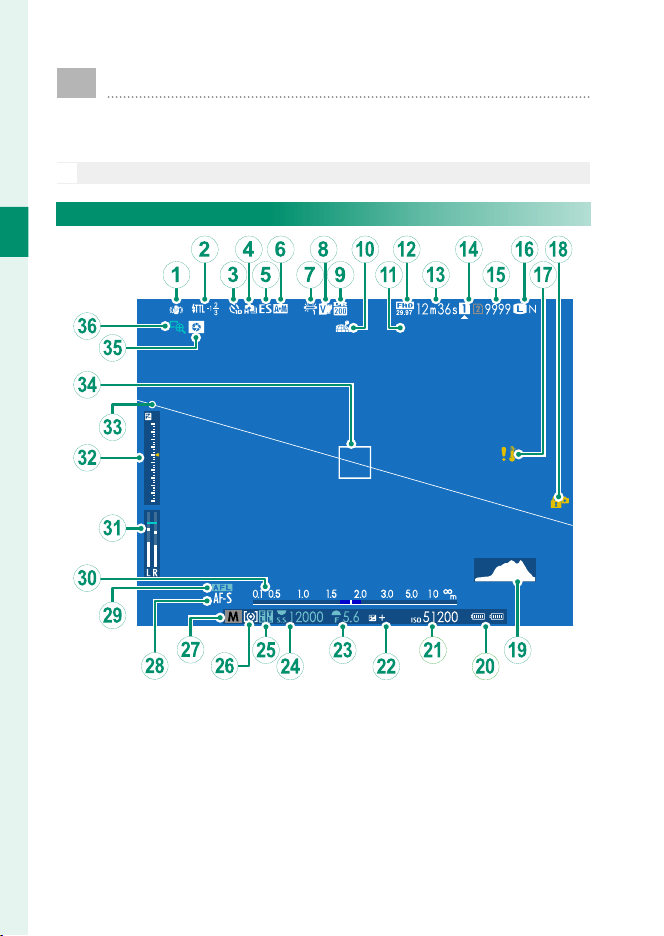
This section lists the indicators that may be displayed
during shooting.
O
For illustrative purposes, displays are shown with all indicators lit.
The Electronic View nder
1.0
GRIP
5
4
3
2
1
0
-1
-2
-3
-4
-5
1/ 1/ 2017 12:00 AM
13
1
Before You Begin
Camera Displays
A
IS mode ............................................................109
B
Flash (TTL) mode ..........................................200
Flash compensation ....................................200
C
Self-timer indicator ......................................104
D
Continuous mode ...........................................82
E
Shutter type ....................................................108
F
AF+MF indicator ...........................................101
G
White balance .................................................90
H
Film simulation ...............................................88
I
Dynamic range ...............................................89
J
Location data download status ...............173
K
Date and time .........................................37, 147
L
Movie mode ............................................46, 116
M
Time remaining ............................................... 46
N
Card slot options ....................................33, 170
O
Number of available frames
*
....................242
P
Image quality and size ........................... 86, 87
Q
Temperature warning .................................241
R
Control lock .........................................................5
S
Histogram ......................................................... 20
T
Battery level ...................................................... 36
U
Sensitivity .......................................................... 74
V
Exposure compensation ...............................77
W
Aperture ................................................53, 58, 60
X
Shutter speed ......................................53, 54, 60
Y
AE lock .......................................................79, 165
TTL lock ......................................... 114, 163, 183
Z
Metering ............................................................ 76
a
Shooting mode................................................52
b
Focus mode
†
.................................................... 63
c
AF lock .......................................................79, 165
d
Distance indicator .......................................... 73
e
Recording level ..............................................117
f
Exposure indicator ................................... 60, 77
g
Virtual horizon ................................................. 20
h
Focus frame ............................................... 67, 78
i
Depth-of-fi eld preview ........................... 59, 73
j
Focus check .............................................73, 102
* Shows “9999” if there is space for over 9999 frames.
† In-focus ( ) or manual focus (j) indicator may also be displayed.
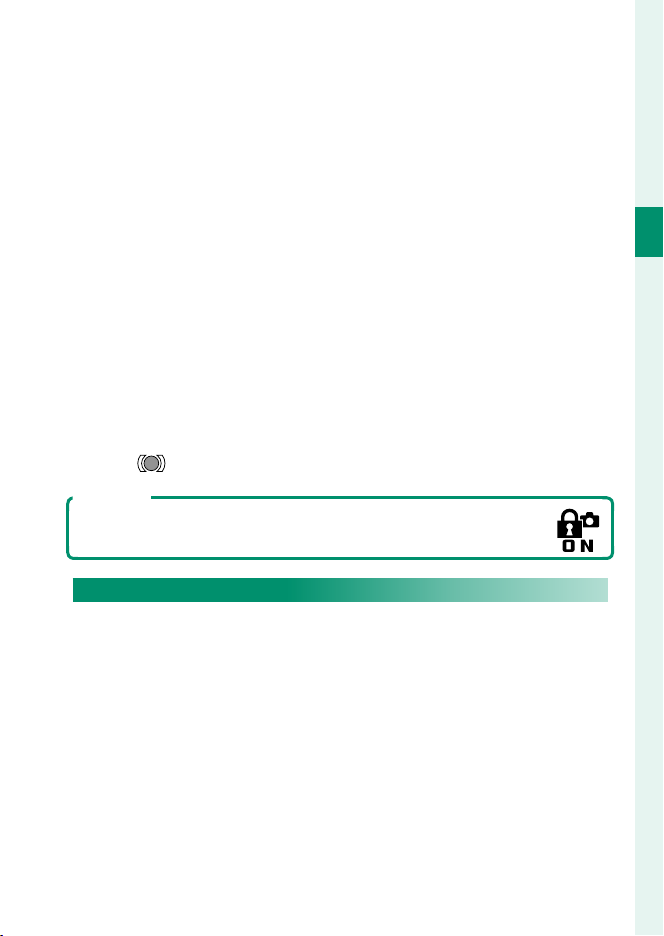
Control Lock
Pressing a locked control displays a X icon.
Display Rotation
When ON is selected for D SCREEN SETTING> AUTOROTATE
DISPLAYS, the indicators in the view nder and LCD monitor au-
tomatically rotate to match camera orientation.
14
1
Before You Begin
The LCD Monitor
GRIP
1/ 1/ 2017 12:00 AM
15
1
Before You Begin
Camera Displays
A
IS mode ............................................................109
B
Focus check .............................................73, 102
C
Depth-of-fi eld preview ........................... 59, 73
D
Recording level ..............................................117
E
Distance indicator .......................................... 73
F
Location data download status ...............173
G
Focus frame ............................................... 67, 78
H
Date and time .........................................37, 147
I
Movie mode ............................................46, 116
J
Time remaining ............................................... 46
K
Card slot options ....................................33, 170
L
Number of available frames
*
....................242
M
Temperature warning .................................241
N
Image quality and size ........................... 86, 87
O
Film simulation ...............................................88
P
White balance .................................................90
Q
Dynamic range ...............................................89
R
Control lock .........................................................5
S
Histogram ......................................................... 20
T
Battery level ...................................................... 36
U
Sensitivity .......................................................... 74
V
Exposure compensation ...............................77
W
Aperture ................................................53, 58, 60
X
Shutter speed ......................................53, 54, 60
Y
AE lock .......................................................79, 165
TTL lock ......................................... 114, 163, 183
Z
Metering ............................................................ 76
a
Shooting mode................................................52
b
Focus mode
†
.................................................... 63
c
AF lock .......................................................79, 165
d
AF+MF indicator ...........................................101
e
Shutter type ....................................................108
f
Continuous mode ...........................................82
g
Exposure indicator ................................... 60, 77
h
Self-timer indicator ......................................104
i
Flash (TTL) mode ..........................................200
Flash compensation ....................................200
* Shows “9999” if there is space for over 9999 frames.
† In-focus ( ) or manual focus (j) indicator may also be displayed.
Control Lock
Pressing a locked control displays a X icon.

16
1
Before You Begin
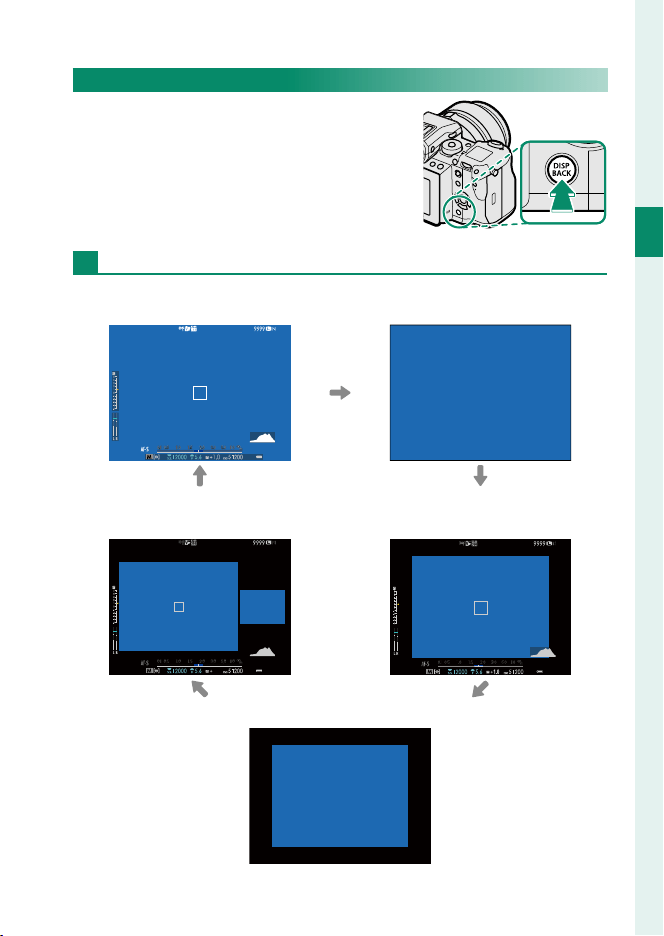
Choosing a Display Mode
Press the VIEW MODE button to cycle
through the following display modes:
•
E EYE SENSOR: Putting your eye to the
view nder turns the view nder on and
the LCD monitor o ; taking your eye
away turns the view nder o and LCD
monitor on.
•
EVF ONLY: View nder on, LCD monitor o .
•
LCD ONLY: LCD monitor on, view nder o .
•
EVF ONLY + E: Putting your eye to the view nder turns the view-
nder on; taking it away turns the view nder o . The LCD mon-
itor remains o .
The Eye Sensor
The eye sensor may respond to objects other
than your eye or to light shining directly on the
sensor.
Eye sensor
Adjusting Display Brightness
The brightness and hue of the view nder and LCD monitor can
be adjusted using the items in the D SCREEN SETTING menu.
Choose EVF BRIGHTNESS or EVF COLOR to adjust view nder
brightness or hue, LCD BRIGHTNESS or LCD COLOR to do the
same for the LCD monitor.
18
1
Before You Begin
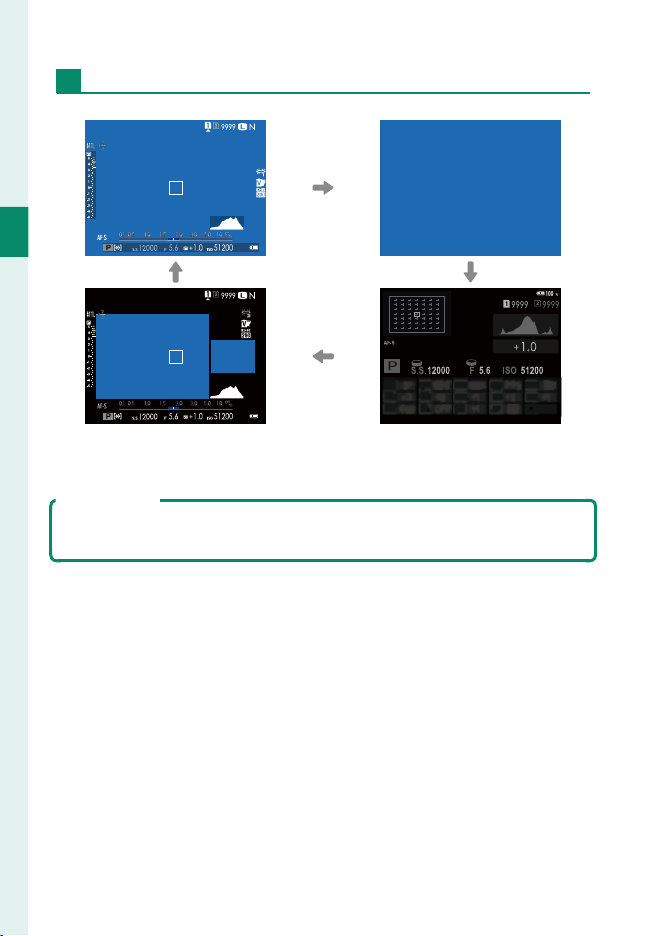
LCD Monitor
Standard indicators No indicators
Dual display
(manual focus mode only)
Info display
The Dual Display
The dual display consists of a large full-frame window and a smaller close-
up of the focus area.

19
1
Before You Begin
Camera Displays
Customizing Standard Indicators
To choose the items shown in the standard indicator display:
1
Display standard indicators.
Press the DISP/BACK button until standard indicators are dis-
played.
2
Select DISP. CUSTOM SETTING.
Select D SCREEN SETTING> DISP. CUSTOM SETTING in the
setup menu.
3
Choose items.
Highlight items and press MENU/OK to select or deselect.
•
FRAMING GUIDELINE
•
ELECTRONIC LEVEL
•
FOCUS FRAME
•
AF DISTANCE INDICATOR
•
MF DISTANCE INDICATOR
•
HISTOGRAM
•
LIVE VIEW HIGHLIGHT ALERT
•
SHOOTING MODE
•
APERTURE/S-SPEED/ISO
•
INFORMATION BACKGROUND
•
Expo. Comp. (Digit)
•
Expo. Comp. (Scale)
•
FOCUS MODE
•
PHOTOMETRY
•
SHUTTER TYPE
•
FLASH
•
CONTINUOUS MODE
•
DUAL IS MODE
•
TOUCH SCREEN MODE
•
WHITE BALANCE
•
FILM SIMULATION
•
DYNAMIC RANGE
•
FRAMES REMAINING
•
IMAGE SIZE/QUALITY
•
MOVIE MODE & REC. TIME
•
MIC LEVEL ADJUSTMENT
•
BATTERY LEVEL
•
FRAMING OUTLINE
4
Save changes.
Press DISP/BACK to save changes.
5
Exit the menus.
Press DISP/BACK as needed to exit the menus and return to the
shooting display.
20
1
Before You Begin
Virtual Horizon
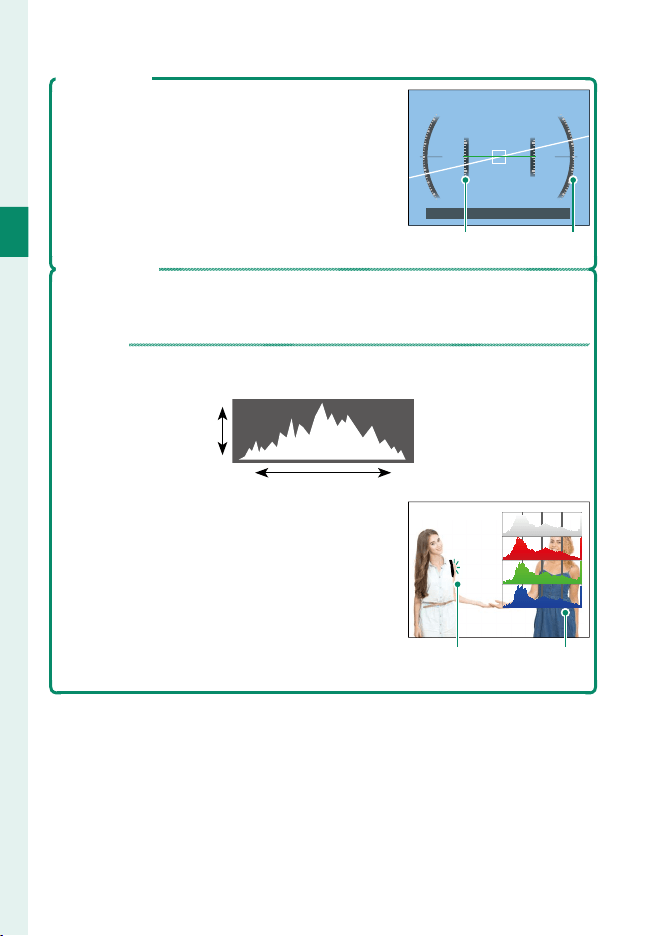
Selecting ELECTRONIC LEVEL displays a virtual
horizon. The camera is level when the two lines
overlap. Note that the virtual horizon may not
be displayed if the camera lens is pointed up or
down. For a 3D display, press the function but-
ton to which ELECTRONIC LEVEL is assigned
(
P
162, 182)
Pitch Roll
Framing Outline
Enable FRAMING OUTLINE to make the borders of the frame easier to see
against dark backgrounds.
Histograms
Histograms show the distribution of tones in the image. Brightness is
shown by the horizontal axis, the number of pixels by the vertical axis.
Number of pixels
Shadows Highlights
Pixel brightness
To view separate RGB histograms and a dis-
play showing areas of the frame that will be
overexposed at current settings superimposed
on the view through the lens, press the func-
tion button to which HISTOGRAM is assigned
(
P
162, 182).
Overexposed
areas blink
RGB
histograms
21
1
Before You Begin
Camera Displays
The Secondary LCD Monitor
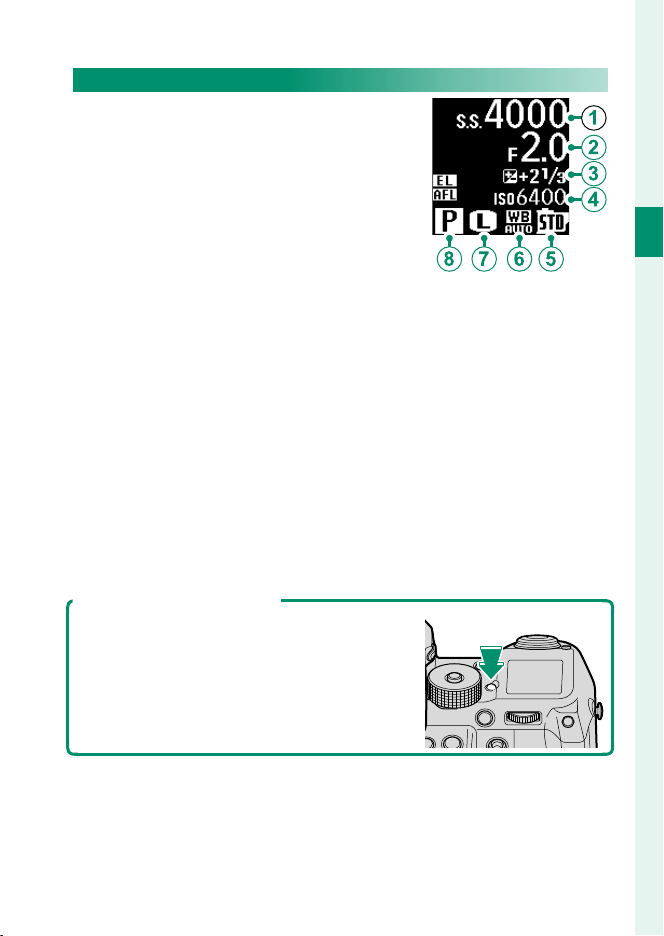
The secondary LCD monitor shows eight
camera settings, four as text (items
A
to
D
) and four as icons (items
E
to
H
).
Use D SCREEN SETTING> SUB MONITOR
SETTING to choose the items displayed.
Items for display when you are taking
photographs can be selected separately
from those shown in movie mode; in the
lists that follow, items not available in movie mode are indicated
by asterisks (“*”).
At default settings, the secondary LCD shows the following:
•
Text:
A
SHUTTER SPEED,
B
APERTURE,
C
EXPO. COMP.,
D
ISO
•
Icons:
E
FILM SIMULATION,
F
WHITE BALANCE,
G
IMAGE
SIZE
*
,
H
SHOOTING MODE
The following options are also available:
•
Text: MOVIE MODE (icon only)
*
, FRAMES REM.
*
, REC. TIME, NONE
•
Icons: PHOTOMETRY, DRIVE MODE
*
, FOCUS MODE, IMAGE QUAL-
ITY
*
, BATTERY LEVEL, CARD SLOT OPTIONS, SHUTTER TYPE
*
, DY-
NAMIC RANGE
*
, MOVIE MODE
*
, NONE
The Secondary Monitor Backlight
To turn on the secondary monitor backlight
when you nd the secondary LCD monitor too
dark to read, press the secondary monitor back-
light button. Press the button again to turn the
backlight o .
22
1
Before You Begin
Using the Menus
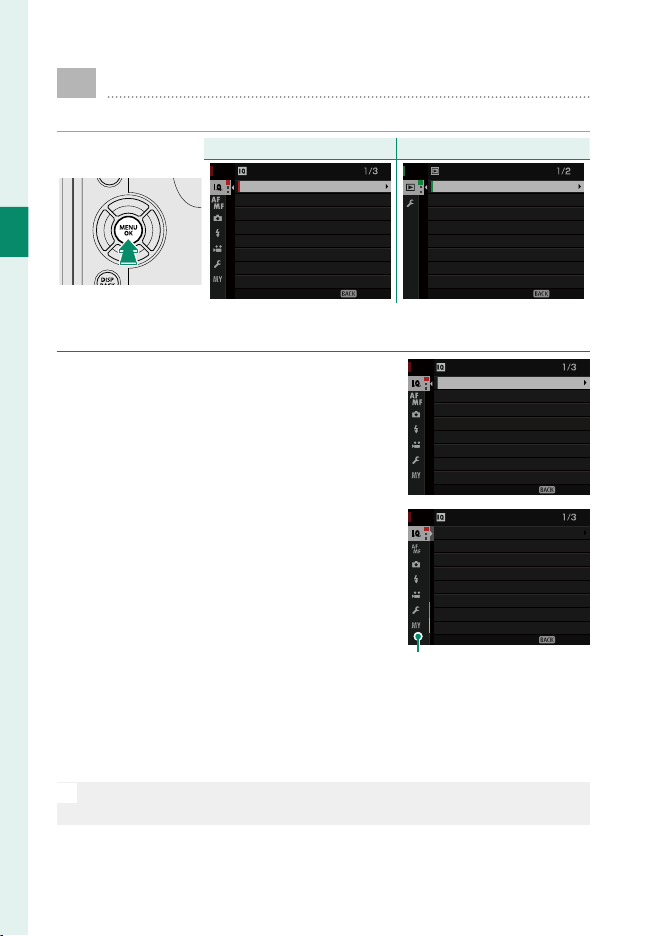
To display the menus, press MENU/OK.
Shooting
Shooting
Playback
Playback
EXIT
COLOR CHROME EFFECT
DYNAMIC RANGE
WHITE BALANCE
GRAIN EFFECT
FILM SIMULATION
RAW RECORDING
IMAGE QUALITY
IMAGE SIZE
IMAGE QUALITY SETTING
EXIT
PROTECT
IMAGE ROTATE
RED EYE REMOVAL
RESIZE
CROP
ERASE
RAW CONVERSION
SWITCH SLOT
PLAY BACK MENU
To navigate the menus:
1
Press MENU/OK to display the menus.
EXIT
COLOR CHROME EFFECT
DYNAMIC RANGE
WHITE BALANCE
GRAIN EFFECT
FILM SIMULATION
RAW RECORDING
IMAGE QUALITY
IMAGE SIZE
IMAGE QUALITY SETTING
2
Press the selector left to highlight the
tab for the current menu.
画質設定
画質モード
RAW 記録方式
フィルムシミュレーション
グレイン・エフェクト
ダイナミックレンジ
ホワイトバランス
ハイライトトーン
画像サイズ
EXIT
COLOR CHROME EFFECT
DYNAMIC RANGE
WHITE BALANCE
GRAIN EFFECT
FILM SIMULATION
RAW RECORDING
IMAGE QUALITY
IMAGE SIZE
IMAGE QUALITY SETTING
Tab
3
Press the selector up or down to highlight the tab (H, G, A,
F, B, E, C or D) containing the desired item.
4
Press the selector right to place the cursor in the menu.
N
Use the front command dial to select menu tabs or page through
menus and the rear command dial to highlight menu items.

23
First Steps
24
2
First Steps
Attaching the Shoulder Strap
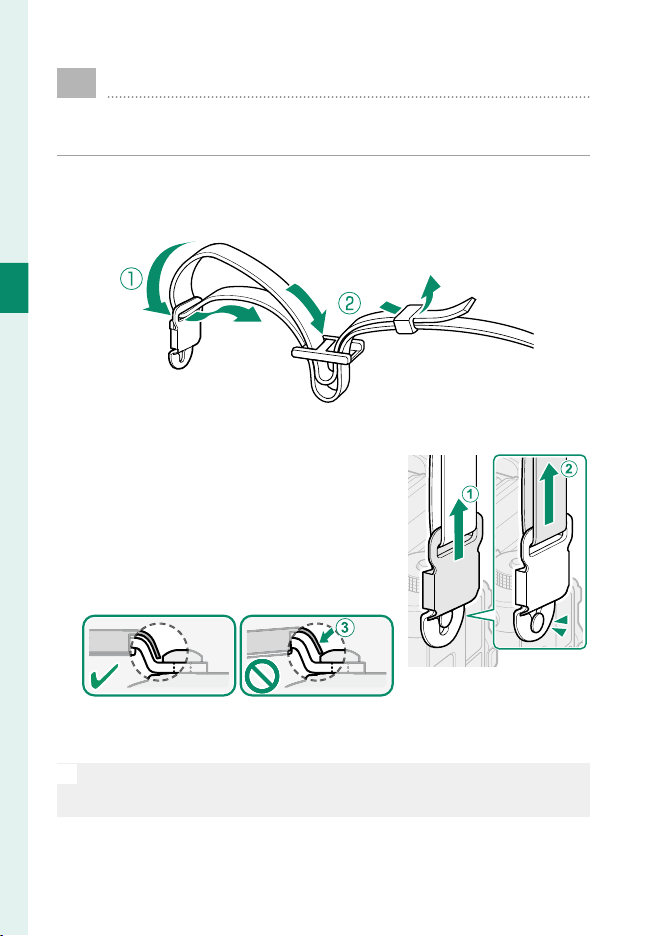
Attach the strap clips to the shoulder strap and then attach
the strap to the camera.
1
Attach a clip to the strap.
Slide a clip onto the strap (
A
) and pass the strap through the
strap adjuster and strap retainer (
B
).
2
Attach the clip to the camera.
Pull the strap upwards (
A
) until the
clip clicks securely into place (
B
) in
the
✔
(“correct”) position. If the clip is
in the
I
(“incorrect”) position, press
the tongue (
C
) until it clicks into
place in the
✔
position.
Correct Incorrect
3
Repeat Steps 1–2 for the second clip.
O
Attach the strap as shown.
To avoid dropping the camera, be sure the strap is correctly secured.
25
2
First Steps
Attaching the Shoulder Strap
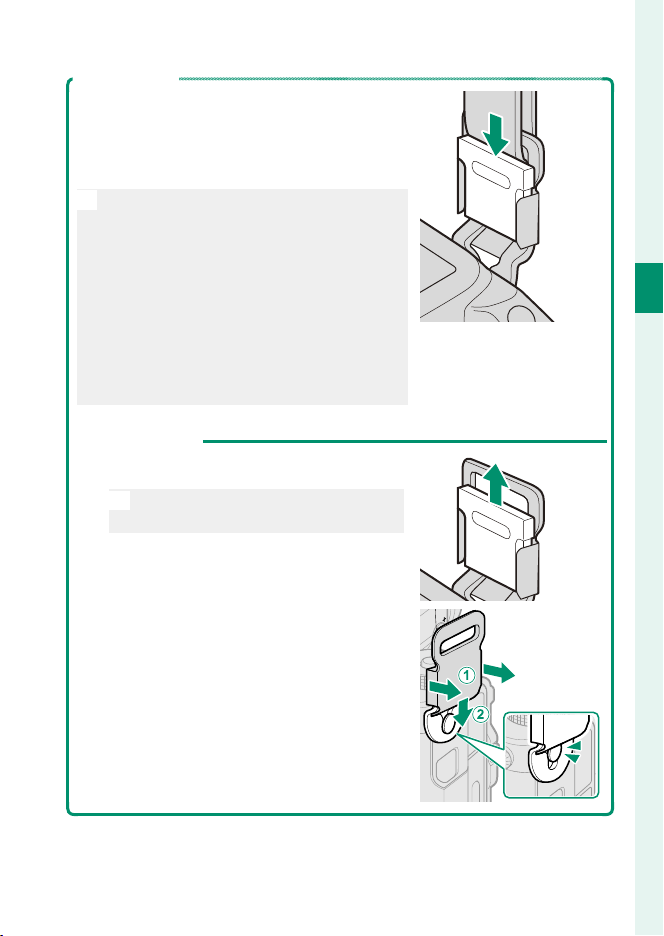
Locking the Clips
Be sure to insert the clip locks after con rming
that clips are correctly attached (
P
24). To
prevent the strap becoming detached acci-
dentally, insert the clip locks as shown.
O
The clips are small and easily swallowed;
keep out of reach of children.
Be sure that the clips are correctly attached
before inserting the locks (
P
24). Fail-
ure to observe this precaution could dam-
age the clips.
Do not attempt to attach the clips with
the locks inserted. Failure to observe this
precaution could damage the clips.
Unclipping the Strap
1
Remove the clip locks.
O
Remove the strap from the clips be-
fore removing the locks.
2
Grasping both sides of the clip, re-
lease it as shown (
A
) and then slide
it from the anchor (
B
).
26
2
First Steps
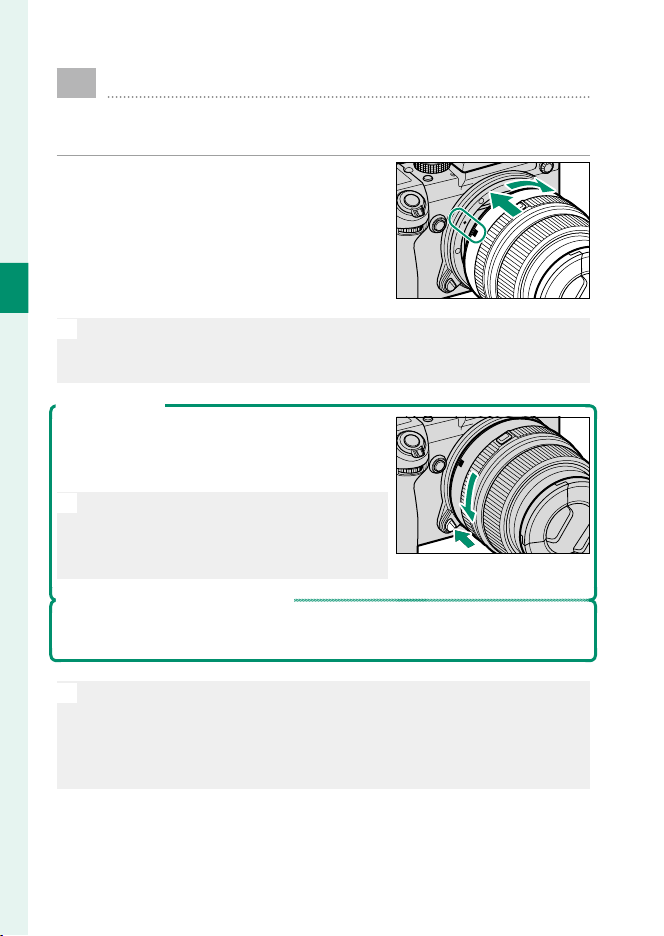
Attaching a Lens
The camera can be used with lenses for the FUJIFILM
G-mount.
Remove the body cap from the camera
and the rear cap from the lens. Place
the lens on mount, keeping the marks
on the lens and camera aligned, and
then rotate the lens until it clicks into
place.
O
Be careful not to touch the camera’s internal parts. Do not press the
lens release button while attaching the lens and be sure the latch has
securely clicked into place.
Removing Lenses
To remove the lens, turn the camera o , then
press the lens release button and rotate the
lens as shown.
O
To prevent dust accumulating on the lens
or inside the camera, replace the lens caps
and camera body cap when the lens is not
attached.
Lenses and Other Optional Accessories
The camera can be used with lenses and accessories for the FUJIFILM
G-mount.
O
Before attaching or removing (exchanging) lenses, attach the lens
caps and check that the lenses are free of dust and other foreign mat-
ter. Do not change lenses in direct sunlight or under another bright
light source, as light focused into the interior of the camera could
cause it to malfunction.
27
2
First Steps
Charging the Battery
The battery is not charged at shipment. Before proceeding,
use the supplied battery charger to fully charge the battery.
O
An NP-T125 rechargeable battery is supplied with the camera.
Charging takes about 140 minutes.
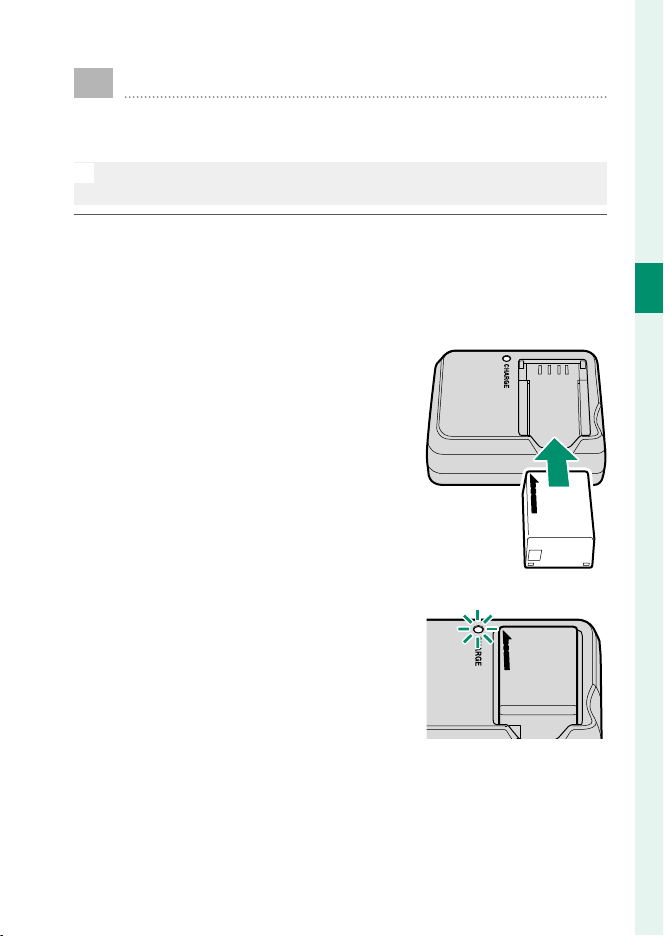
1
Connect the plug adapter.
The plug adapter supplied with the camera varies with the
country or region of purchase; use the adapter appropriate
to your country or region as described in the enclosed notice.
2
Place the battery in the charger.
Insert the battery in the orientation
shown by the arrow.
3
Plug the charger in.
Plug the charger into an indoor pow-
er outlet. The charging indicator will
light.
4
Charge the battery.
Remove the battery when charging is complete.

28
2
First Steps
The Charging Indicator
The charging indicator shows battery charge status as follows:
Charging indicator
Charging indicator
Battery status
Battery status
Action
Action
Off
Battery not inserted. Insert the battery.
Battery fully charged. Remove the battery.
On Battery charging. —
Blinks Battery fault.
Unplug the charger and
remove the battery.
O
Use the charger with the plug adapter for your country or region.
Do not a x labels or other objects to the battery. Failure to observe
this precaution could make it impossible to remove the battery from
the camera.
Do not short the battery terminals. The battery could overheat.
Read the cautions in “The Battery and Power Supply”.
Use only battery chargers designated for use with the battery. Failure
to observe this precaution could result in product malfunction.
Do not remove the labels from the battery or attempt to split or peel
the outer casing.
The battery gradually loses its charge when not in use. Charge the
battery one or two days before use. If the battery fails to hold a charge,
it has reached the end of its charging life and must be replaced.
Unplug the charger when it is not in use.
Remove dirt from the battery terminals with a clean, dry cloth. Failure
to observe this precaution could prevent the battery from charging.
Note that charging times increase at low temperatures.
29
2
First Steps
Charging the Battery
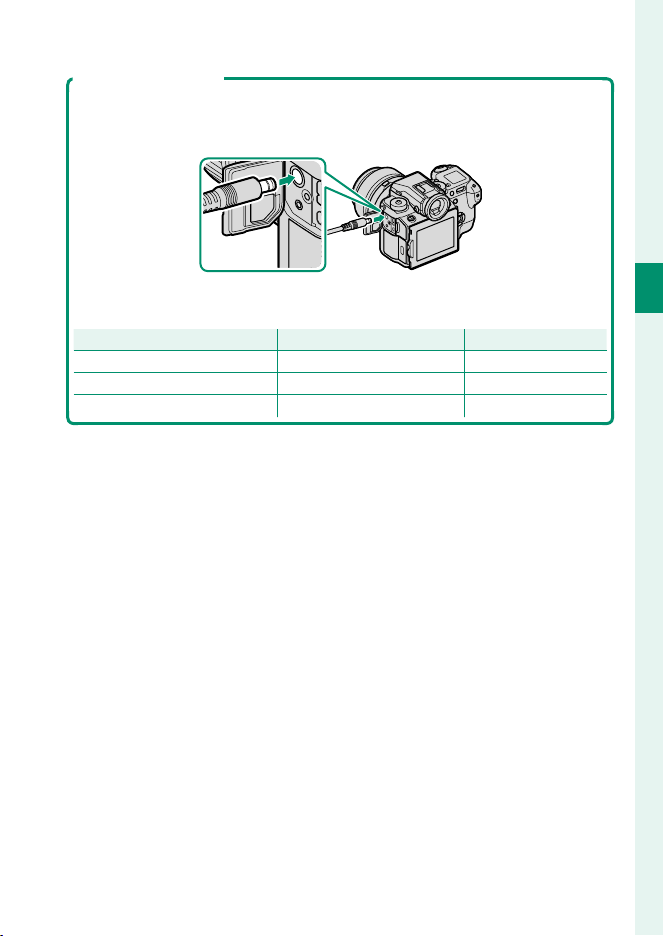
Charging via AC Adapter
The battery inserted in the camera will also charge when the camera is
powered by an optional AC-15V AC adapter. Charging takes about 120 min-
utes.
Battery charge status is shown by battery status icons when the camera
is on (playback mode) and by the indicator lamp when the camera is o .
Battery status icon (camera on)
Battery status icon (camera on)
Indicator lamp (camera o )
Indicator lamp (camera o )
Battery status
Battery status
Y (yellow) On Battery charging
N (green) Off Charging complete
Z (red) Blinks Battery fault
30
2
First Steps
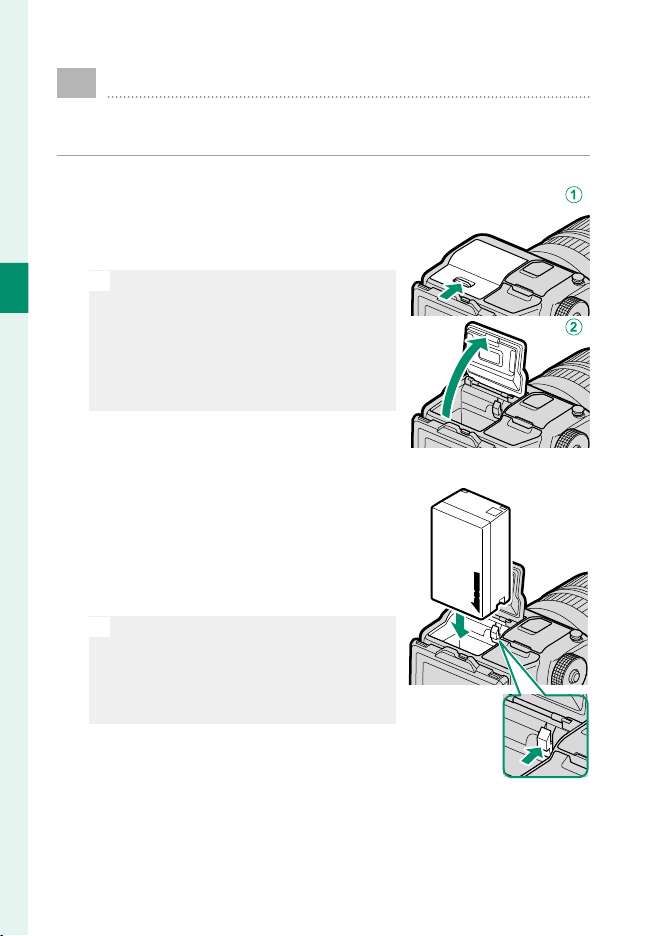
Inserting the Battery
After charging the battery, insert the battery in the camera
as described below.
1
Open the battery-chamber cover.
Slide the battery-chamber latch as
shown and open the battery-cham-
ber cover.
O
Do not remove the battery when the
camera is on. Failure to observe this
precaution could damage image les
or memory cards.
Do not use excessive force when han-
dling the battery-chamber cover.
2
Insert the battery.
Using the battery to keep the battery
latch pressed to one side, insert the
battery contacts rst in the direction
shown by the arrow. Con rm that
the battery is securely latched.
O
Insert the battery in the orientation
shown. Do not use force or attempt
to insert the battery upside down or
backwards. The battery will slide in
easily in the correct orientation.
31
2
First Steps
Inserting the Battery
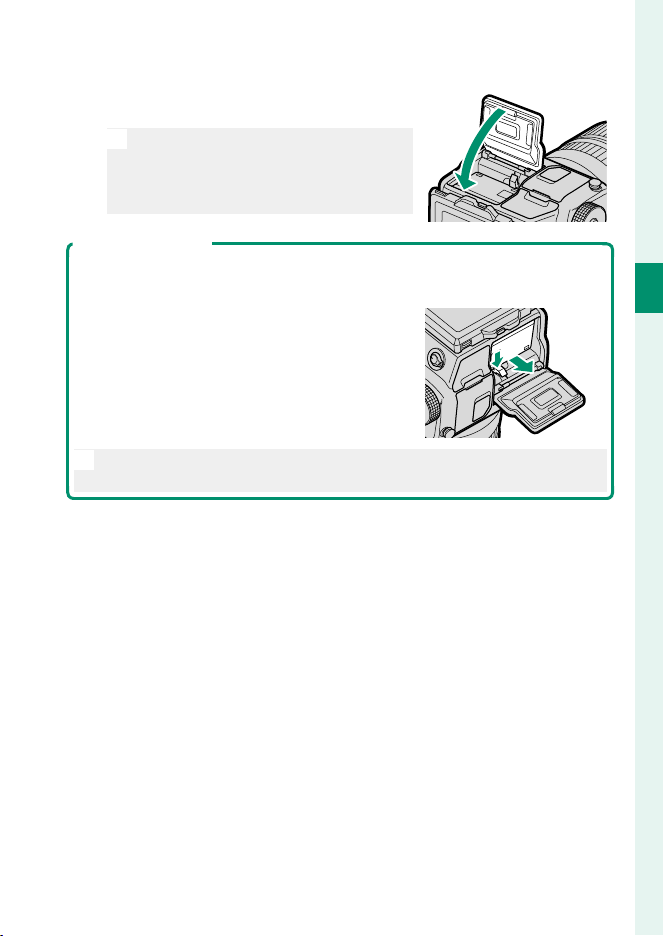
3
Close the battery-chamber cover.
Close and latch the cover.
O
If the cover does not close, check that
the battery is in the correct orienta-
tion. Do not attempt to force the cov-
er shut.
Removing the Battery
Before removing the battery, turn the camera o and open the battery-cham-
ber cover.
To remove the battery, press the battery latch to
the side, and slide the battery out of the camera
as shown.
O
The battery may become hot when used in high-temperature environ-
ments. Observe caution when removing the battery.
32
2
First Steps
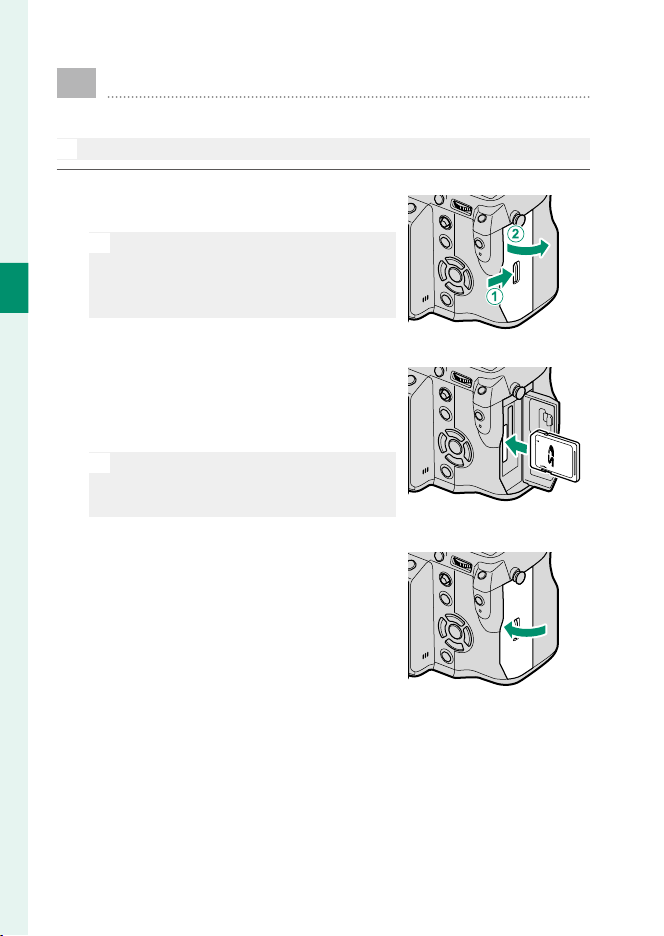
Inserting Memory Cards
Pictures are stored on memory cards (sold separately).
N
The camera can be used with two cards, one in each of its two slots.
1
Open the memory card slot cover.
Unlatch and open the cover.
O
Do not remove memory cards when
the camera is on. Failure to observe
this precaution could damage image
les or memory cards.
2
Insert the memory card.
Holding the card in the orientation
shown, slide it in until it clicks into
place at the back of the slot.
O
Be sure card is in the correct orienta-
tion; do not insert at an angle or use
force.
3
Close the memory card slot cover.
Close and latch the cover.
33
2
First Steps
Inserting Memory Cards
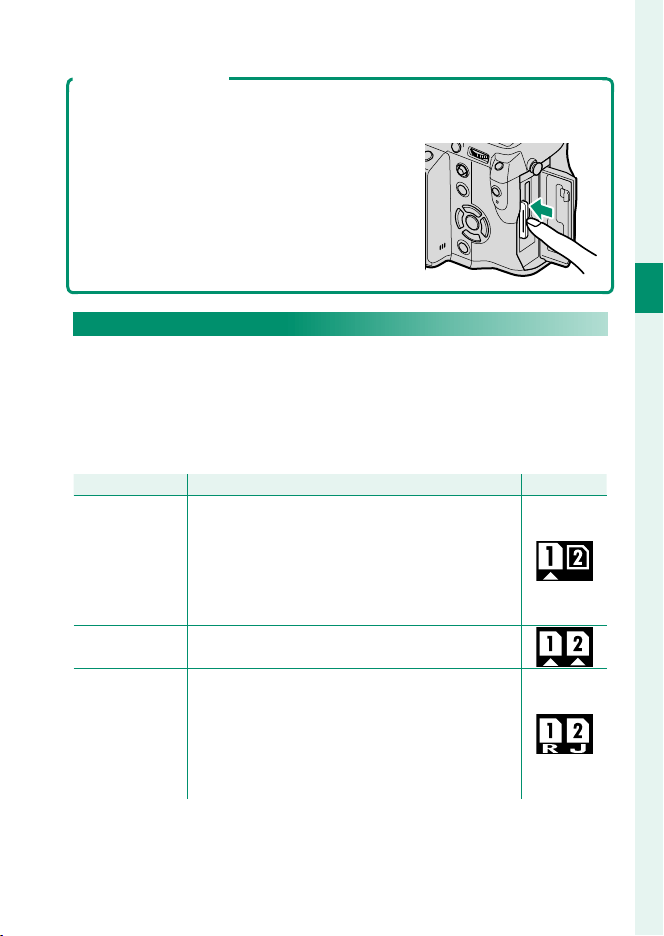
Removing Memory Cards
Before removing memory cards, turn the camera o and open the memory
card slot cover.
Press and release the card to eject it part way (to
prevent the card falling from the slot, press the
center of the card and release it slowly, without
removing your nger from the card). The card
can then be removed by hand.
Using Two Cards
The camera can be used with two cards, one in each of its two
slots. At default settings, photos are saved to the card in the sec-
ond slot only when the card in the rst slot is full. This can be
changed using D SAVE DATA SETTING> CARD SLOT SETTING
(STILL IMAGE).
Option
Option
Description
Description
Display
Display
SEQUENTIAL
(default)
The card in the second slot is used only when the
card in the fi rst slot is full. If the second slot is se-
lected for D SAVE DATA SETTING> SWITCH
SLOT (SEQUENTIAL), recording will start on the
card in the second slot and switch to the fi rst slot
when the card in the second slot is full.
BACKUP Each picture is recorded twice, once to each card.
RAW/JPEG
As for SEQUENTIAL, except that the RAW
copy of pictures taken with FINE + RAW or
NORMAL + RAW selected for H IMAGE QUAL-
ITY SETTING> IMAGE QUALITY will be saved
to the card in the fi rst slot and the JPEG copy to the
card in the second slot.
The card used to store movies can be selected using D SAVE
DATA SETTING> MOVIE FILE DESTINATION.
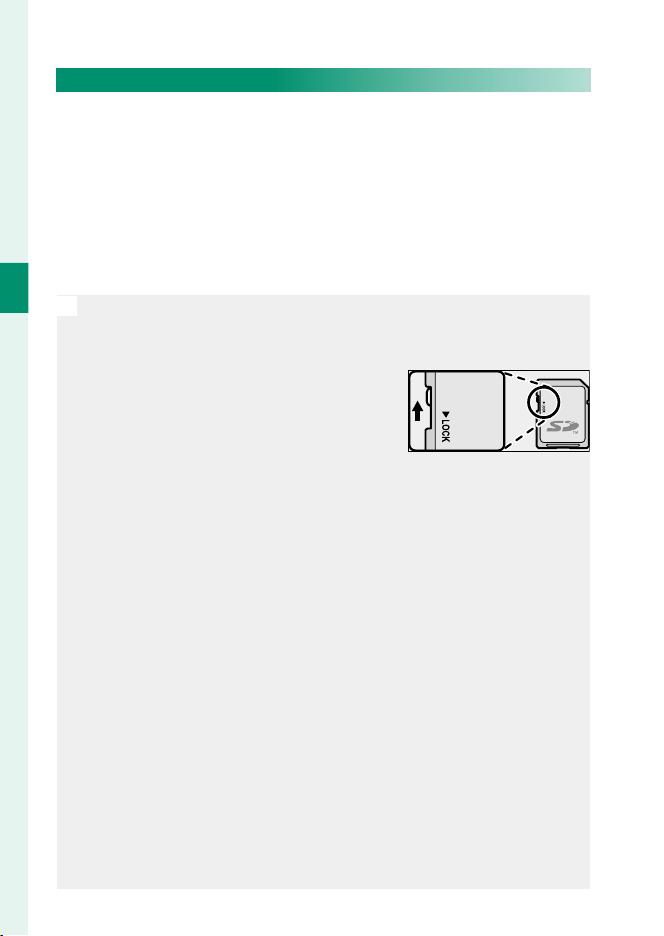
34
2
First Steps
Inserting Memory Cards
Compatible Memory Cards
FUJIFILM and SanDisk SD, SDHC, and SDXC memory cards have
been approved for use in the camera; UHS-II cards can be used
in both slots, while cards with a UHS speed class of 1 or bet-
ter are recommended for movies. A complete list of approved
memory cards is available at http://www.fujifilm.com/support/
digital_cameras/compatibility/. Operation is not guaranteed with
other cards. The camera can not be used with xD-Picture Cards
or MultiMediaCard (MMC) devices.
O
Do not turn the camera o or remove the memory card while the memory
card is being formatted or data are being recorded to or deleted from the
card. Failure to observe this precaution could damage the card.
Memory cards can be locked, making it im-
possible to format the card or to record or
delete images. Before inserting a memory
card, slide the write-protect switch to the
unlocked position.
Format memory cards before rst use, and be sure to reformat all
memory cards after using them in a computer or other device.
Memory cards are small and can be swallowed; keep out of reach of children.
If a child swallows a memory card, seek medical assistance immediately.
miniSD or microSD adapters that are larger or smaller than memory
cards may not eject normally; if the card does not eject, take the camera
to an authorized service representative. Do not forcibly remove the card.
Do not a x labels or other objects to memory cards. Peeling labels
can cause camera malfunction.
Movie recording may be interrupted with some types of memory card.
Formatting a memory card in the camera creates a folder in which pic-
tures are stored. Do not rename or delete this folder or use a computer
or other device to edit, delete, or rename image les. Always use the
camera to delete pictures; before editing or renaming les, copy them
to a computer and edit or rename the copies, not the originals. Re-
naming the les on the camera can cause problems during playback.
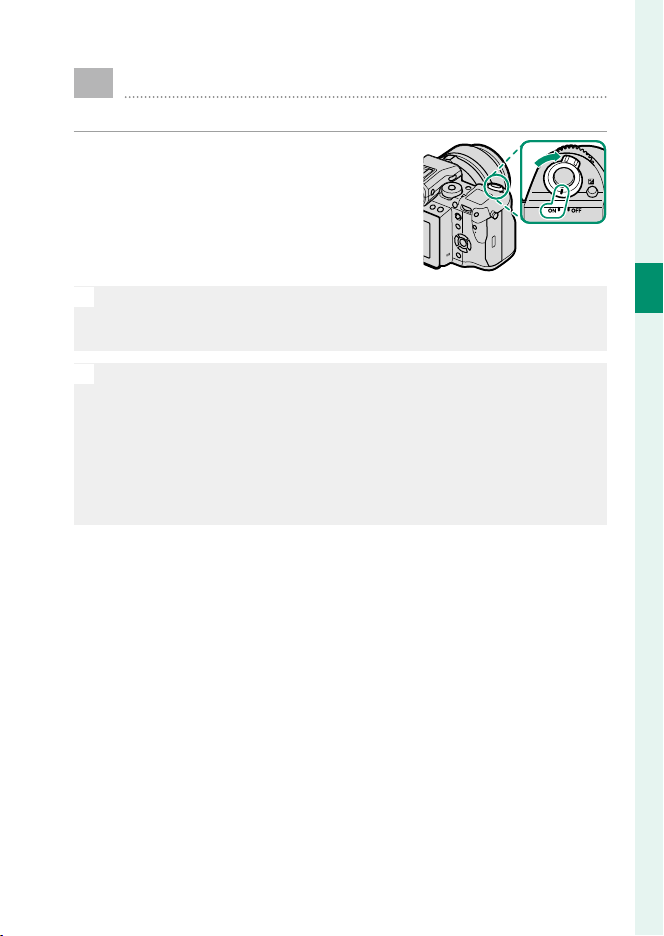
35
2
First Steps
Turning the Camera On and O
Use the ON/OFF switch to turn the camera on and o .
Rotate the switch to ON to turn the cam-
era on, or to OFF to turn the camera o .
O
Fingerprints and other marks on the lens or view nder can a ect pic-
tures or the view through the view nder. Keep the lens and view nd-
er clean.
N
Press the a button to start playback. Press the shutter button halfway
to return to shooting mode.
The camera will turn o automatically if no operations are performed
for the length of time selected for D POWER MANAGEMENT> AUTO
POWER OFF. To reactivate the camera after it has turned o automat-
ically, press the shutter button halfway or turn the ON/OFF switch to OFF
and then back to ON.
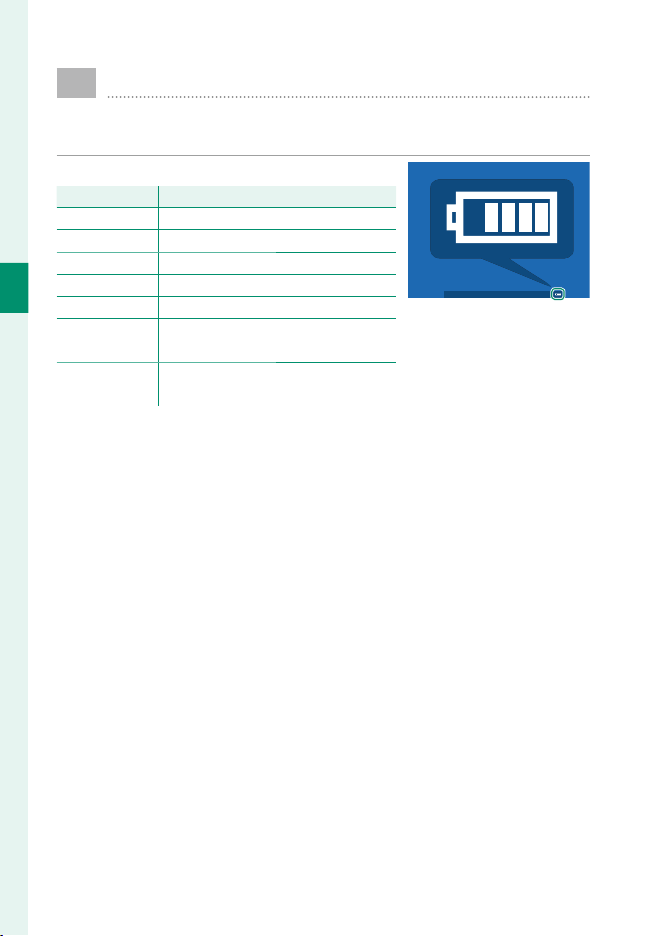
36
2
First Steps
Checking the Battery Level
After turning the camera on, check the battery level in the
display.
Battery level is shown as follows:
Indicator
Indicator
Description
Description
e
Battery partially discharged.
f
Battery about 80% full.
g
Battery about 60% full.
h
Battery about 40% full.
i
Battery about 20% full.
i
(red)
Low battery. Charge as soon as pos-
sible.
j
(blinks red)
Battery exhausted. Turn camera off
and recharge battery.
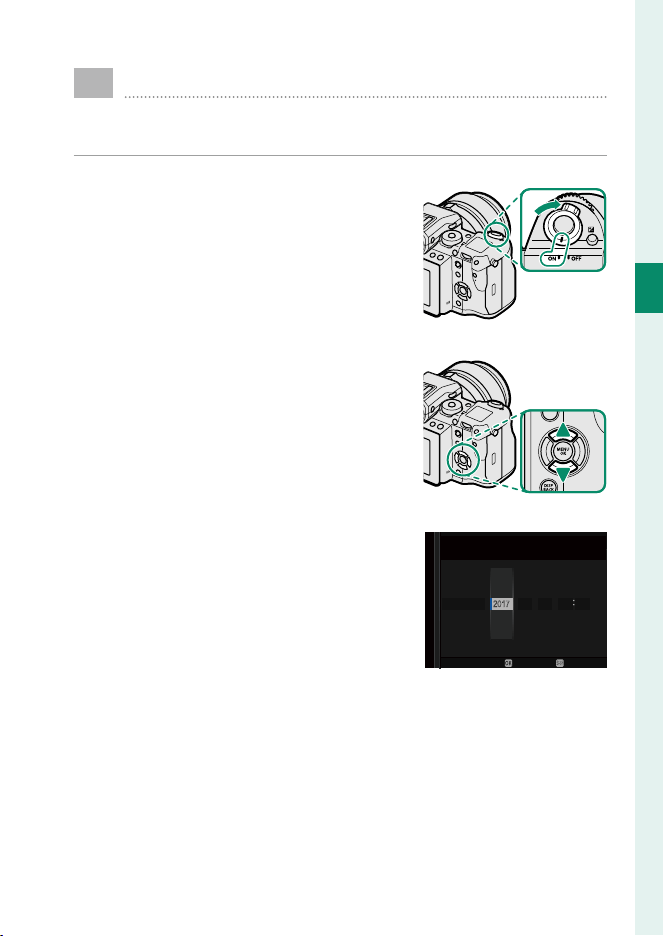
37
2
First Steps
Basic Setup
A language-selection dialog is displayed the rst time the
camera is turned on.
1
Turn the camera on.
A language-selection dialog will be
displayed.
2
Choose a language.
Highlight a language and press
MENU/OK.
3
Set the date and time.
Press the selector left or right to
highlight the year, month, day, hour,
or minute and press up or down
to change. To change the order in
which the year, month, and day are
displayed, highlight the date format
and press the selector up or down.
Press MENU/OK to exit to shooting mode when settings are
complete.
YY.MM.DD
:
1 12
AM
1
00
2017
2016
2015
2018
2019
..
DATE/TIME NOT SET
NOSET
38
2
First Steps
Basic Setup
N
If the battery is removed for an extended period, the camera clock will
be reset and the language-selection dialog will be displayed when the
camera is turned on.
Skipping the Current Step
Press DISP/BACK to skip the current step. Any steps you skip will be displayed
the next time the camera is turned on.
Choosing a Di erent Language
To change the language:
1
Display language options.
Select D USER SETTING>
a.
2
Choose a language.
Highlight the desired option and press MENU/OK.
Changing the Time and Date
To set the camera clock:
1
Display DATE/TIME options.
Select D USER SETTING> DATE/TIME.
2
Set the clock.
Press the selector left or right to highlight the year, month,
day, hour, or minute and press up or down to change. Press
MENU/OK to set the clock.

39
Basic Photography and
Playback
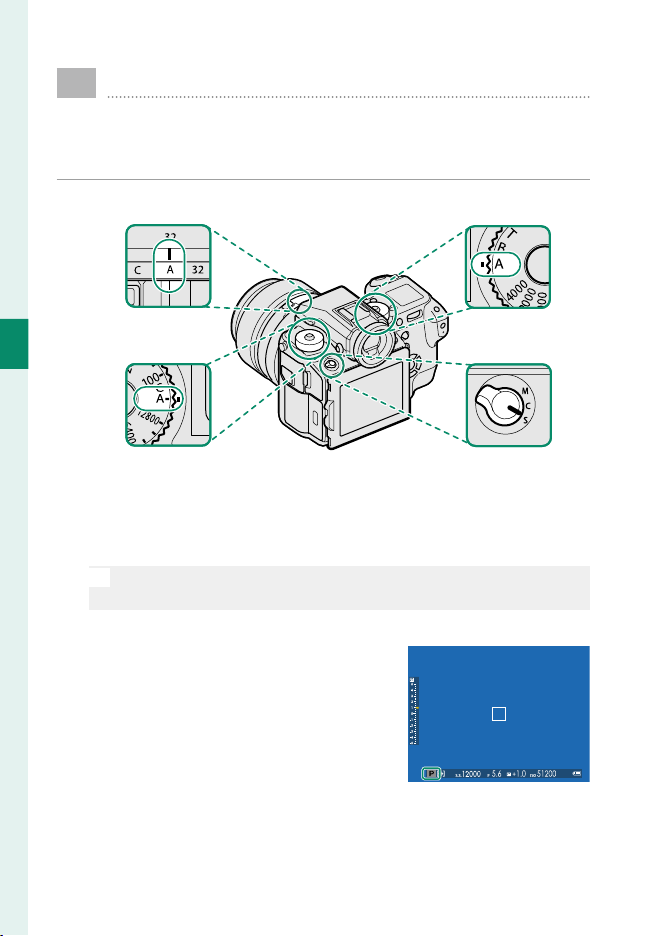
40
3
Basic Photography and Playback
Taking Photographs (Mode P)
This section describes how to take pictures using program
AE (mode P). See pages 52–61 for information on S, A,
and M modes.
1
Adjust settings for program AE.
A
B
C
D
A
Aperture (
P
52): Select A (auto).
B
Sensitivity (
P
74): Select A (auto).
C
Shutter speed (
P
52): Select A (auto).
D
Focus mode (
P
63): Select S (single AF).
N
To use the shutter speed and sensitivity dials, press the dial lock
release and rotate the dial to the desired setting.
2
Check the shooting mode.
Con rm that P appears in the display.
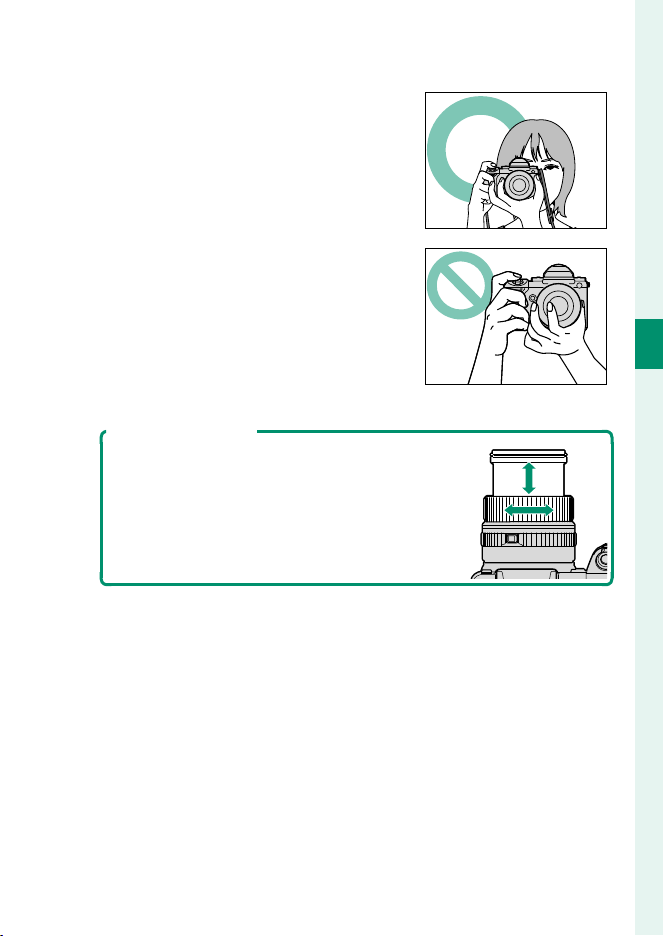
41
3
Basic Photography and Playback
Taking Photographs (Mode P)
3
Ready the camera.
Hold the camera steady with both
hands and brace your elbows against
your sides. Shaking or unsteady
hands can blur your shots.
To prevent pictures that are out of fo-
cus or too dark (underexposed), keep
your ngers and other objects away
from the lens.
4
Frame the picture.
Lenses with Zoom Rings
Use the zoom ring to frame the picture in
the display. Rotate the ring left to zoom
out, right to zoom in.
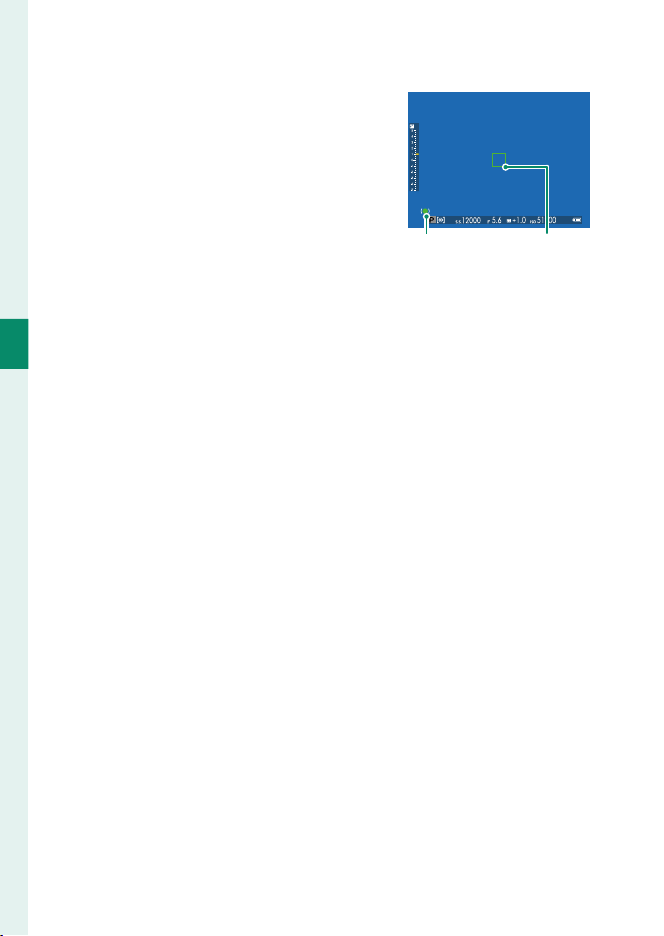
42
3
Basic Photography and Playback
Taking Photographs (Mode P)
5
Focus.
Press the shutter button halfway to
focus.
Focus
indicator
Focus frame
If the camera is able to focus, it will beep twice and focus area and
focus indicator will glow green. Focus and exposure will lock
while the shutter button is pressed halfway.
If the camera is unable to focus, the focus frame will turn red, s
will be displayed, and the focus indicator will blink white.
6
Shoot.
Smoothly press the shutter button the rest of the way down
to take the picture.
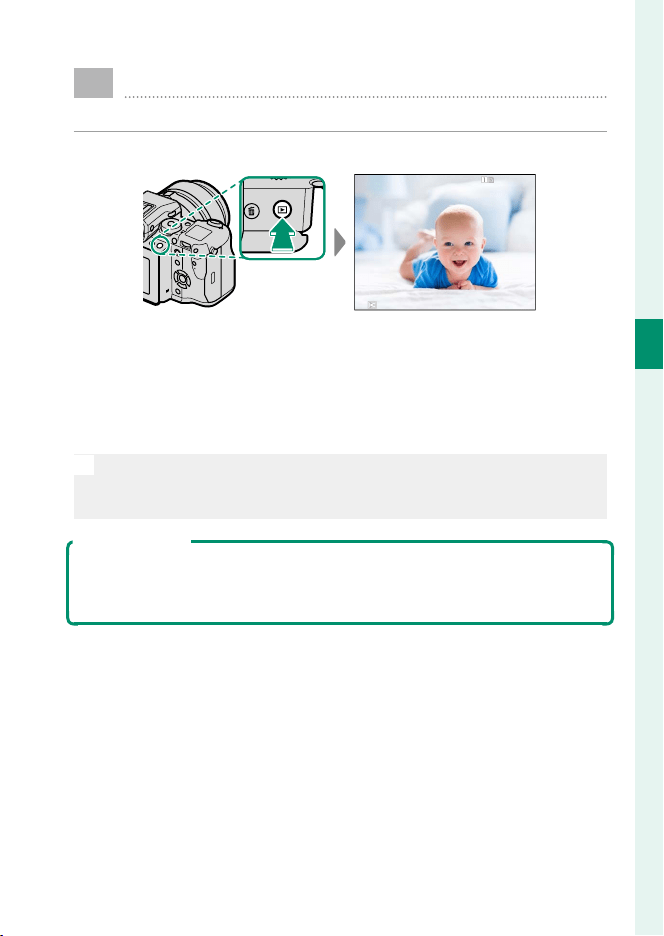
43
3
Basic Photography and Playback
a
Viewing Pictures
Pictures can be viewed in the view nder or LCD monitor.
To view pictures full frame, press a.
100-0001
Additional pictures can be viewed by pressing the selector left
or right or rotating the front command dial. Press the selector or
rotate the dial right to view pictures in the order recorded, left to
view pictures in reverse order. Keep the selector pressed to scroll
rapidly to the desired frame.
N
Pictures taken using other cameras are marked with a m (“gift image”)
icon to warn that they may not display correctly and that playback
zoom may not be available.
Two Memory Cards
If two memory cards are inserted, you can press and hold the a button
to choose a card for playback. You can also select a card using the C PLAY
BACK MENU> SWITCH SLOT option.
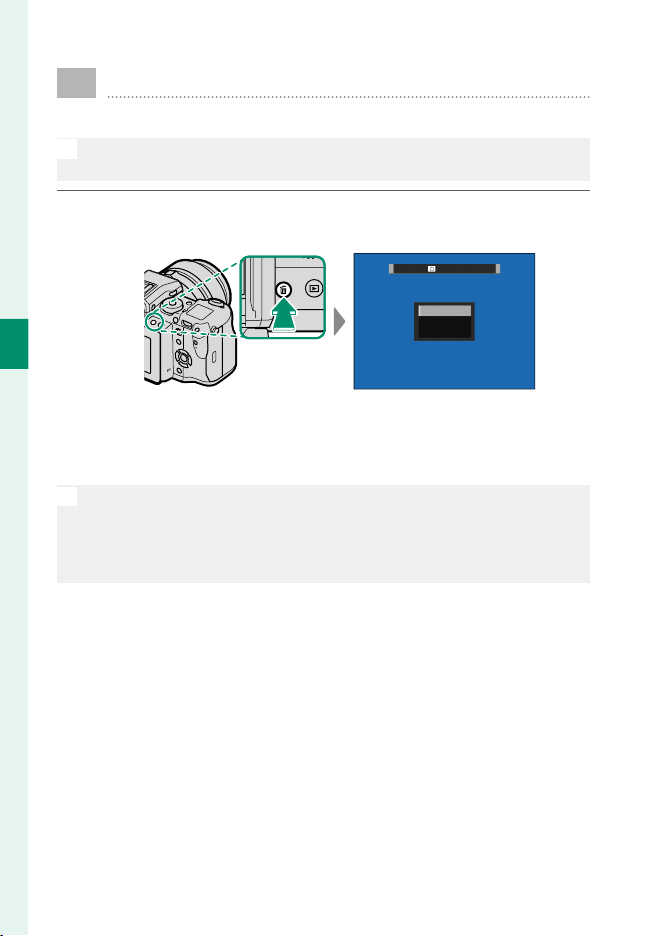
44
3
Basic Photography and Playback
b
Deleting Pictures
Use the b button to delete pictures.
O
Deleted pictures can not be recovered. Copy important pictures to a
computer or other storage device before proceeding.
1
With a picture displayed full frame, press the b button and
select FRAME.
FRAME
SELECTED FRAMES
ALL FRAMES
ERASE
2
Press the selector left or right to scroll through pictures and
press MENU/OK to delete (a con rmation dialog is not dis-
played). Repeat to delete additional pictures.
N
Protected pictures can not be deleted. Remove protection from any
pictures you wish to delete (
P
133).
Pictures can also be deleted from the menus using the C PLAY BACK
MENU> ERASE option (
P
129).

45
Movie Recording and
Playback
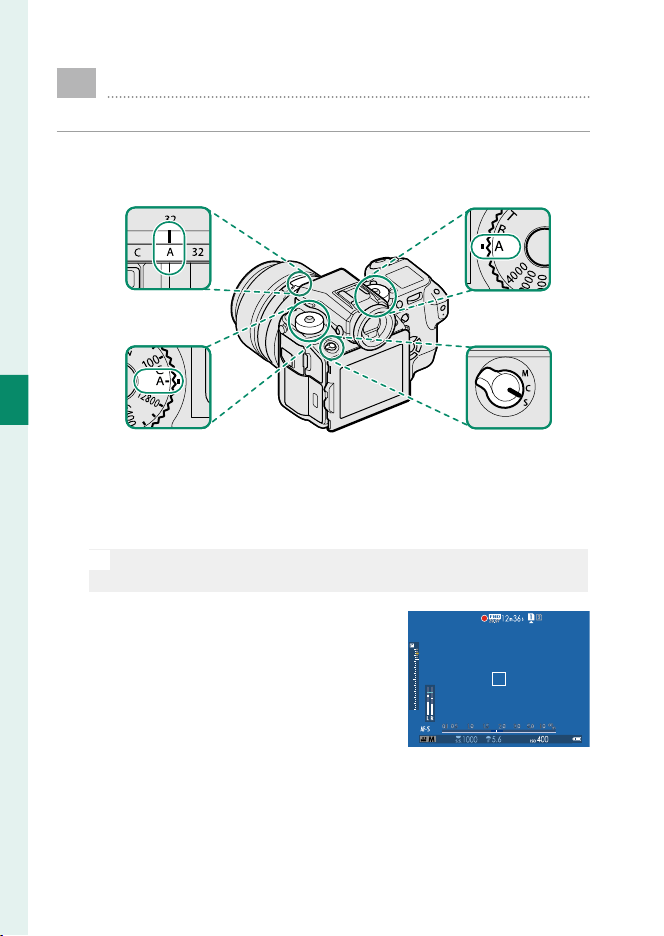
46
4
Movie Recording and Playback
F
Recording Movies
This section describes how to lm movies in auto mode.
1
Press the drive mode button and select FMOVIE.
2
Adjust settings for program AE.
A
B
C
D
A
Aperture (
P
52): Select A (auto).
B
Sensitivity (
P
74): Select A (auto).
C
Shutter speed (
P
52): Select A (auto).
D
Focus mode (
P
63): Select S (single AF).
N
To use the shutter speed and sensitivity dials, press the dial lock
release and rotate the dial to the desired setting.
3
Press the shutter button to start re-
cording. A recording indicator (V)
and the time remaining are displayed
while recording is in progress.
5
4
3
2
1
0
-1
-2
-3
-4
-5
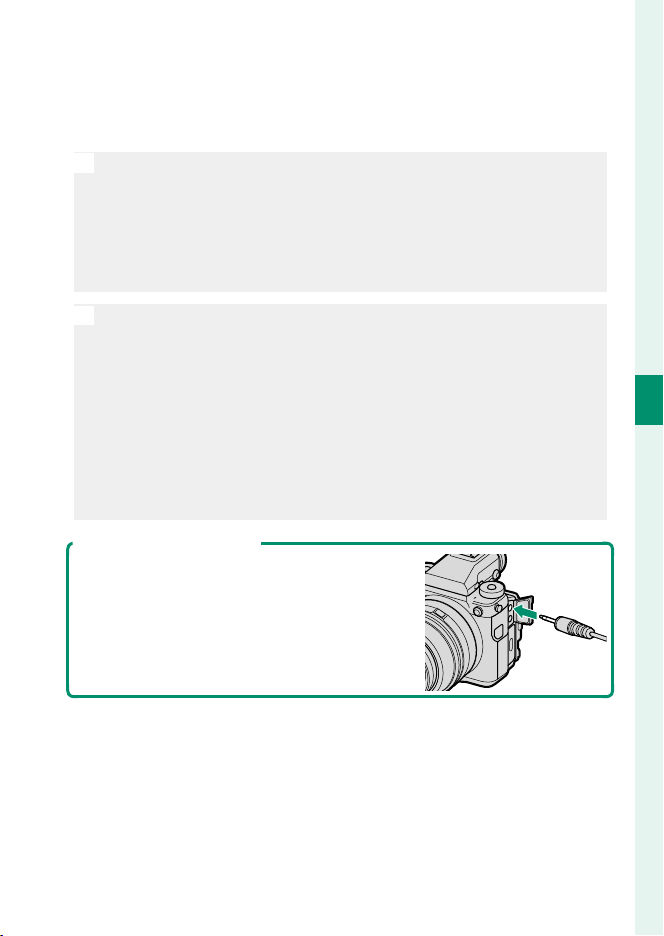
47
4
Movie Recording and Playback
Recording Movies
4
Press the button again to end recording. Recording ends
automatically when the maximum length is reached or the
memory card is full.
O
Sound is recorded via the built-in microphone or an optional external
microphone. Do not cover the microphone during recording. Note
that the microphone may pick up lens noise and other sounds made
by the camera during recording.
Vertical or horizontal streaks may appear in movies containing very
bright subjects. This is normal and does not indicate a malfunction.
N
The indicator lamp lights while recording is in progress. During re-
cording, you can change exposure compensation by up to ±2EV and
adjust zoom using the zoom ring on the lens (if available).
If the lens is equipped with an aperture mode switch, select the ap-
erture mode before beginning recording. If an option other than A is
selected, shutter speed and aperture can be adjusted while recording
is in progress.
Recording may be unavailable at some settings, while in other cases
settings may not apply during recording.
Using an External Microphone
Sound can be recorded with external micro-
phones that connect using jacks 3.5 mm in
diameter; microphones that require plug-in
power can not be used. See the microphone
manual for details.

48
4
Movie Recording and Playback
Recording Movies
Adjusting Movie Settings
Frame size and rate can be selected using B MOVIE SETTING>
MOVIE MODE, while the card used to store movies can be select-
ed using D SAVE DATA SETTING> MOVIE FILE DESTINATION.
Focus mode is selected using the focus mode selector; for con-
tinuous focus adjustment, select C, or choose S and enable Intel-
ligent Face Detection. Intelligent Face Detection is not available
in focus mode M.
Depth of Field
Choose low f-numbers to soften background details.
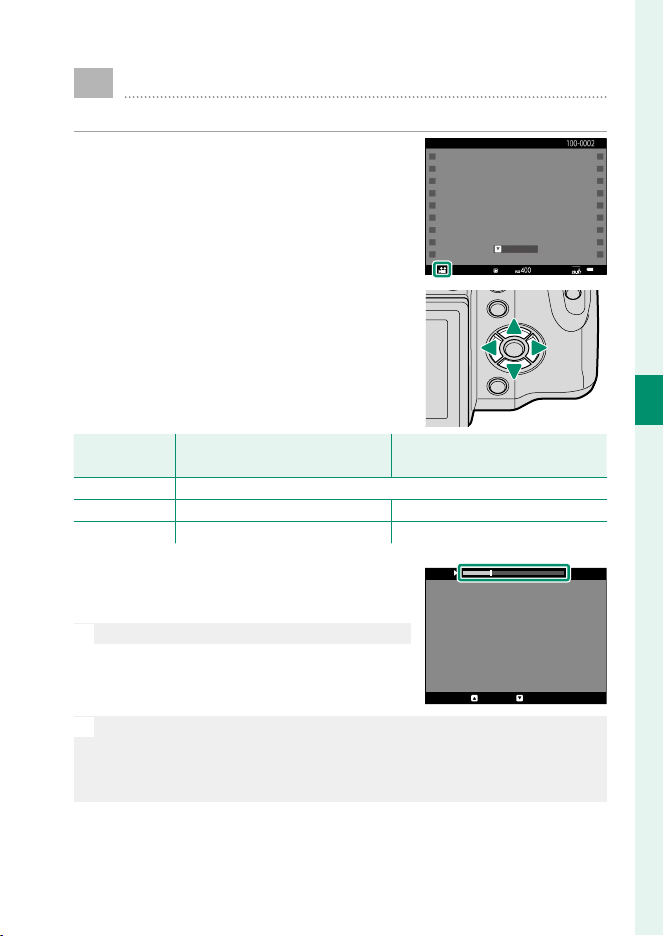
49
4
Movie Recording and Playback
a
Viewing Movies
View movies on the camera.
In full-frame playback, movies are identi-
ed by a W icon.
±0
1/1/2017 12:00 AM
PLAYPLAY
The following operations can be per-
formed while a movie is displayed:
Selector
Selector
Playback in
Playback in
progress (
progress (
x
x
)
)
Playback
Playback
paused (
paused (
y
y
)
)
e
End playback
f
Pause playback Start/resume playback
gh
Adjust speed Single frame rewind/advance
Progress is shown in the display during
playback.
O
Do not cover the speaker during playback.
29m59s
PAUSESTOP
N
Press MENU/OK to pause playback and display volume controls. Press
the selector up or down to adjust the volume; press MENU/OK again
to resume playback. Volume can also be adjusted using D SOUND
SETTING> PLAYBACK VOLUME.

50
4
Movie Recording and Playback
Viewing Movies
Playback Speed
Press the selector left or right to adjust playback
speed during playback. Speed is shown by the
number of arrows (M or N).
29m59s
PAUSESTOP
Arrows

51
Taking Photographs
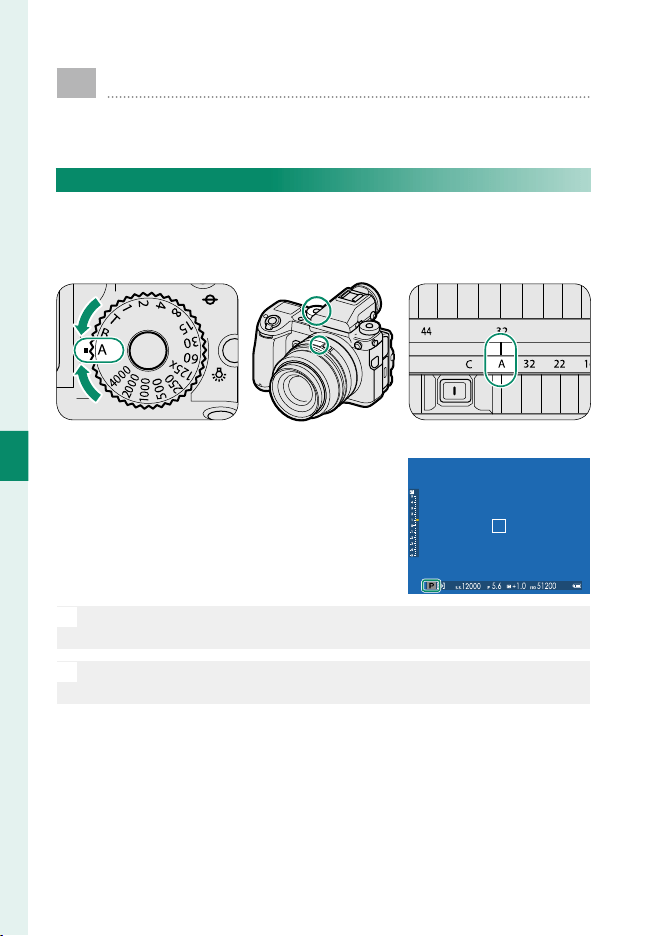
52
5
Taking Photographs
P, S, A, and M Modes
P, S, A, and M modes give you varying degrees of control
over shutter speed and aperture.
Mode P: Program AE
Let the camera choose shutter speed and aperture for optimal
exposure. Other values that produce the same exposure can be
selected with program shift.
Shutter speed: Select A (auto). Aperture: Select A (auto).
Set shutter speed and aperture to A (auto)
and con rm that P appears in the display.
O
If the subject is outside the metering range of the camera, the shutter
speed and aperture displays will show “– – –”.
N
To use the shutter speed dial, press the dial lock release and rotate the
dial to the desired setting.
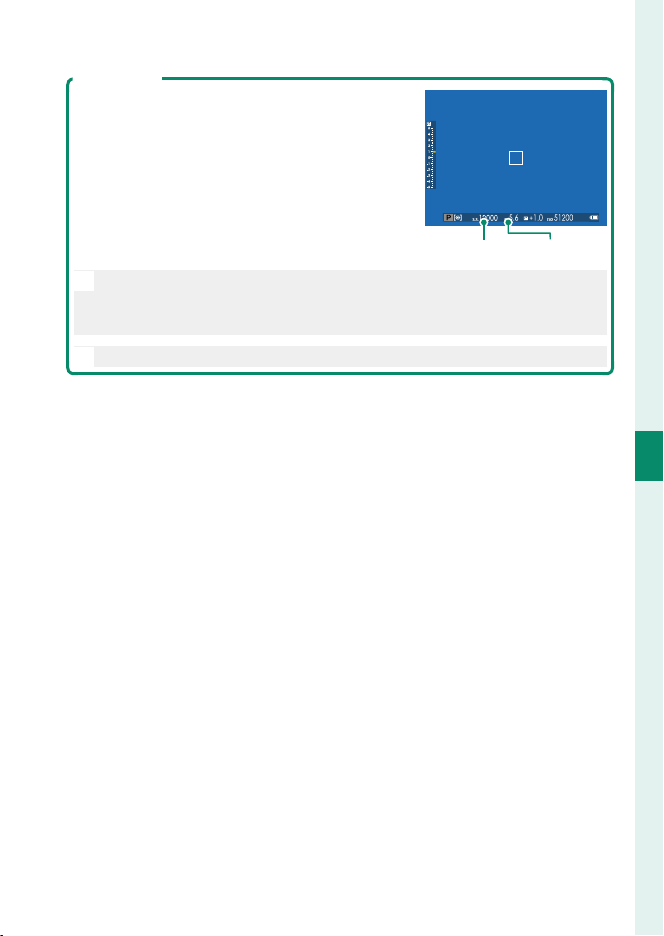
53
5
Taking Photographs
P, S, A, and M Modes
Program Shift
If desired, you can rotate the rear command dial
to select other combinations of shutter speed
and aperture without altering exposure (pro-
gram shift).
Shutter speed Aperture
O
Program shift is not available during movie recording or if the ash
supports TTL auto or an auto option is selected for H IMAGE QUALI-
TY SETTING> DYNAMIC RANGE.
N
To cancel program shift, turn the camera o .
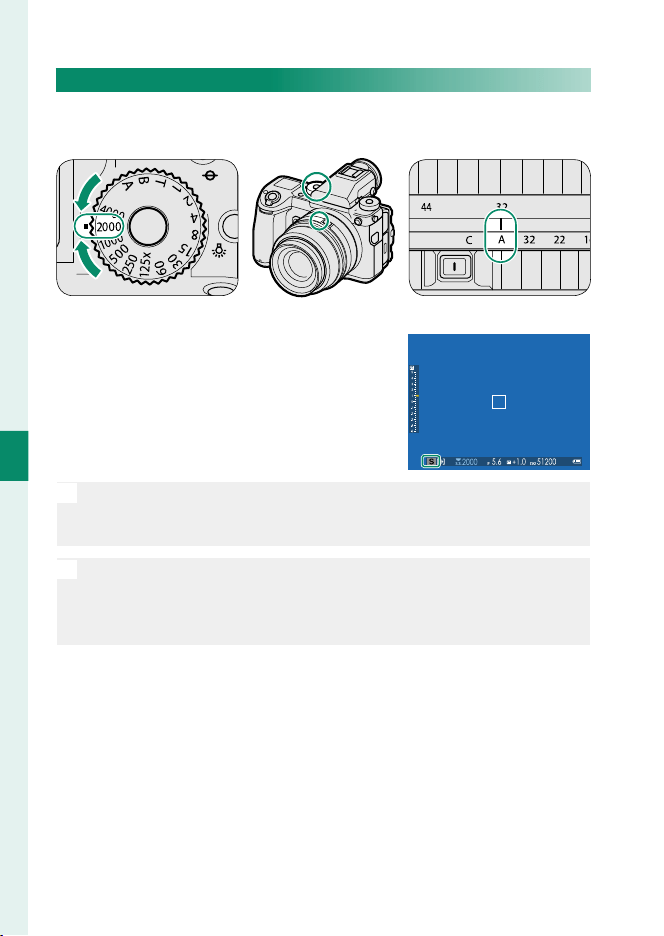
54
5
Taking Photographs
Mode S: Shutter-Priority AE
Choose a shutter speed and let the camera adjust aperture for
optimal exposure.
Shutter speed: Choose a speed. Aperture: Select A (auto).
Set aperture to A (auto) and use the shut-
ter speed dial to choose a shutter speed.
S will appear in the display.
O
If the correct exposure can not be achieved at the selected shutter
speed, aperture will be displayed in red. If the subject is outside the
metering range of the camera, the aperture display will show “– – –”.
N
To use the shutter speed dial, press the dial lock release and rotate the
dial to the desired setting (the dial can be used even while the shutter
button is pressed halfway). Shutter speed can also be adjusted in in-
crements of ⁄EV by rotating the rear command dial.
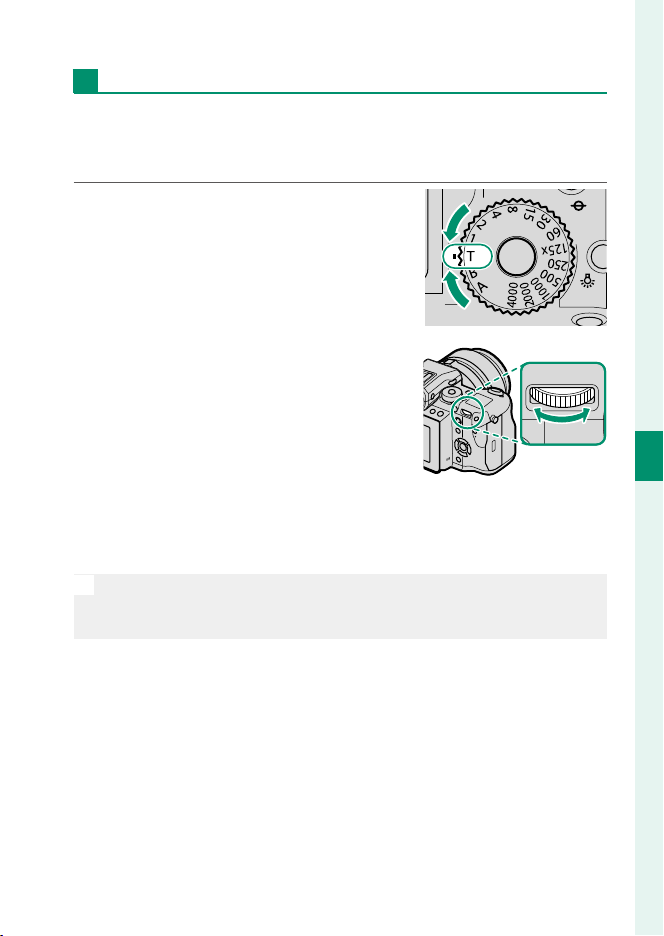
55
5
Taking Photographs
P, S, A, and M Modes
Time (T)
Rotate the shutter speed dial to T (time) to choose slow shutter
speeds for long time-exposures. Use of a tripod is recommended
to prevent the camera moving during the exposure.
1
Rotate the shutter speed dial to T.
2
Rotate the rear command dial to
choose a shutter speed.
3
Press the shutter button all the way down to take a picture
at the selected shutter speed. A count-down timer will be
displayed while the exposure is in progress.
N
To reduce “noise” (mottling) in long time-exposures, select ON for
H IMAGE QUALITY SETTING> LONG EXPOSURE NR. Note that this
may increase the time needed to record images after shooting.
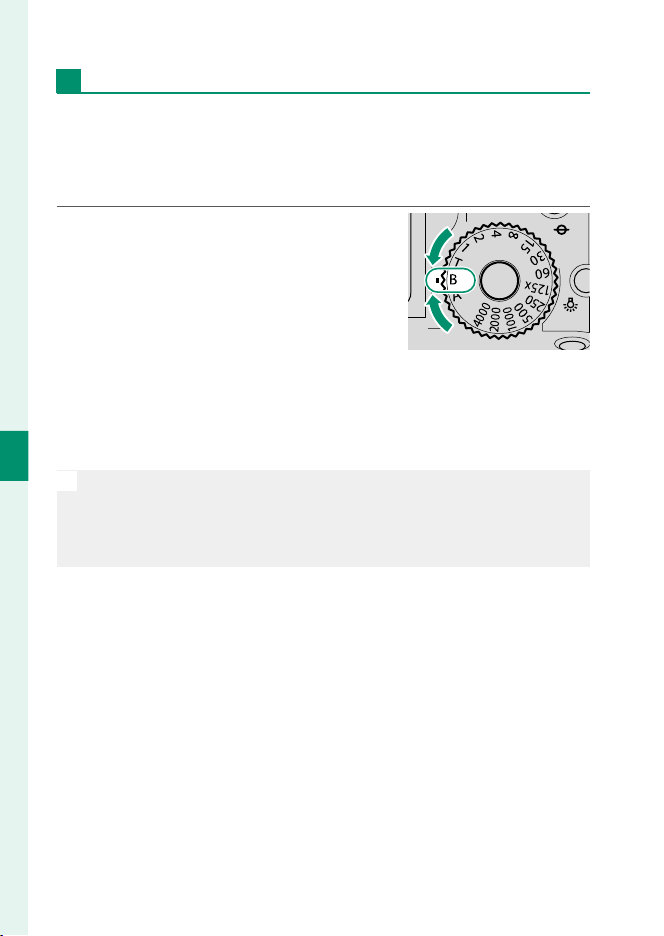
56
5
Taking Photographs
Bulb (B)
Select a shutter speed of B (bulb) for long time-exposures in
which you open and close the shutter manually. Use of a tripod
is recommended to prevent the camera moving during the ex-
posure.
1
Rotate the shutter speed dial to B.
2
Press the shutter button all the way down. The shutter will
remain open for up to 60 minutes while the shutter button
is pressed; the display shows the time elapsed since the ex-
posure started.
N
Selecting an aperture of A xes shutter speed at 30 s.
To reduce “noise” (mottling) in long time-exposures, select ON for
H IMAGE QUALITY SETTING> LONG EXPOSURE NR. Note that this
may increase the time needed to record images after shooting.
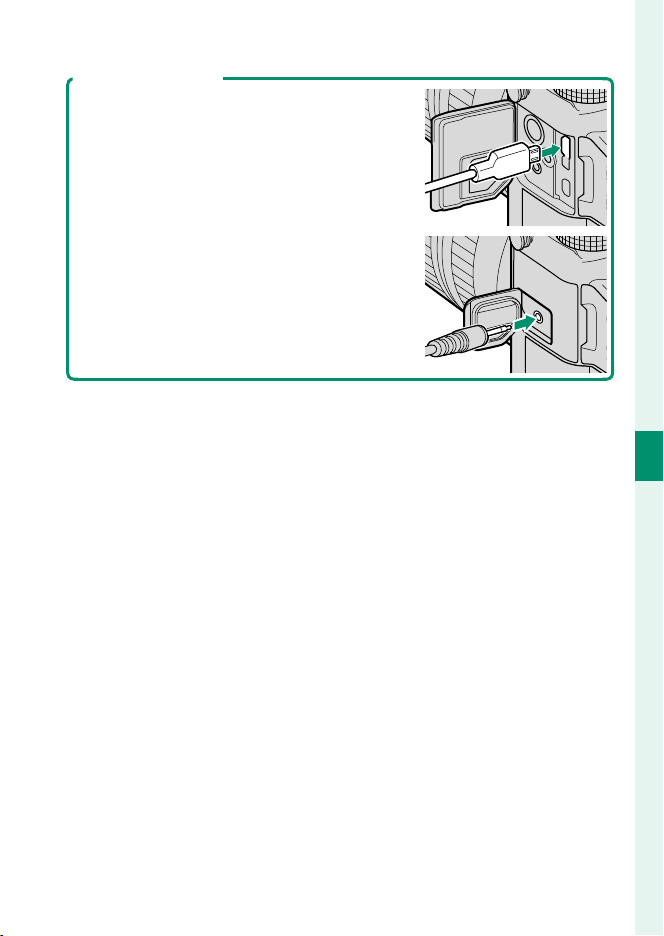
57
5
Taking Photographs
P, S, A, and M Modes
Using a Remote Release
An optional RR-90 remote release can be used
for long time-exposures. The RR-90 connects
via the Micro USB (Micro-B) USB 2.0 connector.
Alternatively, electronic releases from third-par-
ty suppliers can be connected via the remote
release connector (⌀2.5 mm 3-pole mini jack)
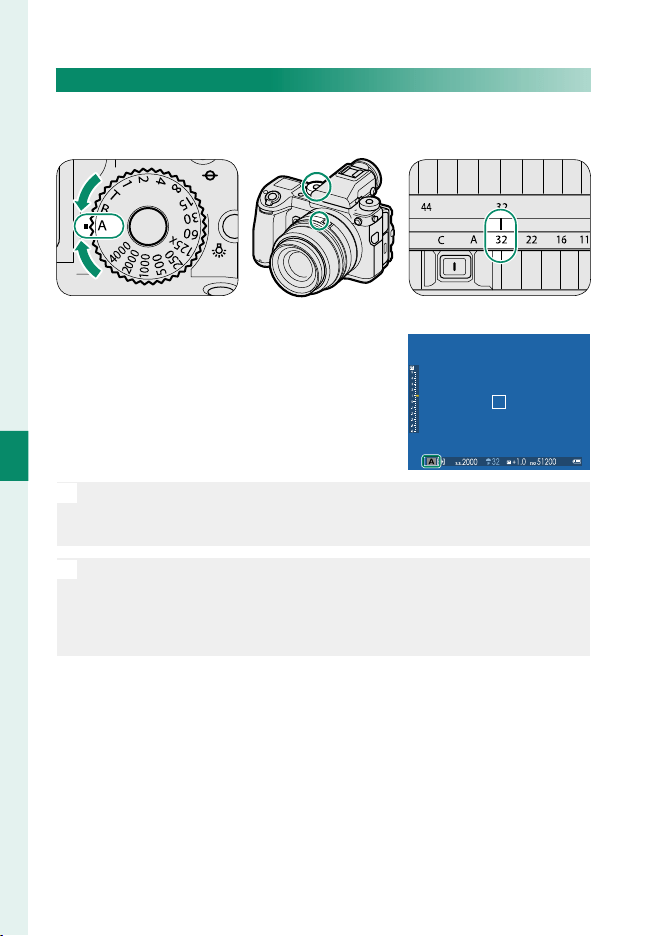
58
5
Taking Photographs
Mode A: Aperture-Priority AE
Choose an aperture and let the camera adjust shutter speed for
optimal exposure.
Shutter speed: Select A (auto). Aperture: Choose an aperture.
Rotate the shutter speed dial to A (auto),
and rotate the lens aperture ring to ad-
just aperture as desired. A will appear in
the display.
O
If the correct exposure can not be achieved at the selected aperture,
shutter speed will be displayed in red. If the subject is outside the me-
tering range of the camera, the shutter speed display will show “– – –”.
N
To use the shutter speed dial, press the dial lock release and rotate the
dial to the desired setting.
Aperture can be adjusted even while the shutter button is pressed
halfway.
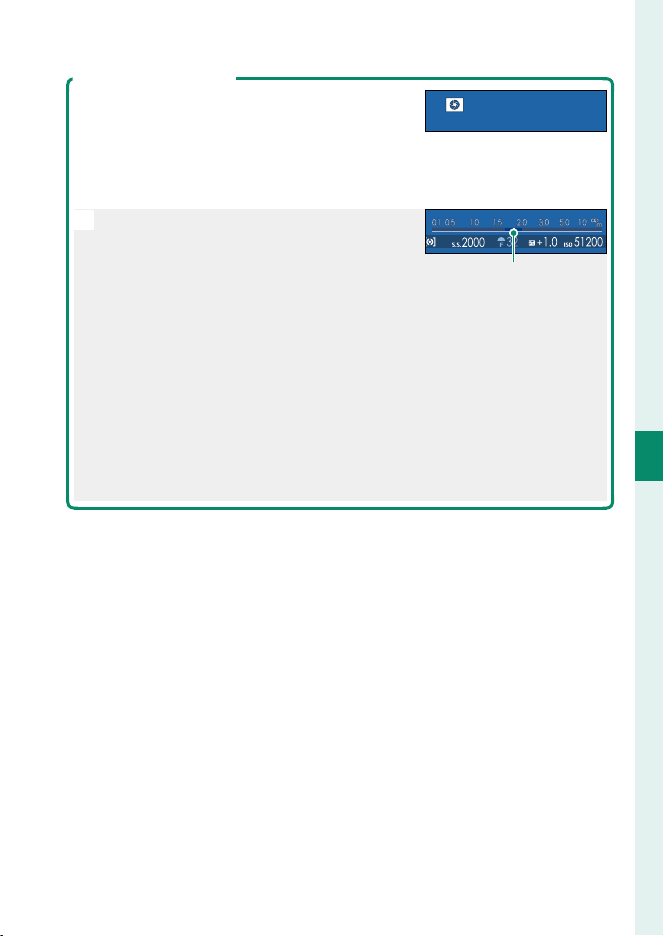
59
5
Taking Photographs
P, S, A, and M Modes
Previewing Depth of Field
When PREVIEW DEPTH OF FIELD is assigned
to a function button, pressing the button dis-
plays a L icon and stops aperture down to the
selected setting, allowing depth of eld to be
previewed in the display.
N
Depth of eld can also be previewed using
the depth-of- eld indicator in the standard
display. Press DISP/BACK to cycle through
display modes until standard indicators are
displayed. In autofocus mode, the depth-
of- eld indicator is displayed when the
shutter button is pressed halfway.
Depth of eld
Use the G AF/MF SETTING> DEPTH-OF-FIELD SCALE option to
choose how depth of eld is displayed. Choose FILM FORMAT BASIS
to help you make practical assessments of depth of eld for pictures
that will be viewed as prints and the like, PIXEL BASIS to help you
assess depth of eld for pictures that will be viewed at high resolutions
on computers or other electronic displays.
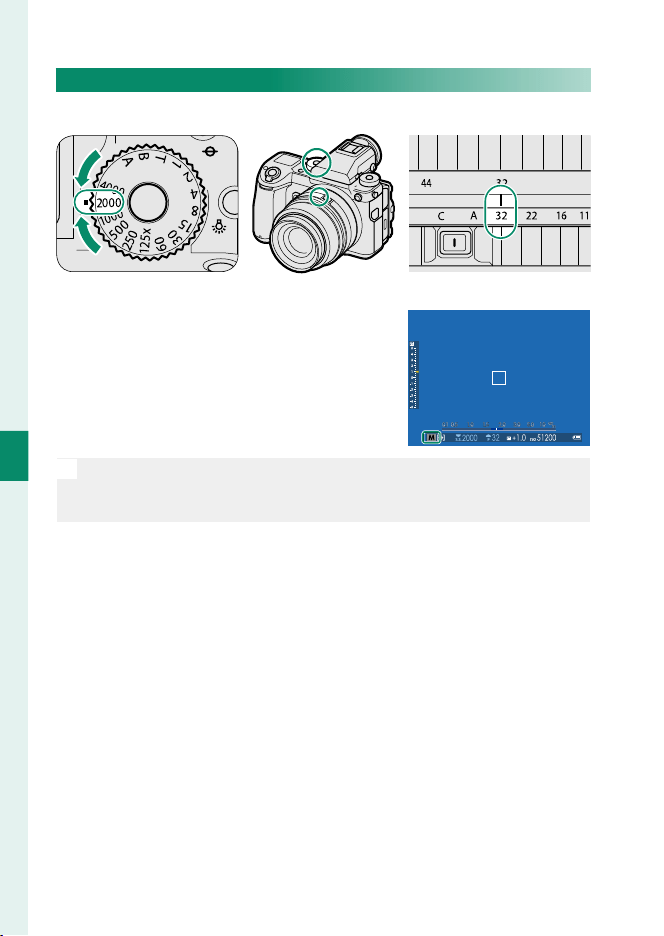
60
5
Taking Photographs
Mode M: Manual Exposure
Alter exposure from that selected by the camera.
Shutter speed: Choose a speed. Aperture: Choose an aperture.
Set shutter speed to a value other than
A, and rotate the lens aperture ring to
choose the aperture. M will appear in the
display.
N
To use the shutter speed dial, press the dial lock release and rotate the
dial to the desired setting. Shutter speed can be adjusted in incre-
ments of ⁄EV by rotating the rear command dial.
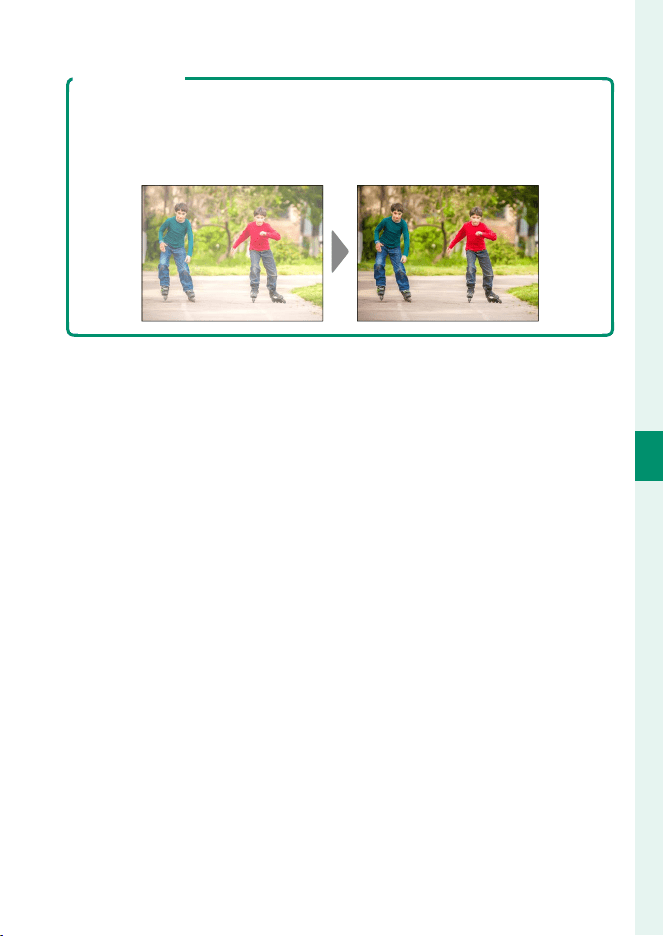
61
5
Taking Photographs
P, S, A, and M Modes
Exposure Preview
To preview exposure in the LCD monitor, select an option other than OFF
for D SCREEN SETTING> PREVIEW EXP./WB IN MANUAL MODE. Select
OFF when using the ash or on other occasions on which exposure may
change when the picture is taken.
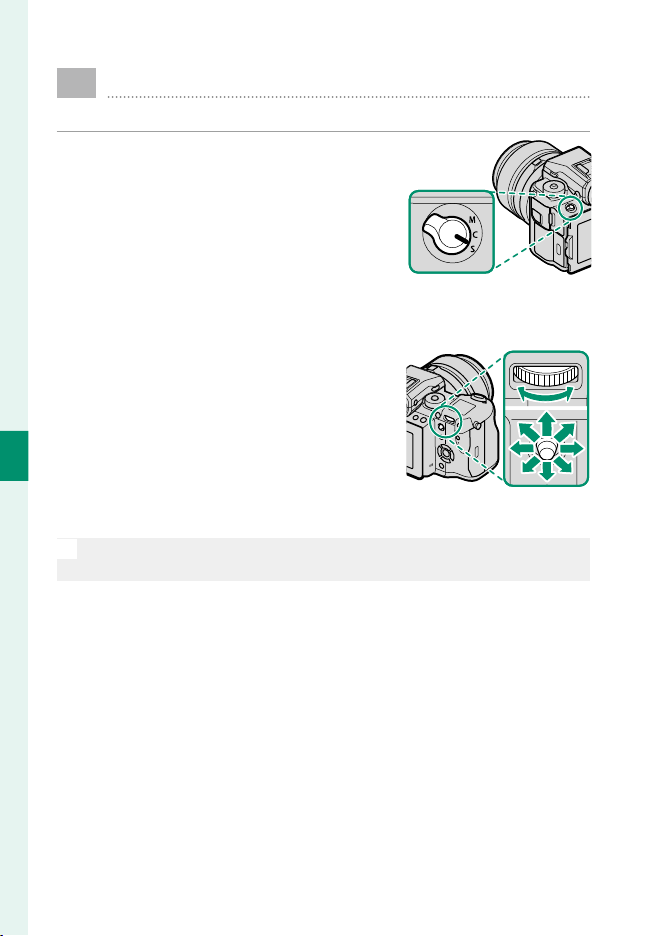
62
5
Taking Photographs
Autofocus
Take pictures using autofocus.
1
Rotate the focus mode selector to S
or C (
P
63).
2
Use G AF/MF SETTING> AF MODE to choose an AF mode
(
P
65).
3
Choose the position and size of the
focus frame (
P
67).
4
Take pictures.
N
For information on the autofocus system, visit:
http://fujifilm-x.com/af/en/index.html
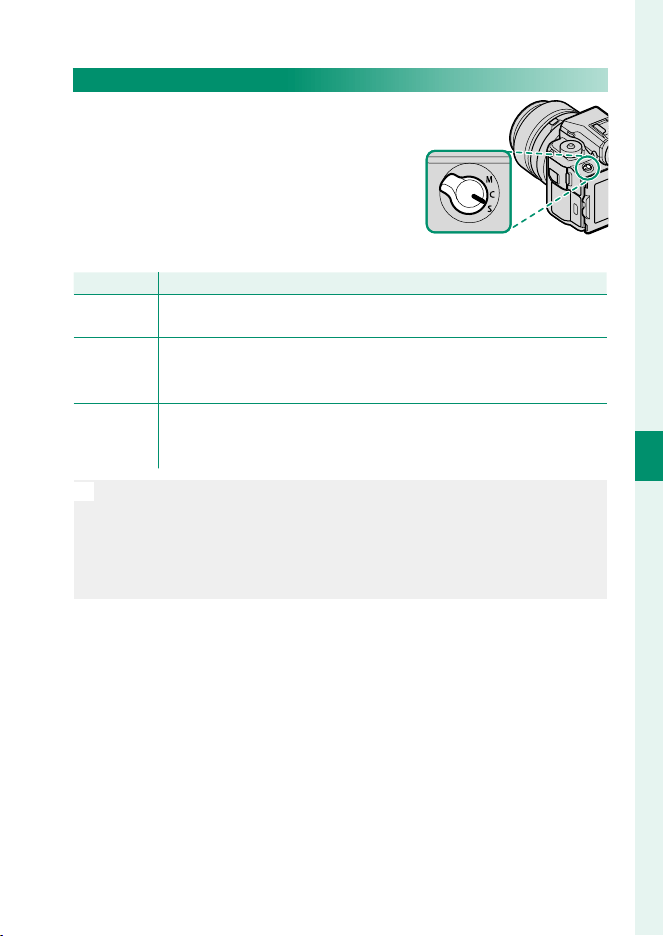
63
5
Taking Photographs
Autofocus
Focus Mode
Use the focus mode selector to choose
how the camera focuses.
Choose from the following options:
Mode
Mode
Description
Description
S
(AF-S)
Single AF: Focus locks while the shutter button is pressed halfway.
Choose for stationary subjects.
C
(AF-C)
Continuous AF: Focus is continually adjusted to refl ect changes in the
distance to the subject while the shutter button is pressed halfway.
Use for subjects that are in motion. Eye-detection AF is not available.
M
(manual)
Manual: Focus manually using the lens focus ring. Choose for manual
control of focus or in situations in which the camera is unable to focus
using autofocus (
P
71).
N
Regardless of the option selected, manual focus will be used when the
lens is in manual focus mode.
If ON is selected for G AF/MF SETTING> PRE-AF, focus will be ad-
justed continuously in modes S and C even when the shutter button
is not pressed.
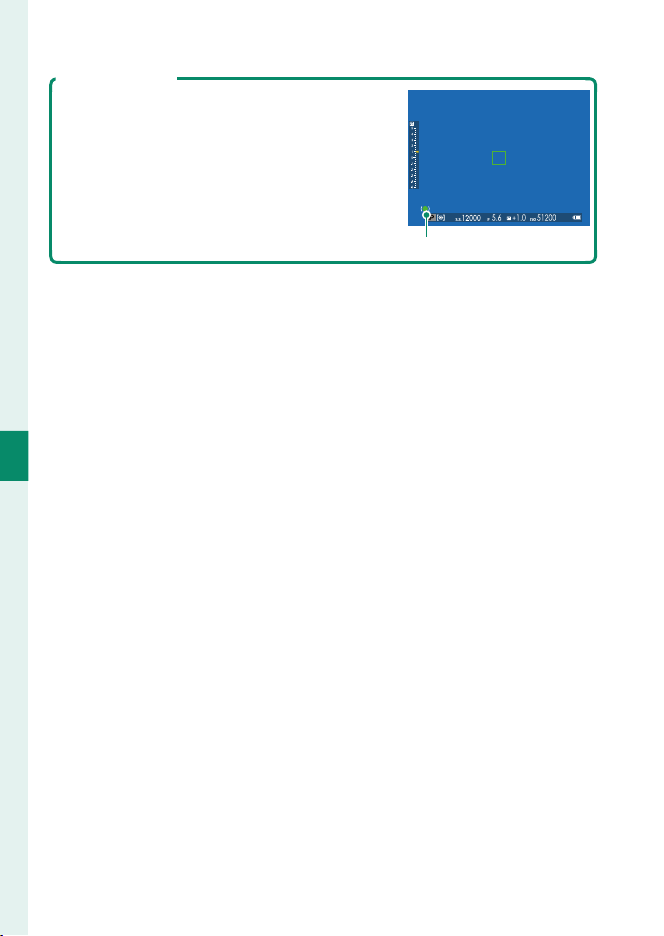
64
5
Taking Photographs
The Focus Indicator
The focus indicator turns green when the sub-
ject is in focus and blinks white when the cam-
era is unable to focus. Brackets (“( )”) indicate
that the camera is focusing and are displayed
continuously in mode C. j is displayed in
manual focus mode.
Focus indicator
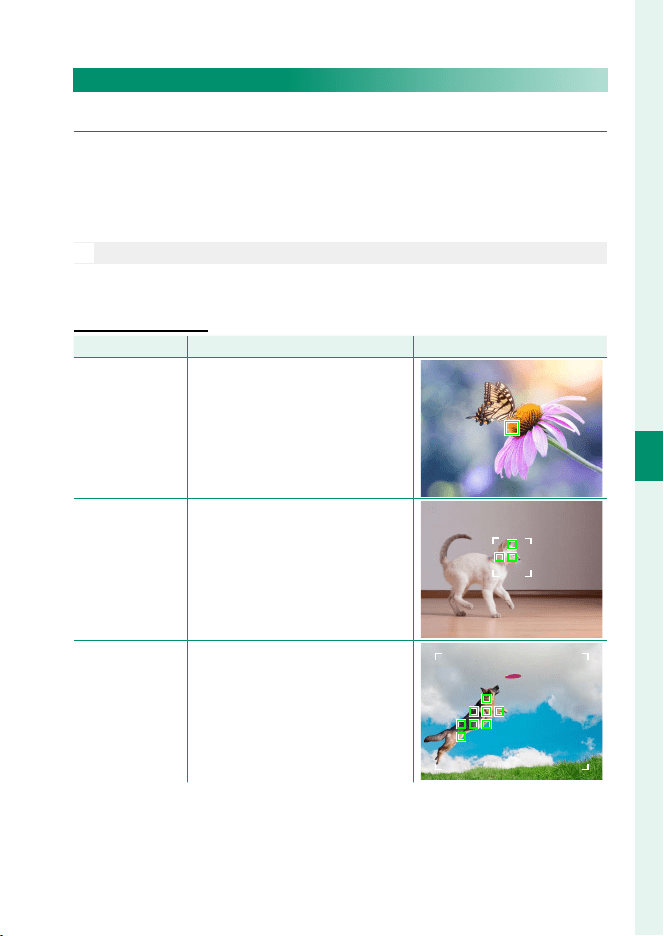
65
5
Taking Photographs
Autofocus
Autofocus Options (AF Mode)
Choose how the camera focuses in modes S and C.
1
Press MENU/OK and go to the shooting menu.
2
Select G AF/MF SETTING> AF MODE.
3
Choose an AF mode.
N
This feature can also be accessed via shortcuts (
P
176).
How the camera focuses depends on the focus mode.
Focus Mode S (AF-S)
Focus Mode S (AF-S)
Option
Option
Description
Description
Sample image
Sample image
r
SINGLE POINT
Camera focuses on subject in
selected focus point. Use for pin-
point focus on selected subject.
y
ZONE
Camera focuses on subject in se-
lected focus zone. Focus zones in-
clude multiple focus points, mak-
ing it easier to focus on subjects in
motion.
z
WIDE/TRACKING
Camera focuses automatically on
high-contrast subjects; display
shows areas in focus.
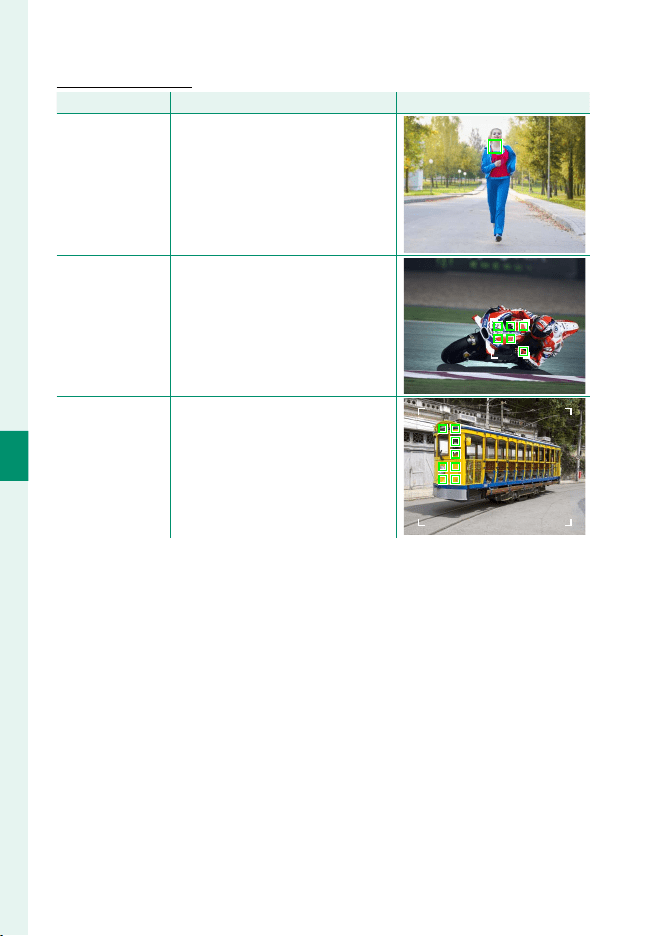
66
5
Taking Photographs
Focus Mode C (AF-C)
Focus Mode C (AF-C)
Option
Option
Description
Description
Sample image
Sample image
r
SINGLE POINT
Focus tracks subject at selected fo-
cus point. Use for subjects moving
toward or away from camera.
y
ZONE
Focus tracks subject in selected fo-
cus zone. Use for subjects that are
moving fairly predictably.
z
WIDE/TRACKING
Focus tracks subjects moving
through wide area of frame.
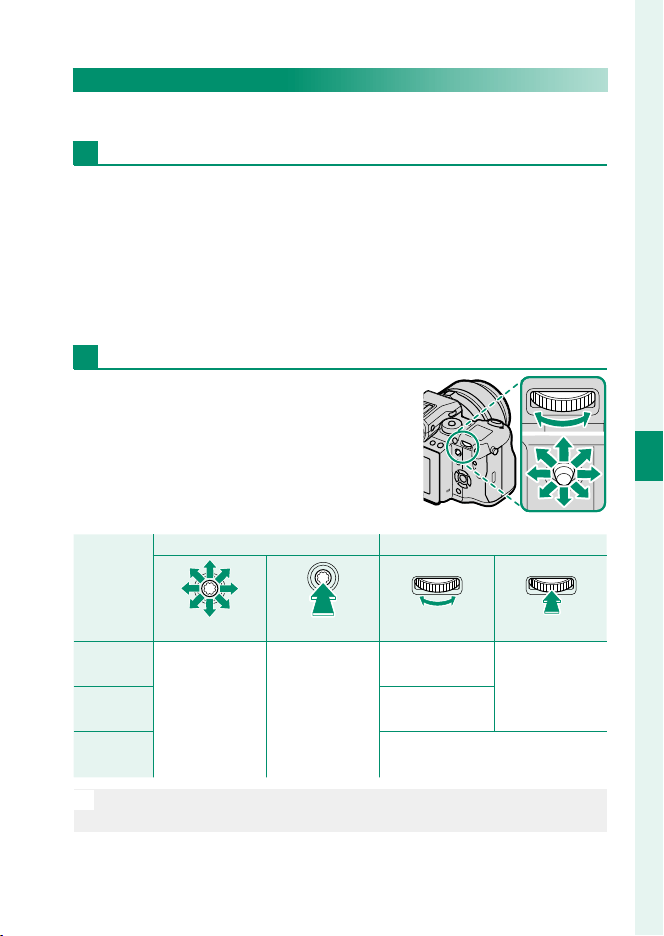
67
5
Taking Photographs
Autofocus
Focus-Point Selection
Choose a focus point for autofocus.
Viewing the Focus-Point Display
1
Press MENU/OK and go to the shooting menu.
2
Select G AF/MF SETTING> FOCUS AREA to view the fo-
cus-point display.
3
Use the focus stick and rear command dial to choose a focus
area.
Selecting a Focus Point
Use touch controls or the focus stick (fo-
cus lever) to choose the focus point and
the rear command dial to choose the size
of the focus frame. The procedure varies
with the option selected for AF mode.
AF mode
AF mode
Focus stick
Focus stick
Rear command dial
Rear command dial
Tilt
Tilt
Press
Press
Rotate
Rotate
Press
Press
r
r
Select focus
point
Select center
focus point
Choose from 6
frame sizes
Restore original
size
y
y
Choose from 3
frame sizes
z
z
—
N
Manual focus-point selection is not available when z WIDE/TRACK-
ING is selected in focus mode S.
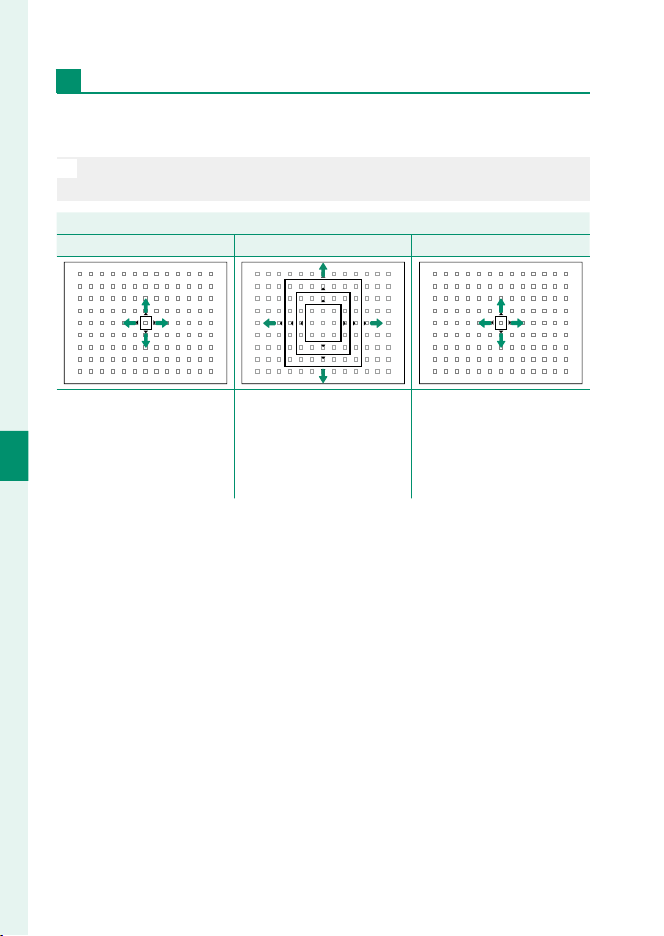
68
5
Taking Photographs
The Focus-Point Display
The focus-point display varies with the option selected for AF
mode.
N
Focus frames are shown by small squares (), focus zones by the large
squares.
AF mode
AF mode
r
r
SINGLE POINT
SINGLE POINT
y
y
ZONE
ZONE
z
z
WIDE/TRACKING
WIDE/TRACKING
Number of points avail-
able can be selected using
G
AF/MF SETTING>
NUMBER OF THE FOCUS
POINTS.
Choose from zones with
7 × 7, 5 × 5, or 3 × 3 focus
points.
Position focus frame over
subject and press MENU/OK.
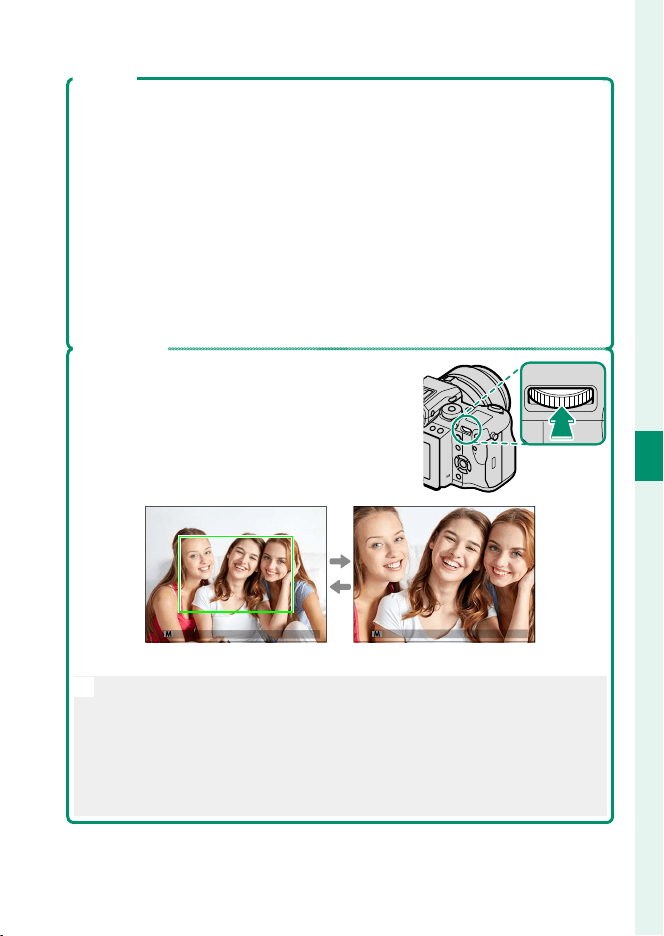
69
5
Taking Photographs
Autofocus
Autofocus
Although the camera boasts a high-precision autofocus system, it may be
unable to focus on the subjects listed below.
•
Very shiny subjects such as mirrors or car bodies.
•
Subjects photographed through a window or other re ective object.
•
Dark subjects and subjects that absorb rather than re ect light, such as
hair or fur.
•
Insubstantial subjects, such as smoke or ame.
•
Subjects that show little contrast with the background.
•
Subjects positioned in front of or behind a high-contrast object that is
also in the focus frame (for example, a subject photographed against a
backdrop of highly contrasting elements).
Checking Focus
To zoom in on the current focus area for precise
focus, press the control to which focus zoom
has been assigned (at default settings, the cen-
ter of the rear command dial). Press the control
again to cancel zoom.
Normal display Focus zoom
N
In focus mode S, zoom can be adjusted by rotating the rear command
dial. Focus zoom is not available in focus mode C or when G AF/MF
SETTING> PRE-AF is on or an option other than r SINGLE POINT is
selected for AF MODE.
To assign focus zoom to a control, select FOCUS CHECK for D BUT-
TON/DIAL SETTING> FUNCTION (Fn) SETTING.
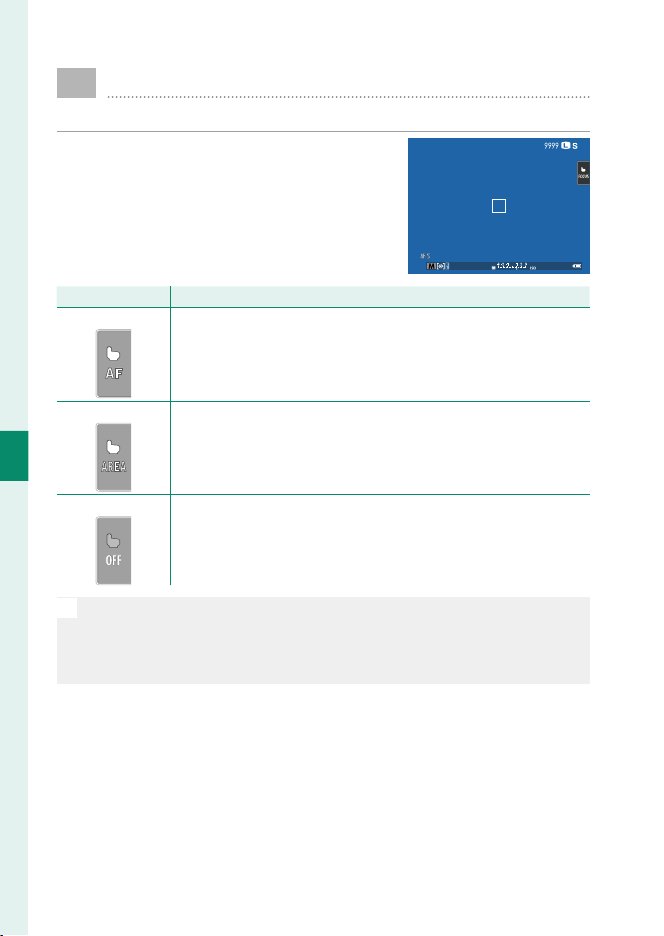
70
5
Taking Photographs
Touch Focus Controls
Use the touch screen to focus when taking photographs.
Tap the touch screen mode indicator in
the shooting display to cycle through the
following touch-screen modes:
Mode
Mode
Description
Description
AF
Tap the display to select a focus point and lock focus. The shut-
ter can be released by pressing the shutter button all the way
down.
AREA
Tap the display to move the focus frame to the selected point.
The selected point will be used for focus and focus zoom.
OFF
Touch controls off .
N
Touch control settings can be adjusted using G AF/MF SETTING>
TOUCH SCREEN MODE. To disable touch controls and hide the touch
screen mode indicator, select OFF for D BUTTON/DIAL SETTING>
TOUCH SCREEN SETTING.
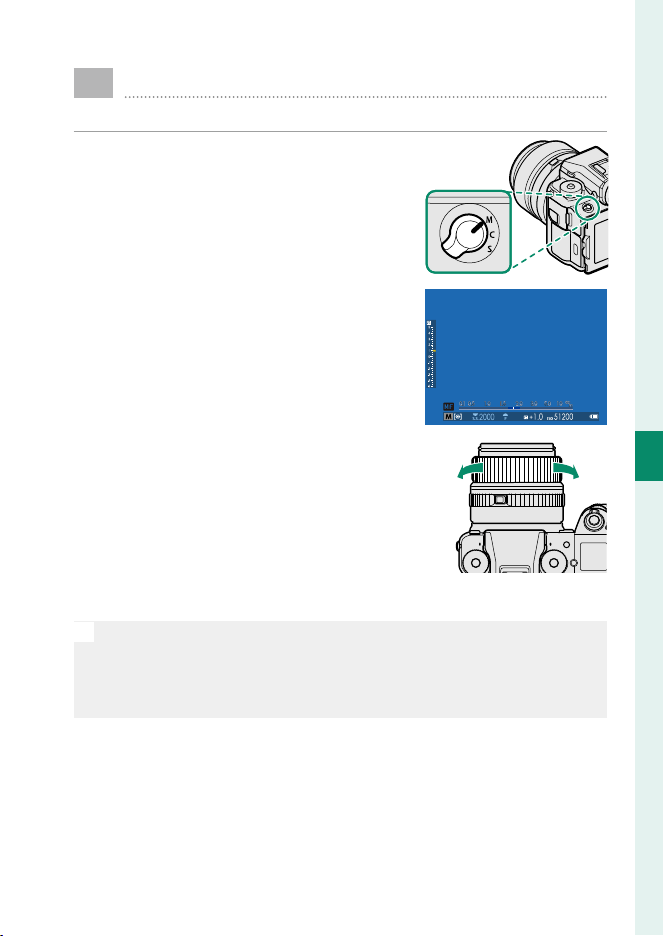
71
5
Taking Photographs
Manual Focus
Adjust focus manually.
1
Rotate the focus mode selector to M.
j will appear in the display.
32
2
Focus manually using the lens focus
ring. Rotate the ring left to reduce
the focus distance, right to increase.
3
Take pictures.
N
Use D BUTTON/DIAL SETTING> FOCUS RING to reverse the direc-
tion of rotation of the focus ring.
Regardless of the option selected, manual focus will be used when the
lens is in manual focus mode.

72
5
Taking Photographs
Quick Focus
To use autofocus to focus on the subject in the selected focus area, press
the button to which focus lock or AF-ON has been assigned (the size of the
focus area can be chosen with the rear command dial). In manual focus
mode, you can use this feature to quickly focus on a chosen subject using
either single or continuous AF according to the option chosen for G AF/
MF SETTING> INSTANT AF SETTING.
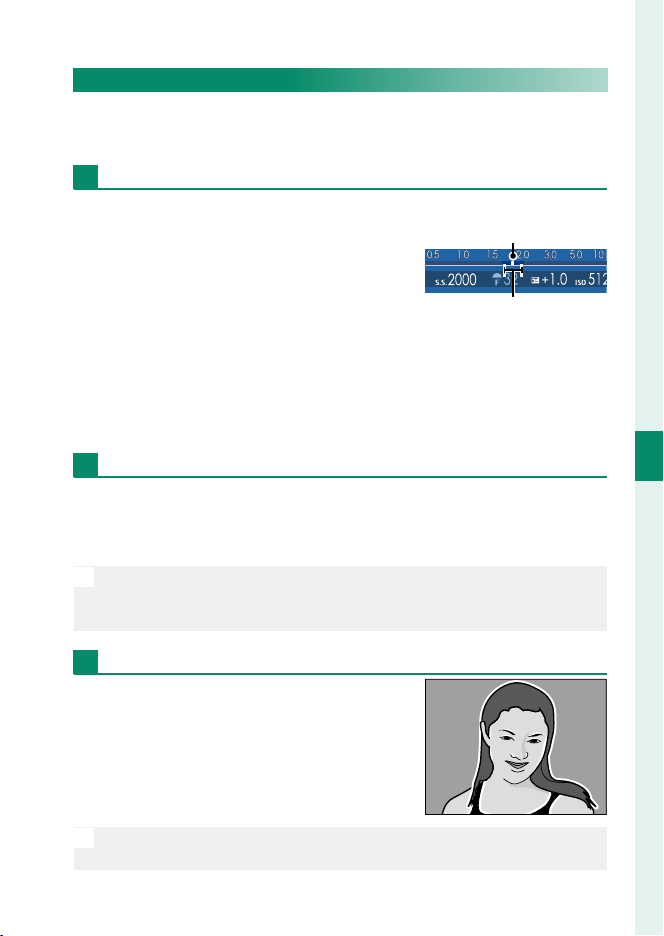
73
5
Taking Photographs
Manual Focus
Checking Focus
A variety of options are available for checking focus in manual
focus mode.
The Manual Focus Indicator
The manual focus indicator indicates
how closely the focus distance matches
the distance to the subject in the focus
brackets. The white line indicates the
distance to the subject in the focus area
(in meters or feet according to the option
selected for D SCREEN SETTING> FOCUS SCALE UNITS in the
setup menu), the blue bar the depth of eld, or in other words
the distance in front of and behind the subject that appears to
be in focus.
Focus Zoom
If ON is selected for G AF/MF SETTING> FOCUS CHECK, the
camera will automatically zoom in on the selected focus area
when the focus ring is rotated.
N
If STANDARD or FOCUS PEAK HIGHLIGHT is selected for G AF/MF
SETTING> MF ASSIST, zoom can be adjusted by rotating the rear
command dial.
Focus Peaking
Select FOCUS PEAK HIGHLIGHT for
G AF/MF SETTING> MF ASSIST to high-
light high-contrast outlines. When focus-
ing, rotate the focus ring until the subject
is highlighted.
N
The MF ASSIST menu can be displayed by pressing and holding the
center of the rear command dial.
Focus distance
(white line)
Depth of eld
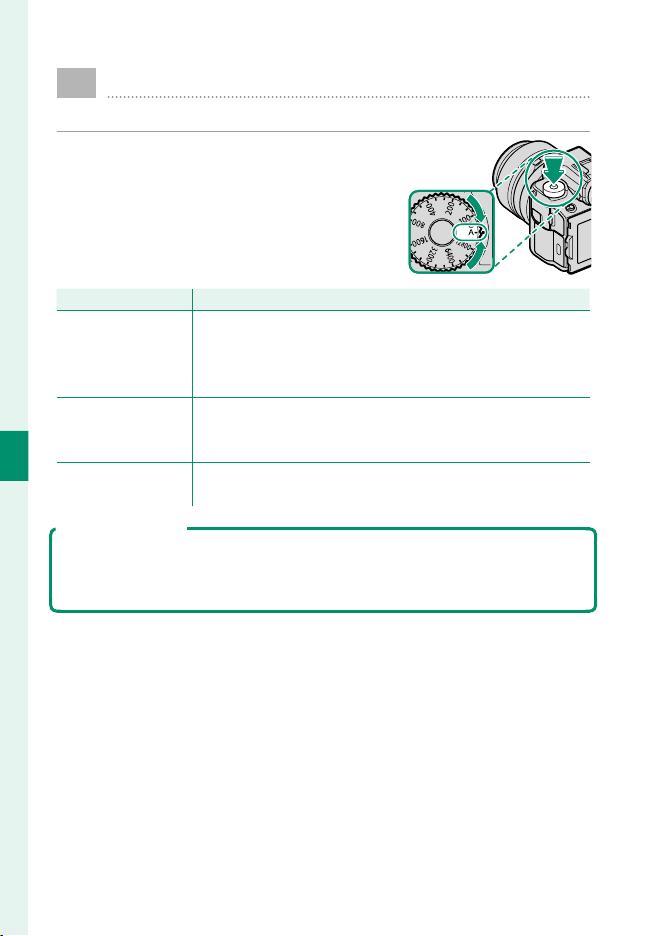
74
5
Taking Photographs
N
Sensitivity
Adjust the camera’s sensitivity to light.
Press the sensitivity dial lock release, ro-
tate the dial to the desired setting, and
press the release again to lock the dial in
place.
Option
Option
Description
Description
A (auto)
Sensitivity is automatically adjusted in response to shooting
conditions according to option chosen for A SHOOTING
SETTING> ISO AUTO SETTING. Choose from AUTO 1,
AUTO 2, and AUTO 3.
C (command)
Sensitivity can be set by rotating the front command dial.
Choose from values of from 100 to 12800 or select “extended”
values of ISO 50 or of ISO 25600 or higher.
12800–100
Adjust sensitivity manually. Selected value is shown in dis-
play.
Adjusting Sensitivity
High values can be used to reduce blur when lighting is poor, while lower
values allow slower shutter speeds or wider apertures in bright light; note,
however, that mottling may appear in pictures taken at high sensitivities.
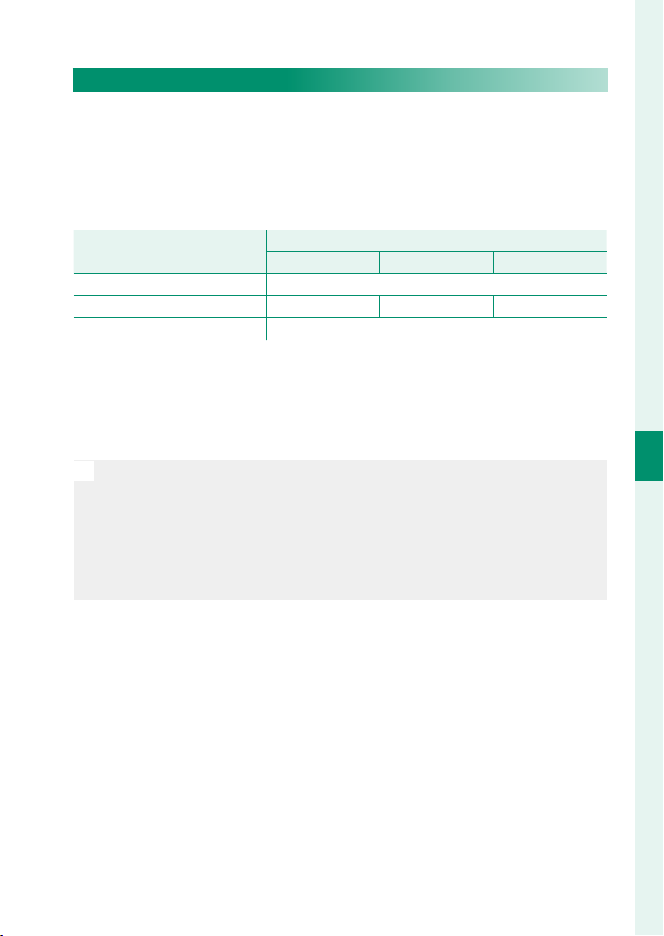
75
5
Taking Photographs
Sensitivity
Auto Sensitivity (A)
Use A SHOOTING SETTING> ISO AUTO SETTING to choose
the base sensitivity, maximum sensitivity, and minimum shut-
ter speed for the A position on the sensitivity dial. Settings for
AUTO 1, AUTO 2, and AUTO 3 can be stored separately; the de-
faults are shown below.
Option
Option
Default
Default
AUTO 1
AUTO 1
AUTO 2
AUTO 2
AUTO 3
AUTO 3
DEFAULT SENSITIVITY 100
MAX. SENSITIVITY 800 1600 3200
MIN. SHUTTER SPEED ⁄s
The camera automatically chooses a sensitivity between the de-
fault and maximum values; sensitivity is only raised above the
default value if the shutter speed required for optimal exposure
would be slower than the value selected for MIN. SHUTTER SPEED.
N
If the value selected for DEFAULT SENSITIVITY is higher than that se-
lected for MAX. SENSITIVITY, DEFAULT SENSITIVITY will be set to
the value selected for MAX. SENSITIVITY.
The camera may select shutter speeds slower than MIN. SHUTTER
SPEED if pictures would still be underexposed at the value selected
for MAX. SENSITIVITY.

76
5
Taking Photographs
C
Metering
Choose how the camera meters exposure.
A SHOOTING SETTING> PHOTOMETRY o ers a choice of the
following metering options:
O
The selected option will only take e ect when G AF/MF SETTING>
FACE/EYE DETECTION SETTING is OFF.
Mode
Mode
Description
Description
v
(spot)
The camera meters lighting conditions in an area at the center of the
frame equivalent to 2% of the total. Recommended with backlit sub-
jects and in other cases in which the background is much brighter or
darker than the main subject.
p
(center-
weighted)
The camera meters the entire frame but assigns the greatest weight
to the area at the center.
o
(multi)
The camera instantly determines exposure based on an analysis of
composition, color, and brightness distribution. Recommended in
most situations.
w
(average)
Exposure is set to the average for the entire frame. Provides consis-
tent exposure across multiple shots with the same lighting, and is
particularly eff ective for landscapes and portraits of subjects dressed
in black or white.
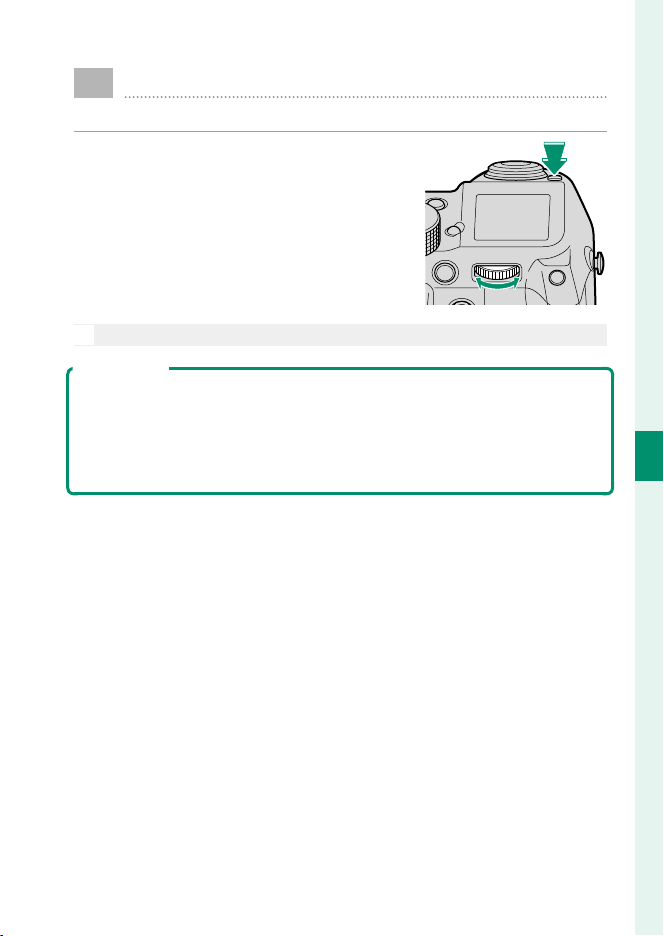
77
5
Taking Photographs
d
Exposure Compensation
Adjust exposure.
Hold the d button and rotate the rear
command dial until the desired value is
displayed in the view nder or LCD mon-
itor.
O
The amount of compensation available varies with the shooting mode.
The d Button
If ON/OFF SWITCH is selected for D BUTTON/DIAL SETTING> EXPO.
COMP. BUTTON SETTING, exposure compensation can be set by pressing
the d button once, rotating the rear command dial, and then pressing the
d button again. Exposure compensation can be assigned to other con-
trols using D BUTTON/DIAL SETTING> FUNCTION (Fn) SETTING.
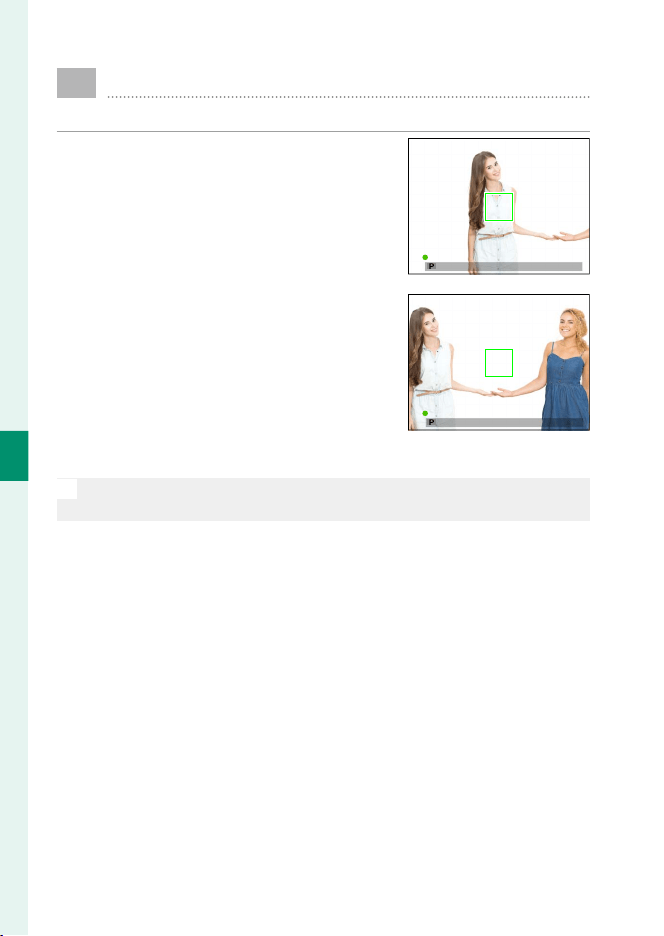
78
5
Taking Photographs
Focus/Exposure Lock
Compose photographs with o -center subjects.
1
Focus: Position the subject in the fo-
cus frame and press the shutter but-
ton halfway to lock focus and expo-
sure. Focus and exposure will remain
locked while the shutter button is
pressed halfway (AF/AE lock).
2
Recompose: Keep the shutter button
pressed halfway.
3
Shoot: Press the button all the way down.
N
Focus lock using the shutter button is only available when ON is se-
lected for
D
BUTTON/DIAL SETTING > SHUTTER AF, SHUTTER AE.
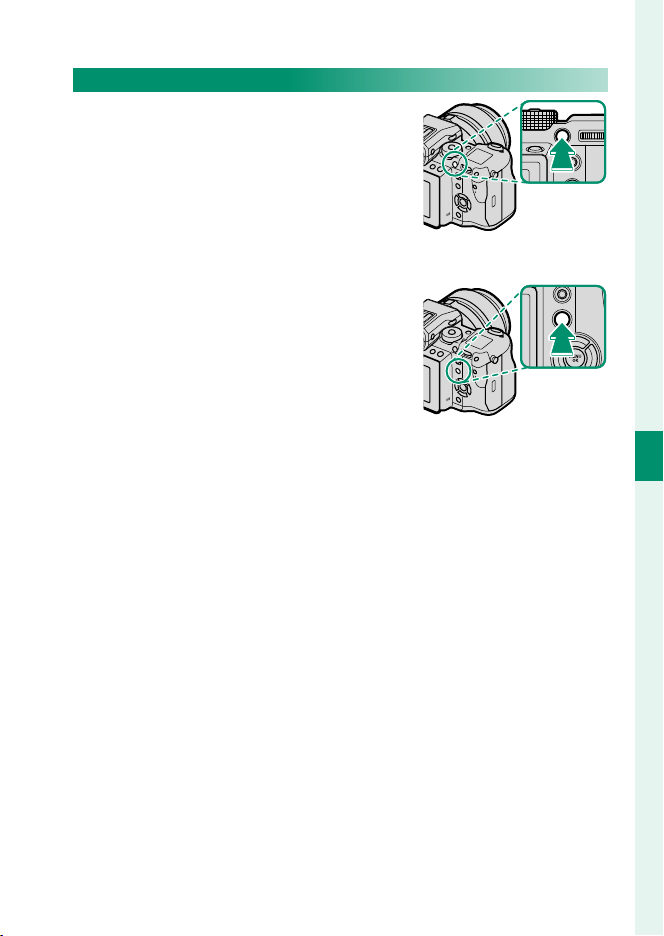
79
5
Taking Photographs
Focus/Exposure Lock
The AF-L and AE-L Buttons
Focus and exposure can also be locked
using function buttons. At default set-
tings, the Fn4 button locks focus, the Fn5
button exposure. Focus and/or exposure
will remain locked while the button is
pressed, whether or not the shutter but-
ton is pressed halfway.
The roles of the buttons can be changed
using the following
D BUTTON/DIAL
SETTINGoptions:
•
FUNCTION (Fn) SETTING: Choose the
roles played by the function buttons.
•
AE/AF-LOCK MODE: If AE&AF ON/OFF
SWITCH is selected for AE/AF-LOCK
MODE, focus and/or exposure lock
when the button is pressed and remain
locked until the button is pressed again.
Fn4 button
(focus lock)
Fn5 button
(exposure lock)

80
5
Taking Photographs
BKT
Bracketing
Automatically vary settings over a series of pictures.
Press the drive button and choose from the options below.
O AE BKT
Use A SHOOTING SETTING> AE BKT SETTING to choose the
bracketing amount and number of shots. Each time the shutter
button is pressed, the camera will take the speci ed number of
shots: one using the metered value for exposure and the others
over- or under-exposed by multiples of the selected bracketing
amount.
N
Regardless of the bracketing amount, exposure will not exceed the
limits of the exposure metering system.
W
ISO BKT
Select a bracketing amount (±1, ±⁄, or ±⁄). Each time the shut-
ter is released, the camera will take a picture at the current sen-
sitivity and process it to create two additional copies, one with
sensitivity raised and the other with sensitivity lowered by the
selected amount.
X FILM SIMULATION BKT
Each time the shutter is released, the camera takes one shot and
processes it to create copies with di erent lm simulation set-
tings, chosen using A SHOOTING SETTING> FILM SIMULATION
BKT.

81
5
Taking Photographs
Bracketing
V WHITE BALANCE BKT
Select a bracketing amount (±1, ±2, or ±3). Each time the shutter
is released, the camera takes one shot and processes it to create
three copies: one at the current white balanced setting, one with
ne-tuning increased by the selected amount, and another with
ne-tuning decreased by the selected amount.
Y DYNAMIC RANGE BKT
Each time the shutter button is pressed, the camera takes three
shots with di erent dynamic ranges: 100% for the rst, 200% for
the second, and 400% for the third.
N
While dynamic range bracketing is in e ect, sensitivity will be restrict-
ed to a minimum of ISO 400 (or to a minimum of ISO 100 to 400 when
an auto option is selected for sensitivity); the sensitivity previously in
e ect is restored when bracketing ends.
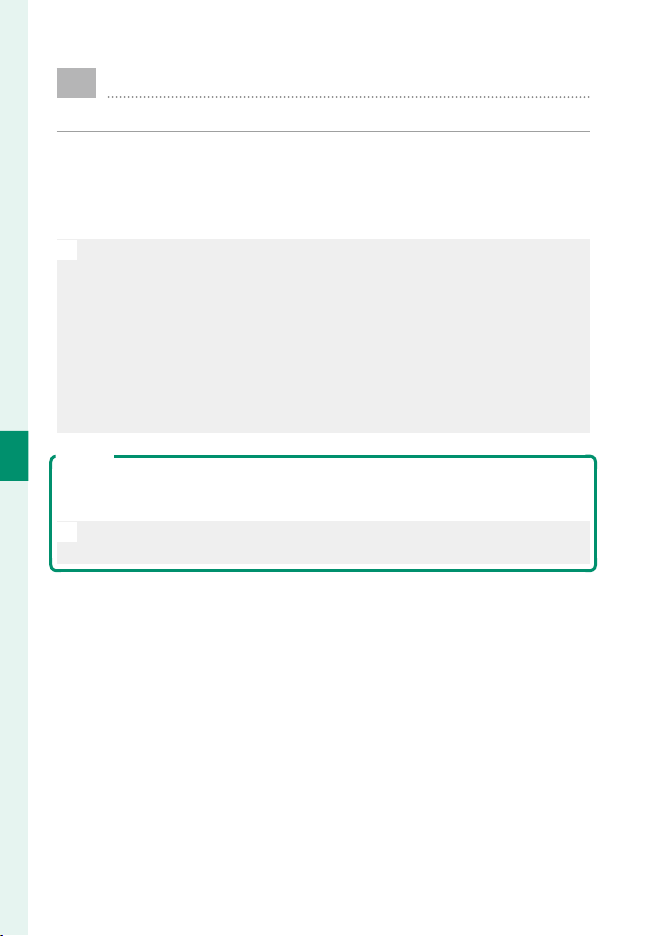
82
5
Taking Photographs
I
Continuous Shooting (Burst Mode)
Capture motion in a series of pictures.
Press the drive button and select ICONTINUOUS. The camera
will take pictures while the shutter button is pressed; shooting
ends when the shutter button is released or the memory card is
full.
O
If le numbering reaches 999 before shooting is complete, the remain-
ing pictures will be recorded to a new folder.
Burst shooting may not begin if the space available on the memory
card is insu cient.
Frame rate varies with the subject, shutter speed, sensitivity, and focus
mode. Frame rates may slow and recording times increase as more
shots are taken. The ash may or may not re, depending on shooting
conditions.
Exposure
To vary exposure with each shot, select OFF for D BUTTON/DIAL SET-
TING> SHUTTER AE.
N
Depending on such factors as aperture, sensitivity, and exposure com-
pensation, exposure may not be adjusted automatically.
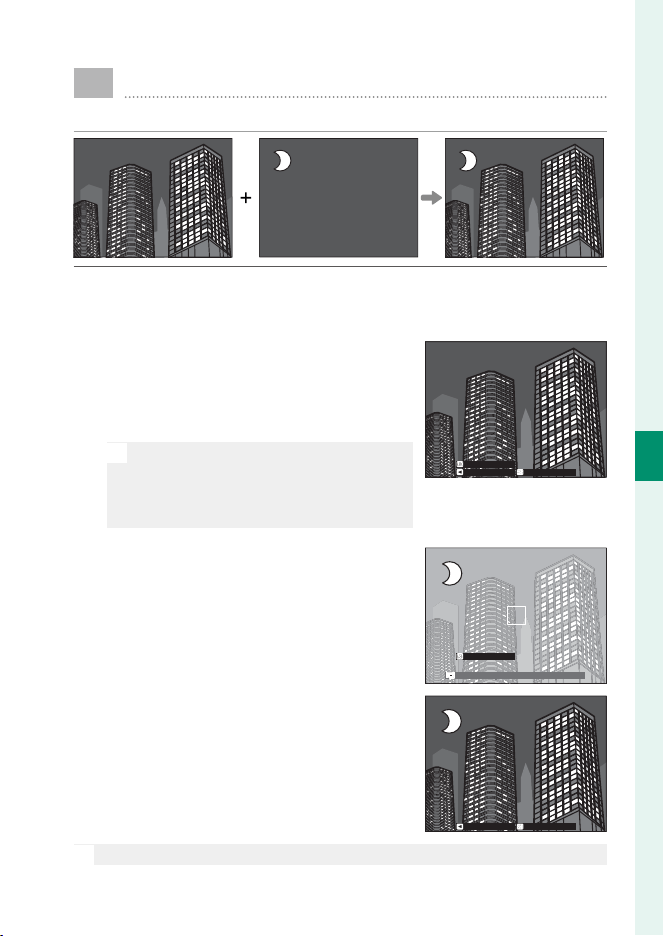
83
5
Taking Photographs
j
Multiple Exposures
Create a photograph that combines two exposures.
1
Press the drive button and select jMULTIPLE EXPOSURE.
2
Take the rst shot.
3
Press MENU/OK. The rst shot will be
shown superimposed on the view
through the lens and you will be
prompted to take the second shot.
N
To return to Step 2 and retake the rst
shot, press the selector left. To save
the rst shot and exit without creating
a multiple exposure, press DISP/BACK.
EXITRETRY
NEXT
4
Take the second shot, using the rst
frame as a guide.
2.030
EXIT
5
Press MENU/OK to create the multiple
exposure, or press the selector left to
return to Step 4 and retake the sec-
ond shot.
EXITRETRY
O
Multiple exposures can not be recorded via tethered shooting
(
P
174).

84
MEMO

85
The Shooting Menus
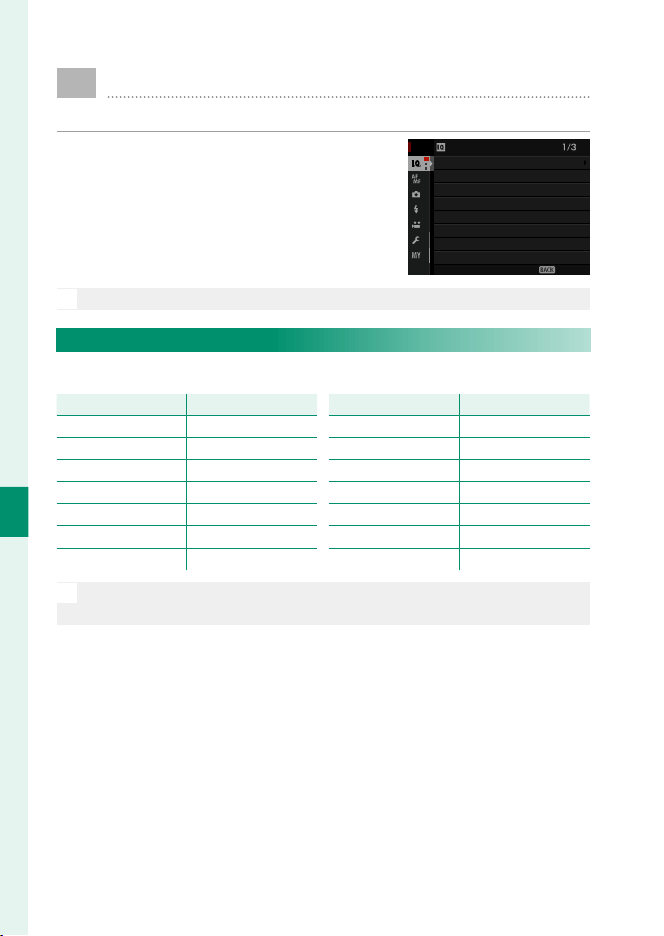
86
6
The Shooting Menus
H
IMAGE QUALITY SETTING
Adjust image quality settings.
To display image quality settings, press
MENU/OK in the shooting display and se-
lect the H (IMAGE QUALITY SETTING)
tab.
画質設定
画質モード
RAW 記録方式
フィルムシミュレーション
グレイン・エフェクト
ダイナミックレンジ
ホワイトバランス
ハイライトトーン
画像サイズ
EXIT
COLOR CHROME EFFECT
DYNAMIC RANGE
WHITE BALANCE
GRAIN EFFECT
FILM SIMULATION
RAW RECORDING
IMAGE QUALITY
IMAGE SIZE
IMAGE QUALITY SETTING
N
The options available vary with the shooting mode selected.
IMAGE SIZE
Choose the size and aspect ratio at which still pictures are recorded.
Option
Option
Image size
Image size
O 4 : 3 8256 × 6192
O 3 : 2 8256 × 5504
O 16 : 9 8256 × 4640
O 1 : 1 6192 × 6192
O 65 : 24 8256 × 3048
O 5 : 4 7744 × 6192
O 7 : 6 7232 × 6192
Option
Option
Image size
Image size
Q 4 : 3 4000 × 3000
Q 3 : 2 4000 × 2664
Q 16 : 9 4000 × 2248
Q 1 : 1 2992 × 2992
Q 65 : 24 4000 × 1480
Q 5 : 4 3744 × 3000
Q 7 : 6 3504 × 3000
N
IMAGE SIZE is not reset when the camera is turned o or another
shooting mode is selected.

87
6
The Shooting Menus
IMAGE QUALITY SETTING
IMAGE QUALITY
Choose a le format and compression ratio. Select SUPER FINE
(minimum compression), FINE (low compression), or NORMAL
(high compression) to record JPEG images, RAW to record RAW
images, or SUPER FINE+RAW, FINE+RAW, or NORMAL+RAW to
record both JPEG and RAW images. With JPEG images, the lower
the compression ratio, the higher the quality of the image, while
higher compression ratios allow more images to be stored in the
same amount of memory.
The Function Buttons
To toggle RAW image quality on or o for a single shot, assign RAW to a
function button (
P
182). If a JPEG option is currently selected for image
quality, pressing the button temporarily selects the equivalent JPEG+RAW
option. If a JPEG+RAW option is currently selected, pressing the button
temporarily selects the equivalent JPEG option, while if RAW is selected,
pressing the button temporarily selects FINE. Taking a picture or pressing
the button again restores the previous setting.
RAW RECORDING
Choose whether to compress RAW images.
Option
Option
Description
Description
UNCOMPRESSED RAW images are not compressed.
LOSSLESS COMPRESSED
RAW images are compressed using a reversible algorithm
that reduces fi le size with no loss of image data. The im-
ages can be viewed in RAW FILE CONVERTER EX2.0 or
other software that supports “lossless” RAW compression
(
P
212)
.

88
6
The Shooting Menus
FILM SIMULATION
Simulate the e ects of di erent kinds of lm, including black-
and-white (with or without color lters). Choose a palette ac-
cording to your subject and creative intent.
Option
Option
Description
Description
c
PROVIA/STANDARD
Standard color reproduction. Suited to a wide range of
subjects, from portraits to landscapes.
d
Velvia/VIVID
A high-contrast palette of saturated colors, suited to
nature photos.
e
ASTIA/SOFT
Enhances the range of hues available for skin tones in
portraits while preserving the bright blues of daylight
skies. Recommended for outdoor portrait photography.
i
CLASSIC CHROME
Soft color and enhanced shadow contrast for a calm
look.
g
PRO Neg. Hi
Off ers slightly more contrast than h PRO Neg. Std.
Recommended for outdoor portrait photography.
h
PRO Neg. Std
A soft-toned palette. The range of hues available for skin
tones is enhanced, making this a good choice for studio
portrait photography.
a
ACROS
*
Take black-and-white photos with rich gradation and
outstanding sharpness.
b
MONOCHROME
*
Take pictures in standard black and white.
f
SEPIA Take pictures in sepia.
* Available with yellow (Ye), red (R), and green (G) fi lters, which deepen shades of
gray corresponding to hues complementary to the selected color. The yellow (Ye)
fi lter deepens purples and blues and the red (R) fi lter blues and greens. The green
(G) fi lter deepens reds and browns, including skin tones, making it a good choice
for portraits.
N
Film simulation options can be combined with tone and sharpness
settings.
Film simulation settings can also be accessed via shortcuts (
P
176).
For more information, visit: http://fujifilm-x.com/en/x-stories/the-world-of-
film-simulation-episode-1/
89
6
The Shooting Menus
IMAGE QUALITY SETTING
GRAIN EFFECT
Add a lm grain e ect. Select an amount (STRONG or WEAK) or
choose OFF to turn lm grain o .
Options
Options
STRONG WEAK OFF
COLOR CHROME EFFECT
Deepen colors in shadows. Select an amount (STRONG or WEAK)
or choose OFF to turn the e ect o .
Options
Options
STRONG WEAK OFF
O
COLOR CHROME EFFECT is not available during bracketing or burst
photography.
DYNAMIC RANGE
Control contrast. Choose lower values to increase contrast
when shooting indoors or under overcast skies, higher values
to reduce loss of detail in highlights and shadows when photo-
graphing high-contrast scenes. Higher values are recommended
for scenes that include both sunlight and deep shade, for such
high-contrast subjects as sunlight on water, brightly-lit autumn
leaves, and portraits taken against a blue sky, and for white ob-
jects or people wearing white; note, however, that mottling may
appear in pictures taken at higher values.
Options
Options
AUTO V 100% W 200% X 400%
N
If AUTO is selected, the camera will automatically choose either
V 100% or W 200% according to the subject and shooting condi-
tions. Shutter speed and aperture will be displayed when the shutter
button is pressed halfway.
W 200% is available at sensitivities of ISO 200 and above, X 400%
at sensitivities of ISO 400 and above.

90
6
The Shooting Menus
WHITE BALANCE
For natural colors, choose a white balance option that matches
the light source.
Option
Option
Description
Description
AUTO White balance is adjusted automatically.
k/l/m Measure a value for white balance.
k
Choose a color temperature.
i
For subjects in direct sunlight.
j
For subjects in the shade.
k
Use under “daylight” fl uorescent lights.
l
Use under “warm white” fl uorescent lights.
m
Use under “cool white” fl uorescent lights.
n
Use under incandescent lighting.
g
Reduces the blue cast typically associated with underwater light-
ing.
N
Results vary with shooting conditions. Play pictures back after shoot-
ing to check colors.
White balance is adjusted for ash lighting only in AUTO and g modes.
Turn the ash o using other white balance options.
White balance options can also be accessed via shortcuts (
P
176).
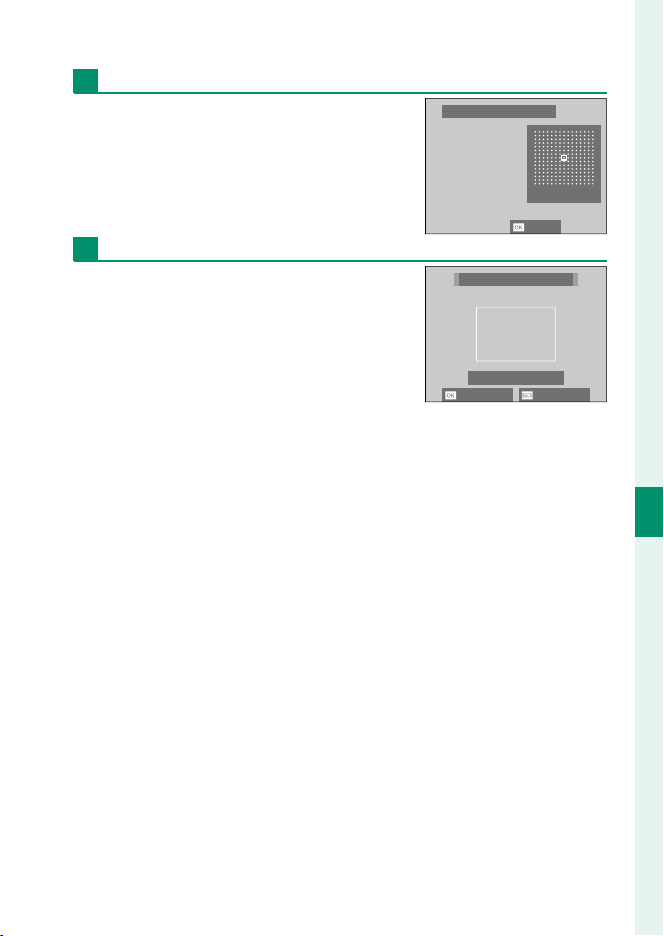
91
6
The Shooting Menus
IMAGE QUALITY SETTING
Fine-Tuning White Balance
Pressing MENU/OK after selecting a white
balance option displays the dialog shown
at right; use the selector to ne-tune white
balance or press DISP/BACK to exit without
ne-tuning.
Custom White Balance
Choose k, l, or m to adjust white
balance for unusual lighting conditions.
White balance measurement options will
be displayed; frame a white object so that
it lls the display and press the shutter
button all the way down to measure white
balance (to select the most recent custom value and exit without
measuring white balance, press DISP/BACK, or press MENU/OK to se-
lect the most recent value and display the ne-tuning dialog).
•
If “COMPLETED!” is displayed, press MENU/OK to set white balance to
the measured value.
•
If “UNDER” is displayed, raise exposure compensation and try again.
•
If “OVER” is displayed, lower exposure compensation and try again.
R:0 B:0
WB SHIFT
AUTO
SET
CUSTOM WB
SHUTTER : NEW WB
SHIFT NOT CHANGE
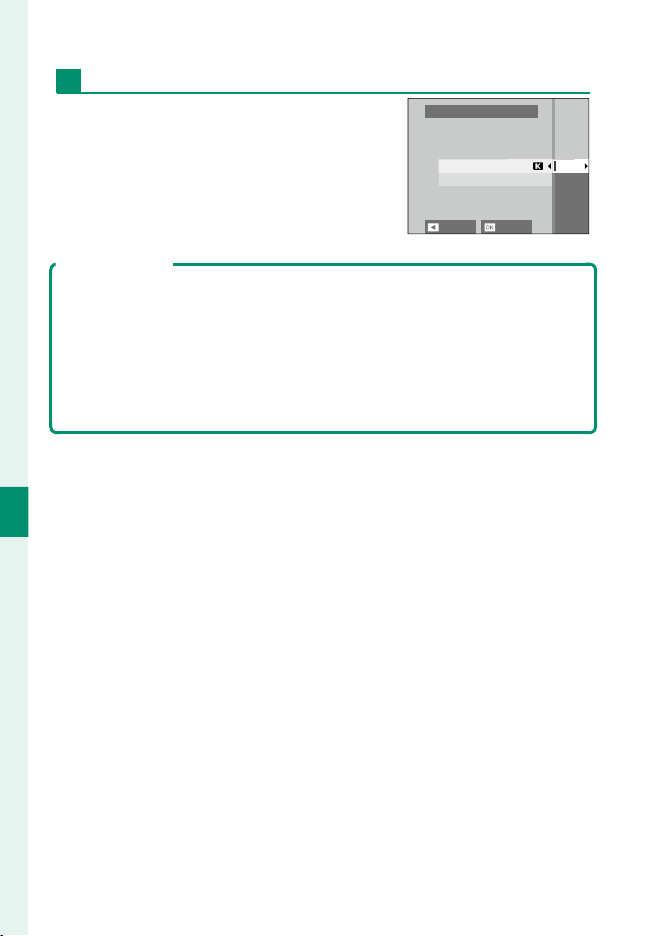
92
6
The Shooting Menus
k: Color Temperature
Selecting k in the white balance menu
displays a list of color temperatures;
highlight a color temperature and press
MENU/OK to select the highlighted option
and display the ne-tuning dialog.
10000
K
9100
K
8300
K
7700
K
7100
K
WHITE BALANCE
COLOR TEMPERATURE
R:0 B:0
SET SHIFT
Color Temperature
Color temperature is an objective measure of the color of a light source,
expressed in Kelvin (K). Light sources with a color temperature close to that
of direct sunlight appear white; light sources with a lower color tempera-
ture have a yellow or red cast, while those with a higher color temperature
are tinged with blue. You can match color temperature to the light source,
or choose options that di er sharply from the color of the light source to
make pictures “warmer” or “colder.”
93
6
The Shooting Menus
IMAGE QUALITY SETTING
HIGHLIGHT TONE
Adjust the appearance of highlights. Choose from seven options
between +4 and −2.
Options
Options
+4 +3 +2 +1 0 −1 −2
SHADOW TONE
Adjust the appearance of shadows. Choose from seven options
between +4 and −2.
Options
Options
+4 +3 +2 +1 0 −1 −2
COLOR
Adjust color density. Choose from nine options between +4 and
−4.
Options
Options
+4 +3 +2 +1 0 −1 −2 −3 −4
SHARPNESS
Sharpen or soften outlines. Choose from nine options between
+4 and −4.
Options
Options
+4 +3 +2 +1 0 −1 −2 −3 −4
94
6
The Shooting Menus
NOISE REDUCTION
Reduce noise in pictures taken at high sensitivities. Choose from
nine options between +4 and −4.
Options
Options
+4 +3 +2 +1 0 −1 −2 −3 −4
LONG EXPOSURE NR
Select ON to reduce mottling in long time-exposures.
Options
Options
ON OFF
LENS MODULATION OPTIMIZER
Select ON to improve de nition by adjusting for di raction and
the slight loss of focus at the periphery of the lens.
Options
Options
ON OFF
COLOR SPACE
Choose the gamut of colors available for color reproduction.
Option
Option
Description
Description
sRGB Recommended in most situations.
Adobe RGB For commercial printing.
95
6
The Shooting Menus
IMAGE QUALITY SETTING
PIXEL MAPPING
Use this option if you notice bright spots in your pictures.
1
Press MENU/OK in the shooting display and select the H IM-
AGE QUALITY SETTING tab.
2
Highlight PIXEL MAPPING and press MENU/OK to perform pix-
el mapping. Processing may take a few seconds.
O
Results are not guaranteed.
Be sure the battery is fully charged before beginning pixel mapping.
Pixel mapping is not available when the camera temperature is ele-
vated.
SELECT CUSTOM SETTING
Recall settings saved with EDIT/SAVE CUSTOM SETTING. Set-
tings can be recalled from any of the seven custom settings
banks.
Banks
Banks
CUSTOM 1 CUSTOM 2 CUSTOM 3 CUSTOM 4
CUSTOM 5 CUSTOM 6 CUSTOM 7
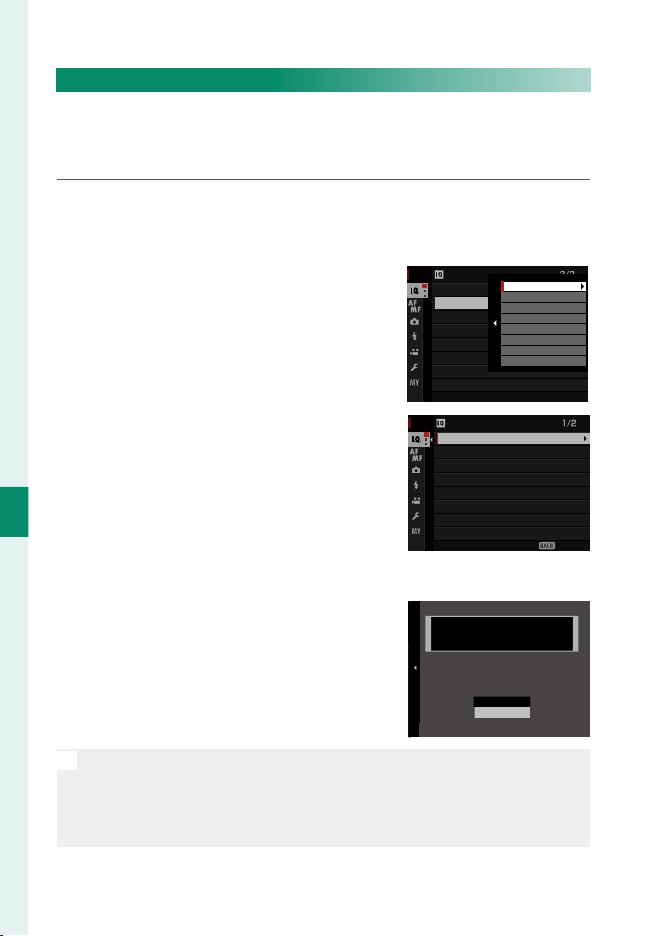
96
6
The Shooting Menus
IMAGE QUALITY SETTING
EDIT/SAVE CUSTOM SETTING
Save up to 7 sets of custom camera settings for commonly-en-
countered situations. Saved settings can be recalled using H IM-
AGE QUALITY SETTING> SELECT CUSTOM SETTING.
1
Press MENU/OK in shooting mode to display the shooting
menu. Select the H IMAGE QUALITY SETTING tab, then
highlight EDIT/SAVE CUSTOM SETTING and press MENU/OK.
2
Highlight a custom settings bank and
press MENU/OK to select.
IMAGE QUALITY SETTING
PIXEL MAPPING
EDIT/SAVE CUSTOM SETTING
SELECT CUSTOM SETTING
CUSTOM 2
CUSTOM 3
CUSTOM 4
CUSTOM 5
CUSTOM 6
CUSTOM 7
CUSTOM 1
3
Adjust the following as desired:
•
DYNAMIC RANGE
•
FILM SIMULATION
•
GRAIN EFFECT
•
COLOR CHROME
EFFECT
•
WHITE BALANCE
•
HIGHLIGHT TONE
•
SHADOW TONE
•
COLOR
•
SHARPNESS
•
NOISE REDUCTION
終了
画質設定
画質モード
RAW 記録方式
フィルムシミュレーション
グレイン・エフェクト
ダイナミックレンジ
ホワイトバランス
ハイライトトーン
画像サイズ
終了
ダイナミックレンジ
ホワイトバランス
ハイライトトーン
グレイン・エフェクト
フィルムシミュレーション
RAW 記録方式
画質モード
画像サイズ
カスタム 1
1/2
WHITE BALANCE
HIGHLIGHT TONE
SHADOW TONE
COLOR CHROME EFFECT
GRAIN EFFECT
FILM SIMULATION
DYNAMIC RANGE
SAVE CURRENT SETTINGS
CUSTOM 1
EXIT
4
Press DISP/BACK. A con rmation dia-
log will be displayed; highlight OK
and press MENU/OK.
CUSTOM 1 SET OK?
OK
CANCEL
SAVE CUSTOM SETTING
N
To store current camera settings in the selected bank, highlight SAVE
CURRENT SETTINGS in Step 3 and press MENU/OK. Banks can be re-
named using EDIT CUSTOM NAME.
To restore default settings for the current bank, select RESET.
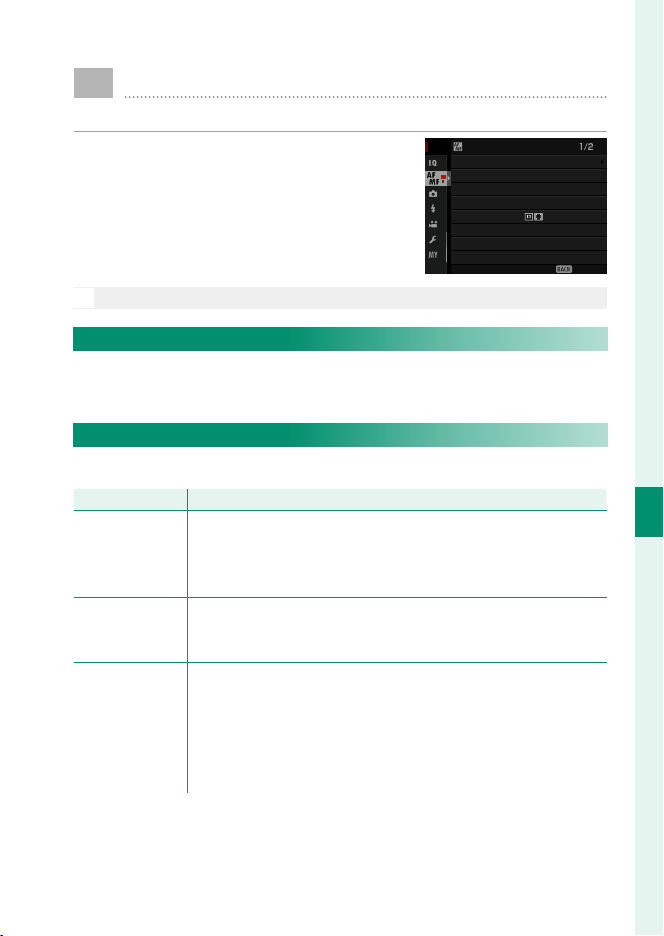
97
6
The Shooting Menus
G
AF/MF SETTING
Adjust focus settings.
To display focus settings, press MENU/OK
in the shooting display and select the G
(AF/MF SETTING) tab.
EXIT
AF/MF SETTING
AF POINT DISPLAY
PRE-AF
FACE/EYE DETECTION SETTING
NUMBER OF THE FOCUS POINTS
STORE AF MODE BY ORIENTATION
AF MODE
FOCUS AREA
RAPID AF
N
The options available vary with the shooting mode selected.
FOCUS AREA
Choose the focus area for autofocus, manual focus, and focus
zoom.
AF MODE
Choose the AF mode for focus modes S and C.
Option
Option
Description
Description
r
SINGLE POINT
The camera focuses on the subject in the selected focus point. The
number of focus points available can be selected using G AF/
MF SETTING> NUMBER OF THE FOCUS POINTS. Use for
pin-point focus on a selected subject.
y
ZONE
The camera focuses on the subject in the selected focus zone.
Focus zones include multiple focus points, making it easier to
focus on subjects that are in motion.
z
WIDE/TRACKING
In focus mode C, the camera tracks focus on the subject in the
selected focus point while the shutter button is pressed halfway.
In focus mode S, the camera automatically focuses on high-con-
trast subjects; the areas in focus are shown in the display. The
camera may be unable to focus on small objects or subjects that
are moving rapidly.
98
6
The Shooting Menus
STORE AF MODE BY ORIENTATION
Choose whether the focus mode and focus area used when the
camera is in portrait orientation are stored separately from those
used when the camera is in landscape orientation.
Option
Option
Description
Description
OFF The same settings are used in both orientations.
FOCUS AREA ONLY The focus area for each orientation can be selected separately.
ON The focus mode and focus area can be selected separately.
RAPID AF
Select ON for faster focus times. Display quality will drop while
the camera focuses.
Options
Options
ON OFF
AF POINT DISPLAYyz
Choose whether individual focus frames are displayed when
ZONE or WIDE/TRACKING is selected for G AF/MF SETTING>
AF MODE.
Options
Options
ON OFF
99
6
The Shooting Menus
AF/MF SETTING
NUMBER OF THE FOCUS POINTS
Choose the number of focus points available for focus-point se-
lection in manual focus mode or when SINGLE POINT is selected
for AF MODE.
Option
Option
Description
Description
117 POINTS
(13 × 9)
Choose from 117 focus points arranged in a 13- by 9-point grid.
425 POINTS
(25 × 17)
Choose from 425 focus points arranged in a 25- by 17-point grid.
PRE-AF
If ON is selected, the camera will continue to adjust focus even
when the shutter button is not pressed halfway. Note that this
increases the drain on the battery.
Options
Options
ON OFF
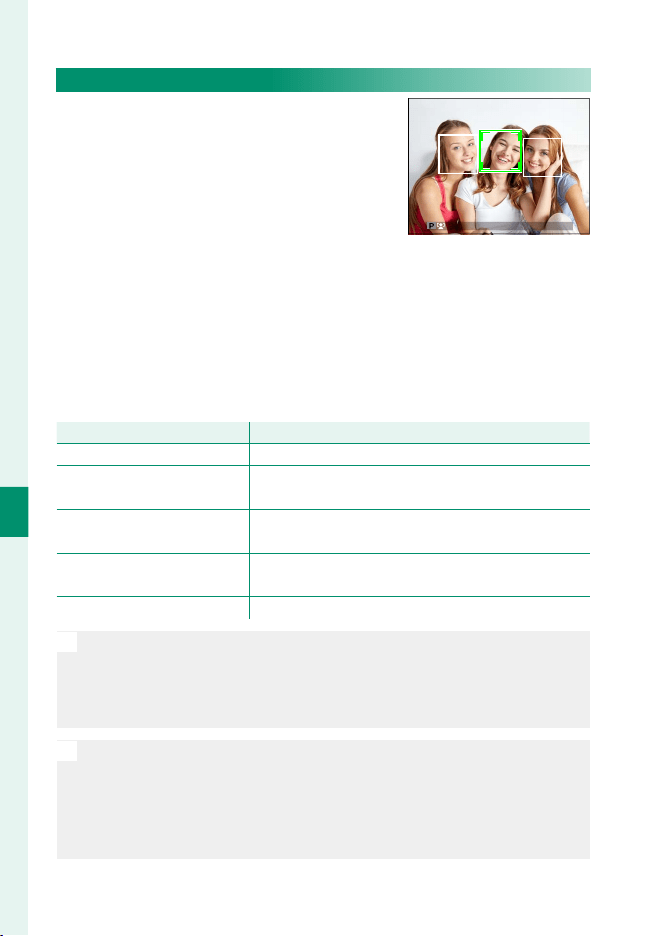
100
6
The Shooting Menus
FACE/EYE DETECTION SETTING
Intelligent Face Detection sets focus and
exposure for human faces anywhere in
the frame, preventing the camera from
focusing on the background in group
portraits. Choose for shots that empha-
size portrait subjects. Faces can be de-
tected with the camera in vertical or horizontal orientation; if a
face is detected, it will be indicated by a green border. If there is
more than one face in the frame, the camera will select the face
closest to the center; other faces are indicated by white borders.
You can also choose whether the camera detects and focuses on
eyes when Intelligent Face Detection is on. Choose from the fol-
lowing options:
Option
Option
Description
Description
FACE ON/EYE OFF Intelligent Face Detection only.
FACE ON/EYE AUTO
The camera automatically chooses which eye to focus
on when a face is detected.
FACE ON/RIGHT EYE PRIORITY
The camera focuses on the right eye of subjects de-
tected using Intelligent Face Detection.
FACE ON/LEFT EYE PRIORITY
The camera focuses on the left eye of subjects detect-
ed using Intelligent Face Detection.
FACE OFF/EYE OFF Intelligent Face Detection and eye priority off .
O
In some modes, the camera may set exposure for the frame as a whole
rather than the portrait subject.
If the subject moves as the shutter button is pressed, the face may not
be in the area indicated by the green border when the picture is taken.
N
If the camera is unable to detect the subject’s eyes because they are
hidden by hair, glasses, or other objects, the camera will instead focus
on faces.
Face/eye detection options can also be accessed via shortcuts
(
P
176).
101
6
The Shooting Menus
AF/MF SETTING
AF+MF
If ON is selected in focus mode S, focus can be adjusted manual-
ly by rotating the focus ring while the shutter button is pressed
halfway. Both standard and focus peaking MF assist options are
supported.
Options
Options
ON OFF
O
Lenses with a focus distance indicator must be set to manual focus
mode (MF) before this option can be used. Selecting MF disables the
focus distance indicator. Set the focus ring to the center of the focus
distance indicator, as the camera may fail to focus if the ring is set to
in nity or the minimum focus distance.
N
Focus peaking can be used to check focus. To enable focus peaking,
select FOCUS PEAK HIGHLIGHT for MF ASSIST.
AF + MF Focus Zoom
When ON is selected for G AF/MF SETTING> FOCUS CHECK and SINGLE
POINT selected for AF MODE, focus zoom can be used to zoom in on the
selected focus area. The zoom ratio (2.5×, 4×, 8×, or 16.7×) can be selected
using the rear command dial.
MF ASSIST
Choose how focus is displayed in manual focus mode.
Option
Option
Description
Description
STANDARD Focus is displayed normally.
FOCUS PEAK HIGHLIGHT
The camera heightens high-contrast outlines. Choose
a color and peaking level.
102
6
The Shooting Menus
102
6
The Shooting Menus
FOCUS CHECK
If ON is selected, the display will automatically zoom in on the
selected focus area when the focus ring is rotated in manual fo-
cus mode.
Options
Options
ON OFF
O
Pressing the center of the rear command dial cancels focus zoom.
INTERLOCK SPOT AE & FOCUS AREA
Select ON to meter the current focus frame when SINGLE POINT
is selected for AF MODE and SPOT is selected for PHOTOMETRY.
Options
Options
ON OFF
INSTANT AF SETTING
Choose whether the camera focuses using single AF (AF-S) or
continuous AF (AF-C) when the button to which focus lock is
assigned is pressed in manual focus mode.
Options
Options
AF-S AF-C
103
6
The Shooting Menus
AF/MF SETTING
DEPTH-OF-FIELD SCALE
Choose FILM FORMAT BASIS to help you make practical assess-
ments of depth of eld for pictures that will be viewed as prints
and the like, PIXEL BASIS to help you assess depth of eld for
pictures that will be viewed at high resolutions on computers or
other electronic displays.
Options
Options
PIXEL BASIS FILM FORMAT BASIS
RELEASE/FOCUS PRIORITY
Choose how the camera focuses in focus mode AF-S or AF-C.
Option
Option
Description
Description
RELEASE
Shutter response is prioritized over focus. Pictures can be taken
when the camera is not in focus.
FOCUS
Focus is prioritized over shutter response. Pictures can be only
taken when the camera is in focus.
TOUCH SCREEN MODE
Choose whether touch controls can be used for focus.
Mode
Mode
Description
Description
AF
Tap the display to select a focus point and lock focus. The shutter
can be released by pressing the shutter button all the way down.
AREA
Tap the display to move the focus frame to the selected point. The
selected point will be used for focus and focus zoom.
OFF Touch controls off .
N
To disable touch controls and hide the touch screen mode indicator,
select OFF for D BUTTON/DIAL SETTING> TOUCH SCREEN SET-
TING.
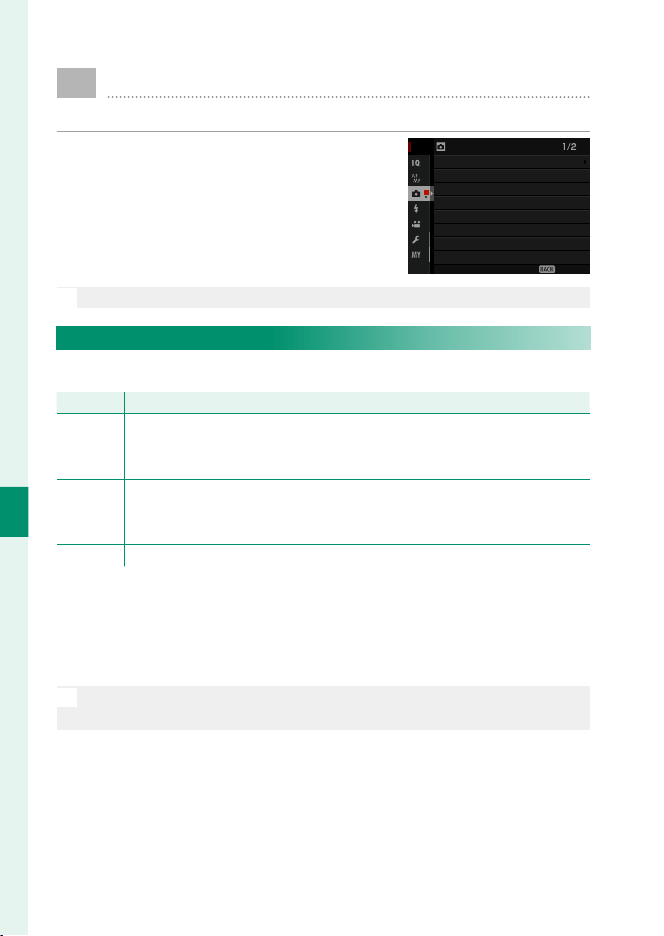
104
6
The Shooting Menus
A
SHOOTING SETTING
Adjust shooting options.
To display shooting options, press
MENU/OK in the shooting display and se-
lect the A (SHOOTING SETTING) tab.
EXIT
PHOTOMETRY
SHUTTER TYPE
IS MODE
FILM SIMULATION BKT
AE BKT SETTING
INTERVAL TIMER SHOOTING
SAVE SELF-TIMER SETTING
SELF-TIMER
SHOOTING SETTING
N
The options available vary with the shooting mode selected.
SELF-TIMER
Choose a shutter release delay.
Option
Option
Description
Description
R 2 SEC
The shutter is released two seconds after the shutter button is pressed.
Use to reduce blur caused by the camera moving when the shutter but-
ton is pressed. The self-timer lamp blinks as the timer counts down.
S 10 SEC
The shutter is released ten seconds after the shutter button is pressed.
Use for photographs in which you wish to appear yourself. The self-tim-
er lamp blinks immediately before the picture is taken.
OFF Self-timer off .
If an option other than OFF is selected, the timer will start when
the shutter button is pressed all the way down. The display shows
the number of seconds remaining until the shutter is released. To
stop the timer before the picture is taken, press DISP/BACK.
O
Stand behind the camera when using the shutter button. Standing in
front of the lens can interfere with focus and exposure.
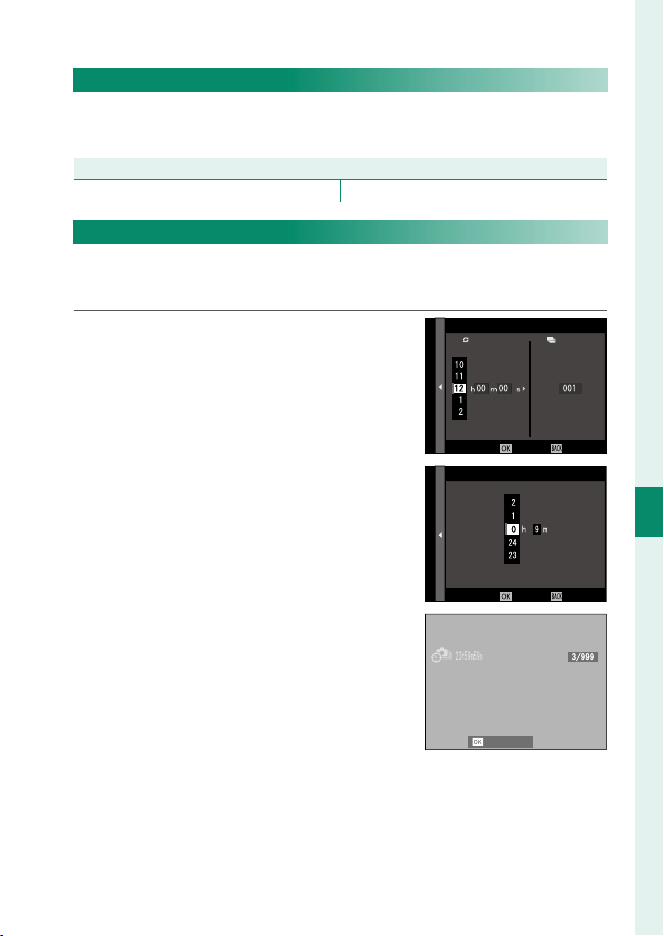
105
6
The Shooting Menus
SHOOTING SETTING
SAVE SELF-TIMER SETTING
If ON is selected, the chosen self-timer setting will remain in ef-
fect after a picture is taken or the camera is turned o .
Options
Options
ON OFF
INTERVAL TIMER SHOOTING
Con gure the camera to take photos automatically at a preset
interval.
1
Highlight INTERVAL TIMER SHOOT-
ING in the A (SHOOTING SETTING)
tab and press MENU/OK.
CANCELEND
INTERVAL/NUMBER OF TIMES
INTERVAL
NUMBER OF TIMES
2
Use the selector to choose the in-
terval and number of shots. Press
MENU/OK to proceed.
START WAITING TIME
ESTIMATED START TIME 11 : 00 PM
CANCELSTART
LATER
3
Use the selector to choose the start-
ing time and then press MENU/OK.
Shooting will start automatically.
CANCEL

106
6
The Shooting Menus
O
Interval timer photography can not be used at a shutter speed of B
(bulb) or with multiple exposure photography. In burst mode, only
one picture will be taken each time the shutter is released.
N
Use of a tripod is recommended.
Check the battery level before starting. We recommend using an op-
tional AC-15V AC power adapter.
The display turns o between shots and lights a few seconds before
the next shot is taken. The display can be activated at any time by
pressing the shutter button.
To continue shooting until the memory card is full, set the number of
shots to ∞.
AE BKT SETTING
Adjust exposure bracketing settings.
Option
Option
Description
Description
FRAMES/
STEP SETTING
Choose the number of shots in the bracketing sequence
(FRAMES) and the amount exposure is varied with each shot
(STEP).
1 FRAME/
CONTINUOUS
Choose whether the shots in the bracketing sequence are taken
one at a time (1 FRAME) or in a single burst (CONTINUOUS).
SEQUENCE SETTING Choose the order in which the shots are taken.
FILM SIMULATION BKT
Choose the three lm simulation types used for lm simulation
bracketing (
P
88).
Options
Options
c
PROVIA/STANDARD
d
Velvia/VIVID
e
ASTIA/SOFT
i
CLASSIC CHROME
g
PRO Neg. Hi
h
PRO Neg. Std
a
ACROS
*
b
MONOCHROME
*
f
SEPIA
* Available with yellow (Ye), red (R), and green (G) fi lters.
107
6
The Shooting Menus
SHOOTING SETTING
PHOTOMETRY
Choose how the camera meters exposure.
O
The selected option will only take e ect when G AF/MF SETTING>
FACE/EYE DETECTION SETTING is OFF.
Mode
Mode
Description
Description
o
MULTI
The camera instantly determines exposure based on an anal-
ysis of composition, color, and brightness distribution. Rec-
ommended in most situations.
p
CENTER-WEIGHTED
The camera meters the entire frame but assigns the greatest
weight to the area at the center.
v
SPOT
The camera meters lighting conditions in an area at the cen-
ter of the frame equivalent to 2% of the total. Recommended
with backlit subjects and in other cases in which the back-
ground is much brighter or darker than the main subject.
w
AVERAGE
Exposure is set to the average for the entire frame. Provides
consistent exposure across multiple shots with the same
lighting, and is particularly eff ective for landscapes and por-
traits of subjects dressed in black or white.

108
6
The Shooting Menus
SHUTTER TYPE
Choose the shutter type. Choose the electronic shutter to mute
the shutter sound.
Option
Option
Description
Description
t MECHANICAL SHUTTER Take pictures with the mechanical shutter.
s ELECTRONIC SHUTTER Take pictures with the electronic shutter.
Q E-FRONT CURTAIN
SHUTTER
Reduces the lag between the shutter button being
pressed and the start of the exposure. The mechanical
shutter is used at high shutter speeds (
P
244).
t MECHANICAL+
s ELECTRONIC
The camera chooses the mechanical or electronic
shutter according to shooting conditions.
Q E-FRONT CURTAIN+
s ELECTRONIC
The camera chooses the electronic or electronic front
curtain shutter according to shooting conditions.
If an option other than t MECHANICAL SHUTTER is selected,
shutter speeds faster than ¼ s can be chosen by rotating the
shutter speed dial to 4000 and then rotating the rear command
dial.
O
When the electronic shutter is used, distortion may be visible in shots
of moving subjects and in hand-held shots taken at high shutter
speeds, while banding and fog may occur in shots taken under u-
orescent lights or other ickering or erratic illumination. When taking
pictures with the shutter muted, respect your subjects’ image rights
and right to privacy.
N
When the electronic shutter is used, the ash is disabled, sensitivity is
restricted to values of ISO 12800–100, and long exposure noise reduc-
tion has no e ect.
109
6
The Shooting Menus
SHOOTING SETTING
IS MODE
Reduce blur.
Option
Option
Description
Description
l CONTINUOUS Image stabilization on.
m SHOOTING ONLY
Image stabilization enabled only when the shutter button
is pressed halfway (focus mode C) or the shutter is released.
OFF
Image stabilization off ; x appears in the display. Rec-
ommended when the camera is on a tripod.
N
This option is available only with lenses that support image stabilization.
ISO AUTO SETTING
Choose the base sensitivity, maximum sensitivity, and minimum
shutter speed for the A position on the sensitivity dial. Settings
for AUTO 1, AUTO 2, and AUTO 3 can be stored separately; the
defaults are shown below.
Option
Option
Default
Default
AUTO 1
AUTO 1
AUTO 2
AUTO 2
AUTO 3
AUTO 3
DEFAULT SENSITIVITY 100
MAX. SENSITIVITY 800 1600 3200
MIN. SHUTTER SPEED ⁄s
The camera automatically chooses a sensitivity between the de-
fault and maximum values; sensitivity is only raised above the
default value if the shutter speed required for optimal exposure
would be slower than the value selected for MIN. SHUTTER SPEED.
N
If the value selected for DEFAULT SENSITIVITY is higher than that se-
lected for MAX. SENSITIVITY, DEFAULT SENSITIVITY will be set to
the value selected for MAX. SENSITIVITY.
The camera may select shutter speeds slower than MIN. SHUTTER
SPEED if pictures would still be underexposed at the value selected
for MAX. SENSITIVITY.
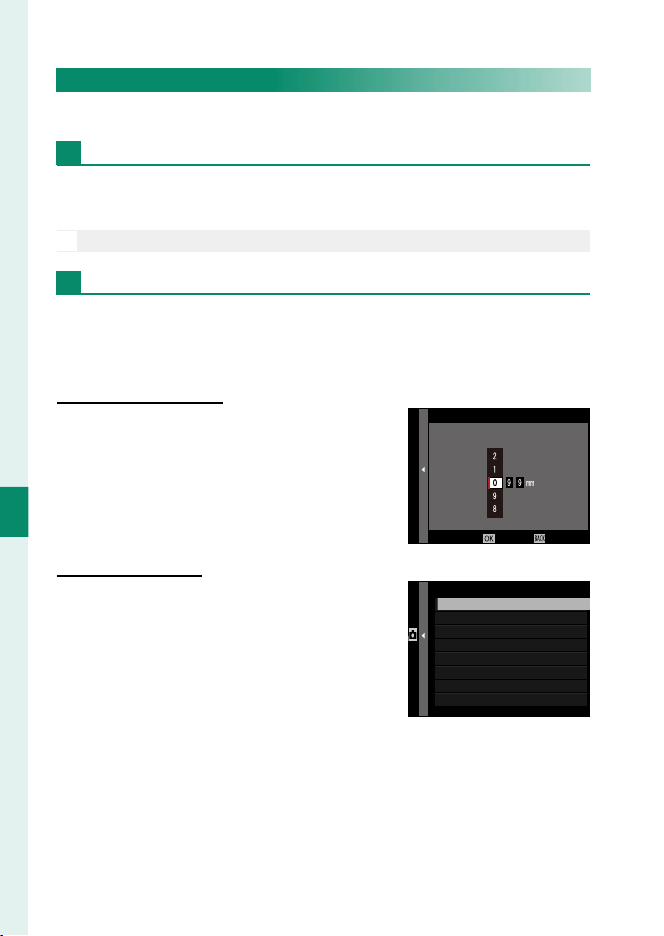
110
6
The Shooting Menus
MOUNT ADAPTOR SETTING
Adjust settings for lenses attached via a mount adapter.
Shutter Select
When using lenses with an internal shutter, choose whether to
use the shutter on the camera (BODY) or the lens (LENS).
O
This option may have no e ect with some lenses.
Saved Settings
Store settings for up to 6 lenses, or choose OFF to disable correc-
tions for focal length, distortion, color shading, and peripheral
illumination.
Choosing a Focal Length
Choosing a Focal Length
Use the selector to enter the focal length.
CANCELSET
INPUT FOCAL LENGTH
LENS 5
Distortion Correction
Distortion Correction
Choose from STRONG, MEDIUM, or
WEAK options to correct BARREL or PIN-
CUSHION distortion.
PINCUSHION MEDIUM
PINCUSHION STRONG
PINCUSHION WEAK
OFF
BARREL WEAK
BARREL MEDIUM
BARREL STRONG
LENS5 DISTORTION CORRECTION
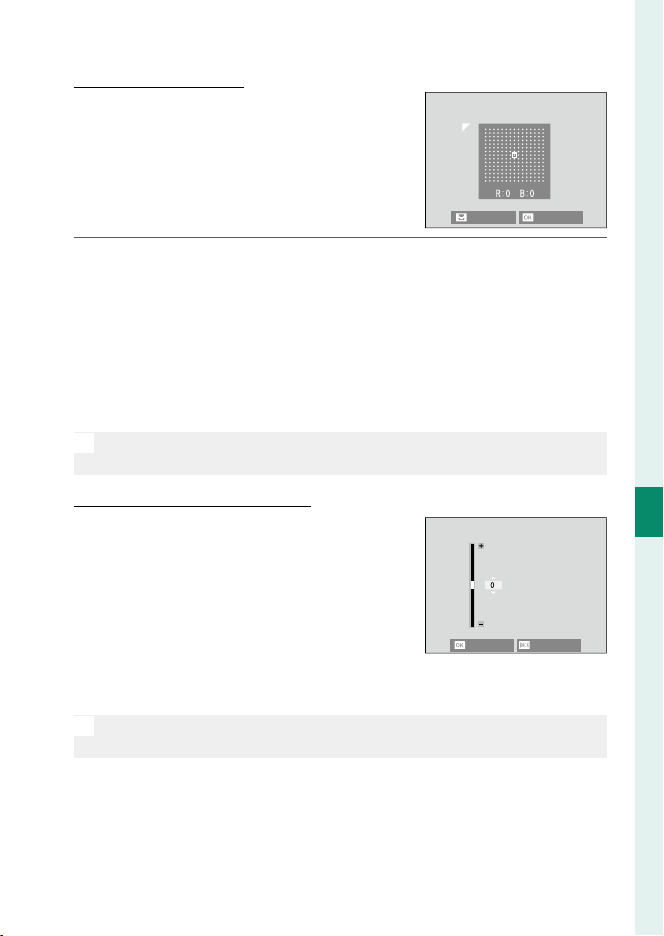
111
6
The Shooting Menus
SHOOTING SETTING
Color Shading Correction
Color Shading Correction
Color (shading) variations between the
center and edges of the frame can be ad-
justed separately for each corner.
To use color shading correction, follow the
steps below.
NEXT
SET
1
Rotate the rear command dial to choose a corner. The select-
ed corner is indicated by a triangle.
2
Use the selector to adjust shading until there is no visible dif-
ference in color between the selected corner and the center
of the image. Press the selector left or right to adjust colors
on the cyan–red axis. Press the selector up or down to adjust
colors on the blue–yellow axis.
N
To determine the amount required, adjust color shading correction
while taking photos of blue sky or a sheet of gray paper.
Peripheral Illumination Correction
Peripheral Illumination Correction
Choose from values between –5 and
+5. Choosing positive values increases
peripheral illumination, while choosing
negative values reduces peripheral il-
lumination. Positive values are recom-
mended for vintage lenses, negative val-
ues to create the e ect of images taken
with an antique lens or a pinhole camera.
N
To determine the amount required, adjust peripheral illumination cor-
rection while taking photos of blue sky or a sheet of gray paper.
CANCEL
SET

112
6
The Shooting Menus
SHOOTING SETTING
WIRELESS COMMUNICATION
Connect to smartphones running the “FUJIFILM Camera Remote”
app. The smartphone can be used to browse the images on the
camera, download selected images, control the camera remote-
ly, or upload location data to the camera.
N
For downloads and other information, visit:
http://fujifilm-dsc.com/wifi/
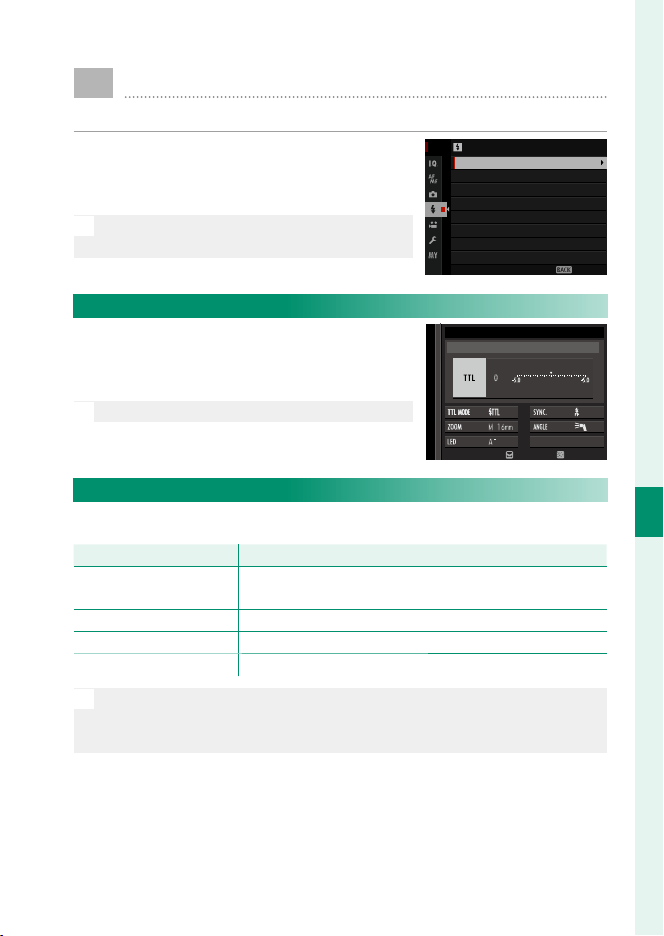
113
6
The Shooting Menus
F
FLASH SETTING
Adjust ash-related settings.
To display ash-related settings, press
MENU/OK in the shooting display and se-
lect the F (FLASH SETTING) tab.
N
The options available vary with the shoot-
ing mode selected.
終了
画質設定
画質モード
RAW 記録方式
フィルムシミュレーション
グレイン・エフェクト
ダイナミックレンジ
ホワイトバランス
ハイライトトーン
画像サイズ
EXIT
CH SETTING
MASTER SETTING
LED LIGHT SETTING
TTL-LOCK MODE
RED EYE REMOVAL
FLASH SETTING
FLASH FUNCTION SETTING
FLASH FUNCTION SETTING
Choose a ash control mode, ash mode,
or sync mode or adjust the ash level.
The options available vary with the ash.
N
See page 197 for more information.
MODE
SHOE MOUNT FLASH
ADJUST
END
RED EYE REMOVAL
Remove red-eye e ects caused by the ash.
Option
Option
Description
Description
FLASH + REMOVAL
A red-eye reduction pre-fl ash is combined with digital
red-eye removal.
FLASH Flash red-eye reduction only.
REMOVAL Digital red-eye removal only.
OFF Flash red-eye reduction and digital red-eye removal off .
N
Flash red-eye reduction can be used in TTL ash control mode. Digital
red-eye removal is performed only when a face is detected and is not
available with RAW images.

114
6
The Shooting Menus
TTL-LOCK MODE
Instead of adjusting ash level with each shot, TTL ash control
can be locked for consistent results across a series of photo-
graphs.
Option
Option
Description
Description
LOCK WITH LAST FLASH
Flash output is locked at the value metered for the most
recent photo. An error message will be displayed if no
previously metered value exists.
LOCK WITH METERING
FLASH
The camera emits a series of pre-fl ashes and locks fl ash
output at the metered value.
N
To use TTL lock, assign TTL-LOCK to a camera control and then use
the control to enable or disable TTL lock (
P
182).
Flash compensation can be adjusted while TTL lock is in e ect.
LED LIGHT SETTING
Choose whether to use the ash unit’s LED video light (if avail-
able) as a catchlight or AF-assist illuminator when taking photos.
Option
Option
Role of LED video light in still photography
Role of LED video light in still photography
CATCHLIGHT Catchlight
AF ASSIST AF-assist illuminator
AF ASSIST + CATCHLIGHT AF-assist illuminator and catchlight
OFF None
N
This option can also be accessed via the ash settings menu.
115
6
The Shooting Menus
FLASH SETTING
MASTER SETTING
Choose a ash group (A, B, or C) for the ash mounted on the
camera hot shoe when it functions as a master ash controlling
remote ash units via FUJIFILM wireless optical ash control, or
choose OFF to limit master ash output to a level that does not
a ect the nal picture.
Options
Options
Gr A Gr B Gr C OFF
N
This option can also be accessed via the ash settings menu.
CH SETTING
Choose the channel used for communication between the mas-
ter ash and remote ash units when using FUJIFILM optical
wireless ash control. Separate channels can be used for di er-
ent ash systems or to prevent interference when multiple sys-
tems are operating in close proximity.
Options
Options
CH1 CH2 CH3 CH4
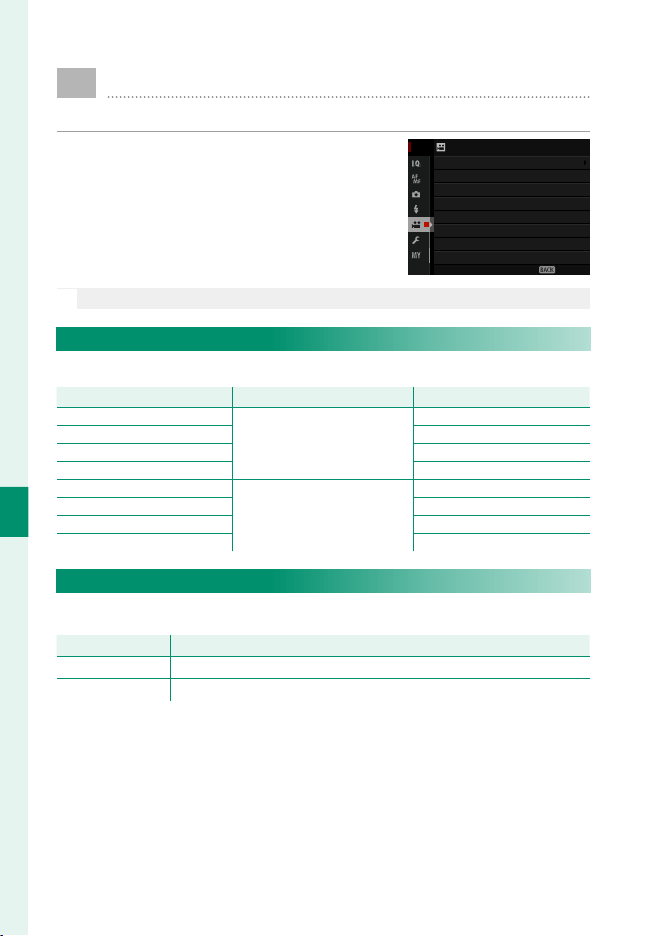
116
6
The Shooting Menus
B
MOVIE SETTING
Adjust movie-recording options.
To display options for movie recording,
press MENU/OK in the shooting display and
select the B (MOVIE SETTING) tab.
終了
画質設定
画質モード
RAW 記録方式
フィルムシミュレーション
グレイン・エフェクト
ダイナミックレンジ
ホワイトバランス
ハイライトトーン
画像サイズ
EXIT
HDMI REC CONTROL
MIC LEVEL ADJUSTMENT
HDMI OUTPUT INFO DISPLAY
MOVIE AF MODE
MOVIE MODE
MOVIE SETTING
N
The options available vary with the shooting mode selected.
MOVIE MODE
Choose a frame size and rate for movie recording.
Option
Option
Frame size
Frame size
Rate
Rate
i 1080/29.97P
1920 × 1080 (Full HD)
29.97fps
i 1080/25P
25fps
i 1080/24P
24fps
i 1080/23.98P
23.98fps
h 720/29.97P
1280 × 720 (HD)
29.97fps
h 720/25P
25fps
h 720/24P
24fps
h 720/23.98P
23.98fps
MOVIE AF MODE
Choose how the camera selects the focus point for movie recording.
Option
Option
Description
Description
MULTI Automatic focus-point selection.
AREA The camera focuses on the subject in the selected focus area.
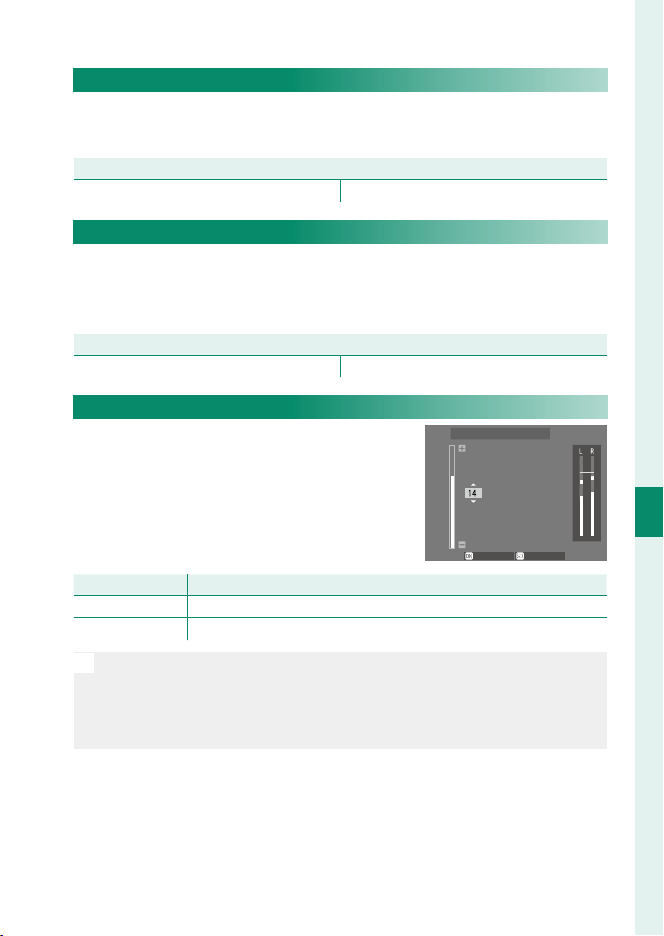
117
6
The Shooting Menus
MOVIE SETTING
HDMI OUTPUT INFO DISPLAY
If ON is selected, HDMI devices to which the camera is connected
will mirror the information in the camera display.
Options
Options
ON OFF
HDMI REC CONTROL
Choose whether the camera sends movie start and stop signals
to the HDMI device when the shutter button is pressed to start
and stop movie recording.
Options
Options
ON OFF
MIC LEVEL ADJUSTMENT
Adjust the recording level for the built-in
and external microphones.
SET CANCEL
MIC LEVEL ADJUSTMENT
Option
Option
Description
Description
20—1 Choose a recording level.
OFF Disable the microphone.
N
Displays shows the peak recording level detected in a given period.
You can assign MIC LEVEL ADJUSTMENT to a camera control and
then using the control to adjust the microphone level during record-
ing.

118
MEMO

119
Playback and the Playback
Menu
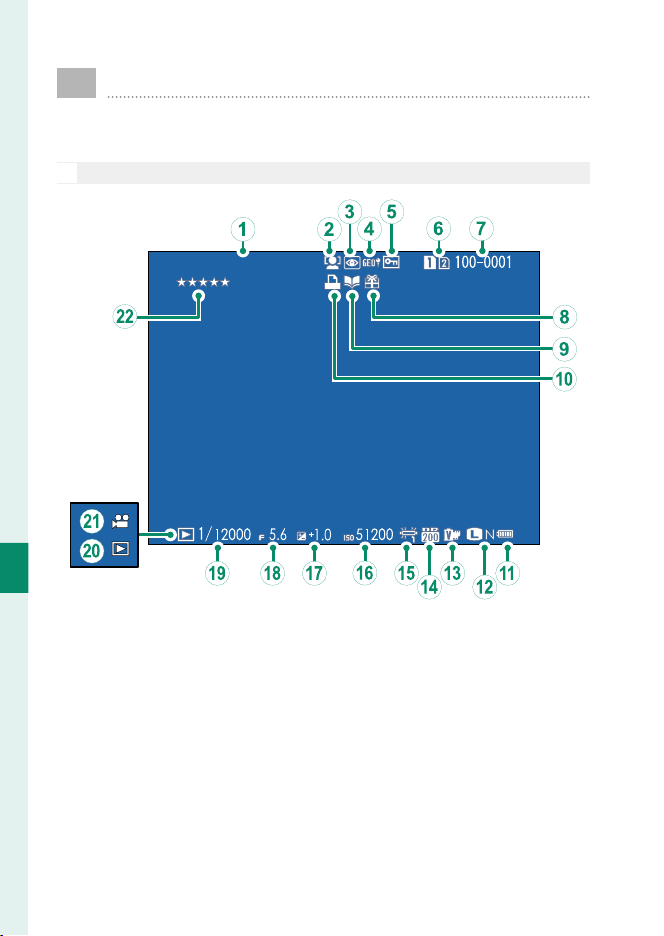
120
Playback and the Playback Menu
7
The Playback Display
This section lists the indicators that may be displayed
during playback.
O
For illustrative purposes, displays are shown with all indicators lit.
1.1. 2017 12:00 AM
A
Date and time .........................................37, 147
B
Face detection indicator .............................100
C
Red-eye removal indicator ................113, 135
D
Location data........................................173, 210
E
Protected image ............................................133
F
Card slot...........................................................126
G
Frame number ...............................................169
H
Gift image .........................................................43
I
Photobook assist indicator ........................139
J
DPOF print indicator ....................................141
K
Battery level ...................................................... 36
L
Image size/quality ................................... 86, 87
M
Film simulation ...............................................88
N
Dynamic range ...............................................89
O
White balance .................................................90
P
Sensitivity .......................................................... 74
Q
Exposure compensation ...............................77
R
Aperture ................................................53, 58, 60
S
Shutter speed ......................................53, 54, 60
T
Playback mode indicator ............................. 43
U
Movie icon.........................................................49
V
Rating ............................................................... 121
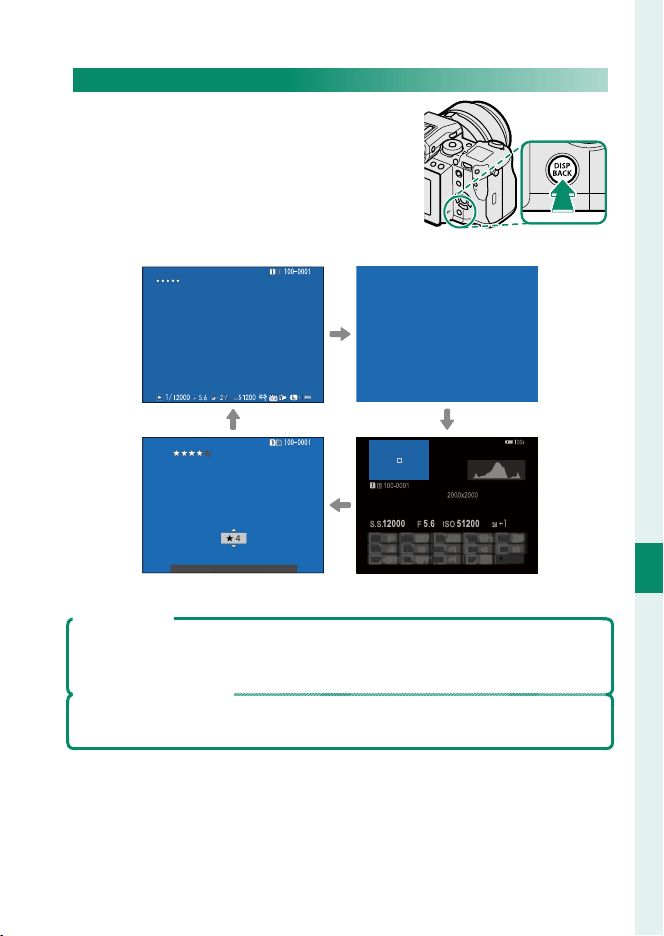
121
Playback and the Playback Menu
7
The Playback Display
The DISP/BACK Button
The DISP/BACK button controls the display
of indicators during playback.
Standard Information o
1.1.2017 12:00 AM
1.1.2017 12:00 AM
FAVORITES
1.1.2017.12:00 AM
Favorites Info display
The Info Display
In the info display, you can press the selector up to cycle through a series of
information and histogram displays.
Favorites: Rating Pictures
To rate the current picture, press DISP/BACK and press the selector up and
down to select from zero to ve stars.
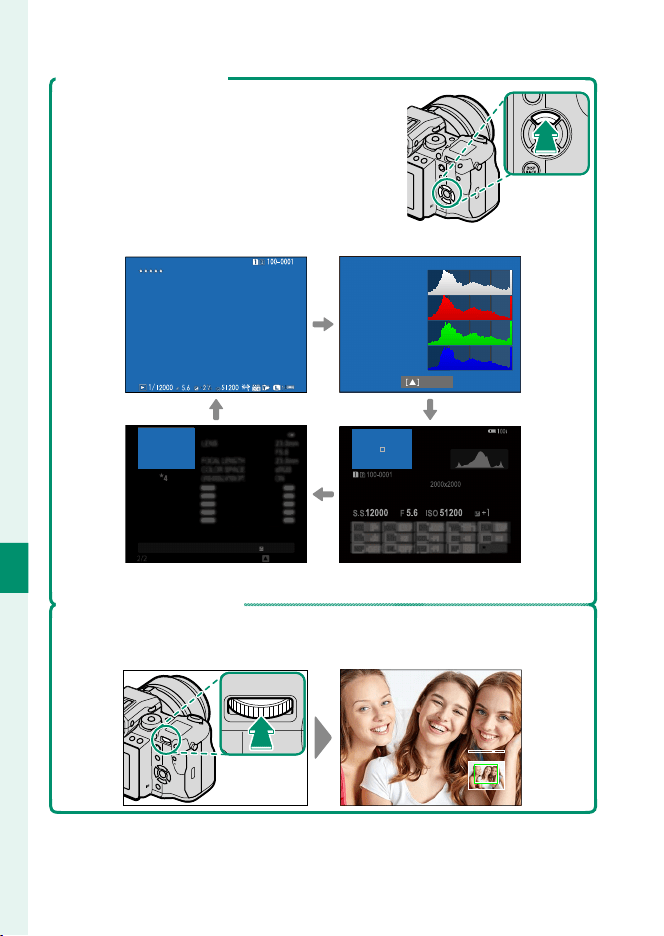
122
Playback and the Playback Menu
7
The Playback Display
Viewing Photo Information
The photo information display changes each
time the selector is pressed up.
Basic data Histogram
1.1.2017 12:00 AM
BACK
S.S
FISO
41200
5.6
1/1200
+1
BACK
1.1.2017.12:00 AM
Info display 2 Info display 1
Zooming in on the Focus Point
Press the center of the rear command dial to zoom in on the focus point.
Press again to return to full-frame playback.
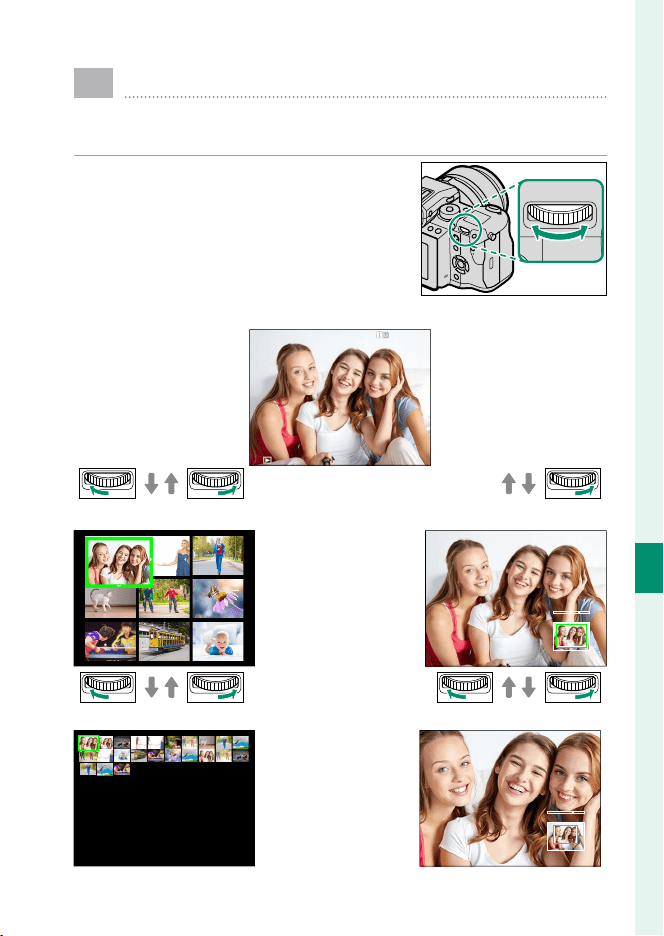
123
Playback and the Playback Menu
7
Viewing Pictures
Read this section for information on playback zoom and
multi-frame playback.
Use the rear command dial to go from
full-frame playback to playback zoom or
multi-frame playback.
Full-frame playback
Multi-frame
playback
100-0001
Playback
zoom
Nine-frame view
Hundred- frame view
DISP/BACK
MENU/OK
Medium zoom
Maximum zoom
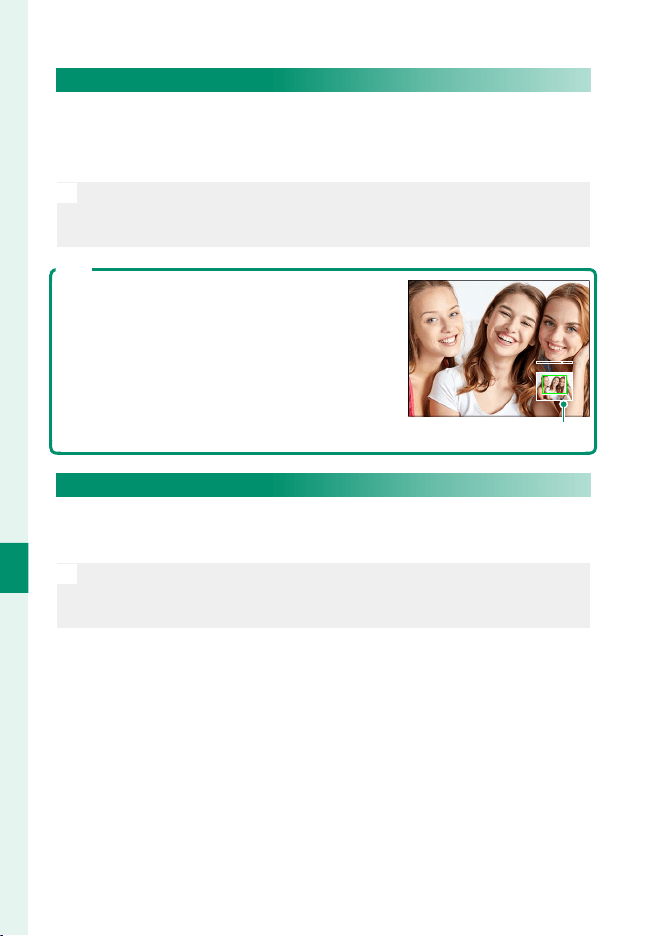
124
Playback and the Playback Menu
7
Playback Zoom
Rotate the rear command dial right to zoom in on the current
picture, left to zoom out. To exit zoom, press DISP/BACK, MENU/OK,
or the center of the rear command dial.
N
The maximum zoom ratio varies with the option selected for H IM-
AGE QUALITY SETTING> IMAGE SIZE. Playback zoom is not avail-
able with cropped or resized copies saved at a size of a.
Scroll
When the picture is zoomed in, the selector can
be used to view areas of the image not currently
visible in the display.
Navigation window
Multi-Frame Playback
To change the number of images displayed, rotate the rear com-
mand dial left when a picture is displayed full frame.
N
Use the selector to highlight images and press MENU/OK to view the
highlighted image full frame. In the nine- and hundred-frame dis-
plays, press the selector up or down to view more pictures.
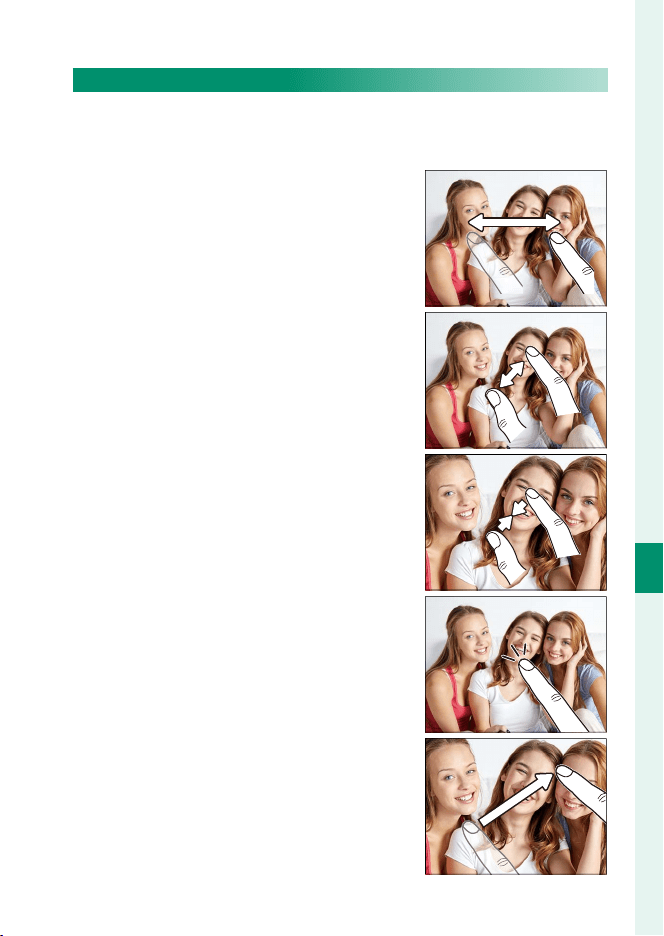
125
Playback and the Playback Menu
7
Viewing Pictures
Playback Touch Controls
When ON is selected for D BUTTON/DIAL SETTING> TOUCH
SCREEN SETTING, touch controls can be used for the following
playback operations.
•
Swipe: Swipe a nger across the display
to view other images.
•
Pinch-out: Place two ngers on the dis-
play and spread them apart to zoom in.
•
Pinch-in: Place two ngers on the display
and slide them together to zoom out.
Zooming out when the picture is dis-
played full frame triggers multi-frame
playback.
•
Double-tap: Tap the display twice to zoom
in on the selected area.
•
Drag: View other areas of the image
during playback zoom.
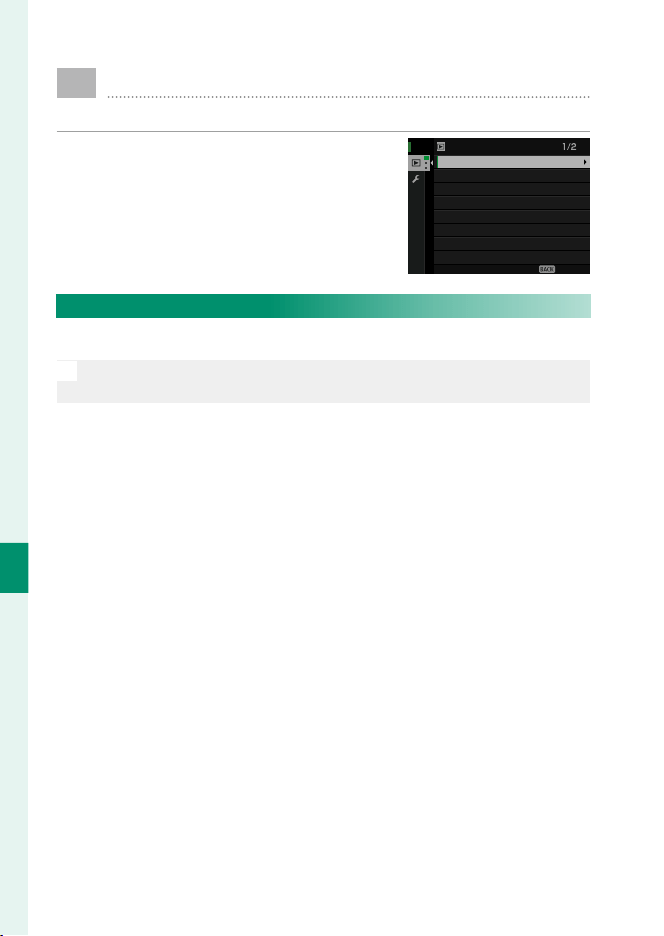
126
Playback and the Playback Menu
7
C
The Playback Menu
Adjust playback settings.
The playback menu is displayed when
you press MENU/OK in playback mode.
EXIT
PROTECT
IMAGE ROTATE
RED EYE REMOVAL
RESIZE
CROP
ERASE
RAW CONVERSION
SWITCH SLOT
PLAY BACK MENU
SWITCH SLOT
Choose the card from which images will be played back.
N
If two memory cards are inserted, you can press and hold the a but-
ton to choose a card for playback.
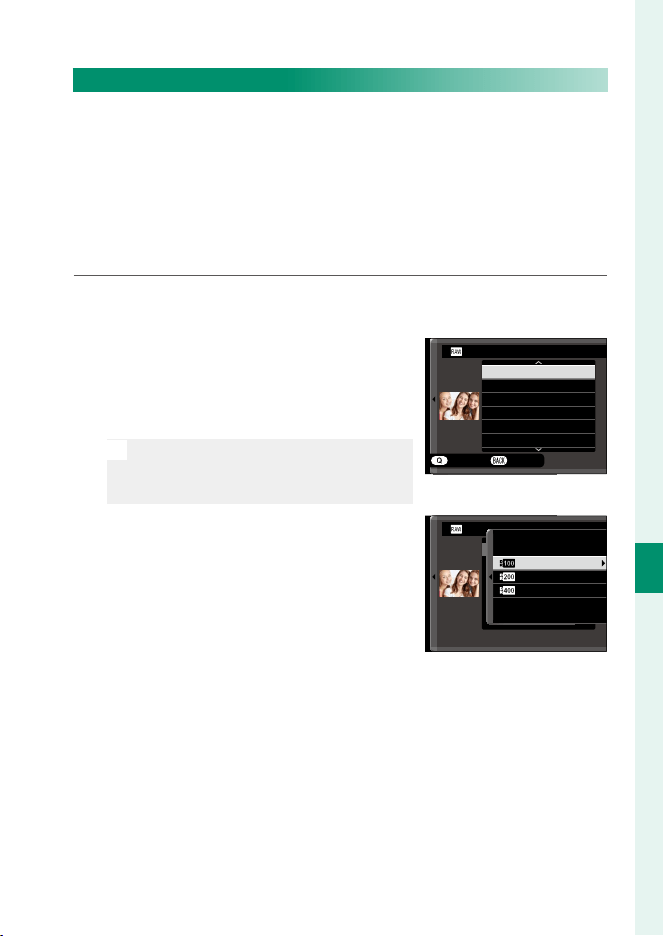
127
Playback and the Playback Menu
7
The Playback Menu
RAW CONVERSION
RAW pictures store information on camera settings separate-
ly from the data captured by the camera image sensor. Using
C PLAY BACK MENU> RAW CONVERSION, you can create JPEG
copies of RAW pictures using di erent options for the settings
listed on page 128. The original image data are una ected, al-
lowing a single RAW image to be processed in a multitude of dif-
ferent ways.
1
With a RAW picture displayed, press MENU/OK to display the
playback menu.
2
Press the selector up or down to high-
light C PLAY BACK MENU> RAW
CONVERSION and press MENU/OK to
display settings.
N
These options can also be displayed
by pressing the Q button during play-
back.
CREATE
REFLECT SHOOTING COND.
FILE TYPE
IMAGE SIZE
IMAGE QUALITY
PUSH/PULL PROCESSING
DYNAMIC RANGE
RAW CONVERSION
CANCEL
3
Press the selector up or down to
highlight a setting and press the se-
lector right to display options. Press
the selector up or down to highlight
the desired option and press MENU/OK
to select and return to the settings
list. Repeat this step to adjust addi-
tional settings.
撮影時条件を反映
増感/減感
ダイナミックレンジ
フィルムシミュレーション
ホワイトバランス
WB
シフト
RAW CONVERSION
200
%
400
%
100
%
4
Press the Q button to preview the JPEG copy and press
MENU/OK to save.

128
Playback and the Playback Menu
7
The settings that can be adjusted when converting pictures from
RAW to JPEG are:
Setting
Setting
Description
Description
REFLECT SHOOTING COND.
Create a JPEG copy using the settings in eff ect at the
time the photo was taken.
FILE TYPE Choose a fi le format.
IMAGE SIZE Choose an image size.
IMAGE QUALITY Adjust image quality.
PUSH/PULL PROCESSING Adjust exposure.
DYNAMIC RANGE Enhance details in highlights for natural contrast.
FILM SIMULATION Simulate the eff ects of diff erent types of fi lm.
GRAIN EFFECT Add a fi lm grain eff ect.
COLOR CHROME EFFECT Deepen colors in shadows.
WHITE BALANCE Adjust white balance.
WB SHIFT Fine-tune white balance.
HIGHLIGHT TONE Adjust highlights.
SHADOW TONE Adjust shadows.
COLOR Adjust color density.
SHARPNESS Sharpen or soften outlines.
NOISE REDUCTION Process the copy to reduce mottling.
LENS MODULATION OPTIMIZER
Improve defi nition by adjusting for diff raction and
the slight loss of focus at the periphery of the lens.
COLOR SPACE Choose the color space used for color reproduction.
129
Playback and the Playback Menu
7
The Playback Menu
ERASE
Delete individual pictures, multiple selected pictures, or all pic-
tures.
O
Deleted pictures can not be recovered. Protect important pictures or
copy them to a computer or other storage device before proceeding.
Option
Option
Description
Description
FRAME Delete pictures one at a time.
SELECTED FRAMES Delete multiple selected pictures.
ALL FRAMES Delete all unprotected pictures.
FRAME
1
Select FRAME for ERASE in the playback menu.
2
Press the selector left or right to scroll through pictures and
press MENU/OK to delete (a con rmation dialog is not dis-
played). Repeat to delete additional pictures.
SELECTED FRAMES
1
Select SELECTED FRAMES for ERASE in the playback menu.
2
Highlight pictures and press MENU/OK to select or deselect
(pictures in photobooks or printer orders are shown by S).
Selected pictures are indicated by check marks (R).
3
When the operation is complete, press DISP/BACK to display a
con rmation dialog.
4
Highlight OK and press MENU/OK to delete the selected pic-
tures.

130
Playback and the Playback Menu
7
ALL FRAMES
1
Select ALL FRAMES for ERASE in the playback menu.
2
A con rmation dialog will be displayed; highlight OK and
press MENU/OK to delete all unprotected pictures.
N
Pressing DISP/BACK cancels deletion; note that any pictures deleted be-
fore the button was pressed can not be recovered.
If a message appears stating that the selected images are part of a
DPOF print order, press MENU/OK to delete the pictures.
131
Playback and the Playback Menu
7
The Playback Menu
CROP
Create a cropped copy of the current picture.
1
Display the desired picture.
2
Select CROP in the playback menu.
3
Use the rear command dial to zoom in and out and press the
selector up, down, left, or right to scroll the picture until the
desired portion is displayed.
4
Press MENU/OK to display a con rmation dialog.
5
Press MENU/OK again to save the cropped copy to a separate
le.
N
Larger crops produce larger copies; all copies have an aspect ratio of
3∶2. If the size of the nal copy will be a, YES will be displayed in
yellow.

132
Playback and the Playback Menu
7
RESIZE
Create a small copy of the current picture.
1
Display the desired picture.
2
Select RESIZE in the playback menu.
3
Highlight a size and press MENU/OK to display a con rmation
dialog.
4
Press MENU/OK again to save the resized copy to a separate
le.
N
The sizes available vary with the size of the original image.

133
Playback and the Playback Menu
7
The Playback Menu
PROTECT
Protect pictures from accidental deletion. Highlight one of the
following options and press MENU/OK.
•
FRAME: Protect selected pictures. Press the selector left or right
to view pictures and press MENU/OK to select or deselect. Press
DISP/BACK when the operation is complete.
•
SET ALL: Protect all pictures.
•
RESET ALL: Remove protection from all pictures.
O
Protected pictures will be deleted when the memory card is formatted.

134
Playback and the Playback Menu
7
IMAGE ROTATE
Rotate pictures.
1
Display the desired picture.
2
Select IMAGE ROTATE in the playback menu.
3
Press the selector down to rotate the picture 90° clockwise,
up to rotate it 90° counterclockwise.
4
Press MENU/OK. The picture will automatically be displayed in
the selected orientation whenever it is played back on the
camera.
N
Protected pictures can not be rotated. Remove protection before ro-
tating pictures.
The camera may not be able to rotate pictures created with other de-
vices. Pictures rotated on the camera will not be rotated when viewed
on a computer or on other cameras.
Pictures taken with D SCREEN SETTING> AUTOROTATE PB are auto-
matically displayed in the correct orientation during playback.

135
Playback and the Playback Menu
7
The Playback Menu
RED EYE REMOVAL
Remove red-eye from portraits. The camera will analyze the im-
age; if red-eye is detected, the image will be processed to create
a copy with reduced red-eye.
1
Display the desired picture.
2
Select RED EYE REMOVAL in the playback menu.
3
Press MENU/OK.
N
Results vary depending on the scene and the camera’s success in de-
tecting faces. Red eye can not be removed from pictures that have
already been processed using red-eye removal, which are indicated by
a e icon during playback.
The amount of time needed to process the image varies with the
number of faces detected.
Red eye removal can not be performed on RAW images.

136
Playback and the Playback Menu
7
VOICE MEMO SETTING
Add a voice memo to the current photograph.
1
Select ON for VOICE MEMO SETTING in the playback menu.
2
Display a photo to which you wish to add a voice memo.
3
Press and hold the center of the front command dial to re-
cord the memo. Recording ends after 30s or when you re-
lease the dial.
N
The new memo will be recorded over any existing memos. Deleting
the picture also deletes the memo.
Voice memos can not be added to movies or protected pictures.
Playing Voice Memos
Pictures with voice memos are indicated by q icons during playback. To
play a memo, select the picture and press the center of the front command
dial; a progress bar will be displayed while the memo plays back. Volume
can be adjusted by pressing MENU/OK to pause playback and then pressing
the selector up or down to adjust the volume. Press MENU/OK again to re-
sume playback. Volume can also be adjusted using DSOUND SETTING >
PLAYBACK VOLUME.

137
Playback and the Playback Menu
7
The Playback Menu
COPY
Copy pictures between the cards in the rst and second slots.
1
Select COPY in the playback menu.
2
Highlight one of the following options and press the selector
right:
•
SLOT1 y SLOT2: Copy pictures from the card in the rst slot to
the card in the second slot.
•
SLOT2 y SLOT1: Copy pictures from the card in the second
slot to the card in the rst slot.
3
Highlight one of the following options and press MENU/OK:
•
FRAME: Copy selected pictures. Press the selector left or right
to view pictures and press MENU/OK to copy the current pic-
ture.
•
ALL FRAMES: Copy all pictures.
O
Copying ends when the destination is full.

138
Playback and the Playback Menu
7
WIRELESS COMMUNICATION
Connect to smartphones running the “FUJIFILM Camera Remote”
app. The smartphone can be used to browse the images on the
camera, download selected images, control the camera remote-
ly, or upload location data to the camera.
N
For downloads and other information, visit:
http://fujifilm-dsc.com/wifi/

139
Playback and the Playback Menu
7
The Playback Menu
PHOTOBOOK ASSIST
Create books from your favorite photos.
Creating a Photobook
1
Select NEW BOOK for C PLAY BACK MENU> PHOTOBOOK
ASSIST.
2
Scroll through the images and press the selector up to select
or deselect. Press MENU/OK to exit when the book is complete.
N
Neither photographs a or smaller nor movies can be selected
for photobooks.
The rst picture selected becomes the cover image. Press the
selector down to select the current image for the cover instead.
3
Highlight COMPLETE PHOTOBOOK and press MENU/OK (to se-
lect all photos for the book, choose SELECT ALL). The new
book will be added to the list in the photobook assist menu.
N
Books can contain up to 300 pictures. Books that contain no photos
are automatically deleted.
Photobooks
Photobooks can be copied to a computer using MyFinePix Studio software.

140
Playback and the Playback Menu
7
Viewing Photobooks
Highlight a book in the photobook assist menu and press MENU/OK
to display the book, then press the selector left or right to scroll
through the pictures.
Editing and Deleting Photobooks
Display the photobook and press MENU/OK. The following options
will be displayed; select the desired option and follow the on-
screen instructions.
•
EDIT: Edit the book as described in “Creating a Photobook”.
•
ERASE: Delete the book.
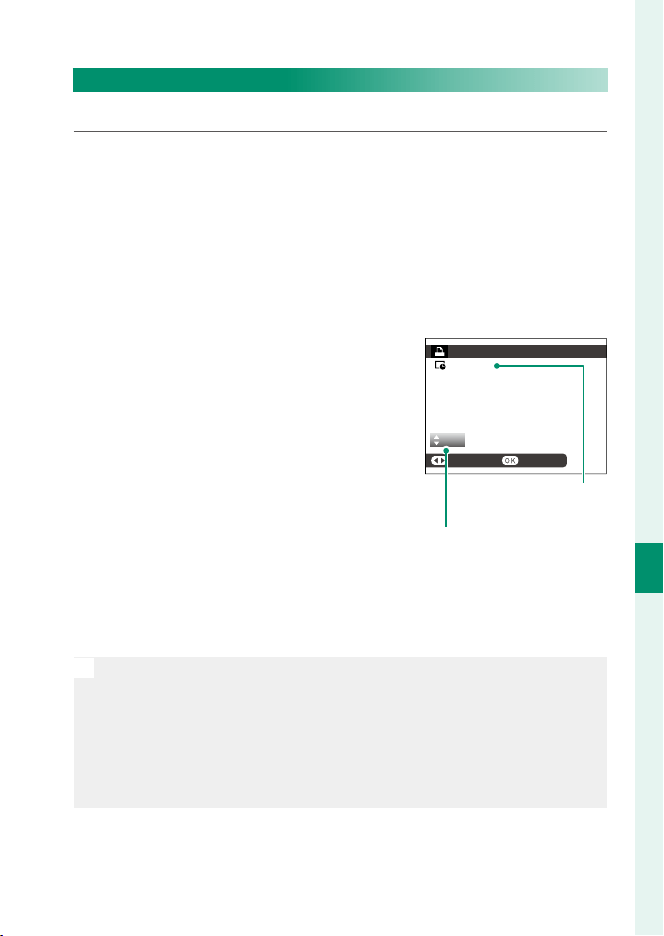
141
Playback and the Playback Menu
7
The Playback Menu
PRINT ORDER (DPOF)
Create a digital “print order” for DPOF-compatible printers.
1
Select C PLAY BACK MENU> PRINT ORDER (DPOF).
2
Select WITH DATE s to print the date of recording on pic-
tures, WITHOUT DATE to print pictures without dates, or RE-
SET ALL to remove all pictures from the print order before
proceeding.
3
Display a picture you wish to include in or remove from the
print order.
4
Press the selector up or down to
choose the number of copies (up to
99). To remove a picture from the or-
der, press the selector down until the
number of copies is 0.
01
PRINT ORDER (DPOF)
DPOF: 00001
SHEETS
SETFRAME
Total number
of prints
Number of copies
5
Repeat steps 3–4 to complete the print order.
6
The total number of prints is displayed in the monitor. Press
MENU/OK to exit.
N
The pictures in the current print order are indicated by a u icon
during playback.
Print orders can contain a maximum of 999 pictures.
If a memory card is inserted containing a print order created by an-
other camera, a message will be displayed. Pressing MENU/OK cancels
the print order; a new print order must be created as described above.
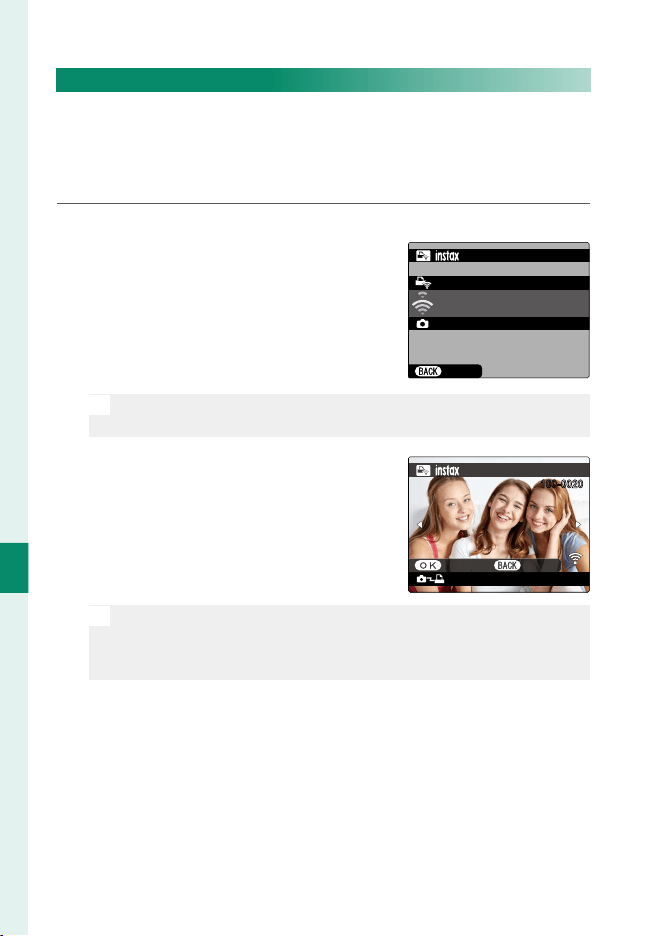
142
Playback and the Playback Menu
7
instax PRINTER PRINT
To print pictures to optional FUJIFILM instax SHARE printers, rst
select D CONNECTION SETTING> instax PRINTER CONNEC-
TION SETTING and enter the instax SHARE printer name (SSID)
and password, then follow the steps below.
1
Turn the printer on.
2
Select C PLAY BACK MENU> instax
PRINTER PRINT. The camera will con-
nect to the printer.
FUJIFILM-CAMERA-1234
CONNECTING TO PRINTER
CANCEL
PRINTER PRINT
instax-12345678
N
To print a frame from a burst sequence, display the frame before
selecting instax PRINTER PRINT.
3
Use the selector to display the pic-
ture you want to print, then press
MENU/OK. The picture will be sent to
the printer and printing will start.
100-0020
TRANSMIT CANCEL
instax-12345678
PRINTER PRINT
N
Pictures taken with other cameras can not be printed.
The area printed is smaller than the area visible in the LCD mon-
itor.
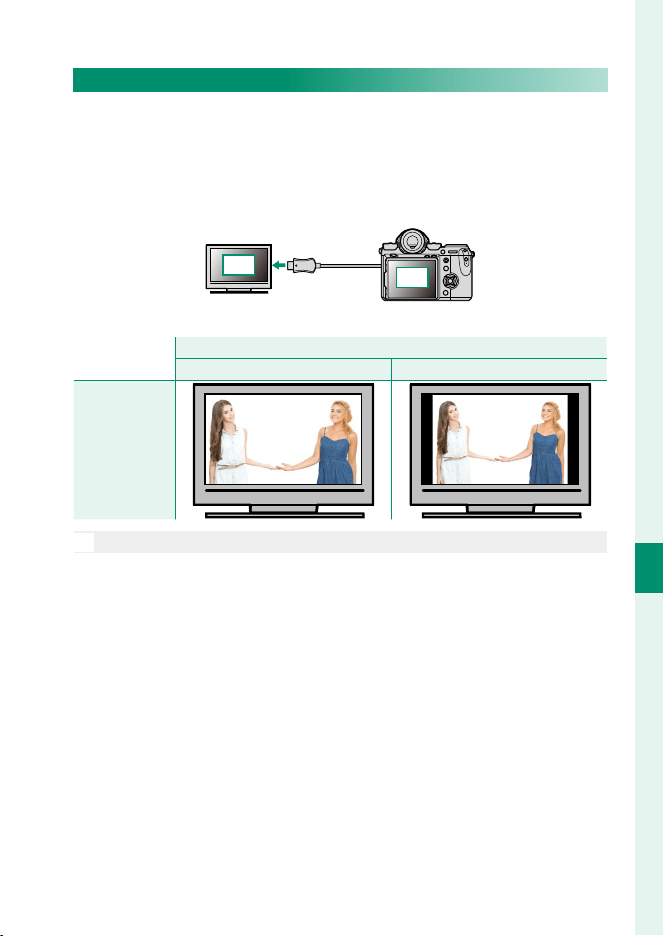
143
Playback and the Playback Menu
7
The Playback Menu
DISP ASPECT
Choose how High De nition (HD) devices display pictures with
an aspect ratio of 4∶3 (this option takes e ect only when an
HDMI cable is connected). Select 16∶9 to display the image so
that it lls the screen with its top and bottom cropped out, 4∶3 to
display the entire image with black bands at either side.
4:3
16 : 9
Option
Option
16
16
∶
∶
9
9
4
4
∶
∶
3
3
Display
N
Select 16∶9 when viewing pictures with an aspect ratio of 16∶9.

144
MEMO

145
The Setup Menus
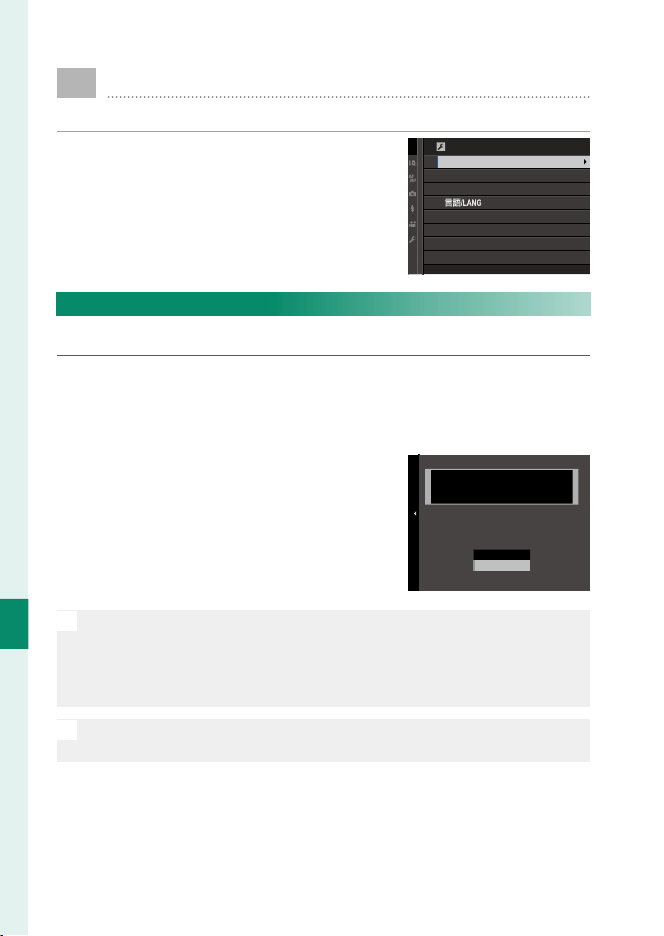
146
The Setup Menus
8
D
USER SETTING
Adjust basic camera settings.
To access basic camera settings, press
MENU/OK, select the D (SET UP) tab, and
choose USER SETTING.
USER SETTING
FORMAT
DATE/TIME
TIME DIFFERENCE
MY MENU SETTING
SENSOR CLEANING
BATTERY AGE
RESET
FORMAT
To format a memory card:
1
Select D USER SETTING> FORMAT in the D (SET UP) tab.
2
Highlight the slot containing the card you wish to format and
press MENU/OK.
3
A con rmation dialog will be dis-
played. To format the memory card,
highlight OK and press MENU/OK. To
exit without formatting the memory
card, select CANCEL or press DISP/BACK.
FORMAT CARD IN SLOT 1, OK?
OK
CANCEL
ERASE ALL DATA
FORMAT
O
All data—including protected pictures—will be deleted from the
memory card. Be sure important les have been copied to a computer
or other storage device.
Do not open the battery-chamber cover during formatting.
N
The format menu can also be displayed by pressing the center of the
rear command dial while pressing and holding the b button.
147
The Setup Menus
8
USER SETTING
DATE/TIME
To set the camera clock:
1
Select D USER SETTING> DATE/TIME in the D (SET UP) tab.
2
Press the selector left or right to highlight the year, month,
day, hour, or minute and press up or down to change. To
change the order in which the year, month, and day are dis-
played, highlight the date format and press the selector up
or down.
3
Press MENU/OK to set the clock.
TIME DIFFERENCE
Switch the camera clock instantly from your home time zone to
the local time at your destination when traveling. To specify the
di erence between your local and home time zone:
1
Highlight g LOCAL and press MENU/OK.
2
Use the selector to choose the time di erence between local
time and your home time zone. Press MENU/OK when settings
are complete.
To set the camera clock to local time, highlight g LOCAL and
press MENU/OK. To set the clock to the time in your home time zone,
select h HOME. If g LOCAL is selected, g will be displayed in
yellow for about three seconds when the camera is turned on.
Options
Options
g LOCAL h HOME
148
The Setup Menus
8
a
Choose a language.
MY MENU SETTING
Edit the items listed in the E (MY MENU) tab, a personalized cus-
tom menu of frequently-used options.
1
Highlight D USER SETTING> MY
MENU SETTING in the D (SET UP)
tab and press MENU/OK to display the
options at right.
マイメニュー設定
マイメニュー登録
順序変更
削除
MY MENU SETTING
MY MENU SETTING
RANK ITEMS
REMOVE ITEMS
2
Press the selector up or down to
highlight MY MENU SETTING and
press MENU/OK. Options that can be
added to “my menu” are highlighted
in blue.
COLOR CHROME EFFECT
DYNAMIC RANGE
WHITE BALANCE
GRAIN EFFECT
FILM SIMULATION
RAW RECORDING
IMAGE QUALITY
IMAGE SIZE
MY MENU SETTING
OK
CANCELSELECT
N
Items currently in “my menu” are indicated by check marks.
3
Highlight an item and press MENU/OK
to add it to “my menu”.
マイメニュー設定
1 画像サイズ
決定移動
MY MENU SETTING
1 IMAGE SIZE
OK
SAVEMOVE
4
Press MENU/OK to return to the edit display.
5
Repeat Steps 3 and 4 until all the desired items have been added.
N
“My menu” can contain up to 16 items.
Editing “My Menu”
To reorder or delete items, select RANK ITEMS or REMOVE ITEMS in Step 1.

149
The Setup Menus
8
USER SETTING
SENSOR CLEANING
Remove dust from the camera image sensor.
•
OK: Clean the sensor immediately.
•
WHEN SWITCHED ON: Sensor cleaning will be performed when the
camera is turned on.
•
WHEN SWITCHED OFF: Sensor cleaning will be performed when the
camera turns o (sensor cleaning is not however performed if
the camera turns o in playback mode).
N
Dust that can not be removed using sensor cleaning can be removed
manually.
BATTERY AGE
Check the age (expressed as a number between 0 and 4) of the
batteries in the camera and the vertical power-booster grip.

150
The Setup Menus
8
USER SETTING
RESET
Reset shooting or setup menu options to default values. Custom
white balance, custom settings banks created using EDIT/SAVE
CUSTOM SETTING, WIRELESS SETTINGS, and the setup menu
DATE/TIME and TIME DIFFERENCE options are not a ected.
1
Highlight the desired option and press the selector right.
2
A con rmation dialog will be displayed; highlight OK and
press MENU/OK.
151
The Setup Menus
8
D
SOUND SETTING
Make changes to camera sounds.
To access sound settings, press MENU/OK,
select the D (SET UP) tab, and choose
SOUND SETTING.
SOUND SETTING
AF BEEP VOL.
SELF-TIMER BEEP VOL.
OPERATION VOL.
HEADPHONES VOLUME
SHUTTER VOLUME
SHUTTER SOUND
PLAYBACK VOLUME
AF BEEP VOL.
Choose the volume of the beep that sounds when the camera
focuses. The beep can be muted by selecting f.
Options
Options
b (high) c (medium) d (low) f (mute)
SELF-TIMER BEEP VOL.
Choose the volume of the beep that sounds while the self-timer
is active. The beep can be muted by selecting f.
Options
Options
b (high) c (medium) d (low) f (mute)
OPERATION VOL.
Adjust the volume of the sounds produced when camera con-
trols are operated. Choose f to disable control sounds.
Options
Options
b (high) c (medium) d (low) f (mute)
152
The Setup Menus
8
SOUND SETTING
HEADPHONES VOLUME
Adjust headphone volume. Choose from values between 0 and 10.
SHUTTER VOLUME
Adjust the volume of the sounds produced by the electronic
shutter. Choose f to disable the shutter sound.
Options
Options
b (high) c (medium) d (low) f (mute)
SHUTTER SOUND
Choose the sound made by the electronic shutter.
Options
Options
ijk
PLAYBACK VOLUME
Adjust playback volume. Choose from values between 0 and 10.
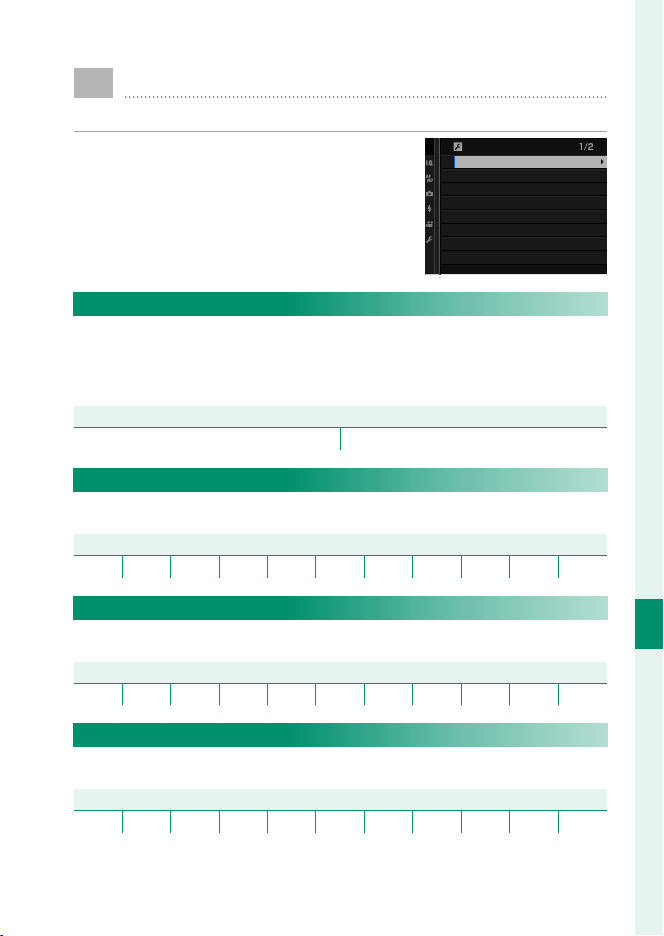
153
The Setup Menus
8
D
SCREEN SETTING
Make changes to display settings.
To access display settings, press MENU/OK,
select the D (SET UP) tab, and choose
SCREEN SETTING.
SCREEN SETTING
EVF BRIGHTNESS
EVF COLOR
LCD BRIGHTNESS
LCD COLOR
IMAGE DISP.
AUTOROTATE DISPLAYS
PREVIEW EXP./WB IN MANUAL MODE
PREVIEW PIC. EFFECT
EVF BRIGHTNESS
Adjust the brightness of the display in the electronic view nder.
Select MANUAL to choose from 11 options from +5 (bright) to
−5 (dark), or select AUTO for automatic brightness adjustment.
Options
Options
MANUAL AUTO
EVF COLOR
Adjust the hue of the display in the electronic view nder.
Options
Options
+5 +4 +3 +2 +1 0 −1 −2 −3 −4 −5
LCD BRIGHTNESS
Adjust monitor brightness.
Options
Options
+5 +4 +3 +2 +1 0 −1 −2 −3 −4 −5
LCD COLOR
Adjust monitor hue.
Options
Options
+5 +4 +3 +2 +1 0 −1 −2 −3 −4 −5

154
The Setup Menus
8
IMAGE DISP.
Choose how long images are displayed after shooting. Colors may
di er slightly from those in the nal image and “noise” mottling
may be visible at high sensitivities.
Option
Option
Description
Description
CONTINUOUS
Pictures are displayed until the MENU/OK button is pressed or the
shutter button is pressed halfway. To zoom in on the active focus
point, press the center of the rear command dial; press again to
cancel zoom.
1.5 SEC
Pictures are displayed for the selected time or until the shutter
button is pressed halfway.
0.5 SEC
OFF Pictures are not displayed after shooting.
AUTOROTATE DISPLAYS
Choose whether the indicators in the view nder and LCD monitor
rotate to match camera orientation.
Options
Options
ON OFF
155
The Setup Menus
8
SCREEN SETTING
PREVIEW EXP./WB IN MANUAL MODE
Select PREVIEW EXP./WB to enable exposure and white balance
preview in manual exposure mode, or choose PREVIEW WB to
preview only white balance (PREVIEW WB is recommended in sit-
uations in which exposure and white balance are likely to change
during shooting, as may be the case when you use a ash with an
incandescent monitoring lamp). Select OFF when using a ash
or on other occasions on which exposure may change when the
picture is taken.
Options
Options
PREVIEW EXP./WB PREVIEW WB OFF
PREVIEW PIC. EFFECT
Choose ON to preview the e ects of lm simulation, white bal-
ance, and other settings in the monitor, OFF to make shadows
in low-contrast, back-lit scenes and other hard-to-see subjects
more visible.
Options
Options
ON OFF
N
If OFF is selected, the e ects of camera settings will not be visible
in the monitor and colors and tone will di er from those in the nal
picture. The display will however be adjusted to show the e ects of
advanced lters and of monochrome and sepia settings.
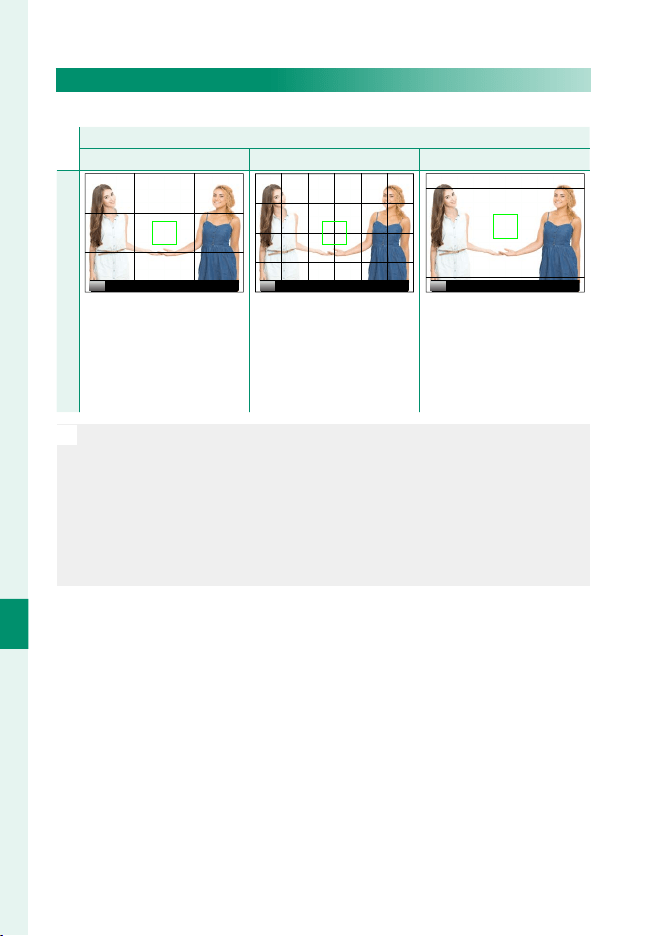
156
The Setup Menus
8
FRAMING GUIDELINE
Choose a framing grid for shooting mode.
Option
Option
F
F
GRID 9
GRID 9
G
G
GRID 24
GRID 24
H
H
HD FRAMING
HD FRAMING
Display
P P P
For “rule of thirds” compo-
sition.
A six-by-four grid. Frame HD pictures in the
crop shown by the lines at
the top and bottom of the
display. Framing guides can
be changed as desired for
tethered shooting.
N
Framing guides are not shown at default settings but can be displayed
using D SCREEN SETTING> DISP. CUSTOM SETTING (
P
158).
Tethered shooting is available with Adobe® Photoshop® Lightroom®
and HS-V5 tethered shooting software (available separately). Users of
Adobe® Photoshop® Lightroom® who wish to customize the HD fram-
ing guide will require FUJIFILM Tether Shooting Plug-in PRO (available
separately).

157
The Setup Menus
8
SCREEN SETTING
AUTOROTATE PB
Choose ON to automatically rotate “tall” (portrait-orientation)
pictures during playback.
Options
Options
ON OFF
FOCUS SCALE UNITS
Choose the units used for the focus distance indicator.
Options
Options
METERS FEET
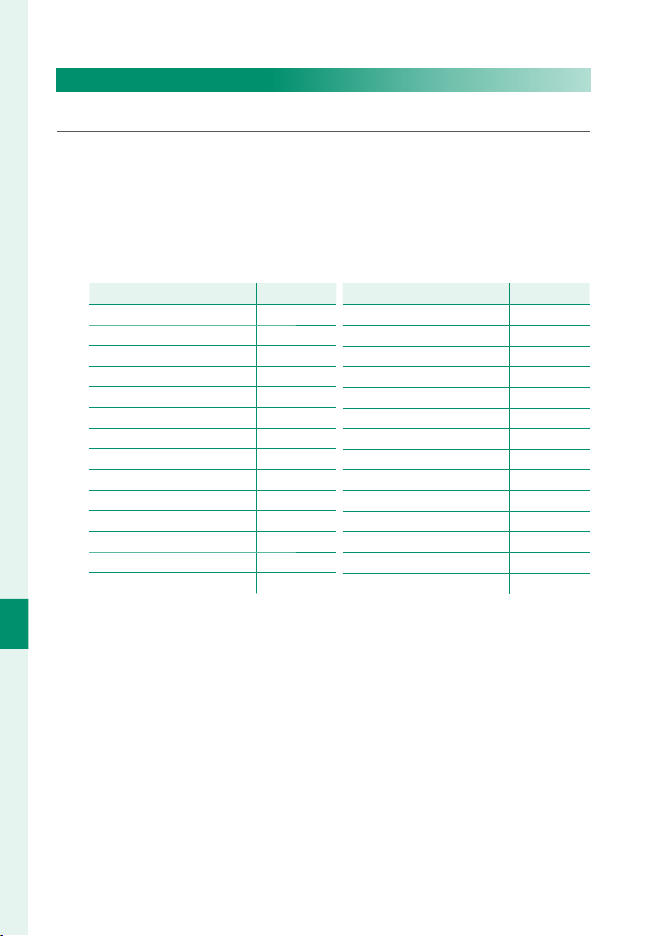
158
The Setup Menus
8
DISP. CUSTOM SETTING
Choose the items shown in the standard indicator display.
1
In shooting mode, press DISP/BACK until standard indicators
are displayed.
2
Press MENU/OK and select D SCREEN SETTING> DISP. CUS-
TOM SETTING in the D (SET UP) tab.
3
Highlight items and press MENU/OK to select or deselect.
Item
Item
Default
Default
FRAMING GUIDELINE
w
ELECTRONIC LEVEL
w
FOCUS FRAME
R
AF DISTANCE INDICATOR
w
MF DISTANCE INDICATOR
R
HISTOGRAM
w
LIVE VIEW HIGHLIGHT ALERT
w
SHOOTING MODE
R
APERTURE/S-SPEED/ISO
R
INFORMATION BACKGROUND
R
Expo. Comp. (Digit)
w
Expo. Comp. (Scale)
R
FOCUS MODE
R
PHOTOMETRY
R
Item
Item
Default
Default
SHUTTER TYPE
R
FLASH
R
CONTINUOUS MODE
R
DUAL IS MODE
R
TOUCH SCREEN MODE
R
WHITE BALANCE
R
FILM SIMULATION
R
DYNAMIC RANGE
R
FRAMES REMAINING
R
IMAGE SIZE/QUALITY
R
MOVIE MODE & REC. TIME
R
MIC LEVEL ADJUSTMENT
R
BATTERY LEVEL
R
FRAMING OUTLINE
w
4
Press DISP/BACK to save changes.
5
Press DISP/BACK as needed to exit the menus and return to the
shooting display.
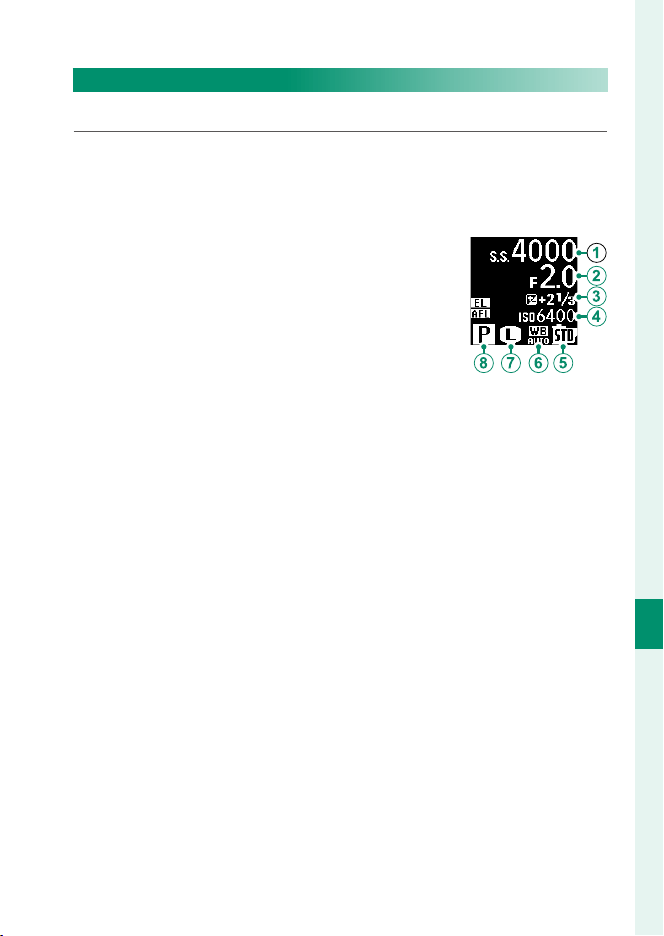
159
The Setup Menus
8
SCREEN SETTING
SUB MONITOR SETTING
Choose the items shown in the secondary LCD monitor.
1
Press MENU/OK and select D SCREEN SETTING> SUB MONI-
TOR SETTING in the D (SET UP) tab.
2
Select STILL MODE or MOVIE MODE.
3
Highlight items for display in positions
A
to
H
and press MENU/OK to select or de-
select. Items not available when MOVIE
MODE is selected are indicated by aster-
isks (“*”).
•
Text (items
A
to
D
): SHUTTER SPEED, APERTURE, EXPO.
COMP, ISO, MOVIE MODE, FRAMES REM.
*
, REC. TIME, NONE
•
Icons (items
E
to
H
): FILM SIMULATION, WHITE BALANCE,
IMAGE SIZE
*
, SHOOTING MODE, PHOTOMETRY, DRIVE
MODE
*
, FOCUS MODE, IMAGE QUALITY
*
, BATTERY LEVEL,
CARD SLOT OPTIONS, SHUTTER TYPE
*
, DYNAMIC RANGE
*
,
MOVIE MODE
*
, NONE
4
Press DISP/BACK to save changes.
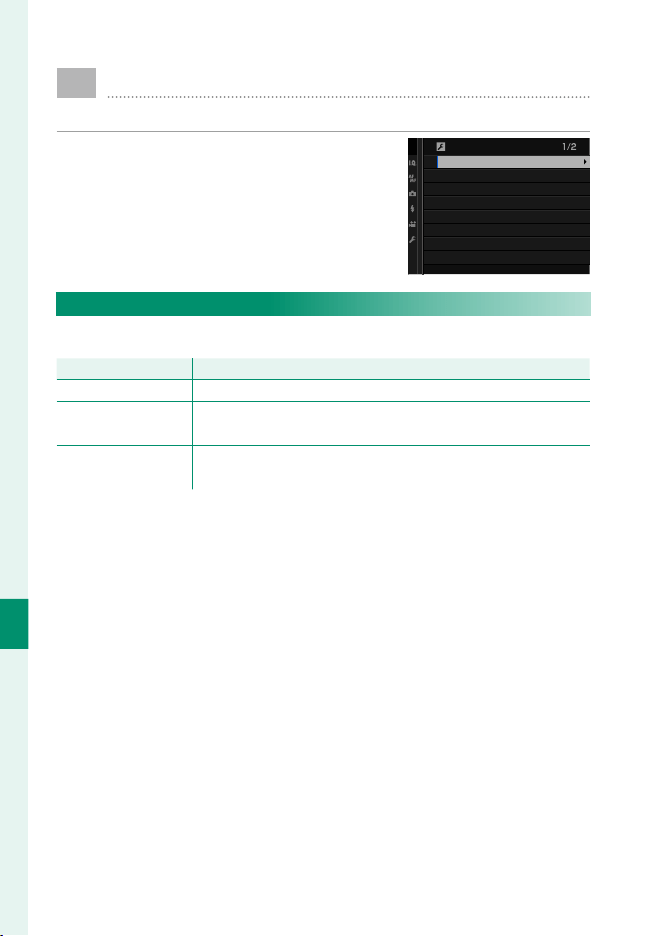
160
The Setup Menus
8
D
BUTTON/DIAL SETTING
Access options for camera controls.
To access control options, press MENU/OK,
select the D (SET UP) tab, and choose
BUTTON/DIAL SETTING.
BUTTON/DIAL SETTING
FOCUS LEVER SETTING
EDIT/SAVE QUICK MENU
FUNCTION (Fn) SETTING
SELECTOR BUTTON SETTING
COMMAND DIAL SETTING
SHUTTER AF
SHUTTER AE
SHOOT WITHOUT LENS
FOCUS LEVER SETTING
Choose the functions performed by the focus stick (focus lever).
Option
Option
Description
Description
LOCK (OFF) The focus stick can not be used during shooting.
PUSH n TO UNLOCK
Press the stick to view the focus-point display and tilt the stick
to select a focus point.
ON
Tilt the stick to view the focus-point display and select a focus
point.

161
The Setup Menus
8
BUTTON/DIAL SETTING
EDIT/SAVE QUICK MENU
Choose the items displayed in the quick menu.
1
Select D BUTTON/DIAL SETTING> EDIT/SAVE QUICK MENU
in the D (SET UP) tab.
2
The current quick menu will be displayed; use the selector
to highlight the item you wish to change and press MENU/OK.
3
Highlight any of the following options and press MENU/OK to
assign it to the selected position.
•
IMAGE SIZE
•
IMAGE QUALITY
•
FILM SIMULATION
*
•
GRAIN EFFECT
*
•
COLOR CHROME EFFECT
•
DYNAMIC RANGE
*
•
WHITE BALANCE
*
•
HIGHLIGHT TONE
*
•
SHADOW TONE
*
•
COLOR
*
•
SHARPNESS
*
•
NOISE REDUCTION
*
•
SELECT CUSTOM SETTING
*
•
AF MODE
•
AF-C CUSTOM SETTINGS
•
FACE/EYE DETECTION SETTING
•
MF ASSIST
•
TOUCH SCREEN MODE
•
SELF-TIMER
•
PHOTOMETRY
•
SHUTTER TYPE
•
FLASH FUNCTION SETTING
•
FLASH COMPENSATION
•
MOVIE MODE
•
MIC LEVEL ADJUSTMENT
•
EVF/LCD BRIGHTNESS
•
EVF/LCD COLOR
•
NONE
* Stored in custom settings bank.
N
Select NONE to assign no option to the selected position. When
SELECT CUSTOM SETTING is selected, current settings are
shown in the quick menu by the label BASE.
4
Highlight the desired item and press MENU/OK to assign it to
the selected position.
N
The quick menu can also be accessed in shooting mode by holding
the Q button.

162
The Setup Menus
8
FUNCTION (Fn) SETTING
Choose the roles played by the function buttons.
1
Select D BUTTON/DIAL SETTING> FUNCTION (Fn) SET-
TING in the D (SET UP) tab.
2
Highlight the desired control and press MENU/OK.
3
Highlight any of the following options and press MENU/OK to
assign it to the selected control.
•
EXP. COMPENSATION
•
IMAGE SIZE
•
IMAGE QUALITY
•
RAW
•
FILM SIMULATION
•
GRAIN EFFECT
•
COLOR CHROME EFFECT
•
DYNAMIC RANGE
•
WHITE BALANCE
•
SELECT CUSTOM SETTING
•
FOCUS AREA
•
FOCUS CHECK
•
AF MODE
•
RAPID AF
•
FACE/EYE DETECTION SETTING
•
SELF-TIMER
•
AE BKT SETTING
•
PHOTOMETRY
•
SHUTTER TYPE
•
ISO AUTO SETTING
•
WIRELESS COMMUNICATION
•
FLASH FUNCTION SETTING
•
TTL-LOCK
•
MODELING FLASH
•
MIC LEVEL ADJUSTMENT
•
PREVIEW DEPTH OF FIELD
•
PREVIEW EXP./WB IN MANUAL MODE
•
PREVIEW PIC. EFFECT
•
HISTOGRAM
•
ELECTRONIC LEVEL
•
AE LOCK ONLY
•
AF LOCK ONLY
•
AE/AF LOCK
•
AF-ON
•
LOCK SETTING
•
PLAYBACK
•
NONE (control disabled)
N
Function button assignment options can also be accessed by holding
the DISP/BACK button. The selector can not be assigned more than one
role at a time.

163
The Setup Menus
8
BUTTON/DIAL SETTING
AF-ON
If AF-ON is selected, you can press the control instead of keeping
the shutter button pressed halfway.
MODELING FLASH
If MODELING FLASH is selected when a compatible shoe-mount-
ed ash unit is attached, you can press the control to test- re the
ash and check for shadows and the like (modeling ash).
TTL-LOCK
If TTL-LOCK is selected, you can press the control to lock ash
output according to the option selected for F FLASH SETTING>
TTL-LOCK MODE (
P
114).

164
The Setup Menus
8
SELECTOR BUTTON SETTING
Choose the roles played by the up, down, left, and right buttons
on the selector.
Option
Option
Description
Description
Fn BUTTON The selector buttons serve as function buttons.
FOCUS AREA The selector buttons can be used to position the focus area.
N
Selecting FOCUS AREA prevents you accessing the functions as-
signed to the function buttons.
COMMAND DIAL SETTING
Choose the roles played by the command dials.
Option
Option
Description
Description
Y F X S.S.
The front command dial controls aperture, the rear com-
mand dial shutter speed.
Y S.S. X F
The front command dial controls shutter speed, the rear
command dial aperture.
SHUTTER AF
Choose whether the camera focuses when the shutter button is
pressed halfway.
Option
Option
Description
Description
ON
In focus mode S (AF-S), the camera focuses when the shutter button
is pressed halfway and locks focus while the button remains in this
position. In focus mode C (AF-C), focus is adjusted continually while the
button is pressed halfway.
OFF
The camera does not focus when the shutter button is pressed half-
way.
165
The Setup Menus
8
BUTTON/DIAL SETTING
SHUTTER AE
If ON is selected, exposure will lock while the shutter button is
pressed halfway.
Options
Options
ON OFF
N
Select OFF to allow the camera to adjust exposure before each shot
taken in burst mode.
SHOOT WITHOUT LENS
Choose ON to enable the shutter release when no lens is at-
tached.
Options
Options
ON OFF
FOCUS RING
Choose the direction in which the focus ring is rotated to in-
crease the focus distance.
Options
Options
X CW (clockwise) Y CCW (counterclockwise)
AE/AF-LOCK MODE
If AE & AF ON WHEN PRESSING is selected, exposure and/or
focus will lock while you press the button to which exposure or
focus lock is assigned. If AE & AF ON/OFF SWITCH is selected,
exposure and/or focus will lock when the button is pressed and
remain locked until it is pressed again.
Options
Options
AE & AF ON WHEN PRESSING AE & AF ON/OFF SWITCH

166
The Setup Menus
8
BUTTON/DIAL SETTING
EXPO. COMP. BUTTON SETTING
Control the behavior of the rear command dial and the button
to which exposure compensation is assigned. If
d
ON WHEN
PRESSING is selected, exposure compensation can be adjusted
by holding the button while rotating dial; if
d
ON/OFF SWITCH
is selected, exposure compensation can be set by pressing the
button once, rotating the dial, and then pressing the button
again.
Options
Options
ON WHEN PRESSING ON/OFF SWITCH
TOUCH SCREEN SETTING
Enable or disable touch-screen controls.
Options
Options
ON OFF
LOCK
Lock selected controls to prevent unintended operation.
Options
Options
Description
Description
LOCK SETTING
Choose from the following:
•
UNLOCK: Reset lock options.
•
ALL FUNCTION: Lock all controls in the FUNCTION SE-
LECTION list.
•
SELECTED FUNCTION: Lock only the controls selected in
the FUNCTION SELECTION list.
FUNCTION
SELECTION
Choose the controls locked when SELECTED FUNCTION is
chosen for LOCK SETTING.
N
The selector and the Q button can be locked at any time by pressing
and holding the MENU/OK button (
P
5).
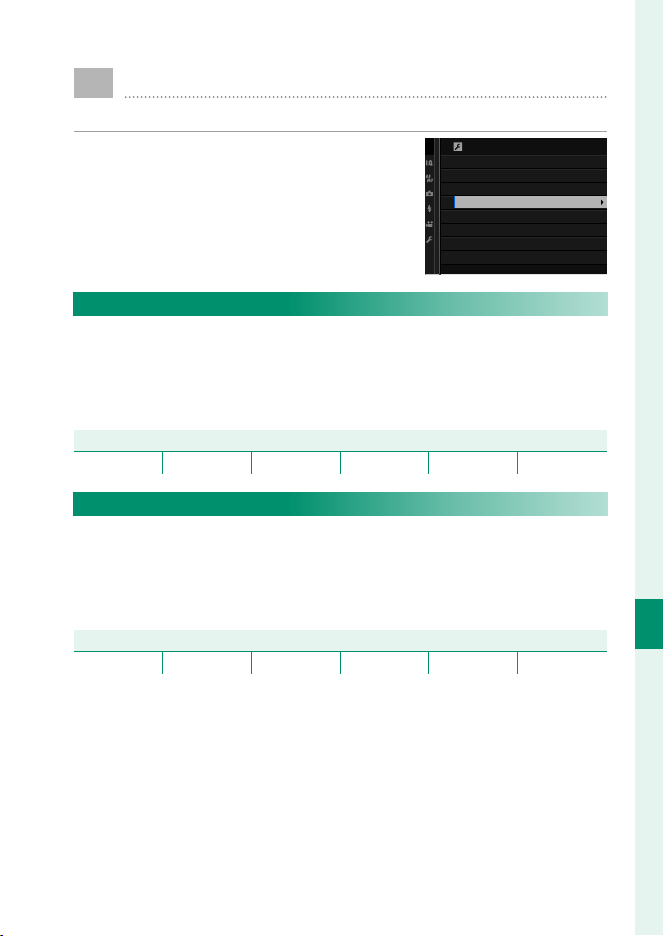
167
The Setup Menus
8
D
POWER MANAGEMENT
Adjust power management settings.
To access power management settings,
press MENU/OK, select the D (SET UP) tab,
and choose POWER MANAGEMENT.
POWER MANAGEMENT
AUTO POWER OFF
SHOOTING STAND BY MODE
AUTO POWER SAVE
AUTO POWER OFF
Choose the length of time before the camera turns o automati-
cally when no operations are performed. Shorter times increase
battery life; if OFF is selected, the camera must be turned o
manually.
Options
Options
5 MIN 2 MIN 1 MIN 30 SEC 15 SEC OFF
SHOOTING STAND BY MODE
In standby mode, all displays except the secondary LCD monitor
turn o to save power. Choose how long the camera waits before
entering standby mode when no operations are performed, or
select OFF to disable standby mode.
Options
Options
5 MIN 2 MIN 1 MIN 30 SEC 15 SEC OFF

168
The Setup Menus
8
POWER MANAGEMENT
AUTO POWER SAVE
If ON is selected, the display frame rate will drop to save power if
no operations are performed for a short period, but the normal
frame rate can be restored by operating camera controls.
Options
Options
ON OFF
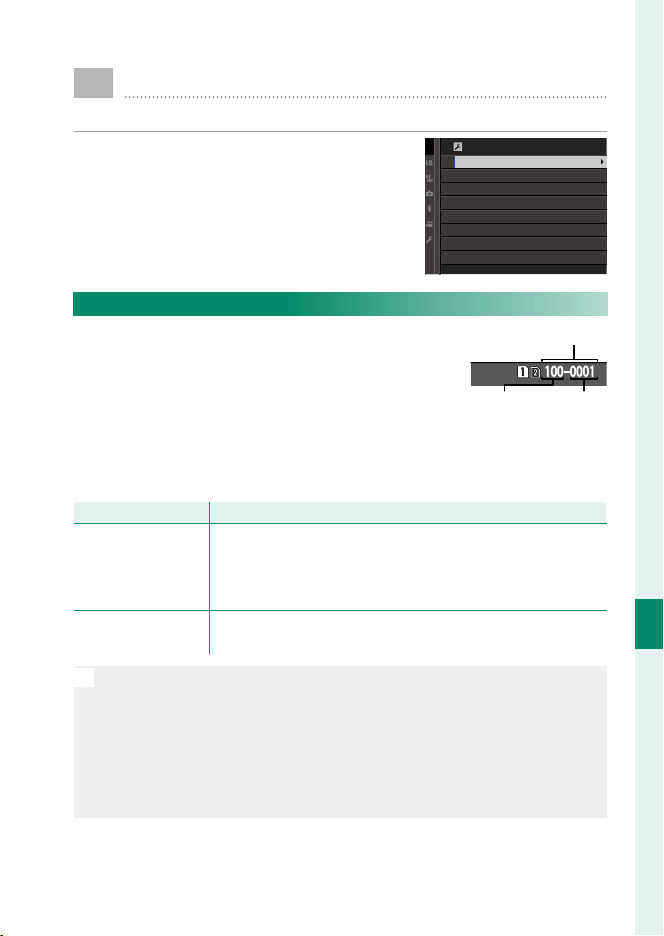
169
The Setup Menus
8
D
SAVE DATA SETTING
Make changes to le management settings.
To access le management settings,
press MENU/OK, select the D (SET UP) tab,
and choose SAVE DATA SETTING.
SAVE DATA SETTING
FRAME NO.
SAVE ORG IMAGE
EDIT FILE NAME
CARD SLOT SETTING (STILL IMAGE)
SWITCH SLOT (SEQUENTIAL)
MOVIE FILE DESTINATION
COPYRIGHT INFO
FRAME NO.
New pictures are stored in image les named
using a four-digit le number assigned by
adding one to the last le number used. The
le number is displayed during playback as
shown. FRAME NO. controls whether le num-
bering is reset to 0001 when a new memory card is inserted or
the current memory card is formatted.
Option
Option
Description
Description
CONTINUOUS
Numbering continues from the last fi le number used or the
fi rst available fi le number, whichever is higher. Choose this
option to reduce the number of pictures with duplicate fi le
names.
RENEW
Numbering is reset to 0001 after formatting or when a new
memory card is inserted.
N
If the frame number reaches 999-9999, the shutter release will be dis-
abled. Format the memory card after transferring to a computer any
pictures you wish to keep.
Selecting D USER SETTING> RESET sets FRAME NO. to CONTINU-
OUS but does not reset the le number.
Frame numbers for pictures taken with other cameras may di er.
Frame number
Directory
number
File
number

170
The Setup Menus
8
SAVE ORG IMAGE
Choose ON to save unprocessed copies of pictures taken using
RED EYE REMOVAL.
Options
Options
ON OFF
EDIT FILE NAME
Change the le name pre x. sRGB images use a four-letter pre x
(default “DSCF”), Adobe RGB images a three-letter pre x (“DSF”)
preceded by an underscore.
Option
Option
Default pre x
Default pre x
Sample le name
Sample le name
sRGB DSCF ABCD0001
Adobe RGB _DSF _ABC0001
N
File name pre xes can be edited using touch controls.
CARD SLOT SETTING (STILL IMAGE)
Choose the role played by the card in the second slot.
Option
Option
Description
Description
SEQUENTIAL
The card in the second slot is used only when the card in the
fi rst slot is full.
BACKUP Each picture is recorded twice, once to each card.
RAW/JPEG
As for SEQUENTIAL, except that the RAW copy of pictures
taken with FINE + RAW or NORMAL + RAW selected for
H IMAGE QUALITY SETTING> IMAGE QUALITY will
be saved to the card in the fi rst slot and the JPEG copy to the
card in the second slot.
SWITCH SLOT (SEQUENTIAL)
Choose the card that is recorded to rst when SEQUENTIAL is
selected for CARD SLOT SETTING (STILL IMAGE).
Options
Options
SLOT 1 SLOT 2

171
The Setup Menus
8
SAVE DATA SETTING
MOVIE FILE DESTINATION
Choose the slot used to store movies.
Options
Options
SLOT 1 SLOT 2
COPYRIGHT INFO
Copyright information, in the form of Exif tags, can be added to
new images as they are taken. Changes to copyright information
are re ected only in images taken after the changes are made.
Option
Option
Description
Description
DISP COPYRIGHT INFO View the current copyright information.
ENTER AUTHOR’S INFO Enter the creator’s name.
ENTER COPYRIGHT INFO Enter the name of the copyright holder.
DELETE COPYRIGHT INFO
Delete the current copyright information. This change applies
only to images taken after this option is selected; copyright
information recorded with existing images is not aff ected.
N
Copyright information can be edited using touch controls.
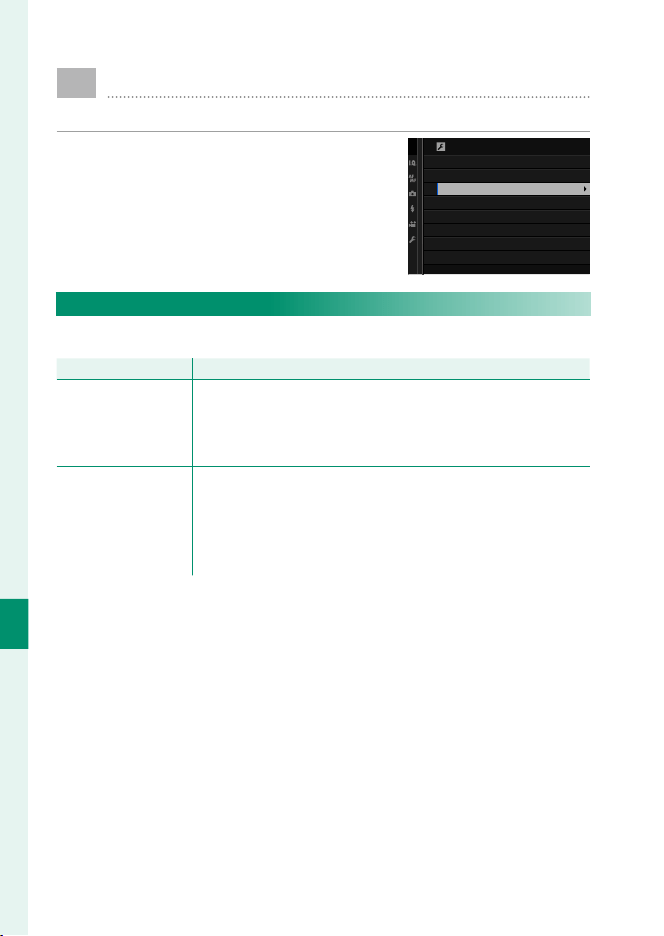
172
The Setup Menus
8
D
CONNECTION SETTING
Adjust settings for connection to other devices.
To access connection settings, press
MENU/OK, select the D (SET UP) tab, and
choose CONNECTION SETTING.
CONNECTION SETTING
WIRELESS SETTINGS
PC CONNECTION SETTING
GEOTAGGING SET-UP
instax PRINTER CONNECTION SETTING
PC SHOOT MODE
WIRELESS SETTINGS
Adjust settings for connection to wireless networks.
Option
Option
Description
Description
GENERAL SETTINGS
Choose a name (NAME) to identify the camera on the
wireless network (the camera is assigned a unique name by
default) or select RESET WIRELESS SETTINGS to restore
default settings.
RESIZE IMAGE FOR
SMARTPHONE H
Choose ON (the default setting, recommended in most
circumstances) to resize larger images to H for upload to
smartphones, OFF to upload images at their original size.
Resizing applies only to the copy uploaded to the smart-
phone; the original is not aff ected.
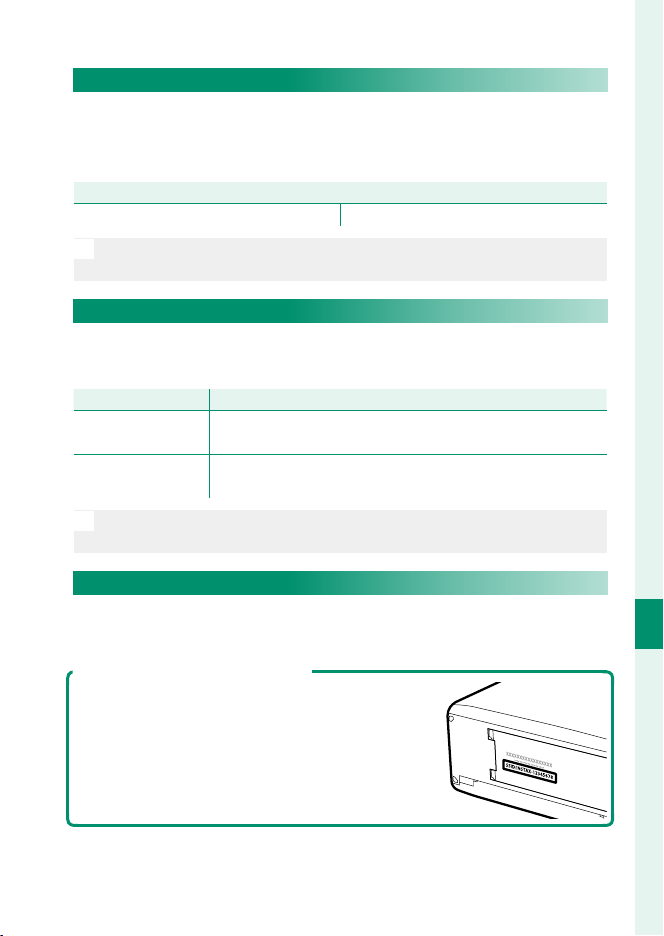
173
The Setup Menus
8
CONNECTION SETTING
PC CONNECTION SETTING
Choose the method used for connection to computers. Choose
SIMPLE SETUP to connect using WPS, MANUAL SETUP to con g-
ure network settings manually.
Options
Options
SIMPLE SETUP MANUAL SETUP
N
For more information on wireless connections, visit:
http://fujifilm-dsc.com/wifi/
GEOTAGGING SET-UP
View location data downloaded from a smartphone and choose
whether to save the data with your pictures.
Option
Option
Description
Description
GEOTAGGING
Choose whether location data downloaded from a smart-
phone are embedded in pictures as they are taken.
LOCATION INFO
Display the location data last downloaded from a smart-
phone.
N
For more information on wireless connections, visit:
http://fujifilm-dsc.com/wifi/
instax PRINTER CONNECTION SETTING
Adjust settings for connection to optional FUJIFILM instax SHARE
printers.
The Printer Name (SSID) and Password
The printer name (SSID) can be found on the
bottom of the printer; the default password is
“1111”. If you have already chosen a di erent
password to print from a smartphone, enter
that password instead.

174
The Setup Menus
8
CONNECTION SETTING
PC SHOOT MODE
Adjust settings for remote photography (tethered shooting).
Option
Option
Description
Description
OFF
Choose this option if you do not intend to use tethered
shooting.
USB AUTO
Tethered shooting mode is selected automatically when the
camera is connected to a computer via USB. When no com-
puter is connected, the results are the same as OFF.
USB FIXED
The camera functions in tethered shooting mode even when
not connected to a computer. At default settings, pictures are
not saved to the memory card, but pictures taken while the
camera is not connected will be transferred to the computer
when it is connected.
O
D POWER MANAGEMENT> AUTO POWER OFF also apply during
tethered shooting. Select OFF to prevent the camera turning o au-
tomatically.
N
Tethered shooting is available with software such as HS-V5 (available
separately) or FUJIFILM X Acquire (available for free download from
the FUJIFILM website) or when the FUJIFILM Tether Shooting Plug-in
PRO or Tether Shooting Plug-in (both available separately) is used with
Adobe® Photoshop® Lightroom®.

175
Shortcuts

176
Shortcuts
9
Shortcut Options
Customize camera controls to suit your style or situation.
Frequently-used options can be added to the Q menu or a cus-
tom “my” menu or assigned to an Fn (function) button for direct
access:
•
The Q menu (
P
177): The Q menu is displayed by pressing the Q
button. Use the Q menu to view or change the options selected
for frequently-used menu items.
•
“My menu” (
P
184): Add frequently-used options to this cus-
tom menu, which can be viewed by pressing MENU/OK and se-
lecting the E (“MY MENU”) tab.
•
The function buttons (
P
180): Use the function buttons for di-
rect access to selected features.
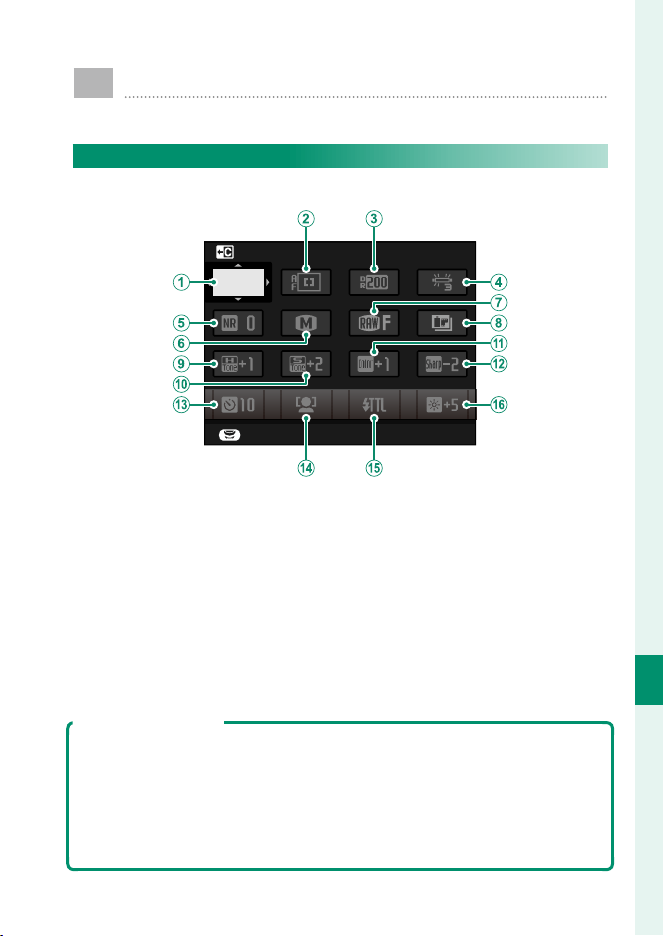
177
Shortcuts
9
The Q (Quick Menu) Button
Press Q for quick access to selected options.
The Quick Menu Display
At default settings, the quick menu contains the following items:
SET
SELECT CUSTOM SETTING
BASE
A
SELECT CUSTOM SETTING
B
AF MODE
C
DYNAMIC RANGE
D
WHITE BALANCE
E
NOISE REDUCTION
F
IMAGE SIZE
G
IMAGE QUALITY
H
FILM SIMULATION
I
HIGHLIGHT TONE
J
SHADOW TONE
K
COLOR
L
SHARPNESS
M
SELF-TIMER
N
FACE/EYE DETECTION SETTING
O
FLASH FUNCTION SETTING
P
EVF/LCD BRIGHTNESS
The quick menu shows the options currently selected for items
B
–
P
, which can be changed as described on page 179.
SELECT CUSTOM SETTING
The H IMAGE QUALITY SETTING> SELECT CUSTOM SETTING item (item
A
) shows the current custom settings bank:
•
q: No custom settings bank selected.
•
t–u: Select a bank to view the settings saved using the H IMAGE
QUALITY SETTING> EDIT/SAVE CUSTOM SETTING option.
•
r–s: The current custom settings bank.
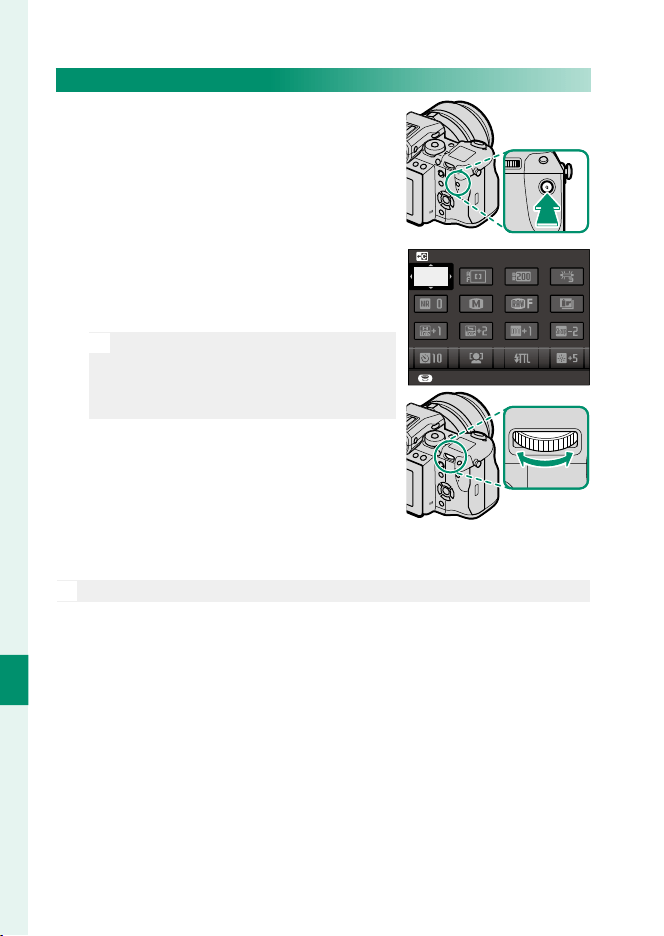
178
Shortcuts
9
Viewing and Changing Settings
1
Press Q to display the quick menu
during shooting.
2
Use the selector to highlight items
and rotate the rear command dial to
change.
N
Changes are not saved to the cur-
rent settings bank. Settings that dif-
fer from those in the current settings
bank (t–u) are shown in red.
SET
SELECT CUSTOM SETTING
BASE
3
Press Q to exit when settings are complete.
N
The quick menu can also be edited using touch controls.
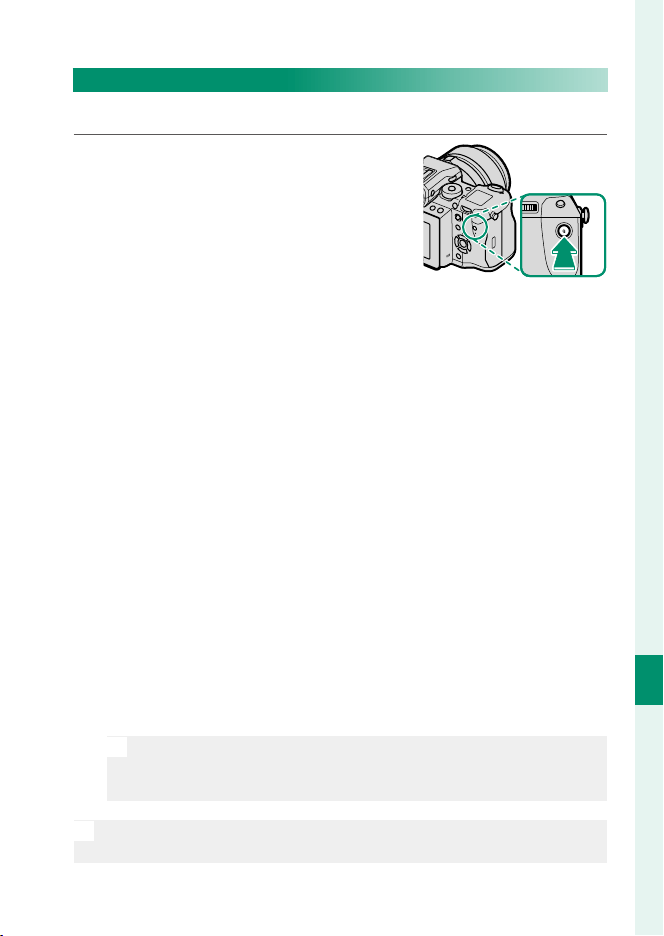
179
Shortcuts
9
The Q (Quick Menu) Button
Editing the Quick Menu
To choose the items displayed in the quick menu:
1
Press and hold the Q button during
shooting.
2
The current quick menu will be displayed; use the selector
to highlight the item you wish to change and press MENU/OK.
3
Highlight any of the following options and press MENU/OK to
assign it to the selected position.
•
IMAGE SIZE
•
IMAGE QUALITY
•
FILM SIMULATION
*
•
GRAIN EFFECT
*
•
COLOR CHROME EFFECT
•
DYNAMIC RANGE
*
•
WHITE BALANCE
*
•
HIGHLIGHT TONE
*
•
SHADOW TONE
*
•
COLOR
*
•
SHARPNESS
*
•
NOISE REDUCTION
*
•
SELECT CUSTOM SETTING
*
•
AF MODE
•
AF-C CUSTOM SETTINGS
•
FACE/EYE DETECTION SETTING
•
MF ASSIST
•
TOUCH SCREEN MODE
•
SELF-TIMER
•
PHOTOMETRY
•
SHUTTER TYPE
•
FLASH FUNCTION SETTING
•
FLASH COMPENSATION
•
MOVIE MODE
•
MIC LEVEL ADJUSTMENT
•
EVF/LCD BRIGHTNESS
•
EVF/LCD COLOR
•
NONE
* Stored in custom settings bank.
N
Select NONE to assign no option to the selected position. When
SELECT CUSTOM SETTING is selected, current settings are
shown in the quick menu by the label BASE.
N
The quick menu can also be edited using D BUTTON/DIAL SET-
TING> EDIT/SAVE QUICK MENU.
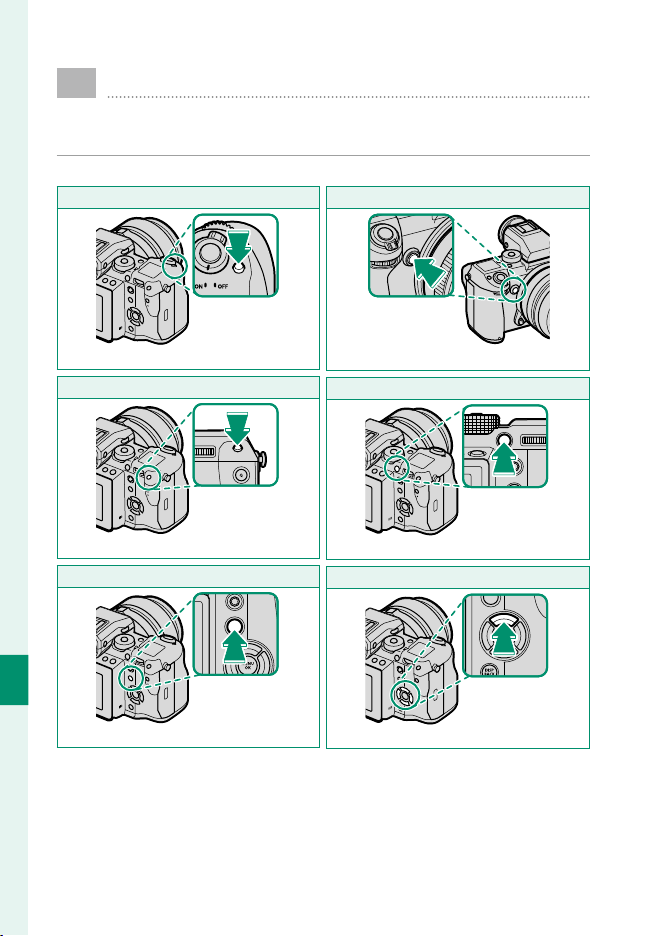
180
Shortcuts
9
The Fn (Function) Buttons
Assign roles to the function buttons and the center of the
rear command dial for quick access to selected features.
The default assignments are:
Fn1 button
Fn1 button
Exposure compensation
Fn3 button
Fn3 button
Histogram
Fn5 button
Fn5 button
Exposure lock
Fn2 button
Fn2 button
Exposure bracketing
Fn4 button
Fn4 button
Focus lock
Fn6 button
Fn6 button
AF mode
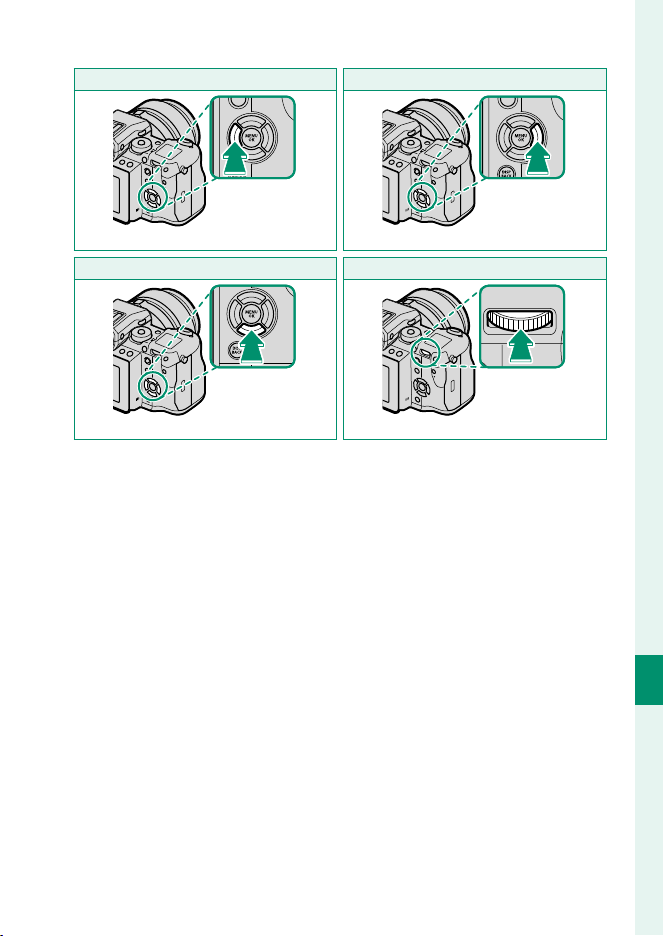
181
Shortcuts
9
The Fn (Function) Buttons
Fn7 button
Fn7 button
Film simulation
Fn8 button
Fn8 button
White balance
Fn9 button
Fn9 button
Rapid AF
Center of rear command dial
Center of rear command dial
Focus check
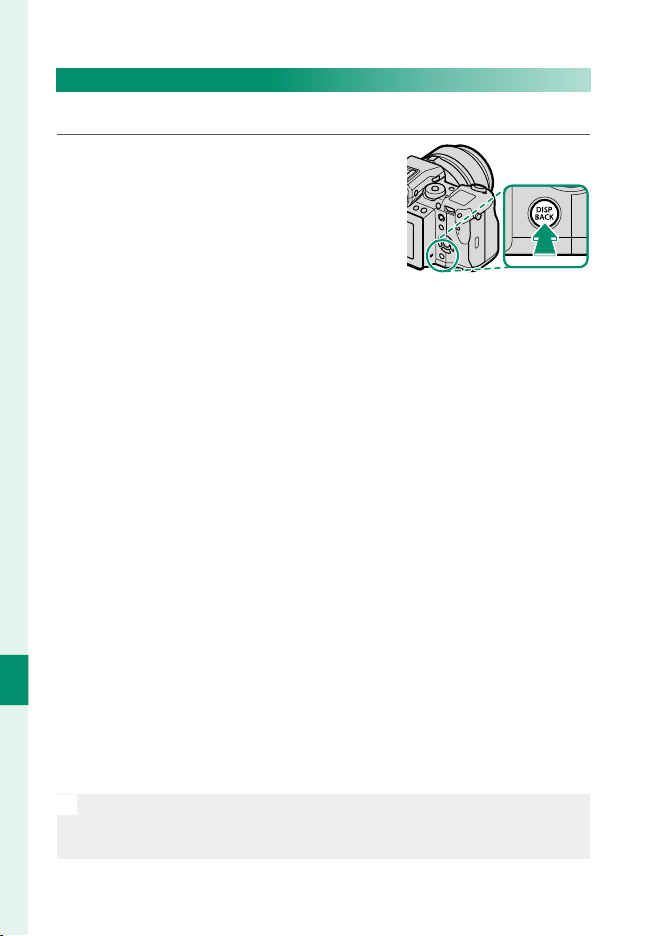
182
Shortcuts
9
Assigning Roles to the Function Buttons
To assign roles to the buttons:
1
Press and hold the DISP/BACK button
until a button selection menu is dis-
played.
2
Highlight a button and press MENU/OK.
3
Highlight the desired role and press MENU/OK to assign it to
the selected button. Choose from:
•
EXP. COMPENSATION
•
IMAGE SIZE
•
IMAGE QUALITY
•
RAW
•
FILM SIMULATION
•
GRAIN EFFECT
•
COLOR CHROME EFFECT
•
DYNAMIC RANGE
•
WHITE BALANCE
•
SELECT CUSTOM SETTING
•
FOCUS AREA
•
FOCUS CHECK
•
AF MODE
•
RAPID AF
•
FACE/EYE DETECTION SETTING
•
SELF-TIMER
•
AE BKT SETTING
•
PHOTOMETRY
•
SHUTTER TYPE
•
ISO AUTO SETTING
•
WIRELESS COMMUNICATION
•
FLASH FUNCTION SETTING
•
TTL-LOCK
•
MODELING FLASH
•
MIC LEVEL ADJUSTMENT
•
PREVIEW DEPTH OF FIELD
•
PREVIEW EXP./WB IN MANUAL MODE
•
PREVIEW PIC. EFFECT
•
HISTOGRAM
•
ELECTRONIC LEVEL
•
AE LOCK ONLY
•
AF LOCK ONLY
•
AE/AF LOCK
•
AF-ON
•
LOCK SETTING
•
PLAYBACK
•
NONE (control disabled)
N
Button assignments can also be selected using D BUTTON/DIAL
SETTING> FUNCTION (Fn) SETTING. The selector can not be as-
signed more than one role at a time.
183
Shortcuts
9
The Fn (Function) Buttons
AF-ON
If AF-ON is selected, you can press the control instead of keeping
the shutter button pressed halfway.
MODELING FLASH
If MODELING FLASH is selected when a compatible shoe-mount-
ed ash unit is attached, you can press the control to test- re the
ash and check for shadows and the like (modeling ash).
TTL-LOCK
If TTL-LOCK is selected, you can press the control to lock ash
output according to the option selected for F FLASH SETTING>
TTL-LOCK MODE (
P
114).
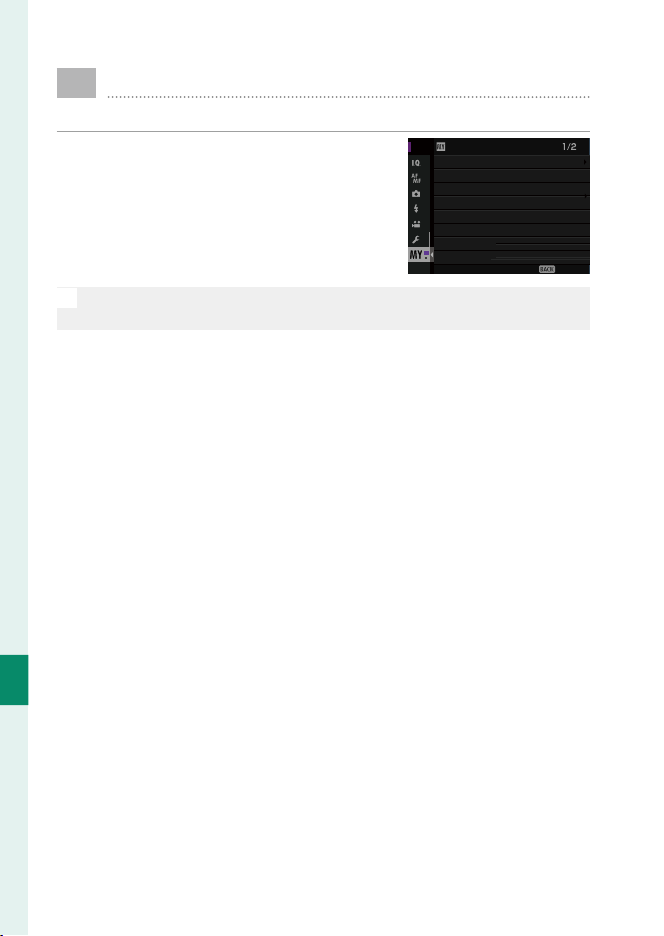
184
Shortcuts
9
E
MY MENU
Access a personalized menu of frequently-used options.
To display “my menu”, press MENU/OK in the
shooting display and select the
E
(MY
MENU) tab.
OFF
OFF
ON
STD
OFF
MY MENU
EXIT
IS MODE
FACE/EYE DETECTION SETTING
ISO AUTO SETTING
SHUTTER TYPE
GRAIN EFFECT
FILM SIMULATION
INTERVAL TIMER SHOOTING
SELF-TIMER
N
The E tab is only available if options have been assigned to
MY MENU.
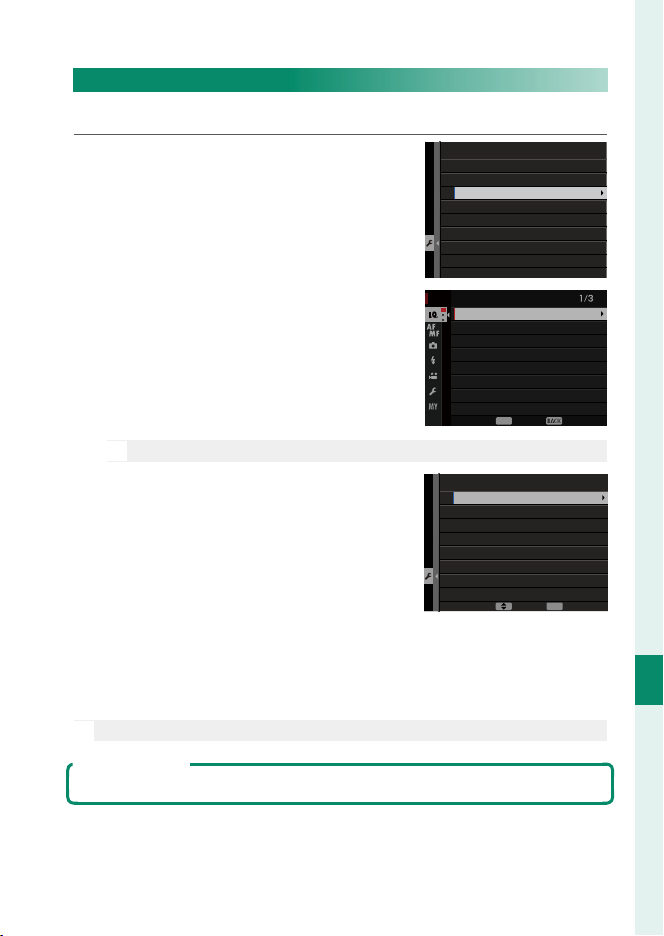
185
Shortcuts
9
MY MENU
MY MENU SETTING
To choose the items listed in the E (MY MENU) tab:
1
Highlight D USER SETTING> MY
MENU SETTING in the D (SET UP)
tab and press MENU/OK to display the
options at right.
マイメニュー設定
マイメニュー登録
順序変更
削除
MY MENU SETTING
MY MENU SETTING
RANK ITEMS
REMOVE ITEMS
2
Press the selector up or down to
highlight MY MENU SETTING and
press MENU/OK. Options that can be
added to “my menu” are highlighted
in blue.
COLOR CHROME EFFECT
DYNAMIC RANGE
WHITE BALANCE
GRAIN EFFECT
FILM SIMULATION
RAW RECORDING
IMAGE QUALITY
IMAGE SIZE
MY MENU SETTING
OK
CANCELSELECT
N
Items currently in “my menu” are indicated by check marks.
3
Highlight an item and press MENU/OK
to add it to “my menu”.
マイメニュー設定
1 画像サイズ
決定移動
MY MENU SETTING
1 IMAGE SIZE
OK
SAVEMOVE
4
Press MENU/OK to return to the edit display.
5
Repeat Steps 3 and 4 until all the desired items have been
added.
N
“My menu” can contain up to 16 items.
Editing “My Menu”
To reorder or delete items, select RANK ITEMS or REMOVE ITEMS in Step 1.

186
MEMO

187
Peripherals and Optional
Accessories
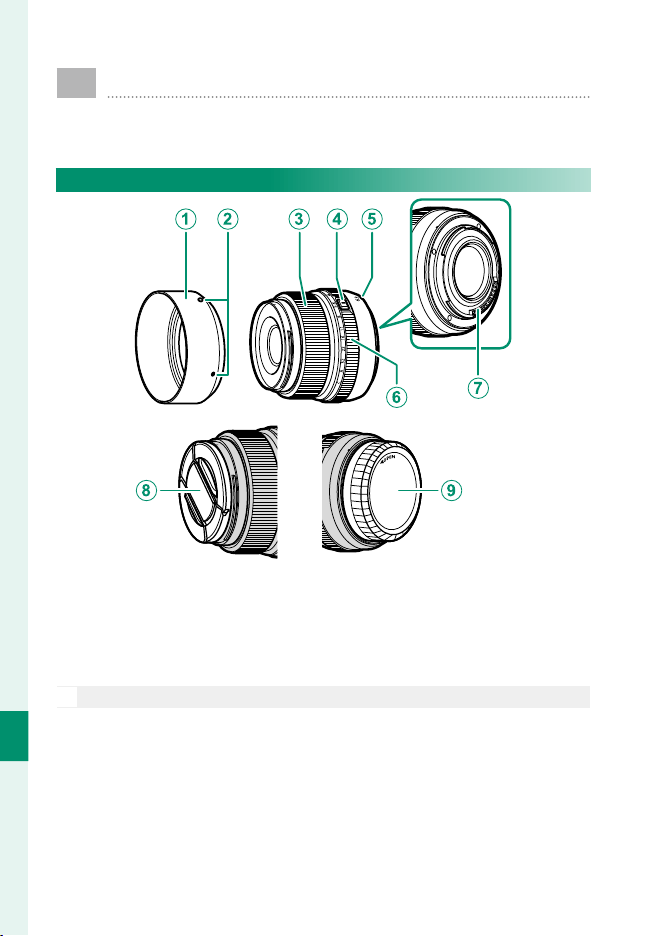
188
Peripherals and Optional Accessories
10
Lenses
The camera can be used with lenses for the FUJIFILM
G-mount.
Lens Parts
A
Lens hood
B
Mounting marks
C
Focus ring
D
Aperture ring lock release
E
Mounting marks (focal length)
F
Aperture ring
G
Lens signal contacts
H
Front lens cap
I
Rear lens cap
N
A GF63mmF2.8 R WR lens is used here for illustrative purposes.
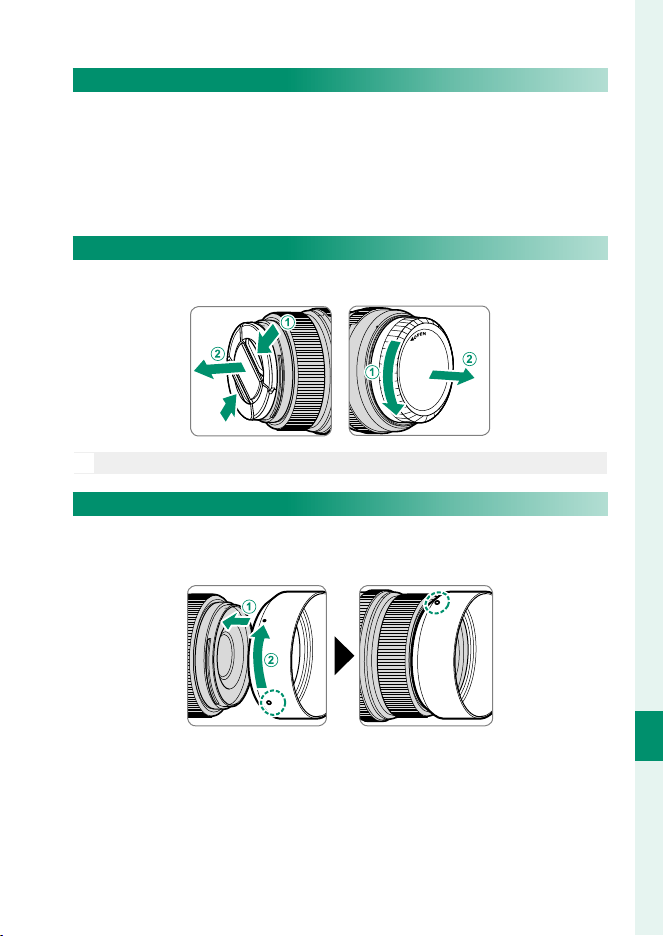
189
Peripherals and Optional Accessories
10
Lenses
Lens Care
Use a blower to remove dust, then gently wipe with a soft, dry
cloth. Any remaining stains can be removed by wiping gently
with a piece of FUJIFILM lens-cleaning paper to which a small
amount of lens-cleaning uid has been applied. Replace the
front and rear caps when the lens is not in use.
Removing Lens Caps
Remove lens caps as shown.
N
Lens caps may di er from those shown.
Attaching Lens Hoods
When attached, lens hoods reduce glare and protect the front
lens element.
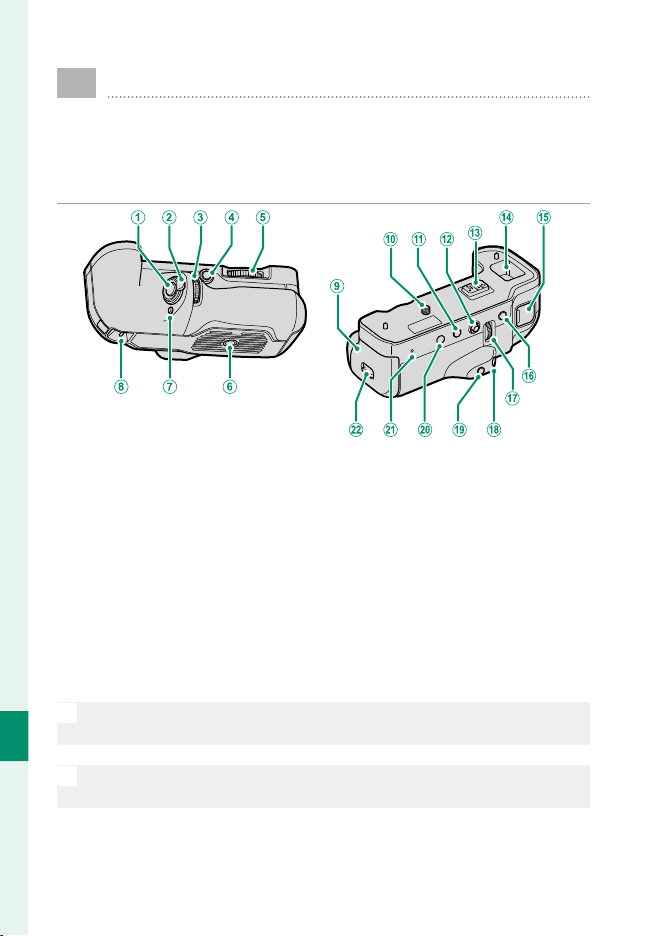
190
Peripherals and Optional Accessories
10
Vertical Battery Grips
The optional VG-GF1 vertical battery grip accommodates
an extra battery for improved endurance and makes it eas-
ier to hold the camera rotated 90° to frame pictures in “tall”
(portrait) orientation.
A
Shutter button
B
Control lock
C
Front command dial
D
Fn2 (function 2) button
E
Lock screw knob
F
Tripod socket
G
Fn1 (function 1) button
H
Eyelet for camera strap
I
Battery-chamber cover
J
Lock screw
K
Fn5 (function 5) button
L
Focus stick (focus lever)
M
Connector
N
Compartment for connector cover supplied
with camera
O
15V DC-IN connector
P
Fn4 (function 4) button
Q
Rear command dial
R
Fn3 (function 3) button
S
Q (quick menu) button
T
MENU/OK button
U
Indicator lamps
V
Battery-chamber cover latch
O
Do not attempt to attach the clips supplied with the camera to the
eyelets (
H
) on the battery grip.
N
All controls perform the same function as the matching controls on
the camera.
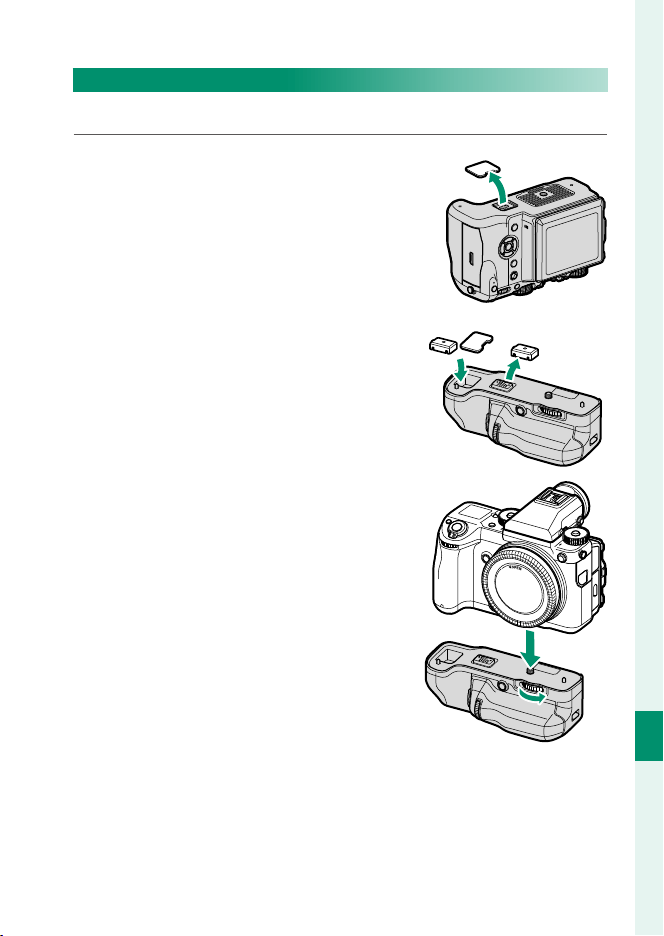
191
Peripherals and Optional Accessories
10
Vertical Battery Grips
Attaching the VB-GF1
The VB-GF1 attaches as shown below.
1
Remove the vertical battery grip con-
nector cover from the camera and
place it in the grip connector cover
compartment.
(B)
(B)
(A)
(A)
2
Align the connectors on the grip
with the matching connectors on the
camera. Rotate the lock screw knob
to tighten the lock screw.
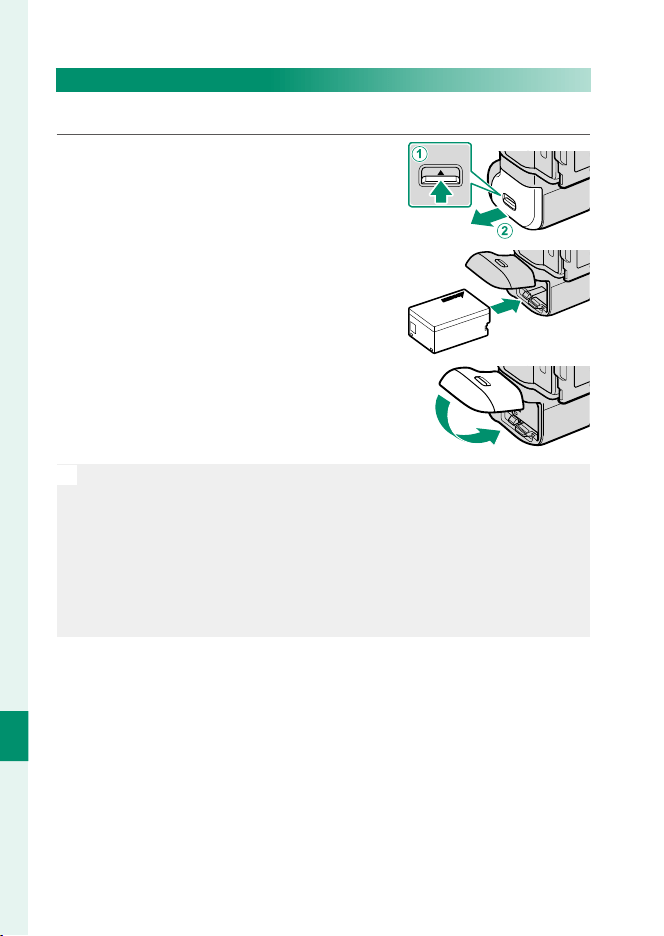
192
Peripherals and Optional Accessories
10
Inserting a Battery
Insert a battery as shown below.
1
Unlatch and open the battery-cham-
ber cover.
2
Slide the battery in until it latches.
3
Close the battery-chamber cover.
O
The battery in the grip is used before the battery in the camera. The
camera automatically switches to the camera battery when the bat-
tery in the grip is exhausted. Movie recording and bulb photography
will end when the camera switches batteries. When the battery in
the grip is exhausted, remove and charge the battery or insert a ful-
ly-charged spare battery. If the camera battery has enough charge to
power the camera, the battery in the grip can be replaced without
turning the camera o .
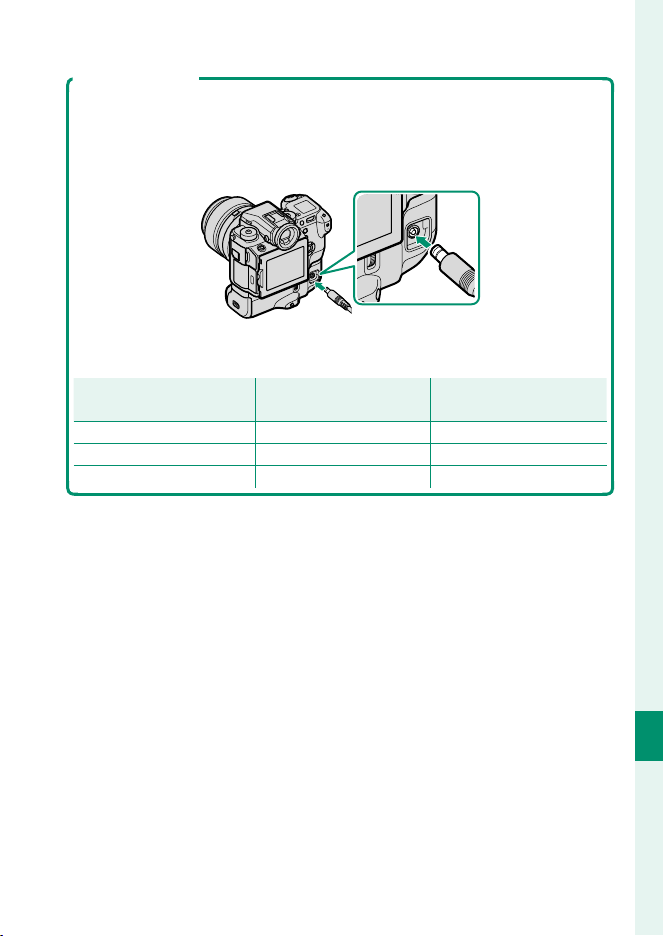
193
Peripherals and Optional Accessories
10
Vertical Battery Grips
Using an AC Adapter
An optional AC-15V AC adapter can be used to power the camera when the
battery grip is attached. The battery inserted in the grip will charge while
the adapter is connected; charging takes about 120 minutes. Turn the cam-
era o before disconnecting the AC adapter.
Battery charge status is shown by battery status icons when the camera
is on (playback mode) and by the indicator lamp when the camera is o .
Battery status icon
Battery status icon
(camera on)
(camera on)
Indicator lamp
Indicator lamp
(camera o )
(camera o )
Battery status
Battery status
Y
(yellow)
On Battery charging
N
(green)
Off Charging complete
Z
(red)
Blinks Battery fault
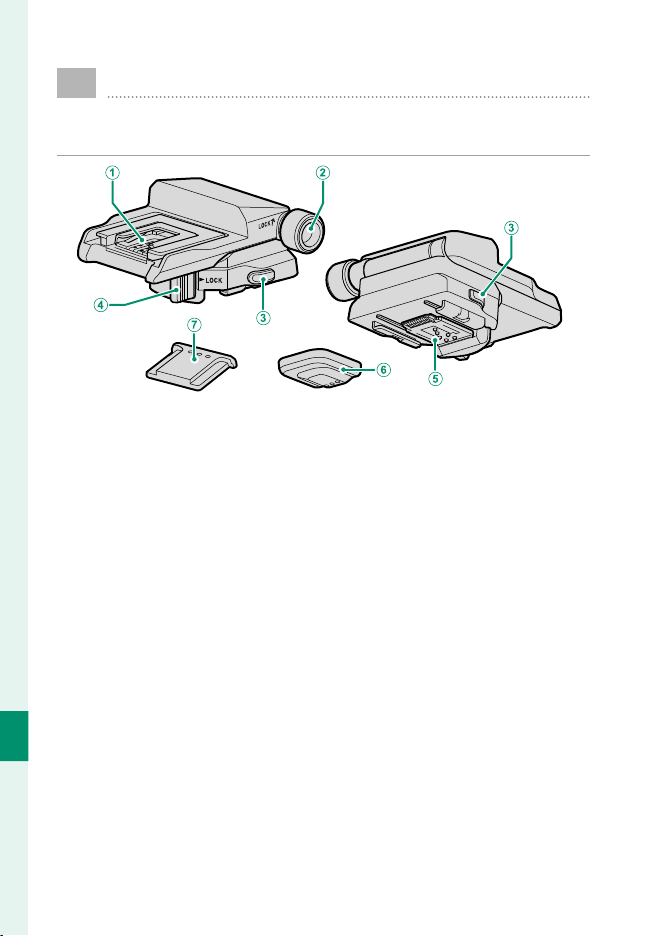
194
Peripherals and Optional Accessories
10
View nder Tilt Adapters
The optional EVF-TL1 tilt adapter lets you swivel the view-
nder left or right ±45° or up or down between 0° and 90°.
A
Hot shoe
B
Tilt lock knob
C
Adapter lock release
D
Horizontal swivel lock
E
Connectors
F
Connector cover
G
Hot shoe cover
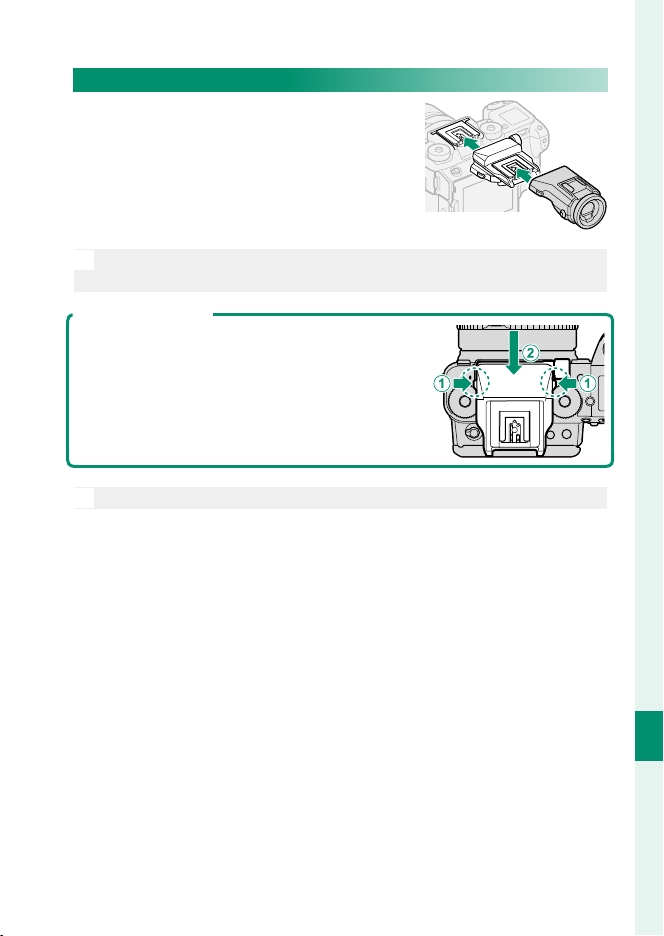
195
Peripherals and Optional Accessories
10
View nder Tilt Adapters
Attaching the EVF-TL1
Slide the EVF-TL1 onto the camera hot
shoe and then attach the EVF-GFX1 elec-
tronic view nder.
N
Remove the hot shoe covers from the camera and EVF-TL1 before
attaching the adapter and view nder.
Removing the EVF-TL1
Remove the view nder and then, keeping the
lock releases (
A
) pressed, press down on the
front of the adapter (
B
) and slide it from the
camera as shown.
O
Use only one tilt adapter at a time.
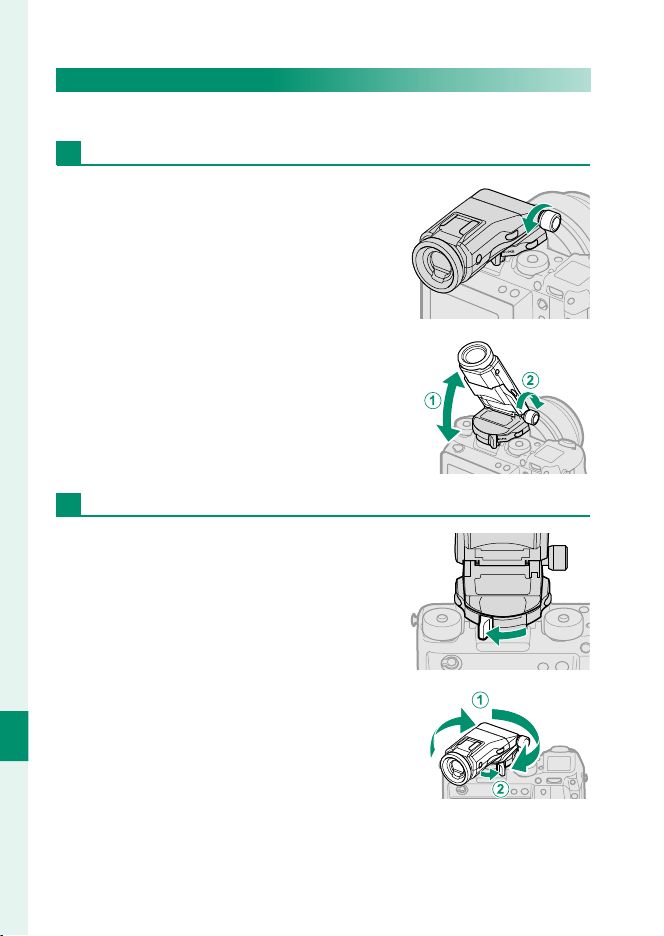
196
Peripherals and Optional Accessories
10
View nder Tilt Adapters
Using the EVF-TL1
Swivel the view nder into the desired position.
Swiveling the Viewfi nder Up or Down
Loosen the tilt lock knob and swivel the
view nder up or down from 0° to 90°.
With the view nder in the desired posi-
tion (
A
), tighten the tilt lock knob (
B
)
to lock the view nder in place.
Swiveling the Viewfi nder Left or Right
Release the horizontal swivel lock as
shown and swivel the view nder left or
right ±45°.
With the view nder in the desired po-
sition (
A
), return the horizontal swivel
lock to the latched position (
B
) to lock
the view nder in place.
197
Peripherals and Optional Accessories
10
External Flash Units
Flash units can be mounted on the hot shoe or connected
via the sync terminal.
External ash units are more powerful than their built-in coun-
terparts. Some support high-speed sync (FP) and can be used at
shutter speeds faster than the ash sync speed, while others can
function as master ash units controlling remote units via optical
wireless ash control.
O
You may be unable to test- re the ash in some circumstances, for
example when a setup menu is displayed on the camera.
Red-Eye Removal
Red-eye removal is available when an option other than OFF is selected
for F FLASH SETTING> RED EYE REMOVAL and G AF/MF SETTING>
FACE/EYE DETECTION SETTING is ON. Red-eye removal minimizes “red-
eye” caused when light from the ash is re ected from the subject’s retinas.
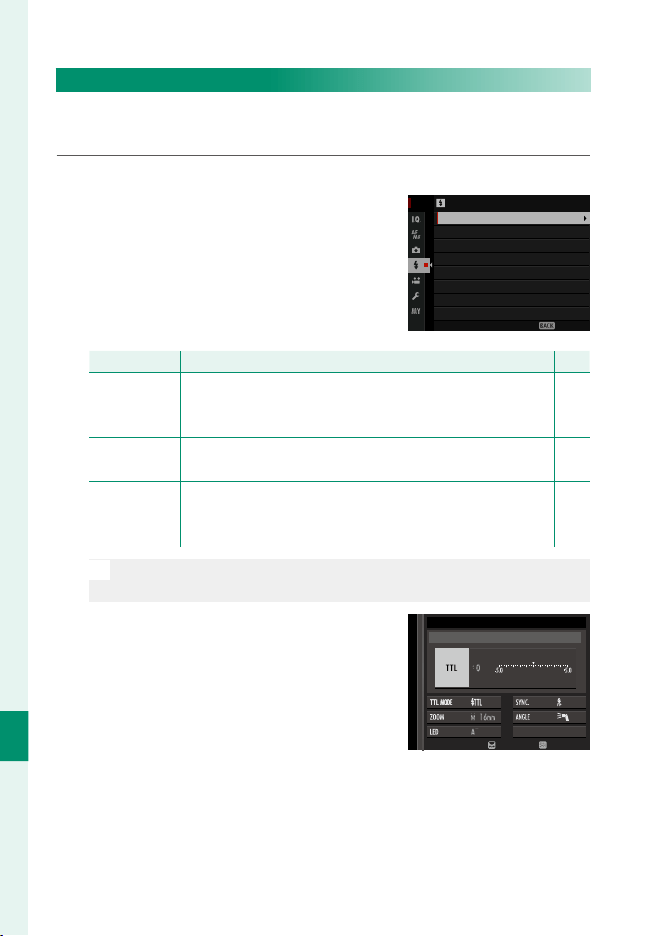
198
Peripherals and Optional Accessories
10
Flash Settings
To adjust settings for a ash unit mounted on the hot shoe or
connected via the sync terminal:
1
Connect the unit to the camera.
2
In shooting mode, select FLASH
FUNCTION SETTING in the F (FLASH
SETTING) menu tab. The options
available vary with the ash unit.
終了
画質設定
画質モード
RAW 記録方式
フィルムシミュレーション
グレイン・エフェクト
ダイナミックレンジ
ホワイトバランス
ハイライトトーン
画像サイズ
EXIT
CH SETTING
MASTER SETTING
LED LIGHT SETTING
TTL-LOCK MODE
RED EYE REMOVAL
FLASH SETTING
FLASH FUNCTION SETTING
Menu
Menu
Description
Description
P
P
SYNC
TERMINAL
Displayed when no compatible fl ash unit is connected or
if a unit is connected via the sync terminal or uses only
the X-contact on the hot shoe.
199
SHOE MOUNT
FLASH
Displayed when an optional fl ash unit is mounted on the
hot shoe and turned on.
200
MASTER
(OPTICAL)
Displayed if an optional fl ash unit functioning as a master
fl ash for FUJIFILM optical wireless remote fl ash control is
connected and turned on.
203
N
SYNC TERMINAL will be also displayed if an incompatible ash
unit or no ash unit is connected.
3
Highlight items using the selector
and rotate the rear command dial to
change the highlighted setting.
MODE
SHOE MOUNT FLASH
ADJUST
END
4
Press DISP/BACK to put the changes into e ect.
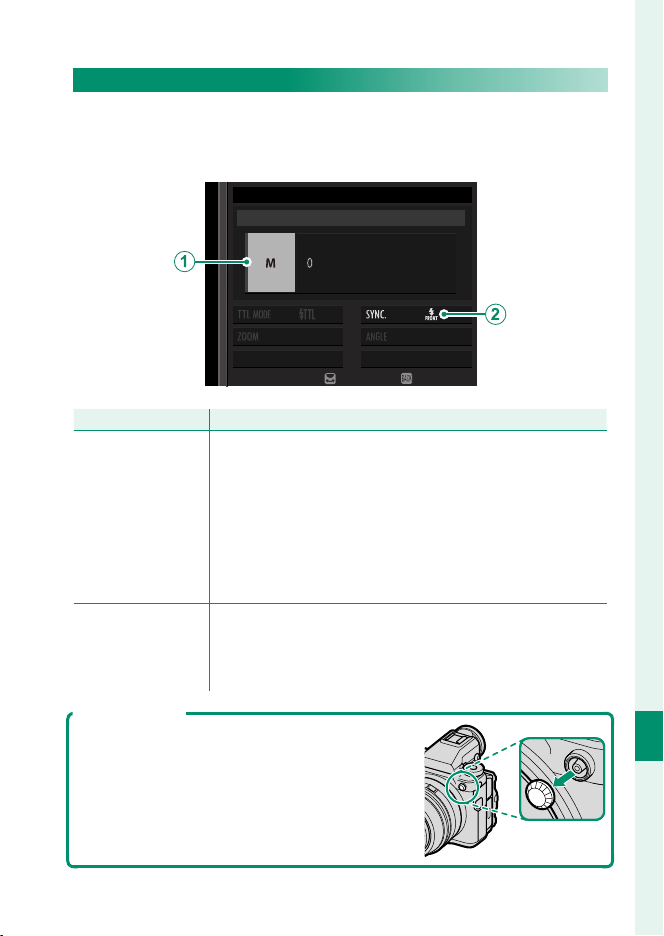
199
Peripherals and Optional Accessories
10
External Flash Units
SYNC TERMINAL
The following options are available when no compatible ash
unit is connected or if a unit is connected via the sync terminal or
uses only the X-contact on the hot shoe.
MODE
SYNC TERMINAL
ADJUST
END
Setting
Setting
Description
Description
A
Flash control mode
Choose from the following options:
•
M: A trigger signal is transmitted from the sync terminal and
hot shoe when a picture is taken. Choose a shutter speed
slower than the sync speed; even slower speeds may be
required if the unit uses long fl ashes or has a slow response
time.
•
OFF: The sync terminal and hot shoe do not transmit a trig-
ger signal.
B
Sync
Choose whether the fl ash is timed to fi re immediately after
the shutter opens (H/1ST CURTAIN) or immediately before
it closes (I/2ND CURTAIN). 1ST CURTAIN is recommended in
most circumstances.
The Sync Terminal
Use the sync terminal to connect ash units
that require a sync cable.
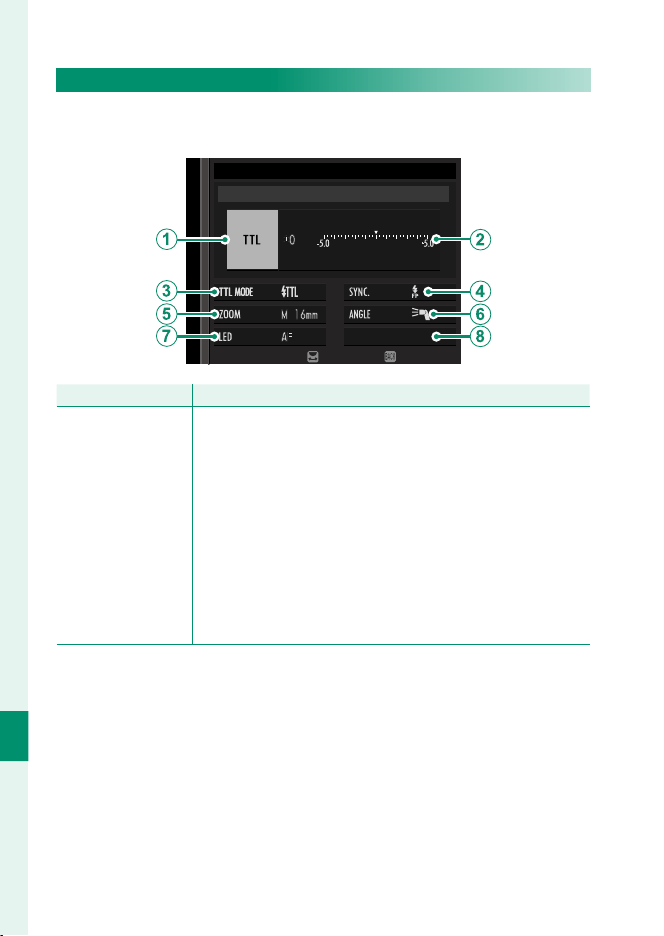
200
Peripherals and Optional Accessories
10
SHOE MOUNT FLASH
The following options are available when an optional
shoe-mounted ash unit is attached and turned on.
MODE
SHOE MOUNT FLASH
ADJUST
END
Setting
Setting
Description
Description
A
Flash control mode
The fl ash control mode selected with the fl ash unit. This can
in some cases be adjusted from the camera; the options avail-
able vary with the fl ash.
•
TTL: TTL mode. Adjust fl ash compensation (
B
).
•
M: The fl ash fi res at the selected output regardless of subject
brightness or camera settings. Output in some cases can be
adjusted from the camera (
B
).
•
MULTI: Repeating fl ash. Compatible shoe-mounted fl ash
units will fi re multiple times with each shot.
•
OFF: The fl ash does not fi re. Some fl ash units can be turned
off from the camera.

201
Peripherals and Optional Accessories
10
External Flash Units
Setting
Setting
Description
Description
B
Flash compensation/
output
The options available vary with fl ash control mode.
•
TTL: Adjust fl ash compensation (the full value may not be
applied if the limits of the fl ash control system are exceed-
ed). In the cases of the EF-X20, EF-20, and EF-42, the select-
ed value is added to the value selected with the fl ash unit.
•
M/MULTI: Adjust fl ash output (compatible units only).
Choose from values expressed as fractions of full power,
from ⁄ (mode M) or ¼ (MULTI) down to ⁄ in increments
equivalent to ⁄EV. The desired results may not be achieved
at low values if they exceed the limits of the fl ash control
system; take a test shot and check the results.
C
Flash mode (TTL)
Choose a fl ash mode for TTL fl ash control. The options avail-
able vary with the shooting mode (P, S, A, or M) selected.
•
E (FLASH AUTO): The fl ash fi res only as required; fl ash lev-
el is adjusted according to subject brightness. A p icon
displayed when the shutter button is pressed halfway indi-
cates that the fl ash will fi re when the photo is taken.
•
F (STANDARD): The fl ash fi res with every shot if possible;
fl ash level is adjusted according to subject brightness. The
fl ash will not fi re if not fully charged when the shutter is
released.
•
G (SLOW SYNC.): Combine the fl ash with slow shutter
speeds when photographing portrait subjects against a
backdrop of night scenery. The fl ash will not fi re if not fully
charged when the shutter is released.
D
Sync
Control fl ash timing.
•
H (1ST CURTAIN): The fl ash fi res immediately after the shut-
ter opens (generally the best choice).
•
I (2ND CURTAIN): The fl ash fi res immediately before the
shutter closes.
•
AUTO FP(HSS): High-speed sync (compatible units only). The
camera automatically engages front-curtain high-speed
sync at shutter speeds faster than the fl ash sync speed.
Equivalent to 1ST CURTAIN when MULTI is selected for fl ash
control mode.

202
Peripherals and Optional Accessories
10
Setting
Setting
Description
Description
E
Zoom
The angle of illumination (fl ash coverage) for units that sup-
port fl ash zoom. Some units allow the adjustment to be
made from the camera. If AUTO is selected, zoom will auto-
matically be adjusted to match coverage to lens focal length.
F
Lighting
If the unit supports this feature, choose from:
•
J (FLASH POWER PRIORITY): Gain range by slightly reducing
coverage.
•
K (STANDARD): Match coverage to picture angle.
•
L (EVEN COVERAGE PRIORITY): Slightly increase coverage for
more even lighting.
G
LED light
Choose how the built-in LED light functions during still
photography (compatible units only): as a catchlight (M/
CATCHLIGHT), as an AF-assist illuminator (N/AF ASSIST), or
as both a catchlight and an AF-ASSIST illuminator (O/AF
ASSIST+CATCHLIGHT). Choose OFF to disable the LED during
photography.
G
Number of ashes
*
Choose the number of times the fl ash fi res each time the
shutter is released in MULTI mode.
H
Frequency
*
Choose the frequency at which the fl ash fi res in MULTI mode.
* Full value may not be applied if limits of fl ash control system are exceeded.
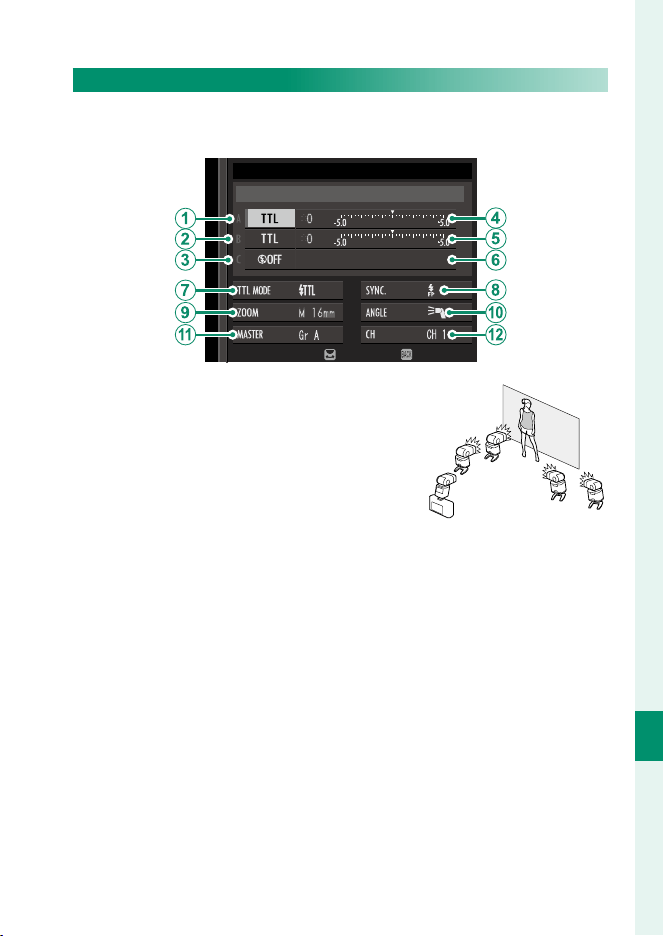
203
Peripherals and Optional Accessories
10
External Flash Units
MASTER(OPTICAL)
The options will be displayed if the unit is currently functioning
as master ash for FUJIFILM optical wireless remote ash control.
MODE
MASTER(OPTICAL)
ADJUST
END
The master and remote units can be
placed in up to three groups (A, B, and C)
and ash mode and ash level adjusted
separately for each group. Four chan-
nels are available for communication be-
tween the units; separate channels can
be used for di erent ash systems or to
prevent interference when multiple sys-
tems are operating in close proximity.
BB
A
C

204
Peripherals and Optional Accessories
10
Setting
Setting
Description
Description
A
Flash control mode
(group A)
Choose fl ash control modes for groups A, B, and C. TTL%
is available for groups A and B only.
•
TTL: The units in the group fi re in TTL mode. Flash com-
pensation can be adjusted separately for each group.
•
TTL%: If TTL% is selected for either group A or B, you can
specify the output of the selected group as a percent-
age of the other and adjust overall fl ash compensation
for both groups.
•
M: In mode M, the units in the group fi re at the selected
output (expressed as a fraction of full power) regardless
of subject brightness or camera settings.
•
MULTI: Choosing MULTI for any group sets all the units
in all groups to repeating fl ash mode. All units will fi re
multiple times with each shot.
•
OFF: If OFF is selected, the units in the group will not fi re.
B
Flash control mode
(group B)
C
Flash control mode
(group C)
D
Flash compensation/
output (group A)
Adjust fl ash level for the selected group according to
option selected for fl ash control mode. Note that the full
value may not be applied if the limits of the fl ash control
system are exceeded.
•
TTL: Adjust fl ash compensation.
•
M/MULTI: Adjust fl ash output.
•
TTL%: Choose the balance between groups A and B and
adjust overall fl ash compensation.
E
Flash compensation/
output (group B)
F
Flash compensation/
output (group C)

205
Peripherals and Optional Accessories
10
External Flash Units
Setting
Setting
Description
Description
G
Flash mode (TTL)
Choose a fl ash mode for TTL fl ash control. The options
available vary with the shooting mode (P, S, A, or M) se-
lected.
•
E (FLASH AUTO): The fl ash fi res only as required; fl ash
level is adjusted according to subject brightness. A
picon displayed when the shutter button is pressed
halfway indicates that the fl ash will fi re when the photo
is taken.
•
F (STANDARD): The fl ash fi res with every shot if possi-
ble; fl ash level is adjusted according to subject bright-
ness. The fl ash will not fi re if not fully charged when the
shutter is released.
•
G (SLOW SYNC.): Combine the fl ash with slow shutter
speeds when photographing portrait subjects against a
backdrop of night scenery. The fl ash will not fi re if not
fully charged when the shutter is released.
H
Sync
Control fl ash timing.
•
H (1ST CURTAIN): The fl ash fi res immediately after the
shutter opens (generally the best choice).
•
I (2ND CURTAIN): The fl ash fi res immediately before the
shutter closes.
•
AUTO FP(HSS): High-speed sync (compatible units only).
The camera automatically engages front-curtain high-
speed sync at shutter speeds faster than the fl ash sync
speed. Equivalent to 1ST CURTAIN when MULTI is select-
ed for fl ash control mode.
I
Zoom
The angle of illumination (fl ash coverage) for units that
support fl ash zoom. Some units allow the adjustment to
be made from the camera. If AUTO is selected, zoom will
automatically be adjusted to match coverage to lens focal
length.

206
Peripherals and Optional Accessories
10
External Flash Units
Setting
Setting
Description
Description
J
Lighting
If the unit supports this feature, choose from:
•
J (FLASH POWER PRIORITY): Gain range by slightly re-
ducing coverage.
•
K (STANDARD): Match coverage to picture angle.
•
L (EVEN COVERAGE PRIORITY): Slightly increase coverage
for more even lighting.
K
Master
Assign the master fl ash to group A (Gr A), B (Gr B), or
C(Gr C). If OFF is selected, output from the master fl ash
will be held to a level that does not aff ect the fi nal pic-
ture. Available only if the unit is mounted on the camera
hot shoe as a master fl ash for FUJIFILM optical wireless
remote fl ash control in TTL, TTL%, or M mode.
K
Number of ashes
Choose the number of times the fl ash fi res each time the
shutter is released in MULTI mode.
L
Channel
Choose the channel used by the master fl ash for commu-
nication with the remote fl ash units. Separate channels
can be used for diff erent fl ash systems or to prevent in-
terference when multiple systems are operating in close
proximity.
L
Frequency
Choose the frequency at which the fl ash fi res in MULTI
mode.

207
Connections
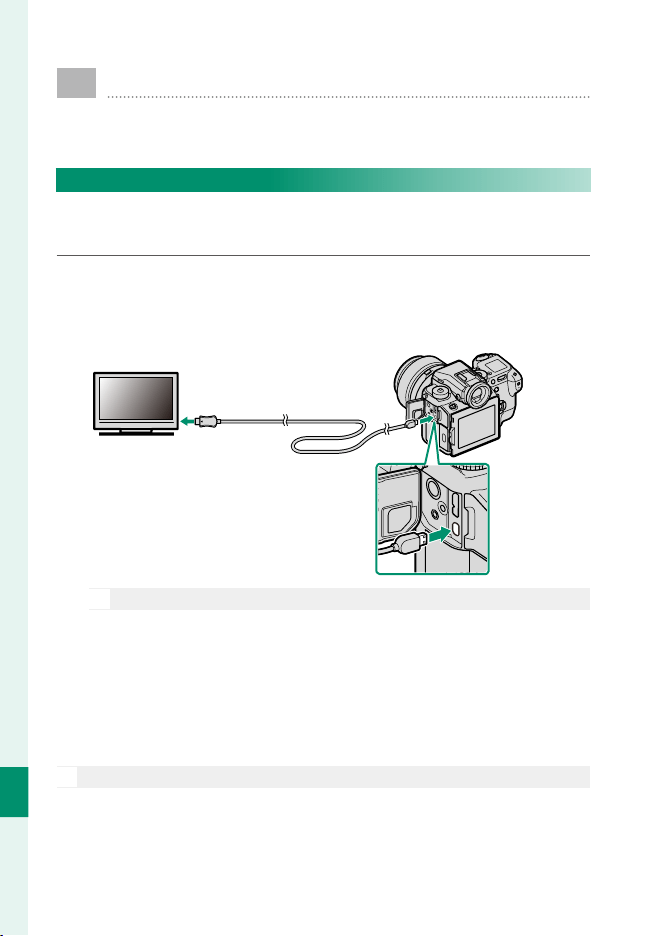
208
Connections
11
HDMI Output
Camera shooting and playback displays can be output to
HDMI devices.
Connecting to HDMI Devices
Connect the camera to TVs or other HDMI devices using a
third-party HDMI cable.
1
Turn the camera o .
2
Connect the cable as shown below, making sure the connec-
tors are fully inserted.
O
Use an HDMI cable no more than 1.5m (4.9ft.) long.
3
Con gure the device for HDMI input as described in the doc-
umentation supplied with the device.
4
Turn the camera on. You can now shoot and play back pic-
tures while viewing the television display and save pictures
to the HDMI device.
O
The USB cable can not be used while an HDMI cable is connected.
Insert into HDMI Micro
connector (Type D)
Insert into HDMI
connector

209
Connections
11
HDMI Output
Shooting
Shoot photos and record movies while viewing the scene through
the camera lens on or saving footage to the HDMI device.
Playback
To start playback, press the camera a button. The camera mon-
itor turns o and pictures and movies are output to the HDMI
device. Note that the camera volume controls have no e ect on
sounds played on the TV; use the television volume controls to
adjust the volume.
O
Some televisions may brie y display a black screen when movie play-
back begins.
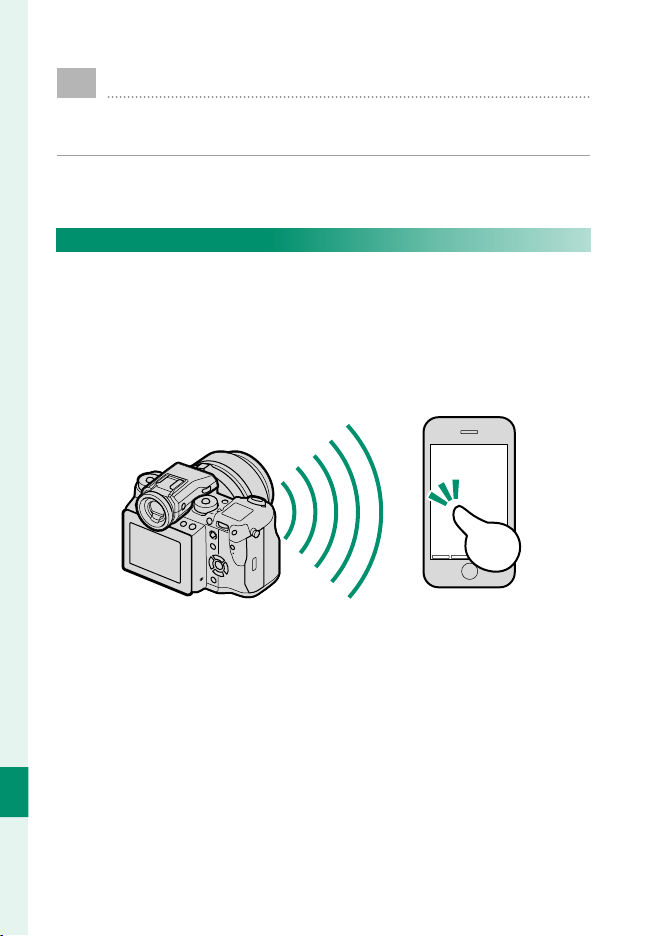
210
Connections
11
Wireless Transfer
Establish a wireless LAN connection between your camera
and smartphone.
For downloads and other information, visit:
http://fujifilm-dsc.com/wifi/
Wireless Connections: Smartphones
Install the “FUJIFILM Camera Remote” app on your smartphone
to browse the images on the camera, download selected images,
control the camera remotely, or copy location data to the camera.
Once the app is installed, connect using the A SHOOTING SET-
TING> WIRELESS COMMUNICATION or C PLAY BACK MENU>
WIRELESS COMMUNICATION options in the camera menus.
211
Connections
11
Connecting to Computers via USB
Connect the camera to a computer to download pictures
or take pictures remotely.
Tethered Shooting
Take pictures remotely.
Mac OS X/macOS
Tethered shooting is available to purchasers of Adobe® Photoshop®
Lightroom® and the FUJIFILM Tether Shooting PRO or Tether
Shooting plug-ins. The FUJIFILM Tether Shooting PRO and Tether
Shooting plug-ins are available from the Adobe add-ons website.
Windows
Tethered shooting is available to purchasers of HS-V5 or of Adobe®
Photoshop® Lightroom® and the FUJIFILM Tether Shooting PRO
or Tether Shooting plug-ins. The FUJIFILM Tether Shooting PRO
and Tether Shooting plug-ins are available from the Adobe add-
ons website.
FUJIFILM X Acquire
Tethered shooting is also available to users of FUJIFILM X Acquire, which
can be downloaded free-of-charge from the FUJIFILM website.

212
Connections
11
Copying Pictures to a Computer
Pictures can be copied to Windows and Mac OS X/macOS com-
puters as described below. For information on using the software
described, see online help.
Windows
Use MyFinePix Studio to copy pictures to your computer, where
they can be stored, viewed, organized, and printed. MyFinePix
Studio is available for download from the following website:
http://fujifilm-dsc.com/mfs/
Once download is complete, double-click the downloaded le
(“MFPS_Setup.EXE”) and follow the on-screen instructions to
complete installation.
Mac OS X/macOS
Pictures can be copied to your computer using Image Capture
(supplied with your computer) or other software.
Viewing RAW Files
To view RAW les on your computer, use the RAW FILE CONVERTER EX 2.0,
available for download from:
http://fujifilm-dsc.com/rfc/
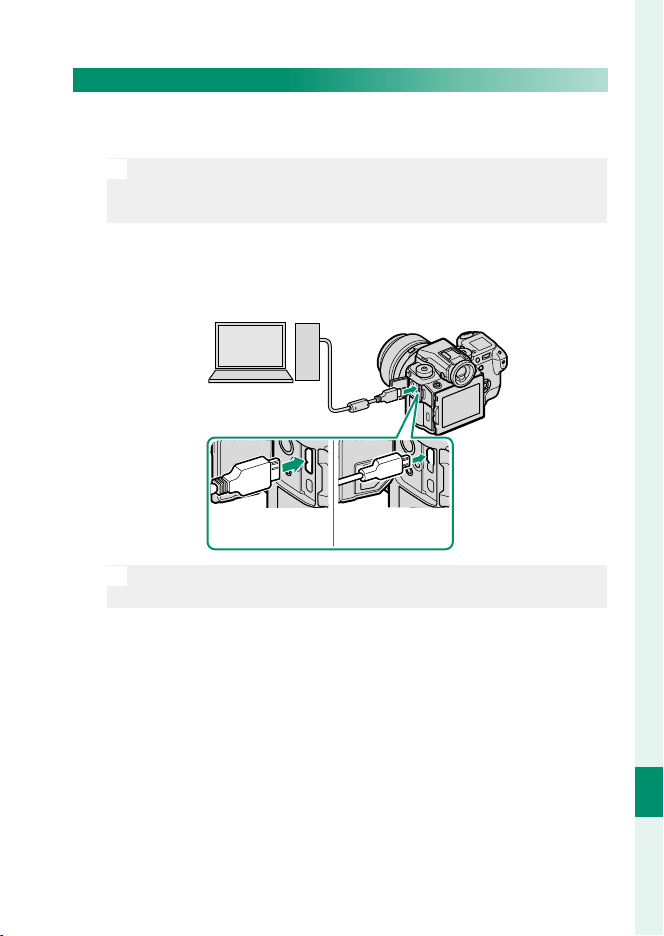
213
Connections
11
Connecting to Computers via USB
Connecting the Camera
1
Find a memory card containing pictures you want to copy to
the computer and insert the card into the camera.
O
Loss of power during transfer could result in loss of data or dam-
age to the memory card. Insert a fresh or fully-charged battery
before connecting the camera.
2
Turn the camera o and connect a third-party USB 3.0 or 2.0
cable (either type can be used), making sure the connectors
are fully inserted.
O
Use a USB 3.0 cable for higher speeds with computers that sup-
port USB 3.0.
3
Turn the camera on.
4
Copy pictures to your computer. During tethered shooting,
you can copy pictures using tethered shooting software such
as the FUJIFILM Tethered Shooting Plug-in PRO. Otherwise
you can use MyFinePix Studio or applications provided with
your operating system.
5
When transfer is complete, turn the camera o and discon-
nect the USB cable.
Micro USB (Micro-B)
USB 3.0
Micro USB (Micro-B)
USB 2.0

214
Connections
11
Connecting to Computers via USB
O
If a memory card containing a large number of images is inserted,
there may be a delay before the software starts and you may be un-
able to import or save images. Use a memory card reader to transfer
pictures.
The USB cable must be no more than 1.5m (4.9ft.) long and be suit-
able for data transfer. Connect the camera directly to the computer;
do not use a USB hub or keyboard.
Do not disconnect the USB cable while data are being exchanged be-
tween the camera and computer or insert or remove memory cards
while transfer is in progress. Failure to observe this precaution could
result in loss of data or damage to the memory card.
In some cases, it may not be possible to access pictures saved to a
network server using the software in the same way as on a standalone
computer.
The user bears all applicable fees charged by the phone company or
Internet service provider when using services that require an Internet
connection.
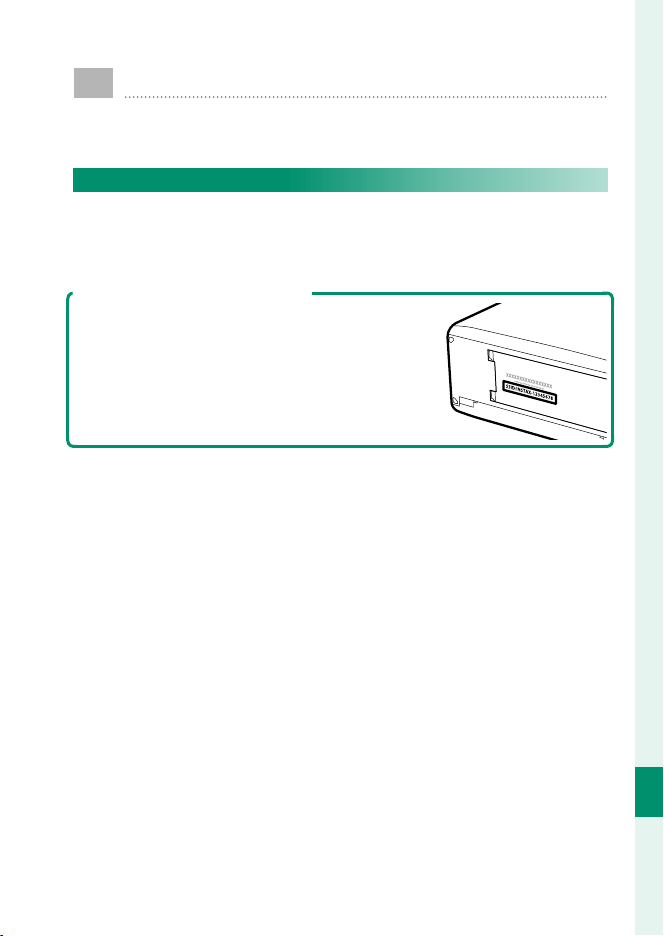
215
Connections
11
instax SHARE Printers
Print pictures from your digital camera to instax SHARE
printers.
Establishing a Connection
Select D CONNECTION SETTING> instax PRINTER CONNEC-
TION SETTING and enter the instax SHARE printer name (SSID)
and password.
The Printer Name (SSID) and Password
The printer name (SSID) can be found on the
bottom of the printer; the default password is
“1111”. If you have already chosen a di erent
password to print from a smartphone, enter
that password instead.
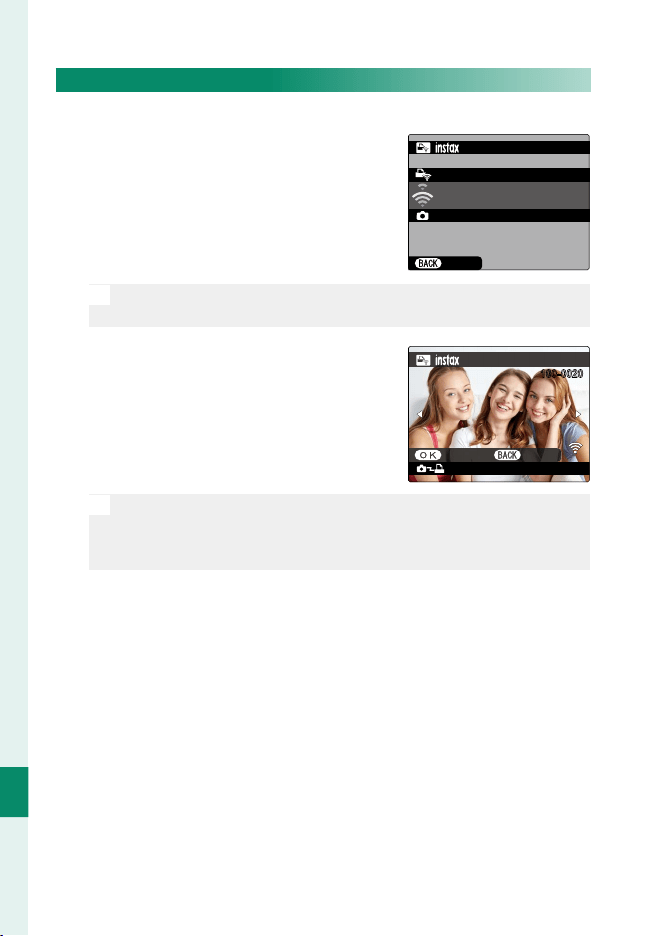
216
Connections
11
instax SHARE Printers
Printing Pictures
1
Turn the printer on.
2
Select C PLAY BACK MENU> instax
PRINTER PRINT. The camera will con-
nect to the printer.
FUJIFILM-CAMERA-1234
CONNECTING TO PRINTER
CANCEL
PRINTER PRINT
instax-12345678
N
To print a frame from a burst sequence, display the frame before
selecting instax PRINTER PRINT.
3
Use the selector to display the pic-
ture you want to print, then press
MENU/OK.
100-0020
TRANSMIT CANCEL
instax-12345678
PRINTER PRINT
N
Pictures taken with other cameras can not be printed.
The area printed is smaller than the area visible in the LCD mon-
itor.
4
The picture will be sent to the printer and printing will start.

217
Technical Notes
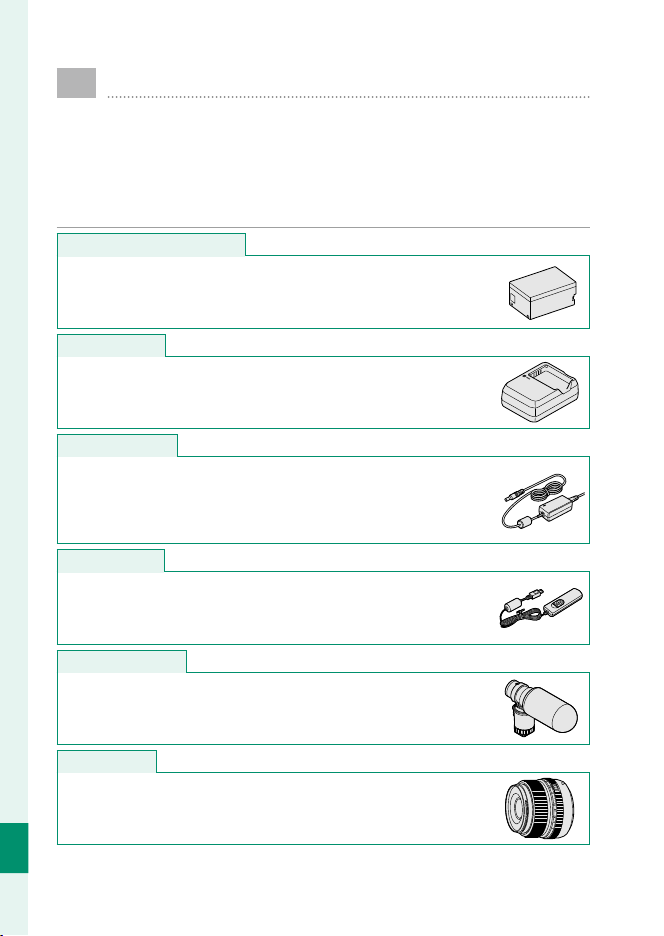
218
Technical Notes
12
Accessories from FUJIFILM
The following optional accessories are available from
FUJIFILM. For the latest information on the accessories
available in your region, check with your local FUJIFILM
representative or visit http://www.fujifilm.com/products/
digital_cameras/index.html.
Rechargeable Li-ion batteries
Rechargeable Li-ion batteries
NP-T125: Additional high-capacity NP-T125 rechargeable batteries
can be purchased as required.
Battery chargers
Battery chargers
BC-T125: Replacement battery chargers can be purchased as re-
quired.
AC power adapters
AC power adapters
AC-15V: Use this 100–240V, 50/60Hz AC power adapter for ex-
tended shooting and playback, when copying pictures to a com-
puter, or to charge the battery in the camera or optional battery
grip.
Remote releases
Remote releases
RR-90: Use to reduce camera shake or keep the shutter open
during a time exposure.
Stereo microphones
Stereo microphones
MIC-ST1: An external microphone for movie recording.
FUJINON lenses
FUJINON lenses
GF-series lenses: Interchangeable lenses for use exclusively with
the FUJIFILM G-mount.
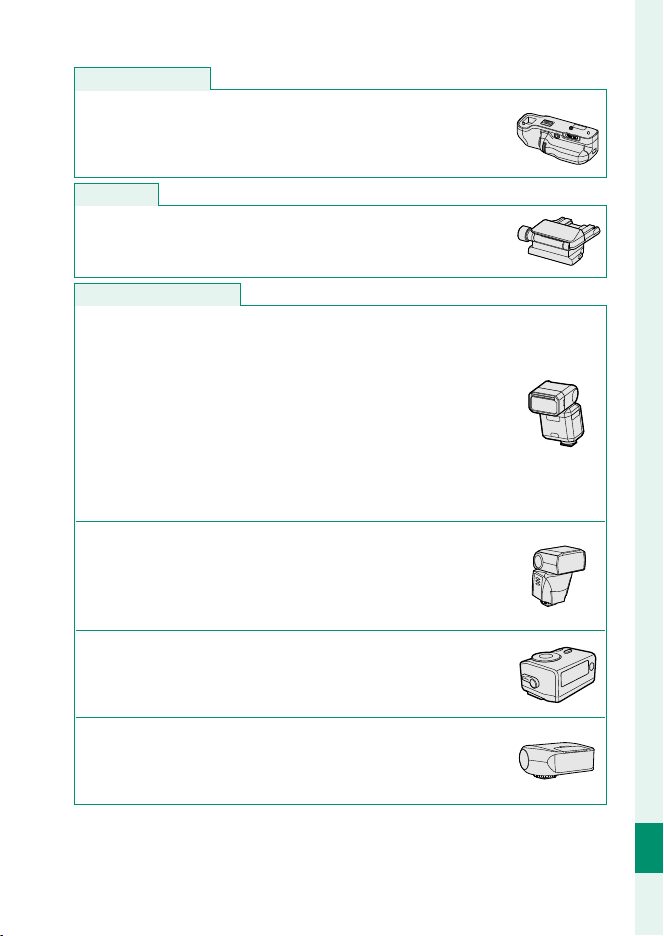
219
Technical Notes
12
Accessories from FUJIFILM
Vertical battery grips
Vertical battery grips
VG-GFX1: This grip accommodates an extra battery for improved
endurance and makes it easier to hold the camera rotated 90° to
frame pictures in “tall” (portrait) orientation. The battery in the grip
can be charged using an optional AC-15V AC adapter.
Tilt adapters
Tilt adapters
EVF-TL1: This adapter lets you swivel the viewfi nder left or right
±45° or up or down between 0° and 90° to take shots from dif-
ferent angles.
Shoe-mounted ash units
Shoe-mounted ash units
EF-X500: This clip-on fl ash unit has a Guide Number of 50/164 (ISO
100, m/ft.) and supports FP (high-speed sync), allowing it to be
used at shutter speeds that exceed the fl ash sync speed. Pow-
ered by four AA batteries or an optional BF-BP1 battery pack, it
supports manual and TTL fl ash control and auto power zoom in
the range 24–105mm (35mm format equivalent) and features
FUJIFILM optical wireless fl ash control, allowing it to be used as
a master or remote fl ash unit for remote wireless fl ash photogra-
phy. The fl ash head can be rotated 90° up, 10° down, 135° left, or
180° right for bounce lighting.
EF-42: This clip-on fl ash unit (powered by four AA batteries) has
a Guide Number of 42/137 (ISO 100, m/ft.) and supports man-
ual and TTL fl ash control and auto power zoom in the range
24–105 mm (35 mm format equivalent). The fl ash head can be
rotated 90° up, 180° left, or 120° right for bounce lighting.
EF-X20: This clip-on fl ash unit has a Guide Number of 20/65 (ISO
100, m/ft.). Powered by two AAA batteries, this light, compact
unit features a dial for adjusting TTL fl ash compensation or man-
ual fl ash output.
EF-20: This clip-on fl ash unit (powered by two AA batteries) has
a Guide Number of 20/65 (ISO 100, m/ft.) and supports TTL fl ash
control (manual fl ash control is not supported). The fl ash head
can be rotated upwards 90° for bounce lighting.
220
Technical Notes
12
Accessories from FUJIFILM
Body caps
Body caps
BCP-002: Cover the camera lens mount when no lens is attached.
instax SHARE printers
instax SHARE printers
SP-1/SP-2: Connect via wireless LAN to print pictures on instax fi lm.
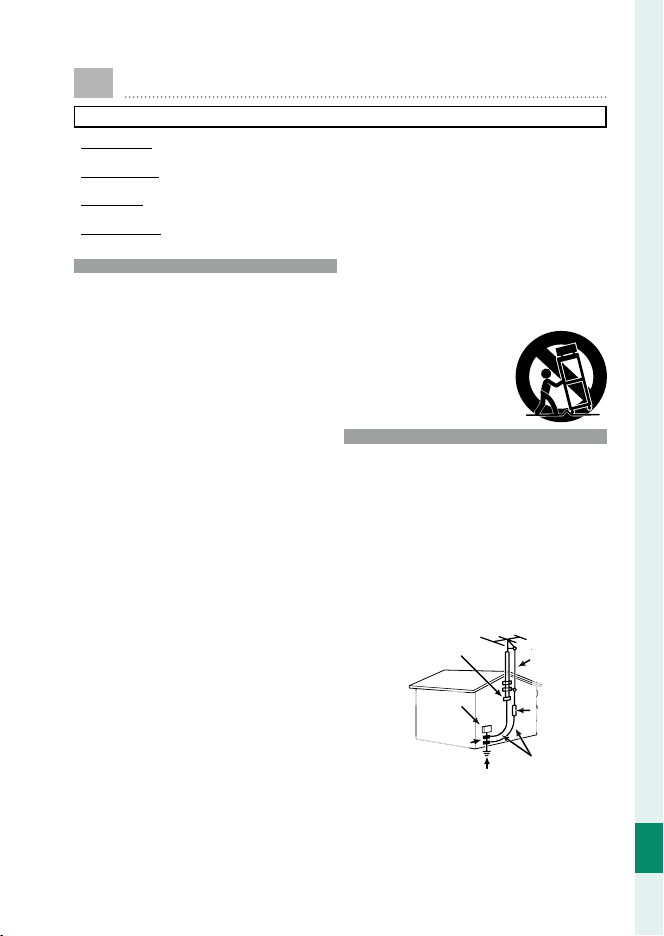
221
Technical Notes
12
For Your Safety
IMPORTANT SAFETY INSTRUCTIONS
•
Read Instructions
Read Instructions: All the safety and operating instructions
should be read before the appliance is operated.
•
Retain Instructions
Retain Instructions: The safety and operating instructions
should be retained for future reference.
•
Heed Warnings
Heed Warnings: All warnings on the appliance and in the
operating instructions should be adhered to.
•
Follow Instructions
Follow Instructions: All operating and use instructions
should be followed.
Installation
Installation
Power Sources: This video product should be operated only
from the type of power source indicated on the marking la-
bel. If you are not sure of the type of power supply to your
home, consult your appliance dealer or local power com-
pany. For video products intended to operate from battery
power, or other sources, refer to the operating instructions.
Grounding or Polarization: This video product is equipped
with a polarized alternating-current line plug (a plug having
one blade wider than the other). This plug will fi t into the
power outlet only one way. This is a safety feature. If you are
unable to insert the plug fully into the outlet, try reversing
the plug. If the plug should still fail to fi t, contact your electri-
cian to replace your obsolete outlet. Do not defeat the safety
purpose of the polarized plug.
Alternate Warnings: This video product is equipped with
a three-wire grounding-type plug, a plug having a third
(grounding) pin. This plug will only fi t into a grounding-type
power outlet. This is a safety feature. If you are unable to
insert the plug into the outlet, contact your electrician to re-
place your obsolete outlet. Do not defeat the safety purpose
of the grounding type plug.
Overloading: Do not overload wall outlets and extension
cords as this can result in a risk of fi re or electric shock.
Ventilation: Slots and openings in the cabinet are provided
for ventilation, to ensure reliable operation of the video prod-
uct and to protect it from overheating, and these openings
must not be blocked or covered. The openings should never
be blocked by placing the video product on a bed, sofa, rug,
or other similar surface.
This video product should not be placed in a built-in instal-
lation such as a bookcase or rack unless proper ventilation is
provided or the manufacturer’s instructions have been ad-
hered to. This video product should never be placed near or
over a radiator or heat register.
Attachments: Do not use attachments not recommended by
the video product manufacturer as they may cause hazards.
Water and Moisture: Do not use this video product near wa-
ter—for example, near a bath tub, wash bowl, kitchen sink,
or laundry tub, in a wet basement, or near a swimming pool,
and the like.
Power-Cord Protection: Power-supply cords should be routed
so that they are not likely to be walked on or pinched by
items placed upon or against them, paying particular atten-
tion to cords at plugs, convenience receptacles, and the point
where they exit from the appliance.
Accessories: Do not place this video product on an unstable
cart, stand, tripod, bracket, or table. The video product may
fall, causing serious injury to a child or adult, and serious
damage to the appliance. Use only with a cart, stand, tripod,
bracket, or table recommended by the manufacturer, or sold
with the video product. Any mounting of the appliance
should follow the manufacturer’s instructions, and should use
a mounting accessory recommended by the manufacturer.
An appliance and cart combination
should be moved with care. Quick
stops, excessive force, and uneven
surfaces may cause the appliance and
cart combination to overturn.
Antennas
Antennas
Outdoor Antenna Grounding: If an outside antenna or cable
system is connected to the video product, be sure the an-
tenna or cable system is grounded so as to provide some
protection against voltage surges and built-up static charges.
Section 810 of the National Electrical Code, ANSI/NFPA No.
70, provides information with respect to proper grounding of
the mast and supporting structure, grounding of the lead-in
wire to an antenna discharge unit, size of grounding con-
ductors, location of antenna discharge unit, connection to
grounding electrodes, and requirements for the grounding
electrode.
EXAMPLE OF ANTENNA GROUNDING AS PER NATIONAL
ELECTRICAL CODE
Ground Clamp
t
Electric Service Equipment
e Equipment
A
A
ntenn
a
Le
ad
in
W
ir
e
A
A
Antenna
An
Discharge Unit
D
(NEC SECTION
N
810-20)
8
Ground Clamps
Power Service Grounding Electrode
System (NEC ART 250. PART H)
Groun
d
in
g
Con
d
uctors
(
NE
C
SECTION 810-21
)
222
Technical Notes
12
Power Lines: An outside antenna system should not be locat-
ed in the vicinity of overhead power lines or other electric
light or power circuits, or where it can fall into such power
lines or circuits. When installing an outside antenna system,
extreme care should be taken to keep from touching such
power lines or circuits as contact with them might be fatal.
Use
Use
Cleaning: Unplug this video product from the wall outlet be-
fore cleaning. Do not use liquid cleaners or aerosol cleaners.
Use a damp cloth for cleaning.
Object and Liquid Entry: Never push objects of any kind into
this video product through openings as they may touch dan-
gerous voltage points or short out parts that could result in
a fi re or electric shock. Never spill liquid of any kind on the
video product.
Lightning: For added protection for this video product re-
ceiver during a lightning storm, or when it is left unattended
and unused for long periods of time, unplug it from the wall
outlet and disconnect the antenna or cable system. This will
prevent damage to the video product due to lightning and
power-line surges.
Service
Service
Servicing: Do not attempt to service this video product
yourself as opening or removing covers may expose you to
dangerous voltage or other hazards. Refer all servicing to
qualifi ed service personnel.
Damage Requiring Service: Unplug this video product from
the wall outlet and refer servicing to qualifi ed service person-
nel under the following conditions:
•
When the power-supply cord or plug is damaged
•
If liquid has been spilled, or objects have fallen into the
video product.
•
If the video product has been exposed to rain or water.
•
If the video product has been dropped or the cabinet has
been damaged.
If the video product does not operate normally follow the
operating instructions. Adjust only those controls that are
covered by the operating instructions as an improper adjust-
ment of other controls may result in damage and will often
require extensive work by a qualifi ed technician to restore
the video product to its normal operation.
When the video product exhibits a distinct change in perfor-
mance — this indicates a need for service.
Replacement Parts: When replacement parts are required, be
sure the service technician has used replacement parts spec-
ifi ed by the manufacturer or have the same characteristics as
the original part. Unauthorized substitutions may result in
fi re, electric shock or other hazards.
Safety Check: Upon completion of any service or repairs to
this video product, ask the service technician to perform
safety checks to determine that the video product is in prop-
er operating condition.
Be sure to read these notes before use
Safety Notes
•
Make sure that you use your camera correctly. Read these
safety notes and your Owner’s Manual carefully before use.
•
After reading these safety notes, store them in a safe place.
About the Icons
The icons shown below are used in this document to indicate
the severity of the injury or damage that can result if the in-
formation indicated by the icon is ignored and the product is
used incorrectly as a result.
WARNING
WARNING
This icon indicates that death or serious in-
jury can result if the information is ignored.
CAUTION
CAUTION
This icon indicates that personal injury or
material damage can result if the informa-
tion is ignored.
The icons shown below are used to indicate the nature of the
instructions which are to be observed.
Triangular icons tell you that this information re-
quires attention (“Important”).
Circular icons with a diagonal bar tell you that the
action indicated is prohibited (“Prohibited”).
Filled circles with an exclamation mark indicate an
action that must be performed (“Required”).
The symbols on the product (including the accesories) rep-
resent the following:
AC
DC
Class II equipment (The construction of the product
is double-insulated.)
WARNING
WARNING
Unplug
from power
socket
If a problem arises, turn the camera o , remove the bat-
If a problem arises, turn the camera o , remove the bat-
tery, and disconnect and unplug the AC power adapter.
tery, and disconnect and unplug the AC power adapter.
Continued use of the camera when it is emitting
smoke, is emitting any unusual odor, or is in any
other abnormal state can cause a fi re or electric
shock. Contact your FUJIFILM dealer.
Do not allow water or foreign objects to enter the cam-
Do not allow water or foreign objects to enter the cam-
era.
era. If water or foreign objects get inside the cam-
era, turn the camera off , remove the battery, and
disconnect and unplug the AC power adapter. Con-
tinued use of the camera can cause a fi re or electric
shock. Contact your FUJIFILM dealer.
Do not use in
the bathroom
or shower
Do not use the camera in the bathroom or shower.
Do not use the camera in the bathroom or shower. This
can cause a fi re or electric shock.
223
Technical Notes
12
For Your Safety
WARNING
WARNING
Do not
disassemble
Never attempt to change or take apart the camera (never
Never attempt to change or take apart the camera (never
open the case).
open the case). Failure to observe this precaution can
cause fi re or electric shock.
Do not touch
internal
parts
Should the case break open as the result of a fall or other
Should the case break open as the result of a fall or other
accident, do not touch the exposed parts.
accident, do not touch the exposed parts. Failure to ob-
serve this precaution could result in electric shock or
in injury from touching the damaged parts. Remove
the battery immediately, taking care to avoid injury
or electric shock, and take the product to the point
of purchase for consultation.
Do not change, heat or unduly twist or pull the connec-
Do not change, heat or unduly twist or pull the connec-
tion cord and do not place heavy objects on the connec-
tion cord and do not place heavy objects on the connec-
tion cord.
tion cord. These actions could damage the cord and
cause a fi re or electric shock. If the cord is damaged,
contact your FUJIFILM dealer.
Do not place the camera on an unstable surface.
Do not place the camera on an unstable surface. This
can cause the camera to fall or tip over and cause
injury.
Never attempt to take pictures while in motion.
Never attempt to take pictures while in motion. Do not
use the camera while walking or driving. This can
result in you falling down or being involved in a
traffi c accident.
Do not touch any metal parts of the camera during a
Do not touch any metal parts of the camera during a
thunderstorm.
thunderstorm. This can cause an electric shock due
to induced current from the lightning discharge.
Do not use the battery except as speci ed.
Do not use the battery except as speci ed. Load the
battery as shown by the indicator.
Do not disassemble, modify, or heat batteries. Do not
Do not disassemble, modify, or heat batteries. Do not
drop, strike, or throw batteries or otherwise subject
drop, strike, or throw batteries or otherwise subject
them to strong impacts. Do not use batteries that show
them to strong impacts. Do not use batteries that show
signs of leaking, deformation, discoloration, or other
signs of leaking, deformation, discoloration, or other
abnormalities. Use only designated chargers to recharge
abnormalities. Use only designated chargers to recharge
rechargeable batteries and do not attempt to recharge
rechargeable batteries and do not attempt to recharge
non-rechargeable Li-ion or alkaline batteries. Do not
non-rechargeable Li-ion or alkaline batteries. Do not
short batteries or store them with metallic objects.
short batteries or store them with metallic objects. Fail-
ure to observe these precautions could result in the
batteries overheating, igniting, rupturing, or leaking,
causing fi re, burns, or other injury.
Use only batteries or AC power adapters speci ed for
Use only batteries or AC power adapters speci ed for
use with this camera. Do not use voltages other than the
use with this camera. Do not use voltages other than the
power supply voltage shown.
power supply voltage shown. The use of other power
sources can cause a fi re.
If the battery leaks and uid gets in contact with your
If the battery leaks and uid gets in contact with your
eyes, skin or clothing, ush the a ected area with clean
eyes, skin or clothing, ush the a ected area with clean
water and seek medical attention or call an emergency
water and seek medical attention or call an emergency
number right away.
number right away.
Do not use the charger to charge batteries other than
Do not use the charger to charge batteries other than
those speci ed here.
those speci ed here. The supplied charger is for use
only with batteries of the type supplied with the
camera. Using the charger to charge conventional
batteries or other types of rechargeable batteries
can cause the battery to leak, overheat or burst.
WARNING
WARNING
Using a ash too close to a person’s eyes may cause visual
Using a ash too close to a person’s eyes may cause visual
impairment.
impairment. Take particular care when photograph-
ing infants and young children.
Do not remain in prolonged contact with hot surfaces.
Do not remain in prolonged contact with hot surfaces.
Failure to observe this precaution could result in
low-temperature burns, particularly at high ambient
temperatures or with users who suff er from poor
circulation or reduced sensation, in which case use
of a tripod or similar precautions are recommended.
Do not leave one part of the body in contact with the
Do not leave one part of the body in contact with the
product for prolonged periods while the product is on.
product for prolonged periods while the product is on.
Failure to observe this precaution could result in
low-temperature burns, particularly during pro-
longed use, at high ambient temperatures, or with
users who suff er from poor circulation or reduced
sensation, in which case use of a tripod or similar
precautions are recommended.
Do not use in the presence of ammable objects, explo-
Do not use in the presence of ammable objects, explo-
sive gases, or dust.
sive gases, or dust.
When carrying the battery, install it in a digital camera
When carrying the battery, install it in a digital camera
or keep it in the hard case. When storing the battery,
or keep it in the hard case. When storing the battery,
keep it in the hard case. When discarding, cover the
keep it in the hard case. When discarding, cover the
battery terminals with insulation tape.
battery terminals with insulation tape. Contact with
other metallic objects or batteries could cause the
battery to ignite or burst.
Keep memory cards, hot shoes, and other small parts out
Keep memory cards, hot shoes, and other small parts out
of the reach of small children.
of the reach of small children. Children may swallow
small parts; keep out of reach of children. Should
a child swallow a small part, seek medical attention
or call emergency.
Keep out of reach of small children.
Keep out of reach of small children. Among the ele-
ments that could cause injury are the strap, which
could become entangled about a child’s neck, caus-
ing strangulation, and the fl ash, which could cause
visual impairment.
Follow the directions of airline and hospital personnel.
Follow the directions of airline and hospital personnel.
This product generates radio-frequency emissions
that could interfere with navigational or medical
equipment.
CAUTION
CAUTION
Do not use this camera in locations a ected by oil fumes,
Do not use this camera in locations a ected by oil fumes,
steam, humidity or dust.
steam, humidity or dust. This can cause a fi re or elec-
tric shock.
Do not leave this camera in places subject to extremely
Do not leave this camera in places subject to extremely
high temperatures.
high temperatures. Do not leave the camera in loca-
tions such as a sealed vehicle or in direct sunlight.
This can cause a fi re.
Do not place heavy objects on the camera.
Do not place heavy objects on the camera. This can cause
the heavy object to tip over or fall and cause injury.
Do not move the camera while the AC power adapter is still
Do not move the camera while the AC power adapter is still
connected.
connected. Do not pull on the connection cord to dis-
connect the AC power adapter. This can damage the
power cord or cables and cause a fi re or electric shock.
224
Technical Notes
12
CAUTION
CAUTION
Do not cover or wrap the camera or the AC power adapter
Do not cover or wrap the camera or the AC power adapter
in a cloth or blanket.
in a cloth or blanket. This can cause heat to build up
and distort the casing or cause a fi re.
When you are cleaning the camera or you do not plan to
When you are cleaning the camera or you do not plan to
use the camera for an extended period, remove the bat-
use the camera for an extended period, remove the bat-
tery and disconnect and unplug the AC power adapter.
tery and disconnect and unplug the AC power adapter.
Failure to do so can cause a fi re or electric shock.
When charging ends, unplug the charger from the power
When charging ends, unplug the charger from the power
socket.
socket. Leaving the charger plugged into the power
socket can cause a fi re.
CAUTION
CAUTION
When a memory card is removed, the card could come
When a memory card is removed, the card could come
out of the slot too quickly. Use your nger to hold it and
out of the slot too quickly. Use your nger to hold it and
gently release the card.
gently release the card. Injury could result to those
struck by the ejected card.
Request regular internal testing and cleaning for your
Request regular internal testing and cleaning for your
camera.
camera. Build-up of dust in your camera can cause a
fi re or electric shock. Contact your FUJIFILM dealer
to request internal cleaning every two years. Please
note that this service is not free of charge.
Danger of explosion if battery is incorrectly replaced.
Danger of explosion if battery is incorrectly replaced.
Replace only with the same or equivalent type.
Replace only with the same or equivalent type.
The Battery and Power Supply
Note: Check the type of battery used in your camera and read
the appropriate sections.
The following describes the proper use of batteries and how
to prolong their life. Incorrect use can shorten battery life or
cause leakage, overheating, fi re, or explosion.
Li-ion Batteries
Li-ion Batteries
Read this section if your camera uses a rechargeable Li-ion
battery.
The battery is not charged at shipment. Charge the battery
before use. Keep the battery in its case when not in use.
■
■
Notes on the Battery
Notes on the Battery
The battery gradually loses its charge when not in use.
Charge the battery one or two days before use.
Battery life can be extended by turning the camera off when
not in use.
Battery capacity decreases at low temperatures; a depleted
battery may not function when cold. Keep a fully charged
spare battery in a warm place and exchange as necessary,
or keep the battery in your pocket or other warm place and
insert it in the camera only when shooting. Do not place the
battery in direct contact with hand warmers or other heating
devices.
■
■
Charging the Battery
Charging the Battery
Charge the battery in the supplied battery charger. Charging
times will increase at ambient temperatures below +10 °C
(+50 °F) or above +35 °C (+95 °F). Do not attempt to charge
the battery at temperatures above +40 °C (+104 °F); at tem-
peratures below +5 °C (+41 °F), the battery will not charge.
Do not attempt to recharge a fully charged battery. The bat-
tery does not however need to be fully discharged before
charging.
The battery may be warm to the touch immediately after
charging or use. This is normal.
■
■
Battery Life
Battery Life
At normal temperatures, the battery can be recharged about
300 times. A noticeable decrease in the length of time the
battery will hold a charge indicates that it has reached the
end of its service life and should be replaced.
■
■
Storage
Storage
Performance may be impaired if the battery is left unused
for extended periods when fully charged. Run the battery
fl at before storing it.
If the camera will not be used for an extended period, re-
move the battery and store it in a dry place with an ambient
temperature of from +15 °C to +25 °C (+59 °F to +77 °F). Do
not store in locations exposed to extremes of temperature.
■
■
Cautions: Handling the Battery
Cautions: Handling the Battery
•
Do not transport or store with metal objects such as neck-
laces or hairpins.
•
Do not expose to fl ame or heat.
•
Do not disassemble or modify.
•
Use with designated chargers only.
•
Dispose of used batteries promptly.
•
Do not drop or subject to strong physical shocks.
•
Do not expose to water.
•
Keep the terminals clean.
•
The battery and camera body may become warm to the
touch after extended use. This is normal.
■
■
Disposal
Disposal
Dispose of used batteries in accord with local regulations.
AC Power Adapters (Available Separately)
AC Power Adapters (Available Separately)
Use only FUJIFILM AC power adapters designated for use
with this camera. Other adapters could damage the camera.
•
The AC power adapter is for indoor use only.
•
Be sure the DC plug is securely connected to the camera.
•
Turn the camera off before disconnecting the adapter. Dis-
connect the adapter by the plug, not the cable.
•
Do not use with other devices.
•
Do not disassemble.
•
Do not expose to high heat and humidity.
•
Do not subject to strong physical shocks.
•
The adapter may hum or become hot to the touch during
use. This is normal.
•
If the adapter causes radio interference, reorient or relocate
the receiving antenna.
225
Technical Notes
12
For Your Safety
Using the Camera
•
Do not aim the camera at extremely bright light sources,
such as the sun in a cloudless sky. Failure to observe this
precaution could damage the camera image sensor.
•
Strong sunlight focused through the viewfi nder may dam-
age the panel of electronic viewfi nder (EVF). Do not aim
the electronic viewfi nder at the sun.
Take Test Shots
Take Test Shots
Before taking photographs on important occasions (such as
at weddings or before taking the camera on a trip), take a
test shot and view the results to ensure that the camera is
functioning normally. FUJIFILM Corporation can not accept
liability for damages or lost profi ts incurred as a result of
product malfunction.
Notes on Copyright
Notes on Copyright
Unless intended solely for personal use, images recorded
using your digital camera system cannot be used in ways
that infringe copyright laws without the consent of the own-
er. Note that some restrictions apply to the photographing
of stage performances, entertainments, and exhibits, even
when intended purely for personal use. Users are also asked
to note that the transfer of memory cards containing images
or data protected under copyright laws is only permissible
within the restrictions imposed by those copyright laws.
Handling
Handling
To ensure that images are recorded correctly, do not subject
the camera to impact or physical shocks while images are
being recorded.
Liquid Crystal
Liquid Crystal
In the event that the display is damaged, care should be tak-
en to avoid contact with liquid crystal. Take the urgent action
indicated should any of the following situations arise:
•
If liquid crystal comes in contact with your skin, clean the
area with a cloth and then wash thoroughly with soap and
running water.
•
If liquid crystal enters your eyes, fl ush the aff ected eye with
clean water for at least 15 minutes and then seek medical
assistance.
•
If liquid crystal is swallowed, rinse your mouth thoroughly
with water. Drink large quantities of water and induce vom-
iting, then seek medical assistance.
Although the display is manufactured using extremely
high-precision technology, it may contain pixels that are
always lit or that do not light. This is not a malfunction, and
images recorded with the product are unaff ected.
Trademark Information
Trademark Information
Digital Split Image is a trademark or registered trademark
of FUJIFILM Corporation. xD-Picture Card and E are
trademarks of FUJIFILM Corporation. The typefaces included
herein are solely developed by DynaComware Taiwan Inc.
Macintosh, Mac OS, and macOS are trademarks of Apple
Inc. in the U.S.A. and other countries. Windows is a regis-
tered trademark of Microsoft Corporation in the U.S.A. and
other countries. Adobe, the Adobe logo, Photoshop, and
Lightroom are trademarks or registered trademarks of Adobe
Systems Incorporated in the U.S.A. and other countries.
Wi-Fi® and Wi-Fi Protected Setup® are registered trademarks
of the Wi-Fi Alliance. The SDHC and SDXC logos are trade-
marks of SD-3C, LLC. The HDMI logo is a trademark. All other
trade names mentioned in this manual are the trademarks or
registered trademarks of their respective owners.
Electrical Interference
Electrical Interference
This camera may interfere with hospital or aviation equip-
ment. Consult with hospital or airline staff before using the
camera in a hospital or on an aircraft.
Color Television Systems
Color Television Systems
NTSC (National Television System Committee) is a color tele-
vision telecasting specifi cation adopted mainly in the U.S.A.,
Canada, and Japan. PAL (Phase Alternation by Line) is a color
television system adopted mainly in European countries and
China.
Exif Print (Exif Version 2.3)
Exif Print (Exif Version 2.3)
Exif Print is a newly revised digital camera fi le format in which
information stored with photographs is used for optimal col-
or reproduction during printing.
IMPORTANT NOTICE: Read Before Using the Software
Direct or indirect export, in whole or in part, of licensed soft-
ware without the permission of the applicable governing
bodies is prohibited.
226
Technical Notes
12
NOTICES
To prevent fire or shock hazard, do not expose the unit to rain or moisture.
Please read the “Safety Notes” and make sure you understand them before using the camera.
Perchlorate Material—special handling may apply. See:
http://www.dtsc.ca.gov/hazardouswaste/perchlorate
For Customers in the U. S. A.
For Customers in the U. S. A.
Tested To Comply With FCC Standards
FOR HOME OR OFFICE USE
Contains IC : 7736B-02000003
Contains FCC ID : W2Z-02000003
FCC Statement: This device complies with Part 15 of the FCC
Rules. Operation is subject to the following two conditions:
(1) This device may not cause harmful interference, and
(2)this device must accept any interference received, includ-
ing interference that may cause undesired operation.
CAUTION: This equipment has been tested and found to
comply with the limits for a Class B digital device, pursuant
to Part 15 of the FCC Rules. These limits are designed to pro-
vide reasonable protection against harmful interference in a
residential installation. This equipment generates, uses, and
can radiate radio frequency energy and, if not installed and
used in accordance with the instructions, may cause harmful
interference to radio communications. However, there is no
guarantee that interference will not occur in a particular in-
stallation. If this equipment does cause harmful interference
to radio or television reception, which can be determined by
turning the equipment off and on, the user is encouraged
to try to correct the interference by one or more of the fol-
lowing measures:
•
Reorient or relocate the receiving antenna.
•
Increase the separation between the equipment and re-
ceiver.
•
Connect the equipment into an outlet on a circuit diff erent
from that to which the receiver is connected.
•
Consult the dealer or an experienced radio/TV technician
for help.
FCC Caution: Any changes or modifi cations not expressly ap-
proved by the party responsible for compliance could void
the user’s authority to operate this equipment.
This transmitter must not be co-located or operating in con-
junction with any other antenna or transmitter.
Radiation Exposure Statement: This device meets the gov-
ernment’s requirements for exposure to radio waves. This
device is designed and manufactured not to exceed the
emission limits for exposure to radio frequency (RF) energy
set by the Federal Communications Commission of the U.S.
Government.
The exposure standard for wireless device employs a unit of
measurement known as the Specifi c Absorption Rate, or SAR.
The SAR limit set by the FCC is 1.6W/kg. Tests for SAR are
conducted using standard operating positions accepted by
the FCC with the device transmitting at its highest certifi ed
power level in all tested frequency bands.
Notes on the Grant: To comply with Part 15 of the FCC Rules,
this product must be used with a Fujifi lm-specifi ed fer-
rite-core A/V cable, USB cable, and DC supply cord.
A lithium ion battery that is recyclable powers
the product you have purchased. Please call
1-800-8-BATTERY for information on how to
recycle this battery.
227
Technical Notes
12
For Your Safety
For Customers in Canada
For Customers in Canada
CAN ICES-3 (B)/NMB-3(B)
CAUTION: This Class B digital apparatus complies with Cana-
dian ICES-003.
Industry Canada statement: This device complies with Indus-
try Canada’s licence-exempt RSSs. Operation is subject to the
following two conditions: (1)This device may not cause in-
terference; and (2)This device must accept any interference,
including interference that may cause undesired operation
of the device.
This device and its antenna(s) must not be co-located or op-
erating in conjunction with any other antenna or transmitter,
except tested built-in radios. The County Code Selection
feature is disabled for products marketed in the US/ Canada.
Radiation Exposure Statement: The available scientifi c evi-
dence does not show that any health problems are asso-
ciated with using low power wireless devices. There is no
proof, however, that these low power wireless devices are
absolutely safe. Low power Wireless devices emit low levels
of radio frequency energy (RF) in the microwave range while
being used. Whereas high levels of RF can produce health
eff ects (by heating tissue), exposure of low-level RF that does
not produce heating eff ects causes no known adverse health
eff ects. Many studies of low-level RF exposures have not
found any biological eff ects. Some studies have suggested
that some biological eff ects might occur, but such fi ndings
have not been confi rmed by additional research. GFX 50S
has been tested and found to comply with IC radiation ex-
posure limits set forth for an uncontrolled environment and
meets RSS-102 of the IC radio frequency (RF) Exposure rules.
Disposal of Electrical and Electronic Equipment in Private Households
Disposal of Electrical and Electronic Equipment in Private Households
In the European Union, Norway, Iceland and
Liechtenstein: This symbol on the product, or in
the manual and in the warranty, and/or on its
packaging indicates that this product shall not
be treated as household waste. Instead it should
be taken to an applicable collection point for the recycling of
electrical and electronic equipment.
By ensuring this product is disposed of correctly, you will
help prevent potential negative consequences to the en-
vironment and human health, which could otherwise be
caused by inappropriate waste handling of this product.
This symbol on the batteries or accumulators in-
dicates that those batteries shall not be treated
as household waste.
If your equipment contains easy removable batteries or accu-
mulators please dispose these separately according to your
local requirements.
The recycling of materials will help to conserve natural re-
sources. For more detailed information about recycling this
product, please contact your local city offi ce, your household
waste disposal service or the shop where you purchased the
product.
In Countries Outside the European Union, Norway, Iceland and
Liechtenstein: If you wish to discard this product, including
the batteries or accumulators, please contact your local au-
thorities and ask for the correct way of disposal.
In Japan: This symbol on the batteries indicates
that they are to be disposed of separately.
228
Technical Notes
12
Be sure to read these notes before use
Safety Notes
•
Make sure that you use the lens correctly. Read these safety
notes and the camera Owner’s Manual carefully before use.
•
After reading these safety notes, store them in a safe place.
About the Icons
The icons shown below are used in this document to indicate
the severity of the injury or damage that can result if the in-
formation indicated by the icon is ignored and the product is
used incorrectly as a result.
WARNING
WARNING
This icon indicates that death or serious in-
jury can result if the information is ignored.
CAUTION
CAUTION
This icon indicates that personal injury or
material damage can result if the informa-
tion is ignored.
The icons shown below are used to indicate the nature of the
instructions which are to be observed.
Triangular icons tell you that this information re-
quires attention (“Important”).
Circular icons with a diagonal bar tell you that the
action indicated is prohibited (“Prohibited”).
Filled circles with an exclamation mark indicate an
action that must be performed (“Required”).
WARNING
WARNING
Do not
immerse
Do not immerse in or expose to water.
Do not immerse in or expose to water. Failure to ob-
serve this precaution can cause a fi re or electric
shock.
Do not
disassemble
Do not disassemble (do not open the case).
Do not disassemble (do not open the case). Failure
to observe this precaution can cause fi re, electric
shock, or injury due to product malfunction.
Do not touch
internal
parts
Should the case break open as the result of a fall or other
Should the case break open as the result of a fall or other
accident, do not touch the exposed parts.
accident, do not touch the exposed parts. Failure to ob-
serve this precaution could result in electric shock or
in injury from touching the damaged parts. Remove
the battery immediately, taking care to avoid injury
or electric shock, and take the product to the point
of purchase for consultation.
Do not place on unstable surfaces.
Do not place on unstable surfaces. The product may
fall, causing injury.
Do not view the sun through the lens or camera view-
Do not view the sun through the lens or camera view-
nders.
nders. Failure to observe this precaution can cause
permanent visual impairment.
CAUTION
CAUTION
Do not use or store in locations that are exposed to
Do not use or store in locations that are exposed to
steam, or smoke or are very humid or extremely dusty.
steam, or smoke or are very humid or extremely dusty.
Failure to observe this precaution can cause fi re or
electric shock.
Do not leave in direct sunlight or in locations subject to
Do not leave in direct sunlight or in locations subject to
very high temperatures, such as in a closed vehicle on
very high temperatures, such as in a closed vehicle on
a sunny day.
a sunny day. Failure to observe this precaution can
cause fi re.
Keep out of the reach of small children.
Keep out of the reach of small children. This product
could cause injury in the hands of a child.
Do not handle with wet hands.
Do not handle with wet hands. Failure to observe this
precaution can cause electric shock.
Keep the sun out of the frame when shooting backlit sub-
Keep the sun out of the frame when shooting backlit sub-
jects.
jects. Sunlight focused into the camera when the
sun is in or close to the frame can cause fi re or burns.
When the product is not in use, replace the lens caps and
When the product is not in use, replace the lens caps and
store out of direct sunlight.
store out of direct sunlight. Sunlight focused by the
lens can cause fi re or burns.
Do not carry the camera or lens while they are attached
Do not carry the camera or lens while they are attached
to a tripod.
to a tripod. The product can fall or strike other ob-
jects, causing injury.
229
Technical Notes
12
For Your Safety
European Union Regulatory Notice
European Union Regulatory Notice
This product complies with the following EU Directives:
•
RoHS Directive 2011/65/EU
•
RE Directive 2014/53/EU
Hereby, FUJIFILM Corporation declares that the radio
equipment type FF160005 is in compliance with Directive
2014/53/EU.
The full text of the EU declaration of conformity is available
at the following internet address: http://www.fujifilm.com/
products/digital_cameras/gfx/fujifilm_gfx_50s/pdf/index/
fujifilm_gfx_50s_cod.pdf
This compliance is indicated by the following conformity
marking placed on the product:
This marking is valid for non-Telecom products and EU har-
monized Telecom products (e.g. Bluetooth).
IMPORTANT: Read the following notices before using the cam-
era’s built-in wireless transmitter.
Q This product, which contains encryption function de-
veloped in the United States, is controlled by the United
States Export Administration Regulations and may not
be exported or re-exported to any country to which the
United States embargoes goods.
•
Use only as part of a wireless network
Use only as part of a wireless network
.
. FUJIFILM does not ac-
cept liability for damages resulting from unauthorized use.
Do not use in applications requiring a high degree of reli-
ability, for example in medical devices or other systems that
may directly or indirectly impact human life. When using
the device in computer and other systems that demand a
greater degree of reliability than wireless networks, be sure
to take all necessary precautions to ensure safety and pre-
vent malfunction.
•
Use only in the country in which the device was purchased.
Use only in the country in which the device was purchased. This
device conforms to regulations governing wireless network
devices in the country in which it was purchased. Observe
all location regulations when using the device. FUJIFILM
does not accept liability for problems arising from use in
other jurisdictions.
•
Wireless data (images) may be intercepted by third parties.
Wireless data (images) may be intercepted by third parties. The
security of data transmitted over wireless networks is not
guaranteed.
•
Do not use the device in locations subject to magnetic elds,
Do not use the device in locations subject to magnetic elds,
static electricity, or radio interference.
static electricity, or radio interference. Do not use the trans-
mitter in the vicinity of microwave ovens or in other loca-
tions subject to magnetic fi elds, static electricity, or radio
interference that may prevent reception of wireless signals.
Mutual interference may occur when the transmitter is
used in the vicinity of other wireless devices operating in
the 2.4GHz band.
•
The wireless transmitter operates in the 2.4GHz band using DSSS
The wireless transmitter operates in the 2.4GHz band using DSSS
and OFDM modulation.
and OFDM modulation.
Wireless Network Devices: Cautions
•
This device operates on the same frequency as commercial, educational, and medical devices and wireless transmitters.
This device operates on the same frequency as commercial, educational, and medical devices and wireless transmitters. It also oper-
ates on the same frequency as licensed transmitters and special unlicensed low-voltage transmitters used in RFID tracking
systems for assembly lines and in other similar applications.
•
To prevent interference with the above devices, observe the following precautions.
To prevent interference with the above devices, observe the following precautions. Confi rm that the RFID transmitter is not in
operation before using this device. Should you observe that the device causes interference in licensed transmitters used
for RFID tracking, immediately stop using the aff ected frequency or move the device to another location. If you notice that
this device causes interference in low-voltage RFID tracing systems, contact a FUJIFILM representative.
This sticker indicates that this device operates in the 2.4GHz band using DSSS and OFDM modu-
lation and may cause interference at distances of up to 40m.
2.4DS/OF4

230
Technical Notes
12
Product Care
To ensure continued enjoyment of the product, observe
the following precautions.
Camera body: Use a soft, dry cloth to clean the camera body after
each use. Do not use alcohol, thinner, or other volatile chemicals,
which could discolor or deform the leather on the camera body.
Any liquid on the camera should be removed immediately with
a soft, dry cloth. Use a blower to remove dust from the moni-
tor, taking care to avoid scratches, and then gently wipe with a
soft, dry cloth. Any remaining stains can be removed by wiping
gently with a piece of FUJIFILM lens-cleaning paper to which a
small amount of lens-cleaning uid has been applied. To prevent
dust entering the camera, replace the body cap when no lens is
in place.
Image sensor: Multiple photographs marred by spots or blotches in
identical locations may indicate the presence of dust on the im-
age sensor. Clean the sensor using D USER SETTING> SENSOR
CLEANING.
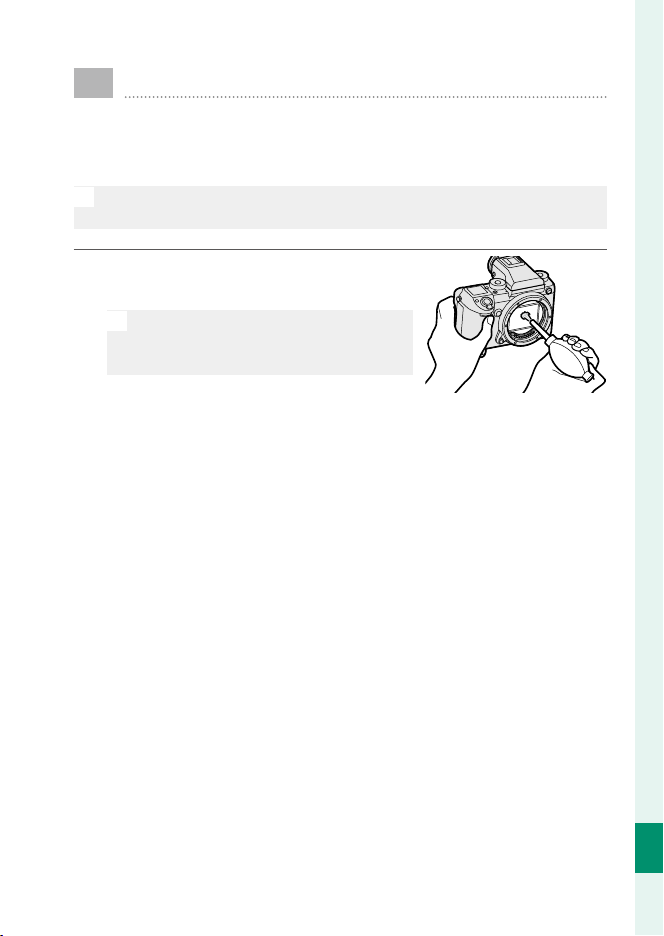
231
Technical Notes
12
Cleaning the Image Sensor
Dust that can not be removed using D USER SETTING>
SENSOR CLEANING can be removed manually as de-
scribed below.
O
Note that there will be a charge to repair or replace the image sensor
if it is damaged during cleaning.
1
Use a blower (not a brush) to remove
dust from the sensor.
O
Do not use a brush or blower brush.
Failure to observe this precaution
could damage the sensor.
2
Check whether the dust has been successfully removed. Re-
peat Steps 1 and 2 as necessary.
3
Replace the body cap or lens.

232
Technical Notes
12
Firmware Updates
Updates to product rmware may result in changes not
described in the manual. For more information, visit:
http://www.fujifilm.com/support/digital_cameras/software
Checking the Firmware Version
O
The camera will only display the rmware version if a memory card is
inserted.
1
Turn the camera o and check that a memory card is insert-
ed.
2
Turn the camera on while holding the DISP/BACK button. The
current rmware version will be displayed; check the rm-
ware version.
3
Turn the camera o .

233
Technical Notes
12
Troubleshooting
Consult the table below should you encounter problems
using your camera. If you don’t nd the solution here, con-
tact your local FUJIFILM distributor.
Power and Battery
Problem
Problem
Solution
Solution
The camera does not
turn on.
•
The battery is exhausted: Charge the battery or insert a ful-
ly-charged spare battery (
P
27).
•
The battery is inserted incorrectly: Reinsert in the correct ori-
entation (
P
30).
•
The battery-chamber cover is not latched: Latch the bat-
tery-chamber cover (
P
30).
The monitor does not
turn on.
The monitor may not turn on if the camera is turned off
and then on again very quickly. Press the shutter button
halfway to activate the monitor.
The battery runs down
quickly.
•
The battery is cold: Warm the battery by placing it in a pock-
et or other warm place and reinsert it in the camera im-
mediately before taking a picture.
•
There is dirt on the battery terminals: Clean the terminals
with a soft, dry cloth.
•
ON is selected for G AF/MF SETTING> PRE-AF: Turn
PRE-AF off (
P
99).
•
The battery has been charged many times: The battery has
reached the end of its charging life. Purchase a new bat-
tery.
The camera turns o
suddenly.
The battery is exhausted: Charge the battery or insert a ful-
ly-charged spare battery (
P
27).
Charging does not start.
Reinsert the battery in the correct orientation and make
sure that the charger is plugged in (
P
27, 30).
Charging is slow. Charge the battery at room temperature.

234
Technical Notes
12
Problem
Problem
Solution
Solution
The charging lamp
blinks, but the battery
does not charge.
•
There is dirt on the battery terminals: Clean the terminals
with a soft, dry cloth (
P
30).
•
The battery has been charged many times: The battery has
reached the end of its charging life. Purchase a new
battery. If the battery still fails to charge, contact your
FUJIFILM dealer (
P
218).
Menus and Displays
Problem
Problem
Solution
Solution
Display is not in English.
Select ENGLISH for D USER SETTING> a
(
P
38, 148).
Shooting
Problem
Problem
Solution
Solution
No picture is taken when
the shutter button is
pressed.
•
The memory card is full: Insert a new memory card or delete
pictures (
P
32, 129).
•
The memory card is not formatted: Format the memory card
(
P
146).
•
There is dirt on the memory card contacts: Clean the contacts
with a soft, dry cloth.
•
The memory card is damaged: Insert a new memory card
(
P
32).
•
The battery is exhausted: Charge the battery or insert a ful-
ly-charged spare battery (
P
27).
•
The camera has turned o automatically: Turn the camera on
(
P
35).
•
You are using a third-party mount adapter: Select ON for
SHOOT WITHOUT LENS (
P
165).
Mottling (“noise”)
appears in the monitor
or view nder when
the shutter button is
pressed halfway.
Gain is increased to aid composition when the subject is
poorly lit and aperture is stopped down, which may result
in noticeable mottling when images are previewed in the
displays. Images taken with the camera are unaff ected.
The camera does not
focus.
The subject is not suited to autofocus: Use focus lock or manual
focus (
P
78).

235
Technical Notes
12
Troubleshooting
Problem
Problem
Solution
Solution
No face is detected.
•
The subject’s face is obscured by sunglasses, a hat, long hair, or
other objects: Remove the obstructions (
P
100).
•
The subject’s face occupies only a small area of the frame:
Change the composition so that the subject’s face occu-
pies a larger area of the frame (
P
100).
•
The subject’s head is tilted or horizontal: Ask the subject to
hold their head straight (
P
100).
•
The camera is tilted: Keep the camera level.
•
The subject’s face is poorly lit: Shoot in bright light.
Wrong subject is
selected.
The selected subject is closer to the center of the frame
than the main subject. Recompose the picture or turn
face detection off and frame the picture using focus lock
(
P
78).
The ash does not re.
The battery is exhausted: Charge the battery
or insert a ful-
ly-charged spare battery (
P
27).
The ash does not fully
light the subject.
•
The subject is not in range of the ash: Position the subject in
range of the fl ash.
•
The ash window is obstructed: Hold the camera correctly.
•
Shutter speed is faster than the sync speed: Choose a slower
shutter speed (
P
54, 60, 244).
Pictures are blurred.
•
The lens is dirty: Clean the lens (
P
189).
•
The lens is blocked: Keep objects away from the lens
(
P
41).
•
s is displayed during shooting and the focus frame is dis-
played in red: Check focus before shooting (
P
42).
Pictures are mottled.
•
Shutter speed is slow and the ambient temperature is high: This
is normal and does not indicate a malfunction.
•
Pixel mapping is required: Perform pixel mapping using
H IMAGE QUALITY SETTING> PIXEL MAPPING
(
P
95).
•
The camera has been used continuously at high temperatures or
a temperature warning is displayed: Turn the camera off and
wait for it to cool down (
P
35, 241).

236
Technical Notes
12
Playback
Problem
Problem
Solution
Solution
Pictures are grainy.
The pictures were taken with a diff erent make or model of
camera.
Playback zoom is
unavailable.
The pictures were created using RESIZE or with a diff erent
make or model of camera.
No sound in movie
playback.
•
Playback volume is too low: Adjust playback volume
(
P
152).
•
The microphone was obstructed: Hold the camera correctly
during recording.
•
The speaker is obstructed: Hold the camera correctly during
playback.
Selected pictures are not
deleted.
Some of the pictures selected for deletion are protected.
Remove protection using the device with which it was
originally applied (
P
133).
File numbering is
unexpectedly reset.
The battery-chamber cover was opened while the cam-
era was on. Turn the camera off before opening the bat-
tery-chamber cover (
P
169).
Connections
Problem
Problem
Solution
Solution
The monitor is blank.
The camera is connected to a TV: Pictures will be displayed on
the TV instead of in the camera monitor (
P
16, 208).
No picture or sound
on TV.
•
The camera is not properly connected: Connect the camera
properly (
P
16, 208).
•
Input on the television is set to “TV”: Set input to “HDMI”
(
P
16, 208).
•
The volume on the TV is too low: Use the controls on the tele-
vision to adjust the volume (
P
16, 208).
Both the TV and camera
monitor are blank.
The display mode selected with the VIEW MODE button is EVF
ONLY +
E: Put your eye to the viewfi nder or use the
VIEW MODE button to choose another display mode.
The computer does not
recognize the camera.
Be sure the camera and computer are correctly connected
(
P
211).
Can not transfer RAW or
JPEG les to computer.
Use MyFinePix Studio to transfer pictures (Windows only;
P
211).

237
Technical Notes
12
Troubleshooting
Wireless Transfer
For additional information on troubleshooting wireless connec-
tions, visit: http://digital-cameras.support.fujifilm.com/app?pid=x
Problem
Problem
Solution
Solution
Problem connecting or
uploading pictures to
smartphone.
•
The smartphone is too far away: Move the devices closer
(
P
210).
•
Nearby devices are causing radio interference: Move the cam-
era and smartphone away from microwave ovens or cord-
less phones (
P
210).
Can not upload images.
•
The smartphone is connected to another device: The smart-
phone and camera can connect to only one device at a
time. End the connection and try again (
P
210).
•
There are several smartphones in the vicinity: Try connecting
again. The presence of multiple smartphones can make
connection diffi cult (
P
210).
•
The current image is a movie or was created on anoth-
er device and can not be uploaded to a smartphone
(
P
210).
Smartphone will not
display pictures.
Select ON for D CONNECTION SETTING> WIRELESS
SETTING> RESIZE IMAGE FOR SMARTPHONE H.
Selecting OFF increases upload times for larger images; in
addition, some phones may not display images over a cer-
tain size (
P
172).

238
Technical Notes
12
Troubleshooting
Miscellaneous
Problem
Problem
Solution
Solution
The camera is unresponsive.
•
Temporary camera malfunction: Remove and reinsert the
battery (
P
30).
•
The battery is exhausted: Charge the battery or insert a
fully-charged spare battery (
P
27).
•
The camera is connected to a wireless LAN: End the con-
nection.
•
The controls are locked: Press and hold the MENU/OK but-
ton to unlock the controls (
P
5).
•
Tethered shooting is in progress: Camera controls can
not be used while tethered shooting is in progress.
Choose a diff erent operating mode (
P
174).
The camera does not func-
tion as expected.
Remove and reinsert the battery (
P
30). If the
problem persists, contact your FUJIFILM dealer.
No sound. Adjust the volume (
P
151).
The EVF does not turn on.
The EVF is not correctly attached: Slide the EVF on until it
clicks into place (
P
11).

239
Technical Notes
12
Warning Messages and Displays
The following warnings appear in the display.
Warning
Warning
Description
Description
i (red)
Low battery. Charge the battery or insert a fully-charged
spare battery.
j (blinks red)
Battery exhausted. Charge the battery or insert a ful-
ly-charged spare battery.
s (displayed in red with
red focus frame)
The camera can not focus. Use focus lock to focus on an-
other subject at the same distance, then recompose the
picture.
Aperture or shutter
speed displayed in red
The subject is too bright or too dark and the picture will be
over- or under-exposed. Use the fl ash for additional light-
ing when taking photographs of poorly-lit subject.
FOCUS ERROR
Camera malfunction. Turn the camera off and then on
again. If the message persists, contact a FUJIFILM dealer.
LENS CONTROL ERROR
TURN OFF THE CAMERA
AND TURN ON AGAIN
NO CARD
The shutter can only be released when a memory card is
inserted. Insert a memory card.
CARD NOT INITIALIZED
•
The memory card is not formatted or the memory card has been
formatted in a computer or other device: Format the memory
card using D USER SETTING> FORMAT.
•
The memory card contacts require cleaning: Clean the con-
tacts with a soft, dry cloth. If the message is repeated,
format the card. If the message persists, replace the card.
•
Camera malfunction: Contact a FUJIFILM dealer.
LENS ERROR
Turn the camera off , remove the lens, and clean the mount-
ing surfaces, then replace the lens and turn the camera on.
If the problem persists, contact a FUJIFILM dealer.

240
Technical Notes
12
Warning
Warning
Description
Description
CARD ERROR
•
The memory card is not formatted for use in the camera: For-
mat the card.
•
The memory card contacts require cleaning or the memory card
is damaged: Clean the contacts with a soft, dry cloth. If the
message is repeated, format the card. If the message per-
sists, replace the card.
•
Incompatible memory card: Use a compatible card.
•
Camera malfunction: Contact a FUJIFILM dealer.
PROTECTED CARD
The memory card is locked. Unlock the card.
BUSY
The memory card is incorrectly formatted. Use the camera
to format the card.
b MEMORY FULL
The memory card is full and pictures can not be recorded.
Delete pictures or insert a memory card with more free
space.
WRITE ERROR
•
Memory card error or connection error: Reinsert the card or
turn the camera off and then on again. If the message
persists, contact a FUJIFILM dealer.
•
Not enough memory remaining to record additional pictures:
Delete pictures or insert a memory card with more free
space.
•
The memory card is not formatted: Format the memory card.
FRAME NO. FULL
The camera has run out of frame numbers (current frame
number is 999-9999). Format the memory card and select
RENEW for D SAVE DATA SETTING> FRAME NO..
Take a picture to reset frame numbering to 100-0001, then
select CONTINUOUS for FRAME NO..

241
Technical Notes
12
Warning Messages and Displays
Warning
Warning
Description
Description
READ ERROR
•
The le is corrupt or was not created with the camera: The fi le
can not be viewed.
•
The memory card contacts require cleaning: Clean the con-
tacts with a soft, dry cloth. If the message is repeated,
format the card. If the message persists, replace the card.
•
Camera malfunction: Contact a FUJIFILM dealer.
PROTECTED FRAME
An attempt was made to delete or rotate to a protected pic-
ture. Remove protection and try again.
CAN NOT CROP
The picture is damaged or was not created with the camera.
DPOF FILE ERROR
Print orders can contain no more than 999 pictures. Copy
any additional pictures you wish to print to another memo-
ry card and create a second print order.
CAN NOT ROTATE
The selected picture can not be rotated.
F CAN NOT ROTATE
Movies can not be rotated.
CAN NOT SET DPOF
The picture can not be printed using DPOF.
F CAN NOT SET DPOF
Movies can not be printed using DPOF.
F CANNOT EXECUTE
Red-eye removal can not be applied to movies.
m CANNOT EXECUTE
Red-eye removal can not be applied to pictures created
with other devices.
p (yellow)
Turn the camera off and wait for it to cool. Mottling may
increase in pictures taken when this warning is displayed.
p (red)
Turn the camera off and wait for it to cool. While this warn-
ing is displayed, movies can not be recorded, mottling may
increase, and performance, including frame advance rate
and display quality, may drop.
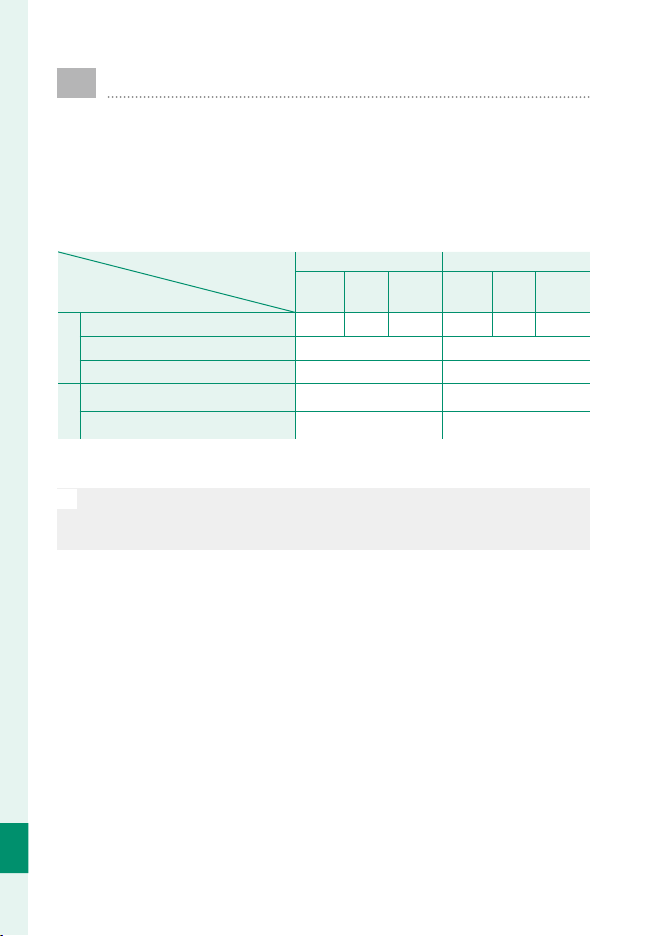
242
Technical Notes
12
Memory Card Capacity
The following table shows the recording time or number
of pictures available at di erent image sizes. All gures are
approximate; le size varies with the scene recorded, pro-
ducing wide variations in the number of les that can be
stored. The number of exposures or length remaining may
not diminish at an even rate.
Capacity
Capacity
T
T
8GB
8GB
16GB
16GB
SUPER
SUPER
FINE
FINE
FINE
FINE
NORMAL
NORMAL
SUPER
SUPER
FINE
FINE
FINE
FINE
NORMAL
NORMAL
Photos
Photos
O
O
4
4
∶
∶
3
3
254 381 607 524 785 1253
RAW (UNCOMPRESSED)
RAW (UNCOMPRESSED)
66 137
RAW (LOSSLESS COMPRESSED)
RAW (LOSSLESS COMPRESSED)
127 265
Movies
Movies
*
*
i
i
1080/29.97P, 25P, 24P, 23.98P
1080/29.97P, 25P, 24P, 23.98P
26 minutes 54 minutes
h
h
720/29.97P, 25P, 24P, 23.98P
720/29.97P, 25P, 24P, 23.98P
51 minutes 105 minutes
* Use a UHS speed class 1 card or better. Individual movies can not exceed 30 min-
utes in length.
O
Although movie recording will continue without interruption when the le
size reaches 4 GB, subsequent footage will be recorded to a separate le
which must be viewed separately.

243
Technical Notes
12
Speci cations
System
Model FUJIFILM GFX 50S
Product Number FF160005
E ective pixels Approx. 51.4 million
Image sensor 43.8 mm× 32.9 mm Bayer array with primary color fi lter
Storage media FUJIFILM-recommended SD/SDHC/SDXC memory cards
Memory card slots Two SD memory card slots (UHS-II compliant)
File system Compliant with Design Rule for Camera File System (DCF),
Exif 2.3, and Digital Print Order Format (DPOF)
File format
•
Still pictures: Exif 2.3 JPEG (compressed); RAW (original RAF
format, uncompressed or compressed using a lossless algo-
rithm; special purpose software required); RAW+JPEG avail-
able; TIFF (RGB)
•
Movies: H.264 standard with stereo sound (MOV)
•
Audio (voice memos): Stereo sound (WAV)
Image size
O 4∶3 (8256 × 6192)
O
3∶2 (8256 × 5504)
O 16∶9 (8256 × 4640)
O 1∶1 (6192 × 6192)
O 65∶24 (8256 × 3048)
O 5∶4 (7744 × 6192)
O 7∶6 (7232 × 6192)
Q 4∶3 (4000 × 3000)
Q
3∶2 (4000 × 2664)
Q 16∶9 (4000 × 2248)
Q 1∶1 (2992 × 2992)
Q 65∶24 (4000 × 1480)
Q 5∶4 (3744 × 3000)
Q 7∶6 (3504 × 3000)
RAW (8256 × 6192) TIFF (8256 × 6192)
Lens mount FUJIFILM G mount
Sensitivity
•
Still pictures: Standard output sensitivity equivalent to ISO
100 – 12800 in increments of ⁄EV; AUTO; extended output
sensitivity equivalent to ISO 50, 25600, 51200, or 102400
•
Movies: Standard output sensitivity equivalent to ISO 200 – 6400
in increments of ⁄EV
Metering 256-segment through-the-lens (TTL) metering; MULTI, SPOT,
AVERAGE, CENTER WEIGHTED
Exposure control Programmed AE (with program shift); shutter-priority AE; aper-
ture-priority AE; manual exposure
Exposure compensation
•
Still pictures: −5EV – +5EV in increments of ⁄EV
•
Movies: −2EV – +2EV in increments of ⁄EV

244
Technical Notes
12
System
Shutter speed
Mode P
Mode P
Other modes
Other modes
Time
Time
Bulb
Bulb
MECHANICAL
MECHANICAL
SHUTTER
SHUTTER
4s to ¼ s
60
min.
to
¼ s
60
min.
to
¼ s
Max. 60min.
E-FRONT CURTAIN
E-FRONT CURTAIN
SHUTTER
SHUTTER
ELECTRONIC
ELECTRONIC
SHUTTER
SHUTTER
4s to ⁄s
60
min.
to
⁄s
60
min.
to
⁄s
Max. 60 min.
MECHANICAL +
MECHANICAL +
ELECTRONIC
ELECTRONIC
E-FRONT CURTAIN +
E-FRONT CURTAIN +
ELECTRONIC
ELECTRONIC
Continuous
•
Available frame advance rates (JPEG): 3.0 fps
•
Approximate maximum number of shots per burst: 25
O
The frame rate varies with shooting conditions and
the number of images recorded. In addition, the
frame rate and number of frames per burst may
vary depending on the type of memory card used.
Focus
•
Mode: Single or continuous AF; manual focus with focus ring
•
Focus-area selection: SINGLE POINT, ZONE, WIDE/TRACKING
•
Autofocus system: TTL contrast-detect
White balance Custom 1, Custom 2, Custom 3, color temperature selection,
auto, direct sunlight, shade, daylight fl uorescent, warm white
fl uorescent, cool white fl uorescent, incandescent, underwater
Self-timer Off , 2 sec., 10 sec.
Flash mode
•
MODE: TTL MODE (FLASH AUTO, STANDARD, SLOW SYNC.),
MANUAL, MULTI, OFF
•
SYNC. MODE: 1ST CURTAIN, 2ND CURTAIN, AUTO FP(HSS)
•
RED
EYE
REMOVAL: e FLASH+REMOVAL, L FLASH,
d REMOVAL, OFF
Hot shoe Accessory shoe with TTL contacts; supports sync speeds as
fast as ⁄s
Sync contact X contact; supports sync speeds as fast as ⁄s
Sync terminal Provided
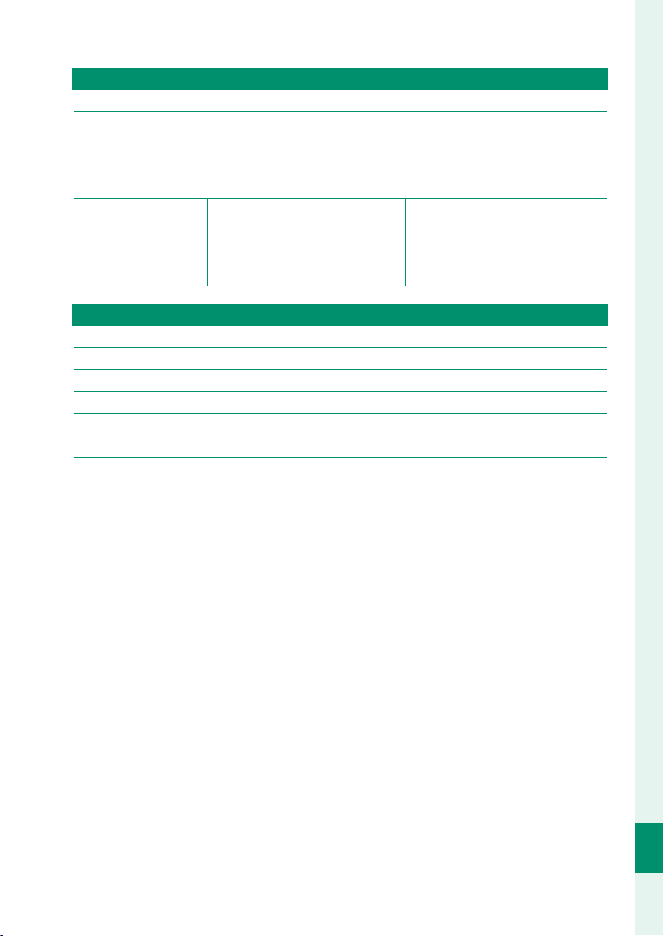
245
Technical Notes
12
Speci cations
System
View nder EVF-GFX1 interchangeable electronic viewfi nder (supplied)
LCD monitor
•
Rear monitor: 3.2-in/8.1 cm, 2360k-dot color LCD touch
screen with 3-way tilt
•
Shoulder monitor: 1.28-in/3.25 cm, 128 × 128-dot memory
LCD monitor
Movies (with stereo
sound)
i 1080/29.97P h 720/29.97P
i 1080/25P h 720/25P
i 1080/24P h 720/24P
i 1080/23.98P h 720/23.98P
Input/output terminals
Microphone connector
⌀3.5 mm mini-stereo jack
Headphone ⌀3.5 mm mini-stereo jack
Digital input/output USB3.0 High-Speed; Micro USB connector (Micro-B)
HDMI output HDMI Micro connector (type D)
Remote release
connector
⌀2.5 mm 3-pole mini jack
DC IN
Provided

246
Technical Notes
12
Power supply/other
Power supply
•
NP-T125 rechargeable battery (supplied with camera)
•
AC-15V AC adapter (available separately)
Battery life
•
Battery type: NP-T125
•
Photographs: The number of frames varies with the option
selected for AUTO POWER SAVE:
Camera battery alone
Camera battery alone
AUTO POWER SAVE
AUTO POWER SAVE
LCD
LCD
EVF
EVF
ON Approx. 400 Approx. 400
OFF Approx. 340 Approx. 340
With battery grip
With battery grip
AUTO POWER SAVE
AUTO POWER SAVE
LCD
LCD
EVF
EVF
ON Approx. 800 Approx. 800
OFF Approx. 660 Approx. 660
•
Movies: The length of footage that can be recorded varies
with the movie mode:
Mode
Mode
Actual Battery life of
Actual Battery life of
movie capture
movie capture
Continuance
Continuance
Battery life of movie
Battery life of movie
capture
capture
i
Approx. 145minutes Approx. 70minutes
CIPA standard, measured in mode P, using fully charged bat-
tery (NP-T125), GF63mmF2.8RWR lens, and SD memory card.
Note: Battery life varies with battery charge level and will de-
cline at low temperatures.
Camera size
(W × H × D)
147.5 mm× 94.2 mm× 91.4 mm (41.6 mm excluding projections,
measured at thinnest part)/5.81 in.× 3.71 in.× 3.60 in. (1.64 in.)
Camera weight Approx. 740 g/26.1 oz., excluding battery, accessories, and
memory card
Shooting weight Approx. 825 g/29.1 oz., including battery and memory card
Operating conditions
•
Temperature: −10 °C to +40 °C/+14 °F to +104 °F (+5 °C to
+40 °C/41 °F to 104 °F when battery is charging)
•
Humidity: 10% to 80% (no condensation)
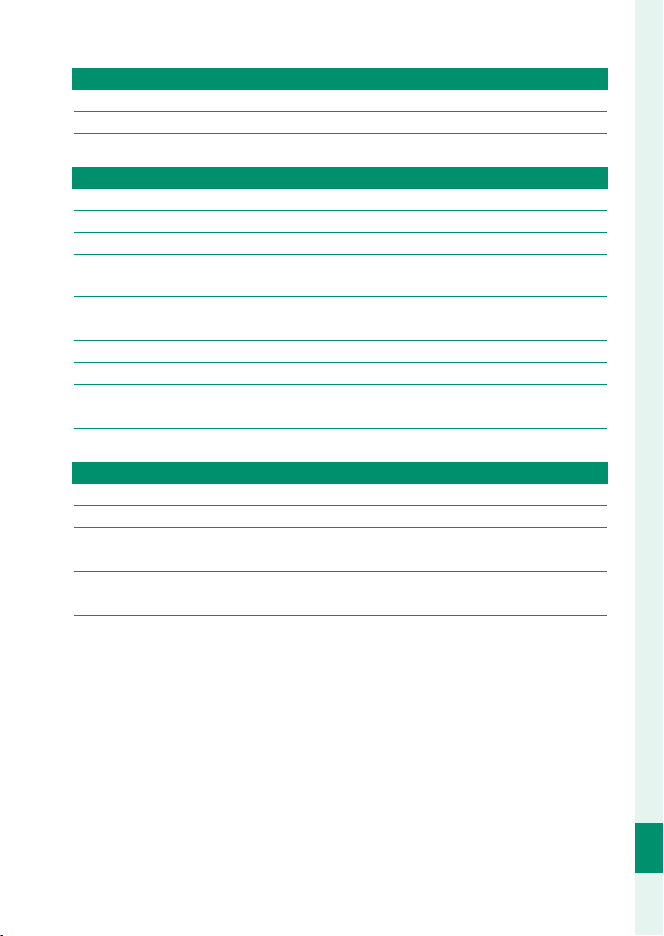
247
Technical Notes
12
Speci cations
Wireless transmitter
Standards IEEE 802.11b/g/n (standard wireless protocol)
Operating frequency 2,412 MHz–2,462 MHz (11 channels)
Access protocols Infrastructure
EVF-GFX1 interchangeable electronic view nder
Type OLED
Size 0.5-in/1.3 cm
Pixel count Approximately 3.69 million dots
Magni cation 0.85× with 50 mm lens (35 mm format) at infi nity and diop-
ter set to −1.0 m
−1
Diagonal angle of
view
Approximately 40° (horizontal angle of view approximately 33°)
Diopter adjustment −4 to +2 m
−1
Eye point Approximately 23 mm
Dimensions
(W × H × D)
53.6 mm× 36.4 mm× 80.1 mm/2.11 in.× 1.43 in.× 3.15 in.
Weight Approx. 95 g/3.35 oz.
NP-T125 rechargeable battery
Nominal voltage 10.8 V
Nominal capacity 1250 mAh
Operating
temperature
−10 °C to +40 °C/+14 °F to +104 °F
Dimensions
(W × H × D)
36.0 mm× 54.4 mm× 26.0 mm/1.4 in.× 2.1 in.× 1.0 in.
Weight Approx. 81 g/2.9 oz.

248
Technical Notes
12
Speci cations
BC-T125 battery charger
Rated input 100 V – 240 V AC, 50/60 Hz
Input capacity 23 –31 VA
Rated output 12.6 V DC, 800 mA
Supported batteries NP-T125 rechargeable batteries
Charging time Approx. 140 minutes (+25 °C/+77 °F)
Operating
temperature
+5 °C to +40 °C/+41 °F to +104 °F
Dimensions
(W × H × D)
71.4 mm × 97.0 mm × 34.2 mm/2.8 in. × 3.8 in. × 1.4 in.,
excluding projections
Weight Approx. 120 g/4.2 oz.
Weight and dimensions vary with the country or region of sale. Labels, menus,
and other displays may diff er from those on the actual camera.
O
Speci cations and performance are subject to change without notice.
FUJIFILM will not be held liable for any errors this manual may contain.
The appearance of the product may di er from that described in this
manual.

249
MEMO

7-3, AKASAKA 9-CHOME, MINATO-KU, TOKYO 107-0052, JAPAN
http://www.fujifilm.com/products/digital_cameras/index.html