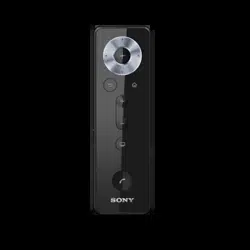

User guide
Bluetooth
®
Remote with
Handset Function
BRH10

Contents
Introduction...................................................................................3
Function overview.............................................................................3
Hardware overview........................................................................... 3
Basics.............................................................................................5
Charging the Bluetooth® Remote.....................................................5
Turning the Bluetooth® Remote on and o..................................... 5
Adjusting the volume....................................................................... 5
Resetting the Bluetooth® Remote....................................................5
Getting started.............................................................................. 7
Preparing an Android™ device.........................................................7
Preparing a non-Android™ device...................................................8
Using your Bluetooth® Remote.................................................... 9
Using your Bluetooth® Remote as a remote control....................... 9
Using your Bluetooth® Remote to handle phone calls.................. 10
Support and maintenance...........................................................12
Updating your Bluetooth® Remote................................................. 12
Important information.................................................................13
Using your Bluetooth® Remote in wet and dusty conditions........ 13
Legal information............................................................................ 13
2
Introduction
Function overview
You can use your Bluetooth® Remote accessory to handle incoming and outgoing
phone calls or to remotely control your Android™ phone or tablet.
For the remote control functionality to work, make sure that your Xperia™ device from Sony
runs on the Android™ 4.4 software version or later.
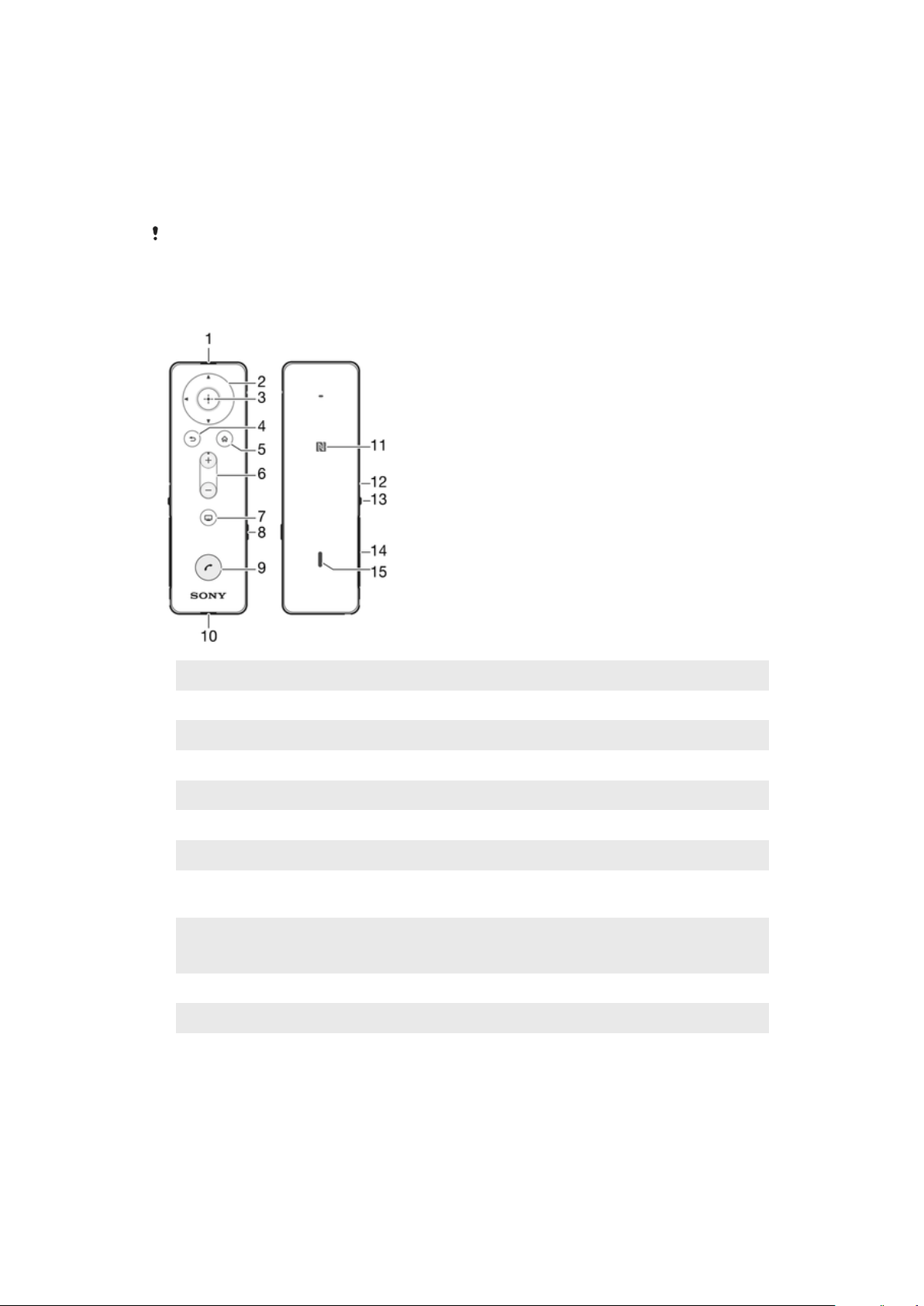
Hardware overview
1
Ear speaker
2
Navigation keys Browse the applications or menus
3
Selection key Select an application or menu
4
Back key Go back to the previous screen
5
Home key Go to the Home screen
6
Volume key Press up or down to adjust the volume
7
App key Open a pre-set application
8
Switch key Switch between loudspeaker and ear speaker mode
during a call
9
Call key Press to answer incoming calls
Press and hold down to reject incoming calls
10
Microphone
11
NFC detection area Touch other devices to this area during NFC pairing
12
Notification light Flashing red light: battery level is between 0% and 4%
Yellow light: battery level is between 5% and 29%
Green light: battery level is between 30% and 100%
Flashing cyan-coloured light: Bluetooth® Remote is in
pairing mode
Flashing white light: a call is coming in
3
This is an Internet version of this publication. © Print only for private use.

13
Power key Press and hold down to turn the Bluetooth® Remote on or
o
Press for 15 seconds to force the Bluetooth® Remote to
shut down.
14
Micro USB port Insert the cable for charging the battery
15
Loudspeaker
The Call key does not work with Internet-based calls.
4
This is an Internet version of this publication. © Print only for private use.
Basics
Charging the Bluetooth® Remote
Before using the Bluetooth® Remote for the first time, you need to charge it for
approximately 2.5 hours. Sony chargers are recommended.
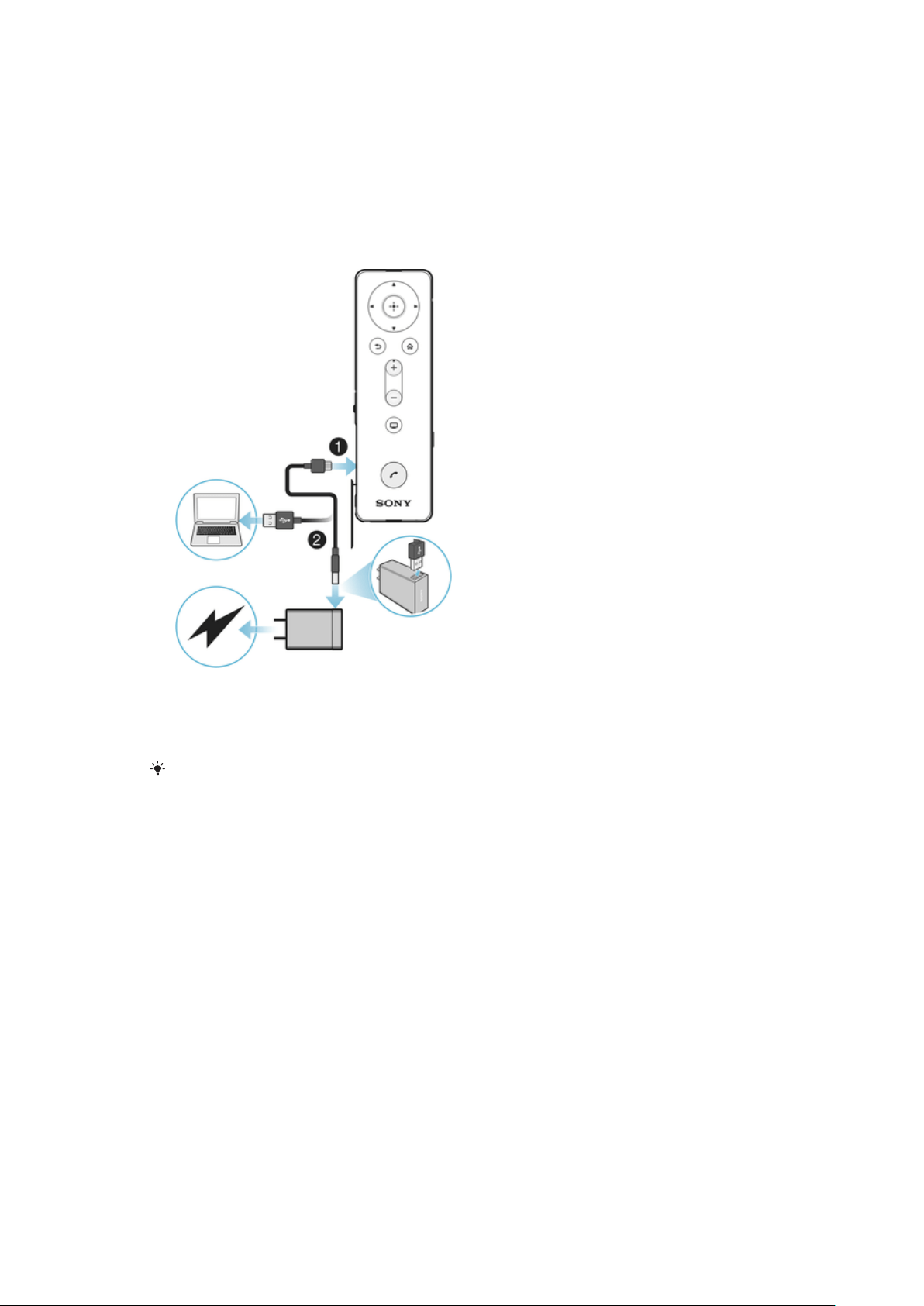
To charge the Bluetooth® Remote
1 Plug one end of the USB cable into the Micro USB port of your Bluetooth®
Remote.
2 Plug the other end of the cable into the charger or into the USB port of a
computer.
A charger may not be included at purchase in all markets.
Turning the Bluetooth® Remote on and o
To turn on the Bluetooth® Remote
• Press and hold down the power key until the Bluetooth® Remote vibrates
and the notification light flashes white.
To turn o the Bluetooth® Remote
• Press and hold down the power key until you hear a notification sound.
Adjusting the volume
To adjust the volume
• During a call, or when playing a media file, press the volume key up or
down.
Resetting the Bluetooth® Remote
Reset the Bluetooth® Remote if it behaves unexpectedly. If you reset it, all
information about paired devices gets deleted.
5
This is an Internet version of this publication. © Print only for private use.

To reset the Bluetooth® Remote
1 Make sure that the Bluetooth® Remote is turned o.
2 Press and hold down the power key and the selection key simultaneously for
at least 10 seconds.
To force your Bluetooth® Remote to shut down
• Press and hold down the power key for at least 15 seconds.
6
This is an Internet version of this publication. © Print only for private use.

Getting started
Preparing an Android™ device
Before you can start using your Bluetooth® Remote with an Android™ device, you
need to do the following:
• Install the Smart Connect application from Google Play on your Android™ device.
• Pair the Bluetooth® Remote with the Android™ device manually (using Bluetooth®)
or automatically (using NFC).
• Install the Remote and Handset BRH10 application from Google Play on your
Android™ device.
After successful pairing, the Bluetooth® Remote connects automatically to your
Android™ device as soon as the Bluetooth® Remote is turned on and within range.
appears in the status bar of your Android™ device after a connection is
established.
The Smart Connect application is pre-installed at purchase on all Android™ devices from
Sony Mobile.
To install the Smart Connect application on an Android™ device
1 From the main application menu of your Android™ device, find and tap Play
Store to open the Google Play™ application.
2 Tap the search icon at the top right corner and enter "Smart Connect" in the
search field, then tap the search icon again.
3 Tap Smart Connect.
4 Tap Download, then tap Accept & Download.
5 Follow the instructions that appear on the screen of your Android™ device to
install the application.
You can only install the Smart Connect application on an Android™ device, for example, a
phone or a tablet.
To install the BRH10 application
1 Make sure you have the Smart Connect application installed on your
Android™ device.
2 Pair the Bluetooth® Remote with your Android™ device.
3 Android™ device: Follow the instructions that appear on the screen to
install the BRH10 application.
To manually pair your Bluetooth® Remote with an Android™ device
1 Android™ device: Make sure the Bluetooth® function is turned on.
2 Turn o your Bluetooth® Remote.
3 Bluetooth® Remote: Press and hold down the power key until a cyan-
coloured notification light starts flashing.
4 Android™ device: Scan for Bluetooth® devices, then select BRH10 in the list
of available devices.
5 Android™ device: Follow the pairing instructions that appear on the screen.
The Bluetooth® Remote automatically enters pairing mode when it's powered on for the
first time.
7
This is an Internet version of this publication. © Print only for private use.
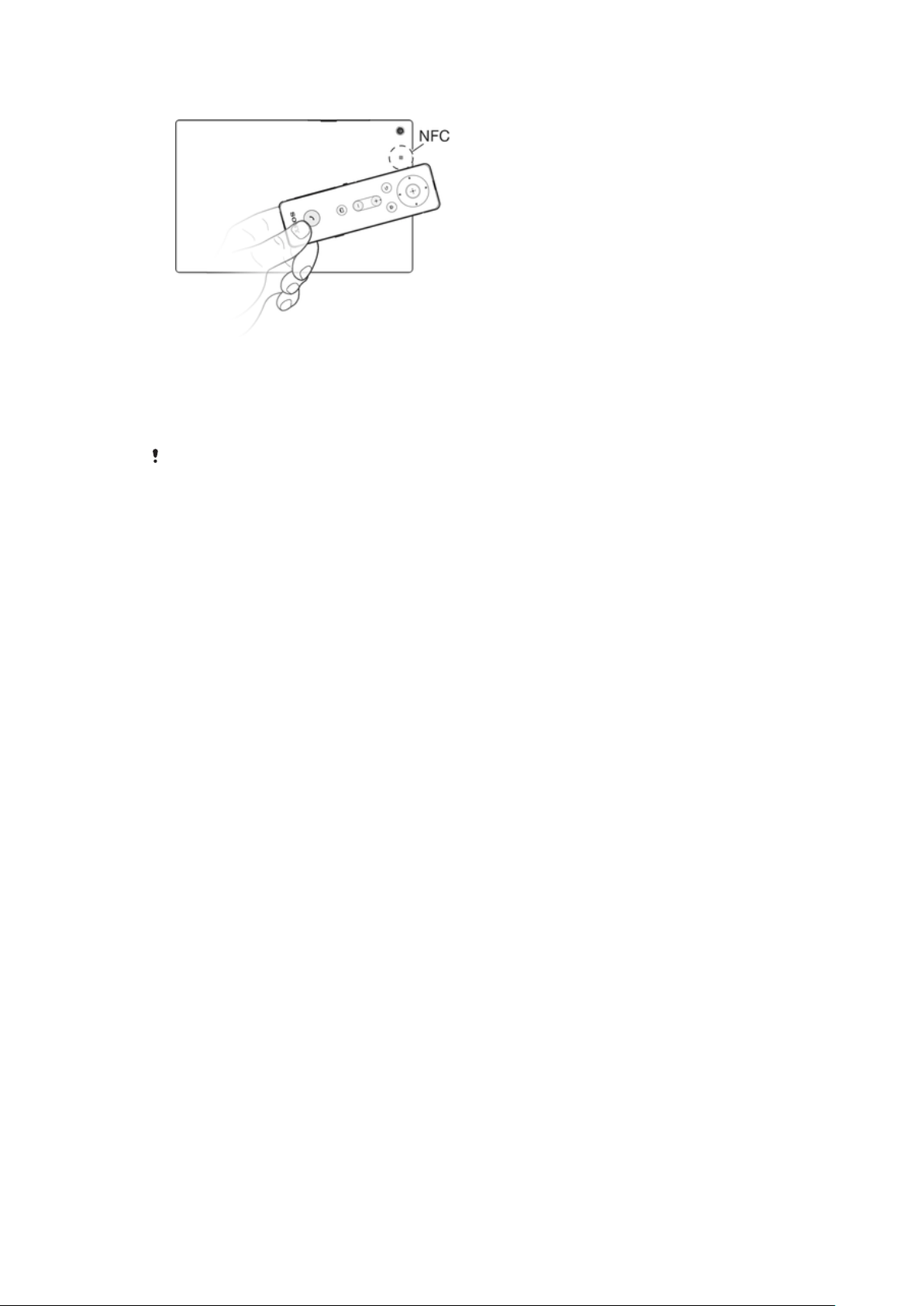
To automatically pair your Bluetooth® Remote with an Android™ device
1 Android™ device: Make sure that the NFC function is turned on and that the
screen is active and unlocked.
2 Place the Bluetooth® Remote over your Android™ device so that the NFC
detection area of each device touches the other.
3 Android™ device: Follow the pairing instructions that appear.
The device used in this illustration is for illustration purposes only and may not accurately
depict the actual device used.
Preparing a non-Android™ device
Before you can start using your Bluetooth® Remote with a non-Android™ device
that supports Bluetooth®, you need to do one of the following:
• Pair the Bluetooth® Remote with the other device manually (using Bluetooth
technology). Follow the same procedure used to manually pair the remote with a
regular Android™ device.
• Pair the Bluetooth® Remote with the other device automatically (using NFC
technology). Follow the same procedure used to automatically pair the remote
with a regular Android™ device.
8
This is an Internet version of this publication. © Print only for private use.

Using your Bluetooth® Remote
Using your Bluetooth® Remote as a remote control
Use your Bluetooth® Remote to control a connected Android™ device wirelessly
from a distance, for example, a tablet or a smartphone. You can use the navigation
keys of the Bluetooth® Remote to browse the Home screen or navigate between
applications on the connected device. You can also create a shortcut to a favourite
application on your Android™ device.
To wake up the screen of your Android™ device
• Press any key on your Bluetooth® Remote.
If your screen is locked, you need to unlock it by hand.
To open an application on your Android™ device
1 Android™ device: Make sure that the screen is active and unlocked.
2 Bluetooth® Remote: Using the navigation keys, browse to the application
that you want to open, then press the Selection key.
3 Bluetooth® Remote: To close the application, press the Back key.
To play a video or music file on your Android™ device
1 Android™ device: Make sure that the screen is active and unlocked.
2 Bluetooth® Remote: Using the navigation keys, browse to the media file
that you want to play.
3 Bluetooth® Remote: To play the file, press the Selection key.
4 Bluetooth® Remote: To pause the file, press the navigation keys to locate
the pause icon on the screen of your Android™ device, then press the
Selection key.
To go to the Home screen of your Android™ device
1 Android™ device: Make sure that the screen is active and unlocked.
2 Bluetooth® Remote: Press the Home key.
To set a shortcut to a favourite application
1 From the main application menu of your Android™ device, find and tap
Smart Connect > BRH10 > Edit settings > App Key.
2 Select an application.
By default, the App key is set to open the TV launcher application.
To access a favourite application using the App key
1 Android™ device: Make sure that the screen is active and unlocked.
2 Bluetooth® Remote: Press the App key.
Finding your Bluetooth® Remote
In case you forget where you left it, you can locate your Bluetooth® Remote by
activating the ringer remotely.
To find your Bluetooth® Remote
1 Make sure that your Bluetooth® Remote is connected to your Android™
device.
2 From the main application menu of your Android™ device, find and tap
Smart Connect > BRH10 > Edit settings > Find BRH10.
3 Tap Search. Your Bluetooth® Remote starts to ring loudly.
You can press any key on your Bluetooth® Remote to mute the ringing.
9
This is an Internet version of this publication. © Print only for private use.

Using your Bluetooth® Remote to handle phone calls
Use your Bluetooth® Remote to handle incoming calls, for example, to answer or
reject a call. You can switch the sound from the call handling device to the speaker
of your Bluetooth® Remote during a call.
To turn on the call handling function
1 Make sure that the Bluetooth® Remote is connected to your Android™
device.
2 To open the BRH10 application, go to the Application menu of your
Android™ device, then find and tap Smart Connect > BRH10.
3 Tap Edit settings.
4 Drag the slider beside Call Handling to the right to turn on the call handling
function.
You can also open the BRH10 application from the notification panel of your Android™
device.
To activate the HD Voice function
• In the BRH10 application, tap Call Handling and mark the HD Voice
checkbox.
You can also open the BRH10 application from the notification panel of your Android™
device.
To answer a call with the Bluetooth® Remote
• When you hear an incoming call signal, press the Call key.
The call key and call handling functions become inactive when you try to handle VoIP
(Voice-over-Internet Protocol) calls using the BRH10 accessory.
To end a call
• During an ongoing call, press the Call key.
To reject a call
• When you hear an incoming call signal, press and hold down the Call key.
To answer a second call
• When you hear an incoming call signal during an ongoing call, press the Call
key. The ongoing call is put on hold.
To reject a second call
• When you hear an incoming call signal during an ongoing call, press and
hold down the Call key.
To switch the sound to the loudspeaker of your Bluetooth® Remote
• During a call, press the Switch key.
To switch the sound back to the ear speaker of your Bluetooth® Remote, press the Switch
key again.
To mute the microphone during a call
• Press and hold down the Call key and the volume down key simultaneously
until you hear a clicking sound.
When the microphone is muted, press and hold down the Call key and the volume down
key again to activate the microphone.
10
This is an Internet version of this publication. © Print only for private use.

To make a voice call
1 Press and hold down the Call key.
2 After the notification tone, speak to enter the contact name or phone
number.
11
This is an Internet version of this publication. © Print only for private use.

Support and maintenance
Updating your Bluetooth® Remote
Update your Bluetooth® Remote to the most recent software version to get optimal
performance and the latest enhancements.
To update the Smart Connect application from your Android™ device
1 From your Home screen, tap .
2 Find and tap Smart Connect, then tap > App info.
3 Tap > Check for updates.
4 If an update is available, follow the instructions that appear on the screen.
To minimise data charges, make sure that your Android™ device is connected to a Wi-Fi®
network.
To update the BRH10 application from your Android™ device
1 From your Home screen, tap .
2 Find and tap Play Store.
3 In the list of installed applications, find and tap BRH10.
4 If an update is available, follow the instructions that appear on the screen.
To minimise data charges, make sure that your Android™ device is connected to a Wi-Fi®
network.
12
This is an Internet version of this publication. © Print only for private use.
Important information
Using your Bluetooth® Remote in wet and dusty conditions
To ensure the water resistance of your Bluetooth® Remote, the cover for the micro USB port
must be firmly closed.
Your Bluetooth® Remote is waterproof and dust resistant in compliance with the
Ingress Protection (IP) ratings IP57, as explained in the table below. To view more
specific information about water resistance, go to
http://www.sonymobile.com/
global-en/support/discover-more/water-and-dust-resistance/
.
All compatible accessories, including chargers and micro USB cables, are not
waterproof and dust resistant on their own.
Your warranty does not cover damage or defects caused by abuse or improper use
of your device. If you have any further questions about the use of your products,
refer to our Customer support service for help.
IP (Ingress Protection) rating
Your Bluetooth® Remote has an IP rating, which means it has undergone certified
tests to measure its resistance levels to both dust and water. The first digit in the
two-digit IP rating indicates the level of protection against solid objects, including
dust. The second digit indicates how resistant the device is to water.
Resistance to solid objects and
dust
Resistance to water
IP0X: No special protection IPX0. No special protection
IP1X. Protected against solid objects
> 50 mm in diameter
IPX1. Protected against dripping water
IP2X. Protected against solid objects >
12.5 mm in diameter
IPX2. Protected against dripping water when tilted up to 15
degrees from normal position
IP3X. Protected against solid objects >
2.5 mm in diameter
IPX3. Protected against spraying water
IP4X. Protected against solid objects > 1
mm in diameter
IPX4. Protected against splashing water
IP5X. Protected against dust; limited
ingress (no harmful deposit)
IPX5. Protected against water jet spray for at least 3
minutes
IP6X. Dust tight IPX6. Protected against heavy jet spray for at least 3
minutes
IPX7. Protected against the eects of immersion in up to 1
metre of water for 30 minutes
IPX8. Protected against the eects of continued immersion
in water depths greater than 1 metre. The exact conditions
are specified for each device by the manufacturer.
Legal information
Sony BRH10
Prior to use, please read the
Important information
leaflet separately provided.
This User guide is published by Sony Mobile Communications AB or its local aliated company, without any
warranty. Improvements and changes to this User guide necessitated by typographical errors, inaccuracies
of current information, or improvements to programs and/or equipment, may be made by Sony Mobile
13
This is an Internet version of this publication. © Print only for private use.
Communications AB at any time and without notice. Such changes will, however, be incorporated into new
editions of this User guide.
All rights reserved.
©2014 Sony Mobile Communications AB.
Interoperability and compatibility among Bluetooth® devices varies. Device generally supports products
utilizing Bluetooth spec. 1.2 or higher, and Headset or Handsfree profile.
Sony is the trademark or registered trademark of Sony Corporation. Bluetooth is the trademark of the
Bluetooth (SIG) Inc. and is used under license. All other marks are the property of their respective owners.
All rights reserved.
All product and company names mentioned herein are the trademarks or registered trademarks of their
respective owners. Any rights not expressly granted herein are reserved. All other trademarks are property
of their respective owners.
Visit
www.sonymobile.com
for more information.
All illustrations are for illustration only and may not accurately depict the actual accessory.
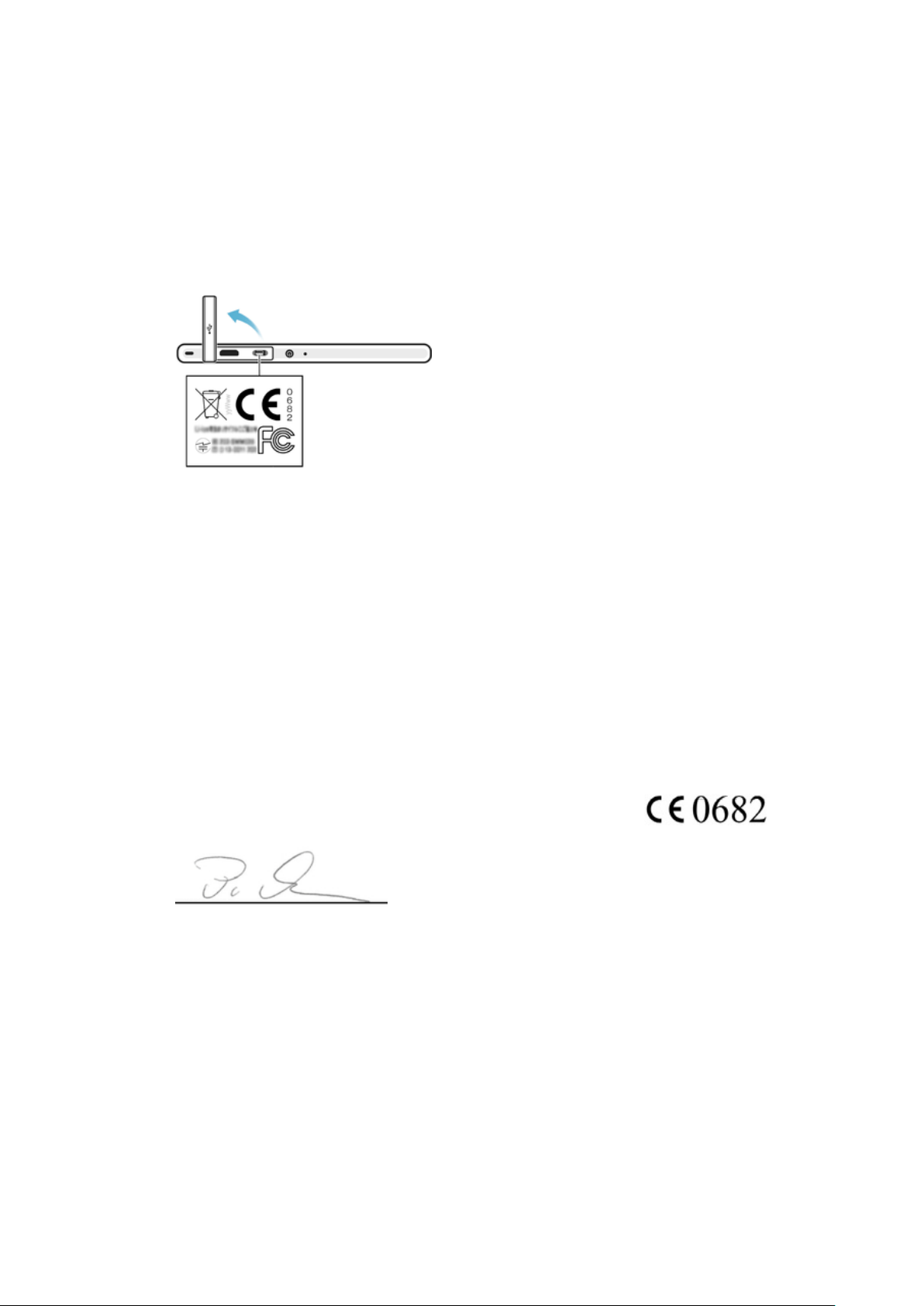
To view CE mark and FCC ID
1 Detach the cover of the micro USB port.
2 Using the tip of a pen or a similar object, drag the label out, then unfold it.
Declaration of Conformity for BRH10
We, Sony Mobile Communications AB of
Nya Vattentornet
SE-221 88 Lund, Sweden
declare under our sole responsibility that our product
Sony type RD-0130
and in combination with our accessories, to which this declaration relates is in
conformity with the appropriate standards EN 300 328:V1.8.1, EN 301 489-3:V1.6.1,
EN 301 489-17:V2.2.1 and EN 60 950-1:2006 +A11:2009+A1:2010+A12:2011
following the provisions of, Radio Equipment and Telecommunication Terminal
Equipment directive 1999/5/EC.
Lund, April 2014
Pär Thuresson,
Quality Ocer, SVP, Quality & Customer Services
We fulfil the requirements of the R&TTE Directive (1999/5/EC).
FCC Statement
This device complies with Part 15 of the FCC rules. Operation is subject to the following two conditions: (1)
This device may not cause harmful interference, and (2) This device must accept any interference received,
including interference that may cause undesired operation.
Any change or modification not expressly approved by Sony may void the user's authority to operate the
equipment.
This equipment has been tested and found to comply with the limits for a Class B digital device, pursuant to
Part 15 of the FCC Rules. These limits are designed to provide reasonable protection against harmful
interference in a residential installation. This equipment generates, uses and can radiate radio frequency
energy and, if not installed and used in accordance with the instructions, may cause harmful interference to
radio communications. However, there is no guarantee that interference will not occur in a particular
installation.
14
This is an Internet version of this publication. © Print only for private use.

If this equipment does cause harmful interference to radio or television reception, which can be determined
by turning the equipment o and on, the user is encouraged to try to correct the interference by one or
more of the following measures:
• Reorient or relocate the receiving antenna.
• Increase the separation between the equipment and receiver.
• Connect the equipment into an outlet on a circuit dierent from that to which the receiver is connected.
• Consult the dealer or an experienced radio/TV technician for help.
AVISO IMPORTANTE PARA MÉXICO
La operación de este equipo está sujeta a las siguientes dos condiciones: (1) es posible que este equipo o
dispositivo no cause interferencia perjudicial y (2) este equipo o dispositivo debe aceptar cualquier
interferencia, incluyendo la que pueda causar su operación no deseada.
Para consultar la información relacionada al número del certificado, refiérase a la etiqueta del empaque y/o
del producto.
Industry Canada Statement
This device complies with RSS-210 of Industry Canada.
Operation is subject to the following two conditions: (1) this device may not cause interference, and (2) this
device must accept any interference, including interference that may cause undesired operation of the
device.
This Class B digital apparatus complies with Canadian ICES-003.
Cet appareil numérique de la classe B est conforme à la norme NMB-003 du Canada.
Avis d’industrie Canada
Le présent appareil est conforme aux CNR d'Industrie Canada applicables aux appareils radio exempts de
licence.
L'exploitation est autorisée aux deux conditions suivantes: (1) l'appareil ne doit pas produire de brouillage,
et, and (2) l'utilisateur de l'appareil doit accepter tout brouillage radioélectrique subi, même si le brouillage
est susceptible d'en compromettre le fonctionnement.
Cet appareil numérique de la classe B est conforme à la norme NMB-003 du Canada.
Les dispositifs fonctionnant dans la bande 5150-5250 MHz sont réservés uniquement pour une utilisation à
l’intérieur afin de réduire les risques de brouillage préjudiciable aux systèmes de satellites mobiles utilisant
les mêmes canaux. Le gain maximal d’antenne permis pour les dispositifs utilisant les bandes 5250-5350
MHz et 5470-5725 MHz doit se conformer à la limite de p.i.r.e. Le gain maximal d’antenne permis (pour les
dispositifs utilisant la bande 5725-5825 MHz) doit se conformer à la limite de p.i.r.e. spécifiée pour
l’exploitation point à point et non point à point, selon le cas. De plus, les utilisateurs devraient aussi être
avisés que les utilisateurs de radars de haute puissance sont désignés utilisateurs principaux (c.-à-d., qu’ils
ont la priorité) pour les bandes 5 250-5 350 MHz et 5 650-5 850 MHz et que ces radars pourraient causer du
brouillage et/ou des dommages aux dispositifs LAN-EL.
15
This is an Internet version of this publication. © Print only for private use.