NEX-VG900/VG900E
US/ES
Additional information on this product and
answers to frequently asked questions can be
found at our Customer Support Website.
Puede encontrar más información sobre este
producto y respuestas a las preguntas más
frecuentes en nuestro sitio Web de atención al
cliente.
http://www.sony.net/
2012 Sony Corporation
Printed in Japan
Impreso en papel reciclado en un 70% o
más utilizando tinta hecha con aceite
vegetal exento de compuesto orgánico
volátil (COV).
Operating Guide US
Guía de operaciones ES
Interchangeable Lens Digital
HD Video Camera Recorder
4-436-704-11(2)
E-mount
2
US
Owner’s Record
The model and serial numbers are located
on the bottom. Record the serial number
in the space provided below. Refer to these
numbers whenever you call your Sony
dealer regarding this product.
Model No. NEX-
Serial No.
Model No. AC-
Serial No.
WARNING
To reduce the risk of fire or electric
shock,
1) do not expose the unit to rain or
moisture.
2) do not place objects filled with
liquids, such as vases, on the
apparatus.
Do not expose the batteries to
excessive heat such as sunshine, fire or
the like.
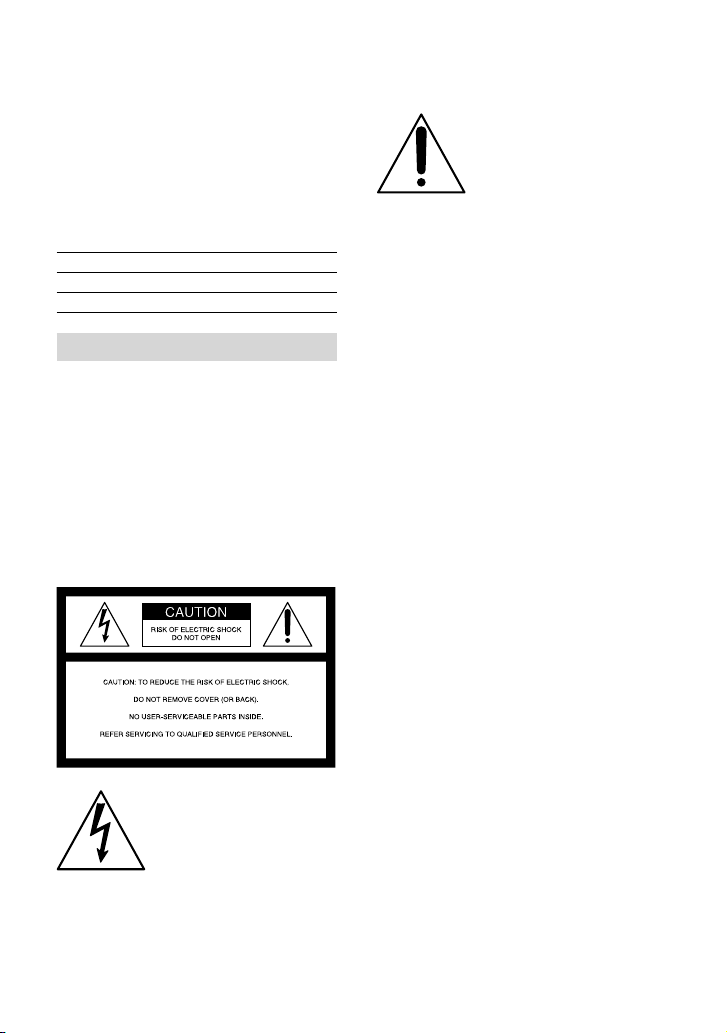
This symbol is intended
to alert the user to the
presence of uninsulated
“dangerous voltage” within
the product’s enclosure
that may be of sufficient
magnitude to constitute
a risk of electric shock to
persons.
This symbol is intended
to alert the user to the
presence of important
operating and maintenance
(servicing) instructions in
the literature accompanying
the appliance.

3
US
US
IMPORTANT SAFETY INSTRUCTIONS
SAVE THESE INSTRUCTIONS.
DANGER - TO REDUCE THE RISK OF FIRE
OR ELECTRIC SHOCK,
CAREFULLY FOLLOW THESE
INSTRUCTIONS.
Read these instructions.
Keep these instructions.
Heed all warnings.
Follow all instructions.
Do not use this apparatus near water.
Clean only with dry cloth.
Do not block any ventilation openings. Install in accordance with the manufacturer’s
instructions.
Do not install near any heat sources such as radiators, heat registers, stoves, or other
apparatus (including amplifiers) that produce heat.
Do not defeat the safety purpose of the polarized or grounding-type plug. A polarized plug
has two blades with one wider than the other. A grounding type plug has two blades and a
third grounding prong. The wide blade or the third prong are provided for your safety. If
the provided plug does not fit into your outlet, consult an electrician for replacement of the
obsolete outlet.
Protect the power cord from being walked on or pinched particularly at plugs, convenience
receptacles, and the point where they exit from the apparatus.
Only use attachments/accessories specified by the manufacturer.
Use only with the cart, stand, tripod, bracket, or table specified by the manufacturer, or
sold with the apparatus. When a cart is used, use caution when moving the cart/apparatus
combination to avoid injury from tip-over.
Unplug this apparatus during lightning storms or when unused for long periods of time.
Refer all servicing to qualified service personnel. Servicing is required when the apparatus
has been damaged in any way, such as power-supply cord or plug is damaged, liquid has
been spilled or objects have fallen into the apparatus, the apparatus has been exposed to
rain or moisture, does not operate normally, or has been dropped.
If the shape of the plug does not fit the power outlet, use an attachment plug adaptor of the
proper configuration for the power outlet.

4
US
Representative plug of power supply cord of countries/regions around the world.
A Type
(American
Type)
B Type
(British Type)
BF Type
(British Type)
B3 Type
(British Type)
C Type
(CEE Type)
SE Type
(CEE Type)
O Type
(Ocean Type)
The representative supply voltage and plug type are described in this chart.
Depend on an area, Different type of plug and supply voltage are used.
Attention: Power cord meeting demands from each country shall be used.
For only the United States
Use a UL Listed, 1.5-3 m (5-10 ft.), Type SPT-2 or NISPT-2, AWG no. 18 power supply
cord, rated for 125 V 7 A, with a NEMA 1-15P plug rated for 125 V 15 A.”
Europe
Countries/regions Voltage Frequency (Hz) Plug type
Austria 230 50 C
Belgium 230 50 C
Czech 220 50 C
Denmark 230 50 C
Finland 230 50 C
France 230 50 C
Germany 230 50 C
Greece 220 50 C
Hungary 220 50 C
Iceland 230 50 C
Ireland 230 50 C/BF
Italy 220 50 C
Luxemburg 230 50 C
Netherlands 230 50 C
Norway 230 50 C
Poland 220 50 C
Portugal 230 50 C
Romania 220 50 C
Russia 220 50 C
Slovak 220 50 C
Spain 127/230 50 C
Sweden 230 50 C
Switzerland 230 50 C
UK 240 50 BF
Asia
Countries/regions Voltage Frequency (Hz) Plug type
China 220 50 A
Hong Kong 200/220 50 BF
India 230/240 50 C
Indonesia 127/230 50 C
Japan 100 50/60 A
Korea (rep) 220 60 C
Malaysia 240 50 BF
Philippines 220/230 60 A/C
Singapore 230 50 BF
Taiwan 110 60 A
Thailand 220 50 C/BF

5
US
Countries/regions Voltage Frequency (Hz) Plug type
Vietnam 220 50 A/C
Oceania
Countries/regions Voltage Frequency (Hz) Plug type
Australia 240 50 O
New Zealand 230/240 50 O
North America
Countries/regions Voltage Frequency (Hz) Plug type
Canada 120 60 A
USA 120 60 A
Central America
Countries/regions Voltage Frequency (Hz) Plug type
Bahamas 120/240 60 A
Costa Rica 110 60 A
Cuba 110/220 60 A/C
Dominican (rep) 110 60 A
El Salvador 110 60 A
Guatemala 120 60 A
Honduras 110 60 A
Jamaica 110 50 A
Mexico 120/127 60 A
Nicaragua 120/240 60 A
Panama 110/220 60 A
South America
Countries/regions Voltage Frequency (Hz) Plug type
Argentina 220 50 C/BF/O
Brazil 127/220 60 A/C
Chile 220 50 C
Colombia 120 60 A
Peru 220 60 A/C
Venezuela 120 60 A
Middle East
Countries/regions Voltage Frequency (Hz) Plug type
Iran 220 50 C/BF
Iraq 220 50 C/BF
Israel 230 50 C
Saudi Arabia 127/220 50 A/C/BF
Turkey 220 50 C
UAE 240 50 C/BF
Africa
Countries/regions Voltage Frequency (Hz) Plug type
Algeria 127/220 50 C
Congo (dem) 220 50 C
Egypt 220 50 C
Ethiopia 220 50 C
Kenya 240 50 C/BF
Nigeria 230 50 C/BF
South Africa 220/230 50 C/BF
Tanzania 230 50 C/BF
Tunisia 220 50 C

6
US
Read this first
Before operating the unit, please read this
manual thoroughly, and retain it for future
reference.
CAUTION
Battery pack
If the battery pack is mishandled, the
battery pack can burst, cause a fire or even
chemical burns. Observe the following
cautions.
Do not disassemble.
Do not crush and do not expose the battery
pack to any shock or force such as hammering,
dropping or stepping on it.
Do not short circuit and do not allow metal
objects to come into contact with the battery
terminals.
Do not expose to high temperature above 60°C
(140°F) such as in direct sunlight or in a car
parked in the sun.
Do not incinerate or dispose of in fire.
Do not handle damaged or leaking lithium ion
batteries.
Be sure to charge the battery pack using a
genuine Sony battery charger or a device that
can charge the battery pack.
Keep the battery pack out of the reach of small
children.
Keep the battery pack dry.
Replace only with the same or equivalent type
recommended by Sony.
Dispose of used battery packs promptly as
described in the instructions.
Replace the battery with the specified type
only. Otherwise, fire or injury may result.
AC Adaptor
Do not use the AC Adaptor placed in a
narrow space, such as between a wall and
furniture.
Use the nearby wall outlet (wall socket)
when using the AC Adaptor. Disconnect
the AC Adaptor from the wall outlet (wall
socket) immediately if any malfunction
occurs while using the apparatus.
Note on the power cord (mains lead)
The power cord (mains lead) is designed
specifically for use with this camcorder
only, and should not be used with other
electrical equipment.
Even if your camcorder is turned off, AC
power source (mains) is still supplied to
it while connected to the wall outlet (wall
socket) via the AC Adaptor.
Excessive sound pressure from earphones
and headphones cause hearing loss.
For customers in the U.S.A. and CANADA
RECYCLING LITHIUM-ION BATTERIES
Lithium-Ion batteries are
recyclable.
You can help preserve our
environment by returning
your used rechargeable
batteries to the collection and
recycling location nearest you.
For more information
regarding recycling of
rechargeable batteries, call toll
free 1-800-822- 8837, or visit
http://www.rbrc.org/
Caution: Do not handle
damaged or leaking Lithium-
Ion batteries.
Battery pack and mount adaptor
This device complies with Part 15 of the
FCC Rules. Operation is subject to the
following two conditions: (1) This device
may not cause harmful interference, and
(2) this device must accept any interference
received, including interference that may
cause undesired operation.

7
US
This Class B digital apparatus complies
with Canadian ICES-003.
For the customers in the U.S.A.
UL is an internationally recognized safety
organization.
The UL Mark on the product means it has
been UL Listed.
If you have any questions about this
product, you may call:
Sony Customer Information Center 1-800-
222-SONY (7669).
The number below is for the FCC related
matters only.
Regulatory Information
Declaration of Conformity
Trade Name: SONY
Model No.: NEX-VG900
Responsible Party: Sony Electronics Inc.
Address: 16530 Via Esprillo, San Diego,
CA 92127 U.S.A.
Telephone No.: 858-942-2230
This device complies with Part 15 of the
FCC Rules. Operation is subject to the
following two conditions: (1) This device
may not cause harmful interference,
and (2) this device must accept any
interference received, including
interference that may cause undesired
operation.
Declaration of Conformity
Trade Name: SONY
Model No.: NEX-VG900E
Responsible Party: Sony Electronics Inc.
Address: 16530 Via Esprillo, San Diego,
CA 92127 U.S.A.
Telephone No.: 858-942-2230
This device complies with Part 15 of the
FCC Rules. Operation is subject to the
following two conditions: (1) This device
may not cause harmful interference,
and (2) this device must accept any
interference received, including
interference that may cause undesired
operation.
CAUTION
You are cautioned that any changes or
modifications not expressly approved in
this manual could void your authority to
operate this equipment.
Note
This equipment has been tested and found
to comply with the limits for a Class B
digital device, pursuant to Part 15 of the
FCC Rules.
These limits are designed to provide
reasonable protection against harmful
interference in a residential installation.
This equipment generates, uses, and
can radiate radio frequency energy and,
if not installed and used in accordance
with the instructions, may cause harmful
interference to radio communications.
However, there is no guarantee that
interference will not occur in a particular
installation. If this equipment does cause
harmful interference to radio or television
reception, which can be determined by
turning the equipment off and on, the
user is encouraged to try to correct the
interference by one or more of the following
measures:
Reorient or relocate the receiving antenna.
Increase the separation between the

8
US
equipment and receiver.
Connect the equipment into an outlet on
a circuit different from that to which the
receiver is connected.
Consult the dealer or an experienced radio/
TV technician for help.
The supplied interface cable must be used
with the equipment in order to comply with
the limits for a digital device pursuant to
Subpart B of Part 15 of FCC Rules.
For the State of California , USA only
Perchlorate Material – special handling,
may apply,
See
www.dtsc.ca.gov/hazardouswaste/
perchlorate
Perchlorate Material: Lithium battery
contains perchlorate.
9
US
Using the camcorder
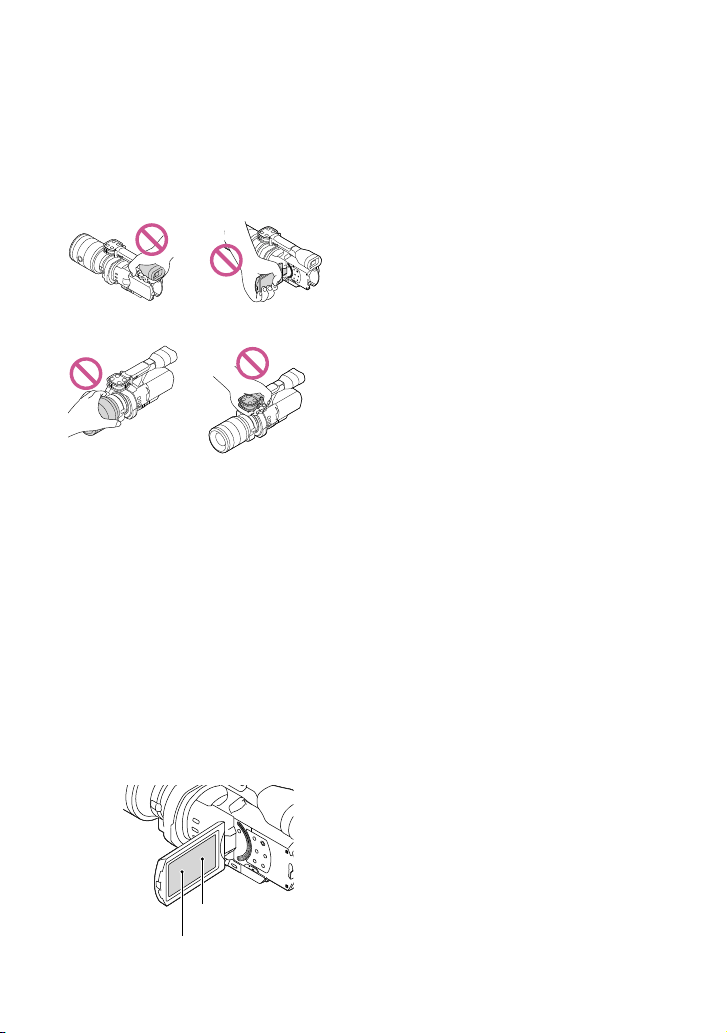
Do not hold the camcorder by the following
parts, and also do not hold the camcorder by
the jack covers.
Viewfinder LCD Screen
Lens Built-in microphone
The camcorder is not dustproofed, dripproofed
or waterproofed. See “Precautions” (p
. 66).
Menu items, LCD panel, viewfinder and
lens
A menu item that is grayed out is not available
under the current recording or playback
conditions.
The LCD screen and viewfinder are
manufactured using extremely high-precision
technology, so over 99.99% of the pixels are
operational for effective use. However, there
may be some tiny black points and/or bright
points (white, red, blue, or green in color) that
appear constantly on the LCD screen. These
points are normal results of the manufacturing
process and do not affect the recording in any
way.
Do not record the sun or leave the camcorder
under the sun for a long time. The inside of
the camcorder may be damaged. If sunlight is
focused on a nearby object, it may cause a fire.
When you must place the camcorder under
direct sunlight, attach the lens cap.
Exposing the LCD screen, the viewfinder or the
lens to direct sunlight for long periods of time
may cause malfunctions.
Do not aim at the sun. Doing so might cause
your camcorder to malfunction. Take images
of the sun only in low light conditions, such as
at dusk.
Do not look at the sun or a strong light through
a removed lens. This may cause irrecoverable
damage to your eyes.
About language setting
The on-screen displays in each local language
are used for illustrating the operating
procedures. Change the screen language before
u
sing the camcorder if necessary (p. 26).
On recording
To ensure stable operation of the memory
card, it is recommended to format the memory
card with your camcorder before the first
use. Formatting the memory card will erase
all the data stored on it and the data will be
irrecoverable. Save your important data on your
PC etc.
Before starting to record, test the recording
function to make sure the image and sound are
recorded without any problems.
Compensation for the contents of recordings
cannot be provided, even if recording or
playback is not possible due to a malfunction of
the camcorder, memory card, etc.
To view recordings made on the camcorder on
a TV, an NTSC-based TV is required for the
NEX-VG900, and a PAL-based TV is required
for the NEX-VG900E.
Television programs, films, video tapes,
and other materials may be copyrighted.
Unauthorized recording of such materials may
be contrary to the copyright laws.
Use the camcorder in accordance with local
regulations.
Black points
White, red, blue or green points
10
US
Notes on playing back
You may not be able to play back normally
images recorded on your camcorder with other
devices. Also, you may not be able to play back
images recorded on other devices with your
camcorder.
Standard (STD) image quality movies recorded
on SD memory cards cannot be played on AV
equipment of other manufacturers.
DVD media recorded with HD image
quality (high definition)
DVD media recorded with high definition
image quality (HD) can be played back with
devices that are compatible with the AVCHD
standard. You cannot play discs recorded with
high definition image quality (HD) with DVD
players/recorders as they are not compatible
with the AVCHD format. If you insert a disc
recorded with the AVCHD format (high
definition image quality (HD)) into a DVD
player/recorder, you may not be able to eject
the disc.
Save all your recorded image data
To prevent your image data from being lost,
save all your recorded images on external media
periodically. To save images on your computer,
see page 45, and to save images on external
devices, see page 52.
The type of discs or media on which the images
can be saved depend on the [
REC Mode]
selected when the images were recorded.
Movies recorded in [60p Quality
] (NEX-
VG900), [50p Quality
] (NEX-VG900E) or
[Highest Quality
] can be saved on external
media or on Blu-ray discs (p. 52).
Notes on battery pack/AC Adaptor
Be sure to remove the battery pack or the AC
Adaptor after turning off the camcorder.
Disconnect the AC Adaptor from the
camcorder, holding both the camcorder and the
DC plug.
Note on the camcorder/battery pack
temperature
When the temperature of the camcorder
or battery pack becomes extremely high or
extremely low, you may not be able to record
or play back on the camcorder, due to the
protection features of the camcorder being
activated in such situations. In this case, an
indicator appears on the LCD screen or on the
viewfinder.
When the camcorder is connected to a
computer or accessories
Do not try to format the memory card of the
camcorder using a computer. If you do so, your
camcorder may not operate correctly.
When connecting the camcorder to another
device with communication cables, be sure to
insert the connector plug in the correct way.
Pushing the plug forcibly into the terminal
will damage the terminal and may result in a
malfunction of the camcorder.
If you cannot record/play back images,
perform [Format]
If you repeat recording/deleting images for
a long time, fragmentation of data occurs on
the memory card. Images cannot be saved or
recorded. In such a case, first save your images
onto a PC, etc., then perform [Format] by
touching
(MENU) [Setup]
[
( Media Settings)] [Format]
.
Notes on optional accessories
We recommend using genuine Sony accessories.
Genuine Sony accessories may not be available
in some countries/regions.
About this manual, illustrations and
on-screen displays
The example images used in this manual for
illustration purposes are captured using a
digital still camera, and therefore may appear
different from images and screen indicators that
actually appear on your camcorder. And, the

11
US
illustrations of your camcorder and its screen
indication are exaggerated or simplified for
understandability.
In this manual, the DVD disc recorded with
high definition image quality (HD) is called
AVCHD recording disc.
Design and specifications of your camcorder
and accessories are subject to change without
notice.
The screen indicators in this manual are those
of NEX-VG900.
Notes on use
Do not do any of the following. Otherwise,
the memory card may be damaged, recorded
images may be impossible to play back or may
be lost, or other malfunctions could occur.
ejecting the memory card when the access
l
amp (p. 30) is lit or flashing
removing the battery pack or AC Adaptor
from the camcorder, or applying mechanical
shock or vibration to the camcorder when the
(Movie)/ (Photo) lamps (p. 33) or the
access lamp (p. 30) are lit or flashing
When using a shoulder belt (sold separately), do
not crash the camcorder against an object.

12
US
Table of contents
IMPORTANT SAFETY INSTRUCTIONS . . . . . . . . . . . . . . . . . . . . . . . . . . . . . . . . . . . . . . . . . . . . . . . . . . . . . . . . . . . 3
Read this first . . . . . . . . . . . . . . . . . . . . . . . . . . . . . . . . . . . . . . . . . . . . . . . . . . . . . . . . . . . . . . . . . . . . . . . . . . . . . . . . . . . . . . . 6
Getting Started
Step 1: Checking supplied items . . . . . . . . . . . . . . . . . . . . . . . . . . . . . . . . . . . . . . . . . . . . . . . . . . . . . . . . . . . . . . 14
Step 2: Attaching the supplied accessories . . . . . . . . . . . . . . . . . . . . . . . . . . . . . . . . . . . . . . . . . . . . . . . . . 16
Step 3: Charging the battery pack . . . . . . . . . . . . . . . . . . . . . . . . . . . . . . . . . . . . . . . . . . . . . . . . . . . . . . . . . . . . 17
Charging the battery pack abroad . . . . . . . . . . . . . . . . . . . . . . . . . . . . . . . . . . . . . . . . . . . . . . . . . . 19
Step 4: Attaching the lens . . . . . . . . . . . . . . . . . . . . . . . . . . . . . . . . . . . . . . . . . . . . . . . . . . . . . . . . . . . . . . . . . . . . . . 20
Step 5: Turning the power on, and setting the date and time . . . . . . . . . . . . . . . . . . . . . . . . . . 24
Changing the language setting . . . . . . . . . . . . . . . . . . . . . . . . . . . . . . . . . . . . . . . . . . . . . . . . . . . . . . 26
Step 6: Making setting adjustments before recording . . . . . . . . . . . . . . . . . . . . . . . . . . . . . . . . . . . 27
Step 7: Inserting a memory card . . . . . . . . . . . . . . . . . . . . . . . . . . . . . . . . . . . . . . . . . . . . . . . . . . . . . . . . . . . . . . 30
Recording/Playback
Recording . . . . . . . . . . . . . . . . . . . . . . . . . . . . . . . . . . . . . . . . . . . . . . . . . . . . . . . . . . . . . . . . . . . . . . . . . . . . . . . . . . . . . . . . . . 32
Selecting the recording mode . . . . . . . . . . . . . . . . . . . . . . . . . . . . . . . . . . . . . . . . . . . . . . . . . . . . . . . 35
Adjusting for shooting conditions . . . . . . . . . . . . . . . . . . . . . . . . . . . . . . . . . . . . . . . . . . . . . . . . . . . . . . . . . . . . 36
Playback on the camcorder . . . . . . . . . . . . . . . . . . . . . . . . . . . . . . . . . . . . . . . . . . . . . . . . . . . . . . . . . . . . . . . . . . . . 37
Playing images on a TV . . . . . . . . . . . . . . . . . . . . . . . . . . . . . . . . . . . . . . . . . . . . . . . . . . . . . . . . . . . . . . . . . . . . . . . . . 41
Advanced operations
Deleting movies and photos. . . . . . . . . . . . . . . . . . . . . . . . . . . . . . . . . . . . . . . . . . . . . . . . . . . . . . . . . . . . . . . . . . . 44
Saving movies and photos with a computer
Useful functions available if you connect the camcorder to a computer . . . . . . . . . . . . . 45
Preparing a computer . . . . . . . . . . . . . . . . . . . . . . . . . . . . . . . . . . . . . . . . . . . . . . . . . . . . . . . . . . . . . . . . . . . . . . . . . . . 46
Starting PlayMemories Home . . . . . . . . . . . . . . . . . . . . . . . . . . . . . . . . . . . . . . . . . . . . . . . . . . . . . . . . . . . . . . . . . 49
Using “Image Data Converter”. . . . . . . . . . . . . . . . . . . . . . . . . . . . . . . . . . . . . . . . . . . . . . . . . . . . . . . . . . . . . . . . . 50
Saving images with an external device
Dubbing guide . . . . . . . . . . . . . . . . . . . . . . . . . . . . . . . . . . . . . . . . . . . . . . . . . . . . . . . . . . . . . . . . . . . . . . . . . . . . . . . . . . . 51
Saving images on an external media device . . . . . . . . . . . . . . . . . . . . . . . . . . . . . . . . . . . . . . . . . . . . . . . 52
Creating a standard definition image quality (STD) disc with a recorder, etc. . . . . . . . 55

13
Table of contents
US
Customizing your camcorder
Using menus . . . . . . . . . . . . . . . . . . . . . . . . . . . . . . . . . . . . . . . . . . . . . . . . . . . . . . . . . . . . . . . . . . . . . . . . . . . . . . . . . . . . . . 57
Getting detailed information from the “Handycam” Handbook . . . . . . . . . . . . . . . . . . . . . . . . 61
Additional information
Troubleshooting . . . . . . . . . . . . . . . . . . . . . . . . . . . . . . . . . . . . . . . . . . . . . . . . . . . . . . . . . . . . . . . . . . . . . . . . . . . . . . 62
Recording time of movies/number of recordable photos . . . . . . . . . . . . . . . . . . . . . . . . . . . . . . . 64
Precautions . . . . . . . . . . . . . . . . . . . . . . . . . . . . . . . . . . . . . . . . . . . . . . . . . . . . . . . . . . . . . . . . . . . . . . . . . . . . . . . . . . . . . . . . 66
Specifications . . . . . . . . . . . . . . . . . . . . . . . . . . . . . . . . . . . . . . . . . . . . . . . . . . . . . . . . . . . . . . . . . . . . . . . . . . . . . . . . . . . . . 68
Quick reference
Screen indicators . . . . . . . . . . . . . . . . . . . . . . . . . . . . . . . . . . . . . . . . . . . . . . . . . . . . . . . . . . . . . . . . . . . . . . . . . . . . . . . . . 71
Parts and controls . . . . . . . . . . . . . . . . . . . . . . . . . . . . . . . . . . . . . . . . . . . . . . . . . . . . . . . . . . . . . . . . . . . . . . . . . . . . . . . . 73
Index . . . . . . . . . . . . . . . . . . . . . . . . . . . . . . . . . . . . . . . . . . . . . . . . . . . . . . . . . . . . . . . . . . . . . . . . . . . . . . . . . . . . . . . . . . . . . . . . 76
14
US
Getting Started
Step 1: Checking
supplied items
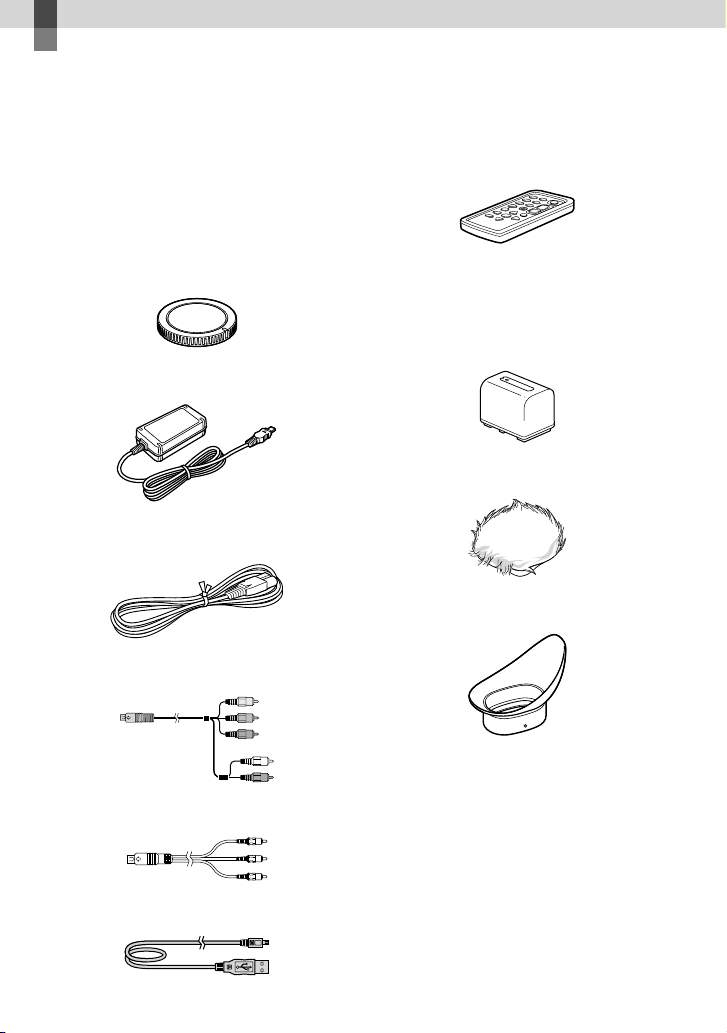
Make sure that you have following items
supplied with your camcorder.
The numbers in ( ) are the supplied
quantity.
This camcorder (1)
Body cap (attached to the camcorder)
(1) (p
. 20)
AC Adaptor (1) (p. 17)
Power cord (mains lead) (1) (p. 17)
Component A/V Cable (1) (p. 41)
A/V connecting cable (1) (p. 41)
USB cable (1) (p. 52)
Wireless Remote Commander (RMT-
835) (1)
A button-type lithium battery is already
installed.
Rechargeable battery pack (NP-FV70)
(1) (p. 17)
Wind Screen (1) (p. 16)
Large eyecup (1) (p. 29)

16
US
Step 2: Attaching the
supplied accessories
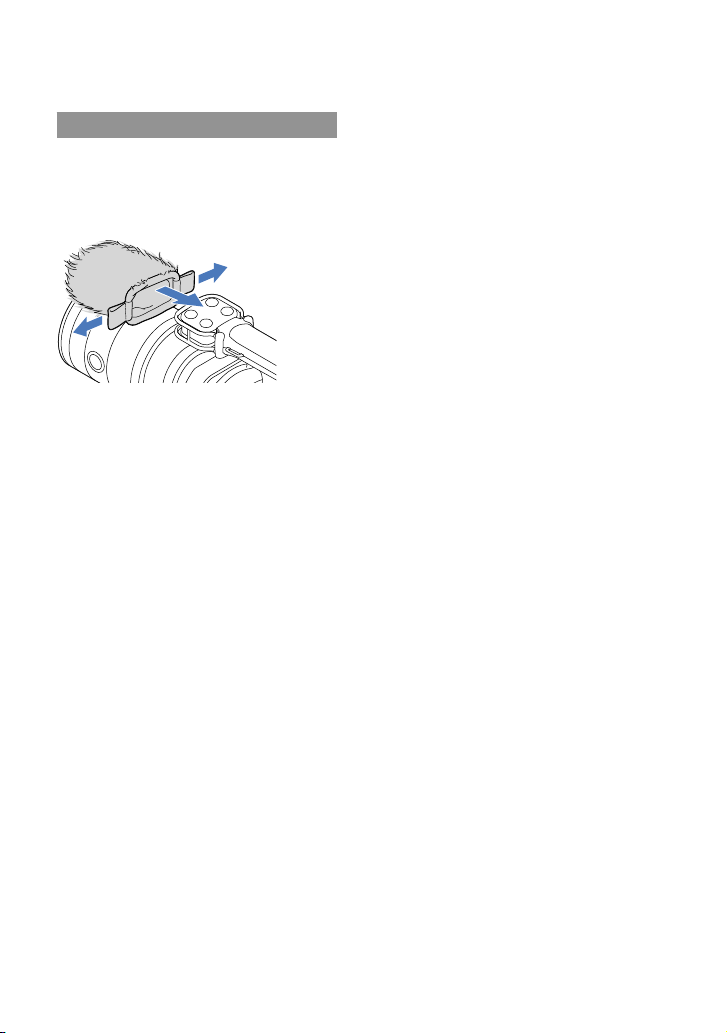
Attaching the Wind Screen
Use the Wind Screen when you want to
reduce the wind noise recorded by the
microphone. Attach the Wind Screen with
the Sony logo facing down.
17
US
Getting Started
Step 3: Charging the battery pack
You can charge the “InfoLITHIUM” battery pack (V series) after attaching it to your
camcorder.
Notes
You cannot attach any “InfoLITHIUM” battery pack other than the V series to your camcorder.
You cannot attach the “InfoLITHIUM” battery pack NP-FV30/FV50, even though they are V series.
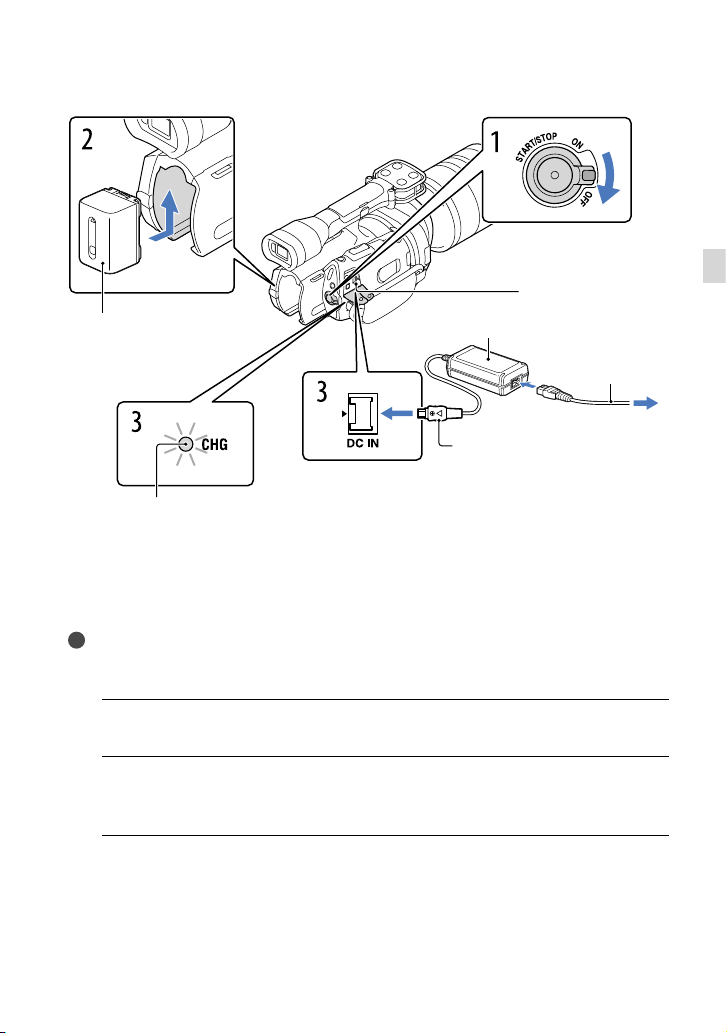
1
Slide the POWER switch to OFF (the default setting).
2
Attach the battery pack by sliding it in the direction of the arrow until it
clicks.
3
Connect the AC Adaptor and the power cord (mains lead) to your
camcorder and the wall outlet (wall socket).
The CHG (charge) lamp lights up and charging starts. The CHG (charge) lamp turns off
when the battery pack is fully charged.
Battery pack
CHG (charge) lamp
DC IN jack
To the wall outlet
(wall socket)
AC Adaptor
DC plug
Power cord
(Mains lead)
Align the mark on the DC plug
with that on the DC IN jack.
18
US
4
When the battery is charged, disconnect the AC Adaptor from the DC IN
jack of your camcorder.
Charging time
Approximate time (min.) required when you fully charge a fully discharged battery pack.
Battery pack Charging time
NP-FV70 (supplied) 195
NP-FV100 390
The charging times shown in the table above are measured when charging the camcorder at a
temperature of 25
C (77 °F). It is recommended that you charge the battery in a temperature range of
10
C to 30 C (50 °F to 86 °F).
Tips
See page 64 on recording and playing time.
When your camcorder is on, you can check the approximate amount of remaining battery power with the
remaining battery indicator at the upper right on the LCD screen.
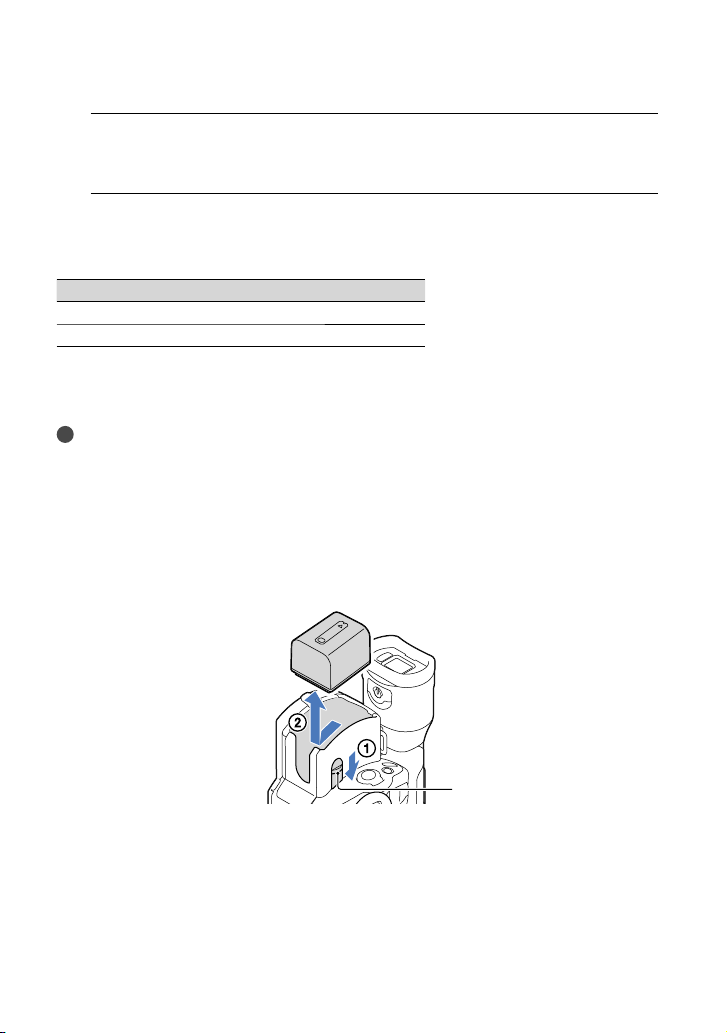
To remove the battery pack
Slide the POWER switch to OFF. Slide the BATT (battery) release lever () and remove the
battery pack ().
To use a wall outlet (wall socket) as a power source
Make the same connections as “Step 3: Charging the battery pack” (p. 17). Even if the battery
pack is attached, the battery pack is not discharged.
BATT (battery) release lever

19
US
Getting Started
Notes on attaching/detaching of the power source
When you remove the battery pack or disconnect the AC Adaptor, turn the camcorder off and make sure
that the
(Movie)/ (Photo) lamps (p. 33), the access lamp (p. 30) are turned off.
The CHG (charge) lamp flashes during charging under the following conditions:
The battery pack is not attached correctly.
The battery pack is damaged.
The temperature of the battery pack is low.
Remove the battery pack from your camcorder and put it in a warm place.
The temperature of the battery pack is high.
Remove the battery pack from your camcorder and put it in a cool place.
In the default setting, the power turns off automatically if you leave your camcorder without any
operation for about 5 minutes, to save battery power ([A. Shut Off]).
Notes on the AC Adaptor
Use the nearby wall outlet (wall socket) when using the AC Adaptor. Disconnect the AC Adaptor from
the wall outlet (wall socket) immediately if any malfunction occurs while using your camcorder.
Do not use the AC Adaptor placed in a narrow space, such as between a wall and furniture.
Do not short-circuit the DC plug of the AC Adaptor or battery terminal with any metallic objects. This
may cause a malfunction.
Note on the power cord (Mains lead)
The power cord (Mains lead) is designed specifically for use with this camcorder only, and should not be
used with other electrical equipment.
Charging the battery pack abroad
You can charge the battery pack in any countries/regions using the AC Adaptor supplied with
your camcorder within the AC 100 V - 240 V, 50 Hz/60 Hz range.
Do not use an electronic voltage transformer.
20
US
Step 4: Attaching the lens
This manual explains how to attach the supplied mount adaptor and a lens (SAL2470Z lens
(sold separately) is used for example purposes).
When you use an E-mount lens, refer to the instruction manual supplied with your lens.
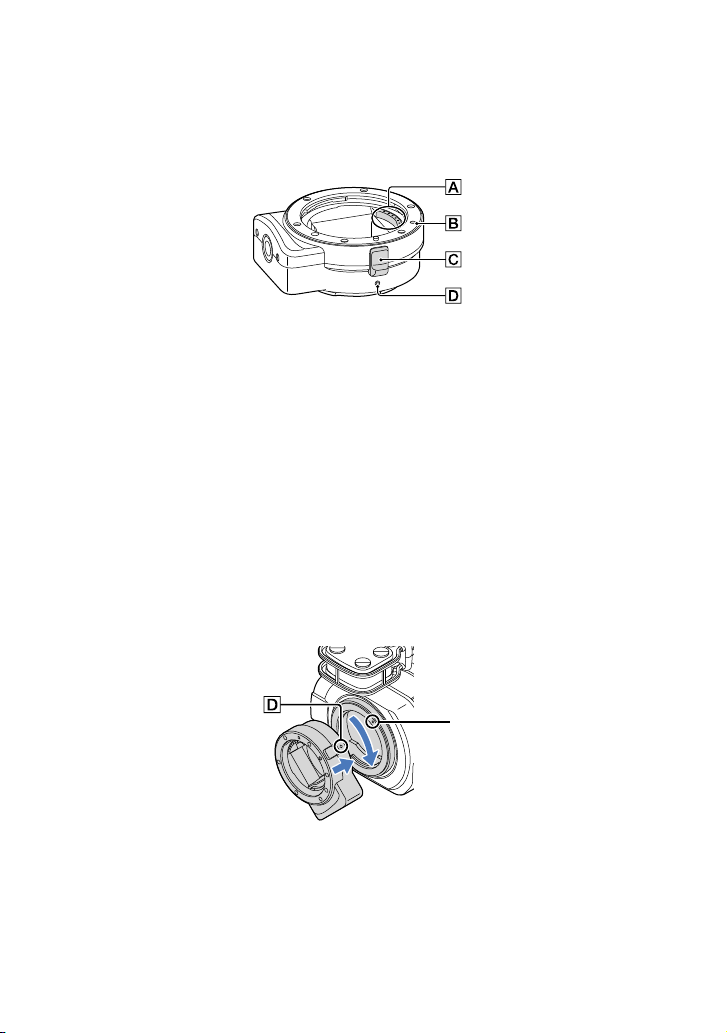
Lens contacts*
Mounting mark (orange)
L
ens release
M
ounting mark (white)
* Do not touch or dirty the lens contacts.
To attach the supplied mount adaptor
Remove the body cap from the camcorder body, and the mount adaptor’s front and rear
caps.
Turn the mount adaptor’s caps counterclockwise to remove them.
Align the mounting mark on the mount adaptor with the mounting index (white) on
the camcorder. Insert the mount adaptor into the camcorder’s mount and turn it clockwise
until it locks in place.
Do not press the lens release button on the camcorder while mounting the mount adaptor as the mount
adaptor will not couple properly.
Do not insert the mount adaptor at an angle.
Mounting index
(white)
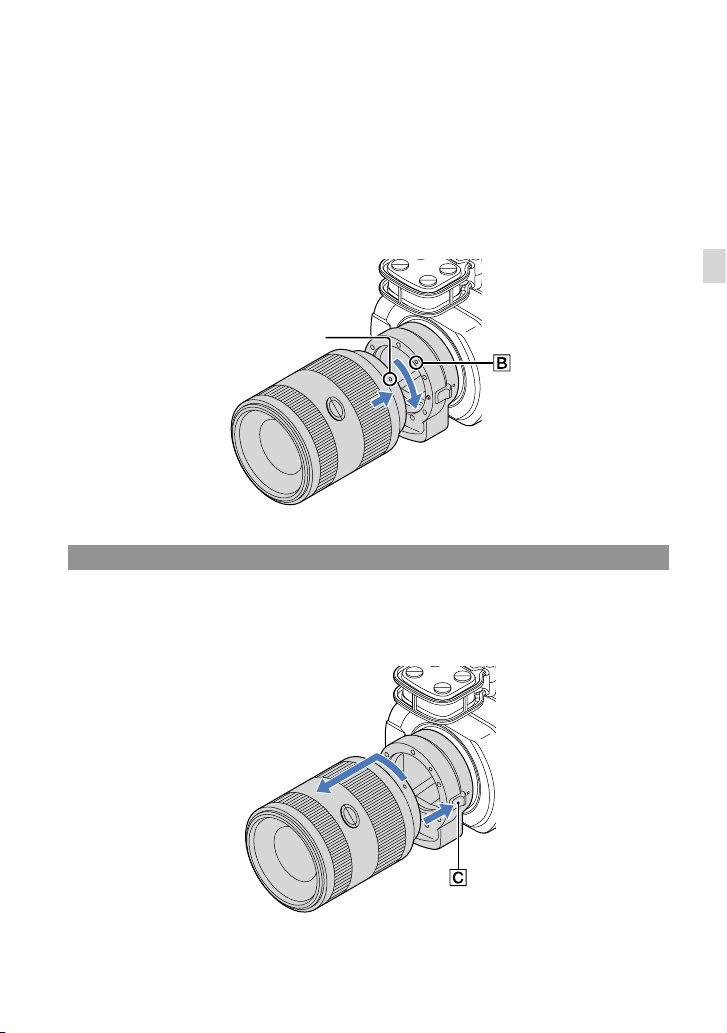
21
US
Getting Started
To attach the lens
Align the mounting index (orange) on the lens barrel with the mounting mark on the
mount adaptor. Insert the lens into the mount adaptor’s mount and turn it clockwise until it
locks in place.
Do not press the lens release on the mount adaptor while mounting the lens as it will not couple
properly.
Do not insert the lens at an angle.
Removing the lens
To remove the lens
Hold down the lens release on the mount adaptor and turn the lens counterclockwise until
it stops. Carefully lift the lens out of the mount adaptor’s mount.
Mounting index
(orange)
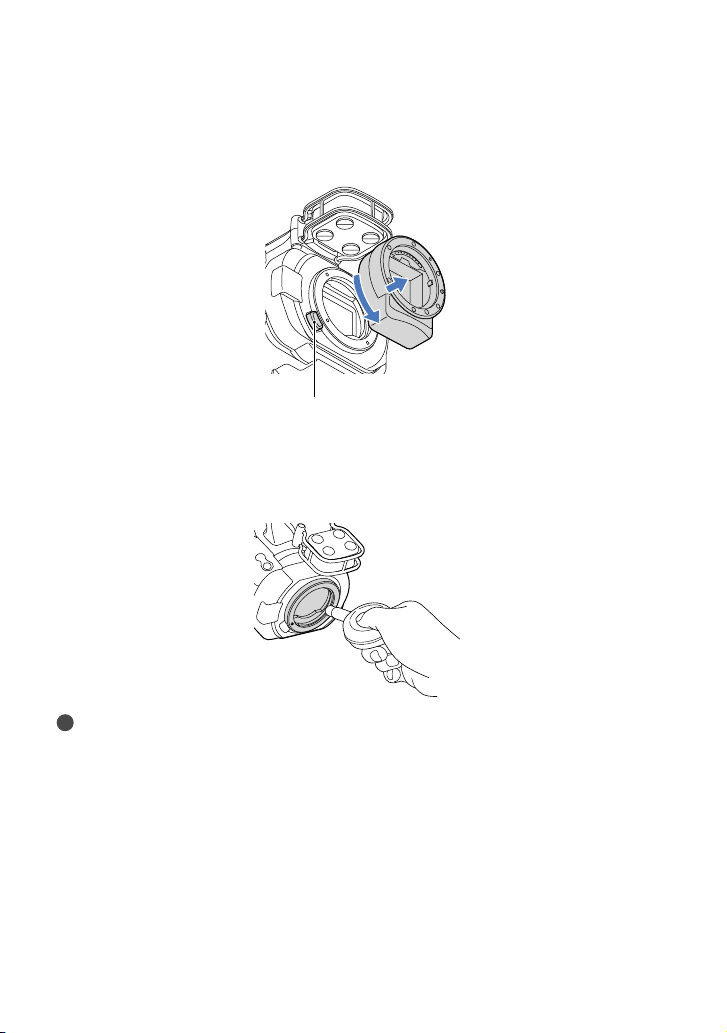
22
US
To remove the mount adaptor
Hold down the lens release button on the camcorder body and turn the mount adaptor
counterclockwise until it stops. Carefully lift the mount adaptor out of the camcorder’s mount.
If dust or debris adheres on the image sensor
Turn off the camcorder and detach the lens. Clean the image sensor and the surrounding area
using a blower (sold separately), and then reattach the lens.
Notes
Do not use a spray blower because it may scatter water droplets inside the camcorder body.
Do not put the tip of a blower into the cavity beyond the mount, so that the tip of the blower does not
touch the image sensor.
Hold the camcorder’s face downward to prevent the dust from resettling in the camcorder.
Do not apply a mechanical shock to the camcorder during cleaning.
If you cannot clean the image sensor by the above procedure, consult your Sony dealer or local authorized
Sony service facility.
Lens release button
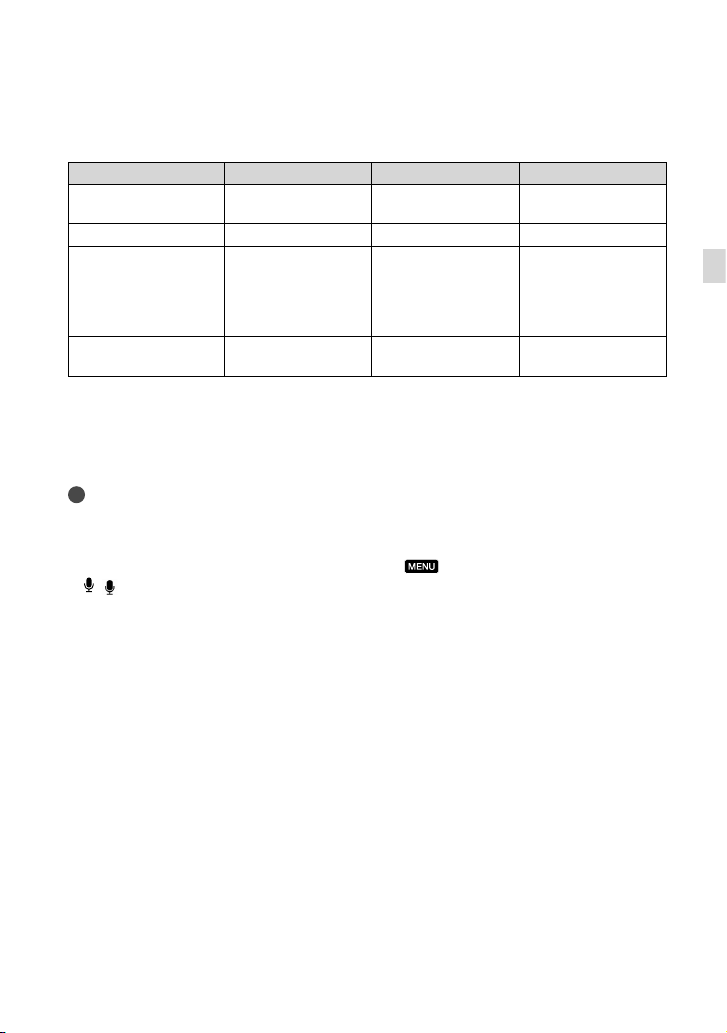
23
US
Getting Started
Mount Adaptor
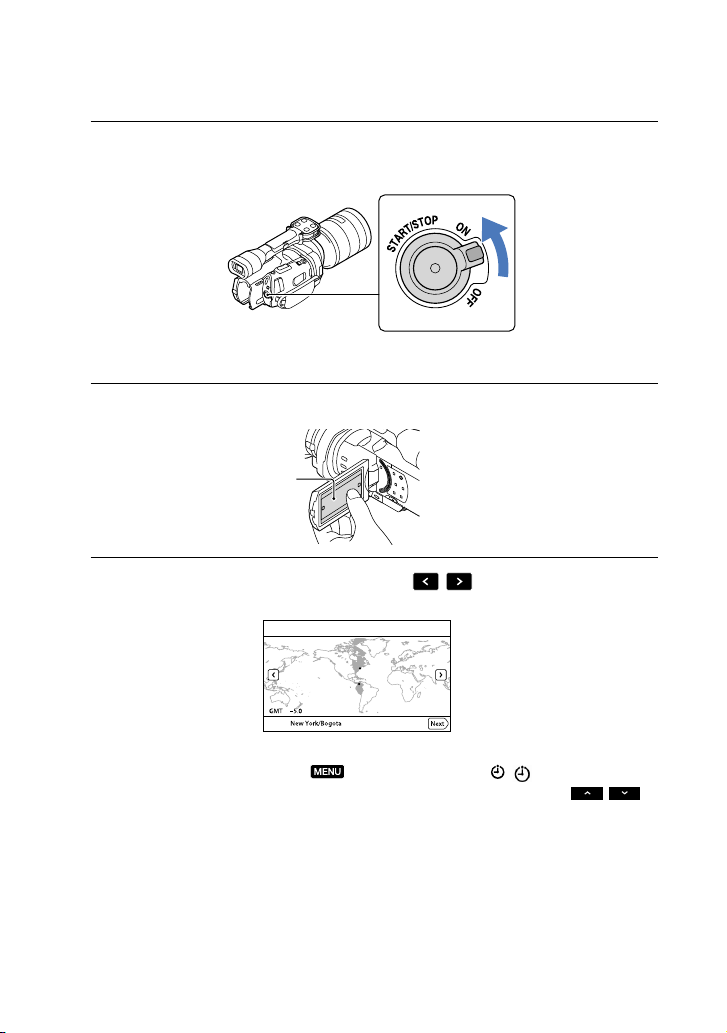
The available functions differ depending on the Mount Adaptor type.
Functions LA-EA1** LA-EA2** LA-EA3
Autofocus
Available with SAM/
SSM lens only
*
Available Available with SAM/
SSM lens only
*
AF system
Contrast AF Phase-detection AF Contrast AF
AF/MF Select
Switchable on the lens SAM/SSM lenses:
switchable on the lens
Other lenses:
switchable on the
FOCUS button
Switchable on the lens
Autofocus Mode (Only
photo mode)
Single Single/Continuous Single
* With LA-EA1, LA-EA3, autofocus speed with an A-mount lens attached will be slower compared to
an E-mount lens. (When an A-mount lens is attached, the autofocus speed will be about 2 seconds to
7 seconds, when shooting under Sony measurement condition. The speed may vary depending on the
subject, ambient light, etc.)
** LA-EA1 and LA-EA2 are sold separately.
Notes
Some lenses may not be usable or may have limited functionality. Check the dedicated support web site or
consult your local authorized Sony service facility on compatible lenses.
The sound of the lens and the camera in operation may be recorded during movie recording. You can
avoid this by setting Audio Rec Level to minimum. Touch
(MENU) [Camera/Mic]
[
( Microphone)] [Audio Rec Level].
It may take a long time or may be difficult for the camera to focus, depending on the lens used or the
subject.
To attach the lens hood
Refer to the instruction manual supplied with your lens.
24
US
Step 5: Turning the power on, and setting the
date and time
1
Slide the POWER switch to ON while pressing the green button.
2
Select the desired language, then touch [Next].
3
Select the desired geographical area with
/ , then touch [Next].
To set the date and time again, touch (MENU) [Setup] [ ( Clock Settings)]
[Date & Time Setting] [Date & Time]. When an item is not on the screen, touch
/
until the item appears.
POWER switch
Touch the button on the
LCD screen
25
US
Getting Started
4
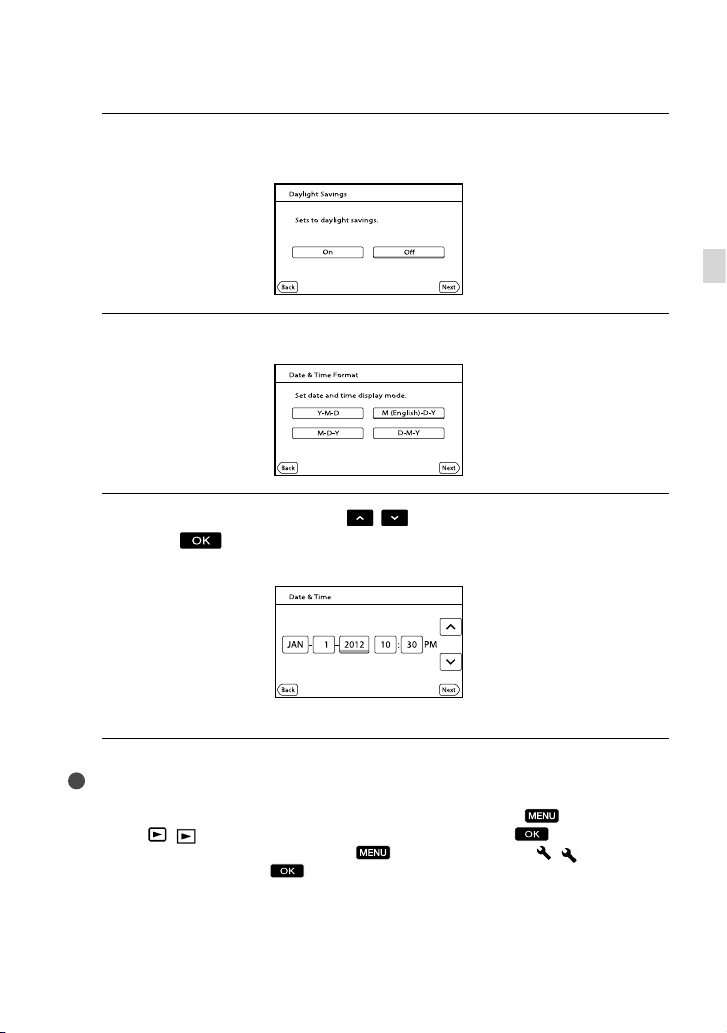
Set [Daylight Savings] or [Summer Time], then touch [Next].
If you set [Daylight Savings] or [Summer Time] to [On], the clock advances 1 hour.
5
Select the date format, then touch [Next].
6
Select the date and time, touch
/ to set the value, then touch
[Next]
*.
* The confirmation screen appears only when you set the clock for the first time.
The clock starts.
Notes
The date and time does not appear during recording, but they are automatically recorded on the memory
card, and can be displayed during playback. To display the date and time, touch
(MENU)
[Setup] [
( Playback Settings)] [Data Code] [Date/Time] .
You can turn off the operation beeps by touching
(MENU) [Setup] [ ( General
Settings)] [Beep] [Off]
.
If the button you touch does not react correctly, calibrate the touch panel.

26
US
To turn off the power
Slide the POWER switch to OFF.
The
(Movie) lamp flashes for a few seconds and the camcorder is turned off.
Changing the language setting
You can change the on-screen displays to show messages in a specified language.
Touch
(MENU) [Setup] [ ( General Settings)] [Language Setting] a
desired language
.
27
US
Getting Started
Step 6: Making setting adjustments before
recording
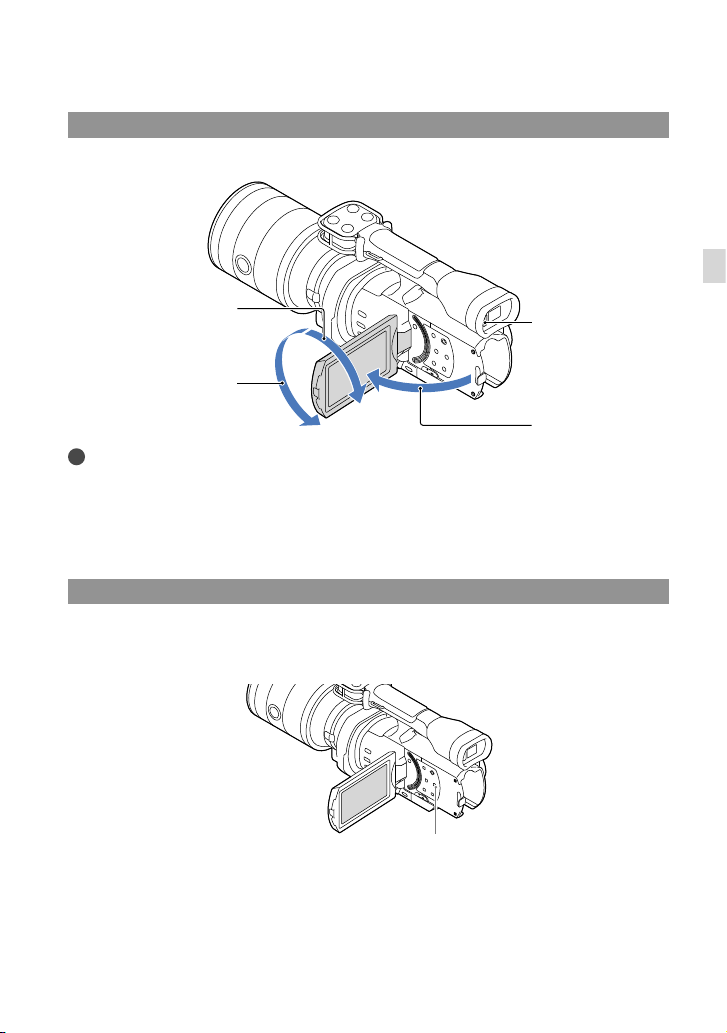
The LCD panel
Open the LCD panel 90 degrees to the camcorder (), and then adjust the angle ().
Tips
Images are displayed on the viewfinder or the LCD screen.
As your eye moves closer to the viewfinder when the LCD screen is closed, the screen display changes to
the viewfinder. You can set the camcorder so that the screen display changes to the viewfinder as your eye
moves closer to the viewfinder, even though the LCD screen is open.
You can adjust the brightness of the LCD screen with [LCD Brightness ].
Changing the display on the LCD screen
Press DISPLAY to cycle the screen display in the following order:
Recording: Detailed display simple display minimum display
Playing: Detailed display minimum display
DISPLAY button
Eye sensor
Max. 90 degrees
Max. 180 degrees
Max. 90 degrees
28
US
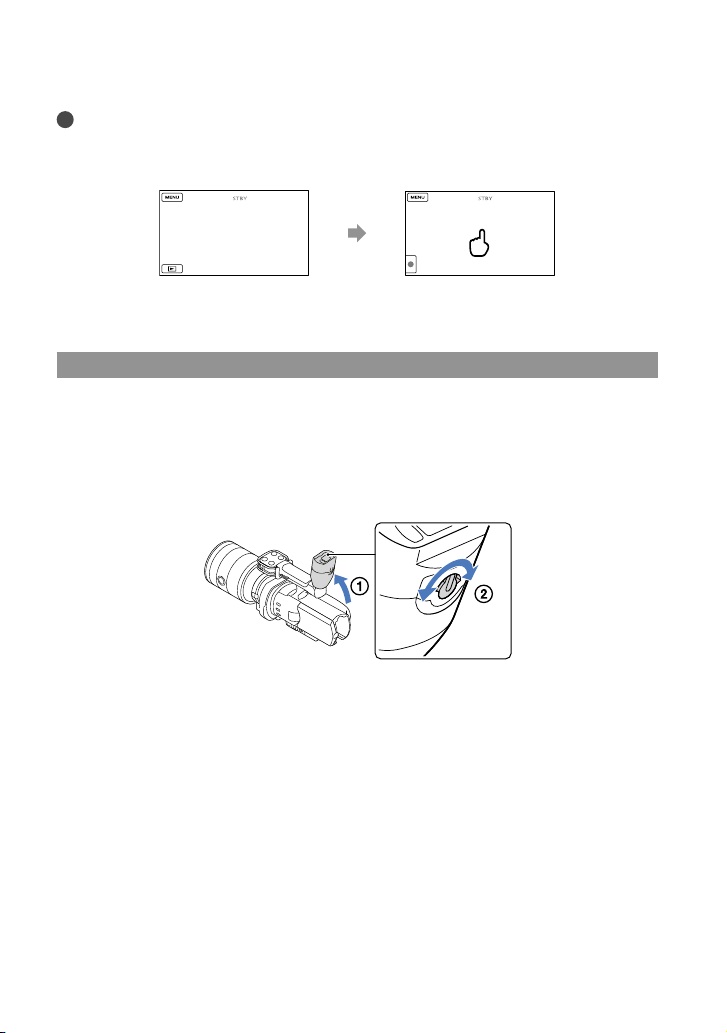
Tips
In the default setting, the screen display changes to the simple display after about 4 seconds ([Display
Setting]). The display changes to the detailed display when you touch anywhere on the screen except the
buttons on the LCD screen so that you can use items.
The viewfinder
When you record while viewing through the viewfinder, keep your eye close to the viewfinder,
while the LCD screen is closed. If the indications in the viewfinder appear blurred, adjust the
viewfinder lens adjustment lever located beneath the viewfinder. If [VF/Panel] is set to [Auto],
as your eye moves closer to the viewfinder, the eye sensor detects it and the display changes
to the viewfinder even though the LCD screen is open. If the eye sensor cannot detect it, the
display remains on the LCD screen.
The display becomes dark after a certain period when you use the
viewfinder.
about 4 sec
after
29
US
Getting Started
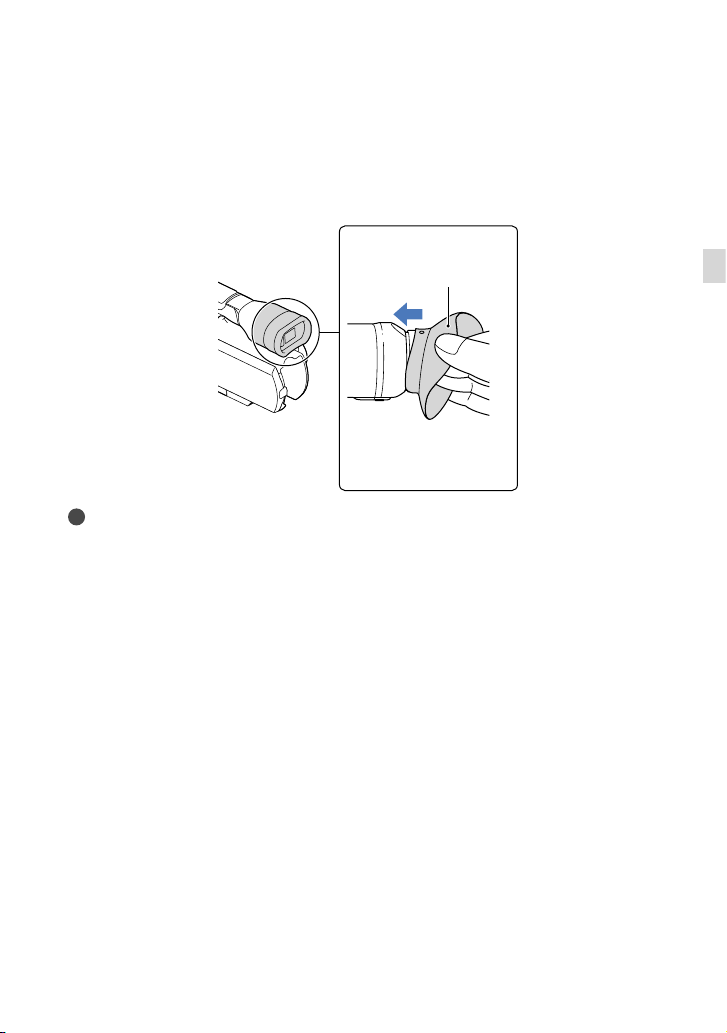
If the image is not clear in the viewfinder
If you cannot see the picture in the viewfinder clearly under bright circumstances, use the
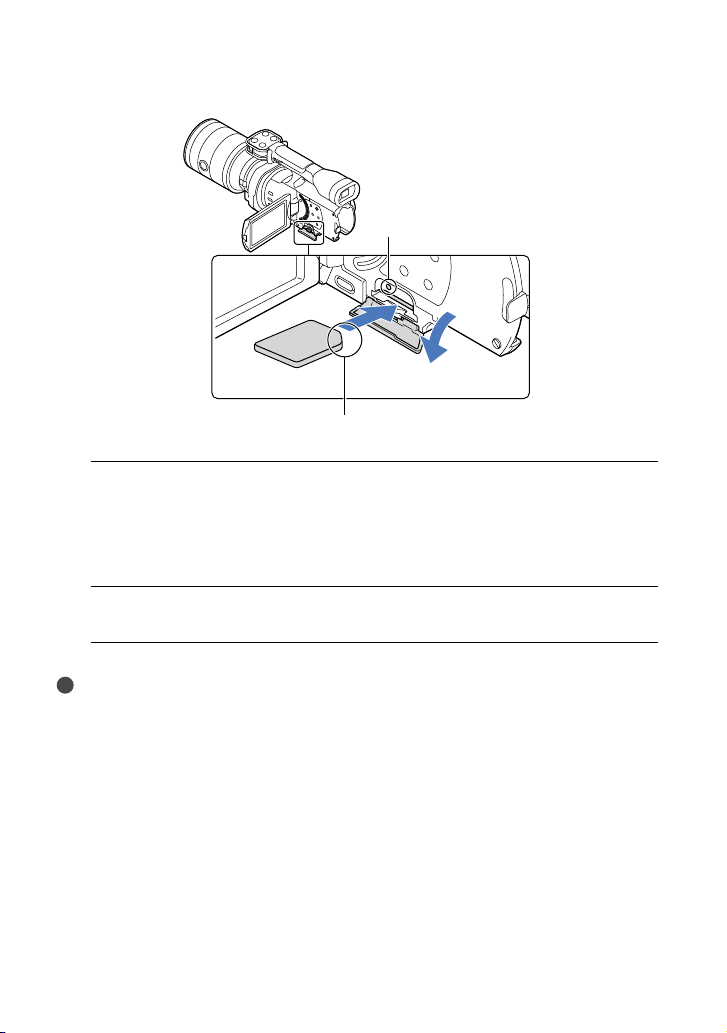
supplied large eyecup. To attach the large eyecup, stretch it slightly and align it with the
eyecup groove in the viewfinder. You can attach the large eyecup facing either the right or left
side.
Notes
Do not remove the pre-attached eyecup.
Large eyecup (supplied)
Attach the projection to be
straight.
30
US
Step 7: Inserting a memory card
1
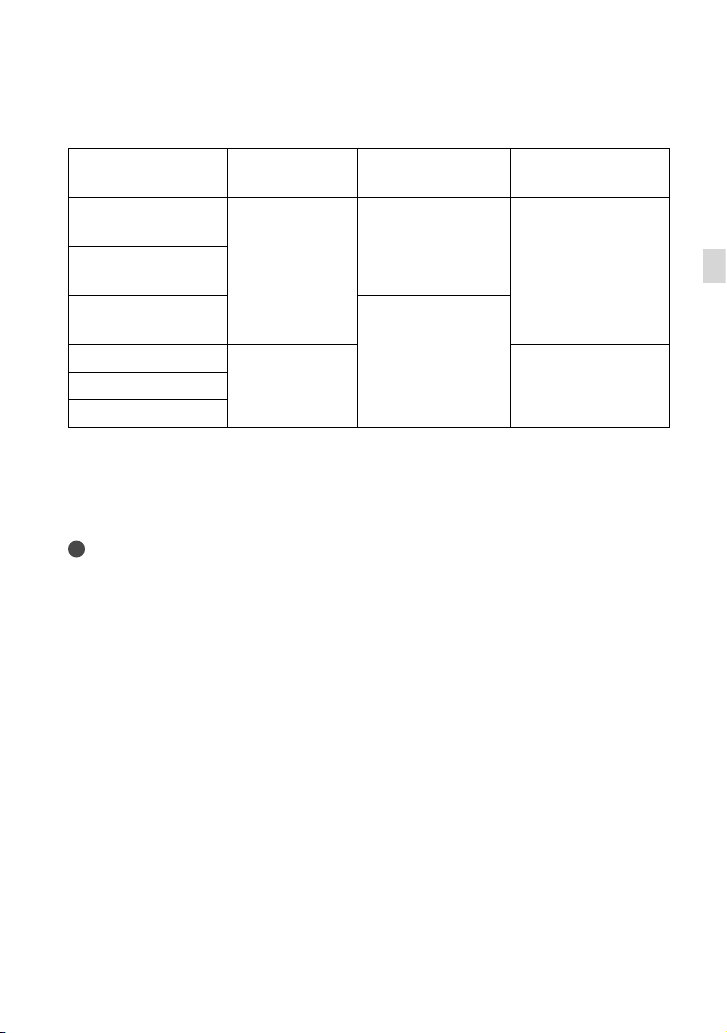
Open the cover, and insert the memory card with the notched edge in the
direction as illustrated until it clicks.
The [Preparing image database file. Please wait.] screen appears if you insert a new
memory card. Wait until the screen disappears.
2
Close the cover.
Notes
If [Failed to create a new Image Database File. It may be possible that there is not enough free space.] is
displayed, format the memory card.
Confirm the direction of the memory card. If you forcibly insert the memory card in the wrong direction,
the memory card, memory card slot, or image data may be damaged.
Do not open the cover during recording.
When inserting or ejecting the memory card, be careful so that the memory card does not pop out and
drop.
To eject the memory card
Open the cover and lightly push the memory card in once.
Access lamp
Note the direction of notched corner.
31
US
Getting Started
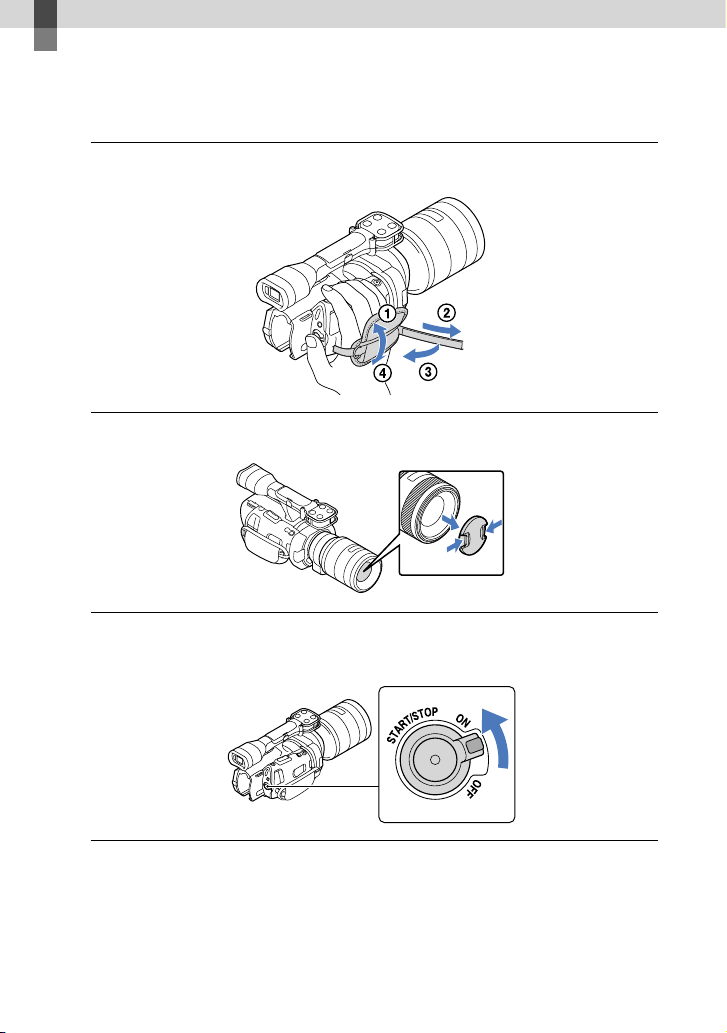
Types of memory card you can use with your camcorder
SD Speed Class Capacity (operation
verified)
Described in this
manual
“Memory Stick PRO
Duo” media (Mark2)
—
32 GB
“Memory Stick PRO
Duo” media
“Memory Stick PRO-
HG Duo” media
“Memory Stick XC-
HG Duo” media
64 GB
SD memory card
Class 4 or faster SD cardSDHC memory card
SDXC memory card
Operation with all memory cards is not assured.
“Memory Stick PRO Duo” media, half the size of “Memory Stick”, or standard size SD cards can be used
for this camcorder.
Do not attach a label or the like on memory card or memory card adaptor. Doing so may cause a
malfunction.
Notes
A MultiMediaCard cannot be used with this camcorder.
Movies recorded on “Memory Stick XC-HG Duo” media or SDXC memory cards cannot be imported
to or played back on computers or AV devices not supporting the exFAT
* file system by connecting the
camcorder to these devices with the USB cable. Confirm in advance that the connecting equipment is
supporting the exFAT system. If you connect an equipment not supporting the exFAT system and the
format screen appears, do not perform the format. All the data recorded will be lost.
* The exFAT is a file system that is used for “Memory Stick XC-HG Duo” media and SDXC memory
cards.
32
US
Recording/Playback
Recording
In the default setting, movies are recorded with high definition image quality (HD).
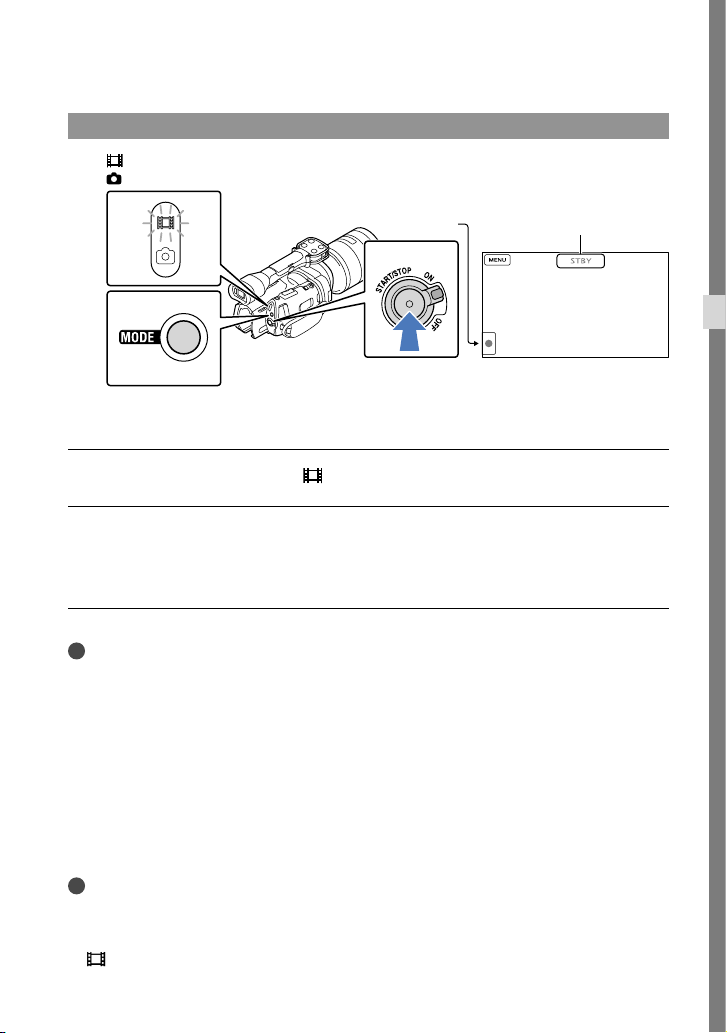
1
Fasten the grip belt.
2
To remove the lens cap, push the sliders on both sides of the cap.
3
Slide the POWER switch to ON while pressing the green button.
Your camcorder is turned on.
33
US
Recording/Playback
Recording movies
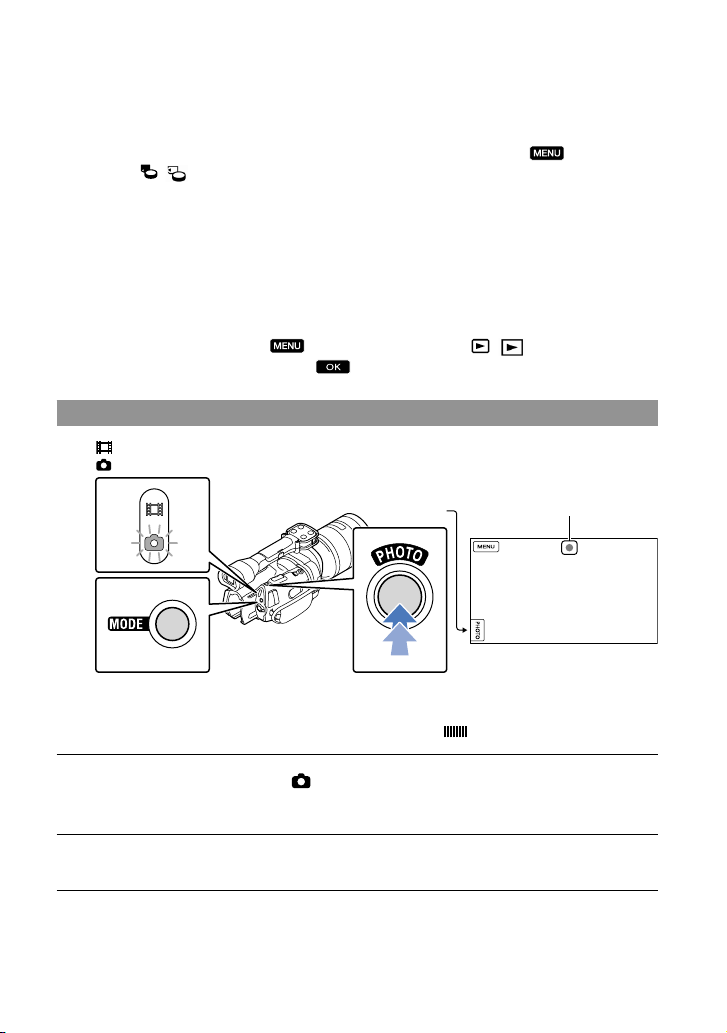
Press MODE to turn on the (Movie) lamp.
Press START/STOP to start recording.
The recording lamp lights up during recording (p. 75).
To stop recording, press START/STOP again.
Notes
The maximum continuous recordable time of movies is about 13 hours.
When a movie file exceeds 2 GB, the next movie file is created automatically.
It will take several seconds until you can start recording after you turn on the camcorder. You cannot
operate your camcorder during this time.
The following states will be indicated if data is still being written onto the recording media after recording
has finished. During this time, do not apply shock or vibration to the camcorder, or remove the battery or
AC Adaptor.
A
ccess lamp (p. 30) is lit or flashing
The media icon in the upper right of the LCD screen is flashing
Hold the lens with your left hand to support the camera during recording (when you do not use a tripod).
Make sure that your fingers are not touching the microphone.
Tips
See page 65 on the recordable time of movies.
The IRIS, Shutter Speed, Gain and Exposure are set to automatic adjustment when PROGRAM AE is
pressed.
[
SteadyShot] is set to [Standard] in the default setting. Note that if the attached lens does not have an
MODE button
(Movie): When recording a movie
(Photo): When recording a photo
[STBY] [REC]
START/STOP
button
34
US
image stabilizing feature, SteadyShot will not be usable.
You can capture photos from recorded movies (NEX-VG900).
You can check the recordable time, estimated remaining capacity, etc., by touching
(MENU)
[Setup] [
( Media Settings)] [Media Info].
The LCD screen of your camcorder can display recording images across the entire screen (full pixel
display). However, this may cause slight trimming of the top, bottom, right and left edges of images when
played back on a TV which is not compatible with full pixel display. In this case, set [Guide Frame] to
[On], and record images using the outer frame displayed on the screen as a guide.
Data code during recording
The recording date, time and condition are recorded automatically on the memory card. They
are not displayed during recording. However, you can check them as [Data Code] during
playback. To display them, touch
(MENU) [Setup] [ ( Playback Settings)]
[Data Code] a desired setting
.
Shooting photos
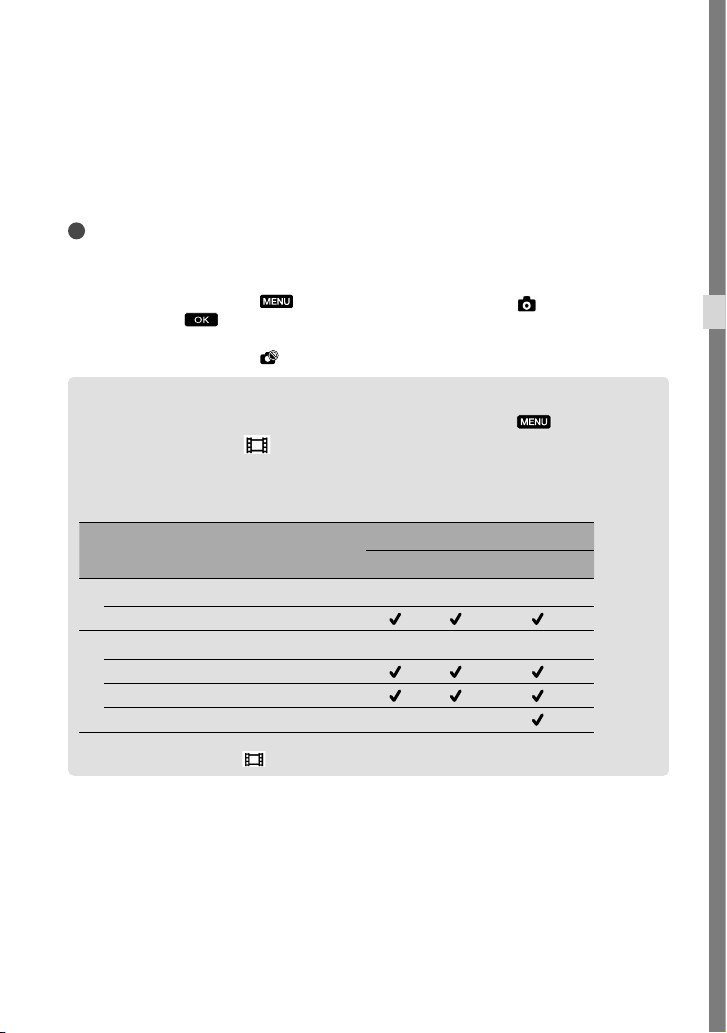
When disappears, the photo is recorded.
Press MODE to turn on the (Photo) lamp.
The LCD screen display switches for photo recording mode.
Press PHOTO lightly to adjust the focus, then press it fully.
MODE button
PHOTO
button
(Movie): When recording a movie
(Photo): When recording a photo
Flashes Lights up
35
US
Recording/Playback
Focus indicator
The focus indicator shows the focusing status by lighting/flashing.
lit
: Focus locked.
flashing
: The camcorder cannot focus on the subject automatically. Either recompose
the shot or change the focus setting.
Tips
See page 65 on the recordable number of photos.
The IRIS, Shutter Speed, ISO and Exposure are set to automatic adjustment when PROGRAM AE is
pressed.
To change the image size, touch
(MENU) [Image Quality/Size] [ Image Size] a
desired setting
.
When [APS-C Size Capture] is set to [Auto], the recordable image size depends on the lens you use.
You cannot record photos while
is displayed.
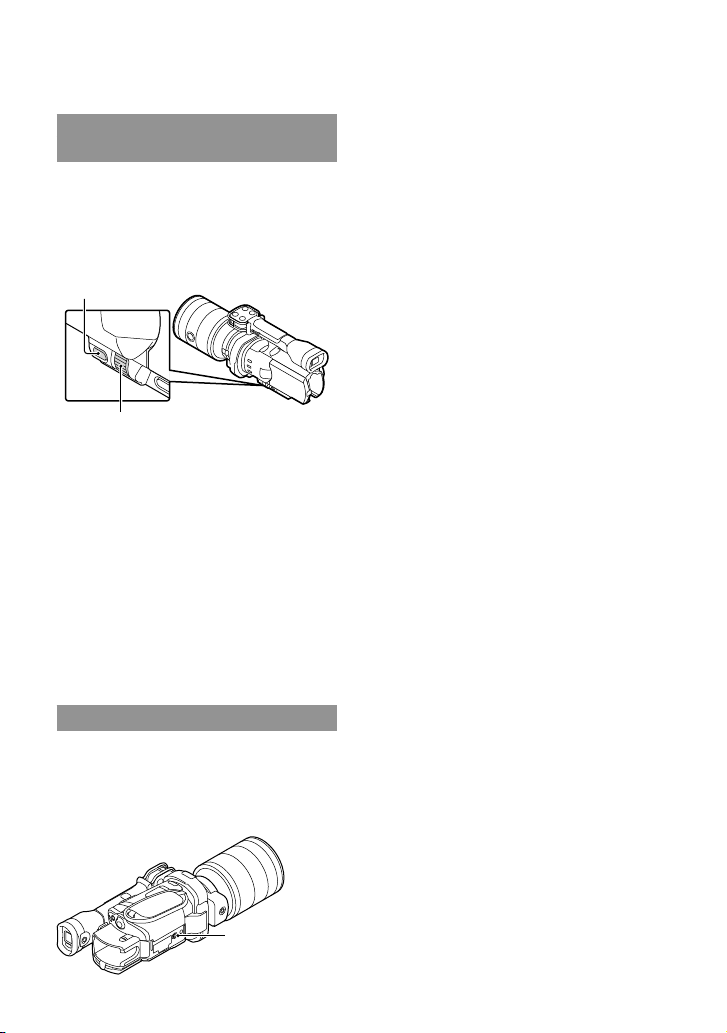
Selecting the recording mode
You can change the quality of the image that you record by touching (MENU)
[Image Quality/Size] [
REC Mode].
The types of media that images can be saved on will depend on the recording mode
selected.
For details on a save operation using the external devices, see page 52.
Types of media
Recording mode
PS
*
FX FH/HQ/LP
On this camcorder
Memory card
On external devices
External media (USB storage devices)
Blu-ray discs
AVCHD recording discs — —
* [PS] can be set only when [ Frame Rate] is set to [60p] (NEX-VG900), [50p] (NEX-VG900E).
36
US
Adjusting for shooting
conditions
Adjusting Exposure, etc., manually
(MANUAL dial)
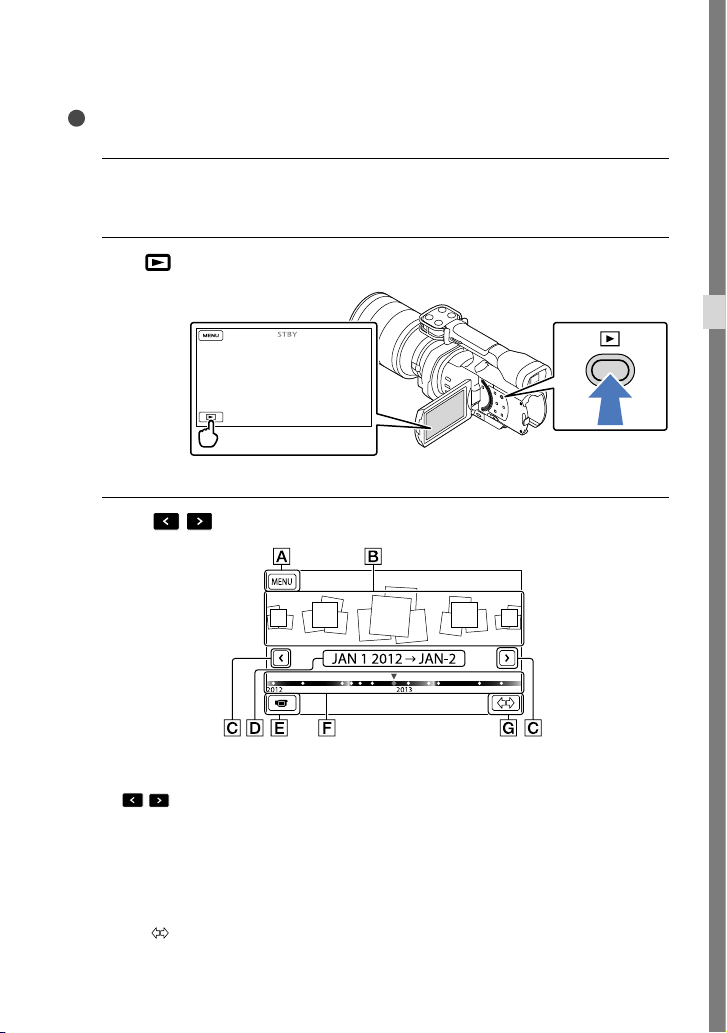
It is convenient to make manual
adjustments using the MANUAL dial, by
assigning a menu item ([Exposure] in the
default setting) to the MANUAL button.
How to use the MANUAL dial
Adjust with MANUAL dial to make the
adjustment also when pressing IRIS or
SHUTTER SPEED.
To assign a menu item
Press and hold MANUAL for a few seconds
to display the [MANUAL Button] screen.
Rotate the MANUAL dial to assign an item.
You can assign [Exposure], [AE Shift], [WB
Color Temp.], [WB B-A], or [WB G-M].
Using a tripod
Attach a tripod (sold separately) to the
tripod receptacle using a tripod screw (sold
separately, the length of the screw must be
less than 5.5 mm (7/32 in.)).
MANUAL button
MANUAL dial
Tripod
receptacle
37
US
Recording/Playback
Playback on the camcorder
Tips
The camcorder displays recorded images as an event automatically based on the date and time.
1
Slide the POWER switch to ON while pressing the green button.
Your camcorder is turned on.
2
Press
(View Images).
The Event View screen appears after some seconds.
3
Touch
/ to select the desired event ().
To the MENU screen
Events
/ : To the previous/next event
Event name
Change to the movie/photo recording mode
Time-line bar
Change Event Scale button
The Event Index screen appears when you touch the event that is displayed on the center.
Touch ( Change Event Scale) on the bottom right of the screen so that you can change the
time range of the time-line bar from one and a half years to three months, which changes the
number of the events that can be displayed on the time-line bar.

38
US
4
Touch an image you want to view.
Touch to select the image type to be displayed in the index from [ MOVIE]
(movies only), [
PHOTO] (photos only), or [ MOVIE/PHOTO] (movies and
photos mixed).
To go back to the Event View screen
/ : Displays the previous/next page (Touching and holding the button
scrolls the index screen.)
Change to the movie/photo recording mode
Event title
Total time of movies in the Event (The total number of still images is displayed when
there are still images only)
Switch Image Type button
Movie
Photo
appears with the movie or photo that was most recently played or recorded. If you touch the
movie or photo with , you can continue playback from the previous time.
39
US
Recording/Playback
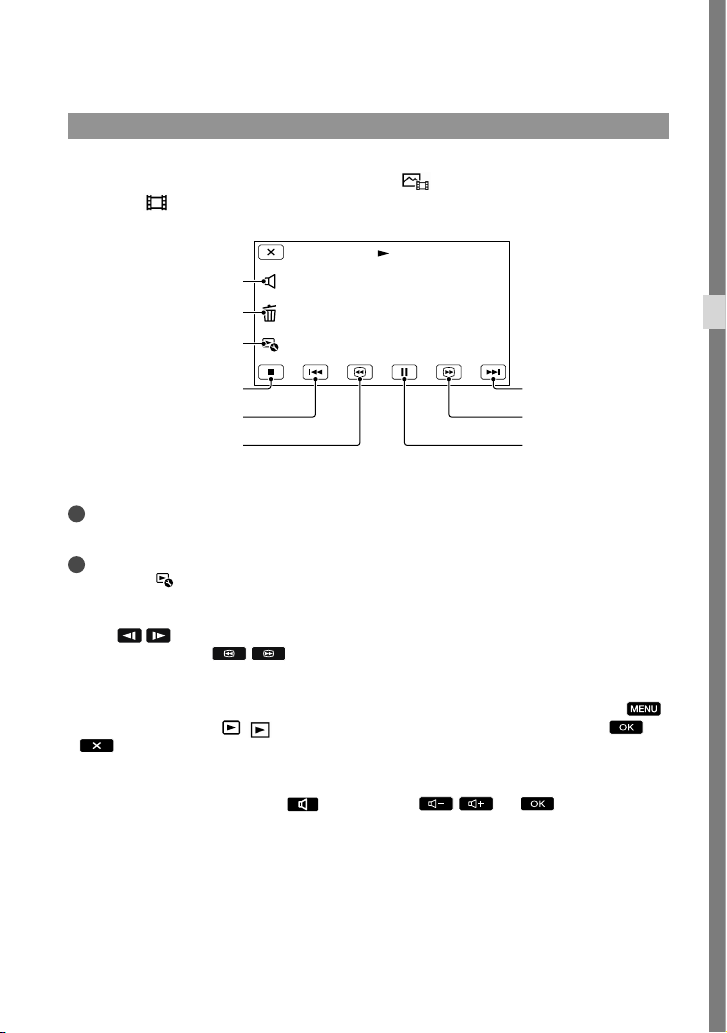
Operating the camcorder while playing a movie
You can use the functions shown in the figure below while the camcorder is playing a movie.
The figure below will be displayed when you select [
MOVIE/PHOTO] (the default
setting) or [
MOVIE] by touching the Switch Image Type button on the Event Index
screen.
* These buttons can be used only when the camcorder is playing a movie.
Notes
You may not be able to play back the images with other devices than camcorder.
Tips
Touching the
button on the playback screen displays functions you can currently use, and allows you
to use those functions easily.
When playback from the selected image reaches the last image, the screen returns to the INDEX screen.
Touch
/ during pause to play back movies slowly.
As you repeat touching
/ during playback, movies are played as fast as about 5 times
about 10 times about 30 times about 60 times.
The recording date, time, and shooting conditions are recorded automatically during recording. This
information is not displayed during recording, but you can display it during playback by touching
(MENU) [Setup] [
( Playback Settings)] [Data Code] a desired setting
.
To adjust the sound volume of movies
While playing back movies, touch adjust with / .
To pause*/play
To fast-forward
*
Delete
Next
To fast-reverse
*
To stop*
Previous
Volume adjustment
Context
40
US
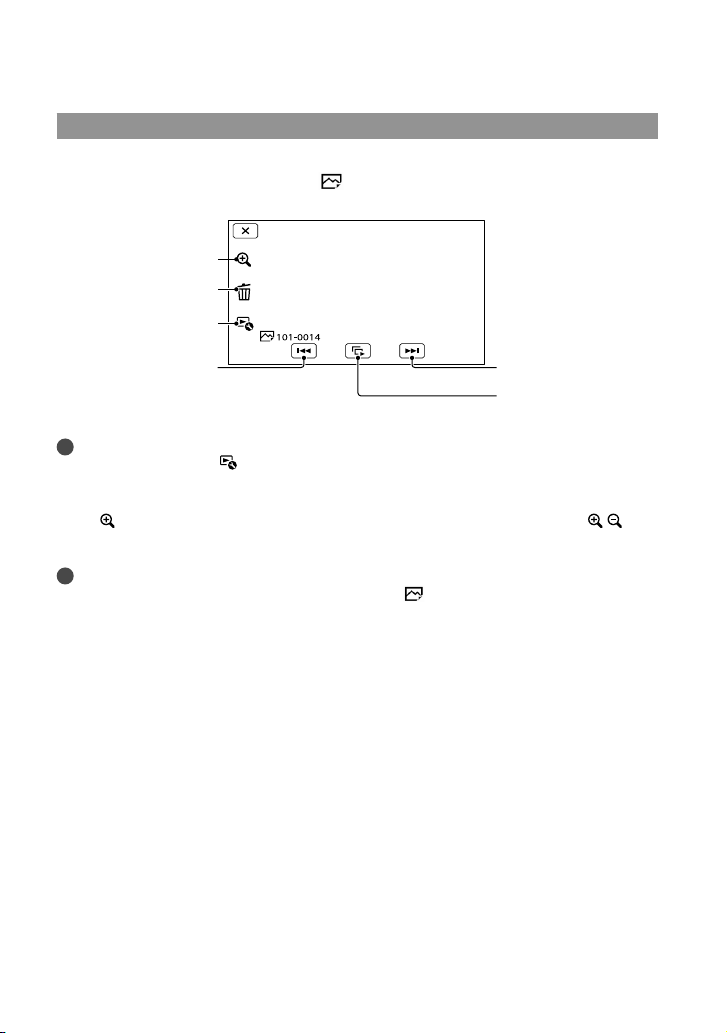
Viewing photos
You can use the functions shown in the figure below while you are viewing photos. The figure
below will be displayed when you select [
PHOTO] by touching the Switch Image Type
button on the Event Index screen.
Tips
To repeat Slideshow, touch
[Slideshow Set].
To see enlarged images
Touch (Playback zoom) during still image playback. You can adjust the zoom by / . You
can also operate this with the zoom lever.
Tips
You cannot use the playback zoom if you have not selected [
PHOTO] on the index screen.
To start/stop slide show
Next
Previous
Delete
Context
Playback zoom
41
US
Recording/Playback
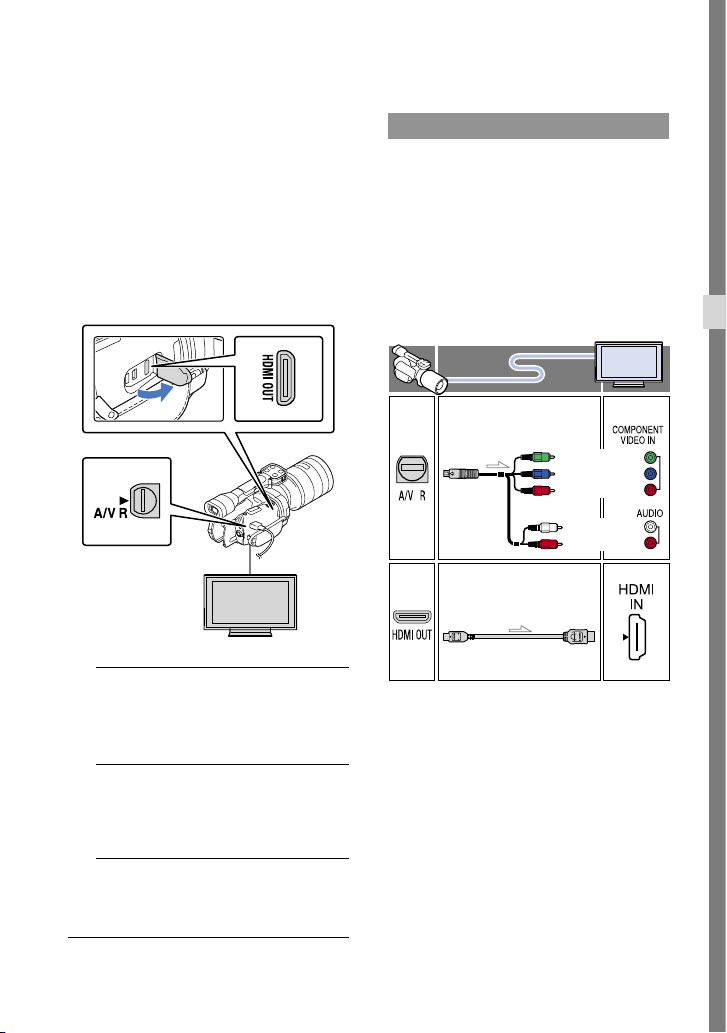
Playing images on a TV
Connection methods and the image
quality (high definition (HD) or standard
definition (STD)) viewed on the TV screen
differ depending on what type of TV is
connected, and the connectors used.
You can watch images on your TV screen
even while they are being recorded.
Output connectors on the camcorder
1
Switch the input on the TV to the
connected jack.
Refer to the instruction manuals of the TV.
2
Connect the camcorder to a TV.
Use the supplied AC Adaptor as the power
source (p. 18).
3
Play a movie or a photo on the
camcorder (p. 37).
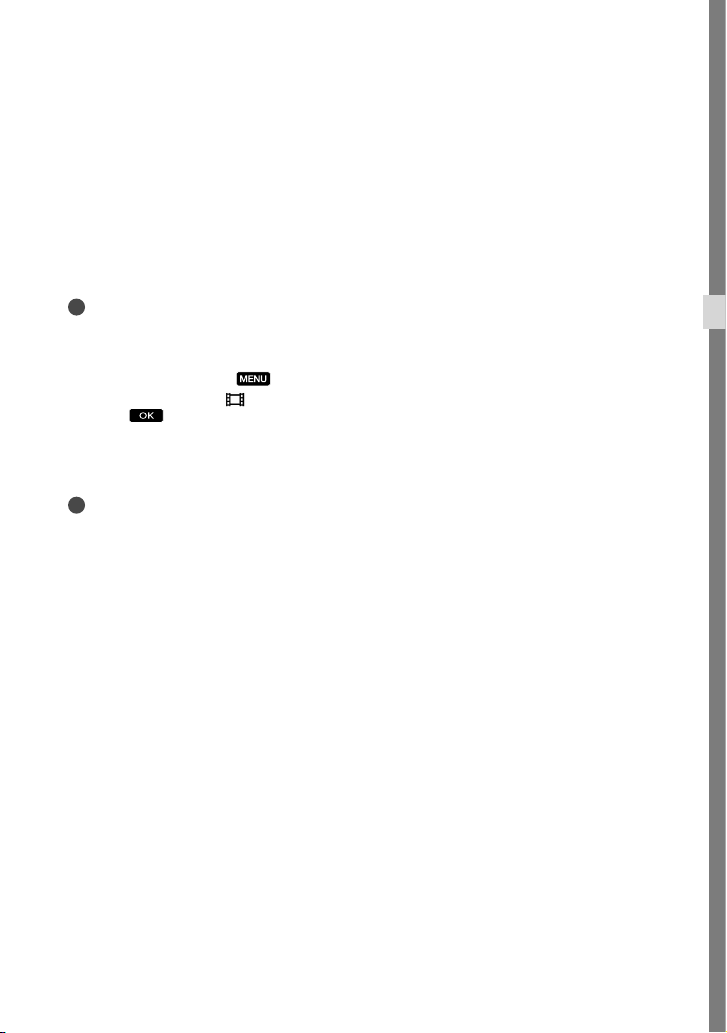
List of connection
Connecting to a high definition TV
When the recording quality is high
definition image quality (HD), the movies
are played back in high definition image
quality (HD). When the recording quality
is standard image quality (STD), the movies
are played back in standard definition
image quality (STD).
Connecting to a non-high-definition
16:9 (wide) or 4:3 TV
When movies are recorded with high
definition image quality (HD), they are
played back in standard definition image
quality (STD). When movies are recorded
with standard image quality (STD), they are
played back in standard definition image
quality (STD).
HDMI OUT jack
A/V Remote
Connector
(Green) Y
(Blue)
PB/CB
(Red)
PR/CR
(White)
(Red)
Component A/V Cable
(supplied)
HDMI Cable
(sold separately)
42
US
When you connect with component
A/V cable
If you connect only component video plugs,
audio signals are not output. Connect the white
and red plugs to output audio signals.
Select the [Component] setting for the
component input jack you are using. Touch
(MENU) [Setup]
[
( Connection)] [Component] a
desired setting
to make the setting.
When you connect with HDMI cable
Use an HDMI cable with the HDMI logo.
Use an HDMI mini connector on one end
(for the camcorder), and a plug suitable for
connecting your TV on the other end.
Copyright-protected images are not output
from the HDMI OUT jack of your camcorder.
Some TVs may not function correctly (e.g., no
sound or image) with this connection.
Do not connect the camcorder HDMI OUT
jack to an external device HDMI OUT jack, as
malfunction may result.
When the connected device is compatible
with 5.1ch surround sound, high definition
image quality (HD) movies are output in
5.1ch surround sound automatically. Standard
definition image quality (STD) movies are
converted to 2ch sound.
To set the aspect ratio according to the
connected TV (16:9/4:3)
Set [TV Type] to [16:9] or [4:3] according to
your TV.
When you connect with A/V
connecting cable with S VIDEO
When the S VIDEO plug (S VIDEO channel)
is connected, audio signals are not output. To
output audio signals, connect the white and red
plugs to the audio input jack of your TV.
This connection produces higher resolution
images compared with the A/V connecting
cable.
When your TV is monaural (When your
TV has only one audio input jack)
Connect the yellow plug of the A/V connecting
cable to the video input jack and connect the
white (left channel) or red (right channel) plug
to the audio input jack of your TV or VCR.
When connecting to your TV via a VCR
Connect your camcorder to the LINE IN input
on the VCR using the A/V connecting cable. Set
the input selector on the VCR to LINE (VIDEO
1, VIDEO 2, etc.).
On “Photo TV HD”
This camcorder is compatible with the
“Photo TV HD” standard. “Photo TV
HD” allows for highly-detailed, photo-like
depiction of subtle textures and colors.
By connecting Sony’s Photo TV HD-
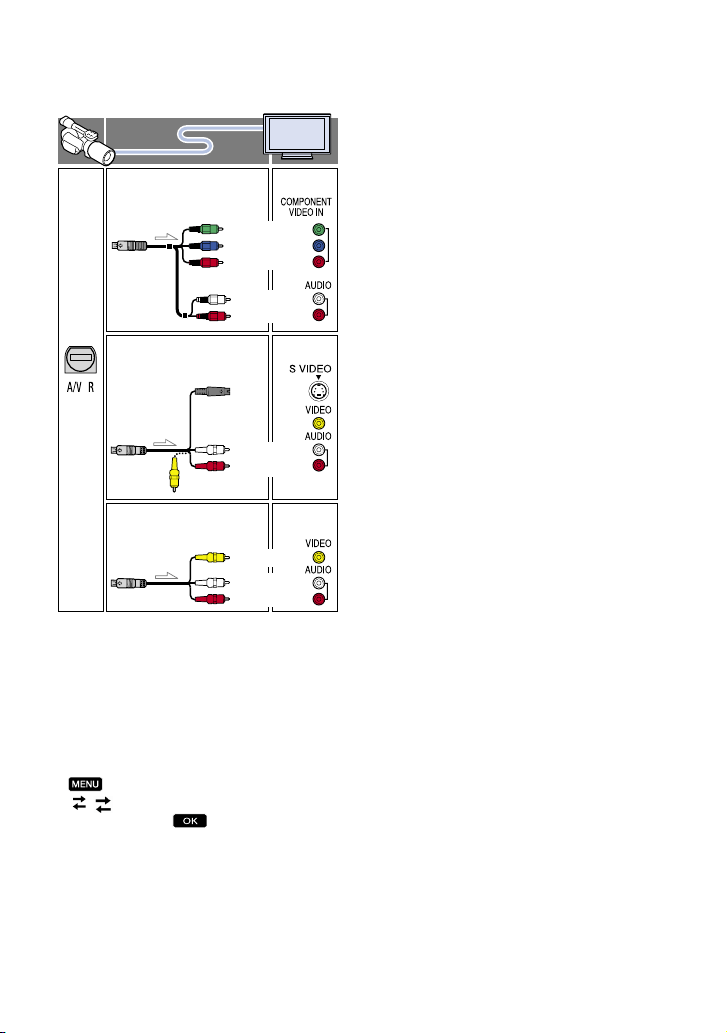
(Green) Y
(Blue)
PB/CB
(Red)
PR/CR
(White)
(Red)
(Yellow)
(White)
(Red)
(White)
(Red)
(Yellow)
Component A/V Cable
(supplied)
A/V connecting cable with
S VIDEO (sold separately)
A/V connecting cable
(supplied)
43
US
Recording/Playback
compatible devices using an HDMI cable*
or the component AV cable
**, a whole
new world of photos can be enjoyed in
breathtaking high image quality.
* The TV will automatically switch to the
appropriate mode when displaying photos.
** Setup of the TV will be necessary. Please refer
to the instructions of your Photo TV HD-
compatible TV for details.
Notes
When you play back standard definition image
quality (STD) movies on a 4:3 TV that is not
compatible with the 16:9 signal, record movies
with 4:3 aspect ratio. Touch
(MENU)
[Image Quality/Size] [
Wide Mode]
[4:3]
.
When the A/V connecting cable is used to
output movies, movies are output with standard
definition image quality (STD).
Tips
If you connect your camcorder to the TV using
more than one type of cable to output images,
the order of priority of the TV input jacks is as
follows:
HDMI component S VIDEO video
HDMI (High Definition Multimedia Interface)
is an interface to send both video/audio signals.
The HDMI OUT jack outputs high quality
images and digital audio.
44
US
Advanced operations
Deleting movies and
photos
You can free media space by deleting
movies and photos from memory card.
Notes
You cannot restore images once they are
deleted. Save important movies and photos in
advance.
Do not remove the battery pack or the AC
Adaptor from your camcorder while deleting
the images. It may damage the memory card.
Do not eject the memory card while deleting
images from the memory card.
You cannot delete protected movies and photos.
Undo the protection of the movies and photos
to delete them, before you try to delete them.
Tips
You can delete the image using
on the
playback screen.
To delete all images recorded in the memory
card, and recover all the recordable space of the
media, format the media.
Reduced-size images which enable you to view
many images at the same time on an index
screen are called “thumbnails.”
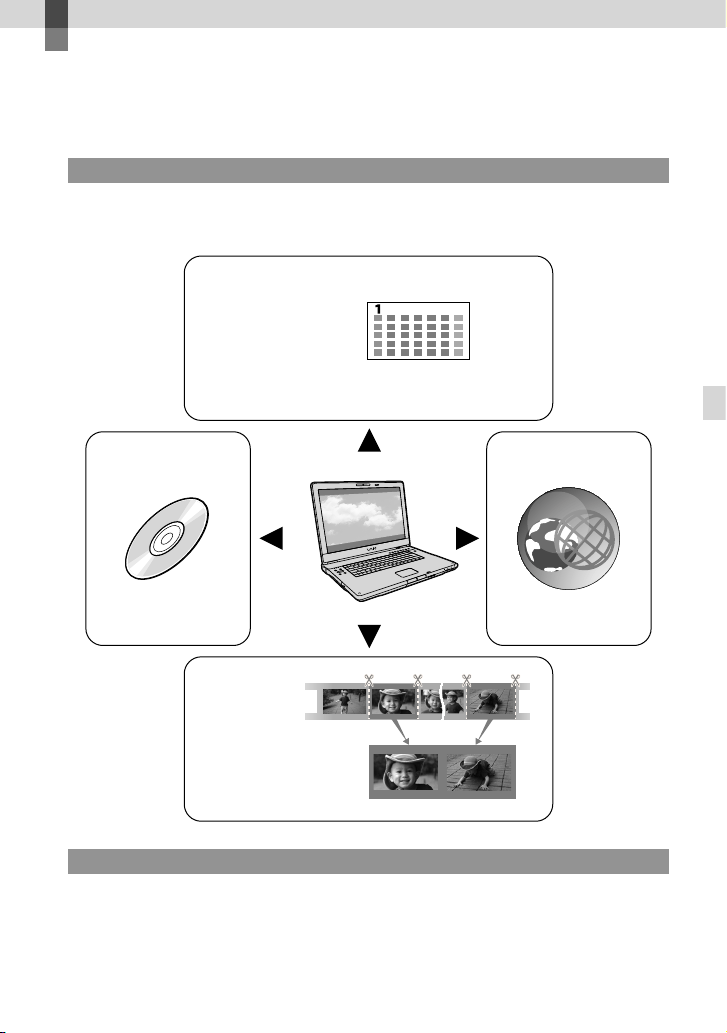
1
Press (View Images) button
(p. 37).
2
Touch (MENU) [Edit/
Copy] [Delete].
3
To select and delete movies,
touch [Multiple Images]
[ MOVIE]/[ PHOTO]/
[ MOVIE/PHOTO].
When [ / Setting] is set to
[
STD Quality], appears instead
of
.
4
Touch and display the mark
on the movies or photos to be
deleted.
Touch and hold the desired thumbnail so
that you can confirm the image. Touch
to return to the previous screen.
5
Touch .
To delete all movies/photos in an event
at one time
In step 3, touch [All In Event].
Touch / to select the desired
event, then touch
.
Touch and hold the desired thumbnail so
that you can confirm the image. Touch
to return to the previous screen.
Touch .
45
US
Saving movies and photos with a computer
Saving movies and photos with a computer
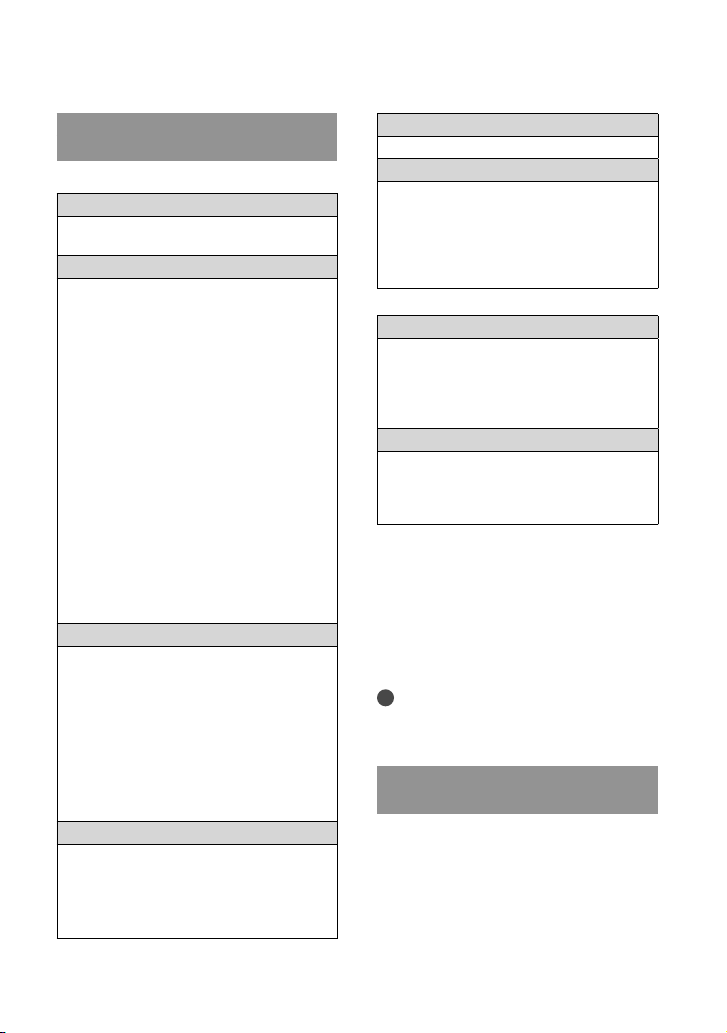
Useful functions available if you connect the
camcorder to a computer
For Windows
The software “PlayMemories Home” stored in the CD-ROM (supplied) includes functions
that enable you to do more with the images recorded with the camcorder.
For Mac
“PlayMemories Home” is not compatible with Mac OS. If you play back images on a Mac, use
the applications that are installed on your Mac.
For details, visit the following website.
http://www.sony.co.jp/imsoft/Mac/
View
Edit
Save on a disc Upload
Calendar
DVD/Blu-ray
Joining image files
Network services
46
US
Preparing a computer
Step 1 Checking the computer
system
Windows
OS*
1
Microsoft Windows XP SP3*
2
/Windows Vista
SP2
*
3
/Windows 7 SP1
CPU
PlayMemories Home: Intel Core Duo 1.66
GHz or faster, or Intel Core 2 Duo 1.66
GHz or faster (Intel Core 2 Duo 2.26 GHz
or faster is required when processing FX or
FH movies, and Intel Core 2 Duo 2.40 GHz
or faster is required when processing PS
movies.)
However, Intel Pentium III 1 GHz or faster is
sufficient for the following operations:
Importing the movies and photos to the
computer
Creating a Blu-ray disc/AVCHD recording
disc/DVD-video (Intel Core Duo 1.66 GHz
or faster is required when creating a DVD
video by converting high definition image
quality (HD) to standard definition image
quality (STD).)
Processing only the movies with standard
definition image quality (STD)
Image Data Converter: Pentium 4 or faster
Memory
PlayMemories Home:
For Windows XP: 512 MB or more (1 GB or
more is recommended.)
However, 256 MB or more is sufficient for
processing only the movies with standard
definition image quality (STD).
For Windows Vista/Windows 7: 1 GB or
more
Image Data Converter:
1GB or more
Hard disk
Disk volume required for installation:
Approximately 500 MB (10 GB or more
may be necessary when creating AVCHD
recording discs. 50 GB maximum may be
necessary when creating Blu-ray discs.)
Display
Minimum 1,024 dots × 768 dots
Others
USB port (this must be provided as standard,
Hi-Speed USB (USB 2.0 compatible)), Blu-
ray disc/DVD burner (CD-ROM drive is
necessary for installation) Either NTFS or
exFAT file system is recommended as the
hard disk file system.
Mac
OS*
1
USB Connection: Mac OS X (v10.3, v10.4,
v10.5, v10.6, v10.7, v10.8) “Image Data
Converter Ver.4.2”: Mac OS X (v10.5,
v10.6 (Snow Leopard), v10.7 (Lion), v10.8
(Mountain Lion))
Image Data Converter Ver.4
CPU: Intel Core Solo/Core Duo/Core 2 Duo
or faster
Memory: 1 GB or more is recommended.
Display: 1,024 dots × 768 dots or more
*
1
Standard installation is required. Operation is
not assured if the OS has been upgraded or in a
multi-boot environment.
*
2
64-bit editions and Starter (Edition) are not
supported. Windows Image Mastering API
(IMAPI) Ver.2.0 or newer is required to use disc
creation function, etc.
*
3
Starter (Edition) is not supported.
Notes
Operation with all computer environments is
not assured.
Step 2 Installing the supplied
software “PlayMemories Home”
Install “PlayMemories Home” before
connecting your camcorder to a computer.
When you purchase this camcorder, install
the supplied PlayMemories Home to the
newest state.
47
US
Saving movies and photos with a computer
Notes
Install the supplied “PlayMemories Home”
software, even if “PlayMemories Home”
software has already been installed on your
computer.
If “PlayMemories Home” has already been
installed on your computer, “PlayMemories
Home” will overwrite it and will be installed.
Some functions of “PlayMemories Home” may
become unavailable.
Confirm that your camcorder is
not connected to the computer.
Turn on the computer.
Log on as an Administrator for
installation.
Close all applications running on the
computer before installing the software.
Place the supplied CD-ROM in
the disc drive of your computer.
The installation screen appears.
If the screen does not appear, double-click
[Start] [Computer] (in Windows XP,
[My Computer])
(PMHOME)
[Install.exe].
Click [Install].
Check that “PlayMemories
Home” and “Image Data
Converter” are selected, then
follow the instructions on the
computer screen to continue the
installation.
Select the country or region.
Select the language for the
application to be installed, then
proceed to the next screen.
Read the terms of the license
agreement carefully. If you agree
to the terms, change
to , and
then click [Next] [Install].
Follow the instructions that
appear on the computer screen
to continue the installation.
You may be required to install some
other applications included on the disc at
the same time. If the installation display
appears, follow the instructions that appear
on the screen.
When you are required to restart the
computer, follow the instructions that
appear on the screen and restart it.
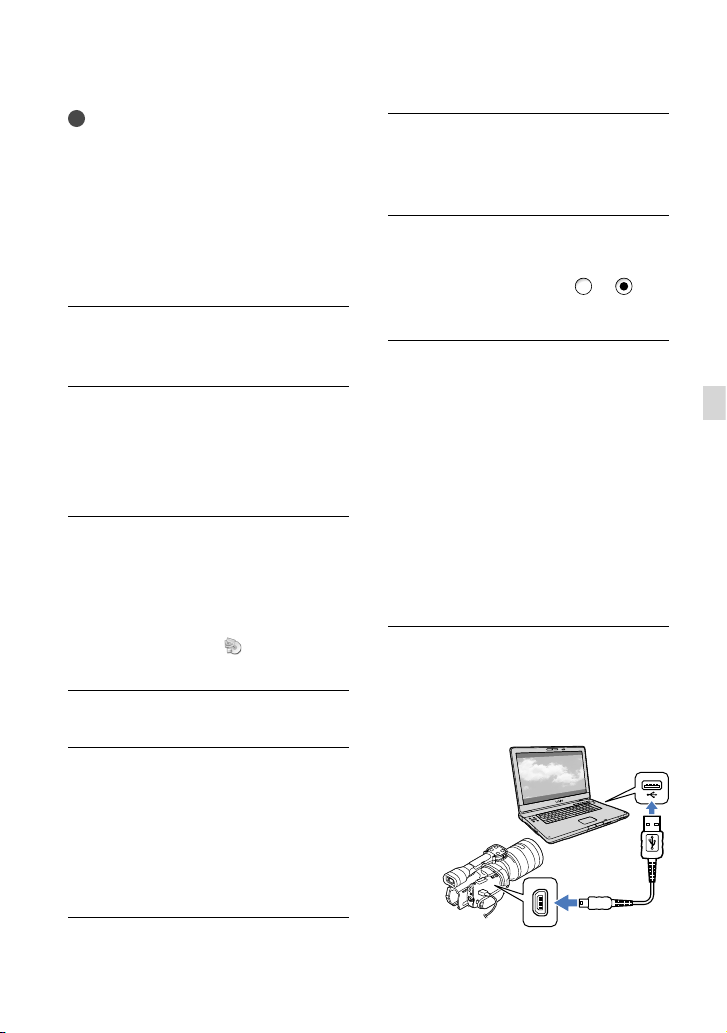
Connect the camcorder to the computer
when you are instructed to do so.
Connect the camcorder to the
computer using the USB cable,
then touch [USB Connect] on the
LCD screen of the camcorder.

48
US
When the installation is
completed, remove the CD-ROM
from the computer.
Click (PlayMemories Home icon) that
appears on the desktop of the computer to
start up the software.
Notes
To create discs or use other functions on
Windows XP, Image Mastering API v2.0 for
Windows XP should be installed. If Image
Mastering API v2.0 for Windows XP has not
been installed yet, select it from required
programs on the installation screen and install
it following the procedures displayed. (The
computer must be connected to the internet
for the installation.) You may install Image
Mastering API v2.0 for Windows XP in
response to the message displayed when you try
to start those functions.
Operation is not guaranteed if you read or
write video data from or to the camcorder
using software other than the supplied
“PlayMemories Home.” For the information on
the compatibility of the software you are using,
consult the manufacturer of the software.
To disconnect your camcorder from the
computer
Click the icon at the bottom right of the
desktop of the computer [Safely remove
USB Mass Storage Device].
Touch [Cancel] [Yes] on the camcorder
screen.
Disconnect the USB cable.
If you are using Windows 7, the
icon may
not appear on the desktop of the computer. In
this case, you can disconnect the camcorder
from your computer without following the
procedures described above.
Notes
Do not format the memory card of the
camcorder using a computer. If you do this, the
camcorder will not operate correctly.
Do not insert AVCHD recording discs that have
been created using the “PlayMemories Home”
software to DVD players or recorders, as these
devices do not support the AVCHD standard. If
you do, you may not be able to remove the disc
from these devices.
This camcorder captures high definition footage
in the AVCHD format. Using the enclosed
PC software, high definition footage can be
copied onto DVD media. However, DVD media
containing AVCHD footage should not be used
with DVD based players or recorders, as the
DVD player/recorder may fail to eject the media
and may erase its contents without warning.
When you access the camcorder from
the computer, use the supplied software
“PlayMemories Home.” Do not modify the files
or folders on the camcorder from the computer.
The image files may be damaged or may not be
played back.
Operation is not guaranteed, if you operate the
data on the camcorder from the computer.
The camcorder automatically divides an image
file that exceeds 2 GB or larger and saves the
parts as separate files. All image files may
be shown as separate files on a computer,
however, the files will be handled properly by
the import function of the camcorder or the
“PlayMemories Home” software.
Use the supplied “PlayMemories Home”
software when you import long movies
or edited images from the camcorder to a
computer. If you use other software, the images
may not be imported correctly.
When you delete image files, follow the steps
on page 44.
You can create a Blu-ray disc by using a
computer with a Blu-ray disc burner. Install
the BD Add-on Software for “PlayMemories
Home.”
49
US
Saving movies and photos with a computer
The devices on which the created disc
can be played back
Blu-ray discs
Blu-ray disc players such as a Sony Blu-ray
disc player or a PlayStation
3
DVDs with high definition image quality
(HD)
AVCHD format playback devices, such as a
Sony Blu-ray disc player or a PlayStation
3
Notes
The AVCHD recording disc can be played back
only on AVCHD format compatible devices.
Discs with high definition image quality (HD)
images recorded should not be used in DVD
players/recorders. Because DVD players/
recorders are not compatible with the AVCHD
format, DVD players/recorders may fail to eject
the disc.
Always maintain your PlayStation
3 to use
the latest version of the PlayStation
3 system
software. The PlayStation
3 may not be
available in some countries/regions.
Starting PlayMemories
Home
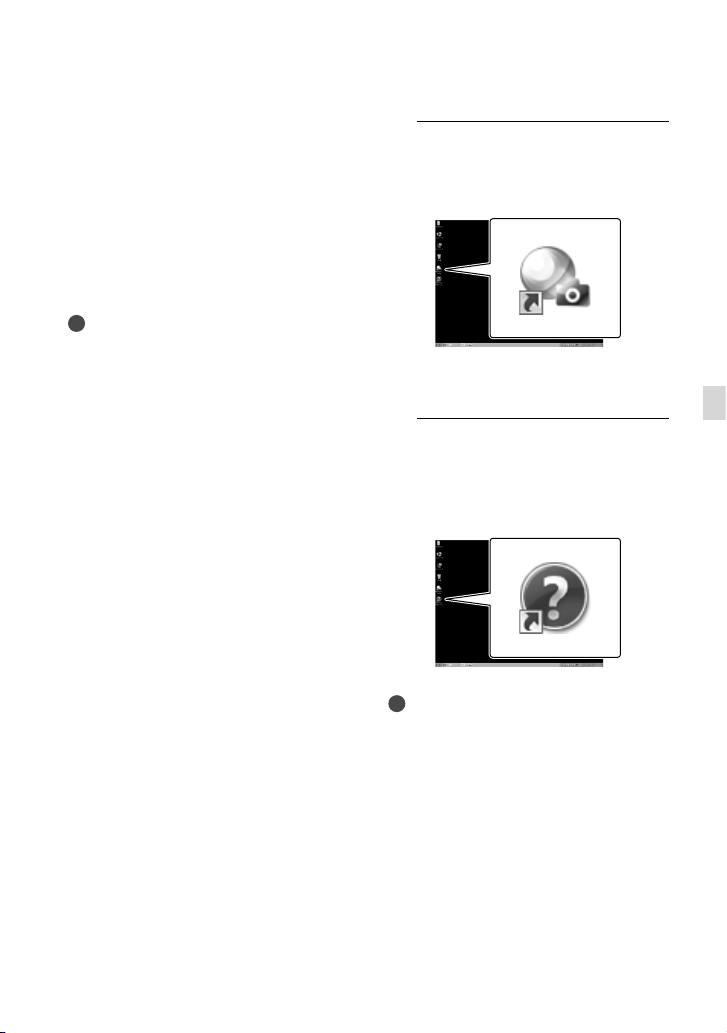
1
Double-click the “PlayMemories
Home” short-cut icon on the
computer screen.
The PlayMemories Home software
starts up.
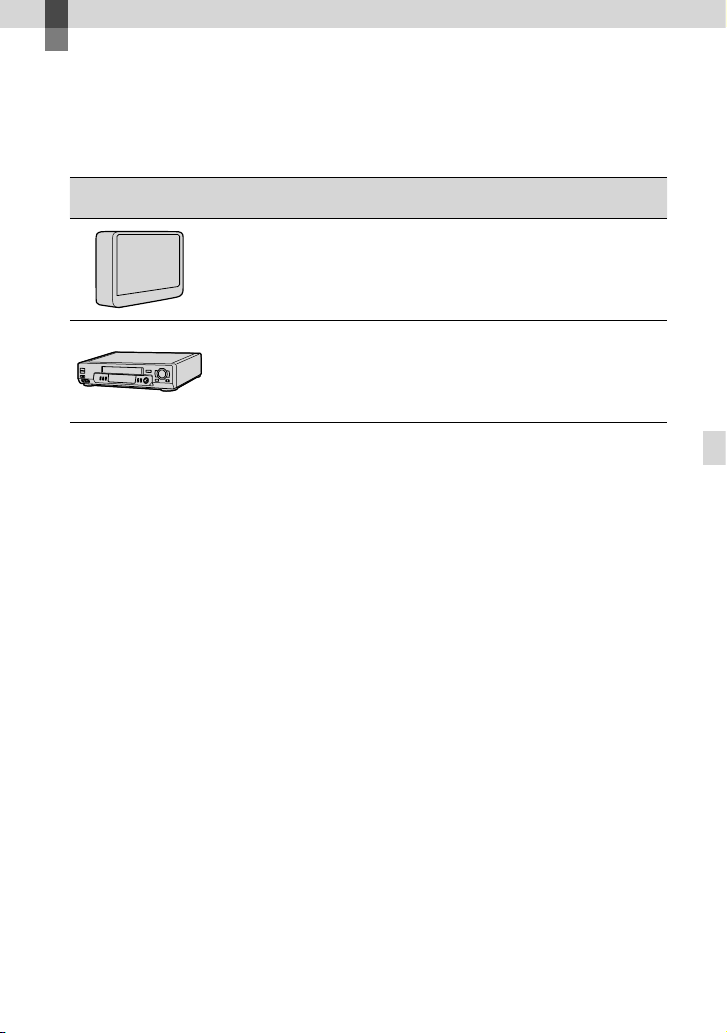
2
Double-click the “PlayMemories
Home Help Guide” short-cut icon
on the computer screen to see
how to use “PlayMemories Home.”
Notes
If the icon is not displayed on the computer
screen, click [Start] [All Programs]
[PlayMemories Home] the desired item.

50
US
Using “Image Data
Converter”
With “Image Data Converter” you can do
the following:
To edit images recorded in RAW format with
various corrections, such as tone curve, and
sharpness.
To adjust images with white balance, exposure,
and creative style, etc.
To save the images displayed and edited on a
computer.
You can either save the image as RAW format or
save it in the general file format.
To display and compare RAW/JPEG images
recorded with this camera.
To rate the images on a scale of five.
To set color labels.
To use “Image Data Converter,” refer to
Help.
Click [Start] [All Programs] [Image
Data Converter] [Help] [Image Data
Converter Ver.4.2].
“Image Data Converter” support page
(English only)
http://www.sony.co.jp/ids-se/
51
US
Saving images with an external device
Saving images with an external device
Dubbing guide
You can select the method for saving high definition image quality (HD) movies using an
external device.
External devices Connecting cable Page
External media device
Saving images on an external
media device with high
definition image quality (HD).
USB Adaptor Cable
VMC-UAM1 (sold
separately)
52
Hard disk recorder, etc.
Saving images on a DVD disc
with standard definition image
quality (STD).
A/V connecting cable
(supplied)
55
Movies that are recorded with standard definition image quality (STD)
Use the A/V connecting cable to connect the camcorder to an external device in which images
are saved.
The types of media on which images are saved
Refer to “Selecting the recording mode” on page 35.

52
US
Saving images on an
external media device
You can save movies and photos on an
external media device (USB storage
devices), such as an external hard disk
drive. You can also play back images on the
camcorder or another playback device.
Notes
For this operation, you need the USB Adaptor
Cable VMC-UAM1 (sold separately).
The USB Adaptor Cable VMC-UAM1 may not
be available in some countries/regions.
Connect your camcorder to the wall outlet (wall
s
ocket) using the supplied AC Adaptor (p. 18).
Refer to the instruction manual supplied with
the external media device.
Tips
You can import images saved on the external
media device to your computer by using the
supplied software “PlayMemories Home.”
Functions available after saving images
on an external media device
playback of images through the camcorder
(p. 54)
importing images to “PlayMemories Home”
Devices that cannot be used as an
external media device
You cannot use the following devices as an
external media device.
media devices with a capacity exceeding 2 TB
ordinary disc drive such as CD or DVD drive
media devices connected via a USB hub
media devices with built-in USB hub
card reader
Notes
You may not be able to use external media
devices with a code function.
The FAT file system is available for your
camcorder. If the storage medium of the
external device was formatted for the NTFS file
system, etc., format the external media device
using the camcorder before use. The format
screen appears when an external media device
is connected to your camcorder. Make sure that
important data has not previously been saved
on the external media device before you format
it using the camcorder.
Operation is not assured with every device
satisfying requirements for operating.
For details on available external media devices,
go to the Sony support website in your
country/region.
1
Connect the AC Adaptor and the
power cord (mains lead) to the
DC IN jack of your camcorder and
the wall outlet (wall socket).
2
If the external medium device
has the AC power cable, connect
it to the wall outlet (wall socket).
3
Connect the USB Adaptor Cable
to the external media device.
4
Connect the USB Adaptor Cable
to the (USB) jack of your
camcorder.
Make sure not to disconnect the USB
cable while [Preparing image database
file. Please wait.] is displayed on the
LCD screen. If [Repair Img. DB F.] is
displayed on the camcorder screen,
touch
.
53
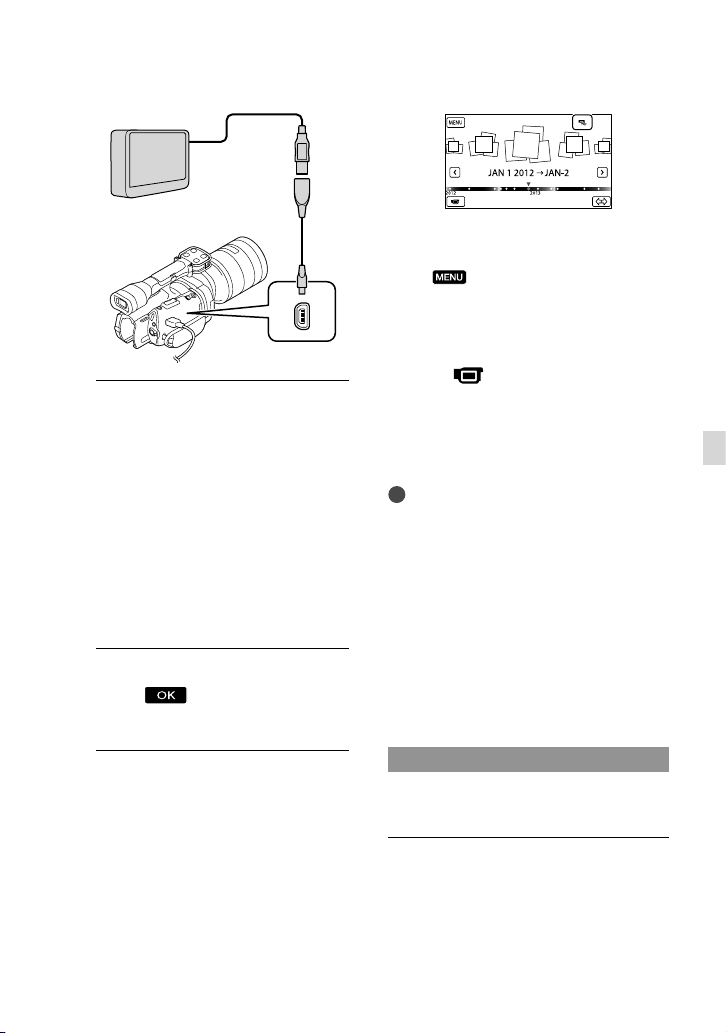
US
Saving images with an external device
5
Connect the external media
device to the camcorder and
touch [Copy.] on the camcorder
screen.
Movies and photos that are stored in
the memory card and that have not yet
been saved on external media device
can be saved on the connected media
device at this time.
This operation is available only when there
are newly recorded images.
6
After operation is completed,
touch on the camcorder
screen.
When connecting an external media
device
The images saved in the external media
device are displayed on the LCD screen.
When an external media device is
connected, the USB icon will appear on the
Event View screen, etc.
You can make menu settings of the external
media device such as deleting images.
Touch
(MENU) [Edit/Copy] on
Event View.
To disconnect the external media
device
Touch while the camcorder is in
the playback standby mode ([Event
View] or Event Index is displayed) of the
external media device.
Di
sconnect the USB Adaptor Cable.
Notes
The number of scenes you can save on the
external media device are as follows. However,
even if the external media device has free space,
you cannot save scenes exceeding the following
number.
High definition image quality (HD) movies:
Max. 3,999
Standard definition image quality (STD)
movies: Max. 9,999
Photos: Max. 40,000
The number of scenes may be smaller
depending on the type of images recorded.
Saving desired movies and photos
You can save desired images in the
camcorder to the external media device.
Connect the camcorder to the
external media device and touch
[Play without copying.].
Event View of the external medium is
displayed.
USB Adaptor
Cable
VMC-UAM1
(sold separately)
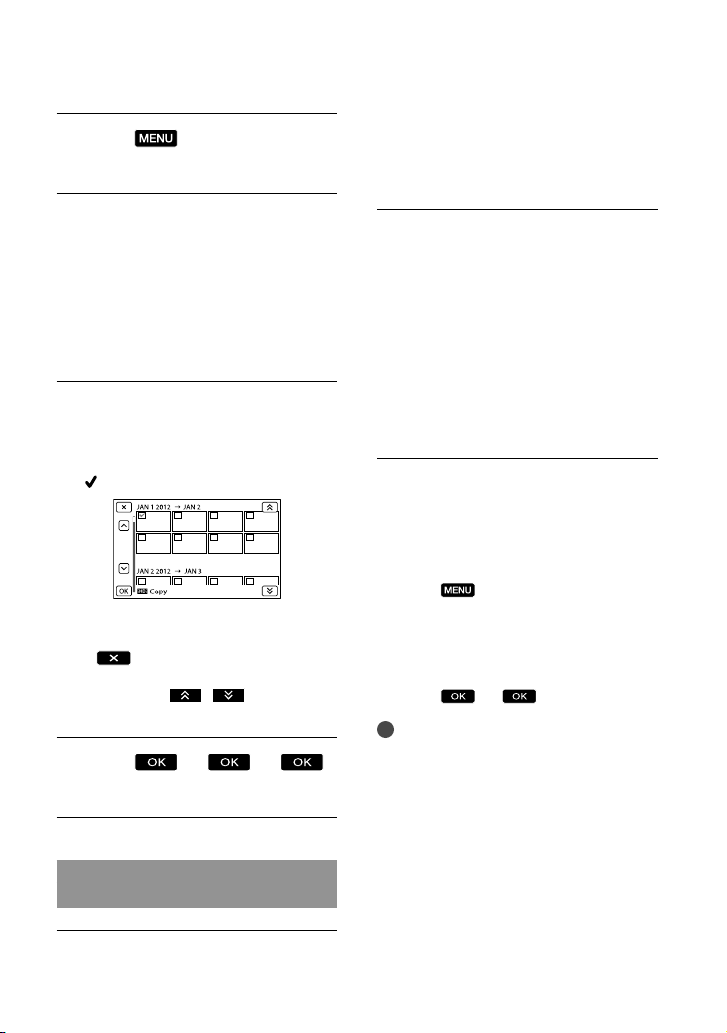
54
US
Touch
(MENU) [Edit/
Copy] [Copy].
Follow the instructions that
appear on the screen to select
image selection methods and
type of the image.
You cannot copy images from an
external media device to the internal
recording medium on the camcorder.
When you selected [Multiple
Images], touch the image to be
saved.
appears.
Press and hold the image down on the
LCD screen to confirm the image. Touch
to return to the previous screen.
If you select [All In Event], select the event
to copy with
/ . You cannot
select multiple events.
Touch
on the camcorder screen.
Playing back images in the external
media device on the camcorder
Connect the camcorder to the
external media device and touch
[Play without copying.].
Event View of the external media
device is displayed.
Select the image you want to
view and play back the image
(p
. 37).
You can also view images on a TV
connected to your camcorder (p. 41).
You can play back the high definition
image quality (HD) movies on your
computer using [Player for AVCHD].
Start [Player for AVCHD], and select the
drive where the external media device is
connected with [Settings].
To perform [Direct Copy] manually
You can perform [Direct Copy] manually
while the camcorder is connected to an
external media device.
T
ouch (MENU) [Edit/Copy]
[Direct Copy] on the [Event View]
screen of the external media device.
T
ouch [Copy images that have not been
copied.].
T
ouch .
Notes
If your camcorder does not recognize the
external media device, try the following
operations.
Reconnect the USB Adaptor Cable to your
camcorder.
If the external media device has the AC power
cord (mains lead), connect it to the wall outlet
(wall socket).
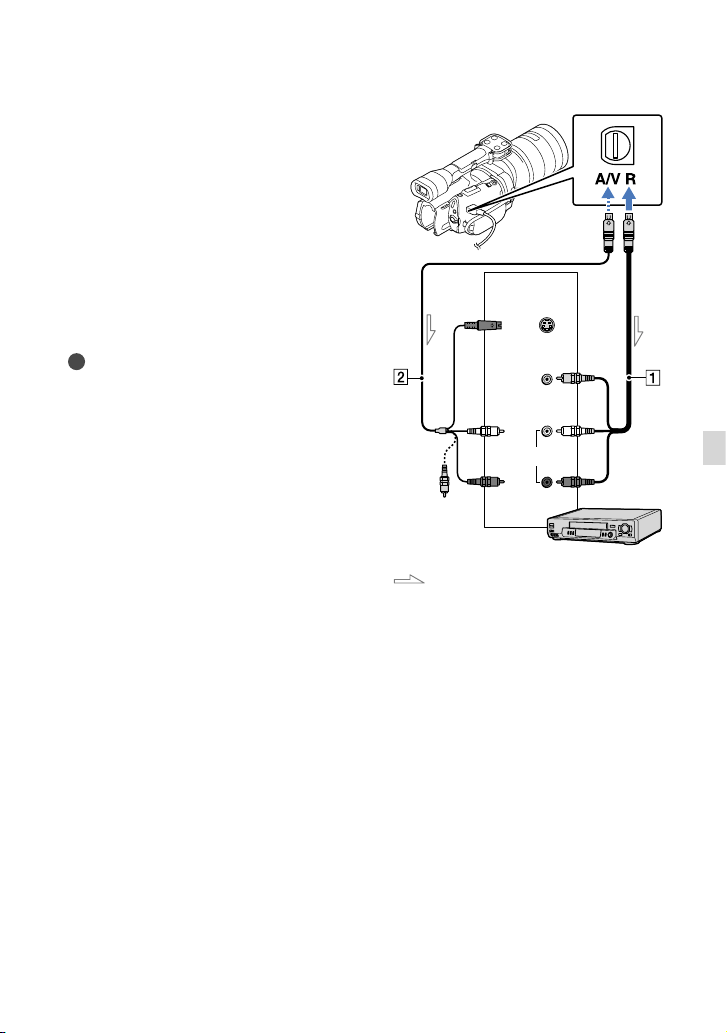
55
US
Saving images with an external device
Creating a standard
definition image
quality (STD) disc with
a recorder, etc.
You can copy images played back on your
camcorder to a disc or video cassette,
by connecting your camcorder to a disc
recorder, etc., with the A/V connecting
cable. Connect the device in either way
of or . Refer also to the instruction
manuals supplied with the devices to be
connected.
Notes
Connect your camcorder to the wall outlet (wall
socket) using the supplied AC Adaptor for this
o
peration (p. 18).
High definition image quality (HD) movies
will be copied with standard definition image
quality (STD).
A/V connecting cable (supplied)
A/V c
onnecting cable with S VIDEO
(sold separately)
By using this cable, higher quality
images can be produced than with an A/
V connecting cable. Connect the white
and red plug (left/right audio) and the S
VIDEO plug (S VIDEO channel) of the
A/V connecting cable with an S VIDEO
cable. If you connect the S VIDEO
plug only, you will hear no sound. The
yellow plug (video) connection is not
necessary.
A/V Remote Connector
Input
S VIDEO
VIDEO
(Yellow)
(White)
AUDIO
Signal flow
(Yellow)
(Red)
56
US
When you connect a monaural device, connect
the yellow plug of the A/V connecting cable
to the video input jack, and the white (left
channel) or the red (right channel) plug to the
audio input jack on the device.
1
Insert the recording media in the
recording device.
If your recording device has an input
selector, set it to the input mode.
2
Connect your camcorder to the
recording device (a disc recorder,
etc.) with the A/V connecting
cable (supplied) or an A/V
connecting cable with S VIDEO
(sold separately).
Connect your camcorder to the input jacks
of the recording device.
3
Start playback on your
camcorder, and record it on the
recording device.
Refer to the instruction manuals supplied
with your recording device for details.
4
When dubbing is finished, stop
the recording device, and then
your camcorder.
Notes
Since copying is performed via analog data
transfer, the image quality may deteriorate.
You cannot copy images to recorders connected
with an HDMI cable.
To copy date/time information and camera
data, touch
(MENU) [Setup]
[
( Playback Settings)] [Data Code]
a desired setting
.
When the screen size of display devices (TV,
etc.) is 4:3, touch
(MENU) [Setup]
[
( Connection)] [TV Type]
[4:3]
.
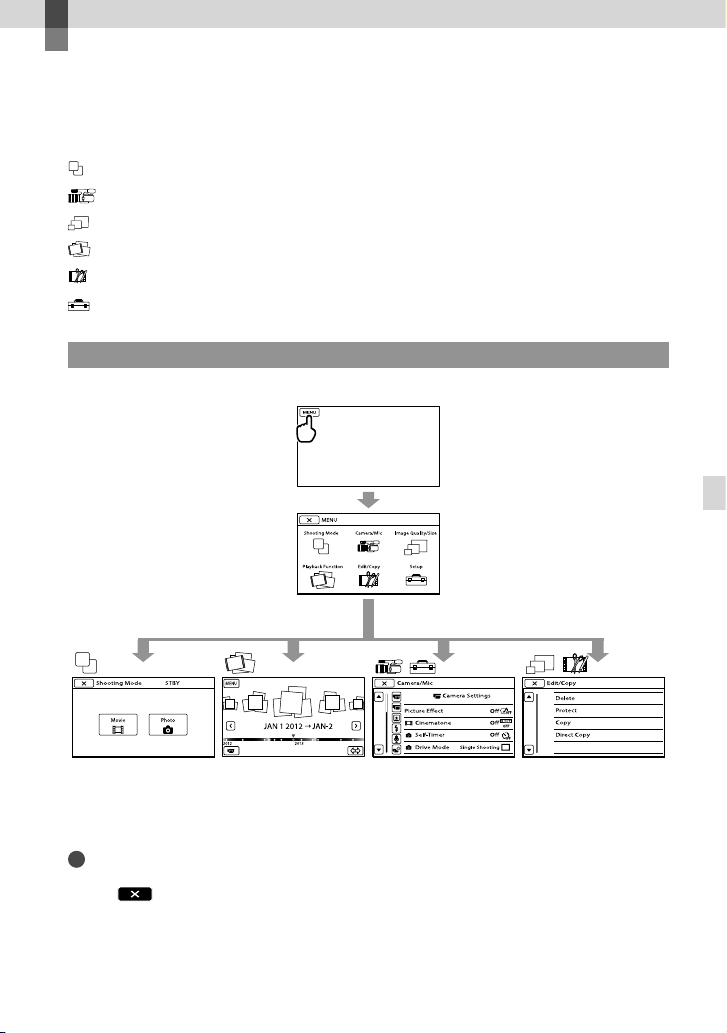
57
US
Customizing your camcorder
Customizing your camcorder
Using menus
You can enjoy using your camcorder more by making good use of menu operations.
The camcorder has various menu items under each of 6 menu categories.
Shooting Mode (Items for selecting a shooting mode) p. 58
Camera/Mic (Items for customized shooting) p. 58
Image Quality/Size (Items for setting up image quality or size) p. 59
Playback Function (Items for playback) p. 37
Edit/Copy (Items for editing) p. 59
Setup (Other setup items) p. 59
Operating menus
Follow the procedures explained below to set the menu items.
The [Camera/Mic] and [Setup] menus have sub-categories. Touch the sub-category icon, and
the screen changes to other sub-category menus.
Grayed out menu items or settings are not available.
Notes
You may not be able to set some menu items, depending on the recording or playback conditions.
Touch
to finish setting the menu or to return to the previous menu screen.
58
US
Menu lists
Shooting Mode
Movie .......................................... Records movies.
Photo ........................................... Shoots photos.
Camera/Mic
( Manual Settings)
Spot Meter/Fcs ............... Adjusts the brightness and focus for the selected subject simultaneously.
Spot Meter ....................... Adjusts the brightness of images to a subject you touch on the screen.
Spot Focus .......................Focuses on a subject you touch on the screen.
Exposure ........................... Adjusts the brightness of movies and photos.
AE Shift..............................Adjusts the exposure. Touch
if the subject is white or the backlight
is bright, or touch
if the subject is black or the light is dim.
( Camera Settings)
Picture Effect ...................Selects the desired effect filter for a more impressive and artistic effect.
Cinematone.............Adjusts the color of the movie to resemble the atmosphere of films when
recording.
Self-Timer ................. Sets the self-timer when your camcorder is in photo recording mode.
Drive Mode .............. Sets continuous or bracket shooting, etc.
AF Mode ...................Selects the focus method.
SteadyShot .............. Sets the SteadyShot function when recording movies.
SteadyShot ..............Sets the SteadyShot function when shooting photos.
Auto Back Light ..............Adjusts the exposure for backlit subjects automatically.
MANUAL Button ............ Assigns a function to the MANUAL button.
APS-C Size Capture ....... Changes the image size according to the attached lens.
Phase Detection AF ......Speeds up autofocus automatically when a compatible lens is attached.
( Face)
Face Detection ...............Adjusts the image quality of the face(s) automatically.
( Flash)
Flash ................................... Sets how the flash is activated.
Flash Level ....................... Sets the brightness of flash.
Red Eye Reduction ........Prevents redeye when shooting with flash.
( Microphone)
Wind Noise Reduct. ......Reduces the wind noise.
Audio Mode .................... Sets the recording sound format (5.1ch surround/2ch stereo).
Audio Rec Level .............Adjusts the audio level when recording.
( Shooting Assist)
Guide Frame....................Displays the frame to make sure the subject is horizontal or vertical.
Zebra .................................Displays a zebra pattern as a guide for adjusting brightness.
Peaking ............................. Displays an image on the LCD screen with its outlines enhanced.
Histogram ........................ Displays the Histogram.
Camera Data Display....Displays the value of iris, gain (ISO) and shutter speed.
59
US
Customizing your camcorder
Audio Level Display ...... Displays the audio level meter on the LCD screen.
AF Micro Adjustment ...Adjusts the focus for the attached lens.
Digital Zoom ...................Sets the digital zoom.
Zoom Lever ..................... Sets the function assigned to the zoom lever.
Zoom Speed ...................Changes the zoom speed when the zoom lever is pressed.
Image Quality/Size
REC Mode .......................... Sets the mode to record movies. When recording fast moving subject, a
high image quality is recommended.
Frame Rate ........................ Sets the frame rate to record movies.
/ Setting................. Sets image quality for recording, playback, or editing movies.
Wide Mode ........................Sets the horizontal to vertical ratio when recording movies with standard
definition image quality (STD).
Image Size .........................Sets the photo size.
RAW/JPEG ..........................Selects the compression format of still images.
Playback Function
............. Enables you to view recorded movies/photos (p. 37).
Edit/Copy
Delete..........................................Deletes movies or photos.
Protect ........................................Protects movies or photos to avoid deleting.
Copy ............................................ Selects and copies movies or photos to external media.
Direct Copy ............................... Copies images stored on the recording medium to some type of external
media.
Setup
( Media Settings)
Media Info ........................ Displays information on the recording media, such as free space.
Format ...............................Deletes all data on the recording media.
Repair Img. DB F. ............ R
epairs the image database file on the recording media (p. 63).
File Number .....................Sets how to assign the file number.
( Playback Settings)
Data Code ........................ Sets the date and time.
Volume .............................. A
djusts the volume of playback sound (p. 39).
( Connection)
TV Type ............................. C
onverts the signal depending on the TV connected (p. 41).
Component Output ..... Select this option when you connect your camcorder to a TV with the
co
mponent input jack (p. 42).
HDMI Resolution ........... Selects the output image resolution when connecting your camcorder to a
TV with an HDMI cable (sold separately).
USB Connect ...................Selects which type of media on the camcorder is to be used when the
camcorder is connected to an external device via USB.
USB Connect Setting ...Sets the connection mode when the camcorder is connected to a computer
or a USB device.
Disc Burn ..........................Saves images that have not yet been saved onto a disc.

60
US
( General Settings)
Beep ...................................Sets whether the camcorder sounds operation beeps or not.
LCD Brightness .............. Adjusts the brightness of the LCD screen.
VF Color Temp. ............... Sets the color temperature of the viewfinder.
VF/Panel ........................... Changes the display between the viewfinder and LCD screen.
Display Setting ...............Sets the duration that icons or indicators are displayed on the LCD screen.
REC Lamp .........................Turns off the recording lamp on the front of your camcorder.
Shooting w/o Lens........Sets whether or not the recording can be started when no lens is attached.
Remote Ctrl ..................... Sets whether the Wireless Remote Commander is to be used or not.
A. Shut Off ........................S
ets your camcorder to turn off automatically (p. 19).
Language Setting .........S
ets the display language (p. 26).
24p Mode
*
.......................Shoots 24p movies on a PAL-based system.
Calibration ....................... Calibrates the touch panel.
Battery Info ...................... Displays the battery information.
Version .............................. Displays the version of your camcorder and the lens.
( Clock Settings)
Date & Time Setting ..... Sets the [Date & Time], [Daylight Savings], [Summer Time], or [Date &
T
ime Format] (p. 24).
Area Setting .................... A
djusts for a time difference without stopping the clock (p. 24).
* NEX-VG900E only
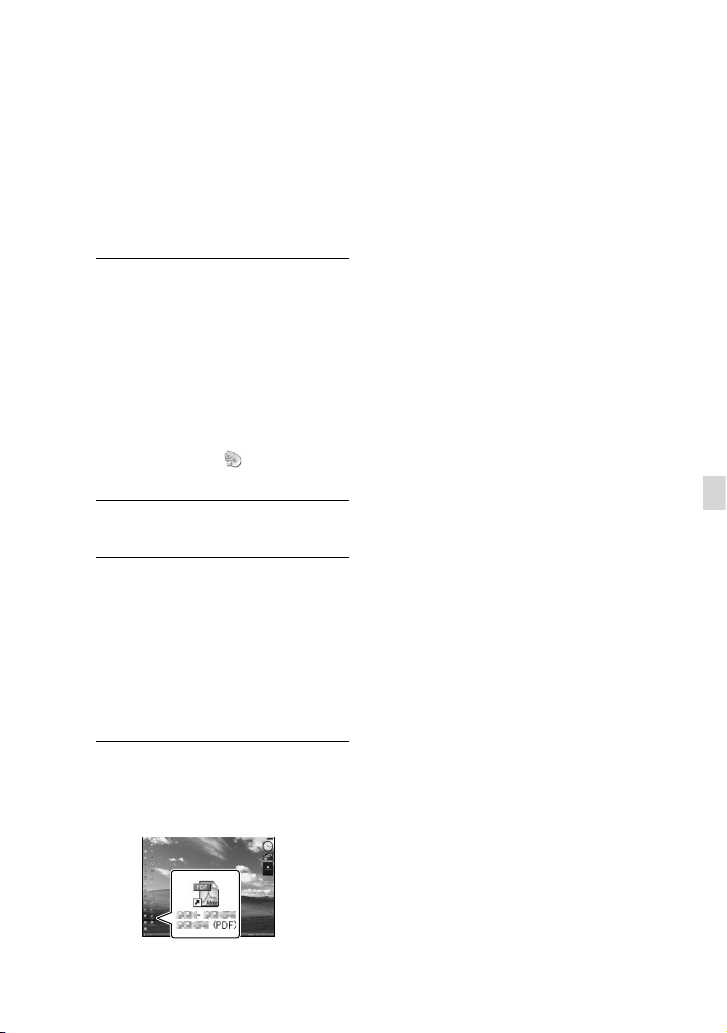
61
US
Customizing your camcorder
Getting detailed
information from the
“Handycam” Handbook
The “Handycam” Handbook is a user guide
designed to be read on a computer screen.
The “Handycam” Handbook is intended to
be read when you want to know more about
operating your camcorder.
1
To install the “Handycam”
Handbook on a Windows
computer, place the supplied
CD-ROM in the disc drive of your
computer.
The installation screen appears.
If the screen does not appear, double- click
[Start] [Computer] (in Windows XP,
[My Computer])
(PMHOME)
[install.exe].
2
Click [Handbook].
3
Click the desired language
and the model name of your
camcorder [Install], and follow
the on- screen instructions to
install “Handycam” Handbook.
The model name of your camcorder is
printed on the bottom surface.
To view the “Handycam” Handbook,
double-click the short-cut icon on the
computer screen.
When using a Mac, open the [Handbook]
– [US] folder in the CD-ROM, then copy
[Handbook.pdf].
You need Adobe Reader to read “Handycam”
Handbook. If it is not installed on your
computer, you can download it from the Adobe
Systems web page:
http://www.adobe.com/
Refer to “PlayMemories Home Help Guide” for
details on the supplied software “PlayMemories
H
ome” (p. 46).
62
US
Additional information
Troubleshooting
If you run into any problems using your
camcorder, follow the steps below.
Check the list (p. 62 to 64), and
inspect your camcorder.
Remove the power source, attach
the power source again after about 1
minute, and turn the camcorder on.
Press RESET (p. 74) using a pointed
object, and turn the camcorder on.
If you press RESET, all settings,
including the clock setting, are reset.
Contact your Sony dealer or local
authorized Sony service facility.
See the “Handycam” Handbook (p. 61) for
details on the symptoms of your camcorder, and
“
PlayMemories Home Help Guide” (p. 49) on
connecting your camcorder to a computer.
The power does not turn on.
Attach a charged battery pack to the
camcorder (p. 17).
Connect the plug of the AC Adaptor to the
wa
ll outlet (wall socket) (p. 17).
The camcorder does not operate even
when the power is set to on.
It takes a few seconds for your camcorder to
be ready to shoot after the power is turned on.
This is not a malfunction.
Disconnect the AC Adaptor from the wall
outlet (wall socket) or remove the battery
pack, then reconnect it after about 1 minute.
If your camcorder still does not work, press
RES
ET (p. 74) using a pointed object. (If you
press RESET, all settings, including the clock
setting, are reset.)
The temperature of your camcorder is
extremely high. Turn off the camcorder and
leave it for a while in a cool place.
The temperature of your camcorder is
extremely low. Leave the camcorder with the
power turned on. If you still cannot operate
your camcorder, turn off the camcorder and
take it to a warm place. Leave the camcorder
there for a while, then turn on the camcorder.
Your camcorder gets warm.
Your camcorder may become warm during
operation. This is not a malfunction.
The power abruptly turns off.
Use the AC Adaptor (p. 18).
Turn on the power again.
C
harge the battery pack (p. 17).
Pressing START/STOP or PHOTO does not
record images.
Press MODE to turn on the (Movie) or
(Photo) lamp.
Your camcorder is recording the image you
have just shot on the memory card. You
cannot make any new recordings during this
period.
The recording media is full. Delete
unn
ecessary images (p. 44).
Total number of movie scenes or photos has
exceeded the recordable capacity of your
c
amcorder (p. 65). Delete unnecessary images
(p
. 44).
The recording stops.
The temperature of your camcorder is
extremely high/low. Turn off your camcorder
and leave it for a while in a cool/warm place.
“PlayMemories Home” cannot be installed.
Check the computer environment or
installation procedure required to install
“
PlayMemories Home” (p. 46).
63
US
Additional information
“PlayMemories Home” does not work
correctly.
Quit “PlayMemories Home” and restart your
computer.
The camcorder is not recognized by the
computer.
Disconnect devices from the USB jack of the
computer other than the keyboard, mouse,
and your camcorder.
Disconnect the USB cable from the computer
and your camcorder, and restart the computer,
then connect the computer and your
camcorder again in an orderly manner.
Self-diagnosis display/Warning
indicators
If indicators appear on the LCD screen or
viewfinder, check the following.
If the problem persists even after you
have tried to fix a couple of times, contact
your Sony dealer or local authorized Sony
service facility. In this case, when you
contact them, give them all the numbers of
the error code beginning with C or E.
C:04:
The battery pack is not an “InfoLITHIUM”
battery pack V series. Use an “InfoLITHIUM”
b
attery pack (V series) (p. 17).
Connect the DC plug of the AC Adaptor to
y
our camcorder securely (p. 17).
C:06:
The battery pack temperature is high. Change
the battery pack or place it in a cool place.
C:13: / C:32:
Remove the power source. Reconnect it and
operate your camcorder again.
E::
Follow the steps from on page 62.
Battery power is low.
The battery pack temperature is high. Change
the battery pack or place it in a cool place.
No memory card is inserted (p. 30).
When the indicator flashes, there is not
enough free space for recording images. Delete
unn
ecessary images (p. 44), or format the
memory card after storing the images on other
media.
The Image Database File is damaged. Check
the data base file by touching
(MENU)
[Setup] [Repair Img. DB F.].
The memory card is damaged. Format the
memory card with your camcorder (p. 59).
Incompatible memory card is inserted (p. 31).
The memory card is write-protected.
Access to the memory card was restricted on
another device.
(Warning indicator pertaining to the
external media device)
The image database file may be damaged.
Check the database file by touching
(MENU) [Setup] [Repair Img.
DB F.]
The external media device is damaged.
64
US
(Warning indicator pertaining to
formatting of the external media device)
The external media device is damaged.
The external media device is not formatted
correctly.
The camcorder is unsteady. Hold the camcorder
steady with both hands. However, note that
the camera-shake warning indicator does not
disappear.
The memory card is full. Delete unnecessary
images (
p. 44).
Photos cannot be recorded during processing.
Wait for a while, then record.
Recording time of
movies/number of
recordable photos
“HD” stands for high definition image
quality, and “STD” stands for standard
image quality.
Expected time of recording and
playback with each battery pack
Recording time
Approximate time available when you use a
fully charged battery pack.
(unit: minute)
Battery pack Continuous
recording time
Typical recording
time
Image quality HD STD HD STD
NP-FV70
(supplied)
160
145
170
150
90
80
95
80
NP-FV100 325
295
340
305
180
160
185
165
Top: When recording with the LCD screen
Bottom: When recording with viewfinder
Each recording time is measured under the
following conditions.
[
REC Mode]: Standard (default
setting)
Using the mount adaptor LA-EA3 (supplied)
and the SAL-2470Z lens (sold separately)
Typical recording time shows the time when
you repeat recording start/stop, switching the
MODE lamp, and zooming.
Times measured when using the camcorder at
25
C (77 °F). 10 C to 30 C (50 °F to 86 °F) is
recommended.
The recording and playback time will be
shorter when you use your camcorder in low
temperatures.
The recording and playback time will be shorter
depending on the conditions under which you
use your camcorder.
Playing time
Approximate time available when you use a
65
US
Additional information
Tips
Your camcorder uses the VBR (Variable Bit
Rate) format to automatically adjust image
quality to suit the recording scene. This
technology causes fluctuations in the recording
time of the media. Movies containing quickly
moving and complex images are recorded at
a higher bit-rate, and this reduces the overall
recording time.
Expected number of recordable
photos
Full size
JPEG RAW RAW & JPEG
16 GB 1600 600 435
32 GB 3200 1200 870
64 GB 6400 2400 1750
APS-C size
JPEG RAW RAW & JPEG
16 GB 3250 1300 950
32 GB 6600 2600 1900
64 GB 13000 5200 3750
When [ Image Size] is set to [ 24.0M]
(full size), [
10.3M] (APS-C size).
When using Sony memory card.
The selected image size is effective when the
(Photo) lamp is lit.
The number of recordable photos of memory
card shown is for the maximum image size
of your camcorder. The actual number of
recordable photos is displayed on the LCD
s
creen during recording (p. 71).
The number of recordable photos of memory
card may vary depending on the recording
conditions.
Tips
You can also use memory card with a capacity
of under 1 GB for recording photos.
The following list shows the bit-rate, pixels and
aspect ratio of each recording mode (movie +
audio, etc.).
fully charged battery pack.
(unit: minute)
Battery pack
Image quality HD STD
NP-FV70
(supplied)
375
315
415
345
NP-FV100 745
625
830
680
Top: When recording with the LCD screen
Bottom: When recording with viewfinder
Expected recording time of movies
High definition image quality (HD)
(unit: minute)
16 GB 32 GB 64 GB
75
(75)
150
(150)
305
(305)
85
(85)
180
(180)
360
(360)
120
(120)
245
(245)
490
(490)
210
(160)
430
(325)
865
(655)
370
(300)
740
(610)
1490
(1225)
Standard definition image quality (STD)
(unit: minute)
16 GB 32 GB 64 GB
220
(200)
445
(410)
895
(825)
Notes
When using Sony memory card.
The recordable time may vary depending on the
recording and subject conditions and [
REC
Mode] and [
Frame Rate] (p. 59).
The number in ( ) is the minimum recordable
time.

66
US
High definition image quality (HD):
PS: Max. 28 Mbps 1,920 pixels 1,080
pixels/16:9
FX: Max. 24 Mbps 1,920 pixels 1,080
pixels/16:9
FH: Approx. 17 Mbps (average) 1,920 pixels
1,080 pixels/16:9
HQ: Approx. 9 Mbps (average) 1,440 pixels
1,080 pixels/16:9
LP: Approx. 5 Mbps (average) 1,440 pixels
1,080 pixels/16:9
Standard definition image quality (STD):
HQ: Approx. 9 Mbps (average) 720 pixels
480 pixels (NEX-VG900), 720 pixels 576
pixels (NEX-VG900E)/16:9, 4:3
The photo recording pixels and the aspect ratio.
Photo recording mode
Full size:
6,000 dots 4,000 dots/3:2
6,000 dots 3,376 dots/16:9
3,936 dots 2,624 dots/3:2
3,936 dots 2,216 dots/16:9
2,640 dots 1,760 dots/3:2
2,640 dots 1,488 dots/16:9
APS-C size:
3,936 dots 2,624 dots/3:2
3,936 dots 2,216 dots/16:9
2,640 dots 1,760 dots/3:2
2,640 dots 1,488 dots/16:9
1,728 dots 1,152 dots/3:2
1,728 dots 976 dots/16:9
Capturing a photo from a movie
(NEX-VG900):
1,920 dots 1,080 dots/16:9
640 dots 360 dots/16:9
640 dots 480 dots/4:3
Precautions
On use and care
Do not use or store the camcorder and
accessories in the following locations:
Anywhere extremely hot, cold or humid.
Never leave them exposed to temperatures
a
bove 60
C (140 °F), such as under direct
sunlight, near heaters or in a car parked in
the sun. They may malfunction or become
deformed.
Near strong magnetic fields or mechanical
vibration. The camcorder may malfunction.
Near strong radio waves or radiation. The
camcorder may not be able to record properly.
Near AM receivers and video equipment.
Noise may occur.
On a sandy beach or anywhere dusty. If
sand or dust gets in your camcorder, it may
malfunction. Sometimes this malfunction
cannot be repaired.
Near windows or outdoors, where the LCD
screen, the viewfinder or the lens may be
exposed to direct sunlight. This damages the
inside of the viewfinder or the LCD screen.
Operate your camcorder on DC 6.8 V/7.2 V
(battery pack) or DC 8.4 V (AC Adaptor).
For DC or AC operation, use the accessories
recommended in these operating instructions.
Do not let your camcorder get wet, for example,
from rain or sea water. If your camcorder
gets wet, it may malfunction. Sometimes this
malfunction cannot be repaired.
If any solid object or liquid gets inside the
casing, unplug your camcorder and have it
checked by a Sony dealer before operating it
any further.
Avoid rough handling, disassembling,
modifying, physical shock, or impact such
as hammering, dropping or stepping on the
product. Be particularly careful of the lens.
Keep the camcorder turning off when you are
not using your camcorder.
Do not wrap your camcorder with a towel, for
example, and operate it. Doing so might cause
heat to build up inside.
When disconnecting the power cord (mains
lead), pull it by the plug and not the cord (lead).
Do not damage the power cord (mains lead)

67
US
Additional information
Using chemicals such as thinner, benzine,
alcohol, chemical cloths, repellent, insecticide
and sunscreen
Handling the camcorder with above
substances on your hands
Leaving the casing in contact with rubber or
vinyl objects for a long period of time
About care and storage of the lens
Wipe the surface of the lens clean with a soft
cloth in the following instances:
When there are fingerprints on the lens
surface
In hot or humid locations
When the lens is exposed to salty air such as
at the seaside
Store in a well-ventilated location subject to
little dirt or dust.
To prevent mold, periodically clean the lens as
described above.
On charging the pre-installed
rechargeable battery
Your camcorder has a pre-installed rechargeable
battery to retain the date, time, and other settings
even when the camcorder is turned off. The pre-
installed rechargeable battery is always charged
while your camcorder is connected to the wall
outlet (wall socket) via the AC Adaptor or while
the battery pack is attached. The rechargeable
battery will be fully discharged in about 3 months
if you do not use your camcorder at all. Use
your camcorder after charging the pre-installed
rechargeable battery. However, even if the pre-
installed rechargeable battery is not charged, the
camcorder operation will not be affected as long
as you are not recording the date.
Procedures
Connect your camcorder to a wall outlet (wall
socket) using the supplied AC Adaptor, and leave
it for more than 24 hours.
Note on disposal/transfer of memory
card
Even if you delete data in the memory card or
format the memory card on your camcorder or
a computer, you may not delete data from the
such as by placing anything heavy on it.
Do not use a deformed or damaged battery
pack.
Keep metal contacts clean.
If the battery electrolytic liquid has leaked:
Consult your local authorized Sony service
facility.
Wash off any liquid that may have contacted
your skin.
If any liquid gets in your eyes, wash with
plenty of water and consult a doctor.
When not using your camcorder for a
long time
To keep your camcorder in optimum state for a
long time, turn it on and let it run by recording
and playing back images about once a month.
Use up the battery pack completely before
storing it.
LCD screen
Do not exert excessive pressure on the LCD
screen, as it may cause damage.
If your camcorder is used in a cold place, a
residual image may appear on the LCD screen.
This is not a malfunction.
While using your camcorder, the back of
t
he LCD screen may heat up. This is not a
malfunction.
To clean the LCD screen
If hand grease or hand cream remains on the
screen, the coating comes off more easily. Wipe
it early.
The coating may be scratched if you wipe the
screen with a tissue, etc.
If fingerprints and dust get on the screen, it is
recommended that you first remove the dust
with a blower, etc., then use a soft cloth to
remove the fingerprints.
On handling the casing
If the casing is soiled, clean the camcorder body
with a soft cloth lightly moistened with water,
and then wipe the casing with a dry soft cloth.
Avoid the following to avoid damage to the
finish:
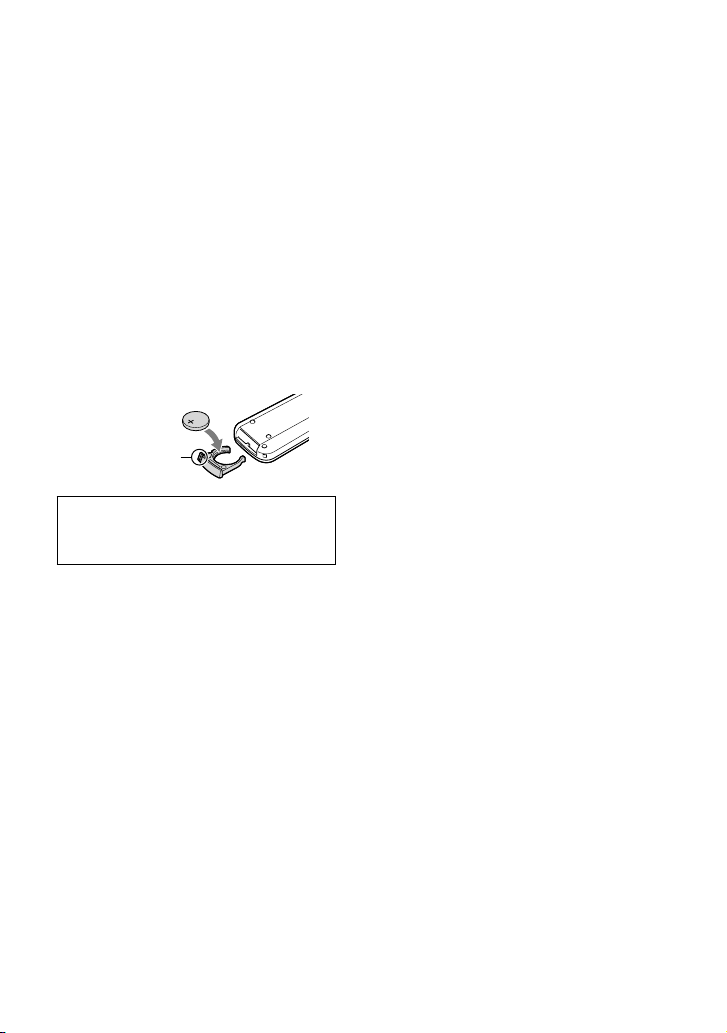
68
US
memory card completely. When you give the
memory card to somebody, it is recommended
that you delete data completely using data
deletion software on a computer. Also, when you
dispose of the memory card, it is recommended
that you destroy the actual body of the memory
card.
To change the battery of the Wireless
Remote Commander
While pressing on the tab, inset your fingernail
into the slit to pull out the battery case.
Place a new battery with the + side facing up.
Insert the battery case back into the Wireless
Remote Commander until it clicks.
WARNING
Battery may explode if mistreated. Do not
recharge, disassemble or dispose of in fire.
When the lithium battery becomes weak, the
operating distance of the Wireless Remote
Commander may shorten, or the Wireless
Remote Commander may not function
properly. In this case, replace the battery with
a Sony CR2025 lithium battery. Use of another
battery may present a risk of fire or explosion.
Specifications
System
Signal format:
NEX-VG900:
NTSC color, EIA standards
HDTV 1080/60i, 1080/60p specification
NEX-VG900E:
PAL color, CCIR standards
HDTV 1080/50i, 1080/50p specification
NTSC color, EIA standards HDTV 1080/60i
specification (24p recording mode only)
Movie recording format:
HD: MPEG-4 AVC/H.264 AVCHD format
Ver.2.0 compatible
STD: MPEG2-PS
Audio recording system:
Dolby Digital 2ch/5.1ch
Dolby Digital 5.1 Creator
Photo file format
DCF Ver.2.0 Compatible
Exif Ver.2.3 Compatible
MPF Baseline Compatible
Recording media (Movie/Photo)
“Memory Stick PRO Duo” media
SD card (Class 4 or faster)
Viewfinder:
Electronic viewfinder: Color
Screen size: 1.3 cm (0.5 type)
Effective pixel number: 2 359 296 dots
(3
072
768)
Image device: 36.1 mm
24.3 mm (35 mm full
size) CMOS sensor
Recording pixels (still 3:2 JPEG):
Max. 24.0 mega (6 000
4 000) pixels
Gross: Approx. 24 660 000 pixels
Effective (movie, 16:9):
A
pprox. 20 300 000 pixels
Effective (photo, 16:9):
A
pprox. 20 300 000 pixels
Effective (photo, 3:2):
A
pprox. 24 300 000 pixels
Color temperature: [Auto], [One Push], [Indoor]
(3
200 K), [Outdoor] (5 600 K), manual
(2 500 K - 9 900 K)
Minimum illumination
8 lx (lux) (in default setting, shutter speed
1/60 second (NEX-VG900) / 1/50 second
(NEX-VG900E), gain: 30 dB, aperture F3.5)
Input/Output connectors
A/V Remote Connector: Component/video and
audio output jack
HDMI OUT jack: HDMI mini connector
Tab

69
US
Additional information
Dimensions (approx.): 48 mm 29 mm 81 mm
(1 15/16 in. × 1 3/16 in. × 3 1/4 in.) (w/h/d)
excluding the projecting parts
M
ass (approx.): 150 g (5.0 oz) excluding the
power cord (mains lead)
Rechargeable battery pack NP-FV70
Maximum output voltage: DC 8.4 V
Output voltage: DC 6.8 V
Maximum charge voltage: DC 8.4 V
Maximum charge current: 3.0 A
Capacity
T
ypical: 14.0 Wh (2 060 mAh)
Minimum: 13.0 Wh (1 960 mAh)
Type: Li-ion
Mount adaptor (LA-EA3)
Dimensions (approx.):
76 mm
69 mm 35 mm (3 in. 2 3/4 in.
1 7/16 in.) (w/h/d)
Mass (approx.)
105 g (3.7 oz)
Design and specifications of your camcorder and
accessories are subject to change without notice.
Manufactured under license from Dolby
Laboratories.
USB jack: mini-AB
NEX-VG900E: output only
Headphone jack: Stereo minijack ( 3.5
mm)
MIC input jack: Stereo minijack ( 3.5
mm)
LCD screen
Picture: 7.5 cm (3.0 type, aspect ratio 16:9)
Total number of pixels: 921 600 (1 920
480)
General
Power requirements: DC 6.8 V/7.2 V (battery
pack) DC 8.4 V (AC Adaptor)
Average power consumption:
During camera recording using viewfinder at
normal brightness:
HD: 5.2
W STD: 5.0 W
During camera recording using LCD screen
at normal brightness:
HD: 4.7
W STD: 4.5 W
Operating temperature: 0
C to 40 C (32 °F to
104 °F)
S
torage temperature: –20
C to + 60 C (‒4 °F to
+140 °F)
Dimensions (approx.):
105
mm
130 mm 223 mm (4 1/4 in. ×
5 1/8 in. × 8 7/8 in.) (w/h/d) including the
projecting parts
105
mm
130 mm 227 mm (4 1/4 in. ×
5 1/8 in. × 9 in.) (w/h/d) including the
projecting parts, supplied battery pack
(NP-
FV70) and mount adaptor (LA-EA3)
Mass (approx.)
Camcorder body only:
A
pprox. 825 g (1 lb 13 oz)
When recording:
A
pprox. 1 030 g (2 lb 4 oz)
(With supplied battery pack (NP-FV70) and
mount adaptor LA-EA3)
AC Adaptor AC-L200D
Power requirements: AC 100 V - 240 V,
50 Hz/60 Hz
Current consumption: 0.35 A - 0.18 A
Power consumption: 18 W
Output voltage: DC 8.4 V
Output current: 1.7 A
O
perating temperature: 0
C to 40 C (32 °F to
104 °F)
S
torage temperature: –20
C to + 60 C (‒4 °F to
+140 °F)

70
US
On trademarks
“Handycam” and are
registered trademarks of Sony Corporation.
“AVCHD Progressive” and “AVCHD
Progressive” logotype are trademarks of
Panasonic Corporation and Sony Corporation.
“Memory Stick,” “ ,” “Memory Stick Duo,”
“ ,” “Memory Stick PRO
Duo,” “
,” “Memory
Stick PRO-HG Duo,”
“
,” “Memory Stick
XC-HG Duo,” “
,”
“MagicGate,” “
,” “MagicGate
Memory Stick” and “MagicGate Memory Stick
Duo” are trademarks or registered trademarks of
Sony Corporation.
“InfoLITHIUM” is a trademark of Sony
Corporation.
“BRAVIA” is a registered trademark of Sony
Corporation.
Blu-ray Disc and Blu-ray are trademarks
of the Blu-ray Disc Association.
Dolby and the double-D symbol are trademarks
of Dolby Laboratories.
HDMI, the HDMI logo and High-Definition
Multimedia Interface are trademarks or
registered trademarks of HDMI Licensing LLC
in the United States and other countries.
Microsoft, Windows, Windows Vista, and
DirectX are either registered trademarks or
trademarks of Microsoft Corporation in the
United States and/or other countries.
Mac and Mac OS are registered trademarks of
Apple Inc. in the U.S. and other countries.
Intel, Intel Core, and Pentium are trademarks
or registered trademarks of Intel Corporation
or its subsidiaries in the United States and other
countries.
“
” and “PlayStation” are registered
trademarks of Sony Computer Entertainment
Inc..
Adobe, the Adobe logo, and Adobe Acrobat
are either registered trademarks or trademarks
of Adobe Systems Incorporated in the United
States and/or other countries.
SDXC logo is a trademark of SD-3C, LLC.
MultiMediaCard is a trademark of
MultiMediaCard Association.
All other product names mentioned herein may
be the trademarks or registered trademarks of
their respective companies. Furthermore, and
are not mentioned in each case in this manual.
Add further enjoyment with your PlayStation 3
by downloading the application for PlayStation 3
from PlayStation Store (where available.)
The application for PlayStation 3 requires
PlayStation Network account and application
download.
Accessible in areas where the PlayStation Store is
available.
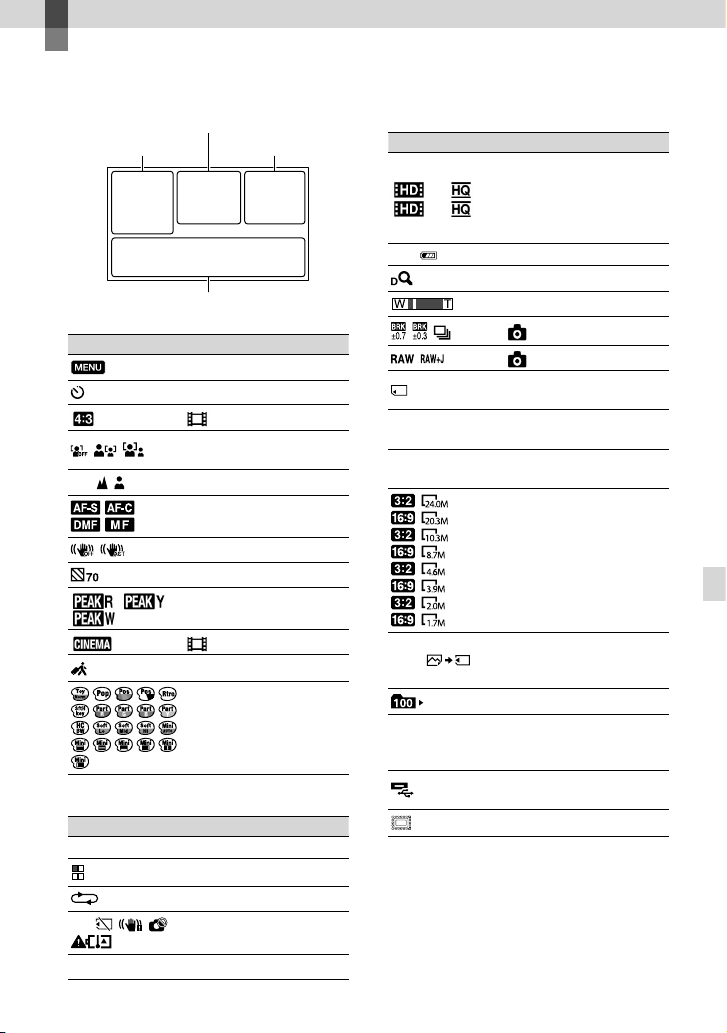
71
US
Quick reference
Quick reference
Screen indicators
Left
Indicator Meaning
MENU button
Self-timer recording
Wide Mode
[Face Detection] set to
[Off]
Manual focus
/ /
/
Focus Mode
SteadyShot off
Zebra
Peaking
Cinematone
Destination
Picture Effect
Center
Indicator Meaning
[STBY]/[REC] Recording status
Processing
Slide show set
Warning
Playback mode
Right
Indicator Meaning
60i
50i
Recording image quality
(HD/STD), frame rate
(60p/60i/24p), (50p/50i/
25p) and recording mode
(PS/FX/FH/HQ/LP)
60%
Remaining battery
2.0
Digital Zoom
Optical zoom
Drive Mode
RAW/JPEG
Recording/playback/
editing media
0:00:00
Counter (hour:minute:
second)
00Min
Estimated recording
remaining time
Photo size
9999
Approximate number of
recordable photos and
photo size
Playback folder
100/112
Current playing movie or
photo/Number of total
recorded movies or photos
An external media device
is connected
APS-C Size Capture
Left Right
Center
Bottom
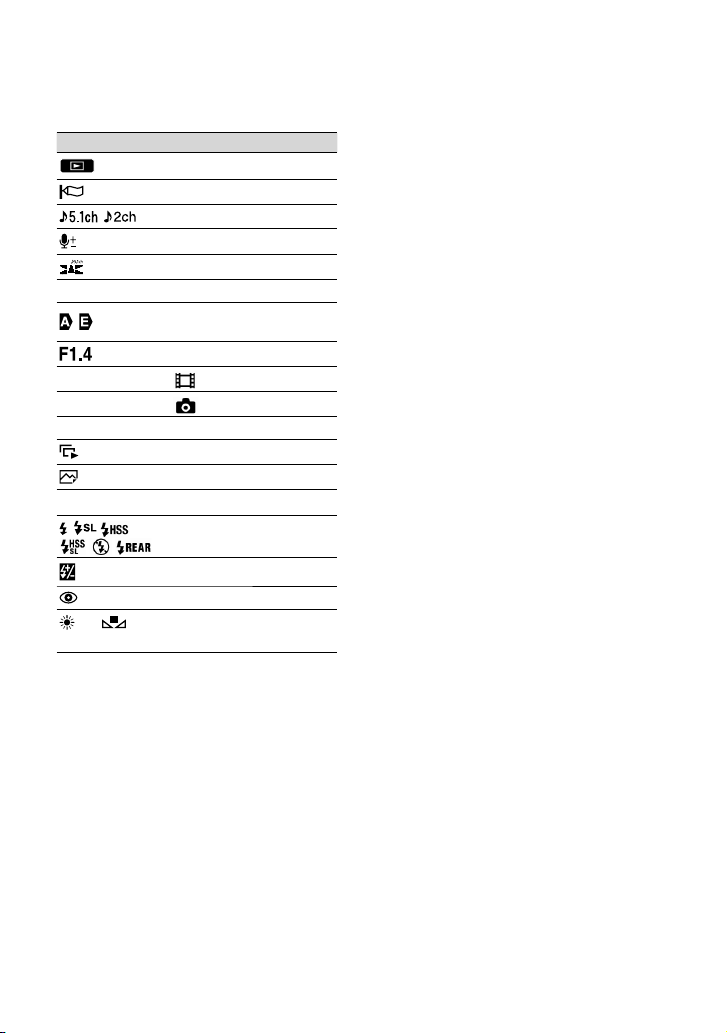
72
US
Bottom
Indicator Meaning
View Images button
Wind Noise Reduct.
Audio Mode
Audio Rec Level
Audio Level Display
EV AE Shift
Exposure Auto/ Exposure
Manual
IRIS
12dB
Gain
ISO200
ISO
4000 Shutter Speed
Slide show button
101-0005
Data file name
Protected image
Flash
Flash Level
Red Eye Reduction
5500K A3 G3
White Balance
Indicators and their positions are approximate
and may differ from what you actually see.
Some indicators may not appear, depending on
your camcorder model.
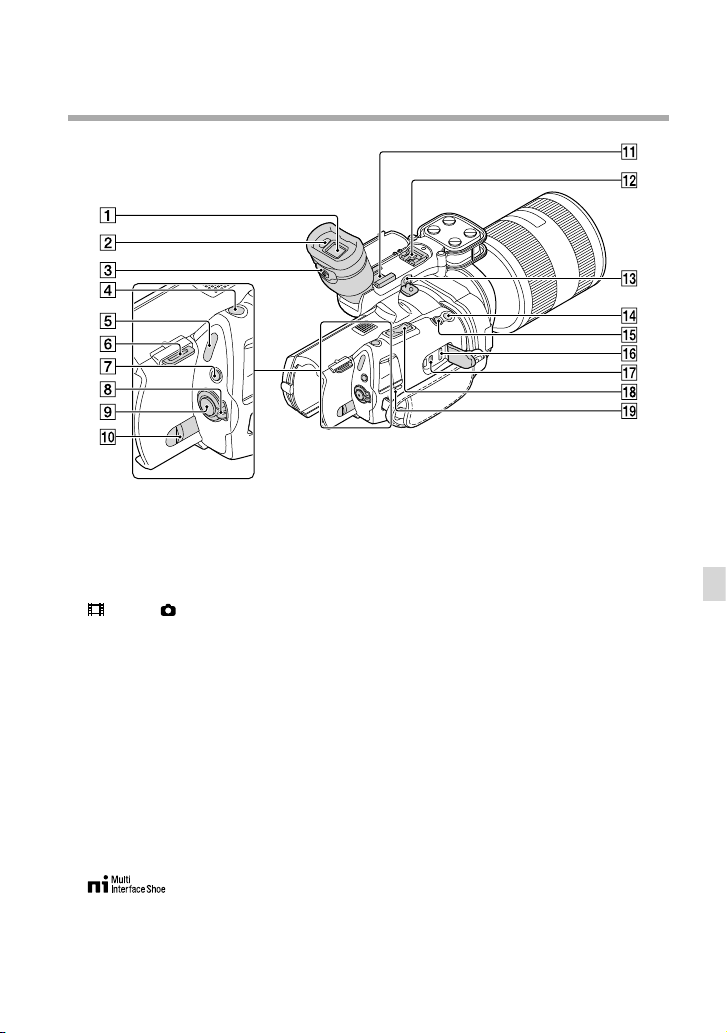
73
US
Quick reference
Parts and controls
Viewfinder (p. 28)
Eye sensor
Viewfinder lens adjustment lever (p. 28)
PHOTO button (p. 34)
(Movie)/ (Photo) lamps (p. 33)
Hook for shoulder strap
MODE button (p. 33)
ON/OFF (power) switch (p. 24)
START/STOP button (p. 33)
BATT (battery) release lever (p. 18)
Accessory shoe
Attach a gun microphone (sold separately),
etc. If you attach accessories to the accessory
shoe and multi interface shoe simultaneously,
the accessories may collide with each other
and be damaged.
Multi interface shoe
For details on compatible accessories of the
multi interface shoe, visit the Sony web site
in your area, or consult your Sony dealer or
localauthorized Sony service facility.
Operations with other manufacture’s
accessories are not guaranteed.
MIC (PLUG IN POWER) jack
When an external microphone (sold
separately) is connected, it takes precedence
over the built in microphone, or a microphone
attached to the multi interface shoe.
START/STOP button on the grip
Use this button when recording at a different
angle.
EXPANDED FOCUS button
The EXPANDED FOCUS button has a tactile
dot. Use as a guide for the operation.
HDMI OUT jack (p. 41)
(USB) jack (p. 52)
NEX-VG900E: output only
Zoom lever
CHG (charge) lamp (p. 17)
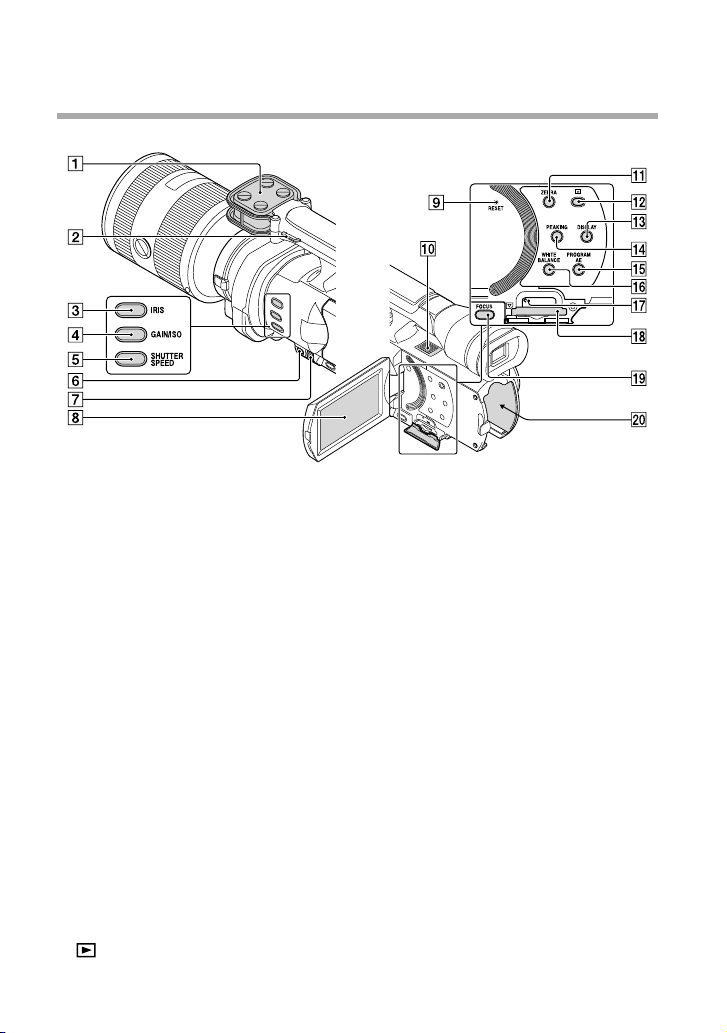
74
US
Microphone
Hook for shoulder strap
IRIS button
GAIN/ISO button
SHUTTER SPEED button
MANUAL button (p. 36)
MANUAL dial (p. 36)
LCD screen/Touch panel
If you rotate the LCD panel 180 degrees, you
can close the LCD panel with the LCD screen
facing out. This is convenient during playback
operations.
RESET button
Press RESET using a pointed object.
Press RESET to initialize all the settings
including the clock setting.
Speaker
ZEBRA button
(View Images) button (p. 37)
DISPLAY button (p. 27)
PEAKING button
PROGRAM AE button
WHITE BALANCE button
Memory card access lamp (p. 30)
While the lamp is lit or flashing, the
camcorder is reading or writing data.
Memory card slot (p. 30)
FOCUS button
Battery terminal (p. 17)

75
US
Quick reference
DC IN jack (p. 17)
(headphones) jack
Use stereo minijack headphones.
A/V Remote Connector (p. 41)
This terminal is to interface your camcorder
to another device. You can output still images,
movies and sound to a connected TV, or
control your camcorder when it is mounted
on a remote control video tripod.
Grip belt (p. 32)
Tripod receptacle (p. 36)
Mount
Image sensor
Do not touch or dirty the image sensor.
Lens contacts
Do not touch or dirty the lens contacts.
Lens lock pin
Lens release button
Camera recording lamp
The lamp flashes when the remaining
recording media capacity or battery power
is low.
Remote sensor (p. 60)

76
US
You will find the menu lists
on pages 58 to 60.
Index
“Memory Stick PRO-HG Duo”
media ............................................31
“Memory Stick PRO Duo” media
.......................................................31
“Memory Stick XC-HG Duo”
media ............................................31
Menus ...........................................58
Movies ....................................33, 39
P
Photos ....................................34, 40
Playing..........................................37
PlayMemories Home..................49
Power on ......................................24
Precautions ..................................66
R
Recording ....................................32
Recording and playback time ...64
Recording media.........................30
Recording time of movies/
number of recordable photos ....64
RESET ..........................................74
S
Saving images in external media
.......................................................52
Screen indicators ........................71
Self-diagnosis display .................63
Setting the date and time ...........24
Software .......................................46
Specifications ..............................68
T
Thumbnail ...................................44
Tripod.....................................36, 75
Troubleshooting ..........................62
Turning the power on ................24
TV .................................................41
V
VBR ..............................................65
W
Wall outlet (wall socket) ............17
Warning indicators .....................63
Windows ......................................46
A
A/V connecting cable...........42, 55
B
Battery pack .................................17
C
Care ..............................................66
Charging the battery pack .........17
Charging the battery pack abroad
.......................................................19
Clock Set ......................................24
Computer.....................................46
Computer system ........................46
Connection ..................................41
Copy .............................................52
D
Data Code ....................................25
Date/Time ....................................25
Delete ...........................................44
Disc recorder ...............................55
E
Event Index ..................................37
External media ............................52
F
Fully charged ...............................17
H
“Handycam” Handbook .............61
I
Image Data Converter ................50
Install ............................................46
L
Language Setting ........................26
Lens ..............................................20
M
Maintenance ................................66
MANUAL dial.............................36
Media Settings .............................30
“Memory Stick” media ...............31

2
ES
Lea esto antes de
empezar
Antes de utilizar la unidad, lea
detenidamente este manual y consérvelo
para consultarlo en el futuro.
Nombre del producto: Videocámara
Digital
Modelo: NEX-VG900/VG900E
AVISO
Para reducir el riesgo de incendios o
descargas eléctricas,
1) no exponga la unidad a la lluvia o la
humedad.
2) no coloque sobre el aparato objetos
que contengan líquidos, como, por
ejemplo, jarrones.
No exponga las pilas a fuentes de calor
excesivo, como la luz solar directa, el
fuego o similares.
PRECAUCIÓN
Batería
Si la batería se manipula indebidamente,
puede explotar y causar un incendio o
provocarle quemaduras químicas. Tenga en
cuenta las siguientes precauciones.
No desmonte el producto.
No aplaste ni exponga la batería a impactos tales
como golpes o caídas, ni la deje caer o la pise.
No provoque un cortocircuito en la batería
ni permita que objetos metálicos entren en
contacto con sus terminales.
No exponga la batería a temperaturas superiores
a 60 °C como a la luz solar directa, o en el
interior de un automóvil estacionado al sol.
No la incinere ni la arroje al fuego.
No manipule baterías de iones de litio dañadas
o con fugas.
Asegúrese de cargar la batería con un
cargador de baterías original de Sony o con un
dispositivo que pueda cargarla.
Mantenga la batería fuera del alcance de niños
pequeños.
Mantenga la batería seca.
Sustitúyala únicamente por otra del mismo tipo
o equivalente recomendada por Sony.
Deshágase de la baterías usada lo antes posible
según el procedimiento que se describe en las
instrucciones.
Sustituya la batería únicamente por otra del
tipo especificado. De lo contrario, es posible
que se produzcan incendios o lesiones.
Adaptador de ca
No utilice el adaptador de ca en un lugar
estrecho (por ejemplo, entre la pared y un
mueble).
Utilice una toma de pared cercana al usar el
adaptador de ca. Desconecte el adaptador
de ca de la toma de pared inmediatamente
si se produce algún fallo al utilizar la
videocámara.
Incluso con la videocámara desconectada,
ésta seguirá recibiendo alimentación de
ca (corriente) mientras esté conectada a la
toma de pared mediante el adaptador de ca.
Nota sobre el cable de alimentación
El cable de alimentación está diseñado para
utilizarlo única y exclusivamente con esta
videocámara, y no debe utilizarse con otros
aparatos eléctricos.
Un exceso de presión sonora de los
auriculares puede ocasionar la pérdida de la
capacidad auditiva.
3
ES
ES
PARA USUARIOS EN EUROPA
Aviso para los clientes de países en los
que se aplican las directivas de la UE
El fabricante de este producto es Sony
Corporation, 1-7-1 Konan Minato-ku Tokyo,
108-0075, Japón. El representante autorizado
en lo referente al cumplimiento de la directiva
EMC y a la seguridad de los productos es
Sony Deutschland GmbH, Hedelfinger
Strasse 61, 70327 Stuttgart, Alemania. Para
resolver cualquier asunto relacionado con
el soporte técnico o la garantía, consulte las
direcciones que se indican en los documentos
de soporte técnico y garantía suministrados
por separado.
Este producto se ha probado y cumple con
la normativa que establece la Directiva
EMC si se utiliza un cable de conexión de
menos de 3 metros de longitud.
ATENCIÓN
Los campos electromagnéticos a
frecuencias específicas podrán influir en la
imagen y el sonido de esta unidad.
Aviso
Si la electricidad estática o el
electromagnetismo interrumpen la
transmisión de datos (fallo), reinicie
la aplicación o desconecte el cable de
comunicación (USB, etc.) y vuelva a
conectarlo.
Tratamiento de los equipos
eléctricos y electrónicos al
final de su vida útil (aplicable
en la Unión Europea y en
países europeos con sistemas
de tratamiento selectivo de
residuos)
Este símbolo en el equipo o en su
embalaje indica que el presente producto
no puede ser tratado como residuos
doméstico normal. Debe entregarse en
el correspondiente punto de recogida
de equipos eléctricos y electrónicos. Al
asegurarse de que este producto se desecha
correctamente, usted ayuda a prevenir las
consecuencias potencialmente negativas
para el medio ambiente y la salud humana
que podrían derivarse de la incorrecta
manipulación en el momento de deshacerse
de este producto. El reciclaje de materiales
ayuda a conservar los recursos naturales.
Para recibir información detallada sobre
el reciclaje de este producto, póngase en
contacto con el ayuntamiento, el punto de
recogida más cercano o el establecimiento
donde ha adquirido el producto.
Tratamiento de las baterías al
final de su vida útil (aplicable
en la Unión Europea y en
países europeos con sistemas
de tratamiento selectivo de
residuos)
Este símbolo en la batería o en el embalaje
indica que la batería proporcionada con
este producto no puede ser tratada como
un residuo doméstico normal.
En algunas baterías este símbolo puede
utilizarse en combinación con un símbolo
químico. El símbolo químico del mercurio
(Hg) o del plomo (Pb) se añadirá si la
batería contiene más del 0,0005% de
mercurio o del 0,004% de plomo.
Al asegurarse de que estas baterías se
desechan correctamente, usted ayuda a
prevenir las consecuencias potencialmente
negativas para el medio ambiente y la
salud humana que podrían derivarse de la
incorrecta manipulación en el momento
de deshacerse de la batería. El reciclaje de
materiales ayuda a conservar los recursos
naturales.
En el caso de productos que por razones de
seguridad, rendimiento o mantenimiento
de datos, sea necesaria una conexión
permanente con la batería incorporada, esta
batería solo deberá ser reemplazada por
personal técnico cualificado para ello.
Para asegurarse de que la batería será
tratada correctamente, entregue el producto
al final de su vida útil en un punto de
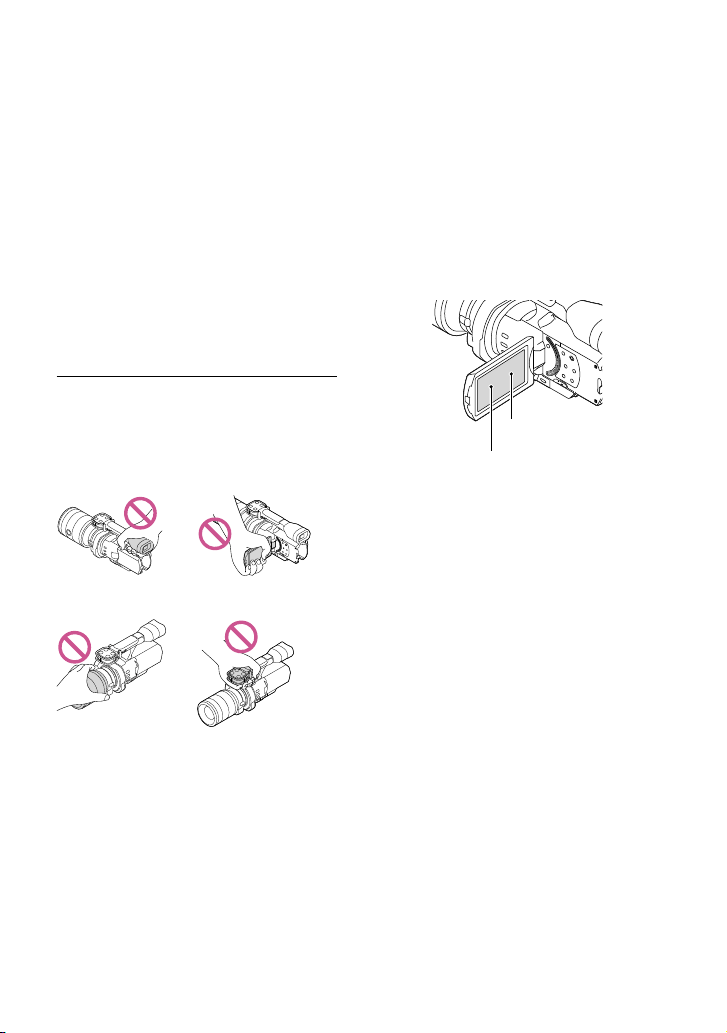
4
ES
recogida para el reciclado de aparatos
eléctricos y electrónicos.
Para las demás baterías, consulte la sección
donde se indica cómo extraer la batería
del producto de forma segura. Deposite
la batería en el correspondiente punto de
recogida para el reciclado de baterías.
Para recibir información detallada sobre el
reciclaje de este producto o de la batería,
póngase en contacto con el ayuntamiento,
el punto de recogida más cercano o el
establecimiento donde ha adquirido el
producto.
Utilización de la videocámara
No sostenga la videocámara por las siguientes
partes ni por las tapas de las tomas.
Visor Pantalla de cristal líquido
Objetivo Micrófono incorporado
La videocámara no está protegida contra el
polvo, las salpicaduras ni la humedad. Consulte
“Precauciones” (p
ág. 63).
Elementos de menú, panel de cristal
líquido, visor y objetivo
Los elementos de menú que aparezcan
atenuados no estarán disponibles en las
condiciones de grabación o reproducción
actuales.
La pantalla de cristal líquido y el visor se han
fabricado con tecnología de muy alta precisión,
lo que hace que más del 99,99% de los píxeles
sean operativos para uso efectivo. Sin embargo,
es posible que aparezcan constantemente
algunos pequeños puntos negros o brillantes
(blancos, rojos, azules o verdes) en la pantalla
de cristal líquido. Estos puntos son el resultado
normal del proceso de fabricación y no afectan
en modo alguno a la grabación.
No grabe el sol directamente ni deje la
videocámara al sol durante un período
de tiempo prolongado. El interior de la
videocámara podría dañarse. Si se enfoca la
luz del sol hacia un objeto cercano se puede
provocar un incendio. Cuando tenga que dejar
la videocámara expuesta a la luz solar directa,
coloque la tapa del objetivo.
La exposición de la pantalla de cristal líquido,
el visor o el objetivo a la luz solar directa
durante períodos de tiempo prolongados puede
provocar fallos de funcionamiento.
No enfoque directamente hacia el sol. Si lo
hace, puede ocasionar fallos de funcionamiento
en la videocámara. Tome fotografías del sol
solamente en condiciones de baja intensidad,
como al atardecer.
No mire hacia el sol o hacia una luz intensa a
través de un objetivo desinstalado. Si lo hace
podría causarle daños irreparables a los ojos.
Acerca del ajuste del idioma
Para ilustrar los procedimientos operativos
se utilizan indicaciones en pantalla en cada
idioma local. Si es necesario, cambie el idioma
de la pantalla antes de utilizar la videocámara
(p
ág. 21).
Puntos negros
Puntos blancos, rojos, azules o verdes

5
ES
Acerca de la grabación
Para asegurar un funcionamiento estable de la
tarjeta de memoria, se recomienda formatearla
con la videocámara antes del primer uso. Al
formatear la tarjeta de memoria se eliminarán
todos los datos que contiene de forma
irrecuperable. Guarde los datos importantes en
su PC, etc.
Antes de comenzar a grabar, pruebe las
funciones de grabación para asegurarse de que
la imagen y el sonido se graben sin problemas.
No es posible compensar el contenido de las
grabaciones, ni siquiera aunque no sea posible
grabar o reproducir a causa de un fallo de
funcionamiento de la videocámara, de la tarjeta
de memoria, etc.
Para ver grabaciones realizadas con la
videocámara en un televisor, necesita un
televisor con sistema NTSC para el modelo
NEX-VG900, y un televisor con sistema PAL
para el modelo NEX-VG900E.
Los programas de televisión, películas, cintas de
vídeo y demás materiales pueden estar sujetos a
derechos de autor. La grabación no autorizada
de tales materiales puede ir en contra de las
leyes sobre los derechos de autor.
Respete las normas locales cuando use la
videocámara.
Notas sobre la reproducción
Es posible que las imágenes grabadas con
la videocámara no se puedan reproducir
normalmente en otros dispositivos. Asimismo,
es posible que las imágenes grabadas con otros
dispositivos no se puedan reproducir en la
videocámara.
Las películas con calidad de imagen estándar
(STD) grabadas en tarjetas de memoria SD no
se pueden reproducir en equipos AV de otros
fabricantes.
DVD grabados con calidad de imagen
HD (alta definición)
Los DVD grabados con calidad de imagen
de alta definición (HD) pueden reproducirse
en dispositivos compatibles con la norma
AVCHD. Los discos grabados con calidad de
imagen de alta definición (HD) no se pueden
reproducir en los reproductores/grabadoras de
DVD, puesto que no son compatibles con el
formato AVCHD. Si inserta un disco grabado
con formato AVCHD (calidad de imagen de alta
definición (HD)) en un reproductor/grabadora
de DVD, es posible que no pueda expulsarlo.
Guarde todos los datos de imagen
grabados
Para evitar que se pierdan sus datos de imagen,
guarde todas las imágenes grabadas en soportes
externos periódicamente. Consulte la página
40 para guardar imágenes en un ordenador,
y la página 47 para guardar imágenes en
dispositivos externos.
Los tipos de discos y soportes en los que pueden
grabarse imágenes dependen del [
Modo
Grabación] que estaba seleccionado cuando se
grabaron las imágenes. Las películas grabadas
con [Calidad 60p
] (NEX-VG900),
[Calidad 50p
] (NEX-VG900E) o
[Calidad superior
] pueden guardarse en un
soporte externo o en discos Blu-ray (pág. 47).
Notas referentes a la batería/adaptador
de alimentación de ca
Asegúrese de extraer la batería o el adaptador
de alimentación de ca después de apagar la
videocámara.
Sujete la videocámara y la clavija de cc para
desconectar el adaptador de alimentación de ca
de la videocámara.
6
ES
Nota acerca de la temperatura de la
videocámara o la batería
Si la temperatura de la videocámara o de la
batería aumenta o desciende excesivamente,
es posible que no se puedan grabar o
reproducir datos en la videocámara, ya que en
tales situaciones se activan las funciones de
protección. En tal caso, aparece un indicador en
la pantalla de cristal líquido o en el visor.
Cuando la videocámara se encuentra
conectada a un ordenador o un
accesorio
No intente formatear la tarjeta de memoria de
la videocámara en un ordenador. Si lo hace,
es posible que la videocámara no funcione
correctamente.
Cuando conecte la videocámara a otro
dispositivo mediante un cable de comunicación,
asegúrese de insertar la clavija del conector en la
dirección correcta. Si se introduce la clavija del
conector a la fuerza en la dirección incorrecta,
podría dañar el terminal y provocar un fallo de
funcionamiento en la videocámara.
Si no puede grabar o reproducir
imágenes, ejecute [Formatear]
Si graba o elimina imágenes repetidamente
durante mucho tiempo, los datos de la tarjeta
de memoria se fragmentarán. No se pueden
guardar ni grabar imágenes. En tal caso, guarde
primero las imágenes en un PC o similar y,
a continuación, toque
(MENU)
[Configuración] [
( Ajustes de
soporte)] [Formatear]
para ejecutar [Formatear].
Notas con respecto a los accesorios
opcionales
Se recomienda utilizar accesorios Sony originales.
Es posible que en algunos países o regiones no
estén disponibles accesorios originales de Sony.
Acerca de este manual, sus ilustraciones y
las imágenes en pantalla
Las imágenes de ejemplo que se utilizan en este
manual con carácter ilustrativo se han tomado
con una cámara digital de imágenes fijas, por lo
que pueden parecer diferentes a las imágenes y
los indicadores de pantalla que aparecen en la
videocámara. Asimismo, las ilustraciones de la
videocámara y su indicación en la pantalla se
han exagerado o simplificado para facilitar su
comprensión.
En este manual, el disco DVD grabado con calidad
de imagen de alta definición (HD) se llama disco
AVCHD.
El diseño y las especificaciones de la videocámara
y sus accesorios están sujetos a cambios sin previo
aviso.
Los indicadores de pantalla de este manual
pertenecen al modelo NEX-VG900.
Notas respecto al uso
No realice ninguna de las operaciones
siguientes. Si lo hace, podría dañar la tarjeta de
memoria, imposibilitar la reproducción de las
imágenes grabadas o provocar otros fallos de
funcionamiento.
Expulsar la tarjeta de memoria cuando el
in
dicador de acceso (pág. 25) está encendido o
parpadeando
Extraer la batería o el adaptador de alimentación
de ca de la videocámara o aplicar vibraciones
o golpes mecánicos a la videocámara cuando
los indicadores
(película)/ (fotografía)
(pág. 28) o e
l indicador de acceso (pág. 25) están
encendidos o parpadeando
Cuando utilice una bandolera (se vende por
separado), no golpee la videocámara contra otros
objetos.

7
Índice de contenido
ES
Índice de contenido
Lea esto antes de empezar . . . . . . . . . . . . . . . . . . . . . . . . . . . . . . . . . . . . . . . . . . . . . . . . . . . . . . . . . . . . . . . . . . . . . . . 2
Introducción
Paso 1: Comprobación de los elementos suministrados . . . . . . . . . . . . . . . . . . . . . . . . . . . . . . . . . . . 9
Paso 2: Instalación de los accesorios suministrados . . . . . . . . . . . . . . . . . . . . . . . . . . . . . . . . . . . . . . 11
Paso 3: Carga de la batería . . . . . . . . . . . . . . . . . . . . . . . . . . . . . . . . . . . . . . . . . . . . . . . . . . . . . . . . . . . . . . . . . . . . . 12
Carga de la batería en el extranjero . . . . . . . . . . . . . . . . . . . . . . . . . . . . . . . . . . . . . . . . . . . . . . . . . 14
Paso 4: Colocación del objetivo . . . . . . . . . . . . . . . . . . . . . . . . . . . . . . . . . . . . . . . . . . . . . . . . . . . . . . . . . . . . . . . 15
Paso 5: Encendido de la videocámara y ajuste de la fecha y la hora . . . . . . . . . . . . . . . . . . . 19
Cambio del ajuste de idioma . . . . . . . . . . . . . . . . . . . . . . . . . . . . . . . . . . . . . . . . . . . . . . . . . . . . . . . . . 21
Paso 6: Realización de ajustes de configuración antes de la grabación . . . . . . . . . . . . . . . 22
Paso 7: Inserción de una tarjeta de memoria . . . . . . . . . . . . . . . . . . . . . . . . . . . . . . . . . . . . . . . . . . . . . . . 25
Grabación/reproducción
Grabación . . . . . . . . . . . . . . . . . . . . . . . . . . . . . . . . . . . . . . . . . . . . . . . . . . . . . . . . . . . . . . . . . . . . . . . . . . . . . . . . . . . . . . . . . . 27
Selección del modo de grabación . . . . . . . . . . . . . . . . . . . . . . . . . . . . . . . . . . . . . . . . . . . . . . . . . . . 30
Ajuste para las condiciones de disparo . . . . . . . . . . . . . . . . . . . . . . . . . . . . . . . . . . . . . . . . . . . . . . . . . . . . . . 31
Reproducción en la videocámara . . . . . . . . . . . . . . . . . . . . . . . . . . . . . . . . . . . . . . . . . . . . . . . . . . . . . . . . . . . . . 32
Reproducción de imágenes en un televisor . . . . . . . . . . . . . . . . . . . . . . . . . . . . . . . . . . . . . . . . . . . . . . . . 36
Operaciones avanzadas
Eliminación de películas y fotografías . . . . . . . . . . . . . . . . . . . . . . . . . . . . . . . . . . . . . . . . . . . . . . . . . . . . . . . 39
Guardar las películas y fotografías en un ordenador
Funciones útiles disponibles si se conecta la videocámara a un ordenador . . . . . . . . . 40
Preparación de un ordenador . . . . . . . . . . . . . . . . . . . . . . . . . . . . . . . . . . . . . . . . . . . . . . . . . . . . . . . . . . . . . . . . . 41
Inicio de PlayMemories Home . . . . . . . . . . . . . . . . . . . . . . . . . . . . . . . . . . . . . . . . . . . . . . . . . . . . . . . . . . . . . . . . . 45
Uso de “Image Data Converter” . . . . . . . . . . . . . . . . . . . . . . . . . . . . . . . . . . . . . . . . . . . . . . . . . . . . . . . . . . . . . . . 45
Guardar imágenes en un dispositivo externo
Guía de copia . . . . . . . . . . . . . . . . . . . . . . . . . . . . . . . . . . . . . . . . . . . . . . . . . . . . . . . . . . . . . . . . . . . . . . . . . . . . . . . . . . . . . 46
Almacenamiento de imágenes en un dispositivo de soporte externo . . . . . . . . . . . . . . . . 47
Creación de un disco con calidad de imagen de definición estándar (STD) con una
grabadora, etc. . . . . . . . . . . . . . . . . . . . . . . . . . . . . . . . . . . . . . . . . . . . . . . . . . . . . . . . . . . . . . . . . . . . . . . . . . . . . . . . . . . . . 50

8
ES
Personalización de la videocámara
Uso de los menús . . . . . . . . . . . . . . . . . . . . . . . . . . . . . . . . . . . . . . . . . . . . . . . . . . . . . . . . . . . . . . . . . . . . . . . . . . . . . . . . 53
Obtención de información detallada de la Guía práctica de “Handycam” . . . . . . . . . . . . 57
Información complementaria
Solución de problemas . . . . . . . . . . . . . . . . . . . . . . . . . . . . . . . . . . . . . . . . . . . . . . . . . . . . . . . . . . . . . . . . . . . . . 58
Tiempo de grabación de películas/número de fotografías que se pueden
grabar . . . . . . . . . . . . . . . . . . . . . . . . . . . . . . . . . . . . . . . . . . . . . . . . . . . . . . . . . . . . . . . . . . . . . . . . . . . . . . . . . . . . . . . . . . . . . . 61
Precauciones . . . . . . . . . . . . . . . . . . . . . . . . . . . . . . . . . . . . . . . . . . . . . . . . . . . . . . . . . . . . . . . . . . . . . . . . . . . . . . . . . . . . . . 63
Especificaciones . . . . . . . . . . . . . . . . . . . . . . . . . . . . . . . . . . . . . . . . . . . . . . . . . . . . . . . . . . . . . . . . . . . . . . . . . . . . . . . . . . 66
Referencia rápida
Indicadores de la pantalla . . . . . . . . . . . . . . . . . . . . . . . . . . . . . . . . . . . . . . . . . . . . . . . . . . . . . . . . . . . . . . . . . . . . . . 69
Componentes y controles . . . . . . . . . . . . . . . . . . . . . . . . . . . . . . . . . . . . . . . . . . . . . . . . . . . . . . . . . . . . . . . . . . . . . . 71
Índice . . . . . . . . . . . . . . . . . . . . . . . . . . . . . . . . . . . . . . . . . . . . . . . . . . . . . . . . . . . . . . . . . . . . . . . . . . . . . . . . . . . . . . . . . . . . . . . 75
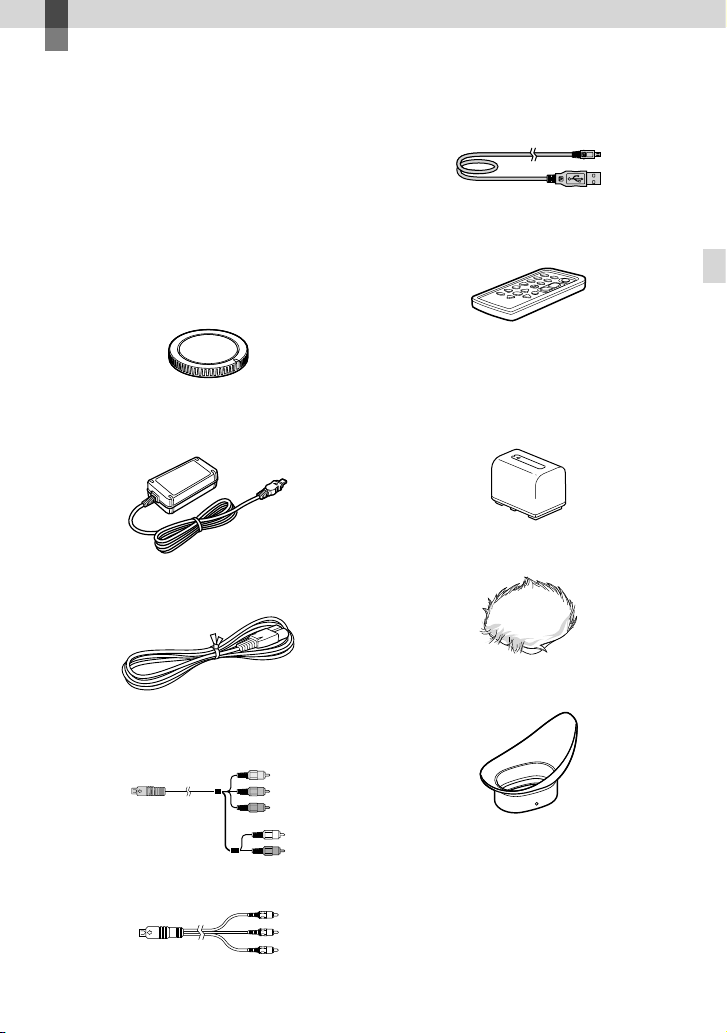
9
ES
Introducción
Introducción
Paso 1: Comprobación
de los elementos
suministrados
Compruebe que la videocámara dispone de
los siguientes elementos suministrados.
Los números entre ( ) corresponden a la
cantidad suministrada.
Esta videocámara (1)
Tapa del cuerpo (acoplada a la
v
ideocámara) (1) (pág. 15)
Adaptador de alimentación de ca (1)
(pág. 12)
Cable de alimentación (1) (pág. 12)
Cable de A/V de componente (1)
(pág. 36)
Cable de conexión de A/V (1) (pág. 37)
Cable USB (1) (pág. 47)
Mando a distancia inalámbrico
(RMT-835) (1)
Se suministra con una batería de litio de tipo
botón instalada.
Batería recargable (NP-FV70) (1)
(pág. 12)
Paravientos (1) (pág. 11)
Ocular grande (1) (pág. 24)

10
ES
Adaptador de montura (LA-EA3) (1)
(pág. 18)
CD-ROM “Handycam” Application
Software (1) (pág. 41)
“PlayMemories Home” (software, incluye la
“Guía de ayuda de PlayMemories Home”)
Image Data Converter (software de desarrollo
RAW)
Guía práctica de “Handycam” (PDF)
Manual de instrucciones (este manual)
(1)
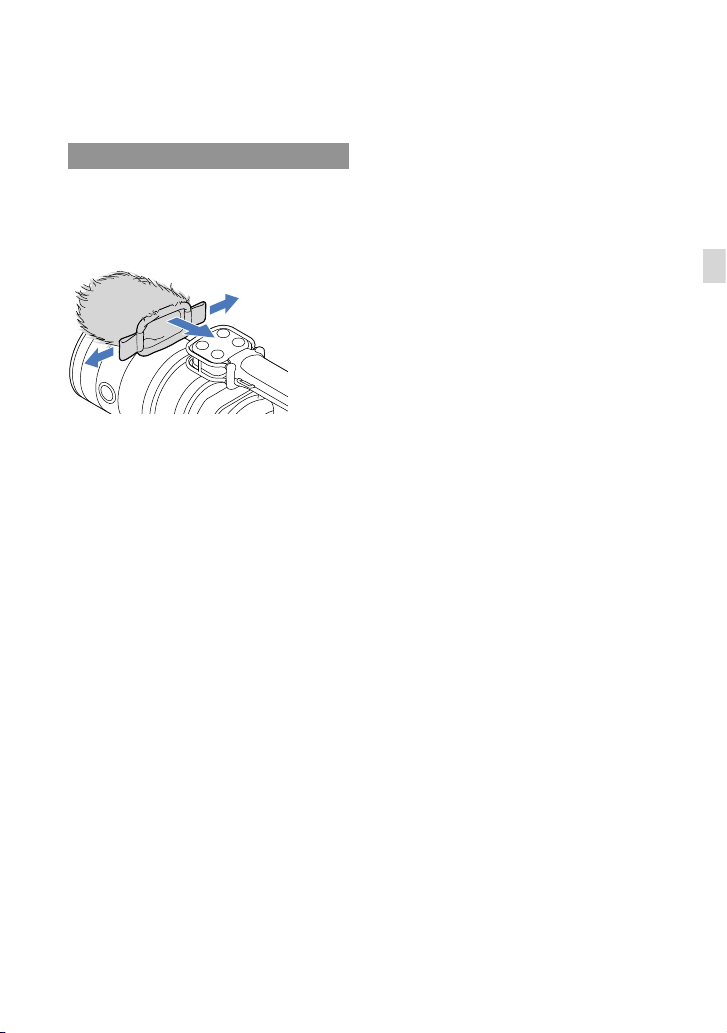
11
ES
Introducción
Paso 2: Instalación
de los accesorios
suministrados
Colocación del paravientos
Utilice el paravientos para reducir el ruido
del viento que graba el micrófono. Coloque
el paravientos con el logotipo de Sony
orientado hacia abajo.
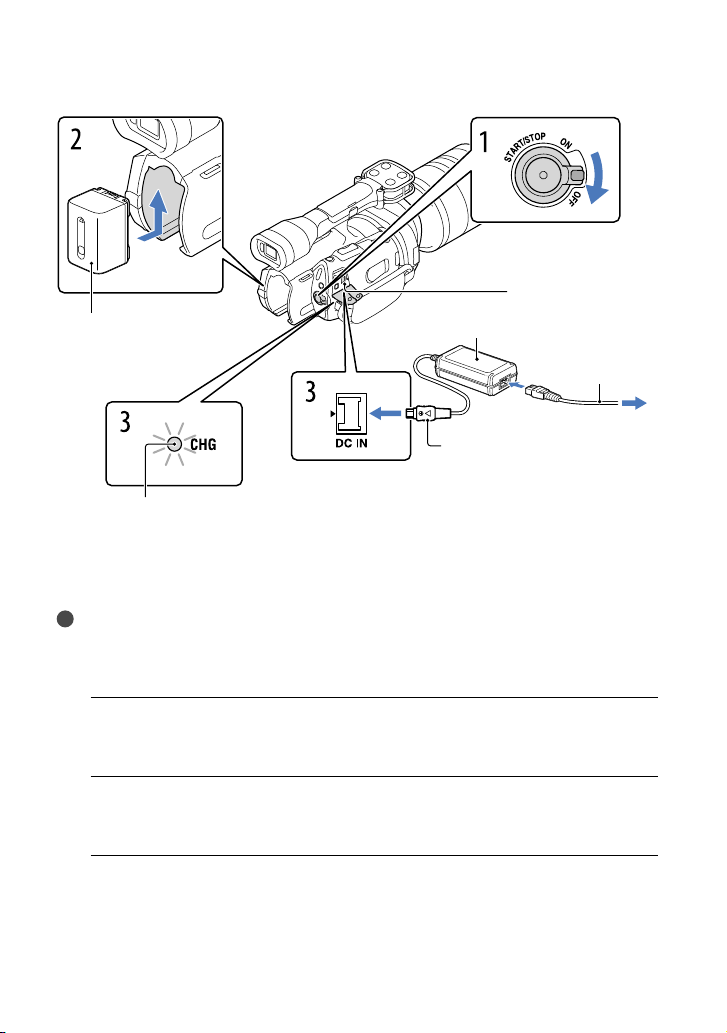
12
ES
Paso 3: Carga de la batería
Puede cargar la batería “InfoLITHIUM” (serie V) después de instalarla en la videocámara.
Notas
Sólo se puede instalar en la videocámara una batería “InfoLITHIUM” de la serie V.
No se puede instalar la batería “InfoLITHIUM” de los modelos NP-FV30/FV50, ni aunque sean de la
serie V.
1
Deslice el interruptor POWER hasta la posición OFF (la configuración
predeterminada).
2
Para colocar la batería, deslícela en la dirección que indica la flecha hasta
que encaje.
3
Conecte el adaptador de alimentación de ca y el cable de alimentación a
la videocámara y a la toma de corriente de pared.
El indicador CHG (carga) se ilumina y se inicia el proceso de carga. El indicador
CHG (carga) se apaga cuando la batería está totalmente cargada.
Batería
Indicador CHG (carga)
Toma de entrada
de cc
A la toma de corriente
de pared
Adaptador de alimentación de ca
Clavija de cc
Cable de
alimentación
Alinee la marca de la clavija de cc
con la de la toma de entrada de cc
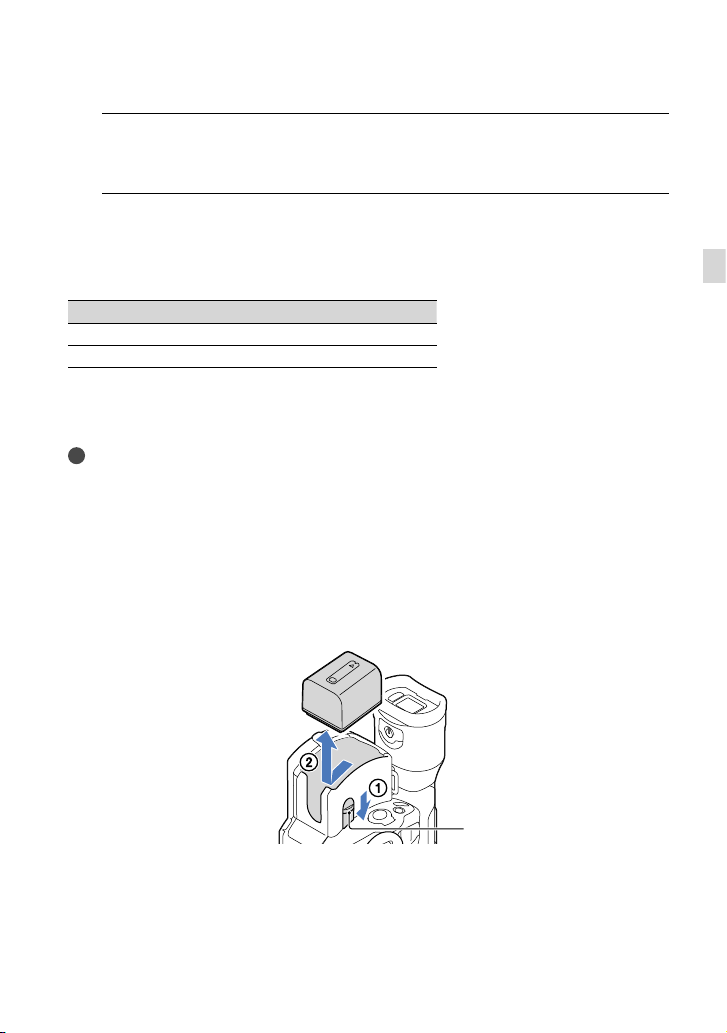
13
ES
Introducción
4
Cuando la batería esté cargada, desconecte el adaptador de alimentación
de ca de la toma de entrada de cc de la videocámara.
Tiempo de carga
Tiempo aproximado (minuto) necesario para cargar completamente una batería totalmente
descargada.
Batería Tiempo de carga
NP-FV70 (suministrada) 195
NP-FV100 390
Los tiempos de carga indicados en la tabla anterior están medidos durante la carga de la videocámara a
una temperatura de 25
C Se recomienda cargar la batería a una temperatura comprendida entre 10 C
y 30
C
Sugerencias
Consulte la página 61 sobre los tiempos de grabación y reproducción.
Cuando la videocámara está encendida, es posible comprobar la cantidad restante de batería aproximada,
gracias al indicador de batería restante situado en la parte superior derecha de la pantalla de cristal
líquido.
Para extraer la batería
Deslice el interruptor POWER hasta la posición OFF. Deslice la palanca de liberación BATT
(batería) () y extraiga la batería ().
Para utilizar una toma de corriente de pared como fuente de alimentación
Realice las mismas conexiones que se indican en “Paso 3: Carga de la batería” (pág. 12). La
batería no se descargará aunque esté instalada.
Palanca de liberación BATT
(batería)

14
ES
Notas acerca de la colocación/extracción de la fuente de alimentación
Cuando extraiga la batería o desconecte el adaptador de alimentación de ca apague la videocámara y
asegúrese de que los indicadores
(película)/ (fotografía) (pág. 28) y el indicador de acceso (pág. 25)
estén apagados.
El indicador CHG (carga) parpadea durante el proceso de carga en las siguientes condiciones:
La batería no está instalada correctamente.
La batería está dañada.
La temperatura de la batería es baja.
Extraiga la batería de la videocámara y colóquela en un lugar templado.
La temperatura de la batería es alta.
Extraiga la batería de la videocámara y colóquela en un lugar fresco.
De manera predeterminada, la alimentación se desconecta automáticamente para ahorrar energía de la
batería si no se lleva a cabo ninguna operación en la videocámara durante aproximadamente 5 minuto
([Apagado auto]).
Notas referentes al adaptador de alimentación de ca
Utilice una toma de corriente de pared cercana cuando emplee el adaptador de alimentación de ca
Desconecte el adaptador de alimentación de ca de la toma de corriente de pared inmediatamente si se
produce algún fallo de funcionamiento al utilizar la videocámara.
No coloque el adaptador de alimentación de ca en lugares estrechos, como por ejemplo entre una pared
y un mueble.
No provoque un cortocircuito en la clavija de cc del adaptador de alimentación de ca ni en el terminal de
la batería con ningún objeto metálico. Si lo hace, puede ocasionar un fallo de funcionamiento.
Nota sobre el cable de alimentación
El cable de alimentación se ha diseñado de manera específica para utilizarse únicamente con esta
videocámara y no debe utilizarse con ningún otro equipo eléctrico.
Carga de la batería en el extranjero
Puede cargar la batería en cualquier país o región con el adaptador de alimentación de
ca suministrado con la videocámara, siempre que utilice una corriente alterna entre
100
V a 240 V 50 Hz/60 Hz
No utilice un transformador de tensión electrónico.

15
ES
Introducción
Paso 4: Colocación del objetivo
En este manual se explica cómo colocar el adaptador de montura suministrado y un objetivo
(el objetivo SAL2470Z (se vende por separado) se usa a modo de ejemplo).
Si utiliza un objetivo de montura E, consulte el manual de instrucciones suministrado con él.
Contactos del objetivo*
Marca de montaje (naranja)
L
iberación del objetivo
M
arca de montaje (blanca)
* No toque ni ensucie los contactos del objetivo.
Para colocar el adaptador de montura suministrado
Extraiga la tapa del cuerpo del cuerpo de la videocámara y las tapas delantera y posterior
del adaptador de montura.
Gire las tapas del adaptador de montura en el sentido de las agujas del reloj para extraerlas.
Alinee la marca de montaje del adaptador de montura con el índice de montaje
(blanco) de la videocámara. Inserte el adaptador de montura en la montura de la
videocámara y gírelo en el sentido de las agujas del reloj hasta que encaje.
No pulse el botón de liberación del objetivo de la videocámara mientras coloca el adaptador de
montura, ya que es posible que este no encaje adecuadamente.
No inserte el adaptador de montura inclinado.
Índice de montaje
(blanco)
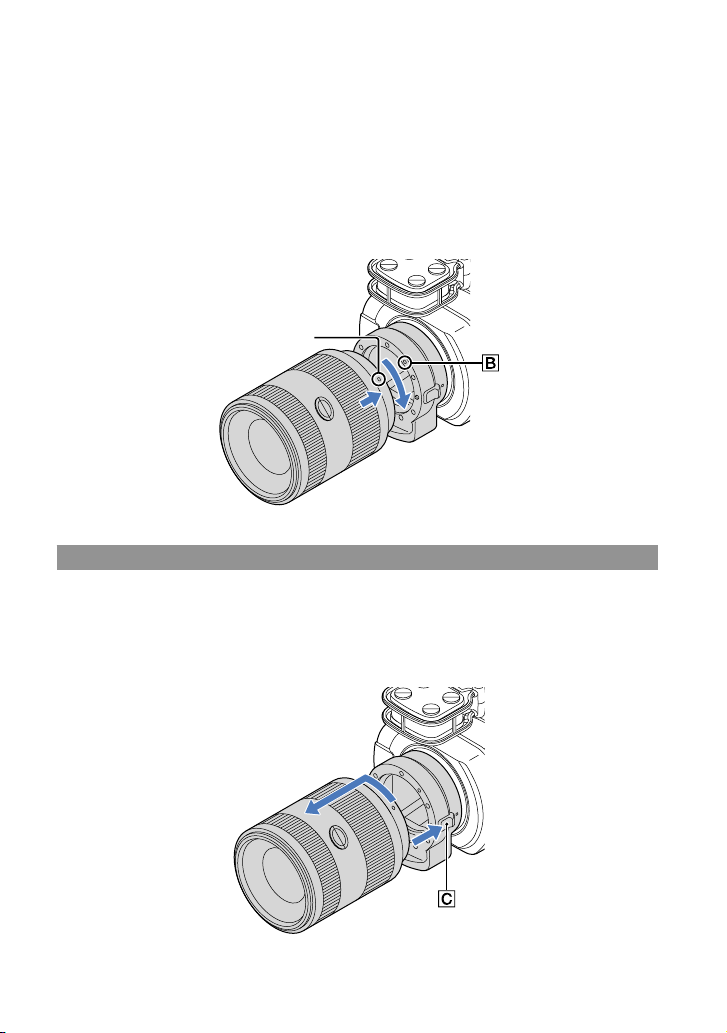
16
ES
Para colocar el objetivo
Alinee el índice de montaje (naranja) del tambor del objetivo con la marca de montaje del
adaptador de montura. Inserte el objetivo en la montura del adaptador de montura y gírelo en
el sentido de las agujas del reloj hasta que encaje.
No presione la liberación del objetivo del adaptador de montura mientras coloca el objetivo, ya que es
posible que este no encaje adecuadamente.
No inserte el objetivo inclinado.
Extracción del objetivo
Para extraer el objetivo
Mantenga pulsada la liberación del objetivo del adaptador de montura y gire el objetivo
en sentido contrario al de las agujas del reloj hasta que se detenga. Extraiga con cuidado el
objetivo de la montura del adaptador de montura.
Índice de montaje
(naranja)
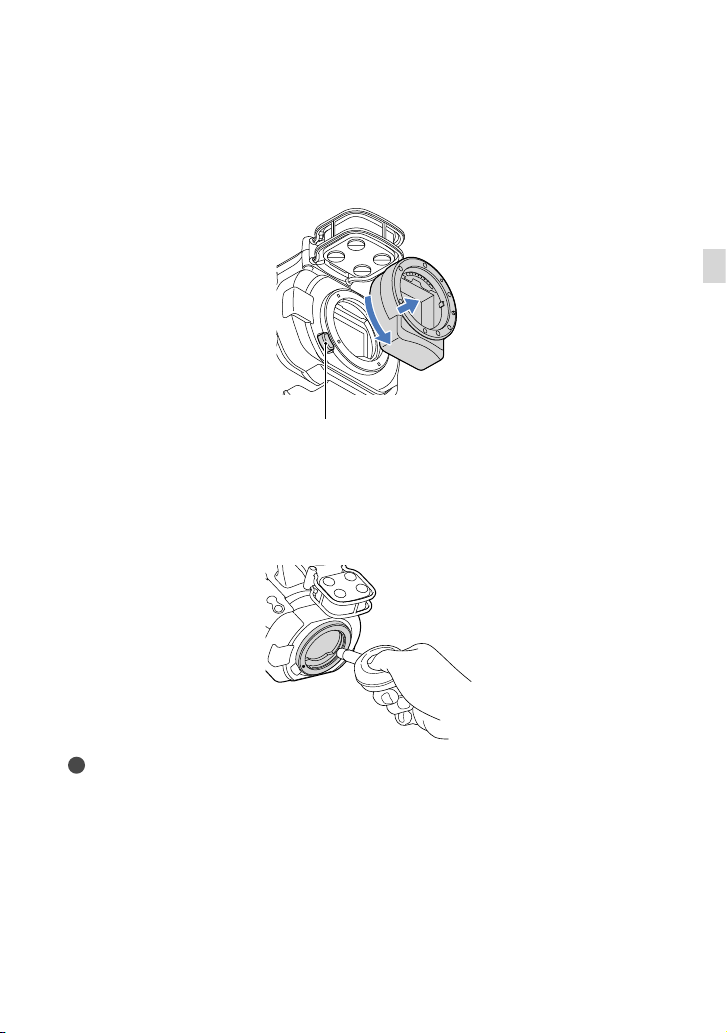
17
ES
Introducción
Para extraer el adaptador de montura
Mantenga pulsado el botón de liberación del objetivo del cuerpo de la videocámara y gire
el adaptador de montura en sentido contrario al de las agujas del reloj hasta que se detenga.
Extraiga con cuidado el adaptador de montura de la montura de la videocámara.
Si el polvo o la suciedad se adhieren al sensor de imagen
Apague la videocámara y retire el objetivo. Limpie el sensor de imagen y la zona de su
alrededor con un soplador (se vende por separado) y, a continuación, vuelva a colocar el
objetivo.
Notas
No utilice un soplador pulverizador, ya que podría salpicar gotas de agua en el interior del cuerpo de la
videocámara.
No ponga la punta del soplador en la cavidad que está fuera de la montura, de manera que la punta del
soplador no toque el sensor de imagen.
Sujete la cara de la videocámara hacia abajo para evitar que el polvo se reasiente en la videocámara.
No aplique golpes mecánicos a la videocámara durante la limpieza.
Si no puede limpiar el sensor de imagen mediante el procedimiento anterior, consulte a un distribuidor
de Sony o a un centro de servicio técnico local autorizado de Sony.
Botón de liberación del
objetivo
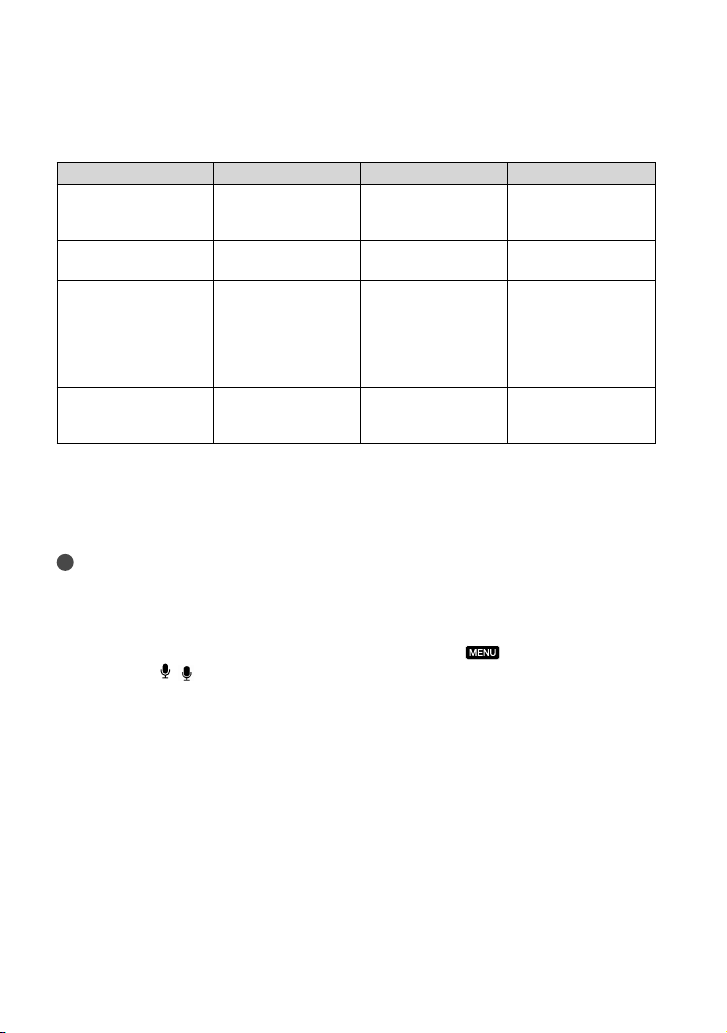
18
ES
Adaptador de montura
Las funciones disponibles variarán en función del tipo de Adaptador de montura.
Funciones LA-EA1** LA-EA2** LA-EA3
Enfoque automático
Disponible
únicamente con
objetivos SAM/SSM
*
Disponible Disponible
únicamente con
objetivos SAM/SSM
*
Sistema AF
AF de contraste AF de detección de
fase
AF de contraste
Selección AF/MF
Conmutable en el
objetivo
Objetivos SAM/SSM:
conmutables en el
objetivo
Otros objetivos:
conmutables con el
botón FOCUS
Conmutable en el
objetivo
Modo de enfoque
automático (sólo en
modo de fotografías)
Sencillo Sencillo/Continuo Sencillo
* Con LA-EA1 y LA-EA3, la velocidad de enfoque automático con un objetivo de montura A acoplado
será más lenta que con un objetivo de montura E. (Con un objetivo de montura A acoplado, la velocidad
de enfoque automático será de entre 2 y 7 segundo, si las fotografías se toman con las condiciones de
medición de Sony. La velocidad puede variar en función del sujeto, la luz ambiente, etc.).
** LA-EA1 y LA-EA2 se venden por separado.
Notas
Es posible que algunos objetivos no se puedan utilizar o que tengan una funcionalidad limitada.
Consulte el sitio web de soporte específico o póngase en contacto con un centro de servicio técnico local
autorizado de Sony para obtener información acerca de objetivos compatibles.
Durante la grabación de vídeo, puede que se grabe el sonido del objetivo y la cámara en funcionamiento.
Esto se puede evitar ajustando el Nivel grabac. audio al mínimo. Toque
(MENU) [Cámara/
Micrófono] [
( Micrófono)] [Nivel grabac. audio].
En función del objetivo utilizado y del sujeto, puede que no sea fácil enfocar con la cámara o que se tarde
bastante tiempo.
Para instalar el parasol
Consulte el manual de instrucciones suministrado con su objetivo.
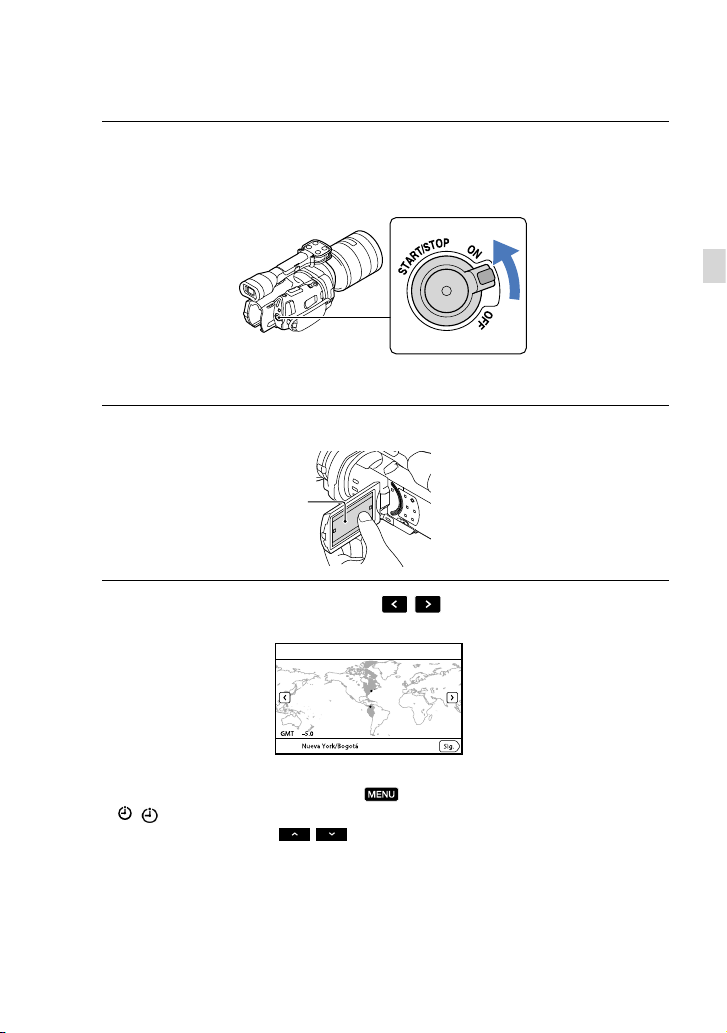
19
ES
Introducción
Paso 5: Encendido de la videocámara y ajuste de
la fecha y la hora
1
Deslice el interruptor POWER a la posición ON mientras presiona el botón
verde.
2
Seleccione el idioma que desee y después toque [Sig.].
3
Seleccione una zona geográfica con
/ y después toque [Sig.].
Para volver a ajustar la fecha y la hora, toque (MENU) [Configuración]
[
( Ajustes del reloj)] [Config.fecha y hora] [Fecha y hora]. Si un elemento no se
muestra en la pantalla, toque
/ hasta que aparezca.
Toque el botón que
aparece en la pantalla
de cristal líquido
Interruptor POWER
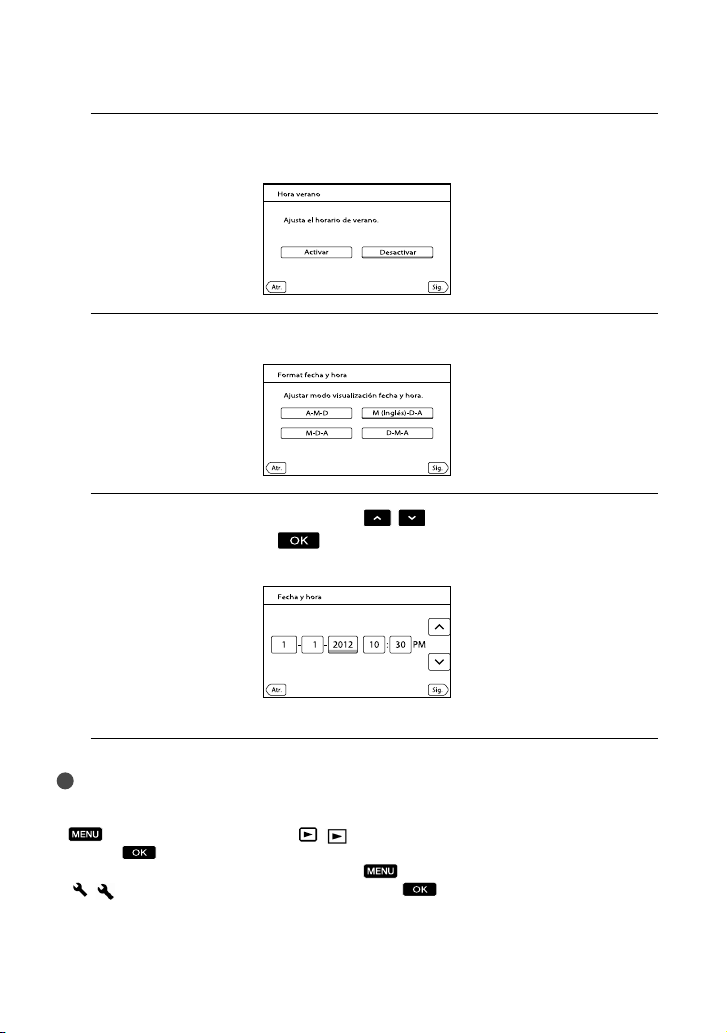
20
ES
4
Ajuste [Hora verano] y, a continuación, toque [Sig.].
Al ajustar [Hora verano] en [Activar], el reloj se adelanta 1 hora.
5
Seleccione el formato de fecha y después toque [Sig.].
6
Seleccione la fecha y la hora, toque
/ para ajustar el valor y
después toque [Sig.]
*.
* La pantalla de confirmación aparece solamente cuando se ajusta el reloj por primera vez.
El reloj empezará a funcionar.
Notas
La fecha y la hora no aparecen durante la grabación, aunque se graban automáticamente en la tarjeta
de memoria y se pueden mostrar durante la reproducción. Para mostrar la fecha y la hora, toque
(MENU) [Configuración] [ ( Ajustes reproducción)] [Código datos] [Fecha/
hora]
.
Para desactivar los pitidos de funcionamiento, toque
(MENU) [Configuración]
[
( Ajustes generales)] [Pitido] [Desactivar] .
Si el botón que toca no responde correctamente, calibre el panel táctil.
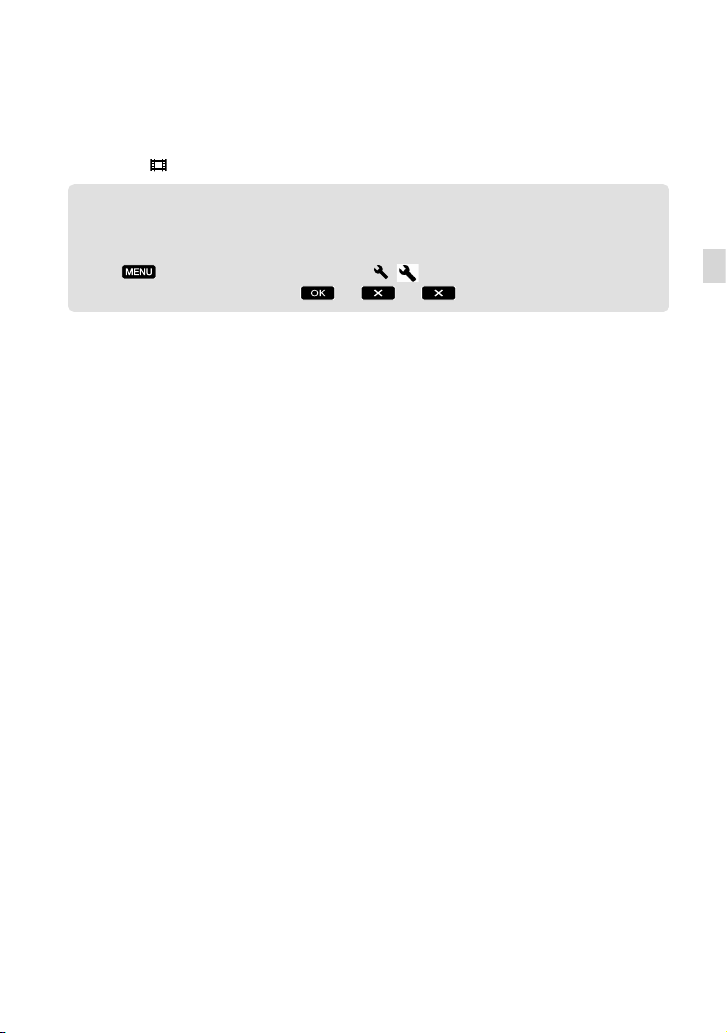
21
ES
Introducción
Para apagar la videocámara
Deslice el interruptor POWER hasta la posición OFF.
El indicador
(película) parpadea unos segundo y se apaga la videocámara.
Cambio del ajuste de idioma
Puede modificar las indicaciones en pantalla para que se muestren los mensajes en un idioma
determinado.
Toque
(MENU) [Configuración] [ ( Ajustes generales)] [Language
Setting] el idioma que desee
.
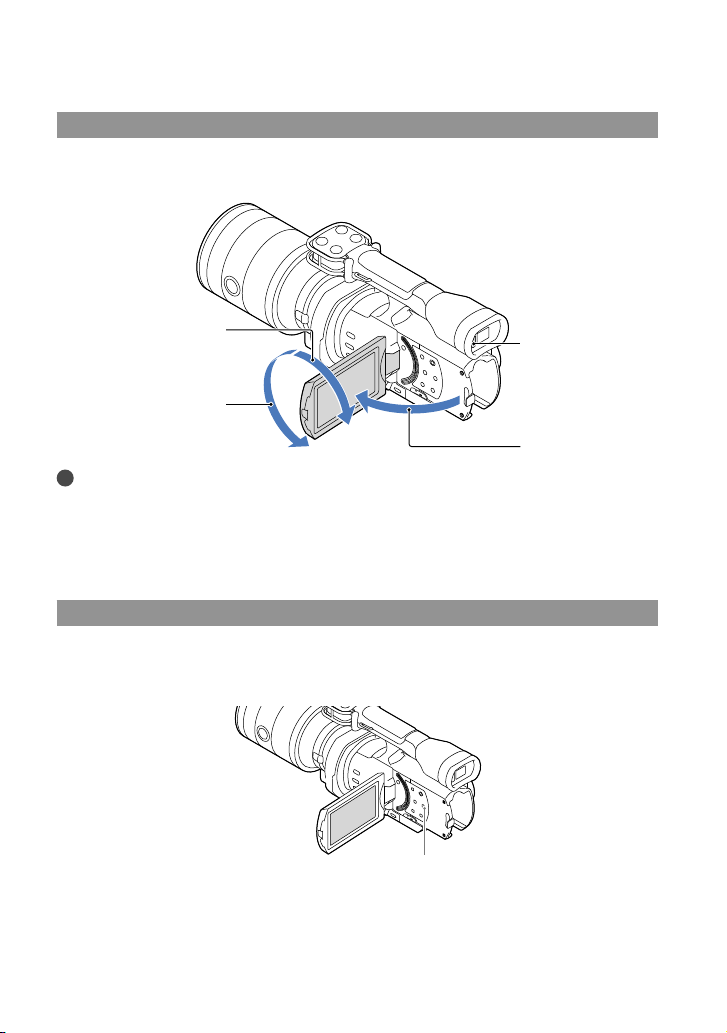
22
ES
Paso 6: Realización de ajustes de configuración
antes de la grabación
El panel de cristal líquido
Abra el panel de cristal líquido 90 grados con respecto a la videocámara () y ajuste el ángulo
().
Sugerencias
Las imágenes se visualizan en el visor o en la pantalla de cristal líquido.
En cuanto el ojo se acerca al visor cuando la pantalla LCD está cerrada, la visualización de la pantalla
cambia al visor. Puede ajustar la cámara de modo que la visualización de la pantalla cambie al visor en
cuanto el ojo se acerque al visor, aunque la pantalla LCD esté abierta.
Puede ajustar el brillo de la pantalla de cristal líquido con [Luminosidad LCD].
Cambio de la visualización en la pantalla de cristal líquido
Pulse DISPLAY para disponer el ciclo de visualización en pantalla en el siguiente orden:
Grabación: visualización detallada visualización sencilla visualización mínima
Reproducción: visualización detallada visualización mínima
Botón DISPLAY
Sensor ocular
Máx. 90 grados
Máx. 180 grados
Máx. 90 grados
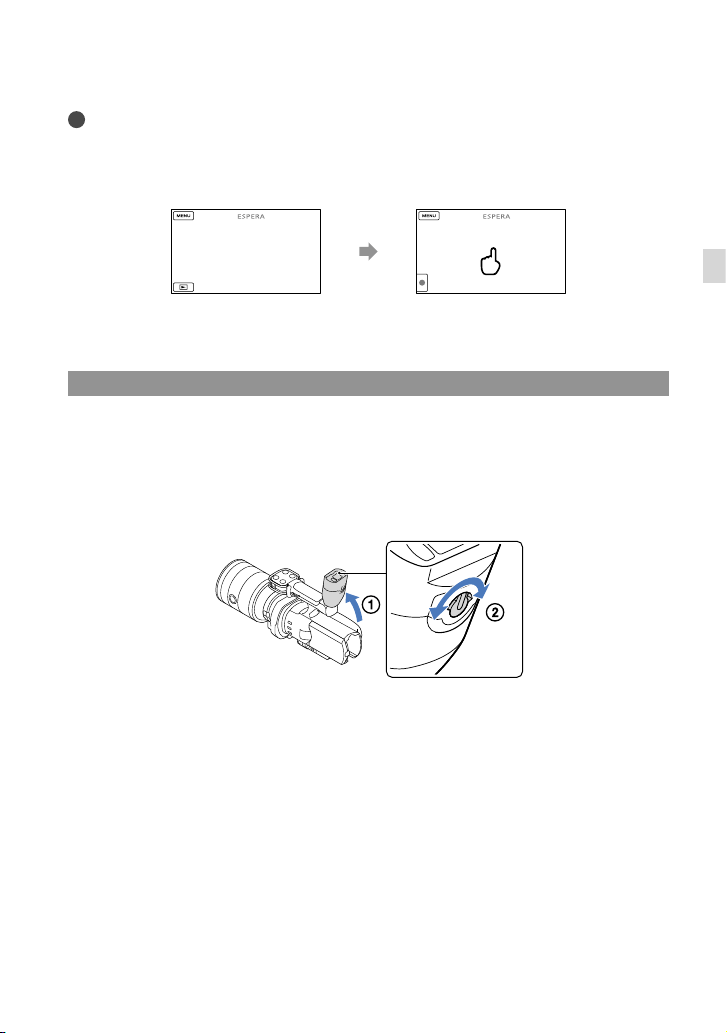
23
ES
Introducción
Sugerencias
En el ajuste predeterminado, la visualización de la pantalla cambia al formato sencillo transcurridos unos
4 segundo ([Ajuste pantalla]). La visualización cambia al formato detallado al tocar en cualquier parte
de la pantalla, excepto en los botones de la pantalla de cristal líquido, de manera que se puedan usar los
elementos.
El visor
Si graba mientras visualiza mediante el visor, mantenga el ojo cerca del visor cuando la
pantalla LCD esté cerrada. Si las indicaciones del visor aparecen borrosas, coloque de forma
adecuada la palanca de ajuste de la lente del visor, que está situada debajo del visor. Si
[Visor/Panel] está ajustado en [Auto], en cuanto el ojo se acerque al visor, el sensor ocular lo
detectará y la visualización cambiará al visor aunque la pantalla LCD esté abierta. Si el sensor
ocular no puede detectarlo, la visualización continuará en la pantalla LCD.
La pantalla se oscurece tras determinado periodo de tiempo si utiliza
el visor.
unos
4
segundo
después
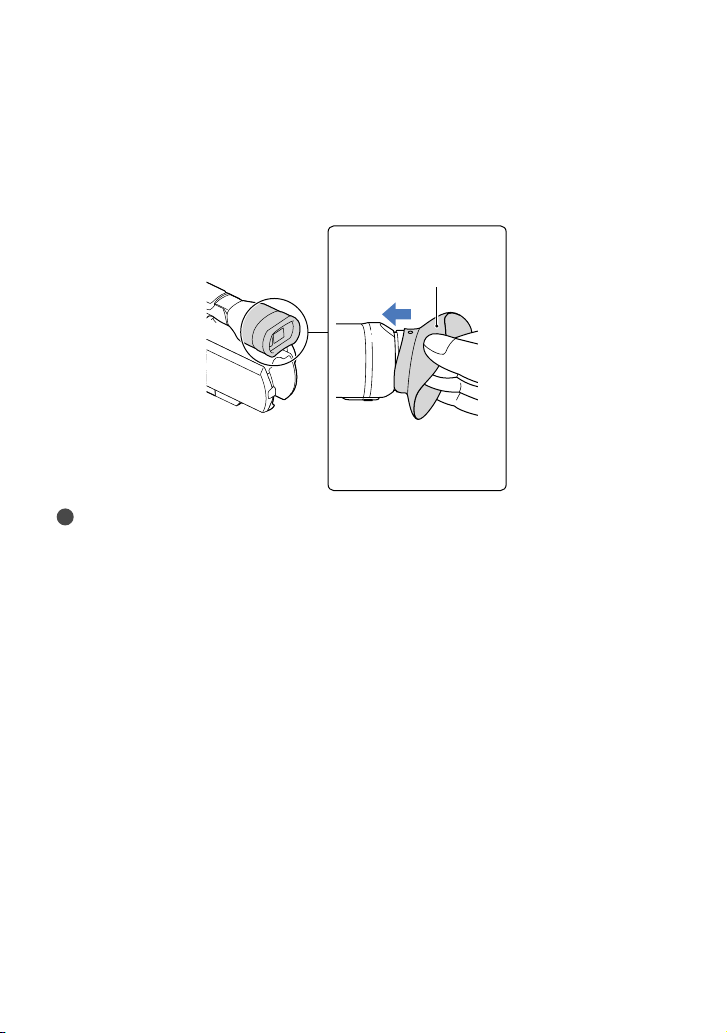
24
ES
Si la imagen no aparece clara en el visor
Si no puede ver la imagen claramente en el visor en situaciones de mucha luminosidad, utilice
el ocular grande suministrado. Para colocar el ocular grande, estírelo ligeramente y alinéelo
con la ranura del ocular del visor. Puede colocar el ocular grande orientado hacia la derecha o
hacia la izquierda.
Notas
No extraiga el ocular preinstalado.
Ocular grande
(suministrado)
Coloque la proyección de
modo que quede recta.
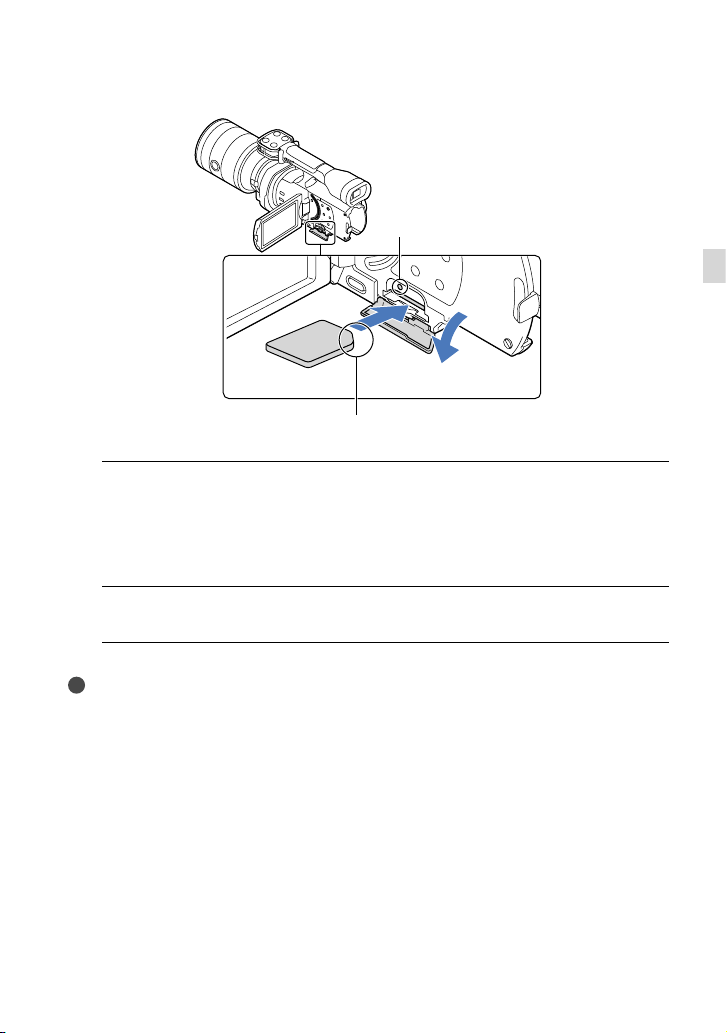
25
ES
Introducción
Paso 7: Inserción de una tarjeta de memoria
1
Abra la tapa e inserte la tarjeta de memoria con el borde que tiene una
muesca en la dirección ilustrada hasta que suene un clic.
Al insertar una tarjeta de memoria nueva aparece la pantalla [Preparando archivo base
datos imagen. Espere por favor.]. Espere hasta que desaparezca la pantalla.
2
Cierre la tapa.
Notas
Si aparece [Error al crear un nuevo archivo de base de datos de imágenes. Es posible que no exista
suficiente espacio libre.], formatee la tarjeta de memoria.
Confirme la dirección de la tarjeta de memoria. Si inserta la tarjeta de memoria a la fuerza en la dirección
incorrecta, podría dañar la tarjeta, la ranura de la tarjeta o los datos de imágenes.
No abra la tapa durante la grabación.
Al insertar o expulsar la tarjeta de memoria, procure que ésta no salga disparada y se caiga.
Para expulsar la tarjeta de memoria
Abra la tapa y presione ligeramente la tarjeta de memoria una vez.
Indicador de acceso
Observe la dirección de la esquina con la muesca.

26
ES
Tipos de tarjetas de memoria que pueden utilizarse con la videocámara
Clase de
velocidad de SD
Capacidad
(operación
verificada)
Descripción en este
manual
“Memory Stick PRO
Duo” (Mark2)
—
32 GB
“Memory Stick PRO
Duo”
“Memory Stick PRO-
HG Duo”
“Memory Stick XC-
HG Duo”
64
GB
Tarjeta de memoria
SD
Class 4 o más
rápida
Tarjeta SD
Tarjeta de memoria
SDHC
Tarjeta de memoria
SDXC
No se puede garantizar el funcionamiento con todas las tarjetas de memoria.
Con esta videocámara pueden utilizarse “Memory Stick PRO Duo”, “Memory Stick” de mitad de tamaño
o tarjetas SD de tamaño estándar.
No fije etiquetas u objetos similares en una tarjeta de memoria o un adaptador de tarjetas. De lo
contrario, puede ocasionar un fallo de funcionamiento.
Notas
Con esta videocámara no puede utilizarse una MultiMediaCard.
Las películas grabadas en tarjetas de memoria “Memory Stick XC-HG Duo” o SDXC no pueden
importarse ni reproducirse en ordenadores o dispositivos AV que no sean compatibles con el sistema de
archivos exFAT
* mediante la conexión de la videocámara a estos dispositivos con el cable USB. Confirme
de antemano que el equipo conectado es compatible con el sistema de archivos exFAT. Si conecta un
equipo no compatible con el sistema exFAT y aparece la pantalla de formateo, no intente formatear, ya
que se perderán todos los datos grabados.
* exFAT es un sistema de archivos que utilizan las tarjetas de memoria “Memory Stick XC-HG Duo” y
SDXC.
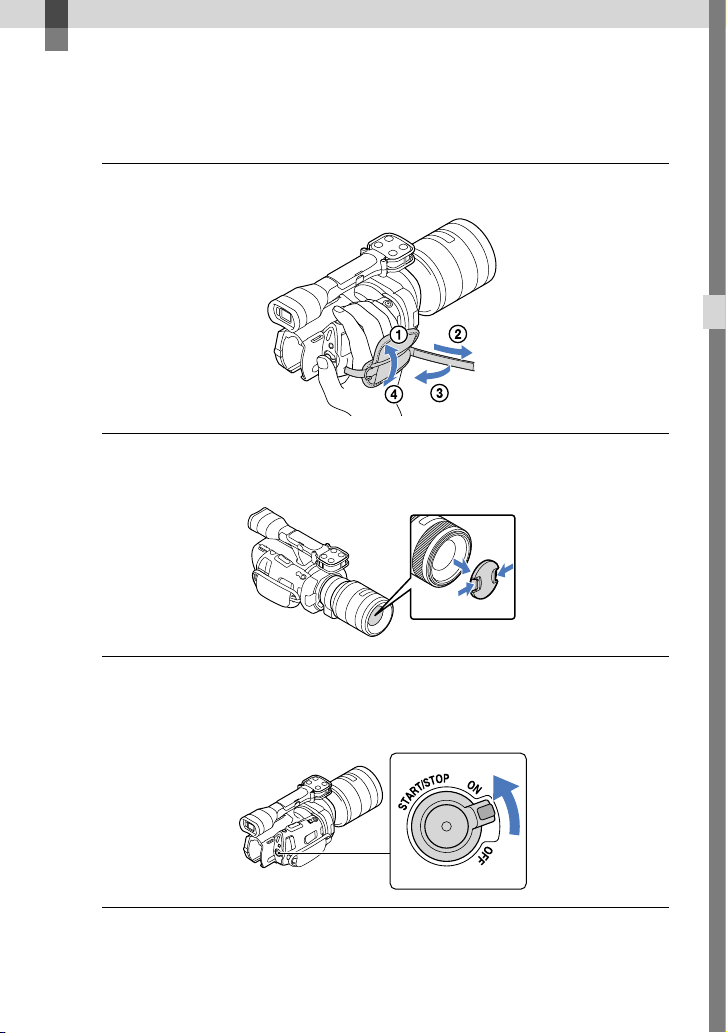
27
ES
Grabación/reproducción
Grabación/reproducción
Grabación
En el ajuste predeterminado, las películas se graban con calidad de imagen de alta definición
(HD).
1
Ajuste la correa de sujeción.
2
Para extraer la tapa del objetivo, presione los controles deslizantes
situados en ambos lados de la tapa.
3
Deslice el interruptor POWER a la posición ON mientras presiona el botón
verde.
La videocámara está encendida.
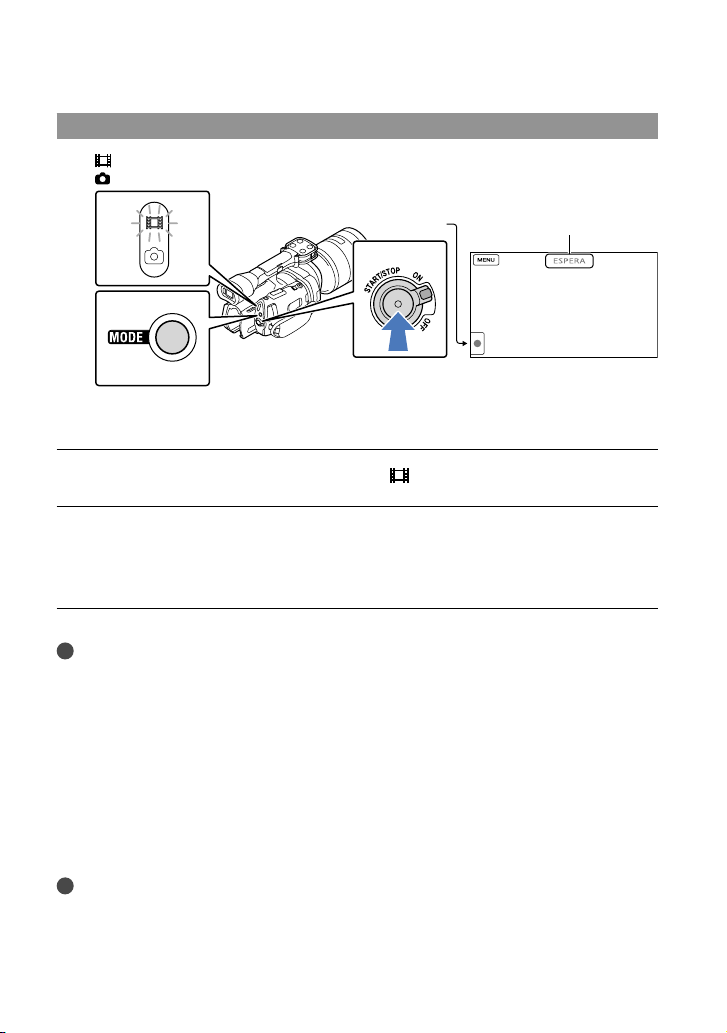
28
ES
Grabación de películas
Pulse MODE para encender el indicador (película).
Pulse START/STOP para iniciar la grabación.
El indicador de grabación se ilumina durante la grabación (pág. 74).
Para detener la grabación, pulse START/STOP de nuevo.
Notas
El tiempo máximo de grabación continua de películas es de unas 13 hora.
Cuando un archivo de película supera los 2 GB se crea automáticamente el siguiente archivo de película.
Tras encender la videocámara, transcurrirán varios segundo hasta poder empezar la grabación. No es
posible utilizar la videocámara durante este período.
Se indican los estados siguientes si todavía se están grabando datos en el soporte de grabación cuando ha
finalizado la grabación. Durante este tiempo, no someta la videocámara a golpes o vibraciones ni extraiga
la batería o desconecte el adaptador de alimentación de ca
E
l indicador de acceso (pág. 25) está encendido o parpadea
El icono del soporte en la parte superior derecha de la pantalla de cristal líquido parpadea
Sujete el objetivo con la mano izquierda para sostener la cámara durante la grabación (si no utiliza un
trípode). Asegúrese de que los dedos no tocan el micrófono.
Sugerencias
Consulte la página 61 para obtener información sobre el tiempo de grabación de películas.
Los modos IRIS, Velocidad obturador, Ganancia y Exposición se configuran como ajustes automáticos
cuando se pulsa PROGRAM AE.
Botón MODE
(Película): durante la grabación de una película
(Foto): durante la toma de una foto
[ESPERA] [GRAB.]
Botón START/
STOP
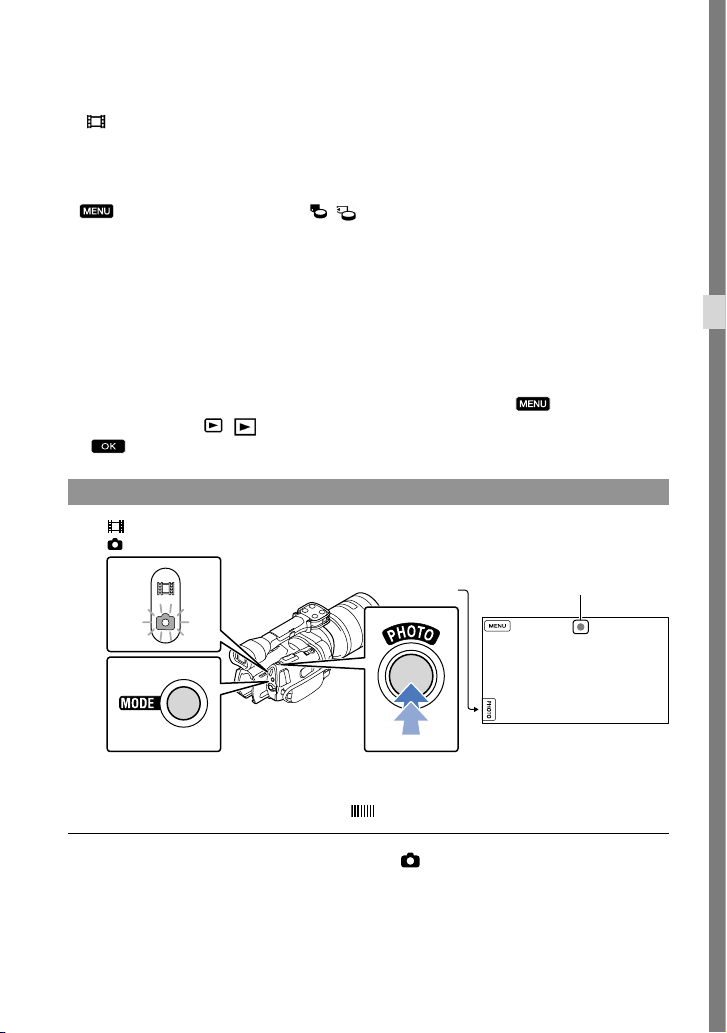
29
ES
Grabación/reproducción
[ SteadyShot] de forma predeterminada está ajustado en [Estándar]. Tenga en cuenta que si el
objetivo instalado no tiene ninguna función de estabilización de imagen, no se podrá utilizar la función
SteadyShot.
Es posible capturar fotografías a partir de películas (NEX-VG900) grabadas.
Puede comprobar el tiempo restante de grabación, la capacidad restante calculada, etc., tocando
(MENU) [Configuración] [ ( Ajustes de soporte)] [Info soporte].
La pantalla de cristal líquido de la videocámara puede mostrar imágenes grabadas a pantalla completa
(visualización de píxeles totales). Sin embargo, es posible que se produzca un leve recorte en los márgenes
superior, inferior, derecho e izquierdo de las imágenes cuando se reproduzcan en un televisor no
compatible con la visualización de píxeles totales. En tal caso, ajuste [Guía encuadre] en [Activar] y utilice
el marco exterior que aparece en la pantalla como guía para grabar imágenes.
Código de datos durante la grabación
La fecha, la hora y las condiciones de grabación se registran automáticamente en la tarjeta
de memoria, pero no se muestran durante la grabación. No obstante, se pueden consultar
como [Código datos] durante la reproducción. Para mostrarlas, toque
(MENU)
[Configuración] [
( Ajustes reproducción)] [Código datos] el ajuste deseado
.
Captura de fotografías
Cuando desaparece, significa que se ha grabado la fotografía.
Pulse MODE para encender el indicador (fotografía).
La pantalla de cristal líquido cambia al modo de grabación de fotografías.
Botón MODE
Botón
PHOTO
(Película): durante la grabación de una película
(Foto): durante la toma de una foto
Parpadea Se
enciende
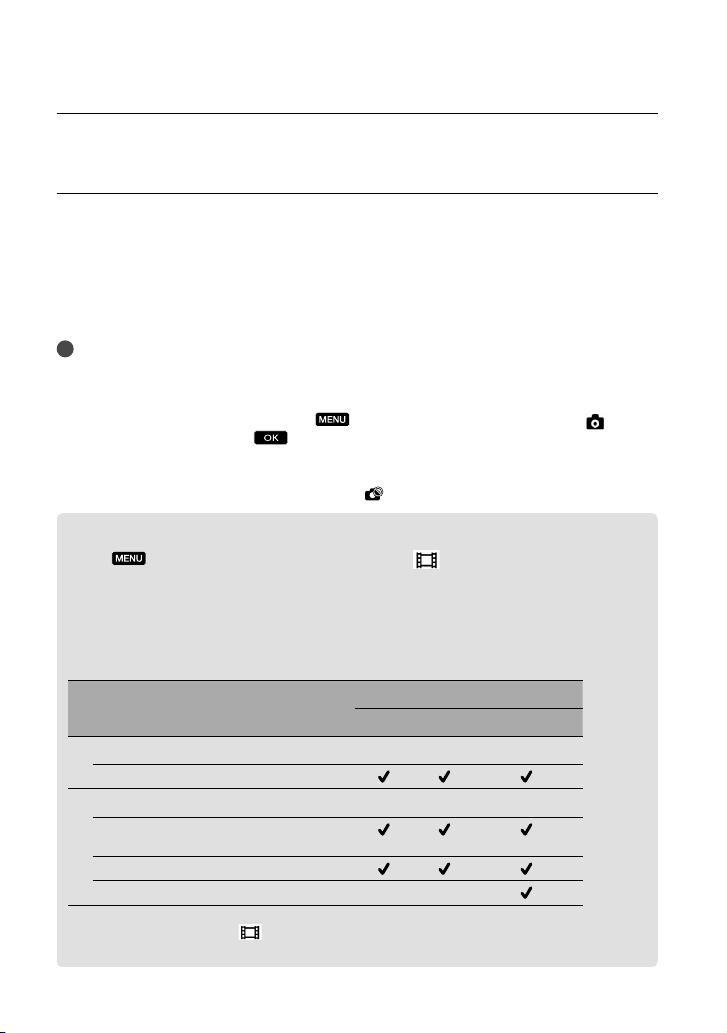
30
ES
Pulse PHOTO ligeramente para enfocar y, a continuación, púlselo
completamente.
Indicador de enfoque
El indicador de enfoque muestra el estado del enfoque iluminándose o parpadeando.
encendido
: enfoque bloqueado.
parpadeando
: la videocámara no puede enfocar al sujeto automáticamente. Recomponga la
toma o cambie el ajuste del enfoque.
Sugerencias
Consulte la página 62 para obtener información sobre el número de fotos que se pueden grabar.
Los modos IRIS, Velocidad obturador, ISO y Exposición se configuran como ajustes automáticos cuando
se pulsa PROGRAM AE.
Para cambiar el tamaño de la imagen, toque
(MENU) [Calidad img/Tamaño] [ Tam
imagen] el ajuste deseado
.
Si [Capt. tamaño APS-C] está ajustado en [Auto], el tamaño de la imagen que se va a grabar dependerá
del objetivo que utilice.
No se pueden grabar fotografías mientras se muestra
.
Selección del modo de grabación
Toque (MENU) [Calidad img/Tamaño] [ Modo Grabación] para cambiar
la calidad de la imagen que se está grabando.
Los tipos de soportes en los que pueden guardarse las imágenes dependen del modo de
grabación que está seleccionado.
Si desea información sobre la operación de guardar en un dispositivo externo, consulte la
página 47.
Tipos de soportes
Modo de grabación
PS
*
FX FH/HQ/LP
En esta videocámara
Tarjeta de memoria
En dispositivos externos
Soporte externo (dispositivos de
almacenamiento USB)
Discos Blu-ray
Discos de grabación AVCHD — —
* [PS] sólo puede ajustarse si [ Imág. p. segundo] está ajustado en [60p] (NEX-VG900), [50p]
(NEX-VG900E).
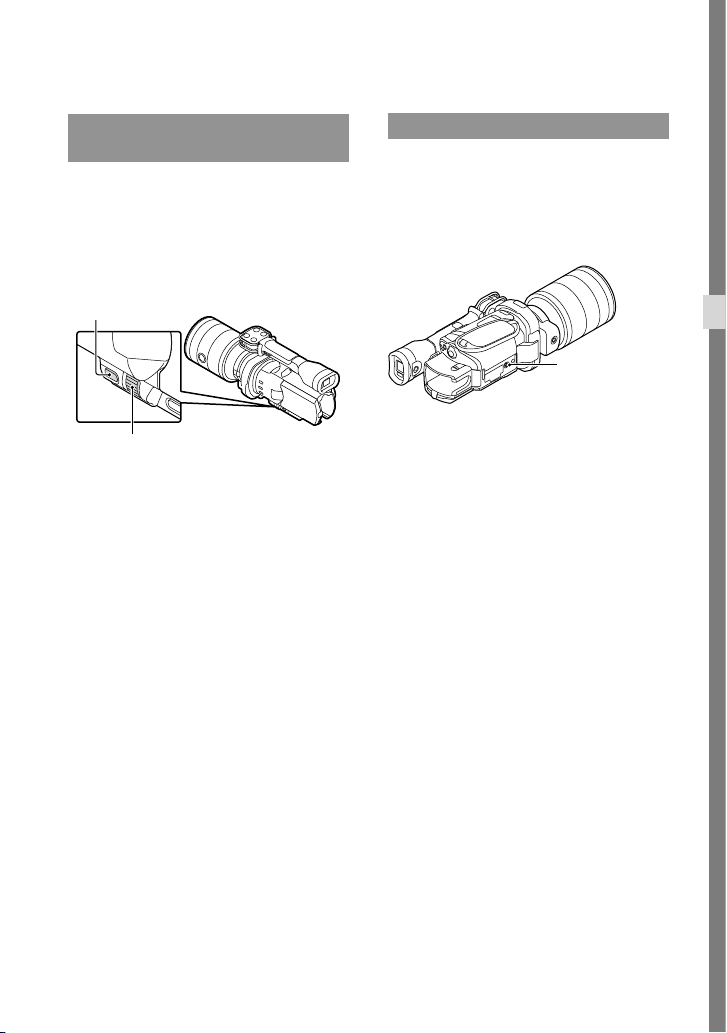
31
ES
Grabación/reproducción
Ajuste para las
condiciones de disparo
Ajuste de Exposición, etc.,
manualmente (dial MANUAL)
Es recomendable realizar ajustes manuales
con el uso del dial MANUAL, mediante
la asignación de un elemento de menú
([Exposición] en la configuración
predeterminada) en el botón MANUAL.
Cómo utilizar el dial MANUAL
Realice el ajuste con el dial MANUAL para
llevar a cabo la configuración también
cuando pulse IRIS o SHUTTER SPEED.
Para asignar un elemento de menú
Mantenga pulsado MANUAL durante unos
segundo para visualizar la pantalla [Botón
MANUAL]. Gire el dial MANUAL para
asignar un elemento. Es posible asignar
[Exposición], [Desplazamiento AE],
[Temper. color BB], [BB B-A] o [BB G-M].
Uso de un trípode
Monte un trípode (se vende por separado)
en el receptáculo correspondiente mediante
un tornillo para trípode (se vende por
separado, la longitud del tornillo deberá ser
inferior a 5,5 mm)
Botón MANUAL
Dial MANUAL
Receptáculo
del trípode
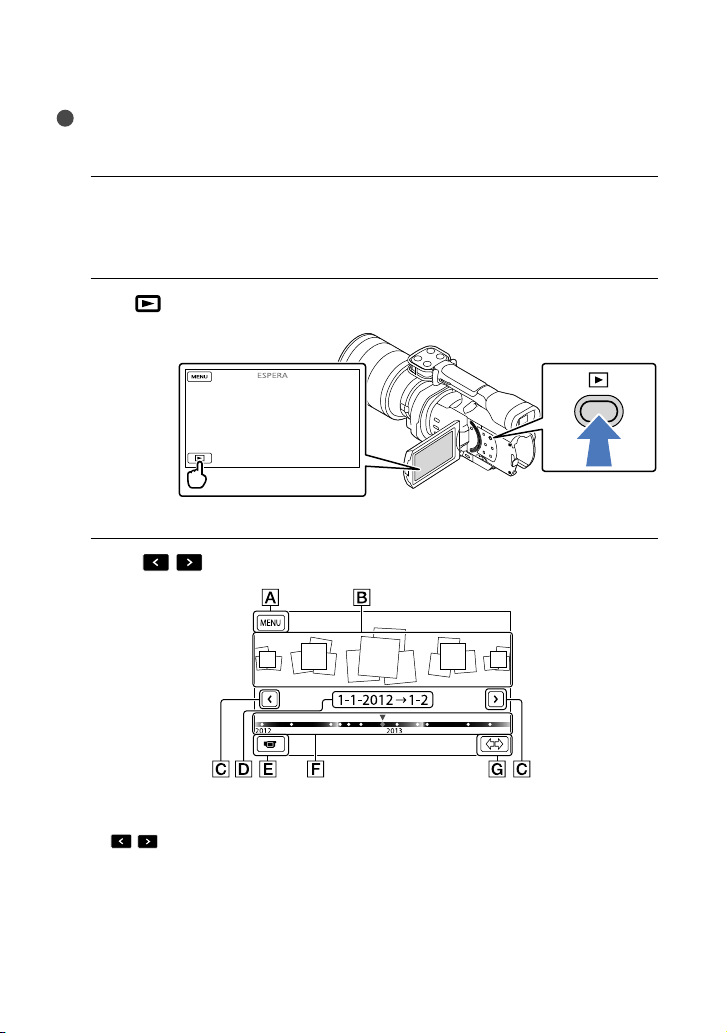
32
ES
Reproducción en la videocámara
Sugerencias
La videocámara muestra automáticamente las imágenes grabadas como un evento, basándose en su fecha
y hora.
1
Deslice el interruptor POWER a la posición ON mientras presiona el botón
verde.
La videocámara está encendida.
2
Pulse
(Ver Imágenes).
Aparece la pantalla de Visualización eventos al cabo de unos segundo.
3
Toque
/ para seleccionar el evento deseado ().
A la pantalla MENU
Eventos
/ : al evento anterior/siguiente
Nombre de evento
Cambiar al modo de grabación de películas/fotografías
Barra de cronología
Botón de cambio de escala de evento
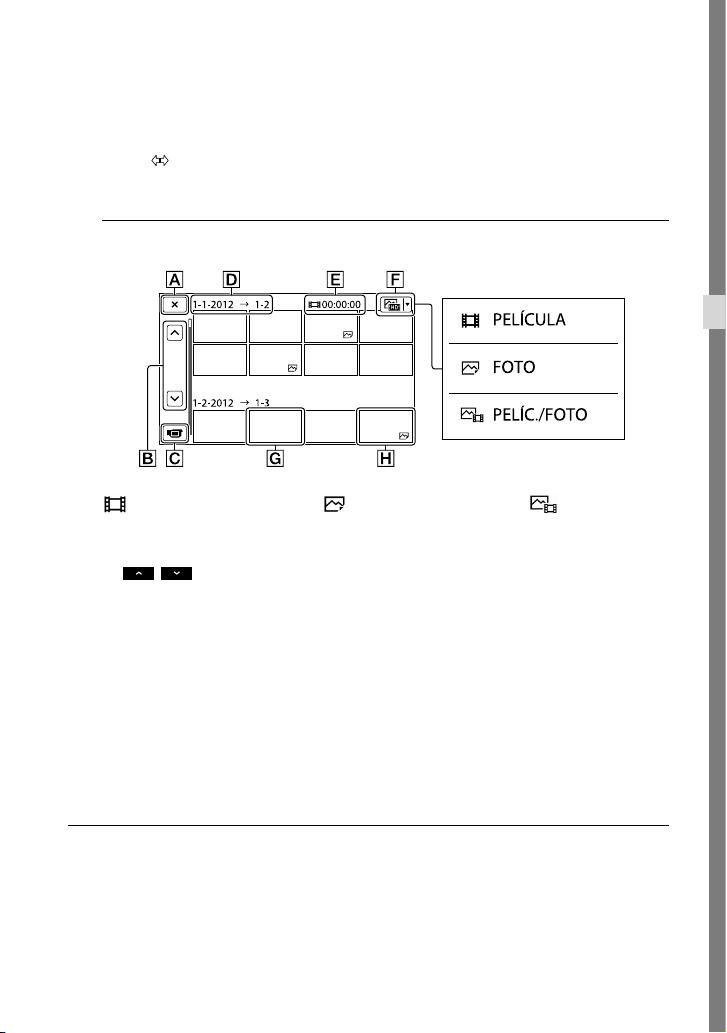
33
ES
Grabación/reproducción
Al tocar el evento presentado en el centro de la pantalla, aparece la pantalla Índice de
eventos.
Toque ( Cambiar escala de evento), en la parte inferior derecha de la pantalla, para poder
cambiar el intervalo de tiempo de la barra de cronología desde un año y medio hasta tres meses,
que cambia el número de eventos que pueden mostrarse en la barra de cronología.
4
Toque una imagen que desee ver.
Toque para seleccionar el tipo de imágenes que desee presentar en el índice entre
[
PELÍCULA] (sólo películas), [ FOTO] (sólo fotografías) o [ PELÍC./FOTO]
(películas y fotografías).
Para regresar a la pantalla de Visualización eventos
/ : muestra la página anterior/siguiente (mantenga presionado el botón para
desplazar la pantalla de índice).
Cambiar al modo de grabación de películas/fotografías
Título de evento
Tiempo total para películas en el evento (el número total de imágenes fijas se muestra
cuando hay imágenes fijas solamente)
Botón de cambio de tipo de imagen
Película
Foto
aparece con la última película o fotografía reproducida o grabada. Toque la película o
fotografía con para reanudar la reproducción desde el momento en que se detuvo.
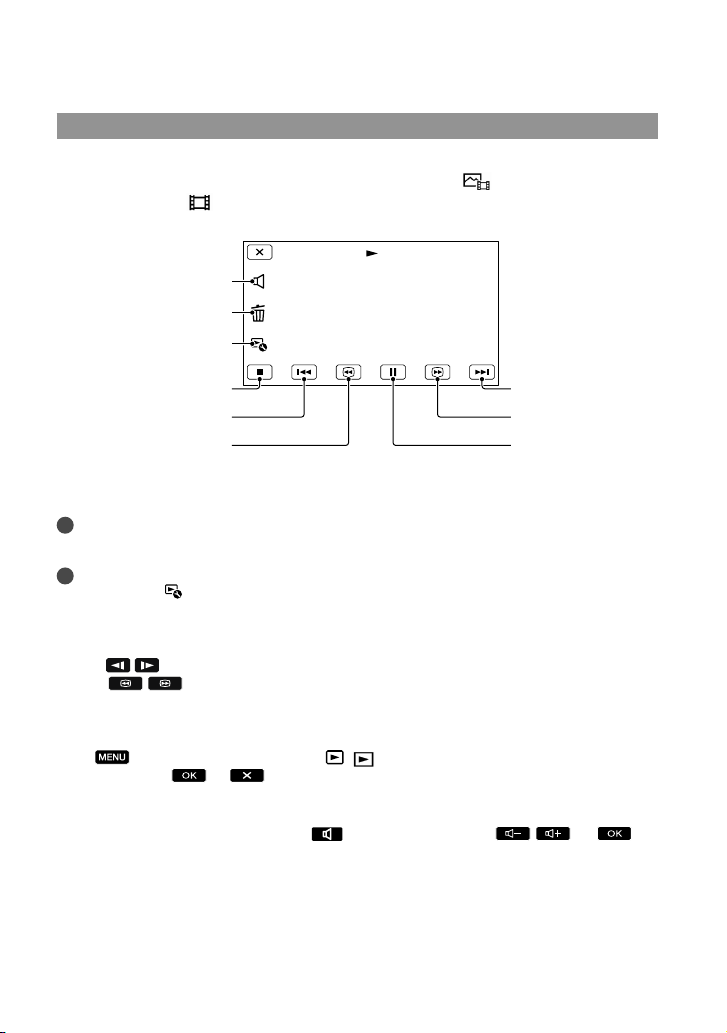
34
ES
Utilización de la videocámara mientras se reproduce una película
Puede usar las funciones mostradas en la figura siguiente mientras se reproduce una película
en la videocámara. Aparecerá la figura siguiente al seleccionar [
PELÍC./FOTO] (el ajuste
predeterminado) o [
PELÍCULA] tocando el botón de cambio de tipo de imagen en la
pantalla del índice de eventos.
* Estos botones sólo pueden utilizarse mientras se reproduce una película en la videocámara.
Notas
Es posible que no se puedan reproducir las imágenes con otros dispositivos que no sean la videocámara.
Sugerencias
Al tocar el botón
en la pantalla de reproducción aparecen las funciones que puede utilizar
actualmente y puede seleccionarlas fácilmente.
Cuando la reproducción desde la imagen seleccionada llega a la última imagen, la pantalla regresa a la
pantalla INDEX.
Toque
/ durante la pausa para reproducir películas a cámara lenta.
Si toca
/ repetidamente durante la reproducción, las películas se reproducirán a una
velocidad 5 veces mayor 10 veces mayor 30 veces mayor 60 veces mayor.
La fecha, la hora y las condiciones de grabación se registran automáticamente durante la grabación. Esta
información no se muestra durante la grabación, pero es posible visualizarla durante la reproducción si
toca
(MENU) [Configuración] [ ( Ajustes reproducción)] [Código datos] el
ajuste deseado
.
Para ajustar el volumen del sonido de las películas
Mientras reproduce una película, toque realice el ajuste con / .
Para pausa*/
reproducción
Para avanzar rápido
*
Borrar
Siguiente
Para rebobinar
*
Para detener*
Anterior
Ajuste de volumen
Contexto
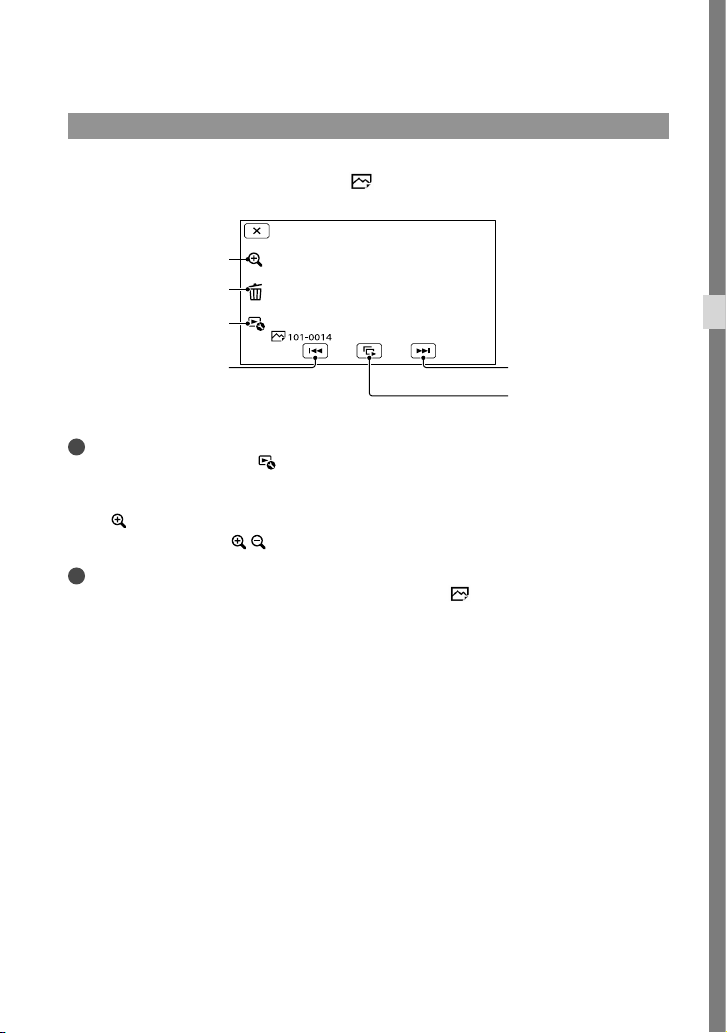
35
ES
Grabación/reproducción
Visualización de fotografías
Puede usar las funciones mostradas en la figura siguiente mientras visualiza fotografías.
Aparecerá la figura siguiente al seleccionar [
FOTO] si toca el botón de cambio de tipo de
imagen en la pantalla del índice de eventos.
Sugerencias
Para repetir Diapositivas, toque
[Ajus. pase diapo.].
Para ver imágenes ampliadas
Toque (zoom de reproducción) durante la reproducción de imágenes estáticas. Puede
ajustar el zoom mediante
/ . También puede utilizarlo con la palanca del zoom.
Sugerencias
No puede utilizar el zoom de reproducción si no ha seleccionado [
FOTO] en la pantalla de índice.
Para iniciar o detener
una presentación de
diapositivas
Siguiente
Anterior
Borrar
Contexto
Zoom de reproducción
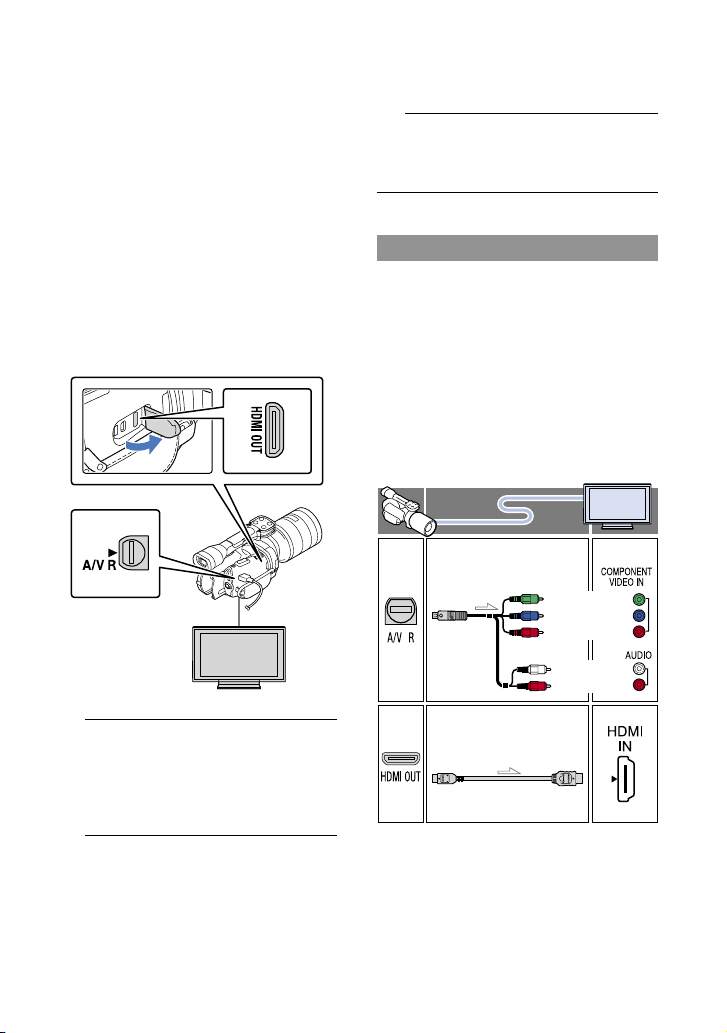
36
ES
Reproducción de
imágenes en un
televisor
Los métodos de conexión y la calidad de
las imágenes de alta definición (HD) o de
definición estándar (STD) que se visualizan
en la pantalla del televisor dependen
del tipo de televisor conectado y de los
conectores utilizados.
Puede ver imágenes en la pantalla del
televisor mientras se están grabando.
Conectores de salida de la videocámara
1
Cambie la entrada del televisor a
la toma conectada.
Consulte los manuales de instrucciones
del televisor.
2
Conecte la videocámara a un
televisor.
Utilice el adaptador de alimentación de ca
suministrado como fuente de alimentación
(p
ág. 13).
3
Reproduzca una película o una
foto en la videocámara (pág. 32).
Lista de conexiones
Conexión a un televisor de alta
definición
Si la grabación se ha realizado en
alta definición (HD), las películas se
reproducirán con la misma calidad
(HD). Si la grabación tiene calidad de
imagen estándar (STD), las películas se
reproducirán con esta misma definición
(STD).
Toma HDMI OUT
Conector remoto
de A/V
(verde) Y
(azul)
PB/CB
(rojo)
PR/CR
(blanco)
(rojo)
Cable de A/V de
componente (suministrado)
Cable HDMI
(se vende por separado)
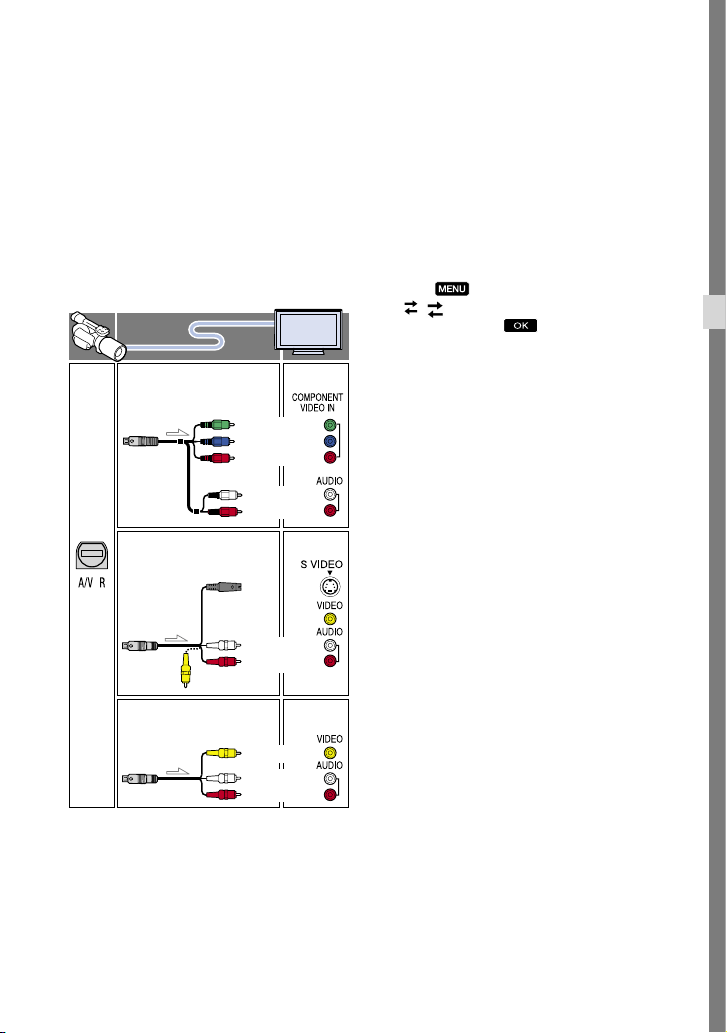
37
ES
Grabación/reproducción
Conexión a un televisor que no sea de
alta definición 16:9 (panorámico) o 4:3
Si las películas están grabadas con calidad
de imagen de alta definición (HD), se
reproducirán con definición estándar
(STD). Si las películas están grabadas con
calidad de imagen de definición estándar
(STD), se reproducirán con la misma
calidad de imagen (STD).
Si conecta con el cable de A/V de
componente
Si conecta únicamente las clavijas de vídeo
de componente, no se emitirán las señales de
audio. Conecte las clavijas blanca y roja para
que se emitan las señales de audio.
Seleccione el ajuste de [Componente]
correspondiente a la toma de entrada del
componente que utilice. Para efectuar el ajuste,
toque
(MENU) [Configuración]
[
( Conexión)] [Componente] el
ajuste deseado
.
Si conecta con el cable HDMI
Utilice un cable HDMI con el logotipo HDMI.
Utilice un miniconector HDMI en un extremo
(para la videocámara) y un enchufe adecuado
para conectar el televisor en el otro extremo.
Las imágenes protegidas por derechos de autor
no se emiten a través de la toma HDMI OUT de
la videocámara.
Es posible que algunos televisores no funcionen
correctamente (por ejemplo, que no se emita el
sonido o la imagen) con este tipo de conexión.
No conecte la toma HDMI OUT de la
videocámara a la toma HDMI OUT de un
dispositivo externo, ya que podría ocasionar un
fallo de funcionamiento.
Si el dispositivo conectado es compatible con
sonido envolvente de 5,1 canales, las películas
con calidad de imagen de alta definición (HD)
se emiten con sonido envolvente de 5,1 canales
automáticamente. Las películas con calidad
de imagen de definición estándar (STD) se
convierten al formato de 2 canales.
Para ajustar el formato según el
televisor conectado (16:9/4:3)
Ajuste [Tipo de TV] en [16:9] o [4:3] en función
del televisor que vaya a utilizar.
(verde) Y
(azul)
PB/CB
(rojo)
PR/CR
(blanco)
(rojo)
(amarillo)
(blanco)
(rojo)
(blanco)
(rojo)
(amarillo)
Cable de A/V de
componente (suministrado)
Cable de conexión de A/V
con S VIDEO (se vende por
separado)
Cable de conexión de A/V
(suministrado)

38
ES
Si hace la conexión con el cable de
conexión de A/V con S VIDEO
Cuando la clavija S VIDEO (canal S VIDEO) se
encuentra conectada, no se emiten las señales
de audio. Para emitir las señales de audio,
conecte las clavijas blanca y roja a la toma de
entrada de audio del televisor.
Esta conexión produce imágenes de mayor
resolución que las que se obtienen con el cable
de conexión de A/V.
Si el televisor es monoaural (si el
televisor solamente dispone de una
toma de entrada de audio)
Conecte la clavija amarilla del cable de conexión
de A/V a la toma de entrada de vídeo y conecte
la clavija blanca (canal izquierdo) o la clavija
roja (canal derecho) a la toma de entrada de
audio del televisor o la videograbadora.
Al conectar el televisor a través de una
videograbadora
Conecte la videocámara a la toma de entrada de
línea de la videograbadora mediante el cable de
conexión de A/V. Ajuste el selector de entrada
de la videograbadora en LINE (VIDEO 1,
VIDEO 2, etc.).
Acerca de “Photo TV HD”
Esta videocámara es compatible con el
estándar “Photo TV HD”. “Photo TV
HD” permite realizar una representación
muy detallada, tipo foto, de texturas y
colores sutiles. Al conectar dispositivos
de Sony compatibles con Photo TV HD
mediante un cable HDMI
* o el cable de AV
de componente
**, podrá disfrutar de un
universo completamente nuevo de fotos
con imágenes de tan alta calidad que le
dejarán sin aliento.
* El televisor cambiará automáticamente al
modo adecuado cuando se visualicen fotos.
** Será necesario configurar el televisor. Para
obtener más información, consulte el manual
de instrucciones del televisor compatible con
Photo TV HD.
Notas
Si reproduce películas con calidad de imagen de
definición estándar (STD) en un televisor 4:3
que no es compatible con la señal 16:9, grabe las
películas en formato 4:3. Toque
(MENU)
[Calidad img/Tamaño] [
Modo
panorámico] [4:3]
.
Cuando se utiliza el cable de conexión de
A/V para emitir películas, éstas se emiten
con calidad de imagen de definición estándar
(STD).
Sugerencias
Si conecta la videocámara al televisor con más
de un tipo de cable para emitir imágenes, el
orden de prioridad de las tomas de entrada del
televisor será el siguiente:
HDMI componente S VIDEO vídeo
HDMI (High Definition Multimedia Interface,
Interfaz multimedia de alta definición) es una
interfaz que permite enviar señales de audio y
de vídeo. La toma HDMI OUT emite imágenes
y sonido digital de alta calidad.
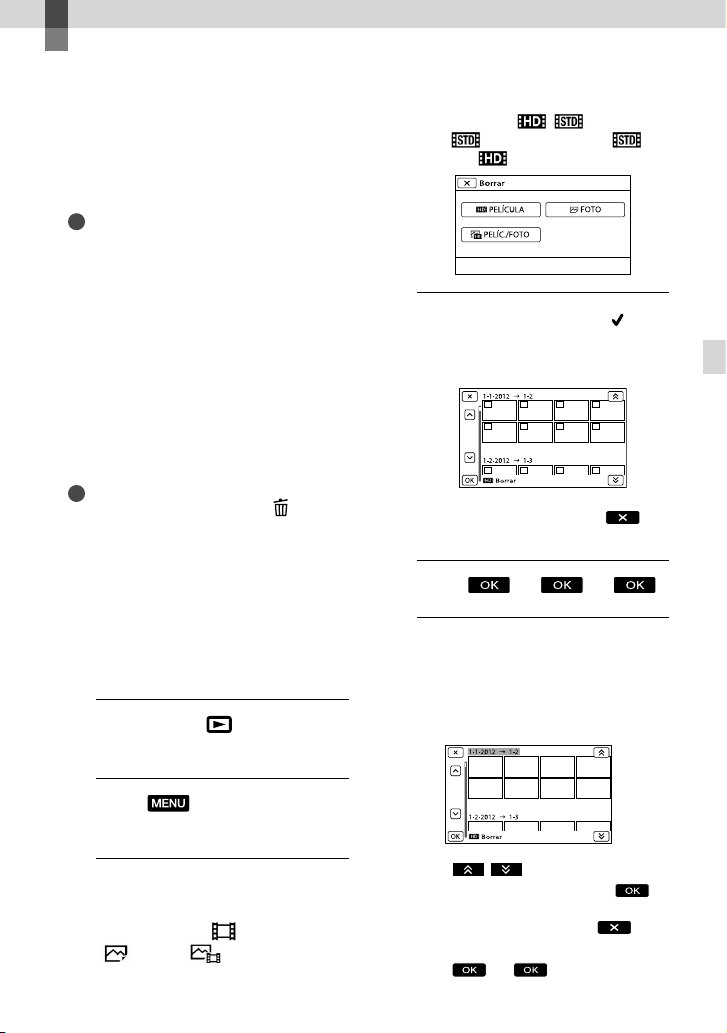
39
ES
Operaciones avanzadas
Operaciones avanzadas
Eliminación de
películas y fotografías
Puede borrar películas y fotografías de la
tarjeta de memoria para disponer de más
espacio libre.
Notas
Una vez borradas, las imágenes no se pueden
restaurar. Guarde las películas y fotografías
importantes de antemano.
No extraiga la batería ni el adaptador de
alimentación de ca de la videocámara mientras
borra las imágenes. Si lo hace, es posible que se
produzcan daños en la tarjeta de memoria.
No expulse la tarjeta de memoria mientras se
están borrando las imágenes que contiene.
No es posible eliminar películas y fotografías
protegidas. Es necesario desproteger
previamente las películas y fotografías para
borrarlas.
Sugerencias
Puede borrar la imagen utilizando
en la
pantalla de reproducción.
Para borrar todas las imágenes grabadas en la
tarjeta de memoria y recuperar todo el espacio
grabable del soporte de grabación, formatee
dicho soporte.
Las imágenes de tamaño reducido que permiten
visualizar muchas imágenes al mismo tiempo
en una pantalla de índice se denominan
“imágenes en miniatura”.
1
Pulse el botón (Ver Imágenes)
(pág. 32).
2
Toque (MENU) [Editar/
Copiar] [Borrar].
3
Para seleccionar y borrar
películas, toque [Múltiples
imágenes] [ PELÍCULA]/
[ FOTO]/[ PELÍC./FOTO].
Cuando [Ajuste / ] está ajustado
en [
Calidad STD], aparece en
lugar de
.
4
Toque y muestre la marca en
las películas o fotografías que
desee borrar.
Para confirmar una imagen, mantenga
presionada la miniatura. Toque
para
volver a la pantalla anterior.
5
Toque .
Para borrar todas las películas o
fotografías de un evento a la vez
En el paso 3, toque [Todo en evento].
Toque / para seleccionar el
evento deseado y después toque
.
Para confirmar una imagen, mantenga
presionada la miniatura. Toque
para
volver a la pantalla anterior.
Toque .
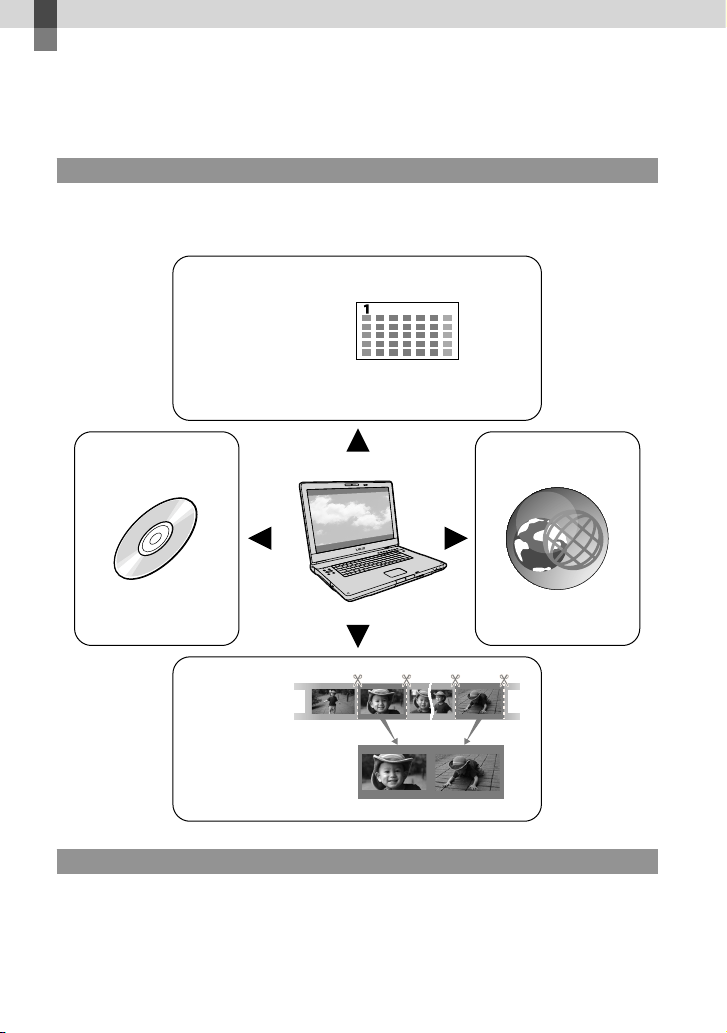
40
ES
Guardar las películas y fotografías en un ordenador
Funciones útiles disponibles si se conecta la
videocámara a un ordenador
Para Windows
El software “PlayMemories Home” almacenado en el CD-ROM (suministrado) incluye funciones
que permiten hacer muchas más cosas con las imágenes grabadas en la videocámara.
Para Mac
“PlayMemories Home” no es compatible con Mac OS. Si reproduce imágenes en un Mac, utilice las
aplicaciones instaladas en el Mac.
Si desea obtener más información, visite el siguiente sitio web:
http://www.sony.co.jp/imsoft/Mac/
Ver
Editar
Guardar en un
disco
Cargar
Calendario
DVD/Blu-ray
Unión de archivos de imágenes
Servicios de red
41
ES
Guardar las películas y fotografías en un ordenador
Preparación de un
ordenador
Paso 1 Comprobación del sistema
informático
Windows
SO*
1
Microsoft Windows XP SP3*
2
/Windows Vista
SP2
*
3
/Windows 7 SP1
CPU
PlayMemories Home: Intel Core Duo de
1,66
GHz o superior, o Intel Core 2 Duo de
1,66 GHz o superior (se necesita un Intel
Core 2 Duo de 2,26 GHz o superior para
procesar películas FX o FH, y un Intel Core
2 Duo de 2,40 GHz o superior para procesar
películas PS).
Sin embargo, es suficiente con un procesador
Intel Pentium III de 1 GHz o superior para
realizar las siguientes operaciones:
Importación de películas y fotografías al
ordenador
Creación de un disco Blu-ray/disco de
grabación AVCHD/vídeo en DVD (se
requiere un Intel Core Duo de 1,66 GHz
o superior para crear un vídeo en DVD
mediante la conversión de la calidad de
imagen de alta definición (HD) a calidad de
imagen de definición estándar (STD)).
Procesamiento sólo de las películas con
calidad de imagen de definición estándar
(STD)
Image Data Converter: Pentium 4 o superior
Memoria
PlayMemories Home:
Para Windows XP: 512 MB o más (se
recomienda 1 GB o más).
Sin embargo, 256 MB o más son suficientes
para procesar únicamente las películas con
calidad de imagen de definición estándar
(STD).
Para Windows Vista/Windows 7: 1 GB o más
Image Data Converter:
1
GB o más
Disco duro
Espacio en disco necesario para la
instalación: aproximadamente 500 MB
(Pueden necesitarse 10 GB o más para
crear discos de
grabación AVCHD. Pueden
necesitarse 50 GB como máximo para crear
discos Blu-ray).
Pantalla
1
024 puntos × 768 puntos como mínimo
Otros
Puerto USB (debe proporcionarse de serie,
Hi-Speed USB (compatible con USB 2.0)),
grabadora de discos Blu-ray/DVD (se
necesita una unidad de CD-ROM para la
instalación). Se recomienda un sistema de
archivos NTFS o exFAT como sistema de
archivos del disco duro.
Mac
SO*
1
Conexión USB: Mac OS X (v10,3, v10,4,
v10,5, v10,6, v10,7, v10,8) “Image Data
Converter Ver.4.2”: Mac OS X (v10,5,
v10,6 (Snow Leopard), v10,7 (Lion), v10,8
(Mountain Lion))
Image Data Converter Ver.4
CPU: Intel Core Solo/Core Duo/Core 2 Duo
o superior
M
emoria: se recomienda 1 GB o más.
Pantalla: 1 024 puntos × 768 puntos o más
*
1
Se necesita una instalación estándar. No se
asegura el funcionamiento si se ha actualizado
el SO o en un entorno de arranque de varios SO.
*
2
Las ediciones de 64 bits y Starter (Edition) no
son compatibles. Se necesita la versión 2.0 o
más reciente de Windows Image Mastering API
(IMAPI) para utilizar la función de creación de
discos, etc.
*
3
Starter (Edition) no es compatible.
Notas
No se puede garantizar el funcionamiento con
todos los entornos informáticos.
42
ES
Paso 2 Instalación del software
“PlayMemories Home”
suministrado
Instale “PlayMemories Home” antes de
conectar la videocámara a un ordenador.
Cuando compre esta videocámara, instale
el PlayMemories Home suministrado con la
actualización más reciente.
Notas
Instale el software “PlayMemories Home”
suministrado, incluso si el software
“PlayMemories Home” ya está instalado en el
equipo.
Si “PlayMemories Home” ya está instalado
en su ordenador, se sobrescribirá y se
instalará. Es posible que algunas funciones de
“PlayMemories Home” no estén disponibles.
Confirme que la videocámara no
está conectada al ordenador.
Encienda el ordenador.
Inicie la sesión como Administrador para
realizar la instalación.
Cierre todas las aplicaciones que se estén
ejecutando en el ordenador antes de
instalar el software.
Coloque el CD-ROM suministrado
en la unidad de disco del
ordenador.
Aparecerá la pantalla de instalación.
Si la pantalla no aparece, haga doble clic en
[Inicio] [Equipo] (en Windows XP, [Mi
PC])
(PMHOME) [Install.exe].
Haga clic en [Instalación].
Compruebe que están
seleccionadas las opciones
“PlayMemories Home” e “Image
Data Converter” y, a continuación,
siga las instrucciones que
aparecen en la pantalla del
ordenador para seguir con la
instalación.
Seleccione el país o la región.
Seleccione el idioma de la
aplicación que vaya a instalar y
pase a la pantalla siguiente.
Lea detenidamente los términos
del contrato de licencia. Si está
de acuerdo con las condiciones,
cambie
a y haga clic en
[Siguiente] [Instalar].
Siga las instrucciones que
aparecen en la pantalla del
ordenador para continuar con la
instalación.
Tal vez tenga que instalar alguna
otra aplicación incluida en el disco al
mismo tiempo. Si aparece la pantalla de
instalación, siga las instrucciones que
aparecen en ella.
Cuando el sistema le indique que reinicie
el ordenador, siga las instrucciones que
aparecen en la pantalla y reinícielo.
Conecte la videocámara al ordenador
cuando se lo indique el sistema.
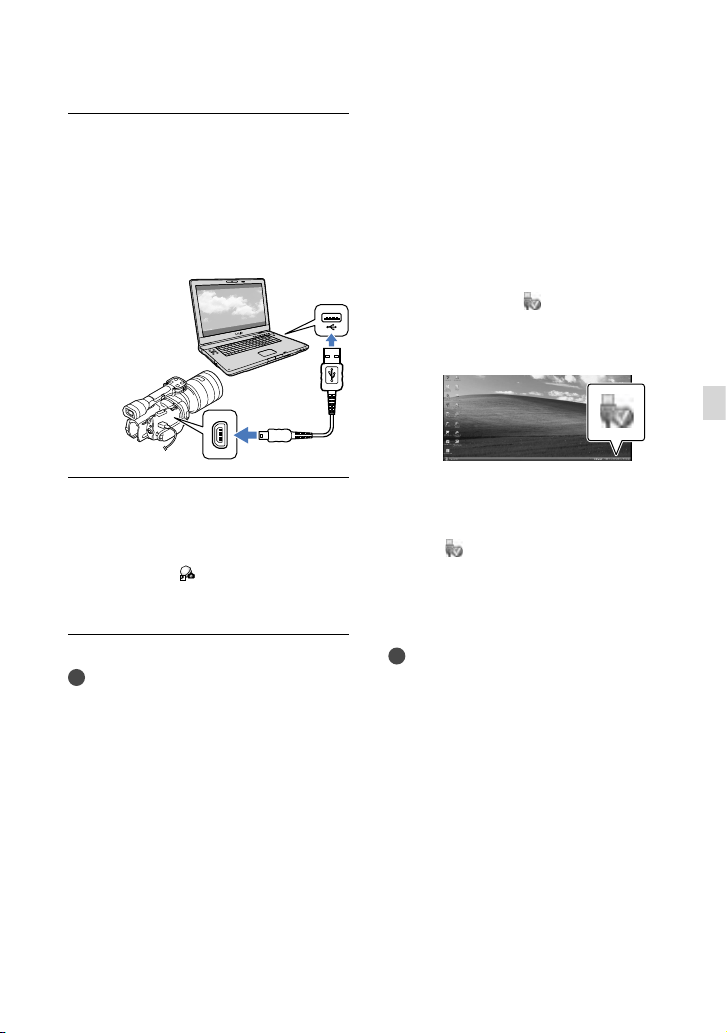
43
ES
Guardar las películas y fotografías en un ordenador
Conecte la videocámara
al ordenador utilizando el
cable USB incorporado y, a
continuación, toque [Conexión
USB] en la pantalla de cristal
líquido de la videocámara.
Una vez completada la
instalación, retire el CD-ROM del
ordenador.
Haga clic en (icono PlayMemories
Home) que aparece en el escritorio del
ordenador para iniciar el software.
Notas
Para crear discos o usar otras funciones en
Windows XP, debería estar instalada la versión
2.0 de Image Mastering API para Windows
XP. Si aún no se ha instalado la versión 2.0
de Image Mastering API para Windows XP,
selecciónela de los programas requeridos en la
pantalla de instalación e instálela siguiendo los
procedimientos que se muestran. (El ordenador
debe estar conectado a Internet para realizar
la instalación). Puede instalar la versión 2.0 de
Image Mastering API para Windows XP como
respuesta al mensaje que se muestra cuando
intenta iniciar dichas funciones.
No se garantiza el funcionamiento si ejecuta
funciones de lectura o escritura de datos
de vídeo con la videocámara utilizando un
software distinto del “PlayMemories Home”
suministrado. Para obtener información sobre
la compatibilidad del software que utilice,
consulte al fabricante de dicho software.
Para desconectar la videocámara del
ordenador
Haga clic en el icono situado en la parte
inferior derecha del escritorio del ordenador
[Extracción segura de Dispositivo de
almacenamiento masivo USB].
Toque [Cancelar] [Sí] en la pantalla de la
videocámara.
Desconecte el cable USB.
Si utiliza Windows 7, es posible que el
icono
no aparezca en el escritorio del
ordenador. En ese caso, puede desconectar
la videocámara del ordenador sin necesidad
de seguir el procedimiento descrito
anteriormente.
Notas
No formatee la tarjeta de memoria de la
videocámara en un ordenador. Si lo hace, la
videocámara no funcionará correctamente.
No inserte discos de grabación AVCHD
que se hayan creado utilizando el software
“PlayMemories Home” para reproductores o
grabadoras de DVD, ya que estos dispositivos
no son compatibles con el estándar AVCHD. Si
lo hace, tal vez no pueda extraer el disco de tales
dispositivos.

44
ES
Esta videocámara captura material de metraje
en alta definición en formato AVCHD. Con el
software para PC que se incluye, el material de
metraje en alta definición se puede copiar en
soportes de DVD. Sin embargo, los soportes
de DVD que contienen material de metraje
en formato AVCHD no deben utilizarse con
reproductores o grabadoras basados en DVD,
ya que el reproductor o la grabadora de DVD
podría fallar al expulsar el soporte de grabación
y podría borrar su contenido sin previo aviso.
Cuando acceda a la videocámara desde el
ordenador, utilice el software “PlayMemories
Home” suministrado. No modifique los
archivos ni las carpetas de la videocámara
desde el ordenador. Es posible que los archivos
de imágenes se dañen o que no se puedan
reproducir.
Si manipula los datos de la videocámara desde
el ordenador, no se garantiza que funcione.
La videocámara divide automáticamente
los archivos de imágenes de más de 2 GB y
guarda las partes en archivos separados. Todos
los archivos de imágenes se pueden mostrar
como archivos separados en un ordenador,
sin embargo, la función de importación de
la videocámara y el software “PlayMemories
Home” los manejarán correctamente.
Utilice el software “PlayMemories Home”
suministrado para importar películas de
larga duración o imágenes editadas desde la
videocámara a un ordenador. Si utiliza otro
software, es posible que las imágenes no se
importen correctamente.
Cuando borre archivos de imágenes, siga los
pasos de la página 39.
Puede crear un disco Blu-ray utilizando un
ordenador con una grabadora de discos Blu-ray.
Instale el Software Complementario de BD para
“PlayMemories Home”.
Los dispositivos en los que puede
reproducirse el disco creado
Discos Blu-ray
Reproductores de discos Blu-ray como un
reproductor de discos Blu-ray de Sony o
una PlayStation
3
Discos DVD con calidad de imagen de
alta definición (HD)
Dispositivos de reproducción de formato
AVCHD , como un reproductor de discos
Blu-ray de Sony o una PlayStation
3
Notas
Un disco de grabación AVCHD solamente
puede reproducirse en dispositivos compatibles
con el formato AVCHD.
Los discos que contienen imágenes grabadas
con calidad de alta definición (HD) no deben
utilizarse en los reproductores/grabadoras
de DVD. Puesto que los reproductores o
grabadoras de DVD no son compatibles con
el formato AVCHD, es posible que dichos
dispositivos de DVD no puedan expulsar el
disco.
Mantenga siempre la PlayStation
3 actualizada
con la última versión del software del sistema
para PlayStation
3. La PlayStation
3 podría
no estar disponible en algunos países y regiones.
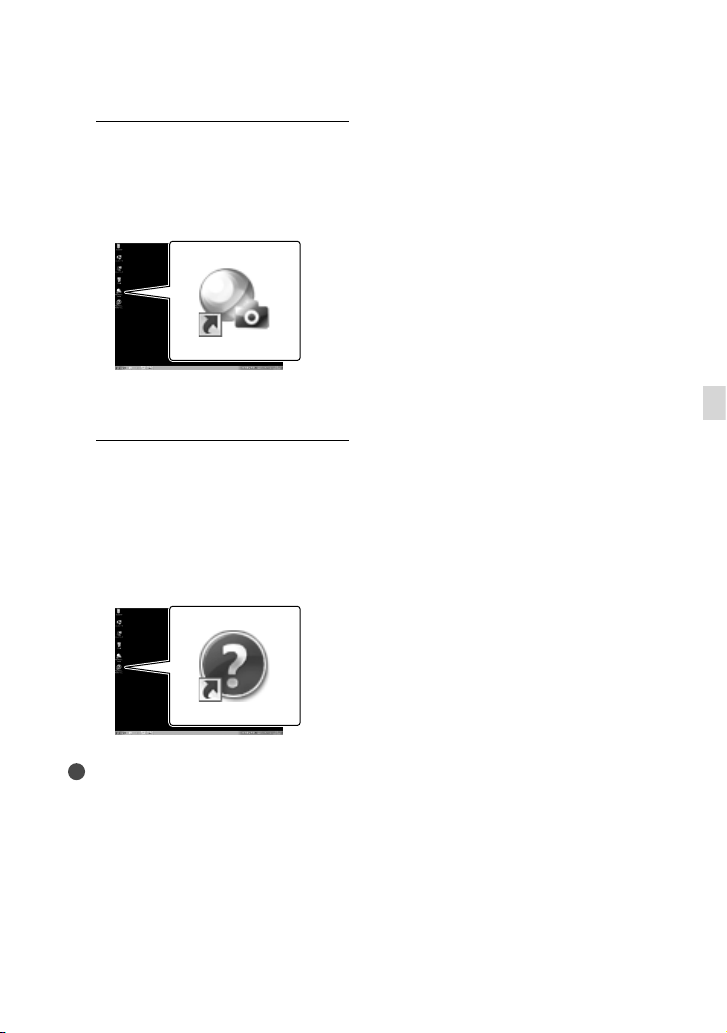
45
ES
Guardar las películas y fotografías en un ordenador
Uso de “Image Data
Converter”
Con “Image Data Converter” puede hacer
lo siguiente:
Editar imágenes grabadas en formato RAW con
varias correcciones, como la curva de tonos y
la nitidez.
Ajustar las imágenes con las funciones de
balance de blancos, exposición y estilo creativo,
etc.
Guardar las imágenes mostradas y editadas en
un ordenador.
También podrá guardar la imagen en formato
RAW o en un formato de archivo general.
Para mostrar y comparar imágenes RAW/JPEG
grabadas con esta cámara.
Puntuar las imágenes en una escala del uno al
cinco.
Ajustar las etiquetas de color.
Para utilizar “Image Data Converter”,
consulte la Ayuda.
Haga clic en [Inicio] [Todos los
programas] [Image Data Converter]
[Ayuda] [Image Data Converter
Ver.4.2].
Página de soporte del “Image Data
Converter” (sólo en inglés)
http://www.sony.co.jp/ids-se/
Inicio de PlayMemories
Home
1
Haga doble clic en el icono de
acceso directo de “PlayMemories
Home” en la pantalla del
ordenador.
Se iniciará el software de PlayMemories
Home.
2
Haga doble clic en el icono de
acceso directo de la “Guía de
ayuda de PlayMemories Home”
en la pantalla del ordenador para
ver cómo utilizar “PlayMemories
Home”.
Notas
Si el icono no aparece en la pantalla del
ordenador, haga clic en [Inicio] [Todos los
programas] [PlayMemories Home] el
elemento deseado.
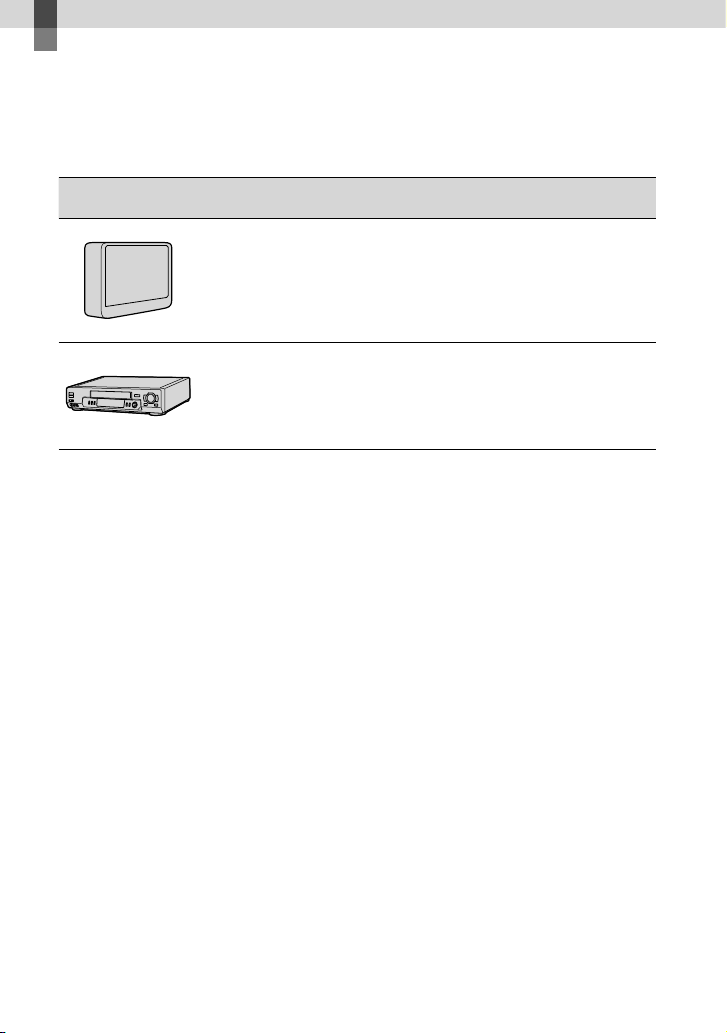
46
ES
Guardar imágenes en un dispositivo externo
Guía de copia
Puede seleccionar el método para guardar películas con calidad de imagen de alta definición
(HD) en un dispositivo externo.
Dispositivos externos Cable de conexión Página
Dispositivo de soporte
externo
Guardar imágenes en un
dispositivo de soporte externo
con calidad de alta definición
(HD).
Cable adaptador de
USB VMC-UAM1 (se
vende por separado)
47
Grabadora de disco duro,
etc.
Guardar imágenes en un disco
DVD con calidad de imagen de
definición estándar (STD).
Cable de conexión de
A/V (suministrado)
50
Películas grabadas con calidad imagen de definición estándar (STD)
Use el cable de conexión de A/V para conectar la videocámara a un dispositivo externo que
contiene las imágenes grabadas.
Los tipos de soportes en los que se guardan las imágenes
Consulte “Selección del modo de grabación” en la página 30.

47
ES
Guardar imágenes en un dispositivo externo
Almacenamiento
de imágenes en un
dispositivo de soporte
externo
Puede guardar fotografías y películas
en un soporte externo (dispositivos de
almacenamiento USB), como una unidad
de disco duro externo. También puede
reproducir las imágenes en la videocámara
o en otro dispositivo de reproducción.
Notas
Para esta operación necesita un cable adaptador
de USB VMC-UAM1 (se vende por separado).
Es posible que el cable adaptador de USB VMC-
UAM1 no esté disponible en algunos países o
regiones.
Conecte la videocámara a una toma de corriente
de pared con el adaptador de alimentación de ca
s
uministrado (pág. 13).
Consulte el manual de instrucciones
suministrado con el dispositivo de soporte
externo.
Sugerencias
El software “PlayMemories Home”
suministrado le permite importar en un
ordenador las imágenes guardadas en el
dispositivo de soporte externo.
Funciones disponibles después de
guardar imágenes en un dispositivo de
soporte externo
Reproducción de imágenes en la videocámara
(pág. 49)
Importación de imágenes en “PlayMemories
Home”
Dispositivos que no pueden utilizarse
como dispositivo de soporte externo
No se pueden utilizar los siguientes dispositivos
como dispositivo de soporte externo:
dispositivos de soporte de una capacidad
superior a 2 TB
unidades de disco normales, como una
unidad de CD o de DVD
dispositivos de soporte conectados mediante
un concentrador USB
dispositivos de soporte con un concentrador
USB integrado
lector de tarjetas
Notas
Es posible que no pueda utilizar un dispositivo
de soporte externo con una función de código.
La videocámara puede utilizar el sistema de
archivos FAT. Si el soporte de almacenamiento
del dispositivo externo está formateado
con el sistema de archivos NTFS, etc., dé
formato al dispositivo de soporte externo en
la videocámara antes de utilizarlo. Aparece
la pantalla de formato cuando se conecta el
dispositivo de soporte externo a la videocámara.
Antes de formatear un dispositivo de soporte
externo en la videocámara, asegúrese de que no
contenga información importante.
No se garantiza el funcionamiento con todos
los dispositivos que cumplan los requisitos de
funcionamiento.
Si desea más información sobre los dispositivos
de soporte externos disponibles, visite la página
web de asistencia de Sony de su país o región.
1
Conecte el adaptador de
alimentación de ca y el cable
de alimentación a la toma de
entrada de cc de la videocámara
y a la toma mural de corriente.
2
Si el dispositivo de soporte
externo tiene un cable de
alimentación de ca conéctelo a la
toma de corriente de pared.
3
Conecte el cable adaptador de
USB al dispositivo de soporte
externo.
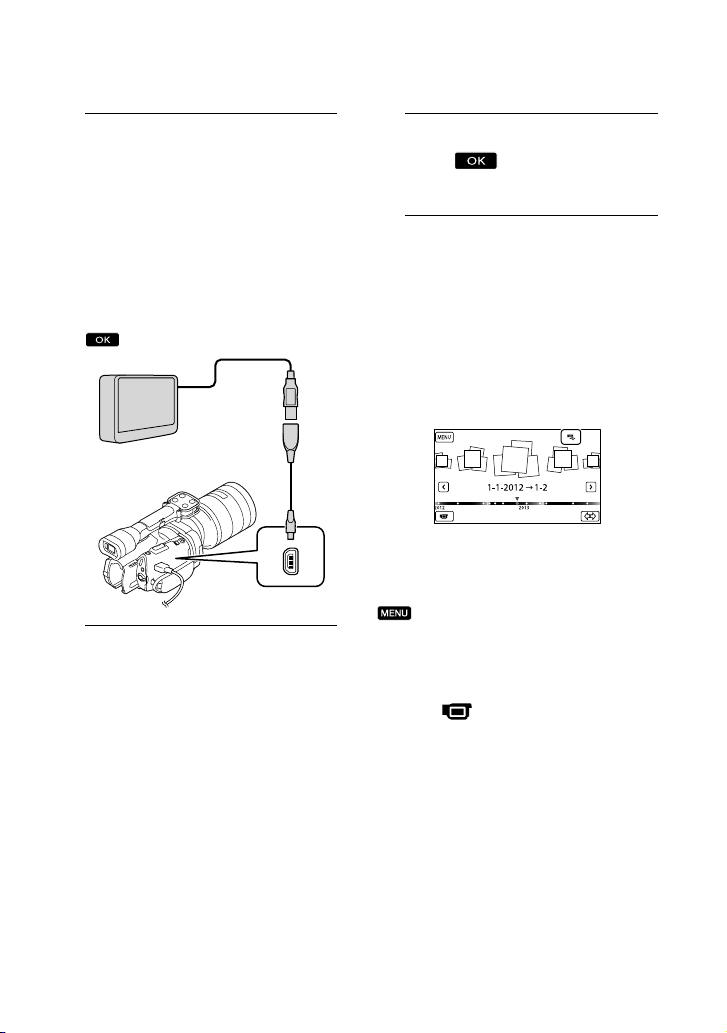
48
ES
4
Conecte el cable adaptador
de USB a la toma (USB) de la
videocámara.
Asegúrese de no desconectar el cable
USB mientras aparezca [Preparando
archivo base datos imagen. Espere por
favor.] en la pantalla de cristal líquido.
Si aparece [Rep.arch.b.dat.im.] en la
pantalla de la videocámara, toque
.
5
Conecte el dispositivo de soporte
externo a la videocámara y toque
[Copiar.] en la pantalla de la
videocámara.
Las películas y fotografías almacenadas
en la tarjeta de memoria y que
todavía no se hayan guardado en un
dispositivo de soporte externo, pueden
guardarse en este momento en dicho
dispositivo.
Esta operación solamente estará disponible
si hay imágenes grabadas recientemente.
6
Cuando finalice la operación,
toque en la pantalla de la
videocámara.
Cuando se conecta un dispositivo de
soporte externo
Las imágenes guardadas en el dispositivo
de soporte externo aparecen en la pantalla
de cristal líquido. Cuando se conecta
un dispositivo de soporte externo,
aparece el icono de USB en la pantalla de
Visualización eventos, etc.
Puede seleccionar opciones de menú del
dispositivo de soporte externo como,
por ejemplo, eliminar imágenes. Toque
(MENU) [Editar/Copiar] en
Visualización eventos.
Para desconectar el dispositivo de
soporte externo
Toque mientras la videocámara
se encuentra en el modo de espera de
reproducción ([Visualización eventos]
o se muestra la pantalla de índice de
eventos) del dispositivo de soporte
externo.
D
esconecte el cable adaptador de USB.
Cable adaptador
de USB
VMC-UAM1
(se vende por
separado)
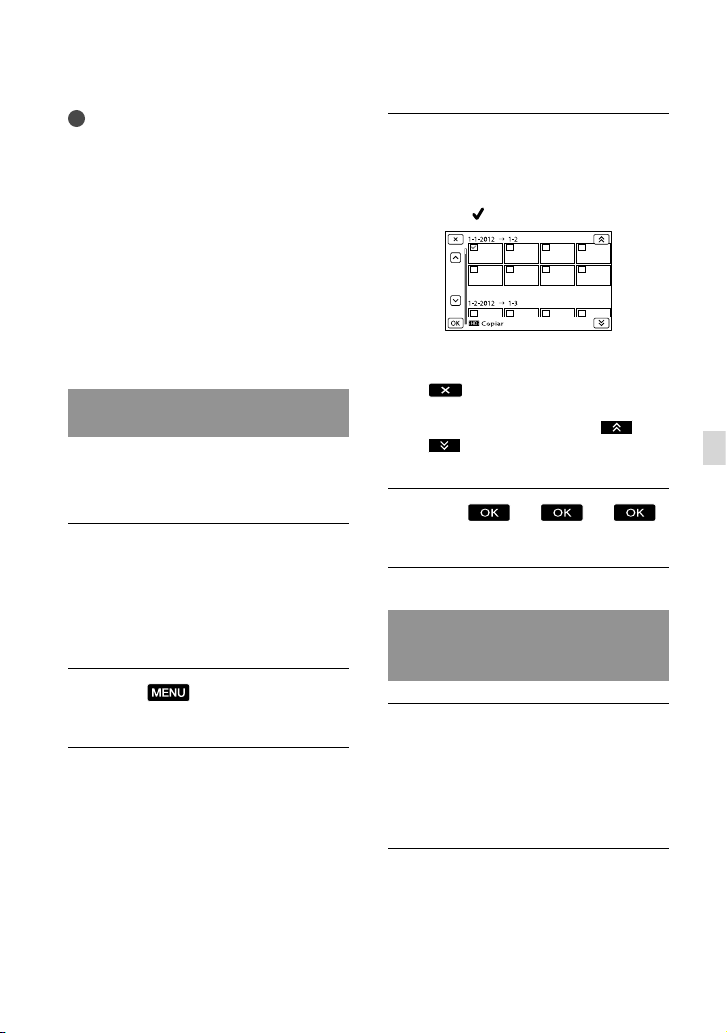
49
ES
Guardar imágenes en un dispositivo externo
Notas
El número de escenas que pueden guardarse
en un dispositivo de soporte externo es el
siguiente. No obstante, aunque el dispositivo de
soporte externo tenga suficiente espacio libre,
el número máximo de escenas que pueden
guardarse no puede ser mayor que el siguiente.
Películas con calidad de imagen de alta
def
inición (HD): máx. 3 999
Películas con calidad de imagen de definición
es
tándar (STD): máx. 9 999
Fotos: máx. 40 000
El número de escenas puede ser inferior, según
el tipo de imágenes que se graben.
Guardar las fotografías y películas
que desee
Puede guardar en el dispositivo de soporte
externo las imágenes de la videocámara
que desee.
Conecte la videocámara al
dispositivo de soporte externo y
toque [Reproducir sin copiar.].
Se muestra Visualización eventos del
soporte externo.
Toque
(MENU) [Editar/
Copiar] [Copiar].
Siga las instrucciones que
aparecen en pantalla para elegir
los métodos de selección de
imágenes y el tipo de imagen.
No se pueden copiar imágenes desde
un dispositivo de soporte externo al
soporte de grabación interno de la
videocámara.
Si ha seleccionado [Múltiples
imágenes], toque la imagen que
desea guardar.
Aparece .
Mantenga pulsada la imagen en la pantalla
de cristal líquido para confirmarla. Toque
para volver a la pantalla anterior.
Si selecciona [Todo en evento], seleccione
el evento que desea copiar con
/
. No se pueden seleccionar varios
eventos.
Toque
en la pantalla de la videocámara.
Reproducción de imágenes del
dispositivo de soporte externo en
la videocámara
Conecte la videocámara al
dispositivo de soporte externo y
toque [Reproducir sin copiar.].
Se muestra Visualización eventos del
dispositivo de soporte externo.
Seleccione la imagen que desee
v
er y reprodúzcala (pág. 32).
También puede ver las imágenes en un
televisor conectado a la videocámara
(p
ág. 36).

50
ES
Creación de un
disco con calidad de
imagen de definición
estándar (STD) con una
grabadora, etc.
Puede copiar las imágenes que se
reproducen en la videocámara en un disco
o videocasete, conectando la videocámara
a una grabadora de discos o similar con
el cable de conexión de A/V. Conecte
el dispositivo de una de las maneras
ilustradas, o . Consulte asimismo el
manual de instrucciones suministrado de
los dispositivos que conecte.
Notas
Para esta operación, utilice el adaptador de
alimentación de ca suministrado para conectar
la videocámara a una toma de corriente de
p
ared (pág. 13).
Las películas con calidad de imagen de alta
definición (HD) se copian con calidad de
imagen de definición estándar (STD).
Puede reproducir las películas con calidad
imagen de alta definición (HD) en el
ordenador utilizando [Player for AVCHD].
Inicie [Player for AVCHD] y seleccione
la unidad a la que esté conectado el
dispositivo de soporte externo con
[Configuración].
Para ejecutar [Copia directa]
manualmente
Puede ejecutar [Copia directa]
manualmente mientras la videocámara
está conectada a un dispositivo de soporte
externo.
T
oque (MENU) [Editar/
Copiar] [Copia directa] en la
pantalla [Visualización eventos] del
dispositivo de soporte externo.
T
oque [Copiar imágenes que no se han
copiado.].
T
oque .
Notas
Si la videocámara no reconoce el dispositivo
de soporte externo, pruebe las operaciones
siguientes.
Vuelva a conectar el cable adaptador de USB a
la videocámara.
Si el dispositivo de soporte externo tiene un
cable de alimentación de ca conéctelo a la
toma de corriente de pared.
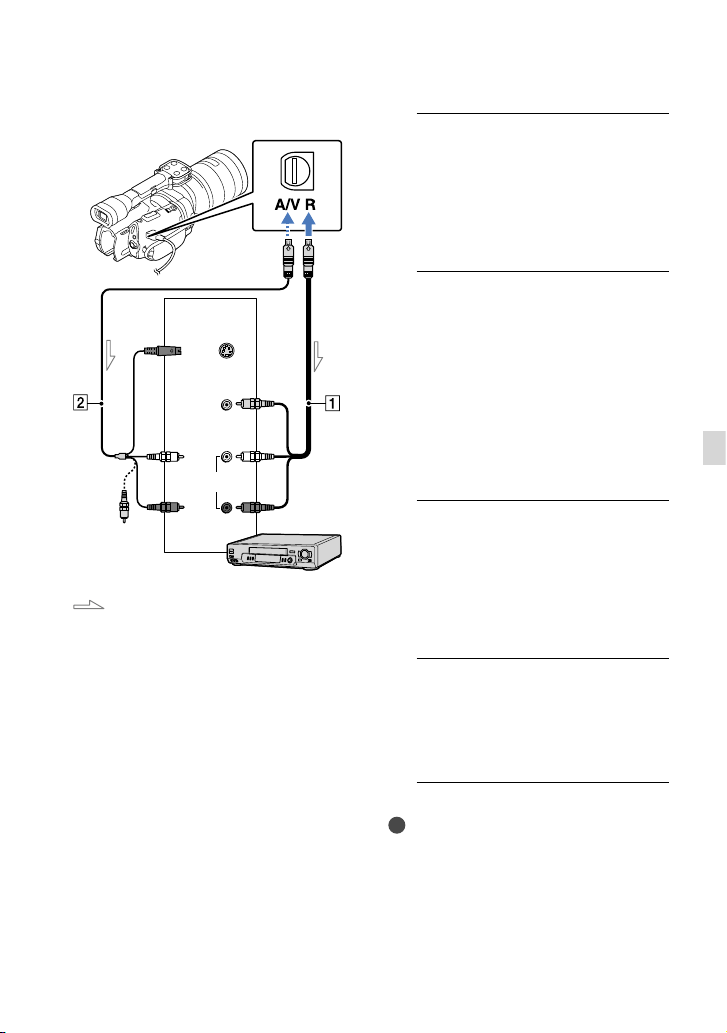
51
ES
Guardar imágenes en un dispositivo externo
Cable de conexión de A/V
(suministrado)
C
able de conexión de A/V con S VIDEO
(se vende por separado)
Con este cable se obtienen imágenes
de mayor calidad que con un cable de
conexión de A/V. Conecte las clavijas
blanca y roja (canal de audio izquierdo/
der
echo) y la clavija de S VIDEO (canal
de S VIDEO) del cable de conexión
de A/V co
n un cable de S VIDEO.
Si solamente conecta la clavija de
S
VIDEO, no se oirá el sonido. No es
necesario conectar la clavija amarilla
(vídeo).
1
Introduzca el soporte de
grabación en el dispositivo de
grabación.
Si el dispositivo de grabación tiene un
selector de entrada, ajústelo en el modo
de entrada.
2
Conecte la videocámara al
dispositivo de grabación
(grabadora de discos, etc.) con
el cable de conexión de A/V
(suministrado) o con un cable de
conexión de A/V con S VIDEO
(se vende por separado).
Conecte la videocámara a las tomas de
entrada del dispositivo de grabación.
3
Inicie la reproducción en la
videocámara y grabe en el
dispositivo de grabación.
Para obtener más información, consulte los
manuales de instrucciones suministrados
con el dispositivo de grabación.
4
Cuando finalice la copia, detenga
el dispositivo de grabación
y, a continuación, detenga la
videocámara.
Notas
Debido a que la copia se realiza mediante una
transferencia de datos analógica, es posible que
la calidad de imagen se deteriore.
No es posible copiar imágenes en grabadoras
conectadas con un cable HDMI.
Conector remoto de A/V
Entrada
S VIDEO
VIDEO
(amarillo)
(blanco)
AUDIO
Flujo de señales
(amarillo)
(rojo)

52
ES
Para copiar la información de fecha/hora y
los datos de la cámara, toque
(MENU)
[Configuración] [
( Ajustes
reproducción)] [Código datos] el ajuste
deseado
.
Si el tamaño de pantalla de los dispositivos
de visualización (televisor, etc.) es 4:3, toque
(MENU) [Configuración]
[
( Conexión)] [Tipo de TV] [4:3]
.
Si conecta un dispositivo monoaural,
introduzca la clavija amarilla del cable de
conexión de A/V en la toma de entrada de
vídeo, y la clavija blanca (canal izquierdo) o roja
(canal derecho) en la toma de entrada de audio
del dispositivo.
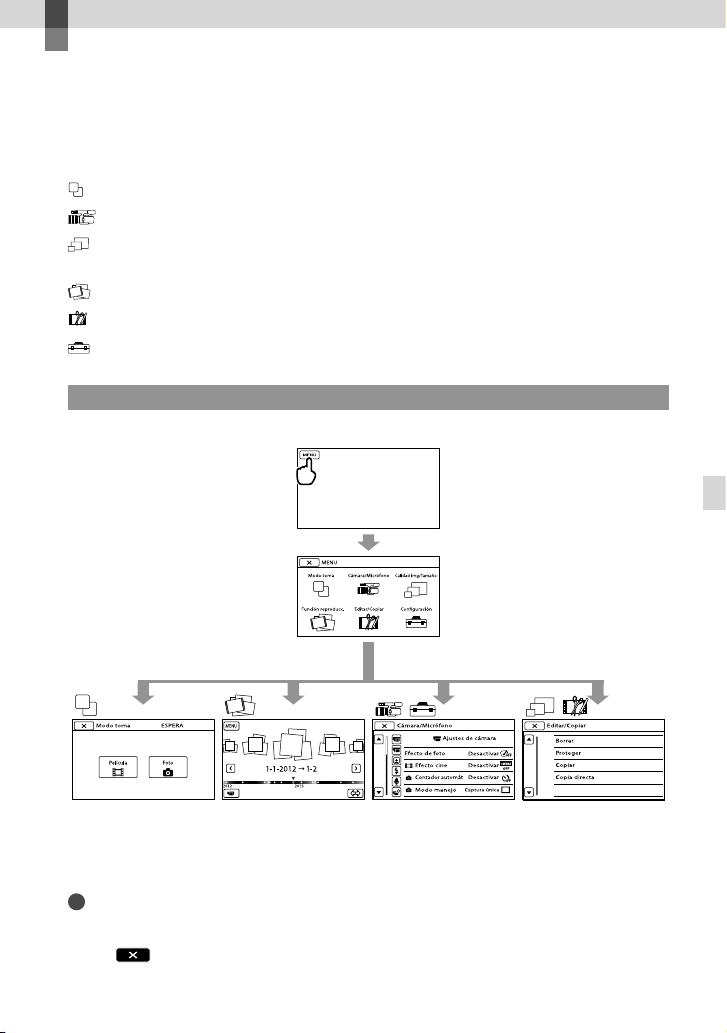
53
ES
Personalización de la videocámara
Personalización de la videocámara
Uso de los menús
El dominio de las operaciones que puede realizar con los menús le ayudará a disfrutar más de su
videocámara.
La videocámara ofrece varios elementos de menú en cada una de las 6 categorías de menú.
Modo toma (Elementos para seleccionar un modo para tomar fotografías) pág. 54
Cámara/Micrófono (Elementos para realizar tomas personalizadas) pág. 54
Calidad img/Tamaño (Elementos para configurar el tamaño o la calidad de la imagen)
pág
. 55
Función reproducc. (Elementos para la reproducción) pág. 32
Editar/Copiar (Elementos para la edición) pág. 55
Configuración (Otros elementos de ajuste) pág. 55
Utilización de los menús
Para ajustar los elementos de menú, realice los procedimientos explicados a continuación.
Los menús [Cámara/Micrófono] y [Configuración] tienen subcategorías. Al tocar un icono de
subcategoría, se muestran los menús de otras subcategorías.
Los elementos de menú o ajustes que aparecen atenuados no se encuentran disponibles.
Notas
Es posible que no pueda ajustar algunos elementos de menú, según las condiciones de grabación o
reproducción.
Toque
para terminar de ajustar el menú o para regresar a la pantalla del menú anterior.
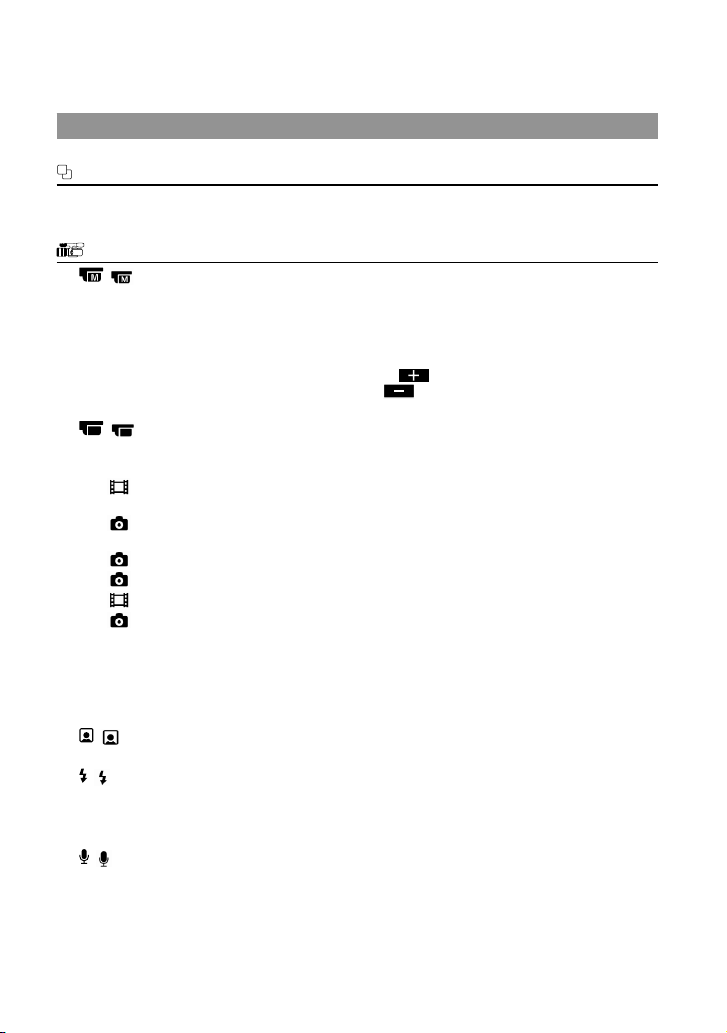
54
ES
Listas de menús
Modo toma
Película .......................................Graba películas.
Foto ..............................................Captura fotografías.
Cámara/Micrófono
( Ajustes manuales)
Medidor/Enfoq punt. ... Ajusta el brillo y el enfoque del motivo seleccionado simultáneamente.
Medición puntual..........Ajusta el brillo de las imágenes al motivo que toque en la pantalla.
Enfoque puntual ...........Enfoca sobre un motivo que toque en la pantalla.
Exposición .......................Ajusta el brillo de las películas y las fotografías.
Desplazamiento AE ...... Ajusta la exposición. Toque
si el motivo es blanco o el contraste
es brillante, o bien toque
si el motivo es negro o la iluminación es
tenue.
( Ajustes de cámara)
Efecto de foto ................. Selecciona el filtro de efecto deseado para obtener un efecto más
impresionante y artístico.
Efecto cine ............... Ajusta el color de la película para que simule la atmósfera cinematográfica
cuando grabe.
Contador automát
... Establece el disparador automático cuando la videocámara se encuentra
en modo de grabación de fotos.
Modo manejo ......... Establece la toma de imágenes en modo continuo o por tramos, etc.
Modo AF ................... Selecciona el método de enfoque.
SteadyShot .............. Establece la función SteadyShot cuando se graban películas.
SteadyShot ..............Establece la función SteadyShot cuando se toman fotografías.
Contraluz automática
... Ajusta la exposición para motivos a contraluz automáticamente.
Botón MANUAL .............. Asigna una función al botón MANUAL.
Capt. tamaño APS-C ..... Cambia el tamaño de la imagen en función del objetivo acoplado.
Detección de fase AF
....Acelera automáticamente el enfoque automático cuando se acopla un
objetivo compatible.
( Cara)
Detección de cara ......... Ajusta la calidad de la imagen de las caras automáticamente.
( Flash)
Flash ................................... Establece el modo de activación del flash.
Nivel de flash .................. Establece el brillo del flash.
Reduc. ojos rojos ...........Evita el efecto de ojos rojos cuando se capturan imágenes con flash.
( Micrófono)
Reducc. ruido viento .... Reduce el ruido del viento.
Modo audio .....................Establece el formato de sonido de la grabación (sonido envolvente de
5,1
canales/sonido estéreo de 2 canales).
Nivel grabac. audio ....... Ajusta el nivel de audio durante la grabación.
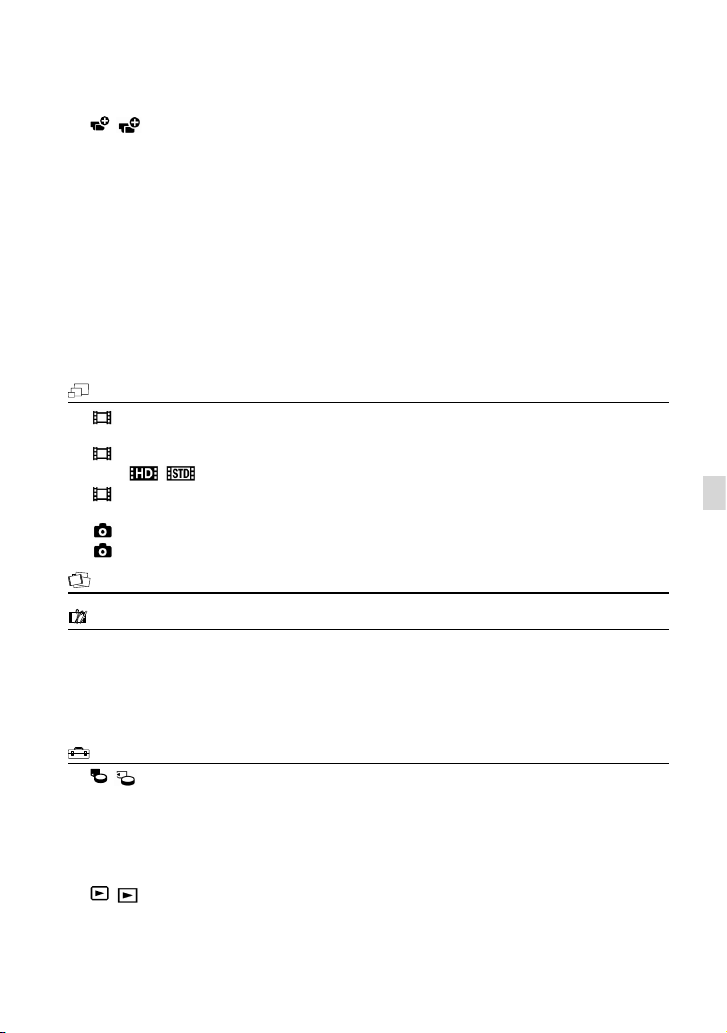
55
ES
Personalización de la videocámara
( Asistencia de toma)
Guía encuadre ................Muestra el marco para asegurarse de que el motivo está en un encuadre
horizontal o vertical.
Cebra ................................. Muestra un patrón de cebra que sirve de guía para ajustar el brillo.
Atenuación ......................Muestra una imagen en la pantalla de cristal líquido con el contorno
realzado.
Histograma ...................... Muestra el Histograma.
Vis. datos cám. ................ Muestra el valor del iris, ganancia (ISO) y velocidad de obturación.
Visual. nivel aud. ............ Muestra el medidor del nivel de audio en la pantalla de cristal líquido.
Micro ajuste AF .............. Ajusta el enfoque del objetivo instalado.
Zoom digital ...................Establece el zoom digital.
Palanca del zoom ..........Establece la función asignada a la palanca del zoom.
Velocidad del zoom ......Cambia la velocidad del zoom cuando se presiona la palanca del zoom.
Calidad img/Tamaño
Modo Grabación ............. Establece el modo de grabación de películas. Para grabar un sujeto que se
mueve rápidamente, es aconsejable utilizar una calidad de imagen alta.
Imág. p. segundo ............Establece la velocidad de fotogramas para grabar películas.
Ajuste
/ ..................Establece la calidad de la imagen para grabar, reproducir o editar películas.
Modo panorámico..........Establece la relación de formato horizontal-vertical al grabar películas con
una calidad de imagen de definición estándar (STD).
Tam imagen ...................... Establece el tamaño de la fotografía.
RAW/JPEG ..........................Selecciona el formato de compresión de las imágenes fijas.
Función reproducc.
...........Permite ver fotografías/vídeos grabados (pág. 32).
Editar/Copiar
Borrar ..........................................Borra películas o fotografías.
Proteger ..................................... Protege las películas o fotografías para impedir que se borren.
Copiar..........................................Selecciona y copia películas o fotografías a un soporte externo.
Copia directa ............................ Copia imágenes almacenadas en el soporte de grabación a algún tipo de
soporte externo.
Configuración
( Ajustes de soporte)
Info soporte .....................Muestra información sobre el soporte de grabación, como el espacio libre.
Formatear ........................Elimina todos los datos del soporte de grabación.
Rep.arch.b.dat.im. .........Repara el archivo de base de datos de imagen en el soporte de grabación
(p
ág. 60).
Número Archivo ............ Establece la forma de asignar el número de archivo.
( Ajustes reproducción)
Código datos .................. Establece la fecha y la hora.
Volumen ...........................A
justa el volumen del sonido de reproducción (pág. 34).

56
ES
( Conexión)
Tipo de TV ........................ C
onvierte la señal en función del televisor conectado (pág. 36).
Salida componente ...... Seleccione esta opción cuando conecte la videocámara a un televisor
m
ediante la toma de entrada de componente (pág. 37).
Resolución HDMI ...........Selecciona la resolución de salida de la imagen al conectar la videocámara
a un televisor con un cable HDMI (se vende por separado).
Conexión USB ................. Selecciona el tipo de soporte de grabación que se va a utilizar en la
videocámara cuando esté conectada a un dispositivo externo mediante
USB.
Ajuste conexión USB ....Establece el modo de conexión cuando la videocámara está conectada a un
ordenador o a un dispositivo USB.
Grabar en disco .............. Guarda imágenes que aún no se han grabado en un disco.
( Ajustes generales)
Pitido .................................Establece si se emiten o no pitidos durante el funcionamiento de la
videocámara.
Luminosidad LCD ..........Ajusta el brillo de la pantalla de cristal líquido.
Temper. color visor .......Establece la temperatura de color del visor.
Visor/Panel ....................... Cambia la visualización entre el visor y la pantalla LCD.
Ajuste pantalla ............... Establece el período de tiempo que se muestran los iconos o indicadores
en la pantalla de cristal líquido.
Indicador grabación .....Apaga el indicador de grabación de la parte frontal de la videocámara.
Captura sin objetivo .....Establece si se puede o no iniciar la grabación cuando no hay ningún
objetivo instalado.
Mando a distancia ........Establece si debe utilizarse o no el mando a distancia inalámbrico.
Apagado auto ................E
stablece que la videocámara se apague automáticamente (pág. 14).
Language Setting .........E
stablece el idioma de la pantalla (pág. 21).
Modo 24p
*
......................Graba películas 24p en un sistema PAL.
Calibración.......................Calibra el panel táctil.
Información batería......Muestra la información de la batería.
Versión .............................. Muestra la versión de la videocámara y del objetivo.
( Ajustes del reloj)
Config.fecha y hora ......Establece los ajustes de [Fecha y hora], [Hora verano] o [Format fecha y
h
ora] (pág. 19).
Configuración área .......A
justa una diferencia horaria sin detener el reloj (pág. 19).
* Solo en el modelo NEX-VG900E
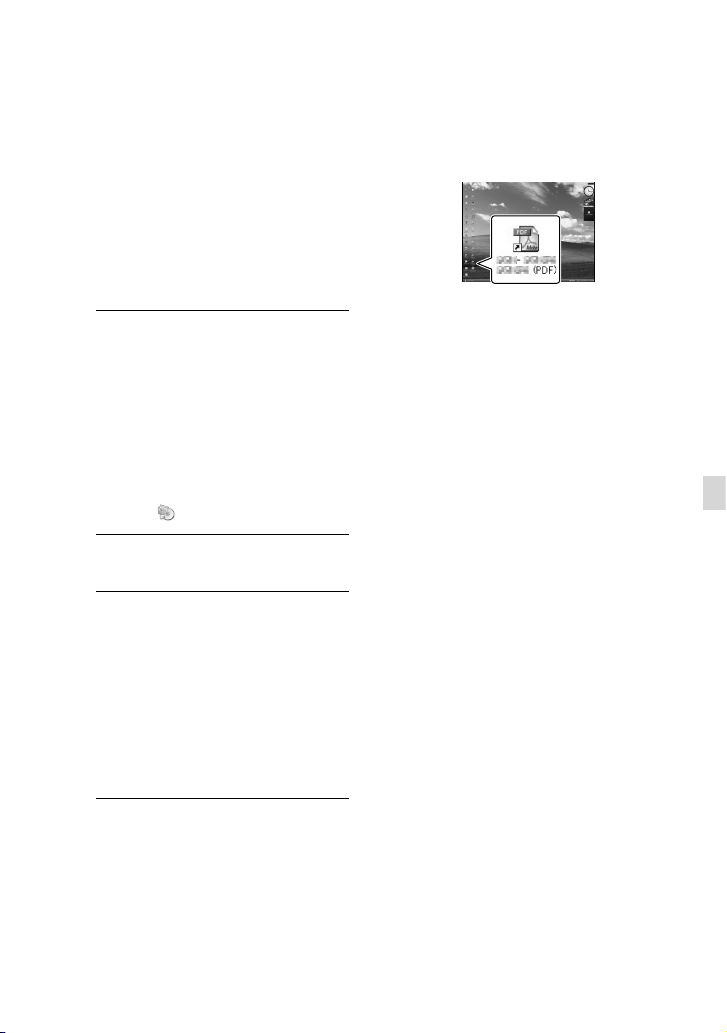
57
ES
Personalización de la videocámara
Obtención de
información detallada
de la Guía práctica de
“Handycam”
La Guía práctica de “Handycam” es una
guía de usuario diseñada para leerla en la
pantalla de un ordenador. La Guía práctica
de “Handycam” se ha diseñado para
leerla cuando desee saber más acerca del
funcionamiento de la videocámara.
1
Para instalar la Guía práctica de
“Handycam” en un ordenador con
SO Windows, coloque el CD-ROM
suministrado en la unidad de
disco del ordenador.
Aparecerá la pantalla de instalación.
Si la pantalla no aparece, haga clic en
[Inicio] [Equipo] (en Windows XP, [Mi
PC])
(PMHOME) [install.exe].
2
Haga clic en [Guía práctica].
3
Haga clic en el idioma que desee
y en el nombre del modelo de
la videocámara [Instalación],
y siga las instrucciones que
aparecen en pantalla para instalar
la Guía práctica de “Handycam”.
El nombre del modelo de la videocámara
está impreso en la superficie inferior.
Para ver la Guía práctica de “Handycam”,
haga doble clic en el icono de acceso directo
de la pantalla del ordenador.
Si utiliza un Mac, abra la carpeta [Handbook]
– [ESUS] del CD-ROM y copie
[Handbook.pdf].
Necesitará Adobe Reader para leer la Guía
práctica de “Handycam”. Si no está instalado en
el ordenador, puede descargarlo desde la página
web de Adobe Systems:
http://www.adobe.com/
Consulte la “Guía de ayuda de PlayMemories
Home” para obtener más información sobre el
software “PlayMemories Home” suministrado
(p
ág. 42).
58
ES
Información complementaria
Solución de
problemas
Si surge algún problema al utilizar la
videocámara, siga los pasos que se indican a
continuación.
Compruebe la lista (pág. 58 a 60) e
inspeccione la videocámara.
Retire la fuente de alimentación,
conéctela otra vez después de
1 minuto aproximadamente y
encienda la videocámara.
Pulse RESET (pág. 73) con un
objeto puntiagudo y encienda la
videocámara.
Si pulsa RESET, se restablecerán todos
los ajustes, incluido el del reloj.
Póngase en contacto con su
distribuidor de Sony o con un centro
de servicio técnico local autorizado
de Sony.
Consulte la Guía práctica de “Handycam”
(pág. 57) para obtener más información sobre
los problemas de la videocámara y consulte
“Guía de ayuda de PlayMemories Home”
(p
ág. 45) para saber cómo conectarla a un
ordenador.
La videocámara no se enciende.
Instale una batería cargada en la videocámara
(pág. 12).
Conecte la clavija del adaptador de
alimentación de ca a la toma de corriente de
p
ared (pág. 12).
La videocámara no funciona aun cuando
la alimentación está activada.
Después de encender la videocámara, ésta
tarda unos segundo en estar lista para
tomar imágenes. No se trata de un fallo de
funcionamiento.
Desconecte el adaptador de alimentación de
ca de la toma de corriente de pared o extraiga
la batería y vuelva a realizar la conexión
transcurrido aproximadamente 1 minuto.
Si la videocámara sigue sin funcionar, pulse
RES
ET (pág. 73) con un objeto puntiagudo.
(Tras pulsar RESET, se restablecerán todos los
ajustes, incluido el reloj).
La temperatura de la videocámara es muy alta.
Apague la videocámara y déjela durante un
momento en un lugar fresco.
La temperatura de la videocámara es muy
baja. Deje la videocámara con la alimentación
encendida. Si todavía no puede utilizar la
videocámara, apáguela y llévela a un lugar
cálido. Deje allí la videocámara unos minuto y
después enciéndala.
La videocámara se calienta.
Puede que la videocámara se caliente durante
el funcionamiento. No se trata de un fallo de
funcionamiento.
La alimentación se desconecta de
repente.
Utilice el adaptador de alimentación de ca
(pág. 13).
Vuelva a encenderla.
C
argue la batería (pág. 12).

59
ES
Información complementaria
Al pulsar START/STOP o PHOTO no se
graban las imágenes.
Pulse MODE para encender el indicador
(película) o (fotografía).
La videocámara está grabando en la tarjeta de
memoria la imagen que acaba de tomar. No
se puede realizar ninguna grabación nueva
durante este período.
El soporte de grabación está lleno. Elimine las
im
ágenes que no necesite (pág. 39).
El número total de escenas de película o
fotografías ha superado la capacidad de
g
rabación de la videocámara (pág. 61).
Elimine las imágenes que no necesite
(p
ág. 39).
La grabación se detiene.
La temperatura de la videocámara es muy alta
o muy baja. Apague la videocámara y déjela
durante un tiempo en un lugar fresco o cálido.
“PlayMemories Home” no puede
instalarse.
Compruebe el entorno del ordenador o el
procedimiento necesario para la instalación de
“
PlayMemories Home” (pág. 41).
“PlayMemories Home” no funciona
correctamente.
Salga de “PlayMemories Home” y reinicie el
ordenador.
El ordenador no reconoce la videocámara.
Desconecte cualquier dispositivo conectado
a la toma USB del ordenador que no sea el
teclado, el ratón y la videocámara.
Desconecte el cable USB del ordenador y la
videocámara, reinicie el ordenador y conecte
otra vez el ordenador y la videocámara de
manera ordenada.
Visualización de autodiagnóstico/
Indicadores de advertencia
Si aparecen indicadores en la pantalla de
cristal líquido o el visor, compruebe lo
siguiente.
Si el problema persiste aun después de
intentar solucionarlo varias veces, póngase
en contacto con su distribuidor de Sony
o con un centro de servicio técnico local
autorizado de Sony. En ese caso, cuando
se ponga en contacto con ellos, indíqueles
todos los números del código de error que
empiece con C o E.
C:04:
La batería no es una batería “InfoLITHIUM”
de serie V. Utilice una batería “InfoLITHIUM”
(s
erie V) (pág. 12).
Conecte firmemente la clavija de cc del
adaptador de alimentación de ca a la
v
ideocámara (pág. 12).
C:06:
La temperatura de la batería es elevada.
Cambie la batería o colóquela en un lugar
fresco.
C:13: / C:32:
Desconecte la fuente de alimentación.
Conéctela de nuevo y vuelva a poner en
funcionamiento la videocámara.
E::
Siga los pasos a partir del en la página 58.
El nivel de carga de la batería es bajo.
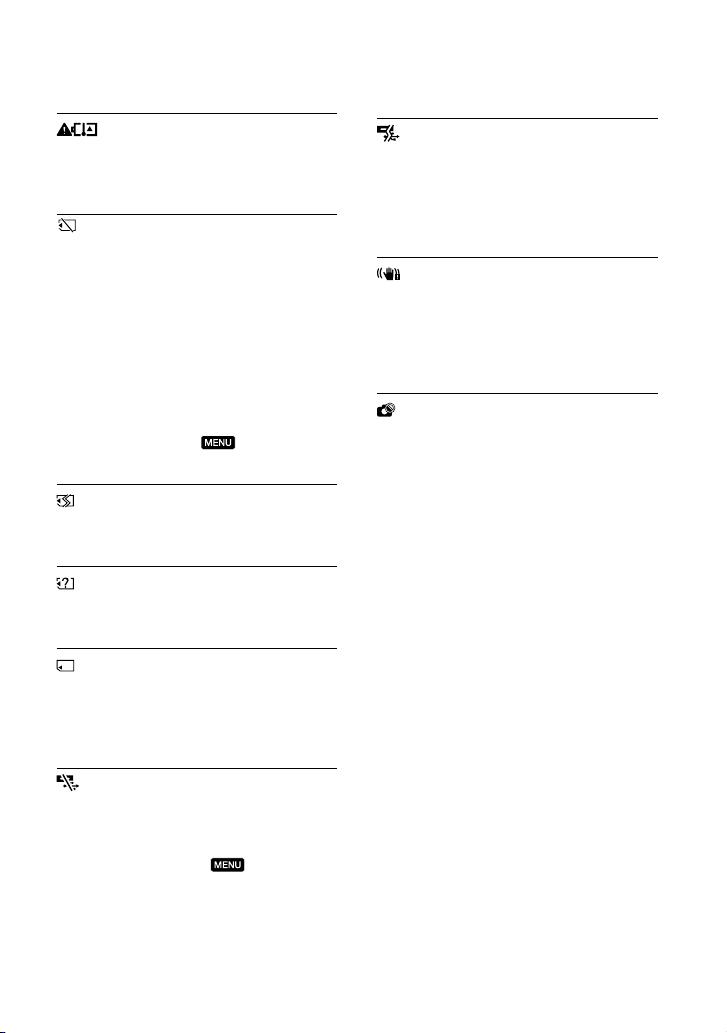
60
ES
La temperatura de la batería es elevada.
Cambie la batería o colóquela en un lugar
fresco.
No se ha insertado ninguna tarjeta de
memoria (pág. 25).
Cuando el indicador parpadea quiere decir
que no hay espacio libre suficiente para grabar
imágenes. Borre las imágenes que no necesite
(p
ág. 39) o formatee la tarjeta de memoria
después de guardar las imágenes en otro
soporte de almacenamiento.
El archivo de base de datos de imágenes
está dañado. Compruebe el archivo de
base de datos, tocando
(MENU)
[Configuración] [Rep.arch.b.dat.im.].
La tarjeta de memoria está dañada. Formatee la
tarjeta de memoria con la videocámara (pág. 55).
La tarjeta de memoria que se ha insertado no es
compatible (pág. 26).
La tarjeta de memoria está protegida contra
escritura.
Se ha restringido el acceso a la tarjeta de
memoria en otro dispositivo.
(indicador de advertencia referente al
dispositivo de soporte externo)
El archivo de base de datos de imágenes
puede estar dañado. Compruebe el archivo
de base de datos, tocando
(MENU)
[Configuración] [Rep.arch.b.dat.im.]
El dispositivo de soporte externo está dañado.
(indicador de advertencia referente
al formateo del dispositivo de soporte
externo)
El dispositivo de soporte externo está dañado.
El dispositivo de soporte externo no está
formateado correctamente.
La videocámara está en posición inestable.
Mantenga la videocámara en una posición estable
sujetándola con ambas manos. No obstante, tenga
en cuenta que el indicador de advertencia de
sacudidas de la cámara no desaparecerá.
La tarjeta de memoria está llena. Elimine las
imágenes que no necesite (
pág. 39).
No se pueden grabar fotografías durante el
procesamiento. Espere unos minuto y grábelas a
continuación.
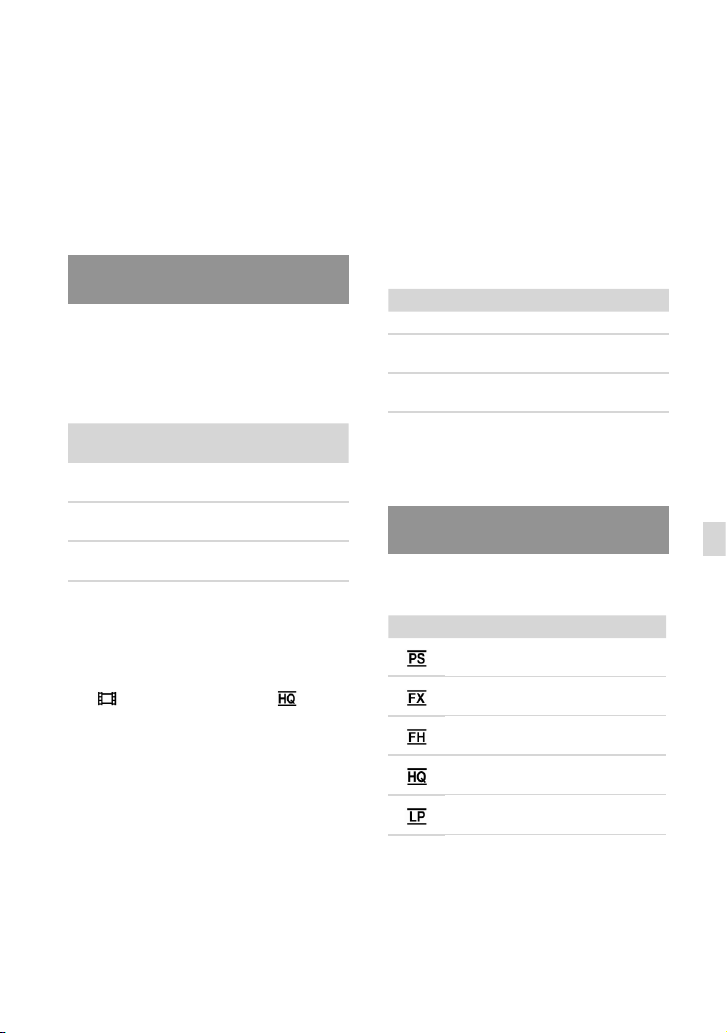
61
ES
Información complementaria
Tiempo de grabación
de películas/número
de fotografías que se
pueden grabar
“HD” significa calidad de imagen de alta
definición y “STD” significa calidad de
imagen estándar.
Tiempo previsto de grabación y
reproducción con cada batería
Tiempo de grabación
Tiempo disponible aproximado cuando se
utiliza una batería completamente cargada.
(unidad: minuto)
Batería Tiempo de
grabación continuo
Tiempo de
grabación normal
Calidad de
imagen
HD STD HD STD
NP-FV70
(suministrada)
160
145
170
150
90
80
95
80
NP-FV100 325
295
340
305
180
160
185
165
Arriba: cuando se graba con la pantalla de
cristal líquido
Abajo: cuando se graba con el visor
Cada tiempo de grabación se mide en las
siguientes condiciones.
[
Modo Grabación]: Estándar (ajuste
predeterminado)
Al utilizar el adaptador de montura LA-EA3
(suministrado) y el objetivo SAL-2470Z (se
vende por separado)
El tiempo de grabación normal muestra el
tiempo disponible cuando se inicia/detiene la
grabación varias veces, cambiando el indicador
MODE y utilizando el zoom.
Tiempos medidos cuando se utiliza la
videocámara a 25
C Se recomiendan de 10 C
a 30
C
El tiempo de grabación y reproducción será más
corto cuando se utilice la videocámara a bajas
temperaturas.
El tiempo de grabación y reproducción será más
corto en función de las condiciones bajo las que
utilice la videocámara.
Tiempo de reproducción
Tiempo disponible aproximado cuando se
utiliza una batería completamente cargada.
(unidad: minuto)
Batería
Calidad de imagen HD STD
NP-FV70
(suministrada)
375
315
415
345
NP-FV100 745
625
830
680
Arriba: cuando se graba con la pantalla de
cristal líquido
Abajo: cuando se graba con el visor
Tiempo de grabación previsto para
las películas
Calidad de imagen de alta definición (HD)
(unidad: minuto)
16 GB 32 GB 64
GB
75
(75)
150
(150)
305
(305)
85
(85)
180
(180)
360
(360)
120
(120)
245
(245)
490
(490)
210
(160)
430
(325)
865
(655)
370
(300)
740
(610)
1490
(1225)
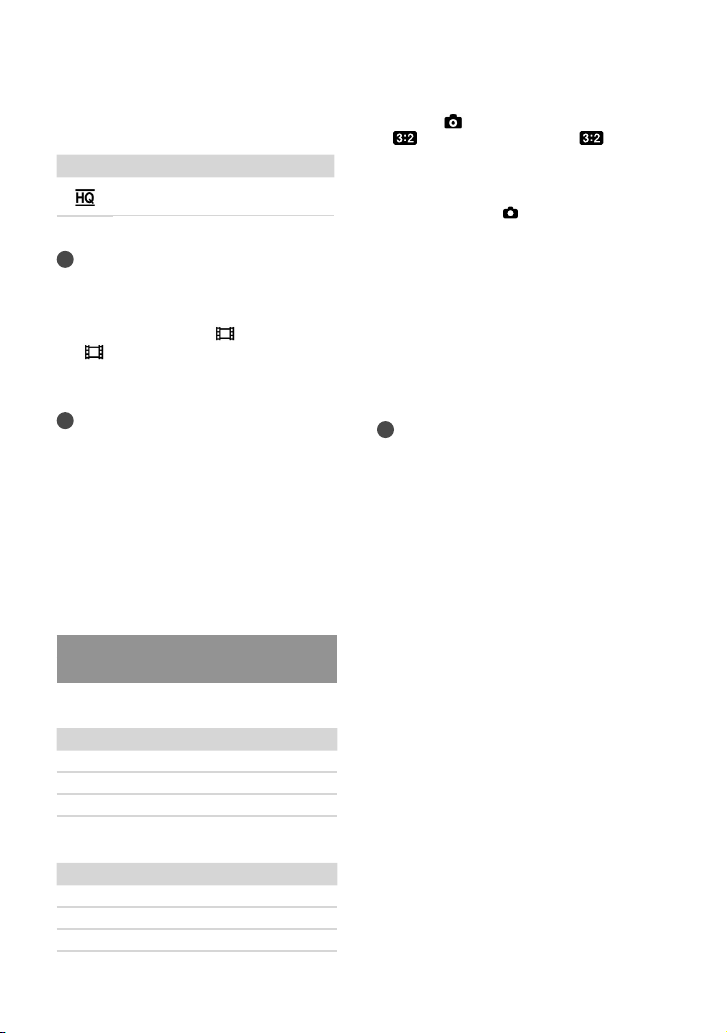
62
ES
Cuando [ Tam imagen] está ajustado en
[
24,0M] (tamaño completo), [ 10,3M]
(tamaño APS-C).
Cuando se utilizan tarjetas de memoria Sony.
El tamaño de imagen seleccionado se activa
cuando el indicador
(fotografía) está
encendido.
El número indicado de fotografías que se
pueden grabar en la tarjeta de memoria
corresponde al tamaño de imagen máximo de la
videocámara. El número real de fotografías que
se pueden grabar se muestra en la pantalla de
cr
istal líquido durante la grabación (pág. 69).
El número de fotografías que se pueden grabar
en la tarjeta de memoria puede variar en
función de las condiciones de grabación.
Sugerencias
También se puede utilizar una tarjeta de
memoria con una capacidad inferior a 1 GB
para grabar fotografías.
La lista siguiente muestra la velocidad de
bits, los píxeles y el formato de cada modo de
grabación (película + audio, etc.).
Calidad de imagen de alta definición (HD):
PS: m
áx. 28 Mbps; 1 920 píxeles 1
080
píxeles/16:9
FX: m
áx. 24 Mbps; 1 920 píxeles 1
080
píxeles/16:9
FH: a
prox. 17 Mbps (promedio); 1 920 píxeles
1
080 píxeles/16:9
HQ: aprox. 9 Mbps (promedio); 1 440 píxeles
1
080 píxeles/16:9
LP: aprox. 5 Mbps (promedio); 1 440 píxeles
1
080 píxeles/16:9
Calidad de imagen de definición estándar
(STD):
H
Q: aprox. 9 Mbps (promedio) 720 píxeles
480
píxeles (NEX-VG900), 720 píxeles
576
píxeles (NEX-VG900E)/16:9, 4:3
Calidad de imagen de definición estándar (STD)
(unidad: minuto)
16 GB 32 GB 64
GB
220
(200)
445
(410)
895
(825)
Notas
Cuando se utilizan tarjetas de memoria Sony.
El tiempo de grabación puede variar en función
de las condiciones de la grabación y del motivo,
así como de las opciones [
Modo Grabación]
y [
Imág. p. segundo] (pág. 55).
El número entre paréntesis ( ) corresponde al
tiempo de grabación mínimo.
Sugerencias
La videocámara utiliza el formato VBR
(velocidad de bits variable) para ajustar
automáticamente la calidad de la imagen para
que se ajuste a la escena que se está grabando.
Esta tecnología causa fluctuaciones en los
tiempos de grabación del soporte. Las películas
que contienen imágenes complejas y que se
mueven rápidamente se graban a una velocidad
de bits mayor, lo que reduce el tiempo de
grabación total.
Número previsto de fotografías
que se pueden grabar
Tamaño completo
JPEG RAW RAW & JPEG
16 GB 1600 600 435
32 GB 3200 1200 870
64
GB 6400 2400 1750
Tamaño APS-C
JPEG RAW RAW & JPEG
16 GB 3250 1300 950
32 GB 6600 2600 1900
64
GB 13000 5200 3750

63
ES
Información complementaria
Píxeles de grabación de fotografías y formato.
Modo de grabación de fotografías
Tamaño completo:
6
000 puntos 4
000 puntos/3:2
6 000 puntos 3
376 puntos/16:9
3 936 puntos 2
624 puntos/3:2
3 936 puntos 2
216 puntos/16:9
2 640 puntos 1
760 puntos/3:2
2 640 puntos 1
488 puntos/16:9
Tamaño APS-C:
3
936 puntos 2
624 puntos/3:2
3 936 puntos 2
216 puntos/16:9
2 640 puntos 1
760 puntos/3:2
2 640 puntos 1
488 puntos/16:9
1 728 puntos 1
152 puntos/3:2
1 728 puntos 976
puntos/16:9
Captura de fotografías de una película
(NEX-VG900):
1
920 puntos 1
080 puntos/16:9
640 puntos 360
puntos/16:9
640 puntos 480
puntos/4:3
Precauciones
Uso y cuidados
No utilice ni almacene la videocámara y los
accesorios en los siguientes lugares:
En lugares extremadamente cálidos, fríos
o húmedos. Nunca los deje expuestos a
t
emperaturas superiores a 60
C como, por
ejemplo, bajo la luz solar directa, cerca de
calefactores o en un automóvil estacionado al
sol, ya que podrían deformarse o sufrir fallos
de funcionamiento.
Cerca de campos magnéticos intensos o
vibraciones mecánicas. La videocámara
podría sufrir fallos de funcionamiento.
Cerca de ondas radiofónicas fuertes o
radiaciones. Es posible que la videocámara no
pueda grabar correctamente.
Cerca de receptores de AM y de equipos de
vídeo. Es posible que se produzcan ruidos.
En una playa o cualquier lugar con
mucho polvo. Si entra arena o polvo en la
videocámara, pueden causar un fallo de
funcionamiento. En ocasiones, estos fallos de
funcionamiento pueden resultar irreparables.
Cerca de ventanas o al aire libre, donde
la pantalla de cristal líquido, el visor o el
objetivo pueden quedar expuestos a la luz
solar directa. Esto dañaría el interior del visor
o la pantalla de cristal líquido.
Alimente la videocámara con cc de 6,8 V/
7,2
V (batería) o cc de 8,4 V (adaptador de
alimentación de ca)
Para alimentarla con cc o ca utilice los
accesorios recomendados en este manual de
instrucciones.
No permita que la videocámara se moje; por
ejemplo, bajo la lluvia o por el agua del mar. Si
la videocámara se moja, podría sufrir fallos de
funcionamiento. En ocasiones, estos fallos de
funcionamiento pueden resultar irreparables.
Si dentro de la videocámara entra algún objeto
o líquido, desconéctela y haga que la revise un
distribuidor de Sony antes de volver a utilizarla.
Evite manipular, desmontar o modificar la
videocámara bruscamente y exponerla a
golpes o impactos como martillazos, caídas o
pisotones. Sea especialmente cuidadoso con el
objetivo.

64
ES
Para limpiar la pantalla de cristal líquido
Si hay grasa o crema de manos en la pantalla, el
revestimiento desaparece con mayor facilidad.
Límpiela inmediatamente.
El revestimiento se puede arañar si limpia la
pantalla con un pañuelo o similar.
Si la pantalla se mancha con huellas dactilares y
polvo, se recomienda eliminar el polvo primero
con un soplador o similar y, a continuación,
utilizar un paño suave para eliminar las huellas
dactilares.
Manipulación de la unidad
Si la carcasa está sucia, lave el cuerpo de la
videocámara con un paño suave ligeramente
humedecido con agua y, a continuación, séquela
con un paño suave y seco.
No realice ninguna de las acciones siguientes
para evitar dañar el acabado:
Usar productos químicos como disolventes,
bencina, alcohol, paños con productos
químicos, repelentes, insecticidas y pantallas
solares
Utilizar la videocámara con las sustancias
mencionadas en las manos
Dejar la unidad en contacto con objetos de
goma o vinilo durante un tiempo prolongado
Cuidado y almacenamiento del
objetivo
Frote la superficie del objetivo con un paño
suave en los casos siguientes:
Cuando haya huellas dactilares en la
superficie del objetivo
En lugares cálidos o húmedos
Cuando el objetivo esté expuesto al aire salado
como, por ejemplo, a orillas del mar
Guárdelo en un lugar bien ventilado donde no
haya suciedad ni mucho polvo.
Para evitar la aparición de moho, limpie el
objetivo periódicamente como se ha descrito
anteriormente.
Cuando no utilice la videocámara, manténgala
apagada.
No utilice la videocámara envuelta en
una toalla, por ejemplo. Si lo hace, puede
recalentarse internamente.
Cuando desconecte el cable de alimentación,
tire siempre de la clavija, nunca del cable.
Procure no dañar el cable de alimentación al
colocar algún objeto pesado sobre él.
No utilice una batería que esté deformada o
dañada.
Mantenga limpios los contactos metálicos.
Si se producen fugas del líquido electrolítico
de la pila:
Póngase en contacto con un centro de servicio
técnico local autorizado de Sony.
Límpiese con agua cualquier líquido que haya
estado en contacto con su piel.
Si le cae líquido en los ojos, láveselos con agua
abundante y acuda a un médico.
Cuando no utilice la videocámara
durante un tiempo prolongado
Para mantener la videocámara en un estado
óptimo durante un tiempo máximo, utilícela
aproximadamente una vez al mes para grabar y
reproducir imágenes.
Agote la batería completamente antes de
guardarla.
Pantalla de cristal líquido
No ejerza excesiva presión sobre la pantalla de
cristal líquido, ya que podría dañarla.
Cuando utilice la videocámara en un lugar frío,
es posible que en la pantalla de cristal líquido
aparezca una imagen residual. No se trata de un
fallo de funcionamiento.
Mientras utiliza la videocámara, la parte
posterior de la pantalla de cristal líquido se
p
uede calentar. No se trata de un fallo de
funcionamiento.
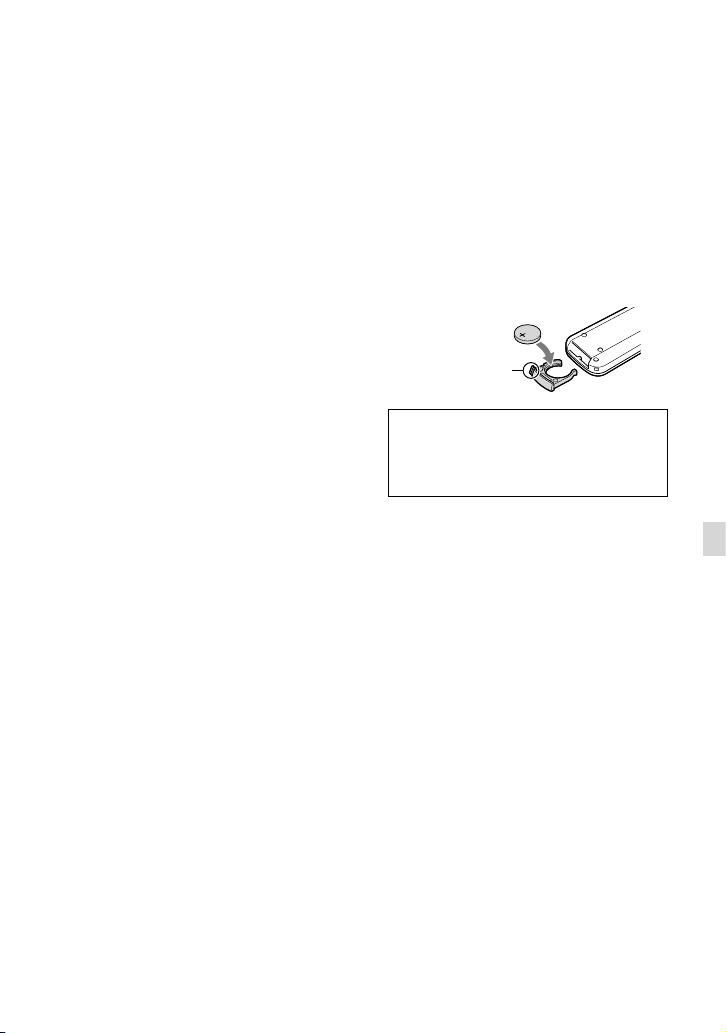
65
ES
Información complementaria
Carga de la batería recargable
preinstalada
La videocámara contiene una batería recargable
preinstalada para conservar la fecha, la hora y
otros ajustes aunque la videocámara esté apagada.
La batería recargable preinstalada siempre se
carga mientras la videocámara está conectada a la
toma de corriente de pared mediante el adaptador
de alimentación de ca o cuando la batería está
instalada. La batería recargable se descargará
completamente transcurridos aproximadamente
3 meses si no utiliza la videocámara en absoluto.
Utilice la videocámara después de cargar la
batería recargable preinstalada. Sin embargo,
aunque no esté cargada, el funcionamiento de la
videocámara no se verá afectado, siempre que no
se esté grabando la fecha.
Procedimientos
Conecte la videocámara a una toma de corriente
de pared con el adaptador de alimentación de ca
s
uministrado, y déjela así durante más de 24 hora.
Nota sobre la eliminación o el traspaso
de una tarjeta de memoria
Aunque borre los datos de la tarjeta de memoria
o la formatee en la videocámara o un ordenador,
es posible que los datos que contiene la tarjeta
no se borren por completo. Si cede la tarjeta
de memoria a otra persona, se recomienda que
elimine completamente la información que
contiene con un software de eliminación de
datos en un ordenador. Asimismo, cuando se
disponga a deshacerse de la tarjeta de memoria, se
recomienda destruirla físicamente.
Para cambiar la pila del mando a
distancia inalámbrico
Mientras presiona la pestaña, introduzca la
uña en la hendidura y tire del compartimiento
de la batería.
Coloque una pila nueva con la cara + orientada
hacia arriba.
Inserte el compartimiento de la batería en
el mando a distancia inalámbrico hasta que
encaje.
ADVERTENCIA
La pila puede explotar si no se manipula
correctamente. No la recargue o la desarme, ni
la arroje al fuego.
Cuando la pila de litio comience a agotarse, es
posible que el mando a distancia inalámbrico
no funcione correctamente o que su distancia
de funcionamiento se acorte. En este caso,
sustitúyala por una pila de litio de Sony
CR2025. Si utiliza otra pila, podría producirse
un incendio o una explosión.
Pestaña

66
ES
Especificaciones
Sistema
Formato de la señal:
NEX-VG900:
color NTSC, estándares EIA
Especificación de HDTV 1080/60i, 1080/60p
NEX-VG900E:
color PAL, estándares CCIR
Especificación de HDTV 1080/50i, 1080/50p
color NTSC, estándares EIA, especificación
de HDTV 1080/60i (solo en modo de
grabación 24p)
Formato de grabación de películas:
HD: compatible con el formato MPEG-4
AVC/H.264 AVCHD versión 2,0
STD: MPEG2-PS
Sistema de grabación de audio:
D
olby Digital de 2 canales/5,1 canales
Dolby Digital 5.1 Creator
Formato de archivo de fotografía
Compatible con DCF Ver.2,0
Compatible con Exif Ver.2,3
Compatible con MPF Baseline
Soporte de grabación (película/fotografía)
“Memory Stick PRO Duo”
Tarjeta SD (Clase 4 o más rápida)
Visor:
Visor electrónico: color
Tamaño de la pantalla: 1,3 cm (tipo 0,5)
N
úmero de píxeles efectivo: 2 359 296 puntos
(3 072
768)
Dispositivo de imagen: sensor CMOS de 36,1 mm
24,3 mm (35 mm a tamaño completo)
Píxeles de grabación (imágenes fijas de 3:2
JPEG):
m
áx. 24,0 mega (6 000
4 000) píxeles
Bruto: aprox. 24 660 000 píxeles
Efectivo (película, 16:9):
a
prox. 20 300 000 píxeles
Efectivo (fotografía, 16:9):
a
prox. 20 300 000 píxeles
Efectivo (fotografía, 3:2):
a
prox. 24 300 000 píxeles
Temperatura de color: [Auto], [Una pulsación],
[Interior] (3 200 K), [Exterior] (5 600 K),
manual (2 500 K – 9 900 K)
Iluminación mínima
8 lx (lux) (de manera predeterminada,
velocidad de obturación de 1/60 de segundo
(NEX-VG900) / 1/50 de segundo
(NEX-VG900E), ganancia: 30 dB, apertura
F3,5)
Conectores de entrada y salida
Conector remoto de A/V: toma de componente/
salida de vídeo y audio
Toma HDMI OUT: conector HDMI mini
Toma USB: mini-AB
NEX-VG900E: solo salida
Toma de auriculares: minitoma estéreo
(
3,5 mm)
Toma de entrada de MIC: minitoma estéreo
(
3,5 mm)
Pantalla de cristal líquido
Imagen: 7,5 cm (tipo 3,0, formato 16:9)
Número total de píxeles: 921 600 (1 920
480)
General
Requisitos de alimentación: cc de 6,8 V/7,2 V
(batería); cc de 8,4 V (adaptador de
alimentación de ca)
Promedio del consumo de energía:
Con la cámara en modo de grabación
utilizando el visor en un nivel de brillo
normal:
HD: 5,2
W STD: 5,0 W
Con la cámara en modo de grabación
utilizando la pantalla LCD en un nivel de
brillo normal:
HD: 4,7
W STD: 4,5 W
Temperatura de funcionamiento: de 0
C a 40 C
Temperatura de almacenamiento: de –20
C a
+60
C
Dimensiones (aprox.):
105
mm
130 mm 223 mm (an/al/prf),
incluidas las partes salientes
105 mm
130 mm 227 mm (an/al/prf),
incluidas las partes salientes, la batería
suministrada (NP-FV70) y el adaptador de
montaje (LA-EA3)
Peso (aprox.)
Solo el cuerpo de la cámara:
a
prox. 825 g
Al grabar:
a
prox. 1 030 g
(Con la batería suministrada (NP-FV70) y el
adaptador de montaje LA-EA3)
67
ES
Información complementaria
Adaptador de alimentación de ca
AC-L200D
Requisitos de alimentación: ca de 100 V a 240 V
50 Hz/60 Hz
Consumo de corriente: 0,35 A - 0,18 A
Consumo de energía: 18 W
Tensión de salida: cc de 8,4 V
Corriente de salida: 1,7 A
Temperatura de funcionamiento: de 0
C a 40 C
Temperatura de almacenamiento: de –20
C a
+60
C
Dimensiones (aprox.): 48 mm
29 mm 81 mm
(an/al/prf), sin las partes salientes
P
eso (aprox.): 150 g sin el cable de alimentación
Batería recargable NP-FV70
Tensión de salida máxima: cc de 8,4 V
Tensión de salida: cc de 6,8 V
Tensión de carga máxima: cc de 8,4 V
Corriente de carga máxima: 3,0 A
Capacidad
N
ormal: 14,0 Wh (2 060 mAh)
Mínima: 13,0 Wh (1 960 mAh)
Tipo: iones de litio
Adaptador de montura (LA-EA3)
Dimensiones (aprox.):
76 mm
69 mm 35 mm (an/al/prf)
Peso (aprox.)
105 g
El diseño y las especificaciones de la videocámara
y sus accesorios están sujetos a cambios sin previo
aviso.
Fabricado bajo licencia de Dolby Laboratories.
Marcas comerciales
“Handycam” y son marcas
comerciales registradas de Sony Corporation.
“AVCHD Progressive” y el logotipo de “AVCHD
Progressive” son marcas comerciales de
Panasonic Corporation y Sony Corporation.
“Memory Stick”, “ ”, “Memory Stick Duo”,
“ ”, “Memory Stick PRO Duo”,
“
”, “Memory Stick PRO-
HG Duo”, “
”, “Memory
Stick XC-HG Duo”, “
”,
“MagicGate”, “
”, “MagicGate
Memory Stick” y “MagicGate Memory Stick
Duo” son marcas comerciales o marcas
comerciales registradas de Sony Corporation.
“InfoLITHIUM” es una marca comercial de
Sony Corporation.
“BRAVIA” es una marca comercial registrada de
Sony Corporation.
Los discos Blu-ray Disc y Blu-ray son
marcas comerciales de Blu-ray Disc Association.
Dolby y el símbolo de double-D son marcas
comerciales de Dolby Laboratories.
HDMI, el logotipo de HDMI y High-Definition
Multimedia Interface son marcas comerciales
o marcas comerciales registradas de HDMI
Licensing LLC en los Estados Unidos y en otros
países.
Microsoft, Windows, Windows Vista y DirectX
son marcas comerciales registradas o marcas
comerciales de Microsoft Corporation en los
Estados Unidos y/o en otros países.
Mac y Mac OS son marcas comerciales
r
egistradas de Apple Inc. en los EE. UU. y en
otros países.
Intel, Intel Core y Pentium son marcas
comerciales o marcas comerciales registradas
de Intel Corporation o de sus subsidiarias en
Estados Unidos y en otros países.
“
” y “PlayStation” son marcas comerciales
registradas de Sony Computer Entertainment
Inc..
Adobe, el logotipo de Adobe y Adobe Acrobat
son marcas comerciales registradas o marcas
comerciales de Adobe Systems Incorporated en
los Estados Unidos y/o en otros países.
El logotipo de SDXC es una marca comercial de
SD-3C, LLC.
MultiMediaCard es una marca comercial de
MultiMediaCard Association.

68
ES
Todos los demás nombres de productos
mencionados en este manual pueden ser marcas
comerciales o marcas comerciales registradas de
sus respectivas compañías. Además,
y en
este manual no se mencionan de forma expresa en
todos los casos.
Disfrute aún más de la PlayStation 3 descargando
la aplicación para PlayStation 3 desde PlayStation
Store (donde esté disponible).
La aplicación para PlayStation 3 requiere una
cuenta de PlayStation Network y la descarga de
la aplicación.
Accesible en las zonas donde la PlayStation Store
esté disponible.
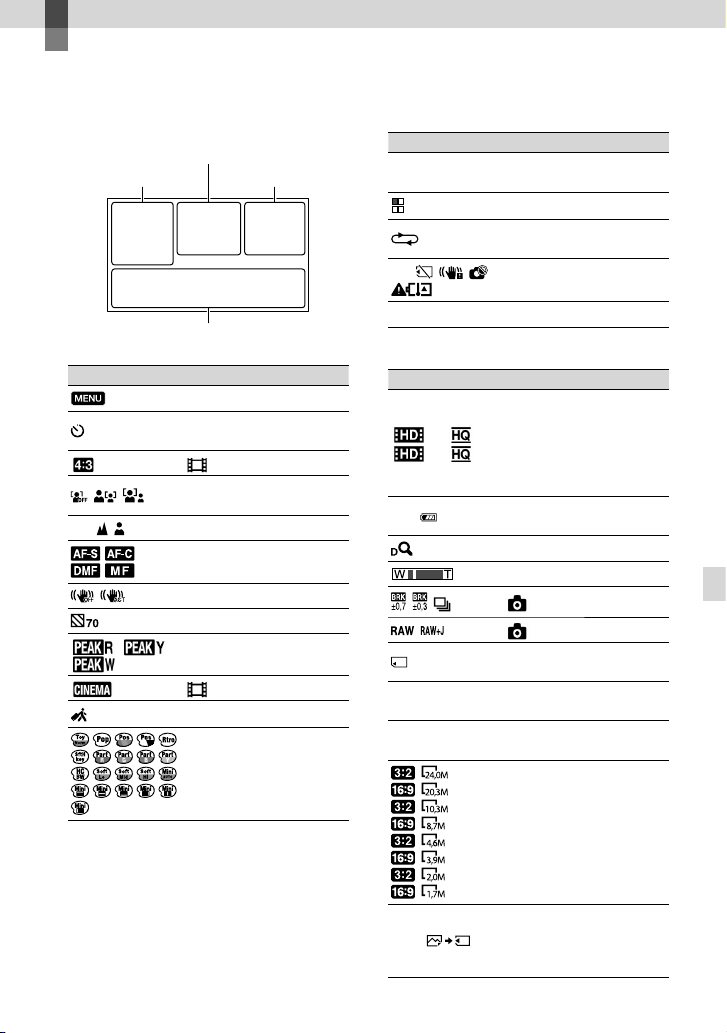
69
ES
Referencia rápida
Referencia rápida
Indicadores de la
pantalla
Izquierda
Indicador Significado
Botón MENU
Grabación con disparador
automático
Modo panorámico
[Detección de cara]
ajustado en [Desactivar]
Enfoque manual
/ /
/
Modo de enfoque
SteadyShot desactivado
Cebra
Atenuación
Efecto cine
Destino
Efecto foto
Central
Indicador Significado
[ESPERA]/
[GRAB.]
Estado de la grabación
Procesando
Presentación de
diapositivas ajustada
Advertencia
Modo de reproducción
Derecha
Indicador Significado
60i
50i
Calidad de grabación de
imágenes (HD/STD),
velocidad de fotogramas
(60p/60i/24p), (50p/50i/
25p) y modo de grabación
(PS/FX/FH/HQ/LP)
60%
Carga restante de la
batería
2,0
Zoom digital
Zoom óptico
Modo manejo
RAW/JPEG
Soporte de grabación/
reproducción/edición
0:00:00
Contador (hora:minuto:
segundo)
00Min
Tiempo de grabación
restante estimado
Tamaño de fotografía
9999
Número aproximado de
fotografías que se pueden
grabar y tamaño de
fotografía
Izquierda Derecha
Central
Parte inferior
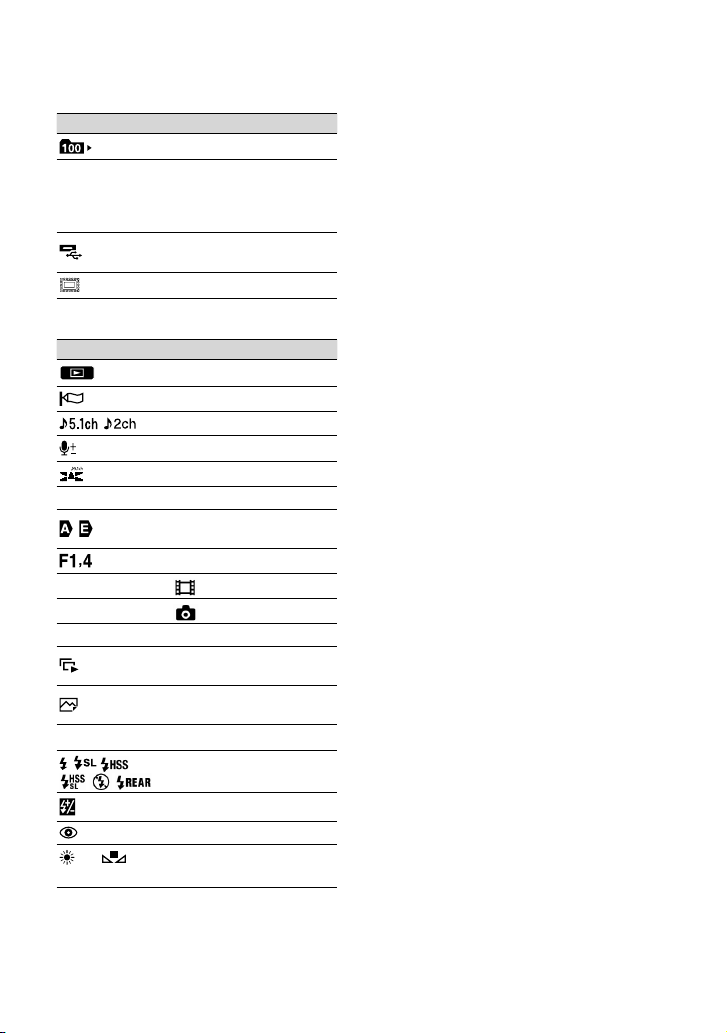
70
ES
Indicador Significado
Carpeta de reproducción
100/112
Película o fotografía actual
en reproducción/número
total de películas o
fotografías grabadas
Hay un dispositivo de
soporte externo conectado
Capt. tamaño APS-C
Parte inferior
Indicador Significado
Botón Ver Imágenes
Reducc. ruido viento
Modo audio
Nivel grabac. audio
Visual. nivel aud.
EV Desplazamiento AE
Exposición Automática/
Exposición Manual
IRIS
12dB
Ganancia
ISO200
ISO
4000 Velocidad obturador
Botón de presentación de
diapositivas
101-0005
Nombre del archivo de
datos
Imagen protegida
Flash
Nivel de flash
Reduc. ojos rojos
5500K A3 G3
Balance blancos
Los indicadores y sus posiciones son
aproximados y pueden ser distintos de los que
se visualizan en realidad.
Es posible que no aparezcan algunos
indicadores, en función del modelo de la
videocámara.
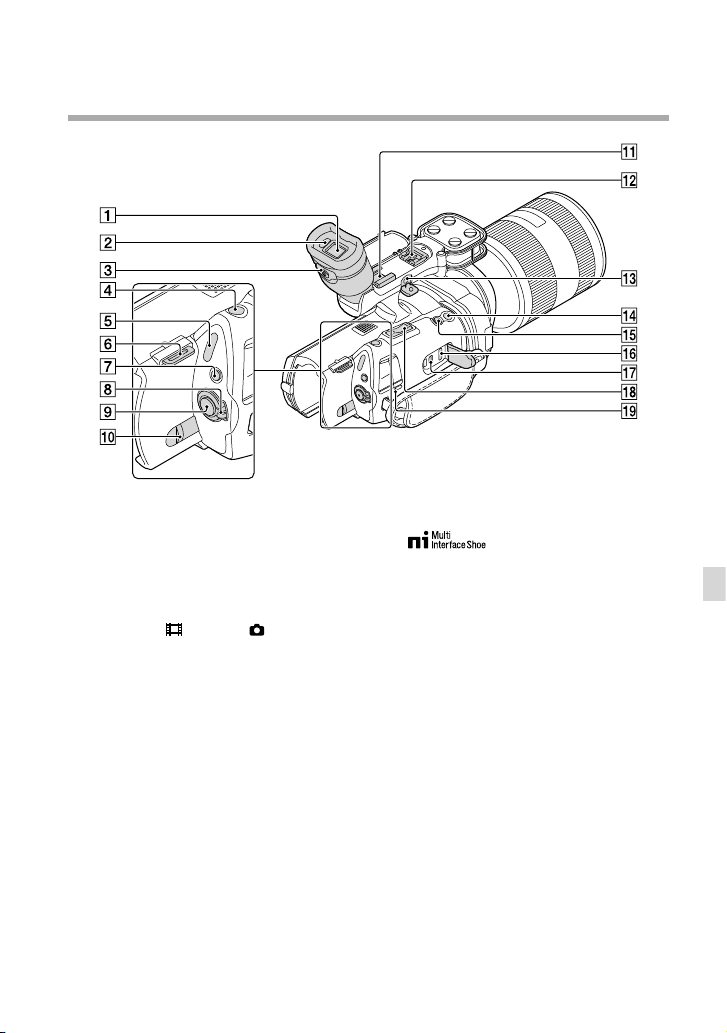
71
ES
Referencia rápida
Componentes y controles
Visor (pág. 23)
Sensor ocular
Palanca de ajuste de la lente del visor
(pág. 23)
Botón PHOTO (pág. 30)
Indicadores (película)/ (fotografía)
(pág. 28)
Gancho para la correa de la bandolera
Botón MODE (pág. 28)
Interruptor ON/OFF (alimentación)
(pág. 19)
Botón START/STOP (pág. 28)
Palanca BATT (liberación de la batería)
(pág. 13)
Zapata de accesorios
Puede acoplar un micrófono de pistola (se
vende por separado) o similar. Si acopla
accesorios a la zapata de accesorios y a
la zapata de interfaz múltiple a la vez, los
accesorios podrían colisionar entre sí y
resultar dañados.
Zapata de interfaz múltiple
Si desea obtener información acerca de
accesorios compatibles con la zapata de
interfaz múltiple, visite el sitio web de Sony
en su zona o consulte con su distribuidor de
Sony o con un centro de servicio técnico local
autorizado de Sony.
No se garantiza el funcionamiento con
accesorios de otros fabricantes.
Toma MIC (PLUG IN POWER)
Si se conecta un micrófono externo (se vende
por separado), este tendrá prioridad ante
el micrófono incorporado o un micrófono
acoplado a la zapata de interfaz múltiple.
Botón START/STOP en la empuñadura
Utilice este botón para grabar desde un ángulo
distinto.
Botón EXPANDED FOCUS
El botón EXPANDED FOCUS tiene un punto
táctil. Utilícelo como guía para usar la cámara.
Toma HDMI OUT (pág. 36)


73
ES
Referencia rápida
Micrófono
Gancho para la correa de la bandolera
Botón IRIS
Botón GAIN/ISO
Botón SHUTTER SPEED
Botón MANUAL (pág. 31)
Dial MANUAL (pág. 31)
Pantalla de cristal líquido/panel táctil
Si gira el panel de cristal líquido 180
grados, podrá cerrarlo con la pantalla de
cristal líquido mirando hacia fuera. Este
procedimiento resulta conveniente para las
operaciones de reproducción.
Botón RESET
Pulse RESET con un objeto puntiagudo.
Pulse RESET para inicializar todos los ajustes,
incluido el reloj.
Altavoz
Botón ZEBRA
Botón (Ver Imágenes) (pág. 32)
Botón DISPLAY (pág. 22)
Botón PEAKING
Botón PROGRAM AE
Botón WHITE BALANCE
Indicador de acceso de tarjeta de
memoria (pág. 25)
Cuando el indicador está encendido o
parpadea, la videocámara está grabando o
leyendo datos.
Ranura para tarjeta de memoria
(pág. 25)
Botón FOCUS
Terminal de la batería (pág. 12)
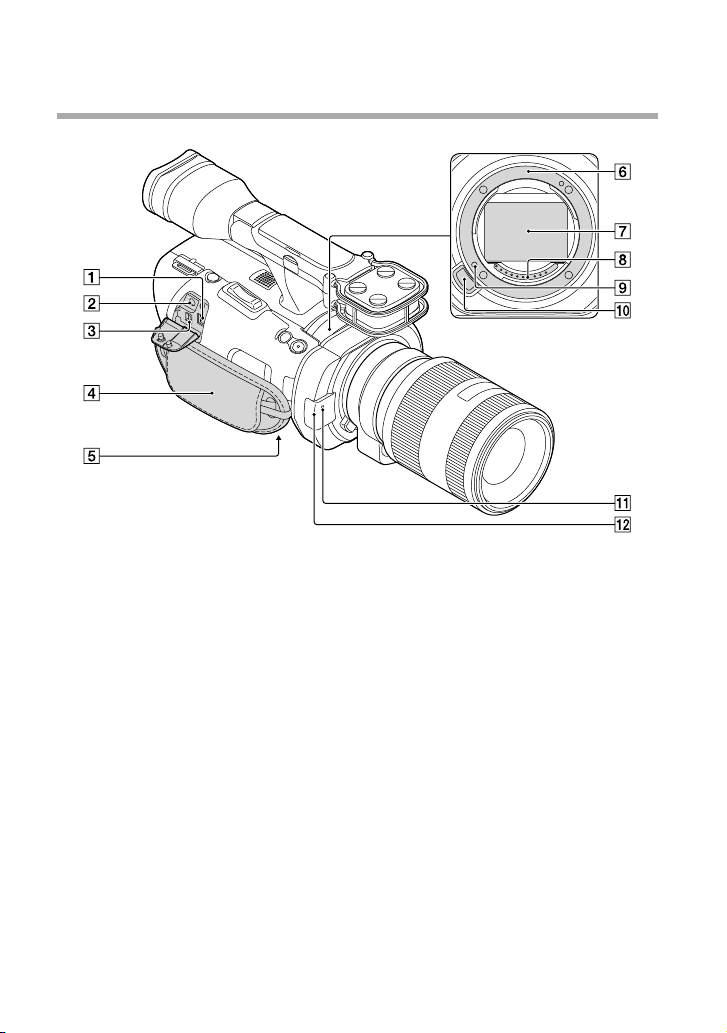
74
ES
Toma de entrada de cc (pág. 12)
Toma (auriculares)
Utilice auriculares con minitoma estéreo.
Conector remoto de A/V (pág. 36)
Este terminal sirve de interfaz para conectar
la videocámara con otro dispositivo. Puede
emitir imágenes fijas, películas y sonido
hacia un televisor conectado, o controlar la
videocámara cuando esté montada en un
trípode de vídeo con mando a distancia.
Correa de sujeción (pág. 27)
Receptáculo del trípode (pág. 31)
Montura
Sensor de imagen
No toque ni ensucie el sensor de imagen.
Contactos del objetivo
No toque ni ensucie los contactos del objetivo.
Pin de bloqueo del objetivo
Botón de liberación del objetivo
Indicador de grabación de la cámara
El indicador parpadea cuando la capacidad
restante del soporte de grabación o la energía
de la batería son bajos.
Sensor remoto (pág. 56)

75
ES
Referencia rápida
Encontrará las listas de
menús en las páginas de la
54 a la 56.
Índice
Instalar .........................................42
L
Language Setting ........................21
M
Mantenimiento ...........................63
“Memory Stick” ...........................26
“Memory Stick PRO Duo”.........26
“Memory Stick PRO-HG Duo”
.......................................................26
“Memory Stick XC-HG Duo”
.......................................................26
Menús ...........................................54
Miniatura .....................................39
O
Objetivo .......................................15
P
Películas .................................28, 34
PlayMemories Home..................45
Precauciones ................................63
R
Reproducción ..............................32
RESET ..........................................73
S
Sistema informático ...................41
Software .......................................42
Solución de problemas ...............58
Soporte de grabación .................25
Soporte externo ..........................47
T
Televisor .......................................36
Tiempo de grabación de
películas/número de fotografías
que se pueden grabar .................61
Tiempo de grabación y
reproducción ...............................61
Toma de corriente de pared ......12
Totalmente cargada ....................12
Trípode ...................................31, 74
V
VBR ..............................................61
Visualización de autodiagnóstico
.......................................................59
W
Windows ......................................41
A
Ajuste de la fecha y la hora ........19
Ajuste del reloj ............................19
Ajustes de soporte .......................25
B
Batería ..........................................12
Borrar ...........................................39
C
Cable de conexión de A/V
.................................................37, 51
Carga de la batería ......................12
Carga de la batería en el
extranjero .....................................14
Código datos ...............................20
Conexión .....................................36
Copiar ..........................................47
Cuidados ......................................63
D
Dial MANUAL ............................31
E
Encendido....................................19
Encendido de la videocámara
.......................................................19
Equipo ..........................................41
Especificaciones ..........................66
F
Fecha/hora ...................................20
Fotografías .............................29, 35
G
Grabación ....................................27
Grabadora de discos ...................50
Guardar imágenes en un soporte
externo .........................................47
Guía práctica de “Handycam”
.......................................................57
I
Image Data Converter ................45
Indicadores de advertencia .......59
Indicadores de la pantalla ..........69
Índice de eventos ........................32