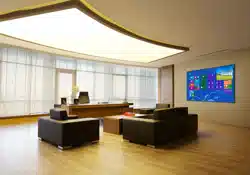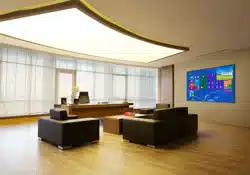
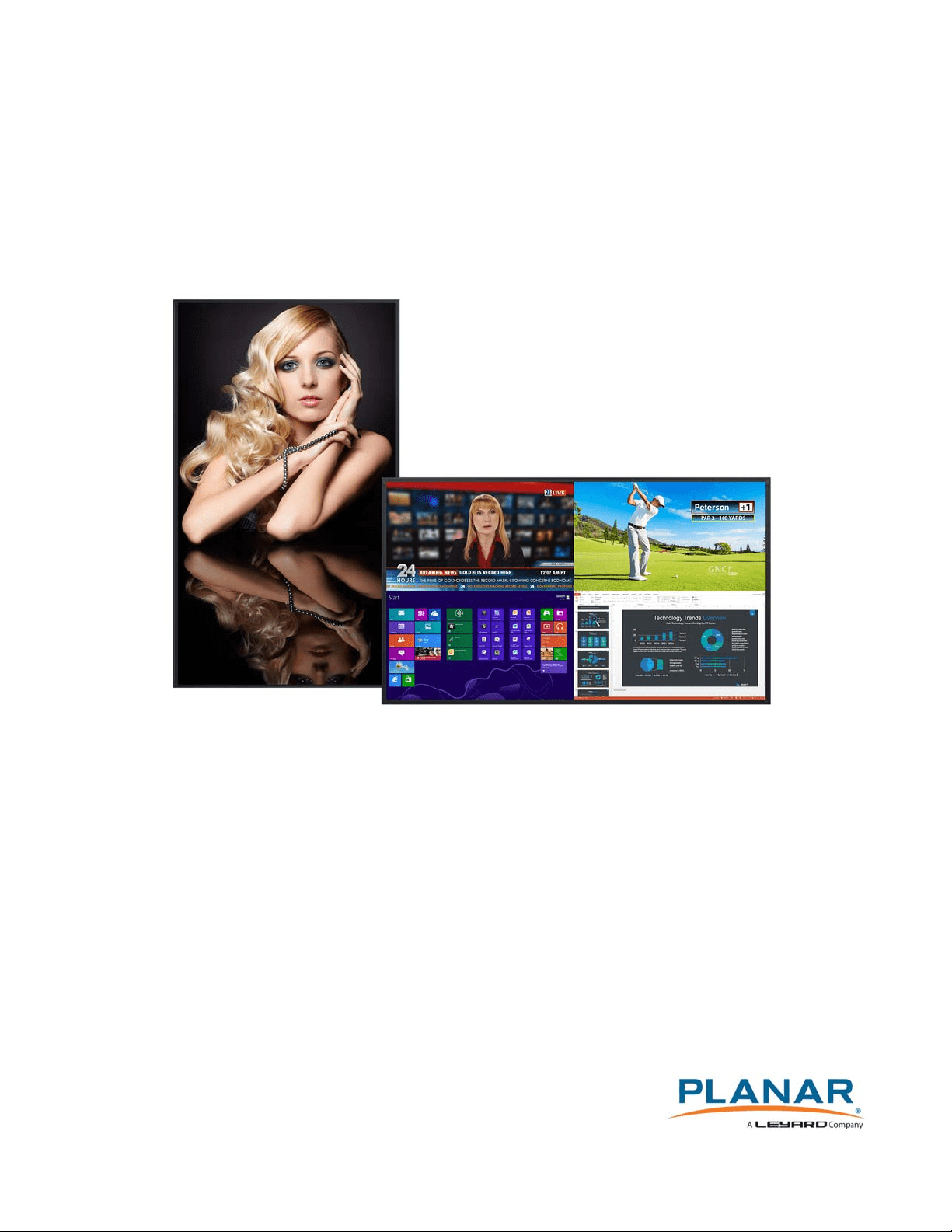
Planar UltraRes Series
User Manual
UR7551-MX
UR8651-MX
UR9851

Copyright © 19 Dec 2016 by Planar Systems, Inc. All rights reserved.
Contents of this publication may not be reproduced in any form without permission of Planar
Systems, Inc.
Trademark Credits
Windows™ is a trademark of Microsoft Corp.
All other companies are trademarks or registered trademarks of their respective companies.
Disclaimer
The information contained in this document is subject to change without notice. Planar
Systems, Inc. makes no warranty of any kind with regard to this material. While every
precaution has been taken in the preparation of this manual, the Company shall not be liable
for errors or omissions contained herein or for incidental or consequential damages in
connection with the furnishing, performance, or use of this material.
Warranty and Service Plans
Planar warranty and service plans will help you maximize your investment by providing great
support, display uptime, and performance optimization. From post-sale technical support to
a full suite of depot services, our services are performed by trained Planar employees. When
you purchase a Planar product, you get more than a display, you get the service and support
you need to maximize your investment. To find the latest warranty and service information
regarding your Planar product, please visit http://www.planar.com/support
Part Number: 020-1301-01B

Planar UltraRes Series User Manual i
Contents
Introduction . . . . . . . . . . . . . . . . . . . . . . . . . . . . . . . . . . . . . . . . . . . . . . . . . . . . . . . . . . . . . . . . . . . . . . . . . . . . . . . . . . . . . . .1
Safety Information . . . . . . . . . . . . . . . . . . . . . . . . . . . . . . . . . . . . . . . . . . . . . . . . . . . . . . . . . . . . . . . . . . . . . . . . . . . . . . .2
Safety Precautions. . . . . . . . . . . . . . . . . . . . . . . . . . . . . . . . . . . . . . . . . . . . . . . . . . . . . . . . . . . . . . . . . . . . . . . . . . . . . . . .2
Recommended Usage . . . . . . . . . . . . . . . . . . . . . . . . . . . . . . . . . . . . . . . . . . . . . . . . . . . . . . . . . . . . . . . . . . . . . . . . . . . .4
Mounting with a VESA Mount. . . . . . . . . . . . . . . . . . . . . . . . . . . . . . . . . . . . . . . . . . . . . . . . . . . . . . . . . . . . . . . . . . . . .6
Cleaning the Display . . . . . . . . . . . . . . . . . . . . . . . . . . . . . . . . . . . . . . . . . . . . . . . . . . . . . . . . . . . . . . . . . . . . . . . . . . . . .6
Unpacking and Checking Accessories. . . . . . . . . . . . . . . . . . . . . . . . . . . . . . . . . . . . . . . . . . . . . . . . . . . . . . . . . . . . . .7
Package Contents . . . . . . . . . . . . . . . . . . . . . . . . . . . . . . . . . . . . . . . . . . . . . . . . . . . . . . . . . . . . . . . . . . . . . . . . . . . . . . . .7
Accessory Kit . . . . . . . . . . . . . . . . . . . . . . . . . . . . . . . . . . . . . . . . . . . . . . . . . . . . . . . . . . . . . . . . . . . . . . . . . . . . . . . . . . . . .8
Planar UltraRes Series - Standard Inputs . . . . . . . . . . . . . . . . . . . . . . . . . . . . . . . . . . . . . . . . . . . . . . . . . . . . . . . . . . .9
Installing the Displays . . . . . . . . . . . . . . . . . . . . . . . . . . . . . . . . . . . . . . . . . . . . . . . . . . . . . . . . . . . . . . . . . . . . . . . . . . . 10
Installing the Planar Profile Mounting System . . . . . . . . . . . . . . . . . . . . . . . . . . . . . . . . . . . . . . . . . . . . . . . . . . . 11
Installing OPS Expansion (Optional) . . . . . . . . . . . . . . . . . . . . . . . . . . . . . . . . . . . . . . . . . . . . . . . . . . . . . . . . . . . . . 24
Supported Graphics Cards . . . . . . . . . . . . . . . . . . . . . . . . . . . . . . . . . . . . . . . . . . . . . . . . . . . . . . . . . . . . . . . . . . . . . . 25
Operating the Display . . . . . . . . . . . . . . . . . . . . . . . . . . . . . . . . . . . . . . . . . . . . . . . . . . . . . . . . . . . . . . . . . . . . . . . . . . . 26
OSD Keypad. . . . . . . . . . . . . . . . . . . . . . . . . . . . . . . . . . . . . . . . . . . . . . . . . . . . . . . . . . . . . . . . . . . . . . . . . . . . . . . . . . . . 26
Remote Control Receiver . . . . . . . . . . . . . . . . . . . . . . . . . . . . . . . . . . . . . . . . . . . . . . . . . . . . . . . . . . . . . . . . . . . . . . . 27
LED Indicators. . . . . . . . . . . . . . . . . . . . . . . . . . . . . . . . . . . . . . . . . . . . . . . . . . . . . . . . .
. . . . . . . . . . . . . . . . . . . . . . . . . 28
Using the Display in Portrait Mode . . . . . . . . . . . . . . . . . . . . . . . . . . . . . . . . . . . . . . . . . . . . . . . . . . . . . . . . . . . . . . 28
Using the Display in Flat or Tilted Orientation . . . . . . . . . . . . . . . . . . . . . . . . . . . . . . . . . . . . . . . . . . . . . . . . . . . 28
Using the Remote Control . . . . . . . . . . . . . . . . . . . . . . . . . . . . . . . . . . . . . . . . . . . . . . . . . . . . . . . . . . . . . . . . . . . . . . 29
IR Command Protocol . . . . . . . . . . . . . . . . . . . . . . . . . . . . . . . . . . . . . . . . . . . . . . . . . . . . . . . . . . . . . . . . . . . . . . . . . . 30
Turning the Display On . . . . . . . . . . . . . . . . . . . . . . . . . . . . . . . . . . . . . . . . . . . . . . . . . . . . . . . . . . . . . . . . . . . . . . . . . 33

Table of Contents
ii Planar UltraRes Series User Manual
Turning the Display Off. . . . . . . . . . . . . . . . . . . . . . . . . . . . . . . . . . . . . . . . . . . . . . . . . . . . . . . . . . . . . . . . . . . . . . . . . .33
Adjusting the Volume . . . . . . . . . . . . . . . . . . . . . . . . . . . . . . . . . . . . . . . . . . . . . . . . . . . . . . . . . . . . . . . . . . . . . . . . . . .33
Selecting Layouts and Input Sources. . . . . . . . . . . . . . . . . . . . . . . . . . . . . . . . . . . . . . . . . . . . . . . . . . . . . . . . . . . . .34
Navigating Through the Menus. . . . . . . . . . . . . . . . . . . . . . . . . . . . . . . . . . . . . . . . . . . . . . . . . . . . . . . . . . . . . . . . . .35
Using the Touch Screen . . . . . . . . . . . . . . . . . . . . . . . . . . . . . . . . . . . . . . . . . . . . . . . . . . . . . . . . . . . . . . . . . . . . . . . . .68
Touchscreen MultiTouch Driver Installation . . . . . . . . . . . . . . . . . . . . . . . . . . . . . . . . . . . . . . . . . . . . . . . . . . . . . .68
Touchscreen (PQLabs) MultiTouch Platform Content . . . . . . . . . . . . . . . . . . . . . . . . . . . . . . . . . . . . . . . . . . . . .68
Uninstalling the MultiTouch Driver . . . . . . . . . . . . . . . . . . . . . . . . . . . . . . . . . . . . . . . . . . . . . . . . . . . . . . . . . . . . . .69
Planar UltraRes Remote Monitoring Software . . . . . . . . . . . . . . . . . . . . . . . . . . . . . . . . . . . . . . . . . . . . . . . . . . . .70
Remote Monitoring Home. . . . . . . . . . . . . . . . . . . . . . . . . . . . . . . . . . . . . . . . . . . . . . . . . . . . . . . . . . . . . . . . . . . . . . .70
Remote Monitoring System Information . . . . . . . . . . . . . . . . . . . . . . . . . . . . . . . . . . . . . . . . . . . . . . . . . . . . . . . . .70
Remote Monitoring Inputs and Views. . . . . . . . . . . . . . . . . . . . . . . . . . . . . . . . . . . . . . . . . . . . . . . . . . . . . . . . . . . .71
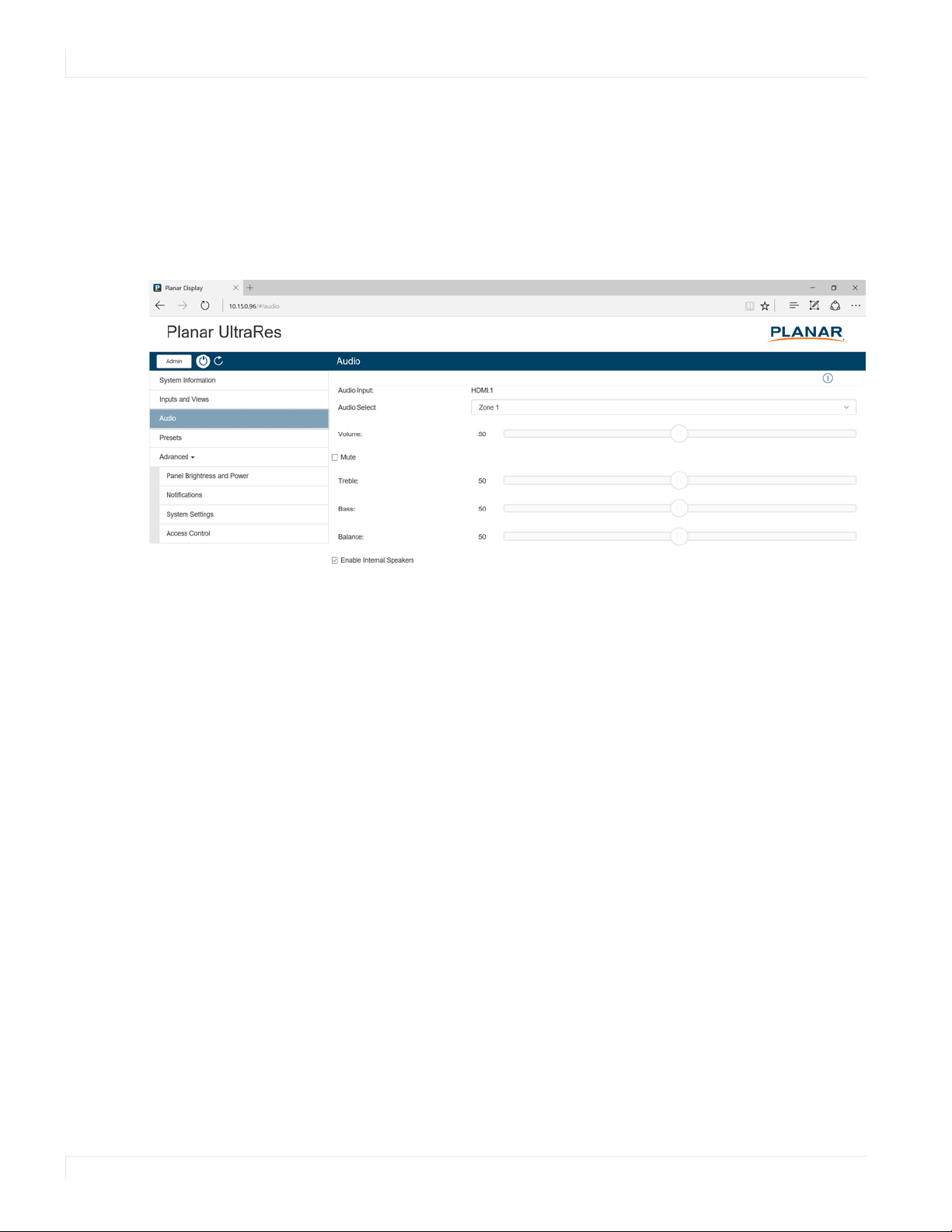
Remote Monitoring Audio. . . . . . . . . . . . . . . . . . . . . . . . . . . . . . . . . . . . . . . . . . . . . . . . . . . . . . . . . . . . . . . . . . . . . . .72
Remote Monitoring Presets. . . . . . . . . . . . . . . . . . . . . . . . . . . . . . . . . . . . . . . . . . . . . . . . . . . . . . . . . . . . . . . . . . . . . .73
Remote Monitoring Panel Brightness and Power . . . . . . . . . . . . . . . . . . . . . . . . . . . . . . . . . . . . . . . . . . . . . . . . .74
Remote Monitoring Notifications . . . . . . . . . . . . . . . . . . . . . . . . . . . . . . . . . . . . . . . . . . . . . . . . . . . . . . . . . . . . . . . .75
Remote Monitoring System Settings . . . . . . . . . . . . . . . . . . . . . . . . . . . . . . . . . . . . . . . . . . . . . . . . . . . . . . . . . . . . .76
Remote Monitoring Access Control . . . . . . . . . . . . . . . . . . . . . . . . . . . . . . . . . . . . . . . . . . . . . . . . . . . . . . . . . . . . . .77
External Control . . . . . . . . . . . . . . . . . . . . . . . . . . . . . . . . . . . . . . . . . . . . . . . . . . . . . . . . . . . . . . . . . . . . . . . . . . . . . . . . . .78
Signal Compatibility . . . . . . . . . . . . . . . . . . . . . . . . . . . . . . . . . . . . . . . . . . . . . . . . . . . . . . . . . . . . . . . . . . . . . . . . . . . . . .79
Color Subsampling Support . . . . . . . . . . . . . . . . . . . . . . . . . . . . . . . . . . . . . . . . . . . . . . . . . . . . . . . . . . . . . . . . . . . . . .82
Specifications. . . . . . . . . . . . . . . . . . . . . . . . . . . . . . . . . . . . . . . . . . . . . . . . . . . . . . . . . . . . . . . . . . . . . . . . . . . . . . . . . . . . .83
Dimensions . . . . . . . . . . . . . . . . . . . . . . . . . . . . . . . . . . . . . . . . . . . . . . . . . . . . . . . . . . . . . . . . . . . . . . . . . . . . . . . . . . . . . . .86
UR7551-MX . . . . . . . . . . . . . . . . . . . . . . . . . . . . . . . . . . . . . . . . . . . . . . . . . . . . . . . . . . . . . . . . . . . . . . . . . . . . . . . . . . . . .86
UR7551-MX Touch . . . . . . . . . . . . . . . . . . . . . . . . . . . . . . . . . . . . . . . . . . . . . . . . . . . . . . . . . . . . . . . . . . . . . . . . . . . . . .87

Table of Contents
Planar UltraRes Series User Manual iii
UR8651-MX . . . . . . . . . . . . . . . . . . . . . . . . . . . . . . . . . . . . . . . . . . . . . . . . . . . . . . . . . . . . . . . . . . . . . . . . . . . . . . . . . . . . 88
UR8651-MX Touch . . . . . . . . . . . . . . . . . . . . . . . . . . . . . . . . . . . . . . . . . . . . . . . . . . . . . . . . . . . . . . . . . . . . . . . . . . . . . 89
UR9851 . . . . . . . . . . . . . . . . . . . . . . . . . . . . . . . . . . . . . . . . . . . . . . . . . . . . . . . . . . . . . . . . . . . . . . . . . . . . . . . . . . . . . . . . 90
UR9851 Touch . . . . . . . . . . . . . . . . . . . . . . . . . . . . . . . . . . . . . . . . . . . . . . . . . . . . . . . . . . . . . . . . . . . . . . . . . . . . . . . . . 91
Troubleshooting During Installation. . . . . . . . . . . . . . . . . . . . . . . . . . . . . . . . . . . . . . . . . . . . . . . . . . . . . . . . . . . . . 92
Error Codes . . . . . . . . . . . . . . . . . . . . . . . . . . . . . . . . . . . . . . . . . . . . . . . . . . . . . . . . . . . . . . . . . . . . . . . . . . . . . . . . . . . . 92
Symptoms, Possible Causes and Solutions . . . . . . . . . . . . . . . . . . . . . . . . . . . . . . . . . . . . . . . . . . . . . . . . . . . . . . 93
Accessing Planar’s Technical Support Website . . . . . . . . . . . . . . . . . . . . . . . . . . . . . . . . . . . . . . . . . . . . . . . . . . . 96

Table of Contents
iv Planar UltraRes Series User Manual

Planar UltraRes Series User Manual 1
Introduction
The Planar® UltraRes™ Series displays raise the bar for commercial 4K. Offered in 75”,
86”, and 98”, these Ultra HD displays produce resolution and picture quality never
before seen in large format LCD displays. Designed specifically for resolution-rich
commercial applications, Planar UltraRes Series displays offer the image quality,
connectivity, industrial design and configuration options required in high profile
offices, leading control rooms, collaboration rooms and digital branding installations.
Features of the Planar UltraRes Series displays include:
• Best-in-class image and color quality for native and upscaled content
• Cutting edge video performance supporting up to 4K @ 60Hz with
DisplayPort 1.2 and HDMI 2.0
• Planar® MediaPlex™ Plus Processing for advanced multi-source viewing and
image adjustment control
• Next generation 4K compatibility
• Advanced design for function and style
• Fully integrated multi-touch models available
• Fanless, whisper-quiet

Safety Information
2 Planar UltraRes Series User Manual
Safety Information
Before using the Planar UltraRes Series, please read this manual thoroughly to help
protect against damage to property, and to ensure personal safety.
• Be sure to observe the following instructions.
• For your safety, be sure to observe ALL the warnings detailed in this manual.
• For installation or adjustment, please follow this manual’s instructions, and refer
all servicing to qualified service personnel.
Safety Precautions
• If water is spilled or objects are dropped inside the display, remove the
power plug from the outlet immediately. Failure to do so may result in fire or
electrical shock. Contact your dealer for inspection.
• If the display is dropped or the chassis is damaged, remove the power plug
from the outlet immediately. Failure to do so may result in fire or electrical
shock. Contact your dealer for inspection.
WARNING! Wall mounts must be secure.
• If the display is hung on a wall, the wall must be strong enough to hold it.
Simply mounting it to wallboard or wall paneling won’t be adequate or safe.
Caution: The screen could be damaged by heavy pressure.
• Slight pressure on the LCD will cause distortion of the image. Heavier
pressure will cause permanent damage. Displays should be mounted where
viewers cannot touch the screen or insert small objects in the openings that will
create hazards by contacting bare conductive parts.
Caution: The front polarizer is soft and subject to scratches from sharp objects.
• The polarizer is a thin sheet of film laminated to the outside layer of glass
on the LCD screen. Take care when handling items near the screen.
• If the power cord or plug is damaged or becomes hot, turn off the main
power switch of the display. Make sure the power plug has cooled down
and remove the power plug from the outlet. If the display is still used in this
condition, it may cause a fire or an electrical shock. Contact your dealer for a
replacement.

Important Safety Instructions
Planar UltraRes Series User Manual 3
Important Safety Instructions
1 Read these instructions.
2 Keep these instructions.
3 Heed all warnings.
4 Follow all instructions.
5 Do not use the display near water.
6 Clean the LCD screens with an LCD screen cleaner or LCD wipes.
7 Do not install near any heat sources such as radiators, heat registers, stoves or
other apparatus (including amplifiers) that produce heat.
8 Do not defeat the safety purpose of the polarized or grounding type plug. A
polarized plug has two blades with one wider than the other. A grounding type
plug has two blades and a third grounding prong. The wide blade or the third
prong is provided for your safety. When the provided plug does not fit into your
outlet, consult an electrician for the replacement of the obsolete outlet.
9 Protect the power cord from being walked on or pinched, particularly at plugs,
convenience receptacles and the point where they exit from any of the displays.
10 Only use the attachments/accessories specified by the manufacturer.
11 Unplug all displays during lightning storms or when unused for long periods of
time.
12 You must follow all National Electrical Code regulations. In addition, be aware of
local codes and ordinances when installing your system.
13 Refer all servicing to qualified service personnel. Servicing is required when any
of the displays have been damaged in any way. For example, if the AC power cord
or plug is damaged, liquid has been spilled or objects have fallen into a display,
the displays have been exposed to rain or moisture, do not operate normally or
have been dropped.
14 Keep the packing material in case the equipment should ever need to be
shipped.

Recommended Usage
4 Planar UltraRes Series User Manual
Recommended Usage
In order to get the most out of your LCD, use the following recommended guidelines
to optimize the display.
Burn-In Versus Temporary Image Retention
Burn-in causes the screen to retain an image essentially forever, with little or no way
to correct the problem. Under normal use, an LCD will not experience burn-in, as
plasma displays do, nor will it retain images in any way.
Normal use of an LCD is defined as displaying continuously changing video patterns
or images. However, LCDs can experience temporary image retention when
recommended usage guidelines are not followed.
What is Temporary Image Retention?
Temporary image retention (TIR) can occur when a static image is displayed
continuously for extended periods of time (12 hours or longer). An electrical charge
differential may build up between the electrodes of the liquid crystal, which causes a
negative-color video image (color-inverted and brightness-inverted version of the
previous image) to be retained when a new image is displayed. This behavior is true
for any LCD device from any LCD manufacturer.
TIR is not covered under warranty. See standard warranty terms and conditions for
details. Here are some guidelines to help you avoid TIR:
• Use the LCD to show a screen saver, moving images or still pictures that change
regularly. When using high-contrast images, reposition the images frequently.
• Turn off the LCD when it is not in use. To use your source computer’s Power
Options Properties, set up your computer to turn off the display when not in
use.
Warranty Coverage
The following models are warranted for 24 x 7 usage:
• 75”: UR7551-MX, UR7551-MX-ERO, UR7551-MX-ERO-T
• 86”: UR8651-MX, UR8651-MX-ERO, UR8651-MX-ERO-T
• 98”: UR9851, UR9851-ERO, UR9851-ERO-T
Planar recommends turning off the power for 4 hours per day for optimal
performance.
For complete warranty details, please visit www.planar.com/warranty
.
Important Waste Disposal Information
Planar UltraRes Series User Manual 5
Important Waste Disposal Information
Please recycle or dispose of all electronic waste in accordance with local, state, and
federal laws. Additional resources can be found online at
http://www.planar.com/about/green/.
Normal Usage Guidelines
Normal use of the LCD is defined as operating in the open air to prevent heat
buildup, and without direct or indirect heat sources such as lighting fixtures, heating
ducts, or direct sunlight that can cause the displays to experience high operating
temperatures. For all displays, do not block fans or ventilation openings. If the LCD
display will be installed in a recessed area with an LCD surround or enclosure, ensure
adequate openings are applied for proper air flow and ventilation.
It is up to the installer to ensure that display placement is changed, thermal shielding
is provided and/or additional ventilation is provided to keep the display within its
nominal operating parameters. Maximum ambient operating temperatures for the
Planar UltraRes Series are:
• 75” Planar UltraRes models: 0-40°C at up to 1500 meters and 0-35°C at up to
3000 meters
• 86” and 98” Planar UltraRes models: 0-35°C at up to 1500 meters and 0-30°C at
up to 3000 meters
Cooling Requirements
For optimal performance, active cooling by the installer should be planned for when
the ambient temperature anywhere in the wall is predicted to be above the specified
ambient temperature for the display.

Mounting with a VESA Mount
6 Planar UltraRes Series User Manual
Mounting with a VESA Mount
The Planar UltraRes Series can be mounted with the Planar Profile Mounting System
(see page 11) or with a VESA mount, available from Planar or other manufacturers.
If you purchased a VESA mount, you should have a received a separate box with
mounting supplies and an Installation manual. Follow these instructions carefully.
Keep in mind the following general installation guidelines:
• Screw length is crucial and will vary depending on the type of mount you use.
Total screw length will include the penetration length plus the length required
by the type of VESA mount in use.
Caution: Shorter screws will result in insufficient mounting strength and longer screws
could puncture parts inside the display.
• Prior to installation, make sure you know where all of the mounting points are
located.
• Follow all safety precautions outlined in the VESA Installation manual.
• Verify the parts received with the list shown in the VESA Installation manual.
Cleaning the Display
If dust has collected on the power plug, remove the plug from the outlet and clean
off the dust. Dust build-up may cause a fire.
Remove the power plug before cleaning. Failure to do so may result in electrical
shock or damage.
Keep the following points in mind when cleaning the surface of the display:
• When the surface of the display becomes dirty, wipe the surface lightly with a
soft clean cloth.
• If the surface requires additional cleaning, use LCD screen cleaner or LCD wipes,
which are available at most electronics stores.
• Do not let cleaner seep into the display, as it may cause electrical shock or
damage.

Planar UltraRes Series User Manual 7
Unpacking and Checking
Accessories
Package Contents
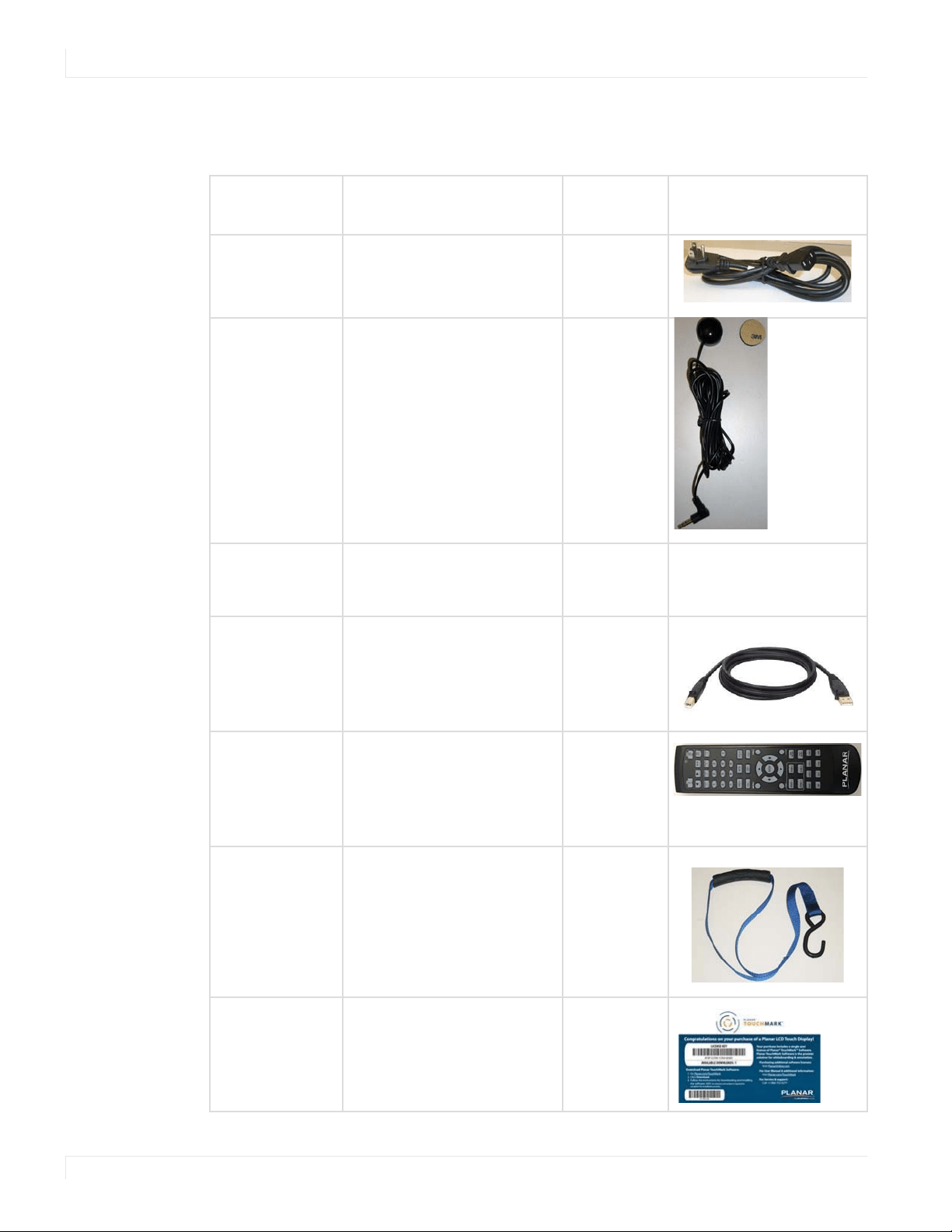
Part Description Number Picture
LCD display One per box. 1
LCD mounts
(optional)
If ordered, this will be inside a
separate box inside the LCD box.
Note: If you do not use Planar’s
mounts, you need to ensure the
mounts that you purchase can
adequately support the display.
1
Mounting
template
Used to line up where the wall
mounts will be installed. This is
included with Planar’s optional LCD
mounts.
2
Accessory Kit
8 Planar UltraRes Series User Manual
Accessory Kit
Part Description
Number
Included
Picture
AC power cord Power cord. 1
IR sensor Used to receive signals from
the remote control.
1
USB drive Contains the User Manual,
touch drivers and USB-to-
serial driver.
1
USB cable Connects to a PC for touch
functionality (touch models
only) and serial commands
(all models).
1
Remote control Used to control the display.
2 AA batteries are included
but not installed.
1
Carrying Strap For lifting and carrying the
display using three people
2
Planar®
TouchMark™
Single License
Key Card
Annotation and
whiteboarding software
(touch models only)
1
Planar UltraRes Series - Standard Inputs
Planar UltraRes Series User Manual 9
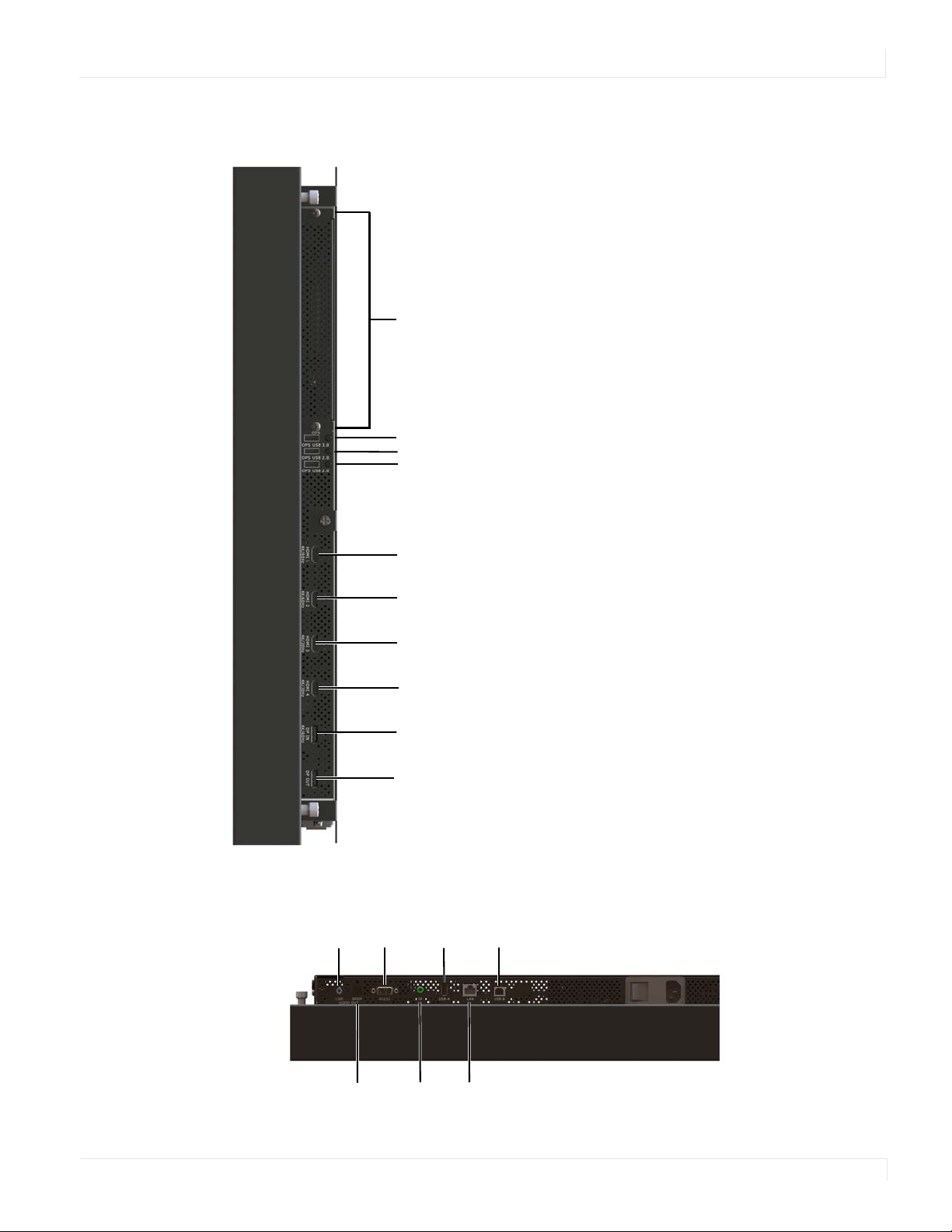
Planar UltraRes Series - Standard Inputs
OPS USB 3.0
OPS USB 2.0
OPS USB 2.0
HDMI 1: HDMI, 4K/60Hz, HDCP 2.2
HDMI 2: HDMI, 4K/60Hz, HDCP 2.2
HDMI 3: HDMI, 4K/30Hz
HDMI 4: HDMI, 4K/30Hz
DP OUT: DisplayPort Out
DP IN: DisplayPort In, 4K/60 Hz
OPS: 4K/60Hz
Note: Only one HDCP 2.2 source
can be displayed at a time. If HDMI 1
and HDMI 2 are both being shown
on the display at the same time,
only HDMI 1 will support HDCP 2.2
content.
LINE
AUDIO
OUT
RS232
USB-B
SPDIF
AUDIO OUT
IR LAN
USB-A

Planar UltraRes Series User Manual 10
Installing the Displays
Before installation, keep the following points in mind:
• These displays are heavy. Make sure that you have adequate studs to support
the weight of each display if installing on a wall.
• The Planar UltraRes display must be installed on a flat surface.
• If you ordered the optional wall mounts, use the supplied UltraRes mounting
template for the center point of the display, as well as for top and bottom
bracket installation.
• The wall mounts for a landscape and portrait installation look very similar. The
process to install them is almost exactly the same. The only difference is the way
in which you use the wall mount template. This will be pointed out in the
relevant step.
Installing the Planar Profile Mounting System
Planar UltraRes Series User Manual 11
Installing the Planar Profile Mounting System
Caution: For whatever structure is used to mount the display, be sure that it is sufficiently
engineered to handle the weight of the display. Also be sure to purchase the correct
hardware needed to support the display mounted to that structure.
Caution: If the unit being installed is fitted with a touch input device, it is important that the
touch frame is not used to lift the unit. Also, the unit should never be placed on the touch
frame to support the unit.
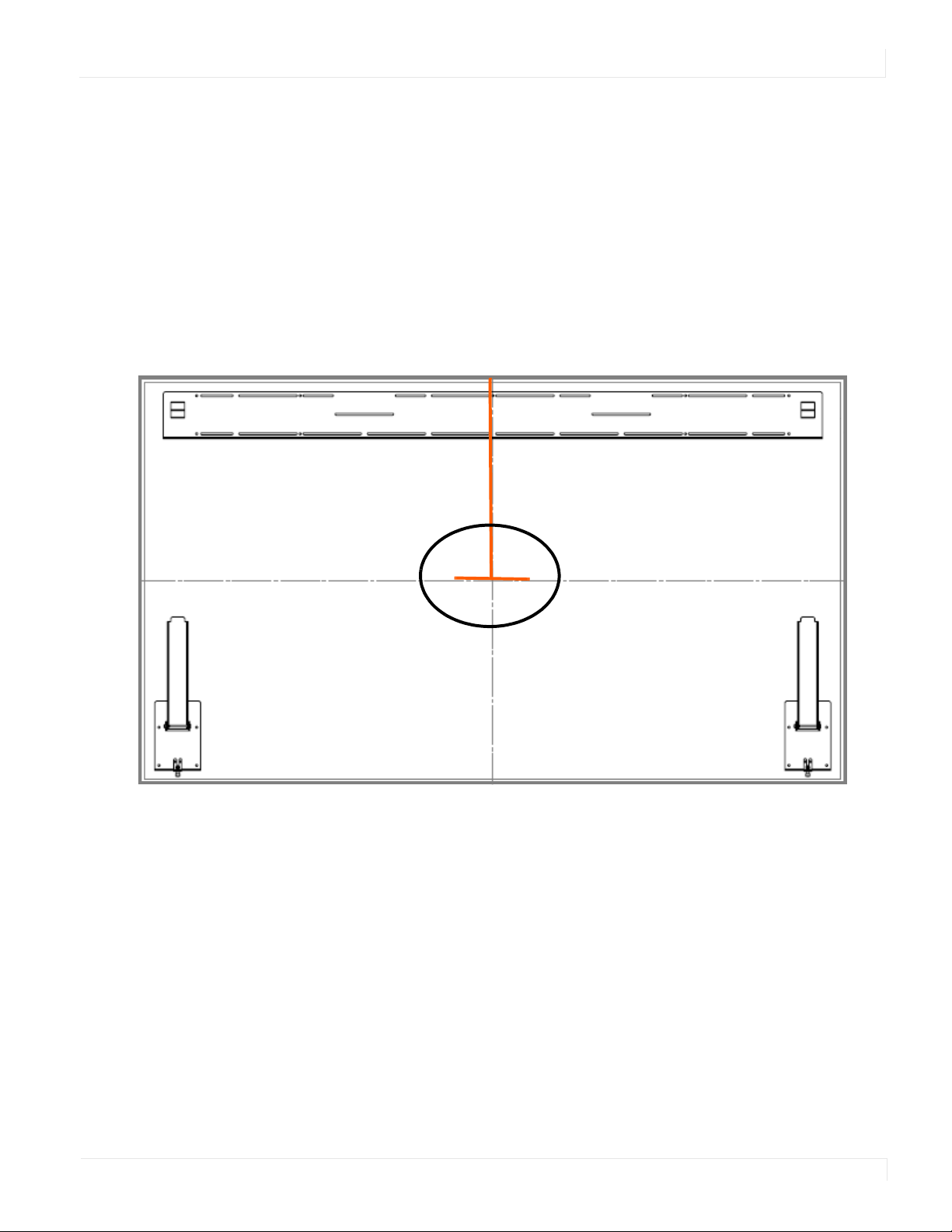
1 Find the center point of the display on the wall where you intend to install it.
2 Draw a short (about 1”) horizontal line and then a vertical line to just below the
top edge of the display.
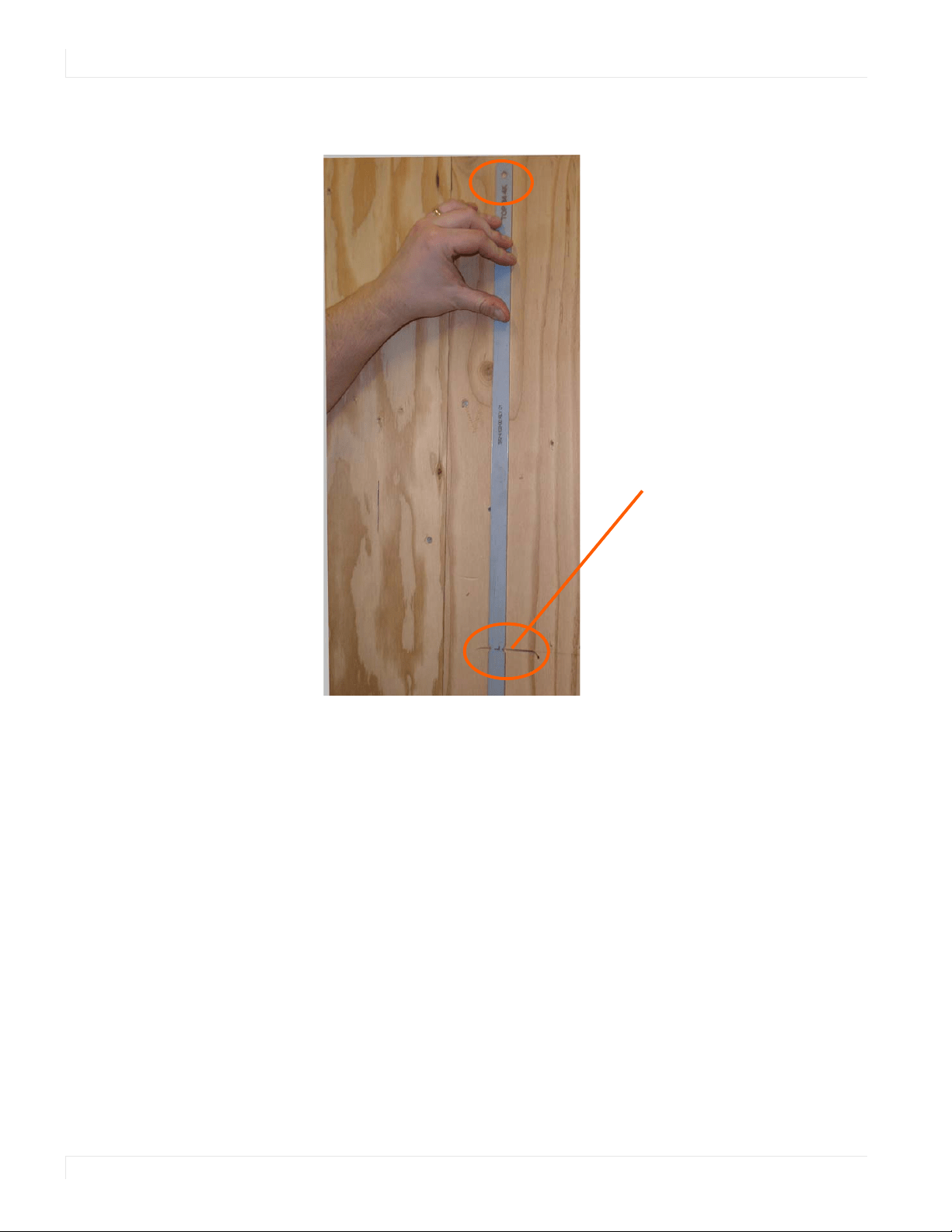
Installing the Planar Profile Mounting System
12 Planar UltraRes Series User Manual
3 Use the provided template to determine the center points of the wall mounts.
The “V” notches are labeled “Short Center” and “Long Center”. Use the “Short
Center” hole for a landscape display and the “Long Center” hole for a portrait
display. Use the appropriate “V” notch to align with the horizontal line drawn in
the previous step.
Center notch alignment
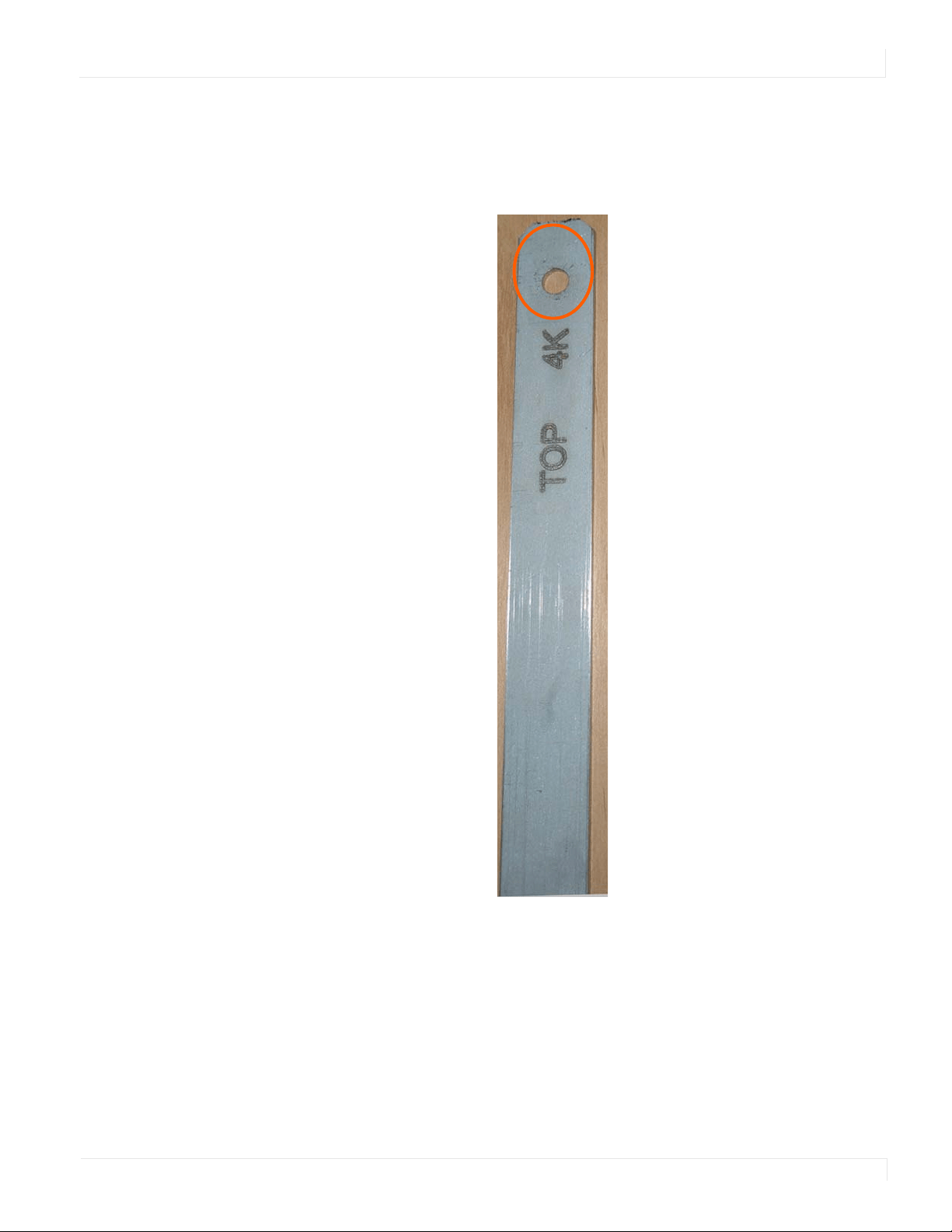
Installing the Planar Profile Mounting System
Planar UltraRes Series User Manual 13
4 In the hole marked “Top” on the template, mark the center of the hole on the wall.
Be sure the vertical line runs through the center of the hole and that the template
is plumb. You may wish to screw the template in place to make the next steps
easier.
Note: If you are installing a landscape display and the template is too long, you can break the
template at the notch below the “L BTM” hole.
5 Let the template hang vertically so it is plumb, as the bottom hole in the template
determines where the bottom mount will be installed.
6 Mark the center of the hole at the bottom of the template that corresponds with
your display orientation.
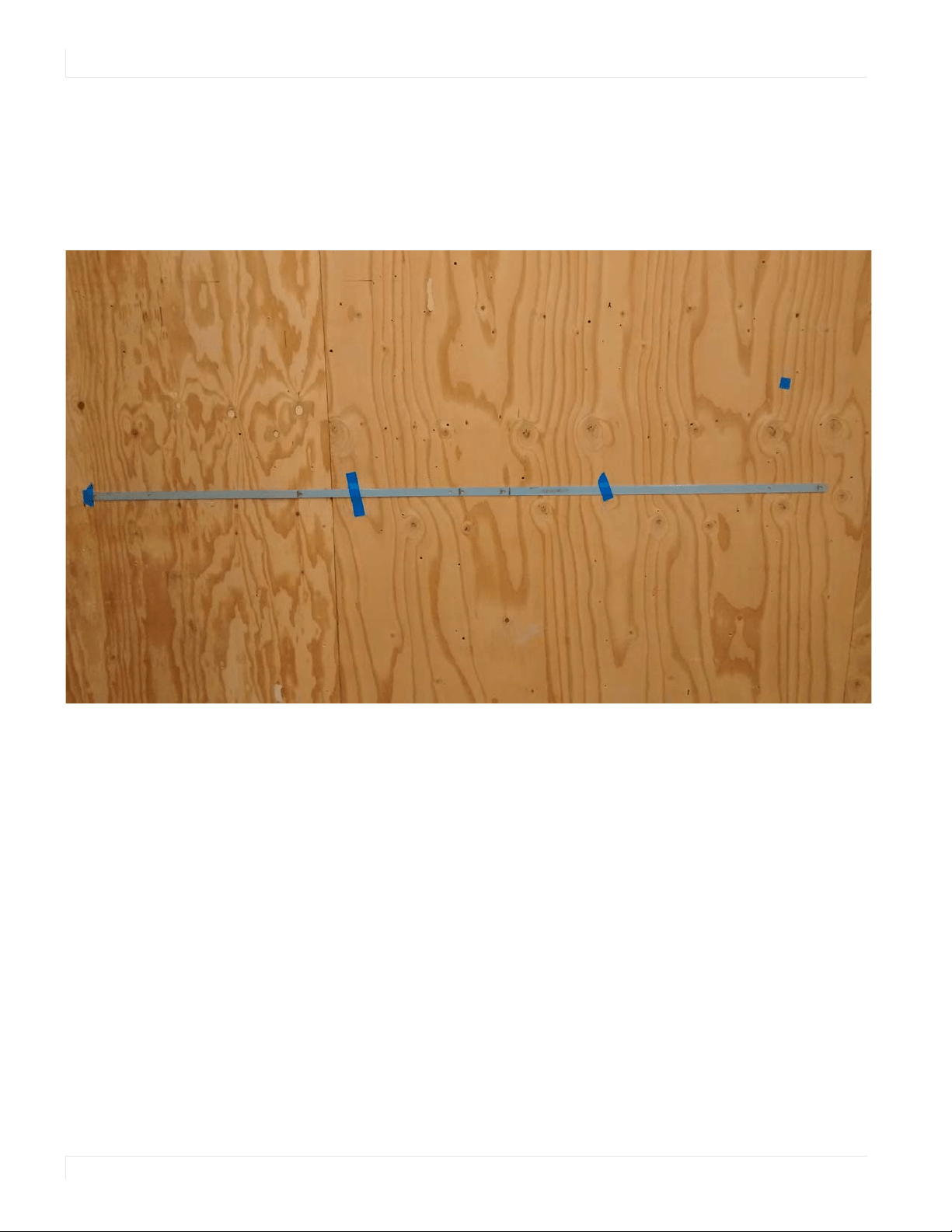
Installing the Planar Profile Mounting System
14 Planar UltraRes Series User Manual
7 If you have screwed the template in place, remove each screw and the template.
8 Turn the template horizontally and line the appropriate center hole up with the
bottom hole you marked on the wall. This time, use the “LONG CENTER” for a
landscape panel and the “SHORT CENTER” for a portrait panel. Ensure that the
template is flat against the wall and level.
9 Mark hole locations for the bottom mounts. One side should use the next hole in
from the “TOP” labeled hole and the other should use the next inward hole from
“P BTM” for landscape or “L BTM” for portrait (ignoring the centering holes).
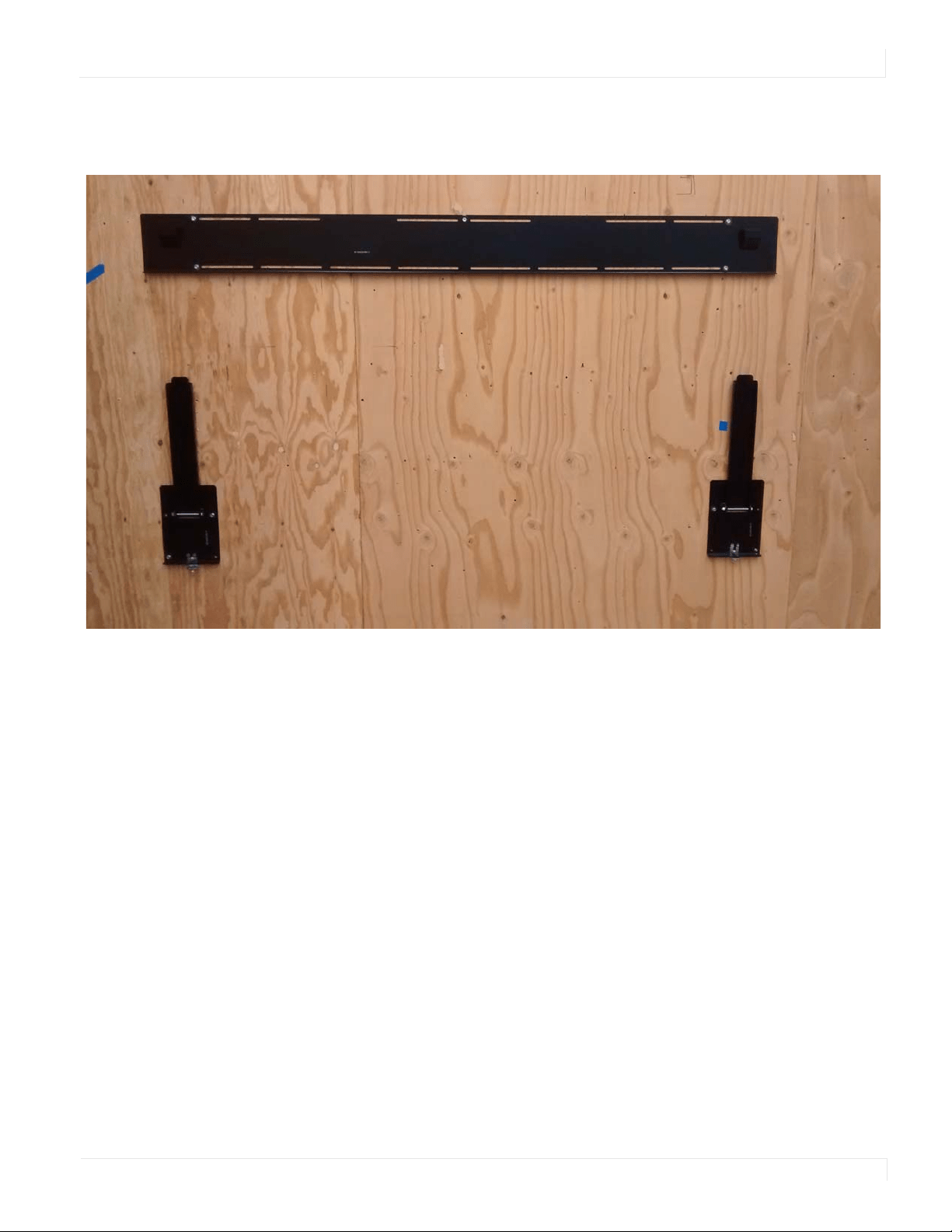
Installing the Planar Profile Mounting System
Planar UltraRes Series User Manual 15
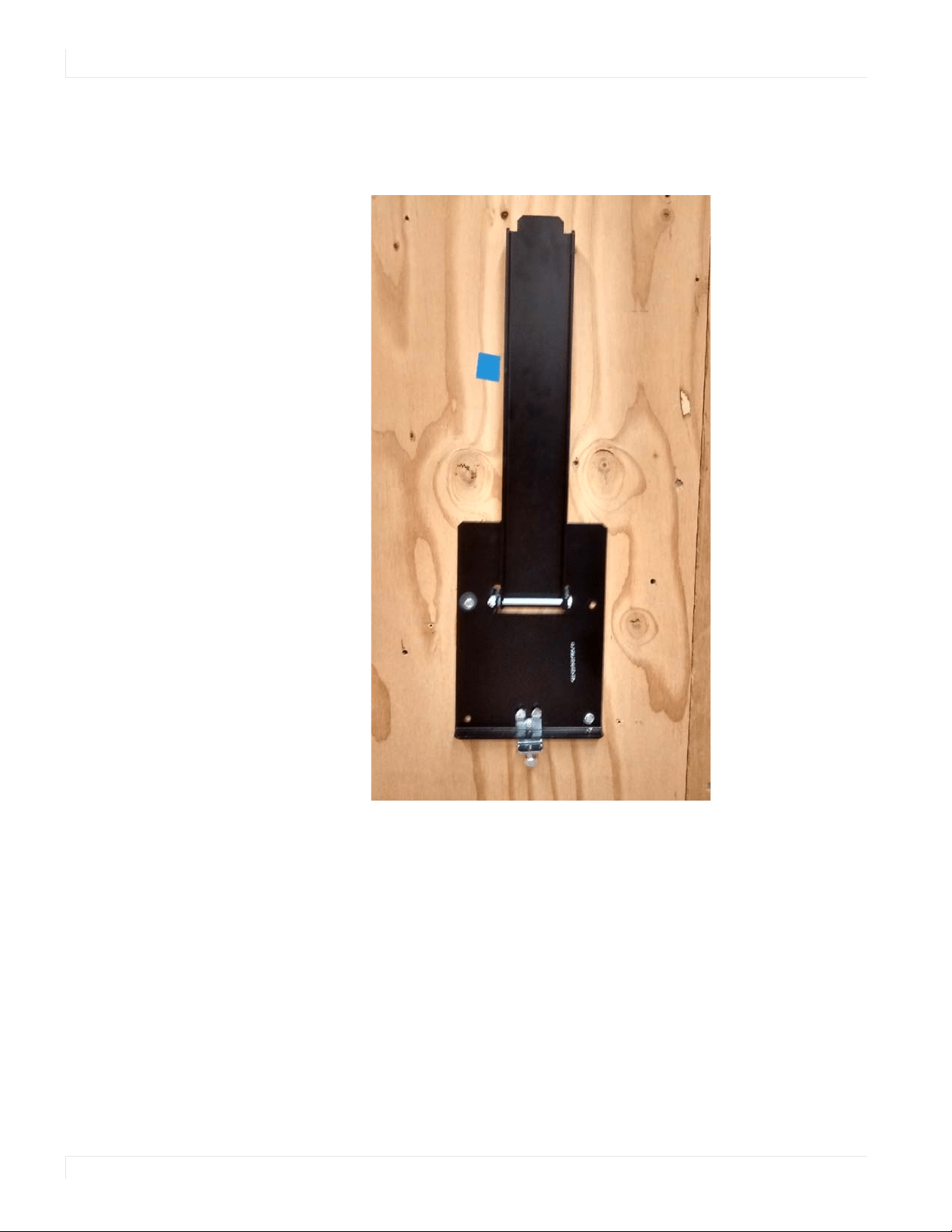
10 Line up the middle hole of the top wall mount with the screw hole drilled from
the template.
Note: This picture shows mounts for a landscape installation.
11 Tighten the screw into the mount.
12 Use a level to make sure the mount is level.
13 Then install additional screws as needed.
Note: Screws installed near the mount hooks provide the best support.
Installing the Planar Profile Mounting System
16 Planar UltraRes Series User Manual
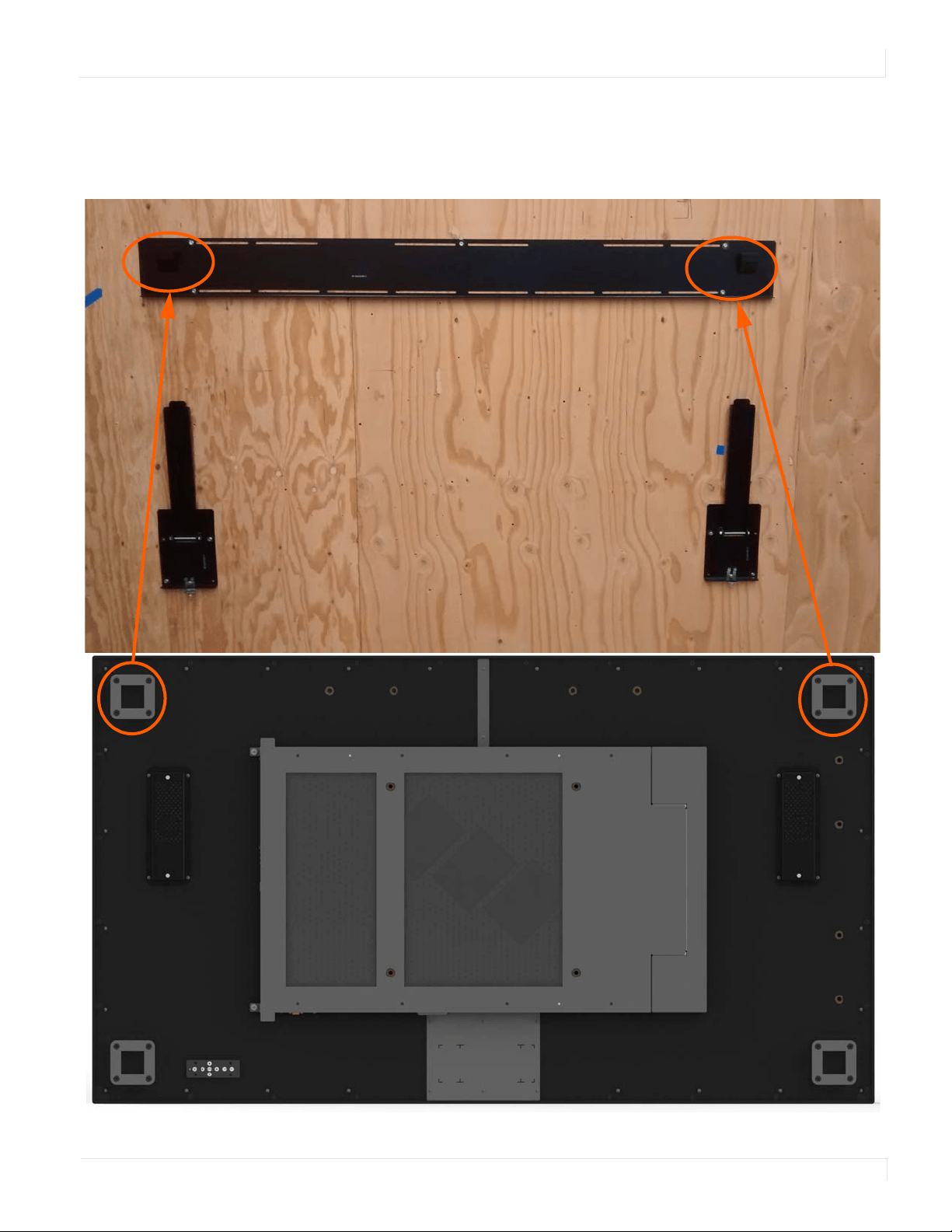
14 Install the bottom mount brackets such that the holes marked earlier line up with
the inner bottom hole on the bottom mount bracket. Ensure the bottom mounts
are level and install at least one additional screw in each bottom mount.
Installing the Planar Profile Mounting System
Planar UltraRes Series User Manual 17
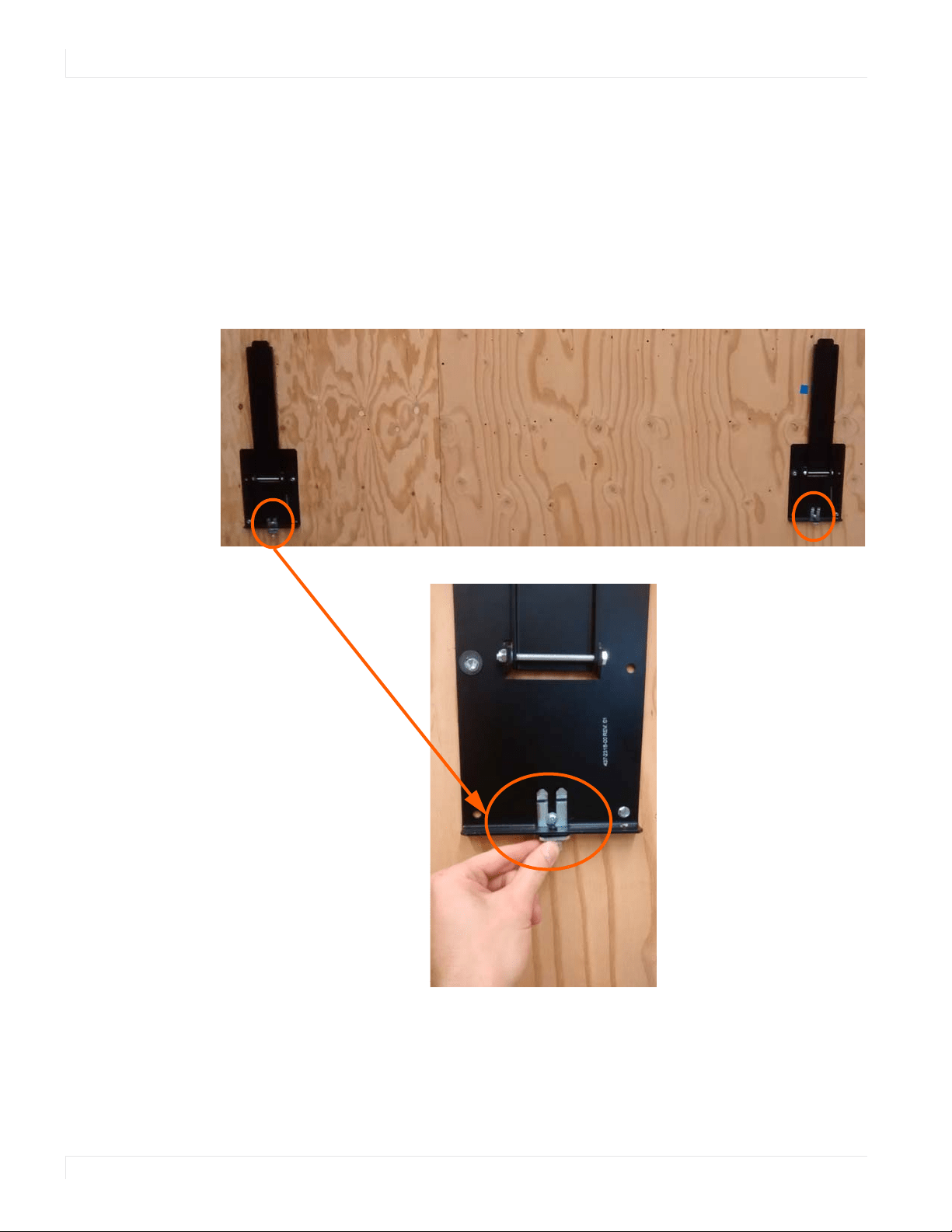
15 Using three physically capable people, carefully hang the back of the display
onto the top wall mount bracket using the square brackets on the back of the
display.
Installing the Planar Profile Mounting System
18 Planar UltraRes Series User Manual
Caution: Be sure these are securely hung, as the top of the wall mount will hold all of the
weight of the display.
As an alternative, you can use the optional lift blocks along with a lift assist mech-
anism to lift the panel into place. For details, refer to "Using the Lift Blocks" on
page 19.
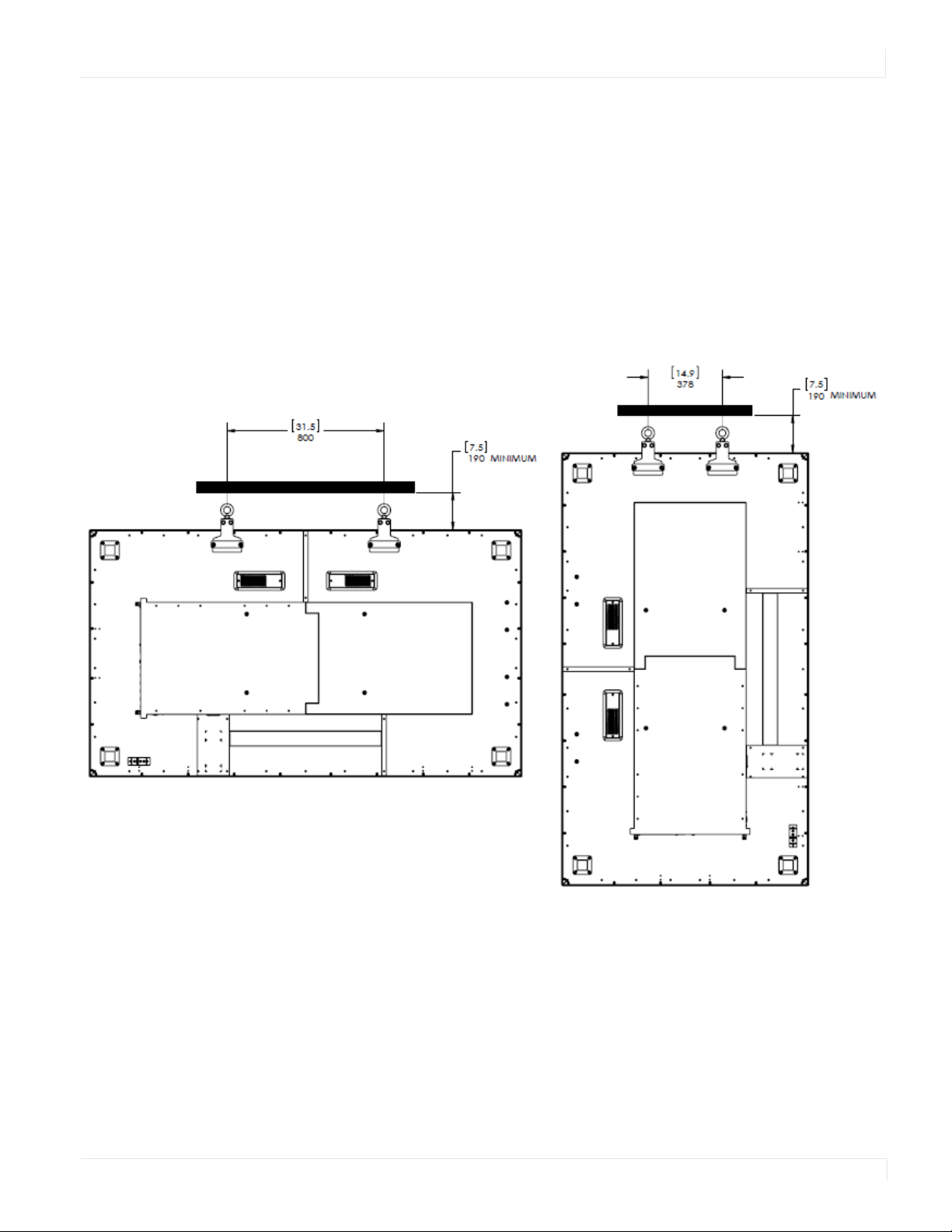
16 On the bottom wall mounts, there is locking hardware on the bottom of each
mount. Push the hardware up and finger tighten the captive screws on the
bottom to secure the display to the wall.
Using the Lift Blocks
Planar UltraRes Series User Manual 19
Using the Lift Blocks
1 Attach the lift blocks to the back of the panel using the provided M8 x 35 pan
head screws.
2 Securely attach your lift mechanism to the eyehooks:
a Spreader bar attachment: A spreader bar allows for a small lift profile and less
stress on the panel and eyehooks than a single point attachment. This is the
preferred method.
Spreader Bar Lift: Landscape
Spreader Bar Lift: Portrait
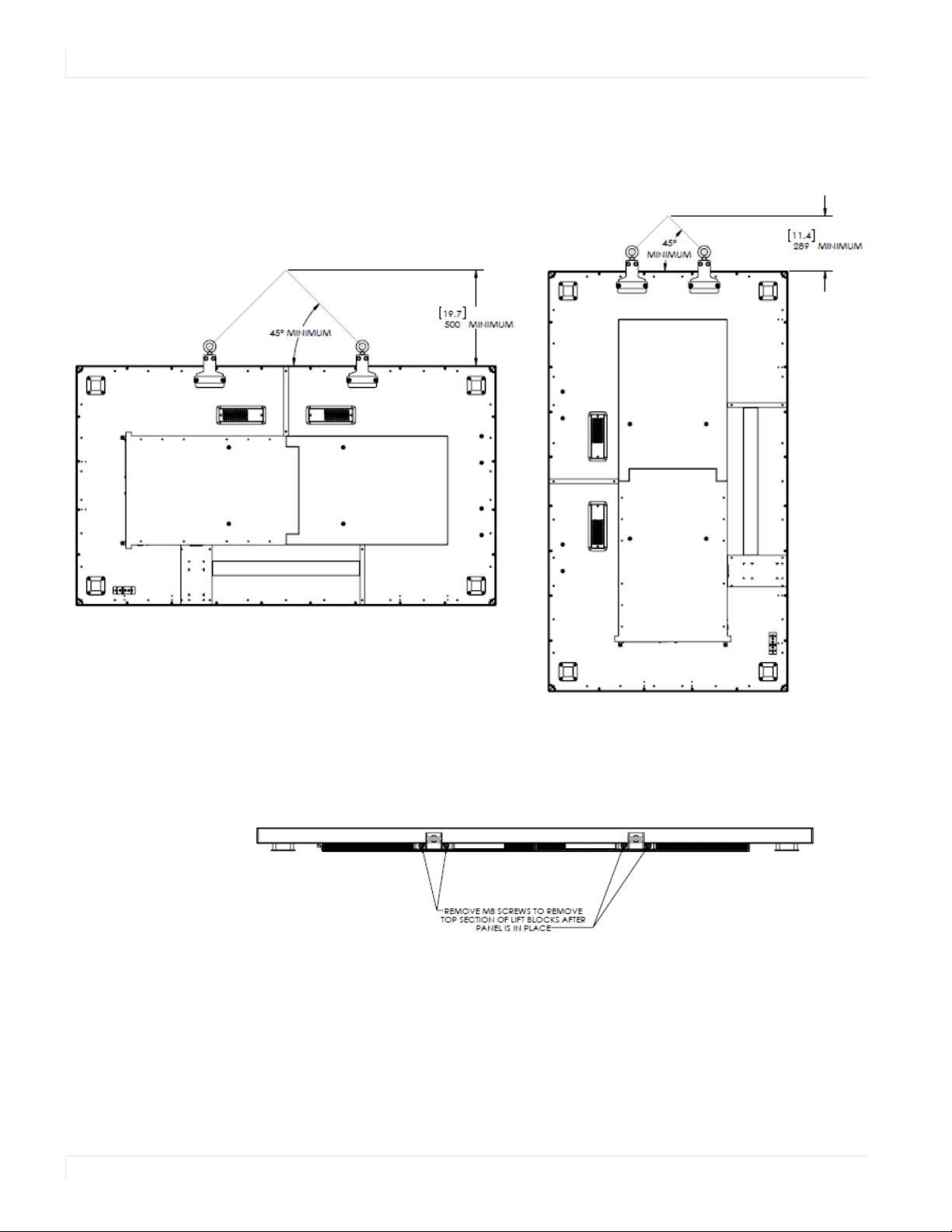
Using the Lift Blocks
20 Planar UltraRes Series User Manual
b Single point attachment: The angle between the top of the panel and the
support lines should not be less than 45 degrees.
3 Lift the panel into place.
4 Detach the upper half of the lift block from the lower half by removing the two
vertical screws. This leaves the bottom half attached to the panel but hidden.
Singe Point Lift: Landscape
Singe Point Lift: Portrait
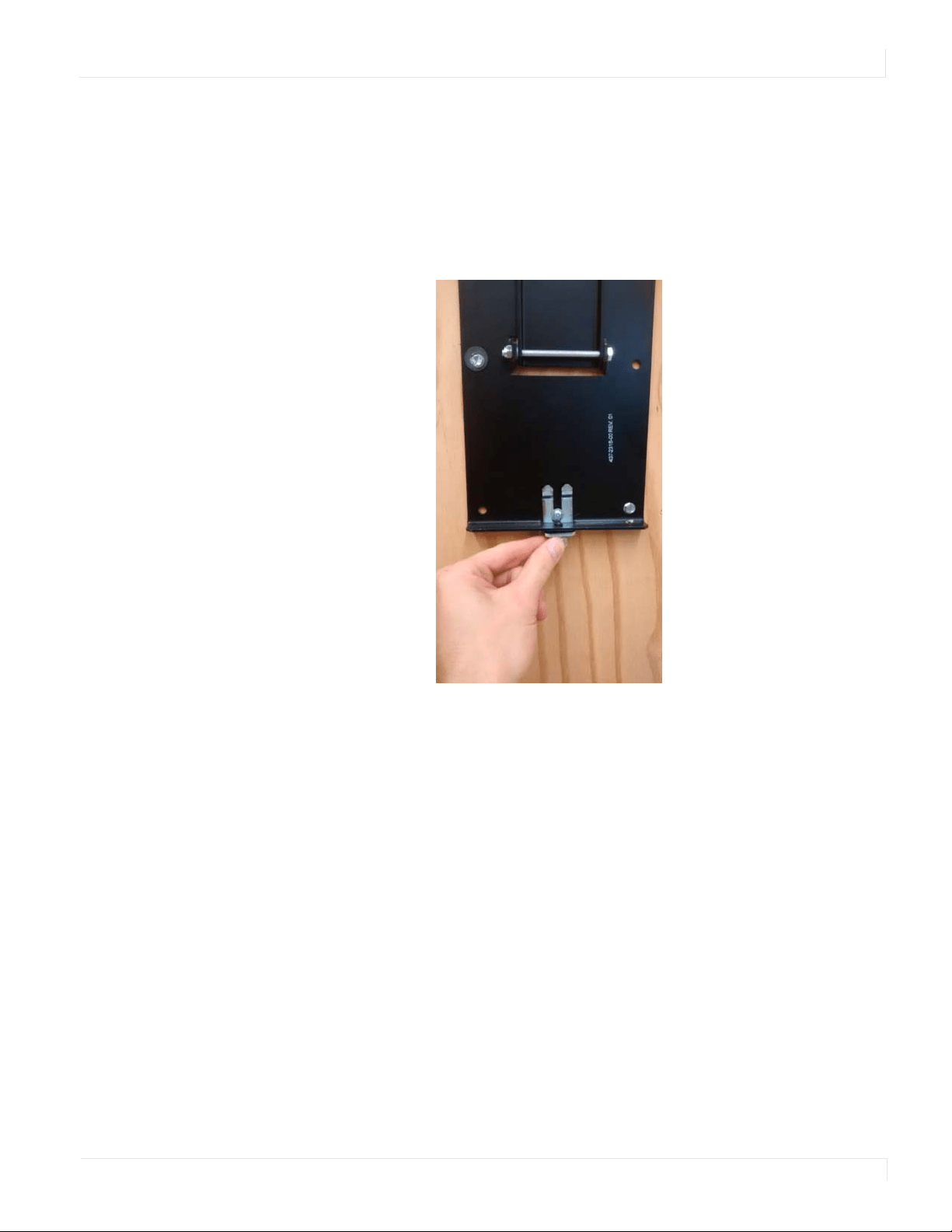
Using the Kickstand Bracket
Planar UltraRes Series User Manual 21
Using the Kickstand Bracket
The kickstand bracket is used for service mode, without having to remove the display
from the wall. Use the following instructions to put the display in service mode.
1 Loosen the captive locking screws on both sides of the bottom mount, and let the
brackets hang down freely.
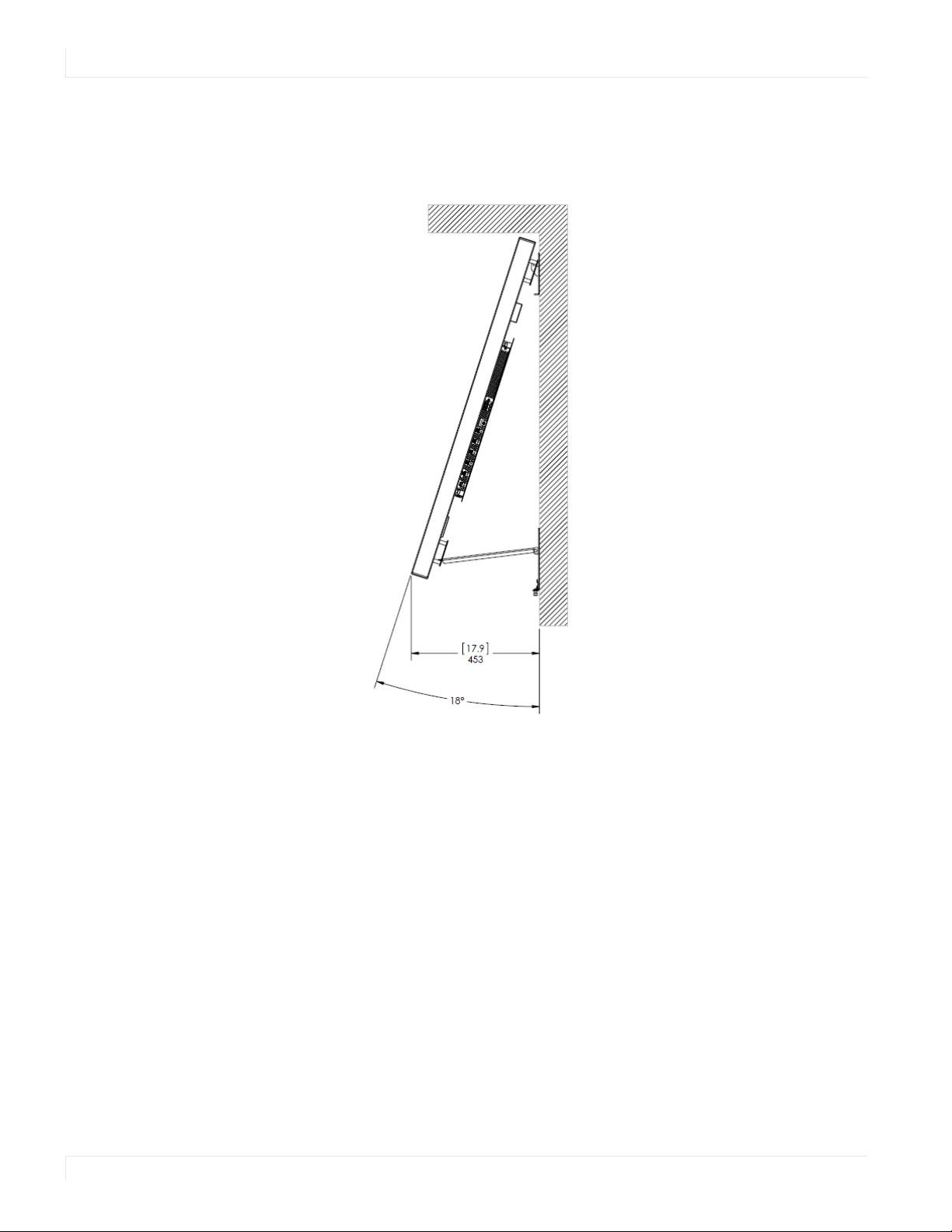
Using the Kickstand Bracket
22 Planar UltraRes Series User Manual
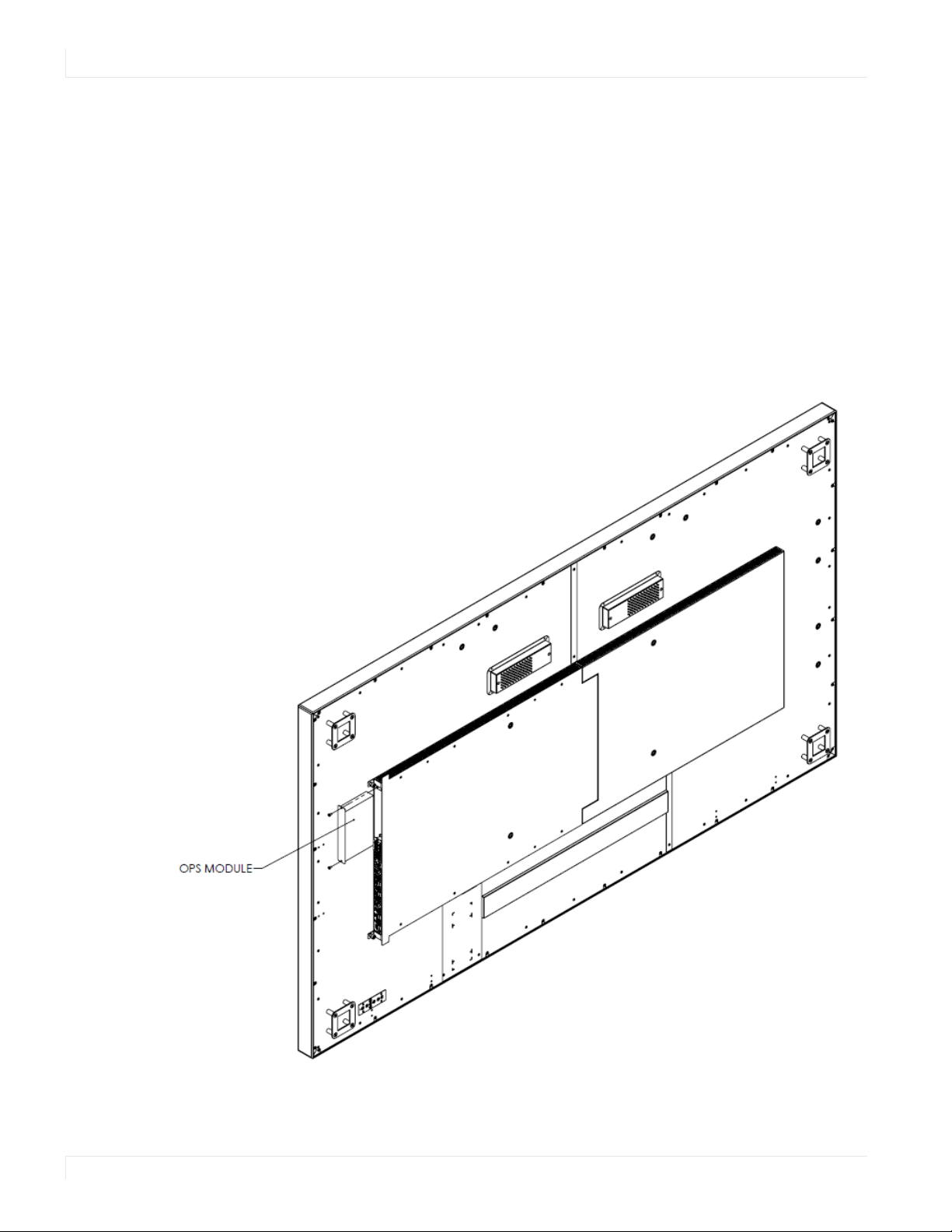
2 Pull the display out and then swing the kickstands down to hold it in place. The
kickstands will nest into the bottom mount brackets. Make sure to use both
kickstands as using only one can cause stresses in the panel that could cause
damage.

Cable Length Recommendations
Planar UltraRes Series User Manual 23
Cable Length Recommendations
Cable length performance may vary between different cables and sources. The
recommended maximum DisplayPort length is 3m for DisplayPort 1.2 and 5m for
DisplayPort 1.1. HDMI cable length is recommended as follows:
• 4K @ 50/60Hz: 5m maximum
• 4K @ 24/25/30Hz: 15m maximum
• 1080p @ 60Hz and lower resolutions: 30m maximum
Installing OPS Expansion (Optional)
24 Planar UltraRes Series User Manual
Installing OPS Expansion (Optional)
Planar UltraRes Series displays are equipped with an expansion slot that supports the
Intel® Open Pluggable Specification (OPS). The slot will support OPS devices such as
PC’s, SDI modules, HDBaseT receivers, etc.
To install an OPS device, remove the protective cover on the display and slide the
device firmly into position. When installed, the OPS device will be connected
internally to the display. No external video or power cables are required.
For convenience, two Type-A USB 2.0 ports and one Type-A USB 3.0 port are provided
on the side I/O panel below the OPS slot. When an OPS device is installed, these USB
ports can be used for a keyboard, webcam, USB drive, or other peripherals.

Supported Graphics Cards
Planar UltraRes Series User Manual 25
Supported Graphics Cards
Planar UltraRes Series displays support a variety of graphics cards from leading
manufacturers, such as NVIDIA and AMD. In general, you should be looking for
graphics cards that have the following features:
• Can output 3840 x 2160 at 24 Hz or 30 Hz over a single DisplayPort or HDMI
connection.
• Four-output graphics cards that can output synchronized (genlocked) 1920 x
1080 outputs at up to 60 Hz.
• Cards that support Planar’s support timings, as listed in the following section
"Signal Compatibility" on page 79.
Caution: Before you purchase a graphics card for your source, contact your Sales
Representative to get the most current information on Planar’s compatibility with leading
graphics cards.
Planar UltraRes Series User Manual 26
Operating the Display
OSD Keypad
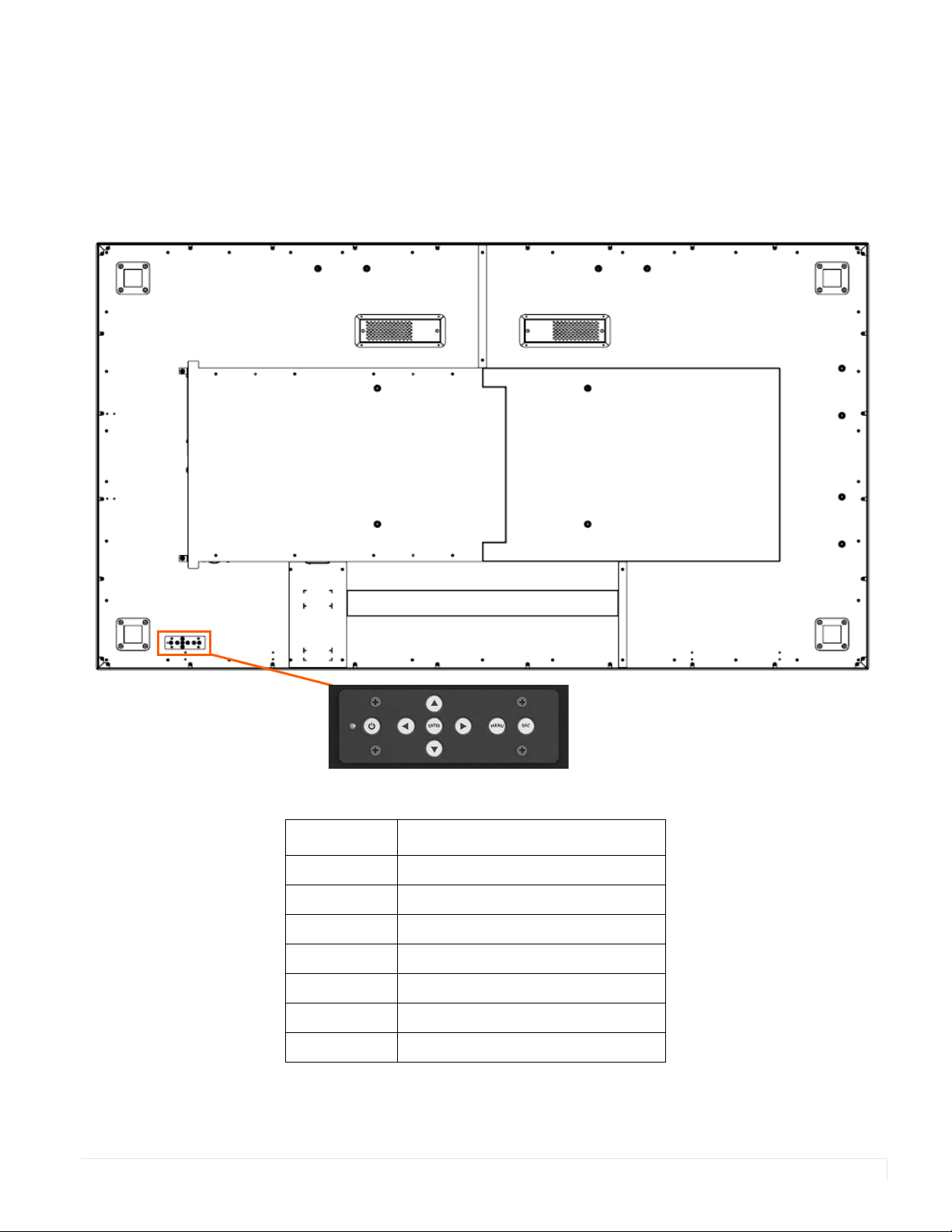
The OSD keypad is located on the rear of the display.
OSD Keypad Buttons
Key Descriptions
Power Power on/Power off
Menu Left/Decrease value
Menu Right/Increase value
Menu Up/Increase volume
Menu Down/Decrease volume
Menu Menu/Exit
SRC Source selection (toggle)
Remote Control Receiver
Planar UltraRes Series User Manual 27
Remote Control Receiver
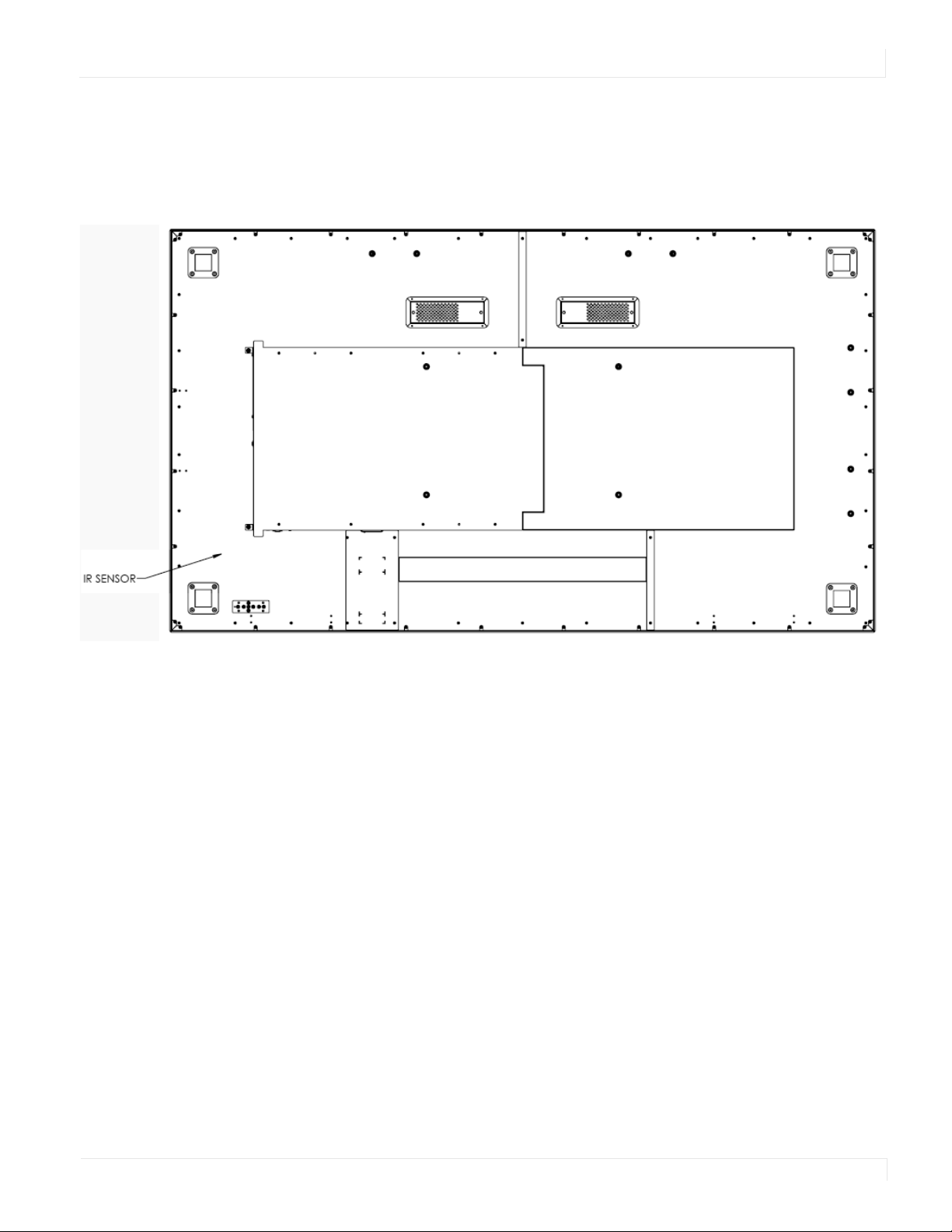
The remote control receiver is located near the keypad on the rear of the display. Use
the IR extender cable for operating the remote from the front of the display.

LED Indicators
28 Planar UltraRes Series User Manual
LED Indicators
The LED indicator light is located on the rear of the display near the keypad. The
following table explains what the different colors and blink patterns mean.
Using the Display in Portrait Mode
When using the display in the portrait position and looking at the rear of the display,
it should be rotated according to the arrow stickers on the back of the display. This
will allow for proper ventilation. Then select the OSD rotation of landscape or portrait
on the OSD menu (MAIN MENU > ADVANCED SETTINGS > MENUS AND MESSAGES >
OSD ROTATION).
Caution: Improper ventilation may shorten the life of the display.
Using the Display in Flat or Tilted Orientation
The display is not recommended for use in flat orientation for tabletop, floor, or
ceiling installations. LCD panels of this size are at risk of panel deflection, which can
cause cosmetic sagging, brightness uniformity issues, a shortened life span, and
malfunction of optional touch sensors. Installations where the display is tilted
downward or upward at an angle may also be prone to these issues and are not
recommended.
LED On
Power Status Condition
Green Standby mode
Amber Full power mode
Green Flashing (1 Hz) AC power on
Green Flashing (0.5 Hz) Powering on from standby
Green Flashing (5 Hz) Firmware updating
Amber Flashing (5 Hz) Power supply failure
Green and Amber Firmware update failure
Using the Remote Control
Planar UltraRes Series User Manual 29
Using the Remote Control
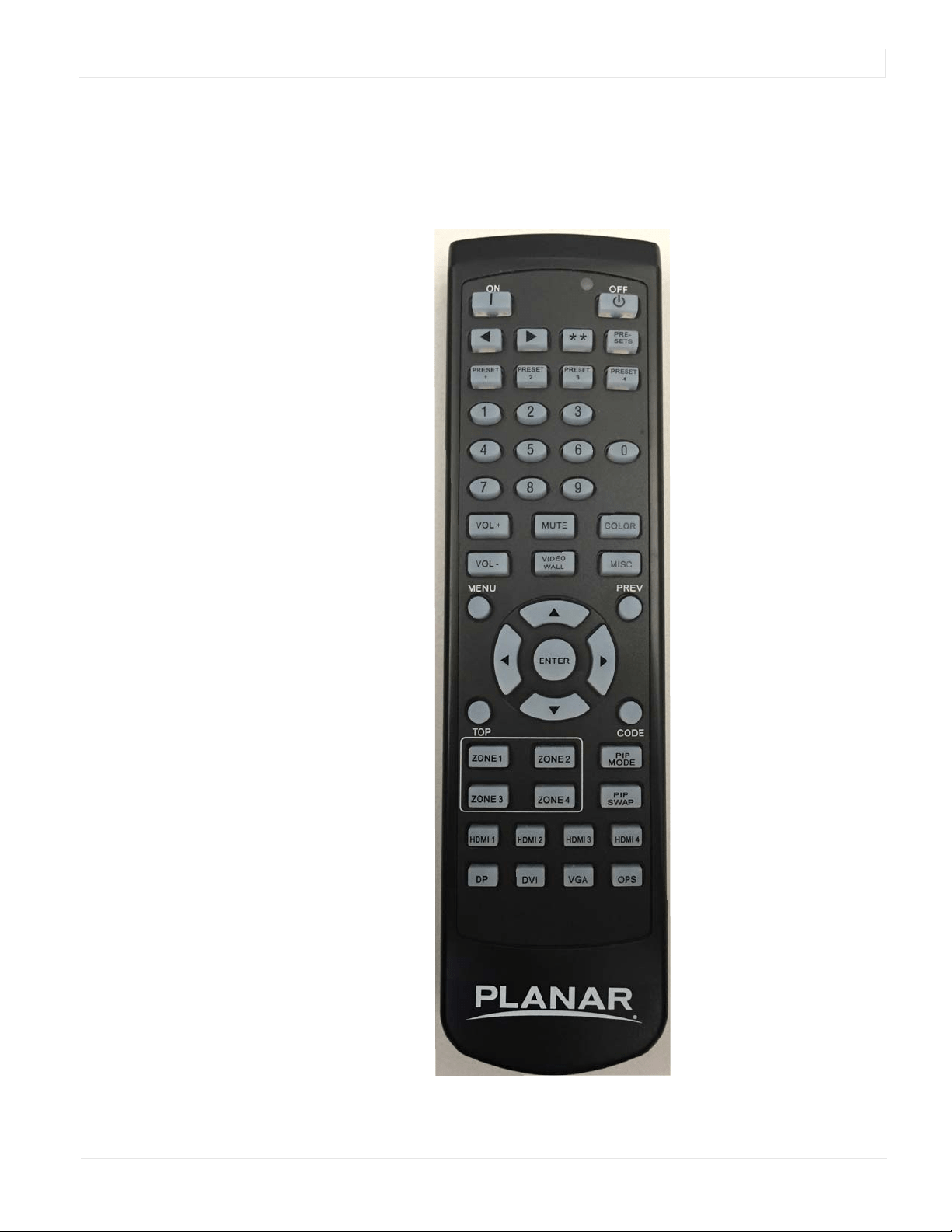
Below is a picture of the remote control. See the following page for button
descriptions and Hex codes.
IR Command Protocol
30 Planar UltraRes Series User Manual
IR Command Protocol
The Planar UltraRes displays accept commands in the form of IR signals that conform
to the NEC protocol. Each Planar UltraRes remote control has an NEC control code
associated with it. You can use these codes to program a third-party “universal”
remote control to work with the Planar UltraRes displays. These third-party products
usually come with a computer software application for this purpose. For more
information, consult the documentation provided with the remote control.
The IR control codes have the following characteristics:
• Each code consists of the following:
• A leader pulse (a modulated pulse of 9 ms followed by a non-modulated
pulse of 4.5 ms)
• 16 address bits. The default address is 1785 (0x06F9, binary 00000110
11111001)
• 16 data bits: eight (8) bits for the command followed by the logical inverse
of the command
• An end pulse (a modulated pulse of 0.56 ms, similar to the modulated
pulse in the ‘0’ and ‘1’ bits). The end of the modulated pulse constitutes the
end of the data transmission.
• The carrier frequency is 38 kHz, with the modulated pulses having a 33% duty
cycle.
• Commands are sent at a maximum rate of 9 Hz.
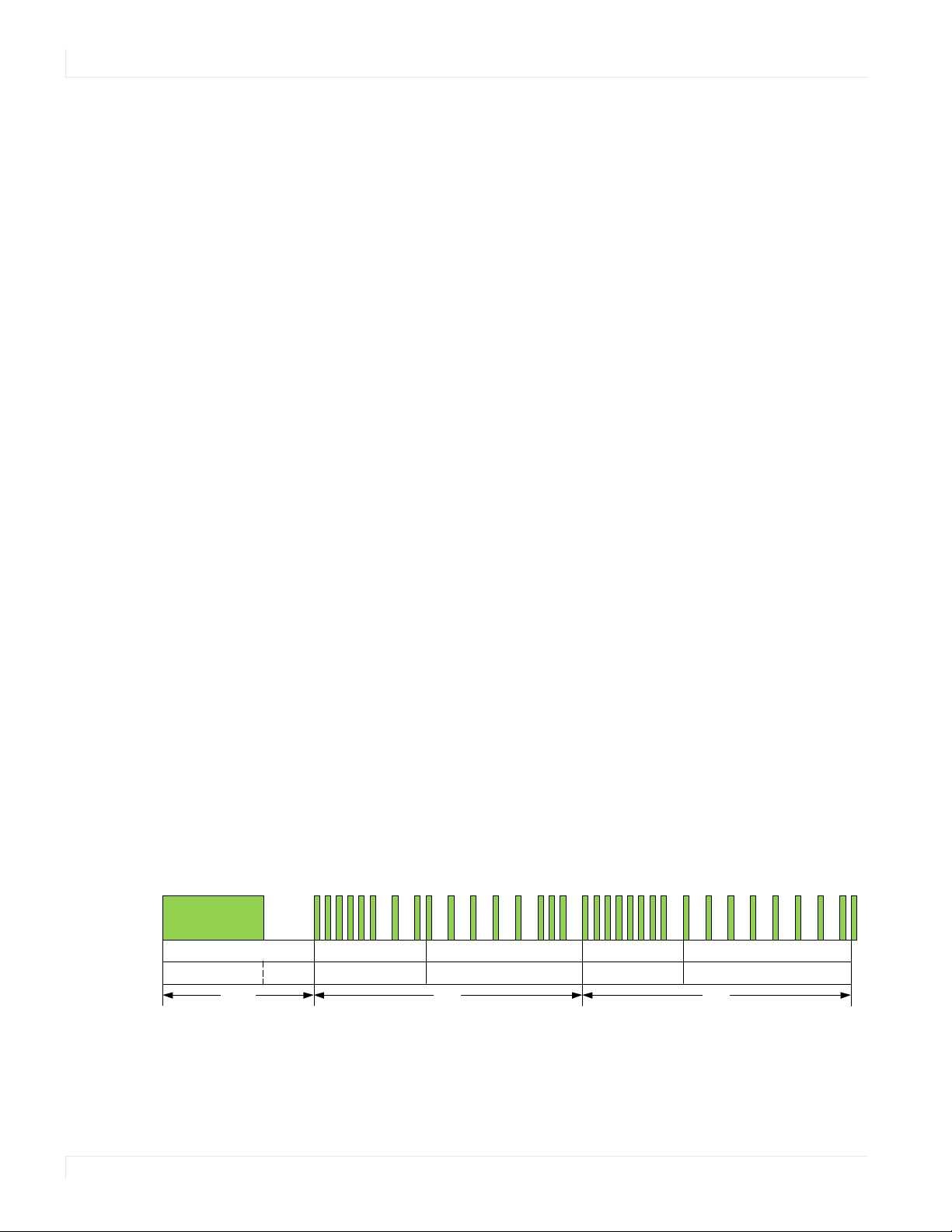
For example, below is the NEC control code for the ON button of the Planar UltraRes
remote control (assuming the default address is used).
The following example shows the pulse train for this command.
Hex 06 F9 01 FE
Binary
00000110 11111001 00000001 11111110
Function Address Byte 1 Address Byte 2 Command
Command (Logical
Inverse)
Leader Pulse
00000 0119 ms 4.5 ms
Address Byte 1 Address Byte 2 Command Byte Command Byte (logical inverse)
00 0000000 011111 1 11111111
End Pulse
13.5 ms 27 m s 27 ms

IR Command Protocol
Planar UltraRes Series User Manual 31
Remote Control
Button Name
Address Data
NEC Data From
Remote (Hex Code)
Description
ON 1785 1 0x06F901FE Power on
OFF 1785 9 0x06F909F6 Power off
1785 2 0x06F902FD Not used
1785 3 0x06F903FC Not used
** 1785 6 0x06F906F9 Not used
PRESETS 1785 4 0x06F904FB Opens the Presets menu
PRESET 1 1785 5 0x06F905FA Applies Preset 1
PRESET 2 1785 7 0x06F907F8 Applies Preset 2
PRESET 3 1785 8 0x06F908F7 Applies Preset 3
PRESET 4 1785 10 0x06F90AF5 Applies Preset 4
1 1785 12 0x06F90CF3 Number button 1
2 1785 13 0x06F90DF2 Number button 2
3 1785 14 0x06F90EF1 Number button 3
4 1785 15 0x06F90FF0 Number button 4
5 1785 16 0x06F910EF Number button 5
6 1785 17 0x06F911EE Number button 6
7 1785 20 0x06F914EB Number button 7
8 1785 25 0x06F919E6 Number button 8
9 1785 27 0x06F91BE4 Number button 9
0 1785 18 0x06F912ED Number button 0
VOL + 1785 28 0x06F91CE3 Volume increase
VOL - 1785 33 0x06F921DE Volume decrease
MUTE 1785 32 0x06F920DF Audio mute
COLOR 1785 19 0x06F913EC Not used
VIDEO WALL 1785 34 0x06F922DD Opens the Tiling menu
MISC 1785 11 0x06F90BF4 Opens the Image Information menu
MENU 1785 21 0x06F915EA Opens the menu
PREV 1785 22 0x06F916E9 Returns to the previous menu
ENTER 1785 23 0x06F917E8 Selects the current menu item
UP 1785 26 0x06F91AE5 Navigate up
DOWN 1785 29 0x06F91DE2 Navigate left
LEFT 1785 31 0x06F91FE0 Navigate right
RIGHT 1785 24 0x06F918E7 Navigate down
Locking the Keypad and IR Remote
32 Planar UltraRes Series User Manual
Locking the Keypad and IR Remote
You can lock the keypad and IR remote functionality on the display. To lock the
keypad, go to Main Menu -> Advanced Settings -> System Settings and select
Keypad Lock. To lock the IR remote, go to Main Menu -> Advanced Settings -> System
Settings and select IR Remote Lock.
Unlocking the Keypad and IR Remote
To unlock the keypad, press the following keys on the keypad in the order listed: UP,
UP, RIGHT, LEFT, DOWN. If the IR remote is unlocked, you can also unlock the keypad
by using the IR remote to go to Main Menu -> Advanced Settings -> System Settings
and uncheck Keypad Lock.
To unlock the IR remote, press the following keys on the IR remote in the order listed:
UP, UP, RIGHT, LEFT, DOWN. If the keypad is unlocked, you can also unlock the IR
remote by using the keypad to go to Main Menu -> Advanced Settings -> System
Settings and uncheck IR Remote Lock.
Changing the IR Remote Code Set
The IR remote code set transmitted by the remote and accepted by the display can
be configured. This is useful if there are multiple Planar displays and you would like
each remote to work only with one of the displays. It can also be used if IR
interference with another device, such as a DVD player, is occurring.
TOP 1785 30 0x06F91EE1 Selects the top line in the current menu
ZONE 1 1785 35 0x06F923DC Selects the input for Zone 1
ZONE 2 1785 36 0x06F924DB Selects the input for Zone 2
ZONE 3 1785 38 0x06F926D9 Selects the input for Zone 3
ZONE 4 1785 39 0x06F927D8 Selects the input for Zone 4
PIP MODE 1785 37 0x06F925DA Selects the Multi-Source View setting
PIP SWAP 1785 40 0x06F928D7 Swaps the main and PIP windows
HDMI 1 1785 41 0x06F929D6 Selects HDMI 1 for the current zone
HDMI 2 1785 42 0x06F92AD5 Selects HDMI 2 for the current zone
HDMI 3 1785 43 0x06F92BD4 Selects HDMI 3 for the current zone
HDMI 4 1785 44 0x06F92CD3 Selects HDMI 4 for the current zone
DP 1785 45 0x06F92DD2 Selects DP for the current zone
DVI 1785 46 0x06F92ED1 Not used
VGA 1785 47 0x06F92FD0 Not used
OPS 1785 48 0x06F930CF Selects OPS for the current zone
Remote Control
Button Name
Address Data
NEC Data From
Remote (Hex Code)
Description

Turning the Display On
Planar UltraRes Series User Manual 33
To change the IR code on the remote, use the following procedure:
1 Press and hold the CODE button on the remote control until the LED on the
remote lights solid red (approximately five seconds).
2 Enter a new five-digit code between 00000 and 65535. Include leading zeros for
codes with four or fewer digits; for example, enter 255 as 00255.
3 The LED turns off to confirm the code change. If you enter an invalid code, the
LED flashes for three or four seconds. Try again, entering a valid code.
Note: The code must match the IR Remote ID Code setting. See page 64.
Turning the Display On
1 Insert the power cord into the display and into the power outlet.
2 Ensure the AC switch is set to “—“.
3 Press the ON button on the remote or the power button on the keypad.
Turning the Display Off
With the power on, press the OFF button on the remote or the power button on the
keypad to put the LCD panel in a standby mode. To turn off power completely, turn
the AC switch to “O” or disconnect the AC power cord from the power outlet.
Note: The display may automatically turn off the backlight or enter standby mode if no
signal is present for a certain period of time. See the description of the Power Saving Mode
setting on page 46 for more information.
Adjusting the Volume
1 Using the remote, press the VOL + or VOL - to increase or decrease the volume.
You can also use the Up and Down keys on the remote and keypad to increase or
decrease the volume.
2 Press the MUTE button to temporarily turn off all sound. To restore the sound,
press the
MUTE button again.
Note: The analog audio out is variable. S/PDIF is fixed.

Selecting Layouts and Input Sources
34 Planar UltraRes Series User Manual
Selecting Layouts and Input Sources
With Planar MediaPlex Plus Processing, you can show one source at a time or multiple
sources simultaneously. Multiple layout options are available and can be selected
from the Inputs and Views Menu (see page 36). Once a layout has been designated,
you can assign sources to each of the zones in the layout. The selection of sources
must be made one at a time by assigning a current zone. To select the current zone,
you can navigate through the on-screen menu (see page 36). Alternatively, you can
use the remote or keypad as described next.
Remote
Press the Zone 1, Zone 2, Zone 3, or Zone 4 buttons on the remote. After selecting
the desired zone, you can press the source button (DP, HDMI 1, HDMI 2, HDMI 3,
HDMI 4, or OPS). This action will also select the active audio source.
For example, to change Zone 3 to OPS, press the Zone 3 button and then press the
OPS button.
Keypad
Press the SRC button. The input source will be toggled in the following order: HDMI 1,
HDMI 2, HDMI 3, HDMI 4, DP, OPS).
Note: Sources will toggle through the current zone, or last zone to be modified. Current
zones can only be re-assigned in the on-screen menu.
Navigating Through the Menus
Planar UltraRes Series User Manual 35
Navigating Through the Menus
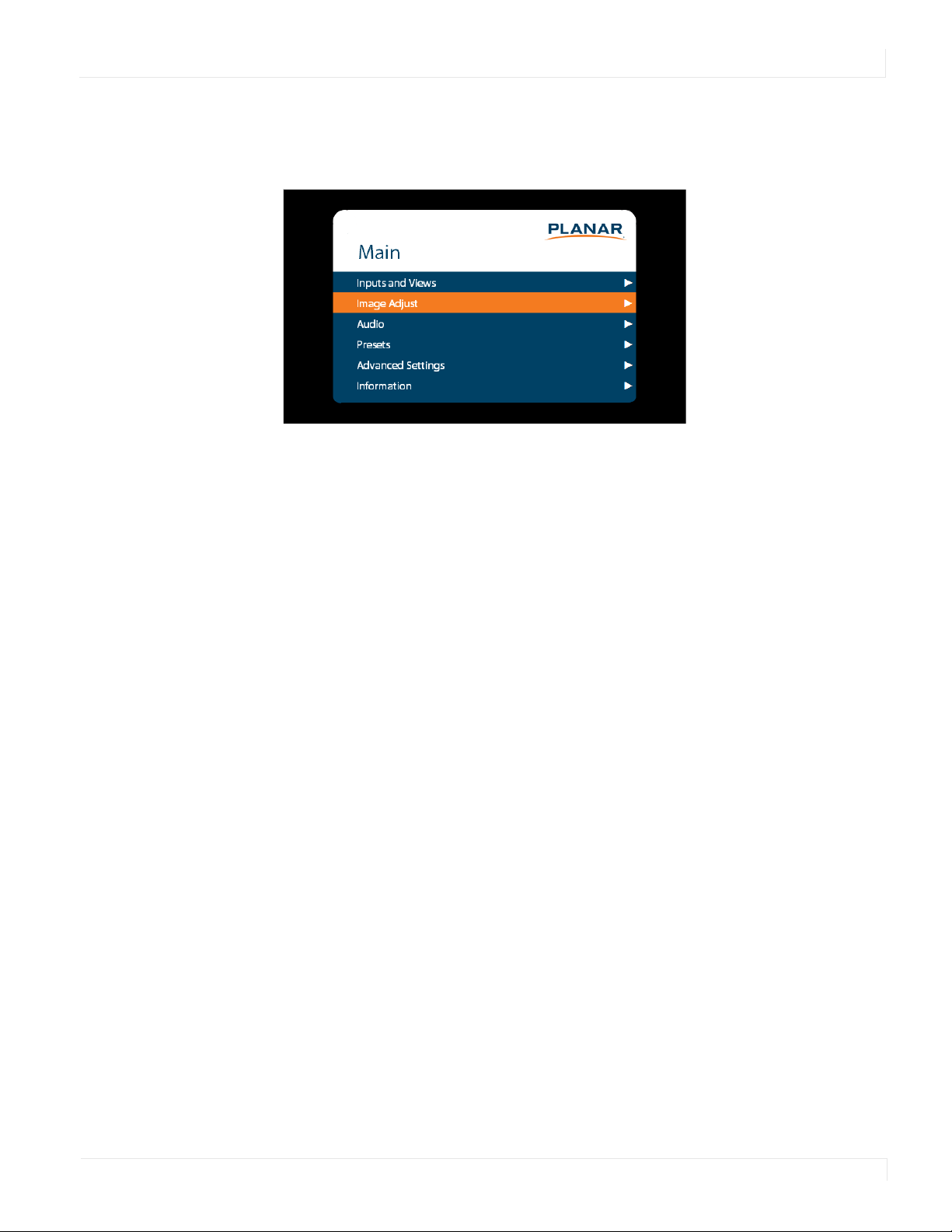
1 With the power on, press MENU. The MAIN menu appears.
2 Within the menu, use , , , and ENTER to navigate through the menus and
adjust options.
3 Press PREV on the remote control, or MENU on the keypad, to return to the
previous menu. To exit the menu system, press MENU on the remote control, or
continue to press MENU on the keypad until the main menu is reached.
Inputs and Views Menu
36 Planar UltraRes Series User Manual
Inputs and Views Menu
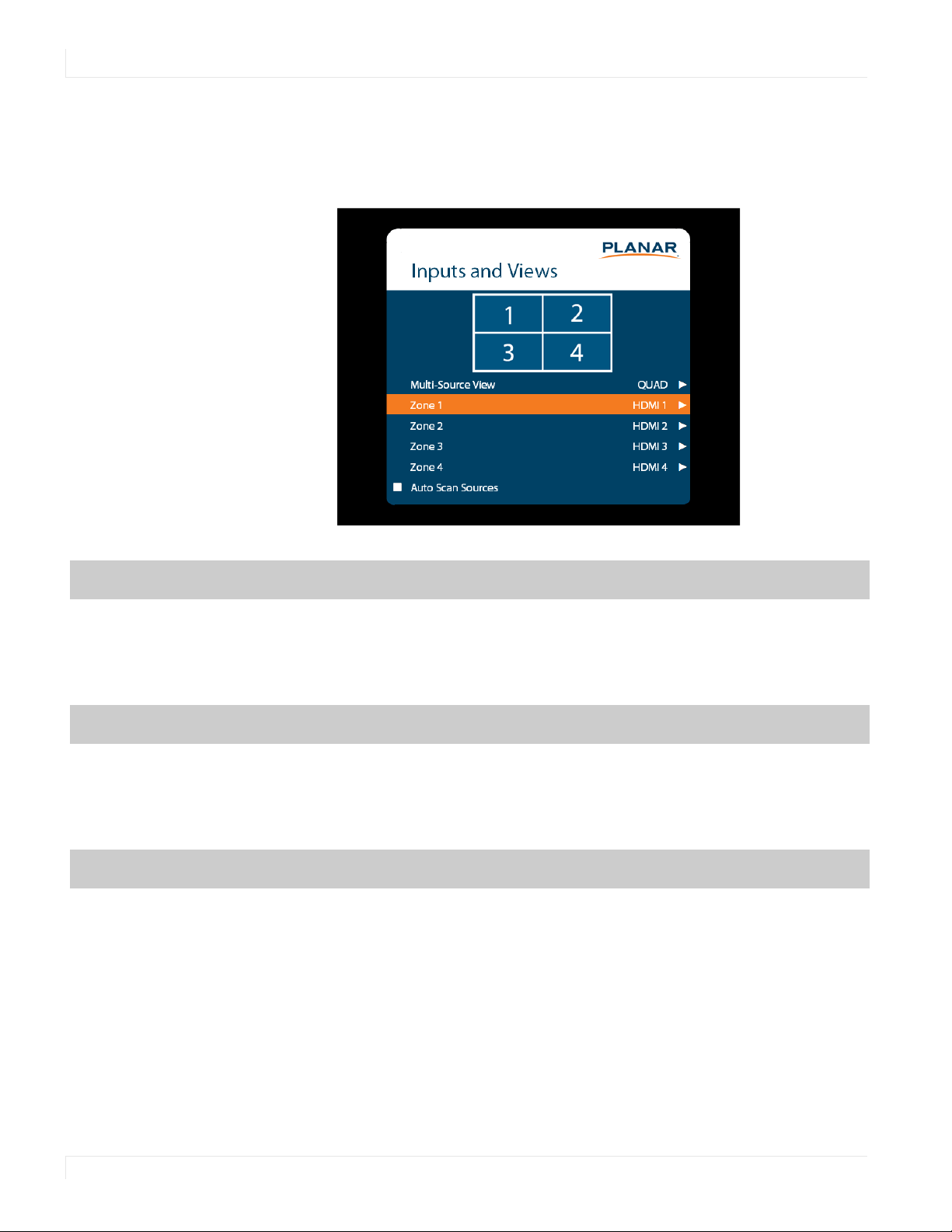
This menu shows how the sources will be laid out on the screen based on the current
Multi-Source View and Advanced Layouts selections.
Multi-Source View
Select the Multi-Source View mode
Options: Single, Dual, Triple, Quad, PIP; Default: Single
Note: For the Advanced Layouts submenu, refer to page 37.
Note: You can only use 4K/60Hz in Single mode.
Zone 1
Select the source displayed in Zone 1
Options: HDMI 1, HDMI 2, HDMI 3, HDMI 4, DP, OPS; Default: HDMI 1
Note: If HDMI1 was selected as another source, OPS cannot be selected. If OPS was
selected as another source, HDMI1 cannot be selected.
Zone 2
Select the source displayed in Zone 2
Options: HDMI 1, HDMI 2, HDMI 3, HDMI 4, DP, OPS; Default: HDMI 2
Note: If HDMI1 was selected as another source, OPS cannot be selected. If OPS was
selected as another source, HDMI1 cannot be selected.
Inputs and Views Menu
Planar UltraRes Series User Manual 37
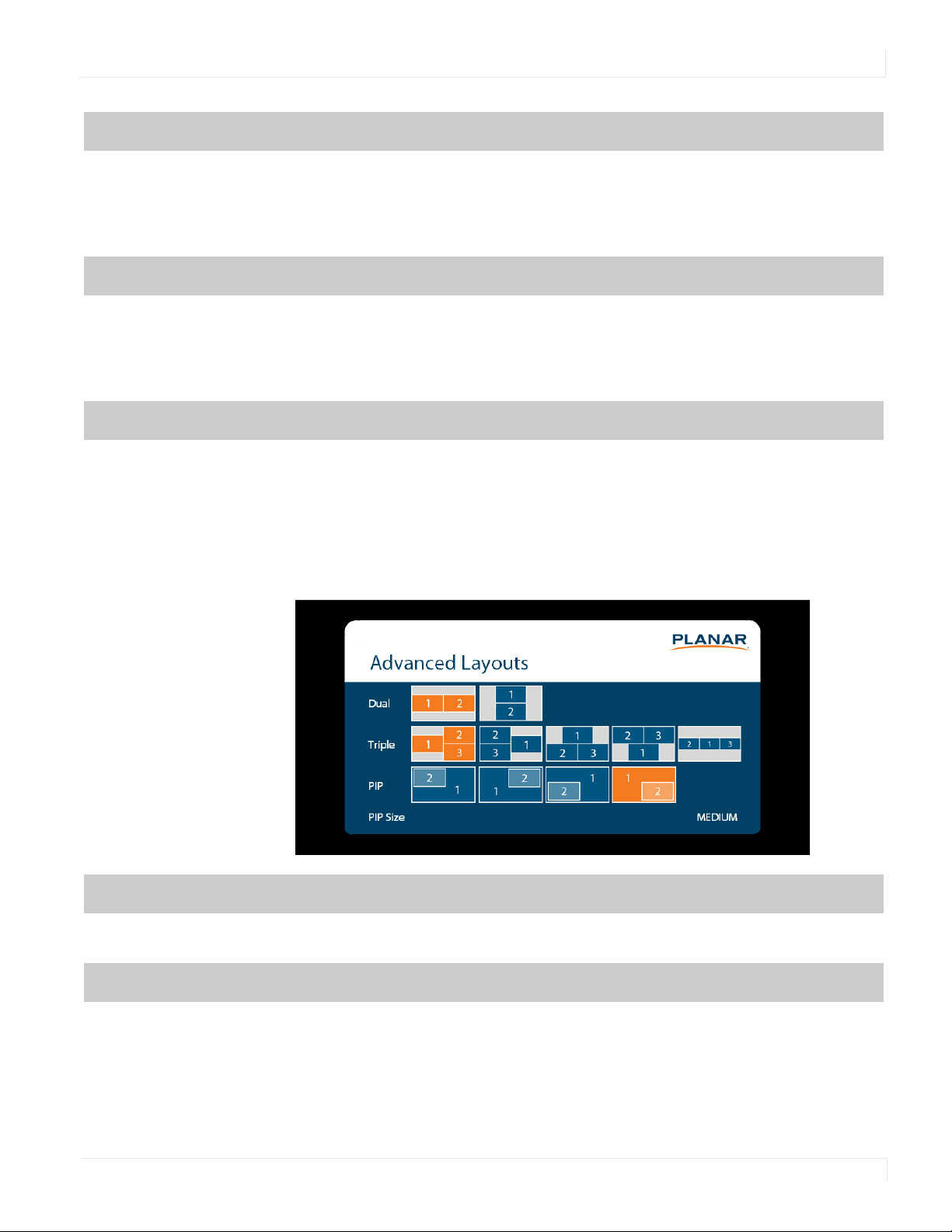
Advanced Layouts Submenu
This submenu defines the layouts for each multi-source view type.
Zone 3
Select the source displayed in Zone 3
Options: HDMI 1, HDMI 2, HDMI 3, HDMI 4, DP, OPS; Default: HDMI 3
Note: If HDMI1 was selected as another source, OPS cannot be selected. If OPS was
selected as another source, HDMI1 cannot be selected.
Zone 4
Select the source displayed in Zone 4
Options: HDMI 1, HDMI 2, HDMI 3, HDMI 4, DP, OPS; Default: HDMI 4
Note: If HDMI1 was selected as another source, OPS cannot be selected. If OPS was
selected as another source, HDMI1 cannot be selected.
Auto Scan Sources
Select whether the display will automatically scan for a valid source on any zone that
currently does not have a source
Options: On, Off; Default: Off
Dual
Select from two dual source layout options. The layout in orange will be the active
layout displayed when the Multi-Source View is set to Dual.
Triple
Select from five triple source layout options. The layout in orange will be the active
layout displayed when the Multi-Source View is set to Triple.

Inputs and Views Menu
38 Planar UltraRes Series User Manual
PIP
Select from four PiP (Picture-in-Picture) layouts. The layout in orange will be the active
layout displayed when the Multi-Source View is set to PiP.
PIP Size
Select the size of the PiP (Picture-in-Picture) window.
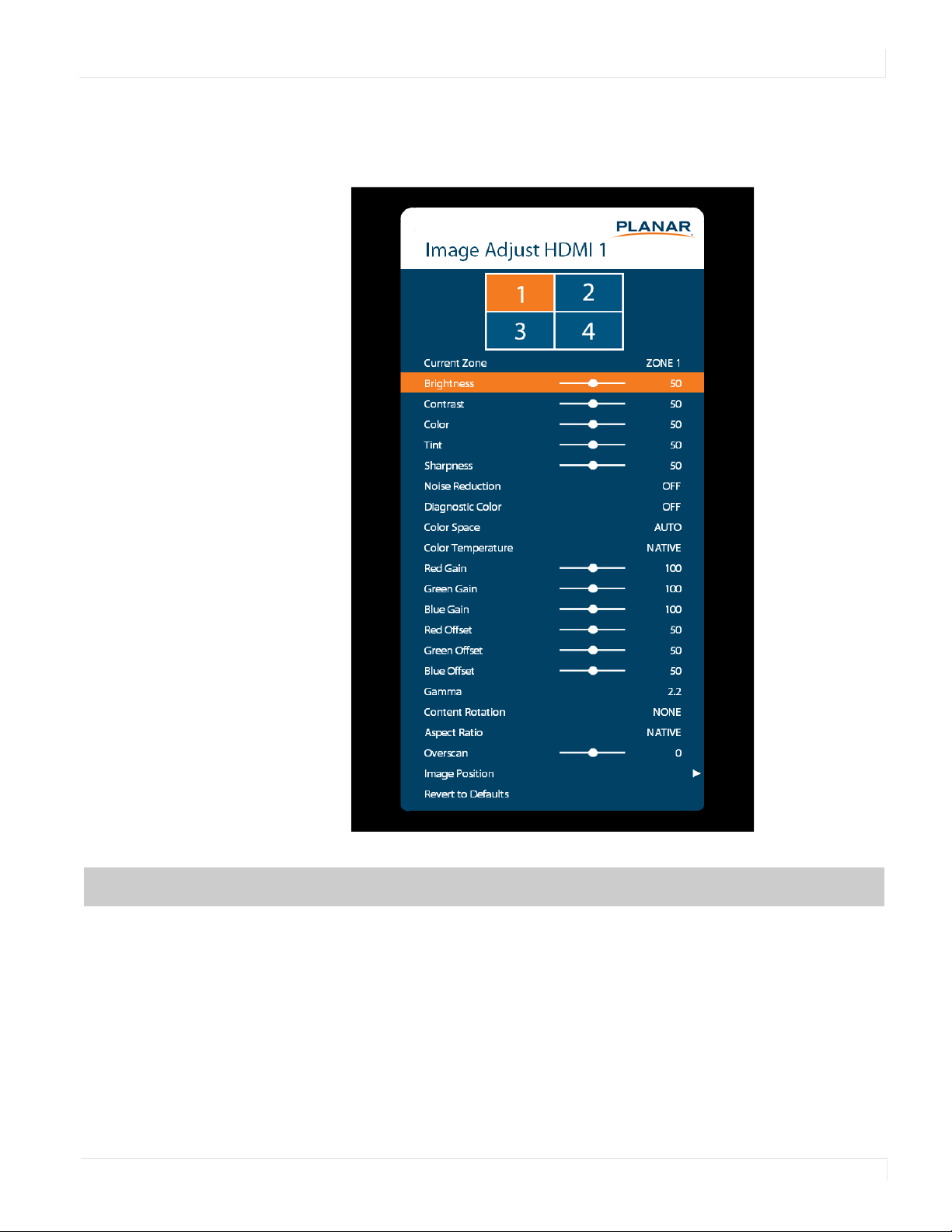
Image Adjust Menu
Planar UltraRes Series User Manual 39
Image Adjust Menu
This menu is used for making common image adjustments for the current zone.
Current Zone
The zone that is currently being adjusted. All of the settings in this menu are saved per
input. The zone’s corresponding input source is shown in the title bar, and the graphic
beneath that shows which zone is being adjusted in the current Multi-Source View
mode and Advanced Layout setting (if applicable).
The current zone can be changed via the menu or by using the ZONE 1-4 keys on the
remote control.
Note: Changing the Current Zone setting via the ZONE 1-4 keys also changes the Audio
Select setting.

Image Adjust Menu
40 Planar UltraRes Series User Manual
Brightness
Adjust the brightness value of the image
Range: 0~100; Default: 50
Contrast
Adjust the contrast of the image
Range: 0~100; Default: 50
Color
Adjust the saturation of the image
Range: 0~100; Default: 50
Tint
Adjust the hue of the image
Range: 0~100; Default: 50
Sharpness
Adjust the sharpness of the image. Higher numbers are sharper
Range: 0~10; Default: 5
Noise Reduction
Turn on noise reduction processing
Options: Off, Low, Medium, High; Default: Off
Diagnostic Color
Set the image to monochrome. This setting is for use in adjustments to a test pattern
and is not stored.
Options: Off, Red, Green, Blue; Default: Off
Color Space
Set the color space of the image
Options: REC601, REC709, RGB, RGB Video, Auto; Default: Auto
Color Temperature
Set the color temperature of the image
Options: 3200K, 5500K, 6500K, 7500K, 9300K, Native; Default: Native
Red Gain
Adjust the red gain of the image
Range: 0~200; Default: 100
Green Gain
Adjust the green gain of the image
Range: 0~200; Default: 100

Image Adjust Menu
Planar UltraRes Series User Manual 41
Blue Gain
Adjust the blue gain of the image
Range: 0~200; Default: 100
Red Offset
Adjust the red offset of the image
Range: 0~100; Default: 50
Green Offset
Adjust the green offset of the image
Range: 0~100; Default: 50
Blue Offset
Adjust the blue offset of the image
Range: 0~100; Default: 50
Gamma
Set the gamma of the image
Options: 1.5, 1.55, 1.6, 1.65, 1.7, 1.75, 1.8, 1.85, 1.9, 1.95, 2.0, 2.05, 2.1, 2.15, 2.2, 2.25, 2.3,
2.35, 2.4, 2.45, 2.5, 2.55, 2.6, 2.65, 2.7, 2.75, 2.8
Default: 2.2
Content Rotation
Rotate the image on the display
Options: None, 90, 180, 270; Default: None
Aspect Ratio
Set how the source is treated when the aspect ratio of the input is different than the
aspect ratio of the zone it is in. If the image does not fill the zone completely, the extra
margins are black.
Options: Auto, 16:9, 4:3, Fill Screen, Native, Letterbox; Default: Auto
Overscan
Set the percentage of the image to remove from each edge
Range: 0~20; Default: 0
Image Position
Move the image horizontally or vertically. The amount to move is measured in input
pixels.
Range: -1000~1000; Default: 0
Revert to Defaults
Reset all settings in the Image Adjust menu to their factory defaults for the current zone
only
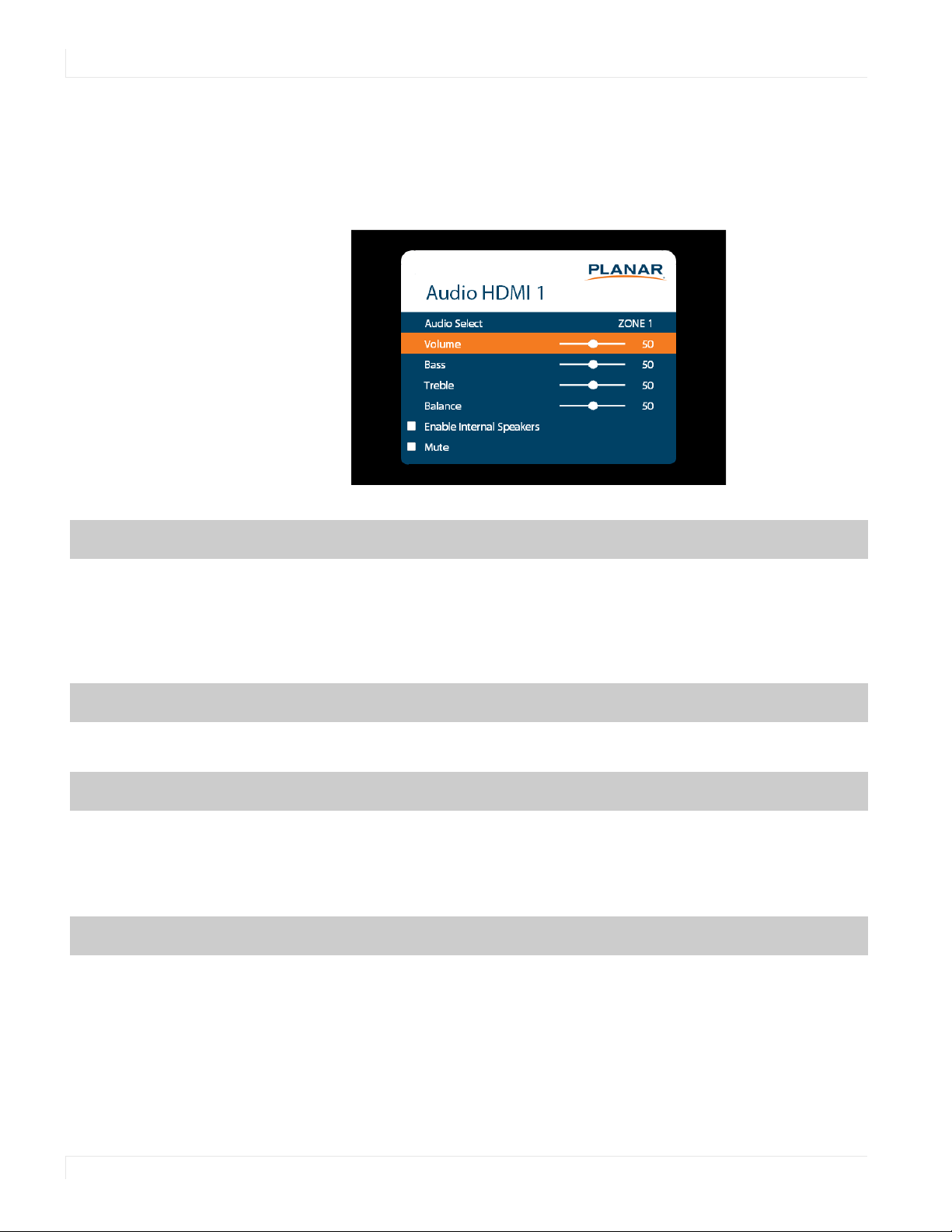
Audio Menu
42 Planar UltraRes Series User Manual
Audio Menu
This menu enables you to make audio adjustments to the selected zone.
Note: Volume, Bass, Treble and Balance do not apply to the S/PDIF output.
Audio Select
The zone that is currently being adjusted and whose audio is being played. The zone’s
corresponding input source is shown in the title bar.
Options: Zone 1, Zone 2, Zone 3, Zone 4; Default: Zone 1
Note: Changing the Audio Select setting via the ZONE 1-4 keys also changes the Current
Zone setting.
Volume
Set the volume of the audio
Range: 0~100; Default: 50
Bass
Set the bass level
Range: 0~100; Default: 50
Note: This setting applies only to the internal speakers, and cannot be adjusted for the
Line Out connector.
Treble
Set the treble level
Range: 0~100; Default: 50
Note: This setting applies only to the internal speakers, and cannot be adjusted for the
Line Out connector.

Audio Menu
Planar UltraRes Series User Manual 43
Balance
Set the audio balance
Range: 0~100; Default: 50
Enable Internal
Speakers
Disable or enable the built-in speakers
Options: On, Off; Default: On
Mute
Mute or unmute the audio
Options: On or Off; Default: Off
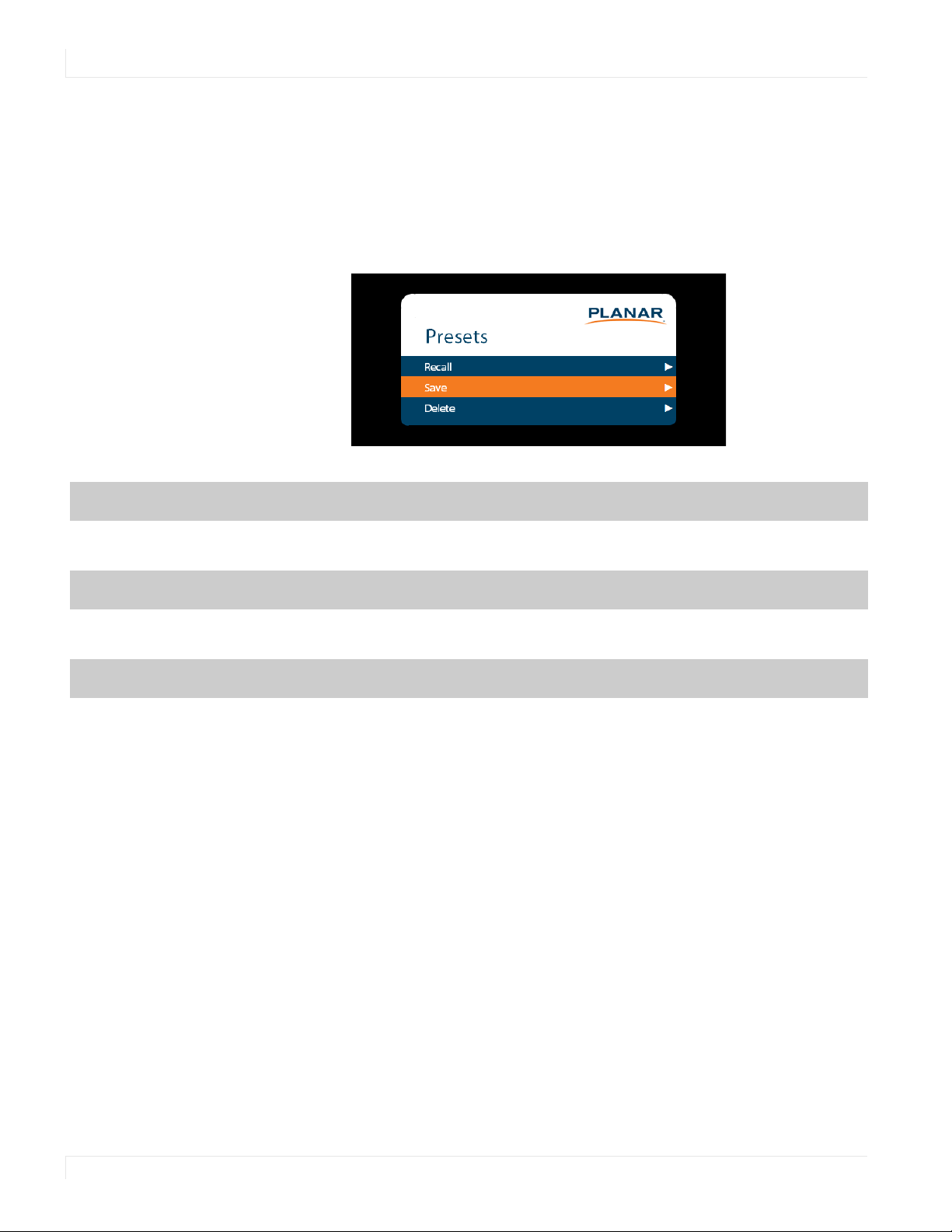
Presets Menu
44 Planar UltraRes Series User Manual
Presets Menu
This menu enables you to save Inputs and Views settings, Image Adjust settings,
Audio settings, the Backlight Intensity setting, the Local Dimming setting, and Tiling
settings. You can save up to 10 presets using this menu (more can be saved via the
serial command interface). If a preset is saved, it will appear as “Preset 1”, “Preset 2”,
and so on. If it is not saved, it will appear as “<Empty>”.
Recall
Apply the setup from the selected preset
Range: Preset 1~Preset 10
Save
Save the current setup for later recall
Range: Preset 1~Preset 10
Delete
Delete the selected preset
Range: Preset 1~Preset 10
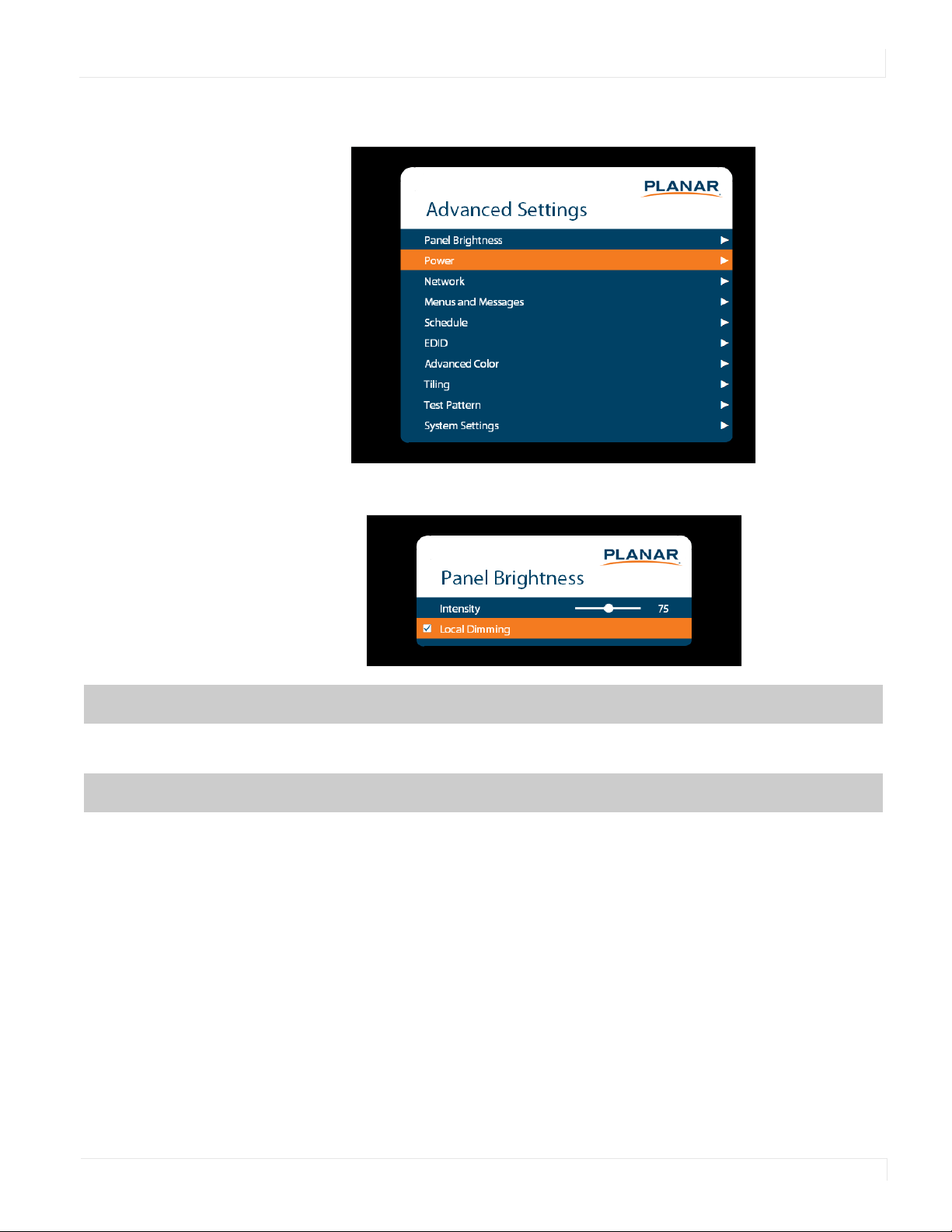
Advanced Settings Menu
Planar UltraRes Series User Manual 45
Advanced Settings Menu
Panel Brightness Submenu
Intensity
Set the intensity of the LCD backlight
Range: 0~100; Default: 75
Local Dimming
Turn on or off the local dimming function, if supported by the display
Options: On, Off; Default: On
Advanced Settings Menu
46 Planar UltraRes Series User Manual
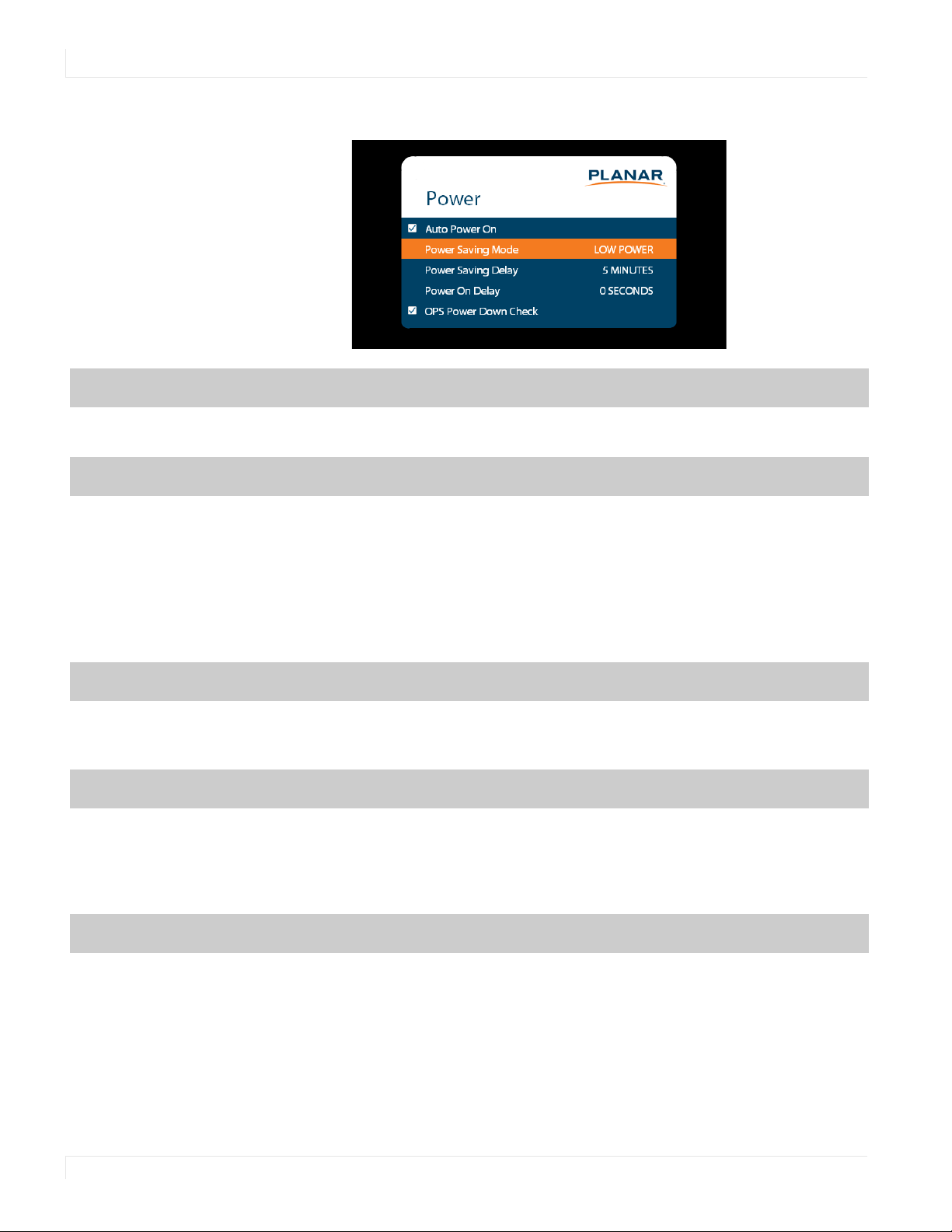
Power Submenu
Auto Power On
Set whether the system will automatically leave standby mode after AC power is applied
Options: On, Off; Default: Off
Power Saving Mode
Set the action to take if there is no signal detected after the period of time selected by
the Power Saving Delay setting:
• Disabled: The display will remain on even if no signal is present.
• Low Power: The display will enter standby mode if no signal is detected after the
specified period of time.
• Wake on Signal: The display will enter a reduced power mode if no signal is
detected after the specified period of time. When in this state, the display will turn
on when a signal is detected or when any key is pressed on the keypad or IR remote.
Power Saving Delay
Set the number of minutes to delay before initiating the power saving mode action (if
any)
Options: 1 Minute, 5 Minutes, 15 Minutes, 30 Minutes, 60 Minutes; Default: 5 minutes
Power On Delay
Select the amount of time to delay before turning on the display. Depending on the
electrical capabilities at the installation site, it can be necessary to adjust the power on
sequence of the displays if there are multiple displays in the installation. Use this control
to ensure that each display will power on at a different time, avoiding such problems.
Options: 0-10 seconds, in 0.1 second increments; Default: 0 seconds
OPS Power Down Check
When this is enabled, the system will wait for a signal from the OPS module indicating it
has finished its power down sequence before going into standby
Options: Disable, Enable; Default: Enable
Advanced Settings Menu
Planar UltraRes Series User Manual 47
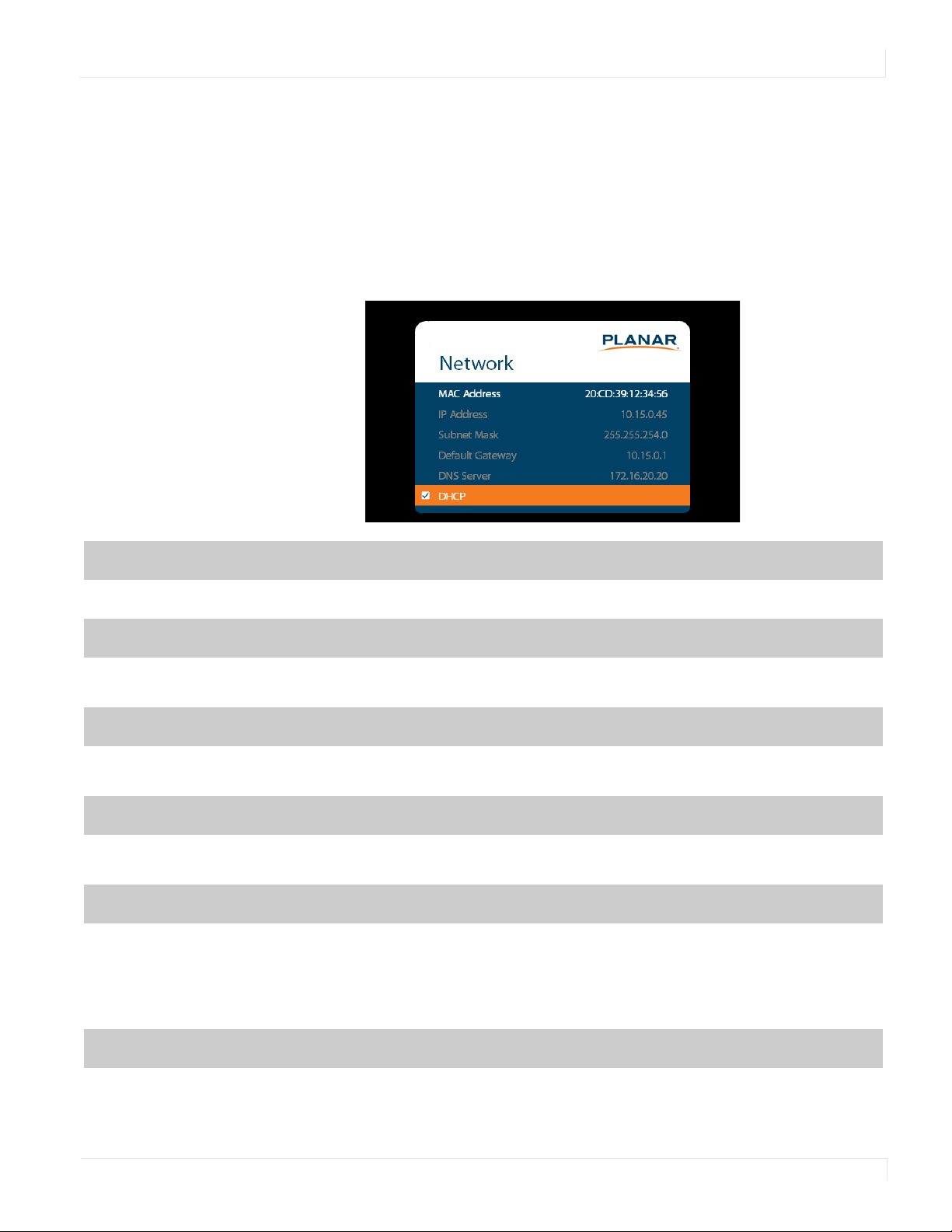
Network Submenu
The default static IP values are:
• IP Address: 192.168.12.12
• Subnet Mask: 255.255.255.0
• Default Gateway: 192.168.12.1
The static IP settings that you program will be used if a DHCP server cannot be found.
MAC Address
The MAC address of the system
IP Address
The current network address. You can use the number keys on the remote to enter this
information.
Subnet Mask
The current subnet mask. You can use the number keys on the remote to enter this
information.
Default Gateway
The current default gateway. You can use the number keys on the remote to enter this
information.
DNS Server
The current DNS server. You can use the number keys on the remote to enter this
information.
Note: The specified DNS server is used when Use Network Time is checked for the Set
Date and Time setting.
DHCP
Turn DHCP on or off
Options: On, Off; Default: On
Advanced Settings Menu
48 Planar UltraRes Series User Manual
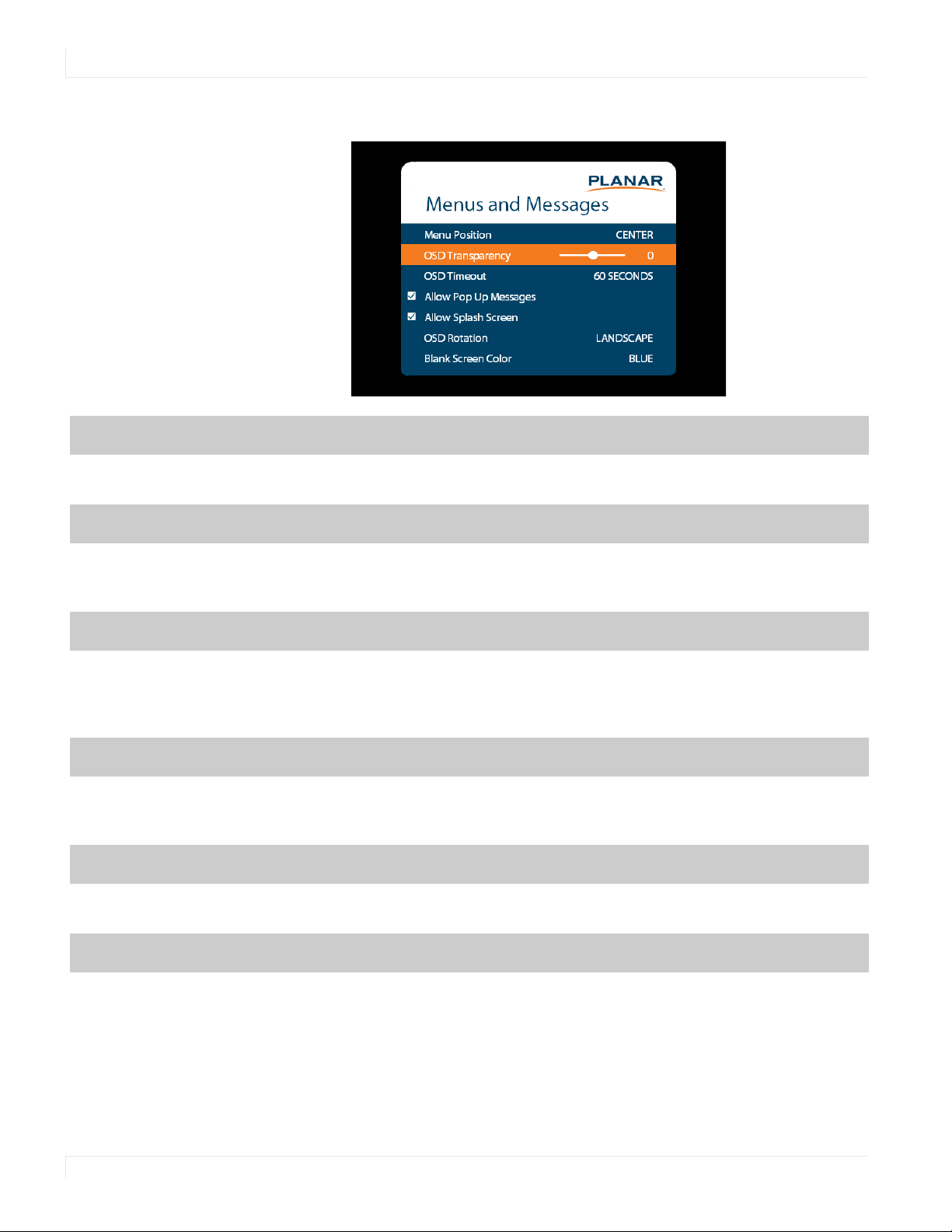
Menus and Messages Submenu
Menu Position
Move the OSD menu to a different location on the screen
Options: Center, Upper Left, Upper Right, Lower Left, Lower Right; Default: Center
OSD Transparency
Set the transparency of the OSD so that the image behind it can be seen. Higher values
mean greater transparency.
Range: 0~5; Default: 0
OSD Timeout
Set the amount of time in seconds since the last keypress before the OSD menu
automatically closes. If set to Off, the menu never automatically closes.
Options: Off, 10 Seconds, 30 Seconds, 60 Seconds, 120 Seconds, 240 Seconds; Default:
60 Seconds
Allow Pop Up Messages
Suppress messages that pop up automatically. When set to No, the source status
message and the volume slider bar will not be displayed.
Options: Yes or No; Default: Yes
Allow Splash Screen
Enable or disable the splash screen during startup
Options: Enable or Disable; Default: Enable
OSD Rotation
Rotate the OSD menu so that it is readable if the display is mounted in portrait
orientation
Options: Landscape or Portrait; Default: Landscape
Advanced Settings Menu
Planar UltraRes Series User Manual 49
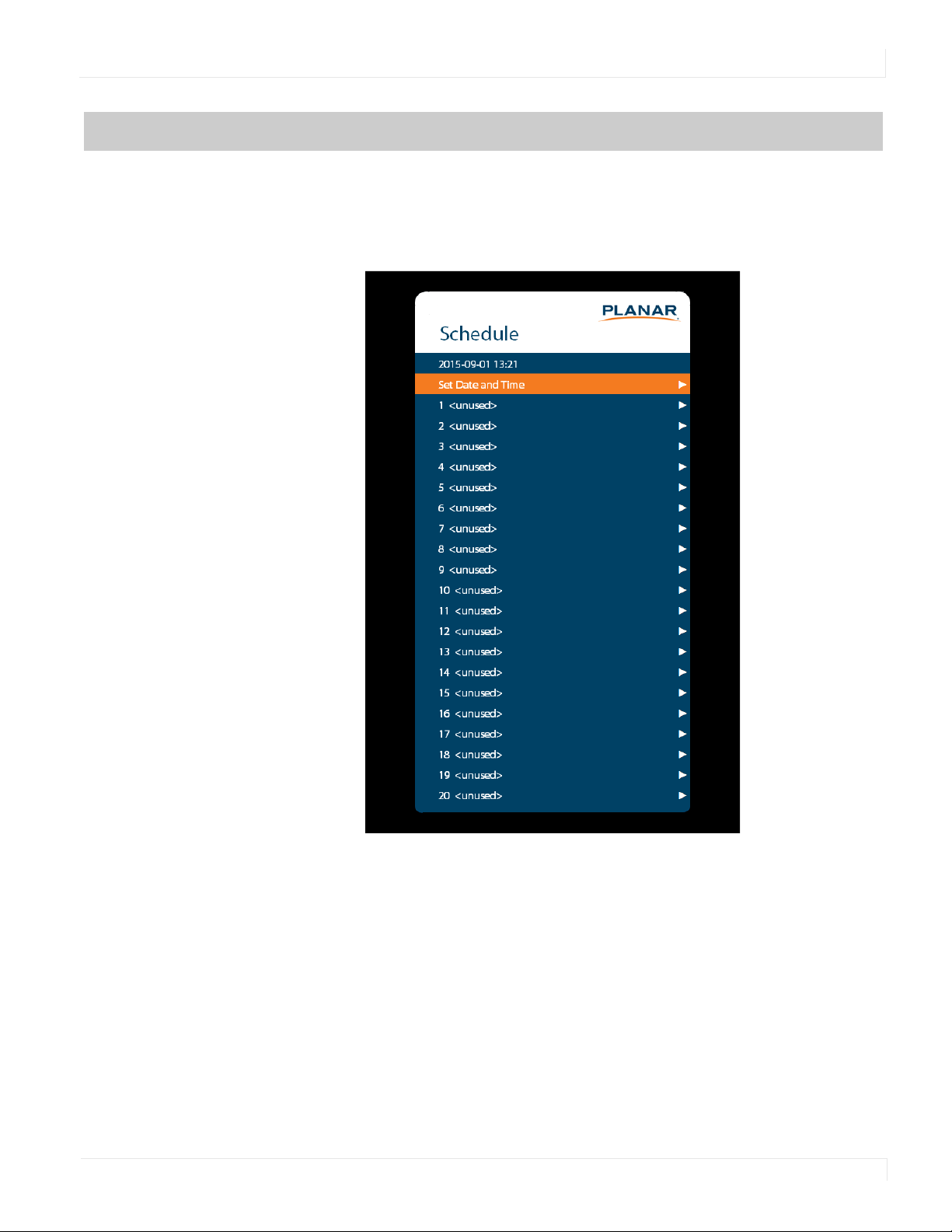
Schedule Submenu
Blank Screen Color
Select the color to display when there is no signal in a zone
Options: Black, White, Gray, Red, Green, Blue, Cyan, Magenta, Yellow
Default: Black
Advanced Settings Menu
50 Planar UltraRes Series User Manual
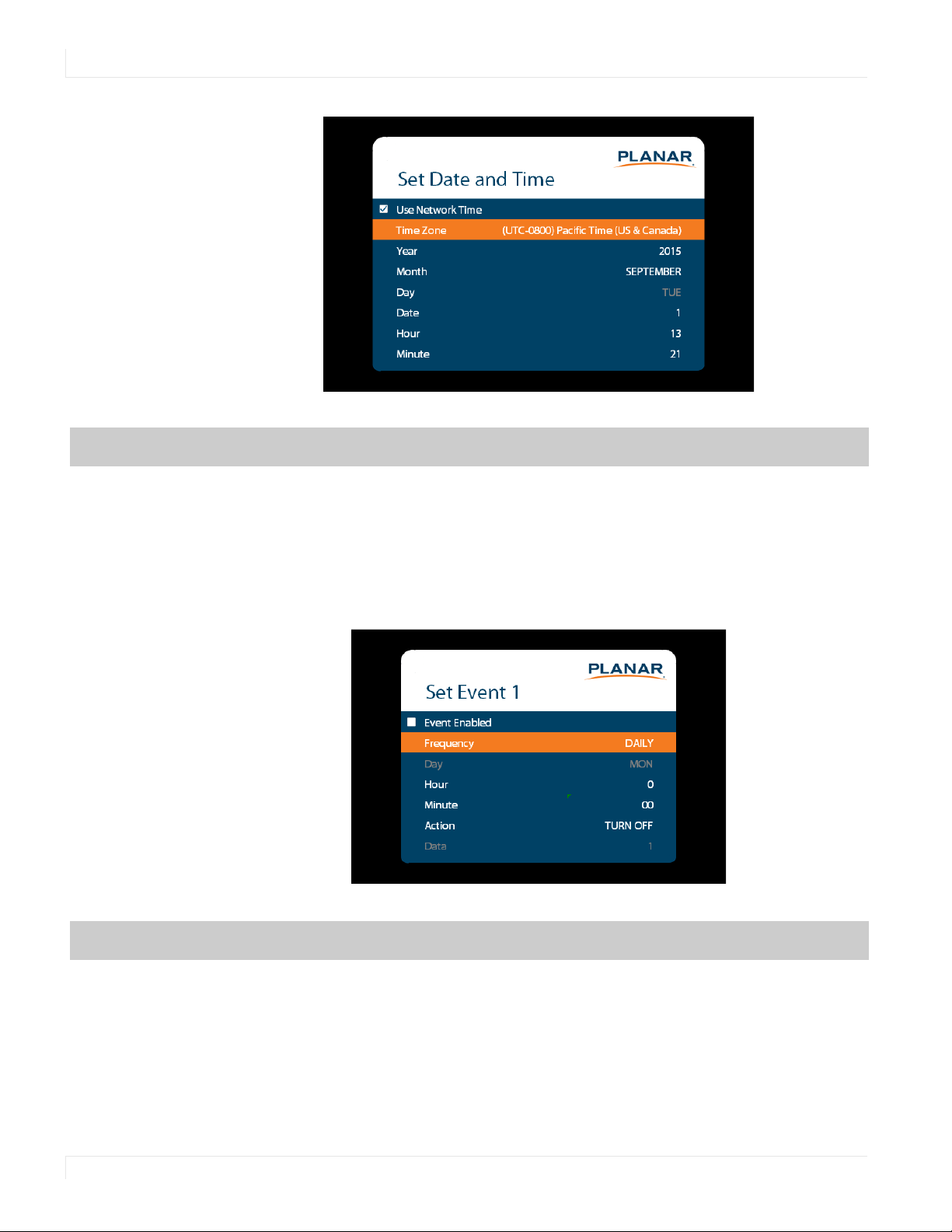
Set Date and Time
Set the internal system clock. If Use Network Time is unchecked, you can set the
following settings individually: Time Zone, Year, Month, Day, Date, Hour, and Minute.
Note: If Use Network Time is checked and DHCP is unchecked, the display will be unable
to obtain the network time unless a DNS server is programmed. This is done via the DNS
Server setting in the Network menu or the serial command interface.
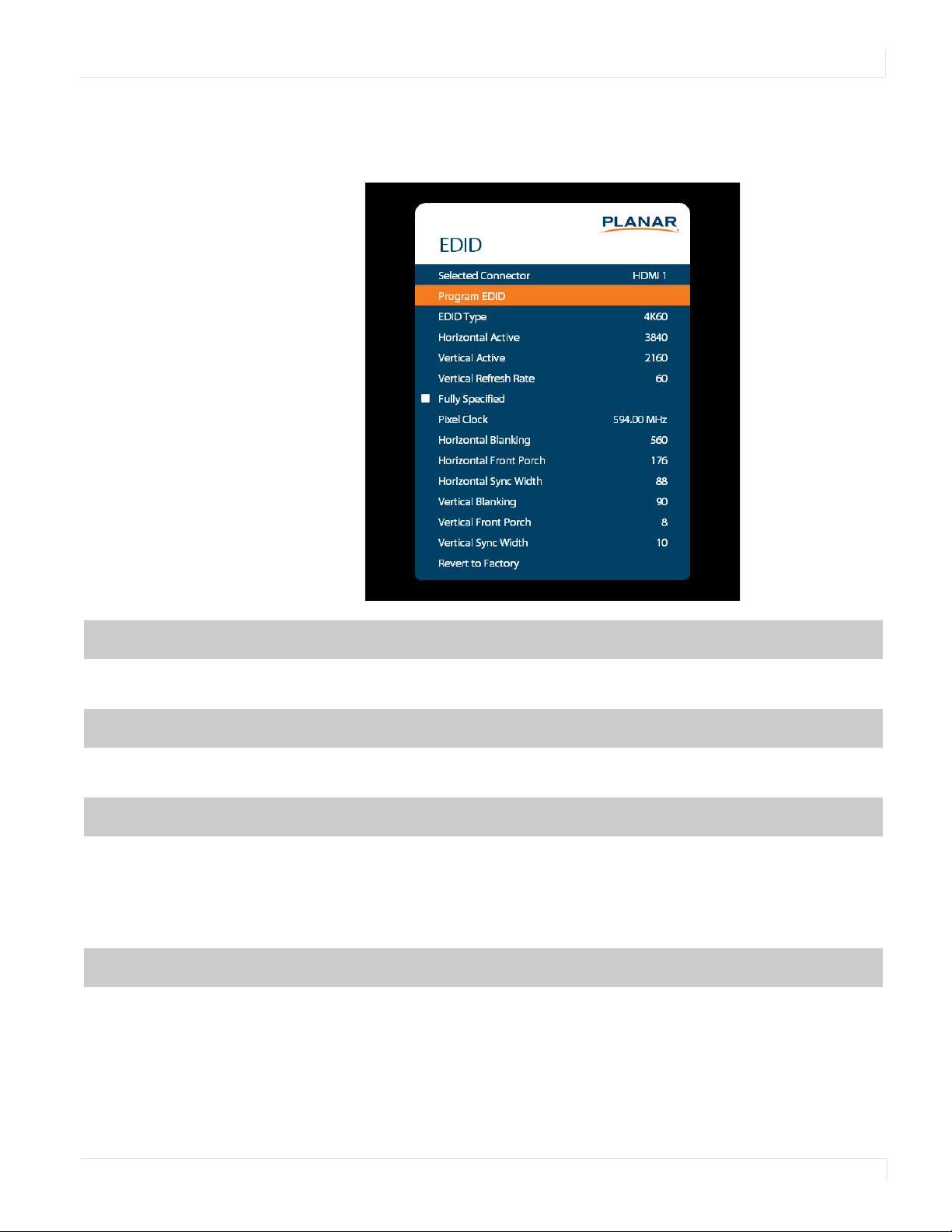
Set Event 1~Event 20
Event Enabled: Turns on the event. If disabled, the settings are saved so that the event
can be re-enabled.
Frequency: The frequency of the event. Options are Daily, Weekly, Weekdays, Weekends.
Action: The action to take for the event. Options are Turn On, Turn Off, Recall, Panel
Brightness.
Data: The preset to recall when the Action is set to Recall, or the backlight setting when
the Action is set to Panel Brightness.
Advanced Settings Menu
Planar UltraRes Series User Manual 51
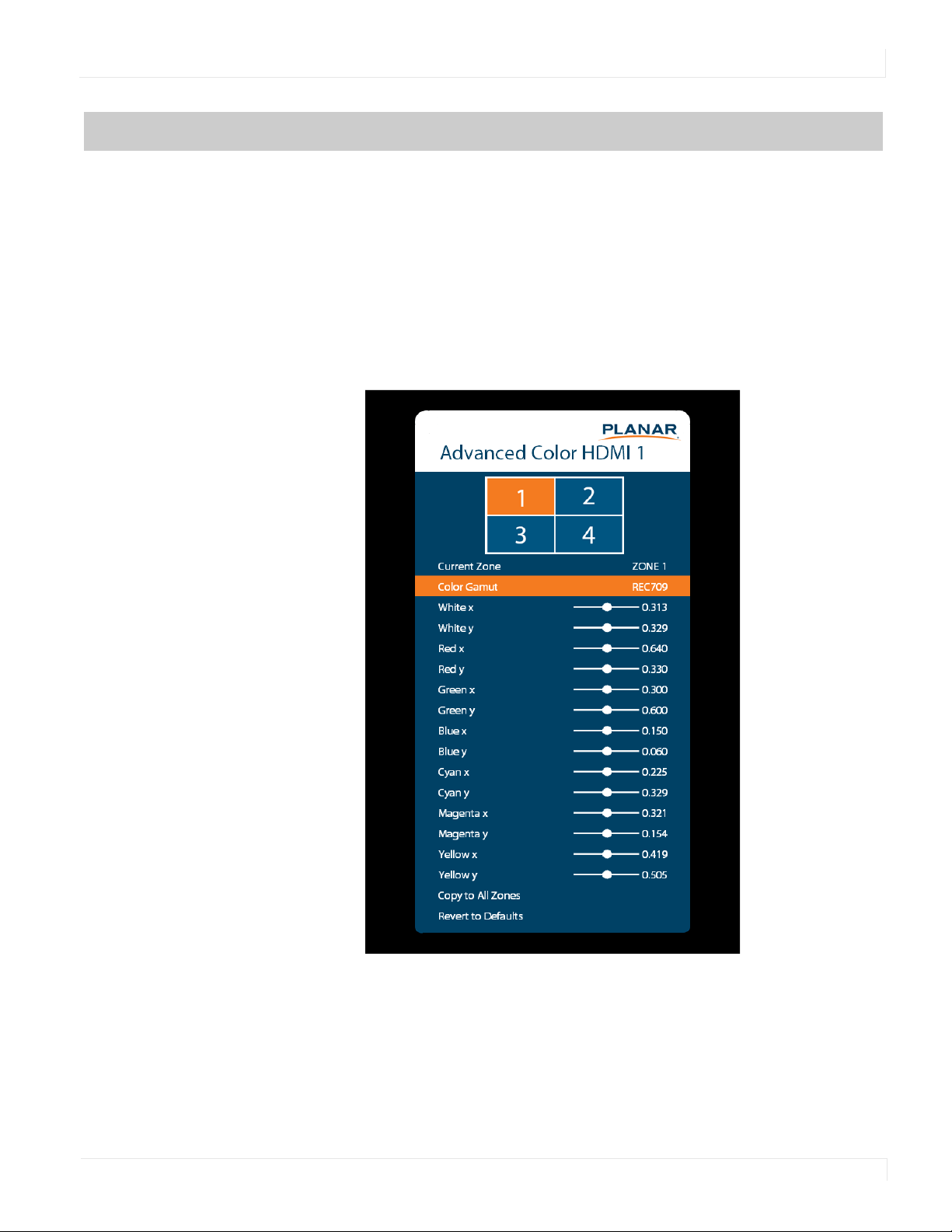
EDID Submenu
This menu specifies the EDID format and preferred timing for the selected connector.
Selected Connector
Set which connector is used
Options: HDMI 1, HDMI 2, HDMI 3, HDMI 4, DP, OPS, All
Program EDID
Program the EDID information for the selected connector based on the selections in the
EDID submenu
EDID Type
Set the EDID type to determine the base EDID used for the current connector:
• 4K60 selects an EDID format compliant with HDMI 2.0 and DP 1.2
• 4K30 selects an EDID format compliant with HDMI 1.4b and DP 1.1
• 1080P selects an EDID format compliant with HDMI 1.3 and DP 1.1
Options: 4K60, 4K30, 1080P
Horizontal Active
The number of active pixels in a line
Range: 0~4095

Advanced Settings Menu
52 Planar UltraRes Series User Manual
Vertical Active
The number of active lines in a field
Range: 0~4095
Vertical Refresh Rate
The number of fields per second rounded to the nearest Hz
Range: 0~120
Fully Specified
Determine how the final detailed timing is calculated. If disabled, it is calculated based on
Horizontal Active, Vertical Active, and Vertical Refresh Rate values. If enabled, it is
calculated based on all of the EDID values except for Vertical Refresh Rate.
Options: Disabled, Enabled
Note: This setting should only be enabled by advanced users.
Pixel Clock
The value of the pixel clock, in megahertz
Range: 0~600.00, in 0.01 increments
Horizontal Blanking
The number of non-active pixel clocks in a line
Range: 0~1023
Horizontal Front Porch
The number of pixel clocks in the horizontal front porch
Range: 0~1023
Horizontal Sync Width
The number of pixel clocks in the horizontal sync pulse
Range: 0~255
Vertical Blanking
The number of non-active lines in a field
Range: 0~255
Vertical Front Porch
The number of line times in the vertical front porch
Range: 0~255
Vertical Sync Width
The number of line times in the vertical sync
Range: 0~255
Advanced Settings Menu
Planar UltraRes Series User Manual 53
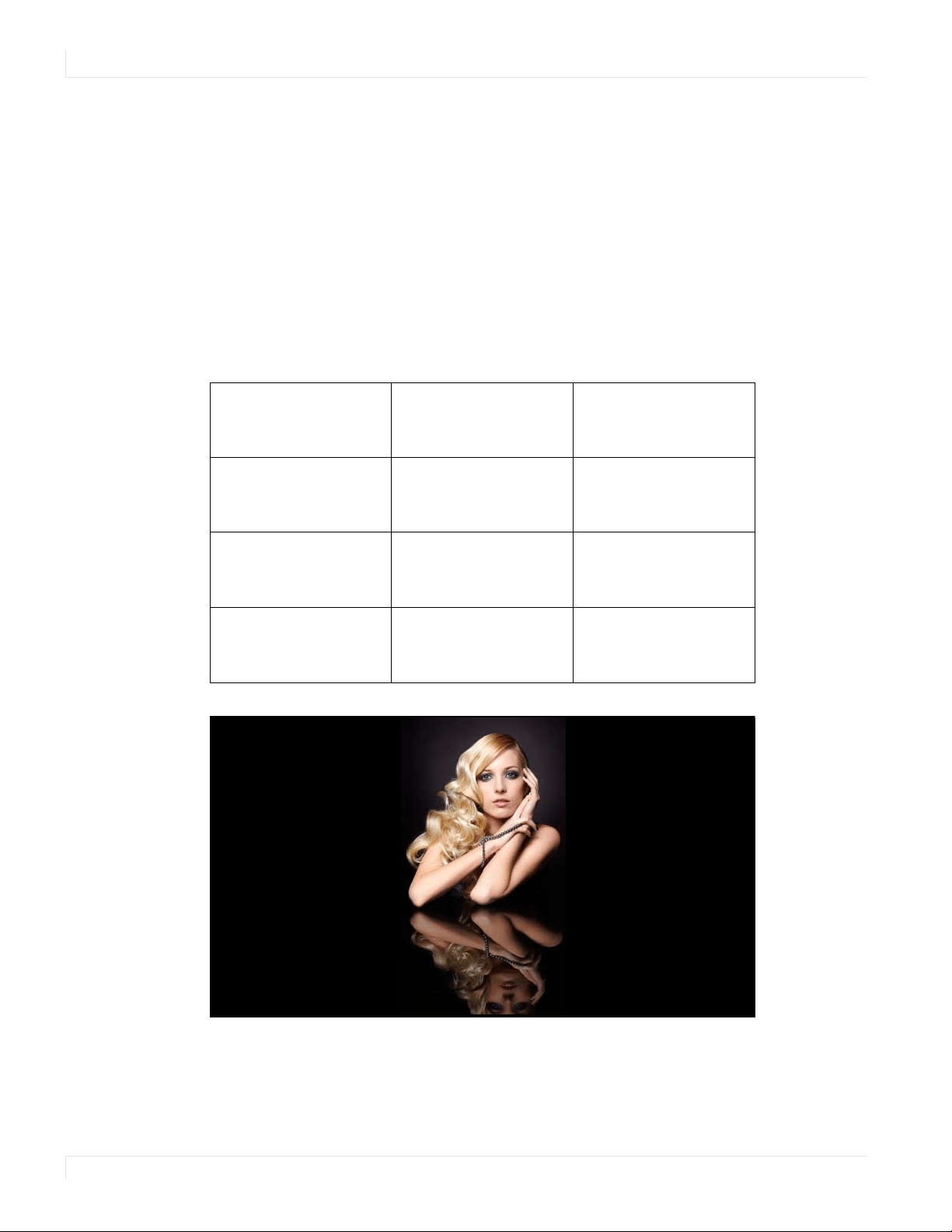
Advanced Color Submenu
This menu adjusts the color coordinates of the current zone. These controls are used
by advanced installers to achieve exact color point targets on the display. In some
cases, the target color coordinates may not be achievable. In this case, an asterisk (*)
will appear next to the color coordinate value.
Note: The white color point should be adjusted before adjusting the other color points.
Revert to Factory
Reset the EDID type and timings to the default values for the selected connector

Advanced Settings Menu
54 Planar UltraRes Series User Manual
Current Zone
The zone that is currently being adjusted. All of the settings in this menu are saved per
zone, and all color coordinate values are also saved per Color Gamut setting. The zone’s
corresponding input source is shown in the title bar, and the graphic beneath that shows
which zone is being adjusted in the current Multi-Source View mode and Advanced
Layout setting (if applicable).
The current zone can be changed via the menu or by using the ZONE 1-4 keys on the
remote control.
Note: Changing the Current Zone setting via the ZONE 1-4 keys also changes the Audio
Select setting.
White x
Adjust the x coordinate of the white color point
Range: 0.000-0.800
White y
Adjust the y coordinate of the white color point
Range: 0.000-0.800
Red x
Adjust the x coordinate of the red color point
Range: 0.000-0.800
Red y
Adjust the y coordinate of the red color point
Range: 0.000-0.800
Green x
Adjust the x coordinate of the green color point
Range: 0.000-0.800
Green y
Adjust the y coordinate of the green color point
Range: 0.000-0.800
Blue x
Adjust the x coordinate of the blue color point
Range: 0.000-0.800
Blue y
Adjust the y coordinate of the blue color point
Range: 0.000-0.800

Advanced Settings Menu
Planar UltraRes Series User Manual 55
Cyan x
Adjust the x coordinate of the cyan color point
Range: 0.000-0.800
Cyan y
Adjust the y coordinate of the cyan color point
Range: 0.000-0.800
Magenta x
Adjust the x coordinate of the magenta color point
Range: 0.000-0.800
Magenta y
Adjust the y coordinate of the magenta color point
Range: 0.000-0.800
Yell ow x
Adjust the x coordinate of the yellow color point
Range: 0.000-0.800
Yell ow y
Adjust the y coordinate of the yellow color point
Range: 0.000-0.800
Copy to All Zones
Copy the color coordinate settings for the current zone and the current Color Gamut
setting to all other zones
Revert to Defaults
Reset the color coordinate settings for the current zone and the current Color Gamut
setting to their default values
Advanced Settings Menu
56 Planar UltraRes Series User Manual
Tiling Submenu
This menu contains controls for using multiple UltraRes displays in a tiled
configuration. This is useful when trying to display one image across multiple
displays. In addition to setting up the width and height of the tiled wall, each display
must have its position within the tiled wall properly selected. Refer to the diagrams
below for example setting values in a 3 x 4 tiled wall.
Note: When using the Content Rotation feature, the Tiling settings must be adjusted
differently in order to display the image properly. Refer to the examples below.
Example 1: 0 Degree Rotation, Wall Width = 3, Wall Height = 4
Unit Row 1
Unit Column 1
Unit Row 1
Unit Column 2
Unit Row 1
Unit Column 3
Unit Row 2
Unit Column 1
Unit Row 2
Unit Column 2
Unit Row 2
Unit Column 3
Unit Row 3
Unit Column 1
Unit Row 3
Unit Column 2
Unit Row 3
Unit Column 3
Unit Row 4
Unit Column 1
Unit Row 4
Unit Column 2
Unit Row 4
Unit Column 3
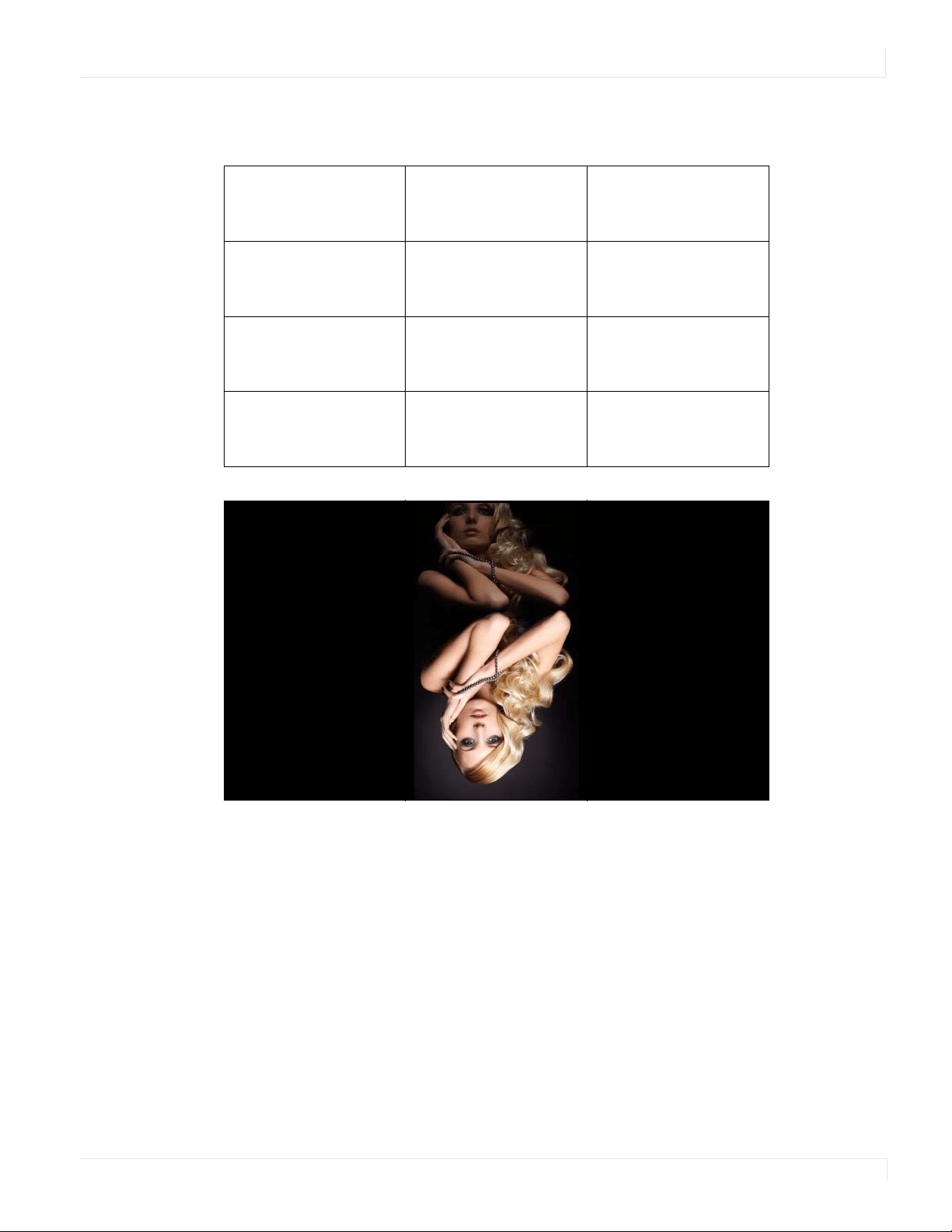
Advanced Settings Menu
Planar UltraRes Series User Manual 57
Example 2: 180 Degree Rotation, Wall Width = 3, Wall Height = 4
Unit Row 4
Unit Column 3
Unit Row 4
Unit Column 2
Unit Row 4
Unit Column 1
Unit Row 3
Unit Column 3
Unit Row 3
Unit Column 2
Unit Row 3
Unit Column 1
Unit Row 2
Unit Column 3
Unit Row 2
Unit Column 2
Unit Row 2
Unit Column 1
Unit Row 1
Unit Column 3
Unit Row 1
Unit Column 2
Unit Row 1
Unit Column 1
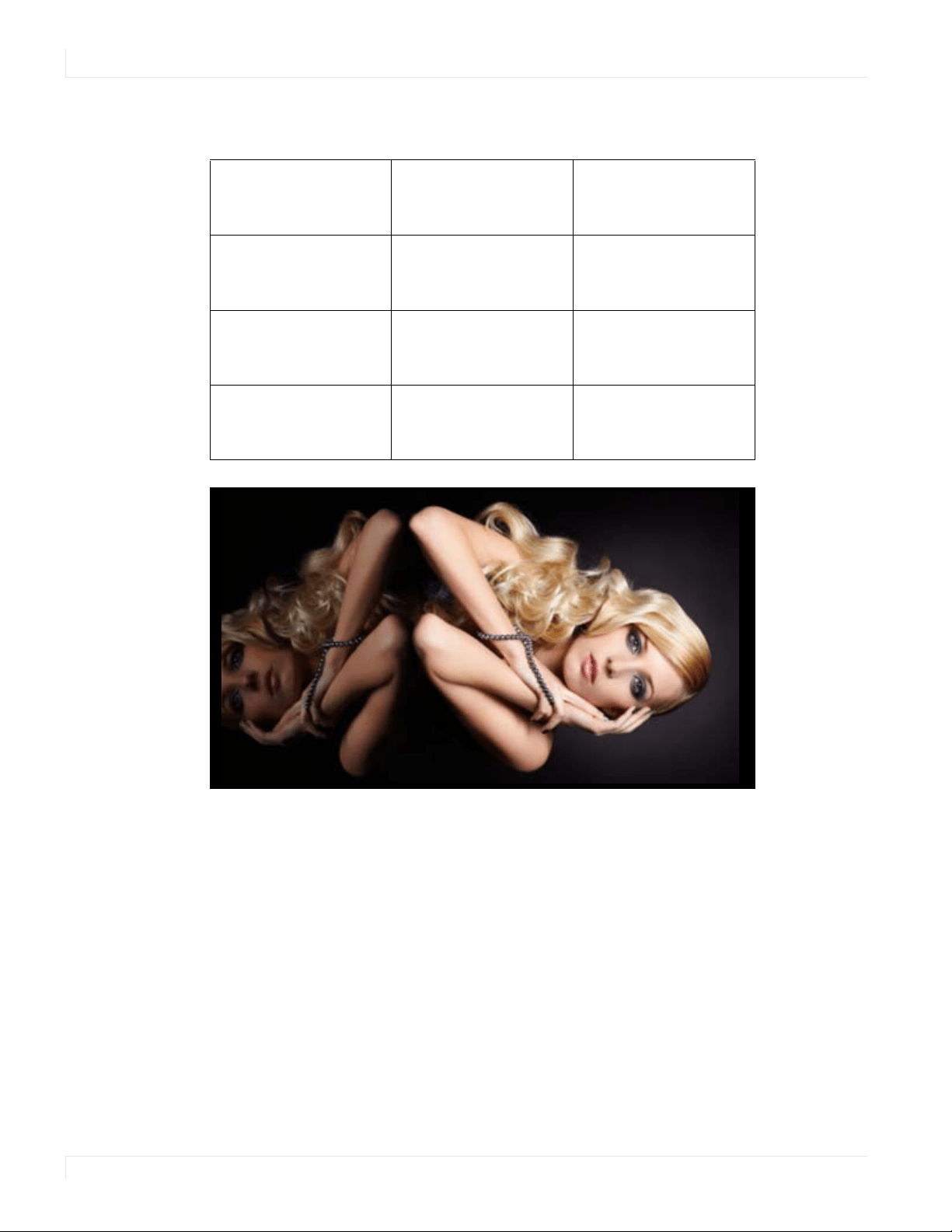
Advanced Settings Menu
58 Planar UltraRes Series User Manual
Example 3: 90 Degree Rotation, Wall Width = 4, Wall Height = 3
Unit Row 3
Unit Column 1
Unit Row 2
Unit Column 1
Unit Row 1
Unit Column 1
Unit Row 3
Unit Column 2
Unit Row 2
Unit Column 2
Unit Row 1
Unit Column 2
Unit Row 3
Unit Column 3
Unit Row 2
Unit Column 3
Unit Row 1
Unit Column 3
UnitRow3
UnitColumn4
UnitRow2
UnitColumn4
UnitRow1
UnitColumn4
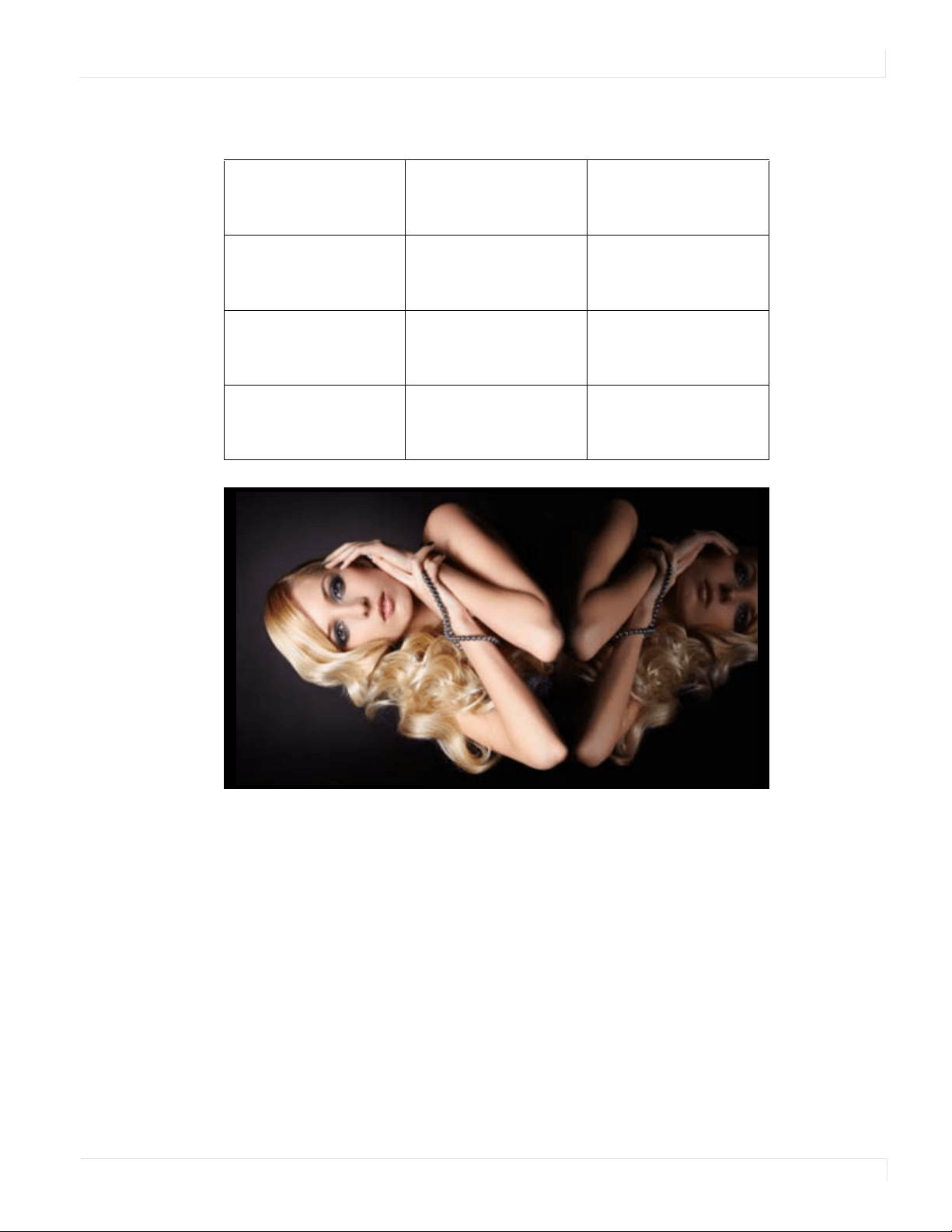
Advanced Settings Menu
Planar UltraRes Series User Manual 59
Example 4: 270 Degree Rotation, Wall Width = 4, Wall Height = 3
UnitRow1
UnitColumn4
UnitRow2
UnitColumn4
UnitRow3
UnitColumn4
UnitRow1
UnitColumn3
UnitRow2
UnitColumn3
UnitRow3
UnitColumn3
UnitRow1
UnitColumn2
UnitRow2
UnitColumn2
UnitRow3
UnitColumn2
UnitRow1
UnitColumn1
UnitRow2
UnitColumn1
UnitRow3
UnitColumn1
Advanced Settings Menu
60 Planar UltraRes Series User Manual
Tiling Enabled
When enabled, the tiling parameters in the menu are used
Options: Disable, Enable; Default: Disable
Wall Width,
Wall Height
Select the width and height of the tiled wall
Default: Width=1, Height=1
Unit Column,
Unit Row
Selects the location of the current display within the tiled wall
Default: Column=1, Row=1
Frame Compensation
When enabled, the image is scaled to compensate for the width of the display’s bezel,
using the Frame Width and Frame Height parameters. See "Frame Compensation
Examples" on page 61.
Options: Disable, Enable; Default: Disable
Frame Width,
Frame Height
Selects how many lines/pixels are removed from the image to compensate for the
display’s bezel
Advanced Settings Menu
Planar UltraRes Series User Manual 61
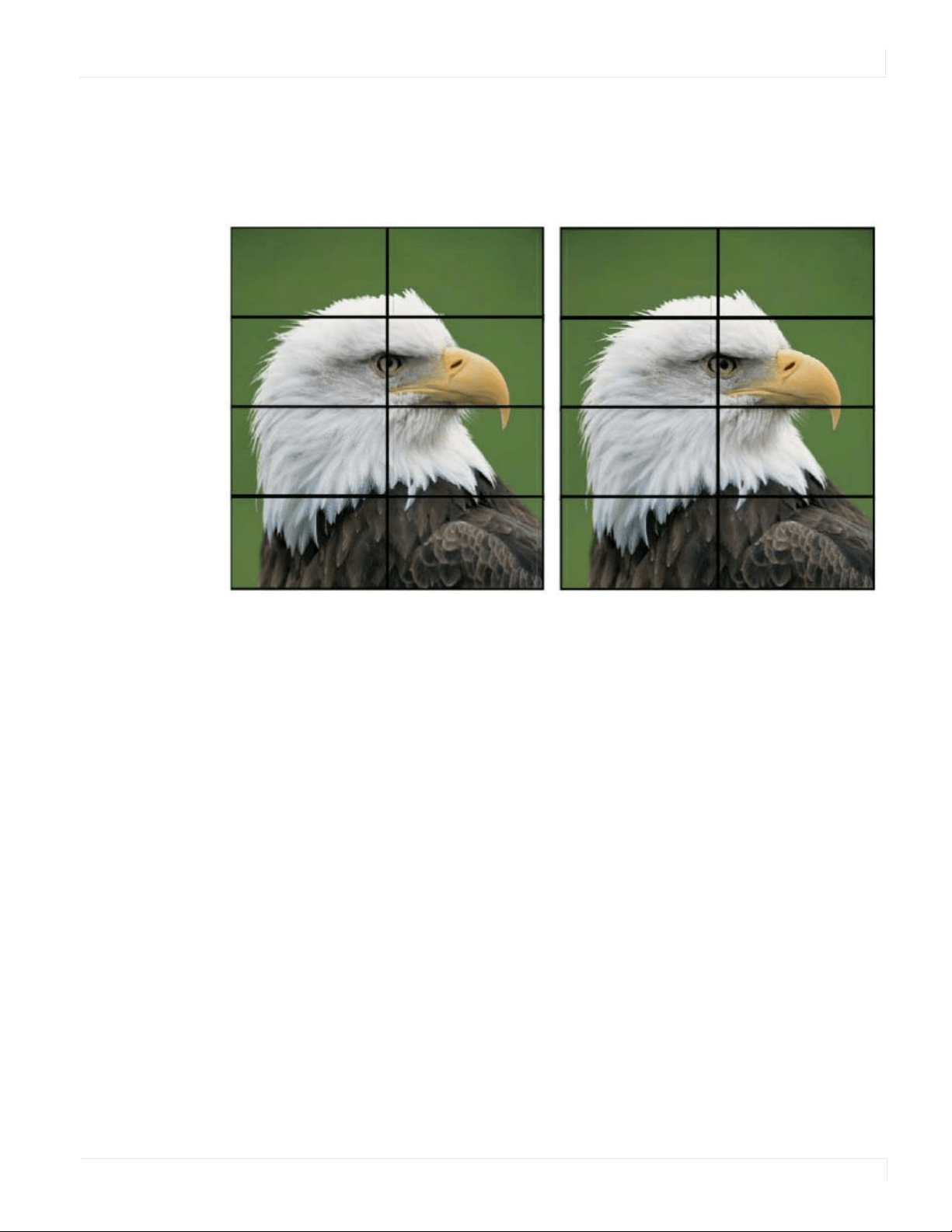
Frame Compensation Examples
Below are examples with the Frame Compensation feature enabled (left) and
disabled (right). Note that the eagle’s eye is noticeably different when Frame
Compensation is disabled.
Advanced Settings Menu
62 Planar UltraRes Series User Manual
Test Patterns Submenu
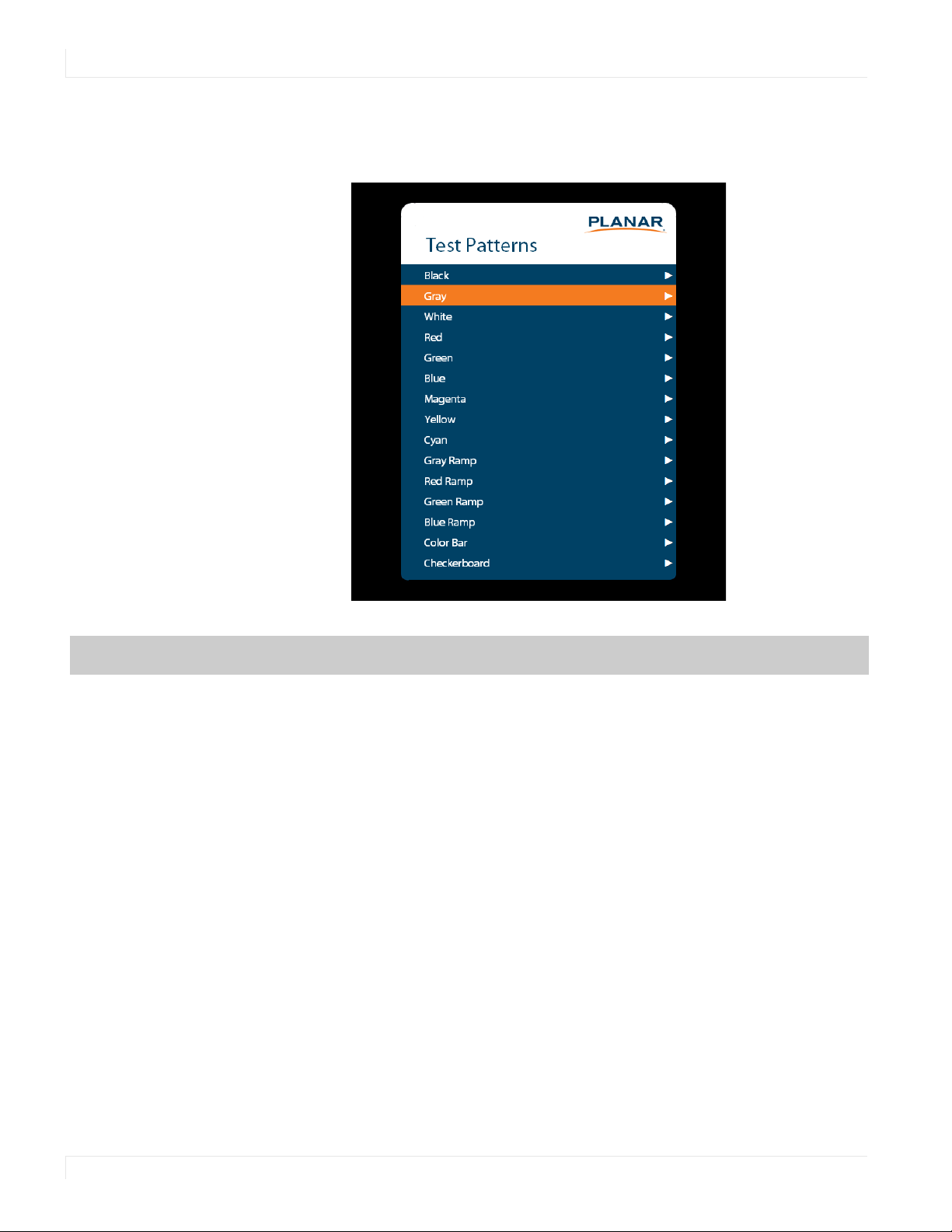
This menu selects a test pattern to show on the display for diagnostic purposes.
Test Patterns
Options: Black, Gray, White, Red, Green, Blue, Magenta, Yellow, Cyan, Gray Ramp, Red
Ramp, Blue Ramp, Color Bar, Checkerboard
Advanced Settings Menu
Planar UltraRes Series User Manual 63
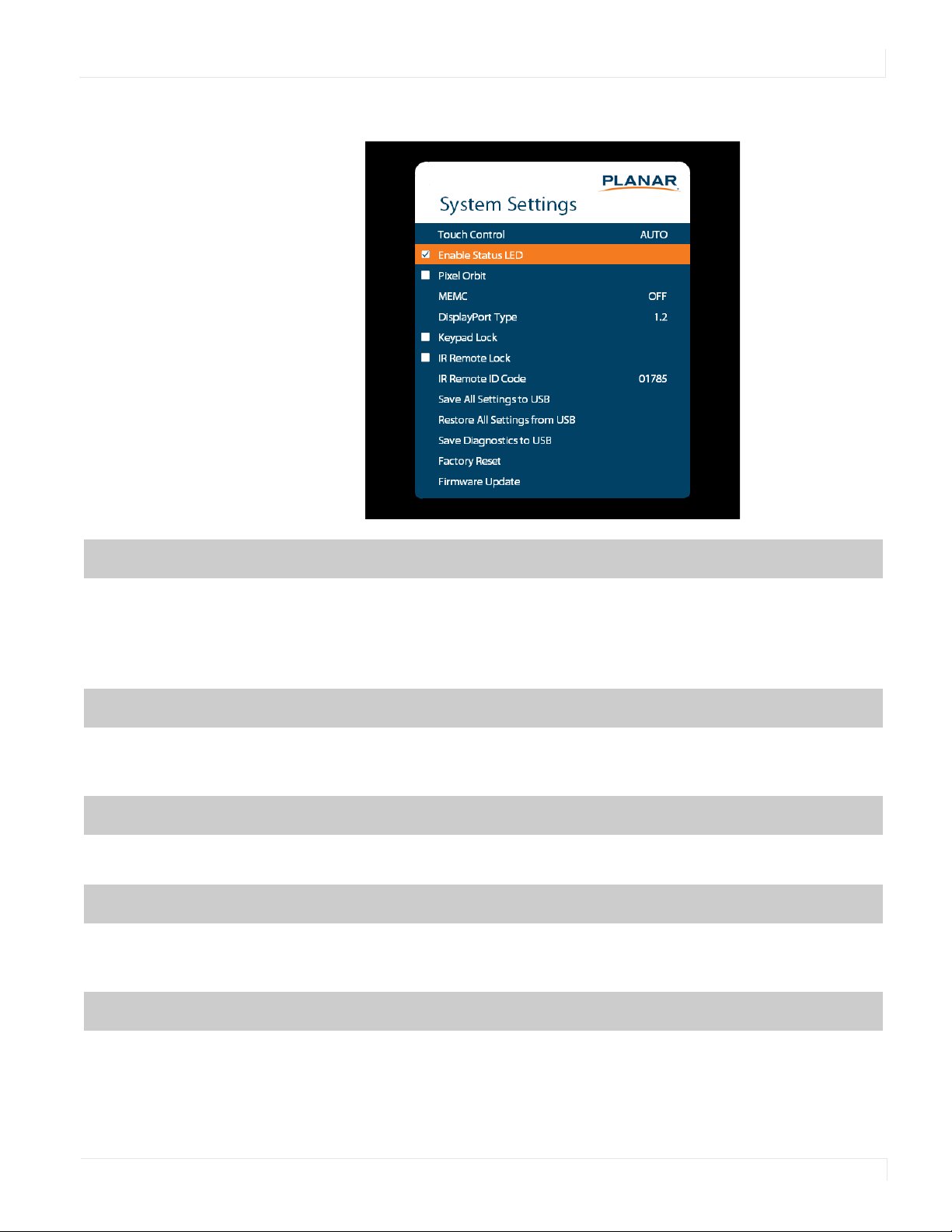
System Settings Submenu
Touch Control
Set where the USB commands from the touch panel is routed:
• OPS routes the touch USB commands to the OPS module
• External routes the touch USB command to the USB-B connector
• Auto routes the touch USB commands to the OPS module if the OPS source is
selected; otherwise, they are connected to the USB-B connector
Enable Status LED
When enabled, the status LEDs on the back of the display behave as indicated on
page 28. When disabled, the status LEDs are always turned off.
Options: Disable, Enable; Default: Enable
Pixel Orbit
Create slight frame motion to help avoid image retention
Options: Enable, Disable; Default: Disable
MEMC
Enable motion estimation motion compensation (frame interpolation). This improves
smoothness for fast motion video content.
Options: Off, Low, Medium, High; Default: Off
DisplayPort Type
Set the version of DisplayPort that is used by the system
Options: 1.1, 1.2; Default: 1.2

Advanced Settings Menu
64 Planar UltraRes Series User Manual
Keypad Lock
Lock or unlock the keypad. When it is enabled, all keypad presses will be ignored.
Options: Enable, Disable; Default: Disable
IR Remote Lock
Lock or unlock the remote control. When it is enabled, all remote control presses will be
ignored.
Options: Enable, Disable; Default: Disable
IR Remote ID Code
Selects the IR remote code set accepted by the display
Options: 00000-65535; Default: 01785
Save All Settings to USB
Save all settings in the display to a USB flash drive. The saved file will be named
Planar-settings.bin and will be saved in the root folder of the USB flash drive.
Note: A USB flash drive must be inserted into the USB-A connector prior to using this
feature. The USB flash drive must be formatted as FAT32. This feature will not work with
the NTFS file system.
Restore All Settings
from USB
Restores all settings in the display from a USB flash drive. The settings file must be named
Planar-settings.bin and must be located in the root folder of the USB flash drive.
Note: A USB flash drive must be inserted into the USB-A connector prior to using this
feature. The USB flash drive must be formatted as FAT32. This feature will not work with
the NTFS file system.
Save Diagnostics to USB
Save a diagnostic report to a USB flash drive to help Planar Technical Support
troubleshoot any issues. The saved file will be named Planar-diagnostics.bin and will be
saved in the root folder of the USB flash drive.
Note: A USB flash drive must be inserted into the USB-A connector prior to using this
feature. The USB flash drive must be formatted as FAT32. This feature will not work with
the NTFS file system.
Factory Reset
Return the saved settings in a system to their factory defaults
Firmware Update
Update the firmware for the display. Refer to the instructions on the firmware release
package for more information.
Information Menu
Planar UltraRes Series User Manual 65
Information Menu
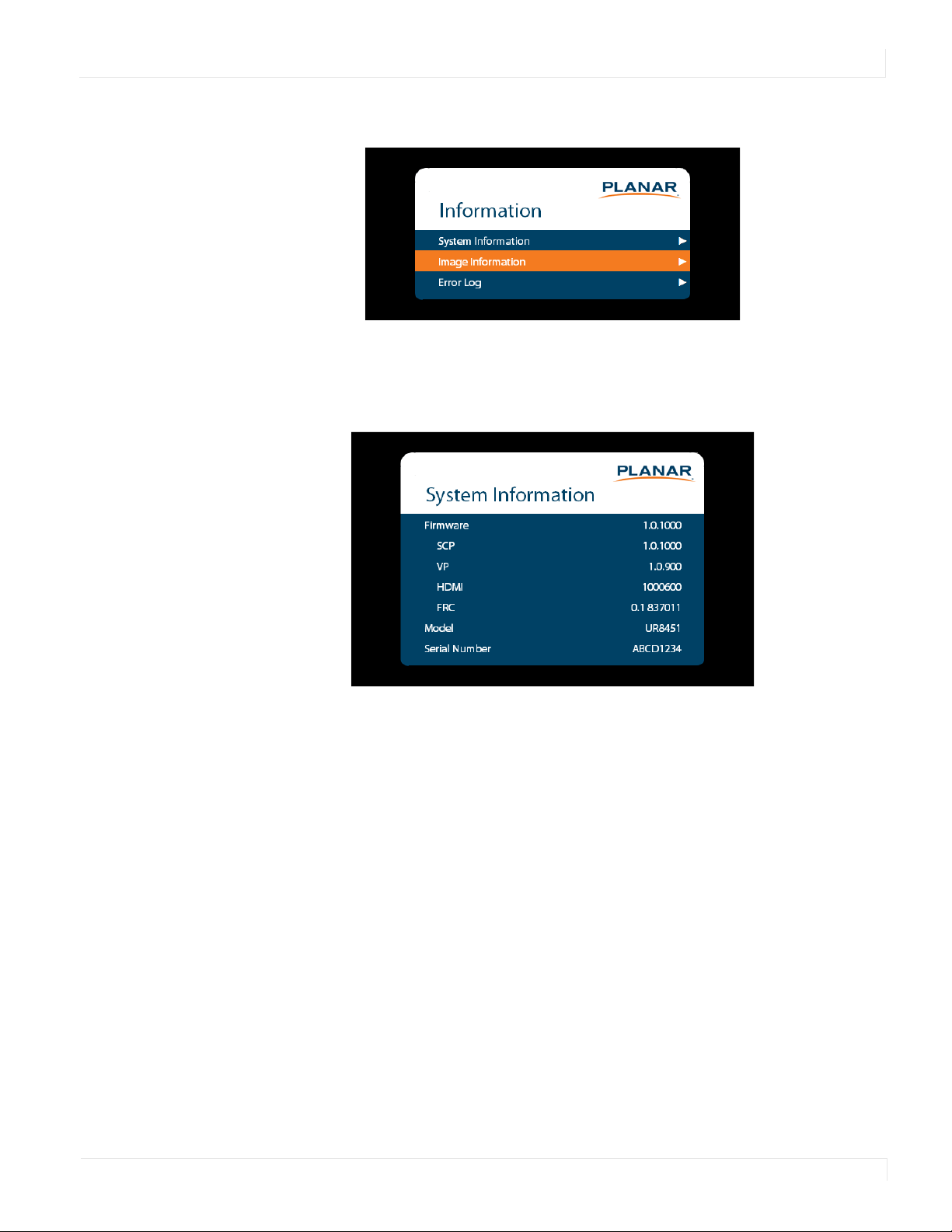
System Information Submenu
This menu displays version information for all programmable parts in the system. It
also contains the model and serial number.
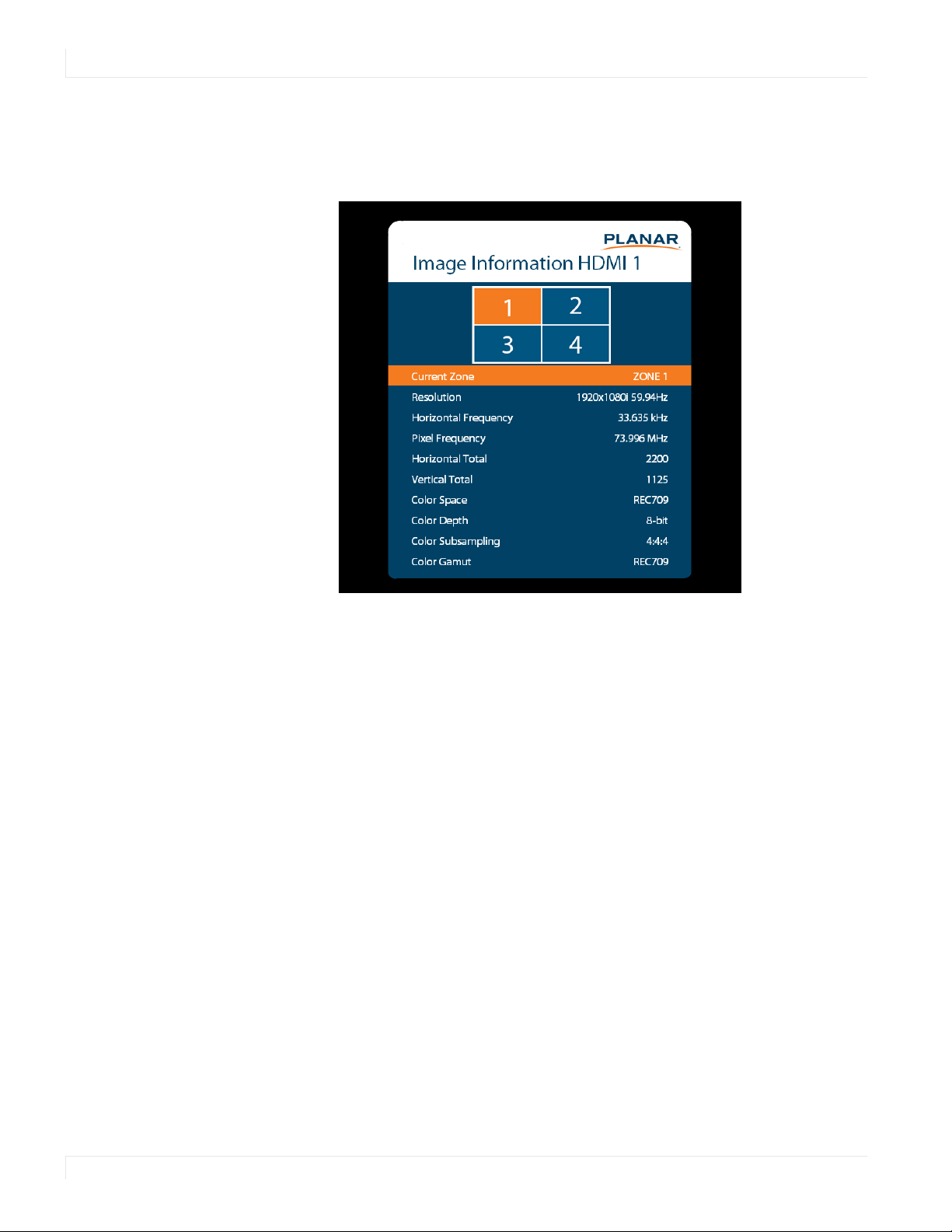
Information Menu
66 Planar UltraRes Series User Manual
Image Information Submenu
This menu displays image details for the current zone. If more than one zone is
available, you can change zones by setting the Current Zone option.
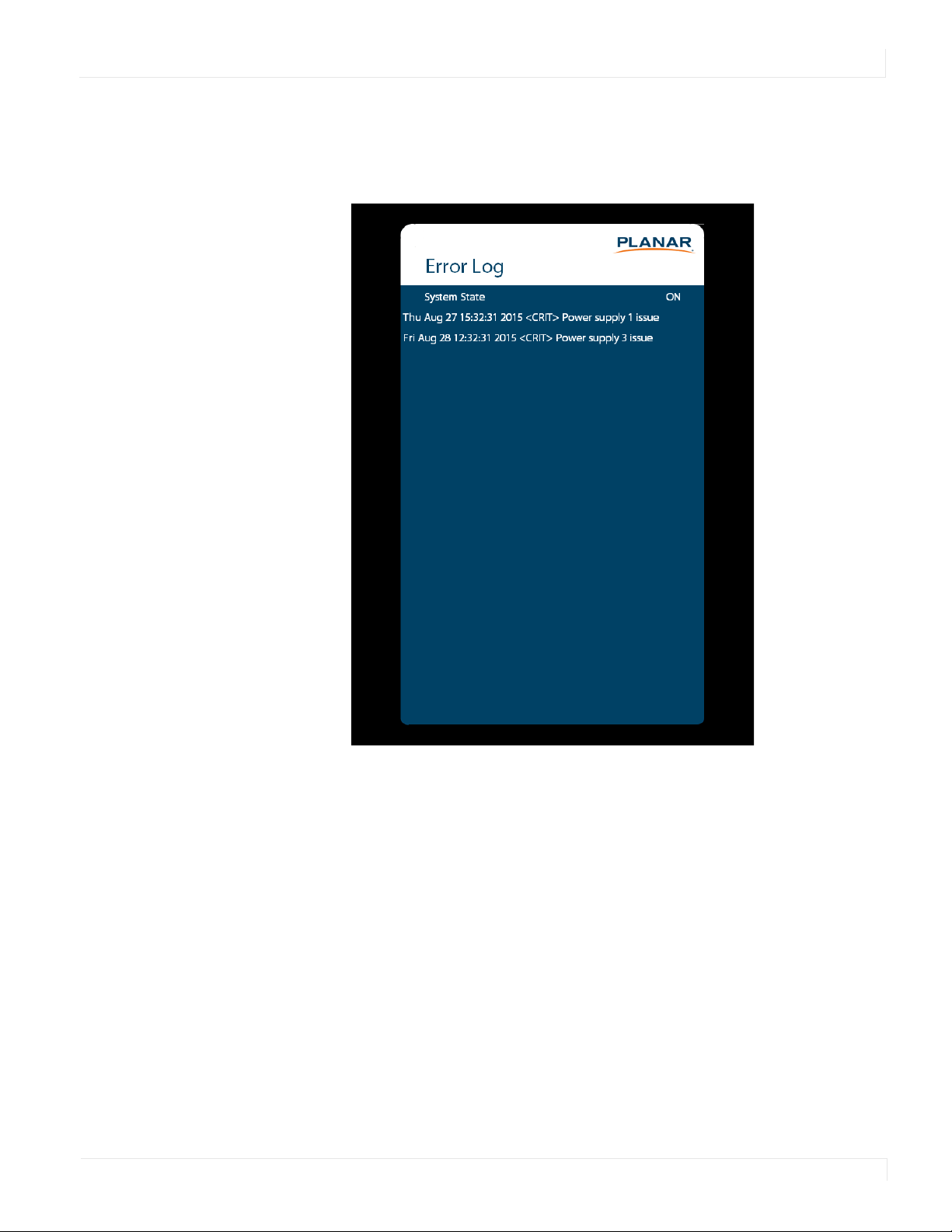

Using the Touch Screen
68 Planar UltraRes Series User Manual
Using the Touch Screen
You can use the touch screen to control your Windows, Mac, or Linux operating
system. The Planar UltraRes Series is HID compliant, delivering up to 12 points of
touch on both Windows and Linux without a driver. To achieve greater than 12 points
of touch on a Planar UltraRes Touch display, a driver will need to be installed on the
operating system. Drivers for Windows and Linux can be found on
http://www.planar.com/support and on the USB flash drive included with the display.
Single touch only is supported for Mac operating systems. There is no driver required
to enable Mac support.
Note: Ensure that you have installed the USB cable on the display to a computer.
Note: If an OPS PC is installed in the OPS slot, the OPS PC will automatically be connected
internally to the touch system. The touch functionality is configurable via the Touch Control
setting.
Touchscreen MultiTouch Driver Installation
1 With the PC on, plug in the USB memory stick to the USB port on your PC.
2 Locate and open the USB drive.
3 Double-click on the “mt_driver_kit [xxxxxx].exe” to install the driver.
4 Follow installation prompts until driver installation is complete.
Once driver installation is complete, the touchscreen is ready for use.
Touchscreen (PQLabs) MultiTouch Platform Content
The PQLabs Software is used for troubleshooting and calibration. The different
menus are described below.
1 On the PC, select the Start menu, All Programs and then PQLabs Software.
2 Click on “MultiTouch Platform” to open the PQLabs MultiTouch Platform window.
Touchscreen Information
• Serial Number: Displays the serial number of the connected touchscreen.
• Firmware Version: Displays the firmware version of the touchscreen selected
under the “Serial Number” dropdown menu.
• Touch Points: Displays the number of touch points for which the touchscreen is
capable.
• Status: Displays the current status of the touchscreen.

Uninstalling the MultiTouch Driver
Planar UltraRes Series User Manual 69
Calibration
• Calibration: Starts a 4-point calibration of the touchscreen. Perform the
programmed touchscreen calibration process. At the conclusion of the
calibration routine your touchscreen device is ready to use and will perform
with accurately positioned touch points.
• Reset Calibration: Resets calibration to factory default settings.
Utility
• Diagnose: Starts the “MultiTouchDoctor” program. This can be used to
troubleshoot issues with the touchscreen.
Options
• Default settings on options have the following programs enabled:
Tuio Support, Flash Tuio Support, Handwriting Optimization, Enable Windows
Native Touch, Enable Mouse/Keyboard Simulation, and Launch When Windows
Starts Up.
• Flexible Scan Rate is at a default setting.
Uninstalling the MultiTouch Driver
1 On the PC, select the Start menu, All Programs and the PQLabs Software.
2 Click on the MultiTouch Driver.
3 Select the Uninstall option.
Planar UltraRes Series User Manual 70
Planar UltraRes Remote
Monitoring Software
Planar UltraRes Remote Monitoring is a software tool that displays information about
the display via a web browser. It is used primarily to access the settings in the OSD as
well as provides some additional features.
Remote Monitoring Home
Launch a web browser. Enter the IP address shown in the Network menu (see
page 47). If successful, you should see the Remote Monitoring System Information
page.
Remote Monitoring System Information
This page displays version information for all programmable parts in the system. It
also contains the model and serial number.
For the OSD equivalent, refer to "System Settings Submenu" on page 63.
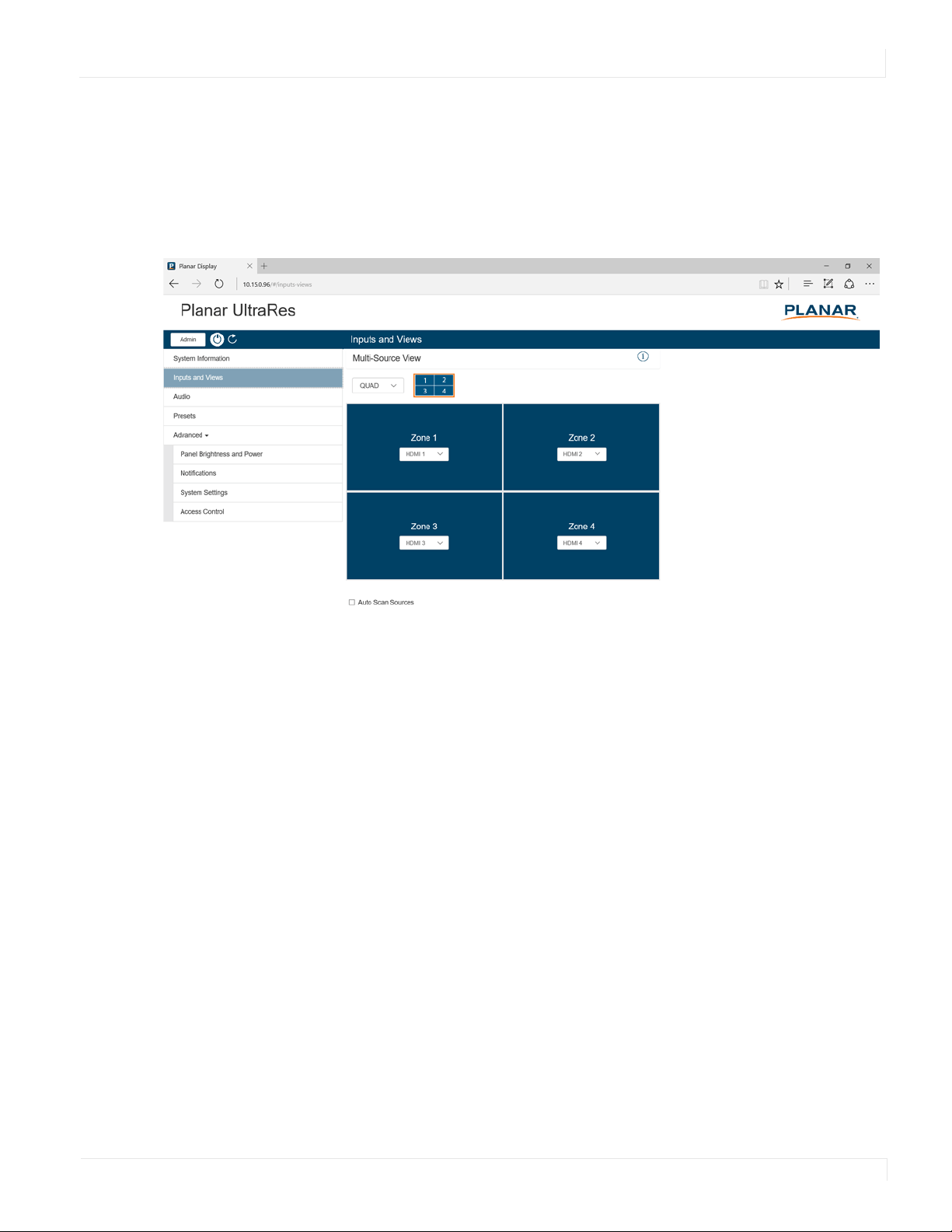
Remote Monitoring Inputs and Views
Planar UltraRes Series User Manual 71
Remote Monitoring Inputs and Views
This page shows how the sources will be laid out on the screen based on the current
Multi-Source View and Advanced Layouts selections.
For the OSD equivalent, refer to "Inputs and Views Menu" on page 36.

Remote Monitoring Presets
Planar UltraRes Series User Manual 73
Remote Monitoring Presets
This page enables you to save Inputs and Views settings, Image Adjust settings,
Audio settings, the Backlight Intensity setting, the Local Dimming setting, and Tiling
settings. You can save up to 64 presets using this page (more can be saved via the
serial command interface). Only presets that contain saved data are shown in the
table, with buttons to recall or delete the corresponding preset.
The controls below the table enable you to save a new preset, or overwrite an
existing preset with the current display settings. To save or overwrite a preset, enter
the preset number to save or overwrite, optionally enter a custom name for the
preset, and then click the Save button.
For the OSD equivalent, refer to "Presets Menu" on page 44.
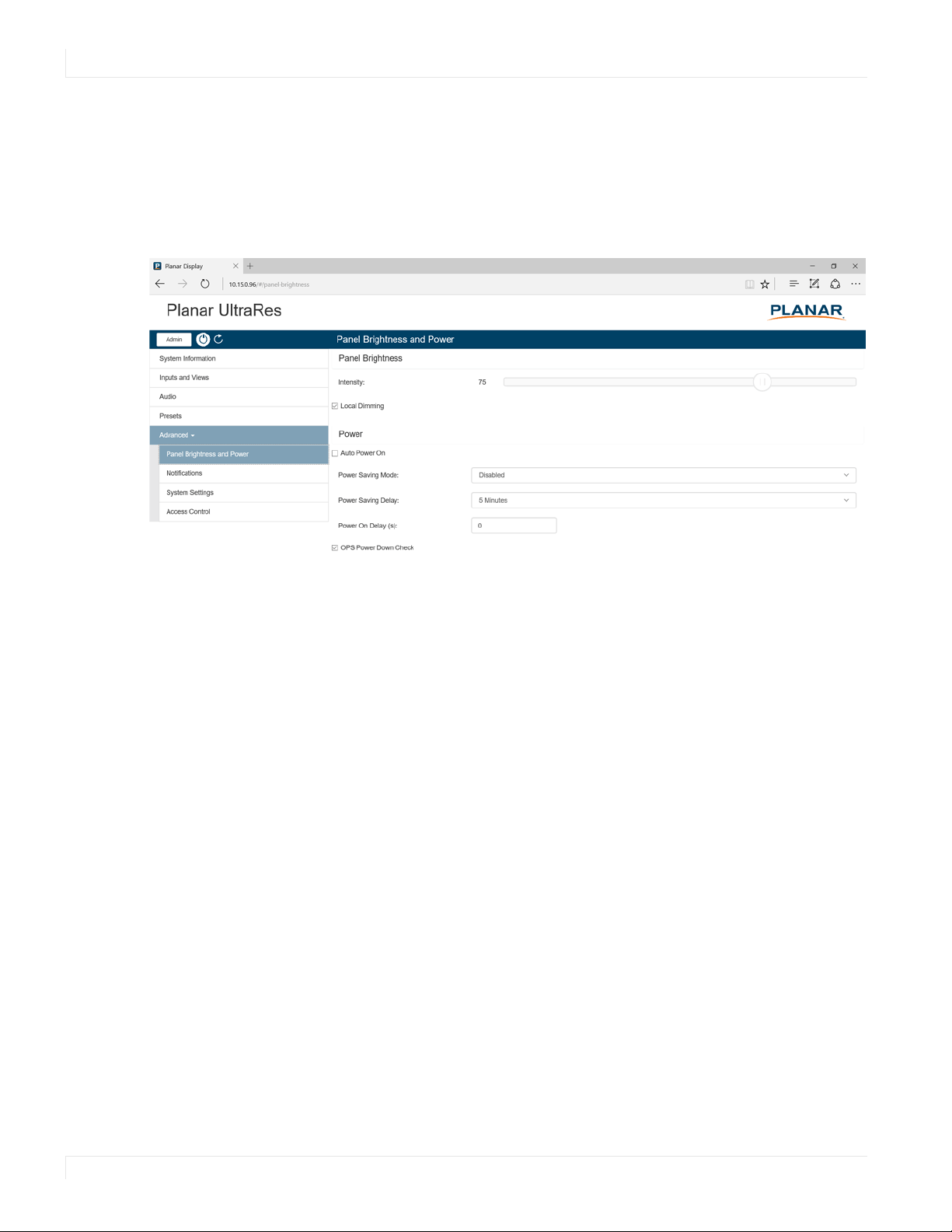
Remote Monitoring Panel Brightness and Power
74 Planar UltraRes Series User Manual
Remote Monitoring Panel Brightness and Power
This page enables you to make adjustments to the brightness and power settings.
For the OSD equivalents, refer to "Panel Brightness Submenu" on page 45 and "Power
Submenu" on page 46.
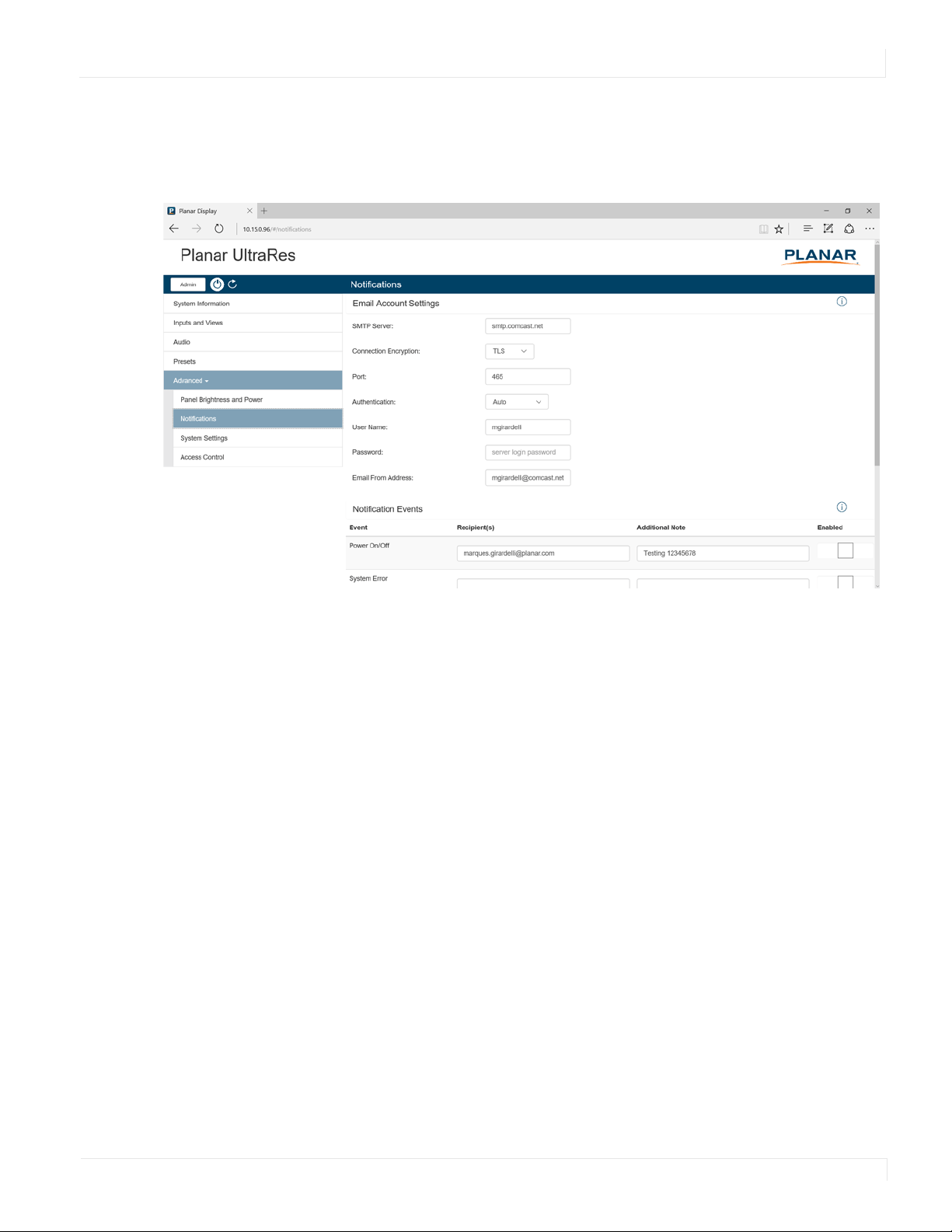
Remote Monitoring Notifications
Planar UltraRes Series User Manual 75
Remote Monitoring Notifications
This page enables you to send email notifications on certain events.
Note: Obtain this information from your ISP or network administrator.
The options under Email Account Settings are:
• SMTP Server: The name of the outgoing SMTP server. Obtain this information
from your ISP.
• Connection Encryption: Selects the appropriate encryption method required
by the SMTP server.
• Port: Selects the port that the SMTP server uses.
• Authentication: Use Auto unless directed by your ISP or network administrator.
• User Name: Login username for the SMTP server.
• Password: Login password for the SMTP server.
• Email From Address: The email address that will be shown in the “From:” field
of the notification emails.
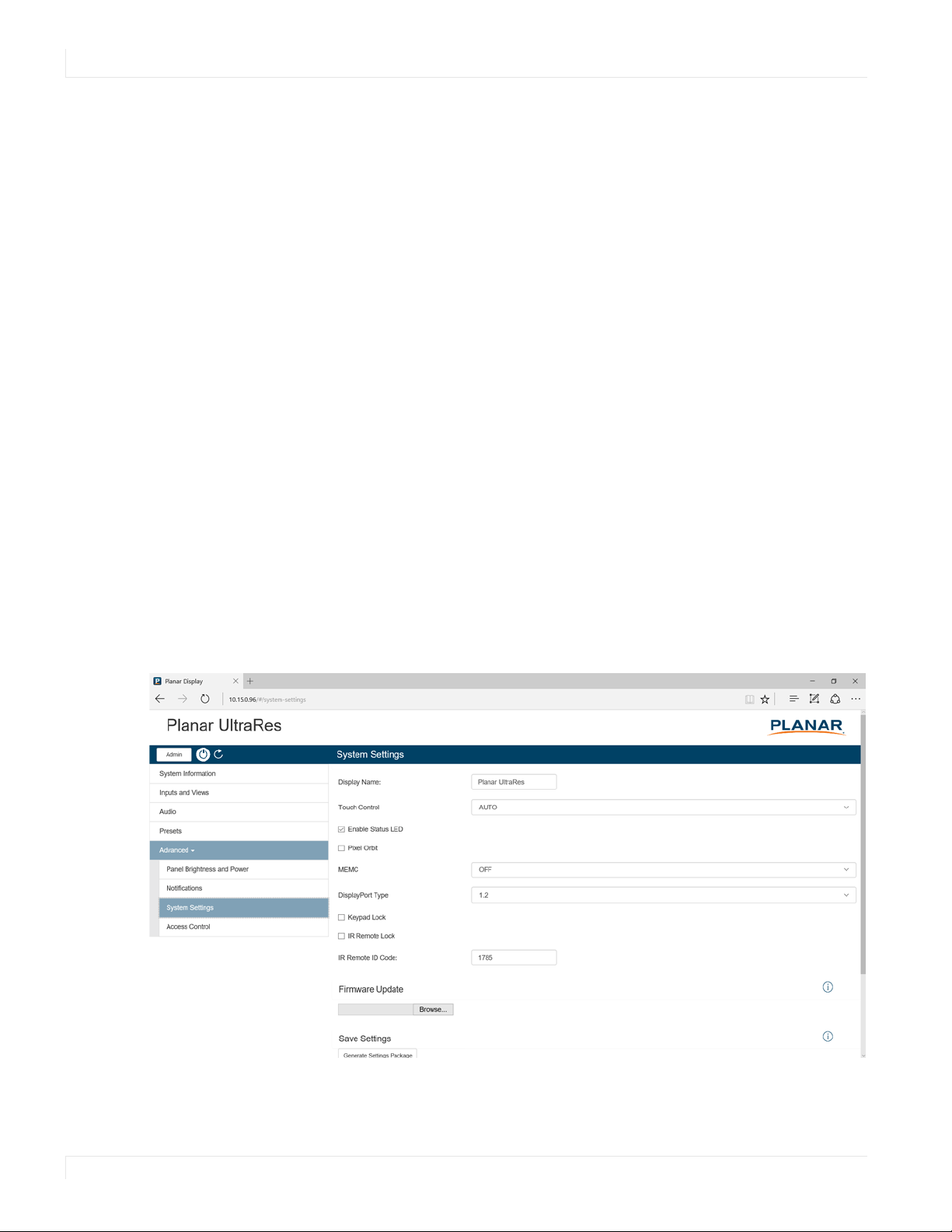
Remote Monitoring System Settings
76 Planar UltraRes Series User Manual
The options under Notification Events are:
• Power On/Off: Occurs when standby mode is entered and when the display is
powered on.
• System Error: Occurs when the display has detected an error within the
system.
• Source Detect: Occurs when the display detects and displays a new input
signal.
• Source Lost: Occurs when the current input signal is no longer detected.
• Source Selected: Occurs when a different input source is selected for any of the
zones.
Note: Each event can be sent to one or more recipients. To add multiple email addresses,
separate them by a space.
• Test Email: Sends a test of the selected email notification. This is useful for
verifying that your email account settings are setup correctly. If the test email
fails, you can use the View Last 10 Log Messages button to get more detailed
information about the failure.
Remote Monitoring System Settings
This page enables you to make adjustments to a variety of system settings.
For the OSD equivalent, refer to "System Settings Submenu" on page 63.
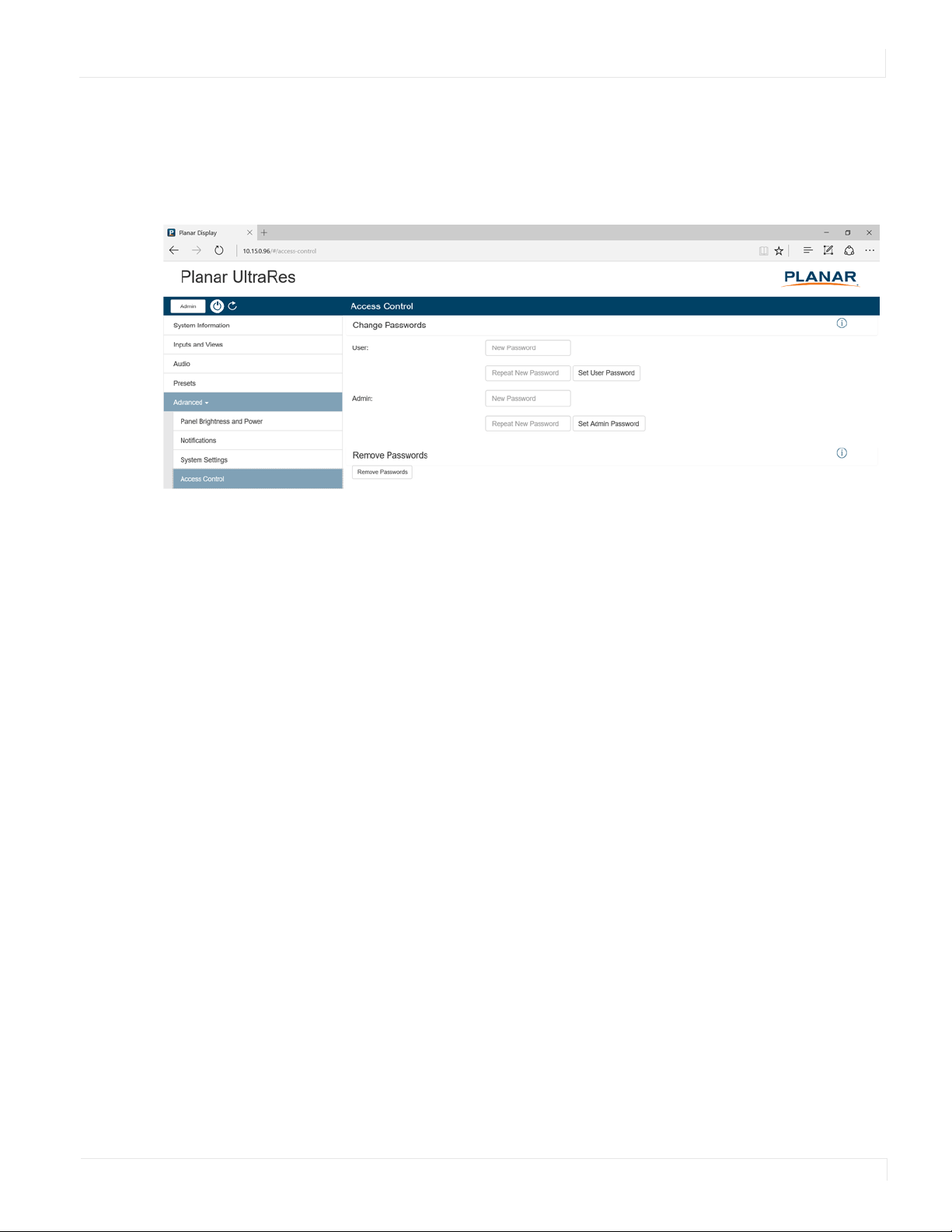
Remote Monitoring Access Control
Planar UltraRes Series User Manual 77
Remote Monitoring Access Control
This page enables you to limit the ability to access certain features in the web server
by password protecting them.
All functions other than the following require Admin level access:
• Power On/Off
• System Information
• Inputs and Views
• Multi-Source View
• Zone inputs
• Presets
•Recall
•Audio
• Volume
•Mute
• Panel Brightness and Power
• Panel Brightness
With the exception of System Information, all functions listed above require User
level access.
If no password is set for either access level, all functions can be accessed. By default,
there are no passwords for either access level.

Planar UltraRes Series User Manual 78
External Control
In addition to using the Planar UltraRes remote control and display, there are other
methods of controlling the Planar UltraRes display externally:
• Using a serial link to send ASCII commands and to receive responses to those
commands. The same set of commands can be sent over RS-232, USB, TCP or
UDP. See the Planar UltraRes Series RS232 User Manual for more information.
• Using discrete infrared (IR) codes to program a third-party remote control. See
"IR Command Protocol" on page 30.
• Using the Planar UltraRes Remote Monitoring software to access the settings in
the OSD as well as some additional features via a web browser. See "Planar
UltraRes Remote Monitoring Software" on page 70.
Planar UltraRes Series User Manual 79
Signal Compatibility
Signal
Type
Resolution
Frame rate
(Hz)
Line Rate
(kHz)
Pixel Rate
(MHz)
HDMI 1-2, OPS
HDMI 3-4
DisplayPort
References
PC 640x48059.9431.46925.175xxxVESA DMT, CEA-861-F Format 1
640x48072 37.86131.500xxxVESA DMT
640x48074.9937.50031.500xxxVESA DMT
640x48085 43.26936.000xxxVESA DMT
800x60060.3237.89040.000xxxVESA DMT
800x60072 48.07750.000xxxVESA DMT
800x60075 46.87549.500xxxVESA DMT
800x60085.0653.67456.250xxxVESA DMT
848x48059.65929.83031.500xxxVESA CVT
848x48074.76937.68441.000xxxVESA CVT
848x48084.75142.96946.750xxxVESA CVT
1024x76860 48.36365.000xxxVESA DMT
1024x76870 56.47675.000xxxVESA DMT
1024x76875.0360.02378.750xxxVESA DMT
1024x76885.0368.67794.500xxxVESA DMT
1152x86470.01263.85194.500xxxVESA DMT
1152x86475 67.500108.000xxxVESA DMT
1152x86484.99977.094121.500xxxVESA DMT
1280x76849.92939.59365.250xxxVESA CVT
1280x76859.99547.39668.250xxxVESA CVT-R
1280x76860 47.77679.500xxxVESA CVT
1280x76874.89360.289102.250xxxVESA CVT
1280x76884.83768.633117.500xxxVESA CVT
1280x96060 60.000108.000xxxVESA DMT
1280x96075 75.000126.000xxxVESA DMT
1280x96085.00285.938148.500xxxVESA DMT
1280x102460.0263.981108.000xxxVESA DMT
1280x102475.0279.976135.000xxxVESA DMT
1280x102485.0291.146157.500xxxVESA DMT
1360x76860 47.71285.500xxxVESA DMT
Signal Compatibility
80 Planar UltraRes Series User Manual
PC 1400x105049.96554.113100.000xxxVESA CVT
1400x105060 64.7101.00xxxVESA CVT-R
1400x105060 65.317121.750xxxVESA CVT
1400x105074.86782.278156.000xxxVESA CVT
1600x120060 75.000162.000xxxVESA DMT
1920x108049.92955.621141.500xxxVESA CVT
1920x108059.96367.158173.000xxxVESA CVT
1920x108059.95066.587138.500xxxVESA CVT-R
1920x120049.93261.816158.250xxxVESA CVT
1920x120059.95074.038154.000xxxVESA CVT-R
1680x105049.97454.121119.500xxxVESA CVT
1680x105059.95465.290146.250xxxVESA CVT
1920x216060 135.000297.000xxxCEA-861-F, VIC 16, with vertical
parameters doubled
2560x144059.95188.787241.500xxxVESA CVT-R
2560x160059.97298.713268.500xxxVESA CVT-R
3840x216024 52.438209.750xxxVESA CVT-R
3840x216030 65.688262.750xxxVESA CVT-R
3840x2160 50 110.500 442.000 x x VESA CVT-R
3840x2160 60 133.313 533.250 x x VESA CVT-R
Apple Mac 640x480 66.59 x x x
832x624 75.087 49.107 55.000 x x x
1024x768 59.278 48.193 64.000 x x x
1024x768 74.927 60.241 80.000 x x x
1152x870 75.062 68.681 100.000 x x x
SDTV 480i 60 xxxSMPTE 125M, CEA-861-F Formats 6 & 7
576i 50 xxxITU-R BT.601, CEA-861-F Formats 21 &
22
EDTV 480p 60 31.46927.000xxxITU-R BT.1358, CEA-861-F Format 17 &
18
576p 50 31.25027.000xxxSMPTE 125M, CEA-861-F Format 6 & 7
Signal
Type
Resolution
Frame rate
(Hz)
Line Rate
(kHz)
Pixel Rate
(MHz)
HDMI 1-2, OPS
HDMI 3-4
DisplayPort
References
Signal Compatibility
Planar UltraRes Series User Manual 81
HDTV 1080i 50 28.12574.500xxxSMPTE 274M, CEA-861-F Format 20
1080i 60 33.75074.250xxxSMPTE 274M, CEA-861-F Format 5
720p 50 37.50074.250xxxSMPTE 296M, CEA-861-F Format 19
720p 60 45.00074.250xxxSMPTE 296M, CEA-861-F Format 4
1080p 24 27.00074.250xxxSMPTE 274M, CEA-861-F Format 32
1080p 25 28.12574.250xxxSMPTE 274M, CEA-861-F Format 33
1080p 30 33.75074.250xxxSMPTE 274M, CEA-861-F Format 34
1080p 50 56.250148.500xxxSMPTE 274M, CEA-861-F Format 31
1080p 60 67.500148.500xxxSMPTE 274M, CEA-861-F Format 16
UHDTV3840x216024 54.000297.000xxxCEA-861-F Format 93, HDMI 1.4b VIC 1
3840x216025 56.250297.000xxxCEA-861-F Format 94, HDMI 1.4b VIC 2
3840x216030 67.500297.000xxxCEA-861-F Format 95, HDMI 1.4b VIC 3
3840x2160 50 67.500 297.000 x CEA-861-F Format 96, 4:2:0 sub-
sampling
3840x2160 50 135.000 594.000 x x CEA-861-F Format 96
3840x2160 60 67.500 297.000 x CEA-861-F Format 97, 4:2:0 sub-
sampling
3840x2160 60 135.000 594.000 x x CEA-861-F Format 97
Signal
Type
Resolution
Frame rate
(Hz)
Line Rate
(kHz)
Pixel Rate
(MHz)
HDMI 1-2, OPS
HDMI 3-4
DisplayPort
References
Planar UltraRes Series User Manual 82
Color Subsampling
Support
Video Timing Input
RGB 4:4:4
Supported
YUV 4:4:4
Supported
YUV 4:2:2
Supported
YUV 4:2:0
Supported
4K @ 50/60 Hz DP x x x
4K @ 50/60 Hz HDMI 1-2, OPS x x x x
4K @ 50/60 Hz HDMI 3-4
All Other
Supported
Timings
Any x x x
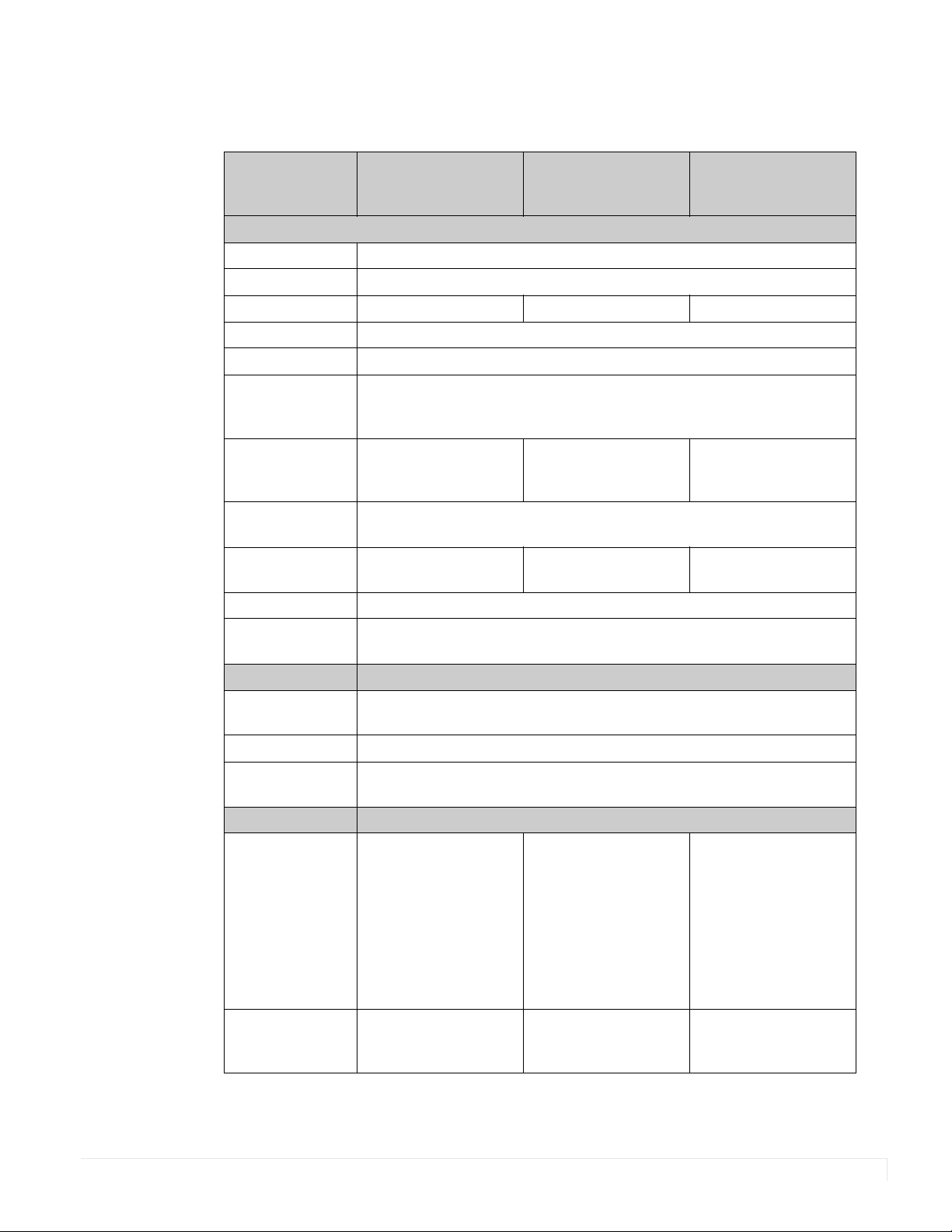
Planar UltraRes Series User Manual 83
Specifications
Item UR7551-MX
UR7551-MX-ERO
UR7551-MX-ERO-T
UR8651-MX
UR8651-MX-ERO
UR8651-MX-ERO-T
UR9851
UR9851-ERO
UR9851-ERO-T
LCD Panel
Resolution 3840 x 2160
Aspect Ratio 16:9
Screen Size 75" 86" 98"
Orientation Landscape/Portrait
Brightness (Typ.) 500 cd/m
2
Contrast Ratio
(local dimming
enabled)
20000:1
Contrast Ratio
(local dimming
disabled)
1200:1 1200:1 1300:1
Viewing Angle
(Typ.)
178
°
Response Time
(Typ.)
6ms 8ms 8ms
Color Gamut 72% NTSC
Display Color 1.07 billion
(10 bit depth)
Connectivity
Standard Inputs DisplayPort 1.2, HDMI 2.0 x 2,
HDMI 1.4 x 2, OPS
Audio Output Line out, S/PDIF
Control and
Monitoring
LAN RJ45, RS232 In, IR, Keypad, Planar® UltraRes™ App
Mechanical
Display
Dimensions
(Unmounted and
Mounted)
Standard/ERO™:
66.5" x 38.1" x 3.4"
(1690mm x 968mm x
86.6mm)
Touch
67.9" x 39.5" x 3.86"
(1724mm x 1003mm x
98.1mm)
Standard/ERO™:
76.3" x 43.6" x 3.41"
(1937mm x 1108mm x
86.6mm)
Touch
77.6" x 45.0" x 3.86"
(1972mm x 1143mm x
98.1mm)
Standard/ERO™:
86.7" x 49.5" x 3.6"
(2203 mm x
1258 mm x 93 mm)
Touch:
87.6" x 50.4" x 4.1"
(2225 mm x
1280 mm x 104 mm)
Bezel Width Standard/ERO: 0.8" (20
mm)
Touch: 1.5" (37.7mm)
Standard/ERO: 0.82"
(20.9mm)
Touch: 1.5" (38.2mm)
Standard/ERO: 0.9" (22
mm)
Touch: 1.3" (33 mm)
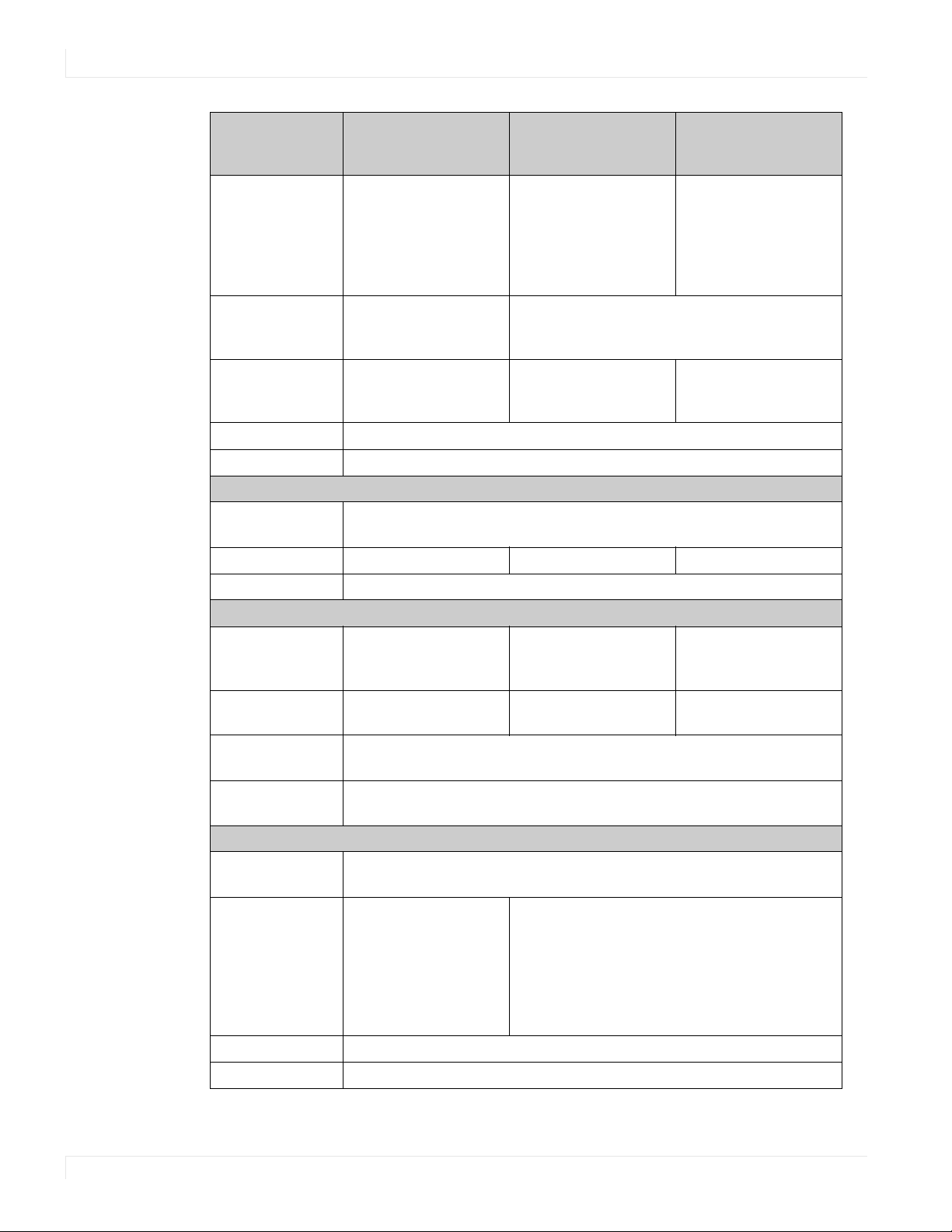
Specifications
84 Planar UltraRes Series User Manual
Display Weight Standard: 165 lbs (75
kg)
ERO: 186 lbs (84 kg)
Touch: 207 lbs (94 kg)
Standard: 184 lbs (84
kg)
ERO: 201 lbs (92 kg)
Touch: 234 lbs (107 kg)
Standard: 255 lbs (115
kg)
ERO: 305 lbs
(138 kg)
Touch: 330 lbs
(150 kg)
Mounting Planar Profile Mounting
System or VESA
400 x 400 mm
Planar Profile Mounting System or VESA
600 x 400 mm
Wall Mount
Weight
Landscape: 21 lbs (9.5
kg)
Portrait: 17 lbs (7.7 kg)
Landscape: 23 lbs (10.4
kg)
Portrait: 18 lbs (8.2 kg)
Landscape: 24.7 lbs
(11.2 kg)
Portrait: 19.0 (8.6 kg)
Fanless Yes
Speakers 10W x 2 built-in
Usage
Recommended
Usage
24x7
Backlight E-LED E-LED D-LED
Backlight Life 30,000 hours min
Power Source
Power
Consumption
(Typ.)
200W 230W 410W
BTUs/hr (Typ.) 200W x 3.42 BTU = 684
BTU/hr
230W x 3.42 BTU = 787
BTU/hr
410W x 3.42 BTU = 1402
BTU/hr
Standby Power
Consumption
<1.2W
Input Voltage/
Frequency
AC 100V~240V;
50-60 Hz
Environment
Storage
Temperature
Min -4°F ~ Max 140° F (-20°C ~ 60°C)
Operating
Temperature
Min 32°F ~
Max 104°F
(0 ~ 40°C) at up to
1500 m;
Min 32°F ~
Max 95°F (0 ~ 35°C) at
up to 3000 m
Min 32°F ~ Max 95°F (0 ~ 35°C) at up to 1500 m;
Min 32°F ~ Max 86°F (0 ~ 30°C) at up to 3000 m
Humidity 20~85% RH
Approvals FCC Class A, cTUVus, CE
Item UR7551-MX
UR7551-MX-ERO
UR7551-MX-ERO-T
UR8651-MX
UR8651-MX-ERO
UR8651-MX-ERO-T
UR9851
UR9851-ERO
UR9851-ERO-T

Specifications
Planar UltraRes Series User Manual 85
ERO (ERO and ERO-T models only)
Surface Treatment Anti-glare (AG) Anti-reflective (AR)
Glass Type 2mm Corning® Gorilla® Glass 3mm soda-lime
Touch (ERO-T models only)
Touch Technology IR
Supporting OS Windows 7, 8, 10, Vista, XP, Mac OSX, and Linux
Item UR7551-MX
UR7551-MX-ERO
UR7551-MX-ERO-T
UR8651-MX
UR8651-MX-ERO
UR8651-MX-ERO-T
UR9851
UR9851-ERO
UR9851-ERO-T
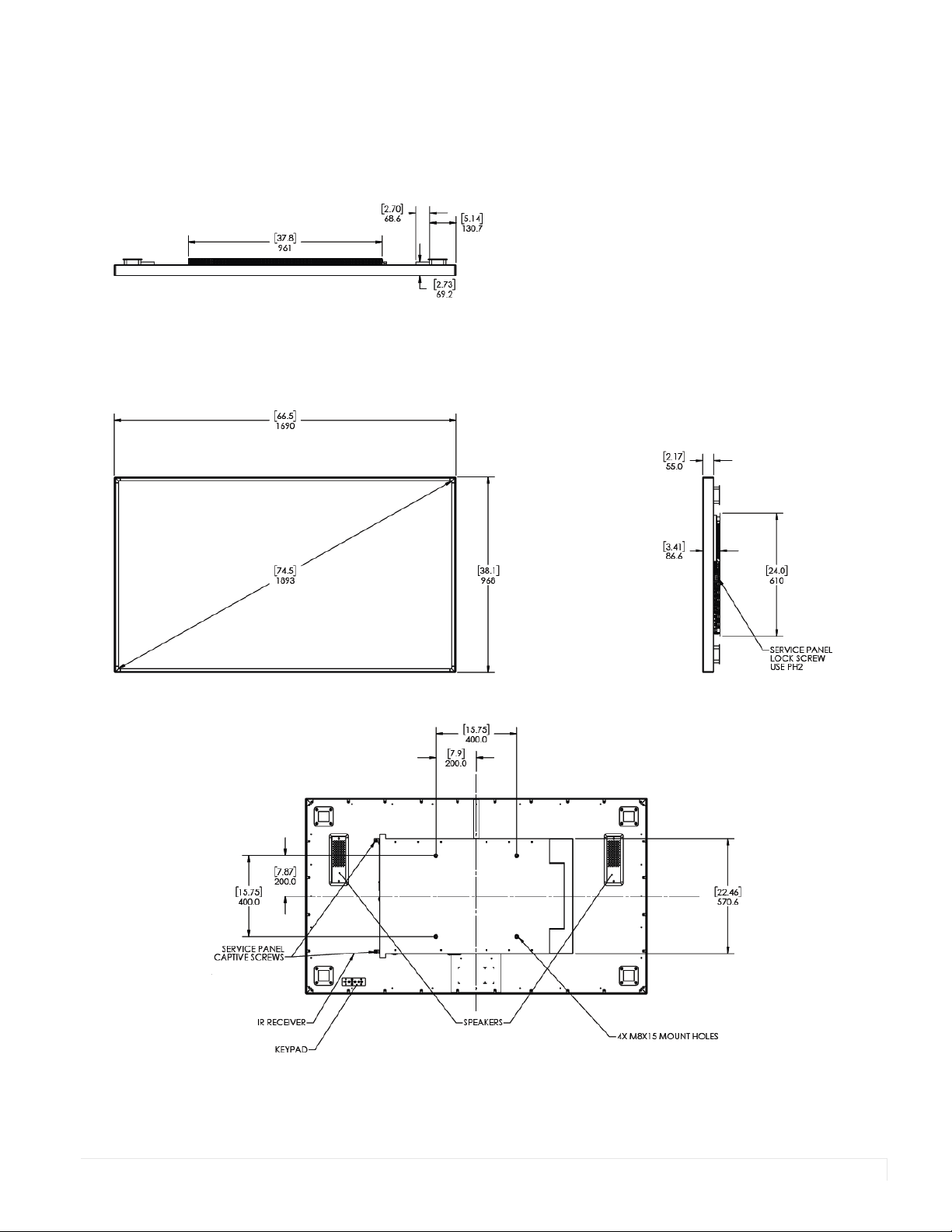
Planar UltraRes Series User Manual 86
Dimensions
UR7551-MX
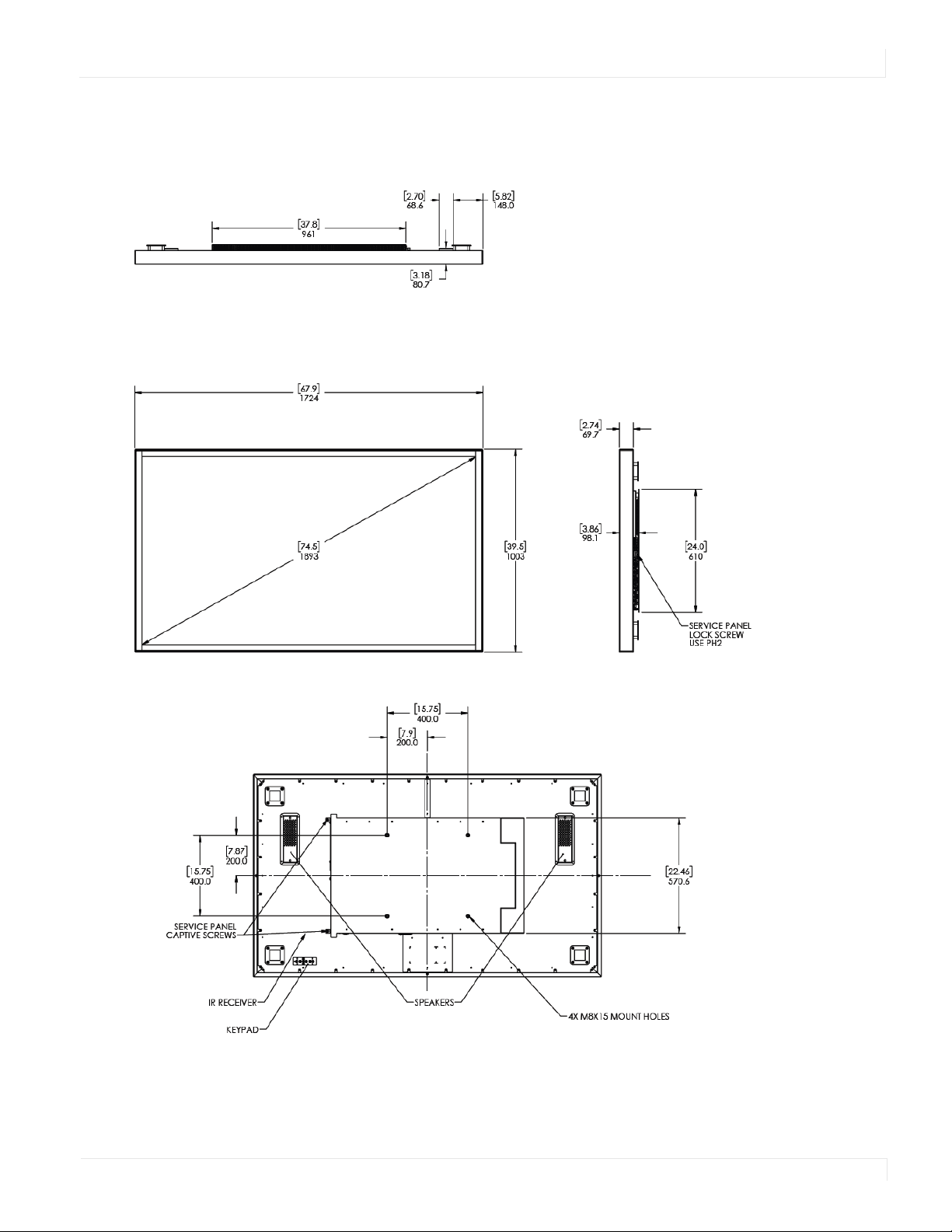
UR7551-MX Touch
Planar UltraRes Series User Manual 87
UR7551-MX Touch
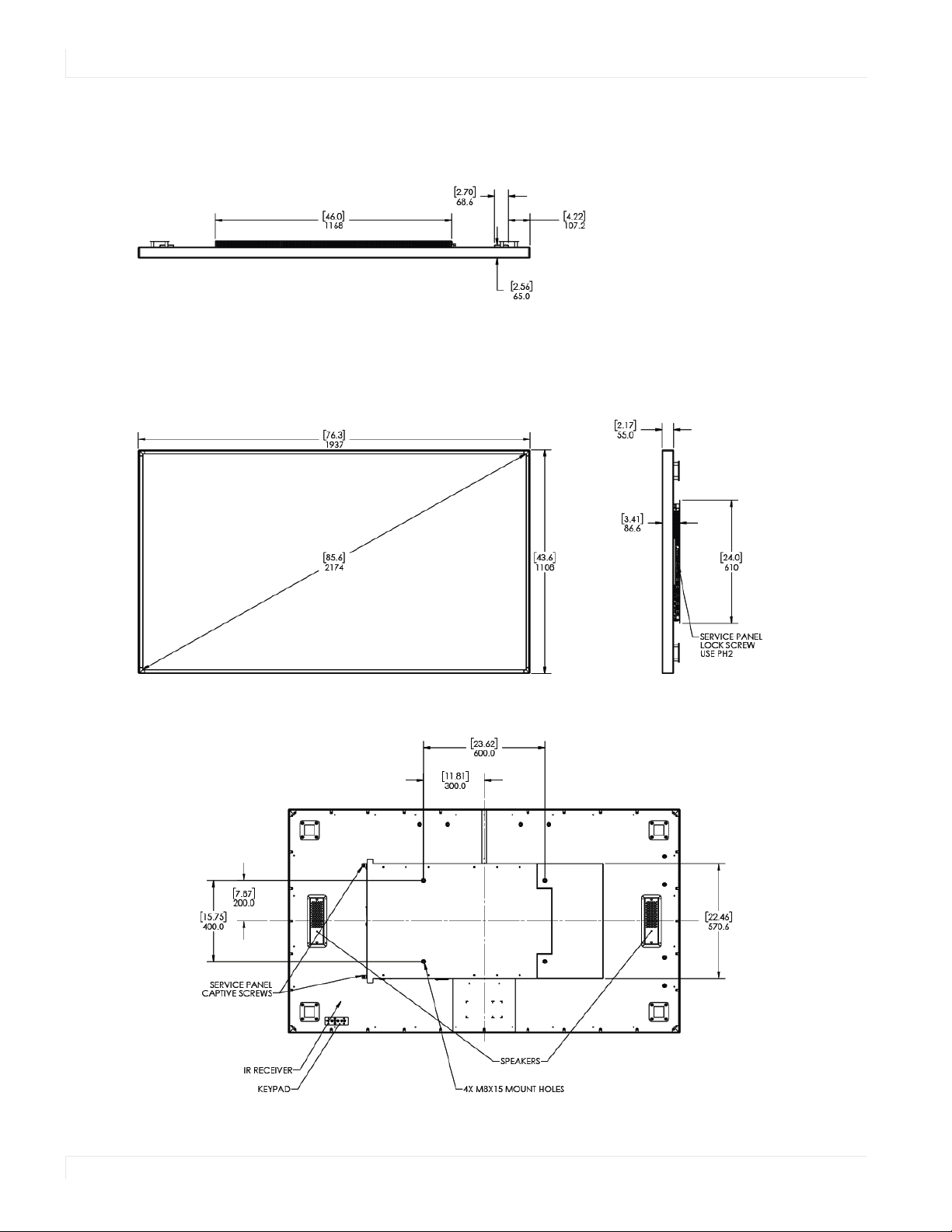
UR8651-MX
88 Planar UltraRes Series User Manual
UR8651-MX
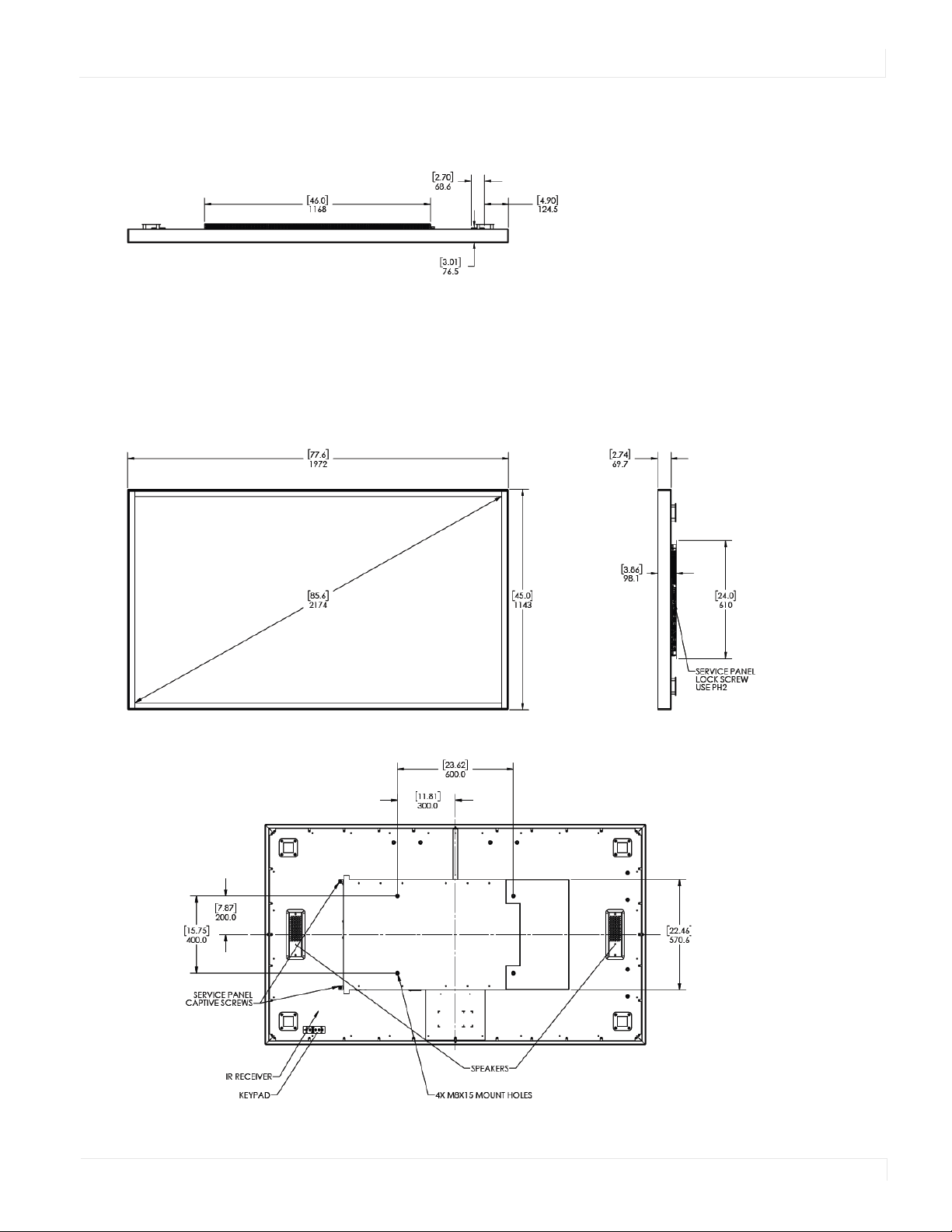
UR8651-MX Touch
Planar UltraRes Series User Manual 89
UR8651-MX Touch
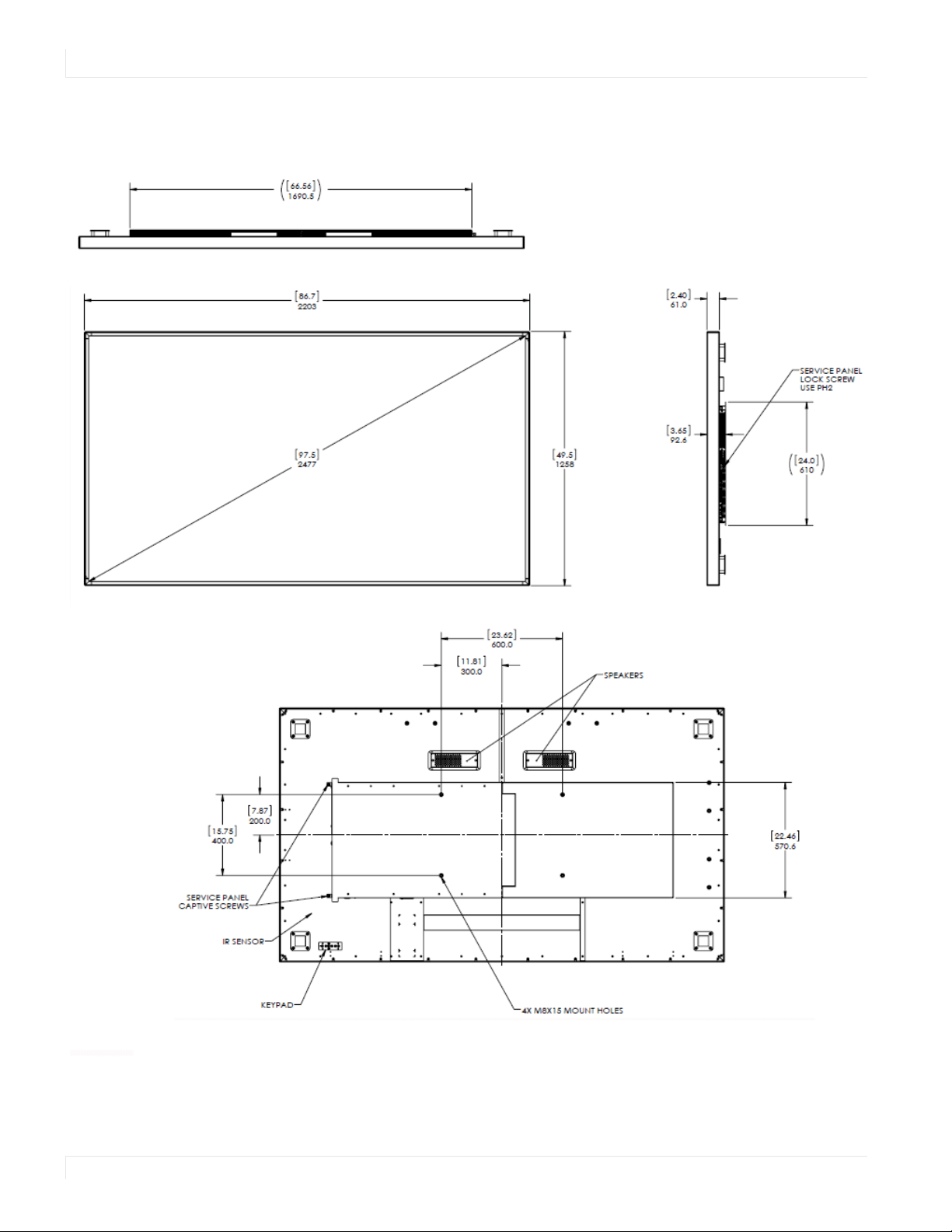
UR9851
90 Planar UltraRes Series User Manual
UR9851
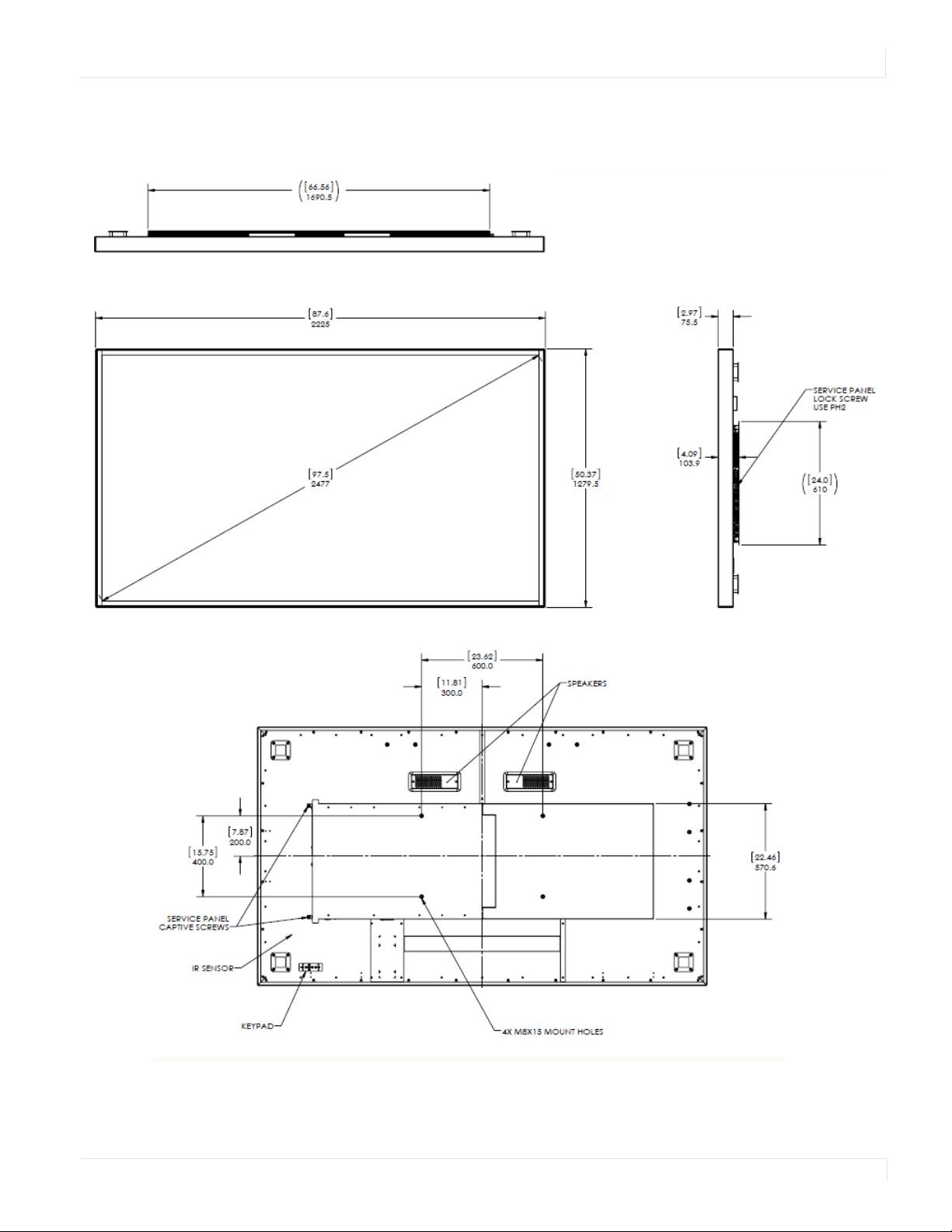
UR9851 Touch
Planar UltraRes Series User Manual 91
UR9851 Touch
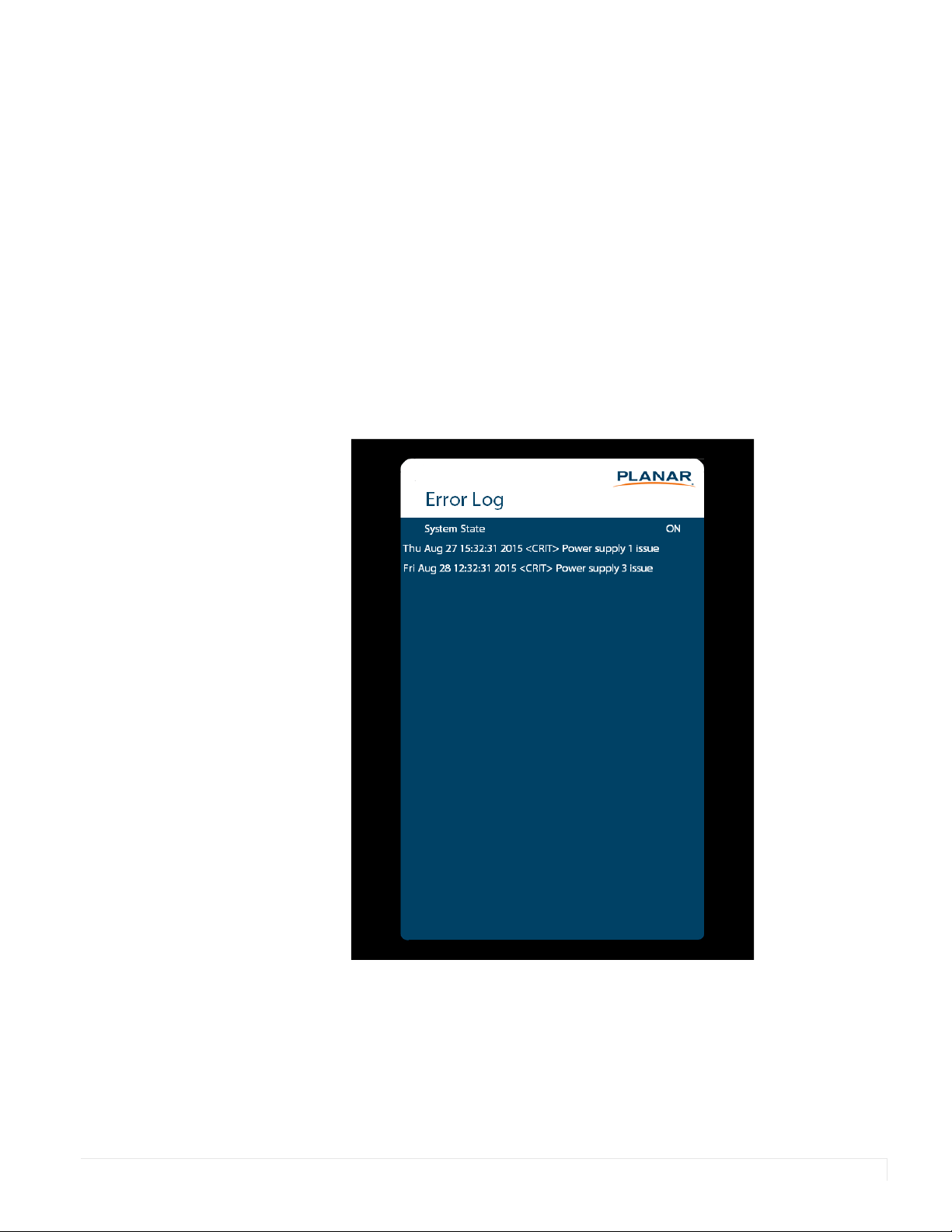
Planar UltraRes Series User Manual 92
Troubleshooting During
Installation
This section includes troubleshooting information about different issues you may
encounter during the installation process or after your display has been running for
some time. If you are not able to solve your issue in this section, please contact
Planar’s Technical Support team for assistance.
Error Codes
To see the last 50 errors that have occurred, select the Error Log tab in the OSD (MAIN
MENU > INFORMATION > ERROR LOG), as shown below.
Possible error codes include:
• Power supply 1 issue
• Power supply 2 issue
• Power supply 3 issue
• Calibration EEPROM board disconnected

Symptoms, Possible Causes and Solutions
Planar UltraRes Series User Manual 93
Note the following:
• One power supply failure will limit the backlight intensity to 50% maximum and
two power supply failures will shut off the display.
• Power supply 3 issues do not apply to the 75” and 86” models.
Symptoms, Possible Causes and Solutions
Below are different symptoms that you might encounter as you install your Planar
UltraRes display. First look at the different symptoms to see if you can find your issue.
And then look at the possible cause and try the suggested solution(s). If you still are
not able to resolve your issue, please contact Planar’s Technical Support Department.
Symptom: Can’t Get PC to Output 4K @ 24/30/60 Hz
Solution
Make sure that your graphics card can support a 4K output. See "Supported Graphics
Cards" on page 25 for a list of the current graphics cards that Planar supports for the
Planar UltraRes Series displays.
Solution
Confirm that you are using a DisplayPort output. You can’t use a DisplayPort-to-HDMI
adapter to output 4K content.
Solution
Make sure you are using a high-speed HDMI cable. Standard HDMI cables might work
but are not guaranteed.
Solution
Verify that the selected EDID Type setting in the OSD is 4K60 or 4K30. If you change
the EDID setting, you may need to disconnect and reconnect the cable.
Solution
If you are trying to use 4K @ 60 Hz on HDMI, the display must be connected to
HDMI 1 or HDMI 2.
Solution
If you are trying to display 4K @ 60 Hz on HDMI 1 or HDMI 2, the Multi-Source View
setting must be Single.
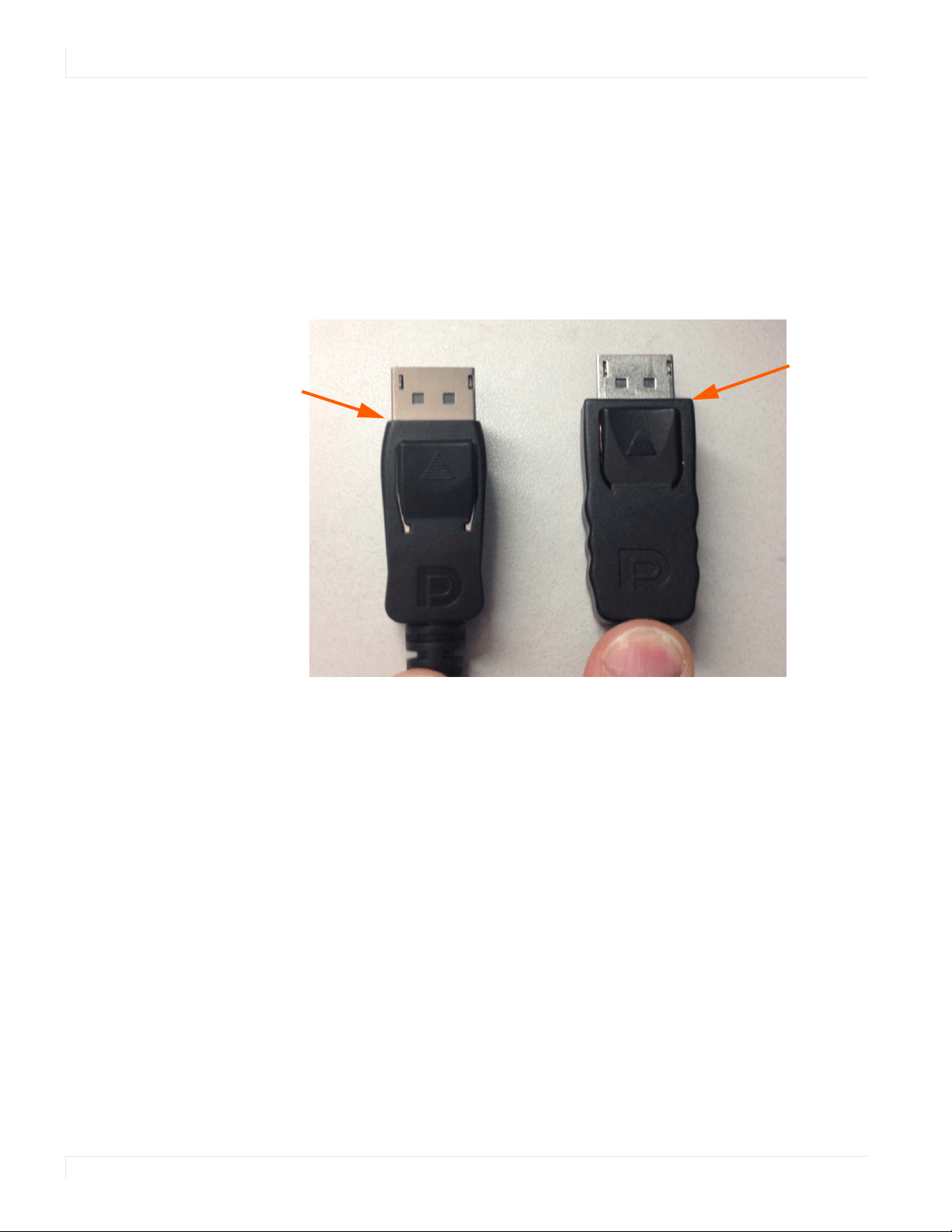
Symptom: Can’t Get PC to Output 4K @ 24/30/60 Hz
94 Planar UltraRes Series User Manual
Symptom: Can’t Get PC to Output 4K @ 24/30/60 Hz
Possible Cause
The connector overmold is too large, which can cause the pins not to contact
properly on some cards.
Solution
If using DisplayPort, make sure the connector overmold isn’t too large.
Symptom: Can’t Select OPS or HDMI 1
Solution
The OPS and HDMI sources cannot be viewed at the same time. If your Multi-Source
View setting is not Single, and you select OPS in a zone, any zones that are showing
HDMI 1 will automatically change to OPS. Conversely, if you select HDMI 1 in a zone,
any zones that are currently showing OPS will automatically change to HDMI 1.
Overmold
is too wide
Overmold is
within
specification
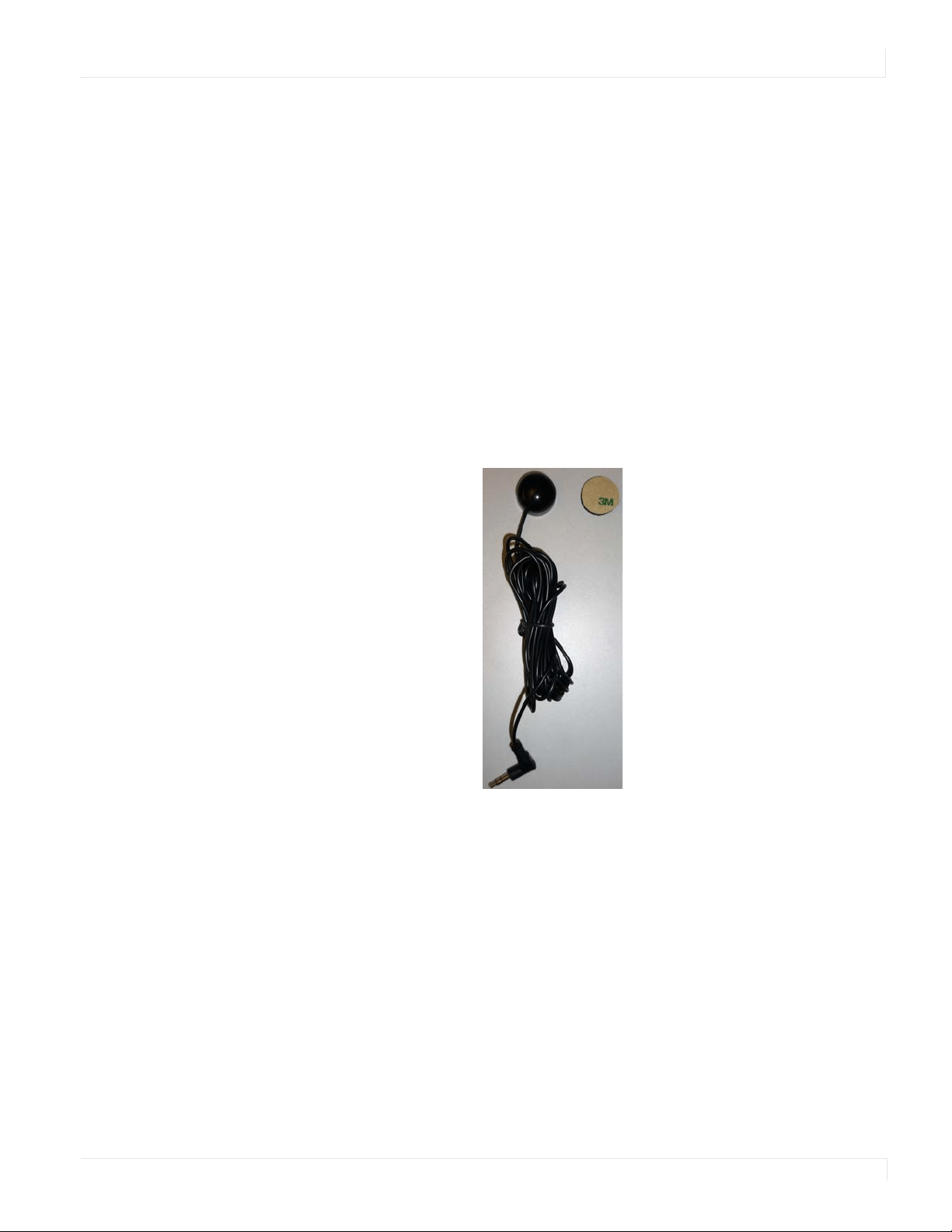
Symptom: IR Isn’t Working Properly
Planar UltraRes Series User Manual 95
Symptom: IR Isn’t Working Properly
Possible Cause
The wired IR module may not be fully connected.
Solution
Make sure the IR is fully connected by pressing hard to unsure it is inserted as far as
possible.
Possible Cause
The wired IR module cable is not being used.
Solution
Make sure that the wired IR module cable is being used.


Planar UltraRes Series User Manual i
Index
A
adjusting volume, 33
advanced settings menu, 45
audio menu, 42
avoiding temporary image retention, 4
C
cleaning the display, 6
codes, error, 92
color subsampling, 82
connecting
touch screen, 68
control, external, 78
D
dimensions, 86
display
installing, 10
E
error codes, 92
external control, 78
I
image adjust menu, 39
information menu, 65
input source
selecting, 34
inputs and view menu, 36
installation
before you build, 10
of display on a wall, 11
of LCD, 10
OPS expansion slot, 24
safety precautions, 3
introduction, 1
IR codes, using, 30
IR commands
for Planar UltraRes, 30
protocol, 30
IR not working, 95
K
kickstand bracket
using, 21
L
LCD
installation, 10
mounts, 7
LCD display, 7
locking, 32
M
menus
advanced settings, 45
audio, 42
image adjust, 39
information, 65
inputs and views, 36
presets, 44
using, 35
mounting template for LCD mounts, 7
N
navigating menus, 35
normal usage guidelines, 5
O
OPS expansion slot
installation, 24
optional

Index
ii Planar UltraRes Series User Manual
LCD mounts, 7
mounting template, 7
using the kickstand bracket, 21
osd menus, 32, 35
unlocking, 32
P
package contents, 7
Planar UltraRes display
installing on a wall, 11
troubleshooting via error codes, 92
presets menu, 44
R
recommended usage, 4
remote control
using, 29
S
safety
during installation, 3
information, 2
precautions, 2
precautions during use, 4
selecting input source, 34
service plans, ii
signal compatibility, 79
specifications, 83
subsampling
color, 82
supported timings, 79
T
temporary image retention
avoiding, 4
definition, 4
timings, 79
TIR
see temporary image retention
touchscreen
using the touchscreen, 68
troubleshooting, 92
during installation, 92
error codes in Planar UltraRes, 92
symptoms, 93
turning off the displays, 33
turning on the displays, 33
U
using the kickstand bracket, 21
using the remote, 29
V
volume, 33
W
warranty
information, ii