
INSTRUCTION MANUAL
E
32 BEFORE YOU BEGIN
Thank you for purchasing this Minolta digital camera. Please take the
time to read through this instruction manual so you can enjoy all the
features of your new camera.
Check the packing list before using this product. If any items are missing,
immediately contact your camera dealer.
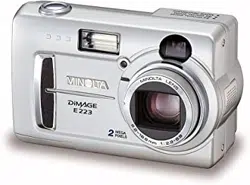
Minolta DiMAGE E223 digital camera
AA alkaline batteries (set of two)
Hand strap HS-DG223
Video cable VIC-100
USB cable USB-700
DiMAGE Viewer CD-ROM
DiMAGE E223 instruction manual
DiMAGE Viewer instruction manual
Warranty card
Before you begin
Apple, Macintosh, and Mac OS are registered trademarks of Apple Computer
Inc. Microsoft and Windows are registered trademarks of the Microsoft
Corporation. The official name of Windows is Microsoft Windows Operating
System. Pentium is a registered trademark of the Intel Corporation. QuickTime
is a trademark used under license. All other trademarks are the property of their
respective owners.
Read and understand all warnings and cautions before using this
product.
Using batteries improperly can cause them to leak harmful solutions,
overheat, or explode which may damage property or cause personal
injury. Do not ignore the following warnings.
• Only use the batteries specified in this instruction manual.
• Do not install the batteries with the polarity (+/–) reversed.
• Do not use batteries which show wear or damage.
• Do not expose batteries to fire, high temperatures, water, or moisture.
• Do not attempt to short or disassemble batteries.
• Do not store batteries near or in metallic products.
• Do not mix batteries of different types, brands, ages, or charge levels.
• Do not charge alkaline or lithium batteries.
• When recharging rechargeable batteries, only use the recommended
charger.
• Do not use leaking batteries. If fluid from the batteries enters your eye,
immediately rinse the eye with plenty of fresh water and contact a doc-
tor. If fluid from the batteries makes contact with your skin or clothing,
wash the area thoroughly with water.
• Tape over battery contacts to avoid short-circuiting during disposal;
always follow local regulations for battery disposal.
WARNING
For proper and safe use
• Use only the specified AC adapter within the voltage range indicated on
the adapter unit. An inappropriate adapter or current may cause dam-
age or injury through fire or electric shock.
• Do not disassemble this product. Electric shock may cause injury if a
high voltage circuit inside the product is touched.
• Immediately remove the batteries or unplug the AC adapter and discon-
tinue use if the camera is dropped or subjected to an impact in which
the interior, especially the flash unit, is exposed. The flash has a high
voltage circuit which may cause an electric shock resulting in injury.
The continued use of a damaged product or part may cause injuries or
fire.
Because the performance of alkaline batteries with digital cameras is
low, the use of Ni-MH batteries or a CR-V3 lithium battery is
recommended.

54 FOR PROPER AND SAFE USE
• Keep batteries or small parts that could be swallowed away from
infants. Contact a doctor immediately if an object is swallowed.
• Store this product out of reach of children. Be careful when around chil-
dren not to harm them with the product or parts.
• Do not fire the flash directly into the eyes. It may damage eyesight.
• Do not fire the flash at vehicle operators. It may cause a distraction or
temporary blindness which may lead to an accident.
• Do not use the monitor while operating a vehicle or walking. It may
result in injury or an accident.
• Do not look directly at the sun or strong light sources through the
viewfinder. It may damage your eyesight or cause blindness.
• Do not use this product in a humid environment, or operate this product
with wet hands. If liquid enters the product, immediately remove the
batteries or unplug the AC adapter and discontinue use. The continued
use of a product exposed to liquids may cause damage or injury
through fire or electric shock.
• Do not use the product near inflammable gases or liquids such as
gasoline, benzine, or paint thinner. Do not use inflammable products
such as alcohol, benzine, or paint thinner to clean the product. The use
of inflammable cleaners and solvents may cause an explosion or fire.
• When unplugging the AC adapter, do not pull on the power cord. Hold
the adapter unit when removing it from an outlet.
• Do not damage, twist, modify, heat, or place heavy objects on the AC
adapter cord. A damaged cord may cause damage or injury through fire
or electric shock.
• If the product emits a strange odor, heat, or smoke, discontinue use.
Immediately remove the batteries taking care not to burn yourself as
the batteries become hot with use. The continued use of a damaged
product or part may cause injuries or fire.
• Take the product to a Minolta Service Facility when repairs are
required.
• Do not use or store the product in a hot or humid environment such as
the glove compartment or trunk of a car. It may damage the product
and batteries which may result in burns or injuries caused by heat, fire,
explosion, or leaking battery fluid.
• If batteries are leaking, discontinue use of the product.
• The lens retracts when the camera is turned off. Touching the lens bar-
rel while it is retracting may cause injury.
• The camera temperature rises with extended periods of use. Care
should be taken to avoid burns.
• Burns may result if the memory card or batteries are removed immedi-
ately after extended periods of use. Turn the camera off and wait for it
to cool.
• Do not fire the flash while it is in contact with people or objects. The
flash unit discharges a large amount of energy which may cause burns.
• Do not apply pressure to the LCD monitor. A damaged monitor may
cause injury, and the liquid from the monitor may cause inflammation. If
liquid from the monitor makes contact with skin, wash the area with
fresh water. If liquid from the monitor comes in contact with the eyes,
immediately rinse the eyes with plenty of water and contact a doctor.
• When using the AC adapter, insert the plug securely into the electrical
outlet.
• Do not use if the AC adapter cord is damaged.
• Do not cover the AC adapter. A fire may result.
• Do not obstruct access to the AC adapter; this can hinder the unplug-
ging of the unit in emergencies.
• Unplug the AC adapter when cleaning or when the product is not in
use.
CAUTION

76 TABLE OF CONTENTS
The basic operation of this camera is covered between pages 10 and 25.
This section of the manual covers the camera parts, preparation of the
camera for use, and the basic camera operation for recording, viewing,
and deleting images.
The other sections can be read as needed. Many of the features of this
camera are controlled with menus. The menu navigation sections
concisely describe how to change menu settings. Descriptions of the
settings immediately follow the navigation sections.
About this manual
Names of parts.................................................................................................... 8
Camera body.............................................................................................. 8
Mode dial.................................................................................................... 9
Getting up and running...................................................................................... 10
Attaching the hand strap.......................................................................... 10
Installing batteries .................................................................................... 11
Battery condition indicator........................................................................ 12
Auto power off.......................................................................................... 12
Connecting the AC adapter (sold separately).......................................... 13
Setting the language................................................................................ 14
Setting the date and time......................................................................... 14
Image storage.......................................................................................... 16
Basic recording and playback............................................................................ 18
Auto-recording mode display................................................................... 18
Frame counter.......................................................................................... 18
Viewfinder ................................................................................................ 19
Handling the camera................................................................................ 19
Using the zoom lens ................................................................................ 20
Basic recording operation........................................................................ 21
Indicator lamp........................................................................................... 22
Focus lock................................................................................................ 22
Special focusing situations....................................................................... 23
Playback mode display............................................................................ 24
Viewing images........................................................................................ 24
Display button - playback mode............................................................... 25
Deleting images ....................................................................................... 25
Auto-recording mode......................................................................................... 26
Flash modes............................................................................................. 26
Flash range.............................................................................................. 27
Display button - recording mode.............................................................. 27
Exposure compensation........................................................................... 28
What is an Ev? What is a stop?..................................................... 29
White balance .......................................................................................... 30
Automatic white balance ................................................................ 30
Preset white balance...................................................................... 30
Movie-recording................................................................................................. 31
Program-recording mode................................................................................... 32
Self-timer........................................................................................ 32
Macro.............................................................................................. 33
Night portrait................................................................................... 33
Portrait............................................................................................ 33
Landscape...................................................................................... 33
Playback mode.................................................................................................. 34
Index playback......................................................................................... 34
Enlarged playback.................................................................................... 35
Playing back movies................................................................................ 35
Image copy............................................................................................... 36
Viewing images on a television................................................................ 37
Setup mode ....................................................................................................... 38
Navigating the setup menu...................................................................... 38
Deleting all images................................................................................... 40
Format...................................................................................................... 40
Image quality............................................................................................ 41
Buzzer...................................................................................................... 42
About DPOF............................................................................................. 42
Creating a DPOF Print Order......................................................... 43
Memory type ............................................................................................ 45
Video output............................................................................................. 45
Data-transfer mode............................................................................................ 46
System requirements............................................................................... 46
Connecting the camera to a computer..................................................... 47
Connecting to Windows 98 and 98 Second Edition................................. 49
QuickTime system requirements.............................................................. 51
Memory card folder organization ............................................................. 52
Uninstalling the driver software - Windows.............................................. 53
Disconnecting the camera from the computer......................................... 54
Appendix ........................................................................................................ 56
Troubleshooting........................................................................................ 56
Care and storage..................................................................................... 58
About Ni-MH batteries.............................................................................. 60
Technical specifications............................................................................ 61
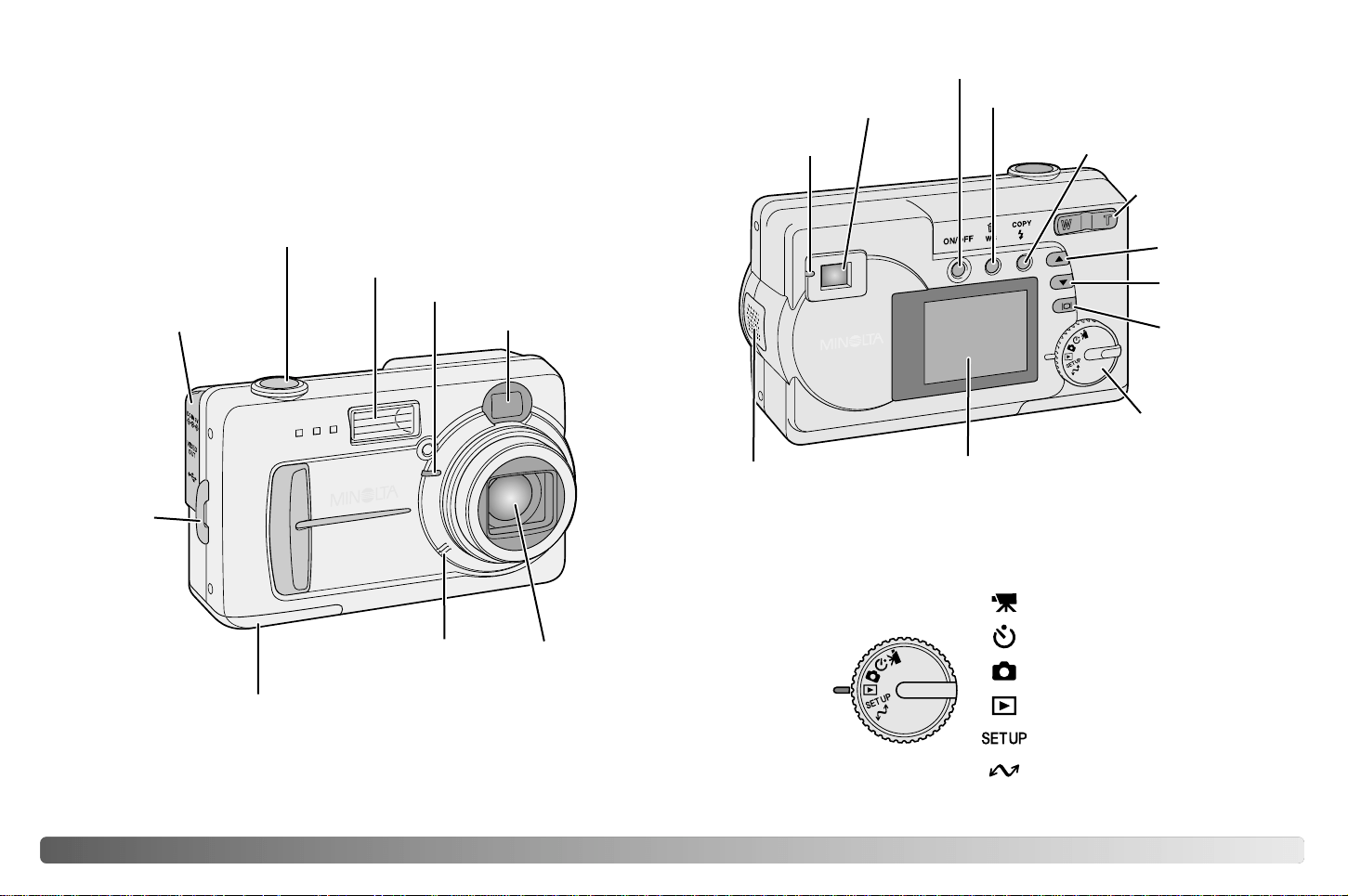
98 NAMES OF PARTS
* This camera is a sophisticated optical instrument. Care should be taken to
keep these surfaces clean. Please read the care and storage instructions in
the back of this manual (p. 58).
Camera body
Shutter-release button
Lens*
The DC terminal (p. 13),
video-out terminal (p. 37),
and USB port (p. 47) are
located behind the termi-
nal cover.
Self-timer lamp (p. 32)
Flash (p. 26)
Strap eyelet
(p. 10)
The tripod socket is located
on the bottom of the body.
Microphone
Viewfinder window*
Viewfinder* (p. 18, 24)
LCD monitor*
White balance/ Delete button (p. 25, 30)
Speaker
Mode dial
Battery/ Card chamber door (p. 11, 16)
Display/ Enter
button (p. 25,
27)
Indicator lamp
(p. 22)
Main switch
Flash-mode/ Copy button
(p. 26, 36)
Zoom lever (p. 20)
Scroll-up button
Scroll-down
button
Mode dial
Movie-recording mode (p. 31)
Program-recording mode (p. 32)
Auto-recording mode (p. 18, 26)
Playback mode (p. 24, 34)
Data-transfer mode (p. 46)
Setup mode (p. 38)
This dial gives direct and easy
access to the camera’s major
modes.
NAMES OF PARTS
This digital camera uses two AA-size Ni-MH batteries or one CR-V3
lithium battery. When using Ni-MH batteries, fully recharge them with a
battery charger suitable for complex electronic equipment. Although
alkaline batteries can be used, their performance is very low and is not
recommended for normal use. Do not use other types of AA batteries.
When replacing the batteries, the camera should be turned off.
1110 GETTING UP AND RUNNING
GETTING UP AND RUNNING
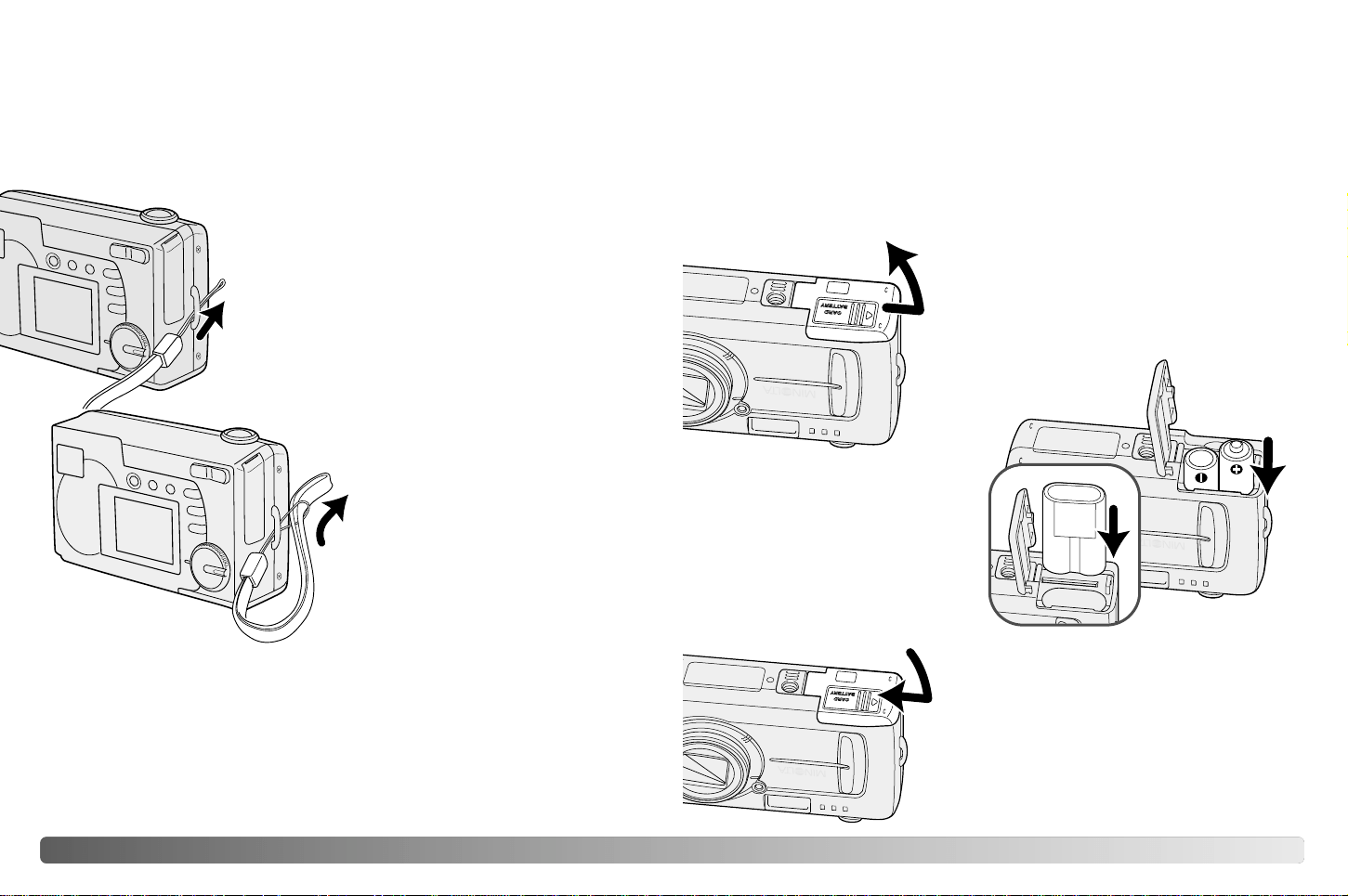
Always keep the strap around your wrist in the event that the camera is
accidentally dropped.
Attaching the hand strap
Pass the other end of the strap
through the small loop and tighten
(2).
2
1
Pass the small loop of the hand strap through
the strap eyelet on the camera body (1).
Close the battery-chamber door (3) and
slide it toward the body (4) to engage the
safety catch.
3
4
Installing batteries
Insert the batteries as shown.
Never force the battery.
1
2
Open the battery-chamber door on the
bottom of the camera by sliding the door
toward the side of the camera (1) to release
the safety catch; the door can then be
opened (2).
CR-V3 lithium battery
AA-size
batteries
(Continued on the next page)
1312 GETTING UP AND RUNNING
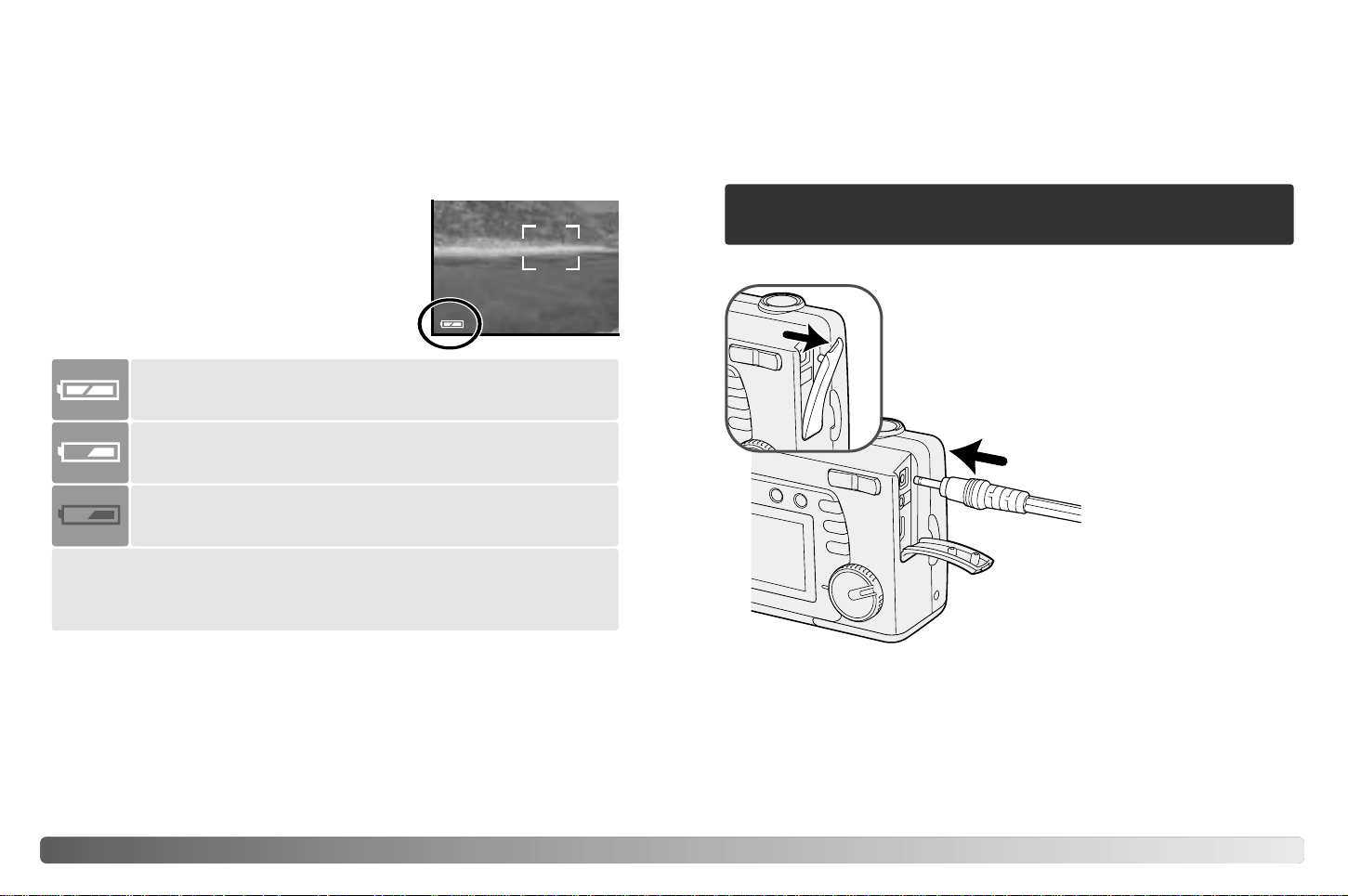
Battery condition indicator
Full-battery indicator - the battery is fully charged.
Replace-battery message - power is insufficient for camera operation.
Indicator lamp by the viewfinder turns red and blinks. Change the
batteries. The shutter will not release.
Low-battery indicator - battery power is low. The battery
should be replaced soon.
This camera is equipped with an automatic
battery-condition indicator. When the camera is
on, the battery-condition indicator appears on
the LCD monitor. If it does not appear, the
battery may be exhausted or installed
incorrectly.
Low-battery warning - battery power is very low. The icon is
red. The battery should be replaced as soon as possible.
Auto power off
To conserve battery power, the camera will shut down if an operation is
not made within three minutes. To restore power, press the main switch.
The AC Adapter AC-6 allows the camera to be powered from an electrical
household outlet. The AC Adapter is recommended when the camera is
interfaced with a computer or during periods of heavy use.
Always turn off the camera before changing between power supplies.
Connecting the AC adapter (sold separately)
When replacing batteries, the date information will reset if there are no
batteries in the camera for a few minutes. See page 14 if the date reset.
Lift the terminal cover from the top (1). The cover
is attached to the body to prevent loss.
Insert the mini plug of the AC
adapter into the DC terminal (2).
Insert the AC adapter plug into
an electrical outlet.
when the AC adapter is used, camera
will shut down if an operation is not
made within 30 minutes.
1514 GETTING UP AND RUNNING
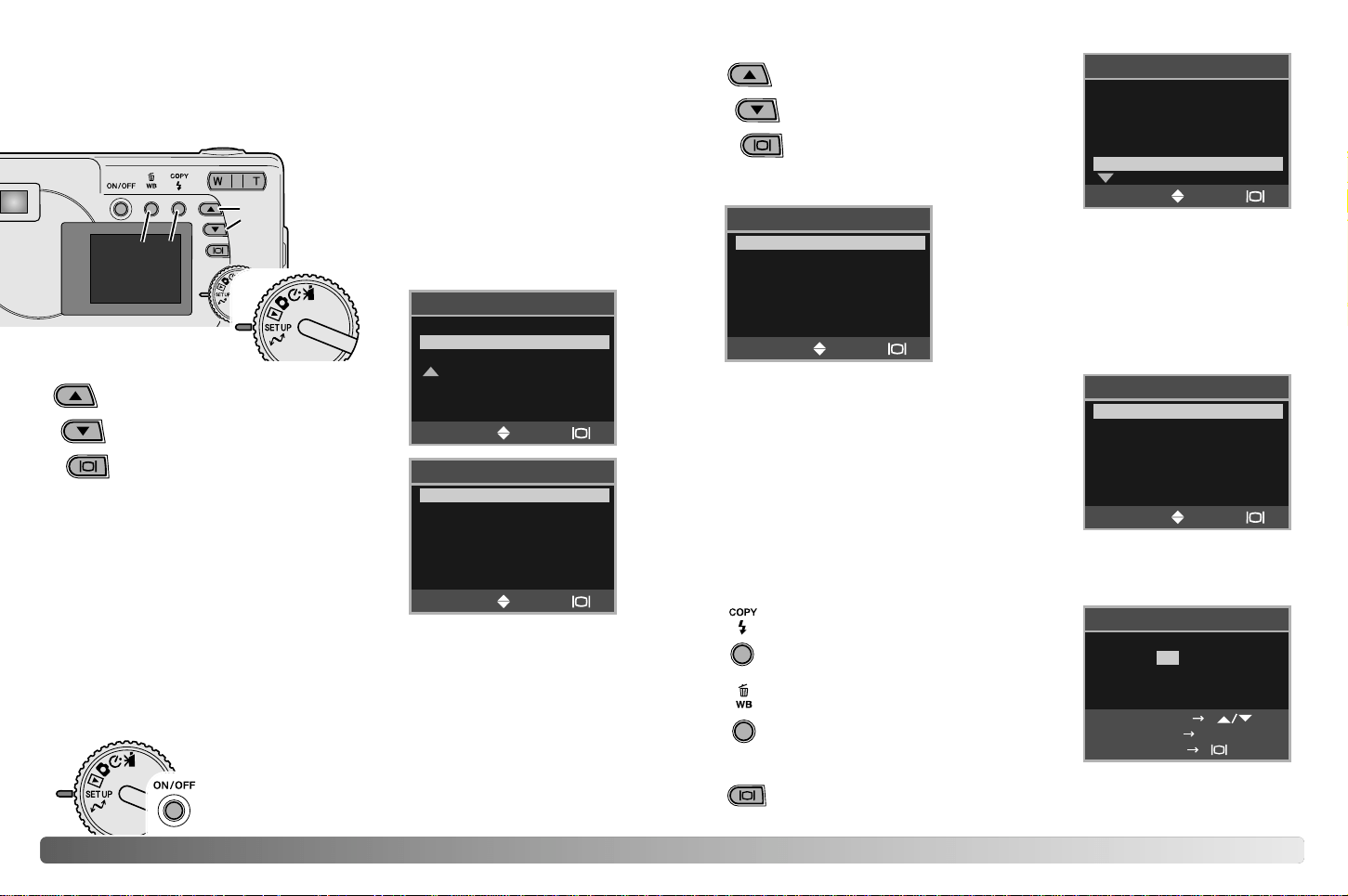
Setting the language
Depending on the region, the menu language may have to be set. Four
languages are available: English, French, Spanish, and German.
Turn the mode dial to the setup
position (1).
Turn the camera on (2).
Use the scroll buttons (3) to
highlight the appropriate language.
Press the display/enter button (4)
to select the language.
MEMORY TYPE
LANGUAGE
VIDEO OUT
SELECT
OK
SET UP
Setting the date and time
The camera’s clock and calendar must be set. When images are
recorded, the image data is saved with the date and time of recording.
The date and time display blinks if the clock and calender are not set.
Turn the mode dial to the setup position (1).
Turn the camera on (2).
DELETE ALL
FORMAT
QUALITY
BUZZER
DPOF
DATE/TIME
SET UP
STYLE
CLOCK
SET UP
Use the scroll buttons (3) to select the date
format. Press the display/enter button (4) to
select the format.
The main setup menu is displayed. Highlight
the date/time option with the scroll buttons
and press the display/enter button to
continue.
Use the scroll buttons (3) to select the clock
option. Press the display/enter button (4) to
display the date/time setting screen.
MONTH / DAY
DAY / MONTH
SET UP
: 00
2003 / 1 / 1
ADJUST
CLOCK
SET
NEXT COPY
00
Use the scroll buttons (3) to select the style
option. Press the display/enter button (4) to
continue.
Use the flash-mode/copy button (5) to
select the item to be changed. Use the
scroll buttons (3) to adjust the item.
Pressing the white-balance/delete
button (6) will close the screen and
cancel any changes made.
Use the scroll buttons (3) to select
the date/time option. Press the
display/enter button (4) to open the
date/time screen.
ENGLISH
ESPAÑOL
DEUTSCH
FRANÇAIS
LANGUAGE
Use the scroll buttons (3) to select
the language option. Press the
display/enter button (4) to open
language screen.
1
2
4
3
5
6
When the correct date and time is displayed, press the display/
enter button (4) to set the clock and calendar.
SELECT
OK
SELECT
OK
SELECT
OK
SELECT
OK
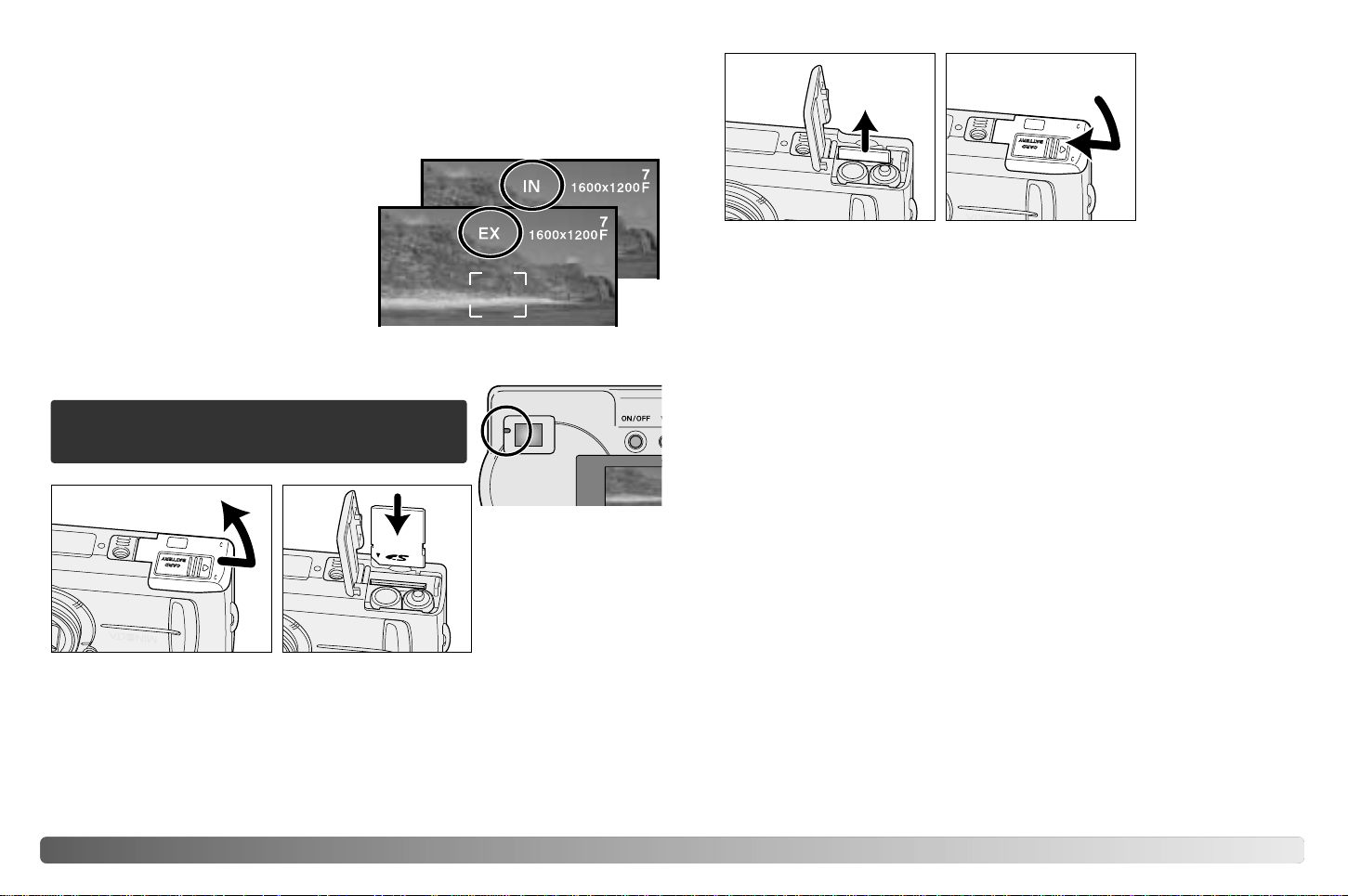
An SD Memory Card or MultiMediaCard, sold separately, can be inserted
in the camera for image storage.
1716 GETTING UP AND RUNNING
Image storage
This camera has an 8MB internal memory where the image can be
stored without the need for a separate a memory card. To switch between
the internal memory and a memory card, see pages 38 and 45.
1
2
34
Always turn off the camera and confirm the
indicator lamp is not lit before removing a
memory card; damage and data loss may result.
Open the card-slot door (1).
Insert the memory card all the way into the card slot until it stops (2).
Insert the card so the face is toward the front of the camera. Always push
the card in straight. Never force the card. If the card does not fit, check
that it is oriented correctly.
If the card-protect message appears, the inserted card in the camera is
locked. The card’s write-protect switch must be in the unlock position to
use the card. If the memory-card-error message appears, the inserted
card may need to be formatted, or may not be compatible with this
camera. To format the memory card, see pages 38 and 40. A card used
in another camera may have to be formatted before being used. See the
card’s manual for details on card use.
Images are not transferred automatically to the memory card from
internal memory when a memory card is inserted. To copy the data, see
page 36.
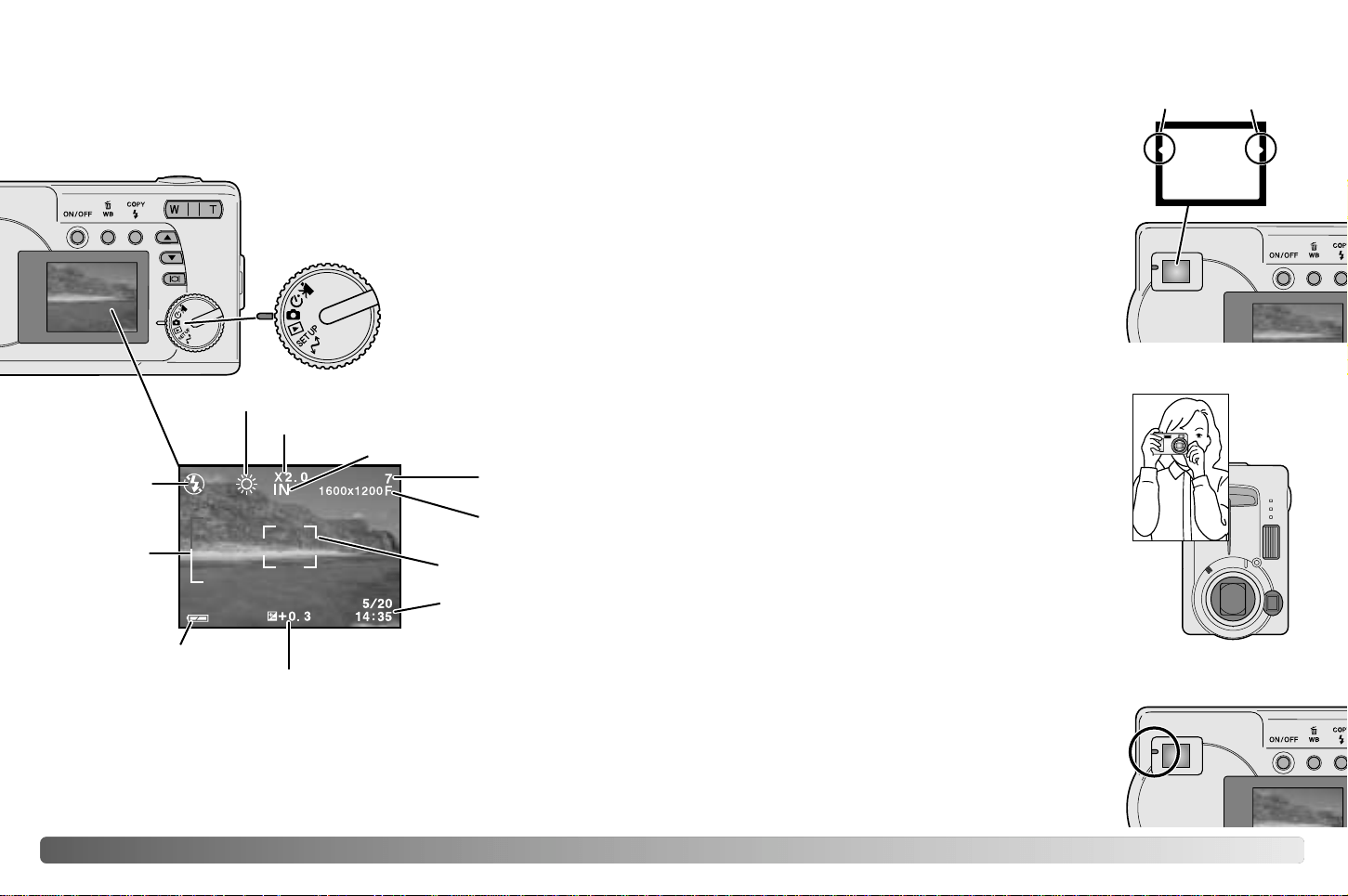
The LCD monitor shows where the images
will be stored. “IN” indicates the internal
memory and “EX” indicates an external
memory card.
To remove a memory card, hold the edge of the card and pull it out
straight (3). Take care when removing the card as it becomes hot with
use.
Close the card-chamber door and slide it toward the body (4) to engage
the safety catch.
1918 BASIC RECORDING AND PLAYBACK
BASIC RECORDING AND PLAYBACK
This section covers the basic operation of this camera. Thoroughly
familiarize yourself with the operations in this section before moving on to
the other sections in the manual.
While using the viewfinder or LCD monitor, grip the
camera firmly with your right hand while supporting
the body with your left. Keep your elbows at your
side and your feet shoulder-width apart to hold the
camera steadily.
When taking vertical pictures, hold the camera so
that the flash is above the lens with the grip to the
top. Take care not to cover the lens with your fingers or
the strap.
Handling the camera
Indicator lamp
The indicator lamp glows green when the camera
is turned on. When the shutter-release button is
pressed partway down, it shows the focus and
flash status. See page 22 for the details.
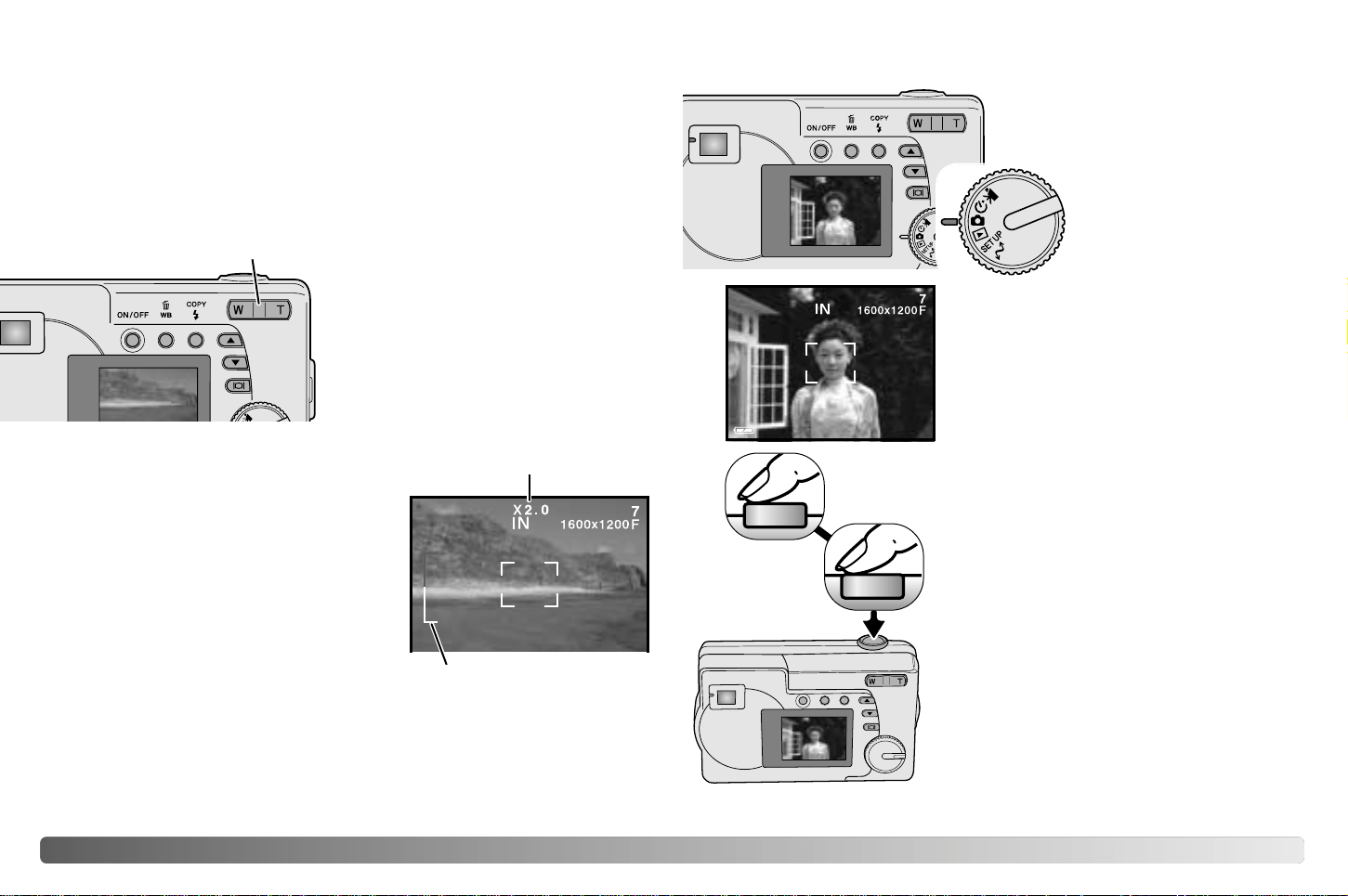
Auto-recording mode display
Flash-mode
indicator (p.
26)
Digital-zoom display (p. 20)
Memory-type indicator (p. 45)
Frame counter
(p. 18)
Image-quality
display (p. 41)
Focus frame (p. 21)
Date/time (p. 14)
Date/time appears
briefly when the mode is
changed.
Zoom scale
(p. 20)
Battery-condition
indicator (p. 12)
Exposure-compensation display (p. 28)
When the mode dial is turned to the auto-
recording mode position, the following display
will appear in the LCD
monitor. Indicators are
displayed when camera
settings are changed.
Viewfinder
Because the optical viewfinder and the lens are
slightly separated, the image seen through one
is not exactly the same as the other; this is
called parallax. Parallax can cause errors in
framing at close distances and is more
pronounced at longer focal lengths. When the
subject is closer than 0.4m (1.3ft) in the macro
mode, the use of the LCD monitor is
recommended because it does not suffer from
parallax. If the viewfinder is used, point the
camera slightly upwards so that the top of the
image is aligned with the close-framing guide.
Frame counter
The frame counter cannot exceed 999. When the number of recordable
images exceeds this, 999 will be displayed. The frame counter will
continue to count down when the number of recordable images falls
below one thousand.
Close-framing guide
White-balance indicator (p. 30)
2120 BASIC RECORDING AND PLAYBACK
This camera is equipped with a 6.2 to 18.6mm optical zoom. This is
equivalent to a 38 to 114mm zoom lens on a 35mm camera. In 35mm
photography, focal lengths below 50mm are referred to as wide-angle; the
angle of view is larger than that of the human eye. Above 50mm is
referred to as telephoto and makes distant objects appear closer. The
effect of the optical zoom is visible in both the viewfinder and LCD
monitor.
Using the zoom lens
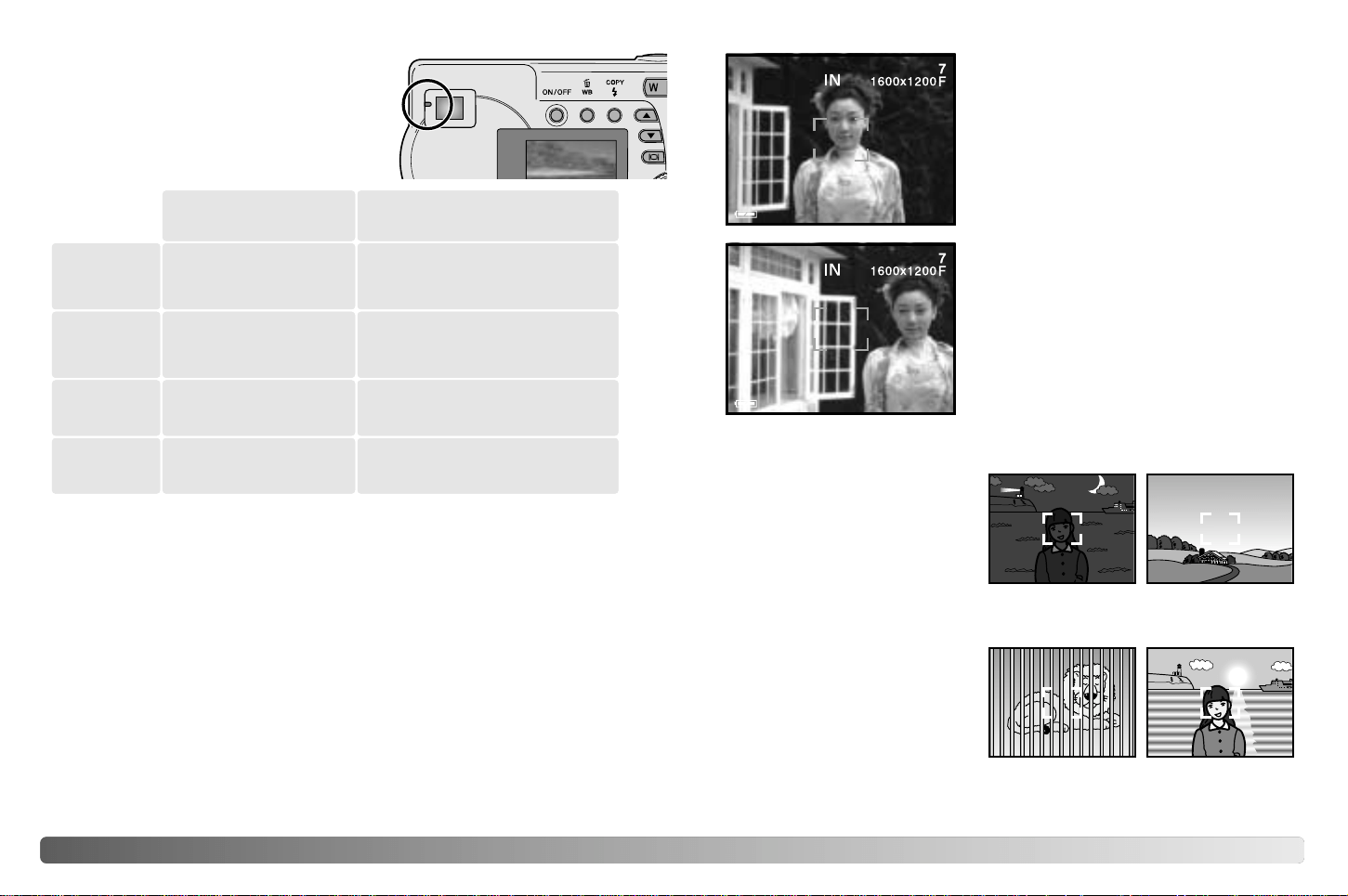
The zoom lens is operated by the
zoom lever. Pressing the right side
(T) will zoom in to the telephoto
position of the lens. Pressing the
left side (W) will zoom out to the
wide-angle position. The optical
zoom position is indicated by the
lower white section of the zoom
scale in the LCD monitor.
If the zoom lever is pressed toward the
telephoto position at the telephoto position of
the optical zoom, the digital zoom will
activate; this is indicated by the upper red
section of the zoom scale. The digital zoom
extends the power of the telephoto position
of the optical zoom by up to 3X in 0.2X
increments. When the digital zoom is active,
the image magnification is displayed on the
monitor.
Digital zoom images are interpolated to the
set image size. There can be some loss of
quality with images taken with the digital
zoom.
Zoom scale
Digital zoom magnification
Turn the camera on (1) and turn the
mode dial to the auto-recording
mode (2).
Basic recording operation
Place the subject within the focus frame.
• Make sure the subject is within the focus
range of the lens: 0.6m - ∞ (2.0ft - ∞). For
subjects closer than 0.6m, use the macro
function (p. 33).
3
Press the shutter-release button partway
down (3) to lock onto the subject and fix the
exposure.
• The indicator lamp shows the status of focus
and flash. See page 22 for the details.
• The focus frame turns red to confirm subject
lock. If it remains white, the camera was unable
to focus the subject. Repeat the previous steps.
• The shutter speed and aperture will appear
indicating the exposure is locked.
Press the shutter-release button all the way
down (4) to take the picture.
• The green indicator lamp may blink indicating
image data is being written to the memory
card. Never turn the camera off or open the
battery/card chamber door while data is being
transferred.
Zoom lever
2
1
4
2322 BASIC RECORDING AND PLAYBACK
The focus-lock function is used when you want to compose the image
with the subject off-center and outside the focus frame. Focus lock may
also be used when a special focusing situation prevents the camera from
focusing on the subject. This function is controlled with the shutter-
release button.
Focus lock
Place the subject within the monitor
focus frame or center the subject in the
viewfinder. Press and hold the shutter-
release button partway down to lock the
focus.
• The indicator lamp glows steadily and the
focus frame turns red when the focus is
locked.
Without lifting your finger from the
shutter-release button, recompose the
subject within the image area. Press the
shutter-release button all the way down
to take the picture.
When the camera is on, the indicator lamp
shows the camera status.
The camera may not be able to
focus in certain situations. If the
autofocus system cannot focus
on a subject, the indicator lamp
blinks and the focus frame will
not turn red. In this situation,
focus-lock can be used to focus
on an object at the same
distance as the main subject
and then the image can be
recomposed on the monitor (p.
22).
Two subjects at
different distances
overlap in the focus
frame.
The subject is near
a very bright object
or area.
Indicator lamp
Special focusing situations
The shutter can be released when the camera cannot focus on the
subject, the subject is too close, or a special situation is preventing the
AF system from focusing. If the subject is too close, the indicator lamp
may glow, but the subject will not be in focus.
The subject in the
focus frame is low
in contrast.
The subject is too
dark.
Focus is locked. Flash will not fire.
The camera is ready to take the
picture.
Green and
steady
Focus is locked. Flash will fire. The
camera is ready to take the
picture.
Orange and
steady
Cannot focus. Flash will not fire.
Green and
blinks
Cannot focus. Flash will fire.
Orange and
blinks
When shutter-release
button is not pressed
While shutter-release button is
pressed partway down
Camera is on.
Flash is charging. LCD
monitor is off.
Image data is being
transferred to the card.
–
2524 BASIC RECORDING AND PLAYBACK
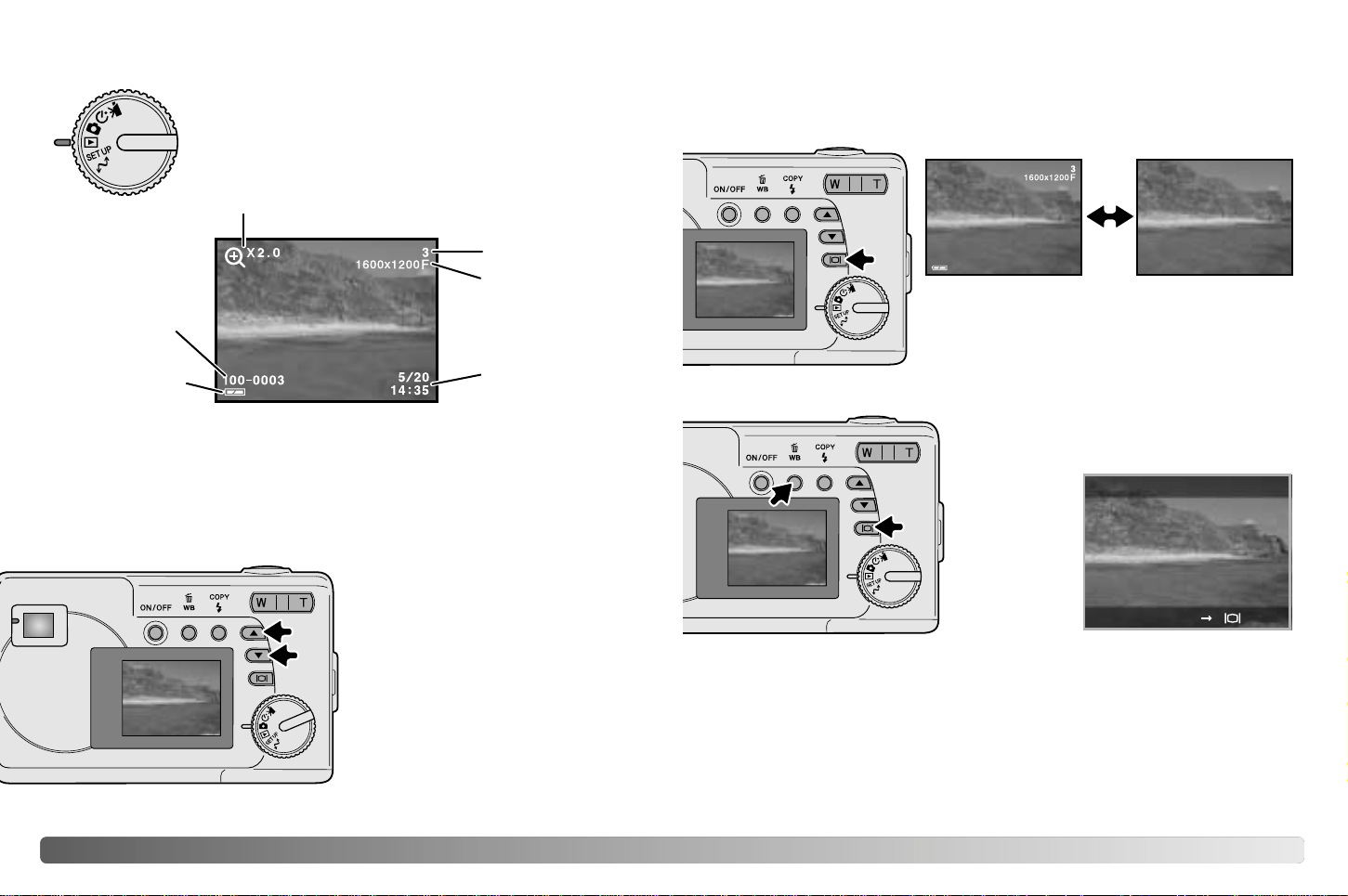
Images can be viewed in the playback mode. To view
images, turn the mode dial to the playback position.
Frame number
Quality (p. 41)
Date/ time* (p.
14)
Folder number -
image-file num-
ber *
Battery condition
indicator (p. 12)
In the playback mode, use the
scroll buttons to scroll through the
images.
Viewing images
Magnification display (p. 35)
Playback mode display
To delete the displayed image, press the
white-balance/delete button (1). A
confirmation screen will appear.
Deleting images
Pressing the display/enter button in the playback mode switches between
the full display and the image-only display.
Display button - playback mode
1
2
Press the display/enter button (2) to delete
the image, or press any other button to
cancel the delete operation.
DELETE
DELETE
* Folder number, image-file number, and date/time appear briefly when the
mode is changed.
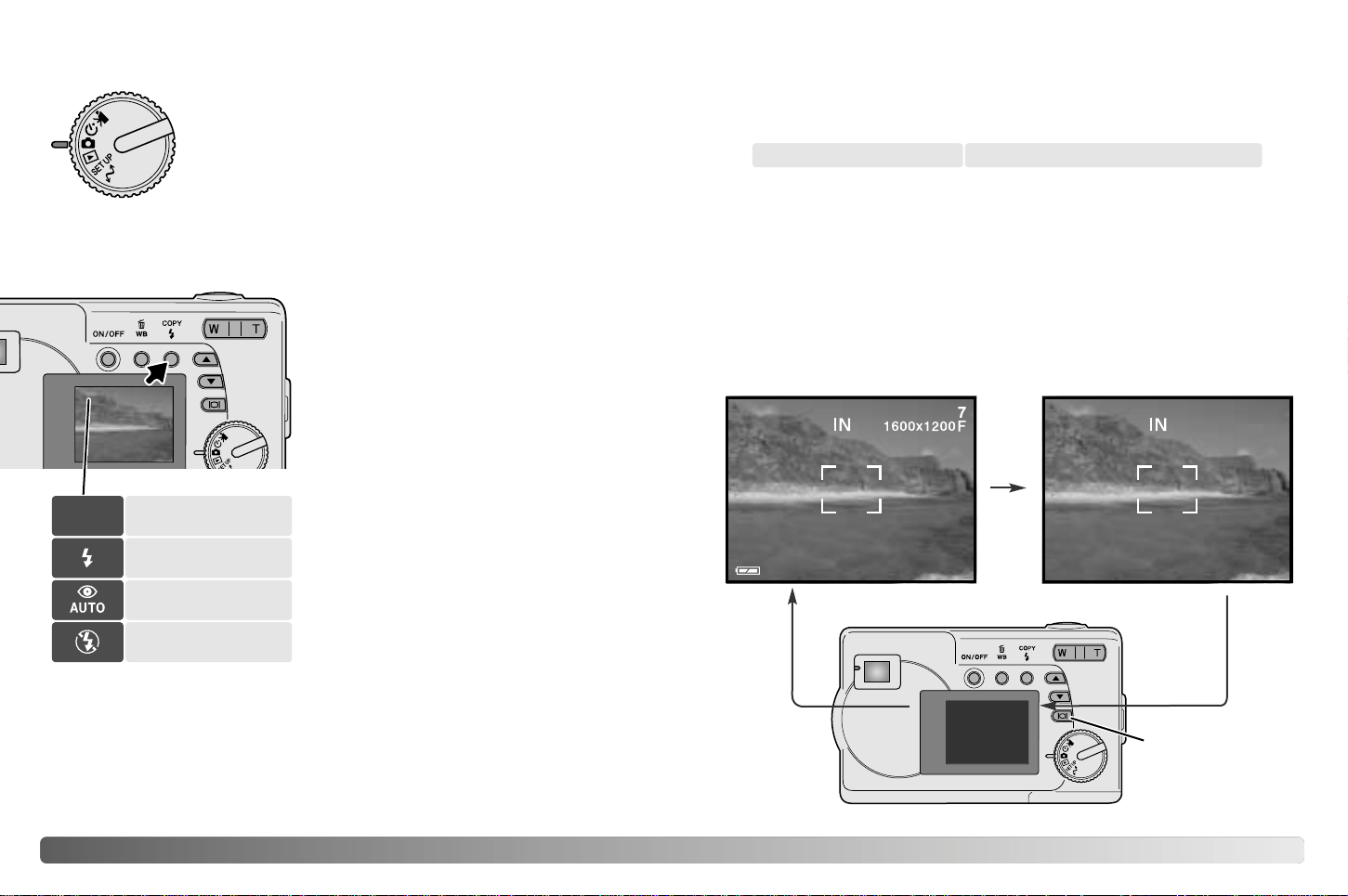
To set the flash mode, simply press the
flash-mode/copy button on the back of
the camera until the appropriate mode
is indicated.
Autoflash - the flash fires automatically
in low-light situations. If the flash will
fire, the flash indicator will appear on
the LCD monitor when the shutter-
release button is pressed partway
down.
Fill-flash - the flash fires with each
exposure regardless of the amount of
ambient light. Fill-flash can be used to
reduce harsh shadows caused by
strong direct light or sunshine.
Red-eye reduction - multiple flashes
are used before the main flash burst to
reduce red-eye; an effect caused by
light reflected from the retina. Use in low-light conditions when taking
photographs of people or animals. The pre-flashes contract the pupils of
the subject’s eyes.
Flash cancel - the flash will not fire. Use flash cancel when flash
photography is prohibited, natural light is desired to illuminate the subject,
or the subject is beyond the flash range.
2726 AUTO-RECORDING MODE
Autoflash
Autoflash with
red-eye reduction
Flash cancel
Fill-flash
Flash modes
Flash range
The camera will automatically control the flash output. For well-exposed
images, the subject must be within the flash range.
Flash range 0.6m ~ 2.5m (2.0 ft. ~ 8.2 ft.)
Monitor
off
The display button controls the LCD monitor display. The display cycles
to the next position each time the button is pressed: full, simple, and
monitor off.
Battery power can be conserved by turning the monitor off and using the
viewfinder to take pictures. When the digital zoom is active, the monitor
will automatically turn on and cannot be turned off.
Full Simple
Display button
Display button - recording mode
AUTO-RECORDING MODE
This section covers the operation in auto-recording
mode. The sophisticated technology employed in this
mode frees the photographer from complicated camera
settings. Although automated, the camera’s operation
can be changed to meet various conditions as well as to
suit personal shooting preferences.
No
Indicator
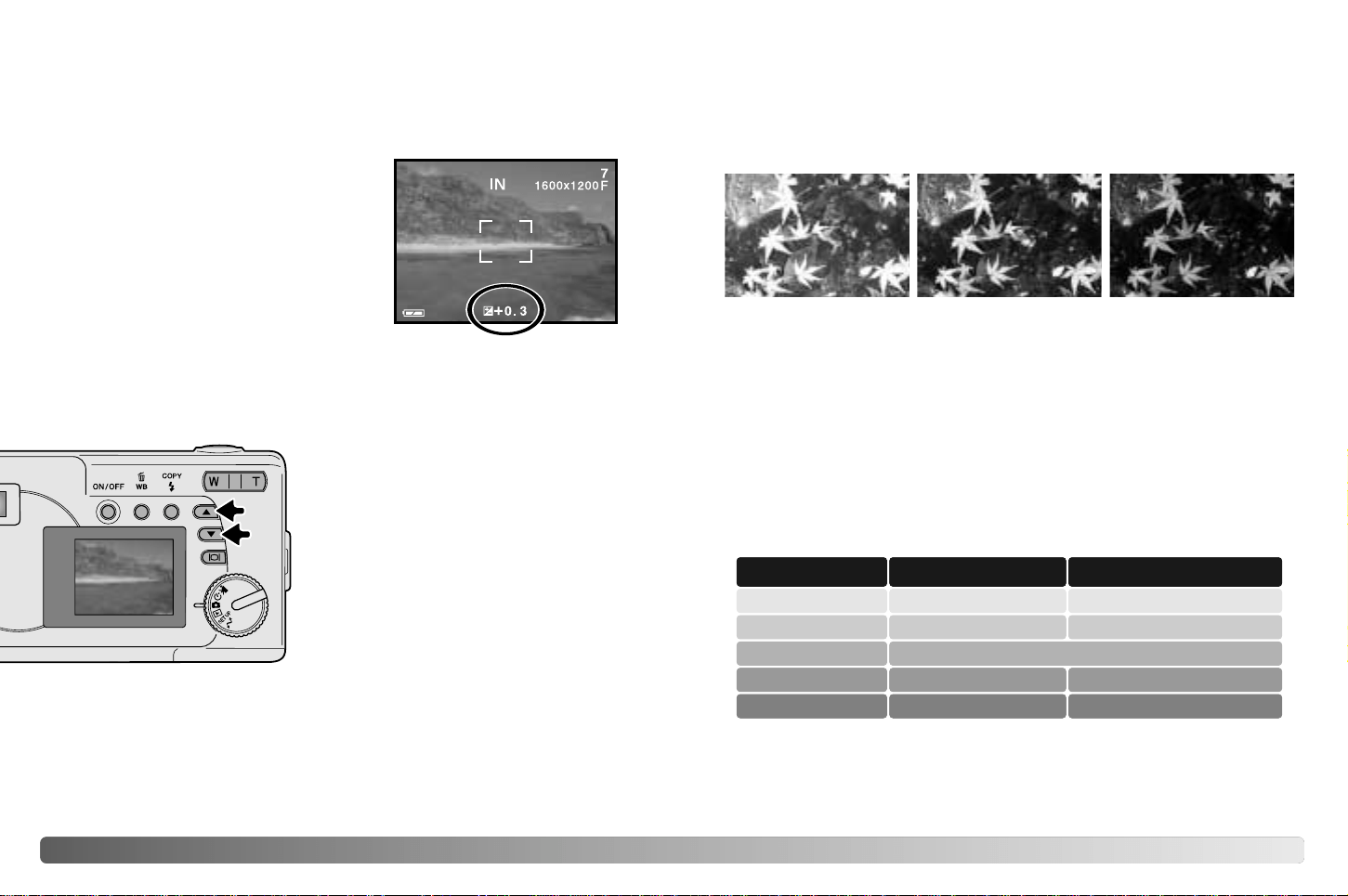
Exposure compensation must be set
before the image is captured. When
making adjustments to exposure, the
amount of compensation is shown at the
bottom of the LCD monitor. After the
setting is made, the shutter-speed and
aperture displays will indicate the actual
exposure. Because the exposure can be
adjusted in fine steps, the shutter speed or
aperture value displayed may not change.
When set to any value other than 0.0, the exposure-compensation
indicator and the degree of compensation will remain on the LCD monitor
as a warning.
2928 AUTO-RECORDING MODE
The camera exposure can be adjusted to make the final picture lighter or
darker by as much as ±2Ev in 1/3 increments. This function is only
available in the auto-recording mode.
Exposure compensation
Compose the picture on the monitor and
press one of the scroll buttons to
activate exposure compensation; the
camera exposure is locked. Changing
zoom or mode dial position will cancel
exposure compensation.
Set the degree of exposure-
compensation using the scroll buttons.
Changes to exposure are visible in the
live image. The exposure is locked until
picture is taken.
What is an Ev? What is a stop?
Ev stands for exposure value. The term stop comes from the name of
aperture plates used in early lenses. A change of one Ev or one stop will
adjust the exposure calculated by the camera by a factor of two.
Change in Ev Change in stops Adjustment to exposure
+2.0 Ev
+1.0 Ev
0.0 Ev
–1.0 Ev
–2.0 Ev
+2 stops
+1 stop
–1 stop
–2 stops
4X as much light
2X as much light
1/2 as much light
1/4 as much light
Calculated exposure
–2.0Ev–1.0EvCalculated camera
exposure
Sometimes the camera’s exposure meter is deceived by certain
conditions. Exposure compensation can be used in these situations. For
example, a very bright scene, such as a snowy landscape or a white
sandy beach, can appear too dark in the captured image. Before taking
the picture, adjusting the exposure by +1 or +2 EV will result in an image
with normal tonal values.
In the example above, the dark water caused the camera to overexpose
the image making it bright and washed-out. By compensating the
exposure, detail is brought out in the leaves, and the stones and water
appear richer.
If the flash mode is set to autoflash, the flash will not fire. To use the
flash, set the flash mode to fill-flash.
If the LCD monitor is off, it will turn on automatically when exposure
compensation is active, but can be turned off if necessary.
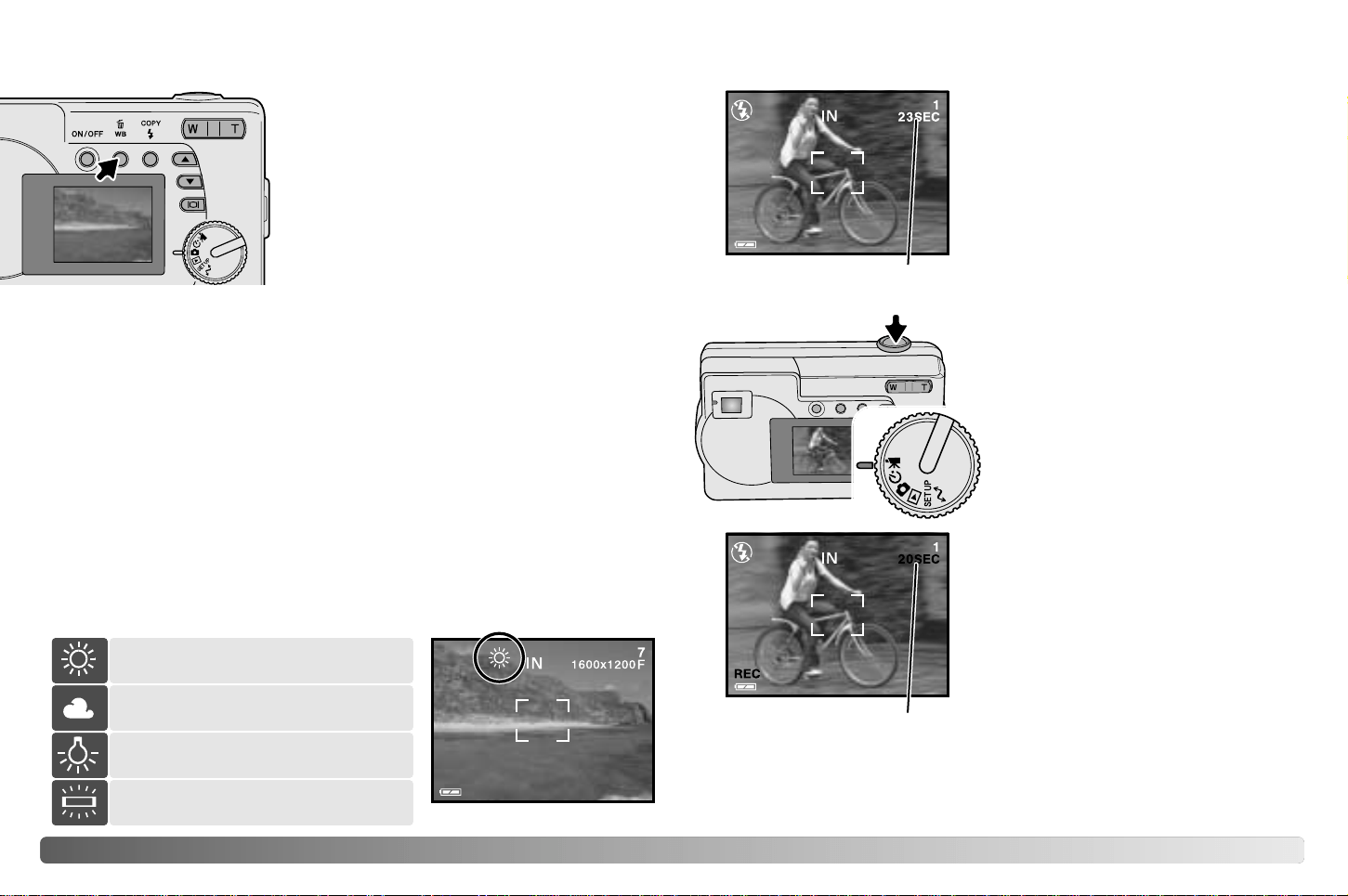
Preset white-balance settings must be set before the image is taken.
Once set, the effect is immediately visible on the LCD monitor.
If the flash is used, white balance is automatically set to the color
temperature of the flash. Use flash cancel to prevent the flash from firing.
3130 AUTO-RECORDING MODE / MOVIE-RECORDING MODE
Automatic white balance
The automatic white balance compensates for the color temperature of a
scene. In most cases, the auto setting will balance the ambient light and
create beautiful images, even under mixed-lighting conditions. When the
built-in flash is used, the white balance is set for the color temperature of
the flash. No indicator is displayed for automatic white balance.
White balance is the camera’s ability to
make different types of lighting appear
neutral. The effect is similar to selecting
daylight or tungsten film, or using color
compensating filters in conventional
photography. An indicator will be displayed
on the monitor if a setting other than auto
white-balance is chosen. White balance is
set by pressing the white-balance/delete
button. Each time the button is pressed,
the white balance mode cycles in the
following order: Automatic, Daylight,
Cloudy, Tungsten, and Fluorescent.
White balance
Preset white balance
Fluorescent - for fluorescent
lighting: office ceiling lights.
Daylight - for outdoor and sunlit
subjects.
Cloudy - for overcast outdoor
scenes.
MOVIE-RECORDING MODE
This camera can record digital video with
sound. Approximately 23 seconds can be
recorded in the internal memory. On a
memory card, a maximum of 60 seconds
can be taken depending on the card
capacity. Autofocus is not used in movie
recording.
Before recording, the maximum recording
time in seconds that can be recorded on
the next movie clip is shown.
Shooting digital video is simple. Set
the mode dial to movie recording (1).
Frame the picture and press the
shutter-release button (2) all the way
down and release to start recording.
During recording, the digital zoom is
available; the optical zoom can only be
adjusted before recording starts. The
camera will continue to record until the
recording time is used or the shutter-
release button is pressed again. When
recording, the frame counter will count
down the remaining time.
2
1
Recording time
Tungsten - for incandescent lighting:
household filament light bulbs.
Countdown in seconds
Used for self-portraits, the self-timer will delay the release
of the shutter for approximately ten seconds after the
shutter-release button is pressed. With the camera on a
tripod, compose the picture so the subject is within the
focus frames. Press the shutter-release button partway
down to lock the exposure and focus (1). Press the
shutter-release button all the way down to begin the
countdown (2). Because focus and exposure are
determined when the shutter-release button is pressed, do
not stand in front of the camera when
taking a self-timer image. Always confirm
the focus with the red focus frame before
beginning the countdown (p. 21).
3332 PROGRAM-RECORDING MODE
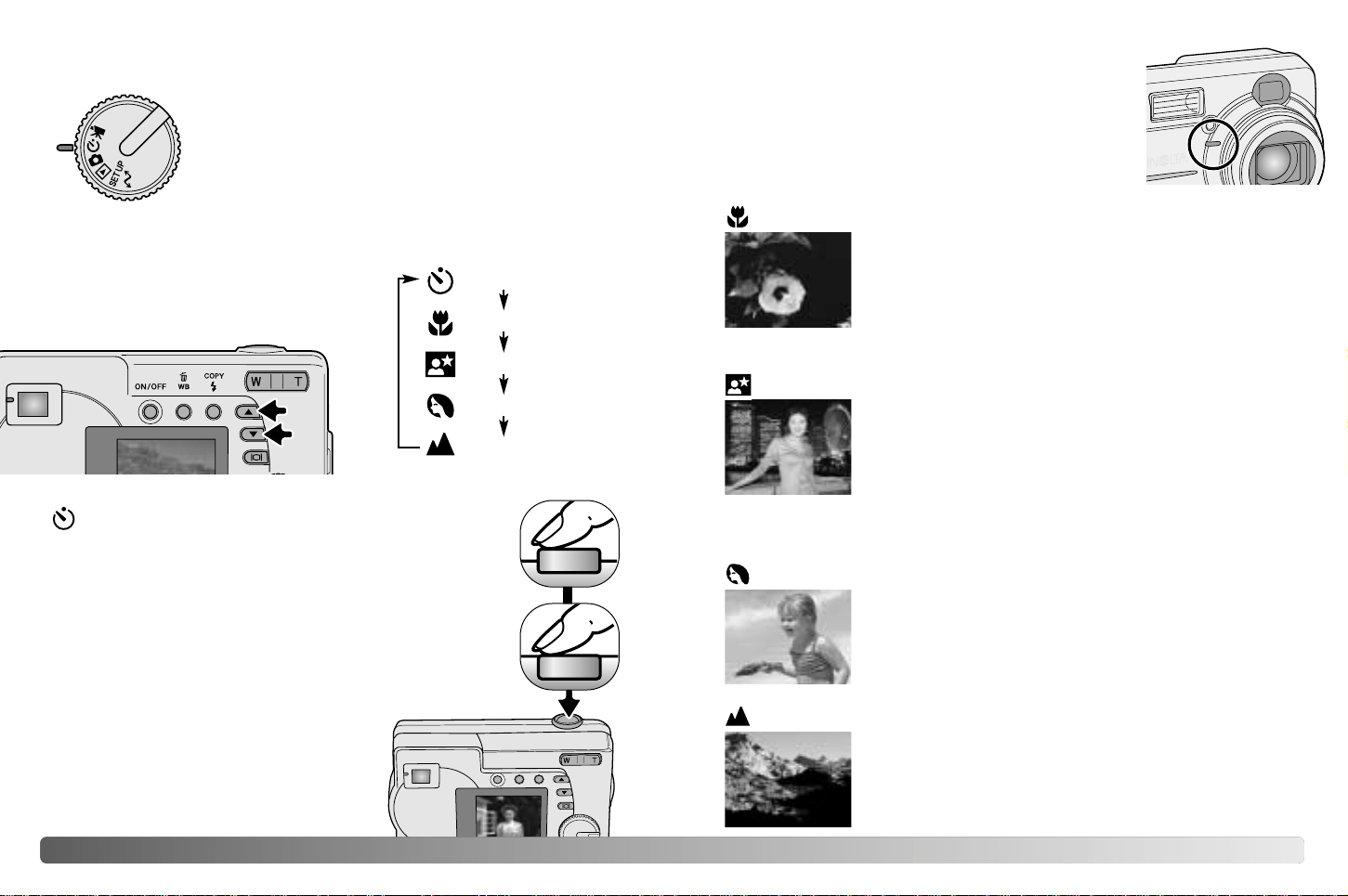
PROGRAM-RECORDING MODE
In the program-recording mode, various subject
programs are available including a self-timer and
macro mode. Except for exposure compensation, the
function in the auto-recording mode are available in
the program-recording mode.
Turn the camera on and turn the mode dial to the
program-recording mode.
Self-timer
Macro
Night portrait
Portrait
Landscape
Self-timer
1
Macro
Used for close-up photography between 8 - 60 cm (3.2
- 24 in.) at the wide-angle zoom position and 40 - 60
cm (16 - 24 in.) at the telephoto zoom position, from the
camera lens. Because of parallax, the LCD monitor or
close-framing guide should be used to compose the
picture. Use of flash is not recommended.
For pictures of people. Most portraits look best at a
telephoto setting; longer focal lengths do not
exaggerate facial features and the shallower depth of
field softens the background. The flash mode is set to
autoflash automatically, but can be changed.
Portrait
Landscape
For pictures of scenery. The flash mode is set to flash
cancel and white balance is set to daylight
automatically, but can be changed.
Night portrait
The flash and ambient exposures are balanced to
reveal the subject and background in low light. Ask your
subject not to move after the flash burst; the shutter
may still be open for the background exposure. The
flash mode is set to fill-flash automatically; to take
pictures of landscapes at night, set the flash mode to
flash cancel (p. 26). The use of a tripod is
recommended.
During the countdown, the self-timer lamp on the
front of the camera (3) will start to blink and is
accompanied by an audio signal if on. A few seconds
before the exposure, the self-timer lamp will blink
rapidly. Changing the position of the mode dial or
pressing the shutter-release button will stop the
countdown.
2
3
Use the scroll-down button to cycle
through the program modes as shown.
The scroll-up button will change the
modes in reverse order.
3534 PLAYBACK MODE
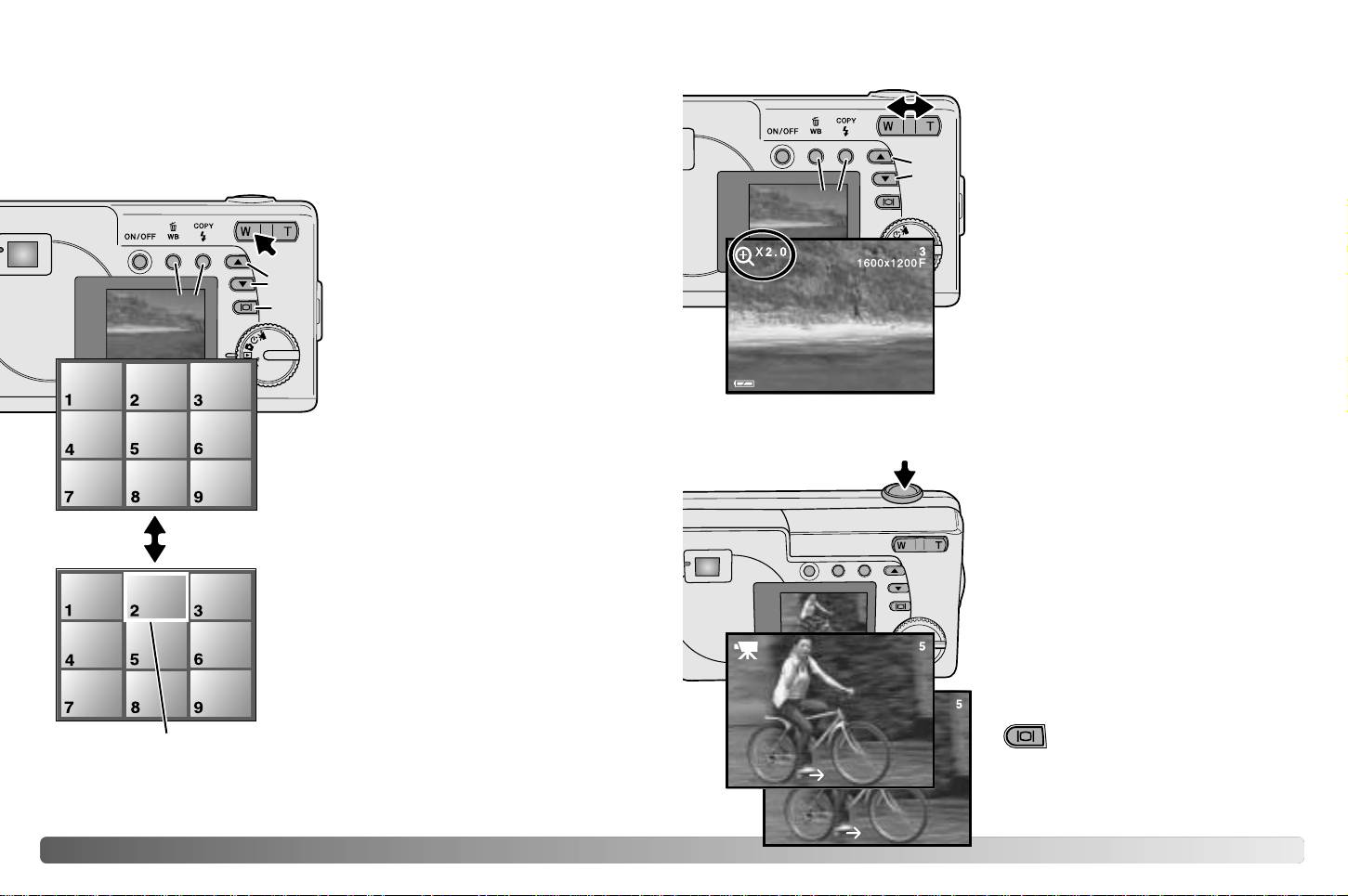
In the playback mode, pressing the
left side (W) of the zoom lever (1)
will change the LCD monitor
display from single-frame playback
to a nine-frame index playback
display. The monitor will return to
single-frame playback if either side
of the zoom lever is pressed again.
In index playback, pressing the
display/enter button (2) will turn the
image-selection frame on or off.
When frame is not displayed,
pressing the scroll buttons (3) shows the
next or previous nine images.
When frame is displayed, specific images
can be selected. To move the frame up and
down, press the scroll buttons (3). Use the
white-balance/delete button and flash-
mode/copy button to move the frame left
and right (4).
Index playback
In the playback mode, a still image can
be enlarged up to 4X in 0.5 increments
for closer examination.
With the image to be magnified
displayed, press the right side (T) of the
zoom lever (1) to activate the enlarged
playback mode. The degree of
magnification is displayed on the LCD
monitor. Use the zoom lever (1) to
increase or decrease the magnification.
To scroll the enlarged image up and
down, press scroll buttons (2). To scroll
left and right, use white-balance/delete
and flash-mode/copy buttons (3).
Enlarged playback
3
1
1
2
3
PLAYBACK MODE
The basic functions in this mode are described on pages 24 and 25. This
section covers the advanced functions of this mode.
2
4
STOP SHUTTER
Playing back movies
To play back movie clips, use the scroll
buttons to display the movie file.
Press the shutter-release button (1) to
play back the displayed movie file.
Press the shutter-release button again
to pause the movie; press it again to
resume the playback. The movie
repeats until the shutter-release button
is pressed or another image is selected
with the scroll buttons.
Press the display button (2) to
view the movie with or without
the guidance bar.
1
2
START SHUTTER
Image-selection
frame
3736 PLAYBACK MODE
1.Turn off the television and
the camera.
2.Insert the mini-plug end of
the Video cable into the
camera’s video-out termi-
nal.
3.Plug the yellow end of the
Video cable into the video
input terminals on the tele-
vision.
4.Turn the television on.
5.Change the television to
the video channel.
6.Turn the camera’s mode
dial to the playback position and turn the camera on. The camera’s
monitor will not activate when the camera is attached to a television.
The playback-mode display will be visible on the television screen.
7.View images as described in the playback section.
• The movie clip’s audio track will be played back on the camera.
It is possible to view camera images on your television. The camera has
a video-out terminal to make the connection using the supplied Video
cable. The camera is compatible with the NTSC and PAL standards. The
video-output setting can be checked and set in the setup mode (p. 38).
Viewing images on a television
Images are stored either in the 8MB internal memory or in a memory
card. Stored images can be copied between the internal memory and a
memory card. The copy function makes exact copies of still image or
movie files. DPOF settings are not copied with image files. Files are
copied from the selected memory. To switch between the internal memory
and a memory card, see pages 38 and 45.
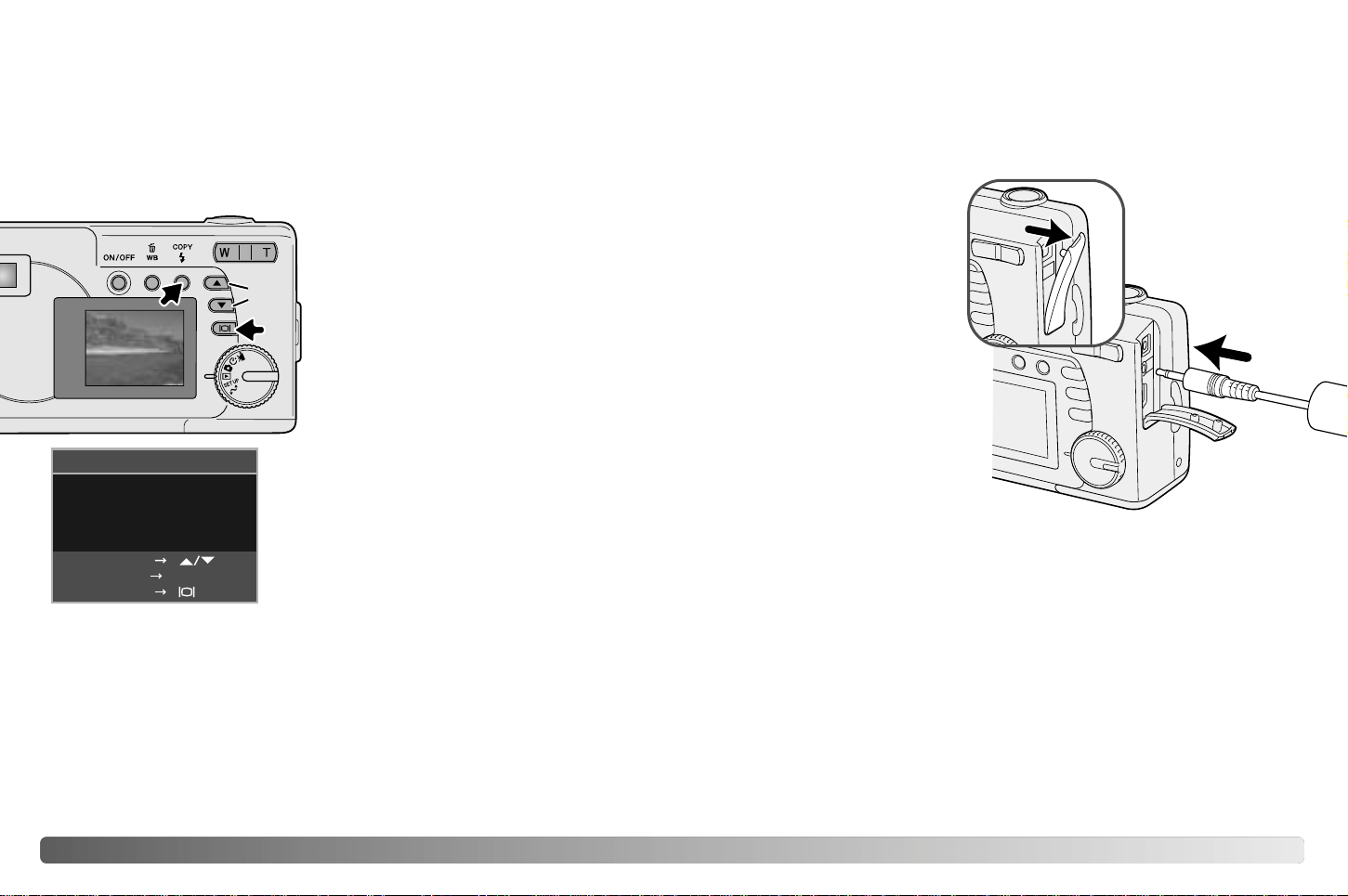
Image copy
To copy image files, press the flash-
mode/copy button (1).
ALL IMAGES
IMAGES
COPY IMAGE
NEXT COPY
ONE IMAGE
Press the copy button (1) to select either
the one image or all images option. The
one image option only copies the displayed
image; use the scroll buttons (2) to display
the image to be copied. If the all images
option is selected, all the image files in the
internal memory or card will be copied.
To execute the copy command, press the
display/enter button (3).
If the amount of data exceeds the memory capacity of the location it is
being copied to, the memory-full message appears. Decrease the number
of the images to be copied or delete unnecessary images to create
space.
1
3
2
SET
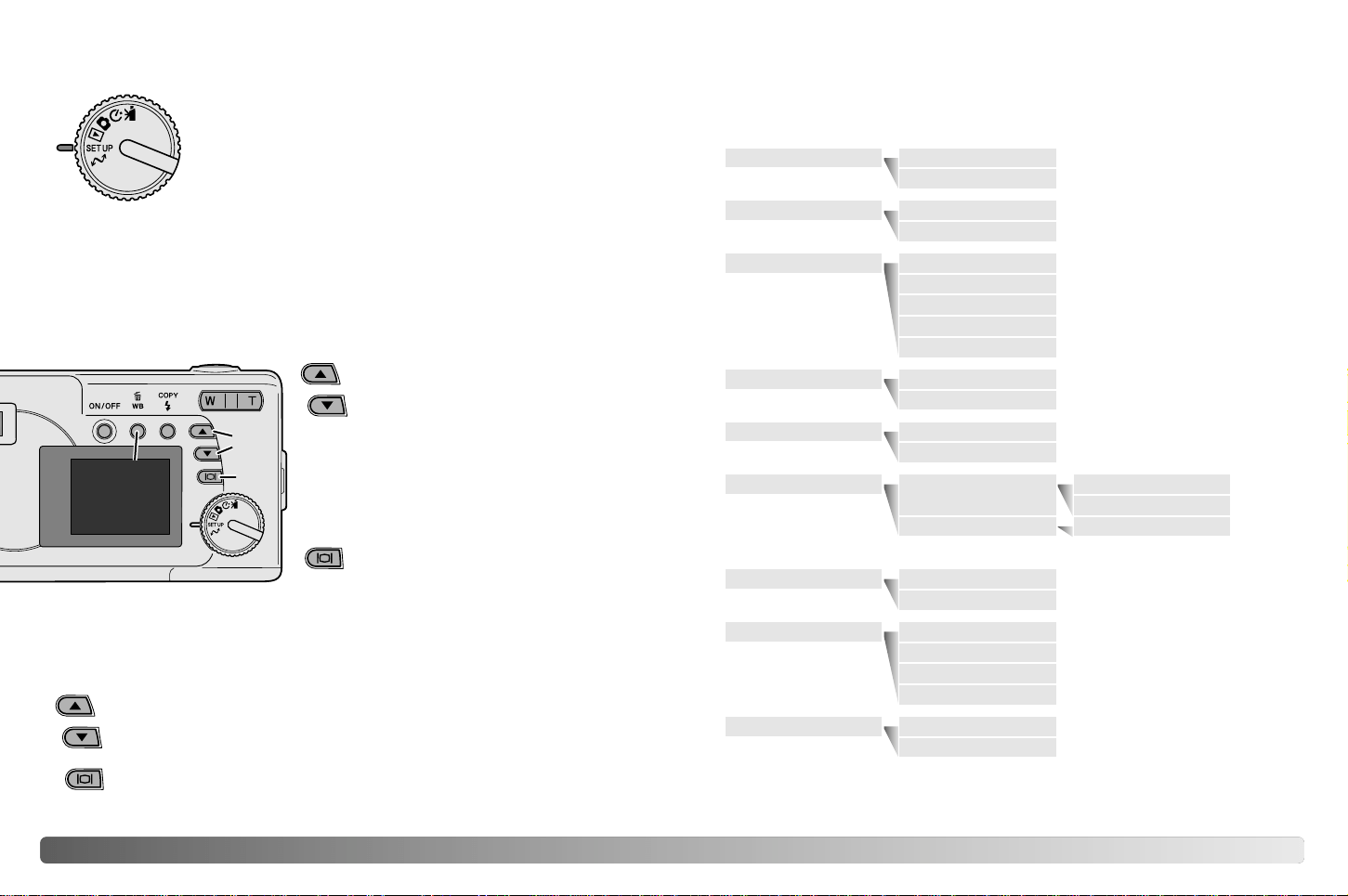
With the menu option to be
changed highlighted, press the
display/enter button (2); the
settings will be displayed with
the current setting highlighted.
To return to the menu options,
press the white-balance/delete
button (3).
Use the scroll buttons (1) to highlight the new setting.
3938 SETUP MODE
SETUP MODE
The setup mode is used to control the camera’s
functions and operation. The navigating the setup
menu section covers the operation of the menu. The
section is followed by detailed descriptions of the
settings.
To access the menu, simply turn the mode dial to the setup position. The
scroll buttons are used to move the cursor in the menu. Pressing the
display/enter button will select a highlighted option.
Navigating the setup menu
Once a setting has been selected, the cursor will return to the menu
options. Setting can continue to be made.
2
1
With the setup mode is selected
in the mode dial, use the scroll
buttons (1) to scroll through the
menu options. The second half
of the menu will appear after
scroll past the last option
displayed. Highlight the option
whose setting needs to be
changed.
Press the display/enter button (2) to select the highlighted
setting.
MONTH/DAY
DAY/MONTH
CLOCK
INTERNAL
EXTERNAL
ENGLISH
ESPAÑOL
FRANÇAIS
DEUTSCH
NTSC
PAL
NO
YES
NO
YES
2048x1536 SUPER
1600x1200 FINE
800x600 FINE
1600x1200 NORMAL
800x600 NORMAL
ON
OFF
SELECT IMAGES
ALL IMAGES
STYLE
CLOCK
DELETE ALL
FORMAT
QUALITY
BUZZER
DPOF
DATE/TIME
MEMORY TYPE
LANGUAGE
VIDEO OUT
3
4140 SETUP MODE
All the images in either the internal memory or a memory card can be
deleted at once. The internal memory or the memory card must be
selected with the setup menu first. See navigating the setup menu
section on page 38.
When the delete-all option is selected, choosing “Yes” and pressing the
display/enter button immediately deletes all the images.
Deleting all images
Deleting permanently erases the file. Once deleted, a file cannot
be recovered. Care should be taken when deleting images.
The formatting function is used to erase all data in either a memory card
or the internal memory. Before formatting, copy the data to a computer or
storage device. Always format the memory card using the camera; never
use a computer to format the camera or card.
The internal memory or the memory card must be selected with the setup
menu first. See navigating the setup menu section on page 38. When the
format option is selected, choosing “Yes” and pressing the display/enter
button immediately formats the card or internal memory and erases all
images.
If the memory-card-error message appears, the inserted card in the
camera may need to be formatted. A memory card used in another
camera may also have to be formatted before being used.
Format
When a memory card or internal memory is formatted, all data is
erased.
Image quality is based on two factors: image size and compression rate.
Image size is the pixel dimensions of the image such as 1600 x 1200
pixels. The greater the image size, the larger the file size. Choose image
size based on the final use of the image - smaller images will be more
suitable for web sites whereas larger sizes will produce higher quality
prints.
All images are compressed and saved as JPEG files. The compression
rate is indicated by FINE, NORMAL, and SUPER. FINE images have the
lowest compression rate and the largest file size. NORMAL is sufficient
for standard use. 2048x1536 SUPER quality creates the largest images
for prints, but because the image size is interpolated and the
compression rate is high, some loss of image quality may be noticed.
Image quality
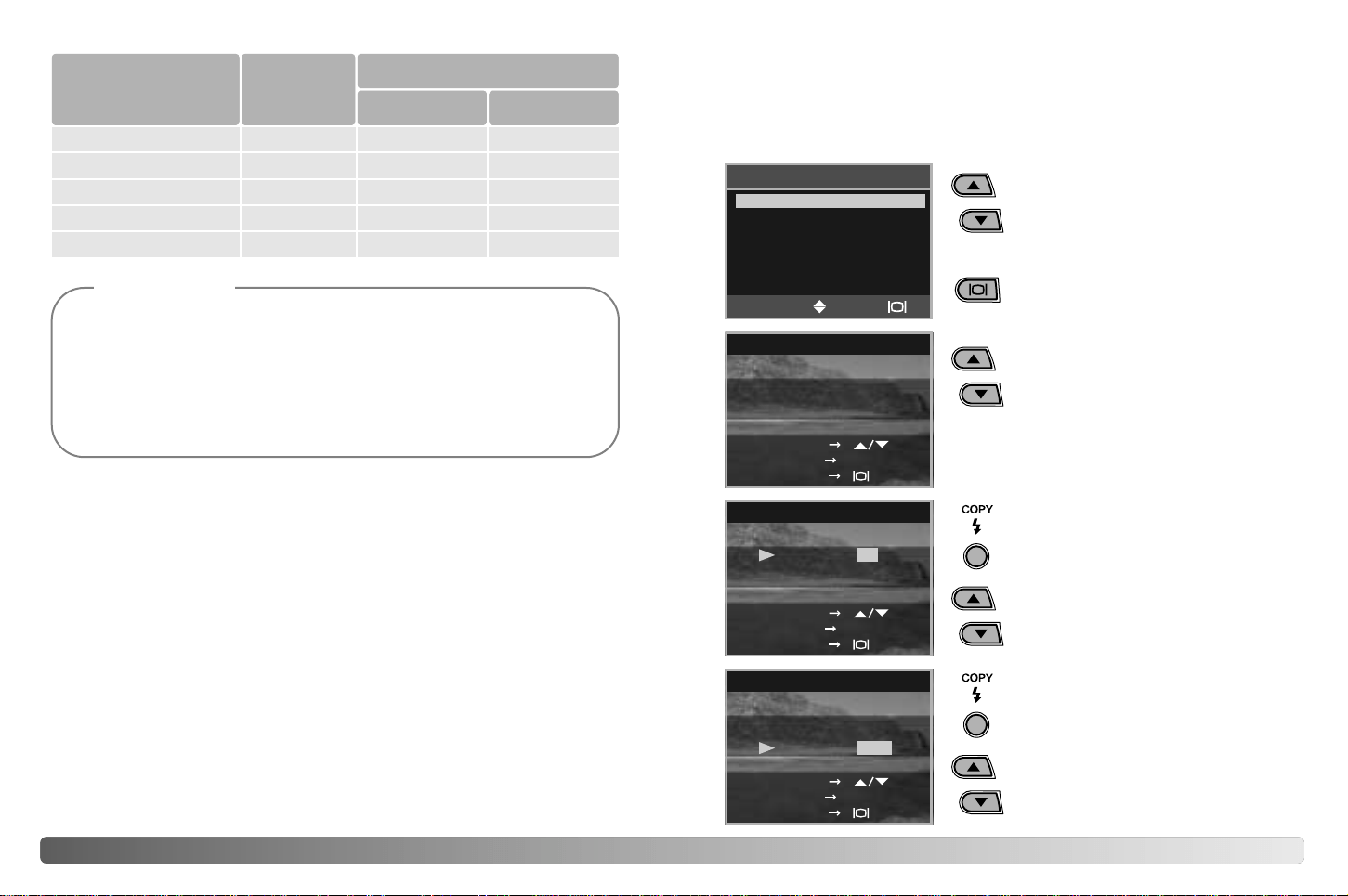
Image quality must be set before the picture
is taken. Changes are displayed on the
LCD monitor. See navigating the setup
menu section on page 38 to select the
quality option.
If quality is changed, the frame counter will display the approximate
number of images that can be recorded at that setting. Images with
differing qualities can be saved in the same memory location. The
number of images that can be stored is determined by the size of the
memory and the file size of the images. The actual file size is determined
by the scene; some subjects can be compressed further than others.
(Continued on the next page)
Image quality
SELECT IMAGES
ALL IMAGES
DPOF
4342 SETUP MODE
Quality
2048x1536 SUPER
1600x1200 FINE
800x600 FINE
1600x1200 NORMAL
800x600 NORMAL
Approximate number of images
that can be stored
768KB
853KB
213KB
640KB
160KB
7
6
25
14
55
Camera Notes
The frame counter indicates the approximate number of images that can
be stored in either the internal memory or the memory card at the
camera’s image quality setting. If the settings are changed, the frame
counter adjusts accordingly. Because the counter uses approximate file
sizes, the actual image taken may not change the counter or may
decrease it by more than one. When the frame counter displays zero, it
indicates no more images at the image quality setting can be captured.
Changing those settings may allow more images to be saved to the card.
Every time a button is pressed, an audio signal will give a positive
confirmation of the operation. The audio signals can be turn off. See
navigating the setup menu section on page 38 to select the buzzer
option.
Buzzer
About DPOF
This camera is supported by DPOF™ version 1.1. The DPOF (Digital
Print Order Format) allows direct printing of still images from digital
cameras. After the DPOF file is created on a memory card, the card is
simply taken to a photofinishing service or inserted into the memory-card
slot of DPOF compatible printers. When a DPOF file is created, a misc.
folder is automatically created (p. 52). Only a DPOF file created on a
memory card can be used for printing.
The print menu option is used to set an order for standard prints from still
images on the memory card. Single, multiple, or all images can be
printed. Date imprinting can also be set. See navigating the setup menu
section on page 38.
Creating a DPOF Print Order
When the DPOF-setting screen
appears, use the scroll buttons to
choose the select-images option to
create a DPOF file for single or
multiple images, or the all-images
option to create a DPOF file for all
images on the memory card. Press
the display/enter button to enter
the setting.
DATE NO
IMAGES
PRINT ORDER
NEXT COPY
COPIES
When the select-images option is
chosen, the print-order screen
appears. Use the scroll buttons to
select the image to be printed.
00
8MB SD
memory card
Approximate
file sizes
8MB internal
memory
7
7
27
16
60
(Continued on the next page)
DATE
IMAGES
PRINT ORDER
NEXT COPY
COPIES 02
When the image is displayed,
press the copy button. The copies
option is highlighted.
Use the scroll buttons to select the
number of prints for the displayed
image.
NO
DATE
IMAGES
PRINT ORDER
NEXT COPY
COPIES 02
YES
Press the copy button. The date
option is highlighted.
Choose “Yes” or “No”’ using the
scroll buttons. “Yes” will print the
date and time of recording next to
the image. The date option cannot
be set if the number of copies is 0.
SELECT
OK
SET
SET
SET
4544 SETUP MODE
Every time the copy button is pressed, the functions cycle among
selecting images, the number of copies, and date imprinting. Continue
until all the images to be printed are selected. Pressing the delete button
will cancel the DPOF setting screen and any changes made.
DATE NO
IMAGES
PRINT ORDER
NEXT COPY
COPIES 01
When the all-images option is
chosen on page 43, the print-order
screen for all images appears. Use
the scroll buttons to select the
number of copies for all the
images on the memory card.
Press the copy button to set the
date and time as described above,
if required.
If a DPOF order has already been created,
the print-setting screen will open. The reset
option cancels all print settings and allows
new settings to be made. The edit option
allows the current settings to be changed.
MAKING
PRINT SETTINGS
RESET
EDIT
SET UP
If the all-frames setting was used to create a print order, any additional
images recorded afterwards will not be included in the order.
DPOF files created with another camera will be canceled. After the
pictures have been printed, the DPOF file will still remain on the memory
card and must be canceled manually. Some printer may not recognize
the date setting and not print the information.
Setting the date and time
See page 14 to set the date and time.
Memory type
This camera stores images in either the 8MB internal memory or a
separate SD Memory Card or MultiMediaCard.
Memory type affects all the camera operations. If “Internal” (internal
memory) is selected, the images will be stored in the internal memory in
the recording modes, and playback, format, and delete-all functions will
be executed only for the images in the internal memory. If “External”
(memory card) is selected, all the images will be stored in the card, and
all the functions will be executed for the card only.
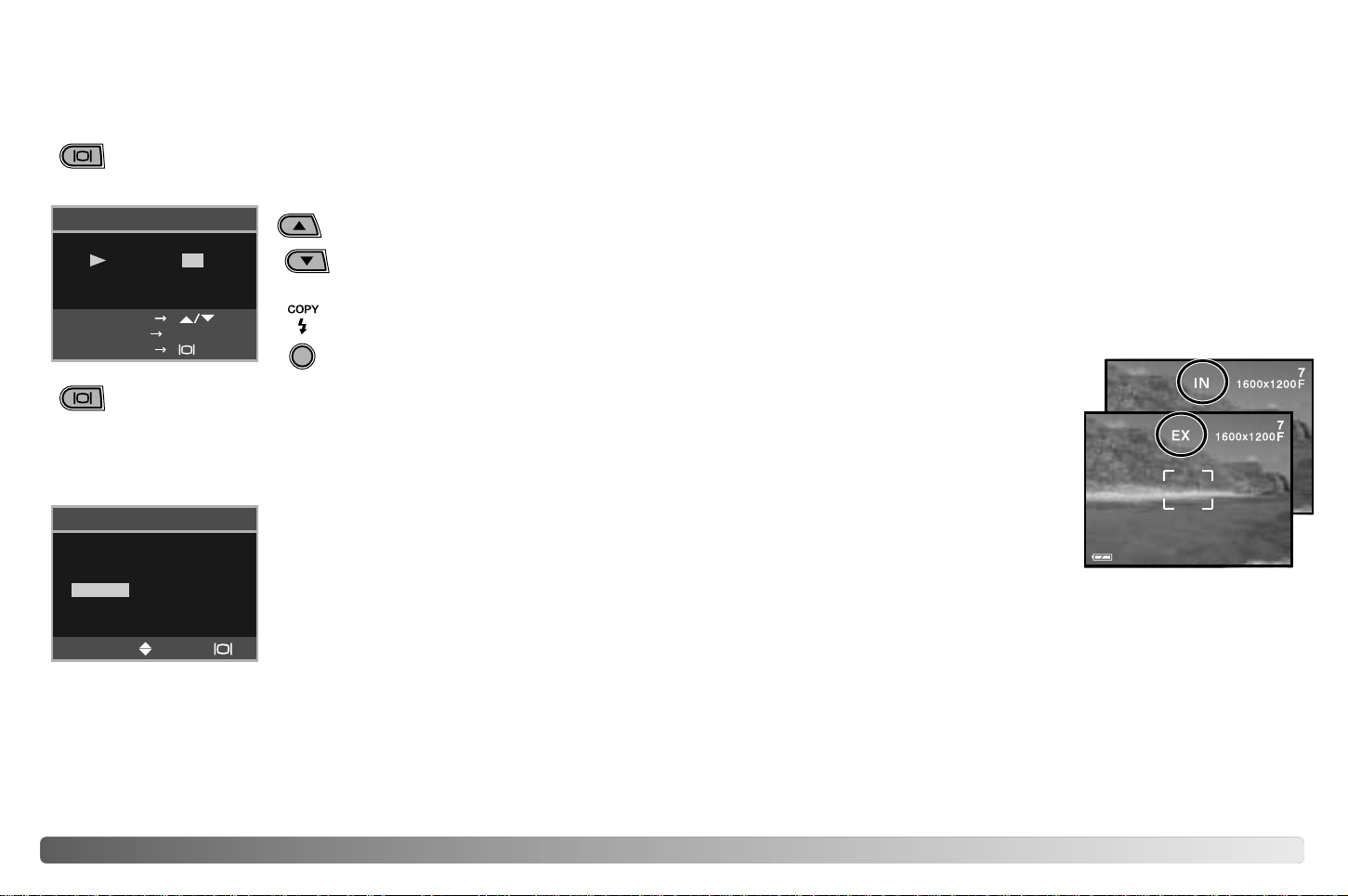
In the recording mode, the LCD monitor
shows the current memory in use. “IN”
indicates the internal memory and “EX”
indicates the external memory card.
When a memory card is inserted, the setting
changes to “External” automatically, but can
be changed if necessary. Always confirm the
memory type before taking pictures.
Language
The language used in the menus can be changed. See page 14.
Video output
Camera images can be displayed on a television (p. 37). The video
output can be changed between NTSC and PAL. North America uses the
NTSC standard and Europe uses the PAL standard. Check which
standard is used in your region to play back images on your television
set.
With all the images to be printed selected, press the
display/enter button to enter the settings.
With all the images to be printed selected, press the
display/enter button to enter the settings.
SET
SELECT
OK
4746 DATA TRANSFER MODE
DATA-TRANSFER MODE
Read this section carefully before connecting the camera to a computer.
Instructions on using and installing the DiMAGE Viewer software are
found in the supplied software manual. The DiMAGE manuals do not
cover the basic operation of computers or their operating systems; please
refer to the manual supplied with your computer.
System requirements
For the camera to be connected directly to the computer and used as a
mass-storage device, the computer must be equipped with a USB port as
a standard interface. Both the computer and the operating system must
be guaranteed by their manufacturers to support USB interface. The
following operating systems are compatible with the camera:
IBM PC / AT Compatible Macintosh
Windows 98, 98SE, Me,
2000 Professional, and XP.
Mac OS 9.0 ~ 9.2.2,
Mac OS X v10.1.3 ~ 10.1.5, and
v10.2.1 ~ 10.2.3
Check the Minolta web site for the latest compatibility information:
North America: http://www.minoltausa.com
Europe: http://www.minoltaeurope.com/pe/digital/languages_stage.html
Users with Windows 98 or 98 second edition will need to install the driver
software on the included DiMAGE Viewer CD-ROM (p. 49). No special
driver software is required for other Windows or Macintosh operating
systems.
Customers who have bought a previous DiMAGE digital camera and
have installed the Windows 98 driver software must repeat the installation
procedure. The updated version of the driver software included on the
supplied DiMAGE Viewer CD-ROM is required for the operation of the
DiMAGE E223 with a computer. The new software will have no affect on
the performance of older DiMAGE cameras.
Connecting the camera to a computer
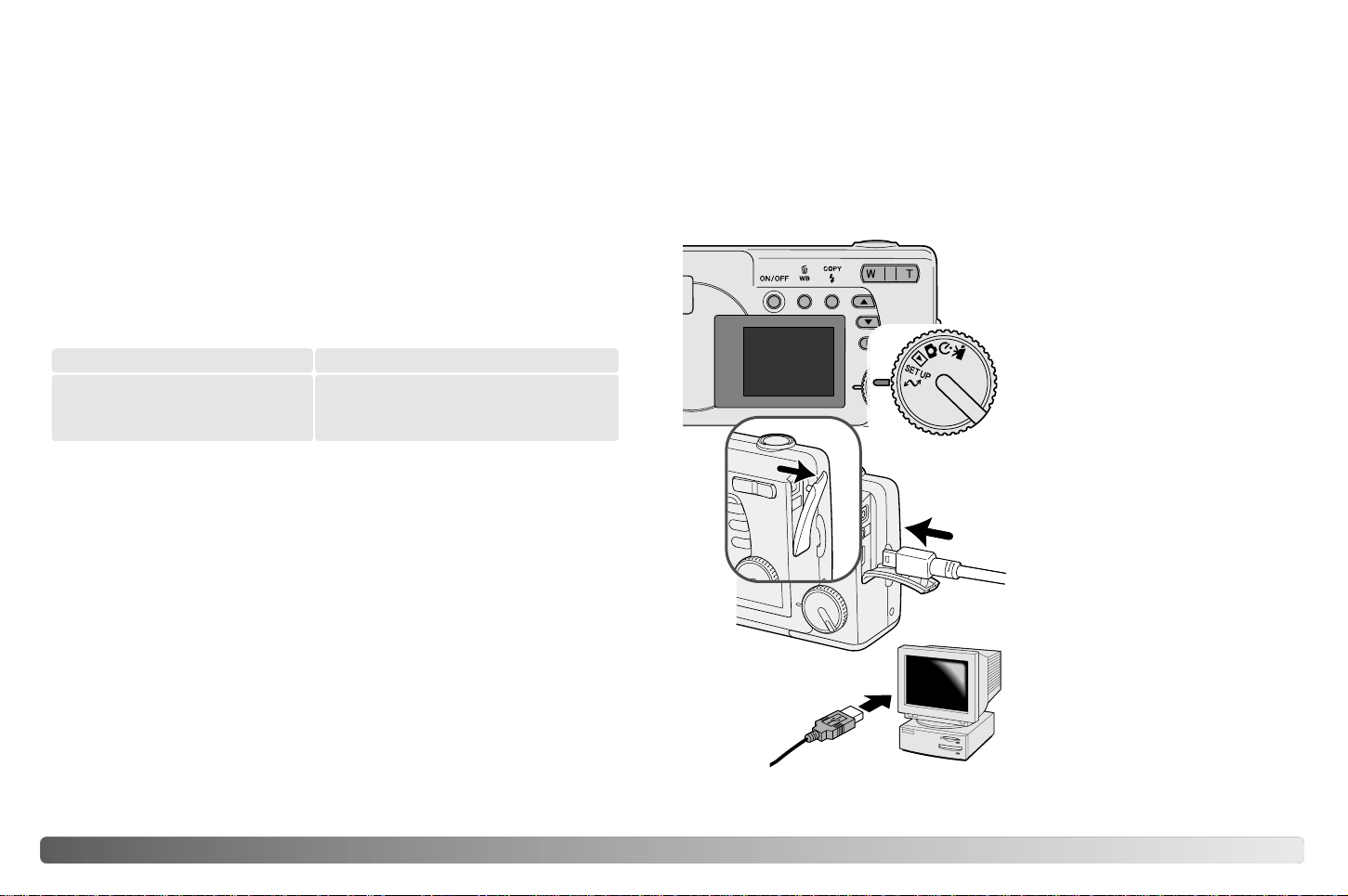
1.The memory-type option in the setup
mode must be set to the storage loca-
tion of the images (p. 38 and 45). Turn
the mode dial to the data transfer posi-
tion.
Confirm the battery has sufficient power before connecting the camera to
a computer, the full-battery indicator should be displayed on the monitor.
The auto power off function is disabled when the camera is connected to
a computer. The use of the AC adapter (sold separately) is recommended
over the use of the battery. For users with Windows 98 or 98SE, read the
section on how to install the required USB driver before connecting the
camera to a computer (p. 49).
4.Attach the other end of the USB
cable to the computer’s USB
port. Make sure the plug is firmly
attached.
• The camera should be connected
directly to the computer’s USB port.
Attaching the camera to a USB hub
may prevent the camera from
operating properly.
• When the camera is connected to a
computer, the LCD monitor is off.
4
3.Open the terminal cover. Attach
the smaller plug of the USB
cable to the camera. Make sure
the plug is firmly attached.
3
(Continued on the next page)
2.Start up the computer. The com-
puter must be on before con-
necting the camera.
1
PC MODE
4948 DATA TRANSFER MODE
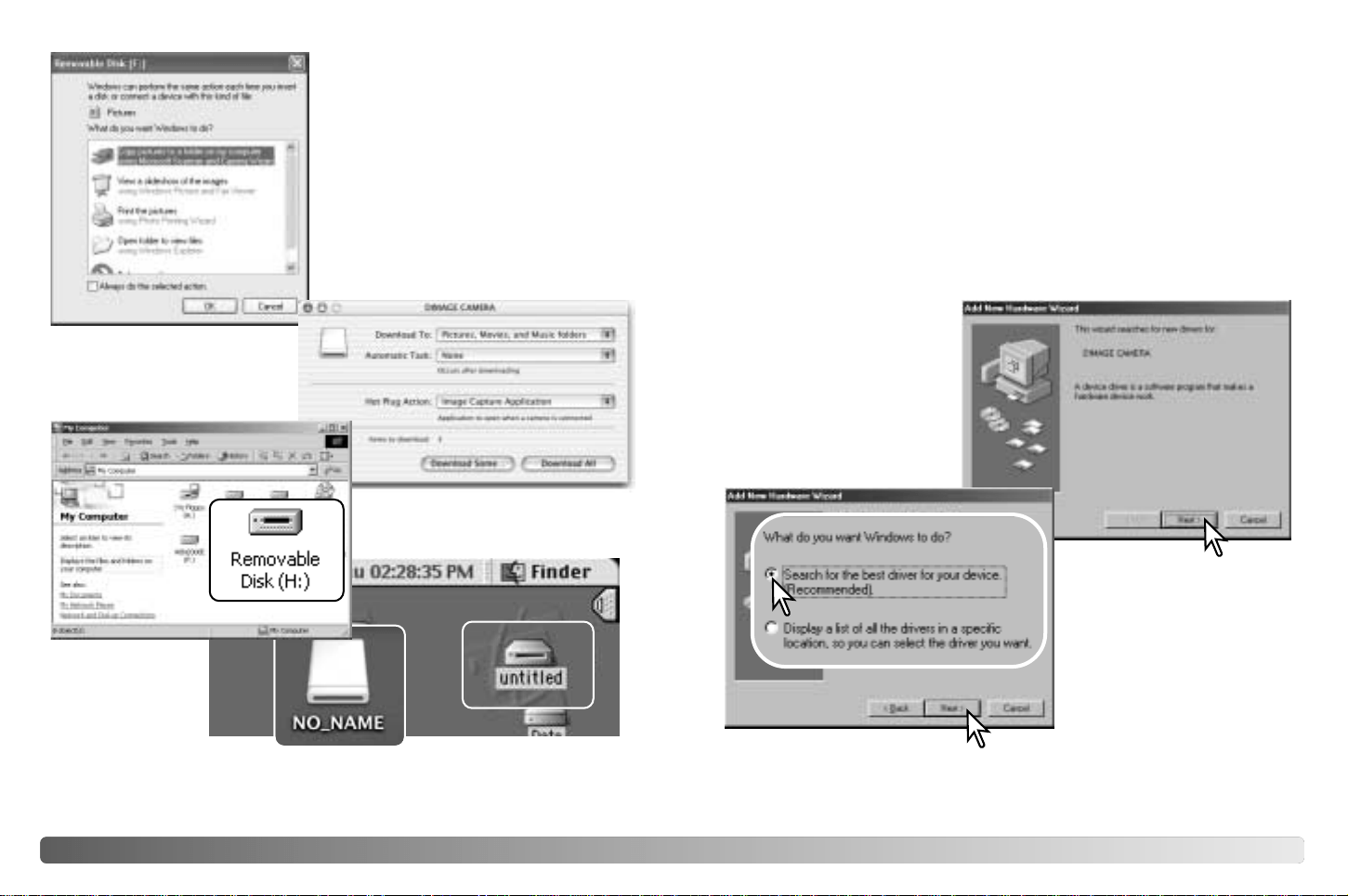
When the camera is properly
connected to the computer, a drive
icon, or volume, will appear. When
using Windows XP or Mac OS X, a
window will open requesting
instructions on what to do with the
image data; follow the directions in
the window. If the computer does not
recognize the camera, disconnect the
camera and restart the computer.
Repeat the connection procedure
above.
Mac OS X
Windows XP
Mac OS
The volume name varies between memory cards.
Mac OS X
Windows
The USB driver is required for Windows 98 and 98 Second Edition. No
special driver software is required for other Windows or Macintosh
operating systems.
During installation, if the operating system requests the Windows 98 CD-
ROM, insert it into the CD-ROM drive and follow the accompanying
instructions on the screen.
Connecting to Windows 98 and 98 Second Edition
To install the Windows 98 driver, follow the instructions in the connecting-
the-camera-to-a-computer section on page 47.
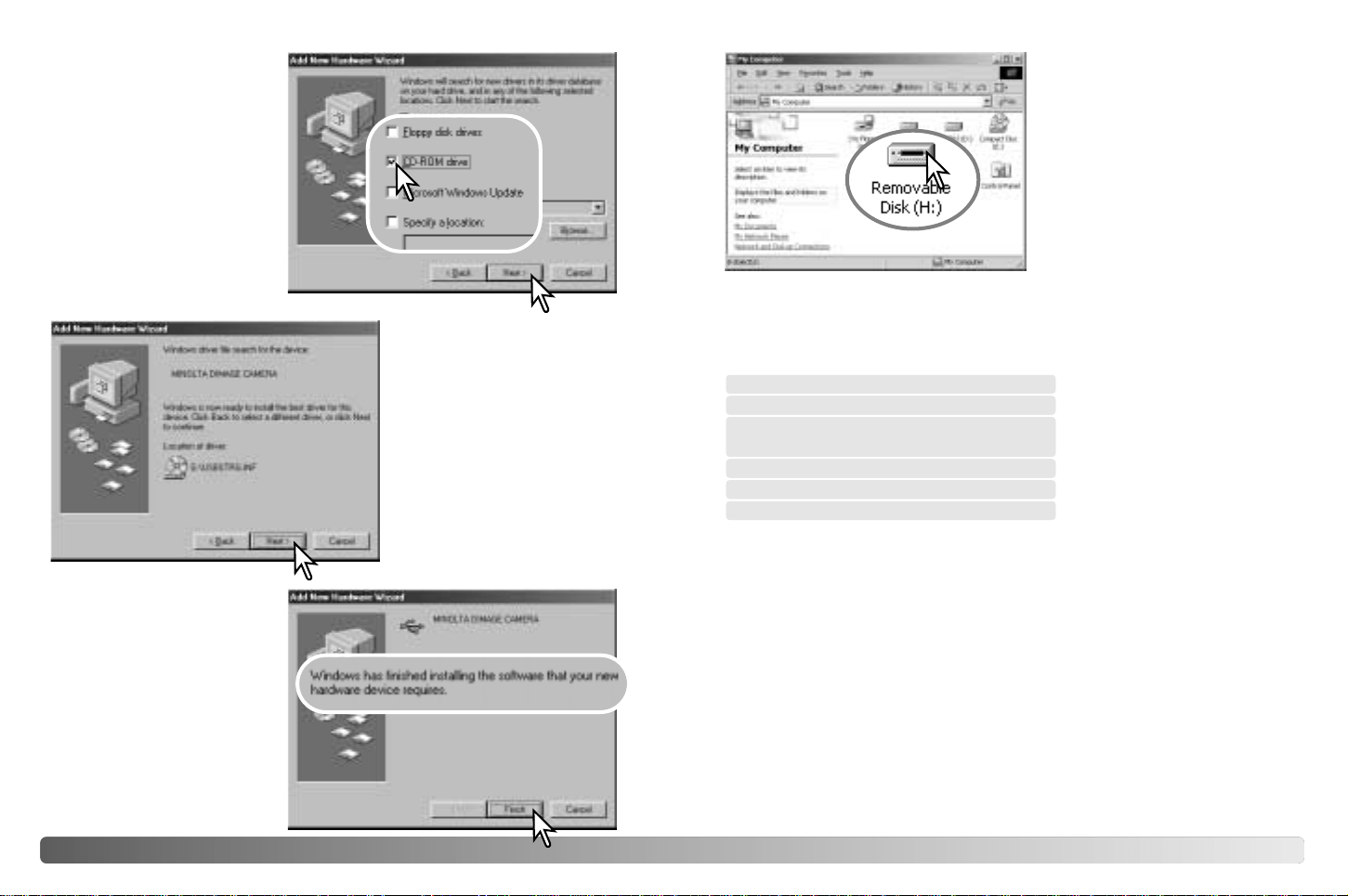
Choose the recommended
search for a suitable driver.
Click “Next.”
When the camera is plugged
into the computer, the
operating system will detect
the new device and the add-
new-hardware-wizard
window will open. Place the
DiMAGE Viewer CD-ROM in
the CD-ROM drive. Click
“Next.”
(Continued on the next page)
5150 DATA TRANSFER MODE
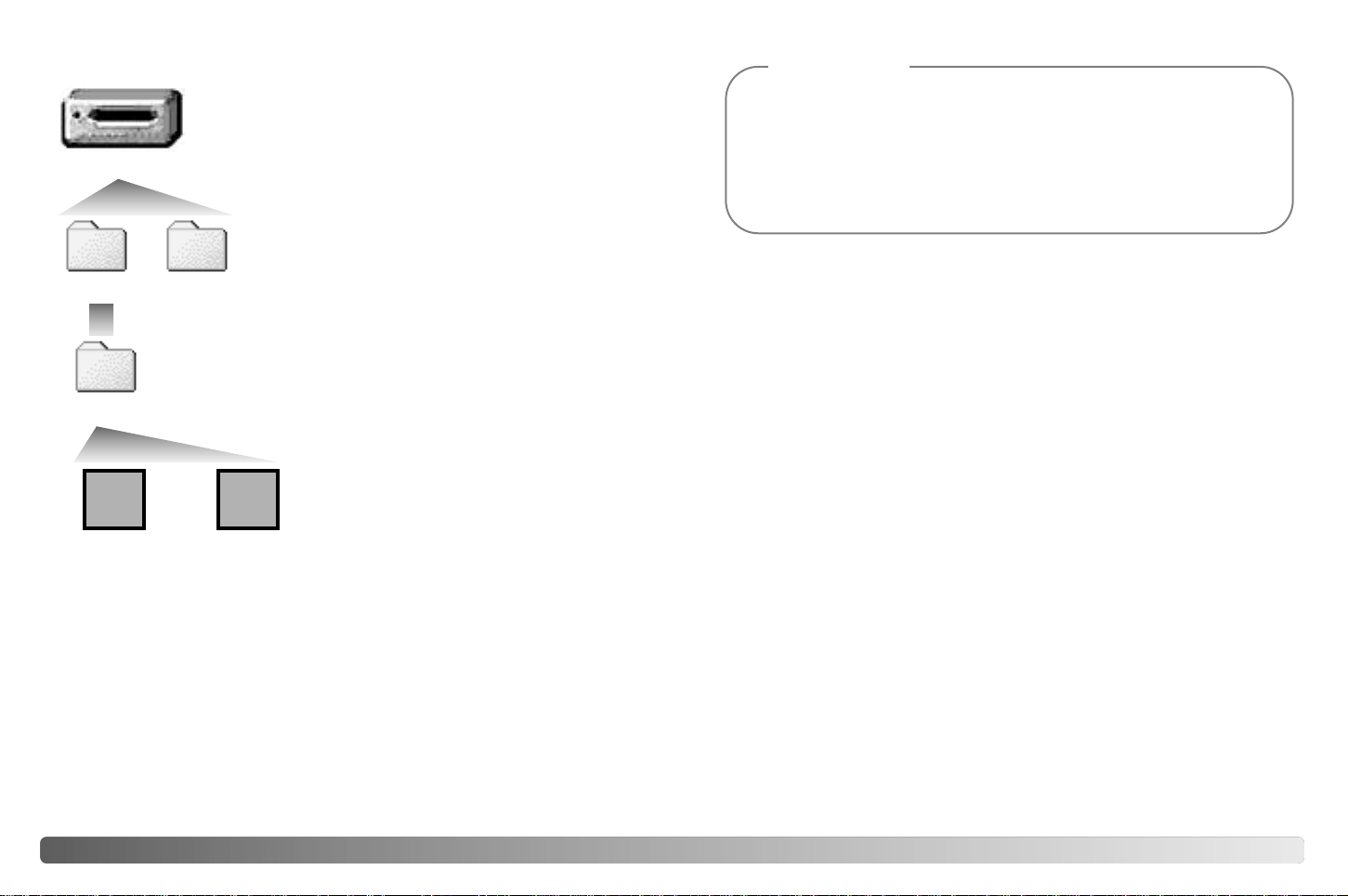
Choose to search for the
driver in the CD-ROM drive.
Click “Next.”
The add new hardware
wizard will confirm the
location of the driver. Click
“Next” to install the driver in
the system.
• The letter designating the CD-
ROM drive will vary between
computers.
The last window will confirm
the driver has been
installed. Click “Finish” to
close the add new hardware
wizard. Restart the
computer.
When the my-computer window
is opened, a new removable-
disk icon will be displayed.
Double click on the icon to
access the camera’s internal
memory or memory card; see
page 48.
QuickTime system requirements
IBM PC / AT Compatible
Pentium-based computer
Windows 95, 98, 98SE, NT, Me,
2000 Professional, or XP.
32MB or more of RAM
Sound Blaster or compatible sound card
DirectX 3.0 or later recommended
To install QuickTime, follow
the instructions in the
installer. Macintosh users
can download the latest
version of QuickTime free of
charge from the Apple
Computer web site:
http://www.apple.com
Auto power save (data-transfer mode)
If the camera does not receive a read or write command within 30
minutes, it will shut down to save power. When the camera shuts down,
an unsafe-removal-of-device warning may appear on the computer
monitor. Click “OK.” Neither the camera or computer will be damaged in
this operation.
Turn off the camera. Remake the USB connection by turning on the
camera.
5352 DATA TRANSFER MODE
Memory card folder organization
Drive Icon
Dcim
PICT0001.JPG PICT0002.AVI
Still image
Misc
The misc. folder
contains DPOF
print files (p. 42).
100MLT32
Movie image with
audio
Camera Notes
Image files contain exif tag data. This data includes the time and date the
image was recorded as well as the camera settings used. This data can
be viewed with the camera or the DiMAGE Viewer software. If a camera
image is opened in a photo-retouching application like Adobe Photoshop,
and then the image is saved overwriting the original data, the exif tag
information is erased. When using software other than the DiMAGE
Viewer, always make a backup copy of the image files to protect the exif
tag data.
Once the camera is connected to the computer,
image files can be accessed by double clicking on
icons. Image folders are located in the DCIM folder.
To copy images, simply drag and drop the file icon
into a location in the computer. Files and folders in
the internal memory or memory card can be
deleted using the computer. Never format the
internal memory nor memory card from the
computer; always use the camera to format
the memory. Only files recorded by the
camera should be stored in the internal
memory or memory card.
Image and movie file names begin
with “PICT” followed by a four-digit
file number and a jpg or avi
extension.
If the all-images copy function (p. 36)
is used, a new folder is created.
When a folder is created, the first
three digits in the folder name will be
one greater than the largest folder
number on the card. When the index
number in the image file name
exceeds 9,999, a new folder will be
created with a number one greater
than the greatest folder number on
the memory card: e.g. from
100MLT32 to 101MLT32.
The number in the image file name may not correspond to the frame
number of the image. As images are deleted in the camera, the frame
counter will adjust itself to show the number of images on the card and
reassign the frame numbers accordingly. The serial numbers used with
image files will not change when an image is deleted. When a new image
is recorded, it will be assigned a number one greater than the largest
serial number in the folder.
1.Connect the camera to the computer with the USB cable. Other devices
must not be connected to the computer during this procedure.
2.Right click on the My-computer icon. Select “properties” from the drop-
down menu.
Windows XP: from the start menu go to the control panel. Click on the
performance and maintenance category. Click “System” to open the
system properties window.
3.Windows 2000 and XP: select the hardware tab in the properties win-
dow and click the device-manager button.
Windows 98 and Me: click the device-manager tab in the properties
window.
4.The driver file will be located in the universal-serial-bus-controller or
other-devices location of the device manager. Click on the locations to
display the files. The driver should be indicated with the camera name.
Under certain conditions, the driver name may not contain the camera
name. However, the driver will be indicated by either a question mark
or exclamation point.
5.Click on the driver to select it.
6.Windows 2000 and XP: click on the action button to display the drop-
down menu. Select “uninstall.” A confirmation screen will appear.
Clicking “Yes” will remove the driver from the system.
Windows 98 and Me: click the remove button. A confirmation screen
will appear. Clicking “Yes” will remove the driver from the system.
7.Disconnect the USB cable and turn off the camera. Restart the comput-
er.
Uninstalling the driver software - Windows
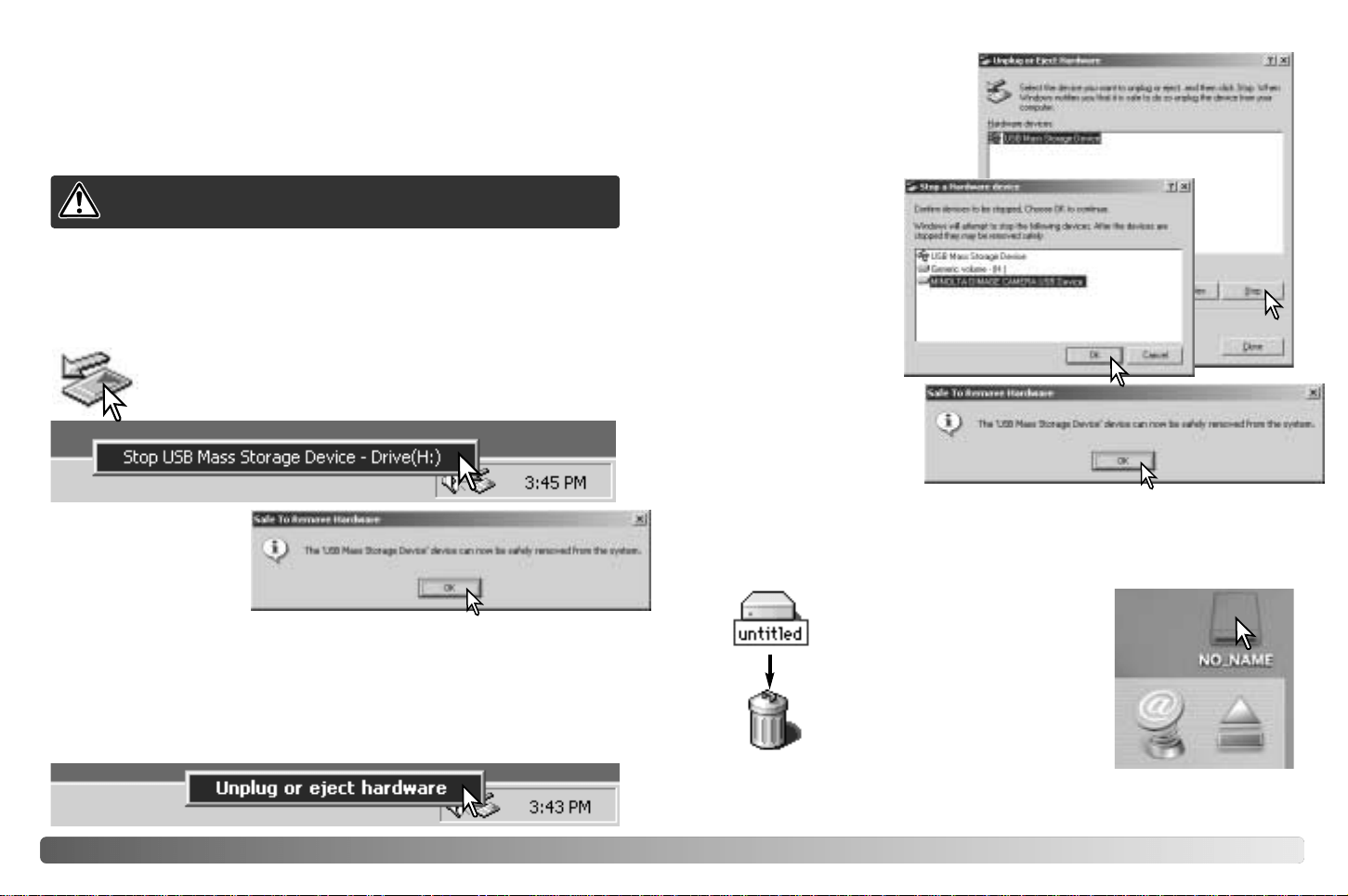
Click on the small
window to stop the
device. The safe-to-
remove-hardware
window will open. Close
the window, turn the
camera off, and then disconnect the USB cable.
5554 DATA TRANSFER MODE
Disconnecting the camera from the computer
Windows Me, 2000 Professional, and XP
Confirm that the green indicator lamp is not blinking. Turn the camera off
and then disconnect the USB cable.
To disconnect the camera, click once on the unplug-or-eject-
hardware icon located on the task bar. A small window will
open indicating the device to be stopped.
Windows 98 / 98 Second Edition
When more than one external device are connected to the computer,
repeat the procedure above except right click on the unplug-or-eject-
hardware icon. This will open the unplug-or-eject-hardware window after
clicking on the small window indicating the unplug-or-eject-hardware
routine.
Never disconnect the camera when the indicator lamp is blinking
- the data or memory card may permanently be damaged.
A third and final screen
will appear to indicate
the camera can be
safely disconnected
from the computer.
Close the window, turn
the camera off, and then disconnect the USB cable.
The hardware devices to be
stopped will be displayed.
Highlight the device by
clicking on it then click “Stop.”
Confirm that the green indicator
lamp is not blinking and then drag
the mass-storage device icon and
drop it into the trash. Turn the
camera off, and then disconnect the
USB cable.
A confirmation
screen will appear to
indicate the devices
to be stopped.
Clicking “OK” will
stop the device.
Macintosh
Follow the instruction below when disconnecting the camera from the
computer. This procedure is also necessary before changing the memory
type while the camera is connected to the computer. The appearance of
screens may differ with the operating system.

5756 APPENDIX
The section covers minor problems with basic camera operation. For
major problems or damage, or if a problem continues to reoccur
frequently, contact a Minolta service facility listed on the back cover of
this manual.
APPENDIX
Troubleshooting
Problem Cause Solution
The battery is dead. Replace battery (p. 11).
Memory-full
message
appears.
Selected memory is full and
unable to store an image at
the image-quality setting on
the camera.
Change the memory type (p.
45), insert a new memory card
(p. 16), delete some images (p.
25), or change the image-quality
setting (p. 41).
Focus frame
remains white
and pictures
are not sharp.
Subject is too close.
A special situation is
preventing the autofocus
system from focusing (p.
23).
Make sure the subject is within
the autofocus range (p. 21) or
use the macro mode (p. 33).
Use the focus-lock function to
focus on an object at the same
distance as the subject (p. 22).
The camera is in macro
mode.
Cancel the macro mode setting
(p. 33).
Problem Cause Solution
Pictures are
not sharp in
low-light
situations.
Pictures are taken indoors
or in low-light situations
without flash. Slow shutter
speeds result in blurred
images when the camera is
hand-held.
Use a tripod or use the flash (p.
26).
While using flash,
the pictures are
too dark.
The subject is beyond the flash
range (p. 27).
Move closer to the
subject.
No-image
message appears
in playback mode.
Different memory type is
selected.
Select the memory type
(internal memory or
memory card) where the
images were saved (p.
45).
Error or zoom-
error message
appears.
Remove and reinsert the batteries, or unplug and
reconnect the AC adapter.
Exposure-
compensation
display turns red.
Scene is too bright or dark and
outside the exposure range of
the camera.
Change the setting until
the display is white.
Monitor turns off
and the orange
indicator lamp
blinks.
Flash is charging.
Wait until the monitor
image is visible and the
orange indicator lamp
glows.
AA Ni-MH batteries are
exhausted.
Ni-MH batteries must be
charged before use.
The camera
will not work.
If the camera does not function normally, turn it off, remove and reinsert
the batteries, or unplug and reconnect the AC adapter. If the camera has
become hot with extended use, wait for it to cool before removing or
disconnecting the power supply. Always turn the camera off with the main
switch, otherwise the memory card may be damaged and camera
settings reset.

5958 APPENDIX
Read this section in its entirety to get the best results from your camera.
With proper care, your camera will provide years of service.
Camera care
• Do not subject the camera to shock or impact.
• Turn off the camera when transporting.
• This camera is neither waterproof nor splashproof. Inserting or remov-
ing batteries or the memory card, or operating the camera with wet
hands may damage the camera.
• When at the beach or near water, take care not to expose the camera
to water or sand. Water, sand, dust, or salt can damage the camera.
• Do not leave the camera under direct sunlight. Do not point the lens
directly at the sun; the CCD may be damaged.
Cleaning
• If the camera or the outside of the lens is dirty, gently wipe it with a
soft, clean, dry cloth. If the camera or lens comes in contact with sand,
gently blow away loose particles. Wiping may scratch the surface.
• To clean the lens surface, first blow away any dust or sand, then, if
necessary, moisten a lens tissue or soft cloth with lens cleaning fluid
and gently wipe the lens.
• Never use organic solvents to clean the camera.
• Never touch the lens surface with your fingers.
Storage
• Store in a cool, dry, well-ventilated area away from dust and chemicals.
For long periods of disuse, store the camera in an airtight container
with a silica-gel drying agent.
• Remove the batteries and memory card from the camera when not in
use for extended periods.
• Do not store the camera in an area with naphthalene or mothballs.
• During long periods of storage, operate the camera occasionally. When
taking the camera out of storage, check that the camera is functioning
properly before using.
Care and storage
Operating temperatures and conditions
• This camera has been designed for use in temperatures from 0°C to
40°C (32°F to 104°F).
• Never leave the camera exposed to extreme high temperatures, such
as in a car parked in the sun, or to extreme humidity.
• When taking the camera from a cold to a warm environment, place it in
a sealed plastic bag to prevent condensation from forming. Allow the
camera to come to room temperature before removing it from the bag.
Batteries
• Battery performance decreases with temperature. In cold environments,
we recommend keeping spare batteries in a warm place, such as the
inside of a coat. Batteries can recover their power when they warm up.
• If batteries have been exhausted when used in the camera, do not
reload them even if their charge seems to recover over time. These
batteries will interfere with normal camera operation.
Copyright
• TV program, films, video tapes, photographs, and other materials may
be copyrighted. Unauthorized recording or duplication of such material
may be contrary to copyright laws. Taking pictures or images of per-
formances, exhibitions, etc., is prohibited without approval and can
infringe on copyright. Images protected by copyright can only be used
under the provisions within the copyright laws.
LCD monitor care
• Although the LCD monitor is manufactured using high precision tech-
nology, there may occasionally be a lack of color or bright points on the
monitor.
• Do not apply pressure to the surface of the LCD monitor; it may be per-
manently damaged.
• In cold temperatures, the LCD monitor may become temporarily dark.
When the camera warms up, the display will function normally.
• If fingerprints are on the LCD monitor surface, gently wipe with a soft,
clean, dry cloth.
6160 APPENDIX
When using Ni-MH batteries, clean both battery terminals with dry cloth to
wipe off any dirt or residue. Because of the sophisticated computer
system, the camera critically monitor power levels. If the battery terminals
are dirty, the camera may give a false low-battery warning. If battery
performance is unusually low, wipe the battery terminals with a clean, dry
cloth.
Ni-MH battery performance will decrease if the batteries are often
recharged before they have been fully discharged. Completely exhaust
the Ni-MH batteries using the camera before charging.
About Ni-MH batteries
Number of effective pixels: 2.0 million (approx.)
CCD: 1/2.7-type interline primary-color CCD
Camera sensitivity: ISO 100 equivalent
Aspect ratio: 4:3
Lens construction: 9 elements in 6 groups
Focal length: 6.2 - 18.6mm (35mm equivalent: 38 - 114mm)
Maximum aperture: f/2.9 - f/3.0
Focusing range: Wide: 0.6m to infinity (from front of lens)
Telephoto: 0.6m to infinity (from front of lens)
Macro focus range:
Wide: 8 - 60cm from front of lens
Telephoto: 40 - 60cm from front of lens
Autofocus system: Video AF
Shutter: CCD electronic shutter and mechanical shutter
Shutter-speed range: 1 - 1/1000s
Flash recycling time: 10s or less
Viewfinder type: Optical real-image zoom viewfinder
Field of view: 80% (approx.)
Eye-relief: 15mm (from eyepiece)
A/D conversion: 10 bits
Recording media: SD (Secure Digital) Memory Cards /
MultiMediaCards
File formats: JPEG, Motion JPEG (AVI, with audio)
DCF1.0-compliant
DPOF-compliant (supported by printing functions
in ver.1.1)
Printing output control: Exif 2.2, PRINT Image Matching II
LCD monitor: 3.8cm (1.5 inch) TFT color
Total pixels: 62,000 (approx.)
Field of view: 100% (approx.)
Menu languages: English, German, French, Spanish
Movie recording: File format: Motion JPEG (AVI)
Number of recorded pixels: 320 x 240
60s (max.) at 15 fps with audio (monaural)
Batteries: Two AA Ni-MH or alkaline batteries (use of Ni-MH
batteries is recommended)
Or one CR-V3 lithium battery
External power source: 3V DC (with specified AC adapter)
Battery performance (Recording):
Approximately 150 frames: based on Minolta’s
Technical specifications
This device complies with Part 15 of the
FCC Rules. Operation is subject to the
following two conditions: (1) This device
may not cause harmful interference, and
(2) this device must accept any
interference received, including
interference that may cause undesired
operation.
Do not remove the ferrite cores from the cables.
Tested by the Minolta Corporation
101 Williams Drive, Ramsey, New Jersey 07446, U.S.A.
This mark on your camera certifies that this camera meets
the requirements of the EU (European Union) concerning
interference causing equipment regulations. CE stands for
Conformité Européenne (European Conformity).
Digital Camera:
Tested To Comply
With FCC Standards
FOR HOME OR OFFICE USE
This Class B digital apparatus complies with Canadian ICES-003.
Cet appareil numérique de la classe B est conforme à la norme NMB-003
du Canada.
The following marks may be found on the product:
DiMAGE E223

6362 APPENDIX
standard test method: 1850mAh Ni-MH battery,
LCD monitor on, 1600x1200 Fine, flash used with
50% of the frames.
Computer interface: USB 1.1
AV output: NTSC, PAL (selected on the camera)
Dimensions: 106.0 (W) X 66.5 (H) X 34 (D) mm
4.2 (W) X 2.6 (H) X 1.3 (D) in.
(without lens section)
Weight: Approximately 200g / 7.1 oz.
(without batteries or recording media)
Operating temperature: 0 - 40°C / 32 - 104°F
Specifications are based on the latest information available at the time of
printing and are subject to change without notice.

Minolta Co., Ltd. 3-13, 2-Chome, Azuchi-Machi, Chuo-Ku, Osaka 541-8556, Japan
Minolta Europe GmbH Minoltaring 11, D-30855 Langenhagen, Germany
Reparatur/Repair Senator-Helmken-Strasse 1, D-28197 Bremen, Germany
Minolta France S.A.S. 365 Route de Saint-Germain, F-78420 Carrieres-Sur-Seine, France
Minolta (UK) Limited 7 Tanners Drive, Blakelands, Milton Keynes, MK14 5BU, England
Minolta Austria Ges. m.b.H. Amalienstrasse 59-61, A-1131 Wien, Austria
Minolta Camera Benelux B.V. Zonnebaan 39, P.O. Box 6000, NL-3600 HA Maarssen, The Netherlands
Belgian Branch Prins Boudewijnlaan 1, B-2550 Kontich, Belgium
Minolta (Schweiz) AG Riedstrasse 6, CH-8953 Dietikon, Switzerland
Minolta Svenska AB Albygatan 114, S-171 54 Solna, Sweden
Finnish Branch Niittykatu 6 PL 37, SF-02201 Espoo, Finland
Minolta Portugal Limitada Av. do Brasil 33-A, P-1700 Lisboa, Portugal
Minolta Corporation 101 Williams Drive, Ramsey, New Jersey 07446, U.S.A.
Minolta Canada Inc. 369 Britannia Road East, Mississauga, Ontario L4Z 2H5, Canada
Minolta Hong Kong Limited Room 208, 2/F, Eastern Center, 1065 King’s Road, Quarry Bay, Hong Kong
Minolta Singapore (Pte) Ltd. 10, Teban Gardens Crescent, Singapore 608923
Shanghai Minolta Optical
Products Co., Ltd. 368 Minolta Road, Songjiang, Shanghai, China
© 2003 Minolta Co., Ltd. under the Berne Convention
and the Universal Copyright Convention.
9222-2727-11 PM-A303
Printed in China

English
Ni-MH or lithium batteries are recommended over alkaline for digital
cameras. Battery performance with this camera is described in the
technical specifications section of the instruction manual. The number of
recordable frames can vary with battery and charger brands, and under
differing operating conditions.
Although alkaline batteries are supplied with this product, its performance
will be limited; only use alkaline batteries for test photographs or when
the recommended battery type or AC adapter are not available.
When inserting batteries, clean both battery terminals with a dry cloth to
wipe off any dirt or residue. Because of the sophisticated computer
system, the camera critically monitors power levels. If the battery
terminals are dirty, the camera may give a false low-battery warning. If
battery performance is unusually low, first wipe the battery terminals with
a clean, dry cloth before replacing the batteries.
Ni-MH battery performance will decrease if the batteries are often
recharged before they have been fully discharged. Completely exhaust
the Ni-MH batteries using the camera before charging. Always turn off the
camera before changing the batteries.
ABOUT CAMERA BATTERIES
Recomendamos usar las pilas de litio o Ni-MH en lugar de las pilas
alcalinas en las cámaras digitales. El rendimiento de las pilas con esta
cámara se describe en la sección de especificaciones técnicas del
manual de instrucciones. El número de fotogramas grabables puede
variar dependiendo de la marca de la pila y del cargador, y según las
distintas condiciones de funcionamiento.
Aunque se proporcionan pilas alcalinas con este producto, su uso es
limitado; utilice sólo las pilas alcalinas cuando vaya a realizar fotografías
de prueba o cuando el tipo de pila recomendado o adaptador de
corriente AC no estén disponibles.
Cuando coloque las pilas, limpie ambas terminales de la pila con un
trapo seco para retirar cualquier resto de suciedad o residuos. Debido a
un sofisticado sistema informático, la cámara monitoriza críticamente los
niveles de carga de la pila. Si las terminales de la pila están sucias, la
cámara puede dar una falsa advertencia de carga insuficiente. Si el
rendimiento de las pilas es inusualmente bajo, limpie primero los polos
de la misma con un paño limpio y seco antes de cambiarlas.
El rendimiento de las pilas Ni-MH disminuirá si se recargan con
frecuencia, antes de que se hayan gastado por completo. Agote
completamente las pilas Ni-MH utilizando la cámara, antes de cargarlas.
Apague siempre la cámara antes de cambiar las pilas.
Verwenden Sie in Ihrer Digitalkamera NiMH-Akkus (Nickel-Metall-Hydrid).
Mit NiMH-Akkus oder Lithium-Batterien erzielen Sie eine bessere
Leistung als bei Verwendung von Alkali-Batterien.
Detaillierte Informationen zum Stromverbrauch Ihrer Kamera finden Sie
im Kapitel „Technische Daten“ der PDF-Bedienungsanleitung.
Die Angaben zur Anzahl der maximal möglichen Aufnahmen sind
abhängig vom Hersteller und Typ des Ladegerätes und der Akkus, sowie
von den Betriebsbedingungen und können variieren.
Die mitgelieferten Alkali-Batterien sollten daher nur für eine erste
Funktionsüberprüfung verwendet werden. Im praktischen Einsatz sollten
NiMH-Akkus, das externe Powerpack (EBP-100) oder ein Netzgerät
eingesetzt werden. NiMH-Akkus müssen vor dem Einsatz in der Kamera
voll geladen werden (Bitte beachten Sie die Hinweise des Akku-
Herstellers bzw. Ladegerät-Herstellers).
Reinigen Sie alle Kontakte an Akkus und Kamera vor dem Einsetzen mit
einem weichen, sauberen und trockenen Tuch. Bei einer Verschmutzung
der Batteriekontakte kann es dazu kommen, dass die Batteriezustands-
Anzeige eine schwache Batterieladung anzeigt obwohl die Akkus voll
geladen sind. Falls die Akkuleistung ungewöhnlich niedrig sein sollte,
reinigen Sie die Kontakte der Kamera und der Akkus bevor Sie die frisch
geladenen Akkus einsetzen.
Die Kapazität der NiMH-Akkus kann im Laufe der Zeit abnehmen, wenn
sie vor dem erneuten Laden nicht vollständig entladen werden. Entladen
Sie daher die Akkus vor dem Aufladen vollständig mithilfe eines
speziellen Ladegerätes oder der Kamera. Schalten Sie die Kamera
immer aus, bevor Sie die Akkus/Batterien wechseln.
ENERGIEVERBRAUCH VON DIGITALKAMERAS
Les batteries Ni-MH ou les piles lithium sont recommandées pour les
appareils numériques au lieu des piles alcalines. L’autonomie et la
capacité d’enregistrement de cet appareil sont spécifiées dans le chapitre
“Caractéristiques techniques” du mode d’emploi de l’appareil. Le nombre
d’images enregistrables peut varier en fonction de la marque des
batteries ou des conditions de prise de vue.
Avec le jeu de piles alcalines fournies, les performances seront très
limitées. Utiliser les piles alcalines uniquement pour quelques essais ou
si les piles, les batteries ou l’adaptateur secteur qui sont recommandés
ne sont pas disponibles.
Lors de l’insertion des piles ou des batteries, nettoyer à l’aide d’un tissu
propre et sec les deux contacts des accumulateurs afin de retirer
poussières et saletés résiduelles. La complexité du système numérique
nécessite un seuil de tension minimal critique. Si les contacts des
batteries/piles sont sales, l’appareil peut l’interpréter comme un signal de
tension insuffisante. Si les performances sont anormalement faibles,
nettoyer les contacts avec un tissu propre et sec.
La performance des batteries Ni-MH décroît si elles sont souvent
rechargées avant leur décharge complète. Utiliser à fond les batteries
avant de les recharger. Toujours éteindre l’appareil avant de remplacer
les batteries.
A PROPOS DES PILES / BATTERIES DES APPAREILS
ACERCA DE LAS PILAS DE LA CÁMARA
Français
Español
Deutsch
ご使用前にお読みください
SPECIAL NOTICE
NOTE SPÉCIALE
AVISO ESPECIAL
WICHTIGER HINWEIS
AVVERTENZE SPECIALI
SPECIALINFORMATION
BEMÆRK
SPECIALE AANWIJZINGEN
ERITYISMUISTUTUS
特別注意事項
9229-2727-21 PM-A303
Printed in China
NiMH&Lith/Alkl
Minolta. Co., Ltd.
日本語
撮影には、ニッケル水素電池またはリチウム電池のご使用をおすすめします。
本製品にはアルカリ電池を同梱しておりますが、アルカリ電池はその特性上、急激に電
池容量が低下します。通常の撮影にはニッケル水素電池、リチウム電池、または別売り
のACアダプターをお使いいただき、アルカリ電池は動作確認・テスト用や緊急時のみ
の使用に限られることをおすすめします。
すぐに電池が消耗する場合は
電池の種類に関わらず、電池の+/ー両極端が汚れていると接触が悪くなり、すぐに電
池が使えなくなる場合があります。新品電池でも汚れにより接触が悪くなっていること
がありますので、すぐに電池が消耗する場合は、電池の両極端を乾いた布でよく拭いて
からお使いください。
ニッケル水素電池は使い切ってから充電を
ニッケル水素電池には「メモリー効果」という現象があり、十分に使い切らないうちに
充電を繰り返すと、完全に充電されたように見えても実際の容量は徐々に少なくなって
いきます。電池容量がなくなるまで使い切ってから、充電を行なうことをおすすめしま
す。
電池の性能について
電池の性能(連続動作時間・撮影可能コマ数)については、使用説明書の「主な性能」を
ご覧ください。
使用電池について

Ni-MH- eller lithiumbatterier rekommenderas istället för alkaline-batterier
till digitalkameror. Batteriets/batteriernas prestanda i denna kamera
beskrivs i bruksanvisningens tekniska data. Det antal bilder som kan
exponeras kan variera beroende på batteri- och laddarfabrikat samt på
olika arbets- och tagnings-förhållanden.
Fastän alkalinebatterier levereras med denna produkt, kommer dess
prestanda att vara begränsade; använd bara alkaline-batterier för
testbilder eller när den rekommenderade batteritypen eller AC-adaptern
inte är tillgängliga.
När batterier skall sättas i, rengör batteriernas båda poler med en ren
trasa för att torka av allt smuts eller kvarvarande materia. Tack vare det
avancerade datorsystemet, känner kameran kritiskt av effektnivåerna. Om
batteriernas poler blivit smutsiga, kan kameran kanske ge en felaktig
varning för svaga batterier. Om batteriernas prestanda är ovanligt dåliga,
torka av batteriernas poler med en ren och torr trasa.
Ni-MH-batteriernas prestanda kommer att försvagas om batterierna
laddats upp ofta innan de har laddats ur fullständigt. Kör totalt slut på Ni-
MH-batterierna med kamerans hjälp innan de laddas upp på nytt. Stäng
alltid av kameran innan batterierna byts ut.
OM BATTERIER FÖR KAMEROR
OM KAMERABATTERIER
Voor de voeding van digitale camera’s wordt het gebruik van Ni-MH
accu’s of lithium batterijen sterk aanbevolen. Deze functioneren langer
dan alkaline batterijen. De opname-prestaties van deze camera, bij
gebruik van een bepaalde voeding, staan vermeld in de technische
specificaties van de gebruiksaanwijzing. Het werkelijk aantal op te nemen
beelden is uiteraard mede afhankelijk van de opname- omstandigheden,
het accutype en de totale tijd dat de camera (en dan met name de LCD
monitor) ingeschakeld staat.
Hoewel de camera met alkaline batterijen wordt geleverd, zijn de
prestaties daarvan nogal beperkt. Wij adviseren u dan ook deze batterijen
uitsluitend te gebruiken voor een eerste kennismaking met de camera, of
wanneer de hierboven aanbevolen accu’s of de Minolta Lichtnet-adapter
niet beschikbaar zijn.
Reinig bij inzetten van de accu’s altijd alle polen daarvan, en ook de
contacten van de camera, met een schone en droge doek, om mogelijke
aanslag of vuil te verwijderen. Het geavanceerde computersysteem van
de camera houdt het batterijniveau namelijk kritisch in de gaten. Zijn de
batterijcontacten vuil geworden, dan kan het zijn dat de camera op basis
daarvan een (valse) melding voor te lage batterijspanning geeft. Ziet u
onverwachts zo'n waarschuwing, reinig dan (opnieuw) de batterij-
contacten zoals aangegeven.
Nieuwe Ni-Mh accu’s geven hun optimale prestaties pas nadat deze een
aantal keren volledig geladen en ontladen zijn. De prestaties van Ni-MH
accu's kunnen teruglopen wanneer deze vaak zijn geladen voordat ze
volledig ontladen waren. Het is daarom raadzaam de accu's altijd eerst
volledig te ontladen en daarna pas weer op te laden. Let op dat de
camera is uitgeschakeld voordat u de batterijen verwisselt. Het is
overigens raadzaam om Ni-MH accu’s volledig op te laden vlak voor het
gebruik van de camera (let ook op de oplaadtijd).
INFORMATIE OVER DE VOEDING VAN DE CAMERA
Ni-MH akkuja tai litiumparistoa suositellaan digitaalikameroihin
alkaaliparistojen sijasta. Akkujen ja pariston riittoisuus tässä kamerassa
selostetaan käyttöohjeen teknisissä tiedoissa. Kuvien määrä voi vaihdella
pariston / akkujen ja laturin merkin mukaan sekä poikkeavissa
käyttöolosuhteissa.
Vaikka kameran mukana tulee alkaaliparistot, niiden riittoisuus on hyvin
rajallinen. Käytä alkaaliparistoja vain koekuviin tai kun määriteltyä
paristoa. Ni-MH akkuja tai AC adapteria ei ole käytettävissä.
Kun laitat pariston tai akut kameraan, puhdista niiden navat liasta ja
jäämistä käyttäen kuivaa kangasta. Hienoviritteisestä tietokonejärjes-
telmästä johtuen kamera tarkkailee varauksen määrää kriittisesti. Jos
akkujen navat ovat likaiset, kamera voi antaa virheellisen varoituksen
virran vähäisyydestä. Jos akkuteho on epätavallisen heikko, pyyhi
akkujen navat kuivalla, puhtaalla kankaalla ennen kuin asetat ne
uudelleen kameraan.
Ni-MH akkujen varauskyky heikkenee, jos akut ladataan usein ennen kuin
ne ovat täysin tyhjentyneet. Tyhjennä Ni-MH akut aina kokonaan
kameran avulla ennen kuin lataat niitä. Sammuta kamera aina ennen kuin
vaihdat akkuja.
KAMERAN AKUT JA PARISTOT
Con fotocamere digitali è consigliato l'uso di batterie Ni-MH o al Litio. Le
prestazioni delle batterie con questa fotocamera sono specificate nella
sezione delle caratteristiche tecniche del libretto istruzioni della
fotocamera stessa. Il numero dei fotogrammi memorizzabili può variare in
relazione al tipo delle batterie, del charger ed alle diverse condizioni
operative.
Questo apparecchio è fornito, all'acquisto, di batterie alcaline che, pur
consentendone un corretto utilizzo, garantiscono tuttavia prestazioni
limitate; per questo motivo vi consigliamo di utilizzare le batterie alcaline
per effettuare fotografie di prova o quando non sono disponibili le batterie
del tipo raccomandato o l’alimentatore a rete AC.
Quando inserite le batterie, pulite entrambi i terminali della batteria con
un panno asciutto e pulito per eliminare eventuali particelle o residui di
sporco. A causa del suo sofisticato sistema computerizzato, la
fotocamera è particolarmente sensibile ai livelli di alimentazione. Se i
terminali della batteria sono sporchi, la fotocamera può segnalare una
falsa avvertenza di scarsa alimentazione. Se le prestazioni delle batterie
risultano particolarmente ridotte, pulite i terminali delle batterie con un
panno pulito e asciutto prima di reinserirle nella fotocamera.
Le prestazioni delle batterie Ni-MH diminuiscono in caso di ripetute
ricariche prima del completo esaurimento della carica. Fate attenzione a
esaurire completamente la carica delle batterie prima di procedere alla
loro ricarica. Spegnete sempre la fotocamera prima di sostituire le
batterie.
AVVERTENZE SULLE PRESTAZIONI DELLE BATTERIE
Ni-MH eller litiumbatterier er bedre egnet til digitalkameraer end alkaliske
batterier. Batterikapaciteten med dette kamera fremgår af de tekniske
specifikationer i betjeningsvejledningen. Antallet af optagelser kan
variere, afhængigt af hvilket mærke af batterier og oplader, du benytter,
og brugsforholdene.
De medfølgende alkaliske batteriers kapacitet er begrænset. Brug kun
alkaliske batterier, hvis du ikke har adgang til en anbefalet batteritype
eller en AC adapter.
Ved isætning af batterier: Aftør begge batteripoler med en tør klud, så de
er helt rene. Kameraet kontrollerer løbende batterikapaciteten, og hvis
der er dårlig kontakt, kan du få en forkert meddelelse om lav
batterikapacitet. Hvis batterikapaciteten er usædvanlig lav: Prøv først at
rense alle kontaktflader med en ren, tør klud, inden du udskifter
batterierne.
Ni-MH batteriers ydeevne falder, hvis de ofte oplades, inden de er fuldt
afladede. Brug helst batterierne i kameraet, til de er fuldt afladede, inden
du oplader dem. Husk altid at slukke kameraet, inden du oplader
batterierne.
Italiano Nederlands
Svenska
Dansk
Suomi
中文

The flicker and image-correction functions on
the correction menu in the Movie Enhancer
cannot be used with Movie files captured with
the DiMAGE E223. A computer system error
will occur.
About the DiMAGE Viewer
Minolta DiMAGE E223
Minolta Co., Ltd.
9229-2727-22 PM-A304
9229-2727-22 03.4.2 1:00 PM Page 1