
www.lg.com
OWNER’S MANUAL
LCD TV / LED LCD TV /
PLASMA TV
Please read this manual carefully before operating the
set and retain it for future reference.

ENG
ENGLISH
3
ENGENGLISH
LICENSES
LICENSES
Supported licenses may differ by model. For more information about licenses, visit
www.lg.com.
<Digital TV>
Manufactured under license from Dolby Laboratories. “Dolby” and the double-D
symbol are trademarks of Dolby Laboratories.
HDMI, the HDMI logo and High-Definition Multimedia Interface are trademarks or
registered trademarks of HDMI Licensing LLC.
ABOUT DIVX VIDEO: DivX® is a digital video format created by DivX, Inc. This
is an official DivX Certified® device that plays DivX video. Visit www.divx.com for
more information and software tools to convert your files into DivX video.
ABOUT DIVX VIDEO-ON-DEMAND: This DivX Certified® device must be registered
in order to play purchased DivX Video-on-Demand (VOD) movies. To obtain your
registration code, locate the DivX VOD section in your device setup menu. Go to
vod.divx.com for more information on how to complete your registration.
“DivX Certified® to play DivX® video up to HD 1080p, including premium content.”
DivX®, DivX Certified® and associated logos are trademarks of DivX, Inc. and are
used under license.
Covered by one or more of the following U.S. patents :
7,295,673; 7,460,668; 7,515,710; 7,519,274
<Analog TV>
Manufactured under license from Dolby Laboratories. “Dolby” and the double-D
symbol are trademarks of Dolby Laboratories.

4
ENG
ENGLISH
TABLE OF CONTENTS
3 LICENSES
4 TABLE OF CONTENTS
6 ASSEMBLING AND PREPAR-
ING
6 Unpacking
9 Separate purchase
9 Parts and buttons
19 Lifting and moving the TV
19 Setting up the TV
19 - Attaching the stand
24 - Not using the Desk Type Stand
25 - Mounting on a table
26 - Mounting on a wall
28 - Tidying cables
29 - Positioning your display
29 - Connection of TV
30 REMOTE CONTROL
33 WATCHING TV
33 Connecting an antenna
33 Turning the TV on for the first time
34 Watching TV
35 Managing programmes
35 - Automatically setting up programme
35 - Manually setting up programme (In
digital mode) (Only DTV)
36 - Manually setting up programme (In
analogue mode)
37 - Editing your programme list
39 - Selecting the programme list
41 EPG (Electronic Program Guide) (In digi-
tal mode)
41 - Switch on/off EPG
41 - Select a programme
42 - NOW/NEXT Guide Mode
42 - 8 Day Guide Mode
42 - Date Change Mode
42 - Extended Description Box
42 - Remind Setting Mode
42 - Schedule List Mode
43 MHEG (Multimedia and Hypermedia In-
formation coding Expert Group) (In digital
mode)
43 - Teletext Within Digital Service
43 - Teletext in Digital Service
44 - Switch on/off MHEG
44 - Select a programme
44 - Programme Listing Mode
44 - NOW/NEXT Guide Mode
45 Using additional options
45 - Adjusting aspect ratio
46 - Changing AV modes
46 - Using the input list
47 - Locking the buttons on the TV (Child
Lock)
48 Using the quick menu
49 Using customer Support.
49 - Testing Software Update
50 - Testing the Picture / Sound
50 - Using Signal Test
50 - Using the product or service information
51 3D IMAGING
51 3D Technology
52 - When Using 3D Glasses
52 - 3D Imaging Viewing Range
53 Watching 3D images
55 ENTERTAINMENT
55 - Connecting USB storage devices
56 - Browsing files
57 - Viewing movies
60 - Viewing photos
TABLE OF CONTENTS

5
ENGENGLISH
TABLE OF CONTENTS
62 - Listening to music
64 - DivX registration code
65 CUSTOMIZING TV SETTINGS
65 Accessing main menus
66 Customizing settings
66 - SETUP settings
67 - PICTURE settings
73 - AUDIO settings
76 - TIME settings
77 - LOCK settings
78 - OPTION settings
80 MAKING CONNECTIONS
81 Connection overview
82 Connecting to a HD receiver, DVD, or
VCR player
82 - HDMI connection
82 - DVI to HDMI connection
82 - Component connection
83 - Composite connection
84 Connecting to a PC
84 - HDMI connection
85 - DVI to HDMI connection
85 - RGB Connection
86 Connecting to an audio system
86 - Digital optical audio connection
87 - Headphone connection
87 Connecting to a USB
88 SIMPLINK connection
88 - Activating the SIMPLINK feature
89 TELETEXT
89 Switch On/Off
89 Simple Text
89 - Page selection
89 Top Text
89 - Block / Group / Page Selection
89 - Direct Page Selection
90 Fastext
90 - Page selection
90 Special Teletext Function
91 MAINTENANCE
91 Cleaning your TV
91 - Screen and frame
91 - Cabinet and stand
91 - Power cord
91 Preventing “Image burn” or “Burn-in” on
your TV screen
92 TROUBLESHOOTING
94 SPECIFICATIONS
103 IR CODES
104 EXTERNAL CONTROL DEVICE
SETUP
104 RS-232C Setup
104 Type of connector;
D-Sub 9-Pin Male
104 RS-232C Configurations
105 Communication Parameters
105 Command reference list
106 Transmission / Receiving Protocol
111 OPEN SOURCE LICENSE
111 Open source software notice
6
ENG
ENGLISH
ASSEMBLING AND PREPARING
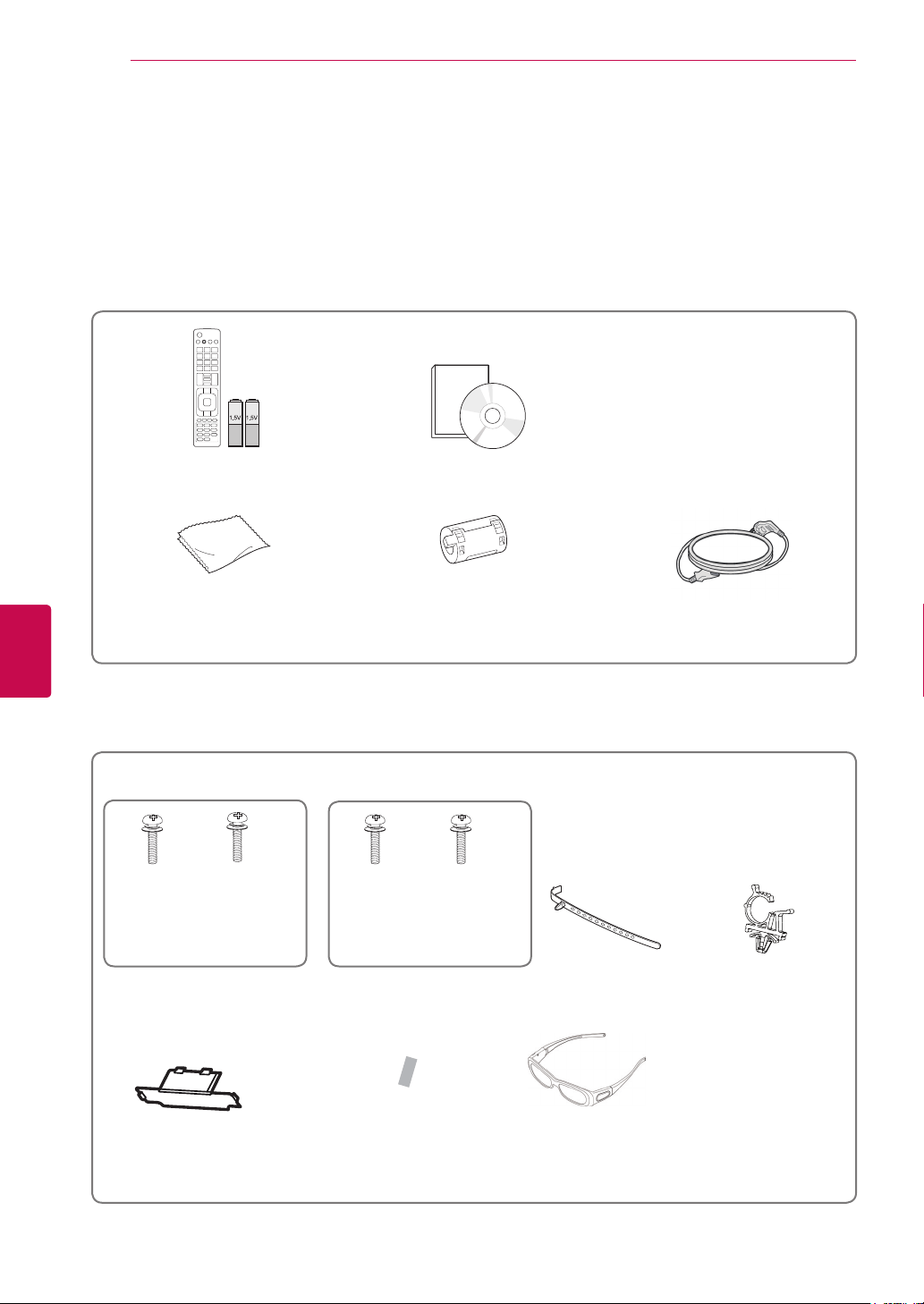
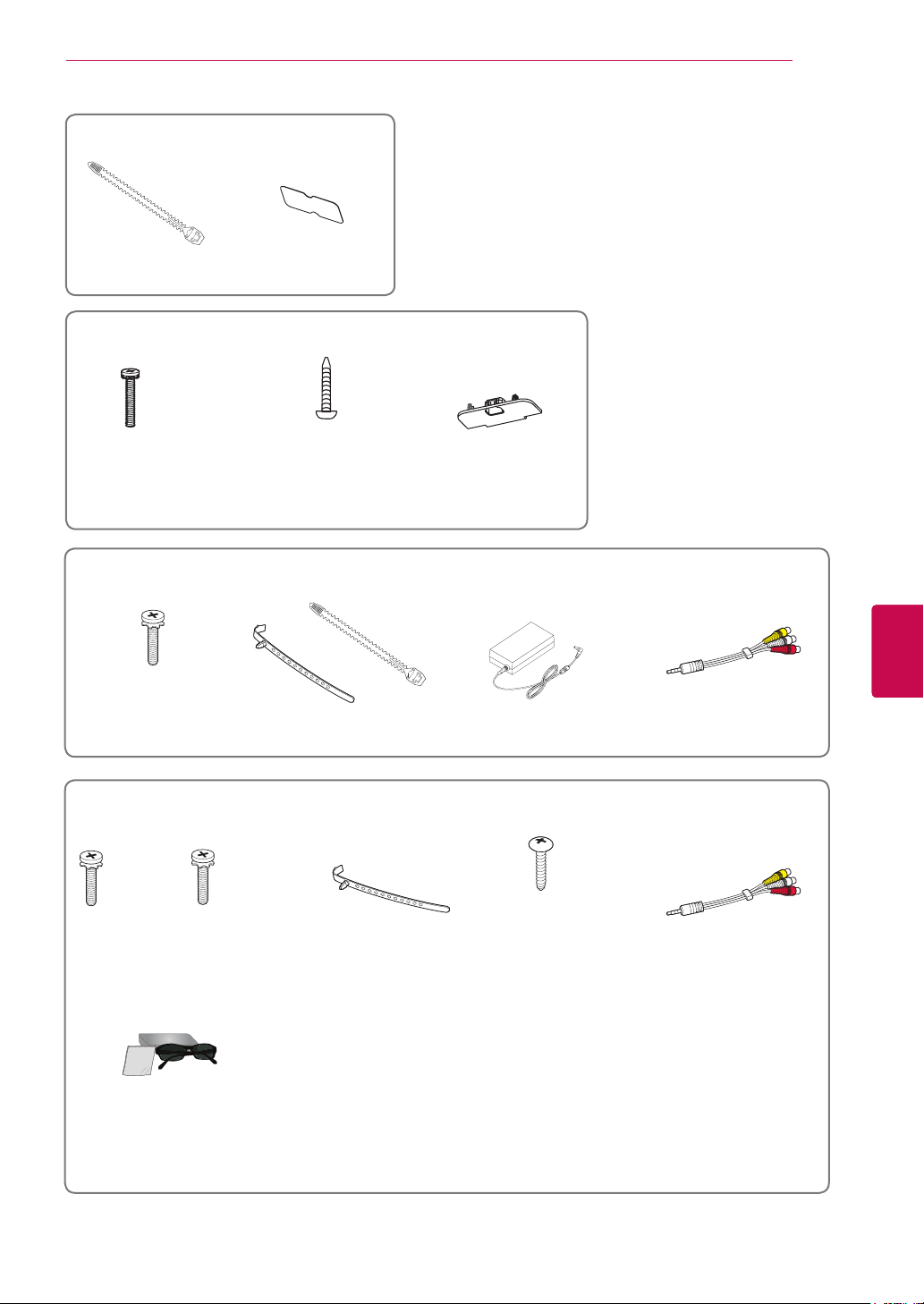
Remote control and batteries(AAA) Owner’s manual
Polishing cloth
1
(This item is not
included for all models.)
Ferrite core
(Depending on model)
(This item is not included for all
models.)
Power Cord(This item is not included
for all models.)
ASSEMBLING AND PREPARING
Unpacking
Check your product box for the following items. If there are any missing accessories, contact the local
dealer where you purchased your product.
The illustrations in this manual may differ from the actual product and item.
1 Gently wipe the spots on the cabinet with the polishing cloth.
(Except for 60PV25**,
60PZ55**)
(Only 60PV25**,
60PZ55**)
Only Plasma TV
M4 x 26 M5 x 14.5
x 4
x 3
x 4
x 3
M4 x 28
M5 x 24
Cable Holder
Power Cord holder
Screw for assembly
Protection cover
Protection cover
tape
3D Glasses
(AG-S250 : Depending on model)
(This item is not included for all
models.)
7
ENGENGLISH
ASSEMBLING AND PREPARING
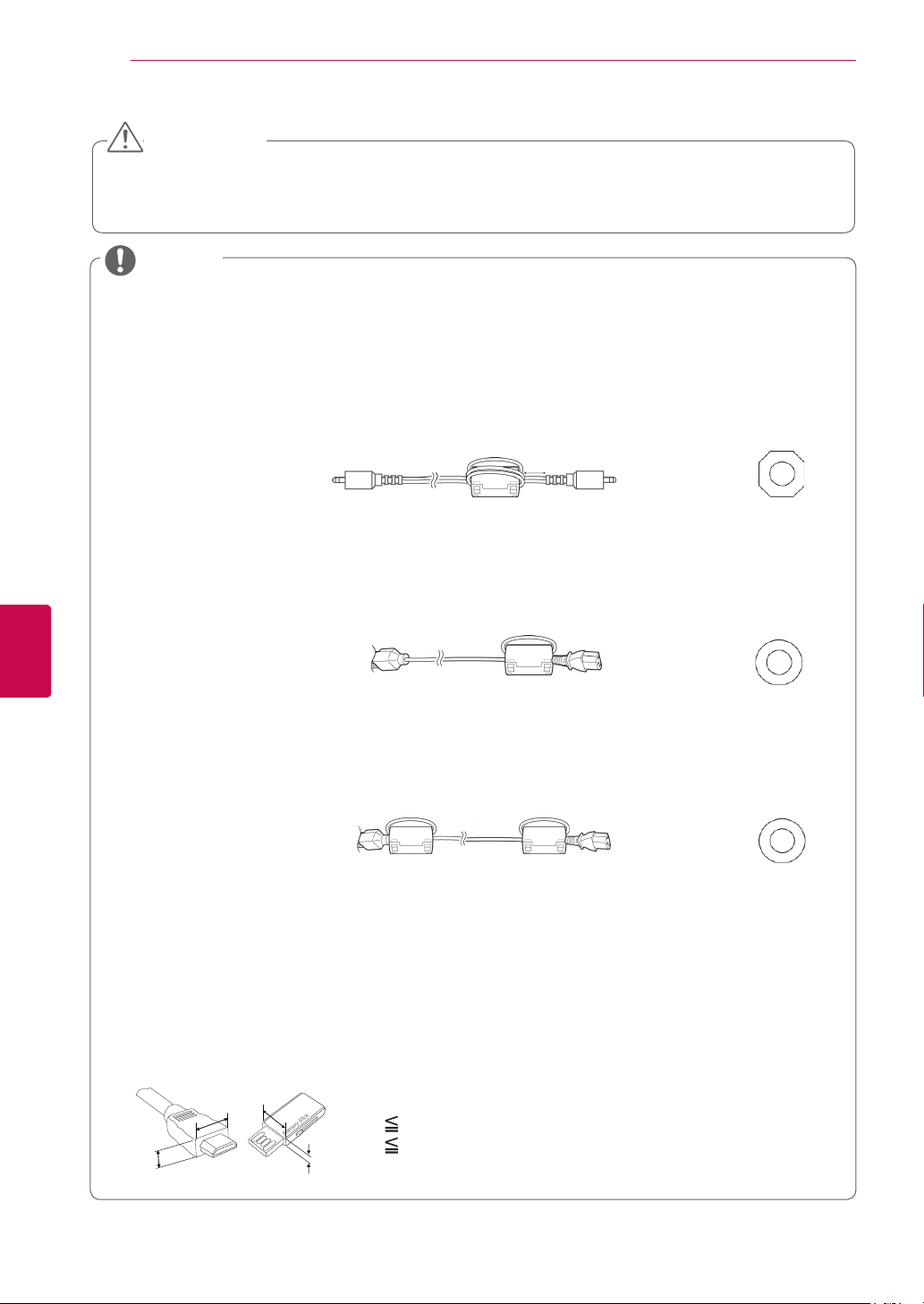
Only 22LK33**
Only 32LV25**, 32/37/42/47LV35**, 22/26/32LV30**, 32/42LV34**, 32/42/47/55LW45**
Cable Holder Protection cover
(M4x20)
x 8
Only 26/32LK33**, 32/42LK43**, 42/47/55LK53**, 32/37/42LK45**
Screw for assembly Screw for fixing Protection cover
(Except for 47/55LK53**)
Screw for assembly Cable holder Screw for fixing Composite gender cable
(Only 32LV25**,
32/37LV35**,
32LV30**, 32LV34**)
M4 x 14
x 8
M4 x 12
x 8
Screw for assembly Cable holder
DC Adapter
Composite gender cable
(M4x16)
x 2
or
Only 19/22/26LV25**, 22/26LV55**
(Except for 32LV25**)
(Only 32LV25**)
(Only 32/42/47/55LW45**)
3D Glasses
(AG-P110, AG-F110)
8
ENG
ENGLISH
ASSEMBLING AND PREPARING
Do not use any pirated items to ensure the safety and product life span.
Any damages or injuries by using pirated items are not covered by the warranty.
CAUTION
The items supplied with your product may vary depending on the model.
Product specifications or contents of this manual may be changed without prior notice due to
upgrade of product functions.
Image shown may differ from your TV.
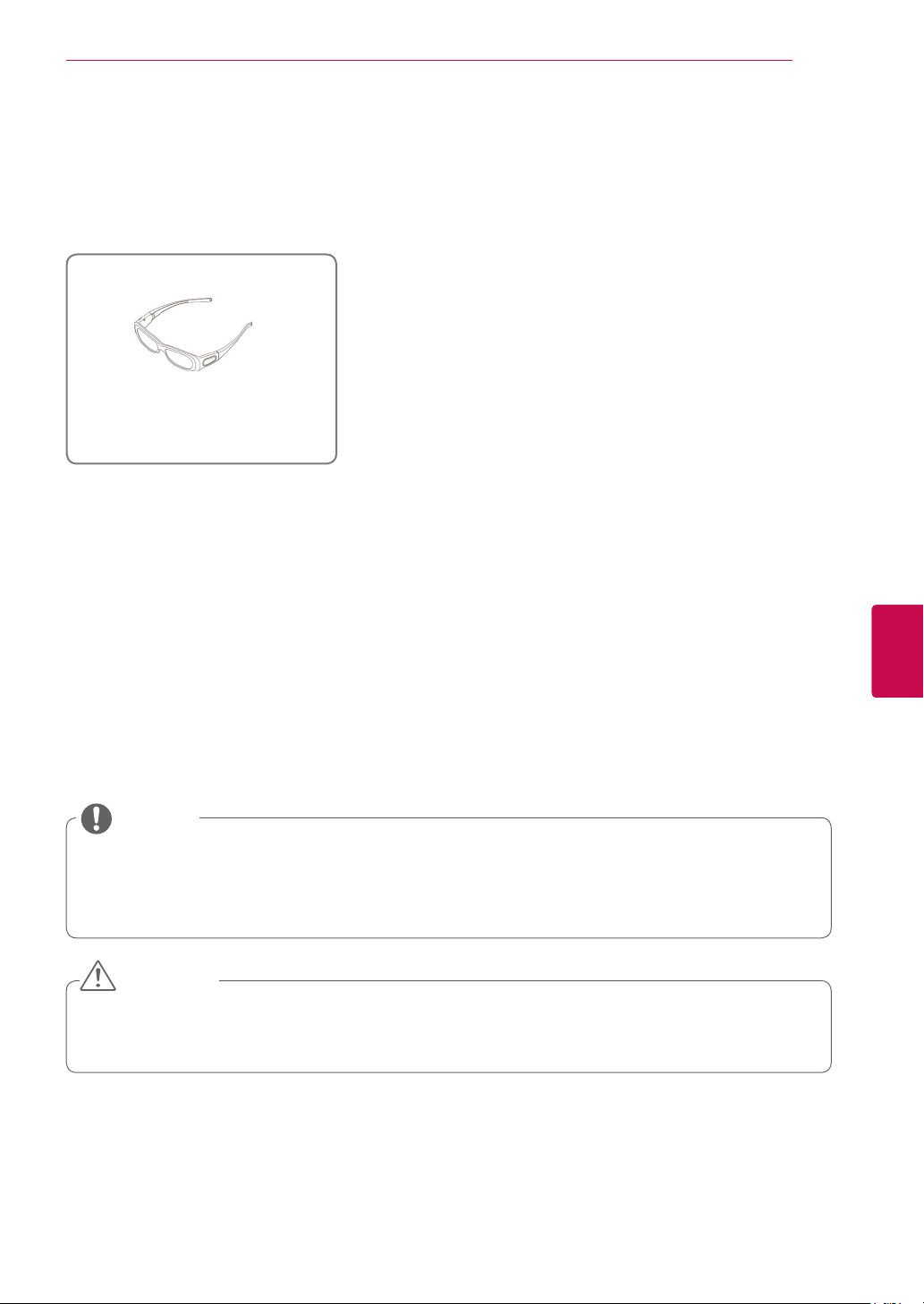
How to use the ferrite core (Depending on model)
1 Use the ferrite core to reduce the electromagnetic interference in the PC audio cable.
Wind the PC audio cable on the ferrite core thrice. Place the ferrite core close to the TV.
NOTE
For an optimal connection, HDMI cables and USB devices should have bezels less than 10 mm
thick and 18 mm width.(Except for Plasma TV, 22/26/32LK33**, 32/42LK43**, 42/47/55LK53**)
B
A
A
B
*A 10 mm
*B
18 mm
[to an External device]
[Figure 1]
[to the TV]
[Cross Section of
Ferrite Core]
2 Use the ferrite core to reduce the electromagnetic interference in the power cable.
Wind the power cable on the ferrite core once. Place the ferrite core close to the TV.
[to a wall plug] [to the TV]
[Cross Section of
Ferrite Core]
3 Use the ferrite core to reduce the electromagnetic interference in the power cable.
Wind the power cable on the ferrite core once. Place the ferrite core close to the TV and a wall plug.
[Figure 2]
[to a wall plug]
[to the TV]
[Cross Section of
Ferrite Core]
- If there is one ferrite core, follow as shown in Figure 1.
- If there are two ferrite cores, follow as shown in Figures 1 and 2.
- If there are three ferrite cores, follow as shown in Figures 1 and 3.
[Figure 3]
10 mm(+ / - 5 mm)
9
ENGENGLISH
ASSEMBLING AND PREPARING
Separate purchase
Separate purchase items can be changed or modified for quality improvement without any notification.
Contact your dealer for buying these items.
These devices only work with compatible LG Plasma TV, LED LCD TV or LCD TV.
Parts and buttons
TV can be placed in standby mode in order to reduce the power consumption. And TV should be
turned off if it will not be watched for some time, as this will reduce energy consumption.
The energy consumed during use can be significantly reduced if the level of brightness of the
picture is reduced, and this will reduce the overall running cost.
NOTE
Do not step on the glass stand or subject it to any impact. It may break, causing possible injury
from fragments of glass, or the TV may fall.
Do not drag the TV. The floor or the product may be damaged.
CAUTION
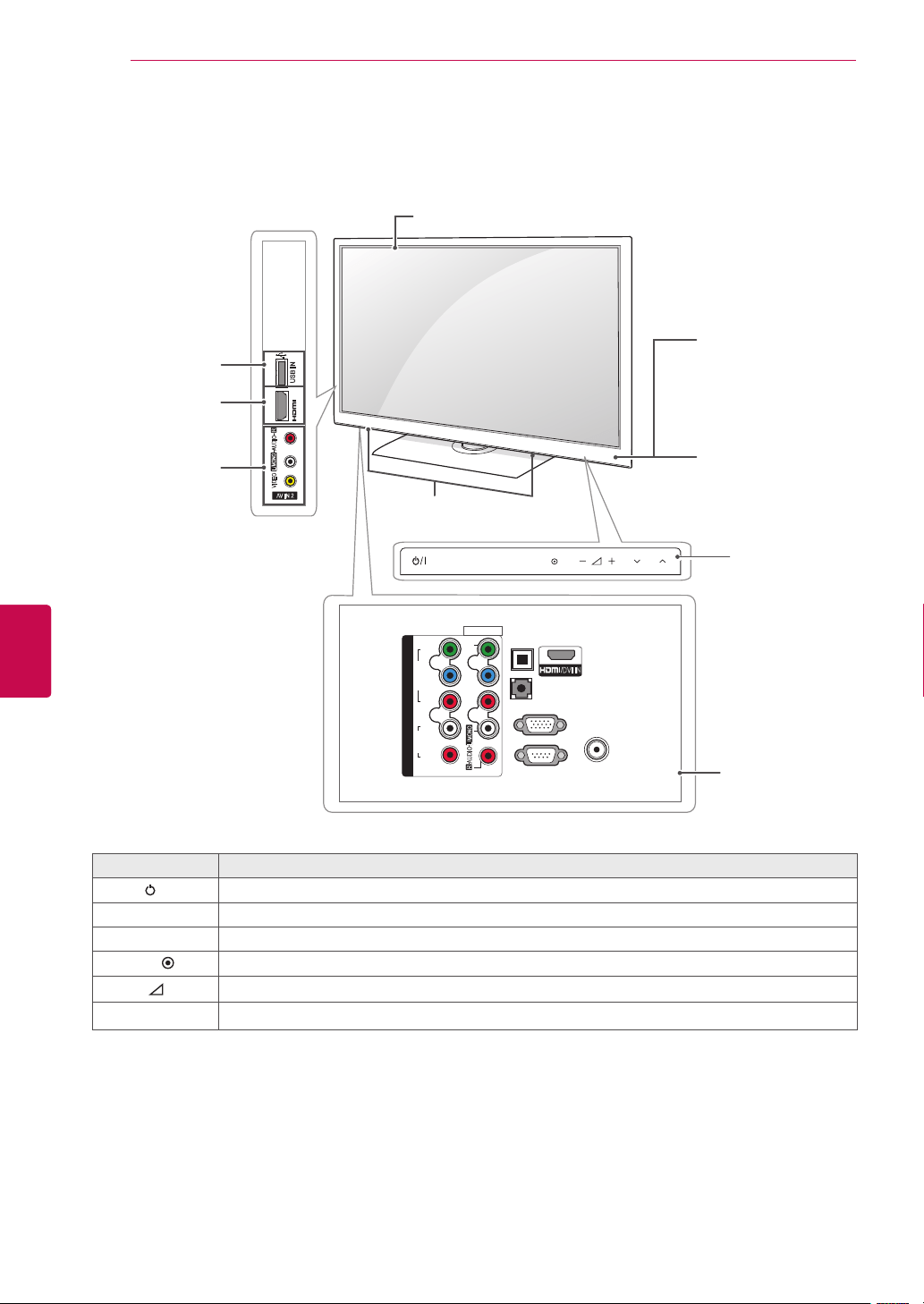
3D Glasses
(AG-S230, AG-S250, AG-S270 :
Only 3D Models)
10
ENG
ENGLISH
ASSEMBLING AND PREPARING
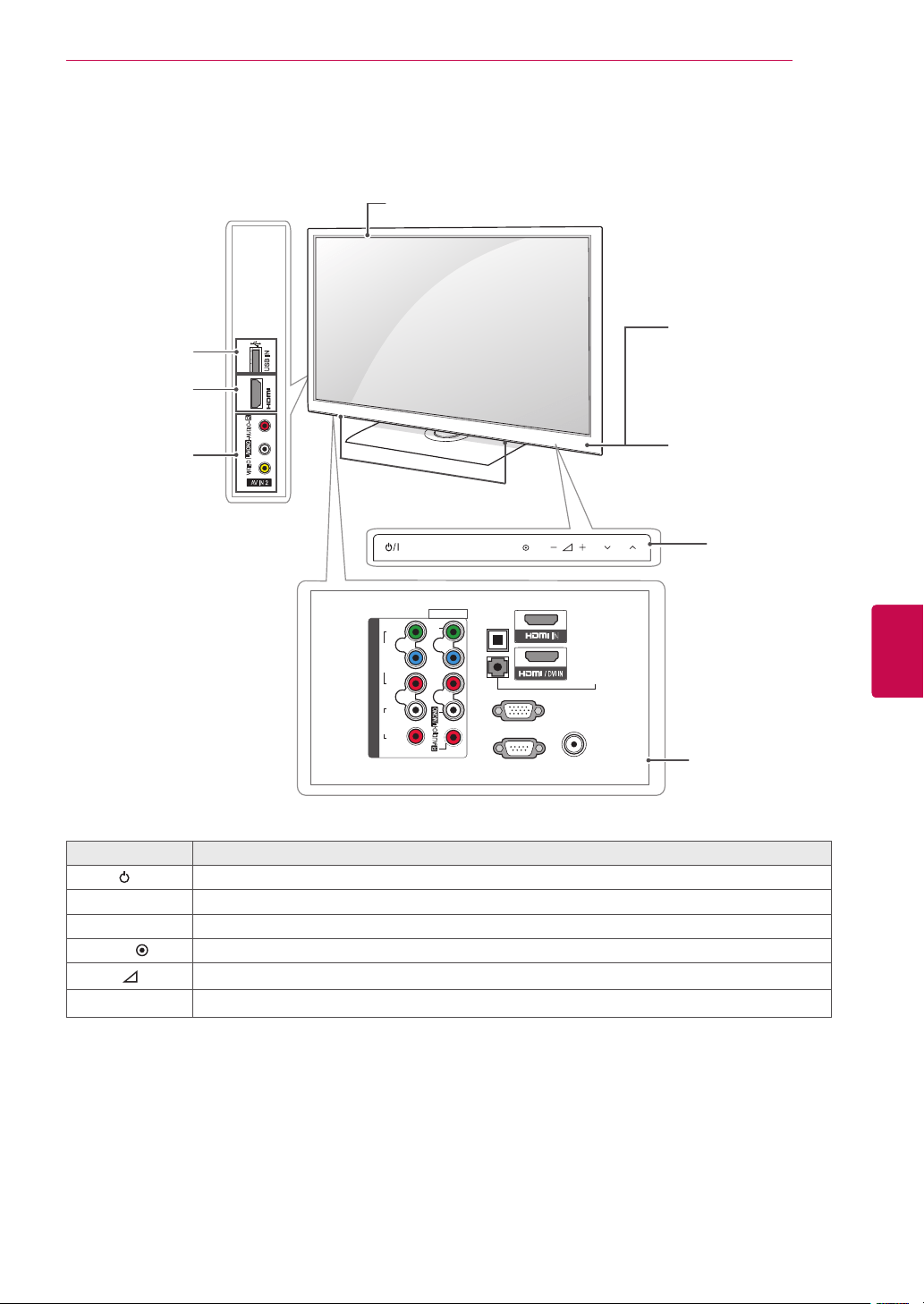
Only 50/60PV25**, 42/50PT25**
Image shown may differ from your TV.
INPUT
HOME OK
P
AV IN 2
L/MONO
R
AUDIO
VIDEO
USB IN
IN 2
1
/DVI IN
OPTICAL
DIGITAL
AUDIO OUT
AUDIO IN
(RGB/DVI)
RGB IN (PC)
RS-232C IN
(CONTROL & SERVICE)
ANTENNA
IN
COMPONENT IN
AUDIO
R
L
Y
P
B
P
R
VIDEO
AV IN 1
VIDEO
1
2
L/MONO
R
AUDIO
AV (Audio and
Video) IN
HDMI IN
Screen
Connection panel
(See p.80)
Speakers
USB input
Touch buttons
2
1 Intelligent sensor - Adjusts the image quality corresponding to the surrounding environment.
2 Touch Button - You can use the desired button function by touching.
Button Description
/I Turns the power on or off
INPUT Changes the input source
HOME Accesses the main menus, or saves your input and exits the menus
OK
Selects the highlighted menu option or confirms an input
-
+
Adjusts the volume level
v
P
^
Scrolls through the saved programmes
Remote control and
intelligent
1
sensors
Power indicator
Red – In Standby
mode
Off – TV turns on
11
ENGENGLISH
ASSEMBLING AND PREPARING
Image shown may differ from your TV.
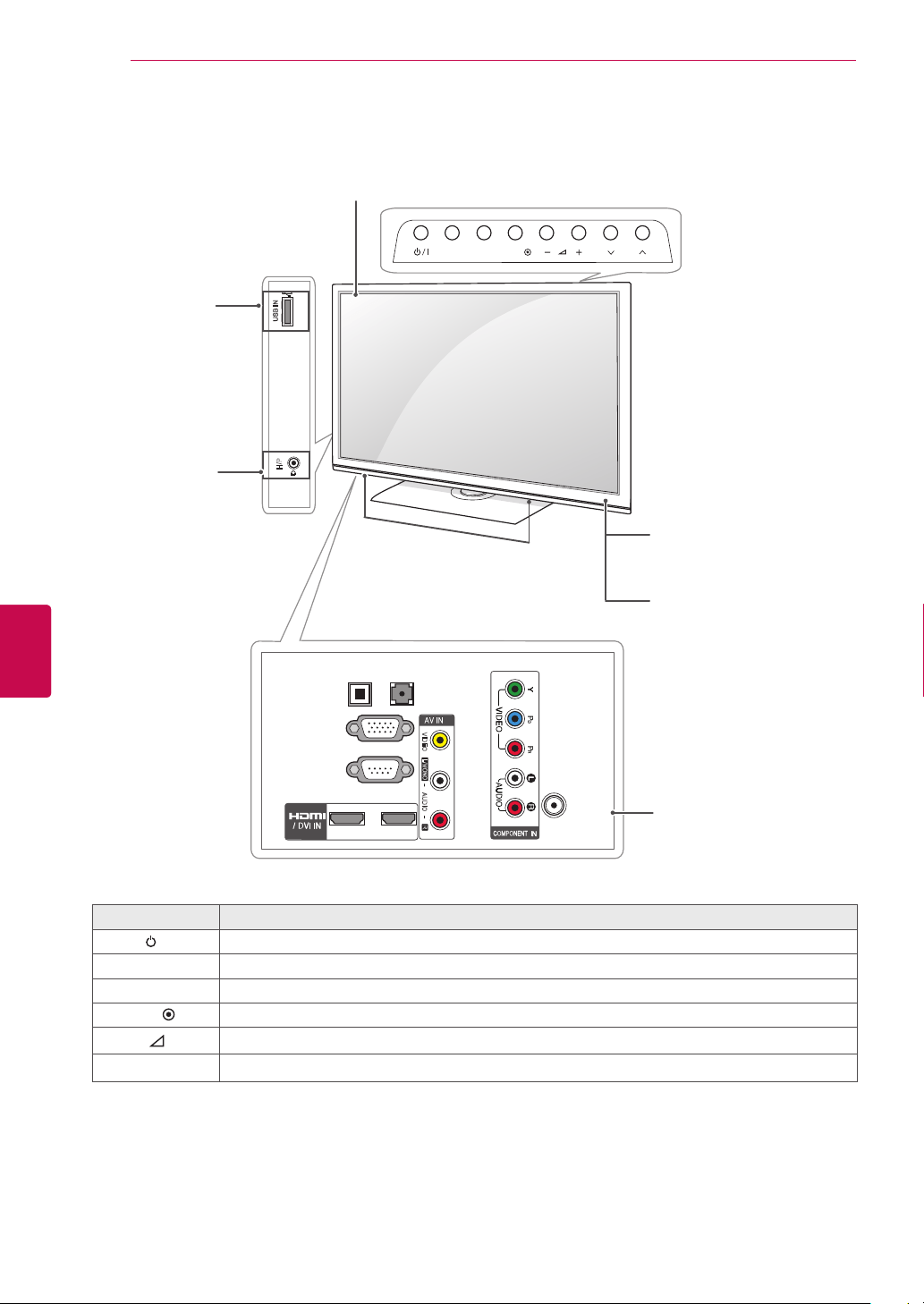
Only 42/50PW35**, 42/50PW45**, 50/60PZ55**
1
2
IN
AV IN 2
L/MONO
R
AUDIO
VIDEO
USB IN
INPUT
HOME OK
P
OPTICAL
DIGITAL
AUDIO OUT
RGB IN (PC)
RS-232C IN
(CONTROL & SERVICE)
ANTENNA
IN
AUDIO IN
(RGB/DVI)
IN 3
COMPONENT IN
AUDIO
R
L
Y
P
B
P
R
VIDEO
AV IN 1
VIDEO
1
2
L/MONO
R
AUDIO
AV (Audio and
Video) IN
HDMI IN
Screen
Connection panel
(See p.80)
Speakers
USB input
Touch buttons
2
1 Intelligent sensor - Adjusts the image quality corresponding to the surrounding environment.
2 Touch Button - You can use the desired button function by touching.
Button Description
/I Turns the power on or off
INPUT Changes the input source
HOME Accesses the main menus, or saves your input and exits the menus
OK
Selects the highlighted menu option or confirms an input
-
+
Adjusts the volume level
v
P
^
Scrolls through the saved programmes
Remote control and
intelligent
1
sensors
Power indicator
Red – In Standby
mode
Off – TV turns on
12
ENG
ENGLISH
ASSEMBLING AND PREPARING
R
USB IN
INPUT HOME
P
OK
OPTICAL
DIGITAL
AUDIO OUT
AUDIO IN
(RGB/DVI)
RGB IN (PC)
RS-232C IN
(CONTROL & SERVICE)
L/MONO
R
AUDIO
VIDEO
2
1
1
ANTENNA/
CABLE IN
H/P
R
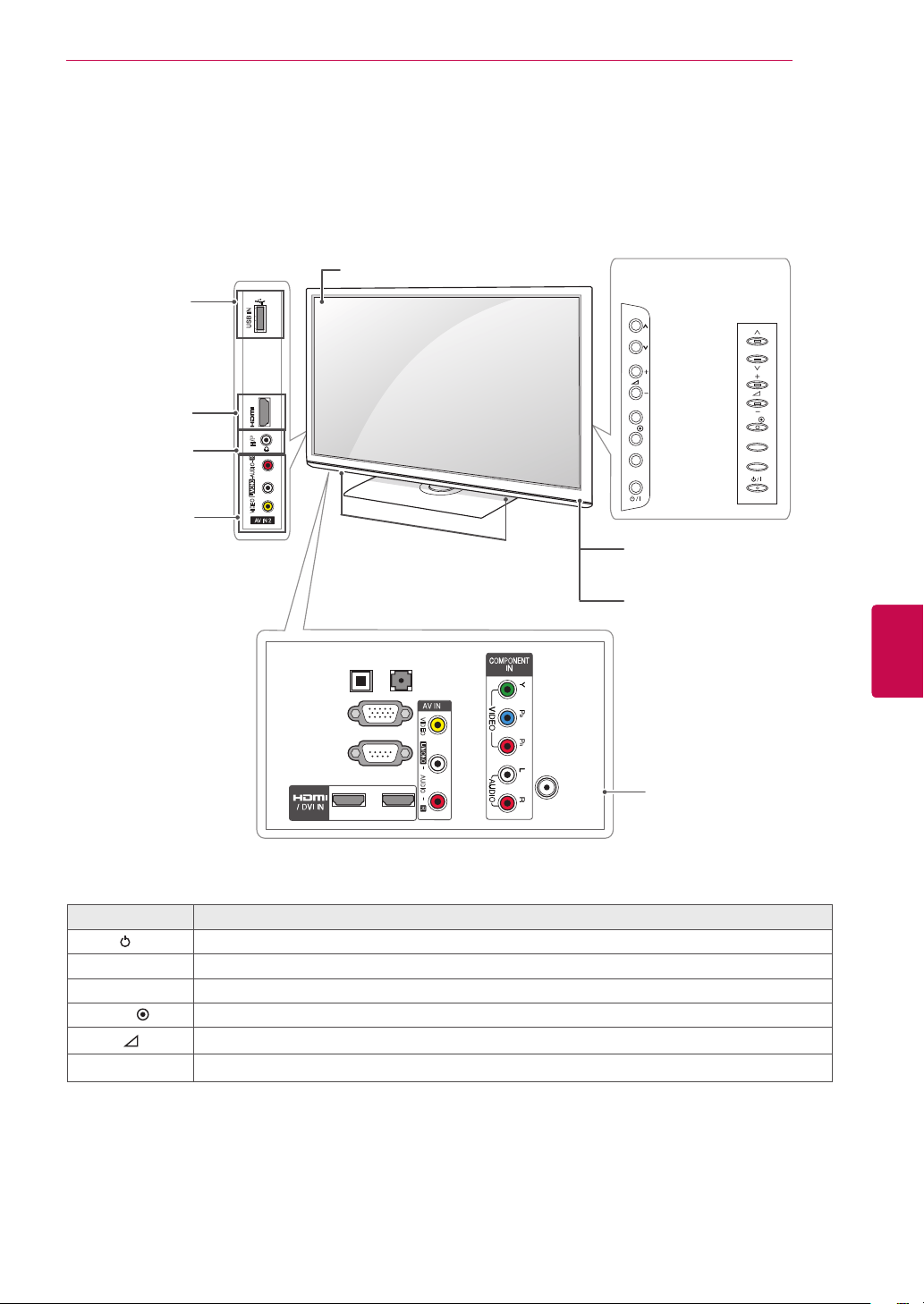
Screen
Connection panel
(See p.80)
Speakers
Button Description
/I Turns the power on or off
INPUT Changes the input source
HOME Accesses the main menus, or saves your input and exits the menus
OK
Selects the highlighted menu option or confirms an input
-
+
Adjusts the volume level
v
P
^
Scrolls through the saved programmes
Only 22LK33**
Remote control
Power Indicator
(Can be adjusted using
the Power Indicator in the
OPTION menu.)
Headphone
Socket
USB input
Image shown may differ from your TV.
13
ENGENGLISH
ASSEMBLING AND PREPARING
R
IN 3
USB IN
P
OK
INPUT
HOME
OPTICAL
DIGITAL
AUDIO OUT
AUDIO IN
(RGB/DVI)
RGB IN (PC)
RS-232C IN
(CONTROL & SERVICE)
L/MONO
R
AUDIO
VIDEO
2
1
1
ANTENNA/
CABLE IN
H/P
AV IN 2
L/MONO
R
AUDIO
VIDEO
OK
P
HOME
INPUT
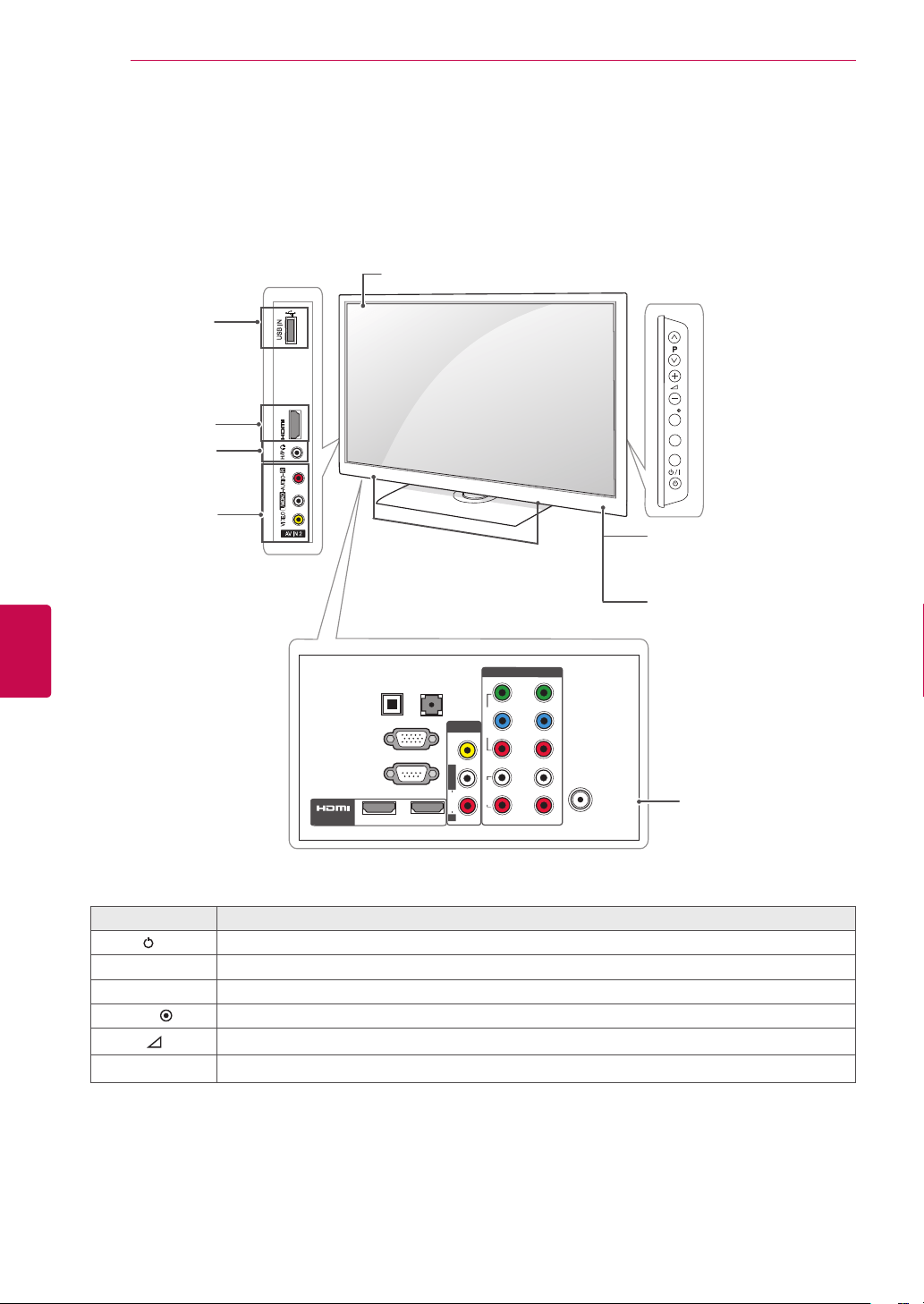
Connection panel
(See p.80)
Speakers
Button Description
/I Turns the power on or off
INPUT Changes the input source
HOME Accesses the main menus, or saves your input and exits the menus
OK
Selects the highlighted menu option or confirms an input
-
+
Adjusts the volume level
v
P
^
Scrolls through the saved programmes
Only 26/32LK33**, 32/42LK43**
Remote control
Power Indicator
(Can be adjusted using
the Power Indicator in the
OPTION menu.)
Image shown may differ from your TV.
Headphone
Socket
HDMI IN
USB input
AV (Audio and
Video) IN
(Only
26/32LK33**)
(Only
32/42LK43**)
Screen
14
ENG
ENGLISH
ASSEMBLING AND PREPARING
1 Intelligent sensor - Adjusts the image quality corresponding to the surrounding environment.
Button Description
/I Turns the power on or off
INPUT Changes the input source
HOME Accesses the main menus, or saves your input and exits the menus
OK
Selects the highlighted menu option or confirms an input
-
+
Adjusts the volume level
v
P
^
Scrolls through the saved programmes
Only 42/47/55LK53**
Image shown may differ from your TV.
INPUT
HOME
OK
P
R
IN 3
USB IN
AV IN 2
L/MONO
R
AUDIO
VIDEO
1
2
COMPONENT IN
Y
P
B
P
R
R
L
VIDEO
AUDIO
R
AV IN 1
L/MONO
ANTENNA /
CABLE IN
RS-232C IN
(CONTROL & SERVICE)
RGB IN (PC)
OPTICAL DIGITAL
AUDIO OUT
(RGB/DVI)
AUDIO IN
/ DVI IN
2
1
VIDEO
AUDIO
Headphone
Socket
HDMI IN
USB input
AV (Audio and
Video) IN
Screen
Speakers
Connection panel
(See p.80)
Remote control and
intelligent
1
sensors
Power Indicator
(Can be adjusted using
the Power Indicator in the
OPTION menu.)
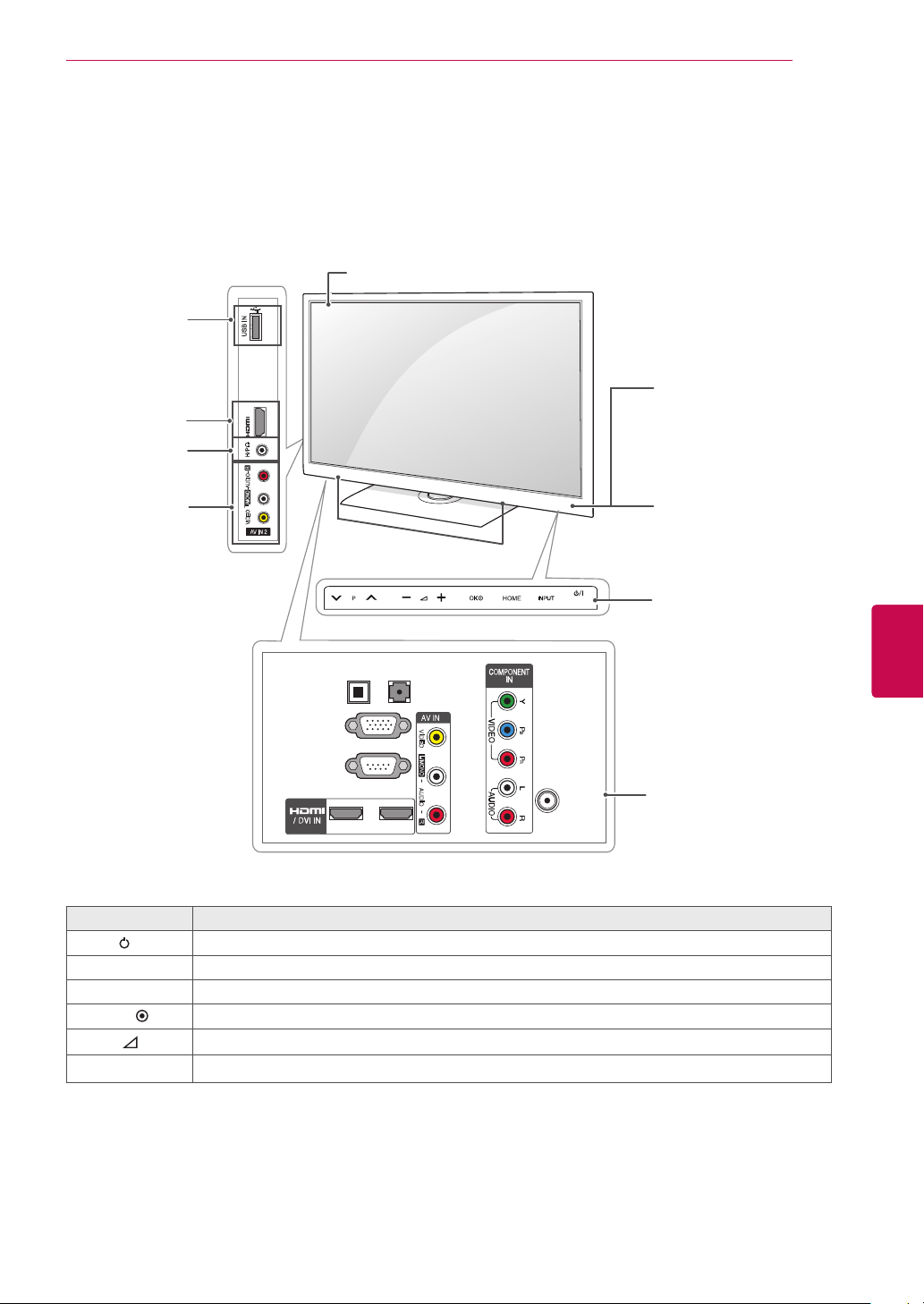
15
ENGENGLISH
ASSEMBLING AND PREPARING
OPTICAL
DIGITAL
AUDIO OUT
AUDIO IN
(RGB/DVI)
RGB IN (PC)
RS-232C IN
(CONTROL & SERVICE)
L/MONO
R
AUDIO
VIDEO
2
1
1
ANTENNA/
CABLE IN
R
IN 3
USB IN
AV IN 2
L/MONO
R
AUDIO
VIDEO
Speakers
1 Intelligent sensor - Adjusts the image quality corresponding to the surrounding environment.
2 Touch Button - You can use the desired button function by touching.
Button Description
/I Turns the power on or off
INPUT Changes the input source
HOME Accesses the main menus, or saves your input and exits the menus
OK
Selects the highlighted menu option or confirms an input
-
+
Adjusts the volume level
v
P
^
Scrolls through the saved programmes
Only 32/37/42LK45**
Headphone
Socket
HDMI IN
USB input
Image shown may differ from your TV.
AV (Audio and
Video) IN
Touch buttons
2
Remote control and
intelligent
1
sensors
Power Indicator
(Can be adjusted using
the Power Indicator in the
OPTION menu.)
Screen
Connection panel
(See p.80)
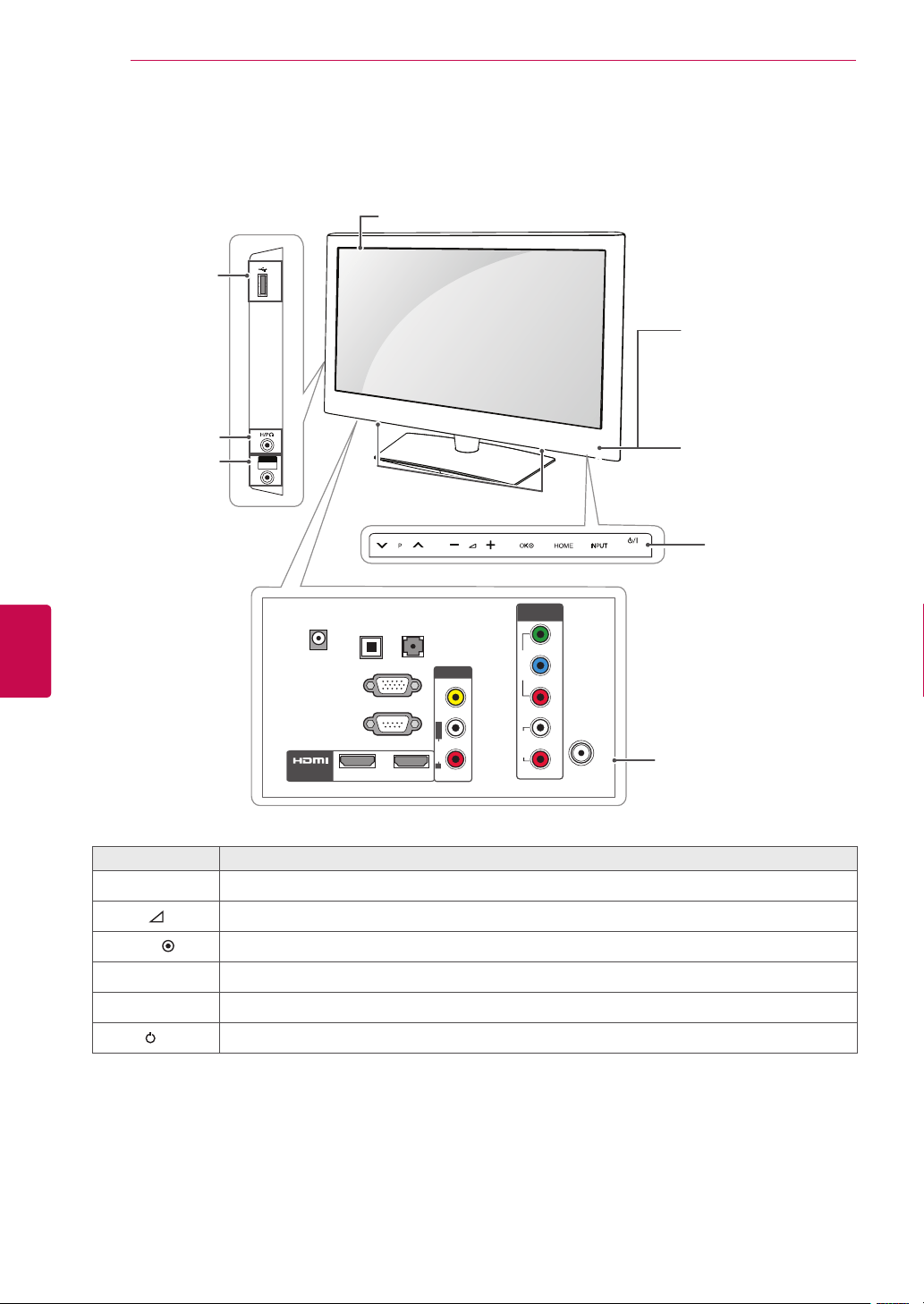
16
ENG
ENGLISH
ASSEMBLING AND PREPARING
USB IN
VIDEO / AUDIO
AV IN 2
VIDEO
AUDIO
COMPONENT
IN
Y
P
B
P
R
R
L
(RGB/DVI)
AUDIO IN
OPTICAL
DIGITAL
AUDIO OUT
RS-232C IN
(
CONTROL & SERVICE)
RGB IN (PC)
/ DVI IN
2
1
VIDEO
AUDIO
R
AV IN 1
L/MONO
DC-IN
ANTENNA/
CABLE IN
Screen
Touch buttons
2
1 Intelligent sensor - Adjusts the image quality corresponding to the surrounding environment.
2 Touch Button - You can use the desired button function by touching.
Button Description
v
P
^
Scrolls through the saved programmes
-
+
Adjusts the volume level
OK
Selects the highlighted menu option or confirms an input
HOME Accesses the main menus, or saves your input and exits the menus
INPUT Changes the input source
/I Turns the power on or off
Only 19/22/26LV25**
Remote control and
intelligent
1
sensors
Power Indicator
(Can be adjusted using
the Power Indicator in the
OPTION menu.)
Headphone
Socket
AV (Audio and
Video) IN
USB input
Image shown may differ from your TV.
Connection panel
(See p.80)
Speakers
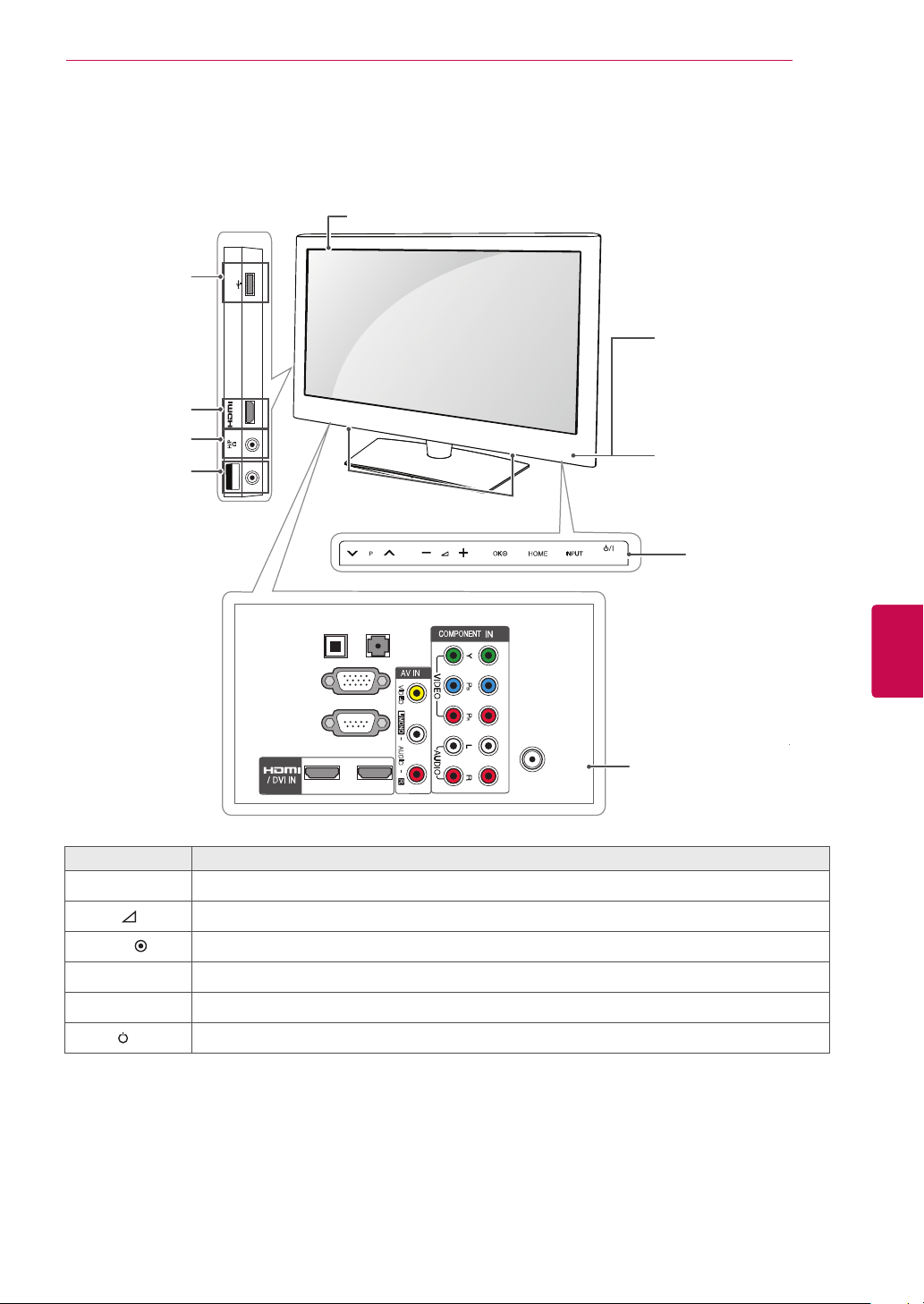
17
ENGENGLISH
ASSEMBLING AND PREPARING
USB IN
IN 3
VIDEO / AUDIO
AV IN 2
OPTICAL
DIGITAL
AUDIO OUT
AUDIO IN
(RGB/DVI)
RGB IN (PC)
RS-232C IN
(CONTROL & SERVICE)
L/MONO
R
AUDIO
VIDEO
2
1
12
1
ANTENNA/
CABLE IN
Screen
Touch buttons
2
1 Intelligent sensor - Adjusts the image quality corresponding to the surrounding environment.
2 Touch Button - You can use the desired button function by touching.
Button Description
v
P
^
Scrolls through the saved programmes
-
+
Adjusts the volume level
OK
Selects the highlighted menu option or confirms an input
HOME Accesses the main menus, or saves your input and exits the menus
INPUT Changes the input source
/I Turns the power on or off
Only 32LV25**, 32/37/42/47LV35**, 22/26/32LV30**, 32/42LV34**, 32/42/47/55LW45**
Remote control and
intelligent
1
sensors
Power Indicator
(Can be adjusted using
the Power Indicator in the
OPTION menu.)
Headphone
Socket
AV (Audio and
Video) IN
HDMI IN
USB input
Image shown may differ from your TV.
Connection panel
(See p.80)
Speakers
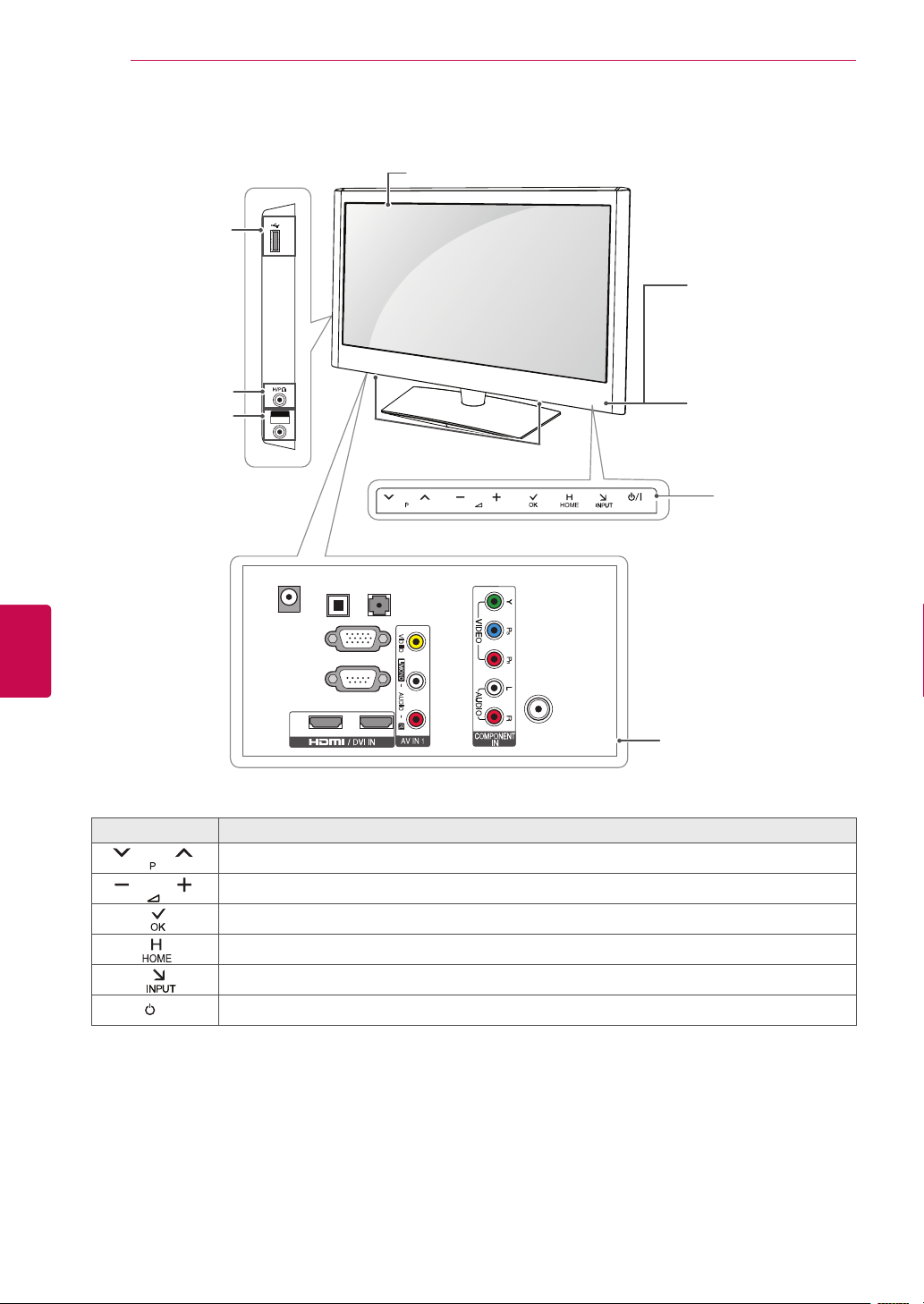
18
ENG
ENGLISH
ASSEMBLING AND PREPARING
1 Intelligent sensor - Adjusts the image quality corresponding to the surrounding environment.
2 Touch Button - You can use the desired button function by touching.
Only 22/26LV55**
Touch buttons
2
Button Description
Scrolls through the saved programmes
Adjusts the volume level
Selects the highlighted menu option or confirms an input
Accesses the main menus, or saves your input and exits the menus
Changes the input source
/I Turns the power on or off
Remote control and
intelligent
1
sensors
Power Indicator
(Can be adjusted using
the Power Indicator in
the OPTION menu.)
OPTICAL
DIGITAL
AUDIO OUT
AUDIO IN
(RGB/DVI)
DC-IN
RGB IN (PC)
RS-232C IN
(CONTROL & SERVICE)
L/MONO
R
AUDIO
VIDEO
2 1
USB IN
VIDEO / AUDIO
AV IN 2
ANTENNA/
CABLE IN
Screen
Connection panel
(See p.80)
Speakers
Image shown may differ from your TV.
Headphone
Socket
AV (Audio and
Video) IN
USB input
19
ENGENGLISH
ASSEMBLING AND PREPARING
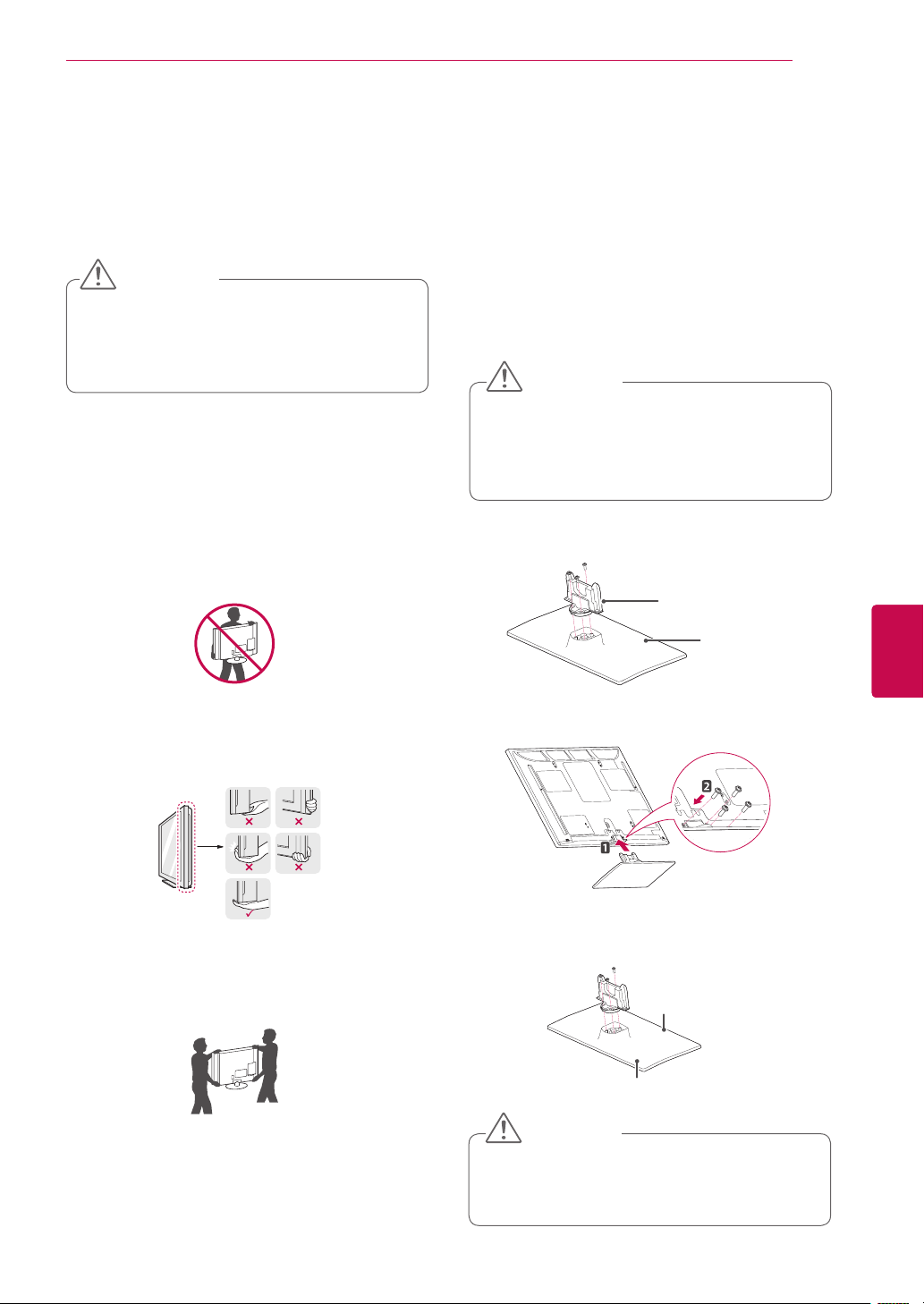
Lifting and moving the TV
When moving or lifting the TV, read the following to
prevent the TV from being scratched or damaged
and for safe transportation regardless of its type
and size.
It is recommended to move the TV in the box
or packing material that the TV originally came
in.
Before moving or lifting the TV, disconnect the
power cord and all cables.
When holding the TV, the screen should face
away from you to avoid damage.
Hold the top and bottom of the TV frame firmly.
Make sure not to hold the transparent part,
speaker, or speaker grill area.
When transporting a large TV, there should be
at least 2 people.
When transporting the TV by hand, hold the
TV as shown in the following illustration.
When transporting the TV, do not expose the
TV to jolts or excessive vibration.
When transporting the TV, keep the TV
upright, never turn the TV on its side or tilt
towards the left or right.
Avoid touching the screen at all times, as
this may result in damage on the screen
or some of the pixels used to create
images.
CAUTION
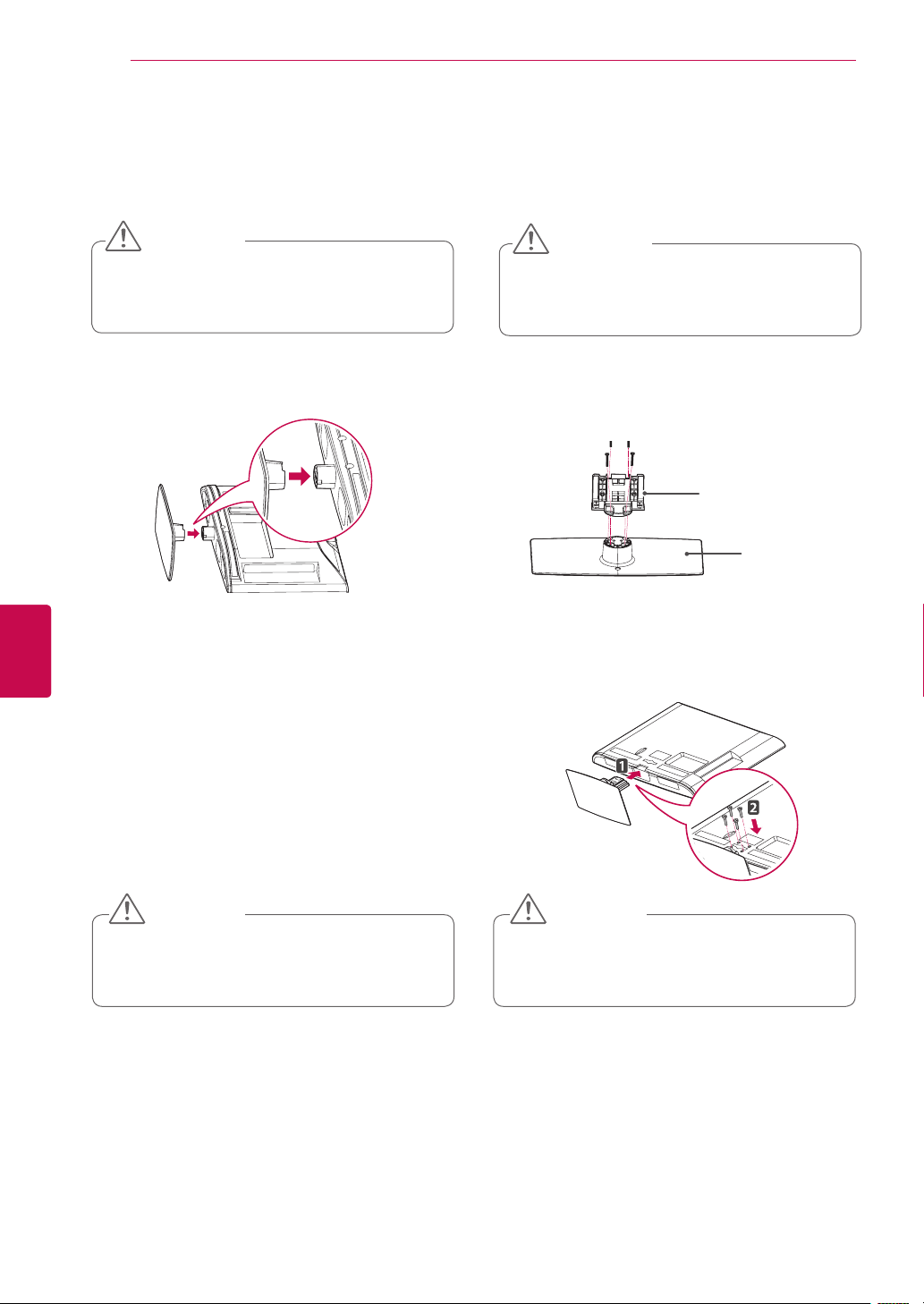
Attaching the stand
1
Lay the TV with the screen side down on a flat
surface.
2
Assemble the parts of the Stand Body with the
Stand Base of the TV.
Make sure to assemble the front and rear side
of the stand.
3 Secure the TV and the stand with the 4 screws.
Rear
Front
Lay a foam mat or soft protective cloth
on the surface to protect the screen from
damage. Make sure no objects press
against the screen.
CAUTION
Stand Body
Stand Base
Only Plasma TV
Tighten the screws firmly to prevent
the TV from tilting forward. Do not over
tighten.
CAUTION
Setting up the TV
Image shown may differ from your TV.
Put your TV on a pedestal stand and mount the TV
on a table or wall.
20
ENG
ENGLISH
ASSEMBLING AND PREPARING
Only 22LK33**
1
Lay the TV with the screen side down on a flat
surface.
Lay a foam mat or soft protective cloth
on the surface to protect the screen from
damage.
CAUTION
2
Assemble the TV as shown.
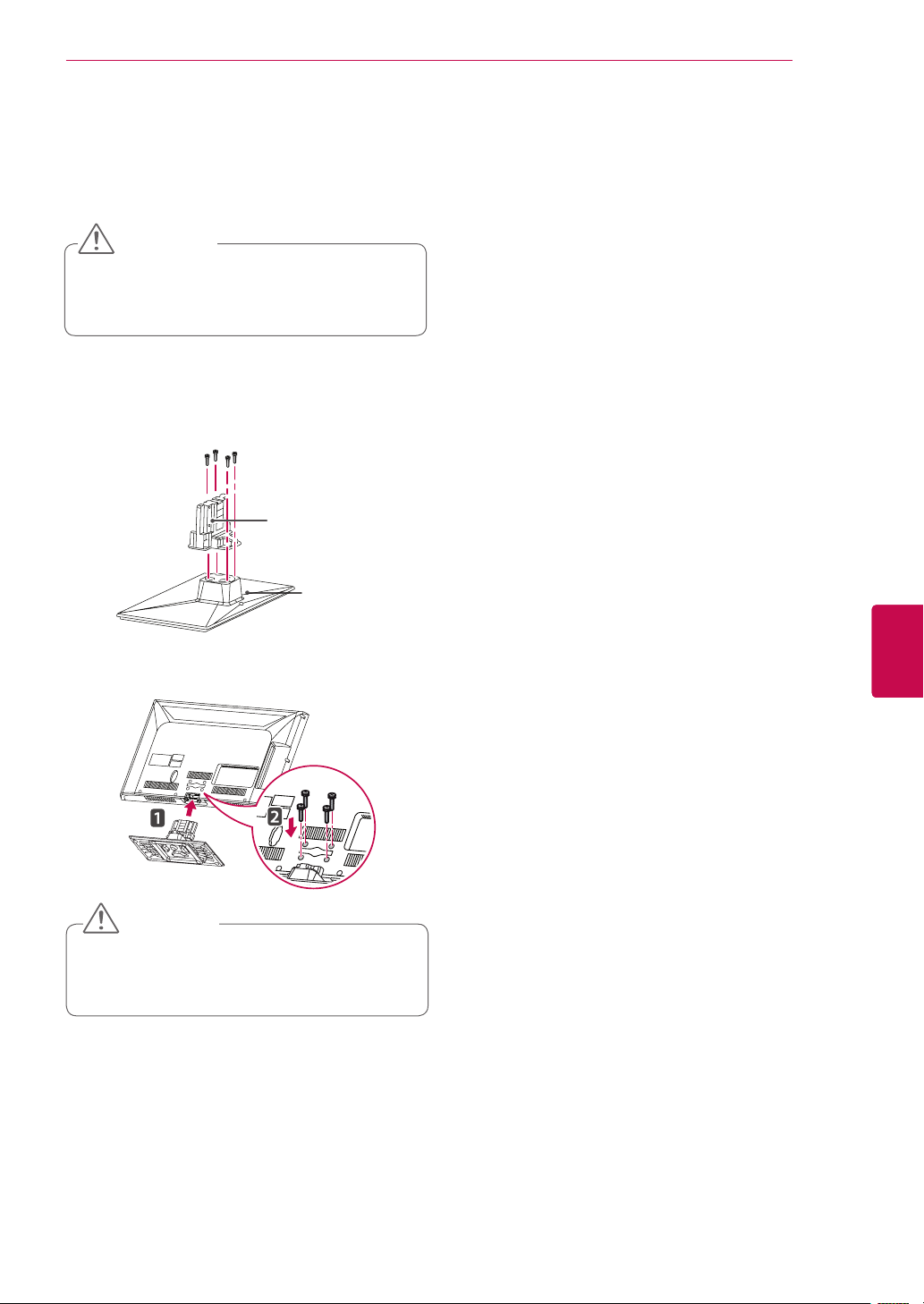
Only 26/32LK33**, 32/42LK43**, 42/47/55LK53**
1
Lay the TV with the screen side down on a flat
surface.
Lay a foam mat or soft protective cloth
on the surface to protect the screen from
damage.
CAUTION
2
Assemble the parts of the Stand Body with the
Stand Base of the TV.
Stand Body
Stand Base
3 Secure the TV and the stand with the 4 screws.
Tighten the screws firmly to prevent
the TV from tilting forward. Do not over
tighten.
CAUTION
Tighten the screws firmly to prevent
the TV from tilting forward. Do not over
tighten.
CAUTION
21
ENGENGLISH
ASSEMBLING AND PREPARING
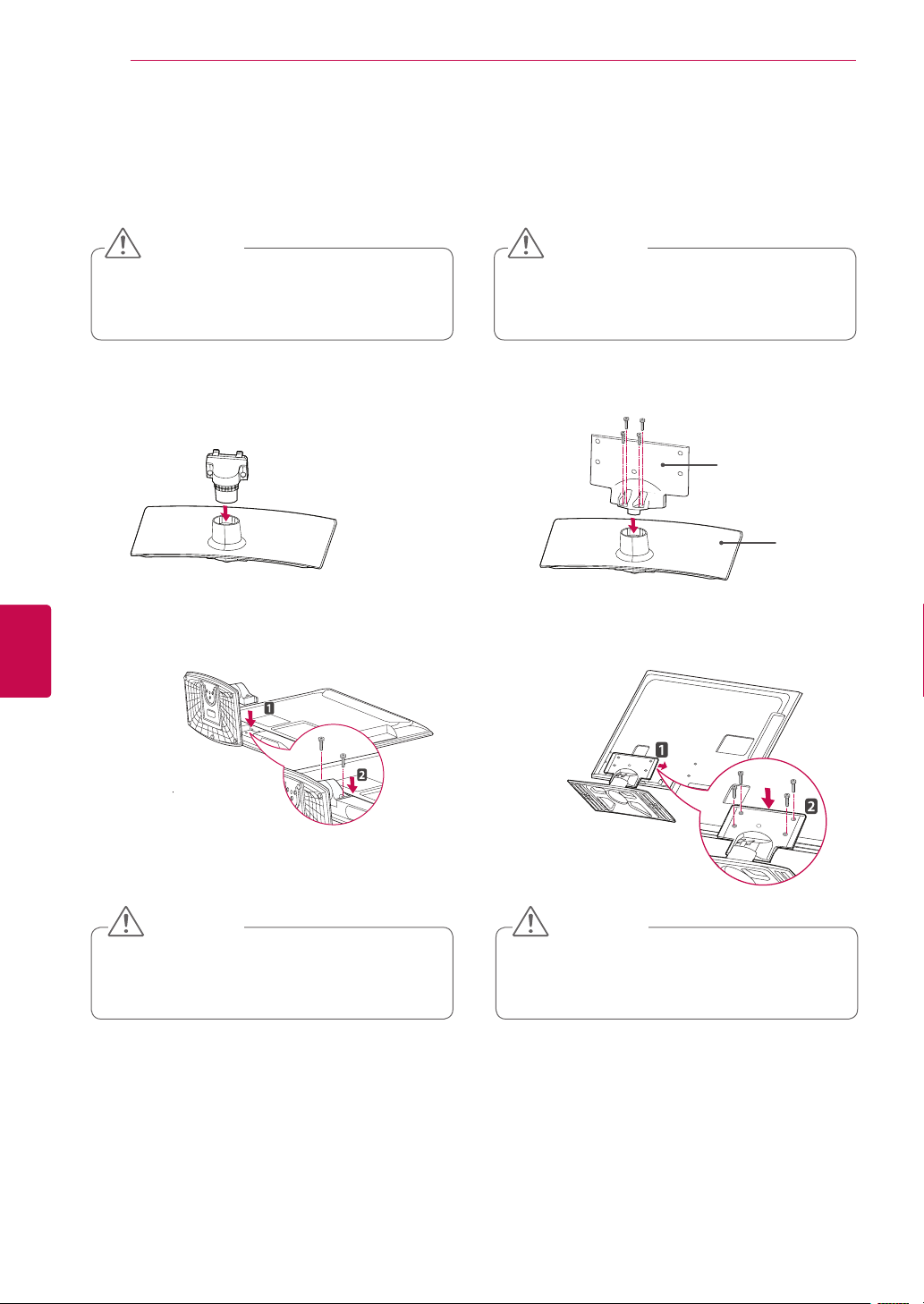
Only 32/37/42LK45**
1
Lay the TV with the screen side down on a flat
surface.
Lay a foam mat or soft protective cloth
on the surface to protect the screen from
damage.
CAUTION
2
Assemble the parts of the Stand Body with the
Stand Base of the TV.
Stand Base
3 Secure the TV and the stand with the 4 screws.
Stand Body
Tighten the screws firmly to prevent
the TV from tilting forward. Do not over
tighten.
CAUTION
22
ENG
ENGLISH
ASSEMBLING AND PREPARING
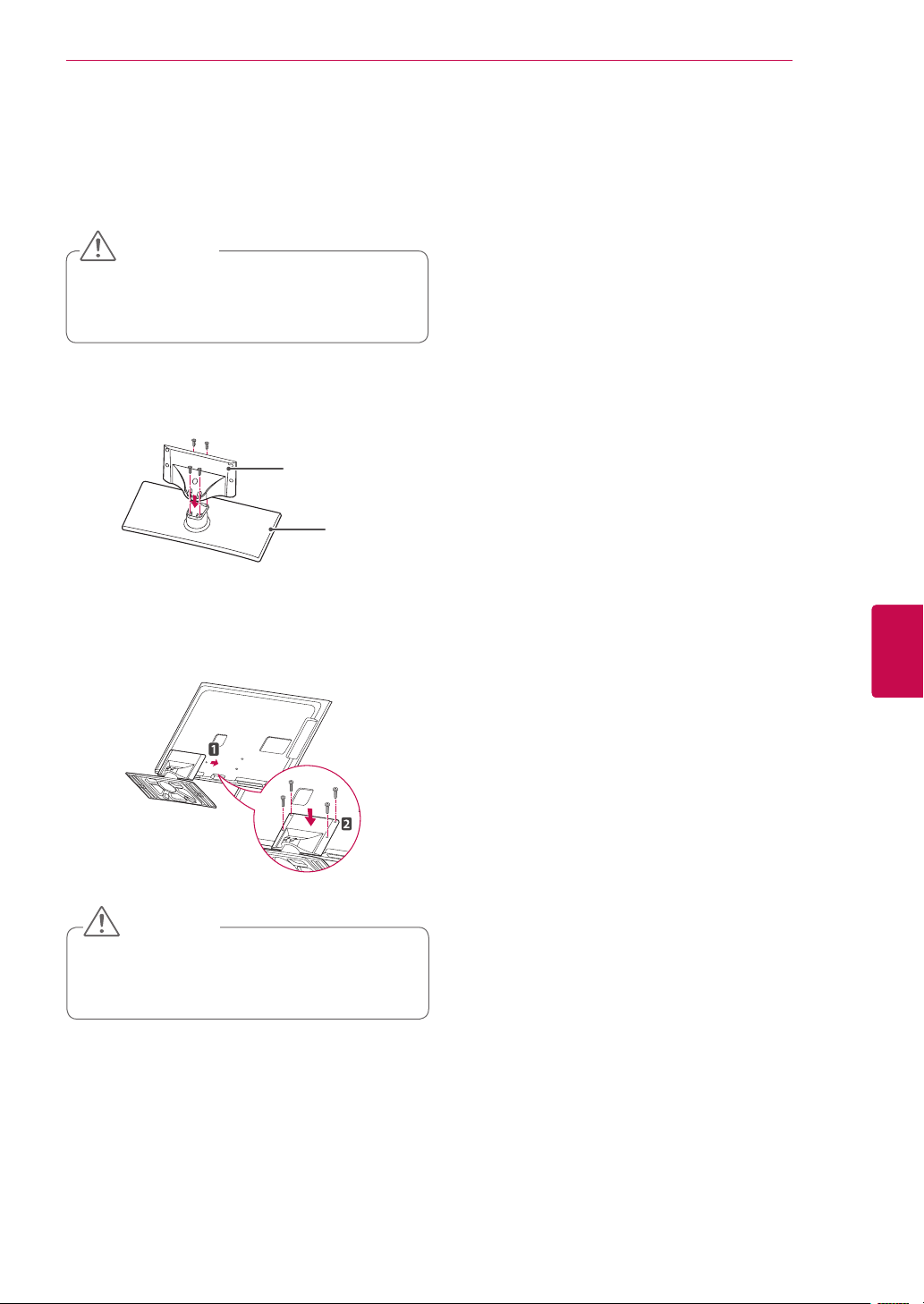
Only 32LV25**Only 19/22/26LV25**, 22/26LV55**
1
Lay the TV with the screen side down on a flat
surface.
1
Lay the TV with the screen side down on a flat
surface.
Lay a foam mat or soft protective cloth
on the surface to protect the screen from
damage.
CAUTION
Lay a foam mat or soft protective cloth
on the surface to protect the screen from
damage.
CAUTION
2
Assemble the parts of the Stand Body with the
Stand Base of the TV.
2
Assemble the parts of the Stand Body with the
Stand Base of the TV.
3 Secure the TV and the stand with the 4 screws.3 Secure the TV and the stand with the 2 screws.
Stand Body
Stand Base
Tighten the screws firmly to prevent
the TV from tilting forward. Do not over
tighten.
CAUTION
Tighten the screws firmly to prevent
the TV from tilting forward. Do not over
tighten.
CAUTION
23
ENGENGLISH
ASSEMBLING AND PREPARING
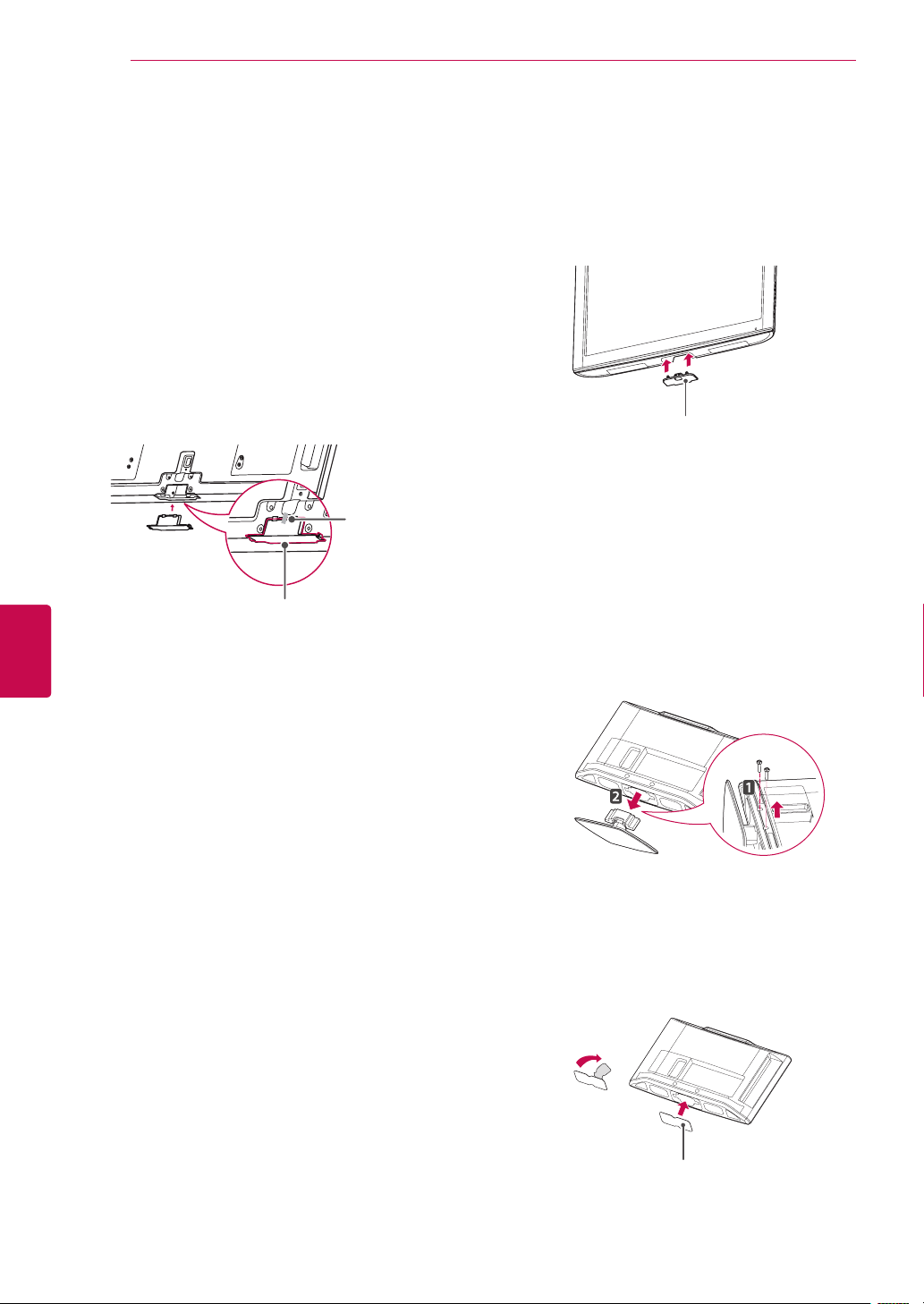
Only 32/37/42/47LV35**, 22/26/32LV30**,
32/42LV34**, 32/42/47/55LW45**
1
Lay the TV with the screen side down on a flat
surface.
Lay a foam mat or soft protective cloth
on the surface to protect the screen from
damage.
CAUTION
2
Assemble the parts of the Stand Body with the
Stand Base of the TV.
Stand Body
Stand Base
3 Secure the TV and the stand with the 4 screws.
Tighten the screws firmly to prevent
the TV from tilting forward. Do not over
tighten.
CAUTION
24
ENG
ENGLISH
ASSEMBLING AND PREPARING
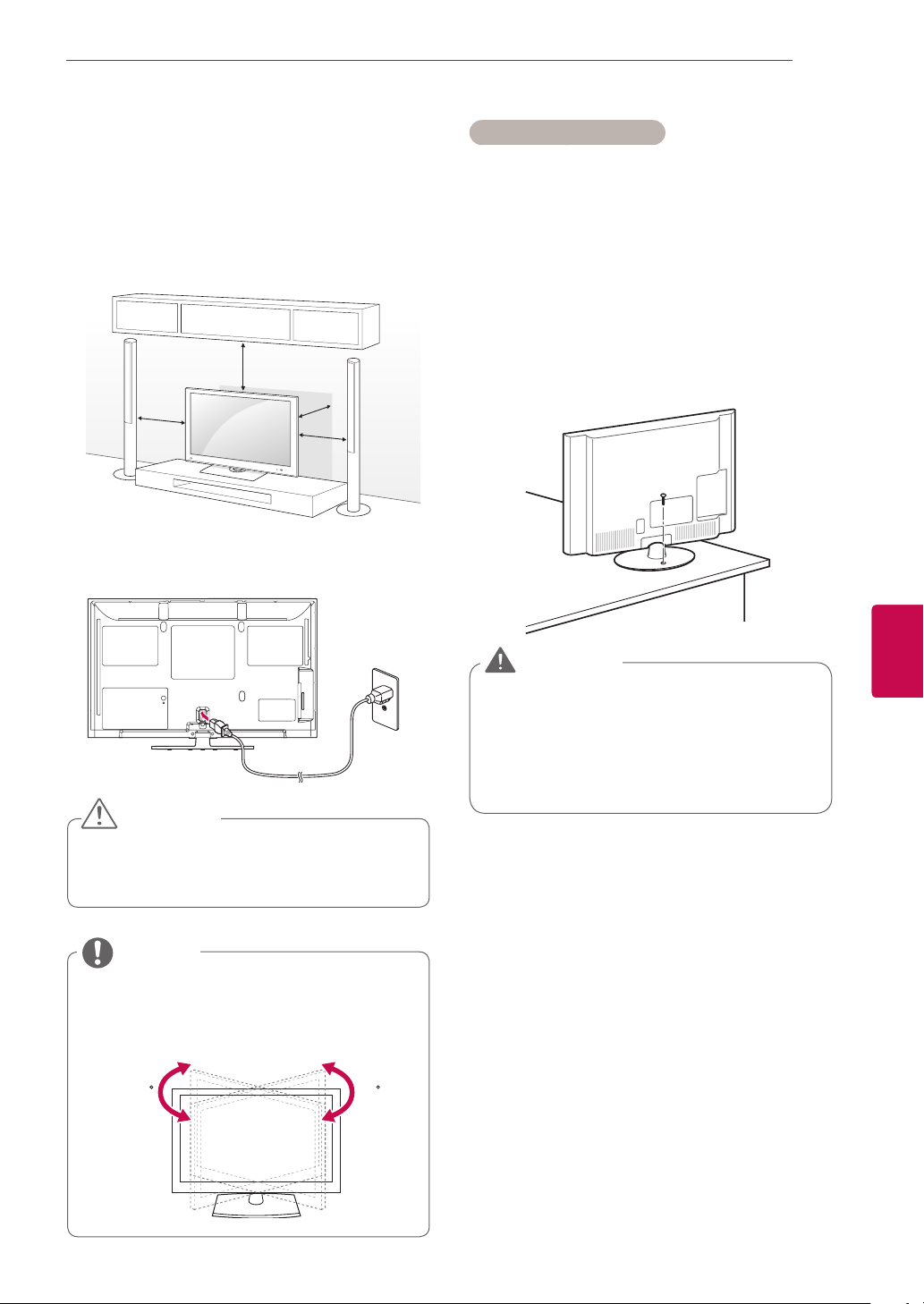
Only 26/32LK33**, 32/42LK43**, 32/37/42LK45**,
42/47/55LK53**
1
Push the supplied protection cover into the
opening at the bottom of the TV until clicking
sound.
Protection cover
Only 22LK33**
1
Lay the TV with the screen side down on a flat
surface.
2
Remove the 2 screws and pull the stand away
from the TV.
3
Push the supplied protection cover into the
opening at the bottom of the TV until it locks in
place.
This will protect the opening from accumulating
dust and dirt.
Protection cover
Not using the Desk Type Stand
Image shown may differ from your TV.
Push the supplied protection cover into the
opening at the bottom of the TV until it locks in
place.
Attach the protection cover tape.
- This will protect the opening from
accumulating dust and dirt.
- When installing the wall mounting bracket,
use the Protection cover.
Only Plasma TV
Protection cover
Protection
cover tape
25
ENGENGLISH
ASSEMBLING AND PREPARING
10 cm
10 cm
10 cm
10 cm
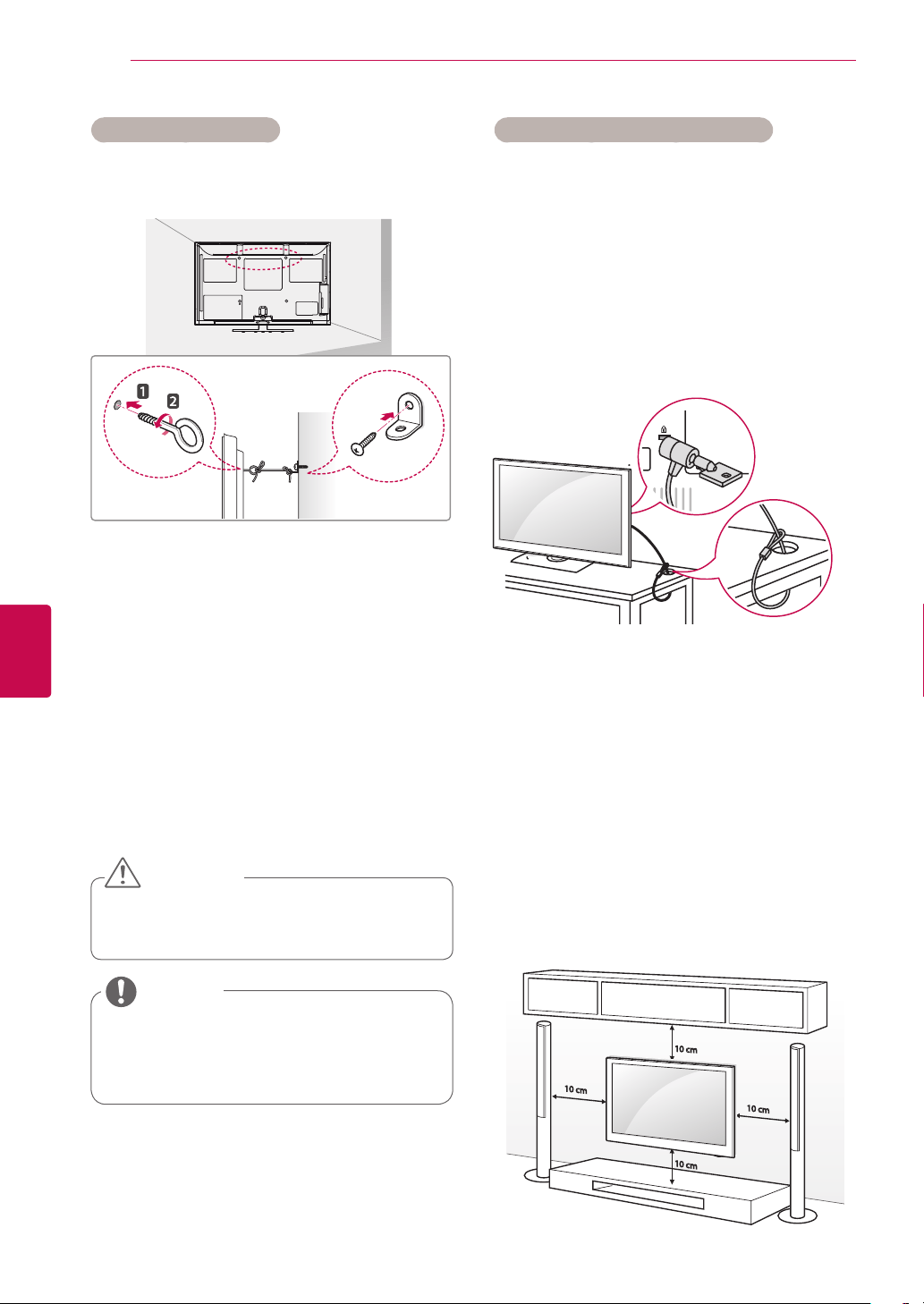
Mounting on a table
Image shown may differ from your TV.
1
Lift and tilt the TV into its upright position on a
table.
- Leave a 10 cm (minimum) space from the
wall for proper ventilation.
2
Connect the power cord to a wall outlet.
Do not place the TV near or on sources
of heat, as this may result in fire or other
damage.
CAUTION
(Except for 22LK3**, 19/22/26LV25**,
22/26LV55**)
Swivel 20 degrees to the left or right and
adjust the angle of the TV to suit your view.
NOTE
2020
Securing the TV to a table
Image shown may differ from your TV.
This feature is not available for all models.
Only 26/32LK33**, 32/42LK43**,
42LK53**,32/37/42LK45**, 32LV25**, 32/37LV35**,
32LV30**, 32LV34**
Fix the TV to a table to prevent from tilting forward,
damage, and potential injury.
Mount the TV on a table, and then insert and
tighten the supplied screw on the rear of the stand.
To prevent TV from falling over, the TV
should be securely attached to the floor/
wall per installation instructions. Tipping,
shaking, or rocking the TV may cause
injury.
WARNING
26
ENG
ENGLISH
ASSEMBLING AND PREPARING
Securing the TV to a wall
Image shown may differ from your TV.
This feature is not available for all models.
1
Insert and tighten the eye-bolts, or TV brackets
and bolts on the back of the TV.
- If there are bolts inserted at the eye-bolts
position, remove the bolts first.
2
Mount the wall brackets with the bolts to the
wall.
Match the location of the wall bracket and the
eye-bolts on the rear of the TV.
3
Connect the eye-bolts and wall brackets tightly
with a sturdy rope.
Make sure to keep the rope horizontal with the
flat surface.
Use a platform or cabinet that is strong
and large enough to support the TV
securely.
NOTE
Make sure that children do not climb on
or hang on the TV.
CAUTION
Using the Kensington security system
Image shown may differ from your TV.
This feature is not available for all models.
The Kensington security system connector is
located at the rear of the TV. For more information
of installation and using, refer to the manual
provided with the Kensington security system or
visit
http://www.kensington.com.
Connect the Kensington security system cable
between the TV and a table.
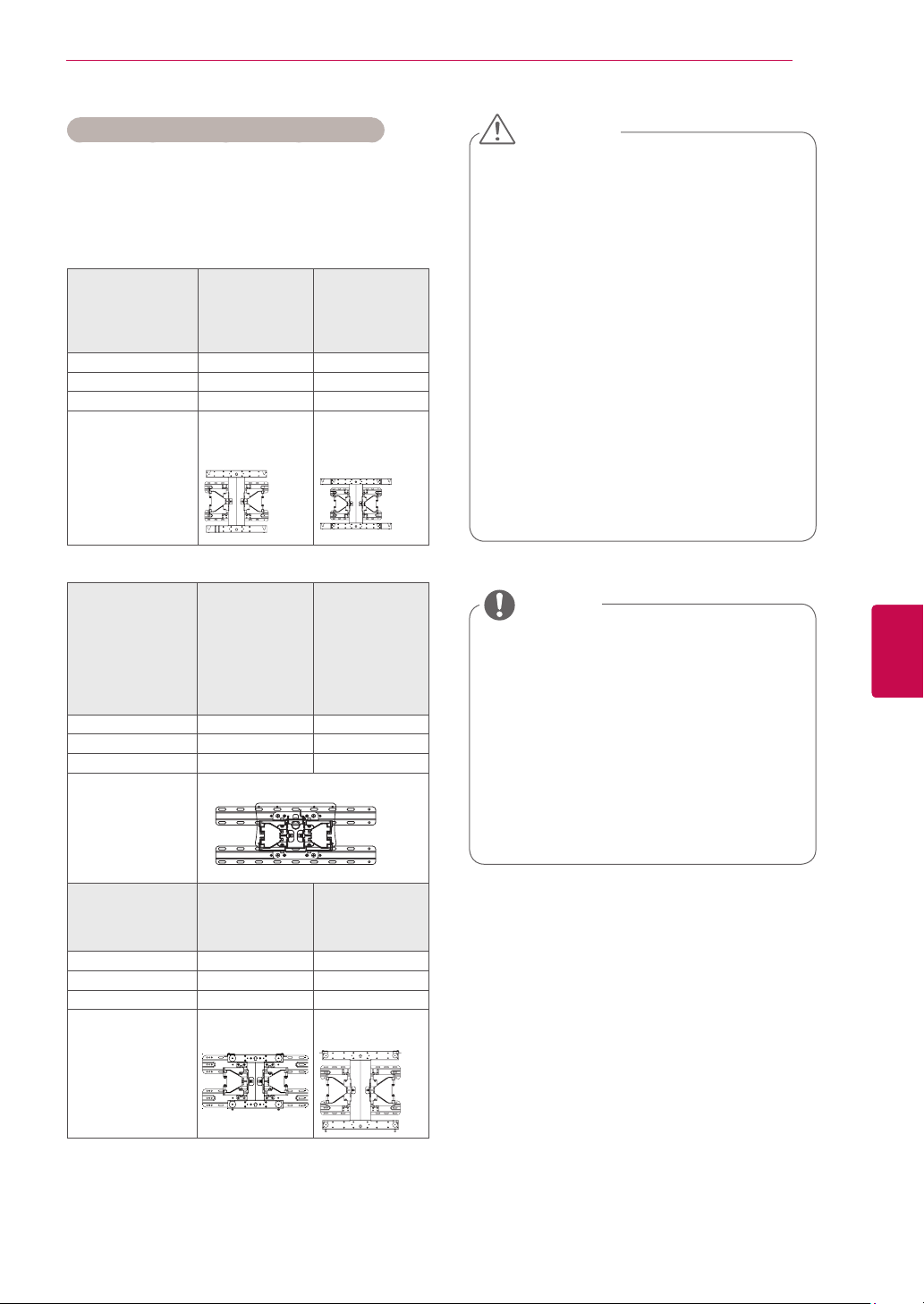
Mounting on a wall
Attach a wall mount bracket at the rear of the TV
carefully and install the wall mount bracket on a
solid wall perpendicular to the floor. When you
attach the TV to other building materials, please
contact qualified personnel.
LG recommends that wall mounting be performed
by a qualified professional installer.
10 cm
10 cm
10 cm
10 cm
27
ENGENGLISH
ASSEMBLING AND PREPARING
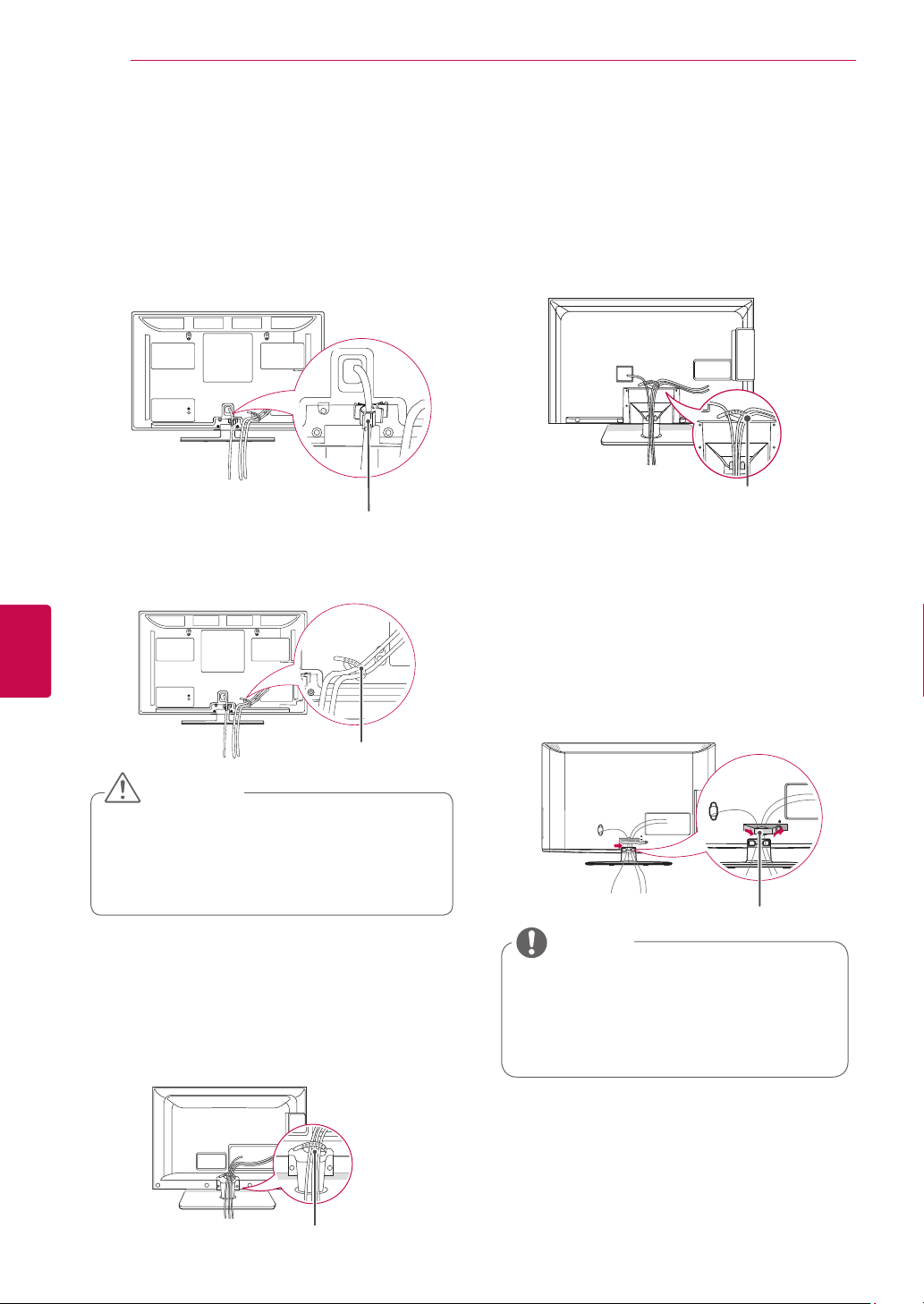
Model
VESA (A x B)
Standard screw
Number of screws
Wall mount
bracket
Model
VESA (A x B)
Standard screw
Number of screws
Wall mount
bracket
Model
VESA (A x B)
Standard screw
Number of screws
Wall mount
bracket
28
ENG
ENGLISH
ASSEMBLING AND PREPARING
Only 26/32LK33**, 32/42LK43**, 32/37/42LK45**,
42/47/55LK53**
1
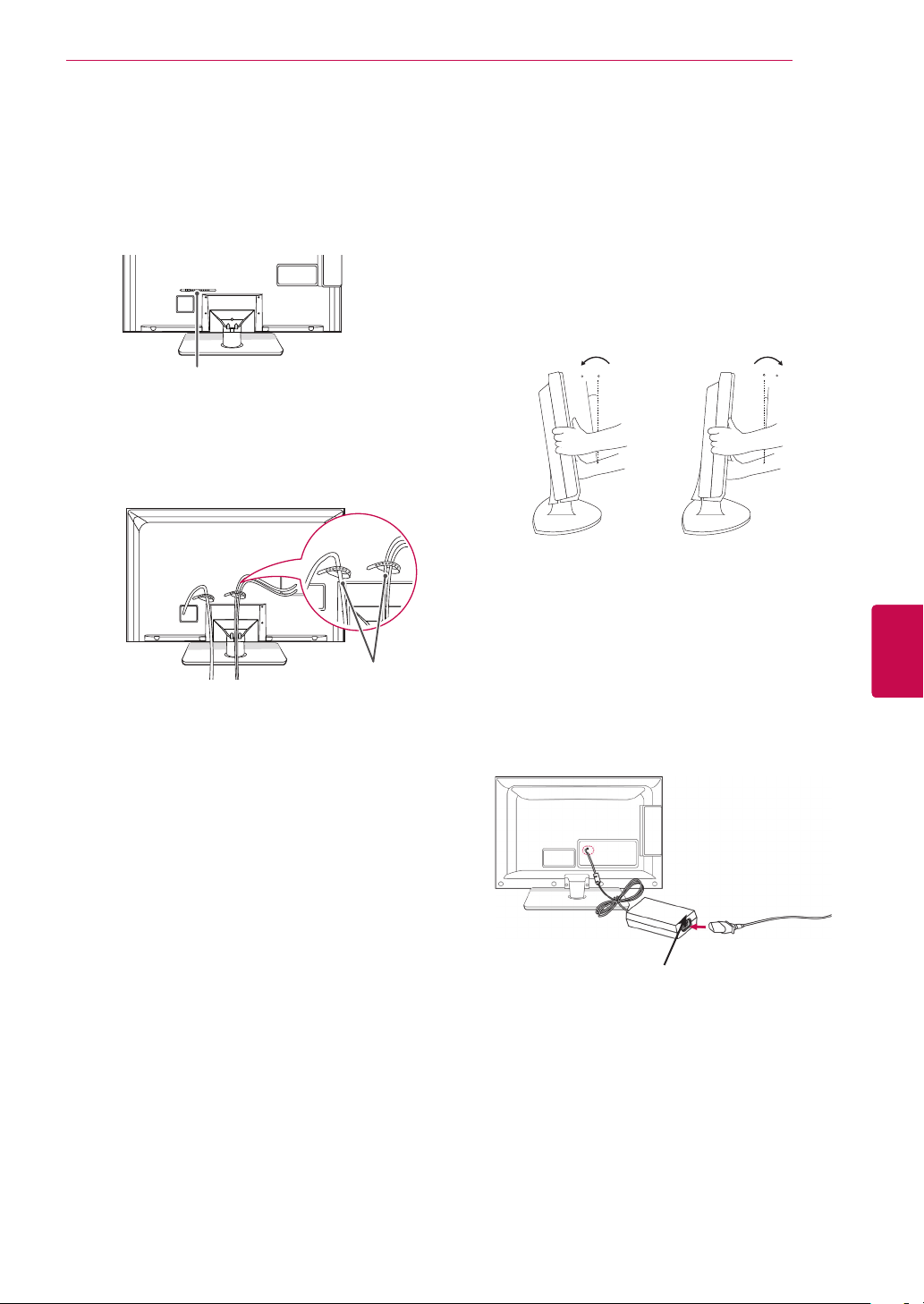
Gather and bind the cables with the cable
management clip.
2
Fix the cable management clip firmly to the TV.
Do not move the TV by holding the
cable management clip, as the cable
management clip may break, and injuries
and damage to the TV may occur.
NOTE
Only 22LK33**, 19/22/26/32LV25**, 22/26LV55**
1
After connecting the cables as necessary,
install Cable Holder as shown and bundle the
cables.
Only 32/37/42/47LV35**, 22/26/32LV30**,
32/42LV34**
1
After connecting the cables as necessary,
install Cable Holder as shown and bundle the
cables.
Cable Holder
Cable Management Clip
Cable holder
Tidying cables
Image shown may differ from your TV.
Do not move the TV by holding the Cable
Holder & Power Cord Holder, as the
Cable holders may break, and injuries
and damage to the TV may occur.
CAUTION
Only Plasma TV
1 Install the Power Cord Holder and Power
Cord. It will help prevent the power cable from
being removed by accident.
2 Gather and bind the cables with the Cable
Holder.
Power Cord Holder
Cable Holder
29
ENGENGLISH
ASSEMBLING AND PREPARING
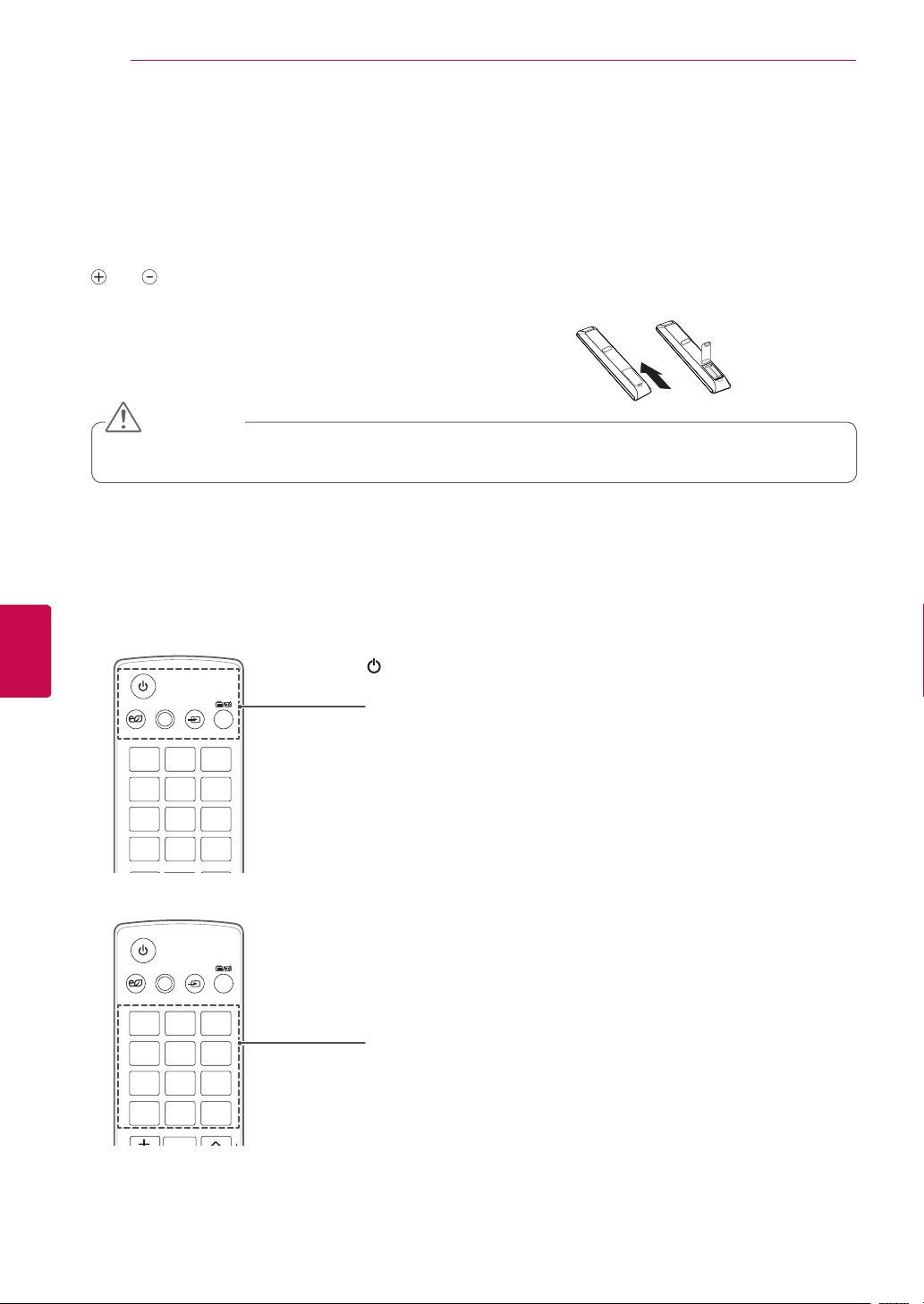
Positioning your display
Image shown may differ from your TV.
Only 22LK33**
Adjust the position of the panel in various ways for
maximum comfort.
• Tilt range
12
0
3
0
Connection of TV
DC Adapter
1
Connect the antenna cable to the antenna
input port on the TV.
2
Connect the DC adapter plug to the power
input jack on the TV.
3
Connect the power cord to the DC adapter first,
then plug the power cord into the wall power
outlet.
Only 19/22/26LV25
**,
22/26LV55
**
Image shown may differ from your TV.
2
. After connecting the cables as necessary,
install Cable Holder as shown and bundle the
cables.
1
. Secure the power cord with the Cable Holder
on the TV back cover. It will help prevent the
power cable from being removed by accident.
Cable Holder
Only 32/42/47/55LW45**
Cable Holder
30
ENG
ENGLISH
REMOTE CONTROL
REMOTE CONTROL
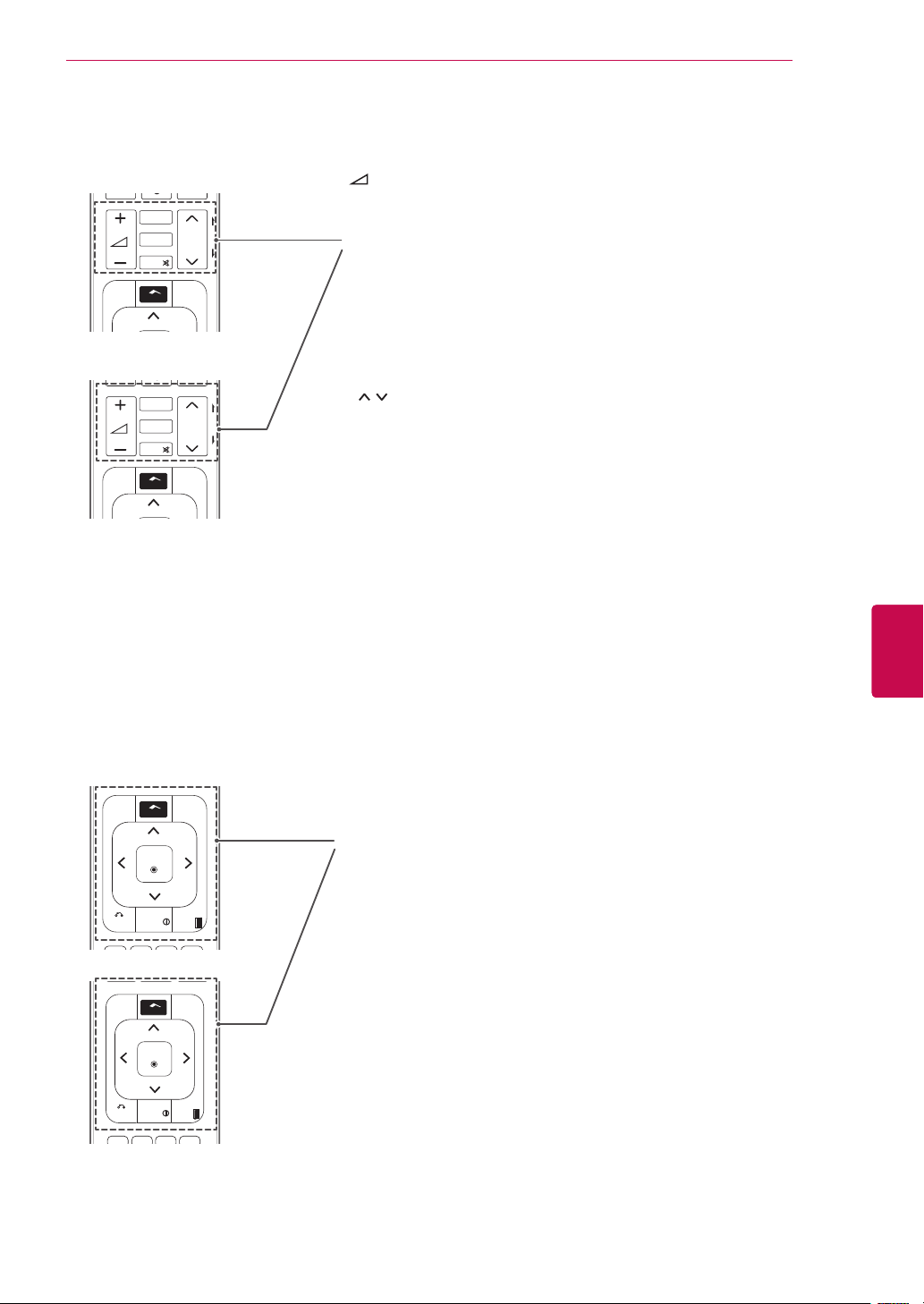
The descriptions in this manual are based on the buttons on the remote control.
Please read this manual carefully and use the TV correctly.
To replace batteries, open the battery cover, replace batteries (1.5 V AAA) matching
and ends to the label inside the compartment, and close the battery cover. Be
sure to point the remote control toward the remote control sensor on the TV.
To remove the batteries, perform the installation actions in reverse.
AV MODE INPUT
TV/
RAD
ENERGY
1 2 3
4 5 6
7 8
0
9
LIST
Q.VIEW
FAV
RATIO
MUTE
MARK
P
P
A
G
E
SAVING
BACK
EXIT
OK
GUIDE
Q.MENU
INFO
Home
FREEZE
AV MODE INPUT
TV/
RAD
ENERGY
1 2 3
4 5 6
7 8
0
9
LIST
Q.VIEW
FAV
RATIO
MUTE
MARK
P
P
A
G
E
SAVING
BACK
EXIT
OK
GUIDE
Q.MENU
INFO
Home
FREEZE
Do not mix old and new batteries, as this may damage the remote control.
CAUTION
(POWER)
Turns the TV on or off.
ENERGY SAVING (See p.67)
Adjusts the brightness of the screen to reduce energy consumption
AV MODE (See p.46)
Selects an AV mode
INPUT (See p.46)
Changes the input source; Turns the TV on.
TV/RAD
Selects Radio, TV and DTV programme.
Number buttons
Enters numbers.
LIST (See p.39)
Accesses the saved programme list.
Q.VIEW
Returns to the previously viewed programme.
Image shown may differ from your TV.
In Analogue TV and in some countries, some remote control keys may not work.
31
ENGENGLISH
REMOTE CONTROL
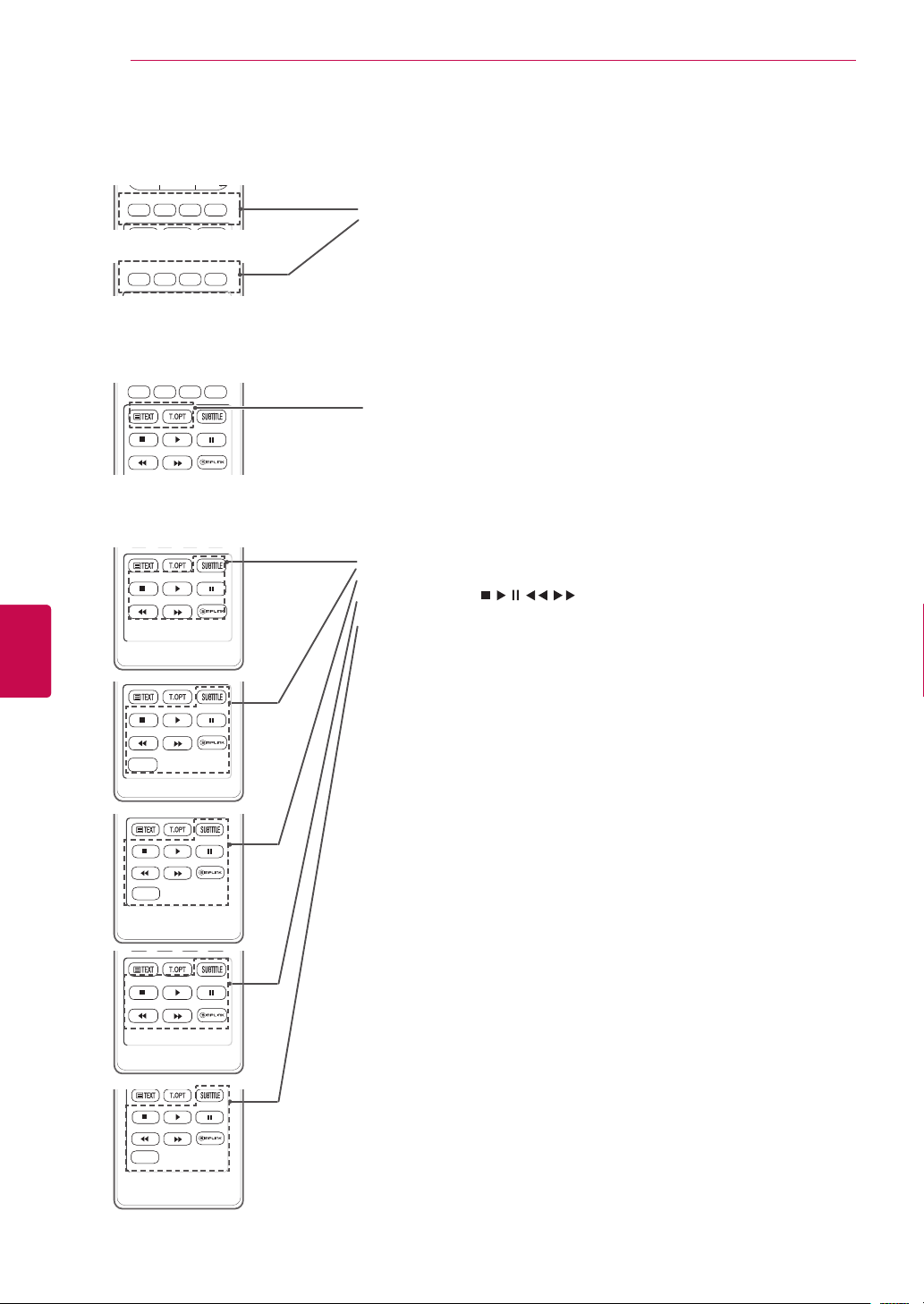
+ -
Adjusts the volume level.
MARK
Selects a menu or option.
FAV (See p.40)
Accesses your favourite programme list
3D(See p.51)(Only 3D Models)
Used for viewing 3D video.
RATIO (See p.45)
Resizes an image
MUTE
Mutes all sounds.
P
Scrolls through the saved programmes.
PAGE
Moves to the previous or next screen.
AV MODE INPUT
TV/
RAD
ENERGY
1 2 3
4 5 6
7 8
0
9
LIST
Q.VIEW
FAV
RATIO
MUTE
MARK
P
P
A
G
E
SAVING
BACK
EXIT
OK
GUIDE
Q.MENU
INFO
Home
FREEZE
AV MODE INPUT
TV/
RAD
ENERGY
1 2 3
4 5 6
7 8
0
9
LIST
Q.VIEW
FAV
3D
RATIO
MUTE
MARK
P
P
A
G
E
SAVING
BACK
EXIT
OK
GUIDE
Q.MENU
INFO
FREEZE
3D SETTING
Home
GUIDE
Shows programme guide.
Home
Accesses the main menus, or saves your input and exit the menus.
Q. MENU (See p.48)
Accesses the quick menus
3D OPTION(Only 32/42/47/55LW45**)
Uses for viewing 3D video.
Navigation buttons (up/down/left/right)
Scrolls through menus or options.
OK
Selects menus or options and confirms your input.
BACK
Returns to the previous level.
INFO (See p.41)
Views the information of the current programme and screen.
EXIT
Clears all on-screen displays and return to TV viewing.
AV MODE INPUT
TV/
RAD
ENERGY
1 2 3
4 5 6
7 8
0
9
LIST
Q.VIEW
FAV
RATIO
MUTE
MARK
P
P
A
G
E
SAVING
BACK
EXIT
OK
GUIDE
Q.MENU
INFO
Home
FREEZE
AV MODE INPUT
TV/
RAD
ENERGY
1 2 3
4 5 6
7 8
0
9
LIST
Q.VIEW
FAV
3D
RATIO
MUTE
MARK
P
P
A
G
E
SAVING
BACK
EXIT
OK
GUIDE
Q.MENU
INFO
Home
3D OPTION
32
ENG
ENGLISH
REMOTE CONTROL
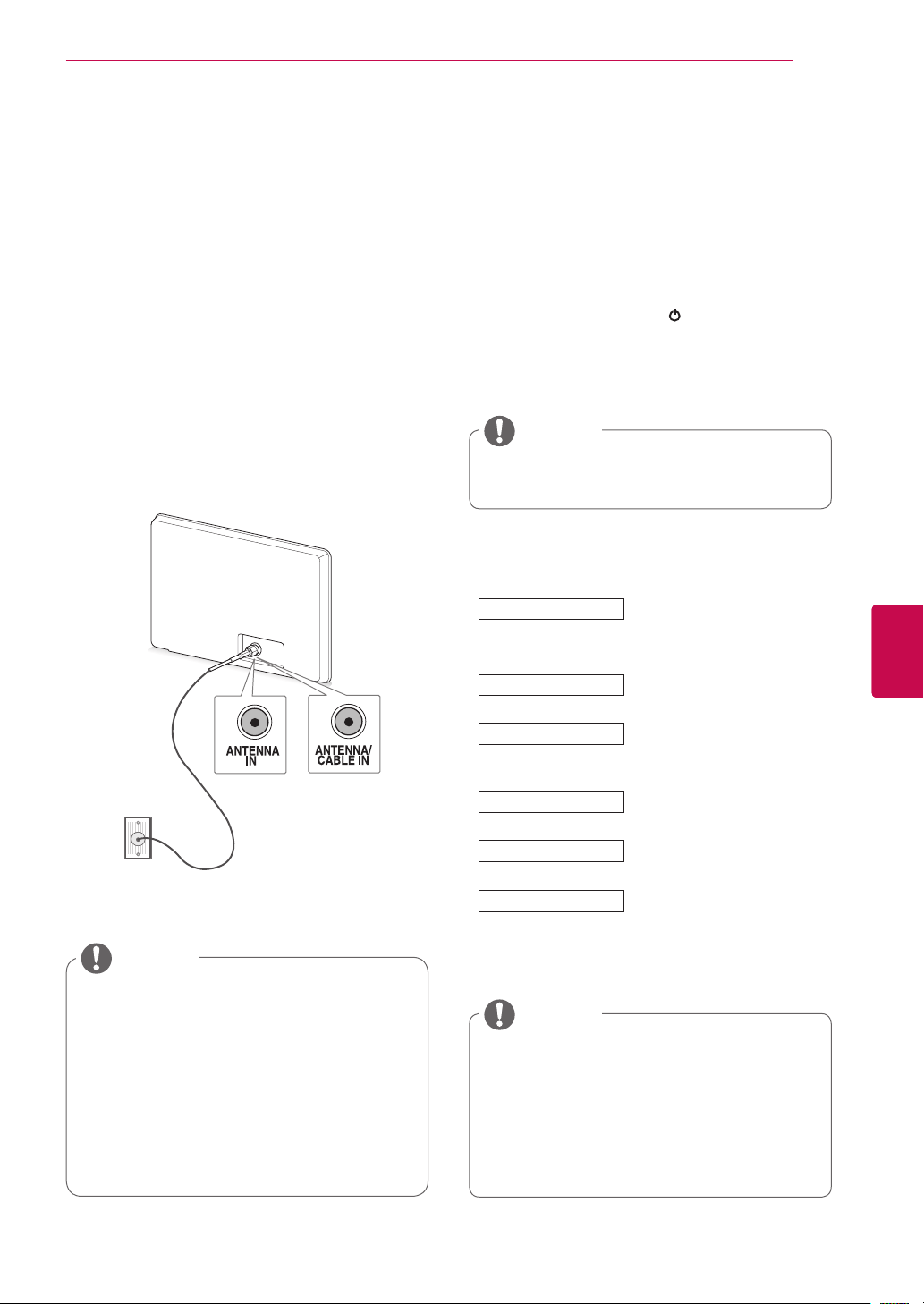
Coloured buttons
These buttons are used for teletext (on TELETEXT models only),
Programme edit.
3D SETTING(Only 42/50PW35**, 42/50PW45**, 50/60PZ55**)
Use this to view 3D video.
TELETEXT BUTTONS (See p.89)
These buttons are used for teletext.
For further details, see the ‘Teletext’ section.
SUBTITLE
Recalls your preferred subtitle in digital mode.
Control buttons(
, , , , )
Controls the MY MEDIA menus, or the SIMPLINK compatible devices
(USB,SIMPLINK).
FREEZE(Only Plasma TV)
Freezes the current frame while using the TV, AV, Component, RGB-PC, or
HDMI input source.
SIMPLINK (See p.88)
Accesses the AV devices connected to the TV;
Opens the SIMPLINK menu.
RATIO (See p.45)
Resizes an image
AD(Only 22/26LV55**)
Switches the Audio Description On or Off.
AV MODE INPUT
TV/
RAD
ENERGY
1 2 3
4 5 6
7 8
0
9
LIST
Q.VIEW
FAV
3D
RATIO
MUTE
MARK
P
P
A
G
E
SAVING
BACK
EXIT
OK
GUIDE
Q.MENU
INFO
Home
3D OPTION
AV MODE INPUT
TV/
RAD
ENERGY
1 2 3
4 5 6
7 8
0
9
LIST
Q.VIEW
FAV
RATIO
MUTE
MARK
P
P
A
G
E
SAVING
BACK
EXIT
OK
GUIDE
Q.MENU
INFO
Home
AV MODE INPUT
TV/
RAD
ENERGY
1 2 3
4 5 6
7 8
0
9
LIST
Q.VIEW
FAV
RATIO
MUTE
MARK
P
P
A
G
E
SAVING
BACK
EXIT
OK
GUIDE
Q.MENU
INFO
Home
FREEZE
AV MODE INPUT
TV/
RAD
ENERGY
1 2 3
4 5 6
7 8
0
9
LIST
Q.VIEW
FAV
RATIO
MUTE
MARK
P
P
A
G
E
SAVING
BACK
EXIT
OK
GUIDE
Q.MENU
INFO
Home
FREEZE
AV MODE INPUT
TV/
RAD
ENERGY
1 2 3
4 5 6
7 8
0
9
LIST
Q.VIEW
FAV
RATIO
MUTE
MARK
P
P
A
G
E
SAVING
BACK
EXIT
OK
GUIDE
Q.MENU
INFO
Home
FREEZE
AV MODE INPUT
TV/
RAD
ENERGY
1 2 3
4 5 6
7 8
0
9
LIST
Q.VIEW
FAV
3D
RATIO
MUTE
MARK
P
P
A
G
E
SAVING
BACK
EXIT
OK
GUIDE
Q.MENU
INFO
FREEZE
3D SETTING
Home
AV MODE INPUT
TV/
RAD
ENERGY
1 2 3
4 5 6
7 8
0
9
LIST
Q.VIEW
FAV
RATIO
MUTE
MARK
P
P
A
G
E
SAVING
BACK
EXIT
OK
GUIDE
Q.MENU
INFO
AD
Home
AV MODE INPUT
TV/
RAD
ENERGY
1 2 3
4 5 6
7 8
0
9
LIST
Q.VIEW
FAV
3D
RATIO
MUTE
MARK
P
P
A
G
E
SAVING
BACK
EXIT
OK
GUIDE
Q.MENU
INFO
FREEZE
3D SETTING
Home
33
ENGENGLISH
WATCHING TV
WATCHING TV
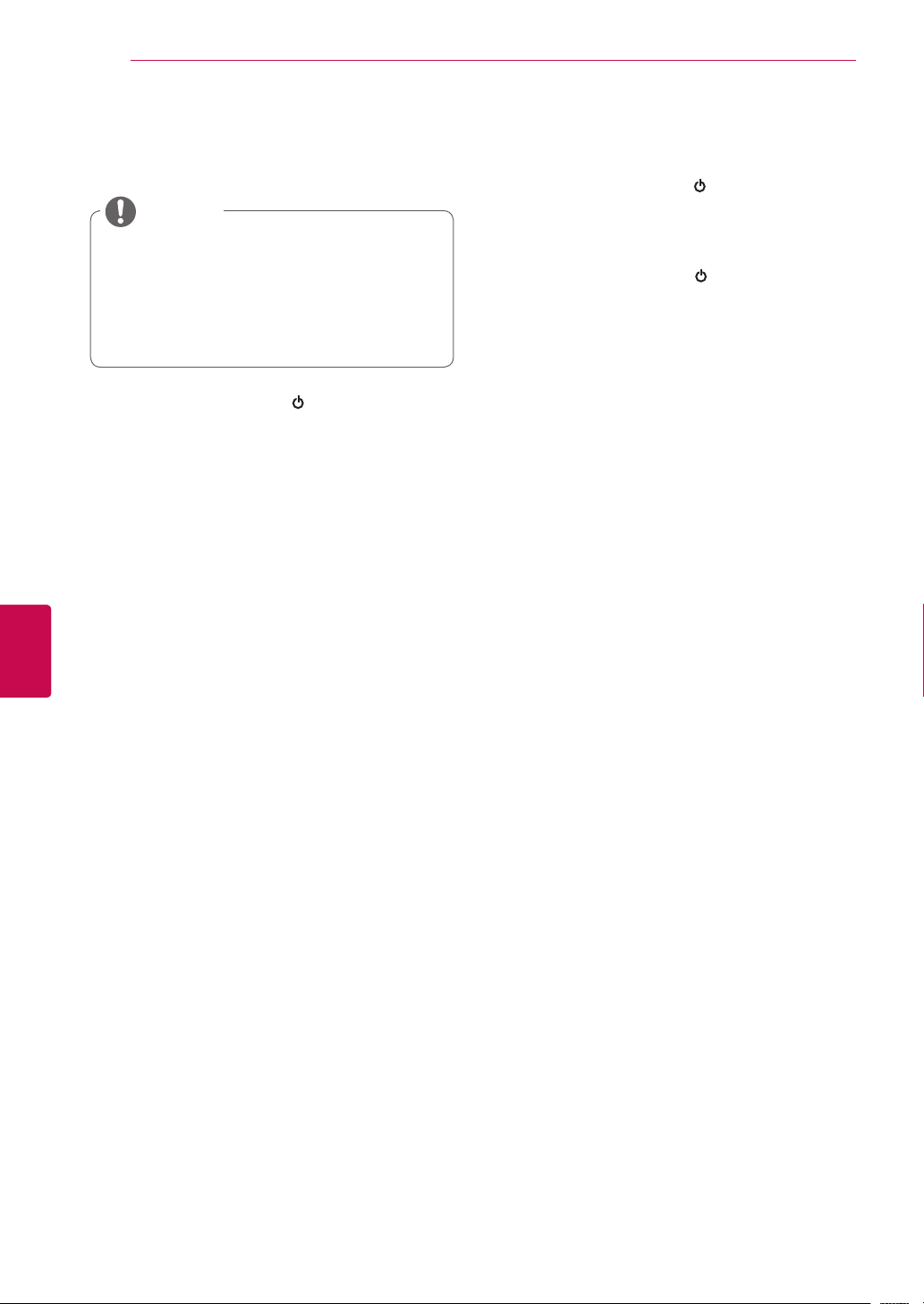
Connecting an antenna
Connect an antenna to watch TV while referring to
the following.
To prevent damage do not connect to the mains
outlet until all connections are made between the
devices.
Connect the TV to a wall antenna socket with an
RF cable (75 Ω).
Image shown may differ from your TV.
Use a signal splitter to use more than 2
TVs.
If the image quality is poor, install a signal
amplifier properly to improve the image
quality.
If the image quality is poor with an
antenna connected, aim the antenna to
the correct direction.
An antenna cable and converter are not
supplied.
NOTE
Turning the TV on for the first
time
When you turn the TV on for the first time, the
Initial setting screen appears. Select a language
and customize the basic settings.
1
Connect the power cord to a power outlet.
2
In Standby mode, press
(POWER) to turn
the TV on.
The Initial setting screen appears if you turn
the TV on for the first time.
You can also access Factory Reset by
accessing OPTION in the main menus.
NOTE
3
Follow the on-screen instructions to customize
your TV settings according to your preferences.
Language
Selects a language to display.
(Except for Australia, New
Zealand, Singapore, South
Africa),
Mode Setting
Selects Home Use for the
Home environment.
Power Indicator
Sets the power indicator.
(When you select Home Use
from the Mode Setting - only
LED LCD TV)
Country
Selects a country to display.
(Only Australia, New Zealand)
Time Zone
Selects a Time Zone to
display.(Only Australia)
Auto Tuning
Scans and saves available
channels automatically.
DTV mode control buttons may not
function based on country broadcasting
circumstances. (Only DTV)
In country that Digital broadcasting
regulation isn’t fixed, some DTV function
may not work depending on digital
broadcasting circumstances. (Only DTV)
NOTE
Wall Antenna
Socket
or
34
ENG
ENGLISH
WATCHING TV
4 When the basic settings are complete,
press OK.
If you do not complete the Initial setting, it
will appear whenever the TV turns on.
Disconnect the power cord from the
power outlet when you do not use the TV
for a long period of time.
NOTE
5 To turn the TV off, press
(POWER) .
Watching TV
1
In Standby mode, press
(POWER) to turn
the TV on.
2
Press INPUT and select Antenna.
3
To turn the TV off, press
(POWER) .
The TV switches to Standby mode.
35
ENGENGLISH
WATCHING TV
Managing programmes
Use this to automatically find and store all avail-
able programmes.
When you start auto programming, all previously
stored service information will be deleted.
1 Press Home to access the main menus.
2 Press the Navigation buttons to scroll to
SETUP and press OK.
3 Press the Navigation buttons to scroll to
Auto Tuning and press OK.
4 Select Start to start automatic tuning.
The TV scans and saves available pro-
grammes automatically.
5 When you are finished, press EXIT.
When you return to the previous menu, press
BACK.
NOTE
If the TV scans a blocked programme, you
will be prompted to enter your password to
keep the programme scanned.
If you wish to keep on auto tuning select
Start using the Navigation buttons. Then,
press the OK button. Otherwise select
Close.
Automatic Numbering: Decide whether
to use the programme numbers as sent by
broadcasting stations for tuning. (Only DTV)
Automatically setting up
programme
1 Press Home to access the Main menus.
2 Press the Navigation buttons to scroll to
SETUP and press OK.
3 Press the Navigation buttons to scroll to
Manual Tuning and press OK.
4 Press the Navigation buttons to scroll to DTV
and press OK.
5 Scroll through the programme types, and then
add or delete programmes.
6 When you are finished, press EXIT.
When you return to the previous menu, press
BACK.
Manually setting up programme (In
digital mode) (Only DTV)
Manual Tuning lets you manually add a pro-
gramme to your programme list.
NOTE
If the TV scans a blocked programme, you
will be prompted to enter your password to
keep the programme scanned.
36
ENG
ENGLISH
WATCHING TV
NOTE
If the TV scans a blocked programme, you
will be prompted to enter your password to
keep the programme scanned.
BG : PAL B/G (New Zealand / South Africa
/ Singapore / Indonesia / Israel / Malaysia /
Vietnam / Asia)
DK : PAL D/K (New Zealand / South Africa /
Singapore / Indonesia / Israel / Malaysia /
Vietnam / Asia)
I : PAL I/II (New Zealand / South Africa /
Singapore / Indonesia / Israel / Malaysia /
Vietnam / Asia)
B/B : Australia
M : NTSC-M (South Africa / Indonesia /
Israel / Malaysia / Vietnam / Asia)
To store another channel, repeat steps 6 to
10.
Manually setting up programme (In
analogue mode)
Manual Tuning lets you manually tune and arrange
the stations in whatever order you desire.
1 Press Home to access the main menus.
2 Press the Navigation buttons to scroll to
SETUP and press OK.
3 Press the Navigation buttons to scroll to
Manual Tuning and press OK.
4 Press the Navigation buttons to scroll to
TV and press OK. (Only DTV)
5 Press the Navigation buttons or Number but-
tons to scroll to the desired programme Stor-
age.
6 Press the Navigation buttons to scroll to
TV System. (Except for Australia)
7 Press the Navigation buttons to scroll to
V/UHF or Cable.
8 Press the Navigation buttons or Number but-
tons to scroll to the desired channel number.
9 Press the Navigation buttons to scroll and start
searching.
10 Press the Navigation buttons to scroll to
Store and press OK.
11 When you are finished, press EXIT.
When you return to the previous menu, press
BACK.
Assigning a station name
You can assign a station name with five characters
to each programme number.
1 Press Home to access the main menus.
2 Press the Navigation buttons to scroll to
SETUP and press OK.
3 Press the Navigation buttons to scroll to
Manual Tuning and press OK.
4 Press the Navigation buttons to scroll to
TV. (Only DTV)
5 Press the Navigation buttons to scroll to
Name and press OK.
6 Press the Navigation buttons to scroll Select
the position and make your choice of the sec-
ond character, and so on. You can use an the
alphabet A to Z, the number 0 to 9, +/ -, and
blank and press OK.
7 Press the Navigation buttons to scroll to
Close and press OK.
8 Press the Navigation buttons to scroll to
Store and press OK
9 When you are finished, press EXIT.
When you return to the previous menu, press
BACK.

37
ENGENGLISH
WATCHING TV
Editing your programme list
1 Press Home to access the main menus.
2 Press the Navigation buttons to scroll to
SETUP and press OK.
3 Press the Navigation buttons to scroll to Pro-
gramme Edit and press OK.
4 Press the Navigation buttons to select a pro-
gramme to be stored or skipped.
5 When you are finished, press EXIT.
When you return to the previous menu, press
BACK.
Fine Tuning
Normally fine tuning is only necessary if reception
is poor.
When a programme number is skipped, it means
that you will be unable to select it using P
^
v
but-
ton during TV viewing.
If you wish to select the skipped programme,
directly enter the programme number with the
NUMBER buttons or select it in the Programme
edit menu.
This function enables you to skip the stored pro-
grammes.
You can change the programme number using
“Move”function, if “Automatic Numbering” is un-
checked when you start Auto Tuning (Only DTV).
1 Press Home to access the main menus.
2 Press the Navigation buttons to scroll to
SETUP and press OK.
3 Press the Navigation buttons to scroll to
Manual Tuning and press OK.
4 Press the Navigation buttons to scroll to
TV. (Only DTV)
5 Press the Navigation buttons to scroll to
Fine.
6 Fine tune for the best picture and sound.
7 Press the Navigation buttons to scroll to
Store and press OK
8 When you are finished, press EXIT.
When you return to the previous menu, press
BACK.
38
ENG
ENGLISH
WATCHING TV
In TV mode
1 Press the Navigation buttons to scroll to select
a programme number to be deleted.
2 Press Red button to turn the programme
number.
NOTE
The selected programme is deleted, all the
following programmes are shifted up one.
Deleting a programme
1 Press the Navigation buttons to scroll to select
a programme number to be moved.
2 Press the Green button to turn the programme
number and press the Navigation buttons.
3 Press Green button to release.
Moving a programme
In DTV/RADIO mode
1 Press the Navigation buttons to scroll to select
a programme number to be skipped.
2 Press Blue button to turn the programme
number.
3 Press Blue button to release.
NOTE
When programmes are to be skipped, the
skipped programme shows in blue and these
programmes will not be selected by the P
^
v
buttons during TV viewing.
If you wish to select a skipped programme,
directly enter the programme number with
the NUMBER buttons or select it in the pro-
gramme edit or EPG.
Skipping a programme number
1 Press the Navigation buttons to scroll to select
a programme number to be locked.
2 Press
Yellow button
to
turn the programme
number.
3 Press
Yellow button
to release.
NOTE
It can be registered as Lock programme
even when Lock System is turned Off.
Locking a programme number
1 Press the Navigation buttons to scroll to select
a programme number to be skipped.
2 Press Blue button to turn the programme
number.
3 Press Blue button to release.
NOTE
When programmes are to be skipped, the
skipped programme shows in blue and these
programmes will not be selected by the P
^
v
buttons during TV viewing.
If you wish to select a skipped programme,
directly enter the programme number with
the NUMBER buttons or select it in the pro-
gramme edit.
Skipping a programme number
39
ENGENGLISH
WATCHING TV
1 Press the Navigation buttons to scroll to select
a programme number to be locked.
2 Press
Yellow button
to
turn the programme
number.
3 Press
Yellow button
to release.
NOTE
It can be registered as Lock programme
even when Lock System is turned Off.
Locking a programme number
1 Press the Navigation buttons to scroll to select
your desired programme.
2
Press the FAV to add corresponding
programme to Favourite list of current Favourite
group.
3
Press FAV
to release.
Selecting favourite programme
1 Press the Navigation buttons to scroll to select
your desired programme.
2
Press the Q.MENU to
display a pop-up window
where Favourite group can be changed.
3 Press the Navigation buttons to scroll to select
a Favourite group and press OK.
Selecting favourite programme group
Selecting the programme list
1 Press the Navigation buttons to select pro-
gramme.
2 Press OK to switch to the chosen programme
number.
You can check which programmes are stored in
the memory by displaying the programme list.
Displaying programme LIST
1 Press LIST to access the Programme List.
2 Press Blue button to turn the programme edit.
NOTE
You may find some blue programmes. These
have been set up to be skipped by auto pro-
gramming or in the programme edit mode.
Some programmes with the channel number
shown in the programme LIST indicate there
is no station name assigned.
Selecting a programme in the programme list
NOTE
Press TV/RAD in Digital TV. (The mode will
be switched between TV, DTV, and Radio
from the programme you are currently
watching.)
40
ENG
ENGLISH
WATCHING TV
Paging through a programme list
Displaying the favourite programme list
1 Press the P
^
v
buttons to turn the pages.
2 Press LIST to return normal TV viewing.
1 Press FAV to access the Favourite Programme
List.
2 When you are finished, press EXIT.
Button Description
Blue button
Turn the programme edit.
Yellow
button
Current channel is registered/
cancelled as preferred channel on
currently selected Group.
OK Selects a programme to view
<
> Favourite group is changed.
41
ENGENGLISH
WATCHING TV
EPG (Electronic Program
Guide) (In digital mode)
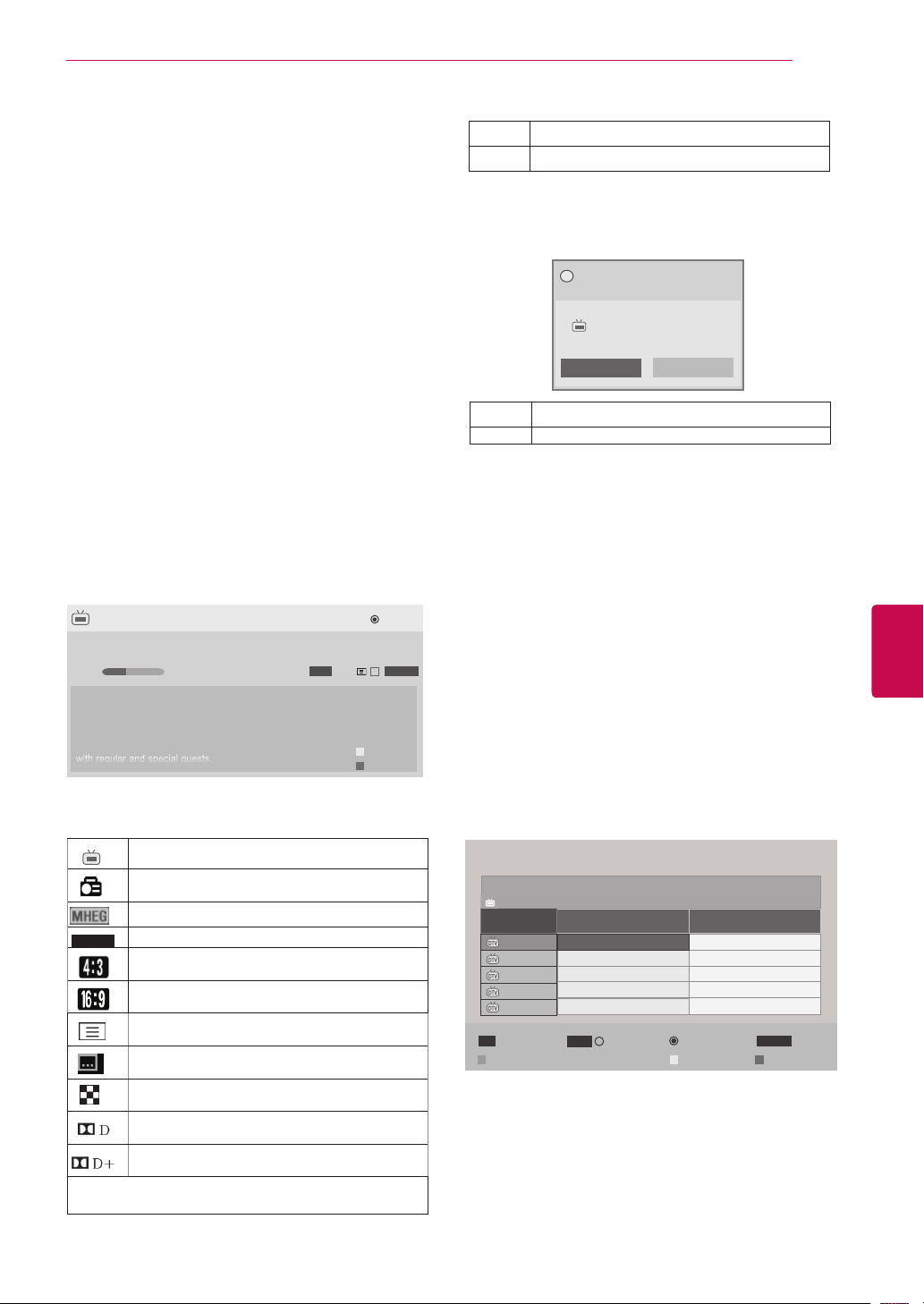
DTV 1 TV ONE
Good Morning
21:00 00:00 Show/Game Show
►
Watch
► Next
Pr. Change
►
16:9
HE-AAC
720p
...
▼
Up
Down
Sarah Bradley, Steve Gray and Brendon Pongia present the
latest in fashion, the arts, entertainment, lifestyle and cooking,
with regular and special guests.
Sarah Bradley, Steve Gray and Brendon Pongia present the
latest in fashion, the arts, entertainment, lifestyle and cooking,
with regular and special guests.
Press INFO to show current programme
information.
Displayed with a TV or DTV Programme.
Displayed with a Radio Programme.
Displayed with a MHEG Programme.
HE-AAC
C
Displayed with a HE-AAC Programme.
Aspect ratio of broadcasting programme.
Aspect ratio of broadcasting programme.
Displayed with a Teletext Programme.
Displayed with a Subtitle Programme.
Displayed with a Scramble Programme.
Displayed with a Dolby Digital Programme.
Displayed with a Dolby Digital PLUS
Programme.
576i/p, 720p, 1080i/p : Resolution of broadcasting pro-
gramme
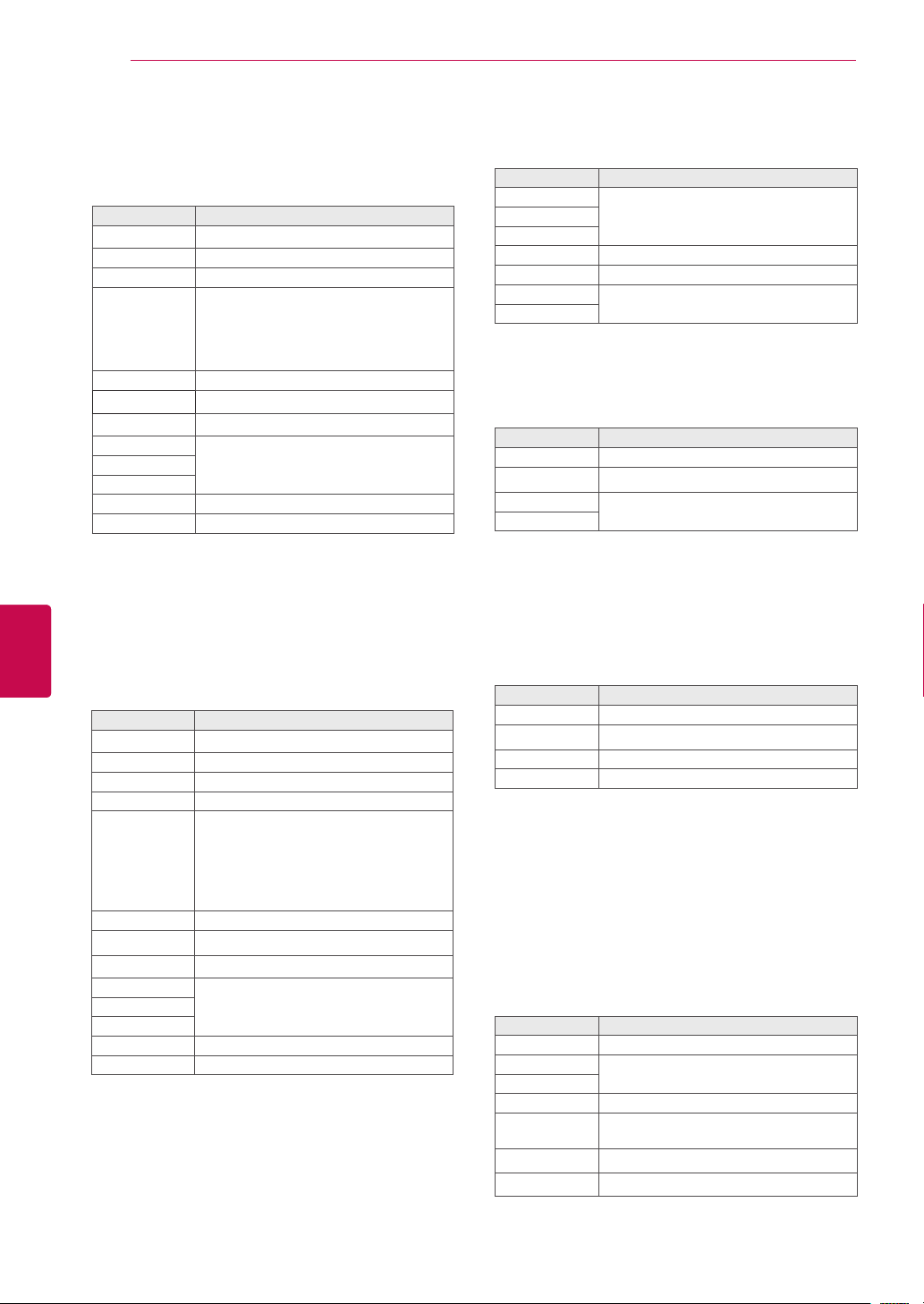
Programme Guide
ALL
NOW
NEXT
1 YLE TV1
Keno
World Business
2 YLE TV2
4 TV..
Your World Today
Fantomen
Legenen om Den....
Kritiskt
Naturtimmen
ABC
Lyssna
5 YLE FST
6 CNN
▲
That ’70s show
DTV 1 YLE TV1 25 Nov. 2008 09:45~10:15
25 Nov. 2008 10:05
RADIOWatch/Schedule
TV/RAD
Favourite
FAV
Manual Timer Schedule List
i Information
INFO
Mode
That ’70s show
Switch on/off EPG
1 Press GUIDE to switch on or off EPG.
Select a programme
1 Press Navigation buttons or P
^
v
to select
desired programme.
OK A pop-up window for remind settings appear.
< > Select Timer Remind setting mode.
> Shows next programme information.
^
v
Shows other programme information.
Yes No
Do you want to set a reminder for the
selected programme?
?
Bob The Builder Special
DTV 1 ABC TV Sydney
22 Dec. 2009 10:15~10:58
This feature is disabled in New Zealand.
This system has an Electronic Programme Guide
(EPG) to help your navigation through all the
possible viewing options.
The EPG supplies information such as programme list-
ings, start and end times for all available services. In
addition, detailed information about the programme is
often available in the EPG (the availability and amount
of these programme details will vary, depending on the
particular broadcaster).
This function can be used only when the EPG informa-
tion is broadcast by broadcasting companies.
The EPG displays the programme details for next 8
days.
You must set the Clock in the Time menu, before us-
ing EPG function.
Image shown may differ from your TV.
42
ENG
ENGLISH
WATCHING TV
NOW/NEXT Guide Mode
You can view a programme being broadcasted and
one scheduled to follow.
Button Description
Red button Change EPG mode.
Yellow button Enter Manual Timer mode.
Blue button Enter Schedule List mode.
OK
When ‘Now’ is selected, it is moved to
selected programme and EPG disap-
pears
When ‘Next’ is selected, a reservation
pop-up window appears.
< > Select NOW or NEXT Programme.
^
v
Select the Broadcast Programme.
P
^
v
Page Up/Down.
GUIDE
Switch off EPG.BACK
EXIT
TV/RAD Select DTV or RADIO Programme.
INFO Detail information on or off.
Extended Description Box
Button Description
GUIDE The detail information on or off.
^
v
Text Up/Down.
GUIDE
Switch off EPG.
EXIT
Date Change Mode
Button Description
Green button
Switch off Date setting mode.v
BACK
OK Change to the selected date.
< > Select a date.
GUIDE
Switch off EPG.
EXIT
Remind Setting Mode
Button Description
BACK Switch off Manual Timer mode.
^
v
Select Remind function setting.
< > Select Start Time or Programme.
OK Save Timer Remind.
Schedule List Mode
If you’ve created a schedule list, a scheduled pro-
gramme is displayed at the scheduled time even
when you are watching a different programme at the
time.
Button Description
Yellow button Change to Manual Timer mode.
Blue button
Change to Guide mode.
GUIDE
BACK Switch off Schedule List.
OK
Select your desired Option (Modify/
Delete/Delete All).
^
v
Select programme.
P
^
v
Page Up/Down.
8 Day Guide Mode
Button Description
Red button Change EPG mode.
Green button Enter Date setting mode.
Yellow button Enter Manual Timer mode.
Blue button Enter Schedule List mode.
OK
When ‘Currently broadcasting pro-
gramme is selected, it is moved to se-
lected programme and EPG disappears
When ‘Future broadcasting programme
is selected, a reservation pop-up window
appears.
< > Select Programme.
^
v
Select the Broadcast Programme.
P
^
v
Page Up/Down.
GUIDE
Switch off EPG.BACK
EXIT
TV/RAD Select DTV or RADIO Programme.
INFO Detail information on or off.
43
ENGENGLISH
WATCHING TV
MHEG (Multimedia and
Hypermedia Information
coding Expert Group) (In
digital mode)
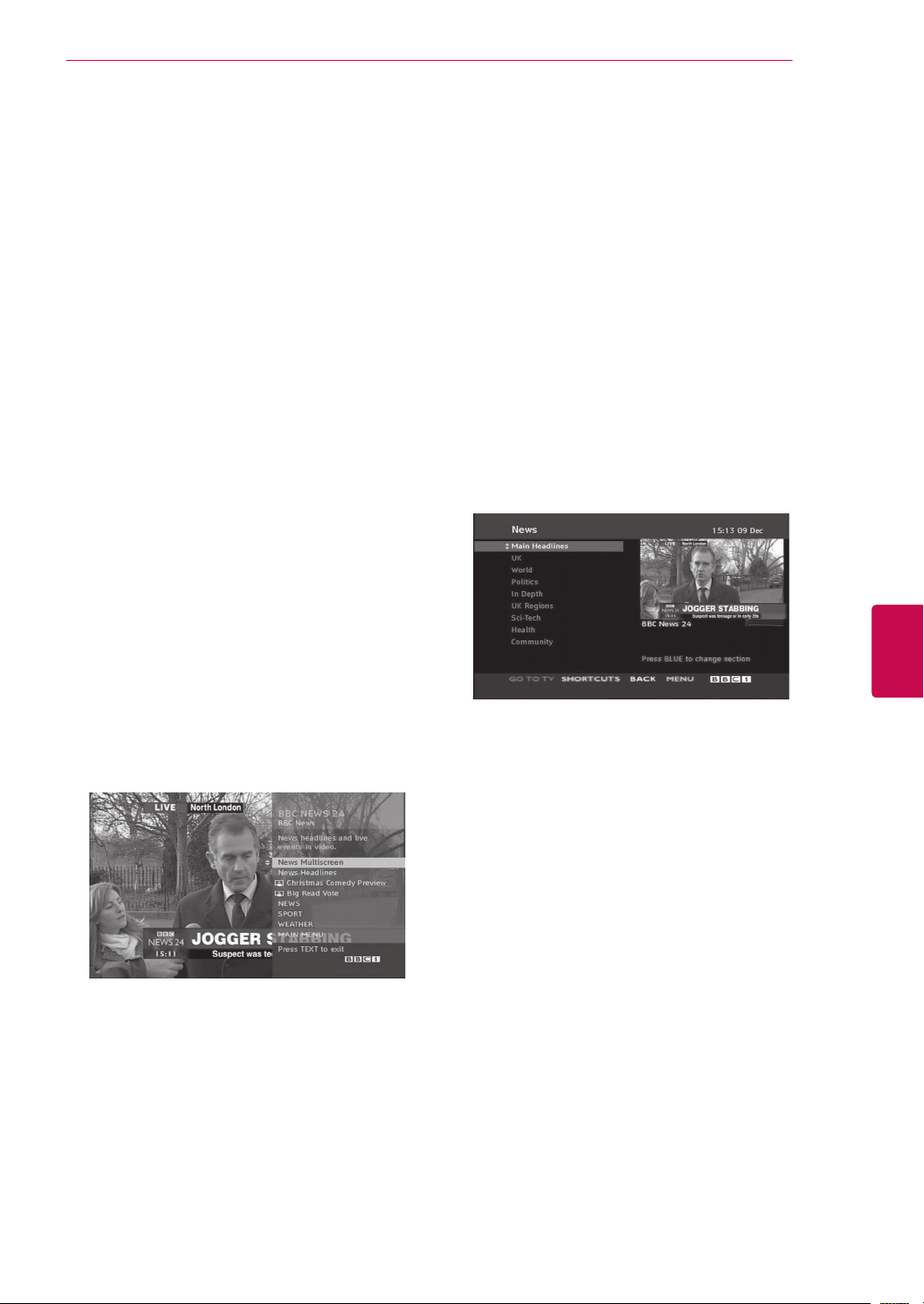
This feature is not available for all country.
The TV gives you access to digital teletext which is
greatly improved in various aspects such as text,
graphics etc.
This digital teletext can access special digital tele-
text services and specific services which broad-
cast digital teletext.
Teletext Within Digital Service
1 Press the numeric or P
^
v
button to select a
digital service which broadcasts digital teletext.
2 Follow the indications on digital teletext and
move onto the next step by pressing TEXT,
OK, Navigation buttons, RED, GREEN,
YELLOW, BLUE or NUMBER buttons and etc.
3 To change digital teletext service, select a dif-
ferent service by the numeric or P
^
v
button.
Teletext in Digital Service
1 Press the numeric or P
^
v
button to select
a certain service which broadcasts digital
teletext.
2 Press the TEXT or coloured button to switch on
teletext.
3 Follow the indications on digital teletext and
move onto the next step by pressing OK,
Navigation buttons, RED, GREEN, YELLOW,
BLUE or NUMBER buttons and so on.
4 Press the TEXT or colour button to switch off
digital teletext and return to TV viewing.
Some services may allow you to access text
services by pressing the RED button.

44
ENG
ENGLISH
WATCHING TV
This feature is enabled only in New Zea-
land.
- In New Zealand, pressing the Guide key will
display MHEG EPG provided by New Zea-
land on the screen.
This system has an MHEG(Multimedia and hyper-
media information coding expert group) to help
your navigation through all the possible viewing
options.
DTV 1 TV ONE
Good Morning
21:00 00:00 Show/Game Show
►
Watch
► Next
Pr. Change
►
16:9
HE-AAC
720p
...
▼
Up
Down
Sarah Bradley, Steve Gray and Brendon Pongia present the
latest in fashion, the arts, entertainment, lifestyle and cooking,
with regular and special guests.
Sarah Bradley, Steve Gray and Brendon Pongia present the
latest in fashion, the arts, entertainment, lifestyle and cooking,
with regular and special guests.
Press INFO to show current programme
information.
Displayed with a TV or DTV Programme.
Displayed with a Radio Programme.
Displayed with a MHEG Programme.
HE-AAC
AC
Displayed with a HE-AAC Programme.
Aspect ratio of broadcasting programme.
Aspect ratio of broadcasting programme.
Displayed with a Teletext Programme.
Displayed with a Subtitle Programme.
Displayed with a Scramble Programme.
Displayed with a Dolby Digital Programme.
Displayed with a Dolby Digital PLUS
Programme.
576i/p, 720p, 1080i/p : Resolution of broadcasting pro-
gramme
Select a programme
1 Press Navigation buttons to preview the Broad-
cast Programme Information.
2 Press Navigation buttons to change to desired
channel.
3 Press OK to remove MHEG after moving to a
selected channel.
Programme Listing Mode
Button Description
^
v
Select the Broadcast Programme
Information.
< > Select Channel.
Yellow button Change to Next Week or Previous Day.
Blue button Change to Next Day or Today.
OK
The MHEG will disappear after
moving to a selected channel.
GUIDE Change to Now/Next mode.
BACK Switch off MHEG.
INFO Detail information on or off.
Next Week
EPG/Guide
Switch on/off MHEG
1 Press GUIDE to switch on or off MHEG.
NOW/NEXT Guide Mode
You can view a channel being broadcasted and
one scheduled to follow.
Button Description
^
v
Select desired channel.
OK
The MHEG will disappear after moving
to a selected channel.
GUIDE Change to Listing mode.
BACK Switch off MHEG.
INFO Detail information on or off.
45
ENGENGLISH
WATCHING TV
Using additional options
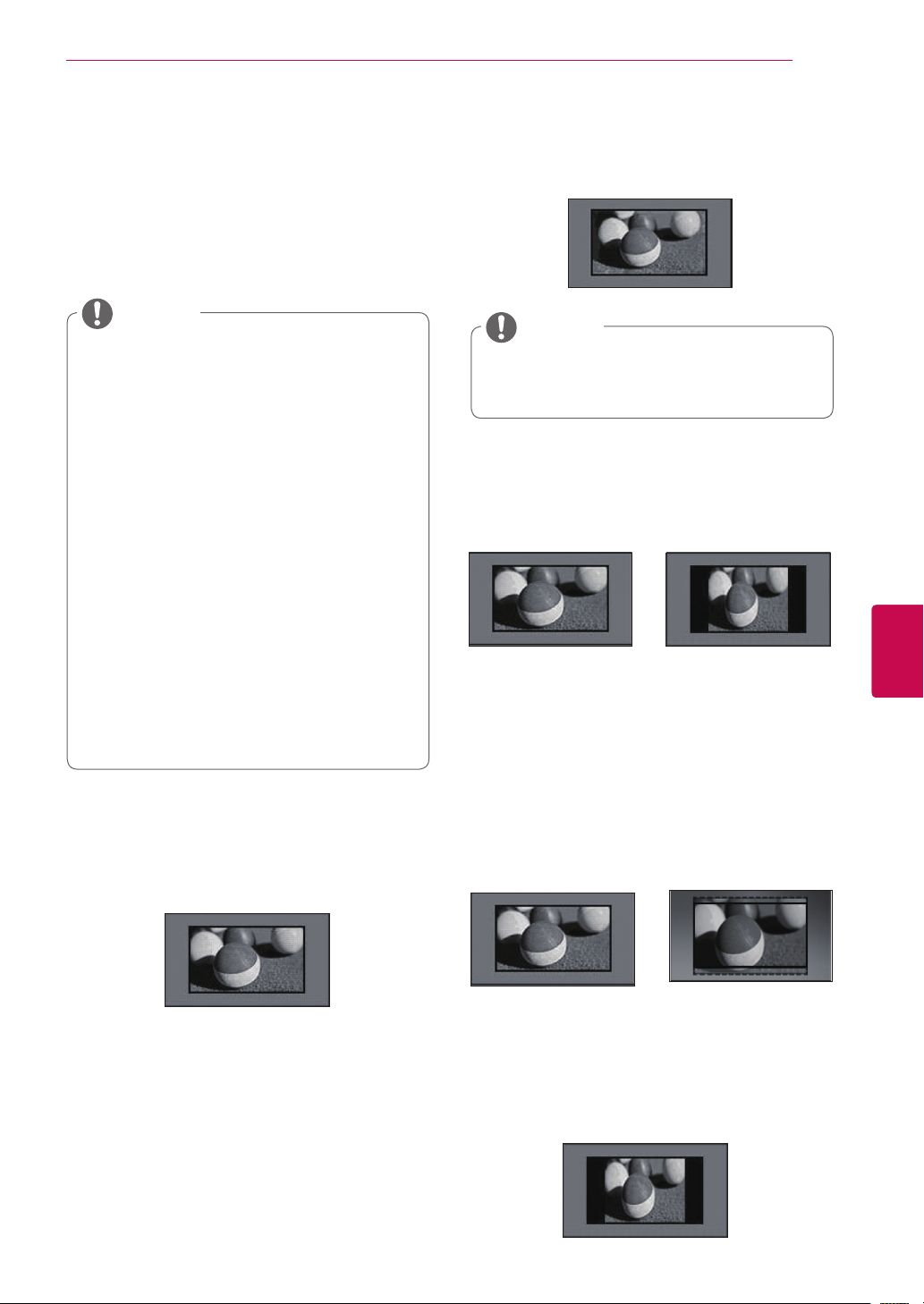
Adjusting aspect ratio
Resize an image to view at its optimal size by
pressing RATIO while you are watching TV.
- 4:3: Resizes images at the standard 4:3 with-
out distortion.
- 16:9: Resizes images to fit the screen width.
- Just Scan: Displays video images in the origi-
nal size without removing parts of the edge of
the image.
-
Full Wide(Only DTV): When TV receives the
wide screen signal,it will let you adjust the
picture horizontally or vertically, in a linear
proportion,to fill the entire screen fully.
4:3 and 14:9 video is supported in full screen
without any video distortion through DTV
input.
-
Original: When your TV receives a wide
screen signal it will automatically change to the
picture format broadcasted.
You can also change the image size by
pressing Q. MENU or accessing Aspect
Ratio in the Picture menus.
For Zoom Setting, select 14:9, Zoom
and Cinema Zoom in Ratio Menu.
After completing Zoom Setting, the dis-
play goes back to Q.Menu.
You can only select 4:3, 16:9 (Wide),
14:9, Zoom/Cinema Zoom in Component
mode.
You can only select 4:3, Original, 16:9
(Wide), 14:9, Zoom/Cinema Zoom in
HDMI mode.
You can only select 4:3, 16:9 (Wide) in
RGB-PC, HDMI-PC mode only.
In DTV/HDMI/Component (over 720p)
mode, Just Scan is available.
In DTV 576p mode, Just Scan is avail-
able in Australia/New Zealand only.
NOTE
If you select Just Scan, you may see
image noises at the edge of the original
signal.
NOTE
Just Scan
Full Wide
Original
Original
or
Full Wide
or
46
ENG
ENGLISH
WATCHING TV
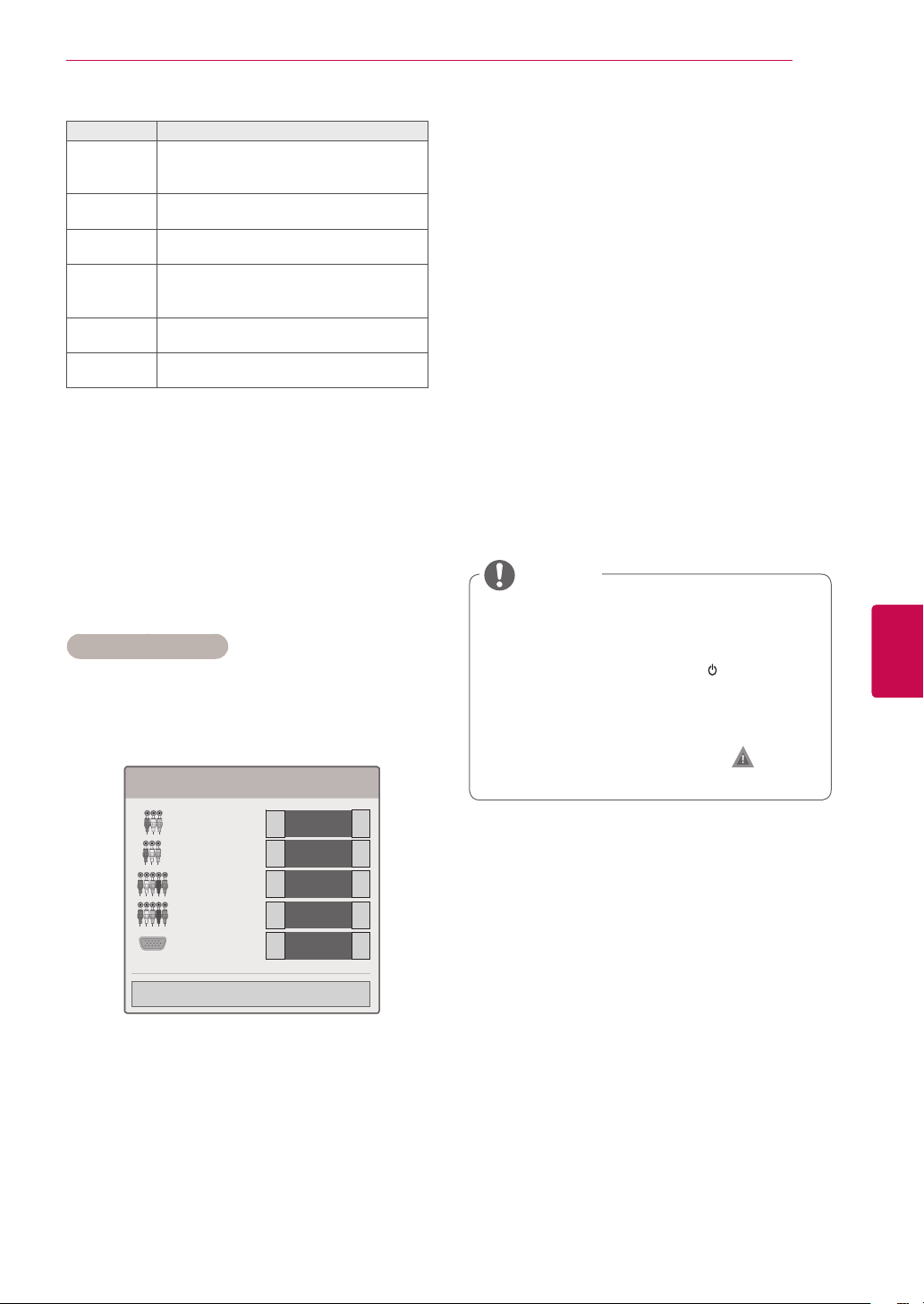
Mode Description
Off Changes to the previously customized
settings
Cinema or
Cinema
Use the optimized image and sound
setting for the cinematic look
Sport Use the optimized image and sound
setting for dynamic action sports
Game Use the optimized image and sound
setting for fast gaming
When playing a video game using
PlayStation or Xbox, it is recommended
to use the Game mode.
When in Game mode, functions related
to picture quality will be optimized
for playing games.
Using the input list
Selecting an input source
1
Press INPUT to access the input sources.
- The connected device displays on each input
source.
2
Press Navigation buttons to scroll to one of the
input sources and press OK.
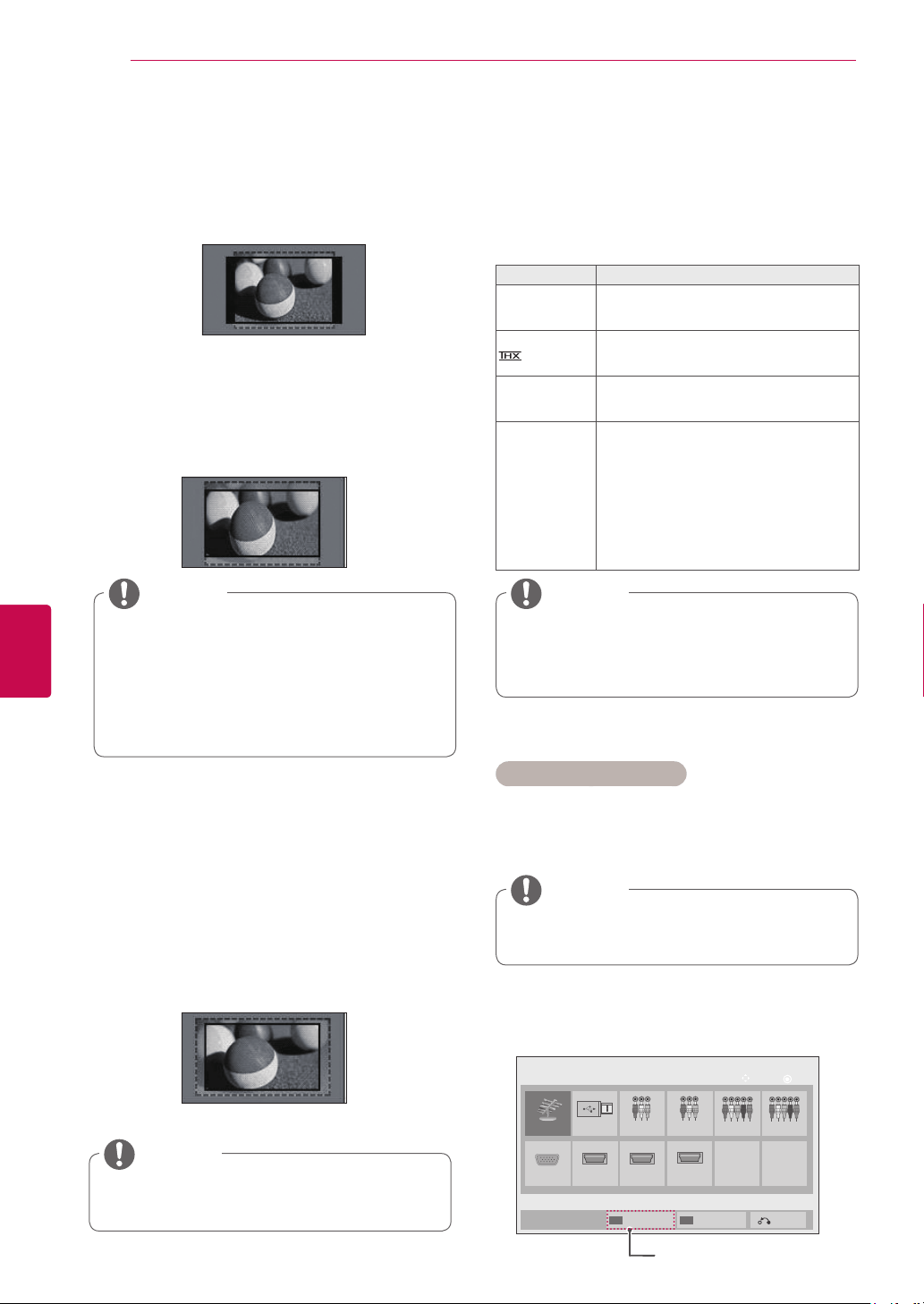
- Zoom: Enlarges an image to fit the screen
width. The top and bottom of the image may
not appear.
- Cinema Zoom : Enlarges an image in the
cinemascope ratio, 2.35:1.
To change the ratio of the cinema zoom,
press the Navigation buttons and its range is
from 1 to 16.
To move the zoom focus up or down, press
the Navigation buttons.
If you access, Aspect Ratio in the quick
menus,
- Press the Navigation buttons to stretch
an image vertically.
- Press the Navigation buttons to move
the zoom focus up or down.
NOTE
If you enlarge or reduce an image, the
image may be distorted.
NOTE
Antenna USB
HDMI2HDMI1
AV2 Component1 Component2
RGB
OK
Move
Input List
Input Label
Exit
AV1
Image shown may differ from your TV.
-
14:9 : You can view a picture format of 14:9
or a general TV programme in the 14:9 mode.
The 14:9 screen is viewed in the same way as
in 4:3, but is moved to the up and down.
If you select Off in AV mode, the picture
and image which you initially set will be
selected.
NOTE
You can also access the input source list
by selecting INPUT in the main menus.
NOTE
HDMI3
Changing AV modes
Each AV mode has the optimized image and sound
settings.
Press
AV MODE
repeatedly to select an
appropriate mode.
SIMPLINK
(Only LCD TV/LED LCD TV)
47
ENGENGLISH
WATCHING TV
The connected input sources display in black
and the disconnected input sources in grey.
- To add an input label, press the Blue button.
You can easily identify a device connected to
each input source.
- To access the SIMPLINK, press the Red
button. If you select “SIMPLINK and On”, the
pop-up window for the HDMI input will not
display.(Only LCD TV/LED LCD TV)
Adding an Input label
Add a label to an input source so that you can
easily identify a device connected to each input
source.
1 Press INPUT to access the input sources.
2 Press the Navigation buttons to scroll to one of
the input sources.
3 Press the Blue button.
4 Press the Navigation buttons to scroll to one of
the input labels and press OK.
5
When you are finished, press Close. When you
return to the previous menu, press BACK.
Locking the buttons on the TV
(Child Lock)
Lock the buttons on the TV to prevent any
unwanted operations or accidents by children.
1
Press Home to access the main menus.
2
Press the Navigation buttons to scroll to LOCK
and press OK.
3
Press Navigation buttons to scroll to
Key Lock and press OK.
4
Select On to activate the Key lock feature.
-
To deactivate the Key lock feature, select Off.
5
When you are finished, press EXIT.
When you return to the previous menu, press
BACK.
Input source Description
Antenna Select it when watching the TV. (Only
DTV : Select it when watching the DTV/
TV/RADIO.)
USB Select it when using USB depends on
connector.
AV Select it when watching the VCR or
external equipment.
Component Select it when using the DVD or the
Digital set-top box depends on connector.
RGB Select it when using PC depends on con-
nector.
HDMI Select it when using DVD, PC or Digital
set-top box depend on connector.
Input Label
AV1
AV2
Component1
Component2
RGB
Close
▼
◄
►
◄
►
◄
►
◄
►
◄
►
Image shown may differ from your TV.
The TV is programmed to remember the
last setting after you turn the TV off.
If you turn the TV off with the Key Lock
feature activated, press the
INPUT
HOME OK
P
, INPUT,
P
^
v
or Number buttons on the remote
control.
If you press any button on the TV with
the Key lock feature activated,
Key
Lock appears on the screen.
NOTE
48
ENG
ENGLISH
WATCHING TV
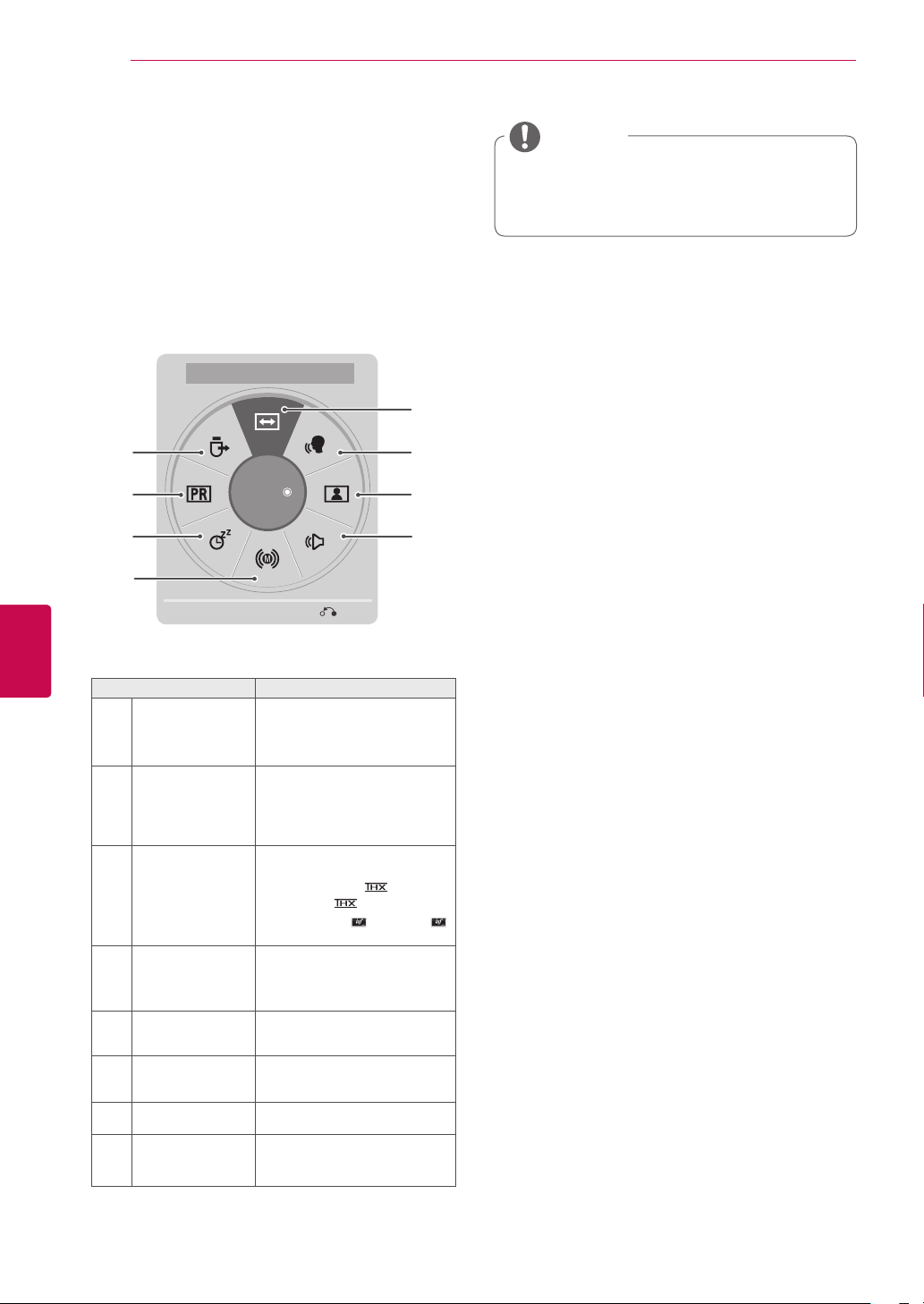
Using the quick menu
Customize the frequently using menus.
1
Press Q. MENU to access the quick menus.
2
Press Navigation buttons to scroll through the
following menus and press OK.
Image shown may differ from your TV.
The available menus and options may
differ from the input source that you are
using.
NOTE
3
Press Navigation buttons to scroll to the option
you want.
4
When you are finished, press Q. MENU.
Menu Description
1
Aspect Ratio Changes the image size
(16:9, Just Scan, Original,
Full Wide, 4:3, 14:9, Zoom,
Cinema Zoom)
2
Clear Voice II By differentiating the human
frequency range from others, it
helps users listen
to human voices better.
3
Picture Mode
(Depending on
model)
Changes the image mode
(Intelligent sensor, Vivid,
Standard, APS, Cinema
or Cinema, Bright Room,
Sport, Game, Expert1,
Expert2)
4
Sound Mode Changes the sound mode
(Standard, Music, Cinema,
Sport, Game)
5
Audio or
Audio Language
Changes the sound output.
6
Sleep Timer Sets the length of time until
the TV to turns off
7
Skip Off/On Sets the Skip Off/On.
8
USB Device Ejects a USB device when a
USB device is connected
◄
Aspect Ratio
►
16:9
Exit
8
1
2
3
4
7
6
5
49
ENGENGLISH
WATCHING TV
Using customer Support.
Testing Software Update
To download software through the digital terrestrial
broadcasting system.
1 Press Home to access the main menus.
2 Press the Red button to scroll Customer Sup-
port.
3 Press the Navigation buttons to scroll Soft-
ware Update.
4 Press the Navigation buttons to scroll to On
and press OK.
- If you select On, a user confirm message box
will be displayed to notify that new software is
found.
5 When you are finished, press EXIT.
When you return to the previous menu, press
BACK.
When setting “Software Update”
- Occasionally, a transmission of updated
digital software information will result in the
following menu on the TV screen.
Yes
No
Software update is available.
Would you like to download now?
?
- Simple Update : for current update stream
- Download starts when "Yes" is selected. At
this time, progressing pop-up window does
not display.
- Download progress status can be checked
from Software Update menu.
Software Update
Close
Software downloading progress.
Ver. 00.00.01 ► Ver.00.01.00
◄ On ►
4%
- TV is restarted when download is
completed.
Rebooting now.
During Progress of a Software Update,
please note the following:
- Power to the TV must not be interrupted.
- The antenna must not be disconnected.
- After Software Update, you can confirm
the updated software version in Software
Update menu.
- It may take hours to download the software,
so make sure that the power stays on
during the download.
- The software is downloaded only in
Standby mode or in MUX with Software
Update Service, and stops when the power
cord is unplugged or when viewing MUX
without Software Update Service.
- When you return to Standby mode or
MUX with Software Update Service, the
software download will resume from where
it stopped.
NOTE
50
ENG
ENGLISH
WATCHING TV
Using Signal Test
To view information on the Manufacturer, Model/
Type, Serial Number and Software Version.
1 Press Home to access the main menus.
2 Press the Red button to scroll Customer Sup-
port.
3 Press the Navigation buttons to scroll Signal
Test.
4 Press OK.
- Manufacturer, Model/Type, Software Version
and information of Channel.
5
When you are finished, press EXIT. When you
return to the previous menu, press BACK.
This displays the information and signal
strength of the tuned *MUX.
This displays the signal information and
service name of the selected MUX.
(*MUX: A higher directory of channels in digital
broadcasting (a single MUX contains multiple
channels.))
NOTE
Using the product or service
information
To check the product or service information
1 Press Home to access the main menus.
2 Press the Red button to scroll to Customer
Support.
3 Press the Navigation buttons to scroll Product/
Service Info..
You can check the various product/Service
infomation based on your model.
4
When you are finished, press EXIT. When you
return to the previous menu, press BACK.
Testing the Picture / Sound
To execute picture and sound tests.
1 Press Home to access the main menus.
2 Press the Red button to scrolll to Customer
Support.
3 Press the Navigation buttons to scroll l to Pic-
ture Test or Sound Test.
4 Press the Navigation buttons to scroll to Yes
and press OK.
5
When you are finished, press EXIT. When you
return to the previous menu, press BACK.
51
ENGENGLISH
3D IMAGING
This TV can display in 3D via 3D broadcasting or
when the TV is connected to a compatible device,
such as a Blu-ray 3D Player. You need such a
device to watch the TV in 3D. The 3D TV displays
two separate pictures formatted for each eye. The
viewer needs to wear 3D glasses in order to see
these images in 3D format.
When watching 3D images, you should
maintain a distance of at least twice the
screen width, and you should also be
able to see all of the screen at eye level.
Furthermore, the 3D imaging may not
display if it is viewed while you are lying
down (For LED LCD TV).
If you watch the 3D imaging too closely or
for a long period of time, it may harm your
eyesight.
Watching the TV or playing video games
that incorporate 3D imaging with the 3D
glasses for a long period of time can
cause drowsiness, headaches or fatigue
to you and/or your eyes. If you have a
headache, or otherwise feel fatigued or
drowsy, stop watching the TV and have
a rest.
Pregnant woman, seniors, persons with
heart problems or persons who experi-
ence frequent drowsiness should refrain
from watching 3D TV.
Some 3D imaging may cause you to
duck or dodge the image displayed in the
video. Therefore, it is best if you do not
watch 3D TV near fragile objects or near
any objects that can be knocked over
easily.
Please prevent children under the age of
5 from watching 3D TV. It may affect their
vision development.
Warning for photosensitization seizure:
Some viewers may experience a seizure
or epilepsy when exposed to certain fac-
tors, including flashing lights or images
in TV or video games. If you or anybody
WARNING
from your family has a history of epilepsy
or seizure, please consult with your doctor
before watching 3D TV.
Also certain symptoms can occur in
unspecified conditions without any previ-
ous history. If you experience any of the
following symptoms, immediately stop
watching the 3D imaging and consult a
doctor: dizziness or light-headedness ,
visual transition or altered vision, visual
or facial instability, such as eye or muscle
twitching, unconscious action, convulsion,
loss of conscience, confusion or disorien-
tation, loss of directional sense, cramps,
or nausea. Parents should monitor their
children, including teenagers, for these
symptoms as they may be more sensitive
to the effects of watching 3D TV.
Risk of photosensitization seizure can be
reduced with the following actions.
» Take frequent breaks from watching 3D
TV.
» For those who have vision that is dif-
ferent in each eye, they should watch
the TV after taking vision correction
measures.
» Watch the TV so that your eyes are on
the same level as the 3D screen and
refrain from sitting too closely to the TV.
» Do not watch the 3D imaging when
tired or sick, and avoid watching the 3D
imaging for a long period of time.
» Do not wear the 3D glasses for any
other purpose than viewing 3D imaging
on a 3D TV.
» Some viewers may feel disoriented
after watching 3D TV. Therefore, after
you watch 3D TV, take a moment to re-
gain awareness of your situation before
moving.
3D IMAGING
3D Technology
(Only 42/50PW35**,42/50PW45**, 50/60PZ55**, 32/42/47/55LW45**)
52
ENG
ENGLISH
3D IMAGING
To watch the TV in 3D, you must put on
your 3D glasses. For best results, you
should wear LG Brand 3D glasses. The
3D imaging may not display properly
when using another brand of 3D glasses.
Please see the 3D glasses manual for in-
structions on how to use the 3D glasses.
After powering on the TV, a few seconds
may be needed for your TV to calibrate.
It may take a moment for you to see the
3D imaging if you look away from the TV
and then revert your eyes back to the 3D
program.
If there is an obstacle between the TV
and the 3D glasses, the 3D imaging may
not display properly.
Do not use the TV in close proximity
to other electronic equipments and RF
equipments.
In Analogue TV, 3D Imaging does not
work.
When watching 2D images, it is recom-
mended to take off the 3D glasses. If you
watch 2D images with the 3D glasses on,
you may see distorted images.
NOTE
When Using 3D Glasses
Viewing
Distance
2 m - 10 m
Viewing
Angle
120 º
(When the viewing distance is 2 m)
3D Imaging Viewing Range
TV size, viewing angle & other circumstances may
change the viewing distance and the angle of view.
3D glasses are sold separately. Refer
to the 3D glasses manual for operating
instructions.
Do not use the 3D glasses to replace
your corrective glasses, sunglasses or
protective goggles.
Do not store the 3D glasses in hot or cold
locations.
Do not drop objects onto the 3D glasses.
Do not drop or bend the glasses.
Since the lenses of the 3D glasses are
easily scratched, make sure to clean
only with a soft cloth. Shake off any dust
before using the cloth since the glasses
are easily scratched.
CAUTION
(Only Plasma TV)
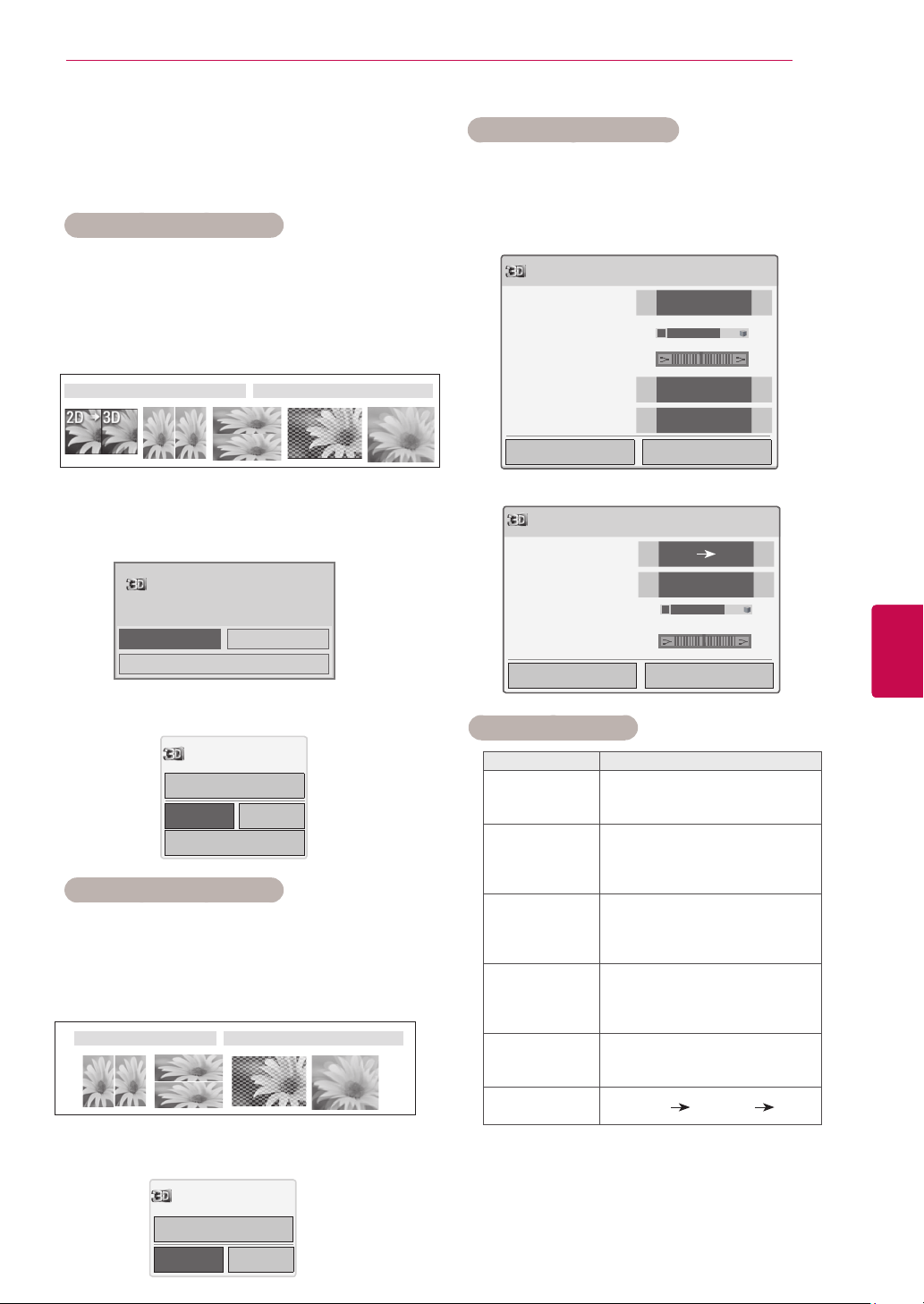
53
ENGENGLISH
3D IMAGING
Using 3D quick menu option
1 Press 3D SETTING.
2 Use the following options while viewing 3D
imaging.
3D Setting
OK End 3D video
3D Picture Size
◀
Just Scan
▶
3D Depth 15
◀ ▶
3D Viewpoint 0
◀ ▶
3D Picture Balance
◀
Off
▶
3D Picture Correction
◀
Left/Right
▶
or
3D Setting
OK End 3D video
Image View Mode
◀
2D 3D
▶
●
3D Picture Correction
◀
Left/Right
▶
●
3D Depth 15
◀
▶
●
3D Viewpoint 0
◀ ▶
Button Description
3D Picture Size
Cuts off the outer edges of the
picture and stretch it to fit the full
screen in 3D mode.
3D Depth
Adjusts the distance between the
object and the background in the
picture to enhance the 3D effect
in 2D to 3D mode.
3D Viewpoint
Brings the picture (including both
the object and background im-
ages) to the front or back to en-
hance the 3D effect in 3D mode.
3D Picture
Balance
Adjusts the colour and bright-
ness difference between the right
and left sides of the picture in 3D
mode.
3D Picture
Correction
Changes the order of images
in the right and left sides of the
picture in 3D mode.
Image View
Mode
Select 2D
3D or 3D 2D.
(Depending on model)
Watching 3D images
View 3D mode for 3D images
1 Play the 3D video or select 3D channel.
(2D to 3D mode is available with all contents)
2 Press 3D and select same type in your dis-
played picture on the screen.
(Select type on "3D Video" tab)
* Notice : Turn on the 3D mode automatically for
HDMI input playing the 3D blueray titles.
3 Press OK on displayed information window.
4 To turn off the 3D mode, press 3D and select
OK.
View 2D mode for 3D images
1 Play the 3D video or select 3D channel.
2 Press 3D and select same type in your
displayed picture on the screen.
(Select type on "2D Video" tab)
3 To turn off the 2D mode, press 3D and select
OK.
Image shown may differ from your TV.
3D Video 2D Video
3D Video 2D Video
OK
Cancel
ꔅ
3D Setting
Power on your 3D glasses and put them on.
Sit 2 meters from TV to enjoy the best 3D
view.
OK Cancel
Turn off 2D Mode.
3D video
OK Cancel
Turn off 3D Mode.
ꔅ 3D setting
2D mode
54
ENG
ENGLISH
3D IMAGING
If you select 3D mode, “Power indicator” is turned off automatically.
While watching 3D imaging, you cannot adjust video/audio settings using the menu.
You can only choose “Standard → Cinema → Game” with the
AV MODE
button on the remote
control.
AV Mode
is set as
Standard
while playing in 3D.
If you’d like to play the BGM using *.mpo file(3D camera file), In advance, the contents path for
BGM should be set on full-sized photo view screen which isn’t *.mpo file(3D camera file).
Picture mode is set as Standard, Energy Saving Off if entering to 3D mode.
CAUTION
* For LCD TV/LED LCD TV
Some menus may not work while watching the TV in 3D.
If used 3D effect on the 2D source, 3D may not work.
The 3D imaging mode is disabled automatically when switching DTV channe ls, input source.
The screen may not be displayed properly if you view 2D DTV images in 3D imaging mode.
3D effect can be seen when 3D Mode is selected appropriately for the 3D input signal supplied to
the TV.
For *mpo files (3D camera files), the 3D imaging mode is enabled automatically.
3D may not be displayed properly for some PC graphics cards.
CAUTION
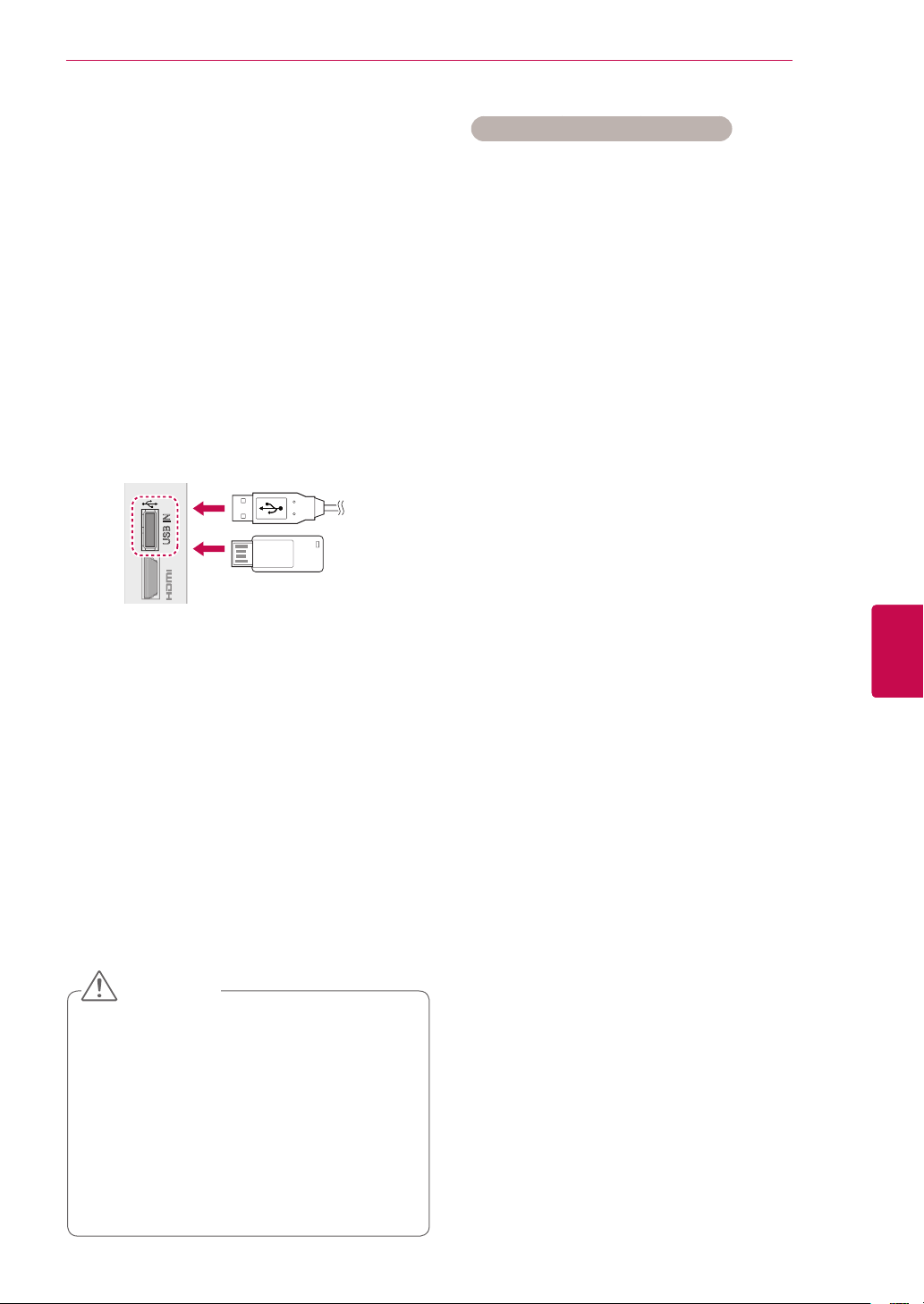
55
ENGENGLISH
ENTERTAINMENT
IN 2
AV IN 2
L/
MONO
R
AUDIO
A
AUDIO
VIDEO
USB IN
ENTERTAINMENT
Tips for using USB storage devices
Only a USB storage device is recognizable.
If the USB storage device is connected
through a USB hub, the device is not recog-
nizable.
A USB storage device using an automatic
recognition programme may not be recog-
nized.
A USB storage device which uses its own
driver may not be recognized.
The recognition speed of a USB storage
device may depend on each device.
Please do not turn off the TV or unplug the
USB device when the connected USB stor-
age device is working. When such device is
suddenly separated or unplugged, the stored
files or the USB storage device may be dam-
aged.
Please do not connect the USB storage
device which was artificially manoeuvred on
the PC. The device may cause the product to
malfunction or fail to be played. Never forget
to use only a USB storage device which has
normal music files, image files or movie files.
Please use only a USB storage device which
was formatted as a FAT32 file system, NTFS
file system provided with the Windows op-
erating system. In case of a storage device
formatted as a different utility programme
which is not supported by Windows, it may
not be recognized.
Please connect power to a USB storage
device(over 0.5 A) which requires an external
power supply. If not, the device may not be
recognized.
Please connect a USB storage device with
the cable offered by the device maker.
Some USB storage devices may not be sup-
ported or operated smoothly.
File alignment method of USB storage
device is similar to Window XP and filename
can recognize up to 100 English characters.
Be sure to back up important files since data
stored in a USB memory device may be
damaged. We will not be responsible for any
data loss.
If the USB HDD does not have an external
power source, the USB device may not be
detected. So be sure to connect the external
power source.
- Please use a power adaptor for an external
Connecting USB storage devices
Connect USB storage devices such as a USB
flash memory, external hard drive to the TV and
use multimedia features (See "Browsing files" on
p.56).
Connect a USB flash memory or USB memory
card reader to the TV as shown on the following
illustration. The My media screen appears, “POP
UP MENU” will not be displayed while the OSD
including Menu, EPG or Schedule list is activated.
To disconnect a USB storage device,
make sure to end the connection properly to pre-
vent damages to the TV or files.
1 Press Q.MENU to access the quick menus.
2 Press the Navigation buttons to scroll to USB
Device and press OK.
3 Press the Navigation buttons to scroll to Eject
and press OK.
4 Disconnect the USB storage device only when
the message says that it is safe to remove.
Do not turn the TV off or remove a USB
storage device while the USB storage
device is connected to the TV, as this
could result in loss of files or damage to
the USB storage device.
Back up your files saved on a USB stor-
age device frequently, as you may lose
or damage the files and this may be not
covered by the warranty.
CAUTION
or
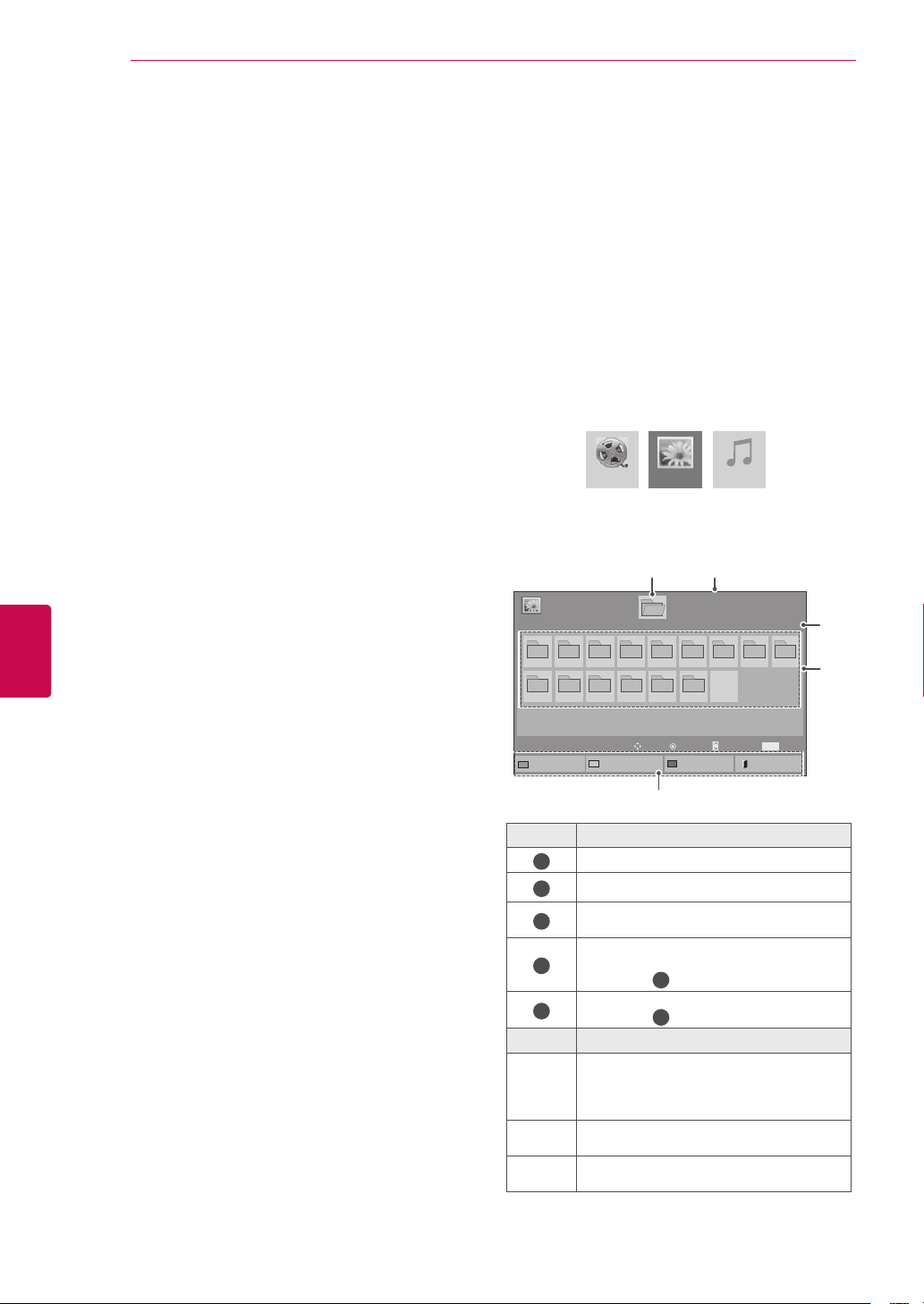
56
ENG
ENGLISH
ENTERTAINMENT
power source. We do not guarantee an USB
cable for an external power source.
If your USB memory device has multiple
partitions, or if you use a USB multi-card
reader, you can use up to 4 partitions or USB
memory devices.
If a USB memory device is connected to a
USB multi-card reader, its volume data may
not be detected.
If the USB memory device does not work
properly, disconnect and reconnect it.
How fast a USB memory device is detected
differs from device to device.
If the USB is connected in Standby Mode,
specific hard disk will automatically be
loaded when the TV is turned on.
The recommended capacity is 1 TB or less
for a USB external hard disk and 32 GB or
less for USB memory.
Any device with more than the recommended
capacity may not work properly.
If a USB external hard disk with a “Energy
Saving” function does not work, turn the
hard disk off and on again to make it work
properly.
USB storage devices below USB 2.0 are
supported as well. But they may not work
properly in the movie list.
Maximum of 999 folders or files can be rec-
ognized under one folder.
The file arrangement of the USB storage
device is similar to that of Windows XP and
supports up to 100 alphabetical characters.
If there are a lot of folders or files all within
one folder, the device may not be able to
access these properly.
Browsing files
Access the photo, music, or movie lists and browse
files.
1
Connect a USB storage device.
2
Press Home to scroll to main menus.
3
Press the Navigation buttons to scroll to My
Media and press OK.
4
Press Navigation buttons to scroll to PHOTO
LIST, MUSIC LIST, or MOVIE LIST and press
OK.
Movie List Music ListPhoto List
Page 1/1
Photo List
Drive1
Page 1/1
USB External
001
010 011 012 013 014 015
002 003 004 005 006 007
008
009
To Music List
Change Numbers
Mark Mode
Exit
Mark
MARK
View
Page
Change
Move
P
1
2
3
5
4
No.
Description
1
Moves to upper level folder
2
Current page/Total pages
3
Corresponding buttons on the
remote control
4
Current page/ total pages of
contents under the folder
focused on
1
5
Contents under the folder
focused on
1
Buttom
Description
Green
button
Repeatedly, press the GREEN button
to converted to
Photo List
->
Music List
,
Music List
->
Movie List
or
Movie List
-
>
Photo List
.
Yellow
button
A method to view in 5 large thumbnail or
simple list.
Blue
button
Convert to Mark Mode.
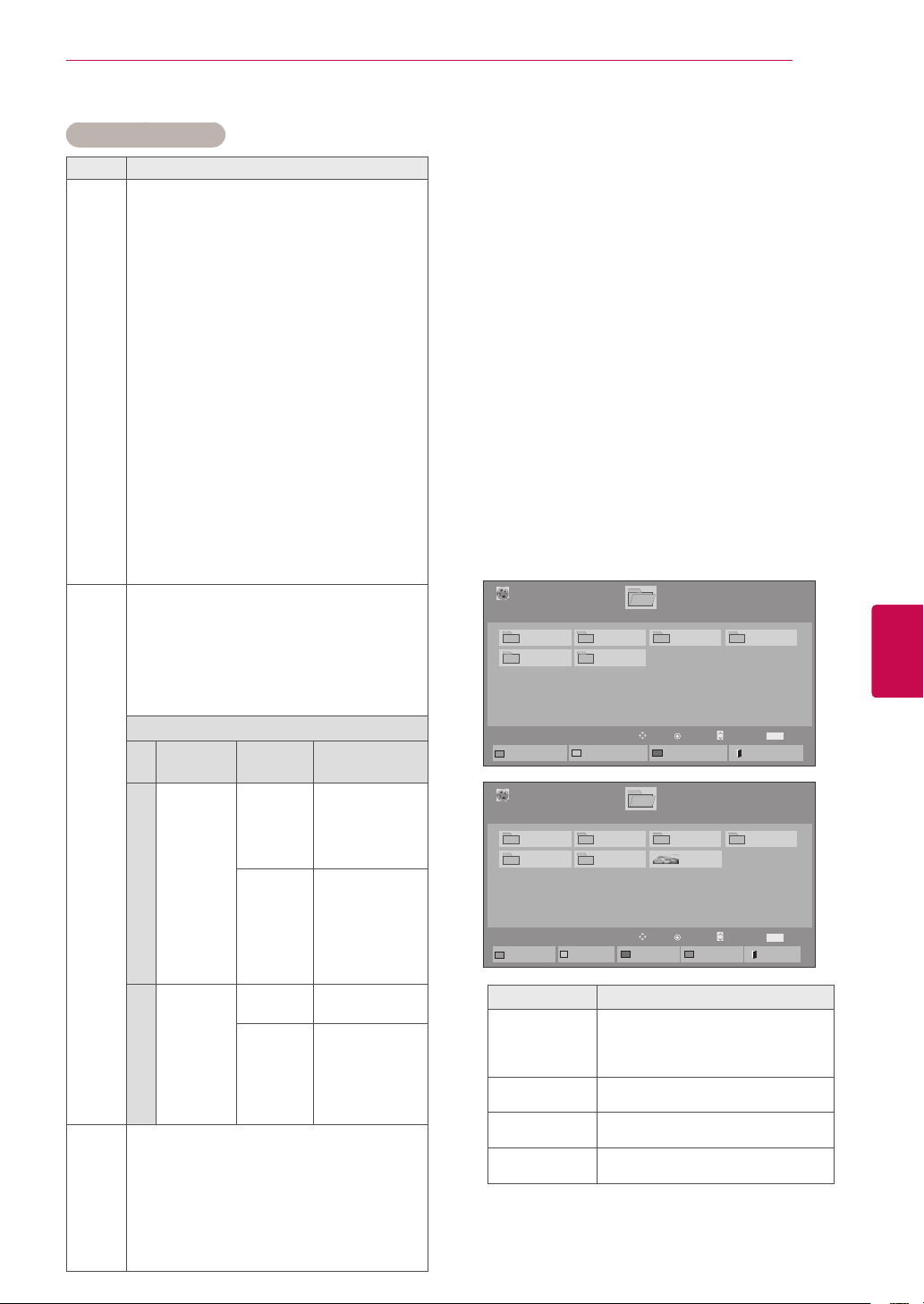
57
ENGENGLISH
ENTERTAINMENT
Viewing movies
Play video files on the TV. Your TV displays all of
the video files saved in a USB storage device or
shared folder on a PC.
1 Press the Navigation buttons to scroll to My
Media and press OK.
2 Press the Navigation buttons to scroll to Movie
List and press OK.
3 Select Drive1 to access the connected USB
storage device.
4 Press the Navigation buttons to scroll to a
folder you want and press OK.
5 Press the Navigation buttons to scroll to a file
you want and press OK.
Page 1/1
Movie List
USB External
Drive1
Page 1/1
Mark
MARK
Play
Page
Change
Move
P
To Photo List
Change Numbers
Mark Mode
Exit
003
001 002
004
005 006
Supported file format
Type Supported file format
Movie
DAT,MPG,MPEG,VOB,AVI,DIVX,MP4,MKV,T
S,TRP,TP,ASF,WMV,FLV)
Movie(*.mpg/*.mpeg/*dat/*.ts/*.trp/*.tp/*.
vob/*.mp4/*.mov/*.mkv/*.dvix/*.avi/*.asf/*.
wmv/*.flv/*.avi(motion-jpeg)/*.
mp4(motion-jpeg)/*.mkv(motion-jpeg))sup-
porting file
Video format : DivX3.11, DivX4.12, DivX5.x,
DivX6, Xvid1.00, Xvid1.01, Xvid1.02,
Xvid1.03, Xvid1.10 beta-1/beta-2,
Mpeg-1, Mpeg-2, Mpeg-4, H.264/AVC, VC1,
JPEG, Sorenson H.263
Audio format : Dolby Digital, AAC, Mpeg,
MP3, LPCM, HE-AAC, ADPCM, WMA
Bit rate : within 32 kbps to 320 kbps(MP3)
External Subtitle format : *.smi/*.srt/*.sub
(MicroDVD,Subviewer1.0/2.0)/*.ass/*.ssa/*.
txt(TMPlayer)/*.psb(PowerDivX)
Internal Subtitle format : only, XSUB (It is
the subtitle format used in DivX6 files)
Photo
JPEG
Baseline : 64 x 64 to 15360 x 8640
Progressive : 64 x 64 to 1920 x 1440
You can play JPEG files only.
Non-supported files are displayed in the
form of predefined icon.
For 3D TV
File
Extensions
Item Profile
2D
jpeg
jpg
jpe
Supported
file format
SOF0: baseline
SOF1: Extend
Sequential
SOF2:
Progressive
Photo size
Min: 64 x 64
Max - Normal
Type: 15360
(W) x 8640 (H)
Progressive
Type: 1920 (W)
x 1440 (H)
3D
mpo Supported
file format
mpo
Photo size
4:3 size: 3,648
x 2,736
2,592 x 1,944
2,048 x 1,536
3:2 size: 3,648
x 2,432
Music
MP3
Bit rate 32 to 320
Sampling rate MPEG1 Layer3 : 32 kHz,
44.1 kHz, 48 kHz
Sampling rate MPEG2 Layer3 : 16 kHz,
22.05 kHz, 24 kHz
Sampling rate MPEG2.5 Layer3 : 8 kHz,
11.025 kHz, 12 kHz
Menu
Description
Play Marked
Play the selected movie file.
Once a movie file finishes playing,
the next selected one will be played
automatically.
Mark All
Mark all movie files on the screen.
Unmark All
Deselect all marked movie files.
Exit Mark Mode
Exit the Mark Mode.
Page 1/1
Movie List
USB External
Drive1
Page 1/1
Mark
MARK
Mark
Page
Change
Move
P
Play Marked
Mark All
Unmark All
Exit
003
001 002
004
005 006
Mark Mode
Exit Mark Mode
051. Apple_ ......
02:30:25
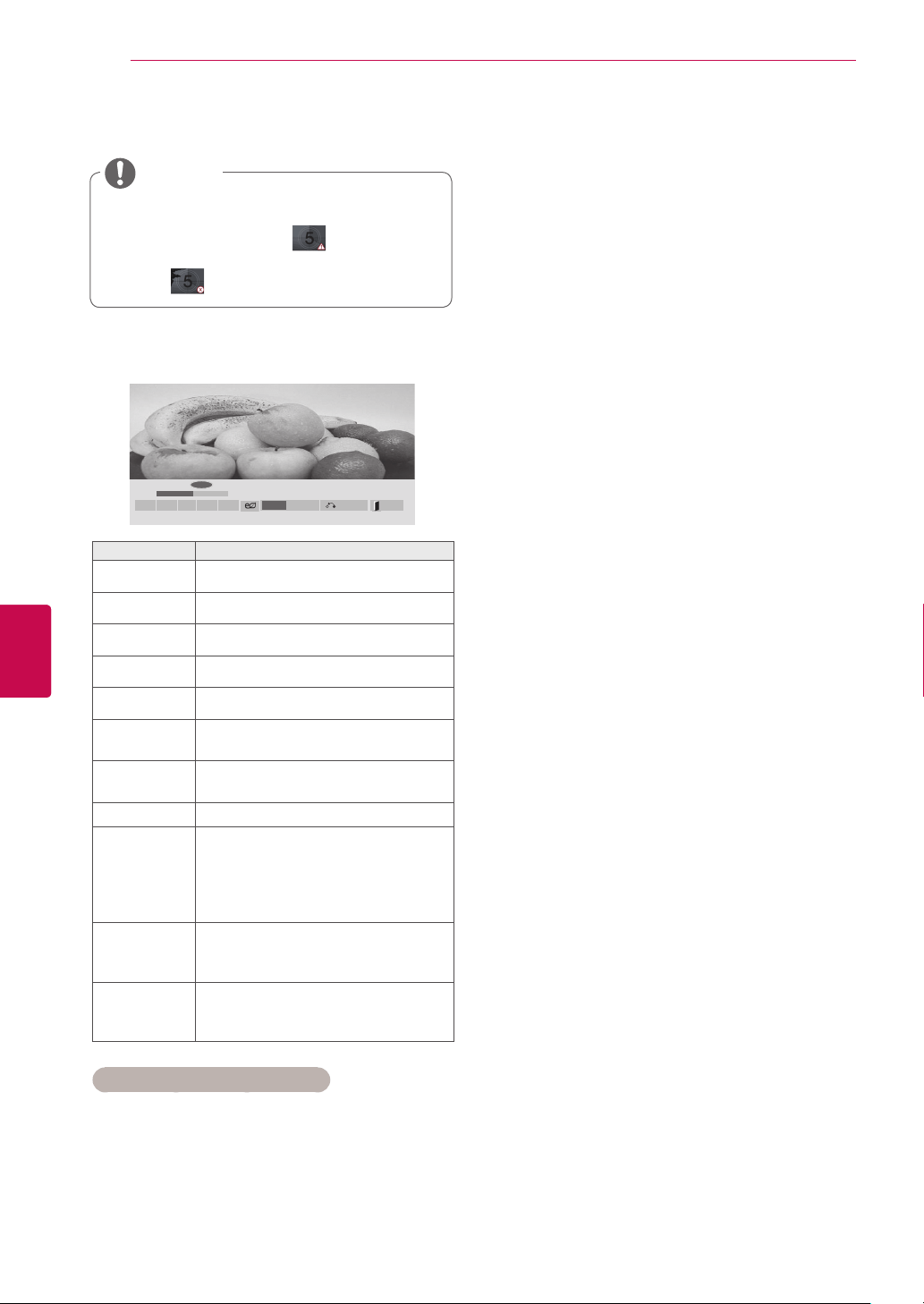
58
ENG
ENGLISH
ENTERTAINMENT
7 Control playback by using the following
buttons.
►
01:02:30 / 02:30:25
Option
Q.MENU
◄►
■
►
II
◄◄
►►
Hide Exit
Button Description
r
Stops the playback
s
Plays a video
t
Pauses or resumes the playback
v
Scans backward in a file
w
Scans forward in a file
Home or
Q.MENU
Show the Option menu.
BACK
Hide the menu on the full-sized
screen.
EXIT Return to normal TV viewing.
< >
Skips to specific points in a file
during playback. The time of a
specific point will appear on the
status bar. In some files, this func-
tion may not work properly.
ENERGY
SAVING
Press the ENERGY SAVING
button repeatedly to increase the
brightness of your screen.
AV MODE
Press the AV MODE button
repeatedly to select the desired
source.
Tips for using playing video files
Some user-created subtitles may not work
properly.
Some special characters are not supported
in subtitles.
HTML tags are not supported in subtitles.
Subtitles in languages other than the sup-
ported languages are not available.
Changing font and colour in subtitles is not
supported.
Subtitles in languages other than one speci-
fied are not supported.
Video files with subtitle files of 1 MB or larger
may not be played properly.
The screen may suffer temporary interrup-
tions (image stoppage, faster playback, etc.)
when the audio language is changed.
A damaged movie file may not be played
correctly, or some player functions may not
be usable.
Movie files produced with some encoders
may not be played correctly.
If the video and audio structure of recorded
file is not interleaved, either video or audio is
outputted.
HD videos with a maximum of
1920x1080@25/30P or 1280x720@50/60P
are supported, depending on the frame.
Videos with resolutions higher than
1920X1080@25/30P or 1280x720@50/60P
may not work properly depending on the
frame.
Movie files other than the specified types and
formats may not work properly.
Max bitrate of playable movie file is 20 Mbps.
(only, Motion JPEG : 10 Mbps)
We do not guarantee smooth playback of
profiles encoded level 4.1 or higher in H.264/
AVC.
DTS Audio codec is not supported.
A movie file more than 30 GB in file size is
not supported for playback.
A DivX movie file and its subtitle file must be
located in the same folder.
A video file name and its subtitle file name
must be identical for it to be displayed.
Playing a video via a USB connection that
doesn’t support high speed may not work
properly.
Files encoded with GMC(Global Motion
Compensation) and Qpel (Quarterpel Motion
Estimation) may not be played.
When you are watching the movie by Movie
List function, you can adjust an image by En-
ergy Saving and AV Mode key on the remote
control. User setup for each image mode
does not operate.
Trick Mode does not support other functions
than
w
if video files do not have index
information.
Video file names that contain special charac-
ters may not be playable.
6 Play a movie.
NOTE
Non-supported files are displayed the pre-
view image by icon only
.
Abnormal files are displayed in the form of
bitmap
.
59
ENGENGLISH
ENTERTAINMENT
Sync Adjusts the time synchronisation
of the subtitle from -10 secs to
+10 secs by steps of 0.5 secs
during movie play.
Position Changes the position of the
subtitle either up or down during
movie play.
Size Selects your desired Subtitle size
during movie play.
Repeat Turn on/off repeat function of
movie playback. When turned
on, the file within the folder will
be played back repeatedly. Even
when the repeated playback
is turned off, it can run the play-
back if the file name is similar to
the previous file.
Subtitle Lan-
guage
Support Language
Latin1 English, French, Spanish,
Portuguese, Malaysia,
Indonesia
Cyrillic Russian
Thai Thai
Hebrew Hebrew
Arabic Arab, Parsi, Krudish
Unicode(UTF-16)
Vietnamese language
Only 10,000 of sync blocks can be supported
within the subtitle file.
When playing a video, you can adjust the
Picture Size by pressing the RATIO button.
NOTE
Video options
1 Press Q. MENU to access the Pop-Up menus.
2 Press the Navigation buttons to scroll to Set
Video Play., Set Video. or Set Audio. and
press OK.
When you select the Set Video Play,,
1 Press the Navigation buttons to scroll to show
the Picture Size, Audio Language, Subtitle
Language or Repeat.
2 Press the Navigation buttons to scroll to make
appropriate adjustments.
Option values changed in Movie List does
not affect Photo List and Music List.
Option value changed in Photo List and Mu-
sic List are changed likewise in Photo List
and Music List excluding Movie List.
When replaying the video file after stopping,
you can play from where it stopped previ-
ously.
NOTE
Menu Description
Picture Size Selects your desired picture
format during movie play.
Audio Lan-
guage
Changes the Language Group of
the audio during movie play. Files
with a single audio track cannot
be selected.
Subtitle
Language
Turn on/off the subtitle.
Language Activated for SMI subtitle and
can select the language within the
subtitle.
Code Page Can select the font for subtitle.
When set to default, same font as
general menu will be used.
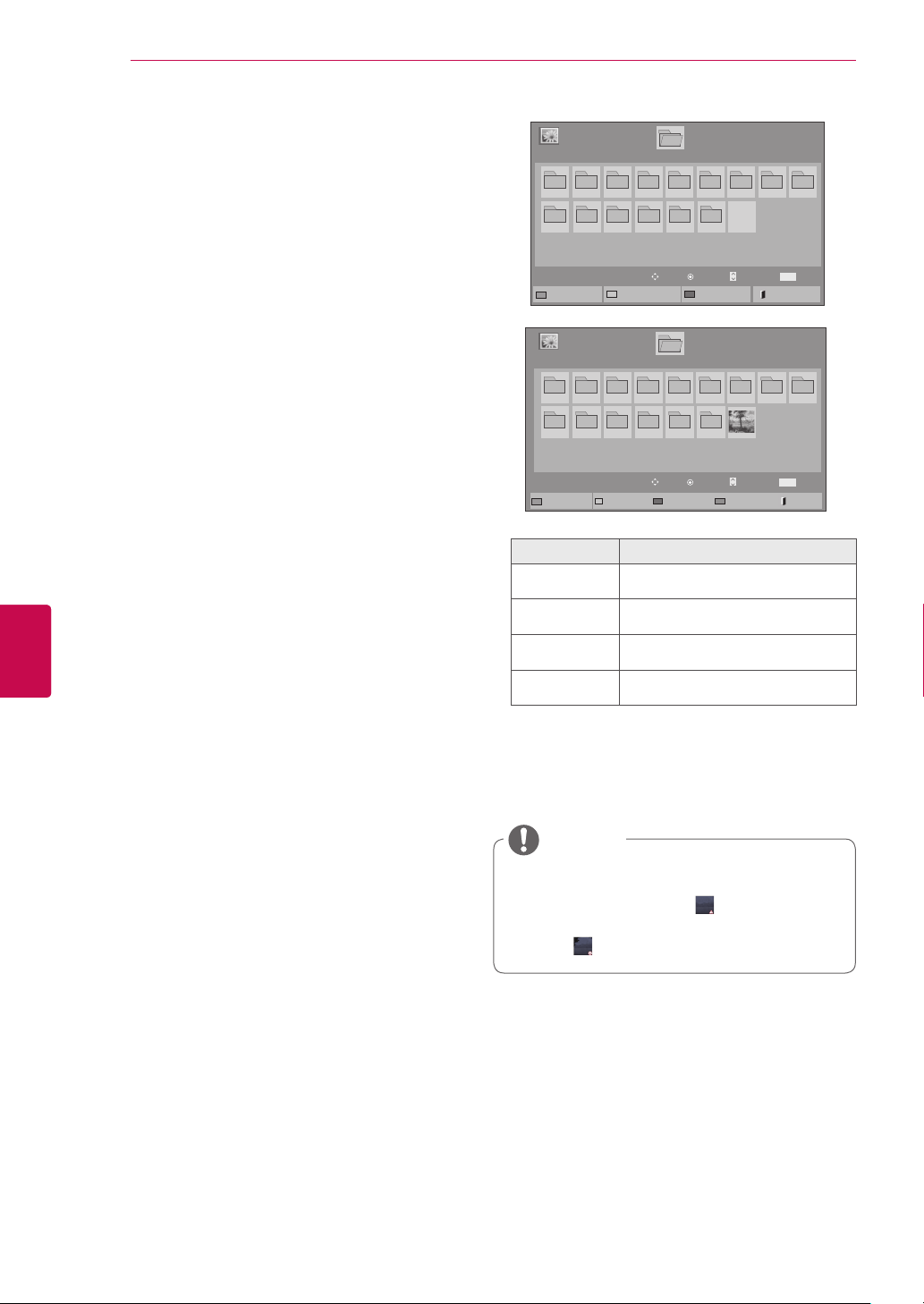
60
ENG
ENGLISH
ENTERTAINMENT
When you select the Set Video,
1 Press the Navigation buttons to scroll to make
appropriate adjustments. (See p.68)
When you select the Set Audio,
1 Press the Navigation buttons to scroll to show
the Sound Mode, Auto Volume, Clear Voice
II or Balance.
2 Press the Navigation buttons to scroll to make
appropriate adjustments. (See p.73)
Viewing photos
View image files saved in a USB storage device
or shared folder on a PC through the network
connection. The displays on the screen may differ
from the model.
1 Press the Navigation buttons to scroll to My
Media and press OK.
2 Pressthe Navigation buttons to scroll to Photo
List and press OK.
3 Press the Navigation buttons to select Drive1
to access the connected USB storage device.
4 Press the Navigation buttons to scroll to a
folder you want and press OK.
5 Press the Navigation buttons to scroll to a file
you want and press OK.
6 View photos.
Page 1/1
Photo List
Drive1
Page 1/1
USB1 External
001
010 011 012 013 014 015
002 003 004 005 006 007
008
009
To Music List
Change Numbers
Mark Mode
Exit
Mark
MARK
View
Page
Change
Move
P
NOTE
Non-supported files are displayed the pre-
view image by icon only
.
Abnormal files are displayed in the form of
bitmap
.
Page 1/1
Photo List
Drive1
Page 1/1
USB External
001
010 011 012 013 014 015
002 003 004 005 006 007
008
009
Mark
MARK
Mark
Page
Change
Move
P
Mark Mode
View Marked
Mark All
Unmark All
Exit
Exit Mark Mode
Menu Description
View Marked Display the selected photo file.
Mark All Mark all photo files on the screen.
Unmark All Deselect all marked photo files.
Exit Mark Mode Exit the Mark Mode.
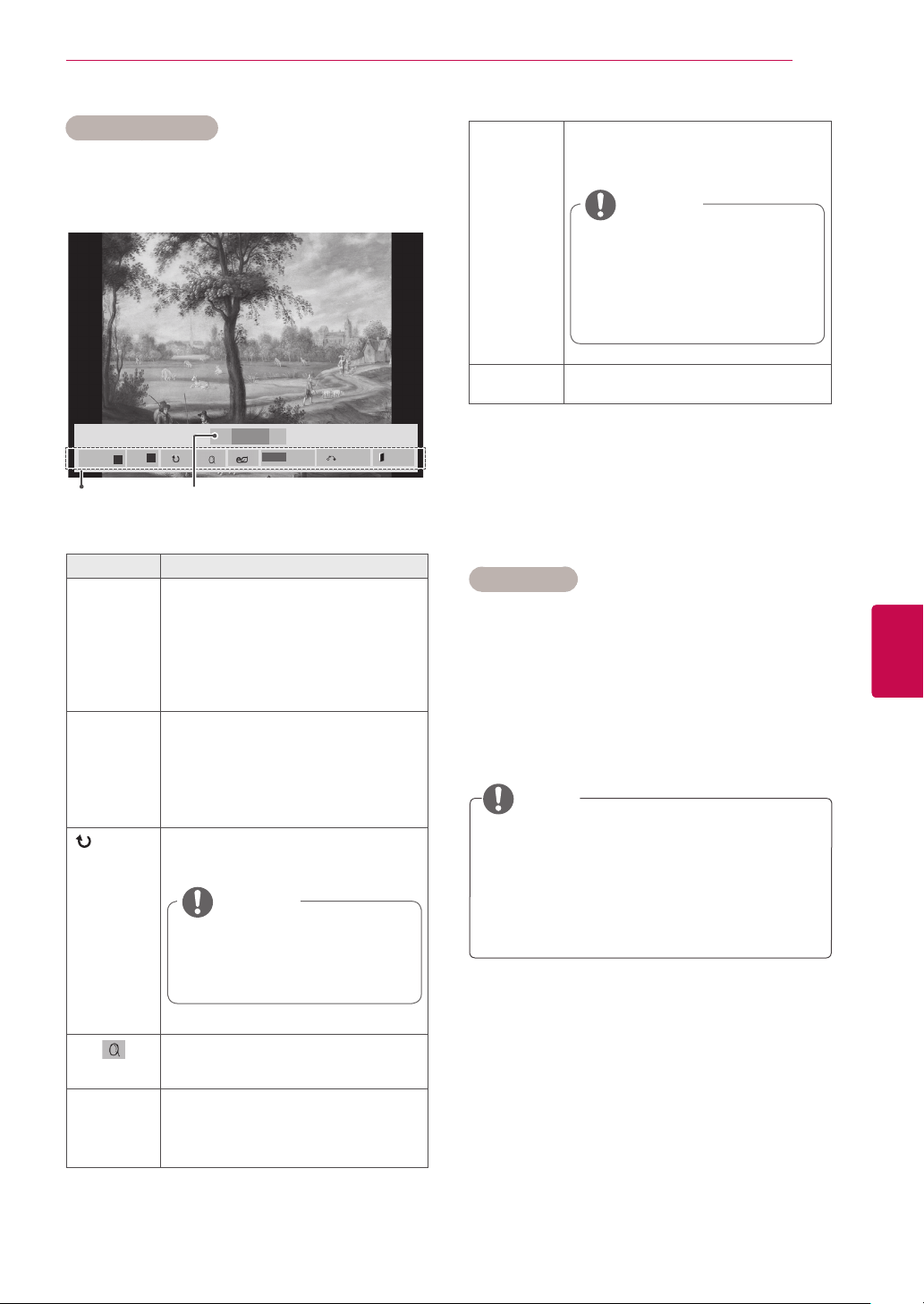
61
ENGENGLISH
ENTERTAINMENT
Photo options
1 Press Q. MENU or Home to show the Option
menus.
2 Press the Navigation buttons to scroll to Set
Photo View., Set Video. or Set Audio. and
press OK.
Option values changed in Movie List does
not affect Photo List and Music List.
Option value changed in Photo List and Mu-
sic List are changed likewise in Photo List
and Music List excluding Movie List.
NOTE
When you select the Set Photo View,
1 Press the Navigation buttons to scroll to select
Slide Speed or BGM..
2 Press the Navigation buttons to scroll to make
appropriate adjustments.
Option Description
Slideshow Starts or stops a slideshow with
selected photos.
If there are no selected photos, all
photos saved in the current folder
display during a slideshow.
To set a slideshow speed, select
Option.
BGM Turns the background music on or
off. To set the background music
folder, select Option.
You can adjust Option by Q.MENU
or Home button on the remote
control.
(Rotate)
Rotates photos clockwise (90°,
180°, 270°, 360°).
The supported photo size is
limited. You cannot rotate a
photo if the resolution of the
rotated width is larger than
the supported resolution size.
NOTE
View the photo by zoom in 2, 4
times.
ENERGY
SAVING
Press the ENERGY SAVING button
repeatedly to change the brightness
of your screen.
Using photo options
Use the following options while viewing photos.
01_a.jpg
2008/12/10
1920 x 1080
479 KB
2/13
◄ ►
Slideshow
►
BGM
■
◄
Hide Exit
Option
Q.MENU
Number of selected photosOptions
Option
Slide Speed: Selects a slideshow
speed (Fast, Medium, Slow).
BGM: Selects a music folder for the
background music.
You cannot change the music
folder while the background
music is playing.
You can only select the MP3
folder saved on the device
that currently displays the
photo.
NOTE
Hide Hides the option window.
To display the options, press OK.
◄

62
ENG
ENGLISH
ENTERTAINMENT
When you select the Set Video,
1 Press the Navigation buttons to scroll to make
appropriate adjustments. (See p.68)
When you select the Set Audio,,
1 Press the Navigation buttons to scroll to show
the Sound Mode, Auto Volume, Clear Voice
II or Balance.
2 Press the Navigation buttons to scroll to make
appropriate adjustments. (See p.73)
Listening to music
1 Press the Navigation buttons to scroll to My
Media and press OK.
2 Press the Navigation buttons to scroll to Music
List and press OK.
3 Press the Navigation buttons to select Drive1
to access the connected USB storage device.
4 Press the Navigation buttons to scroll to a
folder you want and press OK.
5 Press the Navigation buttons to scroll to a file
you want and press OK.
Page 1/1
Music List
Drive1
Page 1/1
001. - B01.mp3
00:00
002. -B02.mp3
00:00
003. B03.mp3
00:00
004. - B04.mp3
00:00
005. - B05.mp3
00:00
USB1 External
To Movie List
Change Numbers
Mark Mode
Exit
Mark
MARK
Play
Page
Change
Move
P
Button Description
r
Stops playback
s
Plays a music file
t
Pauses or resumes playback
w
Skips to the next file
v
Skips to the previous file
v or w
When playing,
When you press the
v button,
the previous music file will be
played.
When you press the
w button,
the next music file will be played.
Green
button
Start playing the selected music
files and then move to the Photo
List.
ENERGY
SAVING
Press the ENERGY SAVING
button repeatedly to change the
brightness of your screen.
Home or
Q.MENU
Show the Option menu.
Hide
Hides the option window.
To display the options, press OK.
EXIT
When you press the EXIT button
while the Music player is dis-
played, only the music will be
stopped and the player will not
return to normal TV viewing.
When you press the EXIT button
while the music is stopped or
while the music player is hidden,
the player will return to normal TV
viewing.
< >
When using the < > button during
playback a cursor indicating the
position can be played.
6 Play music.
7 Control playback by using the following
buttons.
Page 1/1
Music List
Drive1 Page 1/1
3 le(s) Marked
004. - B04.mp3
00:00
005. - B05.mp3
00:00
006. - B06.mp3
00:00
007. - B07.mp3
00:00
008. - B08.mp3
00:00
005. - B05.mp3
►
02:30 / 03:25
Hide Exit
Option
Q.MENU
Play with Photo
►
◄►
■
►
II
◄◄
►►
Page 1/1
Music List
Drive1
Page 1/1
001. - B01.mp3
00:00
002. -B02.mp3
00:00
003. B03.mp3
00:00
004. - B04.mp3
00:00
005. - B05.mp3
00:00
USB External
Play Marked
Mark All
Unmark All
Exit
Mark
MARK
Mark
Page
Change
Move
P
Mark Mode
Exit Mark Mode
Menu Description
Play Marked Display the selected music file.
Mark All Mark all music files on the screen.
Unmark All Deselect all marked music files.
Exit Mark Mode Exit the Mark Mode.
Tips for playing music files
This unit cannot support the ID3 Tag embed-
ded MP3 files.
63
ENGENGLISH
ENTERTAINMENT
1 Press Q. MENU to access the Pop-Up menus.
2 Press the Navigation buttons to scroll to Set
Audio Play. or Set Audio. and press OK.
Music options
Option values changed in Movie List does
not affect Photo List and Music List.
Option value changed in Photo List and Mu-
sic List are changed likewise in Photo List
and Music List excluding Movie List.
NOTE
When you select the Set Audio Play.,
1 Press the Navigation buttons to scroll to select
the Repeat or Random.
2 Press the Navigation buttons to scroll to make
appropriate adjustments.
When you select the Set Audio,
1 Press the Navigation buttons to scroll to select
the Sound Mode, Auto Volume, Clear Voice
II or Balance.
2 Press the Navigation buttons to scroll to make
appropriate adjustments.(See p.73)
002. B02.mp3
► 00:31 / 04:04
Time elapsed /Duration
file name
Non-supported files are displayed the pre-
view image by icon only
.
Abnormal files are displayed in the form of
bitmap
.
A damaged or corrupted music does not play
but displays 00:00 in playtime.
A music downloaded from a paid service with
copyright protection does not start but dis-
plays inappropriate information in playtime.
If you press OK,
r buttons, screen saver
is stopped.
The PLAY(
s), Pause(t), r , w, v
buttons on the remote control are also avail-
able in this mode.
You can use the
w button to select the
next music and the
v button to select the
previous music.
NOTE
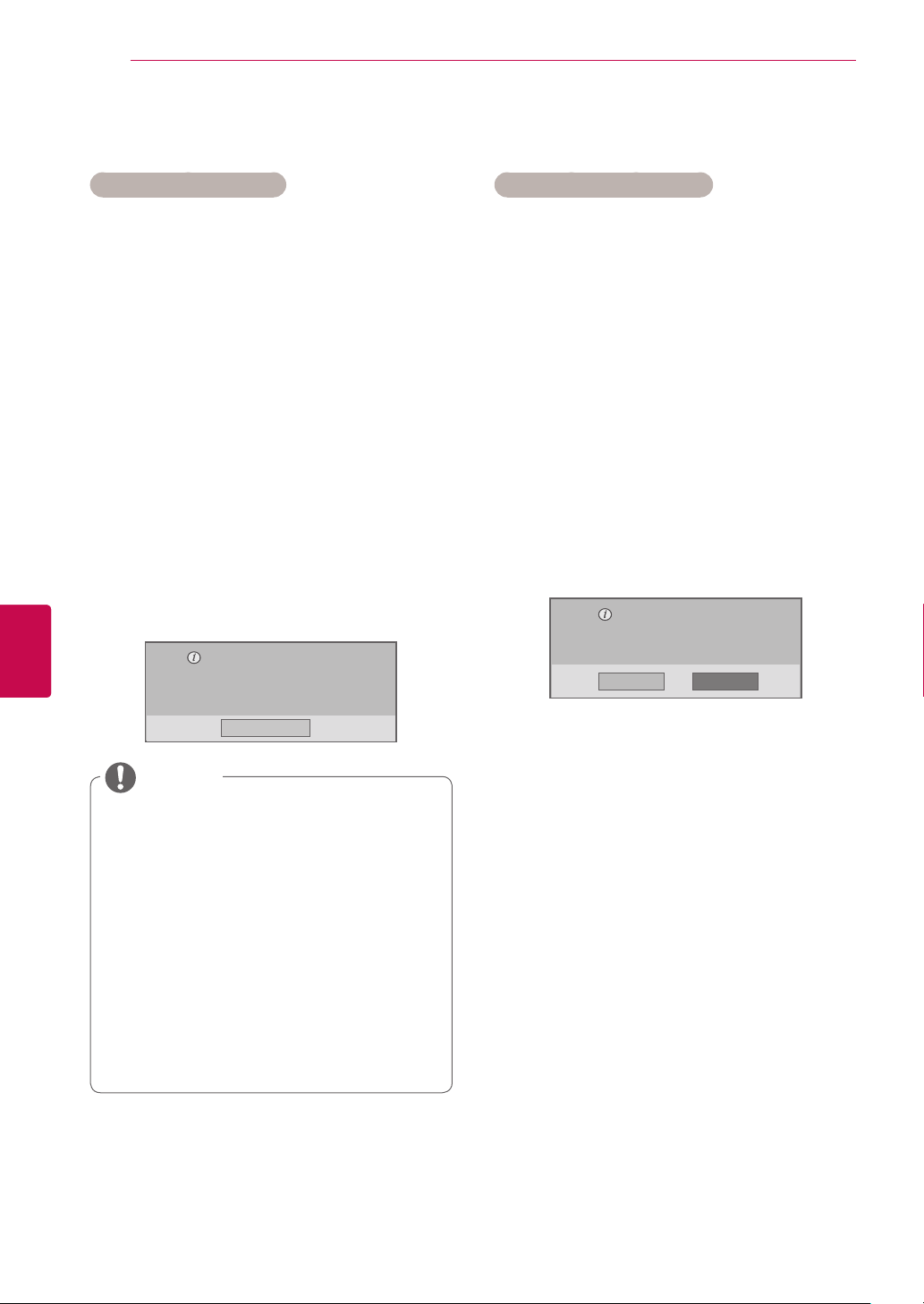
64
ENG
ENGLISH
ENTERTAINMENT
DivX registration code
Registering the DivX code
Check and register the DivX registration code of
your TV so that you can rent or purchase the latest
movies at www.divx.com/vod. To play a rented or
purchased DivX file, the file’s registration code
should be same with your TV’s DivX registration
code.
1 Press Home to access the main menus.
2 Press the Navigation buttons to scroll to MY
MEDIA and press OK.
3 Press the Blue button.
4 Press the Navigation buttons to scroll to DivX
Reg. Code and press OK.
5 View the registration code of your TV.
6 When you are finished, press EXIT.
When you return to the previous menu, press
BACK.
Movie files are supported as follows
Resolution : under 1920x1080 WxH pixels
Frame rate : under 30 frames/
sec(1920x1080), under 60 frames/
sec(under 1280x720)
Video Codec : MPEG 1, MPEG 2, MPEG
4, H.264/AVC, DivX 3.11, DivX 4.12,
DivX 5.x, DivX 6, Xvid 1.00, Xvid 1.01,
Xvid 1.02, Xvid 1.03, Xvid 1.10-beta1,
Xvid 1.10-beta2, JPEG, VC1, Sorenson
H.263/H.264.
The DRM/*.tp /*.trp file in DLNA server is
not played when Movie List is in opera-
tion.
NOTE
Deactivating the DivX feature
Deactivate all of the devices through the web
server and block devices from activating.
Delete the existing authentication information to
receive a new DivX user authentication for the
TV. Once this function is executed, a DivX user
authentication is required again to see DivX DRM
files.
1 Press Home to access the main menus.
2 Press the Navigation buttons to scroll to MY
MEDIA and press OK.
3 Press the Blue button.
4 Press the Navigation buttons to scroll to Deac-
tivation and press OK.
5 Press the Navigation buttons to select Yes to
confirm.
Deregistration code :
********
Deregister at http://vod.divx.com
Continue with registration?
Yes No
6 When you are finished, press EXIT.
When you return to the previous menu, press
BACK.
You must register your device to
play DivX protected videos.
Registration code : **********
Register at http://vod.divx.com
Close
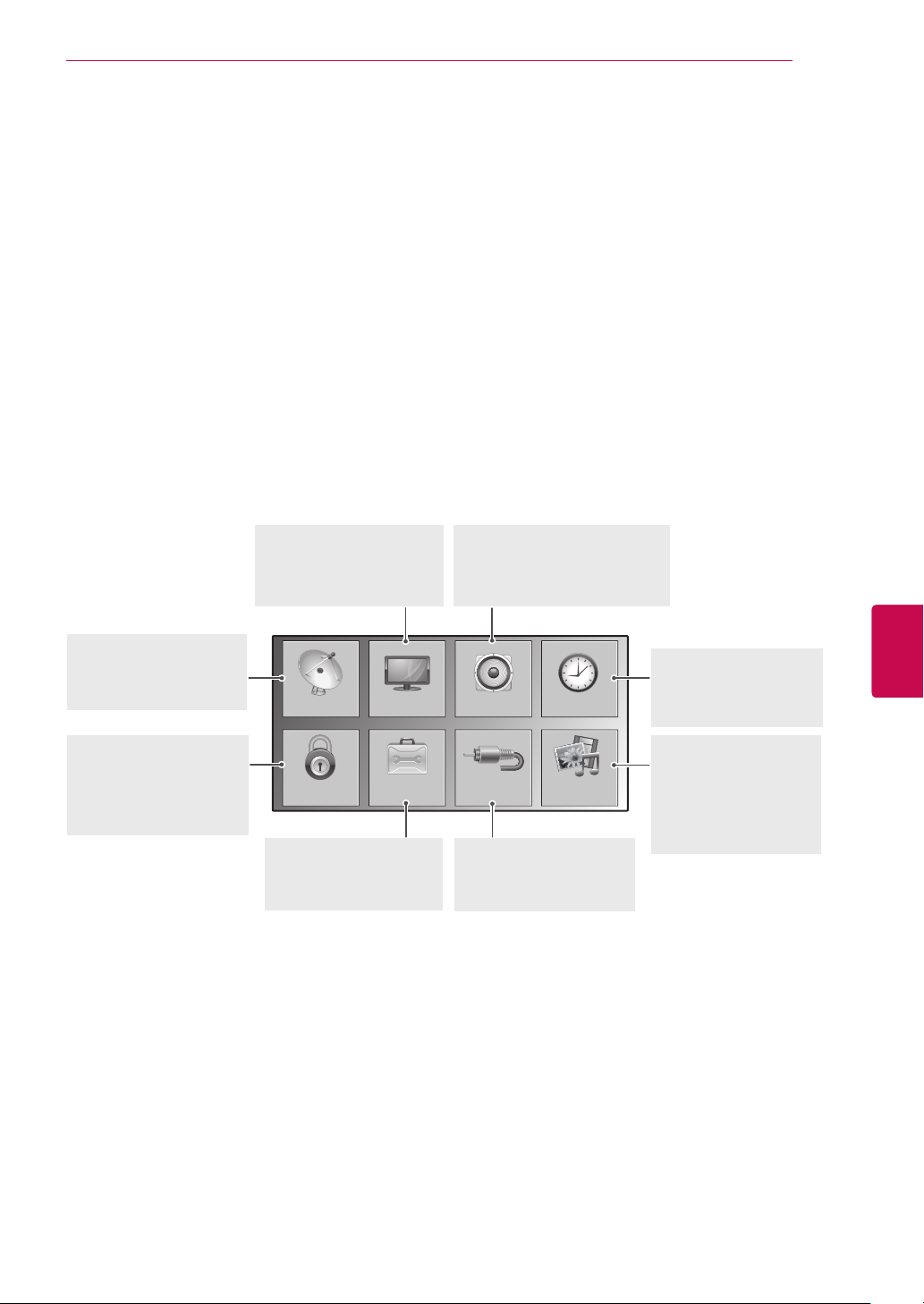
65
ENGENGLISH
CUSTOMIZING SETTINGS
CUSTOMIZING TV SETTINGS
Accessing main menus
1
Press Home to access the main menus.
2
Press the Navigation buttons to scroll to one of the following menus and press OK.
3
Press Navigation buttons to scroll to the setting or option you want and press OK.
4
When you are finished, press EXIT.
AUDIO (See p.73)
Adjusts the sound quality,
effect, or volume level
PICTURE (See p.67)
Adjusts the image size,
quality, or effect
TIME (See p.76)
Sets the time, date,
or Timer feature
SETUP (See p.66)
Sets up and edit
programmes
MY MEDIA (See p.55)
Display and play
movie, photo and
music content stored
on your USB
OPTION (See p.78)
Customizes
the general settings
INPUT (See p.46)
Views the input sources
with their labels
LOCK (See p.77)
Locks or unlocks
channels and
programmes
PICTURESETUP TIMEAUDIO
OPTIONLOCK
MY MEDIA
INPUT
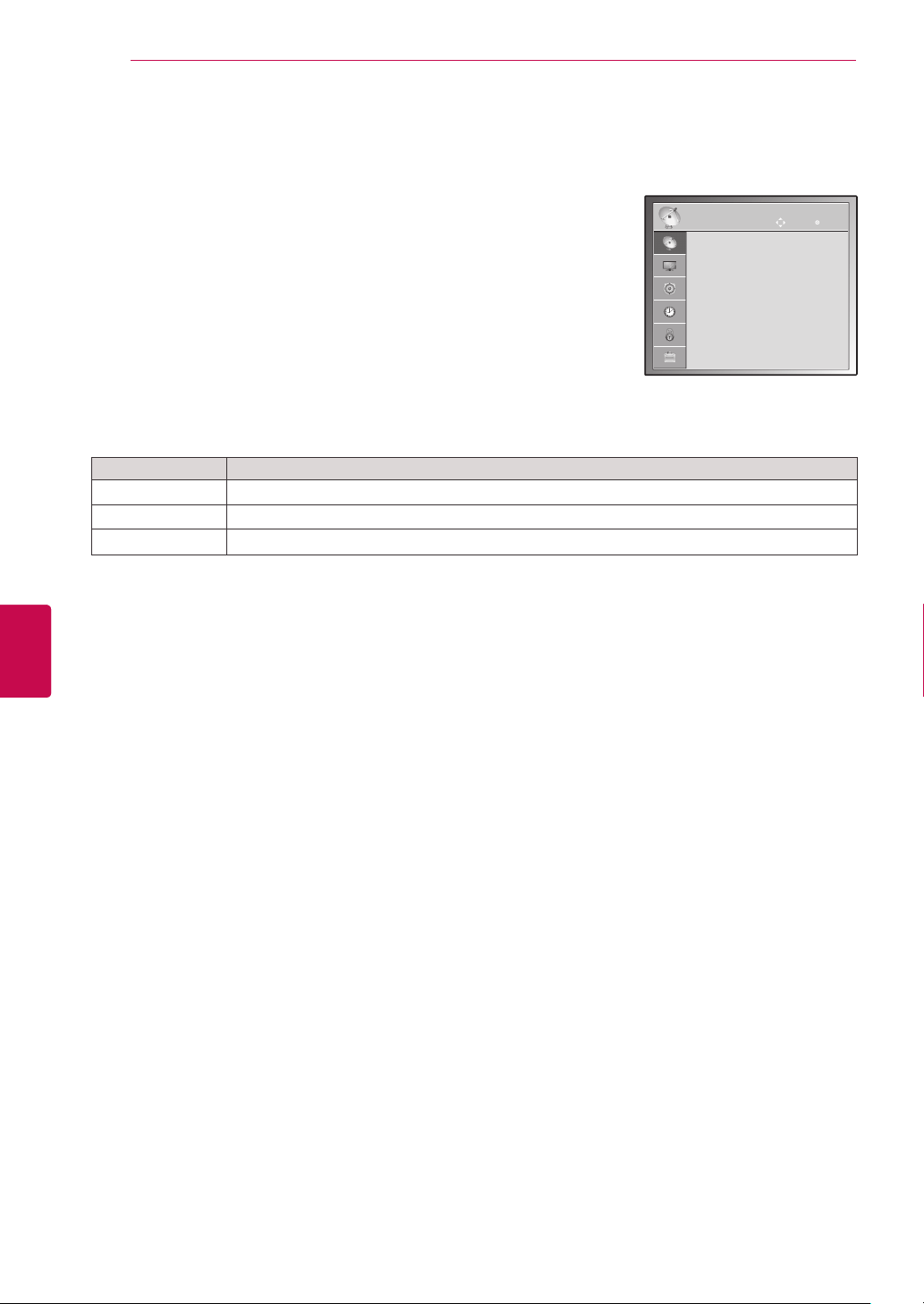
66
ENG
ENGLISH
CUSTOMIZING SETTINGS
SETUP
● Auto Tuning
● Manual Tuning
● Programme Edit
OK
Move
Customizing settings
SETUP settings
1 Press Home to access the main menus.
2 Press the Navigation buttons to scroll to SETUP and press OK.
3 Press the Navigation buttons to scroll to the setting or option you
want and press OK.
- To return to the previous level, press BACK.
4 When you are finished, press EXIT.
The available programme settings are described in the following:
Setting Description
Auto Tuning Tunes and stores all available programmes through antennas or cable inputs (See p.35).
Manual Tuning Tunes and stores the programmes you want manually (See p.35).
Programme Edit Adds or deletes programmes on the programme (See p.37).
Image shown may differ from your TV.
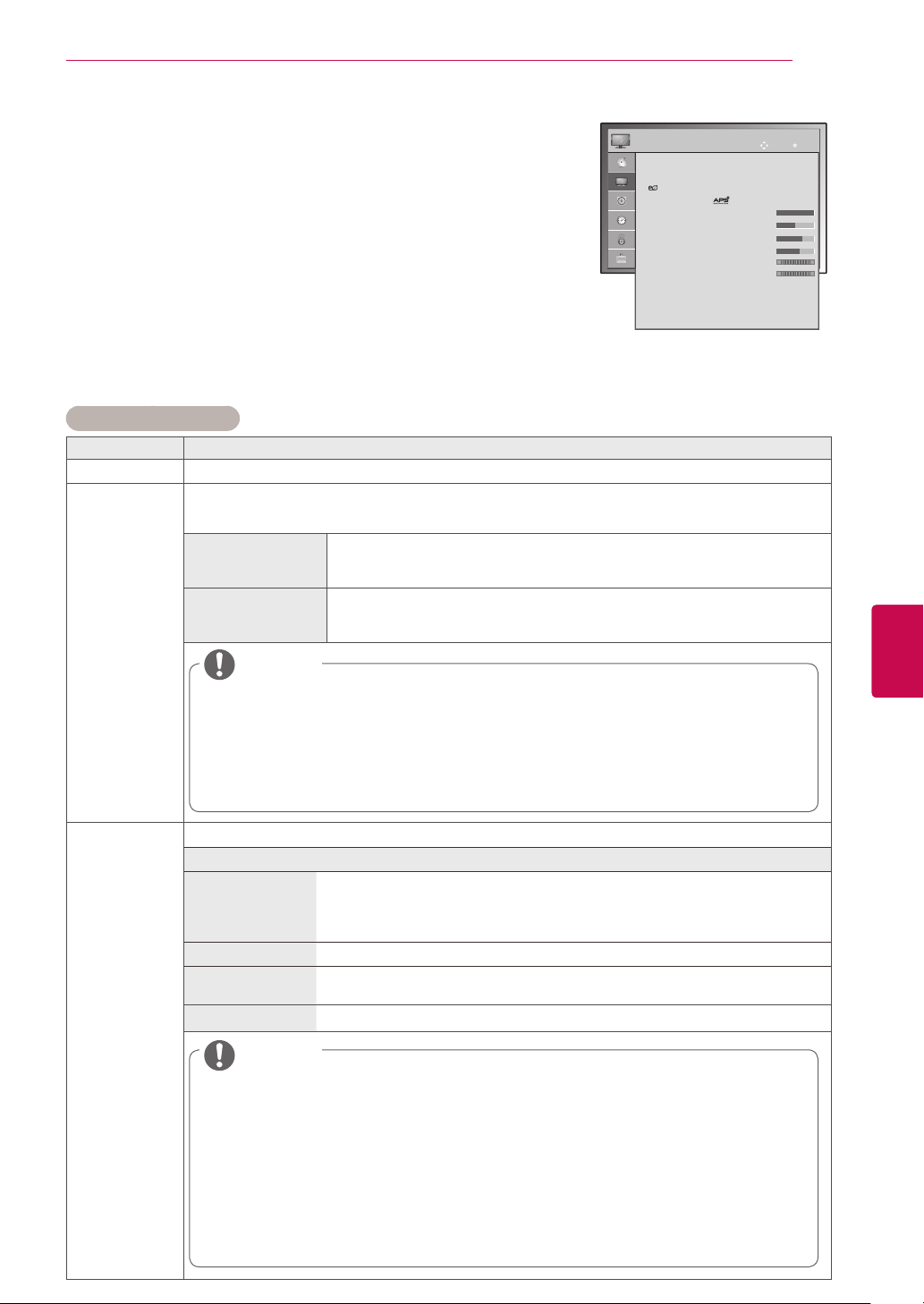
67
ENGENGLISH
CUSTOMIZING SETTINGS
PICTURE settings
1 Press Home to access the main menus.
2 Press the Navigation buttons to scroll to PICTURE and press
OK.
3 Press the Navigation buttons to scroll to the setting or option
you want and press OK.
- To return to the previous level, press BACK.
4 When you are finished, press EXIT.
The available picture settings are described in the following.
(Depending on model)
Setting Description
Aspect Ratio Changes the image size to view images at its optimal size (See p.45).
Picture Wizard Adjusts the image quality and calibrates the screen by following the on-screen instructions.
The customized options will be saved as Expert1 in the Picture Mode.
Standard
Mode to set standard picture quality.
(
Black Level, White Level, Tint, Colour, Horizontal Sharpness, Vertical
Sharpness, Backlight(Only LCD TV/LED LCD TV)
Preferred
Mode to set user preferred picture quality rather than standard picture.
(
Black Level, White Level, Tint, Colour, Sharpness, Dynamic Contrast,
Colour Temperature, Backlight(Only LCD TV/LED LCD TV))
If you stop the setting before the final stage, the changes will not be applied.
If you use Picture Wizard, the Energy saving feature will turn off automatically.
If the picture quality setting of Expert1 is changed, use the Picture Reset before entering
the Picture Wizard to reset the picture quality setting.
In RGB-PC/HDMI-PC/DVI-PC mode, the changed Colour, Tint and H/V Sharpness values
are not applied.
NOTE
Energy Saving Reduces the power consumption by adjusting the screen brightness.
Option
Intelligent sensor
(Only Plasma TV)
or Auto (Only LCD
TV/LED LCD TV)
*This feature is not available for all models.
The most suitable brightness is automatically adjusted according to the sur-
rounding conditions.
Off The Energy Saving is off
Minimum/Me-
dium/Maximum
Selects the brightness level.
Screen off The screen turns off in 3 seconds.
When adjusting Energy Saving in MHEG mode, the Energy Saving setting is applied after
MHEG is finished.
When you select Screen Off, the screen will be turned off in 3 seconds and Screen Off will start.
Selecting ‘Screen Off’ while tuned to a radio station channel will reduce power consumption.
If you adjust “Energy Saving-Auto(Depending on model), Maximum”, Backlight feature will
not work. (LCD TV/LED LCD TV only)
If you adjust “Energy Saving-Intelligent Sensor”, Sharpness, Colour, Colour Temperature
feature will not work. (Plasma TV only)
When selecting Auto, Backlight is automatically adjusted through intelligent sensor according
to the surrounding condition when intelligent sensor is in the TV. (LCD TV/LED LCD TV only)
(Depending on model)
NOTE
PICTURE
OK
Move
● Aspect Ratio : 16:9
● Picture Wizard
● Energy Saving : Intelligent Sensor
● Picture Mode : Vivid
● Contrast 100
● Brightness 50
● Sharpness 65
● Colour 60
● Tint 0
● Colour Temp. 0
● Advanced Control
● Picture Reset
● Screen
R
G
W
C
Image shown may differ from your TV.
Image shown may differ from your TV.
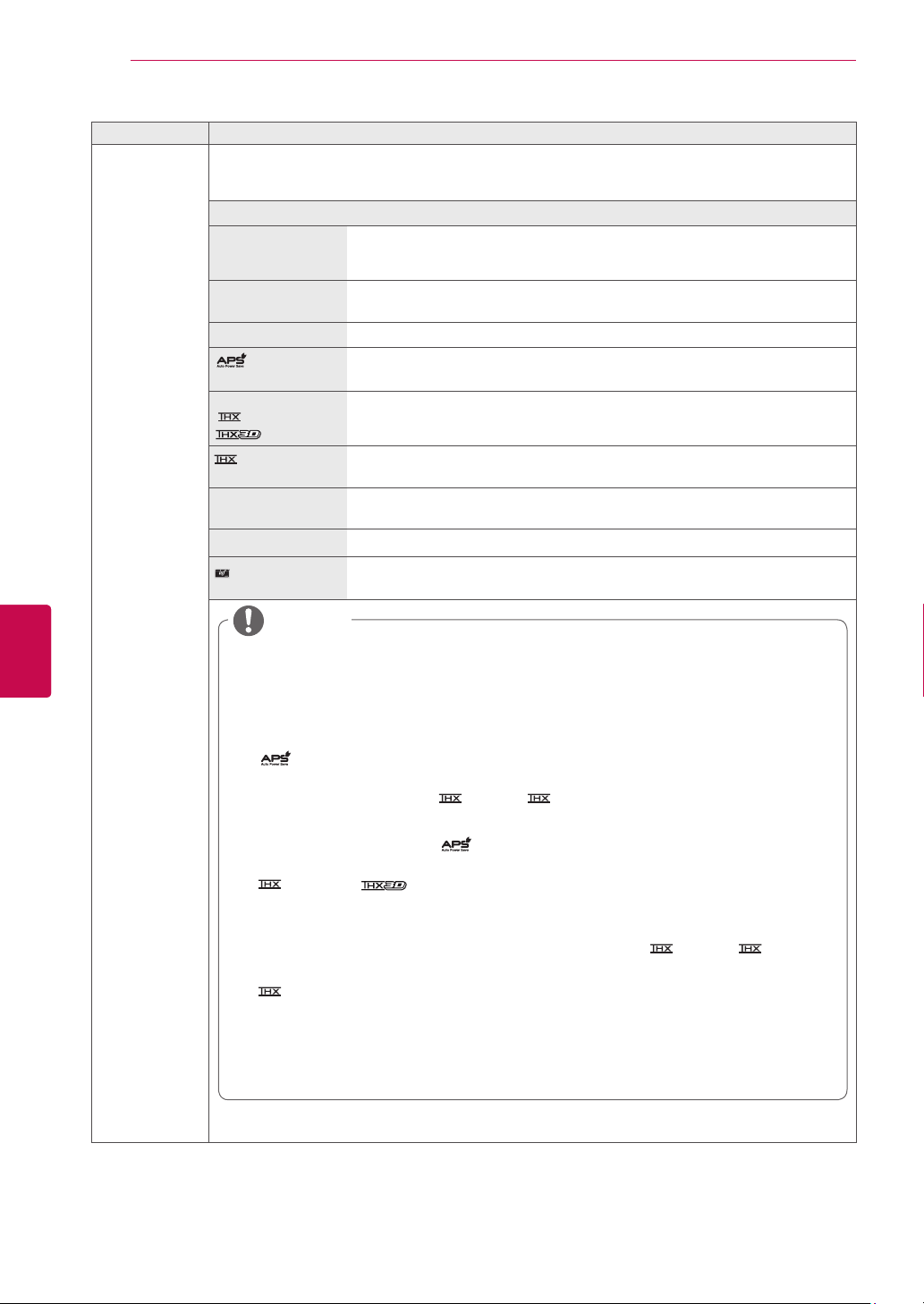
68
ENG
ENGLISH
CUSTOMIZING SETTINGS
Setting Description
Picture Mode Selects one of the preset image or customizes options in each mode for the best TV screen perform-
ance. You are also able to customize advanced options of each mode.
The available preset picture modes vary depending on the TV.
Mode
Intelligent sensor
(Only LCD TV/ LED
LCD TV)
*This feature is not available for all models.
Adjusts picture according to the surrounding conditions.
Vivid Adjusts the video image for the retail environment by enhancing the contrast,
brightness, colour, and sharpness.
Standard Adjusts the image for the normal environment.
(Only Plasma TV)
Optimizes power consumption.
Cinema or
Cinema or
Cinema
Optimizes the video image for a cinematic look to enjoy movies as if you are in
a movie theatre
Bright Room
(Only Plasma TV)
*This feature is not available for all models.
This is the specification to optimize TV viewing in Bright Room.
Sport Optimizes the video image for high and dynamic actions by emphasizing
primary colours such as white, grass, or sky blue.
Game Optimizes the video image for a fast gaming screen such as PCs or games.
Expert
Adjusts the detailed video image settings for video experts as well as general
viewers.
Picture Mode adjusts the TV for the best picture appearance. Select the preset value in the
Picture Mode menu based on the programme category.
When the Intelligent sensor function is on, the most suitable picture is automatically adjusted
according to the surrounding conditions.
You can also adjust Picture Mode in the Q. Menu.
(Auto Power Saving) : Maximize reducing the power consumption without hurting the
picture quality. (Only Plasma TV)
If you adjust “Picture Mode-
Cinema, Bright Room”, “Energy Saving-Intelligent
Sensor, Minimum, Medium, Maximum” feature will not work. (Only Plasma TV)
If you adjust “Picture Mode-
”, “Energy Saving-Off, Minimum, Medium, Maximum”
feature will not work. (Only Plasma TV)
»
Cinema or Cinema(Only Plasma TV) :This is cinema quality mode to provide
you the experience of watching a movie at home.The user will be able enjoy the best level of
satisfactory screen quality in any movie without any separate adjustments.Cinema expresses
the optimal screen quality when it is darkest. When selecting Cinema, Bright
Room Aspect ratio changes to Just scan.
» Cinema(Thomlinson Holman ’s Experiment)is the audio and video certification standard
of THX established by George Lucas,who directed the movie Star Wars,and Thomlinson.
This is the product to be certified in THX display area and guarantees screen quality that
exceeds the display standard specification in both hardware and software.
NOTE
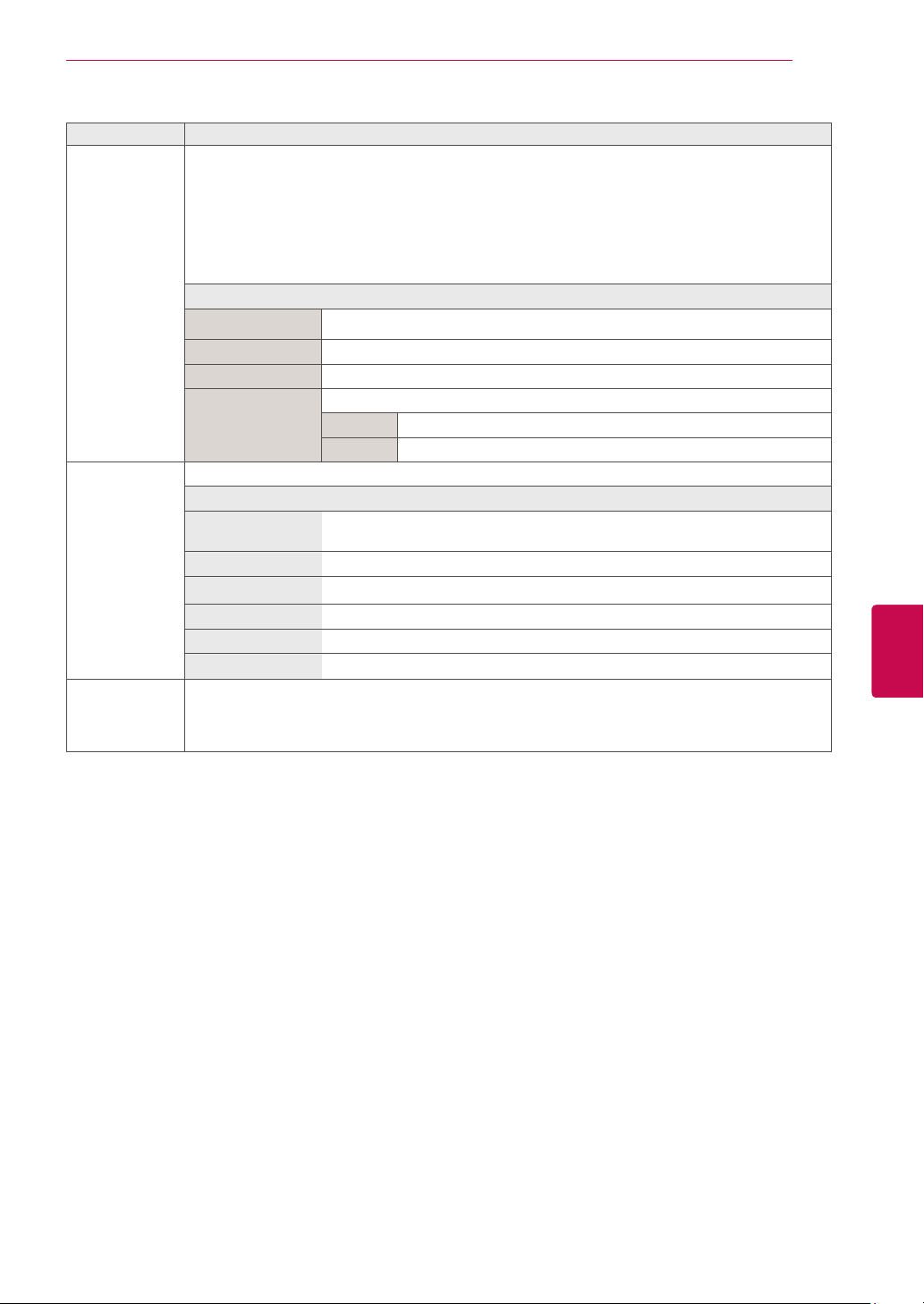
69
ENGENGLISH
CUSTOMIZING SETTINGS
Setting Description
TruMotion
(Only LCD TV/
LED LCD TV)
*This feature is not available for all models.
It is used for the best picture quality without any motion blur or judder when you enter a quick image
or Film Source.
TruMotion works with all inputs except PC mode.
This feature is disabled in RGB-PC, HDMI-PC and MY MEDIA-Photo List mode.
If you enable “TruMotion”, noise may appear on the screen.
If this occurs, set “TruMotion” to “Off”.
If you select “Picture Mode-Game ”, set “TruMotion” to “Off”.
Option
High Provide smoother picture movement.
Low Provide smooth picture movement. Use this setting for standard use.
Off Turn off TruMotion Operation.
User User can adjust Judder and Blur level in TruMotion Operation, separately.
Judder Adjusts noise of the screen.
Blur Adjusts after-image of the screen.
SCREEN Customizes the PC display options.
Option
Resolution Selects a proper resolution when your PC uses.
Auto Configure Sets the TV to optimize the options automatically for the TV display.
Position Locates the image at the proper position.
Size Adjusts the image size.
Phase Eliminates horizontal streaking.
Reset Restores the options to the default setting.
LED Local Dim-
ming (Only LCD
TV/LED LCD
TV)
*This feature is not available for all models.
After analysing the signal of the input video by areas of the screen, it adjusts the backlight to im-
prove the contrast ratio.
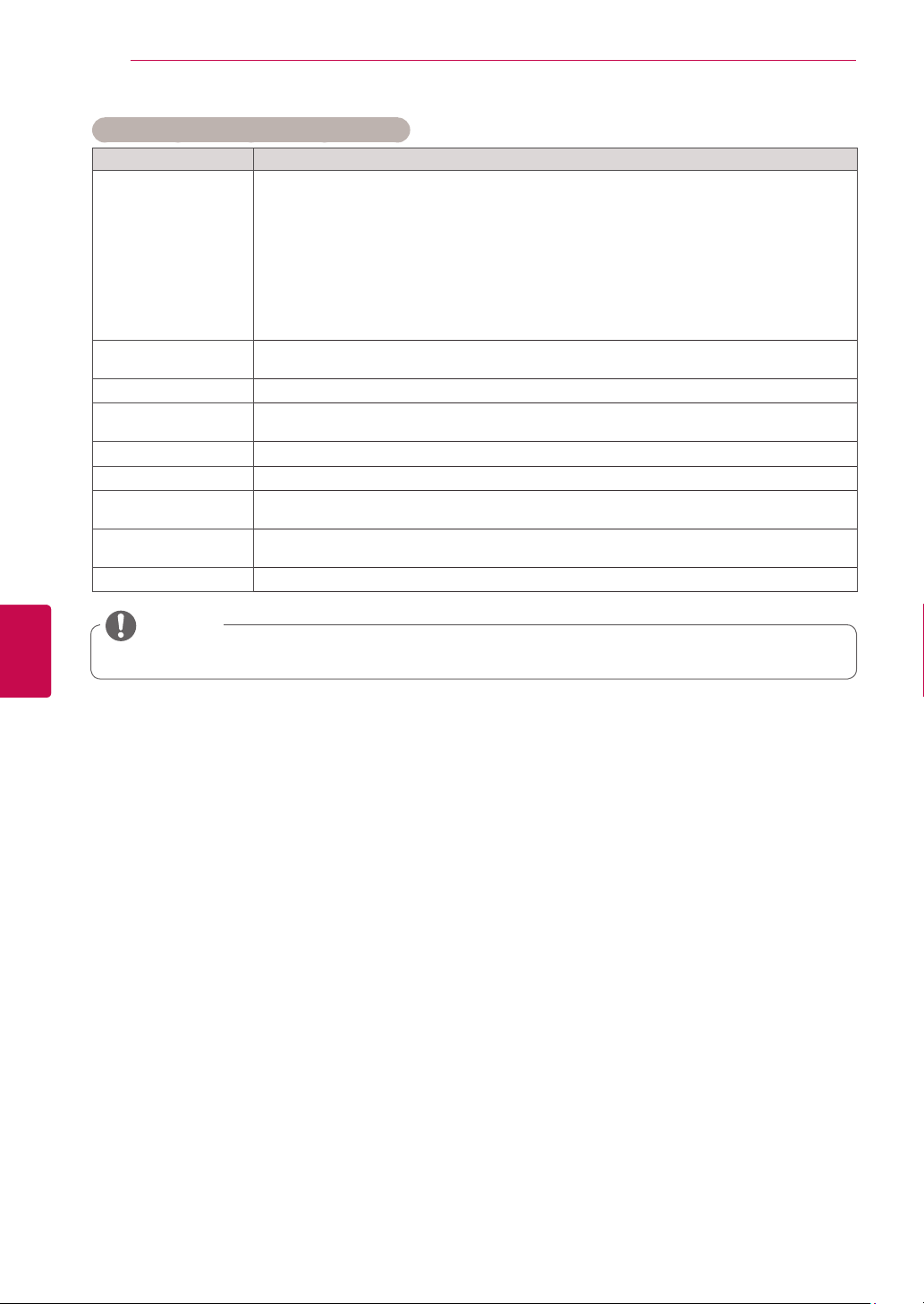
70
ENG
ENGLISH
CUSTOMIZING SETTINGS
Basic image options (Depending on model)
Setting Description
Backlight
(Only LCD TV/LED
LCD TV)
Adjusts the brightness of the screen by controlling the LCD backlight. If you decrease the
brightness level, the screen becomes darker and the power consumption will be reduced with-
out any video signal loss.
If you use the “Energy saving - Auto, Minimum, Medium, Maximum”, Backlight will
not be available.
Benefits of using Backlight
- The electricity consumption is reduced by up to 60 %.
- The black brightness is reduced. (As the black has greater depth, you can enjoy a
better quality definition.)
- You can adjust brightness with maintaining original signal resolution.
Contrast Increases or decreases the gradient of the video signal. You may use Contrast when the
bright part of the picture is saturated.
Brightness Adjusts the base level of the signal in the picture.
Sharpness Adjusts the level of crispness in the edges between the light and dark areas of the picture.
The lower the level, the softer the image.
Colour Adjusts intensity of all colours.
Tint Adjusts the balance between red and green levels.
Colour Temp. Set to warm to enhance hotter colours such as red, or set to cool to enhance cooler colours
such as blue.
Advanced Control or
Expert Control
Customizes the advanced options
Picture Reset Restores the options of each mode to the factory default
You cannot adjust colour, sharpness and tint in the RGB-PC/HDMI-PC mode.
NOTE
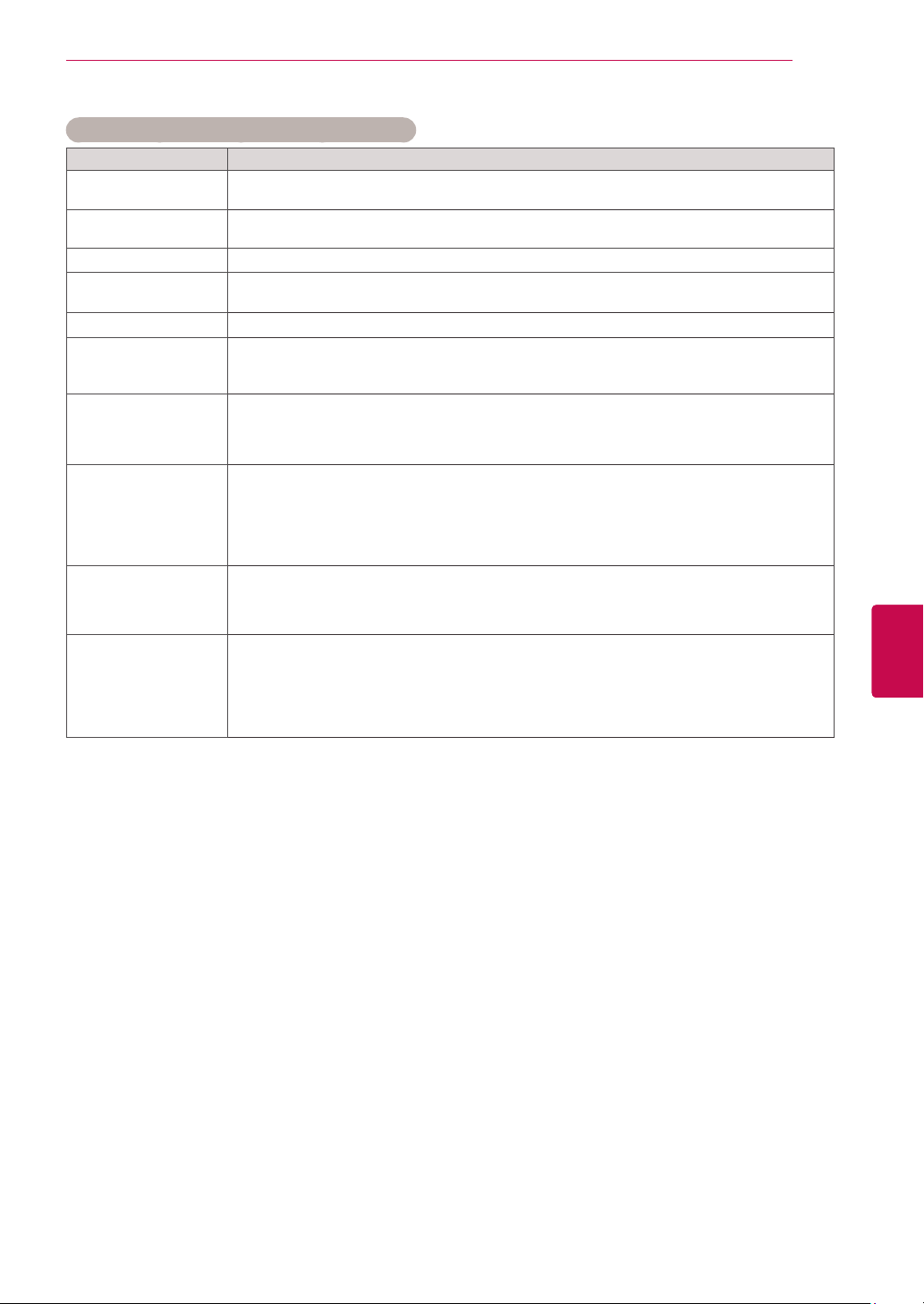
71
ENGENGLISH
CUSTOMIZING SETTINGS
Advanced image options (Depending on model)
Setting Description
Dynamic Contrast Adjusts the contrast to keep it at the best level according to the brightness of the screen. The
picture is improved by making bright parts brighter and dark parts darker.
Dynamic Colour Adjusts screen colours so that they look livelier, richer and clearer. This feature enhances hue,
saturation and luminance so that red, blue and green white look more vivid.
Clear White Makes the white area of the screen brighter and clearer.
Skin Colour It detects the skin area of video and adjusts it to express a natural skin colour.
Noise Reduction Reduces screen noise without compromising video quality.
Digital Noise Reduc-
tion
Removes noise caused by compressing video.
Gamma You can adjust brightness of dark area and middle gray level area of the picture.
Low: Make the dark and middle gray level areas brighter.
Medium: Express the original picture level.
High: Make the dark and middle gray level area darker.
Black Level Sets black level of the screen to proper level. This function is available in the following modes:
AV (NTSC-M), HDMI, Component or USB(Only Plasma TV).
Low: The reflection of the screen gets darker.
High: The reflection of the screen gets brighter.
Auto : Sets black level of the screen to High or Low automatically according to the input
signal level.
Eye Care Adjusts the brightness of the screen to prevent the screen from being too bright. Dims ex-
tremely bright pictures.
This feature is disable in “Picture Mode-Vivid, Cinema, Expert1, Expert2, Intelligent
Sensor.”
Film Mode or Real
Cinema
Makes video clips recorded in film look more natural by eliminating judder effect.
DVD and Blu-ray movies are filmed at 24 frames per second (fps). With LG Real Cinema,
every frame is consistently processed 5 times in 1/24 of a second producing 120 fps with
TruMotion or 2 times in 1/24 of a second producing 48 fps without TruMotion, thus totally
eliminating the judder effect.
This function can also work when TruMotion is off.

72
ENG
ENGLISH
CUSTOMIZING SETTINGS
Advanced image options (Depending on model)
Setting Description
Colour Gamut Advanced Control
Maximizes the utilization of colour to increase colour quality.
Standard: Displays standard set of colours.
Wide: Increase number of colours used.
Expert Control
Displays colour domain of the signal.
Standard: Displays standard set of colours.
Wide: Increase number of colours used.
EBU: Mode to display EBU standard colour area.
SMPTE: Mode to display SMPTE standard colour area.
BT709: Mode to display BT709 standard colour area.
Edge Enhancer Shows clearer and distinctive yet natural edges of the video.
xvYCC
(available in Cinema
and Expert mode)
*This feature is not available for all models.
This is produces richer colours.
This feature represents rich colours as much as a conventional video signal.
This function is enabled in “Picture mode - Cinema, Expert” when xvYCC signal is inputted
through HDMI.
Colour Filter This is the function to filter the specific colours of the video.
You can use the RGB filter to set colour saturation and hue accurately.
Expert Pattern
(available in Expert
modes)
This is the pattern used for expert adjustment
This function is enabled in “Picture Mode - Expert” when you watch DTV.
Colour Temperature Adjusts the overall colour of the screen by changing the white baseline.
Plasma TV a. Method : 2 Points
Pattern: Inner, Outer
Red/Green/Blue
Contrast, Red/Green/
Blue Brightness: The
adjustment range is
-50 to +50.
b. Method : 20 Point IRE
IRE (Institute of Radio Engineers) is the unit to
display the size of the video signal and can be set
among 5, 10, 15 - 100 Plasma TV. You can adjust
Red, Green or Blue according to each setting.
Red/Green/Blue: The adjustment range is -50 - +50.
c. Apply to all inputs
LCD TV/
LED LCD
TV
b. Method : 10 Point IRE
Pattern: Inner, Outer
IRE (Institute of Radio Engineers) is the unit to
display the size of the video signal and can be set
among 10, 20, 30 - 100. You can adjust Red, Green
or Blue according to each setting.
Luminance: This function displays calculated lumi-
nance value for 2.2 gamma. You can input lumi-
nance value you want at 100 IRE, than the target
luminance value for 2.2 gamma is displayed at every
10 steps from 10 IRE to 90 IRE.
Red/Green/Blue: The adjustment range is -50 - +50.
c. Apply to all inputs
Colour Manage
System
As the tool used by the experts to make adjustments by using the test patterns, this does not
affect other colours but can be used to selectively adjust the 6 colour areas (Red/Green/Blue/
Yellow/Cyan/Magenta).
Colour difference may not be distinctive even when you make the adjustments for the general
video.
Adjusts Red/Green/Blue/Yellow/Cyan, Magenta.
Red/Green/Blue/Yellow/Cyan, Magenta Colour: The adjustment range is -30 - +30.
Red/Green/Blue/Yellow/Cyan, Magenta Tint: The adjustment range is -30 - +30.
This feature is disable in RGB-PC and HDMI-PC mode.
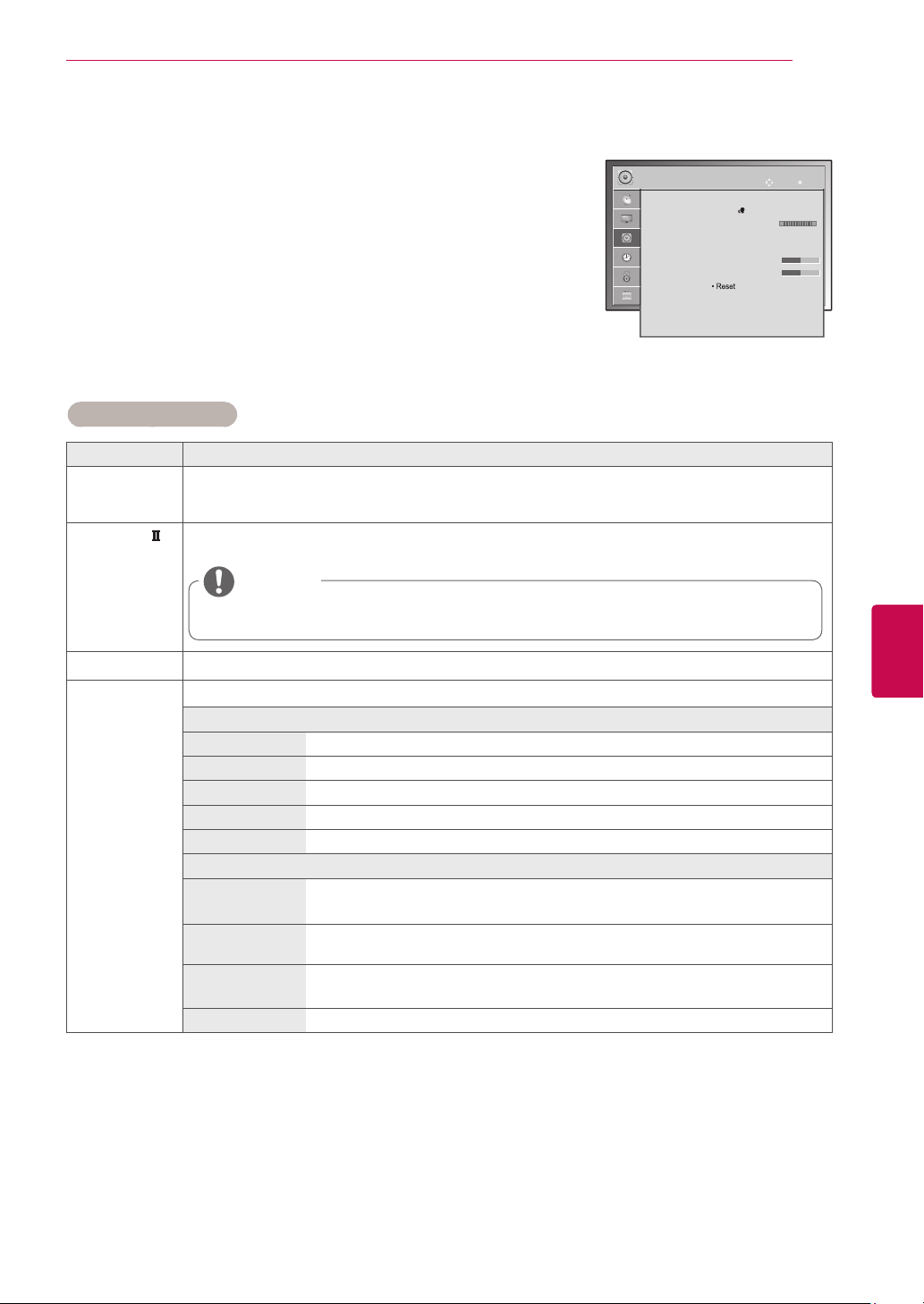
73
ENGENGLISH
CUSTOMIZING SETTINGS
Setting Description
Auto Volume Activates the Auto Volume feature to keep the volume level consistent whenever you change
channels. The volume level may not be consistent due to different signal conditions of broadcasting
stations.
Clear Voice
Sets whether to enhance human voice clarity. You can adjust the level of clarity when you set this
feature on.
If you select “On” for Clear Voice II, Infinite Surround feature will not work.
Select levels from ‘-6’ to ’+6’.
NOTE
Balance Adjust balance between the left and right speakers according to your room environment.
Sound Mode Selects one of the preset sound modes or customizes options in each mode.
Mode
Standard Select when you want standard-quality sound.
Music Select when you listen to music.
Cinema Select when you watch movies.
Sport Select when you watch sports events.
Game Select when you play games.
Option
Infinite Surround Infinite Surround is a patented LG proprietary sound processing technology that
strives immersive 5.1 surround sound impression with front two loudspeakers.
Treble Controls the dominant sounds in the output. When you turn up the treble, it will
increase the output to the higher frequency range.
Bass Controls the softer sounds in the output. When you turn up the bass, it will
increase the output to the lower frequency range.
Reset Resets the sound mode to the default setting.
AUDIO settings
1
Press Home to access the main menus.
2
Press the Navigation buttons to scroll to AUDIO and press OK.
3
Press the Navigation buttons to scroll to the setting or option you want
and press OK.
- To return to the previous level, press BACK.
4
When you are finished, press EXIT.
AUDIO
OK
Move
● Auto Volume : Off
● Clear Voice II : Off 3
● Balance 0
● Sound Mode : Standard
• Infinite Surround : Off
• Treble 50
• Bass 50
• Reset
● Digital Audio Out : PCM
● TV Speaker : On
● DTV Audio Setting : Auto
L
R
The available audio settings are described in the following.
(Depending on model)
Image shown may differ from your TV.
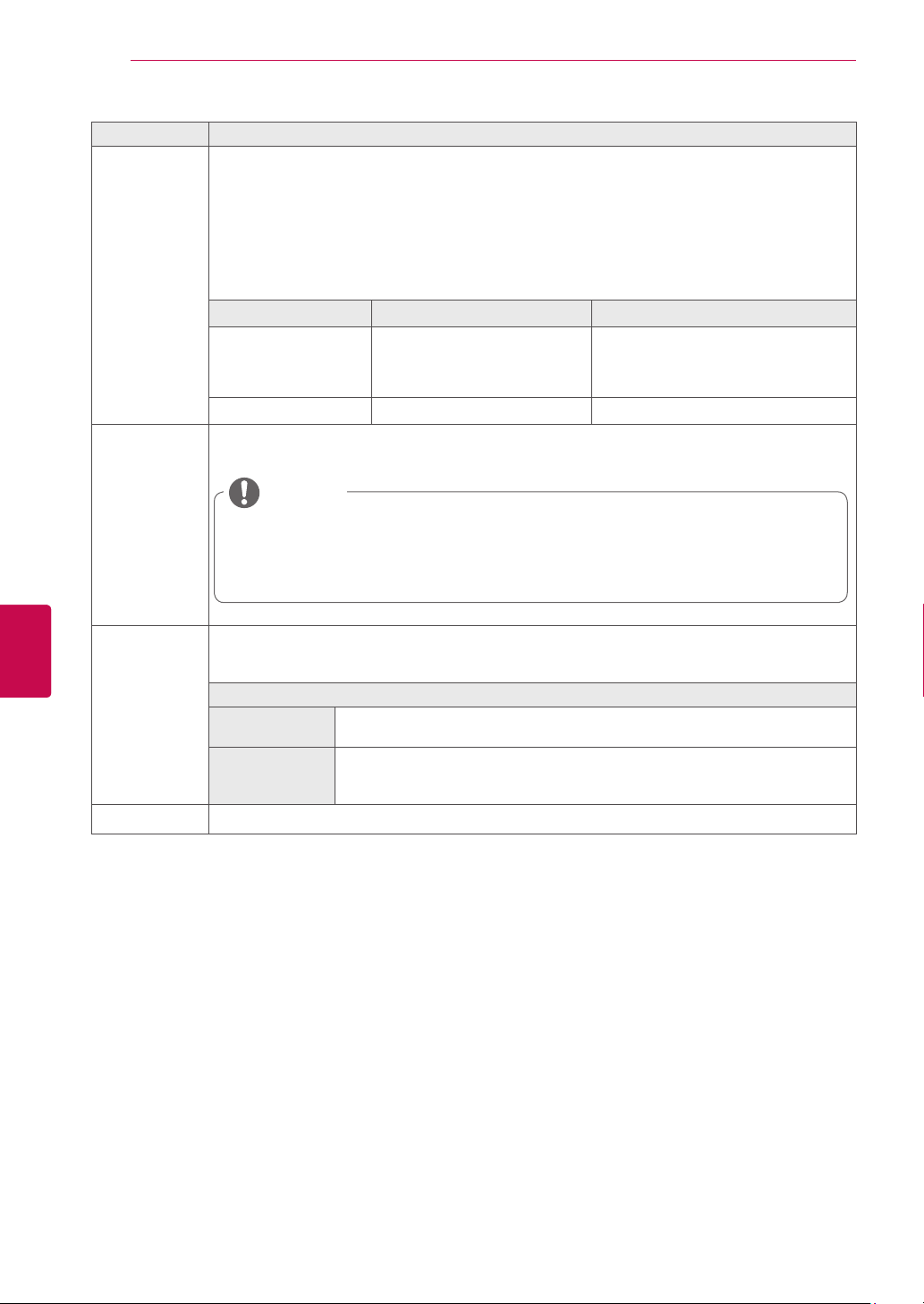
74
ENG
ENGLISH
CUSTOMIZING SETTINGS
Setting Description
Digital Audio
Out
It is possible to use in DTV, HDMI, DivX mode.
This function allows you to select your preferred Digital Audio Output.
When Dolby Digital is available, selecting Auto in the Digital Audio Out menu will set SPDIF(Sony
Philips Digital InterFace) output to Dolby Digital.
If Auto is selected in the digital audio out menu when Dolby Digital is not available, SPDIF output will
be PCM(Pulse-code modulation).
Even if both Dolby Digital and Audio language have been set in a channel which broadcast Dolby
Digital Audio, only Dolby Digital will be played.
Item Audio Input Digital Audio output
Auto
MPEG
Dolby Digital
Dolby Digital Plus
HE-AAC
PCM
Dolby Digital
Dolby Digital
Dolby Digital
PCM
All PCM
TV Speaker Turns on the internal speaker of the TV when using an external Hi-Fi system. You can use the TV
speaker as an audio output device even if there is no video input.
When the TV speaker is turned off while the Simplink home theatre is operating, the sound
output automatically switches to the Home theatre speaker, but when the TV speaker is
turned on, the sound output the TV speaker.
Some menus in AUDIO are disabled when TV Speaker is set to Off.
NOTE
DTV Audio Set-
ting (In digital
mode only)
When different audio types exist in an input signal, this function allows you to select the audio type
you want.
Mode
Auto Automatically outputs in the order HE-AAC > Dolby Digital+ > Dolby Digital >
MPEG.
HE-AAC, Dolby
Digital+, Dolby
Digital, MPEG
Allows users to select the audio type they want.
ex) If MPEG is selected, MPEG is always outputted.
If MPEG is not supported, another audio type is set in that order.
See "Audio Language" on p.78
75
ENGENGLISH
CUSTOMIZING SETTINGS
Stereo/Dual Reception (In Analogue Mode Only)
When a programme is selected, the sound information for the station appears with the programme
number and station name.
1 Press Q. MENU and press the Navigation to access the Audio or Audio Language and press OK.
2 Press the Navigation button to scroll to sound output and press OK.
This feature may not be applied based on country broadcasting circumstance.
Broadcast On Screen Display
Mono
Stereo
Dual
MONO
STEREO
DUAL I , DUAL II , DUAL I + II
NICAM NICAM
Nicam Reception (In Analogue Mode Only)
Speaker Sound Output Selection
If the TV is equipped with a receiver for NICAM reception, high quality NICAM (Near Instantaneous
Companding Audio Multiplex) digital sound can be received.
Sound output can be selected according to the type of broadcast received.
1 When NICAM mono is received, you can select NICAM MONO or FM MONO.
2 When NICAM stereo is received, you can select NICAM STEREO or FM MONO.
If the stereo signal is weak, switch to FM MONO.
3 When NICAM dual is received, you can select NICAM DUAL I, NICAM DUAL II or NICAM DUAL I+II or
FM MONO.
In AV, Component, RGB and HDMI mode, you can select output sound for the left and right loudspeakers.
Select the sound output.
L+R: Audio signal from audio L input is sent to the left loudspeaker and audio signal from audio R input is
sent to the right loudspeaker.
L+L: Audio signal from audio L input is sent to left and right loudspeakers.
R+R: Audio signal from audio R input is sent to left and right loudspeakers.
Mono sound selection
If the stereo signal is weak in stereo reception, you can switch to mono. In mono reception, the clarity of
sound is improved.
Language selection for dual language broadcast
If a programme can be received in two languages (dual language), you can switch to DUAL I,
DUAL II or DUAL I+II.
DUAL I Sends the primary broadcast language to the loudspeakers.
DUAL I I Sends the secondary broadcast language to the loudspeakers.
DUAL I+I I Sends a separate language to each loudspeaker.

76
ENG
ENGLISH
CUSTOMIZING SETTINGS
TIME settings
1 Press Home to access the main menus.
2 Press the Navigation buttons to scroll to TIME and press OK.
3 Press the Navigation buttons to scroll to the setting or option you want
and press OK.
- To return to the previous level, press BACK.
4 When you are finished, press EXIT.
The available time settings are described in the following
TIME
OK
Move
● Clock
● Off Time : Off
● On Time : Off
● Sleep Timer : Off
Setting Description
Clock
Sets the time, date, time zone and daylight-saving time feature.
The time will be set automatically according to a digital channel signal which includes time
information provided by the broadcasting station. If not, set the time and date manually.
Time Zone is enabled only in Australia, Indonesia and Israel only.
< Only Australia > When you select a Time Zone city, the TV time is set by the time offset
information based on Time Zone and GMT (Greenwich Mean Time) which is received with
the broadcast signal and the time is set automatically by a digital signal.
<Only Indonesia, Israel> GMT (Greenwich Mean Time) which is received with the
broadcast signal and the time is set automatically by a digital signal.
When if the city name in Time Zone is changed into offset, you can change time by 1 hour.
Time Zone menu can be changed in Auto mode.
NOTE
Off Time/On
Time
Sets the time to turn on or off the TV automatically. To use this function, you should set the current
time and date in advance.
If you do not press any button within 2 hours after the TV turns on by the On Time feature,
the TV enters the Standby mode automatically.
If you set both Off time and On time features to the same time, the Off time feature
overrides the On time feature.
NOTE
Sleep Timer Sets the length of time until the TV to turns off. When you turn the TV off and turn it on again, the
Sleep timer feature will be set to off.
Image shown may differ from your TV.
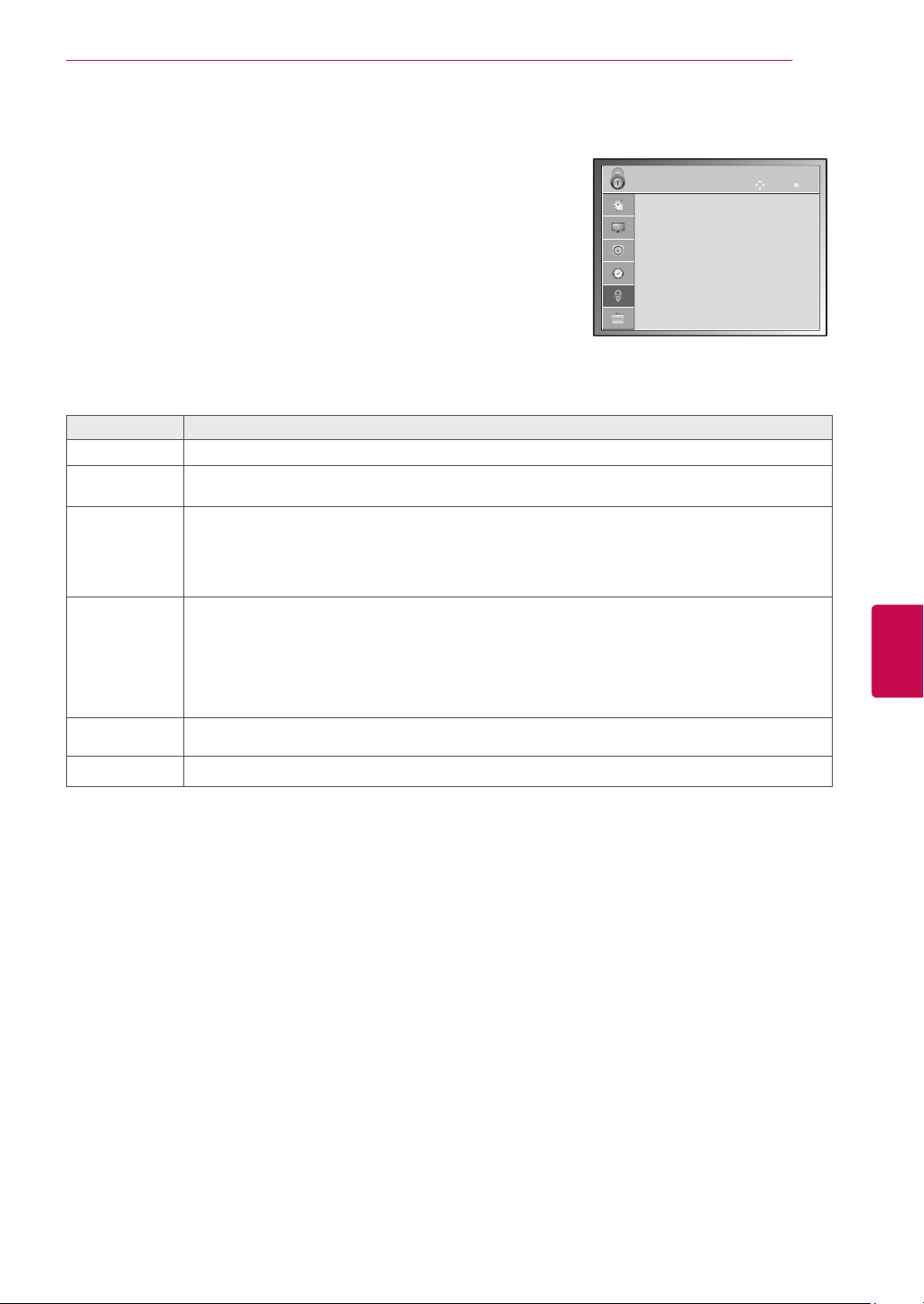
77
ENGENGLISH
CUSTOMIZING SETTINGS
Setting Description
Lock System Activates or deactivates the lock system.
Set Password Changes the 4-digit password. The default PIN is “0 0 0 0”.
If you forget your password, press ‘0’, ‘3’,‘2’, ‘5’ on the remote control handset.
Block
Programme
Blocks the programmes that contain inappropriate contents for children by pressing the Green
button. The Lock icon appears in front of the blocked programmes. The programmes can be selected
but the screen blank and the audio is muted.
To watch a locked channel, enter the password.
It is available to use this function in Lock System ”On”
Parental
Guidance
(In Digital mode
only)
This function operates according to information from the broadcasting station. Therefore if the signal
has incorrect information, this function does not operate.
A password is required to gain access to this menu.
This set is programmed to remember which option it was last set to even if you switch the set off.
Prevents children from watching certain adult’s TV programmes, according to the ratings limit set.
Enter a password to watch a blocked programme.
Rating differs by country.
Input Block Block the input sources.
It is available to use this function in Lock System ”On”
Key Lock Locks or unlocks the buttons on the TV.
LOCK settings
1 Press Home to access the main menus.
2 Press the Navigation buttons to scroll to LOCK and press OK.
3 Press the Navigation buttons to scroll to the setting or option you
want and press OK.
- To return to the previous level, press BACK.
4 When you are finished, press EXIT.
The available lock settings are described in the following.
LOCK
OK
Move
● Set Password
● Lock System : Off
● Block Programme
●
Parental Guidance : Blocking Off
● Input Block
● Key Lock : Off
Image shown may differ from your TV.
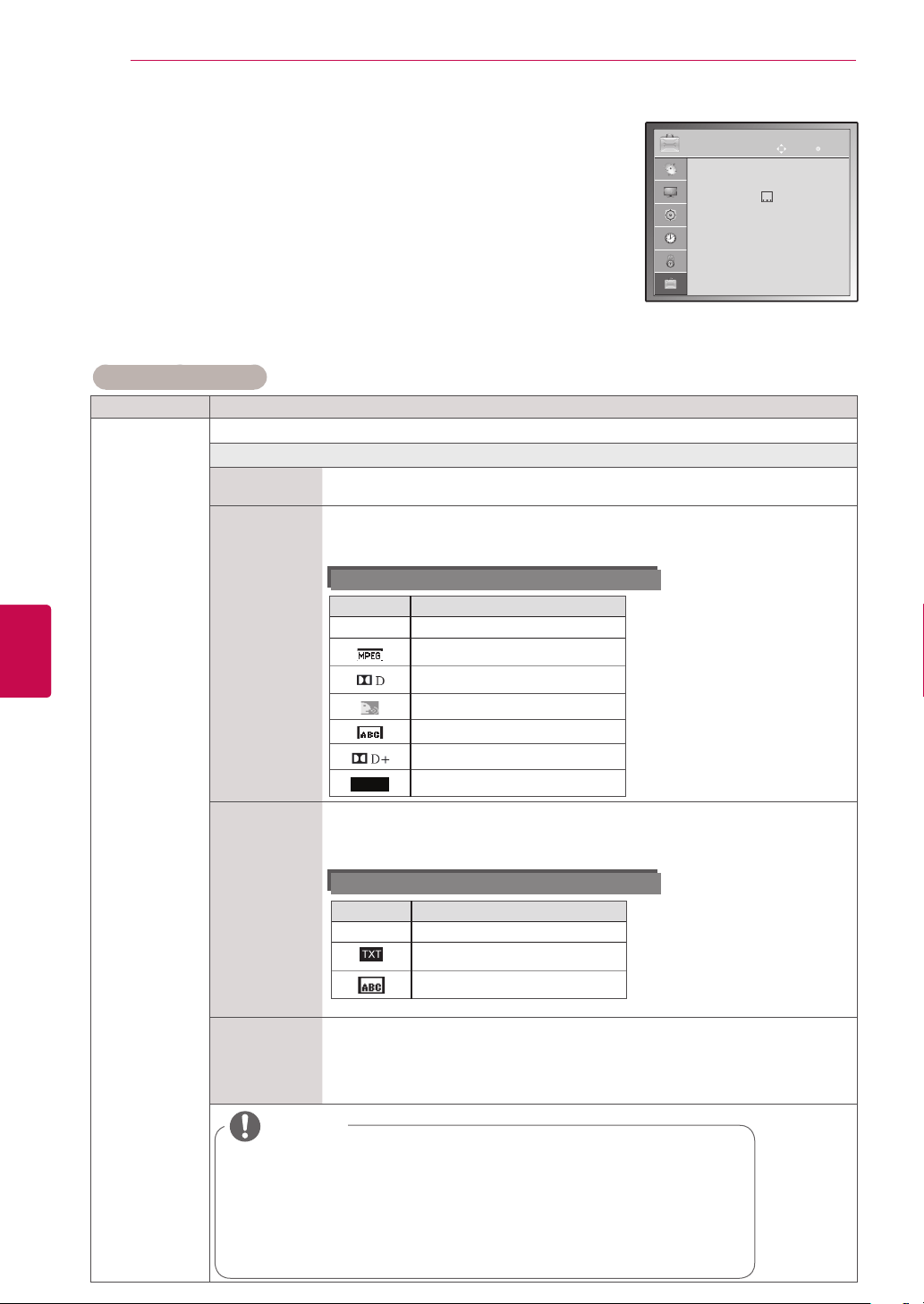
78
ENG
ENGLISH
CUSTOMIZING SETTINGS
Setting Description
Language Selects a language for the display or audio.
Option
Menu Lan-
guage
Select your desired language.(Except for Australia, New Zealand, Singapore and
South Africa.)
Audio Lan-
guage
(In Digital mode
only)
The Audio function allows selection of a preferred language.
If audio data in a selected language is not broadcast, the default language audio
will be played.
Audio Language OSD Information
Display Status
N.A Not Available
MPEG Audio
Dolby Digital Audio
Audio for “Visual Impaired”
Audio for “Hearing Impaired”
Dolby Digital Plus Audio
HE-AAC
HE-AAC Audio
Subtitle Lan-
guage
(In Digital mode
only)
Use the Subtitle function when two or more subtitle languages are broadcast. If
subtitle data in a selected language is not broadcast, the default language subtitle
will be displayed.
Subtitle Language OSD Information
Display Status
N.A Not Available
Teletext Subtitle
Subtitle for “Hard of Hearing”
Text Language
(In Digital mode
only)
In Digital mode, use the Text language function when two or more Text languages
are broadcast. If teletext data in a selected language is not broadcast, the default
Text language will be displayed.
If you select the wrong local country, teletext may not appear correctly on the
screen and some problems may occur during teletext operation.
When the languages you selected as the primary for Audio Language and
Subtitle Language and Text Language are not supported, you can select
language in secondary category (Only New Zealand).
The audio/subtitles can be displayed in a simpler form with 1 to 3 charac-
ters broadcast by the service provider.
When you select supplementary Audio (Audio for “Visual/Hearing Impaired”)
the TV may output a part of the Main audio.
NOTE
OPTION settings
1 Press Home to access the main menus.
2 Press the Navigation buttons to scroll to OPTION and press OK.
3 Press the Navigation buttons to scroll to the setting or option you
want and press OK.
- To return to the previous level, press BACK.
4 When you are finished, press EXIT.
The available general settings are described in the following:
(Depending on model)
OPTION
OK
Move
● Language(Language)
● Country : Australia
● Hard of Hearing( ) : Off
● ISM Method : Normal
● Factory Reset
● Set ID : 1
● Mode Setting : Home Use
Image shown may differ from your TV.
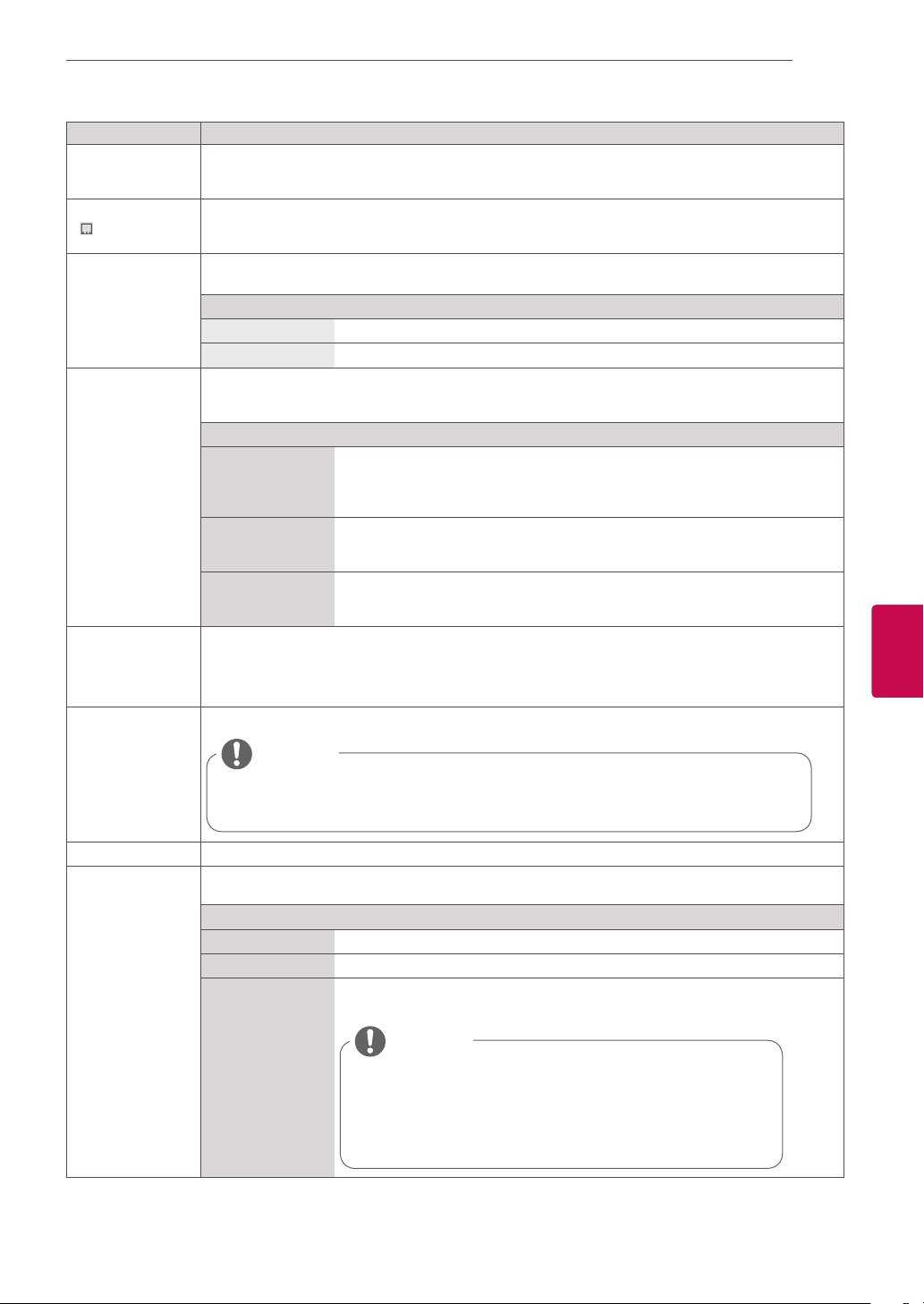
79
ENGENGLISH
CUSTOMIZING SETTINGS
Setting Description
Country (Only
Australia & New
Zealand)
Selects a desired country.
Hard of Hearing
(
) (In Digital
mode only)
This function is for the blind, and provides explanatory audio describing the current situation in a TV
programme in addition to the basic audio.
- It is only available to use Hard of Hearing on some TV stations in New Zealand.
Power Indicator
(Only LCD TV/LED
LCD TV)
Adjust the power/standby indicator light on the front of the TV.
If you select 3D mode, Power indicator is turned off automatically.
Option
Standby Light Set to turn on or off the indicator light in Standby mode.
Power Light Set to turn on or off the indicator light when you turn on the power.
ISM Method
(Only plasma TV)
A frozen or still picture displayed on the screen for prolonged periods will result in a ghost image
remaining even when you change the image. Avoid allowing a fixed image to remain on the screen
for prolonged periods.
Option
Orbiter Orbiter may help prevent ghost images. However, it is best not to allow any
fixed image to remain
on the screen. To avoid a permanent image on the screen, the screen will
move every 2 minutes.
Colour Wash The colour block with the screen moved a little and the white pattern are
alternately displayed. It is difficult to sense the afterimage occurred while the
temporary afterimage is removed and the colour pattern is operating.
White Wash White wash removes permanent images from the screen.
Note: An excessive permanent image may be impossible to clear entirely with
White Wash.
Data Service
(This menu is ena-
bled only in South
Africa, Malaysia.)
This function allow users to choose between MHEG (Digital Teletext) and Teletext if both exist at the
same time.
Factory Reset This function initializes all settings.
In Lock System “On”, if you forget your password, press ‘0’, ‘3’, ‘2’, ‘5’ on
the remote control handset.
NOTE
Set ID Adds an ID to the connected devices
Mode Setting Default selection is “Home Use”. We recommend setting the TV to “Home Use” mode for the best
picture in your Home environment.
Option
Home Use Selects it for the Home environment.
Store Demo Selects it for the retail environment.
Demo Mode Sets to show special features of the TV. You can cancel the demo mode by
pressing any buttons except the Volume and Mute buttons.
It is not possible to use Demo Mode in Home Use mode.
In Store Demo, Demo Mode is automatically set to On.
Once Demo Mode is set to Off in Store Demo, Demo Mode
does not run and only the screen is reset.
The screen is reset automatically after 5 minutes in Demo
Mode.
NOTE
80
ENG
ENGLISH
MAKING CONNECTIONS
MAKING CONNECTIONS
Connect various external devices to the TV and switch input modes to select an external device. For more
information on external device’s connection, refer to the manual provided with each device.
Available external devices are: HD receivers, DVD players, VCRs, audio systems, USB storage devices,
PC, gaming devices, and other external devices.
The external device connection may differ from the model.
Connect external devices to the TV regardless of the order of the TV port.
NOTE
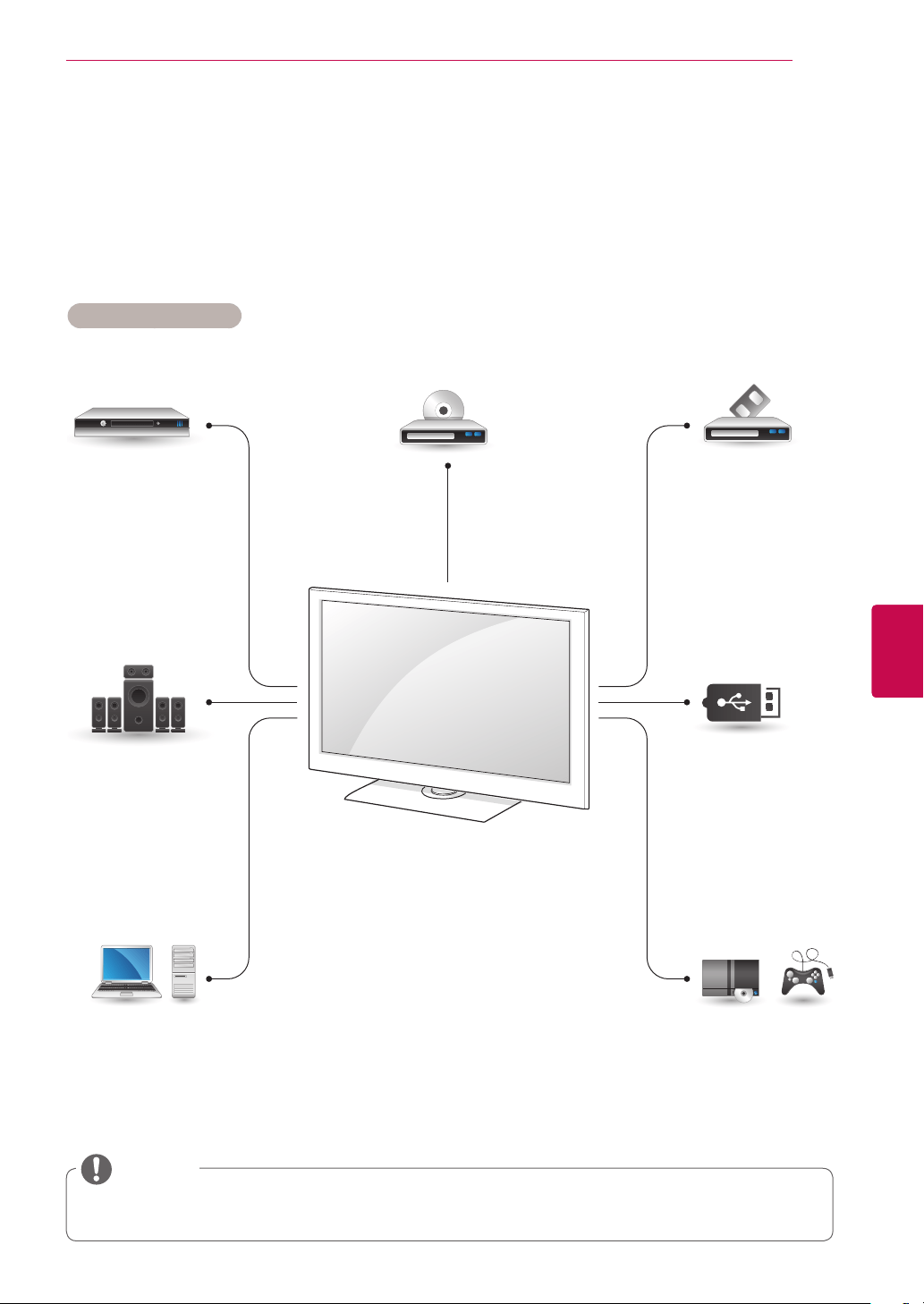
81
ENGENGLISH
MAKING CONNECTIONS
Connection overview
Connect various external devices to the ports on the TV back panel.
1
Find an external device you want to connect to your TV as shown on the following illustration.
2
Check the connection type of the external device.
3
Go to the appropriate illustration and check the connection details.
(Depending on model)
HDMI – See p.82
DVI – See p.82
Component – See p.82
Composite – See p.83
Digital – See p.86
HDMI – See p.84
DVI – See p.85
RGB – See p.85
HDMI – See p.82
DVI – .See p.82
Component – See p.82
Composite – See p.83
Composite – See p.83
Memory storage –
See p.87
Memory card reader
– See p.87
HDMI – See p.82
Component – See p.82
Composite – See p.83
HD Receiver DVD VCR
Speaker
USB
PC
Gaming device
If you connect a gaming device to the TV, use the cable supplied with the gaming device.
Refer to the external equipment's manual for operating instructions.
NOTE
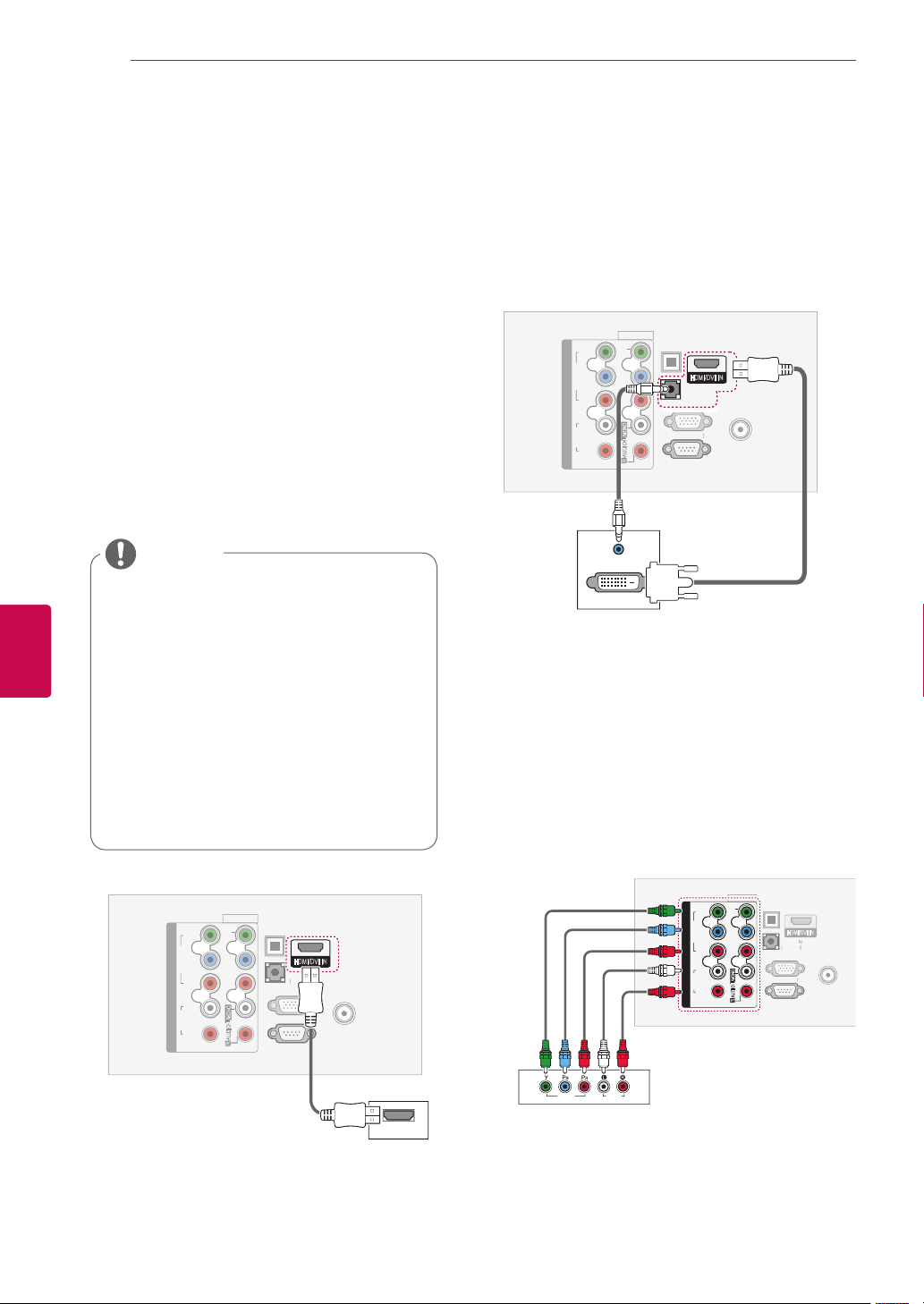
82
ENG
ENGLISH
MAKING CONNECTIONS
Connecting to a HD receiver,
DVD, or VCR player
Connect a HD receiver, DVD, or VCR player to the
TV and select an appropriate input mode.
HDMI connection
Transmits the digital video and audio signals from
an external device to the TV. Connect the external
device and the TV with the HDMI cable as shown
in the following illustration.
DVI to HDMI connection
Transmits the digital video signal from an external
device to the TV. Connect the external device and
the TV with the DVI-HDMI cable as shown in the
following illustration. To transmit an audio signal,
connect an audio cable.
The TV can receive video and audio
signals simultaneously when using an
HDMI cable.
If the DVD does not support Auto HDMI,
you must set the output resolution
appropriately.
Check that your HDMI cable is High
Speed HDMI Cable. If the HDMI cables
are not High Speed HDMI Cable,
flickering or no screen display can result.
Please use the High Speed HDMI Cable.
NOTE
Component connection
Transmits the analogue video and audio signals
from an external device to the TV. Connect the
external device and the TV with the component
cable as shown in the following illustration.
COMPONENT IN
AUDIO
R
L
Y
P
B
P
R
VIDEO
AV IN 1
VIDEO
1
2
AUDI
O
I
N
(
R
G
B
/
D
V
I
)
O
P
TI
C
A
L
D
I
G
I
T
A
L
AU
DI
O
OUT
R
G
B IN
(
P
C
)
R
S
-232
C
I
N
(CO
NTR
O
L
&
S
ERVI
C
E
)
ANTENNA
IN
1
HDMI/DVI IN
HDMI
L/MONO
R
AUDIO
O
P
TI
C
AL
D
IG
IT
A
L
AU
DI
O
OUT
RG
B IN
(
P
C
)
RS
-232
C
I
N
(CO
NTR
O
L
&
S
ERVI
C
E
)
ANTENNA
IN
1
HDMI/DVI IN
COMPONENT IN
AUDIO
R
L
Y
P
B
P
R
VIDEO
AV IN 1
VIDEO
1
2
AUDIO IN
(RGB/DVI)
AUDIO OUT
DVI OUT
L/MONO
R
AUDIO
AV IN 1
O
P
TI
C
AL
D
IG
IT
A
L
AU
DI
O
OUT
R
G
B IN
(
P
C
)
R
S
-232
C
I
N
(CO
NTR
O
L
&
S
ERVI
C
E
)
ANTENNA
IN
AUDI
O
I
N
(
R
G
B
/
D
V
I
)
1
HDMI/DVI IN
COMPONENT IN
AUDIO
VIDEO
2
R
L
Y
P
B
P
R
1
VIDEO
AUDIO
L/MONO
R
AUDIO
VIDEO
This section on MAKING CONNECTIONS
mainly uses diagrams for the 50/60PV25**
models.
Image shown may differ from your TV.
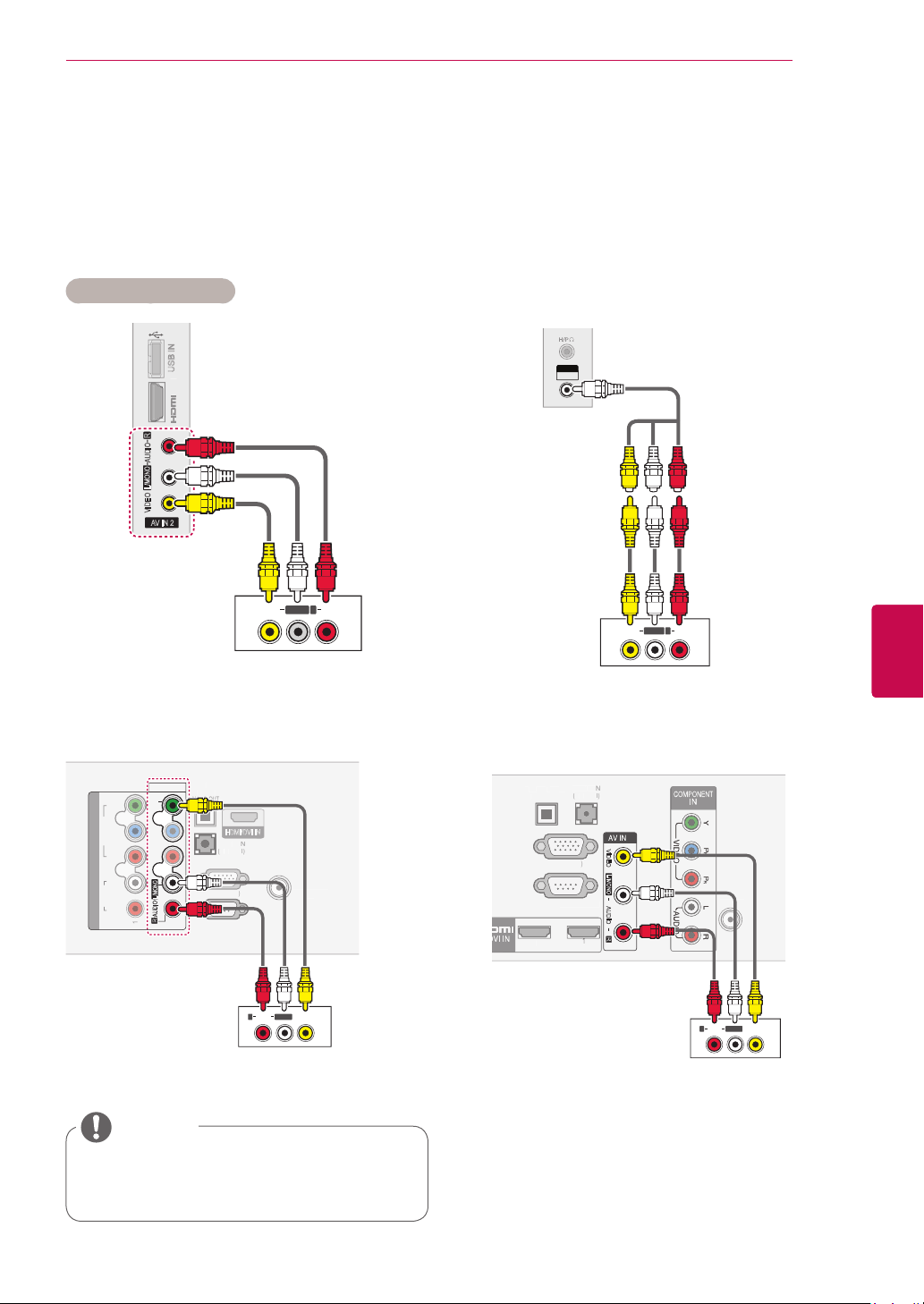
83
ENGENGLISH
MAKING CONNECTIONS
Composite connection
Transmits the analogue video and audio signals
from an external device to the TV. Connect the
external device and the TV with the composite
cable as shown in the following illustration.
(Depending on model)
USB IN
IN 2
AV IN 2
L/MONO
R
AUDIO
VIDEO
AUDIOVIDEO
L(MONO)
R
AV IN 1
O
P
TI
C
AL
D
IG
IT
A
L
AU
DI
O
OUT
RG
B IN
(
P
C
)
RS
-232
C
I
N
(CO
NTR
O
L
&
S
ERVI
C
E
)
ANTENNA
IN
AUDI
O
I
N
(
R
G
B
/
D
V
I
)
1
HDMI/DVI IN
COMPONENT IN
AUDIO
VIDEO
VIDEO
2
R
L
Y
P
B
P
R
1
L/MONO
R
AUDIO
AUDIO VIDEO
L(MONO)
R
O
P
TI
C
AL
D
I
G
I
T
A
L
AU
DI
O
OU
T
AUDI
O
I
N
(
R
G
B/
D
V
I
)
R
GB IN
(
PC
)
RS
-232
C
I
N
(CO
NTR
O
L
&
S
ERVI
C
E
)
2
1
1
A
NTENNA
/
C
ABLE IN
L/MONO
R
AUDIO
VIDEO
1
AUDIO VIDEO
L(MONO)
R
USB IN
AUDIOVIDEO
L(MONO)
R
VIDEO / AUDIO
AV IN 2
or
or
If you have a mono VCR, connect the
audio cable from the VCR to the
AUDIO L/
MONO
jack of the TV.
NOTE
Only Plasma TV
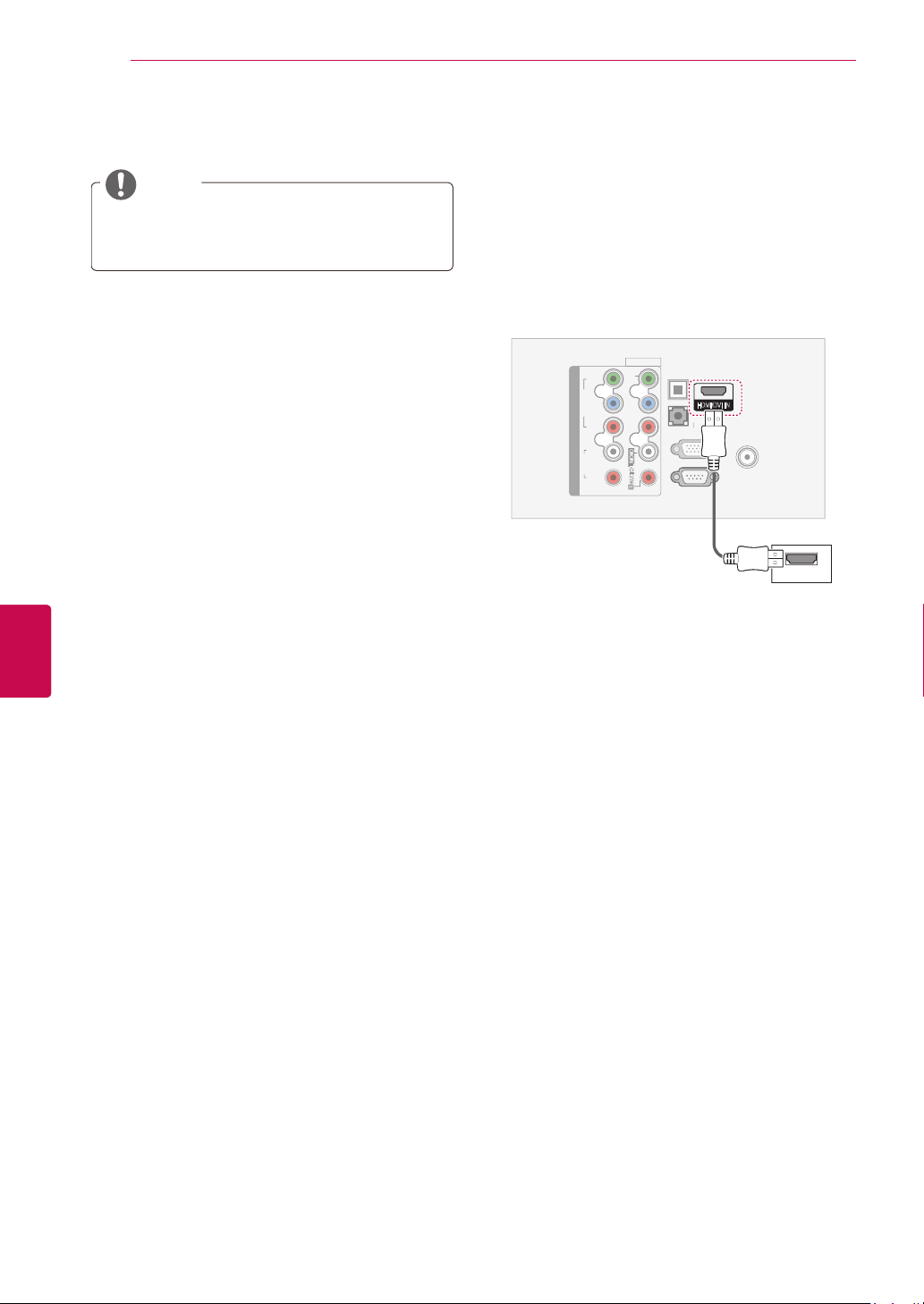
84
ENG
ENGLISH
MAKING CONNECTIONS
HDMI connection
Transmits the digital video and audio signals from
your PC to the TV. Connect the PC and the TV
with the HDMI cable as shown in the following
illustrations.
Connecting to a PC
NOTE
It is recommended to use the TV set with the
HDMI connection for the best image quality.
COMPONENT IN
AUDIO
R
L
Y
P
B
P
R
VIDEO
AV IN 1
VIDEO
1
2
AUDI
O
I
N
(
R
G
B
/
D
V
I
)
O
P
TI
C
A
L
D
I
G
I
T
A
L
AU
DI
O
OUT
R
G
B IN
(
P
C
)
R
S
-232
C
I
N
(CO
NTR
O
L
&
S
ERVI
C
E
)
ANTENNA
IN
1
HDMI/DVI IN
HDMI
L/MONO
R
AUDIO
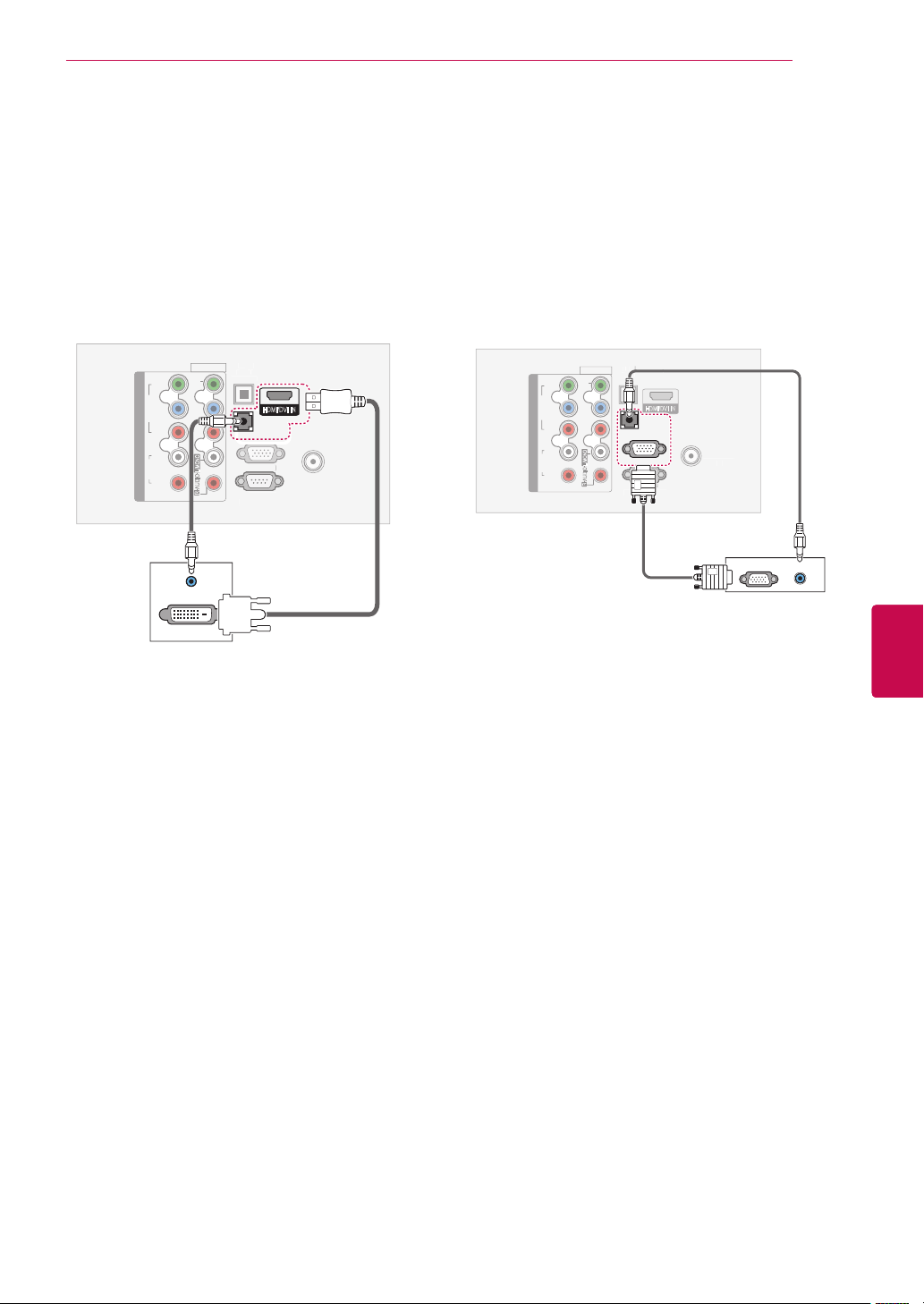
85
ENGENGLISH
MAKING CONNECTIONS
RGB Connection
Transmits the analogue video signal from your
PC to the TV. Connect the PC and the TV with the
supplied D-sub 15 pin signal cable as shown in the
following illustrations. To transmit an audio signal,
connect an audio cable.
O
P
TI
C
A
L
D
I
G
I
T
A
L
AU
DI
O
OUT
RS
-2
3
2
C
I
N
(CO
NTR
O
L
&
S
ERVI
C
E
)
ANTENNA
IN
1
HDMI/DVI IN
COMPONENT IN
AUDIO
R
L
Y
P
B
P
R
VIDEO
AV IN 1
VIDEO
1
2
AUDIO IN
(RGB/DVI)
RGB IN (PC)
RGB OUT (PC)
AUDIO OUT
L/MONO
R
AUDIO
DVI to HDMI connection
Transmits the digital video signal from your PC to
the TV. Connect the PC and the TV with the DVI-
HDMI cable as shown in the following illustration.
To transmit an audio signal, connect an audio
cable.
O
P
TI
C
AL
D
IG
IT
A
L
AU
DI
O
OUT
RG
B IN
(
P
C
)
RS
-232
C
I
N
(CO
NTR
O
L
&
S
ERVI
C
E
)
ANTENNA
IN
1
HDMI/DVI IN
COMPONENT IN
AUDIO
R
L
Y
P
B
P
R
VIDEO
AV IN 1
VIDEO
1
2
AUDIO IN
(RGB/DVI)
AUDIO OUT
DVI OUT
L/MONO
R
AUDIO
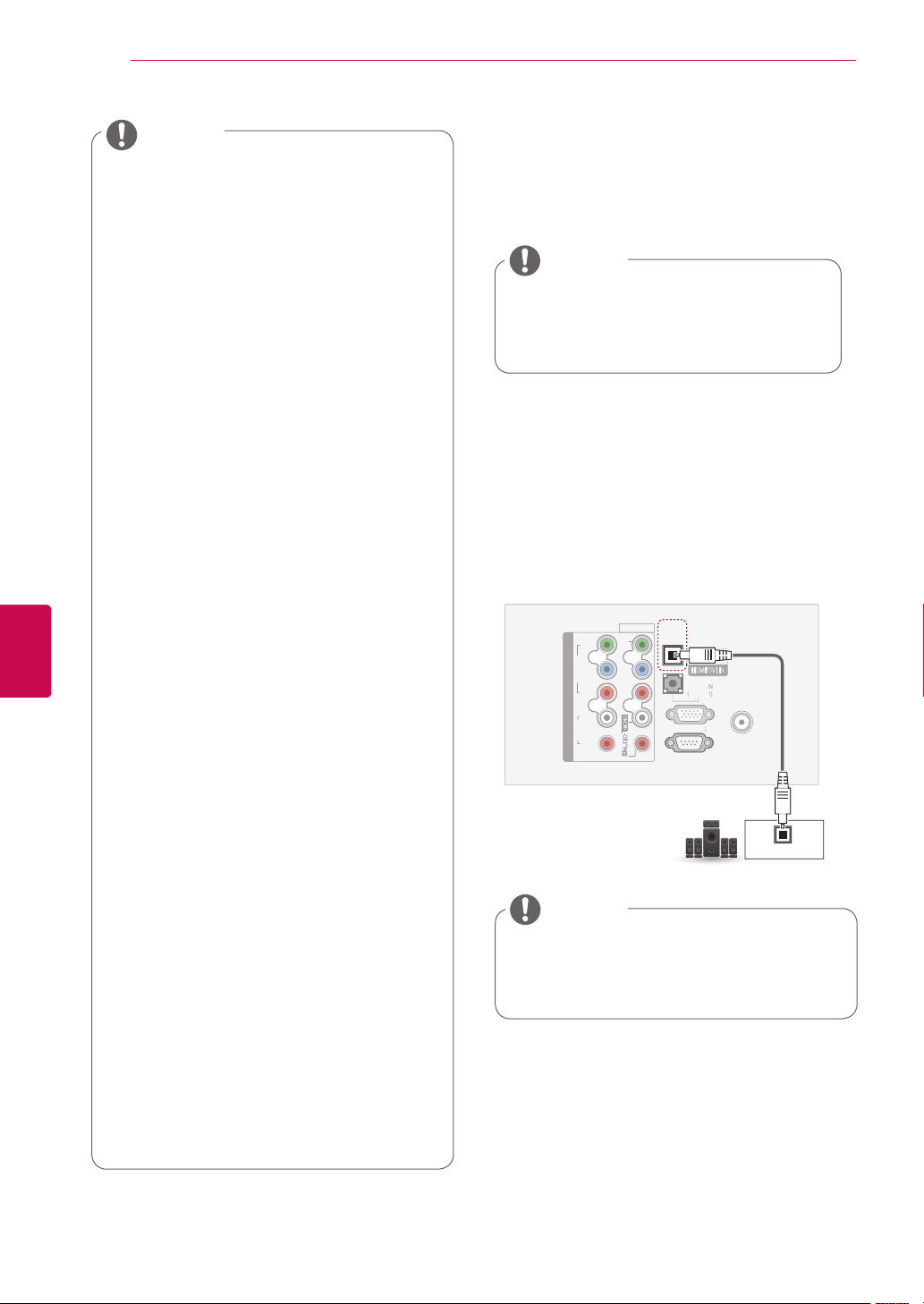
86
ENG
ENGLISH
MAKING CONNECTIONS
Avoid keeping a fixed image on the set’s
screen for prolonged periods of time. The
fixed image may become permanently
imprinted on the screen; use a screen
saver when possible.
There may be interference relating to
resolution, vertical pattern, contrast or
brightness in PC mode. Change the PC
mode to another resolution or change the
refresh rate to another rate or adjust the
brightness and contrast on the menu until
the picture is clear. If the refresh rate of
the PC graphic card cannot be changed,
change the PC graphic card or consult
the manufacturer of the PC graphic card.
The synchronization input waveform for
Horizontal and Vertical frequencies are
separate.
We recommend using 1920x1080,
60 Hz(Except for 42/50PT25**,
42/50PW35**, 42/50PW45**,
22/26/32LK33**, 19/22/26/32LV25**,
26/32LV30**), 1360x768, 60 Hz(Only
22/26/32LK33**, 19/22/26/32LV25**,
26/32LV30**), 1024x768, 60 Hz(Only
42/50PT25**, 42/50PW35**,
42/50PW45**) for the PC mode, this
should provide the best picture quality.
Connect the signal cable from the monitor
output port of the PC to the RGB (PC)
port of the TV or the signal cable from the
HDMI output port of the PC to the HDMI
IN (or HDMI/DVI IN) port on the TV.
Connect the audio cable from the PC to
the Audio input on the TV. (Audio cables
are not included with the TV).
If using a sound card, adjust PC sound
as required.
If the graphic card on the PC does
not output analogue and digital RGB
simultaneously, connect only one of
either RGB or HDMI IN (or HDMI/DVI IN)
to display the PC output on the TV.
DOS mode may not work depending on
the video card if you use an HDMI to DVI
cable.
If you use too long an RGB-PC cable,
there may be interference on the screen.
We recommend using under 5m of cable.
This provides the best picture quality.
NOTE
Connecting to an audio
system
Use an external audio system instead of the built-
in speaker.
If you use an external audio device
instead of the built-in speaker, set the TV
speaker feature to off (See p.74).
NOTE
Digital optical audio connection
Transmits the digital audio signal from the TV to an
external device. Connect the external device and
the TV with the optical audio cable as shown in the
following illustration.
OPTICAL
DIGITAL
AUDIO OUT
RS
-232
C
I
N
(CO
NTR
O
L
&
S
ERVI
C
E
)
ANTENNA
IN
1
HDMI/DVI IN
COMPONENT IN
AUDIO
R
L
Y
P
B
P
R
VIDEO
AV IN 1
VIDEO
1
2
RG
B IN
(
P
C
)
AUDI
O
I
N
(
R
G
B
/
D
V
I
)
OPTICAL
AUDIO IN
L/MONO
R
AUDIO
Do not look into the optical output port.
Looking at the laser beam may damage
your vision.
NOTE
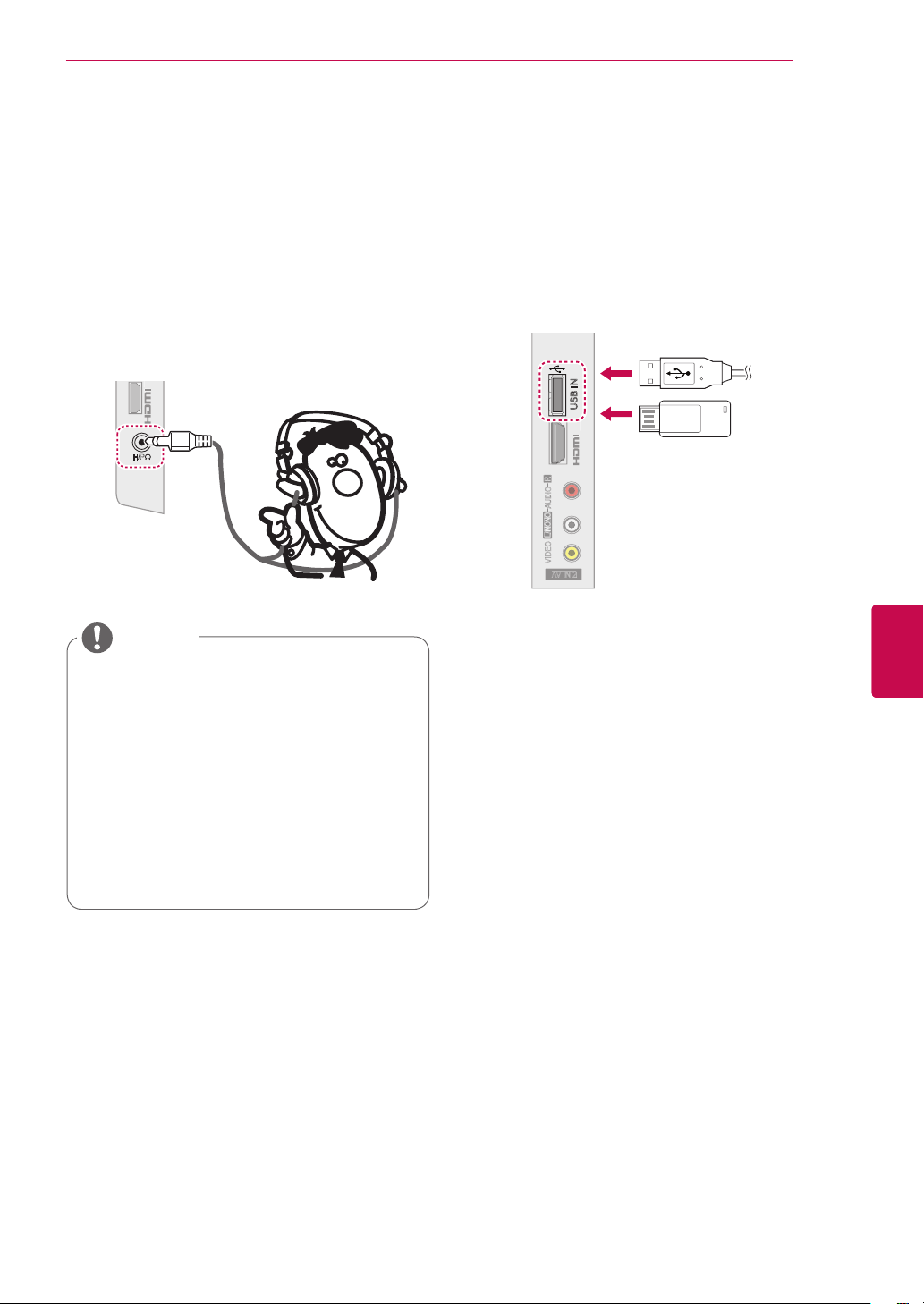
87
ENGENGLISH
MAKING CONNECTIONS
Connecting to a USB
Connect a USB storage device such as s USB
flash memory, external hard drive, a USB memory
card reader to the TV and access the My media
menu to use various multimedia files. See
"Connecting USB storage devices" on p.55 and see
"Browsing files" on p.56 .
IN 2
AV IN 2
L/
MONO
R
AUDIO
A
AUDIO
VIDEO
USB IN
or
US
B IN
I
N
3
H/P
AUDIO menu items are disabled when
connecting a headphone.
When changing AV MODE with a
headphone connected, the change is
applied to video but not to audio.
Optical Digital Audio Out is not available
when connecting a headphone.
Headphone impedance: 16 Ω
Max audio output of headphone: 10 mW
to 15 mW
Headphone jack size: 0.35 cm
NOTE
Headphone connection
This feature is not available for all models.
(Except for Plasma TV)
Transmits the headphone signal from the TV to
an external device. Connect the external device
and the TV with the headphone as shown on the
following illustration.
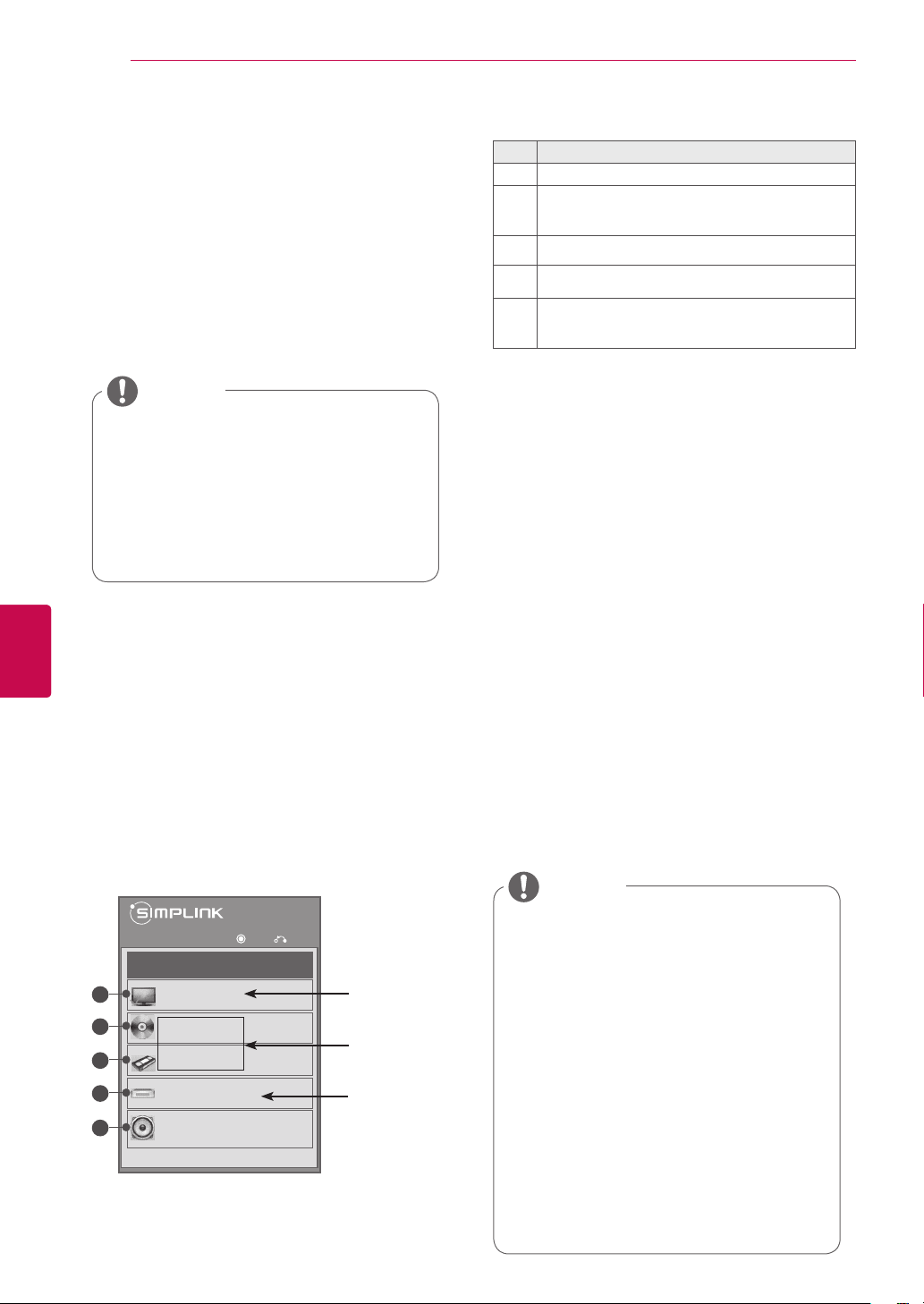
88
ENG
ENGLISH
MAKING CONNECTIONS
4 Control the selected AV device.
- Direct Play: After connecting AV devices to
the TV, you can directly control the devices
and play media without additional settings.
- Select AV device: Enables you to select one
of the AV devices connected to the TV.
- Disc playback: Control connected AV de-
vices by pressing the Navigation buttons,
OK,
►,
▀
, l l, ◄◄
and
►►
buttons.
- Power off all devices: When you power off
the TV, all connected devices are turned off.
- Switch audio-out: Offers an easy way to
switch audio-out.
- Sync Power on: When the equipment with
SIMPLINK function connected HDMI terminal
starts to play, The TV will automatically turn
on.
No. Description
1
Displays the previously viewed TV channel.
2
Plays discs. When multiple discs are available,
the title of the disc appears at the bottom of the
screen.
3
Controls the connected VCR.
4
HDD recordings playback: Controls the recording
stored in HDD.
5
Audio out to Home theatre speaker or Audio out
to TV: Changes the audio output between Home
theatre speaker and TV speaker.
- A check mark appears in front of the selected
device.
- Available devices display in a bright colour.
- Unavailable devices display in grey.
If you change the input source by
pressing INPUT, the progressing function
of the SIMPLINK device will stop.
If you select a device that has the
Home theatre feature, the sound output
automatically switches to the Home
theatre speaker and the TV speaker turns
off.
If a connected SIMPLINK Home theatre
system does not play the audio from the
TV, connect the DIGITAL AUDIO OUT
terminal on the rear of the TV to the
DIGITAL AUDIO IN terminal on the back
of the SIMPLINK device with an optical
cable.
NOTE
SIMPLINK connection
Use the TV remote control to play and control the
AV device connected with the HDMI cable through
HDMI-CEC. Your TV only works with the devices
that support HDMI-CEC.
Connect one end of the HDMI cable to the HDMI/
DVI IN or HDMI IN terminal on the rear of the TV
and the other end to the SIMPLINK device.
If the connected device does not support
HDMI-CEC, the SIMPLINK feature is
unavailable.
To operate SIMPLINK, an High Speed
HDMI Cable with *CEC function should
be used. (*CEC: Consumer Electronics
Control).
NOTE
Activating the SIMPLINK feature
1
Press SIMPINK to access the SIMPLINK
menus.
2
Press the Navigation buttons to scroll to On.
3
Press the Navigation buttons to scroll to one of
the devices and press OK.
Image shown may differ from your TV.
Selected Device
When a device is
connected (displayed
in bright colour)
When device is
not connected
(displayed in gray)
◄ On ►
Watch TV
DISC
VCR
VCR
Speaker
HDD Recorder
OK
Exit
1
2
3
4
5

89
ENGENGLISH
TELETEXT
TELETEXT
This feature is not available in all countries.
Teletext is a free service broadcast by most TV
stations which gives up to the minute information
on news, weather, television programmes, share
prices and many other topics.
The teletext decoder of this TV can support the
SIMPLE, TOP and FASTEXT systems. SIMPLE
(standard teletext) consists of a number of pages
which are selected by directly entering the cor-
responding page number. TOP and FASTEXT are
more modern methods allowing quick and easy
selection of teletext information.
Switch On/Off
Simple Text
Top Text
Press the TEXT button to switch to teletext. The
initial page or last page appears on the screen.
Two page numbers, TV station name, date and
time are displayed on the screen headline. The
first page number indicates your selection, while
the second shows the current page displayed.
Press the TEXT button to switch off teletext. The
previous mode reappears.
The user guide displays four fields-red, green,
yellow and blue at the bottom of the screen. The
yellow field denotes the next group and the blue
field indicates the next block.
1 Enter the desired page number as a three-digit
number with the NUMBER buttons. If during
selection you press a wrong number, you must
complete the three-digit number and then re-
enter the correct page number.
2 The P
^
v
button can be used to select the
previous or next page.
1 With the blue button you can progress from
block to block.
2 Use the yellow button to proceed to the next
group with automatic overflow to the next
block.
3 With the green button you can proceed to the
next existing page with automatic overflow to
the next group.
4 Alternatively, the P
^
button can be used.
The RED button permits you to return to previ-
ous selection. Alternatively, the P v button can
be used.
As with SIMPLE teletext mode, you can select a
page by entering it as a three digit number using
the NUMBER buttons in TOP mode.
Page selection
Block / Group / Page Selection
Direct Page Selection
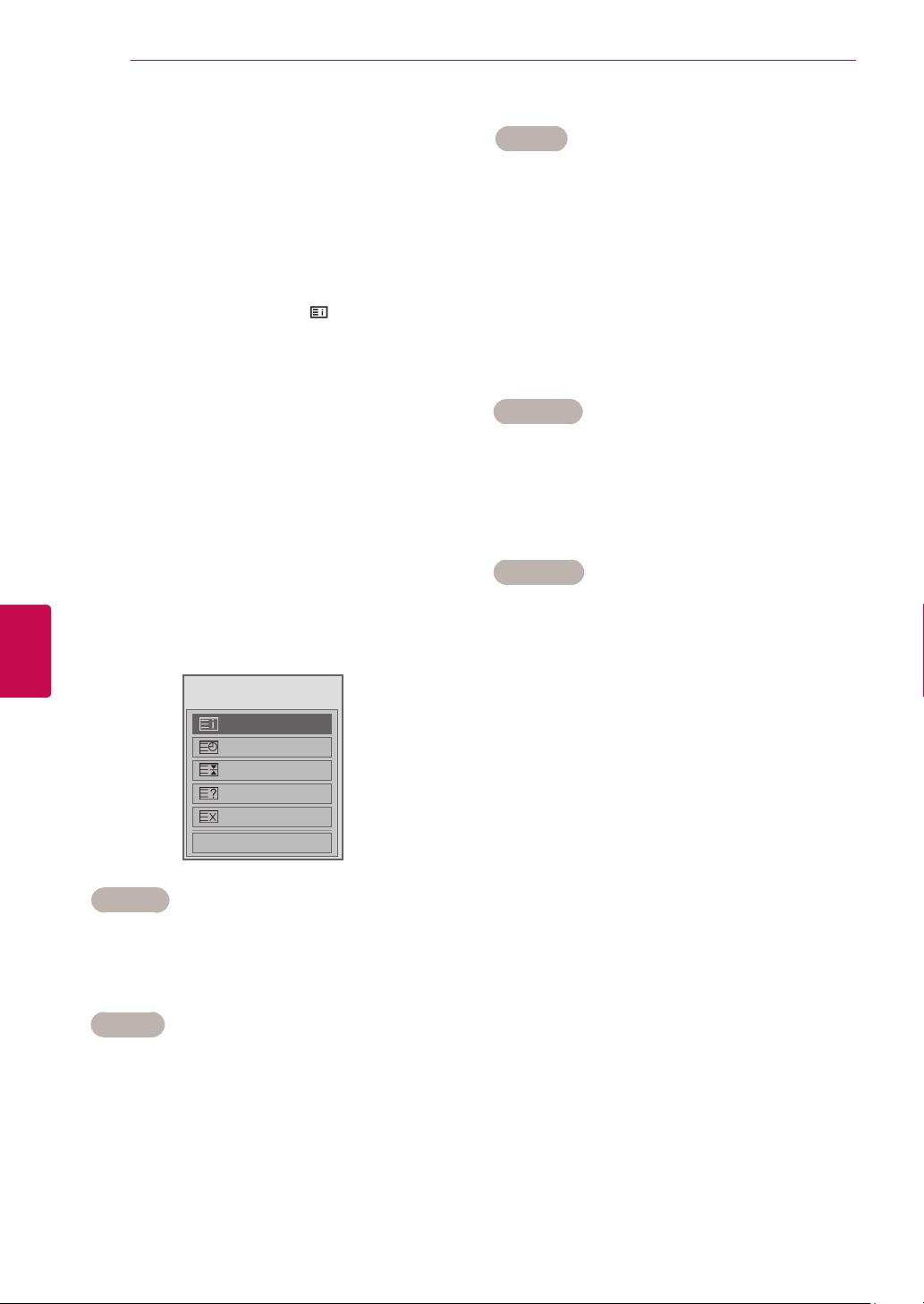
90
ENG
ENGLISH
TELETEXT
Fastext
Special Teletext Function
Select the each index page.
When viewing a TV programme, select this
menu to display the time at the top right hand
corner of the screen.
In the teletext mode, press this button to select
a sub page number. The sub page number
is displayed at the bottom of the screen. To
hold or change the sub page, press the RED/
GREEN, < > or NUMBER buttons.
Stops the automatic page change which will
occur if a teletext page consists of 2 or more
sub pages.
The number of sub pages and the sub page
displayed is, usually, shown on the screen
below the time. When this menu is selected the
stop symbol is displayed at the top left-hand
corner of the screen and the automatic page
change is inactive.
Displays the TV picture on the screen while
waiting for a new teletext page. The display
will appear at the top left hand corner of the
screen. When the updated page is available
then display will change to the page number.
Select this menu again to view the updated
teletext page.
Select this menu to display concealed informa-
tion, such as solutions to riddles or puzzles.
The teletext pages are colour coded along the bot-
tom of the screen and are selected by pressing the
corresponding coloured button.
Press the T. OPT button and then use Navigation
buttons to select the Text Option menu.
1 Press the T.OPT button and then use the
Navigation button to select
menu. Display
the index page.
2 You can select the pages which are colour
coded along the bottom line with corresponding
coloured buttons.
3 AS with SIMPLE teletext mode, you can select
a page by entering its three digit page number
with the NUMBER buttons in FASTEXT mode.
4 The P
^
v
button can be used to select the
preceding or following page.
Page selection
Text Option
Index
Time
Hold
Reveal
Update
Close
ꔻ
Index
ꔾ
Time
ꕀ
Hold
ꔼ
Update
ꔽ
Reveal
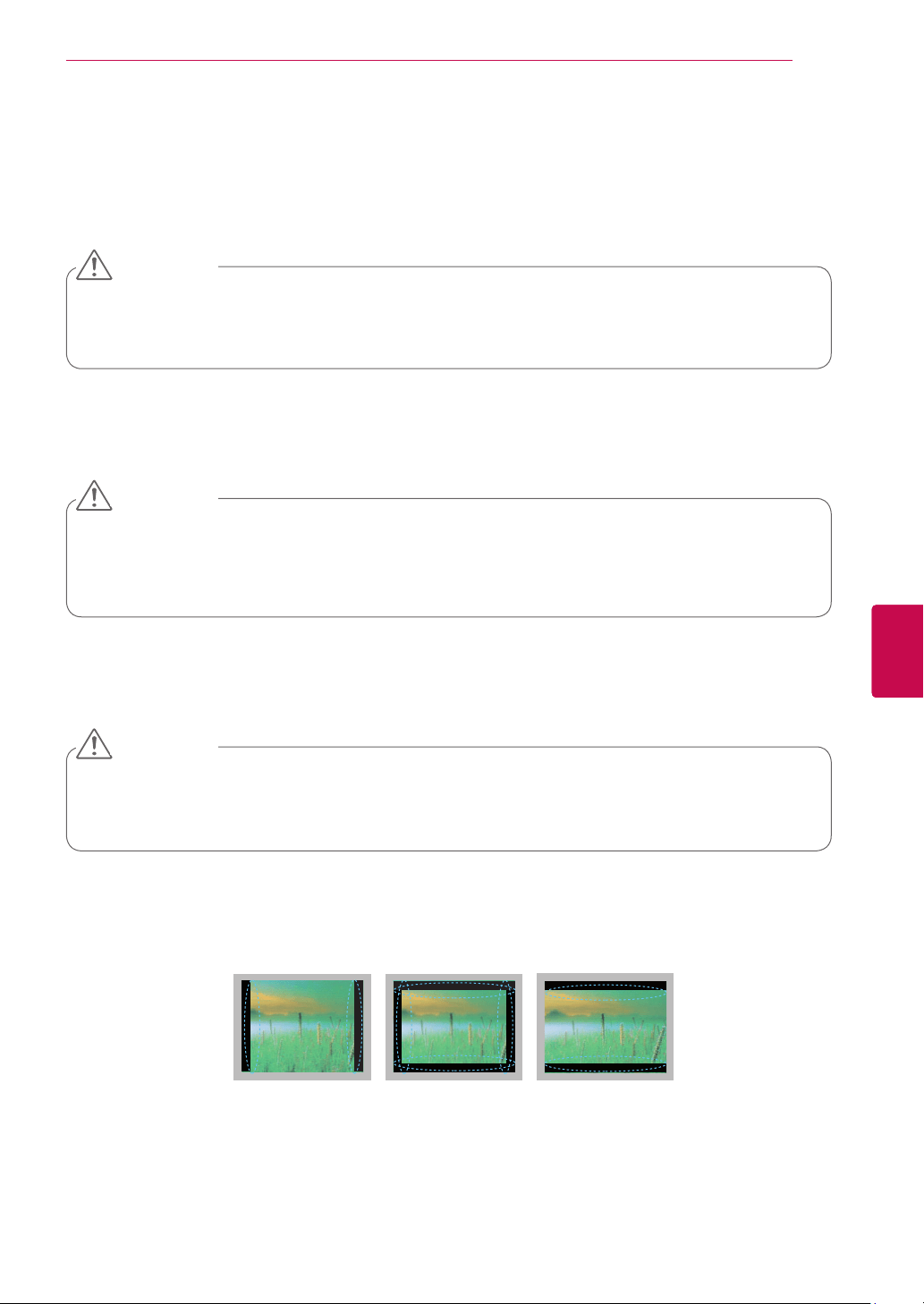
91
ENGENGLISH
MAINTENANCE
MAINTENANCE
Update and clean your TV regularly to keep the best performance and to extend the product lifespan.
Cleaning your TV
Make sure to turn the power off and disconnect the power cord and all other cables first.
When the TV is left unattended and unused for a long time, disconnect the power cord from the wall
outlet to prevent possible damage from lightning or power surges.
CAUTION
Screen and frame
To remove dust or light dirt, wipe the surface with a dry, clean, and soft cloth.
To remove major dirt, wipe the surface with a soft cloth dampened in clean water or a diluted mild detergent.
Then wipe immediately with a dry cloth.
Do not push, rub, or hit the surface with your fingernail or a sharp object, as this may result in
scratches on the screen and image distortions.
Do not use any chemicals, such as waxes, benzene, alcohol, thinners, insecticides, air fresheners,
lubricants, as these may as these may damage the screen’s finish and cause discolouration.
CAUTION
Cabinet and stand
To remove dust or light dirt, wipe the cabinet with a dry, clean, and soft cloth.
To remove major dirt, wipe the cabinet with a soft cloth dampened in a clean water or water containing a
small amount of mild detergent. Then wipe immediately with a dry cloth.
Do not spray liquid onto the surface. If water enters the TV, it may result in fire, electric shock, or
malfunction.
Do not use any chemicals as this may deteriorate the surface.
CAUTION
Power cord
Remove the accumulated dust or dirt on the power cord regularly.
Preventing “Image burn” or “Burn-in” on your TV screen
If a fixed image displays on the TV screen for a long period of time, it will be imprinted and become
a permanent disfigurement on the screen. This is “image burn” or “burn-in” and not covered by the
warranty.
If the aspect ratio of the TV is set to 4:3 for a long period of time, image burn may occur on the
letterboxed area of the screen.
Avoid displaying a fixed image on the TV screen for a long period of time (2 or more hours for LCD,
1 or more hours for the Plasma TV) to prevent image burn.
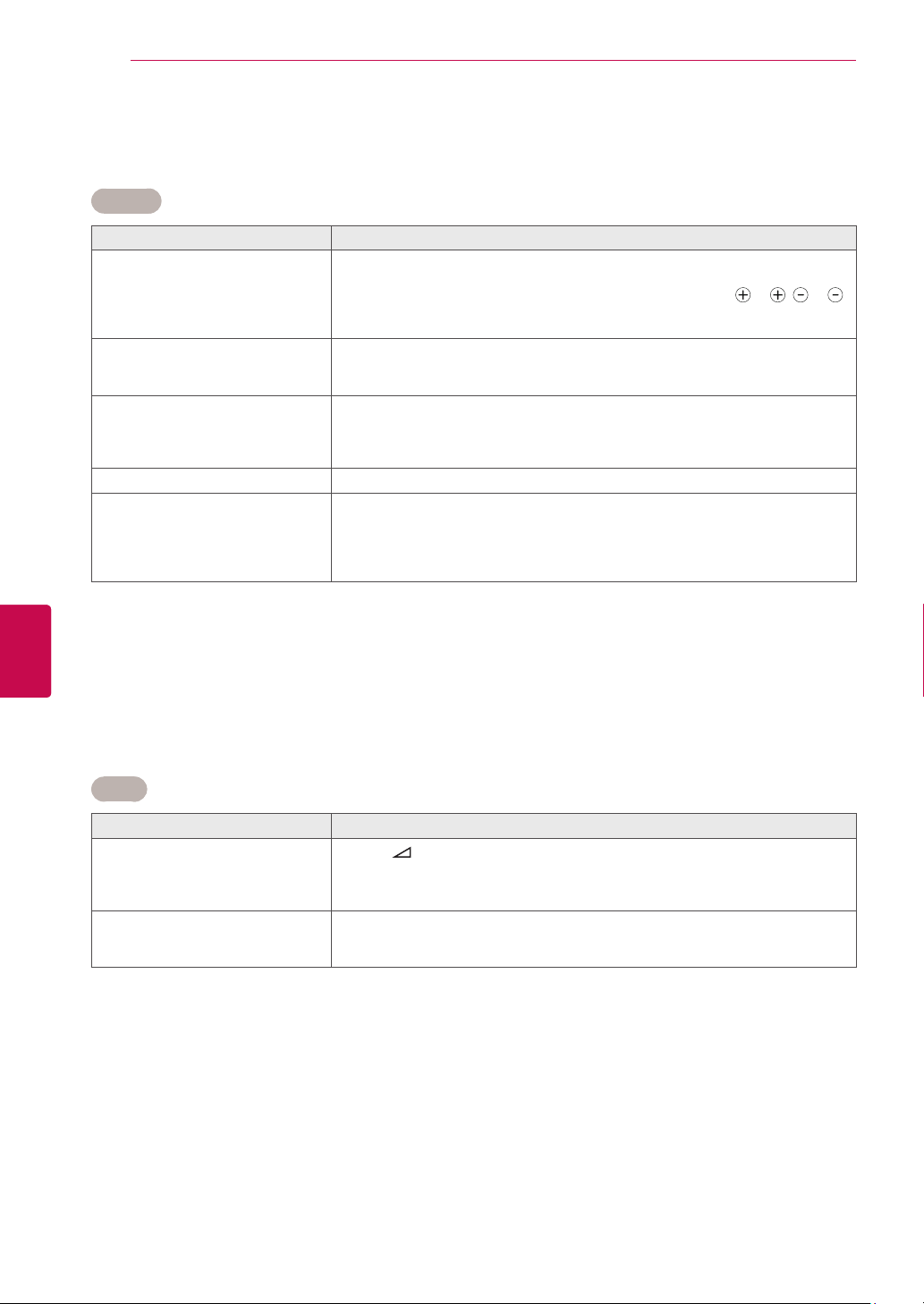
92
ENG
ENGLISH
TROUBLESHOOTING
TROUBLESHOOTING
Problem Resolution
Cannot control the TV with the
remote control.
Check the remote control sensor on the product and try again.
Check if there is any obstacle between the product and the remote control.
Check if the batteries are still working and properly installed (
to , to ).
Check if the appropriate input mode such as TV or VCR is set for using the
remote control.
No image display and no sound is
produced.
Check if the product is turned on.
Check if the power cord is connected to a wall outlet.
Check if there is a problem in the wall outlet by connecting other products.
Image appears slowly when the TV
turns on.
The image is muted during the product start up process. This is normal. If the
image does not appear in a few minutes, unplug the TV for 30 seconds and try
again. If the image still does not appear, contact the authorized service centre
in your local area.
Cannot connect external devices.
See "Connection overview" on p.81 and connect an external device.
The TV turns off suddenly.
Check the power control settings. The power supply may be interrupted.
Check if the Auto sleep feature is activated in the Time settings.
See "Sleep Timer" on p.76.
If there is no signal while the TV is on, the TV will turn off automatically after 15
minutes of inactivity.
General
Problem Resolution
No sound is produced while images
are displaying.
Press
+ or - button.
Check if the sound is muted by pressing MUTE.
Scroll to other channels. There may a problem with the broadcast.
Check if the audio cables are connected properly.
One of the speakers produce noises
or does not produce sound.
A change in ambient humidity or temperature may result in an unusual noise
when the product turns on or off.
There is no problem with your product.
Audio
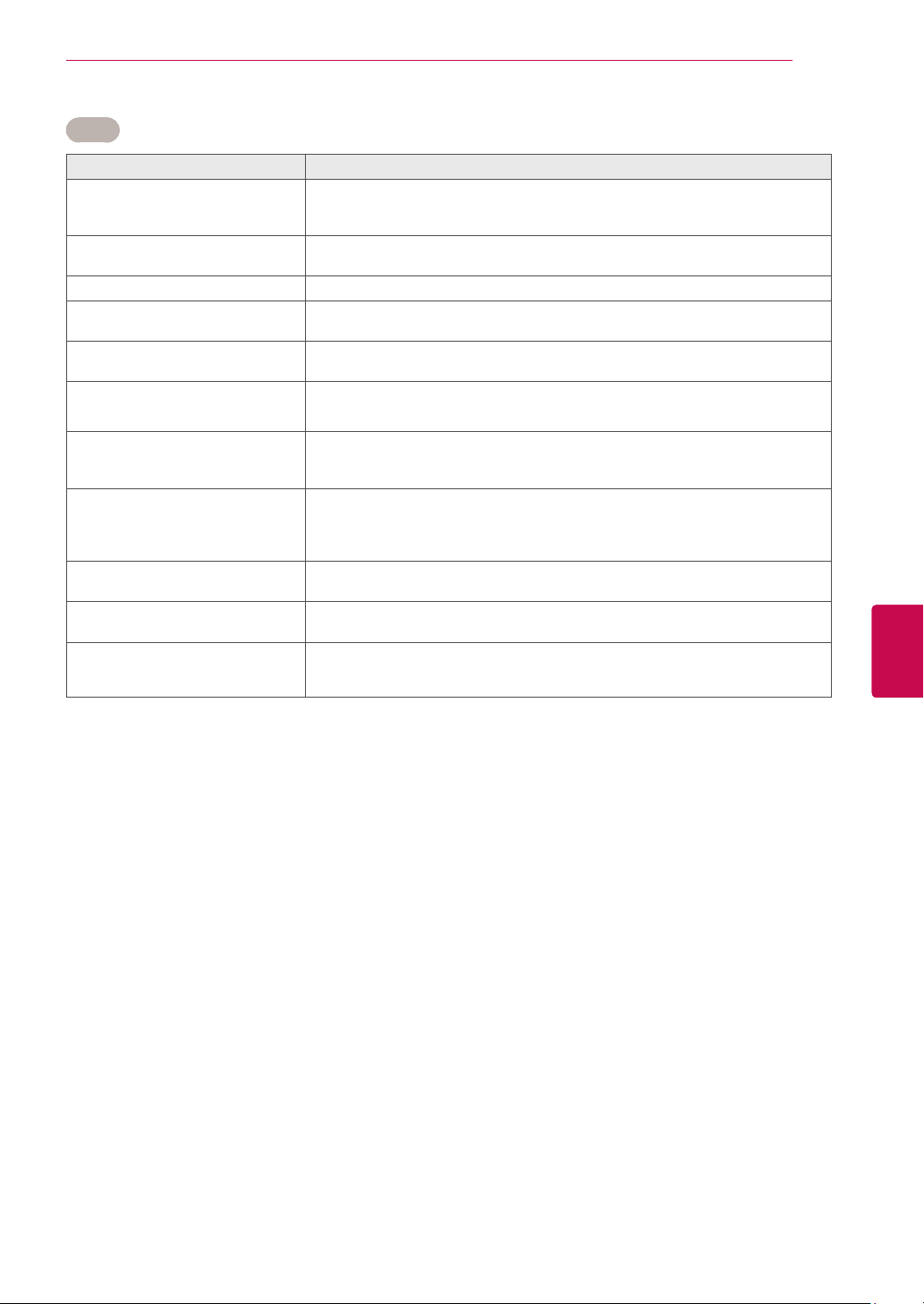
93
ENGENGLISH
TROUBLESHOOTING
Problem Resolution
An image displays in black and
white or the colour quality is poor.
Adjust the colour setting in the Picture menu (See p.67).
Keep a sufficient distance between this product and other electronic products.
Scroll to other channels. There may a problem with the broadcast.
Horizontal or vertical bars appears
or images blur
Check if there are local interferences such as an electrical appliance or power
tool.
Lines or streaks appear on images
Check the antenna or aim the antenna to the proper direction.
Afterimages (ghosts) appear when
the product turns off
Pixels may have been damaged from a fixed image displayed for a long time
(image burn). Use a screen saver to prevent the pixel damage on the screen.
The power is on but the screen
appears extremely dark.
Adjust the brightness and contrast in the Picture menu (See p.67).
“No Signal” appears on the screen.
Check if the signal cable is connected between the TV and products properly.
Check the selected input source by pressing INPUT.
Black spots appear on the screen.
Several pixels in red, green, white, or black may appear on the screen that can
attribute to the characteristics of the LCD panel.
This is normal.
The display offset is wrong.
Adjust the position setting in the Picture menu (See p.67).
Check if the video card resolution and frequency are supported by the product.
If the frequency is out of range, set to the recommended resolution using the
display settings on the external device.
Thin lines appear in the background
of the screen.
Check the video cable connections.
Horizontal noises appear or
characters blur.
Adjust the Phase setting in the Picture menu.
See "SCREEN" on p.69
The reception on some channels is
poor
Scroll to other channels. There may a problem with the broadcast.
The station signal may be weak. Aim the antenna to the proper direction.
Check if there is local interference such as an electrical appliance or power tool.
Video
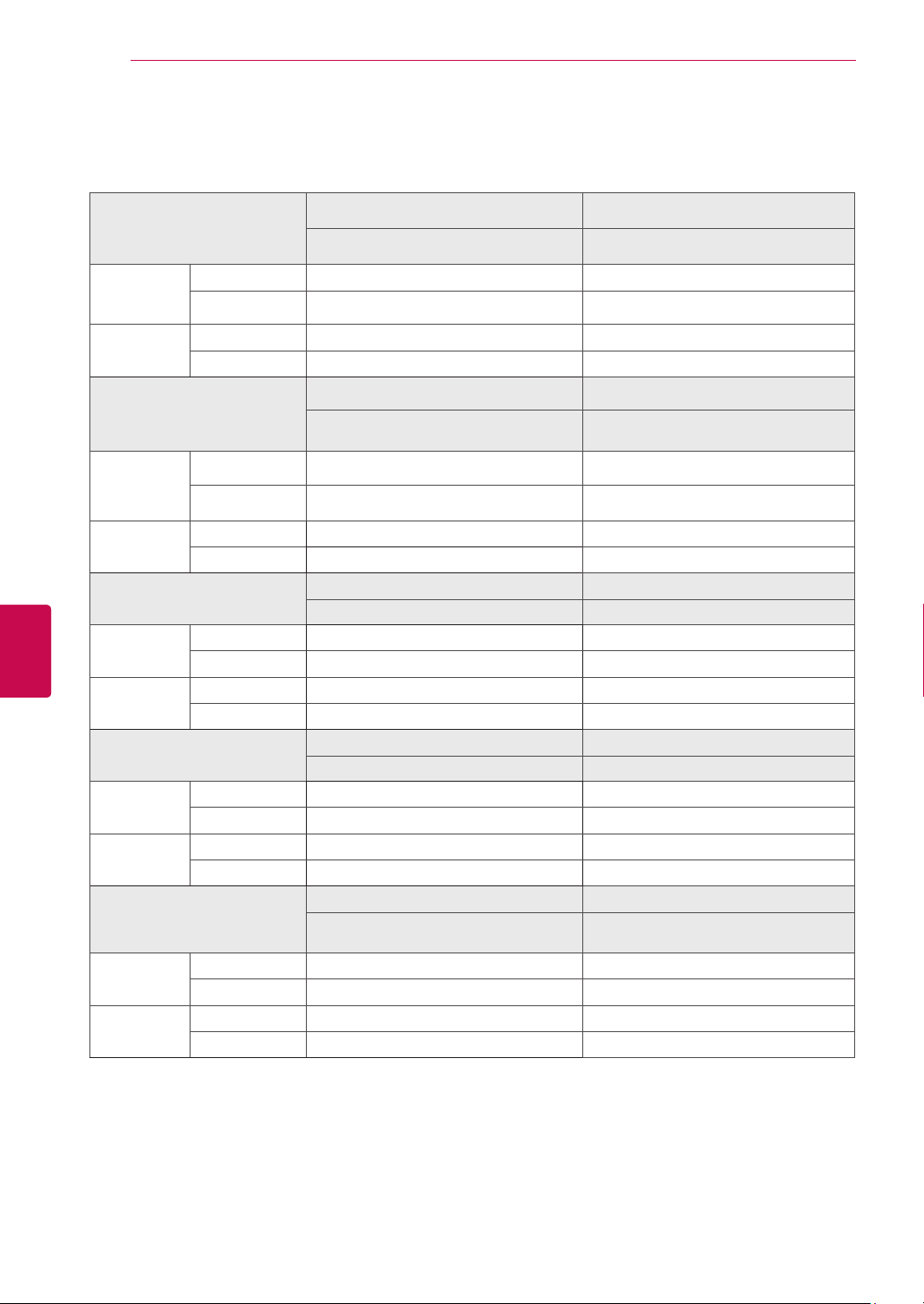
94
ENG
ENGLISH
SPECIFICATIONS
SPECIFICATIONS
MODELS
42PT25** 50PT25**
42PT250-TA 50PT250-TA
Dimensions
(W x H x D)
With stand 987.6 mm x 662.8 mm x 230.5 mm 1171.9 mm x 770.9 mm x 289.8 mm
Without stand 987.6 mm x 608.9 mm x 52.5 mm 1171.9 mm x 712.2 mm x 52.5 mm
Weight With stand 21.4 kg 29.5 kg
Without stand 19.9 kg 27.2 kg
MODELS
50PV25** 60PV25**
50PV250-TA
50PV250-TB
60PV250-TA
60PV250-TB
Dimensions
(W x H x D)
With stand 1171.9 mm x 770.9 mm x 289.8 mm 1390.8 mm x 905.2 mm x 334.7 mm
Without stand 1171.9 mm x 712.2 mm x 52.5 mm 1390.8 mm x 835.5 mm x 52.5 mm
Weight With stand 29.8kg 42.6 kg
Without stand 27.5kg 38.5 kg
MODELS
42PW35** 50PW35**
42PW350-TA 50PW350-TA
Dimensions
(W x H x D)
With stand 991.8 mm x 667 mm x 230.5 mm 1176.1 mm x 774.7 mm x 289.8 mm
Without stand 991.8 mm x 613.8 mm x 52.5 mm 1176.1 mm x 716.5 mm x 52.5 mm
Weight With stand 21.5 kg 29.6 kg
Without stand 20.0 kg 27.3 kg
MODELS
42PW45** 50PW45**
42PW450-TA / 42PW450-TD 50PW450-TA / 50PW450-TD
Dimensions
(W x H x D)
With stand 984 mm x 662.7 mm x 230.5 mm 1168.7 mm x 768.3 mm x 289.7 mm
Without stand 984 mm x 608.9 mm x 52.5 mm 1168.7 mm x 712.2 mm x 52.5 mm
Weight With stand 21.5 kg 29.5 kg
Without stand 20.0 kg 27.2 kg
MODELS
50PZ55** 60PZ55**
50PZ550-TA
50PZ550-TC
60PZ550-TA
60PZ550-TC
Dimensions
(W x H x D)
With stand 1172.3 mm x 770.9 mm x 289.8 mm 1390.4 mm x 905.2 mm x 334.7 mm
Without stand 1172.3 mm x 712.2 mm x 52.5 mm 1390.4 mm x 835.5 mm x 52.5 mm
Weight With stand 29.8 kg 42.6 kg
Without stand 27.5 kg 38.5 kg
Product specifications shown above may be changed without prior notice due to upgrade of product
functions.
For the power supply and power consumption, refer to the label attached to the product.
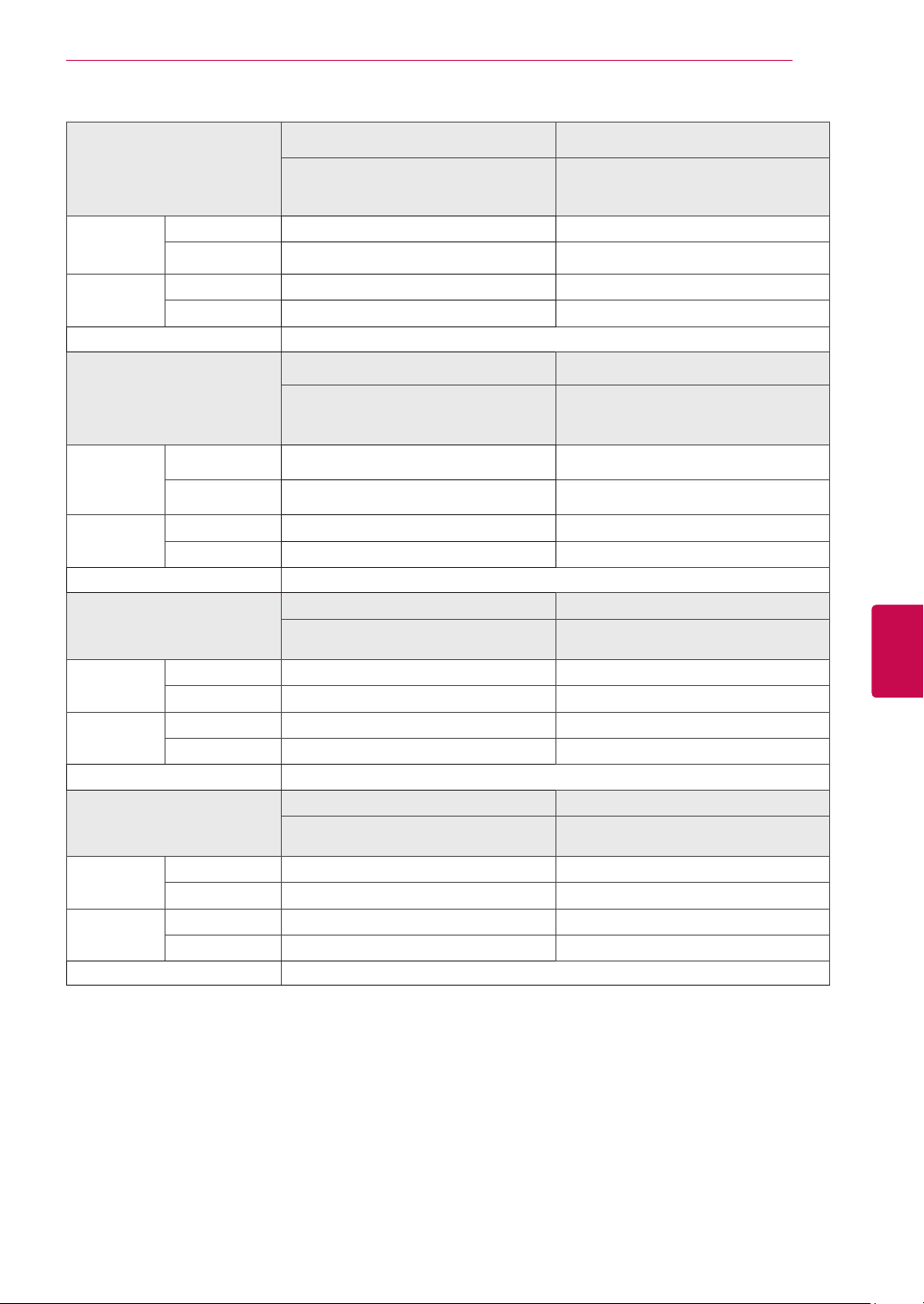
95
ENGENGLISH
SPECIFICATIONS
Product specifications shown above may be changed without prior notice due to upgrade of product
functions.
For the power supply and power consumption, refer to the label attached to the product.
MODELS
22LK33** 26LK33**
22LK330-TA
22LK330-TB
22LK332-TC
26LK330-TA
26LK330-TB
26LK332-TC
Dimensions
(W x H x D)
With stand 526.0 mm x 377.0 mm x 165 mm 663.0 mm x 484.0 mm x 207 mm
Without stand 526.0 mm x 331.0 mm x 65 mm 663.0 mm x 423.0 mm x 79.9 mm
Weight With stand 4.3 kg 7.6 kg
Without stand 4.0 kg 6.5 kg
Power requirement AC 100-240 V~ 50 / 60 Hz
MODELS
32LK33** 32LK43**
32LK330-TA
32LK330-TB
32LK332-TC
32LK430-TA
32LK430-TB
Dimensions
(W x H x D)
With stand 800.0 mm x 565.0 mm x 207 mm 799.0 mm x 555.0 mm x 207.0 mm
Without stand 800.0 mm x 509.0 mm x 73.8 mm 799.0 mm x 516 mm x 73.5 mm
Weight With stand 9.6 kg 9.6 kg
Without stand 8.6 kg 8.6 kg
Power requirement AC 100-240 V~ 50 / 60 Hz
MODELS
42LK43** 42LK53**
42LK430-TA
42LK430-TB
42LK530-TA
42LK530-TC
Dimensions
(W x H x D)
With stand 1023.0 mm x 685.0 mm x 261.0 mm 1024.0 mm x 685.0 mm x 261.0 mm
Without stand 1023.0 mm x 644 mm x 76.6 mm 1024.0 mm x 621.0 mm x 76.8 mm
Weight With stand 15.4 kg 15.5 kg
Without stand 13.7 kg 13.9 kg
Power requirement AC 100-240 V~ 50 / 60 Hz
MODELS
47LK53** 55LK53**
47LK530-TA
47LK530-TC
55LK530-TA
55LK530-TC
Dimensions
(W x H x D)
With stand 1137.0 mm x 758.0 mm x 270.0 mm 1329.0 mm x 872.0 mm x 330.0 mm
Without stand 1137.0 mm x 685.0 mm x 76.8 mm 1329.0 mm x 796.0 mm x 96.5 mm
Weight With stand 20.3 kg 33.0 kg
Without stand 18.3 kg 29.8 kg
Power requirement AC 100-240 V~ 50 / 60 Hz
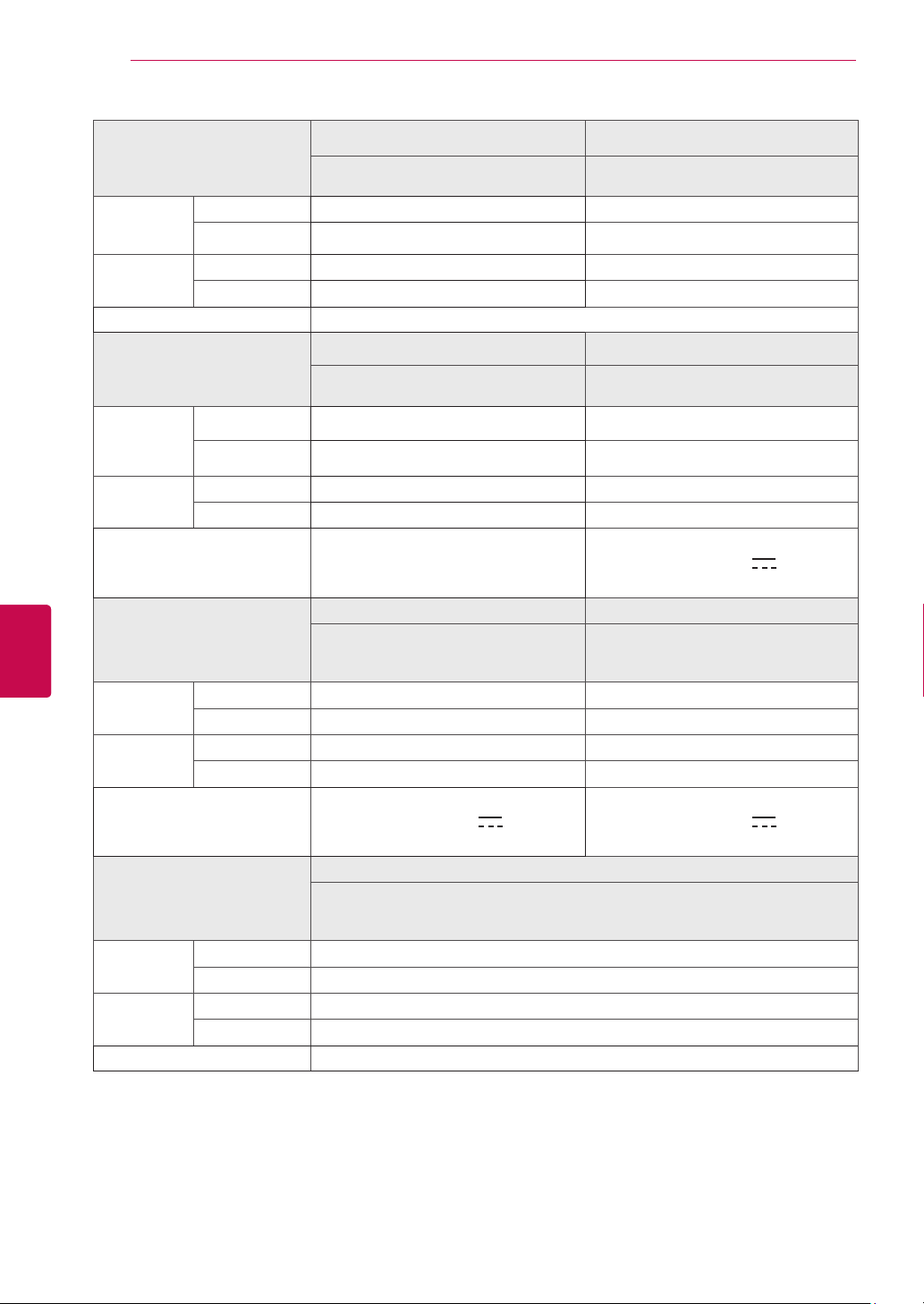
96
ENG
ENGLISH
SPECIFICATIONS
Product specifications shown above may be changed without prior notice due to upgrade of product
functions.
For the power supply and power consumption, refer to the label attached to the product.
MODELS
32LK45** 37LK45**
32LK450-TA
32LK452-TC
37LK450-TA
37LK452-TC
Dimensions
(W x H x D)
With stand 795.0 mm x 568.0 mm x 207.0 mm 913.0 mm x 639.0 mm x 265.0 mm
Without stand 795.0 mm x 504.0 mm x 73.5 mm 913.0 mm x 571.0 mm x 77.4 mm
Weight With stand 9.2 kg 12.8 kg
Without stand 8.1 kg 11.1 kg
Power requirement AC 100-240 V~ 50 / 60 Hz
MODELS
42LK45** 19LV25**
42LK450-TA
42LK452-TC
19LV2500-TA
19LV2530-TD
Dimensions
(W x H x D)
With stand 1019.0 mm x 698.0 mm x 265.0 mm 455.2 mm X 355 mm X 145 mm
Without stand 1019.0 mm x 631.0 mm x 76.5 mm 455.2 mm X 313.1 mm X 40.9 mm
Weight With stand 15.1 kg 2.7 kg
Without stand 13.4 kg 2.5 kg
Power requirement AC 100-240 V~ 50 / 60 Hz
DC 24 V, 1.4 A
AC-DC adaptor : 24 V , 2.5 A /
AC 100-240 V~ 50 / 60 Hz
MODELS
22LV25** 26LV25**
22LV2500-TA
22LV2510-TB
22LV2530-TD
26LV2500-TA
26LV2510-TB
26LV2530-TD
Dimensions
(W x H x D)
With stand 471.2 mm X 365.9 mm X 155.4 mm 635.6 mm X 475 mm X 169 mm
Without stand 471.2 mm X 315.5 mm X 40.9 mm 635.6 mm X 413.5 mm X 40.9 mm
Weight With stand 3.4 kg 5.4 kg
Without stand 3.2 kg 5.0 kg
Power requirement
DC 24 V, 1.7 A
AC-DC adaptor : 24 V , 2.5 A /
AC 100-240 V~ 50 / 60 Hz
DC 24 V, 1.8 A
AC-DC adaptor : 24 V , 2.5 A /
AC 100-240 V~ 50 / 60 Hz
MODELS
32LV25**
32LV2500-TA
32LV2510-TB
32LV2530-TD
Dimensions
(W x H x D)
With stand 777.4 mm X 552.3 mm X 216.0 mm
Without stand 777.4 mm X 501.3 mm X 35.4 mm
Weight With stand 11.5 kg
Without stand 10.7 kg
Power requirement AC 100-240 V~ 50 / 60 Hz
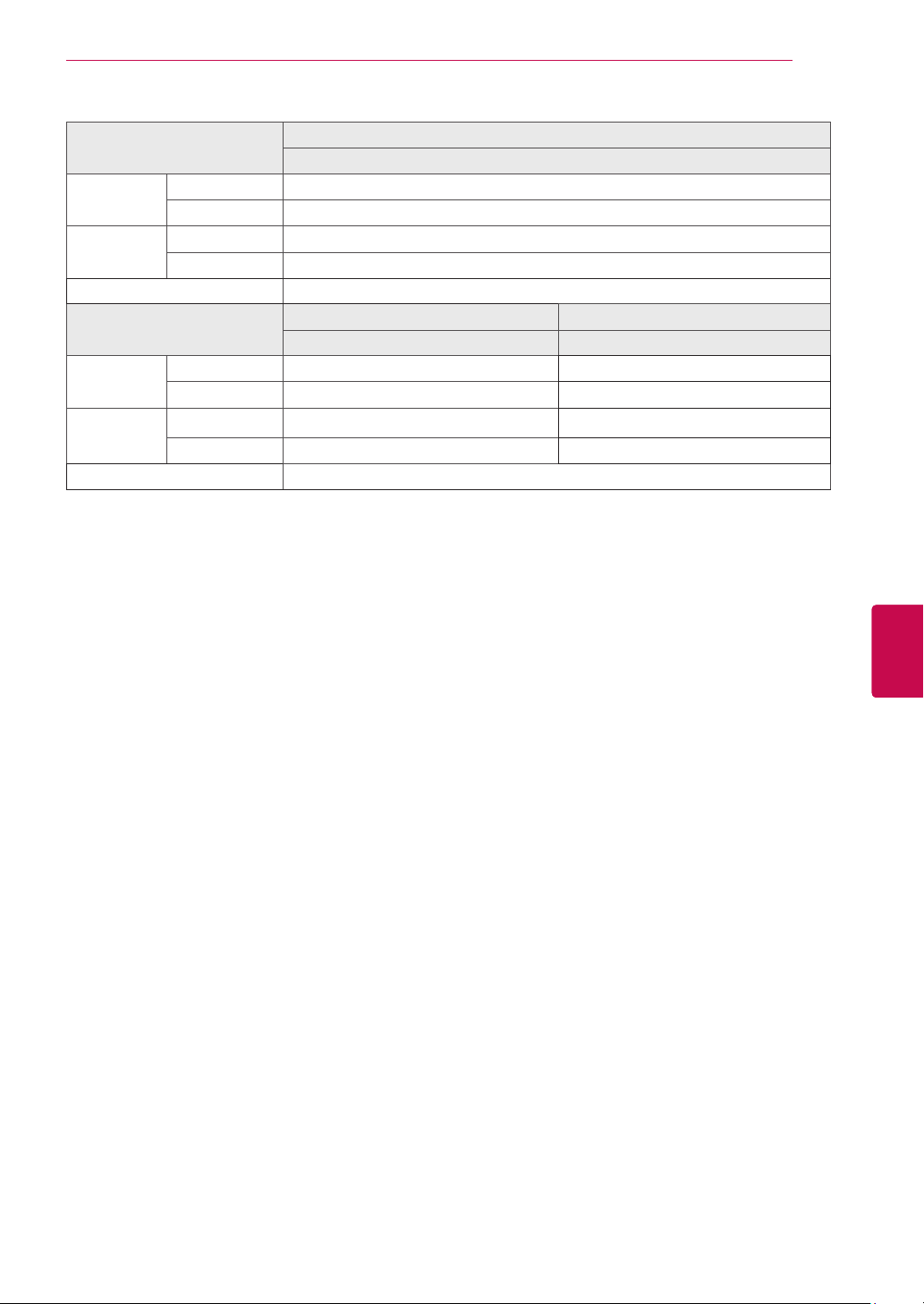
97
ENGENGLISH
SPECIFICATIONS
MODELS
22LV30**
22LV3000-TA
Dimensions
(W x H x D)
With stand 471.2 mm X 365.9 mm X 155.4 mm
Without stand 471.2 mm X 315.5 mm X 34.4 mm
Weight With stand 3.4 kg
Without stand 3.2 kg
Power requirement AC 100-240 V~ 50 / 60 Hz
MODELS
26LV30** 32LV30**
26LV3000-TA 32LV3000-TA
Dimensions
(W x H x D)
With stand 635.6 mm X 475 mm X 169 mm 795.0 mm x 568.0 mm x 207.0 mm
Without stand 635.6 mm X 413.5 mm X 40.9 mm 795.0 mm x 504.0 mm x 73.5 mm
Weight With stand 5.4 kg 9.2 kg
Without stand 5.0 kg 8.1 kg
Power requirement AC 100-240 V~ 50 / 60 Hz
Product specifications shown above may be changed without prior notice due to upgrade of product
functions.
For the power supply and power consumption, refer to the label attached to the product.
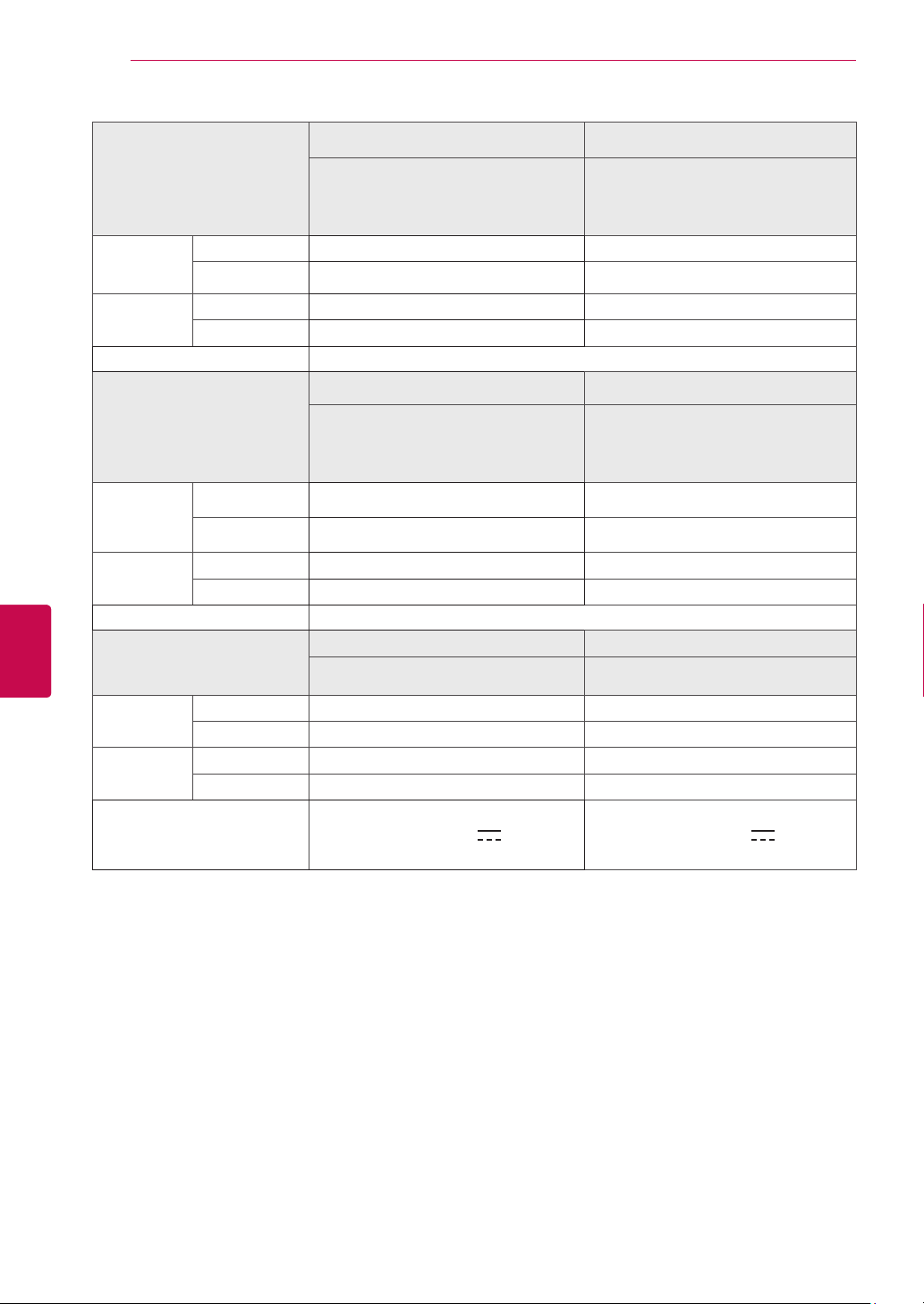
98
ENG
ENGLISH
SPECIFICATIONS
Product specifications shown above may be changed without prior notice due to upgrade of product
functions.
For the power supply and power consumption, refer to the label attached to the product.
MODELS
32LV35** 37LV35**
32LV3500-TA
32LV3500-TB
32LV3510-TB
32LV3530-TD
37LV3500-TA
37LV3500-TB
37LV3510-TB
37LV3530-TD
Dimensions
(W x H x D)
With stand 764.0 mm x 545.0 mm x 240.0 mm 888.0 mm x 614.0 mm x 240.0 mm
Without stand 764.0 mm x 484.0 mm x 35.4 mm 888.0 mm x 533.0 mm x 35.4 mm
Weight With stand 11.4 kg 13.5 kg
Without stand 9.6 kg 11.7 kg
Power requirement AC 100-240 V~ 50 / 60 Hz
MODELS
42LV35** 47LV35**
42LV3500-TA
42LV3500-TB
42LV3510-TB
42LV3530-TD
47LV3500-TA
47LV3500-TB
47LV3510-TB
47LV3530-TD
Dimensions
(W x H x D)
With stand 998.0 mm x 684.0 mm x 256.0 mm 1108.0 mm x 746 mm x 256 mm
Without stand 998.0 mm x 615.0 mm x 30.4 mm 1108.0 mm x 677 mm x 30.4 mm
Weight With stand 15.5 kg 20.9 kg
Without stand 13.3 kg 18.7 kg
Power requirement AC 100-240 V~ 50 / 60 Hz
MODELS
22LV55** 26LV55**
22LV5500-TA
22LV5500-TB
26LV5500-TA
26LV5500-TB
Dimensions
(W x H x D)
With stand 530 mm X 388 mm X 145 mm 640.0 mm X 468 mm X 169 mm
Without stand 530 mm X 340 mm X 31.3 mm 640.0 mm X 405.0 mm X 31.0 mm
Weight With stand 3.4 kg 4.7 kg
Without stand 3.2 kg 4.4 kg
Power requirement
DC 24 V, 1.7 A
AC-DC adaptor : 24 V , 2.5 A /
AC 100-240 V~ 50 / 60 Hz
DC 24 V, 2.1 A
AC-DC adaptor : 24 V , 2.5 A /
AC 100-240 V~ 50 / 60 Hz
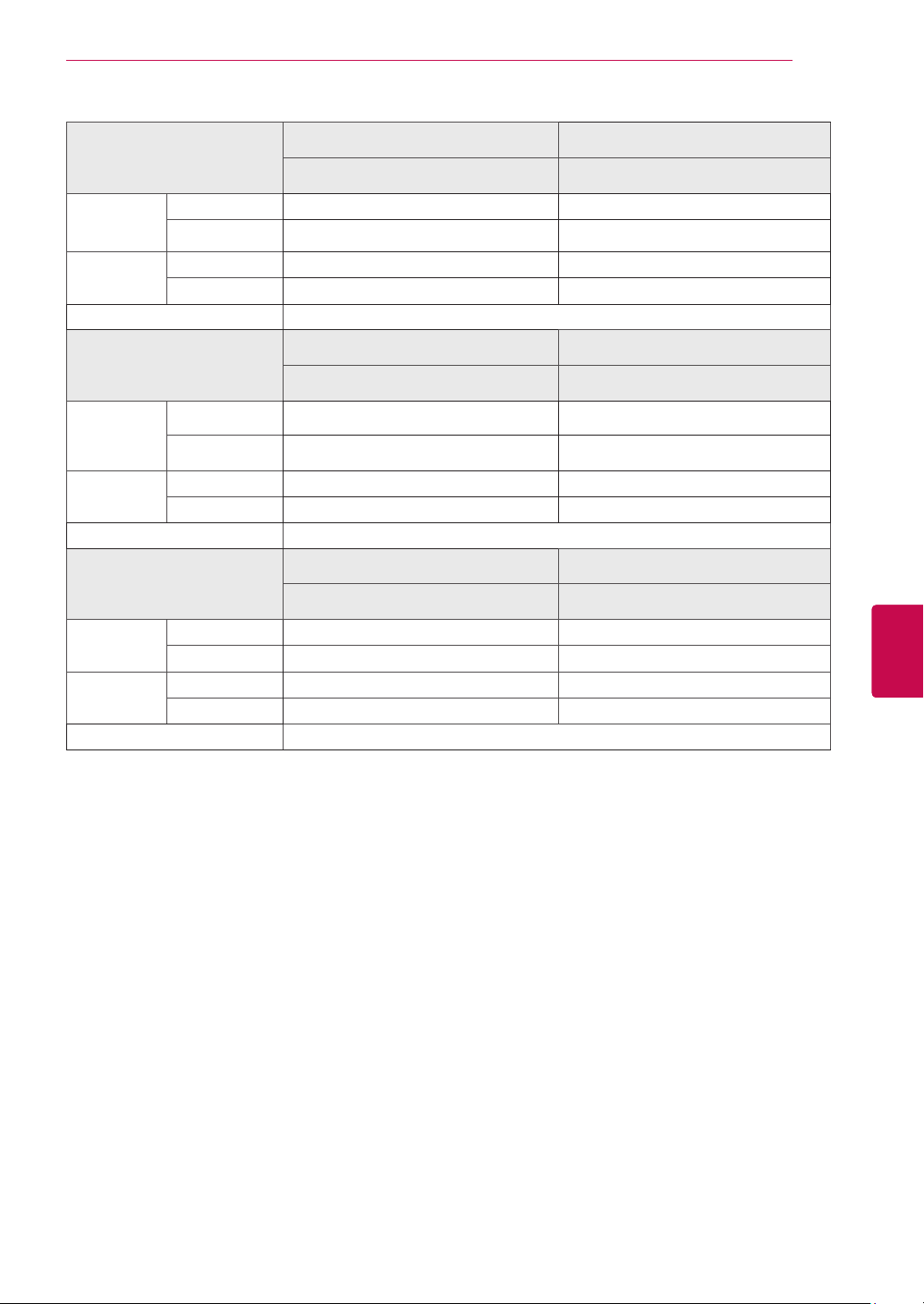
99
ENGENGLISH
SPECIFICATIONS
Product specifications shown above may be changed without prior notice due to upgrade of product
functions.
For the power supply and power consumption, refer to the label attached to the product.
MODELS
32LV34** 42LV34**
32LV3400-TA 42LV3400-TA
Dimensions
(W x H x D)
With stand 764.1 mm x 544.7 mm x 240.0 mm 997.2 mm x 684.2 mm x 256.6 mm
Without stand 764.1 mm x 483.6 mm x 40.4 mm 997.2 mm x 614.7 mm x 40.1 mm
Weight With stand 11.2 kg 15.5 kg
Without stand 9.4 kg 13.3 kg
Power requirement AC 100-240 V~ 50 / 60 Hz
MODELS
32LW45** 42LW45**
32LW4500-TA 42LW4500-TA
Dimensions
(W x H x D)
With stand 764.1 mm x 544.7 mm x 240.0 mm 997.2 mm x 684.2 mm x 256.6 mm
Without stand 764.1 mm x 483.6 mm x 40.4 mm 997.2 mm x 614.7 mm x 40.1 mm
Weight With stand 11.2 kg 15.5 kg
Without stand 9.4 kg 13.3 kg
Power requirement AC 100-240 V~ 50 / 60 Hz
MODELS
47LW45** 55LW45**
47LW4500-TA 55LW4500-TA
Dimensions
(W x H x D)
With stand 1107.0 mm x 745.5 mm x 256.3 mm 1175.8 mm x 771.6 mm x 289.7 mm
Without stand 1107.0 mm x 676.5 mm x 40.1 mm 1175.8 mm x 718.7 mm x 52.5 mm
Weight With stand 20.9 kg 29.4 kg
Without stand 18.7 kg 27.1 kg
Power requirement AC 100-240 V~ 50 / 60 Hz
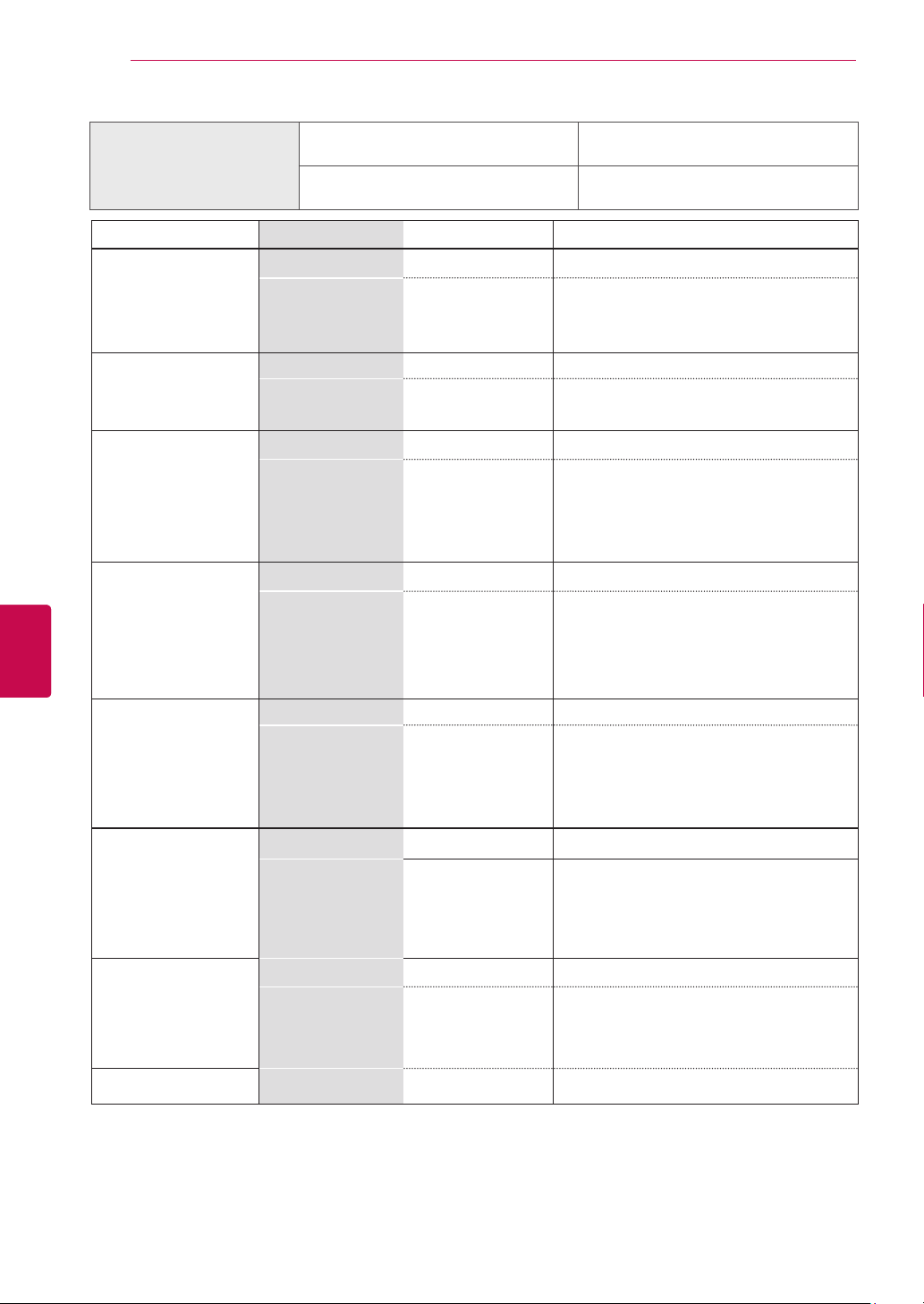
100
ENG
ENGLISH
SPECIFICATIONS
Digital TV Analogue TV
New Zealand, Singapore
Television System
DVB-T PAL/SECAM-B/G/D/K
, PAL-I
Programme Coverage
UHF 21 to 69
BG : VHF/UHF 1 to 69, CATV 01 to 47
I : VHF/UHF 1 to 69, CATV 01 to 47
DK : VHF/UHF 1 to 69, CATV 01 to 47
Australia
Television System
DVB-T PAL B/B
Programme Coverage
VHF 06 to 12,
UHF 27 to 69
B/B : VHF/UHF 0 to 75, CATV : 2 to 44
Indonesia, Israel
Television System
DVB-T PAL/SECAM-B/G/D/K
, PAL-I, NTSC-M
Programme Coverage
UHF 21 to 69
BG : VHF/UHF 1 to 69, CATV 01 to 47
I : VHF/UHF 1 to 69, CATV 01 to 47
DK : VHF/UHF 1 to 69, CATV 01 to 47
M : VHF/UHF 2 to 78, CATV 01 to 71
South Africa
Television System
DVB-T PAL/SECAM-B/G/D/K
, PAL-I, NTSC-M
Programme Coverage
VHF 4 to 11, 13
UHF 21 to 68
BG : VHF/UHF 1 to 69, CATV 01 to 47
I : VHF/UHF 1 to 69, CATV 01 to 47
DK : VHF/UHF 1 to 69, CATV 01 to 47
M : VHF/UHF 2 to 78, CATV 01 to 71
Veitnam, Malaysia
Television System
DVB-T PAL/SECAM-B/G/D/K
, PAL-I, NTSC-M
Programme Coverage
VHF 6 to 12,
UHF 21 to 69
BG : VHF/UHF 1 to 69, CATV 01 to 47
I : VHF/UHF 1 to 69, CATV 01 to 47
DK : VHF/UHF 1 to 69, CATV 01 to 47
M : VHF/UHF 2 to 78, CATV 01 to 71
Iran
Television System
DVB-T PAL/SECAM-B/G/D/K
, PAL-I, NTSC-M
Programme Coverage
VHF 5 to 12,
UHF 21 to 69
BG : VHF/UHF 1 to 69, CATV 01 to 47
I : VHF/UHF 1 to 69, CATV 01 to 47
DK : VHF/UHF 1 to 69, CATV 01 to 47
M : VHF/UHF 2 to 78, CATV 01 to 71
Analogue model
Television System
- PAL/SECAM-B/G/D/K
, PAL-I, NTSC-M
Programme Coverage
-
BG : VHF/UHF 1 to 69, CATV 01 to 47
I : VHF/UHF 1 to 69, CATV 01 to 47
DK : VHF/UHF 1 to 69, CATV 01 to 47
M : VHF/UHF 2 to 78, CATV 01 to 71
External Antenna
Impedance
75 Ω 75 Ω
Product specifications shown above may be changed without prior notice due to upgrade of product
functions.
For the power supply and power consumption, refer to the label attached to the product.
Environment condition
Operating Temperature
Operating Humidity
0 °C
to
40 °C
Less than 80 %
Storage Temperature
Storage Humidity
-20 °C
to
60 °C
Less than 85 %
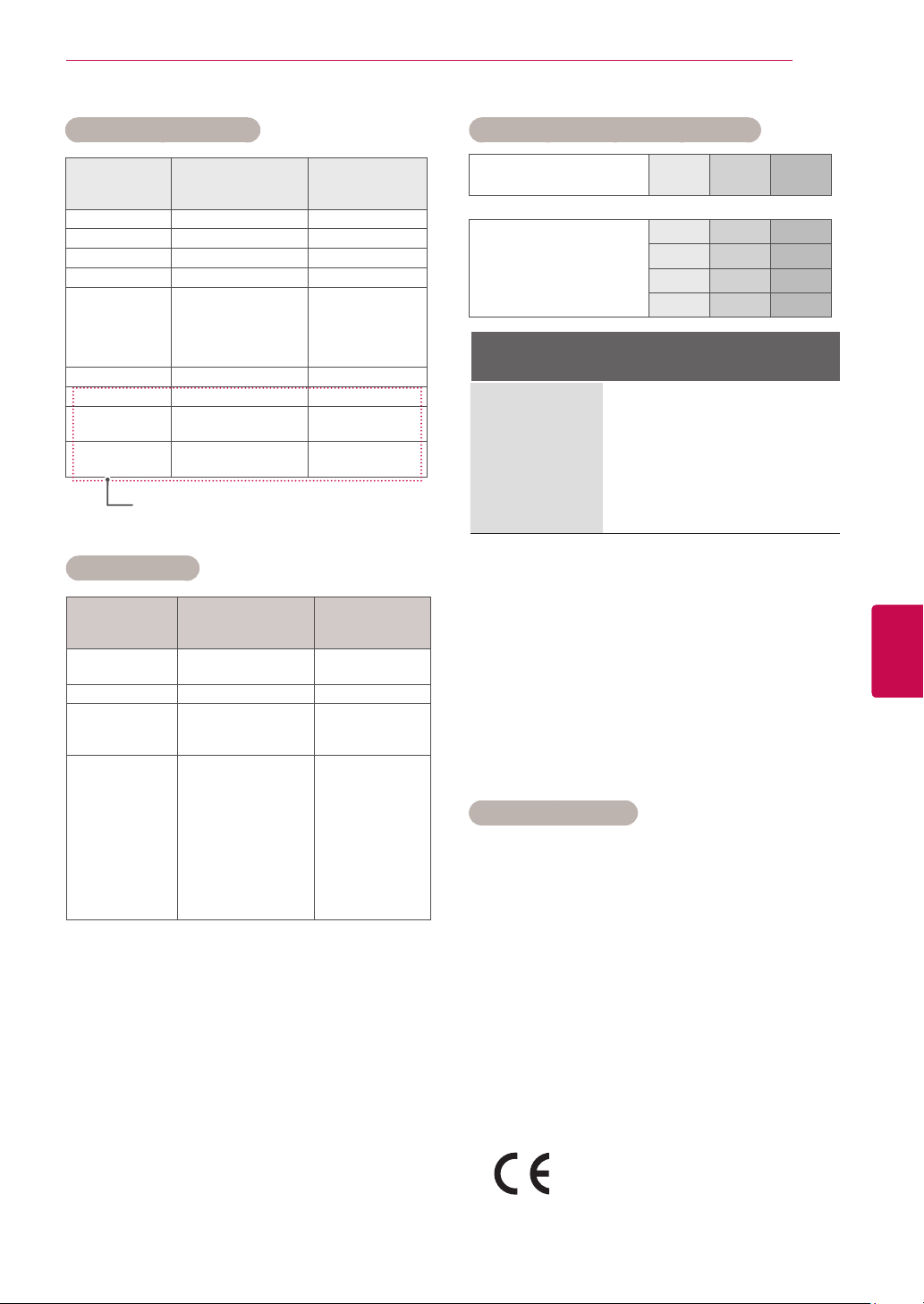
101
ENGENGLISH
SPECIFICATIONS
RGB-PC, HDMI-PC mode
HDMI-DTV mode
Component port connecting information
Component ports on the
TV
Y P
B
P
R
Video output ports
on DVD player
Y P
B
P
R
Y B-Y R-Y
Y Cb Cr
Y Pb Pr
Resolution
Horizontal
Frequency (kHz)
Vertical
Frequency (Hz)
720x400 31.468 70.08
640x480 31.469 59.94
800x600 37.879 60.31
1024x768 48.363 60.00
1280x768
(HDMI-PC
mode :
Except
for LCD TV/LED
LCD TV)
47.78 59.87
1360x768 47.72 59.80
1280x1024 63.981 60.02
1920x1080
(RGB-PC)
66.587 59.93
1920x1080
(HDMI-PC)
67.5 60.00
Resolution
Horizontal
Frequency (kHz)
Vertical
Frequency (Hz)
720x480
31.469
31.5
59.94
60
720x576 31.25 50
1280x720
37.5
44.96
45
50
59.94
60
1920x1080
33.72
33.75
28.125
26.97
27
33.716
33.75
56.25
67.43
67.5
59.94
60
50
23.97
24
29.976
30.00
50
59.94
60
Signal Component
480i/576i
O
480p/576p
O
720p/1080i
O
1080p
O
(50 Hz / 60 Hz only)
(Except for 42/50PT25**, 42/50PW35**,
42/50PW45**, 22/26/32LK33**, 19/22/26/32LV25**,
26/32LV30**)
RF module(BM-LDS201) specification(Only
42/50PW35**, 42/50PW45**, 50/60PZ55**,
32/42/47/55LW45**)
For TV By using a 2.4 GHz bandwidth radio
frequency(RF).
» Output : 1 dBm or lower
» Maximum Communication Distance : 10 m
(30 ft) in an open space
» Bandwidth : 2.4 GHz (2.4035 GHz -
2.4783 GHz)
» Transfer Rate : 250 kbps
FCC ID of RF module inside TV
FCC ID : BEJLDS201
RF SPECIFICATIONS
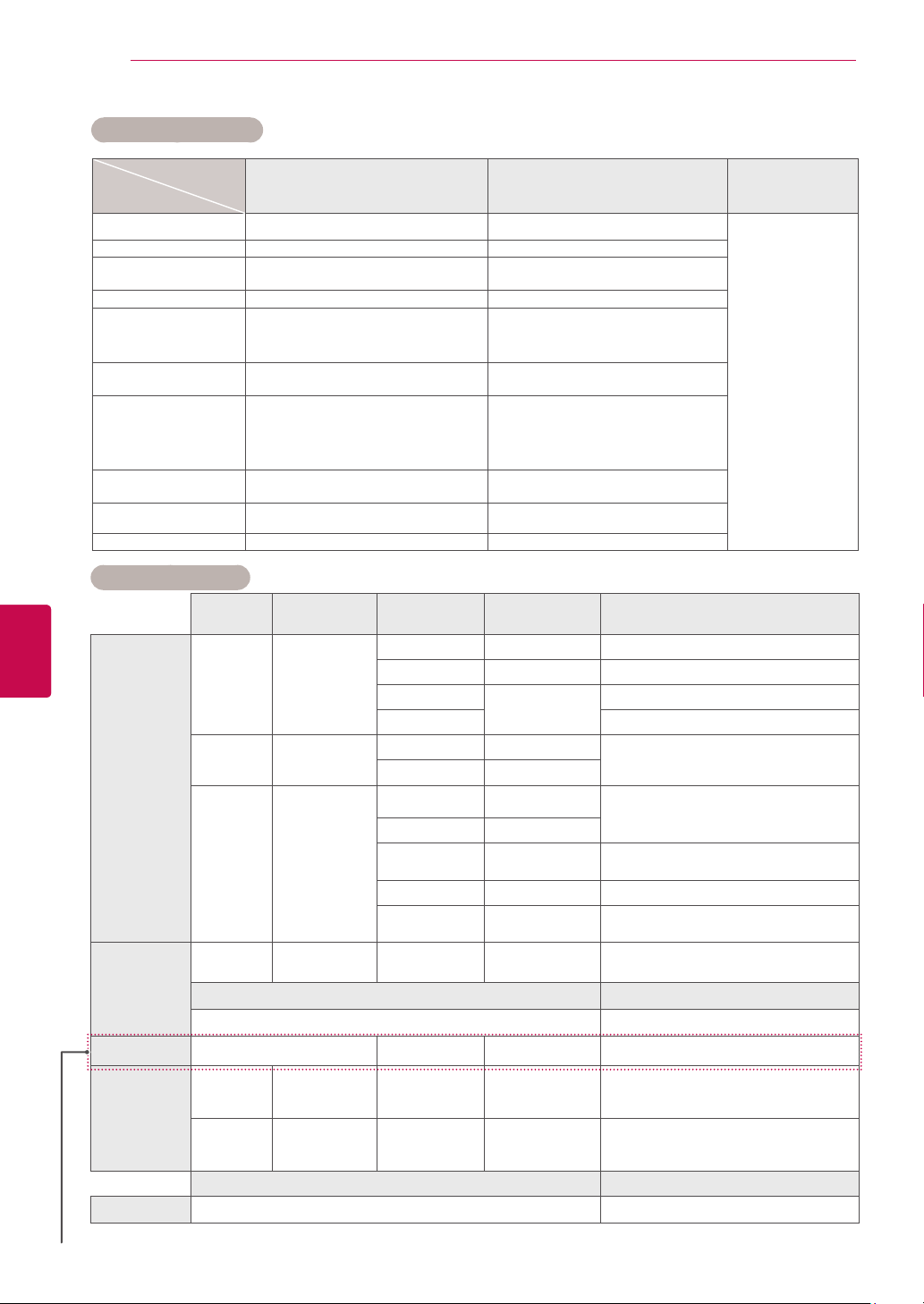
102
ENG
ENGLISH
SPECIFICATIONS
Video supported mode
File
Extension name
Video Decoder Audio Codec Max Resolution
mpg, mpeg MPEG1, MPEG2 MP2,MP3,Dolby Digital,LPCM
1920x1080@30p
(only , Motion
JPEG
640x480@30p)
dat MPEG1 MP2
ts,trp,tp MPEG2, H.264, AVS, VC1
MP2,MP3,Dolby Digital,
AAC,
HE-AAC
vob MPEG1, 2 MP2,MP3,Dolby Digital,LPCM
mp4, mov
MPEG4,DivX 3.11, DivX 4.12, DivX
5.x, DivX 6, Xvid 1.00, Xvid 1.01,
Xvid 1.02, Xvid 1.03, Xvid
1.10-beta1/2H.264
AAC,
HE-AAC
,MP3
mkv H.264, MPEG-1,2,4
MP2,MP3,Dolby Digital,AAC
HE-AAC
,LPCM
divx, avi
MPEG2, MPEG4,DivX 3.11, DivX
4.DivX 5, DivX 6, Xvid 1.00, Xvid
1.01, Xvid 1.02, Xvid 1.03, Xvid
1.10-beta1/2H.264
MP2,MP3,Dolby Digital,LPCM,
ADPCM,AAC,HE-AAC
Motion JPEG
(avi, mp4, mkv)
JPEG LPCM, ADPCM
asf, wmv VC1 WMA
flv Sorenson H.263, H264 MP3, AAC
3D Supported format
Signal Resolution
Horizontal
Frequency (kHz)
Vertical
Frequency (Hz)
Playable 3D video format
HDMI
Input
720p 1280x720
44.96/45 59.94/60 Top & Bottom, Side by Side
89.9/90 59.94/60 HDMI 3D Frame Packing
37.5
50
Top & Bottom, Side by Side
75 HDMI 3D Frame Packing
1080i 1920X1080
33.72/33.75 59.94/60
Top & Bottom, Side by Side
28.125 50
1080p 1920X1080
69.433/67.50 59.94/60
Top & Bottom, Side by Side, Checker
Board,
Single Frame Sequential
56.250 50
27 24
Top & Bottom, Side by Side, Checker
Board
53.95/54 23.98/24 HDMI 3D Frame Packing
33.75 30
Top & Bottom, Side by Side,
Checker Board
USB Input
1080p 1920X1080 33.75 30
Top & Bottom, Side by Side,
Checker Board, MPO(Photo)
Resolution Playable 3D video format
Other Resolution Top & Bottom, Side by Side
PC Input 1920 X 1080 66.587 59.93 Top & Bottom, Side by Side
Component
Input
(For Plasma
TV)
720p 1280x720
44.96
45.00
37.50
59.94
60.00
50.00
Top & Bottom, Side by Side
1080i 1920x1080
33.72
33.75
28.125
59.94
60.00
50.00
Top & Bottom, Side by Side
Signal Playable 3D video format
DTV
720p, 1080i Top & Bottom, Side by Side
(Only 50/60PZ55**)
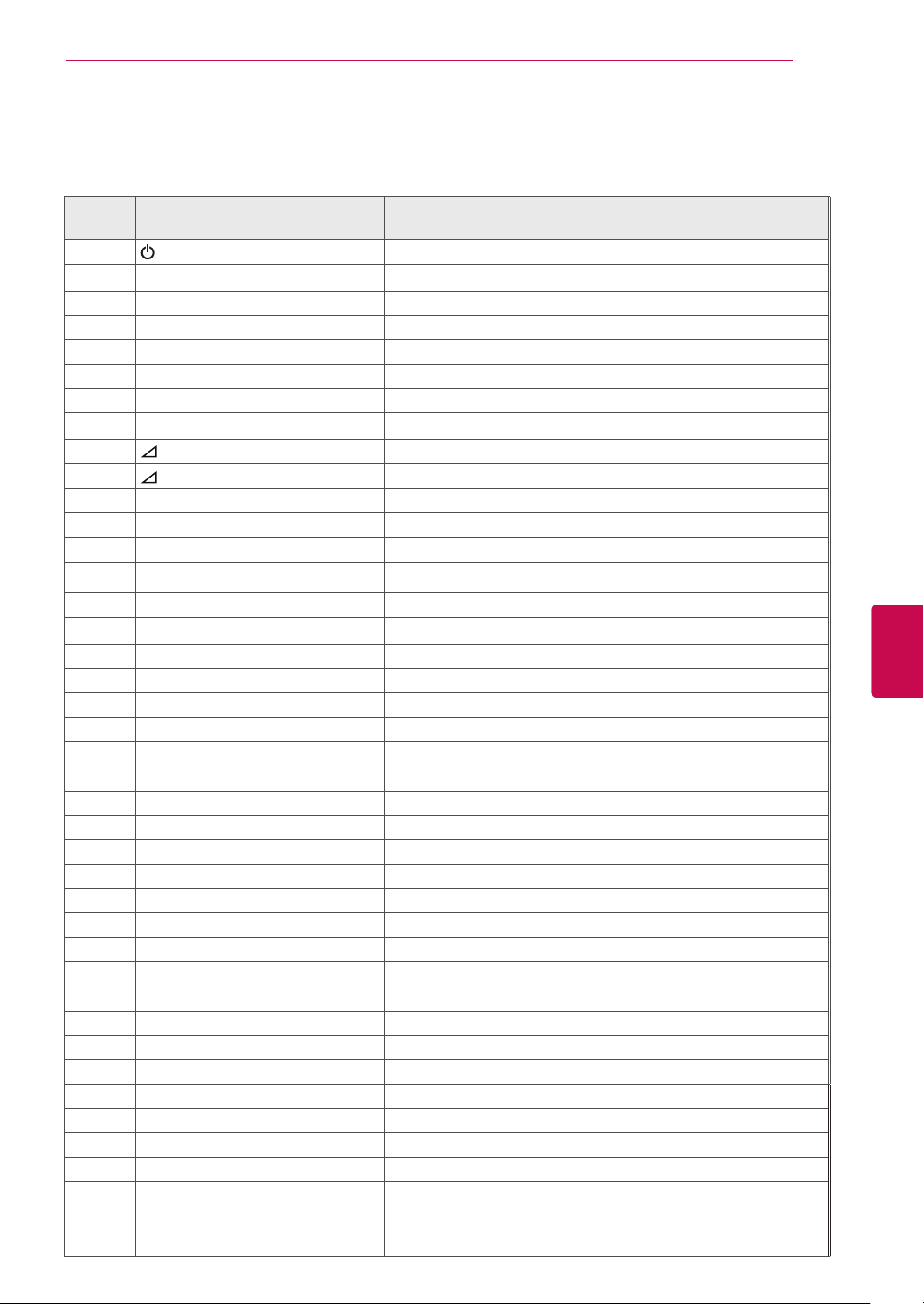
103
ENGENGLISH
IR CODES
Code
(Hexa)
Function Note
08
(POWER)
Remote control Button (Power On/Off)
95 ENERGY SAVING Remote control Button
30 AV MODE Remote control Button
0B INPUT Remote control Button
F0 TV/RAD Remote control Button
10-19 Number Key 0-9 Remote control Button
53 LIST Remote control Button
1A Q.VIEW(or 3D OPTION) Remote control Button
02
+ Remote control Button
03
- Remote control Button
1E FAV/MARK Remote control Button
DC 3D Remote control Button
09 MUTE Remote control Button
00 P
^
Remote control Button
01 P
v
Remote control Button
43 Home Remote control Button
AB
GUIDE
Remote control Button
45 Q.MENU Remote control Button
28 BACK Remote control Button
AA INFO Remote control Button
5B EXIT Remote control Button
44 OK Remote control Button
40
^
Remote control Button
41
v
Remote control Button
07
<
Remote control Button
06
>
Remote control Button
72 RED Remote control Button
71 GREEN Remote control Button
63 YELLOW Remote control Button
61 BLUE(or 3D SETTING) Remote control Button
20 TEXT
Remote control Button
21 T.OPT(T.Option)
Remote control Button
39 SUBTITLE
Remote control Button
B1
n
Remote control Button
B0 ► Remote control Button
BA
yy
(FREEZE) Remote control Button
8E ►► Remote control Button
8F ◄◄ Remote control Button
7E SIMPLINK Remote control Button
79 RATIO Remote control Button
91 AD Remote control Button
IR CODES
This feature is not available for all models.
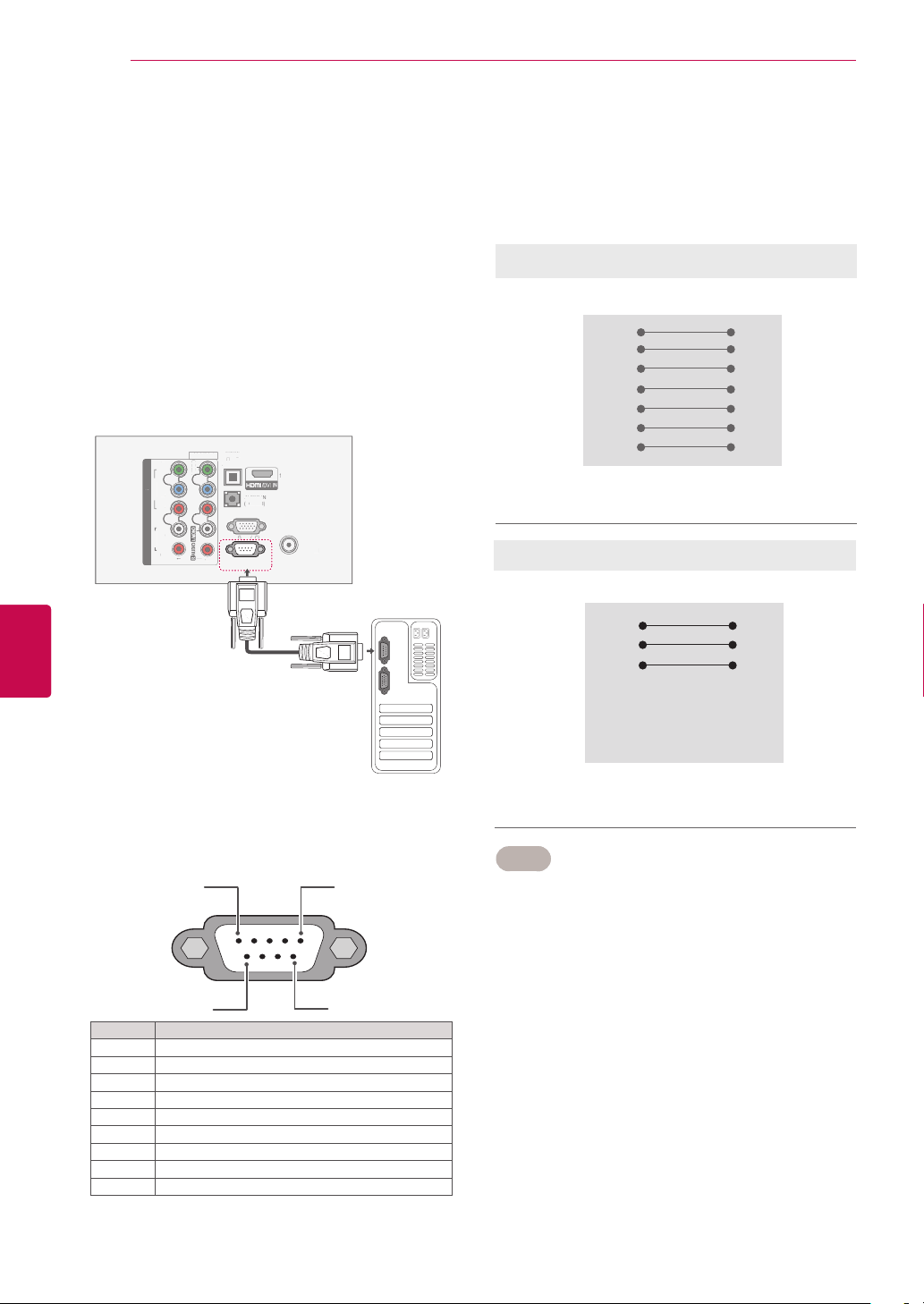
104
ENG
ENGLISH
EXTERNAL CONTROL DEVICE SETUP
EXTERNAL CONTROL DEVICE SETUP
RS-232C Setup
Connect the RS-232C (serial port) input jack to an
external control device (such as a computer or an
A/V control system) to control the product’s func-
tions externally.
Connect the serial port of the control device to the
RS-232C jack on the product back panel.
Note: RS-232C connection cables are not supplied
with the product.
Type of connector;
D-Sub 9-Pin Male
No. Pin name
1 No connection
2 RXD (Receive data)
3 TXD (Transmit data)
4 DTR (DTE side ready)
5 GND
6 DSR (DCE side ready)
7 RTS (Ready to send)
8 CTS (Clear to send)
9 No Connection
3-Wire Configurations
(
Not standard
)
PC TV
RXD 2 3 TXD
TXD 3 2 RXD
GND 5 5 GND
DTR 4 6 DTR
DSR 6 4 DSR
RTS 7 7 RTS
CTS 8 8 CTS
D-Sub 9 D-Sub 9
RS-232C Configurations
7-Wire Configurations
(
Standard RS-232C cable
)
PC TV
RXD 2 3 TXD
TXD 3 2 RXD
GND 5 5 GND
DTR 4 6 DSR
DSR 6 4 DTR
RTS 7 8 CTS
CTS 8 7 RTS
D-Sub 9 D-Sub 9
Set ID
Set ID number. "Real Data Mapping" on See p.110
1 Press Home to access the main menus.
2 Press the Navigation buttons to scroll to
OPTION and press Ok.
3 Press the Navigation buttons to scroll to SET
ID and press Ok.
4 Scroll left or right to select a set ID number and
select CLOSE. The adjustment range is 1-99.
5 When you are finished, press EXIT.
1
/DVI IN
OPTICAL
DIGITAL
AUDIO OUT
AUDIO IN
(RGB/DVI)
RGB IN (PC)
ANTENNA
IN
COMPONENT IN
AUDIO
R
L
Y
P
B
P
R
VIDEO
AV IN 1
VIDEO
1
2
MONO
1
/DVI IN
O
P
TI
C
AL
D
IG
IT
A
L
AU
DI
O
OU
T
AUDI
O
I
N
(
R
G
B/
D
V
I
)
R
G
B IN
(
P
C
)
ANTENNA
IN
CO
MP
O
NENT I
N
A
UDIO
R
L
Y
P
B
P
R
VIDEO
AV IN 1
V
IDE
O
1
2
MONO
RS-232C IN
(CONTROL & SERVICE)
5
6 9
1
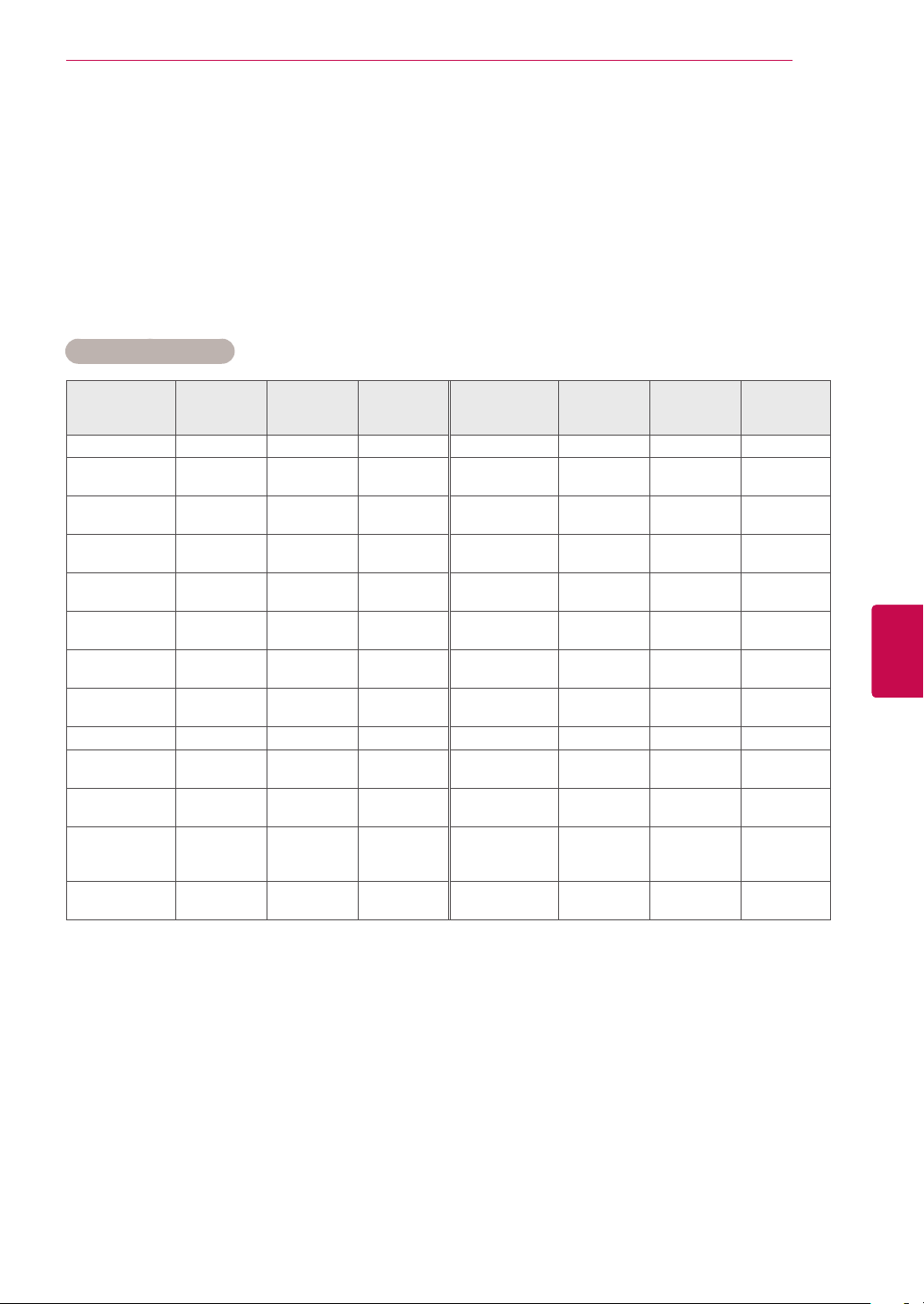
105
ENGENGLISH
EXTERNAL CONTROL DEVICE SETUP
Command reference list
Communication Parameters
Baud rate: 9600 bps (UART)
Data length: 8 bits
Parity : None
Stop bit: 1 bit
Communication code: ASCII code
Use a crossed (reverse) cable.
* Note : During USB operations such as DivX or EMF, all commands except Power(ka) and Key(mc)
are not executed and treated as NG.
COMMAND1 COMMAND2
DATA
(Hexadeci-
mal)
COMMAND1 COMMAND2
DATA
(Hexadeci-
mal)
01. Power k a 00 to 01 14. Bass k s 00 to 64
02. Aspect
Ratio
k c (See p.107) 15. Balance k t 00 to 64
03. Screen
Mute
k d (See p.107)
16. Colour
Temperature
x u 00 to 64
04. Volume
Mute
k e 00 to 01
17. ISM
Method
j p
(See p.109)
05. Volume
Control
k f 00 to 64
18. Energy
Saving
j q 00 to 05
06. Contrast k g 00 to 64
19. Auto Con-
figuration
j u 01
07. Brightness k h 00 to 64
20. Tune Com-
mand
m a
(See p.109)
08. Colour k i 00 to 64
21. Programme
Add/Skip
m b 00 to 01
09. Tint k j 00 to 64 22. Key m c Key Code
10. Sharpness k k 00 to 64
23. Control
Back Light
m g 00 to 64
11. OSD Select k l 00 to 01
24. Input select
(Main)
x b (See p.110)
12. Remote
Control
Lock Mode
k m 00 to 01
25. 3D x t (See p.110)
13. Treble k r 00 to 64
26. Extended
3D
x v (See p.110)
(Depending on model)
106
ENG
ENGLISH
EXTERNAL CONTROL DEVICE SETUP
Transmission / Receiving Protocol
Transmission
[Command1][Command2][ ][Set ID][ ][Data][Cr]
[Command 1] : First command to control the TV.(j, k, m or x)
[Command 2] : Second command to control the TV.
[Set ID] : You can adjust the set ID to choose desired monitor ID number in option menu.
Adjustment range is 1 to 99. When selecting Set ID ‘0’, every connected set is controlled.
Set ID is indicated as decimal (1 to 99) on menu and as Hexa decimal (0x0 to 0x63) on
transmission/receiving protocol.
[DATA] : To transmit command data. Transmit ‘FF’ data to read status of command.
[Cr] : Carriage Return
ASCII code ‘0x0D’
[ ] : ASCII code ‘space (0x20)’
OK Acknowledgement
[Command2][ ][Set ID][ ][OK][Data][x]
* The set transmits ACK (acknowledgement) based on this format when receiving normal data. At this
time, if the data is data read mode, it indicates present status data. If the data is data write mode, it
returns the data of the PC computer.
Error Acknowledgement
[Command2][ ][Set ID][ ][NG][Data][x]
* The set transmits ACK (acknowledgement) based on this format when receiving abnormal data from
non-viable functions or communication errors.
Data 00: Illegal Code
107
ENGENGLISH
EXTERNAL CONTROL DEVICE SETUP
08. Colour (Command: k i)
► To adjust the screen colour.
You can also adjust colour in the PICTURE menu.
Data Min : 00 to Max : 64
*
Refer to ‘Real data mapping’. See p.110.
Transmission [k][i][ ][Set ID][ ][Data][Cr]
Ack [i][ ][Set ID][ ][OK/NG][Data][x]
04. Volume Mute (Command: k e)
► To control volume mute on/off.
You can also adjust mute using the MUTE button on
remote control.
Data 00 : Volume mute on (Volume off)
01 : Volume mute off (Volume on)
Transmission [k][e][ ][Set ID][ ][Data][Cr]
Ack [e][ ][Set ID][ ][OK/NG][Data][x]
02. Aspect Ratio (
Command: k
c) (Main Picture
Size)
► To adjust the screen format. (Main picture format)
You can also adjust the screen format using the Aspect
Ratio in the Q.MENU. or PICTURE menu.
Data 01 : Normal screen
(4:3)
02 : Wide screen (16:9)
04 : Zoom
06 : Original
07 : 14:9
09 : Just Scan
0B : Full Wide
10 to 1F : Cinema Zoom 1 to 16
Transmission [k][c][ ][Set ID][ ][Data][Cr]
* Using the PC input, you select either 16:9 or 4:3
screen aspect ratio.
*
In DTV/HDMI (1080i 50 Hz / 60 Hz, 720p 50Hz / 60
Hz, 1080p 24 Hz / 30 Hz / 50 Hz / 60 Hz),
Component( 720p, 1080i, 1080p 50 Hz / 60 Hz) mode,
Just Scan is available.
* Full Wide is supported only f
or DTV
.
Ack [c][ ][Set ID][ ][OK/NG][Data][x]
03. Screen Mute (Command: k d)
► To select screen mute on/off.
Data 00 : Screen mute off (Picture on)
Video mute off
01 : Screen mute on (Picture off)
10 : Video mute on
* In case of video mute on only, TV will display On
Screen Display(OSD). But, in case of Screen mute
on, TV will not display OSD.
Transmission [k][d][ ][Set ID][ ][Data][Cr]
Ack [d][ ][Set ID][ ][OK/NG][Data][x]
05. Volume Control (Command: k f)
► To adjust volume.
You can also adjust volume with the VOLUME but-
tons on remote control.
Data Min : 00 to Max : 64
*
Refer to ‘Real data mapping’. See p.110.
Transmission [k][f][ ][Set ID][ ][Data][Cr]
Ack [f][ ][Set ID][ ][OK/NG][Data][x]
06. Contrast (Command: k g)
► To adjust screen contrast.
You can also adjust contrast in the PICTURE menu.
Data Min : 00 to Max : 64
*
Refer to ‘Real data mapping’. See p.110.
Transmission [k][g][ ][Set ID][ ][Data][Cr]
Ack [g][ ][Set ID][ ][OK/NG][Data][x]
07. Brightness (Command: k h)
► To adjust screen brightness.
You can also adjust brightness in the PICTURE menu.
Data Min : 00 to Max : 64
*
Refer to ‘Real data mapping’. See p.110.
Transmission [k][h][ ][Set ID][ ][Data][Cr]
Ack [h][ ][Set ID][ ][OK/NG][Data][x]
01. Power (Command: k a)
► To control Power On/Off of the set.
Data 00 : Power Off 01 : Power On
Transmission[k][a][ ][Set ID][ ][Data][Cr]
Ack [a][ ][Set ID][ ][OK/NG][Data][x]
► To show Power On/Off.
Transmission [k][a][ ][Set ID][ ][FF][Cr]
* Similarly, if other functions transmit ‘0xFF’ data based
on this format, Acknowledgement data feed back
presents status about each function.
* OK Ack., Error Ack. and other message may display
on the screen when TV is power On.
Ack [a][ ][Set ID][ ][OK/NG][Data][x]

108
ENG
ENGLISH
EXTERNAL CONTROL DEVICE SETUP
12. Remote control lock mode (Command: k m)
► To lock the front panel controls on the monitor and remote
control.
Transmission [k][m][ ][Set ID][ ][Data][Cr]
Data 00 : Lock off 01 : Lock on
* If you are not using the remote control, use this mode.
When main power is on/off, external control lock is
released.
* In the standby mode, if key lock is on, TV will not turn
on by power on key of IR & Local Key.
Ack [m][ ][Set ID][ ][OK/NG][Data][x]
11. OSD Select (Command: k l)
► To select OSD (On Screen Display) on/off when controlling
remotely.
Transmission [k][l][ ][Set ID][ ][Data][Cr]
Data 00 : OSD off 01 : OSD on
Ack [l][ ][Set ID][ ][OK/NG][Data][x]
09. Tint (Command: k j)
► To adjust the screen tint.
You can also adjust tint in the PICTURE menu.
Data Red : 00 to Green : 64
*
Refer to ‘Real data mapping’. See p.110.
Transmission [k][j][ ][Set ID][ ][Data][Cr]
Ack [j][ ][Set ID][ ][OK/NG][Data][x]
► To adjust the screen sharpness.
You can also adjust sharpness in the PICTURE menu.
10. Sharpness (Command: k k)
Data Min : 00 to Max : 64
*
Refer to ‘Real data mapping’. See p.110.
Transmission [k][k][ ][Set ID][ ][Data][Cr]
Ack [k][ ][Set ID][ ][OK/NG][Data][x]
15. Balance (Command: k t)
► To adjust balance.
You can also adjust balance in the AUDIO menu.
Data Min : 00 to Max : 64
*
Refer to ‘Real data mapping’. See p.110.
Transmission [k][t][ ][Set ID][ ][Data][Cr]
Ack [t][ ][Set ID][ ][OK/NG][Data][x]
14.
Bass (Command: k s)
► To adjust bass.
You can also adjust bass in the AUDIO menu.
Data Min : 00 to Max : 64
*
Refer to ‘Real data mapping’. See p.110.
Transmission [k][s][ ][Set ID][ ][Data][Cr]
Ack [s][ ][Set ID][ ][OK/NG][Data][x]
13. Treble (Command: k r)
► To adjust treble.
You can also adjust treble in the AUDIO menu.
Data Min : 00 to Max : 64
*
Refer to ‘Real data mapping’. See p.110.
Transmission [k][r][ ][Set ID][ ][Data][Cr]
Ack [r][ ][Set ID][ ][OK/NG][Data][x]
16. Colour Temperature (Command: x u)
► To adjust colour temperature. You can also adjust Colour
Temperature in the PICTURE menu.
Data Min : 00 to Max : 64
*
Refer to ‘Real data mapping’. See p.110.
Transmission [x][u][ ][Set ID][ ][Data][Cr]
Ack [u][ ][Set ID][ ][OK/NG][Data][x]
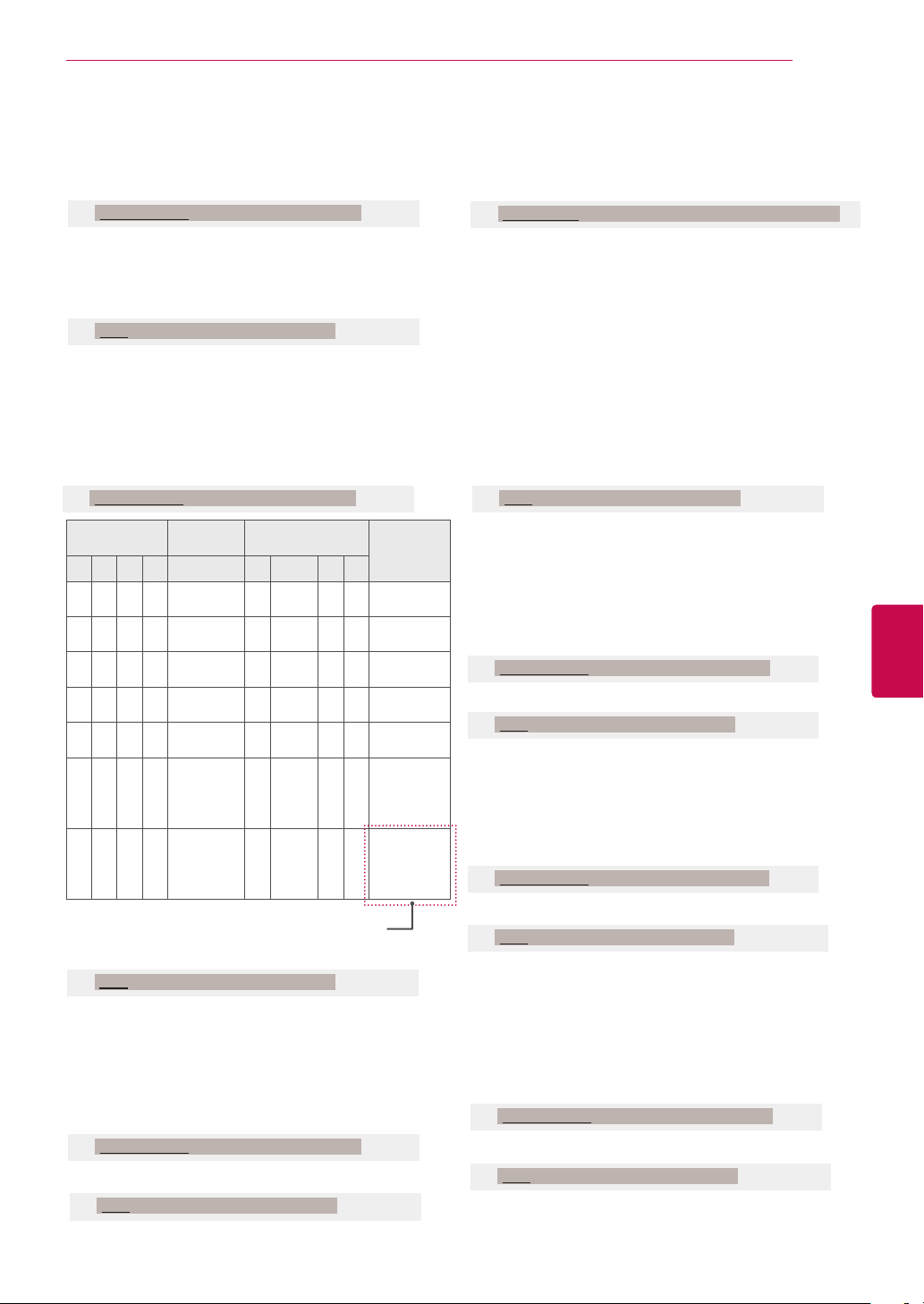
109
ENGENGLISH
EXTERNAL CONTROL DEVICE SETUP
20. Tune Command (Command: m a)
► Select channel to following physical number.
Data00 : High channel data
Data01 : Low channel data
ex. No. 47 -> 00 2F (2FH)
No. 394 -> 01 8A (18AH),
DTV No. 0 -> Don’t care
Data02 : 0x00 :
Analogue
Main
0x10 : DTV Main
0x20 : Radio
Channel data range
Analogue - Min: 00 to Max: 63 (0 to 99)
Digital - Min: 00 to Max: 3E7 (0 to 999)
Transmission [m][a][ ][Set ID][ ][Data0][ ][Data1][ ][Data2][Cr]
Ack [a][ ][Set ID][ ][OK/NG][Data][x]
Data Min: 00 to Max: 7DH
19. Auto Configure(Command: j u)
► To adjust picture position and minimize image shaking
automatically. It works only in RGB (PC) mode.
Data 01: To set
Transmission [j][u][ ][Set ID][ ][Data][Cr]
Ack [u][ ][Set ID][ ][OK/NG][Data][x]
17. ISM Method (Command: j p) (Only Plasma TV)
► To control the ISM method. You can also adjust ISM
Method in OPTION menu.
Data 02: Orbiter
04: White wash
08: Normal
20: Colour Wash
Transmission [j][p][ ][Set ID][ ][Data][Cr]
Ack [p][ ][Set ID][ ][OK/NG][Data][x]
18. Energy Saving (Command: j q)
► To reduce the power consumption of the TV. You can also
adjust Energy Saving in
PICTURE
menu.
Transmission [j][q][ ][Set ID][ ][Data][Cr]
Ack [q][ ][Set ID][ ][OK/NG][Data][x]
Power Saving
Function
Level
Description
7 6 5 4 3 2 1 0
0 0 0 0
Low
Power
0 0 0 0 Off
0 0 0 0
Low
Power
0 0 0 1 Minimum
0 0 0 0
Low
Power
0 0 1 0 Medium
0 0 0 0
Low
Power
0 0 1 1 Maximum
0 0 0 0
Low
Power
0 1 0 1 Screen Off
0 0 0 0
Low
Power
0 1 0 0
Intelligent
Sensor
(Plasma TV
only)
0 0 0 0
Low
Power
0 1 0 0
Auto
(LCD TV/
LED LCD
TV only)
(Depending on model)
22. Key(Command: m c)
► To send IR remote key code.
Data Key code - See p.103.
Transmission [m][c][ ][Set ID][ ][Data][Cr]
Ack [c][ ][Set ID][ ][OK/NG][Data][x]
21. Programme Add/Skip(Command: m b)
► To set skip status for the current Programme.
Data 00 : Skip 01 : Add
Transmission [m][b][ ][Set ID][ ][Data][Cr]
Ack [b][ ][Set ID][ ][OK/NG][Data][x]
23. Control Back Light(Command: m g) (Only LCD
TV/LED LCD TV))
► To control the back light.
Data Min : 00 to Max : 64
Transmission [m][g][ ][Set ID][ ][Data][Cr]
Ack [g][ ][Set ID][ ][OK/NG][Data][x]
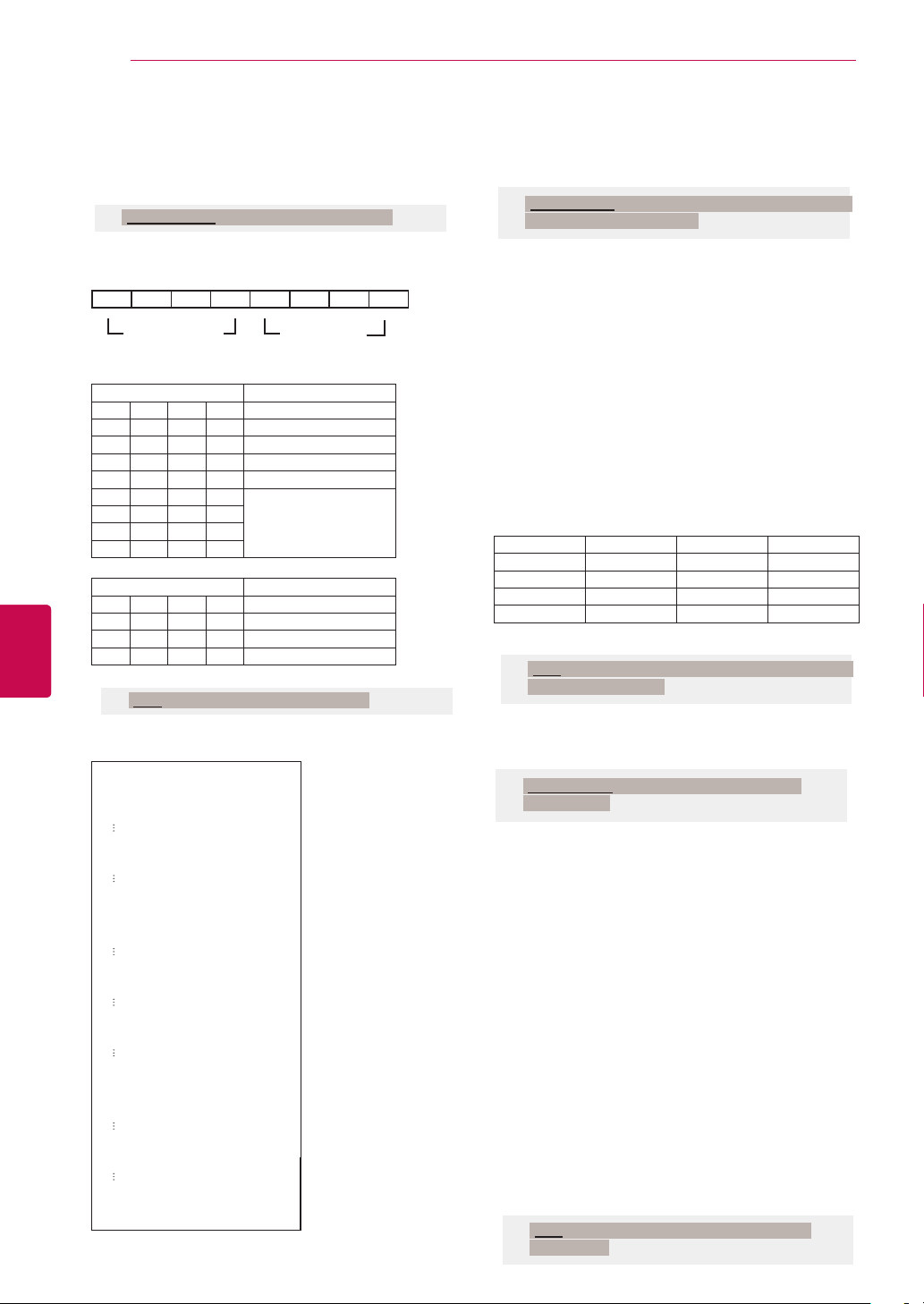
110
ENG
ENGLISH
EXTERNAL CONTROL DEVICE SETUP
*
Real data mapping
00 :
Step 0
A : Step 10 (Set ID 10)
F : Step 15 (Set ID 15)
10 : Step 16 (Set ID 16)
64 : Step 100
6E : Step 110
73 : Step 115
74 : Step 116
CF : Step 199
FE : Step 254
FF : Step 255
24
. Input select (
Command: x
b)
(Main Picture Input)
► To select input source for main picture.
Data Structure
MSB LSB
Transmission [x][b][ ][Set ID][ ][Data][Cr]
External Input Input Number
0 0 0 0 0 0 0 0
Ack [b][ ][Set ID][ ][OK/NG][Data][x]
External Input Data
0 0 0 0 DTV
0 0 0 1 Analogue
0 0 1 0 AV
0 1 0 0 Component
0 1 1 0 RGB
0 1 1 1
HDMI
1 0 0 0
1 0 0 1
1 0 1 0
Input Number Data
0 0 0 0 Input1
0 0 0 1 Input2
0 0 1 0 Input3
0 0 1 1 Input4
25
. 3D(Command: x t) (only 3D models)
(Depending on model)
► To change 3D mode for TV.
Data Structure
Data01 00 : 3D On
01 : 3D Off
02 : 3D to 2D
03 : 2D to 3D
Data02 00 : Top and Bottom
01 : Side by Side
02 : Check Board
03 : Frame Sequential
Data03 00 : Right to Left
01 : Left to Right
Data04 3D Effect(3D Depth): Min : 00 ~ Max : 14
(*transmit by Hexadecimal code)
*If data1 is 00(3D On), data4 has no meaning.
*If data1 is 01(3D off) or 02(3D to 2D), data2, data3 and
data4 have no meaning.
*If data1 is 03(2D to 3D), data2 and data3 have no
meaning.
Data 1 Data 2 Data 3 Data 4
00 O O X
01 X X X
02 X X X
03 X X O
X : don’t care
Transmission [x][t][ ][Set ID][ ][Data01][ ][Data02]
[ ][Data03][ ][Data04][Cr]
Ack [t][ ][OK][Data01][Data02][Data03][Data04][x]
[t][ ][NG][Data01][x]
26
. Extended 3D(Command: x v) (only 3D models)
(Depending on model)
► To change 3D option for TV.
Data01 : 3D option
00 : 3D Picture Correction
01 : 3D Depth (2D to 3D only)
02 : 3D Viewpoint
03 : 3D Picture Size (Plasma TV only)
04 : 3D Picture Balance (Plasma TV only)
05 : 3D Optimization (Active type (LCD TV) only)
Data02 It has own range for each 3D option deter-
mined by Data01.
1) When Data01 is 00
00 : Right to Left
01 : Left to Right
2) When Data01 is 01, 02
Data Min: 0 ~ Max: 14
(*transmit by Hexadecimal code)
Data value range(0~20) converts Viewpoint range(-
10~10) automatically(Depending on model)
3) When Data01 is 03
00 : Just Scan
01 : 16:9
4) When Data01 is 04
00 : Off
01 : On
5) When Data01 is 05
Data Min: 0 ~ Max: 02
(*transmit by Hexadecimal code)
* Refer to ‘Real data mapping’.
Transmission [x][v][ ][Set ID][ ][Data01][ ]
[Data02][Cr]
Ack [v][ ][OK][Data01][Data02][x][v][ ][NG]
[Data01][x]
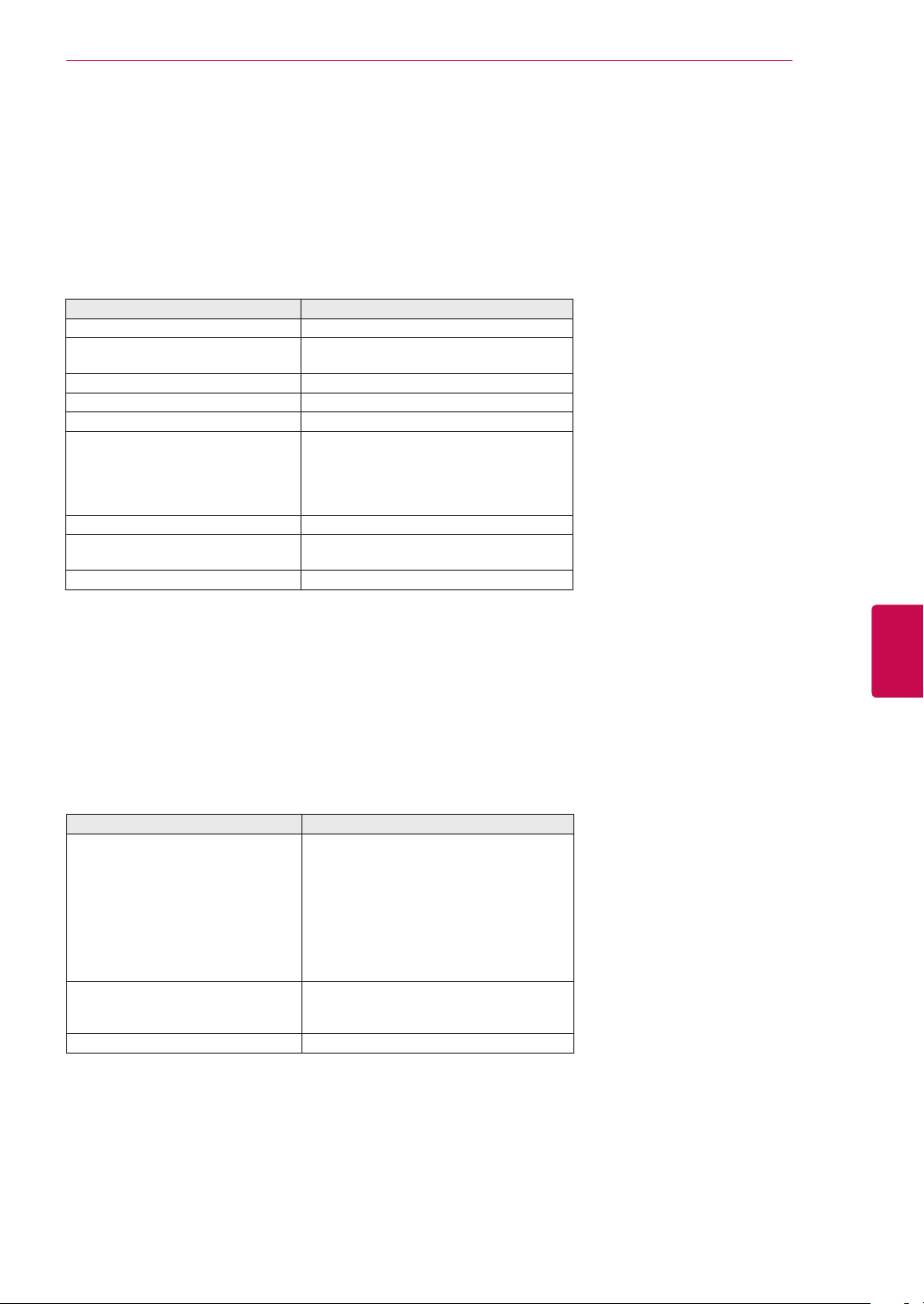
111
ENGENGLISH
OPEN SOURCE LICENSE
OPEN SOURCE LICENSE
Open source software notice
Please be informed that LG Electronics products may contain open source software listed in the tables
below.
License Component
OpenSSL license - openssl
MIT license - libcurl
- ncurses
expat license - expat
Freetype license - freetype
JPEG license - libjpeg
Zlib/libpng license - libmng
- libpng
- md5 checksum
- tinyxml
- zlib
X.net license - libicu
BSD license - strace
- xySSL
RSA data security license - MD5
LG Electronics products may also contain open source software listed as Components in the table below,
and you may download the complete source code thereof free of charge, from LG Electronics website
(http://opensource.lge.com) for a period of three (3) years from our last shipment of this product. Please
be informed that the open source software is subject to the terms and conditions of the applicable open
source licenses, which are provided to you hereinbelow.
License Component
GNU GPL v2.0 - Linux kernel 2.6
- busybox
- e2fsprogs
- gdbserver
- jfsutils
- mtd-utils
- procps
- u-boot
- udhcpc
GNU LGPL v2.1 - directFB
- gconv
- glibc
MPL 1.1 - nanox

112
ENG
ENGLISH
OPEN SOURCE LICENSE
GNU GENERAL PUBLIC LICENSE
Version 2, June 1991
Copyright (C) 1989, 1991 Free Software Foundation, Inc.
51 Franklin Street, Fifth Floor, Boston, MA 02110-1301, USA
Everyone is permitted to copy and distribute verbatim copies
of this license document, but changing it is not allowed.
Preamble
The licenses for most software are designed to take away your freedom to share and change it. By contrast, the GNU
General Public License is intended to guarantee your freedom to share and change free software--to make sure the
software is free for all its users. This General Public License applies to most of the Free Software Foundation's software
and to any other program whose authors commit to using it. (Some other Free Software Foundation software is covered
by the GNU Lesser General Public License instead.) You can apply it to your programs, too.
When we speak of free software, we are referring to freedom, not price. Our General Public Licenses are designed to
make sure that you have the freedom to distribute copies of free software (and charge for this service if you wish), that
you receive source code or can get it if you want it, that you can change the software or use pieces of it in new free
programs; and that you know you can do these things.
To protect your rights, we need to make restrictions that forbid anyone to deny you these rights or to ask you to surren-
der the rights. These restrictions translate to certain responsibilities for you if you distribute copies of the software, or if
you modify it.
For example, if you distribute copies of such a program, whether gratis or for a fee, you must give the recipients all the
rights that you have. You must make sure that they, too, receive or can get the source code. And you must show them
these terms so they know their rights.
We protect your rights with two steps: (1) copyright the software, and (2) offer you this license which gives you legal
permission to copy, distribute and/or modify the software.
Also, for each author's protection and ours, we want to make certain that everyone understands that there is no warran-
ty for this free software. If the software is modified by someone else and passed on, we want its recipients to know that
what they have is not the original, so that any problems introduced by others will not reflect on the original authors' rep-
utations.
Finally, any free program is threatened constantly by software patents. We wish to avoid the danger that redistributors
of a free program will individually obtain patent licenses, in effect making the program proprietary. To prevent this, we
have made it clear that any patent must be licensed for everyone's free use or not licensed at all.
The precise terms and conditions for copying, distribution and modification follow.
TERMS AND CONDITIONS FOR COPYING, DISTRIBUTION AND MODIFICATION
0. This License applies to any program or other work which contains a notice placed by the copyright holder saying it
may be distributed under the terms of this General Public License. The "Program", below, refers to any such program or
work, and a "work based on the Program" means either the Program or any derivative work under copyright law: that is
to say, a work containing the Program or a portion of it, either verbatim or with modifications and/or translated into
another language. (Hereinafter, translation is included without limitation in the term "modification".) Each licensee is
addressed as "you".
Activities other than copying, distribution and modification are not covered by this License; they are outside its scope.
The act of running the Program is not restricted, and the output from the Program is covered only if its contents consti-
tute a work based on the Program (independent of having been made by running the Program). Whether that is true
depends on what the Program does.
1. You may copy and distribute verbatim copies of the Program's source code as you receive it, in any medium, provid-
ed that you conspicuously and appropriately publish on each copy an appropriate copyright notice and disclaimer of
warranty; keep intact all the notices that refer to this License and to the absence of any warranty; and give any other

113
ENGENGLISH
OPEN SOURCE LICENSE
recipients of the Program a copy of this License along with the Program.
You may charge a fee for the physical act of transferring a copy, and you may at your option offer warranty protection in
exchange for a fee.
2. You may modify your copy or copies of the Program or any portion of it, thus forming a work based on the Program,
and copy and distribute such modifications or work under the terms of Section 1 above, provided that you also meet all
of these conditions:
a) You must cause the modified files to carry prominent notices stating that you changed the files and the date of
any change.
b) You must cause any work that you distribute or publish, that in whole or in part contains or is derived from the
Program or any part thereof, to be licensed as a whole at no charge to all third parties under the terms of this
License.
c) If the modified program normally reads commands interactively when run, you must cause it, when started run-
ning for such interactive use in the most ordinary way, to print or display an announcement including an appropriate
copyright notice and a notice that there is no warranty (or else, saying that you provide a warranty) and that users
may redistribute the program under these conditions, and telling the user how to view a copy of this License.
(Exception: if the Program itself is interactive but does not normally print such an announcement, your work based
on the Program is not required to print an announcement.)
These requirements apply to the modified work as a whole. If identifiable sections of that work are not derived from the
Program, and can be reasonably considered independent and separate works in themselves, then this License, and its
terms, do not apply to those sections when you distribute them as separate works. But when you distribute the same
sections as part of a whole which is a work based on the Program, the distribution of the whole must be on the terms of
this License, whose permissions for other licensees extend to the entire whole, and thus to each and every part regard-
less of who wrote it.
Thus, it is not the intent of this section to claim rights or contest your rights to work written entirely by you; rather, the
intent is to exercise the right to control the distribution of derivative or collective works based on the Program.
In addition, mere aggregation of another work not based on the Program with the Program (or with a work based on the
Program) on a volume of a storage or distribution medium does not bring the other work under the scope of this
License.
3. You may copy and distribute the Program (or a work based on it, under Section 2) in object code or executable form
under the terms of Sections 1 and 2 above provided that you also do one of the following:
a) Accompany it with the complete corresponding machine-readable source code, which must be distributed under
the terms of Sections 1 and 2 above on a medium customarily used for software interchange; or,
b) Accompany it with a written offer, valid for at least three years, to give any third party, for a charge no more than
your cost of physically performing source distribution, a complete machine-readable copy of the corresponding
source code, to be distributed under the terms of Sections 1 and 2 above on a medium customarily used for soft-
ware interchange; or,
c) Accompany it with the information you received as to the offer to distribute corresponding source code. (This
alternative is allowed only for noncommercial distribution and only if you received the program in object code or
executable form with such an offer, in accord with Subsection b above.)
The source code for a work means the preferred form of the work for making modifications to it. For an executable
work, complete source code means all the source code for all modules it contains, plus any associated interface defini-
tion files, plus the scripts used to control compilation and installation of the executable. However, as a special excep-
tion, the source code distributed need not include anything that is normally distributed (in either source or binary form)
with the major components (compiler, kernel, and so on) of the operating system on which the executable runs, unless
that component itself accompanies the executable.
If distribution of executable or object code is made by offering access to copy from a designated place, then offering
equivalent access to copy the source code from the same place counts as distribution of the source code, even though
third parties are not compelled to copy the source along with the object code.

114
ENG
ENGLISH
OPEN SOURCE LICENSE
4. You may not copy, modify, sublicense, or distribute the Program except as expressly provided under this License.
Any attempt otherwise to copy, modify, sublicense or distribute the Program is void, and will automatically terminate
your rights under this License. However, parties who have received copies, or rights, from you under this License will
not have their licenses terminated so long as such parties remain in full compliance.
5. You are not required to accept this License, since you have not signed it. However, nothing else grants you permis-
sion to modify or distribute the Program or its derivative works. These actions are prohibited by law if you do not accept
this License. Therefore, by modifying or distributing the Program (or any work based on the Program), you indicate
your acceptance of this License to do so, and all its terms and conditions for copying, distributing or modifying the
Program or works based on it.
6. Each time you redistribute the Program (or any work based on the Program), the recipient automatically receives a
license from the original licensor to copy, distribute or modify the Program subject to these terms and conditions. You
may not impose any further restrictions on the recipients' exercise of the rights granted herein. You are not responsible
for enforcing compliance by third parties to this License.
7. If, as a consequence of a court judgment or allegation of patent infringement or for any other reason (not limited to
patent issues), conditions are imposed on you (whether by court order, agreement or otherwise) that contradict the con-
ditions of this License, they do not excuse you from the conditions of this License. If you cannot distribute so as to sat-
isfy simultaneously your obligations under this License and any other pertinent obligations, then as a consequence you
may not distribute the Program at all. For example, if a patent license would not permit royalty-free redistribution of the
Program by all those who receive copies directly or indirectly through you, then the only way you could satisfy both it
and this License would be to refrain entirely from distribution of the Program.
If any portion of this section is held invalid or unenforceable under any particular circumstance, the balance of the sec-
tion is intended to apply and the section as a whole is intended to apply in other circumstances.
It is not the purpose of this section to induce you to infringe any patents or other property right claims or to contest
validity of any such claims; this section has the sole purpose of protecting the integrity of the free software distribution
system, which is implemented by public license practices. Many people have made generous contributions to the wide
range of software distributed through that system in reliance on consistent application of that system; it is up to the
author/donor to decide if he or she is willing to distribute software through any other system and a licensee cannot
impose that choice.
This section is intended to make thoroughly clear what is believed to be a consequence of the rest of this License.
8. If the distribution and/or use of the Program is restricted in certain countries either by patents or by copyrighted inter-
faces, the original copyright holder who places the Program under this License may add an explicit geographical distri-
bution limitation excluding those countries, so that distribution is permitted only in or among countries not thus exclud-
ed. In such case, this License incorporates the limitation as if written in the body of this License.
9. The Free Software Foundation may publish revised and/or new versions of the General Public License from time to
time. Such new versions will be similar in spirit to the present version, but may differ in detail to address new problems
or concerns.
Each version is given a distinguishing version number. If the Program specifies a version number of this License which
applies to it and "any later version", you have the option of following the terms and conditions either of that version or
of any later version published by the Free Software Foundation. If the Program does not specify a version number of
this License, you may choose any version ever published by the Free Software Foundation.
10. If you wish to incorporate parts of the Program into other free programs whose distribution conditions are different,
write to the author to ask for permission. For software which is copyrighted by the Free Software Foundation, write to
the Free Software Foundation; we sometimes make exceptions for this. Our decision will be guided by the two goals of
preserving the free status of all derivatives of our free software and of promoting the sharing and reuse of software
generally.
NO WARRANTY
11. BECAUSE THE PROGRAM IS LICENSED FREE OF CHARGE, THERE IS NO WARRANTY FOR THE
PROGRAM, TO THE EXTENT PERMITTED BY APPLICABLE LAW. EXCEPT WHEN OTHERWISE STATED IN
WRITING THE COPYRIGHT HOLDERS AND/OR OTHER PARTIES PROVIDE THE PROGRAM "AS IS" WITHOUT
WARRANTY OF ANY KIND, EITHER EXPRESSED OR IMPLIED, INCLUDING, BUT NOT LIMITED TO, THE IMPLIED

115
ENGENGLISH
OPEN SOURCE LICENSE
WARRANTIES OF MERCHANTABILITY AND FITNESS FOR A PARTICULAR PURPOSE. THE ENTIRE RISK AS TO
THE QUALITY AND PERFORMANCE OF THE PROGRAM IS WITH YOU. SHOULD THE PROGRAM PROVE
DEFECTIVE, YOU ASSUME THE COST OF ALL NECESSARY SERVICING, REPAIR OR CORRECTION.
12. IN NO EVENT UNLESS REQUIRED BY APPLICABLE LAW OR AGREED TO IN WRITING WILL ANY
COPYRIGHT HOLDER, OR ANY OTHER PARTY WHO MAY MODIFY AND/OR REDISTRIBUTE THE PROGRAM AS
PERMITTED ABOVE, BE LIABLE TO YOU FOR DAMAGES, INCLUDING ANY GENERAL, SPECIAL, INCIDENTAL
OR CONSEQUENTIAL DAMAGES ARISING OUT OF THE USE OR INABILITY TO USE THE PROGRAM
(INCLUDING BUT NOT LIMITED TO LOSS OF DATA OR DATA BEING RENDERED INACCURATE OR LOSSES
SUSTAINED BY YOU OR THIRD PARTIES OR A FAILURE OF THE PROGRAM TO OPERATE WITH ANY OTHER
PROGRAMS), EVEN IF SUCH HOLDER OR OTHER PARTY HAS BEEN ADVISED OF THE POSSIBILITY OF SUCH
DAMAGES.
END OF TERMS AND CONDITIONS
GNU Lesser General Public License
Version 2.1, February 1999
Copyright (C) 1991, 1999 Free Software Foundation, Inc. 59 Temple Place, Suite 330, Boston, MA 02111-1307 USA
Everyone is permitted to copy and distribute verbatim copies of this license document, but changing it is not allowed.
[This is the first released version of the Lesser GPL. It also counts as the successor of the GNU Library Public License,
version 2, hence the version number 2.1.]
Preamble
The licenses for most software are designed to take away your freedom to share and change it. By contrast, the GNU
General Public Licenses are intended to guarantee your freedom to share and change free software--to make sure the
software is free for all its users.
This license, the Lesser General Public License, applies to some specially designated software packages--typically
libraries--of the Free Software Foundation and other authors who decide to use it. You can use it too, but we suggest
you first think carefully about whether this license or the ordinary General Public License is the better strategy to use in
any particular case, based on the explanations below.
When we speak of free software, we are referring to freedom of use, not price. Our General Public Licenses are
designed to make sure that you have the freedom to distribute copies of free software (and charge for this service if
you wish); that you receive source code or can get it if you want it; that you can change the software and use pieces of
it in new free programs; and that you are informed that you can do these things.
To protect your rights, we need to make restrictions that forbid distributors to deny you these rights or to ask you to sur-
render these rights. These restrictions translate to certain responsibilities for you if you distribute copies of the library or
if you modify it.
For example, if you distribute copies of the library, whether gratis or for a fee, you must give the recipients all the rights
that we gave you. You must make sure that they, too, receive or can get the source code. If you link other code with the
library, you must provide complete object files to the recipients, so that they can relink them with the library after mak-
ing changes to the library and recompiling it. And you must show them these terms so they know their rights.
We protect your rights with a two-step method: (1) we copyright the library, and (2) we offer you this license, which
gives you legal permission to copy, distribute and/or modify the library.
To protect each distributor, we want to make it very clear that there is no warranty for the free library. Also, if the library
is modified by someone else and passed on, the recipients should know that what they have is not the original version,
so that the original author's reputation will not be affected by problems that might be introduced by others.
Finally, software patents pose a constant threat to the existence of any free program. We wish to make sure that a
company cannot effectively restrict the users of a free program by obtaining a restrictive license from a patent holder.
Therefore, we insist that any patent license obtained for a version of the library must be consistent with the full freedom
of use specified in this license.
Most GNU software, including some libraries, is covered by the ordinary GNU General Public License. This license, the

116
ENG
ENGLISH
OPEN SOURCE LICENSE
GNU Lesser General Public License, applies to certain designated libraries, and is quite different from the ordinary
General Public License. We use this license for certain libraries in order to permit linking those libraries into non-free
programs.
When a program is linked with a library, whether statically or using a shared library, the combination of the two is legally
speaking a combined work, a derivative of the original library. The ordinary General Public License therefore permits
such linking only if the entire combination fits its criteria of freedom. The Lesser General Public License permits more
lax criteria for linking other code with the library.
We call this license the "Lesser" General Public License because it does Less to protect the user's freedom than the
ordinary General Public License. It also provides other free software developers Less of an advantage over competing
non-free programs. These disadvantages are the reason we use the ordinary General Public License for many libraries.
However, the Lesser license provides advantages in certain special circumstances.
For example, on rare occasions, there may be a special need to encourage the widest possible use of a certain library,
so that it becomes a de-facto standard. To achieve this, non-free programs must be allowed to use the library. A more
frequent case is that a free library does the same job as widely used non-free libraries. In this case, there is little to
gain by limiting the free library to free software only, so we use the Lesser General Public License.
In other cases, permission to use a particular library in non-free programs enables a greater number of people to use a
large body of free software. For example, permission to use the GNU C Library in non-free programs enables many
more people to use the whole GNU operating system, as well as its variant, the GNU/Linux operating system.
Although the Lesser General Public License is Less protective of the users' freedom, it does ensure that the user of a
program that is linked with the Library has the freedom and the wherewithal to run that program using a modified ver-
sion of the Library.
The precise terms and conditions for copying, distribution and modification follow. Pay close attention to the difference
between a "work based on the library" and a "work that uses the library". The former contains code derived from the
library, whereas the latter must be combined with the library in order to run.
TERMS AND CONDITIONS FOR COPYING, DISTRIBUTION AND MODIFICATION
0. This License Agreement applies to any software library or other program which contains a notice placed by the copy-
right holder or other authorized party saying it may be distributed under the terms of this Lesser General Public License
(also called "this License"). Each licensee is addressed as "you".
A "library" means a collection of software functions and/or data prepared so as to be conveniently linked with applica-
tion programs (which use some of those functions and data) to form executables.
The "Library", below, refers to any such software library or work which has been distributed under these terms. A "work
based on the Library" means either the Library or any derivative work under copyright law: that is to say, a work con-
taining the Library or a portion of it, either verbatim or with modifications and/or translated straightforwardly into another
language. (Hereinafter, translation is included without limitation in the term "modification".)
"Source code" for a work means the preferred form of the work for making modifications to it. For a library, complete
source code means all the source code for all modules it contains, plus any associated interface definition files, plus
the scripts used to control compilation and installation of the library.
Activities other than copying, distribution and modification are not covered by this License; they are outside its scope.
The act of running a program using the Library is not restricted, and output from such a program is covered only if its
contents constitute a work based on the Library (independent of the use of the Library in a tool for writing it). Whether
that is true depends on what the Library does and what the program that uses the Library does.
1. You may copy and distribute verbatim copies of the Library's complete source code as you receive it, in any medium,
provided that you conspicuously and appropriately publish on each copy an appropriate copyright notice and disclaimer
of warranty; keep intact all the notices that refer to this License and to the absence of any warranty; and distribute a
copy of this License along with the Library.
You may charge a fee for the physical act of transferring a copy, and you may at your option offer warranty protection in
exchange for a fee.

117
ENGENGLISH
OPEN SOURCE LICENSE
2. You may modify your copy or copies of the Library or any portion of it, thus forming a work based on the Library, and
copy and distribute such modifications or work under the terms of Section 1 above, provided that you also meet all of
these conditions:
a) The modified work must itself be a software library.
b) You must cause the files modified to carry prominent notices stating that you changed the files and the date of
any change.
c) You must cause the whole of the work to be licensed at no charge to all third parties under the terms of this
License.
d) If a facility in the modified Library refers to a function or a table of data to be supplied by an application program
that uses the facility, other than as an argument passed when the facility is invoked, then you must make a good
faith effort to ensure that, in the event an application does not supply such function or table, the facility still oper-
ates, and performs whatever part of its purpose remains meaningful.
(For example, a function in a library to compute square roots has a purpose that is entirely well-defined indepen-
dent of the application. Therefore, Subsection 2d requires that any application-supplied function or table used by
this function must be optional: if the application does not supply it, the square root function must still compute
square roots.)
These requirements apply to the modified work as a whole. If identifiable sections of that work are not derived from
the Library, and can be reasonably considered independent and separate works in themselves, then this License,
and its terms, do not apply to those sections when you distribute them as separate works. But when you distribute
the same sections as part of a whole which is a work based on the Library, the distribution of the whole must be on
the terms of this License, whose permissions for other licensees extend to the entire whole, and thus to each and
every part regardless of who wrote it.
Thus, it is not the intent of this section to claim rights or contest your rights to work written entirely by you; rather,
the intent is to exercise the right to control the distribution of derivative or collective works based on the Library.
In addition, mere aggregation of another work not based on the Library with the Library (or with a work based on
the Library) on a volume of a storage or distribution medium does not bring the other work under the scope of this
License.
3. You may opt to apply the terms of the ordinary GNU General Public License instead of this License to a given copy
of the Library. To do this, you must alter all the notices that refer to this License, so that they refer to the ordinary GNU
General Public License, version 2, instead of to this License. (If a newer version than version 2 of the ordinary GNU
General Public License has appeared, then you can specify that version instead if you wish.) Do not make any other
change in these notices.
Once this change is made in a given copy, it is irreversible for that copy, so the ordinary GNU General Public License
applies to all subsequent copies and derivative works made from that copy.
This option is useful when you wish to copy part of the code of the Library into a program that is not a library.
4. You may copy and distribute the Library (or a portion or derivative of it, under Section 2) in object code or executable
form under the terms of Sections 1 and 2 above provided that you accompany it with the complete corresponding
machine-readable source code, which must be distributed under the terms of Sections 1 and 2 above on a medium
customarily used for software interchange.
If distribution of object code is made by offering access to copy from a designated place, then offering equivalent
access to copy the source code from the same place satisfies the requirement to distribute the source code, even
though third parties are not compelled to copy the source along with the object code.
5. A program that contains no derivative of any portion of the Library, but is designed to work with the Library by being
compiled or linked with it, is called a "work that uses the Library". Such a work, in isolation, is not a derivative work of
the Library, and therefore falls outside the scope of this License.
However, linking a "work that uses the Library" with the Library creates an executable that is a derivative of the Library
(because it contains portions of the Library), rather than a "work that uses the library". The executable is therefore cov-

118
ENG
ENGLISH
OPEN SOURCE LICENSE
ered by this License. Section 6 states terms for distribution of such executables.
When a "work that uses the Library" uses material from a header file that is part of the Library, the object code for the
work may be a derivative work of the Library even though the source code is not. Whether this is true is especially sig-
nificant if the work can be linked without the Library, or if the work is itself a library. The threshold for this to be true is
not precisely defined by law.
If such an object file uses only numerical parameters, data structure layouts and accessors, and small macros and
small inline functions (ten lines or less in length), then the use of the object file is unrestricted, regardless of whether it
is legally a derivative work. (Executables containing this object code plus portions of the Library will still fall under
Section 6.)
Otherwise, if the work is a derivative of the Library, you may distribute the object code for the work under the terms of
Section 6. Any executables containing that work also fall under Section 6, whether or not they are linked directly with
the Library itself.
6. As an exception to the Sections above, you may also combine or link a "work that uses the Library" with the Library
to produce a work containing portions of the Library, and distribute that work under terms of your choice, provided that
the terms permit modification of the work for the customer's own use and reverse engineering for debugging such modi-
fications.
You must give prominent notice with each copy of the work that the Library is used in it and that the Library and its use
are covered by this License. You must supply a copy of this License. If the work during execution displays copyright
notices, you must include the copyright notice for the Library among them, as well as a reference directing the user to
the copy of this License. Also, you must do one of these things:
a) Accompany the work with the complete corresponding machine-readable source code for the Library including
whatever changes were used in the work (which must be distributed under Sections 1 and 2 above); and, if the
work is an executable linked with the Library, with the complete machine-readable "work that uses the Library", as
object code and/or source code, so that the user can modify the Library and then relink to produce a modified exe-
cutable containing the modified Library. (It is understood that the user who changes the contents of definitions files
in the Library will not necessarily be able to recompile the application to use the modified definitions.)
b) Use a suitable shared library mechanism for linking with the Library. A suitable mechanism is one that (1) uses at
run time a copy of the library already present on the user's computer system, rather than copying library functions
into the executable, and (2) will operate properly with a modified version of the library, if the user installs one, as
long as the modified version is interface-compatible with the version that the work was made with.
c) Accompany the work with a written offer, valid for at least three years, to give the same user the materials speci-
fied in Subsection 6a, above, for a charge no more than the cost of performing this distribution.
d) If distribution of the work is made by offering access to copy from a designated place, offer equivalent access to
copy the above specified materials from the same place.
e) Verify that the user has already received a copy of these materials or that you have already sent this user a
copy.
For an executable, the required form of the "work that uses the Library" must include any data and utility programs
needed for reproducing the executable from it. However, as a special exception, the materials to be distributed need not
include anything that is normally distributed (in either source or binary form) with the major components (compiler, ker-
nel, and so on) of the operating system on which the executable runs, unless that component itself accompanies the
executable.
It may happen that this requirement contradicts the license restrictions of other proprietary libraries that do not normally
accompany the operating system. Such a contradiction means you cannot use both them and the Library together in an
executable that you distribute.
7. You may place library facilities that are a work based on the Library side-by-side in a single library together with other
library facilities not covered by this License, and distribute such a combined library, provided that the separate distribu-
tion of the work based on the Library and of the other library facilities is otherwise permitted, and provided that you do
these two things:

119
ENGENGLISH
OPEN SOURCE LICENSE
a) Accompany the combined library with a copy of the same work based on the Library, uncombined with any other
library facilities. This must be distributed under the terms of the Sections above.
b) Give prominent notice with the combined library of the fact that part of it is a work based on the Library, and
explaining where to find the accompanying uncombined form of the same work.
8. You may not copy, modify, sublicense, link with, or distribute the Library except as expressly provided under this
License. Any attempt otherwise to copy, modify, sublicense, link with, or distribute the Library is void, and will automati-
cally terminate your rights under this License. However, parties who have received copies, or rights, from you under
this License will not have their licenses terminated so long as such parties remain in full compliance.
9. You are not required to accept this License, since you have not signed it. However, nothing else grants you permis-
sion to modify or distribute the Library or its derivative works. These actions are prohibited by law if you do not accept
this License. Therefore, by modifying or distributing the Library (or any work based on the Library), you indicate your
acceptance of this License to do so, and all its terms and conditions for copying, distributing or modifying the Library or
works based on it.
10. Each time you redistribute the Library (or any work based on the Library), the recipient automatically receives a
license from the original licensor to copy, distribute, link with or modify the Library subject to these terms and condi-
tions. You may not impose any further restrictions on the recipients' exercise of the rights granted herein. You are not
responsible for enforcing compliance by third parties with this License.
11. If, as a consequence of a court judgment or allegation of patent infringement or for any other reason (not limited to
patent issues), conditions are imposed on you (whether by court order, agreement or otherwise) that contradict the con-
ditions of this License, they do not excuse you from the conditions of this License. If you cannot distribute so as to sat-
isfy simultaneously your obligations under this License and any other pertinent obligations, then as a consequence you
may not distribute the Library at all. For example, if a patent license would not permit royalty-free redistribution of the
Library by all those who receive copies directly or indirectly through you, then the only way you could satisfy both it and
this License would be to refrain entirely from distribution of the Library.
If any portion of this section is held invalid or unenforceable under any particular circumstance, the balance of the sec-
tion is intended to apply, and the section as a whole is intended to apply in other circumstances.
It is not the purpose of this section to induce you to infringe any patents or other property right claims or to contest
validity of any such claims; this section has the sole purpose of protecting the integrity of the free software distribution
system which is implemented by public license practices. Many people have made generous contributions to the wide
range of software distributed through that system in reliance on consistent application of that system; it is up to the
author/donor to decide if he or she is willing to distribute software through any other system and a licensee cannot
impose that choice.
This section is intended to make thoroughly clear what is believed to be a consequence of the rest of this License.
12. If the distribution and/or use of the Library is restricted in certain countries either by patents or by copyrighted inter-
faces, the original copyright holder who places the Library under this License may add an explicit geographical distribu-
tion limitation excluding those countries, so that distribution is permitted only in or among countries not thus excluded.
In such case, this License incorporates the limitation as if written in the body of this License.
13. The Free Software Foundation may publish revised and/or new versions of the Lesser General Public License from
time to time. Such new versions will be similar in spirit to the present version, but may differ in detail to address new
problems or concerns.
Each version is given a distinguishing version number. If the Library specifies a version number of this License which
applies to it and "any later version", you have the option of following the terms and conditions either of that version or
of any later version published by the Free Software Foundation. If the Library does not specify a license version num-
ber, you may choose any version ever published by the Free Software Foundation.
14. If you wish to incorporate parts of the Library into other free programs whose distribution conditions are incompati-
ble with these, write to the author to ask for permission. For software which is copyrighted by the Free Software
Foundation, write to the Free Software Foundation; we sometimes make exceptions for this. Our decision will be guided
by the two goals of preserving the free status of all derivatives of our free software and of promoting the sharing and
reuse of software generally.

120
ENG
ENGLISH
OPEN SOURCE LICENSE
NO WARRANTY
15. BECAUSE THE LIBRARY IS LICENSED FREE OF CHARGE, THERE IS NO WARRANTY FOR THE LIBRARY, TO
THE EXTENT PERMITTED BY APPLICABLE LAW. EXCEPT WHEN OTHERWISE STATED IN WRITING THE
COPYRIGHT HOLDERS AND/OR OTHER PARTIES PROVIDE THE LIBRARY "AS IS" WITHOUT WARRANTY OF
ANY KIND, EITHER EXPRESSED OR IMPLIED, INCLUDING, BUT NOT LIMITED TO, THE IMPLIED WARRANTIES
OF MERCHANTABILITY AND FITNESS FOR A PARTICULAR PURPOSE. THE ENTIRE RISK AS TO THE QUALITY
AND PERFORMANCE OF THE LIBRARY IS WITH YOU. SHOULD THE LIBRARY PROVE DEFECTIVE, YOU
ASSUME THE COST OF ALL NECESSARY SERVICING, REPAIR OR CORRECTION.
16. IN NO EVENT UNLESS REQUIRED BY APPLICABLE LAW OR AGREED TO IN WRITING WILL ANY
COPYRIGHT HOLDER, OR ANY OTHER PARTY WHO MAY MODIFY AND/OR REDISTRIBUTE THE LIBRARY AS
PERMITTED ABOVE, BE LIABLE TO YOU FOR DAMAGES, INCLUDING ANY GENERAL, SPECIAL, INCIDENTAL
OR CONSEQUENTIAL DAMAGES ARISING OUT OF THE USE OR INABILITY TO USE THE LIBRARY (INCLUDING
BUT NOT LIMITED TO LOSS OF DATA OR DATA BEING RENDERED INACCURATE OR LOSSES SUSTAINED BY
YOU OR THIRD PARTIES OR A FAILURE OF THE LIBRARY TO OPERATE WITH ANY OTHER SOFTWARE), EVEN
IF SUCH HOLDER OR OTHER PARTY HAS BEEN ADVISED OF THE POSSIBILITY OF SUCH DAMAGES.
END OF TERMS AND CONDITIONS
How to Apply These Terms to Your New Libraries
If you develop a new library, and you want it to be of the greatest possible use to the public, we recommend making it
free software that everyone can redistribute and change. You can do so by permitting redistribution under these terms
(or, alternatively, under the terms of the ordinary General Public License).
To apply these terms, attach the following notices to the library. It is safest to attach them to the start of each source file
to most effectively convey the exclusion of warranty; and each file should have at least the "copyright" line and a point-
er to where the full notice is found.
<one line to give the library's name and an idea of what it does.> Copyright (C) <year> <name of author>
This library is free software; you can redistribute it and/or modify it under the terms of the GNU Lesser General
Public License as published by the Free Software Foundation; either version 2.1 of the License, or (at your option)
any later version.
This library is distributed in the hope that it will be useful, but WITHOUT ANY WARRANTY; without even the
implied warranty of MERCHANTABILITY or FITNESS FOR A PARTICULAR PURPOSE. See the GNU Lesser
General Public License for more details.
You should have received a copy of the GNU Lesser General Public License along with this library; if not, write to the
Free Software Foundation, Inc., 59 Temple Place, Suite 330, Boston, MA 02111-1307 USA
Also add information on how to contact you by electronic and paper mail.
You should also get your employer (if you work as a programmer) or your school, if any, to sign a "copyright disclaimer"
for the library, if necessary. Here is a sample; alter the names:
Yoyodyne, Inc., hereby disclaims all copyright interest in the library `Frob' (a library for tweaking knobs) written by
James Random Hacker.
signature of Ty Coon, 1 April 1990
Ty Coon, President of Vice
That's all there is to it!
Mozilla Public License 1.1 (MPL 1.1)
1. Definitions.
1.0.1. "Commercial Use"
means distribution or otherwise making the Covered Code available to a third party.

121
ENGENGLISH
OPEN SOURCE LICENSE
1.1. ''Contributor''
means each entity that creates or contributes to the creation of Modifications.
1.2. ''Contributor Version''
means the combination of the Original Code, prior Modifications used by a Contributor, and the Modifications made by
that particular Contributor.
1.3. ''Covered Code''
means the Original Code or Modifications or the combination of the Original Code and Modifications, in each case
including portions thereof.
1.4. ''Electronic Distribution Mechanism''
means a mechanism generally accepted in the software development community for the electronic transfer of data.
1.5. ''Executable''
means Covered Code in any form other than Source Code.
1.6. ''Initial Developer''
means the individual or entity identified as the Initial Developer in the Source Code notice required by Exhibit A.
1.7. ''Larger Work''
means a work which combines Covered Code or portions thereof with code not governed by the terms of this License.
1.8. ''License''
means this document.
1.8.1. "Licensable"
means having the right to grant, to the maximum extent possible, whether at the time of the initial grant or subsequently
acquired, any and all of the rights conveyed herein.
1.9. ''Modifications''
means any addition to or deletion from the substance or structure of either the Original Code or any previous
Modifications. When Covered Code is released as a series of files, a Modification
is:
(a) Any addition to or deletion from the contents of a file containing Original Code or previous Modifications.
(b) Any new file that contains any part of the Original Code or previous Modifications.
1.10. ''Original Code''
means Source Code of computer software code which is described in the Source Code notice required by Exhibit A as
Original Code, and which, at the time of its release under this License is not already Covered Code governed by this
License.
1.10.1. "Patent Claims"
means any patent claim(s), now owned or hereafter acquired, including without limitation, method, process, and appa-
ratus claims, in any patent Licensable by grantor.
1.11. ''Source Code''
means the preferred form of the Covered Code for making modifications to it, including all modules it contains, plus any
associated interface definition files, scripts used to control compilation and installation of an Executable, or source code
differential comparisons against either the Original Code or another well known, available Covered Code of the
Contributor's choice. The Source Code can be in a compressed
or archival form, provided the appropriate decompression or de-archiving software is widely available for no charge.
1.12. "You'' (or "Your")
means an individual or a legal entity exercising rights under, and complying with all of the terms of, this License or a
future version of this License issued under Section 6.1.For legal entities, "You'' includes any entity which controls, is
controlled by, or is under common control with You. For purposes of this definition, "control'' means (a) the power, direct
or indirect, to cause the direction or management of such entity, whether by contract or otherwise, or (b) ownership of
more than fifty percent (50%) of the outstanding shares or beneficial ownership of such entity.

122
ENG
ENGLISH
OPEN SOURCE LICENSE
2. Source Code License.
2.1. The Initial Developer Grant.
The Initial Developer hereby grants You a world-wide, royalty-free, non-exclusive license, subject to third party intellec-
tual property claims:
(a) under intellectual property rights (other than patent or trademark) Licensable by Initial Developer to use, repro-
duce, modify, display, perform, sublicense and distribute the Original Code (or portions thereof) with or without
Modifications, and/or as part of a Larger Work; and
(b) under Patents Claims infringed by the making, using or selling of Original Code, to make, have made, use,
practice, sell, and offer for sale, and/or otherwise dispose of the Original Code (or portions thereof).
(c) the licenses granted in this Section 2.1(a) and (b) are effective on the date Initial Developer first distributes
Original Code under the terms of this License.
(d) Notwithstanding Section 2.1(b) above, no patent license is granted: 1) for code that You delete from the Original
Code; 2) separate from the Original Code; or 3) for infringements caused by: i) the modification of the Original
Code or ii) the combination of the Original Code with other software or devices.
2.2. Contributor Grant.
Subject to third party intellectual property claims, each Contributor hereby grants You a world-wide, royalty-free, non-
exclusive license
(a) under intellectual property rights (other than patent or trademark) Licensable by Contributor, to use, reproduce,
modify, display, perform, sublicense and distribute the Modifications created by such Contributor (or portions there-
of) either on an unmodified basis, with other Modifications, as Covered Code and/or as part of a Larger Work; and
(b) under Patent Claims infringed by the making, using, or selling of Modifications made by that Contributor either
alone and/or in combination with its Contributor Version (or portions of such combination), to make, use, sell, offer
for sale, have made, and/or otherwise dispose of: 1) Modifications made by that Contributor (or portions thereof);
and 2) the combination of Modifications made by that Contributor with its Contributor Version (or portions of such
combination).
(c) the licenses granted in Sections 2.2(a) and 2.2(b) are effective on the date Contributor first makes Commercial
Use of the Covered Code.
(d) Notwithstanding Section 2.2(b) above, no patent license is granted: 1) for any code that Contributor has deleted
from the Contributor Version; 2) separate from the Contributor Version; 3) for infringements caused by: i) third party
modifications of Contributor Version or ii) the combination of Modifications made by that Contributor with other soft-
ware (except as part of the Contributor Version) or other devices; or 4) under Patent Claims infringed by Covered
Code in the absence of Modifications made by that Contributor.
3. Distribution Obligations.
3.1. Application of License.
The Modifications which You create or to which You contribute are governed by the terms of this License, including
without limitation Section 2.2. The Source Code version of Covered Code may be distributed only under the terms of
this License or a future version of this License released under Section 6.1, and You must include a copy of this License
with every copy of the Source Code You distribute. You may not offer or impose any terms on any Source Code version
that alters or restricts the applicable version of this License or the recipients' rights hereunder. However, You may
include an additional document offering the additional rights described in Section 3.5.
3.2. Availability of Source Code.
Any Modification which You create or to which You contribute must be made available in Source Code form under the
terms of this License either on the same media as an Executable version or via an accepted Electronic Distribution
Mechanism to anyone to whom you made an Executable version available; and if made available via Electronic
Distribution Mechanism,
must remain available for at least twelve (12) months after the date it initially became available, or at least six (6)
months after a subsequent version of that particular Modification has been made available to such recipients. You are
responsible for ensuring that the Source Code version remains available even if the Electronic Distribution Mechanism
is maintained by a third party.

123
ENGENGLISH
OPEN SOURCE LICENSE
3.3. Description of Modifications.
You must cause all Covered Code to which You contribute to contain a file documenting the changes You made to cre-
ate that Covered Code and the date of any change. You must include a prominent statement that the Modification is
derived, directly or indirectly, from Original Code provided by the Initial Developer and including the name of the Initial
Developer in (a) the Source Code, and (b) in any notice in an Executable version or related documentation in which
You describe the origin or ownership of the Covered Code.
3.4. Intellectual Property Matters
(a) Third Party Claims.
If Contributor has knowledge that a license under a third party's intellectual property rights is required to exercise the
rights granted by such Contributor under Sections 2.1 or 2.2, Contributor must include a text file with the Source Code
distribution titled "LEGAL'' which describes the claim and the party making the claim in sufficient detail that a recipient
will know whom to contact. If Contributor obtains such knowledge after the Modification is made available as described
in Section 3.2, Contributor shall promptly modify the LEGAL file in all copies Contributor makes available thereafter and
shall take other steps (such as notifying appropriate mailing lists or newsgroups) reasonably calculated to inform those
who received the Covered Code that new knowledge has been obtained.
(b) Contributor APIs.
If Contributor's Modifications include an application programming interface and Contributor has knowledge of patent
licenses which are reasonably necessary to implement that API, Contributor must also include this information in the
LEGAL file.
(c) Representations.
Contributor represents that, except as disclosed pursuant to Section 3.4(a) above, Contributor believes that
Contributor's Modifications are Contributor's original creation(s) and/or Contributor has sufficient rights to grant the
rights conveyed by this License.
3.5. Required Notices.
You must duplicate the notice in Exhibit A in each file of the Source Code. If it is not possible to put such notice in a
particular
Source Code file due to its structure, then You must include such notice in a location (such as a relevant directory)
where a user would be likely to look for such a notice. If You created one or more Modification(s) You may add your
name as a Contributor to the notice described in Exhibit A. You must also duplicate this License in any documentation
for the Source Code where You describe recipients' rights or ownership rights relating to Covered Code. You may
choose to offer, and to charge a fee for, warranty, support, indemnity or liability obligations to one or more recipients of
Covered Code. However, You may do so only on Your own behalf, and not on behalf of the Initial Developer or any
Contributor You must make it absolutely clear than any such warranty, support, indemnity or liability obligation is offered
by You alone, and You hereby agree to indemnify the Initial Developer and every Contributor for any liability incurred by
the Initial Developer or such Contributor as a result of warranty, support, indemnity or liability terms You offer.
3.6. Distribution of Executable Versions.
You may distribute Covered Code in Executable form only if the requirements of Section 3.1-3.5 have been met for that
Covered Code, and if You include a notice stating that the Source Code version of the Covered Code is available under
the terms of this License, including a description of how and where You have fulfilled the obligations of Section 3.2. The
notice must be conspicuously included in any notice in an Executable version, related documentation or collateral in
which You describe recipients' rights relating to the Covered Code. You may distribute the Executable version of
Covered Code or ownership rights under a license of Your choice, which may contain terms different from this License,
provided that You are in compliance with the terms of this License and that the license for the Executable version does
not attempt to limit or alter the recipient's rights in the Source Code version from the rights set forth in this License. If
You distribute the Executable version under a different license You must make it absolutely clear that any terms which
differ from this License are offered by You alone, not by the Initial Developer or any Contributor. You hereby agree to
indemnify the Initial Developer and every Contributor for any liability incurred by the Initial Developer or such
Contributor as a result of any such terms You offer.
3.7. Larger Works.
You may create a Larger Work by combining Covered Code with other code not governed by the terms of this License
and distribute the Larger Work as a single product. In such a case, You must make sure the requirements of this
License are fulfilled for the Covered Code.
4. Inability to Comply Due to Statute or Regulation.
If it is impossible for You to comply with any of the terms of this License with respect to some or all of the Covered

124
ENG
ENGLISH
OPEN SOURCE LICENSE
Code due to statute, judicial order, or regulation then You must: (a) comply with the terms of this License to the maxi-
mum extent possible; and (b) describe the limitations and the code they affect. Such description must be included in
the LEGAL file described in Section 3.4 and must be included with all distributions of the Source Code. Except to the
extent prohibited by statute or regulation, such description must be sufficiently detailed for a recipient of ordinary skill to
be able to understand it.
5. Application of this License.
This License applies to code to which the Initial Developer has attached the notice in Exhibit A and to related Covered
Code.
6. Versions of the License.
6.1. New Versions.
Netscape Communications Corporation (''Netscape'') may publish revised and/or new versions of the License from time
to time. Each version will be given a distinguishing version number.
6.2. Effect of New Versions.
Once Covered Code has been published under a particular version of the License, You may always continue to use it
under the terms of that version. You may also choose to use such Covered Code under the terms of any subsequent
version of the License published by Netscape. No one other than Netscape has the right to modify the terms applicable
to Covered Code created under this License.
6.3. Derivative Works.
If You create or use a modified version of this License (which you may only do in order to apply it to code which is not
already Covered Code governed by this License), You must (a) rename Your license so that the phrases ''Mozilla'',
''MOZILLAPL'', ''MOZPL'', ''Netscape'', "MPL", ''NPL'' or any confusingly similar phrase do not appear in your license
(except to note that your license differs from this License) and (b) otherwise make it clear that Your version of the
license contains terms which differ from the Mozilla Public License and Netscape Public License. (Filling in the name of
the Initial Developer, Original Code or Contributor in the notice described in Exhibit A shall not of themselves be
deemed to be modifications of this License.)
7. DISCLAIMER OF WARRANTY.
COVERED CODE IS PROVIDED UNDER THIS LICENSE ON AN "AS IS'' BASIS, WITHOUT WARRANTY OF ANY
KIND, EITHER EXPRESSED OR IMPLIED, INCLUDING, WITHOUT LIMITATION, WARRANTIES THAT THE
COVERED CODE IS FREE OF DEFECTS, MERCHANTABLE, FIT FOR A PARTICULAR PURPOSE OR NON-
INFRINGING. THE ENTIRE RISK AS TO THE QUALITY AND PERFORMANCE OF THE COVERED CODE IS WITH
YOU. SHOULD ANY COVERED CODE PROVE DEFECTIVE IN ANY RESPECT, YOU (NOT THE INITIAL
DEVELOPER OR ANY OTHER CONTRIBUTOR) ASSUME THE COST OF ANY NECESSARY SERVICING, REPAIR
OR CORRECTION. THIS DISCLAIMER OF WARRANTY CONSTITUTES AN ESSENTIAL PART OF THIS LICENSE.
NO USE OF ANY COVERED CODE IS AUTHORIZED HEREUNDER EXCEPT UNDER THIS DISCLAIMER.
8. TERMINATION.
8.1. This License and the rights granted hereunder will terminate automatically if You fail to comply with terms herein
and fail
to cure such breach within 30 days of becoming aware of the breach. All sublicenses to the Covered Code which are
properly granted shall survive any termination of this License. Provisions which, by their nature, must remain in effect
beyond the termination of this License shall survive.
8.2. If You initiate litigation by asserting a patent infringement claim (excluding declatory judgment actions) against
Initial Developer or a Contributor (the Initial Developer or Contributor against whom You file such action is referred to
as "Participant") alleging that:
(a) such Participant's Contributor Version directly or indirectly infringes any patent, then any and all rights granted
by such Participant to You under Sections 2.1 and/or 2.2 of this License shall, upon 60 days notice from Participant
terminate prospectively, unless if within 60 days after receipt of notice You either: (i) agree in writing to pay
Participant a mutually agreeable reasonable royalty for Your past and future use of Modifications made by such
Participant, or (ii) withdraw Your litigation claim with respect to the Contributor Version against such Participant. If
within 60 days of notice, a reasonable royalty and payment arrangement are not mutually agreed upon in writing by
the parties or the litigation claim is not withdrawn, the rights granted by Participant to You under Sections 2.1 and/
or 2.2 automatically terminate at the expiration of the 60 day notice period specified above.
(b) any software, hardware, or device, other than such Participant's Contributor Version, directly or indirectly infring-

125
ENGENGLISH
OPEN SOURCE LICENSE
es any patent, then any rights granted to You by such Participant under Sections 2.1(b) and 2.2(b) are revoked
effective as of the date You first made, used, sold, distributed, or had made, Modifications made by that Participant.
8.3. If You assert a patent infringement claim against Participant alleging that such Participant's Contributor Version
directly or indirectly infringes any patent where such claim is resolved (such as by license or settlement) prior to the ini-
tiation of patent infringement litigation, then the reasonable value of the licenses granted by such Participant under
Sections 2.1 or 2.2 shall be taken into account in determining the amount or value of any payment or license. 8.4. In
the event of termination under Sections 8.1 or 8.2 above, all end user license agreements (excluding distributors and
resellers) which have been validly granted by You or any distributor hereunder prior to termination shall survive termi-
nation.
9. LIMITATION OF LIABILITY.
UNDER NO CIRCUMSTANCES AND UNDER NO LEGAL THEORY, WHETHER TORT (INCLUDING NEGLIGENCE),
CONTRACT, OR OTHERWISE, SHALL YOU, THE INITIAL DEVELOPER, ANY OTHER CONTRIBUTOR, OR ANY
DISTRIBUTOR OF COVERED CODE, OR ANY SUPPLIER OF ANY OF SUCH PARTIES, BE LIABLE TO ANY
PERSON FOR ANY INDIRECT, SPECIAL, INCIDENTAL, OR CONSEQUENTIAL DAMAGES OF ANY CHARACTER
INCLUDING, WITHOUT LIMITATION, DAMAGES FOR LOSS OF GOODWILL, WORK STOPPAGE, COMPUTER
FAILURE OR MALFUNCTION, OR ANY AND ALL OTHER COMMERCIAL DAMAGES OR LOSSES, EVEN IF SUCH
PARTY SHALL HAVE BEEN INFORMED OF THE POSSIBILITY OF SUCH DAMAGES. THIS LIMITATION OF
LIABILITY SHALL NOT APPLY TO LIABILITY FOR DEATH OR PERSONAL INJURY RESULTING FROM SUCH
PARTY'S NEGLIGENCE TO THE EXTENT APPLICABLE LAW PROHIBITS SUCH LIMITATION. SOME
JURISDICTIONS DO NOT ALLOW THE EXCLUSION OR LIMITATION OF INCIDENTAL OR CONSEQUENTIAL
DAMAGES, SO THIS EXCLUSION AND LIMITATION MAY NOT APPLY TO YOU.
10. U.S. GOVERNMENT END USERS.
The Covered Code is a ''commercial item,'' as that term is defined in 48 C.F.R. 2.101 (Oct. 1995), consisting of ''com-
mercial computer software'' and ''commercial computer software documentation,'' as such terms are used in 48 C.F.R.
12.212 (Sept. 1995). Consistent with 48 C.F.R. 12.212 and 48 C.F.R. 227.7202-1 through 227.7202-4 (June 1995), all
U.S. Government End Users acquire Covered Code with only those rights set forth herein.
11. MISCELLANEOUS.
This License represents the complete agreement concerning subject matter hereof. If any provision of this License is
held to be unenforceable, such provision shall be reformed only to the extent necessary to make it enforceable. This
License shall be governed by California law provisions (except to the extent applicable law, if any, provides otherwise),
excluding its conflict-of-law provisions. With respect to disputes in which at least one party is a citizen of, or an entity
chartered or registered to do business in the United States of America, any litigation relating to this License shall be
subject to the jurisdiction of the Federal Courts of the Northern District of California, with venue lying in Santa Clara
County, California, with the losing party responsible for costs, including without limitation, court costs and reasonable
attorneys' fees and expenses. The application of the United Nations Convention on Contracts for the International Sale
of Goods is expressly excluded. Any law or regulation which provides that the language of a contract shall be construed
against the drafter shall not apply to this License.
12. RESPONSIBILITY FOR CLAIMS.
As between Initial Developer and the Contributors, each party is responsible for claims and damages arising, directly or
indirectly, out of its utilization of rights under this License and You agree to work with Initial Developer and Contributors
to distribute such responsibility on an equitable basis. Nothing herein is intended or shall be deemed to constitute any
admission of liability.
13. MULTIPLE-LICENSED CODE.
Initial Developer may designate portions of the Covered Code as Multiple-Licensed. Multiple-Licensed means that the
Initial Developer permits you to utilize portions of the Covered Code under Your choice of the MPL or the alternative
licenses, if any, specified by the Initial Developer in the file described in Exhibit A.
EXHIBIT A -Mozilla Public License.
``The contents of this file are subject to the Mozilla Public License
Version 1.1 (the "License"); you may not use this file except in
compliance with the License. You may obtain a copy of the License at
http://www.mozilla.org/MPL/
Software distributed under the License is distributed on an "AS IS"
basis, WITHOUT WARRANTY OF ANY KIND, either express or implied. See the
License for the specific language governing rights and limitations under the License.

126
ENG
ENGLISH
OPEN SOURCE LICENSE
The Original Code is ______________________________________.
The Initial Developer of the Original Code is ________________________.
Portions created by ______________________ are Copyright (C) ______
_______________________.All Rights Reserved.
Contributor(s): ______________________________________.
Alternatively, the contents of this file may be used under the terms
of the _____ license (the [___] License), in which case the
provisions of [______] License are applicable instead of those
above.If you wish to allow use of your version of this file only
under the terms of the [____] License and not to allow others to use
your version of this file under the MPL, indicate your decision by
deleting the provisions above and replace them with the notice and
other provisions required by the [___] License. If you do not delete
the provisions above, a recipient may use your version of this file
under either the MPL or the [___] License."
[NOTE: The text of this Exhibit A may differ slightly from the text of the notices in the Source Code files of the Original
Code. You should use the text of this Exhibit A rather than the text found in the Original Code Source Code for Your
Modifications.]
OpenSSL License
Copyright (c) 1998-2008 The OpenSSL Project. All rights reserved.
Redistribution and use in source and binary forms, with or without modification, are permitted provided that the follow-
ing conditions are met:
1. Redistributions of source code must retain the above copyright notice, this list of conditions and the following dis-
claimer.
2. Redistributions in binary form must reproduce the above copyright notice, this list of conditions and the following dis-
claimer in the documentation and/or other materials provided with the distribution.
3. All advertising materials mentioning features or use of this software must display the following acknowledgment:
"This product includes software developed by the OpenSSL Project for use in the OpenSSL Toolkit. (http://www.opens-
sl.org/)"
4. The names "OpenSSL Toolkit" and "OpenSSL Project" must not be used to endorse or promote products derived
from this software without prior written permission. For written permission, please contact [email protected].
5. Products derived from this software may not be called "OpenSSL" nor may "OpenSSL" appear in their names with-
out prior written permission of the OpenSSL Project.
6. Redistributions of any form whatsoever must retain the following acknowledgment:
"This product includes software developed by the OpenSSL Project for use in the OpenSSL Toolkit (http://www.openssl.
org/)"
THIS SOFTWARE IS PROVIDED BY THE OpenSSL PROJECT ``AS IS'' AND ANY EXPRESSED OR IMPLIED
WARRANTIES, INCLUDING, BUT NOT LIMITED TO, THE IMPLIED WARRANTIES OF MERCHANTABILITY AND
FITNESS FOR A PARTICULAR PURPOSE ARE DISCLAIMED. IN NO EVENT SHALL THE OpenSSL PROJECT OR
ITS CONTRIBUTORS BE LIABLE FOR ANY DIRECT, INDIRECT, INCIDENTAL, SPECIAL, EXEMPLARY, OR
CONSEQUENTIAL DAMAGES (INCLUDING, BUT NOT LIMITED TO, PROCUREMENT OF SUBSTITUTE GOODS
OR SERVICES; LOSS OF USE, DATA, OR PROFITS; OR BUSINESS INTERRUPTION) HOWEVER CAUSED AND
ON ANY THEORY OF LIABILITY, WHETHER IN CONTRACT, STRICT LIABILITY, OR TORT (INCLUDING
NEGLIGENCE OR OTHERWISE) ARISING IN ANY WAY OUT OF THE USE OF THIS SOFTWARE, EVEN IF
ADVISED OF THE POSSIBILITY OF SUCH DAMAGE.
This product includes cryptographic software written by Eric Young ([email protected]).
This product includes software written by Tim Hudson ([email protected]).
Original SSLeay License
Copyright (C) 1995-1998 Eric Young ([email protected]) All rights reserved.
This package is an SSL implementation written by Eric Young ([email protected]).
The implementation was written so as to conform with Netscapes SSL.

127
ENGENGLISH
OPEN SOURCE LICENSE
This library is free for commercial and non-commercial use as long as the following conditions are aheared to. The fol-
lowing conditions apply to all code found in this distribution, be it the RC4, RSA, lhash, DES, etc., code; not just the
SSL code. The SSL documentation included with this distribution is covered by the same copyright terms except that
the holder is Tim Hudson ([email protected]).
Copyright remains Eric Young's, and as such any Copyright notices in the code are not to be removed. If this package
is used in a product, Eric Young should be given attribution as the author of the parts of the library used. This can be in
the form of a textual message at program startup or in documentation (online or textual) provided with the package.
Redistribution and use in source and binary forms, with or without modification, are permitted provided that the follow-
ing conditions are met:
1. Redistributions of source code must retain the copyright notice, this list of conditions and the following disclaimer.
2. Redistributions in binary form must reproduce the above copyright notice, this list of conditions and the following dis-
claimer in the documentation and/or other materials provided with the distribution.
3. All advertising materials mentioning features or use of this software must display the following acknowledgement:
"This product includes cryptographic software written by Eric Young ([email protected])"
The word 'cryptographic' can be left out if the rouines from the library being used are not cryptographic related :-).
4. If you include any Windows specific code (or a derivative thereof) from the apps directory (application code) you
must include an acknowledgement:
"This product includes software written by Tim Hudson ([email protected])"
THIS SOFTWARE IS PROVIDED BY ERIC YOUNG ``AS IS'' AND ANY EXPRESS OR IMPLIED WARRANTIES,
INCLUDING, BUT NOT LIMITED TO, THE IMPLIED WARRANTIES OF MERCHANTABILITY AND FITNESS FOR A
PARTICULAR PURPOSE ARE DISCLAIMED. IN NO EVENT SHALL THE AUTHOR OR CONTRIBUTORS BE LIABLE
FOR ANY DIRECT, INDIRECT, INCIDENTAL, SPECIAL, EXEMPLARY, OR CONSEQUENTIAL DAMAGES
(INCLUDING, BUT NOT LIMITED TO, PROCUREMENT OF SUBSTITUTE GOODS OR SERVICES; LOSS OF USE,
DATA, OR PROFITS; OR BUSINESS INTERRUPTION) HOWEVER CAUSED AND ON ANY THEORY OF LIABILITY,
WHETHER IN CONTRACT, STRICT LIABILITY, OR TORT (INCLUDING NEGLIGENCE OR OTHERWISE) ARISING IN
ANY WAY OUT OF THE USE OF THIS SOFTWARE, EVEN IF ADVISED OF THE POSSIBILITY OF SUCH DAMAGE.
The licence and distribution terms for any publically available version or derivative of this code cannot be changed. i.e.
this code cannot simply be copied and put under another distribution licence [including the GNU Public Licence.]
MIT license
- libcurl
Copyright (c) 1996 - 2010, Daniel Stenberg, <[email protected]>.
All rights reserved.
Permission to use, copy, modify, and distribute this software for any purpose with or without fee is hereby granted, pro-
vided that the above copyright notice and this permission notice appear in all copies.
THE SOFTWARE IS PROVIDED "AS IS", WITHOUT WARRANTY OF ANY KIND, EXPRESS OR IMPLIED,
INCLUDING BUT NOT LIMITED TO THE WARRANTIES OF MERCHANTABILITY, FITNESS FOR A PARTICULAR
PURPOSE AND NONINFRINGEMENT OF THIRD PARTY RIGHTS. IN NO EVENT SHALL THE AUTHORS OR
COPYRIGHT HOLDERS BE LIABLE FOR ANY CLAIM, DAMAGES OR OTHER LIABILITY, WHETHER IN AN ACTION
OF CONTRACT, TORT OR OTHERWISE, ARISING FROM, OUT OF OR IN CONNECTION WITH THE SOFTWARE
OR THE USE OR OTHER DEALINGS IN THE SOFTWARE.
Except as contained in this notice, the name of a copyright holder shall not be used in advertising or otherwise to pro-
mote the sale, use or other dealings in this Software without prior written authorization of the copyright holder.
- ncurses
Copyright (c) 1998 Free Software Foundation, Inc.
Permission is hereby granted, free of charge, to any person obtaining a copy of this software and associated docu-
mentation files (the "Software"), to deal in the Software without restriction, including without limitation the rights to use,
copy, modify, merge, publish, distribute, distribute with modifications, sublicense, and/or sell copies of the Software, and
to permit persons to whom the Software is furnished to do so, subject to the following conditions:
The above copyright notice and this permission notice shall be included in all copies or substantial portions of the

128
ENG
ENGLISH
OPEN SOURCE LICENSE
Software.
THE SOFTWARE IS PROVIDED "AS IS", WITHOUT WARRANTY OF ANY KIND, EXPRESS OR IMPLIED,
INCLUDING BUT NOT LIMITED TO THE WARRANTIES OF MERCHANTABILITY, FITNESS FOR A PARTICULAR
PURPOSE AND NONINFRINGEMENT. IN NO EVENT SHALL THE ABOVE COPYRIGHT HOLDERS BE LIABLE FOR
ANY CLAIM, DAMAGES OR OTHER LIABILITY, WHETHER IN AN ACTION OF CONTRACT, TORT OR OTHERWISE,
ARISING FROM, OUT OF OR IN CONNECTION WITH THE SOFTWARE OR HE USE OR OTHER DEALINGS IN
THE SOFTWARE.
Except as contained in this notice, the name(s) of the above copyright holders shall not be used in advertising or other-
wise to promote the ale, use or other dealings in this Software without prior written authorization.
Expat license
The source package was downloaded from <URL:http://expat.sourceforge.net>.
The original packager is Adam Di Carlo <[email protected]>.
The current maintainer is Ardo van Rangelrooij <[email protected]>.
Copyright (c) 1998, 1999, 2000 Thai Open Source Software Center Ltd and Clark Cooper
Copyright (c) 2001, 2002, 2003, 2004, 2005, 2006 Expat maintainers.
Permission is hereby granted, free of charge, to any person obtaining a copy of this software and associated documen-
tation files (the "Software"), to deal in the Software without restriction, including without limitation the rights to use, copy,
modify, merge, publish, distribute, sublicense, and/or sell copies of the Software, and to permit persons to whom the
Software is furnished to do so, subject to the following conditions:
The above copyright notice and this permission notice shall be included in all copies or substantial portions of the
Software.
THE SOFTWARE IS PROVIDED "AS IS", WITHOUT WARRANTY OF ANY KIND, EXPRESS OR IMPLIED,
INCLUDING BUT NOT LIMITED TO THE WARRANTIES OF MERCHANTABILITY, FITNESS FOR A PARTICULAR
PURPOSE AND NONINFRINGEMENT. IN NO EVENT SHALL THE AUTHORS OR COPYRIGHT HOLDERS BE
LIABLE FOR ANY CLAIM, DAMAGES OR OTHER LIABILITY, WHETHER IN AN ACTION OF CONTRACT, TORT OR
OTHERWISE, ARISING FROM, OUT OF OR IN CONNECTION WITH THE SOFTWARE OR THE USE OR OTHER
DEALINGS IN THE SOFTWARE.
The FreeType Project LICENSE
Copyright 1996-2002, 2006 by David Turner, Robert Wilhelm, and Werner Lemberg
Introduction
============
The FreeType Project is distributed in several archive packages; some of them may contain, in addition to the
FreeType font engine, various tools and contributions which rely on, or relate to, the FreeType Project.
This license applies to all files found in such packages, and which do not fall under their own explicit license. The
license affects thus the FreeType font engine, the test programs, documentation and makefiles, at the very least.
This license was inspired by the BSD, Artistic, and IJG (Independent JPEG Group) licenses, which all encourage inclu-
sion and use of free software in commercial and freeware products alike. As a consequence, its main points are that:
- We don't promise that this software works. However, we will be interested in any kind of bug reports. (`as is' distribu-
tion)
- You can use this software for whatever you want, in parts or full form, without having to pay us. (`royalty-free'
usage)
- You may not pretend that you wrote this software. If you use it, or only parts of it, in a program, you must
acknowledge somewhere in your documentation that you have used the FreeType code. (`credits')
We specifically permit and encourage the inclusion of this software, with or without modifications, in commercial prod-
ucts. We disclaim all warranties covering The FreeType Project and assume no liability related to The FreeType
Project.
Finally, many people asked us for a preferred form for a credit/disclaimer to use in compliance with this license. We

129
ENGENGLISH
OPEN SOURCE LICENSE
thus encourage you to use the following text:
Portions of this software are copyright <year> The FreeType Project (www.freetype.org). All rights reserved.
Please replace <year> with the value from the FreeType version you actually use.
Legal Terms
0. Definitions
Throughout this license, the terms `package', `FreeType Project' and `FreeType archive' refer to the set of files original-
ly distributed by the authors (David Turner, Robert Wilhelm, and Werner Lemberg) as the `FreeType Project', be they
named as alpha, beta or final release.
`You' refers to the licensee, or person using the project, where `using' is a generic term including compiling the project's
source code as well as linking it to form a `program' or `executable'. This program is referred to as `a program using
the FreeType engine'.
This license applies to all files distributed in the original FreeType Project, including all source code, binaries and docu-
mentation, unless otherwise stated in the file in its original, unmodified form as distributed in the original archive. If you
are unsure whether or not a particular file is covered by this license, you must contact us to verify this.
The FreeType Project is copyright (C) 1996-2000 by David Turner, Robert Wilhelm, and Werner Lemberg. All rights
reserved except as specified below.
1. No Warranty
THE FREETYPE PROJECT IS PROVIDED `AS IS' WITHOUT WARRANTY OF ANY KIND, EITHER EXPRESS OR
IMPLIED, INCLUDING, BUT NOT LIMITED TO, WARRANTIES OF MERCHANTABILITY AND FITNESS FOR A
PARTICULAR PURPOSE. IN NO EVENT WILL ANY OF THE AUTHORS OR COPYRIGHT HOLDERS BE LIABLE
FOR ANY DAMAGES CAUSED BY THE USE OR THE INABILITY TO USE, OF THE FREETYPE PROJECT.
2. Redistribution
This license grants a worldwide, royalty-free, perpetual and irrevocable right and license to use, execute, perform, com-
pile, display, copy, create derivative works of, distribute and sublicense the FreeType Project (in both source and object
code forms) and derivative works thereof for any purpose; and to authorize others to exercise some or all of the rights
granted herein, subject to the following conditions:
- Redistribution of source code must retain this license file (`FTL.TXT') unaltered; any additions, deletions or changes to
the original files must be clearly indicated in accompanying documentation. The copyright notices of the unaltered, orig-
inal files must be preserved in all copies of source files.
- Redistribution in binary form must provide a disclaimer that states that the software is based in part of the work of the
FreeType Team, in the distribution documentation. We also encourage you to put an URL to the FreeType web page in
your documentation, though this isn't mandatory.
These conditions apply to any software derived from or based on the FreeType Project, not just the unmodified files. If
you use our work, you must acknowledge us. However, no fee need be paid to us.
3. Advertising
Neither the FreeType authors and contributors nor you shall use the name of the other for commercial, advertising, or
promotional purposes without specific prior written permission. We suggest, but do not require, that you use one or
more of the following phrases to refer to this software in your documentation or advertising materials: `FreeType
Project', `FreeType Engine', `FreeType library', or `FreeType Distribution'.
As you have not signed this license, you are not required to accept it. However, as the FreeType Project is copyrighted
material, only this license, or another one contracted with the authors, grants you the right to use, distribute, and modify
it. Therefore, by using, distributing, or modifying the FreeType Project, you indicate that you understand and accept all
the terms of this license.
4. Contacts
There are two mailing lists related to FreeType:
Discusses general use and applications of FreeType, as well as future and wanted additions to the library and distribu-
tion. If you are looking for support, start in this list if you haven't found anything to help you in the documentation.
Discusses bugs, as well as engine internals, design issues, specific licenses, porting, etc.
Our home page can be found at http://www.freetype.org
JPEG license

130
ENG
ENGLISH
OPEN SOURCE LICENSE
This software is copyright (C) 1991-1998, Thomas G. Lane.
All Rights Reserved except as specified below.
Permission is hereby granted to use, copy, modify, and distribute this software (or portions thereof) for any purpose,
without fee, subject to these conditions:
(1) If any part of the source code for this software is distributed, then this README file must be included, with this
copyright and no-warranty notice unaltered; and any additions, deletions, or changes to the original files must be clearly
indicated in accompanying documentation.
(2) If only executable code is distributed, then the accompanying documentation must state that "this software is based
in part on the work of the Independent JPEG Group".
(3) Permission for use of this software is granted only if the user accepts full responsibility for any undesirable conse-
quences; the authors accept NO LIABILITY for damages of any kind.
zlib/libpng License
This product may contain open source software licensed under zlib/libpng License.
● Libmng : Copyright © 2000-2008 Gerard Juyn ([email protected])
● Libpng : Copyright (c) 1998-2008 Glenn Randers-Pehrson
(Version 0.96 Copyright (c) 1996, 1997 Andreas Dilger)
(Version 0.88 Copyright (c) 1995, 1996 Guy Eric Schalnat, Group 42, Inc.)
● Md5 checksum : Copyright (C) 1999, 2000, 2002 Aladdin Enterprises.
● Zlib : Copyright (C) 1995-2010 Jean-loup Gailly and Mark Adler
This software is provided 'as-is', without any express or implied warranty. In no event will the authors be held liable for
any damages arising from the use of this software.
Permission is granted to anyone to use this software for any purpose, including commercial applications, and to alter it
and redistribute it freely, subject to the following restrictions:
1. The origin of this software must not be misrepresented; you must not claim that you wrote the original software. If
you use this software in a product, an acknowledgment in the product documentation would be appreciated but is not
required.
2. Altered source versions must be plainly marked as such, and must not be misrepresented as being the original soft-
ware.
3. This notice may not be removed or altered from any source distribution.
Jean-loup Gailly
Mark Adler
X.net license
Copyright (c) 1995-2001 International Business Machines Corporation and others
All rights reserved.
Permission is hereby granted, free of charge, to any person obtaining a copy of this software and associated documen-
tation files (the "Software"), to deal in the Software without restriction, including without limitation the rights to use, copy,
modify, merge, publish, distribute, and/or sell copies of the Software, and to permit persons to whom the Software is
furnished to do so, provided that the above copyright notice(s) and this permission notice appear in all copies of the
Software and that both the above copyright notice(s) and this permission notice appear in supporting documentation.
THE SOFTWARE IS PROVIDED "AS IS", WITHOUT WARRANTY OF ANY KIND, EXPRESS OR IMPLIED,
INCLUDING BUT NOT LIMITED TO THE WARRANTIES OF MERCHANTABILITY, FITNESS FOR A PARTICULAR
PURPOSE AND NONINFRINGEMENT OF THIRD PARTY RIGHTS. IN NO EVENT SHALL THE COPYRIGHT
HOLDER OR HOLDERS INCLUDED IN THIS NOTICE BE LIABLE FOR ANY CLAIM, OR ANY SPECIAL INDIRECT
OR CONSEQUENTIAL DAMAGES, OR ANY DAMAGES WHATSOEVER RESULTING FROM LOSS OF USE, DATA
OR PROFITS, WHETHER IN AN ACTION OF CONTRACT, NEGLIGENCE OR OTHER TORTIOUS ACTION, ARISING
OUT OF OR IN CONNECTION WITH THE USE OR PERFORMANCE OF THIS SOFTWARE.
Except as contained in this notice, the name of a copyright holder shall not be used in advertising or otherwise to pro-
mote the sale, use or other dealings in this Software without prior written authorization of the copyright holder.

131
ENGENGLISH
OPEN SOURCE LICENSE
BSD license
- strace
Copyright (c) 1991, 1992 Paul Kranenburg <[email protected].eur.nl>
Copyright (c) 1993 Branko Lankester <[email protected]>
Copyright (c) 1993 Ulrich Pegelow <[email protected].de>
Copyright (c) 1995, 1996 Michael Elizabeth Chastain <[email protected]>
Copyright (c) 1993, 1994, 1995, 1996 Rick Sladkey <[email protected]>
Copyright (C) 1998-2003 Wichert Akkerman <[email protected]>
Copyright (c) 2002-2008 Roland McGrath <[email protected]>
Copyright (c) 2003-2008 Dmitry V. Levin <[email protected]>
Copyright (c) 2007-2008 Jan Kratochvil <[email protected]>
All rights reserved.
Redistribution and use in source and binary forms, with or without modification, are permitted provided that the follow-
ing conditions are met:
1. Redistributions of source code must retain the above copyright notice, this list of conditions and the following dis-
claimer.
2. Redistributions in binary form must reproduce the above copyright notice, this list of conditions and the following
disclaimer in the documentation and/or other materials provided with the distribution.
3. Neither the names of PolarSSL or XySSL nor the names of its contributors may be used to endorse or promote
products derived from this software without specific prior written permission.
THIS SOFTWARE IS PROVIDED BY THE COPYRIGHT HOLDERS AND CONTRIBUTORS "AS IS" AND ANY
EXPRESS OR IMPLIED WARRANTIES, INCLUDING, BUT NOT LIMITED TO, THE IMPLIED WARRANTIES OF
MERCHANTABILITY AND FITNESS FOR A PARTICULAR PURPOSE ARE DISCLAIMED. IN NO EVENT SHALL THE
COPYRIGHT OWNER OR CONTRIBUTORS BE LIABLE FOR ANY DIRECT, INDIRECT, INCIDENTAL, SPECIAL,
EXEMPLARY, OR CONSEQUENTIAL DAMAGES (INCLUDING, BUT NOT LIMITED TO, PROCUREMENT OF
SUBSTITUTE GOODS OR SERVICES; LOSS OF USE, DATA, OR PROFITS; OR BUSINESS INTERRUPTION)
HOWEVER CAUSED AND ON ANY THEORY OF LIABILITY, WHETHER IN CONTRACT, STRICT LIABILITY, OR
TORT (INCLUDING NEGLIGENCE OR OTHERWISE) ARISING IN ANY WAY OUT OF THE USE OF THIS
SOFTWARE, EVEN IF ADVISED OF THE POSSIBILITY OF SUCH DAMAGE.
- xyssl
Copyright (C) 2006-2008 Christophe Devine
Copyright (C) 2009 Paul Bakker <polarssl_maintainer at polarssl dot org>
All rights reserved.
Redistribution and use in source and binary forms, with or without modification, are permitted provided that the follow-
ing conditions are met:
1. Redistributions of source code must retain the above copyright notice, this list of conditions and the following dis-
claimer.
2. Redistributions in binary form must reproduce the above copyright notice, this list of conditions and the following dis-
claimer in the documentation and/or other materials provided with the distribution.
3. Neither the names of PolarSSL or XySSL nor the names of its contributors may be used to endorse or promote prod-
ucts derived from this software without specific prior written permission.
THIS SOFTWARE IS PROVIDED BY THE COPYRIGHT HOLDERS AND CONTRIBUTORS "AS IS" AND ANY
EXPRESS OR IMPLIED WARRANTIES, INCLUDING, BUT NOT LIMITED TO, THE IMPLIED WARRANTIES OF
MERCHANTABILITY AND FITNESS FOR A PARTICULAR PURPOSE ARE DISCLAIMED. IN NO EVENT SHALL THE
COPYRIGHT OWNER OR CONTRIBUTORS BE LIABLE FOR ANY DIRECT, INDIRECT, INCIDENTAL, SPECIAL,
EXEMPLARY, OR CONSEQUENTIAL DAMAGES (INCLUDING, BUT NOT LIMITED TO, PROCUREMENT OF
SUBSTITUTE GOODS OR SERVICES; LOSS OF USE, DATA, OR PROFITS; OR BUSINESS INTERRUPTION)
HOWEVER CAUSED AND ON ANY THEORY OF LIABILITY, WHETHER IN CONTRACT, STRICT LIABILITY, OR
TORT (INCLUDING NEGLIGENCE OR OTHERWISE) ARISING IN ANY WAY OUT OF THE USE OF THIS
SOFTWARE, EVEN IF ADVISED OF THE POSSIBILITY OF SUCH DAMAGE.
RSA Data Security license
Copyright (C) 1991-2, RSA Data Security, Inc. Created 1991. All rights reserved.
License to copy and use this software is granted provided that it is identified as the "RSA Data Security, Inc. MD5
Message-Digest Algorithm" in all material mentioning or referencing this software or this function.
License is also granted to make and use derivative works provided that such works are identified as "derived from the
RSA Data Security, Inc. MD5 Message-Digest Algorithm" in all material mentioning or referencing the derived work.

132
ENG
ENGLISH
OPEN SOURCE LICENSE
RSA Data Security, Inc. makes no representations concerning either the merchantability of this software or the suitabili-
ty of this software for any particular purpose. It is provided "as is" without express or implied warranty of any kind.
These notices must be retained in any copies of any part of this documentation and/or software.

The model and serial numbers of the TV is
located on the back of the TV
Record it below should you ever need service.
MODEL
SERIAL
Trade Mark of the DVB Digital Video
Broadcasting Project (1991 to 1996)
(Only DTV)