
Installation
Guide
&
Warranty
Model
Numbers
|
H27H49S
?
H32H49S
Direct-View
Presentation
TM
TVs
ⓒ
Copyright
2006,
LG
Electronics
U.S.A.,
Inc.
Zenith
and
the
lightning
Z
logo
are
registered
trademarks
of
Zenith
Electronics
Corporation
Page
2
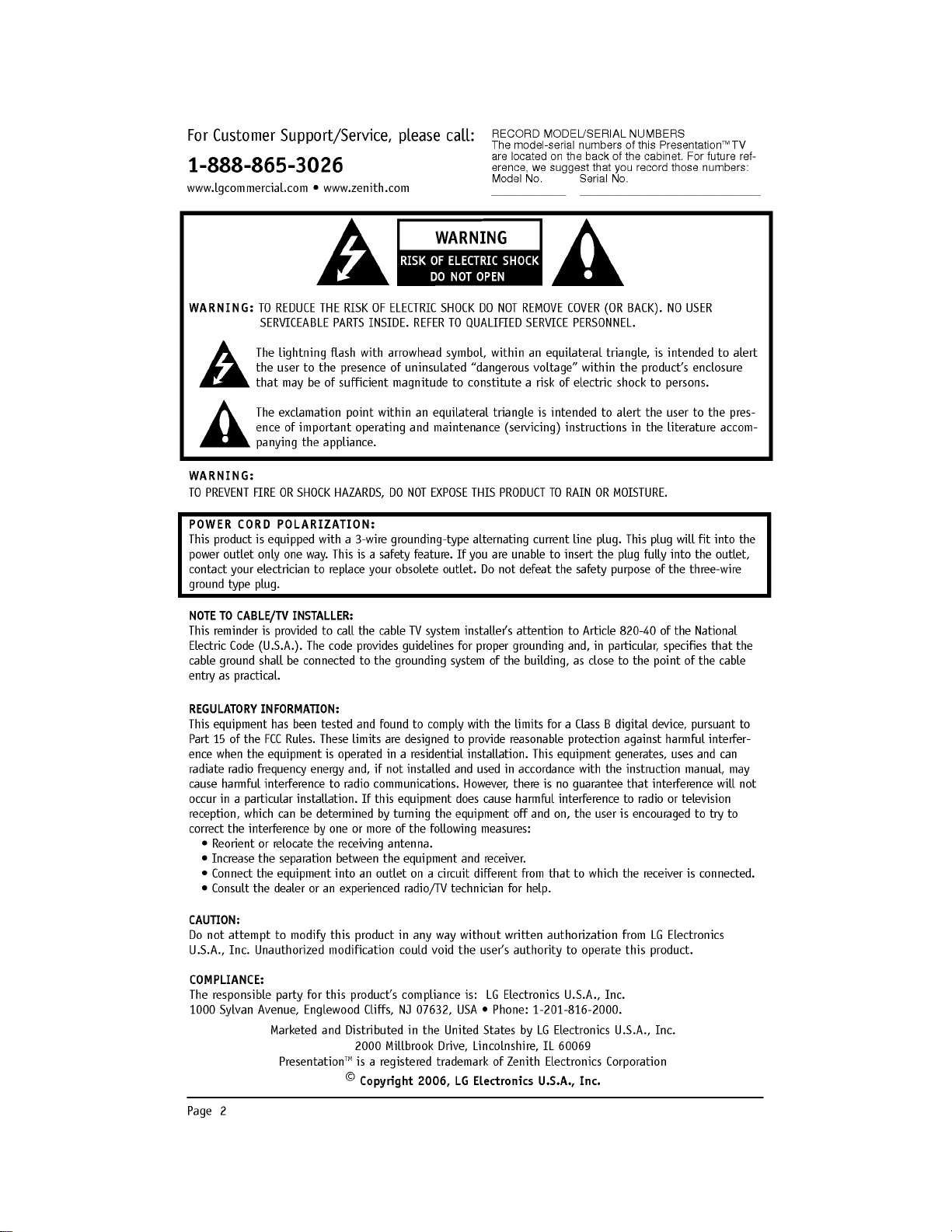
WARNING:
TO
REDUCE
THE
RISK
OF
ELECTRIC
SHOCK
DO
NOT
REMOVE
COVER
(OR
BACK).
NO
USER
SERVICEABLE
PARTS
INSIDE.
REFER TO
QUALIFIED
SERVICE
PERSONNEL.
The
lightning
flash
with
arrowhead
symbol,
within
an
equilateral
triangle,
is
intended
to
alert
the
user
to
the
presence
of
uninsulated
"dangerous
voltage"
within
the
product's
enclosure
that
may
be
of
sufficient
magnitude
to
constitute
a
risk
of
electric
shock
to
persons.
The
exclamation
point
within
an
equilateral
triangle
is
intended
to
alert
the
user
to
the
pres-
ence
of
important
operating
and
maintenance
(servicing)
instructions
in
the
literature
accom-
panying
the
appliance.
WARNING:
TO
PREVENT
FIRE
OR
SHOCK
HAZARDS,
DO
NOT EXPOSE
THIS
PRODUCT
TO
RAIN
OR
MOISTURE.
POWER
CORD
POLARIZATION:
This
product
is
equipped
with
a
3-wire
grounding-type
alternating
current
line
plug.
This
plug
will
fit
into
the
power
outlet
only
one
way.
This
is
a
safety
feature.
If
you
are
unable
to
insert
the
plug
fully
into
the
outlet,
contact
your
electrician
to
replace
your
obsolete
outlet.
Do
not
defeat
the
safety
purpose
of
the
three-wire
ground
type
plug.
NOTE
TO
CABLE/TV
INSTALLER:
This
reminder
is
provided
to
call
the
cable
TV
system
installer's
attention
to
Article
820-40
of
the
National
Electric
Code
(U.S.A.).
The
code
provides
guidelines
for
proper
grounding
and,
in
particular,
specifies
that
the
cable
ground
shall
be
connected
to
the
grounding
system
of
the
building,
as
close
to
the
point
of
the
cable
entry
as
practical.
REGULATORY
INFORMATION:
This
equipment
has
been
tested
and
found
to
comply
with the
limits
for
a
Class
B
digital
device,
pursuant
to
Part
15
of
the
FCC
Rules.
These
limits
are
designed
to
provide
reasonable
protection
against
harmful
interfer-
ence
when
the
equipment
is
operated
in
a
residential
installation.
This
equipment
generates,
uses
and
can
radiate
radio
frequency
energy
and,
if
not
installed
and
used
in
accordance
with the
instruction
manual,
may
cause
harmful
interference
to
radio
communications.
However,
there
is
no
guarantee
that
interference
will
not
occur
in
a
particular
installation.
If
this
equipment
does
cause
harmful
interference
to
radio
or
television
reception,
which
can
be
determined
by
turning
the
equipment
off
and
on,
the
user
is
encouraged
to
try
to
correct
the
interference
by
one
or
more
of
the
following
measures:
?
Reorient
or
relocate
the
receiving
antenna.
?
Increase
the
separation
between
the
equipment
and
receiver.
?
Connect
the
equipment
into
an
outlet
on
a
circuit
different
from
that
to
which
the
receiver
is
connected.
?
Consult
the
dealer
or
an
experienced
radio/TV
technician
for
help.
CAUTION:
Do
not
attempt
to
modify
this
product
in
any
way
without
written
authorization
from
LG
Electronics
U.S.A.,
Inc.
Unauthorized
modification
could
void
the
user's
authority
to
operate
this
product.
COMPLIANCE:
The
responsible
party
for
this
product's
compliance
is:
LG
Electronics
U.S.A.,
Inc.
1000
Sylvan
Avenue,
Englewood
Cliffs,
NJ
07632,
USA
?
Phone:
1-201-816-2000.
WARNING
For
Customer
Support/Service,
please
call:
1-888-865-3026
www.lgcommercial.com
?
www.zenith.com
Marketed
and
Distributed
in
the
United
States
by
LG
Electronics
U.S.A.,
Inc.
2000
Millbrook
Drive,
Lincolnshire,
IL
60069
Presentation
TM
is
a
registered
trademark
of
Zenith
Electronics
Corporation
ⓒ
Copyright
2006,
LG
Electronics
U.S.A.,
Inc.
RECORD
MODEL/SERIAL
NUMBERS
The
model-serial
numbers
of
this
Presentation
TM
TV
are
located
on
the
back
of
the
cabinet.
For
future
ref-
erence,
we
suggest
that
you
record
those
numbers:
Model
No.
Serial
No.
____________
_____________________________
Page
3
IMPORTANT
SAFETY
INSTRUCTIONS
Important
safeguards
for
you
and
your
new
product
Your
product
has
been
manufactured
and
tested
with
your
safety
in
mind.
However,
improper
use can
result
in
potential
electrical
shock
or
fire
hazards.
To
avoid
defeating
the
safeguards
that
have been
built
into
your
new
product,
please
read
and
observe
the
following
safety
points
when
installing
and
using
your
new
product,
and
save
them
for
future
reference.
Observing
the
simple
precautions
discussed
in
this
operating
guide
can
help
you
get
many
years
of
enjoy-
ment
and
safe
operation
that
are
built
into
your
new
product.
1.
Read
Instructions
All
the
safety
and
operating
instructions
should
be
read
before
the
product
is
operated.
2.
Follow
Instructions
All
operating
and
use
instructions
should
be
fol-
lowed.
3.
Retain Instructions
The
safety
and
operating
instructions
should
be
retained
for
future
reference.
4.
Heed
Warnings
All
warnings
on
the
product
and
in
the
operating
instructions
should be
adhered
to.
5.
Cleaning
Unplug
this
product
from
the
wall
outlet
before
cleaning.
Do
not
use
liquid
cleaners
or
aerosol
cleaners.
Use
a
damp
cloth
for
cleaning.
6.
Water
and
Moisture
Do
not
use
this
product
near
water
for
example,
near
a
bath
tub,
wash
bowl,
kitchen
sink,
or
laun-
dry
tub,
in
a
wet
basement,
or
near
a
swimming
pool.
7.
Accessories,
Carts,
and
Stands
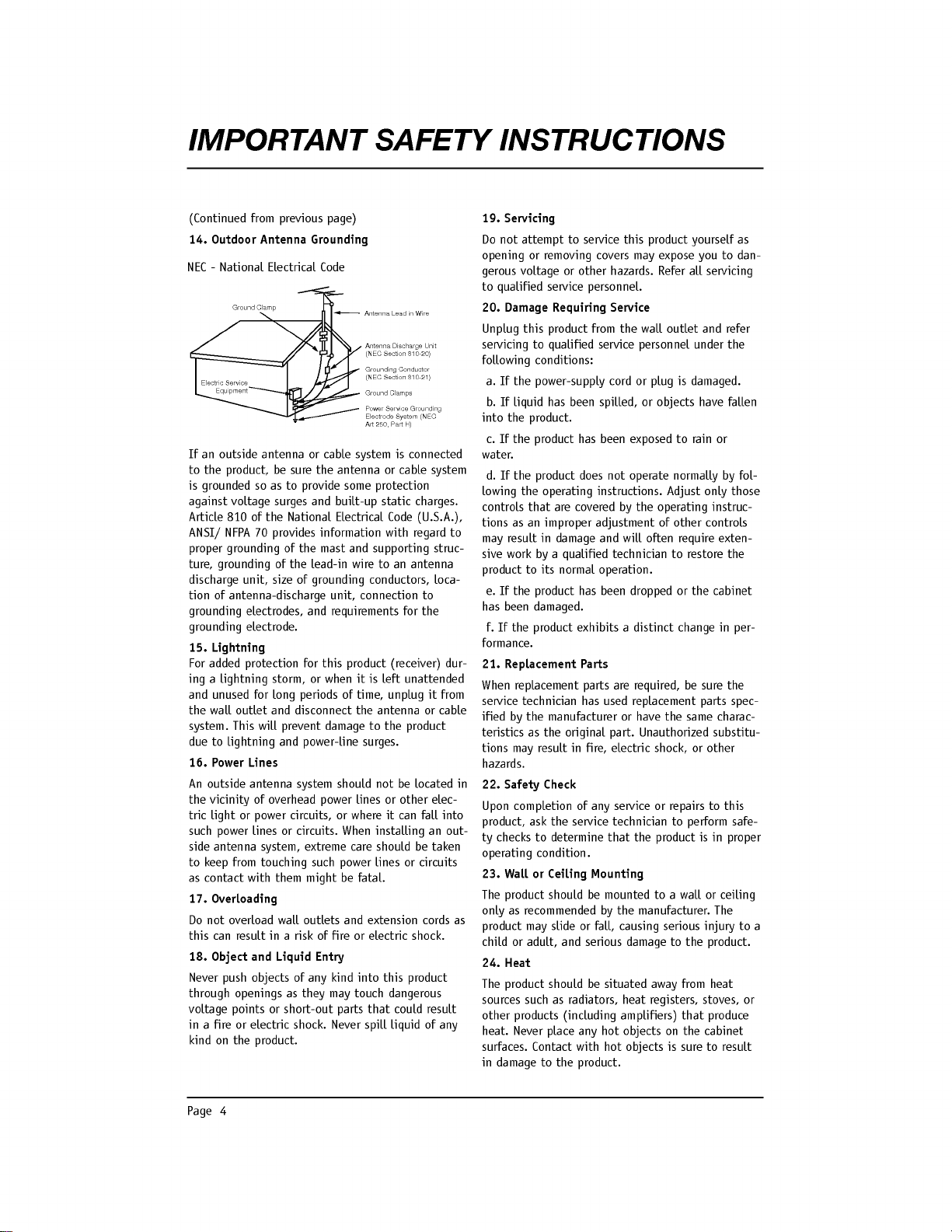
Do
not
place
this
product
on
a
slippery
or
tilted
surface,
or
on an
unstable
cart,
stand,
tripod,
bracket,
or
table.
The
product
may
fall,
causing
serious
injury
to
a
child
or
adult,
and
serious
dam-
age
to
the
product.
Use
only
with
a
cart,
stand,
tri-
pod,
bracket,
or
table
recommended
by
the
manu-
facturer,
or
sold
with
the
product.
Any
mounting
of
the
product
should
follow
the
manufacturer's
instructions,
and
should
use
a
mounting
accessory
recommended
by
the
manufacturer.
8.
Transporting
Product
A
product
and
cart
combination
should
be
moved
with
care.
Quick
stops,
excessive
force,
and
uneven
surfaces
may
cause
the
product
and
cart
combina-
tion
to
overturn.
9.
Attachments
Do
not
use
attachments
not
recommended
by
the
product
manufacturer
as
they
may
cause
hazards.
10.
Ventilation
Slots
and
openings
in
the
cabinet
are
provided
for
ventilation
and
to
ensure
reliable
operation
of
the
product
and
to
protect
it
from
overheating,
and
these
openings
must
not
be
blocked
or
covered.
The
openings
should
never
be
blocked
by
placing
the
product
on
a
bed,
sofa,
rug,
or
other
similar
sur-
face.
This
product
should
not
be
placed
in
a
built-in
installation
such
as
a
bookcase
or
rack
unless
prop-
er
ventilation
is
provided
or
the
manufacturer's
instructions
have
been
adhered
to.
11.
Power
Sources
This
product
should be
operated
only
from
the
type
of
power
source
indicated
on
the
marking
label.
If
you
are
not
sure
of
the
type
of
power
supply
to
your
home,
consult
your
product
dealer
or
local
power
company.
For
products
intended
to
operate
from
battery
power,
or
other
sources,
refer
to
the
operating
instructions.
12.
Power
Cord
Polarization
This
product
is
equipped
with
a
3-wire
grounding
type
alternating-current
power
plug.
This
plug
will
fit
into
the
power
outlet
only
one
way.
This
is
a
safety
feature.
If
you
are
unable
to
insert
the
plug
fully
into
the
outlet,
contact
your
electrician
to
replace
your
obsolete
outlet.
Do
not
defeat
the
safety
purpose
of
the
three-wire
ground-type
plug.
13.
Power
Cord
Protection
Power-supply
cords
should
be
routed
so
that
they
are
not
likely
to
be
walked
on
or
pinched
by
items
placed
upon
or
against
them,
paying
particular
attention
to
cords
at
plugs,
convenience
recepta-
cles,
and
the
point
where
they
exit
from
the
prod-
uct.
PORTABLE
CART
WARNING
Page
4
IMPORTANT
SAFETY
INSTRUCTIONS
(Continued
from
previous
page)
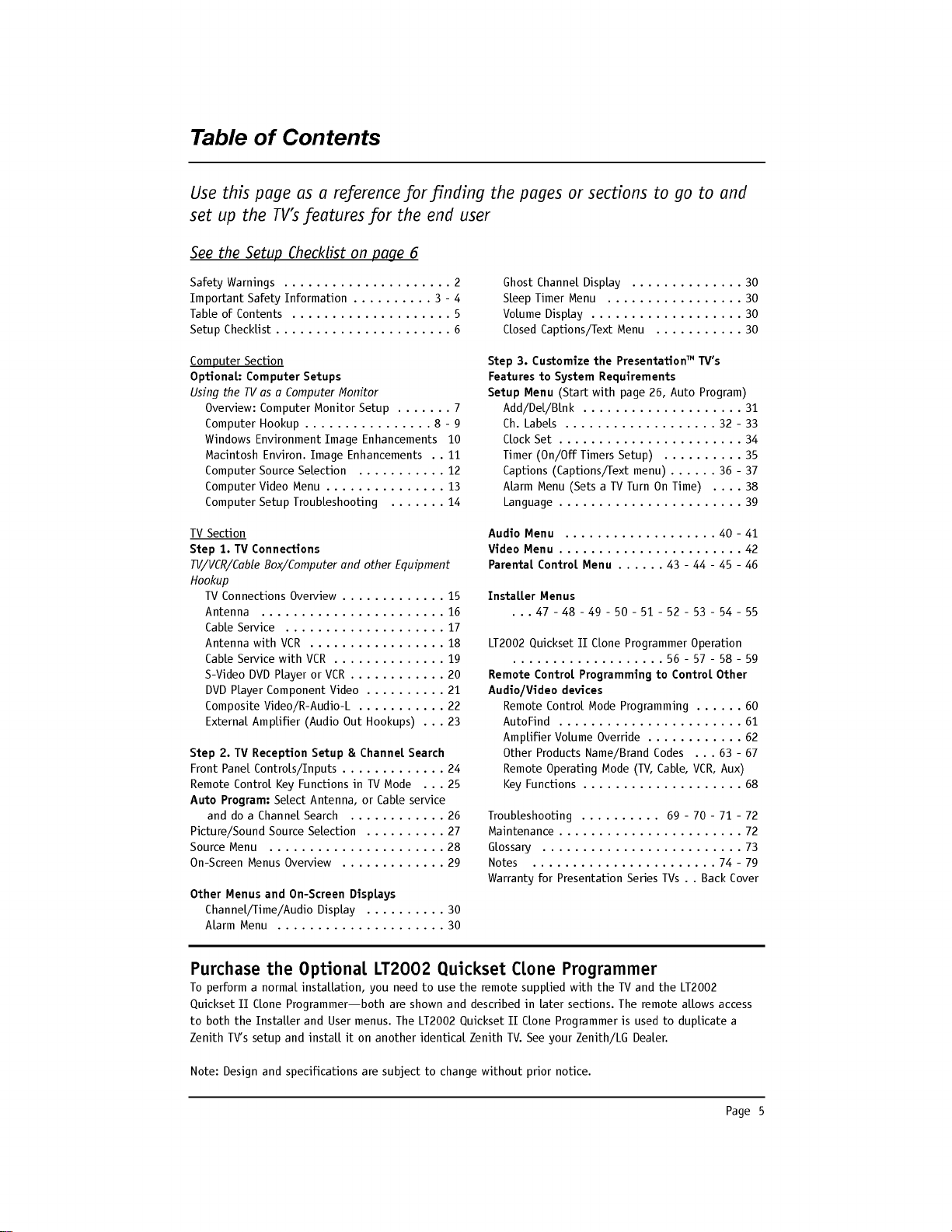
14.
Outdoor
Antenna
Grounding
If
an
outside
antenna
or
cable
system
is
connected
to
the
product,
be
sure
the
antenna
or
cable
system
is
grounded
so
as
to
provide
some
protection
against
voltage
surges
and
built-up
static
charges.
Article
810
of
the
National
Electrical
Code
(U.S.A.),
ANSI/
NFPA
70
provides
information
with
regard
to
proper
grounding
of
the
mast
and
supporting
struc-
ture,
grounding
of
the
lead-in
wire
to
an
antenna
discharge
unit,
size
of
grounding
conductors,
loca-
tion
of
antenna-discharge
unit,
connection
to
grounding
electrodes,
and
requirements
for
the
grounding
electrode.
15.
Lightning
For
added
protection
for
this
product
(receiver)
dur-
ing
a
lightning
storm,
or
when
it is
left
unattended
and
unused
for
long
periods
of
time,
unplug
it
from
the
wall
outlet
and
disconnect
the
antenna
or
cable
system.
This
will
prevent
damage
to
the
product
due
to
lightning
and
power-line
surges.
16.
Power
Lines
An
outside
antenna
system
should
not
be
located
in
the
vicinity
of
overhead
power
lines
or
other
elec-
tric
light
or
power
circuits,
or
where
it
can
fall
into
such
power
lines
or
circuits.
When
installing
an
out-
side
antenna
system,
extreme
care
should
be
taken
to
keep
from
touching
such
power
lines
or
circuits
as
contact
with
them
might
be
fatal.
17.
Overloading
Do
not
overload
wall
outlets
and
extension
cords
as
this
can
result
in
a
risk
of
fire
or
electric
shock.
18.
Object
and
Liquid
Entry
Never
push
objects
of
any
kind
into
this
product
through
openings
as
they
may
touch
dangerous
voltage
points
or
short-out
parts
that
could
result
in
a
fire
or
electric
shock.
Never
spill
liquid
of
any
kind
on
the
product.
19.
Servicing
Do
not
attempt
to
service
this
product
yourself
as
opening
or
removing
covers
may
expose
you
to
dan-
gerous
voltage
or
other
hazards.
Refer
all
servicing
to
qualified
service
personnel.
20.
Damage
Requiring
Service
Unplug
this
product
from
the
wall
outlet
and
refer
servicing
to
qualified
service
personnel
under
the
following
conditions:
a.
If
the
power-supply
cord
or
plug
is
damaged.
b.
If
liquid
has
been
spilled,
or
objects
have
fallen
into
the
product.
c.
If
the
product
has
been
exposed
to
rain
or
water.
d.
If
the
product
does
not
operate
normally
by
fol-
lowing
the
operating
instructions.
Adjust
only
those
controls
that
are
covered
by
the
operating
instruc-
tions
as
an
improper
adjustment
of
other
controls
may
result
in
damage
and
will
often
require
exten-
sive
work
by
a
qualified
technician
to
restore
the
product
to
its
normal
operation.
e.
If
the
product
has
been
dropped
or
the
cabinet
has
been
damaged.
f.
If
the
product
exhibits
a
distinct
change
in
per-
formance.
21.
Replacement
Parts
When
replacement
parts
are
required,
be
sure
the
service
technician
has
used
replacement
parts
spec-
ified
by
the
manufacturer
or
have
the
same
charac-
teristics
as
the
original
part.
Unauthorized
substitu-
tions
may
result
in
fire,
electric
shock,
or
other
hazards.
22.
Safety
Check
Upon
completion
of
any
service
or
repairs
to
this
product,
ask the
service
technician
to
perform
safe-
ty
checks
to
determine
that
the
product
is
in
proper
operating
condition.
23.
Wall
or
Ceiling
Mounting
The
product
should
be
mounted
to
a
wall
or
ceiling
only
as
recommended
by
the
manufacturer.
The
product
may
slide
or
fall,
causing
serious
injury
to
a
child
or
adult,
and
serious
damage
to
the
product.
24.
Heat
The
product
should
be
situated
away
from
heat
sources
such
as
radiators,
heat
registers,
stoves,
or
other
products
(including
amplifiers)
that
produce
heat.
Never
place
any
hot
objects
on
the
cabinet
surfaces.
Contact
with
hot
objects
is
sure
to
result
in
damage
to
the
product.
NEC
-
National
Electrical
Code
Antenna
Lead
in
Wire
Antenna
Discharge
Unit
(NEC
Section
810-20)
Grounding
Conductor
(NEC
Section
810-21)
Ground
Clamps
Power
Ser
vice
Grounding
Electrode
System
(NEC
Art
250,
Part
H)
Ground
Clamp
Electric
Service
Equipment
Page
5
Purchase
the
Optional
LT2002
Quickset
Clone
Programmer
To
perform
a
normal
installation,
you
need
to
use
the
remote
supplied
with
the
TV
and
the
LT2002
Quickset
II
Clone
Programmer---both
are
shown
and
described
in
later
sections.
The
remote
allows
access
to
both
the
Installer
and
User
menus.
The
LT2002
Quickset
II
Clone
Programmer
is
used
to
duplicate
a
Zenith
TV's
setup
and
install
it
on
another
identical
Zenith
TV.
See
your
Zenith/LG
Dealer.
Note:
Design
and
specifications
are
subject
to
change
without
prior
notice.
Use
this
page
as
a
reference
for
finding
the
pages
or
sections
to
go
to
and
set
up
the
TV's
features
for
the
end
user
See
the
Setup
Checklist
on
page
6
Table
of
Contents
SafetyWarnings.....................2
ImportantSafetyInformation.
. . . . . . . .
.3-4
TableofContents....................5
SetupChecklist......................6
Computer
Section
Optional:
Computer
Setups
Using
the
TV
as
a
Computer
Monitor
Overview:
Computer
Monitor
Setup
. . . . . . .
7
ComputerHookup................8-9
Windows
Environment
Image
Enhancements
10
Macintosh
Environ.
Image
Enhancements
. .
11
ComputerSourceSelection
. . . . . . . . . .
.12
ComputerVideoMenu...............13
Computer
Setup
Troubleshooting
. . . . . . .
14
TV
Section
Step
1.
TV
Connections
TV/VCR/Cable
Box/Computer
and
other
Equipment
Hookup
TVConnectionsOverview.............15
Antenna.......................16
CableService....................17
AntennawithVCR.................18
CableServicewithVCR..............19
S-VideoDVDPlayerorVCR.
. . . . . . . . . .
.20
DVDPlayerComponentVideo
. . . . . . . . .
.21
CompositeVideo/R-Audio-L.
. . . . . . . . .
.22
External
Amplifier
(Audio
Out
Hookups)
. . .
23
Step
2.
TV
Reception
Setup
&
Channel
Search
FrontPanelControls/Inputs.
. . . . . . . . . . .
.24
Remote
Control
Key
Functions
in
TV
Mode
. . .
25
Auto
Program:
Select
Antenna,
or
Cable
service
anddoaChannelSearch............26
Picture/Sound
Source
Selection
. . . . . . . . . .
27
SourceMenu......................28
On-ScreenMenusOverview.............29
Other
Menus
and
On-Screen
Displays
Channel/Time/Audio
Display
. . . . . . . . . .
30
AlarmMenu.....................30
GhostChannelDisplay..............30
SleepTimerMenu.................30
VolumeDisplay...................30
ClosedCaptions/TextMenu
. . . . . . . . . .
.30
Step
3.
Customize
the
Presentation
TM
TV's
Features
to
System
Requirements
Setup
Menu
(Start
with
page
26,
Auto
Program)
Add/Del/Blnk....................31
Ch.Labels...................32-33
ClockSet.......................34
Timer(On/OffTimersSetup).
. . . . . . . .
.35
Captions
(Captions/Text
menu)
. . . . . .
36
-
37
AlarmMenu(SetsaTVTurnOnTime)
. . .
.38
Language.......................39
AudioMenu...................40-41
VideoMenu.......................42
ParentalControlMenu.
. . . .
.43-44-45-46
Installer
Menus
. .
.47-48-49-50-51-52-53-54-55
LT2002
Quickset
II
Clone
Programmer
Operation
...................56-57-58-59
Remote
Control
Programming
to
Control
Other
Audio/Video
devices
Remote
Control
Mode
Programming
. . . . . .
60
AutoFind.......................61
AmplifierVolumeOverride
. . . . . . . . . . .
.62
Other
Products
Name/Brand
Codes
. . .
63
-
67
Remote
Operating
Mode
(TV,
Cable,
VCR,
Aux)
KeyFunctions....................68
Troubleshooting.
. . . . . . . .
.69-70-71-72
Maintenance.......................72
Glossary.........................73
Notes.......................74-79
Warranty
for
Presentation
Series
TVs
. .
Back
Cover

Setup
Checklist
Following
are
the
steps
necessary
to
install
and
set
up
the
TV
Setup
and
Operation
Checklist
1.
Unpack
the
TV
and
all
accessories.
2.
Connect
the
TV
to
RF
antennas
and
all
external
video
source
equipment.
See
pages
15
-
23.
3.
Install
batteries
in
remote
control.
4.
Plug
TV
and
source
equipment
into
standard
120V
60Hz
power
outlets.
5.
Turn
TV
On.
See
pages
24
-
25.
6.
Choose
on
screen
menu
language.
(English
is
default.)
See
page
39.
Reception
Setup
and
Channel
Search
8.
Use
Auto
Program
to
search
for
all
channels
in
your
area.
See
page
26.
7.
Select
viewing
source
for
TV.
See
page
28.
8.
Adjust
Installer
menu
items
per
requirements.
See
pages
47
through
55.
Customize
the
TVs
Features
for
the
End
User
9.
Fine-tune
source
image
and
sound
to
personal
preference
or
as
required
by
source.
See
pages
40
through
42.
Additional
Features
Setup
See
page
5,
Table
of
Contents.
?
To
connect
a
PC
computer
to
the
TV.
See
pages
7
-
14.
?
If
necessary,
program
remote
to
oper-
ate
other
devices
in
your
system.
See
page
60
-
68.
?
Create
a
Master
TV
and
clone
the
setup,
copy
setup
to
identical
TVs.
Seepages5and56-59.
*Auto
Program
finds
channels
which
have
a
signal
present
and
are
actively
being
broadcast.
Some
broadcasters
do
not
provide
or
broadcast
a
signal
con-
tinuously.
As
a
result,
some
DTV
chan-
nels
may
not
be found
in
the
channel
scan.
If
you
know
that
there
is
a
DTV
channel
that
was
not
found
by
Auto
Program,
add
the
channel
using
the
Add/Del/Blnk
function.
Page
6
Back
of
Remote

Page
7
Computer
Setup
Read
the
following
overview/instructions
to
set
up
and
use
the
Presentation
TV
as
a
Computer
Monitor
Caution:
When
planning
your
computer
monitor
setup,
be
sure
to
provide
adequate
sup-
port
for
the
connector/cable
that
will
be
used
to
hook
up
your
computer
to
this
TV.
If
not
properly
supported,
excessive
weight
from
the
cable
can
damage
the
TV
connec-
tors.
Be
sure
that
the
weight
of
all
cable
connec-
tions
made
to
this
TV
are
properly
supported.
Connect
a
Computer
to
the
TV
using
the
cable
pro-
vided
in
the
accessory
packet
supplied
with
the
TV,
follow
the
hookup
instructions
on
pages
8
and
9.
PC
You
can
make
a
direct
hook
up
to
the
TV's
front
or
rear
computer
connectors
without
using
any
adapters.
MAC
Macintosh
computers
may
require
a
Zenith
PCZ40
adapter
(typical
DB-15
adapter
which
connects
the
Macintosh
2-row
connector
to
the
TV's
3-row
con-
nector)
see
your
Zenith/LG
dealer
or
computer
reseller.
Video
Mirror
Connections
(Optional)
The
computer
image
can
be
sent
to
both
the
TV
screen
and
a
computer
monitor
at
the
same
time
by
using
the
video
mirror
connection,
see
the
instructions
on
pages
8
-
9.
PC
Direct
connection
to
the
TV's
connectors
using
the
cable
provided
in
the
accessory
packet.
MAC
Macintosh
computers
may
require
a
Zenith
PCZ40
adapter
(typical
DB-15
adapter
which
connects
the
Macintosh
2-row
connector
to
the
TV's
3-row
con-
nector)
see
your
Zenith
dealer
or
computer
reseller.
Adjust
the
Computer
Display
Output
to
TV
Requirements
Computer
display
output
settings
must
be
set
to
SVGA800x600@60Hz.
Set
Up
the
Presentation
TV
for
Computer
Requirements
If
your
Computer
is
hooked
up
to
the
TV's
front
computer
port
which
is
800
x
600
@60
Hz,
choose
FRONT
COMPUTER
SVGA
input
by
pressing
TV/VCR
SOURCE
repeatedly
on
the
remote
control,
or
use
the
on-screen
Source
menu.
If
your
Computer
is
hooked
up
to
the
TV's
rear
computer
port,
choose
REAR
COMPUTER
SVGA
input
by
pressing
TV/VCR
SOURCE
repeatedly
on
the
remote
control,
or
use
the
on-screen
Source
menu.
Additional
Computer
Image
Enhancements
(Optional)
Additional
computer
output
adjustments
to
opti-
mize
the
computer
image
quality
appearing
on
the
TV
screen
PC
See
page
10
for
Windows
environment.
MAC
See
page
11
for
Macintosh
environment.
Troubleshooting
Problems?
See
troubleshooting
on
page
14
for
Computer/TV
setup
problems.
Notes
?
Avoid
using
hookup
cables
of
excessive
length
(longer
than
25
feet).
Long
cables
can
adversely
affect
image
quality
and
Computer/TV
performance.
?
Not
all
computer
cables
will
work
with
the
TV.
See
your
Zenith/LG
dealer
for
special
computer
extension
cables.
Using
Your
Presentation
TV
as
a
Computer
Monitor
(pages
7
-
14)
Note:
The
optional
PCZ3100
Computer
Scan
Conversion
Card
Kit
is
available
from
your
Zenith
dealer.
The
PCZ3100
allows
the
TV
to
display
additional
computer
formats
in
addition
to
800
x
600
@60
Hz
SVGA.
It
also
enhances
the
image
from
your
computer,
and
allows
you
to
link
or
daisy-chain
a
series
of
TV
sets;
allows
a
computer's
image
to
appear
on
a
series
of
TVs
connected
to
the
TV.
See
your
Zenith/LG
dealer
for
further
details.

Page
8
Computer
Hookup
Read
the
following
overview/instructions
to
set
up
and
use
the
Presentation
TV
as
a
Computer
Monitor
Make
the
basic
con-
nections
as
indicat-
ed.
(Appearance
of
components
may
vary
from
those
in
the
illustrations.)
Set
the
computer's
image
output
set-
tingsto800x600@
60Hz
or
SVGA.
On
the
Source
menu,
highlight
"REAR
COM-
PUTER
SVGA"
(Rear
Computer
in)
then
press
ENTER
on
the
remote
to
change
to
the
computer
image
source.
Or
plug
the
computer
connector
into
"Computer
In"
on
the
TV
front
panel.
(Note:
Item
41-I
Auto
Compport
mustbesetto0in
the
installer
menu.)
Boot
up
your
com-
puter.
As
it
warms
up,
the
TV
will
adapt
to
your
computer.
Note:
Unlike
a
computer
monitor,
this
TV
does
not
show
a
computer
image
on
the
screen
until
the
TV
has
completely
adapted
to
your
computer's
output.
This
is
normal
when
using
this
TV
as
a
computer
monitor.
When
the
TV
has
complete-
ly
adapted
to
your
comput-
er,
the
computer's
image
will
appear
on
the
screen.
L
M.P.I.
C
O
M
P
U
T
E
R
I
N
PR
VI
DEO
IN
IN
COMPUTER
R
DVD
IN
AUD
IO
AUDIO
S-VID
EO
AUDIO OUT
R
L
R
L
R
L
Y
PB
480I
DI
GIT
AL
AN
TEN
NA
AN
TEN
NA
C
AB
LE
Back
of
Computer
Video
Out
to
Computer
Monitor
"Video
Mirror"
Cable
Computer
Video
"Card"
Output
Computer
Sound
"Card"
Output
R
audio
L
Video
in
Connections
to
TV
front
or
rear
computer
port,
with
computer
sound
card
output
to
front
or rear
R
-
audio
-
L
inputs.
TV
Front
Computer
in
TV
Back
1
2
3
4

Page
9
Computer
Hookup
Make
the
connections
with
the
15-ft.
"Video-Mirror"
cable
exactly
as
shown.
Also
refer
to
the
preceding
page
for
audio
connections
and
"Using
the
monitor
function."
Computer
Monitor
Video
Cable
from
Monitor
Note:
Actual
appearance
of
components
may
vary.
Back
of
Computer
TV
Back
Connect
to
TV
Connect
to
Monitor
Connect
to
Computer
TV
PC
MON
Video-Mirror
cable
connectors
are
clearly
marked.
Connect
as
shown
in
drawing:
TV
to
the
Television
MON
to
the
Computer
Monitor
PC
to
the
Computer
L
M.P.I.
C
O
M
P
U
T
E
R
I
N
PR
VIDEO
I
N
IN
COMPUTER
R
DVD
IN
AUDI
O
AUDIO
S-V
IDEO
AUDIO
OUT
R
L
R
L
R
L
Y
PB
480I
DIG
ITAL
AN
TEN
NA
A
NTE
NNA
C
ABL
E
An
accessory
packet
is
included
with
all
TV
models.
A
15-ft.
cable
with
a
"video
mirror"
for
providing
a
com-
puter
image
to
two
monitors---your
computer's
monitor
and
the
TV.
Notes
?
Your
TV
must
be
plugged
in---not
necessarily
turned
On---for
the
computer
monitor
to
function.
?
Unless
the
Mirror
Cable
is
connected
exactly
as
shown
above,
no
computer
image
will
appear
on
the
TV.
R
audio
L
Video
in
TV
Front
Computer
in
(800
x
600
@60
Hz)

Page
10
PC
Windows
Environment
Setting
up
your
computer
for
optimum
picture
output
in
the
Windows
operating
system
environment
The
following
is
a
step-by-step
procedure
for
set-
ting
your
computer's
picture
output
to
optimum
display
quality.
1.
Plug
in
your
computer
to
the
Presentation
TV.
Turn
On
the
TV
and
then
the
COMPUTER.
2.
Open
the
computer
CONTROL
PANEL
and
click
on
DISPLAY
PROPERTIES.
3.
Click
on
APPEARANCE.
This
is
where
you
will
make
changes
for
Presentation
display.
At
this
time
you
will
now
CREATE
a
NEW
SCHEME
or
display
for
Presentation
TV
Display.
Once
you
have
created
this
"new
scheme"
you'll
be
able
to
quickly
switch
between
Normal
and
the
Presentation
dis-
play
Scheme.
Once
you
have
made
the
changes
to
your
computer
Scheme,
then
SAVE
AS
a
Classroom
Display.
Use
the
following
steps
to
change
each
ITEM,
FONT
and
COLOR
for
optimum
computer
image
viewing
on
the
TV
screen.
1.
Select
under
the
ITEM
and
start
with
ACTIVE
TITLE
BAR.
*
Select
SIZE
to
28
*
Select
COLOR
to
GREY
*
Select
FONT
*
Select
TIMES
NEW
ROMAN
*
Select
SIZE
18
*
Select
COLOR
of
BLACK
2.
Select
under
the
ITEM
category
CAPTION
BUTTONS
*
Select
SIZE
of
25
3.
Select
under
the
ITEM
category
ICON
*
Select
SIZE
of
40
*
Select
FONT
SIZE
of
20
*
Select
FONT
of
TIMES
NEW
ROMAN
(BOLD)
Technical
Update:
Optimum
Display,
November
1998
4.
Select
under
the
ITEM
category
ICON
SPACING
(Horizontal)
*
Select
SIZE
of
100
5.
Select
under
the
ITEM
category
ICON
SPACING
(Vertical)
*
Select
SIZE
of
100
6.
Select
under
the
ITEM
category
INACTIVE
TITLE
BAR
*
Select
SIZE
of
30
*
Select
FONT
SIZE
of
18
*
Select
FONT
of
TIMES
NEW
ROMAN
7.
Select
under
the
ITEM
category
MENU
*
Select
SIZE
of
30
*
Select
FONT
SIZE
18
*
Select
FONT
of
TIMES
NEW
ROMAN
8.
Select
under
the
ITEM
category
MESSAGE
BOX
*
Select
FONT
SIZE
of
14
*
Select
FONT
of
TIMES
NEW
ROMAN
9.
Select
under
the
ITEM
category
PALETTE
TITLE
*
Select
SIZE
of
30
*
Select
FONT
SIZE
of
18
*
Select
FONT
of
TIMES
NEW
ROMAN
10.
Select
under
the
ITEM
category
SELECTED
ITEMS
*
Select
SIZE
of
30
*
Select
COLOR
of
BLUE
*
Select
FONT
SIZE
of
18
*
Select
FONT
of
TIMES
NEW
ROMAN
11.
Rename
the
scheme
and
SAVE
AS,
PRESENTATION
DISPLAY.
12.
CHANGING
THE
APPLICATION
ICON
SIZE
*
Select
Excel
(Spreadsheet/workbooks)
*
From
the
TASK
BAR
select
TOOLS
*
Select
CUSTOMIZE
*
Select
OPTIONS
*
Click
on
LARGE
ICONS
The
Icons
within
WORD
and
EXCEL
will
now
match
your
new
Scheme
display.
You
have
set
up
your
Windows
computer
for
optimum
Presentation
TV
Display.
WINDOWS
Environment
Page
11
Macintosh
Environment
Setting
your
computer
for
optimum
picture
output
in
the
Macintosh
operating
system
environment
MACINTOSH
Environment
The
following
is
a
step-by-step
procedure
for
set-
ting
your
computer
picture
output
to
optimum
dis-
play
quality.
1.
Plug
your
computer
in
to
the
Presentation
TV.
Turn
On
the
TV
and
then
the
COMPUTER.
2.
Open
your
CONTROL
PANEL
by
choosing
under
the
APPLE
icon
or
by
clicking
on
your
HARD
DRIVE
icon.
If
you
choose
the
HARD
DRIVE
icon,
you'll
have
to
open
your
CONTROL
PANEL
through
the
SYSTEMS
FOLDER.
3.
After
you
have
located
the
CONTROL
PANEL,
click
on
VIEWS.
This
is
where
you
will
make
changes
for
Presentation
display.
4.
Change
the
FONT
to
one
that
is
appears
well
on
a
television.
We
would
suggest
that
you
use
TIMES
BOLD.
Now,
change
the
FONT
SIZE
to
18
or
better.
Each
time
that
you
use
the
TV
with
your
com-
puter,
you
will
simply
change
the
FONT
and
SIZE
through
the
CONTROL
PANEL
and
VIEW.
You
have
changed
the
appearance
of
all
your
folders
but
NOT
your
applications.
VIEWING
FOR
PRESENTATION
vs.
PRIVATE
1.
When
viewing
an
application,
such
as
EXCEL
or
WORD,
you
will
have
to
change
the
appearance
of
each
application.
2.
Once
the
application
has
been
opened,
just
change
the
view
from
100
percent
to
a
selec-
tion
over
150
percent.
This
will
not
permanent-
ly
effect
your
document.
Once
you
have
com-
pleted
your
presentation,
simply
reduce
the
size
back
down
to
100
percent
viewing
ratio.
3.
To
enlarge
the
ICONS
of
the
application,
click
on
VIEW
and
then
select
TOOLBARS.
Slide
down
and
highlight
CUSTOMIZE
with
your
mouse,
then
click.
4.
A
file
folder
will
now
"pop-up".
Now
select
OPTIONS
and
then
click
on
LARGE
ICONS.
This
will
only
enlarge
the
ICONS
on
your
menu
palette.
Due
to
a
less
flexible
platform,
you
will
not
be
able
to
effect
the
fonts/size
on
the
Menu
Bar.
This
Zenith
Presentation
TV
is
a
high-quality,
low
cost
alternative
to
a
true
SVGA
monitor.
Page
12
Computer
Source
Selection
Choosing
the
computer
input
on
the
Source
menus
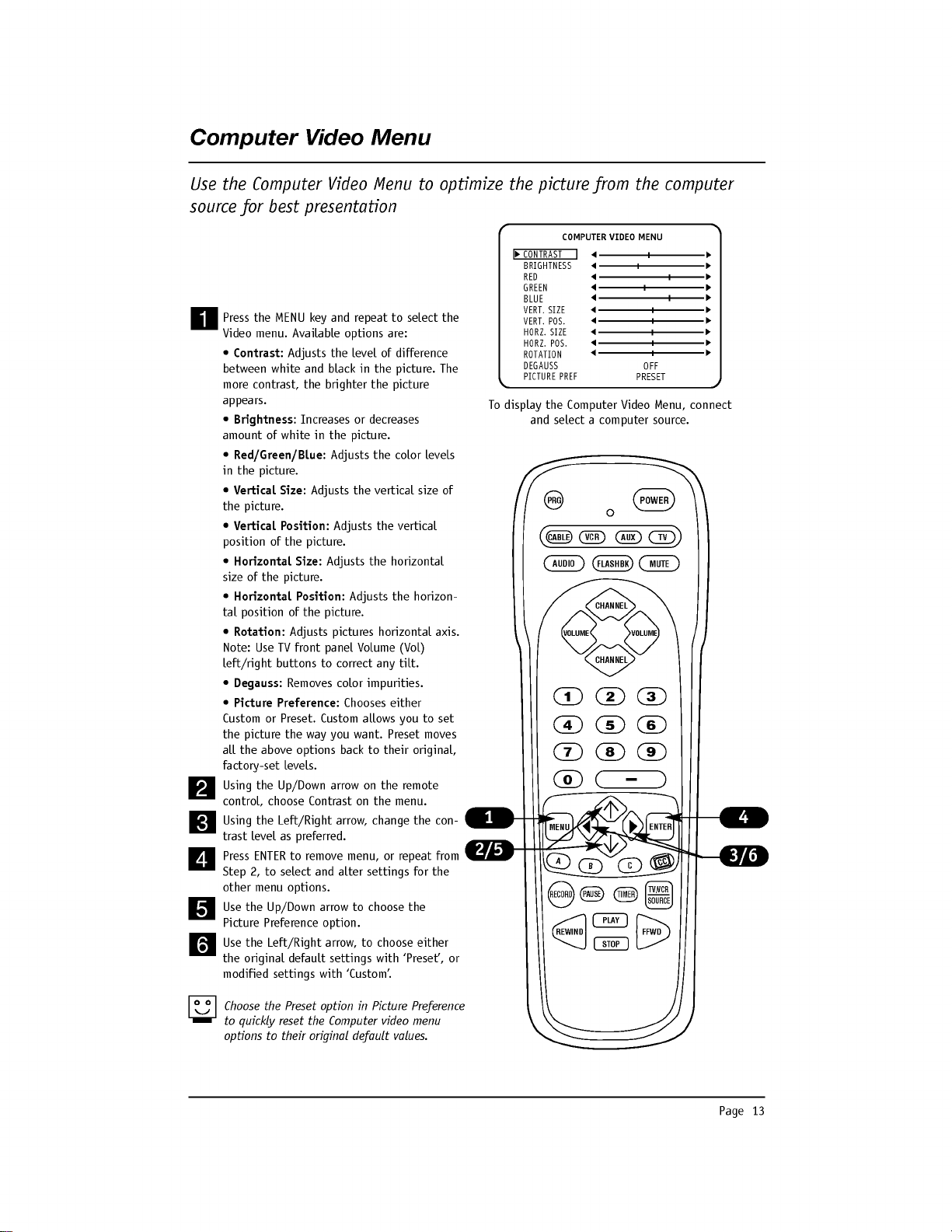
Plug
the
computer
display
15-pin
output
into
the
front
Computer
In
port.
Press
TV/VCR
SOURCE
repeated-
ly
on
the
remote
to
cycle
through
the
available
sources.
Press
MENU
repeatedly
on
the
remote
until
the
Source
menu
appears.
Use
the
Up/Down
arrow
on
the
remote
control,
to
select
the
computer
source
that
you
want
to
appear
on
your
screen.
Press
Enter,
or
the
Left/Right
arrow
on
the
remote,
to
change
to
the
new
source.
Press
ENTER
again
to
remove
menu.
The
front
panel
'Computer
In'
port
is
auto
sensing
and
must
be
enabled
in
the
Installer
menu
before
it
will
appear
in
the
Source
menu.
See
Installer
menu
item
41-I
Auto
Compport.
PRESS
TO
CHANGE
PRESS
ENTER
OR
<>
KEYS
TO
ACTIV.
ANTENNA/CABLE
AUX
VIDEO
S-VIDEO
FRONT
COMPUTER
SVGA
REAR
COMPUTER
SVGA
COMPONENT
YPrPb
SOURCE
MENU
SOURCE
FRONT
COMPUTER
SVGA
PRESS:
SOURCE
TO
CHANGE
ENTER
TO
ACTIVATE
PRG
POWER
CABLE
VCR
AUX
TV
AUDIO
FLASHBK
MUTE
CHANNEL
CHANNEL
VOLUME VOLUME
123
456
7
0
89
MENU
REWIND
FFWD
RECORD
A
B
C
C
C
TV/VCR
SOURCE
PAUSE
TIMER
PLAY
STOP
ENTER
Source
Selection
Using
Remote
Control
Source
Selection
Using
Source
Menu
Selecting
Computer
Source
with
Direct
Connection
-
Auto
Source
Sensing.
Selecting
Viewing
Sources
Using
the
Onscreen
Menus
Selecting
Viewing
Sources
Using
TV/VCR
Source
Key
on
Remote
Page
13
Computer
Video
Menu
Use
the
Computer
Video
Menu
to
optimize
the
picture
from
the
computer
source
for
best
presentation
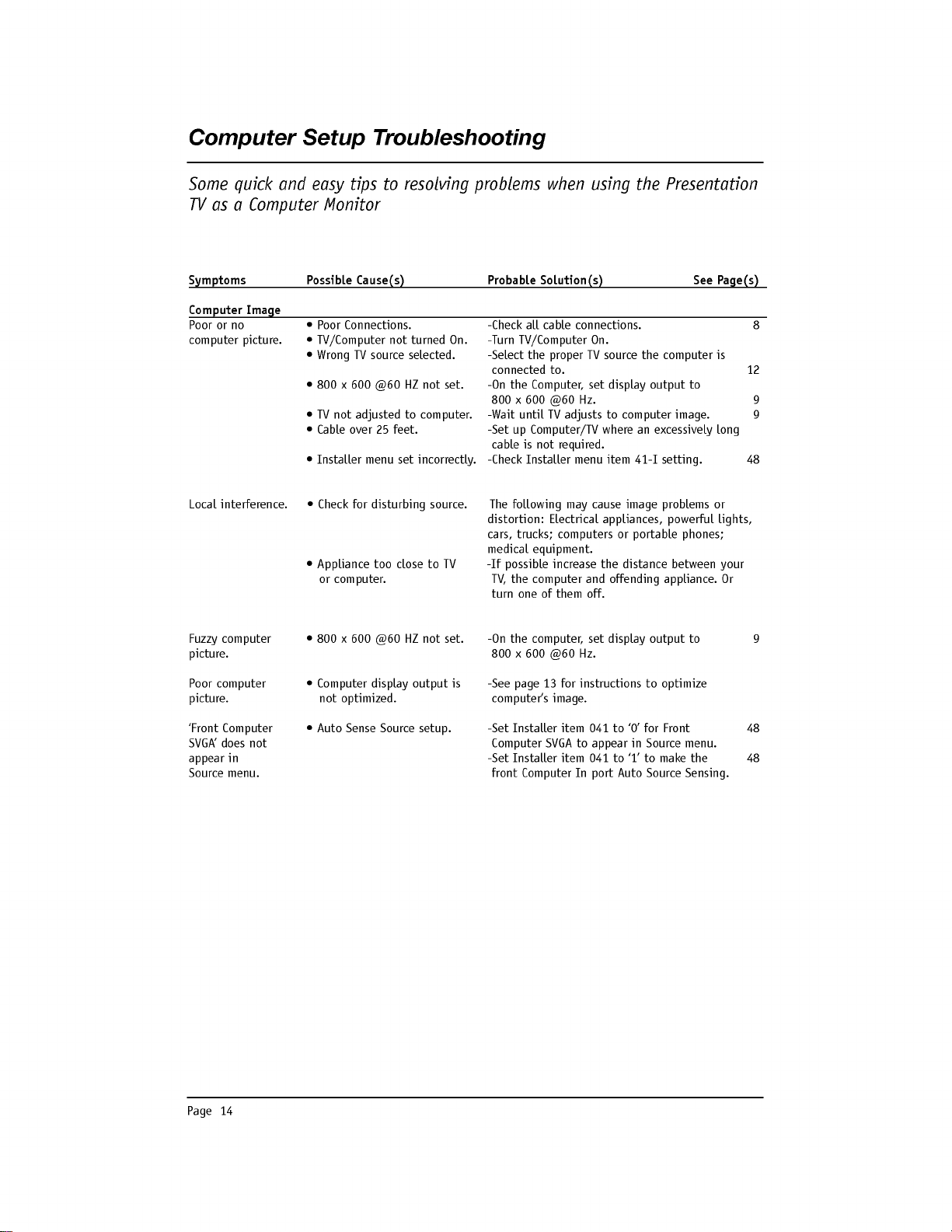
Press
the
MENU
key
and
repeat
to
select
the
Video
menu.
Available
options
are:
?
Contrast:
Adjusts
the
level
of
difference
between
white
and
black
in
the
picture.
The
more
contrast,
the
brighter
the
picture
appears.
?
Brightness:
Increases
or
decreases
amount
of
white
in
the
picture.
?
Red/Green/Blue:
Adjusts
the
color
levels
in
the
picture.
?
Vertical
Size:
Adjusts
the
vertical
size
of
the
picture.
?
Vertical
Position:
Adjusts
the
vertical
position
of
the
picture.
?
Horizontal
Size:
Adjusts
the
horizontal
size
of
the
picture.
?
Horizontal
Position:
Adjusts
the
horizon-
tal
position
of
the
picture.
?
Rotation:
Adjusts
pictures
horizontal
axis.
Note:
Use
TV
front
panel
Volume
(Vol)
left/right
buttons
to
correct
any
tilt.
?
Degauss:
Removes
color
impurities.
?
Picture
Preference:
Chooses
either
Custom
or
Preset.
Custom
allows
you
to
set
the
picture
the
way
you
want.
Preset
moves
all
the
above
options
back
to
their
original,
factory-set
levels.
Using
the
Up/Down
arrow
on
the
remote
control,
choose
Contrast
on
the
menu.
Using
the
Left/Right
arrow,
change
the
con-
trast
level
as
preferred.
Press
ENTER
to
remove
menu,
or
repeat
from
Step
2,
to
select
and
alter
settings
for
the
other
menu
options.
Use
the
Up/Down
arrow
to
choose
the
Picture
Preference
option.
Use
the
Left/Right
arrow,
to
choose
either
the
original
default
settings
with
'Preset',
or
modified
settings
with
'Custom'.
Choose
the
Preset
option
in
Picture
Preference
to
quickly
reset
the
Computer
video
menu
options
to
their
original
default
values.
PRG
POWER
CABLE
VCR
AUX
TV
AUDIO
FLASHBK
MUTE
CHANNEL
CHANNEL
VOLUME
VOLUME
123
456
7
0
89
MENU
REWIND
FFWD
RECORD
A
B
C
C
C
TV/VCR
SOURCE
PAUSE
TIMER
PLAY
STOP
ENTER
To
display
the
Computer
Video
Menu,
connect
and
select
a
computer
source.
CONTRAST
BRIGHTNESS
RED
GREEN
BLUE
VERT.
SIZE
VERT.
POS.
HORZ.
SIZE
HORZ.
POS.
ROTATION
DEGAUSS
PICTURE
PREF
COMPUTER
VIDEO
MENU
OFF
PRESET
Page
14
Computer
Setup
Troubleshooting
Some
quick
and
easy
tips
to
resolving
problems
when
using
the
Presentation
TV
as
a
Computer
Monitor
Symptoms
Possible
Cause(s)
Probable
Solution(s)
See
Page(s)
Computer
Image
Poor
or
no
?
Poor
Connections.
-Check
all
cable
connections.
8
computer
picture.
?
TV/Computer
not
turned
On.
-Turn
TV/Computer
On.
?
Wrong
TV
source
selected.
-Select
the
proper
TV
source
the
computer
is
connected
to.
12
?800x600@60HZnotset.
-On
the
Computer,
set
display
output
to
800
x
600
@60
Hz.
9
?
TV
not
adjusted
to
computer.
-Wait
until
TV
adjusts
to
computer
image.
9
?
Cable
over
25
feet.
-Set
up
Computer/TV
where
an
excessively
long
cable
is
not
required.
?
Installer
menu
set
incorrectly.
-Check
Installer
menu
item
41-I
setting.
48
Local
interference.
?
Check
for
disturbing
source.
The
following
may
cause
image
problems
or
distortion:
Electrical
appliances,
powerful
lights,
cars,
trucks;
computers
or
portable
phones;
medical
equipment.
?
Appliance
too
close
to
TV
-If
possible
increase
the
distance
between
your
or
computer.
TV,
the
computer
and
offending
appliance.
Or
turn
one
of
them
off.
Fuzzy
computer
?800x600@60HZnotset.
-On
the
computer,
set
display
output
to
9
picture.
800
x
600
@60
Hz.
Poor
computer
?
Computer
display
output
is
-See
page
13
for
instructions
to
optimize
picture.
not
optimized.
computer's
image.
'Front
Computer
?
Auto
Sense
Source
setup.
-Set
Installer
item
041
to
'0'
for
Front
48
SVGA'
does
not
Computer
SVGA
to
appear
in
Source
menu.
appear
in
-Set
Installer
item
041
to
'1'
to
make
the
48
Source
menu.
front
Computer
In
port
Auto
Source
Sensing.
Page
15
L
M.P.I.
C
O
M
P
U
T
E
R
I
N
PR
VIDEO
IN
IN
C
OMPUTER
R
DVD
IN
AU
DIO
AUDIO
S-
VID
EO
AUDIO
OUT
R
L
R
L
R
L
Y
PB
480I
D
IG
IT
AL
AN
T
EN
NA
A
NT
EN
N
A
CA
BL
E
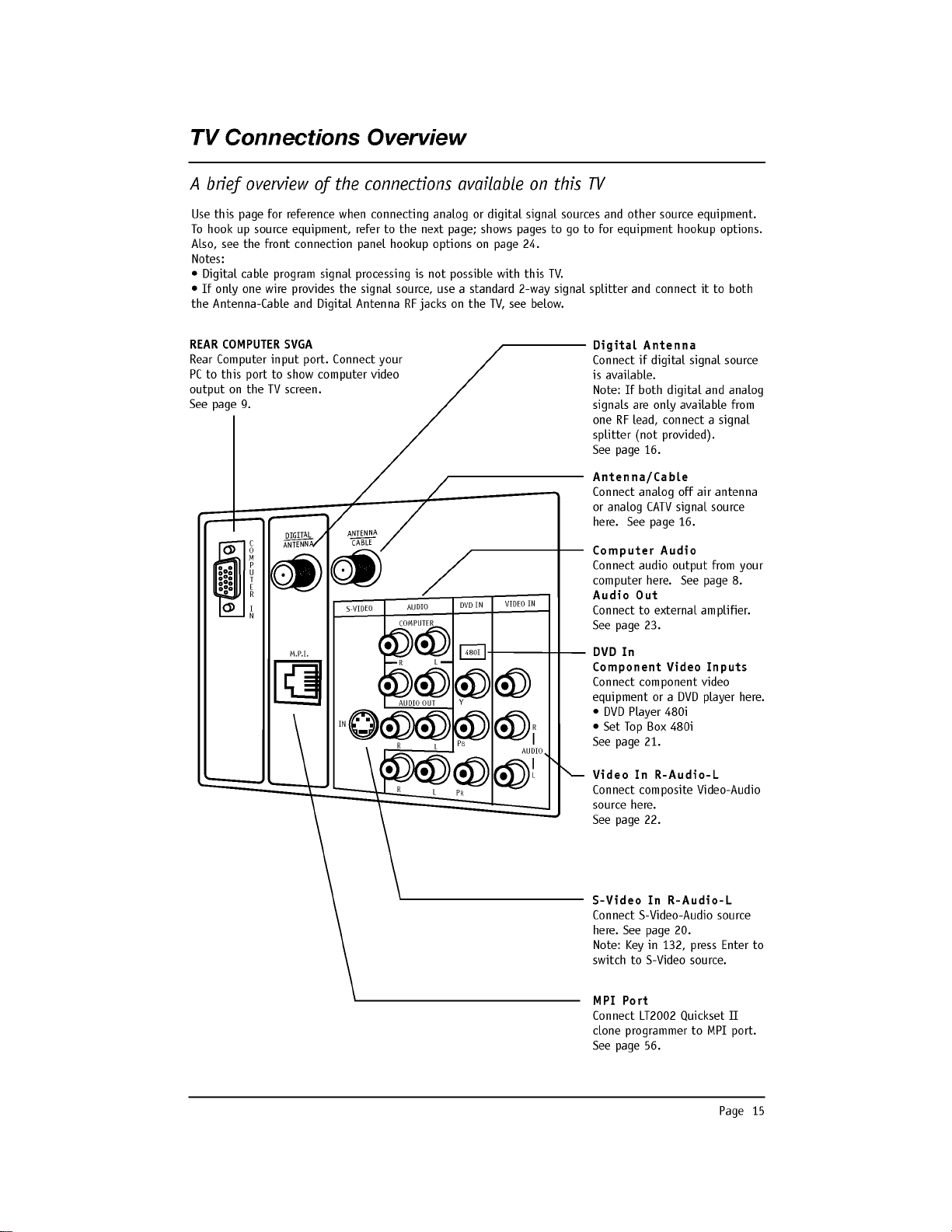
Use
this
page
for
reference
when
connecting
analog
or
digital
signal
sources
and
other
source
equipment.
To
hook
up
source
equipment,
refer
to
the
next
page;
shows
pages
to
go
to
for
equipment
hookup
options.
Also,
see
the
front
connection
panel
hookup
options
on
page
24.
Notes:
?
Digital
cable
program
signal
processing
is
not
possible
with
this
TV.
?
If
only
one
wire
provides
the
signal
source,
use
a
standard
2-way
signal
splitter
and
connect
it
to
both
the
Antenna-Cable
and
Digital
Antenna
RF
jacks
on
the
TV,
see
below.
MPI
Port
Connect
LT2002
Quickset
II
clone
programmer
to
MPI
port.
See
page
56.
Digital
Antenna
Connect
if
digital
signal
source
is
available.
Note:
If
both
digital
and
analog
signals
are
only
available
from
one
RF
lead,
connect
a
signal
splitter
(not
provided).
See
page
16.
DVD
In
Component
Video
Inputs
Connect
component
video
equipment
or a
DVD
player
here.
?
DVD
Player
480i
?
Set
Top
Box
480i
See
page
21.
Video
In
R-Audio-L
Connect
composite
Video-Audio
source
here.
See
page
22.
S-Video
In
R-Audio-L
Connect
S-Video-Audio
source
here.
See
page
20.
Note:
Key
in
132,
press
Enter
to
switch
to
S-Video
source.
Antenna/Cable
Connect
analog
off
air
antenna
or
analog
CATV
signal
source
here.
See
page
16.
REAR
COMPUTER
SVGA
Rear
Computer
input
port.
Connect
your
PC
to
this
port
to
show
computer
video
output
on
the
TV
screen.
See
page
9.
TV
Connections
Overview
A
brief
overview
of
the
connections
available
on
this
TV
Computer
Audio
Connect
audio
output
from
your
computer
here.
See
page
8.
Audio
Out
Connect
to
external
amplifier.
See
page
23.

Page
16
TV
Back
Connections
Panel
(Expanded
View)
TV
Back
L
M.P.I.
C
O
M
P
U
T
E
R
I
N
PR
VIDEO
IN
IN
COMPUTER
R
DVD
IN
A
UDIO
AUDIO
S-VI
DEO
AUDIO
OUT
R
L
R
L
R
L
Y
PB
480I
DI
GITA
L
A
NTE
NNA
A
NTE
NNA
C
ABLE
RF
Coaxial
Wire
(75
ohm)
Antenna
RF
Coaxial
Wire
(75
ohm)
Antenna
TV
Back
L
M.P.I.
C
O
M
P
U
T
E
R
I
N
PR
V
IDEO
IN
IN
C
OMPUTER
R
DVD
IN
A
U
DIO
AUDIO
S-V
IDEO
AUDIO OUT
R
L
R
L
R
L
Y
PB
480I
DI
GITA
L
A
NTEN
NA
A
NTEN
NA
CA
BLE
RF
Coaxial
Wire
(75
ohm)
Antenna
75
ohm
Signal
Splitter
Hook
Up
Off
Air
Antennas
Locate
the
RF
jacks
on
the
back
of
the
TV.
Connect
the
RF
antennas
that
run
from
the
wall
directly
to
these
jacks
according
to
the
connection
diagram
shown
to
the
right.
Ifyouhavea75ohmRF
cable,
then
you
don't
need
any
adapters.
A
300
to
75
ohm
adapter
is
not
included with
the
Zenith
TV.
Over
the
Air
Antenna
To
get
digital
with
only
one
RF
antenna
lead,
install
a
two-way
signal
splitter
Mini
Glossary
2-Way
Splitter
A
device
that
provides
two
antenna
signals
from
one
antenna
lead.
75
ohm
The
wire
that
comes
from
an
off-air
antenna
or
cable
service
provider.
Each
end
RF
Cable
looks
like
a
hex
shaped
nut
with
a
wire
sticking
through
the
middle,
and
it
screws
onto
the
threaded
jack
on
the
back
of
the
TV.
300
to
(Not
shown)
A
small
device
that
connects
a
flat
two-wire
300
ohm
antenna
to
a
75
75
ohm
ohm
RF
jack.
They
are
usually
about
an
inch
long
with
two
screws
on
one
end and
a
Adapter
round
opening
with
a
wire
sticking
out
on
the
other
end.
If
there
is
only
one
antenna
lead
available
from
the
wall
antenna
jack,
locate
the
Antenna/Cable
and
the
Digital
Antenna
jacks
on
the
back
of
the
TV.
Connect
the
RF
antenna
that
runs
from
the
wall
directly
to
a
75
ohm
2-way
signal
splitter
(not
provided),
according
to
the
connection
diagram
shown
to
the
right.
Connect
the
two
antenna
leads
to
the
TV
RF
inputs:
Antenna/Cable
and
Digital
Antenna.
This
will
provide
the
same
over-the-air
signal
to
both
the
analog
and
digi-
tal
RF
inputs.
Connect
over
the
air
signal
sources
to
the
TV

Page
17
T
yp
ic
al
T
V
Ba
ck
Cable
TV
Wall
Jack
RF
Coaxial
Wire
(75
ohm)
L
M.P.I.
C
O
M
P
U
T
E
R
I
N
PR
VI
DEO
IN
IN
COMPUTER
R
DVD
I
N
AUD
IO
AUDIO
S-
VIDEO
AUDIO
OUT
R
L
R
L
R
L
Y
PB
480I
DI
GITA
L
ANT
ENN
A
AN
TEN
NA
CA
BLE
Ty
pi
ca
l
TV
B
ac
k
L
M.P.I.
C
O
M
P
U
T
E
R
I
N
PR
VIDEO
IN
IN
COMPUTER
R
DVD
IN
AUDIO
AUDIO
S-VI
DEO
AUDIO
OUT
R
L
R
L
R
L
Y
PB
480I
DIGI
TAL
A
NTE
NNA
A
NTE
NN
A
CAB
LE
Cable
TV
Wall
Jack
Cable
Box
In
Out
RF
Coaxial
Wire
(75
ohm)
34
output
switch
Hook
Up
Cable
Service
(CATV)
Locate
the
Antenna/Cable
in
jack
on
the
back
of
the
TV
set.
Connect
the
CATV
cable
that
runs
from
the
wall
according
to
the
connection
diagram
shown
to
the
right.
The
TV
digital
tuner
does
not
work
with
a
Digital
Cable
signal
source.
Cable
Service
Cable
Service
with
a
Cable
Box
Locate
the
Antenna/Cable
in
jack
on
the
back
of
the
TV
set.
Connect
the
CATV
cable
that
runs
from
the
wall
to
the
cable
box
and
TV
according
to
the
connec-
tion
diagram
shown
to
the
right.
If
you're
using
a
cable
box,
tune
theTVtochannel3or4anduse
your
cable
box
to
change
channels.
If
you're
using
a
cable
box,
Auto
Program
channel
search
might
only
find
the
channel
the
cable
service
is
on
(usually
channel
3
or
4).
The
TV
digital
tuner
does
not
work
with
a
Digital
Cable
signal
source.
Connect
cable
service
to
the
TV

Page
18
L
M.P.I.
C
O
M
P
U
T
E
R
I
N
PR
V
IDEO
IN
IN
COMPUTER
R
D
VD
IN
AUDI
O
AUDI
S-
VIDEO
AUDIO
OUT
R
L
R
L
R
L
Y
PB
480I
DIG
ITA
L
A
NTE
NNA
A
NTE
NNA
C
ABL
E
Ty
pi
cal
T
V
Ba
ck
In
Out
Audio
Video
34
VCR
Back
VCR
Back
AV
Panel
output
switch
A/V
cables
not
included
with
TV
RF
Coaxial
Wire
(75
ohm)
Antenna
Off
Air
Antenna
RF
Coaxial
Wire
(75
ohm)
Hook
Up
Off
Air
Antennas
with
VCR
1
2
Locate
the
Antenna/Cable
In
jack
on
the
back
of
the
VCR.
Connect
the
antenna
wire
that
runs
from
the
wall
jack
directly
to
this
jack,
according
to
the
connection
diagram
shown
to
the
right.
Connect
a
75
ohm
off
air
antenna
signal
to
the
Digital
Antenna
input
on
the
TV
for
dig-
ital
programming.
Make
the
VCR
to
TV
connections
as
indicated
in
the
illustration.
If
you
have
a
75
ohm
RF
cable,
then
you
don't
need
any
adapters!
A
300
to
75
ohm
adapter
is
not
included
with
the
Zenith
TV.
Over
the
Air
Antennas
with
VCR
Connect
over
the
air
signal
source
to
the
VCR
and
TV
3
4

Page
19
L
M.P.I.
C
O
M
P
U
T
E
R
I
N
PR
VIDEO
IN
IN
COMPUTER
R
DVD
IN
AUD
IO
AUDI
S-VIDE
O
AUDIO
OUT
R
L
R
L
R
L
Y
PB
480I
D
IGIT
AL
ANT
ENN
A
ANT
ENN
A
CAB
LE
T
yp
ica
l
TV
B
ac
k
In
Out
Audio
Video
34
VCR
Back
VCR
Back
AV
Panel
output
switch
RF
Coaxial
Wire
(75
ohm)
Off
Air
Antenna
RF
Coaxial
Wire
(75
ohm)
Cable
TV
Wall
Jack
Cable
Box
In
Out
34
Output
Switch
A/V
cables
not
included
with
TV
R-L
Hook
Up
a
Cable
Box
with
VCR
1
2
Locate
the
RF
In
jacks
on
the
cable
box
and
the
VCR.
Connect
a
75
ohm
cable
between
the
cable
box
wall
jack
and
Cable
In
on
the
cable
box.
Connect
a
75
ohm
cable
from
the
Cable
out
jack
on
the
cable
box
to
the
Ant
In
jack
on
the
VCR.
Connect
a
75
ohm
cable
between
the
VCR
out
jack
on
the
VCR
and
the
Antenna/Cable
In
jack
on
the
TV.
Connect
75
ohm
off
air
antenna
signal
to
the
Digital
Antenna
input
on
the
TV
to
get
digital
programming.
Make
the
other
VCR-TV
connections
as
indicated
in
the
illustration.
For
cable
service
without
a
cable
box,
connect
a
75
ohm
cable
between
the
cable
wall
jack
and
the
VCR
In
jack.
Cable
Service
with
VCR
Connect
a
cable
box
and
VCR
to
the
TV
3
4
5
6
The
TV
digital
tuner
does
not
work
with
a
Digital
Cable
signal
source.

Page
20
Ty
p
ic
al
T
V
B
a
ck
S-Video/R-L
Audio
cables
are
not
included
with
TV
Audio
Out
S-Video
Out
34
VCR
Back
VCR
Back
AV
Panel
Output
Switch
RL
M.P.I.
C
O
M
P
U
T
E
R
I
N
VID
EO
IN
IN
COMPUTER
DV
DIN
A
UDI
O
AUDIO
S-V
IDEO
AUDIO
OUT
R
L
R
L
R
L
Y
PB
480I
D
IGI
TAL
AN
TE
NN
A
AN
TEN
NA
C
AB
LE
Hook
Up
S-Video
DVD
Player
or
VCR
1
2
Locate
the
S-Video
out
jack
on
the
DVD
player
or
VCR.
On
the
DVD
player
or
VCR,
connect
the
S-Video
out
jack
to
the
S-Video
in
jack
on
the
TV
according
to
the
connection
diagram
shown
to
the
right.
Make
the
Right/Left
audio
connections
as
indicated.
IMPORTANT:
Key
in
132
and
Enter
on
remote
control
to
show
the
S-Video
Source
on
the
TV
screen.
Even
though
S-Video
appears
on
Source
menu,
it
can
only
be
accessed
by
direct
remote
keypad
entry.
S-Video
DVD
Player
or
VCR
Connect
an
S-Video
source
to
the
TV
3

Page
21
DVD
Player
with
Component
Video
CO
MPONE
NT
VIDE
O OUT
YPBPR
R
L
S-V
IDEO
OUT
VIDEO
R-AU
DIO
L-/MONO
L
M.P.I.
C
O
M
P
U
T
E
R
I
N
PR
VIDE
OIN
IN
COMPUTER
R
D
VD
IN
AU
DIO
S-V
IDE
O
AUDIO
OUT
R
L
R
L
Y
PB
480I
DIG
IT
AL
A
NT
EN
NA
AN
TE
NN
A
C
AB
LE
TV
Back
Hook
Up
DVD
Component
Video
1
2
Locate
the
component
video
out
jacks
on
the
DVD
player.
On
the
DVD
player,
connect
component
video
out
jacks
to
the
Component
in
jacks
on
the
TV
according
to
the
connection
dia-
gram
shown
to
the
right.
Make
the
Right/Left
Audio
connections
as
indicated.
Component
DVD
Player
Connect
a
Component
Video
DVD
source
to
the
TV
3

Page
22
Ty
p
ic
al
T
V
B
a
ck
Video/R-L
Audio
cables
not
included
with
TV
Composite
Audio/Video
Device
Audio
Out
Video
Out
Left
Right
L
M.P.I.
C
O
M
P
U
T
E
R
I
N
PR
VIDEO
IN
IN
COMPUTER
R
DVD
IN
AU
DIO
AUDIO
S-VI
DEO
AUDIO
OUT
R
L
R
L
R
L
Y
PB
480I
DI
GIT
AL
AN
TEN
NA
A
NT
EN
NA
CA
BL
E
Hook
Up
Composite
Audio/Video
1
2
Locate
the
Video
In
Composite
Audio/Video
input
jacks
on
the
TV.
Connect
the
Composite
R-L
Audio/Video
input
jacks
on
the
TV
to
a
composite
audio/video
source
device
as
shown
in
the
illustration.
Composite
Audio/Video
Connect
a
Composite
Audio/Video
source
to
the
TV

Page
23
L
M.P.I.
C
O
M
P
U
T
E
R
I
N
PR
IN
COM
PUTER
R
AU
DIO
AUDIO
S-V
IDE
O
AUDIO
OUT
R
L
R
L
R
L
Y
PB
DI
GI
TA
L
AN
TE
NN
A
AN
TE
N
NA
CA
BL
E
Connect
R-L
Audio
Out
to
an
external
amplifier
and
speakers.
TV
Back
Hook
Up
an
External
Speaker
Connect
external
speakers
or
audio
amplifier
to
the
TV
1
2
External
Speakers/Audio
Amplifier
Locate
the
R-L
Audio
Out
jacks
on
the
back
of
the
TV.
Connect
to
external
speakers
or
an
audio
amplifier
as
indicated
in
the
illustration.

Page
24
Front
Panel
Controls
/
Auto
Sense
Source
Inputs
A
B
Using
the
front
panel
controls
to
operate
the
TV/Auto
Sensing
Connections
C
Power
Turns
TV On
and
Off.
CC
(Captions/Text)
Turns
selected
caption/text
option
On
and
Off.
Menu
Displays
on
screen
menus.
Vol
-
Adjust
(Left/Right)
Decreases/increases
sound
level.
Changes
menu
options.
Ch
-
Select
(Down/Up)
Chooses
next
available
channel.
Selects
menu
options.
Front
Computer
Input
Port
Connect
portable
PC
here.
Video
(In)
Camport
Input
for
a
video
signal
from
auxiliary
equipment.
L-Audio
-R(In)
Left/Right
Channel
audio
input
jacks.
Auto
Source
Sensing
Video
In
and
Computer
In
on
the
front
panel
are
auto
source
sense
inputs.
Simply
plug
an
appropriate
device
into
either
of
these
inputs
to
have
the
TV
change
to
the
newly-connected
source.
?
Installer
items
34-I,
40-I
and
41-I
are
set
to
1,
to
enable
auto
source
sensing.
?
To
turn
Off
Auto
Source
Sensing
and
show
Front
Computer
SVGA
and
Camport
in
the
Source
menu,
set
Installer
items
40-I
and
41-
I
to
0.
Leave
item
34-I
set
to
1.
40-I
Camport
(Camera
Port)
Default
is
1=Off.
Set
to
0
to
enable
and
show
as
an
option
in
Source
menu.
41-I
Compport
(Computer
Port)
Default
is
1=Off.
Set
to
0
to
enable
and
show
as
an
option
in
Source
menu.
power
Typical
TV
Front
Panel
vol
ch
menu
R-audio-L
Video
in
CC
Computer
in
D
H
F
G
E
C
B
A
D
E
F
G
H
Source
Selection
with
Direct
Keypad
Entry
?
Aux
Source
Key
in
999
and
Enter
on
remote
to
access
the
Aux
Source.
?
S-Video
Source
Key
in
132
and
Enter
on
remote
to
access
the
S-Video
Source.
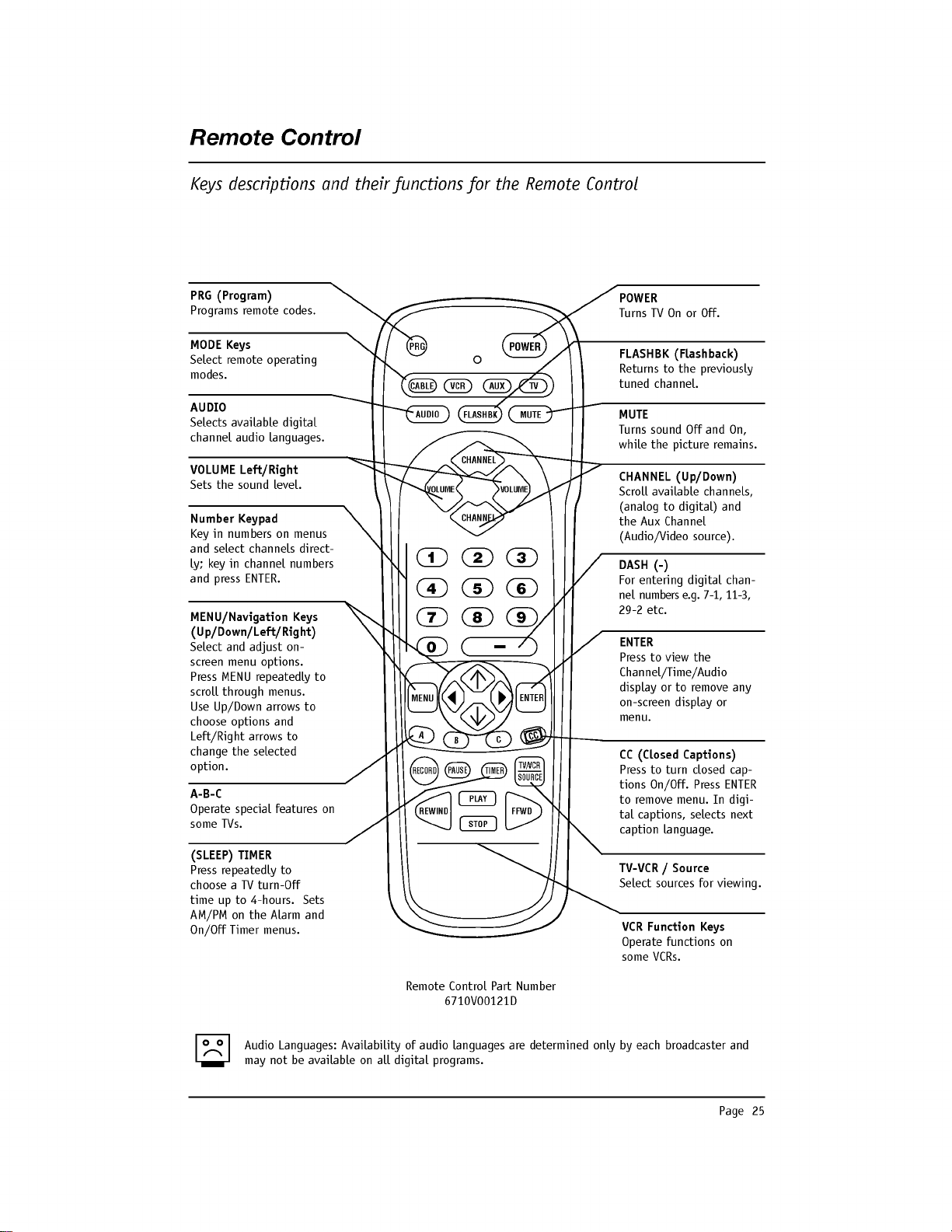
Page
25
Remote
Control
PRG
POWER
CABLE
VCR
AUX
TV
AUDIO
FLASHBK
MUTE
CHANNEL
CHANNEL
VOLUME VOLUME
123
456
7
0
89
MENU
REWIND
FFWD
RECORD
A
B
C
C
C
TV/VCR
SOURCE
PAUSE
TIMER
PLAY
STOP
ENTER
Keys
descriptions
and
their
functions for
the
Remote
Control
Remote
Control
Part
Number
6710V00121D
CHANNEL
(Up/Down)
Scroll
available
channels,
(analog
to
digital)
and
the
Aux
Channel
(Audio/Video
source).
PRG
(Program)
Programs
remote
codes.
VOLUME
Left/Right
Sets
the
sound
level.
Number
Keypad
Key
in
numbers
on
menus
and
select
channels
direct-
ly;
key
in
channel
numbers
and
press
ENTER.
A-B-C
Operate
special
features
on
some
TVs.
FLASHBK
(Flashback)
Returns
to
the
previously
tuned
channel.
MUTE
Turns
sound
Off
and
On,
while
the
picture
remains.
DASH
(-)
For
entering
digital
chan-
nel
numbers
e.g.
7-1,
11-3,
29-2
etc.
ENTER
Press
to
view
the
Channel/Time/Audio
display
or
to
remove
any
on-screen
display
or
menu.
AUDIO
Selects
available
digital
channel
audio
languages.
VCR
Function
Keys
Operate
functions
on
some
VCRs.
Audio
Languages:
Availability
of
audio
languages
are
determined
only
by
each
broadcaster
and
may
not
be
available
on
all
digital
programs.
MODE
Keys
Select
remote
operating
modes.
MENU/Navigation
Keys
(Up/Down/Left/Right)
Select
and
adjust
on-
screen
menu
options.
Press
MENU
repeatedly
to
scroll
through
menus.
Use
Up/Down
arrows
to
choose
options
and
Left/Right
arrows
to
change
the
selected
option.
(SLEEP)
TIMER
Press
repeatedly
to
choose
a
TV
turn-Off
time
up
to
4-hours.
Sets
AM/PM
on
the
Alarm
and
On/Off
Timer
menus.
CC
(Closed
Captions)
Press
to
turn
closed
cap-
tions
On/Off.
Press
ENTER
to
remove
menu.
In
digi-
tal
captions,
selects
next
caption
language.
POWER
Turns
TV On
or
Off.
TV-VCR
/
Source
Select
sources
for
viewing.
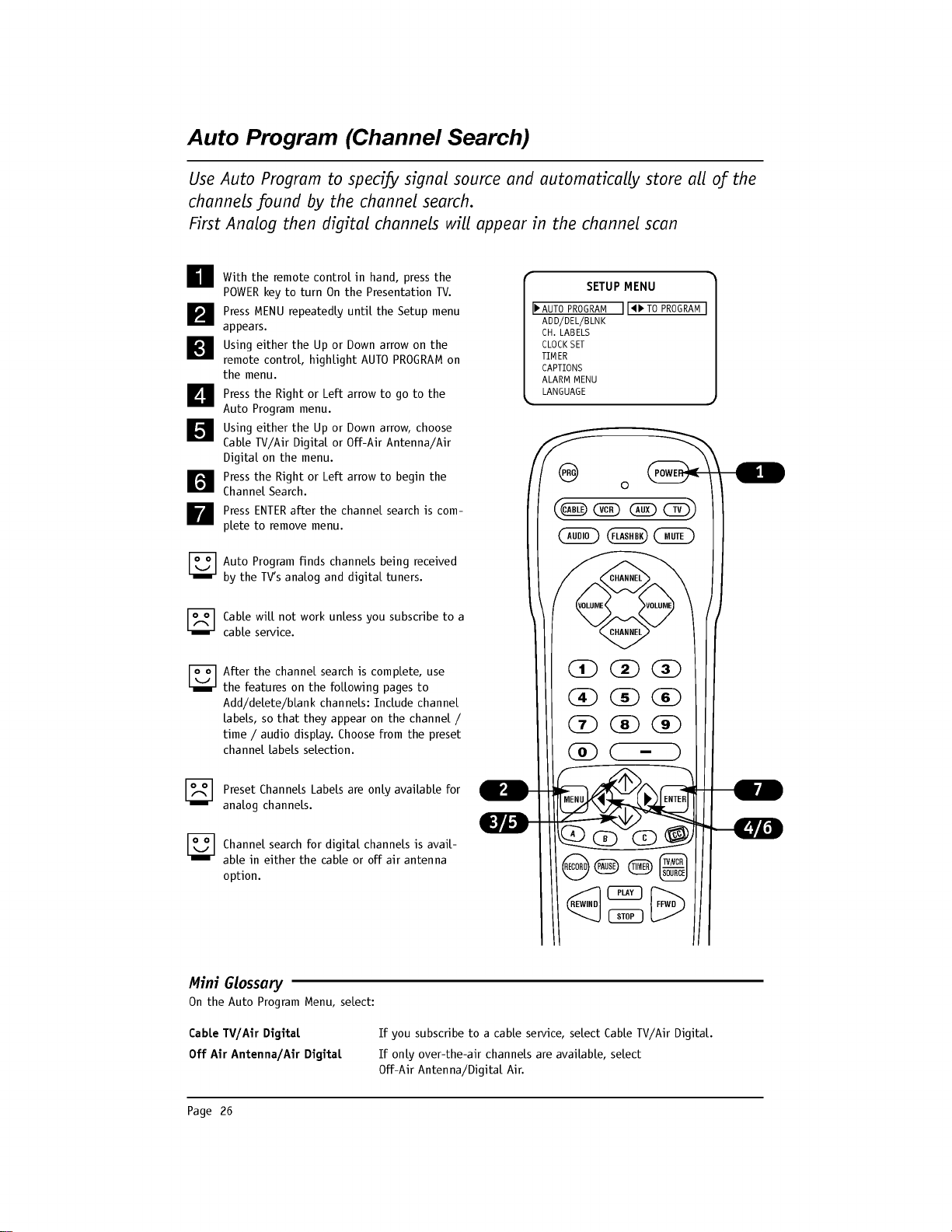
Page
26
Auto
Program
(Channel
Search)
With
the
remote
control
in
hand,
press
the
POWER
key
to
turn
On
the
Presentation
TV.
Press
MENU
repeatedly
until
the
Setup
menu
appears.
Using
either
the
Up
or
Down
arrow
on
the
remote
control,
highlight
AUTO
PROGRAM
on
the
menu.
Press
the
Right
or
Left
arrow
to
go
to
the
Auto
Program
menu.
Using
either
the
Up
or
Down
arrow,
choose
Cable
TV/Air
Digital
or
Off-Air
Antenna/Air
Digital
on
the
menu.
Press
the
Right
or
Left
arrow
to
begin
the
Channel
Search.
Press
ENTER
after
the
channel
search
is
com-
plete
to
remove
menu.
Auto
Program
finds
channels
being
received
by
the
TV's
analog
and
digital
tuners.
Cable
will
not
work
unless
you
subscribe
to
a
cable
service.
After
the
channel
search
is
complete,
use
the
features
on
the
following
pages
to
Add/delete/blank
channels:
Include
channel
labels,
so
that
they
appear
on
the
channel
/
time
/
audio
display.
Choose
from
the
preset
channel
labels
selection.
Preset
Channels
Labels
are
only
available
for
analog
channels.
Channel
search
for
digital
channels
is
avail-
able
in
either
the
cable
or
off
air
antenna
option.
Use
Auto
Program
to
specify
signal
source
and
automatically
store
all
of
the
channels
found
by
the
channel
search.
First
Analog
then
digital
channels
will
appear
in
the
channel
scan
AUTO
PROGRAM
ADD/DEL/BLNK
CH.
LABELS
CLOCK
SET
TIMER
CAPTIONS
ALARM
MENU
LANGUAGE
TO
PROGRAM
SETUP
MENU
PRG
POWER
CABLE
VCR
AUX
TV
AUDIO
FLASHBK
MUTE
CHANNEL
CHANNEL
VOLUME
VOLUME
123
456
7
0
89
MENU
REWIND
FFWD
RECORD
A
B
C
C
C
TV/VCR
SOURCE
PAUSE
TIMER
PLAY
STOP
ENTER
Mini
Glossary
On
the
Auto
Program
Menu,
select:
Cable
TV/Air
Digital
If
you
subscribe
to
a
cable
service,
select
Cable
TV/Air
Digital.
Off
Air
Antenna/Air
Digital
If
only
over-the-air
channels
are
available,
select
Off-Air
Antenna/Digital
Air.

Page
27
?
Aux
source
can
be
selected
by
keying
in
999
on
the
remote
control.
?
S-Video
source
can
be
selected
by
keying
in
132
on
the
remote
control.
You
can
make
connections
to
the
front
or
rear
connections
panels.
There
are a
vari-
ety
of
Audio/Video
devices
that
can
be
connected.
The
TV
can
be
used
as
a
moni-
tor
for
a
PC
or
portable
notebook
type
computer.
Inputs
are
available
for
Camcorders,
DVD
players,
VCRs,
S-Video
and
Component
video
devices.
This
TV
has
Auto
Source
Sensing
capability.
Or,
on
the
installer
menu,
set
to
0
to
enable
the
Computer
in
and
Video/Audio
Right-Left
input
jacks
on
the
TV
front
panel
to
be
options
on
the
Source
menu.
To
select
available
sources,
press
TV/VCR
Source
repeatedly
to
show
selectable
enabled
sources
on
the
menu.
Highlight
the
source
you
want
to
display,
then
press
ENTER
to
change
to
the
source.
Camport
(Camera
Port)
Auto
Sensing
Default
Setting
Item
40-I
Auto
Camport
Default
is
1.
Set
to
0
to
enable
on
the
Source
menu.
Compport
(Computer
Port)
Auto
Sensing
Default
Setting
Item
41-I
Auto
Compport
Default
is
1.
Set
to
0
to
enable
on
the
Source
menu.
Picture/Sound
Source
Selection
Make
direct
connections.
Use
the
TV/VCR
Source
key,
or
use
the
Source
menu
to
choose
the
sources
available
for
viewing
on
the
TV
screen
1
Front
(Camport)
2
Front
Computer
In
3
Rear
(Ch_
_)
4
Rear
(Aux)
V
id
e
o
i
n
R
-
a
u
d
io
-
L
Computer
in
5
S-Video
6
Rear
Computer
SVGA
ANTENNA
CABLE
R
L
IN
AUDIO
COMPUTER
R
L
TV
Back
C
O
M
P
U
T
E
R
I
N
VIDEO
IN
AUDIO
R
L
LPR
R
DVD
IN
Y
PB
7
Component
YPrPb
L
M.P.I.
C
O
M
P
U
T
E
R
I
N
PR
VIDEO
IN
IN
COMPUTER
R
DVD
IN
AUDIO
AUDIO
S-VIDE
O
AUDIO
OUT
R
L
R
L
R
L
Y
PB
480I
DI
GITAL
AN
TENNA
AN
TENN
A
C
ABLE
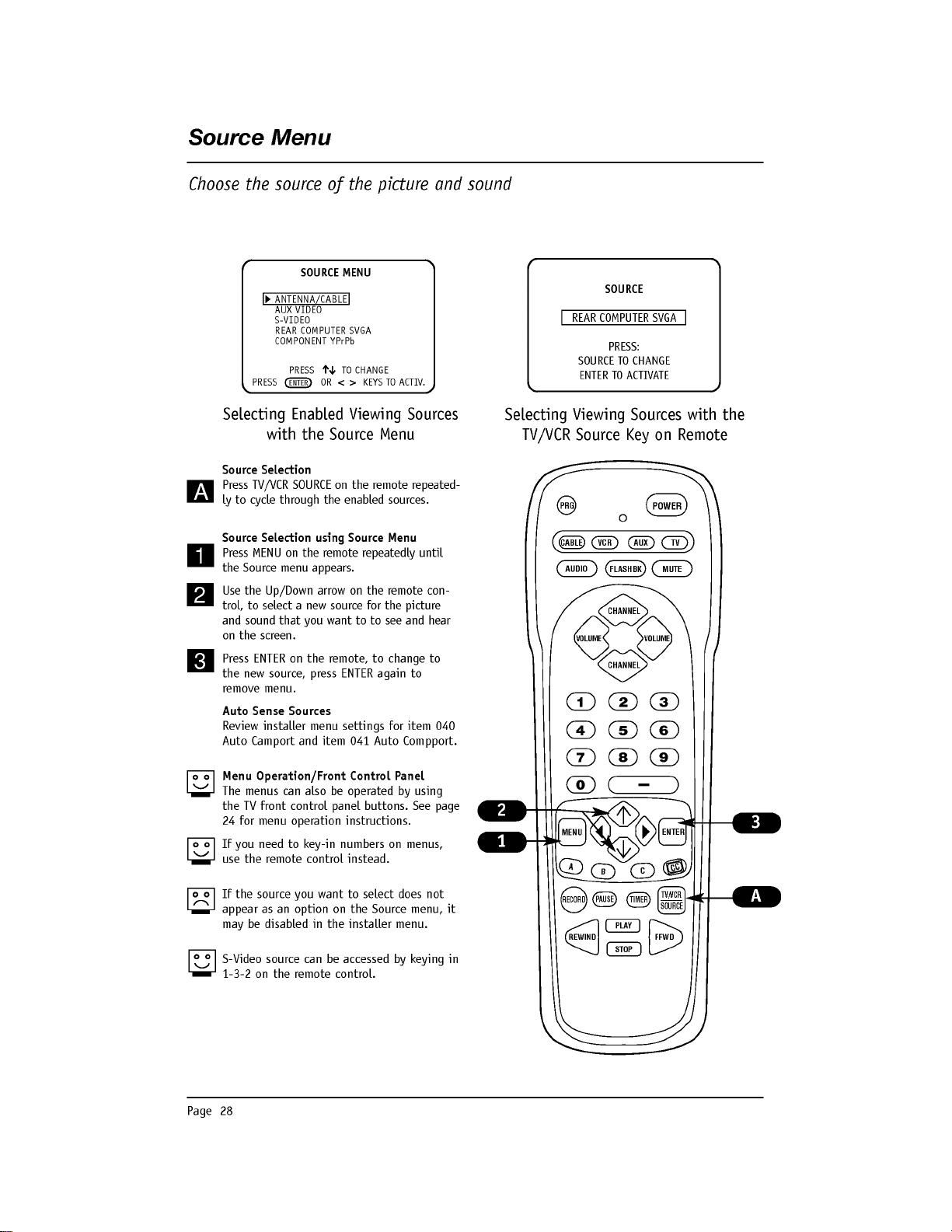
Page
28
Source
Menu
Choose
the
source
of
the
picture
and
sound
Source
Selection
Press
TV/VCR
SOURCE
on
the
remote
repeated-
ly
to
cycle
through
the
enabled
sources.
Source
Selection
using
Source
Menu
Press
MENU
on
the
remote
repeatedly
until
the
Source
menu
appears.
Use
the
Up/Down
arrow
on
the
remote
con-
trol,
to
select
a
new
source
for
the
picture
and
sound
that
you
want
to to
see
and
hear
on
the
screen.
Press
ENTER
on
the
remote,
to
change
to
the
new
source,
press
ENTER
again
to
remove
menu.
Auto
Sense
Sources
Review
installer
menu
settings
for
item
040
Auto
Camport
and
item
041
Auto
Compport.
Menu
Operation/Front
Control
Panel
The
menus
can
also
be
operated
by
using
the
TV
front
control
panel
buttons.
See
page
24
for
menu
operation
instructions.
If
you
need
to
key-in
numbers
on
menus,
use
the
remote
control
instead.
If
the
source
you
want
to
select
does
not
appear
as
an
option
on
the
Source
menu,
it
may
be
disabled
in
the
installer
menu.
S-Video
source can
be
accessed
by
keying
in
1-3-2
on
the
remote
control.
SOURCE
REAR
COMPUTER
SVGA
PRESS:
SOURCE
TO
CHANGE
ENTER
TO
ACTIVATE
PRG
POWER
CABLE
VCR
AUX
TV
AUDIO
FLASHBK
MUTE
CHANNEL
CHANNEL
VOLUME
VOLUME
123
456
7
0
89
MENU
REWIND
FFWD
RECORD
A
B
C
C
C
TV/VCR
SOURCE
PAUSE
TIMER
PLAY
STOP
ENTER
Selecting
Enabled
Viewing
Sources
with
the
Source
Menu
Selecting
Viewing
Sources
with
the
TV/VCR
Source
Key
on
Remote
PRESS
TO
CHANGE
PRESS
ENTER
OR
<>
KEYS
TO
ACTIV.
ANTENNA/CABLE
AUX
VIDEO
S-VIDEO
REAR
COMPUTER
SVGA
COMPONENT
YPrPb
SOURCE
MENU
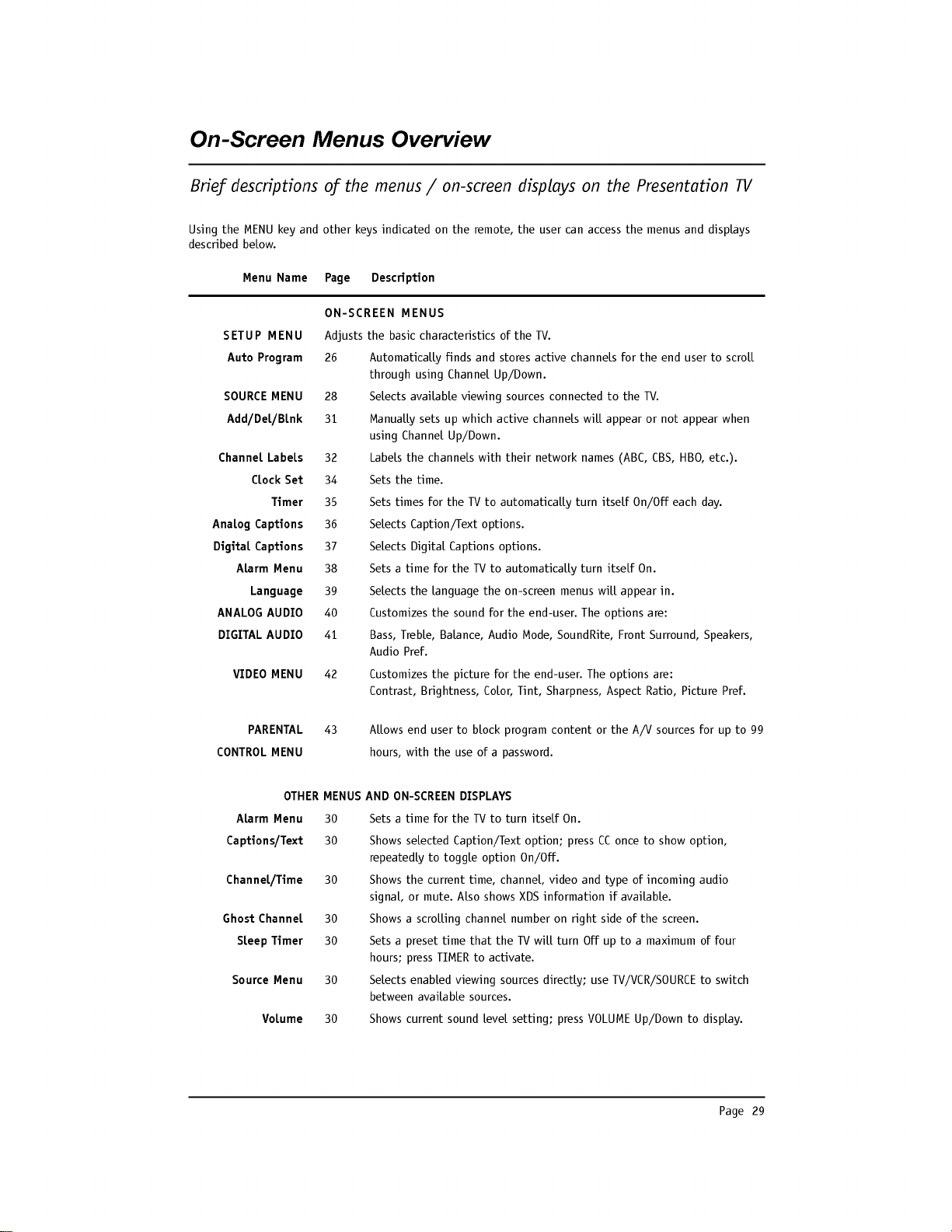
Page
29
Using
the
MENU
key
and
other
keys
indicated
on
the
remote,
the
user
can
access
the
menus
and
displays
described
below.
Menu
Name
Page
Description
ON-SCREEN
MENUS
SETUP
MENU
Adjusts
the
basic
characteristics
of
the
TV.
Auto
Program
26
Automatically
finds
and
stores
active
channels
for
the
end
user
to
scroll
through
using
Channel
Up/Down.
SOURCE
MENU
28
Selects
available
viewing
sources
connected
to
the
TV.
Add/Del/Blnk
31
Manually
sets
up
which
active
channels
will
appear
or
not
appear
when
using
Channel
Up/Down.
Channel
Labels
32
Labels
the
channels
with
their
network
names
(ABC,
CBS,
HBO,
etc.).
Clock
Set
34
Sets
the
time.
Timer
35
Sets
times
for
the
TV
to
automatically
turn
itself
On/Off
each
day.
Analog
Captions
36
Selects
Caption/Text
options.
Digital
Captions
37
Selects
Digital
Captions
options.
Alarm
Menu
38
Sets
a
time
for
the
TV
to
automatically
turn
itself
On.
Language
39
Selects
the
language
the
on-screen
menus
will
appear
in.
ANALOG
AUDIO
40
Customizes
the
sound
for
the
end-user.
The
options
are:
DIGITAL
AUDIO
41
Bass,
Treble,
Balance,
Audio
Mode,
SoundRite,
Front
Surround,
Speakers,
Audio
Pref.
VIDEO
MENU
42
Customizes
the
picture
for
the
end-user.
The
options
are:
Contrast,
Brightness,
Color,
Tint,
Sharpness,
Aspect
Ratio,
Picture
Pref.
PARENTAL
43
Allows
end
user
to
block
program
content
or
the
A/V
sources
for
up
to
99
CONTROL
MENU
hours,
with
the
use
of
a
password.
OTHER
MENUS
AND
ON-SCREEN
DISPLAYS
Alarm
Menu
30
Sets
a
time
for
the
TV
to
turn
itself
On.
Captions/Text
30
Shows
selected
Caption/Text
option;
press
CC
once
to
show
option,
repeatedly
to
toggle
option
On/Off.
Channel/Time
30
Shows
the
current
time,
channel,
video
and
type
of
incoming
audio
signal,
or
mute.
Also
shows
XDS
information
if
available.
Ghost
Channel
30
Shows
a
scrolling
channel
number
on
right
side of
the
screen.
Sleep
Timer
30
Sets
a
preset
time
that
the
TV
will
turn
Off
up
to
a
maximum
of
four
hours;
press
TIMER
to
activate.
Source
Menu
30
Selects
enabled
viewing
sources
directly;
use
TV/VCR/SOURCE
to
switch
between
available
sources.
Volume
30
Shows
current
sound
level
setting;
press
VOLUME
Up/Down
to
display.
On-Screen
Menus
Overview
Brief
descriptions
of
the
menus
/
on-screen
displays
on
the
Presentation
TV
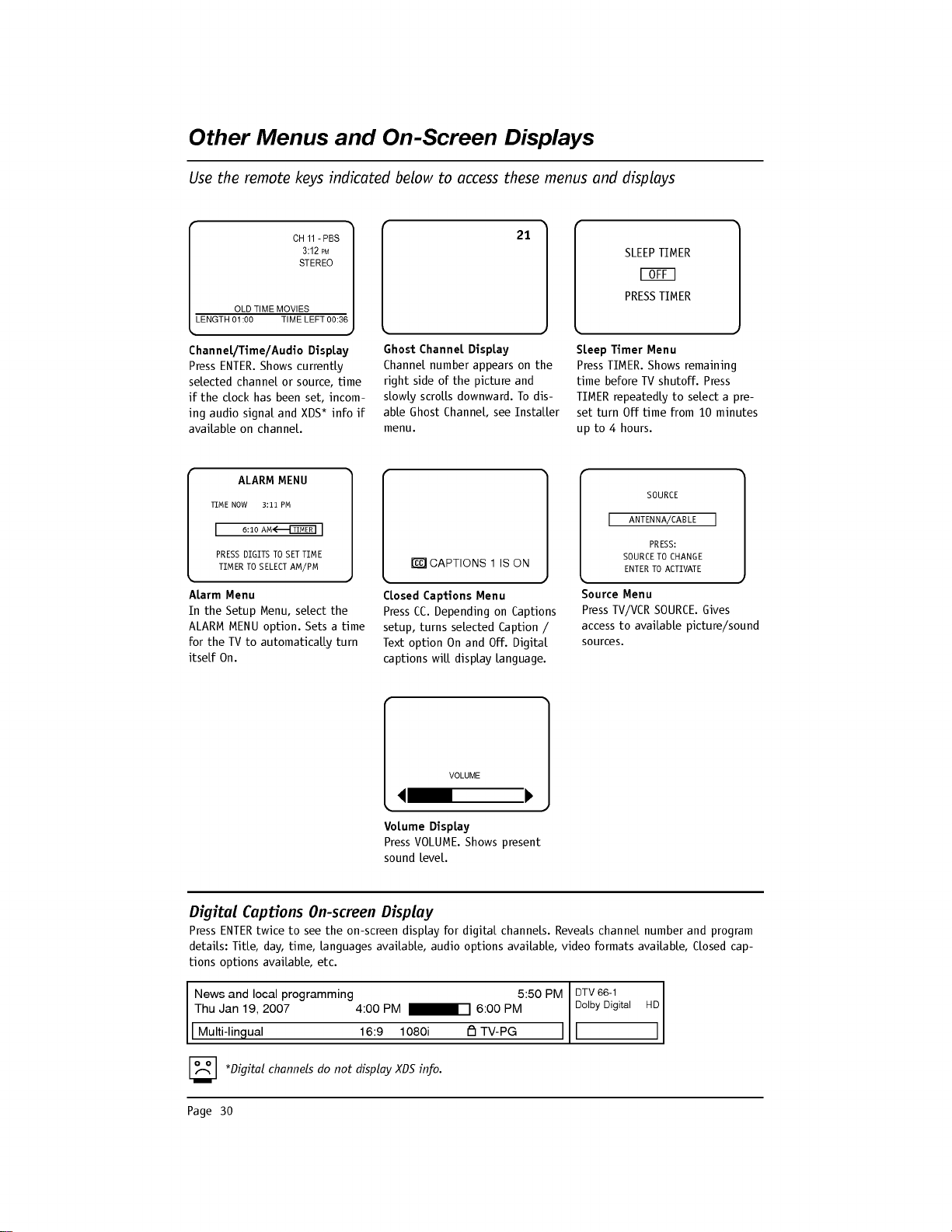
Page
30
Other
Menus
and
On-Screen
Displays
Use
the
remote
keys
indicated
below
to
access
these
menus
and
displays
News
and
local
programming
5:50
PM
Thu
Jan
19,
2007
4:00
PM
6:00
PM
DTV
66-1
Dolby
Digital
HD
Multi-lingual
16:9
1080i
TV-PG
Digital
Captions
On-screen
Display
Press
ENTER
twice
to
see
the
on-screen
display
for
digital
channels.
Reveals
channel
number
and
program
details:
Title,
day,
time,
languages
available,
audio
options
available,
video
formats
available,
Closed
cap-
tions
options
available,
etc.
SLEEP
TIMER
OFF
PRESS
TIMER
Sleep
Timer
Menu
Press
TIMER.
Shows
remaining
time
before
TV
shutoff.
Press
TIMER
repeatedly
to
select
a
pre-
set
turn
Off
time
from
10
minutes
up
to
4
hours.
Volume
Display
Press
VOLUME.
Shows
present
sound
level.
Closed
Captions
Menu
Press
CC.
Depending
on
Captions
setup,
turns
selected
Caption
/
Text
option
On
and
Off.
Digital
captions
will
display
language.
Alarm
Menu
In
the
Setup
Menu,
select
the
ALARM
MENU
option.
Sets
a
time
for
the
TV
to
automatically
turn
itself
On.
Source
Menu
Press
TV/VCR
SOURCE.
Gives
access
to
available
picture/sound
sources.
SOURCE
ANTENNA/CABLE
PRESS:
SOURCE
TO
CHANGE
ENTER
TO
ACTIVATE
PRESS
DIGITS
TO
SET
TIME
TIMER
TO
SELECT
AM/PM
ALARM
MENU
TIME
NOW
3:11
PM
6:10
AM
TIMER
Channel/Time/Audio
Display
Press
ENTER.
Shows
currently
selected
channel
or
source,
time
if
the
clock
has
been
set,
incom-
ing
audio
signal
and
XDS*
info
if
available
on
channel.
Ghost
Channel
Display
Channel
number
appears
on
the
right
side
of
the
picture
and
slowly
scrolls
downward.
To
dis-
able
Ghost
Channel,
see
Installer
menu.
21
&+ 3%6
30
67(5(2
OLD
TIME
MOVIES
LENGTH
01:00
TIME
LEFT
00:36
92/80(
CAPTIONS
1
IS
ON
CC
*Digital
channels
do
not
display
XDS
info.
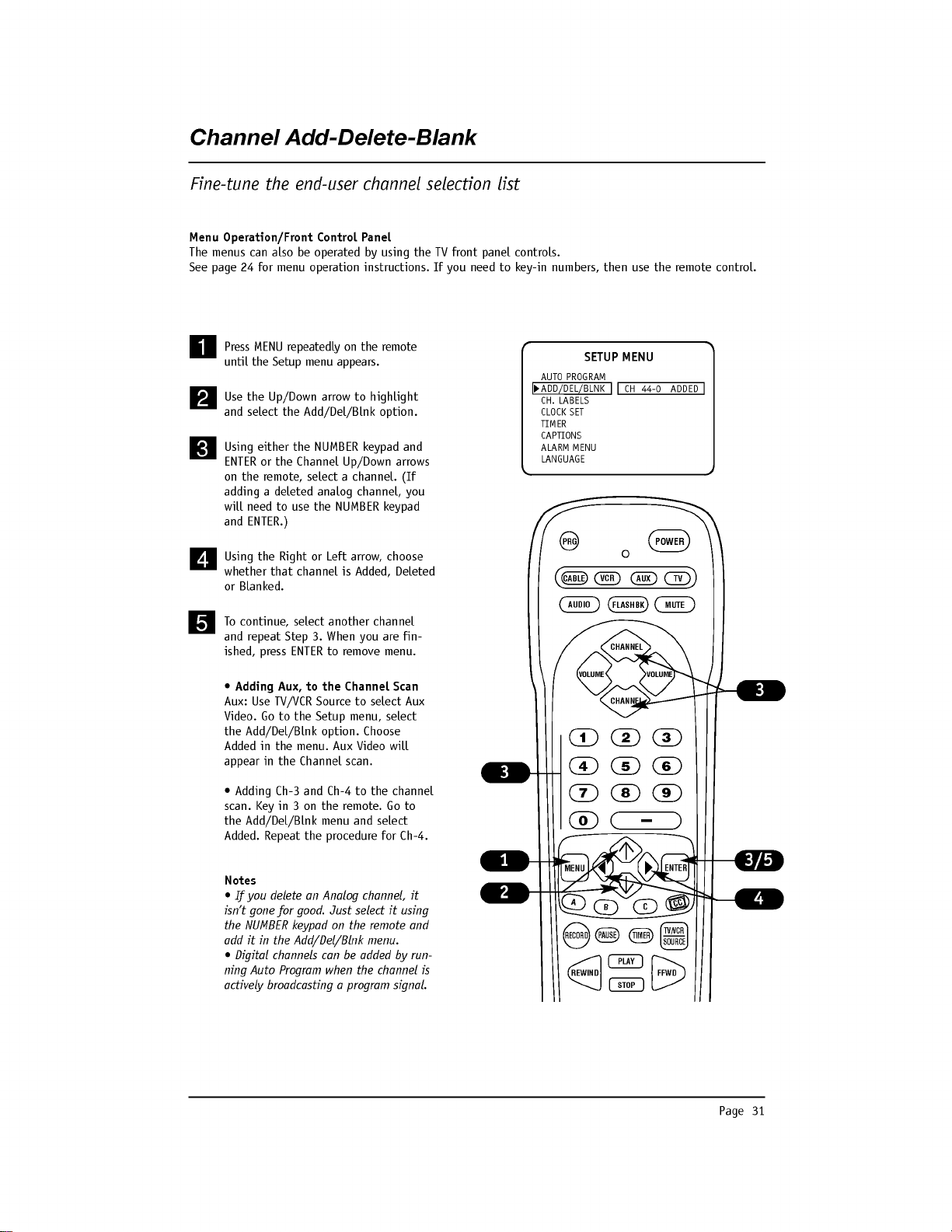
Page
31
Channel
Add-Delete-Blank
Fine-tune
the
end-user
channel
selection
list
Press
MENU
repeatedly
on
the
remote
until
the
Setup
menu
appears.
Use
the
Up/Down
arrow
to
highlight
and
select
the
Add/Del/Blnk
option.
Using
either
the
NUMBER
keypad
and
ENTER
or
the
Channel
Up/Down
arrows
on
the
remote,
select
a
channel.
(If
adding
a
deleted
analog
channel,
you
will
need
to
use
the
NUMBER
keypad
and
ENTER.)
Using
the
Right
or
Left
arrow,
choose
whether
that
channel
is
Added,
Deleted
or
Blanked.
To
continue,
select
another channel
and
repeat
Step
3.
When
you
are
fin-
ished,
press
ENTER
to
remove
menu.
?
Adding
Aux,
to
the
Channel
Scan
Aux:
Use
TV/VCR
Source
to
select
Aux
Video.
Go
to
the
Setup
menu,
select
the
Add/Del/Blnk
option.
Choose
Added
in
the
menu.
Aux
Video
will
appear
in
the
Channel
scan.
?
Adding
Ch-3
and
Ch-4
to
the
channel
scan.
Key
in
3
on
the
remote.
Go
to
the
Add/Del/Blnk
menu
and
select
Added.
Repeat
the
procedure
for
Ch-4.
Notes
?
If
you
delete
an
Analog
channel,
it
isn't
gone
for
good.
Just
select
it
using
the
NUMBER
keypad
on
the
remote
and
add
it
in
the
Add/Del/Blnk
menu.
?
Digital
channels
can
be
added
by
run-
ning
Auto
Program
when
the
channel
is
actively
broadcasting
a
program
signal.
Menu
Operation/Front
Control
Panel
The
menus
can
also
be
operated
by
using
the
TV
front
panel
controls.
See
page
24
for
menu
operation
instructions.
If
you
need
to
key-in
numbers,
then
use
the
remote
control.
AUTO
PROGRAM
ADD/DEL/BLNK
CH.
LABELS
CLOCK
SET
TIMER
CAPTIONS
ALARM
MENU
LANGUAGE
CH
44-0
ADDED
SETUP
MENU
PRG
POWER
CABLE
VCR
AUX
TV
AUDIO
FLASHBK
MUTE
CHANNEL
CHANNEL
VOLUME
VOLUME
123
456
7
0
89
MENU
REWIND
FFWD
RECORD
A
B
C
C
C
TV/VCR
SOURCE
PAUSE
TIMER
PLAY
STOP
ENTER
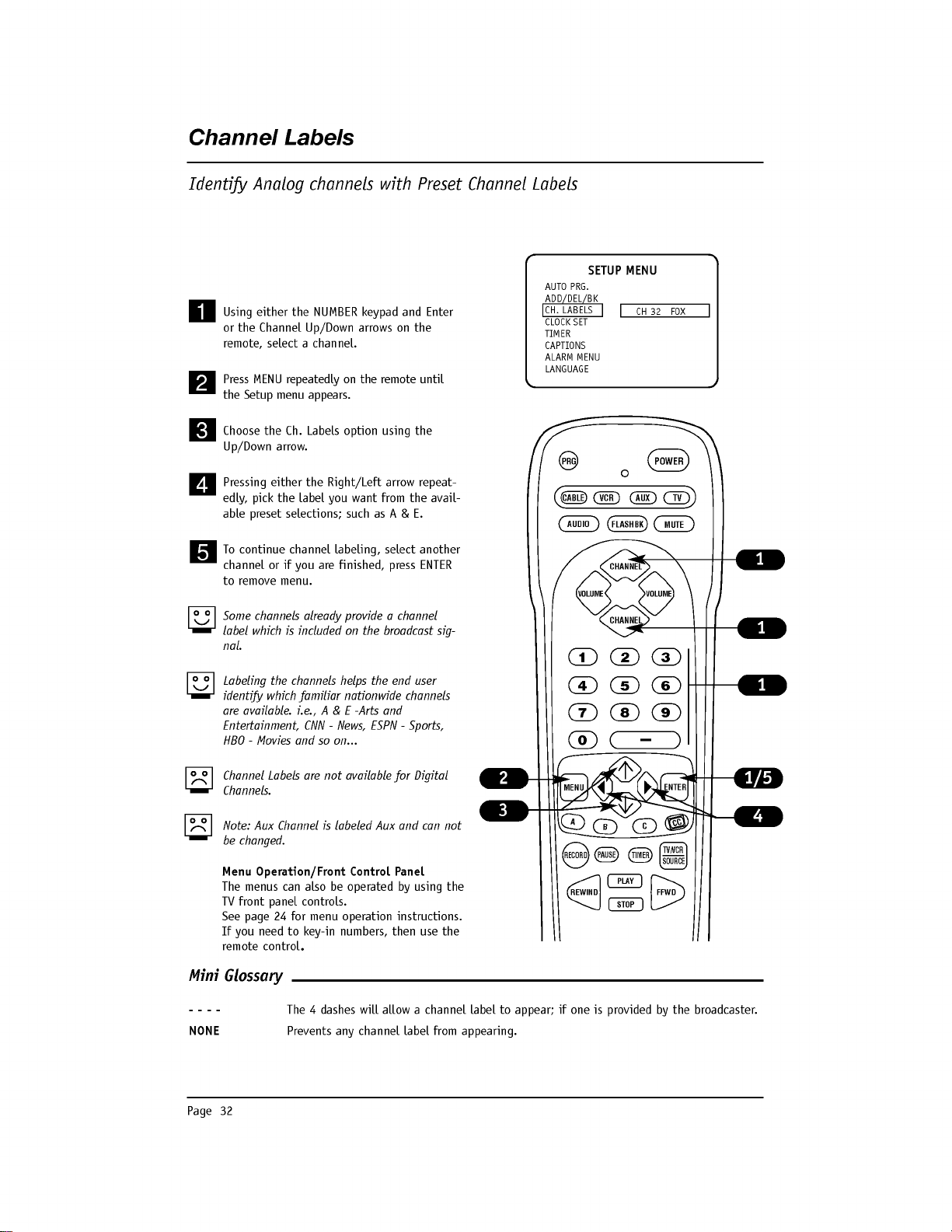
Page
32
Channel
Labels
Identify
Analog
channels
with
Preset
Channel
Labels
Using
either
the
NUMBER
keypad
and
Enter
or
the
Channel
Up/Down
arrows
on
the
remote,
select
a
channel.
Press
MENU
repeatedly
on
the
remote
until
the
Setup
menu
appears.
Choose
the
Ch.
Labels
option
using
the
Up/Down
arrow.
Pressing
either
the
Right/Left
arrow
repeat-
edly,
pick
the
label
you
want
from
the
avail-
able
preset
selections;
such
as
A
&
E.
To
continue
channel
labeling,
select
another
channel
or
if
you
are
finished,
press
ENTER
to
remove
menu.
Some
channels
already
provide
a
channel
label
which
is
included
on
the
broadcast
sig-
nal.
Labeling
the
channels
helps
the
end
user
identify
which
familiar
nationwide
channels
are
available.
i.e.,
A
&
E
-Arts
and
Entertainment,
CNN
-
News,
ESPN
-
Sports,
HBO
-
Movies
and
so
on...
Channel
Labels
are
not
available
for
Digital
Channels.
Note:
Aux
Channel
is
labeled
Aux
and
can
not
be
changed.
AUTO
PRG.
ADD/DEL/BK
CH.
LABELS
CLOCK
SET
TIMER
CAPTIONS
ALARM
MENU
LANGUAGE
CH
32
FOX
SETUP
MENU
PRG
POWER
CABLE
VCR
AUX
TV
AUDIO
FLASHBK
MUTE
CHANNEL
CHANNEL
VOLUME
VOLUME
123
456
7
0
89
MENU
REWIND
FFWD
RECORD
A
B
C
C
C
TV/VCR
SOURCE
PAUSE
TIMER
PLAY
STOP
ENTER
Mini
Glossary
----
The
4
dashes
will
allow
a
channel
label
to
appear;
if
one
is
provided
by
the
broadcaster.
NONE
Prevents
any
channel
label
from
appearing.
Menu
Operation/Front
Control
Panel
The
menus
can
also
be
operated
by
using
the
TV
front
panel
controls.
See
page
24
for
menu
operation
instructions.
If
you
need
to
key-in
numbers,
then
use
the
remote
control.
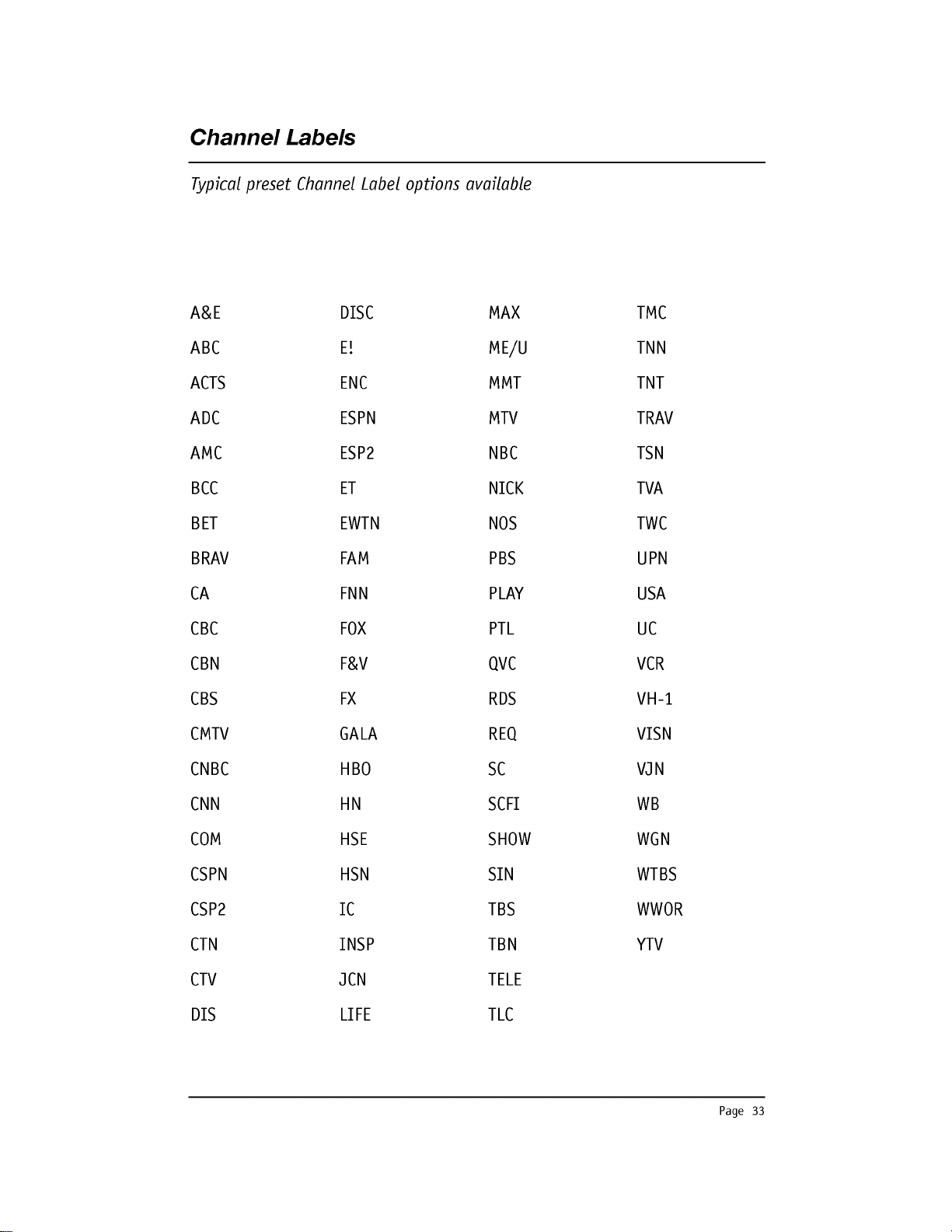
Page
33
Channel
Labels
Typical
preset
Channel
Label
options
available
A&E
ABC
ACTS
ADC
AMC
BCC
BET
BRAV
CA
CBC
CBN
CBS
CMTV
CNBC
CNN
COM
CSPN
CSP2
CTN
CTV
DIS
DISC
E!
ENC
ESPN
ESP2
ET
EWTN
FAM
FNN
FOX
F&V
FX
GALA
HBO
HN
HSE
HSN
IC
INSP
JCN
LIFE
MAX
ME/U
MMT
MTV
NBC
NICK
NOS
PBS
PLAY
PTL
QVC
RDS
REQ
SC
SCFI
SHOW
SIN
TBS
TBN
TELE
TLC
TMC
TNN
TNT
TRAV
TSN
TVA
TWC
UPN
USA
UC
VCR
VH-1
VISN
VJN
WB
WGN
WTBS
WWOR
YTV
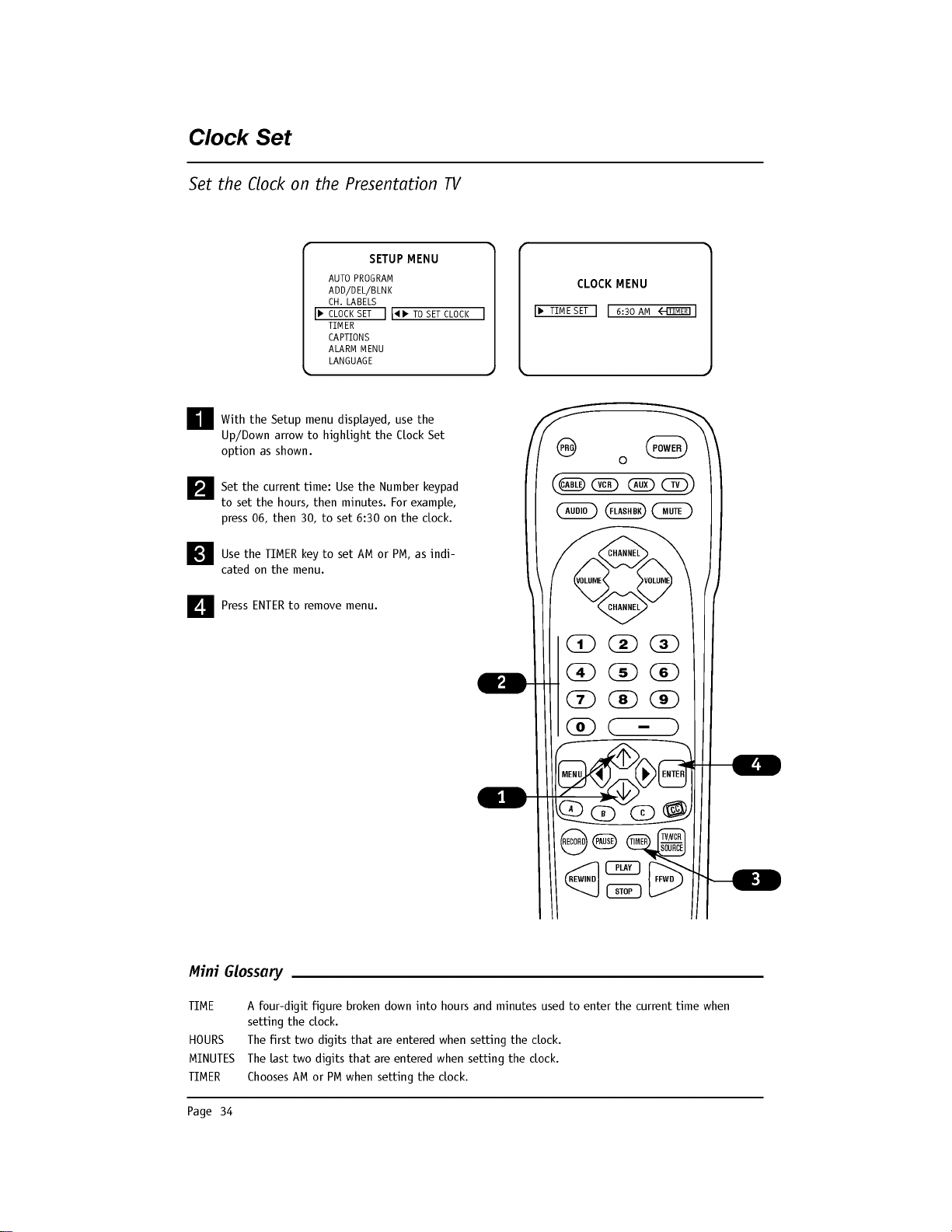
Page
34
Clock
Set
Set
the
Clock
on
the
Presentation
TV
With
the
Setup
menu
displayed,
use
the
Up/Down
arrow
to
highlight
the
Clock
Set
option
as
shown.
Set
the
current
time:
Use
the
Number
keypad
to
set
the
hours,
then
minutes.
For
example,
press
06,
then
30,
to
set
6:30
on
the
clock.
Use
the
TIMER
key
to
set
AM
or
PM,
as
indi-
cated
on
the
menu.
Press
ENTER
to
remove
menu.
AUTO
PROGRAM
ADD/DEL/BLNK
CH.
LABELS
CLOCK
SET
TIMER
CAPTIONS
ALARM
MENU
LANGUAGE
TO
SET
CLOCK
TIME
SET
6:30
AM
TIMER
CLOCK
MENU
SETUP
MENU
PRG
POWER
CABLE
VCR
AUX
TV
AUDIO
FLASHBK
MUTE
CHANNEL
CHANNEL
VOLUME
VOLUME
123
456
7
0
89
MENU
REWIND
FFWD
RECORD
A
B
C
C
C
TV/VCR
SOURCE
PAUSE
TIMER
PLAY
STOP
ENTER
Mini
Glossary
TIME
A
four-digit figure
broken
down
into
hours
and
minutes
used
to
enter
the
current
time
when
setting
the
clock.
HOURS
The
first
two
digits
that
are
entered
when
setting
the
clock.
MINUTES
The
last
two
digits
that
are
entered
when
setting
the
clock.
TIMER
Chooses
AM
or
PM
when
setting
the
clock.
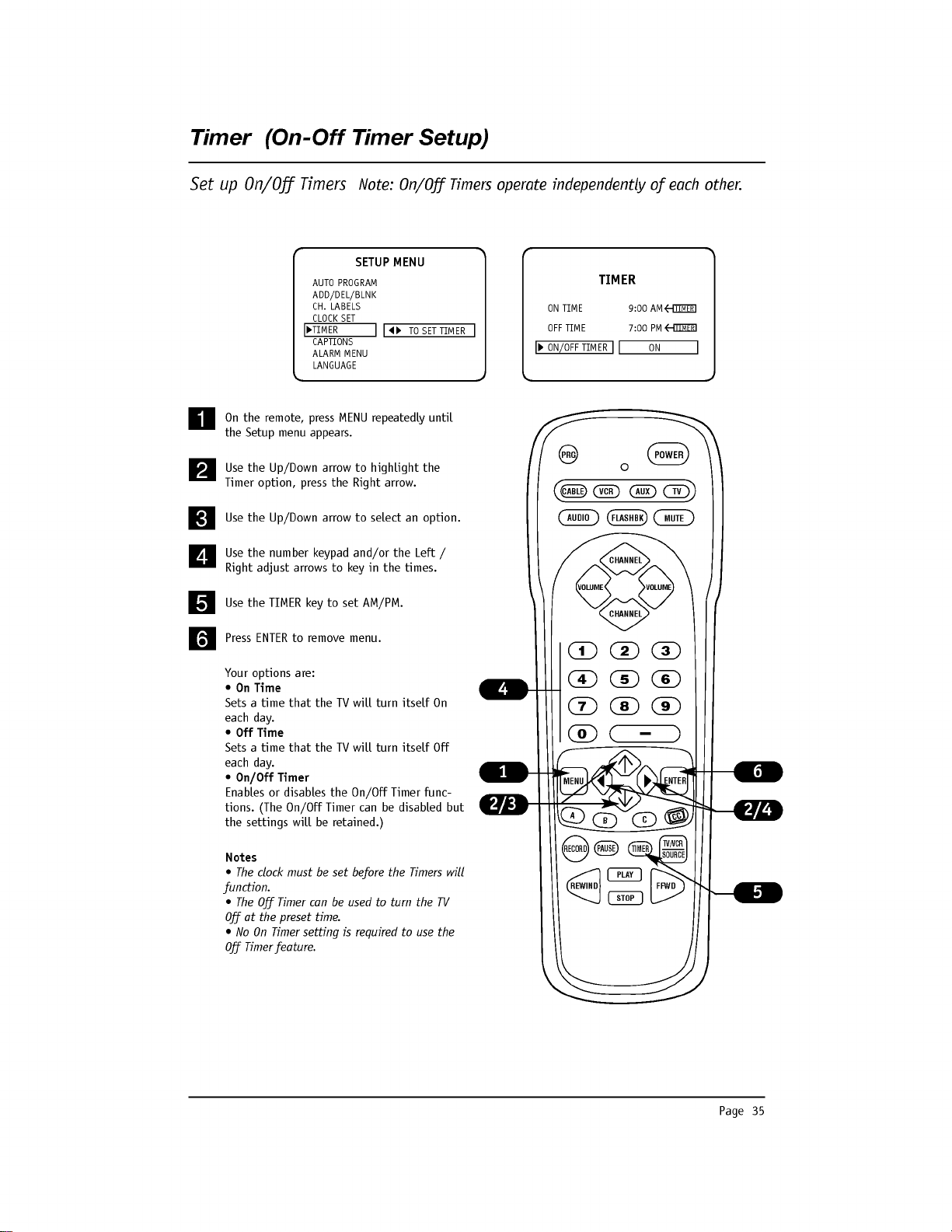
Page
35
Timer
(On-Off
Timer
Setup)
Set
up
On/Off
Timers
Note:
On/Off
Timers
operate
independently
of
each
other.
On
the
remote,
press
MENU
repeatedly
until
the
Setup
menu
appears.
Use
the
Up/Down
arrow
to
highlight
the
Timer
option,
press
the
Right
arrow.
Use
the
Up/Down
arrow
to
select
an
option.
Use
the
number
keypad
and/or
the
Left
/
Right
adjust
arrows
to
key
in
the
times.
Use
the
TIMER
key
to
set
AM/PM.
Press
ENTER
to
remove
menu.
Your
options
are:
?
On
Time
Sets
a
time
that
the
TV
will
turn
itself
On
each
day.
?
Off
Time
Sets
a
time
that
the
TV
will
turn
itself
Off
each
day.
?
On/Off
Timer
Enables
or
disables
the
On/Off
Timer
func-
tions.
(The
On/Off
Timer
can
be
disabled
but
the
settings
will
be
retained.)
Notes
?
The
clock
must
be
set
before
the
Timers
will
function.
?
The
Off
Timer
can
be used
to
turn
the
TV
Off
at
the
preset
time.
?
No
On
Timer
setting
is
required
to
use
the
Off
Timer
feature.
AUTO
PROGRAM
ADD/DEL/BLNK
CH.
LABELS
CLOCK
SET
TIMER
CAPTIONS
ALARM
MENU
LANGUAGE
TO
SET
TIMER
ON
TIME
9:00
AM
OFF
TIME
7:00
PM
ON/OFF
TIMER
ON
TIMER
SETUP
MENU
TIMER
TIMER
PRG
POWER
CABLE
VCR
AUX
TV
AUDIO
FLASHBK
MUTE
CHANNEL
CHANNEL
VOLUME
VOLUME
123
456
7
0
89
MENU
REWIND
FFWD
RECORD
A
B
C
C
C
TV/VCR
SOURCE
PAUSE
TIMER
PLAY
STOP
ENTER
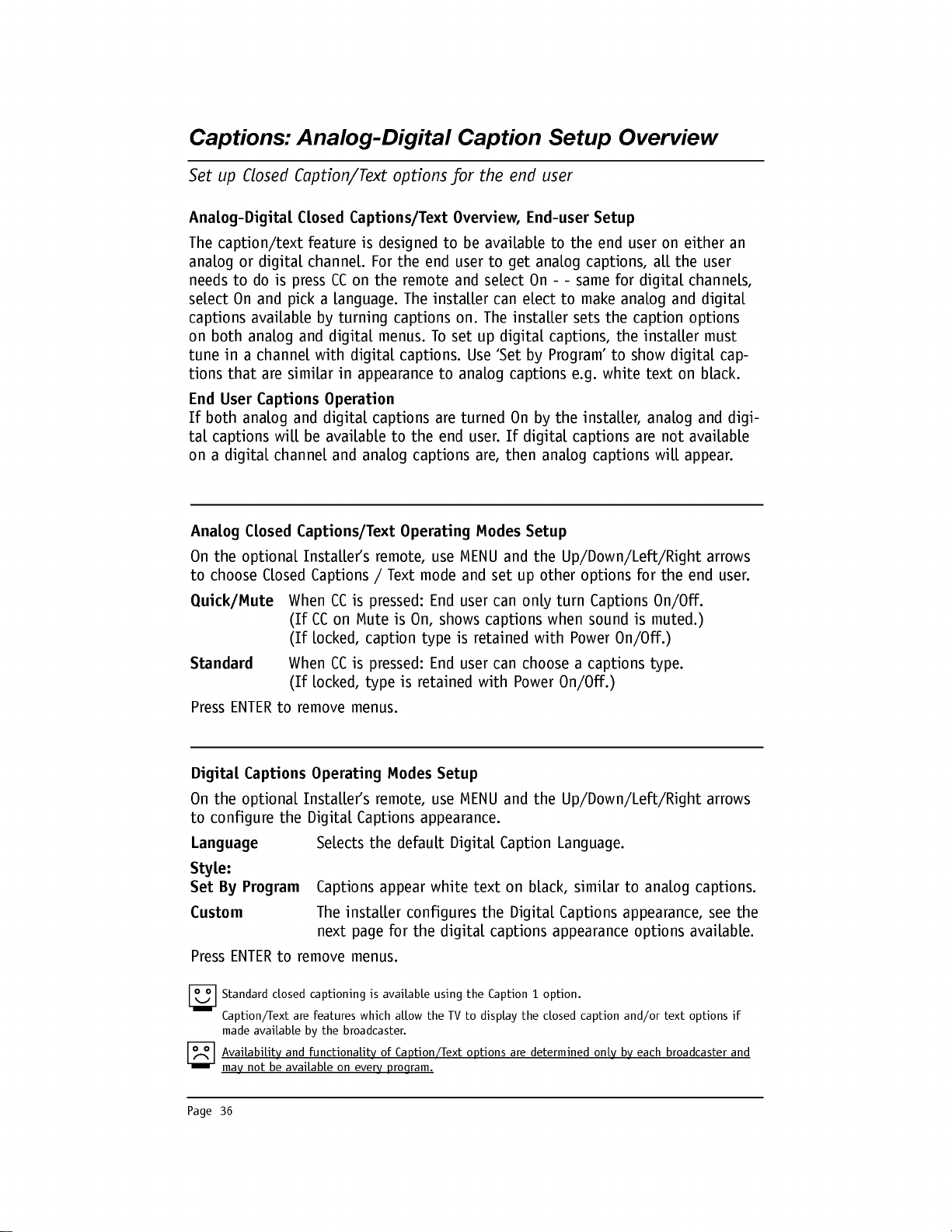
Page
36
Analog
Closed
Captions/Text
Operating
Modes
Setup
On
the
optional
Installer's
remote,
use
MENU
and
the
Up/Down/Left/Right
arrows
to
choose
Closed
Captions
/
Text
mode
and
set
up
other
options
for
the
end
user.
Quick/Mute
When
CC
is
pressed:
End
user
can
only
turn
Captions
On/Off.
(If
CC
on
Mute
is
On,
shows
captions
when
sound
is
muted.)
(If
locked,
caption
type
is
retained
with
Power
On/Off.)
Standard
When
CC
is
pressed:
End
user
can
choose
a
captions
type.
(If
locked,
type
is
retained
with
Power
On/Off.)
Press
ENTER
to
remove
menus.
Digital
Captions
Operating
Modes
Setup
On
the
optional
Installer's
remote,
use
MENU
and
the
Up/Down/Left/Right
arrows
to
configure
the
Digital
Captions
appearance.
Language
Selects
the
default
Digital
Caption
Language.
Style:
Set
By
Program
Captions
appear
white
text
on
black,
similar
to
analog
captions.
Custom
The
installer
configures
the
Digital
Captions
appearance,
see
the
next
page
for
the
digital
captions
appearance
options
available.
Press
ENTER
to
remove
menus.
Captions:
Analog-Digital
Caption
Setup
Overview
Standard
closed
captioning
is
available
using
the
Caption
1
option.
Caption/Text
are
features
which
allow
the
TV
to
display
the
closed
caption
and/or
text
options
if
made
available
by
the
broadcaster.
Availability
and
functionality
of
Caption/Text
options
are
determined
only
by
each
broadcaster
and
may
not
be
available
on
every
program.
Set
up
Closed
Caption/Text
options
for
the
end
user
Analog-Digital
Closed
Captions/Text
Overview,
End-user
Setup
The
caption/text
feature
is
designed
to
be
available
to
the
end
user
on
either
an
analog
or
digital
channel.
For
the
end
user
to
get
analog
captions,
all
the
user
needs
to
do
is
press
CC
on
the
remote
and
select
On
- -
same
for
digital
channels,
select
On
and
pick
a
language.
The
installer
can
elect
to
make
analog
and
digital
captions
available
by
turning
captions
on.
The
installer
sets
the
caption
options
on
both
analog
and
digital
menus.
To
set
up
digital
captions,
the
installer
must
tune
in
a
channel
with
digital
captions.
Use
'Set
by
Program'
to
show
digital
cap-
tions
that
are
similar
in
appearance
to
analog
captions
e.g.
white
text
on
black.
End
User
Captions
Operation
If
both
analog
and
digital
captions
are
turned
On
by
the
installer,
analog
and
digi-
tal
captions
will
be
available
to
the
end
user.
If
digital
captions
are
not
available
on
a
digital
channel
and
analog
captions
are,
then
analog
captions
will
appear.

Page
37
Mini
Glossary
CAPTIONS
The
term
for
the
words
that
scroll
across
the
bottom
of
your
TV
screen;
usually
the
audio
portion
of
the
program
provided
for
the
hearing
impaired.
TEXT
The
term
for
the
words
that
appear
in
a
large
black
frame
and
almost
cover
the
entire
screen;
usually
messages
provided
by
the
broadcaster.
(Only
available
on
analog
channels.)
SETUP
MENU
OPER.
MODE
SEL.
CC
TYPE
CC
CAPTION
CAPTION
LOCK
CAPTION
1
CAPTION
2
CAPTION
3
CAPTION 4
TEXT
1
TEXT
2
TEXT
3
TEXT
4
QUICK
ON/OFF
TO
SET
CAPTIONS
SETUP
MENU
CAPTION
SETUP
CAPTION
SETUP
OFF
CAPTION
1
CAPTION
2
CAPTION
3
CAPTION
4
TEXT
1
TEXT
2
TEXT
3
TEXT
4
STANDARD
ON/OFF
ON/OFF
AUTO
PROGRAM
ADD/DEL/BLNK
CH.
LABELS
CLOCK
SET
TIMER
CAPTIONS
ALARM
MENU
LANGUAGE
TO
SET
CAPTIONS
AUTO
PROGRAM
ADD/DEL/BLNK
CH.
LABELS
CLOCK
SET
TIMER
CAPTIONS
ALARM
MENU
LANGUAGE
OPER.
MODE
SEL.
CC
TYPE
CAPTION
LOCK
SETUP
MENU
SETUP
MENU
STYLE
SIZE
FONT
TEXT
COLOR
TEXT
OPACITY
BACK
COLOR
BACK
OPACITY
EDGE
TYPE
EDGE
COLOR
LANGUAGE
CAPT.
ON/OFF
CAPTION
LOCK
STYLE
SIZE
FONT
TEXT
COLOR
TEXT
OPACITY
BACK
COLOR
BACK
OPACITY
EDGE TYPE
EDGE
COLOR
LANGUAGE
CAPT.
ON/OFF
CAPTION
LOCK
ON
OFF
ENGLISH
SPANISH
FRENCH
BLACK
WHITE
RED
GREEN
BLUE
YELLOW
MAGENTA
CYAN
SOLID
FLASH
TRANSLUCENT
TRANSPARENT
SOLID
FLASH
TRANSLUCENT
TRANSPARENT
BLACK
WHITE
RED
GREEN
BLUE
YELLOW
MAGENTA
CYAN
BLACK
WHITE
RED
GREEN
BLUE
YELLOW
MAGENTA
CYAN
NONE
RAISED
DEPRESSED
UNIFORM
LEFT
SHADOW
RIGHT
SHADOW
FONT
0
FONT
1
FONT
2
FONT
3
FONT
4
FONT
5
FONT
6
FONT
7
ON
OFF
ON
OFF
DIGITAL
CAPTIONS
SETUP
SMALL
STANDARD
LARGE
DIGITAL
CAPTIONS
SETUP
SET
BY
PROGRAM
CUSTOM
ON
OFF
TO
SET
CAPTIONS
AUTO
PROGRAM
ADD/DEL/BLNK
CH.
LABELS
CLOCK
SET
TIMER
CAPTIONS
ALARM
MENU
LANGUAGE
TO
SET
CAPTIONS
AUTO
PROGRAM
ADD/DEL/BLNK
CH.
LABELS
CLOCK
SET
TIMER
CAPTIONS
ALARM
MENU
LANGUAGE
Using
the
Set
By
Program
option,
Digital
captions
appear
white
text
on
a
black
rectangular
background.
Using
the
Custom
option,
Digital
captions
appearance
can
be
set
to
a
wide
variety
of
colors
and
styles.
Captions:
Analog-Digital
Menu
Structures
Review
Analog
and
Digital
Captions
options
available
Note:
Digital
captions
are
only
available
on
some
digital
channels.
Digital
Captions
Menu
Structure
Analog
Captions
Menu
Structure
Analog
Captions
appear
white
text
on
a
black
rectangular
background
and
vary
in
position
on
the
screen.
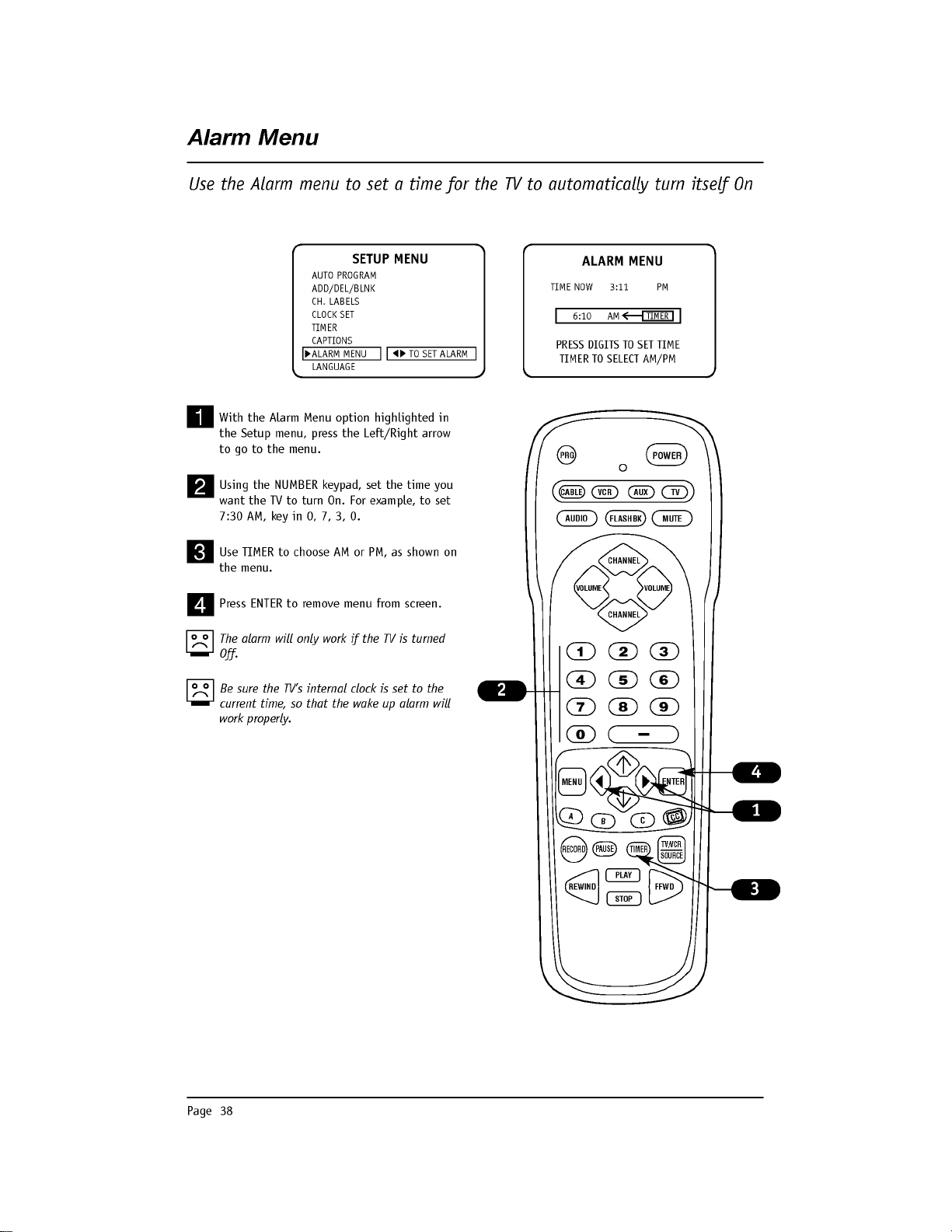
Page
38
Alarm
Menu
Use
the
Alarm
menu
to
set
a
time
for
the
TV
to
automatically
turn
itself
On
With
the
Alarm
Menu
option
highlighted
in
the
Setup
menu,
press
the
Left/Right
arrow
to
go
to
the
menu.
Using
the
NUMBER
keypad,
set
the
time
you
want
the
TV
to turn
On.
For
example,
to
set
7:30AM,keyin0,7,3,0.
Use
TIMER
to
choose
AM
or
PM,
as
shown
on
the
menu.
Press
ENTER
to
remove
menu
from
screen.
The
alarm
will
only
work
if
the
TV
is
turned
Off.
Be
sure
the
TV's
internal
clock
is
set
to
the
current
time,
so
that the
wake
up
alarm
will
work
properly.
AUTO
PROGRAM
ADD/DEL/BLNK
CH.
LABELS
CLOCK
SET
TIMER
CAPTIONS
ALARM
MENU
LANGUAGE
TO
SET
ALARM
PRESS
DIGITS
TO SET
TIME
TIMER
TO
SELECT
AM/PM
ALARM
MENU
TIME
NOW
3:11
PM
6:10
AM
TIMER
SETUP
MENU
PRG
POWER
CABLE
VCR
AUX
TV
AUDIO
FLASHBK
MUTE
CHANNEL
CHANNEL
VOLUME
VOLUME
123
456
7
0
89
MENU
REWIND
FFWD
RECORD
A
B
C
C
C
TV/VCR
SOURCE
PAUSE
TIMER
PLAY
STOP
ENTER
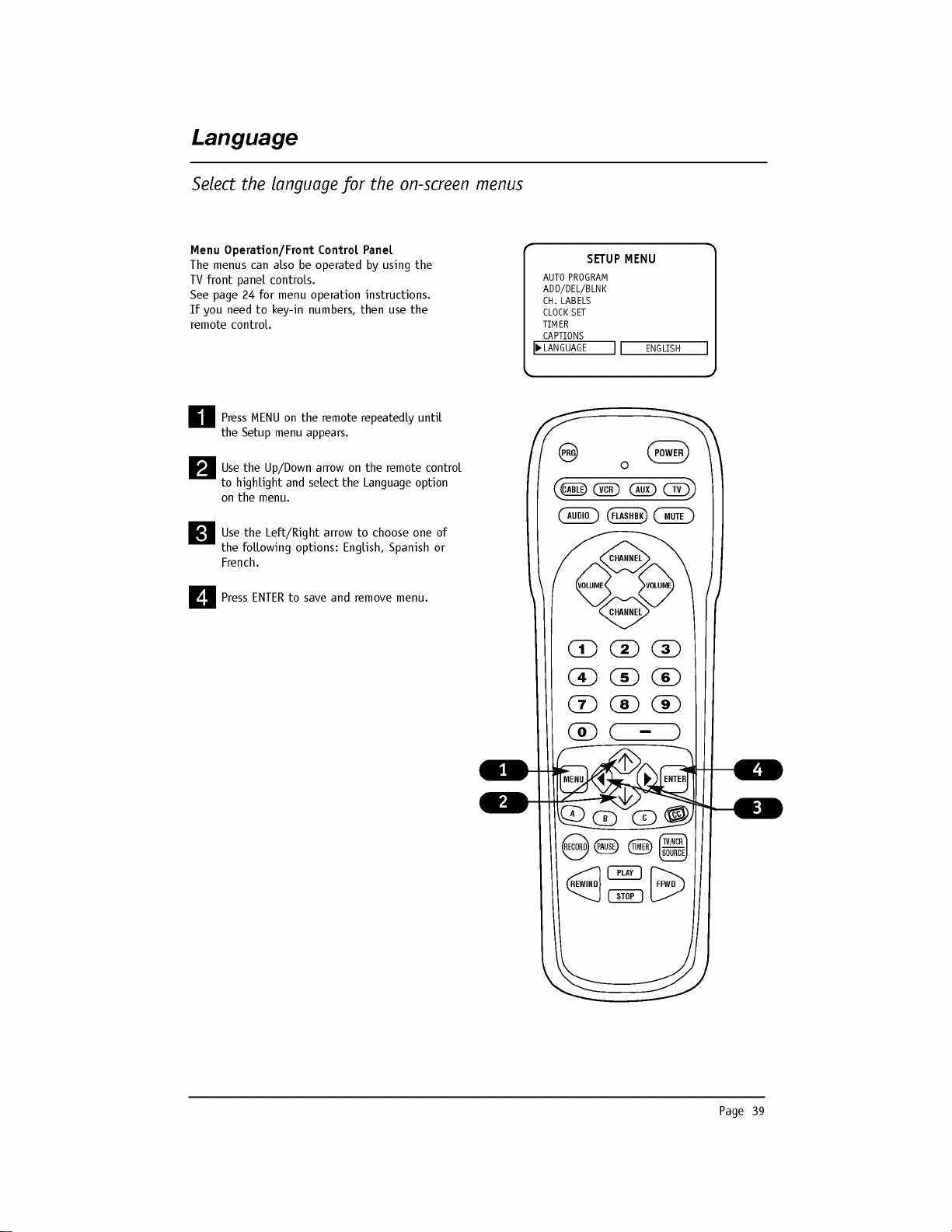
Page
39
Language
Select
the
language
for
the
on-screen
menus
Press
MENU
on
the
remote
repeatedly
until
the
Setup
menu
appears.
Use
the
Up/Down
arrow
on
the
remote
control
to
highlight
and
select
the
Language
option
on
the
menu.
Use
the
Left/Right
arrow
to
choose
one
of
the
following
options:
English,
Spanish
or
French.
Press
ENTER
to
save
and
remove
menu.
AUTO
PROGRAM
ADD/DEL/BLNK
CH.
LABELS
CLOCK
SET
TIMER
CAPTIONS
LANGUAGE
ENGLISH
SETUP
MENU
PRG
POWER
CABLE
VCR
AUX
TV
AUDIO
FLASHBK
MUTE
CHANNEL
CHANNEL
VOLUME
VOLUME
123
456
7
0
89
MENU
REWIND
FFWD
RECORD
A
B
C
C
C
TV/VCR
SOURCE
PAUSE
TIMER
PLAY
STOP
ENTER
Menu
Operation/Front
Control
Panel
The
menus
can
also
be
operated
by
using
the
TV
front
panel
controls.
See
page
24
for
menu
operation
instructions.
If
you
need
to
key-in
numbers,
then
use
the
remote
control.
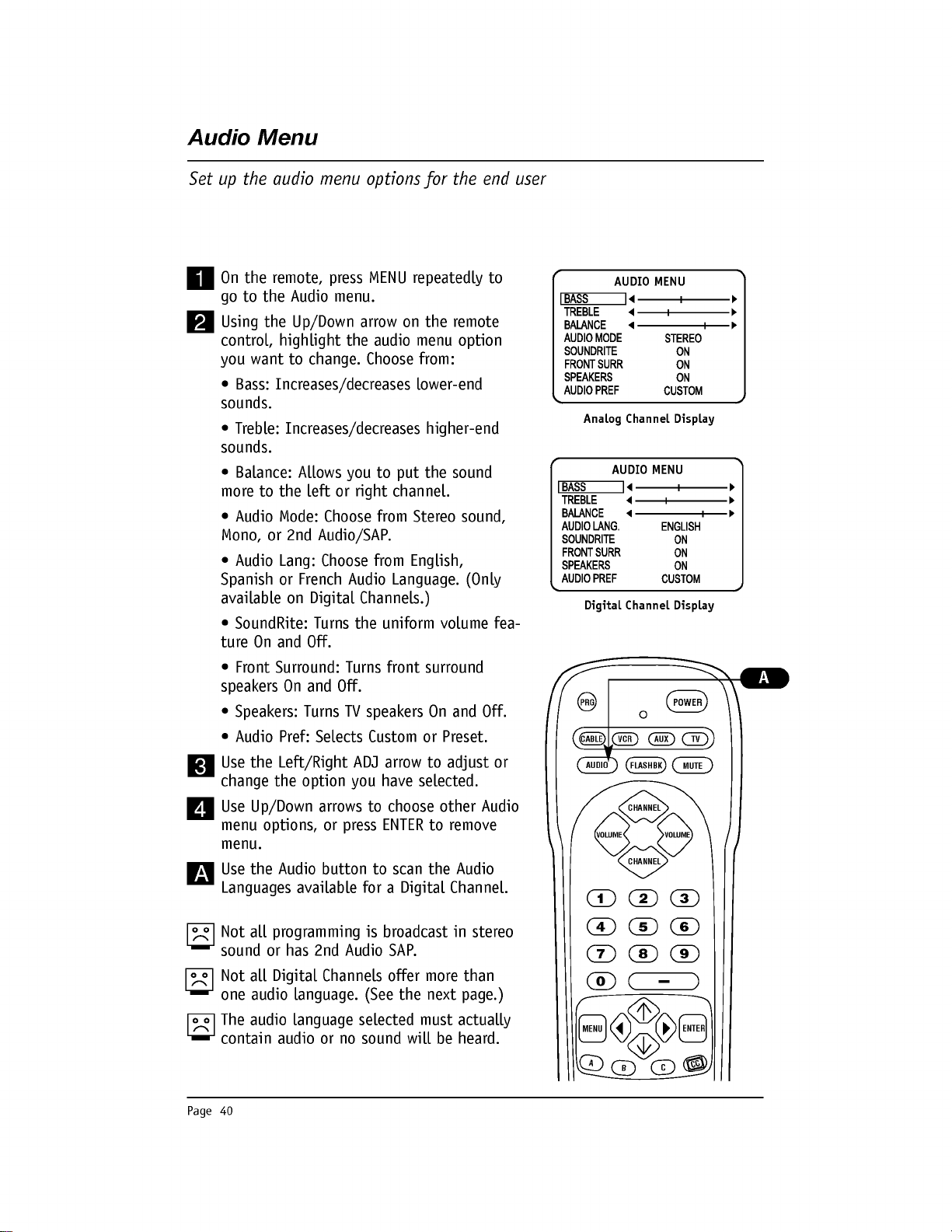
Page
40
On
the
remote,
press
MENU
repeatedly
to
go
to
the
Audio
menu.
Using
the
Up/Down
arrow
on
the
remote
control,
highlight
the
audio
menu
option
you
want
to
change.
Choose
from:
?
Bass:
Increases/decreases
lower-end
sounds.
?
Treble:
Increases/decreases
higher-end
sounds.
?
Balance:
Allows
you
to
put
the
sound
more
to
the
left
or
right
channel.
?
Audio
Mode:
Choose
from
Stereo
sound,
Mono,
or
2nd
Audio/SAP.
?
Audio
Lang:
Choose
from
English,
Spanish
or
French
Audio
Language.
(Only
available
on
Digital
Channels.)
?
SoundRite:
Turns
the
uniform
volume
fea-
ture
On
and
Off.
?
Front
Surround:
Turns
front
surround
speakers
On
and
Off.
?
Speakers:
Turns
TV
speakers
On
and
Off.
?
Audio
Pref:
Selects
Custom
or
Preset.
Use
the
Left/Right
ADJ
arrow
to
adjust
or
change
the
option
you
have
selected.
Use
Up/Down
arrows
to
choose
other
Audio
menu
options,
or
press
ENTER
to
remove
menu.
Use
the
Audio
button
to
scan
the
Audio
Languages
available
for
a
Digital
Channel.
Not
all
programming
is
broadcast
in
stereo
sound
or
has
2nd
Audio
SAP.
Not
all
Digital
Channels
offer
more
than
one
audio
language.
(See
the
next
page.)
The
audio
language
selected
must
actually
contain
audio
or
no
sound
will
be
heard.
Audio
Menu
Set
up
the
audio
menu
options
for
the
end
user
AUDIO
MENU
AUDIO
MENU
Analog
Channel
Display
Digital
Channel
Display
PRG
POWER
CABLE
VCR
AUX
TV
AUDIO
FLASHBK
MUTE
CHANNEL
CHANNEL
VOLUME
VOLUME
123
456
7
0
89
MENU
A
B
C
C
C
ENTER
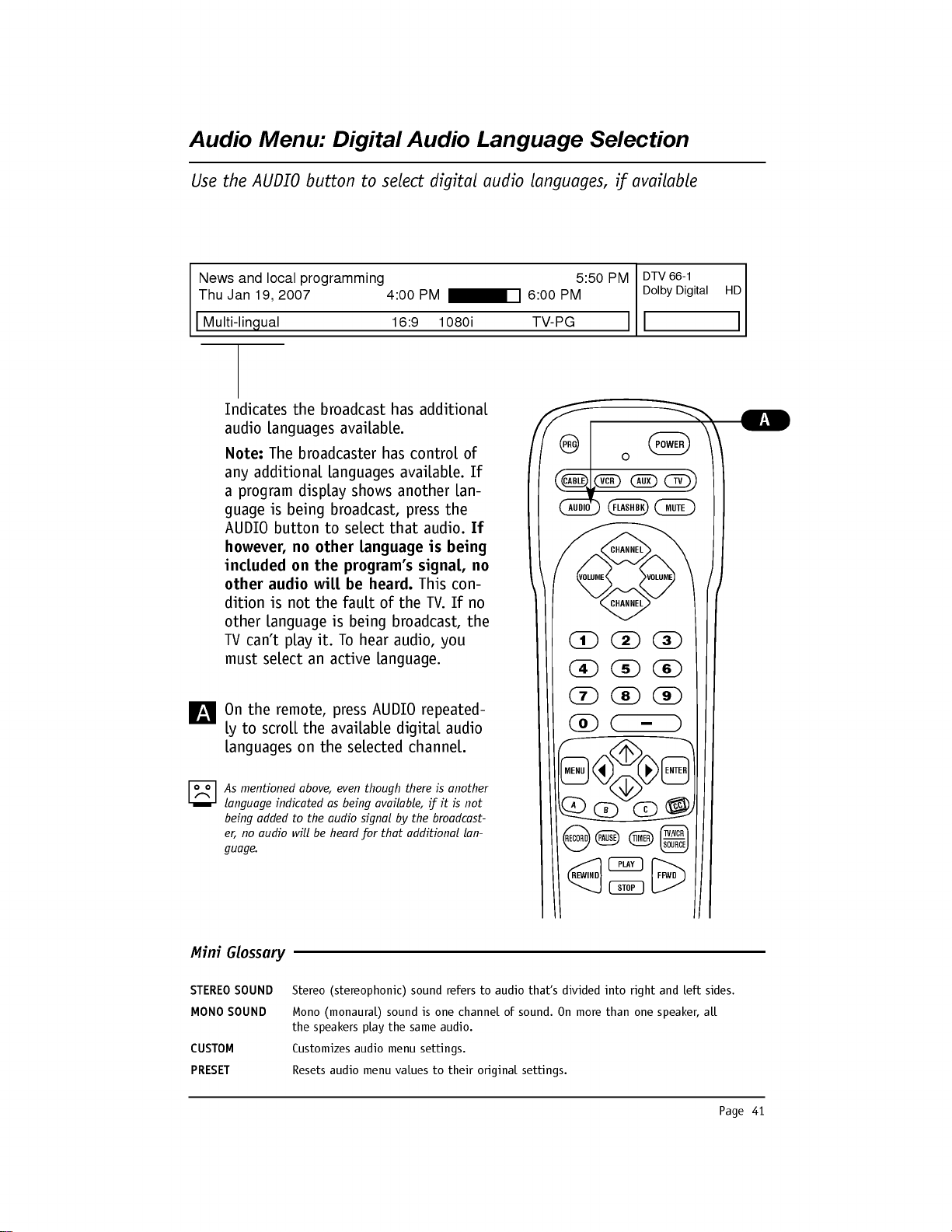
Page
41
Mini
Glossary
STEREO
SOUND
Stereo
(stereophonic)
sound
refers
to
audio
that's
divided
into
right
and
left
sides.
MONO
SOUND
Mono
(monaural)
sound
is
one
channel
of
sound.
On
more
than
one
speaker,
all
the
speakers
play
the
same
audio.
CUSTOM
Customizes
audio
menu
settings.
PRESET
Resets
audio
menu
values
to
their
original
settings.
Audio
Menu:
Digital
Audio
Language
Selection
Use
the
AUDIO
button
to
select
digital
audio
languages,
if
available
Indicates
the
broadcast
has
additional
audio
languages
available.
Note:
The
broadcaster
has
control
of
any
additional
languages
available.
If
a
program
display
shows
another
lan-
guage
is
being
broadcast,
press
the
AUDIO
button
to
select
that
audio.
If
however,
no
other
language
is
being
included
on
the
program's
signal,
no
other
audio
will
be
heard.
This
con-
dition
is
not
the
fault
of
the
TV.
If
no
other
language
is
being
broadcast,
the
TV
can't
play
it.
To
hear
audio,
you
must
select
an
active
language.
On
the
remote,
press
AUDIO
repeated-
ly
to
scroll
the
available
digital
audio
languages
on
the
selected
channel.
As
mentioned
above,
even
though
there
is
another
language
indicated
as
being
available,
if
it is
not
being
added
to
the
audio
signal
by
the
broadcast-
er,
no
audio
will
be
heard
for
that additional
lan-
guage.
News
and
local
programming
5:50
PM
Thu
Jan
19,
2007
4:00
PM
6:00
PM
DTV
66-1
Dolby
Digital
HD
Multi-lingual
16:9
1080i
TV-PG
PRG
POWER
CABLE
VCR
AUX
TV
AUDIO
FLASHBK
MUTE
CHANNEL
CHANNEL
VOLUME VOLUME
123
456
7
0
89
MENU
REWIND
FFWD
RECORD
A
B
C
C
C
TV/VCR
SOURCE
PAUSE
TIMER
PLAY
STOP
ENTER
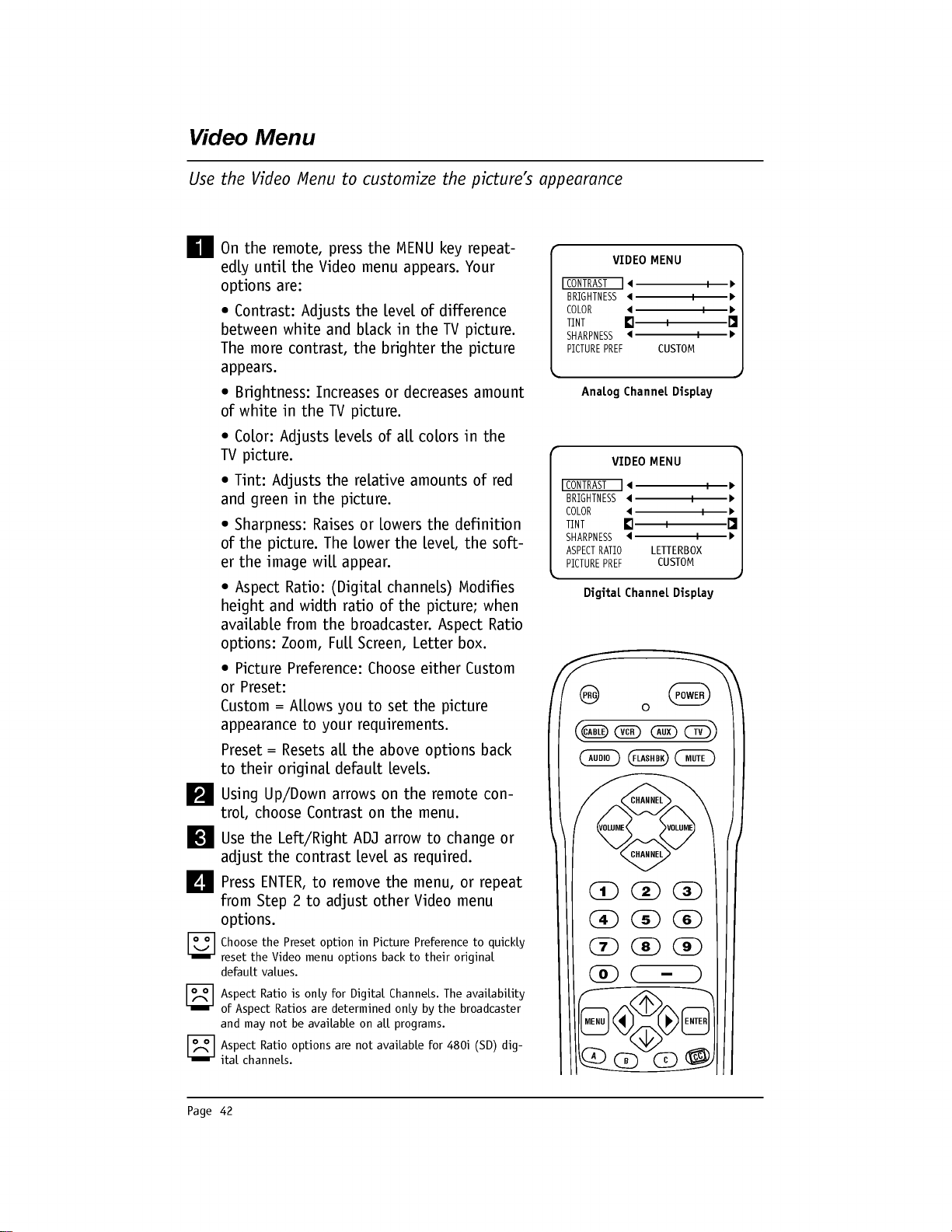
Page
42
On
the
remote,
press
the
MENU
key
repeat-
edly
until
the
Video
menu
appears.
Your
options
are:
?
Contrast:
Adjusts
the
level
of
difference
between
white
and
black
in
the
TV
picture.
The
more
contrast,
the
brighter
the
picture
appears.
?
Brightness:
Increases
or
decreases
amount
of
white
in
the
TV
picture.
?
Color:
Adjusts
levels
of
all
colors
in
the
TV
picture.
?
Tint:
Adjusts
the
relative
amounts
of
red
and
green
in
the
picture.
?
Sharpness:
Raises
or
lowers
the
definition
of
the
picture.
The
lower the
level,
the
soft-
er
the
image
will
appear.
?
Aspect
Ratio:
(Digital
channels)
Modifies
height
and
width
ratio
of
the
picture;
when
available
from
the
broadcaster.
Aspect
Ratio
options:
Zoom,
Full
Screen,
Letter
box.
?
Picture
Preference:
Choose
either
Custom
or
Preset:
Custom
=
Allows
you
to
set
the
picture
appearance
to
your
requirements.
Preset
=
Resets
all
the
above
options
back
to
their
original
default
levels.
Using
Up/Down
arrows
on
the
remote
con-
trol,
choose
Contrast
on
the
menu.
Use
the
Left/Right
ADJ
arrow
to
change
or
adjust
the
contrast
level
as
required.
Press
ENTER,
to
remove
the
menu,
or
repeat
from
Step
2
to
adjust
other
Video
menu
options.
Choose
the
Preset
option
in
Picture
Preference
to
quickly
reset
the
Video
menu
options
back
to
their
original
default
values.
Aspect
Ratio
is
only
for
Digital
Channels.
The
availability
of
Aspect
Ratios
are
determined
only
by
the
broadcaster
and
may
not
be
available
on
all
programs.
Aspect
Ratio
options
are
not
available
for
480i
(SD)
dig-
ital
channels.
Video
Menu
Use
the
Video
Menu
to
customize
the
picture's
appearance
CUSTOM
CONTRAST
BRIGHTNESS
COLOR
TINT
SHARPNESS
PICTURE
PREF
VIDEO
MENU
LETTERBOX
CUSTOM
CONTRAST
BRIGHTNESS
COLOR
TINT
SHARPNESS
ASPECT
RATIO
PICTURE
PREF
VIDEO
MENU
Analog
Channel
Display
Digital
Channel
Display
PRG
POWER
CABLE
VCR
AUX
TV
AUDIO
FLASHBK
MUTE
CHANNEL
CHANNEL
VOLUME VOLUME
123
456
7
0
89
MENU
A
B
C
C
C
ENTER
Page
43
Overview
Parental
Control
offers
the
user
a
wide
variety
of
options
and
settings
to
restrict
or
"block"
programming
that
can
appear
on
the
TV.
Parental
Control
allows
the
user
the
capability
of
defining
which
program
rating
they
consider
acceptable,
to
the
younger
or
more
sensitive
viewer.
It
can
be
preset
and
turned
either
on
or
off
by
the
user
who
specifies
a
secret
4-number
code,
the
password.
General
audience
and
children
viewer
blocks
can
both
be
programmed
into
the
TV's
memory.
Viewer
ratings
are
specified
for
both
TV
and
the
motion
picture
industry;
both
rating
sys-
tems
should
be
used,
for
complete
coverage.
The
ratings
are
based
on
the
ages
of
children.
The
number
of
hours
blocked
are
specified.
(See
following
pages.)
To
insure
complete
coverage
for
all
TV
programs,
(movies
and
regular
TV
shows)
choose
a
rating
for
MPAA
to
restrict
movies
from
the
selections
on
the
following
pages.
AND
choose
ratings
from
the
TV
Parental
Guidelines
Rating
System
also
on
the
following
pages,
using
the
Age
Block
option
for
General
Audiences
and
for
Children.
In
addition
to
those,
you
may
wish
to
add
additional
restrictions
from
the
Content
Block
sub
menu.
See
the
Parental
Control
menu
and
submenus
exam-
ples
on
the
following
pages.
Things
to
Consider
before
Setting
Up
Parental
Control
?
Determine
which
rating
you
consider
acceptable
to
the
viewer.
For
example,
if
you
choose
TV-PG,
all
more
restrictive
ratings
will
be
automatically
blocked;
the
viewer
will
not
be
able
to
see:
TV-PG,
TV-14
or
TV-MA
rated
programming.
?
Do
you
want
to
block
the
auxiliary
video
source
entirely?
(Blocks
the
signal
sent
by
the
equipment,
such
as
a
VCR,
connected
to
the
TV
Audio/Video
input
jacks;
in
the
Aux.
Sources
option.)
Or
leave
unblocked,
then
choose
allowable
ratings.
?
Block
program
"Content"
based
on
individual
parameters
such
as:
Strong
Dialog,
Bad
Language,
Sex
Scenes,
Violence
Scenes
or
Fantasy
Violence
Scenes;
in
the
Content
Blk
option.
?
How
many
hours
do
you
want
Parental
Control
to
be
active?
You
can
set
the
Hours
option
for
up
to
99
hours.
?
Select
a
password;
in
the
Set
Password
option.
Use
the
numbered
keys
on
the
remote
to
set
a
password.
Don't
forget
the
password.
Note:
Reset
Parental
Control
Block
Hours
to
Zero
and
Cancel
Password
This
provides
the
institution
staff
and
the
installer
a
means
to
reset
the
TV
to
normal
opera-
tion;
if
a
user
has
either
forgotten
the
password
or
has
left
Parental
Control
blocks
active.
Note:
Installer
Menu
item
000
Installer
Seq
must
be
set
to
0
for
this
to
work.
On
the
option-
al
installer's
remote
control,
press
and
hold
down
MENU
until
the
menu
disappears
(takes
about
8
seconds).
Immediately
press
9, 8,
7,
6
and
then
CC.
This
will
reset
the
Block
Hours
to
Zero
and
cancel
the
current
4-number
password.
If
you
set
another
number
for
installer
Seq
(1,
2
or
3)
use
that
number
sequence
instead
of
9876.
e.g.
1=4321.
2=1478
etc.
Parental
Control
Menu
This
feature
can
"block"
undesirable
programming
from
appearing
on
the
TV.
Set
restrictions
using
Age
Block
for
all
programming;
TV
and
movies.
End
user
can
only
set
restrictions
using
Ch
Preview
menu
on
any
Analog
channel
or
Aux
source
(some
models
digital
channels
also).
The
TV
will
employ
parental
control
restrictions
on
analog
and
digital
channels
if
V-Chip
data
is
included
on
the
program.
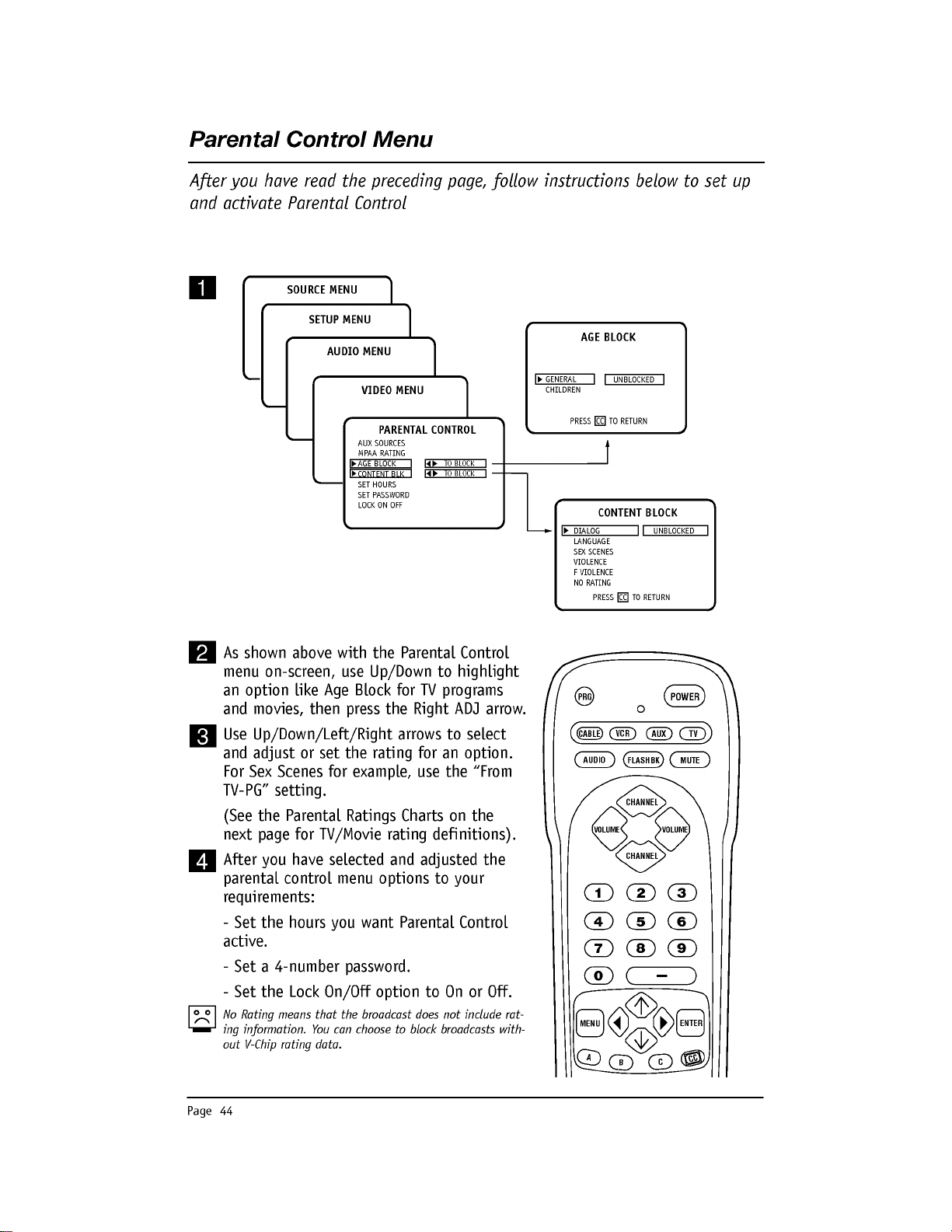
Page
44
Parental
Control
Menu
After
you
have
read
the
preceding
page,
follow
instructions
below
to
set
up
and
activate
Parental
Control
As
shown
above
with
the
Parental
Control
menu
on-screen,
use
Up/Down
to
highlight
an
option
like
Age
Block
for
TV
programs
and
movies,
then
press
the
Right
ADJ
arrow.
Use
Up/Down/Left/Right
arrows
to
select
and
adjust
or
set
the
rating
for
an
option.
For
Sex
Scenes
for
example,
use
the
"From
TV-PG"
setting.
(See
the
Parental
Ratings
Charts
on
the
next
page
for
TV/Movie
rating
definitions).
After
you
have
selected
and
adjusted
the
parental
control
menu
options
to
your
requirements:
-
Set
the hours
you
want
Parental
Control
active.
-
Set
a
4-number
password.
-
Set
the
Lock
On/Off
option
to
On
or
Off.
No
Rating
means
that the
broadcast
does
not
include
rat-
ing
information.
You
can
choose
to
block
broadcasts
with-
out
V-Chip
rating
data.
SOURCE
MENU
SETUP
MENU
AUDIO
MENU
DIALOG
LANGUAGE
SEX
SCENES
VIOLENCE
F
VIOLENCE
NO
RATING
TO
BLOCK
GENERAL
CHILDREN
AGE
BLOCK
UNBLOCKED
CONTENT
BLOCK
TO
BLOCK
AUX
SOURCES
MPAA
RATING
AGE
BLOCK
CONTENT
BLK
SET
HOURS
SET
PASSWORD
LOCK
ON
OFF
PARENTAL
CONTROL
VIDEO
MENU
PRESS
CC
TO
RETURN
PRESS
CC TO
RETURN
UNBLOCKED
PRG
POWER
CABLE
VCR
AUX
TV
AUDIO
FLASHBK
MUTE
CHANNEL
CHANNEL
VOLUME
VOLUME
123
456
7
0
89
MENU
A
B
C
C
C
ENTER
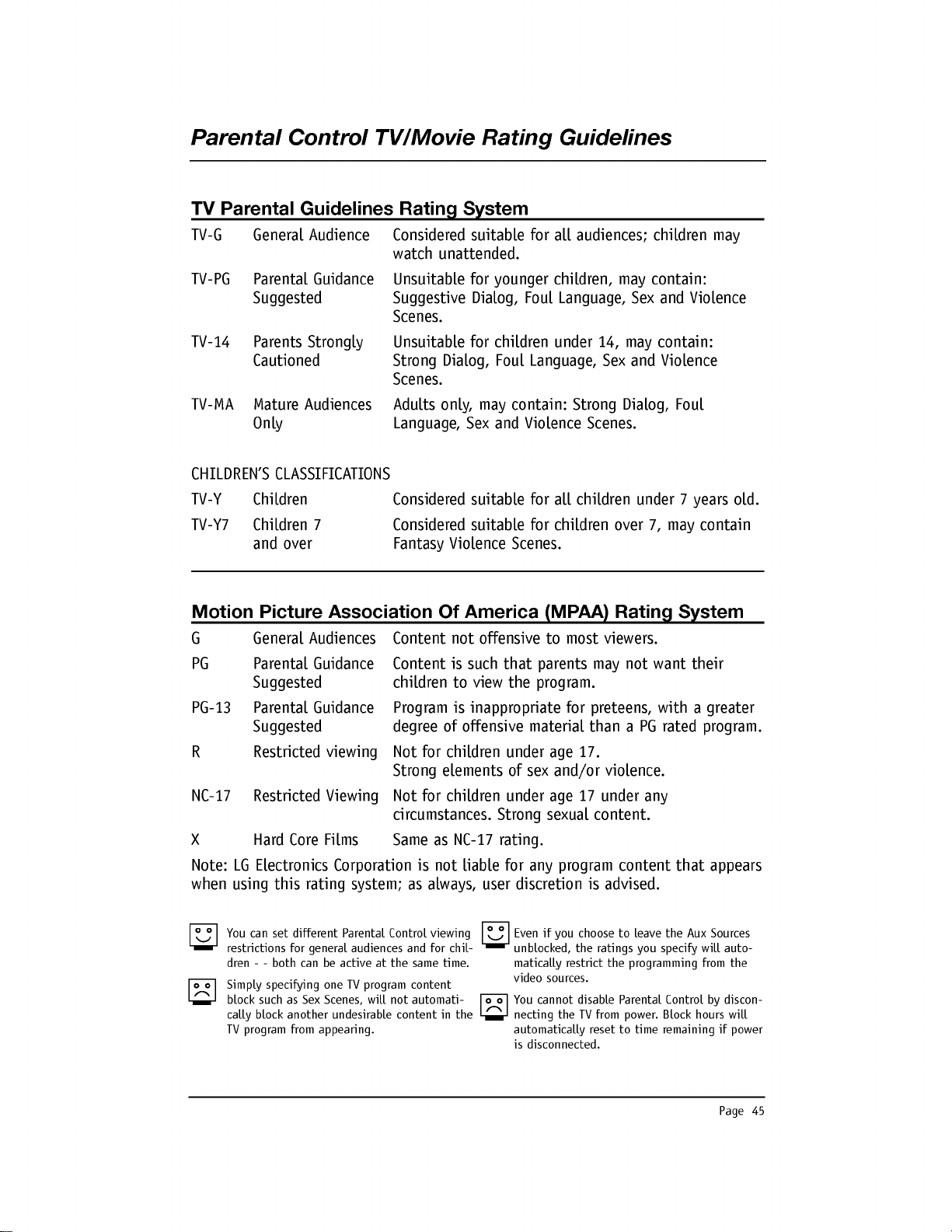
Page
45
Parental
Control
TV/Movie
Rating
Guidelines
TV
Parental
Guidelines
Rating
System
TV-G
General
Audience
Considered
suitable
for
all
audiences;
children
may
watch
unattended.
TV-PG
Parental
Guidance
Unsuitable
for
younger
children,
may
contain:
Suggested
Suggestive
Dialog,
Foul
Language,
Sex
and
Violence
Scenes.
TV-14
Parents
Strongly
Unsuitable
for
children
under
14,
may
contain:
Cautioned
Strong
Dialog,
Foul
Language,
Sex
and
Violence
Scenes.
TV-MA
Mature
Audiences
Adults
only,
may
contain:
Strong
Dialog,
Foul
Only
Language,
Sex
and
Violence
Scenes.
CHILDREN'S
CLASSIFICATIONS
TV-Y
Children
Considered
suitable
for
all
children
under
7
years
old.
TV-Y7
Children
7
Considered
suitable
for
children
over
7,
may
contain
and
over
Fantasy
Violence
Scenes.
Motion
Picture
Association
Of
America
(MPAA)
Rating
System
G
General
Audiences
Content
not
offensive
to
most
viewers.
PG
Parental
Guidance
Content
is
such
that
parents
may
not
want
their
Suggested
children
to
view
the
program.
PG-13
Parental
Guidance
Program
is
inappropriate
for
preteens,
with
a
greater
Suggested
degree
of
offensive
material
than
a
PG
rated
program.
R
Restricted
viewing
Not
for
children
under
age
17.
Strong
elements
of
sex
and/or
violence.
NC-17
Restricted
Viewing
Not
for
children
under
age
17
under
any
circumstances.
Strong
sexual
content.
X
Hard
Core
Films
Same
as
NC-17
rating.
Note:
LG
Electronics
Corporation
is
not
liable
for
any
program
content
that
appears
when
using
this
rating
system;
as
always,
user
discretion
is
advised.
You
can
set
different
Parental
Control
viewing
restrictions
for
general
audiences
and
for
chil-
dren
- -
both
can
be
active
at
the
same
time.
Simply
specifying
one
TV
program
content
block
such
as
Sex
Scenes,
will
not
automati-
cally
block
another
undesirable
content
in
the
TV
program
from
appearing.
Even
if
you
choose
to
leave
the
Aux
Sources
unblocked,
the
ratings
you
specify
will
auto-
matically
restrict
the
programming
from
the
video
sources.
You
cannot
disable
Parental
Control
by
discon-
necting
the
TV
from
power.
Block hours
will
automatically
reset
to
time
remaining
if
power
is
disconnected.
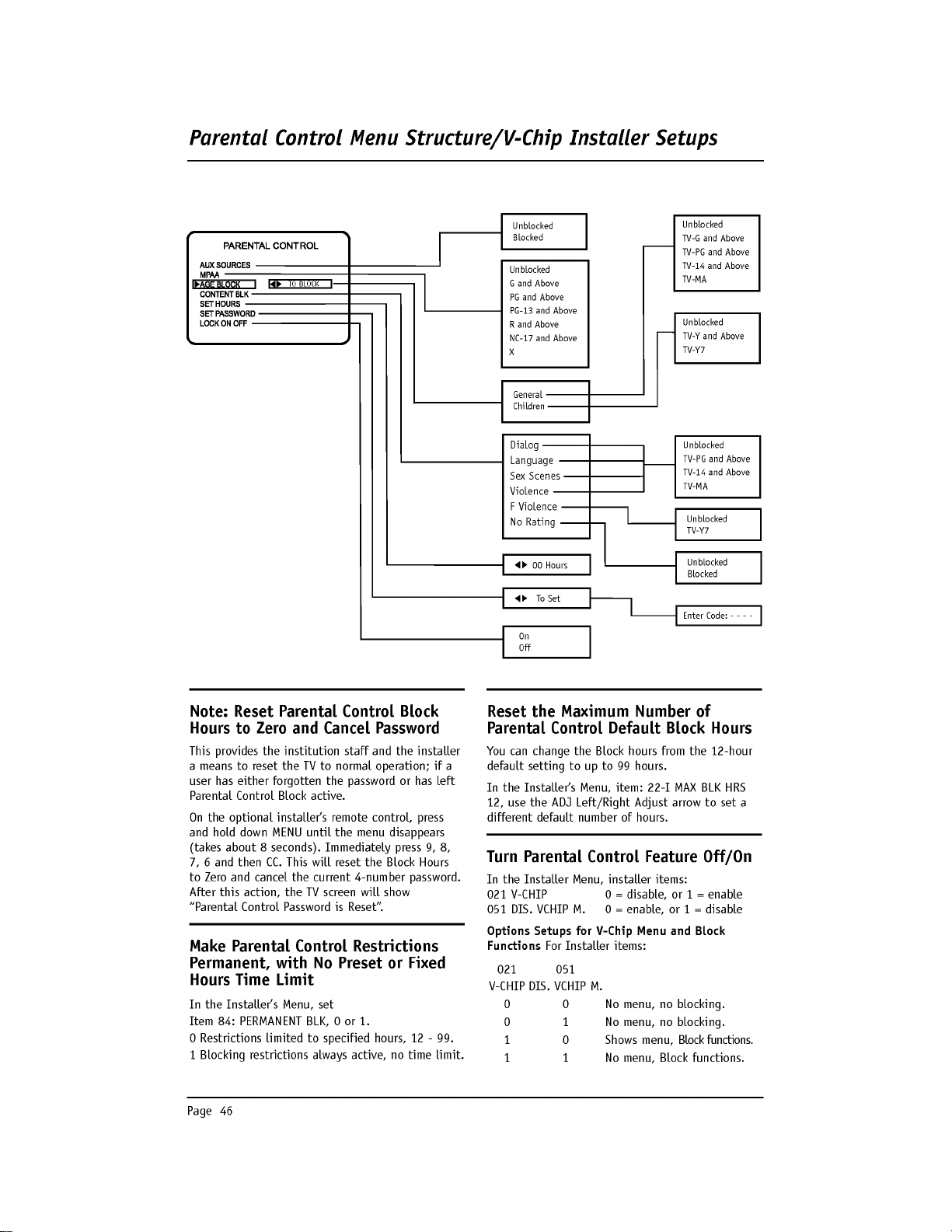
Page
46
Parental
Control
Menu
Structure/V-Chip
Installer
Setups
Note:
Reset
Parental
Control
Block
Hours
to
Zero
and
Cancel
Password
This
provides
the
institution
staff
and
the
installer
a
means
to
reset
the
TV
to
normal
operation;
if
a
user
has
either
forgotten
the
password
or
has
left
Parental
Control
Block
active.
On
the
optional
installer's
remote
control,
press
and
hold
down
MENU
until
the
menu
disappears
(takes
about
8
seconds).
Immediately
press
9,
8,
7,
6
and
then
CC.
This
will
reset
the
Block
Hours
to
Zero
and
cancel
the
current
4-number
password.
After
this
action,
the
TV
screen
will
show
"Parental
Control
Password
is
Reset".
Make
Parental
Control
Restrictions
Permanent,
with
No
Preset
or
Fixed
Hours
Time
Limit
In
the
Installer's
Menu,
set
Item
84:
PERMANENT
BLK,
0
or
1.
0
Restrictions
limited
to
specified
hours,
12
-
99.
1
Blocking
restrictions
always
active,
no
time
limit.
Reset
the
Maximum
Number
of
Parental
Control Default
Block
Hours
You
can
change
the
Block hours
from
the
12-hour
default
setting
to
up
to
99
hours.
In
the
Installer's
Menu,
item:
22-I
MAX
BLK
HRS
12,
use
the
ADJ
Left/Right
Adjust
arrow
to
set
a
different
default
number
of hours.
Turn
Parental
Control
Feature
Off/On
In
the
Installer
Menu,
installer
items:
021
V-CHIP
0
=
disable,
or
1
=
enable
051
DIS.
VCHIP
M.
0
=
enable,
or
1
=
disable
Options
Setups
for
V-Chip
Menu
and
Block
Functions
For
Installer
items:
021 051
V-CHIP
DIS.
VCHIP
M.
0 0
No
menu,
no
blocking.
0
1
No
menu,
no
blocking.
1
0
Shows
menu,
Block
functions.
1 1
No
menu,
Block
functions.
Unblocked
Blocked
General
Children
Unblocked
G
and
Above
PG
and
Above
PG-13
and
Above
R
and
Above
NC-17
and
Above
X
Dialog
Language
Sex
Scenes
Violence
F
Violence
No
Rating
TO
BLOCK
Unblocked
TV-PG
and
Above
TV-14
and
Above
TV-MA
Unblocked
TV-Y7
Unblocked
Blocked
Unblocked
TV-G
and
Above
TV-PG
and
Above
TV-14
and
Above
TV-MA
Unblocked
TV-Y
and
Above
TV-Y7
00
Hours
To
Set
EnterCode:-
- --
On
Off
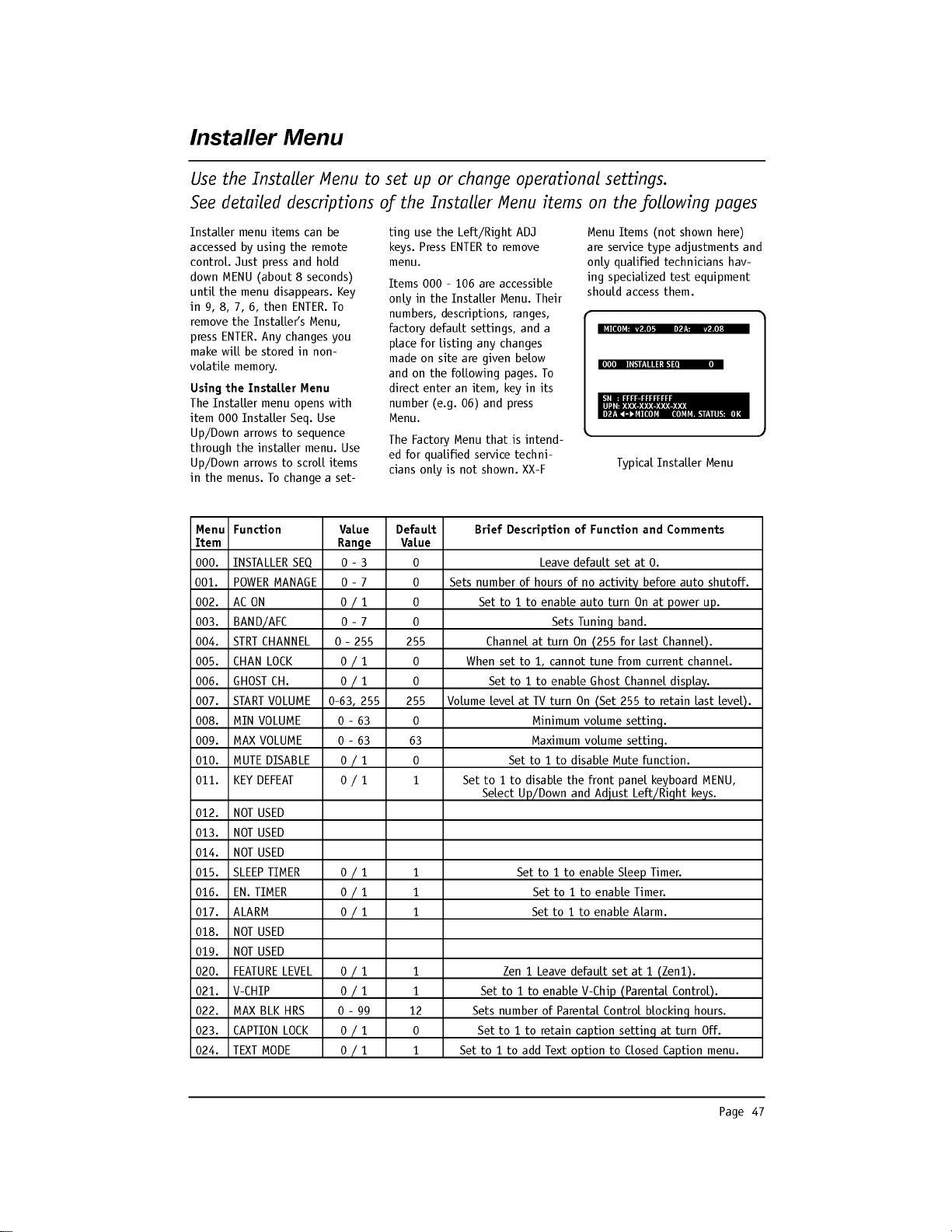
Page
47
Installer
menu
items
can
be
accessed
by
using
the
remote
control.
Just
press
and
hold
down
MENU
(about
8
seconds)
until
the
menu
disappears.
Key
in
9,
8, 7, 6,
then
ENTER.
To
remove
the
Installer's
Menu,
press
ENTER.
Any
changes
you
make
will
be
stored
in
non-
volatile
memory.
Using
the
Installer
Menu
The
Installer
menu
opens
with
item
000
Installer
Seq.
Use
Up/Down
arrows
to
sequence
through
the
installer
menu.
Use
Up/Down
arrows
to
scroll
items
in
the
menus.
To
change
a
set-
ting
use
the
Left/Right
ADJ
keys.
Press
ENTER
to
remove
menu.
Items
000
-
106
are
accessible
only
in
the
Installer
Menu.
Their
numbers,
descriptions,
ranges,
factory
default
settings,
and
a
place
for
listing
any
changes
made
on
site
are
given
below
and
on
the
following
pages.
To
direct
enter
an
item,
key
in
its
number
(e.g.
06)
and
press
Menu.
The
Factory
Menu
that
is
intend-
ed
for
qualified
service
techni-
cians
only
is
not
shown.
XX-F
Menu
Items
(not
shown
here)
are
service
type
adjustments
and
only
qualified
technicians
hav-
ing
specialized
test
equipment
should
access
them.
Typical
Installer
Menu
Menu
Function
Value
Default
Brief
Description
of
Function
and
Comments
Item
Range
Value
000.
INSTALLER
SEQ
0
-
3
0
Leave
default
set
at
0.
001.
POWER
MANAGE
0
-
7
0
Sets
number
of
hours
of
no
activity
before
auto
shutoff.
002.
AC
ON
0/1
0
Set
to
1
to
enable
auto
turn
On
at
power
up.
003.
BAND/AFC
0-7
0
Sets
Tuning
band.
004.
STRT
CHANNEL
0
-
255 255
Channel
at turn
On
(255
for
last
Channel).
005.
CHAN
LOCK
0/1
0
When
set
to
1,
cannot
tune
from
current
channel.
006.
GHOST
CH.
0/1
0
Set
to
1
to
enable
Ghost
Channel
display.
007.
START
VOLUME
0-63,
255 255
Volume
level
at
TV
turn
On
(Set
255
to
retain
last
level).
008.
MIN
VOLUME
0-63
0
Minimum
volume
setting.
009.
MAX
VOLUME
0-63
63
Maximum
volume
setting.
010.
MUTE
DISABLE
0
/
1
0
Set
to
1
to
disable
Mute
function.
011.
KEY
DEFEAT
0/1
1
Set
to
1
to
disable
the
front
panel
keyboard
MENU,
Select
Up/Down
and
Adjust
Left/Right
keys.
012.
NOT
USED
013.
NOT
USED
014.
NOT
USED
015.
SLEEP
TIMER
0/1
1
Set
to
1
to
enable
Sleep
Timer.
016.
EN.
TIMER
0/1
1
Set
to
1
to
enable
Timer.
017.
ALARM
0/1
1
Set
to
1
to
enable
Alarm.
018.
NOT
USED
019.
NOT
USED
020.
FEATURE
LEVEL
0
/
1 1
Zen
1
Leave
default
set
at
1
(Zen1).
021.
V-CHIP
0/1
1
Set
to
1
to
enable
V-Chip
(Parental
Control).
022.
MAXBLKHRS
0-99
12
Sets
number
of
Parental
Control
blocking
hours.
023.
CAPTION
LOCK
0
/
1
0
Set
to
1
to
retain
caption
setting
at turn
Off.
024.
TEXT
MODE
0/1
1
Set
to
1
to
add
Text
option
to
Closed
Caption
menu.
Installer
Menu
Use
the
Installer
Menu
to
set
up
or
change
operational
settings.
See
detailed
descriptions
of
the
Installer
Menu
items
on
the
following
pages
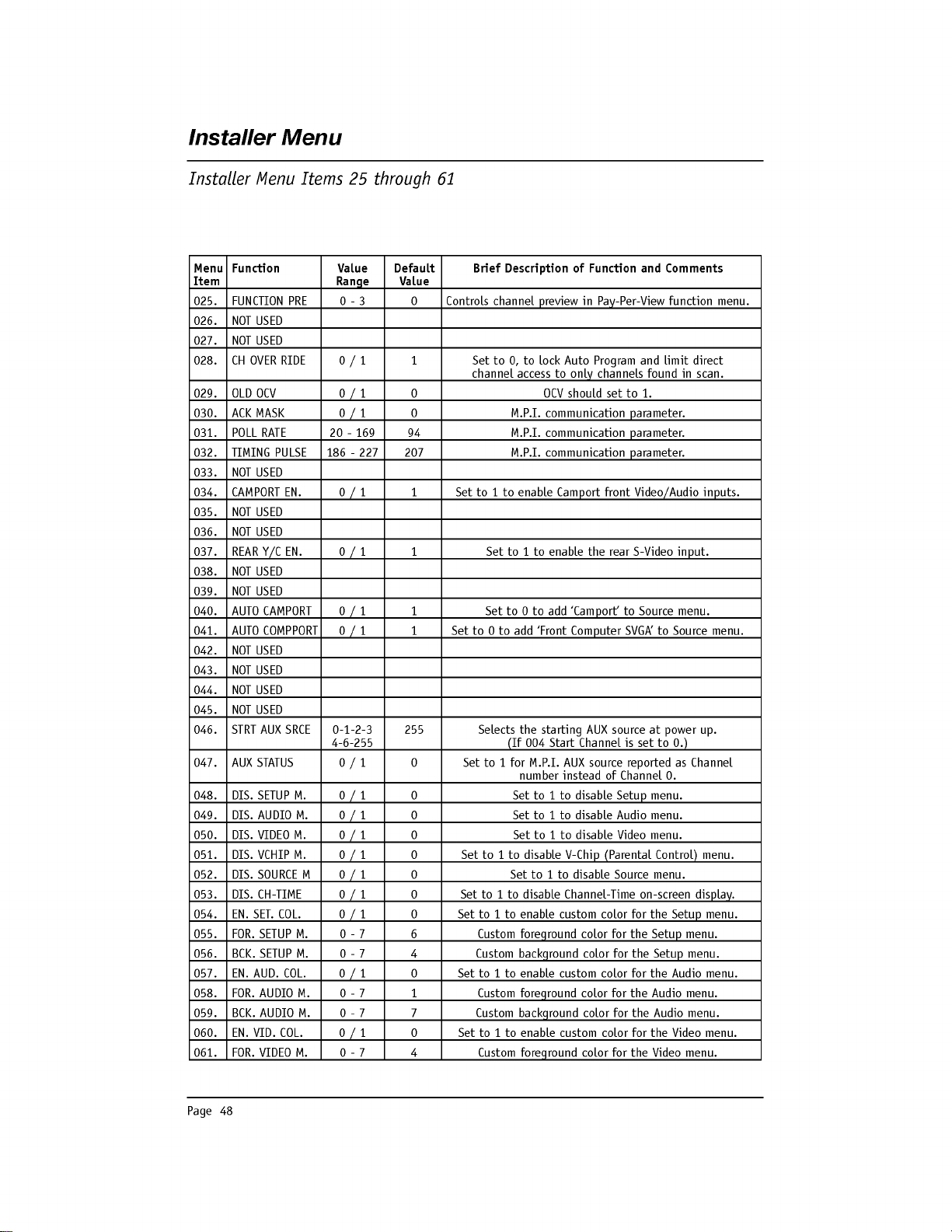
Menu
Function
Value
Default
Brief
Description
of
Function
and
Comments
Item
Range
Value
025.
FUNCTION
PRE
0
-
3
0
Controls
channel
preview
in
Pay-Per-View
function
menu.
026.
NOT
USED
027.
NOT
USED
028.
CHOVERRIDE
0/1
1
Set
to
0,
to
lock
Auto
Program
and
limit
direct
channel
access
to
only
channels
found
in
scan.
029.
OLD
OCV
0/1
0
OCV
should
set
to
1.
030.
ACK
MASK
0/1
0
M.P.I.
communication
parameter.
031.
POLL
RATE
20-169
94
M.P.I.
communication
parameter.
032.
TIMING
PULSE
186
-
227 207
M.P.I.
communication
parameter.
033.
NOT
USED
034.
CAMPORT
EN.
0/1
1
Set
to
1
to
enable
Camport
front
Video/Audio
inputs.
035.
NOT
USED
036.
NOT
USED
037.
REAR
Y/C
EN.
0/1
1
Set
to
1
to
enable
the
rear
S-Video
input.
038.
NOT
USED
039.
NOT
USED
040.
AUTO
CAMPORT
0
/
1 1
Set
to 0 to
add
'Camport'
to
Source
menu.
041.
AUTO
COMPPORT
0
/
1 1
Set
to 0 to
add
'Front
Computer
SVGA'
to
Source
menu.
042.
NOT
USED
043.
NOT
USED
044.
NOT
USED
045.
NOT
USED
046.
STRT
AUX
SRCE
0-1-2-3
255
Selects
the
starting
AUX
source
at
power
up.
4-6-255
(If
004
Start
Channel
is
set
to
0.)
047.
AUX
STATUS
0/1
0
Set
to
1
for
M.P.I.
AUX
source
reported
as
Channel
number
instead
of
Channel
0.
048.
DIS.SETUPM.
0/1
0
Set
to
1
to
disable
Setup
menu.
049.
DIS.AUDIOM.
0/1
0
Set
to
1
to
disable
Audio
menu.
050.
DIS.VIDEOM.
0/1
0
Set
to
1
to
disable
Video
menu.
051.
DIS.VCHIPM.
0/1
0
Set
to
1
to
disable
V-Chip
(Parental
Control)
menu.
052.
DIS.SOURCEM
0/1
0
Set
to
1
to
disable
Source
menu.
053.
DIS.
CH-TIME
0/1
0
Set
to
1
to
disable
Channel-Time
on-screen
display.
054.
EN.
SET.
COL.
0/1
0
Set
to
1
to
enable
custom
color
for
the
Setup
menu.
055.
FOR.SETUPM.
0-7
6
Custom
foreground
color
for
the
Setup
menu.
056.
BCK.SETUPM.
0-7
4
Custom
background
color
for
the
Setup
menu.
057.
EN.AUD.COL.
0/1
0
Set
to
1
to
enable
custom
color
for
the
Audio
menu.
058.
FOR.AUDIOM.
0-7
1
Custom
foreground
color
for
the
Audio
menu.
059.
BCK.AUDIOM.
0-7
7
Custom
background
color
for
the
Audio
menu.
060.
EN.
VID.
COL.
0/1
0
Set
to
1
to
enable
custom
color
for
the
Video
menu.
061.
FOR.VIDEOM.
0-7
4
Custom
foreground
color
for
the
Video
menu.
Page
48
Installer
Menu
Installer
Menu
Items
25
through
61
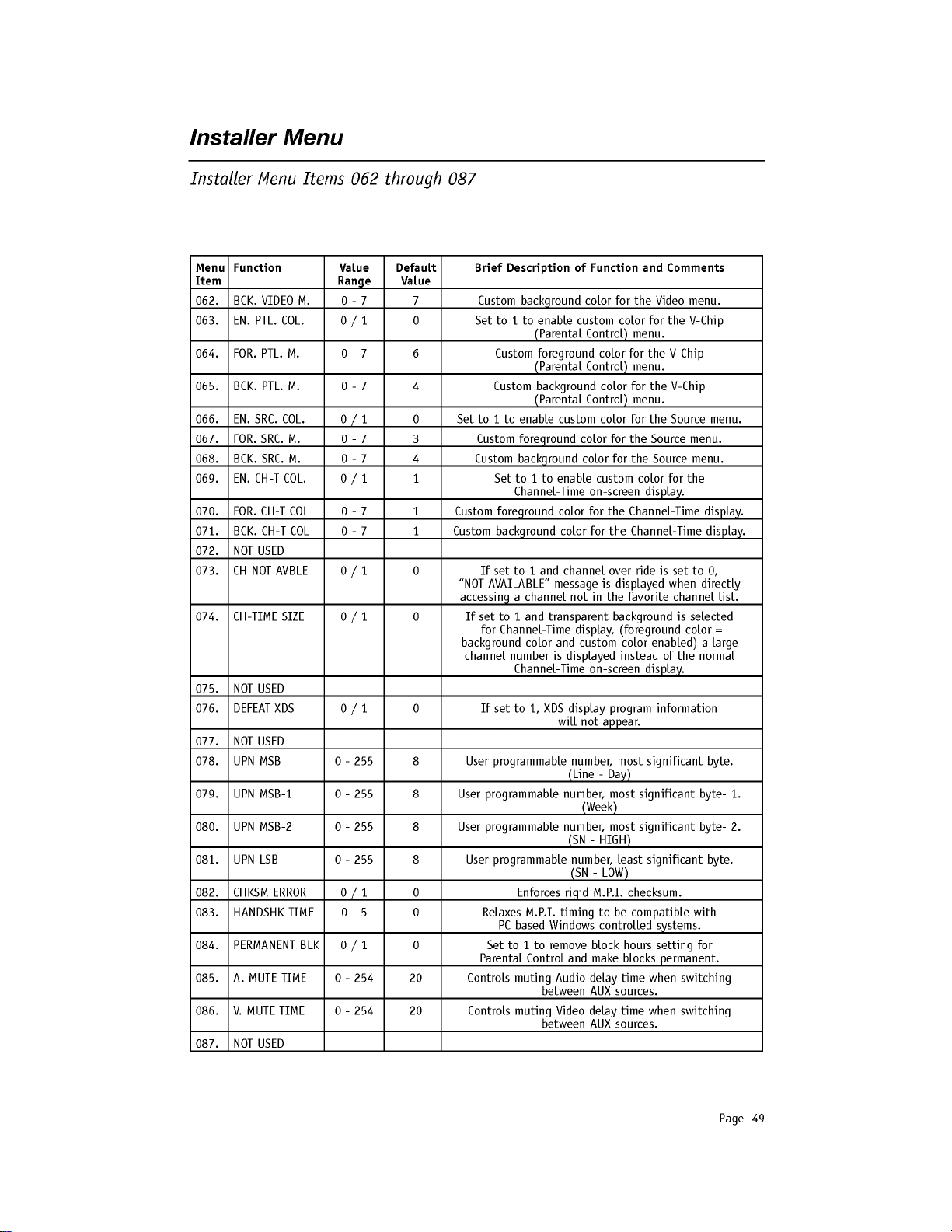
Page
49
Menu
Function
Value
Default
Brief
Description
of
Function
and
Comments
Item
Range
Value
062.
BCK.VIDEOM.
0-7
7
Custom
background
color
for
the
Video
menu.
063.
EN.
PTL.
COL.
0/1
0
Set
to
1
to
enable
custom
color
for
the
V-Chip
(Parental
Control)
menu.
064.
FOR.
PTL.
M.
0-7
6
Custom
foreground
color
for
the
V-Chip
(Parental
Control)
menu.
065.
BCK.
PTL.
M.
0-7
4
Custom
background
color
for
the
V-Chip
(Parental
Control)
menu.
066.
EN.
SRC.
COL.
0/1
0
Set
to
1
to
enable
custom
color
for
the
Source
menu.
067.
FOR. SRC.
M.
0-7
3
Custom
foreground
color
for
the
Source
menu.
068.
BCK.
SRC.
M.
0-7
4
Custom
background
color
for
the
Source
menu.
069.
EN.CH-TCOL.
0/1
1
Set
to
1
to
enable
custom
color
for
the
Channel-Time
on-screen
display.
070.
FOR.CH-TCOL
0-7
1
Custom
foreground
color
for
the
Channel-Time
display.
071.
BCK.CH-TCOL
0-7
1
Custom
background
color
for
the
Channel-Time
display.
072.
NOT
USED
073.
CHNOTAVBLE
0/1
0
If
set
to
1
and
channel
over
ride
is
set
to
0,
"NOT
AVAILABLE"
message
is
displayed
when
directly
accessing
a
channel
not
in
the
favorite
channel
list.
074.
CH-TIME
SIZE
0/1
0
If
set
to
1
and
transparent
background
is
selected
for
Channel-Time
display,
(foreground
color
=
background
color
and
custom
color
enabled)
a
large
channel
number
is
displayed
instead
of
the
normal
Channel-Time
on-screen
display.
075.
NOT
USED
076.
DEFEAT
XDS
0/1
0
If
set
to
1,
XDS
display
program
information
will
not
appear.
077.
NOT
USED
078.
UPN
MSB
0-255
8
User
programmable
number,
most
significant
byte.
(Line
-
Day)
079.
UPN
MSB-1
0-255
8
User
programmable
number,
most
significant
byte-
1.
(Week)
080.
UPN
MSB-2
0-255
8
User
programmable
number,
most
significant
byte-
2.
(SN
-
HIGH)
081.
UPN
LSB
0-255
8
User
programmable
number,
least
significant
byte.
(SN
-
LOW)
082.
CHKSM
ERROR
0
/
1
0
Enforces
rigid
M.P.I.
checksum.
083.
HANDSHK
TIME
0
-
5
0
Relaxes
M.P.I.
timing
to
be
compatible
with
PC
based
Windows
controlled
systems.
084.
PERMANENT
BLK
0
/
1
0
Set
to
1
to
remove
block hours
setting
for
Parental
Control
and
make
blocks
permanent.
085.
A.
MUTE
TIME
0
-
254
20
Controls
muting
Audio
delay
time
when
switching
between
AUX
sources.
086.
V.
MUTE
TIME
0
-
254
20
Controls
muting
Video
delay
time
when
switching
between
AUX
sources.
087.
NOT
USED
Installer
Menu
Installer
Menu
Items
062
through
087
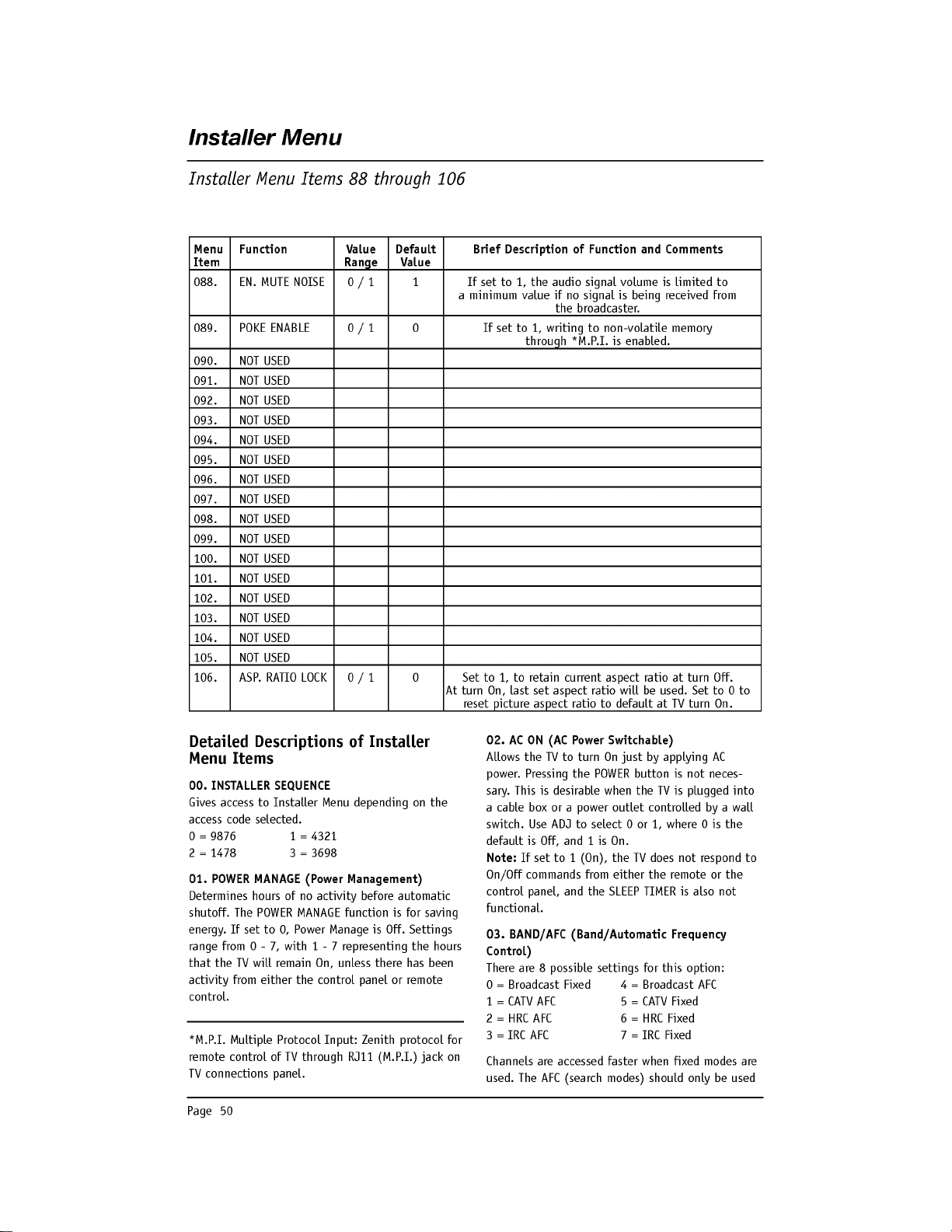
Page
50
Menu
Function
Value
Default
Brief
Description
of
Function
and
Comments
Item
Range
Value
088.
EN.
MUTE
NOISE
0
/
1 1
If
set
to
1,
the
audio
signal
volume
is
limited
to
a
minimum
value
if
no
signal
is
being
received
from
the
broadcaster.
089.
POKE
ENABLE
0/1
0
If
set
to
1,
writing
to
non-volatile
memory
through
*M.P.I.
is
enabled.
090.
NOT
USED
091.
NOT
USED
092.
NOT
USED
093.
NOT
USED
094.
NOT
USED
095.
NOT
USED
096.
NOT
USED
097.
NOT
USED
098.
NOT
USED
099.
NOT
USED
100.
NOT
USED
101.
NOT
USED
102.
NOT
USED
103.
NOT
USED
104.
NOT
USED
105.
NOT
USED
106.
ASP.
RATIO
LOCK
0
/
1
0
Set
to
1,
to
retain
current
aspect
ratio
at
turn
Off.
At
turn
On,
last
set
aspect
ratio
will
be
used.
Set
to
0
to
reset
picture
aspect
ratio
to
default
at
TV
turn
On.
Installer
Menu
Installer
Menu
Items
88
through
106
Detailed
Descriptions
of
Installer
Menu
Items
00.
INSTALLER
SEQUENCE
Gives
access
to
Installer
Menu
depending
on
the
access
code
selected.
0=9876
1=4321
2=1478 3=3698
01.
POWER
MANAGE
(Power
Management)
Determines
hours
of
no
activity
before
automatic
shutoff.
The
POWER
MANAGE
function
is
for
saving
energy.
If
set
to
0,
Power
Manage
is
Off.
Settings
range
from
0
-
7,
with
1
-
7
representing
the
hours
that
the
TV
will
remain
On,
unless
there
has
been
activity
from
either
the
control
panel
or
remote
control.
*M.P.I.
Multiple
Protocol
Input:
Zenith
protocol
for
remote
control
of
TV
through
RJ11
(M.P.I.)
jack
on
TV
connections
panel.
02.
AC
ON
(AC
Power
Switchable)
Allows the
TV
to
turn
On
just
by
applying
AC
power.
Pressing
the
POWER
button
is
not
neces-
sary.
This
is
desirable
when
the
TV
is
plugged
into
a
cable
box
or
a
power
outlet
controlled
by
a
wall
switch.
Use
ADJ
to
select
0
or
1,
where
0
is
the
default
is
Off,
and
1
is
On.
Note:
If
set
to
1
(On),
the
TV
does
not
respond
to
On/Off
commands
from
either
the
remote
or
the
control
panel,
and
the
SLEEP
TIMER
is
also
not
functional.
03.
BAND/AFC
(Band/Automatic
Frequency
Control)
There
are
8
possible
settings
for
this
option:
0
=
Broadcast
Fixed
4
=
Broadcast
AFC
1=CATVAFC
5
=
CATV
Fixed
2=HRCAFC
6
=
HRC
Fixed
3=IRCAFC
7
=
IRC
Fixed
Channels
are
accessed
faster
when
fixed
modes
are
used.
The
AFC
(search
modes)
should
only
be used
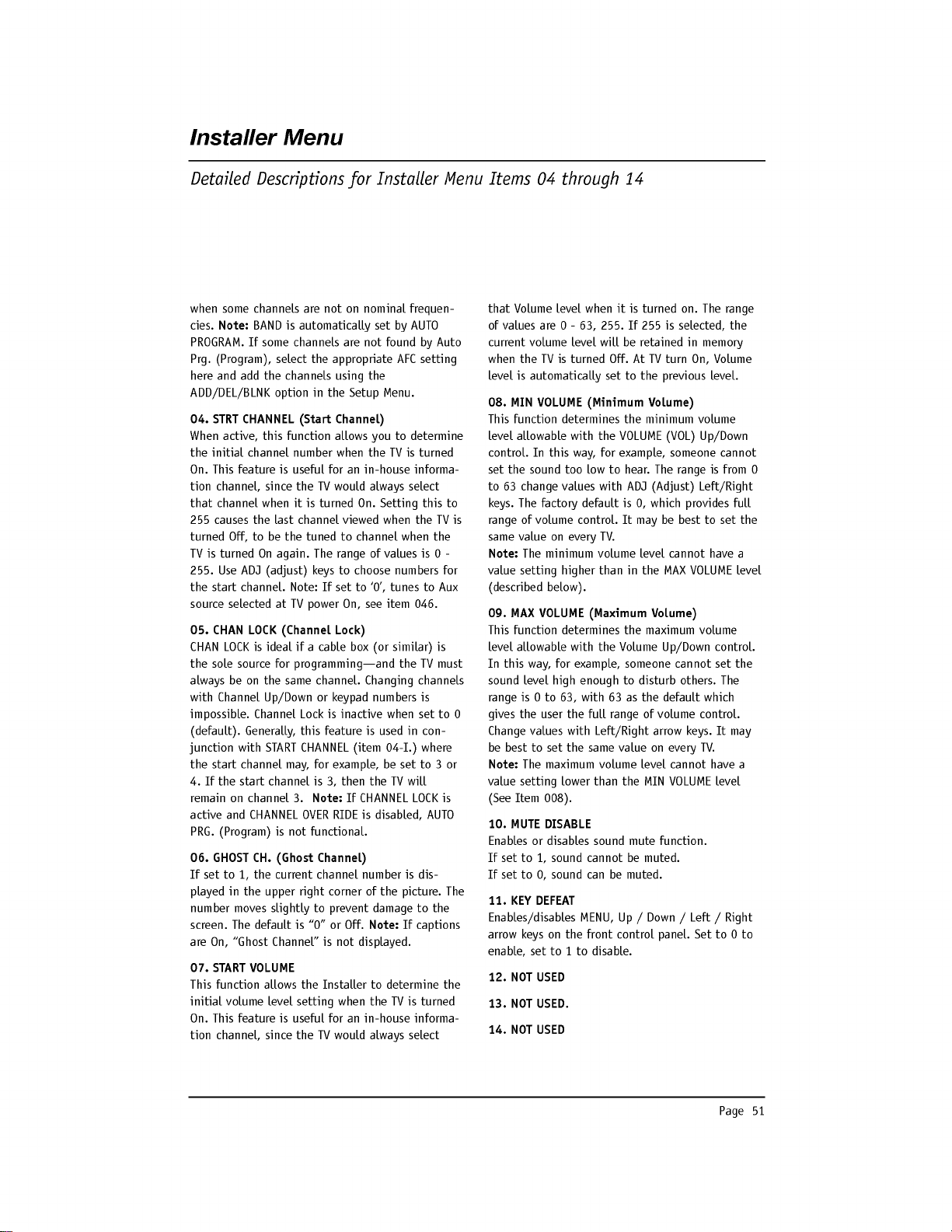
Page
51
when
some
channels
are
not
on
nominal
frequen-
cies.
Note:
BAND
is
automatically
set
by
AUTO
PROGRAM.
If
some
channels
are
not
found
by
Auto
Prg.
(Program),
select
the
appropriate
AFC
setting
here
and
add
the
channels
using
the
ADD/DEL/BLNK
option
in
the
Setup
Menu.
04.
STRT
CHANNEL
(Start
Channel)
When
active,
this
function
allows
you
to
determine
the
initial
channel
number
when
the
TV
is
turned
On.
This
feature
is
useful
for
an
in-house
informa-
tion
channel,
since
the
TV
would
always
select
that
channel
when
it
is
turned
On.
Setting
this
to
255
causes
the
last
channel
viewed
when
the
TV
is
turned
Off,
to
be
the
tuned
to
channel
when
the
TV
is
turned
On
again.
The
range
of
values
is
0
-
255.
Use
ADJ
(adjust)
keys
to
choose
numbers
for
the
start
channel.
Note:
If
set
to
'0',
tunes
to
Aux
source
selected
at
TV
power
On,
see
item
046.
05.
CHAN
LOCK
(Channel
Lock)
CHAN
LOCK
is
ideal
if
a
cable
box
(or similar)
is
the
sole
source
for
programming---and
the
TV
must
always
be
on
the
same
channel.
Changing
channels
with
Channel
Up/Down
or
keypad
numbers
is
impossible.
Channel
Lock
is
inactive
when
set
to 0
(default).
Generally,
this
feature
is
used
in
con-
junction
with
START
CHANNEL
(item
04-I.)
where
the
start
channel
may,
for
example,
be
set
to
3
or
4.
If
the
start
channel
is
3,
then
the
TV
will
remain
on
channel
3.
Note:
If
CHANNEL
LOCK
is
active
and
CHANNEL
OVER
RIDE
is
disabled,
AUTO
PRG.
(Program)
is
not
functional.
06.
GHOST
CH.
(Ghost
Channel)
If
set
to
1,
the
current
channel
number
is
dis-
played
in
the
upper
right
corner
of
the
picture.
The
number
moves
slightly
to
prevent
damage
to
the
screen.
The
default
is
"0"
or
Off.
Note:
If
captions
are
On,
"Ghost
Channel"
is
not
displayed.
07.
START
VOLUME
This
function
allows
the
Installer
to
determine
the
initial
volume
level
setting
when
the
TV
is
turned
On.
This
feature
is
useful
for
an
in-house
informa-
tion
channel,
since
the
TV
would
always
select
that
Volume
level
when
it
is
turned
on.
The
range
of
values
are
0
-
63,
255.
If
255
is
selected,
the
current
volume
level
will
be
retained
in
memory
when
the
TV
is
turned
Off.
At
TV
turn
On,
Volume
level
is
automatically
set
to
the
previous
level.
08.
MIN
VOLUME
(Minimum
Volume)
This
function
determines
the
minimum
volume
level
allowable
with
the
VOLUME
(VOL)
Up/Down
control.
In
this
way,
for
example,
someone
cannot
set
the
sound
too
low
to
hear.
The
range
is
from
0
to
63
change
values with
ADJ
(Adjust)
Left/Right
keys.
The
factory
default
is
0,
which
provides
full
range
of
volume
control.
It
may
be
best
to
set
the
same
value
on
every
TV.
Note:
The
minimum
volume
level
cannot
have
a
value
setting
higher
than
in
the
MAX
VOLUME
level
(described
below).
09.
MAX
VOLUME
(Maximum
Volume)
This
function
determines
the
maximum
volume
level
allowable
with
the
Volume
Up/Down
control.
In
this
way,
for
example,
someone
cannot
set
the
sound
level
high
enough
to
disturb
others.
The
range
is
0
to
63,
with
63
as
the
default
which
gives
the
user
the
full
range
of
volume
control.
Change
values with
Left/Right
arrow
keys.
It
may
be
best
to
set
the
same
value
on
every
TV.
Note:
The
maximum
volume
level
cannot
have
a
value
setting
lower
than
the
MIN
VOLUME
level
(See
Item
008).
10.
MUTE
DISABLE
Enables
or
disables
sound
mute
function.
If
set
to
1,
sound
cannot
be
muted.
If
set
to
0,
sound
can
be
muted.
11.
KEY
DEFEAT
Enables/disables
MENU,
Up
/
Down
/
Left
/
Right
arrow
keys
on
the
front
control
panel.
Set
to 0 to
enable,
set
to
1
to
disable.
12.
NOT
USED
13.
NOT
USED.
14.
NOT
USED
Installer
Menu
Detailed
Descriptions
for
Installer
Menu
Items
04
through
14
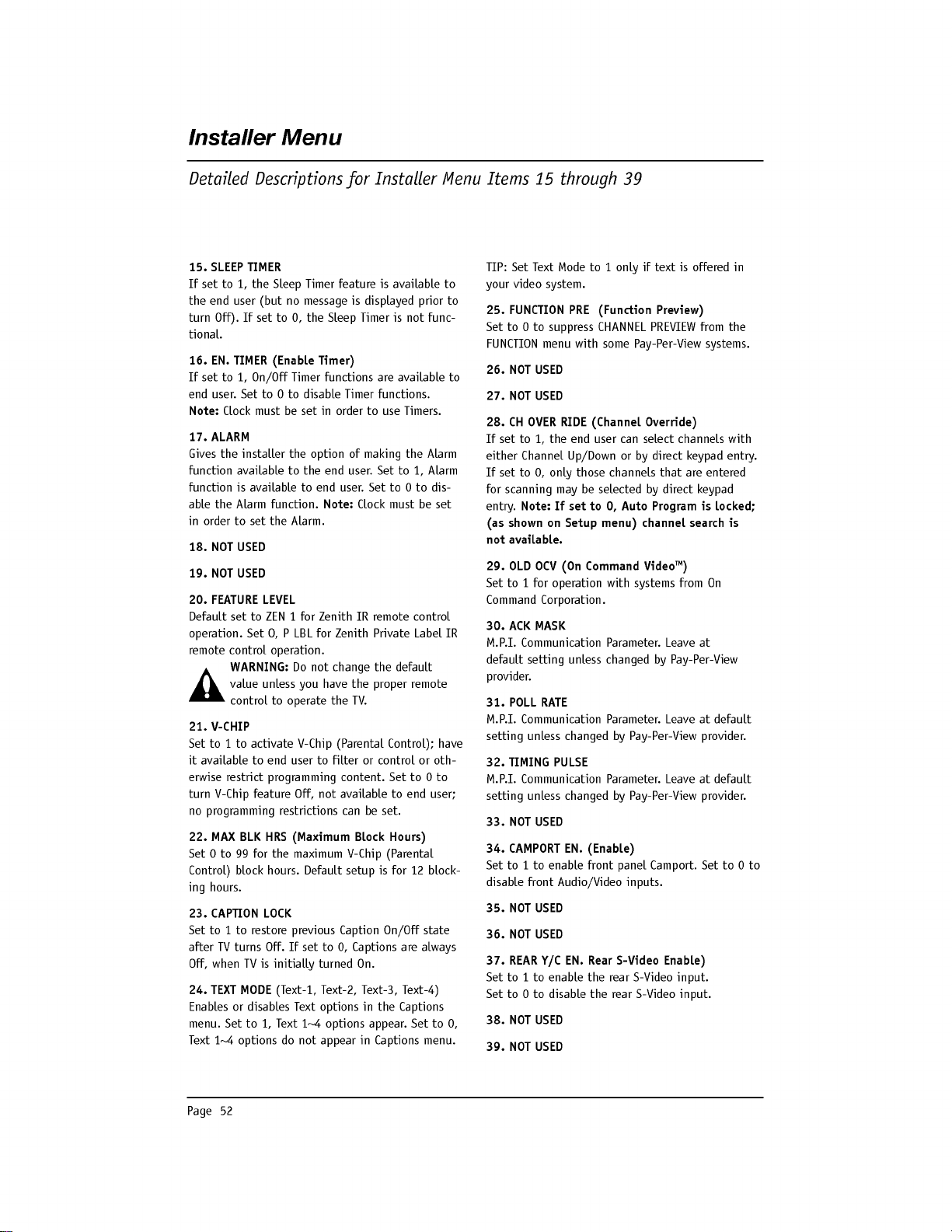
Page
52
15.
SLEEP
TIMER
If
set
to
1,
the
Sleep
Timer
feature
is
available
to
the
end
user
(but
no
message
is
displayed
prior
to
turn
Off).
If
set
to
0,
the
Sleep
Timer
is
not
func-
tional.
16. EN.
TIMER
(Enable
Timer)
If
set
to
1,
On/Off
Timer
functions
are
available
to
end
user.
Set
to
0
to
disable
Timer
functions.
Note:
Clock
must
be
set
in
order
to
use
Timers.
17.
ALARM
Gives
the
installer
the
option
of
making
the
Alarm
function
available
to
the
end
user.
Set
to
1,
Alarm
function
is
available
to
end
user.
Set
to 0 to
dis-
able
the
Alarm
function.
Note:
Clock
must
be
set
in
order
to
set
the Alarm.
18.
NOT
USED
19.
NOT
USED
20.
FEATURE
LEVEL
Default
set
to
ZEN
1
for
Zenith
IR
remote
control
operation.
Set
O,
P
LBL
for
Zenith
Private
Label
IR
remote
control
operation.
WARNING:
Do
not
change
the
default
value
unless
you
have
the
proper
remote
control
to
operate
the
TV.
21.
V-CHIP
Set
to
1
to
activate
V-Chip
(Parental
Control);
have
it
available
to
end
user
to
filter
or
control
or
oth-
erwise
restrict
programming
content.
Set
to 0 to
turn
V-Chip
feature
Off,
not
available
to
end
user;
no
programming
restrictions
can
be
set.
22.
MAX
BLK
HRS
(Maximum
Block
Hours)
Set
0
to
99
for
the
maximum
V-Chip
(Parental
Control)
block
hours.
Default
setup
is
for
12
block-
ing
hours.
23.
CAPTION
LOCK
Set
to
1
to
restore
previous
Caption
On/Off
state
after
TV
turns
Off.
If
set
to
0,
Captions
are
always
Off,
when
TV
is
initially
turned
On.
24.
TEXT
MODE
(Text-1,
Text-2, Text-3,
Text-4)
Enables
or
disables
Text
options
in
the
Captions
menu.
Set
to
1,
Text
1~4
options
appear.
Set
to
0,
Text
1~4
options
do
not
appear
in
Captions
menu.
TIP:
Set
Text
Mode
to
1
only
if
text
is
offered
in
your
video
system.
25.
FUNCTION
PRE
(Function
Preview)
Set
to
0
to
suppress
CHANNEL
PREVIEW
from
the
FUNCTION
menu
with
some
Pay-Per-View
systems.
26.
NOT
USED
27.
NOT
USED
28.
CH
OVER
RIDE
(Channel
Override)
If
set
to
1,
the
end
user
can
select
channels
with
either
Channel
Up/Down
or
by
direct
keypad
entry.
If
set
to
0,
only
those
channels
that
are
entered
for
scanning
may
be
selected
by
direct
keypad
entry.
Note:
If
set
to
0,
Auto
Program
is
locked;
(as
shown
on
Setup
menu)
channel
search
is
not
available.
29.
OLD OCV
(On
Command
Video
TM
)
Set
to
1
for
operation
with
systems
from
On
Command
Corporation.
30.
ACK
MASK
M.P.I.
Communication
Parameter.
Leave
at
default
setting
unless
changed
by
Pay-Per-View
provider.
31.
POLL
RATE
M.P.I.
Communication
Parameter.
Leave
at
default
setting
unless
changed
by
Pay-Per-View
provider.
32.
TIMING
PULSE
M.P.I.
Communication
Parameter.
Leave
at
default
setting
unless
changed
by
Pay-Per-View
provider.
33.
NOT
USED
34.
CAMPORT
EN.
(Enable)
Set
to
1
to
enable
front
panel
Camport.
Set
to 0 to
disable
front
Audio/Video
inputs.
35.
NOT
USED
36.
NOT
USED
37.
REAR
Y/C
EN.
Rear
S-Video
Enable)
Set
to
1
to
enable
the
rear
S-Video
input.
Set
to
0
to
disable
the
rear
S-Video
input.
38.
NOT
USED
39.
NOT
USED
Installer
Menu
Detailed
Descriptions
for
Installer
Menu
Items
15
through
39
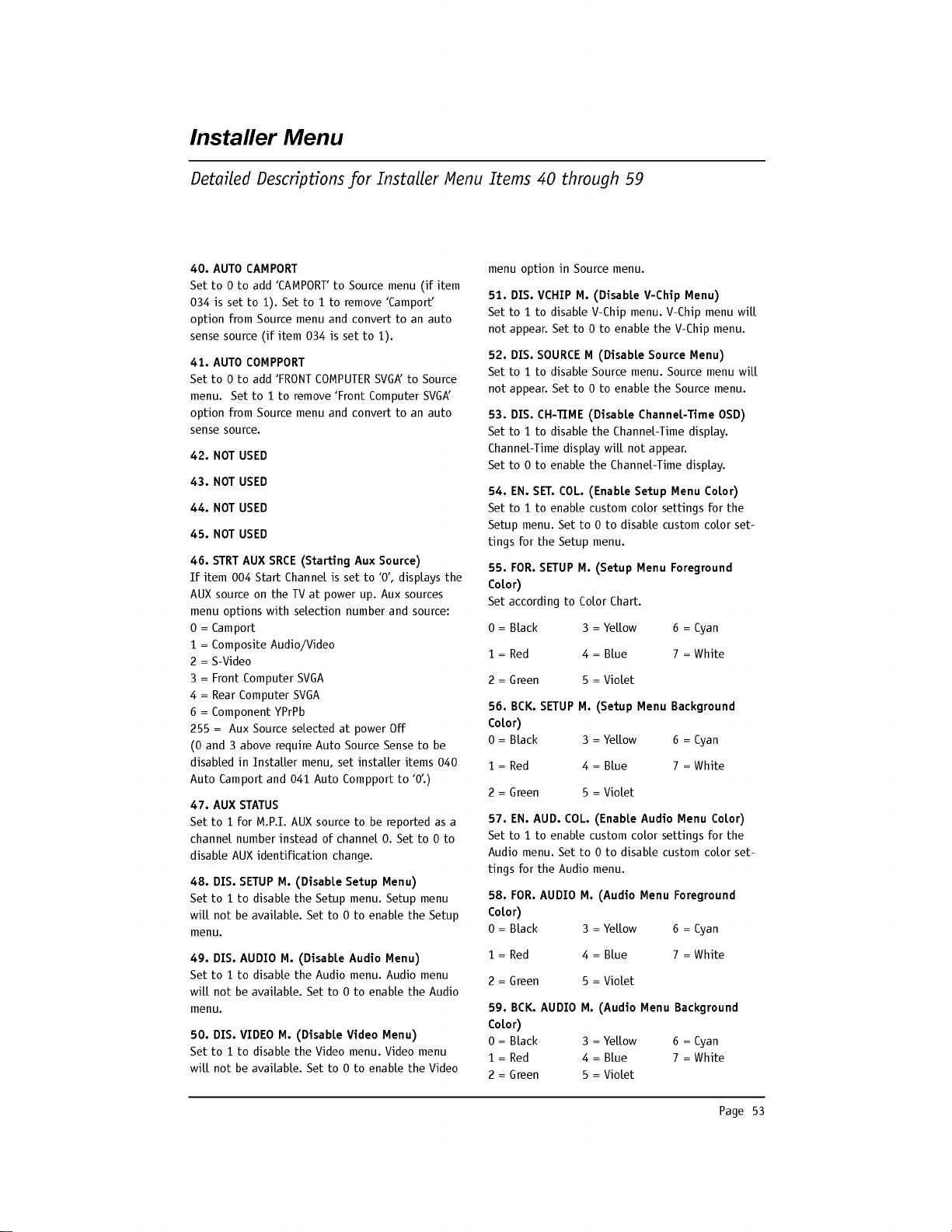
Page
53
Installer
Menu
Detailed
Descriptions
for
Installer
Menu
Items
40
through
59
40.
AUTO
CAMPORT
Set
to 0 to
add
'CAMPORT'
to
Source
menu
(if
item
034
is
set
to
1).
Set
to
1
to
remove
'Camport'
option
from
Source
menu
and
convert
to
an
auto
sense
source
(if
item
034
is
set
to
1).
41.
AUTO
COMPPORT
Set
to 0 to
add
'FRONT
COMPUTER
SVGA'
to
Source
menu.
Set
to
1
to
remove
'Front
Computer
SVGA'
option
from
Source
menu
and
convert
to
an
auto
sense
source.
42.
NOT
USED
43.
NOT
USED
44.
NOT
USED
45.
NOT
USED
46.
STRT
AUX
SRCE
(Starting
Aux
Source)
If
item
004
Start
Channel
is
set
to
'0',
displays
the
AUX
source
on
the
TV
at
power
up.
Aux
sources
menu
options
with
selection
number
and
source:
0
=
Camport
1
=
Composite
Audio/Video
2
=
S-Video
3
=
Front
Computer
SVGA
4
=
Rear
Computer
SVGA
6
=
Component
YPrPb
255
=
Aux
Source
selected
at
power
Off
(0
and
3
above
require
Auto
Source
Sense
to
be
disabled
in
Installer
menu,
set
installer
items
040
Auto
Camport
and
041
Auto
Compport
to
'0'.)
47.
AUX
STATUS
Set
to
1
for
M.P.I.
AUX
source
to
be
reported
as
a
channel
number
instead
of
channel
0.
Set
to
0
to
disable
AUX
identification
change.
48.
DIS.
SETUP
M.
(Disable
Setup
Menu)
Set
to
1
to
disable
the
Setup
menu.
Setup
menu
will
not
be
available.
Set
to
0
to
enable
the
Setup
menu.
49.
DIS.
AUDIO
M.
(Disable
Audio
Menu)
Set
to
1
to
disable
the
Audio
menu.
Audio
menu
will
not
be
available.
Set
to
0
to
enable
the
Audio
menu.
50.
DIS.
VIDEO
M.
(Disable
Video
Menu)
Set
to
1
to
disable
the
Video
menu.
Video
menu
will
not
be
available.
Set
to
0
to
enable
the
Video
menu
option
in
Source
menu.
51.
DIS.
VCHIP
M.
(Disable
V-Chip
Menu)
Set
to
1
to
disable
V-Chip
menu.
V-Chip
menu
will
not
appear.
Set
to
0
to
enable
the
V-Chip
menu.
52.
DIS.
SOURCE
M
(Disable
Source
Menu)
Set
to
1
to
disable
Source
menu.
Source
menu
will
not
appear.
Set
to
0
to
enable
the
Source
menu.
53.
DIS.
CH-TIME
(Disable
Channel-Time
OSD)
Set
to
1
to
disable
the
Channel-Time
display.
Channel-Time
display
will
not
appear.
Set
to
0
to
enable
the
Channel-Time
display.
54.
EN.
SET.
COL.
(Enable
Setup
Menu
Color)
Set
to
1
to
enable
custom
color
settings
for
the
Setup
menu.
Set
to 0 to
disable
custom
color
set-
tings
for
the
Setup
menu.
55.
FOR.
SETUP
M.
(Setup
Menu
Foreground
Color)
Set
according
to
Color
Chart.
0
=
Black
3
=
Yellow
6=Cyan
1=Red
4=Blue
7
=
White
2
=
Green
5
=
Violet
56.
BCK.
SETUP
M.
(Setup
Menu
Background
Color)
0
=
Black
3
=
Yellow
6=Cyan
1=Red
4=Blue
7
=
White
2
=
Green
5
=
Violet
57.
EN.
AUD.
COL.
(Enable
Audio
Menu
Color)
Set
to
1
to
enable
custom
color
settings
for
the
Audio
menu.
Set
to 0 to
disable
custom
color
set-
tings
for
the
Audio
menu.
58.
FOR.
AUDIO
M.
(Audio
Menu
Foreground
Color)
0
=
Black
3
=
Yellow
6=Cyan
1=Red
4=Blue
7
=
White
2
=
Green
5
=
Violet
59.
BCK.
AUDIO
M.
(Audio
Menu
Background
Color)
0
=
Black
3
=
Yellow
6=Cyan
1=Red
4=Blue
7
=
White
2
=
Green
5
=
Violet
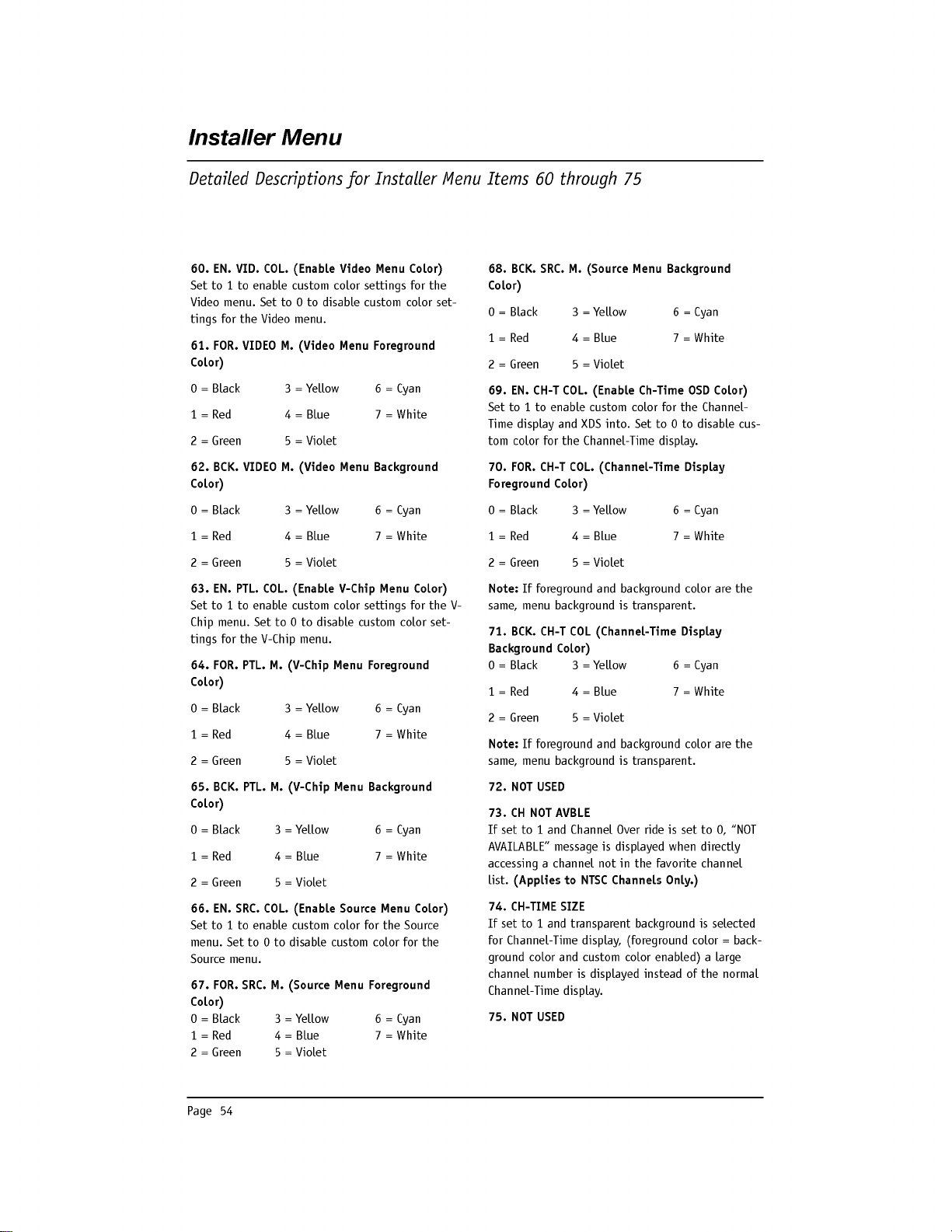
Page
54
Installer
Menu
Detailed
Descriptions
for
Installer
Menu
Items
60
through
75
60. EN.
VID.
COL.
(Enable
Video
Menu
Color)
Set
to
1
to
enable
custom
color
settings
for
the
Video
menu.
Set
to
0
to
disable
custom
color
set-
tings
for
the
Video
menu.
61.
FOR.
VIDEO
M.
(Video
Menu
Foreground
Color)
0
=
Black
3
=
Yellow
6=Cyan
1=Red
4=Blue
7
=
White
2
=
Green
5
=
Violet
62.
BCK.
VIDEO
M.
(Video
Menu
Background
Color)
0
=
Black
3
=
Yellow
6=Cyan
1=Red
4=Blue
7
=
White
2
=
Green
5
=
Violet
63. EN.
PTL.
COL.
(Enable
V-Chip
Menu
Color)
Set
to
1
to
enable
custom
color
settings
for
the
V-
Chip
menu.
Set
to 0 to
disable
custom
color
set-
tings
for
the
V-Chip
menu.
64.
FOR.
PTL.
M.
(V-Chip
Menu
Foreground
Color)
0
=
Black
3
=
Yellow
6=Cyan
1=Red
4=Blue
7
=
White
2
=
Green
5
=
Violet
65.
BCK.
PTL.
M.
(V-Chip
Menu
Background
Color)
0=Black
3=Yellow
6=Cyan
1=Red
4=Blue
7
=
White
2=Green
5=Violet
66. EN.
SRC.
COL.
(Enable
Source
Menu
Color)
Set
to
1
to
enable
custom
color
for
the
Source
menu.
Set
to 0 to
disable
custom
color
for
the
Source
menu.
67.
FOR.
SRC.
M.
(Source
Menu
Foreground
Color)
0=Black
3=Yellow
6=Cyan
1=Red
4=Blue
7
=
White
2=Green
5=Violet
68.
BCK.
SRC.
M.
(Source
Menu
Background
Color)
0=Black
3=Yellow
6=Cyan
1=Red
4=Blue
7
=
White
2=Green
5=Violet
69.
EN.
CH-T
COL.
(Enable
Ch-Time
OSD
Color)
Set
to
1
to
enable
custom
color
for
the
Channel-
Time
display
and
XDS
into.
Set
to
0
to
disable
cus-
tom
color
for
the
Channel-Time
display.
70.
FOR.
CH-T
COL.
(Channel-Time
Display
Foreground
Color)
0=Black
3=Yellow
6=Cyan
1=Red
4=Blue
7
=
White
2=Green
5=Violet
Note:
If
foreground
and
background
color
are
the
same,
menu
background
is
transparent.
71.
BCK.
CH-T
COL
(Channel-Time
Display
Background
Color)
0=Black
3=Yellow
6=Cyan
1=Red
4=Blue
7
=
White
2=Green
5=Violet
Note:
If
foreground
and
background
color
are
the
same,
menu
background
is
transparent.
72.
NOT
USED
73.
CH
NOT
AVBLE
If
set
to
1
and
Channel
Over
ride
is
set
to
0,
"NOT
AVAILABLE"
message
is
displayed
when
directly
accessing
a
channel
not
in
the
favorite
channel
list.
(Applies
to
NTSC
Channels
Only.)
74.
CH-TIME
SIZE
If
set
to
1
and
transparent
background
is
selected
for
Channel-Time
display,
(foreground
color
=
back-
ground
color
and
custom
color
enabled)
a
large
channel
number
is
displayed
instead
of
the
normal
Channel-Time
display.
75.
NOT
USED
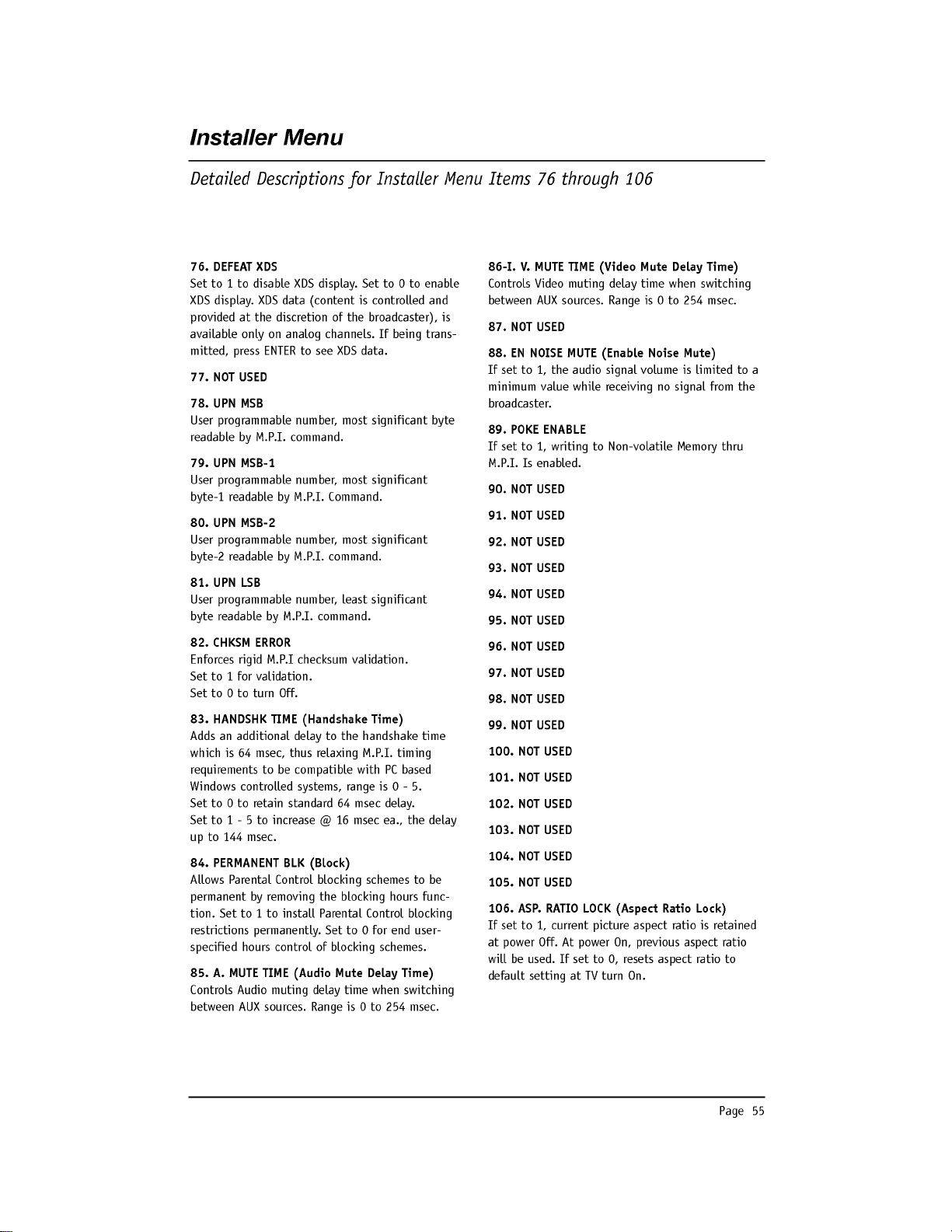
Page
55
Installer
Menu
Detailed
Descriptions
for
Installer
Menu
Items
76
through
106
76.
DEFEAT
XDS
Set
to
1
to
disable
XDS
display.
Set
to
0
to
enable
XDS
display.
XDS
data
(content
is
controlled
and
provided
at
the
discretion
of
the
broadcaster),
is
available
only
on
analog
channels.
If
being
trans-
mitted,
press
ENTER
to
see
XDS
data.
77.
NOT
USED
78.
UPN
MSB
User
programmable
number,
most
significant
byte
readable
by
M.P.I.
command.
79.
UPN
MSB-1
User
programmable
number,
most
significant
byte-1
readable
by
M.P.I.
Command.
80.
UPN
MSB-2
User
programmable
number,
most
significant
byte-2
readable
by
M.P.I.
command.
81.
UPN
LSB
User
programmable
number,
least
significant
byte
readable
by
M.P.I.
command.
82.
CHKSM
ERROR
Enforces
rigid
M.P.I
checksum
validation.
Set
to
1
for
validation.
Set
to 0 to
turn
Off.
83.
HANDSHK
TIME
(Handshake
Time)
Adds
an
additional
delay
to
the
handshake
time
which
is
64
msec,
thus
relaxing
M.P.I.
timing
requirements
to
be
compatible
with
PC
based
Windows
controlled
systems,
range
is
0
-
5.
Set
to 0 to
retain
standard
64
msec
delay.
Set
to
1
-
5
to
increase
@
16
msec
ea.,
the
delay
up
to
144
msec.
84.
PERMANENT
BLK
(Block)
Allows
Parental
Control
blocking
schemes
to
be
permanent
by
removing
the
blocking
hours
func-
tion.
Set
to
1
to
install
Parental Control
blocking
restrictions
permanently.
Set
to 0
for
end
user-
specified
hours
control
of
blocking
schemes.
85.
A.
MUTE
TIME
(Audio
Mute
Delay
Time)
Controls
Audio
muting
delay
time
when
switching
between
AUX
sources.
Range
is
0
to
254
msec.
86-I.
V.
MUTE
TIME
(Video
Mute
Delay
Time)
Controls
Video
muting
delay
time
when
switching
between
AUX
sources.
Range
is
0
to
254
msec.
87.
NOT
USED
88.
EN
NOISE
MUTE
(Enable
Noise
Mute)
If
set
to
1,
the
audio
signal
volume
is
limited
to
a
minimum
value
while
receiving
no
signal
from
the
broadcaster.
89.
POKE
ENABLE
If
set
to
1,
writing
to
Non-volatile
Memory
thru
M.P.I.
Is
enabled.
90.
NOT
USED
91.
NOT
USED
92.
NOT
USED
93.
NOT
USED
94.
NOT
USED
95.
NOT
USED
96.
NOT
USED
97.
NOT
USED
98.
NOT
USED
99.
NOT
USED
100.
NOT
USED
101.
NOT
USED
102.
NOT
USED
103.
NOT
USED
104.
NOT
USED
105.
NOT
USED
106.
ASP.
RATIO
LOCK
(Aspect
Ratio
Lock)
If
set
to
1,
current
picture
aspect
ratio
is
retained
at
power
Off.
At
power
On,
previous
aspect
ratio
will
be
used.
If
set
to
0,
resets
aspect
ratio
to
default
setting
at
TV
turn
On.

Page
56
LT2002
QuickSet
Programmer
Use
the
LT2002
QuickSet
II
"Clone"
Programmer
to
copy
the
setup
from
a
"master"
TV
then
quickly
transfer
the
setup
to
duplicate
TVs;
with
the
same
model
number
as
the
master
TV.
QuickSet
II
Programmer
LT2002
ZENITH
ELECTRONICS
CORPORATION,
GLENVIEW,
ILLINOIS,
USA
?
heartbeat
po
wer
on
communications
ok
?
slow
poweron
no
communications
?
green
battery
ok
?
red
battery
low
Blink
pattern
Color
Reset
Status
Indica
tor
Connect
cable to
TV
MPI
d
follow
on
screen
instructions
MPI
Ty
pic
al
T
VB
ack
LT2002
Clone
Programmer
TV
Back
Panel
(Expanded
View)
RF
Coxial
Wire
(75
ohm)
Antenna
(Tune
in
Analog
Channel)
Learn
Master
TV
Setup
Typical
MPI
Connections
Teach
Other
TV
the
Setup
Typical
MPI
Connections
L
M.P.I.
C
O
M
P
U
T
E
R
I
N
PR
VID
EO
IN
IN
COMPUTER
R
DVD
IN
AUDIO
AUDIO
S-VIDE
O
AUDIO
OUT
R
L
R
L
R
L
Y
PB
480I
DIG
ITAL
A
NTEN
NA
ANT
ENNA
CAB
LE
QuickSet
II
Programmer
LT2002
ZENITH
ELECTRONICS
CORPORATION,
GLENVIEW,
ILLINOIS,
USA
?
heartbeat
power
on
communications
ok
?
slow
power
on
no
communications
?
green
battery
ok
?
red
battery
low
Blink
pattern
Color
Reset
Status
Indicator
Connect
cable
to
TV
MPI
d
follow
on
screen
instructions
MPI
Ty
pic
al
T
VB
ack
LT2002
Clone
Programmer
TV
Back
Panel
(Expanded
View)
RF
Coxial
Wire
(75
ohm)
L
M.P.I.
C
O
M
P
U
T
E
R
I
N
PR
VID
EO
IN
IN
COMPUTER
R
DVD
IN
AUDIO
AUDIO
S-VIDE
O
AUDIO
OUT
R
L
R
L
R
L
Y
PB
480I
DIG
ITAL
A
NTEN
NA
ANT
ENNA
CAB
LE
Antenna
(Tune
in
Analog
Channel)
The
optional
QuickSet
II
Clone
Programmer
(LT2002)
allows
custom
setup
and
pro-
gramming
information
to
be
quickly
copied
from
a
master
TV
into
multiple
identi-
cal
television
sets.
Once
learned
from
the
master,
setup
data
is
retained
in
the
LT2002
for
future
use.
When
using
the
LT2002,
cloning
operations
will
go
easier
if
the
TV
set
is
connect-
ed
to
a
good
quality
Analog
channel
signal
and
operating
with
a
stable
picture
displayed.
To
operate
the
LT2002,
use
the
indicated
keys
on
the
HP602,
LP702
or
MBR3447
Zenith
installer
remotes,
or
the
front
panel
keys
on
the
TV
receiver.
Notes:
Use
the
MPI
port
to
attach
clone.
Do
not
run
Auto
Program
while
cloning.
THE
CLONE
HAS
CONTROL
OF
THE
TV
THE
CLONE
IS
VERSION
XX
THE
TV
IS
VERSION XX
THE
SW
IS
REVISION
XX
CLONE CLOCK
=
XX:XX
TV
CLOCK
=
XX:XX
-PRESS
ANY
KEY
TO
CONTINUE.
-DISCONNECT
CLONE
WHEN
DONE.
Warning:
Do
not
use
clone
with
a
LodgeNet
PPV
card
installed
in
TV
or
damage
to
clone
will
occur.
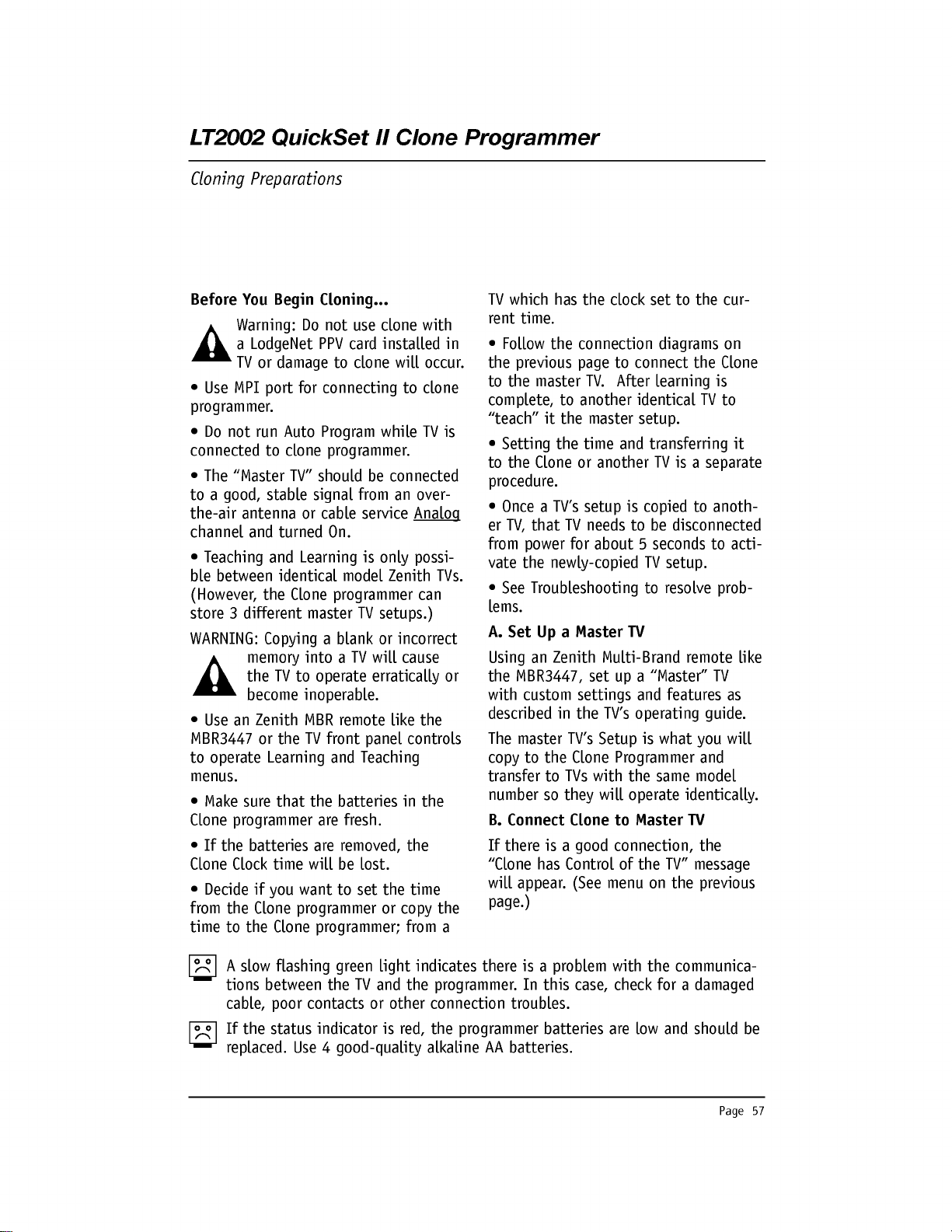
Page
57
LT2002
QuickSet
II
Clone
Programmer
Cloning
Preparations
Before
You
Begin
Cloning...
Warning:
Do
not
use
clone
with
a
LodgeNet
PPV
card
installed
in
TV
or
damage
to
clone
will
occur.
?
Use
MPI
port
for
connecting
to
clone
programmer.
?
Do
not
run
Auto
Program
while
TV
is
connected
to
clone
programmer.
?
The
"Master
TV"
should
be
connected
to
a
good,
stable
signal
from
an
over-
the-air
antenna
or
cable
service
Analog
channel
and
turned
On.
?
Teaching
and
Learning
is
only
possi-
ble
between
identical
model
Zenith
TVs.
(However,
the
Clone
programmer
can
store
3
different
master
TV
setups.)
WARNING:
Copying
a
blank
or
incorrect
memory
into
a
TV
will
cause
the
TV
to
operate
erratically
or
become
inoperable.
?
Use
an
Zenith
MBR
remote
like
the
MBR3447
or
the
TV
front
panel
controls
to
operate
Learning
and
Teaching
menus.
?
Make
sure
that
the
batteries
in
the
Clone
programmer
are
fresh.
?
If
the
batteries
are
removed,
the
Clone
Clock
time
will
be
lost.
?
Decide
if
you
want
to
set
the
time
from
the
Clone
programmer
or
copy
the
time
to
the
Clone
programmer;
from
a
TV
which
has the
clock
set
to
the
cur-
rent
time.
?
Follow
the
connection
diagrams
on
the
previous
page
to
connect
the Clone
to
the
master
TV.
After
learning
is
complete,
to
another
identical
TV
to
"teach"
it
the
master
setup.
?
Setting
the
time
and
transferring
it
to
the
Clone
or
another
TV
is
a
separate
procedure.
?
Once
a
TV's
setup
is
copied
to
anoth-
er
TV,
that
TV
needs
to
be
disconnected
from
power
for
about
5
seconds
to
acti-
vate
the
newly-copied
TV
setup.
?
See
Troubleshooting
to
resolve
prob-
lems.
A.
Set
Up
a
Master
TV
Using
an
Zenith
Multi-Brand
remote
like
the
MBR3447,
set
up
a
"Master"
TV
with
custom
settings
and
features
as
described
in
the
TV's
operating
guide.
The
master
TV's
Setup
is
what
you
will
copy
to
the Clone
Programmer
and
transfer
to
TVs
with
the
same
model
number
so
they
will
operate
identically.
B.
Connect
Clone
to
Master
TV
If
there
is
a
good
connection,
the
"Clone
has
Control
of
the
TV"
message
will
appear.
(See
menu
on
the
previous
page.)
A
slow
flashing
green
light
indicates
there
is
a
problem
with
the
communica-
tions
between
the
TV
and
the
programmer.
In
this
case,
check
for
a
damaged
cable,
poor
contacts
or
other
connection
troubles.
If
the
status
indicator
is
red,
the
programmer
batteries
are
low
and
should
be
replaced.
Use
4
good-quality
alkaline
AA
batteries.
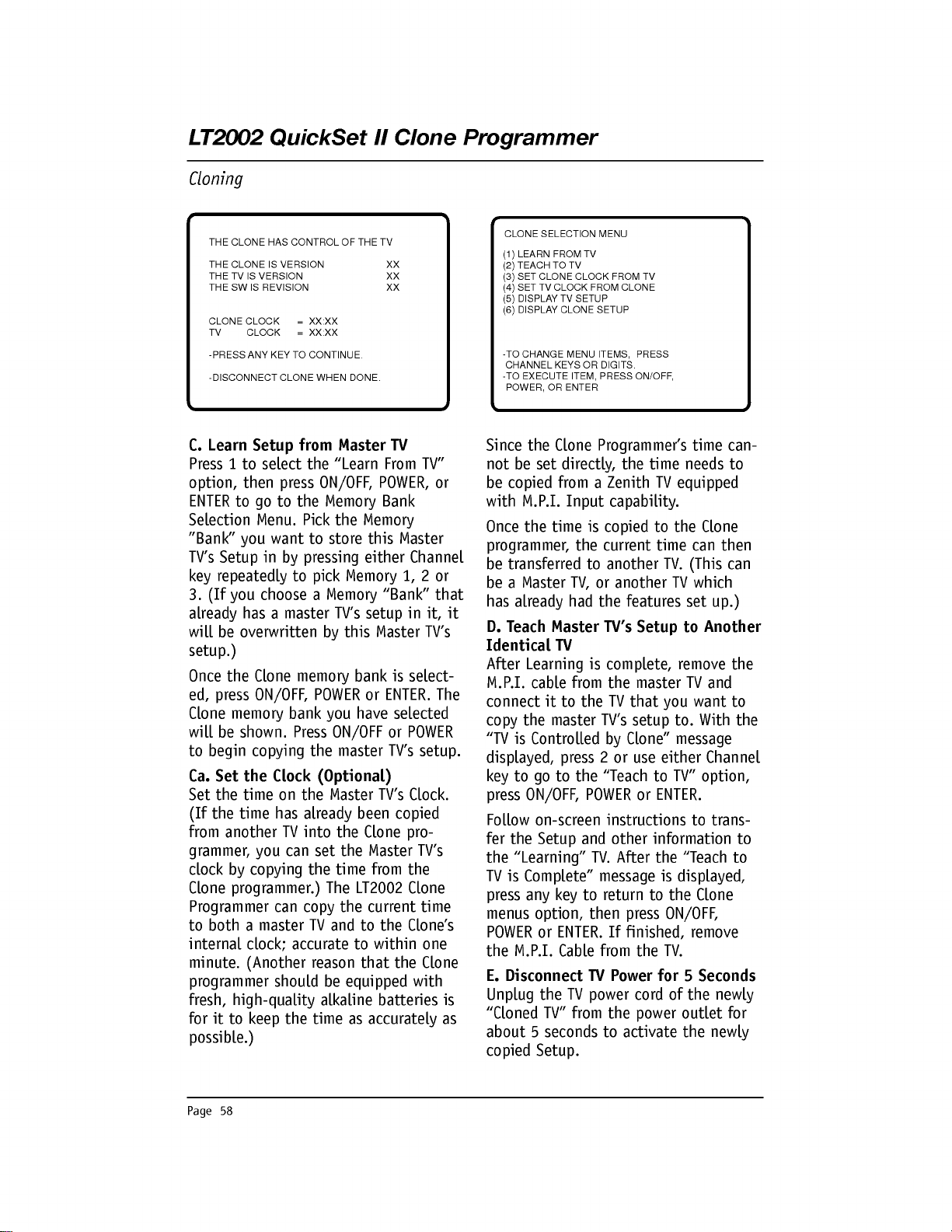
Page
58
LT2002
QuickSet
II
Clone
Programmer
Cloning
C.
Learn
Setup
from
Master
TV
Press
1
to
select
the
"Learn
From
TV"
option,
then
press
ON/OFF,
POWER,
or
ENTER
to
go
to
the
Memory
Bank
Selection
Menu.
Pick
the
Memory
"Bank"
you
want
to
store
this
Master
TV's
Setup
in
by
pressing
either
Channel
key
repeatedly
to
pick
Memory
1,
2
or
3.
(If
you
choose
a
Memory
"Bank"
that
already
has
a
master
TV's
setup
in
it,
it
will
be
overwritten
by
this
Master
TV's
setup.)
Once
the
Clone
memory
bank
is
select-
ed,
press
ON/OFF,
POWER
or
ENTER.
The
Clone
memory
bank
you
have
selected
will
be
shown.
Press
ON/OFF
or
POWER
to
begin
copying
the
master
TV's
setup.
Ca.
Set
the
Clock
(Optional)
Set
the
time
on
the
Master
TV's Clock.
(If
the
time
has
already
been
copied
from
another
TV
into
the
Clone
pro-
grammer,
you
can
set
the
Master
TV's
clock
by
copying
the
time
from
the
Clone
programmer.)
The
LT2002
Clone
Programmer
can
copy
the
current
time
to
both
a
master
TV
and
to
the
Clone's
internal
clock;
accurate
to
within
one
minute.
(Another
reason
that
the
Clone
programmer
should
be
equipped
with
fresh,
high-quality
alkaline
batteries
is
for
it
to
keep
the
time
as
accurately
as
possible.)
Since
the
Clone
Programmer's
time
can-
not
be
set
directly,
the
time
needs
to
be
copied
from
a
Zenith
TV
equipped
with
M.P.I.
Input
capability.
Once
the
time
is
copied
to
the
Clone
programmer,
the
current
time
can
then
be
transferred
to
another
TV.
(This
can
be
a
Master
TV,
or
another
TV
which
has
already
had
the
features
set
up.)
D.
Teach
Master
TV's
Setup
to
Another
Identical
TV
After
Learning
is
complete,
remove
the
M.P.I.
cable
from
the
master
TV
and
connect
it
to
the
TV
that
you
want
to
copy
the
master
TV's
setup
to.
With
the
"TV
is
Controlled
by
Clone"
message
displayed,
press
2
or
use
either
Channel
key
to
go
to
the
"Teach
to
TV"
option,
press
ON/OFF,
POWER
or
ENTER.
Follow
on-screen
instructions
to
trans-
fer
the
Setup
and
other
information
to
the
"Learning"
TV.
After
the
"Teach
to
TV
is
Complete"
message
is
displayed,
press
any
key
to
return
to
the Clone
menus
option,
then
press
ON/OFF,
POWER
or
ENTER.
If
finished,
remove
the
M.P.I.
Cable
from
the
TV.
E.
Disconnect
TV
Power
for
5
Seconds
Unplug
the
TV
power
cord
of
the
newly
"Cloned
TV"
from
the
power
outlet
for
about
5
seconds
to
activate
the
newly
copied
Setup.
THE
CLONE
HAS
CONTROL
OF
THE
TV
THE
CLONE
IS
VERSION
XX
THE
TV
IS
VERSION
XX
THE
SW
IS
REVISION
XX
CLONE
CLOCK
=
XX:XX
TV
CLOCK
=
XX:XX
-PRESS
ANY
KEY
TO
CONTINUE.
-DISCONNECT
CLONE
WHEN
DONE.
CLONE
SELECTION
MENU
(1)
LEARN
FROM
TV
(2)
TEACH
TO
TV
(3)
SET
CLONE
CLOCK
FROM
TV
(4)
SET TV
CLOCK
FROM
CLONE
(5)
DISPLAY
TV
SETUP
(6)
DISPLAY
CLONE
SETUP
-TO
CHANGE
MENU
ITEMS,
PRESS
CHANNEL
KEYS
OR
DIGITS.
-TO
EXECUTE
ITEM,
PRESS
ON/OFF,
POWER,
OR
ENTER
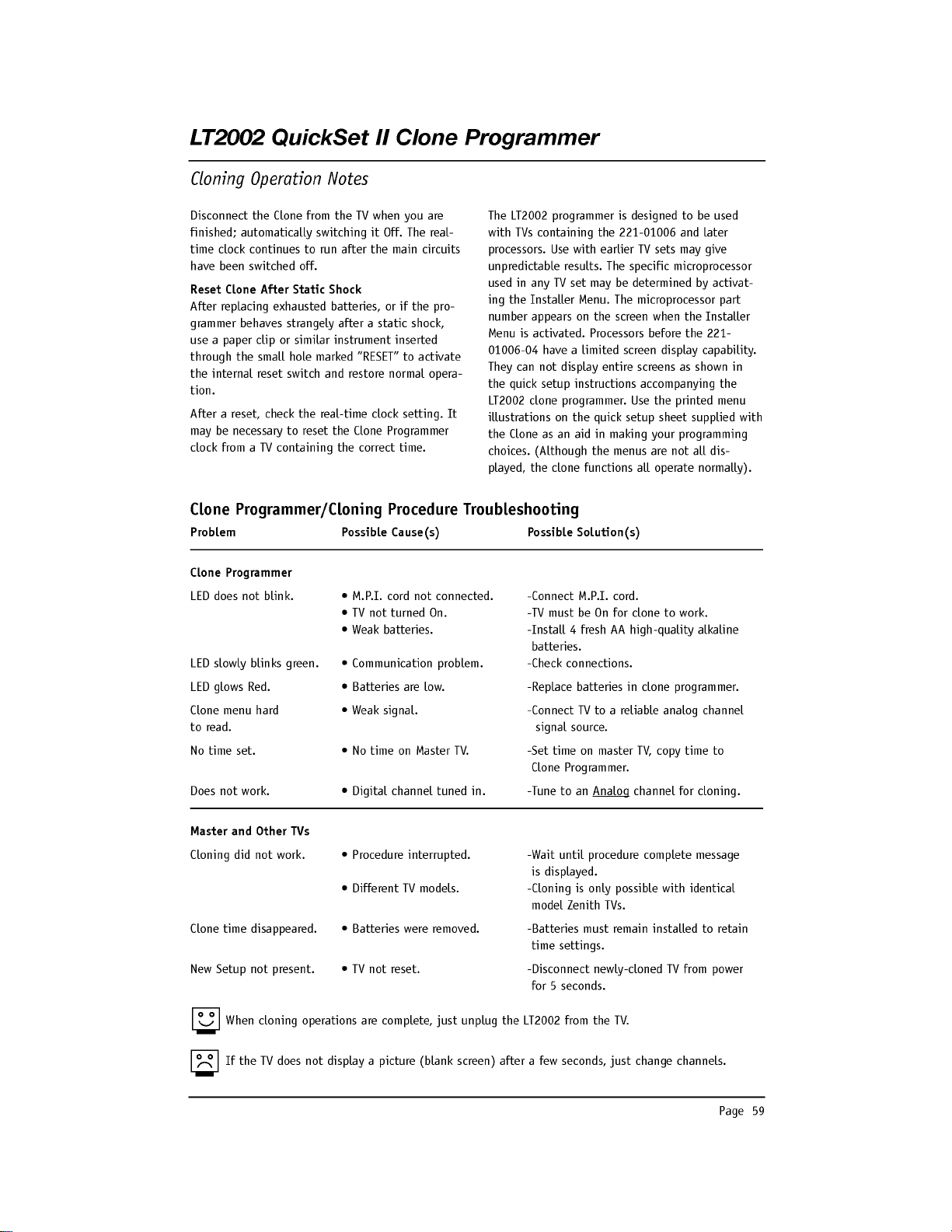
Page
59
When
cloning
operations
are
complete,
just
unplug
the
LT2002
from
the
TV.
If
the
TV
does
not
display
a
picture
(blank
screen)
after
a
few
seconds,
just
change
channels.
LT2002
QuickSet
II
Clone
Programmer
Cloning
Operation
Notes
Disconnect
the
Clone
from
the
TV
when
you
are
finished;
automatically
switching
it
Off.
The
real-
time
clock
continues
to
run
after
the
main
circuits
have
been
switched
off.
Reset
Clone
After
Static
Shock
After
replacing
exhausted
batteries,
or
if
the
pro-
grammer
behaves
strangely
after
a
static
shock,
use
a
paper
clip
or
similar
instrument
inserted
through
the
small
hole
marked
"RESET"
to
activate
the
internal
reset
switch
and
restore
normal
opera-
tion.
After
a
reset,
check
the
real-time
clock
setting.
It
may
be
necessary
to
reset
the
Clone
Programmer
clock
from
a
TV
containing
the
correct
time.
The
LT2002
programmer
is
designed
to
be used
with
TVs
containing
the
221-01006
and
later
processors.
Use
with
earlier
TV
sets
may
give
unpredictable
results.
The
specific
microprocessor
used
in
any
TV
set
may
be
determined
by
activat-
ing
the
Installer
Menu.
The
microprocessor
part
number
appears
on
the
screen
when
the
Installer
Menu
is
activated.
Processors
before
the
221-
01006-04
have
a
limited
screen
display
capability.
They
can
not
display
entire
screens
as
shown
in
the
quick
setup
instructions
accompanying
the
LT2002
clone
programmer.
Use
the
printed
menu
illustrations
on
the
quick
setup
sheet
supplied
with
the
Clone
as
an
aid
in
making
your
programming
choices.
(Although
the
menus
are
not
all
dis-
played,
the
clone
functions
all
operate
normally).
Clone
Programmer/Cloning
Procedure
Troubleshooting
Problem
Possible
Cause(s)
Possible
Solution(s)
Clone
Programmer
LED
does
not
blink.
?
M.P.I.
cord
not
connected.
-Connect
M.P.I.
cord.
?
TV
not
turned
On. -TV
must
be
On
for
clone
to
work.
?
Weak
batteries.
-Install
4
fresh
AA
high-quality
alkaline
batteries.
LED
slowly
blinks
green.
?
Communication
problem.
-Check
connections.
LED
glows
Red.
?
Batteries
are
low.
-Replace
batteries
in
clone
programmer.
Clone
menu
hard
?
Weak
signal.
-Connect
TV
to
a
reliable
analog
channel
to
read.
signal
source.
No
time
set.
?
No
time
on
Master
TV.
-Set
time
on
master
TV,
copy
time
to
Clone
Programmer.
Does
not
work.
?
Digital
channel
tuned
in.
-Tune
to
an
Analog
channel
for
cloning.
Master
and
Other
TVs
Cloning
did
not
work.
?
Procedure
interrupted.
-Wait
until
procedure
complete
message
is
displayed.
?
Different
TV
models.
-Cloning
is
only
possible
with
identical
model
Zenith
TVs.
Clone
time
disappeared.
?
Batteries
were
removed.
-Batteries
must
remain
installed
to
retain
time
settings.
New
Setup
not
present.
?
TV
not
reset.
-Disconnect
newly-cloned
TV
from
power
for
5
seconds.
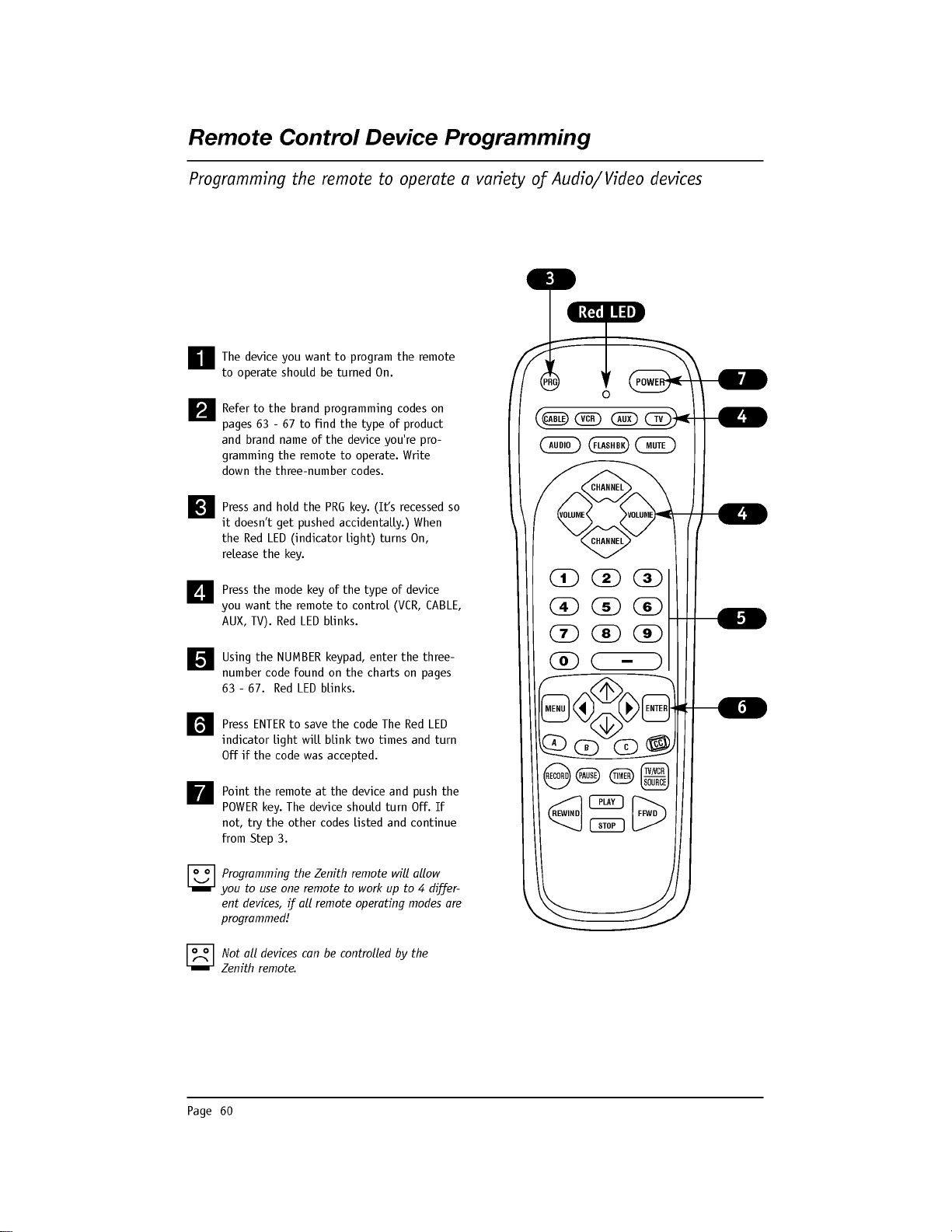
Page
60
Remote
Control
Device
Programming
Programming
the
remote
to
operate
a
variety
of
Audio/Video
devices
The
device
you
want
to
program
the
remote
to
operate
should be turned
On.
Refer
to
the
brand
programming
codes
on
pages
63
-
67
to
find
the
type
of
product
and
brand
name
of
the
device
you're
pro-
gramming
the
remote
to
operate.
Write
down
the
three-number
codes.
Press
and
hold
the
PRG
key.
(It's
recessed
so
it
doesn't
get
pushed
accidentally.)
When
the
Red
LED
(indicator
light)
turns
On,
release
the
key.
Press
the
mode
key
of
the
type
of
device
you
want
the
remote
to
control
(VCR,
CABLE,
AUX,
TV).
Red
LED
blinks.
Using
the
NUMBER
keypad,
enter
the
three-
number
code
found
on
the
charts
on
pages
63
-
67.
Red
LED
blinks.
Press
ENTER
to
save
the
code
The
Red
LED
indicator
light
will
blink
two
times
and
turn
Off
if
the
code
was
accepted.
Point
the
remote
at
the device
and
push
the
POWER
key.
The
device
should
turn
Off.
If
not,
try
the
other
codes
listed
and
continue
from
Step
3.
Programming
the
Zenith
remote
will
allow
you
to
use
one
remote
to
work
up
to
4
differ-
ent
devices,
if
all
remote
operating
modes
are
programmed!
Not
all
devices
can
be
controlled
by
the
Zenith
remote.
PRG
POWER
CABLE
VCR
AUX
TV
AUDIO
FLASHBK
MUTE
CHANNEL
CHANNEL
VOLUME VOLUME
123
456
7
0
89
MENU
REWIND
FFWD
RECORD
A
B
C
C
C
TV/VCR
SOURCE
PAUSE
TIMER
PLAY
STOP
ENTER
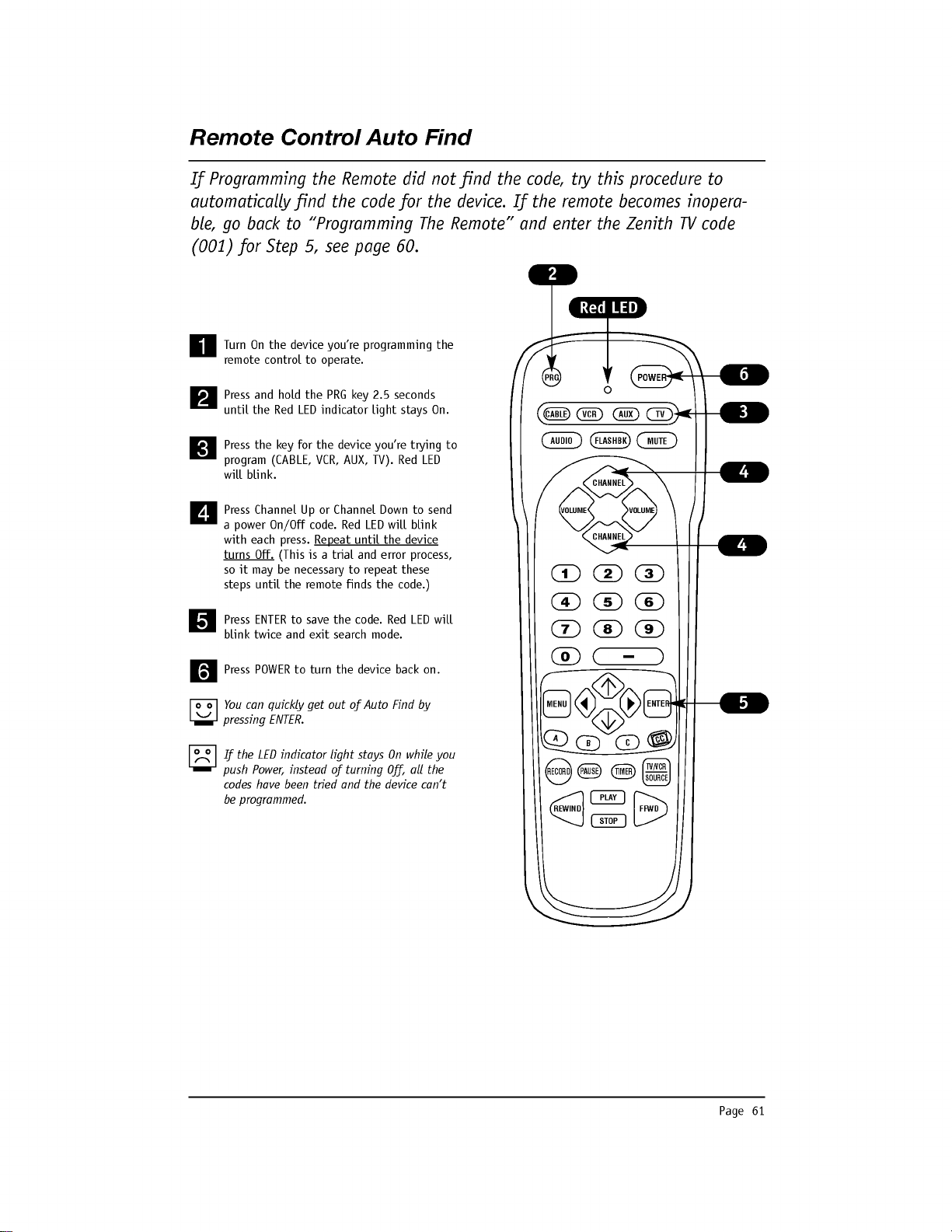
Page
61
Remote
Control
Auto
Find
If
Programming
the
Remote
did
not
find
the
code,
try
this
procedure
to
automatically
find
the
code
for
the
device.
If
the
remote
becomes
inopera-
ble,
go
back
to
"Programming
The
Remote"
and
enter
the
Zenith
TV
code
(001)
for
Step
5,
see
page
60.
Turn
On
the
device
you're
programming
the
remote
control
to
operate.
Press
and
hold
the
PRG
key
2.5
seconds
until
the
Red
LED
indicator
light
stays
On.
Press
the
key
for
the
device
you're
trying
to
program
(CABLE,
VCR,
AUX,
TV).
Red
LED
will
blink.
Press
Channel
Up
or
Channel
Down
to
send
a
power
On/Off
code.
Red
LED
will
blink
with
each
press.
Repeat
until
the
device
turns
Off.
(This
is
a
trial
and
error
process,
so
it
may
be
necessary
to
repeat
these
steps
until
the
remote
finds
the
code.)
Press
ENTER
to
save
the
code.
Red
LED
will
blink
twice
and
exit
search
mode.
Press
POWER
to
turn
the
device
back
on.
You
can
quickly
get
out
of
Auto
Find
by
pressing
ENTER.
If
the
LED
indicator
light
stays
On
while
you
push
Power,
instead
of
turning
Off,
all
the
codes
have
been
tried
and
the device
can't
be
programmed.
PRG
POWER
CABLE
VCR
AUX
TV
AUDIO
FLASHBK
MUTE
CHANNEL
CHANNEL
VOLUME
VOLUME
123
456
7
0
89
MENU
REWIND
FFWD
RECORD
A
B
C
C
C
TV/VCR
SOURCE
PAUSE
TIMER
PLAY
STOP
ENTER
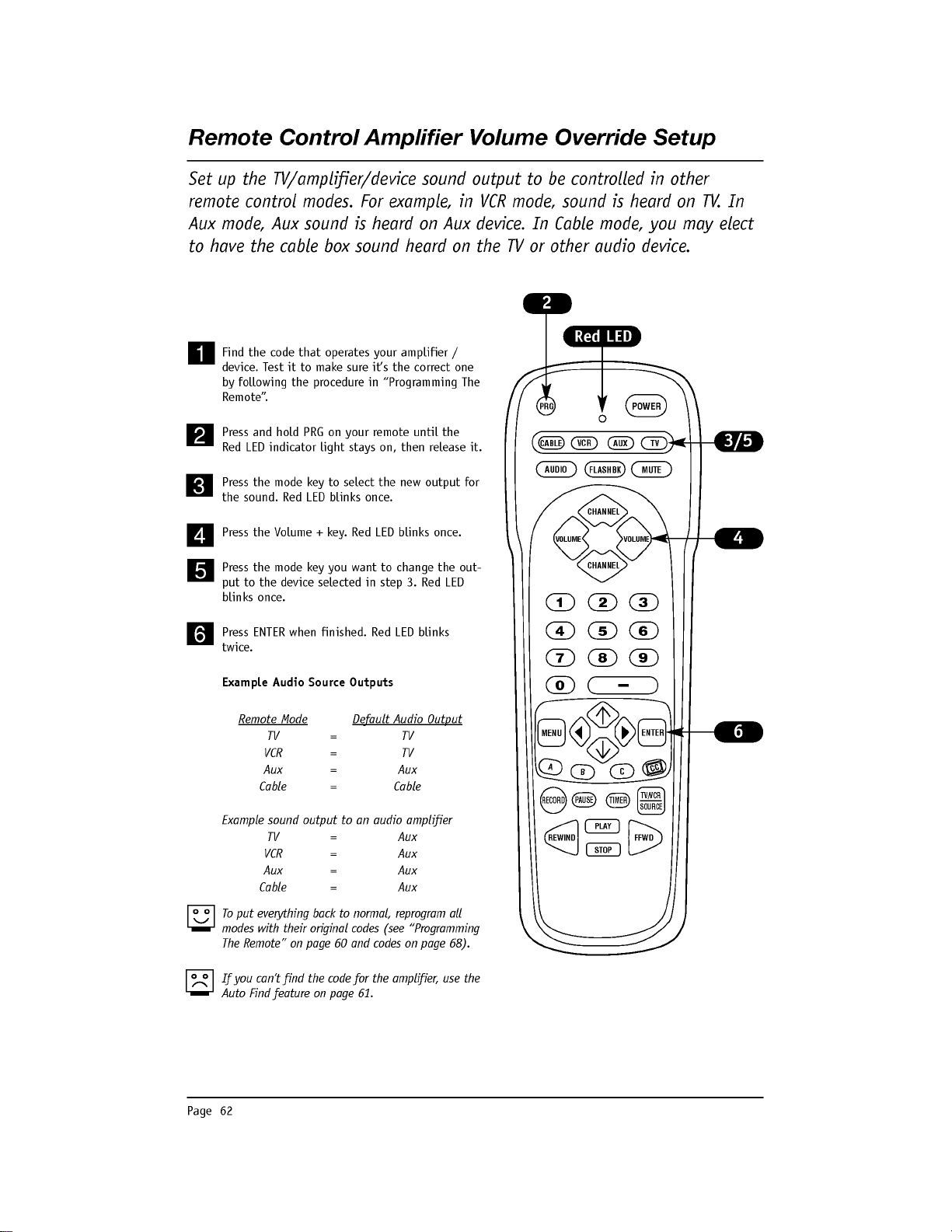
Page
62
Remote
Control
Amplifier
Volume
Override
Setup
Set
up
the
TV/amplifier/device
sound
output
to
be
controlled
in
other
remote
control
modes.
For
example,
in
VCR
mode,
sound
is
heard
on
TV.
In
Aux
mode,
Aux
sound
is
heard
on
Aux
device.
In
Cable
mode,
you
may
elect
to
have
the
cable
box
sound
heard
on
the
TV
or
other
audio
device.
Find
the
code
that
operates
your
amplifier
/
device.
Test
it
to
make
sure
it's
the
correct
one
by
following
the
procedure
in
"Programming
The
Remote".
Press
and
hold
PRG
on
your
remote
until
the
Red
LED
indicator
light
stays
on,
then
release
it.
Press
the
mode
key
to
select
the
new
output
for
the
sound.
Red
LED
blinks
once.
Press
the
Volume
+
key.
Red
LED
blinks
once.
Press
the
mode
key
you
want
to
change
the
out-
put
to
the
device
selected
in
step
3.
Red
LED
blinks
once.
Press
ENTER
when
finished.
Red
LED
blinks
twice.
Example
Audio
Source
Outputs
Remote
Mode
Default
Audio
Output
TV
=
TV
VCR
=
TV
Aux
=
Aux
Cable
=
Cable
Example
sound
output
to
an
audio
amplifier
TV
=
Aux
VCR
=
Aux
Aux
=
Aux
Cable
=
Aux
To
put
everything
back
to
normal,
reprogram
all
modes
with
their
original
codes
(see
"Programming
The
Remote"
on
page
60
and
codes
on
page
68).
If
you
can't
find
the
code
for
the
amplifier,
use
the
Auto
Find
feature
on
page
61.
PRG
POWER
CABLE
VCR
AUX
TV
AUDIO
FLASHBK
MUTE
CHANNEL
CHANNEL
VOLUME
VOLUME
123
456
7
0
89
MENU
REWIND
FFWD
RECORD
A
B
C
C
C
TV/VCR
SOURCE
PAUSE
TIMER
PLAY
STOP
ENTER
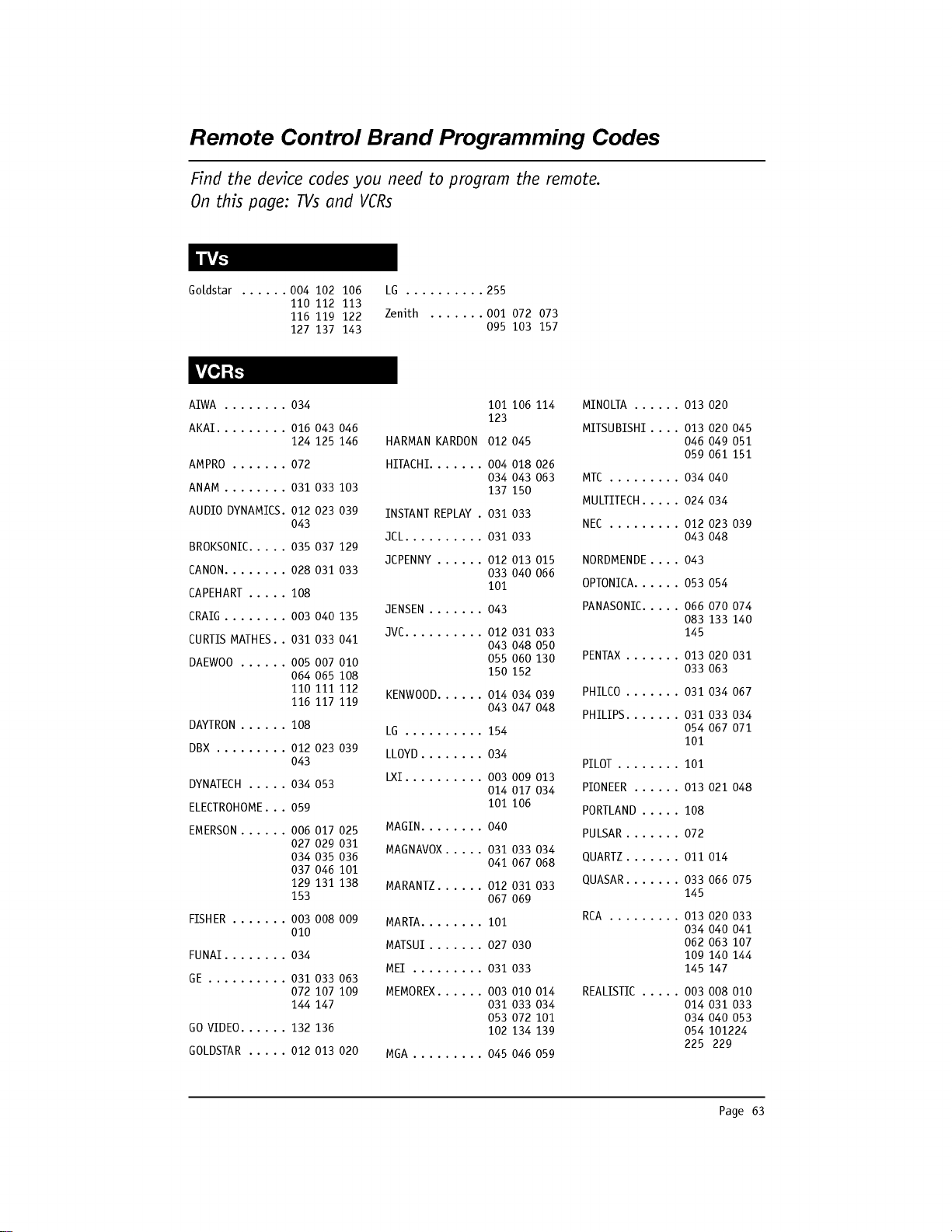
Page
63
AIWA........034
AKAI.........016043046
124
125 146
AMPRO.......072
ANAM........031033103
AUDIO
DYNAMICS
.
012 023 039
043
BROKSONIC.
. . . .
035 037
129
CANON.
. . . . . .
.028031033
CAPEHART.
. . .
.108
CRAIG.
. . . . . .
.003040135
CURTIS
MATHES
. .
031 033 041
DAEWOO.
. . . .
.005007010
064
065 108
110
111 112
116 117 119
DAYTRON.
. . . .
.108
DBX.........012023039
043
DYNATECH.
. . .
.034053
ELECTROHOME
. . .
059
EMERSON.
. . . .
.006017025
027 029 031
034
035 036
037 046
101
129 131
138
153
FISHER.
. . . . .
.003008009
010
FUNAI........034
GE..........031033063
072
107 109
144
147
GOVIDEO.
. . . .
.132136
GOLDSTAR.
. . .
.012013020
101 106
114
123
HARMAN
KARDON
012 045
HITACHI.
. . . . .
.004018026
034
043 063
137
150
INSTANT
REPLAY
.
031 033
JCL..........031033
JCPENNY.
. . . .
.012013015
033
040
066
101
JENSEN.......043
JVC..........012031033
043
048 050
055
060
130
150
152
KENWOOD.
. . . .
.014034039
043 047
048
LG..........154
LLOYD........034
LXI..........003009013
014
017
034
101 106
MAGIN........040
MAGNAVOX.
. . . .
031033034
041 067
068
MARANTZ.
. . . .
.012031033
067 069
MARTA........101
MATSUI.
. . . . .
.027030
MEI.........031033
MEMOREX.
. . . .
.003010014
031 033
034
053 072
101
102
134
139
MGA.........045046059
MINOLTA.
. . . .
.013020
MITSUBISHI
. . . .
013
020
045
046 049 051
059 061
151
MTC.........034040
MULTITECH.
. . . .
024 034
NEC.........012023039
043
048
NORDMENDE
. . . .
043
OPTONICA.
. . . .
.053054
PANASONIC.
. . . .
066
070 074
083
133
140
145
PENTAX.
. . . . .
.013020031
033 063
PHILCO.
. . . . .
.031034067
PHILIPS.
. . . . .
.031033034
054
067 071
101
PILOT........101
PIONEER.
. . . .
.013021048
PORTLAND.
. . .
.108
PULSAR.......072
QUARTZ.
. . . . .
.011014
QUASAR.
. . . . .
.033066075
145
RCA.........013020033
034 040
041
062 063
107
109
140 144
145 147
REALISTIC.
. . .
.003008010
014
031 033
034 040
053
054
101224
225 229
Goldstar
. . . . .
.004102106
110
112 113
116 119 122
127 137 143
LG..........255
Zenith.
. . . . .
.001072073
095
103 157
Remote
Control
Brand
Programming
Codes
Find
the
device
codes
you
need
to
program
the
remote.
On
this
page:
TVs
and
VCRs
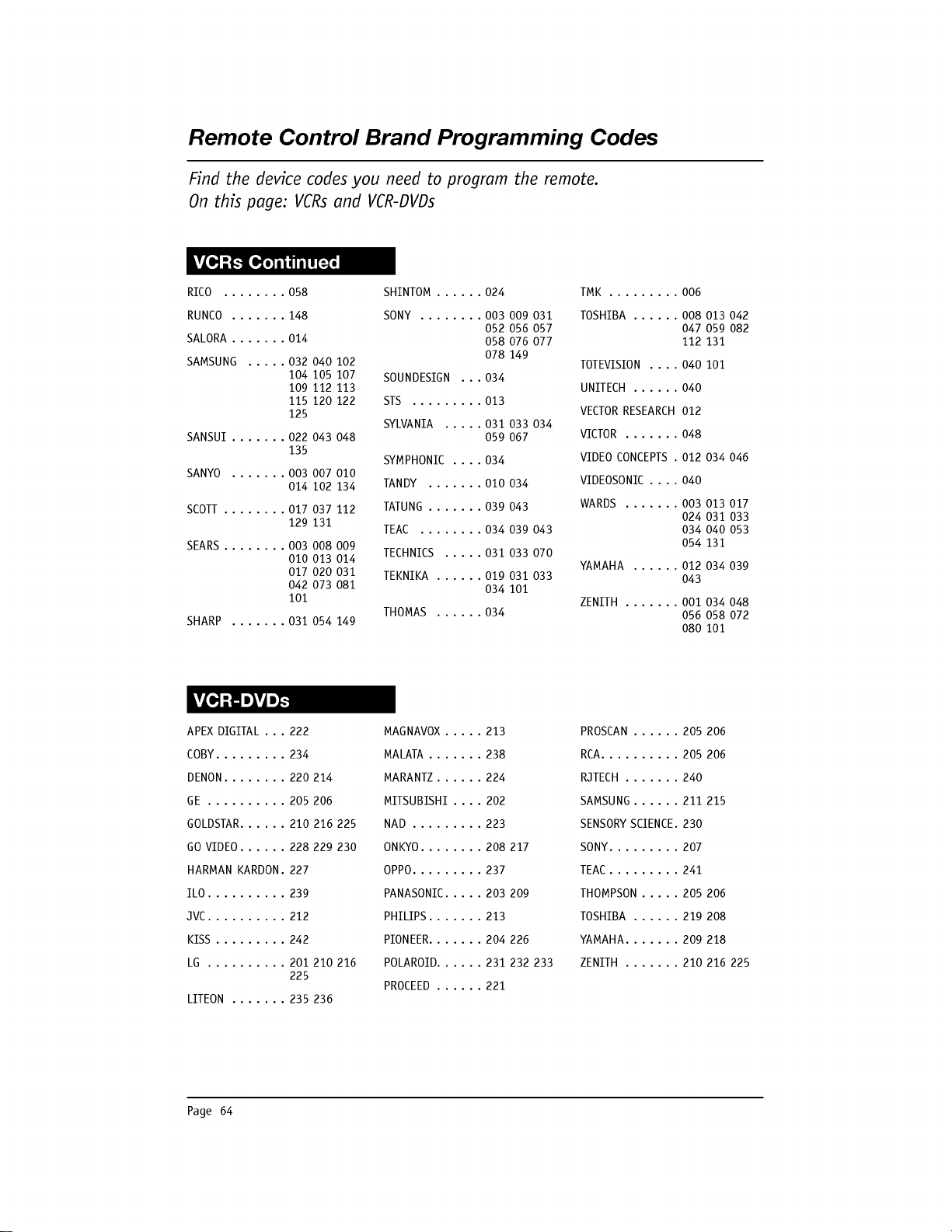
Page
64
APEX
DIGITAL
. . .
222
COBY.........234
DENON........220214
GE..........205206
GOLDSTAR.
. . . .
.210216225
GOVIDEO.
. . . .
.228229230
HARMAN
KARDON
.
227
ILO..........239
JVC..........212
KISS.........242
LG..........201210216
225
LITEON.
. . . . .
.235236
MAGNAVOX.
. . .
.213
MALATA.......238
MARANTZ.
. . . .
.224
MITSUBISHI
. . . .
202
NAD.........223
ONKYO........208217
OPPO.........237
PANASONIC.
. . . .
203 209
PHILIPS.......213
PIONEER.
. . . . .
.204226
POLAROID.
. . . .
.231232233
PROCEED.
. . . .
.221
PROSCAN.
. . . .
.205206
RCA..........205206
RJTECH.......240
SAMSUNG.
. . . .
.211215
SENSORY
SCIENCE.
230
SONY.........207
TEAC.........241
THOMPSON.
. . .
.205206
TOSHIBA.
. . . .
.219208
YAMAHA.
. . . . .
.209218
ZENITH.
. . . . .
.210216225
RICO........058
RUNCO.......148
SALORA.......014
SAMSUNG
. . . .
.032040102
104
105 107
109 112 113
115
120
122
125
SANSUI.
. . . . .
.022043048
135
SANYO.......003007010
014
102
134
SCOTT.
. . . . . .
.017037112
129 131
SEARS.
. . . . . .
.003008009
010
013
014
017
020
031
042 073 081
101
SHARP...
...
.031054149
SHINTOM.
. . . .
.024
SONY........003009031
052 056 057
058
076 077
078
149
SOUNDESIGN
. . .
034
STS.........013
SYLVANIA
. . . .
.031033034
059 067
SYMPHONIC
. . . .
034
TANDY.......010034
TATUNG.
. . . . .
.039043
TEAC........034039043
TECHNICS
. . . .
.031033070
TEKNIKA.
. . . .
.019031033
034
101
THOMAS......034
TMK.........006
TOSHIBA.
. . . .
.008013042
047 059 082
112 131
TOTEVISION
. . . .
040
101
UNITECH.
. . . .
.040
VECTOR
RESEARCH
012
VICTOR.......048
VIDEO
CONCEPTS
.
012
034
046
VIDEOSONIC
. . . .
040
WARDS.
. . . . .
.003013017
024
031 033
034 040
053
054
131
YAMAHA.
. . . .
.012034039
043
ZENITH.
. . . . .
.001034048
056
058
072
080
101
Remote
Control
Brand
Programming
Codes
Find
the
device
codes
you
need
to
program
the
remote.
On
this
page:
VCRs
and
VCR-DVDs
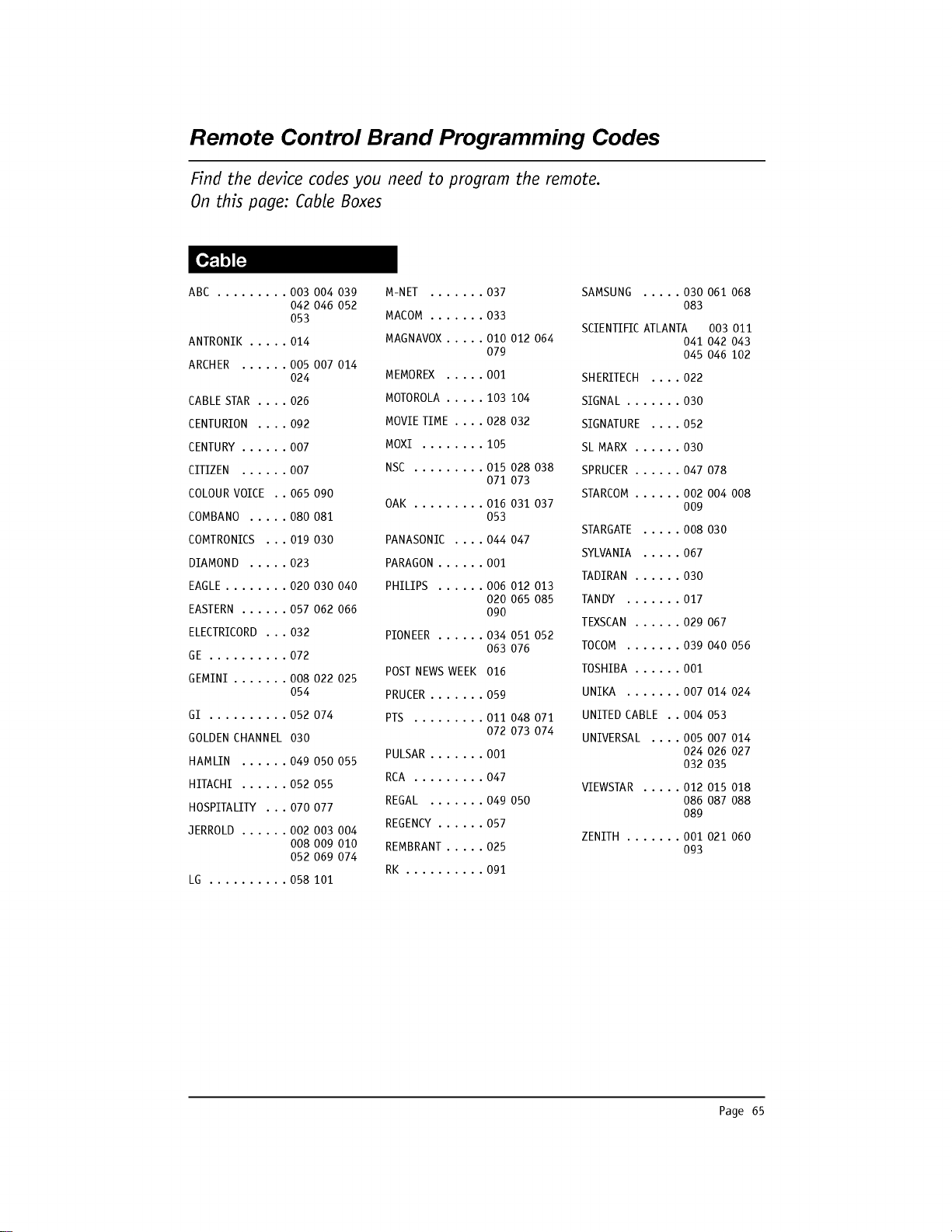
Page
65
Remote
Control
Brand
Programming
Codes
Find
the
device
codes
you
need
to
program
the
remote.
On
this
page:
Cable
Boxes
ABC.........003004039
042 046 052
053
ANTRONIK.
. . .
.014
ARCHER
. . . . .
.005007014
024
CABLESTAR.
. .
.026
CENTURION
. . . .
092
CENTURY.
. . . .
.007
CITIZEN......007
COLOUR
VOICE
. .
065
090
COMBANO
. . . .
.080081
COMTRONICS
. . .
019
030
DIAMOND.....023
EAGLE.
. . . . . .
.020030040
EASTERN.
. . . .
.057062066
ELECTRICORD
. . .
032
GE..........072
GEMINI.
. . . . .
.008022025
054
GI..........052074
GOLDEN
CHANNEL
030
HAMLIN
. . . . .
.049050055
HITACHI
. . . . .
.052055
HOSPITALITY
. . .
070
077
JERROLD.
. . . .
.002003004
008
009
010
052 069
074
LG..........058101
M-NET.......037
MACOM.......033
MAGNAVOX.
. . .
.010012064
079
MEMOREX.....001
MOTOROLA.
. . .
.103104
MOVIETIME.
. .
.028032
MOXI........105
NSC.........015028038
071 073
OAK.........016031037
053
PANASONIC
. . . .
044
047
PARAGON.
. . . .
.001
PHILIPS
. . . . .
.006012013
020
065 085
090
PIONEER.
. . . .
.034051052
063 076
POST
NEWS
WEEK
016
PRUCER.......059
PTS.........011048071
072 073
074
PULSAR.......001
RCA.........047
REGAL.......049050
REGENCY.
. . . .
.057
REMBRANT.
. . .
.025
RK..........091
SAMSUNG
. . . .
.030061068
083
SCIENTIFIC
ATLANTA
003 011
041 042 043
045 046
102
SHERITECH
. . . .
022
SIGNAL.......030
SIGNATURE
. . . .
052
SLMARX......030
SPRUCER.
. . . .
.047078
STARCOM.
. . . .
.002004008
009
STARGATE
. . . .
.008030
SYLVANIA
. . . .
.067
TADIRAN.
. . . .
.030
TANDY.......017
TEXSCAN.
. . . .
.029067
TOCOM..
.
...
.039040056
TOSHIBA.
. . . .
.001
UNIKA.......007014024
UNITED
CABLE
. .
004
053
UNIVERSAL
. . . .
005 007
014
024
026 027
032 035
VIEWSTAR
. . . .
.012015018
086 087
088
089
ZENITH.
. . . . .
.001021060
093
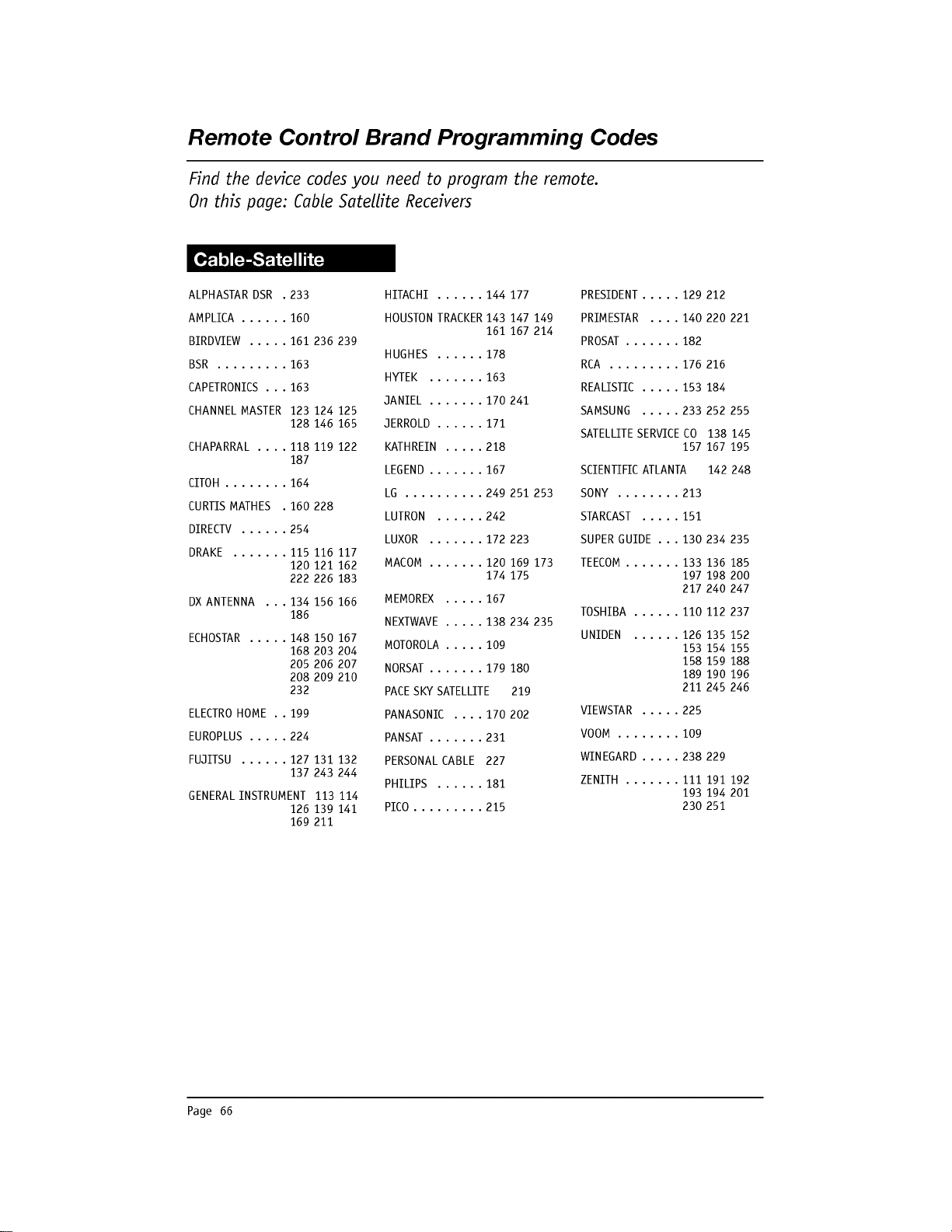
Page
66
ALPHASTAR
DSR
.
233
AMPLICA.
. . . .
.160
BIRDVIEW
. . . .
.161236239
BSR.........163
CAPETRONICS
. . .
163
CHANNEL
MASTER
123
124
125
128
146 165
CHAPARRAL
. . . .
118
119 122
187
CITOH........164
CURTIS
MATHES
.
160
228
DIRECTV.
. . . .
.254
DRAKE.......115116117
120
121 162
222 226
183
DXANTENNA
. .
.134156166
186
ECHOSTAR
. . . .
.148150167
168 203
204
205 206 207
208
209
210
232
ELECTRO
HOME
. .
199
EUROPLUS.
. . .
.224
FUJITSU
. . . . .
.127131132
137
243
244
GENERAL
INSTRUMENT
113
114
126 139 141
169
211
HITACHI
. . . . .
.144177
HOUSTON
TRACKER
143 147 149
161 167
214
HUGHES......178
HYTEK.......163
JANIEL.
. . . . .
.170241
JERROLD.
. . . .
.171
KATHREIN
. . . .
.218
LEGEND.......167
LG..........249251253
LUTRON......242
LUXOR.......172223
MACOM.
. . . . .
.120169173
174
175
MEMOREX.....167
NEXTWAVE.
. . .
.138234235
MOTOROLA.
. . .
.109
NORSAT.
. . . . .
.179180
PACE
SKY
SATELLITE
219
PANASONIC
. . . .
170 202
PANSAT.......231
PERSONAL
CABLE
227
PHILIPS...
...181
PICO.........215
PRESIDENT.
. . .
.129212
PRIMESTAR
. . . .
140
220
221
PROSAT.......182
RCA.........176216
REALISTIC.
. . .
.153184
SAMSUNG
. . . .
.233252255
SATELLITE
SERVICE
CO
138
145
157 167 195
SCIENTIFIC
ATLANTA
142
248
SONY........213
STARCAST
. . . .
.151
SUPER
GUIDE
. . .
130
234
235
TEECOM.
. . . . .
.133136185
197
198
200
217
240
247
TOSHIBA.
. . . .
.110112237
UNIDEN
. . . . .
.126135152
153
154
155
158
159
188
189
190
196
211 245 246
VIEWSTAR
. . . .
.225
VOOM........109
WINEGARD.
. . .
.238229
ZENITH.
. . . . .
.111191192
193
194 201
230
251
Remote
Control
Brand
Programming
Codes
Find
the
device
codes
you
need
to
program
the
remote.
On
this
page:
Cable
Satellite
Receivers
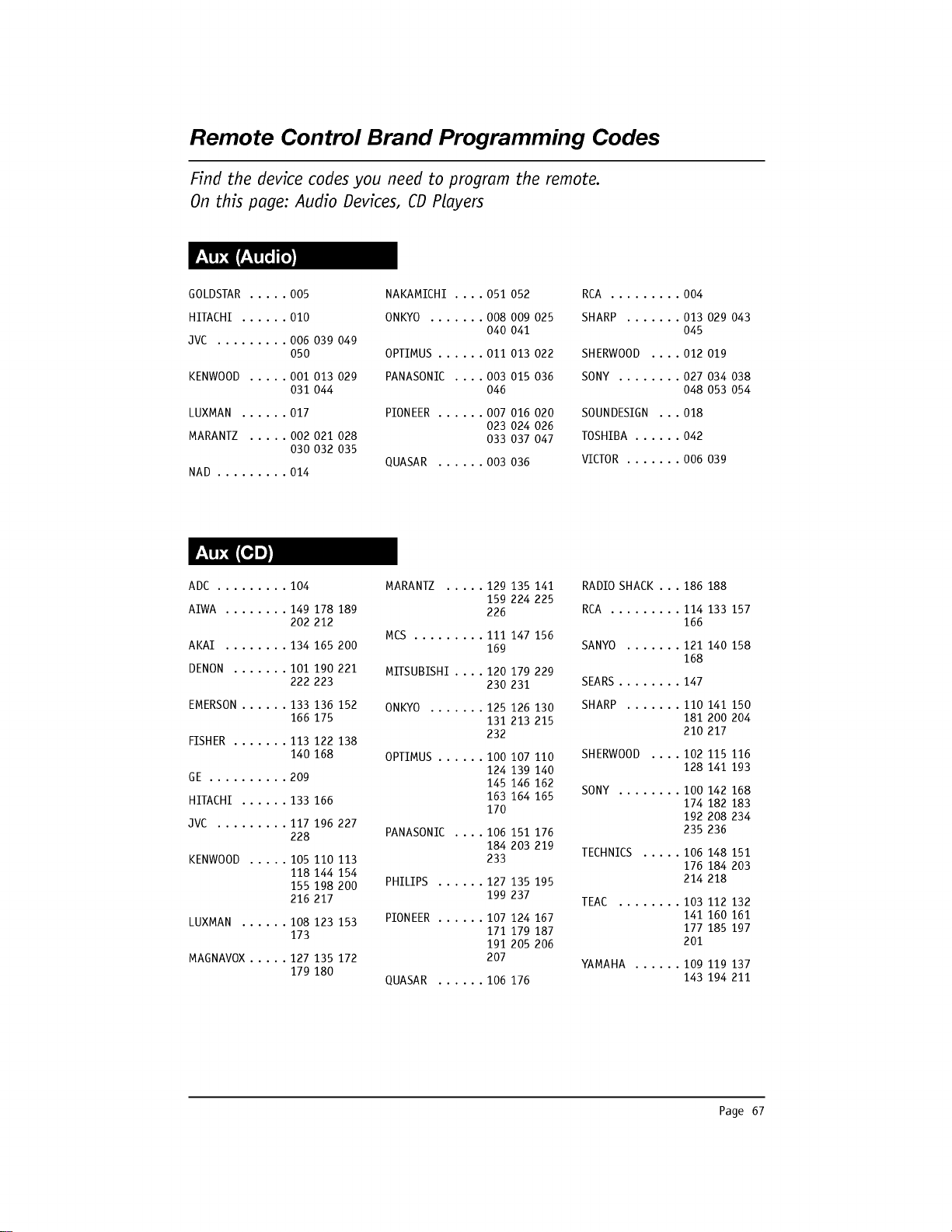
Page
67
Remote
Control
Brand
Programming
Codes
Find
the
device
codes
you
need
to
program
the
remote.
On
this
page:
Audio
Devices,
CD
Players
GOLDSTAR
. . . .
.005
HITACHI.
. . . .
.010
JVC.........006039049
050
KENWOOD
. . . .
.001013029
031
044
LUXMAN......017
MARANTZ
. . . .
.002021028
030
032 035
NAD.........014
NAKAMICHI
. . . .
051 052
ONKYO...
.
...008009025
040
041
OPTIMUS.
. . . .
.011013022
PANASONIC
. . . .
003 015 036
046
PIONEER.
. . . .
.007016020
023
024
026
033 037 047
QUASAR......003036
RCA.........004
SHARP...
...
.013029043
045
SHERWOOD
. . .
.012019
SONY........027034038
048
053
054
SOUNDESIGN
. . .
018
TOSHIBA.
. . . .
.042
VICTOR.
. . . . .
.006039
ADC.........104
AIWA........149178189
202 212
AKAI........134165200
DENON.
. . . . .
.101190221
222 223
EMERSON.
. . . .
.133136152
166 175
FISHER.
. . . . .
.113122138
140 168
GE..........209
HITACHI
. . . . .
.133166
JVC.........117196227
228
KENWOOD
. . . .
.105110113
118 144 154
155
198
200
216 217
LUXMAN
. . . . .
.108123153
173
MAGNAVOX.
. . .
.127135172
179
180
MARANTZ
. . . .
.129135141
159
224
225
226
MCS.........111147156
169
MITSUBISHI
. . . .
120
179
229
230
231
ONKYO...
.
...125126130
131
213 215
232
OPTIMUS.
. . . .
.100107110
124
139
140
145 146 162
163
164
165
170
PANASONIC
. . . .
106 151 176
184 203 219
233
PHILIPS
. . . . .
.127135195
199
237
PIONEER.
. . . .
.107124167
171 179 187
191
205 206
207
QUASAR......106176
RADIO
SHACK
. . .
186
188
RCA.........114133157
166
SANYO.......121140158
168
SEARS........147
SHARP...
...
.110141150
181
200 204
210
217
SHERWOOD
. . .
.102115116
128
141 193
SONY........100142168
174
182 183
192
208 234
235 236
TECHNICS
. . . .
.106148151
176
184 203
214 218
TEAC........103112132
141
160
161
177 185 197
201
YAMAHA.
. . . .
.109119137
143
194 211
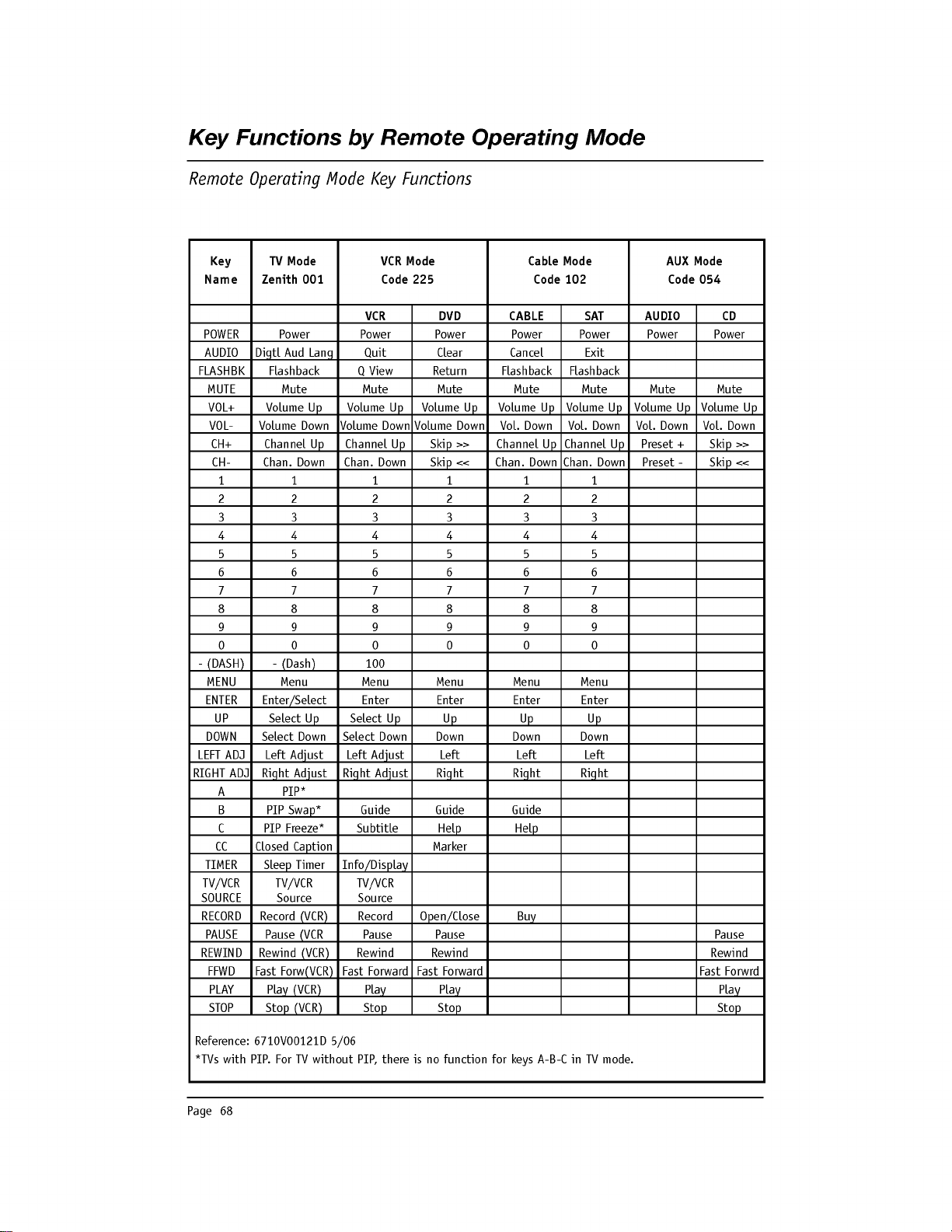
Page
68
Key
Functions
by
Remote
Operating
Mode
Remote
Operating
Mode
Key
Functions
Key
TV
Mode
VCR
Mode
Cable
Mode
AUX
Mode
Name
Zenith
001
Code
225
Code
102
Code
054
VCR
DVD
CABLE
SAT
AUDIO
CD
POWER
Power Power Power Power Power Power Power
AUDIO
Digtl
Aud
Lang
Quit
Clear
Cancel
Exit
FLASHBK
Flashback
Q
View
Return
Flashback Flashback
MUTE
Mute Mute
Mute
Mute Mute Mute
Mute
VOL+
Volume
Up
Volume
Up
Volume
Up
Volume
Up
Volume
Up
Volume
Up
Volume
Up
VOL-
Volume
Down
Volume
Down
Volume
Down
Vol.
Down
Vol.
Down
Vol.
Down
Vol.
Down
CH+
Channel
Up
Channel
Up
Skip
>>
Channel
Up
Channel
Up
Preset
+
Skip
>>
CH-
Chan.
Down
Chan.
Down
Skip
<<
Chan.
Down
Chan.
Down
Preset
-
Skip
<<
1 1 1 1 1 1
2 2 2 2 2 2
3 3 3 3 3 3
44
4444
55
5555
66
6666
77
7777
88
8888
99
9999
00
0000
-
(DASH)
-
(Dash)
100
MENU
Menu
Menu
Menu
Menu
Menu
ENTER
Enter/Select
Enter Enter Enter Enter
UP
Select
Up
Select
Up Up
Up
Up
DOWN
Select
Down
Select
Down Down Down Down
LEFT
ADJ
Left
Adjust
Left
Adjust
Left
Left Left
RIGHT
ADJ
Right
Adjust
Right
Adjust
Right
Right
Right
A
PIP*
B
PIP
Swap*
Guide
Guide
Guide
C
PIP
Freeze*
Subtitle
Help Help
CC
Closed
Caption
Marker
TIMER
Sleep
Timer
Info/Display
TV/VCR TV/VCR TV/VCR
SOURCE
Source Source
RECORD
Record
(VCR)
Record
Open/Close
Buy
PAUSE
Pause
(VCR
Pause
Pause Pause
REWIND
Rewind
(VCR)
Rewind
Rewind
Rewind
FFWD
Fast
Forw(VCR)
Fast
Forward
Fast
Forward
Fast
Forwrd
PLAY
Play
(VCR)
Play
Play Play
STOP
Stop
(VCR)
Stop Stop Stop
Reference:
6710V00121D
5/06
*TVs
with
PIP.
For
TV
without
PIP,
there
is
no
function
for
keys
A-B-C
in
TV
mode.
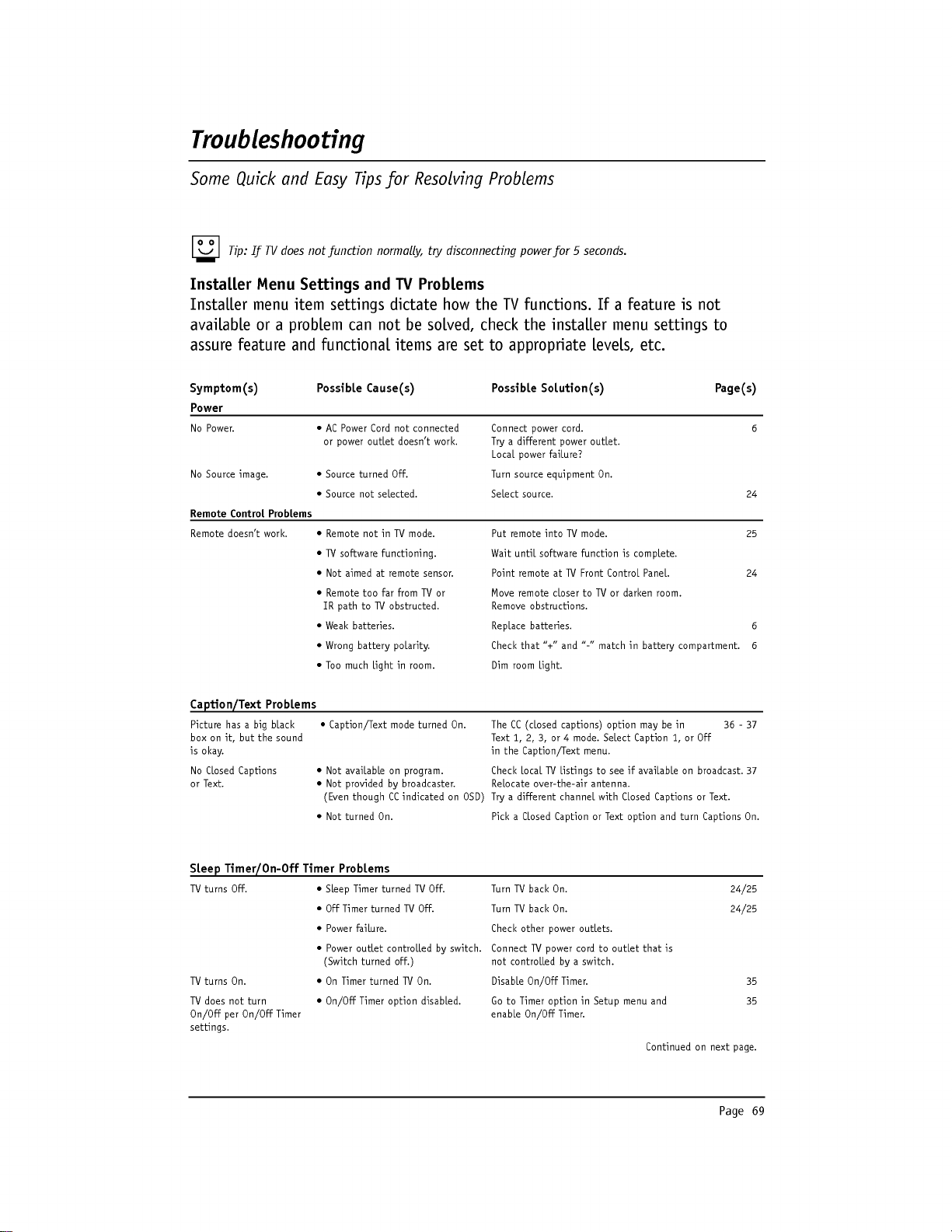
Page
69
Troubleshooting
Some
Quick
and
Easy
Tips
for
Resolving
Problems
Symptom(s)
Possible
Cause(s)
Possible
Solution(s)
Page(s)
Power
No
Power.
?
AC
Power
Cord
not
connected
Connect
power
cord.
6
or
power
outlet
doesn't
work.
Try
a
different
power
outlet.
Local
power
failure?
No
Source
image.
?
Source
turned
Off.
Turn
source
equipment
On.
?
Source
not
selected.
Select
source.
24
Remote
Control
Problems
Remote
doesn't
work.
?
Remote
not
in
TV
mode.
Put
remote
into
TV
mode.
25
?
TV
software
functioning.
Wait
until
software
function
is
complete.
?
Not
aimed
at
remote
sensor.
Point
remote
at
TV
Front
Control
Panel.
24
?
Remote
too
far
from
TV
or
Move
remote
closer
to
TV
or
darken
room.
IR
path
to
TV
obstructed.
Remove
obstructions.
?
Weak
batteries.
Replace
batteries.
6
?
Wrong
battery
polarity.
Check
that
"+"
and
"-"
match
in
battery
compartment.
6
?
Too
much
light
in
room.
Dim
room
light.
Caption/Text
Problems
Picture
has
a
big
black
?
Caption/Text
mode
turned
On.
The
CC
(closed
captions)
option
may
be
in
36-37
box
on
it,
but
the
sound
Text
1,
2, 3,
or
4
mode.
Select
Caption
1,
or
Off
is
okay.
in
the
Caption/Text
menu.
No
Closed
Captions
?
Not
available
on
program.
Check
local
TV
listings
to
see
if
available
on
broadcast.
37
or
Text.
?
Not
provided
by
broadcaster.
Relocate
over-the-air
antenna.
(Even
though
CC
indicated
on
OSD)
Try
a
different
channel
with
Closed
Captions
or
Text.
?
Not
turned
On.
Pick
a
Closed
Caption
or
Text
option
and
turn
Captions
On.
Sleep
Timer/On-Off
Timer
Problems
TV
turns
Off.
?
Sleep
Timer
turned
TV
Off.
Turn
TV
back
On.
24/25
?
Off
Timer
turned
TV
Off.
Turn
TV
back
On.
24/25
?
Power
failure.
Check
other
power
outlets.
?
Power
outlet
controlled
by
switch.
Connect
TV
power
cord
to
outlet
that
is
(Switch
turned
off.)
not
controlled
by
a
switch.
TV
turns
On.
?
On
Timer
turned
TV
On.
Disable
On/Off
Timer.
35
TV
does
not
turn
?
On/Off
Timer
option
disabled.
Go
to
Timer
option
in
Setup
menu
and
35
On/Off
per
On/Off
Timer
enable
On/Off
Timer.
settings.
Continued
on
next
page.
Tip:
If
TV
does
not
function
normally,
try
disconnecting
power
for
5
seconds.
Installer
Menu
Settings
and
TV
Problems
Installer
menu
item
settings
dictate
how
the
TV
functions.
If
a
feature
is
not
available
or a
problem
can
not
be
solved,
check
the
installer
menu
settings
to
assure
feature
and
functional
items
are
set
to
appropriate
levels,
etc.
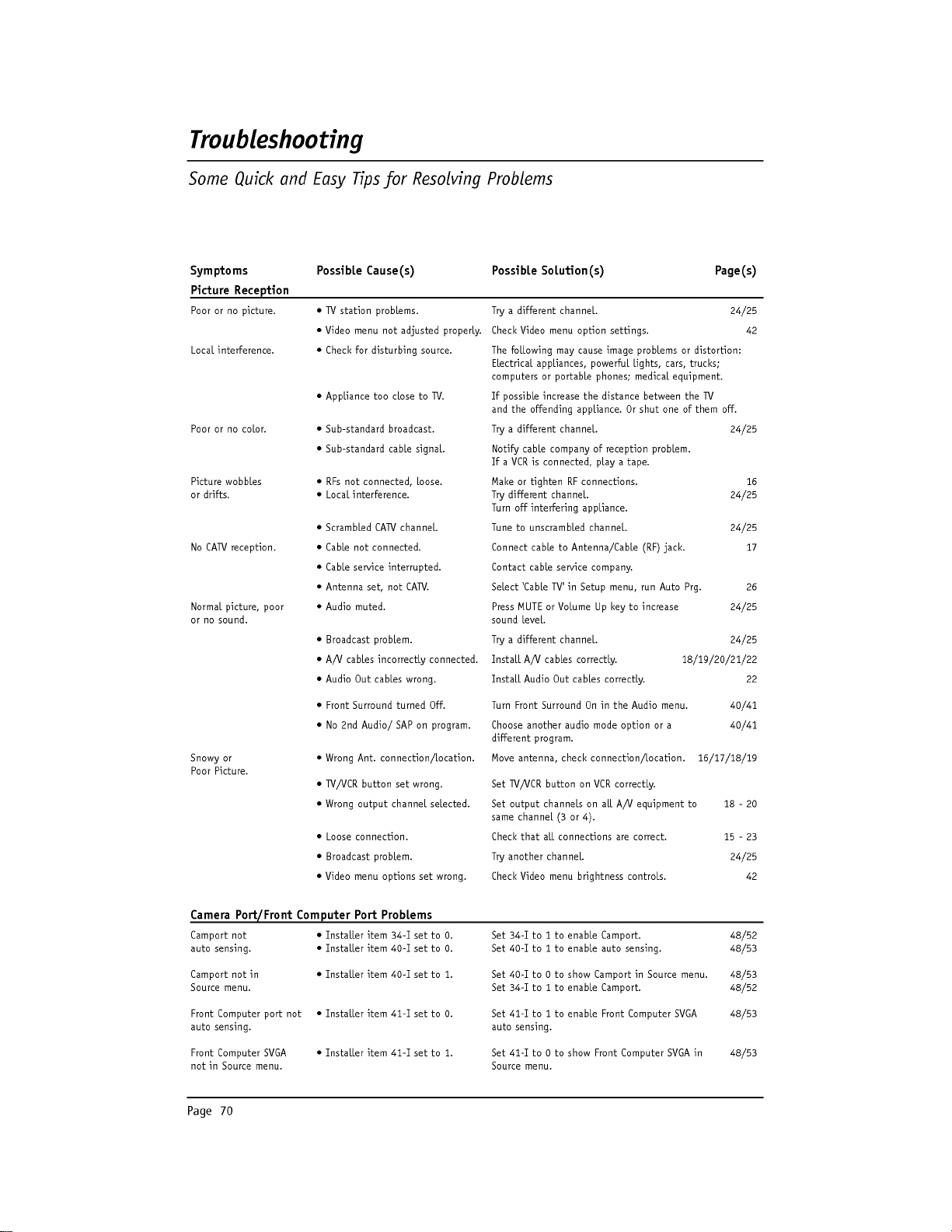
Page
70
Troubleshooting
Some
Quick
and
Easy
Tips
for
Resolving
Problems
Symptoms
Possible
Cause(s)
Possible
Solution(s)
Page(s)
Picture
Reception
Poor
or
no
picture.
?
TV
station
problems.
Try
a
different
channel.
24/25
?
Video
menu
not
adjusted
properly.
Check
Video
menu
option
settings.
42
Local
interference.
?
Check
for
disturbing
source.
The
following
may
cause
image
problems
or
distortion:
Electrical
appliances,
powerful
lights,
cars,
trucks;
computers
or
portable
phones;
medical
equipment.
?
Appliance
too
close
to
TV.
If
possible
increase
the
distance
between
the
TV
and
the
offending
appliance.
Or
shut
one
of
them
off.
Poor
or
no
color.
?
Sub-standard
broadcast.
Try
a
different
channel.
24/25
?
Sub-standard
cable
signal.
Notify
cable
company
of
reception
problem.
If
a
VCR
is
connected,
play
a
tape.
Picture
wobbles
?
RFs
not
connected,
loose.
Make
or
tighten
RF
connections.
16
or
drifts.
?
Local
interference.
Try
different
channel.
24/25
Turn
off
interfering
appliance.
?
Scrambled
CATV
channel.
Tune
to
unscrambled
channel.
24/25
No
CATV
reception.
?
Cable
not
connected.
Connect
cable
to
Antenna/Cable
(RF)
jack.
17
?
Cable
service
interrupted.
Contact
cable
service
company.
?
Antenna
set,
not
CATV.
Select
'Cable
TV'
in
Setup
menu,
run
Auto
Prg.
26
Normal
picture,
poor
?
Audio
muted.
Press
MUTE
or
Volume
Up
key
to
increase
24/25
or
no
sound.
sound
level.
?
Broadcast
problem.
Try
a
different
channel.
24/25
?
A/V
cables
incorrectly
connected.
Install
A/V
cables
correctly.
18/19/20/21/22
?
Audio
Out
cables
wrong.
Install
Audio
Out
cables
correctly.
22
?
Front
Surround
turned
Off.
Turn
Front
Surround
On
in
the
Audio
menu.
40/41
?
No
2nd
Audio/
SAP
on
program.
Choose
another
audio
mode
option
or
a
40/41
different
program.
Snowy
or
?
Wrong
Ant.
connection/location.
Move
antenna,
check
connection/location.
16/17/18/19
Poor
Picture.
?
TV/VCR
button
set
wrong.
Set
TV/VCR
button
on
VCR
correctly.
?
Wrong
output
channel
selected.
Set
output
channels
on
all
A/V
equipment
to
18
-
20
same
channel
(3
or
4).
?
Loose
connection.
Check
that
all
connections
are
correct.
15-23
?
Broadcast
problem.
Try
another
channel.
24/25
?
Video
menu
options
set
wrong.
Check
Video
menu
brightness
controls.
42
Camera
Port/Front
Computer
Port
Problems
Camport
not
?
Installer
item
34-I
set
to
0.
Set 34-I
to
1
to
enable
Camport.
48/52
auto
sensing.
?
Installer
item
40-I
set
to
0.
Set
40-I
to
1
to
enable
auto
sensing.
48/53
Camport
not
in
?
Installer
item
40-I
set
to
1.
Set
40-I
to
0
to
show
Camport
in
Source
menu.
48/53
Source
menu.
Set 34-I
to
1
to
enable
Camport.
48/52
Front
Computer
port
not
?
Installer
item
41-I
set
to
0.
Set
41-I
to
1
to
enable
Front
Computer
SVGA
48/53
auto
sensing.
auto
sensing.
Front
Computer
SVGA
?
Installer
item
41-I
set
to
1.
Set
41-I
to
0
to
show
Front
Computer
SVGA
in
48/53
not
in
Source
menu.
Source
menu.

Page
71
Troubleshooting
Some
Quick
and
Easy
Tips
for
Resolving
Problems
Symptoms
Possible
Cause(s)
Possible
Solution(s)
Page(s)
Source
Selection
/
Source
Image
Problems
(For
Sources
to
appear
in
Source
menu,
they
must
be
enabled
in
Installer
menu.)
Can't
select
S-Video
?
Not
enabled
in
Installer
menu.
Set
installer
menu
item
037
Y/C
Enable
to
1.
48/52
on
Source
menu.
?
Not
selectable
on
menu.
Key
in
132
and
press
Enter
to
show
S-Video
on
screen.
Camport
(Front
Audio
?
Not
option
on
Source
menu.
Set
Installer
item
40-I
Camport,
to 0 to
enable
48/53
/
Video
not
available
and
appear
as
an
option
in
Source
menu.
on
Source
menu.
?
Not
enabled
in
Installer
menu.
Set
Installer
item
34-I
Camport
En
to
1
to
enable
48/52
and
appear
as
an
option
in
Source
menu.
?
Equipment
not
connected.
Connect
Audio/Video
equipment
to
front
Audio/Video.
24
No
Camport
image.
?
Equipment
not
turned
On.
Turn
equipment
On
connected
to
front
Video
input.
23
(Front
Video)
Compport
(Front
SVGA
?
Not
option
on
Source
menu.
Set
Installer
item
41-I
Compport,
to 0 to
enable
48/53
Computer
In)
not
available
and
appear
as
an
option
in
Source
menu.
in
Source
menu.
?
Equipment
not
connected.
Connect
computer
to
TV
front
panel
Computer
In
port.
24
No
Compport
image.
?
Equipment
not
turned
On.
Turn
equipment
On
connected
to
front
Computer
In.
23
(Front
PC
SVGA)
?
PC
video
output
not
set
Set
PC
computer
video
output
to
CRT.
to
output
to
CRT.
(Usually
Function
key
+
F
control
key,
see
PC
manual.)
S-
Video
Source
not
?
Not
shown
on
Source
Set
Installer
item
37-I Rear
Y-C
En.,
to
0
48/53
selectable.
menu.
to
enable
and
appear
in
Source
menu.
?
Not
connected.
Connect
Y-C
S-Video
equipment
to
S-Video
In.
20
No
S-Video
image.
?
Equipment
not
turned
On.
Turn
On
equipment
connected
to
S-Video
In.
No
S-Video
audio.
?
S-Video
audio
not
Connect
audio
for
S-Video
to
Audio
In
R
-
L.
20
connected.
(Use
Audio
In
Left
jack
to
connect
only
one
audio
wire.)
No
Antenna
?
Not
Connected.
Connect
over-the-air
antenna
or
cable
service
15
Cable
image.
wire
to
Antenna/Cable
digital
antenna
jacks.
?
Cable
provider
problem.
Contact
cable
service
provider.
?
Digital
Cable
service
signal.
TV
cannot
process
digital
cable
signals.
Aux
Video
(Rear
A/V)
?
Deleted
in
Add/Del/Blnk.
Go
to
Setup
menu,
select
Add/Del/Blnk
option.
31
not
available
in
menu.
Channel
down
to
lowest
channel,
next
channel
is
Aux.
channel
scan.
Select
"Added"
in
Add/Del/Blnk
option
in
Setup
menu.
Ch-3,
Ch-4
not
available
?
Deleted
in
Add/Del/Blnk.
Go
to
Setup
menu,
select
Add/Del/Blnk
option.
31
in
channel
scan.
menu.
Channel
down
to
Ch-3
or
Ch-4.
Select
"Added"
in
Add/Del/Blnk
option
in
Setup
menu.
No
rear
Audio
?
Equipment
not
turned
On.
Turn
On
equipment
connected
to
rear
Audio/Video.
Video
image.
?
Equipment
not
connected.
Connect
equipment
to
rear
Audio/Video.
15
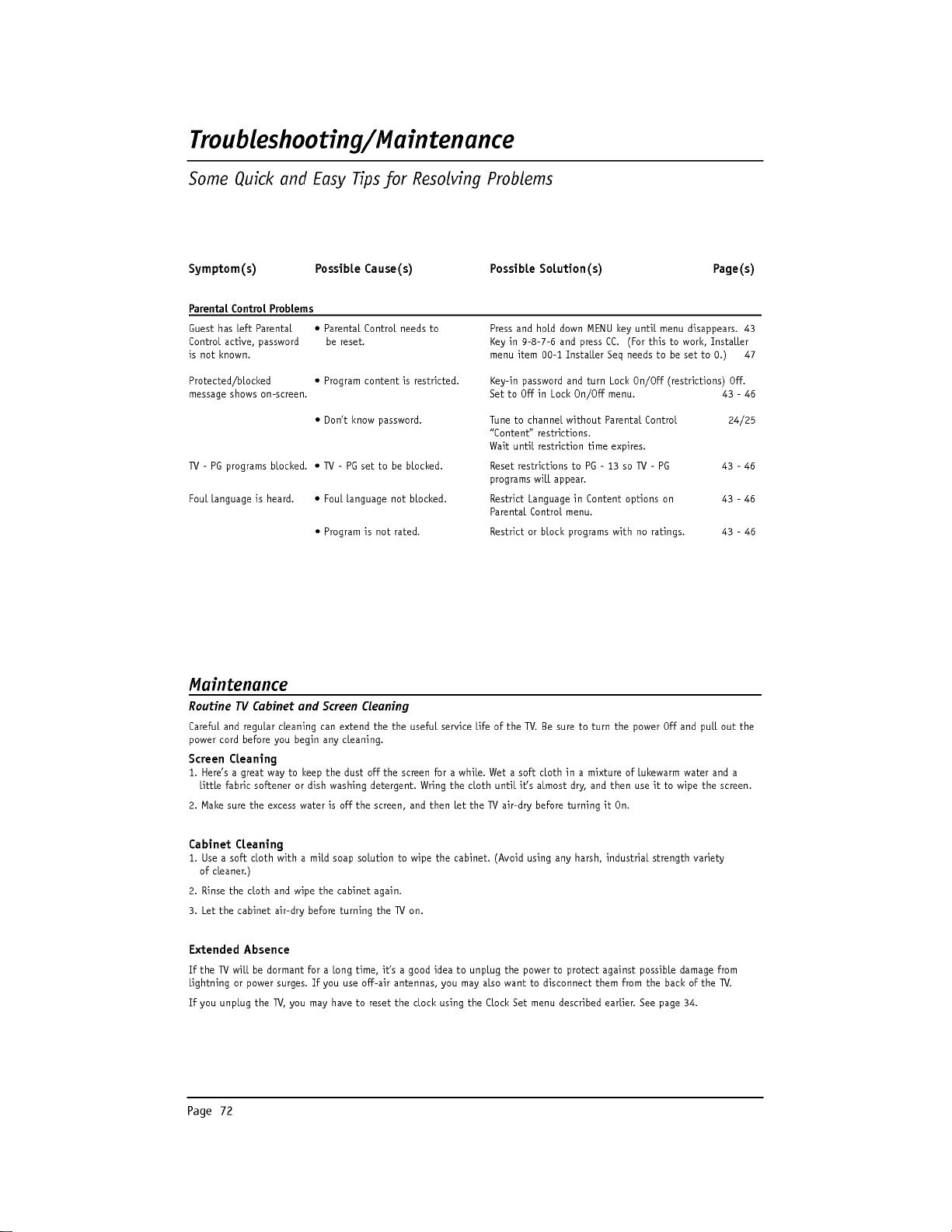
Page
72
Maintenance
Routine
TV
Cabinet
and
Screen
Cleaning
Careful
and
regular
cleaning
can
extend
the the
useful
service
life
of
the
TV.
Be
sure
to
turn
the
power
Off
and
pull
out
the
power
cord before
you
begin
any
cleaning.
Screen
Cleaning
1.
Here's
a
great
way
to
keep
the
dust
off
the
screen
for
a
while.
Wet
a
soft
cloth
in
a
mixture
of
lukewarm
water
and
a
little
fabric
softener
or
dish
washing
detergent.
Wring
the
cloth
until
it's
almost
dry,
and then
use
it
to
wipe
the
screen.
2.
Make
sure
the
excess
water
is
off
the
screen,
and then
let
the
TV
air-dry
before
turning
it
On.
Cabinet
Cleaning
1.
Use
a
soft
cloth
with
a
mild
soap
solution
to
wipe
the
cabinet.
(Avoid
using
any
harsh,
industrial
strength
variety
of
cleaner.)
2.
Rinse
the
cloth
and
wipe
the
cabinet
again.
3.
Let
the
cabinet
air-dry
before
turning
the
TV
on.
Extended
Absence
If
the
TV
will
be
dormant
for
a
long
time,
it's
a
good
idea
to
unplug
the
power
to
protect
against
possible
damage
from
lightning
or
power
surges.
If
you
use
off-air
antennas,
you
may
also
want
to
disconnect
them
from
the
back
of
the
TV.
If
you
unplug
the
TV,
you
may
have
to
reset
the
clock
using
the
Clock
Set
menu
described
earlier.
See
page
34.
Symptom(s)
Possible
Cause(s)
Possible
Solution(s)
Page(s)
Parental
Control
Problems
Guest
has
left
Parental
?
Parental
Control
needs
to
Press
and
hold
down
MENU
key
until
menu
disappears.
43
Control
active,
password
be
reset.
Key
in
9-8-7-6
and
press
CC.
(For
this
to
work,
Installer
is
not
known.
menu
item
00-1
Installer
Seq
needs
to
be
set
to
0.)
47
Protected/blocked
?
Program
content
is
restricted.
Key-in
password
and
turn
Lock
On/Off
(restrictions)
Off.
message
shows
on-screen.
Set
to
Off
in
Lock
On/Off
menu.
43-46
?
Don't
know
password.
Tune
to
channel
without
Parental Control
24/25
"Content"
restrictions.
Wait
until
restriction
time
expires.
TV
-
PG
programs
blocked.
?
TV
-
PG
set
to
be
blocked.
Reset
restrictions
to
PG
-
13
so
TV
-
PG
43-46
programs
will
appear.
Foul
language
is
heard.
?
Foul
language
not
blocked.
Restrict
Language
in
Content
options
on
43-46
Parental
Control
menu.
?
Program
is
not
rated.
Restrict
or
block
programs
with
no
ratings.
43-46
Troubleshooting/Maintenance
Some
Quick
and
Easy
Tips
for
Resolving
Problems
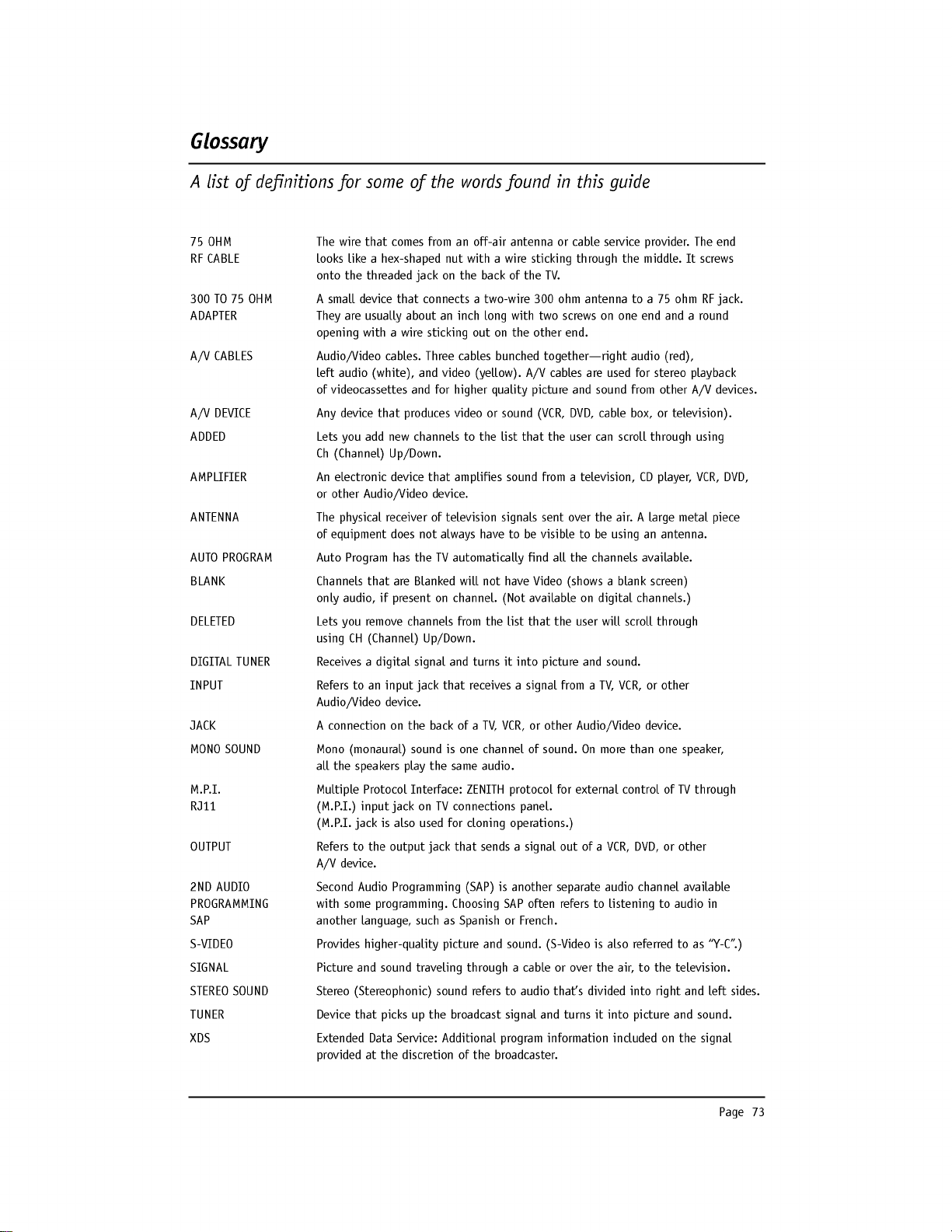
Page
73
Glossary
A
list
of
definitions
for
some
of
the
words
found
in
this
guide
75
OHM
The
wire
that
comes
from
an
off-air
antenna
or
cable
service
provider.
The
end
RF
CABLE
looks
like
a
hex-shaped
nut
with
a
wire
sticking
through
the
middle.
It
screws
onto
the
threaded
jack
on
the
back
of
the
TV.
300
TO
75
OHM
A
small
device
that
connects
a
two-wire
300
ohm
antenna
to
a
75
ohm
RF
jack.
ADAPTER
They
are
usually
about
an
inch
long
with
two
screws
on
one
end
and
a
round
opening
with
a
wire
sticking
out
on
the
other
end.
A/V
CABLES
Audio/Video
cables.
Three
cables
bunched
together---right
audio
(red),
left
audio
(white),
and
video
(yellow).
A/V
cables
are
used
for
stereo
playback
of
videocassettes
and
for
higher
quality
picture
and
sound
from
other
A/V
devices.
A/V
DEVICE
Any
device
that
produces
video
or
sound
(VCR,
DVD,
cable
box,
or
television).
ADDED
Lets
you
add
new
channels
to
the
list
that
the
user
can
scroll
through
using
Ch
(Channel)
Up/Down.
AMPLIFIER
An
electronic
device
that
amplifies
sound
from
a
television,
CD
player,
VCR,
DVD,
or
other
Audio/Video
device.
ANTENNA
The
physical
receiver
of
television
signals
sent
over
the
air.
A
large
metal
piece
of
equipment
does
not
always
have
to
be
visible
to
be
using
an
antenna.
AUTO
PROGRAM
Auto
Program
has
the
TV
automatically
find
all
the
channels
available.
BLANK
Channels
that
are
Blanked
will
not
have
Video
(shows
a
blank
screen)
only
audio,
if
present
on
channel.
(Not
available
on
digital
channels.)
DELETED
Lets
you
remove
channels from
the
list
that
the
user
will
scroll
through
using
CH
(Channel)
Up/Down.
DIGITAL
TUNER
Receives
a
digital
signal
and
turns
it
into
picture
and
sound.
INPUT
Refers
to
an
input
jack
that
receives
a
signal
from
a
TV,
VCR,
or
other
Audio/Video
device.
JACK A
connection
on
the
back
of
a
TV,
VCR,
or
other
Audio/Video
device.
MONO
SOUND
Mono
(monaural)
sound
is
one
channel
of
sound.
On
more
than
one
speaker,
all
the
speakers
play
the
same
audio.
M.P.I.
Multiple
Protocol
Interface:
ZENITH
protocol
for
external
control
of
TV
through
RJ11
(M.P.I.)
input
jack
on
TV
connections
panel.
(M.P.I.
jack
is
also
used
for
cloning
operations.)
OUTPUT
Refers
to
the
output
jack
that
sends
a
signal
out
of
a
VCR,
DVD,
or
other
A/V
device.
2ND
AUDIO
Second
Audio
Programming
(SAP)
is
another
separate
audio
channel
available
PROGRAMMING
with
some
programming.
Choosing
SAP
often
refers
to
listening
to
audio
in
SAP
another
language,
such
as
Spanish
or
French.
S-VIDEO
Provides
higher-quality
picture
and
sound.
(S-Video
is
also
referred
to
as
"Y-C".)
SIGNAL
Picture
and
sound
traveling
through
a
cable
or
over
the
air,
to
the
television.
STEREO
SOUND
Stereo
(Stereophonic)
sound
refers
to
audio
that's
divided
into
right
and
left
sides.
TUNER
Device
that
picks
up
the
broadcast
signal
and
turns
it
into
picture
and
sound.
XDS
Extended
Data
Service:
Additional
program
information
included
on
the
signal
provided
at
the
discretion
of
the
broadcaster.

Page
74
Notes
Write
down
any
special
considerations/comments
regarding
your
installation

Page
75
Notes
Write
down
any
special
considerations/comments
regarding
your
installation

Notes
Write
down
any
special
considerations/comments
regarding
your
installation
Page76

Page77
Notes
Write
down
any
special
considerations/comments
regarding
your
installation

Notes
Write
down
any
special
considerations/comments
regarding
your
installation
Page78

Page79
Notes
Write
down
any
special
considerations/comments
regarding
your
installation
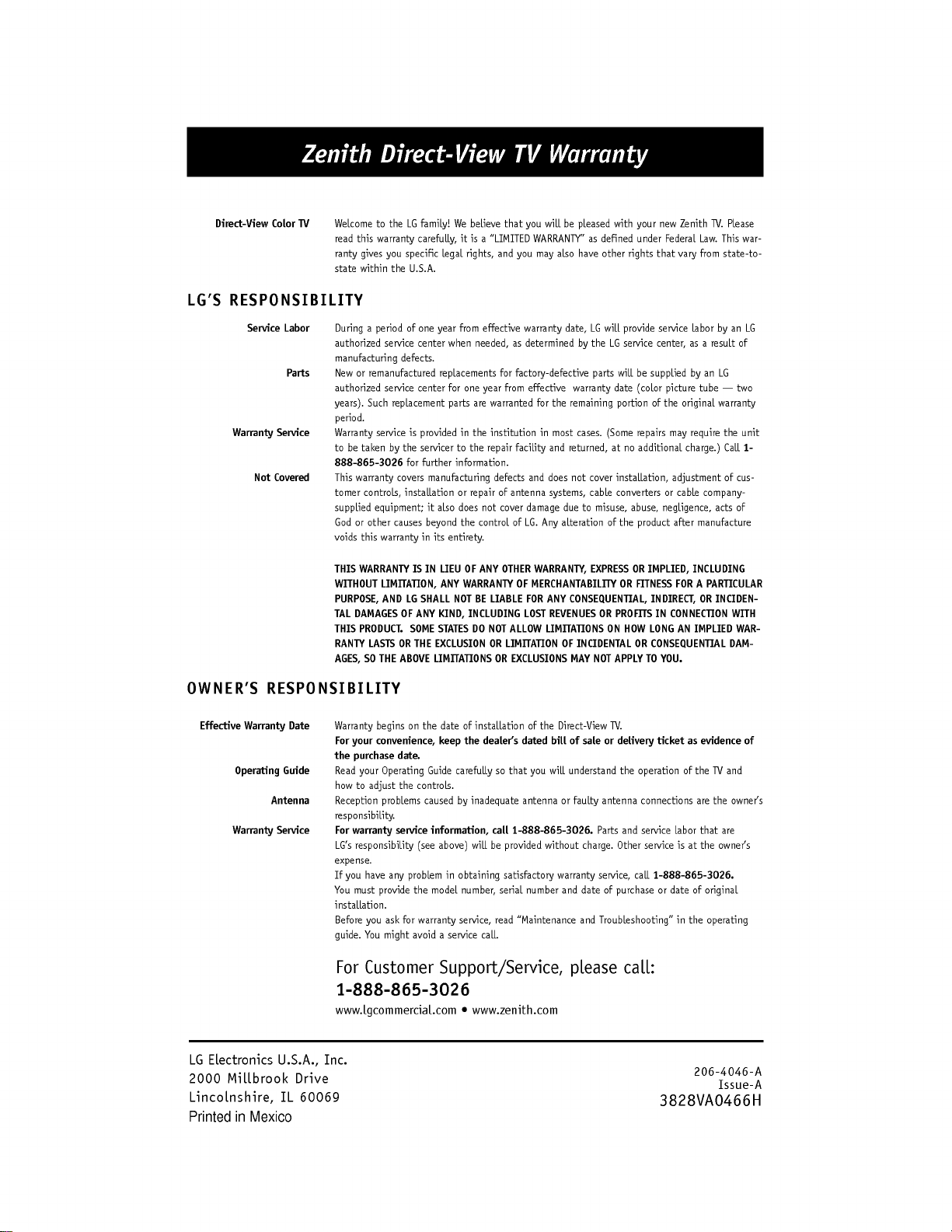
LG
Electronics
U.S.A.,
Inc.
2000
Millbrook
Drive
Lincolnshire,
IL
60069
206-4046-A
Issue-A
3828VA0466H
Direct-View
Color
TV
Welcome
to
the
LG
family!
We
believe
that
you
will
be
pleased
with
your
new
Zenith
TV.
Please
read
this
warranty
carefully,
it is
a
"LIMITED
WARRANTY"
as
defined
under
Federal
Law.
This
war-
ranty
gives
you
specific
legal
rights,
and
you
may
also
have
other
rights
that
vary
from
state-to-
state
within
the
U.S.A.
LG'S
RESPONSIBILITY
Service
Labor
During
a
period
of
one
year
from
effective
warranty
date,
LG
will
provide
service
labor
by
an
LG
authorized
service
center
when
needed,
as
determined
by
the
LG
service
center,
as
a
result
of
manufacturing
defects.
Parts
New
or
remanufactured
replacements
for
factory-defective
parts
will
be
supplied
by
an
LG
authorized
service
center
for
one
year
from
effective
warranty
date
(color
picture
tube
---
two
years).
Such
replacement
parts
are
warranted
for
the
remaining
portion
of
the
original
warranty
period.
Warranty
Service
Warranty
service
is
provided
in
the
institution
in
most
cases.
(Some
repairs
may
require
the
unit
to
be
taken
by
the
servicer
to
the
repair
facility
and
returned,
at
no
additional
charge.)
Call
1-
888-865-3026
for
further
information.
Not
Covered
This
warranty
covers
manufacturing
defects
and
does
not
cover
installation,
adjustment
of
cus-
tomer
controls,
installation
or
repair
of
antenna
systems,
cable
converters
or
cable
company-
supplied
equipment;
it
also
does
not
cover
damage
due
to
misuse,
abuse,
negligence,
acts
of
God
or
other
causes
beyond
the
control
of
LG.
Any
alteration
of
the
product
after
manufacture
voids
this
warranty
in
its
entirety.
THIS
WARRANTY
IS
IN
LIEU
OF
ANY
OTHER
WARRANTY,
EXPRESS
OR
IMPLIED,
INCLUDING
WITHOUT
LIMITATION,
ANY
WARRANTY
OF
MERCHANTABILITY
OR
FITNESS
FOR
A
PARTICULAR
PURPOSE,
AND
LG
SHALL
NOT
BE
LIABLE
FOR
ANY
CONSEQUENTIAL,
INDIRECT,
OR
INCIDEN-
TAL
DAMAGES
OF
ANY
KIND,
INCLUDING
LOST
REVENUES
OR
PROFITS
IN
CONNECTION
WITH
THIS
PRODUCT.
SOME
STATES
DO
NOT
ALLOW
LIMITATIONS
ON
HOW
LONG
AN
IMPLIED
WAR-
RANTY
LASTS
OR
THE
EXCLUSION
OR
LIMITATION
OF INCIDENTAL
OR
CONSEQUENTIAL
DAM-
AGES,
SO
THE
ABOVE
LIMITATIONS
OR
EXCLUSIONS
MAY
NOT
APPLY
TO
YOU.
OWNER'S
RESPONSIBILITY
Effective
Warranty
Date
Warranty
begins
on
the
date
of
installation
of
the
Direct-View
TV.
For
your
convenience,
keep
the
dealer's
dated
bill
of
sale
or
delivery
ticket
as
evidence
of
the
purchase
date.
Operating
Guide
Read
your
Operating
Guide
carefully
so
that
you
will
understand
the
operation
of
the
TV
and
how
to
adjust
the
controls.
Antenna
Reception
problems
caused
by
inadequate
antenna
or
faulty
antenna
connections
are
the
owner's
responsibility.
Warranty
Service
For
warranty
service
information,
call
1-888-865-3026.
Parts
and
service
labor
that
are
LG's
responsibility
(see
above)
will
be
provided
without
charge.
Other
service
is
at
the
owner's
expense.
If
you
have
any
problem
in
obtaining
satisfactory
warranty
service,
call
1-888-865-3026.
You
must
provide
the
model
number,
serial
number
and
date
of
purchase
or
date
of
original
installation.
Before
you
ask
for
warranty
service,
read
"Maintenance and
Troubleshooting"
in
the
operating
guide.
You
might
avoid
a
service
call.
For
Customer
Support/Service,
please
call:
1-888-865-3026
www.lgcommercial.com
?
www.zenith.com
Printed
in
Mexico



