
België/ Belgique
0800 80 190 Gratis/Gratuit
ß chat www.philips.com/support
България
00800 11 544 24
Česká republika
800 142 840 Bezplatný hovor
Danmark
3525 8759 Lokalt opkald
ß chat www.philips.com/support
Deutschland
0800 000 7520 (kostenfrei)
ß chat www.philips.com/support
Ελλάδα
0 0800 3122 1280
Κλήση χωρίς χρέωση
España
900 800 655 Teléfono local gratuito
solamente para clientes en España
ß chat www.philips.com/support
Estonia
8000100288 kohalik kõne tariifi
France
0805 025 510 numéro sans frais
ß chat www.philips.com/support
Hrvatska
0800 222778 free
Ireland
South: 1 800 7445477
North: 0 800 331 6015
Italia
800 088774 Numero Verde
Қазақстан
+7 727 250 66 17 local
Contact information
Latvia
80002794 local
Lithuania
880030483 local
Luxemburg/Luxembourg
080026550
Ortsgespräch/Appel local
Magyarország
06 80 018 189 Ingyenes hívás
Nederland
0800 023 0076 Gratis nummer
Norge
22 70 81 11 Lokalsamtale
Österreich
0800 180 016
Polska
00800 3111 318
Portugal
0800 780 902 Chamada Grátis
Россия
(495) 961 1111
8800 200 0880
(бесплатный звонок по России)
România
0800-894910 Apel gratuit
0318107125 Apel local
Србија
+381 114 440 841 Lokalni poziv
Slovensko
0800 004537 Bezplatný hovor
Slovenija
600 744 5477 lokalni klic
Sverige
08 5792 9100 Lokalsamtal
Suisse/Schweiz/Svizzera
0800 002 050
Schweizer Festnetztarif/ Tarif réseau
fixe France
Suomi
09 2311 3415 paikallispuhelu
Türkiye
444 7 445
United Kingdom
0800 331 6015 Toll Free
Українська
0-800-500-697
This information is correct at the time of print. For updated information, see www.philips.com/support.
updated:20110912

3
Eng lish
Access CAM services 28
7 Connect devices 29
Back connections 29
Side connections 30
Connect a computer 30
Use a Conditional Access Module 31
Use Philips EasyLink 32
Use a Kensington lock 33
8 Product information 34
Supported display resolutions 34
Multimedia 34
Tuner/Reception/Transmission 34
Remote control 34
Power 34
Supported TV mounts 34
Product specication 35
9 Troubleshooting 37
General TV issues 37
TV channel issues 37
Picture issues 37
Sound issues 38
HDMI connection issues 38
Computer connection issues 38
Contact us 38
10 Index 39
Contents
1 Notice 4
2 Important
6
3 Your TV
9
TV controls 9
Remote control 9
Remote control usage 10
4 Use your TV 11
Switch your TV on 11
Switch your TV to standby 11
Switch your TV off 11
Switch channels 11
Watch connected devices 12
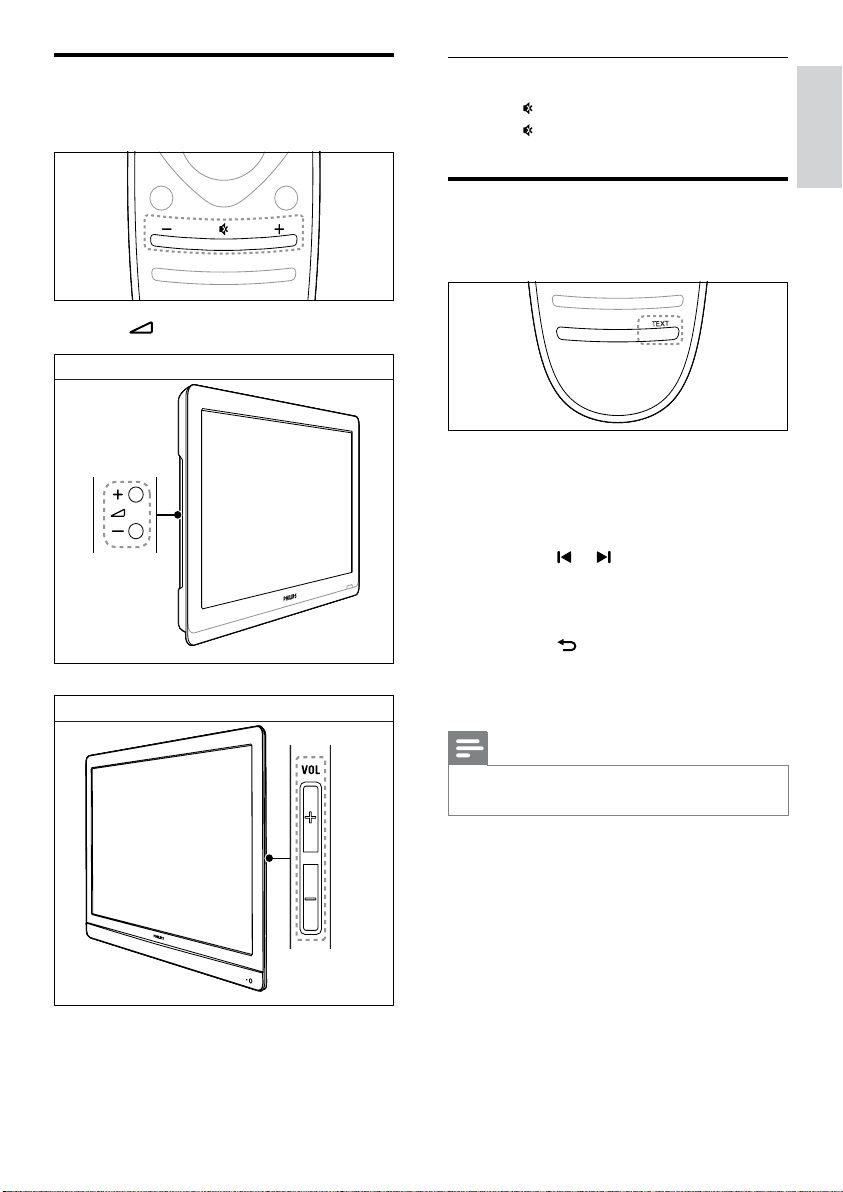
Adjust TV volume 13
Use teletext 13
5 Use more of your TV 14
Access TV menus 14
Change picture and sound settings 14
Use the universal access menu 17
Use advanced teletext features 17
Create and use lists of favourite channels 18
Use the Electronic Programme Guide 19
Display the TV clock 19
Use timers 20
Lock unsuitable content 20
Change language 21
Play photos and music on USB storage devices 22
Listen to digital radio channels 24
Update the TV software 24
Change TV preferences 25
Start a TV demo 25
Reset the TV to factory settings 25
6 Install channels 26
Automatically install channels 26
Manually install channels 26
Rename channels 27
Rearrange channels 27
Test digital reception 27
EN
4
light (red, green or blue) may appear constantly
on the screen. This is a structural property of
the display (within common industry standards)
and is not a malfunction.
Compliance with EMF
Koninklijke Philips Electronics N.V. manufactures
and sells many products targeted at consumers
which, like any electronic apparatus, in
general have the ability to emit and receive
electromagnetic signals.
One of Philips’ leading Business Principles is to
take all necessary health and safety measures
for our products, to comply with all applicable
legal requirements and to stay well within
the Electro Magnetic Field (EMF) standards
applicable at the time of producing the
products.
Philips is committed to develop, produce and
market products that cause no adverse health
effects. Philips conrms that if its products are
handled properly for their intended use, they
are safe to use according to scientic evidence
available today.
Philips plays an active role in the development
of international EMF and safety standards,
enabling Philips to anticipate further
developments in standardisation for early
integration in its products.
Mains fuse (UK only)
This TV is tted with an approved moulded
plug. Should it become necessary to replace
the mains fuse, this must be replaced with a
fuse of the same value as indicated on the plug
(example 10A).
1 Remove fuse cover and fuse.
2 The replacement fuse must comply with
BS 1362 and have the ASTA approval
mark. If the fuse is lost, contact your dealer
in order to verify the correct type.
3 Ret the fuse cover.
Copyright
1 Notice
2011 © Koninklijke Philips Electronics N.V. All
rights reserved.
Specications are subject to change without
notice. Trademarks are the property of
Koninklijke Philips Electronics N.V or their
respective owners. Philips reserves the right
to change products at any time without being
obliged to adjust earlier supplies accordingly.
The material in this manual is believed
adequate for the intended use of the system.
If the product, or its individual modules or
procedures, are used for purposes other than
those specied herein, conrmation of their
validity and suitability must be obtained. Philips
warrants that the material itself does not
infringe any United States patents. No further
warranty is expressed or implied.
Terms of warranty
Risk of injury, damage to TV or void of
warranty! Never attempt to repair the TV
yourself.
Use the TV and accessories only as
intended by the manufacturer.
The caution sign printed on the back of
the TV indicates risk of electric shock.
Never remove the TV cover. Always
contact Philips Customer Support for
service or repairs.
Any operation expressly prohibited in
this manual, or any adjustments and
assembly procedures not recommended
or authorised in this manual shall void the
warranty.
Pixel characteristics
This LCD product has a high number of
colour pixels. Although it has effective pixels of
99.999% or more, black dots or bright points of
•
•
•
•
EN

5
Eng lish
Kensington and Micro Saver are registered US
trademarks of ACCO World corporation with
issued registrations and pending applications in
other countries throughout the world.
Manufactured under licence from Dolby
Laboratories. Dolby and the double D symbol
are trademarks of Dolby Laboratories.
HDMI, the HDMI logo and High-Denition
Multimedia Interface are trademarks or
registered trademarks of HDMI licensing LLC in
the United States and other countries.
All other registered and unregistered
trademarks are the property of their respective
owners.
EN

6
Avoid force coming onto power plugs.
Loose power plugs can cause arcing or re.
Risk of injury or damage to the TV!
Two people are required to lift and carry a
TV that weighs more than 25 kg or 55 lbs.
When stand mounting the TV, use only the
supplied stand. Secure the stand to the TV
tightly. Place the TV on a at, level surface
that can support the combined weight of
the TV and the stand.
When wall mounting the TV, use only a
wall mount that can support the weight
of the TV. Secure the wall mount to a wall
that can support the combined weight of
the TV and wall mount. Koninklijke Philips
Electronics N.V. bears no responsibility
for improper wall mounting that result in
accident, injury or damage.
If you need to store the TV, disassemble
the stand from the TV. Never lay the TV on
its back with the stand installed.
Before you connect the TV to the power
outlet, ensure that the power voltage
matches the value printed on the back
of the TV. Never connect the TV to the
power outlet if the voltage is different.
Parts of this product may be made of
glass. Handle with care to avoid injury and
damage.
Risk of injury to children!
Follow these precautions to prevent the
TV from toppling over and causing injury to
children:
Never place the TV on a surface covered
by a cloth or other material that can be
pulled away.
Ensure that no part of the TV hangs over
the edge of the surface.
Never place the TV on tall furniture (such
as a bookcase) without anchoring both the
furniture and TV to the wall or a suitable
support.
Educate children about the dangers of
climbing on furniture to reach the TV.
Risk of swallowing batteries!
The product/remote control may contain a
coin-type battery, which can be swallowed.
•
•
•
•
•
•
•
•
•
•
•
•
2 Important
Read and understand all instructions before you
use your TV. If damage is caused by failure to
follow instructions, the warranty does not apply.
Safety
Risk of electric shock or re!
Never expose the TV to rain or water.
Never place liquid containers, such as
vases, near the TV. If liquids are spilt on or
into the TV, disconnect the TV from the
power outlet immediately. Contact Philips
Consumer Care to have the TV checked
before use.
Never place the TV, remote control or
batteries near naked ames or other heat
sources, including direct sunlight.
To prevent the spread of re, keep candles
or other ames away from the TV, remote
control and batteries at all times.
Never insert objects into the ventilation
slots or other openings on the TV.
When the TV is swivelled ensure that no
strain is exerted on the power cord. Strain
on the power cord can loosen connections
and cause arcing.
To disconnect the TV from the mains
power, the power plug of the TV must be
disconnected. When disconnecting the
power, always pull the power plug, never
the cord. Ensure that you have full access
to the power plug, power cord and outlet
socket at all times.
Risk of short circuit or re!
Never expose the remote control or
batteries to rain, water or excessive heat.
•
•
•
•
•
•
EN
7
Eng lish
Disposal of your old product and
batteries
Your product is designed and manufactured
with high quality materials and components,
which can be recycled and reused.
When this crossed-out wheeled bin symbol is
attached to a product it means that the product
is covered by the European Directive 2002/96/
EC. Please inform yourself about the local
separate collection system for electrical and
electronic products.
Please act according to your local rules and
do not dispose of your old products with your
normal household waste.
Correct disposal of your old product helps to
prevent potential negative consequences for the
environment and human health.
Your product contains batteries covered by the
European Directive 2006/66/EC, which cannot
be disposed of with normal household waste.
Please inform yourself about the local rules
on separate collection of batteries because
correct disposal helps to prevent negative
consequences for the environment and human
health.
Environmental efforts
Philips continuously focuses on lowering
the environmental impact of its innovative
consumer products. We aim our efforts
towards environmental improvements during
manufacturing, reduction of harmful substances,
energy-efcient use, end-of-life instructions and
product recycling.
To access energy-efcient settings:
Keep the battery out of reach of children
at all times!
Risk of overheating!
Never install the TV in a conned space.
Always leave a space of at least 4 inches
or 10 cm around the TV for ventilation.
Ensure curtains or other objects never
cover the ventilation slots on the TV.
Risk of injury, re or power cord damage!
Never place the TV or any objects on the
power cord.
Disconnect the TV from the power outlet
and antenna before lightning storms.
During lightning storms, never touch any
part of the TV, power cord or antenna
cable.
Risk of hearing damage!
Avoid using earphones or headphones at
high volumes or for prolonged periods of
time.
Low temperatures
If the TV is transported in temperatures
below 5°C or 41°F, unpack the TV and
wait until the TV temperature matches
room temperature before connecting the
TV to the power outlet.
Screen care
Avoid stationary images as much as
possible. Stationary images are images that
remain on-screen for extended periods of
time. Examples include: on-screen menus,
black bars and time displays. If you must
use stationary images, reduce screen
contrast and brightness to avoid screen
damage.
Unplug the TV before cleaning.
Clean the TV and frame with a soft, damp
cloth. Never use substances such as
alcohol, chemicals or household cleaners
on the TV.
Risk of damage to the TV screen! Never
touch, push, rub or strike the screen with
any object.
To avoid deformations and colour fading,
wipe off water drops as soon as possible.
•
•
•
•
•
•
•
•
•
•
EN

8
1 While you watch TV, press the green
button on the remote control.
2 Select one of the following settings:
[Energy saving]: Picture settings that
conserve the most energy.
[Mute screen]: If you only want to
listen to audio from the TV, you can
turn off the TV display. Other functions
continue to operate normally.
[Switch off unused sources]: If you
connect EasyLink-compliant devices,
you can switch them off.
•
•
•
EN
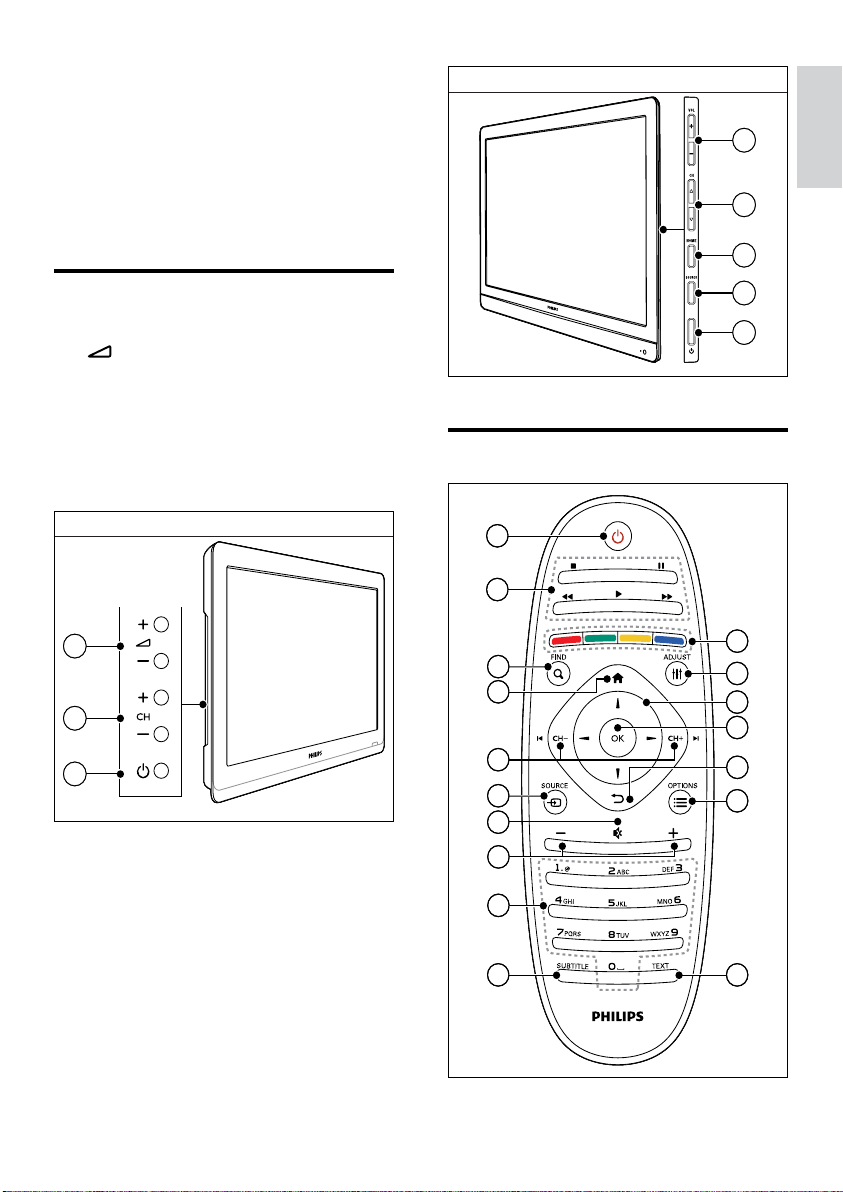
9
Eng lish
Remote control
32PFL5206H
1
2
3
4
5
32PFL5206H
1
2
3
4
5
11
10
1
2
17
16
12
15
14
13
7
4
5
3
6
9
8
11
10
1
2
17
16
12
15
14
13
7
4
5
3
6
9
8
3 Your TV
Congratulations on your purchase, and
welcome to Philips! To fully benet from the
support that Philips offers, register your TV at
www.philips.com/welcome.
TV controls
a +/-: Adjust volume.
b CH +/-: Switch channels.
c HOME: Access the home menu.
d SOURCE: Select connected devices.
e Power: Switch the TV on or off.
1
2
5
xxPFL3606H/22PFL3206H
1
2
5
xxPFL3606H/22PFL3206H
EN
10
Remote control usage
When you use the remote control, hold it close
to the TV and point it at the remote control
sensor. Make sure that the line-of-sight between
the remote control and TV is not blocked by
furniture, walls or other objects.
~5m
~30˚
~5m
~30˚
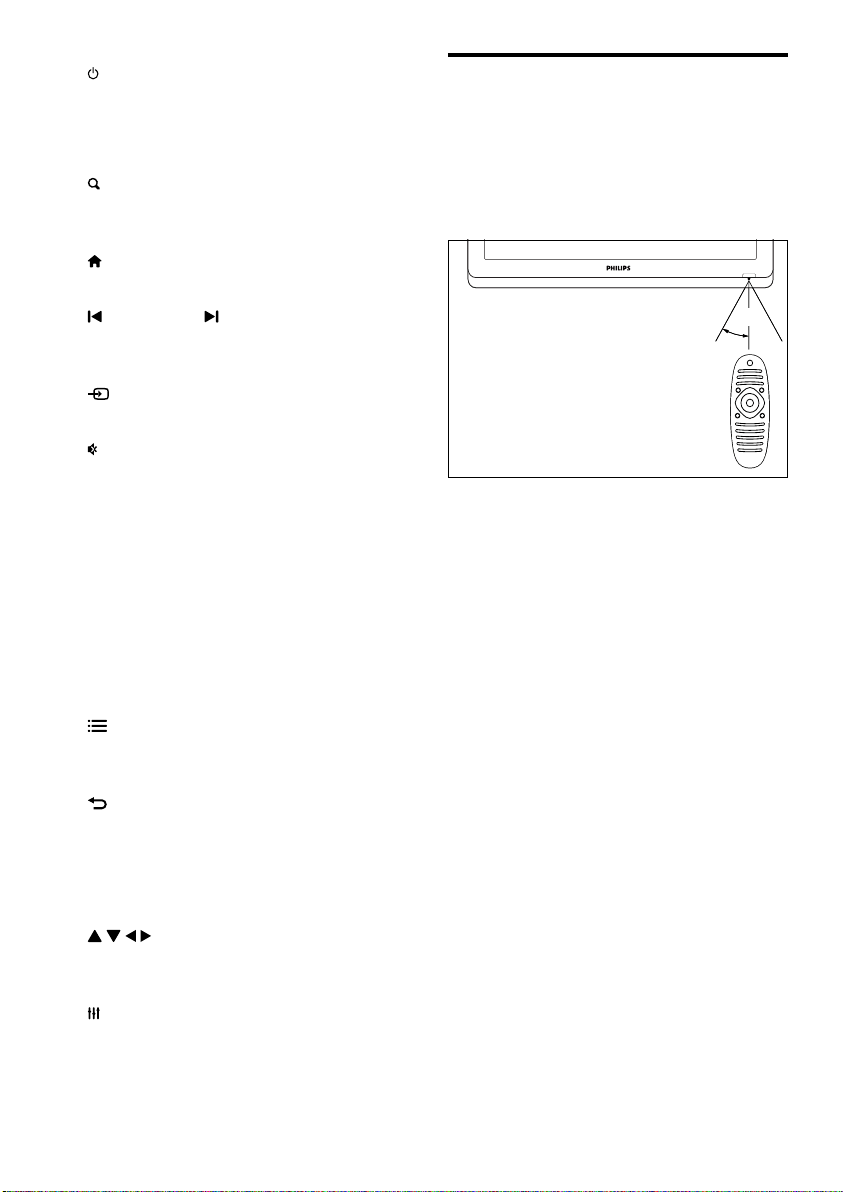
a (Standby-On)
Switch the TV on or to standby.
b Play buttons
Control video or music.
c FIND
Access the menu to select a TV
channel list.
d (Home)
Access the home menu.
e CH - / CH + (Previous/Next)
Switch channels or navigate through
menu pages, tracks, albums or folders.
f SOURCE
Select connected devices.
g (Mute)
Mute or restore audio.
h +/- (Volume)
Adjust volume.
i 0-9 (Numeric buttons)
Select channels.
j SUBTITLE
Enable or disable subtitles.
k TEXT
Enable or disable teletext.
l OPTIONS
Access options for the current activity
or selection.
m (Back)
Return to the previous menu or exit
a function.
n OK
Conrm an entry or selection.
o (Navigation buttons)
Navigate through menus and select
items.
p ADJUST
Access the menu to adjust settings.
q Colour buttons
Select tasks or options.
•
•
•
•
•
•
•
•
•
•
•
•
•
•
•
•
•
EN
11
Eng lish
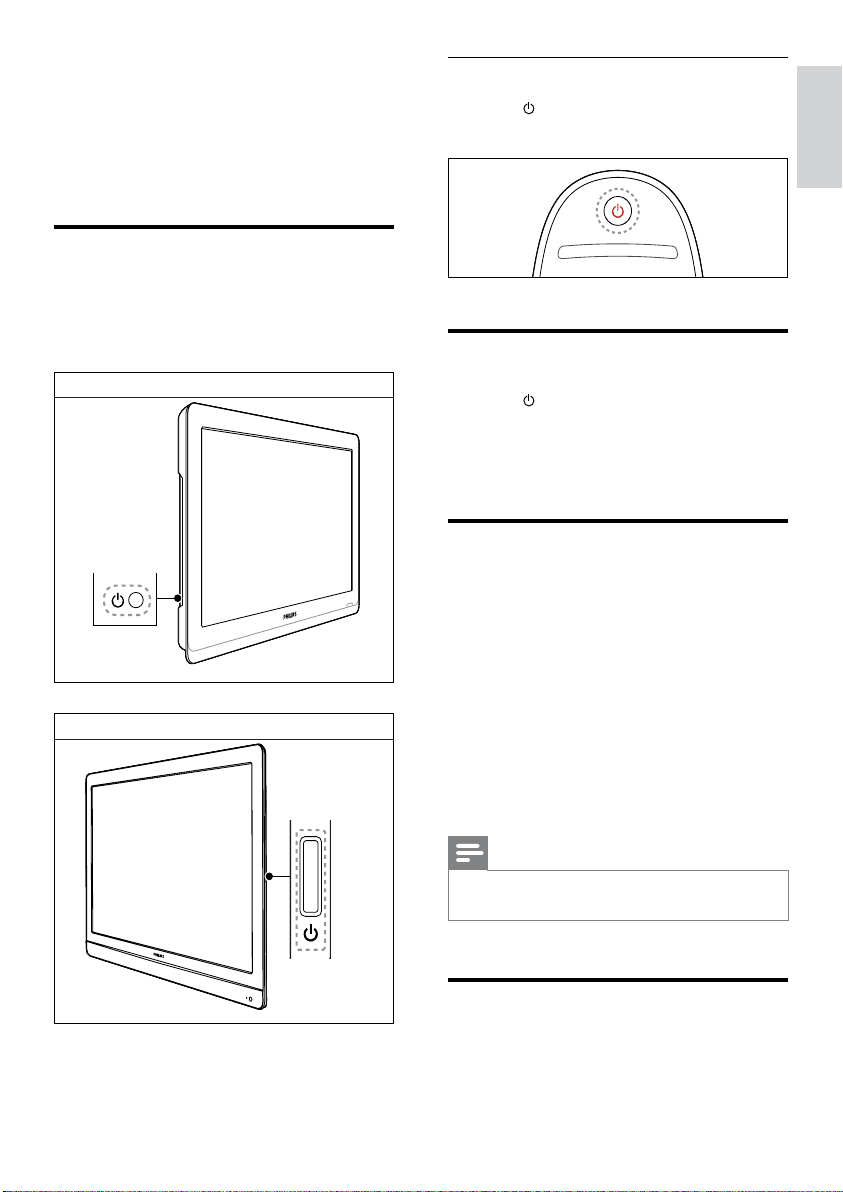
If the TV is in standby
Press (Standby-On) on the remote
control.
Switch your TV to standby
Press (Standby-On) on the remote
control again.
The remote control sensor on the TV
switches to red.
Switch your TV off
Press the power switch on the TV again.
The remote control sensor on the TV
switches off.
Though the TV consumes very little
power when in standby, energy
continues to be consumed. When not
in use for an extended period of time,
disconnect the TV power cable from
the power outlet or turn off the power
switch.
Note
If you cannot locate your remote control and want to
switch on the TV from standby, press
CH+/- on the TV.
•
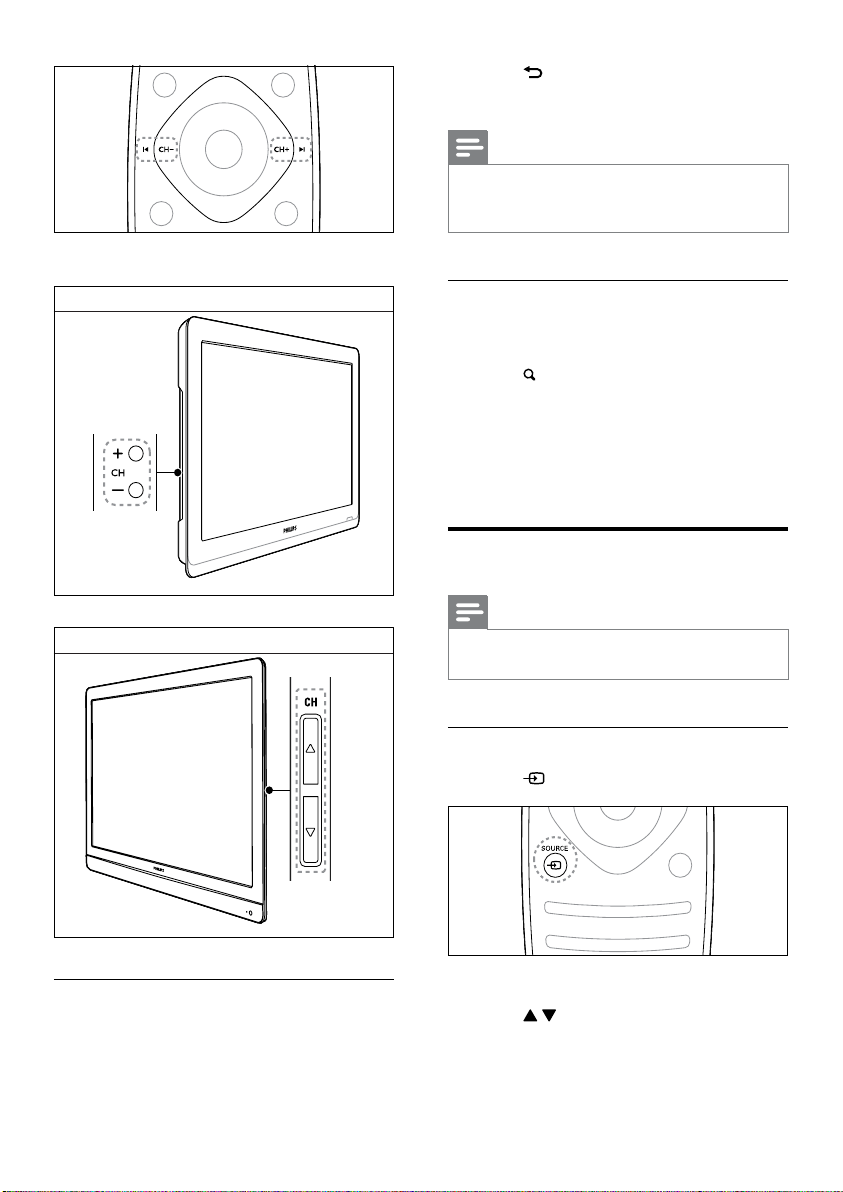
Switch channels
Press CH+ or CH- on the remote control.
•
•
»
•
»
»
•
4 Use your TV
This section helps you perform basic TV
operations.
Switch your TV on
Press the power switch on the TV.
There is a short delay before the TV
responds.
•
»
xxPFL3606H/22PFL3206HxxPFL3606H/22PFL3206H
32PFL5206H32PFL5206H
EN
12
Press (BACK) on the remote control
to return to the previous channel.
Note
When you use a favourite list, you can only select those
channels in the lis
t (see ‘Create and use lists of favourite
channels’ on page
18).
•
View channel preview
You can view a preview of all available channels
with the channel grid.
Press
FIND.
The channel grid appears.
To preview a channel, select it.
To watch a channel, select it, then press
OK.
Watch connected devices
Note
Before you select a device as a source, switch the
device on.
•
Select a device from the source list
1 Press SOURCE.
The source list appears.
2 Press to select a device.
3 Press OK to conrm your choice.
The TV switches to the selected
device.
•
•
»
»
»
»
»
Press CH +/- on the TV.
Other ways to switch channels
Enter a channel number using the Numeric
buttons.
•
•
xxPFL3606H/22PFL3206HxxPFL3606H/22PFL3206H
32PFL5206H32PFL5206H
EN
13
Eng lish
To mute or unmute sound
Press to mute the sound.
Press
again to restore the sound.
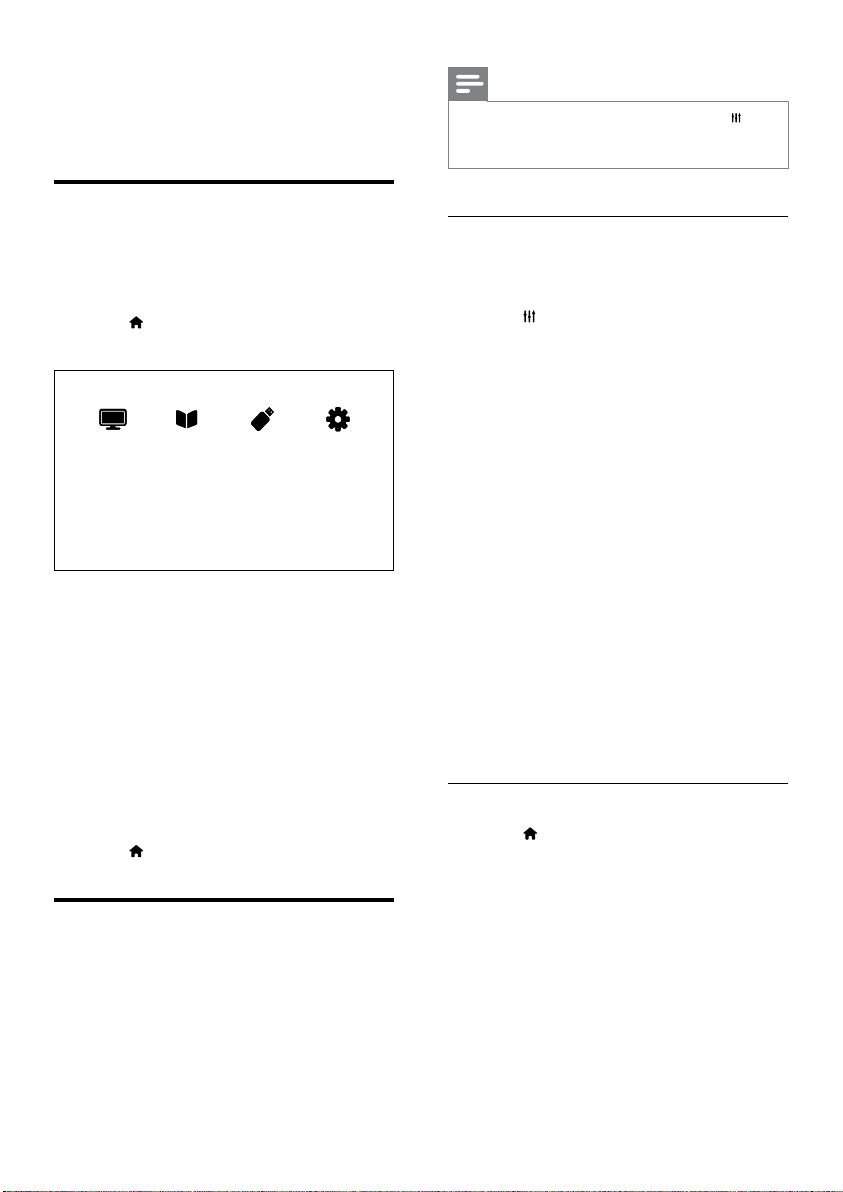
Use teletext
1 Press TEXT.
The main index page appears.
2 Select a page with one of the following:
Press the
Numeric buttons to enter a
page number.
Press
or to view the next or
previous page.
Press the
Colour buttons to select a
colour coded item.
Press
(BACK) to return to a
previously viewed page.
3 Press TEXT to exit teletext.
Note
For UK users only: Some digital TV channels offer
dedicated digital text services (for example, BBC1).
•
•
•
»
•
•
•
•
Adjust TV volume
Press +/- on the remote control.
Press +/- on the TV.
•
•
xxPFL3606H/22PFL3206HxxPFL3606H/22PFL3206H
32PFL5206H32PFL5206H
EN
14
Note
While you watch TV or external devices, press
ADJUST, then select [Smart picture] or [Smart sound]
for quick access to picture and sound settings.
•
Use smart picture
Use smart picture to apply pre-dened picture
settings.
1 Press ADJUST.
2 Select [Smart picture], then press OK.
3 Select one of the following settings, then
press
OK.
[Personal]: Apply your customised
picture settings
[Vivid]: Rich and dynamic settings,
ideal for daytime.
[Natural]: Natural picture settings.
[Cinema]: Ideal settings for movies.
[Game]: Ideal settings for games.
[Energy saving]: Settings that conserve
the most energy.
[Standard]: Default settings that suit
most environments and types of
video.
[Photo]: Ideal settings for photos.
[Custom]: Customise and store
your personal picture settings. Select
[Personal] to apply these settings.
Manually adjust picture settings
1 Press .
2 Select [Setup] > [TV settings] > [Picture],
then press
OK.
3 Select one of the following settings, then
press
OK.
[Smart picture]: Access predened smart
picture settings.
[Reset]: Reset to factory default settings.
[Contrast]: Adjust the intensity of backlight
areas, while the video contents are kept
unchanged.
•
•
•
•
•
•
•
•
•
•
•
•
5 Use more of
your TV
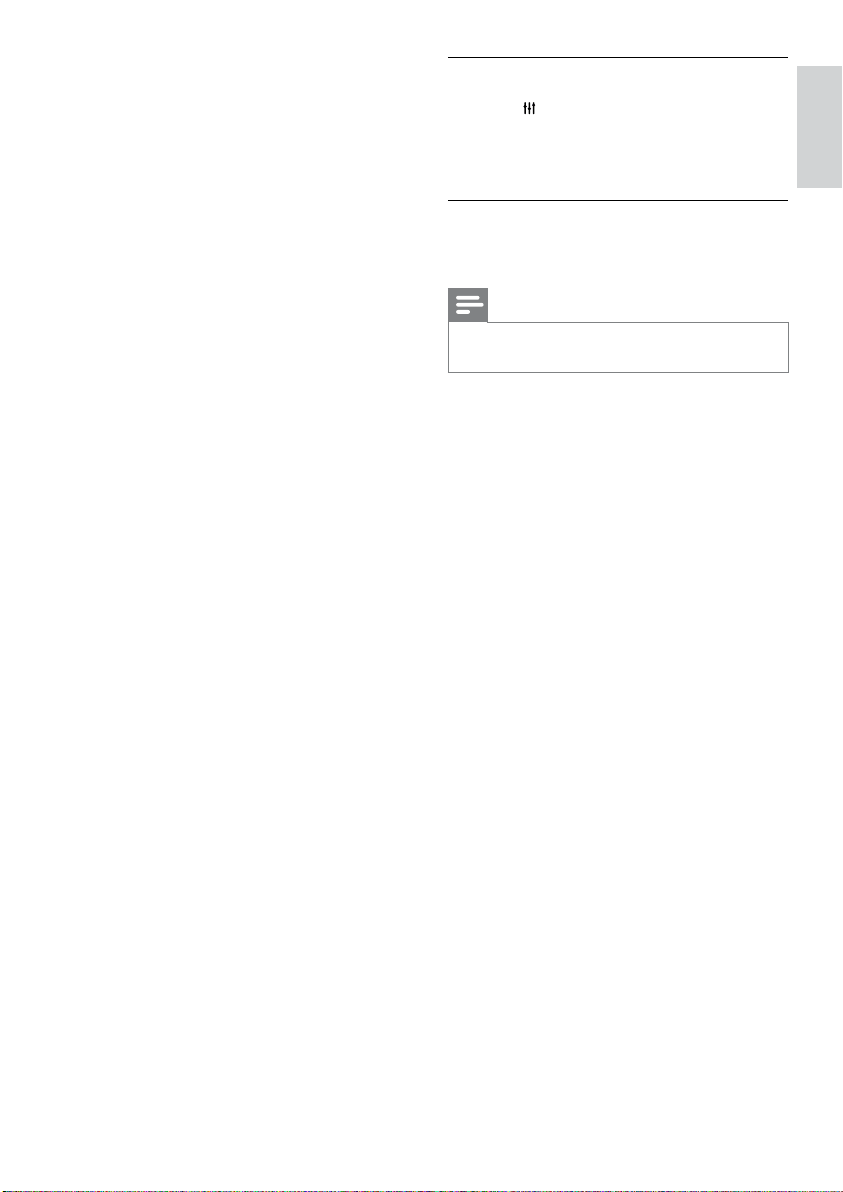
Access TV menus
Menus help you to install channels, change
picture and sound settings and access other
features.
1 Press .
The menu screen appears.
2 Select one of the following, then press OK.
[Watch TV]: If a source other than
antenna is selected, switch back to the
antenna source
[Programme guide]: Access the
electronic programme guide.
[Browse USB]: If a USB device
is connected, access the content
browser.
[Setup]: Access menus to change
picture, sound and other settings.
3 Press to exit.
Change picture and sound
settings
Change picture and sound settings to suit your
preferences. You can apply pre-dened settings
or change settings manually.
•
•
•
•
EN
15
Eng lish
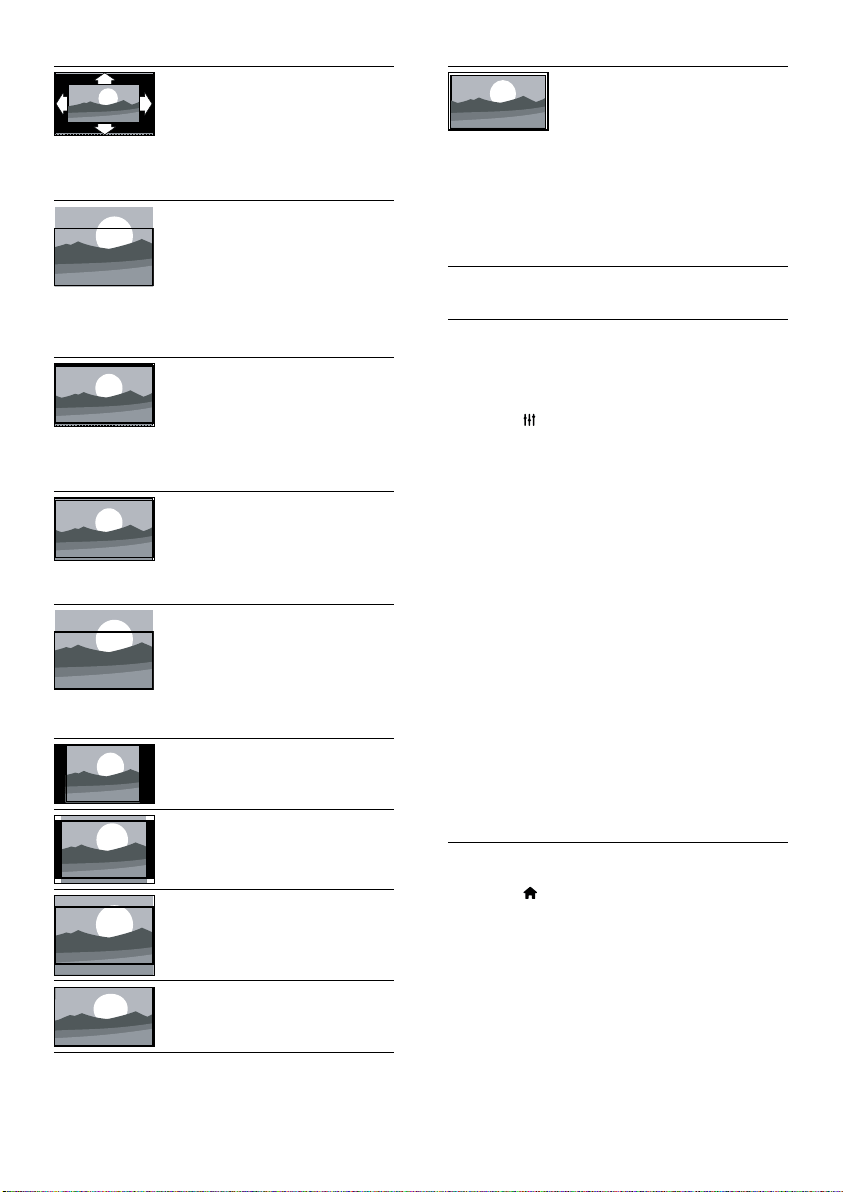
Change picture format
1 Press ADJUST.
2 Select [Picture format], then press OK.
3 Select a picture format, then press OK.
Summary of picture formats
The following picture settings can be congured.
Note
Depending on the format of the picture source, some
picture settings are not available.
•
[Brightness]: Adjust the intensity and
details of dark areas.
[Colour]: Adjust colour saturation.
[Hue]: For NTSC, compensate for colour
variations.
[Sharpness]: Adjust sharpness in the image.
[Noise reduction]: Filter and reduce noise
in an image.
[Tint]: Adjust the colour balance in an
image.
[Custom tint]: Customise tint setting (Only
available if
[Tint] > [Custom] is selected).
[Digital Crystal Clear]: Fine-tune each
pixel to match surrounding pixels. This
setting produces a brilliant, high-denition
image.
[Advance sharpness]: Enable superior
picture sharpness.
[Dynamic contrast]: Enhance contrast.
[Medium] setting is recommended.
[Dynamic backlight]: Adjust brightness
of the TV backlight to match lighting
conditions.
[MPEG artifact reduction]: Smooth
out transitions on digital pictures. You
can switch this feature on or off.
[Colour enhancement]: Make colours
more vivid and improve the details
in bright colours. You can switch this
feature on or off.
[Gamma]: Adjust the midtone
intensity in the picture. Black and
white are not affected.
[PC mode]: Adjust the picture when a PC
is connected to the TV via HDMI or DVI.
[Picture format]: Change the picture
format.
[Screen edges]: Adjust the viewing area
(when set to minimum, you may see noise
or the rough edges of an image).
[Picture shift]: If available, adjust the picture
position for all picture formats except for
[Auto zoom], [Wide screen], [4:3] and
[Unscaled].
•
•
•
•
•
•
•
•
•
•
•
•
•
•
•
•
•
•
EN
16
[Unscaled]: For HD and
PC mode only, and in
selected models only. Allow
maximum sharpness. Some
distortion may be present
due to the broadcaster’s
systems. Set your PC
resolution to wide screen
mode for best results.
Use smart sound
Use smart sound to apply pre-dened sound
settings.
1 Press ADJUST.
2 Select [Smart sound], then press OK.
3 Select one of the following settings, then
press
OK.
[Personal]: Apply the settings that
were customised in the sound menu.
[Standard]: Settings that suit most
environments and types of audio.
[News]: Ideal settings for spoken
audio, such as news.
[Cinema]: (For selected models) Ideal
settings for movies.
[Game]: (For selected models) Ideal
settings for games.
[DRAMA]: (For selected models)
Ideal settings for drama programmes.
[Sports]: (For selected models) Ideal
settings for sports programmes.
Manually adjust sound settings
1 Press .
2 Select [Setup] > [TV settings] > [Sound],
then press
OK.
The
[Sound] menu appears.
3 Select one of the following settings, then
press
OK.
[Smart sound]: Access predened smart
sound settings.
[Reset]: Reset to factory default settings.
•
•
•
•
•
•
•
»
•
•
[Auto format]: For
selected models. (Not for
PC mode.) Automatically
display the suitable picture
format. If not, widescreen is
applied.
[Auto ll]: For selected
models. Adjust the
picture to ll the screen
(subtitles remain visible).
Recommended for minimal
screen distortion but not
for HD or PC.
[Auto zoom]: For selected
models. Enlarge the
picture to ll the screen.
Recommended for minimal
screen distortion but not
for HD or PC.
[Super zoom]: (Not
for HD and PC mode.)
Remove the black bars on
the side of 4:3 broadcasts.
There is minimal distortion.
[Subtitle zoom]: Displays
4:3 pictures over the full
area of the screen with
subtitles visible. Part of the
top of the picture is clipped
off.
[4:3]: Show the classic 4:3
format.
[Movie expand 14:9]: (Not
for HD and PC mode.)
Scales 4:3 format to 14:9.
[Movie expand 16:9]: (Not
for HD and PC mode.)
Scale 4:3 format to 16:9.
[Wide screen]: Scale 4:3
format to 16:9.
EN

17
Eng lish
[Speaker + headphone]: Hear visually
impaired audio from both speakers
and headphone.
[Volume visually impaired]: Adjust the
volume of visually impaired audio.
1 To exit, press .
Use advanced teletext
features
Access the teletext options menu
Access the teletext features through the
teletext options menu.
1 Press TEXT.
The teletext screen appears.
2 Press OPTIONS.
The teletext options menu appears.
3 Select one of the following options, then
press
OK.
[Freeze page]/[Unfreeze page]:
Freeze/unfreeze the current page.
[Dual screen]/[Full screen]: Switch
between full screen and dual screen
teletext.
[T.O.P. overview]: Switch on Table of
Pages teletext broadcasts
[Enlarge]/[Normal view]: Switch
between enlarged and normal view of
teletext pages.
[Reveal]: Hide or reveal hidden
information on a page, such as
solutions to riddles or puzzles.
[Cycle subpage]: If subpages are
available, automatically display each
subpage in sequence.
[Languages]: Select a language for
teletext.
Select teletext subpages
A teletext page can contain several subpages.
Subpages are displayed next to the main page
number.
•
•
»
»
•
•
•
•
•
•
•
[Clear sound]: Enhance the sound clarity.
[Bass]: Adjust the bass level.
[Treble]: Adjust the treble level.
[Surround]: Switch on spatial sound.
[Incredible Surround]: (For selected
models) Enhanced spatial sound for
increased surround effect.
[Headphone volume]: (For models with
headphones) Adjust headphone volume.
[Auto volume levelling]: Automatically
reduce sudden volume changes, for
example when switching channels.
[Balance]: Adjust the balance of the right
and left speakers.
[Digital output format]: Select the type of
digital audio output through digital audio
output connector.
[PCM]: Convert non-PCM audio type
to PCM format.
[Multichannel]: Output audio to the
home theatre.
Use the universal access
menu
You can switch on or off visually impaired and
hearing impaired options for enhanced visual or
audio cues.
1 While you watch TV, press .
2 Select [Setup] > [Channel settings] >
[Language].
3 Select one of the following options, then
press
OK.
[Hearing impaired]: Enable or disable
hearing impaired subtitles.
[Visually impaired]: Some digital TV
channels broadcast special audio adapted
for people who are visually impaired.
The normal audio is mixed with extra
commentary. Select an option:
[Off]: Turn off visually impaired audio.
[Speakers]: Hear visually impaired
audio from speakers only
[Headphone]: Hear visually impaired
audio from headphones only.
•
•
•
•
•
•
•
•
•
•
•
•
•
•
•
•
EN
18
Note
The favourites channel grid is empty until you add
channels into the favourites list.
•
View all channels
You can exit the favourites list, and view all
installed channels.
1 While you watch TV, press FIND.
The channel matrix menu is displayed.
2 Press OPTIONS.
3 Select [Select list] > [All], then press OK.
All channels are displayed in the
channel grid.
Note
All favourite channels are marked by an asterisk when
you view the channel grid.
•
Manage the favourites list
1 While you watch TV, press FIND.
The channel matrix menu appears.
2 Press OPTIONS.
3 Select [Select list] > [All], then press OK.
4 Press OPTIONS.
5 Select [Mark as favourite] or [Unmark as
favourite], then press OK.
The channel is added or removed from
the favourite list.
Note
All favourite channels are marked by an asterisk in the
channel grid.
•
»
»
»
»
1 Press TEXT.
The teletext screen appears.
2 Press or to select a teletext page.
3 Press or to enter a subpage.
Select T.O.P. teletext broadcasts
Jump from one subject to another without
entering page numbers with Table Of Pages
(T.O.P.) teletext broadcasts. T.O.P. teletext
broadcasts are available on selected TV
channels.
1 Press TEXT.
The teletext screen appears.
2 Press OPTIONS.
3 Select [T.O.P. overview], then press OK.
The T.O.P. overview appears.
4 Select a subject.
5 Press OK to view the page.
Create and use lists of
favourite channels
You can create a list of your preferred TV
channels so that you can nd those channels
easily.
View only the list of favourite
channels
1 While you watch TV, press FIND.
The channel matrix menu is displayed.
2 Press OPTIONS.
3 Select [Select list] > [Favourites], then
press
OK.
Only channels in the favourites list
appear in the channel grid.
»
»
»
»
»
EN
19
Eng lish
[Search by genre]: Search TV
programmes by genre.
[Scheduled reminders]: List
programme reminders. Only available
for upcoming programmes.
[Acquire EPG data]: Update the latest
programme guide information.
Display the TV clock
You can display a clock on the TV screen. The
clock displays the current time using time data
received from your TV service operator.
Set the TV clock manually
In some countries, you need to set TV clock
manually.
1 Press .
2 Select [Setup] > [TV settings] >
[Preferences] > [Clock].
3 Select [Auto clock], then press OK.
4 Select [Manual], then press OK.
5 Select [Time] or [Date:], then press OK.
6 Press the Navigation buttons to set the
time or date.
7 Select [Done], then press OK.
8 Press to exit.
Note
If your selected country supports digital broadcast,
the clock displays the time data from your TV service
operator as priority.
•
Display the TV clock
1 While you watch TV, press OPTIONS.
The options menu is displayed.
2 Select [Clock].
The clock is displayed.
3 Press OK.
•
•
•
»
»
Use the Electronic
Programme Guide
The programme guide is an on-screen guide
available for digital channels. It allows you to:
View a list of digital programmes being
broadcast
View upcoming programmes
Group programmes by genre
Set reminders when programmes start
Setup preferred programme guide
channels
Switch on EPG
1 Press .
2 Select [Programme guide], then pressOK.
The programme guide appears
displaying information about the
scheduled programmes.
Note
Programme guide data is available only in selected
countries and can take some time to load.
•
Change programme guide options
You can set or clear reminders, change the
day, and access other useful options in the
programme guide options menu.
1 Press .
2 Select [Programme guide], then press OK.
3 Press OPTIONS.
The programme guide menu appears.
4 Select one of the following options, then
press
OK.
[Set reminder] / [Clear reminders]:
Set or clear programme reminders.
[Change day]: Set the programme
guide day.
[More info]: Display programme
information.
•
•
•
•
•
»
»
•
•
•
EN
20
Use timers
You can set timers to switch the TV to standby
at a specied time.
Tip
Set the TV clock before you use timers.•
Automatically switch the TV to
standby (sleep timer)
Sleep timer switches the TV to standby after a
pre-dened duration.
Tip
You can switch off your TV earlier or reset the sleep
timer during the countdown.
•
1 Press .
2 Select [Setup] > [TV settings] >
[Preferences] > [Sleep timer].
The
[Sleep timer] menu appears.
3 Select a value between zero and 180
minutes.
If you select zero, the sleep timer
switches off.
4 Press OK to switch on the sleep timer.
The TV switches to standby after the
specied time.
Lock unsuitable content
You can prevent your children from watching
certain programmes or channels by locking the
TV controls.
Set or change code
1 Press .
»
»
»
Note
To disable the clock, repeat the procedure.•
Change the clock mode
1 Press .
2 Select [Setup] > [TV settings] >
[Preferences] > [Clock] > [Auto clock].
3 Select [Automatic] or [Manual], then press
OK.
Change the time zone
Note
This option is only available if you select [Auto clock] >
[Automatic] (in countries with clock transmission data).
•
1 Press .
2 Select [Setup] > [TV settings] >
[Preferences] > [Clock] > [Time zone].
3 Select your time zone.
4 Press OK to conrm.
Use daylight saving
Note
This option is only available if you select [Auto clock
mode] > [Manual].
•
1 Press .
2 Select [Setup] > [TV settings] >
[Preferences] > [Clock] > [Daylight
saving], then press OK.
3 Select [Standard time] or [Daylight saving
time], then press OK.
EN
21
Eng lish
Set parental ratings
Some digital broadcasters rate their
programmes according to age. You can set your
TV to display only programmes with age ratings
lower than your child’s age.
1 Press .
2 Select [Setup] > [Channel settings] >
[Child lock] > [Parental rating].
A code setup screen appears.
3 Enter your code using Numeric buttons.
The rating menu appears.
4 Select an age rating, then press OK.
5 Press to exit.
Change language
Depending on your broadcaster, you can change
the audio language, subtitle language, or both,
for a TV channel.
Multiple audio languages, subtitles, or both, are
broadcast through teletext or DVB-T digital
broadcasts. Dual sound broadcasts: With digital
broadcasts, you can select a subtitle language.
Change menu language
1 Press .
2 Select [Setup] > [TV settings] >
[Preferences] > [Menu language], then
press
OK.
3 Select a language, then press OK.
Change audio language
You can choose an audio language if it is
available from your broadcaster. For digital
channels, multiple languages may be available.
For analogue channels, two languages may be
available.
1 While you watch TV, press OPTIONS.
»
»
2 Select [Setup] > [Channel
settings]>[Child lock].
3 Select [Set code] or [Change code].
The
[Set code] / [Change code] menu
appears.
4 Enter your code using the Numeric
buttons.
Follow the on-screen instructions to
create or change your PIN code.
Tip
If you forget your code, enter ‘8888’ to override any
existing codes.
•
Lock or unlock one or more channels
1 Press .
2 Select [Setup] > [Channel settings] >
[Child lock] > [Channel lock].
A list of channels is displayed.
3 Select the channel that you want to lock or
unlock, then press
OK.
The rst time you lock or unlock a
channel, you are prompted to enter
your PIN code.
4 Enter your code and press OK.
If the channel is locked, a lock icon is
displayed.
5 Repeat the process to lock or unlock more
channels.
6 To activate the locks, switch the TV on and
off.
When you switch channels with
CH
- or CH +, the locked channels are
skipped.
When you access the locked channels
from the channel grid, you are
prompted to enter your PIN code.
»
»
»
»
»
»
»
EN
22
Play photos and music on
USB storage devices
Caution
Philips is not responsible if the USB storage device is
not supported, nor is it responsible for damage or loss
of data from the device.
•
Connect a USB storage device to play photos
or music stored on it.
1 Switch on the TV.
2 Connect the USB device to the USB port
on the side of your TV.
3 Press .
4 Select [Browse USB], then press OK.
The USB browser appears.
View photos
1 In the USB browser, select [Picture], then
press
OK.
2 Select a photo or a photo album, then
press
OK to view the photo enlarged to
ll the TV screen.
To view the next or previous photo,
press
.
3 To return, press .
View a slide show of your photos
1 When a full screen image of a photo is
displayed, press
OK.
A slide show begins from the selected
photo.
Press the following buttons to control play:
to play.
to pause.
or to play the previous or next
photo.
to stop.
To return, press
.
»
•
»
•
•
•
•
•
•
2 For digital channels, select [Audio
language], select the language, then press
OK.
3 For analogue channels, select [Dual I-II],
select either language, then press
OK.
Show or hide subtitles
1 While you watch TV, press SUBTITLE.
2 Select one of the following, then press OK.
[Subtitles on]: Always display subtitles.
[Subtitles off]: Never display subtitles.
[On during mute]: When audio is
muted, display subtitles.
Note
Repeat this procedure to enable subtitles on each
analogue channel.
Select
[Subtitles] > [Subtitles off] to disable subtitles.
•
•
Select a subtitle language in digital
channels
Note
When you select a subtitle language in a digital TV
channel as described below, the preferred subtitle
language set in the installation menu is temporarily
overruled.
•
1 While you watch TV, press OPTIONS.
2 Select [Subtitle language], then press OK.
3 Select a subtitle language.
4 Press OK to conrm.
•
•
•
EN
23
Eng lish
or to search forward or
backward.
to stop.
Change music settings
While you play music, press OPTIONS
to access one of the following settings,
then press
OK.
[Stop playback]: Stop music play.
[Repeat]: Play a song once or
repeatedly.
[Shufe on]/[Shufe off]: Play songs in
sequence or at random.
[Show info]: Display the le name.
View a slideshow with music
You can view a picture slide show with
background music.
1 Select an album of songs.
2 Press OK.
3 Press to return to the USB content
browser.
4 Select an album of pictures.
5 Press OK.
The slideshow begins.
6 To exit, press .
Disconnect a USB storage device
Caution
Follow this procedure to avoid damage to your USB
storage device.
•
1 Press to exit the USB browser.
2 Wait for ve seconds, then disconnect the
USB storage device.
•
•
•
•
•
•
•
»
Change slide show settings
1 While you view a slide show, press
OPTIONS.
The slide show options menu is
displayed.
2 Select one of the following, then press OK.
[Start/Stop slideshow]: Start or stop
slideshow.
[Slideshow transitions]: Set the
transition from one picture to the
next.
[Slideshow frequency]: Select the
display time for each photo.
[Repeat]/[Play once]: View the
pictures in the folder once only, or
repeatedly.
[Shufe off]/[Shufe on]: View the
pictures in sequential order, or at
random.
[Rotate image]: Rotate photo.
[Show info]: Display the picture name,
date, size and next picture in the slide
show.
[Set as Scenea]: Set the selected
picture as the TV wallpaper.
3 To return, press .
Note
[Rotate image] and [Show info] appear only when the
slideshow is paused.
•
Listen to music
1 In the USB browser, select [Music], then
press
OK.
2 Select a music track or album, then press
OK to play.
3 To control play, press the play buttons:
to play.
to pause.
or to play the previous or next
track.
»
•
•
•
•
•
•
•
•
•
•
•
EN

24
5 To exit, press .
Step 2: Download and update the
latest software version
1 Connect a USB storage device.
2 Press .
3 Select [Setup] > [Update software].
4 Follow the instructions to load a le onto
your USB storage device.
5 Connect the USB storage device to your
computer, then double-click the le.
A Web page is launched.
6 Follow the instructions in the Web page.
If the current software version
matches the latest software update
le, you do not need to update your
TV software.
If the current software version is
smaller than the latest software
update le, download the latest
software update le to the root
directory of your USB device.
7 Disconnect the USB storage device from
the computer.
B: Update when prompted through
digital broadcasts
If you receive digital broadcasts (DVB-T), your
TV can automatically receive software updates.
When your TV receives a software update, it
will prompt you to update the TV software.
1 Press .
2 Select [Setup] > [Software settings] >
[Announcement] .
3 If a message appears to prompt you
to update your software, follow the
instructions to start the update.
The TV restarts after the software
update is complete.
»
•
•
»
Listen to digital radio
channels
1 Press FIND.
The channel matrix menu is displayed.
2 Press OPTIONS, then select [Select
list] > [Radio].
The radio channel grid appears.
3 Select a radio channel and press OK to
listen.
Update the TV software
Philips continuously tries to improve its
products and we recommend that you update
the TV software when updates are available.
Ways to update the TV software
You can update the TV software in one of the
following ways:
A: with a USB storage device,
B: when prompted through digital broadcasts, or
C: after being prompted through digital
broadcasts.
A: with a USB storage device,
To update with a USB storage device, you need:
A computer with Internet access
A USB storage device.
Step 1: Check the current software
version
1 Press .
2 Select [Setup] > [Software settings] >
[Current software inf].
The current software information is
displayed.
3 Write down the software version number.
4 To return, press OK.
»
»
•
•
»
EN
25
Eng lish
[Channel information size]: Change
the type of information that is
displayed when you switch channels.
[Audio out delay]: Automatically sync
the image on your TV to the audio
from a connected Home Theatre.
[Clock]: Display or remove the time
from the TV, and set clock options.
Start a TV demo
You can use demonstrations to better
understand the features of your TV. Some
demos are not available on certain models.
Available demos are displayed in the menu list.
1 While you watch TV, press .
2 Select [Setup] > [Watch demo], OK.
3 Select a demo and press OK to view it.
4 To exit, press .
Reset the TV to factory
settings
You can restore the default picture and sound
settings of your TV. The channel installation
settings remain the same.
1 Press .
2 Select [Setup] > [TV settings] > [Factory
settings], then press OK.
3 If you are prompted to enter a code, enter
the child-lock cod
e (see ‘Set or change
code’ on page
20).
A conrmation message is displayed.
4 Press OK to conrm.
•
•
•
»
4 If you do not want to update the software,
select
[Setup] > [Software settings] >
[Clear announcement], then press OK.
Note
If you skip the update, you can update it manually later
(see ‘C: Check for updates through digital broadcasts’
on page
25).
•
C: Check for updates through digital
broadcasts
You can check if there are updates available
through digital broadcasts.
1 Press .
2 Select [Setup] > [Software settings] >
[Check on major updates].
3 If an update is available, follow the on-
screen instructions to start the update.
The TV restarts after the software
update is complete.
Change TV preferences
Use the preferences menu to customise your
TV settings.
1 Press .
2 Select [Setup] > [TV settings] >
[Preferences].
3 Select one of the following, then press OK.
[Menu language]: Select a menu
language.
[Sleep timer]: Switch the TV to
standby after a pre-dened duration.
[Location]: Optimise TV settings for
your location - home or shop.
[Volume bar]: Display the volume bar
when you adjust the volume.
[Auto switch off]: To conserve energy,
set the TV to switch off automatically
after a period of inactivity.
»
•
•
•
•
•
EN
26
Update the channel list
You can enable automatic update of channels
when your TV is in standby mode. The channels
stored in your TV are updated every morning
according to the channel information in the
broadcast.
1 Press .
2 Select [Setup] > [Channel settings] >
[Channel installation] > [Automatic
channel update].
3 Select [On] to enable the automatic
update or select
[Off] to disable it.
4 To return, press .
Manually install channels
This section describes how to search and store
analogue TV channels manually.
Step 1: Select your system
Note
Skip this step if your system settings are correct.•
1 Press .
2 Select [Setup] > [Channel settings]
>
[Channel installation] > [Analogue:
Manual antenna installation] > [System],
then press
OK.
3 Select the correct system for your country
or region, then press
OK.
Step 2: Search and store new TV
channels
1 Press .
2 Select [Setup] > [Channel settings]
>
[Channel installation] > [Analogue:
Manual antenna installation] > [Find
channel], then press OK.
6 Install channels
The rst time you set up your TV, you are
prompted to select a menu language and to
install TV and digital radio channels (if available).
Afterwards, you can re-install and ne tune
channels.
Automatically install channels
You can search and store channels automatically.
Step 1: Select your menu language
1 Press .
2 Select [Setup] > [TV settings] >
[Preferences] > [Menu language], then
press
OK.
3 Select a language, then press OK.
Step 2: Select your country
Select the country where you are installing the
TV. The available channels for the country are
installed on the TV.
1 Press .
2 Select [Setup] > [Search for channels],
then press
OK.
3 Select [Reinstall channels], then press OK.
The country menu appears.
4 Select your country, then press OK.
The channel installation guide begins.
5 Select [Start], then press OK.
All available channels are stored.
6 To exit, press OK.
»
»
»
EN
27
Eng lish
8 In the rename channel menu, select
[Done], then press OK.
Rearrange channels
After you install channels, you can rearrange the
order in which they appear.
1 While you watch TV, press FIND.
The channel matrix menu is displayed.
2 Press OPTIONS.
The channel options menu appears.
3 Select [Reorder], then press OK.
4 Select the channel to rearrange, then press
OK.
The selected channel is highlighted.
5 Move the highlighted channel to its new
location, then press
OK.
6 Press OPTIONS.
7 Select [Done reordering], then press OK.
Test digital reception
You can check the quality and signal strength
of digital channels. This allows you to reposition
and test your antenna or satellite dish.
1 Press .
2 Select [Setup] > [Channel settings]
>
[Channel installation] > [Digital:
Reception test] , then press OK.
3 Enter the frequency to test, then press OK.
4 Select [Search], then press OK.
5 When the channel is found, select [Store],
then press
OK.
Note
If the signal quality and strength is poor, reposition the
aerial or satellite dish and retest.
If you still have problems with the reception of your
digital broadcast, contact a specialised installer.
•
•
»
»
»
If you know the three-digit frequency
of the channel, enter it.
To search, select
[Search], then press
OK.
3 When the channel is found, select [Done],
then press
OK.
To store the channel as a new number,
select
[Store as new channel], then
press
OK.
To store the channel as the previously
selected channel, select
[Store
current channel], then press OK.
Step 3: Fine-tune analogue channels
1 Press .
2 Select [Setup] > [Channel settings]
>
[Channel installation] > [Analogue:
manual install] > [Fine-tune], then press
OK.
3 Press to ne-tune the channel.
Rename channels
You can rename channels. The name appears
when you select the channel.
1 While you watch TV, press FIND.
The channel matrix menu is displayed.
2 Select the channel to rename.
3 Press OPTIONS.
The channel options menu is displayed.
4 Select [Rename channel], then press OK.
5 To display the text input box, press OK.
6 For each character, select a character, then
press
OK.
To select uppercase letters, lowercase
letters or symbols: In the row below
the space key, select the respective
key, then press
OK.
7 When complete, select [Done], then press
OK.
The text input box closes.
•
•
•
•
»
»
•
»
EN
28
Access CAM services
1 Insert and activate the CAM (see ‘Insert
and activate a CAM’ on page
31).
2 Press OPTIONS.
3 Select [Common interface].
Applications provided by the digital TV
service operator are displayed.
Note
This menu option is available only if the CAM is
inserted and activated correctly.
•
»
EN
29
Eng lish
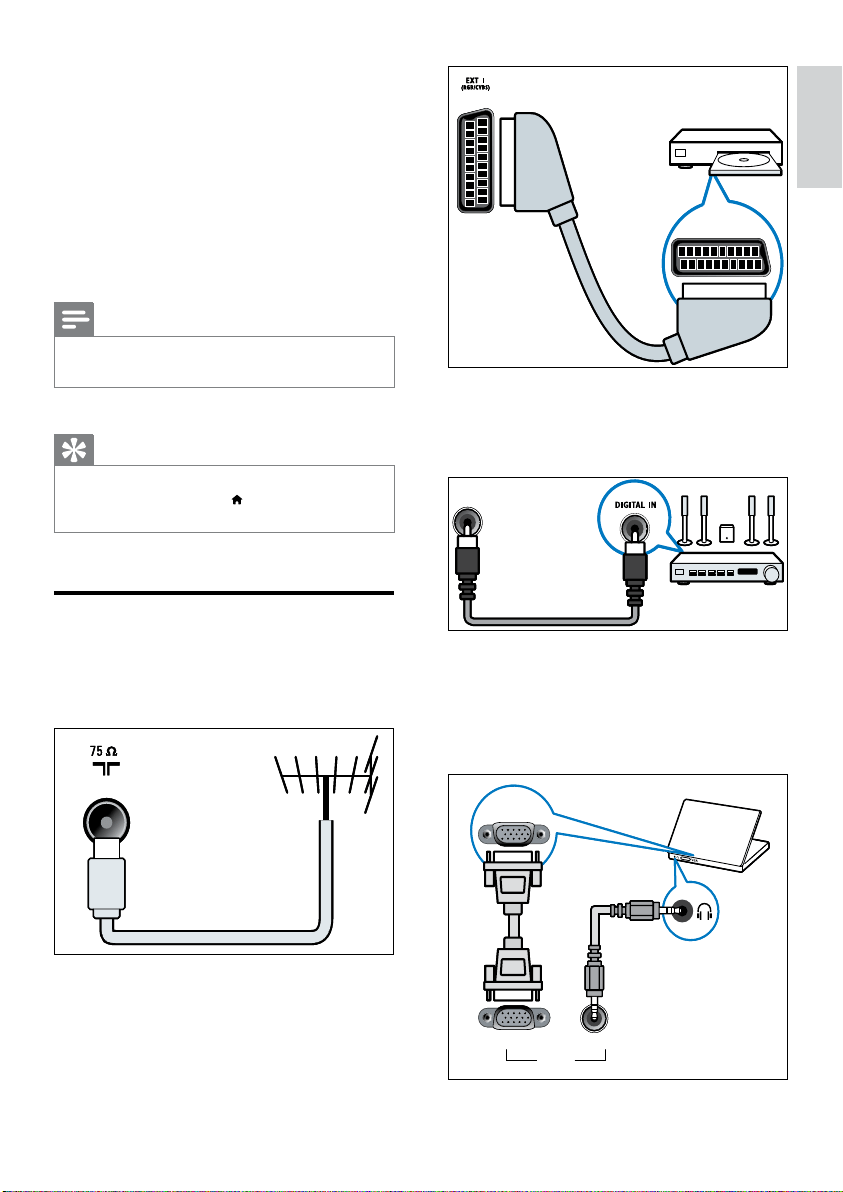
c SPDIF OUT
Digital audio output to home theatres and
other digital audio systems.
d SERV. U
For use by service personnel only.
e PC IN (VGA and AUDIO IN)
Audio and video input from a computer.
SPDIF OUTSPDIF OUT
VGA
VGA AUDIO
PC IN
VGA
VGA AUDIO
PC IN
7 Connect devices
This section describes how to connect devices
with different connectors. For the location of
these connectors on your TV, see the quick
start guide. More examples of connections with
other devices are provided in the Quick Start
Guide.
Note
You can use different types of connectors to connect a
device to your TV.
•
Tip
After connection, for easy access to your device, add
it to the home menu: press
, then select [Add new
device].
•
Back connections
a TV ANTENNA
Signal input from an antenna, cable or
satellite.
b EXT 1 (RGB and CVBS)
Analogue audio and video input from
analogue or digital devices such as DVD
players or game consoles.
TV ANTENNATV ANTENNA
EN
30
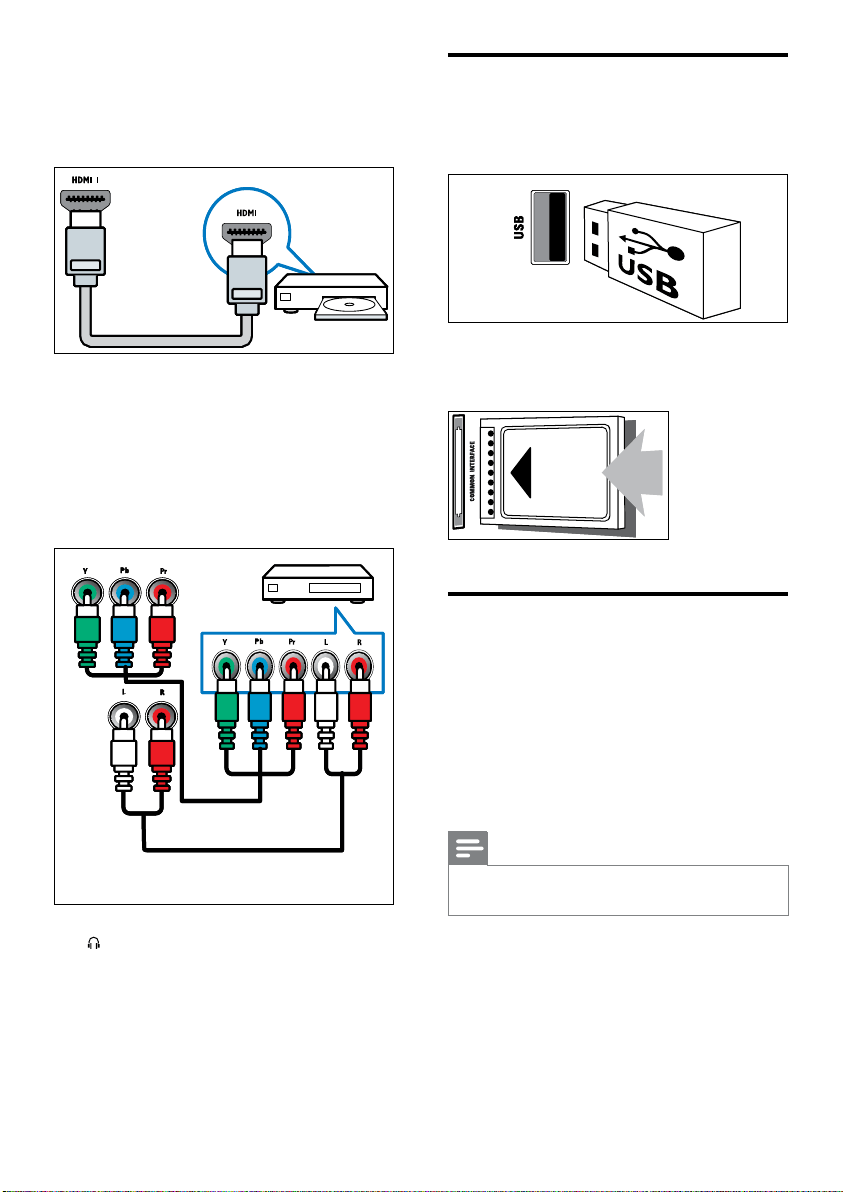
Side connections
a USB
Data input from USB storage devices.
b COMMON INTERFACE
Slot for a Conditional Access Module (CAM).
Connect a computer
Before you connect a computer to the TV
Set the screen refresh rate on your
computer to 60Hz.
Select a supported screen resolution on
your computer.
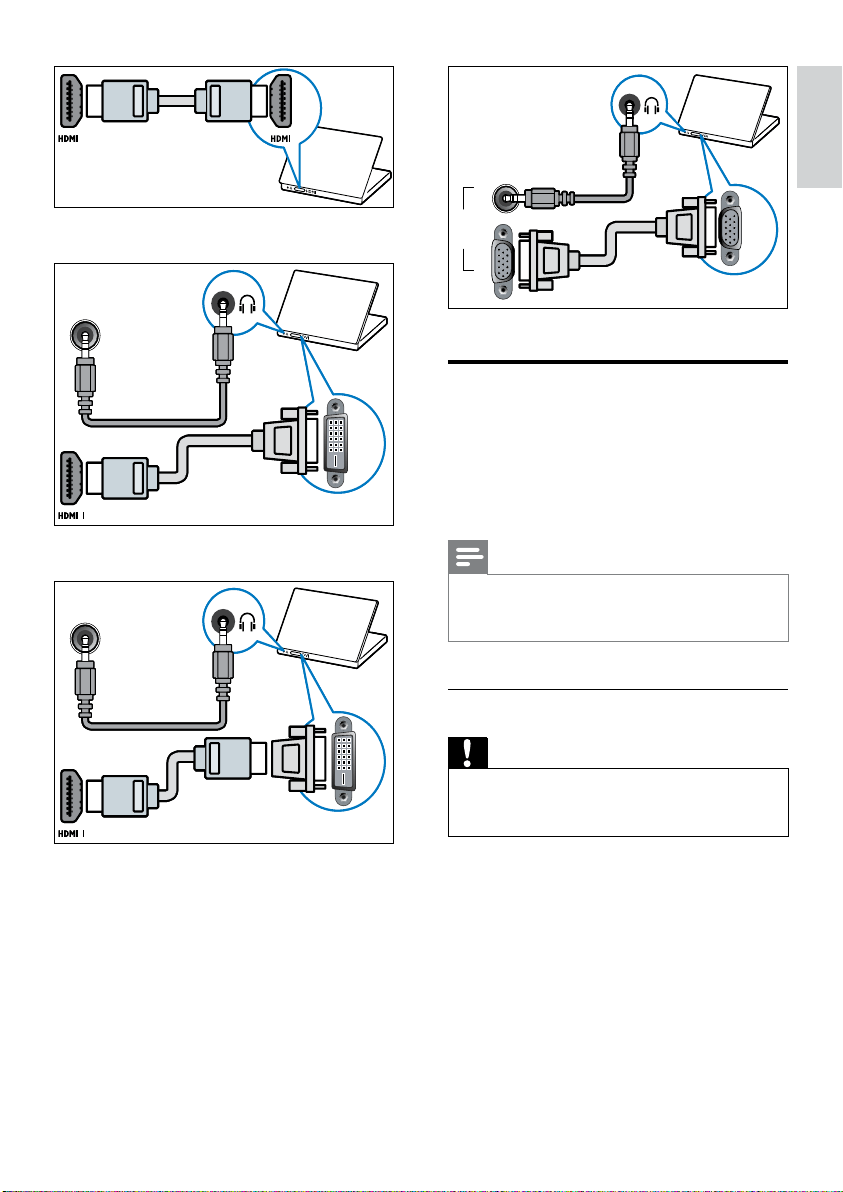
Connect a computer with one of the following
connectors:
Note
Connections via DVI or VGA require an additional
audio cable.
•
HDMI cable
•
•
•
f HDMI 1
Digital audio and video input from high-
denition digital devices such as Blu-ray
players.
Connections via DVI or VGA require an
additional audio cabl
e (see ‘Connect a
computer’ on page
30).
g EXT 2 (Y Pb Pr and AUDIO L/R)
Analogue audio and video input from
analogue or digital devices such as DVD
players or game consoles.
h (Headphone)
Stereo audio output to headphones or
earphones.
EN
31
Eng lish
Use a Conditional Access
Module
A Conditional Access Module (CAM) is
provided by digital TV service operators to
decode digital TV channels.
Note
Refer to the documentation from your service
operator on how to insert a smart card into the
Conditional Access Module.
•
Insert and activate a CAM
Caution
Be sure to follow the instructions described below.
Wrong insertion of a CAM may damage both the
CAM and your TV.
•
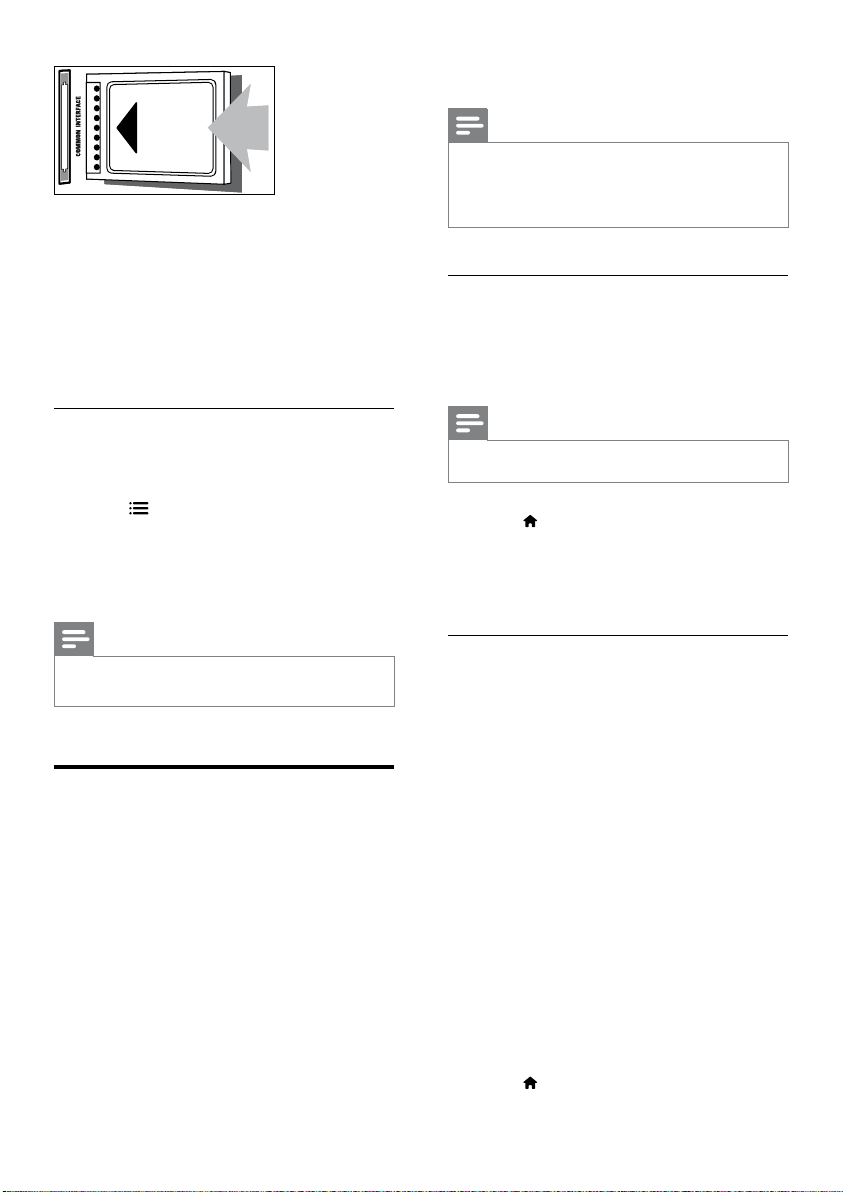
1 Switch off the TV and disconnect it from
the power outlet.
2 Following the directions printed on the
CAM, gently insert the CAM into the
COMMON INTERFACE at the side of the
TV.
VGA
AUDIOVGA
PC IN
VGA
AUDIOVGA
PC IN
DVI-HDMI cable
HDMI cable and HDMI-DVI adaptor
VGA cable
•
•
•
DVI
PC IN
AUDIO
DVI
PC IN
AUDIO
DVI
PC IN
AUDIO
DVI
PC IN
AUDIO
EN
32
Switch on EasyLink
Note
The EasyLink-compliant device must be switched on
and selected as the source.
Philips does not guarantee 100% interoperability with
all HDMI CEC devices.
•
•
Switch on or off EasyLink
When you play an HDMI-CEC compliant
device, the TV switches on from standby, and
switches to the correct source.
Note
If you do not intend to use Philips EasyLink, switch it off.•
1 Press .
2 Select [Setup] > [TV settings] >
[EasyLink] > [EasyLink].
3 Select [On] or [Off], then press OK.
Set TV speakers to EasyLink mode
If you connect an HDMI-CEC compliant device
that includes speakers, you can choose to hear
the TV from those speakers instead of the TV
speakers.
When you play content from an EasyLink
compliant home theatre, if you want to mute
the TV speakers automatically, turn on EasyLink
mode.
1 Connect an HDMI-CEC compliant device
to the HDMI connector.
2 Connect an audio cable from the SPDIF
OUT connector to the EasyLink-compliant
device’s AUDIO IN connecto
r (see ‘Back
connections’ on page
29).
3 Congure the HDMI-CEC compliant
device properly (see the device user
manual).
4 Press .
•
3 Push the CAM in as far as it will go.
4 Reconnect the TV to the power outlet.
5 Turn on the TV and wait for the CAM to
be activated. This may take several minutes.
Do not remove the CAM from the slot
when in use — this action deactivates
digital services.
Access CAM services
1 Insert and activate the CAM (see ‘Insert
and activate a CAM’ on page
31).
2 Press OPTIONS.
3 Select [Common interface].
Applications provided by the digital TV
service operator are displayed.
Note
This menu option is available only if the CAM is
inserted and activated correctly.
•
Use Philips EasyLink
Get the most out of your HDMI-Consumer
Electronic Control (CEC) compliant device
with Philips EasyLink enhanced control features.
If your HDMI-CEC compliant devices are
connected through HDMI, you can control
them at the same time with your TV remote
control.
To enable Philips EasyLink, you need to:
Connect an HDMI-CEC compliant device
through HDMI
Congure the HDMI-CEC compliant
device properly
»
•
•
EN
33
Eng lish
Retain picture quality
If your TV picture quality is affected by the
picture-processing features of other devices,
switch on Pixel Plus Link.
1 Connect an HDMI-CEC compliant device
to the HDMI connector.
2 Congure the HDMI-CEC compliant
device properly (see the device user
manual).
3 Press .
4 Select [Setup] > [TV settings] >
[EasyLink] > [EasyLink].
5 Select [On], then press OK.
6 Select [Pixel Plus Link] > [On], then press
OK.
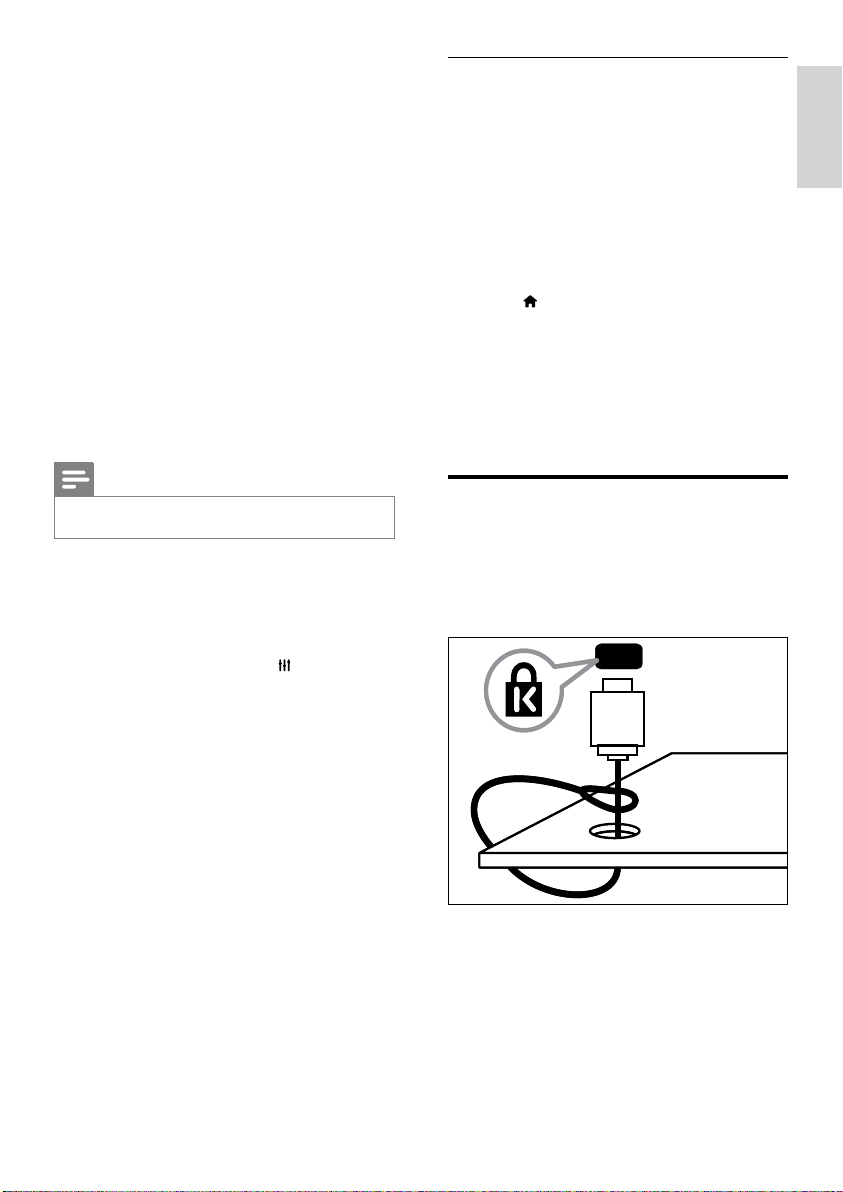
Use a Kensington lock
There is a Kensington security slot at the back
of the TV. Prevent theft by looping a Kensington
lock between the slot and a permanent object,
such as a heavy table.
5 Select [Setup] > [TV settings] >
[EasyLink] > [EasyLink].
6 Select [On], then press OK.
7 Select [TV speakers], then press OK.
8 Select one of the following, then press OK.
[Off]: Switch off TV speakers.
[On]: Switch on TV speakers.
[EasyLink]: Stream TV audio through
the connected HDMI-CEC device.
Switch the TV audio to the connected
HDMI-CEC audio device through the
adjust menu.
[EasyLink autostart]: Turn off TV
speakers automatically and streams TV
audio to the connected HDMI-CEC
audio device.
Note
To mute the TV speakers, select [TV speakers] > [Off].•
Select speaker output with Adjust menu
If
[EasyLink] or [EasyLink autostart] are
selected, access the adjust menu to switch the
TV audio.
1 While you watch TV, press ADJUST.
2 Select [Speaker], then press OK.
3 Select one of the following, then press OK:
[TV]: On by default. Stream TV audio
through TV and the connected HDMI-
CEC audio device until the connected
device switches to system audio
control. TV audio is then streamed
through the connected device.
[Amplier]: Stream audio through
the connected HDMI-CEC device. If
system audio mode is not enabled on
the device, audio continue to stream
from the TV speakers. If
[EasyLink
autostart] was enabled, the TV
prompts the connected device to
switch to system audio mode.
•
•
•
•
•
•
EN

34
Tuner/Reception/
Transmission
Antenna input: 75ohm coaxial (IEC75)
DVB: DVB Terrestrial, DVB-C*, DVB-T,
MPEG4
TV system: DVB COFDM 2K/8K; PAL I,
B/G, D/K; SECAM B/G, D/K, L/L’
Video playback: NTSC, SECAM, PAL
Tuner Bands: Hyperband, S-channel, UHF,
VHF
*For selected models
Remote control
Type: PF01E11B
Batteries: 2 x AAA (LR03 type)
Power
Mains power: 220-240V, 50-60Hz
Standby power: < 0.3 W
Ambient temperature: 5 to 40 degrees
Celsius
For power consumption, see the product
specications at www.philips.com/support.
The power rating stated on the product
typeplate is the power consumption for this
product during normal household use (IEC
62087 Ed.2). The maximum power rating, stated
between brackets, is used for electrical safety
(IEC 60065 Ed. 7.2).
Supported TV mounts
For 32PFL5206H and 26PFL3xx6H
To mount the TV, purchase a Philips TV mount
or a compatible TV mount.
•
•
•
•
•
•
•
•
•
•
•
8 Product
information
Product information is subject to change
without notice. For detailed product
information, go to www.philips.com/support.
Supported display resolutions
Computer formats
Resolution - refresh rate:
640 x 480 - 60 Hz
800 x 600 - 60 Hz
1024 x 768 - 60Hz
1280 x 720 - 60Hz
1280 x 768 - 60Hz
1280 x 1024 - 60 Hz
1360 x 768 - 60Hz
1680 x 1050 - 60Hz (For Full HD
only)
1920 x 1080 - 60 Hz (For Full HD
only)
Video formats
Resolution - refresh rate:
480i - 60 Hz
480p - 60 Hz
576i - 50Hz
576p - 50 Hz
720p - 50 Hz, 60 Hz
1080i - 50 Hz, 60 Hz
1080p - 24Hz, 25Hz, 30Hz, 50Hz,
60Hz.
Multimedia
Supported storage device: USB (Only
FAT or FAT 32 USB storage devices are
supported)
Supported multimedia le formats:
Images: JPEG
Audio: MP3
•
•
•
•
•
•
•
•
•
•
•
•
•
•
•
•
•
•
•
•
•
•
EN
35
Eng lish
TV screen
size
(inches)
Required
pitch (mm)
Required mounting
bolts
32 200 x 100 4 x M4 (20 mm)
26 200 x 100 4 x M4 (10 mm)
Product specication
Design and specications are subject to change
without notice.
32PFL5206H
Without TV stand
Dimension (WxHxD): 771 x 495 x
44 (mm)
Weight: 8 kg
With TV stand
Dimension (WxHxD): 771 x 541 x
180 (mm)
Weight: 8.4 kg
26PFL3606H
Without TV stand
Dimension (WxHxD): 648.5 x 414.5
x 79.1 (mm)
Weight: 6.2 kg
With TV stand
Dimension (WxHxD): 648.5 x 465.3
x 176.7 (mm)
Weight: 6.5 kg
22PFL3606H
Without TV stand
Dimension (WxHxD): 529.4 x 334.9
x 57 (mm)
Weight: 3.84 kg
With TV stand
Dimension (WxHxD): 529.4 x 368.4
x 159.3 (mm)
Weight: 4.06 kg
22PFL3206H
Without TV stand
Dimension (WxHxD): 520 x 340 x
38 (mm)
Weight: 3.2 kg
With TV stand
•
•
•
•
•
•
•
•
•
•
•
•
•
•
•
•
•
•
•
•
•
•
Warning
Follow all instructions provided with the TV
mount. Koninklijke Philips Electronics N.V. bears no
responsibility for improper TV mounting that results in
accident, injury or damage.
•
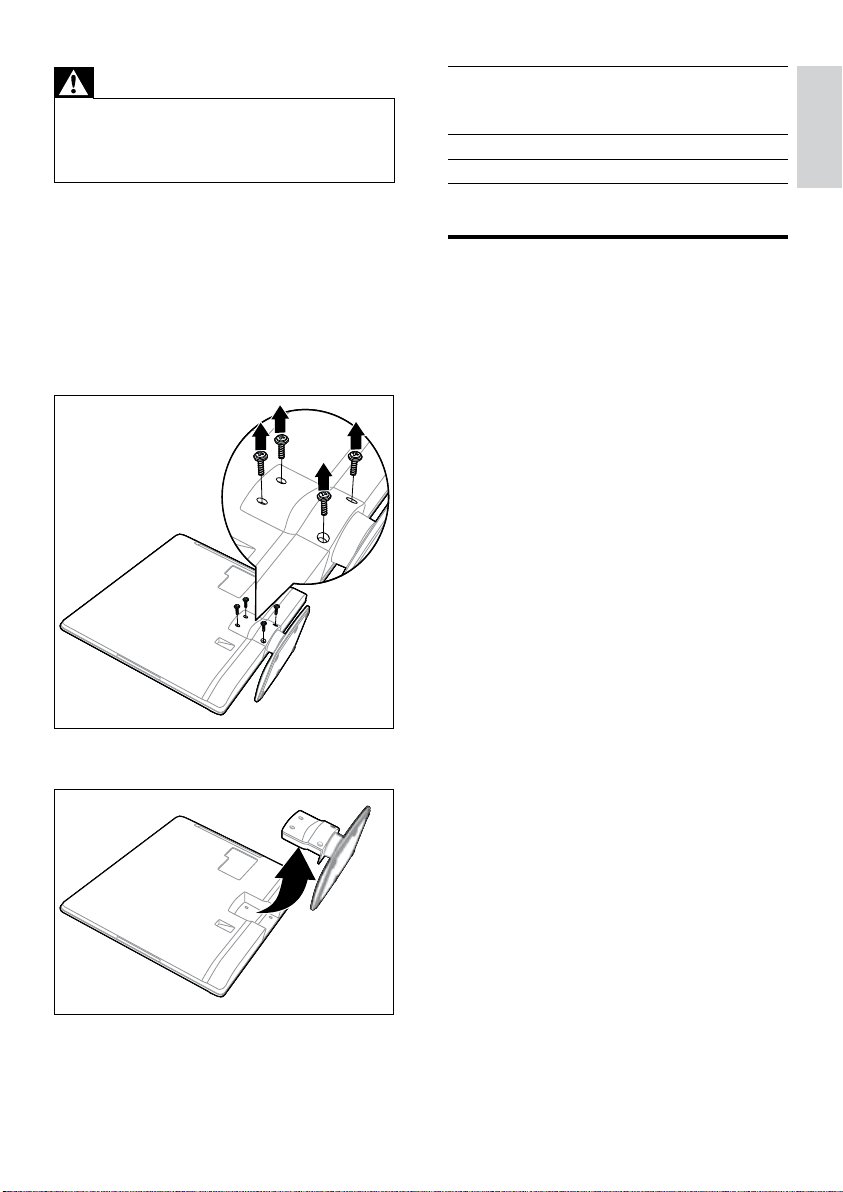
Before you mount, perform these steps:
1 To prevent damage to cables and
connectors, leave a clearance of at least 2.2
inches or 5.5cm from the back of the TV.
2 For 32PFL5206H, remove the stand mount
neck:
a Unscrew the stand mount neck.
b Remove it from the back of the TV.
3 Make sure that your mounting bolts follow
these specications:
EN

36
Dimension (WxHxD): 520 x 380 x
145 (mm)
Weight: 3.3 kg
19PFL3606H
Without TV stand
Dimension (WxHxD): 462.8 x 297.4
x 57 (mm)
Weight: 2.94 kg
With TV stand
Dimension (WxHxD): 462.8 x 330.9
x 149.3 (mm)
Weight: 3.13 kg
•
•
•
•
•
•
•
•
EN

37
Eng lish
2. Select [Setup] > [TV settings] >
[Preferences] > [Location].
3. Select
[Home] and press OK.
TV channel issues
Previously installed channels do not appear in
the channel list:
Check that the correct channel list is
selected.
No digital channels were found during the
installation:
Check that the TV supports DVB-T, DVB-T
Lite or DVB-C in your country.
Some channels are not automatically installed
on my TV:
During installation, make sure that you
select the country where you are installing
the TV.
Picture issues
The TV is on, but there is no picture:
Check that the antenna is properly
connected to the TV.
Check that the correct device is selected
as the TV source.
There is sound but no picture:
Check that the picture settings are
correctly set.
There is poor TV reception from an antenna
connection:
Check that the antenna is properly
connected to the TV.
Loudspeakers, unearthed audio devices,
neon lights, high buildings and other large
objects can inuence reception quality.
If possible, try to improve the reception
quality by changing the antenna direction
or moving devices away from the TV.
If reception on only one channel is poor,
ne tune this channel.
There is poor picture quality from connected
devices:
•
•
•
•
•
•
•
•
•
9 Troubleshooting
This section describes commonly encountered
issues and accompanying solutions.
General TV issues
The TV does not switch on:
Disconnect the power cable from the
power outlet. Wait for one minute then
reconnect it.
Check that the power cable is securely
connected.
The remote control is not working properly:
Check that the remote control batteries
are correctly inserted according to the
+/- orientation.
Replace the remote control batteries if
they are at or weak.
Clean the remote control and TV sensor
lens.
The standby light on the TV blinks red:
Disconnect the power cable from the
power outlet. Wait until the TV cools down
before reconnecting the power cable. If the
blinking reoccurs, contact Philips Consumer
Care.
You forgot the code to unlock the TV lock
feature
Enter ‘8888’.
The TV menu is in the wrong language.
Change the TV menu to your preferred
language.
When turning the TV on/off/to standby, you
hear a creaking sound from the TV chassis:
No action is required. The creaking sound
is normal expansion and contraction of the
TV as it cools down and warms up. This
does not impact performance.
Cannot remove ‘e-sticker’ banner displayed on
the TV.
To remove the logos and images, set the
location of your TV to home.
1. Press
.
•
•
•
•
•
•
•
•
•
•
EN
38
time taken for a TV to display content from
a HDMI device.
If the TV does not recognise the HDMI
device and no picture is displayed, try
switching the source from one device to
another and back again.
If there are intermittent sound disruptions,
check that output settings from the HDMI
device are correct.
If you use an HDMI-to-DVI adapter
or HDMI-to-DVI cable, check that an
additional audio cable is connected to
AUDIO IN (mini-jack only).
Computer connection issues
The computer display on the TV is not stable:
Check that your PC uses the supported
resolution and refresh rate.
Set the TV picture format to unscaled.
Contact us
If you cannot resolve your problem, refer to
the FAQs for this product at www.philips.
com/support.
If the problem remains unresolved, contact
Philips Consumer Care in your country as listed
in the Addendum.
Warning
Do not attempt to repair the product yourself. This may
cause severe injury, irreparable damage to your product
or void your warranty.
•
Note
Make a note of your TV model and serial number
before you contact Philips. These numbers are printed
on the back of the TV and on the packaging.
•
•
•
•
•
•
Check that the devices are connected
properly.
Check that the picture settings are
correctly set.
The TV did not save your picture settings:
Check that the TV location is set to the
home setting. This mode offers you the
exibility to change and save settings.
The picture does not t the screen; it is too
big or too small:
Try using a different picture format.
The picture position is incorrect:
Picture signals from some devices may not
t the screen correctly. Check the signal
output of the device.
Sound issues
There is a picture but sound quality is poor:
Note
If no audio signal is detected, the TV automatically
switches the audio output off — this does not indicate
malfunction.
•
Check that all cables are properly
connected.
Check that the volume is not set to 0.
Check that the sound is not muted.
There is a picture but the sound quality is
poor:
Check that the sound settings are correctly
set.
There is a picture but sound comes from one
speaker only:
Verify that sound balance is set to the
centre.
HDMI connection issues
There are problems with HDMI devices:
Note that HDCP (High-bandwidth Digital
Content Protection) support can delay the
•
•
•
•
•
•
•
•
•
•
•
EN

39
Eng lish
digital radio 24
language, change
21
subtitles 22
dimensions 35
E
EasyLink
enable 32
hear from other speakers
automatically 32
picture quality, retain
33
Electronic Programme Guide 19
environmental care
end of use
7
recycle 7
while you watch TV
7
EPG, menu 19
F
factory settings 25
favourites list, add 18
H
HDMI 29
hearing impaired 17
high-denition (HD), content 29
home menu 14
home mode 25
I
install
install channels
install channels (automatic)
26
install channels (manual)
26
K
kensington lock 33
L
language
audio 21
menu 21
subtitles 22
10 Index
A
age rating 20, 21
analogue channels
ne-tune
27
language, change
21
audio language 21
C
CAM
enable 31
Insert 31
care 7
channels
channel list
12
favourites
18
hide or unhide
18
install (automatic)
26
install (manual)
26
rearrange 27
rename 27
reorder 27
switch 11
update 26
channels, ne-tune (analogue) 27
child lock 20, 21
clock 19
common interface 31
computer, see PC 30
Conditional Access Module 31
connect
connect device
29
connect, PC
30
connect, USB
22
connectors 29, 30
controls 9
D
demo 25
devices
watch 12
digital channels
EN

40
teletext
dual screen
17
enlarge 17
subpages 17
Table Of Pages
18
troubleshoot 37
U
universal access 17
V
visually impaired 17
volume 13
location, home or shop 25
M
multimedia 22
multimedia, play les 22
mute TV speakers 32
P
PC, display resolutions 34
picture format 15
picture settings 14
Pixel Plus link 33
position the TV 25
power 34
R
recycle 7
reinstall TV 26
remote control
overview 9
rename channels 27
reorder channels 27
S
screen care 7
settings
picture 14
sound 16
shop mode 25
sleeptimer 20
smart picture 14
smart sound 16
software
digital broadcast update
24, 25
version 24
sound settings 16
specications 34
standby 11
subtitle, language 22
subtitles 22
switch 11
switch TV on or off 11
T
EN