
© 2000 Sony Corporation
Color Rear Video Projector
4-077-171-11(1)
Operating Instructions
KP-43T75
KP-48S75
KP-53S75
KP-53N77
KP-61S75

equipment generates, uses, and can radiate radio
frequency energy and, if not installed and used in
accordance with the instructions, may cause harmful
interference with radio communications. However,
there is no guarantee that interference will not occur
in a particular installation. If this equipment does
cause harmful interference to radio or television
reception, which can be determined by turning the
equipment off and on, the user is encouraged to try to
correct the interference by one or more of the
following measures:
• Reorient or relocate the receiving antennas.
• Increase the separation between the equipment and
receiver.
• Connect the equipment into an outlet on a circuit
different from that to which the receiver is
connected.
• Consult the dealer or an experienced radio/TV
technician for help.
You are cautioned that any changes or
modifications not expressly approved in this
manual could void your authority to operate this
equipment.
This document is for the remote control RM-Y906
MODELS: KP-43T75, KP-48S75, KP-53S75,
KP-53N77, KP-61S75
Please keep this notice with the instruction manual.
ATTENTION
Pour prévenir les chocs électriques, ne pas utiliser cette
fiche polarisée avec un prolongateur, une prise de
courant ou une autre sortie de courant, sauf si les
lames peuvent être inserées à fond sans en laisser
aucune partie à decouvert.
As an ENERGY STAR Partner,
Sony Corporation has
determined that this product
meets the ENERGY STAR
guidelines for energy efficiency.
CAUTION
When using TV games, computers and similar products
with your projection TV, or viewing a TV station whose
logo always stays on the screen, keep the brightness
and contrast functions at low settings. If a fixed (non-
moving) pattern such as a station logo is left on the
screen for long periods of time, especially at a high
brightness or contrast setting, the image can be
permanently imprinted onto the screen. These types of
imprints are not covered by your warranty because
they are the result of misuse.
Note on Caption Vision
This television receiver provides display of television
closed captioning in accordance with §15.119 of the
FCC rules.
Note on convergence adjustment
Before you use your projection TV, make sure to adjust
convergence. For details, see page 19.
Note to CATV system installer
This reminder is provided to call the CATV system
installer’s attention to Article 820-40 of the NEC that
provides guidelines for proper grounding and, in
particular, specifies that the cable ground shall be
connected to the grounding system of the building, as
close to the point of cable entry as practical.
Use of this television receiver for other than private
viewing of programs broadcast on UHF or VHF or
transmitted by cable companies for the use of the
general public may require authorization from the
broadcaster/cable company and/or program owner.
NOTIFICATION
This equipment has been tested and found to comply
with the limits for a Class B digital device pursuant to
Part 15 of the FCC Rules. These limits are designed to
provide reasonable protection against harmful
interference in a residential installation. This
WARNING
To prevent fire or shock
hazard, do not expose the TV
to rain or moisture.
This symbol is intended to alert the user to
the presence of uninsulated “dangerous
voltage” within the product’s enclosure that
may be of sufficient magnitude to constitute
a risk of electric shock to persons.
This symbol is intended to alert the user to
the presence of important operating and
maintenance (servicing) instructions in the
literature accompanying the appliance.
CAUTION
To prevent electric shock, do not use this polarized AC
plug with an extension cord, receptacle or other
outlet unless the blades can be fully inserted to
prevent blade exposure.
CAUTION
RISK OF ELECTRIC SHOCK
DO NOT OPEN
ATTENTION
RISQUE DE CHOC ELECTRIQUE,
NE PAS OUVRIR
PRECAUCION
RIESGO DE CHOQUE ELECTRICO
NO ADRIR
CAUTION : TO REDUCE THE RISK OF ELECTRIC SHOCK,
DO NOT REMOVE COVER
(
OR BACK
)
.
NO USER-SERVICEABLE PARTS INSIDE.
REFER SERVICING TO QUALIFIED SERVICE PERSONNEL.
NO ABRIR
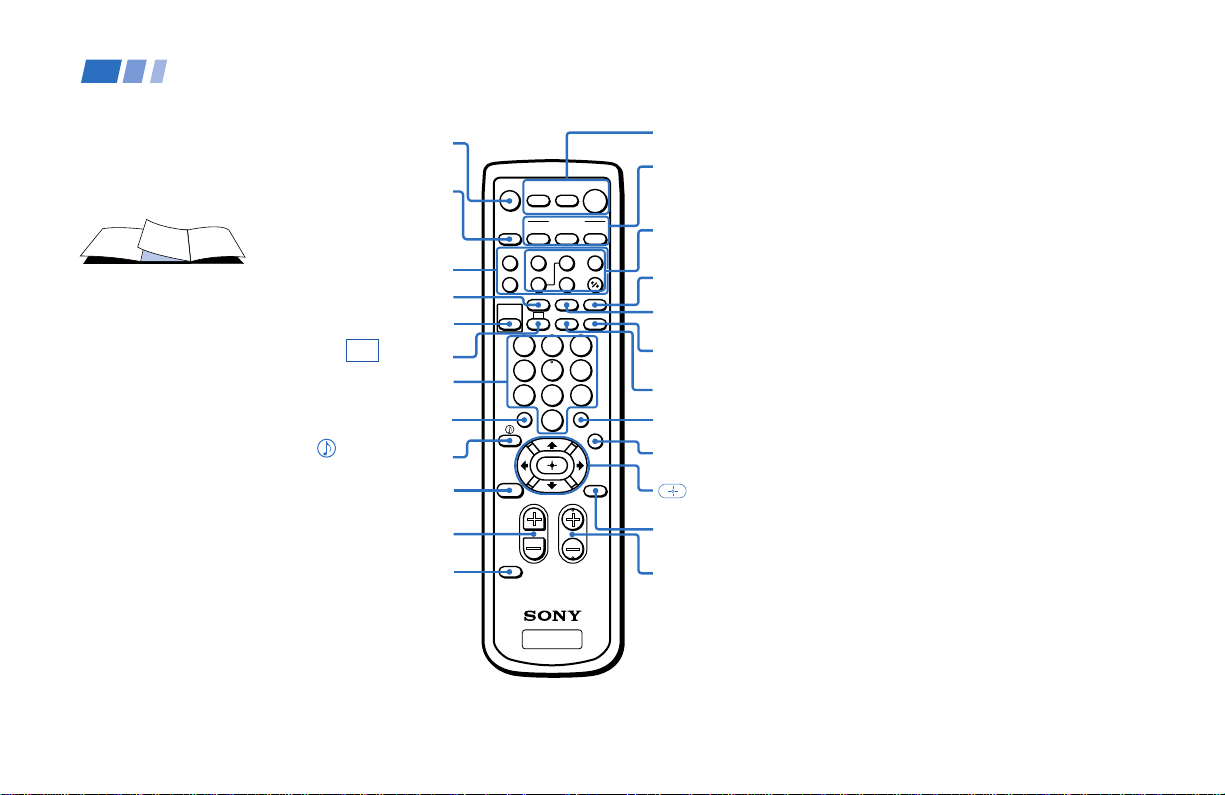
In the instructions that follow, we will
refer to the buttons on your remote control.
Keep this flap unfolded and use this page
for reference.
Getting to know the buttons on the
remote control
Names of the buttons on the remote control are
presented in different colors to represent the
available functions.
Button color
Transparent .... Press to select the component
you want to control; e.g. VTR
(VCR)/MDP/DVD Player,
SAT (satellite receiver)/
CABLE, or projection TV.
Green ............... Buttons relevant to power
operations, like turning the
projection TV, SAT/CABLE, or
VTR (VCR)/MDP/DVD Player
on or off
Label color
White ............... TV/VTR (VCR)/MDP/DVD
Player/SAT (satellite
receiver
)/CABLE operation
buttons
Yellow.............. PIP operation buttons
Blue .................. SAT operation buttons
Green ............... S-Link operation buttons
Pink .................. DVD Player operation buttons
For a detailed explanation of most buttons, see
“Watching the TV” on page 20.
Remote Control
MENU (page 25)
POWER
(pages 20, 48, 49)
FUNCTION
(pages 20, 48, 49)
TV/VIDEO
(pages 21, 23)
ANT (page 24)
MUTING
(page 20)
DISPLAY
(page 21)
VCR/DVD/MDP
operation buttons
(page 48)
CC (page 22)
JUMP (page 21)
TV
2
5
8
0
1
4
7
3
6
9
ENTER
JUMP
GUIDE
INDEX
RESET
MENU
CODE SET
VOL CH
POWER
MUTING
FREEZE
AUDIO
ANT
TV/VIDEO
DISPLAYMTS/SAP
CC
PICTURE
MODE
POSITION ACTIVE
SWAP PIP
TV/VTR
SYSTEM
OFF
DVD/VTR SAT/CABLE
TV
DVD/
VTR
SAT/
CABLE
FUNCTION
SLEEP
m
N
M
xz
X
TV
PIP operation
buttons
(page 23)
MTS/SAP
(pages 22, 27)
ENTER (page 20)
GUIDE (page 49)
V/v/B/b and
buttons
(page 25)
CH +/– (page 20)
SYSTEM OFF
(page 22)
PICTURE MODE (pages 20, 26)
0 – 9 buttons
(page 20)
(pages 22, 27)/
INDEX
(for SAT, page 49)
RESET
(pages 23, 26, 27)
VOL +/– (page 20)
CODE SET
(pages 47, 49)
SLEEP (page 22)

Table of Contents
Welcome! ........................................ 1
Using This Manual .......................... 1
Precautions...................................... 2
Important Safeguards .................... 3
Installing and Connecting the
Projection TV....................... 7
Carrying Your Projection TV......................7
Installing the Projection TV........................7
Connector Types ..........................................8
Making Connections ...................................8
Connecting directly to a cable or an
antenna ...............................................8
Cable or antenna....................................9
Cable and antenna.................................9
Connecting a cable box .........................9
Cable box and cable ..............................9
Connecting a cable TV system/
antenna to a VCR ............................ 10
Connecting a VCR and projection TV
to a cable box ...................................10
Connecting a satellite receiver (SAT) 11
Connecting a satellite receiver (SAT)
and a VCR ........................................12
Open Here For Table of Contents and Remote Control Graphics
Connecting a DTV (digital television)
receiver .............................................13
Connecting a camcorder.....................13
Connecting two VCRs for tape
editing ...............................................14
Connecting a DVD Player ..................15
Connecting a DVD Player with
component video output
connectors ........................................15
Connecting an audio system .............16
Connecting a Sony SAVA series
speaker system ................................17
Basic Set Up................................... 18
Using the Remote Control ........................18
Setting Up the Projection TV
Automatically ...................................18
Adjusting the Convergence Automatically
(FLASH FOCUS) ..............................19
Using Your New Projection TV .... 20
Watching the TV ........................................20
Watching Two Programs at One Time
— PIP .................................................23
Adjusting Your SET UP (menus)... 25
Learning Menu Selection ..........................25
Using the Video Menu.........................26
Using the Audio Menu ........................27
Using the Timer Menu ........................29
ch
Using the Channel Set Up Menu ......30
Setting and Selecting Favorite Channel..32
Using the Set Up Menu ......................34
Using the Parental Control Feature.........36
Activating the Parental Control
Feature ..............................................36
Selecting a Custom Rating
in U.S.A.............................................38
Selecting a Custom Rating
in Canada .........................................41
Changing the Password .....................42
What the Ratings Mean ............................43
Ratings in U.S.A...................................43
Ratings in Canada ...............................45

We recommend that you carefully review
the contents of the following four sections in
the order provided to ensure that you fully
understand the operation of your new
projection TV.
1 Installing and Connecting the Projection
TV
This section guides you through your
initial set up. It shows you how to install
your projection TV, to connect your new
components and to connect to the
antenna and cable.
2 Basic Set Up
This section teaches you the basic skills
needed to operate your new projection
TV, including Auto Set Up. It shows you
how to operate the remote control’s
special functions.
3 Using Your New Projection TV
This section shows you how to begin
using your new projection TV. It shows
you how to use your remote control’s
features.
4 Adjusting Your Set Up (menus)
This section teaches you how to access
on-screen menus and adjust your
projection TV’s settings.
Instructions in this manual are written for the remote
control. Similar controls may be found on the projection
TV console.
Thank you for purchasing the Sony Color
Rear Video Projection TV.
This manual is for models KP-43T75, KP-
48S75, KP-53S75, KP-53N77, KP-61S75.
Model KP-53S75 is used for illustration
purposes.
The features you will enjoy include:
• FLASH FOCUS, allowing you to adjust
convergence automatically.
• Parental Control, enabling you to block
programs that you feel are unsuitable for
your children.
• Picture-in-Picture (PIP), allowing you to
view another TV channel, video or cable
image as a window picture.
• Favorite Channel, allowing you to
view and choose from eight of your
favorite channels
• Y/P
B/PR inputs for DVD Player and DTV
receiver connections.
• Three AUDIO/VIDEO/S VIDEO inputs.
Welcome!
1
Owner’s Record
The model and serial numbers are located at the rear of
the projection TV, below the Sony logo, on the sticker,
and also on the TV box (white label). Record these
numbers in the spaces provided below. Refer to them
whenever you call upon your Sony dealer regarding this
product.
Model No.
Serial No.
Using This Manual
Operating Video Equipment........... 47
Setting the Manufacturer's Code ................ 47
Operating a Cable Box or Satellite
Receiver (SAT) ...................... 49
Setting the Manufacturer's Code ................ 49
Troubleshooting .............................. 50
Specifications ................................... 52
Index .............................................. 53

2
Installing and Connecting the Projection TV (continued)
Safety
• Operate the projection TV only on 120 V
AC.
• The plug is designed, for safety purposes,
to fit into the wall outlet only one way. If
you are unable to insert the plug fully
into the outlet, contact your dealer.
• If any liquid or solid object should fall
inside the cabinet, unplug the projection
TV immediately and have it checked by
qualified service personnel before
operating it further.
• If you will not be using the projection TV
for several days, disconnect the power by
pulling the plug itself. Never pull on the
cord.
Precautions
Note on cleaning
Clean the cabinet of the projection TV with a
dry soft cloth. To remove dust from the
screen, wipe it gently with a soft cloth.
Stubborn stains may be removed with a cloth
slightly dampened with solution of mild
soap and warm water. Never use strong
solvents such as thinner or benzine for
cleaning.
If the picture becomes dark after using the
projection TV for a long period of time, it
may be necessary to clean the inside of the
projection TV. Consult qualified service
personnel.
Installing
• To prevent internal heat buildup, do not
block the ventilation openings.
• Do not install the projection TV in a hot
or humid place, or in a place subject to
excessive dust or mechanical vibration.
• Avoid operating the projection TV at
temperatures below 5° C (41° F).
• If the projection TV is transported
directly from a cold to a warm location,
or if the room temperature changes
suddenly, the picture may be blurred or
show poor color. In this case, please wait
a few hours to let the moisture evaporate
before turning on the projection TV.
• To obtain the best picture, do not expose
the screen to direct illumination or direct
sunlight. It is recommended to use spot
lighting directed down from the ceiling
or to cover the windows that face the
screen with opaque drapery. It is
desirable to install the projection TV in a
room where the floor and walls are not of
a reflective material.

3
Important Safeguards
For your protection, please read these
instructions completely, and keep this
manual for future reference.
Carefully observe and comply with all
warnings, cautions and instructions placed
on the set, or described in the operating
instructions or service manual.
WARNING
To guard against injury, the following basic
safety precautions should be observed in the
installation, use, and servicing of the set.
Use
Power Sources
This set should be
operated only from the
type of power source
indicated on the serial/
model plate.
If you are not sure of the type of electrical
power supplied to your home, consult your
dealer or local power company. For those
sets designed to operate from battery power,
refer to the operating instructions.
Grounding or Polarization
This set is equipped with a polarized AC
power cord plug (a plug having one blade
wider than the other), or with a three-wire
grounding type plug (a plug having a third
pin for grounding).
Follow the instructions below:
For the set with a
polarized AC power
cord plug
This plug will fit into the power outlet only
one way. This is a safety feature. If you are
unable to insert the plug fully into the outlet,
try reversing the plug. If the plug should still
fail to fit, contact your electrician to have a
suitable outlet installed. Do not defeat the
safety purpose of the polarized plug by
forcing it in.
Alternate Warning
For the set with a
three-wire grounding
type AC plug
This plug will only fit into a grounding-type
power outlet. This is a safety feature. If you
are unable to insert the plug into the outlet,
contact your electrician to have a suitable
outlet installed. Do not defeat the safety
purpose of the grounding plug.
Overloading
Do not overload wall
outlets, extension cords or
convenience receptacles
beyond their capacity,
since this can result in fire
or electric shock.
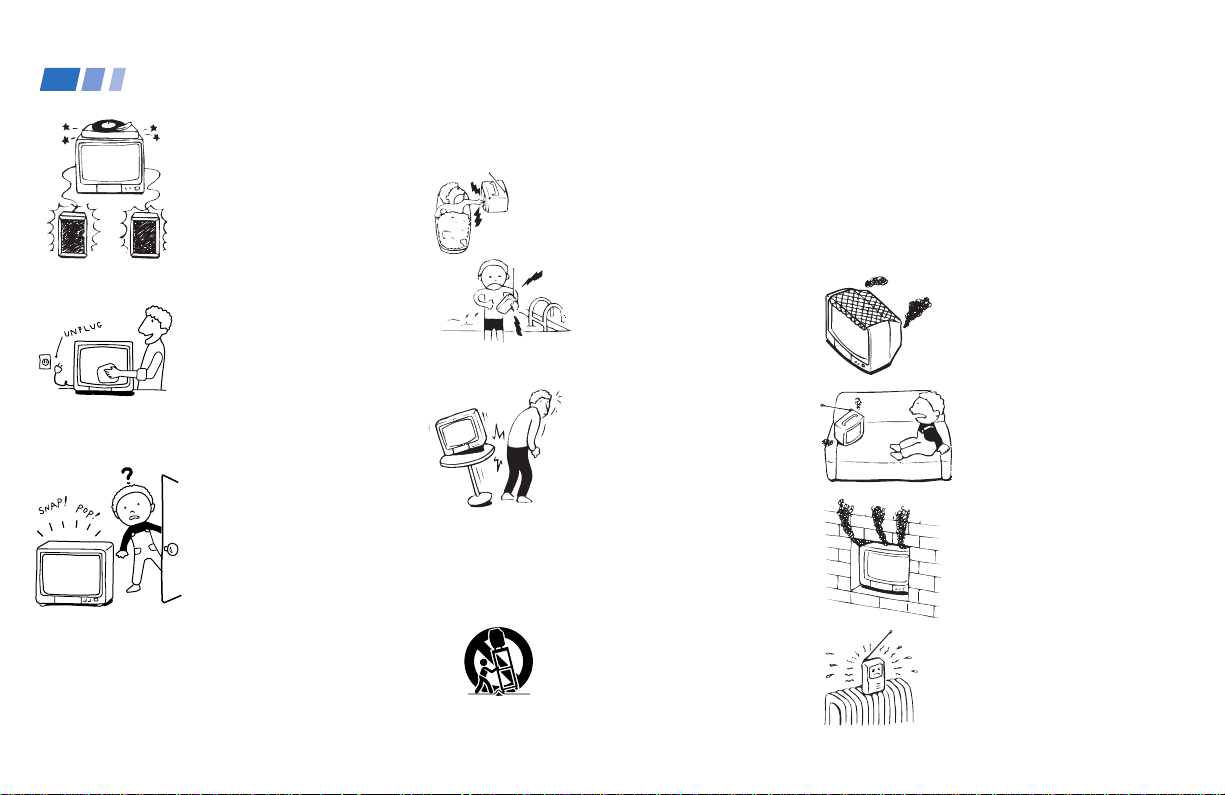
Always turn the set off
when it is not to be used.
When the set is left
unattended and unused
for long periods of time,
unplug it from the wall
outlet as a precaution
against the possibility of
an internal malfunction
that could create a fire
hazard.
Object and Liquid
Entry
Never push objects of any
kind into the set through
the cabinet slots as they
may touch dangerous
voltage points or short out
parts that could result in a
fire or electric shock.
Never spill liquid of any kind on the set.
(continued)
4
Installing and Connecting the Projection TV (continued)
Attachments
Do not use attachments
not recommended by the
manufacturer, as they
may cause hazards.
Cleaning
Unplug the set from the
wall outlet before
cleaning or polishing it.
Do not use liquid cleaners
or aerosol cleaners. Use a
cloth lightly dampened
with water for cleaning
the exterior of the set.
If a snapping or popping
sound from a projection
TV set is continuous or
frequent while the
projection TV is
operating, unplug the
projection TV and consult
your dealer or service
technician.
It is normal for some projection TV sets to
make occasional snapping or popping
sounds, particularly when being turned on or
off.
Installation
Water and Moisture
Do not use power-line
operated sets near
water— for example, near
a bathtub, washbowl,
kitchen sink, or laundry
tub, in a wet basement or
near a swimming pool,
etc.
Accessories
Do not place the set on an
unstable cart, stand, table
or shelf. The set may fall,
causing serious injury to a
child or an adult, and
serious damage to the set.
Use only a cart or stand recommended by the
manufacturer for the specific model of
projection TV.
An appliance and cart
combination should be
moved with care. Quick
stops, excessive force, and
uneven surfaces may
cause the appliance and
cart combination to
overturn.
Ventilation
The slots and openings in the cabinet and in
the back or bottom are provided for
necessary ventilation. To ensure reliable
operation of the set, and to protect it from
overheating, these slots and openings must
never be blocked or covered.
- Never cover the slots
and openings with a cloth
or other materials.
- Never block the slots
and openings by placing
the set on a bed, sofa, rug
or other similar surface.
- Never place the set in a
confined space, such as a
bookcase, or built-in
cabinet unless proper
ventilation is provided.
- Do not place the set near
or over a radiator or heat
register, or where it is
exposed to direct
sunlight.
Important Safeguards (continued)

5
Section 810 of the National Electrical Code
(NEC) in USA and Section 54 of the
Canadian Electrical Code in Canada provides
information with respect to proper
grounding of the mast and supporting
structure, grounding of the lead-in wire to an
antenna discharge unit, size of grounding
conductors, location of antenna discharge
unit, connection to grounding electrodes, and
requirements for the grounding electrode.
Antenna Grounding According to the
NEC — Refer to section 54-300 of Canadian
Electrical Code for Antenna Grounding.
NEC: National
Electrical Code
Lightning
For added protection for this television
receiver during a lightning storm, or when it
is left unattended and unused for long
periods of time, unplug it from the wall
outlet and disconnect the antenna. This will
prevent damage to the receiver due to
lightning and power-line surges.
Service
Damage Requiring Service
Unplug the set from the wall outlet and refer
servicing to qualified service personnel
under the following conditions:
- When the power cord or
plug is damaged or
frayed.
- If liquid has been spilled
into the set.
Power service grounding
electrode system (NEC
Art 250 Part H)
Power-Cord
Protection
Do not allow anything to
rest on or roll over the
power cord, and do not
place the set where the
power cord is subject to
wear or abuse.
Antennas
Outdoor Antenna Grounding — If an
outdoor antenna is installed, follow the
precautions below.
An outdoor antenna system should not be
located in the vicinity of overhead power
lines or other electric light or power circuits,
or where it can come in contact with such
power lines or circuits.
WHEN INSTALLING AN OUTDOOR
ANTENNA SYSTEM, EXTREME CARE
SHOULD BE TAKEN TO KEEP FROM
CONTACTING SUCH POWER LINES OR
CIRCUITS AS CONTACT WITH THEM IS
ALMOST INVARIABLY FATAL.
Be sure the antenna system is grounded so as
to provide some protection against voltage
surges and built-up static charges.
(continued)
Ground clamps
Grounding
conductors (NEC
Section 810-21)
Antenna discharge
unit (NEC Section
810-20)
Antenna lead-in
wire
Electric service
equipment
Ground clamp

6
Installing and Connecting the Projection TV (continued)
- If the set has been
exposed to rain or water.
- If the set has been
subject to excessive shock
by being dropped, or the
cabinet has been
damaged.
- If the set does not
operate normally when
following the operating
instructions. Adjust only
those controls that are
specified in the operating
instructions.
Improper adjustment of
other controls may result
in damage and will often
require extensive work by
a qualified technician to
restore the set to normal
operation.
- When the set exhibits a distinct change in
performance—this indicates a need for
service.
Servicing
Do not attempt to service
the set yourself since
opening the cabinet may
expose you to dangerous
voltage or other hazards.
Refer all servicing to
qualified service
personnel.
Replacement Parts
When replacement parts are required, be
sure the service technician certifies in writing
that he has used replacement parts specified
by the manufacturer that have the same
characteristics as the original parts.
Unauthorized substitutions may result in
fire, electric shock, or other hazards.
Safety Check
Upon completion of any
service or repairs to the
set, ask the service
technician to perform
routine safety checks (as
specified by the
manufacturer) to
determine that the set is
in safe operating
condition, and to so
certify.
When the set reaches the
end of its useful life,
improper disposal could
result in a picture tube
implosion. Ask a
qualified service
technician to dispose of
the set.
Important Safeguards (continued)

7
20°
20°
min. 1.5m (approx. 5ft.)
43"
min. 1.8m (approx. 6ft.)
48"
min. 2.1m (approx. 7ft.)
53"
min. 2.4m (approx. 8ft.)
61"
60°
60°
60°
min. 2.1m (approx. 7 ft.)
53"
min. 2.4m (approx. 8 ft.)
61"
min. 1.8m (approx. 6 ft.)
48"
min. 1.5m (approx. 5 ft.)
43"
Installing and Connecting the Projection TV
Recommended viewing area
(Vertical)
Carrying Your Projection TV
Carrying the projection TV requires three or
more people.
For KP-48S75/53S75/53N77/61S75
The projection TV has been equipped with
casters for easy movement on a hard surface.
Please move your projection TV using the
casters.
Installing the Projection TV
Recommended viewing area
(Horizontal)
8
Installing and Connecting the Projection TV (continued)
Connector Types
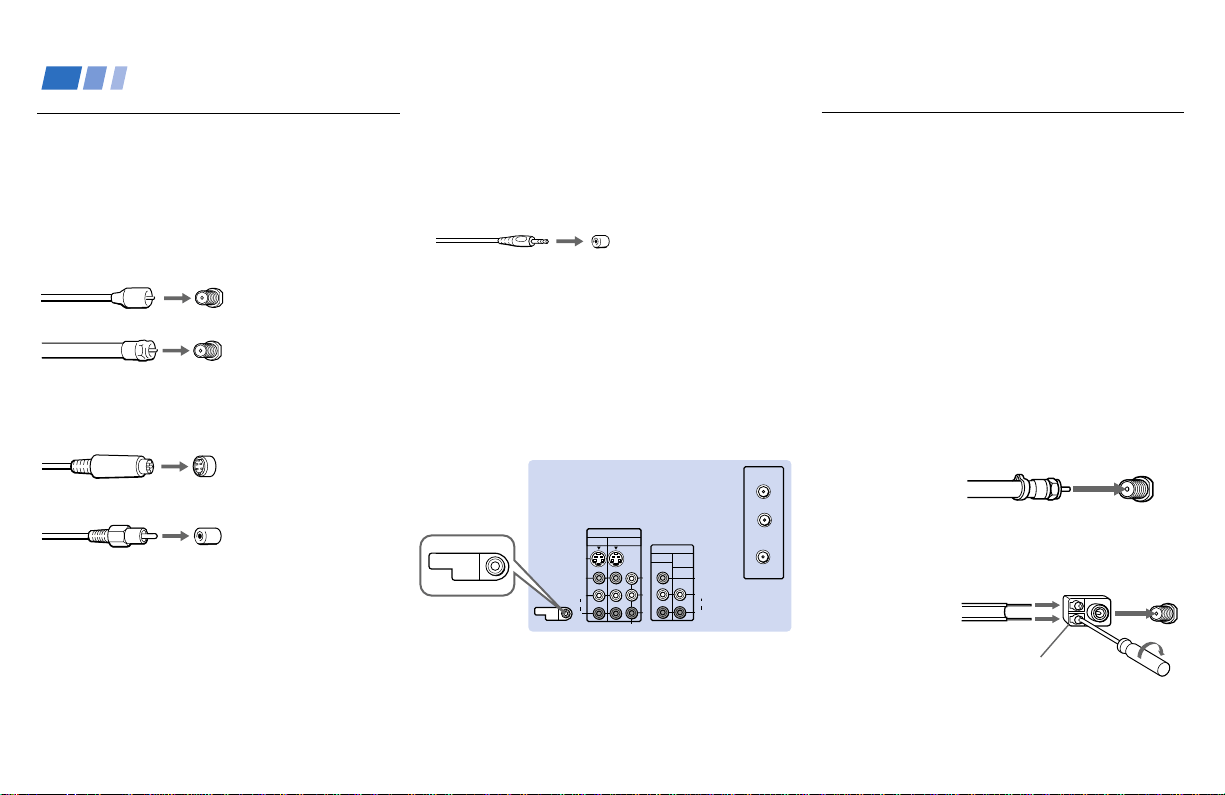
You may find it necessary to use some of the
following connector types during set up.
Coaxial cable
Standard TV cable and antenna cable
S Video cable
High quality video cable for enhanced
picture quality
Audio/Video cable
Video - Yellow
Audio (Left) - White
Audio (Right) - Red
Some DVD Players and DTV Receivers are
equipped with the following three video
connectors.
Y - Green
P
B (CB, Cb or B–Y) - Blue
PR (CR, Cr or R–Y) - Red
Plug Type
Screw-on Type
Screw into connection.
Push into connection.
Align guides and
push into connection.
Push into connection.
CONTROL S cable
Sony cable for CONTROL S connection. This
feature is exclusive to Sony products and
allow greater control of all Sony equipment.
About the CONTROL S OUT jack
To control other Sony equipment with the
projection TV’s remote control, connect the
CONTROL S IN jack of the equipment to the
CONTROL S OUT jack on the projection TV
with the CONTROL S cable.
Antenna connector
(Rear of
projection TV)
VHF/UHF
300-ohm twin
lead cable
75-ohm
coaxial cable
Push into connection.
(Rear of
projection TV)
VHF/UHF
Making Connections
Connecting directly to a cable or
an antenna
The connection you choose will depend on
the cable found in your home. Newer homes
will be equipped with standard coaxial cable
(see
A); older homes will probably have 300-
ohm twin lead cable (see
B); still other
homes may contain both (see C).
Use 75-ohm coaxial cable for improved
picture quality (see
A).
A
• VHF only
or
• VHF/UHF
or
• Cable
B
• VHF only
or
• UHF only
or
• VHF/UHF
(Rear of projection TV)
S VIDEO
CONTROL S
OUT
VIDEO
AUDIO
L
R
VIDEO
VHF/UHF
AUX
(MONO)
IN
VIDEO 1 VIDEO 3
OUT
MONITOR AUDIO
(VAR/FIX)
TO
CONVERTER
Y
P
B
P
R
R
L
(MONO)
AUDIO
COMPONENT
CONTROL S
OUT

9
C
• VHF
and
• UHF
Cable or antenna
This is the simplest connection. Connection is
made directly from the cable or antenna to
the projection TV.
Cable and antenna
You may find it convenient to use the
following set up if your cable provider does
not feature local channels that you are able to
receive using an antenna.
Antenna cable
VHF/UHF
Select Cable or ANT mode by pressing ANT
on the remote control.
Connecting a cable box
Some pay cable TV systems use scrambled or
encoded signals that require a cable box* to
view all channels.
Also, set “Cable” to “On” in the Channel Set
Up menu (page 31).
(Rear of projection TV)
VHF/UHF
Coaxial cable
(Rear of projection TV)
AUX
Coaxial cable
(No connection “TO
CONVERTER” in this case)
TO CONVERTER
Cable box and cable
Some pay cable TV systems use scrambled or
encoded signals requiring a cable box* only for
certain channels (e.g. HBO, SHOWTIME, etc.)
For this set up, you can switch between
scrambled channels (through your cable
box), and normal (CATV) channels by
pressing ANT on your remote control.
Notes:
• You may be able to program your Sony
remote control to operate your cable box.
(see “Operating a Cable Box or Satellite
Receiver (SAT)” on page 49)
• During PIP or Favorite Channel viewing,
the AUX input can only be viewed in the
main picture.
*Cable box
Coaxial cable
OUTIN
(Rear of projection TV)
VHF/UHF
*Cable box
VHF/UHF
(Rear of projection TV)
AUX
CATV cable
(unscrambled channels)
Scrambled
channels
TO CONVERTER
(Signal)
75-ohm coaxial cable
(not supplied)
75-ohm coaxial cable
EAC-66 U/V mixer
(not supplied)
300-ohm twin lead cable
(Rear of
projection TV)
VHF/UHF
10
Installing and Connecting the Projection TV (continued)
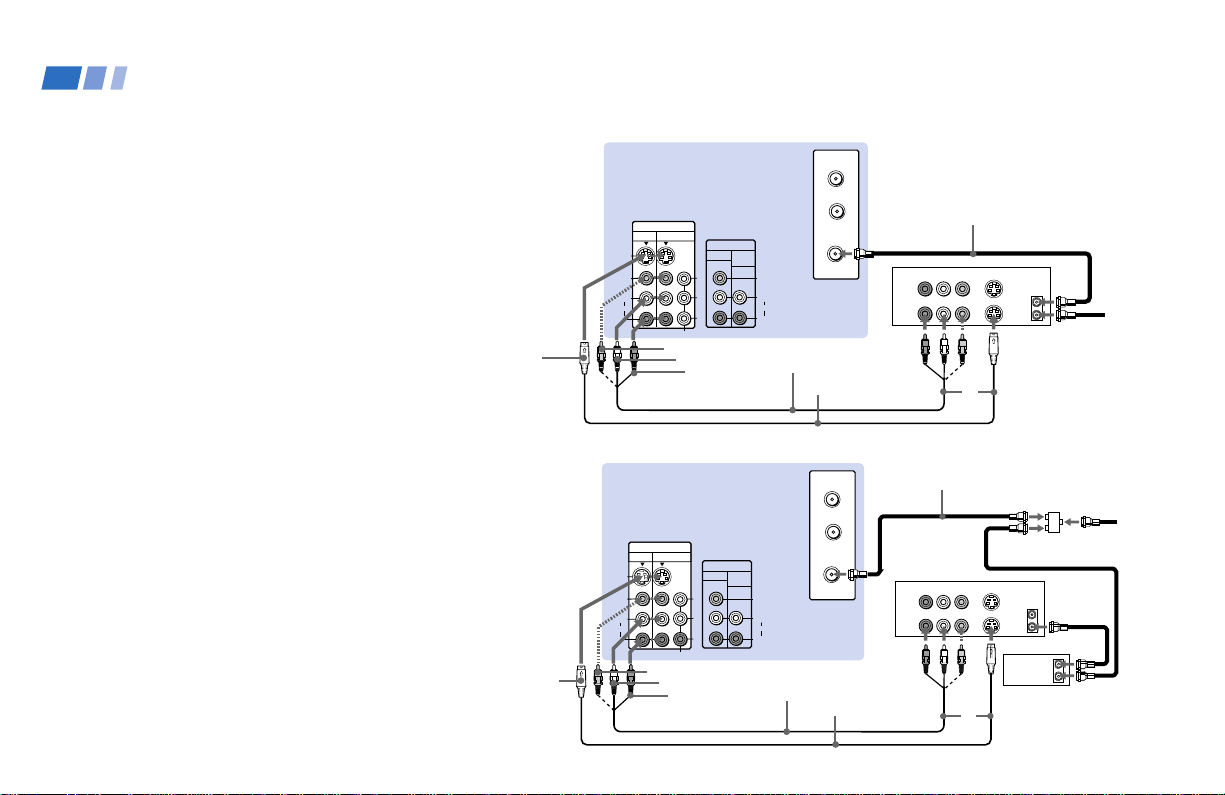
Connecting a cable TV system/
antenna to a VCR
1 Attach the coaxial cable from the
incoming cable connection or antenna to
VHF/UHF IN on the VCR.
2 Using a coaxial cable, connect VHF/UHF
OUT on the VCR to VHF/UHF on the
projection TV.
3 Using AUDIO and S VIDEO* cables,
connect AUDIO and S VIDEO OUT on the
VCR to AUDIO and S VIDEO IN on the
projection TV (White-AUDIO Left, Red-
AUDIO Right**).
Connecting a VCR and projection
TV to a cable box
1 Connect the single (input) jack of the
splitter to the incoming cable connection,
and connect the other two (output) jacks
(using the coaxial cable) to IN on the cable
box and VHF/UHF on the projection TV.
2 Using a coaxial cable, connect OUT on the
cable box to VHF/UHF IN on the VCR.
3 Using AUDIO and S VIDEO* cables,
connect AUDIO and S VIDEO OUT on the
VCR to AUDIO and S VIDEO IN on the
projection TV (White-AUDIO Left, Red-
AUDIO Right**).
Disconnect all power sources before making any connections.
(Rear of projection TV)
(Rear of projection TV)
VMC-810S/820S
(not supplied)
YC-15V/30V
(not supplied)
2
1
Cable/
Antenna
Coaxial cable
AUDIO-L
AUDIO-R
VIDEO
S VIDEO
VMC-810S/820S
(not supplied)
YC-15V/30V
(not supplied)
AUDIO-L
AUDIO-R
VIDEO
S VIDEO
Cable/
Antenna
Splitter (not supplied)
Cable box
1
Coaxial cable
2
VCR
VCR
S VIDEO
VIDEO
AUDIO
L
R
VIDEO
VHF/UHF
AUX
(MONO)
IN
VIDEO 1 VIDEO 3
OUT
MONITOR AUDIO
(VAR/FIX)
TO
CONVERTER
Y
P
B
P
R
R
L
(MONO)
AUDIO
COMPONENT
LINE
OUT
OUT
IN
AUDIO R AUDIO L VIDEO
S VIDEO
VHF/UHF
LINE
IN
3
S VIDEO
VIDEO
AUDIO
L
R
VIDEO
VHF/UHF
AUX
(MONO)
IN
VIDEO 1 VIDEO 3
OUT
MONITOR AUDIO
(VAR/FIX)
TO
CONVERTER
Y
P
B
P
R
R
L
(MONO)
AUDIO
COMPONENT
LINE
OUT
OUT
IN
AUDIO R AUDIO L VIDEO
S VIDEO
VHF/UHF
LINE
IN
OUT
IN
3

11
Disconnect all power sources before making any connections.
S VIDEO
AUDIO-L
AUDIO-R
(Rear of projection TV)
12
RK-74A (not supplied)
3
Satellite antenna
cable
YC-15V/30V (not supplied)
Note:
• To view scrambled channels through the
cable box, select the video input which the
cable box is connected to by pressing TV/
VIDEO.
* If your VCR is not equipped with S VIDEO, use a
VIDEO cable (yellow) instead of the S VIDEO
cable.
** If you are connecting a monaural VCR, connect
only the single audio output to the left (MONO)
input on the projection TV.
Connecting a satellite receiver
(SAT)
1 Connect the cable from the satellite
antenna to the satellite receiver.
2 Attach the coaxial cable from the incoming
cable connection or antenna to VHF/UHF
on the projection TV.
3 Using AUDIO and S VIDEO cables,
connect AUDIO and S VIDEO OUT on the
satellite receiver to AUDIO and S VIDEO
IN on the projection TV (White-AUDIO
Left, Red-AUDIO Right).
Note:
• To view input from the satellite receiver,
select the video input which the satellite
receiver is connected to by pressing TV/
VIDEO on the remote control.
Cable/
Antenna
SAT
S VIDEO
VIDEO
AUDIO
L
R
VIDEO
VHF/UHF
AUX
(MONO)
IN
VIDEO 1 VIDEO 3
OUT
MONITOR AUDIO
(VAR/FIX)
TO
CONVERTER
Y
P
B
P
R
R
L
(MONO)
AUDIO
COMPONENT
VHF/UHF
S VIDEO
OUT
IN
LINE OUT
SATELLITE IN
AUDIO R AUDIO L VIDEO

12
Installing and Connecting the Projection TV (continued)
Connecting a satellite receiver
(SAT) and a VCR
1 Connect the cable from the satellite
antenna to the satellite receiver.
2 Attach the coaxial cable from the
incoming cable connection or antenna to
VHF/UHF IN on the VCR.
3 Using a coaxial cable, connect VHF/UHF
OUT on the VCR to VHF/UHF on the
projection TV.
4 Using AUDIO and S VIDEO* cables,
connect AUDIO and S VIDEO OUT on the
satellite receiver to AUDIO and S VIDEO
IN on the VCR.
5 Using AUDIO and S VIDEO* cables,
connect AUDIO and S VIDEO OUT on the
VCR to AUDIO and S VIDEO IN on the
projection TV (White-AUDIO Left, Red-
AUDIO Right).
*
If your VCR is not equipped with S VIDEO, use a
VIDEO cable (yellow) instead of the S VIDEO
cable.
Note:
• To view input from the satellite receiver or
VCR, select the video input which your
satellite receiver or VCR is connected to
by pressing TV/VIDEO on the remote
control.
Disconnect all power sources before making any connections.
VMC-810S/
820S (not
supplied)
4
VCR
YC-15V/30V (not supplied)
5
1
S VIDEO
2
AUDIO-L
Coaxial cable
(Rear of projection TV)
Satellite
antenna
cable
3
VIDEO
AUDIO-R
VMC-810S/820S (not supplied)
YC-15V/
30V
(not
supplied)
SAT
Cable/
Antenna
S VIDEO
VIDEO
AUDIO
L
R
VIDEO
VHF/UHF
AUX
(MONO)
IN
VIDEO 1 VIDEO 3
OUT
MONITOR AUDIO
(VAR/FIX)
TO
CONVERTER
Y
P
B
P
R
R
L
(MONO)
AUDIO
COMPONENT
LINE
OUT
OUT
IN
AUDIO R AUDIO L VIDEO
S VIDEO
VHF/UHF
LINE
IN
LINE
OUT
OUT
IN
VHF/UHF
SATELLITE IN
S VIDEO
AUDIO R AUDIO L VIDEO

13
S VIDEO
VIDEO
AUDIO
L
R
VIDEO
VHF/UHF
AUX
(MONO)
IN
VIDEO 1 VIDEO 3
OUT
MONITOR AUDIO
(VAR/FIX)
TO
CONVERTER
Y
P
B
PR
R
L
(MONO)
AUDIO
COMPONENT
S VIDEO
DIGITAL
AUDIO
OUT
(OPTICAL)
123
L
R
VHF/SATELLITE
OUT
VHF/UHF IN
MONO
AUDIO
VCR
CONTROL
LOW SPEED DATA
VGA OUT
ACCESS CARD
SATELLITE IN
VHF/UHF IN (DTV)
TEL LINE
Y
P
B
PR
AUDIO/VIDEO OUT
VIDEO
Before connecting, be sure to read the Operating
Instructions of the DTV receiver.
1 Attach the coaxial cable from the roof
antenna to VHF/UHF IN (DTV) on the DTV
receiver.
2 Using AUDIO and S VIDEO cables, connect
AUDIO and S VIDEO OUT on the DTV
receiver to AUDIO and S VIDEO IN on the
projection TV (White-AUDIO Left, Red-
AUDIO Right).
Note:
• If your DTV receiver supports 480i signal
from YP
BPR, you can connect Y, PB and PR of
VIDEO OUT on the DTV receiver to Y, PB
and PR of VIDEO 3 IN on the projection TV
using VIDEO cables.
Connecting a camcorder
Use this connection to view a picture directly
from your camcorder.
1 Using AUDIO and S VIDEO* cables, connect
AUDIO and S VIDEO OUT on the camcorder
to AUDIO and S VIDEO IN inside the drop-
down panel on the front of the projection TV
(White-AUDIO Left, Red-AUDIO Right**).
2 Press VIDEO 2 to select the video inputs
from a camcorder.
* If your camcorder is not equipped with S VIDEO,
use a VIDEO cable (yellow) instead of the S VIDEO
cable.
** If you are connecting a monaural camcorder,
connect only the single audio output to the left
(MONO) input on the projection TV.
Disconnect all power sources before making any connections.
RK-74A (not supplied)
DTV receiver
YC-15V/30V (not supplied)
AUDIO-L
Roof antenna
(Rear of projection TV)
2
AUDIO-R
2
1
S VIDEO
S VIDEO
VIDEO
L
(MONO)
R
AUDIO
VIDEO 2 INPUT
(Front of projection TV)
Camcorder
VMC-810S/820S
(not supplied)
YC-15V/30V (not supplied)
VIDEO
AUDIO-L
AUDIO-R
S VIDEO
Audio/
video
outputs
S VIDEO
OUT
Connecting a DTV (digital television) receiver

14
Installing and Connecting the Projection TV (continued)
S VIDEO
VIDEO
AUDIO
L
R
VIDEO
VHF/UHF
AUX
(MONO)
IN
VIDEO 1 VIDEO 3
OUT
MONITOR AUDIO
(VAR/FIX)
TO
CONVERTER
Y
P
B
P
R
R
L
(MONO)
AUDIO
COMPONENT
AUDIO R AUDIO L VIDEO
LINE
OUT
OUT
IN
AUDIO R AUDIO L VIDEO
LINE
IN
OUT
IN
Disconnect all power sources before making any connections.
(Rear of projectionTV)
Indicates direction
of signal
Connecting two VCRs for tape
editing
By connecting a second VCR to MONITOR
OUT, you can record a program being played
by the primary VCR to the second VCR or
perform tape editing and dubbing.
1 Connect the VCR intended for playback
using the connection instructions on page
10 of this manual.
2 Using an AUDIO/VIDEO cable, connect
AUDIO and VIDEO IN on the VCR
intended for recording to AUDIO and
VIDEO OUT of MONITOR OUT on the
projection TV.
Notes:
• Do not change the input signal while
editing through MONITOR OUT.
• When connecting a single VCR to the
projection TV: if VCR LINE OUT is
connected to VIDEO IN on the projection
TV, do not connect MONITOR OUT on
the projection TV to the VCR LINE
INPUT (see right). Doing so will cause
program interference and other viewing
problems.
VIDEO
AUDIO-L
AUDIO-R
(Rear of projection TV)
VCR (for recording)
1
2
VMC-810S/820S
(not supplied)
VCR (for playback)
VMC-810S/820S
(not supplied)
LINE
OUT
IN
MONITOR
OUT
VIDEO IN
VCR
AUDIO-L
VIDEO
AUDIO-R

15
S VIDEO
VIDEO
AUDIO
L
R
VIDEO
VHF/UHF
AUX
(MONO)
IN
VIDEO 1 VIDEO 3
OUT
MONITOR AUDIO
(VAR/FIX)
TO
CONVERTER
Y
P
B
P
R
R
L
(MONO)
AUDIO
COMPONENT
LINE OUT
S VIDEO OUT
S-LINK
DIGITAL OUT
R–AUDIO 1–L VIDEO
OPTICAL COAXIAL
S VIDEO
VIDEO
AUDIO
L
R
VIDEO
VHF/UHF
AUX
(MONO)
IN
VIDEO 1 VIDEO 3
OUT
MONITOR AUDIO
(VAR/FIX)
TO
CONVERTER
Y
P
B
P
R
R
L
(MONO)
AUDIO
COMPONENT
LINE OUT
S VIDEO OUT
S-LINK
DIGITAL OUT
R–AUDIO 1–L VIDEO
OPTICAL COAXIAL
R-YY B-Y
COMPONENT VIDEO OUT
Disconnect all power sources before making any connections.
Connecting a DVD Player (Upper
illustration)
Using an AUDIO and S VIDEO cables,
connect AUDIO and S VIDEO IN on the
projection TV to AUDIO and S VIDEO OUT
on the DVD Player (White-AUDIO Left, Red-
AUDIO Right).
Connecting a DVD Player with
component video output
connectors (Lower illustration)
1 Using an AUDIO cable, connect AUDIO of
LINE OUT on the DVD Player to AUDIO of
VIDEO 3 IN on the projection TV (White-
AUDIO Left, Red-AUDIO Right).
2 Using three yellow VIDEO cables, connect
Y, P
B, and PR of COMPONENT VIDEO
OUT on the DVD Player to Y, P
B, and PR of
VIDEO 3 IN on the projection TV.
Notes:
• Since the high quality pictures on a DVD
disc contain a lot of information, picture
noise may appear. In this case, adjust “Noise
Reduction” in the Video menu. (see “Noise
Reduction” on page 26)
• Some DVD Player terminals may be labeled
differently. If so, connect as follows:
Connect Y (green) to Y.
Connect P
B (blue) to CB, Cb or B-Y.
Connect P
R (red) to CR, Cr or R-Y.
AUDIO-L
DVD
YC-15V/30V (not supplied)
(Rear of projection TV)
Audio/S video
outputs
AUDIO-R
S VIDEO
RK-74A (not supplied)
AUDIO-R
DVD
(Rear of
projection
TV)
Connect the DVD Player
directly to the projection TV.
Connecting the DVD Player
through other video
equipment will cause
unwanted picture noise.
PR
PB
Y
VMC-10HG
(not supplied)
RK-74A (not supplied)
AUDIO-L
16
Installing and Connecting the Projection TV (continued)
(Rear of projection TV)
RK-74A
(not supplied)
Line inputs
AUDIO-L
(white)
Stereo amplifier
AUDIO-R
(red)
S VIDEO
CONTROL S
OUT
VIDEO
AUDIO
L
R
VIDEO
(MONO)
IN
VIDEO 1 VIDEO 3
OUT
MONITOR AUDIO
(VAR/FIX)
Y
P
B
P
R
R
L
(MONO)
AUDIO
COMPONENT
HRD
Disconnect all power sources before making any connections.
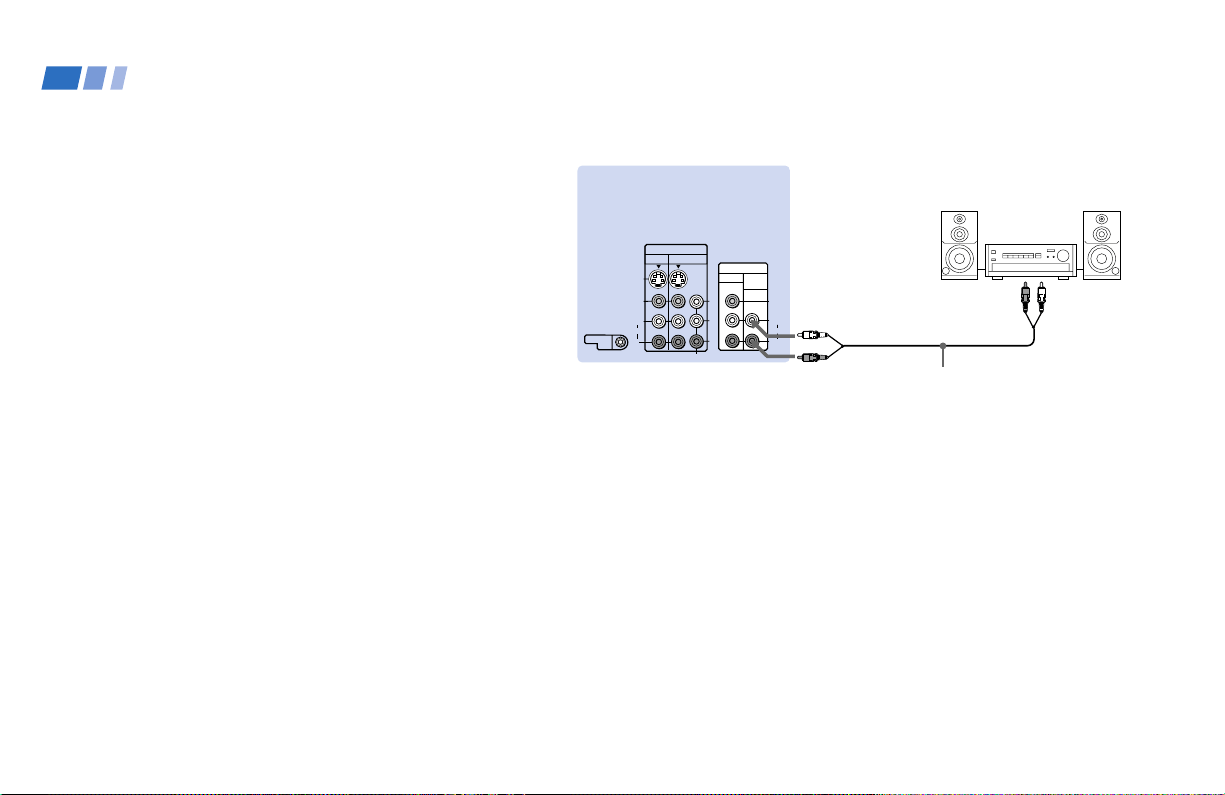
Connecting an audio system
For more dynamic sound, connect an audio
system to the projection TV.
1 Using an AUDIO cable, connect AUDIO
(VAR/FIX) OUT on the projection TV to
one of the unused Line inputs (e.g. Tape-
2, AUX1, etc.) on the stereo.
2 Set the stereo to the chosen Line input
and use the Audio menu to set the audio
output and switch the TV’s speakers off.
(see “Audio Out” and “Speaker” on page
28)
Note:
• You can adjust VOLUME, “Bass,”
“Treble,” “Balance,” “MTS/SAP” and
“Effect” with the supplied remote control.
The control items except VOLUME can be
adjusted only when “Audio Out” is set to
“Variable” in the Audio menu. (see
“Audio Out” on page 28)

17
Disconnect all power sources before making any connections.
Connecting a Sony SAVA series
speaker system
Use this connection to control the speaker’s
Dolby* Pro Logic surround system and
super woofer mode with the remote control.
(see “SAVA SP Control” on page 28)
1 Using the AUDIO cable supplied with the
speaker to AUDIO (VAR/FIX) OUT on
the projection TV.
2 Using the CONTROL S cable, connect
CONTROL S IN on the speaker to
CONTROL S OUT on the projection TV.
(Rear of projection TV)
AUDIO-L
(white)
AUDIO-R (red)
Audio cord supplied
with the speakers
CONTROL S IN
RK-G34, etc. (not supplied)
1 IN L
1 IN R
2
SAVA series
speaker system
1
CONTROL S
OUT
S VIDEO
CONTROL S
OUT
VIDEO
AUDIO
L
R
VIDEO
(MONO)
IN
VIDEO 1 VIDEO 3
OUT
MONITOR AUDIO
(VAR/FIX)
Y
P
B
P
R
R
L
(MONO)
AUDIO
COMPONENT
* Manufactured under license from Dolby
Laboratories Licensing Corporation.
Additionally licensed under Canadian patent
number 1,037,877. “Dolby,” the double-D
symbol a and “Pro Logic” are trademarks of
Dolby Laboratories Licensing Corporation.

18
Setting Up the Projection TV
Automatically
The AUTO SET UP feature will allow you to
set the on-screen language and set all
receivable channels.
The AUTO SET UP feature does not apply for
installations that use a cable box for all channel
selection.
You can also set up the projection TV manually.
(see “Using the Channel Set Up menu” on pages
30 and 31)
Notes:
• Before you perform AUTO SET UP again,
make sure that the input from ANT (not
AUX) is selected by pressing ANT until
“AUX” does not appear next to the
channel number.
• Perform this function during the day, with
the antenna and/or cable properly
connected, to ensure that all available
channels will be broadcasting and
receivable.
• When you perform AUTO SET UP, all the
settings in the Video, and Audio menus
are reset to the factory settings.
Using the Remote Control
Inserting the batteries
Insert two size AA (R6) batteries (supplied)
by matching the + and – on the batteries to
the diagram inside the remote control’s
battery compartment.
Notes:
• Remove the batteries to avoid damage
from possible battery leakage whenever
you anticipate that the remote control
will not be used for an extended period.
• Handle the remote control with care.
Avoid dropping it, getting it wet, or
placing it in direct sunlight, near a heater
or where the humidity is high.
• Your remote control can be programmed to
operate most video equipment.
(see “Operating Video Equipment” on
page 47)
Basic Set Up
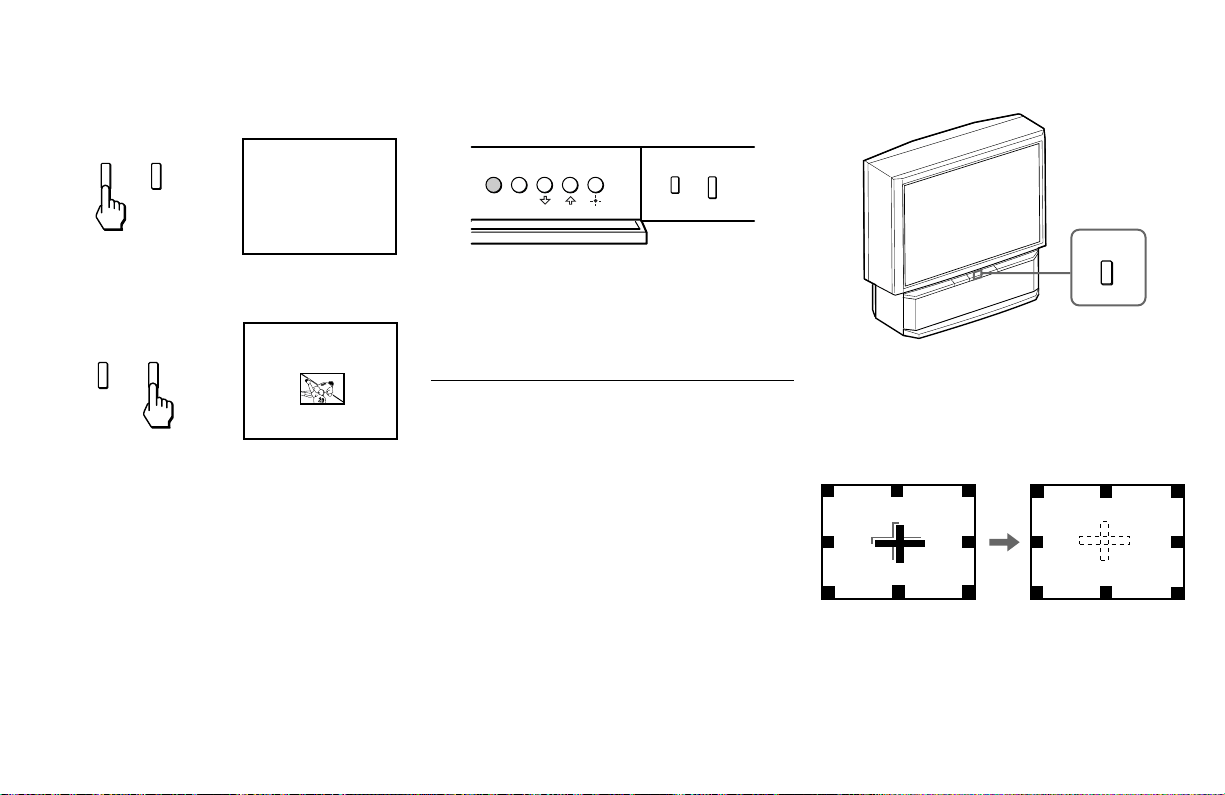
Using the buttons on the front panel of the
projection TV:
1 Press POWER to turn on the projection
TV.
Press SET UP inside the drop-down panel
on the projection TV and the AUTO SET
UP screen appears.
2 Press CHANNEL + to select English,
CHANNEL – to select Español or
VOLUME + to select Français.
The screen will change to reflect your
choice.
POWER
VOLUME
–+
CHANNEL
–+
TV/VIDEO
FLASH FOCUS
VOLUME
POWER
TIMER/STAND BY
–+
CHANNEL
–+
Press
[
SET UP
]
to exit.
First please connect
the antenna.
Auto Set Up :
Español :
English :
Français :
[VOL–]
[CH–]
[CH+]
[VOL+]
Oprima
[
SET UP
]
para
salir.
Primero conecte la
antena.
[VOL–]
[CH–]
[CH+]
[VOL+]
Auto Set Up :
Español :
English :
Français :
19
3 Press VOLUME – to continue.
4 Press CHANNEL + to preset channels
automatically.
“Auto Program” appears and the
projection TV starts scanning and
presetting channels automatically. While
scanning, the received channel will be
displayed on the sub screen. When all the
receivable channels are stored, the lowest
numbered channel is displayed.
CHANNEL
–+
VOLUME
–+
Auto Program
No :
Auto Program ?
Continue to
Yes :
[CH–]
[CH+]
To perform AUTO SET UP again
Press SET UP inside the drop-down panel on
the projection TV and perform steps 2-4
above.
Press SET UP again to exit.
Adjusting the Convergence
Automatically (FLASH FOCUS)
The projection tube image appears on the
screen in three layers (red, green and blue). If
they do not converge, the color is poor and
the picture blurs.
Before you use your projection TV, be sure to
adjust the convergence.
The FLASH FOCUS feature allows you to
adjust the convergence automatically.
Tips
z
• It is recommended to perform FLASH FOCUS about
30 minutes after the projection TV is first turned on.
• You can also perform FLASH FOCUS using the Set
Up menu on page 35.
FLASH FOCUS
Press FLASH FOCUS.
The cross pattern appears and FLASH
FOCUS begins to work. The adjustment is
completed when the cross pattern becomes
white.
Note:
• FLASH FOCUS is canceled if you
perform any other function while FLASH
FOCUS is working.
TV/VIDEO
FLASH FOCUS
MENUSET UP

20
Using Your New Projection TV (continued)
TV (FUNCTION)
TV POWER
CH +/–
VOL +/–
MUTING
Activates the remote control for use with the projection TV.
Turns the projection TV on and off. If a video input indication (e.g., VIDEO 1,
VIDEO 2) appears on the screen, press TV/VIDEO until a channel number
appears.
Use for direct channel selection. Press 0-9 to select a channel (for example,
to select channel 10, press 1 and 0). The channel will change after 2
seconds, or you can press ENTER for immediate selection.
Press to scan through the channels (+ up or – down).
Speed Surf
1 Press and hold CH + or – to change the channel number rapidly.
2 Release to display the desired channel.
Press to adjust the volume (+ up or – down).
Press to mute the sound. “Muting” will appear on the screen and will dim
three seconds later. To restore sound, press again or press VOL +.
Watching the TV
Many TV features can be accessed directly
through the remote control. The following
chart will explain the function of some
buttons found on your remote control.
Using the White Labeled Buttons for Projection TV Operations
and ENTER
0 9
-
PICTURE MODE
Press PICTURE MODE repeatedly to directly
choose one of five different video modes that
best suits the program you are watching.
Vivid: Select for enhanced picture contrast and
sharpness.
Standard: Select to display a standard
picture for normal viewing environments.
Movie: Select to display a finely detailed
picture for low light environments.
Personal 1, Personal 2: Select to customize
the “Picture Adjustment” of the Video menu
according to your personal preference.
When you select “Movie,” “Personal 1” and
“Personal 2,” you can also perform the “Picture
Adjustment” (such as “Brightness,” “Color,” etc.)
to suit your taste. For details, see “Mode” on
page 26.
Using Your New Projection TV

21
TV/VIDEO
JUMP
FREEZE
(yellow labeled
button)
DISPLAY
Press repeatedly to scroll through available video inputs:
TV, VIDEO 1, VIDEO 2 and VIDEO 3.
If you select “Skip” as a “Video Label” in the Set Up menu, your projection
TV will skip the video input you selected. (see “Video Label” on page 35)
Press to alternate or
jump
back and forth between two channels. The
projection TV will jump between the current channel and the last channel
selected using the 0-9 buttons.
This is useful when you need to copy down information that appears on the
TV’s screen.
Press to
freeze
the desired picture. The frozen picture is displayed in the
window picture while viewing the normal picture of the current channel in the
main picture.
To change the location of the window picture, press V, v, B or b.
Press FREEZE again to display the normal picture.
Press to display the channel number, current time, channel caption (if set),
and MTS/SAP mode (if SAP is selected). The SAP indication disappears and
the other indications dim three seconds later.
To turn the display off, press DISPLAY again.
Using the White Labeled Buttons for Projection TV Operations
Frozen picture
Normal motion
picture
Reciipe
flour - - - - 2
sugar - - - 1/2
salt - - - - - 1/2
butter - - - 1
6
REFER TO THE
ILLUSTRATION OF THE
REMOTE CONTROL ON THE
INSIDE FRONT COVER OF
THIS MANUAL AS YOU
REVIEW THIS CHART
(continued)

22
Using Your New Projection TV (continued)
CC
SLEEP
ANT
(AUX input)
MTS/SAP
TV/VTR
SYSTEM OFF
Press repeatedly to scroll through available displays:
XDS (Extended Data Service)
Displays a network name, program name, program type, program length,
program description, call letters and time of the show if the broadcaster
offers this service.
Caption Vision
Displayed on the screen if the broadcaster offers this service. (see
“Caption Vision” on page 34)
No display
“Off” appears and the display is canceled.
Press repeatedly until the projection TV displays the approximate time in
minutes (30, 60, or 90) that you want the projection TV to remain on before
shutting off automatically.
Cancel by pressing until “Sleep Off” appears.
Press to change between the VHF/UHF input and the AUX input. (for
detailed connection information, see “Cable and antenna” or “Cable box and
cable” on page 9)
Press to scroll through the Multi-channel TV Sound (MTS) options:
Stereo, SAP and Mono. (see “MTS/SAP” on page 27)
Press to select an audio option:
Simulated, Surround, BBE and Effect Off. (see “Effect” on page 27)
Press when you are finished using a VCR and you want to switch to the TV
input. The VCR power will remain on.
Press to turn off the projection TV and all other Sony equipment.
Using the White Labeled Buttons for Projection TV Operations
REFER TO THE
ILLUSTRATION OF THE
REMOTE CONTROL ON THE
INSIDE FRONT COVER OF
THIS MANUAL AS YOU
REVIEW THIS CHART

23
6
10
(white labeled
button)
Press to display a window picture.
Each time you press this button, the picture size will change
(1/9 n1/16 nno display).
To close the window picture, press PIP repeatedly until it disappears.
Press POSITION repeatedly to change the location of the window picture
(counterclockwise) around the main picture.
You can also change the location by pressing the V, v, B or b button.
The window picture moves in the direction of the arrow indicated on the
pressed button.
Press to select either the main or window picture in order to change the
TV channel or video source using the white labeled buttons below. The
symbol “b” (or “B”) will appear to indicate which picture’s channel or input
mode can be changed.
Press repeatedly to scroll through the available video inputs for the
picture on which the symbol “b” (or “B”) is displayed. (see “TV/VIDEO” on
page 21)
The Picture-in-Picture (PIP) feature allows
you to view two channels simultaneously,
one in the full size “main” picture and one in
a smaller “window” picture.
You can move the window picture to any
location on the screen. (Free Layout Picture-
in Picture)
* It will dim in about 3 seconds.
Tip
z
If you press RESET in PIP mode, the window picture
will move to the bottom right (factory-preset location).
Watching Two Programs at One Time — PIP
Using the Yellow Labeled Buttons for PIP Operations
Main
picture
The symbol “≥”
indicates which
picture's sound is being
received.
TV channel or input-
source mode for the
main picture* (yellow-
green-colored)
TV channel or input-
source mode for the
window picture*
(white-colored)
Window
picture
The symbol “b” or “B”
indicates which picture's
TV channel or input
source can be changed.
TV/VIDEO
PIP
POSITION
ACTIVE
or

24
Using Your New Projection TV (continued)
(white labeled button)
(white labeled
button)
Press to select the TV channel on which the symbol “b” is
displayed. (for details, see “Watching the TV” on page 20)
Speed Surf
1 Press and hold CH + or – to change the channel number rapidly.
2 Release to display the desired channel.
Press to change between the VHF/UHF input and the AUX input for the picture on
which the symbol “b” (or “B”) is displayed.
Press to alternate sound between the main picture and the window picture. The
symbol “ ” will appear for a few seconds to indicate which picture’s sound is being
received.
This is useful when you need to copy down information of the main picture.
Press to freeze the desired scene in the main picture. The frozen picture is displayed
in the window picture while viewing the normal picture in the main picture. The
window picture size is automatically changed to 1/9 if it was 1/16.
Press again to resume normal PIP viewing.
Press to switch the audio and video of the main picture and the window picture.
Each time you press SWAP, the picture and sound of the two will be exchanged.
Using the Yellow Labeled Buttons for PIP Operations
Note:
• If one of the pictures received through
PIP is snowy, the entire screen may
become unstable. In this case, erase the
snowy channel. (see “Channel Skip/
Add” on page 31)
REFER TO THE
ILLUSTRATION OF THE
REMOTE CONTROL ON THE
INSIDE FRONT COVER OF
THIS MANUAL AS YOU
REVIEW THIS CHART
CH
or or
0 9
-
JUMP
and ENTER
ANT
AUDIO
FREEZE
SWAP

25
Some adjustment menus may require
further operations. For details, see each
menu option.
To return to the previous screen (except
for the slider adjustment menus), choose
“
” at the bottom of the menu and press
or B.
6 Once you have completed all menu
corrections, press MENU to exit the menu
screens.
To exit from the menus at any
time
Press MENU.
Tip
z
You can also use the MENU, / and buttons
inside the front drop-down panel of the projection TV
for the menu selection.
Learning Menu Selection
Use the MENU button to access a menu and
use the V, v, B, b and
buttons to alter the
settings. Use the following example to learn
how to modify settings.
1 Press the MENU button.
The main menu appears.
2 Press V or v to highlight the desired menu
and press
to activate it.
You may also press b to activate your
selection.
3 Press V or v to highlight the desired
option.
4 Press .
Options for your selection (Pop-up menu
or Adjusting menu) will be displayed.
5 Press V or v to make your selection and
press
to activate it.
The previous screen will reappear.
Pop-up menu Adjusting menu
Video
Mode: Vivid
Picture Adjustment
Trinitone: High
Noise Reduction: Off
Move Select Exit
MENU
ch
Set Up
Language:
Video Label
Parental Control
Caption Vision:
Flash Focus: No
Move Select Exit
MENU
Set New
Password
_ _ _ _
ch
Move Select
Exit
MENU
Set Up
Parental Control
Video Label
Flash Focus: No
ch
Caption Vision: CC1
Español
Français
Language: English
Video Label
VIDEO1
VIDEO2
VIDEO3
VIDEO1:
VIDEO2:
VIDEO3:
Move Select Exit
MENU
Move Select Exit
MENU
Set Up
Parental Control
Caption Vision: CC1
Language: English
Video Label
Flash Focus: No
ch
Move Select Exit
MENU
Set Up
Parental Control
Caption Vision: CC1
Language: English
Video Label
Flash Focus: No
ch
MENU
MENU
Adjusting Your SET UP (menus)

26
Adjusting Your SET UP (menus) (continued)
Mode
Customized
picture viewing
Picture
Adjustment
Picture adjustment
Trinitone
White intensity
adjustment
Noise Reduction
Noise reduction
You can choose one of five different video modes that best suits the program you
are watching. You can also perform the “Picture Adjustment” (such as
“Brightness,” “Color,” etc.) for “Movie,” “Personal 1” or “Personal 2” to suit your
taste.
Vivid: Select for enhanced picture contrast and sharpness.
Standard: Select to display a standard picture for normal viewing
environments.
Movie: Select to display a finely detailed picture for low light environments.
Personal 1, Personal 2: Select to customize the “Picture Adjustment” of the
Video menu according to your personal preference.
Press PICTURE MODE on the remote control for direct selection of a “Mode
”
setting.
First select “Movie,” “Personal 1” or “Personal 2” from “Mode,” then highlight the
desired option using the V or v button and press to display the adjusting
slider of the selected option.
Picture: Adjust slider right (up) to increase picture
contrast; left (down) to decrease it.
Brightness: Adjust slider right (up) to brighten the
picture; left (down) to darken it.
Color: Adjust slider right (up) to increase color
intensity; left (down) to decrease it.
Hue: Adjust slider right (up) to increase the green
tones; left (down) to increase the red tones.
Sharpness: Adjust slider right (up) to sharpen the
picture; left (down) to soften it.
High: Select to give the white colors a blueish tint.
Medium: Select to give the white colors a neutral tint.
NTSC Standard: Select to give the white colors a reddish tint.
Select On to reduce picture noise.
Select Off to cancel the feature.
“Noise Reduction” can be set separately from the “Mode” settings of the Video
menu.
To restore the factory settings
Press RESET on the remote control while the
Video menu is selected. To restore each
“Mode” to the factory setting, press RESET
after selecting the mode to be reset.
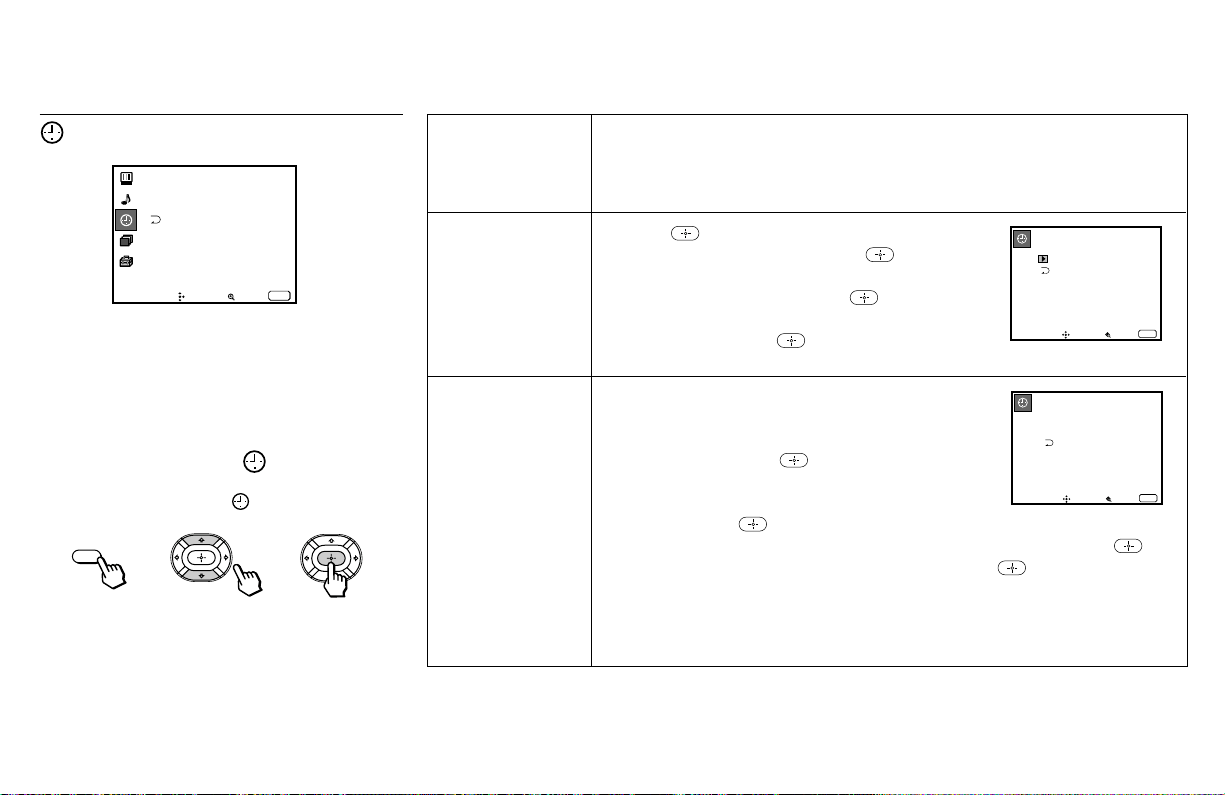
Using the Video Menu
For detailed information on using the remote
control to modify menu settings, refer to
“Learning Menu Selection” on page 25.
To select the Video menu:
Display / Highlight / Select
Video
Mode: Vivid
Picture Adjustment
Trinitone: High
Noise Reduction :Off
Move Select Exit
MENU
ch
Personal 1
Picture
Hue
Color
Brightness
Sharpness
Move Select Exit
MENU
ch
MENU

27
Treble
Sound adjustment
Bass
Sound adjustment
Balance
Sound adjustment
MTS/SAP
Enjoy stereo,
bilingual and mono
programs.
Auto Volume
Adjust the sound
level.
Effect
Customizes
surround sound
effects based on the
program’s audio
type.
Adjust slider right (up) to increase high pitched sounds.
Adjust slider left (down) to decrease high pitched sounds.
Adjust slider right (up) to increase low pitched sounds.
Adjust slider left (down) to decrease low pitched sounds.
Adjust slider right (up) to emphasize right speaker volume.
Adjust slider left (down) to emphasize left speaker volume.
When the sound is intermittent due to poor reception conditions, select “Stereo”
or “SAP.”
Stereo: Select for stereo reception when viewing a program broadcast in stereo.
SAP: Select to listen to a bilingual broadcast. (non-SAP programs will be muted
when this feature is selected)
Mono: Select for mono reception. (use to reduce noise during stereo broadcasts)
Quick MTS access: Press
MTS/SAP
on the remote control to cycle through the
“MTS/SAP” options as follows: Stereo
n
SAP
n
Mono.
On:
Sound output coming from TV speakers have the volume level equalized for all
channel audio inputs when broadcasts have different sound transmission levels.
Off: Sound output coming from the TV speakers varies according to the received
channel.
“Effect” can only be set when “Speaker” is set to “On” or “Off.”
Simulated: Adds a surround-like effect to mono programs.
Surround: Simulates sound with the atmosphere of a movie theater or a concert
hall for stereo programs.
BBE*: Centers the sound intensity to the front, creating an effect as if you were
seated in front of an orchestra.
Off: Normal stereo or mono reception.
Quick Effect access:
Press on the remote control to cycle through the
“Effect” options as follows: Simulated
n
Surround
n
BBE
n
Effect Off.
(continued)
Using the Audio Menu
For detailed information on using the remote
control to modify menu settings, refer to
“Learning Menu Selection” on page 25.
To select the Audio menu:
Display / Highlight / Select
To restore the factory settings
Press RESET on the remote control while the
Audio menu is selected.
* The BBE is manufactured by Sony Corporation
under license from BBE Sound, Inc. It is covered
by U.S. Patent No. 4,638,258 and No. 4,482,866.
The word “BBE” and the BBE symbol are the
trademarks of BBE Sound, Inc.
}
Sliders
Audio
Treble
Bass
Balance
MTS/SAP:
Auto Volume:
Effect:
Speaker:
Audio Out:
SAVA SP Control
Move Select Exit
MENU
Stereo
On
On
Variable
Surround
ch
MENU

28
Adjusting Your SET UP (menus) (continued)
Speaker
Custom selection
of audio output
source
Audio Out
Easy control of
volume adjustment
SAVA SP Control
Controls Sony
SAVA speaker’s
mode.
On: Select to listen to the sound from the projection TV speakers alone.
Off: Select to turn off the projection TV speakers and listen to the
projection TV’s sound only through an external audio system’s speakers.
SAVA SP: Select to turn off the projection TV speakers and listen to the projection
TV’s sound only through the Sony SAVA series speaker system. You can
adjust volume, muting, “Surround Mode,” and “Super Woofer Mode” with the
projection TV’s remote control. (see “SAVA SP Control” below)
“Audio Out” can only be set when “Speaker” is set to “Off.”
Fixed: Sound output is held at a fixed level through the audio system.
Use the AV receiver’s remote control to adjust the volume.
Variable: Sound output varies according to the TV settings.
Useful when you want to use your remote control to control the output of a
separate audio system.
“SAVA SP Control” can only be set when Sony SAVA speaker system is
connected to the AUDIO (VAR/FIX) OUT connectors and “Speaker” is set to
“SAVA SP.” (see “Speaker” above)
You can also adjust the SAVA speaker’s volume using VOL +/– of the projection
TV’s remote control.
Surround Mode: Select to activate the SAVA Speaker’s surround mode.
Super Woofer Mode: Select to activate the SAVA Speaker’s super woofer mode.
29
Daylight Savings
Automatically
adjusts the time.
Current Time
Necessary for the
Timer.
On/Off Timer
Wake up or
scheduled viewing.
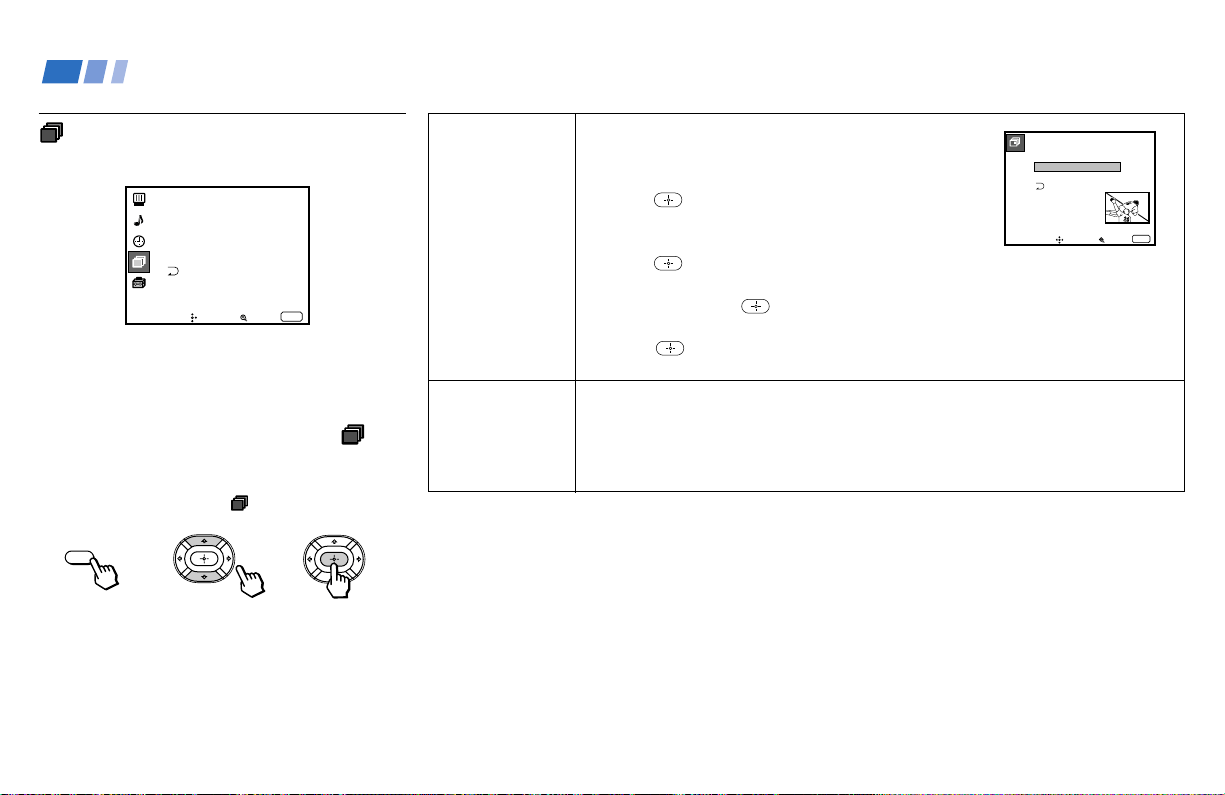
Using the Timer Menu
After setting the clock you can use the timer
to turn the projection TV on and off.
For detailed information on using the remote
control to modify menu settings, refer to
“Learning Menu Selection” on page 25.
To select the Timer menu:
Display / Highlight / Select
Tip
z
Set daylight saving time before setting the clock. Any
loss of power will cause these settings to be erased.
Spring: Select Yes to compensate for Daylight Saving Time.
The current time automatically moves ahead one hour.
Fall: Select No at the end of Daylight Saving Time.
The current time moves back one hour.
1 Press , then press V or v until the current day
(Sun-Sat) is displayed, and press .
2 Press V or v until the current hour (1-12) and
AM/PM is displayed, and press .
3 Press V or v until the current minute (00-59) is
displayed, and press .
The clock has now started. Press MENU to exit.
1 Press V or v until the desired day or range of days
(Every Sun-Sat, Every Mon-Fri, Sunday, Monday, ...
Saturday, Every Sunday, ... Every Saturday) is
displayed, and press .
2 Press V or v until the time (hours and minutes) that
you want the projection TV to remain on is displayed,
and then press .
3 Press V or v to set the time duration (maximum of 6 hours) and press .
4 Press V or v to select the desired channel and press .
The timer is now set. The TIMER/STAND BY indicator on your projection TV
will be lit.
Press MENU to exit. To cancel your timer setting, press RESET while in the On/
Off Timer window. Performing Auto Program will erase all Timer settings.
Current Time
–––
––: –AM–
Move Select Exit
MENU
On/Off Timer
––––––
––: ––AM
–
hch
–––
Sun
12:00AM
Move Select Exit
MENU
Timer
Daylight Savings: Yes
Current Time
On / Off Timer
----- : -AM-
Move Select Exit
MENU
ch
MENU
30
Adjusting Your SET UP (menus) (continued)
ch
Using the Channel Set Up
Menu
For detailed information on using the remote
control to modify menu settings, refer to
“Learning Menu Selection” on page 25.
To select the Channel Set Up
ch
menu:
Display / Highlight
ch
/ Select
Channel Set Up
Favorite Channel :Auto
Channel Skip/Add
Channel Caption
Auto Program
Cable: On
Move Select Exit
MENU
ch
Channel
Caption
Easy recognition
of the channel
you are watching
Favorite
Channel
User’s favorite
channels
You can add a caption for up to 32 channels of VHF/
UHF input.
With the Channel Caption window open:
1 Press and then press V or v to select the desired
channel. You can view the channel that is selected
with the Channel Caption menu in the sub screen.
2 Press .
3 Press V or v to display the first letter or number of the
caption and press to select it.
Repeat until up to five digits are selected.
4 Press .
To erase a caption, press RESET.
The Favorite Channel feature enables easy access to the eight channels that you
preset (or the last channel that you were watching).
(for details on how to set up this feature, see “Setting and Selecting Favorite
Channel” on page 32)
Channel Caption
Caption: –––––
Channel: –––
Move Select Exit
MENU
MENU

31
Channel
Skip/Add
Skips unnecessary
channels.
Auto Program
Automatic
channel presetting
Cable
Cable system
setting
After AUTO SET UP, you can erase unnecessary
channels from the channel preset memory.
With the Channel Skip/Add window open:
1 Press V or v to select the desired channel. You can
view the channel that is selected with the Channel
Skip/Add menu in the sub screen. You can also use
CH +/– or 0–9 and ENTER buttons.
2 Press .
3 Press V or v to select Skip, and press .
The selected channel will be erased.
If you want to re-enter the skipped channel, follow the steps above and select
Add.
Select Yes to signal the projection TV to automatically program all receivable
channels. When all the receivable channels are stored, the lowest numbered
channel is displayed.
Select No to cancel Auto Program.
Select On if your projection TV is connected to a cable system.
Select Off if your projection TV is connected to an antenna.
Channel Skip/Add
Select a channel
2:
3:
4:
5:
6:
7:
8:
1:
Move Select Exit
MENU
9:
Skip
Skip
Add
Add
Add
Add
Add
Add
Add
ch

32
Adjusting Your SET UP (menus) (continued)
2 Press V or v to select “Manual” and press
.
The Favorite Channel menu will appear.
If you set Channel Caption names (e.g.
CNN, HBO), they will also be displayed.
(see “Channel Caption” on page 30)
3 Press V or v to select a position (1–8), and
press
.
4 Press V or v to select a channel and press
.
You have now selected a favorite channel.
5 Use V and v to program other favorite
channels. (Follow steps 3 and 4.)
6 Press MENU when you have finished.
Your favorite channels are now ready for
use.
Setting and Selecting
Favorite Channel
The Favorite Channel feature of your
projection TV enables easy access to the eight
channels that you preset (or the last channel
that you were watching).
Your Favorite Channel options can be set
automatically or manually.
The factory setting for “Favorite Channel” is
“Auto.”
When “Favorite Channel” is set to “Auto,”
the last eight channels selected with the 0–9
buttons will be set as Favorite Channel
options. If you want to input your own
selections as Favorite Channel settings, set to
“Manual.”
Setting Favorite Channel manually
1 Select “Favorite Channel” from the
Channel Set Up menu. (see page 30)
Channel Set Up
Channel Skip/Add
Channel Caption
Auto Program
Cable: On
Move Select Exit
MENU
Manual
Favorite Channe: Auto
ch
Favorite Channel
Select a position
2.
3.
4.
5.
6.
7.
8.
1.
2
10
20
30
40
50
100
1
SPTN
CNN
ch
Favorite Channel
Select a channel
2.
3.
4.
5.
6.
7.
8.
1.
2
10
20
30
40
50
100
1
SPTN
CNN
ch
Favorite Channel
Select a channel
2.
3.
4.
5.
6.
7.
8.
1.
8
10
20
30
40
50
100
1
SPTN
CNN
ch

33
3 Press to select the channel.
The selected channel will be displayed for
normal viewing.
To cancel the favorite channel menu before
selecting a channel, press V or v to select
“Exit” at the bottom of the menu and press
.
Changing Favorite Channel choices
You have the option of returning to the
Favorite Channel screen to adjust any of your
favorite channel choices.
Simply proceed as described in “Setting
Favorite Channel manually” (skip step 2 if
“Manual” is already selected).
When you reach step 3, select the position
you want to change and press
. Press V or
v to select a new channel.
Press MENU when you are done.
Using Favorite Channel
You can use the Favorite Channel feature to
directly select the channel you want to watch.
1 Press once.
The favorite channel menu and a window
picture will be superimposed over the
current channel. The window picture
displays the channel selected from the
menu.
2 Press V or v to select the channel that you
wish to view from the menu.
The picture of the selected channel will be
displayed in the window picture.
Favorite Channel
Select a channel
2.
3.
4.
5.
6.
7.
8.
1.
2
10
20
30
40
50
100
6
SPTN
ch
2
10
20
30
40
50
100
Exit
1 CNN
SPTN
2
10
20
30
40
50
100
Exit
1 CNN
SPTN

34
Adjusting Your SET UP (menus) (continued)
Parental
Control
Blocks programs
unsuitable for
children
.
Caption Vision
Television closed
caption display
Language
Preferred language
Allows you to block TV programs that you feel are unsuitable for your
children.
(see “Using the Parental Control Feature” on page 36 for details)
Some programs are broadcast with Caption Vision.
To display “Caption Vision,” select CC 1, CC 2,
CC 3, CC 4, TEXT1, TEXT2, TEXT3 or TEXT4 from
the menu. Then press the CC button until “Caption
Vision” is displayed.
CC 1, CC 2, CC 3 or CC 4 displays a printed
version of the dialogue or sound effects of a
program. (The mode should be set to CC 1 for most
programs.) TEXT1, TEXT2, TEXT3, or TEXT4
displays network/station information presented using
either half or the whole screen.
Notes:
• Poor reception of TV programs can cause errors in Caption Vision and XDS.
Captions may appear with a white box or other errors instead of the intended
text.
• XDS, Caption Vision, and the status display cannot be used at the same time.
Select from available languages (English, Español or Français) to display all
menus in your language of choice.
Using the Set Up Menu
For detailed information on using the remote
control to modify menu settings, refer to
“Learning Menu Selection” on page 25.
To select the Set Up menu:
Display / Highlight / Select
Language:
Move Select Exit
MENU
Set Up
Video Label
Flash Focus: No
Caption Vision: CC1
CC2
CC3
CC4
Text1
Text2
Text3
Text4
ch
Parental Control
Move Select Exit
MENU
Set Up
Caption Vision: CC1
Language: English
Video Label
Flash Focus: No
ch
Parental Control
MENU
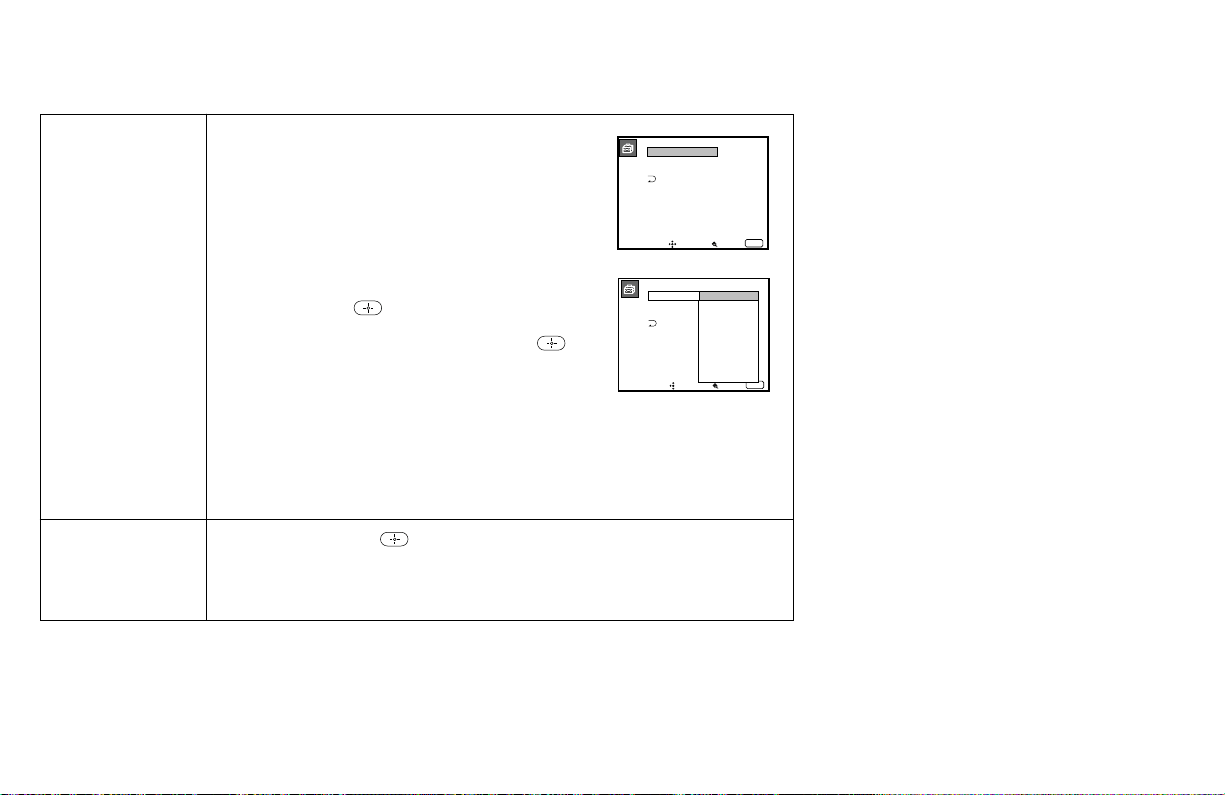
35
Video Label
Easy recognition of
connected
equipment
(e.g. SAT, VHS,
etc.)
Flash Focus
Automatic
convergence
adjustment
This feature allows you to label each input mode so
that you can easily identify the connected equipment
(e.g. you can label VIDEO 1 IN as VHS).
With the Video Label window open:
1 Press V or v to select the input mode you want to
label and press .
2 Press V or v to select the label and press .
Video Label Options:
VIDEO 1: VIDEO 1, VHS, 8mm, Beta, LD, SAT, DVD, AV RECEIVER, DTV,
Skip
VIDEO 2/3: VIDEO 2/VIDEO 3, VHS, 8mm, Beta, LD, SAT, DVD, DTV, Skip
If you select “Skip,” your projection TV will skip this connection when you scan
through video sources using the TV/VIDEO button.
Select Yes and press to start Flash Focus adjustment. When the
adjustment is completed, the cross pattern on the screen becomes white. (for
details, see page 19)
Select No to cancel Flash Focus.
Video Label
VIDEO1
VIDEO2
VIDEO3
VIDEO1:
VIDEO2:
VIDEO3:
Move Select Exit
MENU
Video Label
VIDEO1:
VIDEO2:
VIDEO3:
Move Select Exit
MENU
Video1
VHS
8mm
Beta
LD
SAT
DVD
AV RECEIVER
DTV
Skip

36
Adjusting Your SET UP (menus) (continued)
Parental Control
Country: U.S.A.
Parental Lock:
Rating: Child
Change Password
Move Select Exit
MENU
Off
4 Make sure that “Country ”is highlighted,
and press .
5 Press V or v to select your country (U.S.A.
or Canada), and press .
6 Press V or v to select “Parental Lock,”
and press .
Parental Control
Country: U.S.A.
Parental Lock:
Rating: Child
Change Password
Move Select Exit
MENU
Off
U.S.A.
Canada
1 Select “Parental Control” from the Set Up
menu. (see page 34)
2 Enter a four digit password* using the 0–
9 buttons.
* Do not enter “4357” corresponding to “HELP”
on a phone number pad. (see page 43)
3 To confirm the password, re-enter the
same password with the 0–9 buttons.
Your password is stored and the Parental
Control menu automatically appears.
If you want to change the password, see
page 42.
Set Up
Language:
Video Label
Parental Control
Caption Vision:
Flash Focus: No
Move Select Exit
MENU
Set New
Password
_ _ _ _
ch
Parental Control
Country: U.S.A.
Parental Lock:
Rating: Child
Change Password
Move Select Exit
MENU
Off
Set Up
Language:
Video Label
Parental Control
Caption Vision:
Flash Focus: No
Move Select Exit
MENU
Confirm
Password
_ _ _ _
ch
Using the Parental Control
Feature
The TV programs and movies shown on TV
are given a rating signal based on the
following rating systems.
In U.S.A.: U.S. Television Parental
Guidelines to rate television programs (U.S.
TV ratings), and Motion Picture Association
of America (MPAA) Guidelines to rate
movies including those shown on TV (movie
ratings)
In Canada: Canadian English Language
ratings to rate television programs in English,
and Canadian French Language ratings to
rate those in French.
To block programs you feel are unsuitable for
your children, you need to set the TV for the
desired rating systems. Sony’s predetermined
ratings are also available.
See pages 43 to 45 for a description of the
ratings.
The Parental Control feature of the TV
functions by receiving the rating signal from
your local broadcasting station or cable
service provider.
Activating the Parental Control
Feature
First, set a password, then select your desired
rating from Sony’s predetermined ratings.
Parental Control
Country: U.S.A.
Parental Lock:
Rating: Child
Change Password
Move Select Exit
MENU
Off
On
Off
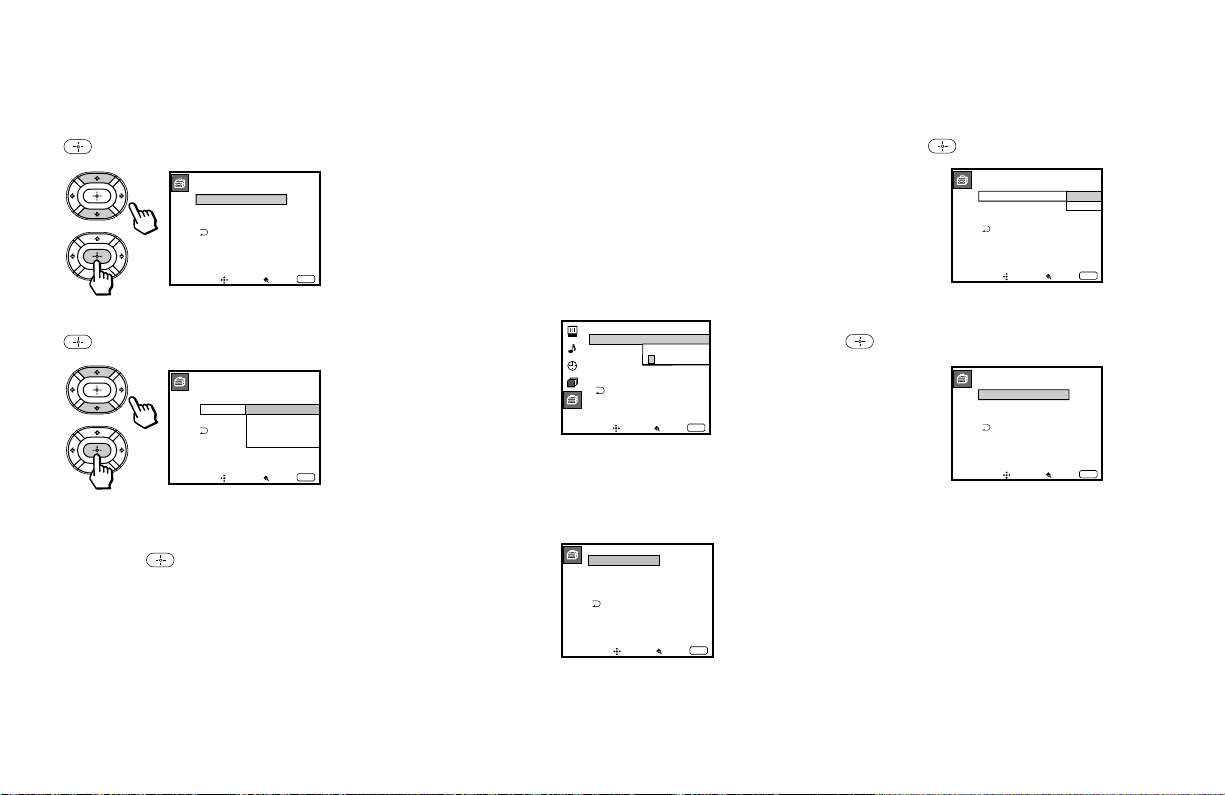
37
7 Press V or v to select “On,” and press
.
8 Press V or v to select “Rating,” and press
.
9 Press V or v to select a desired rating
(“Child,” “Youth” and “Young Adult”),
and press .
If you want to select the ratings from
“Custom,” go to step 4 of “Selecting a
Custom Rating in U.S.A.” on page 38 or
“Selecting a Custom Rating in Canada”
on page 41, according to your “Country”
setting.
10
Press MENU to exit the menu.
Parental Control
Country: U.S.A.
Parental Lock:
Rating: Child
Change Password
Move Select Exit
MENU
On
Parental Control
Move
Ages up to 6
Select Exit
MENU
On
Country: U.S.A.
Parental Lock:
Rating:
ChangePassword
Child
Youth
Young Adult
Custom
To deactivate the Parental Control
feature
If you set “Parental Lock” in the Parental
Control menu to “Off,” the Parental Control
feature will not work and you can view all
TV programs and movies shown on TV.
1 Select “Parental Control” from the Set Up
menu. (see page 34)
2 Enter your four digit password using the
0-9 buttons.
The Parental Control menu appears.
3 Press V or v to select “Parental Lock,”
and press
.
4 Press V or v to select “Off,” and press
.
5 Press MENU to exit the menu.
Set Up
Language:
Video Label
Parental Control
Caption Vision: CC1
Flash Focus: No
Move Select Exit
MENU
Password
_ _ _ _
ch
Parental Control
Country: U.S.A.
Parental Lock:
Rating: Child
Change Password
Move Select Exit
MENU
Off
Parental Control
Country: U.S.A.
Parental Lock:
Rating: Child
Change Password
Move Select Exit
MENU
On
Parental Control
Country: U.S.A.
Parental Lock:
Rating: Child
Change Password
Move Select Exit
MENU
Off
On
Off

38
Adjusting Your SET UP (menus) (continued)
3 Press V or v to select “Rating,” and press
.
4 Press V or v to select “Custom,” and
press
.
Selecting a Custom Rating in
U.S.A.
If you want to select the ratings to be blocked
from “Custom” once you have activated the
Parental Control feature (page 37), follow the
procedure below.
For a detailed description of each rating, see
“What the Ratings Mean” on pages 43 to 45.
1 Select “Parental Control” from the Set Up
menu. (see page 34)
2 Enter your four digit password using the
0–9 buttons.
The Parental Control menu appears.
Make sure that “Country” is set to
“U.S.A.”
To unlock the Parental Control feature
temporarily
When you select a Parental Control program,
no sound or picture except for a channel
number will appear. The
indicator is
displayed. To view the program, follow the
steps below.
1 Press ENTER to display the “Password”
screen.
2 Enter your password using the 0–9
buttons. Parental Control will be canceled
(“Parental Lock” set to “Off”) until you
turn your projection TV off.
Set Up
Language:
Video Label
Parental Control
Caption Vision: CC1
Flash Focus: No
Move Select Exit
MENU
Password
_ _ _ _
ch
Parental Control
Country: U.S.A.
Parental Lock:
Rating: Child
Change Password
Move Select Exit
MENU
On
Parental Control
Move
Ages up to 6
Select Exit
MENU
On
Country: U.S.A.
Parental Lock:
Rating:
ChangePassword
Child
Youth
Young Adult
Custom
Custom Rating
Move
Select category
Select Exit
MENU
TV Rating
Movie Rating
Unrated: View All

39
First, select a TV rating.
5 Press V or v to select “TV Rating,” and
press
.
6 Press V or v to select the TV rating to be
blocked, and press
.
TV Rating
Move
Select rating
Select Exit
MENU
TV–Y
TV–Y7
TV–G
TV–PG
TV–14
TV–MA
_
_ :FV _
_
_ :D _ L _ S _ V _
_ :D _ L _ S _ V _
_ : L _ S _ V _
TV Rating
Move
Allow rating
Select Exit
MENU
TV–Y
TV–Y7
TV–G
TV–PG
TV–14
TV–MA
_
_ :FV _
_
_ :D _ L _ S _ V _
_ :D _ L _ S _ V _
: L _ S _ V _
_
7 Press V or v to select “ ,” and press .
The
indicator automatically appears
beside the selected rating and all “higher”
ratings, indicating that the programs that
match the ratings will be blocked.
Some ratings have additional content
ratings called “extenders.” The extenders
are defined as follows: D (sexually
suggestive Dialog), FV (Fantasy
Violence), L (coarse Language), S (Sexual
situations) and V (Violence). By setting
the extenders, you can define additional
viewing limits. For more details of
extenders, see page 45.
All of the extenders included in the
selected ratings will be blocked. If you
wish to allow any of them to be viewed,
go to step 8.
8 Press B or b to select the extender to be
viewed, and press
.
9 Press V or v to select “–,” and press .
“–” appears beside the selected extender,
indicating that the programs that match
the extender can be viewed.
If you select “
,” is displayed to
show that the programs that match the
extender will be blocked again.
TV Rating
Move
Block content
Select Exit
MENU
TV–Y
TV–Y7
TV–G
TV–PG
TV–14
TV–MA
_
_ :FV _
_
– :D – L – S – V –
– :D – L – S – V –
– : L – S – V
TV Rating
Move
Select category
Select Exit
MENU
TV–Y
TV–Y7
TV–G
TV–PG
TV–14
TV–MA
_
_ :FV _
_
– :D – L – S – V _
– :D – L – S – V –
– : L – S – V
TV Rating
Move
Select category
Select Exit
MENU
TV–Y
TV–Y7
TV–G
TV–PG
TV–14
TV–MA
_
_ :FV _
_
– :D – L – S – V –
– :D – L – S – V –
– : L – S – V
(continued)

40
Adjusting Your SET UP (menus) (continued)
10
Repeat steps 8 and 9 for other extenders.
All programs that match the ratings you
select and higher, except for the
extenders that were canceled, will be
blocked.
11
After setting of the TV rating is complete,
press V or v to select “ ,” and press .
Second, select a movie rating.
12
Press V or v to select “Movie Rating,” and
press
.
Custom Rating
Move
Select category
Select Exit
MENU
TV Rating
Movie Rating
Unrated: View All
Movie Rating
Move
Select rating
Select Exit
MENU
G
PG
PG–13
R
NC–17
X
–
–
–
–
–
–
13
Press V or v to select the movie rating to
be blocked, and press
.
14
Press V or v to select “ ,” and press .
The
indicator automatically appears
beside the selected rating and all “higher”
ratings, indicating that the programs that
match the ratings will be blocked.
15
Press MENU to exit the menu.
To block TV programs and/or movies
for which a rating signal is not given
(NR and N/A)
For a description of the NR and N/A ratings,
see page 44.
1 Perform steps 1–4 of “Selecting a Custom
Rating in U.S.A.” on page 38.
2 Press V or v to select “Unrated,” and
press
.
Movie Rating
Move
Select rating
Select Exit
MENU
G
PG
PG–13
R
NC–17
X
–
–
–
–
–
Movie Rating
Move
Block rating
Select Exit
MENU
G
PG
PG–13
R
NC–17
X
–
–
–
–
–
–
Custom Rating
Move
No block
Select Exit
MENU
TV Rating
Movie Rating
Unrated: View All
TV
Movie
Both
View All
TV
Movie
Both

41
3 Press V or v to select the type of
programs to be blocked, and press .
To block ...
No program
(to view any unrated TV
program and movie)
Unrated TV programs
Unrated movies
Unrated TV programs and
movies
4 Press MENU to exit the menu.
Custom Rating
Move
Block all unrated
programming
Select Exit
MENU
TV Rating
Movie Rating
Unrated: View All
TV
Movie
Both
View All
TV
Movie
Both
Selecting a Custom Rating in
Canada
If you want to select the ratings to be blocked
from “Custom” once you have activated the
Parental Control feature (page 37), follow the
procedure below.
For a detailed description of each rating, see
“What the Ratings Mean” on pages 45 and
46.
1 Select “Parental Control” from the Set Up
menu. (see page 34)
2 Enter your four digit password using the
0–9 buttons.
The Parental Control menu appears.
Make sure that “Country” is set to
“Canada.”
3 Press V or v to select “Rating,” and press
.
4 Press V or v to select “Custom,” and press
.
Set Up
Language:
Video Label
Parental Control
Caption Vision: CC1
Flash Focus: No
Move Select Exit
MENU
Password
_ _ _ _
ch
Parental Control
Country: Canada
Parental Lock:
Rating: Child
Change Password
Move Select Exit
MENU
On
Parental Control
Move
Ages up to 6
Select Exit
MENU
On
Country: Canada
Parental Lock:
Rating:
ChangePassword
Child
Youth
Young Adult
Custom
Custom Rating
Move
Select category
Select Exit
MENU
English Rating
French Rating
U.S.A. Rating
Select ...
View All
TV
Movie
Both
(continued)

42
Adjusting Your SET UP (menus) (continued)
5 Press V or v to select the rating you want
to block, and press
.
The selected rating appears.
6 Press V or v to select the TV rating to be
blocked, and press
.
English Rating
Move
Select rating
Select Exit
MENU
C
G
C8+
PG
14+
18+
_
_
_
_
_
_
English Rating
Move
Allow rating
Select Exit
MENU
C
G
C8+
PG
14+
18+
_
_
_
_
_
French Rating
Move
Select rating
Select Exit
MENU
G
8 ans+
13 ans+
16 ans+
18 ans+
_
_
_
_
_
U.S.A. Rating
Move
Select rating
Select Exit
MENU
TV–Y
TV–Y7
TV–G
TV–PG
TV–14
TV–MA
_
_ :FV _
_
_ :D _ L _ S _ V _
_ :D _ L _ S _ V _
: L _ S _ V _
_
Canadian English Rating
Canadian French Rating U.S. TV Rating
Example: Canadian English Rating
English Rating
Move
Select rating
Select Exit
MENU
C
G
C8+
PG
14+
18+
_
_
_
7 Press V or v to select “ ,” and press .
The
indicator automatically appears
beside the selected rating and all
“higher” ratings, indicating that the
programs that match the ratings will be
blocked.
Some U.S. TV ratings have additional
content ratings called “extenders,” such
as D, FV, L, S and V. By setting the
extenders, see steps 7 to 10 of “Selecting a
Custom Rating in U.S.A.” on pages 39
and 40. For more details of extenders, see
page 45.
All of the extenders included in the
selected ratings will be blocked. If you
wish to allow any of them to be viewed,
go to step 8.
8 Press MENU to exit the menu.
Changing the Password
1 Select “Parental Control” from the Set Up
menu. (see page 34)
2 Enter your four digit password using the
0–9 buttons.
The Parental Control menu appears.
3 Press V or v to select “Change Password,”
and press
.
Parental Control
Country: U.S.A.
Parental Lock:
Rating: Child
Change Password
Move Select Exit
MENU
On
Set Up
Language:
Video Label
Parental Control
Caption Vision: CC1
Flash Focus: No
Move Select Exit
MENU
Password
_ _ _ _
ch
Parental Control
Country: U.S.A
Parental Lock: On
Rating:
Change Password
Move Exit
MENU
Child
Use [0-9] to enter
new four digit
password
New
____

43
Parental Control
Country: U.S.A
Parental Lock: On
Rating:
Change Password
Move Exit
MENU
Child
Confirm password
Confirm
____
4 Enter a new four digit password using
the 0–9 buttons.
5 Enter the password set in step 4 again to
confirm.
If you entered it incorrectly, “Password
incorrect” appears.
Re-enter the correct password.
6 Press MENU to exit the menu.
What the Ratings Mean
Ratings in U.S.A.
Sony’s predetermined ratings
These are original ratings that Sony
predetermined according to the viewer’s age.
Each rating allows you to view the certain
programs, as follows.
See pages 44 and 45 for a description of each
rating.
Child: Suitable for children under the age of
6.
Viewable U.S. movie ratings: G, NR, and N/A
Viewable U.S. TV ratings: TV-Y, TV-G, and
TV-NR
Youth: Suitable for children aged 7 and
older.
Viewable U.S. movie ratings: G, PG, NR, and
N/A
Viewable U.S. TV ratings: TV-Y, TV-Y7, TV-
G, TV-PG, and TV-NR
Young Adult: Suitable for children aged 13
and older.
Viewable U.S. movie ratings: G, PG, PG-13,
NR, and N/A
Viewable U.S. TV ratings: TV-Y, TV-Y7, TV-
G, TV-PG, TV-14, and TV-NR
If you have forgotten your password
In step 2 of “Changing the Password” on
page 42, enter the master password “4357”
(corresponding to “HELP” on a phone
number pad). You can then store a new
password.
Notes:
• If you entered “4357” as your password
the first time, you cannot store a new
password. (see step 2 of “Activating the
Parental Control Feature” on page 36)
• When you select a Parental Control
program and the
indicator is
displayed on the screen, you cannot view
that program even if you enter “4357.”
(see “To unlock the Parental Control
feature temporarily” on page 38)
(continued)

44
Adjusting Your SET UP (menus) (continued)
U.S. movie ratings
U.S. movie ratings are for movies (including
those shown on TV) rated according to the
Motion Picture Association of America
(MPAA) Guidelines.
G (General Audiences—All Ages
Admitted): In G-rated films no strong words
are used, the violence is at a minimum,
nudity and sex scenes are not present, nor is
there any drug use.
PG (Parental Guidance Suggested. Some
Material May Not Be Suitable For
Children): This is a film which may need to
be monitored first by parents.
PG-13 (Parents Strongly Cautioned. Some
Material May Be Inappropriate For
Children Under 13): Parents are alerted to be
very careful about the attendance of their
under-teenage children when viewing.
R (Restricted, Under 17 Require
Accompanying Parent Or Adult Guardian):
This film includes hard language, tough
violence, nudity, drug abuse or other
elements of concern.
NC-17 or X (No One 17 Or Under
Admitted.): This is a film that most parents
would consider not suitable for children
aged 17 and under. There may be violence,
sex, abberrational behavior, drug abuse or
other elements of concern.
NR (Not Rated): This is a film that a
producer has not rated, intending to have his
film widely released.
N/A (Not Applicable): This is a film that a
producer considers outside the scope of the
MPAA ratings.
Note:
• NR and N/A ratings are shown together
as “Unrated” in the menu.
U.S. TV ratings
U.S. TV ratings are for TV programs rated
according to the U.S. Television Parental
Guidelines.
TV-Y (All Children): This program is
designed for young children aged 2–6 and is
appropriate for all children.
TV-Y7 (Directed to Older Children): This
program is designed for children aged 7 and
above. Themes and elements in this program
may include mild fantasy violence or
slapstick violence, or may frighten children
under the age of 7.
TV-G (General Audience): Most parents
would find this program suitable for all ages.
It contains little or no violence, no strong
language and little or no sexual dialog or
situations.
TV-PG (Parental Guidance Suggested):
This program contains some material that
parents may find unsuitable for younger
children.
TV-14 (Parents Strongly Cautioned): This
program contains some material that many
parents would find unsuitable for children
under the age of 14.
TV-MA (Mature Audience Only): This
program is specifically designed to be
viewed by adults and therefore may be
unsuitable for children under the age of 17.

45
Ratings in Canada
Sony’s predetermined ratings
These are original ratings that Sony
predetermined according to the viewer’s age.
Each rating allows you to view the certain
programs, as follows.
See the right column and page 46 for a
description of each rating.
Child: Suitable for children under the age of
7.
Viewable Canadian English Language
ratings: C and G
Viewable Canadian French Language
ratings: G
Viewable U.S. TV ratings: TV-Y, TV-G, and
TV-NR
Youth: Suitable for children aged 8 and
older.
Viewable Canadian English Language
ratings: C, G, C8+ and PG
Viewable Canadian French Language
ratings: G and 8 ans+
Viewable U.S. TV ratings: TV-Y, TV-Y7, TV-
G, TV-PG, and TV-NR
TV-NR (Not Rated/Unrated): This is a
program broadcast without any rating, such
as news, news flashes or sports.
Note:
The TV-NR rating is shown as “Unrated” in
the menu.
About the extenders of U.S. TV ratings
TV-Y7, TV-PG, TV-14 and TV-MA ratings
have additional content ratings called
“extenders” to define additional viewing
limits. The extenders are defined as follows:
D (sexually suggestive Dialog): Programs
containing suggestive dialog, or sexual
innuendo
FV (Fantasy Violence): Programs containing
cartoon violence occurring in TV-Y7
programs only
L (coarse Language): Programs containing
coarse language
S (Sexual situations): Programs containing
sexual content
V (Violence): Programs containing violence
There may be some profanity, violence or
brief nudity in these programs.
Young Adult: Suitable for children aged 14
and older.
Viewable Canadian English Language
ratings: C, G, C8+, PG and 14+
Viewable Canadian French Language
ratings: G, 8 ans+, 13 ans+
Viewable U.S. TV ratings: TV-Y, TV-Y7, TV-
G, TV-PG, TV-14, and TV-NR
Canadian English Language ratings
The Canadian English Language Ratings are
for TV programs in English broadcast in
Canada.
C (Programming intended for children
under age 8): There will be no realistic
scenes of violence or no offensive language,
nudity or sexual content. Careful attention is
paid to themes, which could threaten
children’s sense of security and well-being.
G (General Audience): Will contain very
little violence, either physical or verbal or
emotional. There may by some inoffensive
slang, no profanity and no nudity.
(continued)

46
Adjusting Your SET UP (menus) (continued)
C8+ (Programming generally considered
acceptable for children 8 years and over to
watch on their own): Violence will not be
portrayed as the preferred, acceptable, or
only way to resolve conflict; or encourage
children to imitate dangerous acts which
they may see on television. There will be no
profanity, nudity or sexual content.
PG (Parental Guidance): Programming
intended for a general audience but which
may not be suitable for younger children.
Parents may consider some content
inappropriate for unsupervised viewing by
children aged 8 - 13.
14+ (Programming contains themes or
content which may not be suitable for
viewers under the age of 14): Parents are
strongly cautioned to exercise discretion in
permitting viewing by pre-teens and early
teens.
18+ (Adult): May contain violence integral
to the development of the plot, character or
theme, intended for adult audiences. May
contain graphic language and explicit
portrayals of nudity and/or sex.
E (Exempt): Exempt programming includes:
news, sports documentaries and other
information programming: talk shows,
music videos, and variety programming.
Note:
The E (Exempt) rating is not shown in the
menu.
Canadian French Language ratings
The Canadian French Language Ratings are
for TV programs in French broadcast in
Canada.
G (General): Programming intended for
audience of all ages. Contains no violence, or
the violence it contains is minimal or is
depicted appropriately with humor or
caricature or in an unrealistic manner.
8 ans+ (8+ General - Not recommended for
young children): Programming intended for
a broad audience but contains light or
occasional violence that could disturb young
children. Viewing with an adult is
recommended for young children (under the
age of 8).
13 ans+ (Programming may not suitable for
children under the age of 13): Viewing with
an adult is strongly recommended for
children under 13.
16 ans+ (Programming is not suitable for
children under the age of 16): Contains
frequent scenes of violence or intense
violence.
18 ans+ (Programming restricted to adults):
Contains constant violence or scenes of
extreme violence.
E (Exempt): Exempt programming.
Note:
The E (Exempt) rating is not shown in the
menu.

47
Setting the Manufacturer's
Code
You can use the supplied remote control to
operate Sony or non-Sony video equipment
that has an infrared sensor.
Press CODE SET, DVD/VTR (FUNCTION),
and the 0-9 buttons to enter the
manufacturer’s code number (see the
following chart), then press ENTER.
For example, to operate a Sony 8mm VCR:
If the remote control doesn’t work
• See the tips on page 49.
Operating Video Equipment
VCR manufacturer code numbers
Manufacturer Code
Sony (VHS VCR) 301
Sony (8mm VCR) 302
Sony (Beta, ED Beta, VCRs) 303
Aiwa 338
Admiral (M. Ward) 327
Audio Dynamic 314, 337
Bell & Howell (M. Ward) 330
Broksonic 319, 317
Canon 309, 308
Citizen 332
Craig 302, 332
Curtis Mathis 304, 338, 309
Daewoo 341, 312, 309
DBX 314, 336, 337
Dimensia 304
Emerson 319, 320, 316, 317, 318, 341
Fisher 330, 335
Funai 338
General Electric 329, 304, 309
Go Video 340, 339, 322
Goldstar 332
Hitachi 306, 304, 305, 338
Instant Replay 309, 308
JC Penney 309, 305, 304, 330, 314, 336, 337
JVC 314, 336, 337
Kenwood 314, 336, 332, 337
LXI (Sears) 332, 305, 330, 335, 338
Magnavox 308, 309, 310
Marantz 314, 336, 337
Marta 332
Memorex 309, 335
Minolta 305, 304
Mitsubishi/MGA 323, 324, 325, 326
Multitech 325, 338, 321
NEC 314, 336, 337
Olympic 309, 308
Optimus 327
Panasonic 308, 309, 306, 307
Pentax 305, 304
Philco 308, 309
Philips 308, 309, 310
Pioneer 308
Quasar 308, 309, 306
RCA/PROSCAN 304, 305, 308, 309, 311,
329, 312, 313, 310
Realistic 309, 330, 328, 335, 324, 338
Sansui 314
Samsung 322, 313, 321
Sanyo 330, 335
Scott 312, 313, 321, 335, 323, 324, 325, 326
Sharp 327, 328
Signature 2000 (M. Ward) 338, 327
Sylvania 308, 309, 338, 310
Symphonic 338
SV2000 338
Tashiro 332
Tatung 314, 336, 337
Teac 314, 336, 338, 337
Technics 309, 308
Teknica 338
Toshiba 312, 311
Wards 327, 328, 335, 331, 332
Yamaha 330, 314, 336, 337
Zenith 331
2
3
0
CODE SET
ENTER
DVD/VTR
FUNCTION

48
MDP manufacturer code numbers
Manufacturer Code
Sony 701
Panasonic 704, 710
Mistubishi 702
DVD Player manufacturer code
numbers
Manufacturer Code
Sony 751
Panasonic 753
Pioneer 752
RCA 755
Toshiba 754
Tips
z
• In some rare cases, you may not be able to operate
your non-Sony video equipment with the supplied
remote control. In this case, please use the
equipment's own remote control.
• When you remove the batteries, the code number may
revert to the factory setting.
To operate video equipment
1 Press DVD/VTR (FUNCTION).
2 Use the VCR/DVD/MDP operation
buttons indicated in the following tables.
Operating an MDP using the remote
control
To turn On/Off
To play
To stop
To pause
Operating a VCR using the remote control
To turn On/Off
To select a channel
To change channels
To record
To play
To stop
To fast forward
To rewind the tape
To pause
To search the
picture forward or
backward
To change input
mode
Press DVD/VTR (POWER).
[Green Button]
Press the 0 – 9 buttons.
Press CH +/–.
Press ( while pressing r.
Press (.
Press p.
Press ).
Press 0.
Press P. Press again to
resume normal playback.
Press ) or 0 during
playback. Release to
resume normal playback.
Press TV/VTR.
Press DVD/VTR (POWER).
[Green Button]
Press (.
Press p.
Press P. Press again to
resume normal playback.
Operating a DVD Player using the remote
control
To turn On/Off
To play
To stop
To pause
To step through
different tracks of
an audio disc
To step through
different chapters
of a video disc
To select tracks
directly
To display the
menu (Set up)
Press DVD/VTR (POWER).
[Green Button]
Press (.
Press p.
Press P. Press again to
resume normal playback.
Press ) to step forward or
0 to step backward.
Press CH + to step forward
or CH – to step backward.
Press 0-9 buttons.
Press MENU.
Press ) or 0 during
playback. Release to resume
normal playback.
Press CH +/–.
To search the picture
forward or backward
To search a chapter
forward or backward
Operating Video Equipment (continued)

49
Setting the Manufacturer's
Code
You can program the supplied remote control
to operate a cable box or satellite receiver.
Press CODE SET, SAT/CABLE
(FUNCTION), and the 0-9 buttons to enter
the manufacturer’s code number (see the
following chart), then press ENTER.
For example, to operate a Sony satellite receiver:
Manufacturer code numbers
(cable box)
Manufacturer
Hamlin/Regal
Jerrold/G.I
Oak
Panasonic
Pioneer
Scientific Atlanta
Tocom
Zenith
Manufacturer code numbers
(satellite receiver)
Manufacturer
Sony
General Electric
Hitachi
Hughes
Panasonic
RCA/PROSCAN
Toshiba
To operate the cable box or
satellite receiver (SAT)
1 Press SAT/CABLE (POWER) [Green
Button] to turn on/off the cable box or
satellite receiver.
2 Press SAT/CABLE (FUNCTION).
3 For other operations, refer to the
operating instructions that come with the
equipment.
The GUIDE and INDEX (blue-labeled)
buttons can be used only with a satellite
receiver.
If the remote control doesn’t work
• Try repeating the set up procedures using
the other codes listed for your equipment.
Operating a Cable Box or Satellite Receiver (SAT)
To operate the projection TV
Press TV (FUNCTION). Then use the
projection TV control buttons to control the
projection TV.
Tips z
• If more than one code number is listed, try entering
them one by one until you come to the correct code
for your equipment.
• If you enter a new code number, the code number
you previously entered at that setting is erased.
• In some rare cases, you may not be able to operate
your equipment with the supplied remote control. In
this case, use the equipment’s own remote control
unit.
• Whenever you remove the batteries — to replace
them, for example — if too much time is taken, the
code numbers may revert to the factory setting and
must be reset.
1
8
0
CODE SET
ENTER
SAT/CABLE
FUNCTION
Code
222, 223, 224, 225, 226
201, 202, 203, 204, 205,
222, 206, 207, 208, 218
227, 228, 229
219, 220, 221
214, 215
209, 210, 211
216, 217
212, 213
Code number
801 (preset code for
remote control)
802, 808
805
804
803
802
806, 807

50
The picture turns off and the
TIMER/STAND BY indicator on the
front panel flashes (self-diagnosis
function)
No picture (screen not lit), no
sound
Remote control does not
operate
Dark, poor or no picture
(screen lit), good sound
Good picture, no sound
Troubleshooting
• The projection TV is equipped with a self-diagnosis function. If there is a problem with your projection TV, the TIMER/STAND BY indicator on the front
panel will flash repeatedly. Counting the number of flashes helps you inform qualified Sony personnel of the projection TV’s condition.
• Press POWER on the projection TV to turn it off, then inform qualified Sony personnel or the above Direct Response Center of the number of flashes.
• Make sure the power cord is plugged in.
• Operate with the buttons on both the projection TV and the remote control.
• Check to see if the TV/VIDEO setting is correct: when watching TV, set to TV, and when watching video tapes, set to VIDEO 1, 2, or 3.
• Try another channel.
It could be station trouble.
• Perform AUTO SET UP again using the SET UP button to return to the factory preset condition. (see “To perform AUTO SET UP again” on page 19)
• The Parental Control feature is activated. (see “To deactivate the Parental Control feature” on page 37)
• Batteries could be weak. Replace the batteries.
• Press TV (FUNCTION) when operating your projection TV.
• Make sure the projection TV’s power cord is connected securely to the wall outlet.
• Locate the projection TV at least 3-4 feet away from fluorescent lights.
• Check the polarity of the batteries.
• Adjust “Picture” in the Video menu. (see “Picture Adjustment” on page 26)
• Adjust “Brightness” in the Video menu. (see “Picture Adjustment” on page 26)
• Check antenna/cable connections.
• Perform AUTO SET UP again using the SET UP button to return to the factory preset condition. (see “To perform AUTO SET UP again” on page 19)
• Adjust the convergence again using the FLASH FOCUS button. (see “Adjusting the Convergence Automatically (FLASH FOCUS)” on page 19)
• Press MUTING so that “Muting” disappears from the screen. (see “MUTING” on page 20)
• Check the MTS/SAP setting in the Audio menu. (see “MTS/SAP” on page 27)
• Make sure “Speaker” is set to “On” in the Audio menu. (see “Speaker” on page 28)
• Perform AUTO SET UP again using the SET UP button to return to the factory preset condition. (see “To perform AUTO SET UP again” on page 19)
If, after reading the following instructions, you have additional questions related to the use of your Sony projection TV, please call one of the following
numbers (English only).
Customers in the continental United States contact the Direct Response Center at: 1-800-222-SONY (7669)
Customers in Canada contact the Customer Relations Center at: (416) 499-SONY (7669)
51
Cannot receive upper channels
(UHF) when using an antenna
No color
Only snow and noise appear on
the screen
Dotted lines or stripes
TV is fixed to one channel
Double images or ghosts
Cannot operate the menu
Cannot receive any channels
when using cable TV
Cannot gain enough volume when
using a cable box
Favorite Channel does not display
your choices
Some video sources do not
appear when you press TV/VIDEO
Recording through MONITOR OUT
does not function properly when
recording in PIP mode
Cannot play shooting games
• Make sure “Cable” is “Off” in the Channel Set Up menu. (see “Cable” on page 31)
• Use “Auto Program” to add receivable channels that are not presently in the TV’s memory. (see “Auto Program” on page 31)
• Adjust “Color” in the Video menu. (see “Picture Adjustment” on page 26)
• Black and white programs cannot be seen in color.
• Perform AUTO SET UP again using the SET UP button to return to the factory preset condition. (see “To perform AUTO SET UP again” on page 19)
• Check the “Cable” setting in the Channel Set Up menu. (see “Cable” on page 31)
• Check the antenna/cable connections.
• Make sure the channel is broadcasting programs.
• Press ANT to change the input mode. (see “ANT” on page 22)
• Adjust the antenna.
• Keep the projection TV away from noise sources such as cars, neon signs or hair-dryers.
• Use “Auto Program” to add receivable channels that are not presently in TV’s memory. (see “Auto Program” on page 31)
• Use a highly directional outdoor antenna or a cable (when the problem is caused by reflections from nearby mountains or tall buildings).
• If the item you want to choose appears in gray, you cannot select it.
• Press the projection TV’s power button off and on again.
• Make sure “Cable” is “On” in the Channel Set Up menu. (see “Cable” on page 31)
• Use “Auto Program” to add receivable channels that are not presently in the TV’s memory. (see “Auto Program” on page 31)
• Increase the volume at the cable box. Then press TV (FUNCTION) and adjust the projection TV’s volume.
• Verify that “Favorite Channel” is set to “Manual” in the Channel Set Up menu. (see “Setting Favorite Channel manually” on page 32)
• Ensure that “Video Label” is not set to “Skip.” (see “Video Label” on page 35)
• MONITOR OUT will not record both images in PIP. Only the main picture will be recorded.
• If you are recording the main picture and you switch to the sound of the sub picture using the AUDIO button, the main picture will be recorded with sound
from the other program.
• Some shooting games which involve pointing a light beam at the TV screen with an electronic gun or rifle cannot be used with this projection TV. For
details, see the instruction manual supplied with the video game software.

52
Projection system
3 picture tubes, 3 lenses, horizontal in-line
system
Picture tube
7-inch high-brightness monochrome tubes (6.3
raster size), with optical coupling and liquid
cooling system
Projection lenses
High performance, large diameter hybrid lens
F1.05
Television system
American TV standard
Channel coverage
VHF: 2–13/UHF: 14 –69/CATV: 1 – 125
Antenna
75 ohm external terminal for VHF/UHF
Screen size (measured diagonally)
43 inches (KP-43T75)
48 inches (KP-48S75)
53 inches (KP-53S75/53N77)
61 inches (KP-61S75)
Inputs/outputs
VIDEO 1 IN
VIDEO 2 INPUT
S VIDEO IN (4-pin mini DIN):
Y: 1 Vp-p, 75-ohms unbalanced, sync negative
C: 0.286 Vp-p (Burst signal), 75 ohms
VIDEO (phono jack): 1 Vp-p, 75-ohms
unbalanced, sync negative
AUDIO (phono jacks): 500 mVrms (100%
modulation), Impedance: 47 kilohms
Specifications
VIDEO 3 IN
S VIDEO IN (4-pin mini DIN):
Y: 1 Vp-p, 75-ohms unbalanced, sync negative
C: 0.286 Vp-p (Burst signal), 75 ohms
VIDEO (phono jack): 1 Vp-p, 75-ohms
unbalanced, sync negative
Y: 1 Vp-p, 75 ohms, sync negative
PB: 0.7 Vp-p, 75 ohms
PR: 0.7 Vp-p, 75 ohms
AUDIO (phono jacks): 500 mVrms (100%
modulation), Impedance: 47 kilohms
MONITOR OUT
VIDEO (phono jack): 1 Vp-p, 75-ohms
unbalanced, sync negative
AUDIO (phono jacks): 500 mVrms (100%
modulation), Impedance: 470 ohms
AUDIO (VAR/FIX) OUT (phono jacks): 500
mVrms (100% modulation), Impedance: 470
ohms
CONTROL S OUT: minijack
Speaker
Tweeter: 66 mm (2
5
/8”) × 2 (KP-53N77)
Woofer:
130 mm (5
1
/8”) × 2 (KP-53N77)
100 mm (4”) × 2 (KP-43T75/48S75/53S75/
61S75)
Speaker output
17W × 2 (KP-43T75/48S75/53S75/61S75)
20 W × 2 (KP-53N77)
Power requirement
120 V AC, 60 Hz
Power consumption
In use (Max.): 160 W
In standby: 1 W
Dimensions (W/H/D)
965 × 1,058 × 510 mm (38 × 41
5
/8 × 20
1
/8 inches)
(KP-43T75)
1,105 × 1,338 × 579 mm (43
1
/2 × 52
5
/8 × 22
3
/4
inches) (KP-48S75)
1,216 × 1,417 × 632 mm (47
7
/8 × 55
3
/4 × 24
7
/8
inches) (KP-53S75)
1,216 × 1,417 × 632 mm (47
7
/8 × 55
3
/4 × 24
7
/8
inches) (KP-53N77)
1,370 × 1,560 × 670 mm (54 × 61
3
/8 × 26
3
/8
inches) (KP-61S75)
Mass
64.6 kg (142 lbs 5 oz) (KP-43T75)
64 kg (141 lbs 2 oz) (KP-48S75)
67.6 kg (149 lbs) (KP-53S75)
75.2 kg (165 lbs 13 oz) (KP-53N77)
84.6 kg (186 lbs 8 oz) (KP-61S75)
Supplied accessories
Remote control RM-Y906 (1)
Batteries (2) size AA (R6)
Optional accessories
Connecting cables
RK-G34, RK-74A, RK-G69HG, VMC-10HG,
VMC-720M, VMC-810S/820S, YC-15V/30V
U/V mixer EAC-66
Design and specifications are subject to change
without notice.

53
A
Adjusting sliders ......................... 26, 27
ANT button ................................. 22, 24
Antenna cable...................................... 9
Antenna connector ............................. 8
Audio button ............................... 22
Audio menu operations ........ 27, 28
Audio Out .......................................... 28
(Fixed/Variable)
Audio/Video cable............................. 8
Auto Program ............................. 19, 31
AUTO SET UP................................... 18
Auto Volume ..................................... 27
AUX Hookup ................................ 9, 24
B
Balance ............................................... 27
Bass ..................................................... 27
Battery installation ........................... 18
Brightness .......................................... 26
C
Cable ................................................... 31
Cable box
connection ................................. 9, 10
operation ....................................... 49
Caption Vision CC ..................... 22, 34
CATV cable.......................................... 9
CH +/– ......................................... 20, 24
CHANNEL +/– .......................... 18, 19
Channel Caption ............................... 30
E
Editing using MONITOR OUT....... 14
Effect ................................................... 27
(BBE/Surround/Simulated/Off )
F, G
Factory settings ........................... 26, 27
Favorite Channel
Selecting ........................................ 33
Setting............................................ 32
FLASH FOCUS ........................... 19, 35
FREEZE button ........................... 21, 24
H, I
Hook Ups ............................................. 8
Hue ..................................................... 26
J, K
JUMP button...................................... 21
L
Language ........................................... 34
Learning menus
Audio ............................................. 27
Channel Set Up ............................ 30
Set Up ............................................ 34
Timer ............................................. 29
Video ............................................. 26
M
Manufacturer code numbers...... 47-49
MDP operation.................................. 48
MENU button.................................... 25
Menu selection .................................. 25
Channel Set Up menu operations
ch
.................................................. 30, 31
Channel Skip/Add ........................... 31
Coaxial cable........................ 8, 9, 10, 12
Color ................................................... 26
Connecting Projection TV to
antenna ............................................ 8
audio system ................................ 16
cable ................................................. 8
cable box.......................................... 9
cable box and VCR ...................... 10
camcorder ..................................... 13
DTV receiver................................. 13
DVD Player................................... 15
satellite receiver (SAT) ................ 11
satellite receiver (SAT) and
VCR.............................................. 12
Sony SAVA series speaker
system.......................................... 17
two VCRs ...................................... 14
VCR................................................ 10
CONTROL S OUT jack ...................... 8
Convergence ...................................... 19
Current Time ..................................... 29
D
Daylight Savings ............................... 29
DISPLAY button ............................... 21
DVD
connection ..................................... 15
operation ....................................... 48
DVD/VTR (FUNCTION) ................ 48
Index
Mode............................................. 20, 26
(Vivid/Standard/Movie/
Personal 1/Personal 2)
Movie rating ...................................... 40
MTS/SAP..................................... 22, 27
(Stereo/SAP/Mono)
MUTING button ............................... 20
N
Noise Reduction................................ 26
O
On/Off Timer.................................... 29
Operating video equipment ............ 47
P, Q
Parental Control.......................... 34, 36
Parental Control menu
Change Password ........................ 42
Country ......................................... 36
Custom Rating ....................... 38, 41
Parental Lock .......................... 36, 37
Rating ............................................ 37
Password............................................ 36
Picture ................................................ 26
Picture Adjustment .......................... 26
(Picture/Brightness/Color/Hue/
Sharpness)
Picture-in-Picture (PIP) .................... 23
PICTURE MODE button.................. 20
PIP operations
ACTIVE B/b ................................ 23
AUDIO .......................................... 24

54
CH+/– ........................................... 24
FREEZE ......................................... 24
PIP .................................................. 23
POSITION ..................................... 23
SWAP ............................................ 24
TV/VIDEO ................................... 23
R
Remote control .................................. 18
Graphic Illustration ... (inside cover)
RESET button .............................. 26, 27
S
S Video cable ....................................... 8
Safety .................................................... 2
SAP ..................................................... 27
SAT/CABLE (FUNCTION) ............ 49
Satellite receiver (SAT) operation... 49
SET UP button ................................... 19
Set Up menu operations ....... 34, 35
Setting Up the Projection TV
Automatically............................... 18
Sharpness ........................................... 26
Skip/Add........................................... 31
SLEEP button .................................... 22
Sliders ........................................... 26, 27
Speaker ............................................... 28
(On/Off/SAVA SP)
Specifications..................................... 52
Splitter ................................................ 10
SYSTEM OFF button ........................ 22
Surround ............................................ 27
SWAP button..................................... 24
T, U
Timer menu operations ............. 29
Treble .................................................. 27
Troubleshooting.......................... 50, 51
TV (FUNCTION) button.................. 20
TV POWER button ........................... 20
TV rating ............................................ 39
TV/VIDEO button...................... 21, 23
TV/VTR button ................................ 22
V, W
VCR
connection ......................... 10, 12, 14
operation ....................................... 48
Video Label........................................ 35
Video menu operations .............. 26
VOL +/–............................................. 20
VOLUME +/– ............................. 18, 19
X
XDS ..................................................... 22
Y, Z
Y/PB/PR ....................................... 11, 15
Printed in U.S.A.
If, after reading this instruction manual, you
have additional questions related to the use of
your Sony projection TV, please call one of the
following numbers (English only).
Customers in the continental United States
contact the Direct Response Center at:
1-800-222-SONY (7669)
Customers in Canada contact the
Customer Relations Center at:
(416) 499-SONY (7669)
Index (continued)