
2
nN
Contents
Before Use.......................................................................... 4
Finding More about Your VAIO Computer .................... 5
Ergonomic Considerations ............................................ 9
Getting Started.................................................................. 11
Locating Controls and Ports........................................ 12
About the Indicator Lights ........................................... 17
Connecting a Power Source ....................................... 18
Using the Battery Pack................................................ 20
Shutting Down Your Computer Safely ........................ 27
Using the Power Saving Modes .................................. 28
Updating Your Computer ............................................ 31
Using Your VAIO Computer.............................................. 32
Using the Keyboard..................................................... 33
Using the Touch Pad................................................... 36
Using Special-function Buttons ................................... 37
Using the Built-in Camera ........................................... 38
Using the Optical Disc Drive ....................................... 39
Using "Memory Stick".................................................. 46
Using Other Modules / Memory Cards........................ 52
Using the Internet........................................................ 59
Using the Network (LAN) ............................................ 60
Using the Wireless LAN .............................................. 61
Using the Bluetooth Function ......................................65
Using Fingerprint Authentication .................................70
Using Peripheral Devices ..................................................77
Connecting a Docking Station .....................................78
Connecting External Speakers or Headphones ..........86
Connecting an External Display ..................................87
Selecting Display Modes .............................................92
Using the Multiple Monitors Function ..........................93
Connecting an External Microphone ...........................95
Connecting a USB Device ...........................................96
Connecting an i.LINK Device.......................................98
Customizing Your VAIO Computer..................................100
Setting the Password.................................................101
Using Intel(R) VT .......................................................112
Using the VAIO Control Center .................................113
Using the VAIO Power Management.........................114
Protecting the Hard Disk............................................115
Upgrading Your VAIO Computer.....................................116
Adding and Removing Memory .................................117

3
nN
Precautions..................................................................... 123
Safety Information ..................................................... 124
Care and Maintenance Information........................... 127
Handling Your Computer........................................... 128
Handling the LCD Screen ......................................... 130
Using the Power Source ........................................... 131
Handling the Built-in Camera .................................... 132
Handling Discs .......................................................... 133
Using the Battery Pack.............................................. 134
Handling "Memory Stick"........................................... 135
Handling the Built-in Storage Device ........................ 136
Using Fingerprint Authentication ............................... 137
Troubleshooting .............................................................. 138
Computer Operations................................................ 140
System Update / Security.......................................... 146
Recovery ................................................................... 148
Battery Pack.............................................................. 151
Built-in Camera ......................................................... 153
Networking (LAN/Wireless LAN) ............................... 155
Bluetooth Technology ............................................... 158
Optical Discs ............................................................. 162
Display ...................................................................... 166
Printing ...................................................................... 170
Microphone ............................................................... 171
Speakers ...................................................................172
Touch Pad .................................................................174
Keyboard ...................................................................175
Floppy Disks ..............................................................176
Audio/Video ...............................................................177
"Memory Stick" ..........................................................179
Peripherals ................................................................180
Docking Station .........................................................181
Trademarks .....................................................................182
Notice ..............................................................................184

8
nN
Before Use >
Finding More about Your VAIO Computer
4. Customer Information Center
If you do not find the information you are looking for at our site, you may call Sony directly. You can find the contact numbers
on the Sony online support web site. In order to receive the fastest and most efficient services, have the following information
readily available:
1 Your VAIO computer model
You can find it at the lower right corner of the display on the computer.
2 Your computer's serial number
You can find it on the bottom, the back panel, or inside the battery compartment of your Sony VAIO computer. The serial
number is the last 7 digits of the number below the barcode.
3 The operating system on your computer
4 The hardware component or the software program that is causing the problem
5 A brief description of the problem
5. In Store Service & Support (available in USA only)
Make an appointment with a Sony certified technician at a U.S. Sony Style store and get personalized service and support
for your VAIO PC. Sony Style Backstage Technicians can assist with the setup of your new VAIO PC, system optimization,
data rescue, and any repair service you might need.
Visit the web site at www.sonystyle.com/backstage
to find the nearest location.

9
nN
Before Use >
Ergonomic Considerations
Ergonomic Considerations
You will be using your computer as a portable device in a variety of environments. Whenever possible, you should attempt
to take account of the following ergonomic considerations for both stationary and portable environments:
❑ Position of your computer – Place the computer directly in front of you. Keep your forearms horizontal, with your wrists
in a neutral, comfortable position while using the keyboard or the pointing device. Let your upper arms hang naturally at
your sides. Take frequent breaks while using your computer. Excessive use of the computer may strain eyes, muscles, or
tendons.
❑ Furniture and posture – Sit in a chair with good back support. Adjust the level of the chair so your feet are flat on the
floor. A footrest may make you more comfortable. Sit in a relaxed, upright posture and avoid slouching forward or leaning
far backwards.

14
nN
Getting Started >
Locating Controls and Ports
Right
A Optical disc drive (page 39)
B Manual eject hole (page 162)
C ExpressCard/34 slot (page 52)
D USB ports
*
(page 96)
E Network (LAN) port (page 60)
F Power button/Power indicator (page 17)
* Compliant with the USB 2.0 standard and support high-/full-/low- speeds.

15
nN
Getting Started >
Locating Controls and Ports
Left
A DC IN port (page 18)
B Air vent
C Security slot
D HDMI output port (page 90)
E Monitor port
*1
(page 87)
F USB port
*2
(page 96)
G i.LINK 4-pin (S400) port (page 98)
*1
Not functional when your computer is attached to the docking station.
*2
Compliant with the USB 2.0 standard and supports high-/full-/low- speeds.


18
nN
Getting Started >
Connecting a Power Source
Connecting a Power Source
You can use either an AC adapter or a rechargeable battery pack for supplying power to your computer.
Using the AC Adapter
While your computer is directly connected to an AC power source and has a battery pack installed, it uses power from the
AC outlet.
✍
Use only the supplied AC adapter for your computer.
To use the AC adapter
1 Plug one end of the power cord (1) into the AC adapter (3).
2 Plug the other end of the power cord into an AC outlet (2).
3 Plug the cable from the AC adapter (3) into the DC IN port (4) on the computer or on the optional docking station
*
.
* Available only for models with a docking station connector. See the specifications to find out whether your model has the docking station connector.
!
The shape of the DC In plug varies depending on the AC adapter.

19
nN
Getting Started >
Connecting a Power Source
✍
To disconnect your computer completely from an AC power source, unplug the AC adapter from the AC outlet.
Make sure that the AC outlet is easily accessible.
If you do not intend to use your computer for an extended period of time, place the computer into Hibernate mode. See Using Hibernate Mode (page
30).
20
nN
Getting Started >
Using the Battery Pack
Using the Battery Pack
The battery pack supplied with your computer is not fully charged at the time of delivery.
Installing/Removing the Battery Pack
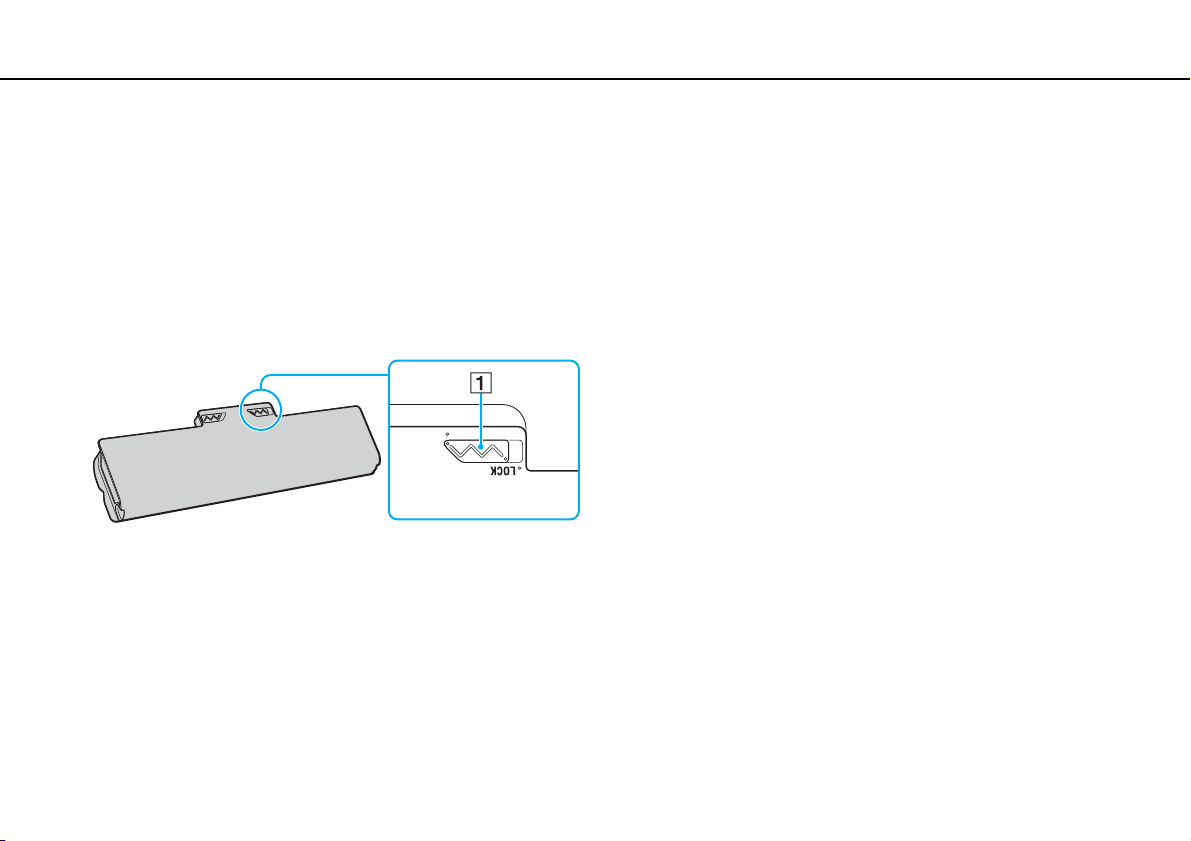
To install the battery pack
1 Turn off the computer and close the LCD screen lid.
2 Slide the battery LOCK switch (1) inward.
23
nN
Getting Started >
Using the Battery Pack
Charging the Battery Pack
The battery pack supplied with your computer is not fully charged at the time of delivery.
To charge the battery pack
1 Install the battery pack.
2 Connect the computer to a power source with the AC adapter.
The charge indicator light is on while the battery pack is charging. When the battery pack charges close to the maximum
charge level you selected, the charge indicator turns off.
!
Charge the battery pack as described in this manual from your first battery charge.
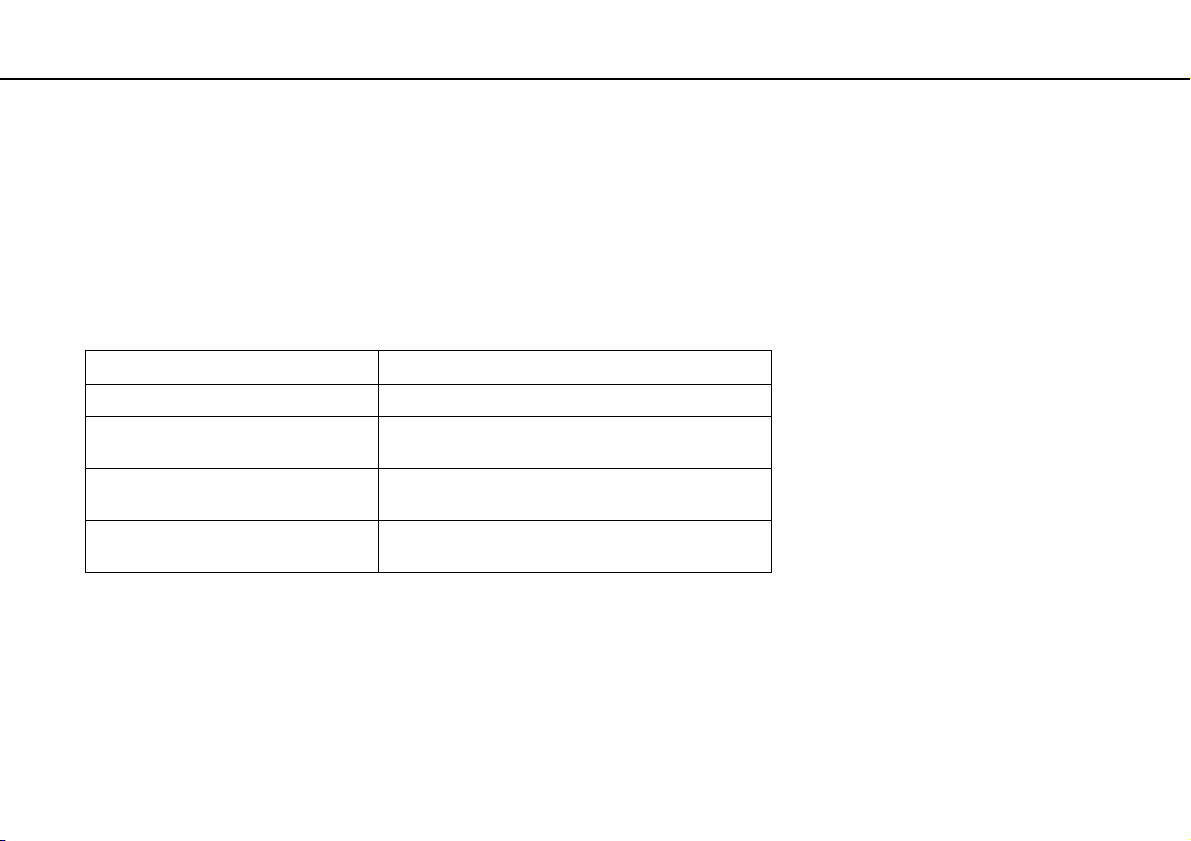
Charge indicator status Meaning
Lit in orange The battery pack is charging.
Blinks along with the green
power indicator
The battery pack is running out of power.
(Normal mode)
Blinks along with the orange
power indicator
The battery pack is running out of power.
(Sleep mode)
Blinks fast in orange A battery error has occurred due to a failed battery
pack or an unlocked battery pack.

24
nN
Getting Started >
Using the Battery Pack
✍
Keep the battery pack in your computer while it is directly connected to an AC power source. The battery pack continues to charge while you are using
the computer.
When the battery pack is running out of power and both the charge and power indicator lights blink, you should either connect the AC adapter to
recharge the battery pack or shut down your computer and install a fully charged battery pack.
Your computer is supplied with a lithium ion battery pack and can be recharged any time. Charging a partially discharged battery pack does not affect
the life of battery.
While some software applications or peripheral devices are in use, your computer may not enter Hibernate mode even when the remaining battery life
becomes short. To avoid loss of data while the computer is running on the battery, you should save your data frequently and manually activate a power
management mode, such as Sleep or Hibernate.
If the battery pack runs out of power while the computer is in Sleep mode, you will lose all unsaved data. Going back to the previous work state is
impossible. To avoid loss of data, you should save your data frequently.

25
nN
Getting Started >
Using the Battery Pack
Checking the Battery Charge Capacity
The battery charge capacity gradually decreases as the number of battery charging increases or the duration of use of the
battery pack extends. To get the most out of the battery pack, check the battery charge capacity and change the battery
settings.
To check the battery charge capacity
1 Click Start, All Programs, and VAIO Control Center.
2 Click Power Management and Battery.
✍
Additionally, you can enable the battery care function to extend the life of the battery pack.

30
nN
Getting Started >
Using the Power Saving Modes
Using Hibernate Mode
To activate Hibernate mode
Press the Fn+F12 keys.
Alternatively, you can click Start, the arrow next to the Shut down button, and Hibernate.
!
Do not move your computer before its power indicator light turns off.
To return to Normal mode
Press the power button.
!
If you press and hold the power button for more than four seconds, your computer will turn off automatically.

36
nN
Using Your VAIO Computer >
Using the Touch Pad
Using the Touch Pad
You can point to, select, drag, and scroll objects on the screen using the touch pad.
✍
You can disable/enable the touch pad while a mouse is connected to your computer. To change the touch pad settings, use the VAIO Control Center.
!
Be sure to connect a mouse before disabling the touch pad. If you disable the touch pad before connecting a mouse, you will be able to use only the
keyboard for pointer operations.
Action Description
Point Slide your finger on the touch pad (1) to place the pointer (2) on an item or object.
Click Press the left button (3) once.
Double-click Press the left button twice in a row.
Right-click Press the right button (4) once. With many applications, this action displays a context-sensitive shortcut menu (if any).
Drag Slide your finger on the touch pad while pressing the left button.
Scroll Slide your finger along the right edge of the touch pad to scroll vertically. Slide your finger along the bottom edge to scroll
horizontally. Once vertical or horizontal scrolling is engaged, you can move your finger in circles on the touch pad to
keep scrolling without taking the finger off the touch pad (the scroll function is available only with applications that
support a touch pad scroll feature).
Flick Slide two fingers linearly in quick motion on the touch pad. On web browser software or image viewer software, you can
flick left to move backward and flick right to move forward.
Pinch With some software applications, you can pinch on the touch pad with two fingers for zooming. Pinch open to zoom in
or pinch close to zoom out.

37
nN
Using Your VAIO Computer >
Using Special-function Buttons
Using Special-function Buttons
Your computer is equipped with special buttons to help you use specific functions of the computer.
Special-function button Functions
VAIO button
Launches the Media Gallery or turns the volume on and off, depending on your model.
ASSIST button
*
Launches the VAIO Care while the computer is in Normal mode or Sleep mode.
While the computer is off or in Hibernate mode, the ASSIST button launches the VAIO Recovery Center.
Intel
®
Wireless Display button
*
Launches the Intel
®
Wireless Display. When used with a wireless display adapter unit (not supplied), you
can wirelessly connect your computer with a TV or projector.
Z Drive eject button Ejects the drive tray.
* Your computer is equipped with either of the buttons.
39
nN
Using Your VAIO Computer >
Using the Optical Disc Drive
Using the Optical Disc Drive
Your computer is equipped with an optical disc drive.
Some features and options in this section may not be available on your computer.
See the specifications to find out about the configuration of your computer.
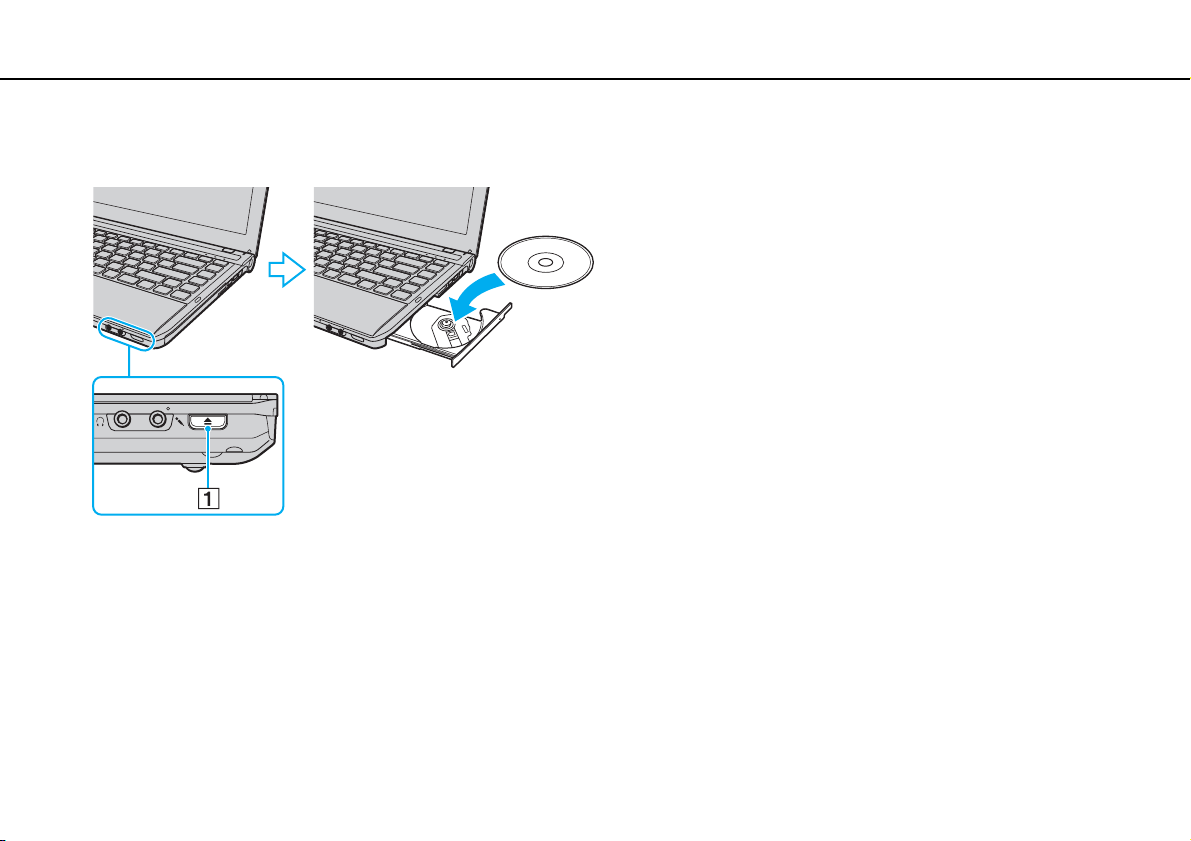
To insert a disc
1 Turn on the computer.
2 Press the drive eject button (1) to open the drive.
The drive tray slides out.
40
nN
Using Your VAIO Computer >
Using the Optical Disc Drive
3 Place a disc in the middle of the drive tray with the label side facing upward and gently push it down until the disc clicks
into place.
!
Do not exert pressure on the drive tray. Be sure to hold the bottom of the drive tray when placing/removing a disc onto/from the tray.
4 Close the drive tray by pushing it in gently.
!
Do not remove the optical disc while your computer is in a power saving mode (Sleep or Hibernate). Be sure to bring the computer back into Normal
mode before removing the disc.

42
nN
Using Your VAIO Computer >
Using the Optical Disc Drive
!
This unit is designed to playback discs that conform to the Compact Disc (CD) standard. DualDiscs and some music discs encoded with copyright
protection technologies do not conform to the Compact Disc (CD) standard. Therefore, these discs may not be compatible with this unit.
When you buy pre-recorded or blank discs for use with your VAIO computer, be sure to read the notices on the disc package carefully to check both
playback and recording compatibility with your computer's optical disc drives. Sony does NOT guarantee the compatibility of VAIO optical disc drives
with discs that are not compliant with the official "CD," "DVD," or "Blu-ray Disc" standard. USING NON-COMPLIANT DISCS CAN CAUSE FATAL DAMAGE
TO YOUR VAIO PC OR CREATE SOFTWARE CONFLICTS AND CAUSE SYSTEM HANGING.
For inquiries about disc formats, contact the individual publisher of the pre-recorded disc or the manufacturer of the recordable disc.
✍
8 cm disc writing is not supported.
!
To play copyright protected Blu-ray Disc media continually, update the AACS key. The AACS key update requires Internet access.
As with other optical media devices, circumstances may limit compatibility or prevent Blu-ray Disc media playback. VAIO computers may not support
movie playback on packaged media recorded in AVC or VC1 formats at high bit rates.
Region settings are required for some contents of DVD and BD-ROM Disc media. If the region setting on the optical disc drive does not match the
region coding on the disc, playback is not possible.
Unless your external display is compliant with the High-bandwidth Digital Content Protection (HDCP) standard, you cannot play or view the contents
of copyright protected Blu-ray Disc media.
Some content may restrict video output to standard definition or prohibit analog video output. When you output video signals through digital
connections, such as an HDMI connection or a DVI connection, it is strongly recommended that a digital HDCP compliant environment be implemented
for optimum compatibility and viewing quality.
Exit all memory-resident utility software before playing or writing a disc as it may cause the computer to malfunction.

43
nN
Using Your VAIO Computer >
Using the Optical Disc Drive
Notes on Using the Optical Disc Drive
Notes on writing data to a disc
❑ Only use circular discs. Do not use discs in any other shape (star, heart, card, etc.), as this may damage the optical disc
drive.
❑ Do not strike or shake your computer while the optical disc drive is writing data to a disc.
❑ Do not plug or unplug the power cord or the AC adapter while the optical disc drive is writing data to a disc.
❑ Do not attach or disconnect your computer to or from the docking station
*
(optional) while the optical disc drive is writing
data to a disc.
* Available only for models with a docking station connector. See the specifications to find out whether your model has the docking station connector.
Notes on playing discs
To achieve optimum performance of disc playback, you should follow these recommendations:
❑ Some CD players and computer optical disc drives may not be able to play audio CDs created with the CD-R or CD-RW
media.
❑ Some DVD players and computer optical disc drives may not be able to play DVDs created with the DVD+R DL, DVD-R
DL, DVD+R, DVD+RW, DVD-R, DVD-RW, or DVD-RAM media.
❑ Depending on system environment, you may find sound interruptions and/or dropped frames during AVC HD playback.
❑ Do not place your computer into either of the power saving modes while your computer is playing a disc.

46
nN
Using Your VAIO Computer >
Using "Memory Stick"
Using "Memory Stick"
"Memory Stick" is a compact, portable, and versatile IC recording media especially designed for exchanging and sharing
digital data with compatible products, such as digital cameras, mobile phones, and other devices. Because it is removable,
it can be used for external data storage.
Before You Use "Memory Stick"
The "Memory Stick Duo" slot on your computer can accommodate the following sizes and types of media:
❑ "Memory Stick Duo"
❑ "Memory Stick PRO Duo"
❑ "Memory Stick PRO-HG Duo"
!
Your computer supports only Duo-size "Memory stick", and does not support standard-size "Memory Stick".
For the latest information about "Memory Stick", visit [memorystick.com] at http://www.memorystick.com/en/.

47
nN
Using Your VAIO Computer >
Using "Memory Stick"
Inserting and Removing "Memory Stick"
To insert "Memory Stick"
1 Locate the "Memory Stick Duo" slot.
2 Hold "Memory Stick" with the arrow facing upward and pointing toward the slot.
3 Carefully slide "Memory Stick" into the slot until it clicks into place.
Do not force the media into the slot.
✍
If "Memory Stick" does not go into the slot easily, remove it gently and verify you are inserting it in the proper direction.
"Memory Stick" is automatically detected by your system and the contents of "Memory Stick" are displayed. If nothing appears on the desktop, click
Start, Computer, and double-click the "Memory Stick" icon.
The "Memory Stick" icon will appear in the Computer window after you insert "Memory Stick" into the slot.


54
nN
Using Your VAIO Computer >
Using Other Modules / Memory Cards
To remove an ExpressCard module
!
Insert the ExpressCard slot protector to block any particles from entering the slot when not using an ExpressCard module. Before moving your
computer, be sure to insert the ExpressCard slot protector into the slot.
✍
You can skip steps 1 to 4 when:
- your computer is off.
- the Safely Remove Hardware icon is not displayed on the taskbar.
- the hardware you want to unplug is not displayed in the Safely Remove Hardware window.
1 Locate the ExpressCard slot.
2 Click the Safely Remove Hardware and Eject Media icon on the taskbar.
3 Select the hardware you want to unplug.
4 Follow the on-screen instructions for removing the ExpressCard module.
5 Push in the ExpressCard module toward the computer so that the module pops out.
6 Gently take hold of the ExpressCard module and pull it out of the slot.

57
nN
Using Your VAIO Computer >
Using Other Modules / Memory Cards
To remove an SD memory card
1 Locate the SD memory card slot.
2 Check that the Media Access indicator light is unlit.
3 Push in the SD memory card toward the computer and release.
The SD memory card ejects.
4 Pull the SD memory card out of the slot.

59
nN
Using Your VAIO Computer >
Using the Internet
Using the Internet
Before using the Internet, you need to sign up with an Internet Service Provider (ISP) and set up devices required for
connecting your computer to the Internet.
The following types of Internet connection services may be available from your ISP:
❑ Fiber to the Home (FTTH)
❑ Digital Subscriber Line (DSL)
❑ Cable modem
❑ Satellite
❑ Dial-up
For detailed information on devices required for Internet access and how to connect your computer to the Internet, ask your
ISP.
✍
To connect your computer to the Internet using the wireless LAN function, you need to set up the wireless LAN network. See Using the Wireless LAN
(page 61) for more information.
!
When you connect your computer to the Internet, be sure to take appropriate security measures to protect the computer against online threats.
Depending on the service contract with your ISP, you may need to connect an external modem device, for example a USB telephone modem, a DSL
modem, or a cable modem, to your computer to connect to the Internet. For detailed instructions on connection setups and modem configuration, see
the manual that came with your modem.

63
nN
Using Your VAIO Computer >
Using the Wireless LAN
Note on the data encryption
The WLAN standard includes the encryption methods: Wired Equivalent Privacy (WEP), which is a security protocol, Wi-Fi
Protected Access 2 (WPA2), and Wi-Fi Protected Access (WPA). Proposed jointly by the IEEE and Wi-Fi Alliance, both WPA2
and WPA are specifications of standards based on interoperable security enhancements that increase the level of data
protection and access control for existing Wi-Fi networks. WPA is designed to be forward compatible with the IEEE 802.11i
specification. It utilizes the enhanced data encryption Temporal Key Integrity Protocol (TKIP) in addition to user authentication
using 802.1X and Extensible Authentication Protocol (EAP). Data encryption protects the vulnerable wireless link between
clients and access points. Besides that, there are other typical LAN security mechanisms to ensure privacy, such as:
password protection, end-to-end encryption, virtual private networks, and authentication. WPA2, the second generation of
WPA, provides stronger data protection and network access control and is also designed to secure all versions of 802.11
devices, including 802.11b, 802.11a, 802.11g, and 802.11n standards, multi-band and multi-mode. In addition, based on the
ratified IEEE 802.11i standard, WPA2 provides government grade security by implementing the National Institute of
Standards and Technology (NIST) FIPS 140-2 compliant AES encryption algorithm and 802.1X-based authentication. WPA2
is backward compatible with WPA.

65
nN
Using Your VAIO Computer >
Using the Bluetooth Function
Using the Bluetooth Function
You can establish wireless communications between your computer and other Bluetooth devices such as another computer
or a mobile phone. You can transfer data between these devices without cables at a range of up to 33 feet / 10 meters in an
open area.
To use the Bluetooth function
!
Be sure to turn on the WIRELESS switch before starting the Bluetooth function.
To use the Bluetooth function, you first need to set up the Bluetooth function.
Use the SmartWi Connection Utility to set up the Bluetooth function. See the SmartWi Connection Utility Help for more
information.
To access this on-screen guide:
1 Click Start, All Programs, and SmartWi Connection Utility.
2 Click SmartWi Connection Utility Help.

72
nN
Using Your VAIO Computer >
Using Fingerprint Authentication
Registering a Fingerprint
To use the fingerprint authentication function, you must register your fingerprint(s) in your computer.
✍
Set the Windows password on your computer before registration. See Setting the Windows Password (page 107) for the detailed instructions.
To register a fingerprint
1 Click Start, All Programs, Protector Suite, and Control Center.
2 Read an end user license agreement thoroughly and click Accept.
3 Follow the on-screen instructions.
✍
For detailed information, see the help file.


75
nN
Using Your VAIO Computer >
Using Fingerprint Authentication
Logging Onto Your System
To use the fingerprint authentication function in place of a password entry to log onto your system, you need to set the power-
on, hard disk, and Windows passwords and configure your computer for fingerprint authentication.
For setting the power-on, hard disk, and Windows passwords, see Setting the Password (page 101).
For detailed information, see the help file included with the Protector Suite.
Logging onto Windows
If you have registered your fingerprints for your user account, you can substitute fingerprint authentication for Windows
password entry. To log onto Windows, swipe the registered finger across the fingerprint sensor when the Windows log-on
screen appears.
Power-on Security feature
If you have set the power-on password (page 103) and/or the hard disk password (page 109), you can substitute fingerprint
authentication for password entry when starting your computer.

79
nN
Using Peripheral Devices >
Connecting a Docking Station
Locating Ports on the Docking Station
!
The docking station can be powered only through the AC adapter supplied with the docking station. Do not unplug the AC adapter from the docking
station and the AC outlet while using the docking station. This may cause data damage or hardware malfunctions.
Simultaneous use of the HDMI output port on your computer and the DVI-D port or the MONITOR port on the docking station is not possible.
A DC IN indicator
Illuminates while the docking station is powered.
B IN USE indicator (page 83)
C UNDOCK button (page 83)
D DC IN port (page 80)
E USB ports
*1
(page 96)
F Network (LAN) port (1000BASE-T / 100BASE-TX / 10BASE-T)
G DVI-D port
*2
(page 87)
H MONITOR port (page 87)
*1
Compliant with the USB 2.0 standard and support high-/full-/low- speeds.
*2
Functional only on models with the NVIDIA video controller.

80
nN
Using Peripheral Devices >
Connecting a Docking Station
Attaching Your Computer to the Docking Station
!
Be sure to install the battery pack before attaching your computer to the docking station.
To attach your computer to the docking station
!
Be sure to use the AC adapter supplied with the docking station.
Do not move your computer when it is attached to the docking station. This may detach the docking station and cause damage to both units.
1 Disconnect all peripherals from the computer.
2 Plug one end of the power cord (1) into the AC adapter (2) and the other end into an AC outlet.
3 Plug the cable connected to the AC adapter (2) into the DC IN port (3) on the docking station (4).



83
nN
Using Peripheral Devices >
Connecting a Docking Station
Disconnecting Your Computer from the Docking Station
!
Make sure that no devices connected to the docking station are in use before disconnecting your computer.
Do not disconnect your computer from the docking station while the IN USE indicator light is lit. Disconnecting the computer while the IN USE indicator
is lit may result in loss of unsaved data or a failure of the computer.
When the battery pack is running out of power, disconnecting your computer from the docking station may result in loss of unsaved data.
Do not disconnect your computer from the docking station during video playback. Be sure to close video playback software before disconnection.
Once you have completed the steps in To disconnect your computer from the docking station (page 84), be sure to take your computer off the docking
station. Use of the computer while on the docking station may cause unstable operations.
85
nN
Using Peripheral Devices >
Connecting a Docking Station
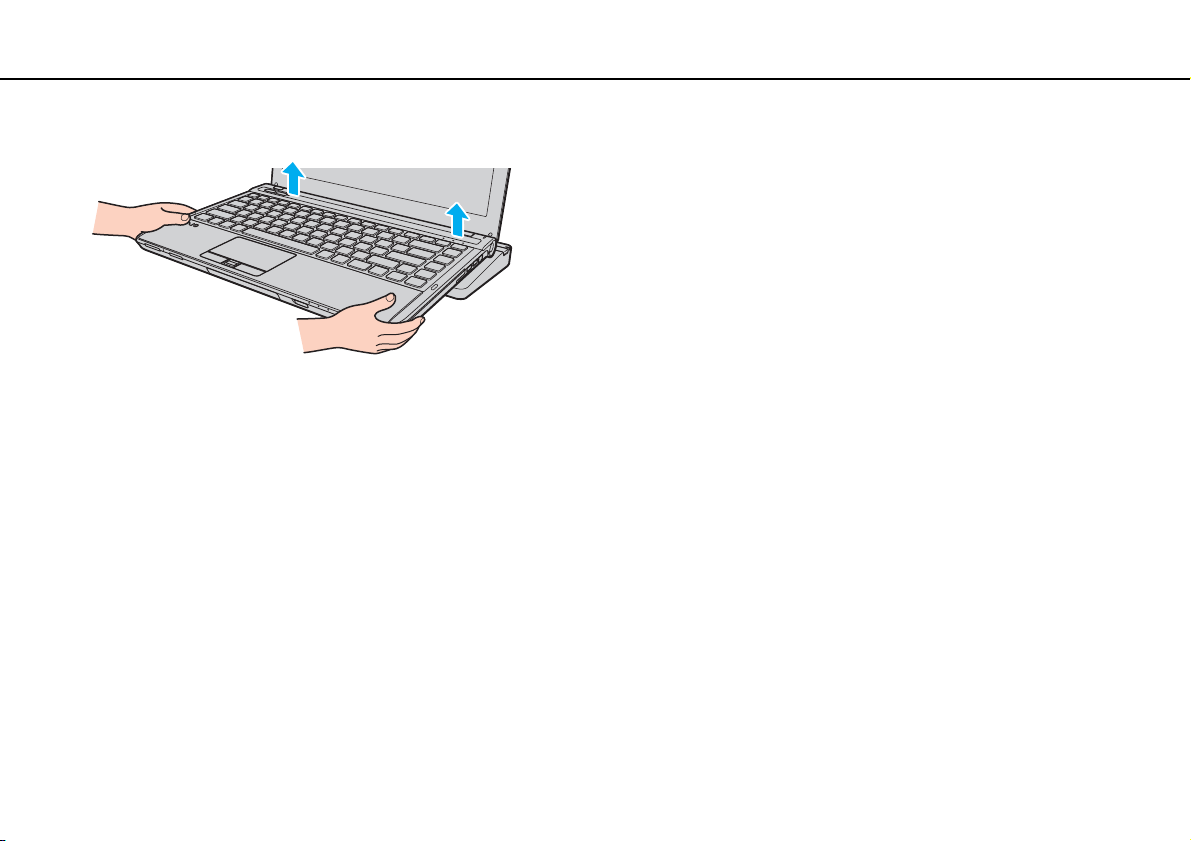
2 Lift the computer off the docking station.
3 Close the docking station connector cover on the bottom of the computer.
Alternatively, you can disconnect the computer from the docking station as follows:
1 Click Start, the arrow next to the Shut down button, and Undock.
2 Make sure that a message balloon appears and the IN USE indicator light turns off. Then lift the computer off the docking
station.
3 Close the docking station connector cover on the bottom of the computer.
!
It is extremely important that you close the docking station connector cover after disconnecting your computer from the docking station. If the cover
is left open, dust may get inside and damage the computer.
✍
To disconnect the docking station completely from AC power, unplug the AC adapter.

89
nN
Using Peripheral Devices >
Connecting an External Display
!
Your computer is compliant with the HDCP standard and capable of encrypting the transmission channel of digital video signals for the purpose of
copyright protection, which enables you to play and view a wide variety of copyright protected and high-quality content. To view the copyright protected
content, connect an HDCP-compliant monitor to the HDMI output port on your computer or the DVI-D port on the docking station. If your computer
has a non-compliant monitor connected, you will not be able to play or view any copyright protected content.
✍
If the external computer display is equipped with an HDMI input port and the computer is equipped with the HDMI output port, plug one end of an HDMI
cable into the HDMI output port on the computer and the other end into the HDMI input port on the computer display.
If your computer is equipped with the HDMI output port, use an HDMI to DVI-D adapter to connect a TFT/DVI monitor, or use the display cable to connect
the TFT/DVI monitor to the DVI-D port on the docking station.
DVI-D stands for Digital Visual Interface - Digital. It is a type of DVI port that supports only digital video signals (no analog video signals). It has 24 pins.
A DVI-I (Digital Visual Interface - Integrated) port supports digital video and analog video signals. It has 29 pins.
The HDMI cable carries both video and audio signals.

90
nN
Using Peripheral Devices >
Connecting an External Display
Connecting a TV with an HDMI Input Port
You can connect a TV with an HDMI input port to your computer.
To connect a TV to your computer
!
To hear sound from the device connected to the HDMI output port, you need to change the device for sound output. For detailed instructions, see How
do I change the sound output device? (page 177).
1 Plug the power cord of your TV (1) into an AC outlet.
2 Plug one end of an HDMI cable (2) to the HDMI output port (3) on the computer and the other end to the TV.
3 Switch the input channel of the TV to external input.
4 Set up the TV configuration system.
!
If a device driver other than the one provided by Sony is used, the image will not be displayed and the audio will not be heard. Always use the device
driver provided by Sony for updates.

91
nN
Using Peripheral Devices >
Connecting an External Display
✍
See the manual that came with your TV for more information on installation and use.
The HDMI cable carries both video and audio signals.
To connect a high-quality digital sound output device between your computer and a TV
You can connect a high-quality home theater receiver or other surround sound decoder devices between your computer and
TV using an HDMI connection.
!
Before connecting the device to the computer, make sure the HDMI connection has been set up between the TV and the home theater receiver or
surround sound decoder device first.
To hear sound from the device connected to the HDMI output port, you need to change the device for sound output. For detailed instructions, see How
do I change the sound output device? (page 177).
1 Turn on the TV and set its input to the HDMI input.
2 Turn on the home theater receiver or surround sound decoder device and set its input to the HDMI input.
3 Plug one end of an HDMI cable to the HDMI input port on the home theater receiver or surround sound decoder device
and the other end to the HDMI output port on the computer.
✍
You can adjust the screen resolution of the connected TV with your computer. See Why doesn't my screen display a video? (page 168) for more
information.
With the HDMI connection, the volume can be adjusted by the connected audio device only. Your computer has no control over the output volume of
any connected devices.

95
nN
Using Peripheral Devices >
Connecting an External Microphone
Connecting an External Microphone
You can connect an external microphone (not supplied) to your computer.
To connect an external microphone
Plug the microphone cable (1) into the microphone jack (2) m.
✍
Make sure your microphone is designed for computer use.

96
nN
Using Peripheral Devices >
Connecting a USB Device
Connecting a USB Device
You can connect a Universal Serial Bus (USB) device to your computer, such as a mouse, floppy disk drive, speaker, and
printer.
To connect a USB device
1 Choose the USB port (1) you prefer to use.
2 Plug the USB device cable (2) into the USB port.

97
nN
Using Peripheral Devices >
Connecting a USB Device
Notes on connecting a USB device
❑ You may need to install the driver software supplied with your USB device before use. See the manual that came with the
USB device for more information.
❑ Be sure to use a USB printer compatible with your version of Windows to print documents.
❑ For information on how to remove a USB device, see the manual that came with the device.
❑ To protect your computer and/or USB devices from damage, observe the following:
❑ When moving the computer with USB devices connected, avoid exposing the USB ports to shock or impact.
❑ Do not put the computer into a bag or carrying case when it has USB devices connected.
101
nN
Customizing Your VAIO Computer >
Setting the Password
Setting the Password
Setting the password allows you to protect your computer from unauthorized access by making the user enter the password
when the computer is turned on or returns to Normal mode from Sleep mode or Hibernate mode.
!
Do not to forget your password. Write down the password and keep it in a secure place.
Type of Password Description
Power-on password You can use BIOS functions to set two types of passwords:
- Machine password: Allows users with administrative rights to change all the setup options in the BIOS setup
screen, as well as to start the computer.
- User password: Allows the standard users to change some of the BIOS setup options, as well as to start the
computer. To set the user password, you must first set the machine password.
✍
Entry of the power-on password will be prompted after the VAIO logo appears to start your computer.
!
If you forget the machine password, the password needs to be reset and a fee will be charged. To reset the password,
contact an authorized Sony service/support center. To find the nearest center or agent, see Finding More about Your VAIO
Computer (page 5).
You can reset the user password at the BIOS setup screen by entering the machine password.
Windows password Allows users to log onto your computer and protect each user account with its own password.
✍
Entry of the Windows password will be prompted after you select your user account.

102
nN
Customizing Your VAIO Computer >
Setting the Password
✍
If your computer is equipped with a fingerprint sensor and you have set the password in conjunction with the fingerprint authentication function, you
can substitute fingerprint authentication for password entry when turning on your computer. For more information, see Using Fingerprint
Authentication (page 70).
Hard disk password Provides additional security for the data stored on your built-in storage device. Even if the password-protected
built-in storage device is removed from your computer and is installed in another computer, other users will
not be able to access the data without knowing the password.
✍
Entry of the hard disk password will be prompted along with the power-on password (if set), after the VAIO logo appears
to start your computer.
!
If you forget the hard disk password or the keyboard fails, which is critical to password entry, no bypass is possible and
the data stored on the built-in storage device will not be accessible. There is NO RESET of this password. You will have to
replace the built-in storage device at your own expense and lose all the data originally stored on the device.
Type of Password Description

104
nN
Customizing Your VAIO Computer >
Setting the Password
To add the power-on password (user password)
!
Make sure you set the machine password before setting the user password.
1 Turn on the computer.
2 Press the F2 key when the VAIO logo appears.
The BIOS setup screen appears. If the screen does not appear, restart the computer and press the F2 key several times
when the VAIO logo appears.
3 Enter the machine password and press the Enter key.
4 Press the < or , key to select Security to display the Security tab, select Set User Password, and then press the
Enter key.
5 On the password entry screen, enter the password twice and press the Enter key.
The password can be up to 32 alphanumeric characters long (including spaces).
6 Press the < or , key to select Exit, select Exit Setup, and then press the Enter key.
At the confirmation prompt, press the Enter key.

105
nN
Customizing Your VAIO Computer >
Setting the Password
To change or remove the power-on password (machine password)
1 Turn on the computer.
2 Press the F2 key when the VAIO logo appears.
The BIOS setup screen appears. If the screen does not appear, restart the computer and press the F2 key several times
when the VAIO logo appears.
3 Enter the machine password and press the Enter key.
4 Press the < or , key to select Security to display the Security tab, select Set Machine Password, and then press the
Enter key.
5 On the password entry screen, enter the current password once and a new password twice, and then press the Enter key.
To remove the password, leave the Enter New Password and Confirm New Password fields blank and press the Enter
key.
6 Press the < or , key to select Exit, select Exit Setup, and then press the Enter key.
At the confirmation prompt, press the Enter key.

109
nN
Customizing Your VAIO Computer >
Setting the Password
Setting the Hard Disk Password
To add the hard disk password
1 Turn on the computer.
2 Press the F2 key when the VAIO logo appears.
The BIOS setup screen appears. If the screen does not appear, restart the computer and press the F2 key several times
when the VAIO logo appears.
✍
If you have set the power-on password, enter your power-on password.
3 Press the < or , key to select Security to display the Security tab, select Hard Disk Password, and then press the
Enter key.
The Hard Disk Password entry screen appears.
4 Select Enter Master and User Passwords and press the Enter key.
5 Select Continue on the warning screen and press the Enter key.
6 Enter the master password twice and press the Enter key.
The password should be up to 32 alphanumeric characters long (including spaces).
7 Enter the user password twice and press the Enter key.
The password should be up to 32 alphanumeric characters long (including spaces).
8 At the confirmation prompt, press the Enter key.
9 Press the Esc key and then the < or , key to select the Exit tab.
10 Press the M or m key to select Exit Setup and press the Enter key.
At the confirmation prompt, press the Enter key.

110
nN
Customizing Your VAIO Computer >
Setting the Password
To change the hard disk password
1 Turn on the computer.
2 Press the F2 key when the VAIO logo appears.
The BIOS setup screen appears. If the screen does not appear, restart the computer and press the F2 key several times
when the VAIO logo appears.
✍
If you have set the power-on password, enter your power-on password.
3 Press the < or , key to select Security to display the Security tab, select Hard Disk Password, and then press the
Enter key.
The Hard Disk Password entry screen appears.
4 Select Change Master Password or Change User Password and press the Enter key.
5 Enter the current password once and then a new password twice.
6 Press the Enter key.
7 Press the Enter key when the success message appears.
8 Press the Esc key and then the < or , key to select the Exit tab.
9 Press the M or m key to select Exit Setup and press the Enter key.
At the confirmation prompt, press the Enter key.

111
nN
Customizing Your VAIO Computer >
Setting the Password
To remove the hard disk password
1 Turn on the computer.
2 Press the F2 key when the VAIO logo appears.
The BIOS setup screen appears. If the screen does not appear, restart the computer and press the F2 key several times
when the VAIO logo appears.
✍
If you have set the power-on password, enter your power-on password.
3 Press the < or , key to select Security to display the Security tab, select Hard Disk Password, and then press the
Enter key.
The Hard Disk Password entry screen appears.
4 Select Enter Master and User Passwords and press the Enter key.
5 Enter the current password for Enter Current Hard Disk Master Password and press the Enter key.
6 Press the Enter key without entering any letter for the remaining fields.
7 Press the Enter key when the success message appears.
8 Press the Esc key and then the < or , key to select the Exit tab.
9 Press the M or m key to select Exit Setup and press the Enter key.
At the confirmation prompt, press the Enter key.

115
nN
Customizing Your VAIO Computer >
Protecting the Hard Disk
Protecting the Hard Disk
If your computer is equipped with a built-in hard disk drive, then it has the VAIO HDD Protection utility preinstalled for
customizing your settings for protecting your hard disk drive against shock hazards. You can select the sensitivity level of the
built-in shock sensor to set the appropriate protection level.
See the specifications to find out about the configuration of your computer.
!
Be aware that the solid state drive is not included in the scope of the VAIO HDD Protection utility.
Activating VAIO HDD Protection
To protect your hard disk drive against shock hazards, you must first activate the VAIO HDD Protection.
To activate VAIO HDD Protection
1 Click Start, All Programs, and VAIO Control Center.
2 Click Security and Hard Disk Drive Protection Settings.
3 Select the Activate hard disk drive protection check box.
4 Select one of the desired sensitivity level.
5 Click OK.
For more information, see the help file included with the software.
!
The VAIO HDD Protection is designed to minimize possibilities of damage to hard disk drives and user data. It does not ensure 100% data protection
under any circumstances.
116
nN
Upgrading Your VAIO Computer >
Upgrading Your VAIO Computer
Your VAIO computer and memory modules use high precision components and electronic connectors technology. To avoid
invalidation of the warranty during your product warranty period, we recommend that:
❑ You should contact your dealer to install a new memory module.
❑ You should not install it yourself, if you are not familiar with upgrading memory on a computer.
❑ You should not touch the connectors or open the memory module compartment cover.
For assistance, contact an authorized Sony Service Center. To find the nearest center or agent, see Finding More about
Your VAIO Computer (page 5).
The type of module and the amount of memory installed on your computer may differ depending on the model you purchased.
See the specifications to find out about the configuration of your computer.

117
nN
Upgrading Your VAIO Computer >
Adding and Removing Memory
Adding and Removing Memory
If you want to expand the functionality of your computer, you can increase the amount of memory by installing optional
memory modules. Before you upgrade your computer's memory, read the notes and procedures in the following pages.
Notes on adding/removing memory modules
❑ Be sure to place your computer on a flat surface before adding or removing memory modules.
❑ Be careful when changing memory. Improper installation of memory modules may cause damage to your system. This
damage may void your manufacturer's warranty.
❑ Only use memory modules that are compatible with your computer. If a memory module is not detected by the computer
or the Windows operating system becomes unstable, contact the sales dealer or the manufacturer of your memory
module.
❑ Electrostatic discharge (ESD) can damage electronic components. Before touching a memory module, ensure the
following:
❑ The procedures described in this document assume user familiarity with the general terminology associated with
personal computers and with the safety practice and regulatory compliance requirements for using and modifying
electronic equipment.
❑ Turn off your computer and disconnect it from its power sources (battery pack and AC adapter) and from any
telecommunication links, networks, or modems before you remove any cover or panel from the computer. Failure to
do so may result in personal injury or equipment damage.
❑ ESD can damage memory modules and other components. Install the memory module only at an ESD workstation.
If such a station is not available, do not work in a carpeted area, and do not handle materials that produce or hold
static electricity (cellophane wrappers, for example). Ground yourself by maintaining contact with an unpainted metal
portion of the chassis while performing the procedure.

119
nN
Upgrading Your VAIO Computer >
Adding and Removing Memory
Removing and Installing a Memory Module
To change or add a memory module
1 Shut down the computer and disconnect all peripheral devices.
2 Unplug the computer and remove the battery pack.
3 Wait about an hour until the computer cools down.
4 Unscrew the screw (indicated by the arrow below) on the bottom of the computer and remove the memory module
compartment cover.
5 Touch a metal object to discharge static electricity.

120
nN
Upgrading Your VAIO Computer >
Adding and Removing Memory
6 Remove the currently installed memory module as follows:
❑ Pull the latches in the direction of the arrows (1).
The memory module is released.
❑ Make sure that the memory module tilts up and then pull it out in the direction of the arrow (2).
7 Remove the new memory module from its packaging.

121
nN
Upgrading Your VAIO Computer >
Adding and Removing Memory
8 Slide the memory module into the memory module slot and push it in until it clicks into place.
!
Do not touch any components on the motherboard other than the memory module.
If you want to install only one memory module, be sure to use the lower slot.
Be sure to insert the connector edge of the memory module into the slot while aligning the notch on the module with the small projection in the open
slot. Do not force the memory module into the slot in a wrong orientation, as it may cause damage to the slot and the module.
9 Replace the memory module compartment cover.
10 Tighten the screw on the bottom of the computer.
11 Reinstall the battery pack and turn on the computer.

123
nN
Precautions >
Precautions
This section describes safety guidelines and precautions to help you protect your VAIO computer from potential damage.
❑ Safety Information (page 124)
❑ Care and Maintenance Information (page 127)
❑ Handling Your Computer (page 128)
❑ Handling the LCD Screen (page 130)
❑ Using the Power Source (page 131)
❑ Handling the Built-in Camera (page 132)
❑ Handling Discs (page 133)
❑ Using the Battery Pack (page 134)
❑ Handling "Memory Stick" (page 135)
❑ Handling the Built-in Storage Device (page 136)
❑ Using Fingerprint Authentication (page 137)

126
nN
Precautions >
Safety Information
Headphones
❑ Road safety – Do not use headphones while driving, cycling, or operating any motorized vehicle. It may create a traffic
hazard and is illegal in some areas. It can also be potentially dangerous to play loud music while walking, especially at
pedestrian crossings.
❑ Preventing hearing damage – Avoid using headphones at high volume. Hearing experts advise against continuous, loud
and extended play. If you experience a ringing in your ears, reduce the volume or discontinue use.
"Memory Stick"
Keep "Memory Stick" and "Memory Stick" adaptors out of reach of children. There is a risk of swallowing them.

127
nN
Precautions >
Care and Maintenance Information
Care and Maintenance Information
Computer
❑ Clean the cabinet with a soft, dry or lightly moistened cloth with a mild detergent solution. Do not use an abrasive pad,
scouring powder, or solvent such as alcohol or benzine, as these may damage the finish of your computer.
❑ Make sure you unplug the AC adapter and remove the battery pack before cleaning your computer.
LCD Screen
Use a soft, dry cloth to wipe the surface of the LCD screen. Rubbing the surface could damage the screen.
Built-in Camera
Clean the lens protection cover of the built-in camera with a blower brush or a soft brush. If the cover is extremely dirty, wipe
it off with a soft dry cloth. Do not rub the cover, as it is sensitive to pressure.
Discs
❑ Proper care of the disc is essential to its continuous reliability. Do not use solvents (such as benzine, thinner, alcohol,
commercially available cleaners, or anti-static spray) which may cause damage to the disc.
❑ For normal cleaning, hold the disc by its edges and use a soft cloth to wipe the surface from the center out.
❑ If the disc is badly soiled, moisten a soft cloth with water, wring it out well, and use it to wipe the surface of the disc from
the center out. Wipe off any remaining moisture with a dry soft cloth.
129
nN
Precautions >
Handling Your Computer
❑ To avoid losing data when your computer is damaged, back up your data regularly.
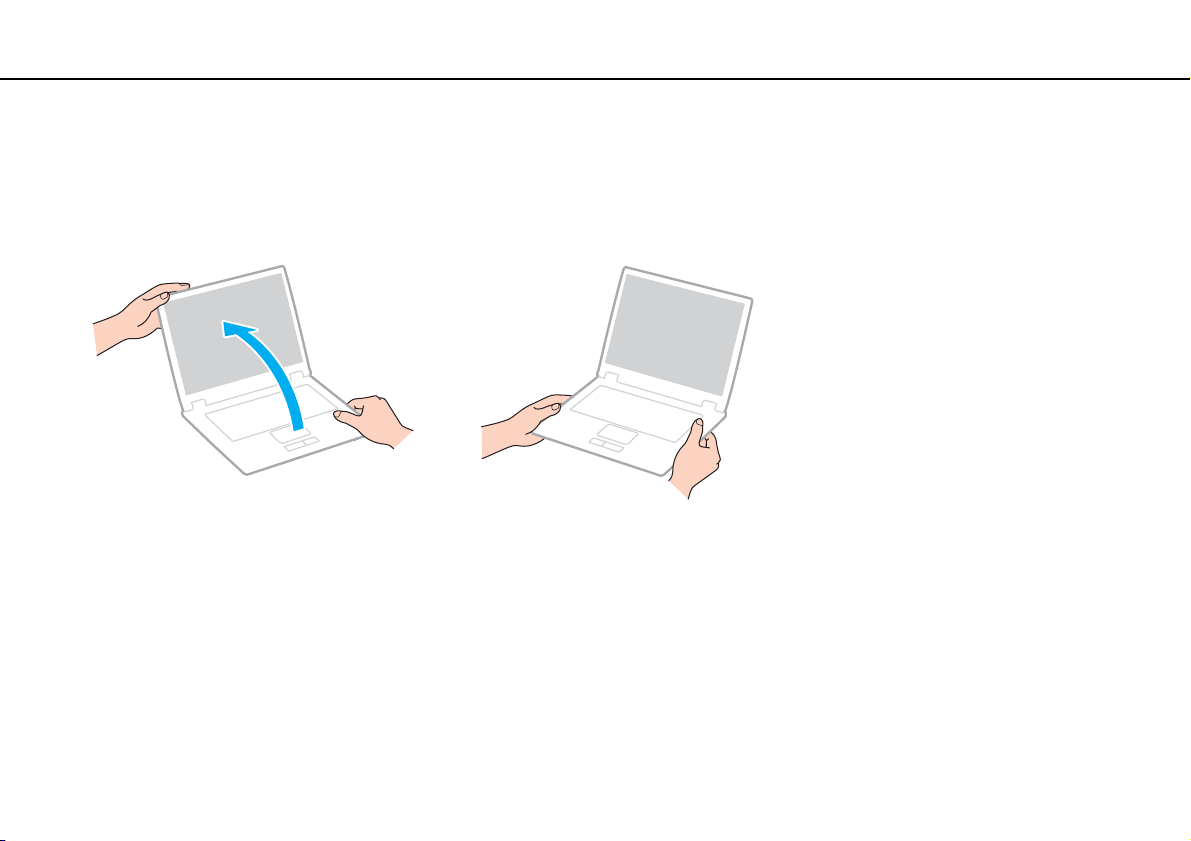
❑ Do not exert pressure on the LCD screen or its edges when opening the LCD screen lid or lifting your computer. The LCD
screen may be sensitive to pressure or added stress, and exerting pressure may damage the screen or cause it to
malfunction. To open the computer, hold the base with one hand and gently lift the LCD screen lid with the other. To carry
the computer with the lid open, be sure to hold the computer with both hands.
❑ Use a carrying case specially designed to carry your computer.

131
nN
Precautions >
Using the Power Source
Using the Power Source
See the specifications to find out about the configuration of your computer.
❑ Do not share the AC outlet with other power-consuming equipment, such as a photocopier or a shredder.
❑ You can purchase a power strip with a surge protector. This device helps prevent damage to your computer caused by
sudden power surges, in an electrical storm, for example.
❑ Use the AC adapter supplied with your computer or genuine Sony products. Do not use any other AC adapter as it may
cause a malfunction.

134
nN
Precautions >
Using the Battery Pack
Using the Battery Pack
❑ Battery life is shorter in a cold environment. This is due to decreased battery efficiency at low temperatures.
❑ Charge battery packs at temperatures between 50°F / 10°C to 86°F / 30°C. Lower temperatures require longer charging
time.
❑ Do not charge the battery pack in any way other than as described in this user guide or as designated by Sony in writing.
❑ While the battery pack is in use or being charged, heat builds up in the battery pack. This is normal and is not cause for
concern.
❑ You do not need to discharge the battery pack before recharging.
❑ If the battery pack quickly runs out of power after being fully charged, it may be reaching the end of its life and should be
replaced.


140
nN
Troubleshooting >
Computer Operations
Computer Operations
What should I do if my computer does not start?
❑ Make sure your computer is securely plugged into a power source and turned on and the power indicator light is lit.
❑ Make sure the battery pack is installed properly and charged.
❑ Disconnect all connected USB devices (if any), and then restart your computer.
❑ Remove any extra memory modules you may have installed since purchase, and then restart your computer.
❑ If your computer is plugged into a power strip or an uninterruptible power supply (UPS), make sure the power strip or UPS
is plugged into a power source and turned on.
❑ If you are using an external display, make sure it is plugged into a power source and turned on. Make sure the brightness
and contrast controls are adjusted correctly. See the manual that came with your display for more information.
❑ Unplug the AC adapter and remove the battery pack. Wait three to five minutes. Reinstall the battery pack, plug the AC
adapter, and then press the power button to turn on your computer.
❑ Condensation may cause your computer to malfunction. If this occurs, do not use the computer for at least one hour.
❑ Check that you are using the supplied Sony AC adapter. For your safety, use only the genuine Sony rechargeable battery
pack and AC adapter, which are supplied by Sony for your VAIO computer.

141
nN
Troubleshooting >
Computer Operations
What should I do if the green power indicator light turns on but my screen remains blank?
❑ Press the Alt+F4 keys several times to close the application window. An application error may have occurred.
❑ If the Alt+F4 keys do not work, click Start, the arrow next to the Shut down button, and Restart to restart your computer.
❑ If your computer does not restart, press the Ctrl+Alt+Delete keys and click the arrow next to the Shut down
button and Restart.
If the Windows Security window appears, click Restart.
❑ If this procedure does not work, press and hold the power button for more than four seconds to shut down your computer.
Unplug the AC adapter and leave the computer for about five minutes. Then plug the AC adapter and turn on the computer
again.
!
Turning off your computer with the Ctrl+Alt+Delete keys or the power button may cause loss of unsaved data.

142
nN
Troubleshooting >
Computer Operations
What should I do if my computer or software stops responding?
❑ If your computer stops responding while a software application is running, press the Alt+F4 keys to close the application
window.
❑ If the Alt+F4 keys do not work, click Start and the Shut down button to turn off your computer.
❑ If your computer does not turn off, press the Ctrl+Alt+Delete keys and click the Shut down button.
If the Windows Security window appears, click Shut Down.
❑ If this procedure does not work, press and hold the power button until the computer turns off.
!
Turning off your computer with the Ctrl+Alt+Delete keys or the power button may cause loss of unsaved data.
❑ Unplug the AC adapter and remove the battery pack. Wait three to five minutes. Reinstall the battery pack, plug the AC
adapter, and then press the power button to turn on your computer.
❑ Try reinstalling the software.
❑ Contact the software publisher or designated provider for technical support.

144
nN
Troubleshooting >
Computer Operations
Why does the System Properties window display a slower CPU speed than the
maximum?
This is normal. Because your computer's CPU utilizes a type of CPU speed controlling technology for power conservation
purposes, System Properties may display the current CPU speed instead of the maximum speed.
What should I do if my computer does not accept my password and returns a message,
Enter Onetime Password?
If you enter a wrong power-on password three times consecutively, the Enter Onetime Password message appears and
Windows will not start. Press and hold the power button for more than four seconds to check that the power indicator light
turns off. Wait for 10 to 15 seconds, then restart your computer and enter the correct password. The password is case
sensitive, so be sure to check letters for the current case before you enter the password.
What should I do if my game software does not work or it keeps crashing?
❑ Check the web site of the game if there are any patches or updates to download.
❑ Make sure you have installed the latest video driver software.
❑ On some VAIO models, the graphics memory is shared with the system. The optimal graphic performance in such a case
is not guaranteed.
Why doesn't my screen turn off after the automatic turn-off time has passed?
Some software applications or screen savers are designed to temporarily disable the feature of your operating system that
turns off the computer screen or places the computer into Sleep mode after a certain period of inactivity. To solve this
problem, exit the running software application(s) or change the current screen saver.

145
nN
Troubleshooting >
Computer Operations
How can I change the boot device order?
You can use one of the BIOS functions to change the boot device order. Follow these steps:
1 Turn on your computer.
2 Press the F2 key when the VAIO logo appears.
The BIOS setup screen appears. If the screen does not appear, restart the computer and press the F2 key several times
when the VAIO logo appears.
3 Press the < or , key to select Boot.
4 Press the M or m key to select the drive whose boot device order you want to change.
5 Press the F5 or F6 key to change the boot device order.
6 Press the < or , key to select Exit, select Exit Setup, and then press the Enter key.
At the confirmation prompt, press the Enter key.
What should I do if I cannot boot my computer from the USB floppy disk drive connected
to the computer?
To boot your computer from the USB floppy disk drive, you need to change the boot device.
Turn on your computer and press the F11 key when the VAIO logo appears.

148
nN
Troubleshooting >
Recovery
Recovery
How can I create recovery discs?
You can create recovery discs using the VAIO Recovery Center. The discs are used to restore your computer system to its
factory default settings. For information on the VAIO Recovery Center, click VAIO Recovery Center User Guide under Use
my VAIO in Help and Support (page 5).
!
If your computer is not equipped with a built-in optical disc drive, you need to connect an external optical disc drive (not supplied).
How can I restore my computer system to its factory default settings?
There are two ways to recover your computer system: from recovery discs or from a recovery partition.
See the VAIO Recovery Center User Guide for more information. To access the VAIO Recovery Center User Guide, click
VAIO Recovery Center User Guide under Use my VAIO in Help and Support (page 5).
How can I reinstall the original software and drivers?
You can restore the preinstalled software and drivers using the VAIO Recovery Center. For information on the VAIO
Recovery Center, click VAIO Recovery Center User Guide under Use my VAIO in Help and Support (page 5).

149
nN
Troubleshooting >
Recovery
How do I check the volume of the recovery partition?
Your built-in storage device contains the recovery partition where the data for the system recovery is stored. To check the
volume of the recovery partition, follow these steps:
1 Click Start, right-click Computer, and select Manage.
2 Click Disk Management under Storage in the left pane.
The volume of the recovery partition and the total volume of the C drive are displayed in the Disk 0 row in the center pane.

153
nN
Troubleshooting >
Built-in Camera
Built-in Camera
Why does the viewfinder show no images or poor-quality images?
❑ The built-in camera cannot be shared by more than one software application. Exit the current application before launching
another.
❑ The viewfinder may show some noise, for example horizontal streaks, when you are viewing a rapid-moving object. This
is normal and does not indicate a malfunction.
❑ If the problem persists, restart your computer.
Why are captured images poor in quality?
❑ The images captured under the fluorescent light may show reflections of light.
❑ A dark portion in captured images may appear as a noise.
❑ If the lens protection cover is dirty, you cannot take a clear shot. Clean the cover. See Built-in Camera (page 127).
What should I do if captured images contain dropped frames and audio interruptions?
❑ The effect settings on your software application may cause dropped frames. See the help file included with your software
application for more information.
❑ There may be more software applications running than your computer can handle. Exit the applications that you are not
currently using.
❑ The power management function of your computer may be active. Check the CPU performance.

154
nN
Troubleshooting >
Built-in Camera
What should I do if movie playback shows dropped frames while my computer is running
on battery power?
The battery pack is running out of power. Connect your computer to an AC outlet.
What should I do if captured images flicker?
This problem occurs when you use the camera under fluorescent lights due to a mismatch between the lighting output
frequency and the shutter speed.
To reduce flicker noise, change the direction of the camera or the brightness of camera images. In some software
applications, you can set an appropriate value to one of the camera properties (e.g. light source, flicker, etc.) to eliminate
flicker noise.
Why is the video input from the built-in camera suspended for a few seconds?
The video input may be suspended for a few seconds if:
❑ a shortcut key with the Fn key is used.
❑ the CPU load increases.
This is normal and does not indicate a malfunction.
What should I do if my computer becomes unstable when it enters a power saving mode
while the built-in camera is in use?
If your computer automatically enters Sleep or Hibernate mode, change the corresponding power saving mode setting. To
change the setting, see Using the Power Saving Modes (page 28).

155
nN
Troubleshooting >
Networking (LAN/Wireless LAN)
Networking (LAN/Wireless LAN)
What should I do if my computer cannot connect to a wireless LAN access point?
❑ Connection capability is affected by distance and obstructions. You may need to move your computer away from
obstructions or closer to any access point you may be using.
❑ Make sure the WIRELESS switch is on and the WIRELESS indicator light is lit on your computer.
❑ Make sure power to the access point is on.
❑ Follow these steps to check the settings:
1 Click Start and Control Panel.
2 Click View network status and tasks under Network and Internet.
3 Click Connect to a network to confirm that your access point is selected.
❑ Make sure the encryption key is correct.
❑ Make sure Maximum Performance is selected for Wireless Adapter Settings in the Power Options window. Selecting
any other option may result in a communication failure. To change the settings, follow these steps:
1 Right-click the power status icon on the taskbar and select Power Options.
2 Click Change plan settings.
3 Click Change advanced power settings.
4 Select the Advanced settings tab.
5 Double-click Wireless Adapter Settings and Power Saving Mode.
6 Select Maximum Performance from the drop-down list both for On battery and Plugged in.

156
nN
Troubleshooting >
Networking (LAN/Wireless LAN)
What should I do if I cannot access the Internet?
❑ Check the access point settings. See the manual that came with your access point for more information.
❑ Make sure your computer and the access point are connected to one another.
❑ Move your computer away from obstacles or closer to any access point you may be using.
❑ Make sure your computer is properly configured for Internet access.
❑ Make sure Maximum Performance is selected for Wireless Adapter Settings in the Power Options window. Selecting
any other option may result in a communication failure. Follow the steps in What should I do if my computer cannot
connect to a wireless LAN access point? (page 155) to change the settings.
Why is the data transfer speed slow?
❑ The wireless LAN data transfer speed is affected by distance and obstructions between devices and access points. Other
factors include device configurations, radio conditions, and software compatibility. To maximize the data transfer speed,
move your computer away from obstacles or closer to any access point you may be using.
❑ If you are using a wireless LAN access point, the device may be temporarily overloaded depending on how many other
devices are communicating via the access point.
❑ If your access point interferes with other access points, change the access point channel. See the manual that came with
your access point for more information.
❑ Make sure Maximum Performance is selected for Wireless Adapter Settings in the Power Options window. Selecting
any other option may result in a communication failure. Follow the steps in What should I do if my computer cannot
connect to a wireless LAN access point? (page 155) to change the settings.

158
nN
Troubleshooting >
Bluetooth Technology
Bluetooth Technology
What should I do if other Bluetooth devices cannot find my computer?
❑ Make sure both devices have the Bluetooth function enabled.
❑ Make sure the WIRELESS switch is on and the WIRELESS indicator light is lit on your computer.
❑ You cannot use the Bluetooth function while your computer is in a power saving mode. Bring the computer back to Normal
mode, then turn on the WIRELESS switch.
❑ Your computer and the device may be too far apart. Wireless Bluetooth technology works best when the devices are within
33 feet / 10 meters of each other.
What should I do if I cannot find the Bluetooth device I want to communicate with?
❑ Check that the Bluetooth function of the device you want to communicate with is on. See the other device's manual for
more information.
❑ If the device you want to communicate with is already communicating with another Bluetooth device, it may not be found
or it may not be able to communicate with your computer.
❑ To allow other Bluetooth devices to communicate with your computer, follow these steps:
1 Click Start and Devices and Printers.
2 Right-click the Bluetooth device icon and click Bluetooth settings.
3 Click the Options tab and select the Allow Bluetooth devices to find this computer check box.

159
nN
Troubleshooting >
Bluetooth Technology
What should I do if other Bluetooth devices cannot connect to my computer?
❑ Check the suggestions in What should I do if I cannot find the Bluetooth device I want to communicate with? (page
158).
❑ Make sure the other devices are authenticated.
❑ The data transfer distance can be shorter than 33 feet / 10 meters depending on existing obstacles between the two
devices, on radio wave quality, and on the operating system or the software in use. Move your computer and Bluetooth
devices closer to each other.
Why is my Bluetooth connection slow?
❑ The data transfer speed depends on the obstructions and/or the distance between the two devices, on the radio wave
quality, and on the operating system or the software in use. Move your computer and Bluetooth devices closer to each
other.
❑ The 2.4 GHz radio frequency used by Bluetooth and wireless LAN devices is also used by other devices. Bluetooth
devices incorporate technology that minimizes interference from other devices using the same wavelength, however,
communication speed and connection range may be reduced. Interference from other devices may also stop
communications altogether.
❑ Connection capability is affected by distance and obstructions. You may need to move your computer away from obstacles
or closer to the device to which it is connected.
❑ Identify and remove obstacles between your computer and the device to which it is connected.
Why can't I use the services supported by the connected Bluetooth device?
Connection is only possible for services also supported by the computer with the Bluetooth function. For more details, search
Windows Help and Support for Bluetooth information.

162
nN
Troubleshooting >
Optical Discs
Optical Discs
Why does my computer freeze when I try to read a disc?
The disc that your computer is trying to read may be dirty or damaged. Follow these steps:
1 Press the Ctrl+Alt+Delete keys and click the arrow next to the Shut down button and Restart to restart the computer.
!
Turning off your computer with the Ctrl+Alt+Delete keys may cause loss of unsaved data.
2 Remove the disc from the optical disc drive.
3 Check the disc for dirt or damage. If you need to clean the disc, see Discs (page 127) for instructions.
What should I do if the drive tray does not open?
❑ Make sure your computer is on.
❑ Press the drive eject button.
❑ If the drive eject button does not work, click Start and Computer, right-click the optical disc drive icon, and select Eject.
❑ If none of the above options work, insert a thin, straight object (such as a paper clip) into the manual eject hole on the
optical disc drive.
❑ Try restarting your computer.

163
nN
Troubleshooting >
Optical Discs
What should I do if I cannot play a disc properly on my computer?
❑ Make sure the disc is inserted into the optical disc drive with the label facing upward.
❑ Make sure the necessary program(s) is installed according to the manufacturer's instructions.
❑ If a disc is dirty or damaged, your computer will stop responding. Follow these steps:
1 Press the Ctrl+Alt+Delete keys and click the arrow next to the Shut down button and Restart to restart the computer.
!
Turning off your computer with the Ctrl+Alt+Delete keys may cause loss of unsaved data.
2 Remove the disc from the optical disc drive.
3 Check the disc for dirt or damage. If you need to clean the disc, see Discs (page 127) for instructions.
❑ If you are playing a disc and cannot hear sound, do any of the following:
❑ The volume may have been turned off by the Fn+F2 keys. Press them once again.
❑ The volume may have been minimized by the Fn+F3 keys. Keep pressing the Fn+F4 keys to turn up the volume loud
enough to hear sound.
❑ Right-click the volume icon on the taskbar and click Open Volume Mixer to check the settings.
❑ Check the volume setting in the audio mixer.
❑ If you are using external speakers, check the volume settings on the speakers and the connections between the
speakers and your computer.

165
nN
Troubleshooting >
Optical Discs
What should I do if I cannot write data to CD media?
❑ Make sure you neither launch any software application nor allow any to launch automatically, not even a screen saver.
❑ If you are using a CD-R/RW disc with an adhesive label affixed, replace it with one with no affixed adhesive label. Using
a disc with an affixed adhesive label could cause a write error or other damage.
What should I do if I cannot write data to DVD media?
❑ Make sure you are using the correct DVD recordable media.
❑ Check which DVD recordable format is compatible with your optical disc drive. Some brands of DVD recordable media do
not work.
What should I do if my external optical disc drive does not work properly?
Make sure that your external optical disc drive is connected to an AC power source and the USB port on your computer. If it
is not connected, the external optical disc drive may not work properly.

166
nN
Troubleshooting >
Display
Display
Why did my screen go blank?
❑ Your computer screen may go blank if the computer loses power or enters a power saving mode (Sleep or Hibernate). If
the computer is in LCD (Video) Sleep mode, press any key to bring the computer back into Normal mode. See Using the
Power Saving Modes (page 28) for more information.
❑ Make sure your computer is securely plugged into a power source and turned on and the power indicator light is lit.
❑ If your computer is running on battery power, make sure the battery pack is installed properly and is charged. See Using
the Battery Pack (page 20) for more information.
❑ If the display output is directed to the external display, press the Fn+F7 keys. See Combinations and Functions with
the Fn Key (page 33) for more information.

167
nN
Troubleshooting >
Display
What should I do if I do not see proper images or videos?
❑ Be sure to select True Color (32 bit) for the display colors before using video/image software or starting DVD playback.
Selecting any other option may prevent such software from displaying images successfully. To change the display colors,
follow these steps:
1 Right-click on the desktop and select Screen resolution.
2 Click Advanced settings.
3 Click the Monitor tab.
4 Select True Color (32 bit) under Colors.
❑ Do not change the display resolution or colors while using video/image software or playing DVDs, as it may cause
unsuccessful playback/display or unstable system operations.
Additionally, it is recommended you disable your screen saver before starting DVD playback. If the screen saver is
enabled, it may be activated during DVD playback and prevent the playback from running successfully. Some screen
savers have been found to even change the display resolution and colors.

173
nN
Troubleshooting >
Speakers
What should I do if my external speakers do not work?
❑ Check the suggestions in What should I do if I do not hear sound from the built-in speakers? (page 172).
❑ If you are using a program that has its own volume control, make sure the volume control is properly set. See the
program's help file for more information.
❑ Make sure your speakers are properly connected and the volume is turned up loud enough to hear sound.
❑ Make sure your speakers are designed for computer use.
❑ If your speakers have a muting button, set the button to off.
❑ If your speakers require external power, make sure the speakers are connected to a power source. See the manual that
came with your speakers for more information.
❑ Check the Windows volume controls by clicking the volume icon on the taskbar.
❑ Your sound output device may have been incorrectly configured. To change the sound output device, see How do I
change the sound output device? (page 177).

175
nN
Troubleshooting >
Keyboard
Keyboard
What should I do if the keyboard configuration is wrong?
The language layout of your computer's keyboard is labeled on the packaging box. If you choose a different regional keyboard
when you complete the Windows setup, the key configuration will be mismatched.
To change the keyboard configuration, follow these steps:
1 Click Start and Control Panel.
2 Click Clock, Language, and Region, and then Change keyboards or other input methods under Region and
Language.
3 Click Change keyboards on the Keyboards and Languages tab.
4 Change the settings as desired.
What should I do if I cannot enter certain characters with the keyboard?
If you cannot enter U, I, O, P, J, K, L, M, and so on, the Num Lk key may be activated. Check that the Num lock indicator
light is unlit. If the Num lock indicator is lit, press the Num Lk key to turn it off before entering these characters.

176
nN
Troubleshooting >
Floppy Disks
Floppy Disks
Why doesn't the Safely Remove Hardware icon appear on the taskbar when the drive is
connected?
Your computer does not recognize the floppy disk drive. First, make sure the USB cable is properly connected to the USB
port. If you need to secure the connection, wait a few moments for the computer to recognize the drive. If the icon still does
not appear, follow these steps:
1 Close all programs that are accessing the floppy disk drive.
2 Wait until the indicator light on the floppy disk drive turns off.
3 Push the eject button to remove the disk, and unplug the USB floppy disk drive from your computer.
4 Reconnect the floppy disk drive by plugging the USB cable into the USB port.
5 Restart the computer by clicking Start, the arrow next to the Shut down button, and Restart.
What should I do if I cannot write data to a floppy disk?
❑ Make sure the floppy disk is properly inserted in the drive.
❑ If the disk is inserted properly and you are still unable to write data to it, the disk may be full or write-protected. You can
either use a floppy disk that is not write-protected or disable the write-protect feature.

177
nN
Troubleshooting >
Audio/Video
Audio/Video
What should I do if I cannot use my digital video camcorder?
If a message appears stating that the i.LINK device is disconnected or turned off, the i.LINK cable may not be securely
plugged into the port on your computer or camcorder. Unplug the cable, and plug it in once again. See Connecting an i.LINK
Device (page 98) for more information.
How do I turn off the Windows startup sound?
To turn off the Windows startup sound, follow these steps:
1 Click Start and Control Panel.
2 Click Hardware and Sound.
3 Click Manage audio devices under Sound.
4 On the Sounds tab, click to cancel the Play Windows Startup sound check box.
5 Click OK.
How do I change the sound output device?
If you do not hear sound from the device connected to a port, such as the USB port, HDMI output port, optical output port, or
headphones jack, you need to change the device for sound output.
1 Close all open programs.
2 Click Start and Control Panel.
3 Click Hardware and Sound.
4 Click Manage audio devices under Sound.
5 On the Playback tab, select your desired device for sound output and click Set Default.

179
nN
Troubleshooting >
"Memory Stick"
"Memory Stick"
What should I do if I cannot use "Memory Stick" that was formatted on a VAIO computer
on other devices?
You may need to reformat your "Memory Stick".
Formatting "Memory Stick" erases all data, including music data previously saved on it. Before you reformat "Memory Stick",
back up important data and confirm that "Memory Stick" does not contain files you want to keep.
1 Copy the data from "Memory Stick" onto your built-in storage device to save data or images.
2 Format "Memory Stick" by following the steps in Formatting "Memory Stick" (page 49).
Can I copy images from a digital camera using "Memory Stick"?
Yes, and you can view video clips that you have recorded with digital cameras that are compatible with "Memory Stick".
Why can't I write data to "Memory Stick"?
Some versions of "Memory Stick" are equipped with an erasure prevention switch to protect data from unintentional erasure
or overwriting. Make sure the erasure prevention switch is off.

180
nN
Troubleshooting >
Peripherals
Peripherals
What should I do if I cannot connect a USB device?
❑ If applicable, check the USB device is turned on and using its own power supply. For example, if you are using a digital
camera, check if the battery is charged. If you are using a printer, check if the power cable is connected properly to the
AC outlet.
❑ Try using another USB port on your computer. The driver software could be installed to the specific port you used the first
time you connected the device.
❑ See the manual that came with your USB device for more information. You may need to install software before you connect
the device.
❑ Try connecting a simple, low-powered device such as a mouse to test if the port is working at all.
❑ USB hubs may prevent a device from working because of a power distribution failure. We recommend you connect the
device directly to your computer without a hub.

181
nN
Troubleshooting >
Docking Station
Docking Station
What should I do if an error message appears when I disconnect my computer from the
docking station?
❑ When any device inserted or connected to the docking station is in use, you cannot disconnect your computer from the
docking station. Save unsaved data, exit applications that are using such devices, and then try again.
If the above does not work, shut down your computer and disconnect it from the docking station.
❑ When the battery pack is running out of power, you cannot disconnect your computer from the docking station. Charge
the battery pack or shut down the computer and then try again.
❑ Be sure to return to the originally logged on user before disconnecting your computer from the docking station.
Disconnecting it as any other user may cause malfunctions.
For switching users, see Windows Help and Support.

183
nN
Trademarks >
CompactFlash
®
is a trademark of SanDisk Corporation.
, "XMB," and "xross media bar" are trademarks of Sony Corporation and Sony Computer Entertainment Inc.
"TransferJet" and the "TransferJet" logo are trademarks of Sony Corporation.
AVCHD" is a trademark of Panasonic Corporation and Sony Corporation.
Dolby is a registered trademark of Dolby Laboratories.
Symantec, the Symantec Logo, and Norton Internet Security are trademarks or registered trademarks of Symantec
Corporation or its affiliates in the U.S. and other countries.
All other names of systems, products, and services are trademarks of their respective owners. In the manual, the ™ or ®
marks may not be specified.
Features and specifications are subject to change without notice. All other trademarks are trademarks of their respective
owners.

184
nN
Notice >
Notice
© 2010 Sony Corporation. All rights reserved.
This manual and the software described herein, in whole or in part, may not be reproduced, translated, or reduced to any
machine-readable form without prior written approval.
Sony Corporation provides no warranty with regard to this manual, the software, or other information contained herein and
hereby expressly disclaims any implied warranties or merchantability or fitness for any particular purpose with regard to this
manual, the software, or such other information. In no event shall Sony Corporation be liable for any incidental, consequential,
or special damages, whether based on tort, contract, or otherwise, arising out of or in connection with this manual, the
software, or other information contained herein or the use thereof.
In the manual, the ™ or ® marks are not specified.
Sony Corporation reserves the right to make any modification to this manual or the information contained herein at any time
without notice. The software described herein is governed by the terms of a separate user license agreement.
Sony Corporation is not liable and will not compensate for any lost recordings made to your computer, external recording
media, or recording devices or any relevant losses, including when recordings are not made due to reasons including your
computer failure, or when the contents of a recording are lost or damaged as a result of your computer failure or repair
undertaken to your computer. Sony Corporation will not restore, recover, or replicate the recorded contents made to your
computer, external recording media, or recording devices under any circumstances.