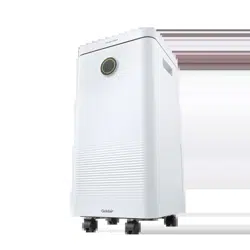
Operating Instructions
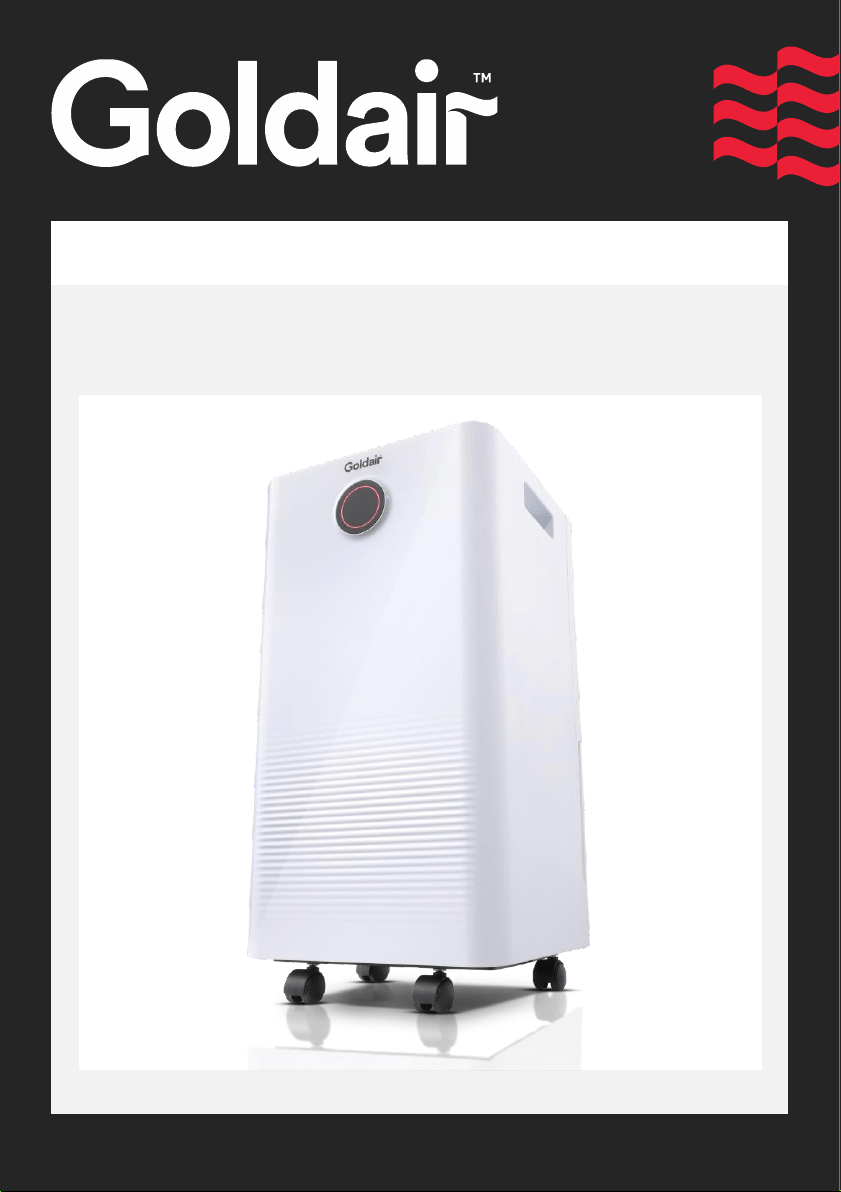
Model: GD290
12L Dehumidifier with WiFi

WiFi – Downloading and Setting up APP
This APP is supported only on 2.4GHz Wi-Fi channels. Please ensure your phone is
2.4GHz capable
Note this dehumidifier will only work within your home WIFI system.
This does not operate on 3G or 4G internet connections.
You will need a connection to your home Wi-Fi.
• Tap REGISTER near the bottom of the screen.
• Read and agree to the Privacy Policy.
• Add your email address.
• Tap “Obtain verification code”
You will then receive an email with a verification
code.
Download Goldair mobile APP
• Open the APP Store or Google Play on your mobile phone.
• Open “Search” and enter “Goldair"
• Click “GET” and begin to download and install.
Once downloaded to your phone open the APP
• Enter the verification code from your email.
• Create a password.
• Then tap confirm.
If you haven’t received a verification code via
email, tap the resend button and when the
verification code is received follow above steps.
Your APP is now registered and ready for pairing
to your dehumidifier.

Pairing APP to Dehumidifier
• On your phone tap “Add Device” to connect to the dehumidifier.
• Put the dehumidifier on standby mode (plugged in but power off) and
press the “Mode” button on the control panel for 5 seconds until the
WiFi symbol starts rapidly flashing.
• Tap “Confirm indicator rapidly blink” on your phone.
• Choose/confirm which WiFi to connect to.
Note: your phone may pick up other WiFi signals (e.g. neighbours) so you will need to choose.
• Enter your WiFi password
• The phone will then connect to the dehumidifier. Ensure you have a good strong signal from
your WiFi router.
Note: The WiFi indicator on the dehumidifier may go off during this pairing process.
• Once complete the screen showing the device has been successfully added will appear.
• Rename your dehumidifier and choose the relevant location eg Master Bedroom.
• Tap “Completed” to continue. To add additional dehumidifiers or devices to your app, tap
“Add Device” and repeat above process.
• If the phone and dehumidifier fail to connect, then you will need to try to connect again as
per the above process.
• Click on your dehumidifier and the main control screen on your phone will appear.
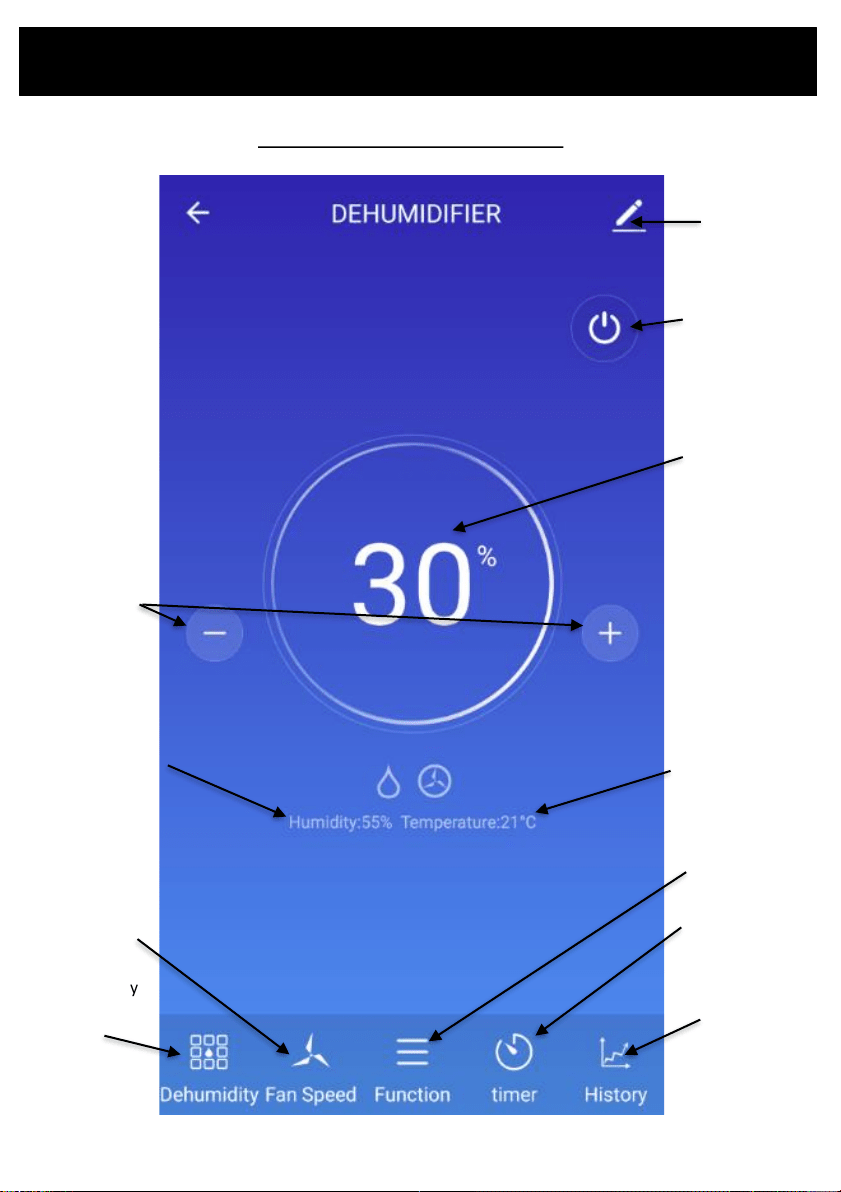
Operating your dehumidifier from the APP
Device
settings
Dehumidifier operation screen
ON/OFF
switch
Change
target
humidity
settings
Target
humidity
Current
humidity
Current
temperature
Change
humidity
modes
Change fan
speed settings
Change function
Set timer
View history
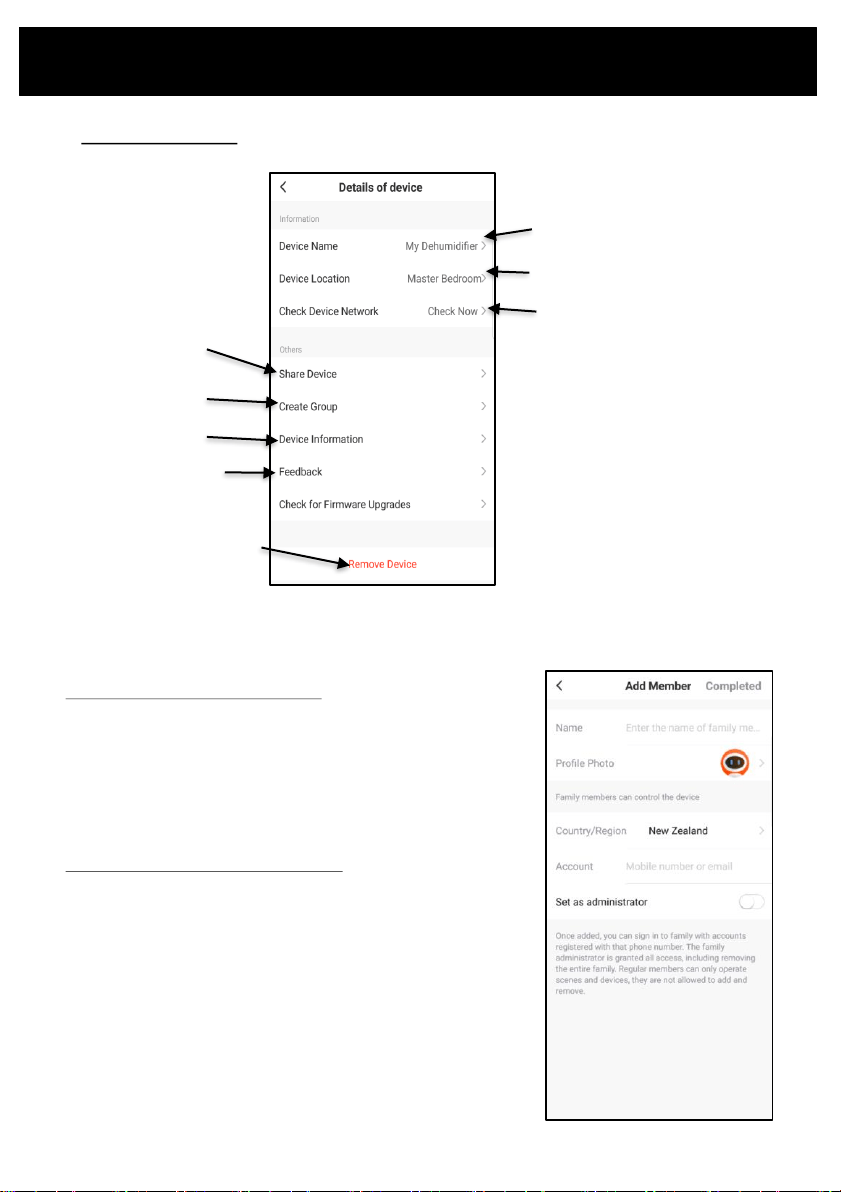
Operating your Dehumidifier from the APP
Change the name of your device
Change the location of your
device
Change the network of your
device
Device settings:
Share device with family
member
Group your devices
Share device with family member:
• The person you add will need to have the Goldair APP
installed on their phone.
• Enter your family member’s details to share device
operation with them.
• Tap “Confirm” to complete the addition.
Remove family member from device:
• Tap ‘Share Devices’ to delete the number of the person you
want to cancel. Tap “Confirm” to confirm.
NOTE: There can only be one user operating the dehumidifier
at a time. The APP needs to be closed on all other devices to
enable the sharing to work.
NOTE: If someone else sets up their phone on the same
Dehumidifier without using the “Device Sharing” the original
phone will be disconnected and the dehumidifier will
disappear from the device list.
Review device
information
Submit feedback
Remove device from app
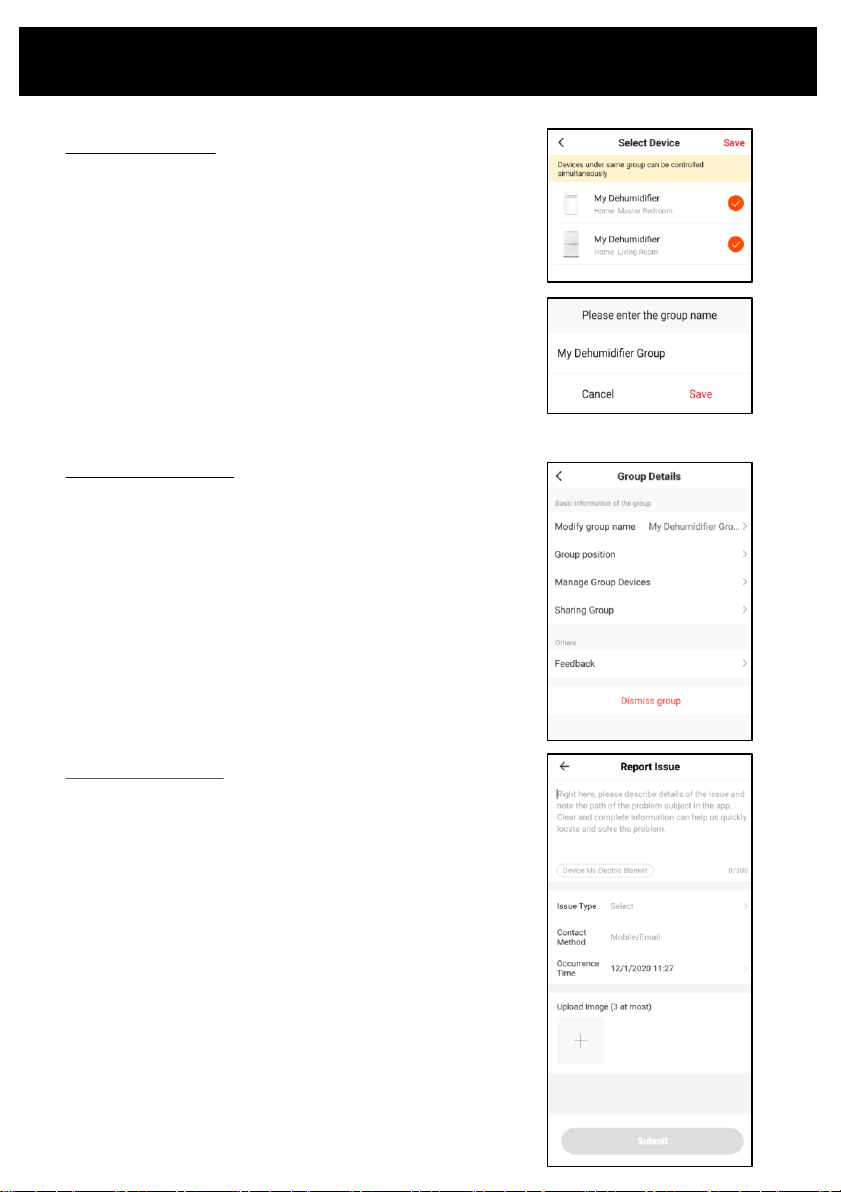
Operating your Dehumidifier from the APP
Submit app feedback
• If you come across an issue with your device or the app, or
wish to submit feedback, please write a thorough
description in the box provided.
• Choose the issue type from the dropdown menu, eg Device
Issues.
• Enter your contact details and the time/date that the error
occurred.
• Upload any relevant images
NOTE: As well as submitting feedback via the app, you can
contact CDB Media Ltd on the contact details located on the
back cover of this manual.
Group your devices:
Devices within the same group can be controlled simultaneously
• Under ‘Create Group’ setting, select all devices you wish to
group together. Click “Save”
• Enter a group name of choice. Click Save.
You can now operate all devices within this group simultaneously.
Ungroup your devices:
• Click on to pen icon within device group
• Select “Dismiss Group”
You have now deleted your group.
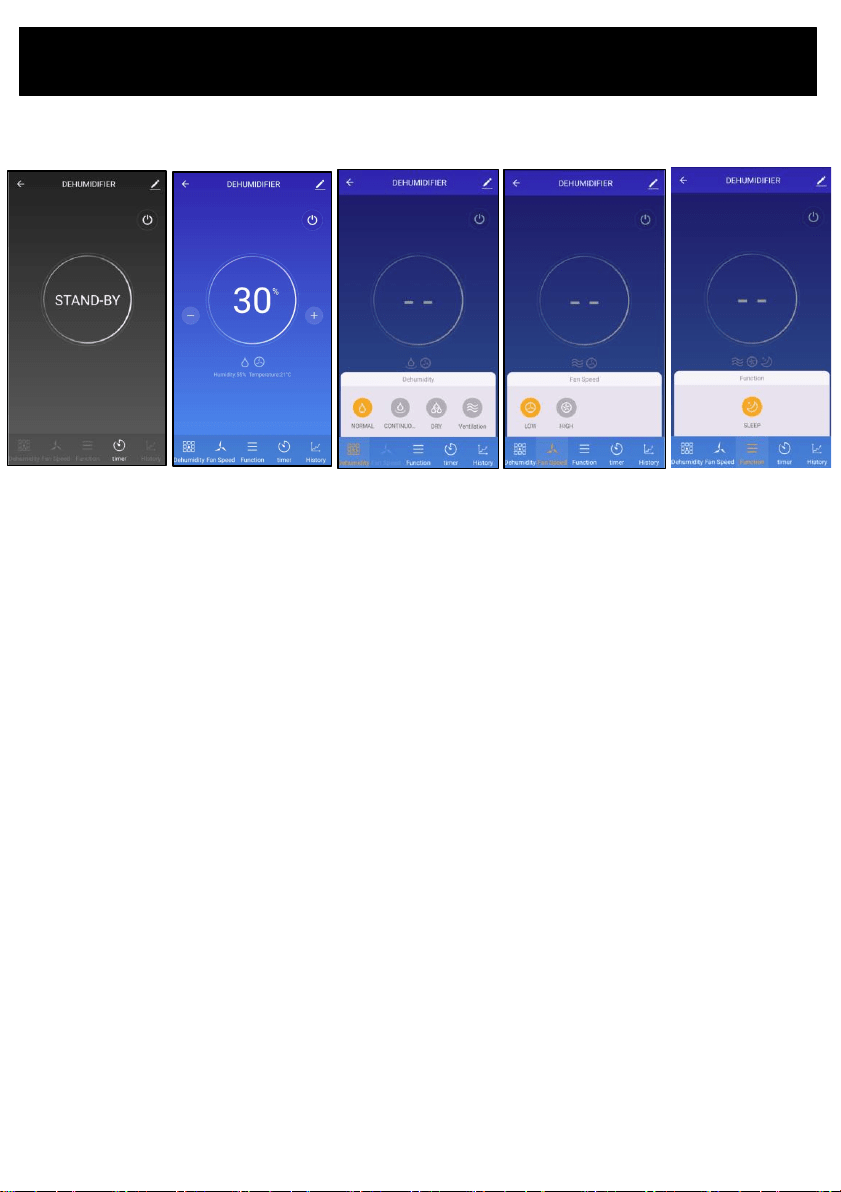
Operating your Dehumidifier from the APP
POWER
• Tap the ‘POWER’ icon and the dehumidifier will turn on. The display will change from dark grey (OFF/Standby) to
blue. You can now control the dehumidifier.
TARGET HUMIDITY
• Tap the ‘+’ or ‘-’ button to set the required humidity. Choose between 30-80%. When the set target
humidity is lower than the relative humidity, the dehumidifier begins to operate. If the set target
humidity is above the relative humidity the dehumidifier will be in standby mode and will not operate
until the relative humidity increases above the set target humidity.
DEHUMIDITY
• Press the Dehumidity icon and you can select between Normal, Continuous, Dry and Ventilation:
- Normal: Allows manual setting of both fan speed and target humidity %
- Continuous: Automatically sets the fan speed to low. Target humidity % is disabled and the dehumidifier
will run continuously.
- Dry: For use in the laundry when drying clothes. Target humidity % is disabled and the dehumidifier will
run continuously.
- Ventilation: Adjustable fan speed. Target humidity % is disabled.
FAN SPEED
• Tap the FAN SPEED button to switch between HIGH & LOW fan speed. The set level will be shown under
the humidity setting on the APP. You can only adjust the fan speed in NORMAL mode.
Device is Off
Device is On
“Dehumidity” icon
“Fan Speed” icon
“Function” icon
Dehumidifier Operation Screen

Operating your Dehumidifier from the APP
FUNCTION
• Tap the Function icon and you can select between Sleep, Air Clean and Child Lock:
- SLEEP: The Sleep Mode allows you to turn off the bright LED display panel. The button will illuminate,
and the unit will continue to operate, but the remainder of the LED display will turn off. If you would
like to adjust the settings whilst in sleep mode, press the relevant buttons and the display will
illuminate for 5 seconds and then return back to sleep mode. Press Sleep Mode button again to reset
the LED control panel back to normal.
HISTORY
• Tap the History icon to review previous humidity and temperature settings.
- DAY: Tap “Day” for a one day review with hourly breakdown (24 hour clock). Tap the “<“ and “>”
buttons to amend the date (D/MM)
- MONTH: Tap “Month” for a full month review with three day breakdown. Tap the “<“ and “>”
buttons to amend the date (MM/YYYY)
- YEAR: Tap “Year” for a full year review with monthly breakdown. Tap the “<“ and “>” buttons to
amend the date (YYYY)
DAY
MONTH
YEAR

Operating your Dehumidifier from the APP
TIMER
The Timer in the APP has far more functionality than the dehumidifier control panel buttons.
• Tap the “Timer” icon to set both ON and OFF timers
• On the Timer edit screen, select the desired time and days of the week you want the timer to be set
and reoccur.
NOTE: Select as many days as you want, or if you want to set the timer as a one off, don’t select any
days.
• Select whether you want the timer to turn the dehumidifier OFF or ON. For OFF, select the SAVE to
confirm your choices and save your timer. For turning ON, tap the “Timer ON” button and options
will appear for your selection.
• Tap “Dehumidity” to select desired dehumidification mode (Normal, Continuous, Strong, Dry Clothes)
• Tap “ Fan Speed” to select desired fan speed mode (Low, High)
• Tap “ Target Humidity” to select humidity level (30-80%)
• Tap ‘SAVE’ on the Schedule edit screen to save your timer selection.
• To add another timer, select ‘Add Schedule’ and repeat the above process.
Note: Make sure the Smartphone or Tablet Clock that you are using has the right time you are providing
from the connection network to the Internet. Possible delay or non-activation of the timer may be
caused by an incorrect time setting on the device you are using.
Timer edit screen
Timer main screen
“Dehumidity” icon “Fan Speed” icon
“Target Humidity” icon

New Zealand
PO Box 100707,
North Shore Mail Centre,
Auckland, 0745
www.goldair.co.nz
Australia
PO Box 574,
South Morang,
Victoria, 3752
www.goldair.com.au