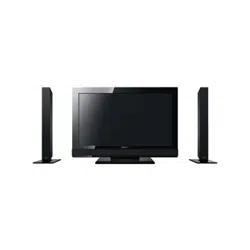

LCD Digital Color TV
3-870-414-41(1)
Operating Instructions
KDL-40S4100
KDL-46S4100
KDL-52S4100
© 2008 Sony Corporation
2
WARNING
To reduce the risk of fire or electric shock, do
not expose this TV to rain or moisture.
This symbol is intended to
alert the user to the presence
of uninsulated “dangerous
voltage” within the TV’s
enclosure that may be of
sufficient magnitude to
constitute a risk of electric
shock to persons.
This symbol is intended to
alert the user to the presence
of important operating and
maintenance (servicing)
instructions in the literature
accompanying the TV.
The TV shall not be exposed to dripping or
splashing and no objects filled with liquids, such
as vases, shall be placed on the TV.
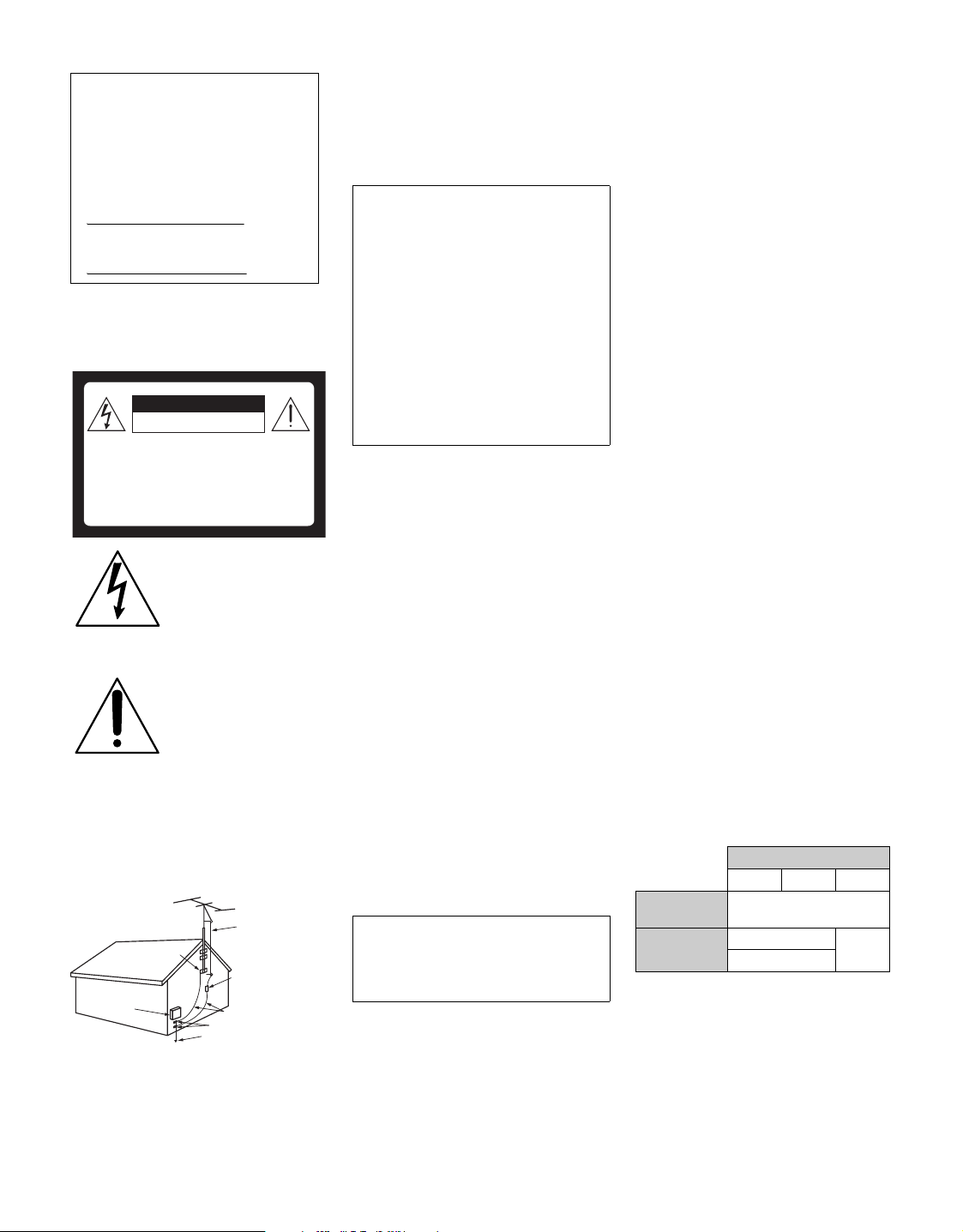
Antenna grounding according
to the National Electrical Code,
ANSI/NFPA 70
CAUTION
To prevent electric shock and blade exposure, do
not use this polarized AC plug with an extension
cord, receptacle or other outlet unless the blades
can be fully inserted.
NOTIFICATION
This equipment has been tested and found to
comply with the limits for a Class B digital
device, pursuant to Part 15 of the FCC Rules.
These limits are designed to provide reasonable
protection against harmful interference in a
residential installation. This equipment
generates, uses and can radiate radio frequency
energy and, if not installed and used in
accordance with the instructions, may cause
harmful interference to radio communications.
However, there is no guarantee that interference
will not occur in a particular installation. If this
equipment does cause harmful interference to
radio or television reception, which can be
determined by turning the equipment off and on,
the user is encouraged to try to correct the
interference by one or more of the following
measures:
s Reorient or relocate the receiving
antenna.
s Increase the separation between the
equipment and receiver.
s Connect the equipment into an outlet on a
circuit different from that to which the
receiver is connected.
s Consult the dealer or an experienced
radio/TV technician for help.
The shielded interface cable recommended in
this manual must be used with this equipment in
order to comply with the limits for a digital
device pursuant to Subpart B of Part 15 of FCC
Rules.
For customer in Canada
This Class B digital apparatus complies with
Canadian ICES-003.
Safety
s Operate the TV only on 120-240 V AC.
s Use the AC power cord specified by Sony
and suitable for the voltage where you use
it.
s The plug is designed, for safety purposes,
to fit into the wall outlet only one way. If
you are unable to insert the plug fully into
the outlet, contact your dealer.
s If you will not be using the TV for several
days, disconnect the power by pulling the
plug itself. Never pull on the cord.
s For details concerning safety precautions,
see “Important Safety Instructions” on
page 3.
Installing
s The TV should be installed near an easily
accessible power outlet.
s To prevent internal heat buildup, do not
block the ventilation openings.
s Do not install the TV in a hot or humid
place, or in a place subject to excessive
dust or mechanical vibration.
s Avoid operating the TV at temperatures
below 41°F (5°C).
s If the TV is transported directly from a
cold to a warm location, or if the room
temperature changes suddenly, the picture
may be blurred or show poor color due to
moisture condensation. In this case,
please wait a few hours to let the moisture
evaporate before turning on the TV.
s To obtain the best picture, do not expose
the screen to direct illumination or direct
sunlight. It is recommended to use spot
lighting directed down from the ceiling or
to cover the windows that face the screen
with opaque drapery. It is desirable to
install the TV in a room where the floor
and walls are not of a reflective material.
CAUTION
Use the following Sony TVs only with the
following WALL-MOUNT BRACKET or
TV-stand.
Use with other WALL-MOUNT BRACKET or
TV-stand may cause instability and possibly
result in injury.
To Customers
Sufficient expertise is required for installing the
specified TV. Be sure to subcontract the
installation to Sony dealer or licensed
contractors and pay adequate attention to safety
during the installation.
Owner’s Record
The model and serial numbers are located
at the rear of the TV. Record these
numbers in the spaces provided below.
Refer to them whenever you call upon
your Sony dealer regarding this TV.
Model Name
Serial No.
CAUTION
RISK OF ELECTRIC SHOCK
DO NOT OPEN
ATTENTION
RISQUE DE CHOC ELECTRIQUE,
NE PAS OUVRIR
PRECAUCION
RIESGO DE CHOQUE ELECTRICO
NO ABRIR
Antenna lead-in
wire
Antenna discharge
unit (NEC Section
810-20)
Grounding conductors
(NEC Section 810-21)
Ground clamps
Power service grounding
electrode system
(NEC Art 250 Part H)
Ground clamps
Electric service
equipment
NEC: National Electrical Code
Declaration of Conformity
Trade Name: SONY
Model: KDL-40S4100/KDL-46S4100/
KDL-52S4100
Responsible Party: Sony Electronics Inc.
Address: 16530 Via Esprillo,
San Diego, CA 92127 U.S.A.
Telephone Number: 858-942-2230
This device complies with part 15 of the FCC
rules. Operation is subject to the following
two conditions: (1) This device may not
cause harmful interference, and (2) this
device must accept any interference received,
including interference that may cause
undesired operation.
Pursuant to FCC regulations, you are
cautioned that any changes or modifications
not expressly approved in this manual could
void your authority to operate this
equipment.
Sony TV Model No.
KDL-40S4100 KDL-46S4100 KDL-52S4100
Sony Wall-Mount
Bracket Model No.
SU-WL500
Sony TV-Stand
Model No.
WS-S10LS
–
SU-FL71M
3
Note
This television includes a QAM demodulator which should allow you to
receive unscrambled digital cable television programming via subscription
service to a cable service provider. Availability of digital cable television
programming in your area depends on the type of programming and signal
provided by your cable service provider.
Trademark Information
Macintosh is a trademark of Apple Inc., registered in the U.S. and other
countries.
HDMI, the HDMI logo and High-Definition Multimedia Interface are
trademarks or registered trademarks of HDMI Licensing LLC.
Manufactured under license from Dolby Laboratories. Dolby and the
double-D symbol are trademarks of Dolby Laboratories.
Blu-ray Disc is a trademark.
“BRAVIA”, and are trademarks or registered trademarks of
Sony Corporation.
“PLAYSTATION” is a registered trademark and “PS3” is a trademark of
Sony Computer Entertainment Inc.
It meets strict energy efficiency guidelines set by the
EPA and US Department of Energy. ENERGY STAR
is a joint program of these government agencies,
designed to promote energy efficient products and
practices.
• When the TV is initially set up, it is designed to stay
within the Energy Star guidelines.
• Changes to certain features, settings, and
functionalities of this TV (i.e. Picture/Sound, Power
Saving) can slightly change the power consumption. Depending upon
such changed settings, the power consumption may increase which
possibly could exceed the limits required for the Energy Star
qualification.
Important
Safety
Instructions
1) Read these instructions.
2) Keep these instructions.
3) Heed all warnings.
4) Follow all instructions.
5) Do not use this apparatus near water.
6) Clean only with dry cloth.
7) Do not block any ventilation openings. Install in
accordance with the manufacturer’s instructions.
8) Do not install near any heat sources such
as radiators, heat registers, stoves, or other
apparatus (including amplifiers) that
produce heat.
9) Do not defeat the safety purpose of the polarized or
grounding-type plug. A polarized plug has two blades
with one wider than the other. A grounding type plug
has two blades and a third grounding prong. The wide
blade or the third prong are provided for your safety.
If the provided plug does not fit into your outlet,
consult an electrician for replacement of the obsolete
outlet.
10) Protect the power cord from being walked on or
pinched particularly at plugs, convenience
receptacles, and the point where they exit from the
apparatus.
11) Only use attachments/accessories specified by the
manufacturer.
12) Use only with the cart, stand, tripod, bracket, or table
specified by the manufacturer, or sold with the
apparatus. When a cart is used, use caution when
moving the cart/apparatus combination to avoid
injury from tip-over.
13) Unplug this apparatus during lightning storms or
when unused for long periods of time.
14) Refer all servicing to qualified service personnel.
Servicing is required when the apparatus has been
damaged in any way, such as power-supply cord or
plug is damaged, liquid has been spilled or objects
have fallen into the apparatus, the apparatus has been
exposed to rain or moisture, does not operate
normally, or has been dropped.
(Continued)
3
4
MOISTURE
To reduce the risk of fire or electric shock, do not expose this TV to rain or
moisture.
s The TV must never be exposed to dripping, splashing, or spilling
liquids of any kind.
s Do not place liquid filled objects such as a vase or potted plant on the
TV.
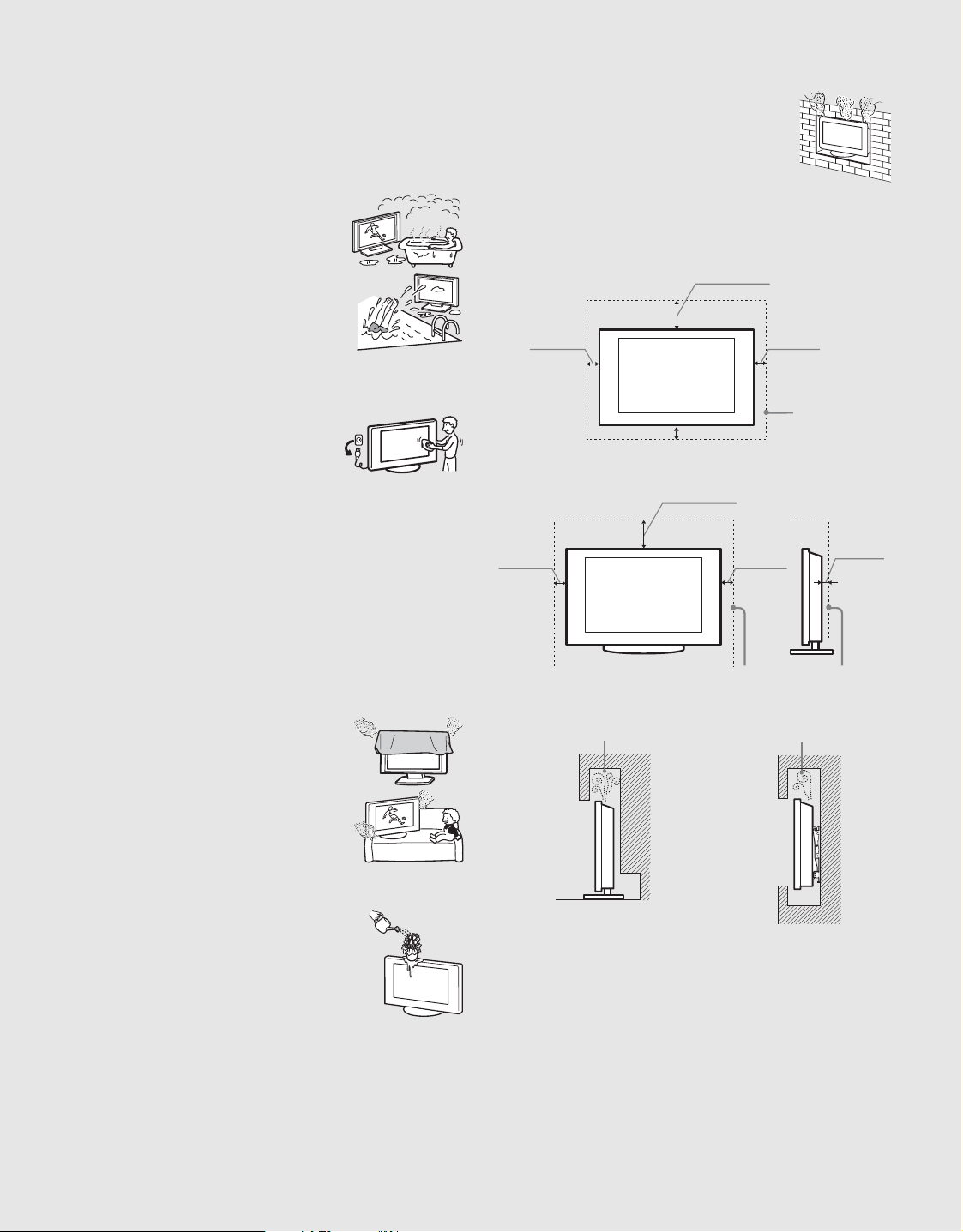
s Do not use a power line operated TV set near
water; for example, near a bathtub, washbowl,
kitchen sink, laundry tub, wet basement or near a
swimming pool, etc.
CLEANING
When cleaning, be sure to unplug the power cord to avoid any chance of
electric shock.
s Clean the cabinet of the TV with a dry soft
cloth.
s Wipe the LCD screen gently with a soft cloth.
s Stubborn stains may be removed with a cloth slightly moistened with
a solution of mild soap and warm water.
s If using a chemically pretreated cloth, please follow the instruction
provided on the package.
s Never use strong solvents such as a thinner, alcohol or benzine for
cleaning.
s Periodic vacuuming of the ventilation openings is recommended to
ensure to proper ventilation.
VENTILATION
The ventilation openings in the TV are necessary to ensure reliable
operation of the TV and to protect it from overheating.
s Do not block or cover the ventilation openings
with cloth or other materials.
s Never place the TV on a bed, sofa, rug or other
similar surface where ventilation openings may
be blocked.
s Unless proper ventilation is provided, the TV may accumulate dust and
cause damage.
s Never allow liquid or solid objects to fall into the
ventilation openings.
s If any liquid or solid object falls inside the TV unplug the TV
immediately and have it checked by qualified service personnel before
operating it further.
s Never push objects of any kind into the TV through the ventilation
openings as they may come in contact with dangerous voltage points
or short out parts that could result in a fire or an electric shock.
Allow adequate space around the TV set to ensure proper air circulation.
s Never place the TV in a confined space, such as a
bookcase or built-in cabinet, unless proper
ventilation is provided.
(30 cm)
11
7
/
8
inches
(6 cm)
inches
4 inches
(10 cm)
4 inches
(10 cm)
2
3
/
8
Leave at least this much space around the set.
Installed with stand
inches
11
7
/
8
4 inches
(10 cm)
4 inches
(10 cm)
4 inches (10 cm)
(30 cm)
Leave some space around the TV set as shown below.
Otherwise, air-circulation may be inadequate and cause
overheating, which may cause a fire or damage to the TV set.
Installed on the wall
Leave at least
this much
space around
the set.
Never install the TV set as follows:
Air circulation is blocked. Air circulation is blocked.
Wall Wall
4
5
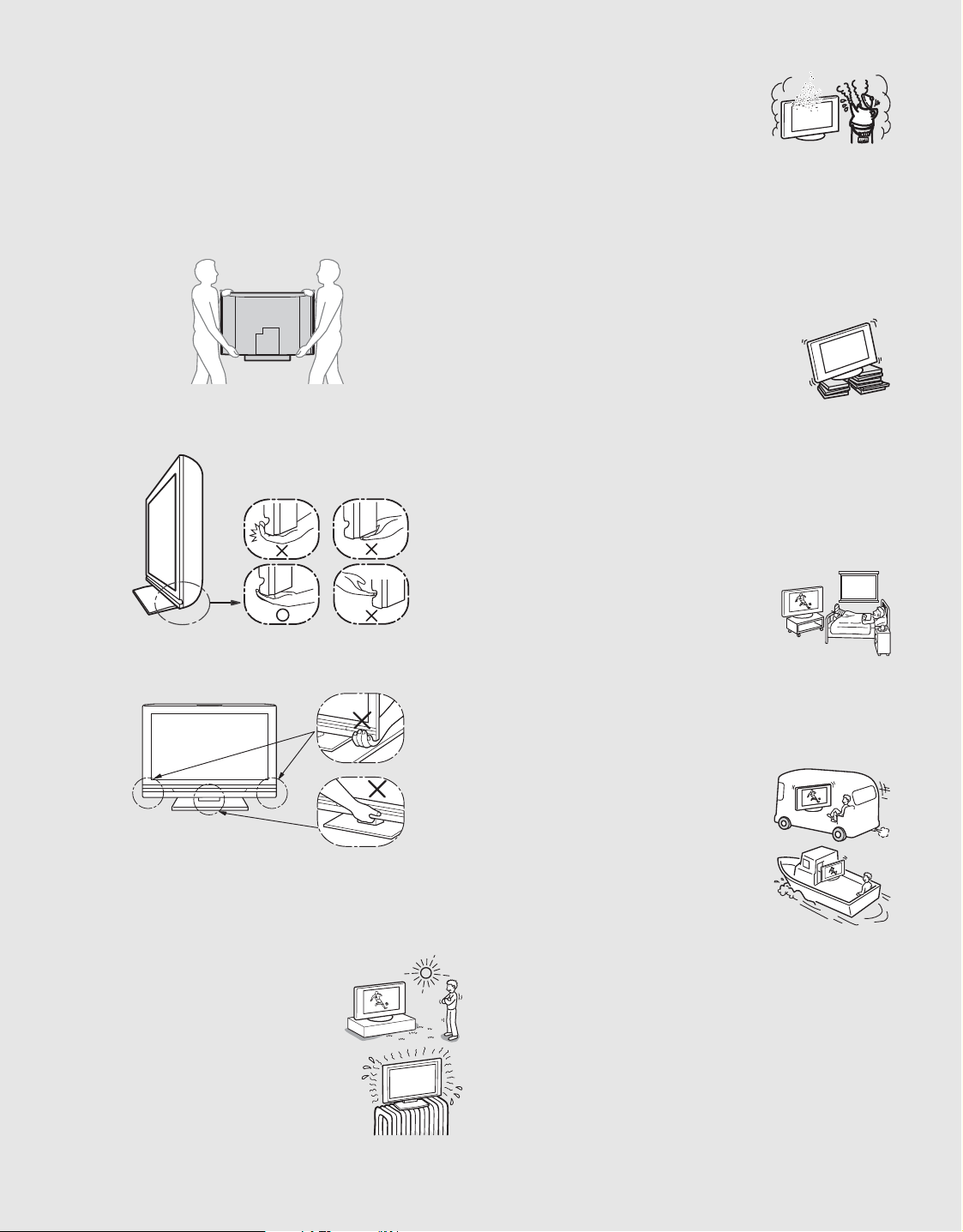
CARRYING THE TV
Carry the TV in the specified manner
To avoid dropping the TV and causing serious injury, be sure to follow
these guidelines:
s Before carrying the TV, disconnect all cables.
s Carrying the large size TV requires two or more people.
s When you carry the TV, place your hand as illustrated and hold it
securely. Do not put stress on the LCD panel.
s When carrying the TV, do not subject it to shocks or vibration, or
excessive force.
s When lifting or moving the TV, hold it firmly from the bottom. Place
your palm directly underneath but do not squeeze the front panel or
recessed area.
s When carrying the TV, to avoid pinching your hands or fingers do not
put your hands between the TV and stand, or hold the bottom corner of
the TV.
INSTALLATION
The TV should be installed near an easily accessible AC power outlet.
s Do not install the TV face up or down, upside down or on its side.
s Do not install the TV in hot, oily, humid, or excessively dusty places.
s Do not install the TV in places subject to
extreme temperature, such as in direct sunlight,
near a radiator or a heating vent. The TV may
overheat in such conditions and can cause
deformation of the enclosure and/or cause TV
malfunction.
s Do not install the TV in a place exposed to
direct air conditioning; moisture may condense
inside and may cause TV malfunction.
s Do not install the TV where it may be exposed to mechanical vibration.
s Do not install the TV where insects may enter.
s Do not install the TV in a location where it may protrude, such as on
or behind a pillar, or any place you might bump your head or receive
bodily injury.
s To prevent fire keep flammable objects or open flame (e.g. candles)
away from the TV.
s Do not place optional equipment on top of the TV.
Prevent the TV from toppling over
Take measures to prevent the TV from toppling over
and causing injury, damage to the TV and property.
s Secure the TV to a wall and/or stand.
s Never install the TV on unstable and/or uneven surfaces.
s Do not allow children to climb on or play with furniture and TV sets.
s Do not install the TV on furniture that can easily be used as steps, such
as a chest of drawers.
s Care should be taken to install the TV where it cannot be pushed,
pulled over, or knocked down.
s Care should be taken to route all AC power cords and connecting
cables so that they cannot be pulled or grabbed by curious children.
Medical institutions
Do not place this TV in a place where medical
equipment is in use. It may cause a medical
equipment malfunction.
Outdoor use
Do not install this TV outdoors. The TV should not be exposed to rain or
direct sunlight in order to avoid damage and possible fire or electric shock.
Do not install this TV in a vehicle, ship or other
vessel
s Excessive bumping motion of a moving vehicle
or continuous swaying motion on a boat may
cause the TV to fall down and cause injury.
s Exposing the TV to seawater may cause a fire,
electric shock or damage to your TV.
Magnetic influence
s This TV contains a strong magnet in the speaker unit that generates a
magnetic field. Keep any items susceptible to magnetic fields away
from the speaker.
s Electro-magnetic radiation emitted from optional equipment installed
too closed to the TV may cause picture distortion and/or noisy sound.
5
(Continued)
6
Wall-mount use
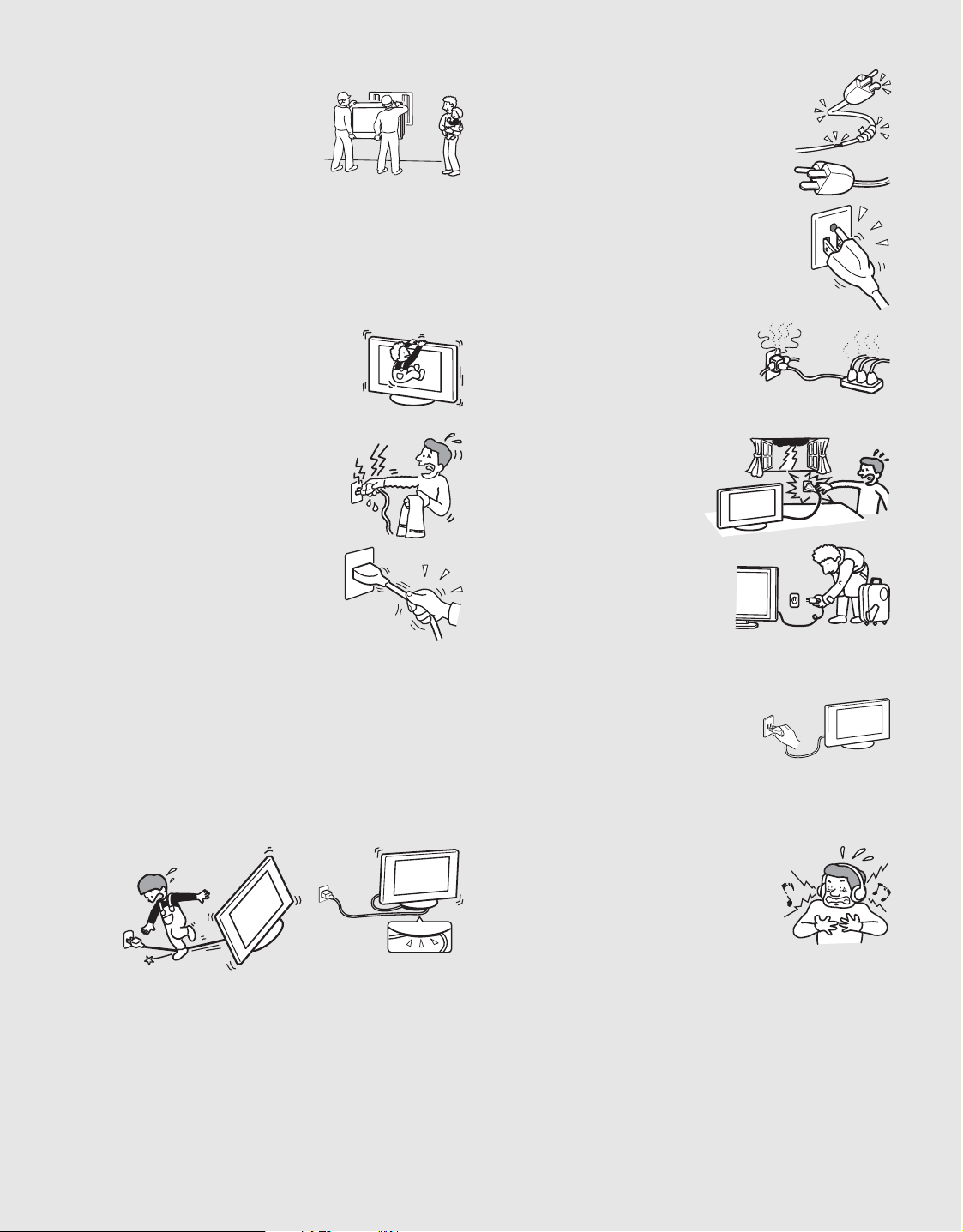
s Wall-mount installation requires the use of
a Wall-Mount Bracket. When installing or
removing the TV and the Wall-Mount
Bracket, be sure to use qualified
contractors. If not properly secured during
installation or removal from the
Wall-Mount Bracket, the TV may fall and
cause serious injury.
s Be sure to follow the installation guide supplied with the Wall-Mount
Bracket when installing the TV.
s Be sure to attach the brackets with the specified parts supplied with the
Wall-Mount Bracket.
s Do not hang the TV from the ceiling. It may fall and cause serious
injury.
s Do not hang anything on the TV.
s Do not allow children to climb on the TV.
AC POWER CORD
s Do not touch the AC power cord and its plug
with wet hand, it may cause electric shock.
s When disconnecting the AC power cord, grasp
the plug and disconnect from the wall outlet
first. Do not pull by the cord.
s Keep the power cord away from heat sources.
A TV set with a three-wire grounding type AC power cord plug must be
connected to an AC power outlet with a protective earthing connection.
s Do not convert or damage the AC power cord.
s Consult your electrician to have the outlet changed to suit your TV.
Subjecting the AC power cord to wear and/or abuse can damage the AC
power cord and your TV.
s Do not place the TV where the power cord can be easily pinched, bent,
twisted, or catch your feet.
s Do not allow anything to rest on or roll over the cord.
s Before connecting cables, be sure to unplug the AC power cord for
your safety.
s Do not move the TV with the AC power cord (or other cables such as
audio and video) connected.
s Use only an original Sony AC power cord with your TV; no brand
substitution is allowed.
s Do not use AC power cord supplied with the TV with any other
equipment.
s Never use a damaged AC power cord. A
damaged AC power cord can cause a
short-circuit, which may result in a fire or
electric shock.
Do not use a damaged or poorly fitting AC power
outlet as your TV’s power source.
s Insert the plug fully into the outlet. If it is loose, it
may cause arcing and result in a fire.
s Do not overload the same AC power outlet.
Unplugging the AC power cord from the wall outlet will completely
remove power from the TV.
s During lightning storms or when
the TV is left unattended and
unused for extended periods of
time, the AC power cord should
be unplugged from the wall
outlet. This will avoid possible
damage to your TV. Also unplug
the antenna to prevent damage to
the TV.
s For energy conservation and safety reasons, practice unplugging the
AC power cord from the AC power outlet.
Clean the AC power plug
Unplug the AC power plug and clean it
occasionally to avoid dust from accumulating.
While cleaning, look for signs of damage. A
damaged AC power cord should never be used.
ACCESSORIES
Keep small accessories out of children’s reach.
Use only the specified accessories with this TV.
Volume Adjustment
s When using headphones, adjust the volume to
avoid excessive audio levels from causing
possible hearing loss.
BATTERIES
Your remote control batteries are consumables.
s To preserve our environment, dispose of used batteries according to
your local laws or regulations.
s Do not dispose of batteries in a fire.
s Do not short-circuit, disassemble or overheat the batteries.
s Replace only with the same or equivalent type of batteries. Using
incorrect replacement batteries can lead to an explosion.
6
7
LCD SCREEN
s Although the LCD screen is made with high-precision technology and
has effective pixels of 99.99% or more, black dots or bright points of
light (red, blue, or green) may appear constantly on the LCD screen.
This is a structural property of the LCD panel and is not a malfunction.
s The LCD screen is made with high-precision technology and to
achieve a high level of performance and picture quality, this TV’s
backlight setting is set to maximize the brightness of the TV. However,
uneven brightness may be observed when the LCD TV is viewed in a
dark ambient without an input source or blank screen. This condition
is normal and not a malfunction of the TV. Changing the Picture mode,
Backlight setting, or turning on the Power Management will improve
this condition.
s To avoid damaging the LCD panel, do not expose the LCD screen to
direct sunlight.
s Do not push or scratch the LCD screen, or place objects on top of the
TV. The images may be uneven or the LCD panel may be damaged.
s If the TV is used in a cold place, smear may occur in the picture or the
picture may become dark. This does not indicate a failure. These
phenomena improve as the temperature rises.
s Ghosting may occur when still pictures are displayed continuously. It
should disappear after a few moments.
s The LCD screen and enclosure get warm when the TV is in use. This
is not a malfunction.
s Avoid spraying insect repellent with volatile material on the LCD
screen.
s Avoid prolonged contact with rubber or plastic material to the LCD
screen.
Broken screen panel
Do not throw anything at the TV as the impact can
cause the LCD screen glass to crack, break or
scatter.
s If damage occurs to the LCD panel, small traces of liquid crystal
sandwiched between the glass may be found on scattered broken glass.
s Do not touch the broken glass with bare hands. As with any broken
glass pieces, avoid skin contact and exposure to your eyes or mouth.
Avoid direct contact with liquid or damp surfaces of the glass as these
may have an adverse effect on some people. The contacted area should
be rinsed thoroughly with water. If conditions persist, see your doctor.
s If the surface of the TV cracks, do not touch the TV until you have
unplugged the AC power cord. Otherwise electric shock may result.
SERVICING
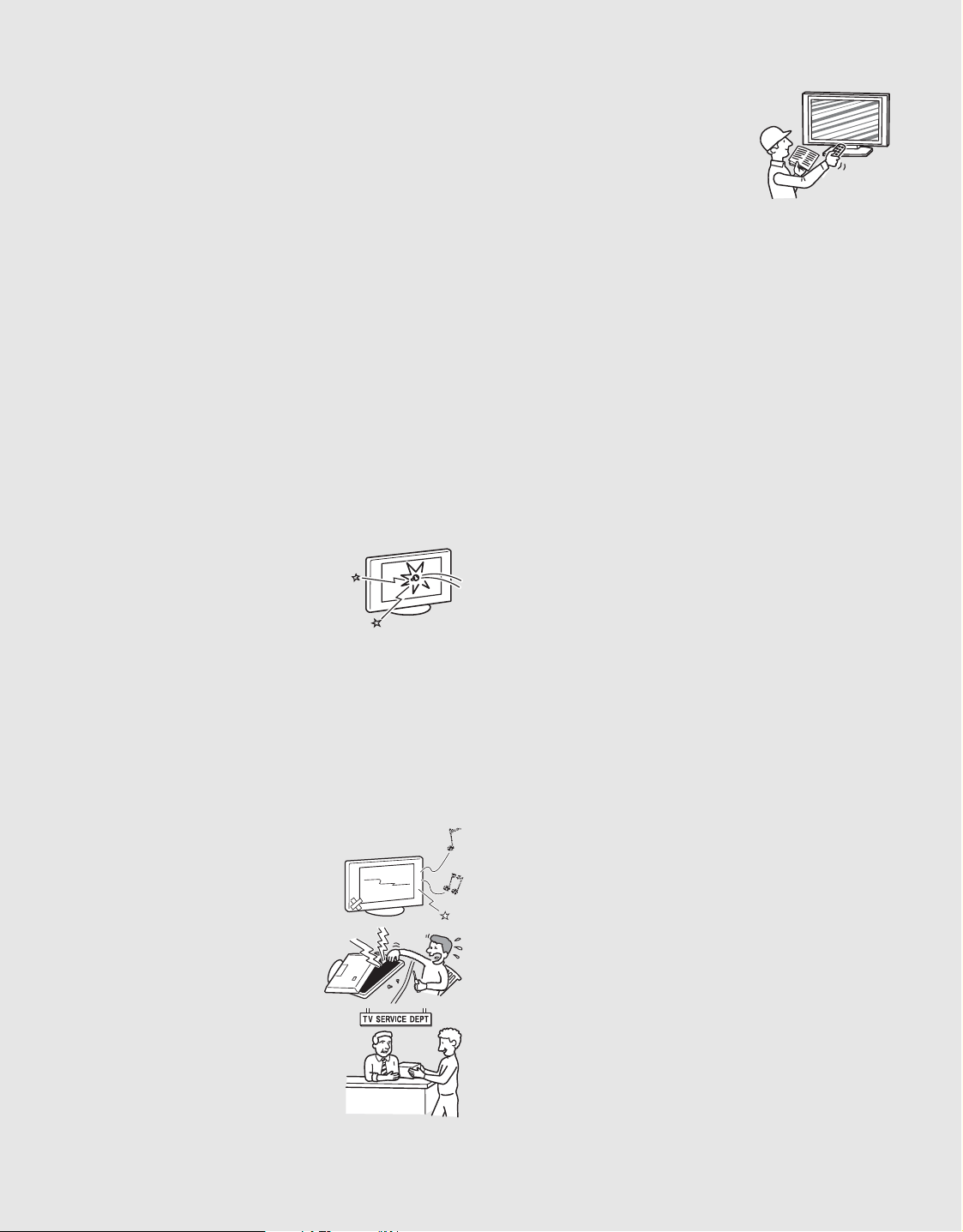
Do not use the TV if you suspect the TV is
damaged or if the TV is damaged.
s Do not attempt to service the TV yourself
since opening the cabinet may expose you
to dangerous voltage levels or other
hazards. Refer all servicing to qualified
service personnel.
s If replacement parts are required, acquire a
written certification from the service
technician which states that adequate
replacement parts with the same or similar
characteristics as the original parts have been
used. Unauthorized substitutions may result in
a fire, an electric shock or other hazards.
Safety check
s Upon completion of any TV servicing or
repair, ask the service technician to perform
routine safety checks as specified by Sony
and to certify that the TV is safe to operate.
Have a qualified service technician dispose
of the TV if it is not safe to operate.
For customers in the United States
Lamp in this product contains mercury. Disposal of
these materials may be regulated due to
environmental considerations. For disposal or
recycling information, please contact your local
authorities or the Electronics Industries Alliance
(www.eiae.org).
7

9
Contents
Getting Started
Welcome to the World of
®
..........................................................................10
Picture Quality and Aspect Ratio .................................................................................10
Assembling the Table-Top Stand (for KDL-40/46S4100)............................................11
Connecting the TV .........................................................................................................13
Cable System or VHF/UHF Antenna System............................................................13
Cable System and VHF/UHF Antenna System.........................................................13
HD Cable Box/HD Satellite Box ................................................................................14
PC .............................................................................................................................15
Other Equipment .......................................................................................................16
When Connecting to Optional Equipment...................................................................17
Securing the TV..............................................................................................................19
Preventing the TV from Toppling...............................................................................19
Use a Sony TV Stand................................................................................................19
Recommended Measures to Secure the TV .............................................................19
Bundling the Connecting Cables...............................................................................21
Setting Up the Channel List - Initial Setup...................................................................22
Basic Operations
Remote Control ..............................................................................................................23
TV Controls.....................................................................................................................26
Using the Menus
Overview of MENU .........................................................................................................27
Using the Picture Settings ............................................................................................27
Using the Sound Settings .............................................................................................28
Using the Screen Settings.............................................................................................29
Using the PC Settings ...............................................................................................30
Using the Channel Settings ..........................................................................................31
Using the Parental Lock Settings .................................................................................32
Using the Setup Settings...............................................................................................35
Other Information
Troubleshooting.............................................................................................................37
Preparation for Wall Mounting......................................................................................39
PC Input Signal Reference Chart..................................................................................41
Specifications.................................................................................................................42
Index................................................................................................................................44
Customer Support
United States
http://www.sony.com/tvsupport
On-line Registration
United States
http://productregistration.sony.com
Canada
http://www.sony.ca/support
Canada
http://www.sonystyle.ca/registration
10
Getting Started
Welcome to the World of
®
Thank you for purchasing this Sony LCD Digital Color Television. This
manual is for model KDL-40S4100/KDL-46S4100/KDL-52S4100. Be sure
to check the supplied accessories against the list on page 43.
Picture Quality and Aspect Ratio
You can enjoy crisp, clear images, smooth movement and high-impact visuals from 1080 HD
signals. When you compare a high-definition signal to a standard analog signal, you will notice a
big difference.
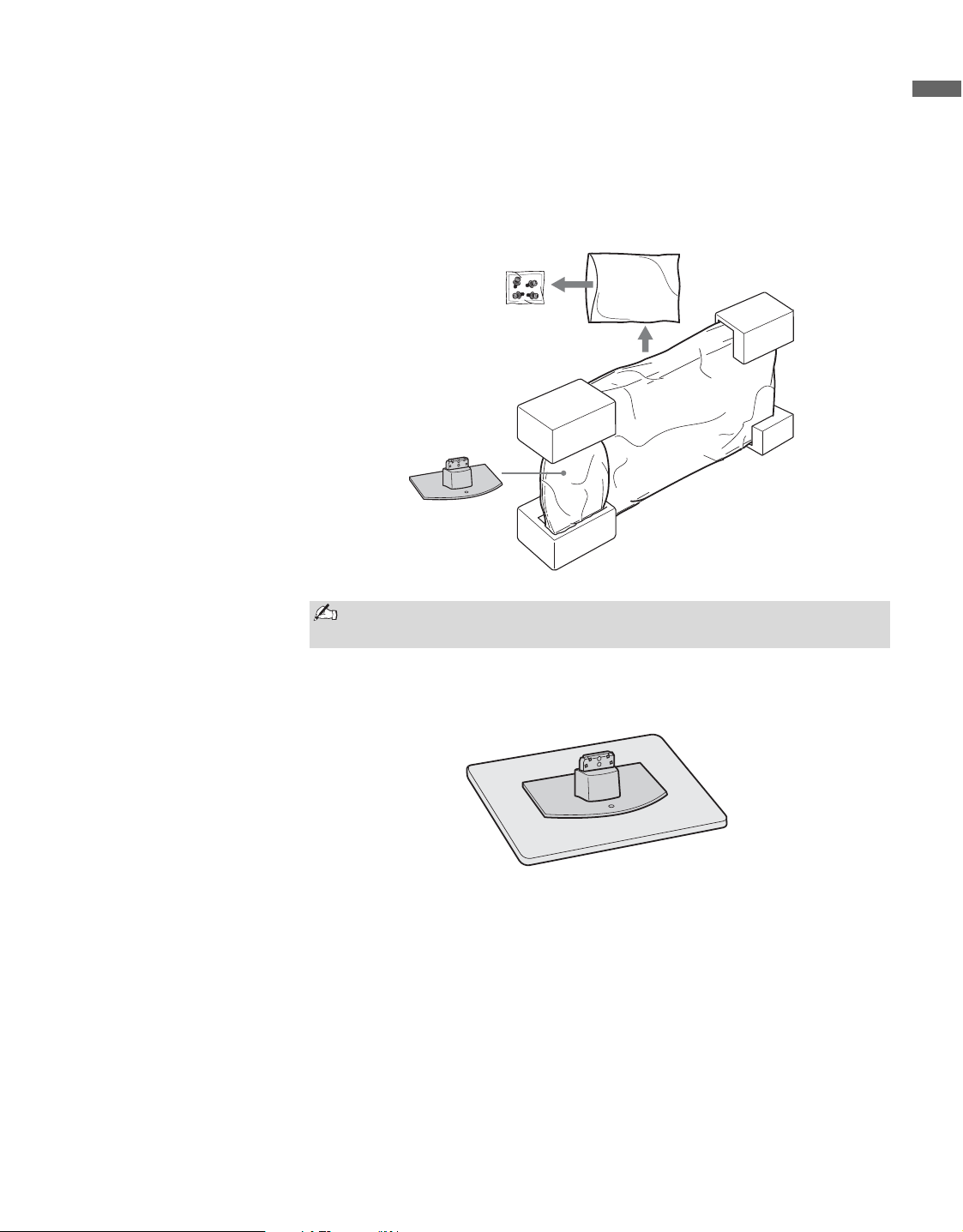
High-definition and standard-definition signals are transmitted with different aspect ratios (the
width-to-height ratio of the image). HDTV uses a wider screen than conventional standard-
definition TV.
You can use the Wide Mode function of the TV to adjust the 4:3 image to fit the entire screen (see pages
24, 29 and 30).
16:9 (high-definition) source
Most HDTV signals use a wide screen aspect rati
o
of 16:9. The 16:9 fills your BRAVIA screen,
maintaining a crisp, clear, vivid picture.
4:3 (standard-definition) source
Most standard-definition signals use a boxy 4:3
aspect ratio. When a 4:3 image is displayed on an
HDTV, you will see black bars on the sides. The
picture quality may not be as sharp as with HD
sources.
Getting Started
11
Getting Started
Assembling the Table-Top Stand (for KDL-40/46S4100)
Follow the assembling steps required to attach the Table-Top Stand.
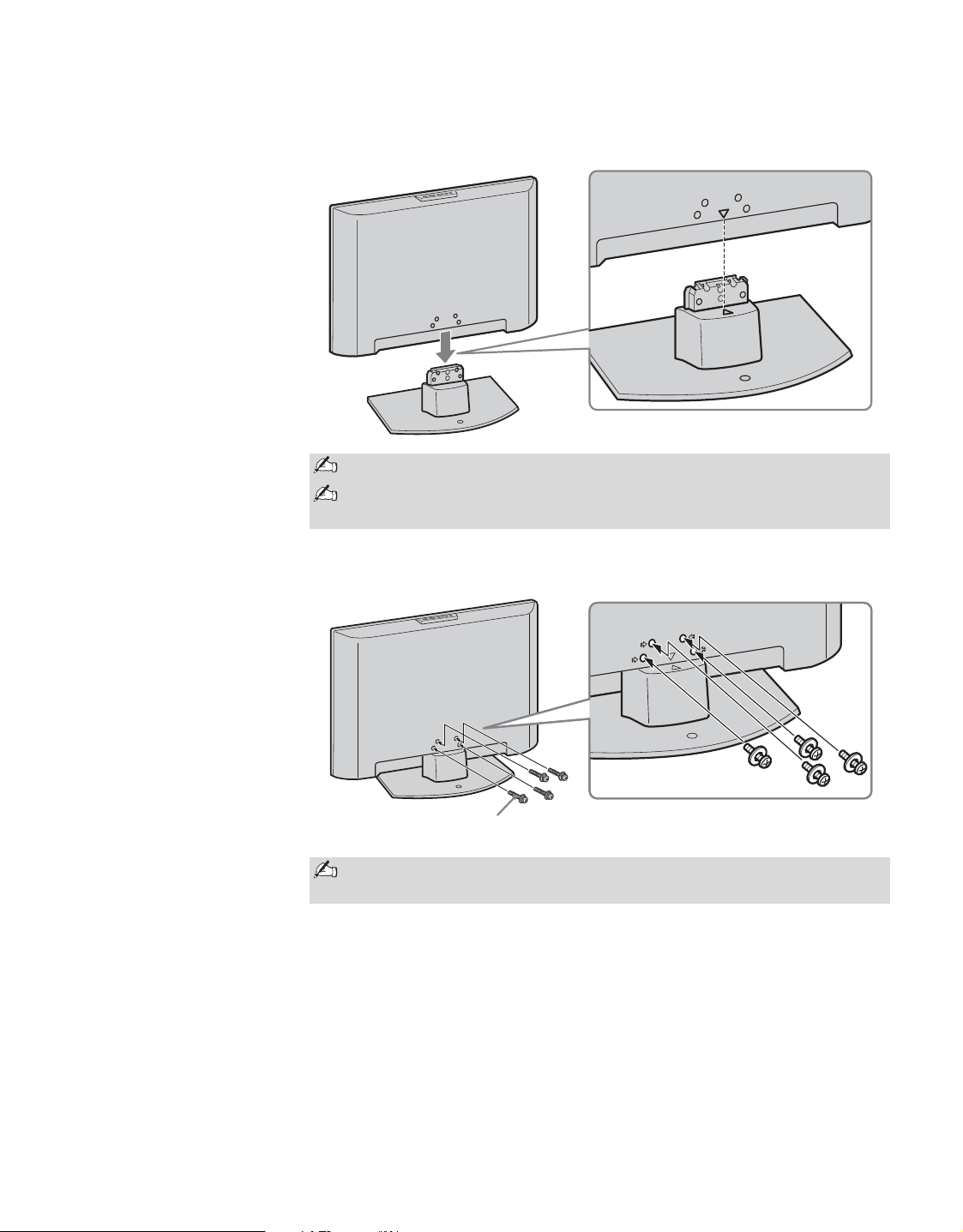
1 Take out the Table-Top Stand and screws from the carton. The screws
are found in the accessory bag.
2 Place the Table-Top Stand onto a level and stable surface.
Put your hands into the package, when taking out the TV from the
carton.
Accessory bag
Screws
TV unit
Table-Top Stand
(Continued)
Getting Started
12
3 Gently slide the TV unit onto the neck of the Table-Top Stand and align
the screw holes.
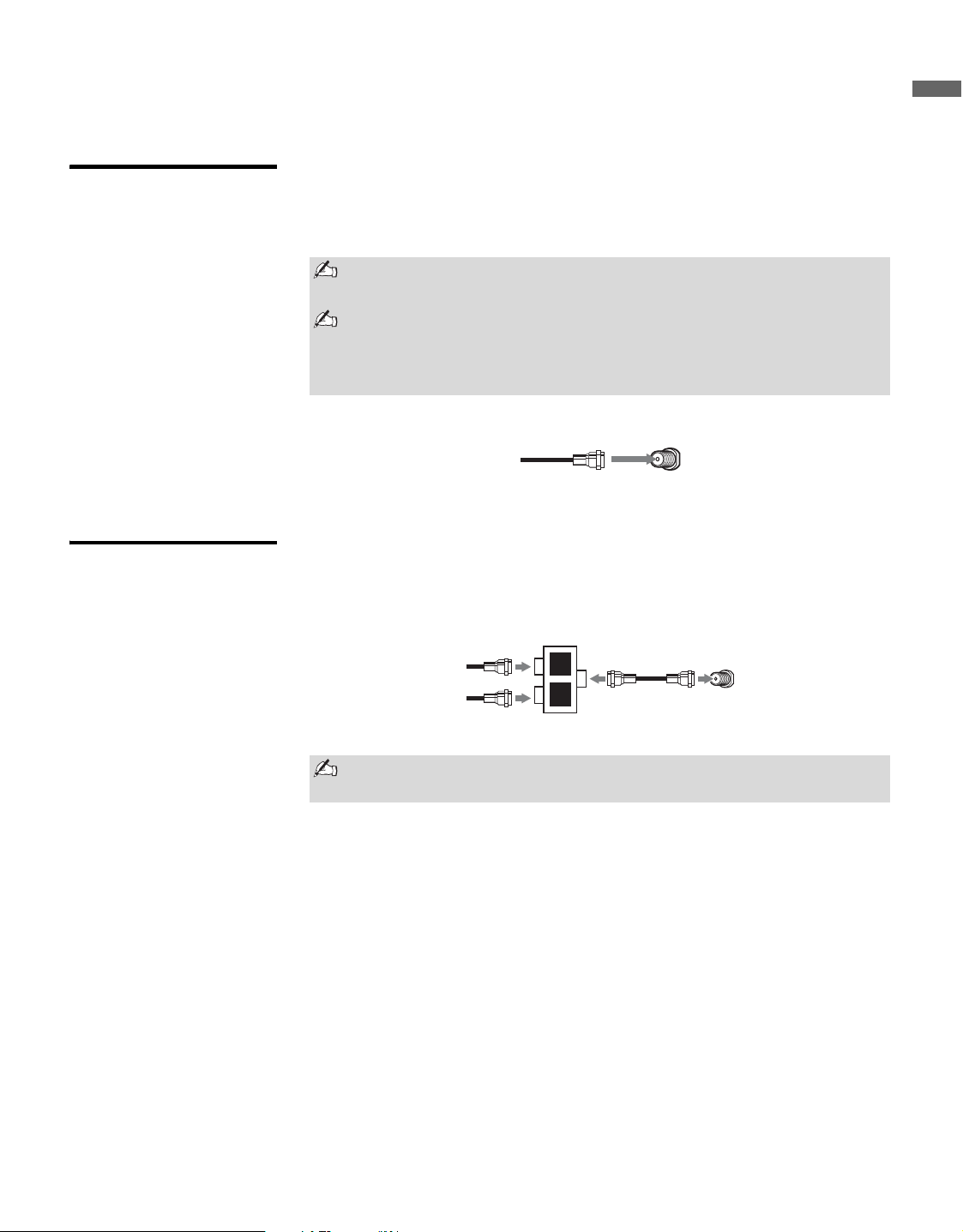
4 Use the supplied screws to attach the TV unit to the Table-Top Stand.
Do not put stress on the LCD panel or the frame around the screen.
Be careful not to pinch your hands or the AC power cord when you
install the TV to the Table-Top Stand.
If an electric screwdriver is used, set the torque to tighten at
approximately 1.5 N·m {15 kgf·cm}.
Rear of TV
Screw
Getting Started
13
Getting Started
Connecting the TV
Cable System or
VHF/UHF Antenna
System
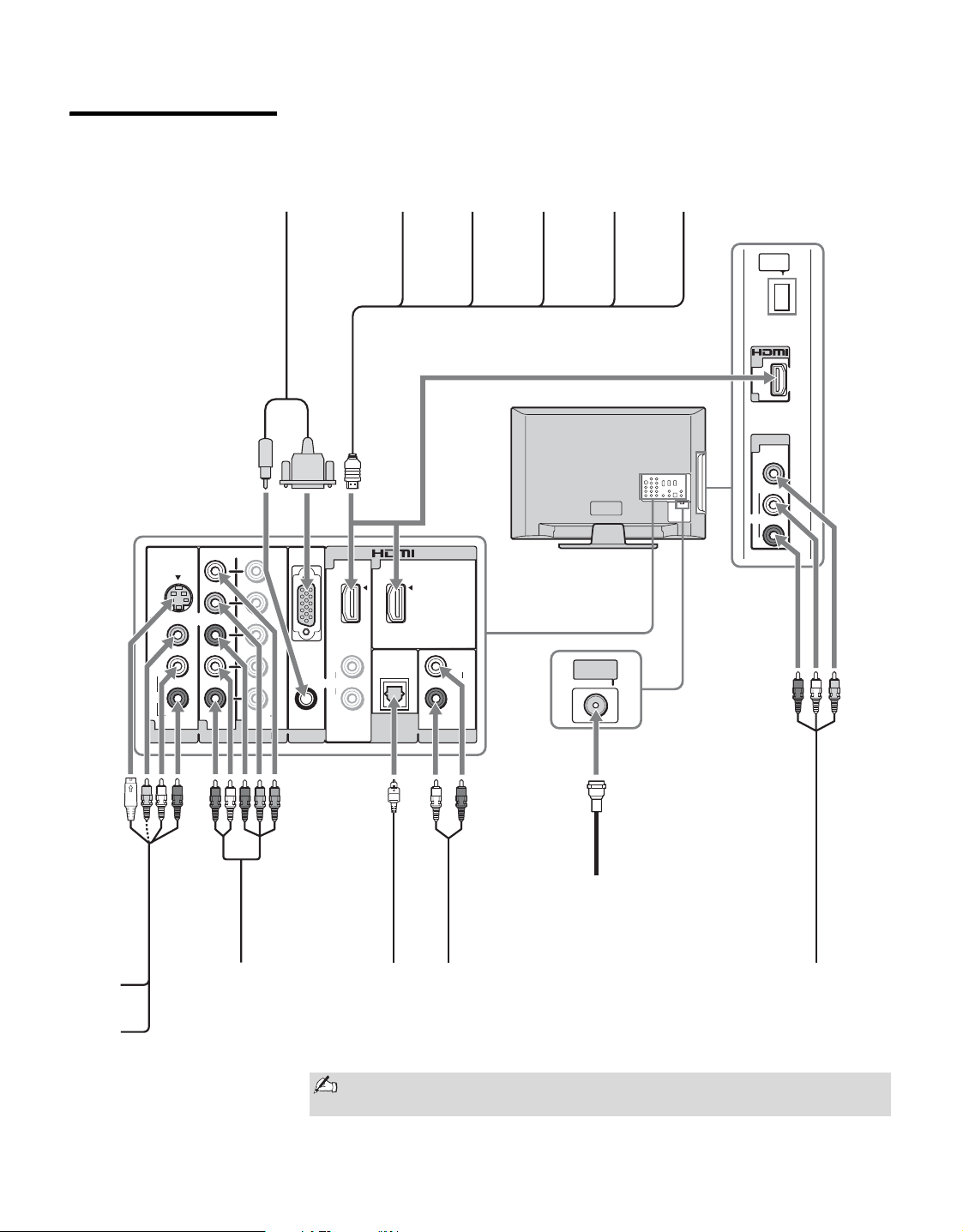
You can enjoy high-definition and standard-definition digital programming
(if available in your area) along with standard-definition analog
programming.
Cable or VHF/UHF (or VHF only)
Cable System and
VHF/UHF Antenna
System
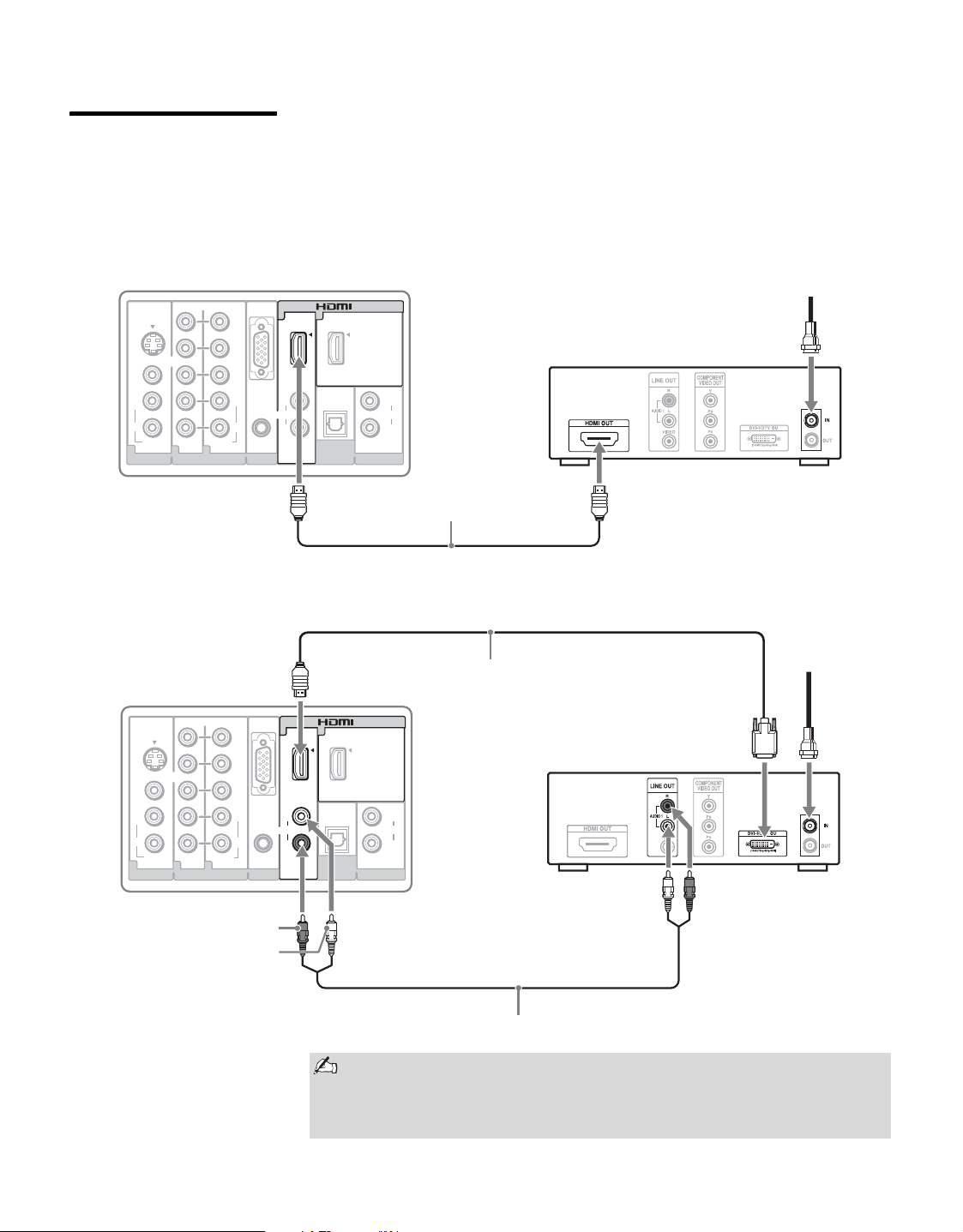
Use an optional A-B RF switch (not supplied) to switch between the cable
and over-the-air antenna programming, as indicated below.
This TV is capable of receiving unscrambled digital programming for
both cable (QAM and 8VSB) and external VHF/UHF antenna (ATSC).
It is strongly recommended that you connect the CABLE/ANTENNA
input using a 75-ohm coaxial cable to receive optimum picture quality. A
300-ohm twin lead cable can be easily affected by radio frequency
interference, resulting in signal degradation.
75-ohm coaxial cable Rear of TV
CABLE/ANTENNA
Be sure to set the Cable setting to On or Off in the Channel settings for
the type of input signal you choose (see page 31).
B
A
Cable
Antenna
A/B
RF Switch
Rear of TV
CABLE/ANTENNA
Getting Started
14
HD Cable Box/
HD Satellite Box
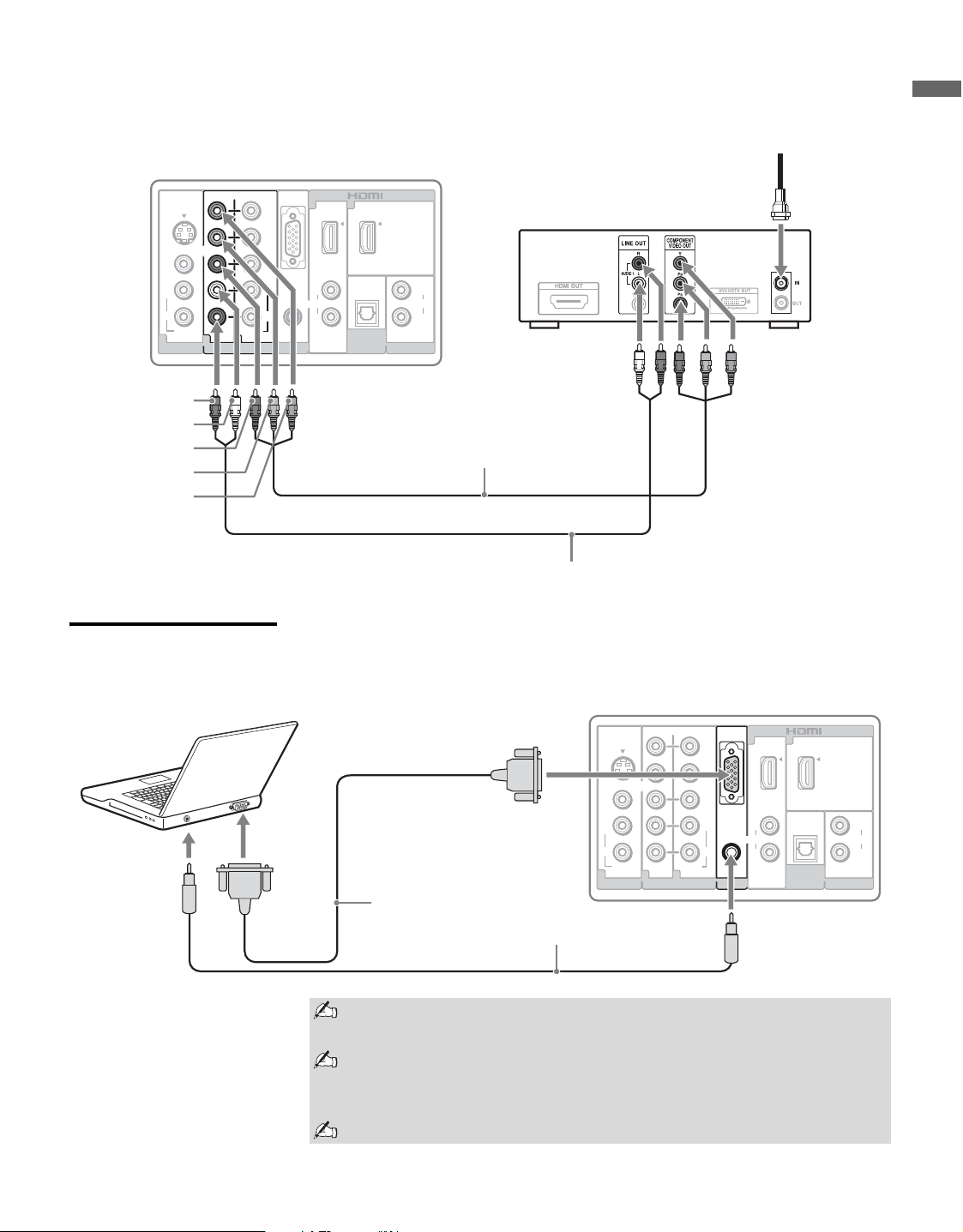
You can enjoy high-definition programming by subscribing to a high-
definition cable service or a high-definition satellite service. For the best
possible picture, make sure you connect this equipment to your TV via the
HDMI or component video (with audio) input on the back of your TV.
Shown with HDMI Connection
Shown with DVI Connection
AUDIO
L
R
AUDIO
L
R
P
R
P
B
Y
RGB
AUDIO
IN
PC INVIDEO IN COMPONENT IN
DIGITAL
AUDIO OUT
(OPTICAL)
AUDIO OUT
112
1 3
(1080p/1080i/720p/480p/480i)
(FIX)
AUDIO AUDIO
R
VIDEO
S VIDEO
(MONO)
L
R
L
Rear of TV
HDMI cable
HD cable box/
HD satellite box
CATV/Satellite antenna cable
AUDIO
L
R
PR
PB
Y
RGB
AUDIO
IN
PC INVIDEO IN COMPONENT IN
DIGITAL
AUDIO OUT
(OPTICAL)
AUDIO OUT
112
1 3
(1080p/1080i/720p/480p/480i)
(FIX)
AUDIO AUDIO
R
VIDEO
S VIDEO
(MONO)
L
R
L
AUDIO
L
R
Rear of TV
DVI-to-HDMI cable
HD cable box/
HD satellite box
CATV/Satellite
antenna cable
AUDIO-R (red)
AUDIO-L (white)
Audio cable
If the equipment has a DVI jack and not an HDMI jack, connect the DVI
jack to the HDMI IN 1 (with DVI-to-HDMI cable or adapter) jack and
connect the audio jack to the AUDIO IN (L/R) jacks of HDMI IN 1. For
details, see page 17.
Getting Started
15
Getting Started
Shown with Component Connection
PC Use the TV as a monitor for your PC as shown below. Shown below is the
HD15 to HD15 connection.
AUDIO
L
R
AUDIO
L
R
P
R
P
B
Y
RGB
AUDIO
IN
PC INVIDEO IN COMPONENT IN
DIGITAL
AUDIO OUT
(OPTICAL)
AUDIO OUT
112
13
(1080p/1080i/720p/480p/480i)
(FIX)
AUDIO AUDIO
R
VIDEO
S VIDEO
(MONO)
L
R
L
Rear of TV
CATV/Satellite antenna cable
AUDIO-R (red)
AUDIO-L (white)
Component video cable
Audio cable
P
R
(red)
P
B
(blue)
Y (green)
HD cable box/
HD satellite box
AUDIO
L
R
AUDIO
L
R
IN
PC INVIDEO IN COMPONENT IN
DIGITAL
AUDIO OUT
(OPTICAL)
AUDIO OUT
112
13
(FIX)
AUDIO
R
VIDEO
S VIDEO
(MONO)
L
P
R
P
B
Y
(1080p/1080i/720p/480p/480i)
AUDIO
R
L
RGB
AUDIO
Rear of TV
HD15-HD15 cable
(analog RGB)
Audio cable (stereo mini plugs)
Connect the PC IN jack to the PC using an HD15-HD15 cable with
ferrite core (analog RGB) and audio cable (see page 18).
If the PC is connected to the TV and no signal has been input from the
PC for more than 30 seconds, the TV enters the standby mode
automatically (see page 30).
Do not connect a PC to the TV’s HDMI input.
Getting Started
16
Other Equipment
AUDIO
L
R
AUDIO
L
R
AUDIO AUDIO
R
P
R
P
B
Y
VIDEO
S VIDEO
RGB
(MONO)
AUDIO
L
R
L
(1080p/1080i/720p/480p/480i)
(FIX)
IN
PC INVIDEO IN COMPONENT IN
DIGITAL
AUDIO OUT
(OPTICAL)
AUDIO OUT
112
13
SERVICE
ONLY
AUDIO
R
VIDEO
(MONO)
L
IN
VIDEO IN
2
2
CABLE/
ANTENNA
Rear of TV
Personal
computer
Blu-ray
Disc Player/
“PS3”
DVD
player
Digital
satellite
receiver
VCR
Game
system
Digital
recorder
Analog audio equipment
(A/V Receiver/Home Theater)
Digital audio
equipment
CABLE/ANTENNA
Digital
cable box
Audio
system
Camcorder
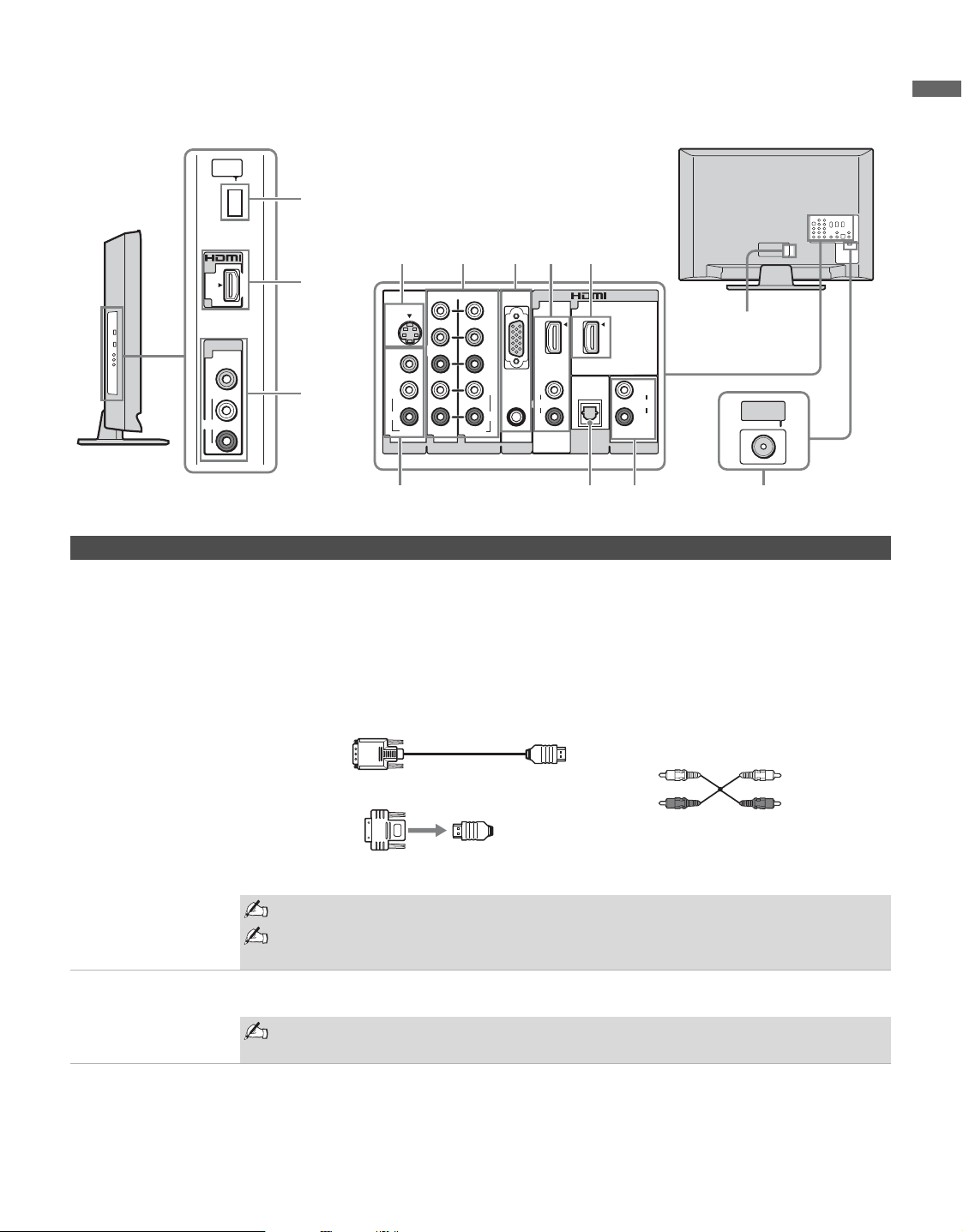
Refer to the Quick Setup Guide (supplied) when connecting other
equipment to your TV.
Getting Started
17
Getting Started
When Connecting to Optional Equipment
SERVICE
ONLY
AUDIO
R
VIDEO
(MONO)
L
IN
VIDEO IN
2
2
1
2
AUDIO
L
R
AUDIO
L
R
AUDIO AUDIO
R
P
R
P
B
Y
VIDEO
S VIDEO
RGB
(MONO)
AUDIO
L
R
L
(1080p/1080i/720p/480p/480i)
(FIX)
IN
PC INVIDEO IN COMPONENT IN
DIGITAL
AUDIO OUT
(OPTICAL)
AUDIO OUT
112
13
CABLE/
ANTENNA
4567
89qs0
qa
3
Left side Rear
For service
use only
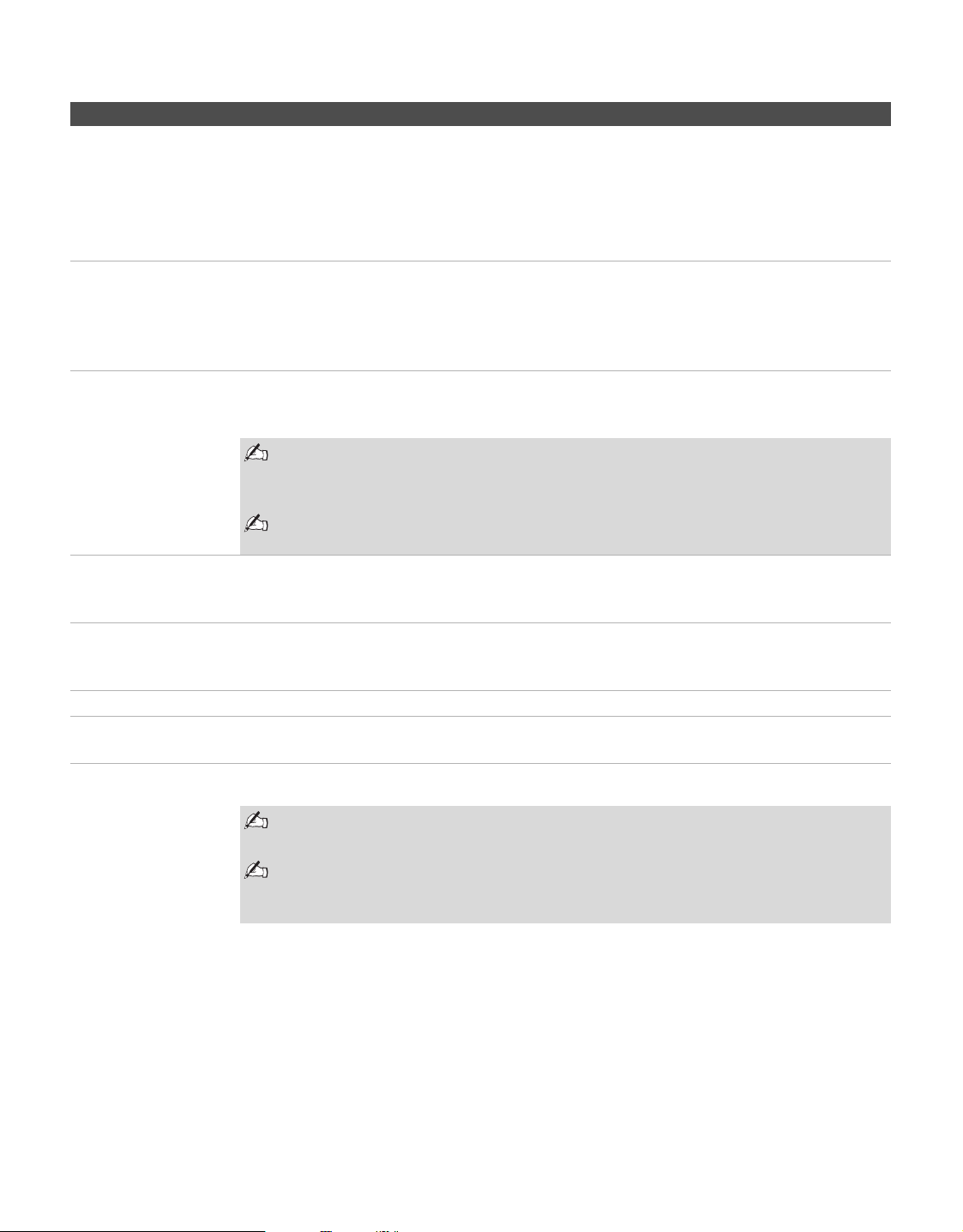
Item Description
1 HDMI IN 2 HDMI (High-Definition Multimedia Interface) provides an uncompressed, all-digital
audio/video interface between this TV and any HDMI-equipped audio/video equipment, such
as a set-top box, DVD player, and A/V receiver. HDMI supports enhanced, or high-definition
video, plus digital audio.
6
7
HDMI IN 1
HDMI/
L-AUDIO-R
HDMI IN 3
If the equipment has a DVI jack and not an HDMI jack, connect the DVI jack to the HDMI IN
1 (with DVI-to-HDMI cable or adapter) jack, and connect the audio jack to the L-AUDIO-R
jacks of HDMI IN 1. (DVI connector is for video signals only.)
Be sure to use only an HDMI cable that bears the HDMI logo.
Do not connect a PC to the TV’s HDMI input. Use the PC IN (RGB IN) input
instead when connecting a PC.
2
VIDEO IN 2
VIDEO/
L(MONO)-AUDIO-
R
Connect to the composite video and audio output jacks on your camcorder or other video
equipment such as video game equipment.
If you have mono equipment, connect its audio output jack to the TV’s L (MONO)
audio input jack.
DVI-to-HDMI cable
HDMI adapter
Audio cable
(Continued)
Getting Started
18
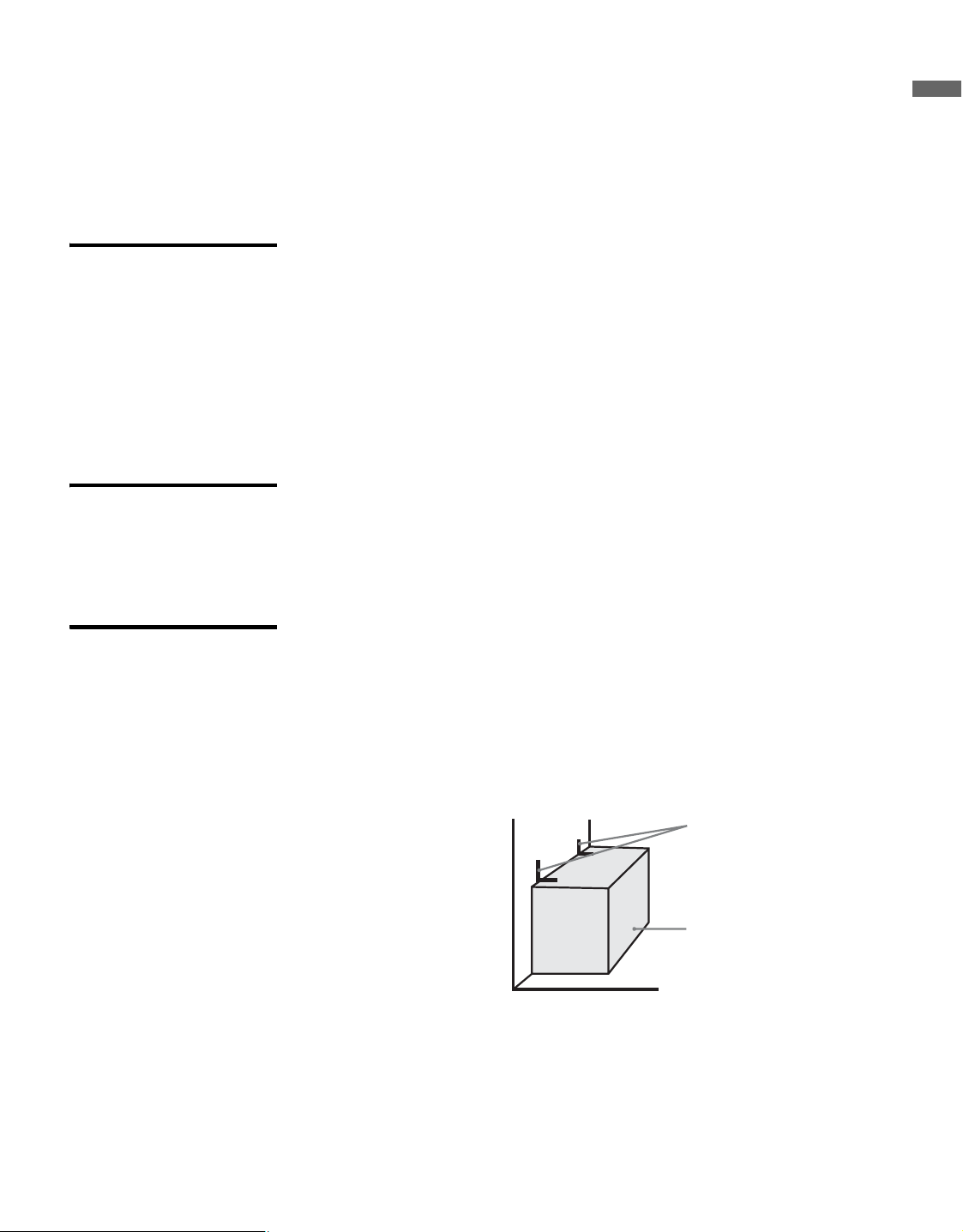
3 VIDEO IN 1
S VIDEO
Connects to the S VIDEO output jack on your camcorder or other video equipment that has
S VIDEO. Provides better picture quality than composite video (2/8).
8 VIDEO IN 1
VIDEO/
L(MONO)-
AUDIO-R
Connect to the composite video and audio output jacks on your A/V equipment such as a VCR
or other video equipment. A second composite video and audio (VIDEO 2) is located on the
left side panel of the TV.
4 COMPONENT
IN 1/2 (1080p/
1080i/720p/
480p/480i)/
L-AUDIO-R
Connect to your DVD player’s or digital set-top box’s component video (YP
B
P
R
) and audio
(L/R) jacks. Component video provides better picture quality than the S VIDEO (3) and the
composite video (2/8) connections.
5 PC IN
(RGB/AUDIO)
Connect to a personal computer’s video output connector using HD15-HD15 cable (analog
RGB, not supplied). Can also be connected to other analog RGB devices.
See “PC Input Signal Reference Chart” on page 41 for the signals that can be displayed.
For some Apple Macintosh computers, it may be necessary to use an adapter
(not supplied). If this is the case, connect the adapter to the computer before
connecting the HD15-HD15 cable.
If the picture is noisy, flickering or not clear, adjust the Phase and Pitch of the PC
Settings on page 30.
9 DIGITAL
AUDIO OUT
(OPTICAL)
Connects to the optical audio input of a digital audio equipment that is PCM/Dolby digital
compatible.
0 AUDIO OUT
L-AUDIO-R
(FIX)
Connect to the left and right audio input jacks of your audio or video equipment. You can use
these outputs to listen to your TV’s audio through your stereo system.
qa AC IN Connects the supplied AC power cord.
qs CABLE/
ANTENNA
RF input that connects to your Cable or VHF/UHF antenna.
* Manufactured under license from Dolby Laboratories. Dolby and the double-D symbol are trademarks of Dolby Laboratories.
Item Description
VIDEO IN 1 is equipped with S VIDEO. S VIDEO will be selected when both
composite and S VIDEO are connected.
Component video (YP
B
P
R
) or HDMI connection is necessary to view 480i, 480p,
720p, 1080i and 1080p formats. Note that this TV displays all picture format types
in a resolution of 1,920 dots × 1,080 lines.
Getting Started
19
Getting Started
Securing the TV
Sony strongly recommends taking measures to prevent the TV from toppling
over; as unsecured TVs may topple and result in property damage, serious
bodily injury or even death.
Preventing the TV
from Toppling
❑ Secure the TV to a wall and/or stand.
❑ Do not allow children to play or climb on furniture and TV sets.
❑ Avoid placing or hanging items on the TV.
❑ Never install the TV on:
• slippery, unstable and/or uneven surfaces.
• furniture that can easily be used as steps, such as a chest of drawers.
❑ Install the TV where it cannot be pulled, pushed, or knocked over.
❑ Route all AC power cords and connecting cables so that they are not accessible
to curious children.
Use a Sony TV
Stand
Use a Sony specified TV stand (see page 2) and follow the instruction
manual provided with the Sony TV stand.
If a Sony specified TV stand is not used, consider the following
recommended measures.
Recommended
Measures to Secure
the TV
1 Secure the Stand for the TV.
Make sure the TV stand can adequately support the weight of the TV.
Use two angle braces (not supplied) to secure the stand.
For each angle brace use the appropriate hardware to:
• attach one side of the angle brace to the wall stud.
• attach the other side to the TV stand.
Angle brace
Stand
(Continued)
Getting Started
20
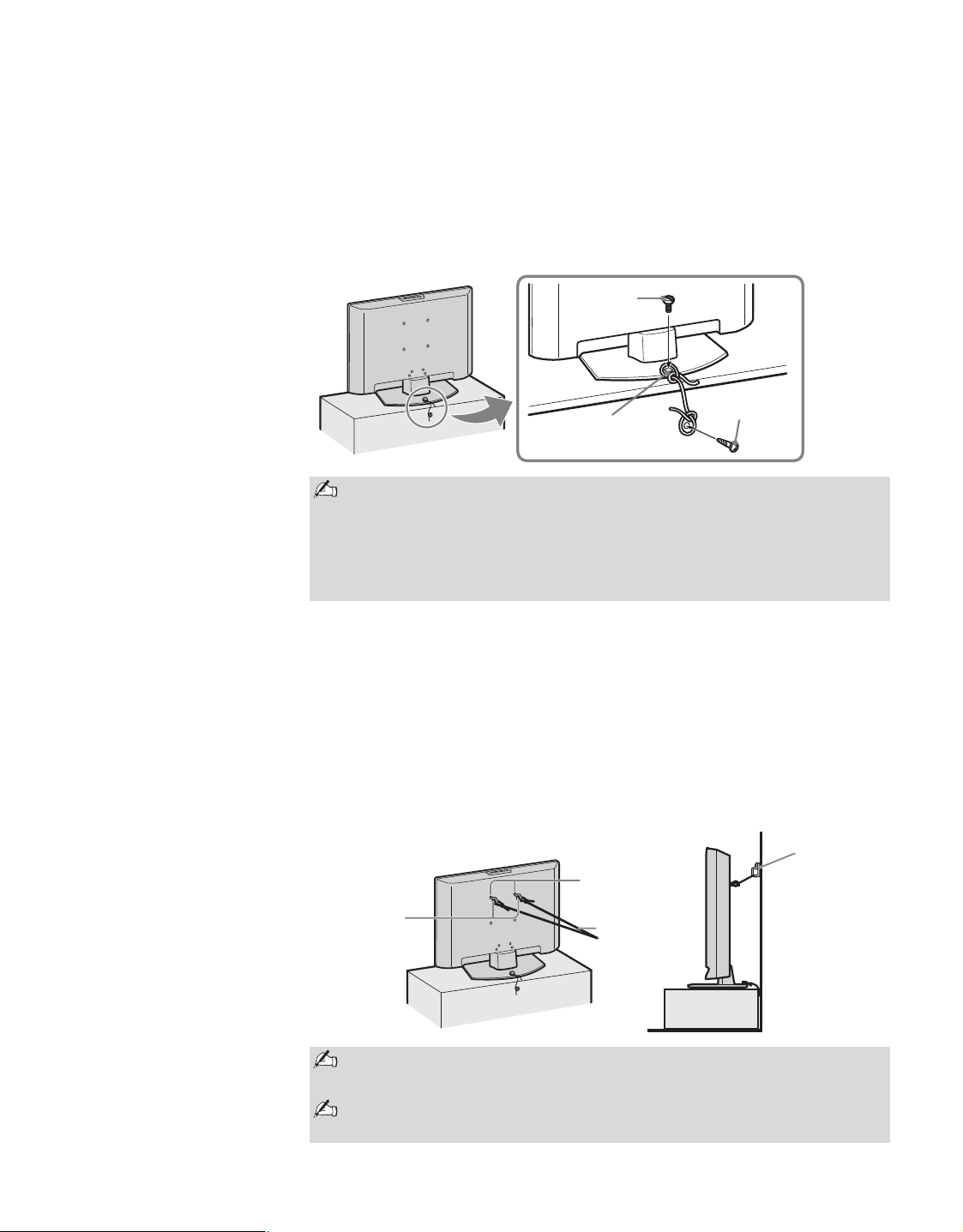
2 Secure the TV to the Stand.
Use the optional hardware listed below (not supplied):
• M6 × 12-18mm anchor bolt (screwed into the TV’s Table-Top Stand).
• A screw or similar (attach it to the TV stand).
• Rope or chain (strong enough to support the weight of the TV). Make
sure that there is no excess slack in the rope or chain.
An alternative way to secure the TV is with an optional Sony Support Belt Kit.
3 Anchor the TV to the Wall.
Use the hardware listed below (not supplied).
• Two M6 × 12-18mm anchor bolts (screw into the top-most wall-
mount holes located on the rear of the TV).
• Rope or chain (attach to one M6 anchor bolt).
• Wall-anchor (attach to the wall stud) strong enough to support the
weight of the TV (pass the rope through the wall-anchor, then attach
to the other M6 anchor bolt).
Contact Sony Customer Support to obtain the optional Support Belt Kit
by providing your TV model name.
– For United States call: 1-800-488-7669
or visit: www.sony.com/accessories
– For Canada call: 1-877-899-7669
Measure 2 provides minimal protection against the TV toppling over.
For further protection, follow all three measures recommended above.
If an electric screwdriver is used, set the torque to tighten at
approximately 2.0 N·m {20 kgf·cm}.
Screw hole on the
Table-Top Stand
Anchor bolt
Screw
Wall-mount
holes
Anchor bolts
Wall-anchor
Rope or
chain
Getting Started
21
Getting Started
Bundling the
Connecting Cables
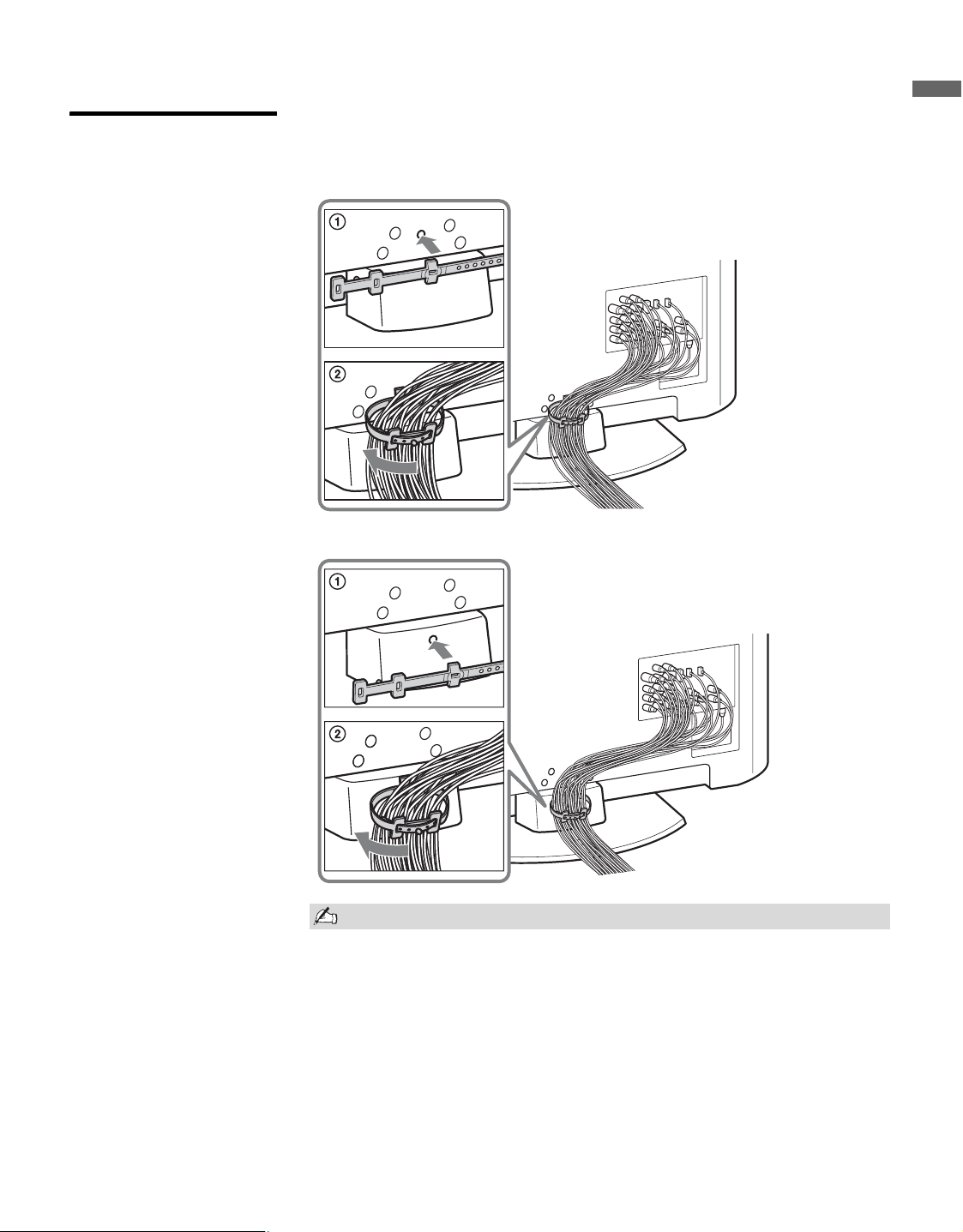
You can bundle the connecting cables with the supplied cable band as
illustrated below.
Do not bundle the AC power cord with other connecting cables.
KDL-40/46S4100
KDL-52S4100
Getting Started
22
Setting Up the Channel List - Initial Setup
After you finish connecting your TV, you need to run Initial Setup, which
automatically sets up available channels. The Initial Setup screen appears
when you turn on your TV for the first time. If you do not want to set up the
channels at this time, you can do it later by selecting the Auto Program
option in the Channel settings (see page 31).
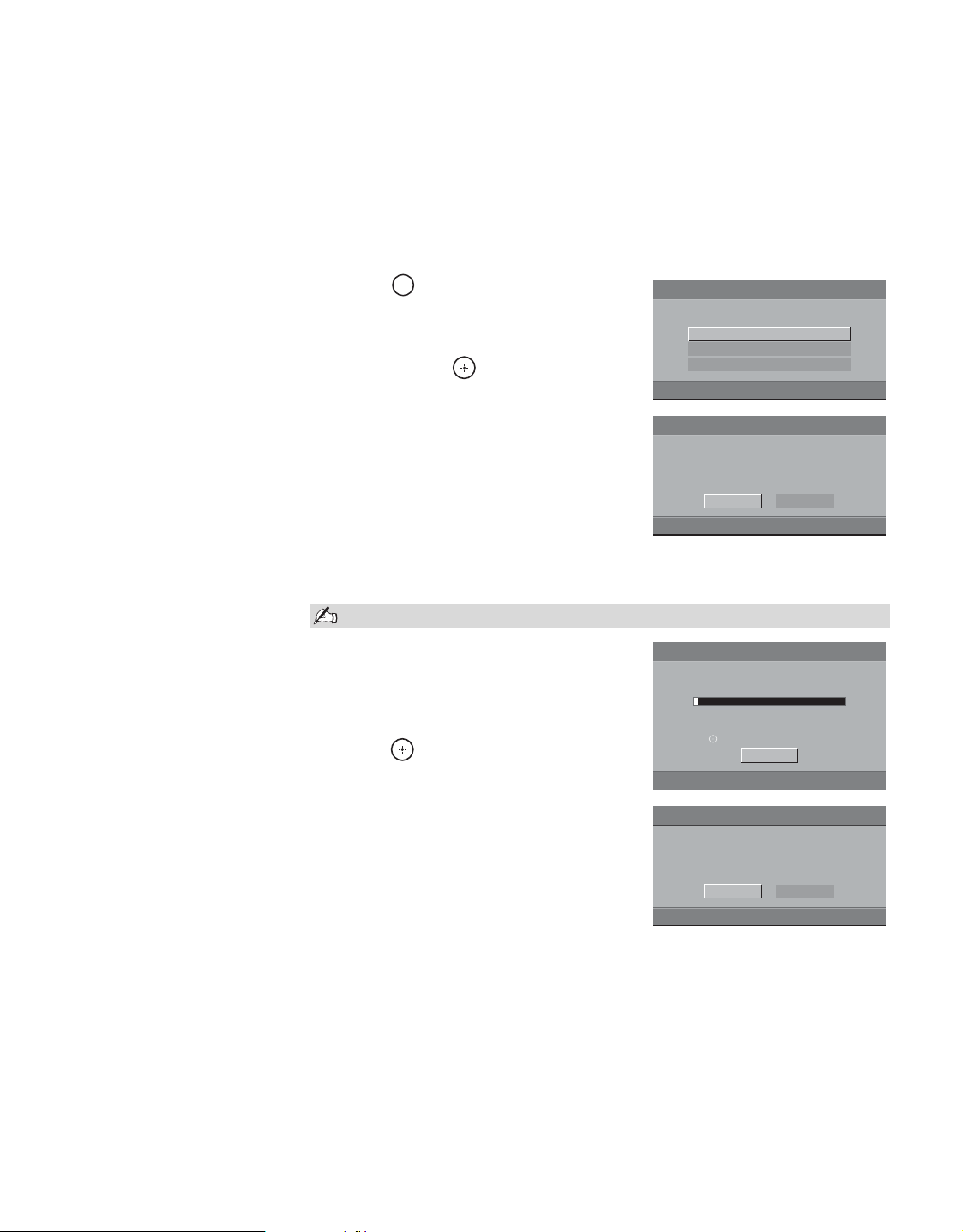
1 Press to turn on the TV.
The Initial Setup screen appears.
2 Press V/v to highlight the desired
language and to select.
3 The message “First please connect
cable or antenna. Allow 50+ minutes
for completion.” and “Start auto
program now?” appear, make sure you
already connected cable or antenna,
then select OK to start Auto Program.
If you want to start Auto Program
later, select Cancel.
4 The scanning of channels will start. If
you want to stop and run Auto
Program later, select Cancel.
5 When Auto Program is complete,
press to continue.
6 If the Initial Setup programming
found cable channels, you will be able
to scan antenna channels as well.
Connect the antenna using an A-B RF
switch (not supplied) and change the
switch to antenna then start Auto
Program to search antenna channels.
If the Initial Setup programming found antenna channels, the Auto
Program process will finish. If you want to scan cable channels, you
can do it later using the Channel settings.
To run Auto Program again at a later time
❑ Use the Auto Program feature as described on page 31.
To display the Picture in your Preferred Aspect Ratio
❑ Select the proper Wide Mode as described on pages 24 and 29.
If you have cable and antenna available, please connect cable first.
Please select your language:
Initial Setup
English
Español
Français
Initial Setup
First please connect cable or antenna.
Allow 50+ minutes for completion.
Start auto program now?
OK
Cancel
POWER
Initial Setup
Analog Channels Found: 0
Digital Channels Found: 0
Cancel
Searching...
Please wait. Allow 50+ minutes for completion.
Press to cancel.
Initial Setup
If you want to use air signals,
please connect antenna.
Allow 50+ minutes for completion.
OK
Cancel
23
Basic Operations
Basic Operations
Remote Control
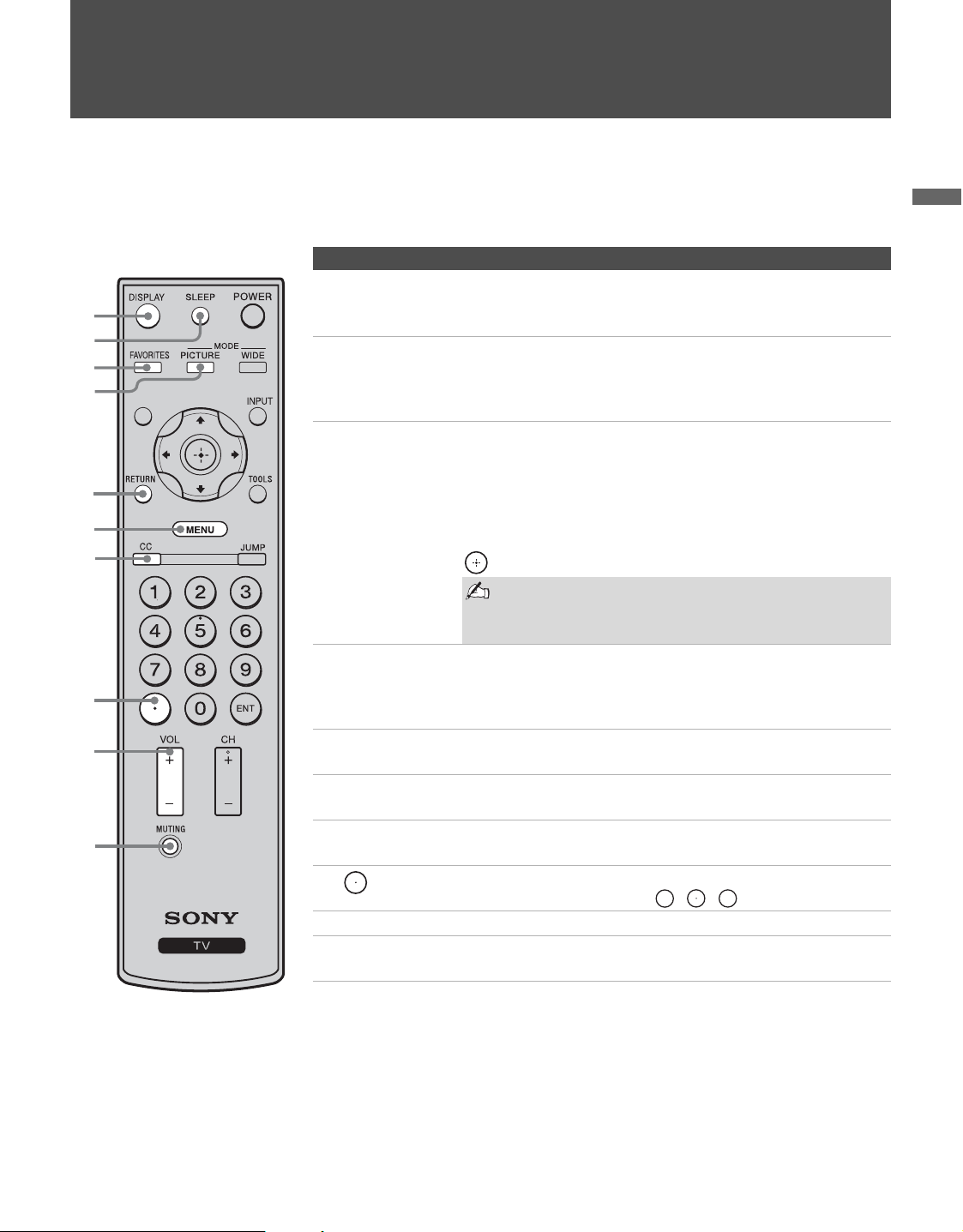
Button Description
1 DISPLAY Press once to display the current channel number, channel
label, program remaining time and Wide Mode. The on-
screen display (OSD) will turn off after a few seconds.
2 SLEEP Press repeatedly until the TV displays the time in minutes
(Off, 15, 30, 45, 60, 90 or 120) that you want the TV to remain
on before shutting off. To cancel Sleep Timer, press SLEEP
repeatedly until Off appears.
3 FAVORITES Press once to display the stored Favorites list. You can store up
to 8 channels and/or external inputs in your Favorites list.
How to Add to Favorites
While tuned to the channel you want to add to the list, press
FAVORITES and highlight “Add to Favorites”, then press
.
Your Favorites list will be cleared each time you run
Auto Program (see pages 22 and 31 for Auto
Program).
4 PICTURE Press repeatedly to cycle through the available picture modes:
Vivid, Standard, Custom. The picture modes can also be
accessed in the Picture settings. For details, see “Using the
Picture Settings” on page 27.
5 RETURN Press to go back to the previous screen when displaying
MENU items and settings.
6 MENU Press to display the MENU with TV functions and settings.
See “Overview of MENU” on page 27.
7 CC Press to turn on and off Closed Captions (CC). To change or
customize CC Display, see page 36.
8 Use with 0-9 and ENT buttons to select digital channels. For
example, to enter 2.1, press , , and ENT.
9 VOL +/– Press to adjust the volume.
0 MUTING Press to mute the sound. Press again or press VOL + to restore
the sound.
1
2
3
5
4
0
9
6
7
8
z The 5 button and CH +
have a tactile dot. Use
them as a reference when
operating the TV.
2
1
(Continued)
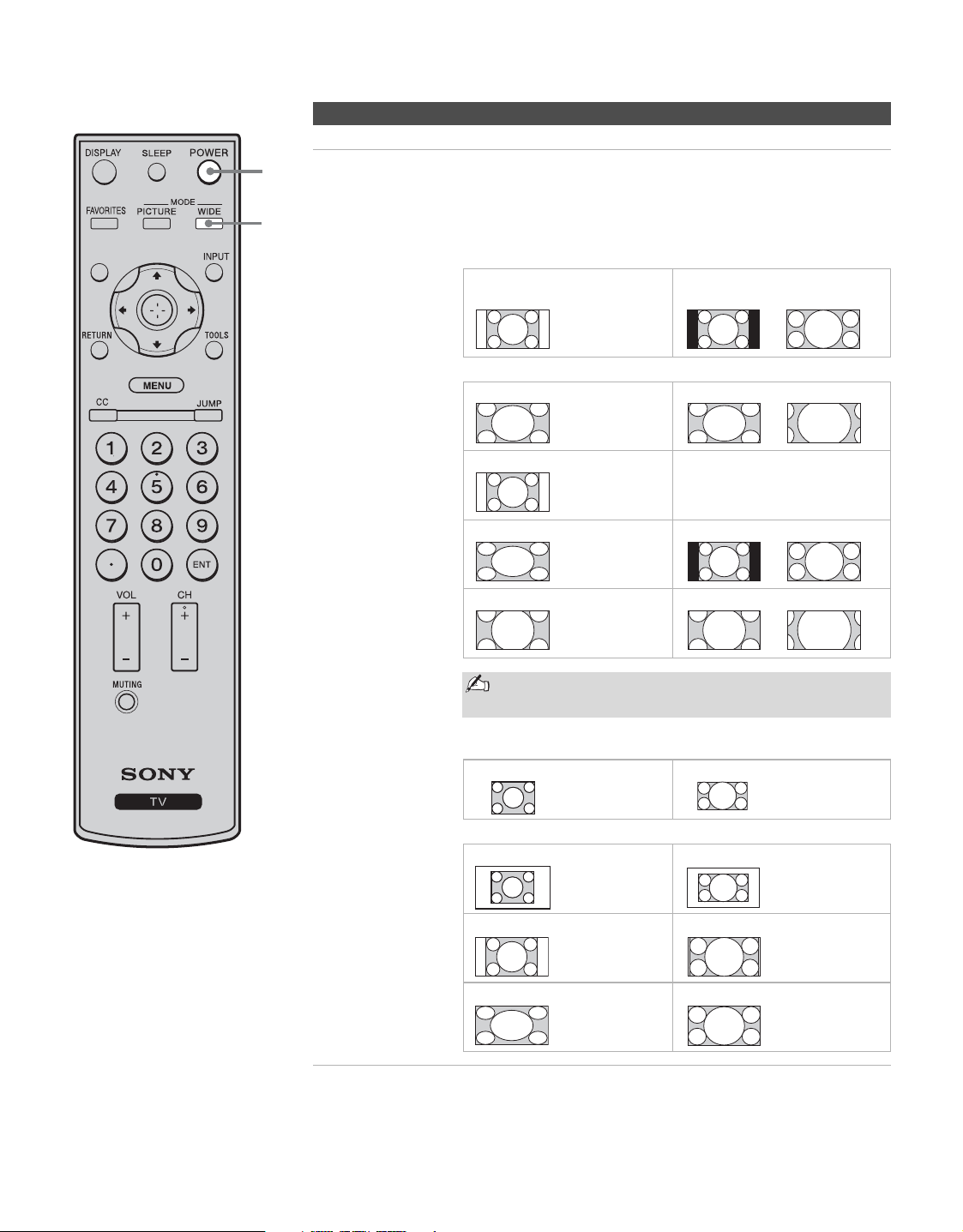
Basic Operations
24
qa POWER Press to turn on and off the TV.
qs WIDE
Press repeatedly to step through the
Wide Mode
settings:
Wide
Zoom
,
Normal
,
Full
, and
Zoom
. The
Wide Mode
settings can
also be accessed in the
Screen
settings. (See page 29.)
Changing the Wide Screen Mode
(For PC timing, see below)
Normal is not available when you are watching a
720p, 1080i or 1080p source.
Changing the Wide Screen Mode for PC Timing
Button Description
qa
qs
4:3 Original source
Standard-definition source
16:9 Original source
High-definition source
mm
Wide Zoom Wide Zoom
Normal Normal
This mode is not available.
Full Full
Zoom Zoom
Incoming PC signal Incoming PC signal
mm
Normal Normal
Full 1 Full 1
Full 2 Full 2
800 × 600 1280 × 768
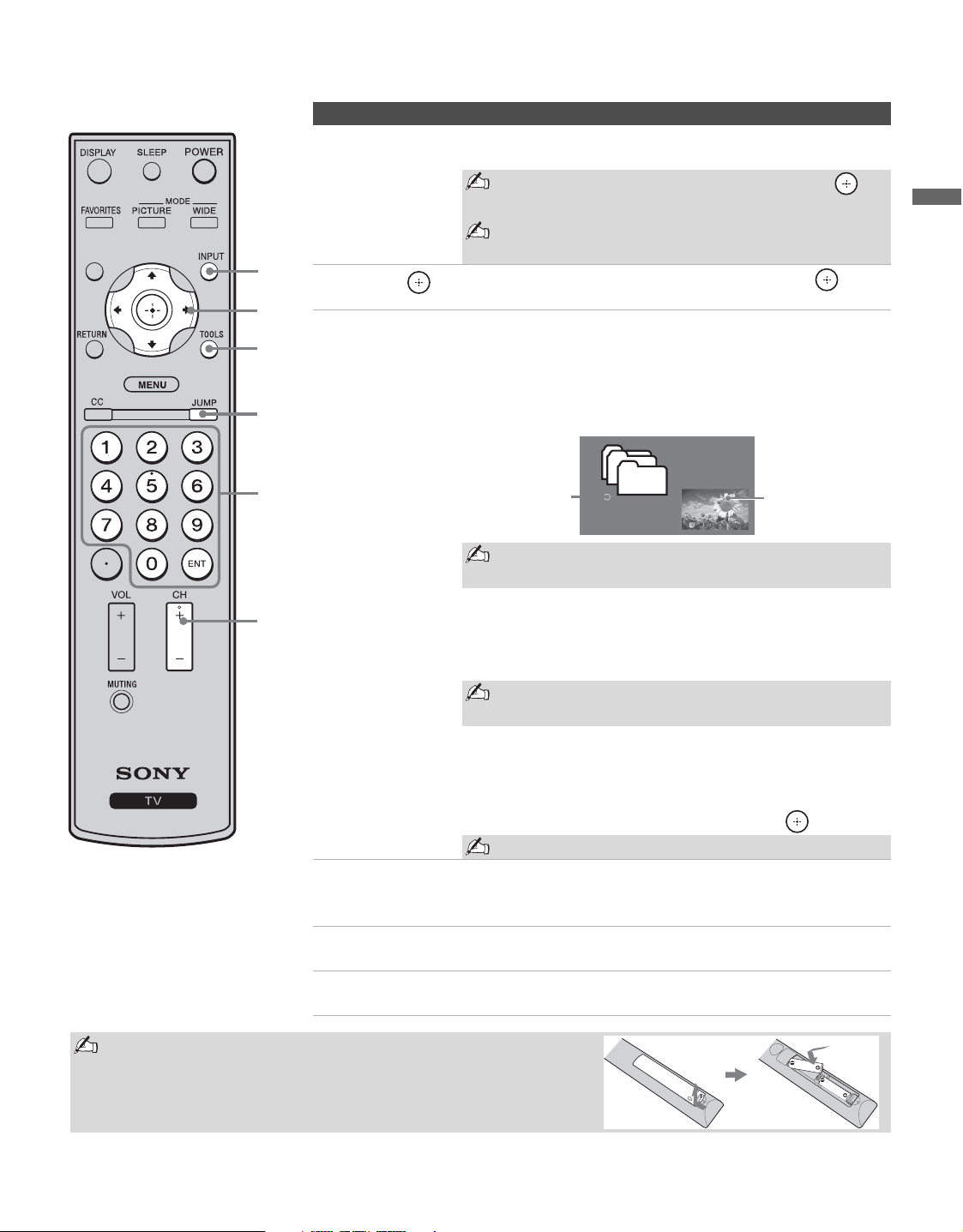
Basic Operations
25
Basic Operations
qd INPUT Press to display the list of external inputs. Press repeatedly to
toggle through the inputs.
Inputs can be changed by pressing V/v and
while the list of external inputs is displayed.
See page 35 for information about setting up the
external inputs labels, including the Skip feature.
qf V/v/B/b Press V/v/B/b to move the on-screen cursor. Press to
select/confirm an item.
qg TOOLS Press to display the Tools Menu that is associated with your
current input: analog TV, digital TV or external inputs. (See
pages 27, 28, 32 and 36.)
While in PC input mode, PIP can be selected from the Tools
Menu. The PIP feature allows the viewer to see both PC input
and TV channels simultaneously.
For compatible PC Timings, refer to the PC Input
Signal Reference Chart (see page 41).
To Change Channels in the PIP Window
Press CH +/– to change the channel or enter the channel
number using the 0-9 numeric buttons.
You may also press JUMP to return to the previously
viewed channel.
To Exit from PIP
1 Press TOOLS.
2 Press V/v to highlight Exit PIP and press to exit.
You may also press RETURN to exit this feature.
qh JUMP Press to jump back and forth between two channels. The TV
alternates between the current channel and the last channel that
was selected.
qj 0 - 9 ENT Press 0 - 9 to select a channel; the channel changes after two
seconds. Press ENT to change channels immediately.
qk CH +/– Press to scan through channels. To scan quickly through
channels, press and hold down either +/–.
Button Description
Main Window
(PC)
Sub Window
(TV channel)
qk
qj
qg
qd
qf
qh
Insert two size AA batteries (supplied) by matching the e and E
on the batteries to the diagram inside the remote control’s battery
compartment.
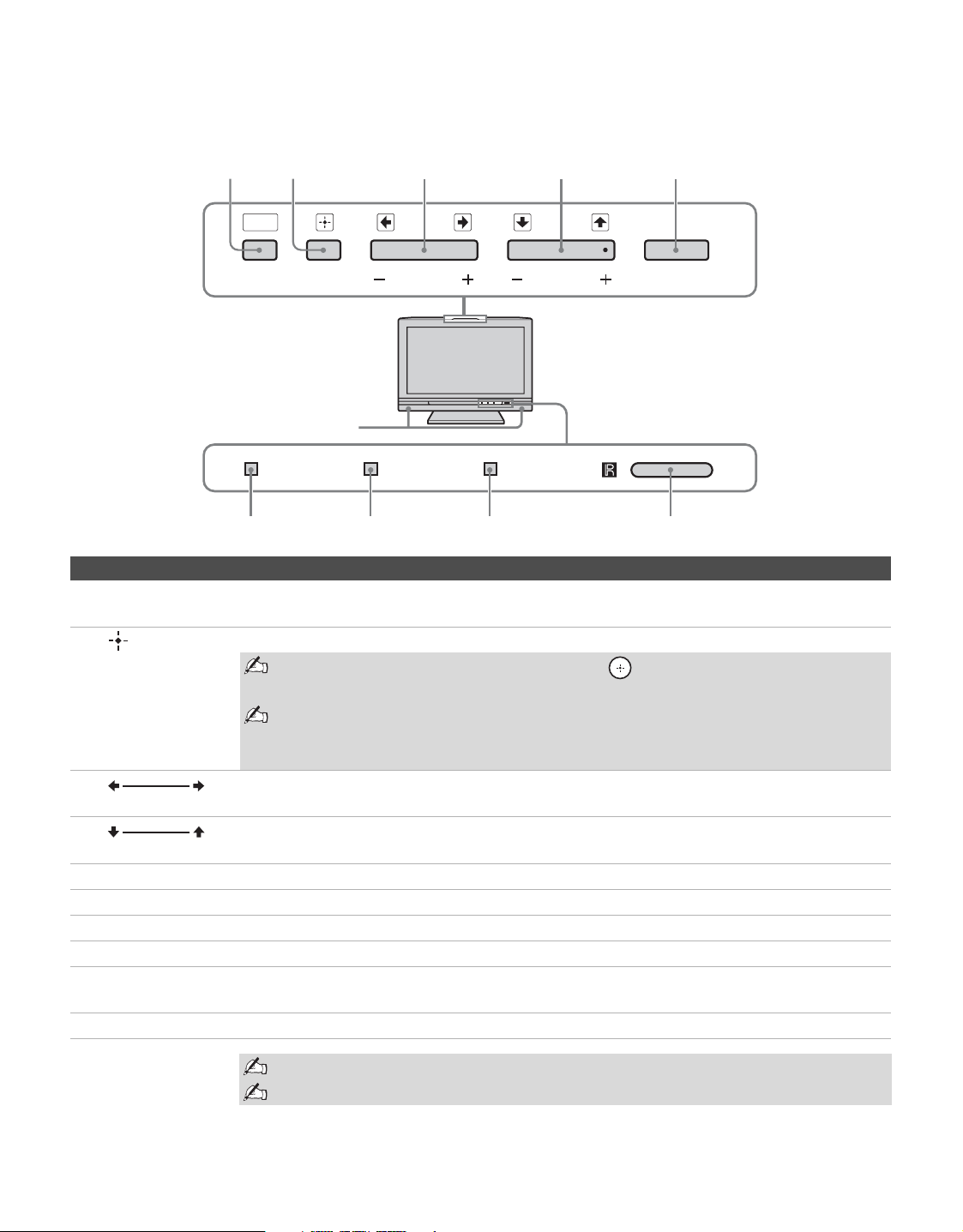
Basic Operations
26
TV Controls
TIMER STANDBY POWER
INPUT
MENU
POWER
CHANNEL
23 45
0
VOLUME
1
9876
Item Description
1 MENU Press to display MENU with TV functions and settings (see “Overview of MENU” on page
27).
2
INPUT
Press to display the list of external inputs. Press repeatedly to toggle through the inputs.
Inputs can be changed by pressing V/v and while the list of external inputs is
displayed.
See page 35 for information about setting up the external inputs labels, including
the Skip feature.
In the MENU screen, this button serves as confirming the selection or setting.
3
– VOLUME +
Press to adjust the volume. In the MENU screen, these buttons serve as left/right buttons.
4
– CHANNEL +
Press to scan through channels. To scan quickly through channels, press and hold down either
–/+. In the MENU screen, these buttons serve as up/down buttons.
5 POWER Press to turn on and off the TV.
6 TIMER LED Lights up in orange when the sleep timer is set.
7 STANDBY LED Lights up in red when your TV is in PC power saving mode.
8 POWER LED Lights up in green when the TV is turned on.
9 (IR) Infrared
Receiver
Receives IR signals from the remote control.
0 Speaker Outputs audio signal.
The CHANNEL + button has a tactile dot. Use it as a reference when operating the TV.
Make sure that the TV is completely switched off before unplugging the power cord.
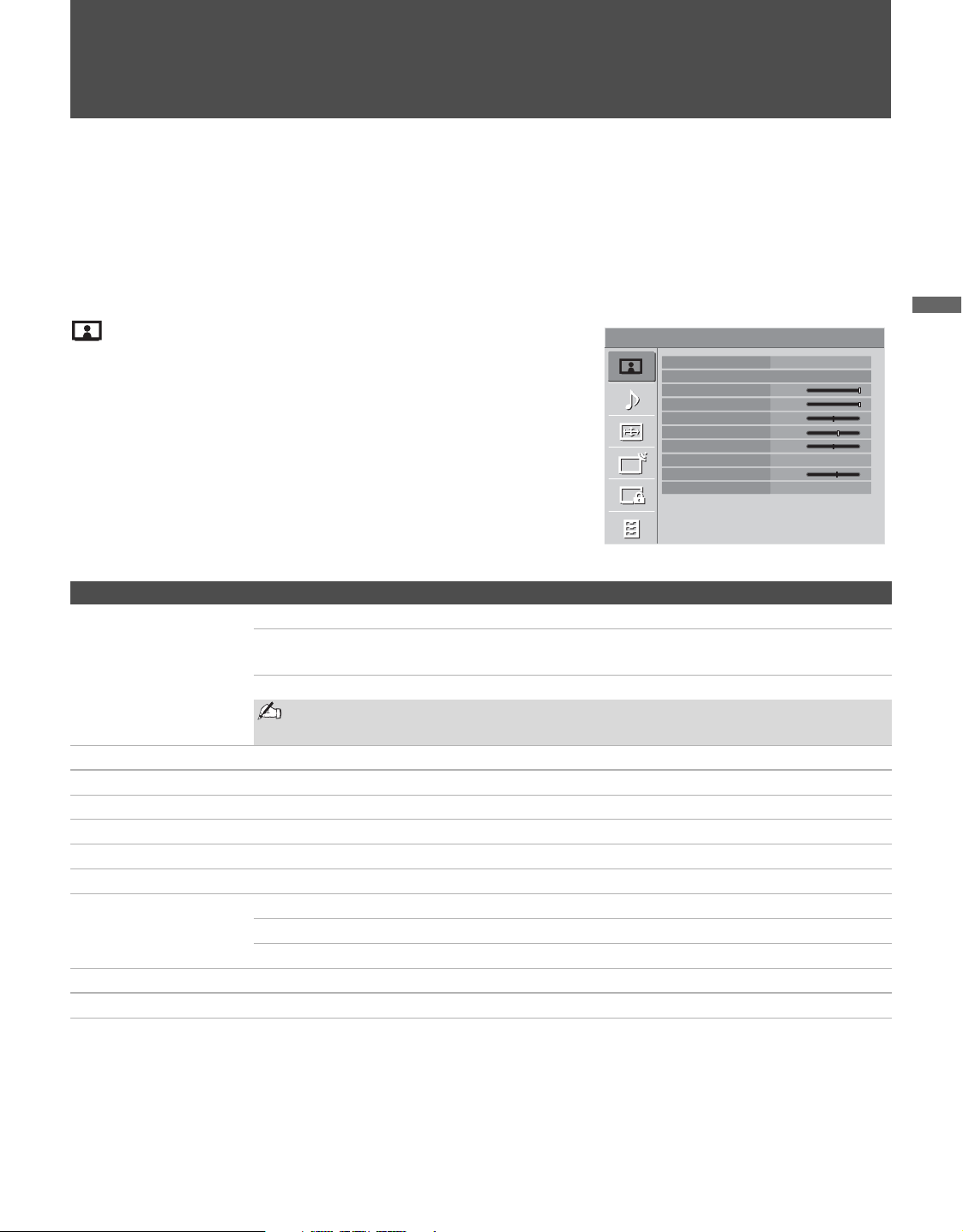
27
Using the Menus
Using the Menus
Overview of MENU
MENU provides one button access for controlling your TV. It enables you to perform a variety of tasks intuitively with a
control panel on the screen rather than a variety of remote control button presses.
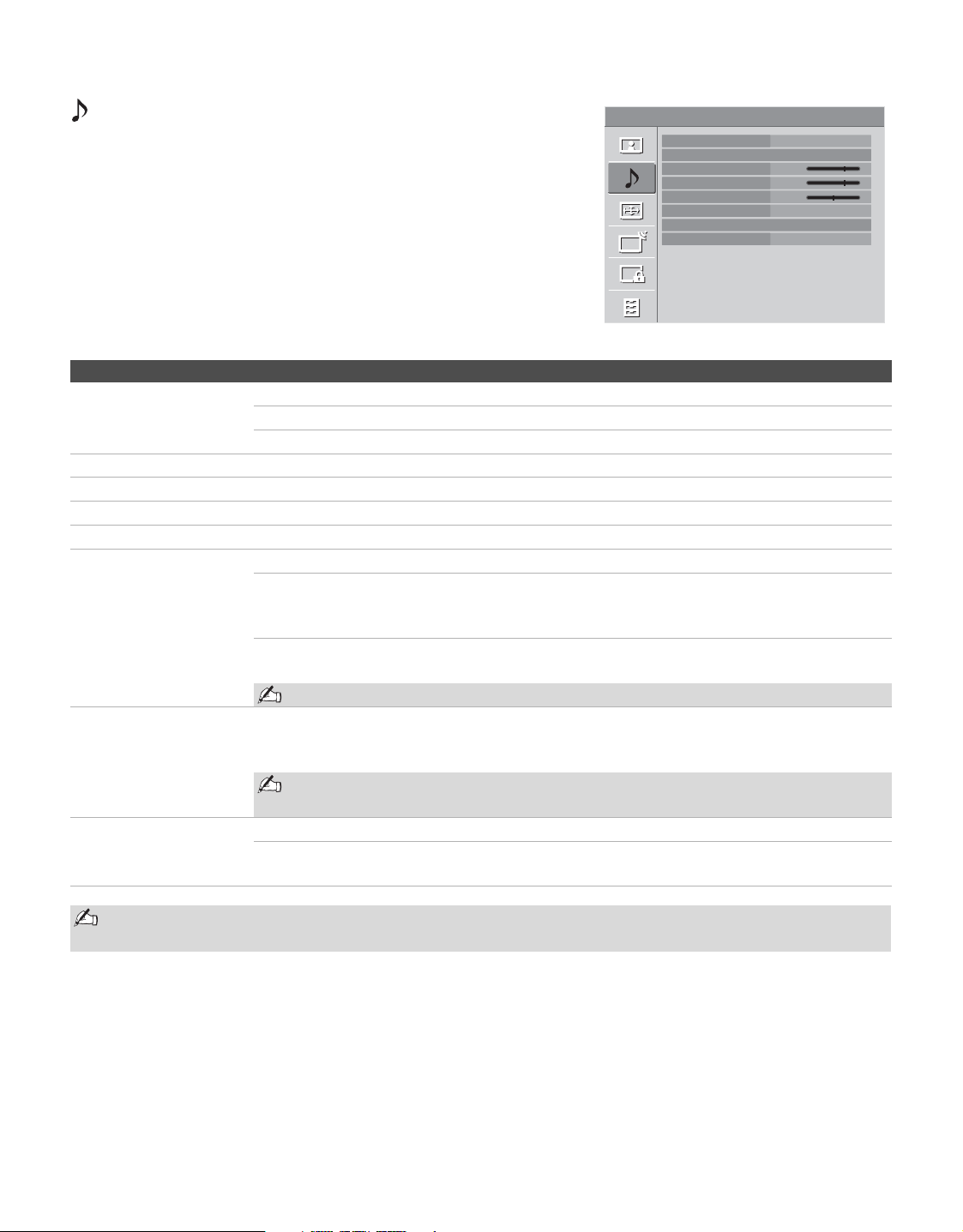
Using the Picture Settings
Option Description
Picture Mode
Customized picture
viewing
Vivid Select for enhanced picture contrast and sharpness.
Standard Select for standard picture settings. Recommended for home
entertainment.
Custom Allows you to store your preferred settings.
You can also access Picture Mode by using the TOOLS button or PICTURE
button on the remote control.
Reset Resets the current Picture Mode settings to the default values.
Backlight Adjust to brighten or darken the backlight.
Picture Adjust to increase or decrease picture contrast.
Brightness Adjust to brighten or darken the picture.
Color Adjust to increase or decrease color intensity.
Hue Adjust to increase or decrease the green tones.
Color Temp
White adjustment
Cool Select to give the white colors a bluish tint.
Neutral Select to give the white colors a neutral tint.
Warm Select to give the white colors a reddish tint.
Sharpness Adjust to sharpen or soften the picture.
Noise Reduction Select to reduce the noise level. Select from High, Medium, Low and Off.
Picture TV
Picture Mode
Reset
Backlight
Picture
Brightness
Color
Hue
Color Temp
Sharpness
Noise Reduction
Vivid
Max
Max
50
60
0
Cool
18
Off
Using the Menus
28
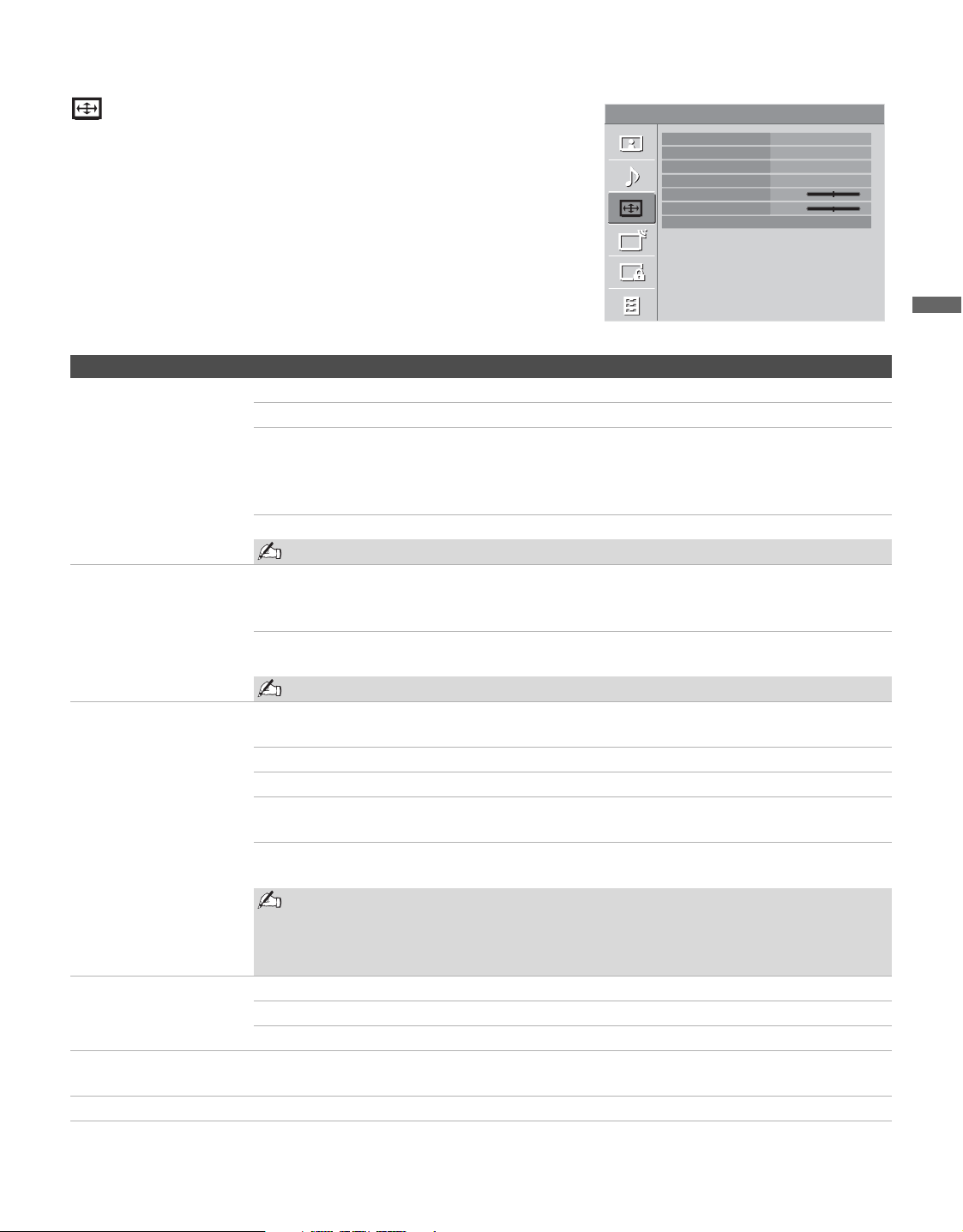
Using the Sound Settings
Option Description
Sound Mode
Customized
sound listening
Dynamic Enhances treble and bass.
Standard Standard sound optimized for home use.
Clear Voice Suitable for spoken dialog.
Reset Resets the current Sound Mode settings to the default values.
Trebl e Adjust to increase or decrease higher-pitched sounds.
Bass Adjust to increase or decrease lower-pitched sounds.
Balance Adjust to emphasize left or right speaker balance.
MTS
Enjoy stereo, bilingual
and mono programs
Stereo Select for stereo reception when viewing a program broadcast in stereo.
Auto SAP Select to automatically switch the TV to second audio programs when a
signal is received. If no SAP signal is present, the TV remains in
Stereo mode.
Mono Select for mono reception. Use to reduce noise during weak stereo
broadcasts.
MTS is only available for analog programs.
Alternate Audio
Digital channels only
Select among the available options to switch among the alternate audio streams. The
program you are tuned to may be broadcasted in a different language in the alternate audio
streams.
Alternate Audio is not available if the program is not broadcast with alternate
audio streams.
Speaker On Select to turn on the TV speakers.
Off Select to turn off the TV speakers and listen to the TV’s sound only
through your external audio receiver and speakers.
Sound TV
Sound Mode
Reset
Treble
Bass
Balance
MTS
Alternate Audio
Speaker
Dynamic
+6
+6
0
Stereo
On
You can also access Sound Mode, MTS and Alternate Audio by using the TOOLS button on the remote
control.
Using the Menus
29
Using the Menus
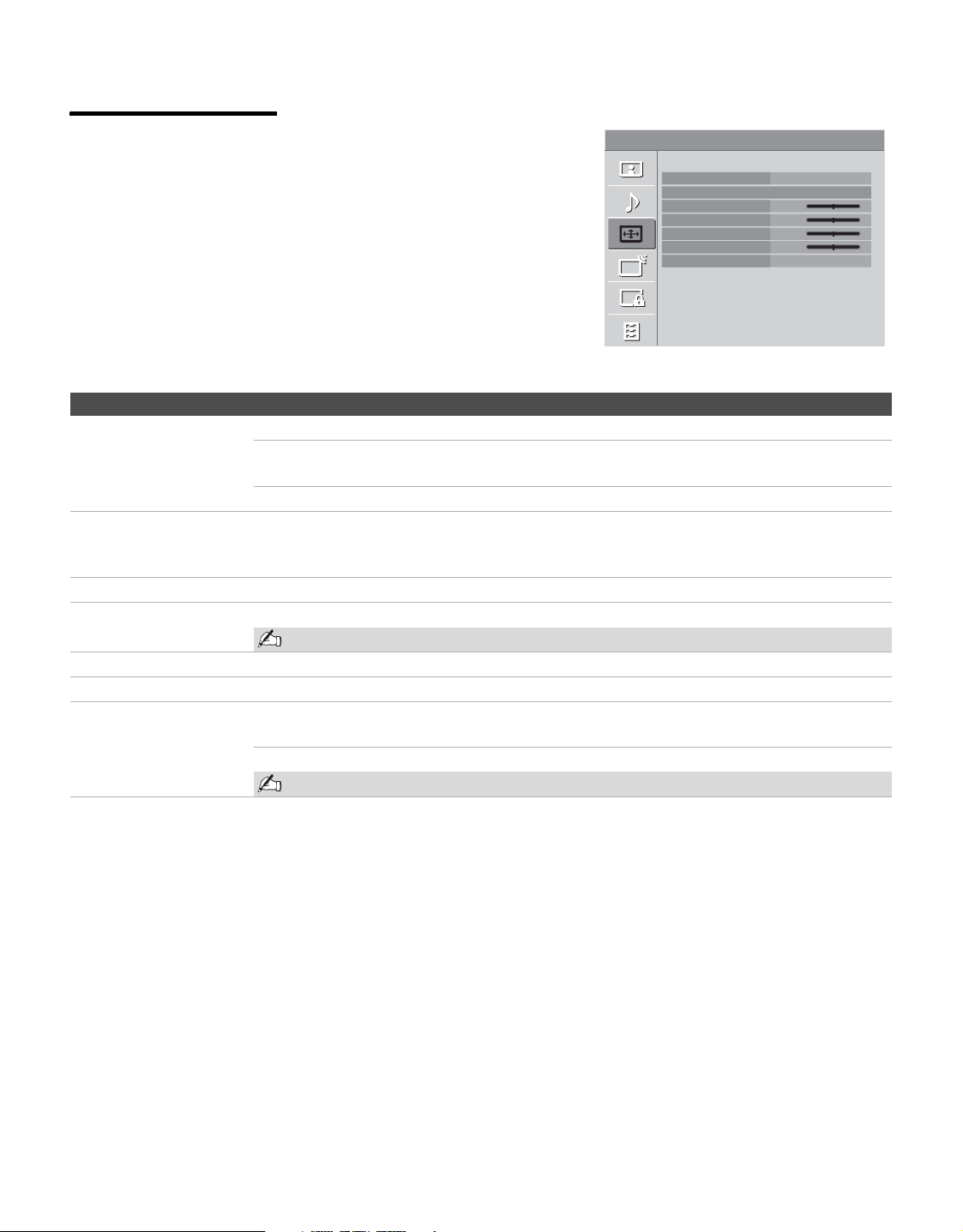
Using the Screen Settings
Option Description
Wide Mode Wide Zoom Fills the screen with minimum distortion.
Normal
Select to display 4:3 picture in original size when the original source is 4:3.
Full Select to enlarge the picture horizontally to fill the screen when the
original source is 4:3 (Standard definition source). When the original
source is 16:9 (High-definition source), select this mode to display the
16:9 picture in its original size.
Zoom Select to enlarge the original picture without distorting the aspect ratio.
Normal is not available when you are watching a 720p, 1080i or 1080p source.
Auto Wide On Select to have the screen automatically change to the screen mode that
is best for the current program. If frequent screen changes are disturbing
to you, select Off.
Off Select to turn off the Auto Wide option. Choose a screen mode from the
Wide Mode option.
Auto Wide is not available when you are watching analog TV.
4:3 Default
Select the default Screen
Mode to use for 4:3
sources
Wide Zoom Enlarges the 4:3 picture to fill the 16:9 screen, displaying as much of the
original image as possible.
Normal Select to display the 4:3 picture in its original size.
Full
Select to enlarge the 4:3 picture horizontally only, to fill the display area.
Zoom
Select to enlarge the picture horizontally and vertically to an equal aspect
ratio that fills the wide screen.
Off Select to continue using the current Wide Mode setting when the
channel or input is changed.
If 4:3 Default is set to anything but Off, the Wide Mode setting changes only for the
current channel. When you change channels (or inputs), Wide Mode is automatically
replaced with the 4:3 Default setting for 4:3 sources. To retain the current Wide Mode
setting as channels and inputs are changed, set 4:3 Default to Off.
Display Area Full Pixel
Displays the picture for 1080i or 1080p sources in its original size.
Normal
Displays the recommended picture area.
-1/-2
Enlarges the picture to hide the edge of the picture.
Vertical Center Allows you to move the position of the picture up and down. (Available only in Wide
Zoom.)
Ver tical Size Allows you to adjust the vertical size of the picture. (Available only in Wide Zoom.)
Screen TV
Wide Mode
Auto Wide
4:3 Default
Display Area
Vertical Center
Vertical Size
PC Settings
Wide Zoom
On
Wide Zoom
Normal
0
0
Using the Menus
30
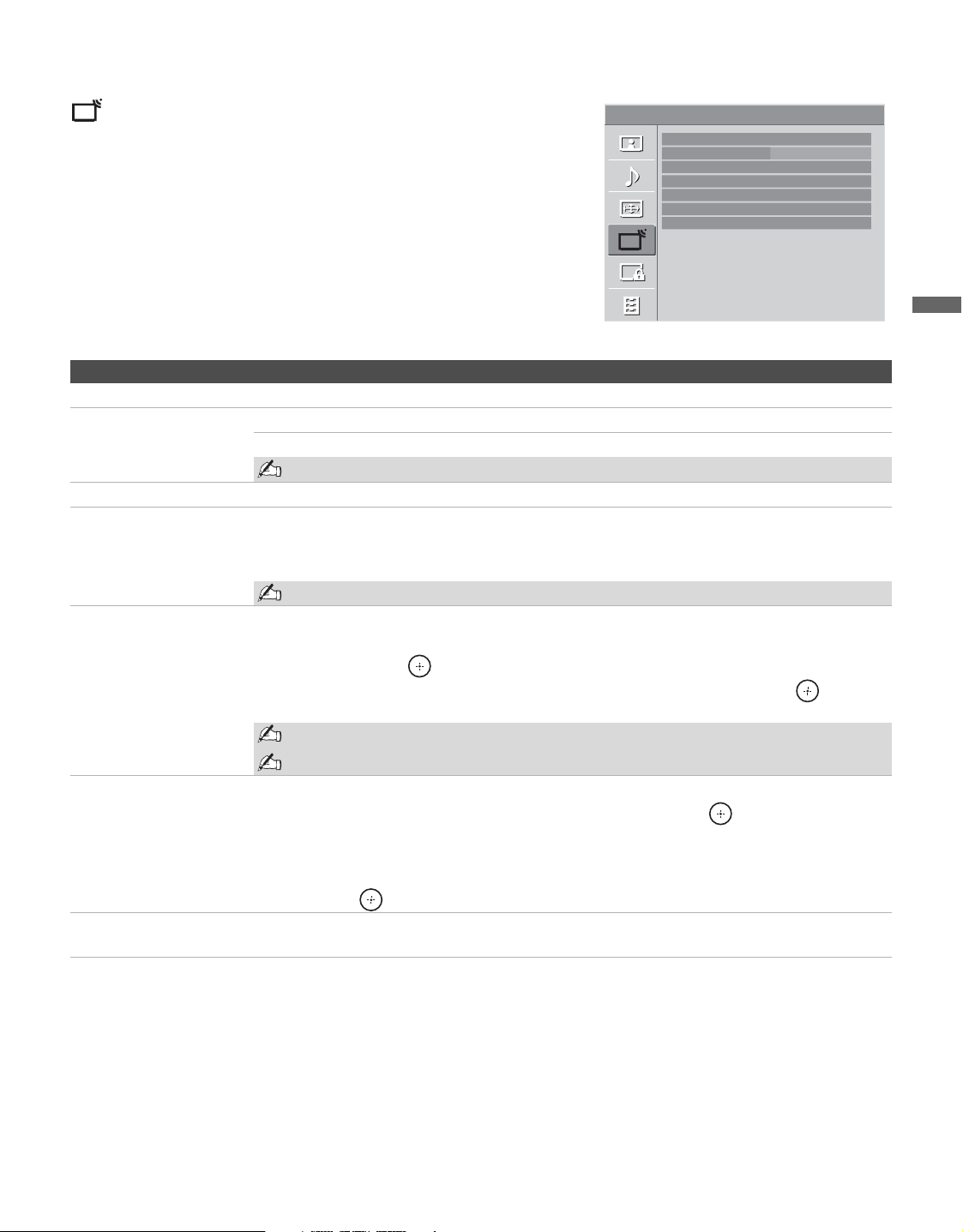
Using the PC
Settings
When a PC is connected to the TV
and the PC input is selected, the
PC
Settings
screen appears instead of
the
Screen settings.
Also you can select the
PIP feature
which allows you to view two
pictures simultaneously from
TOOLS button (see page 25).
Screen
PC Settings
PC
Wide Mode
Auto Adjustment
Phase
Pitch
Horizontal Center
Vertical Center
Power Management
Normal
0
0
0
0
On
Option Description
Wide Mode Normal Select to display in the original image size.
Full1 Select to enlarge the picture to fill the display area, keeping its original
aspect ratio.
Full2 Select to enlarge the picture to fill the display area.
Auto Adjustment Select to automatically adjust the display position and phase of the picture when the TV
receives an input signal from the connected PC. Note that Auto Adjustment may not work
well with certain input signals. In such cases, manually adjust the options below.
Phase Adjust after Pitch to fine tune overall sharpness.
Pitch Adjust uneven sharpness on screen.
For the PC Input Signal Reference Chart, see page 41.
Horizontal Center Allows you to move the position of the picture left and right.
Vertical Center Allows you to move the position of the picture up and down.
Power Management On Select to automatically switch to the power saving mode when there is
no signal input for 30 seconds.
Off Select to turn off Power Management.
Power Management is not VESA-compliant.
Using the Menus
31
Using the Menus
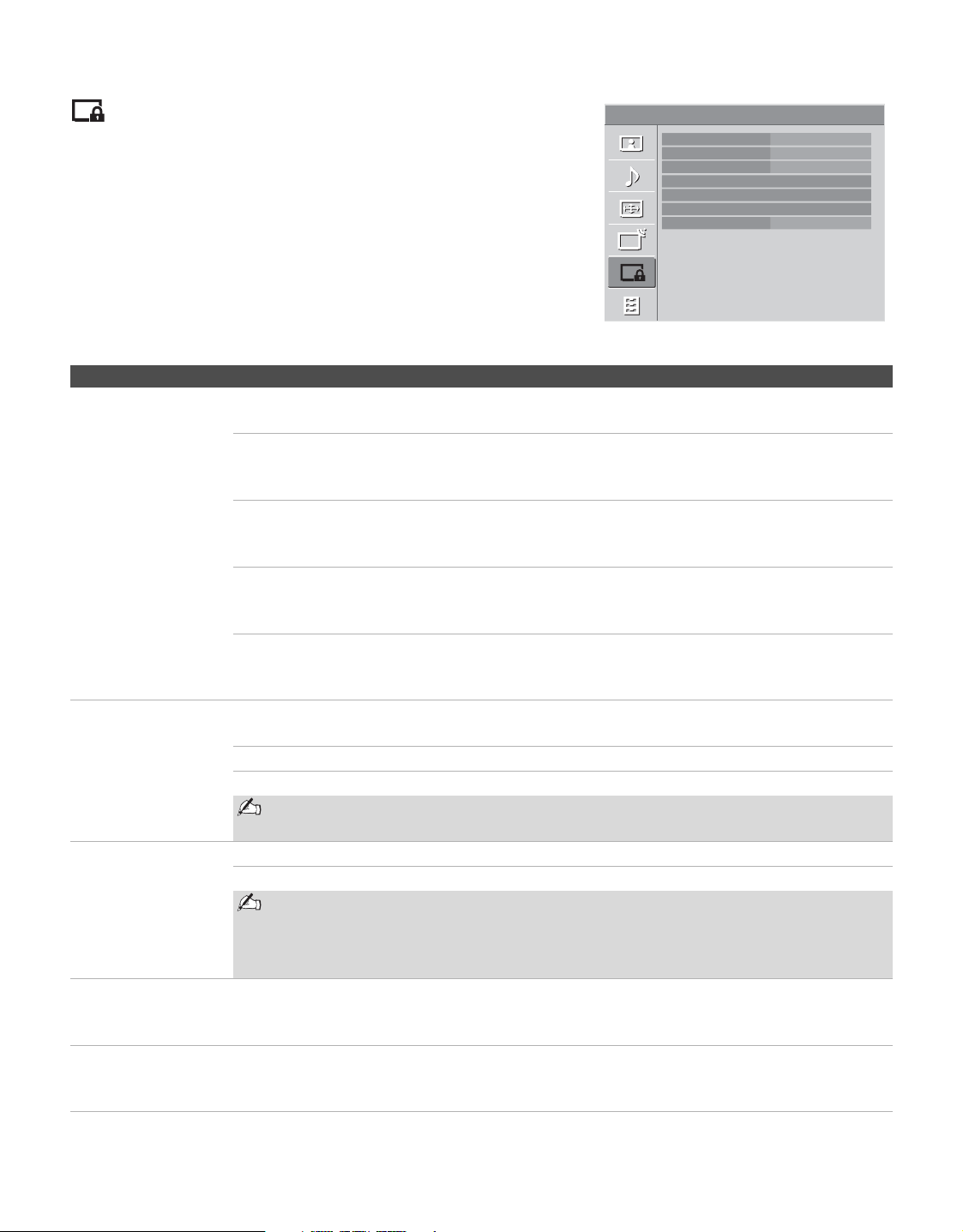
Using the Channel Settings
Option Description
Favorites Select favorite channels and external inputs (see page 23).
Cable On Select if you are receiving cable channels via Cable TV provider.
Off Select if you are using an antenna.
You should run Auto Program after changing the Cable setting.
Digital Channels Select to add digital channels.
Auto Program Automatically sets up the channel list on the TV for all receivable channels.
1 Select Auto Program.
2 Select OK to start Auto Program.
Running Auto Program will clear Favorites list.
Show/Hide Channels Allows you to show or hide channels that appear when you use the CH +/– buttons.
1 Press V/v to scroll through the channels until you find the channel you want to show or
hide. Then press to select it.
2 Press V/v to determine if the channel will be shown or hidden. Then press to select
it.
Channels that you set to be hidden can be accessed only with the 0-9 buttons.
You can set channels to be hidden that are automatically set in Auto Program.
Label Channels Allows you to assign labels (such as station call letters) to channel numbers.
1 Press V/v to scroll through the channel numbers. Then press to select the channel
number that you want to assign a label.
2 Press V/v to scroll through the label characters (A-Z, 0-9, etc.). Press b to move to the
next character. Repeat to add up to 7 characters to the label. Press b to highlight OK
and press to set.
Diagnostics Display diagnostics information about the TV. This can be useful in providing information to
an authorized technician or repair person.
Channel TV
Favorites
Cable
Digital Channels
Auto Program
Show/Hide Channels
Label Channels
Diagnostics
On
Using the Menus
32
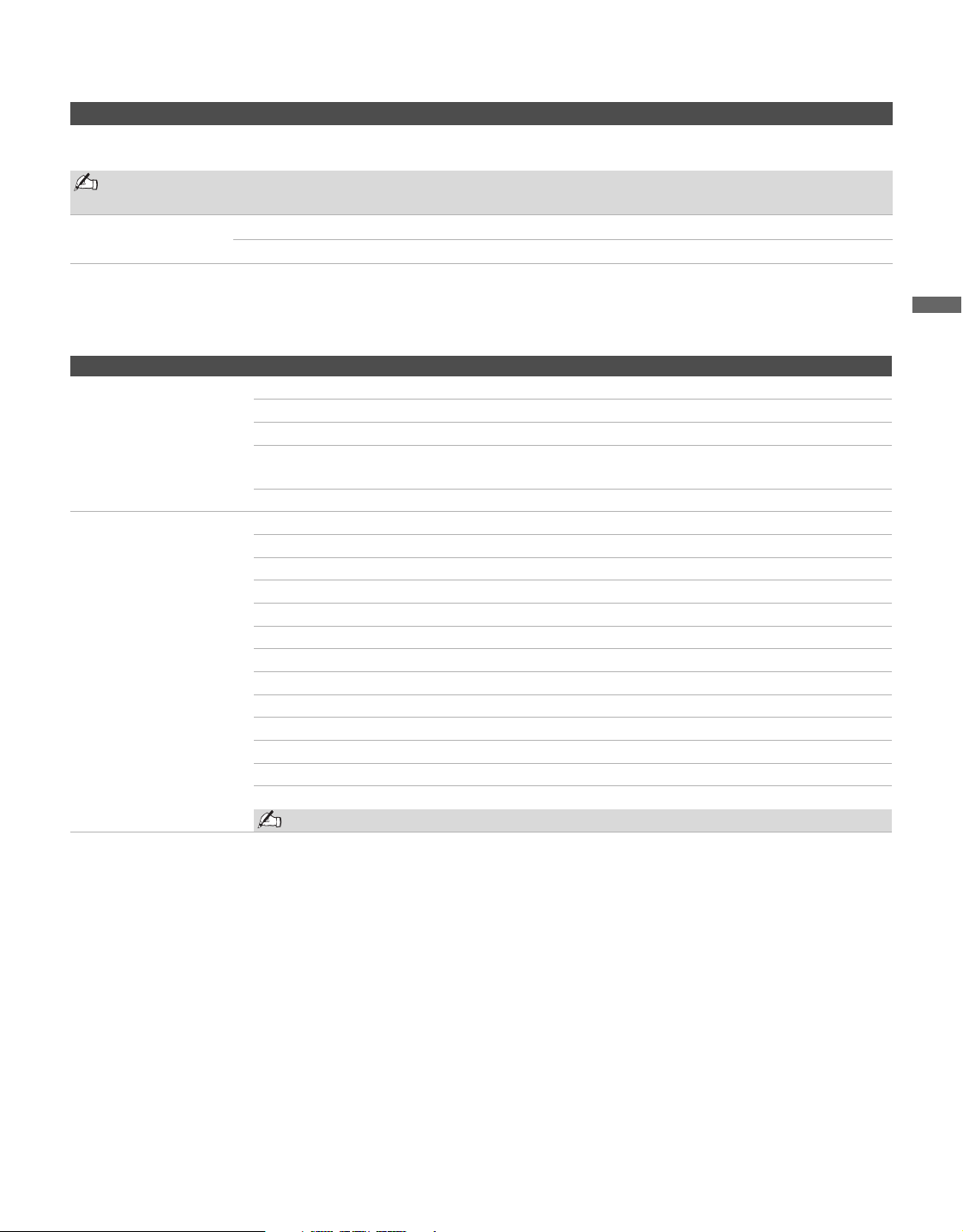
Using the Parental Lock Settings
The Parental Lock settings allows you to set up the TV to block
programs according to their content and rating levels. Use 0-9 on the
remote control to enter a four-digit password. The first time you
create a password, confirm the password by entering it again.
Option Description
Rating Off Turn Parental Lock off. No programs are
blocked from viewing.
Child Maximum ratings permitted are:
U.S.: TV-Y, TV-G, G
Canada: C, G, TV-Y
Youth Maximum ratings permitted are:
U.S.: TV-PG, PG
Canada: C8+, PG, 8 ans+, TV-PG
Young Adult Maximum ratings permitted are:
U.S.: TV-14, PG-13
Canada: 14+, 13 ans+, TV-14
Custom Select to set ratings manually.
U.S.: See page 33 for details.
Canada: See page 34 for details.
Digital Rating
(Available only
in U.S.A.
where advanced
ratings exist)
Off Turn Parental Lock off. No programs that contain downloadable ratings
are blocked from viewing.
Custom Select to block programs based on downloadable ratings.
Clear All Select to clear the entire downloadable rating system.
This action will delete the current Digital Rating menu and the menu will no longer
be available until the TV is tuned to a channel that contains downloadable ratings.
Unrated
(Available only
when Country is
set to U.S.A.)
Allow Allows programs and movies that are broadcasted without a rating.
Block Blocks all programs and movies that are broadcasted without a rating.
If you block unrated TV programs, be aware that the following types of programs
may be blocked: programs broadcasted from another country, emergency
broadcasts, political programs, sports, news, public service announcements,
religious programs and weather.
Channel Block Allows you to block channels regardless of program ratings.
To View a Blocked Channel
Press ENT when tuned to the blocked channel then enter the password.
External Input
Block
Allows you to block external inputs regardless of program ratings.
To View a Blocked External Input
Press ENT when tuned to the blocked input then enter the password.
Parental Lock TV
Rating
Digital Rating
Unrated
Channel Block
External Input Block
Change Password
Select Country
Off
Off
Allow
U.S.A.
Using the Menus
33
Using the Menus
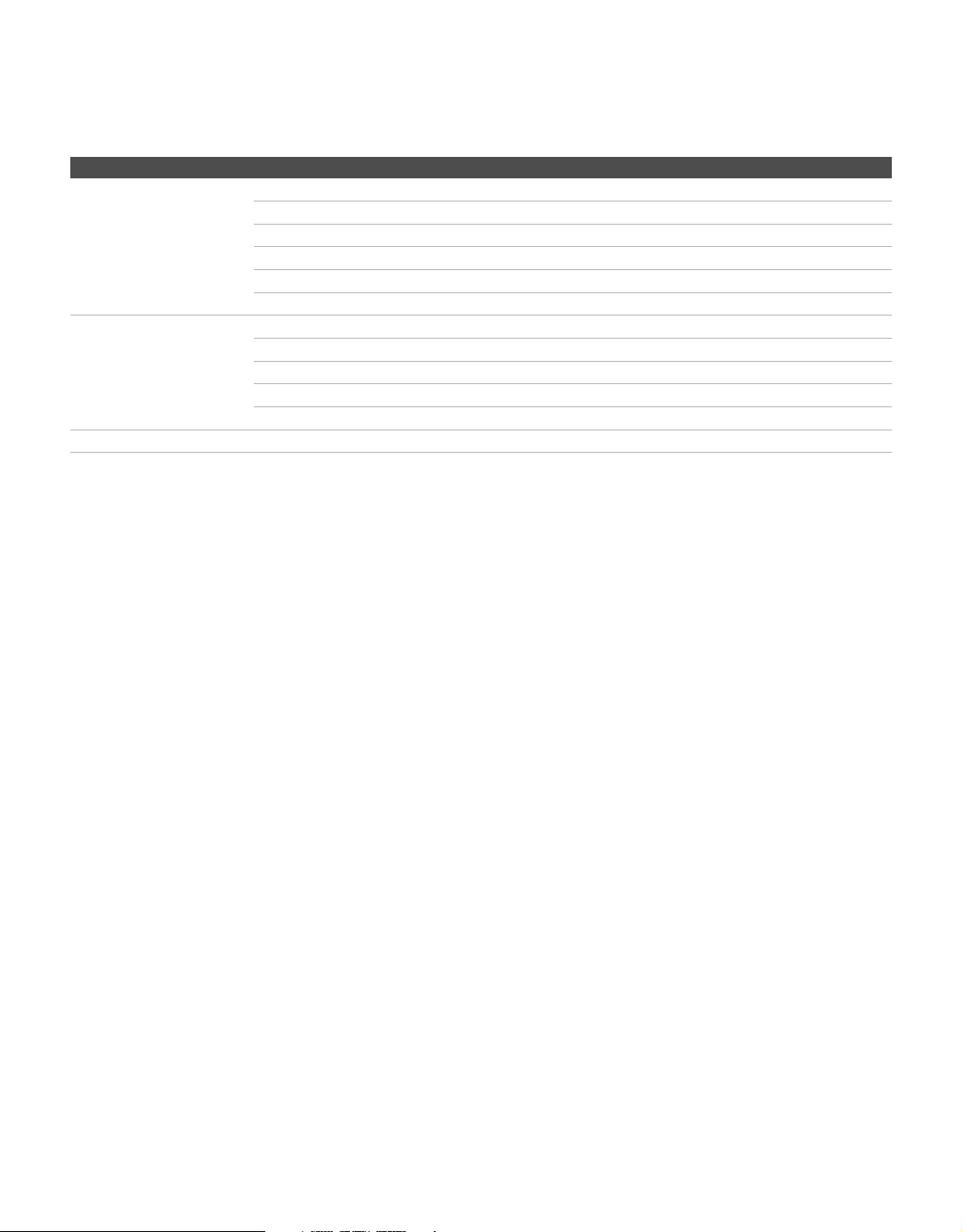
US Models: Selecting Custom Parental Lock Rating Options
To select custom rating options for the U.S., select U.S.A. in the Select Country setting (see above).
Change Password
Select to change your password.
You need your password for any future access into the Parental Lock settings. If you lose your password,
see “Lost password.” on page 38.
Select Country U.S.A. Select to use U.S.A. ratings (see below).
Canada Select to use Canadian ratings (see page 34).
Option Description
Movie Rating G All children and general audience.
PG Parental guidance suggested.
PG-13 Parental guidance for children under 13.
R Restricted viewing, parental guidance is suggested for children under
17.
NC-17 and X No one 17 or under allowed.
TV Rating
Block programs by their
rating, content or both
Age-Based Ratings
TV-Y All children.
TV-Y7 Directed to children age 7 and older.
TV-G General audience.
TV-PG Parental guidance suggested.
TV-14 Parents strongly cautioned.
TV-MA Mature audience only.
Content-Based Ratings
FV Fantasy violence.
D Suggestive dialogue.
L Strong language.
S Sexual situations.
V Violence.
To ensure maximum blocking capability, set the Age-Based Ratings.
Option Description
(Continued)
Using the Menus
34
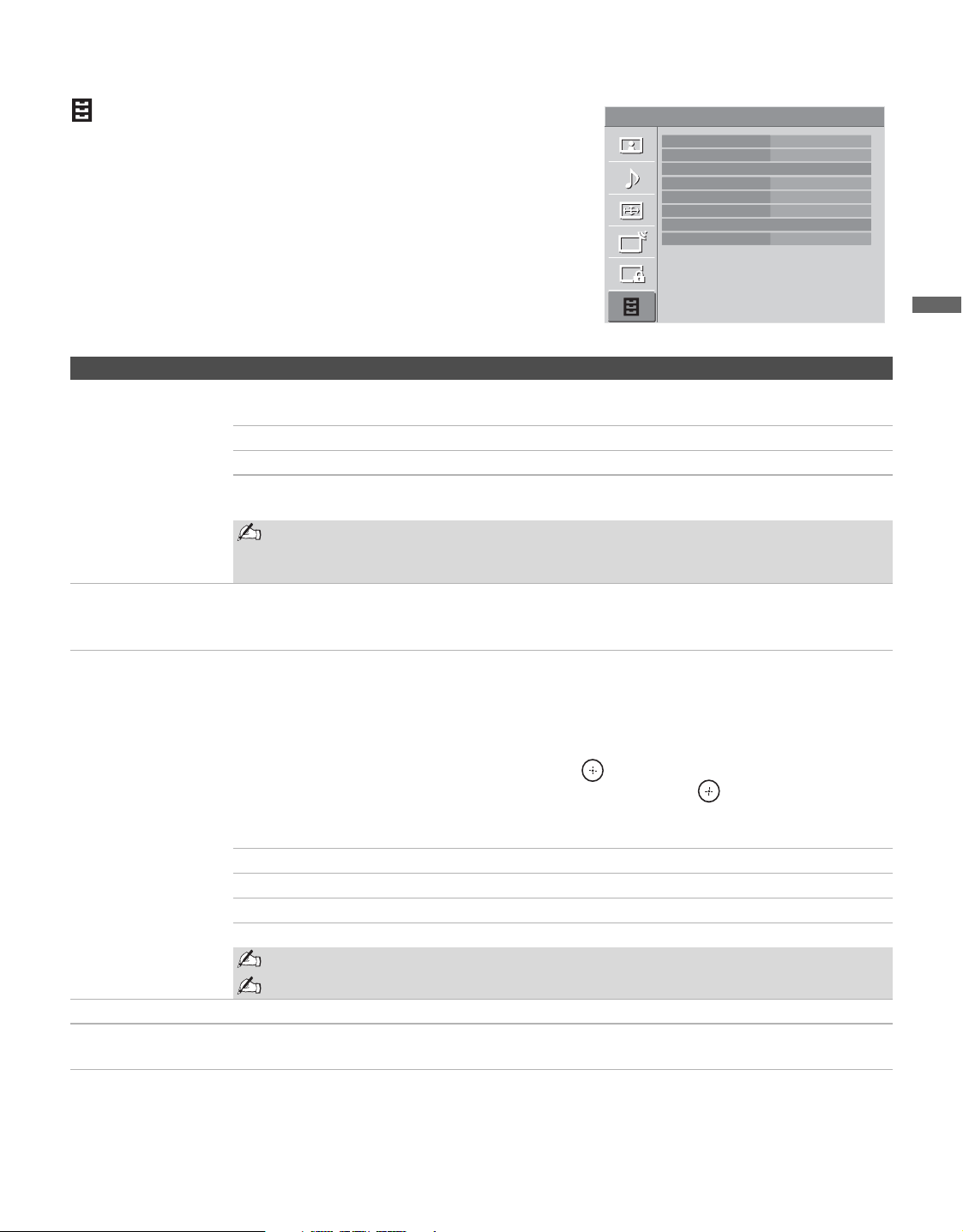
Canadian Models: Selecting Custom Parental Lock Rating Options
To select custom rating options for Canada, select Canada in the Select Country setting (see page 33).
Viewing Blocked Programs
You can view blocked programs by entering the password. Press ENT when tuned to a blocked program,
then enter the password. This temporarily turns the parental control feature off. To reactivate the Parental
Lock settings, turn off the TV. When the TV is turned on again, your Parental Lock settings are reactivated.
Option Description
English Rating C All children.
C8+ Children 8 years and older.
G General programming.
PG Parental guidance.
14+ Viewers 14 and older.
18+ Adult programming.
French Rating G General programming.
8 ans+ Not recommended for young children.
13 ans+ Not recommended for ages under 13.
16 ans+ Not recommended for ages under 16.
18 ans+ Programming restricted to adults.
U.S.A. Rating See “US Models” on page 33 for details.
Using the Menus
35
Using the Menus
Using the Setup Settings
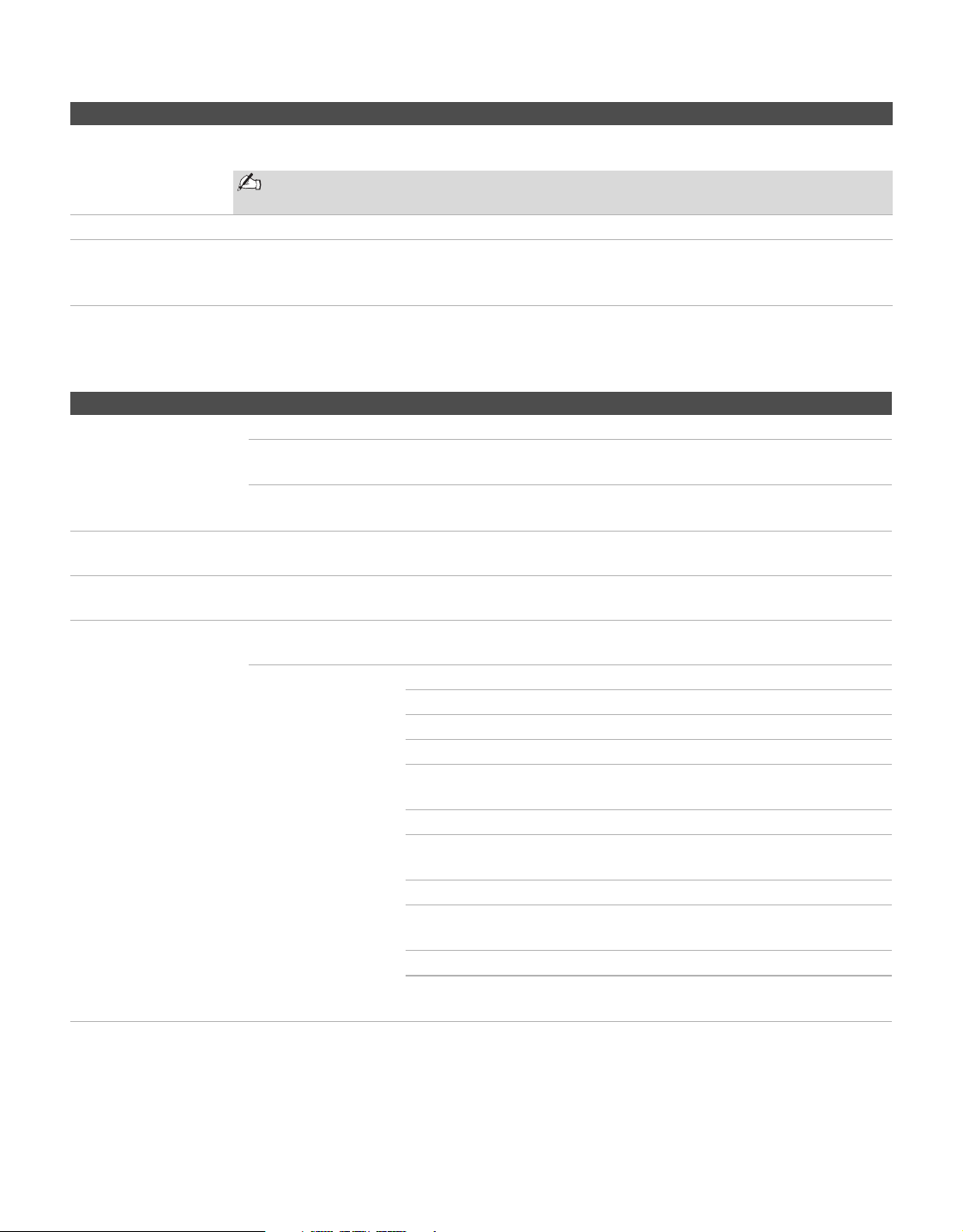
Option Description
Closed Captions
(CC)
Allows you to select from several closed caption modes (for programs that are broadcast with
closed captioning).
On Closed Captions (CC) is turned on.
Off Closed Captions (CC) is turned off.
Program Allows you to set basic and advanced Closed Captions (CC) options. See
“Programming Closed Captions (CC)” on page 36.
You can also access Closed Captions (CC) by using the CC button on the remote
control when in analog TV, digital TV and external inputs (with the exception of PC
input).
Info Banner Set to On or Off. When on, displays the program description and the remaining time (if the
broadcaster offers this service). Displays for a few seconds when the channel is changed or the
DISPLAY button is pressed.
Label Video Inputs Allows you to identify A/V equipment you connected to the TV, such as a VCR, DVD, etc. For
example, if you have a DVD player connected to the COMPONENT IN jack, you can select the
label DVD for the Component input. Then when you press INPUT to change inputs, the video
label you assigned to that input appears on screen.
1 Press V/v to highlight the video input (Video 1-2, Component 1-2, HDMI 1-3, PC) to
which you want to assign a label. Then press to select the input.
2 Press V/v to highlight one of the displayed labels. Then press to select the label.
You can select from the following labels for each input:
Video 1-2 –, DVD, VCR, Blu-ray, Cable Box, Satellite, DVR, Game, Camcorder, Skip
Component 1-2 –, DVD, VCR, Blu-ray, Cable Box, Satellite, DVR, Game, Camcorder, Skip
HDMI 1-3 –, DVD, VCR, Blu-ray, Cable Box, Satellite, DVR, Game, Camcorder, Skip
PC –, Skip
If you select Skip, your TV skips this input when you press the INPUT button.
The Skip label is useful for inputs to which no equipment is connected.
Language Select to display all on-screen settings in your language of choice: English, Español, Français.
Sleep Timer Set the time in minutes (Off, 15, 30, 45, 60, 90, or 120) that you want the TV to remain on
before shutting off automatically.
Setup
TV
Closed Captions (CC)
Info Banner
Label Video Inputs
Language
Sleep Timer
Power Saving
Product Information
CineMotion
Off
On
English
Off
Off
Off
(Continued)
Using the Menus
36
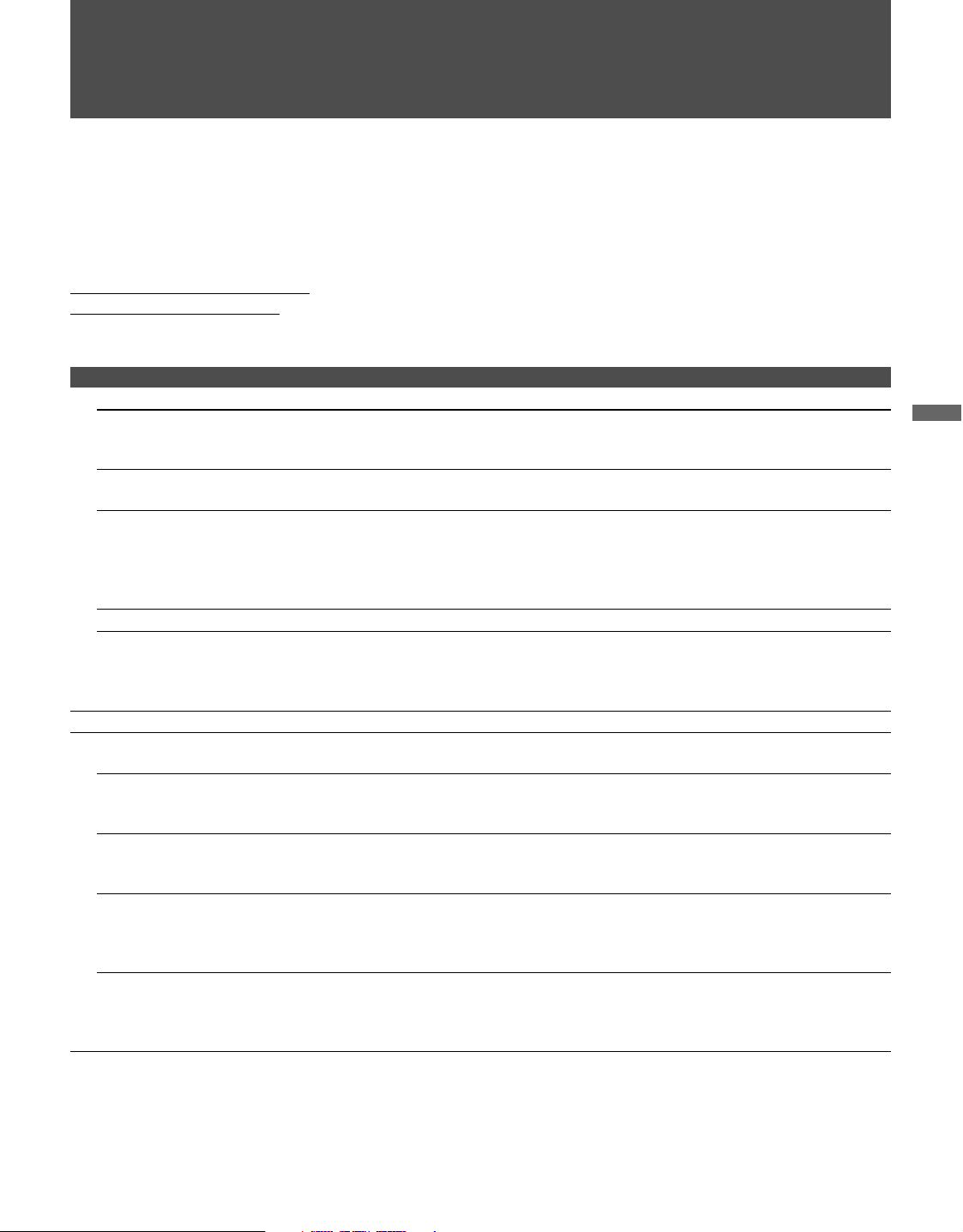
Programming Closed Captions (CC)
If you selected the Program option under Closed Captions (CC), you can change the following settings:
Power Saving Select to reduce the power consumption by adjusting the backlight brightness. This also
enhances the black level. Select from Off, Low and High.
You can also access Power Saving by using the TOOLS button on the remote
control.
Product Information Select to display the equipment information of your TV.
CineMotion Select Auto to automatically detect film content and apply a reverse 3-2 pulldown process.
Moving pictures will appear cleaner and more natural looking. Select Off to disable the
detection.
Option Description
Basic Allows you to select basic analog (EIA-608) closed caption options.
CC1, CC2,
CC3, CC4
Displays a printed version of the dialogue or sound effects of a
program. (Should be set to CC1 for most programs.)
Text 1 , Text2,
Text 3 , Text4
Displays network/station information presented using either half or
the whole screen (if available).
Digital CC Allows you to set digital closed captioning to Basic (digital EIA-608) or Advanced (digital
EIA-708).
Advanced Allows you to select advanced digital (EIA-708) closed caption options. Select from the
available options.
Advanced Settings Allows you to make additional settings for digital (EIA-708) closed caption options. Select
Text, and then select either As Broadcast or Custom.
Custom Allows you to customize the following settings:
Character Style Style 1-7
Character Color Color 1-8
Character Size Small, Standard, Large
Character Opacity Solid, Translucent, Transparent,
Flashing
Edge Color Color 1-8
Edge Type None, Raised, Depressed, Uniform,
Left Shadow, Right Shadow
Background Color Color 1-8
Background Opacity Solid, Translucent, Transparent,
Flashing
Window Color Color 1-8
Window Opacity Solid, Translucent, Transparent,
Flashing
Option Description
37
Other Information
Other Information
Troubleshooting
If you have additional questions, service needs, or required technical assistance related to the use of your
Sony TV, please visit our website or call one of the following numbers:
http://www.sony.com/tvsupport
for US Support
http://www.sony.ca/support
for Canadian Support
1-800-222-SONY(7669) for US Support
1-877-899-SONY(7669) for Canadian Support
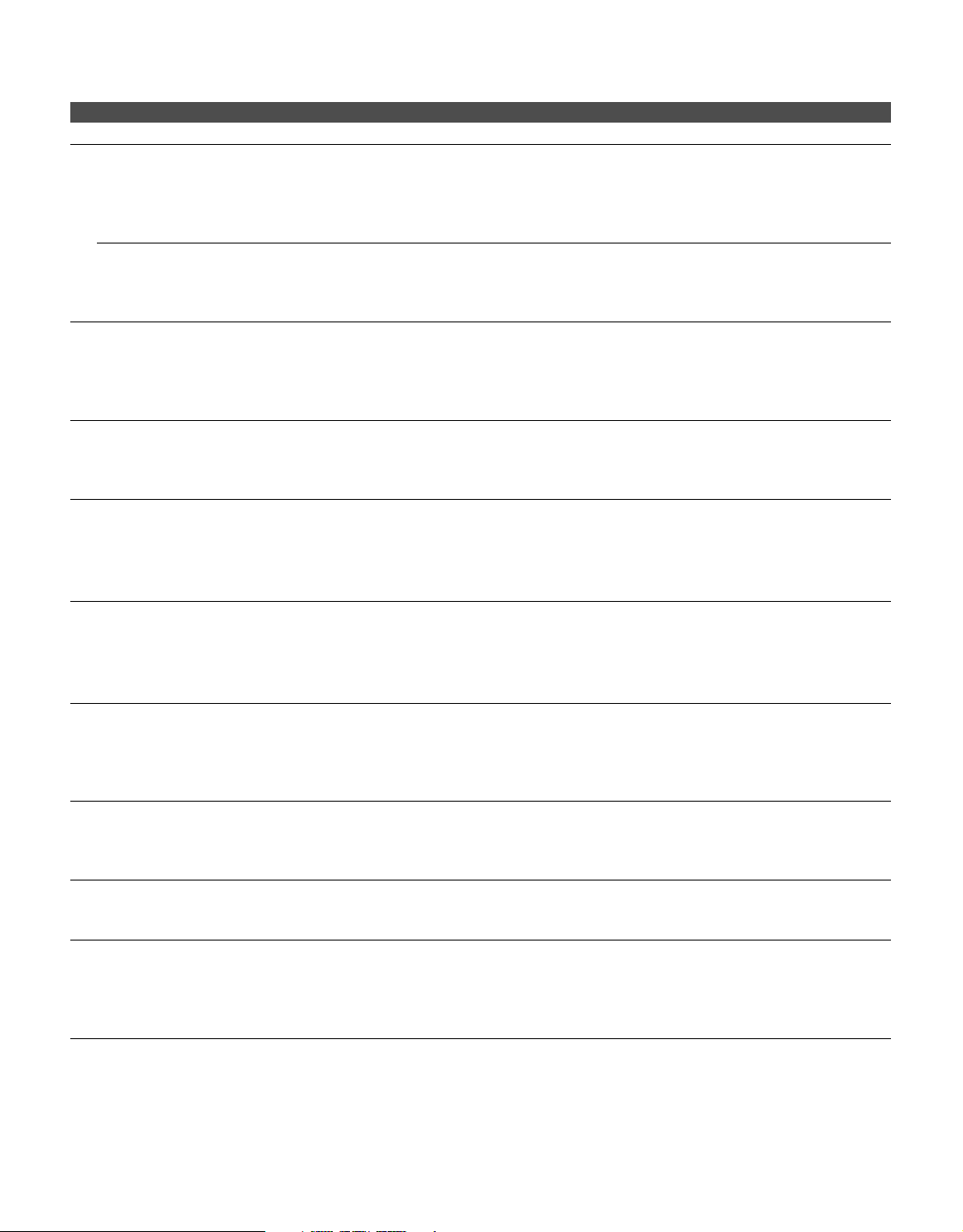
Problem Possible Remedies
No picture.
Cannot receive any channels.
❑ Make sure the power cord is connected securely.
❑ Turn on the power of the TV.
❑ Check antenna/cable connections.
TV is locked to one channel.
❑ Perform Auto Program to add receivable channels that are not presently in the
TV’s memory (page 31).
Cannot receive or select channels.
❑ Perform Auto Program to add receivable channels that are not presently in the
TV’s memory (page 31).
❑ To receive or select cable channels, make sure that Cable in the Channel
settings is set to On (page 31). To receive or select UHF channels over an
antenna, make sure Cable is set to Off.
The TV turns off automatically.
❑ Check Power Management in the PC Settings (page 30).
No picture from some video
sources.
❑ Check the connection between the optional video equipment and the TV.
❑ Press INPUT on the remote control (page 25).
❑ Press MENU on the remote control. Select your desired input from the external
inputs list.
Poor picture.
Double images or ghosts.
❑ Check antenna/cable connections.
❑ Check the antenna location and direction.
Only snow and noise appear on the
screen.
❑ Check if the antenna is broken or bent.
❑ Check if the antenna has reached the end of its serviceable life. (3-5 years in
normal use, 1-2 years at the seaside.)
Dotted lines or stripes.
❑ Keep the TV away from noise sources such as cars, motorcycles, or hair-dryers.
❑ If using 300 ohm twin lead, move the excess lead away from the TV or try using
75 ohm coaxial cable instead.
No color/Dark picture/Color is not
correct/The picture is too bright.
❑ Press PICTURE to select the desired picture mode (page 23).
❑ Adjust the Picture Mode options in the Picture settings (page 27).
❑ If you set the Power Saving mode to Low or High, it will enhance the black
level.
Noisy picture.
❑ Make sure that the antenna is connected using the 75-ohm coaxial cable (not
supplied).
❑ Keep the antenna cable away from other connecting cords.
❑ To avoid TV interference, make sure to use an undamaged antenna cable.
(Continued)
Other Information
38
No sound/Noisy sound
Good picture, no sound.
❑ Check the volume control.
❑ Press MUTING or VOL + so that “Muting” disappears from the screen
(page 23).
❑ Set Speaker to On in the Sound settings (page 28). If it is set to Off, sound is
not output from the TV’s speakers regardless of the TV’s volume control.
Audio noise.
❑ Make sure that the antenna is connected using the 75-ohm coaxial cable (not
supplied).
❑ Keep the antenna cable away from other connecting cords.
❑ To avoid TV interference, make sure to use an undamaged antenna cable.
Wide Mode changes automatically.
❑
The current
Wide Mode
setting is automatically replaced with the
4:3 Default
setting when you change the channel or video input, if
4:3 Default
in the
Screen
settings is set to anything but
Off
. If you want to lock in the
Wide Mode
selected
with the
WIDE
button, set
4:3 Default
to
Off
in the
Screen
settings (page 29).
❑ Check the Auto Wide option in the Screen settings (page 29).
“Black box” on screen.
❑ You have selected a text option in the Setup setting and no text is available. (See
pages 35 and 36 to reset Setup selections.) To turn off this feature, set the
Closed Captions (CC) option to Off. If you were trying to select closed
captioning, select CC1 instead of Text1-4.
Black bands appear at the top and
bottom of the screen.
❑ Some wide screen programs are filmed in aspect ratios that are greater than 16:9
(this is especially common with theatrical releases). Your TV will show these
programs with black bands at the top and bottom of the screen. For more details,
check the documentation that came with your DVD (or contact your program
provider).
Certain programs on DVD or other
digital sources display a loss of
detail, especially during fast-motion
or dark scenes.
❑ The compression used by certain digital broadcasts and DVDs may cause your
TV’s screen to display less detail than usual, or cause artifacts (small blocks or
dots, pixelations) to appear on your screen. This is due to your TV’s large screen
and ability to show very fine detail, and is normal for certain digitally recorded
programs.
Remote control does not operate.
❑ Check the polarity of the batteries or replace the batteries.
❑ Point the remote control at the remote control sensor of the TV.
❑ Fluorescent lamps can interfere with your remote control operation; try turning
off the fluorescent lamps.
❑ Keep the remote control sensor area clear from obstacles.
Some digital cable channels are not
being displayed.
❑ Certain cable companies have limitations on the broadcast of digital cable
channels. Check with your cable company for more information.
❑ The digital cable channel may be set to Hidden in the Show/Hide Channels
setting (page 31).
Lost password.
❑ Select the Parental Lock settings on the settings screen, then enter the following
master password: 4357. The master password clears your previous password and
allows you to enter a new password (page 33).
How to reset the TV to factory
settings.
❑ Turn on the TV. While holding down the V button on the remote control, press
the POWER button on the TV. (The TV will turn itself off, then back on again.)
Release the
V button.
WARNING: The Reset will clear all of your customized settings including
Parental Lock setting.
Problem Possible Remedies
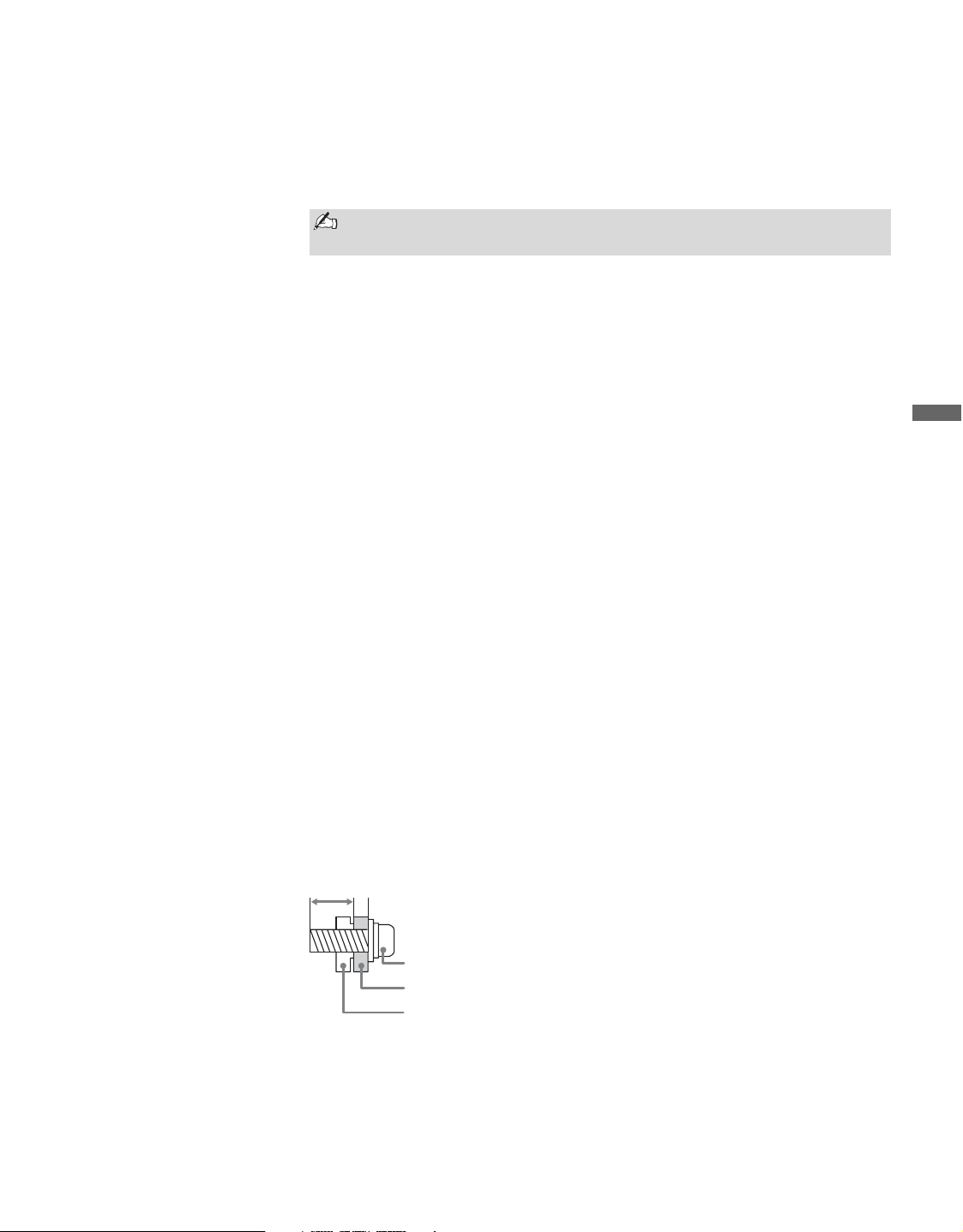
Other Information
39
Other Information
Preparation for Wall Mounting
This TV can be installed on a wall by using a Wall-Mount Bracket (sold
separately). Before mounting the TV on a wall, the Table-Top Stand must be
removed from the TV.
Follow the simple steps below to remove the Table-Top Stand:
1 Disconnect all the cables from the TV.
2 Secure the Mounting Hook to the rear of the TV.
3 Adjust the angle of the Mounting Hook.
4 Start removing the screws behind the TV (See illustration below). Do
not remove any other screws from the TV.
5 When screws are removed, lift the TV off the stand. Make sure that you
carry out this task with at least two people. Do not attempt to lift the TV
by yourself.
For bracket installation, refer to the instruction guide provided by the Wall-
Mount Bracket model for your TV. Sufficient expertise is required in
installing this TV, especially to determine the strength of the wall for
withstanding the TV’s weight. For product protection and safety reasons,
Sony strongly recommends that you use the Wall-Mount Bracket model
designed for your TV and the wall-mounting of your TV should be
performed by Sony dealers or licensed contractors.
Be sure to use the screws supplied with the Wall-Mount Bracket when
attaching the mounting hooks to the TV set. The supplied M6 screws are
designed so that they are 8 mm to 12 mm in length when measured from the
attaching surface of the mounting hook. The diameter and length of the
screws differ depending on the Wall-Mount Bracket model. Use of screws
other than those supplied may result in internal damage to the TV set or
cause it to fall, etc.
Do not remove the Table-Top Stand for any reason other than to wall-
mount the TV.
Sony Wall-Mount
Bracket Model
SU-WL500
8-12 mm
M6 Screw (supplied with the Wall-Mount Bracket)
Mounting Hook
Rear of the TV set
(Continued)
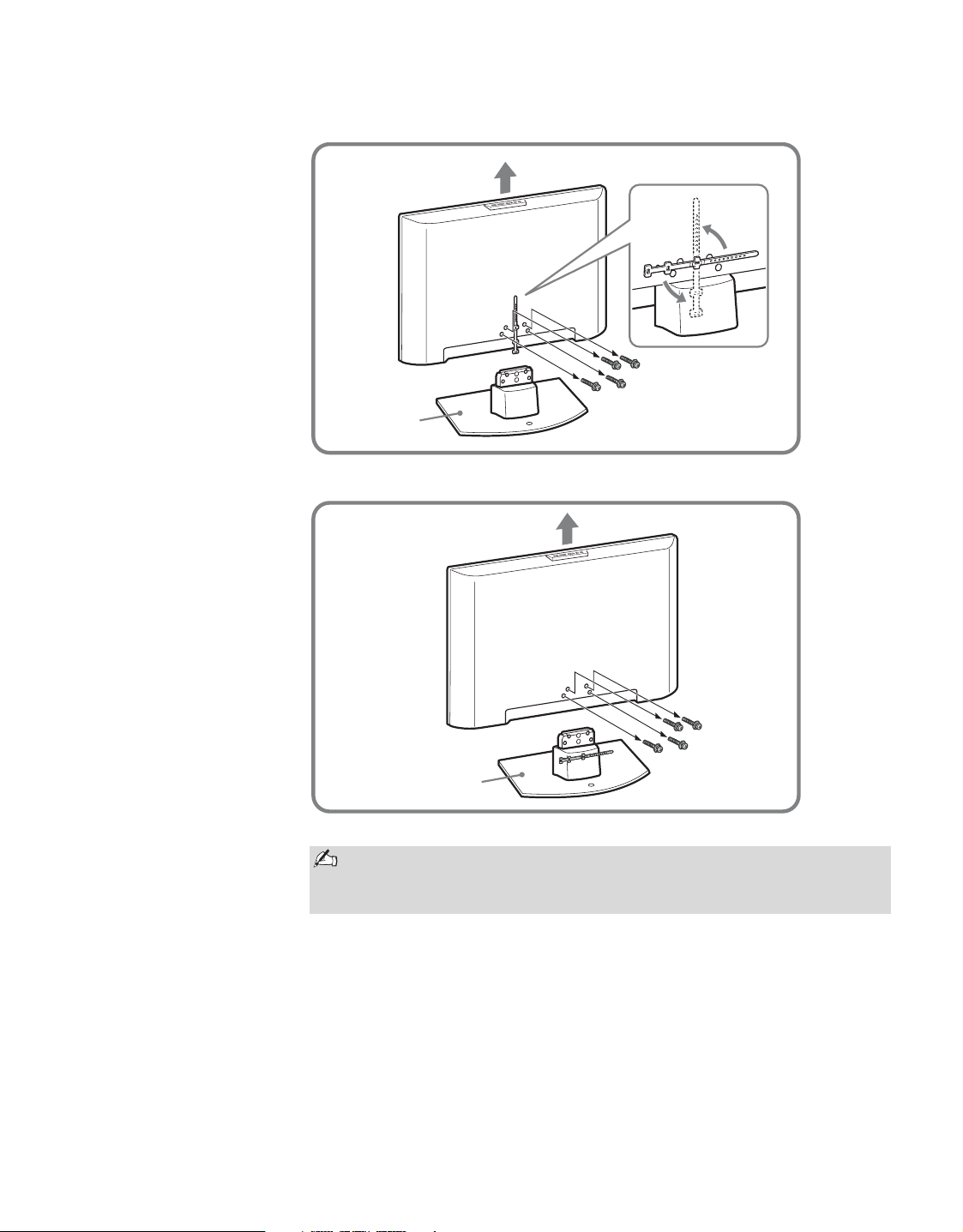
Other Information
40
Be sure to store the removed screws and Table-Top Stand in a safe
place until you are ready to reattach the Table-Top Stand. Keep the
screws away from small children.
Table-Top
Stand
KDL-40/46S4100
KDL-52S4100
Table-Top
Stand
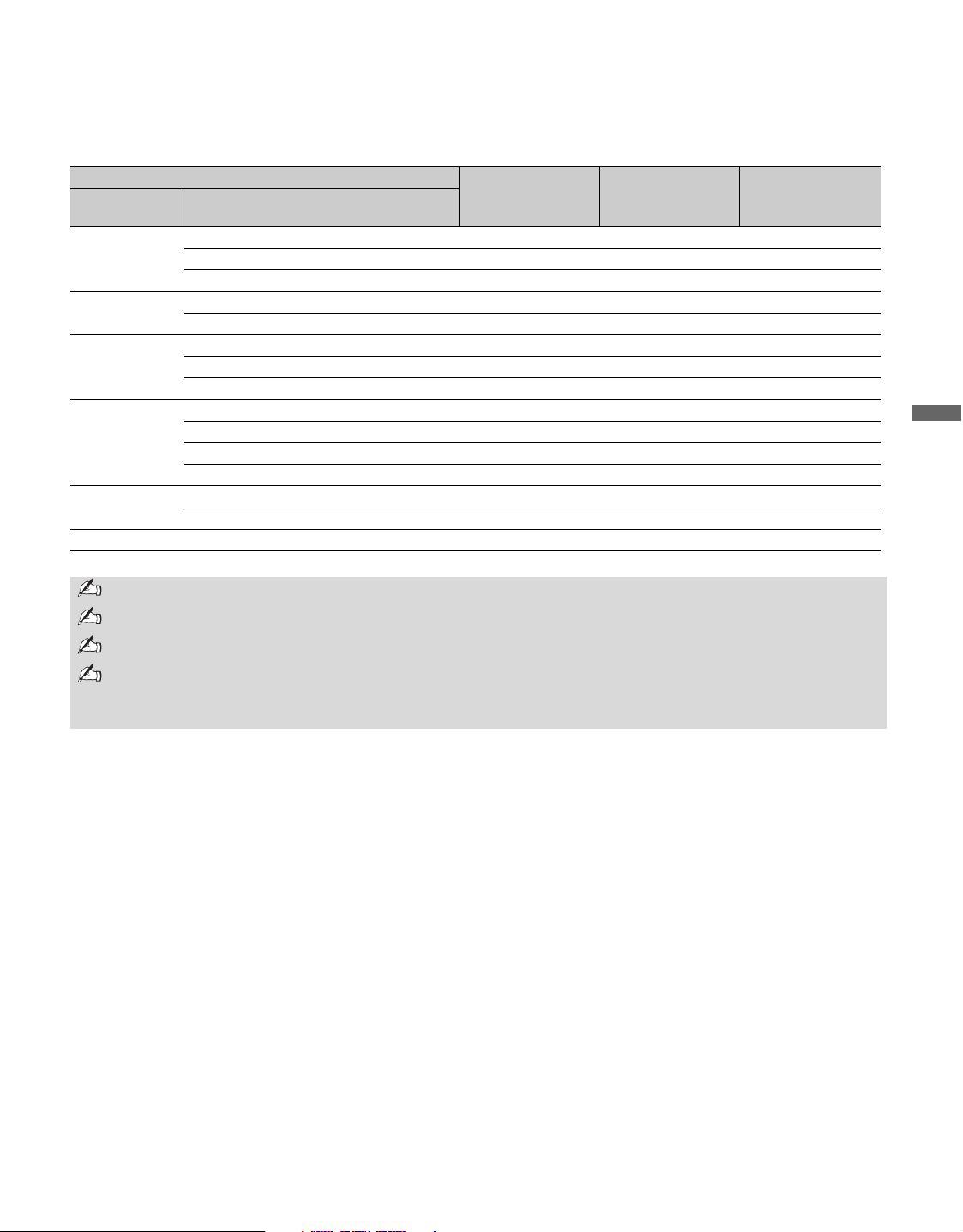
Other Information
41
Other Information
PC Input Signal Reference Chart
After connecting the PC to the TV, set the output signal from the PC according to the chart below.
* The 1080p timing when applied to the HDMI input will be treated as a video timing and not PC timing.
This affects Picture settings, Wide Mode settings, and PIP function. To view PC content set Picture
Mode to Custom, Wide Mode to Full, and Display Area to Full Pixel.
Resolution
Horizontal
frequency (kHz)
Vertical
frequency (Hz)
Standard
Signals Horizontal
(Pixel)
× Vertical
(Line)
VGA 640
×
480 31.5 60 VGA
640
×
480 37.5 75 VESA
720
×
400 31.5 70 VGA-T
SVGA
800
×
600 37.9 60 VESA Guidelines
800
×
600 46.9 75 VESA
XGA
1024
×
768 48.4 60 VESA Guidelines
1024
×
768 56.5 70 VESA
1024
×
768 60.0 75 VESA
WXGA
1280
×
768 47.4 60 VESA
1280
×
768 47.8 60 VESA
1280
×
768 60.3 75
1360
×
768 47.7 60 VESA
SXGA
1280
×
1024 64.0 60 VESA
1280
×
1024 80.0 75 VESA
HDTV
1920
×
1080 67.5 60 CEA-861*
This TV’s PC input does not support Sync on Green or Composite Sync.
This TV’s PC VGA input does not support interlaced signals.
Your PC must support one of the above PC input signals to display on the television.
For the best picture quality, it is recommended to use the signals (boldfaced) in the above chart with a
60 Hz vertical frequency. In plug and play, signals with a 60Hz vertical frequency will be detected
automatically. (PC reboot may be necessary.)

Other Information
42
Specifications
Television system:
Panel System:
LCD (Liquid Crystal Display) Panel
Display resolution (horizontal × vertical):
1,920 dots × 1,080 lines
VIDEO IN 1/2:
S VIDEO (4-pin mini DIN) (VIDEO 1 only):
Y: 1.0 Vp-p, 75 ohms unbalanced, sync negative
C: 0.286 Vp-p (Burst signal), 75 ohms
VIDEO: 1 Vp-p, 75 ohms unbalanced, sync negative
AUDIO: 500 mVrms (100% modulation)
Impedance: 47 kilohms
COMPONENT IN 1/2:
YP
B
P
R
(Component Video):
Y: 1.0 Vp-p, 75 ohms unbalanced,
sync negative
P
B: 0.7 Vp-p, 75 ohms
P
R: 0.7 Vp-p, 75 ohms
Signal format: 480i, 480p, 720p, 1080i, 1080p
AUDIO: 500 mVrms (100% modulation)
Impedance: 47 kilohms
HDMI IN 1/2/3:
HDMI: Video: 480i, 480p, 720p, 1080i, 1080p, 1080/24p
Audio: Two channel linear PCM 32, 44.1 and 48 kHz,
16, 20 and 24 bits
AUDIO (HDMI IN 1 only):
500 mVrms (100% modulation)
Impedance: 47 kilohms
AUDIO OUT:
500 mVrms (100% modulation)
More than 500 mVrms (Fixed)
DIGITAL AUDIO OUT (OPTICAL):
Optical Digital Audio Output (PCM/Dolby Digital)
PC IN:
Analog RGB (D-sub 15-pin):
0.7 Vp-p, 75 ohms, positive
See the PC Input Signal Reference Chart on page 41
AUDIO (Stereo mini jack):
500 mVrms
Impedance: 47 kilohms
Power Requirement:
120 V-240 V AC, 50/60 Hz
Screen size (in inches):
40, 46, 52
Speaker/Full range (2):
KDL-40S4100:
(in mm) 57.5 × 126
(in inches) 2
3
/
8
× 5
KDL-46S4100:
(in mm) 65 × 147
(in inches) 2
5
/
8
× 5
7
/
8
KDL-52S4100:
(in mm) 65 × 147
(in inches) 2
5
/
8
× 5
7
/
8
NTSC
American TV standard
ATSC (8VSB terrestrial)
ATSC compliant 8VSB
QAM on cable
ANSI/SCTE 07 2000
(Does not include CableCARD
functionality)
Channel coverage:
Analog Digital
Terrestrial 2-69 2-69
Cable 1-135 1-135
Antenna:
75-ohm external terminal for VHF/UHF
Speaker output:
10 W + 10 W
Power consumption:
KDL-40S4100:
in use 210 W
in standby less than 1.0 W
KDL-46S4100:
in use 260 W
in standby less than 1.0 W
KDL-52S4100:
in use 295 W
in standby less than 1.0 W
Dimensions:
KDL-40S4100
with stand:
(in mm) 997 × 689 × 276
(in inches) 39
3
/
8
× 27
1
/
4
× 10
7
/
8
without stand:
(in mm) 997 × 652 × 111
(in inches) 39
3
/
8
× 25
3
/
4
× 4
3
/
8
Wall-mount hole pattern:
(in mm) 300 × 300
Wall-Mount screw size:
(in mm) M6 (length: refer to diagram on page 39)
KDL-46S4100
with stand:
(in mm) 1130 × 784 × 308
(in inches) 44
1
/
2
× 30
7
/
8
× 12
1
/
4
without stand:
(in mm) 1130 × 746 × 115
(in inches) 44
1
/
2
× 29
3
/
8
× 4
5
/
8
Wall-mount hole pattern:
(in mm) 300 × 300
Wall-Mount screw size:
(in mm) M6 (length: refer to diagram on page 39)
KDL-52S4100
with stand:
(in mm) 1274 × 873 × 346
(in inches) 50
1
/
4
× 34
3
/
8
× 13
5
/
8
without stand:
(in mm) 1274 × 833 × 119
(in inches) 50
1
/
4
× 32
7
/
8
× 4
3
/
4
Wall-mount hole pattern:
(in mm) 300 × 300
Wall-Mount screw size:
(in mm) M6 (length: refer to diagram on page 39)
Mass:
KDL-40S4100
with stand:
(in kg.) 22.7
(in lb.) 50 lb 1 oz
without stand:
(in kg.) 19.9
(in lb.) 43 lb 14 oz
KDL-46S4100
with stand:
(in kg.) 30.0
(in lb.) 66 lb 3 oz
without stand:
(in kg.) 26.5
(in lb.) 58 lb 7 oz
KDL-52S4100
with stand:
(in kg.) 38.2
(in lb.) 84 lb 4 oz
without stand:
(in kg.) 32.8
(in lb.) 72 lb 5 oz
Other Information
43
Other Information
Supplied accessories:
Remote control RM-YD025 (1)
Size AA batteries (2)
AC power cord (1)
Table-Top Stand (1) (For KDL-40/46S4100)
Screws (4) (For KDL-40/46S4100)
Cable band (1)
Operating Instructions (1)
Quick Setup Guide (1)
Warranty Card (1)
Optional accessories:
Connecting cables
Support belt kit
Wall-Mount Bracket: SU-WL500
TV-Stand: SU-FL71M (for KDL-40/46S4100),
WS-S10LS (for KDL-40/46S4100)
Design and specifications are subject to change without notice.
Optional accessories availability depends on its stock.

44
Index
0-9 buttons 25
4:3 Default 29
A
AC IN 18
Advanced 36
Advanced Settings 36
Alternate Audio 28
AUDIO OUT jack, described 18
Auto Adjustment 30
Auto Program 22, 31
Auto Wide 29
B
Backlight 27
Balance 28
Basic 36
Bass 28
Brightness 27
C
Cable 31
CABLE/ANTENNA input, described 18
CC button 23
CH+/– button 25, 26
Change Password 33
Channel Block 32
Channels
Creating labels
35
Setting up 22
CineMotion 36
Closed caption modes 36
Closed Captions (CC) 35
Color 27
Color Temp 27
COMPONENT IN
(1080p/1080i/720p/480p/480i)
18
D
Diagnostics 31
Digital CC 36
Digital Channels 31
DIGITAL OUT OPTICAL 18
Digital Rating 32
Display Area 29
DISPLAY button 23
E
English Rating 34
ENT button 25
External Input Block 32
F
Favorites 31
FAVORITES button 23
French Rating 34
H
HDMI IN jack, described 17
Horizontal Center 30
Hue 27
I
Info Banner 35
Infrared Receiver (IR) 26
INPUT button 25, 26
Installing the TV on a wall 39
J
JUMP button 25
L
Label Channels 31
Label Video Inputs 35
Language 35
M
MENU button 23, 26
Movie Rating 33
MTS 28
MUTING button 23
N
Noise Reduction 27
P
PC IN 18
Phase 30
Picture 27
PICTURE button 23
Picture Mode 27
Pitch 30
POWER button 24, 26
POWER LED 26
Power Management 30
Power Saving 36
Product Information 36
R
Rating 32
Reset 27, 28, 38
RETURN button 23
S
S VIDEO jack, described 18
Select Country 33
Settings
Channel
31
Parental Lock 32
PC Settings 30
Picture 27
Screen 29
Setup 35
Sound 28
Sharpness 27
Show/Hide Channels 31
SLEEP button 23
Sleep Timer 35
Sound Mode 28
Speaker 28
STANDBY LED 26
T
TIMER LED 26
TOOLS button 25
Treble 28
Troubleshooting 37, 38
TV Rating 33
U
U.S.A. Rating 34
Unrated 32
V
Vertical Center 29, 30
Vertical Size 29
VIDEO/AUDIO (L/R) jacks, described
17, 18
Viewing Blocked Programs 34
VOL+/– button 23, 26
W
WIDE button 24
Wide Mode 29, 30



Printed in Mexico
For Your Convenience
Please contact Sony Customer Support directly if you:
z
Have questions on the use of your television after reading your Operating Instructions manual
and Quick Setup Guide
z
Experience difficulty operating your television
For United States
http://www.sony.com/tvsupport
or to speak with a support representative: 1-800-222-SONY (7669)
For Canada
http://www.sony.ca/support
or to speak with a support representative: 1-877-899-SONY (7669)
Sony will work to resolve your questions more quickly than your retailer or place of purchase.
Please Do Not Return the Product to the Store
On-line Registration Available:
Be sure to register your TV.
United States
http://productregistration.sony.com
Canada
http://www.sonystyle.ca/registration