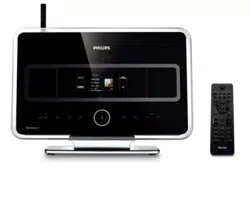
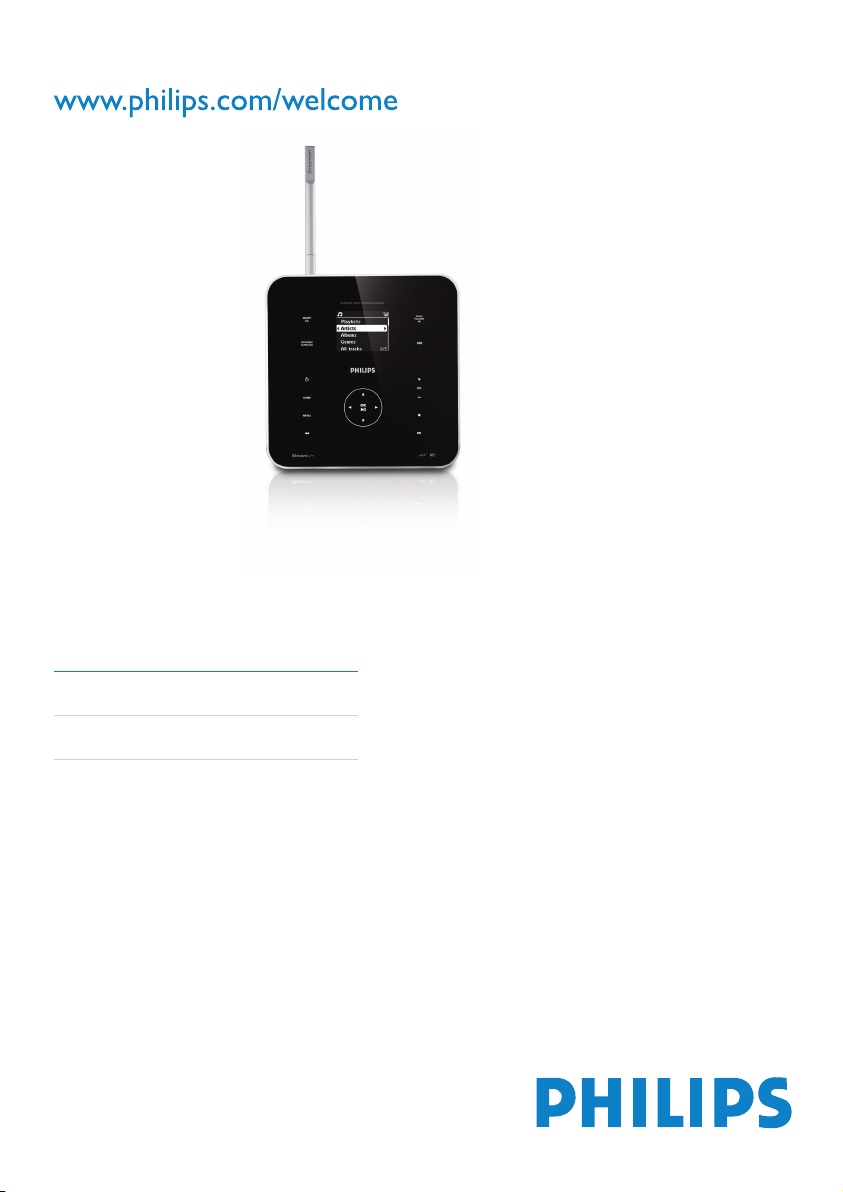
Register your product and get support at
WAS6050/05
WAS6050/12
EN User manual 1
Contact information 40

ii
Music follows me 16
Wirelessly stream music from a PC
16
Install Windows Media Player 11
16
Congure a PC to share music
16
More play options
17
Repeat play
17
Shufe play
17
Play by artist
17
Play by genre
17
7 Radio 18
FM radio
18
Listen to FM radio
18
Change frequency
18
Manual search
18
Automatic channel search
18
Automatic channel search
19
Select preset channels
19
Internet radio
19
First-time Internet radio registration
19
Register users for Internet radio
20
Listen to Internet radio
20
Place bookmarks for radio stations
20
Listen to Favorite Stations
21
Manually add Internet radio stations
21
Add URL address on the Music Station
21
Add URL address on the PC
21
Listen to My Media
22
8 Searchforaudioles(music) 23
Scroll at high speed
23
Alphanumeric search
23
9 Settings 24
Change sound settings
24
Adjust volume
24
Mute 24
Adjust Equalizer (EQ)
24
Activate Smart EQ
24
Deactivate Smart EQ
24
Adjust bass / treble
24
Set Dynamic Bass Boost (DBB)
25
Adjust display
25
Switch backlight on/off
25
Change display contrast
25
Clock / alarm settings
25
Contents
1 Important 2
Safety 2
Notice 4
Disposal of product and packing
material 4
2 Your Wireless Music Station 6
What you can do with the Wireless Music
Station 6
Overview 6
Top panel
6
Rear panel
7
Remote control
7
3 Prepare 9
Install remote control batteries
9
Position your Music Station
9
Mount the Music Station to a wall
9
Attach the support for table top
installation 10
4 Connect 11
Connect AC power
11
Connect a portable audio device (AUX)
11
Connect a PC
11
Install WADM
11
Create wired connection
11
Create wireless connection
12
Launch WADM
12
5 First-time installation 13
Select language
13
Set-up with a Center (sold separately)
13
Turn on / switch to standby
14
6 Play 15
Play HD music from a Center
15
Playlists 15
Create a playlist
15
Add audio les to a playlist
15
Play from a portable audio device (AUX)
15
EN

iii
Set the clock 25
Change the time format
25
Set the alarm time
25
Set the alarm repeat
26
Automatic time update
26
Synchronize with RDS
26
Synchronize with NTP
26
Set standby timer
26
Change language
27
10 Maintenance 28
Cleaning
28
Update 28
Restore the default settings
28
11 Technical data 29
Supported audio le formats
29
Supplied accessories
30
PC connection requirements
30
12 Troubleshooting 31
13 Glossary 32
14 Index 40
Contents
Eng lish
EN
2
g Do not block any ventilation openings.
Install in accordance with the
manufacturer’s instructions.
h Do not install near any heat sources such
as radiators, heat registers, stoves, or
otherapparatus(includingampliers)that
produce heat.
i For countries with a polarized mains,
do not defeat the safety purpose of
the polarized or grounding-type plug.
A polarized plug has two blades with
one wider than the other. A grounding
type plug has two blades and a third
grounding prong. The wide blade or the
third prong are provided for your safety.
Iftheprovidedplugdoesnottinto
your outlet, consult an electrician for
replacement of the obsolete outlet.
Caution: To prevent electric shock, match
the wide blade of the plug to the wide
slot, fully insert.
j Protect the power cord from being
walked on or pinched, particularly at
plugs, convenience receptacles, and the
point where they exit from the apparatus.
k Only use attachments/accessories
speciedbythemanufacturer.
l Use only with the cart, stand, tripod,
bracket,ortablespeciedbythe
manufacturer or sold with the apparatus.
When a cart is used, use caution when
moving the cart/apparatus combination to
avoid injury from tip-over.
1 Important
Safety
Know these safety symbols
This ‘bolt of lightning’ indicates uninsulated
material within your unit may cause an electrical
shock. For the safety of everyone in your
household, please do not remove product
covering.
The ‘exclamation point’ calls attention to
features for which you should read the enclosed
literature closely to prevent operating and
maintenance problems.
WARNING: To reduce the risk of re or electric
shock, this apparatus should not be exposed to
rain or moisture and objects lled with liquids,
such as vases, should not be placed on this
apparatus.
CAUTION: To prevent electric shock, match
wide blade of plug to wide slot, fully insert.
a Read these instructions.
b Keep these instructions.
c Heed all warnings.
d Follow all instructions.
e Do not use this apparatus near water.
f Clean only with dry cloth.
EN

3
Warning
Never remove the casing of this Music Station.
Never lubricate any part of this Music Station.
Place this Music Station on a at, hard and stable
surface.
Never place this Music Station on other electrical
equipment.
Only use this Music Station indoors. Keep this Music
Station away from water, moisture and liquid-lled
objects.
Keep this Music Station away from direct sunlight, naked
ames or heat.
•
•
•
•
•
•
How to connect a plug
The wires in the mains lead are coloured with
the following code: blue = neutral (N), brown
= live (L).
As these colours may not correspond with the
colour markings identifying the terminals in your
plug, proceed as follows:
Connect the blue wire to the terminal
marked N or coloured black.
Connect the brown wire to the terminal
marked L or coloured red.
Do not connect either wire to the earth
terminal in the plug, marked E (or e) or
coloured green (or green and yellow).
Before replacing the plug cover, make
certain that the cord grip is clamped over
the sheath of the lead - not simply over
the two wires.
Mains plug
This apparatus is tted with an approved 13
Amp plug. To change a fuse in this type of plug
proceed as follows:
a Remove fuse cover and fuse.
b Fix new fuse which should be a BS13625
Amp, A.S.T.A. or BSI approved type.
c Retthefusecover.
If the tted plug is not suitable for your socket
outlets, it should be cut off and an appropriate
plug tted in its place.
If the mains plug contains a fuse, this should
have a value of 5 Amp. If a plug without a fuse
is used, the fuse at the distribution board should
not be greater than 5 Amp.
•
•
•
m Unplug this apparatus during lightning
storms or when unused for long periods
of time.
n Referallservicingtoqualiedservice
personnel. Servicing is required when
the apparatus has been damaged in any
way, such as power-supply cord or plug
is damaged, liquid has been spilled or
objects have fallen into the apparatus, the
apparatus has been exposed to rain or
moisture, does not operate normally, or
has been dropped.
o Battery usage CAUTION – To prevent
battery leakage which may result in bodily
injury, property damage, or damage to the
unit:
Install all batteries correctly, + and - as
marked on the unit.
Do not mix batteries (old and new or
carbon and alkaline, etc.).
Remove batteries when the unit is not
used for a long time.
p Apparatus shall not be exposed to
dripping or splashing.
q Do not place any sources of danger on
theapparatus(e.g.liquidlledobjects,
lightedcandles).
r This product may contain lead and
mercury. Disposal of these materials
may be regulated due to environmental
considerations. For disposal or recycling
information, please contact your local
authorities or the Electronic Industries
Alliance: www.eiae.org.
•
•
•
Important
Engli sh
EN
4
Regulations of the Canadian Department of
Communications. This Class B digital apparatus
complies with Canadian ICES-003.
This product complies with the radio
interference requirements of the European
Community.
This product complies with the requirements of
the following directives and guidelines: 73/23/
EEC + 89/336/EEC + 93/68/EEC
Class II equipment symbol
This symbol indicates that the unit has a double
insulation system.
Disposal of product and packing
material
Your product is designed and manufactured
with high quality materials and components,
which can be recycled and reused.
When this crossed-out wheeled bin symbol is
attached to a product, it means the product is
covered by the European Directive 2002/96/EC.
Please be informed about the local separate
collection system for electrical and electronic
products.
Please act according to your local rules and
do not dispose of your old product with your
normal household waste. The correct disposal
of your old product will help prevent potential
The severed plug must be disposed off to avoid
a possible shock hazard should it be inserted
into a 13 Amp socket elsewhere.
Norge
Typeskilt nnes på apparatens bakside.
Observer: Nettbryteren er sekundert innkoplet.
Den innebygde netdelen er derfor ikke
fraktoplet nettet så lenge apparatet er tilsluttet
nettkontakten.
For å redusere faren for brann eller elektrisk
støt, skal apparatet, ikke utsettes for regn eller
fuktighet.
Notice
Notice of compliance
For USA:
This equipment has been tested and found
to comply with the limits for a Class B digital
device, pursuant to Part 15 of the FCC Rules.
These limits are designed to provide reasonable
protection against harmful interference in a
residential installation. This equipment generates,
uses and can radiate radio frequency energy
and, if not installed and used in accordance with
the instructions, may cause harmful interference
to radio communications. However, there is
no guarantee that interference will not occur
in a particular installation. If this equipment
does cause harmful interference to radio or
television reception, which can be determined
by turning the equipment off and on, the user is
encouraged to try to correct the interference
by one or more of the following measures:
Reorient or relocate the receiving antenna.
Increase the separation between the
equipment and receiver.
Connect the equipment into an outlet on
a circuit different from that to which the
receiver is connected.
Consult the dealer or an experienced
radio/TV technician for help.
For Canada:
This digital apparatus does not exceed the Class
B limits for radio noise emissions from digital
apparatus as set out in the Radio Interference
•
•
•
•
EN
5
negative consequences to the environment and
human health.
All redundant packing material has been
omitted. We have done our utmost to make the
packaging easily separable into mono materials.
Please observe the local regulations regarding
the disposal of packing materials.
Environmental information
All unnecessary packaging has been omitted.
We have tried to make the packaging easy to
separate into three materials: cardboard (box),
polystyrene foam (buffer) and polyethylene
(bags, protective foam sheet.)
Your system consists of materials which can
be recycled and reused if disassembled by
a specialized company. Please observe the
local regulations regarding the disposal of
packaging materials, exhausted batteries and old
equipment.
Battery disposal information
Batteries (including built-in rechargeable
batteries) contain substances that may pollute
the environment. Always hand the appliance
in at an ofcial collection point to remove
any built-in batteries before you discard the
appliance. All batteries must be disposed of at
an ofcial collection point.
Important
Engli sh
EN
6
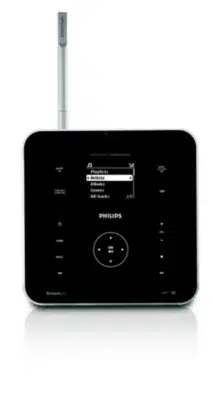
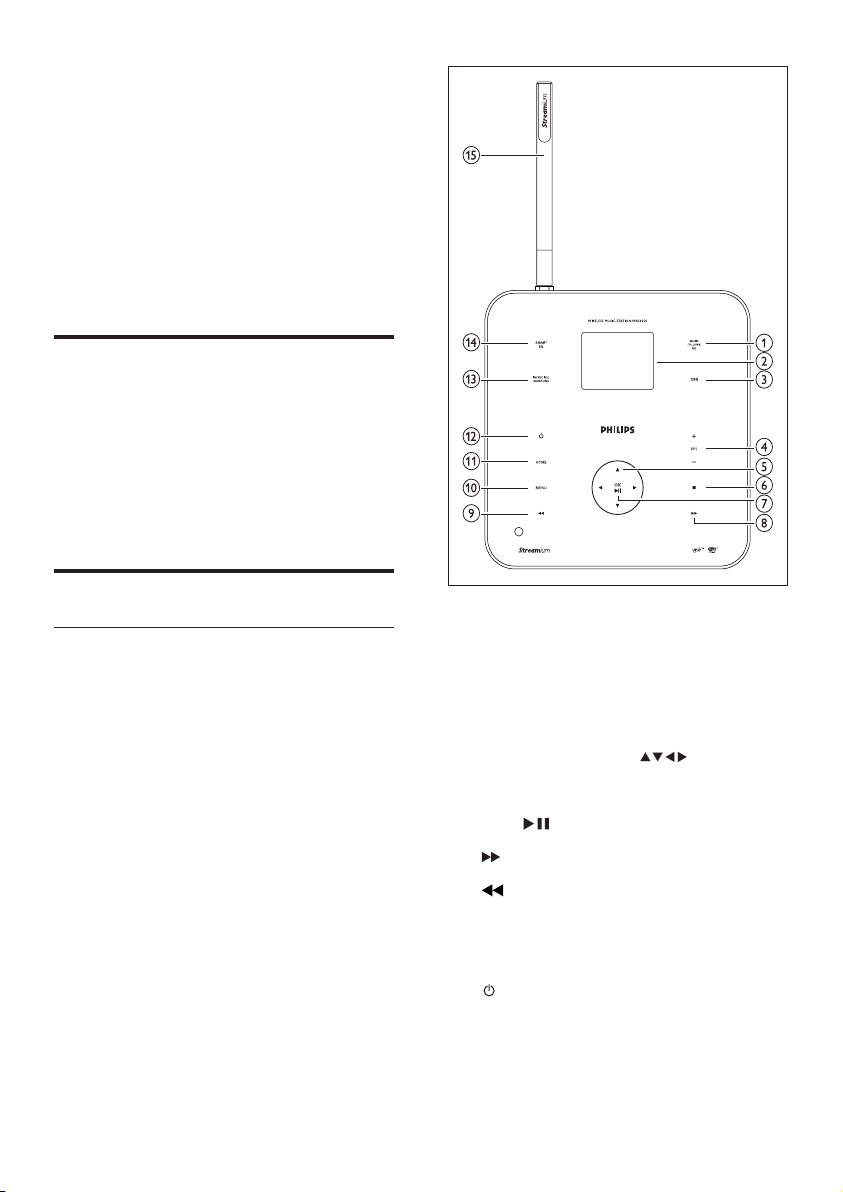
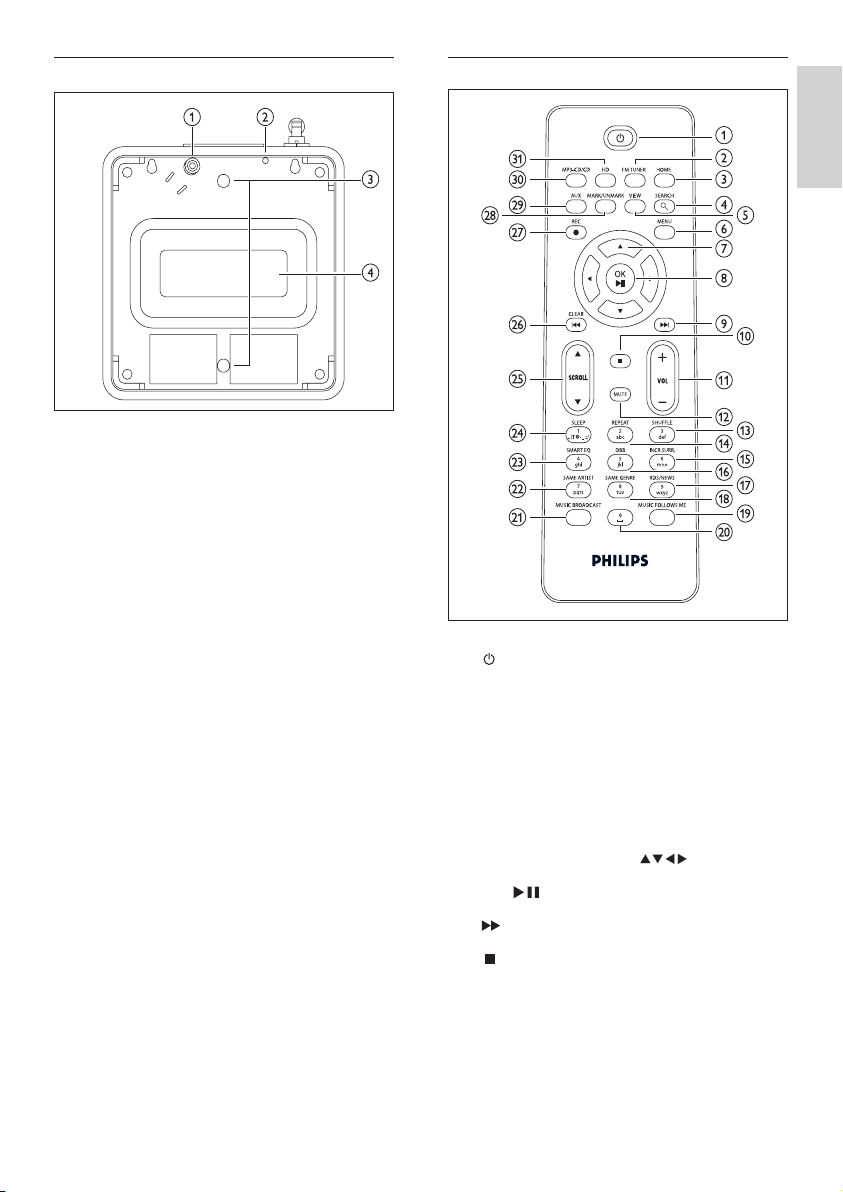
a MUSIC FOLLOWS ME
b LCD / display
c DBB Digital Bass Boost
d + VOL - volume down / up
e NAVIGATION KEYS
f STOP
g OK / conrm/playpause
h skip forward
i skip back
j MENU
k HOME
l on / standby / eco standby
m INCR.SURR. Incredible Surround sound
n SMART EQ smart equalizer
o Wi-Fi antenna
2 Your Wireless
Music Station
Congratulations on your purchase and welcome
to Philips!
To fully benet from the support that Philips
offers, register your product at www.Philips.
com/welcome.
What you can do with the
Wireless Music Station
Listen to FM radio or Internet radio.
Play music from a Center (Centers
WAC3500, WAC7000, WAC7500 are sold
separately).
Transfer and play music from your PC.
Overview
Top panel
The top panel features sensor buttons that are
sensitive to touch and moisture.
•
•
•
EN
7
Remote control
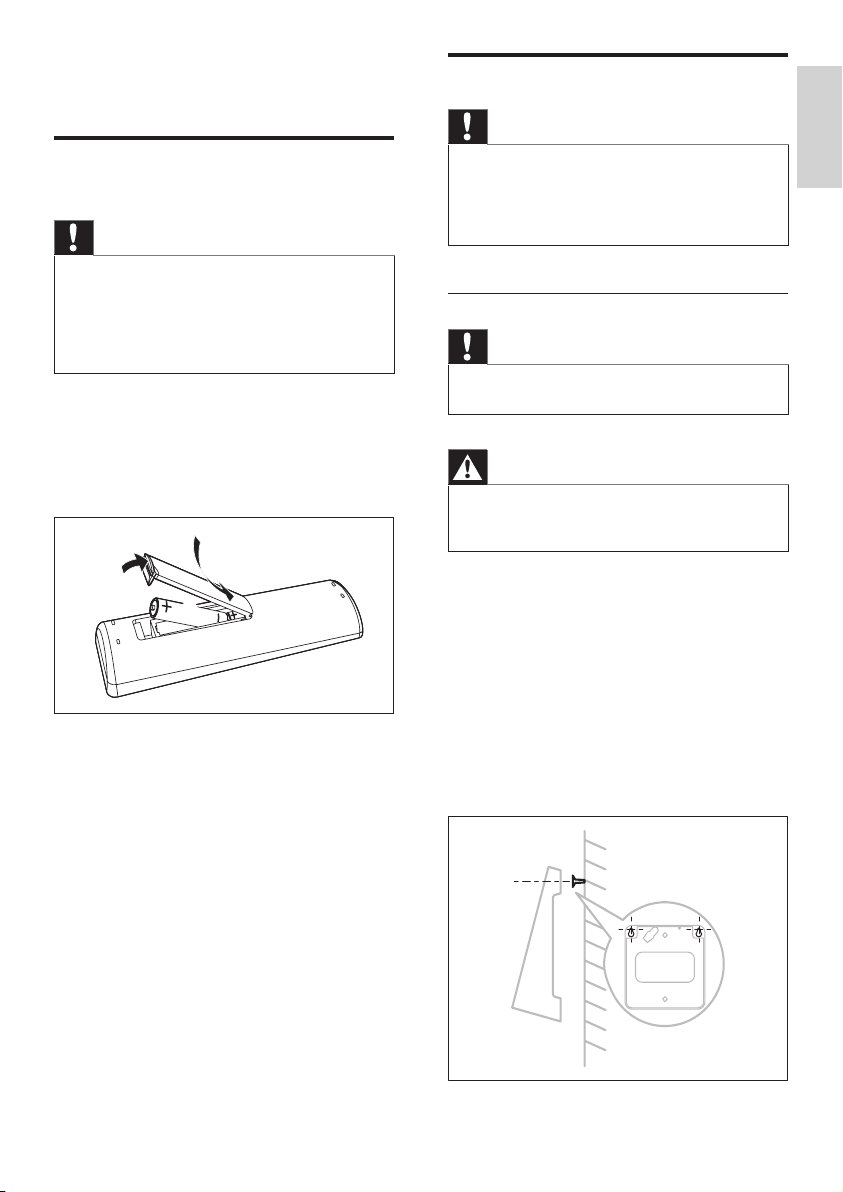
a
b FM TUNER radio
c HOME
d SEARCH
e VIEW
f MENU
g NAVIGATION KEYS navigate
h OK/ conrm/playpause
i skip forward
j
k - VOL + volume down / up
l MUTE
m SHUFFLE(3def)randomplay
n REPEAT(2abc)
Rear panel
a Power supply socket
b FM antenna
c Holes for support attachment screws
d Subwoofer
Rear panel
Engli sh
EN

8
o INCR.SURR.(6mno)IncredibleSurround
sound
p DBB(5jkl)DigitalBassBoost
q RDS/NEWS(9wxyz)
r SAMEGENRE(8tuv)
s MUSIC FOLLOWS ME
t (0)
u MUSIC BROADCAST
v SAMEARTIST(7pqrs)
w SMARTEQ(4ghi)
x SLEEP(1.,?!’@-_:;/)standbytimer
y SCROLL
z CLEAR / skip back
{ REC record
| MARK/UNMARK
} AUX portable audio source
~ CD/MP3-CD
HD hard disk
EN
9
Position your Music Station
Caution
Risk of product damage! Place the Music Station on a
surface that is level, at, and strong enough to support
the Music Station.
Risk of interference! Keep the Music Station away from
TVs, VCRs, and other radiation sources.
•
•
Mount the Music Station to a wall
Caution
Risk of product damage! Always consult professional
personnel to safely mount the product to a wall.
•
Warning
Risk of injury! Ensure that no supply ducts such as gas,
water or electricity are harmed when you drill the
holes.
•
Items you need to mount the Music Station to
a wall (not supplied):
electric drill
two suitable wall mounting pegs and
screws
screwdriver
pencil
1 Hold the support (note the direction of
angle) against the wall where you want to
mount the Music Station.
•
•
•
•
3 Prepare
Install remote control
batteries
Caution
Risk of explosion! Keep batteries away from heat,
sunshine or re. Never discard batteries in re.
Risk of decreased battery life! Never mix different
brands or types of batteries.
Risk of product damage! When the remote control is
not used for long periods, remove the batteries.
•
•
•
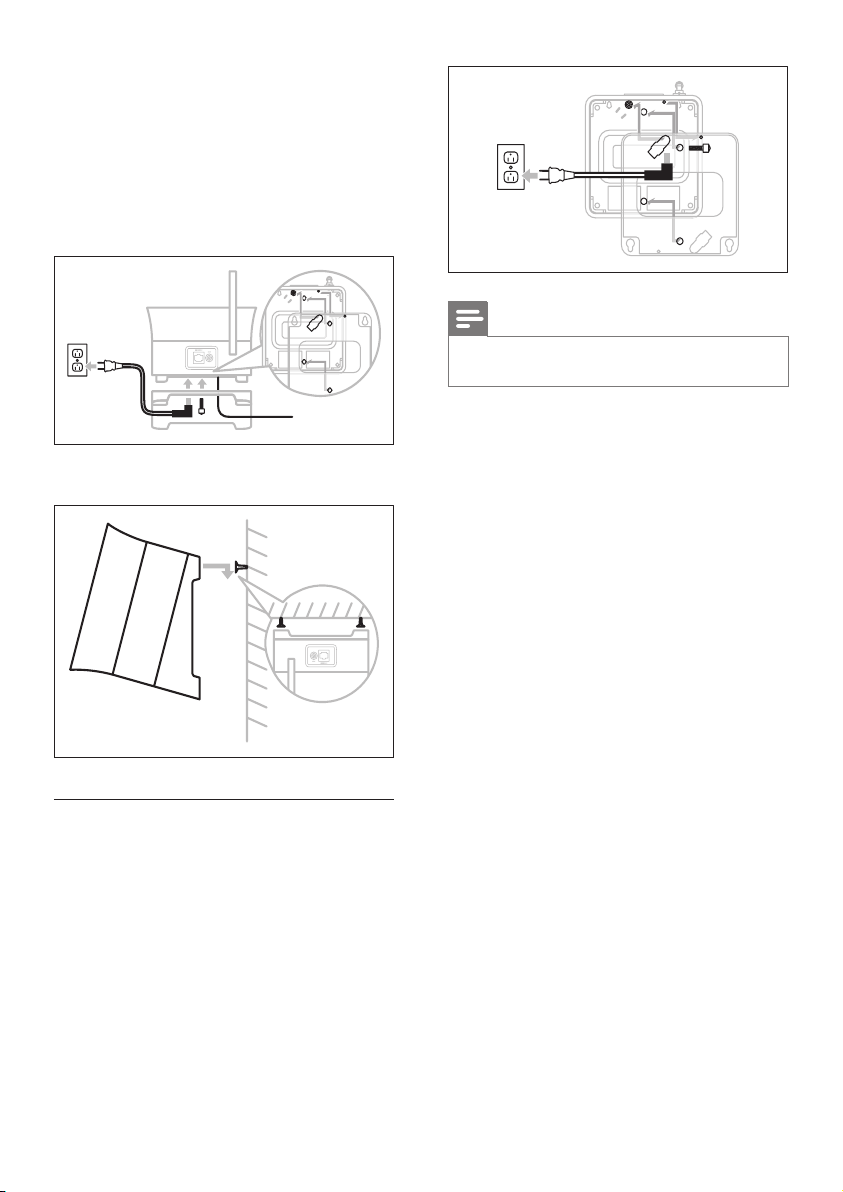
1 Open the battery compartment.
2 Insert 2 AAA batteries with correct
polarity (+/-) as indicated.
3 Close the battery compartment.
3
1
2
3
1
2
Prepare
Engli sh
EN
10
Note
The angle direction is different when you mount the
Music Station to a wall.
•
2 Mark the position of the drill holes on the
wall.
3 Drill the holes.
4 Insert suitable wall mounting pegs and
screws.
5 Attach angled support to the Music
Station.
6 Fasten the angled support on the screws.
Attach the support for table top
installation
You can attach the angled support (supplied)
for easy access to the top panel.
1 Attach the angled support:
EN
11
Connect a PC
Before you connect the Music Station to a PC:
Ensure that the PC meets the minimum
requirements. (see ‘PC connection
requirements’ on page 30)
Install the WADM (Philips Wireless Audio
Device Manager) on the PC. (see ‘Install
WADM’ on page 11)
You can choose among two different
modes of connection:
Wired connectio
n (see ‘Create wired
connection’ on page 11)
Wireless connectio
n (see ‘Create wireless
connection’ on page 12)
Install WADM
This chapter shows you how to install the
WADM (Philips Wireless Audio Device
Manager) software. The WADM is necessary to
search and download software updates for the
Music Station.
1 Insert the PC Suite CD into the PC.
2 Follow the instructions on the PC to install
WADM.
3 When the security alert message
(Microsoft Windows Firewall) pops up,
press ‘Unblock’ to allow the WADM
application to run on the PC.
The rewall is still effective and only
allows the WADM to run.
Tip
You can also consult the user manual of the PC and
manually add the WADM application to your list of
programs that are safe to run.
•
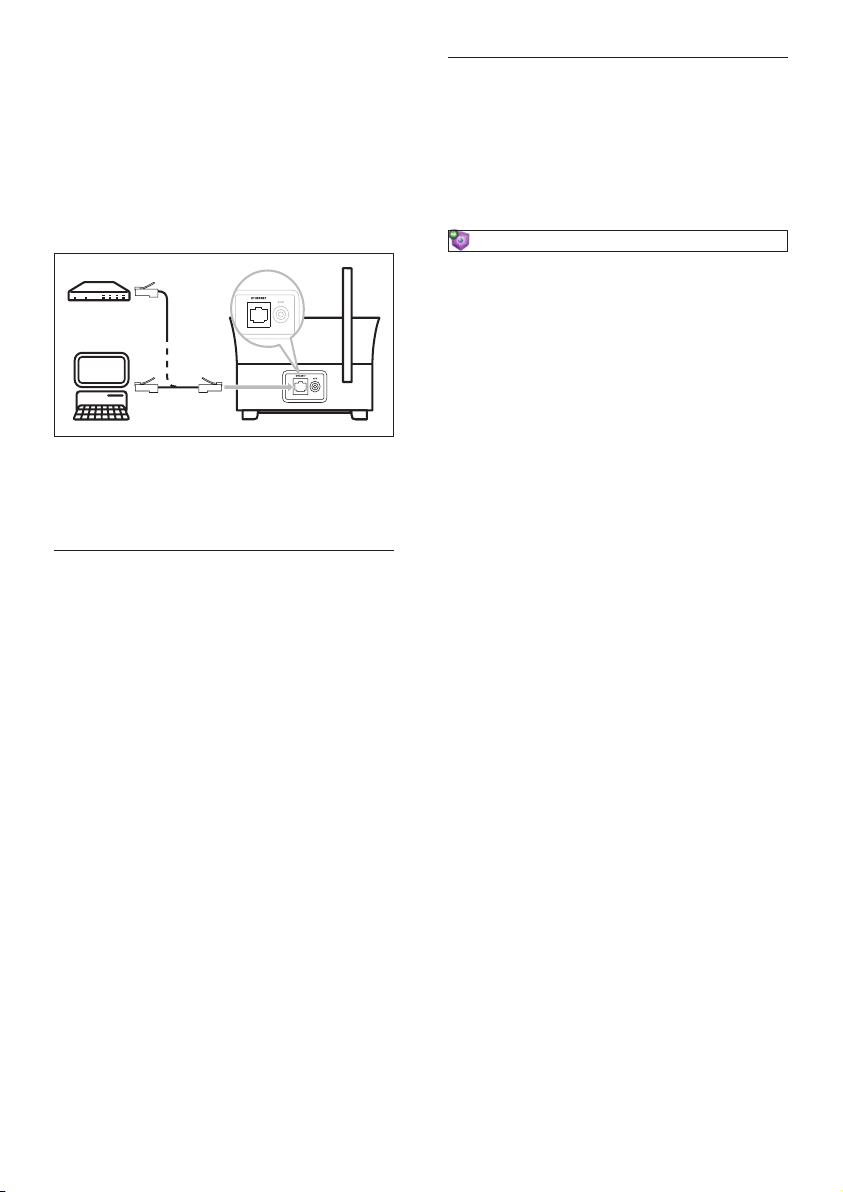
Create wired connection
1 Ensure that the Ethernet port on the PC is
enabled.
2 Ensure that the WADM (Philips Wireless
Audio Device Manager) software is
•
•
•
•
È
4 Connect
Connect AC power
Warning
Risk of product damage! Ensure that the power supply
voltage corresponds to the voltage printed on the back
or the underside of the Music Station.
The type plate is located on the rear of the product.
•
•
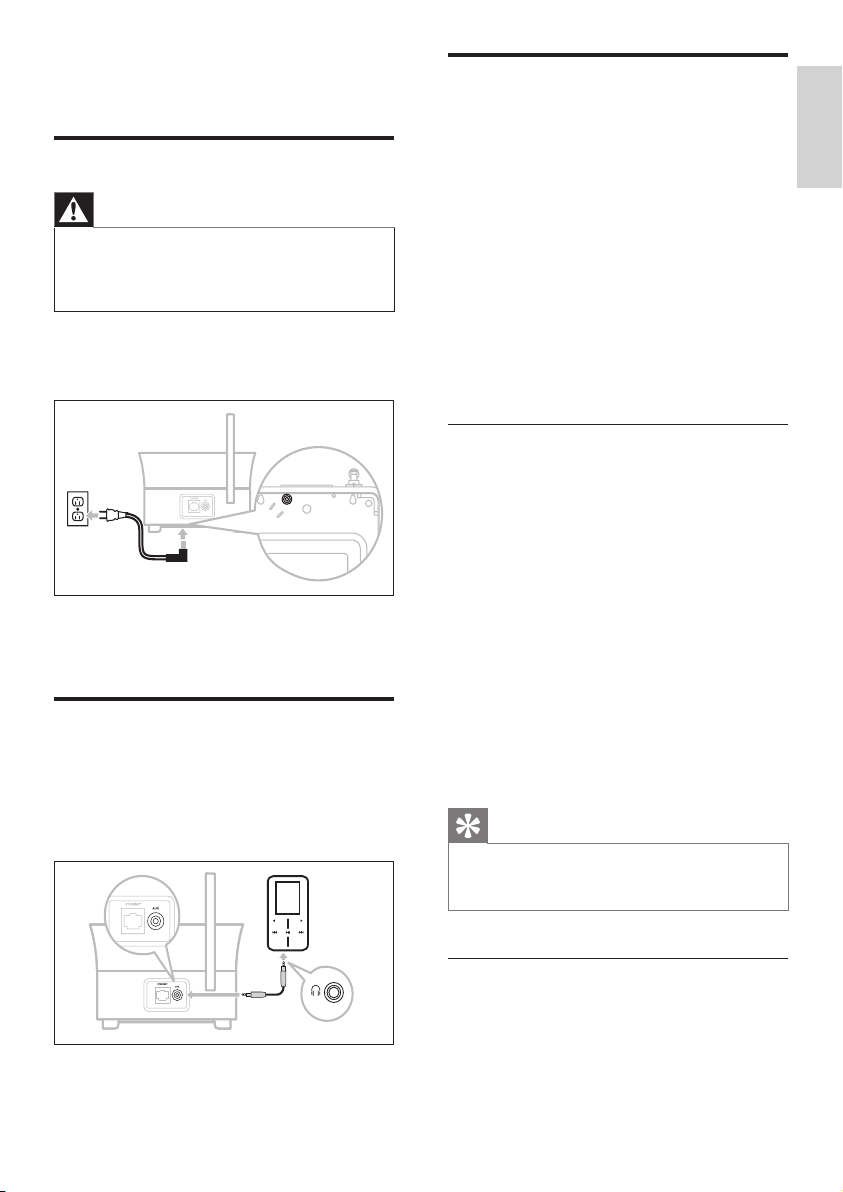
1 Connect the Music Station to the power
supply
Your Music Station turns on and is
ready for use.
Connect a portable audio
device(AUX)
1 Connect an audio cable (not supplied)
from the AUX jack to the portable audio
device.
È
Connect
Engli sh
EN
12
Launch WADM
1 Before you try to launch the WADM,
ensure you have installed the WADM
software on the PC. (see ‘Install WADM’
on page 11)
2 On the PC, double click the WADM icon
3 Continue with the launch, depending on
the status of your PC:
If the Music Station is found:
A Select the Music Station from the list.
B Click Connect now.
If the Music Station is not found:
A Select Connection Wizard.
B In the Connection Wizard menu,
select
Express Mode.
C Click Next.
D Follow the on-screen instructions.
E Select the Music Station from the list.
F Click Connect now.
•
•
installed on the PC to enable search and
download of updates
. (see ‘Install WADM’
on page 11)
3 Use the supplied Ethernet cable to
connect the Music Station
directly to the PC.
to the router that is connected to
the PC.
4 Follow the instructions ‘Launch WADM
(see ‘Launch WADM’ on page 12)’ to
complete the connection process.
Create wireless connection
1 Ensure that your wireless access point or
wireless router is enabled.
2 Ensure that the WADM (Philips Wireless
Audio Device Manager) is installed on the
PC (see ‘Install WADM’ on page 11) to
enable search and download of updates.
(see ‘Install WADM’ on page 11)
3 Ensure that the Music Station is turned on.
4 On the Music Station, congure the
network:
5 Press HOME.
6 Press MENU.
7 Select [Settings] > [Network] >
[Wireless].
8 Select network.
9 Enter encryption key (if required).
10 Select [Automatic] > [Applysettings?] >
[Yes].
•
•
EN
13
2 Complete the set-up process: Consult the
user manual of the Center how to add a
Station to the Center.
3 Position the Music Station in a suitable
location (within reach of a power socket).
4 Position the Music Station where it is
separated from the Center by no more
than one wall.
Note
Connections that include a router require that the
router is switched on at all times.
•
5 First-time
installation
When you connect the Music Station to the
power supply, the automatic installation process
starts. You must select the languag
e (see ‘Select
language’ on page
13) before you can continue.
Select language
1 When you connect the Music Station to
the power supply for the rst time, wait for
the language selection menu to select your
language.
2 Press to select, then press .
After you set the language, the Music
Station starts the search for a Center
(sold separately).
Tip
After the rst-time language set-up, you can change the
language in the Settings menu (see ‘Change language’
on page 999).
•
Set-up with a Center (sold
separately)
You can stream your audio to the Music Station
from a Philips Center of the WAC series, such
as WAC3500D, WAC7000, or WAC7500.
You can connect the Music Station to the
Center in two different modes:
Infrastructure
Ad-hoc (if you do not have an Internet
connection / PC)
1 Place the Music Station and the Center
side by side on a at and level surface that
is strong enough to support the two units.
È
•
•
First-time installation
Engli sh
EN
14
Turn on / switch to standby
You can select from the following status options:
On
Standby
Active standby. The button on the
remote control can turn on the Music
Station.
The Music Station remembers the last
audio source you selected.
Eco standby
Passive standby. Only the button on
the top panel can turn on the Music
Station.
Note
In stop mode, if no buttons are pressed for 20 minutes,
the Music Station switches to standby.
•
1 To turn on the Music Station, press .
2 To switch the Music Station to standby,
press
.
3 To switch the Music Station to eco standby,
press and hold the button on the top
panel.
Note
When the Music Station is in eco standby mode, the
remote control is inactive.
•
•
•
•
•
•
•
EN

15
turned on.
switched to standby (active).
3 Ensure that the Music Station is turned on.
4 Press HOME.
5 Select [HD].
6 Press MENU to enter the HD menu.
7 Press to select [Create playlist], then
press
.
A new playlist with a default album
name, such as Playlist_001, is created.
To return to the Home menu, press
HOME.
Addaudiolestoaplaylist
You can add up to 300 audio les to a playlist.
1 Ensure the Music Station is connected to a
Center (sold separately). (see ‘Set-up with
a Center (sold separately)’ on page 13)
2 Ensure that the Center is
turned on.
switched to standby (active).
3 Ensure that the Music Station is turned on.
4 Press HOME.
5 Select [HD].
6 Press MENU to enter the HD menu.
7 Press to select [Playlists], then press .
8 Press to select audio le, then press .
9 Select [Add to playlist].
10 Press MENU to enter the playlist menu.
The added audio les are displayed.
To return to the Home menu, press
HOME.
Play from a portable audio
device(AUX)
If you connect a portable audio device (AUX)
to the Music Station (see ‘Connect a portable
•
•
È
È
•
•
È
È
6 Play
Play HD music from a Center
You can wirelessly stream music to the Music
Station from a connected Center. The HD play
feature offers the following options:
[Playlists]: Customizable collection of
audio les sorted by playlist name in
alphanumeric order.
[Artists]: Collection of albums sorted by
artist name in alphanumeric order.
[Albums]: Collection of albums sorted by
album name in alphanumeric order.
[Genres]: Collection of albums sorted
by music style (if album information is
available).
[All tracks]: All audio les sorted by name
in alphanumeric order.
1 Ensure that the Center is
turned on.
switched to standby (active).
2 Ensure that the Music Station is turned on.
3 Press HOME.
The display shows the options.
4 Press to select, then press .
To return to the Home menu, press
HOME.
Playlists
When you connect the Music Station to a
Center you can sort audio les on the HD
(hard disk) of the Center into playlists.
Create a playlist
You can create up to 99 playlists on the hard
disk of a connected Center.
1 Ensure the Music Station is connected to a
Center (sold separately). (see ‘Set-up with
a Center (sold separately)’ on page 13)
2 Ensure that the Center is
•
•
•
•
•
•
•
È
•
Play
Engli sh
EN
16
Install Windows Media Player 11
1 On the PC, insert the supplied PC Suite
CD.
Autorun starts.
If Autorun does not start, click on the
WAC_Installer icon in your Explorer
program.
2 Follow the instructions on the PC to install
the Windows Media Player 11.
CongureaPCtosharemusic
You can share music from a PC with the
Music Station. This chapter shows you how to
congure the PC to share music.
1 Follow the instructions to install the
Windows Media Player 1
1 (see ‘Install
Windows Media Player 11’ on page 16).
2 On the PC, click Start > Programs >
Windows Media Player.
3 In the Windows Media Player interface,
click on the Library pull-down menu and
select
More Options....
4 In the Media Sharing pop-up window,
check Share my media, then conrm with
OK.
When the Music Station is connected
to your home network, the display
shows the Music Station with an alert
icon:
5 Click on the Music Station.
6 Select Allow, then conrm with OK.
7 On the Music Station, press HOME.
8 Press to select UPnP mode, then press
.
The display shows [Searching
for<br>UPnP servers…], followed by
the list of media servers.
9 Press to select the PC, then press .
È
È
È
È
audio device (AUX)’ on page 11), you can play
the music from the device on the Music Station.
1 Start play on the portable audio device.
You hear the audio from the device
through the Music Station.
Music follows me
As you move around at home, you can let the
music move with you between a Center (sold
separately) and the Music Station. You can start
to listen to a song in one room, the move to
the next room and continue to listen to the
song there.
1 On the source unit where the music is
playing, press MUSIC FOLLOWS ME to
stop play from that unit and activate the
function.
The display shows the icon .
2 On the destination unit, where you want
to listen, press MUSIC FOLLOWS ME to
continue the play.
To deactivate the function press STOP
on the destination unit.
Tip
Any selected play modes such as repeat or shufe are
retained on the destination unit.
•
Wirelessly stream music from
a PC
You can wirelessly stream music to the Music
Station from a connected PC, if you install the
Windows Media Player 11 on the PC (see
‘Install Windows Media Player 11’ on page 16)
and
congure the PC to share your music (see
‘Congure a PC to share music’ on page 16).
È
È
•
EN

17
Play by genre
You can play all audio les of the same artist
from the HD of the Center.
1 When you play HD audio, press SAME
GENRE.
More play options
You can choose between various play options:
Repeat pla
y (see ‘Repeat play’ on page 17)
Shufe play (see ‘Shufe play’ on page 17)
Play by artis
t (see ‘Play by artist’ on page
17)
Play by genre (see ‘Play by genre’ on page
17)
Repeat play
You can repeat one or all audio les of the
current selection.
1 In play mode, press REPEAT to toggle the
repeat function as follows:
[Repeat 1]
The current audio le is continuously
repeated until another mode or
setting is selected.
[Repeat all]
All audio les of the current selection
are continuously repeated until
another mode or setting is selected.
[Off] (default)
Shufeplay
You can play the audio les of the current
selection in random order (shufed).
1 During play, press SHUFFLE to toggle
shufe on and off.
When you turn shufe on, the current
selection of audio les is played in
random order.
Play by artist
You can play all audio les of the same artist
from the HD of the Center.
1 When you play HD audio, press SAME
ARTIST.
•
•
•
•
•
•
•
•
•
È
More play options
Engli sh
EN
18
Tip
You can store channel frequencies under a preset
channel number (see ‘Manual search 999).
•
Manual search
You can manually search and store channels.
1 Ensure that the Music Station is turned on.
2 Press HOME.
3 Select [Radio] > [FM Tuner].
The current frequency is displayed.
4 Press to change the frequency.
5 Press MENU.
6 Select [Save to preset].
7 Press to select, then press .
The frequency is stored under the
selected preset number.
To return to the Home menu, press
HOME.
Tip
You can overwrite preset channel numbers with new
frequencies.
•
Automatic channel search
The Music Station can automatically search
available channels.
1 Ensure that the Music Station is turned on.
2 Press HOME.
3 Select [Radio] > [FM Tuner]
The current frequency is displayed.
4 Press and hold to start automatic
search function.
When a channel is found, the search
stops.
To return to the Home menu, press
HOME.
È
È
È
È
È
È
7 Radio
FM radio
You can listen to FM radio with the Music
Station.
Listen to FM radio
1 Ensure that the Music Station is turned on.
2 Ensure that you fully extend the connected
FM antenna.
3 Press HOME.
4 Select [Radio] > [FM Tuner].
The current frequency is displayed.
To return to the Home menu, press
HOME.
Tips
You can optimize the reception when you rotate the
FM antenna.
You can use the automatic search & store function
(see ‘Automatic channel search 999) to store channels
under presets.
•
•
Change frequency
To ne tune the reception of a channel, you can
adjust the channel frequency.
1 Ensure that the Music Station is turned on.
2 Press HOME.
3 Select [Radio] > [FM Tuner].
The current frequency is displayed.
4 Press to adjust the frequency.
To return to the Home menu, press
HOME.
È
È
È
•
EN
19
users for Internet radio’ on page 20) under a
different user name.
Note
Internet radio features require broadband Internet
access.
•
First-time Internet radio registration
For rst-time Internet radio registration you
need a valid email address to register with
Philips. The following steps show you how to
register the Internet radio feature.
1 Ensure that the Music Station is turned on.
2 Ensure that the Music Station is connected
to the Internet.
3 Ensure you have a valid email address.
4 Ensure that you use the 1-way remote
control of the Music Station for the
registration process.
5 On the Music Station, press HOME.
6 Select [Radio] > [Internet Radio].
The Internet radio registration display
is shown.
7 Press ALPHANUMERIC BUTTONS on
the 1-way remote control to enter the
valid email address.
8 Press .
The display conrms the automated
email dispatch to your mailbox.
9 On the PC, check the email inbox for a
message from ConsumerCare@Philips.
com with the subject Your Streamium
Registration....
10 Follow the instructions in the email to
complete your registration process on the
Philips website.
The display of the Music Station
returns to the Radio menu.
The email address is stored in the
memory.
È
È
È
È
Automatic channel search
The Music Station can automatically search
and store up to 60 channels under the preset
numbers.
1 Ensure that the Music Station is turned on.
2 Press HOME.
3 Select [Radio] > [FM Tuner].
The current frequency is displayed.
Press
MENU.
4 Select [Autostore function active…].
The Music Station searches and stores
channels.
When all available channels are stored,
the search stops.
To return to the Home menu, press
HOME.
Select preset channels
You can nd your preset channels in the preset
channel list.
1 Ensure that the Music Station is turned on.
2 Press HOME.
3 Select [Radio] > [FM Tuner].
The current frequency is displayed.
4 Press to display preset channel numbers.
5 Press to select, then press .
To return to the Home menu, press
HOME.
Internet radio
If you register the Internet radio feature with
Philips, you can listen to Internet radio stations
that have a link on the Philips web service. The
Philips web service maintains and updates links
to Internet radio stations that are active. You
have to register once when using the Internet
feature for the rst time (see ‘First-time Internet
radio registration’ on page 19). Additional
listeners can register separately (see ‘Register
È
È
È
È
È
È
•
Automatic channel search
Engli sh
EN
20
Listen to Internet radio
When you have registered the Internet
radio featur
e (see ‘First-time Internet radio
registration’ on page 19), you can listen to the
Internet radio.
1 Ensure that the Music Station is turned on.
2 Ensure that the Music Station is connected
to the Internet.
3 Press HOME.
4 Select [Radio] > [Internet Radio] >
[User] > [Services].
The service list is displayed.
5 Press to select from the list:
[RadioIO]
[Live365]
6 Press .
7 Press to select the station, then press
.
To return to the Home menu, press
HOME.
Note
Internet radio features require broadband Internet
access.
•
Place bookmarks for radio stations
You can place bookmarks for Internet radio
stations so next time you want to listen to a
station, it is easy to nd.
1 Ensure that the Music Station is turned on.
2 Ensure that the Music Station is connected
to the Internet.
3 When you listen to Internet radio (see
‘Listen to Internet radio’ on page 20), press
to place a bookmark for the station.
To return to the Home menu, press
HOME.
The next time you connect to the
Internet radio, the radio station is
shown in the Favorite Stations (see
È
•
•
•
•
•
To return to the Home menu, press
HOME.
Tip
You can register additional users to the Internet radio
(see ‘Register users for Internet radio’ on page 999).
•
Register users for Internet radio
The Music Station allows to your register
additional users under a separate email address
and password.
1 Ensure that the Music Station is turned on.
2 Ensure that the Music Station is connected
to the Internet.
3 Press HOME.
4 Select [Radio] > [Internet Radio] > [Add
user].
The Internet radio registration display
is shown.
5 Press ALPHANUMERIC BUTTONS on
the 1-way remote control to enter the
valid email address.
6 Press .
The display conrms the automated
email dispatch to your mailbox.
7 On the PC, check the email inbox for a
message from ConsumerCare@Philips.
com with the subject Your Streamium
Registration....
8 Follow the instructions in the email to
complete your registration process on the
Philips website.
The display of the Music Station
returns to the Radio menu.
The email address is stored in the
memory.
To return to the Home menu, press
HOME.
È
È
È
È
È
È
EN
21
on the PC (see ‘Add URL address on the
PC’ on page 21)
Note
Internet radio features require broadband Internet
access.
•
Add URL address on the Music
Station
You can add individual URL addresses for
Internet radio stations on the Music Station.
1 On your PC, log on at www.philips.com/
welcome.
Register the Music Station, if you have
not done so already.
2 Search for the Music Station.
3 On the registered product site, click the
link
Streamium Management.
4 Follow the online instructions to enter the
URL address of Internet radio station.
Notes
If the manually added Internet radio station is available
and broadcast in a compatible format, you can listen to
it on the Music Station.
You can nd the manually added Internet radio stations
in the My Media list on the Music Station.
•
•
Add URL address on the PC
You can add individual URL addresses for
Internet radio stations on the PC.
1 On your PC, log on at www.philips.com/
welcome.
Register the Music Station, if you have
not done so already.
2 Search for the Music Station.
3 On the registered product site, click the
link
Streamium Management.
4 Follow the online instructions to enter the
URL address of Internet radio station.
•
•
•
‘Listen to Favorite Stations’ on page
21) menu.
Note
Internet radio features require broadband Internet
access.
•
Tip
You can also place bookmarks for Internet radio
stations when you log on at www.philips.com/welcome
and on the registered product site click the link
Streamium Management.
•
Listen to Favorite Stations
When you place bookmarks for Internet
radio station
s (see ‘Place bookmarks for radio
stations’ on page 20), you can nd them under
Favorite Stations.
1 Ensure that the Music Station is turned on.
2 Ensure that the Music Station is connected
to the Internet.
3 Press HOME.
4 Select [Radio] > [Internet Radio] >
[User] > [Favorite Stations].
5 Press to select, then press .
To return to the Home menu, press
HOME.
Note
Internet radio features require broadband Internet
access.
•
Manually add Internet radio stations
You can manually enter the URL address of
Internet radio stations that are not listed on
the Philips website. You can choose from the
following options to enter a URL address:
on the Music Station (see ‘Add URL
address on the Music Station’ on page 21)
•
•
Automatic channel search
Engli sh
EN
22
Notes
If the manually added Internet radio station is available
and broadcast in a compatible format, you can listen to
it on the Music Station.
You can nd the manually added Internet radio stations
in the My Media list on the Music Station.
•
•
Listen to My Media
When you manually enter the URL address, you
can listen to Internet radio stations that are not
listed on the Philips website.
1 Ensure that the Music Station is turned on.
2 Ensure that the Music Station is connected
to the Internet.
3 Press HOME.
4 Select [Radio] > [Internet Radio] >
[User] > [My Media].
5 Press to select, then press .
To return to the Home menu, press
HOME.
Note
Internet radio features require broadband Internet
access.
•
•
EN

23
8 To stop the search, press .
To return to the Home menu, press
HOME.
•
8 Search for audio
files(music)
You can choose between the following options
to search for specic audio les:
Scroll at high speed (see ‘Scroll at high
speed’ on page 23)
Alphanumeric search (see ‘Alphanumeric
search’ on page 23)
Scroll at high speed
You can nd a le with fast scroll, which scrolls
through all les in the current list. Scroll speed
depends on the length of the list.
1 Ensure that the Music Station is turned on.
2 When a list is displayed, press and hold
SCROLL to scroll through the list at high
speed.
3 Let go of the button, to stop the scroll.
Alphanumeric search
You can search for specic audio les on
the HD of a connected Center,
a connected UPnP device.
1 Ensure that the Music Station is turned on.
2 Press HOME.
3 Press to select
[HD]
[UPnP]
4 Press .
5 Press SEARCH.
The display shows a text box.
6 Press the ALPHANUMERIC BUTTONS
to enter the search word.
7 Press OK to start the search.
The Music Station shows the closest
alphabetical match.
•
•
•
•
•
•
È
È
Searchforaudioles(music)
Engli sh
EN
24
Activate Smart EQ
Note
When you activate the Smart EQ function, you can
manually deactivate the function.
•
1 Ensure that the Music Station is turned on.
2 Press SMART EQ.
The Smart EQ function automatically
selects equalizer settings according to
the genre that is associated with the
audio le.
If no genre is associated with the audio
le, the default setting is Pop.
Tip
You can manually associate your audio les with a genre
to ensure that the Smart EQ function matches the
genre of your audio les.
•
Deactivate Smart EQ
1 Ensure that the Music Station is turned on.
2 Press MENU.
3 Select Equalizer.
4 Adjust equalizer settings (see ‘Adjust
Equalizer (EQ)’ on page 24).
The new equalizer settings deactivate
the Smart EQ feature.
Adjust bass / treble
1 Ensure that the Music Station is turned on.
2 Press HOME.
3 Select [Settings] > [Bass/Treble].
4 Press to select, then press .
5 Press to adjust the settings, then press
.
To return to the Home menu, press
HOME.
È
È
È
•
9 Settings
Change sound settings
You can adjust the following sound settings:
Volume (see ‘Adjust volume’ on page 24)
Dynamic Bass Boost (DBB) (see ‘Set
Dynamic Bass Boost (DBB)’ on page 25)
Equalizer (see ‘Adjust Equalizer (EQ)’ on
page 24)
Bass / Trebl
e (see ‘Adjust bass / treble’ on
page 24)
Adjust volume
1 During play, press - VOL + to adjust the
volume.
Mute
You can turn off the sound of your audio.
1 During play, press MUTE.
To turn the sound back on, press
MUTE again.
AdjustEqualizer(EQ)
You can adjust the audio sound with the
following equalizer settings:
[Rock]
[Pop] (default)
[Jazz]
[Neutral] (at)
[Techno]
[Classical]
1 Ensure that the Music Station is turned on.
2 Press MENU.
3 Press to select [Equalizer], then press
.
4 Press to adjust the settings, then press
.
To return to the Home menu, press
HOME.
•
•
•
•
•
•
•
•
•
•
•
•
EN

25
Set the clock
1 Ensure that the Music Station is turned on.
2 Press HOME.
3 Select [Settings] > [Time] > [Set time].
4 Press to change the time.
5 Press to return to the Time menu.
To return to the Home menu, press
HOME.
Change the time format
You can choose between 12-hr or 24-hr time
display format.
1 Before you change the time format, set the
clock (see ‘Set the clock’ on page 25).
2 Ensure that the Music Station is turned on.
3 Press HOME.
4 Select [Settings] > [Time] > [Time
format].
5 Press to select, then press .
6 Press to return to the Time menu.
To return to the Home menu, press
HOME.
Set the alarm time
Before you set the alarm time, ensure
that you set the correct current time
on the clock (see ‘Set the clock’ on
page 25).
1 Ensure that the Music Station is turned on.
2 Press HOME.
3 Select [Settings] > [Alarm] > [Alarm
on/off].
4 Select [Alarm on].
5 Press to change the alarm time.
6 Press to enter the Alarm on/off menu.
7 Press to select, then press .
If the alarm is activated, the header
displays an alarm icon for 3 seconds.
To switch off the alarm, select [Alarm
off].
•
•
•
È
È
SetDynamicBassBoost(DBB)
You can choose from the following DBB
settings:
[DBB1]
[DBB2]
[DBB3]
[Off] (default)
1 To toggle between the settings, press DBB.
Adjust display
You can change the following settings of the
display:
Backlight (see ‘Switch backlight on/off’ on
page 25)
Contrast (see ‘Change display contrast’ on
page 25)
Switch backlight on/off
1 Ensure that the Music Station is turned on.
2 Press MENU.
3 Select [Settings] > [Display] > [Backlight].
4 Press to toggle Backlight [On] and
[Off].
To return to the Home menu, press
HOME.
Change display contrast
1 Ensure that the Music Station is turned on.
2 Press HOME.
3 Select [Settings] > [Display] > [Contrast].
4 Press to adjust the contrast.
To return to the Home menu, press
HOME.
Clock / alarm settings
You can set the clock and alarm of the player.
•
•
•
•
•
•
•
•
SetDynamicBassBoost(DBB)
Engli sh
EN
26
2 Ensure that the Music Station is turned on.
3 Press HOME.
4 Select [Settings] > [Time] > [Auto time
sync].
5 Press to select, then press .
6 To return to the Home menu, press
HOME.
Synchronize with NTP
1 Ensure that the Music Station is turned on.
2 Press HOME.
3 Select [Settings] > [Time] > [Auto time
sync].
4 Press to select, then press .
5 To return to the Home menu, press
HOME.
Set standby timer
You can select a set time period after which the
Music Station automatically switches to standby.
The timer offers the following options:
[15]
[30]
[45]
[60]
[90]
[120] minutes
[Off]
1 Ensure that the Music Station is turned on.
2 Press SLEEP one or more times to select a
time period.
When you set the timer, the display
shows the sleep icon:
To view the remaining countdown time
to standby, press SLEEP anytime.
•
•
•
•
•
•
•
È
È
8 To return to the Home menu, press
HOME.
Tip
If you switch the Music Station to eco standby, the
alarm is deactivated.
•
Set the alarm repeat
1 Ensure to set the alarm time (see ‘Set the
alarm time’ on page 25) before you set the
alarm occurrence.
2 Ensure that the Music Station is turned on.
3 Press HOME.
4 Select [Settings] > [Alarm] > [Alarm
time] > [Repeat].
5 Press to select
[Once]
[Daily]
6 Press to conrm.
7 To return to the Home menu, press
HOME.
Automatic time update
You can synchronize the current clock time
with a
radio station that is RDS (Radio Data
System) (see ‘Synchronize with RDS’ on
page 26) enabled.
computer that is NTP (Network Time
Protocol) (see ‘Synchronize with NTP’ on
page 26) enabled.
Synchronize with RDS
RDS (Radio Data System) is a service
that allows FM stations to send additional
information along with the FM radio signal.
Automatic time synchronization is one of the
RDS features.
1 Ensure that the radio station you select for
synchronization has RDS.
•
•
•
•
EN

27
Change language
You can change the language that you have
set during the rst installation (see ‘First-time
installation’ on page 13).
1 Ensure that the Music Station is turned on.
2 Press HOME.
3 Select [Settings] > [Language].
4 Press to select, then press .
5 To return to the Home menu, press
HOME.
Change language
Engli sh
EN
28
Tip
You can restore the default settings without losing the
audio les on the HD of a connected Center.
•
10 Maintenance
Cleaning
Note
Avoid moisture and abrasion.•
1 Clean the Music Station only with a soft
dry cloth.
Update
When the Music Station is connected to a PC,
you can download new rmware updates with
the help of the Wireless Audio Device Manager
(WADM) (see ‘Install WADM’ on page 11) that
is on the supplied PC Suite CD.
1 On the PC, to search for new rmware
updates, launch the WADM (see ‘Launch
WADM’ on page 12).
2 Follow the instructions to update the
rmware.
Restore the default settings
You can restore the default settings (including
network settings) of the Music Station, if you
want to change the way the Music Station
connects to
a Center
a home network / PC
1 Ensure that the Music Station is turned on.
2 Press MENU to enter the menu display.
3 Press to select [Settings] > [Restore
factory settings].
4 Press .
5 Press to select [Yes], then press .
The language selection display is
shown.
•
•
È
EN

29
Wireless
standard
802.11g, backwards compatible
to 802.11b
Wireless
security
WEP (64 or 128 bit),WPA/
WPA2 (8-63 characters)
Frequency
range
2412 - 2462MHz (CH1-CH11)
Wired(LAN/Ethernet)
Wired standard 802.3 / 802.3u
Speed 10 / 100MBit/s
Mode half / full duplex
Crossover detection
(Auto MDIX)
Yes
Tuner
FM wave range 87.5 - 108.0 MHz
Number of presets
60
FM antenna/cable
Pigtail
HD play
Frequency range 60 - 20,000Hz (-3dB)
Signal-to-noise
ration
72dBA (IEC)
M4A (AAC) bit
rate
16 - 320kbps, CBR/VBR
MP3 bit rate
32 - 320kbps, CBR/VBR
WMA bit rate
up to 192kbps, CBR/VBR
Sampling
frequencies
32, 44.1, 48kHz
Specications and external appearance are
subject to change without notice.
Supportedaudioleformats
The Music Station supports the following audio
le formats:
MP3 (8-320kbps and VBR)
WMA (up to 160kbps)
AAC (MPEG4 AA LC raw format, .m4a/.
m4b les)
•
•
•
11 Technical data
General
AC Power Voltage information is
printed on the back or the
underside of the Music
Station.
Dimensions (w x
h x d)
158 x 103 x 158 mm
Weight (net) approx. 0.92kg
Power consumption
On < 36W
Standby (active < 5W
Eco standby (passive) < 1W
Amplier
Output power 2 x 7.5W
Frequency response 80 - 20,000Hz (-3dB)
Signal-to-noise ratio 72 dBA (IEC)
Speakers
Full range:
Power 2x7.5W (RMS)
Frequency response 4 kHz - 20 kHz (-6dB)
Sensitivity 83 dB / m / W
Impedance 2x4 Ohms in series = 8
Ohms
Dimensions (w x h) 50 x 43 mm
wOOx bass radiator:
Dimensions 100mm x 50mm
Input sensitivity
AUX IN 500mV
Wireless
Technical data
Engli sh
EN
30
Note
The display of the Music Station supports directories
with nesting up to a maximum of 8 levels.
•
Supplied accessories
Remote control
2 AAA batteries
AC power adapter with cable
Angled support (for use as table stand or
wall mount)
2 screws to attach angled support
PC connection requirements
The minimum requirements for PC connections
are:
Windows 2000 SP4 (or above) / XP SP2
/ Vista
Pentium III 500MHz processor or higher
256MB RAM
CD-ROM drive
Adapter
Ethernet enabled (for wired
connection)
Wireless network 802.11 b/g (for
wireless connection)
500MB free hard disk space
•
•
•
•
•
•
•
•
•
•
•
•
•
EN

31
2 Use an Ethernet cable (sold separately) to
connect the Music Station to the PC.
3 On the PC, launch the WADM on the PC
to update the rmware (see ‘Update’ on
page 28).
I have problems installing WADM or launching
WADMafterinstallation,whatdoIdo?
Ensure that the operating system of the
PC meets the requirements (see ‘PC
connection requirements’ on page 30).
Ensure that the Microsoft Windows Media
Player is installed on the PC (see ‘Install
Windows Media Player 11’ on page 16).
Ensure that the PC is virus-free.
I cannot use all the WADM functions, what do
Ido?
Temporarily disable the antivirus software on
the PC, as it may affect the WADM functions.
•
•
•
12 Troubleshooting
I cannot hear any sound or the sound is poor,
whatdoIdo?
Press
- VOL + to increase the volume.
Press the MUTE button again to reactivate
the sound output.
Theradioreceptionispoor,whatdoIdo?
Adjust the antenna for better reception.
Increase the distance between the Music
Station and TV or VCR devices.
Is there a maximum distance of transmission
between a Center and the Music Station for
effectivestreaming?
Yes. The maximum distance of Wi-Fi
transmission is 250m measured in open spaces.
However, in a home environment, where solid
obstacles such as walls and doors are present,
the effective transmission distance is reduced
to 50-100m. Reposition the devices if you
experience transmission problems.
Duringthersttimeset-up,thedisplayonthe
Music Station shows [Searching for Center…],
whatdoIdo?
Follow the instructions for the set-up with
a Cente
r (see ‘Select language’ on page 13).
How do I avoid Wi-Fi interferences from
other devices that operate in the same
(2.4GHz)frequencyspectrum,suchasDect
phonesorbluetoothdevices?
Move the Music Station (and the Center,
if applicable) at least 3m away from such
devices.
Use a WEP/WPA encryption key when
you create the wireless connection your
PC / home network (see ‘Create wireless
connection’ on page 12).
Change the operating channel on the
interfering devices.
Turn the devices in different directions to
minimize interference.
Thewirelessrmwareupdatefailed,whatdo
Ido?
1 Ensure that the PC is connected to the
Internet.
•
•
•
•
•
•
•
•
•
Troubleshooting
Engli sh
EN

32
The lowest three octaves of the audio band.
Low bass is the bottom octave (20-40Hz), mid-
bass is the middle octave (40-80Hz), and upper
bass is the 80-160Hz octave.
Bluetooth
A short-range wireless protocol that is meant
to allow mobile devices to share information
and applications without the worry of cables or
interface incompatibilities. The name refers to a
Viking King who unied Denmark. Operates at
2.4 GHz. For more information, see bluetooth.
com.
C
CBR(constantbitrate)
With CBR the encoder spends the same
amount of bits on each frame, regardless of
how much it may really need. Disadvantage
of CBR: Bits are wasted in case of absolute
blackness of a picture or complete silence in an
audio frame. And pictures or audio frames with
a lot of elements may need those bits.
CD(CompactDisc)
Format developed by Phillips, Sony, and Pioneer
for conveying music and data. CDs record
information by deforming the inner metal foil
on the disc with tiny micro pits burned in by a
laser.
CDDB
A centralized database of CDs, CD tracks, and
artists on the Web, now known as Gracenote.
The audio player or burner program can log on
to CDDB. It uploads the ID of the CD being
played, and then downloads the title, artist, and
track list.
Coaxial
A single copper conductor, surrounded with
a layer of insulation, covered by a surrounding
copper shield and nally, an insulating jacket.
An unbalanced transmission line with constant
impedance. In audio, this type is commonly used
for low level, line signals terminated in RCA
connectors.
13 Glossary
A
AAC(AdvancedAudioCoding)
An audio compression scheme dened as part
of the MPEG-2 standard (also known as MPEG-
2 AAC or MPEG-2 NBC, or Not Backwards
Compatible). It offers better sound and a
compression ratio that is superior by roughly 30
percent compared to the MPEG-1 MP3 format.
AC(alternatingcurrent)
An alternating current is an electrical current
whose magnitude and direction vary cyclically,
as opposed to DC (direct current), whose
direction remains constant. The usual waveform
of an AC power circuit is a sine wave, as this
results in the most efcient transmission of
energy. However certain applications use
different waveforms, such as triangular or square
waves.
Amplier
A device, either a single stage or a large scale
circuit with multiple stages for creating gain, i.e.
it makes small signals larger.
Antenna
A device, such as a rod or wire, which picks up
a received radio frequency signal or radiates a
transmitted RF signal.
Audio output
High-level (speaker) or line-level (RCA) signals
sent from one system component to another;
or the high-level signal from an amplier to the
system speakers.
AUX
Auxiliary input that allows you to connect
portable audio devices.
B
Bass
EN

33
E
Eco(EcoStandby)
Eco Standby is the most ‘economic’ mode of
the Music Station and consumes less than 1W. It
is ‘economic’ and environmentally friendly to use
this mode during longer times of non-usage of
the Music Station.
EQ(Equalizer)
A class of electronic lter circuits designed
to augment or adjust electronic or acoustic
systems. Equalizers can be xed or adjustable,
active or passive. Many equalizers divide the
spectrum into 3 to 12 bands. This allows each
section to be either increased or decreased in
amplitude without changing the response of
the rest.
F
Fidelity
A term used to describe the accuracy of
recording, reproduction, or general quality of
audio processing. “High Fidelity” (Hi-Fi) is the
goal of every designer.
FM(FrequencyModulation)
In radio broadcasting: a method of modulation
in which the frequency of the carrier voltage
is varied with the frequency of the modulation
voltage.
Frequency
The property or condition of occurring at
frequent intervals. In sound, this simply refers
to the regular occurrence of compression and
rarication of air that we experience as sound.
Frequency Response
Is the range of frequencies that a speaker
reproduces, lowest frequency to the highest.
While the optimal normal is 20-20,000 Hz
(Hertz), the range of human hearing for
individuals is often much more restricted.
A good full-range speaker system however,
reproduces as much of this range as possible to
cover all variations. Individual drivers are limited
to reproduce only that part of the spectrum
Compression
In audio terms, this is a process of temporarily
or permanently reducing audio data for more
efcient storage or transmission. A temporary
reduction in le size is called ‘non-lossy’
compression, and no information is lost. A
permanent reduction in le size (such as with
MP3 les) is called ‘lossy’ compression, and
involves discarding unnecessary information
which is irretrievably lost.
D
dB(Decibel)
A unit of measure used to express relative
difference in power or intensity of sound.
D
DC(directcurrent)
Direct current or continuous current is the
constant ow of electric charge. This is typically
in a conductor such as a wire. In direct current,
the electric charges ow in the same direction,
distinguishing it from AC (alternating current).
Digital
A method to encode information using a binary
code of 0s and 1s. Many wireless phones and
networks use digital technology.
Digital Audio
Digital Audio is a sound signal that has been
converted into numerical values. Digital sound
can be transmitted through multiple channels.
Analog sound can only be transmitted through
two channels.
Duplex(half/full)
Full duplex is the ability to send and
receive data simultaneously. Duplex is
synonymous with full duplex. Example:
when a modem operates in full-duplex
mode, it can transmit data in two
directions simultaneously. In half-duplex
mode it can transmit data in two directions,
but not simultaneously.
•
Glossary
Engli sh
EN

34
Kilobits per second. A digital-data-rate
measurement system which is often used with
highly compressed formats such as AAC, DAB,
MP3 etc. The higher the amount, the better the
quality generally is.
K
kHz(kiloHertz)
1000Hz or 1000 cycles per second.
L
LCD(LiquidCrystalDisplay)
Probably the most common way to show
visual information on non-computer electronic
equipment.
Lossless compression
A system for reducing the number of data bits
(density) in a musical signal without corrupting
the original.
M
M4A
The audio le format used by Apple in their
iTunes Music Store often appears on your
system with the ‘.m4a’ lename extension. M4A
can produce better audio quality than MP3
using less physical space for the les.
MHz(MegaHertz)
One million cycles per second.
Midrange
The middle three octaves (more or less) of the
audio band, where the ear is most sensitive,
usually between 160Hz-3kHz.
Mono(monaural)
The operation of an amplier in one channel
for both input and output. Can refer to an
amplier with only one channel of amplication
or operating in bridged mode. For low-
frequency amplication applications, it provides
better phase coherence and less distortion than
stereo operation.
for which they were made, so their response is
limited, but still a necessary point to consider
when designing a complete sound system.
H
Hi-Fi(HighFidelity)
A method of sound reproduction that
emphasizes the highest possible adherence to
the exact character of the original sound. This
is a principal that must be paramount in every
stage of the recording, transportation, and
recreation of the signal to be fully operational. It
is usually the listener’s equipment wherein this
objective is most seriously compromised.
Hz(Hertz)
Cycles per second, named after Heinrich Hertz.
I
Impedance
The resistance to the ow of an electric current
in a circuit. This is effectively the electrical load
that a loudspeaker presents to the amplier
which drives it and is measured in ohms.
IncredibleSurroundSound(Incr.Surr.)
An improved system that creates realistic, three-
dimensional sound elds. These sound elds are
usually achieved with multiple speakers that are
arranged around the listener.
Input sensitivity
SPL (sound pressure level) a speaker produces,
given one watt of power, measured from a
one-meter distance at a typical input frequency
(usually 1kHz unless otherwise noted on the
speaker).
Interface
A device or protocol which facilitates the linking
of any two devices or systems; or when used as
a verb (‘to interface’), the process of linking.
K
Kbps
EN

35
as electromagnetic waves by radio (and
television) stations.
Rip(ripping)
Using a software program that “grabs” digital
audio from a compact disc and transfers it to a
computer hard drive. The integrity of the data
is preserved, because the signal does not pass
through the computer sound card, and need
not be converted to an analog format. The
digital-to-digital transfer creates a WAV le that
can then be converted into an MP3 le.
RMS(RootMeanSquare)
A formula that provides a reasonably accurate
means to measure and compare continuous
AC power. The use of this measure is preferred
when matching system components, like
ampliers and receivers.
S
S/PDIF(SPDIF)(Sony/PhilipsDigitalInterface)
A standard audio-le transfer-format that was
developed jointly by Sony and Philips. S/PDIF
allows the transfer of digital audio signals from
one device to another, without the need to
convert rst to analog. This prevents the quality
of the digital signal degrading during transfer to
analog.
Sampling rate
The precision with which a digital le describes
the analog sound it represents. Basically, a lower
rate produces les that sound worse and take
up less drive space than those with a higher
rate. CDs have a sampling rate of 44.1kHz,
and DAT machines have a sampling rate of
48kHz. MiniDisc player/recorders with a built-in
sampling rate converter can handle both rates.
Sensitivity
Volume that a speaker offers for a specic
voltage input, expressed in decibels per watt
(dB/W).
Shufe
A feature that plays audio les (tracks) in
random order.
MP3
A le format with a sound data compression
system. MP3 is the abbreviation of Motion
Picture Experts Group 1 (or MPEG-1) Audio
Layer 3. With the MP3 format, one CD-R or
CD-RW can contain about 10 times more data
than a regular CD.
Mute
A control found on receivers, and some mixers
or signal processing units that silences (mutes) a
signal path, or output.
O
Ohm
Measure of resistance to current (impedance).
The lower the impedance of a speaker, the
harder it is to drive.
P
PCM(PulseCodeModulation)
Pioneering form of digital recording.
R
RDS(RadioDataSystem)
RDS tuners can automatically tune in stations
according to the types of music (or talk) they
broadcast. RDS also enables a receiver to
display text messages and even graphics (usually
call letters and format information) that many
FM stations include on a sub-carrier signal
within their normal broadcast signal. Some RDS
equipped tuners can even override with trafc
alerts or emergency broadcasts, during playback
of other media - CD MD, or cassette. There are
other useful features too, many of which are
offered by the growing number of RDS stations.
RF(radiofrequency)
An alternating current or voltage with a
frequency (or carrier wave) above about
100kHz. It is called radio frequency because
these frequencies have a capacity to be radiated
Glossary
Engli sh
EN

36
products from different vendors. UPnP devices
should be able to connect to a network
automatically, handling identication and other
processes on the y. The standards developed
by the UPnP Forum are media-, platform-, and
device-independent.
USB(universalserialbus)
A hardware interface used to connect devices
such as computer audio players, digital cameras,
and more. USB is UPnP enabled (also called
hot-swappable), meaning that a computer does
not need to be turned off when new devices
are plugged in and the devices do not need to
be congured. USB supports data transfer rates
of up to 60MB per second (in USB 2.0).
V
VBR(variablebitrate)
With VBR, the encoder takes as much bits as
it needs. So black pictures get few bits and
complex pictures get as much as they need.
While this provides the best quality the nal
size cannot be predicted at all.
Volume
Volume is the most common word used to
specify the control of relative loudness of
sounds. It also pertains to the function on many
electronic devices that is used to control the
loudness.
W
W(wattage)
A measurement of power. In speakers, wattage
is a term that indicates power-handling
characteristics in dealing with electrical voltage
inputs from the amplier.
WAP(WirelessApplicationProtocol)
Global protocol used in some wireless devices
that allows the user to view and interact with
data services. Generally used as a means to
view Internet web pages using the limited
transmission capacity and small display screens
of portable wireless devices.
Signal to noise ratio
Represents the difference between the level of
the audio signal, and any interference. The larger
the gure, the purer the sound.
SPL(soundpressurelevel)
An acoustic measurement of sound energy.
1 dB SPL is the smallest increment in sound
level to which the average human is sensitive.
Theoretically, 0 dB SPL is the threshold of
human hearing while approximately 120 dB is
the threshold of pain.
Stereo
Literally means solid. Usually taken to refer to
two channel stereo, though developments in
digital audio facilitate multichannel stereo.
Streaming
A technique for transferring data such that it
can be processed as a steady and continuous
stream. Streaming technologies are often used
on the Internet because many users do not
have fast enough access to download large
multimedia les quickly, so the client browser or
plug-in can start displaying the data before the
entire le has been transmitted.
Subwoofer
The extra-low frequency drive-unit
(loudspeaker) that can be used to augment
both stereo and surround system.
T
Treble
High frequencies at the top end of the audio
band i.e. above 3kHz.
Tweeter
The drive unit (loudspeaker) that reproduces
high frequency sounds.
U
UPnP(UniversalPlugandPlay)
Universal Plug and Play is a networking
architecture developed by a consortium of
companies to ensure easy connectivity between
EN

37
The drive unit (loudspeaker) that reproduces
the bass (low) frequencies.
WPA/WPA2(Wi-FiProtectedAccess)
A Wi-Fi standard that was designed to improve
upon the security features of WEP. The
technology is designed to work with existing
Wi-Fi products that have been enabled with
WEP (i.e. as a software upgrade to existing
hardware), but the technology includes two
improvements over WEP.
WAV
A format for sound les developed jointly by
Microsoft and IBM. Built into Windows 95 to XP,
which made it the de facto standard for sound
on PCs. WAV sound les end with a ‘.wav’
extension and works with nearly all Windows
applications that support sound.
WEP(WiredEquivalentPrivacy)
All 802.11b (Wi-Fi / wireless) networks use
WEP as their basic security protocol. WEP
secures data transmissions using 64-bit or
128-bit encryption; however, it does not
offer complete security and is usually used in
conjunction with other security measures such
as EAP.
Wi-Fi
Wi-Fi (Wireless Fidelity) is a wireless
technology brand owned by the Wi-Fi Alliance
intended to improve the interoperability of
wireless local area network products based
on the IEEE 802.11 standards. Common
applications for Wi-Fi include Internet and VoIP
phone access, gaming, and network connectivity
for consumer electronics such as televisions,
DVD players, and digital cameras.
Wireless
Telecommunications using electromagnetic
waves rather than wires or cable to transmit
information. Wireless communication can be
used for free-ranging mobile systems such as
cell phones and global positioning systems
(GPS), which use satellite technology. Wireless
systems can also be xed, such as LANs that
provide wireless communications within a
limited area (such as an ofce), or wireless
peripherals such as mice and keyboards.
WMA(WindowsMediaAudio)
An audio format owned by Microsoft, is a
part of Microsoft Windows Media technology.
Includes Microsoft Digital Rights Management
tools, Windows Media Video encoding
technology, and Windows Media Audio
encoding technology.
Woofer
Glossary
Engli sh
EN

40
Japan 0570-07-6666
Korea 080-600-6600
Luxembourg 40 6661 5644
Malaysia 1800-880-180
Mexico 01-800-504-6200
Netherlands 0900-8407
(€0.20/min)
New Zealand 0800-658-224
Norway 2270-8111
Pakistan 051-580-902-3
Peru 0800-00100
Philippines 632-8164416
Poland 223491504
Portugal 2-1359-1442
Romania 1-203-2060
Russia Federation 495-961-1111;
(8-800-200-0880)
Singapore 65-6882-3999
Slovakia 0800-004537
South Africa (011) 471-5194
Spain 902-888-784
(€0.10/min)
Sweden 08-5792-9100
Switzerland 0844-800-544
Taiwan 0800-231-099
Thailand 66-2-652-8652
Turkey 0800-261-3302
Ukraine 044-254-2392
United Kingdom 0870 900 9070
(£0.15/min)
Uruguay (598-2) 619-6666
Venezuela 0800-100-4888
Contact
information
UnitedStatesandCanada(Francophone)
1-800-661-6162
UnitedStatesandCanada(English-speaking)
1-888-744-5477
Argentina (54-11) 4544-2047
Australia 1300-363-391
Austria 810000205
(€0.20/min)
Belgium 78250145
(€0.16/min)
Brazil 0800-701-02-03
Bulgaria 2-976-9996
Chile 600-744-5477
(600-PHILIPS)
China 4008-800-008
(local tariff)
Colombia 01-800-700-7445
Czech Republic 800142840
Denmark 3525-8759
Finland 09-2311-3415
France 0821 611655
(€0.23/min)
Germany 01803 386 852
(€0.14/min)
Greece 0-0800-3122-1280
Hong Kong 852-2619-9663
Hungary 680018189
India 1901-180-1111
Ireland 01-601-1777
Israel 9-9600-900
Italy 840320086
(€0.25/minute)

41

42

© 2008 Koninklijke Philips Electronics N.V.
All rights reserved.