3-286-671-11(1)
Digital Video Camera Recorder
Handycam Handbook
DCR-SR35E/SR36E/SR45E/SR46E/
SR55E/SR65E/SR75E/SR85E
2008 Sony Corporation
Getting Started
Editing
Utilizing recording
media
Customizing your
camcorder
Troubleshooting
Additional Information
Quick Reference
Enjoying your
camcorder
8
Recording/Playback
22
12
37
51
55
76
87
96
2
Read this before operating your camcorder
Before operating the unit, please read this
Handbook thoroughly, and retain it for
future reference.
Notes on use
In “Handycam Handbook” (this Handbook)
e operations and handling of your
camcorder are explained. Refer also to
“Operating Guide” (the separate volume).
Handling the images recorded on your
camcorder on the computer
Refer to “PMB Guide” stored on the
supplied CD-ROM.
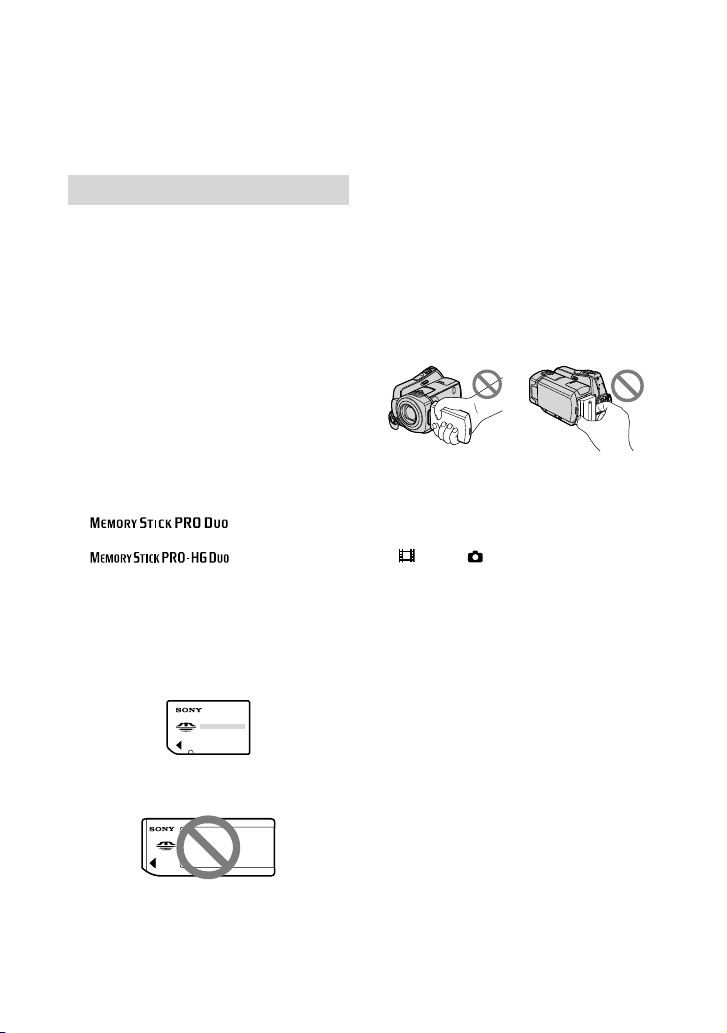
Types of “Memory Stick” you can use with
your camcorder
For recording movies, it is recommended that
you use a “Memory Stick PRO Duo” of 512 MB
or larger marked with:
(“Memory Stick
PRO Duo”)*
(“Memory Stick
PRO-HG Duo”)
*
Marked with Mark2 or not, either can be used.
See page 57 for the recordable time of a
“Memory Stick PRO Duo.”
“Memory Stick PRO Duo”/“Memory Stick
PRO-HG Duo”
(This size can be used with your camcorder.)
“Memory Stick”
(You cannot use it in your camcorder.)
“Memory Stick PRO Duo” and “Memory Stick
PRO-HG Duo” are both referred to as “Memory
Stick PRO Duo” in this manual.
You cannot use any type of memory card other
than those mentioned above.
“Memory Stick PRO Duo” can be used
only with “Memory Stick PRO” compatible
equipment.
Do not attach a label or the like on a “Memory
Stick PRO Duo” or a Memory Stick Duo
adaptor.
Insert the “Memory Stick PRO Duo” into
the Memory Stick Duo adaptor when using
a “Memory Stick PRO Duo” with “Memory
Stick” compatible equipment.
On using the camcorder
Do not hold the camcorder by the following
parts, and also do not hold the camcorder by
the jack covers.
LCD screen Battery pack
e camcorder is not dustproofed, dripproofed
or waterproofed. See “About handling of your
camcorder” (p.
92).
Do not do any of the following when the
(Movie)/ (Still) mode lamp (p. 17) or
the ACCESS lamp (p. 25) is lit or ashing.
Otherwise, the media may be damaged,
recorded images may be lost or other
malfunctions could occur.
Remove the “Memory Stick PRO Duo.”
Remove the battery pack or AC Adaptor from
the camcorder.
Apply mechanical shock or vibration to the
camcorder.
When connecting your camcorder to another
device with a cable, be sure to insert the
connector plug in the correct way. Pushing the
plug forcibly into the terminal will damage the
terminal and may result in a malfunction of
your camcorder.
Disconnect the AC Adaptor from the
Handycam Station holding both the Handycam
Station and the DC plug (DCR-SR55E/SR65E/
SR75E/SR85E).
Be sure to turn the POWER switch to OFF
(CHG), when you set the camcorder onto the
Handycam Station or remove the camcorder
from it (DCR-SR55E/SR65E/SR75E/SR85E).
Connect cables to the connectors of the
Handycam Station when using your camcorder
3
attached to the Handycam Station. Do not
connect the cables to both the Handycam
Station and your camcorder (DCR-SR55E/
SR65E/SR75E/SR85E).
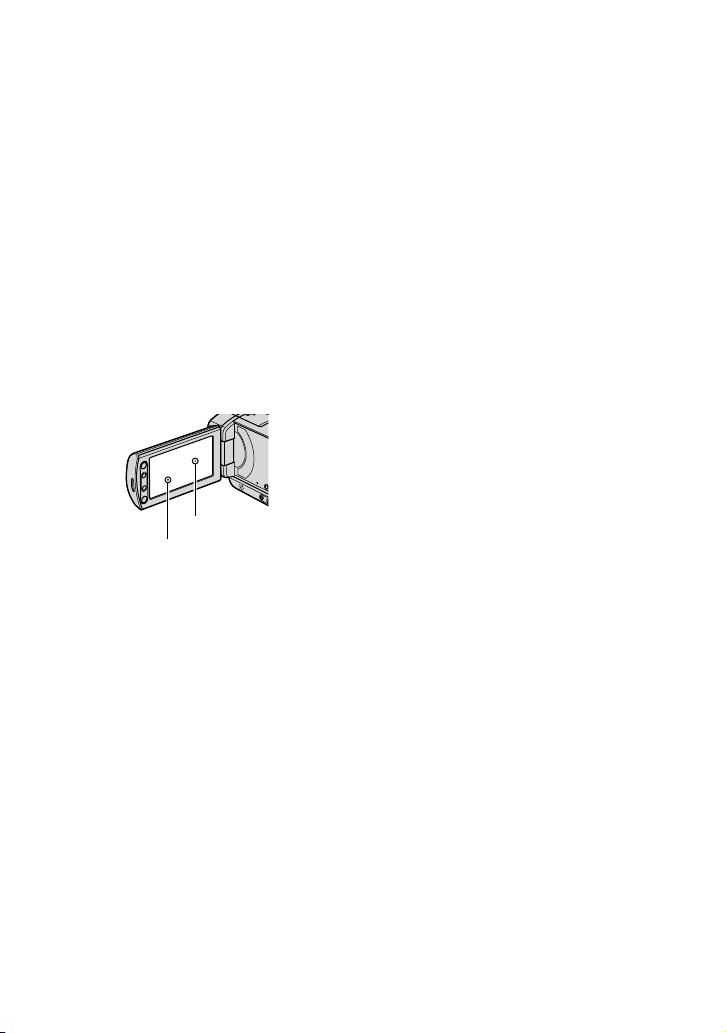
About menu items, LCD panel and lens
A menu item that is grayed out is not available
under the current recording or playback
conditions.
e LCD screen is manufactured using
extremely high-precision technology, so over
99.99% of the pixels are eective. However,
there may be some tiny black points and/or
bright points (white, red, blue, or green in
color) that appear constantly on the LCD
screen. ese points are normal results of the
manufacturing process and do not aect the
recording in any way.
Exposing the LCD screen or the lens to direct
sunlight for long periods of time may cause
malfunctions.
Do not aim at the sun. Doing so might cause
your camcorder to malfunction. Take images of
the sun only in low light conditions, such as at
dusk.
On recording
Before starting to record, test the recording
function to make sure the image and sound are
recorded without any problems.
Compensation for the contents of recordings
cannot be provided, even if recording or
playback is not possible due to a malfunction of
the camcorder, recording media, etc.
TV color systems dier depending on the
country/region. To view your recordings on a
TV, you need a PAL system-based TV.
Television programs, lms, video tapes,
and other materials may be copyrighted.
Unauthorized recording of such materials may
be contrary to the copyright laws.
About changing the language setting
e on-screen displays in each local
language are used for illustrating the
operating procedures. Change the screen
language before using your camcorder if
necessary (p. 18).
About this Handbook
e LCD screens and indicators shown in
this Handbook were taken with a digital still
camera, and may look dierent from what you
actually see.
Design and specications of media and other
accessories are subject to change without notice.
In this Handbook, the hard disk of your
camcorder and “Memory Stick PRO Duo” are
called “media.”
Unless otherwise specically indicated,
illustrations in this Handbook are based on
DCR-SR85E.
About the Carl Zeiss lens
Your camcorder is equipped with a Carl
Zeiss lens, which was developed jointly
by Carl Zeiss in Germany, and Sony
Corporation, and produces superior
images. It adopts the MTF measurement
system for video cameras and oers a
quality typical of a Carl Zeiss lens.
MTF = Modulation Transfer Function. e
number value indicates the amount of light
from a subject coming into the lens.
Black point
White, red, blue or
green point

4
Notes on using the Hard Disk Drive Handycam
Save all your recorded image data
To prevent your image data from being lost,
save all your recorded images on external media
periodically. It is recommended that you save
the image data on a disc such as a DVD-R
using your computer (p.
36). Also, you can save
your image data using a VCR, or a DVD/HDD
recorder (p.
46).
Do not apply shock or vibration to your
camcorder
e hard disk of the camcorder may not be
recognized, or recording or playback may not
be possible.
Especially, during recording/playback, do not
apply shock. Aer recording, do not apply
vibration or shock to the camcorder, while the
ACCESS lamp is lit.
When using a shoulder belt (not supplied), do
not crash the camera against an object.
Do not use this camcorder in very loud areas.
e hard disk of the camcorder may not be
recognized, or recording or playback may not
be possible.
On the drop sensor
To protect the internal hard disk from shock
by dropping, the camcorder has a drop sensor
function (p.
67). When a drop occurs, or
under a non-gravity condition, the block noise
made when this function is activated by the
camcorder may also be recorded. If the drop
sensor catches a drop repeatedly, recording/
playback may be stopped.
Notes on battery pack/AC Adaptor
Be sure to remove the battery pack or the AC
Adaptor aer turning o the POWER switch.
Note on operating temperatures
When the temperature of the camcorder
becomes extremely high or extremely low, you
may not be able to record or play back on the
camcorder, due to the protection features of the
camcorder being activated in such situations. In
this case, a message appears on the LCD screen
(p.
83).
When the camcorder is connected to a
computer
Do not try to format the hard disk of the
camcorder using a computer. If you do so, your
camcorder may not operate correctly.
Note on using the camcorder at high
altitudes
Do not turn on the camcorder in a low-pressure
area, where the altitude is more than 3,000
meters (9,800 feet). Doing so may damage the
hard disk drive of your camcorder.
Note on disposal/transfer
If you perform [MEDIA FORMAT] (p. 52) to
format the hard disk of the camcorder, data
may not be completely deleted from the hard
disk. When you transfer the camcorder, it is
recommended that you perform [
EMPTY]
(p. 53) to prevent the recovery of your data.
In addition to the above, when you dispose of
the camcorder, it is recommended that you
destroy the actual body of the camcorder.
If you cannot record/play back images,
perform [MEDIA FORMAT]
If you repeat recording/deleting images for a
long time, fragmentation of data occurs on the
media. Images cannot be saved or recorded. In
such a case, save your images on some type of
external media rst (p.
36), and then perform
[MEDIA FORMAT] (p.
52).
Fragmentation Glossary (p.
104)
5
Table of contents
Read this before operating your
camcorder ....................................................2
Notes on using the Hard Disk Drive
Handycam ....................................................4
Subject examples and solutions .............7
Enjoying your camcorder
Operation ow ..............................................8
“
HOME” and “ OPTION” - Taking
advantage of two types of menus .......9
Getting Started
Step 1: Checking supplied items ......... 12
Step 2: Charging the battery pack ...... 13
Step 3: Turning the power on, and
setting the date and time .................... 17
Changing the language setting ............... 18
Step 4: Making setting adjustments
before recording ..................................... 19
Step 5: Selecting the media ................... 20
Recording/Playback
Recording and playback with ease (Easy
Handycam operation) ........................... 22
Recording ..................................................... 25
Zooming ................................................................. 27
Starting shooting quickly (QUICK ON)
................................................................................... 27
Recording in dark places (NightShot
plus) ....................................................................... 28
Adjusting the exposure for backlit
subjects ................................................................ 28
Recording in mirror mode ........................... 28
Playback ........................................................ 29
Searching for desired scene by pinpoint
(Film Roll Index) .............................................. 31
Searching for desired scene by face
(Face Index) ....................................................... 31
Searching for desired images by date
(Date Index) ....................................................... 32
Using PB zoom .................................................... 32
Playing back a series of still images (Slide
show) ..................................................................... 33
Playing the image on a TV...................... 34
Saving images ............................................ 36
Editing
(OTHERS) category ............................. 37
Deleting images ......................................... 37
Capturing a still image from a movie
...................................................................... 40
Dubbing/copying images to a “Memory
Stick PRO Duo” with your camcorder
....................................................................... 41
Dividing a movie ........................................ 43
Creating the Playlist ................................. 44
Dubbing to other devices ...................... 46
Printing recorded still images
(PictBridge compliant printer) ........... 49
Utilizing recording media
(MANAGE MEDIA) category ........... 51
Checking the media information ........ 51
Deleting all images (Formatting) ......... 52
Preventing data on the hard disk of the
camcorder from being recovered ..... 53
Repairing the image database le ...... 54
Customizing your camcorder
What you can do with the
(SETTINGS) category of the HOME
MENU ........................................................... 55
Using the HOME MENU ................................. 55
List of the
(SETTINGS) category items
................................................................................... 56
MOVIE SETTINGS ........................................ 57
(Items for recording movies)

6
PHOTO SETTINGS ...................................... 60
(Items for recording still images)
VIEW IMAGES SET ...................................... 62
(Items to customize the display)
SOUND/DISP SET ....................................... 64
(Items to adjust sound and the screen)
OUTPUT SETTINGS .................................... 65
(Items for when connecting other
devices)
CLOCK/ LANG ......................................... 66
(Items to set clock and language)
GENERAL SET .............................................. 67
(Other setup items)
Activating functions using the
OPTION MENU .................................... 69
Using the OPTION MENU ............................. 69
Recording items on the OPTION MENU
................................................................................... 70
Viewing items on the OPTION MENU ... 70
Functions set in the OPTION MENU
....................................................................... 71
Troubleshooting
Troubleshooting ........................................ 76
Warning indicators and messages ...... 83
Additional Information
Using your camcorder abroad .............. 87
File/folder structure on the camcorder
hard disk and “Memory Stick PRO
Duo” ............................................................. 89
Maintenance and precautions .............. 90
Quick Reference
Identifying parts and controls .............. 96
Indicators displayed during recording/
playback ...................................................102
Glossary .......................................................104
Index ............................................................105
7
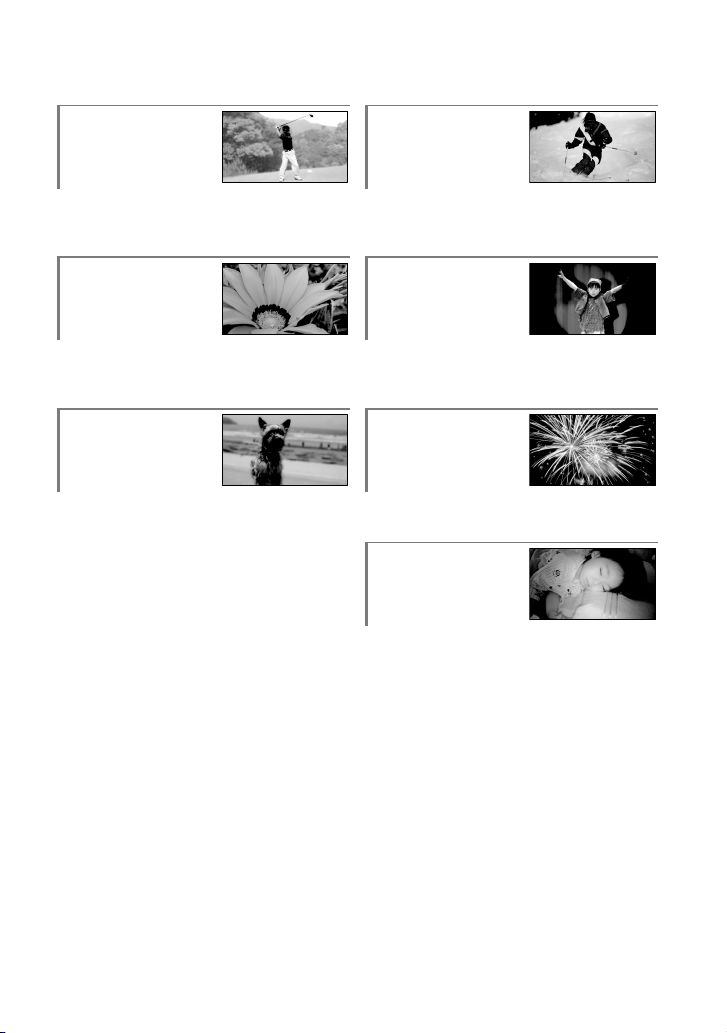
Subject examples and solutions
Checking your golf
swing
Getting a good shot
of a ski slope or
beach
SPORTS ........................................................73 Backlight .....................................................28
BEACH .......................................................... 73
SNOW ..........................................................73
Flowers in close-up A child on the stage
under a spot light
PORTRAIT .....................................................73
FOCUS ..........................................................71
TELE MACRO ................................................71
SPOTLIGHT ...................................................73
Focusing on the dog
on the left side of
the screen
Fireworks with all
its splendor
FOCUS ..........................................................71
SPOT FOCUS .................................................71
FIREWORKS ..................................................72
FOCUS ..........................................................71
A sleeping child
under dim light
NightShot plus .............................................28
COLOR SLOW SHTR .......................................74
8
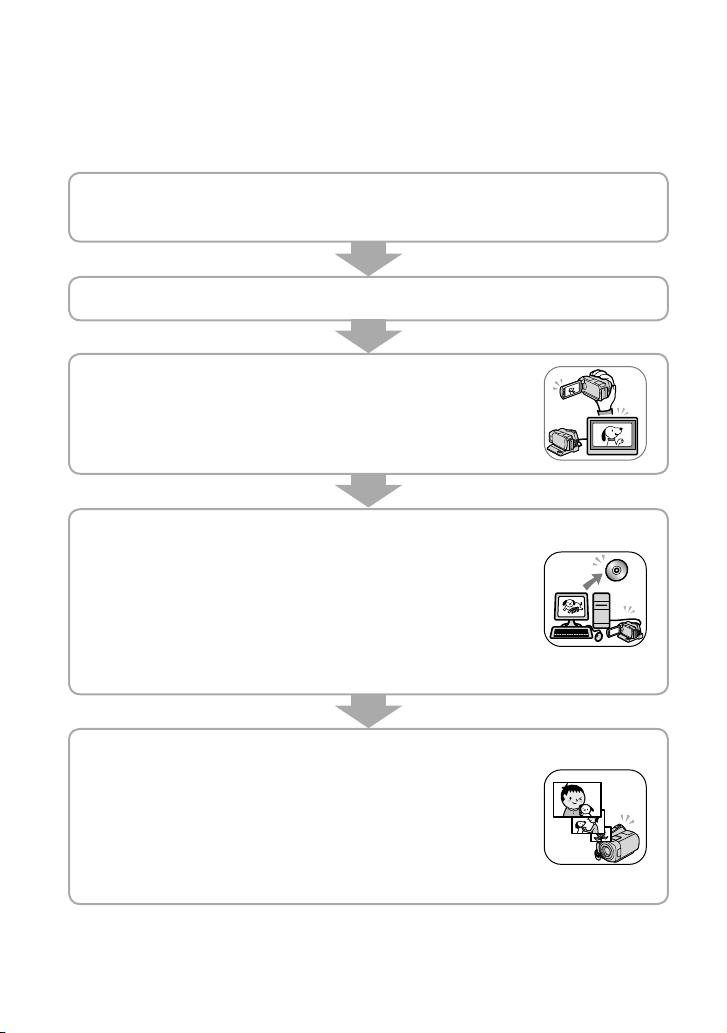
Enjoying your camcorder
Operation ow
You can select the media (hard disk or “Memory Stick PRO Duo”) separately for movie recording
and still image recording (p. 20).
e media you set is eective for recording/playback/editing operations.
Get ready (p. 12).
Selecting the media (p. 20)
Shoot using your camcorder (p. 25).
Play back the images.
Viewing on the LCD screen of your camcorder (p. 29)
Viewing on the TV connected to your camcorder (p. 34)
Save recorded images.
Dubbing/copying images from the hard disk to a
“Memory Stick PRO Duo” (p. 41)
Saving images on a DVD using a computer (p. 36)
Importing images to a computer (p.
36)
Dubbing to other devices (p.
46)
Delete images.
If the media of your camcorder is full, you cannot record new
images. Delete the image data that has been saved on your
computer or a disc. If you delete the images, you can record new
images on the free media space again.
Deleting the selected images (p. 37)
Deleting all the images ([MEDIA FORMAT], p.
52)
Enjoying your camcorder
9
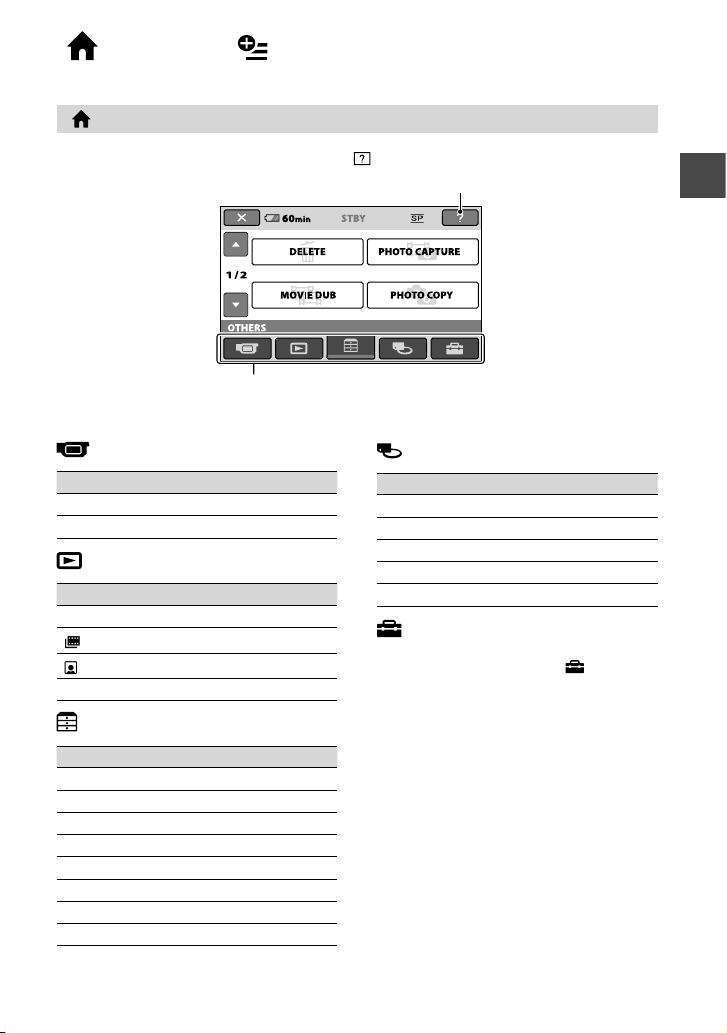
“ HOME” and “ OPTION”
- Taking advantage of two types of menus
“ HOME MENU” - the starting point for operations with your camcorder
Categories and items of the HOME MENU
(CAMERA) category
Item Page
MOVIE* 26
PHOTO* 26
(VIEW IMAGES) category
Item Page
VISUAL INDEX* 29
INDEX*
31
INDEX*
31
PLAYLIST 44
(OTHERS) category
Item Page
DELETE* 37
PHOTO CAPTURE 40
MOVIE DUB 41
PHOTO COPY 42
EDIT 43
PLAYLIST EDIT 44
PRINT 49
USB CONNECT 89
(MANAGE MEDIA) category
Item Page
MOVIE MEDIA SET* 20
PHOTO MEDIA SET* 20
MEDIA INFO 51
MEDIA FORMAT* 52
REPAIR IMG.DB F. 54
(SETTINGS) category
To customize your camcorder (p. 55)*.
For the items available in the
(SETTINGS) category, see page 56.
* You can also set these items during Easy
Handycam operation (p. 22).
(HELP)
Displays a description of the item (p. 10)
Category
10
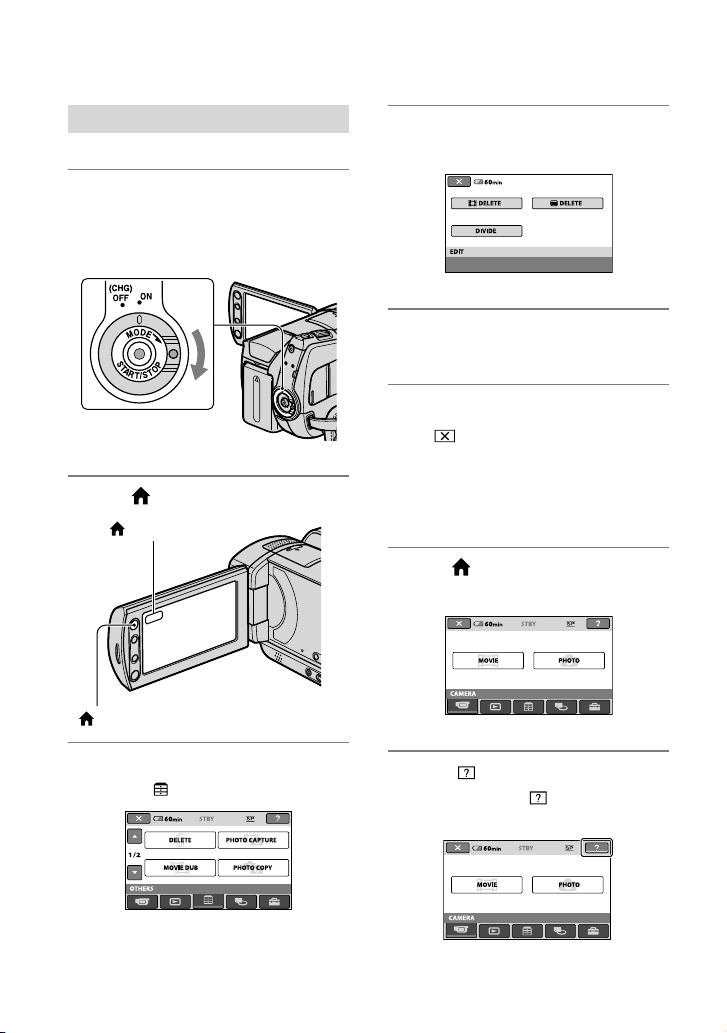
Using the HOME MENU
1 While pressing the green button,
turn the POWER switch in the
direction of the arrow to turn on the
power.
2 Press (HOME) (or ).
3 Touch the desired category.
Example:
(OTHERS) category
4 Touch the desired item.
Example: [EDIT]
5 Follow the guide on the screen for
further operation.
To hide the HOME MENU screen
Touch .
When you want to know something about
the function of each item on the HOME
MENU - HELP
1 Press (HOME).
e HOME MENU appears.
2 Touch (HELP).
e bottom of the
(HELP) button
turns orange.
(HOME)
(HOME)
Enjoying your camcorder
11
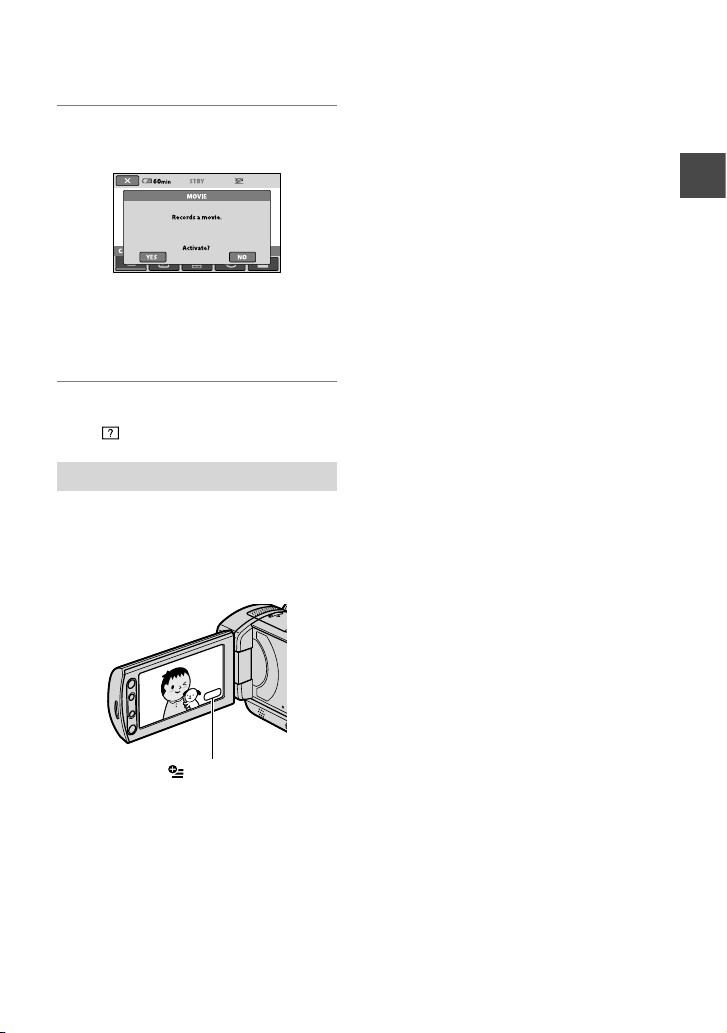
3 Touch the item you want to learn
more about.
When you touch an item, its
explanation appears on the screen.
To apply the option, touch [YES],
otherwise, touch [NO].
To deactivate the HELP
Touch (HELP) again in step 2.
Using the OPTION MENU
Just a touch on the screen during shooting
or playback displays the functions available
at that moment. You will nd it easy to
make various settings. See page 69 for
further details.
(OPTION)
12
Getting Started
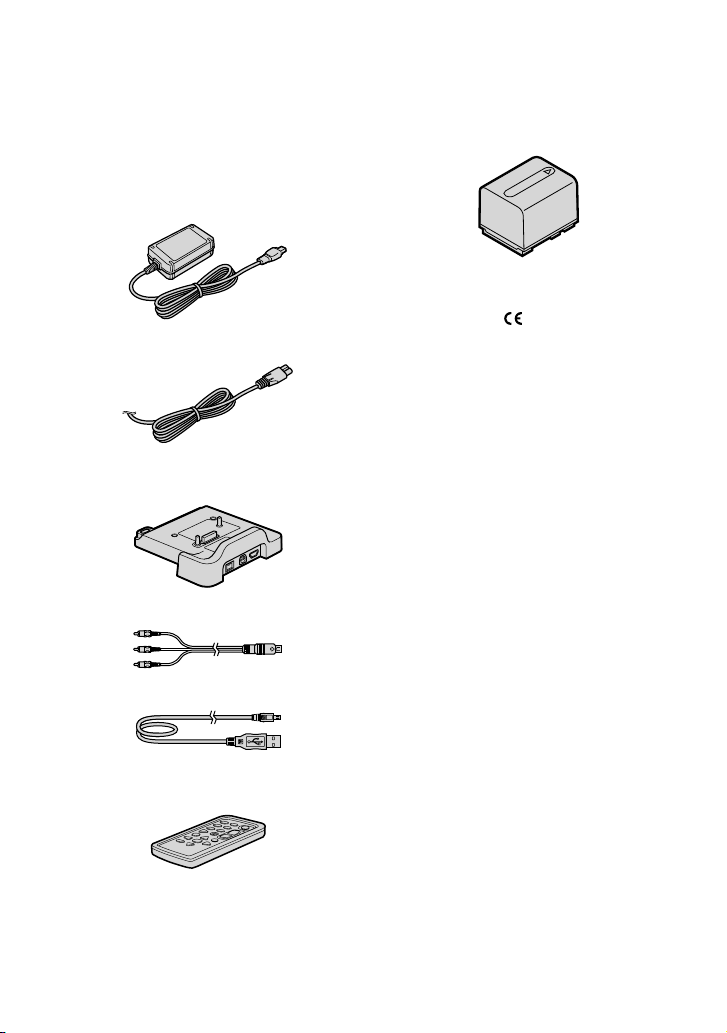
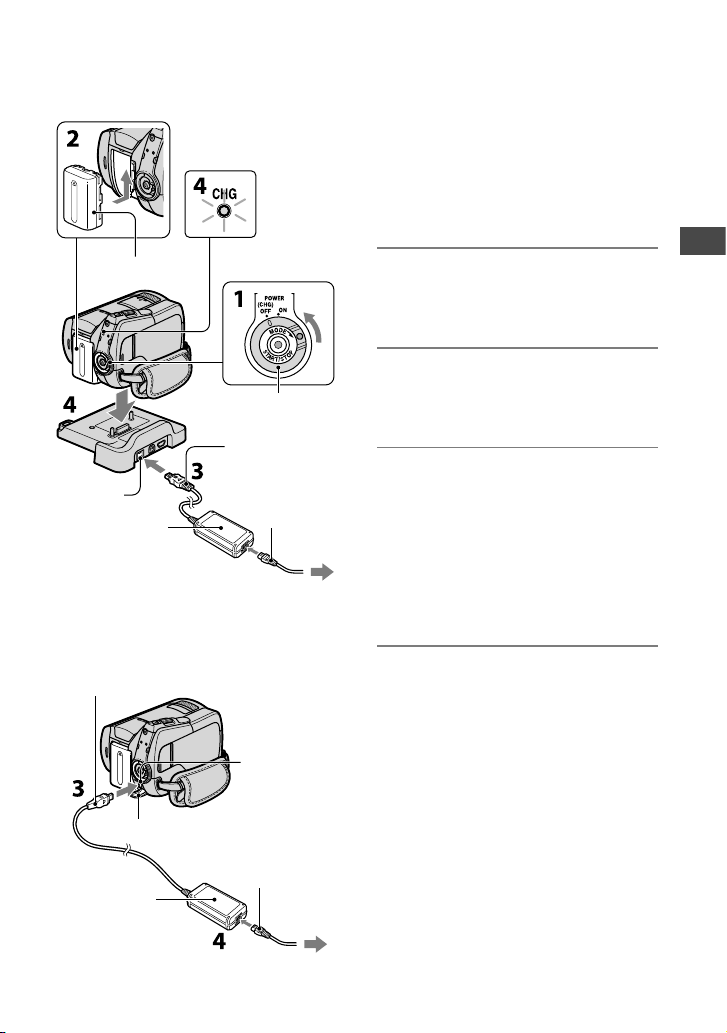
Step 1: Checking supplied items
Make sure that you have the following
items supplied with your camcorder.
e number in the parentheses indicates
the number of that item supplied.
AC Adaptor (1) (p. 13)
Power cord (Mains lead) (1) (p. 13)
Handycam Station (1) (p. 13)
(DCR-SR55E/SR65E/SR75E/SR85E)
A/V connecting cable (1) (p. 34, 46)
USB cable (1) (p. 49)
Wireless Remote Commander (1) (p. 100)
(DCR-SR55E/SR65E/SR75E/SR85E)
A button-type lithium battery is already installed.
Rechargeable battery pack
NP-FH40 (1) (p. 13, 91)
21-pin adaptor (1) (p. 35)
(DCR-SR55E/SR65E/SR75E/SR85E)
For models with the mark printed on the
bottom surface only.
CD-ROM “Handycam Application Software”
(1)
Picture Motion Browser (Soware)
PMB Guide
Handycam Handbook (is Handbook)
“Operating Guide” (1)
Getting Started
13
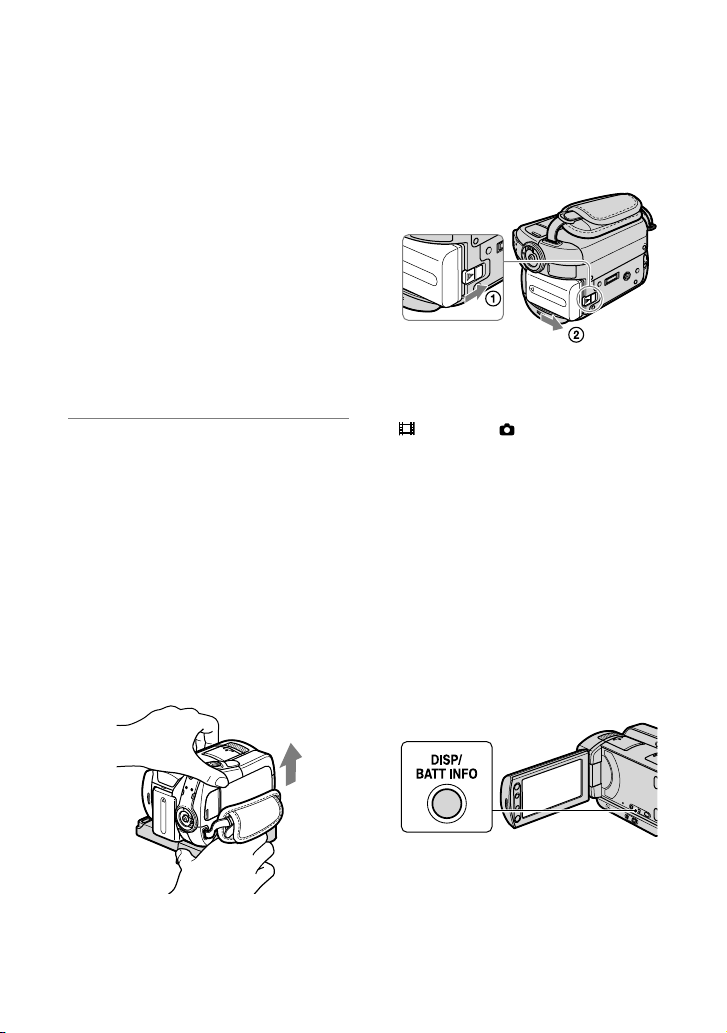
Step 2: Charging the battery pack
DCR-SR55E/SR65E/SR75E/SR85E:
4
DCR-SR35E/SR36E/SR45E/SR46E:
You can charge the “InfoLITHIUM”
battery pack (H series) (p. 91) after
attaching it to your camcorder.
Notes
Your camcorder operates only with an
“InfoLITHIUM” battery pack (H series).
1 Turn the POWER switch in the
direction of the arrow to OFF (CHG)
(the default setting).
2 Attach the battery pack by sliding it
in the direction of the arrow until it
clicks.
3 For DCR-SR55E/SR65E/SR75E/
SR85E:
Connect the AC Adaptor to the DC
IN jack on the Handycam Station.
For DCR-SR35E/SR36E/SR45E/
SR46E:
Connect the AC Adaptor to the DC
IN jack on your camcorder.
4 For DCR-SR55E/SR65E/SR75E/
SR85E:
Connect the power cord (mains
lead) to the AC Adaptor and the
wall outlet (wall socket). Insert
the camcorder into the Handycam
Station securely, all the way to the
bottom.
When setting the camcorder onto the
Handycam Station, close the DC IN jack
cover.
Battery pack
DC IN jack
DC plug
With the mark
on the top
AC Adaptor
Power cord
(Mains lead)
To the wall outlet
(wall socket)
POWER
switch
Open the jack cover.
DC IN jack
DC plug
With the mark
on the right
AC Adaptor
Power cord
(Mains lead)
To the wall outlet
(wall socket)
14
For DCR-SR35E/SR36E/SR45E/
SR46E:
Connect the power cord (mains
lead) to the AC Adaptor and the wall
outlet (wall socket).
e CHG (charge) lamp lights up and
charging starts.
e CHG (charge) lamp turns o when
the battery is fully charged. Disconnect
the AC Adaptor from the DC IN jack.
Disconnect the AC Adaptor from the
DC IN jack holding both the DC plug
and the Handycam Station (DCR-
SR55E/SR65E/SR75E/SR85E) or your
camcorder (DCR-SR35E/SR36E/SR45E/
SR46E).
Tips
For DCR-SR55E/SR65E/SR75E/SR85E:
Same as DCR-SR35E/SR36E/SR45E/
SR46E, you can charge the battery pack
by connecting the AC Adaptor to your
camcorder.
For DCR-SR55E/SR65E/SR75E/SR85E:
To remove your camcorder from the
Handycam Station
Turn o the power, then remove the
camcorder from the Handycam Station
holding both your camcorder and the
Handycam Station.
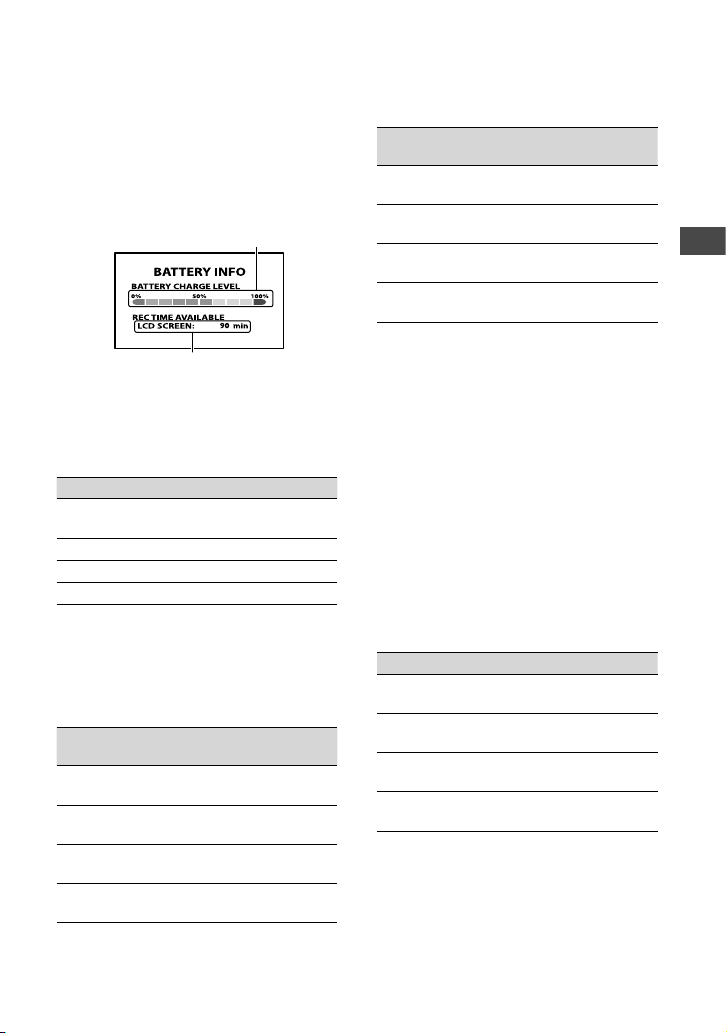
To remove the battery pack
Turn the POWER switch to OFF (CHG).
Slide the BATT (battery) release lever and
remove the battery pack.
Notes
When you remove the battery pack or
disconnect the AC Adaptor, make sure that the
(Movie) lamp/ (Still) lamp (p. 17)/
ACCESS lamp (p. 25) is turned o.
When you store the battery pack, fully discharge
the battery before storing it for an extended
period (see page 92 for the details of storage).
To use a wall outlet (wall socket) for the
power source
Make the same connections as you do when
charging the battery pack. e battery pack
will not lose its charge in this case.
To check the remaining battery (Battery
Info)
Set the POWER switch to OFF (CHG),
then press DISP/BATT INFO.
BATT (battery)
release lever
Getting Started
15
Aer a while, the approximate recordable
time and battery information appear for
about 7 seconds. You can view the battery
information for up to 20 seconds by
pressing DISP/BATT INFO again while the
information is displayed.
Charging time
Approximate time (min.) required when
you fully charge a fully discharged battery
pack.
Battery pack Charging time
NP-FH40
(supplied)
125
NP-FH50 135
NP-FH70 170
NP-FH100 390
Recording time
Approximate time (min.) available when
you use a fully charged battery pack.
DCR-SR35E/SR36E/SR45E/SR46E:
Battery pack
Continuous
recording time
Typical recording
time*
NP-FH40
(supplied)
100
110
50
50
NP-FH50 115
130
55
60
NP-FH70 245
280
120
130
NP-FH100 555
625
275
300
DCR-SR55E/SR65E/SR75E/SR85E:
Battery pack
Continuous
recording time
Typical recording
time*
NP-FH40
(supplied)
90
105
45
50
NP-FH50 105
125
50
60
NP-FH70 230
270
115
125
NP-FH100 515
600
255
285
Top: When the media is set to the hard disk
Bottom: When the media is set to the “Memory
Stick PRO Duo”
*
Typical recording time shows the time when
you repeat recording start/stop, turning the
power on/o and zooming.
Notes
All times measured under the following
settings:
Recording mode: [SP]
e LCD backlight turns on
Playback time
Approximate time (min.) available when
you use a fully charged battery pack.
DCR-SR35E/SR36E/SR45E/SR46E:
Battery pack Playback time
NP-FH40
(supplied)
120
140
NP-FH50 140
165
NP-FH70 300
350
NP-FH100 680
785
Remaining battery (approx.)
Recording capacity (approx.)

16
DCR-SR55E/SR65E/SR75E/SR85E:
Battery pack Playback time*
NP-FH40
(supplied)
120
140
NP-FH50 140
165
NP-FH70 300
350
NP-FH100 680
785
Top: When the media is set to the hard disk
Bottom: When the media is set to the “Memory
Stick PRO Duo”
* When the LCD backlight is on.
On the battery pack
Before changing the battery pack, turn the
POWER switch to OFF (CHG) and turn o the
(Movie) lamp/ (Still) lamp (p. 17)/
ACCESS lamp (p. 25).
e CHG (charge) lamp ashes during
charging, or Battery Info (p. 14) will not
be correctly displayed under the following
conditions:
e battery pack is not attached correctly.
e battery pack is damaged.
e battery pack is worn-out (for Battery Info
only).
e power will not be supplied from the
battery as long as the AC Adaptor is connected
to the DC IN jack of your camcorder or the
Handycam Station (DCR-SR55E/SR65E/SR75E/
SR85E), even when the power cord (mains
lead) is disconnected from the wall outlet (wall
socket).
When attaching an optional video light, it is
recommended that you use an NP-FH70/FH100
battery pack (DCR-SR55E/SR65E/SR75E/
SR85E).
We do not recommend using an NP-FH30,
which only allows short recording and playback
times, with your camcorder.
On the charging/recording/playback time
Times measured when using the camcorder at
25°C (77 ˚F) (10°C to 30°C (50 ˚F to 86 ˚F) is
recommended).
e available recording and playback time will
be shorter when you use your camcorder in low
temperatures.
e available recording and playback time will
be shorter depending on the conditions under
which you use your camcorder.
On the AC Adaptor
Use the nearby wall outlet (wall socket) when
using the AC Adaptor. Disconnect the AC
Adaptor from the wall outlet (wall socket)
immediately if any malfunction occurs while
using your camcorder.
Do not use the AC Adaptor placed in a narrow
space, such as between a wall and furniture.
Do not short-circuit the DC plug of the AC
Adaptor or battery terminal with any metallic
objects. is may cause a malfunction.
Even if your camcorder is turned o, AC power
source (mains) is still supplied to it while
connected to the wall outlet (wall socket) via the
AC Adaptor.
Getting Started
17
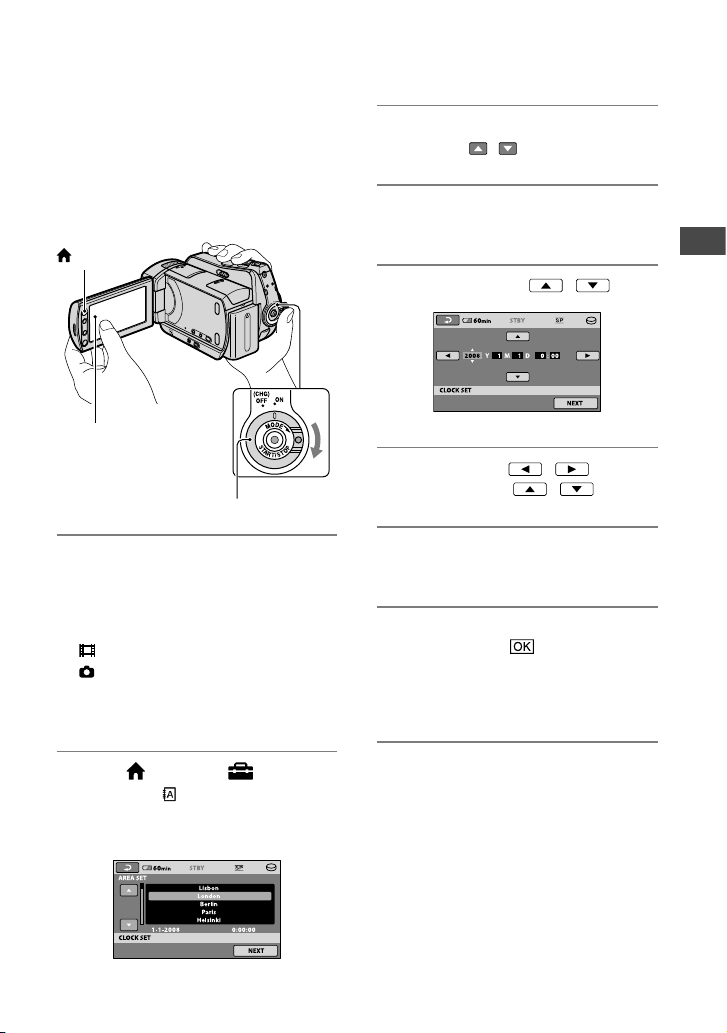
Step 3: Turning the power on, and setting the date
and time
Set the date and time when using this
camcorder for the rst time. If you do not
set the date and time, the [CLOCK SET]
screen appears every time you turn on your
camcorder or change the POWER switch
position.
1 While pressing the green button,
turn the POWER switch repeatedly
in the direction of the arrow until
the respective lamp lights up.
(Movie): To record movies
(Still): To record still images
Go to step 3 when you turn on your
camcorder for the rst time.
2 Touch (HOME) (SETTINGS)
[CLOCK/ LANG] [CLOCK
SET].
e [CLOCK SET] screen appears.
3 Select the desired geographical
area with / , then touch [NEXT].
4 Set [SUMMERTIME], then touch
[NEXT].
5 Set [Y] (year) with / .
6 Select [M] with / , then set
the month with / .
7 Set [D] (day), hour and minute in the
same way, then touch [NEXT].
8 Make sure that the clock is correctly
set, then touch .
e clock starts.
You can set any year up to the year
2037.
To turn o the power
Turn the POWER switch to OFF (CHG).
Notes
If you do not use your camcorder for about
3 months, the built-in rechargeable battery
gets discharged and the date and time settings
may be cleared from the memory. In that case,
charge the built-in rechargeable battery and
then set the date and time again (p.
94).
Touch the button on the
LCD screen.
POWER switch
(HOME)

18
It takes a few seconds for your camcorder to
be ready to shoot aer the power is turned on.
You cannot operate your camcorder during this
time.
In the default setting, the power turns o
automatically if you leave your camcorder
unoperated for approximately 5 minutes, to
save battery power ([A.SHUT OFF], p.
67).
Tips
e date and time do not appear during
recording, but they are automatically recorded
on the media, and can be displayed during
playback ([DATA CODE], p.
62).
Refer to page 88 for information concerning
“World time dierence.”
If the buttons on the touch panel do not
work correctly, adjust the touch panel
[CALIBRATION] (p.
93).
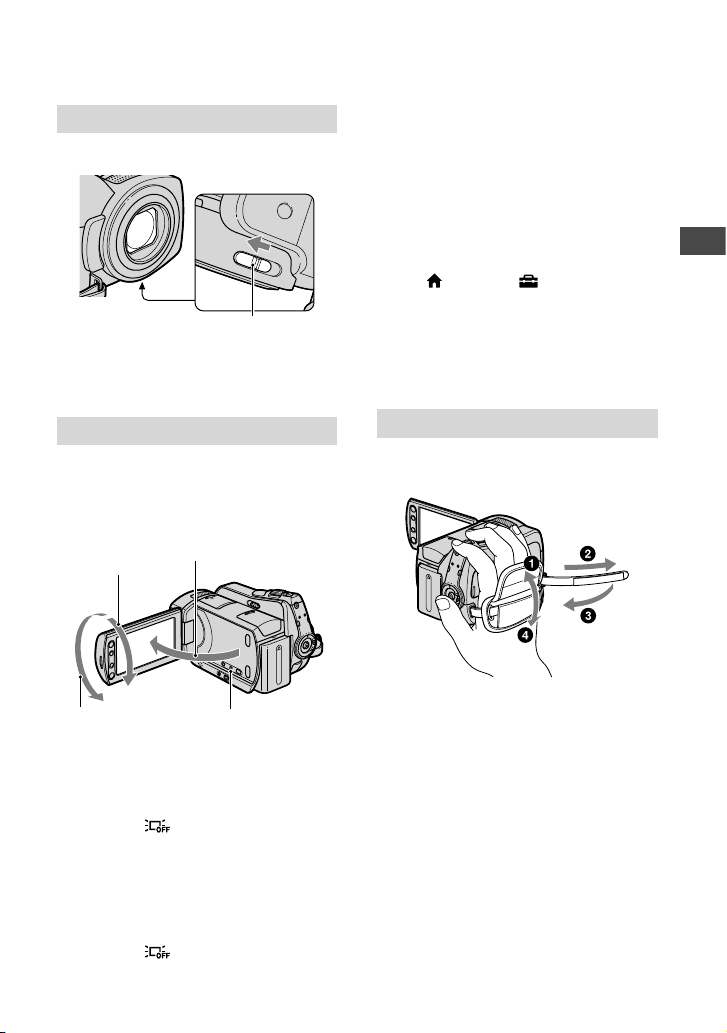
Changing the language setting
You can change the on-screen displays to
show messages in a specied language.
Touch (HOME) (SETTINGS)
[CLOCK/ LANG] [ LANGUAGE
SET], then select the desired language.
Getting Started
19
Step 4: Making setting adjustments before recording
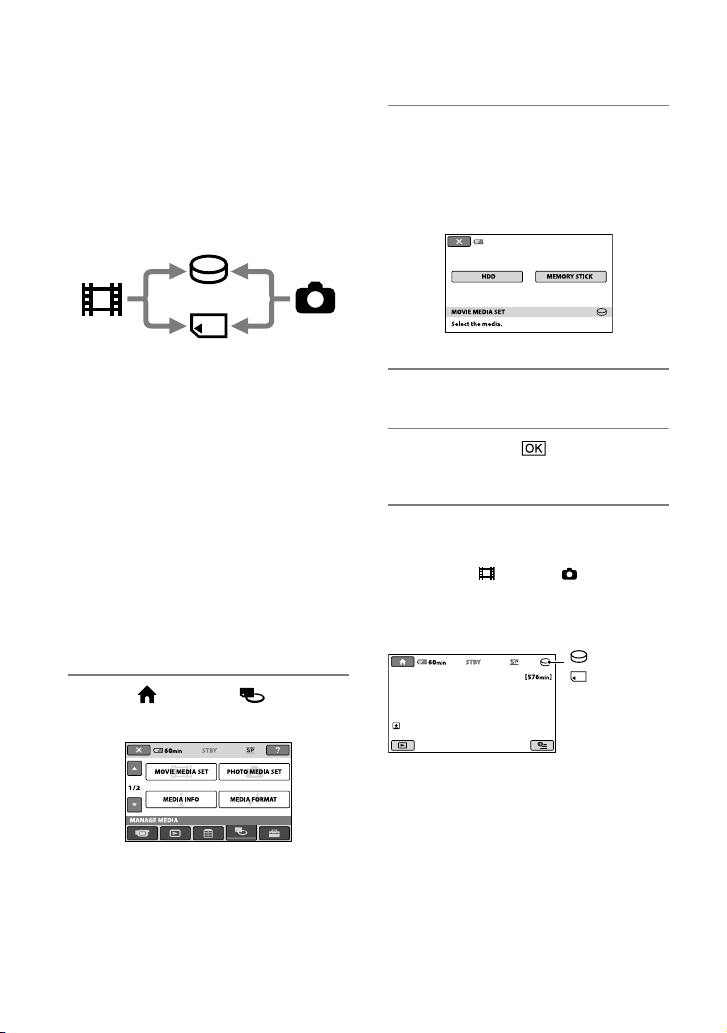
Opening the LENS COVER manually
Slide the LENS COVER switch to open.
Tips
When you nish recording or when you play
back images, close the LENS COVER.
Adjusting the LCD panel
Open the LCD panel 90 degrees to the
camcorder (), then rotate it to the best
angle to record or play ().
To turn o the LCD backlight to make the
battery last longer
Press and hold DISP/BATT INFO for a few
seconds until appears.
is setting is practical when you use
your camcorder in bright conditions or
when you want to save battery power. e
recorded image will not be aected by the
setting. To turn on the LCD backlight,
press and hold DISP/BATT INFO for a few
seconds until disappears.
Notes
Do not press the buttons on the LCD frame
accidentally when you open or adjust the LCD
panel.
Tips
If you rotate the LCD panel 180 degrees, you
can close the LCD panel with the LCD screen
facing out. is is convenient during playback
operations.
Touch (HOME) (SETTINGS)
[SOUND/DISP SET] [LCD BRIGHT]
(p.
64), and adjust the brightness of the LCD
screen.
e information is displayed or hidden (display
no display) each time you press DISP/
BATT INFO.
Fastening the grip belt
Fasten the grip belt and hold your
camcorder correctly.
90 degrees
(max.)
DISP/BATT INFO
180 degrees
(max.)
90 degrees to the
camcorder
LENS COVER switch
20
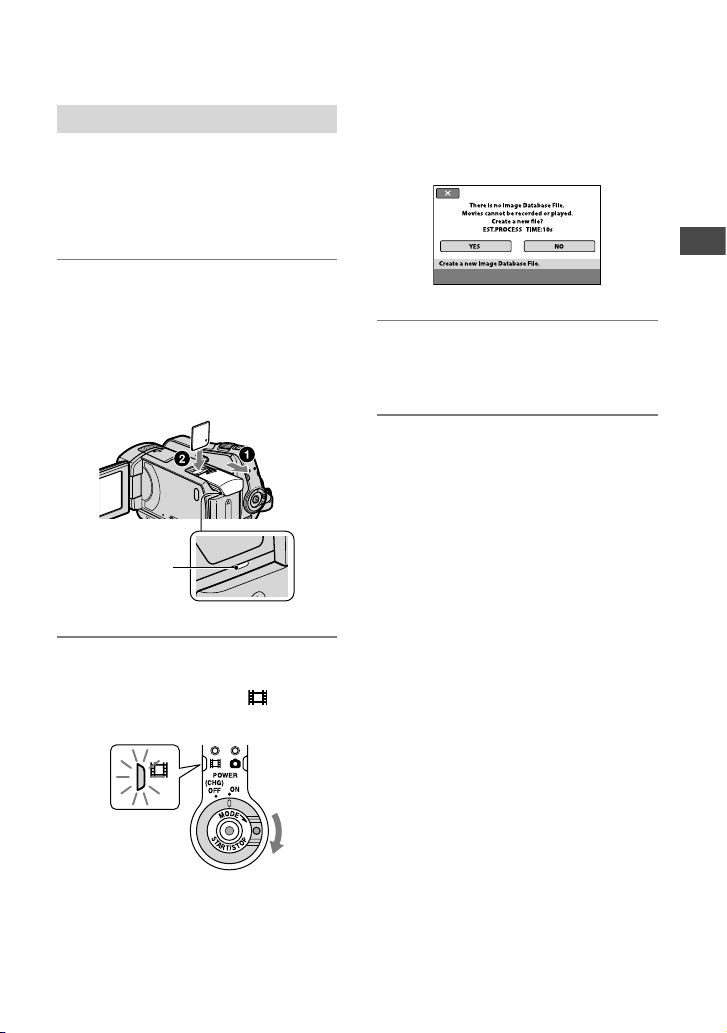
Step 5: Selecting the media
You can select the hard disk or “Memory
Stick PRO Duo” as the recording/playback/
editing media on your camcorder. Select
the media for movies and still images
separately.
e default setting is hard disk for movies
and still images.
Notes
You can do recording/playback/editing
operations for the selected media only. When
you want to change the media, reselect the
media.
e recordable time with [SP] recording mode
(the default setting) is as follows (approx.):
e internal hard disk:
DCR-SR35E/SR45E: 640 minutes
DCR-SR36E/SR46E/SR55E/SR65E: 870
minutes
DCR-SR75E/SR85E: 1,310 minutes
“Memory Stick PRO Duo” (4 GB) made by
Sony Corporation: 80 minutes
Check the number of recordable still images on
the LCD screen of your camcorder (p. 102).
1 Touch (HOME) (MANAGE
MEDIA) on the screen.
2 Touch [MOVIE MEDIA SET] to select
the media for movies, and touch
[PHOTO MEDIA SET] to select the
media for still images.
e media setting screen appears.
60min
3 Select the media you want to set.
4 Touch [YES] .
e media is changed.
To conrm the media setting
Turn the POWER switch repeatedly to
light up the
(Movie) or (Still) lamp,
depending on which media setting you want
to check.
Check the media icon on the screen.
: Hard disk
: “Memory
Stick PRO Duo”
Hard Disk
“Memory Stick”
Movie Still image
Getting Started
21
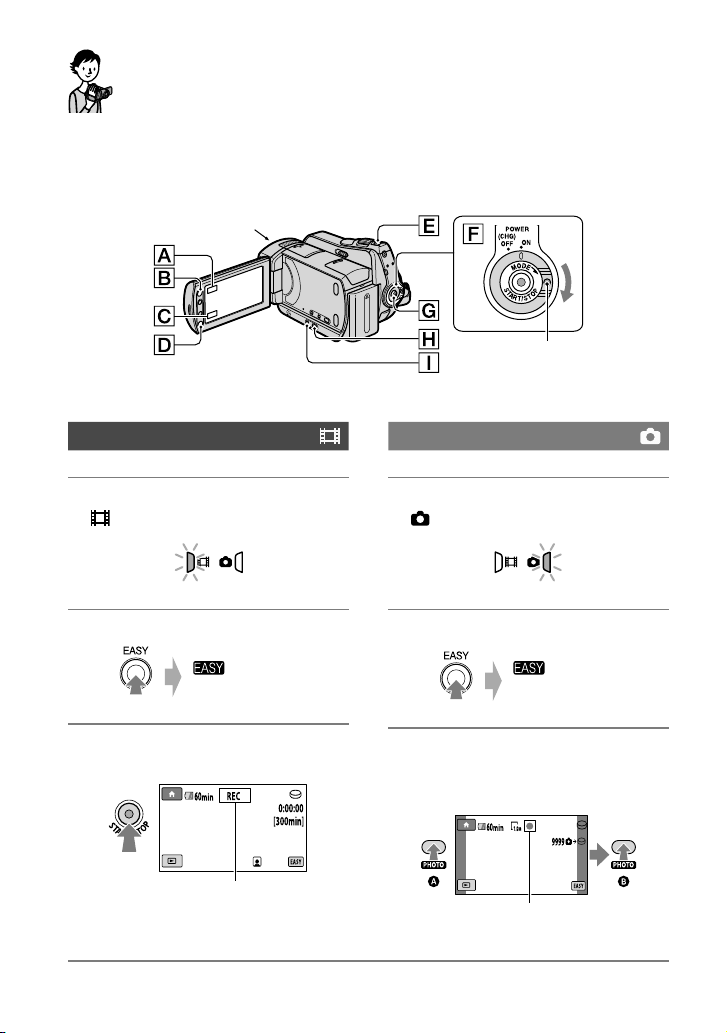
Inserting the “Memory Stick PRO Duo”
Prepare a “Memory Stick PRO Duo” if
[MEMORY STICK] has been selected as
the media.
For types of “Memory Stick” you can use in
your camcorder, see page 2.
1 Insert a “Memory Stick PRO Duo.”
Open the Memory Stick Duo cover in the
direction of the arrow.
Insert a “Memory Stick PRO Duo” into
the Memory Stick Duo slot in the right
orientation until it clicks.
Close the Memory Stick Duo cover.
2 If you have selected [MEMORY
STICK] as the movie media, turn the
POWER switch until the (Movie)
lamp lights up.
e [Create a new Image Database File.]
screen appears on the LCD screen when
you insert a new “Memory Stick PRO
Duo.”
3 Touch [YES].
To record only still images on a
“Memory Stick PRO Duo,” touch [NO].
To remove the “Memory Stick PRO Duo”
Open the Memory Stick Duo cover and
lightly push on the “Memory Stick PRO
Duo.”
Notes
Do not open the Memory Stick Duo cover while
recording.
Inserting a “Memory Stick PRO Duo” forcibly
in the wrong direction may cause a malfunction
to the “Memory Stick PRO Duo,” Memory Stick
Duo slot or image data.
If [Failed to create a new Image Database File.
It may be possible that there is not enough free
space.] appears in step 3, format the “Memory
Stick PRO Duo” (p.
52). All recorded data on
the “Memory Stick PRO Duo” will be deleted
when you format.
Be careful not to allow the “Memory Stick PRO
Duo” to pop out and fall when you push on and
remove it.
ACCESS lamp
(“Memory Stick
PRO Duo”)
22
Recording/Playback
Recording and playback with ease
(Easy Handycam operation)
Easy Handycam operation makes nearly all settings automatic so that you can perform
recording or playback operations without detailed settings. It also makes the screen font size
larger for easy viewing. e images are recorded on the selected media (p. 20).
Recording movies
1 Turn the POWER switch until the
(Movie) lamp lights up.
2 Press EASY .
3 Press START/STOP (or ) to
start recording.*
To stop recording, press START/STOP
again.
Recording still images
1 Turn the POWER switch until the
(Still) lamp lights up.
2 Press EASY .
3 Press PHOTO lightly to adjust the
focus (a beep sounds), then press
it fully (a shutter click sounds).
* e setting of [REC MODE] is xed to [SP] (p. 57).
Open the LENS COVER (p. 19)
If the POWER switch is set to OFF
(CHG), turn it while pressing the
green button.
appears on
the LCD screen.
[STBY] [REC]
appears on
the LCD screen.
Flashing Lights up
Recording/Playback
23
Playing back recorded movies/still images
1 Turn the POWER switch to turn on your camcorder.
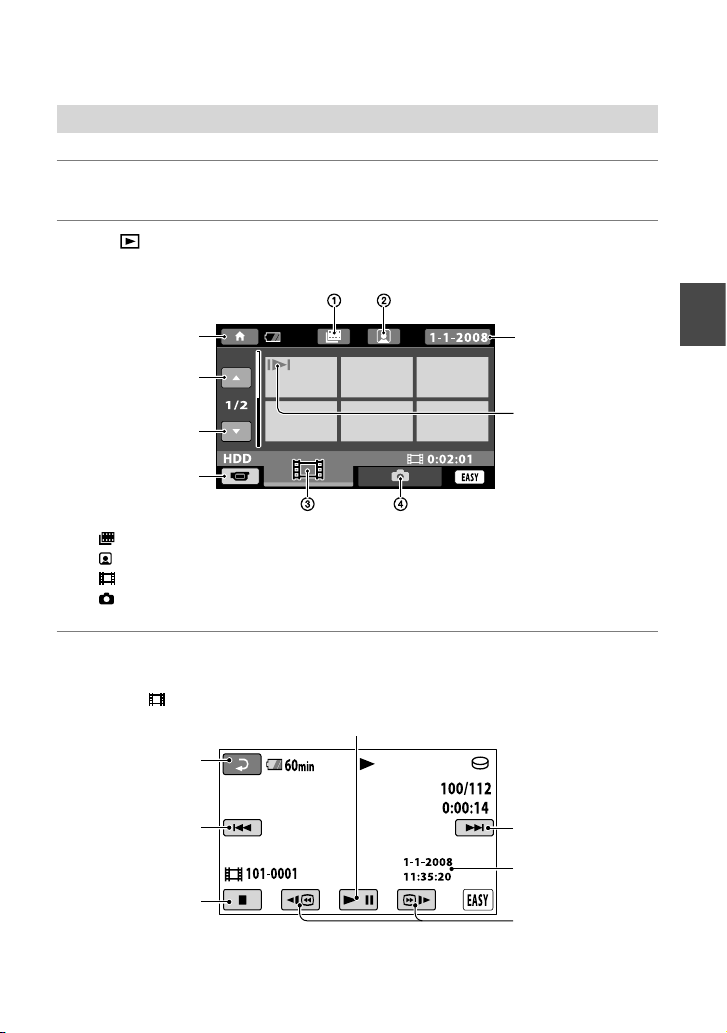
2 Press (VIEW IMAGES) (or ).
e [VISUAL INDEX] screen appears on the LCD screen. (It may take some seconds.)
: Film Roll Index (p. 31)
: Face Index (p. 31)
: Displays movies.
: Displays still images.
3 Start playback.
Movies:
Touch the
tab and the movie to be played back.
* e setting of [DATA CODE] is xed to [DATE/TIME] (p. 62).
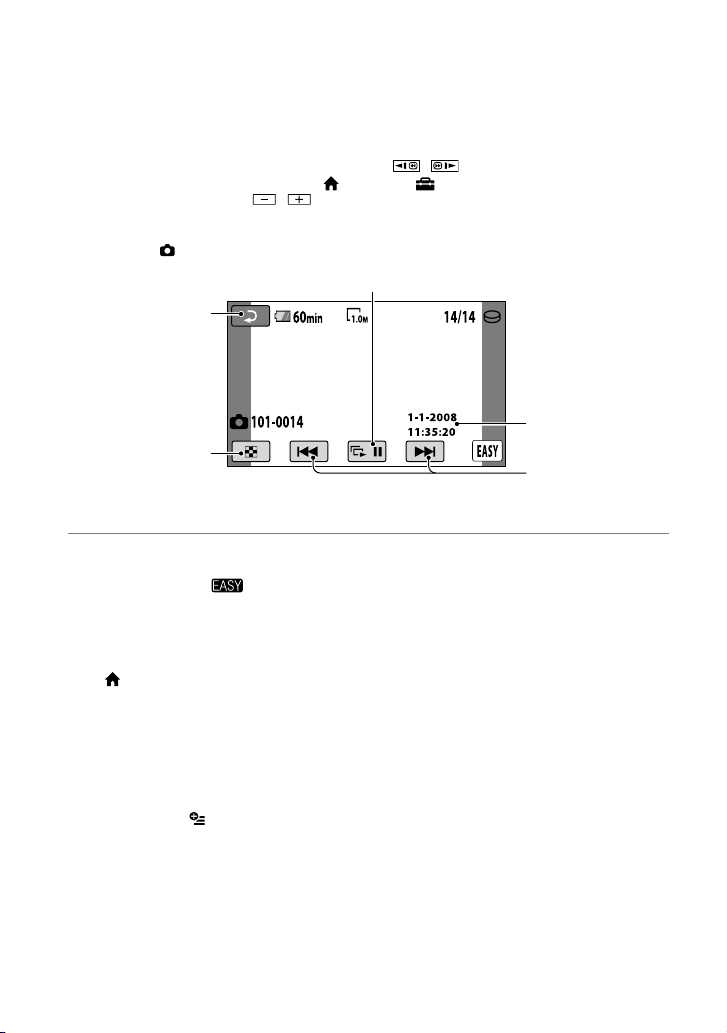
Toggles Play or Pause as you touch
Returns (to the
[VISUAL INDEX]
screen)
Beginning of the
movie/previous
movie
Stops (goes to the
[VISUAL INDEX]
screen)
Next movie
e recording
date/time*
Reverse/Forward
Appears with the image
on each of the tab
that was lastly played
back/recorded ( for
the still image recorded
on a “Memory Stick
PRO Duo”).
HOME MENU
Previous 6 images
Next 6 images
Returns to the
recording screen
Searches for images
by date (p.
32)
24
Tips
When playback from the selected movie reaches the last movie, the screen returns to the [VISUAL
INDEX] screen.
You can slow down the playback speed by touching / during pause.
You can adjust the volume by touching (HOME) (SETTINGS) [SOUND SETTINGS]
[VOLUME], then with
/ .
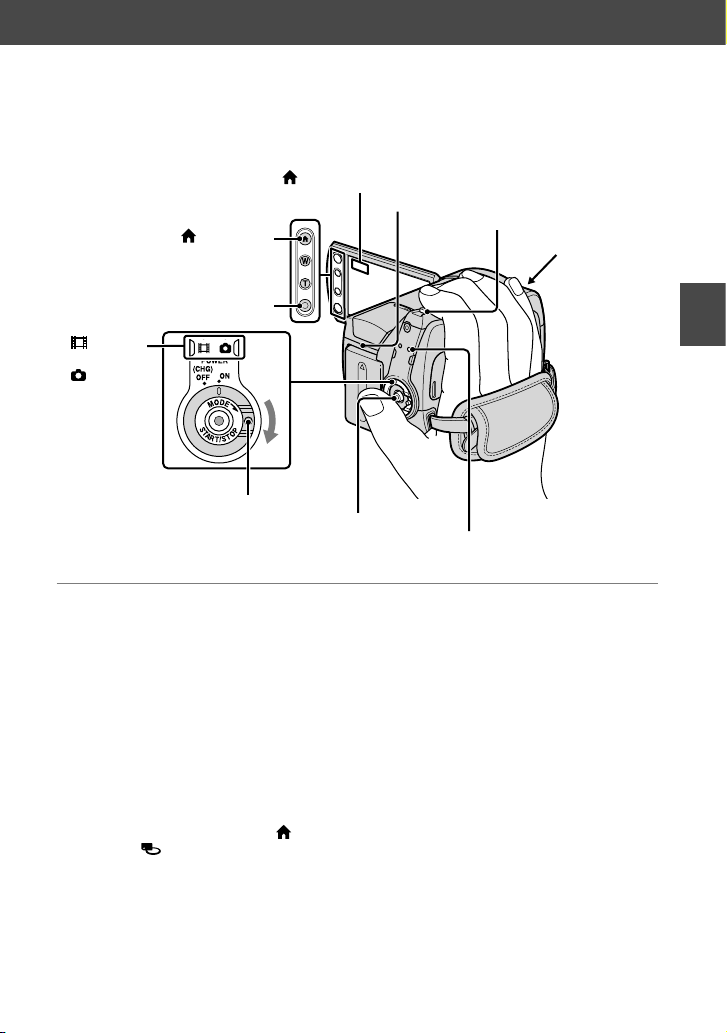
Still images:
Touch the
tab and the still image to be played back.
* e setting of [DATA CODE] is xed to [DATE/TIME] (p. 62).
To cancel Easy Handycam operation
Press EASY again. disappears
from the LCD screen.
Menu settings during Easy Handycam
operation
Press (HOME) (or ) to display
the menu items available for setup changes
(p. 9, 56).
Notes
Most of the menu items automatically return to
the default settings. e settings of some menu
items are xed. For details, see page 76.
You cannot use the (OPTION) menu.
Cancel Easy Handycam operation if you want
to add eects to images or change settings.
Invalid buttons during Easy Handycam
operation
You cannot use some buttons/functions
during Easy Handycam operation since
they are automatically set (p. 76). If you set
an invalid operation, [Invalid during Easy
Handycam operation.] appears.
Slide show (p. 33)
Returns (to the
[VISUAL INDEX]
screen)
Goes to the
[VISUAL INDEX]
screen
e recording
date/time*
Previous/Next
Recording/Playback
25
Recording
e images are recorded on the media selected on the media setting (p. 20).
e default setting is hard disk for both movies and still images.
Notes
If the ACCESS lamp is lit or ashing aer
recording is nished, it means data is still being
written onto the media. Do not apply shock
or vibration to your camcorder, and do not
remove the battery or AC Adaptor.
e maximum continuous recordable time is
approximately 13 hours.
When a movie le exceeds 2 GB, the next movie
le is created automatically.
Tips
You can check the recordable time and the
remaining capacity, etc., by touching
(HOME)
(MANAGE MEDIA)
[MEDIA INFO] (p. 51).
For types of “Memory Stick” you can use in
your camcorder, see page 2.
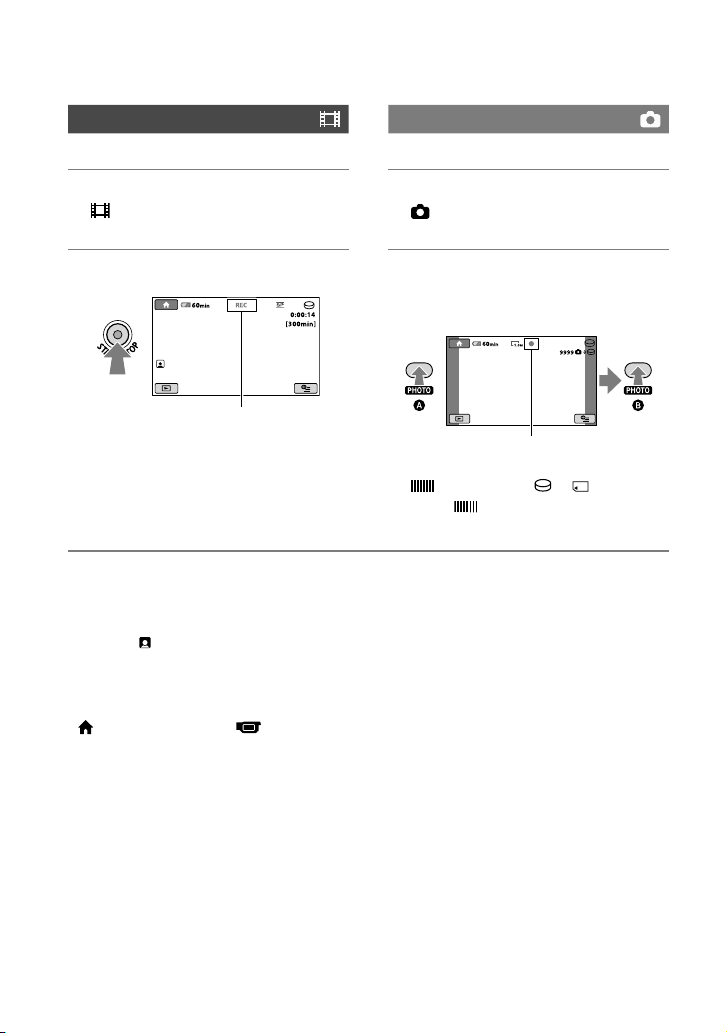
(HOME)
START/STOP
(Movie)
lamp/
(Still) lamp
POWER switch
(HOME)
ACCESS lamp
(Hard disk)
START/STOP
LENS COVER
Open the LENS
COVER before
recording
(p.
19)
PHOTO
ACCESS lamp (“Memory
Stick PRO Duo”)
26
Recording movies
1 Turn the POWER switch until the
(Movie) lamp lights up.
2 Press START/STOP (or ).
To stop recording, press START/STOP
again.
Recording still images
1 Turn the POWER switch
until the
(Still) lamp lights up.
2 Press PHOTO lightly to adjust the
focus (a beep sounds), then press
it fully (a shutter click sounds).
appears beside or .
When
disappears, the image has
been recorded.
Tips
For the recordable time and the number of
recordable images, see pages 57 and 60.
When a face is detected during movie
recording,
ashes and the detected face is
stored in the index. You can search for a desired
scene by a face image when playing back ([Face
Index], p.
31).
You can switch the recording mode by touching
(HOME) (or ) (CAMERA)
[MOVIE] or [PHOTO].
You can create still images from recorded
movies (p. 40).
[STBY] [REC]
Flashing Lights up
Recording/Playback
27
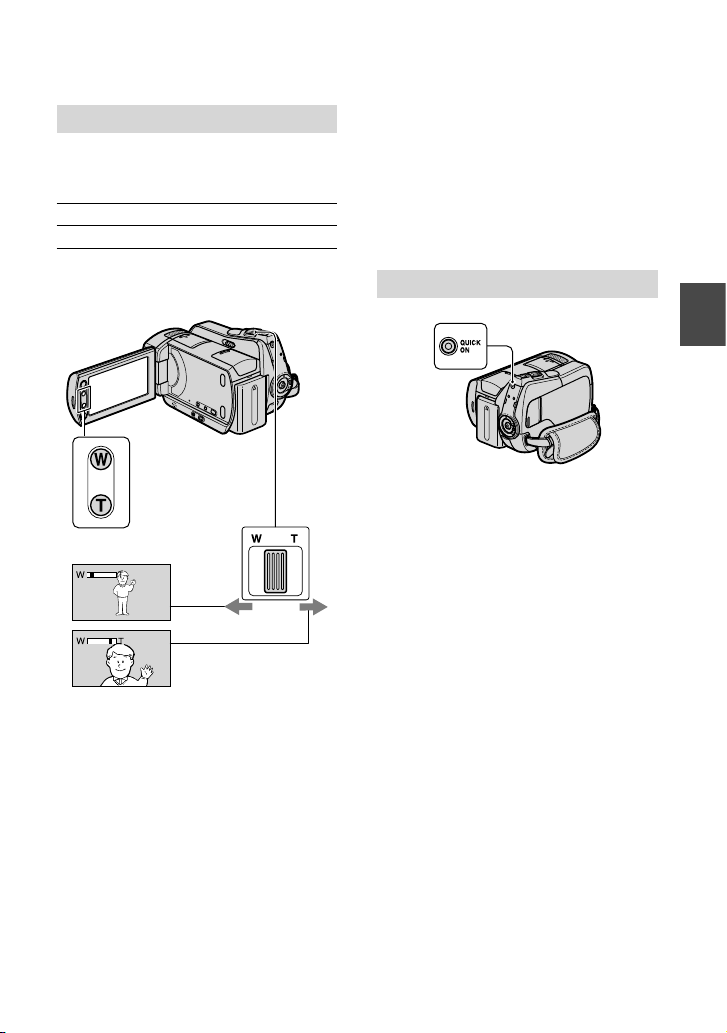
Zooming
You can zoom in up to the magnications
shown in the following table.
(optical zoom)
DCR-SR35E/SR36E/SR45E/SR46E 40 ×
DCR-SR55E/SR65E/SR75E/SR85E 25 ×
You can adjust the magnication with the
power zoom lever or the zoom buttons on
the LCD frame.
Move the power zoom lever slightly for a
slower zoom. Move it further for a faster
zoom.
Notes
[STEADYSHOT] may not reduce image
blurring as desired when the power zoom lever
is set to the T (Telephoto) side.
Be sure to keep your nger on the power zoom
lever. If you move your nger o the power
zoom lever, the operation sound of the lever
may also be recorded.
You cannot change the zoom speed with the
zoom buttons on the LCD frame.
e minimum possible distance between
camcorder and subject while maintaining sharp
focus is about 1 cm (about 13/32 in.) for wide
angle and about 80 cm (about 2 5/8 feet) for
telephoto.
Tips
Using [DIGITAL ZOOM] (p. 58) lets you zoom
in further than the magnication shown in the
table.
Starting shooting quickly (QUICK ON)
When you press QUICK ON, the
camcorder goes to sleep mode (power
saving mode) instead of turning o.
e QUICK ON lamp keeps ashing
during sleep mode. Press QUICK ON
again to start recording next time. Your
camcorder returns to recording standby in
approximately 1 second.
Tips
During sleep mode, the battery is consumed at
about half that of usual recording, enabling you
to save battery power.
e power turns o automatically if you do
not operate your camcorder for a certain
period during sleep mode. You can set the time
that you want the camcorder to remain on
before automatically turning o in sleep mode
([QUICK ON STBY], (p.
67)).
Wider range of view:
(Wide angle)
Close view: (Telephoto)
28
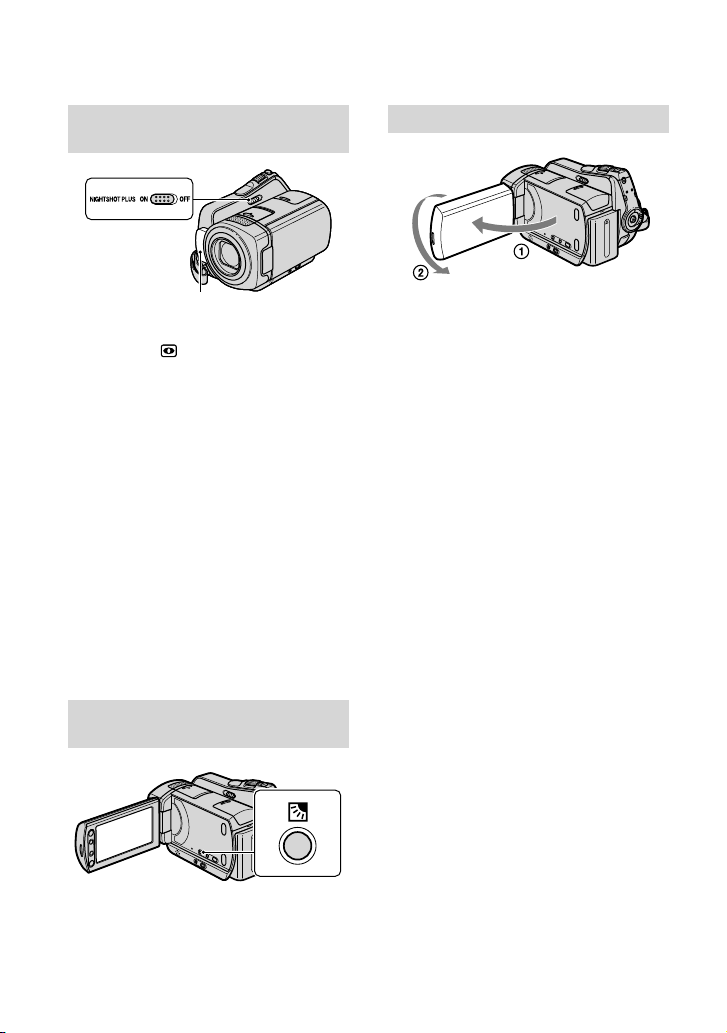
Recording in dark places (NightShot
plus)
When you set the NIGHTSHOT PLUS
switch to ON, appears. You can record
images in dark places.
Notes
e NightShot plus and Super NightShot plus
functions use infrared light. erefore, do not
cover the infrared port with your ngers or
other objects, and remove the conversion lens
(optional).
Adjust the focus manually ([FOCUS], p. 71)
when it is hard to focus automatically.
Do not use the NightShot plus and Super
NightShot plus functions in bright places. is
may cause a malfunction.
Tips
To record an image brighter, use the Super
NightShot plus function (p. 74). To record an
image more faithfully to the original colors, use
the Color Slow Shutter function (p.
74).
Adjusting the exposure for backlit
subjects
To adjust the exposure for backlit subjects,
press (back light) to display . To cancel
the back light function, press (back light)
again.
Recording in mirror mode
Open the LCD panel 90 degrees to the
camcorder (), then rotate it 180 degrees
to the lens side ().
Tips
A mirror-image of the subject appears on the
LCD screen, but the image will be normal when
recorded.
Infrared port
Recording/Playback
29
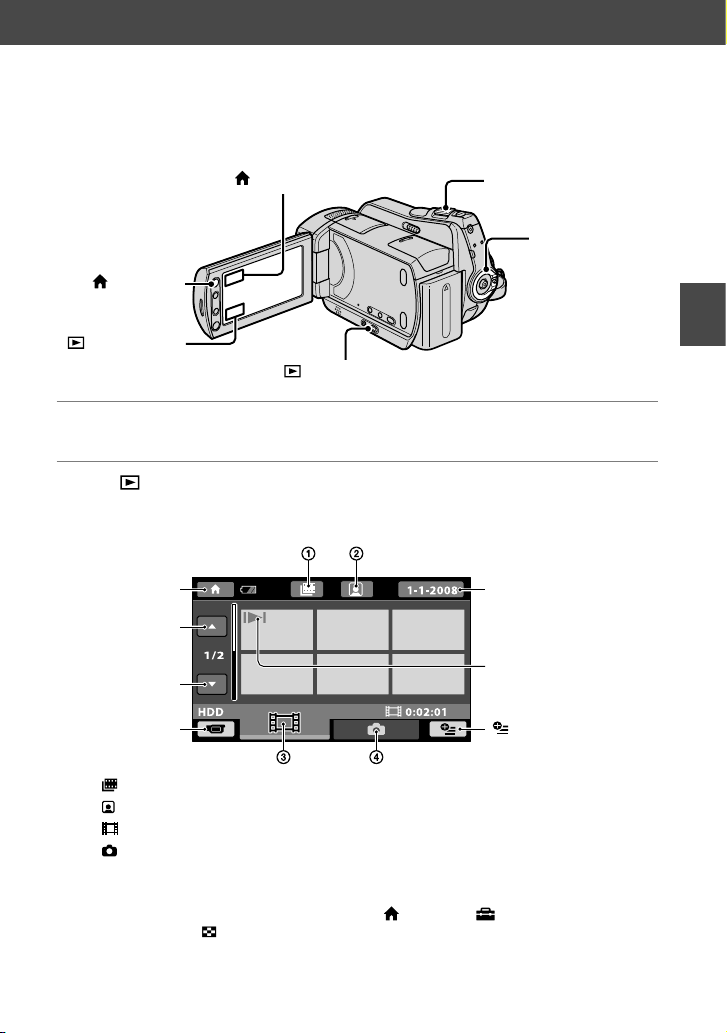
Playback
You can play back images recorded on the media selected in the media setting (p. 20).
e default setting is the hard disk.
1 Turn the POWER switch to turn on your camcorder.
2 Press (VIEW IMAGES) (or ).
e [VISUAL INDEX] screen appears on the LCD screen. (It may take some seconds.)
: Film Roll Index (p. 31)
: Face Index (p. 31)
: Displays movies.
: Displays still image.
Tips
e number of the images on the [VISUAL INDEX] screen can be changed 6 12 by moving
the power zoom lever . To x this number, touch
(HOME) (SETTINGS) [VIEW
IMAGES SET] [
DISPLAY] (p. 63).
(HOME)
(HOME)
Power zoom lever
POWER switch
(VIEW IMAGES)
(VIEW IMAGES)
Appears with the image on
each of the tab that was lastly
played back/recorded ( for
the still image recorded on a
“Memory Stick PRO Duo”).
HOME MENU
Previous
6 images
Next
6 images
Returns to the
recording screen
Searches for images
by date (p. 32)
(OPTION)
30
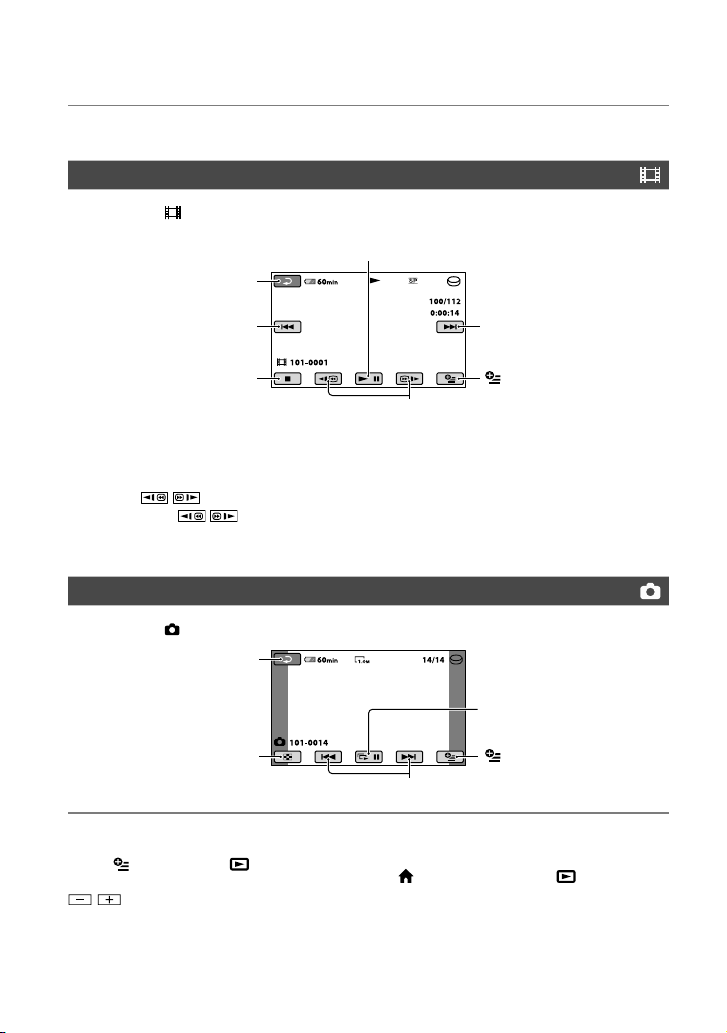
3 Start playback.
Playing movies
Touch the tab, and the movie to be played back.
Tips
When playback from the selected movie reaches the last movie, the screen returns to the [VISUAL
INDEX] screen.
Touch / during pause to play back a movie slowly.
One touch of / makes the reverse/fast forward approximately 5 times faster, 2 touches
makes it approximately 10 times faster, 3 touches makes it approximately 30 times faster, and 4
touches makes it approximately 60 times faster.
Viewing still images
Touch the tab, and the still image to be played back.
To adjust the volume of movies
Touch (OPTION) tab
[VOLUME], then adjust the volume with
/ .
Tips
You can switch the playback mode by touching
(HOME) (or ) (VIEW
IMAGES) [VISUAL INDEX].
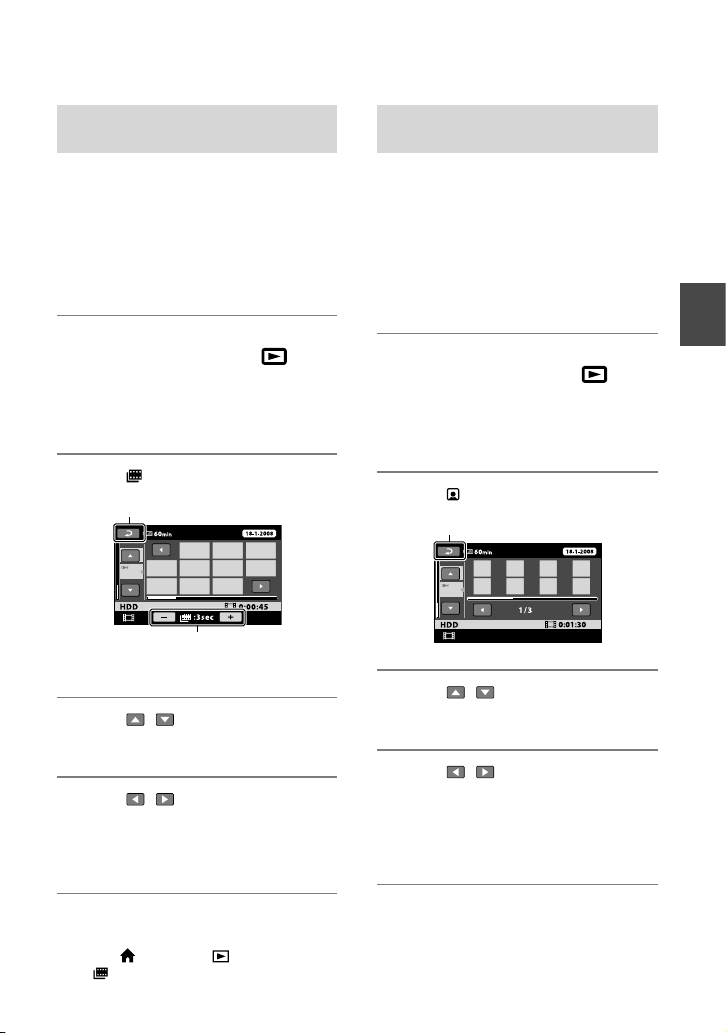
Returns (to the [VISUAL
INDEX] screen)
Goes to the [VISUAL
INDEX] screen
(OPTION)
Slide show button (p. 33)
Previous/Next
Toggles Play or Pause as you touch
Next movie
(OPTION)
Stops (goes to the [VISUAL
INDEX] screen)
Beginning of the movie/
previous movie
Returns (to the [VISUAL
INDEX] screen)
Reverse/Forward
Recording/Playback
31
Searching for desired scene by
pinpoint (Film Roll Index)
Movies can be divided by a set time and the
rst scene of each division is displayed on
the INDEX screen. You can start playing
back a movie from the selected thumbnail.
Select beforehand the media which
contains the recorded movie you want to
play back (p. 20).
1 Turn the POWER switch to turn on
the camcorder, and press (VIEW
IMAGES).
e [VISUAL INDEX] screen appears
on the LCD screen.
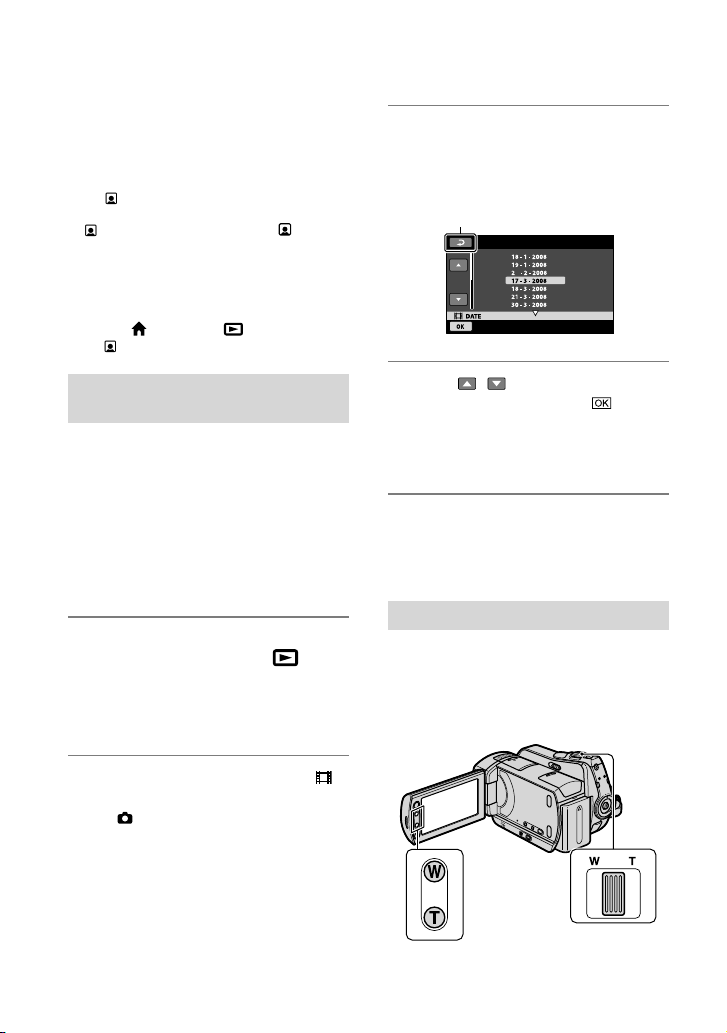
2 Touch (Film Roll Index).
3 Touch / to select the desired
movie.
4 Touch / to search for the
desired scene, then touch the scene
you want to play back.
Playback starts from the selected scene.
Tips
You can display the [Film Roll Index] screen by
touching
(HOME) (VIEW IMAGES)
[
INDEX].
Searching for desired scene by face
(Face Index)
e face images detected during movie
recording are displayed on the index
screen.
You can play back the movie from the
selected face image.
Select beforehand the media which
contains the recorded movie you want to
play back (p. 20).
1 Turn the POWER switch to turn on
the camcorder, and press (VIEW
IMAGES).
e [VISUAL INDEX] screen appears
on the LCD screen.
2 Touch (Face Index).
3 Touch / to select the desired
movie.
4 Touch / , then touch the
desired face image to view the
scene.
Playback starts from the beginning of
the scene with the selected face image.
Returns to the [VISUAL INDEX] screen
Sets the interval at which to create
thumbnails of scenes in a movie.
Returns to the [VISUAL INDEX] screen
32
Notes
Faces may not be detected depending on
recording conditions.
Example: People wearing glasses or hats, or who
do not face towards the camera.
Set [ INDEX SET] to [ON] (the default
setting) before recording to play back from
[
INDEX] (p. 59). Make sure that ashes,
and detected face images are stored in [Face
Index].
Tips
You can display the [Face Index] screen by
touching
(HOME) (VIEW IMAGES)
[
INDEX].
Searching for desired images by date
(Date Index)
You can eciently search for desired
images by date.
Select beforehand the media which
contains the recorded movie you want to
play back (p. 20).
Notes
You cannot use the date index for still images
on the “Memory Stick PRO Duo.”
1 Turn the POWER switch to turn on
the camcorder, and press (VIEW
IMAGES).
e [VISUAL INDEX] screen appears
on the LCD screen.
2 To search for movies, touch the
tab. To search for still images, touch
the tab.
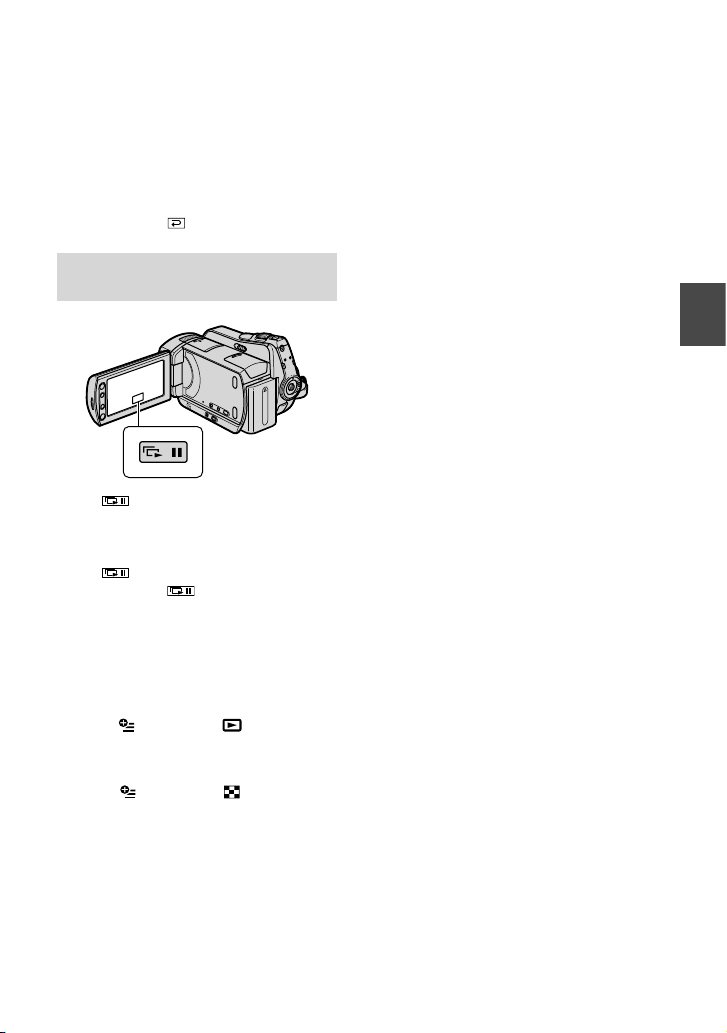
3 Touch the date button at the upper
right of the LCD screen.
e recording dates of images are
displayed on the screen.
4 Touch / to select the date of
the desired image, touch .
e images of the selected date are
displayed on the [VISUAL INDEX]
screen.
Tips
On the [Film Roll Index] or [Face Index]
screen, you can use the Date Index function by
following the steps 3 to 4.
Using PB zoom
You can magnify still images from about
1.1 to 5 times the original size.
Magnication can be adjusted with the
power zoom lever or the zoom buttons on
the LCD frame.
Play back the still image you want to magnify.
Returns to the [VISUAL INDEX] screen
Recording/Playback
33
Magnify the still image with T (Telephoto).
e screen is framed.
Touch the screen at the point you want to
display in the center of the displayed frame.
Adjust the magnication with W (Wide
angle)/T (Telephoto).
To cancel, touch .
Playing back a series of still images
(Slide show)
Touch on the still image playback
screen.
e slide show begins from the selected still
image.
Touch to stop the slide show.
To restart, touch again.
Notes
You cannot operate playback zoom during slide
show.
Tips
You can set continuous slide show playback by
selecting
(OPTION) tab [SLIDE
SHOW SET]. e default setting is [ON]
(continuous playback).
You can also play back the slide show by
touching
(OPTION) tab [SLIDE
SHOW] on the [VISUAL INDEX] screen.
34
Playing the image on a TV
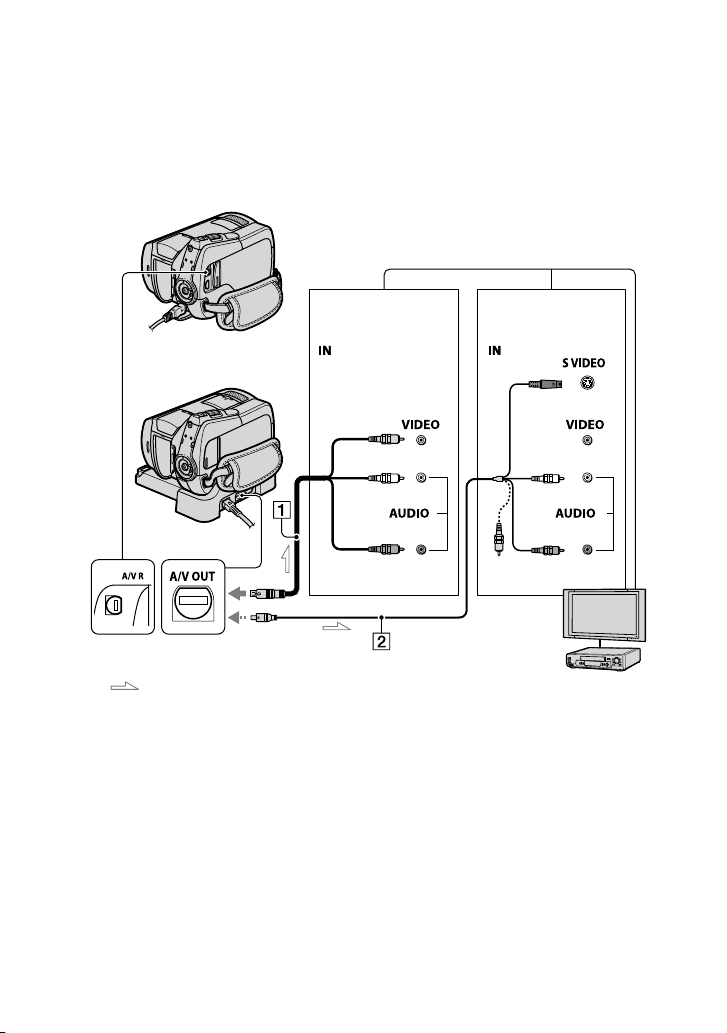
Connect your camcorder to the input jack of a TV or VCR using the A/V connecting cable
or an A/V connecting cable with S VIDEO . Connect your camcorder to the wall
outlet (wall socket) using the supplied AC Adaptor for this operation (p. 13). Refer also to the
instruction manuals supplied with the devices to be connected.
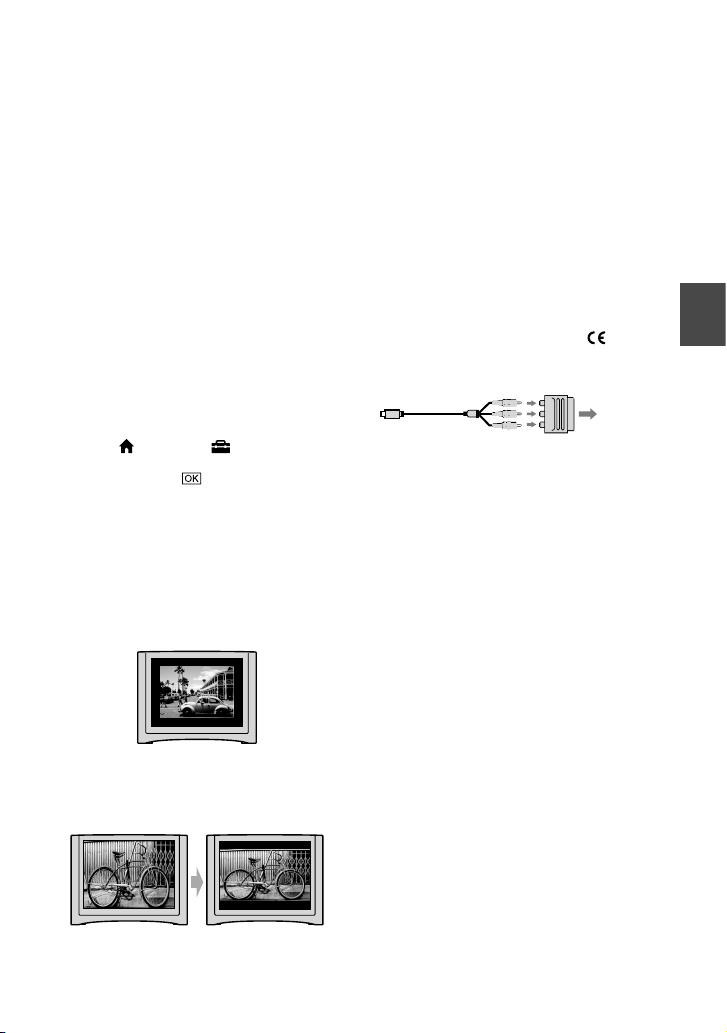
A/V connecting cable (supplied)
e Handycam Station has an A/V
OUT jack (DCR-SR55E/SR65E/SR75E/
SR85E) (p. 99) and the camcorder has
an A/V Remote Connector (p. 96).
Connect the A/V connecting cable
either to the Handycam Station or to
your camcorder, according to your
setup.
A/V connecting cable with S VIDEO
(optional)
When connecting to another device
via the S VIDEO jack, by using an A/V
connecting cable with an S VIDEO
cable (optional), higher quality images
can be produced than with an A/V
connecting cable. Connect the white
and red plugs (le/right audio) and
the S VIDEO plug (S VIDEO channel)
of the A/V connecting cable with an
S VIDEO cable (optional). e yellow
plug connection is not necessary.
Connecting only the S VIDEO plug will
not output audio.
Notes
Do not connect A/V connecting cables to both
your camcorder and the Handycam Station at
the same time. e image might get disturbed
(DCR-SR55E/SR65E/SR75E/SR85E).
DCR-SR35E/SR36E/SR45E/SR46E:
DCR-SR55E/SR65E/SR75E/
SR85E:
A/V Remote Connector
or A/V OUT jack
Device without
an S VIDEO jack
: Signal ow
VCRs or TVs
Device with an
S VIDEO jack
(Yellow)
(White)
(Red)
(Yellow)
(White)
(Red)
Recording/Playback
35
Tips
You can display the counter on the TV screen
by setting [DISP OUTPUT] to [V-OUT/
PANEL] (p.
65).
When your TV is connected to a VCR
Connect your camcorder to the LINE IN
input on the VCR. Set the input selector
on the VCR to LINE (VIDEO 1, VIDEO 2,
etc.), if the VCR has an input selector.
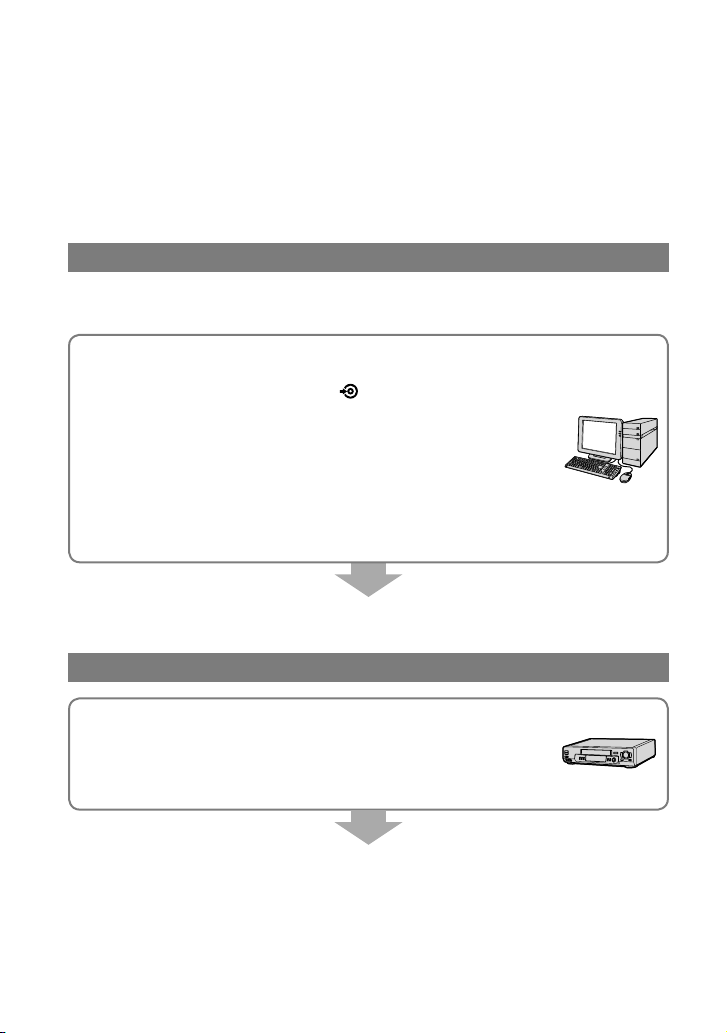
To set the aspect ratio according to the
connected TV (16:9/4:3)
Change the setting according to the screen
aspect ratio of the TV you will view images
on.
Turn the POWER switch to turn on the
camcorder.
Touch
(HOME) (SETTINGS)
[OUTPUT SETTINGS] [TV TYPE]
[16:9] or [4:3]
.
Notes
When you set [TV TYPE] to [4:3], the image
quality may deteriorate. Also, when the
recorded image’s aspect ratio switches between
16:9 (wide) and 4:3, the image may jitter.
On some 4:3 TVs, the still images recorded in
4:3 aspect ratio may not be displayed full screen.
is is not a malfunction.
When you play back an image recorded in 16:9
(wide) aspect ratio on a 4:3 TV not compatible
with the 16:9 (wide) signal, set [TV TYPE] to
[4:3].
When your TV is monaural (When your TV has
only one audio input jack)
Connect the yellow plug of the A/V
connecting cable to the video input jack
and connect the white (le channel) or red
(right channel) plug to the audio input jack
of your TV or VCR.
For DCR-SR55E/SR65E/SR75E/SR85E:
If your TV/VCR has a 21-pin adaptor
(EUROCONNECTOR)
Use the 21-pin adaptor supplied with your
camcorder (For models with the mark
printed on the bottom surface only). is
adaptor is designed for output use only.
TV/VCR
36
Saving images
Due to the limited capacity of the media, make sure that you save the image data to some type
of external media such as a DVD-R or a computer.
You can save the images recorded on the camcorder as described below.
Tips
You can dub/copy the images recorded on the hard disk to the “Memory Stick PRO Duo” using this
camcorder (p. 41).
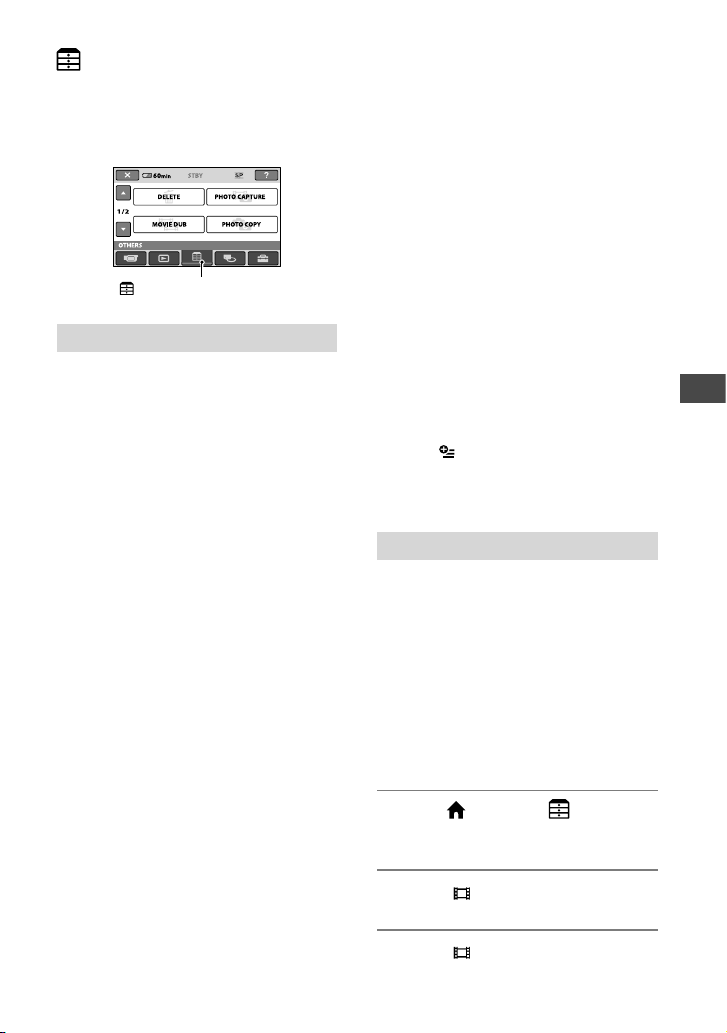
Using a computer
By using “Picture Motion Browser” on the supplied CD-ROM, you can save images recorded
on your camcorder. For details, see “PMB Guide.”
Creating a DVD with One Touch (One Touch Disc Burn)
You can save images recorded on the hard disk of your camcorder
directly to a DVD with ease by pressing (DISC BURN) button.
Saving images on a computer
You can save images recorded on the camcorder on the hard disk of
a computer.
Creating a DVD with selected images
You can save images imported to your computer on a DVD. You can
also edit those images.
Refer to the supplied “Operating Guide” for information on the bundled software.
Connecting your camcorder to other devices
Connecting with the A/V connecting cable
You can dub to VCRs, DVD/HDD recorders.
Connecting with the USB cable
You can dub to movie dubbing compatible DVD writers, etc.
See “Dubbing to other devices” on page 46.
Editing
37
Editing
(OTHERS) category
is category enables you to edit the images
on the media. Also, you can enjoy your
camcorder by connecting to other devices.
Item list
DELETE
You can delete images on the media (p. 37).
PHOTO CAPTURE
You can save a selected frame from a
recorded movie as a still image (p. 40).
MOVIE DUB
You can dub movies recorded on the hard
disk to a “Memory Stick PRO Duo” (p. 41).
PHOTO COPY
You can copy still images recorded on the
hard disk to a “Memory Stick PRO Duo”
(p. 42).
EDIT
You can edit the images (p. 43).
PLAYLIST EDIT
You can create and edit a Playlist (p. 44).
PRINT
You can print still images on a connected
PictBridge printer (p. 49).
USB CONNECT
You can connect the camcorder to a
computer etc. via the USB cable (p. 89).
See “Operating Guide” for connecting to
the computer.
Deleting images
You can delete images recorded on the
media using your camcorder.
Notes
You cannot restore images once they are
deleted.
Do not remove the battery pack or the AC
Adaptor from your camcorder while deleting
the images. It may damage the media.
Do not eject “Memory Stick PRO Duo” while
deleting movies from the “Memory Stick PRO
Duo.”
When write-protection is set to the images
in the “Memory Stick PRO Duo” by another
device, you cannot delete the images from the
“Memory Stick PRO Duo.”
Tips
You can select up to 100 images at one time.
You can delete an image on the playback screen
from the
(OPTION) menu.
To delete all images recorded on the media and
recover all the recordable space of the media,
format the media (p.
52).
Deleting movies
You can free media space by deleting image
data from the media.
You can check the free media space using
[MEDIA INFO] (p. 51).
Select beforehand the media which
contains the movie you want to delete
(p. 20).
Notes
Important data should be saved on external
media (p. 36).
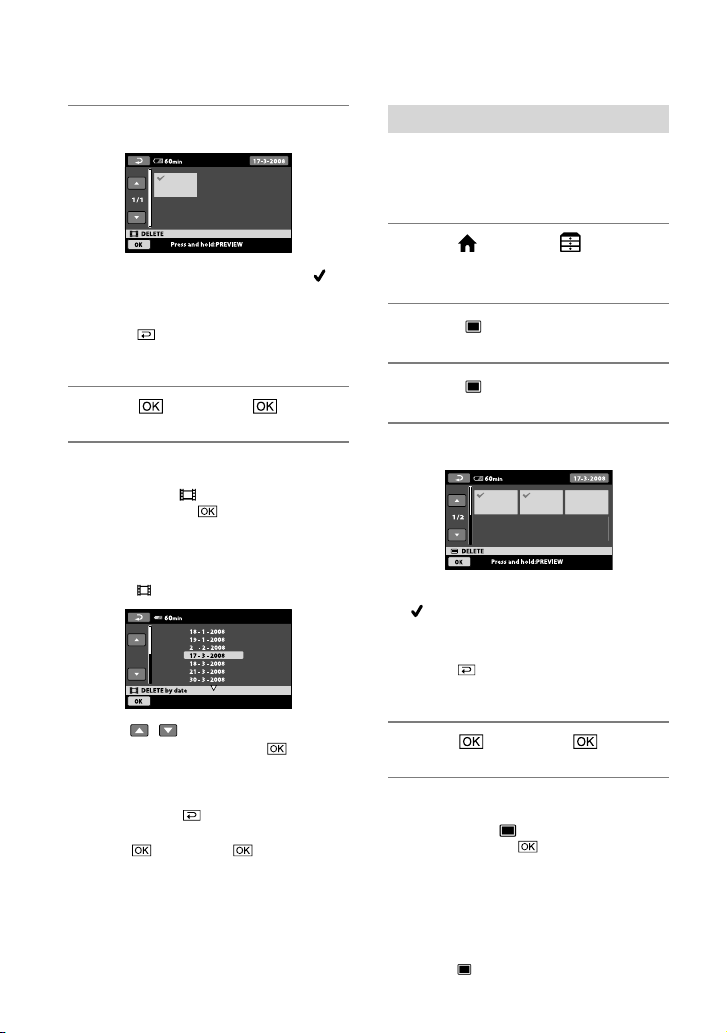
1 Touch (HOME) (OTHERS)
[DELETE].
2 Touch [ DELETE].
3 Touch [ DELETE].
(OTHERS) category
38
4 Touch the movie to be deleted.
e selected image is marked with .
Press and hold the image on the LCD
screen to conrm.
Touch
to return to the previous
screen.
5 Touch [YES] .
To delete all movies at one time
In step 3, touch [ DELETE ALL]
[YES] [YES] .
To delete all the movies recorded on the
same day at one time
Touch [ DELETE by date] in step 3.
Touch / to select the recording date of
the desired movies, then touch
.
e movies recorded on the selected date are
displayed on the screen.
Touch the movie on the LCD screen to
conrm. Touch
to return to the previous
screen.
Touch
[YES] .
Notes
If the deleted movie is included in a Playlist
(p. 44), the movie added to the Playlist is
deleted also from the Playlist.
Deleting still images
Select beforehand the media which
contains the still image you want to delete
(p. 20).
1 Touch (HOME) (OTHERS)
[DELETE].
2 Touch [ DELETE].
3 Touch [ DELETE].
4 Touch the still image to be deleted.
e selected still image is marked with
.
Press and hold the still image on the
LCD screen to conrm.
Touch
to return to the previous
screen.
5 Touch [YES] .
To delete all still images at one time
In step 3, touch [ DELETE ALL]
[YES] [YES] .
To delete all the still images recorded on the
same day at one time
is function is available only when the
internal hard disk is selected as the media.
Touch [ DELETE by date] in step 3.

Editing
39
Touch / to select the recording date of
the desired still images, then touch
.
e still images recorded on the selected date
are displayed on the screen.
Touch the still image on the LCD screen to
conrm. Touch
to return to the previous
screen.
Touch
[YES] .
40
Capturing a still image from a movie
You can capture a still image at any point
during movie playback.
Select the media which contains movies,
and the media where you want to save still
images (p. 20).
1 Touch (HOME) (OTHERS)
[PHOTO CAPTURE].
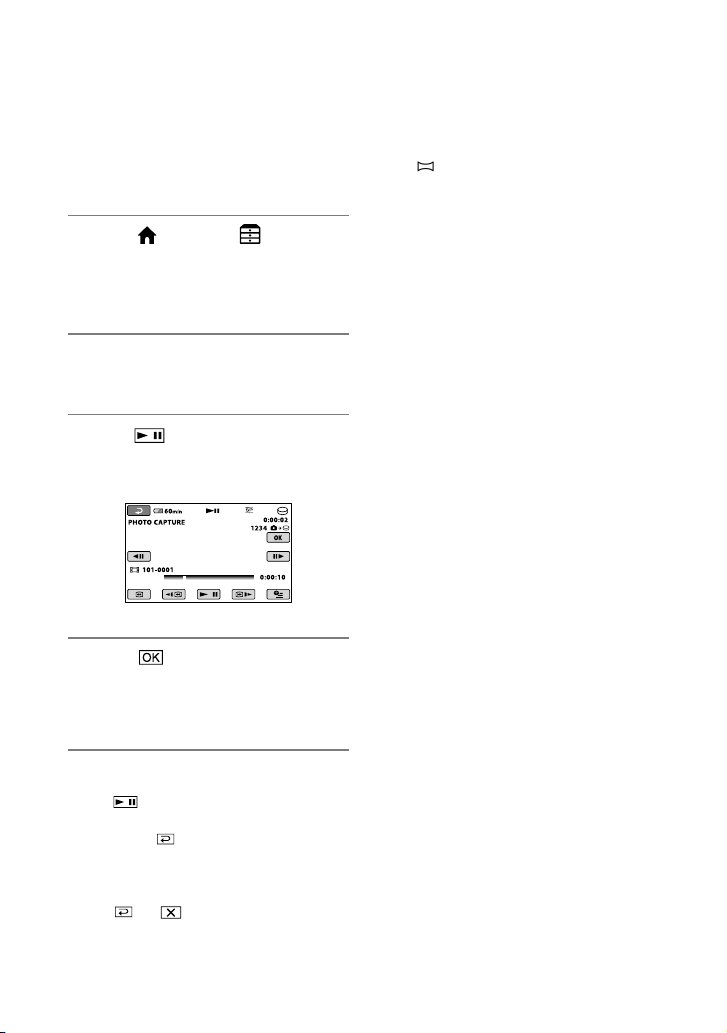
e [PHOTO CAPTURE] screen
appears.
2 Touch the movie to be captured.
e selected movie starts playback.
3 Touch at the point where you
want to capture.
e movie pauses.
4 Touch .
Aer the still image is saved on the
media you selected, the camcorder
returns to pause mode.
To continue capturing
Touch , then follow the steps 3 to 4.
To capture a still image from another
movie, touch then follow the steps 2
to 4.
To nish capturing
Touch .
Notes
e image size is xed depending on the aspect
ratio of the movies:
[ 0.2M] in the aspect ratio 16:9
[VGA(0.3M)] in the aspect ratio 4:3
e media where you want to save still images
has to have enough free space.
Recording date and time of created still images
are the same as the recording date and time of
the movies.
If the movies do not have data code, recording
date and time of still images is saved as the time
you create them from movies.
You cannot capture still images from a movie
saved on a “Memory Stick PRO Duo” (DCR-
SR35E/SR36E/SR55E/SR75E).
Editing
41
Dubbing/copying images to a “Memory Stick PRO Duo”
with your camcorder
Dubbing movies
You can dub movies recorded on the hard
disk of your camcorder to a “Memory Stick
PRO Duo.”
Insert a “Memory Stick PRO Duo” into
your camcorder before the operation.
Notes
When you record a movie on a “Memory Stick
PRO Duo” for the rst time, create the image
database le (p. 54) by touching
(HOME)
(MANAGE MEDIA) [REPAIR IMG.
DB F.].
Connect your camcorder to the wall outlet
(wall socket) using the supplied AC Adaptor to
prevent your camcorder from running out of
power during dubbing.
Tips
e original movie will not be deleted aer
dubbing.
All included images on a playlist will be dubbed.
1 Touch (HOME) (OTHERS)
[MOVIE DUB].
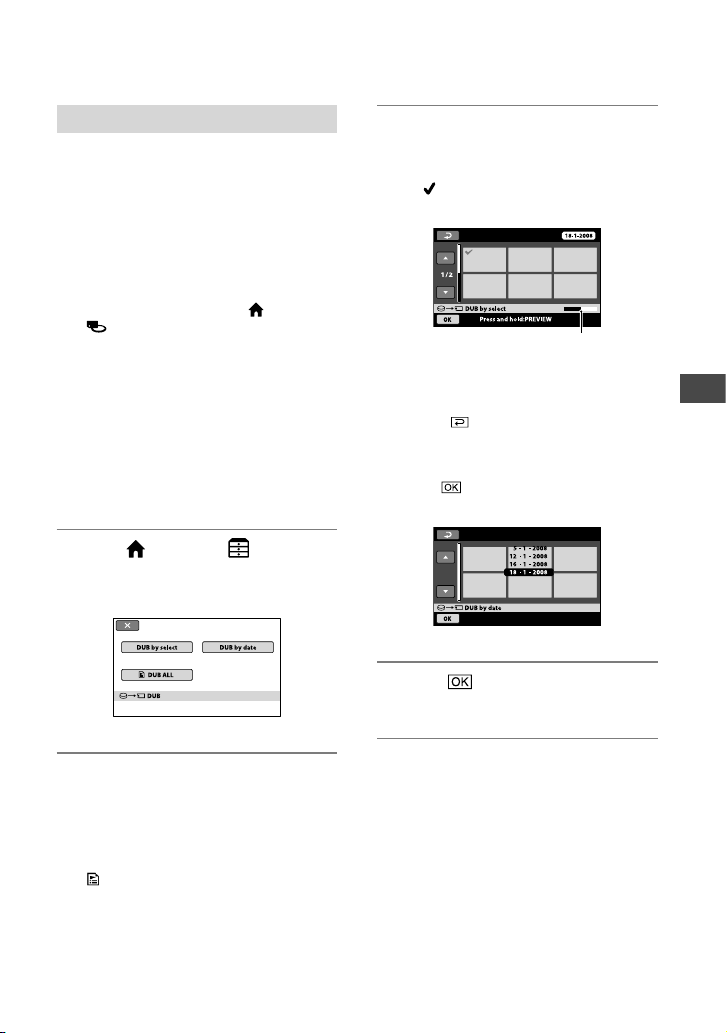
e [MOVIE DUB] screen appears.
2 Touch the type of dubbing.
[DUB by select]: To select movies and
dub
[DUB by date]: To dub all movies of a
specied date
[
DUB ALL]: To dub playlists
When you select playlist as the source
of dubbing, follow the on-screen
instructions to dub.
3 Select the movie to be dubbed.
[DUB by select]: Touch the movie
thumbnail you want to dub to place
the
mark on the thumbnail. You can
select several movies.
Tips
Press and hold the thumbnail to preview.
Touch
to return to the selection screen.
[DUB by date]: Select the recording
date of the movie to be dubbed, then
touch . You cannot select multiple
dates.
4 Touch [YES].
Dubbing starts.
Tips
To check the dubbed movies aer dubbing
is complete, select [MEMORY STICK] on
[MOVIE MEDIA SET] and play them back
(p. 20).
Remaining capacity of
“Memory Stick PRO Duo”
42
Copying still images
You can copy still images from the hard
disk to a “Memory Stick PRO Duo.”
Insert a “Memory Stick PRO Duo” into
your camcorder before the operation.
Notes
Connect your camcorder to the wall outlet
(wall socket) using the supplied AC Adaptor to
prevent your camcorder from running out of
power during dubbing.
Tips
e original still images will not be deleted aer
copying.
1 Touch (HOME) (OTHERS)
[PHOTO COPY].
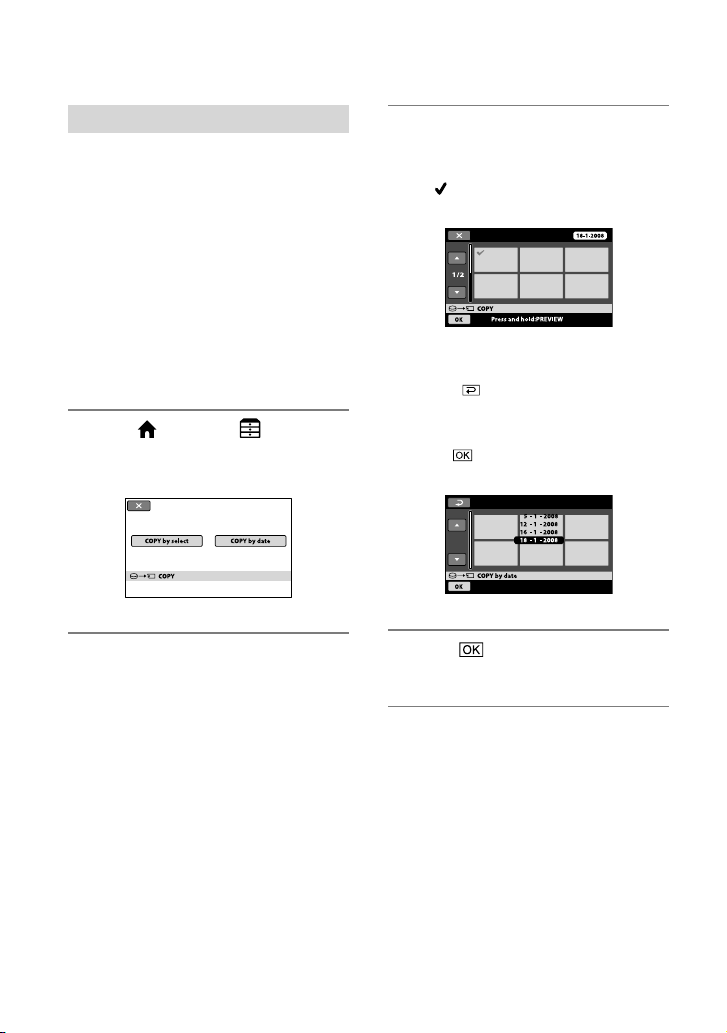
e [PHOTO COPY] screen appears.
2 Touch the type of copying.
[COPY by select]: To select a still image
and copy
[COPY by date]: To copy all still images
of a specied date
3 Select the still image to be copied.
[COPY by select]: Touch the still image
thumbnail you want to copy to place
the
mark on the thumbnail. You can
select several still images.
Tips
Press and hold the thumbnail to preview.
Touch
to return to the selection screen.
[COPY by date]: Select the recording
date of the still image to be copied, then
touch . You cannot select multiple
dates.
4 Touch [YES].
Copying starts.
Tips
To check the copied still images aer copying
is complete, select [MEMORY STICK] on
[PHOTO MEDIA SET] and play them back
(p.
20).
Editing
43
Dividing a movie
You can divide movies on the media of
your camcorder.
Select beforehand the media which
contains the movie you want to divide
(p. 20).
1 Touch (HOME) (OTHERS)
[EDIT].
2 Touch [DIVIDE].
3 Touch the movie to be divided.
e selected movie starts playback.
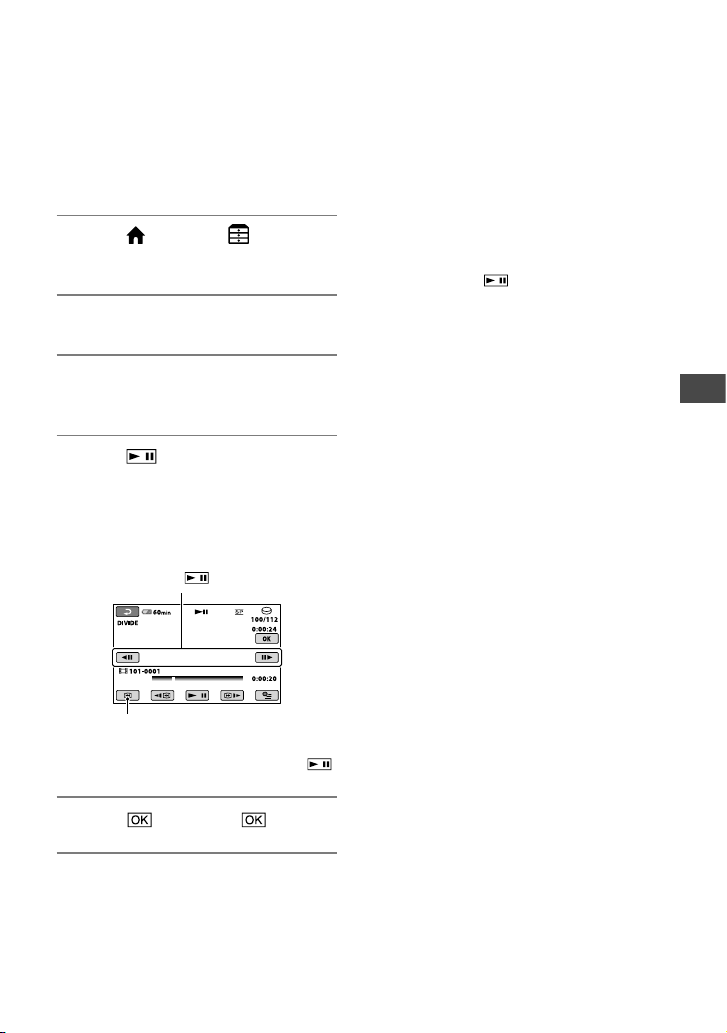
4 Touch at the point where
you want to divide the movie into
scenes.
e movie pauses.
Play and pause toggles as you press .
5 Touch [YES] .
Notes
You cannot restore movies once they are
divided.
Do not remove the battery pack or the AC
Adaptor from your camcorder while dividing
the movie. It may damage the media.
Also, do not remove the “Memory Stick PRO
Duo” while editing movies on the “Memory
Stick PRO Duo.”
A slight dierence may occur from the point
where you touch
and the actual dividing
point, as your camcorder selects the dividing
point based on about half-second increments.
If you divide the original movie, the movie
added to the Playlist will also be divided.
Adjusts the dividing point with more
precision aer the dividing point has
been selected with
.
Returns to the beginning of the selected
movie.
44
Creating the Playlist
e Playlist is a list showing thumbnails
of the movies that you have selected. e
original movies are not changed even if
you edit or delete the movies added to the
Playlist. Select the media you want to create
or play a Playlist before the operation
(p. 20).
1 Touch (HOME) (OTHERS)
[PLAYLIST EDIT].
2 Touch [ ADD].
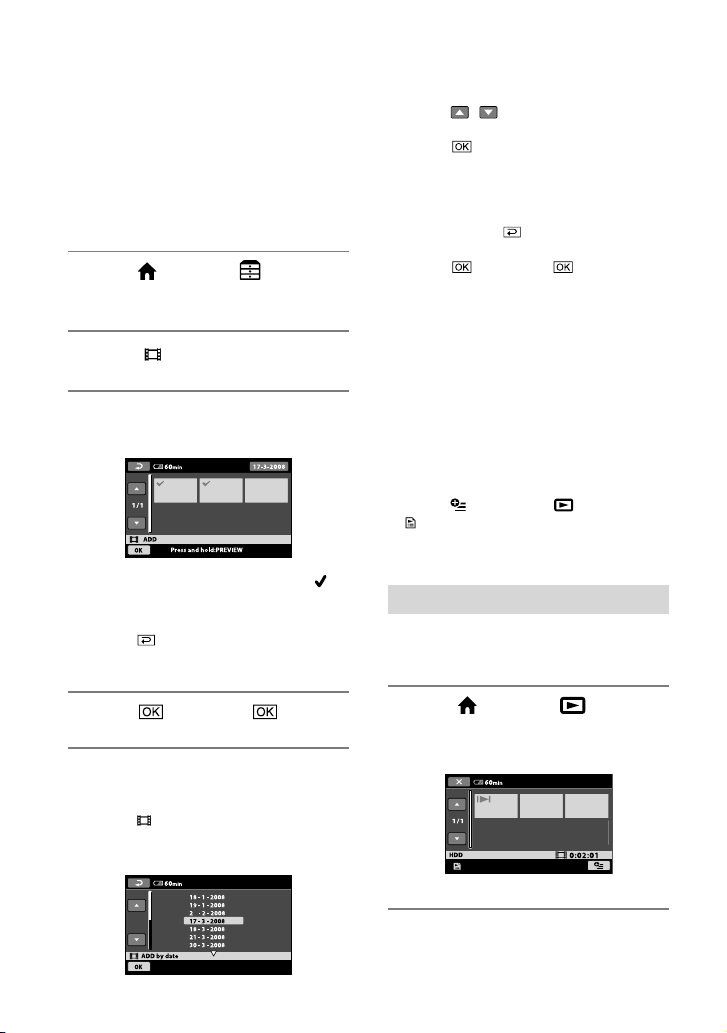
3 Touch the movie to be added to the
Playlist.
e selected movie is marked with .
Press and hold the movie on the LCD
screen to conrm.
Touch
to return to the previous
screen.
4 Touch [YES] .
To add all the movies recorded on the same
day at one time
Touch [ ADD by date] in step 2.
e recording dates of movies are displayed
on the screen.
Touch / to select the recording date of
the desired movie.
Touch
while the selected recording date
is highlighted.
e movies recorded on the selected date are
displayed on the screen.
Touch the image on the LCD screen to
conrm. Touch
to return to the previous
screen.
Touch
[YES] .
Notes
Do not remove the battery pack or the AC
Adaptor from your camcorder while editing
the Playlist. Also, do not remove the “Memory
Stick PRO Duo” while editing movies on the
“Memory Stick PRO Duo.”
You cannot add still images to a Playlist.
Tips
You can add a maximum of 99 movies to the
Playlist.
You can add a movie when viewing it by
selecting
(OPTION) tab
[
ADD].
You can copy the Playlist to a DVD as it is, by
using the supplied soware.
Playing the Playlist
Select beforehand the media to use to create
or play a playlist (p. 20).
1 Touch (HOME) (VIEW
IMAGES) [PLAYLIST].
e Playlist screen appears.
2 Touch the image from which you
want to play back.
e Playlist is played back from the
Editing
45
selected image to the end, then the
screen returns to the Playlist screen.
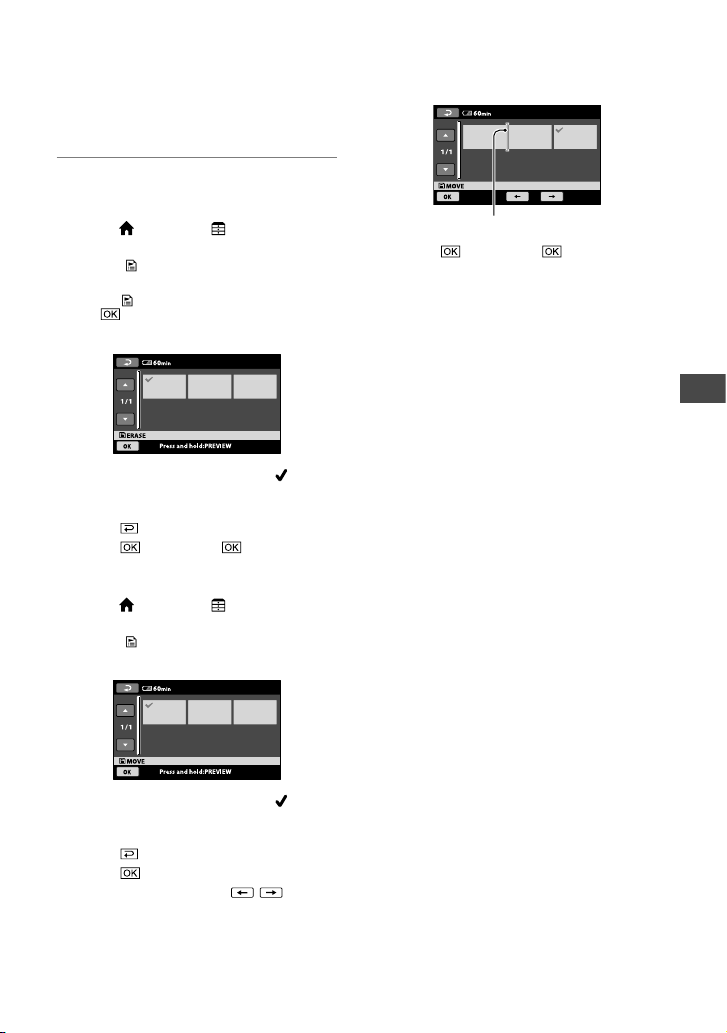
To erase unnecessary movies from the
Playlist
Touch (HOME) (OTHERS)
[PLAYLIST EDIT].
Touch [
ERASE].
To erase all the movies from the Playlist,
touch [
ERASE ALL] [YES] [YES]
.
Select the movie to be deleted from the list.
e selected movie is marked with .
Press and hold the movie on the LCD screen
to conrm.
Touch
to return to the previous screen.
Touch
[YES] .
To change the order within the Playlist
Touch (HOME) (OTHERS)
[PLAYLIST EDIT].
Touch [
MOVE].
Select the movie to be moved.
e selected movie is marked with .
Press and hold the movie on the LCD screen
to conrm.
Touch
to return to the previous screen.
Touch
.
Select the destination with
/ .
Touch [YES] .
Tips
When you select multiple movies, the movies
are moved following the order appeared in the
Playlist.
Destination bar
46
Dubbing to other devices
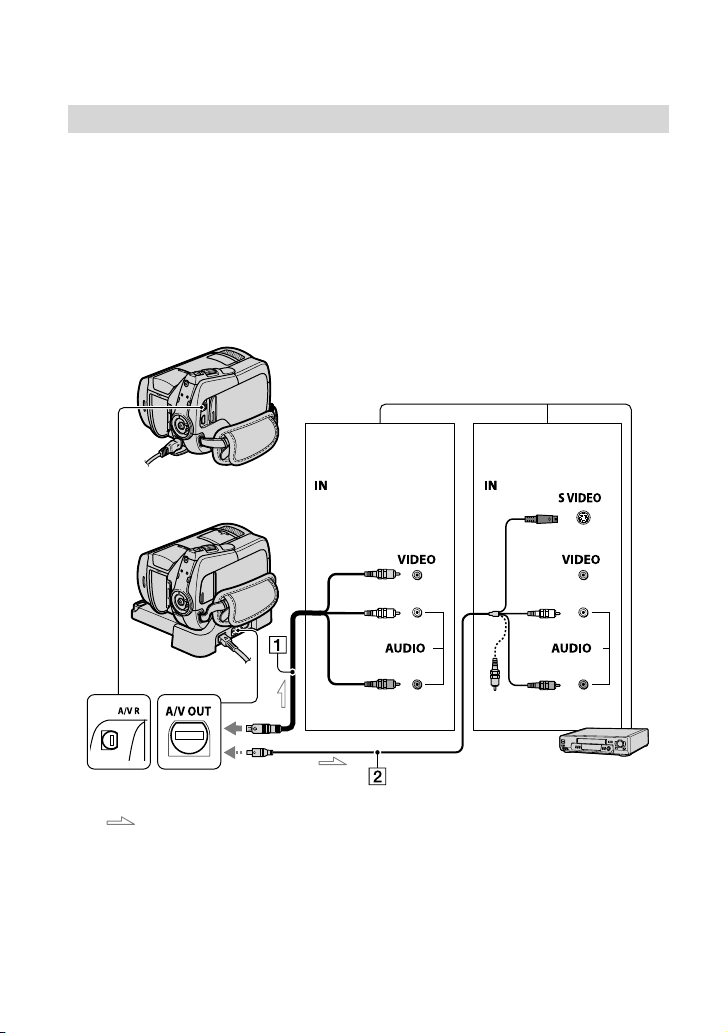
Connecting with the A/V connecting cable
You can dub images played back on your camcorder to other recording devices, such as
VCRs or DVD/HDD recorders. Connect the device in either of the following ways.
Connect your camcorder to the wall outlet (wall socket) using the supplied AC Adaptor for
this operation (p. 13). Refer also to the instruction manuals supplied with the devices to be
connected.
Select beforehand the media which contains the image you want to dub (p. 20).
Notes
Since dubbing is performed via analog data transfer, the image quality may deteriorate.
A/V connecting cable (supplied)
e Handycam Station has an A/V
OUT jack (DCR-SR55E/SR65E/SR75E/
SR85E) (p. 99) and the camcorder has
an A/V Remote Connector (p. 96).
Connect the A/V connecting cable
either to the Handycam Station or to
your camcorder, according to your
setup.
A/V connecting cable with S VIDEO
(optional)
When connecting to another device
via the S VIDEO jack, by using an A/V
connecting cable with an S VIDEO
cable (optional), higher quality images
DCR-SR35E/SR36E/SR45E/SR46E:
DCR-SR55E/SR65E/SR75E/
SR85E:
Device with an
S VIDEO jack
Device without an
S VIDEO jack
A/V Remote Connector or
A/V OUT jack
: Video/Signal ow
VCRs or DVD/HDD
recorders
(Yellow)
(White)
(Red)
(White)
(Red)
(Yellow)
Editing
47
can be produced than with an A/V
connecting cable. Connect the white
and red plugs (le/right audio) and
the S VIDEO plug (S VIDEO channel)
of the A/V connecting cable with an
S VIDEO cable (optional). e yellow
plug connection is not necessary.
Connecting only the S VIDEO plug will
not output audio.
Notes
To hide the screen indicators (such as a
counter, etc.) on the screen of the monitor
device connected, touch
(HOME)
(SETTINGS) [OUTPUT SETTINGS]
[DISP OUTPUT] [LCD PANEL] (the
default setting) (p.
65).
To record the date/time and camera settings
data, display them on the screen (p.
62).
When you are connecting your camcorder to a
monaural device, connect the yellow plug of the
A/V connecting cable to the video input jack,
and the red (right channel) or the white (le
channel) plug to the audio input jack on the
device.
1 Turn on your camcorder, and press
(VIEW IMAGES).
Set [TV TYPE] according to the display
device (p.
35).
2 Insert the recording media in the
recording device.
If your recording device has an input
selector, set it to the input mode.
3 Connect your camcorder to the
recording device (VCR or DVD/HDD
recorder) with the A/V connecting
cable (supplied) or an A/V
connecting cable with S VIDEO
(optional) .
Connect your camcorder to the input
jacks of the recording device.
4 Start playback on your camcorder,
and record it on the recording
device.
Refer to the instruction manuals
supplied with your recording device for
details.
5 When dubbing is nished, stop the
recording device, and then your
camcorder.
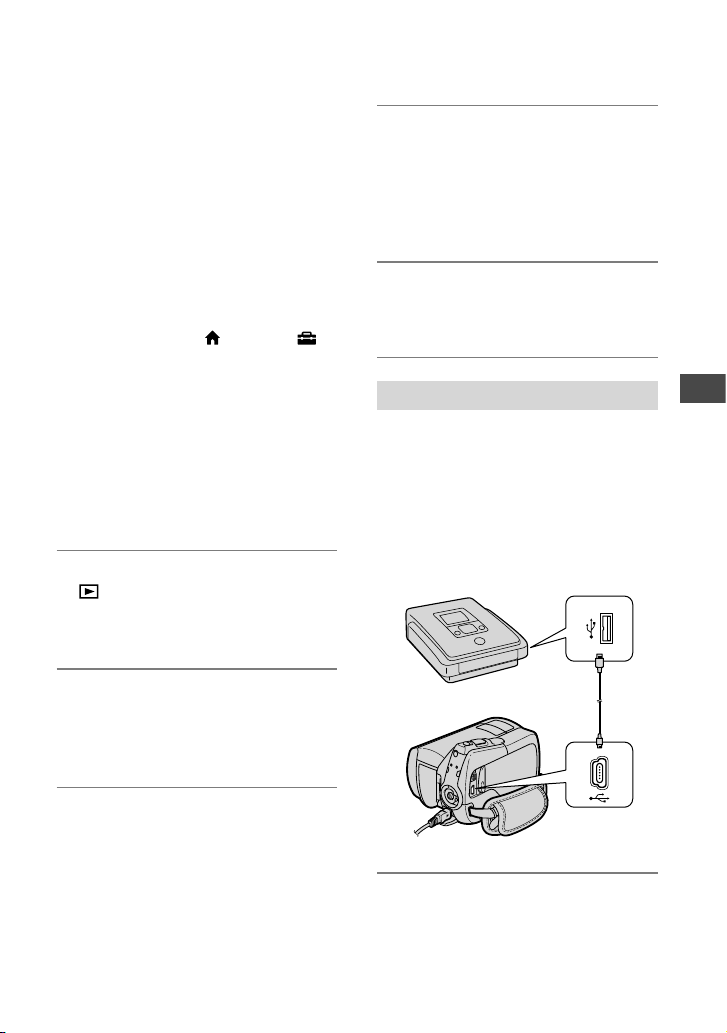
Connecting with the USB cable
Connect your camcorder to a DVD writer
or a DVD recorder, etc., compatible with
movie dubbing via USB connection to dub
without image degradation.
Connect your camcorder to the wall
outlet (wall socket) using the supplied
AC Adaptor (p. 13). Refer also to the
instruction manuals supplied with the
device to be connected.
1 Turn on your camcorder.
48
2 Connect the (USB) jack of your
camcorder and a DVD writer, etc.,
with the supplied USB cable.
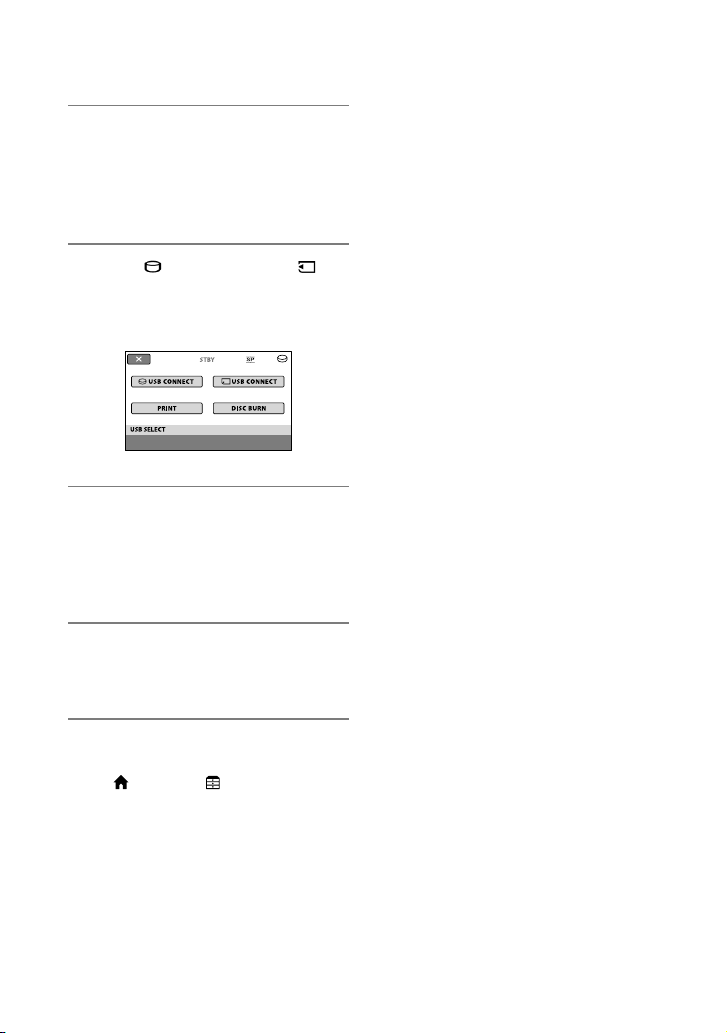
e [USB SELECT] screen appears
automatically.
3 Touch [ USB CONNECT] or [ USB
CONNECT] according to the media
on which the movie you want to dub
is recorded.
4 Operate the device to be connected,
and start recording.
For details, refer to the instruction
manuals supplied with the device to be
connected.
5 After dubbing is complete, touch
[END] [YES], then disconnect the
USB cable.
Tips
If the [USB SELECT] screen does not appear,
touch
(HOME) (OTHERS) [USB
CONNECT].
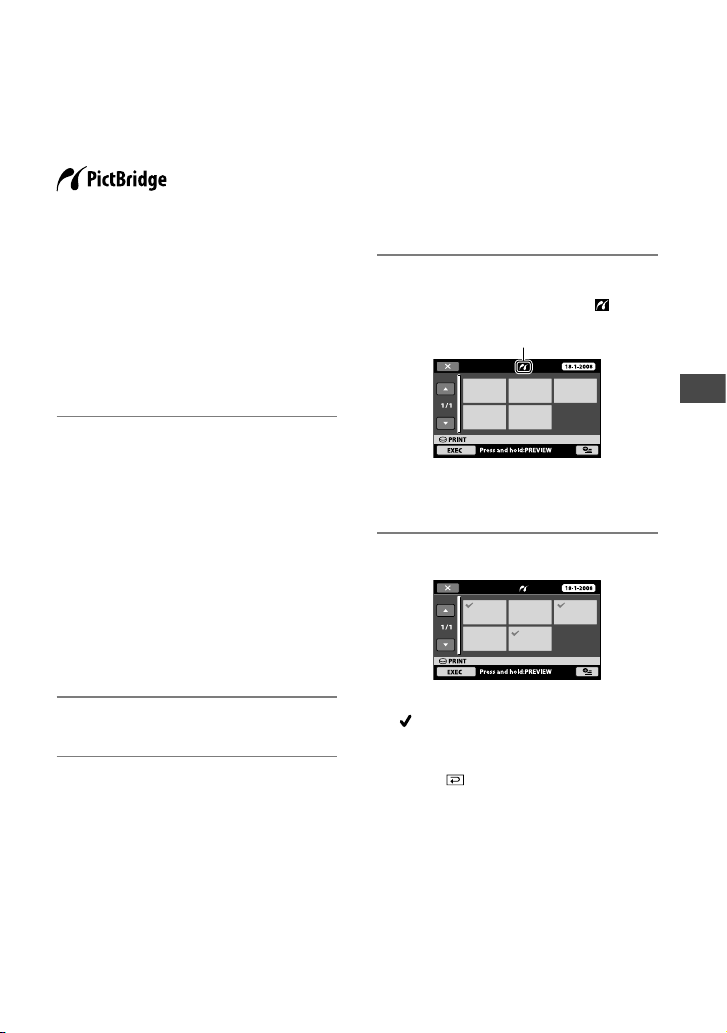
Editing
49
Printing recorded still images
(PictBridge compliant printer)
You can print out still images using a
PictBridge compliant printer, without
connecting the camcorder to a computer.
Connect your camcorder to the AC
Adaptor to obtain power from the wall
outlet (wall socket) (p. 13). Turn on the
printer.
Select beforehand the media which
contains the still image you want to print
(p. 20).
To print still images on a “Memory Stick
PRO Duo,” insert the “Memory Stick
PRO Duo” containing them into your
camcorder.
1 For DCR-SR55E/SR65E/SR75E/
SR85E:
Connect the Handycam Station to
the wall outlet (wall socket) using
the supplied AC Adaptor, then set
the camcorder onto the Handycam
Station securely.
For DCR-SR35E/SR36E/SR45E/
SR46E:
Connect your camcorder to the
wall outlet (wall socket) using the
supplied AC Adaptor.
2 Turn the POWER switch to turn it on.
3 For DCR-SR55E/SR65E/SR75E/
SR85E:
Connect the (USB) jack of the
Handycam Station to the printer
using the supplied USB cable (p. 99).
For DCR-SR35E/SR36E/SR45E/
SR46E:
Connect the (USB) jack of your
camcorder to the printer using the
supplied USB cable (p. 96).
e [USB SELECT] screen appears
automatically.
4 Touch [PRINT].
You can select a still image on the
screen.
5 Touch the still image to be printed.
e selected still image is marked with
.
Press and hold the still image on the
LCD screen to conrm.
Touch
to return to the previous
screen.
When connection is complete,
(PictBridge connecting) appears on
the screen.

50
6 Touch (OPTION), set the
following options, then touch .
[COPIES]: Set the number of copies of a
still image to be printed. You can set up
to 20 copies.
[DATE/TIME]: Select [DATE],
[DAY&TIME], or [OFF] (no date/time
printed).
[SIZE]: Select the paper size.
If you do not change the setting, go to
step 7.
7 Touch [EXEC] [YES] .
e still image selection screen appears
again.
To nish printing
Touch on the screen in step 4.
Notes
We can guarantee the operation of only models
that are PictBridge compatible.
Refer also to the instruction manual of the
printer to be used.
Do not attempt the following operations when
is on the screen. e operations may not be
performed properly.
Operate the POWER switch
Press (VIEW IMAGES)
Remove your camcorder from the Handycam
Station (DCR-SR55E/SR65E/SR75E/SR85E)
Remove the USB cable from your camcorder,
the Handycam Station (DCR-SR55E/SR65E/
SR75E/SR85E), or the printer
Remove the “Memory Stick PRO Duo” from
your camcorder while printing
still images
saved on it
If the printer stops working, disconnect the
USB cable, turn the printer o and on again,
and restart the operation from the beginning.
You can select only the paper sizes that the
printer can print.
On some printer models, the top, bottom, right,
and le edges of images may be trimmed. If
you print a still image recorded in a 16:9 (wide)
ratio, the le and right ends of the image may
be trimmed widely.
Some printer models may not support the
date printing function. Refer to your printer’s
instruction manual for details.
e still images described below may not be
printed out:
e still image edited by a computer
e still image recorded by another devices
e still image le exceeding 4 MB
e still image le larger than 3,680 × 2,760
pixels
Tips
PictBridge is an industry standard established
by the Camera & Imaging Products Association
(CIPA). You can print still images without
using a computer by connecting a printer
directly to a digital video camera or digital still
camera, regardless of model or manufacturer.
You can print a still image on the still image
playback screen by touching
(OPTION)
tab [PRINT].
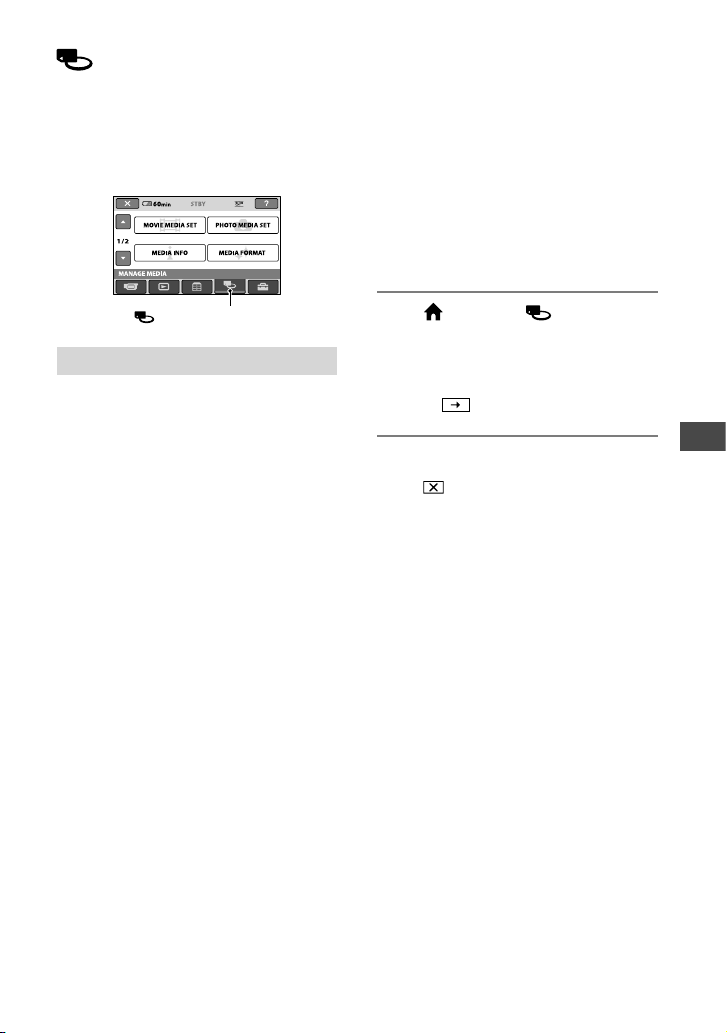
Utilizing recording media
51
Utilizing recording media
(MANAGE MEDIA)
category
is category enables you to use the hard
disk or a “Memory Stick PRO Duo” for
various purposes.
Item list
MOVIE MEDIA SET
You can select the media for movies (p. 20).
PHOTO MEDIA SET
You can select the media for still images
(p. 20).
MEDIA INFO
You can display the media infomation such
as recording time (p. 51).
MEDIA FORMAT
You can format the media and recover the
recordable free space (p. 52).
REPAIR IMG.DB F.
You can repair the mangement information
of the media (p. 54).
Checking the media
information
You can check the remaining recordable
time for each image quality of the media
selected on [MOVIE MEDIA SET] (p. 20).
Notes
During Easy Handycam operation, media
information cannot be checked. Cancel Easy
Handycam operation to check.
Touch (HOME) (MANAGE
MEDIA) [MEDIA INFO].
Tips
You can check the recordable free space, etc., by
touching
on the lower right screen.
To turn off the display
Touch .
Notes
e calculation for media space is 1MB =
1,048,576 bytes. e fractions less than MB are
discarded when the media space is displayed.
e displayed size of the whole hard disk space
will be slightly smaller than the size shown
below despite displaying both free and used
hard disk space.
DCR-SR35E/SR45E:
30,000 MB
DCR-SR36E/SR46E/SR55E/SR65E:
40,000 MB
DCR-SR75E/SR85E:
60,000 MB
Since there is a management le area, the
used space is not displayed as 0MB even if you
perform [MEDIA FORMAT] (p. 52).
Tips
Only the information of the media selected on
[MOVIE MEDIA SET] is displayed. Change the
media setting as necessary (p. 20).
(MANAGE MEDIA) category
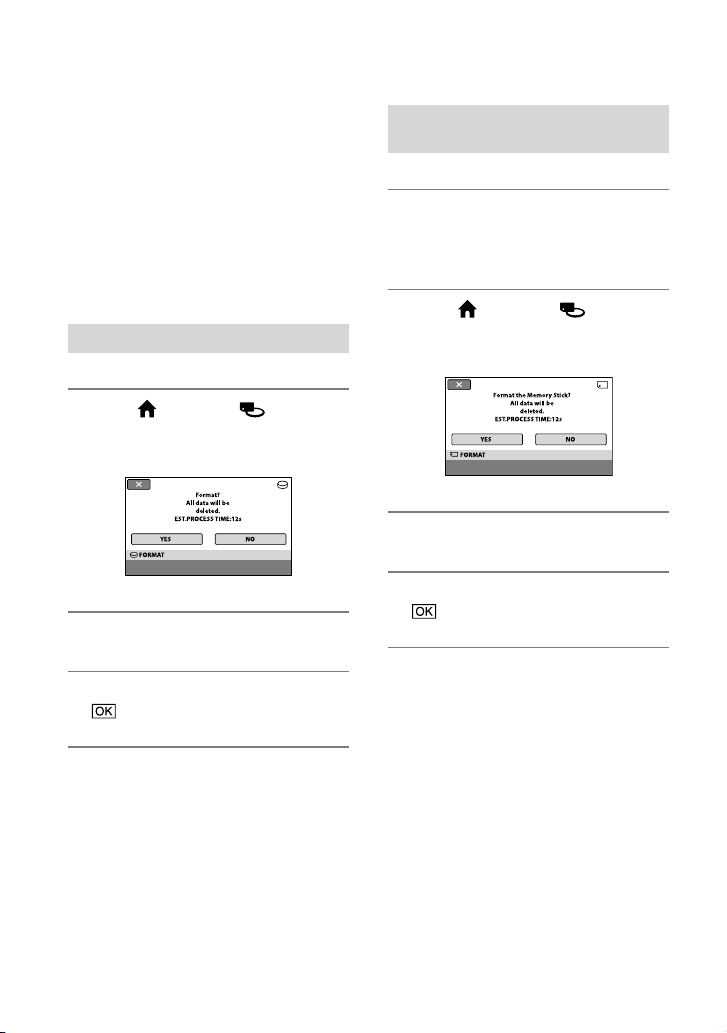
52
Deleting all images (Formatting)
Formatting deletes all the images to recover
recordable free space.
Connect your camcorder to the wall
outlet (wall socket) using the supplied AC
Adaptor for this operation (p. 13).
Notes
To avoid the loss of important images, you
should save them (p. 36) before performing
[MEDIA FORMAT].
While [MEDIA FORMAT] is activated, do not
disconnect the AC Adaptor.
Formatting the hard disk
1 Touch (HOME) (MANAGE
MEDIA) [MEDIA FORMAT]
[HDD].
2 Touch [YES] [YES].
3 When [Completed.] appears, touch
.
Formatting the “Memory Stick PRO
Duo”
1 Insert the “Memory Stick PRO
Duo” to be formatted into your
camcorder.
2 Touch (HOME) (MANAGE
MEDIA) [MEDIA FORMAT]
[MEMORY STICK].
3 Touch [YES] [YES].
4 When [Completed.] appears, touch
.
Notes
While the ACCESS lamp is lit, do not remove
the “Memory Stick PRO Duo” from your
camcorder.
Even the still images protected with another
device against accidental deletion are also
deleted.
Do not attempt the following operations when
[Executing…] is on the screen:
Operate the POWER switch or buttons
Remove the “Memory Stick PRO Duo”
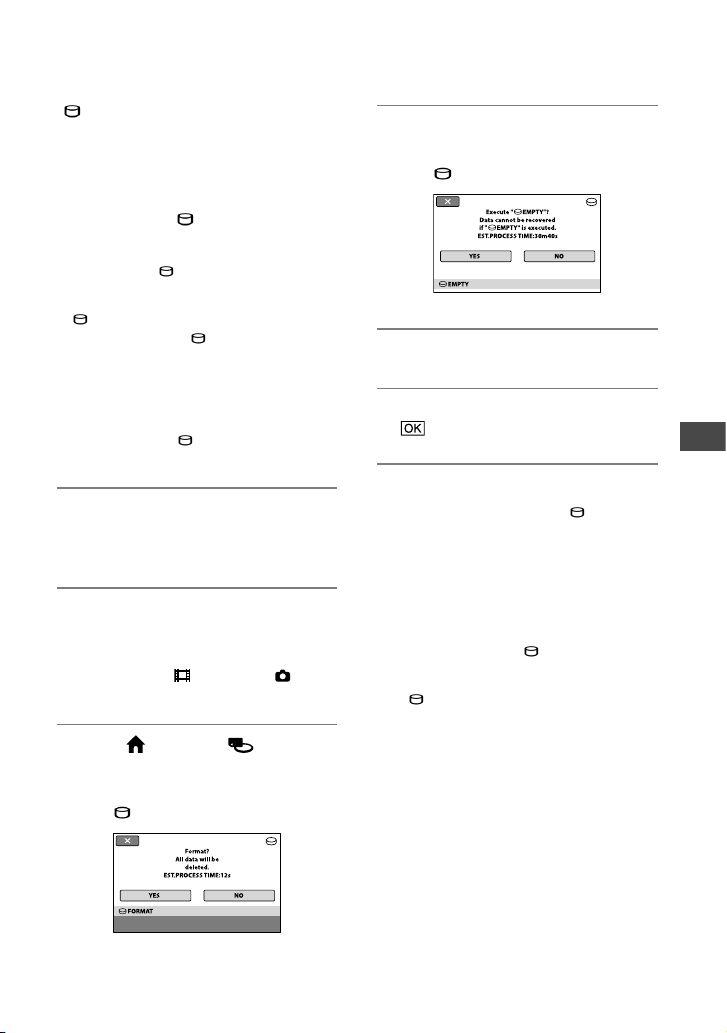
Utilizing recording media
53
Preventing data on the hard disk of the camcorder
from being recovered
[ EMPTY] allows you to write
unintelligible data onto the hard disk of
the camcorder. In this way, it may become
more dicult to recover any original
data. When you dispose of or transfer the
camcorder to others, it is recommended
that you perform [ EMPTY].
Notes
If you perform [ EMPTY], all the images are
deleted. To avoid the loss of important images,
they should be saved (p.
36) before performing
[
EMPTY].
You cannot perform [ EMPTY] unless you
connect the AC Adaptor to the wall outlet (wall
socket).
Disconnect all cables except the AC Adaptor.
Do not disconnect the AC Adaptor during the
operation.
While performing [ EMPTY], do not apply
any vibrations or shocks.
1 Connect the AC Adaptor to the DC
IN jack on your camcorder and a
wall outlet (wall socket).
2 Turn on your camcorder.
Tips
You can perform this operation, whichever
position of the
(Movie) lamp/ (Still)
lamp is lit.
3 Touch (HOME) (MANAGE
MEDIA) [MEDIA FORMAT]
[HDD].
e [
FORMAT] screen appears.
4 Press and hold the (back light)
button for a few seconds.
e [
EMPTY] screen appears.
5 Touch [YES] [YES].
6 When [Completed.] appears, touch
.
Notes
e actual performing time for [ EMPTY] is
as follows:
DCR-SR35E/SR45E:
approx. 30 minutes
DCR-SR36E/SR46E/SR55E/SR65E:
approx. 40 minutes
DCR-SR75E/SR85E:
approx. 60 minutes
If you stop performing [ EMPTY] while
[Executing…] appears, be sure to complete the
operation by performing [MEDIA FORMAT]
or [
EMPTY] when you use the camcorder
next time.
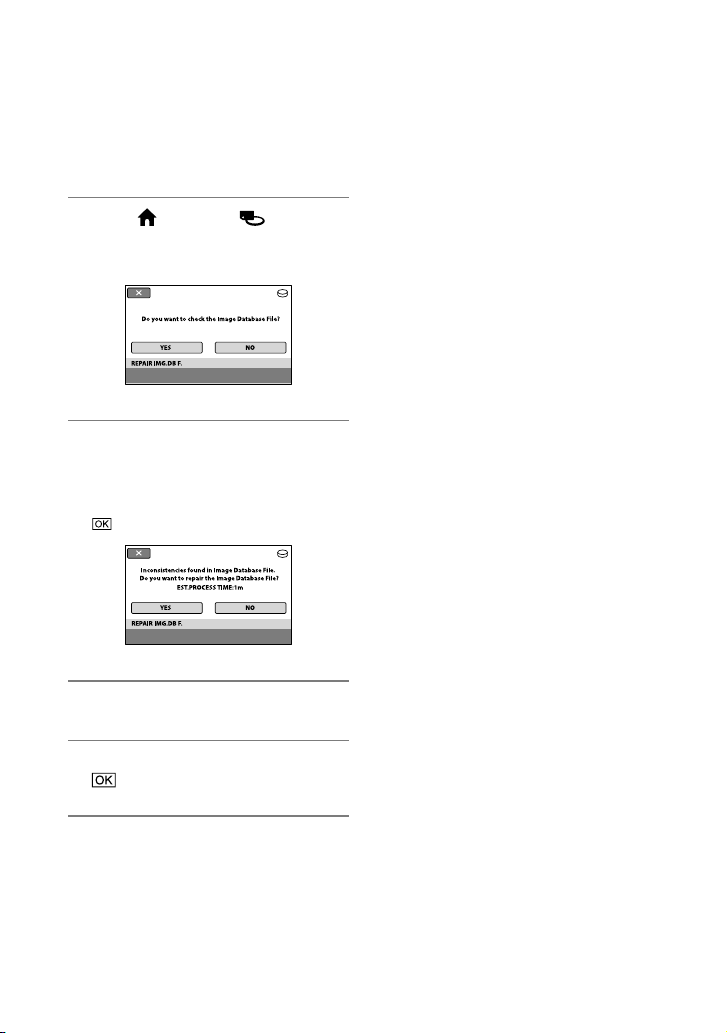
54
Repairing the image database le
is function checks the management
information and the consistency of movies/
still images in the media and repairs any
inconsistencies found.
1 Touch (HOME) (MANAGE
MEDIA) [REPAIR IMG.DB F.]
[HDD] or [MEMORY STICK].
2 Touch [YES].
Your camcorder will check the
management le.
When mismatching is not found, touch
to nish.
3 Touch [YES].
4 When [Completed.] appears, touch
.
Notes
Do not apply mechanical shock or vibration to
the camcorder during this operation.
Do not disconnect the battery or AC Adaptor
while repairing.
While the image database le on the “Memory
Stick PRO Duo” are being repaired, do not
remove the “Memory Stick PRO Duo.”
Repairing of a “Memory Stick PRO Duo” and
the hard disk are done separately.
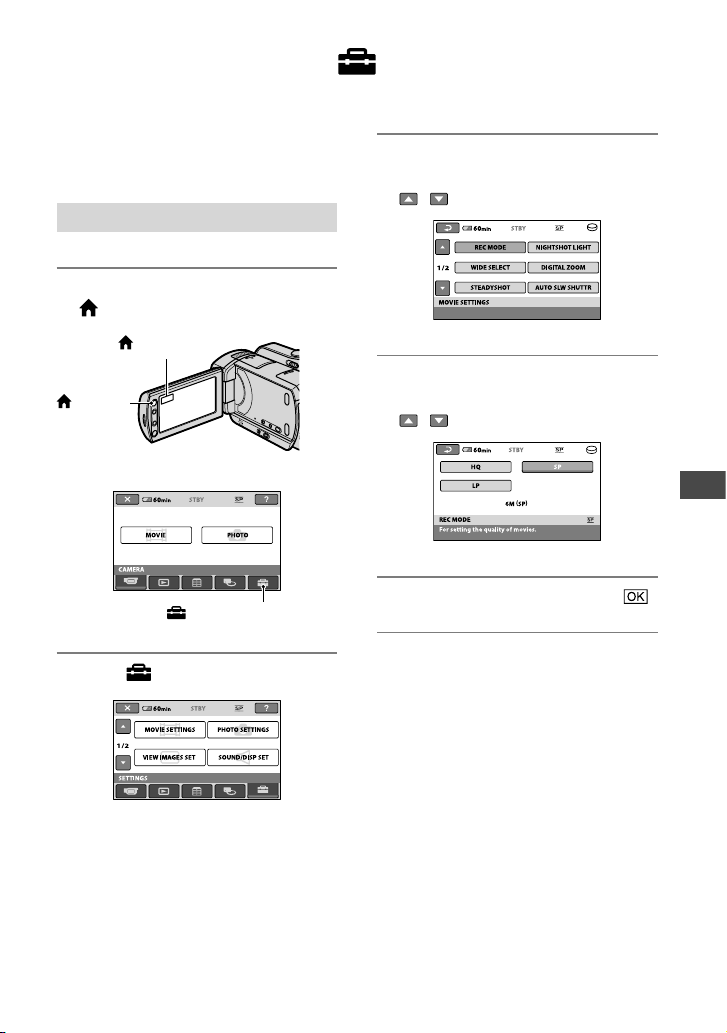
Customizing your camcorder
55
Customizing your camcorder
What you can do with the (SETTINGS) category of
the HOME MENU
You can change the recording functions
and the operating settings for your
convenience.
Using the HOME MENU
1 Turn on your camcorder, then press
(HOME).
2 Touch (SETTINGS).
3 Touch the desired setup item.
If the item is not on the screen, touch
/ to change the page.
4 Touch the desired item.
If the item is not on the screen, touch
/ to change the page.
5 Change the setting, then touch .
(SETTINGS) category
(HOME)
(HOME)
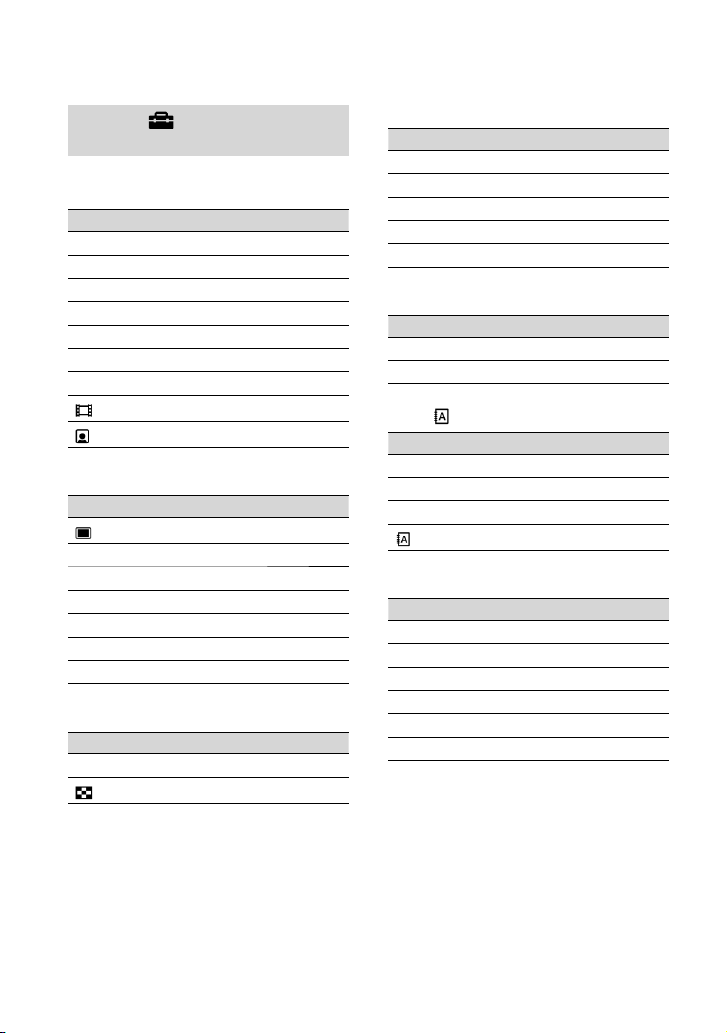
56
List of the (SETTINGS) category
items
MOVIE SETTINGS (p. 57)
Items Page
REC MODE
57
NIGHTSHOT LIGHT
57
WIDE SELECT
58
DIGITAL ZOOM
58
STEADYSHOT
58
AUTO SLW SHUTTR
58
GUIDEFRAME
58
REMAINING SET
59
INDEX SET*
2
59
PHOTO SETTINGS (p. 60)
Items Page
IMAGE SIZE*
2
60
FILE NO.
61
NIGHTSHOT LIGHT
57
GUIDEFRAME
58
FLASH MODE*
1
*
2
61
FLASH LEVEL*
1
61
REDEYE REDUC*
1
61
VIEW IMAGES SET (p. 62)
Items Page
DATA CODE
62
DISPLAY
63
SOUND/DISP SET*
3
(p. 64)
Items Page
VOLUME*
2
64
BEEP*
2
64
LCD BRIGHT
64
LCD BL LEVEL
64
LCD COLOR
64
OUTPUT SETTINGS (p. 65)
Items Page
TV TYPE
65
DISP OUTPUT
65
CLOCK/ LANG (p. 66)
Items Page
CLOCK SET*
2
17
AREA SET
66
SUMMERTIME
66
LANGUAGE SET*
2
66
GENERAL SET (p. 67)
Items Page
DEMO MODE
67
CALIBRATION
93
A.SHUT OFF
67
QUICK ON STBY
67
REMOTE CTRL*
1
67
DROP SENSOR
67
*
1
DCR-SR55E/SR65E/SR75E/SR85E
*
2
You can set these items also during Easy
Handycam operation (p. 22).
*
3
[SOUND SETTINGS] (during Easy Handycam
operation)
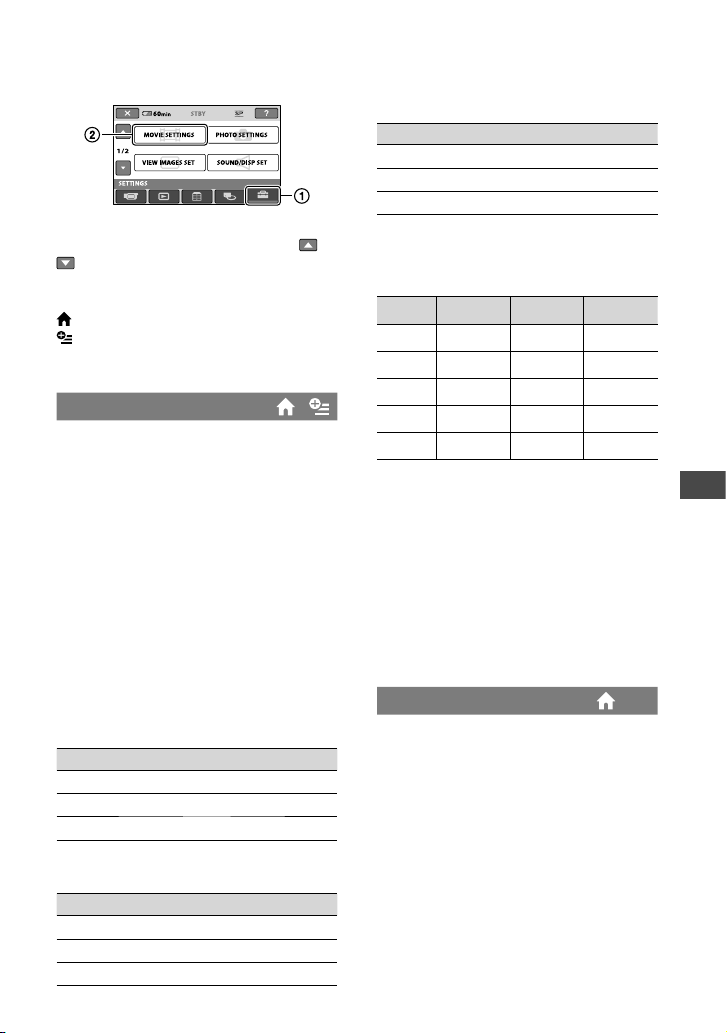
Customizing your camcorder
57
MOVIE SETTINGS
(Items for recording movies)
Touch , then .
If the item is not on the screen, touch /
to change the page.
How to set
(HOME) menu page 55
(OPTION) menu page 69
e default settings are marked with .
REC MODE
You can select a recording mode to record
a movie with the image quality from 3
levels.
HQ
Records in high quality mode.
(9M (HQ))
SP
Records in standard quality mode.
(6M (SP))
LP
Increases the recording time (Long Play).
(3M (LP))
Recordable time on hard disk (approx.)
DCR-SR35E/SR45E: (min.)
Recording mode Recordable time
HQ
430
SP
640
LP
1240
DCR-SR36E/SR46E/SR55E/SR65E:
(min.)
Recording mode Recordable time
HQ
580
SP
870
LP
1660
DCR-SR75E/SR85E: (min.)
Recording mode Recordable time
HQ
880
SP
1310
LP
2510
Recordable time on “Memory Stick PRO Duo”
(approx.)
(min.)
HQ SP LP
512M 6 (5) 9 (5) 15 (10)
1G 10 (10) 20 (10) 35 (25)
2G 25 (25) 40 (25) 80 (50)
4G 55 (50) 80 (50) 160 (105)
8G 115 (100) 170 (100) 325 (215)
e time in ( ) is the minimum recording time.
Notes
When using a “Memory Stick PRO Duo” made
by Sony Corporation. e recordable time
for movies varies depending on the recording
conditions, [REC MODE], and the type of
“Memory Stick.”
If you record in LP mode, the quality of
scenes may be degraded, or scenes with quick
movements may appear with block noise when
you play back the movie.
NIGHTSHOT LIGHT
When using either the NightShot plus
(p. 28) or [S. NIGHTSHOT PLS] (p. 74)
function to record, you can record clearer
images by setting [NIGHTSHOT LIGHT],
which emits infrared light (invisible), to
[ON] (the default setting).
Notes
Do not cover the infrared port with your ngers
or other objects.
Remove the conversion lens (optional).
e maximum shooting distance using
[NIGHTSHOT LIGHT] is about 3 m (10 feet).
58
WIDE SELECT
When recording images, you can select the
aspect ratio according to the TV connected.
Refer also to the instruction manuals
supplied with your TV.
16:9 WIDE
Records images to the full screen on a 16:9
(wide) TV screen.
4:3 ( )
Records images to the full screen on a 4:3
TV screen.
Notes
Set [TV TYPE] correctly according to the TV
connected for playback (p. 34).
DIGITAL ZOOM
You can select the maximum zoom level in
case you want to zoom greater than optical
zoom magnication (p. 27). Note that the
image quality decreases when you use the
digital zoom.
DCR-SR35E/SR36E/SR45E/SR46E:
OFF
Up to 40 × zoom is performed optically.
80×
Up to 40 × zoom is performed optically,
and aer that, up to 80 × zoom is
performed digitally.
2000×
Up to 40 × zoom is performed optically,
and aer that, up to 2000 × zoom is
performed digitally.
DCR-SR55E/SR65E/SR75E/SR85E:
OFF
Up to 25 × zoom is performed optically.
50×
Up to 25 × zoom is performed optically,
and aer that, up to 50 × zoom is
performed digitally.
2000×
Up to 25 × zoom is performed optically,
and aer that, up to 2000 × zoom is
performed digitally.
STEADYSHOT
You can compensate for camera
shake (the default setting is [ON]). Set
[STEADYSHOT] to [OFF] ( ) when using
a tripod (optional), then the image becomes
natural.
AUTO SLW SHUTTR
(Auto Slow Shutter)
When recording in dark places, the shutter
speed is automatically reduced to 1/25
second (the default setting is [ON]).
GUIDEFRAME
You can display the frame and check that
the subject is horizontal or vertical by
setting [GUIDEFRAME] to [ON].
e frame is not recorded. Press DISP/
BATT INFO to make the frame disappear.
(e default setting is [OFF]).
Tips
Positioning the subject at the cross point of the
guide frame makes a balanced composition.
e right side of the bar shows the digital
zooming factor. e zooming zone appears
when you select the zooming level.
Customizing your camcorder
59
REMAINING SET
ON
Always displays the remaining media
capacity indicator.
AUTO
Displays the remaining recording time
of movies for about 8 seconds in the
following situations.
When your camcorder recognizes the
remaining media capacity when the
POWER switch is set to
(Movie)
When you press DISP/BATT INFO to
switch the indicator from o to on when
the POWER switch is set to
(Movie)
When you select the movie recording mode
on the HOME MENU
Notes
When the remaining recordable time for
movies is less than 5 minutes, the indicator
stays on the screen.
INDEX SET
e camcorder detects faces automatically
during movie recording. e default setting
is [ON].
Face icons and their meanings
: is icon appears when the setting is
[ON].
: is icon ashes when your camcorder
detects a face. e icon stops ashing when
the face is recorded in Face Index.
: is icon appears when faces cannot be
recorded in Face Index.
To play back scenes using Face Index, see
page 31.
Notes
e number of faces detected in a movie is
limited.
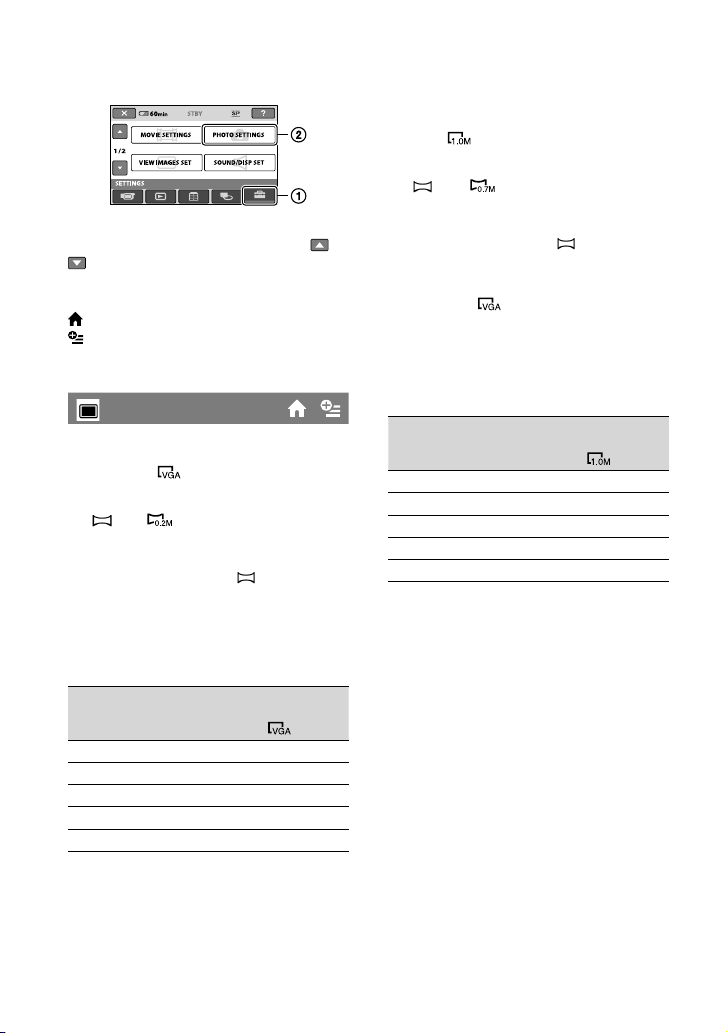
60
PHOTO SETTINGS
(Items for recording still images)
Touch , then .
If the item is not on the screen, touch /
to change the page.
How to set
(HOME) menu page 55
(OPTION) menu page 69
e default settings are marked with .
IMAGE SIZE
For DCR-SR35E/SR36E/SR45E/SR46E:
VGA(0.3M) (
)
Records still images clearly (640 × 480).
0.2M( )
Allows the maximum number of still
images to be recorded (640 × 360).
e image size is set to [
0.2M]
automatically in the 16:9 (wide) aspect
ratio.
Capacity of the “Memory Stick PRO Duo” and
the number of recordable images (approx.)*
VGA
640 × 480
512MB 2800
1GB 5800
2GB 11500
4GB 23000
8GB 47000
* e number of recordable still images shown
is for the maximum image size of your
camcorder. e actual number of recordable
still images is displayed on the LCD screen
during recording.
For DCR-SR55E/SR65E/SR75E/SR85E:
1.0M (
)
Records still images clearly (1,152 × 864).
0.7M ( )
Records still images clearly in the 16:9
(wide) ratio (1,152 × 648).
e image size is set to [
0.7M]
automatically in the 16:9 (wide) aspect
ratio.
VGA(0.3M) ( )
Allows the maximum number of still
images to be recorded (640 × 480).
Capacity of the “Memory Stick PRO Duo” and
the number of recordable images (approx.)*
1.0M
1152 × 864
512MB 800
1GB 1800
2GB 3700
4GB 7200
8GB 14500
* e number of recordable still images shown
is for the maximum image size of your
camcorder. e actual number of recordable
still images is displayed on the LCD screen
during recording.
Notes
When using a “Memory Stick PRO Duo” made
by Sony Corporation. e number of recordable
still images varies depending on the recording
conditions or type of “Memory Stick.”
You can record up to 9,999 still images on the
hard disk.
Tips
You can use a “Memory Stick Duo” with a
capacity of under 512MB for recording still
images.
Customizing your camcorder
61
FILE NO. (File number)
SERIES
Assigns le numbers of still images in
sequence even if the “Memory Stick PRO
Duo” is replaced with another one. e
le number is reset when a new folder is
created or the recording folder is replaced
with another.
RESET
Assigns le numbers in sequence,
following the largest le number existing
on the current recording media.
NIGHTSHOT LIGHT
See page 57.
GUIDEFRAME
See page 58.
FLASH MODE (DCR-SR55E/
SR65E/SR75E/SR85E)
You can set this function to record still
images when you use an external ash
(optional) that is compatible with your
camcorder. Attach the external ash to the
Active Interface Shoe (p.
98).
ON (
)
Flashes every time.
AUTO
Flashes automatically.
FLASH LEVEL (DCR-SR55E/
SR65E/SR75E/SR85E)
You can set this function when you use an
external ash (optional) that is compatible
with your camcorder.
HIGH (
)
Makes the ash level higher.
NORMAL ( )
LOW(
)
Makes the ash level lower.
REDEYE REDUC (DCR-SR55E/
SR65E/SR75E/SR85E)
You can set this function when you
record still images using an external ash
(optional) that is compatible with your
camcorder. Set to [ON], and select [AUTO]
or [ON] for the ash mode; appears
on the screen. You can prevent redeye by
activating the pre-ash before recording.
Notes
e redeye reduction may not produce the
desired eect due to individual dierences and
other conditions.
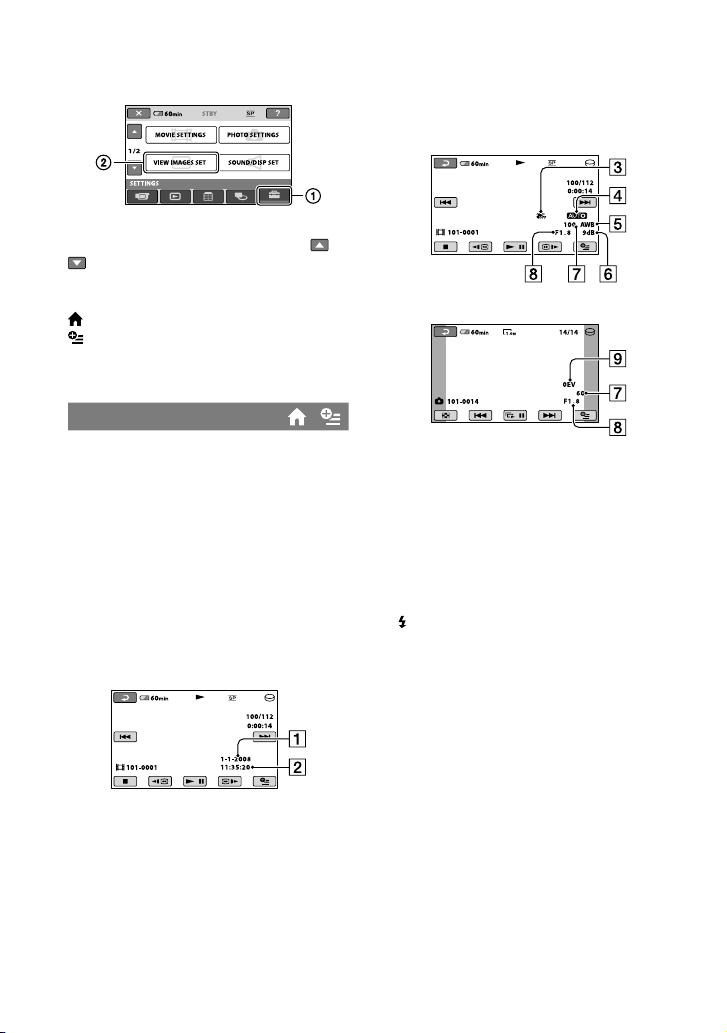
62
VIEW IMAGES SET
(Items to customize the display)
Touch , then .
If the item is not on the screen, touch /
to change the page.
How to set
(HOME) menu page 55
(OPTION) menu page 69
e default settings are marked with .
DATA CODE
During playback, displays the information
(data code) recorded automatically at the
time of recording.
OFF
Data code is not displayed.
DATE/TIME
Displays the date and time.
CAMERA DATA
Displays camera setting data.
DATE/TIME
Date
Time
CAMERA DATA
Movie
Still image
SteadyShot o
Brightness
White balance
Gain
Shutter speed
Aperture value
Exposure
Tips
appears for an image recorded using a ash
(DCR-SR55E/SR65E/SR75E/SR85E).
e data code is displayed on the TV screen if
you connect your camcorder to a TV.
e indicator toggles through the following
sequences as you press DATA CODE on the
Remote Commander: [DATE/TIME]
[CAMERA DATA] [OFF] (no indication)
(DCR-SR55E/SR65E/SR75E/SR85E).
Depending on the media condition, bars
[--:--:--] appear.

Customizing your camcorder
63
DISPLAY
You can select the number of thumbnails
that appear on the [VISUAL INDEX]
screen.
umbnail Glossary (p. 104)
ZOOM LINK
Change the number of thumbnails (6 or
12) with the power zoom lever on your
camcorder.*
6IMAGES
Displays thumbnails of 6 images.
12IMAGES
Displays thumbnails of 12 images.
* You can operate with the zoom buttons on the
LCD screen. Also, you can operate with the
buttons on the Remote Commander (DCR-
SR55E/SR65E/SR75E/SR85E).
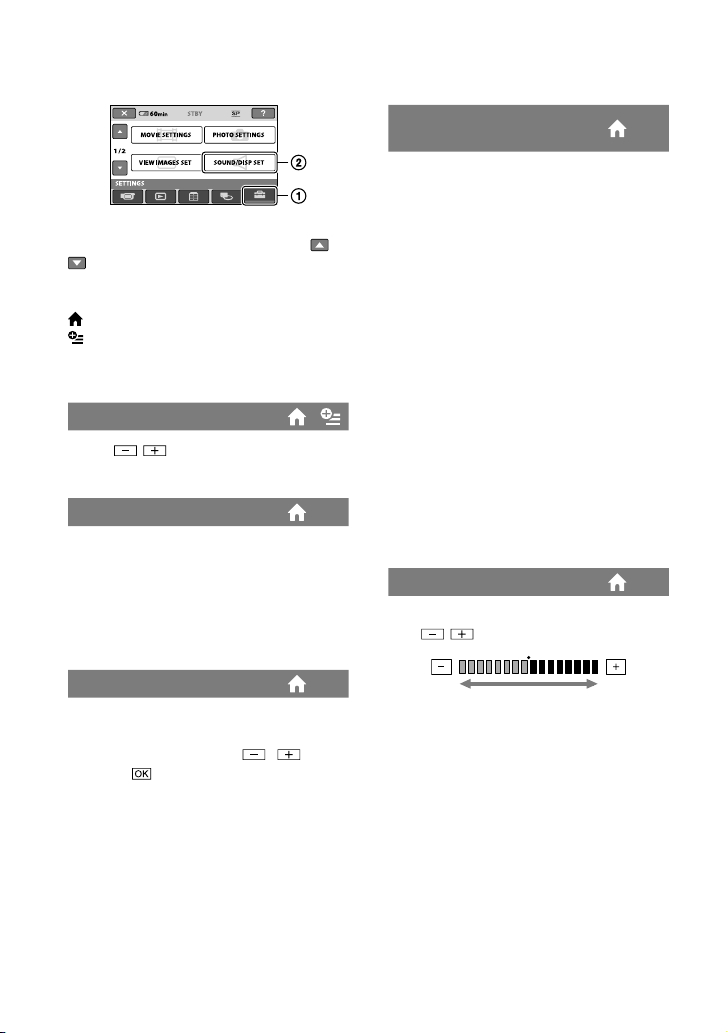
64
SOUND/DISP SET
(Items to adjust sound and the screen)
Touch , then .
If the item is not on the screen, touch /
to change the page.
How to set
(HOME) menu page 55
(OPTION) menu page 69
e default settings are marked with .
VOLUME
Touch / to adjust the volume
(p. 30).
BEEP
ON
A melody sounds when you start/stop
recording, or operate the touch panel.
OFF
Cancels the melody and shutter sound.
LCD BRIGHT
You can adjust the brightness of the LCD
screen.
Adjust the brightness with / .
Touch
.
Tips
is adjustment does not aect the recorded
images in any way.
LCD BL LEVEL
(LCD backlight level)
You can adjust the brightness of the LCD
screen’s backlight.
NORMAL
Standard brightness.
BRIGHT
Brightens the LCD screen.
Notes
When you connect your camcorder to a wall
outlet (wall socket), [BRIGHT] is automatically
selected for the setting.
When you select [BRIGHT], battery life is
slightly reduced during recording.
If you open the LCD panel 180 degrees to face
the screen outside and close the LCD panel
to the camcorder body, the setting becomes
[NORMAL] automatically.
Tips
is adjustment does not aect the recorded
images in any way.
LCD COLOR
You can adjust the color of the LCD screen
with / .
Tips
is adjustment does not aect the recorded
images in any way.
Low intensity High intensity
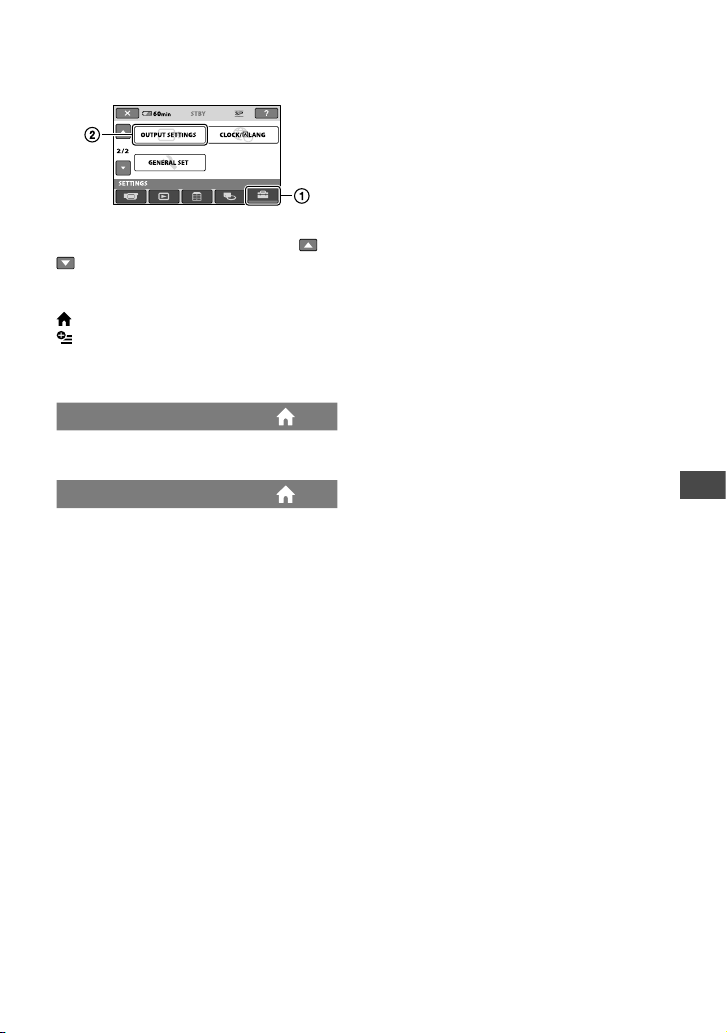
Customizing your camcorder
65
OUTPUT SETTINGS
(Items for when connecting other devices)
Touch , then .
If the item is not on the screen, touch /
to change the page.
How to set
(HOME) menu page 55
(OPTION) menu page 69
e default settings are marked with .
TV TYPE
See page 35.
DISP OUTPUT
LCD PANEL
Shows displays such as the time code on
the LCD screen.
V-OUT/PANEL
Shows displays such as the time code on
the TV screen and the LCD screen.
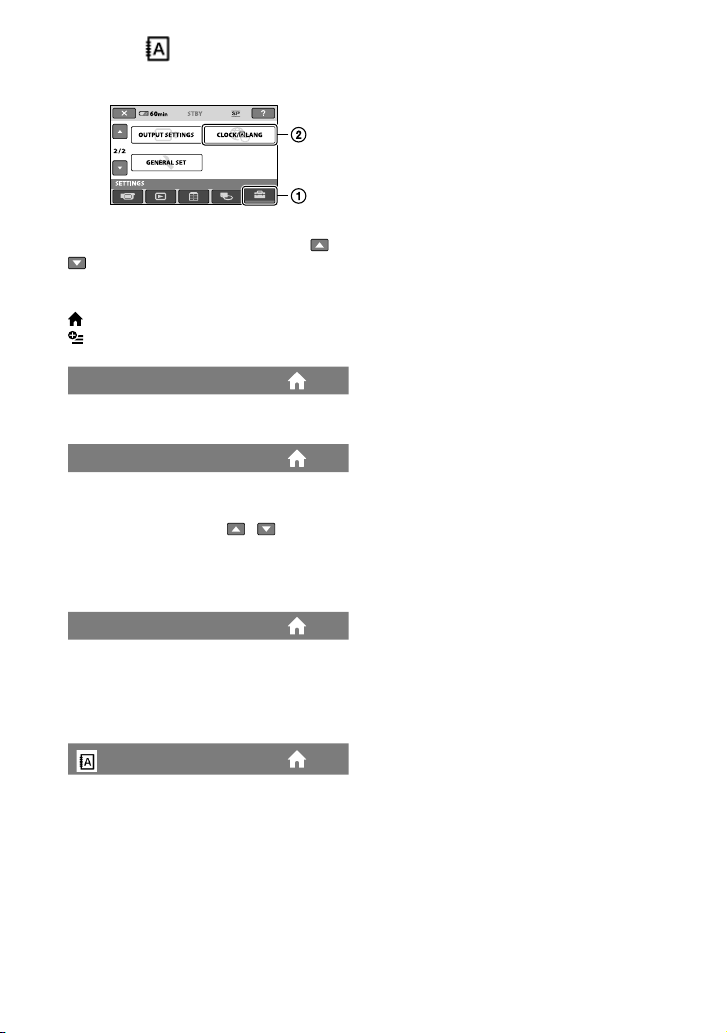
66
CLOCK/ LANG
(Items to set clock and language)
Touch , then .
If the item is not on the screen, touch /
to change the page.
How to set
(HOME) menu page 55
(OPTION) menu page 69
CLOCK SET
See page 17.
AREA SET
You can adjust a time dierence without
stopping the clock.
Set your local area using / when
using your camcorder in other time zones.
Refer to the world time dierence on page
88.
SUMMERTIME
You can change this setting without
stopping the clock.
Set to [ON] to move the time forward 1
hour.
LANGUAGE SET
You can select the language to be used on
the LCD screen.
Tips
Your camcorder oers [ENG[SIMP]]
(simplied English) for when you cannot nd
your native tongue among the options.
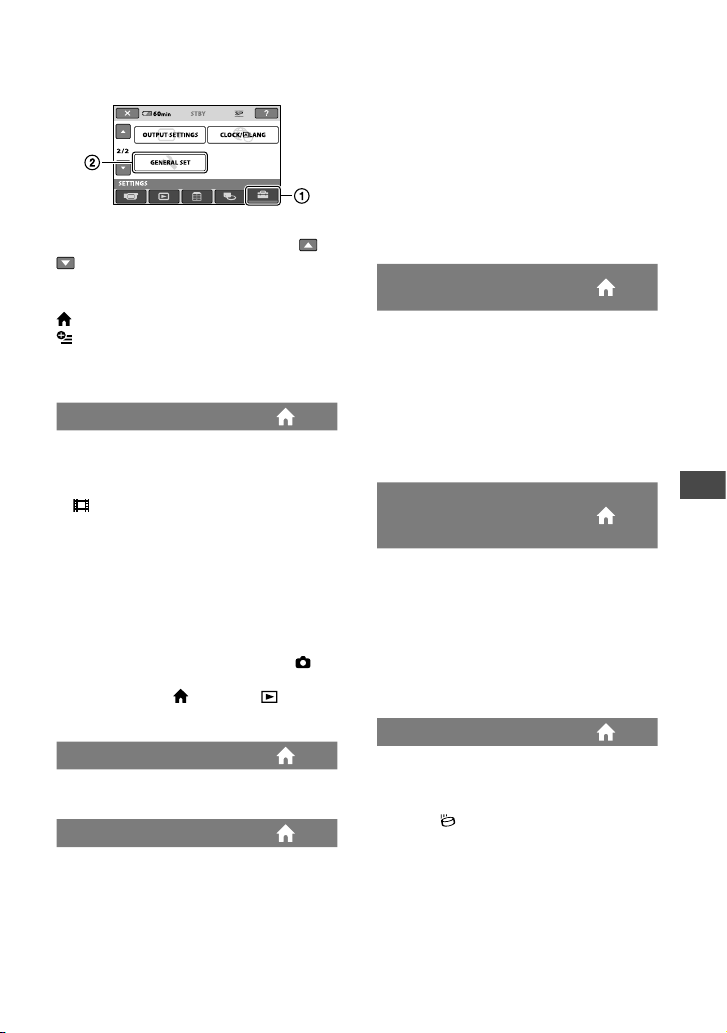
Customizing your camcorder
67
GENERAL SET
(Other setup items)
Touch , then .
If the item is not on the screen, touch /
to change the page.
How to set
(HOME) menu page 55
(OPTION) menu page 69
e default settings are marked with .
DEMO MODE
e default setting is [ON], allowing you
to view the demonstration in about 10
minutes, aer you turn the POWER switch
to (Movie).
Tips
e demonstration will be suspended in the
following situations.
When you press START/STOP or PHOTO
When you touch the screen during the
demonstration (e demonstration starts
again aer about 10 minutes)
When you turn the POWER switch to
(Still)
When you press (HOME) or (VIEW
IMAGES)
CALIBRATION
See page 93.
A.SHUT OFF (Auto shut o)
5min
e camcorder is automatically turned o
when you do not operate your camcorder
for more than approximately 5 minutes.
NEVER
e camcorder is not automatically turned
o.
Notes
When you connect your camcorder to a
wall outlet (wall socket), [A.SHUT OFF] is
automatically set to [NEVER].
QUICK ON STBY (Quick on
standby)
You can set the time that you want the
camcorder to remain on before turning o
in sleep mode (p. 27). (e default setting
is [10min].)
Notes
[A.SHUT OFF] does not work during sleep
mode.
REMOTE CTRL (Remote
control) (DCR-SR55E/SR65E/
SR75E/SR85E)
e default setting is [ON], allowing you
to use the supplied Remote Commander
(p. 100).
Tips
Set to [OFF] to prevent your camcorder from
responding to a command sent by another VCR
remote control unit.
DROP SENSOR
[DROP SENSOR] is set to [ON] as the
default setting. When the drop sensor
has detected that the camcorder has been
dropped ( appears), recording or playing
back recorded images may be disabled to
protect the internal hard disk.
Notes
Set the drop sensor to [ON] (default setting)
when you use the camcorder. Otherwise, if you
drop the camcorder, the internal hard disk may
be damaged.

68
In a non-gravity situation, the drop sensor is
activated. When you record images during
activity such as roller-coasting or skydiving, you
can set [DROP SENSOR] to [OFF] (
) so that
the drop sensor is not activated.
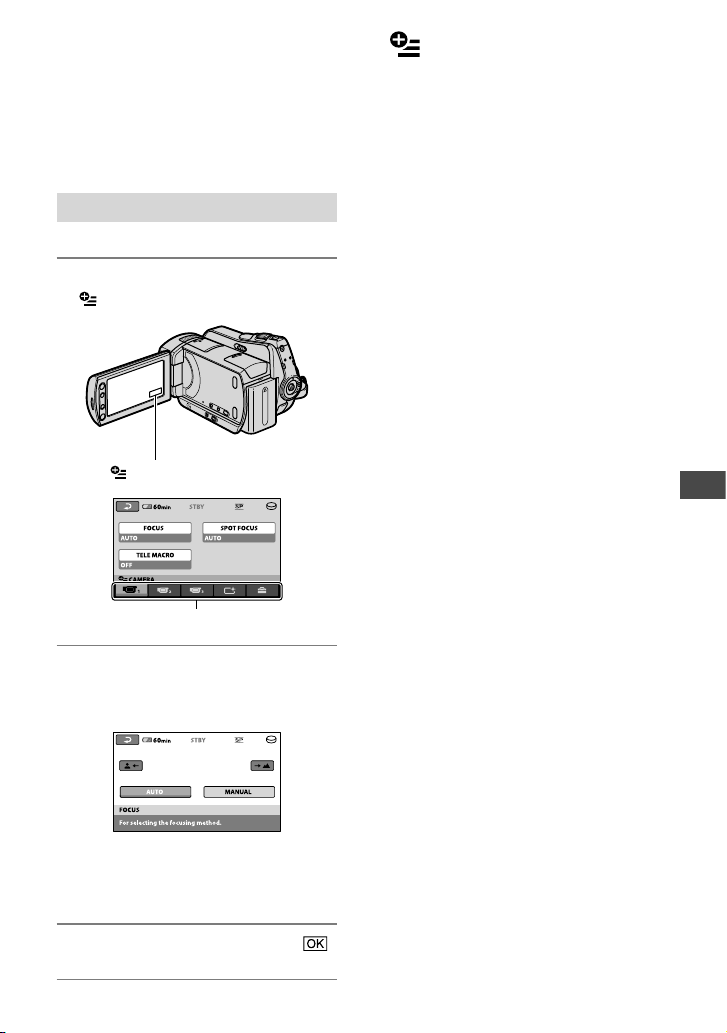
Customizing your camcorder
69
Activating functions using the OPTION MENU
e OPTION MENU appears just like the
pop-up window that appears when you
right-click the mouse on a computer.
Various available functions are displayed.
Using the OPTION MENU
1 While using your camcorder, touch
(OPTION) on the screen.
2 Touch the desired item.
If you cannot nd the desired item,
touch another tab to change the page.
If you cannot nd the item anywhere,
the function does not work under the
current situation.
3 Change the setting, then touch .
Notes
e tabs and items that appear on the screen
depend on the recording/playback status of
your camcorder at the time.
Some items appear without a tab.
e OPTION MENU cannot be used during
Easy Handycam operation.
(OPTION)
Tab
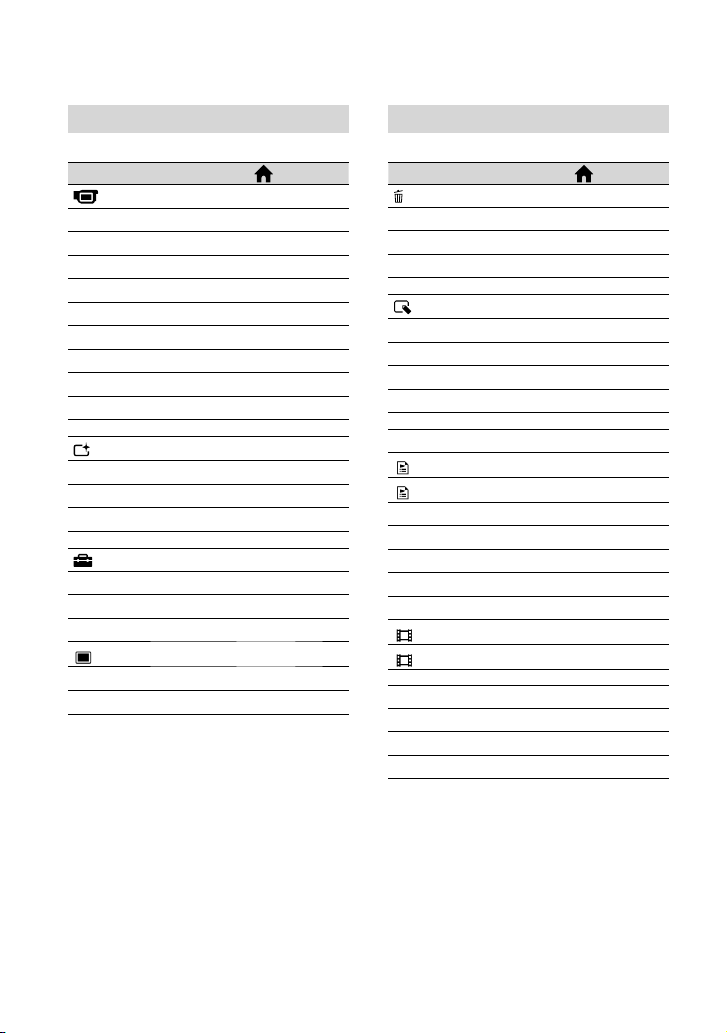
70
Recording items on the OPTION MENU
Items
*
Page
tab
FOCUS
71
SPOT FOCUS
71
TELE MACRO
71
EXPOSURE
72
SPOT METER
72
SCENE SELECTION
72
WHITE BAL.
73
COLOR SLOW SHTR
74
S. NIGHTSHOT PLS
74
tab
FADER
74
D.EFFECT
75
PICT.EFFECT
75
tab
REC MODE
57
BLT-IN ZOOM MIC
75
MICREF LEVEL
75
IMAGE SIZE
60
SELF-TIMER
75
FLASH MODE**
61
* Items that are included also in the HOME
MENU.
** DCR-SR55E/SR65E/SR75E/SR85E
Viewing items on the OPTION MENU
Items
*
Page
tab
DELETE
37
DELETE by date
38
DELETE ALL
38
tab
DIVIDE
43
ERASE
45
ERASE ALL
45
MOVE
45
-- (A tab depends on the situation)
ADD
44
ADD by date
44
PRINT
49
SLIDE SHOW
33
VOLUME
30
DATA CODE
62
SLIDE SHOW SET
33
ADD
44
ADD by date
44
-- (No tab)
COPIES
49
DATE/TIME
49
SIZE
49
* Items that are included also in the HOME
MENU.
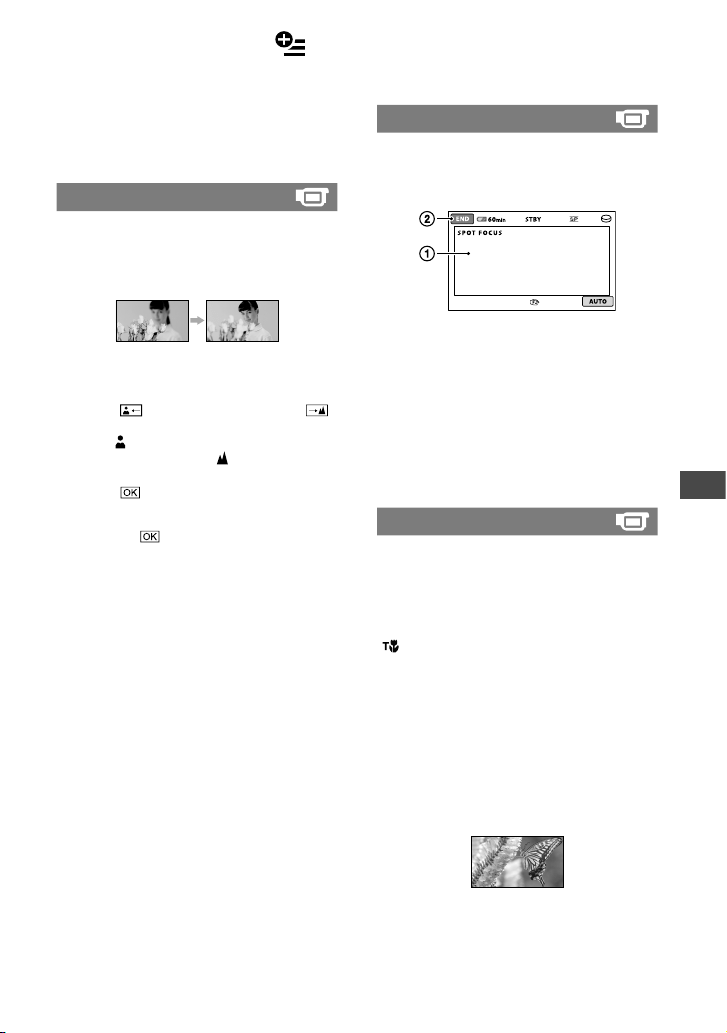
Customizing your camcorder
71
Functions set in the OPTION MENU
Items you can set only on the OPTION
MENU will be described below.
e default settings are marked with .
FOCUS
You can adjust the focus manually. You can
select this function also when you want to
focus on a certain subject intentionally.
Touch [MANUAL].
appears.
Touch
(focusing on close subjects)/
(focusing on distant subjects) to sharpen the
focus.
appears when the focus cannot be
adjusted any closer, and
appears when the
focus cannot be adjusted farther away.
Touch
.
To adjust the focus automatically, touch
[AUTO] in step .
Notes
e minimum possible distance between
camcorder and subject while maintaining sharp
focus is about 1 cm (about 13/32 in.) for wide
angle and about 80 cm (about 2 5/8 feet) for
telephoto.
Tips
It is easier to focus on the subject by moving
the power zoom lever towards T (telephoto) to
adjust the focus, then towards W (wide angle)
to adjust the zoom for recording. When you
want to record a subject at close range, move
the power zoom lever to W (wide angle), then
adjust the focus.
e focal distance information (the distance at
which the subject is focused on, for when it is
dark and hard to adjust focus) appears for a few
seconds in the following cases: (It will not be
displayed correctly if you are using a conversion
lens (optional).)
When the focus mode is switched from
automatic to manual.
When you set focus manually.
SPOT FOCUS
You can select and adjust the focal point to
aim it at a subject not located at the center
of the screen.
Touch the subject on the screen.
appears.
Touch [END].
To adjust the focus automatically, touch
[AUTO] [END] in step .
Notes
If you set [SPOT FOCUS], [FOCUS] is
automatically set to [MANUAL].
TELE MACRO
is is useful to shoot small subjects, such
as owers or insects. You can blur out
backgrounds and the subject stands out
clearer.
When you set [TELE MACRO] to [ON]
( ), the zoom (p. 27) moves to the top of
the T (telephoto) side automatically and
allows recording subjects at a close distance
as follows:
DCR-SR35E/SR36E/SR45E/SR46E:
down to about 43 cm (17 in.)
DCR-SR55E/SR65E/SR75E/SR85E:
down to about 38 cm (15 in.)
To cancel, touch [OFF], or zoom to wide-
angle (W side).
Notes
When recording a distant subject, focusing may
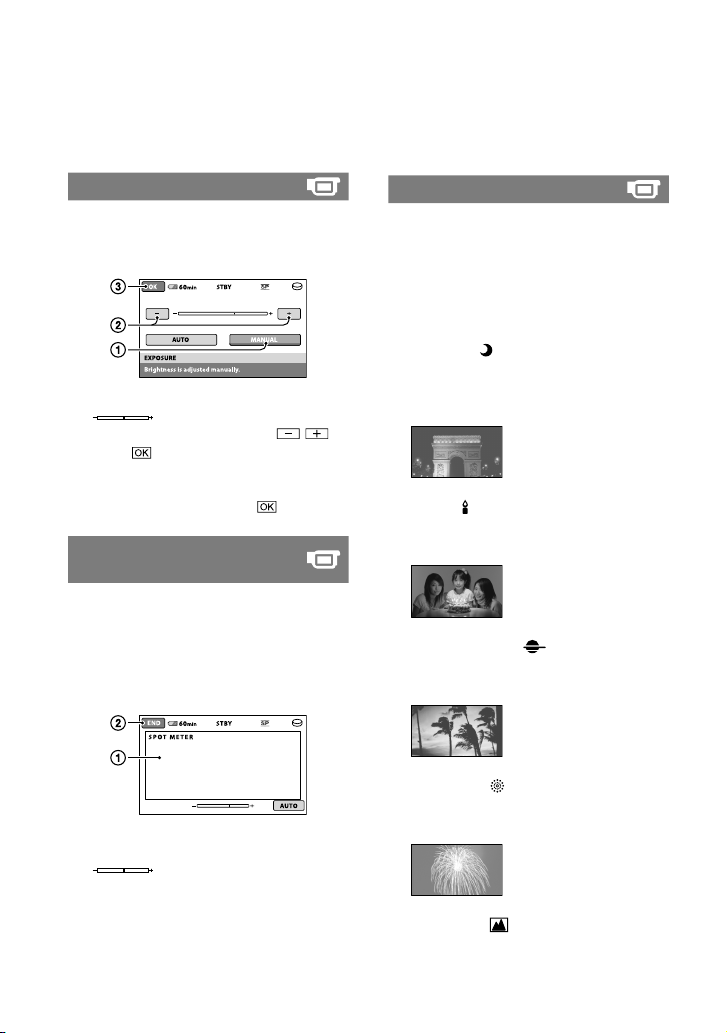
72
be dicult and can take some time.
Adjust the focus manually ([FOCUS], p. 71)
when it is hard to focus automatically.
EXPOSURE
You can x the brightness of an image
manually. Adjust the brightness when the
subject is too bright or too dark.
Touch [MANUAL].
appears.
Adjust the exposure by touching
/ .
Touch
.
To return the setting to automatic
exposure, touch [AUTO] in step .
SPOT METER (Flexible spot
meter)
You can adjust and x the exposure
to the subject, so that it is recorded in
suitable brightness even when there is
strong contrast between the subject and
the background, such as subjects in the
spotlight on stage.
Touch the point where you want to x and
adjust the exposure on the screen.
appears.
Touch [END].
To return the setting to automatic
exposure, touch [AUTO] [END] in
step .
Notes
If you set [SPOT METER], [EXPOSURE] is
automatically set to [MANUAL].
SCENE SELECTION
You can record images eectively in
various situations.
AUTO
Select to automatically record images
eectively without the [SCENE
SELECTION] function.
TWILIGHT* ( )
Select to maintain the darkening
atmosphere of the distant surroundings in
twilight scenes.
CANDLE ( )
Select to maintain the dim atmosphere of a
candlelit scene.
SUNRISE&SUNSET* ( )
Select to reproduce the atmosphere of
scenes such as sunsets or sunrises.
FIREWORKS* ( )
Select to take spectacular shots of
reworks.
LANDSCAPE* ( )
Select to shoot distant subjects clearly.
is setting also prevents your camcorder
from focusing on glass or metal mesh in
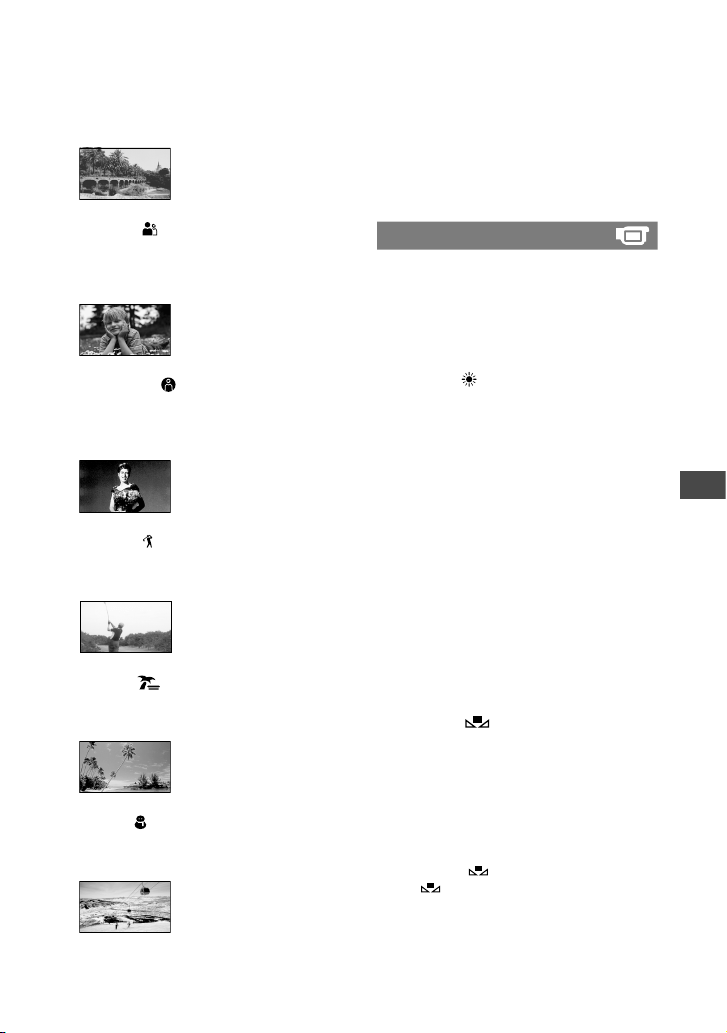
Customizing your camcorder
73
windows between the camcorder and the
subject.
PORTRAIT ( )
Select to bring out the subject such as
people or owers while creating a so
background.
SPOTLIGHT** ( )
Select to prevent people’s faces from
appearing excessively white when subjects
are lit by strong light.
SPORTS** ( )
Select to minimize shake when shooting
fast moving subjects.
BEACH** ( )
Select to take the vivid blue of the ocean
or a lake.
SNOW** ( )
Select to take bright pictures of a white
landscape.
* Adjusted to focus on subjects farther away
only.
**
Adjusted not to focus on subjects a short
distance away.
Notes
If you set [SCENE SELECTION], [WHITE
BAL.] setting is canceled.
WHITE BAL. (White balance)
You can adjust the color balance to the
brightness of the recording environment.
AUTO
e white balance is adjusted
automatically.
OUTDOOR ( )
e white balance is adjusted to be
appropriate for the following recording
conditions:
Outdoors
Night views, neon signs and reworks
Sunrise or sunset
Under daylight uorescent lamps
INDOOR ()
e white balance is adjusted to be
appropriate for the following recording
conditions:
Indoors
At party scenes or studios where the
lighting conditions change quickly
Under video lamps in a studio, or under
sodium lamps or incandescent-like color
lamps
ONE PUSH ( )
e white balance will be adjusted
according to the ambient light.
Touch [ONE PUSH].
Frame a white object such as a piece of
paper, to ll the screen under the same
lighting conditions as you will shoot
the subject.
Touch [
].
ashes quickly. When the white
balance has been adjusted and stored
in the memory, the indicator stops
ashing.
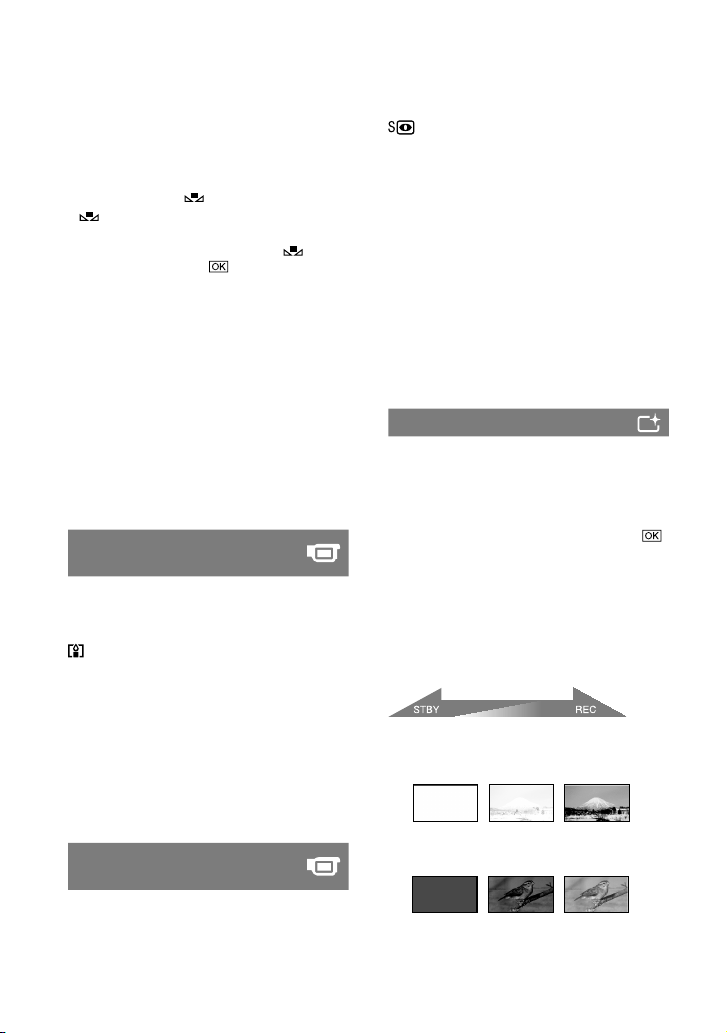
74
Notes
Set [WHITE BAL.] to [AUTO] or adjust the
color in [ONE PUSH] under white or cool
white uorescent lamps.
When you select [ONE PUSH], keep framing
white object while
is ashing quickly.
ashes slowly if [ONE PUSH] could not be
set.
When [ONE PUSH] was selected, if keeps
ashing aer touching
, set [WHITE BAL.]
to [AUTO].
When you set [WHITE BAL.], [SCENE
SELECTION] is automatically set to [AUTO].
Tips
If you changed the battery pack, or moved your
camcorder to or from outdoors when [AUTO]
was selected, aim your camcorder at a nearby
white object with [AUTO] for about 10 seconds
for better color balance adjustment.
If you change the [SCENE SELECTION]
settings or move your camcorder outdoors
during white balance setting with [ONE PUSH],
you need to repeat the [ONE PUSH] operation.
COLOR SLOW SHTR
(Color Slow Shutter)
When you set [COLOR SLOW SHTR] to
[ON], you can record an image brighter in
color even in dark places.
appears on the screen.
To cancel [COLOR SLOW SHTR], touch
[OFF].
Notes
Adjust the focus manually ([FOCUS], p. 71)
when it is hard to focus automatically.
e shutter speed of your camcorder changes
depending on the brightness, which may result
in a slowdown of the motion of the image.
S. NIGHTSHOT PLS (Super
NightShot plus)
e image will be recorded at a maximum
of 16 times the sensitivity of NightShot plus
recording if you set [S. NIGHTSHOT PLS]
to [ON] while the NIGHTSHOT PLUS
switch (p. 28) is also set to ON.
appears on the screen.
To return to the normal setting, set [S.
NIGHTSHOT PLS] to [OFF].
Notes
Do not use [S. NIGHTSHOT PLS] in bright
places. is may cause a malfunction.
Do not cover the infrared port with your ngers
or other objects.
Remove the conversion lens (optional).
Adjust the focus manually ([FOCUS], p. 71)
when it is hard to focus automatically.
e shutter speed of your camcorder changes
depending on the brightness, which may result
in a slowdown of the motion of the image.
FADER
You can record a transition with the
following eects adding to the interval
between scenes.
Select the desired eect in [STBY] (to fade in)
or [REC] (to fade out) mode, then touch
.
Press START/STOP.
e fader indicator stops ashing and
disappears when the fade is complete.
To cancel the fader before starting the
operation, touch [OFF] in step .
If you press START/STOP, the setting is
canceled.
WHITE FADER
BLACK FADER
Fading out Fading in
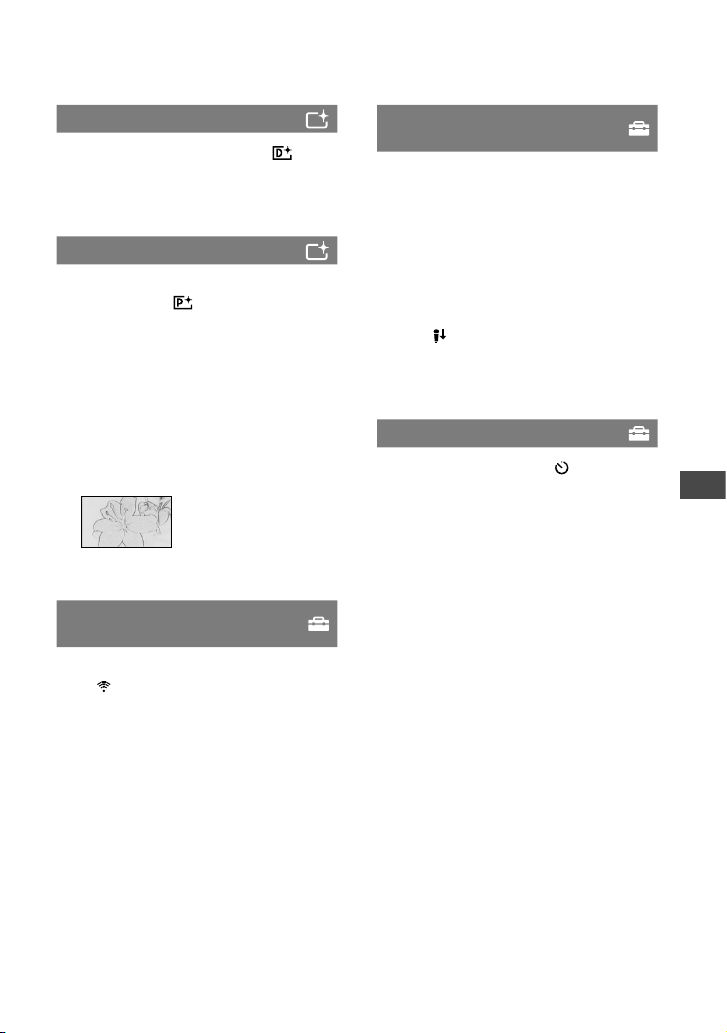
Customizing your camcorder
75
D.EFFECT (Digital eect)
When you select [OLD MOVIE],
appears and you can add an old movie
eect to images.
To cancel [D.EFFECT], touch [OFF].
PICT.EFFECT (Picture eect)
You can add special eects to an image
during recording. appears.
OFF
Does not use [PICT.EFFECT] function.
SEPIA
Images appear in sepia.
B&W
Images appear in black and white.
PASTEL
Images appear as a pale pastel drawing.
BLT-IN ZOOM MIC (Builtin zoom
microphone)
When you set [BLT-IN ZOOM MIC] to
[ON]( ), you can record a movie and
control the recording sound level as you
move the power zoom lever or press the
zoom buttons on the LCD frame. (e
default setting is [OFF].)
MICREF LEVEL (Microphone
reference level)
You can select the microphone level for
recording sound.
Select [LOW] when you want to record
exciting and powerful sound in a concert
hall, etc.
NORMAL
Records various surround sounds,
converting them into the certain level.
LOW ( )
Records surround sound faithfully.
is setting is not suitable for recording
conversations.
SELF-TIMER
When you set this to [ON], appears.
Press PHOTO to start the count down,
a still image is recorded aer about 10
seconds. To cancel the count down, touch
[RESET].
To cancel the self-timer, select [OFF].
Tips
You can also operate by pressing PHOTO on
the Remote Commander (DCR-SR55E/SR65E/
SR75E/SR85E) (p.
100).

76
Troubleshooting
Troubleshooting
If you run into any problems using your
camcorder, use the following table to
troubleshoot the problem. If the problem
persists, disconnect the power source and
contact your Sony dealer.
Overall operations/Easy Handycam
operation/Remote Commander ............. 76
Batteries/Power sources ........................... 77
LCD screen ................................................ 78
“Memory Stick PRO Duo” ...................... 78
Recording................................................... 78
Playing back .............................................. 80
Editing images on your camcorder ........ 81
Dubbing/Connecting to other devices
..................................................................... 81
Functions that cannot be used
simultaneously .......................................... 81
Notes before sending your camcorder for
repair
Your camcorder may require initializing
or changing the current hard disk of the
camcorder, depending on the problem. In this
case, the data stored on the hard disk will be
deleted. Be sure to save the data on the hard
disk (p.
36) on other media (backup) before
sending your camcorder for repair. We will not
compensate you for any loss of hard disk data.
During repair, we may check a minimum
amount of data stored on the hard disk in order
to investigate the problem. However, your Sony
dealer will neither copy nor retain your data.
Overall operations/Easy Handycam
operation/Remote Commander
The power does not turn on.
Attach a charged battery pack to the
camcorder (p. 13).
Connect the plug of the AC Adaptor to the
wall outlet (wall socket) (p. 13).
Set the camcorder onto the Handycam
Station securely (DCR-SR55E/SR65E/
SR75E/SR85E) (p.
13).
The camcorder does not operate even
when the power is set to on.
It takes a few seconds for your camcorder
to be ready to shoot aer the power is
turned on. is is not a malfunction.
Disconnect the AC Adaptor from the wall
outlet (wall socket) or remove the battery
pack, then reconnect it aer about 1
minute. If the functions still do not work,
press RESET (p.
97) using a sharp-pointed
object. (If you press RESET, all settings,
including the clock setting, are reset.)
e temperature of your camcorder is
extremely high. Turn o your camcorder
and leave it for a while in a cool place.
e temperature of your camcorder is
extremely low. Turn o the camcorder
and take it to a warm place. Leave the
camcorder there for a while, then turn on
the camcorder.
Buttons do not work.
During Easy Handycam operation, the
following buttons/functions are not
available.
(back light) button (p. 28)
Playback zoom (p. 32)
To turn on and o the LCD backlight
(Pressing and holding DISP/BATT INFO
for a few seconds) (p.
19)
The (OPTION) button is not
displayed.
e OPTION MENU cannot be used
during Easy Handycam operation.
The menu settings have changed
automatically.
During Easy Handycam operation, nearly
all the menu items will be automatically set
to the default settings.
During Easy Handycam operation, some
menu items are xed as follows.
[REC MODE]: [SP]
[DATA CODE]: [DATE/TIME]
e following menu items return to the

Troubleshooting
77
default settings when you set the POWER
switch to OFF (CHG) for more than 12
hours.
[FOCUS]
[SPOT FOCUS]
[EXPOSURE]
[SPOT METER]
[SCENE SELECTION]
[WHITE BAL.]
[MICREF LEVEL]
[BLT-IN ZOOM MIC]
[DROP SENSOR]
[COLOR SLOW SHTR]
[S. NIGHTSHOT PLS]
Even if you press EASY, menu settings
do not switch to their defaults
automatically.
During Easy Handycam operation,
settings for the following menu items
are maintained the ones before Easy
Handycam operation.
[MOVIE MEDIA SET]
[PHOTO MEDIA SET]
[FILE NO.]
[VOLUME]
[TV TYPE]
[ DISPLAY]
[BEEP]
[ INDEX SET]
[CLOCK SET]
[AREA SET]
[SUMMERTIME]
[WIDE SELECT]
[ IMAGE SIZE]
[DEMO MODE]
[ LANGUAGE SET]
[FLASH MODE]*
1
*
1
DCR-SR55E/SR65E/SR75E/SR85E
Your camcorder gets warm.
is is because the power has been
turned on for a long time. is is not a
malfunction.
The supplied Remote Commander does
not function (DCR-SR55E/SR65E/SR75E/
SR85E).
Set [REMOTE CTRL] to [ON] (p. 67).
Insert a battery into the battery holder with
the +/– polarities correctly matching the
+/– marks (p.
100).
Remove any obstructions between the
Remote Commander and the remote
sensor.
Point the remote sensor away from strong
light sources such as direct sunlight or
overhead lighting. Otherwise, the Remote
Commander may not function properly.
Another DVD device malfunctions
when you use the supplied Remote
Commander (DCR-SR55E/SR65E/SR75E/
SR85E).
Select a commander mode other than DVD
2 for your DVD device, or cover the sensor
of your DVD device with black paper.
Batteries/Power sources
The power abruptly turns o.
When approximately 5 minutes have
elapsed while you do not operate your
camcorder, the camcorder is automatically
turned o (A.SHUT OFF). Change the
setting of [A.SHUT OFF] (p.
67), or turn
on the power again, or use the AC Adaptor.
e power turns o automatically if the
time you set in [QUICK ON STBY] passes
during sleep mode. In this case, turn on the
power again.
Charge the battery pack (p. 13).
The CHG (charge) lamp does not
light while the battery pack is being
charged.
Turn the POWER switch to OFF (CHG)
(p. 13).
Attach the battery pack to the camcorder
correctly (p. 13).
Connect the power cord (mains lead) to

78
the wall outlet (wall socket) properly.
e battery charge is completed (p. 13).
Set the camcorder onto the Handycam
Station securely (DCR-SR55E/SR65E/
SR75E/SR85E) (p. 13).
The CHG (charge) lamp ashes while
the battery pack is being charged.
Attach the battery pack to the camcorder
correctly (p. 13). If the problem persists,
disconnect the AC Adaptor from the wall
outlet (wall socket) and contact your Sony
dealer. e battery pack may be damaged.
The remaining battery time indicator
does not indicate the correct time.
e temperature of the environment is too
high or too low. is is not a malfunction.
e battery pack has not been charged
enough. Fully charge the battery again. If
the problem persists, replace the battery
pack with a new one (p. 13).
e indicated time may not be correct
depending on the environment of use.
The battery pack is quickly discharged.
e temperature of the environment is too
high or low. is is not a malfunction.
e battery pack has not been charged
enough. Fully charge the battery again. If
the problem persists, replace the battery
pack with a new one (p. 13).
LCD screen
Menu items are grayed out.
You cannot select grayed items in the
current recording/playback situation.
ere are some functions you cannot
activate simultaneously (p. 81).
The buttons do not appear on the
touch panel.
Touch the LCD screen lightly.
Press DISP/BATT INFO on your
camcorder (or DISPLAY on the Remote
Commander) (DCR-SR55E/SR65E/SR75E/
SR85E) (p. 19).
The buttons on the touch panel do not
work correctly or do not work at all.
Adjust the touch panel ([CALIBRATION])
(p. 93).
“Memory Stick PRO Duo”
You cannot operate functions using the
“Memory Stick PRO Duo.”
If you use a “Memory Stick PRO Duo”
formatted on a computer, format it again
on your camcorder (p. 52).
You cannot delete images stored on or
format the “Memory Stick PRO Duo.”
e maximum number of images that you
can delete on the index screen at one time
is 100.
You cannot delete images that have write-
protection set by another device.
The data le name is not indicated
correctly or ashes.
e le is damaged.
e le format is not supported by your
camcorder (p. 90). Use the supported le
format.
Recording
Refer also to “Memory Stick PRO Duo”
(p. 78).
Pressing START/STOP or PHOTO does
not record images.
e playback screen is displayed. Set your
camcorder to recording standby (p. 26).
e recording media is full. Delete
unnecessary images (p. 37).
Total number of movies or still images
exceeds the recordable capacity of the

Troubleshooting
79
media (p. 60, 89). Delete unnecessary
images (p. 37).
While [DROP SENSOR] (p. 67) is
activated, you cannot record images.
e temperature of your camcorder is
extremely high. Turn o your camcorder
and leave it for a while in a cool place.
You cannot record images in sleep mode.
Cancel QUICK ON (p. 27).
Your camcorder is recording the image you
have just shot onto the media. You cannot
make a new recording during this period.
e temperature of your camcorder is
extremely low. Turn o the camcorder
and take it to a warm place. Leave the
camcorder there for a while, then turn on
the camcorder.
The ACCESS lamp remains lit even
when you stop recording.
Your camcorder is recording the image you
have just shot on the media.
The recording angle looks dierent.
Recording angle may vary depending on
the condition of the camcorder. is is not
a malfunction.
The actual recording time for movie is
less than the expected approximate
recording time of the media.
Depending on the recording conditions,
the time available for recording may be
shorter, for example when recording a fast
moving object, etc. (p.
57).
The recording stops.
e temperature of your camcorder is
extremely high. Turn o your camcorder
and leave it for a while in a cool place.
e temperature of your camcorder is
extremely low. Turn o the camcorder
and take it to a warm place. Leave the
camcorder there for a while, then turn on
the camcorder.
If vibrations occur continuously, recording
may stop.
There is a time dierence between the
point where you press START/STOP
and the point that movie recording
starts/stops.
On your camcorder, there may be a slight
time dierence between the point where
you press START/STOP and the actual
point that movie recording starts/stops.
is is not a malfunction.
The auto focus does not function.
Set [FOCUS] to [AUTO] (p. 71).
e recording conditions are not suitable
for auto focus. Adjust the focus manually
(p.
71).
[STEADYSHOT] does not function.
Set [STEADYSHOT] to [ON] (p. 58).
[STEADYSHOT] may not be able to
compensate for excessive vibrations.
Tiny spots in white, red, blue, or green
appear on the screen.
e spots appear when you are recording
with [S. NIGHTSHOT PLS] or [COLOR
SLOW SHTR]. is is not a malfunction.
The color of the image is not correctly
displayed.
Set the NIGHTSHOT PLUS switch to OFF
(p. 28).
The screen image is bright, and the
subject does not appear on the screen.
Set the NIGHTSHOT PLUS switch to OFF
(p. 28).
The screen image is dark, and the
subject does not appear on the screen.
Press and hold DISP/BATT INFO for a few
seconds to turn on the backlight (p. 19).
80
A vertical band appears when
recording candlelight or electric light
in the dark.
is occurs when the contrast between the
subject and the background is too high.
is is not a malfunction.
A vertical white line may appear on an
image taken in bright light.
is phenomenon is called the smear eect.
is is not a malfunction.
Undesirable icker occurs.
is occurs when recording images under a
uorescent lamp, sodium lamp, or mercury
lamp. is is not a malfunction.
Black bands appear when you record a
TV screen or computer screen.
Set [STEADYSHOT] to [OFF] (p. 58).
[S. NIGHTSHOT PLS] cannot be
operated.
Set the NIGHTSHOT PLUS switch to ON.
[COLOR SLOW SHTR] does not operate
correctly.
[COLOR SLOW SHTR] may not operate
correctly in total darkness. Use NightShot
plus or [S. NIGHTSHOT PLS].
You cannot adjust [LCD BL LEVEL].
You cannot adjust [LCD BL LEVEL] when:
e LCD panel is closed on your
camcorder with the LCD screen facing
out.
e power is supplied from the AC
Adaptor.
Playing back
Images cannot be played back.
Set the media of the image you want to
play back, by touching
(HOME)
(MANAGE MEDIA) [MOVIE MEDIA
SET]/[PHOTO MEDIA SET] (p.
20).
Still images cannot be played back.
Still images cannot be played back if you
have modied les or folders, or have
edited the data on a computer. (e le
name ashes in that case.) is is not a
malfunction (p.
91).
Still images recorded by other devices
may not be played back, or appeared in
the actual size. is is not a malfunction
(p.
91).
“ ” is indicated on an image in the
[VISUAL INDEX] screen.
Loading of the data may have failed. It
may be indicated correctly when you turn
o the power and then turn it on again,
or repeat removing and inserting the
“Memory Stick PRO Duo” a couple of
times.
is may appear on still images recorded
by other devices, edited on a computer, etc.
e AC Adapter or the battery pack may
have been removed from the camcorder
while the ACCESS lamp was ashing just
aer recording nished. As a result, the
image data may have been damaged and
may appear.
“ ” is indicated on an image in the
[VISUAL INDEX] screen.
Execute [REPAIR IMG.DB F.] (p. 54). If it
still appears, delete the image marked with
(p. 37).
No sound or only a quiet sound is heard
during playback.
Turn up the volume (p. 30).

Troubleshooting
81
Sound is not output when the LCD panel is
closed. Open the LCD panel.
When you record sound with [MICREF
LEVEL] (p. 75) set to [LOW], the recorded
sound may be dicult to hear.
Images cannot be played back or
the “Memory Stick PRO Duo” is not
recognized.
e device may not support a “Memory
Stick PRO Duo.”
Editing images on your camcorder
Unable to edit.
ere are no images recorded.
Unable to edit because of the condition of
the image.
Movies cannot be added in the Playlist.
e media is full, or the added movies
exceed 99. Erase unnecessary movies
(p.
45).
You cannot add still images in the Playlist.
A movie cannot be divided.
A movie that is too short cannot be
divided.
A movie protected on another device
cannot be divided.
A still image cannot be captured from
a movie.
e media where you want to save still
images is full.
Dubbing/Connecting to other devices
You cannot hear the sound.
e audio will not be output when you
connect a device via the S VIDEO plug
only. Connect the white and red plugs of
the A/V connecting cable, too (p.
34).
The aspect ratio of the playback is
not correct when connecting your
camcorder to the TV.
Set [TV TYPE] according to your TV
(p. 35).
You cannot dub correctly using the A/V
connecting cable.
e A/V connecting cable is not connected
properly. Make sure that the A/V
connecting cable is connected to the proper
jack, i.e. to the input jack of another device
for dubbing an image from your camcorder
(p.
46).
Functions that cannot be used
simultaneously
e following list shows examples of
unworkable combinations of functions and
menu items.
Cannot use Because of following settings
Back light [FIREWORKS] in
[SCENE SELECTION],
[MANUAL] in
[EXPOSURE], [SPOT
METER]
[WIDE SELECT] [OLD MOVIE]
[AUTO SLW
SHUTTR]
[S. NIGHTSHOT
PLS], [COLOR SLOW
SHTR], [D.EFFECT],
[FADER], [SCENE
SELECTION]
[SPOT FOCUS] [SCENE SELECTION]
[TELE MACRO] [SCENE SELECTION]
[EXPOSURE] NightShot plus, [S.
NIGHTSHOT PLS],
[SPOT METER] NightShot plus, [S.
NIGHTSHOT PLS]
[SCENE
SELECTION]
NightShot plus, [S.
NIGHTSHOT PLS],
[COLOR SLOW
SHTR], [OLD
MOVIE], [TELE
MACRO], [FADER]

82
Cannot use Because of following settings
[WHITE BAL.] NightShot plus, [S.
NIGHTSHOT PLS]
[COLOR SLOW
SHTR]
NightShot plus,
[S. NIGHTSHOT
PLS], [FADER],
[D.EFFECT], [SCENE
SELECTION]
[S. NIGHTSHOT
PLS]
[FADER], [D.EFFECT]
[FADER] [D.EFFECT], [S.
NIGHTSHOT PLS],
[COLOR SLOW
SHTR], [CANDLE]/
[FIREWORKS] in
[SCENE SELECTION]
[D.EFFECT] [S. NIGHTSHOT
PLS], [COLOR SLOW
SHTR], [FADER]
[OLD MOVIE] [SCENE SELECTION],
[PICT.EFFECT]
[PICT.EFFECT] [OLD MOVIE]
Troubleshooting
83
Warning indicators and messages
Self-diagnosis display/Warning
indicators
If indicators appear on the LCD screen,
check the following.
If the problem persists even aer you have
tried a couple of times, contact your Sony
dealer or local authorized Sony service
facility.
C:04:00
C:(or E:) : (Self-diagnosis
display)
C:04:
e battery pack is not an “InfoLITHIUM”
battery pack (H series). Use an
“InfoLITHIUM” battery pack (H series)
(p.
91).
Connect the DC plug of the AC Adaptor to
the DC IN jack of the Handycam Station
(DCR-SR55E/SR65E/SR75E/SR85E) or
your camcorder securely (p.
13).
C:13: / C:32:
Remove the power source. Reconnect it
and operate your camcorder again.
Turn on your camcorder again.
E:20: / E:31: / E:61: /
E:62: / E:91: / E:94:
A malfunction that you cannot service has
occurred. Contact your Sony dealer or local
authorized Sony service facility. Inform
them of the 5-digit code, which starts from
“E.”
101-0001 (Warning indicator
pertaining to les)
Slow ashing
e le is damaged.
e le is unreadable.
(Warning on the hard disk of the
camcorder)*
Fast ashing
An error may have occurred with the hard
disk drive in your camcorder.
(Warning on the hard disk of the
camcorder)*
Fast ashing
e hard disk of the camcorder is fully
recorded.
An error may have occurred with the hard
disk drive in your camcorder.
(Battery level warning)
Slow ashing
e battery pack is nearly used up.
Depending on the operating environment
or battery conditions, may ash, even
if there are approximately 20 minutes
remaining.
(High temperature warning)
Slow ashing
e temperature of your camcorder is
getting higher. Turn o your camcorder
and leave it for a while in a cool place.
Fast ashing*
e temperature of your camcorder is
extremely high. Turn o your camcorder
and leave it for a while in a cool place.
(Low temperature warning)*
Fast ashing
e temperature of your camcorder is
extremely low. Make the camcorder warm.
84
(Warning indicator pertaining to
“Memory Stick PRO Duo”)
Slow ashing
Free space for recording images are
running out. For the type of “Memory
Stick” you can use with your camcorder,
see page 2.
No “Memory Stick PRO Duo” is inserted
(p. 21).
Fast ashing
ere are not enough free space for
recording images. Delete unnecessary
images, or format the “Memory Stick PRO
Duo” aer storing the images on other
media (p.
36, 37, 52).
e Image Database File is damaged
(p. 54).
(Warning indicators pertaining to
“Memory Stick PRO Duo” formatting)*
e “Memory Stick PRO Duo” is damaged.
e “Memory Stick PRO Duo” is not
formatted correctly (p. 52, 90).
(Warning indicator pertaining to
incompatible “Memory Stick Duo”)*
An incompatible “Memory Stick Duo” is
inserted (p. 90).
(Warning indicator pertaining to
the write-protect of the “Memory Stick
PRO Duo”)*
Access to the “Memory Stick PRO Duo”
was restricted on another device.
(Warning indicator pertaining to the
ash)
Fast ashing
ere is something wrong with the ash.
(Warning indicator pertaining to
camera-shake warning)
e amount of light is not sucient, so
camera-shake easily occurs. Use the ash.
e camcorder is unsteady, so camera-
shake easily occurs. Hold the camcorder
steady with both hands and record the
image. However, note that the camera-
shake warning indicator does not
disappear.
(Warning indicator pertaining to
drop sensor)
e drop sensor function (p. 67) is
activated, and has detected that the
camcorder has been dropped.
erefore, the camcorder is taking steps to
protect the hard disk.
Recording/playback may be disabled as a
result.
e drop sensor function does not
guarantee the protection of the hard disk
under all possible situations. Use the
camcorder under stable conditions.
(Warning on recording still images)
Still images cannot be recorded during
processing. Wait for a while, then record.
* You hear a melody when the warning
indicators appear on the screen (p. 64).
Description of warning messages
If messages appear on the screen, follow the
instructions.
Media
HDD format error.
e hard disk of the camcorder is set
dierently from the default format.
Performing [MEDIA FORMAT] (p.
52)
may enable you to use your camcorder.
is will delete all data in the hard disk.

Troubleshooting
85
Data error.
An error occurred during reading or
writing the hard disk of the camcorder.
is may occur when constant shock is
applied to the camcorder.
The Image Database File is damaged.
Do you want to create a new le?
e image database le is damaged. When
you touch [YES], a new image database
le is created. e old recorded images on
the media cannot be played back (Image
les are not damaged). If you execute
[REPAIR IMG.DB F.] aer creating new
information, playing back the old recorded
images may become possible. If it does not
work, copy the image using the supplied
soware.
Buer overow
You cannot record because the drop sensor
senses a drop of the camcorder repeatedly.
If you may be at risk of dropping the
camcorder constantly, set [DROP
SENSOR] to [OFF], and you may be able to
record the image again (p.
67).
Recovering data.
Your camcorder tries to recover data
automatically if the data writing was not
performed properly.
Cannot recover data.
Writing data onto the media of the
camcorder has failed. Attempts were
made to recover the data, but they were
unsuccessful.
Reinsert the Memory Stick.
Reinsert the “Memory Stick PRO Duo”
a few times. If even then the indicator
ashes, the “Memory Stick PRO Duo”
could be damaged. Try with another
“Memory Stick PRO Duo.”
This Memory Stick is not formatted
correctly.
Check the format, then format the
“Memory Stick PRO Duo” with your
camcorder if necessary (p.
52).
Memory Stick folders are full.
You cannot create folders exceeding
999MSDCF. You cannot create or delete
created folders using your camcorder.
You will have to format the “Memory Stick
PRO Duo” (p. 52), or delete them using
your computer.
This Memory Stick may not be able to
record or play movies.
Use a “Memory Stick” recommended for
your camcorder.
This Memory Stick may not be able to
record or play images correctly.
e function of the “Memory Stick PRO
Duo” has some trouble. Reinsert the
“Memory Stick PRO Duo.”
Do not eject the Memory Stick during
writing.
Reinsert the “Memory Stick PRO Duo,”
and follow the instructions on the LCD
screen.
PictBridge compliant printer
Not connected to PictBridge
compatible printer.
Turn o the printer and then on again,
then remove the USB cable (supplied) and
reconnect it.
Cannot print. Check the printer.
Turn o the printer and then on again,
then remove the USB cable (supplied) and
reconnect it.

86
Other
No further selection is possible.
You can select only 100 images at one time
for:
dubbing movies
copying still images
deleting images
printing still images
Data protected.
You tried to delete data protected on
another device. Release the protection of
the data on the device used to protect the
data.

Additional Information
87
Additional Information
Using your camcorder abroad
Power supply
You can use your camcorder in any
country/region using the AC Adaptor
supplied with your camcorder within the
AC 100 V to 240 V, 50/60 Hz range.
On TV color systems
Your camcorder is a PAL-system-based
camcorder. If you want to view the
playback image on a TV, it must be a PAL-
system-based TV with an AUDIO/VIDEO
input jack.
System Used in
PAL
Australia, Austria, Belgium,
China, Czech Republic,
Denmark, Finland, Germany,
Holland, Hong Kong, Hungary,
Italy, Kuwait, Malaysia, New
Zealand, Norway, Poland,
Portugal, Singapore, Slovak
Republic, Spain, Sweden,
Switzerland, ailand, United
Kingdom, etc.
PAL-M Brazil
PAL-N Argentina, Paraguay, Uruguay.
NTSC
Bahama Islands, Bolivia,
Canada, Central America,
Chile, Colombia, Ecuador,
Guyana, Jamaica, Japan, Korea,
Mexico, Peru, Surinam, Taiwan,
the Philippines, the U.S.A.,
Venezuela, etc.
SECAM
Bulgaria, France, Guiana, Iran,
Iraq, Monaco, Russia, Ukraine,
etc.
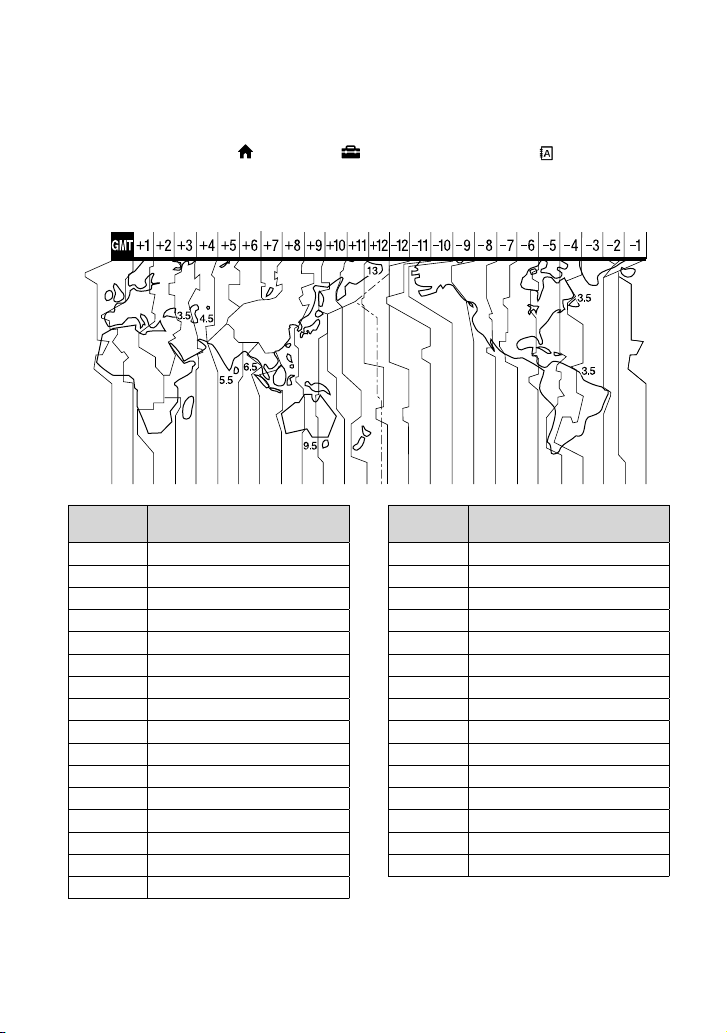
88
Setting to the local time
You can easily set the clock to the local time by setting a time dierence when using your
camcorder abroad. Touch (HOME) (SETTINGS) [CLOCK/ LANG]
[AREA SET] and [SUMMERTIME] (p. 17).
World time dierence
Time-zone
dierences
Area
setting
GMT Lisbon, London
+01:00 Berlin, Paris
+02:00 Helsinki, Cairo, Istanbul
+03:00 Moscow, Nairobi
+03:30 Tehran
+04:00 Abu Dhabi, Baku
+04:30 Kabul
+05:00 Karachi, Islamabad
+05:30 Calcutta, New Delhi
+06:00 Almaty, Dhaka
+06:30 Rangoon
+07:00 Bangkok, Jakarta
+08:00 Hong Kong, Singapore, Beijing
+09:00 Seoul, Tokyo
+09:30 Adelaide, Darwin
+10:00 Melbourne, Sydney
Time-zone
dierences
Area
setting
+11:00 Solomon Is
+12:00 Fiji, Wellington
–12:00 Eniwetok, Kwajalein
–11:00 Samoa
–10:00 Hawaii
–09:00 Alaska
–08:00 Los Angeles, Tijuana
–07:00 Denver, Arizona
–06:00 Chicago, Mexico City
–05:00 New York, Bogota
–04:00 Santiago
–03:30 St.John’s
–03:00 Brasilia, Montevideo
–02:00 Fernando de Noronha
–01:00 Azores, Cape Verde Is.
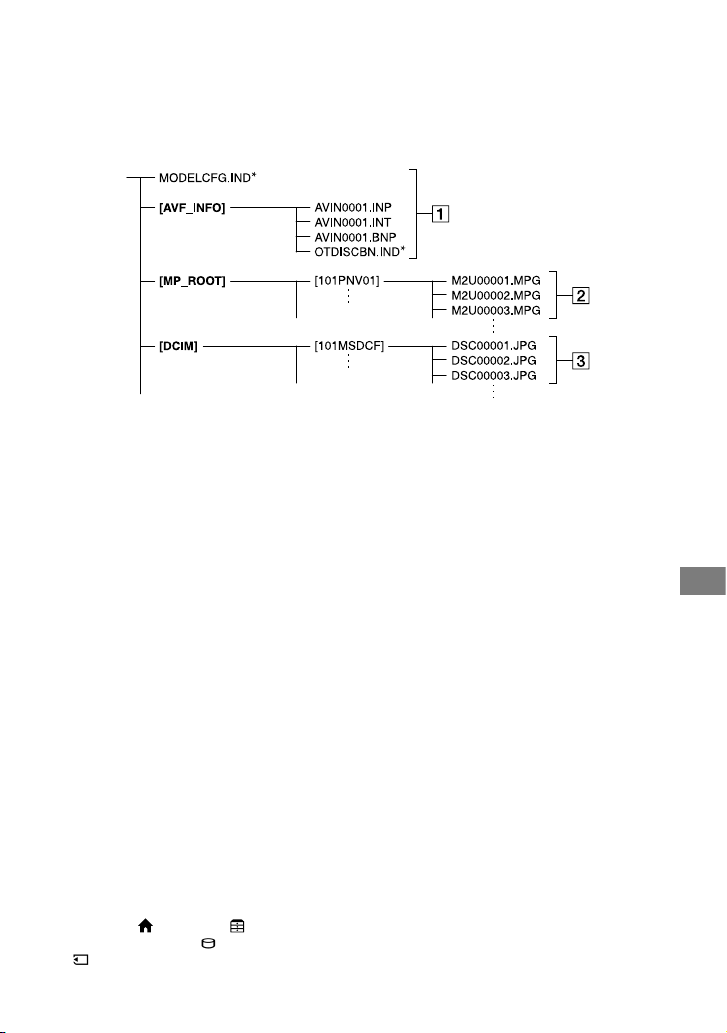
Additional Information
89
File/folder structure on the camcorder hard disk and
“Memory Stick PRO Duo”
e le/folder structure is shown below. You do not usually need to acknowledge the le/
folder structure, when recording/playing back images on the camcorder. To enjoy still images
or movies by connecting to a computer, see “PMB Guide,” then use the supplied application.
Image management les
When you delete the les, you cannot
record/play back the images correctly.
e les are defaulted as hidden les
and not usually displayed.
Movie les (MPEG2 les)
e extension of the les is “.MPG”.
e maximum size is 2 GB. When the
capacity of a le exceeds 2 GB, the le
becomes divided.
e le numbers go up automatically.
When the le number exceeds 9,999,
another folder is created to record new
movie les.
e folder name goes up: [101PNV01]
[102PNV01]
Still image les (JPEG les)
e extension of the les is “.JPG”. e
le numbers go up automatically. When
the capacity of a le number exceeds
9,999, another folder is created to store
new image les.
e folder name goes up: [101MSDCF]
[102MSDCF]
By touching (HOME) (OTHERS)
[USB CONNECT] [
USB CONNECT]/
[
USB CONNECT], you can access the media
from the computer through USB connection.
Do not modify the les or folders on the
camcorder through the computer without using
the supplied computer application. e image
les may be destroyed or may not be played
back.
Operation is not guaranteed, if you perform
the above operation without using the supplied
computer application.
Do not format the media of the camcorder
using the computer. e camcorder may not
operate correctly.
Do not copy the les onto the media of the
camcorder from the computer. Operation is not
guaranteed.
When the folder number shows 999 and le
number exceeds 9,999, recording may not
be possible. In this case, perform [MEDIA
FORMAT] (p.
52).
For DCR-SR35E/SR36E/SR55E/SR75E:
You cannot import data on the media of the
camcorder from the computer.
* Only for hard disk

90
Maintenance and precautions
About the “Memory Stick”
A “Memory Stick” is a compact, portable
IC recording medium with a large data
capacity.
We do not guarantee the operation of
all types of “Memory Stick” on your
camcorder. (See the list below for more
details.)
Types of “Memory Stick”
Recording/
Playback
“Memory Stick Duo”
(without MagicGate)
“Memory Stick PRO Duo”
“Memory Stick PRO-HG Duo”
*
*
is product does not support 8-bit parallel
data transfer but it supports 4-bit parallel data
transfer the same as with “Memory Stick PRO
Duo.”
is product cannot record or play data that
uses “MagicGate” technology. “MagicGate” is
a copyright protection technology that records
and transfers the contents in an encrypted
format.
is product is compatible with “Memory Stick
Micro” (“M2”). “M2” is the abbreviation for the
“Memory Stick Micro.”
A “Memory Stick PRO Duo” formatted by a
computer (Windows OS/Mac OS) does not
have guaranteed compatibility with your
camcorder.
Data read/write speed may vary depending on
the combination of the “Memory Stick PRO
Duo” and “Memory Stick” compliant product
you use.
Damaged or lost image data will not be
compensated for, and may occur in the
following cases:
If you eject the “Memory Stick PRO Duo,”
turn the power o on your camcorder, or
remove the battery pack for replacement
while your camcorder is reading or writing
image les on the “Memory Stick PRO Duo”
(while the ACCESS lamp is lit or ashing)
If you use the “Memory Stick PRO Duo” near
magnets or magnetic elds
It is recommended you make a back-up of
important data on the hard disk of a computer.
Be careful not to apply excessive force when
writing on a memo area on a “Memory Stick
PRO Duo.”
Do not attach a label or the like on a “Memory
Stick PRO Duo” or a Memory Stick Duo
adaptor.
When you carry or store a “Memory Stick PRO
Duo,” put it in its case.
Do not touch, or allow metallic objects to come
into contact with the terminals.
Do not bend, drop or apply strong force to the
“Memory Stick PRO Duo.”
Do not disassemble or modify the “Memory
Stick PRO Duo.”
Do not let the “Memory Stick PRO Duo” get
wet.
Be careful to keep “Memory Stick PRO Duo”
media out of the reach of small children. ere
is danger that a child might swallow it.
Do not insert anything other than a “Memory
Stick PRO Duo” into the Memory Stick Duo
slot. Doing so may cause a malfunction.
Do not use or keep the “Memory Stick PRO
Duo” in the following locations.
Places subject to extremely high temperature,
such as a car parked outside in the summer
Places under direct sunlight
Places with extremely high humidity or
subject to corrosive gases
On the Memory Stick Duo adaptor
When using a “Memory Stick PRO Duo” with
a “Memory Stick” compliant device, be sure
to insert the “Memory Stick PRO Duo” into a
Memory Stick Duo adaptor.
When inserting a “Memory Stick PRO Duo”
into a Memory Stick Duo adaptor, make sure
the “Memory Stick PRO Duo” is inserted facing
in the correct direction, then insert it all the
way in. If you force the “Memory Stick PRO
Duo” into the Memory Stick Duo adaptor in the
wrong direction or insert it incompletely, it may
cause a malfunction.
Do not insert a Memory Stick Duo adaptor
without a “Memory Stick PRO Duo” attached.
Doing so may result in malfunctions of the unit.
On a “Memory Stick PRO Duo”
e maximum memory capacity of a “Memory
Stick PRO Duo” that can be used on your
camcorder is 8 GB.
Additional Information
91
Notes on using “Memory Stick Micro”
To use a “Memory Stick Micro” with your
camcorder, you need a Duo-sized M2 Adaptor.
Insert the “Memory Stick Micro” into the Duo-
sized M2 Adaptor, and then insert the adaptor
into the Memory Stick Duo slot. If you insert
a “Memory Stick Micro” into your camcorder
without using a Duo-sized M2 Adaptor, you
might not be able to remove it from your
camcorder.
Do not leave the “Memory Stick Micro”
within the reach of small children. ey might
accidentally swallow it.
On image data compatibility
Image data les recorded on a “Memory Stick
PRO Duo” by your camcorder conform to
the “Design rule for Camera File system”
universal standard established by the JEITA
(Japan Electronics and Information Technology
Industries Association).
On your camcorder, you cannot play back
still images recorded on other devices (DCR-
TRV900E or DSC-D700/D770) that do not
conform to the universal standard. (ese
models are not sold in some regions.)
If you cannot use a “Memory Stick PRO
Duo” that has been used with another device,
format it with your camcorder (p.
52). Note
that formatting erases all information on the
“Memory Stick PRO Duo.”
You may not be able to play back images with
your camcorder:
When playing back image data modied on
your computer
When playing back image data recorded with
other devices
About the “InfoLITHIUM” battery pack
Your camcorder operates only with an
“InfoLITHIUM” battery pack (H series).
“InfoLITHIUM” H series battery packs
have the mark.
What is an “InfoLITHIUM” battery pack?
An “InfoLITHIUM” battery pack is a
lithium-ion battery pack that has functions
for communicating information related
to operating conditions between your
camcorder and an optional AC Adaptor/
charger.
e “InfoLITHIUM” battery pack
calculates the power consumption
according to the operating conditions
of your camcorder, and displays the
remaining battery time in minutes.
To charge the battery pack
Be sure to charge the battery pack before you
start using your camcorder.
We recommend charging the battery pack in an
ambient temperature of between 10 °C to 30 °C
(50 ˚F to 86 ˚F) until the CHG (charge) lamp
turns o. If you charge the battery pack outside
of this temperature range, you may not be able
to charge it eciently.
Aer charging is complete, disconnect the cable
from the DC IN jack on the Handycam Station
(DCR-SR55E/SR65E/SR75E/SR85E) or your
camcorder, then remove the battery pack.
To use the battery pack eectively
Battery pack performance decreases when the
surrounding temperature is 10 °C (50 °F) or
below, and the length of time you can use the
battery pack becomes shorter. In that case, do
one of the following to use the battery pack for
a longer time.
Put the battery pack in a pocket to warm
it up, and insert it in your camcorder right
before you start taking shots
Use a large capacity battery pack: NP-FH70/
FH100 (optional)
Frequent use of the LCD screen or a frequent
playback, fast forward or rewind operation
wears out the battery pack faster.
We recommend using a large capacity battery
pack: NP-FH70/FH100 (optional).
Be sure to set the POWER switch to OFF
(CHG) when not recording or playing back
on your camcorder. e battery pack is also
consumed when your camcorder is in recording
standby or playback pause.
Have spare battery packs ready for two or
three times the expected recording time, and
make trial recordings before making the actual
recording.
Do not expose the battery pack to water. e
battery pack is not water resistant.

92
About the remaining battery time indicator
When the power goes o even though the
remaining battery time indicator indicates that
the battery pack has enough power to operate,
charge the battery pack fully again. Remaining
battery time will be indicated correctly. Note,
however, that the battery indication will not be
restored if it is used in high temperatures for
a long time, or if le in a fully charged state,
or when the battery pack is frequently used.
Use the remaining battery time indication as a
rough guide only.
e mark that indicates low battery ashes
even if there are still approximately 20 minutes
of battery time remaining, depending on the
operating conditions or ambient temperature.
About storage of the battery pack
If the battery pack is not used for a long time,
fully charge the battery pack and use it up on
your camcorder once a year to maintain proper
function. To store the battery pack, remove it
from your camcorder and put it in a dry, cool
place.
To discharge the battery pack on your
camcorder completely, touch
(HOME)
(SETTINGS) [GENERAL SET]
[A.SHUT OFF] [NEVER] and leave your
camcorder in recording standby until the power
goes o (p.
67).
About battery life
Battery capacity decreases over time and
through repeated use. If decreased usage time
between charges becomes signicant, it is
probably time to replace it with a new one.
Each battery’s life is governed by storage,
operating and environmental conditions.
About handling of your camcorder
On use and care
Do not use or store the camcorder and
accessories in the following locations:
Anywhere extremely hot, cold or humid.
Never leave them exposed to temperatures
above 60°C (140 °F), such as under direct
sunlight, near heaters or in a car parked in
the sun. ey may malfunction or become
deformed.
Near strong magnetic elds or mechanical
vibration. e camcorder may malfunction.
Near strong radio waves or radiation.
e camcorder may not be able to record
properly.
Near AM receivers and video equipment.
Noise may occur.
On a sandy beach or anywhere dusty. If
sand or dust gets in your camcorder, it may
malfunction. Sometimes this malfunction
cannot be repaired.
Near windows or outdoors, where the LCD
screen or the lens may be exposed to direct
sunlight. is damages the LCD screen.
Operate your camcorder on DC 6.8 V/7.2 V
(battery pack) or DC 8.4 V (AC Adaptor).
For DC or AC operation, use the accessories
recommended in these operating instructions.
Do not let your camcorder get wet, for example,
from rain or sea water. If your camcorder
gets wet, it may malfunction. Sometimes this
malfunction cannot be repaired.
If any solid object or liquid gets inside the
casing, unplug your camcorder and have it
checked by a Sony dealer before operating it any
further.
Avoid rough handling, disassembling,
modifying, physical shock, or impact such
as hammering, dropping or stepping on the
product. Be particularly careful of the lens.
Keep the POWER switch setting to OFF (CHG)
when you are not using your camcorder.
Do not wrap your camcorder with a towel, for
example, and operate it. Doing so might cause
heat to build up inside.
When disconnecting the power cord (mains
lead), pull it by the plug and not the cord.
Do not damage the power cord (mains lead)
such as by placing anything heavy on it.
Keep metal contacts clean.
Keep the Remote Commander and button-type
battery out of children’s reach. If the battery
is accidentally swallowed, consult a doctor
immediately (DCR-SR55E/SR65E/SR75E/
SR85E).
If the battery electrolytic liquid has leaked:
Consult your local authorized Sony service
facility.
Wash o any liquid that may have contacted
your skin.
If any liquid gets in your eyes, wash with
plenty of water and consult a doctor.
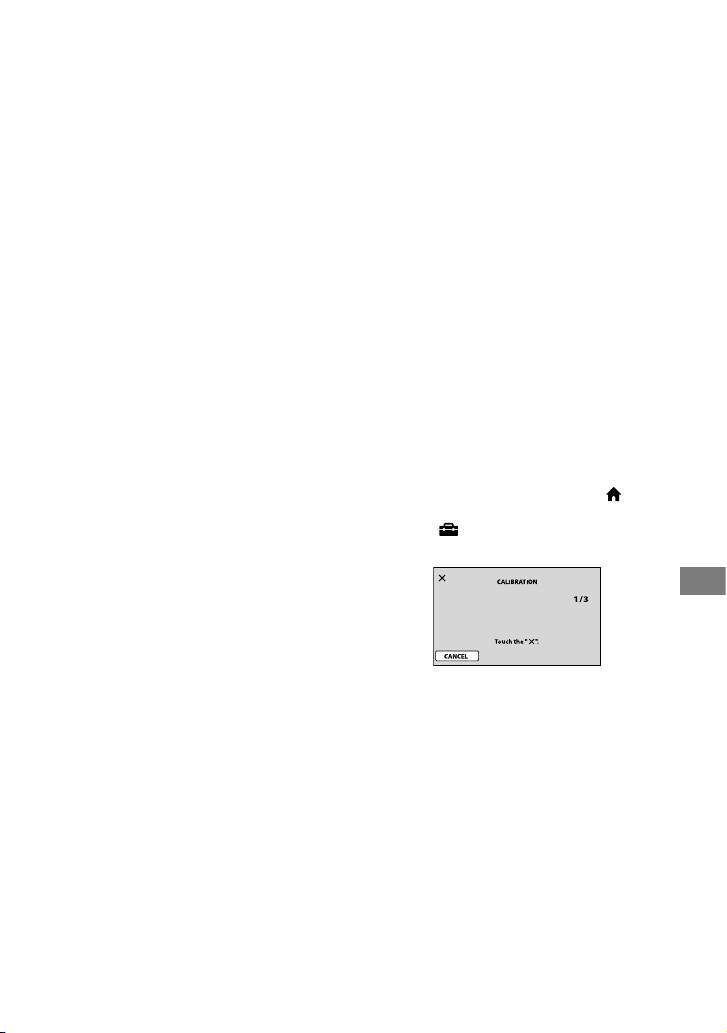
Additional Information
93
When not using your camcorder for
a long time
Periodically turn it on and let it run such as by
playing back or recording images for about 3
minutes.
Use up the battery pack completely before
storing it.
Moisture condensation
If your camcorder is brought directly from
a cold place to a warm place, moisture may
condense inside your camcorder. is may
cause a malfunction to your camcorder.
If moisture condensation has
occurred
Leave your camcorder for about 1 hour
without turning it on.
Note on moisture condensation
Moisture may condense when you bring
your camcorder from a cold place into a
warm place (or vice versa) or when you
use your camcorder in a humid place as
follows:
You bring your camcorder from a ski slope into
a place warmed up by a heating device.
You bring your camcorder from an air
conditioned car or room into a hot place
outside.
You use your camcorder aer a squall or a
shower.
You use your camcorder in a hot and humid
place.
How to prevent moisture
condensation
When you bring your camcorder from
a cold place into a warm place, put your
camcorder in a plastic bag and seal it
tightly. Remove the bag when the air
temperature inside the plastic bag has
reached the surrounding temperature (aer
about 1 hour).
LCD screen
Do not exert excessive pressure on the LCD
screen, as it may cause damage.
If your camcorder is used in a cold place, a
residual image may appear on the LCD screen.
is is not a malfunction.
While using your camcorder, the back of
the LCD screen may heat up. is is not a
malfunction.
To clean the LCD screen
If ngerprints or dust make the LCD screen
dirty, it is recommended you use a so
cloth to clean it. When you use the LCD
Cleaning Kit (optional), do not apply the
cleaning liquid directly to the LCD screen.
Use cleaning paper moistened with the
liquid.
On adjustment of the touch panel
(CALIBRATION)
e buttons on the touch panel may not
work correctly. If this happens, follow the
procedure below. It is recommended that
you connect your camcorder to the wall
outlet (wall socket) using the supplied AC
Adaptor during the operation.
Turn on your camcorder, then press
(HOME).
Touch
(SETTINGS) [GENERAL SET]
[CALIBRATION].
Touch “” displayed on the screen with the
corner of the “Memory Stick PRO Duo” or
the like 3 times. e position of “” changes.
Touch [CANCEL] to cancel.
If you did not press the right spot, try the
calibration again.
Notes
Do not use a sharp-pointed object for
calibration. Doing so may damage the LCD
screen.
You cannot calibrate the LCD screen if it is
rotated, or closed with the screen facing out.
On handling the casing
If the casing is soiled, clean the camcorder body
with a so cloth lightly moistened with water,

94
and then wipe the casing with a dry so cloth.
Avoid the following to avoid damage to the
nish:
Using chemicals such as thinner, benzine,
alcohol, chemical cloths, repellent, insecticide
and sunscreen
Handling the camcorder with above
substances on your hands
Leaving the casing in contact with rubber or
vinyl objects for a long period of time
About care and storage of the lens
Wipe the surface of the lens clean with a so
cloth in the following instances:
When there are ngerprints on the lens
surface.
In hot or humid locations
When the lens is exposed to salty air such as
at the seaside.
Store in a well-ventilated location subject to
little dirt or dust.
To prevent mold, periodically clean the lens as
described above. It is recommended that you
operate your camcorder about once a month to
keep it in optimum state for a long time.
On charging the pre-installed rechargeable
battery
Your camcorder has a pre-installed
rechargeable battery to retain the date,
time, and other settings even when the
POWER switch is set to OFF (CHG). e
pre-installed rechargeable battery is always
charged while your camcorder is connected
to the wall outlet (wall socket) via the
AC Adaptor or while the battery pack is
attached. e rechargeable battery will be
fully discharged in about 3 months if you
do not use your camcorder at all. Use your
camcorder aer charging the pre-installed
rechargeable battery.
However, even if the pre-installed
rechargeable battery is not charged, the
camcorder operation will not be aected as
long as you are not recording the date.
Procedures
Connect your camcorder to a wall outlet
(wall socket) using the supplied AC
Adaptor, and leave it with the POWER
switch set to OFF (CHG) for more than 24
hours.

Additional Information
95
On trademarks
“Handycam” and are
registered trademarks of Sony Corporation.
“Memory Stick,” “ ,” “Memory Stick Duo,”
“
,” “Memory Stick PRO
Duo,” “
,” “Memory
Stick PRO-HG Duo
,” “ ”
“Memory Stick Micro,” “MagicGate,”
“
,” “MagicGate Memory
Stick” and “MagicGate Memory Stick Duo” are
trademarks or registered trademarks of Sony
Corporation.
“InfoLITHIUM” is a trademark of Sony
Corporation.
Microso, Windows, Windows Media,
Windows Vista, and DirectX are either
registered trademarks or trademarks of
Microso Corporation in the United States
and/or other countries.
Macintosh and Mac OS are registered
trademarks of Apple Inc. in the U.S. and other
countries.
Intel, Intel Core, and Pentium are trademarks
or registered trademarks of Intel Corporation
or its subsidiaries in the United States and other
countries.
Adobe, the Adobe logo, and Adobe Acrobat
are either registered trademarks or trademarks
of Adobe Systems Incorporated in the United
States and/or other countries.
All other product names mentioned herein may
be the trademarks or registered trademarks of
their respective companies. Furthermore,
and “
” are not mentioned in each case in this
Handbook.
Notes on the License
ANY USE OF THIS PRODUCT OTHER
THAN CONSUMER PERSONAL USE IN ANY
MANNER THAT COMPLIES WITH THE
MPEG-2 STANDARD FOR ENCODING VIDEO
INFORMATION FOR PACKAGED MEDIA
IS EXPRESSLY PROHIBITED WITHOUT A
LICENSE UNDER APPLICABLE PATENTS IN
THE MPEG-2 PATENT PORTFOLIO, WHICH
LICENSE IS AVAILABLE FROM MPEG LA,
L.L.C., 250 STEELE STREET, SUITE 300,
DENVER, COLORADO 80206.
“C Library,” “Expat,” “zlib,” and “libjpeg”
soware are provided in your camcorder. We
provide this soware based on license agreements
with their owners of copyright. Based on requests
by the owners of copyright of these soware
applications, we have an obligation to inform
you of the following. Please read the following
sections.
Read “license1.pdf” in the “License” folder on
the CD-ROM. You will nd licenses (in English)
of “C Library,” “Expat,” “zlib,” and “libjpeg”
soware.
On GNU GPL/LGPL applied software
e soware that is eligible for the following
GNU General Public License (hereinaer referred
to as “GPL”) or GNU Lesser General Public
License (hereinaer referred to as “LGPL”) are
included in the camcorder.
is informs you that you have a right to have
access to, modify, and redistribute source code
for these soware programs under the conditions
of the supplied GPL/LGPL.
Source code is provided on the web. Use
the following URL to download it. When
downloading the source code, select DCR-
DVD810 as the model for your camcorder.
http://www.sony.net/products/Linux/
We would prefer you do not contact us about the
contents of source code.
Read “license2.pdf” in the “License” folder on the
CD-ROM. You will nd licenses (in English) of
“GPL,” and “LGPL” soware.
To view the PDF, Adobe Reader is needed. If
it is not installed on your computer, you can
download it from the Adobe Systems web page:
http://www.adobe.com/
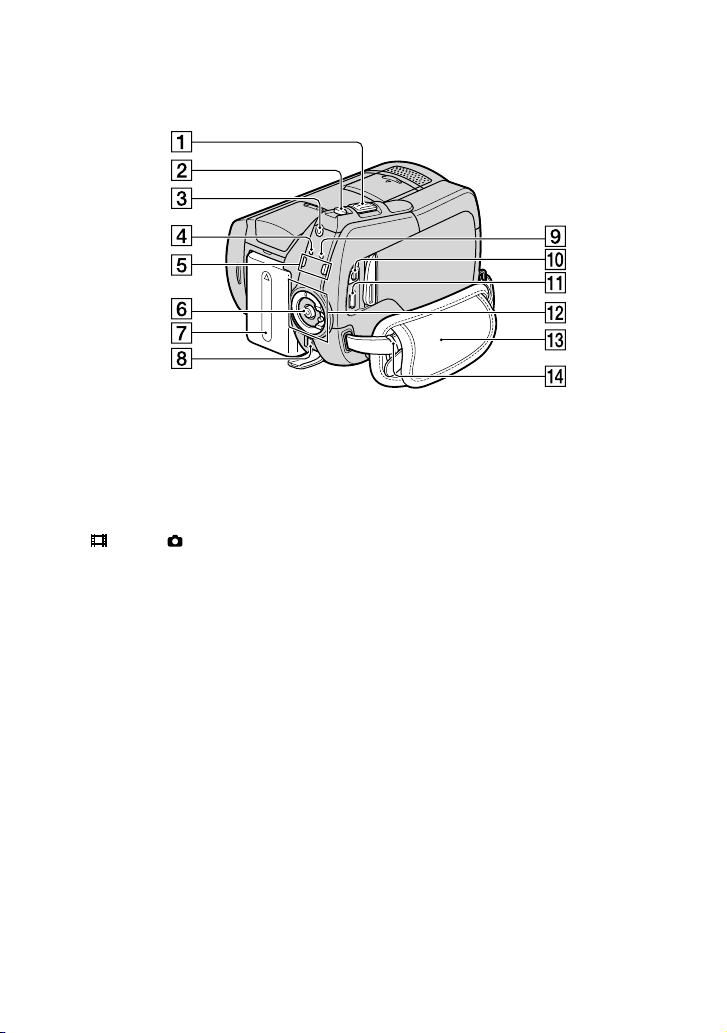
96
Quick Reference
Identifying parts and controls
e numbers in ( ) are reference pages.
Power zoom lever (27, 32)
PHOTO button (22, 25)
QUICK ON button (27)
CHG (charge) lamp (13)
(Movie)/ (Still) mode lamps (25)
START/STOP button (22)
Battery pack (13)
DC IN jack (13)
ACCESS lamp (Hard disk) (25)
A/V Remote Connector (34, 46)
(USB) jack (49)
DCR-SR35E/SR36E/SR55E/SR75E:
output only
POWER switch (17)
Grip belt (19)
Hooks for a shoulder belt
Attach a shoulder belt (optional).
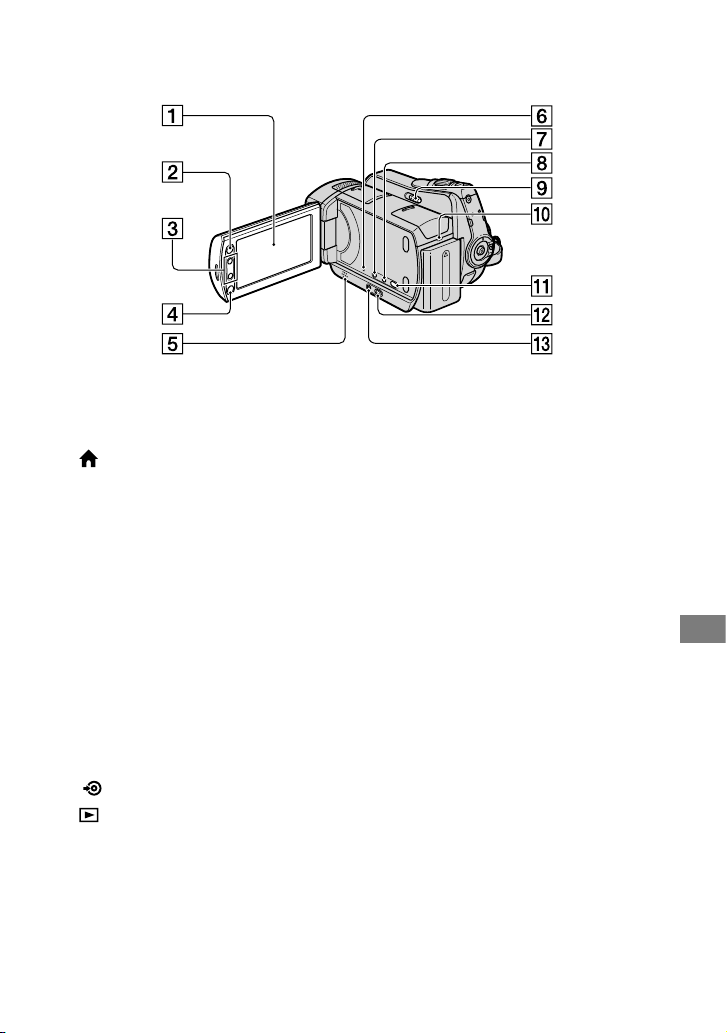
Quick Reference
97
LCD screen/touch panel (19)
(HOME) button (10, 55)
Zoom buttons (27, 32)
START/STOP button (22, 25)
Speaker
For how to adjust the volume, see page
30.
RESET button
Initializes all the settings, including the
setting of the date and time.
(back light) button (28)
DISP/BATT INFO button (14, 19)
NIGHTSHOT PLUS switch (28)
ACCESS lamp (“Memory Stick PRO
Duo”) (21)
(DISC BURN) button (36)
(VIEW IMAGES) button (23, 29)
EASY button (22)
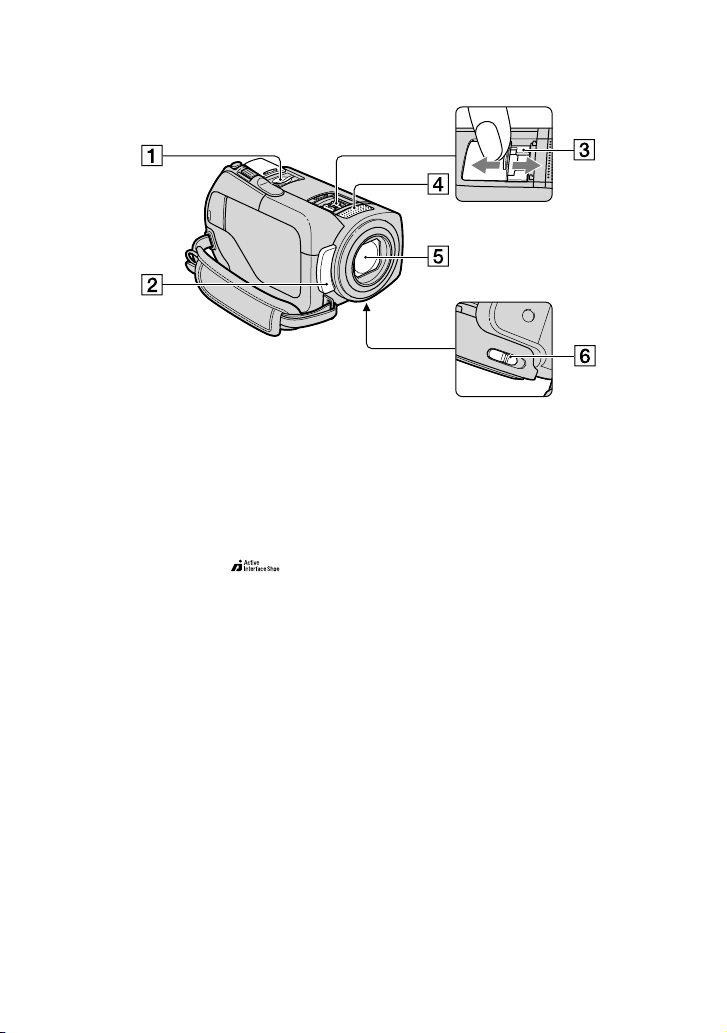
98
Memory Stick Duo slot (21)
Remote sensor (DCR-SR55E/SR65E/
SR75E/SR85E)/Infrared port
Point the Remote Commander (100)
towards the remote sensor to operate
your camcorder.
Active Interface Shoe
(DCR-
SR55E/SR65E/SR75E/SR85E)
e Active Interface Shoe supplies
power to optional accessories such as
a video light, a ash, or a microphone.
e accessory can be turned on or o
as you operate the POWER switch on
your camcorder. Refer to the operating
instructions supplied with your
accessory for details.
e Active Interface Shoe has a safety
device for xing the installed accessory
securely. To connect an accessory,
press down and push it to the end, and
then tighten the screw. To remove an
accessory, loosen the screw, and then
press down and pull out the accessory.
When you are recording movies with an
external ash (optional) connected to the
accessory shoe, turn o the power of the
external ash to prevent charging noise
being recorded.
When an external microphone (optional)
is connected, it takes precedence over the
built-in microphone.
Built-in microphone
Lens (Carl Zeiss Lens) (3)
LENS COVER switch (19)
You can open/close the shoe cover by
the tab with your nger.
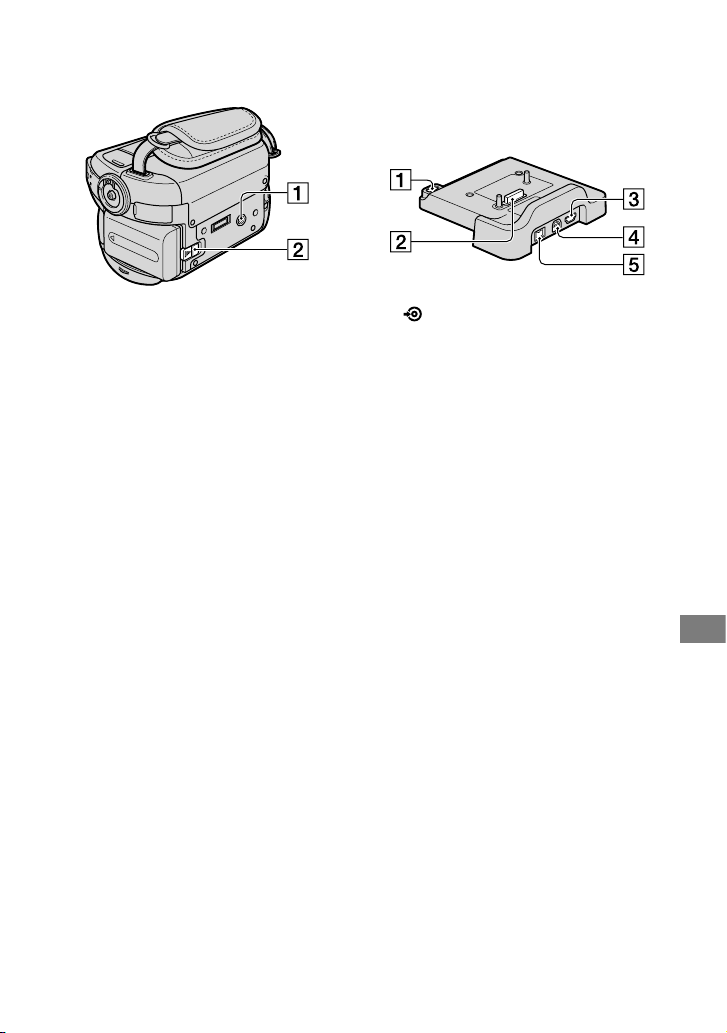
Quick Reference
99
Tripod receptacle
Attach the tripod (optional: the length
of the screw must be less than 5.5 mm
(7/32 in.)) to the tripod receptacle using
a tripod screw.
BATT (battery) release lever (14)
For DCR-SR55E/SR65E/SR75E/SR85E:
Handycam Station:
(DISC BURN) button (36)
Interface connector
(USB) jack (49)
DCR-SR55E/SR75E: output only
A/V OUT jack (34, 46)
DC IN jack (13)
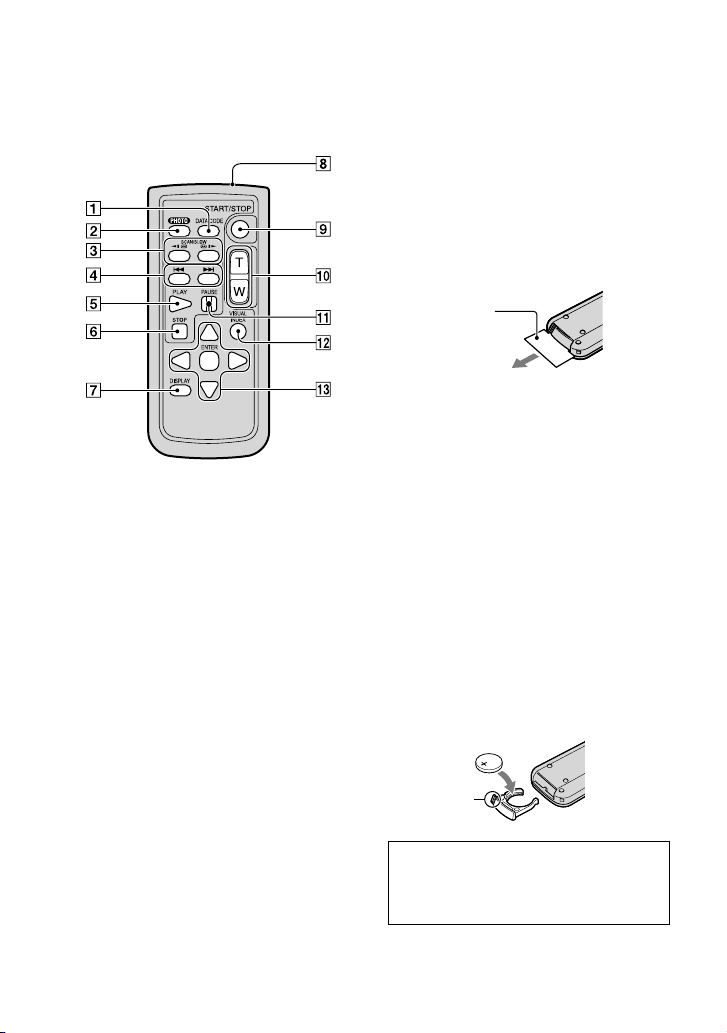
100
Remote Commander
(DCR-SR55E/SR65E/SR75E/SR85E)
DATA CODE button (62)
Displays the date and time or camera
setting data of the recorded images
when you press this during playback.
PHOTO button (22, 25)
e on-screen image when you press
this button will be recorded as a still
image.
SCAN/SLOW buttons (23, 30)
(Previous/Next) buttons (24,
30)
PLAY button (23, 30)
STOP button (23, 30)
DISPLAY button (14)
Transmitter
START/STOP button (22, 25)
Power zoom buttons (27, 32)
PAUSE button (23, 30)
VISUAL INDEX button (23, 29)
Displays the [VISUAL INDEX] screen
when you press this during playback.
/ / / / ENTER buttons
When you press any button on the
[VISUAL INDEX] screen or Playlist,
the orange frame appears on the LCD
screen. Select a desired button or an
item with / / / , then press
ENTER to enter.
Notes
Remove the insulation sheet before using the
Remote Commander.
Point the Remote Commander towards the
remote sensor to operate your camcorder
(p.
98).
When no commands have been sent from the
Remote Commander in a certain period, the
orange frame disappears. When you press any
of / / / , or ENTER again, the frame
appears at the position where it was displayed
last.
You cannot select some buttons on the LCD
screen using / / / .
To change the battery of the Remote
Commander
While pressing on the tab, inset your
ngernail into the slit to pull out the battery
case.
Place a new battery with the + side facing up.
Insert the battery case back into the Remote
Commander until it clicks.
WARNING
Battery may explode if mistreated. Do
not recharge, disassemble or dispose of
in re.
When the lithium battery becomes weak, the
operating distance of the Remote Commander
Insulation sheet
Tab

Quick Reference
101
may shorten, or the Remote Commander may
not function properly. In this case, replace the
battery with a Sony CR2025 lithium battery.
Use of another battery may present a risk of re
or explosion.
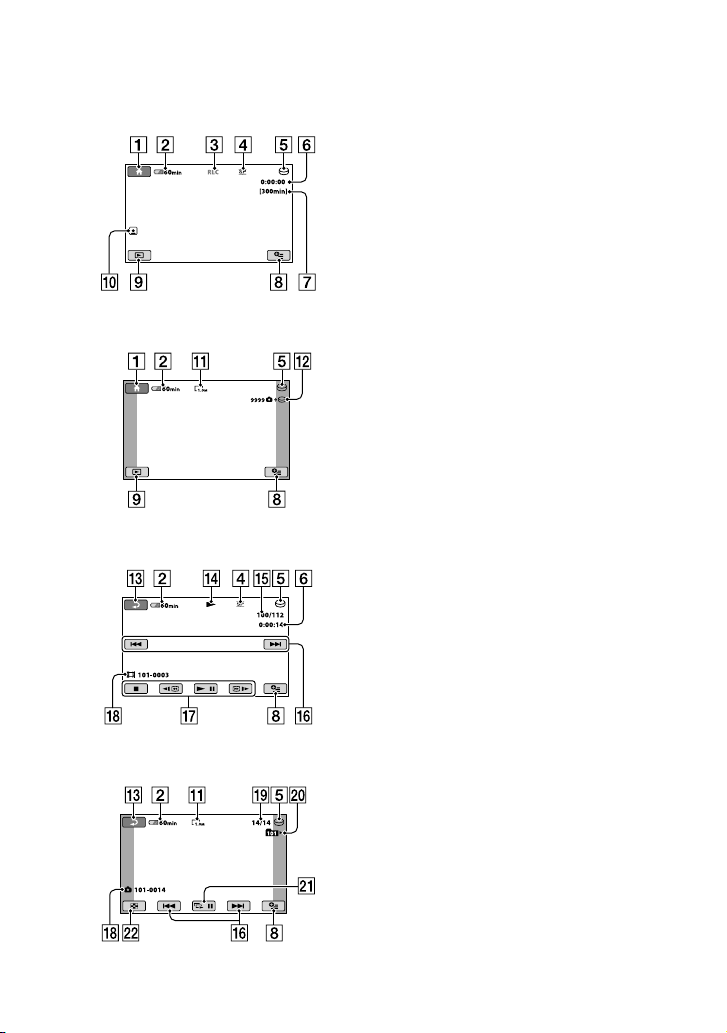
102
Indicators displayed during recording/playback
Recording movies
Recording still images
Viewing movies
Viewing still images
HOME button (9, 55)
Remaining battery (approx.) (14)
Recording status ([STBY] (standby) or
[REC] (recording))
Recording mode (HQ/SP/LP) (57)
e recording/playback media (20)
Counter (hour/minute/second)
Remaining recordable times
OPTION button (69)
VIEW IMAGES button (23, 29)
Face Index set (59)
Image size (60)
Approximate number of recordable still
images/Recording media
Return button
Playback mode
Currently playing movie number/
Number of total recorded movies
Previous/Next button (23, 29)
Video operation buttons (23, 29)
Data le name
Currently playing still image number/
Number of total recorded still images
Playback folder
Displays only when the recording
media of still images is a “Memory Stick
PRO Duo.”
Slide show button (33)
VISUAL INDEX button (23, 29)
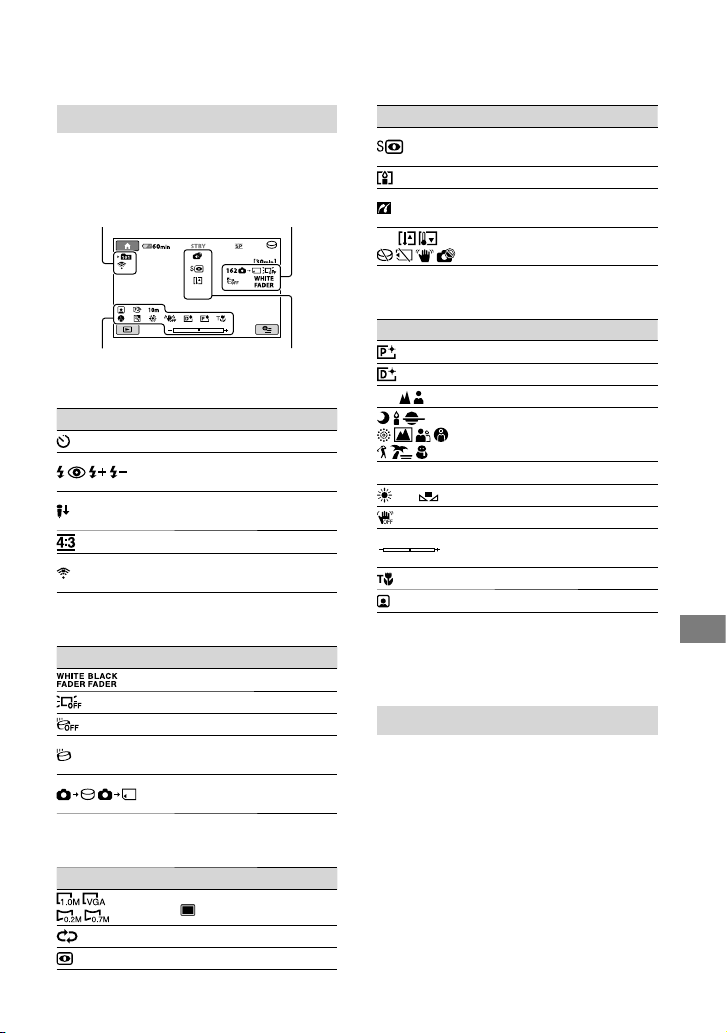
Quick Reference
103
Indicators when you made changes
Following indicators appear during
recording/playback to indicate the settings
of your camcorder.
Upper left
Indicator Meaning
Self-timer recording (75)
Flash/REDEYE REDUC
(61)
MICREF LEVEL low
(75)
WIDE SELECT (58)
BLT-IN ZOOM MIC
(75)
Upper right
Indicator Meaning
Fader (74)
LCD backlight o (19)
Drop sensor o (67)
Drop sensor activated
(67)
e media selected for
still images (20)
Center
Indicator Meaning
IMAGE SIZE (60)
Slide show set (33)
NightShot plus (28)
Indicator Meaning
Super NightShot plus
(74)
Color Slow Shutter (74)
PictBridge connecting
(49)
Warning (83)
Bottom
Indicator Meaning
Picture eect (75)
Digital eect (75)
Manual focus (71)
SCENE SELECTION
(72)
Backlight (25)
White balance (73)
SteadyShot o (58)
EXPOSURE (72)/
SPOT METER (72)
TELE MACRO (71)
Face Index (31)
Tips
Indicators and their positions are approximate
and dier from what you actually see.
Data code during recording
e recording date and time is recorded
automatically on the media. ey are not
displayed while recording. However, you
can check them as [DATA CODE] during
playback (p. 62).
Upper le Upper right
Bottom Center

104
Glossary
Fragmentation
e condition of a media in which les are
divided into pieces scattered around the media.
You may not save your images correctly. You
can solve the condition by performing [MEDIA
FORMAT] (p.
52).
JPEG
JPEG stands for Joint Photographic Experts
Group, a still image data compression (data
capacity reduction) standard. Your camcorder
records still images in JPEG format.
MPEG
MPEG stands for Moving Picture Experts Group,
the group of standards for the coding (image
compression) of video (movie) and audio.
ere are MPEG1 and MPEG2 formats. Your
camcorder records movies with SD (standard
denition) image quality in MPEG2 format.
Thumbnail
Reduced-size images which enable you to
view many images at the same time. [VISUAL
INDEX], [
INDEX] and [ INDEX] use a
thumbnail display system.
VBR
VBR stands for Variable Bit Rate, the recording
format for automatically controlling the bit rate
(the volume of recording data in a given time
segment) according to the scene being recorded.
For fast-moving video, a lot of hard disk space is
used to produce a clear image, so the recording
time to the media shortens.

Quick Reference
105
Index
Numeric
12IMAGES ............................. 63
16:9 .......................................... 35
16:9 WIDE .............................. 58
21-pin adaptor ....................... 35
4:3 ...................................... 35, 58
6IMAGES ............................... 63
A
A.SHUT OFF (Auto shut o)
.................................................. 67
A/V connecting cable
...................................... 12, 34, 46
A/V OUT jack .................. 34, 46
A/V Remote Connector
............................................ 34, 46
AC Adaptor ............................ 13
ADD ........................................ 44
ADD by date .......................... 44
Adjusting exposure for back
light.......................................... 28
AREA SET .............................. 66
AUTO SLW SHUTTR
(Auto Slow Shutter) .............. 58
B
B&W ........................................ 75
Back light ................................ 28
Back up ........................ See Save
Battery ............................... 13, 14
Battery Info ............................ 14
BEACH ................................... 73
BEEP........................................ 64
BLACK FADER ..................... 74
BLT-IN ZOOM MIC ............ 75
C
CALIBRATION ..................... 93
CAMERA DATA .................. 62
CANDLE ................................ 72
Charging the battery ............. 13
Charging time ........................ 15
CLOCK/LANG ...................... 66
CLOCK SET ........................... 17
COLOR SLOW SHTR
(Color Slow Shutter) ............. 74
Connection
Other devices ................. 46
Printer ............................. 49
TV .................................... 34
COPIES ................................... 50
Copyright ............................ 3, 95
D
D.EFFECT (Digital eect) .... 75
DATA CODE ................. 62, 103
DATE/TIME .................... 50, 62
Date Index .............................. 32
DC IN jack .............................. 13
DC plug ................................... 13
DELETE
By date............................. 38
Movies ............................. 37
Still images...................... 38
DELETE ALL ......................... 38
DEMO MODE ....................... 67
DIGITAL ZOOM .................. 58
DISPLAY ................................ 63
Display indicators................ 102
DISP OUTPUT ...................... 65
DIVIDE................................... 43
DROP SENSOR ..................... 67
Dubbing .................................. 46
Dubbing to VCR or DVD/
HDD recorders ...................... 46
E
Easy Handycam ..................... 22
EDIT ........................................ 43
Editing ..................................... 37
On the camcorder ......... 43
EMPTY ................................... 53
ERASE ..................................... 45
ERASE ALL ............................ 45
EXPOSURE ............................ 72
Extension ................................ 89
F
Face Index .............................. 31
Face Index set ......................... 59
FADER .................................... 74
File ........................................... 89
FILE NO. (File number) ....... 61
Film Roll Index ...................... 31
FIREWORKS ......................... 72
FLASH LEVEL ....................... 61
FLASH MODE....................... 61
FOCUS .................................... 71
Folder ...................................... 89
FORMAT
Hard disk ........................ 52
“Memory Stick PRO Duo”
.......................................... 52
Fragmentation ..................... 104
G
GENERAL SET ...................... 67
Grip belt .................................. 19
GUIDEFRAME...................... 58
H
Handycam Station ........... 13, 99
HELP ....................................... 10
Holding the camcorder ........ 25
HOME MENU ................... 9, 55
CLOCK/LANG .............. 66
GENERAL SET .............. 67
MOVIE SETTINGS ...... 57
OUTPUT SETTINGS ... 65
PHOTO SETTINGS...... 60
SETTINGS category ...... 55
SOUND/DISP SET........ 64
VIEW IMAGES SET ..... 62

106
HQ ........................................... 57
I
Icon ....... See Display indicators
Image management les ....... 89
IMAGE SIZE .......................... 60
Indicators .............................. 103
INDOOR ................................ 73
“InfoLITHIUM” battery pack
.................................................. 91
Insulation sheet.................... 100
J
JPEG ................................ 89, 104
L
LANDSCAPE ......................... 72
LANGUAGE SET ............ 18, 66
LCD backlight ........................ 19
LCD BL LEVEL
(LCD backlight level) ...... 64, 80
LCD BRIGHT ........................ 64
LCD COLOR.......................... 64
LCD PANEL .......................... 65
LCD panel .............................. 19
LCD screen ............................. 19
LENS COVER ........................ 19
LP ............................................. 57
M
Maintenance........................... 90
MANAGE MEDIA category
.................................................. 51
Media ...................................... 20
MEDIA INFO ........................ 51
Media setting .......................... 20
“Memory Stick” ................. 2, 90
“Memory Stick Duo” ............ 90
Memory Stick Duo adaptor
.................................................. 90
“Memory Stick PRO Duo”
............................................ 21, 90
Number of recordable
image ............................... 60
“Memory Stick PRO-HG Duo”
.................................................. 90
MICREF LEVEL .................... 75
Mirror mode .......................... 28
Moisture condensation ......... 93
MOVE ..................................... 45
Movie ................................ 22, 26
Dubbing movies ............ 41
Recording mode ............ 57
MOVIE DUB ......................... 41
MOVIE SETTINGS .............. 57
MPEG.................................... 104
MPEG2 ................................... 89
N
NightShot ............................... 28
NIGHTSHOT LIGHT .......... 57
NightShot plus ....................... 28
Number of recordable images
.................................................. 60
O
OLD MOVIE ......................... 75
ONE PUSH ............................ 73
OPTION MENU ................... 69
Original ................................... 44
OTHERS category ................. 37
OUTDOOR ............................ 73
OUTPUT SETTINGS ........... 65
P
PAL .......................................... 87
PASTEL .................................. 75
PB zoom .................................. 32
PHOTO CAPTURE .............. 40
PHOTO COPY ...................... 42
PHOTO SETTINGS.............. 60
PICT.EFFECT (Picture eect)
.................................................. 75
PictBridge ............................... 49
Playback ............................ 23, 29
Playback time ......................... 15
Playing the image on a TV ... 34
Playlist ..................................... 44
Creating .......................... 44
ERASE ............................. 45
ERASE ALL .................... 45
MOVE ............................. 45
Playback .......................... 44
PLAYLIST EDIT ................... 44
PORTRAIT ............................ 73
Power cord (Mains lead) ...... 13
Pre-installed rechargeable
battery ..................................... 94
Print......................................... 49
Printer ..................................... 49
Q
QUICK ON ............................ 27
QUICK ON STBY ................. 67
R
REC MODE............................ 57
Recording ......................... 22, 25
Recording time ...................... 15
REDEYE REDUC .................. 61
Remaining
Battery ............................. 14
Hard disk ........................ 51
“Memory Stick PRO Duo”
.......................................... 51
REMAINING SET (movie)
.................................................. 59
Remote Commander .......... 100
REMOTE CTRL
(Remote control) ................... 67
Repairing the image database
le ............................................ 54
RESET button ........................ 97

Quick Reference
107
S
S. NIGHTSHOT PLS
(Super NightShot plus) ......... 74
Save .......................................... 36
SCENE SELECTION ............ 72
Self-diagnosis display ............ 83
SELF-TIMER ......................... 75
SEPIA ...................................... 75
SERIES .................................... 61
SETTINGS category .............. 55
SIZE ......................................... 50
Slide show ............................... 33
SLIDE SHOW SET ................ 33
SNOW ..................................... 73
SOUND/DISP SET................ 64
SP ............................................. 57
SPORTS .................................. 73
SPOT FOCUS ........................ 71
SPOTLIGHT .......................... 73
SPOT METER
(Flexible spot meter) ............. 72
STEADYSHOT ...................... 58
Still image ................... 22, 26, 60
Copying still images ...... 42
Still image les ............... 89
SUMMERTIME ..................... 66
SUNRISE&SUNSET ............. 72
Supplied items........................ 12
S VIDEO cable ................. 34, 46
S VIDEO jack ......................... 34
T
TELE MACRO ....................... 71
Telephoto ................................ 27
umbnail ............................ 104
Trademark .............................. 95
Tripod ..................................... 99
TV ............................................ 34
TV color system ..................... 87
TV TYPE .......................... 35, 65
TWILIGHT ............................ 72
U
USB cable .................... 12, 47, 49
USB CONNECT .................... 89
USB jack ............................ 96, 99
USB SELECT .......................... 47
Using abroad .......................... 87
V
V-OUT/PANEL ..................... 65
VBR ....................................... 104
VCR or DVD/HDD recorders
.................................................. 46
VIEW IMAGES SET ............. 62
VISUAL INDEX .............. 23, 29
VOLUME ......................... 30, 64
Volume adjustment............... 30
W
Wall outlet (Wall socket) ..... 13
Warning indicators ............... 83
Warning messages ................. 84
WHITE BAL. (White balance)
.................................................. 73
WHITE FADER .................... 74
Wide angle .............................. 27
WIDE SELECT ...................... 58
World time dierence ........... 88
Z
ZOOM .................................... 27
ZOOM LINK ......................... 63