ENGLISH
• Please start by reading the Precaution on the reverse
side of this cover.
• Please see the user’s guide for the printer for
operating instructions for Card Photo Printer CP-10.
Flowchart and Reference Guide
This Guide
This Guide
Software Starter Guide
Software Starter Guide
Shooting with the Camera
Installing the Software
Connecting the Camera to a Computer
Downloading Images to a Computer
Camera User Guide
Precautions
Camera Body Temperature
If your camera is used for prolonged periods, the camera body may become
warm. Please be aware of this and take care when operating the camera
for an extended period.
About the LCD monitor
The LCD monitor is produced with extremely high-precision
manufacturing techniques. With more than 99.99% of the pixels
operating to specifications, less than 0.01% of the pixels may
occasionally misfire or appear as black, red or green dots. This has no
effect on the recorded image and does not constitute a malfunction.
Notice: Please ensure that you read and follow the handling and
safety precautions on pages 5 to 9 of this guide before
attempting to use the camera.
Video Format
Please set the camera’s video signal format to the one used in your
region before using it with a TV monitor (p. 77).
Charging the Date/Time Battery
• The camera has a built-in rechargeable lithium battery that
maintains the date, time and other camera settings. This battery
recharges when the main battery pack is inserted into the
camera. When you first purchase the camera, place a charged
battery pack in it or use the AC adapter kit (sold separately) for
at least 4 hours to charge the date/time battery. It will charge
even when the camera power is set to Off.
• If the Set Date/Time menu appears when the camera power is
turned on, it means that the date/time battery charge is
depleted. Recharge it as described above.

1
Table of Contents
Read This First
Please Read..........................................................................5
Safety Precautions ...............................................................5
Warnings .............................................................................6
Cautions...............................................................................8
Preventing Malfunctions.....................................................9
Preparing the Camera
Guide to Components .......................................................10
Front View ...................................................................10
Back View ....................................................................11
Operation Panel............................................................12
Mode Dial ....................................................................13
Charging the Battery Pack ................................................14
Installing the Battery Pack ................................................16
Using the Household Power Source .................................18
Installing a CF Card ...........................................................19
Setting the Date and Time ................................................21
Attaching the Wrist Strap .................................................22
Quick Start
Shooting ............................................................................23
Replaying...........................................................................24
Erasing Shortcut ................................................................24

2
Table of Contents
Basic Functions
Turning the Power On/Off ................................................25
Using the Viewfinder ........................................................27
Using the LCD Monitor .....................................................28
Shooting Mode ............................................................28
Replay Mode ................................................................29
Information Displayed on the LCD Monitor.....................29
Shooting Mode ............................................................29
Replay Mode (Standard Display) ....................................30
Replay Mode (Detailed Display) .....................................30
Pressing the Shutter Button..............................................31
Reviewing an Image Immediately after Recording It ......31
Changing the Default Review Setting ............................32
Adjusting the Zoom (Depth of Field) ...............................33
Telephoto/Wide Angle ..................................................33
Digital Zoom ................................................................33
Shooting
Selecting a Shooting Mode...............................................34
Changing Resolution/Compression Settings.....................34
Using the Flash ..................................................................37
Shooting Close-Ups/Infinity Shots.....................................39
Using the Self-Timer ..........................................................40
Shooting Continuously .....................................................40
Adjusting the Exposure Compensation ............................41
Setting the White Balance ................................................42
Shooting in Stitch Assist Mode .........................................43
Framing a Subject .........................................................43
Shooting ......................................................................44
Shooting a Movie ..............................................................46
Functions Available in Each Shooting Mode....................48

Table of Contents
3
Replaying
Displaying Images Singly (Single Image Replay) ..............49
Zooming an Image .......................................................49
Displaying Images in Sets of Nine (Index Replay) ............50
Switching between Sets of Nine Images ........................51
Replaying a Movie.............................................................52
Rotating Images in the Display .........................................53
Automating Playback (Auto Play) ....................................54
Protecting Images .............................................................56
Erasing Images
Erasing Images Singly........................................................57
Erasing All Images .............................................................58
Print Settings (DPOF Settings)
Displaying the Print Settings Menu ..................................59
Setting the Print Style .......................................................60
Selecting Images for Printing............................................61
Resetting Print Settings.....................................................64
Printing with Card Photo Printer CP-10
Connecting Card Photo Printer CP-10 ..............................65
Printing ..............................................................................66
Printing the Displayed Image.........................................66
Printing with DPOF Print Settings...................................67
Setting the Print Style .......................................................70

4
Table of Contents
Camera Settings
Displaying the Rec. Menu .................................................72
Resetting the File Number ................................................73
Setting the Beep On/Off ...................................................74
Formatting CF Cards..........................................................75
Changing Other Settings ..................................................76
Switching the Auto Power Down Function On/Off .........76
Setting the Video Signal Format ....................................77
Setting the Language....................................................78
Shooting/Replaying with a TV Monitor
Shooting/Replaying with a TV Monitor............................79
Downloading Images to a Computer
Downloading Directly from a CF Card..............................80
Inserting the CF Card....................................................80
Downloading Images ....................................................81
Connecting the Camera to a Computer with a USB Cable 82
Connecting to a USB Port .............................................83
Appendices
Care and Maintenance of the Camera .............................85
Troubleshooting ................................................................86
List of Messages.................................................................90
Specifications.....................................................................93
Index ..................................................................................96
Canon Customer Support Help Desk ................................98

5
Read This First
Please Read
Test Shots
Before you shoot images of subjects of importance to you, we strongly
recommend that you shoot several trial images to confirm that you are
operating the camera correctly. Please note that Canon Inc., its
subsidiaries and affiliates, and distributors of its digital cameras are not
liable for any consequential damages arising from any malfunction of
the Canon digital camera or CompactFlash™ card (CF card) resulting in
the failure of an image to be recorded or to be recorded in a format
that is machine sensible.
Warning Against Copyright Infringement
Please note that Canon digital cameras are intended for personal use
and must be used in a manner that respects international and domestic
copyright laws and regulations. Please be advised that in certain cases
the copying of images from performances, exhibitions, or commercial
properties by means of a camera or other device may contravene
copyright or other legal rights even if the image was recorded for
personal use.
Warranty Limitations
This camera’s warranty is only effective in the country of sale. If a
problem arises while the camera is in use abroad, please convey it back
to the country of sale before proceeding with a warranty claim to a
Canon Customer Support Help Desk.
Safety Precautions
• Before using the camera, please ensure that you have read and
understood the safety precautions described below. Always ensure that
the camera is operated correctly.
• The safety precautions noted on the following pages are intended to
instruct you in the safe and correct operation of the camera and its
accessories to prevent injuries or damage to yourself, other persons
and equipment.
• In the next few pages, the term “equipment” refers primarily to the
camera, battery charger and optional compact power adapter.
6
Read This First
WARNINGS
• Do not aim the camera directly into the sun or at other intense light
sources which could damage your eyesight.
• Do not trigger the flash in close proximity to human or animal eyes.
Exposure to the intense light produced by the flash may damage
eyesight. In particular, remain at least one meter (39 inches) away from
infants when using the flash.
• Store this equipment out of the reach of children and infants.
Accidental damage to the camera or batteries by a child could result in
serious injury. In addition, placement of the wrist strap around the
child’s neck could result in asphyxiation.
• Do not attempt to disassemble or alter any part of the equipment that
is not expressly described in this guide. Disassembly or alteration may
result in high-voltage electrical shock. Internal inspections, alterations
and repairs should be conducted by qualified service personnel
authorized by your camera distributor or a Canon Customer Support
Help Desk.
• To avoid the risk of high-voltage electrical shock, do not touch the flash
portion of the camera if it has been damaged. Similarly, never touch
internal portions of the equipment which become exposed as a result
of damage. There is a risk of high-voltage electrical shock. Please take
the first opportunity to consult your camera distributor or a Canon
Customer Support Help Desk.
• Stop operating the equipment immediately in the event that it emits
smoke or noxious fumes. Failure to do so may result in fire or electrical
shock. Immediately turn the camera’s power off and remove the camera
battery or unplug the power cord from the electrical outlet. Confirm
that smoke or fume emissions have ceased. Please consult your camera
distributor or the closest Canon Customer Support Help Desk.
• Stop operating the equipment if it is dropped or the casing is
damaged. Failure to do so may result in fire or electrical shock.
Immediately turn the camera’s power off and remove the camera
battery or unplug the power cord from the electrical outlet. Please
consult your camera distributor or the closest Canon Customer Support
Help Desk.

Read This First
7
• Do not allow the equipment to come into contact with, or become
immersed in, water or other liquids. Do not allow liquids to enter the
interior. The camera has not been waterproofed. If the exterior comes
into contact with liquids or salt air, wipe it dry with a soft, absorbent
cloth. In the event that water or other foreign substances enter the
interior, immediately turn the camera’s power off and remove the camera
battery or unplug the power cord from the electrical outlet. Continued
use of the equipment may result in fire or electrical shock. Please consult
your camera distributor or the closest Canon Customer Support Help Desk.
• Do not use substances containing alcohol, benzene, thinners or other
flammable substances to clean or maintain the equipment. The use of
these substances may lead to fire.
• Do not cut, damage, alter or place heavy items on the power adapter
cord. Any of these actions may cause an electrical short circuit, which
may lead to fire or electrical shock. Replace a broken or damaged
power adapter cord.
• Do not handle the power cord if your hands are wet. Handling it with
wet hands may lead to electrical shock. When unplugging the cord,
ensure that you hold the solid portion of the plug. Pulling on the
flexible portion of the cord may damage or expose the wire and
insulation, creating the potential for fires or electrical shocks.
• Use of power sources not expressly recommended for this equipment
may lead to overheating, distortion of the equipment, fire, electrical
shock or other hazards. Use only the recommended power accessories.
• Do not place the batteries near a heat source or expose them to direct
flame or heat. Neither should you immerse them in water. Such
exposure may damage the batteries and lead to the leakage of
corrosive liquids, fire, electrical shock, explosion or serious injury.
• Do not attempt to disassemble, alter or apply heat to the batteries.
There is serious risk of injury due to an explosion. Immediately flush
with water any area of the body, including the eyes and mouth, or
clothing, that comes into contact with the inner contents of a battery.
If the eyes or mouth contact these substances, immediately flush with
water and seek medical assistance.
• Avoid dropping or subjecting the batteries to severe impacts that could
damage the casings. It could lead to leakage and injury.
• Do not short-circuit the battery terminals with metallic objects, such as
key holders. It could lead to overheating, burns and other injuries. Use
the supplied battery case to transport or store the battery pack.

8
Read This First
• Before you discard a battery, cover the terminals with tape or other
insulators to prevent direct contact with other objects. Contact with
the metallic components of other materials in waste containers may
lead to fire or explosions. Discard the batteries in specialized waste
facilities if available in your area.
• Use of batteries not expressly recommended for this equipment may
cause explosions or leaks, resulting in fire, injury and damage to the
surroundings. Use only recommended batteries and accessories.
• Use only the recommended battery charger to charge the Battery Pack
NB-1L rechargeable batteries. Use of chargers not expressly
recommended may result in overheating, distortion, fire or electrical
shock.
• Disconnect the battery charger or the compact power adapter from
both the camera and electrical outlet after recharging and when the
camera is not in use to avoid fires and other hazards.
• The camera terminal of the battery charger cord and the compact
power cord is designed for exclusive use with your camera. Do not use
it with other products or batteries. There is a risk of fire and other
hazards.
CAUTIONS
• Avoid using, placing or storing the equipment in places subject to
strong sunlight or high temperatures, such as the dashboard or trunk
(boot) of a car. Exposure to intense sunlight and heat may cause the
batteries to leak, overheat or explode, resulting in fire, burns or other
injuries. High temperatures may also cause deformation of the casing.
Ensure that there is good ventilation when using the compact power
adapter to charge the battery pack or power the camera.
• Do not store the equipment in humid or dusty areas. Storage in such
areas could lead to fire, electrical shock or other damage.
• Be careful not to bang the camera or subject it to strong impacts or
shocks that could lead to injury or damage the equipment when
wearing or holding it by the wrist strap.
• Be careful not to cover the flash with your fingers when shooting. In
addition, do not touch the surface of the flash after taking several
pictures in rapid succession. Either action could result in burns.
• If your camera is used for prolonged periods, the camera body may
become warm. Please take care when operating the camera for an
extended period as your hands may experience a burning sensation.

Read This First
9
Preventing Malfunctions
Avoid Strong Magnetic Fields
Never place the camera in close proximity to electric motors or other
equipment generating strong electromagnetic fields. Exposure to
strong magnetic fields may cause malfunctions or corrupt image data.
Avoid Condensation Related Problems
Moving the equipment rapidly between hot and cold temperatures
may cause condensation (water droplets) to form on its external and
internal surfaces. You can avoid this by placing the equipment in an
airtight, resealable plastic bag and letting it adjust to temperature
changes slowly before removing it from the bag.
If Condensation Forms Inside the Camera
Stop using the camera immediately if you detect condensation.
Continued use may damage the equipment. Remove the CF card and
battery or power cord (if connected) from the camera and wait until
the moisture evaporates completely before resuming use.
Extended Storage
When not using the camera for extended periods of time, remove the
battery pack and store the equipment in a safe place. Storing the camera
for extended periods with a battery pack installed will run down the
battery pack and may damage the camera. Please note, however, that
the date, time and other camera settings may reset to the default
settings if the battery pack has been removed for more than three
weeks. Follow the instructions in this guide to reset the desired settings.
10
Preparing the Camera
Guide to Components
Front View
* To connect Card Photo Printer CP-10 (Optional), use the direct interface
cable provided with the printer. To connect a computer, use the USB
interface cable supplied with the camera.
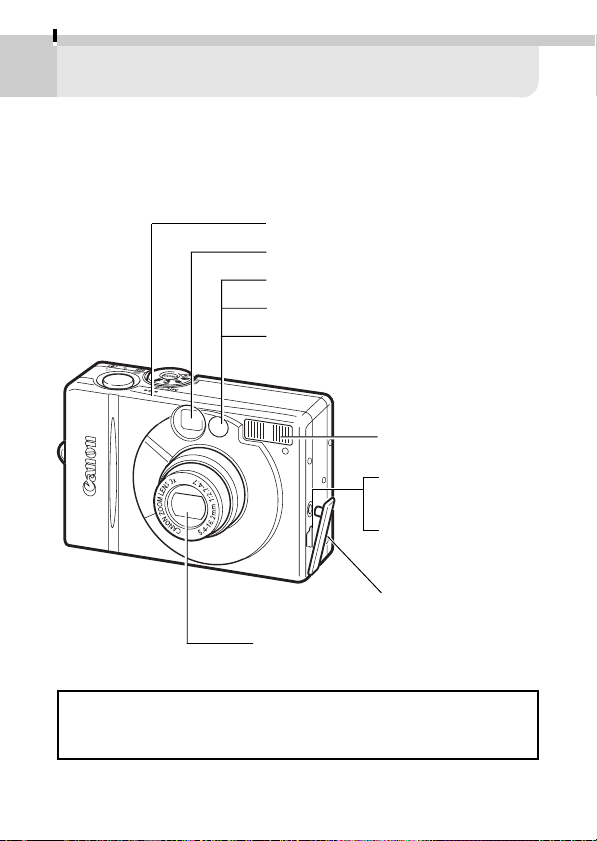
=Microphone
=Optical Viewfinder Window ➜ p. 27
=AF Auxiliary Light Emitter
=Red-Eye Reduction Lamp ➜ p. 37
=Self-Timer Lamp ➜ p. 40
=Flash ➜ p. 37
=A/V OUT (Audio/
Video Out) Terminal
➜ p. 79
=DIGITAL (Digital)
Terminal* ➜ p. 65, 83
=Terminal Cover
=Lens
Preparing the Camera
11
Back View
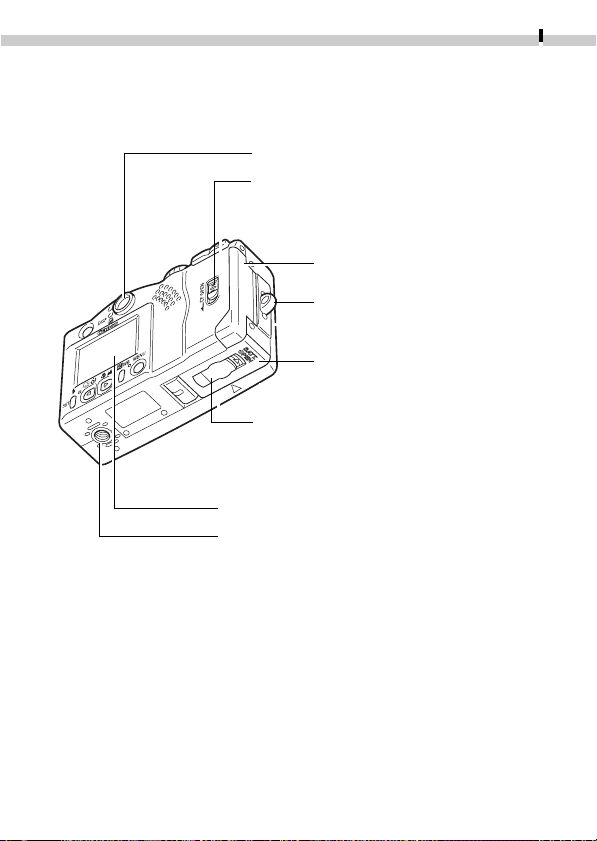
=CF Card Slot Cover ➜ p. 19
=Strap Eyelet ➜ p. 22
=Battery Cover ➜ p. 16
=Viewfinder ➜ p. 27
=Lock for the CF Card Slot Cover ➜ p. 19
=LCD Monitor ➜ p. 28
=Tripod Socket
=DC Coupler Terminal Cover ➜ p. 18
12
Preparing the Camera
Operation Panel
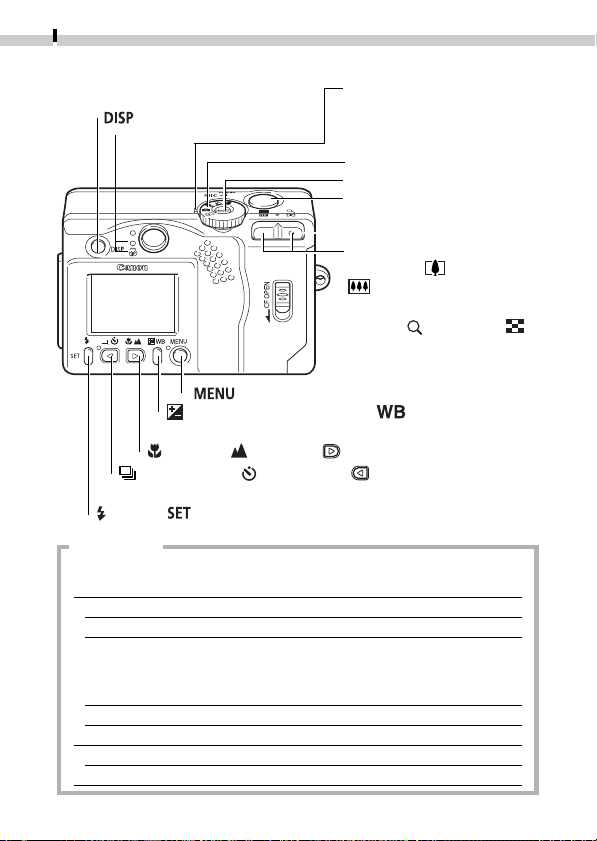
Indicators
• The indicators will glow or flash at various stages when the main
switch or shutter button is pressed.
Upper Indicator
Green: Ready to record
Flashing Green: During camera warm-up/Recording to CF card/
Reading CF card/Deleting CF card images/
Transmitting images to or from a CF card (while
connecting to a computer)
Orange: Ready to record with flash
Flashing Orange:
Ready to record but the camera blur warning is flashing
Lower Indicator
Yellow: Macro mode
= (Menu) Button
= (Exposure Compensation)/ (White Balance)
Button ➜ pp. 41-42
= (Macro)/ (Infinity)/ (Right) Button ➜ p. 39
= (Continuous)/ (Self-Timer)/ (Left) Button
➜ p. 40
= (Flash)/ (Set) Button ➜ p. 37
=Indicators
= (Display) Button ➜ p. 28
=Zoom Button
Shooting: (Telephoto)/
(Wide Angle) Button
➜ p. 33
Replay: (Magnify)/
(Index) Button ➜ pp. 49-51
=Power Lamp (glow: Power
on/Ready to communicate
(while connecting to a
computer))
=Mode Dial ➜ p. 13
=Main Switch ➜ p. 25
=Shutter Button ➜ p. 31
Preparing the Camera
13
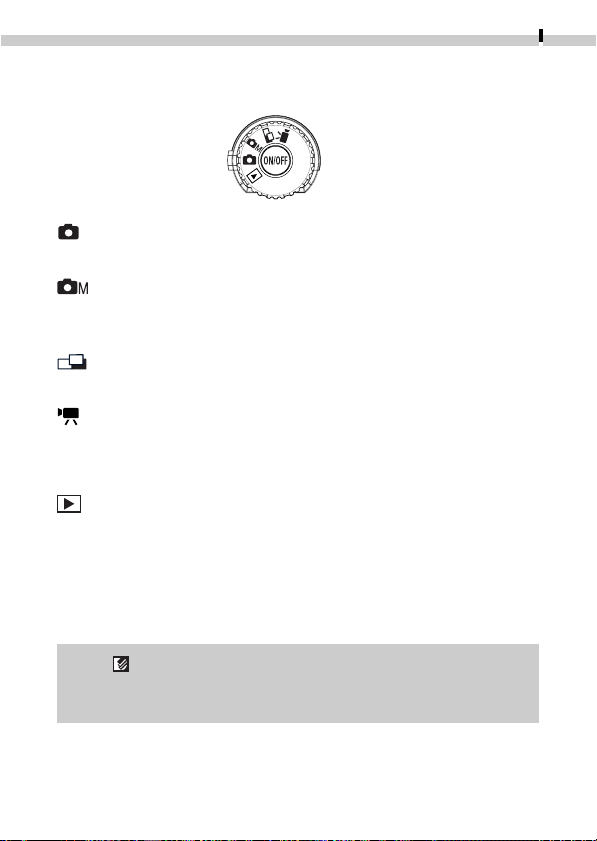
Mode Dial
The mode dial is used to select shooting or replay modes.
Shooting Modes
(Auto)
The camera selects most settings automatically (p. 23).
(Manual)
You can set the exposure compensation, white balance and other
settings manually.
(Stitch Assist)
Shoot images in overlapping series to create panoramas (p. 43).
(Movie)
Shoot movie clips (p. 46).
Replay Mode
(Replay)
•Images recorded onto the CF card can be replayed or erased
(pp. 49-58).
•Images can be printed with a Card Photo Printer CP-10 (sold
separately) connected (pp. 65-71).
•Images can be downloaded to and viewed on a computer
when it is connected (pp. 80-84).
• The icon displays on the LCD monitor while the Card Photo
Printer CP-10 is connected.
• The LCD monitor shuts off while a computer is connected.
14
Preparing the Camera
Charging the Battery Pack
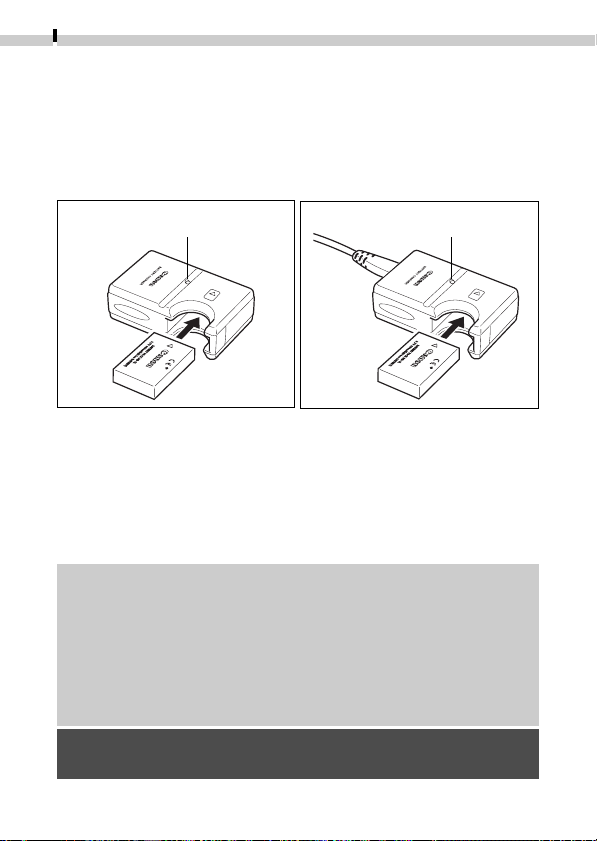
Recharge the battery pack with battery charger CB-2LS or CB-2LSE
the first time you use the camera or when the “Change the battery
pack” message is displayed.
Battery charger model names and types vary by region.
•Insert the battery pack all the way into the battery charger and
plug the charger into an electrical outlet.
•The charging indicator will glow orange while the battery pack
is charging. It will change to a steady green when the charge is
complete.
•After charging, unplug the battery charger and remove the
battery pack from it.
• Since this is a lithium ion battery pack, you need not completely use
or discharge it before recharging.
• It takes approximately 130 minutes to fully charge the battery pack
from a fully discharged state (based on standard Canon testing
conditions). Please charge it at an ambient temperate ranging
between 5 and 40 ºC (41 and 104 ºF).
• Charge times may vary according to the ambient temperature and
the charge state of the battery pack.
• To protect and prolong the life of the battery pack, do not
charge it for longer than 24 hours at a time.
CB-2LS
Charging Indicator
CB-2LSE
Charging Indicator

Preparing the Camera
15
Handling Precautions
• Do not rapidly overturn or wave the battery charger around when the
battery pack is in it. There is a danger of the battery pack flying out.
• At low temperatures, the battery pack performance may be reduced
and the low battery icon may appear earlier than usual. Under these
conditions, resuscitate the battery pack by warming it in a pocket
immediately before use. However, ensure that there are no metallic
items in the pocket that could cause the battery pack to short circuit,
such as key holders, etc.
• Do not place anything, such as tablecloths, carpets, bedding or
cushions, on top of the battery charger while it is charging. Heat will
build up and could result in a fire.
• Do not charge batteries other than Battery Pack NB-1L in this charger.
• The battery pack continues to discharge a minimal portion of its power
while installed in the camera, even with the camera power off or
inserted into the battery charger. This will shorten battery life. To
conserve the battery pack, store it in its case in a cool, dry place.
Recharge it fully before using it again.
• If the performance of the battery pack diminishes substantially even
when it is fully charged, the battery pack should be replaced.
16
Preparing the Camera
Installing the Battery Pack
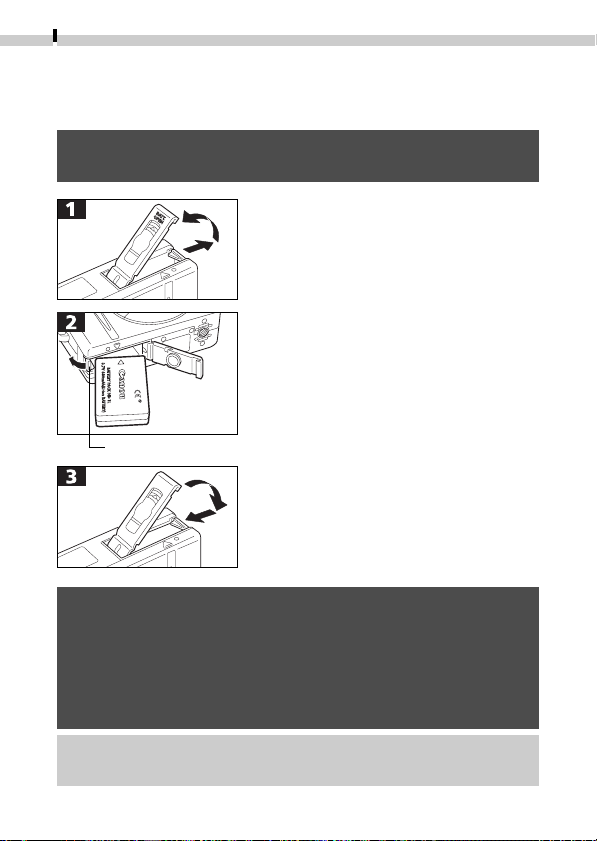
Install Battery Pack NB-1L (supplied) as shown below.
• Please recharge the battery pack ( p. 14) before you use it for
the first time.
Battery Lock
• Slide the battery cover in the
direction of the arrows.
• Press the battery lock while inserting
the battery pack all the way in until
the lock clicks.
• To remove the battery pack, press the
battery lock and pull the battery pack
out.
• Slide the battery cover closed.
• When the camera’s indicator flashes green, do not turn off the
power or open the battery cover. The camera is writing, reading,
erasing or transmitting an image to or from the CF card.
• Remove the battery pack from the camera when the camera is not
in use. Please note, however, that the date, time and other
camera settings may reset to the default settings if the battery
pack has been removed for more than three weeks.
• Please use a household power source for extended use of the
camera (p. 18).
Preparing the Camera
17
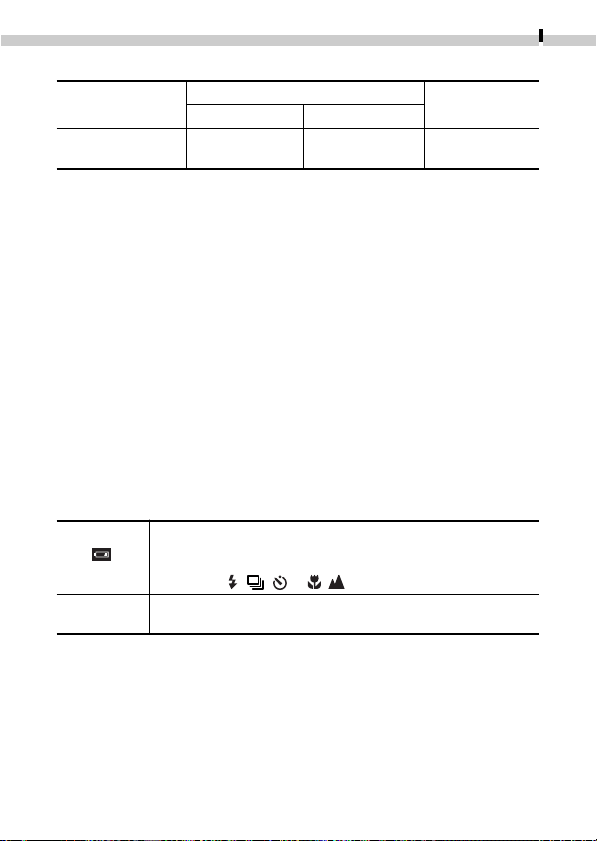
Battery Performance
Recordable Images
Replay Time
LCD Monitor On LCD Monitor Off
Battery Pack NB-1L
Approx. 120 shots Approx. 270 shots Approx. 85 min.
(fully charged)
• The actual performance may vary from the above data according to the
shooting conditions and the shooting mode.
• Excludes movie data.
• At low operating temperatures, the battery performance may drop and the
low battery icon may apper sooner than at high temperatures. To improve
performance at these temperatures, warm the battery in your pocket just
before using it in the camera.
<Test Conditions>
Shooting: Room temperature (23ºC, 73ºF), alternating between wide angle and
telephoto every 20 seconds, flash used one in four shots, power
turned off and on again after every eighth shot
Replay: Room temperature (23ºC, 73ºF), continuous replay at 3 seconds per
image
Battery Pack Charge
The following icons and messages will display when the charge of
the battery pack is low.
Battery pack charge is low. Recharge it as soon as possible
before it is required for an extended period.
When the LCD monitor is off, this icon will display when you
press the , / or / button.
Battery charge is insufficient to operate the camera. Replace
the battery pack immediately.
Change the
battery pack
18
Preparing the Camera
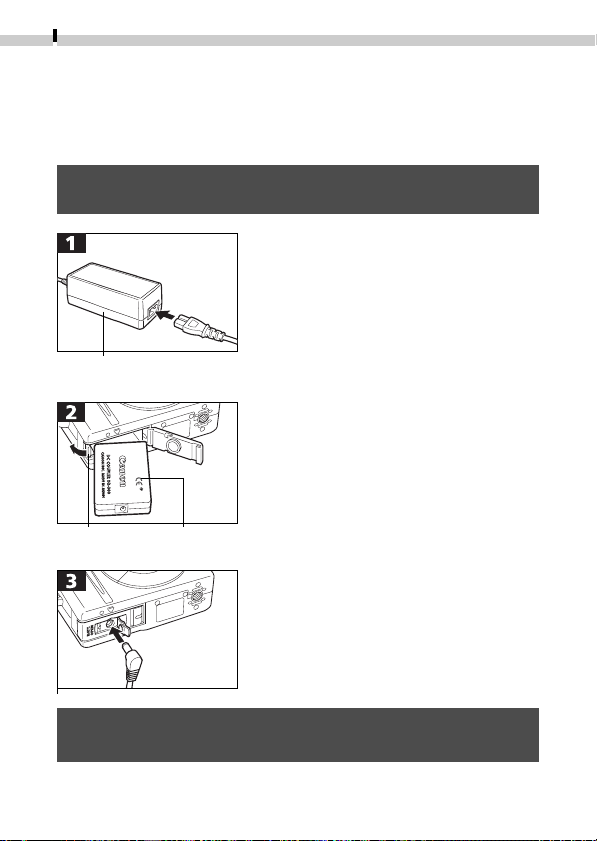
Using the Household Power Source
It is best to power the camera with AC Adapter Kit ACK500 (sold
separately) when you are using it for long periods of time or
connecting it to a computer.
• Turn the camera power off before connecting or disconnecting
the AC adapter.
Compact Power Adapter
CA-PS500
DC Coupler
DR-500
• Connect the power cord to the
compact power adapter first and
then plug the other end into the
electrical outlet.
• Open the battery cover and press the
battery lock in the direction shown
while inserting DC Coupler DR-500.
Insert the DC coupler all the way in
until the battery lock clicks. Slide the
battery cover closed.
• Open the DC coupler terminal cover
and attach the cord to the DC
terminal.
• After you have finished using the
camera, unplug the AC adapter from
the electrical outlet.
Battery
Lock
TO BE REPLACED
• Use of an AC adapter kit other than ACK500 may cause a
malfunction in the camera or kit.
Preparing the Camera
19
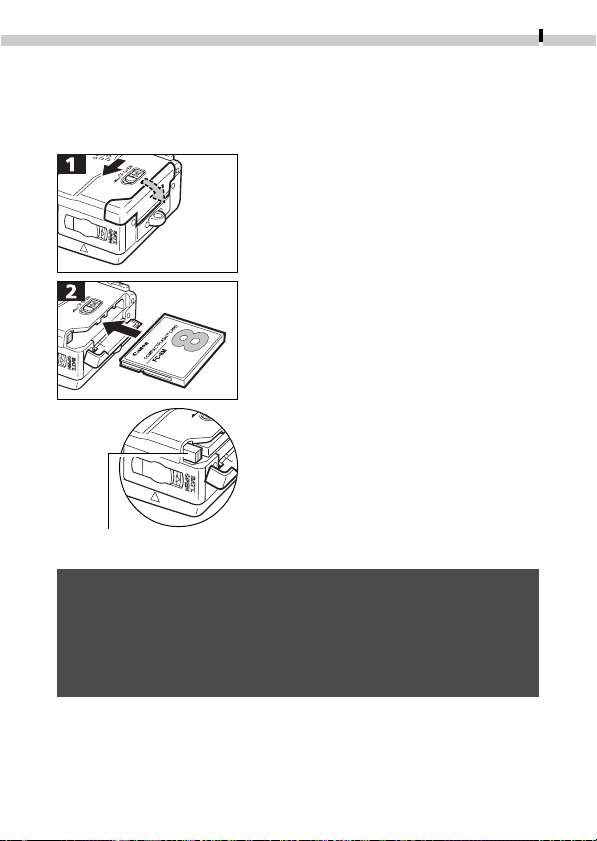
Installing a CF Card
Turn the camera power off and insert the CF card with the
following procedures.
• Slide the lock down and open the CF
card slot cover.
• Insert the CF card until the slot’s eject
button fully extends. Close the CF
card slot cover.
• To remove the CF card, push the eject
button and pull the CF card out.
CF Card Eject Button
• When the camera’s indicator flashes green, do not turn off the
power or remove the CF card. The camera is writing, reading,
erasing or transmitting an image to or from the CF card.
• Please note that CF cards from other manufacturers, or CF cards
which have been edited with application software using other
formats, may not operate correctly in the camera.
20
Preparing the Camera
Handling Precautions for CF Cards
• CF cards are high-precision electronic devices. Do not bend them,
apply force to them, or subject them to shocks or vibration.
• Do not attempt to disassemble or alter a CF card.
• Moving a CF card rapidly between temperature extremes will cause
condensation to form in the card and lead to a malfunction. To avoid
condensation, place the CF card in a sealed plastic bag before moving
it into a different temperature zone and allow it to adjust slowly to the
new temperature. If condensation forms on the CF card, store it at
room temperature until the water droplets have evaporated naturally.
• Place the CF card in the supplied case for storage.
• Do not use or store CF cards in the following types of location.
- Location subject to dust or sand
- Locations subject to high humidity and high temperatures
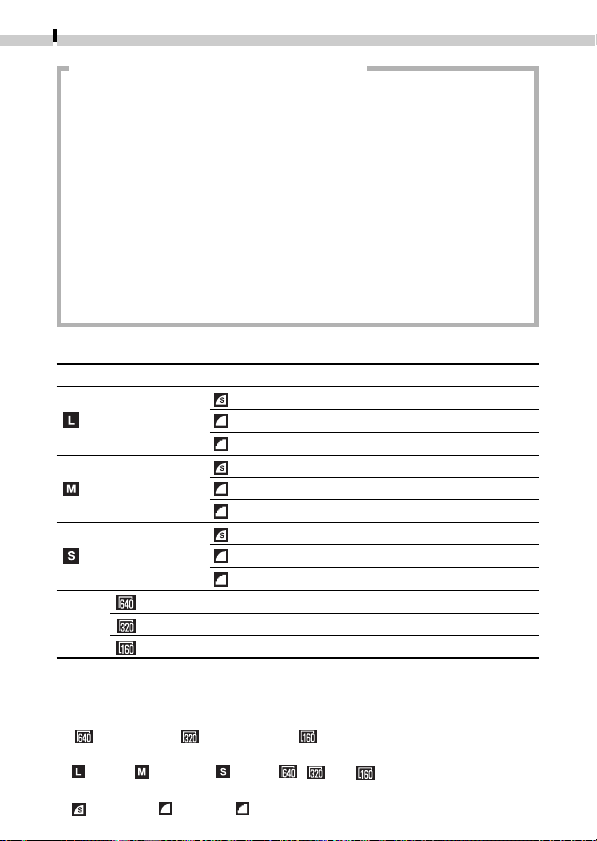
CF Cards and Estimated Capacities (Recordable Images)
FC-8M FC-16M FC-32M FC-64M FC-128M
7153164128
(
1600 x 1200 pixels
)
11 24 49 100 200
24 48 99 200 401
16 32 67 135 271
(
1024 x 768 pixels
) 24 49 102 205 412
46 92 189 379 760
35 70 143 288 577
(
640 x 480 pixels
) 50 99 206 415 831
87 172 353 707 1417
(
640 x 480 pixels
)6
sec.
13
sec.
27
sec.
56
sec.
113
sec.
MOVIE (
320 x 240 pixels
)18
sec.
36
sec.
75
sec.
152
sec.
305
sec.
(
160 x 120 pixels
)48
sec.
97
sec.
198
sec.
399
sec.
799
sec.
• These figures reflect standard shooting conditions established by Canon. Actual
totals may vary according to the subject, shooting conditions and shooting mode.
• The maximum length of a movie clip recording is approximately: 4 seconds
( ), 10 seconds ( ) or 30 seconds ( ). The times shown are the
maximum continuous recording times.
• (Large), (Medium), (Small), , and indicate the recording
resolution.
• (Superfine), (Fine) and (Normal) indicate the compression setting.
Preparing the Camera
21
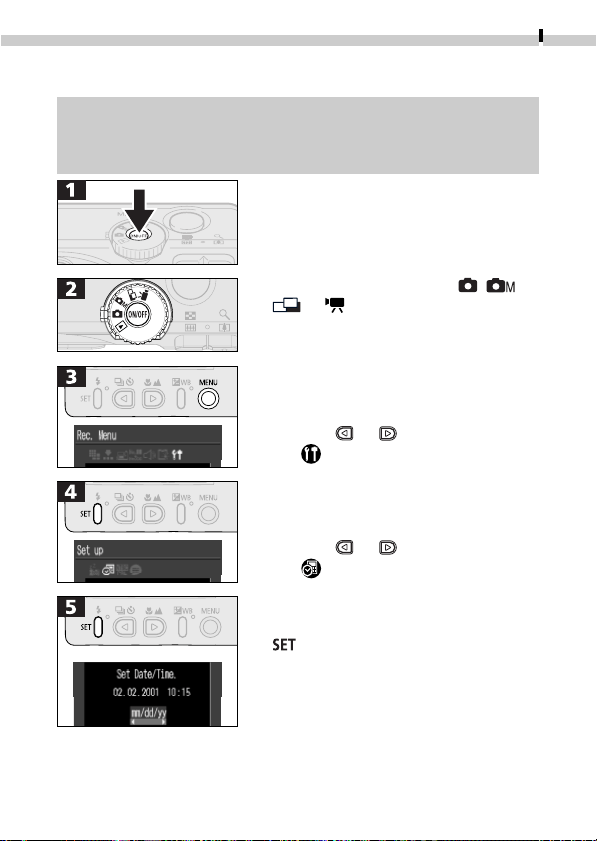
Setting the Date and Time
• The Set Date/Time menu will appear the first time the camera
power is turned on or whenever the built-in rechargeable lithium
battery charge is low. Start from Step 5 to set the date and time.
• Press the main switch until the power
lamp lights.
• Turn the mode dial to the , ,
or position.
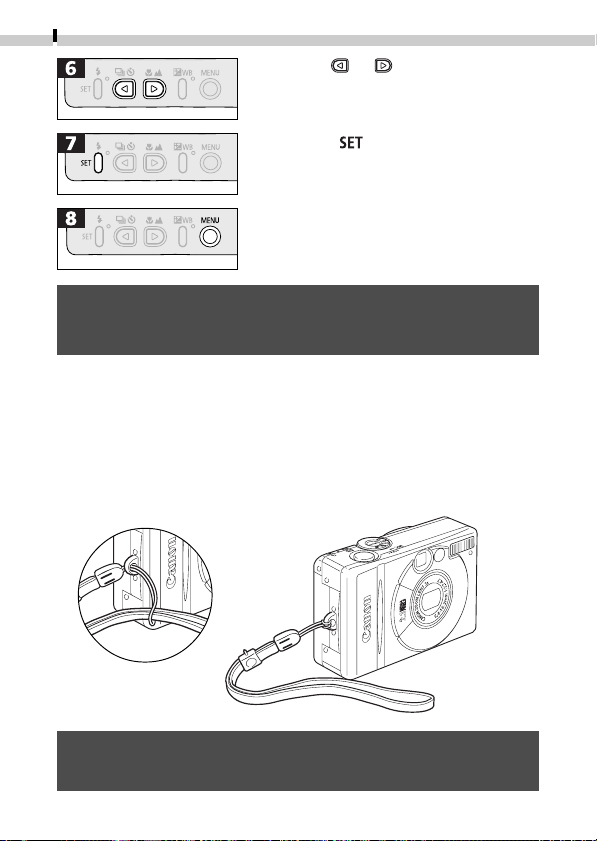
• Use the or button to select
the icon.
• Use the
or button to select
the icon.
• Select a field (year, month, day, hour,
minutes and date format) with the
button.
• The factory default for the date
format in some regions may differ
from that shown.
22
Preparing the Camera
• Press the button.
• The LCD monitor will return to the
shooting mode.
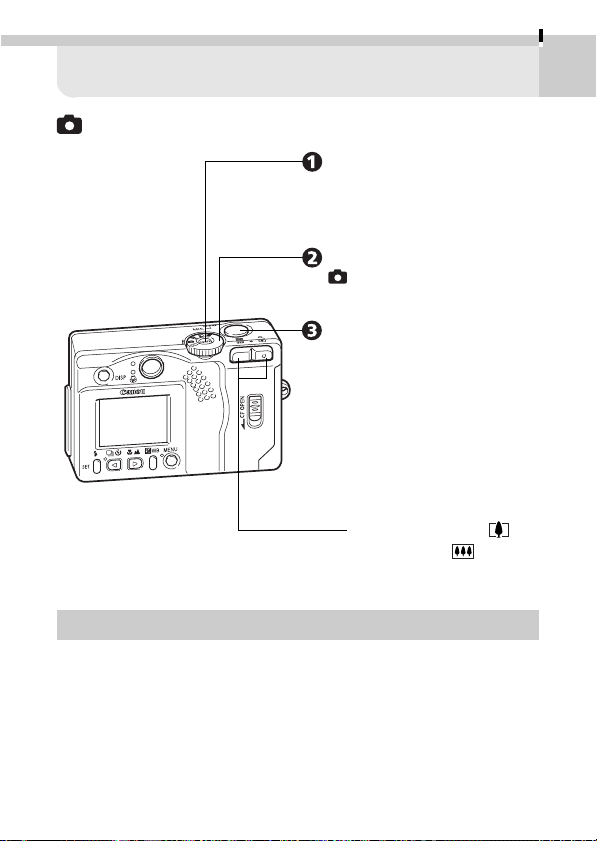
Attaching the Wrist Strap
Thread the small loop of the wrist strap through the strap holder on
the camera and pull the large loop through the small loop until the
small loop fits snugly against the strap holder.
• Be careful not to wave the camera about or catch it on other
items when dangling it from the wrist strap.
• Please note that the date and time settings may reset to the
default settings if the camera battery has been removed for
more than three weeks. Reset them when this occurs.
• Use the or button to change
the value in a field.
23
Quick Start
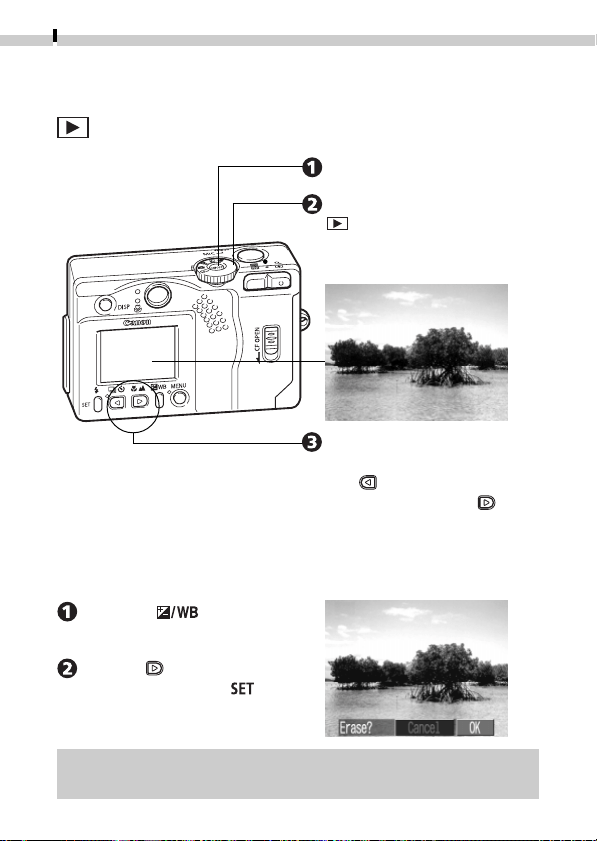
Shooting (Auto)
• If the Set Date/Time menu appears, set the date and time (p. 21).
Press the main switch.
Press the main switch until the
green power lamp beside the
mode dial lights ➜ p. 25.
Turn the mode dial to the
(Auto) position.
Press the shutter button.
Press the shutter button lightly
(halfway), wait until two
beeps sound, and then press
it all the way. Another beep
will sound, indicating that the
shot been taken ➜ p. 31.
To zoom, press the
(Telephoto) or (Wide
Angle) button.
24
Quick start
Erasing Shortcut
Press the button while
the image is displayed.
Use the button to select
[OK] and press the
button.
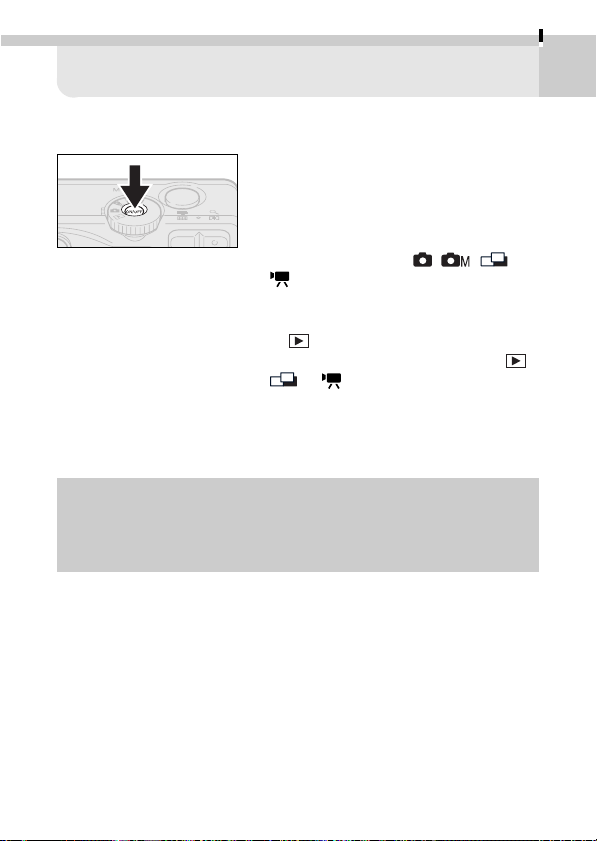
Replaying (Single Image Replay)
• When you have finished viewing or erasing, press the main switch to
turn off the power.
Press the main switch.
Turn the mode dial to the
(Replay) position.
The last recorded image will
display in the LCD monitor.
Press these buttons to
switch to another image.
The
button displays the
previous image. The
button displays the next
image.
25
Basic Functions
Turning the Power On/Off
Press the main switch until the green
power lamp lights.
• The upper indicator beside the
viewfinder eyepiece will flash green.
• The lens will extend when the mode
dial is turned to the
, , or
position.
• The lens will retract approximately 1
minute after the mode dial is turned
to
from any other mode.
• When the mode dial is set to the
,
or position, the LCD monitor
will turn on regardless of its On/Off
status.
Press the main switch again to turn off
the power.
• The Set Date/Time menu will appear the first time the camera is
turned on. Please set the date and time (p. 21).
• If the auto power down function activates, press the main
switch again to restore power.
26
Basic Functions
Auto Power Down Function
Shooting Mode
The power will automatically shut off approximately 3 minutes after
the last function is accessed.
Replay Mode
The power will automatically shut off approximately 5 minutes after
the last function is accessed.
Connected to Card Photo Printer CP-10
The power will automatically shut off approximately 5 minutes after
the last camera function is accessed or Card Photo Printer CP-10 (sold
separately) ceases to print an image.
While Connected to a Computer (
Auto power down function always active
)
A warning message will appear on the computer screen approxi-
mately 5 minutes after the last function is accessed. The power will
automatically shut off approximately 1 minute later if no functions
are accessed. (Except when the camera is powered by a household
power source)
• The auto power down function will not activate while the camera is
in auto play mode.
• The camera’s settings can be changed to turn off the auto power
down function. (p. 76)
Basic Functions
27
This camera is equipped with an optical viewfinder.
Viewfinder
Align the square brackets (autofocus
metering field) inside the viewfinder
on the primary subject to compose
the image.
About the Autofocus Function
This camera employs AiAF (artificial intelligence autofocus) technology
which uses a broad metering field to calculate the focal distance with
high precision. It delivers a crisp focus even when the photographic
subject is slightly off-center.
Using the Focus Lock
The following types of subject may not be suited to autofocus
photography. Use the focus lock in these situations.
• Subjects with extremely low contrast to the surroundings
• Subjects with extremely bright objects at the center of the
composition
• Subjects that are moving quickly
• Subjects through glass
Try to shoot as close to the glass as possible to reduce the chances of
light reflecting back off the glass.
How to Use the Focus Lock
1. Aim the camera so that a subject at the same focal distance as the
main subject is centered in the brackets in the optical viewfinder.
2. Press the shutter button halfway and wait until two beeps sound.
3. Re-aim the camera to compose the shot as desired and press the
shutter button all the way.
Using the Viewfinder
28
Basic Functions
Using the LCD Monitor
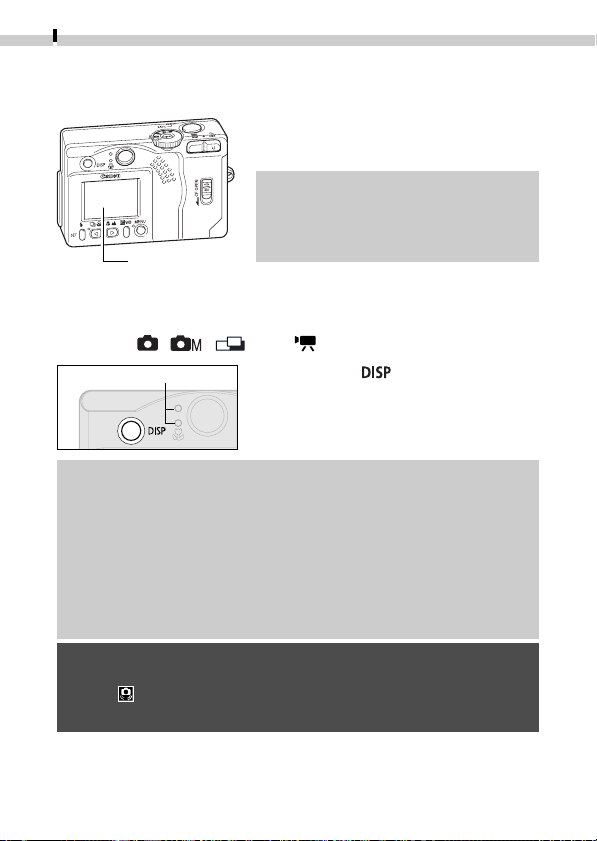
The LCD monitor can be used to
compose images while shooting, adjust
settings menus and replay images.
• The image in the LCD monitor will
darken in strong sunlight or bright
light. This does not constitute a
malfunction.
LCD Monitor
Shooting Mode
(
, , and on the mode dial)
• Pressing the button turns the
LCD monitor on or off.
• The LCD monitor setting (On or Off) is saved by the camera
when the power is turned off so that the same setting is
automatically available when the power is turned on again.
However, the setting may be lost when the power has been
turned off after the “Change the battery pack” message has
displayed, while the LCD monitor was on in shooting mode.
• In macro mode, the parallax phenomenon may cause images
composed with the viewfinder to be off-center. Use the LCD
monitor to compose close-ups in macro mode (p. 39).
• Set the flash to On or affix the camera to a tripod when the
upper indicator flashes orange and the camera blur warning
icon ( ) appears in the LCD monitor after the metering
preparations are complete.
Indicator
Basic Functions
29
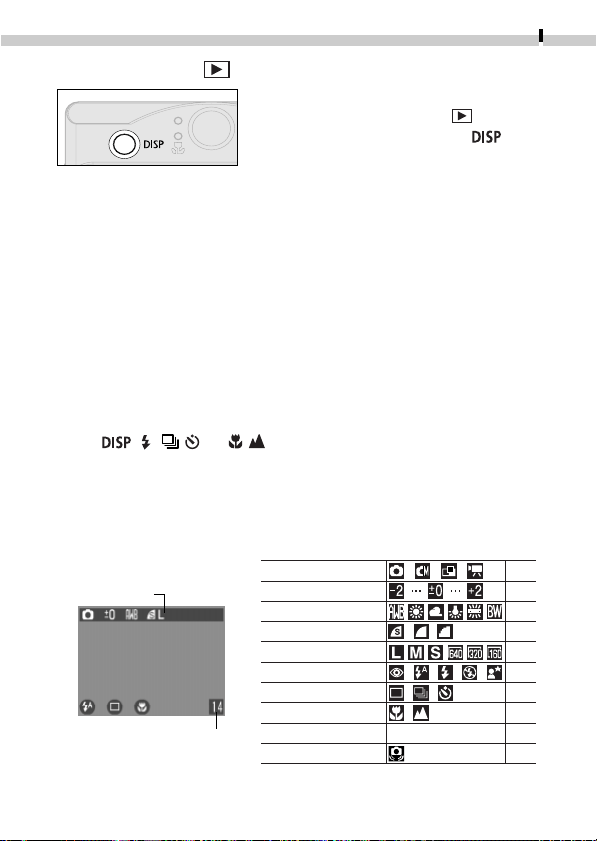
Remaining Image Capacity
(Recordable seconds remaining
for movies)
p. 34
p. 41
p. 42
p. 34
p. 34
p. 37
p. 40
p. 39
p. 33
p. 28
Shooting Mode
Exposure Compensation
White Balance
Compression
Resolution
Flash
Shooting Method
Macro/ Infinity
Zoom Setting*
Camera Blur Warning
X3.8/X4.7/X6.0/X7.5
Information Displayed on the LCD Monitor
Shooting Mode
In shooting mode, information about the current settings and
remaining image capacity will display on the LCD monitor for
approximately six seconds when the actions below are taken,
regardless of whether the LCD monitor is set to On or Off.
While this information is displayed, you may set the flash,
continuous mode, self-timer, macro and infinity settings.
• The power is turned on.
• The
, , / , or / button is pressed.
• The camera settings are changed.
• The Rec. menu is closed.
• The shutter button has been pressed and a shot has been taken.
(LCD monitor must be on)
• The LCD monitor will turn on when
the mode dial is set to the position.
• In replay mode, pressing the
button cycles between display modes.
Information Displayed
Replay Mode ( on the mode dial)
Single Image Replay ...........Standard ➞ Detailed ➞ No Display
Index Image Replay (9 Images) ........... Standard ➞ No Display
* The displayed zoom setting is the combined
effect of the optical and digital zooms. It
displays when the digital zoom is activated.
The resolution, but not
compression, shows in
movie mode.
30
Basic Functions
The following information may also be displayed with some images.
A sound file (WAV file) is attached.
A sound file in a format other than the WAV format is attached or the
file format is not recognized.
JPEG file with format not conforming to Design rule for Camera File
system standards
RAW format file
File with unrecognized format
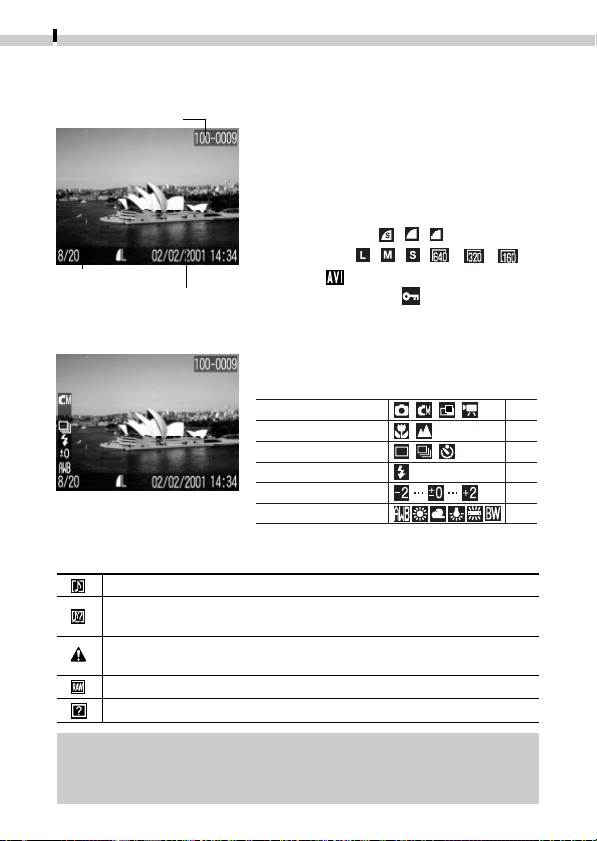
Replay Mode (Standard Display)
File Number
Image Number
Shooting Date
In standard display mode, the following
information is displayed.
• File Number
• Image Number (Image Number/Total
Number of Images)
• Shooting Date
• Compression (
, , )
• Resolution (
, , , , , )
• Movie (
)
• Protection Status ( )
In detailed mode, the following
supplementary information is displayed.
• The image information may not display correctly if images shot
with this camera are replayed on other cameras or images from
other cameras are replayed on this camera.
Replay Mode (Detailed Display)
Shooting Mode
Macro/Infinity
Shooting Method
Flash
Exposure Compensation
White Balance
p. 34
p. 39
p. 40
p. 37
p. 41
p. 42
Basic Functions
31
Pressing the Shutter Button
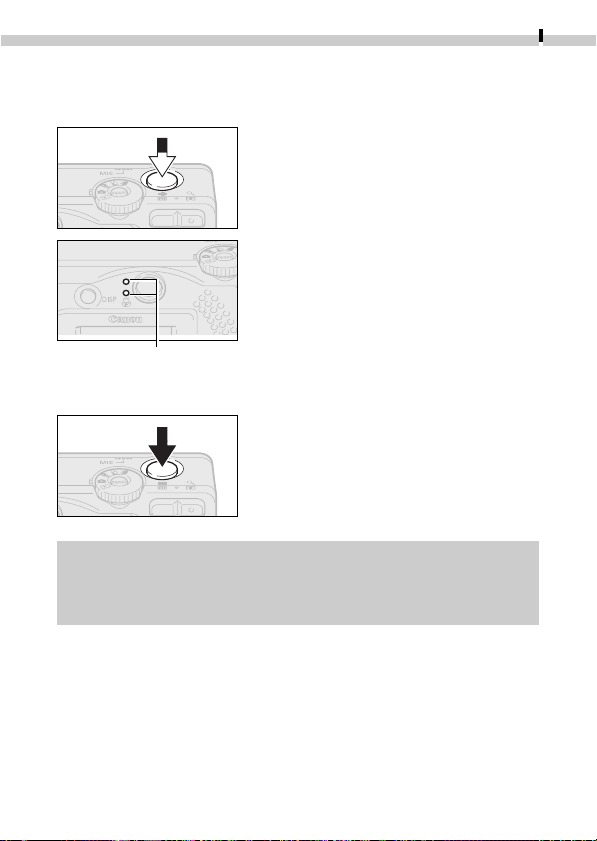
The shutter button features a two-stage action.
Pressing Halfway
The camera uses the first stage to
automatically set the exposure,
autofocus and white balance. When it
has finished metering, two beeps sound
and the upper indicator glows green.
When the flash is used, the indicator
glows orange when the flash is ready to
fire. A flashing orange indicator warns
of insufficient light and the risk of
camera blur.
In macro mode, the lower indicator
glows yellow.
Pressing Fully
Pressing the shutter button down fully
activates the shutter and causes one
beep to sound. While the image is being
recorded to the CF card, the indicator
flashes green.
Indicator
• Recorded images are temporarily stored in the camera’s built-in
memory and then written to the CF card. The next image can be
recorded immediately after the first as long as sufficient built-in
memory is available.
Reviewing an Image Immediately after
Recording It
Images display in the LCD monitor (regardless of its On/Off status)
for 2 seconds immediately after recording even if you release the
shutter button. Images can also be reviewed with the following
procedures.
32
Basic Functions
Continuing to Press the Shutter Button Fully
If you continue to press the shutter button fully after shooting, the
image will display until the button is released.
Pressing the SET Button
If you press the, SET button while continuing to press the shutter
button fully, it will continue to display even when you release the
shutter button. To cancel the review, press the shutter button halfway.
• You can erase an image right away while it is displayed (p. 24).
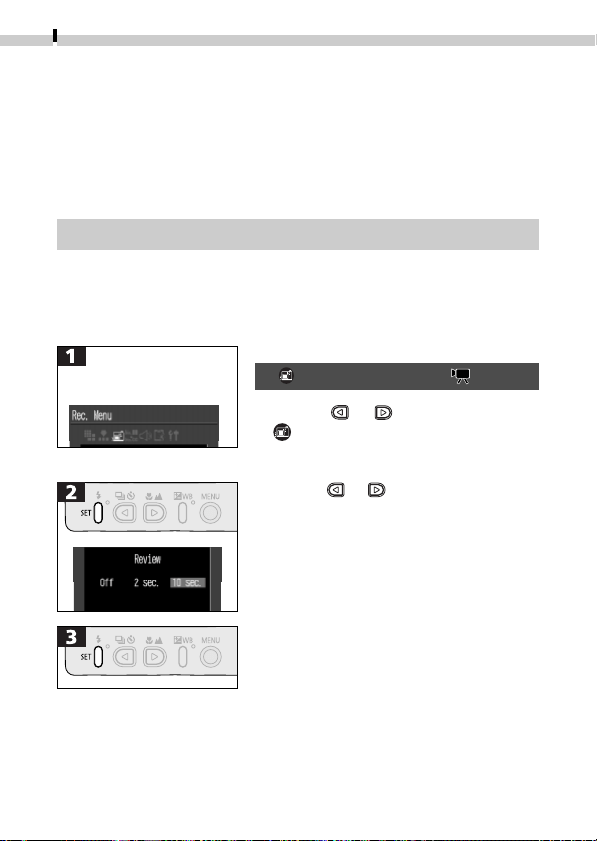
Changing the Default Review Setting
The default review time is approximately 2 seconds. This can either
be turned off or set to approximately 10 seconds.
Display the Rec. menu
(➜ p. 72)
• is not available in the modes.
• Use the or button to select the
icon.
• Use the or button to select Off,
2 sec. or 10 sec.
• No image will display when the review
function is set to Off unless you
continue to press the shutter button
fully after shooting.
• With the 2- or 10-second options, the
image will display for the specified time
even if the shutter button is released
right after shooting.
• With the 2- or 10-second options, you
can display the image for longer than
the specified time as long as the shutter
button is held down continuously.
• You can shoot another image even
while an image is displayed.
Basic Functions
33
Adjusting the Zoom (Depth of Field)
The zoom can be adjusted to any setting in the 35 to 105 mm
range in 35 mm film equivalent terms.
Telephoto/Wide Angle
Pressing the button zooms in,
making the subject appear larger in the
composition.
Pressing the
button zooms out,
making the subject appear smaller in
the composition.
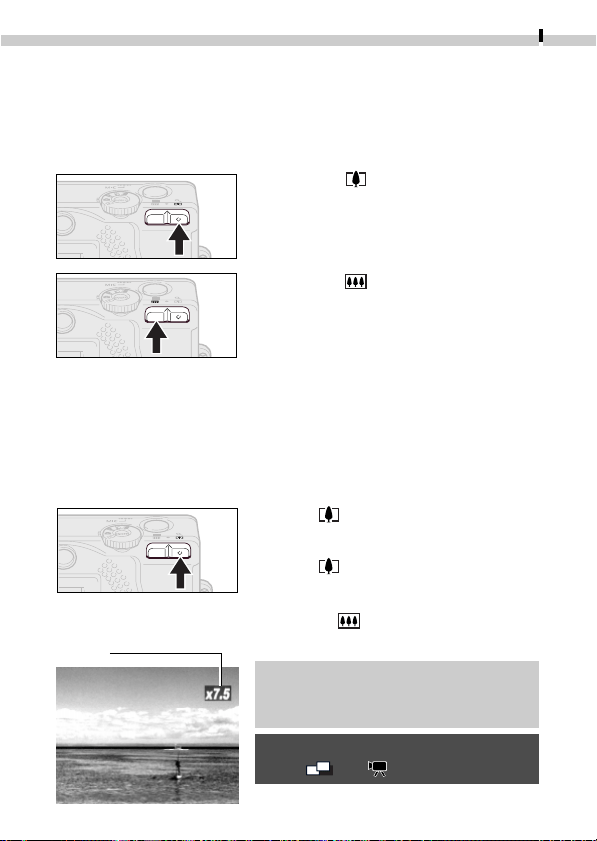
Digital Zoom
When the LCD monitor is on, you can digitally zoom in on a subject
with the zoom button once it is at the maximum optical telephoto
setting. Images can be zoomed up to 7.5 times, which combines
the effect of the optical zoom.
Press the
button until the image is fully
zoomed and then release the button.
Press the
button again to further zoom
the image.
Pressing the button zooms the image
out again.
• Please note that the image appears
grainier, the more the image is
digitally zoomed.
• The digital zoom is not available in
the and modes.
The displayed zoom setting
is the combined effect of
the optical and digital
zooms.
34
Shooting
Selecting a Shooting Mode
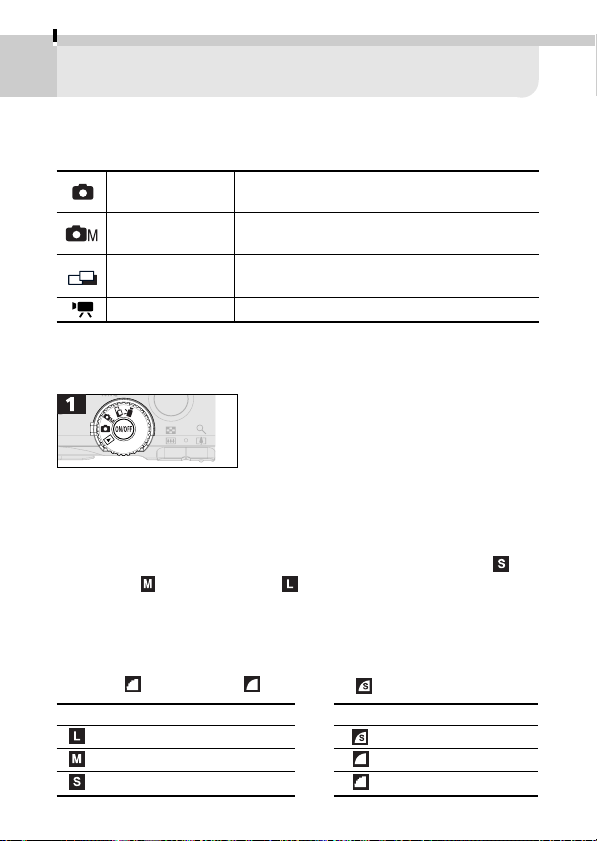
The camera features the following shooting modes.
Auto Mode
Most settings are automatically selected by the
camera.
Manual Mode
The exposure compensation, white balance
and other settings can be manually selected.
Stitch Assist Mode
Images are shot in overlapping series to create
single panoramic images.
Movie Mode Shoots movie clips.
• Select a shooting mode.
Changing Resolution/Compression Settings
Still image resolution and compression settings and movie
resolution settings can be adjusted to suit your requirements.
Resolution settings get progressively higher ranging from the
(Small) and (Medium) to the (Large) settings. Use a high
resolution setting to obtain the best quality for printing an image at
a large size, but select a lower one to print on small labels, to send
images by email or to fit more images on a CF card. Compression
settings yield progressively higher image quality as one switches
from the
(Normal) and (Fine) to the (Superfine) setting.
Still Image Resolution
(Large) 1600 x 1200 pixels
(Medium) 1024 x 768 pixels
(Small) 640 x 480 pixels
Compression
Superfine
Fine
Normal
• The settings selected in each shooting mode are saved when
switching between shooting modes. Some settings are also saved
when the power is turned off (p. 48).
Shooting
35
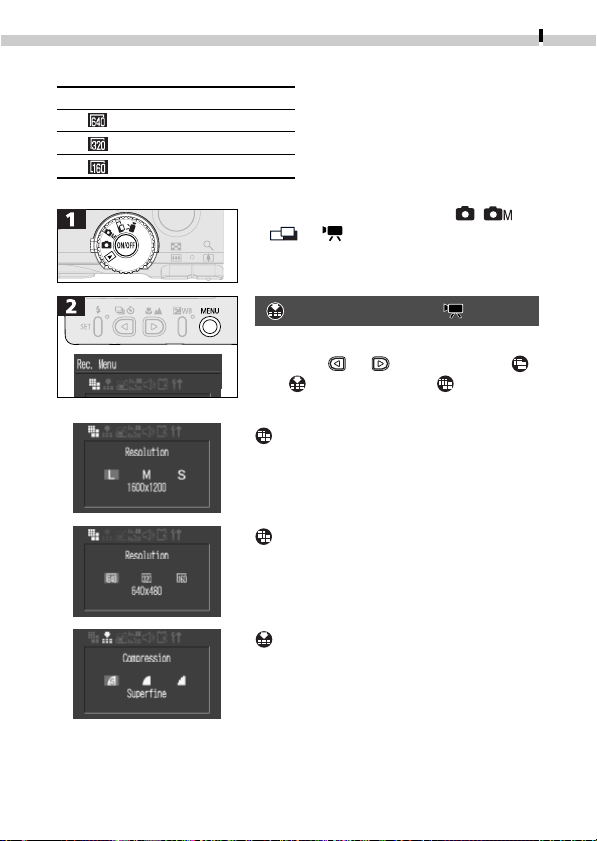
The following resolutions are available for movies.
Movies Resolution
640 x 480 pixels
320 x 240 pixels
160 x 120 pixels
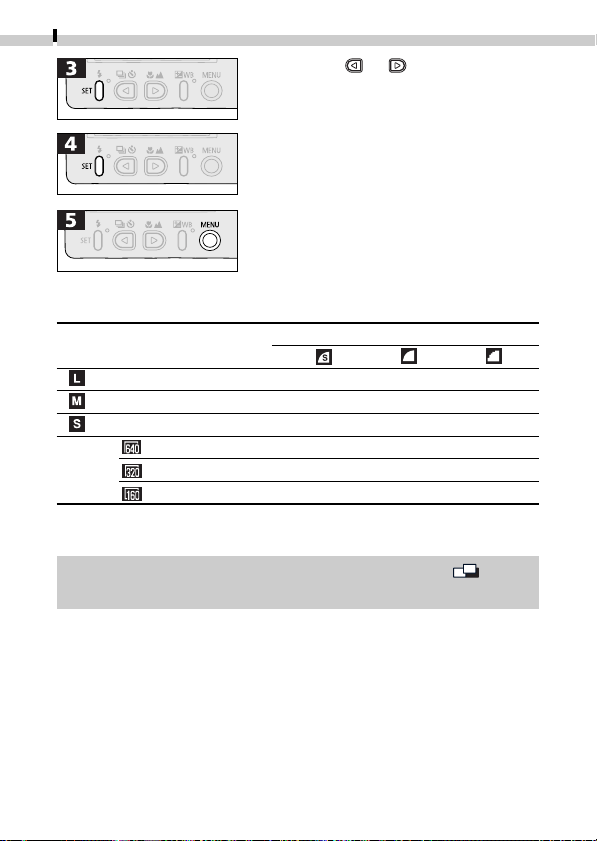
• Turn the mode dial to the , ,
or position.
cannot be adjusted in mode.
• Use the or button to select
or for still images or for movies.
Resolution (Still Images)
Select Large, Medium or Small.
Resolution (Movies)
Select [640 x 480], [320 x 240] or
[160 x 120].
Compression
Select Superfine, Fine or Normal.
36
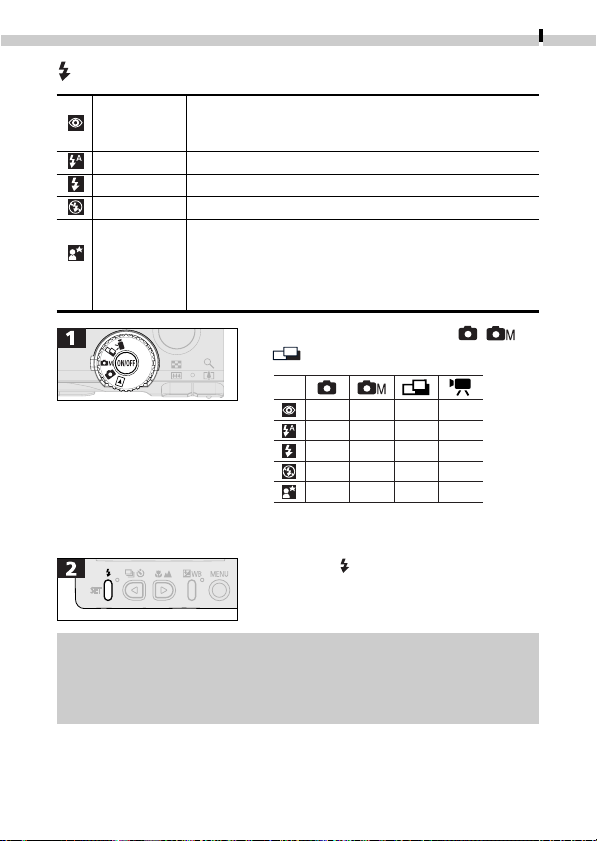
Shooting
Compression
Resolution
(1600 x 1200 pixels) 957 KB 611 KB 302 KB
(1024 x 768 pixels) 450 KB 294 KB 155 KB
(640 x 480 pixels) 208 KB 141 KB 79 KB
(640 x 480 pixels) 900 KB/s
Movies (320 x 240 pixels) 380 KB/s
(160 x 120 pixels) 130 KB/s
Approximate Image Sizes
• These figures reflect standard shooting conditions established by Canon.
Actual totals may vary according to the subject and shooting conditions.
• The settings can only be adjusted for the first frame in mode.
• Please see page 20 for the available CF cards and their capacities.
• Use the or button to select a
setting.
• The LCD monitor will return to the
shooting mode.
Shooting
37
Red-Eye
The main flash may fire automatically as required by
Reduction
the light level. The red-eye reduction lamp fires with
Auto
each shot.
Auto The flash fires automatically as required by the light level.
On The flash fires with every shot.
Off The flash will not fire.
Slow-Synchro
The flash timing is adjusted to slow shutter speeds.
This reduces the chance that the background will be
dark when shots are taken at night or in rooms with
artificial lighting. Use of a tripod is recommended.
The red-eye reduction lamp fires with each shot.
Using the Flash
• Turn the mode dial to the , or
position.
●
Setting available.
▲
Can be selected for first image only.
• Press the button to cycle through
the flash settings.
●
●
-
●
-
●
●
●
●
●
-
-
▲
▲
▲
-
-
-
●
-
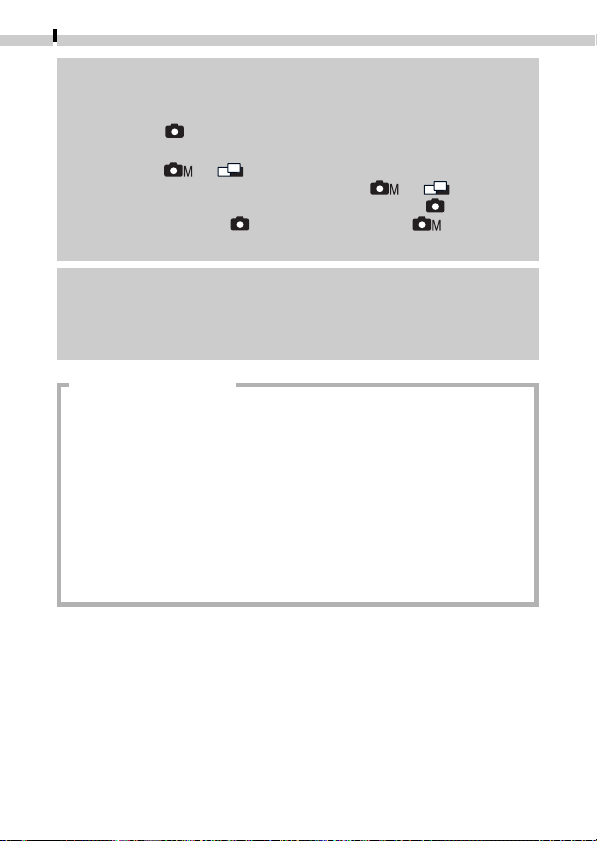
• The flash can be fired when the upper indicator glows a steady
orange.
• The flash takes approximately 10 seconds to charge. Recharging
time may vary with the state of the battery charge.
38
Shooting
Please note that a slow shutter speed will be selected in dark
places when the flash is set to off or slow-synchro. Be careful
to avoid camera blur under these conditions.
• Shooting in Mode
Be careful to hold the camera still to avoid camera blur.
• Shooting in or Mode
Fix the camera to a tripod to shoot in the or mode
since the shutter speed will be slower than in the mode.
If an image is dark in mode, reshooting it in mode will
make it brighter.
Red-Eye Reduction
• Light reflecting back from eyes can make them appear red when
the flash is used in dark areas. Under these conditions, use the red-
eye reduction mode. For this mode to be effective, the subject must
be looking right at the red-eye reduction lamp. Try asking them to
look directly at the lamp. Even better results can be obtained by
shooting with the lens set to the wide angle, increasing the lighting
in indoor settings or approaching closer to the subject.
• The shutter will not activate for approximately 1 second after the
red-eye reduction lamp fires in order to improve the effect. If you
wish a more immediate shutter response, set the flash setting to
any setting other than the red-eye reduction auto setting.
• The flash fires twice. A preparatory pre-flash is followed by the
main flash. The exposure readings obtained from the subject
with the pre-flash are used to set the optimal flash intensity for
the main flash, which is used to shoot the image.
Shooting
39
/ Shooting Close-Ups/Infinity Shots
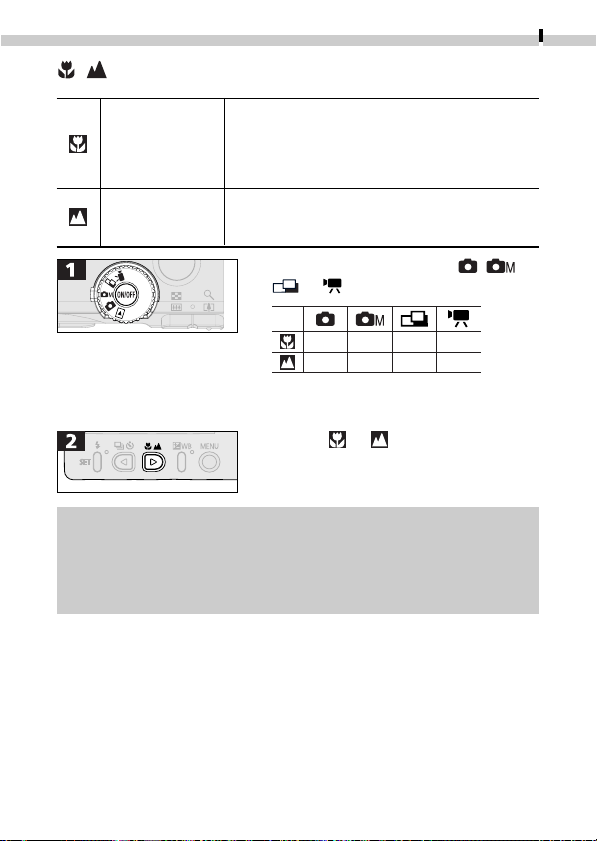
Macro Mode
Use this mode to record subjects in the range of
16 to 76 cm (6.3 in. to 2.5 ft.) from the lens tip
when at maximum wide angle and in the range
of 26 to 76 cm (10.2 in. to 2.5 ft.) when at the
maximum telephoto setting.
Infinity Mode
Use this mode to record landscapes and distant
objects. It can also be used for compositions
combining both near and distant objects.
●
Setting available.
▲
Selectable for first image only.
• Display or .
• Use the LCD monitor to compose close-ups in macro mode since
the parallax phenomenon may cause images composed with the
optical viewfinder to be off-center.
• The exposure may not be optimal when the flash is used in
macro mode in the range of 16 to 26 cm (6.3 to 10.2 in).
• Turn the mode dial to the , ,
or position.
●
-
●
●
▲
▲
●
●
40
Shooting
Using the Self-Timer
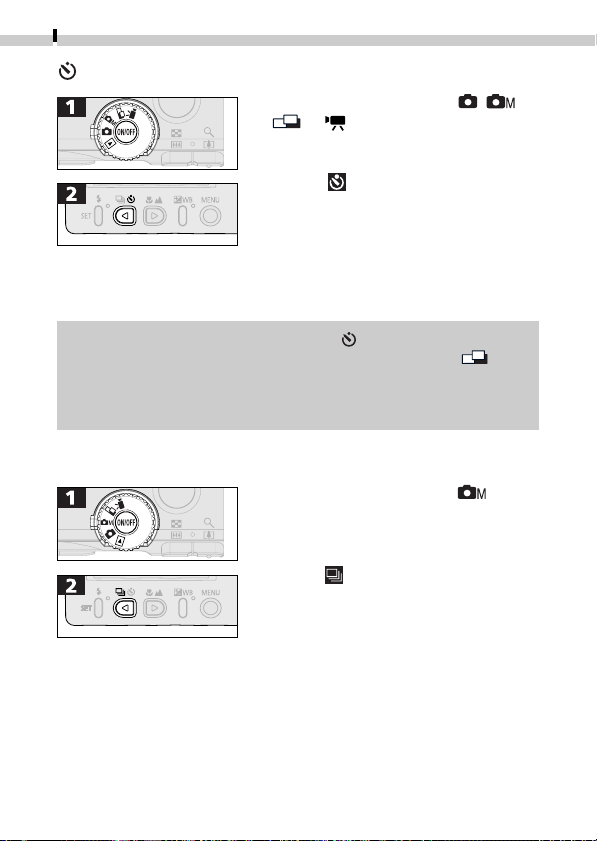
• Turn the mode dial to the , ,
or position.
• Display
.
• When the shutter button is pressed,
the self-timer indicator will flash and
the shutter will activate after 10
seconds. The flashing will accelerate
two seconds before the picture is
taken.
• To cancel partway through, press the button.
• The settings can only be adjusted for the first frame in
mode.
• Please see Step 3 on page 46 to learn how to stop shooting a
movie clip.
Shooting Continuously
• Turn the mode dial to the
position.
• Display
.
• The camera will shoot continuously at
approximately 2.5 images per
second* (Large and Fine settings with
the LCD monitor off) while the
shutter button is held down.
Recording ceases when the shutter
button is released.
* This figure reflects standard shooting
conditions established by Canon.
Actual figures may vary according to
the subject and shooting conditions.
Shooting
41
• Images may be recorded consecutively in continuous mode until
the CF card is full.
• The interval between shots may lengthen slightly when the
camera’s built-in memory becomes full.
Adjusting the Exposure Compensation
An image can be under-exposed if the subject is backlit or
positioned in a bright location. Lights in night shots may also
appear too bright. To avoid under-exposing the image, use the
exposure compensation function.
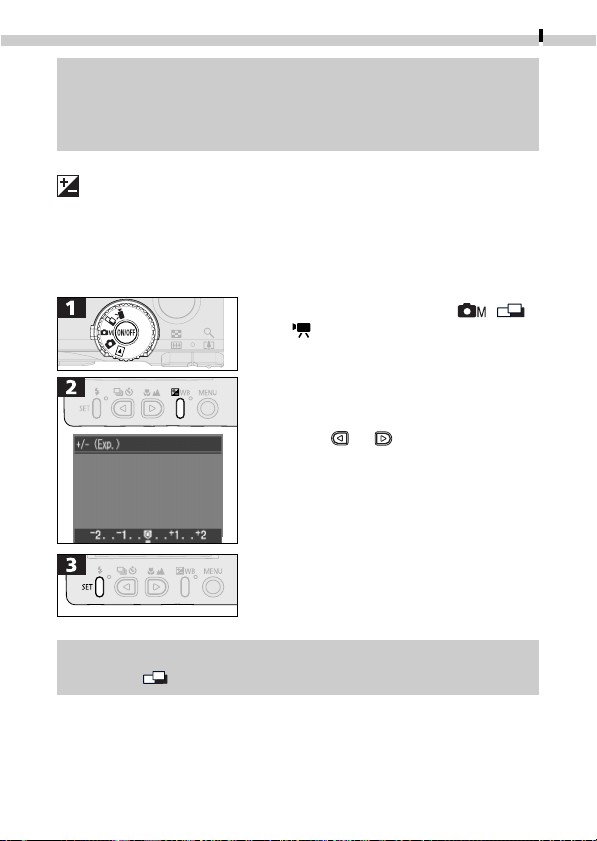
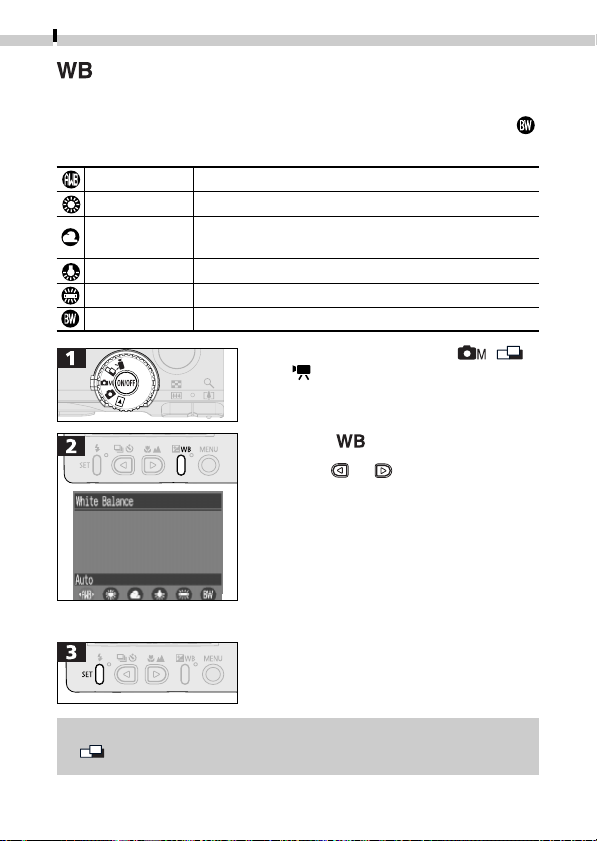
• Turn the mode dial to the
,
or position.
• Use the
or button to select a
setting.
• You can confirm the effect of the
exposure compensation setting in the
LCD monitor image when the LCD
monitor is on.
• A shot can be taken immediately
after. The menu will reappear after
the shot, allowing you to adjust the
setting.
• The exposure compensation can only be adjusted for the first
frame in mode.
42
Shooting
Setting the White Balance
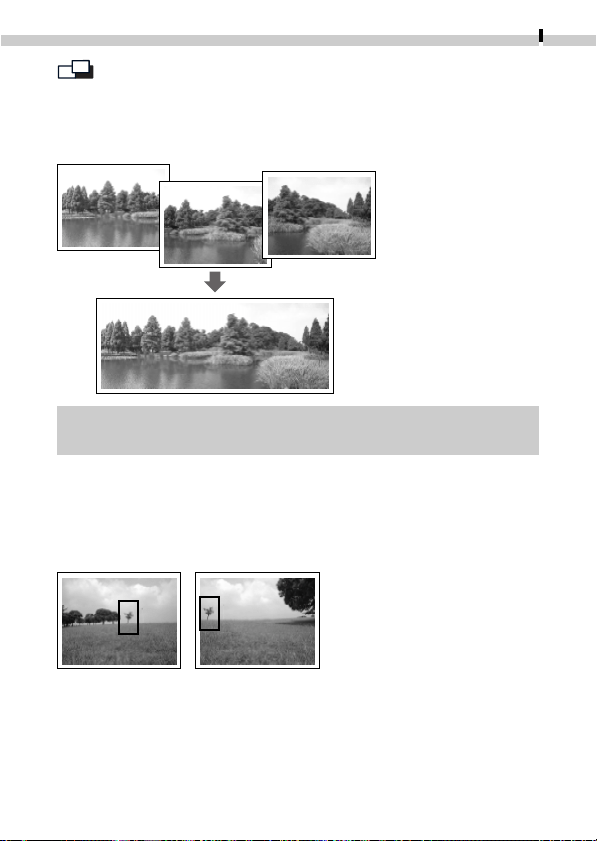
Setting the white balance to match the dominant light source
when shooting will adjust the coloring of the image (excluding
images) to the correct settings for the prevailing light conditions.
Auto The camera sets the white balance automatically.
Daylight Use this setting for recording outdoors on a bright day.
Cloudy Use this setting to record in shade or under overcast or
twilight.
Tungsten Use this setting for recording under tungsten lighting.
Fluorescent Use this setting to record under fluorescent lighting.
Black and White Use this setting to record black and white images.
• Turn the mode dial to the ,
or position.
• Press the
button twice.
• Use the
or button to select a
setting.
• You can confirm the effect of the
setting adjustment in the LCD monitor
image when the LCD monitor is on.
• A shot can be taken immediately
after. The menu will reappear after
the shot, allowing you to adjust the
setting.
• The white balance can only be adjusted for the first frame in
mode.
Shooting
43
Shooting in Stitch Assist Mode
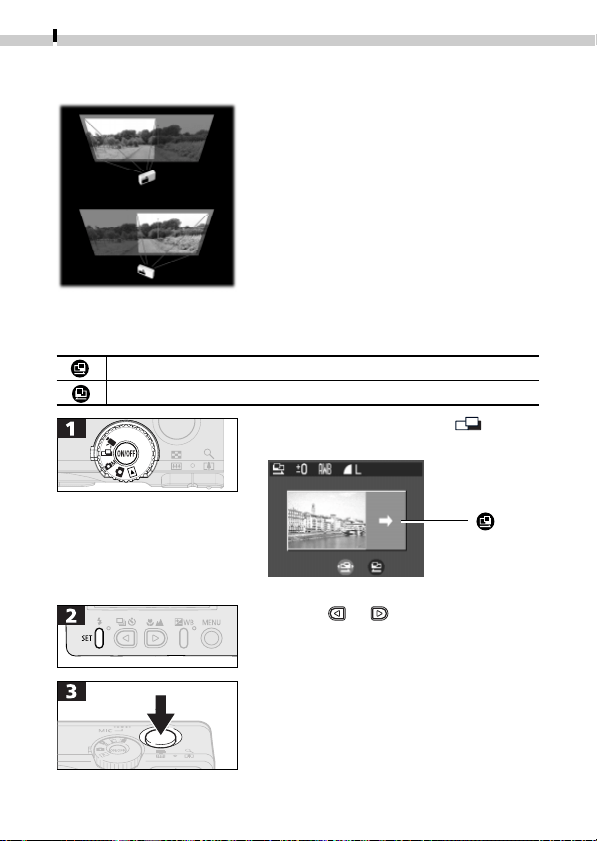
Stitch Assist mode can be used to shoot images, which overlap,
and which can later be merged to create one panoramic image
on a computer.
• To merge the images on the computer, use PhotoStitch, one of
the supplied programs.
Framing a Subject
The PhotoStitch program detects the overlapping portions of
adjoining images and merges them. When shooting, try to
include a distinctive item (landmark) in the overlapping portions.
• Compose each frame so that it overlaps 30 - 50% of the adjoining
image. Try to keep the vertical misalignment to less than 10% of
the image height.
• Do not include moving items in the overlap.
• Do not try to stitch images that include both distant and close
items. Objects may appear warped or doubled up.
The overlapping seams of
several adjacent images
can be joined into a single
panoramic image.
44
Shooting
• Turn the mode dial to the mode.
• The LCD monitor will turn on.
• Use the
or button to select the
sequence direction.
• Shoot the first frame in the series.
• The exposure and white balance
settings are set and locked with the
first image. Successive images use
the same settings.
• Make the brightness in each image consistent. The final image
will appear unnatural if the difference in brightness is too great.
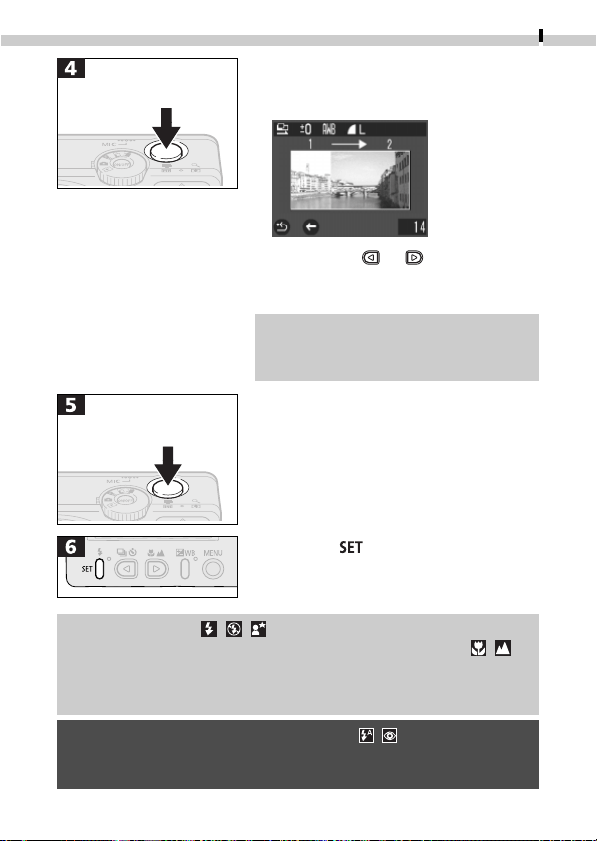
For good results, pan (swivel) the
camera to take successive shots.
To shoot close-ups, slide the camera
over the subject, keeping it parallel as
you move.
Shooting
Images can be shot in two sequences.
Left to right horizontally
Right to left horizontally
Left to right
horizontally
Shooting
45
• Compose the second image so that
it overlaps a portion of the first and
shoot.
• Pressing the
or button allows
you to check the images that have
been recorded.
• Minor discrepancies in the overlapping
portions can be corrected when the
images are stitched together.
• Repeat the procedure for additional
images. A sequence may contain up
to 26 images.
• Press the
button to close Stitch
Assist mode.
• The zoom, flash ( / / ), resolution, compression, exposure
compensation, white balance and macro/infinity mode ( / )
settings can only be adjusted for the first image. The remaining
images use the same settings. Additional images use the same
settings.
• The digital zoom, certain flash settings ( / ) and continuous
shooting mode cannot be used with the Stitch Assist mode.
• A TV monitor cannot be used when shooting in Stitch Assist mode.
Shoot the second image
Shoot the third image
46
Shooting
Shooting a Movie
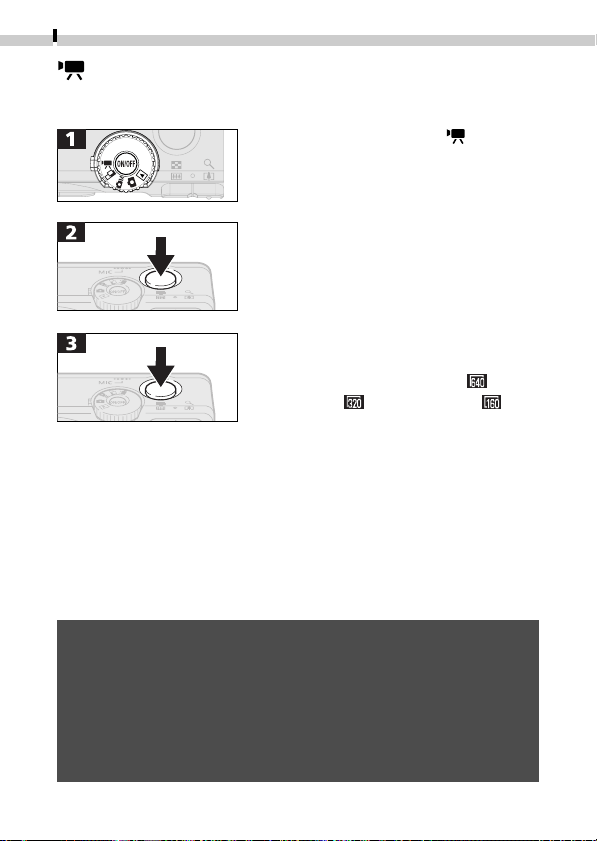
Use the movie mode to shoot movie clips.
• Turn the mode dial to the position.
• The LCD monitor will turn on and
display the recordable seconds
remaining.
• Press the shutter button fully to start
recording images and sounds.
• A red dot and recorded time (in
seconds) will appear on the LCD
monitor while recording is in process.
• The maximum length of a movie clip
(at approximately 20 frames/second)
is approximately 4 seconds (
), 10
seconds, ((
) or 30 seconds ( )
(according to standard Canon testing
conditions). These times may vary
with the subject and shooting
conditions. Recording will automati-
cally stop when the maximum time is
reached or when the CF card runs
out of free capacity.
• Recording will stop when the shutter
button is pressed again while a movie
is recording.
• Be careful not to touch the microphone while recording.
• The exposure compensation, focus, white balance and zoom
settings remained fixed at the values selected for the first frame.
• After a clip is shot, the upper indicator will flash green while the
clip is being written to the CF card. You cannot shoot until the
flashing stops.
• The digital zoom, flash, continuous shooting mode and
compression settings cannot be selected for movies.

Shooting
47
• Three resolution settings (640 x 480 pixels, 320 x 240 pixels, 160 x
120 pixels) are available for movies (p. 35).
• Sound is recorded monophonically.
• The beep will not sound in the middle of a movie clip recording.
• QuickTime 3.0 or a later version of this software is required to
replay movie files (AVI file format, Motion JPEG compression
format) on a computer.
48
Shooting
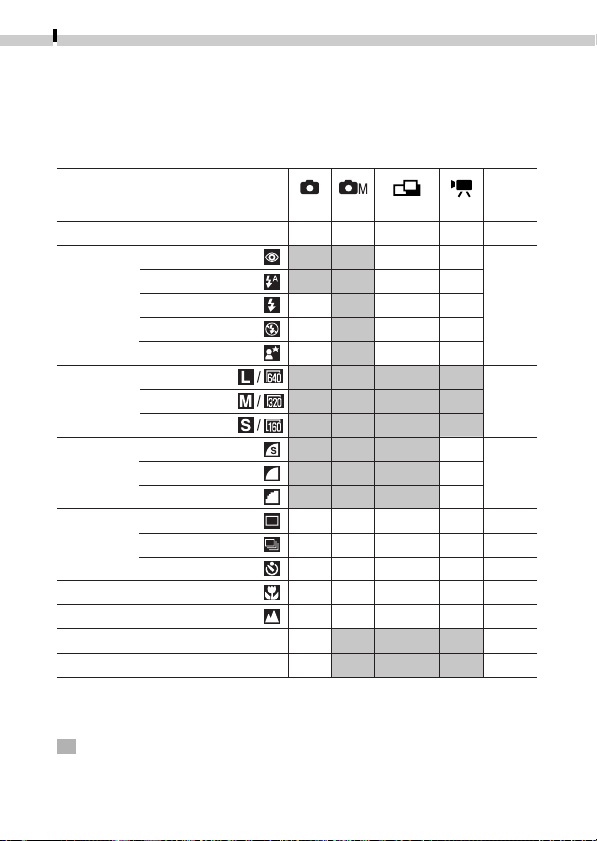
Functions Available in Each Shooting Mode
The chart below is a reference for the settings available for various
shooting conditions. The settings selected in each shooting mode
are saved when switching between shooting modes.
* Default value.
●
Setting available.
▲
Selectable for first frame only.
: The settings are saved when the power is turned off.
Red-Eye Reduction Auto
Auto
On
Off
Slow-Synchro
Large
Medium
Small
Superfine
Fine
Normal
Single
Continuous
Self-Timer
Digital Zoom
Flash
Resolution
Compression
Shooting
Method
Macro Mode
Infinity Mode
Exposure Compensation
White Balance
p.33
p.37
p.34
p.34
-
p.40
p.40
p.39
p.39
p.41
p.42
Auto Manual Stitch Assist Movie
Reference
Page
Function
●
●
●
-
●
-
●
●
●
●
●
●
●
-
●
●
-
-
-
*
*
*
*
●
●
●
●
●
●
●
●
●
●
●
●
●
●
●
●
●
●
●
*
*
*
*
-
-
-
-
●
-
●
●
●
-
-
-
●
-
●
●
●
●
●
*
*
-
-
-
▲
▲
▲
▲
▲
▲
▲
▲
▲
▲
-
▲
▲
▲
▲
▲
*
*
*
*
49
• An image can be magnified
approximately 2.5 times in the single
image replay mode.
• Press the or button to move
the selection area left or right and
hold the
button while pressing
the
or button to move the
selection area up or down.
• Press the
button to reset the
zoom setting to normal.
Replaying
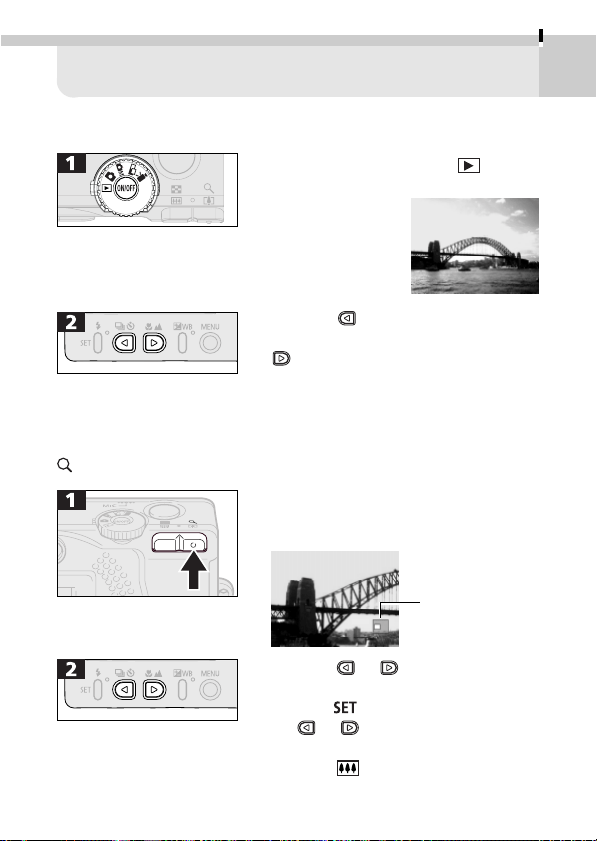
Displaying Images Singly (Single Image Replay)
• Turn the mode dial to the
position.
• The last recorded
image will
appear in the
display (single
image replay).
• Press the
button to switch the
display to the previous image. The
button switches to the next image.
Hold down the button to advance
through the images more rapidly.
Images will appear coarser at the
faster speed.
Zooming an Image
Approximate
Location of the
Magnified Area
50
Replaying
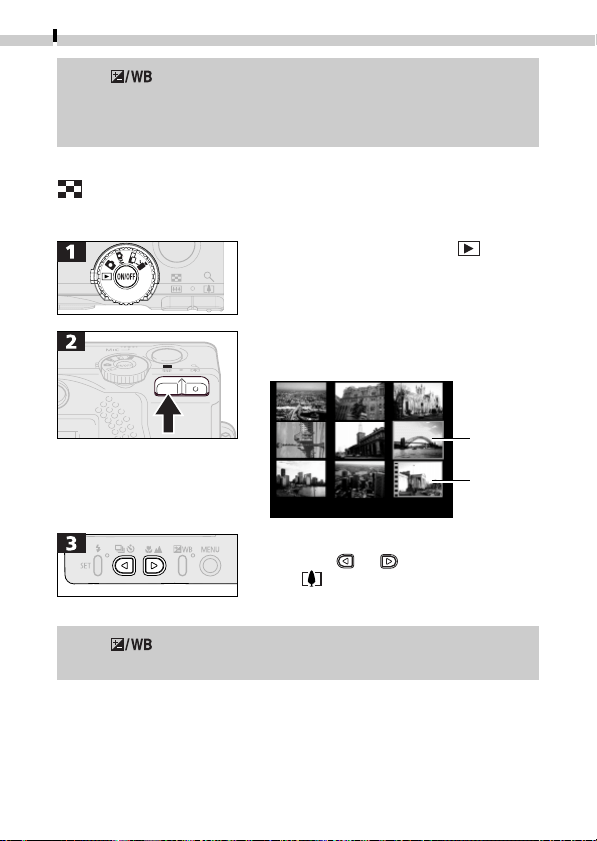
• Turn the mode dial to the
position.
• The last recorded image will appear
in the display (single image replay).
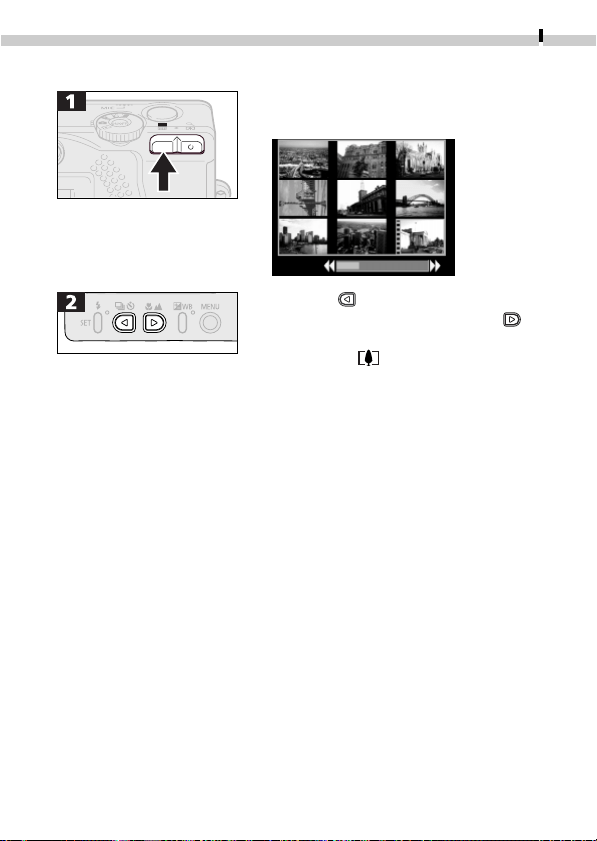
• A set of nine images will appear in
the display (index replay).
• You can change the image selection
with the
or button. Pressing
the
button displays the selected
image in single image replay mode.
Displaying Images in Sets of Nine
(Index Replay)
Selected
Image
• The button can be pressed as a shortcut for erasing the
displayed image (p. 24).
• A TV monitor can be used to replay images (p. 79).
• Movie clips cannot be magnified.
Movie
• The button can be pressed as a shortcut for erasing the
selected image (p. 24).
Replaying
51
Switching between Sets of Nine Images
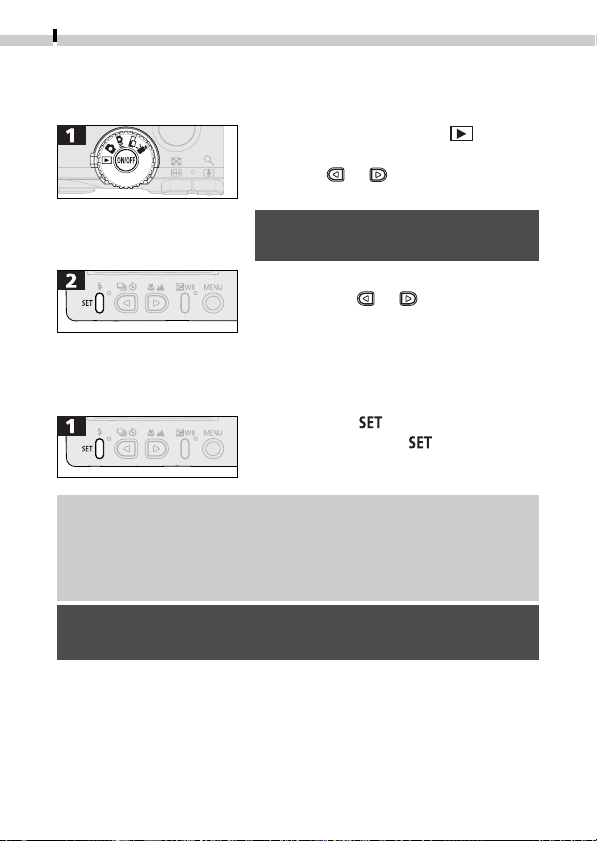
• Successive sets of nine images can be
shown in the display.
• Press the button to display the
previous set of nine images. The
button displays the next set of nine.
• Pressing the
button restores the
index replay mode.
52
Replaying
Replaying Movies
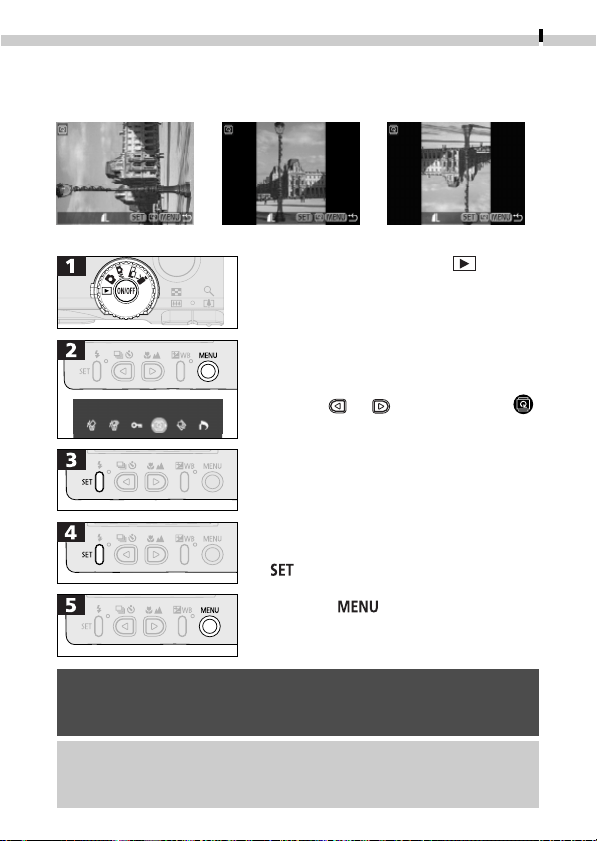
Movie clips can be replayed with the following procedures.
• Turn the mode dial to the
position.
• Use the
or button to select a
movie.
• Movies cannot be played in the
index replay mode.
• The movie images will play.
• Pressing the or button during
replay stops it and displays the
previous or next image.
• When the movie finishes, the last
frame shows in the display.
Pausing/Resuming
• Pressing the
button pauses the
replay. Pressing the
button again
resumes it.
• Movies and other clips shot with other cameras may not replay
on this camera (List of Messages, p. 90).
• Frames may be dropped or the audio may break up if there are
insufficient memory resources when movies are replayed on a
computer.
• Movies can also be replayed on a TV. Both audio and visual
recordings can be replayed when connected to a TV (p. 79).
Replaying
53
Rotating Images in the Display
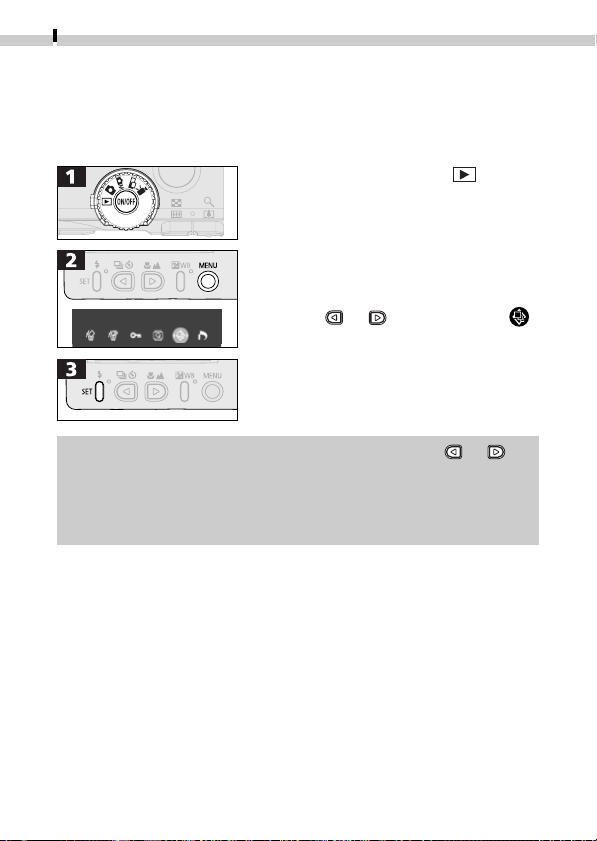
Images can be rotated 90º or 270º clockwise in the display.
0º (Original) 90º 270º
• Use the or button to select .
• Cycle between the 90º/270º/0º
orientation each time you press the
button.
• Press the button several times
until the replay screen reappears.
• If an image has been rotated in the camera before being loaded
onto a computer, the particular software in use will determine
whether or not the rotation settings are retained.
• Movie clips cannot be rotated.
• Zooming rotated images reverses the rotation and displays the
original orientation.
• Turn the mode dial to the position.
54
Replaying
Automating Playback (Auto Play)
All of the images on a CF card can be displayed one-by-one
automatically with the auto play function. Each image is displayed
for approximately 3 seconds.
• Use the
or button to select .
• The camera will read the images on
the CF card and start auto play.
• Turn the mode dial to the position.
• As with the single image display mode, pressing the or
button during auto play will advance through the images more
rapidly (p. 49).
• The display interval may vary for some images.
• Movies play for the entire recorded interval.
Replaying
55
Pausing and Resuming Auto Play
• Pressing the
button temporarily
pauses auto play. Press the
button again to resume auto play.
• If the
or button is pressed
while auto play is paused, the display
can be switched to the previous or
next image, respectively. Hold down
the
or button to advance
through the images more rapidly.
• Stop the auto play by pressing the
button several times until the
LCD monitor returns to the standard
replay mode.
Stopping Auto Play
56
Replaying
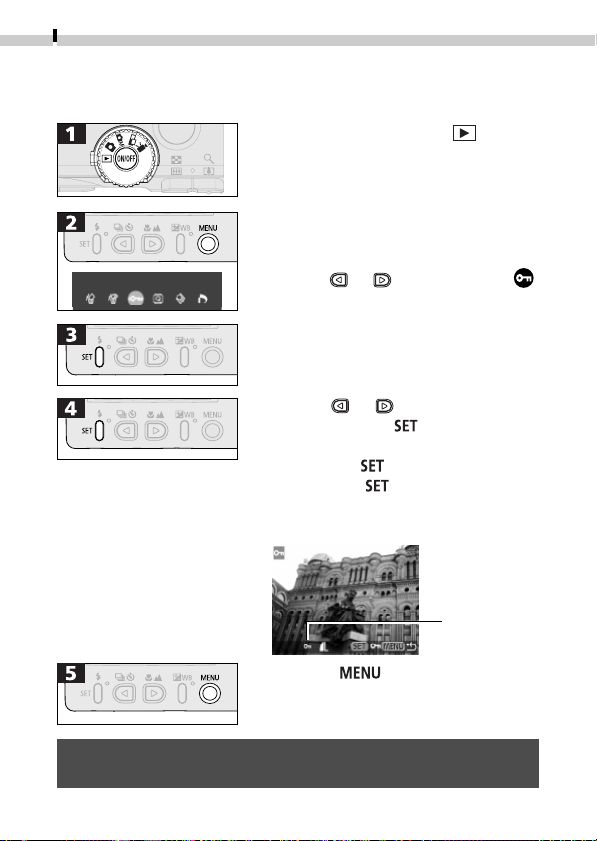
Protecting Images
You can protect important images to prevent their accidental erasure.
• Use the
or button to select .
• Use the or button to select an
image. Press the
button to
protect it.
• Pressing the
button protects the
image. If the
button is pressed a
second time, the protection is
removed.
• Press the button several times
until the replay screen reappears.
Protected
Icon
• Please note that even protected images are erased when a CF
card is reformatted.
• Turn the mode dial to the position.
57
Erasing Images
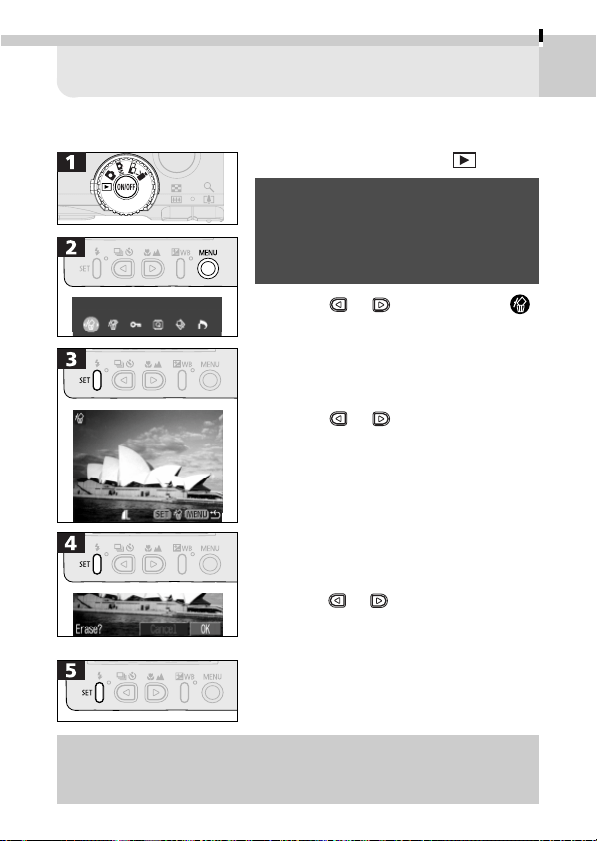
Erasing Images Singly
• Please note that erased images cannot
be recovered. Exercise adequate
caution before erasing a file.
• Protected images cannot be erased
with this function.
• Use the or button to select .
• Use the
or button to select the
image you wish to erase.
• Use the
or button to select [OK].
• To cancel instead of erasing, select
[Cancel].
• Images can also be erased using a shortcut (p. 24). However,
images cannot be erased while Card Photo Printer CP-10 (sold
separately) is connected.
• Turn the mode dial to the position.
58
Erasing
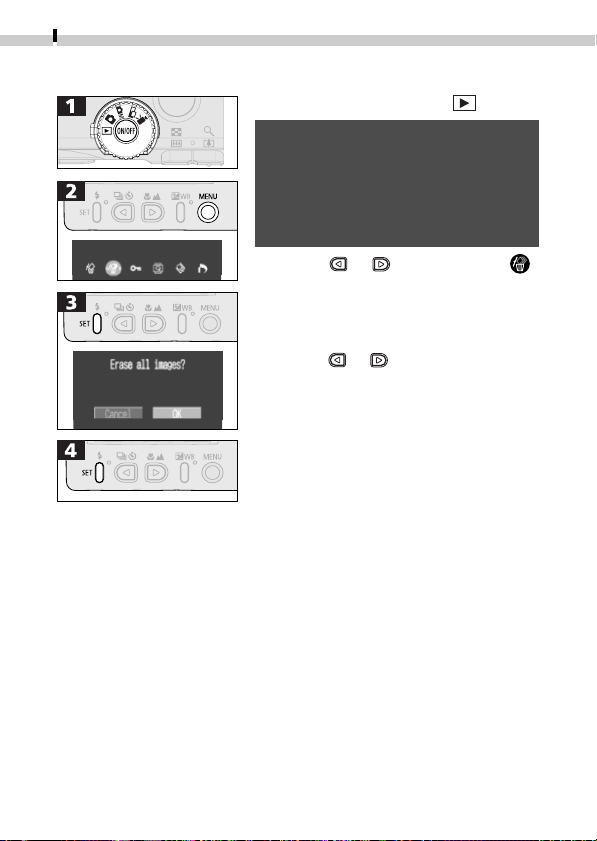
Erasing All Images
• Please note that erased images
cannot be recovered. Exercise
adequate caution before erasing a
file.
• Protected images cannot be erased
with this function.
• Use the or button to select .
• Use the
or button to select [OK].
• To cancel the command, select
[Cancel].
• Turn the mode dial to the position.
59
Print Settings (DPOF Settings)
Images on a CF card can be individually selected for printing in a
specified number of copies. The print type and date or file number
printing options can also be selected. These settings are compatible
with Digital Print Order Format (DPOF) standards so that images can
be printed conveniently on DPOF compliant digital printers or at
participating photo labs.
• After you set the DPOF settings, you can connect Card Photo
Printer CP-10 (sold separately) and print images directly from
the camera (p. 65). Please note that images with the print type
set to [Index] cannot be printed on Card Photo Printer CP-10.
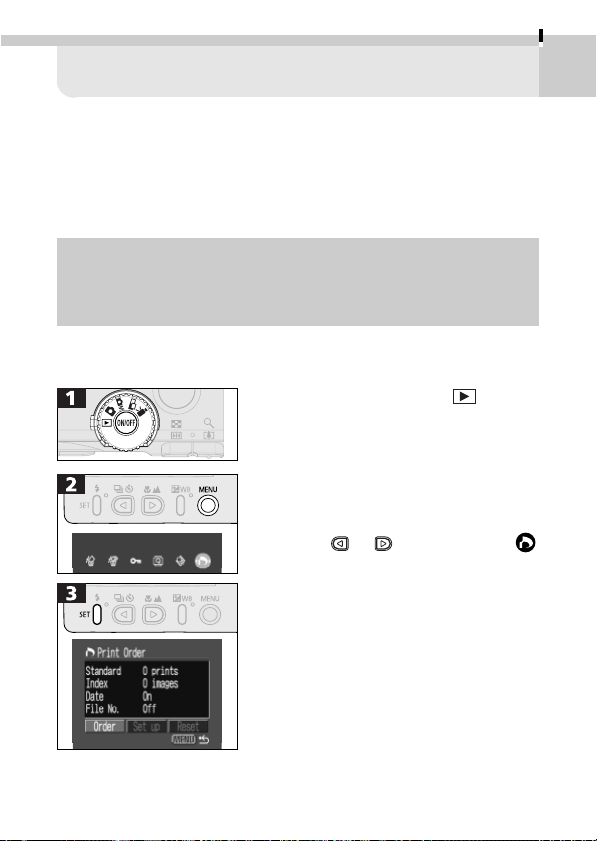
• Use the or button to select .
Adjust the settings in the Print Settings
menu in the following order.
1. Set the Print Style (p. 60).
2. Select Images for Printing (p. 61)
Select Reset if you wish to reset all
settings (p. 64).
• Turn the mode dial to the position.
Displaying the Print Settings Menu
60
Print Settings (DPOF Settings)
Setting the Print Style
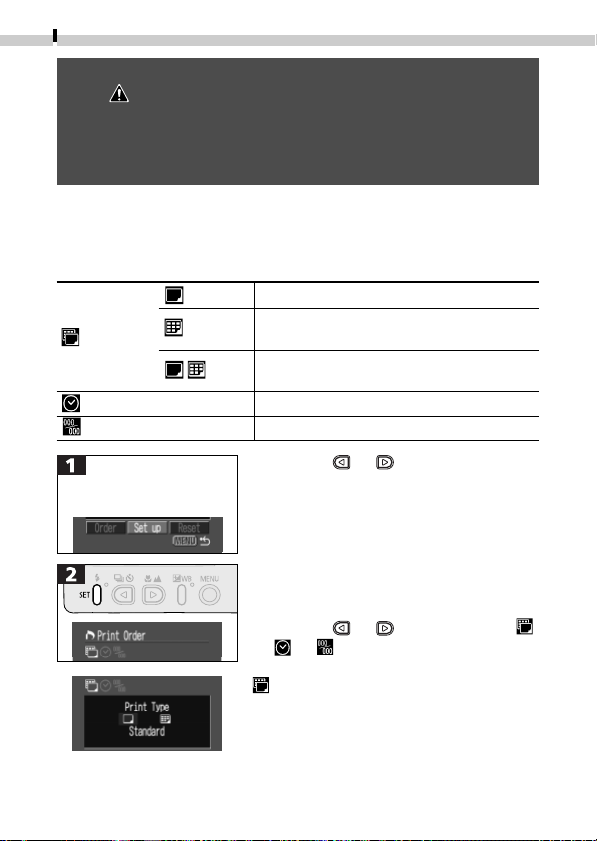
The following settings can be selected.
Standard Prints one image per page.
Index
Prints selected images at reduced size on a
single sheet in an index format.
Print Type
Both
Prints the images in both standard and index
formats.
Date Adds the date to the print.
File No. Adds the file number to the print.
• Use the or button to select
[Set up].
• Use the
or button to select ,
or .
Display the Print Order
menu (➜ p. 59).
• Print settings cannot be set for movies.
• The mark will display on images that have had print marks
set by another DPOF-compliant camera. These settings will be
overwritten by any settings set by your camera.
• The output of some printers or developing labs may not reflect
the specified print settings.
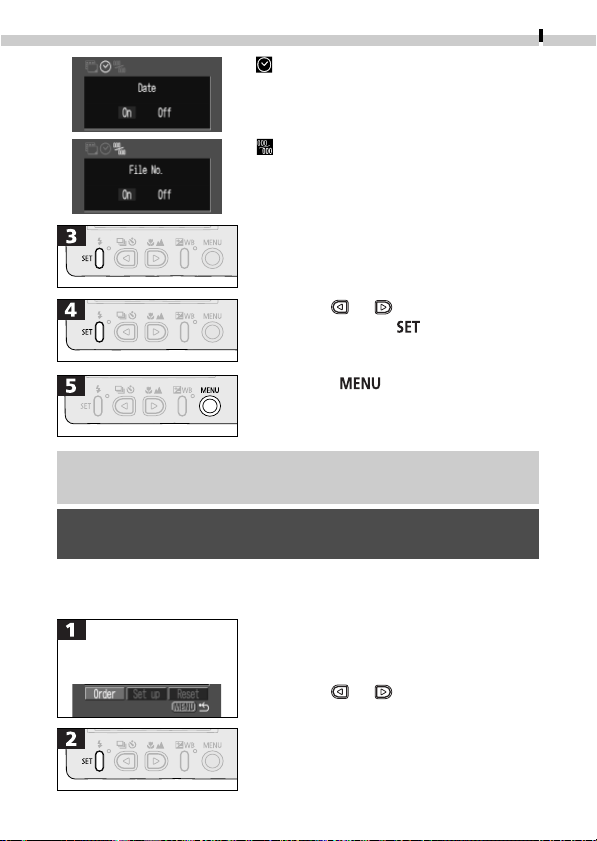
(Print Type)
You may select [Standard], [Index] or
[Both] options.
Print Settings (DPOF Settings)
61
(Date)
You may select either [On] or [Off].
(File No.)
You may select either [On] or [Off].
• Use the
or button to select a
setting. Press the
button.
• Press the button several times
until the replay screen reappears.
• Use the
or button to select
[Order].
Display the Print Order
menu (➜ p. 59).
• The date is printed in the format selected in the date format
field of the Set Date/Time menu (p. 21).
• The date and file number options cannot both be set to On
when [Index] is selected as the print type.
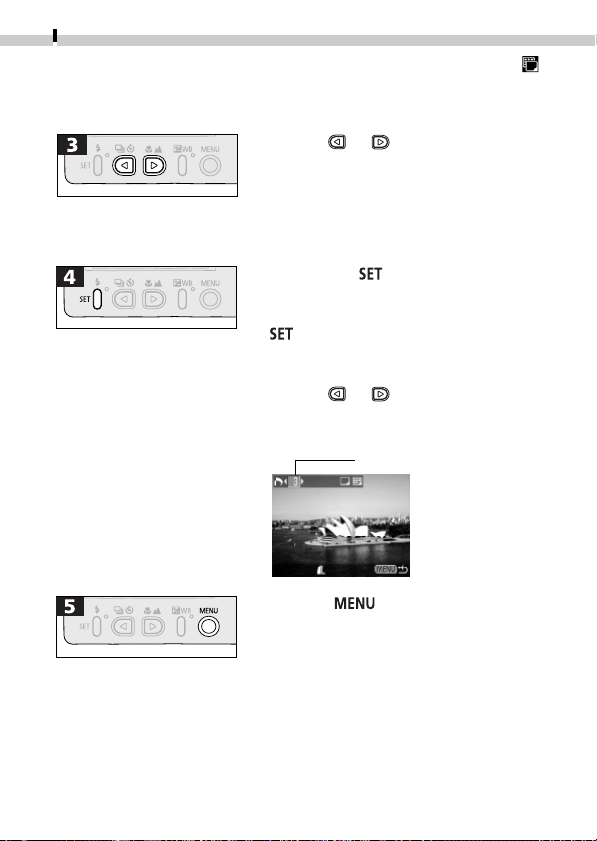
Selecting Images for Printing
62
Print Settings (DPOF Settings)
• Use the or button to select an
image.
• The zoom buttons can be used to
switch between the single and index
replay (3 images) modes for image
selection.
• Pressing the
button displays the
34
icon so that the number of print
copies can be specified. Pressing the
button a second time causes the
34
icon to disappear and restores
the image selection mode.
• Use the
or button to select the
number of copies. The maximum is
99 copies.
• Press the button several times
until the replay screen reappears.
The selection method will vary according to the print type ( )
(p. 60).
Standard/Both
Number of Print Copies
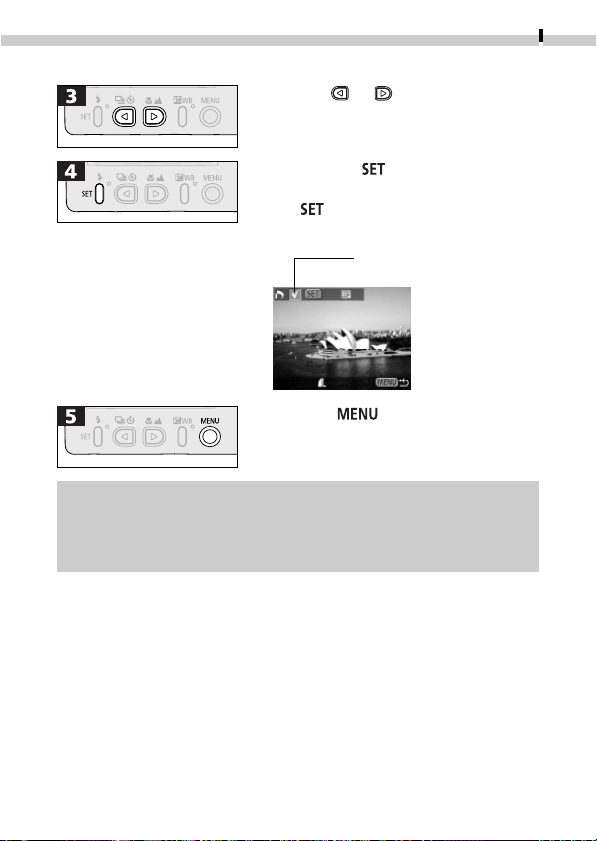
Print Settings (DPOF Settings)
63
Index
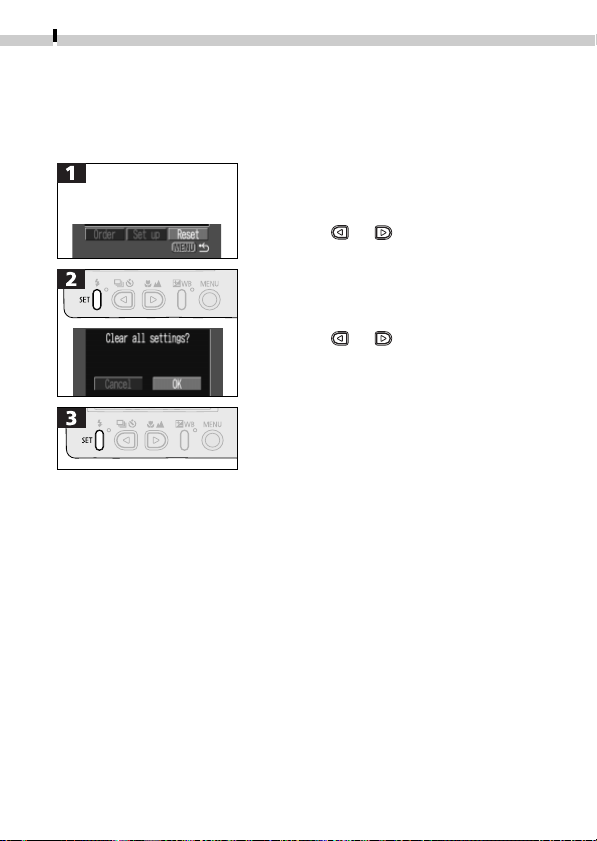
• Use the or button to select an
image.
• Pressing the
button causes a
check mark icon to appear. Pressing
the
button a second time
deselects the image.
Check Mark for Index
Printing
• Press the button several times
until the replay screen reappears.
• Images are printed in the order of the oldest image to the newest.
• When the print type is set to [Both] and both the date and file
number are set to [On], only the file number will print on the
index sheet.
64
Print Settings (DPOF Settings)
Resetting Print Settings
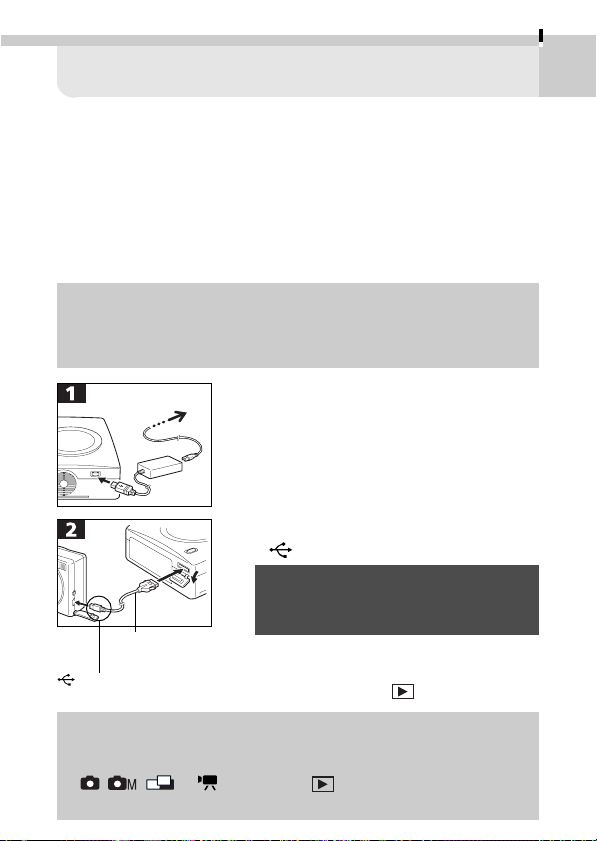
Resetting the print settings removes them from all the selected
images and resets the print type to [Standard], the date setting to
[Off] and the file number setting to [Off].
Display the Print Order
menu (➜ p. 59)
• Use the or button to select
[Reset].
• Use the
or button to select
[OK].
• To cancel instead of resetting, select
[Cancel].
65
Printing with Card Photo Printer CP-10
The optional Card Photo Printer CP-10 can be used to print images
directly and effortlessly from the camera. It can also print images
marked with DPOF print settings.
Connecting Card Photo Printer CP-10
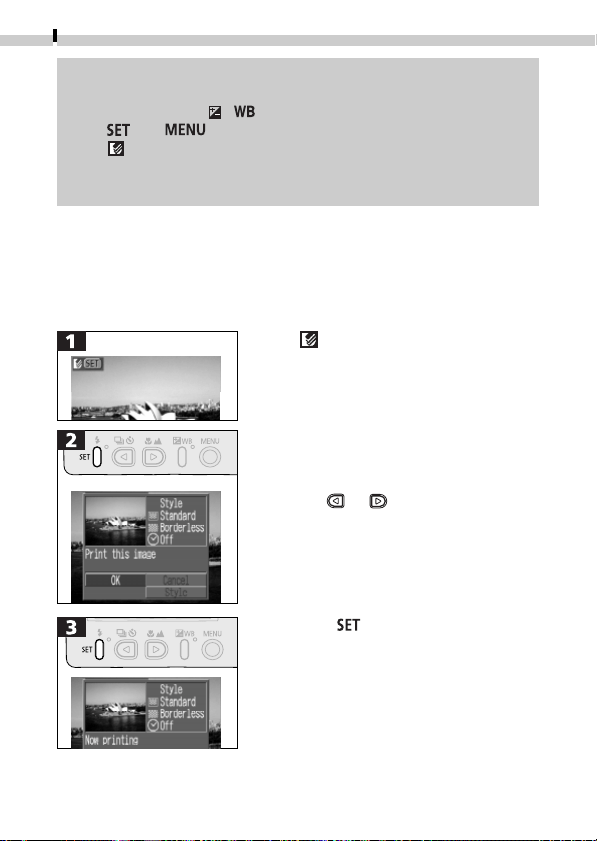
Connect the printer to the camera using Direct Interface Cable DIF-
100, which is supplied with the printer.
• You are recommended to use a household power source (AC
adapter sold separately) to power the camera when connecting
it to a printer. When using a battery, ensure that it is fully
charged. Monitor the battery charge closely when printing.
• Plug the power cord into the printer
and then into an electrical outlet.
• Connect the direct interface cable to
the printer.
• Open the terminal cover on the
camera and attach the direct
interface cable to the Digital terminal.
• Position the cable’s connector so the
mark faces the camera’s rear panel.
• When detaching the cable, from the
camera’s Digital Terminal, always
grip the sides of the cable’s plug.
• After the printer is connected, turn
the camera power on and turn the
mode dial to the
position.
Direct Interface
Cable DIF-100
To an Electrical
Outlet
• Please refer to the Card Photo Printer CP-10 manual for
instructions on feeding paper or installing the ink cassette.
• The lens retracts right away if the mode dial is turned from a
, , or mode to the position when the printer
is connected.
mark appears on the
connector.
66
Printing with Card Photo Printer CP-10
• All of the replay functions are available when the printer is
connected, except for the following: replaying a movie, erasing
an image with the / button and setting a language using
the and buttons.
• The (direct printer) icon will disappear from the upper left of
the LCD monitor and the normal replay mode will be restored
when the connection with the printer is canceled.
Printing
Printing the Displayed Image
A single copy of an image can be printed while it is displayed in
single image replay or index replay.
• The
icon will display when the
printer is connected correctly.
• Select an image for printing.
• Use the
or button to [select OK].
• Select [Style] if you wish to change the
print style (p. 70).
• Select [Cancel] if you wish to stop
printing.
• Press the
button to start printing.
• The LCD monitor returns to the replay
mode when the print concludes
successfully.
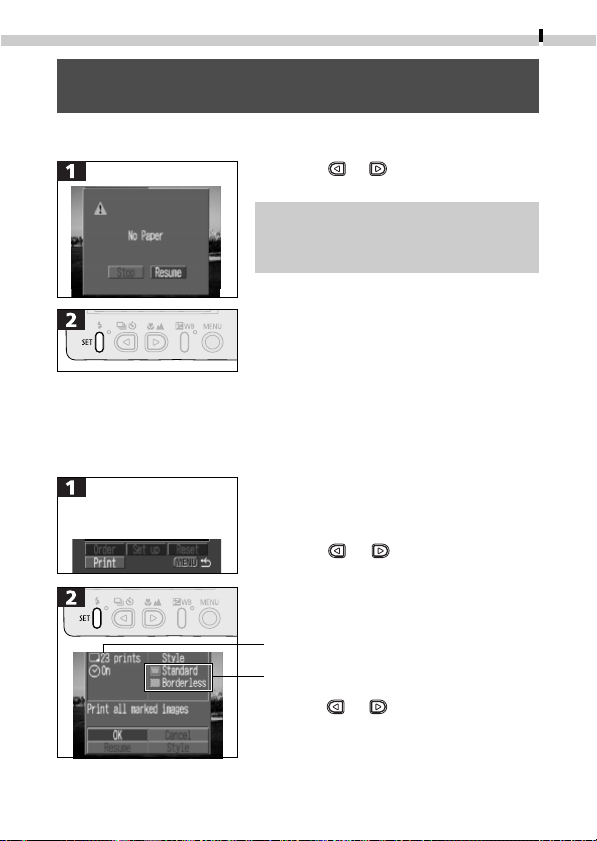
Printing with Card Photo Printer CP-10
67
Printing Errors
• Use the
or button to select
[Stop] or [Resume].
• The [Resume] option does not
display with some types of error. In
that case, select [Stop].
• The print will cancel or resume.
Printing with DPOF Print Settings
Card Photo Printer CP-10 can print images marked with DPOF print
settings, excluding those with the print type set to [Index].
• Use the or button to select
[Print].
• Use the
or button to select [OK].
• Select [Style] if you wish to change
the print style (p. 70).
• Select [Cancel] if you wish to stop
printing.
DPOF Print Setting
Current Print Style
Display the Print Order
menu (➜ p. 59)
• Printing cannot be stopped in mid process.
• Movie clips cannot be printed.
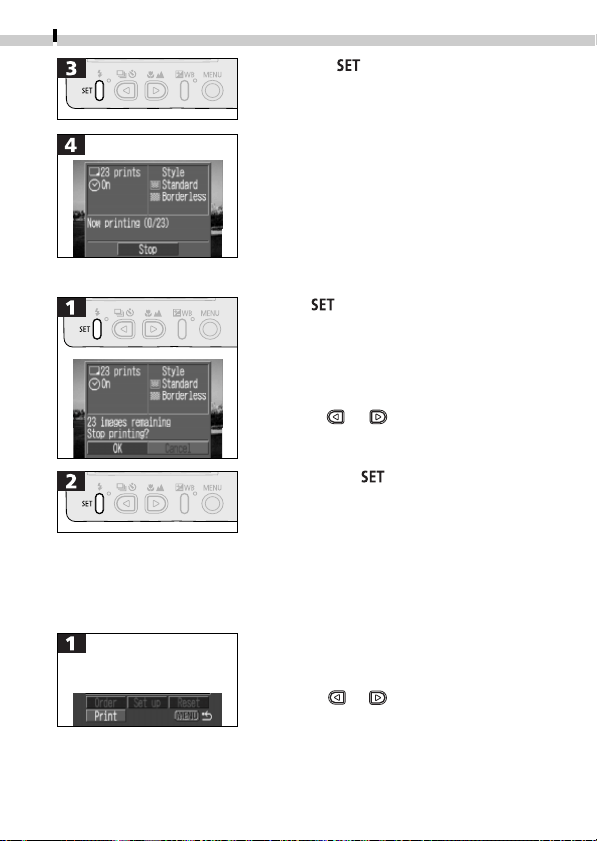
68
Printing with Card Photo Printer CP-10
Stopping Printing
• If the
button is pressed while
printing is underway, a confirmation
message will appear.
• Use the
or button to select [OK].
• Pressing the
button stops the
print queue after the image currently
printing is finished. The LCD monitor
returns to the replay mode.
Resuming Printing
If printing is stopped with images left in the print queue, the remaining
images can be printed with the following procedures.
• The LCD monitor returns to the
replay mode when the print
concludes successfully.
• Press the button to start printing.
Display the Print Order
menu (➜ p. 59)
• Use the or button to select
[Print].
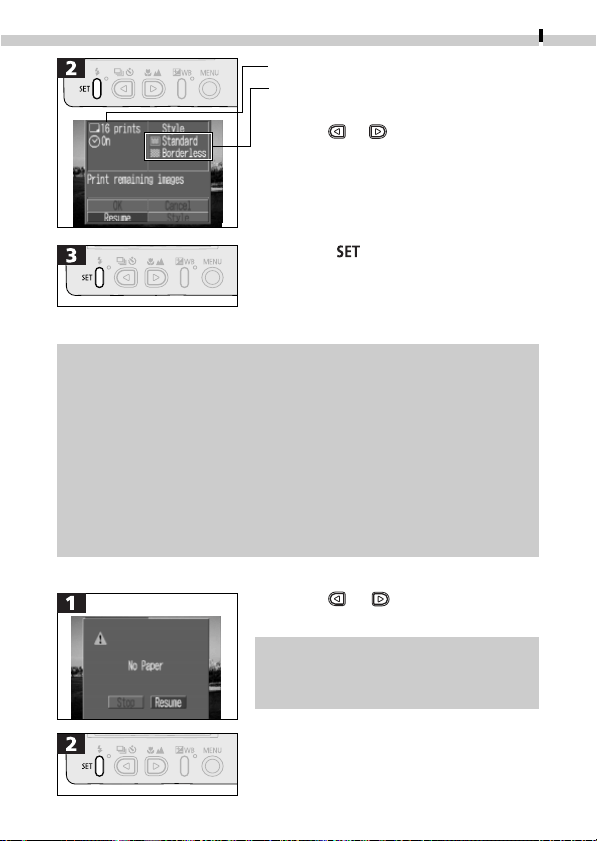
Printing with Card Photo Printer CP-10
69
• Press the button to resume
printing.
• The LCD monitor returns to the
replay mode when the print
concludes successfully.
Printing Errors
• Use the
or button to select
[Stop] or [Resume].
• The [Resume] option does not
display with some types of error. In
that case, select [Stop].
• The print will cancel or resume.
Printing cannot be resumed, however, under the following circumstances.
• When print setting are changed before printing is resumed.
• When images marked for printing are deleted before printing is
resumed.
• When there is limited free capacity on the CF card when printing
is stopped.
Printing resumes from the first image if [Ok] is selected in the Print menu.
You are recommended to use a household power source (AC
adapter sold separately) if the battery pack charge is depleted and
the camera shuts down. If you intend to use a battery pack, ensure
that you charge it fully before use. Then turn the camera on again.
Number of Images Left to Print
Current Print Style
• Use the or button to select
[Resume].
• Select [Style] if you wish to change
the print style (p. 70).
•
Select [Cancel] if you wish to stop printing.
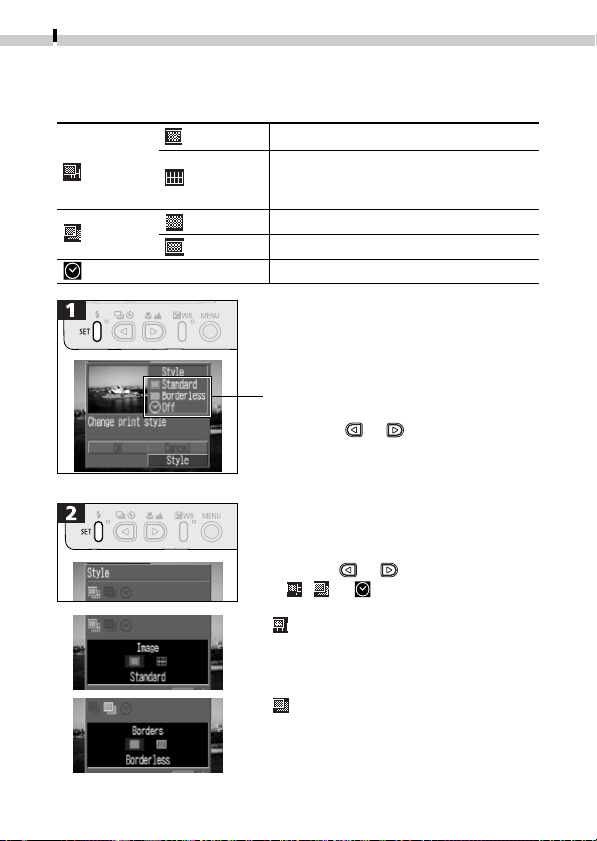
70
Printing with Card Photo Printer CP-10
Setting the Print Style
The following settings can be selected.
Standard Prints one copy of one image per page.
Image
Multiple
Prints 8 copies of one image on a single
page. Use the 8 Images setting to print
on adhesive labels.
Borderless Prints the image to the edges of the page.
Borders
Bordered Prints the image with borders.
Date Prints the date with the image.
• Use the or button to select
[Style].
• Select [Cancel] if you wish to
cancel the setting.
•Use the
or button to select
, or .
Current Print Style
Image
Select [Standard] or [Multiple].
Borders
Select [Borderless] or [Bordered].
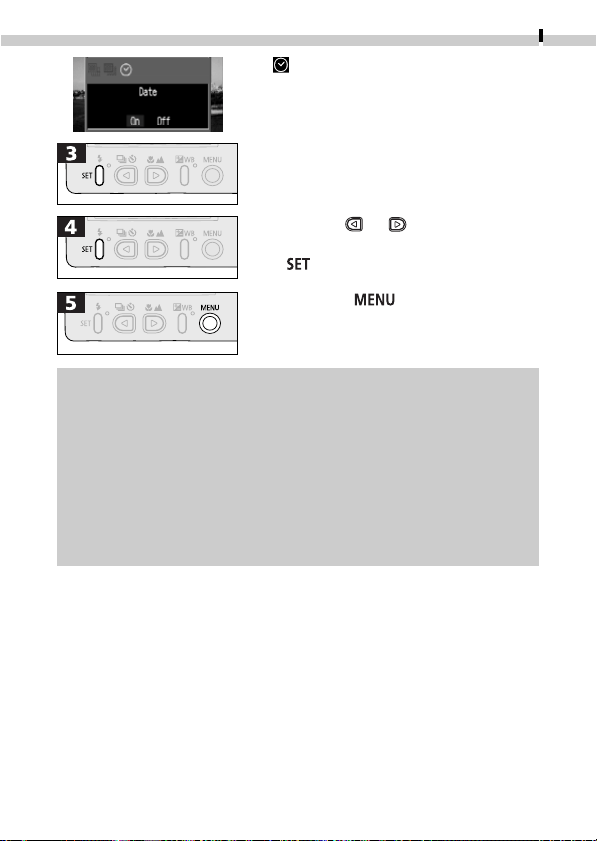
Printing with Card Photo Printer CP-10
71
Date
Select [On] or [Off].
• Use the
or button to select
the desired option and press the
button.
• Press the button to complete
the procedure.
• The date and border settings cannot be selected for images set
to [Multiple] in the [Style] menu (they will print without dates
or borders).
• The date cannot be selected for images marked with DPOF print
settings. The date is printed according to the DPOF settings (p. 60).
• Printing with the [Bordered] setting prints virtually all of the
image shown in the LCD monitor.
• Printing with the [Borderless] setting or the [Multiple] setting will
result in the image being slightly cropped on all four sides
because the aspect ratio of the image and paper is different.
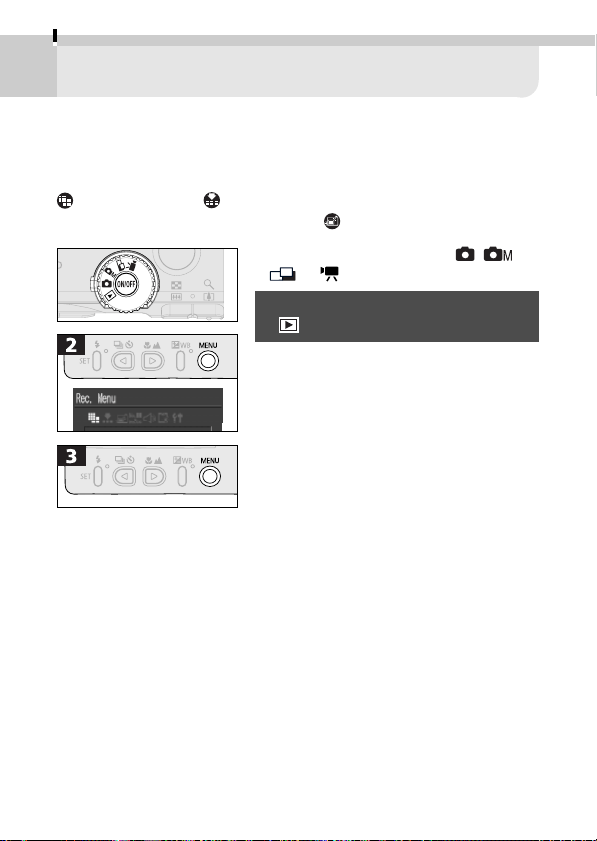
72
Camera Settings
Displaying the Rec. Menu
Camera settings are adjusted with the Rec. menu according to the
following procedures. For instructions on changing the resolution
and compression , please see page 34. Please see page 32 to
learn how to change the review time
for images.
• Turn the mode dial to the , ,
or position.
• The Rec. menu can not be shown in
mode.
• Complete the procedure.
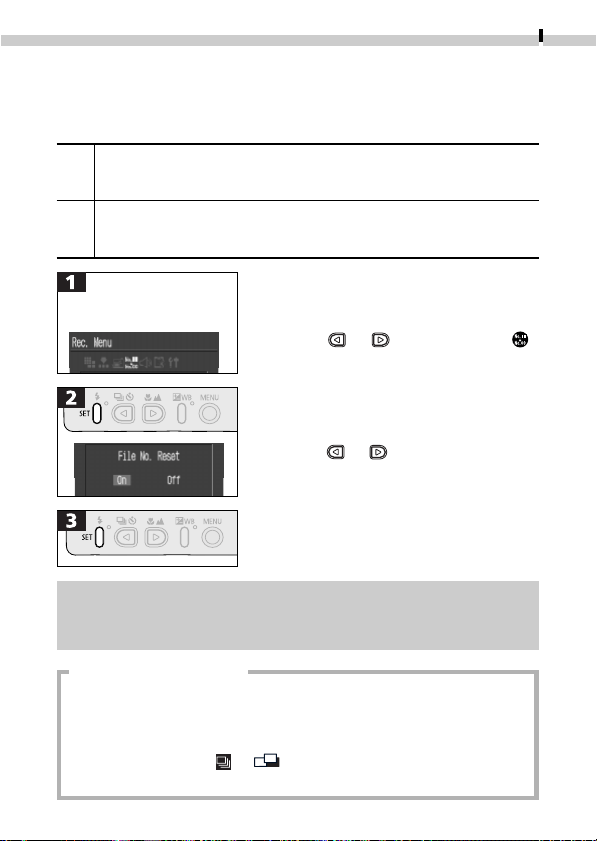
Camera Settings
73
About File Numbers
• Images are assigned individual frame numbers ranging from 0001 to
9900 and organized in folders containing up to 100 images. The
folders are assigned names from 100 to 998. (Folder numbers cannot
contain 99 in the last two digits.)
•Since images shot in or mode are always saved together in
the same folder, some folders may contain 101 or more images.
• Use the or button to select [On]
or [Off].
• Shooting with the File No. Reset set to [Off] is useful for avoiding
file name duplication when the images are uploaded to a
computer and organized in a single directory or album.
Resetting the File Number
You can select the method which the camera uses to assign file
numbers with the File No. Reset function.
On
The starting file number is reset to 100-0001 each time a new CF card is
inserted. New images recorded on previously recorded CF cards with
existing files are assigned the next available number.
Off
The file number of the last recorded image is saved so that the next
image recorded on any CF card, including a new one, is assigned the
next available number.
• Use the or button to select .
Display the Rec. Menu
(➜ p. 72)
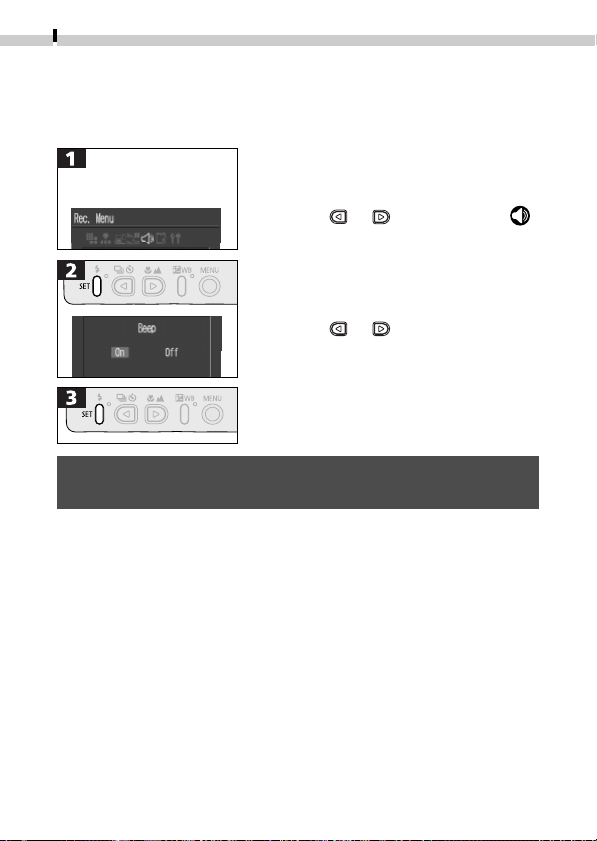
74
Camera Settings
Display the Rec. Menu
(➜ p. 72)
Setting the Beep On/Off
A beep sounds for confirmation purposes when the shutter button is
pressed or a camera setting is changed. The beep can be turned off.
• Use the or button to select .
• Use the
or button to select [On]
or [Off].
• The warning beep is not controlled by this setting and will still
sound.
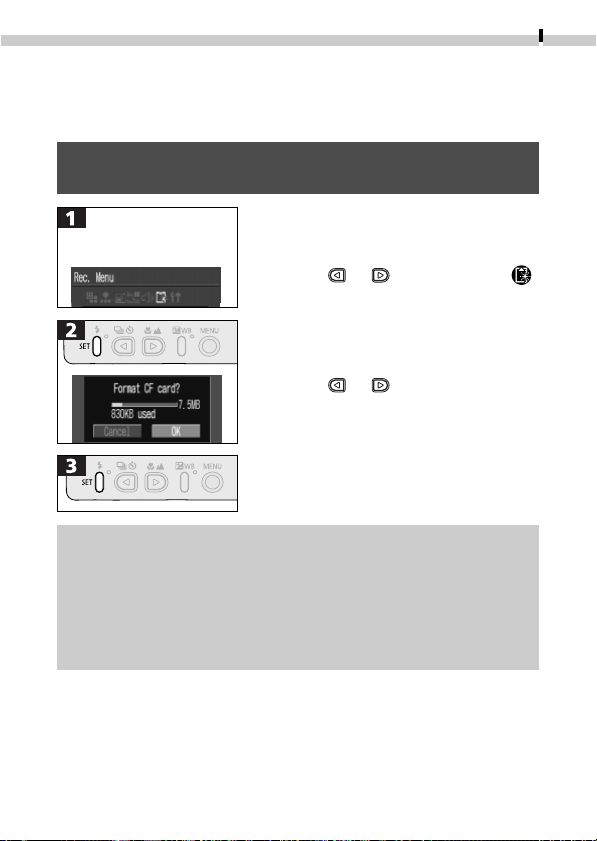
Camera Settings
75
Formatting CF Cards
New CF cards must be formatted in accordance with the following
procedures before use.
• Please note that formatting a CF card erases all its data,
including protected images and other types of data.
• Use the or button to select .
• Use the
or button to select
[OK].
• To cancel formatting, select [Cancel].
Display the Rec. Menu
(➜ p. 72)
• When the camera is not operating as expected, reformatting
the CF card may solve the problem.
• When a non-Canon brand CF card is malfunctioning, reformatting
it may solve the problem.
• CF cards formatted in other cameras, or by computers or
peripheral devices, may not operate correctly in the camera.
Reformat the card in your camera.
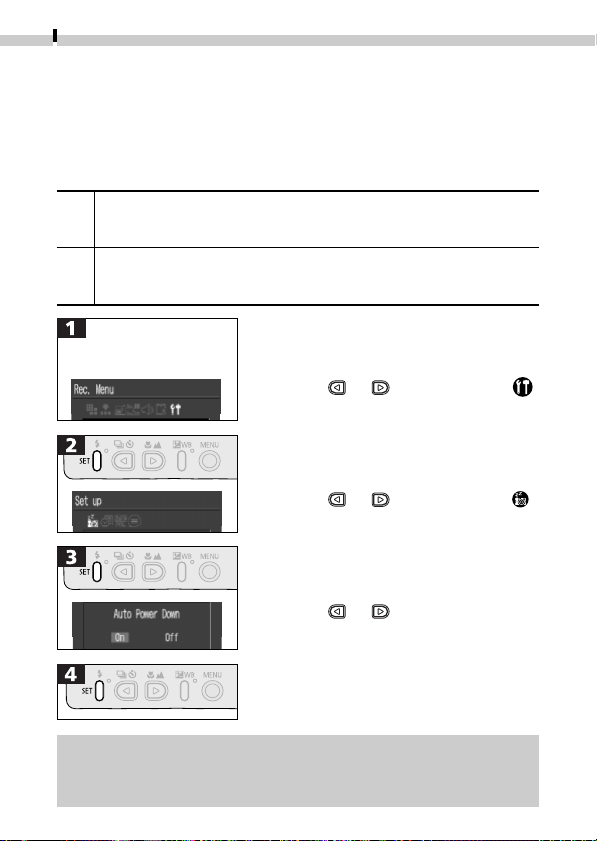
76
Camera Settings
Changing Other Settings
Switching the Auto Power Down Function On/Off
The auto power down function can be set to automatically turn the
camera power off after a set period of time passes without the
camera being used.
On
The camera shuts off after approximately 3 minutes in shooting mode or
approximately 5 minutes in replay mode if the camera is not used. Press
the main switch to restore power.
Off
If it is on, the LCD monitor shuts off after approximately 3 minutes in the
shooting mode if the camera is not used. Pressing any button other than
the main switch will turn the LCD monitor on again.
• Use the or button to select .
• Use the
or button to select .
• Use the
or button to select
[On] or [Off].
Display the Rec.Menu
(➜ p. 72)
• The auto power down function will not activate under the following
circumstances : during auto play or when a connection is open to a
computer (while using a houshold power source).
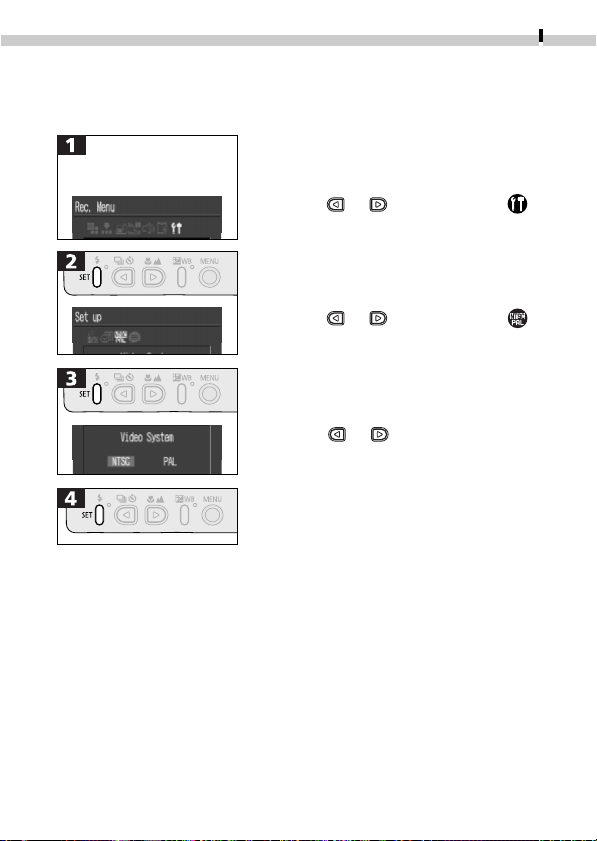
Camera Settings
77
Setting the Video Signal Format
To use a TV monitor to shoot or replay images, the video signal
format can be switched to suit regional standards.
Display the Rec. Menu
(➜ p. 72)
• Use the or button to select .
• Use the or button to select .
• Use the
or button to select
NTSC or PAL.
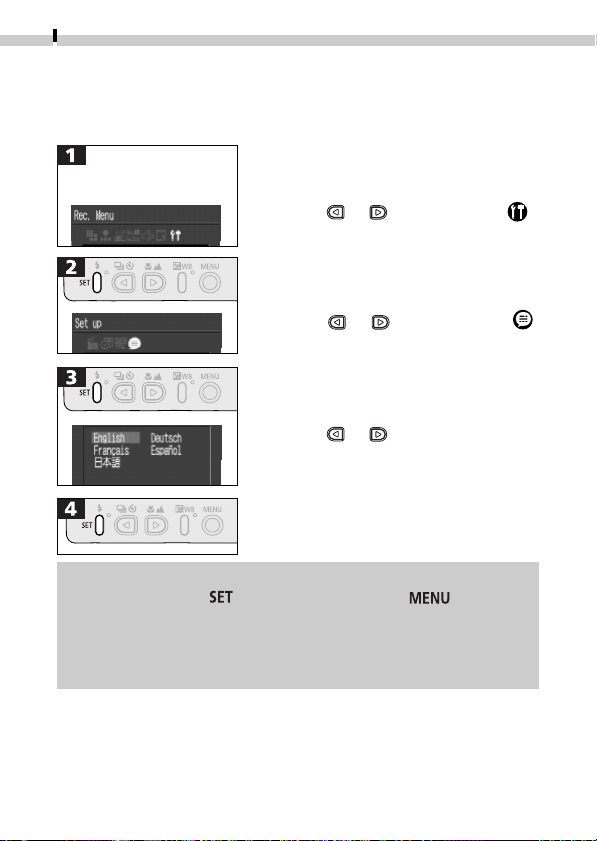
78
Camera Settings
Setting the Language
The language in which menus and messages are displayed can be
selected with this function.
Display the Rec. Menu
(➜ p. 72)
• The Language menu can also be displayed in replay mode by
holding down the button and pressing the button.
However, language settings cannot be adjusted while Card
Photo Printer CP-10 (sold separately) is connected.
• The Language menu may appear differently on cameras in some
regions.
• Use the or button to select .
• Use the
or button to select .
• Use the
or button to select a
language.
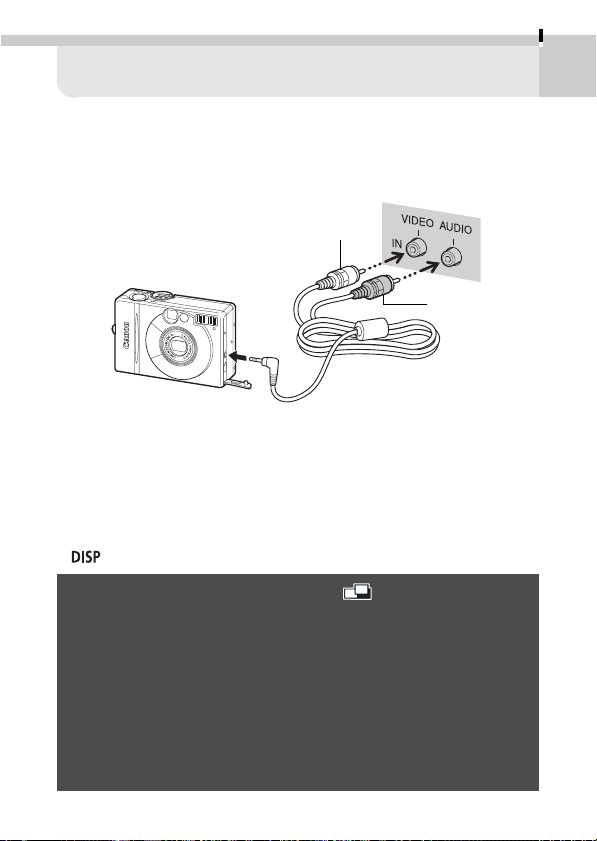
79
Shooting/Replaying with a TV Monitor
A TV monitor can be used to view images as they are shot or
replayed when it is connected to the camera via the supplied AV
cable (AVC-DC100). Always turn the camera and TV power off
before attaching or detaching the AV cable.
• After the cable has been attached, turn on the TV and switch it to
the Video mode.
• Turn the mode dial to the desired mode and turn the camera
power on. You can use the normal procedures to shoot or replay.
• If the image does not appear on the TV when shooting, press the
button.
• TV monitors cannot be used with the mode.
• Images will not appear in the camera’s LCD monitor when the
TV is used as the monitor.
• The video output signal can be switched (NTSC or PAL) to
accommodate different regional standards (p.77). The default
setting will vary between regions.
NTSC: Japan, U.S.A., Canada, Taiwan, etc
PAL: Europe, Asia (excluding Taiwan), Oceania, etc.
• Connect the AV cable to either the left or right Audio In jack on
the TV. Please check your TV’s manual for the correct
configuration.
Yellow
Black
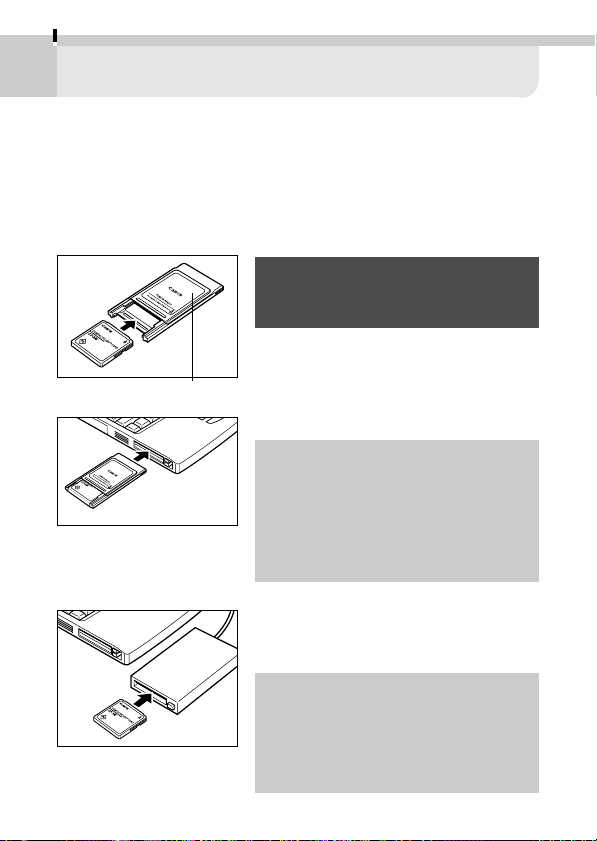
80
Downloading Images to a Computer
Downloading Directly from a CF Card
Images can be loaded directly from a CF card to a computer if you
are using a notebook computer, a PC card reader or a CF card reader.
Inserting the CF Card
PC Card Reader
CF Card Reader
• A PC card adapter (PCMCIA adapter),
sold separately, is required to use a
PC card reader.
1.Eject the CF card from the camera
and insert it into the PC card adapter.
2.Insert the PC card adapter into the
computer's PC card slot or PC card
reader.
• Some computers or PC card readers
require the power to be off when
the PC card adapter is inserted into
the PC card slot. Since this
requirement varies between
models, please consult the manual
for your equipment.
1. Eject the CF card from the camera and
insert it into directly into a CF card
reader connected to the computer.
• Some computers or CF card readers
require the power to be off when
the CF card is inserted. Since this
requirement varies between
models, please consult the manual
for your equipment.
PC Card Adapter
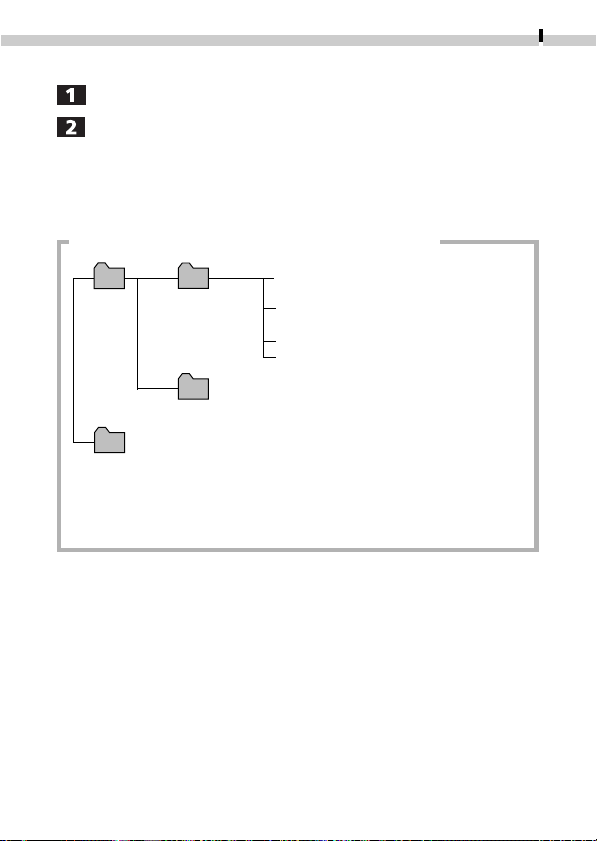
Downloading Images to a Computer
81
Downloading Images
Double-click the icon of the drive with the CF card.
Copy the photographed images to the desired folder on
the hard disk.
The images are contained in the [XXXCANON] folder inside
the [DCIM] folder on the CF card. The XXX represents a
number from 100 to 998.
DCIM XXXCANON
IMG_XXXX.JPG
(Images shot in the JPEG format)
STA_XXXX.JPG
(Images shot in Stitch Assist mode)
MVI_XXXX.AVI (Movies)
MVI_XXXX.THM*
CANONMSC
MISC
A folder created when DPOF settings are set. Contains the
files controlling the DPOF settings content
• *These files contain thumbnail images for the index display.
• A number will appear in place of each "X" in the file names.
• Do not open or delete files in folders other than [XXXCANON].
Those files are required for image management.
The folder containing the files controlling
the DCIM folder images
Image Folder Organization and File Names
Viewing Downloaded Movies
If you try to view a movie by double-clicking its file name (AVI
extension) in Windows Explorer, Windows Media Player may start
without being able to replay it. To replay a movie, start the bundled
software program that supports movies and open the movie file from
within it.
Please refer to the Software Starter Guide for the remaining
procedures.

82
Downloading Images to a Computer
Connecting the Camera to a Computer with
a USB Cable
Supported Operating Systems
Windows
Windows 98 (Including the Second Edition)
Windows Millennium Edition (Windows Me)
Windows 2000
*Only systems pre-installed with Windows 98/Me/
2000 or upgraded to Windows Me from pre-installed
Windows 98 systems are supported.
Macintosh Computers
Mac OS 8.1 or later
QuickTime 3.0 or later (not supported on Mac OS X)
*Only genuine Apple Computer systems with built-in
USB interfaces are supported.
• Images can be downloaded to the computer using the bundled
software and USB Interface Cable IFC-300PCU. The software must
be installed first before the images can be downloaded. Ensure
that you use USB Interface Cable IFC-300PCU, the USB cable
supplied with the camera.
• Please see the Software Starter Guide to learn how to install the
software and download images.
• Please use a CF card reader or PC card reader to download
images to a system running Windows 95 or Windows NT.
• Please power the camera with an AC adapter (sold separately)
connected to a household power source.
Connection Precautions
• The USB ports may not operate correctly on systems that have
been upgraded to Windows 98/Me/2000 from Windows 3.1/
95 or to Windows 2000 from a pre-installed Windows 98 system.
• With Macintosh computers, the USB interface only works with
Power Macintosh NEW G3/G4, PowerBook G3, iMac and iBook
models with built-in USB connectors.
• Connect the camera directly to a USB port on the computer. The
interface may not operate correctly when connected through a
USB hub.
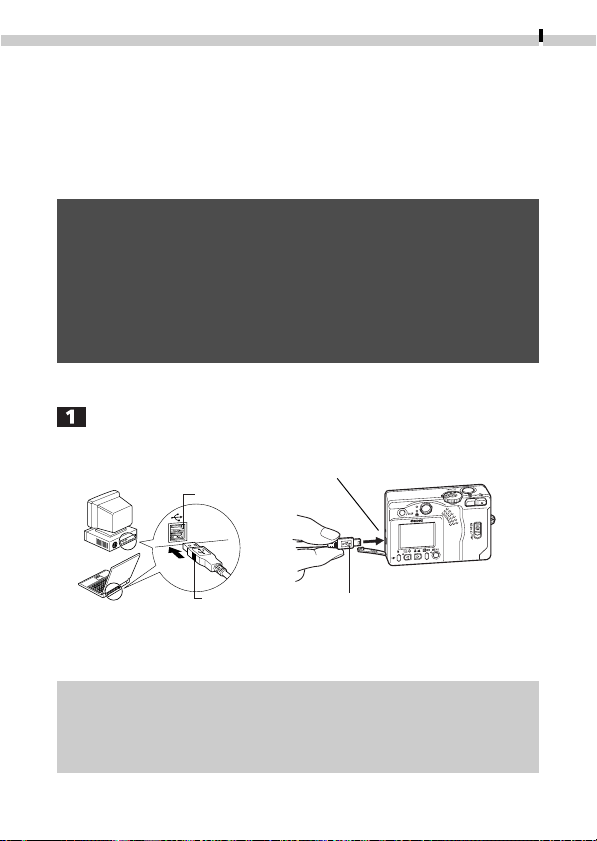
Downloading Images to a Computer
83
• Operating the camera simultaneously with other USB devices,
excluding USB mice and keyboards, may not work correctly. If this
occurs, disconnect the other devices and then reconnect the
camera.
• Do not have more than two cameras connected to a computer
with the USB interface at any time. The cameras may not operate
correctly.
• Do not put the computer into standby (sleep) mode when a
camera is connected via a USB port. If the computer should go
into standby mode while a camera is connected to a USB port,
leave the camera connected (never disconnect it) and try to take
the computer out of standby mode. Some computers may not
recover properly from the standby mode if the cable is discon-
nected. Please refer to the computer's manual for information
regarding the standby mode.
Connecting to a USB Port
Connect the supplied USB interface cable to the computer's
USB port and the camera's Digital terminal.
• You do not need to turn the camera or computer power off to
connect or disconnect USB interface cables.
• Please refer to your computer's manual for information
regarding the location of the USB ports.
USB Port
USB Cable
1. Slip a fingernail
under the upper
edge of the terminal
cover to open it.
2. Insert the connector
until it clicks.
DIGITAL Terminal
USB Cable
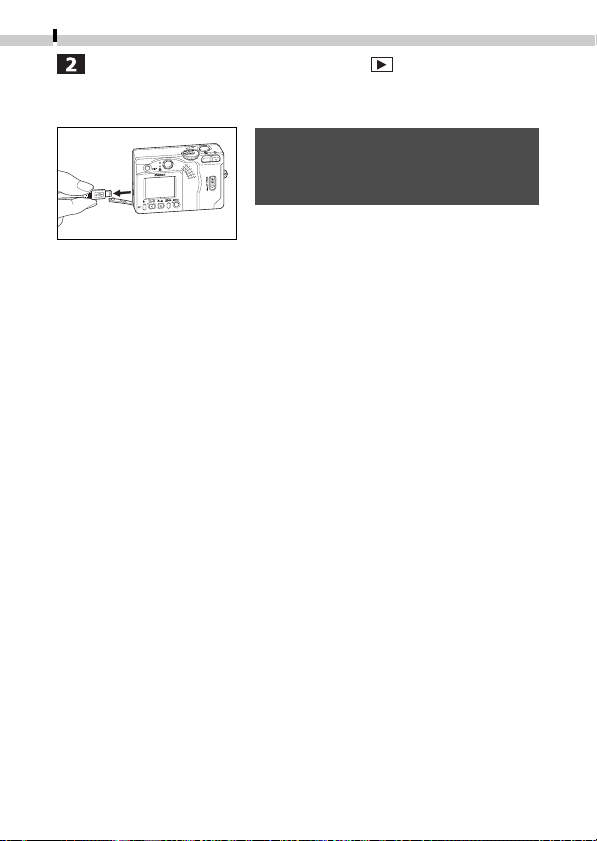
84
Downloading Images to a Computer
Turn the camera's mode dial to the position.
• The LCD monitor will display in replay mode and then blank
out when the connection to the computer is complete.
• When detaching the cable, from the
camera’s Digital Terminal, always
grip the sides of the cable's plug.
• If the USB cable is detached while the camera power is on, the
camera will power down.
• When the camera is connected to a computer, a warning
displays on the computer display after 5 minutes if the camera is
not used. The camera shuts down if a further minute passes
without a button being pressed. To restore power, press the
main switch again. (Except when the camera is powered by a
household power source)
• Please refer to the Software Starter Guide for the subsequent
procedures.

85
Appendices
Care and Maintenance of the Camera
Use the following procedures to clean the camera body, lens,
viewfinder and LCD monitor.
• Never use thinners, benzene, synthetic cleansers or water to
clean the camera. These substances may distort or damage the
equipment.
Camera Body
Gently wipe dirt off the camera body with a soft cloth or eyeglass
lens wiper.
Lens
First use a lens blower brush to remove dust and dirt, then remove
any remaining dirt by wiping the lens lightly with a soft cloth.
• Never use synthetic cleansers on the camera body or lens.
• If dirt remains, contact the closest Canon Customer Support
Help Desk (see the back of this guide).
Viewfinder and LCD Monitor
Use a lens blower brush to remove dust and dirt. If necessary, gently
wipe the viewfinder with a soft cloth or an eyeglass lens wiper to
remove stubborn dirt.
• Never rub or press strongly on the LCD monitor. These actions
may damage it or lead to other problems.
86
Appendices
Troubleshooting
Camera will not operate
Cause Solution
•Press the main switch for a few
moments.
• Close the battery cover or CF card
cover and then press the main
switch again to turn the camera off.
• Insert a fully charged battery pack.
• Use a household power source.
• Wipe the battery terminals with a
clean, dry cloth.
Camera will not record
Cause Solution
• Turn the mode dial to the , ,
or position.
•Wait until the flash charges. You can
press the shutter button when the
indicator glows a steady orange.
• Replace the CF card.
• If necessary, download the images
to a computer and then erase all or
some of the card’s images to create
space.
•Format CF card. See Formatting a CF
Card (p. 75).
• If reformatting does not work, the CF
card logic circuits may be faulty or
damaged. Contact the nearest Canon
Customer Support Help Desk.
Power is not on
Battery cover or CF
card cover opened
Insufficient battery
voltage
Poor contact between
battery pack and
camera terminals
Mode dial is set to
(Replay)
Flash is charging
CF card full
CF card not formatted
correctly

Appendices
87
Lens will not retract
Cause Solution
•First close the battery cover or CF
card cover and then turn the power
off.
•First close the battery cover or CF
card cover and then turn the power
off.
Battery pack consumed quickly
Cause Solution
•Replace the battery pack with a
fresh one.
Battery pack will not charge
Cause Solution
• Replace battery pack with a new
one.
• Seat the battery pack more firmly in
the charger.
• Plug the battery charger all the way
into the electrical outlet.
Battery cover or CF
card cover was opened
with power on
Battery cover or CF
card cover was
opened while
recording to the CF
card (warning signal
sounds)
At room temperature
(23ºC or 73.4ºF), fast
discharge indicates the
battery pack’s service
life is over
Battery pack life
exceeded
Poor connection
between battery pack
and battery charger

88
Appendices
Image is blurred, out of focus, or not as expected
Cause Solution
• Be careful not to move the camera
when pressing the shutter button.
• Ensure that there is at least 76 cm
(2.5 ft.) between the camera lens
and subject.
• Use the macro mode to shoot close-
ups between 16 and 76 cm (6.3 in.
and 2.5 ft.) from the lens when set
to wide angle and between 26 and
76 cm (10.2 in. and 2.5 ft.) when
set to telephoto.
• Use the infinity mode to shoot
distant subjects.
• Be careful not to block the AF
auxiliary light emitter with your
fingers or other items.
Subject is too dark in image
Cause Solution
• Set the flash to On.
• Set the exposure compensation to a
positive (+) setting.
•When using the flash, ensure that
the camera is no farther from the
subject than 3.5 m (11.5 ft.) at the
maximum wide angle, or 2 m (6.6 ft.)
at the muximum telephoto setting.
Camera moved
Subject is out of focal
range
Autofocus function is
hampered by
something obstructing
the AF auxiliary light
emitter
Insufficient light for
shooting
Subject is much darker
than its surroundings
Subject is too far
away for flash to
reach

Appendices
89
Subject is too bright
Cause Solution
* When using the flash, ensure that
the camera is no closer to the
subject than 26 cm (10.2 in.).
• Adjust the exposure compensation
to a negative (-) setting.
• Change the shooting angle.
•Set the flash to any setting other
than On.
Flash will not fire
Cause Solution
•Set the flash to any setting other
than Off.
Zoom does not work
Cause Solution
•Adjust the zoom before shooting a
movie.
Subject is too close
and the illumination
from the flash is too
bright.
Subject is much
brighter than its
surroundings
Light is shining directly
on subject or reflected
off subject onto
camera
Flash is set to On
Flash is set to Off
Zoom button pressed
during movie
recording

90
Appendices
List of Messages
The following messages may appear in the LCD monitor.
Busy...: Image is being recorded to, or read
from, CF card
No CF card: You attempted to shoot or replay
images without a CF card installed.
Cannot record!: You attempted to shoot an image
without a CF card installed.
CF card error: CF card has experienced an anomaly.
CF card full: CF card is too full to accommodate
more images or print settings.
Naming error!: The file could not be created because
there is a file with the same name as
the directory that the camera is
attempting to create, or the highest
possible file number has already been
reached. In the Rec. Menu, set the
File Reset option to On. Save all the
images you wish to retain onto a
computer, then reformat the CF card.
Please note that formatting will erase
all the existing images and other
data.
Change the battery pack: Battery charge is insufficient to
operate the camera. Replace it at
once with a charged one or recharge
the battery pack.
No image: No images recorded on CF card.
Image too large: You attempted to replay an image
larger than 3200 x 2400 pixels or a
movie clip recorded by another camera.

Appendices
91
Incompatible JPEG format: You attempted to replay an
incompatible JPEG file.
Corrupted Data: You attempted to replay an image
with corrupted data.
RAW: You attempted to replay a RAW
image.
Unidentified Image: You attempted to replay an image
that was recorded in a special
format (proprietary format used by
the camera of another manufac-
turer, etc.) or a movie clip recorded
by another camera.
Cannot magnify!: You attempted to magnify an image
which was photographed with
another camera, recorded in a
different format, or edited on a
computer.
Cannot rotate: You attempted to rotate an image
which was photographed with
another camera, recorded in a
different format, or edited on a
computer.
Protected!: You attempted to erase a protected
image.
Too many marks: Too many images have been marked
for printing. Cannot process any
more.
92
Appendices
Exx: (xx: number) Camera malfunction.
Turn the power off and then back
on, then shoot or replay. Problem
exists if error code reappears. Note
the number and contact Canon
Customer Support Help Desk. If an
error code displays directly after
taking a picture, the shot may not
have been recorded. Check image in
replay mode.
The following messages may appear on the camera’s LCD monitor
while a Card Photo Printer CP-10 (optional) is connected.
No Paper: Paper cassette is empty or
incorrectly installed. The paper may
also be misfeeding.
No Ink: The ink cassette is empty or
removed.
Ink Cassette Error: There is a problem with the ink
cassette.
Paper Jam: Paper jammed while printing.
Communication Error: A communication error has occurred.
Cannot print!: You attempted to print an image
shot by a different camera, or in an
incompatible format, or
downloaded to and edited on a
computer.
Could not print XX images: You attempted to print XX number
of images with DPOF settings that
were shot by a different camera, or
in an incompatible format, or
downloaded to and edited on a
computer.
Appendices
93
Specifications
PowerShot S300 DIGITAL ELPH / DIGITAL IXUS 300
Image Sensor: Approx. 2.11 million-pixel 1/2.7 in. charge-
coupled device (effective pixels: approx. 2.02
million)
Lens: 5.4 (W)-16.2 (T) mm
(35 mm film equivalent: 35-105 mm)
F2.7 (W)-4.7 (T)
Digital Zoom: Maximum 2.5 x (7.5 x with optical zoom)
Optical Viewfinder: Primary imaging real-image optical zoom
viewfinder
LCD Monitor: Approx. 120,000-pixel, 1.5 in. low-temperature
polycrystalline silicon TFT LCD
Autofocus: Through the lens (TTL), 3-point artificial
intelligence autofocus (AiAF)
Focusing Range: Normal Mode: 76 cm (2.5 ft.) - ∞
Macro Mode: 16-76 cm (6.3 in. -2.5 ft.) (W)
26-76 cm (10.2 in. -2.5 ft.) (T)
Shutter: Mechanical + electronic
Shutter Speed: 1 - 1/1500 sec.
1 sec. in manual mode with the flash off or in
slow synchro mode
Noise reduction processing on speeds slower than
1/6 sec.
Light Metering Method: Evaluative metering (linked to focusing point)
Exposure Control: Program AE
Exposure Compensation: ± 2 EV (1/3 steps)
Sensitivity: ISO 100 equivalent (automatically raised to ISO
150 in low light)
White Balance: TTL auto/preset (daylight, cloudy, tungsten, fluorescent)
Flash: Red-eye reduction auto/auto/on/off/slow-synchro
Flash Range: Normal Mode: 76 cm -3.5 m (2.5 -11.5 ft.) (W)/
76 cm -2.0 m (2.5 -6.6 ft.) (T)
Macro Mode: 26-76 cm (10.2 in.-2.5 ft.) (W/T)
(W) = wide angle, (T) = telephoto
94
Appendices
Shooting Modes: Auto/manual/stitch assist/movie
Continuous Shooting: Approx. 2.5 images / sec. (Large / Fine mode, LCD
monitor off)
Self-Timer: Shoots after approx. 10 sec.
PC Connected Shooting: Available (USB connection only. Exclusive software
program “RemoteCapture” is included in the
Camera Kit.)
Recording Media: CompactFlash card (Type I)
File Format: Design rule for Camera File system, DPOF compliant
Image Recording Format
:Stills: JPEG
Movies:
AVI (Images: Motion JPEG/Audio: WAVE (monophonic))
Compression: Superfine/fine/normal
Resolution: Stills: large (1600 x 1200 pixels)/medium (1024 x 768
pixels)/small (640 x 480 pixels)
Movies: 640 x 480 pixels (approx. 4 sec.) /320 x 240 pixels
(approx. 10 sec.) /160 x 120 pixels (approx. 30 sec.)
Approx. 20 frames/sec., Figures in brackets ( )
represent max. recording time for one movie clip.
Replay Modes: Single image replay/index replay (9 thumbnails)/
zoomed view (LCD monitor zooms images up to
2.5 times)/auto play/printing with Card Photo
Printer CP-10 (print images directly)
Interface: USB (mini-B)
AV OUT (NTSC or PAL switchable, monophonic
sound)
Power Source: Battery Pack NB-1L (lithium ion), exclusive to the
PowerShot S300 DIGITAL ELPH/DIGITAL IXUS 300
and PowerShot S100 DIGITAL ELPH/DIGITAL IXUS
Compact Power Adapter CA-PS500, exclusive to
the PowerShot S300 DIGITAL ELPH/
DIGITAL IXUS 300 and
PowerShot S100 DIGITAL ELPH/DIGITAL IXUS
Operating Temperatures: 0 -40 ºC (32 -104 ºF)
Operating Humidity: 10%-90%
Dimensions (w x h x d): 94.8 x 62.5 x 29.9 mm (3.7 x 2.5 x 1.2 in.)
(excluding lens projection)
Weight: Approx. 240 g (8.5 oz.) excluding batteries and CF
Card
Appendices
95
Accessories
Battery Pack NB-1L
Type: Rechargeable Lithium Ion Cell
Rated Voltage: 3.7 V
Rated Amperage: 680 mAh
Life-span: Approx. 300 charge cycles
Operating Temperatures: 0-40ºC (32-104ºF)
Dimensions: 32.3 x 49.8 x 10.6 mm (1.3 x 1.9 x 0.4 in.)
Weight: Approx. 29 g (1.0 oz.)
Battery Charger CB-2LS/CB-2LSE
Rated Input: 100-240 V AC (50/60 Hz)
0.075 A (100 V) - 0.045 A (240 V)
Rated Output: 4.2 V DC /0.5 A
Charging Time: Approx. 130 minutes
Operating Temperatures: 0-40ºC (32-104ºF)
Dimensions: 90.4 x 56.0 x 28.0 mm (3.6 x 2.2 x 1.1 in.)
Weight: CB-2LS: Approx. 78 g (2.8 oz.)
CB-2LSE: Approx. 75 g (2.6 oz.)
CompactFlash™ Card
Card Slot Type: Type I
Dimensions: 36.4 x 42.8 x 3.3 mm (1.4 x 1.7 x 0.1 in.)
Weight: Approx. 10 g (0.4 oz.)
Compact Power Adapter CA-PS500 (Optional)
Rated Input: 100-240 V AC (50/60 Hz)
0.17 A
Rated Output: 4.3 V DC /1.5 A
Operating Temperatures: 0-40 ºC (32-104 ºF)
Dimensions: 42.6 x 104.4 x 31.4 mm (1.7 x 4.1 x 1.2 in.)
Weight: Approx. 180 g (6.3 oz.)
* All data is based on Canon’s standard testing methods. Subject to change
without notice.

96
Appendices
Index
A
AC Adapter Kit 16
Autofocus 27
Auto Mode 34
Auto Play 54
Auto Power Down 26
On/Off 76
AV Cable AVC-DC100 79
B
Battery
AC Adapter 18
Handling 15
Household Power Source
18
Installing 16
Performance 17
Recharging 14
Battery Pack 14
Beep 74
Black and White Mode 42
C
Camera Settings 72
Care and Maintenance 85
CF Card
Capacity 20
Formatting 75
Handling 20
Installing 19
Continuous Shooting 38
D
Date and Time 21
Digital Zoom 33, 49
Displaying Information 29
DPOF 59
E
Erasing 57
Erasing All Images 58
Erasing Images Singly 57
Erasing the Displayed Image 24
Exposure 41
F
File Number 73
Flash 37
Focus Lock 27
I
Image Sizes 36
Index Replay 50
Indicator 12
Infinity Mode 39
Information Display 29
L
Language Settings 78
LCD Monitor 11
Using 28
M
Macro Mode 39
Main Switch 12, 23
Magnifying Images 49
Manual Mode 34
Mode Dial 12
O
Optical Viewfinder 27
P
Power On/Off 25
Pressing Fully 31
Pressing Halfway 31
Print Settings 59
Selecting 61
Print Style 60
Resetting Print Settings
64
Protecting Images 56

Appendices
97
R
Rec. Menu 72
Red-Eye Reduction 38
Replay 24, 49
TV Monitor 79
Rotate 53
S
Self-Timer 40
Shooting 23, 34
TV Monitor 79
Functions Available in each
Shooting Mode 48
List of Modes 34
Shutter Button 12, 31
Pressing Fully 31
Pressing Halfway 31
Single Image Replay 49
Stitch Assist Mode 43
T
Telephoto 33
V
Video Signal Format 77
Viewfinder 27
W
White Balance 42
Wide Angle 33
Wrist Strap 22
Z
Zoom 33
Zooming Images 49
Zoom Button 12, 33
Disclaimer
• While every effort has been made to ensure that the information contained in this
guide is accurate and complete, no liability can be accepted for any errors or
omissions. Canon reserves the right to change the specifications of the hardware
and software described herein at any time without prior notice.
• No part of this guide may be reproduced, transmitted, transcribed, stored in a
retrieval system, or translated into any language in any form, by any means,
without the prior written permission of Canon.
• Canon makes no warranties for damages resulting from corrupted or lost data
due to a mistaken operation or malfunction of the camera, the software, the
CompactFlash™ cards (CF cards), personal computers, peripheral devices, or use
of non-Canon CF cards.
Trademark Acknowledgments
• Canon is a trademark of Canon Inc.
• CompactFlash is a trademark of SanDisk Corporation.
• iBook and iMac are trademarks of Apple Computer, Inc.
• Macintosh, PowerBook and Power Macintosh are trademarks of Apple Computer, Inc.,
registered in the United States and other countries.
• Microsoft, Windows and Windows NT are either registered trademarks or trademarks of
Microsoft Corporation in the United States and / or other countries.
• Other names and products not mentioned above may be registered trademarks or
trademarks of their respective companies.
Copyright © 2001 Canon Inc. All rights reserved.

98
Appendices
Canon Customer Support
Canon Inc.
30-2 Shimomaruko 3-chome, Ohta-ku, Tokyo
146-8501, Japan
NORTH AMERICA
Canon U.S.A., Inc.
Canon Customer Care Center
Phone (US): 1-800-828-4040
(Available Mon. - Fri., 9 AM to 8 PM Eastern Time)
Canon Canada Inc.
Phone (Canada): 1-800-OK-CANON (1-800-652-2666)
(24 hours/day, 7 days/week)
EUROPE
Europe, Africa & Middle East
Canon Europa N.V.
PO Box 2262, 1180 EG Amstelveen, The Netherlands
Canon (UK) Ltd.
Helpdesk
Tel.: 08705 143 723 (Calls may be recorded.) Fax.: 08705 143 340
Canon France S.A.
Hotline : 01.41.99.70.70
Tél : 01.41.99.77.77 Télécopie : 01.41.99.79.51
Canon Photo Vidéo France S.A.
Support Client : 01.41.30.15.18
Fax : 01.41.30.15.98
Canon Deutschland GmbH
Canon-Hotline-Service:
Customer Support: (02151) 349-555
Info Desk: (02151) 349-566 Fax: (02151) 349-588
Canon Euro-Photo GmbH
Customer-Support: (02154) 495-482 or 483 Fax: (02154) 495-489

Appendices
99
Canon Italia S.p.A.
Pronto Canon: 02 8249 2000
Canon Belgium N.V. / S.A.
Helpdesk: 0900-10627
Tel.: (02) 722.04.11 Fax: (02) 721.32.74
Canon Luxembourg S.A.
Tel.: (352) 48 47 961 Fax: (352) 48 47 96232
Canon Nederland N.V.
Helpdesk: 023 - 5 681 681
Tel.: 023 - 5 670 123 Fax: 023 - 5 670 124
Canon Danmark A/S
Phone: +45 44882400 e-mail: [email protected]
Canon España S.A.
Help Desk: 906 301 255
Fax: (91) 411 76 65 E-mail: [email protected]
Canon Norge as
Tlf. 22 62 93 21 Faks: 22 62 06 15
E-mail: [email protected]
Finland
Canon OY
Puhelin: 010 54420 Fax: 010 544 4571
Help Desk: 0600 0 22606 (14,80 mk/min+pvm)
Help Desk: 0600 0 22666 (enint. 40mk/puhelu+pvm)
Sähköposti: [email protected]
Canon (Schweiz) AG
Tel. 01-835-6161 Fax 01-835-6526 Hotline 0900 57 55 20
Canon Svenska AB
Tel.: 08-744 85 00 Fax: 08-744 64 65
Austria
Canon GmbH
Oberlaaerstraße 233 A-1100 Vienna
Tel: 01 680 88-0 Fax: 01 680 88-308

100
Appendices
OCEANIA
Canon Australia Pty. Ltd.
Info-Line: (02) 9805 2864
Canon New Zealand Ltd.
Info-Line: 0900-522666
ASIA
Canon Singapore Pte. Ltd.
79 Anson Road, #09-01 / 06, Singapore 079906
Phone: (65) 532 4400 Fax: (65) 221 7577
Canon Hongkong Co., Ltd.
9/F, The Hong Kong Club Building, 3A Chater Road, Central, Hong Kong
Phone: 852-2739-0802 Fax: 852-2369-7701
Canon Marketing Services
No.1 Jalan Kilang Timor, #09-00, Pacific Tech Centre,
Singapore 159303
Phone: (65) 799 8888 Fax: (65) 273 3317
Canon Marketing (Malaysia) Sdn. Bhd.
Wisma General Lumber, Block D, Peremba Square,
Saujana Resort, Section U2, 40150,
Shah Alam, Selangor Darul Ehsan, Malaysia
Phone: (60) 3 744 6000, (60) 3 745 0055
Fax: (60) 3 745 0505
Canon Marketing (Thailand) Co., Ltd.
10th Floor, Bangkok City Tower,
179/34-45 South Sathorn Road,
Bangkok 10120, Thailand
Phone: (662) 344 9999 Fax: (662) 344 9910
Canon Marketing (Hongkong) Co., Ltd.
10/F, Mirror Tower, 61 Mody Road, Tsimshatsui East
Kowloon HongKong
Phone: 852-2170-2828 Fax: 852-2723-9684

FCC Notice
(Digital Camera, Model PC1008)
This device complies with Part 15 of the FCC Rules. Operation is subject to the
following two conditions;
(1) this device may not cause harmful interference, and
(2) this device must accept any interference received, including interference that may
cause undesired operation.
Note: This equipment has been tested and found to comply with the limits for Class B
digital devices, pursuant to Part 15 of the FCC rules. These limits are designed to
provide reasonable protection against harmful interference in a residential installation.
This equipment generates, uses and can radiate radio frequency energy and, if not
installed and used in accordance with the instructions, may cause harmful interference
to radio communications. However, there is no guarantee that interference will not
occur in a particular installation. If this equipment does cause harmful interference to
radio or television reception, which can be determined by turning the equipment off
and on, the user is encouraged to try to correct the interference by one or more of the
following measures:
• Reorient or relocate the receiving antenna.
• Increase the separation between the equipment and receiver.
• Connect the equipment into an outlet on a circuit different from that to which the
receiver is connected.
• Consult the dealer or an experienced radio/TV technician for help.
The cables with the ferrite core provided with the digital camera must be used with
this equipment in order to comply with Class B limits in Subpart B of Part 15 of the
FCC rules.
Do not make any changes or modifications to the equipment unless otherwise
specified in the manual. If such changes or modifications should be made, you could
be required to stop operation of the equipment.
Canon U.S.A. Inc.
One Canon Plaza, Lake Success, NY 11042, U.S.A.
Tel No. (516) 328-5600
Canadian Radio Interference Regulations
THIS CLASS B DIGITAL APPARATUS MEETS ALL REQUIREMENTS OF THE CANADIAN
INTERFERENCE CAUSING EQUIPMENT REGULATIONS.
Réglementation canadienne sur les interférences radio
CET APPAREIL NUMERIQUE DE LA CLASSE B RESPECTE TOUTES LES EXIGENCES DU
REGLEMENT SUR LE MATERIEL BROUILLEUR DU CANADA.

CDI-E013-010 XX01XXX.X © 2001 CANON INC. PRINTED IN JAPAN