
2
En
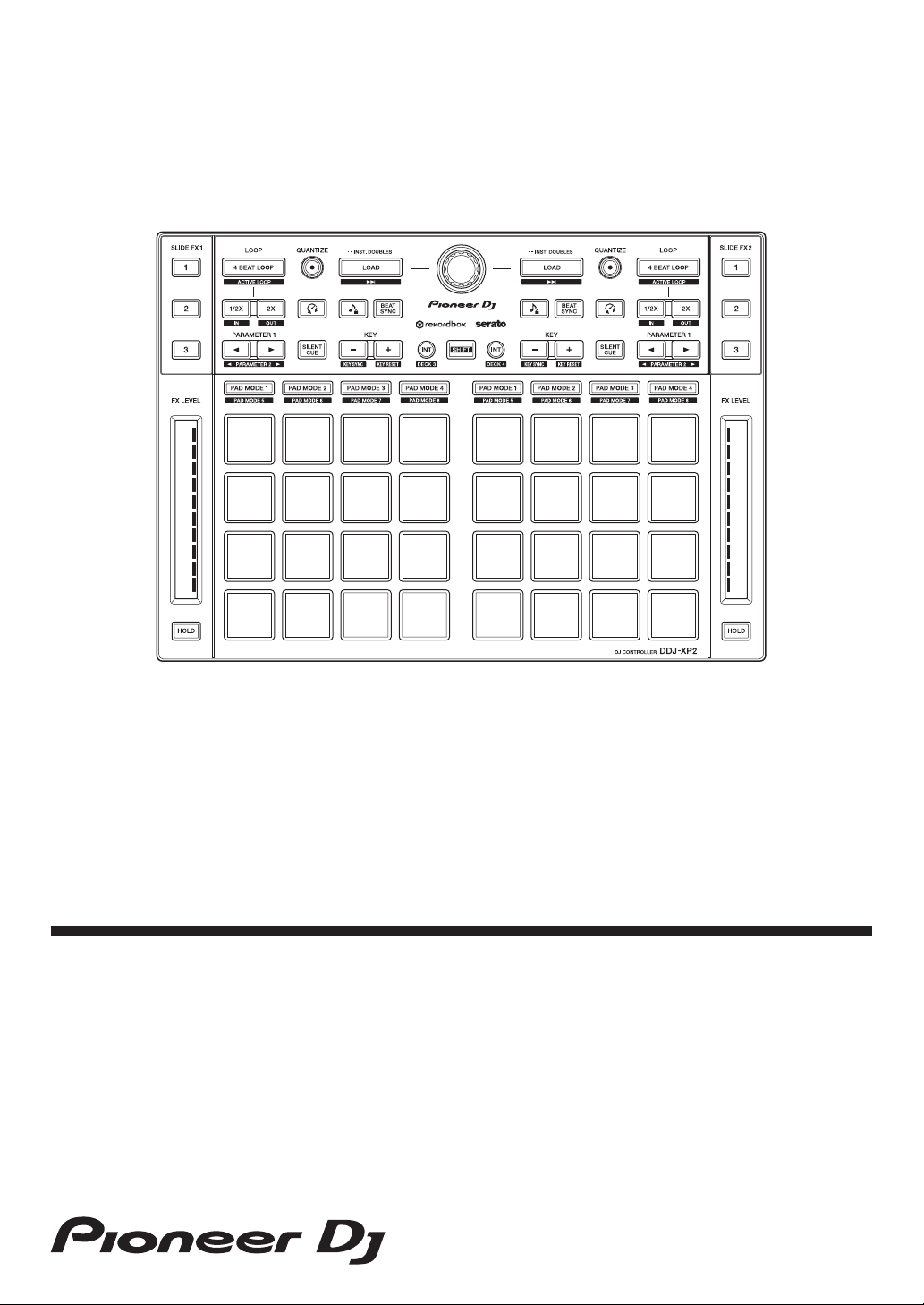
How to read this manual
Thank you for choosing this Pioneer DJ product.
Be sure to read this manual and “Operating Instructions (Quick Start
Guide)” which is included with this product. These documents include
important information that you should understand before using the unit.
In particular, be sure to read the IMPORTANT SAFETY
INSTRUCTIONS.
• In this manual, the names of buttons and terminals that appear on the
product, and the names of buttons, menus, etc. in the software on
your PC/Mac, are indicated within square brackets ([ ]). (e.g.
[rekordbox], [SHIFT] button, and [USB] port)
• Please note that the software screens and their specifications, as
well as the external appearance and specifications of the hardware,
were still under development at the time this manual was created and
may differ from the final specifications.
• Please note that depending on the operating system version, web
browser settings, etc. operation may differ from the ways described
in this manual.
• Please note that the language on the screens of the software
described in this manual may differ from the language on your
screen.
This manual mainly focuses on explaining the hardware functions
of the unit.
For detailed instructions on using rekordbox
TM
, see the
rekordbox Operating Instructions.
For detailed instructions on using Serato DJ Pro software, see the
Serato DJ Pro software manual.
• You can download the rekordbox Operating Instructions from
rekordbox.com.
rekordbox.com/manual

3
En
• You can download the Serato DJ Pro software manual from
serato.com.

4
En
Contents
How to read this manual............................................................... 2
Before you start......................................................................... 5
What’s in the box .......................................................................... 5
Acquiring the manual .................................................................... 6
DJ software................................................................................... 7
rekordbox dj............................................................................. 13
Installing rekordbox..................................................................... 13
Part names and functions (rekordbox)........................................ 14
System setup .............................................................................. 24
Basic use (rekordbox)................................................................. 26
Advanced use (rekordbox).......................................................... 32
Serato DJ Pro........................................................................... 45
Part names and functions (Serato DJ Pro) ................................. 45
System setup .............................................................................. 55
Basic use (Serato DJ Pro) .......................................................... 56
Advanced use (Serato DJ Pro) ................................................... 58
Settings on the unit................................................................. 77
Launching Utilities mode............................................................. 77
Utilities mode .............................................................................. 78
Additional information............................................................ 82
Troubleshooting .......................................................................... 82
Specifications.............................................................................. 86
Using the unit as a controller for other DJ applications .............. 87
About trademarks and registered trademarks ............................ 88
Cautions on copyrights ............................................................... 89

5
En
Before you start
What’s in the box
• USB cable
• Warranty (for some regions)
1
• Operating Instructions (Quick Start Guide)
• License key card
2
rekordbox dj
rekordbox dvs
1
Only products in Europe.
– For the North American region, the corresponding information is
provided on the last page of both the English and French versions
of the “Operating Instructions (Quick Start Guide).”
2
For the latest information, visit the website below.
rekordbox.com
Note
The license key can’t be reissued. Be sure to store it in a safe place.

Before you start
6
En
Acquiring the manual
Viewing the rekordbox Introduction / Operating
Instructions
• Introduction explains how to setup rekordbox.
• Operating Instructions explains the track collection, EXPORT mode
and PERFORMANCE mode.
1 Launch a web browser on your PC/Mac and visit the website below.
rekordbox.com
2 Hover the cursor over [Support], and then click [Manual].
3 Select “rekordbox Introduction” or “Operating Instructions” in the
language you need.
Downloading the Serato DJ Pro software manual
1 Visit the Serato website.
http://serato.com/
2Click [Serato DJ Pro] in the [Products] menu.
3Click [Download].
4Click [Manuals and downloads].
5 Select the Serato DJ Pro software manual in the language you
need.
Before you start
7
En
DJ software
About rekordbox
• rekordbox
rekordbox is comprehensive music management software designed
for DJs.
• rekordbox dj
rekordbox dj is the professional performance application for
rekordbox. You can use rekordbox dj by entering the rekordbox dj
license key on the supplied license key card.
• rekordbox dvs
You can add rekordbox dvs to rekordbox dj, which allows you to
control decks using control signals from a CDJ or turntable. You can
use rekordbox dvs by entering the rekordbox dvs license key on the
supplied license key card.
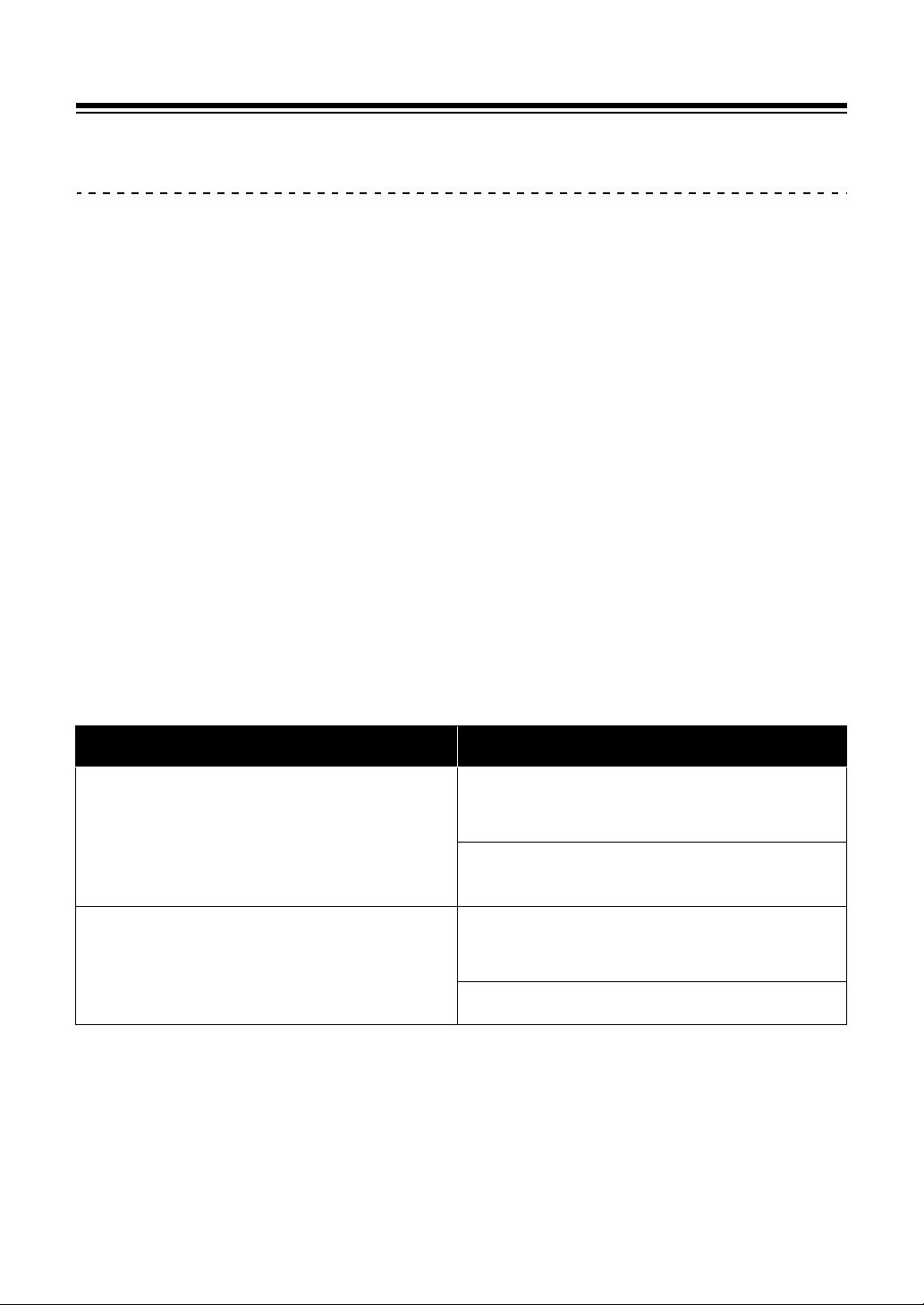
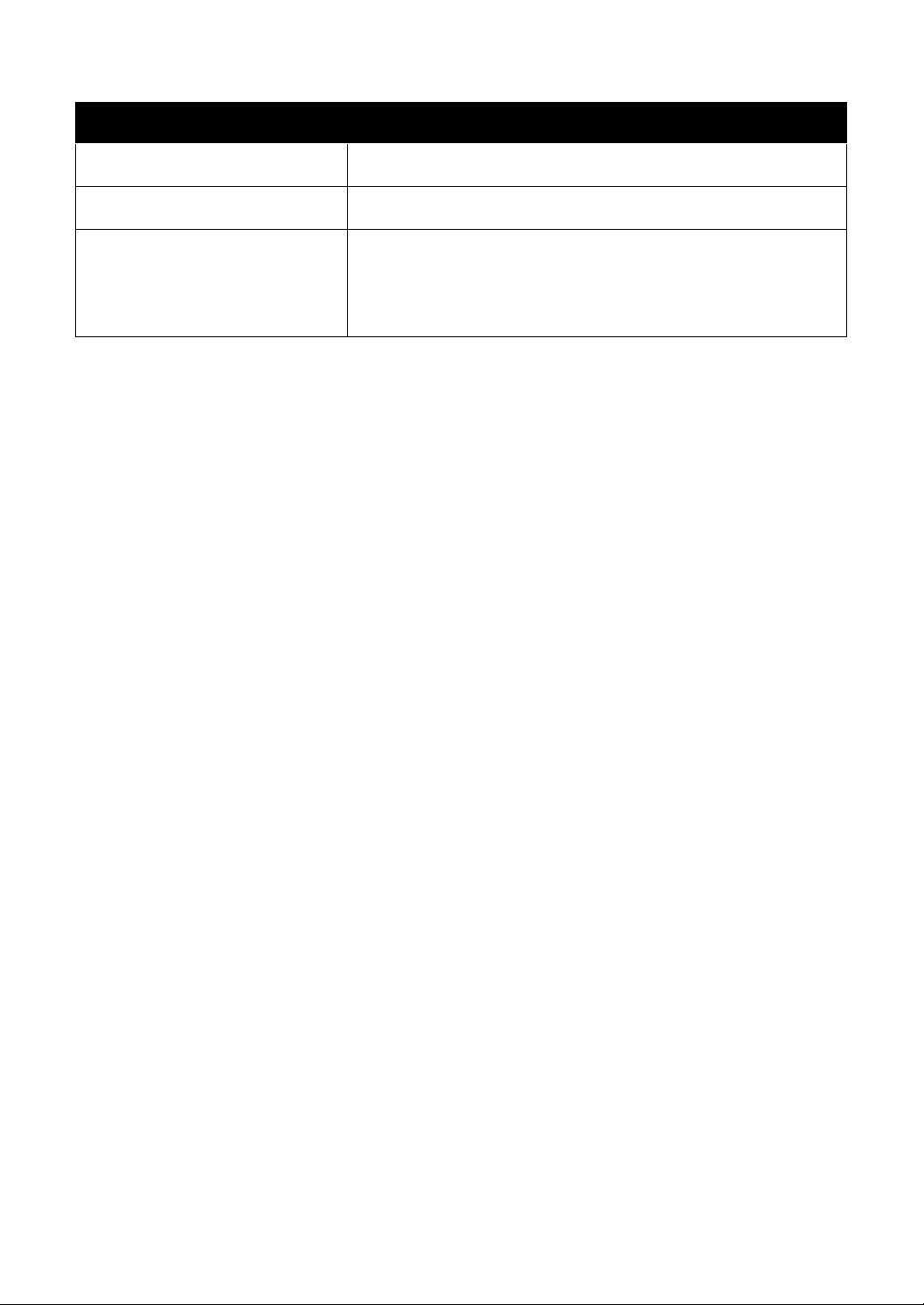
Minimum computer requirements
• 32-bit operating systems not supported.
Supported operating systems CPU and memory required
Mac: macOS Mojave 10.14 /
macOS High Sierra 10.13 /
macOS Sierra 10.12
(updated to the latest version)
Intel
®
processor Core™ i7, i5 and
i3
4 GB or more of RAM
Windows: Windows
®
10 /
Windows
®
8.1 / Windows
®
7
(latest service pack)
Intel
®
processor Core™ i7, i5 and
i3
4 GB or more of RAM
Before you start
8
En
• For information on the latest system requirements, compatibility, and
supported operating systems, visit the [System requirements] page
under [Support] on the rekordbox website below.
rekordbox.com
• Be sure to use the latest version and latest service pack for your
operating system.
• Operation isn’t guaranteed on all PC/Mac models, even if the system
requirements are met.
• Depending on power-saving settings and other conditions of the PC/
Mac, the CPU and hard disk may not provide sufficient processing
capabilities. For laptops in particular, make sure the PC/Mac is in the
best condition to provide constant high-level performance when
using rekordbox (e.g. by keeping the AC power connected).
• To use the internet, you need a separate contract with an internet
service provider, which you may have to pay for.
PC/Mac to use the rekordbox dj software
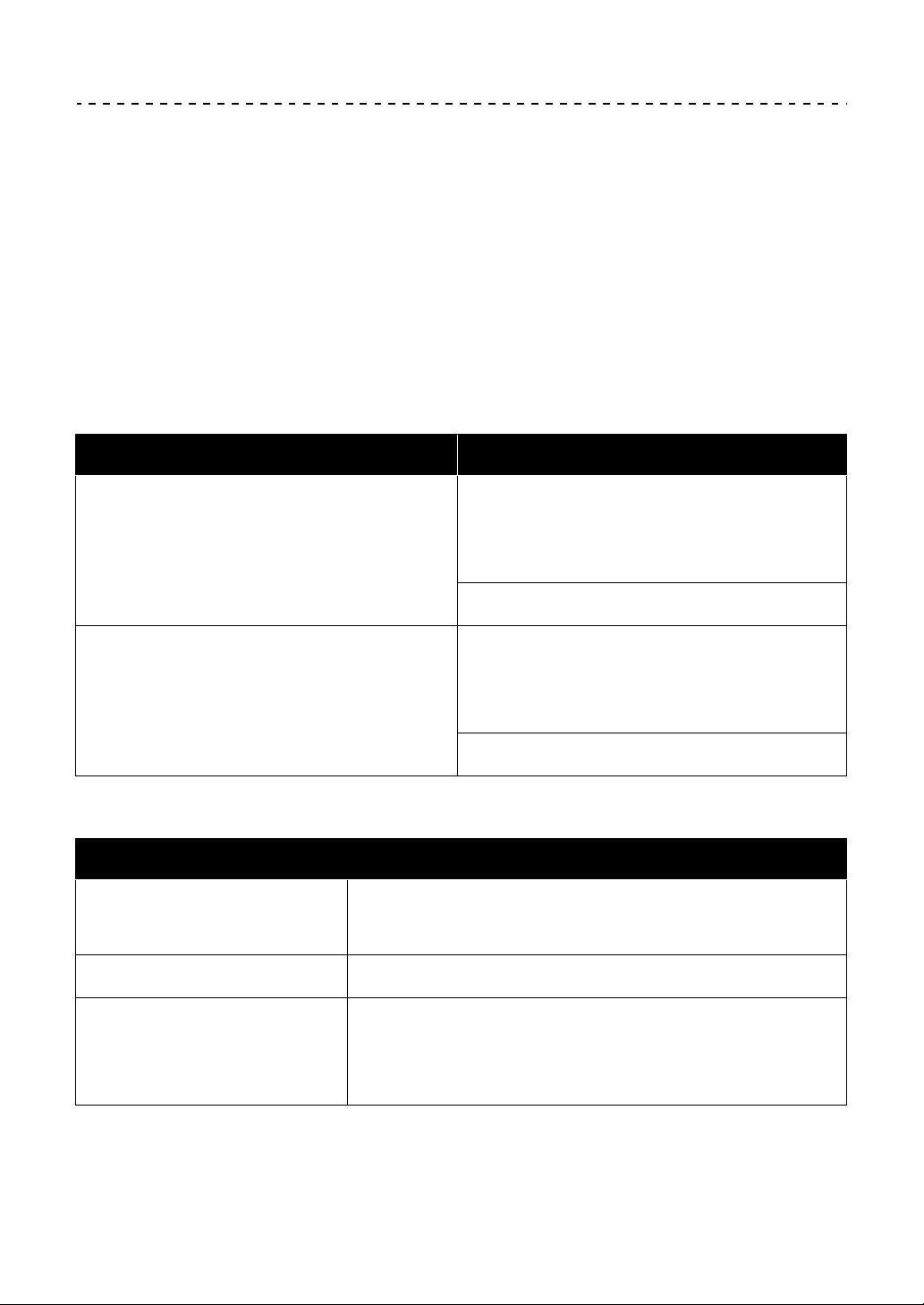
Your PC/Mac must have USB 2.0 ports to connect with the unit.
• The PC/Mac must have two USB 2.0 ports, one for connecting with
the unit, and another for connecting with the DJ mixer or audio
interface.
• If your PC/Mac has only USB Type-C ports, use a USB Type-C
(male) - USB Type-A (female) cable.
Others
USB port USB 2.0 port × 2
Display resolution Resolution of 1280 × 768 or greater
Internet connection You’ll need an internet connection to
register your user account for rekordbox
and to download the software.

Before you start
9
En
Using the unit with rekordbox dvs vinyl/CD
You need one of the following equipment.
• DJ mixer compatible with rekordbox dj (such as DJM-S9 or DJM-
900NXS2)
• Audio interface compatible with rekordbox dj (such as INTERFACE
2)
• DJ controller compatible with rekordbox dj (such as DDJ-1000)
Connecting the unit to a system which controls rekordbox dj
using DJ players
You need the following equipment.
• DJ players compatible with rekordbox dj (such as CDJ-2000NXS2 or
XDJ-1000MK2)
• DJ mixer compatible with rekordbox dj (such as DJM-900NXS2)
Using the unit with a DJ controller
You need a DJ controller compatible with rekordbox dj such as DDJ-
1000 or DDJ-800.
Using the unit as a sub controller for DJ players
You need DJ players such as CDJ-2000NXS2 or XDJ-1000MK2.
Before you start
10
En
About the Serato DJ Pro software
Serato DJ Pro delivers all the features and performance to meet the
demands of DJs at the top of their game and sets the new standard for
digital DJ software.
• Serato DJ Pro is plug and play with this unit. Download the latest
version from the Serato website at serato.com.
• For help regarding Serato DJ Pro, visit support.serato.com.
Minimum computer requirements
• 32-bit operating systems not supported.
Supported operating systems CPU and memory required
Mac: macOS Mojave 10.14 /
macOS High Sierra 10.13 /
macOS Sierra 10.12
(latest update)
Intel
®
processor Core™ i3, i5, i7
and i9
1.07 GHz or better
4 GB or more of RAM
Windows: Windows
®
10 /
Windows
®
8.1 / Windows
®
7
(latest service pack)
Intel
®
processor Core™ i3, i5, i7
and i9
1.07 GHz or better
4 GB or more of RAM
Others
USB port Your PC/Mac must have a USB 2.0 port to
connect with the unit.
Display resolution Resolution of 1280 × 720 or greater
Internet connection You’ll need an internet connection to
register your user account at serato.com
and to download the software.

Before you start
11
En
• For information on the latest system requirements, compatibility, and
supported operating systems of Serato DJ Pro, visit the website
below.
https://serato.com/dj/pro/downloads
• Be sure to use the latest version and latest service pack for your
operating system.
• Operation isn’t guaranteed on all PC/Mac models, even if the system
requirements are met.
• Depending on power-saving settings and other conditions of the PC/
Mac, the CPU and hard disk may not provide sufficient processing
capabilities. For laptops in particular, make sure the PC/Mac is in the
best condition to provide constant high-level performance when
using Serato DJ Pro (e.g. by keeping the AC power connected).
• To use the internet, you need a separate contract with an internet
service provider, which you may have to pay for.
PC/Mac to use the Serato DJ Pro software
Your PC/Mac must have USB 2.0 ports to connect with the unit.
• Your PC/Mac must have two USB 2.0 ports, one for connecting with
the unit, and another for connecting with the DJ mixer or audio
interface.
• If your PC/Mac has only USB Type-C ports, use a USB Type-C
(male) - USB Type-A (female) cable.
Using the unit with Serato DVS vinyl/CD
You need one of the following equipment.
• DJ mixer compatible with Serato DVS (such as DJM-S9)
• DJ controller compatible with Serato DVS (such as DDJ-SX3)
Using the unit with a DJ controller
You need a DJ controller such as DDJ-SX3 compatible with Serato DJ
Pro.

Before you start
12
En
Using the unit as a sub controller for DJ players
You need DJ players such as CDJ-2000NXS2.

13
En
rekordbox dj
Installing rekordbox
If you’re using rekordbox for the first time, or if you’re currently using
rekordbox ver. 4.x or lower, download the latest version from
rekordbox.com and install it in the following way.
If you already have rekordbox ver. 5.x installed, update to the latest
version using the Update Manager which shows when you start
rekordbox.
• You are responsible for preparing your PC/Mac, network devices and
other elements needed to connect to the internet.
• For details on installing rekordbox, read the rekordbox Introduction.
rekordbox.com/manual
rekordbox dj
15
En
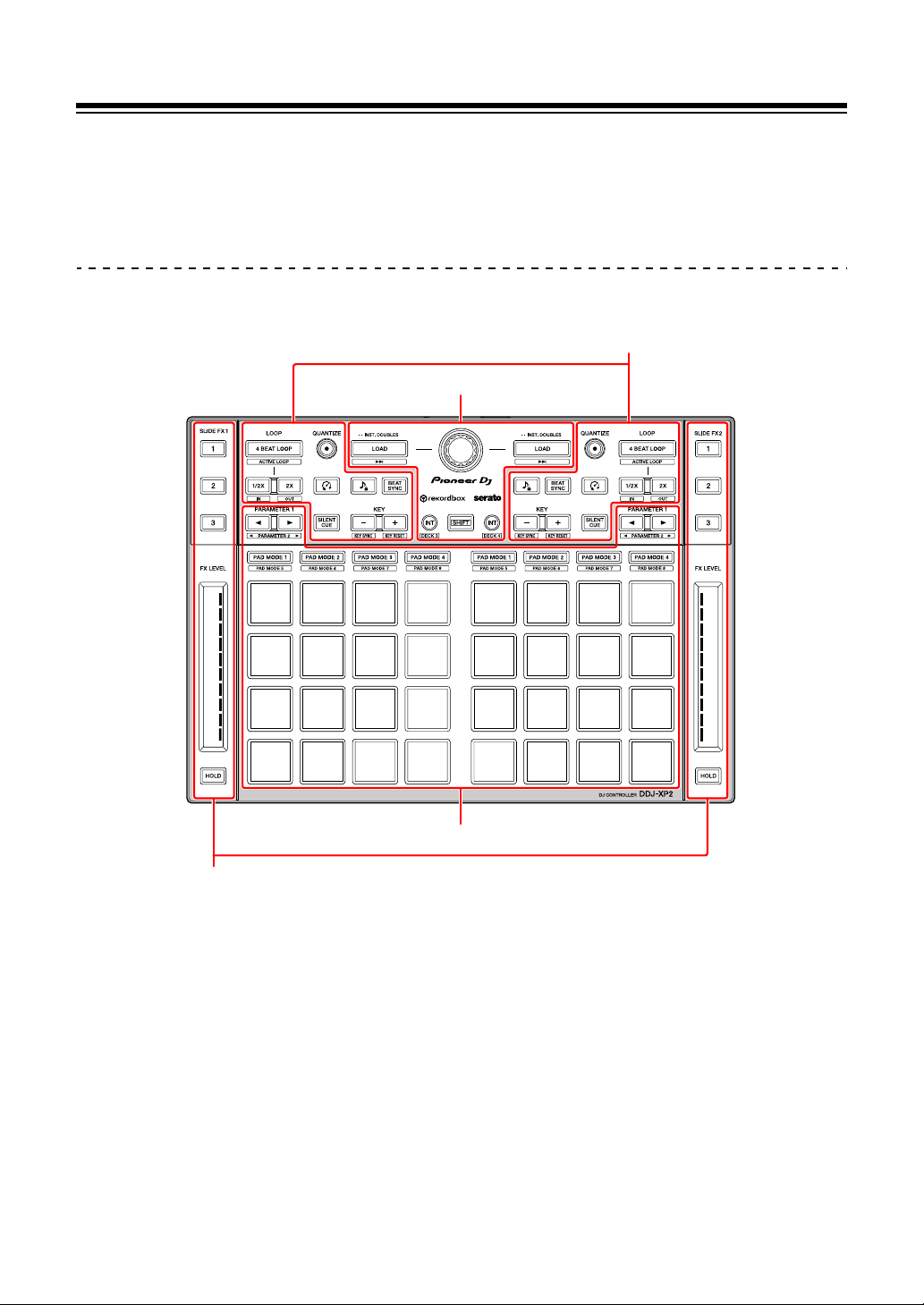
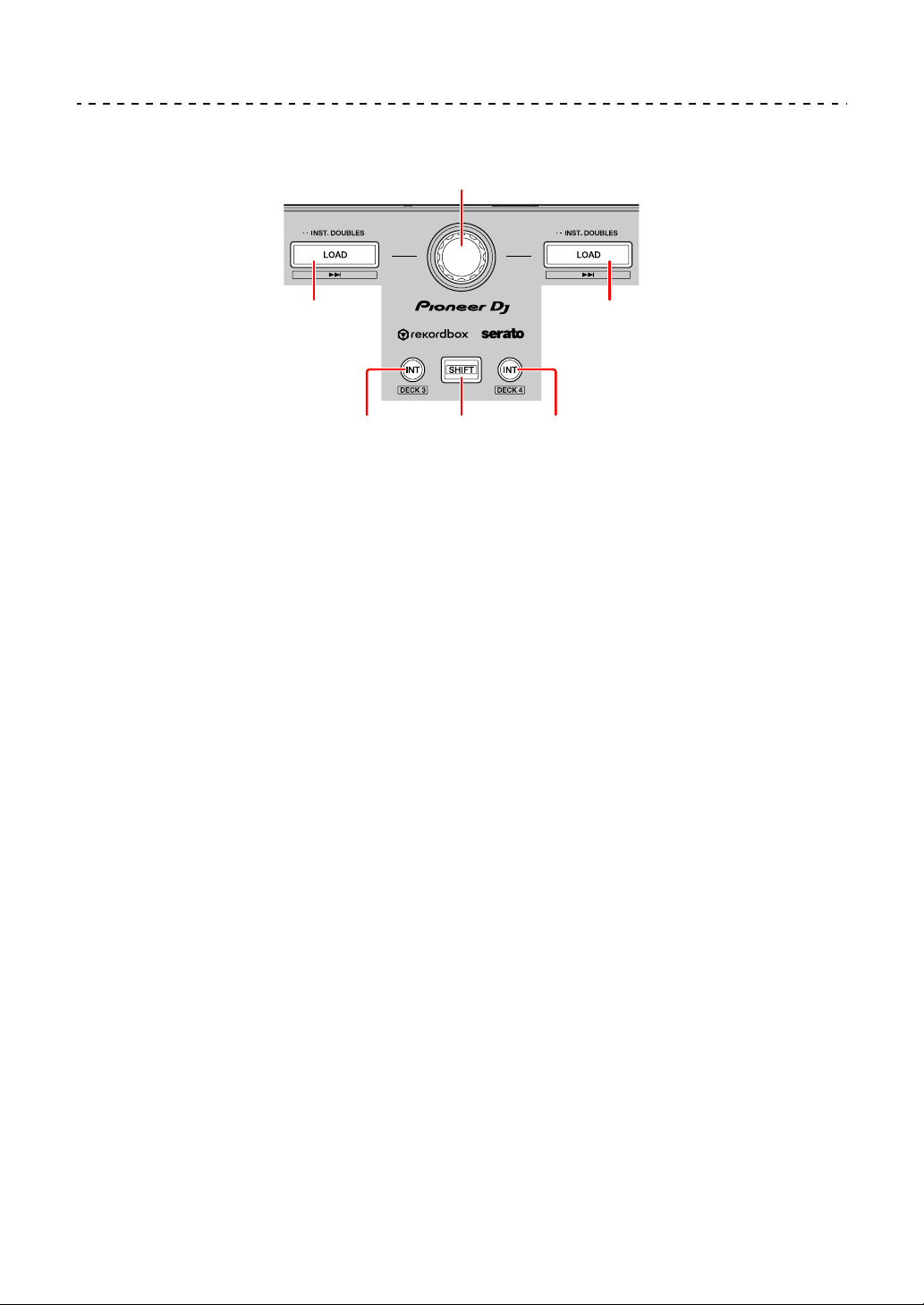
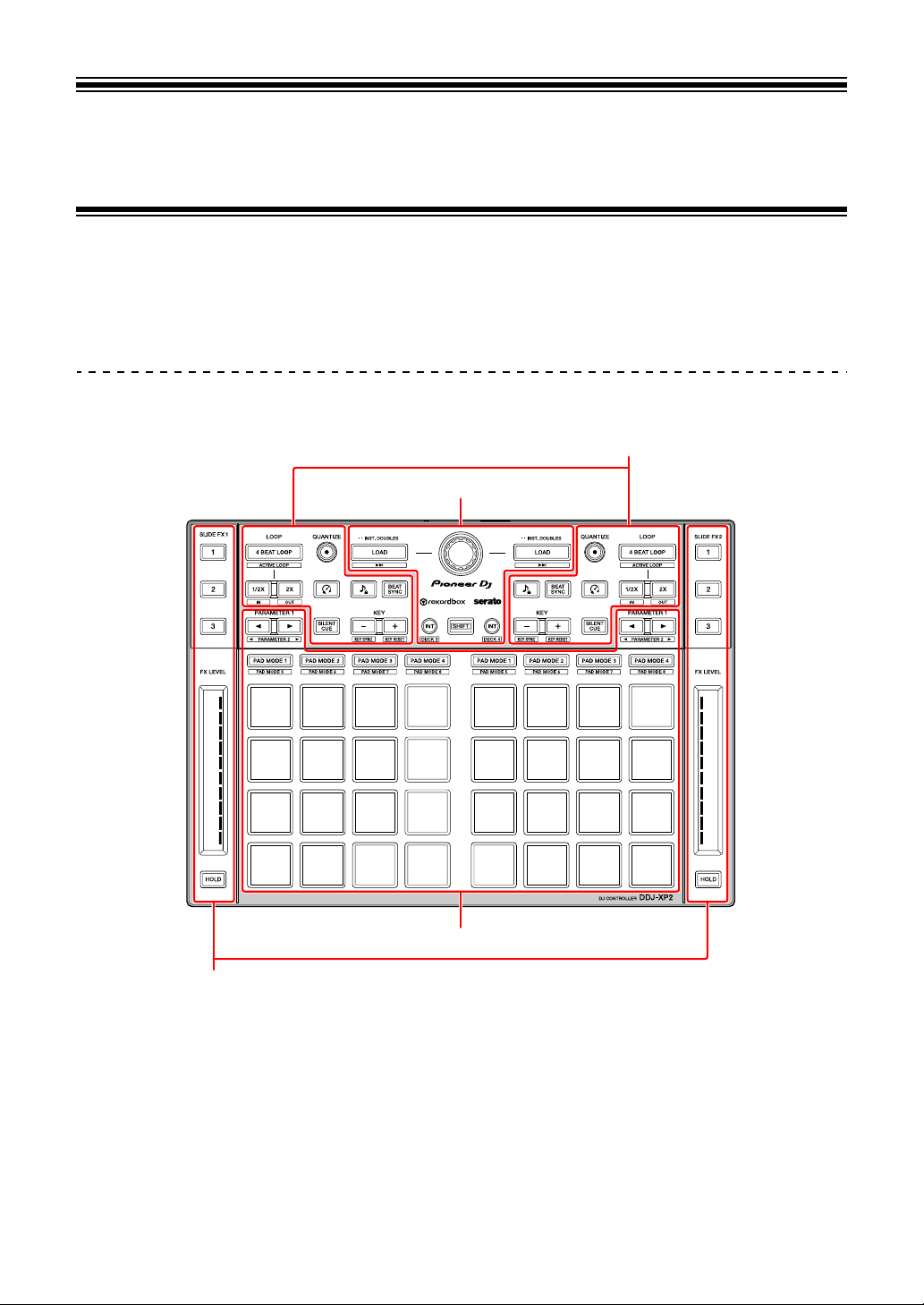
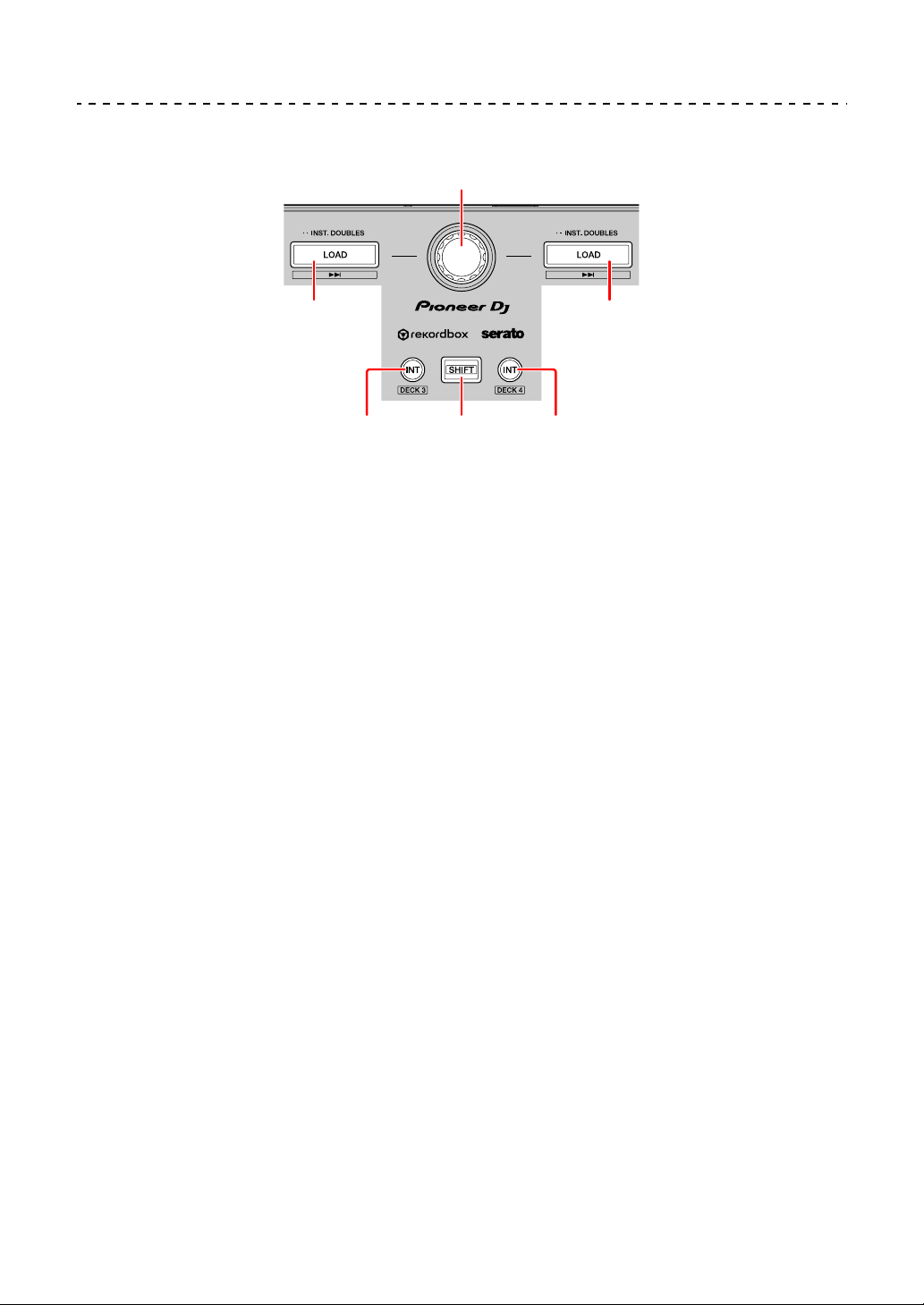
Browser section
1 INT buttons
Press:
Sets the playback mode to Relative mode or Internal mode on rekordbox dvs.
[SHIFT] + press:
Selects a deck.
When deck 3 or deck 4 is selected and the [SHIFT] button is pressed, the [INT]
button lights up.
When deck 1 or deck 2 is selected and the [SHIFT] button is pressed, the [INT]
button doesn’t light up.
• To set the playback mode of rekordbox dvs, activate [rekordbox dvs] in the
[License] tab and mark the [Enable DVS Function] check box in the [DVS]
tab on the [Preferences] screen.
2 Rotary selector
Rotates:
Moves the cursor up and down in the track list or tree view.
Press:
Moves the cursor between the tree view and track list each time you press the
rotary selector.
• When the playlist palette is displayed, the cursor moves between the tree
view, track list and playlists.
2
3
411
3

rekordbox dj
16
En
• The tree view, track list and playlist palette are located in the browse section
of rekordbox dj. For details on each role, read the rekordbox Operating
Instructions.
3LOAD buttons
Press:
Loads the selected track onto the deck.
Press twice:
Loads the track that is already loaded on the other deck onto the deck where
you pressed the [LOAD] button.
If a track is playing, it will play from the same position. (Instant Doubles)
[SHIFT] + press:
Loads the next track on the track list onto the deck.
4 SHIFT button
Press:
Press another button while holding the [SHIFT] button to use a different feature
assigned to the button.
rekordbox dj
17
En
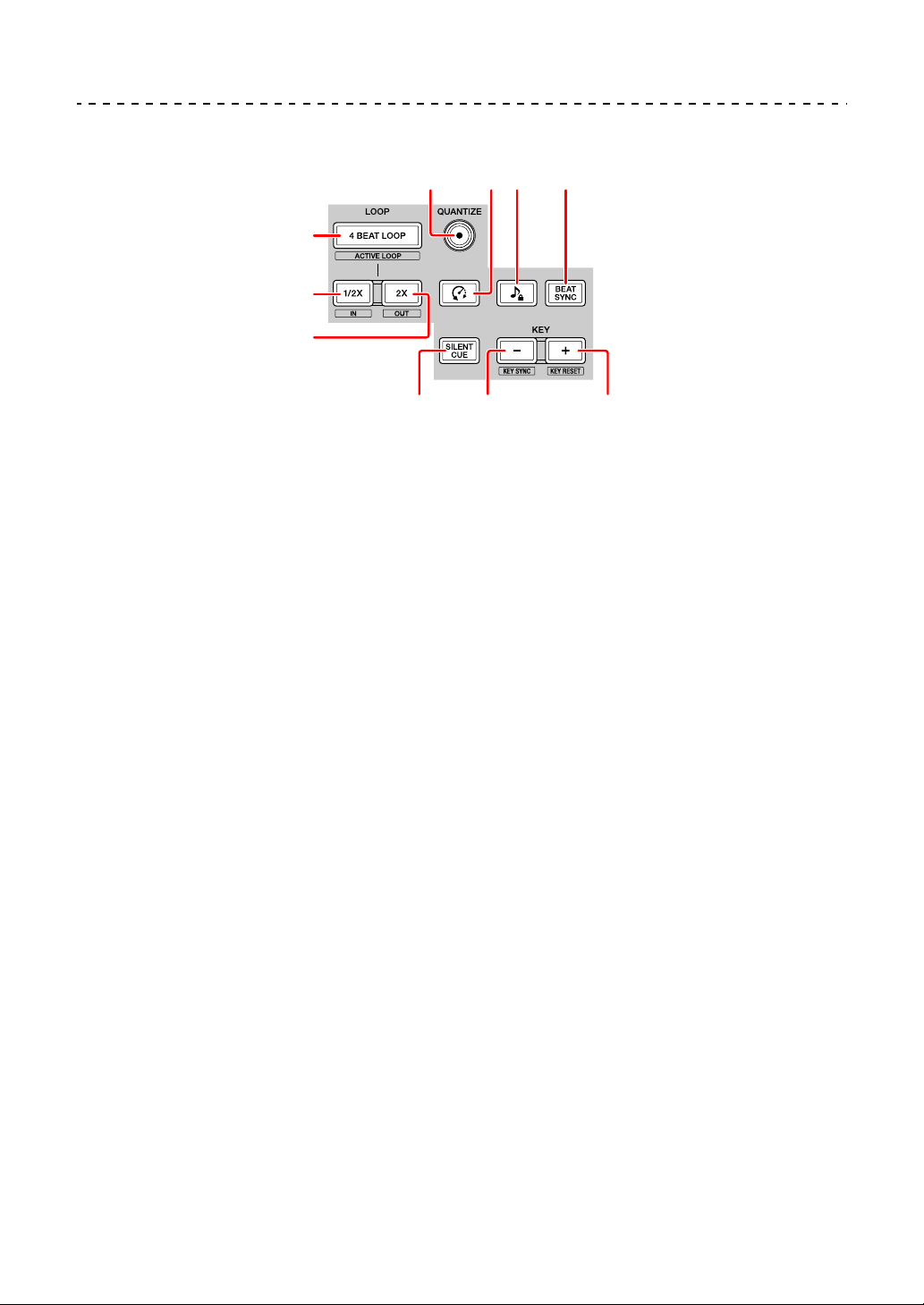
Deck section
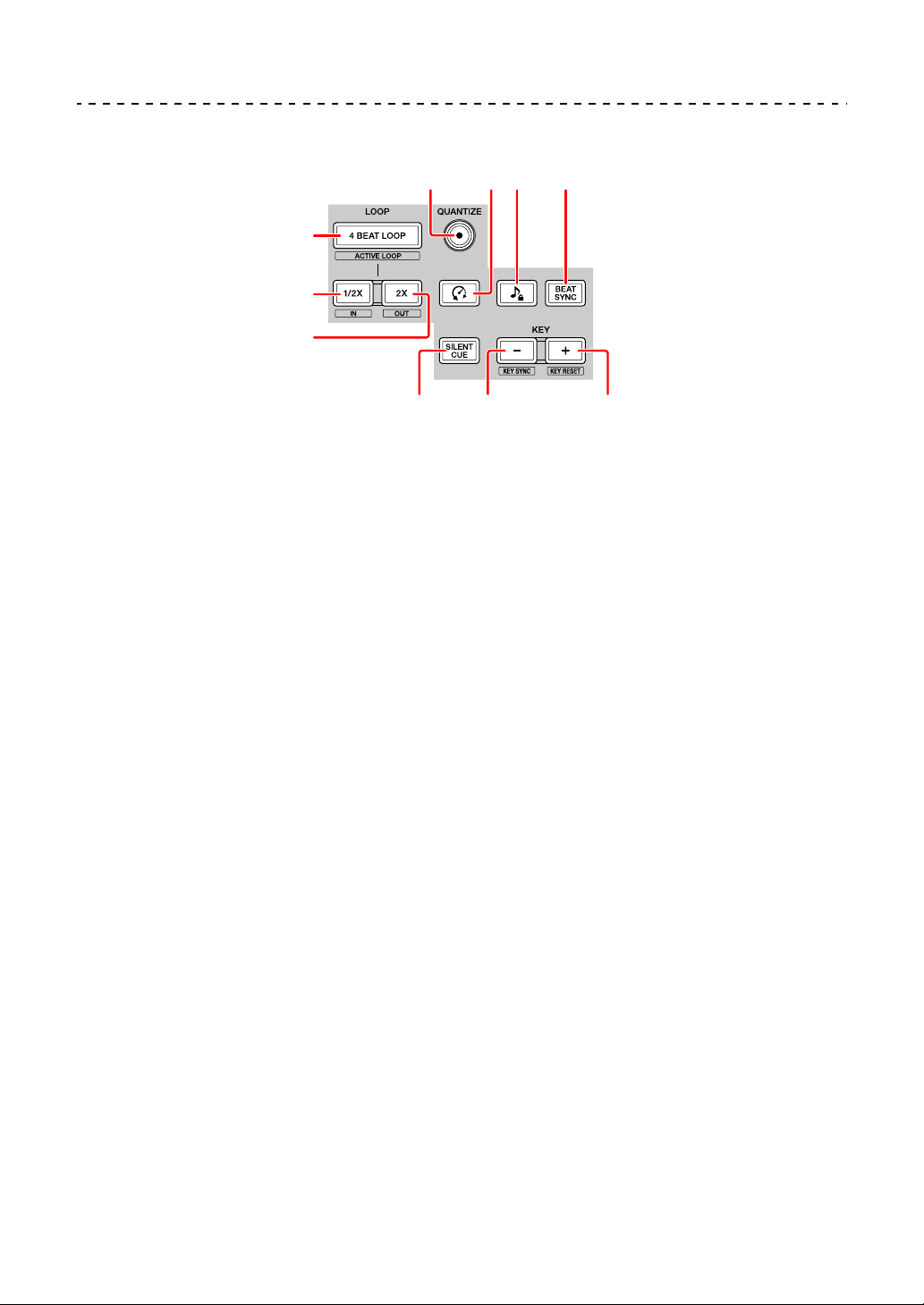
1 4 BEAT LOOP buttons
Press:
During normal playback, the auto beat loop of 4 beats is set, and then loop
playback starts.
During the loop playback, the loop playback is canceled.
[SHIFT] + press:
Makes the loop saved on the track active/inactive. (Active Loop)
• When you press the button while holding the [SHIFT] button during
playback, the loop closest to the playback position is activated.
• When you press the button while holding the [SHIFT] button after calling up
the loop saved on the track, the loop is activated or inactivated.
2 LOOP 1/2X buttons
Press:
Halves the loop playback length.
[SHIFT] + press:
Sets the Loop In point.
7654
8
910
1
2
3

rekordbox dj
18
En
3 LOOP 2X buttons
Press:
Doubles the loop playback length.
[SHIFT] + press:
Sets the Loop Out point and starts the loop playback.
4 QUANTIZE buttons
Press:
Turns the Quantize function on/off.
When the Quantize function is on, the point is set to the nearest beat position
when setting a Hot Cue, etc.
• You can select the resolution of the beats to be quantized on the
[Preferences] screen of rekordbox.
5 (Slip Reverse) buttons
Press:
Hold down the button to play the track in the reverse direction. Normal
playback resumes when the button is released.
• Even during playback in the reverse direction, normal playback continues in
the background. When this button is released, playback resumes from the
point reached in the background.
• Even when holding down this button, the reverse playback is automatically
canceled at the point where 8 beats have passed. The normal playback
resumes from the point reached in the background.
6 (Master Tempo) buttons
Press:
Turns the Master Tempo function on/off.
When the Master Tempo function is on, the pitch doesn’t change even when
the track tempo is changed.
• The sound is digitally processed, so the sound quality decreases.

rekordbox dj
19
En
7 BEAT SYNC buttons
Press:
Turns SYNC on/off. This is used to automatically match the tempo and beatgrid
of the deck set as the synchronization master.
• The tempo is matched with the doubled tempo or halved tempo of the track
playing on the deck set as the synchronization master.
[SHIFT] + press:
Sets the deck as the master for synchronization.
8 SILENT CUE buttons
Press:
Mutes the sound of the currently playing track on the selected deck. To cancel
muting, press this button again.
• When rekordbox dvs is in Internal mode or Relative mode, you can cancel
muting by calling up a Hot Cue.
9 KEY - buttons
Press:
Lowers the key of the currently playing track on the selected deck by one
semitone.
[SHIFT] + press:
Shifts the key of the currently playing track on the selected deck to the same
key, to a dominant key (fifth scale degree), or to the subdominant key (fourth
tonal degree) of the track you want to match. (Key Sync)
10 KEY + buttons
Press:
Raises the key of the currently playing track on the selected deck by one
semitone.
[SHIFT] + press:
Returns the key of the currently playing track on the selected deck to its original
key. (Key Reset)
rekordbox dj
20
En
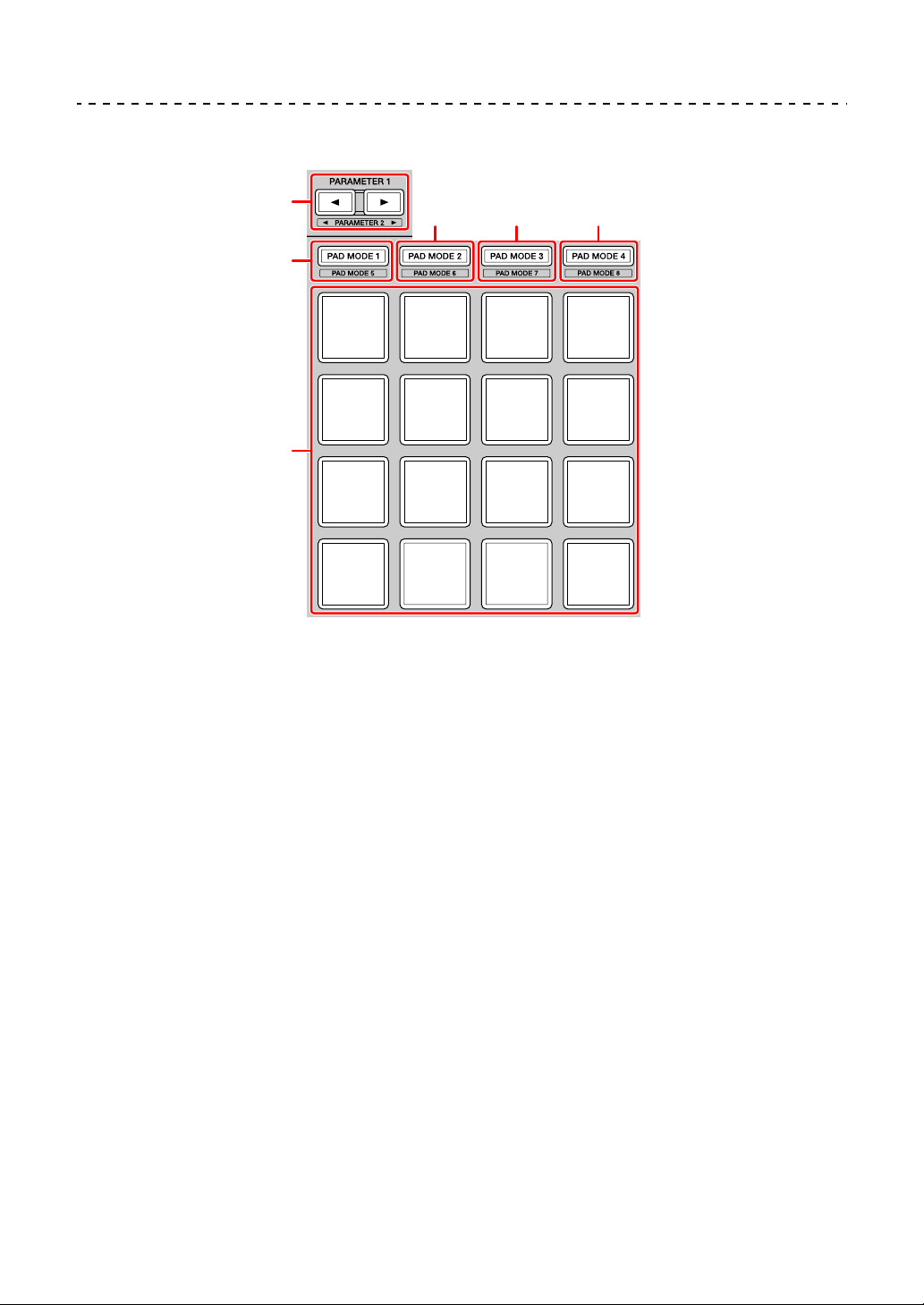
Performance Pads section
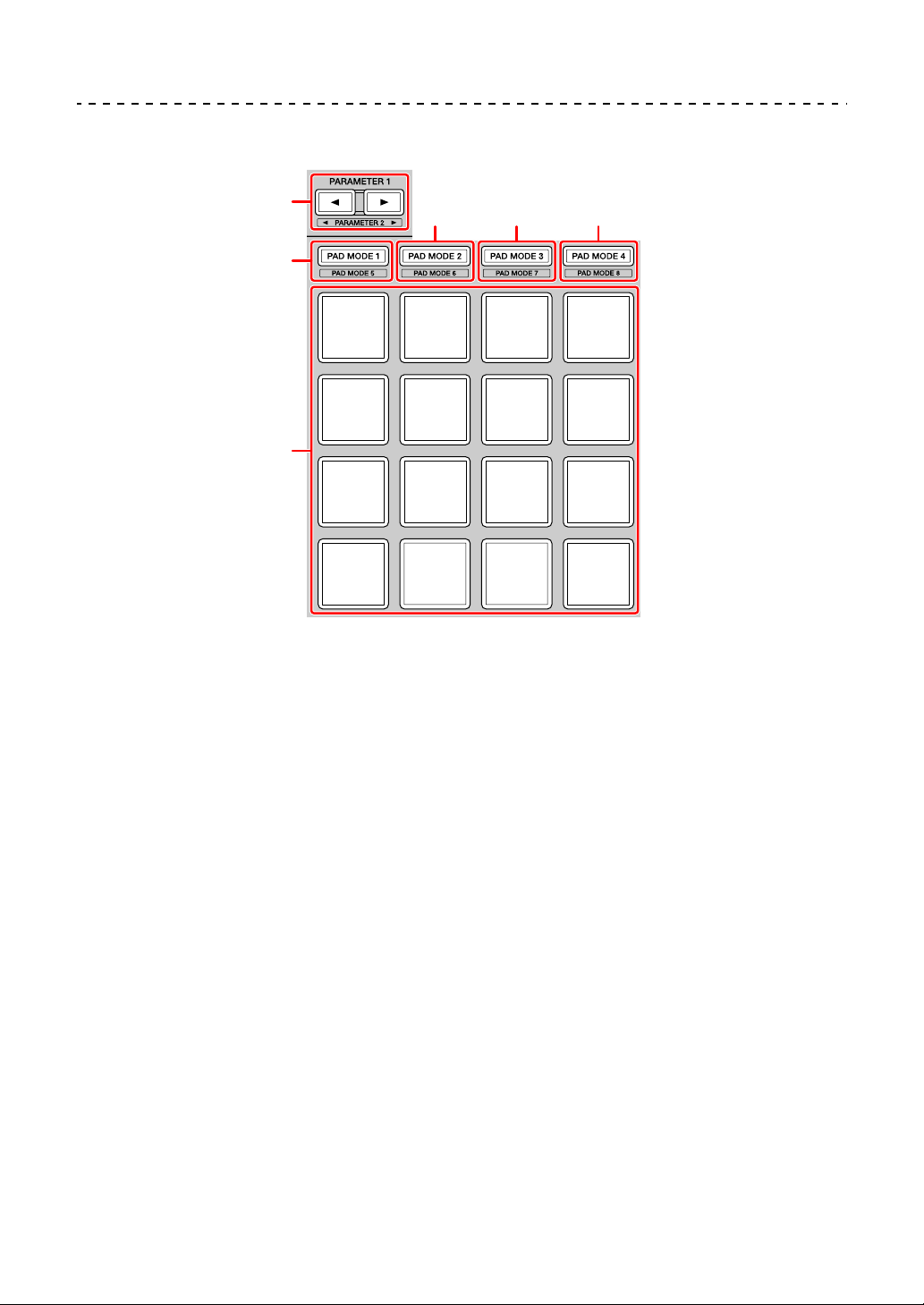
1 PARAMETER button, PARAMETER button
Press:
Changes the pad display on the deck screen of rekordbox dj.
[SHIFT] + press:
Changes the bank of the sampler.
2 PAD MODE 1 button
Press:
Turns Hot Cue mode on.
[SHIFT] + press:
Turns Keyboard mode on.
1
2
6
345

rekordbox dj
21
En
3 PAD MODE 2 button
Press:
Turns Pad FX mode 1 on.
[SHIFT] + press:
Turns Pad FX mode 2 on.
4 PAD MODE 3 button
Press:
Turns Beat Jump mode on.
[SHIFT] + press:
Turns Beat Loop mode on.
5 PAD MODE 4 button
Press:
Turns Sampler mode on.
[SHIFT] + press:
Turns Key Shift mode on.
6 Performance Pads
You can use Performance Pads to trigger various features.
Read more: Using the Performance Pads (page 34)
rekordbox dj
22
En
Slide FX section
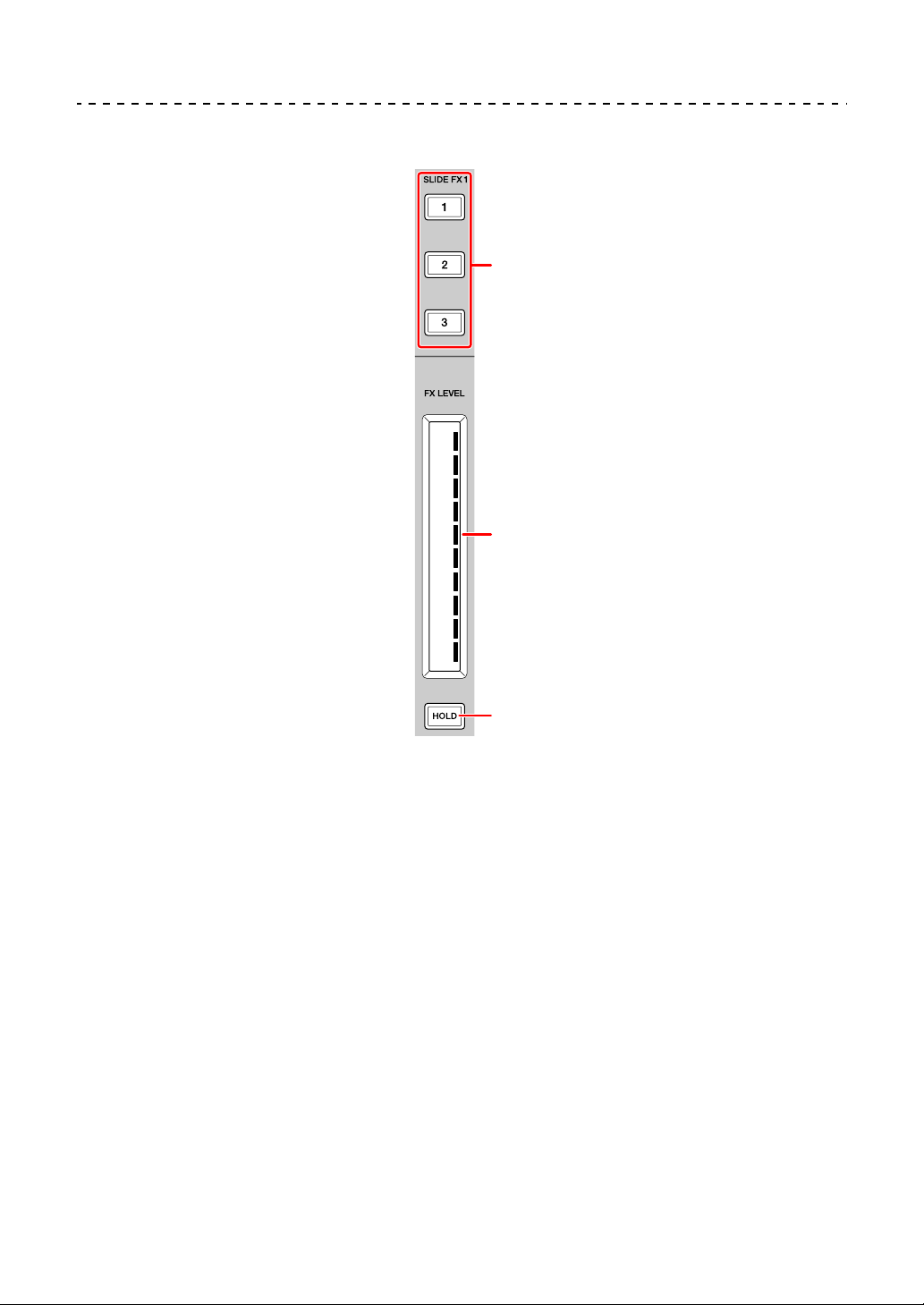
1 SLIDE FX [1] button, SLIDE FX [2] button, SLIDE FX [3] button
Press:
Selects an effect applied when touching the touch strip.
• Multiple effects can’t be selected at the same time.
[SHIFT] + press:
Selects the type of Slide FX.
1
2
3
rekordbox dj
23
En
2Touch strip
Touch:
Turns the selected effect on and changes the level/depth of the effect
according to the touched position.
• When releasing the touch strip, the effect is turned off.
Slide:
Changes the level/depth of the effect according to the sliding position.
3HOLD button
Press:
Keeps the effect on even after the touch strip is released. (Hold function)
• When you press this button again, the Hold function is turned off.
• You can change the level/depth of the effect by sliding the touch strip even
when the Hold function is turned on.
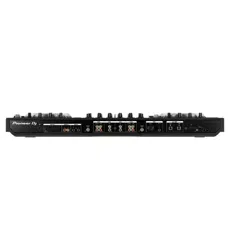
Rear panel
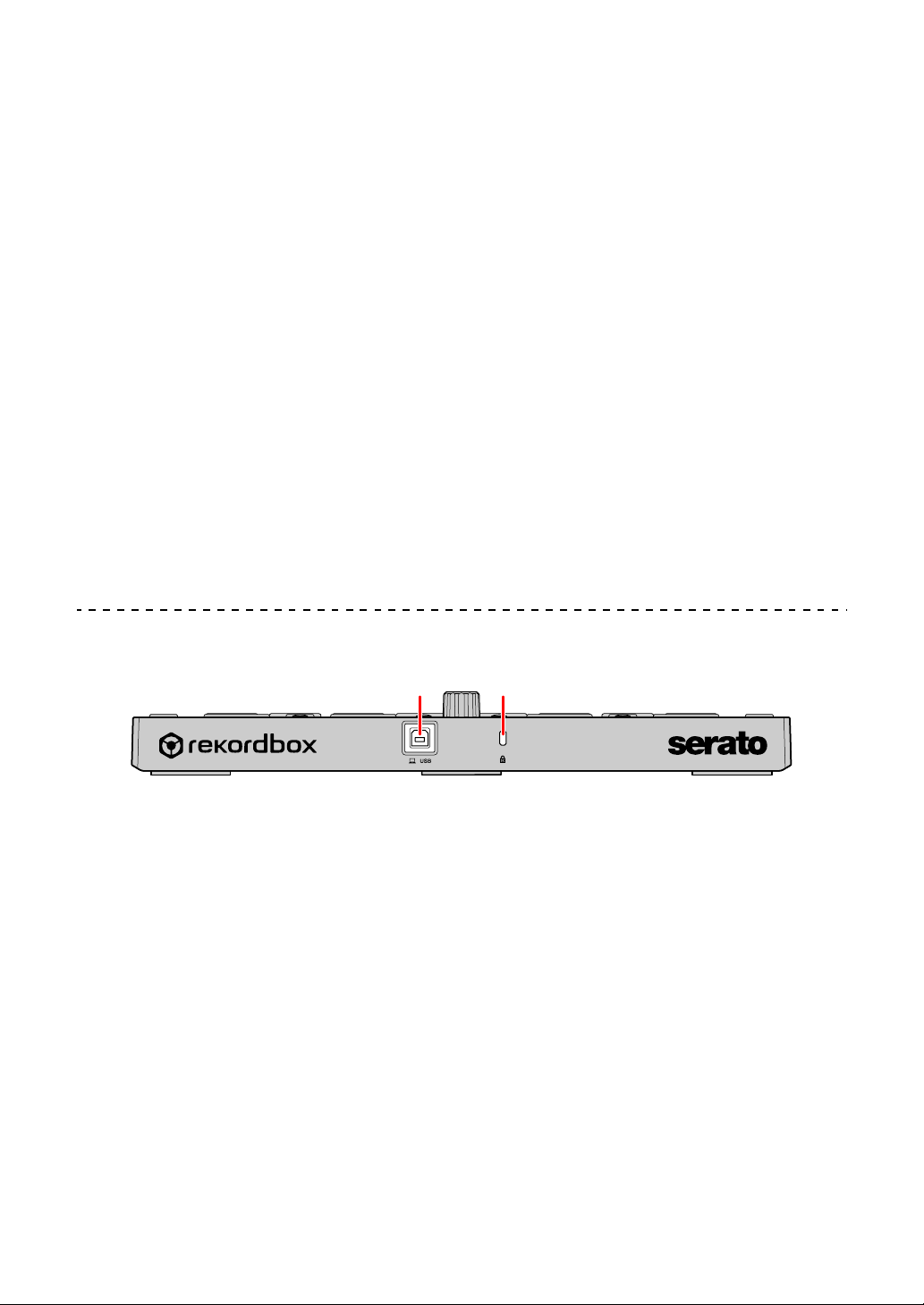
1USB port
Connects to a PC/Mac with the supplied USB cable.
• A USB hub can’t be used.
• If your PC/Mac has only a USB Type-C port, you’ll need to use a USB Type-
C male to USB-A female cable.
2 Kensington security slot
Connects a cable lock for security.
21
rekordbox dj
24
En
System setup
Connection examples
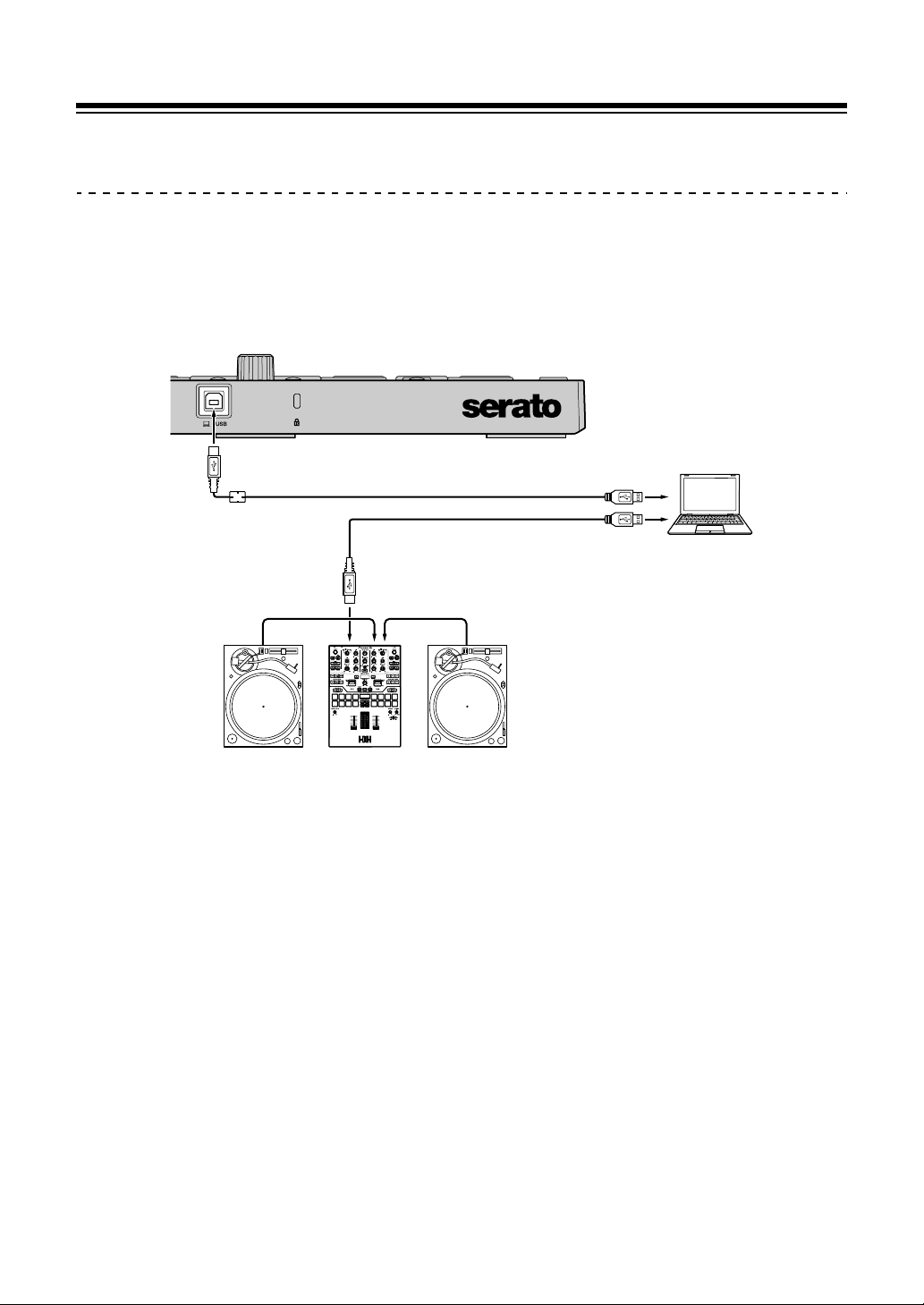
Connecting to a rekordbox dvs system using turntables and a
DJ mixer
(1) USB cable (supplied), (2) USB cable, (3) Audio cable,
(4) Turntable (PLX-1000, etc.), (5) DJ mixer (DJM-S9, etc.)
For connecting the DDJ-XP2, be sure to use the supplied USB cable
for high level performance.
(1)
PC
/
Mac
DDJ
-
XP2
(2)
(3)(3)
(4) (5) (4)
rekordbox dj
25
En
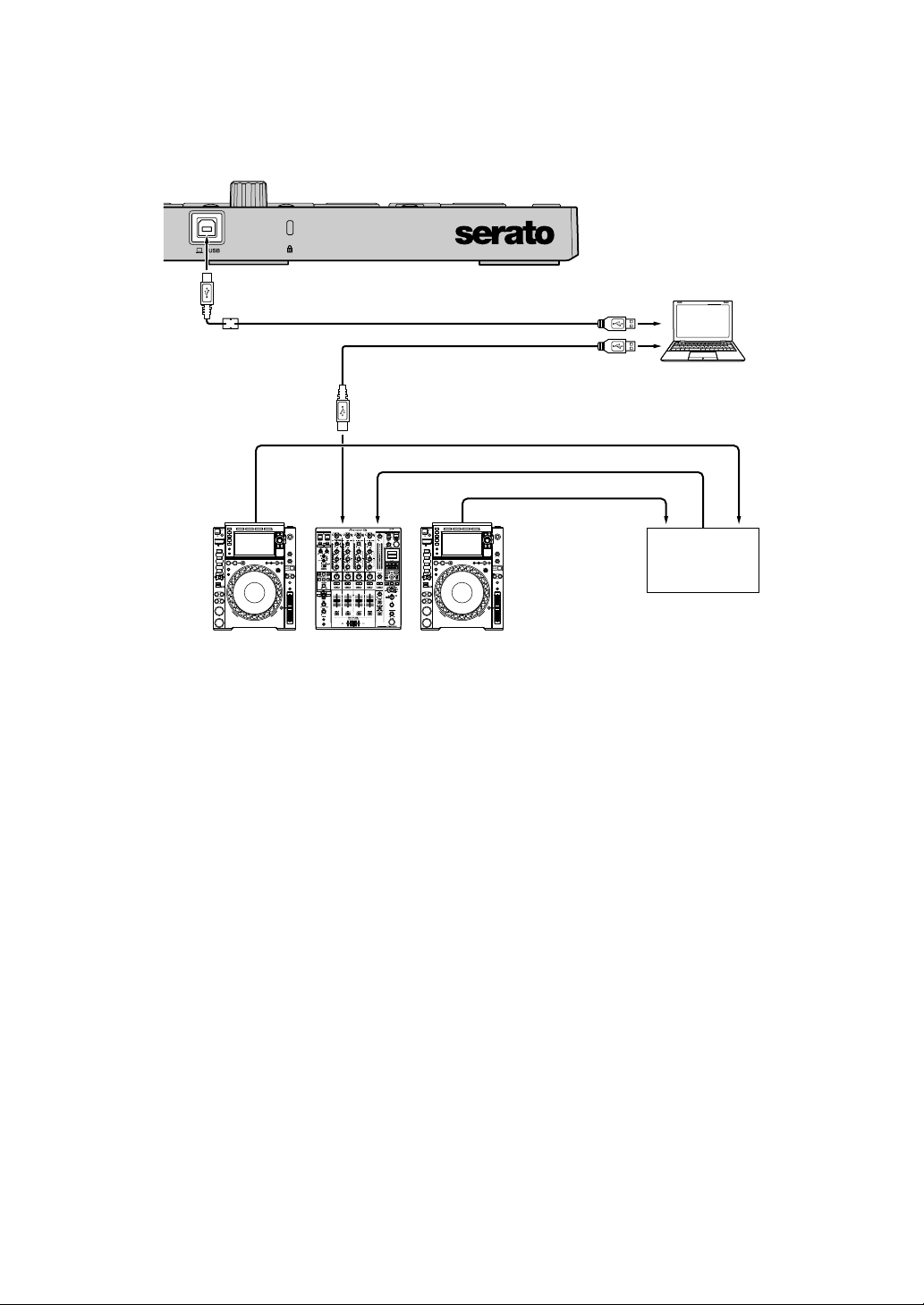
Connecting to a system which controls rekordbox dj using DJ
players
(1) USB cable (supplied), (2) USB cable, (3) LAN cable,
(4) DJ player (CDJ-2000NXS2, etc.), (5) DJ mixer (DJM-900NXS2,
etc.), (6) Switching hub
For connecting the DDJ-XP2, be sure to use the supplied USB cable
for high level performance.
(1)
PC
/
Mac
DDJ
-
XP2
(2)
(3)
(3)
(3)
(4) (5) (4)
(6)

rekordbox dj
26
En
Basic use (rekordbox)
Using the unit with rekordbox dvs system with the
turntables and DJ mixer
First, you need to connect your PC/Mac to a DJ mixer compatible with
rekordbox dvs.
• For details, see rekordbox.com:
– rekordbox dvs: visit [Support] > [Manual] > [rekordbox dvs
Setup Guide]
– DJ mixers compatible with rekordbox dvs: visit [Support] >
[Compatible DJ units]
1 Connect a DJ mixer compatible with rekordbox dvs to your PC/Mac
using a USB cable.
2 Connect audio outputs of turntables and channel inputs of the DJ
mixer using audio cables (RCA) (sold separately).
3 Set a Control Vinyl for rekordbox dvs made by Pioneer DJ (sold
separately).
• Other vinyls can’t be used.
4 Turn on your PC/Mac.
• The audio driver for the DJ mixer should be installed before starting
rekordbox.

rekordbox dj
27
En
5 Turn on turntables and the DJ mixer.
6 Launch rekordbox dj.
When launching rekordbox for the first time, you need to enter the rekordbox
dj and rekordbox dvs license keys to activate. Prepare the supplied rekordbox
dj and rekordbox dvs license key card.
• For details on activation, read the rekordbox Introduction and rekordbox dvs
Setup Guide.
• You don’t need to buy rekordbox dj or rekordbox dvs license keys.
– For Mac
In Finder, open the [Applications] folder, then double-click the
[rekordbox 5] > [rekordbox.app] icon.
– For Windows 10
From the [Start] menu, click [Pioneer] > [rekordbox] icon.
– For Windows 8.1
From [Apps view], click the [rekordbox] icon.
– For Windows 7
In the Windows [Start] menu, open [All Programs] > [Pioneer] >
[rekordbox 5.X.X] > [rekordbox].
7 Read the rekordbox dvs Setup Guide to complete settings.
8 Connect the unit to your PC/Mac using the supplied USB cable.
When [DDJ-XP2 is connected.] appears on the rekordbox dj screen, the DDJ-
XP2 is ready to use.
• The unit works with the standard driver of your PC/Mac’s operating system.
You don’t need to install separate driver software for the unit.

rekordbox dj
28
En
Adding music files into [Collection]
The [Collection] screen contains a list of music files managed by
rekordbox.
Add music files on your PC/Mac to your Collection so the software can
analyze them and they can be used in rekordbox.
1Click [Collection] on the tree view.
A list of tracks in your [Collection] is displayed.
2 Open Finder (Mac) or Explorer (Windows) and drag music files, or
folders containing music files, into the track list.
Music files are added into [Collection] and analysis of waveform information
for music files begins. Wait until analysis of all music files is complete.
Loading an audio track onto a deck
1 Press the rotary selector on the unit to move the cursor to the tree
view on your PC/Mac screen.
2 Turn the rotary selector to select [Collection].
3 Press the rotary selector to move the cursor to the track list on your
PC/Mac screen.
4 Turn the rotary selector to select a track.
5 Press the [LOAD] button to load the selected track onto the deck.
• To load the track onto deck 3 or deck 4, press the [INT] button while holding
the [SHIFT] button.
The track is loaded onto the deck 3 or 4.
Playing tracks
Tracks loaded on the deck start playing when you play the rekordbox
dvs vinyl on the turntable.
• For details on rekordbox dvs, read the rekordbox dvs Setup Guide.

rekordbox dj
29
En
Quitting the system
1 Quit rekordbox dj.
2 Disconnect the USB cable from your PC/Mac.
Using the unit to control rekordbox dj with DJ players
First, you need to connect your PC/Mac to a DJ mixer compatible with
rekordbox dvs.
• For details, see rekordbox.com:
– DJ units compatible with rekordbox dvs: visit [Support] >
[Compatible DJ units]
– For the connection guide for controlling rekordbox dj with DJ
players, visit [Support] > [Manual] > [Connection Guide for
PERFORMANCE mode].
1 Connect a DJ mixer compatible with rekordbox dj to your PC/Mac
with a USB cable.
2 Connect DJ players to the DJ mixer.
• When using the CDJ-2000NXS2 or the XDJ-1000MK2 and the DJM-
900NXS2, you can use LAN cables.

rekordbox dj
30
En
3 Turn on your PC/Mac.
• The audio driver for the DJ mixer should be installed before starting
rekordbox.
4 Turn on DJ players and the DJ mixer.
5 Launch rekordbox dj.
When launching rekordbox for the first time, you need to enter the rekordbox
dj license key to activate. Prepare the supplied rekordbox dj license key card.
• For details on activation, read the rekordbox Introduction.
• You don’t need to buy rekordbox dj license key.
– For Mac
In Finder, open the [Applications] folder, then double-click the
[rekordbox 5] > [rekordbox.app] icon.
– For Windows 10
From the [Start] menu, click [Pioneer] > [rekordbox] icon.
– For Windows 8.1
From [Apps view], click the [rekordbox] icon.
– For Windows 7
In the Windows [Start] menu, open [All Programs] > [Pioneer] >
[rekordbox 5.X.X] > [rekordbox].
6 Read the Connection Guide for PERFORMANCE mode to
complete settings.
7 Connect the unit to your PC/Mac using the supplied USB cable.
When [DDJ-XP2 is connected.] appears on the rekordbox dj screen, the DDJ-
XP2 is ready to use.
• The unit works with the standard driver of your PC/Mac’s operating system.
You don’t need to install separate driver software for the unit.
Adding music files into your Collection
Read more: Adding music files into [Collection] (page 28)
Loading an audio track onto a deck
Read more: Loading an audio track onto a deck (page 28)

rekordbox dj
31
En
Playing tracks
Control the DJ player to play the track loaded onto the deck of
rekordbox dj.
Quitting the system
1 Quit rekordbox dj.
2 Disconnect the USB cable from your PC/Mac.

rekordbox dj
32
En
Advanced use (rekordbox)
Using 4 Beat Loop
During playback, press the [4 BEAT LOOP] button.
Loop playback starts with 4 beats from the point where you press the
button.
• When the Quantize function is turned on, you might notice a slight
delay due to quantization.
Canceling loop playback
Press the [4 BEAT LOOP] button again.
Playback continues without returning to the Loop In point.

rekordbox dj
33
En
Using Manual Loop
You can choose the section you want to loop.
• When the Quantize function is turned on, you might notice a slight
delay due to quantization.
1 Press the [1/2X] button while holding the [SHIFT] button at the point
you want to start looping (the Loop In point) during playback.
2 Press the [2X] button while holding the [SHIFT] button at the point
you want to end looping (the Loop Out point) during playback.
The loop playback starts.
Cutting the loop
Press the [1/2X] button during the loop playback.
Each time you press the button, the loop cuts in half.
• The loop length can be cut in half even during 4 beat loop playback.
Extending the loop
Press the [2X] button during the loop playback.
Each time you press the button, the loop doubles in length.
• The loop length can be doubled even during 4 beat loop playback.
Canceling the loop
Press the [4 BEAT LOOP] button.
Playback continues without returning to the Loop In point.
rekordbox dj
34
En
Using the Performance Pads
Using Hot Cues
You can start playback instantly from the position where a Hot Cue is
set. Loops can also be set and called up instantly.
• Up to 16 Hot Cue points can be set and saved for each track in
rekordbox dj.
Setting and calling up a Hot Cue
1 Press the [PAD MODE 1] button.
Hot Cue mode is turned on.
• To change the hot cue display area of the deck screen on rekordbox dj, press
the [PARAMETER ] button or [PARAMETER ] button.
2 If the track is playing or paused, press a Performance Pad to set the
Hot Cue point.
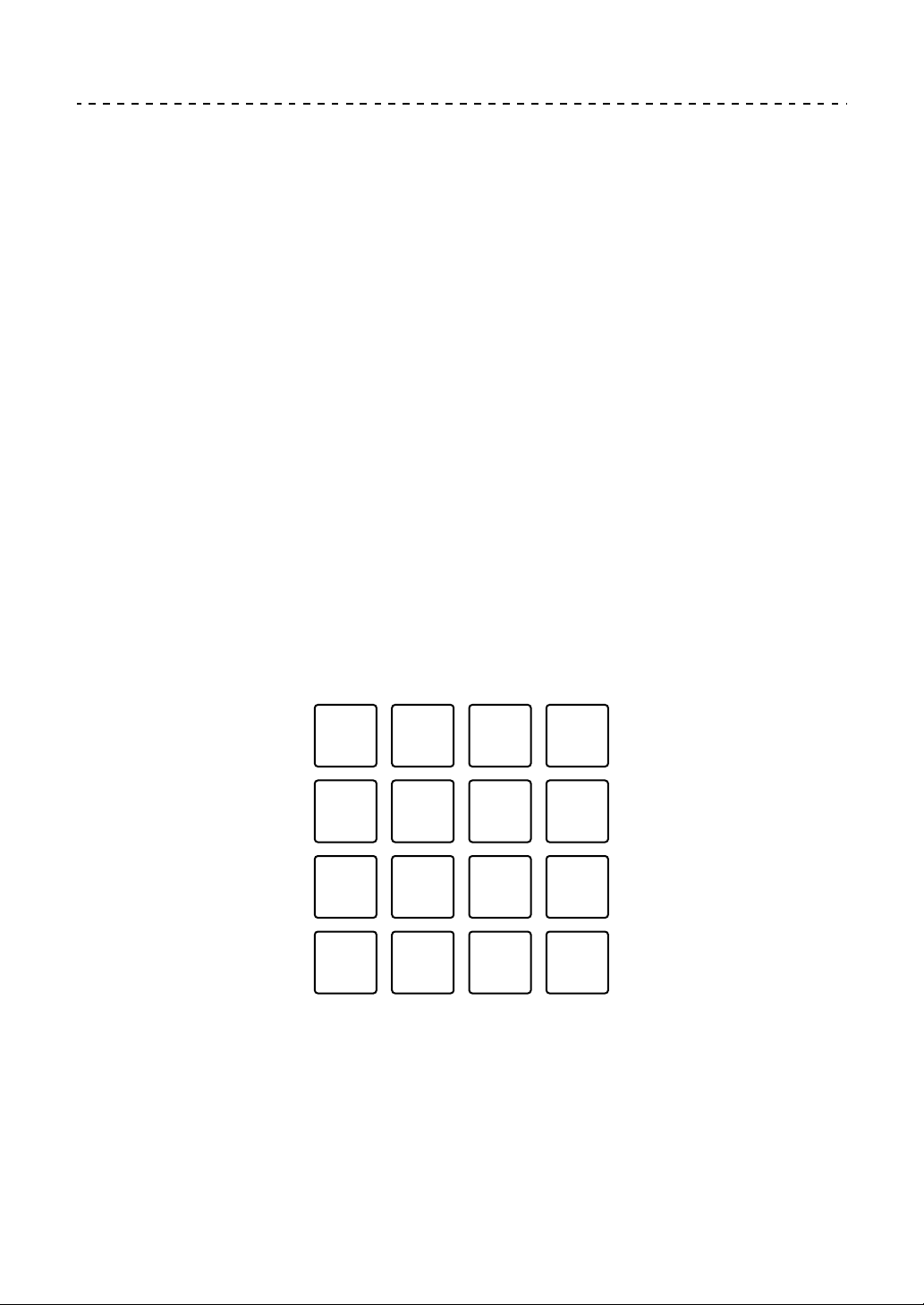
The Hot Cue points are set to Performance Pads as follows:
(1) Hot Cue A, (2) Hot Cue B, (3) Hot Cue C, (4) Hot Cue D,
(5) Hot Cue E, (6) Hot Cue F, (7) Hot Cue G, (8) Hot Cue H,
(9) Hot Cue I, (10) Hot Cue J, (11) Hot Cue K, (12) Hot Cue L,
(13) Hot Cue M, (14) Hot Cue N, (15) Hot Cue O, (16) Hot Cue P
(1) (2) (3) (4)
(5) (6) (7) (8)
(9) (10) (11) (12)
(13) (14) (15) (16)

rekordbox dj
35
En
3 Press a Performance Pad you’ve set a Hot Cue for.
Playback starts from the Hot Cue point.
• You can clear Hot Cue points by pressing a Performance Pad while holding
the [SHIFT] button.
Setting and calling up 4 Beat Loop
1 Press the [PAD MODE 1] button.
Hot Cue mode is turned on.
2 Press the [4 BEAT LOOP] button during playback.
4 beats from the point you press the button are set as a loop, and then the loop
playback starts.
3 Press a Performance Pad to set a loop during loop playback.
4 Press the Performance Pad where the loop is set.
Loop playback starts from the Loop In point.
• You can clear the loop by pressing the Performance Pad while holding the
[SHIFT] button.
Setting and calling up the Manual Loop
1 Press the [PAD MODE 1] button.
Hot Cue mode is turned on.
2 While holding the [SHIFT] button, press the [1/2X] button, and then
the [2X] button.
The loop playback starts.
3 Press a Performance Pad to set a loop during loop playback.
4 Press the Performance Pad.
Loop playback starts from the Loop In point.
• You can clear the loop by pressing the Performance Pad while holding the
[SHIFT] button.
rekordbox dj
36
En
Using Pad FX
You can add a wide range of effects to your performances simply by
pressing and releasing the Performance Pads.
1 Press the [PAD MODE 2] button.
Pad FX mode 1 is turned on.
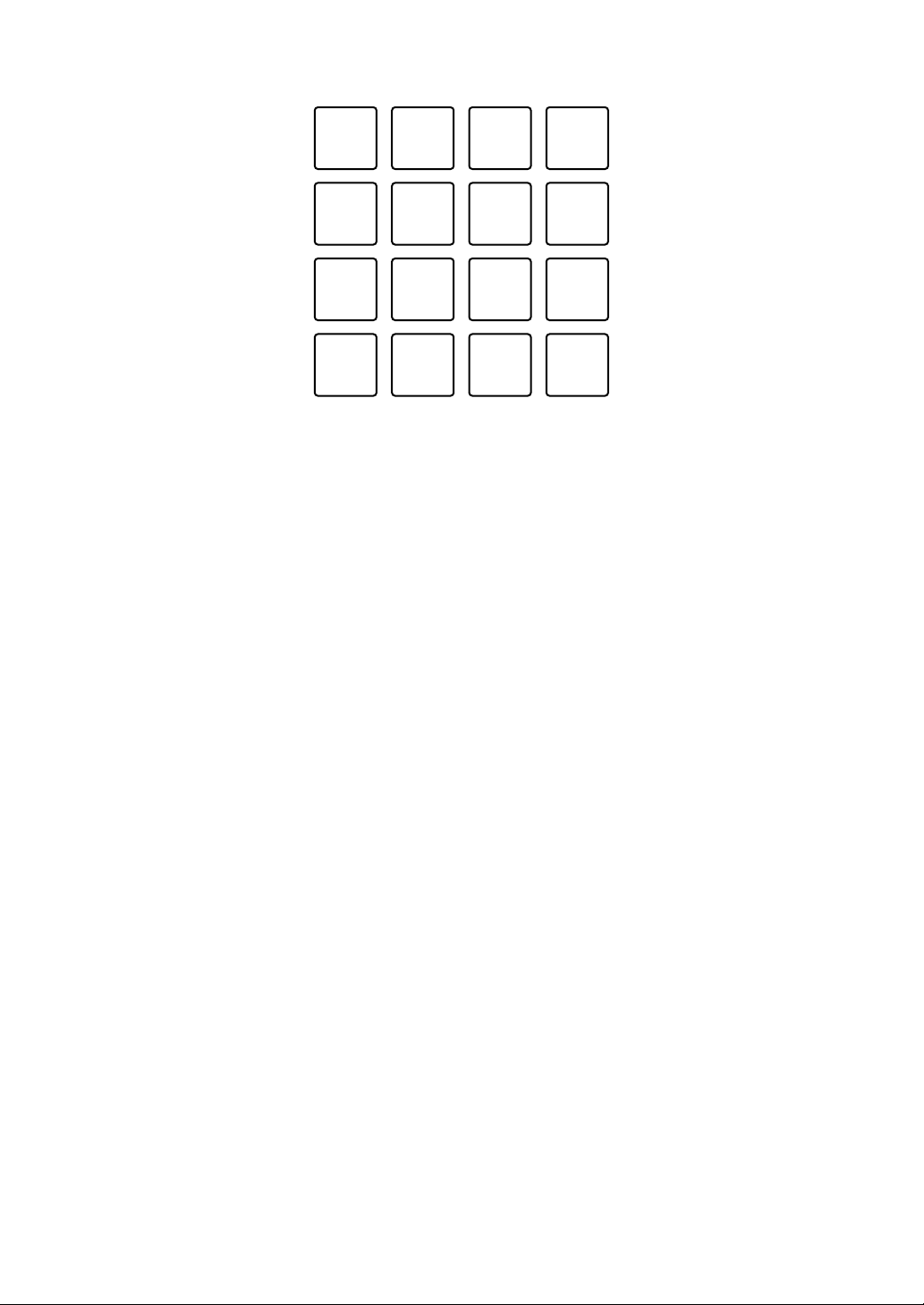
Effects are set to Performance Pads as follows.
(1) Effect A, (2) Effect B, (3) Effect C, (4) Effect D, (5) Effect E, (6) Effect F,
(7) Effect G, (8) Effect H, (9) Effect I, (10) Effect J, (11) Effect K, (12) Effect L,
(13) Effect M, (14) Effect N, (15) Effect O, (16) Effect P
Press the [PAD MODE 2] button while holding the [SHIFT] button to turn the
Pad FX mode 2 on.
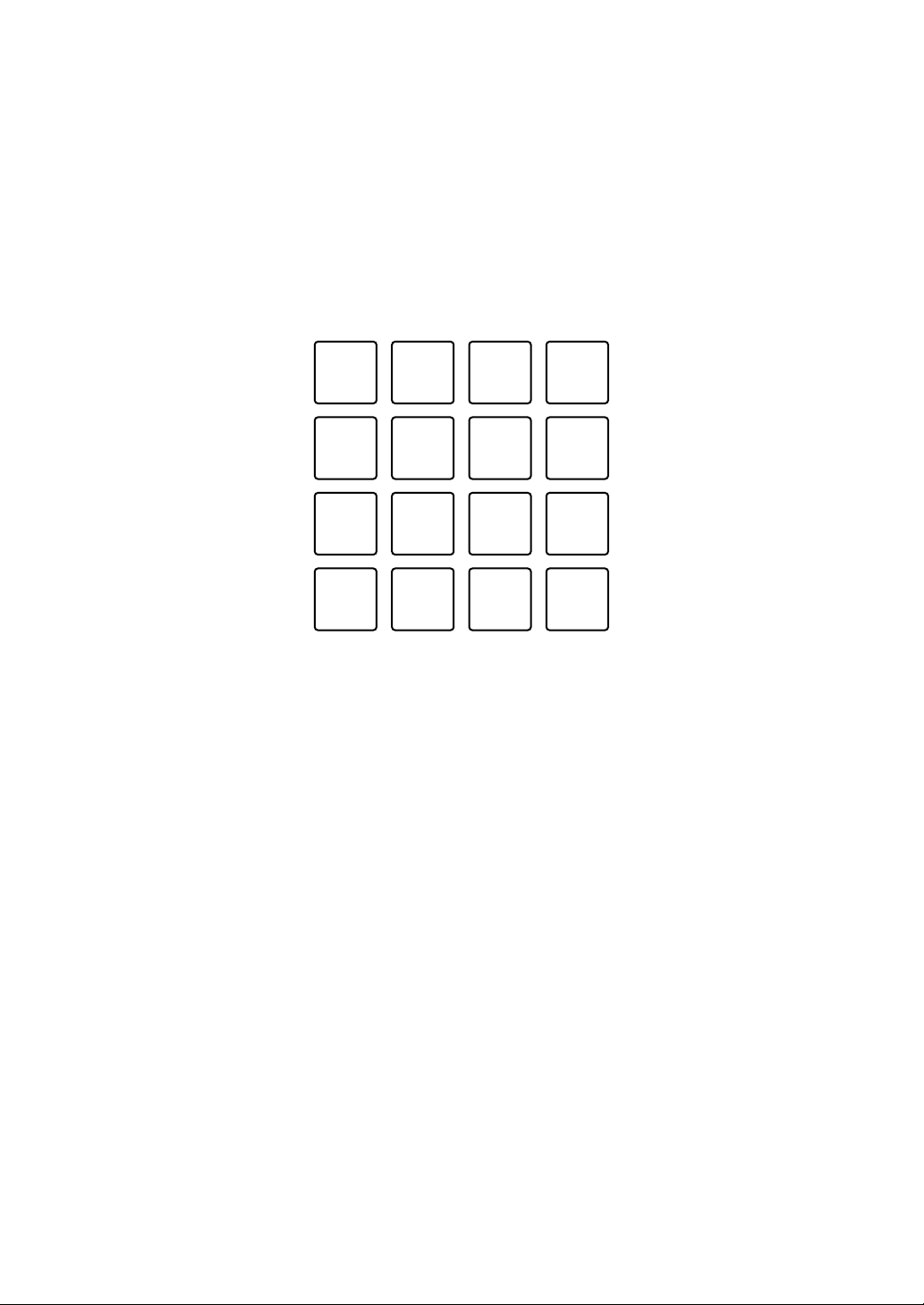
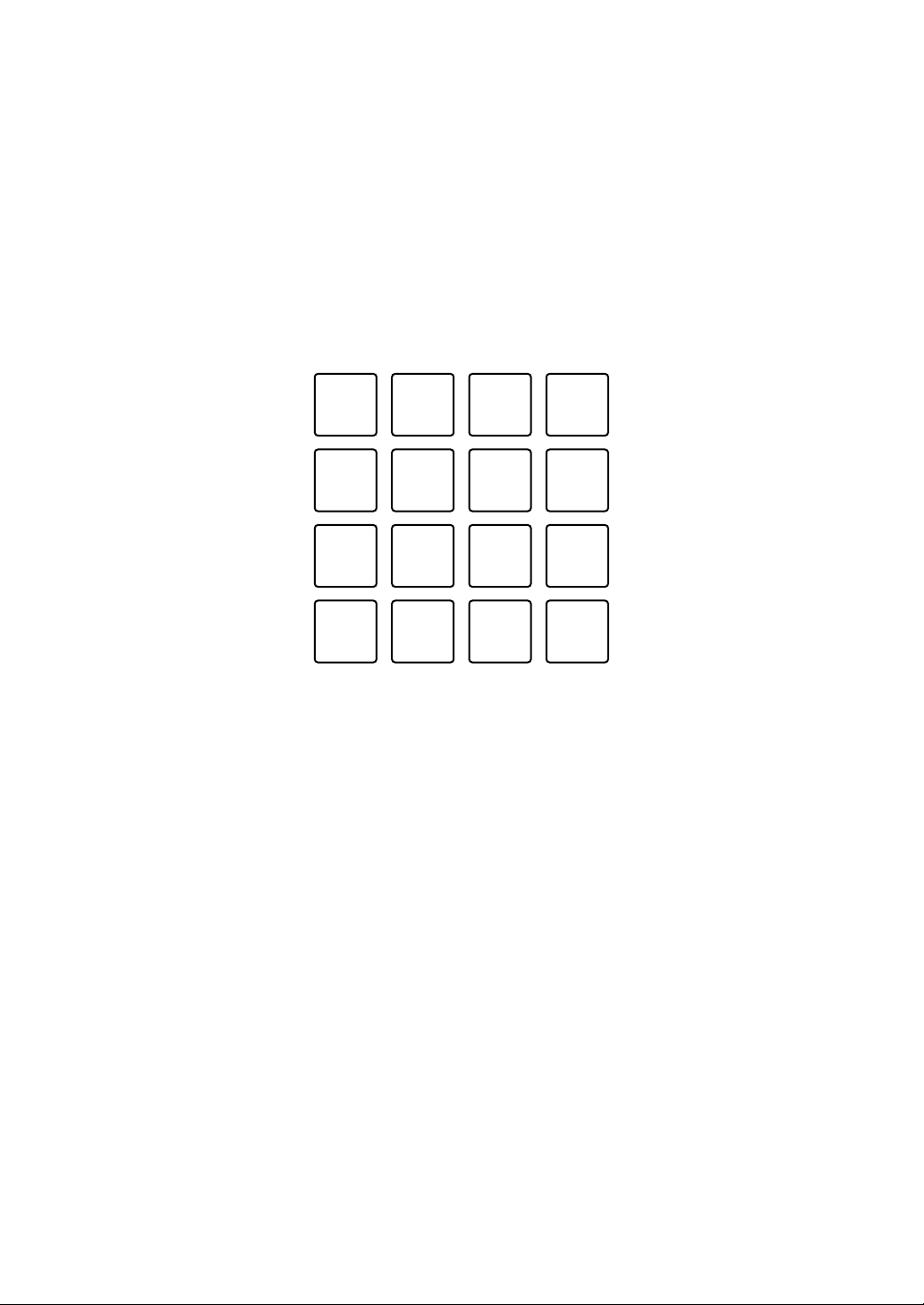
Effects are set to Performance Pads as follows.
(1) (2) (3) (4)
(5) (6) (7) (8)
(9) (10) (11) (12)
(13) (14) (15) (16)
rekordbox dj
37
En
(1) Effect Q, (2) Effect R, (3) Effect S, (4) Effect T, (5) Effect U, (6) Effect V,
(7) Effect W, (8) Effect X, (9) Effect Y, (10) Effect Z, (11) Effect AA, (12) Effect
AB, (13) Effect AC, (14) Effect AD, (15) Effect AE, (16) Effect AF
• To change the pad FX display area of the deck screen on rekordbox dj, press
the [PARAMETER ] button or [PARAMETER ] button.
2 Press and hold down a Performance Pad.
The effect is turned on. The sound changes according to the type of effect and
the number of beats in the settings assigned to that pad.
3 Release the Performance Pad.
The effect turns off.
Using Release FX of Pad FX
• First, you need to assign the Release FX to a Performance Pad.
1 Press and hold down a Performance Pad that has an effect other
than Release FX assigned to it.
The effect turns on.
2 Press the Performance Pad that has a Release FX assigned to it.
The effect turns off, and the Release FX is added.
(1) (2) (3) (4)
(5) (6) (7) (8)
(9) (10) (11) (12)
(13) (14) (15) (16)
rekordbox dj
38
En
Using Beat Jump
You can move the playback position instantly without changing the
original rhythm.
1 Press the [PAD MODE 3] button.
Beat Jump mode is turned on.
The numbers of beats or bars to jump are set to Performance Pads as follows.
(Default setting)
(1) 1 beat to the left, (2) 1 beat to the right, (3) 2 beats to the left, (4) 2 beats to
the right, (5) 4 beats to the left, (6) 4 beats to the right, (7) 8 beats to the left,
(8) 8 beats to the right, (9) 16 beats to the left, (10) 16 beats to the right, (11) 8
bars to the left, (12) 8 bars to the right, (13) 16 bars to the left, (14) 16 bars to
the right, (15) 32 bars to the left, (16) 32 bars to the right
• To change the settings, press the [PARAMETER ] button or
[PARAMETER ] button.
2 Press a Performance Pad.
The playback position is moved left or right by the number of beats or bars set
on the pad pressed.
(1) (2) (3) (4)
(5) (6) (7) (8)
(9) (10) (11) (12)
(13) (14) (15) (16)

rekordbox dj
39
En
Using Sampler
You can use the Performance Pads to play tracks or sounds assigned
to the Sampler slots.
Preparing to use the Sampler
Mark the [SAMPLER] check box at the top of the rekordbox dj screen.
• The [SAMPLER] panel is shown.
Loading a track into a Sampler slot
1 Press the [PAD MODE 4] button.
Sampler mode is turned on.
2 Press the [PARAMETER ] button or [PARAMETER ] button
while holding the [SHIFT] button.
The bank of the sampler is changed.
In rekordbox dj, the sampler has 4 banks, and each bank has 16 slots.
• The changed bank is used for all decks.
3 Press the rotary selector to move the cursor to the track list.
4 Turn the rotary selector to select a track.
5 Press a Performance Pad while holding the [SHIFT] button.
The selected track is loaded into the Sampler slot.
• Loading by overwriting a Sampler slot that’s already loaded may not be
possible depending on the [Preferences] settings in rekordbox.
rekordbox dj
40
En
Playing Sampler tracks with Performance Pads
1 Press the [PAD MODE 4] button.
Sampler mode is turned on.
2 Press the [PARAMETER ] button or [PARAMETER ] button
while holding the [SHIFT] button.
The bank of the sampler is changed.
3 Adjust the Sampler Gain on the rekordbox dj screen.
4 Press a Performance Pad.
The track or sound assigned to the relevant slot is played.
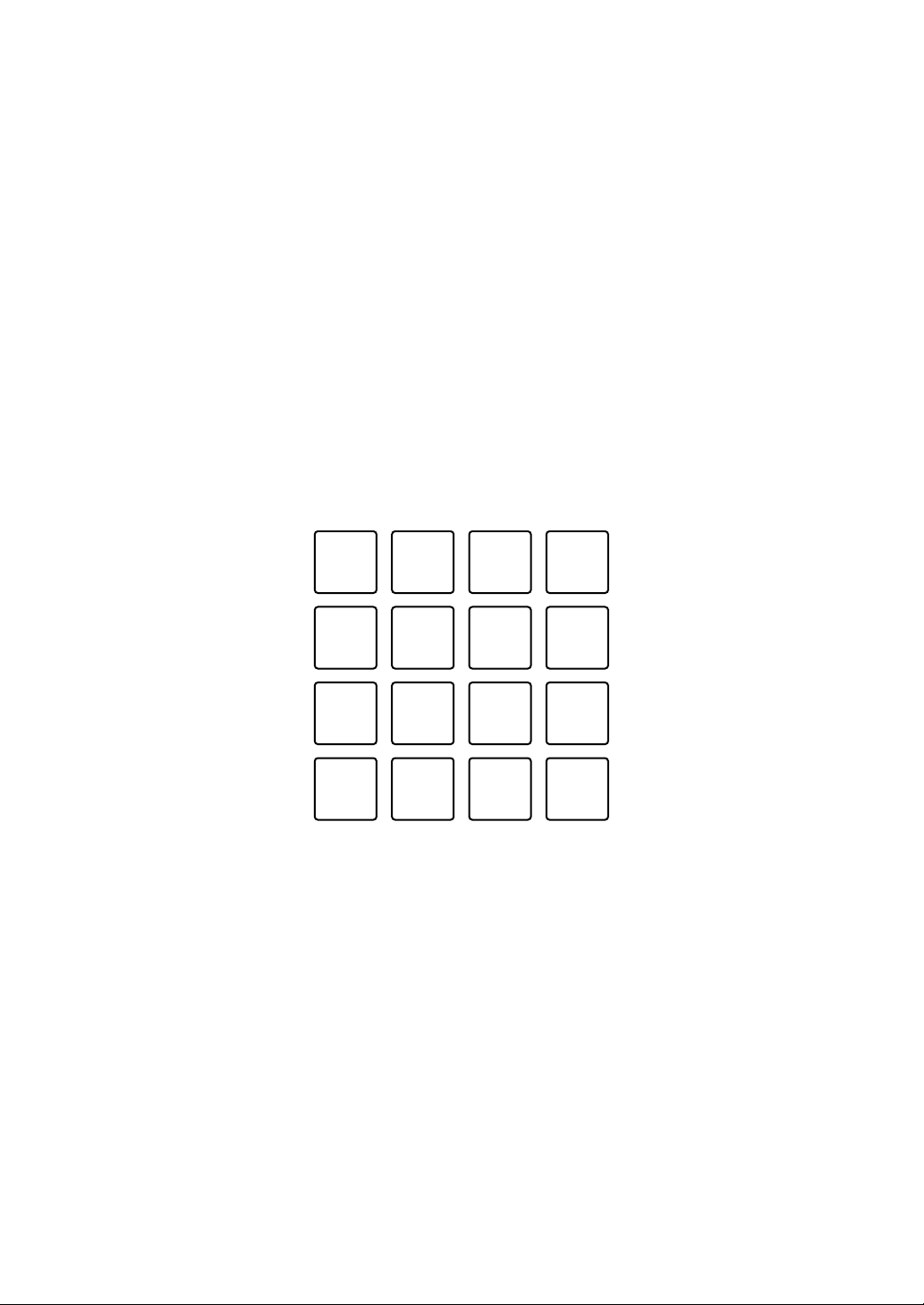
• Sampler slots are set to Performance Pads as follows.
(1) Slot 1, (2) Slot 2, (3) Slot 3, (4) Slot 4, (5) Slot 5, (6) Slot 6,
(7) Slot 7, (8) Slot 8, (9) Slot 9, (10) Slot 10, (11) Slot 11, (12) Slot 12,
(13) Slot 13, (14) Slot 14, (15) Slot 15, (16) Slot 16
5 During Sampler playback, press the Performance Pad again.
The sound plays from the beginning again.
6 Press a Performance Pad while holding the [SHIFT] button during
Sampler playback.
The sound of the slot that is currently playing stops.
(1) (2) (3) (4)
(5) (6) (7) (8)
(9) (10) (11) (12)
(13) (14) (15) (16)

rekordbox dj
41
En
Using Keyboard mode
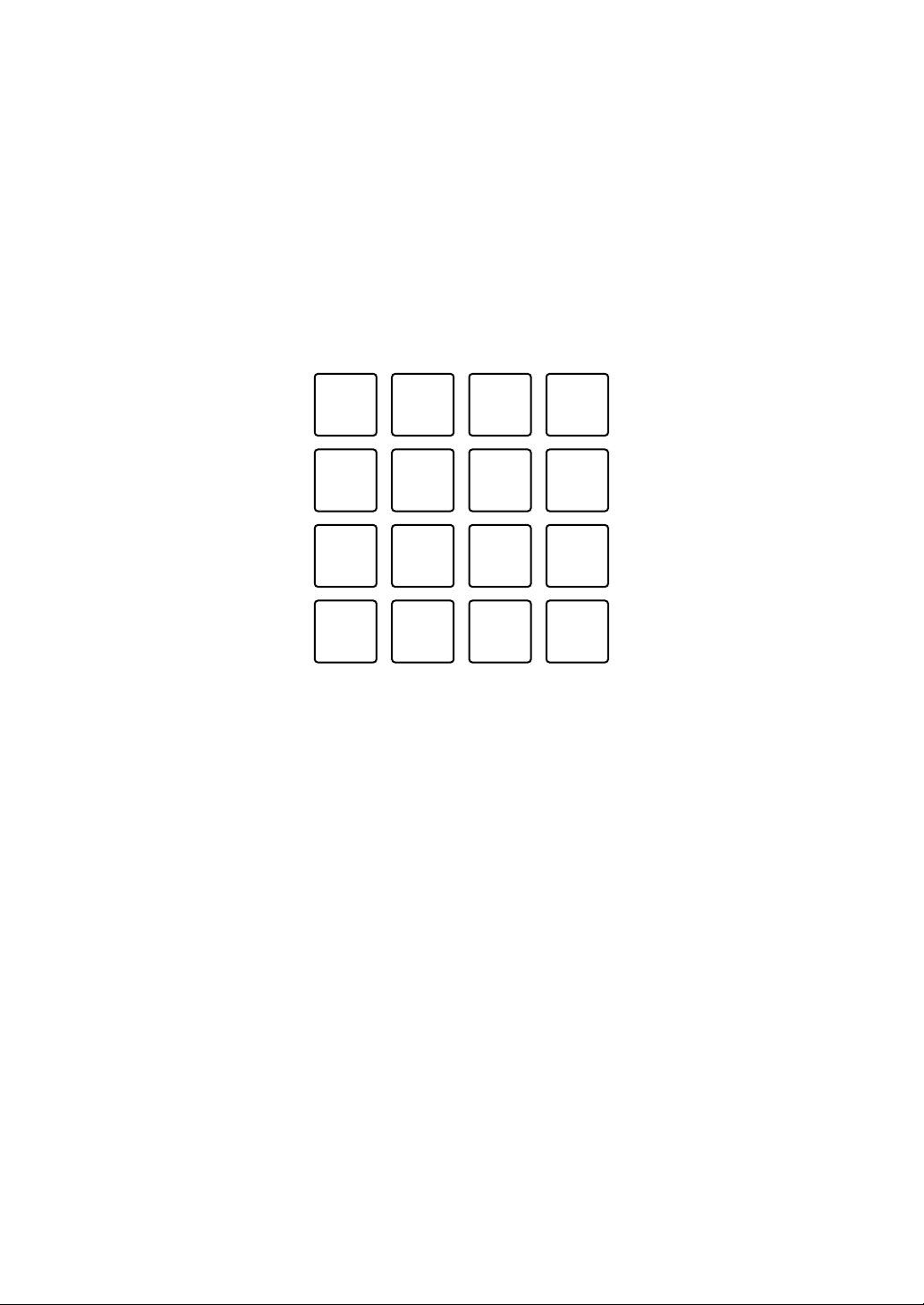
Use Performance Pads to add a scale to the Hot Cue like a keyboard.
1 Press the [PAD MODE 1] button while holding the [SHIFT] button.
Keyboard mode is turned on.
• To change the pitch set to the Performance Pad, press the [PARAMETER
] button or [PARAMETER ] button.
2 Press a Performance Pad.
Select a Hot Cue to be used for Keyboard mode.
• If the Hot Cue is not set, the current playback position is set as a Hot Cue to
be used for Keyboard mode.
• To reselect the Hot Cue to be used for Keyboard mode, press the [PAD
MODE 1] button while holding the [SHIFT] button.
3 Press a Performance Pad.
The Hot Cue plays with the pitch set to the pressed pad.
rekordbox dj
42
En
Using Beat Loop
Press a Performance Pad while in Beat Loop mode to loop a set
number of beats or bars. The loop keeps playing after you remove your
finger from the pad.
1 Press the [PAD MODE 3] button while holding the [SHIFT] button.
Beat Loop mode is turned on.
The number of beats and bars set to the Performance Pads are as follows.
(1) Beat Loop 1/64 beat, (2) Beat Loop 1/32 beat, (3) Beat Loop 1/16 beat,
(4) Beat Loop 1/8 beat, (5) Beat Loop 1/4 beat, (6) Beat Loop 1/2 beat,
(7) Beat Loop 1 beat, (8) Beat Loop 2 beats, (9) Beat Loop 4 beats,
(10) Beat Loop 8 beats, (11) Beat Loop 16 beats, (12) Beat Loop 8 bars,
(13) Beat Loop 16 bars, (14) Beat Loop 32 bars, (15) Beat Loop 64 bars,
(16) Beat Loop 128 bars
• To change the beat loop display area of the deck screen on rekordbox dj,
press the [PARAMETER ] button or [PARAMETER ] button.
2 Press a Performance Pad.
The loop plays with the number of beats or bars set on that pad.
3 Press the same Performance Pad again.
The loop playback is canceled.
(1) (2) (3) (4)
(5) (6) (7) (8)
(9) (10) (11) (12)
(13) (14) (15) (16)

rekordbox dj
43
En
Using Key Shift
When you press a Performance Pad, the key of the current playback
track is changed to the pitch set to the pressed pad.
1 Press the [PAD MODE 4] button while holding the [SHIFT] button.
Key Shift mode is turned on.
• To change the pitch set to the Performance Pad, press the [PARAMETER
] button or [PARAMETER ] button.
2 Press a Performance Pad.
The key of the current playback track is changed to the pitch set to the pressed
pad.
3 Press the [KEY +] button while holding the [SHIFT] button.
The key of the current playback track returns to its original key. (Key Reset)
Using the Pad Editor function
For details on the Pad Editor function, refer to the Pad Editor Operation
Guide.
For the Pad Editor Operation Guide, visit [Support] > [Manual] > [Pad
Editor Operation Guide] on the rekordbox website.
rekordbox.com

rekordbox dj
44
En
Using Slide FX
You can quickly control an effect by touching and sliding the touch strip
on the unit.
1 Mark the [FX] check box at the top of the rekordbox dj screen.
The Slide FX panel is shown.
• If the Slide FX panel isn’t shown, click the [SFX1] or [SFX2] button on the
FX panel.
2 Press the [1] button, [2] button, or [3] button of [SLIDE FX].
Select an effect for the Slide FX.
• You can’t select multiple effects at the same time.
3 Touch and slide the touch strip.
The selected effect is turned on. The effect level/depth is changed according
to the touched position.
• Release the touch strip to turn the effect off.
4 Press the [HOLD] button.
Even if you release the touch strip, the effect remains on. (Hold function)
• To turn the Hold function off, press the [HOLD] button again.
• Even if the Hold function is on, you can change the effect level/depth by
sliding the touch strip.
Serato DJ Pro
46
En
Browser section
1 INT buttons
Press:
Sets the playback mode to Relative mode or Internal mode on Serato DVS.
[SHIFT] + press:
Selects a deck.
When deck 3 or deck 4 is selected and the [SHIFT] button is pressed, the [INT]
button lights up.
When deck 1 or deck 2 is selected and the [SHIFT] button is pressed, the [INT]
button doesn’t light up.
• The [INT] button is used to toggle DVS playback modes. In order to use
DVS, you will need compatible hardware and in some cases a seperate
license. For more details, please visit: serato.com
2 Rotary selector
Turn:
Moves the cursor up or down in the library or in the [crates] panel.
2
3
411
3

Serato DJ Pro
47
En
Press:
Moves the cursor between the library and [crates] panel each time you press
the rotary selector.
The cursor on the [Files] panel is moved to the lower level.
The cursor on the [Browse] panel is moved to the next category.
• For details on the [crates] panel, see: Adding music files (tracks) (page 57)
3LOAD buttons
Press:
Loads the selected track onto the deck.
Press twice:
Loads the track that is already loaded on the other deck onto the deck where
you pressed the [LOAD] button.
If a track is playing, it will play from the same position. (Instant Doubles)
[SHIFT] + press:
Loads the next track in the track list onto the deck.
4 SHIFT button
Press:
Press another button while holding the [SHIFT] button to use a different feature
assigned to the button.
Serato DJ Pro
48
En
Deck section
1 4 BEAT LOOP buttons
Press:
During normal playback, the auto beat loop of 4 beats is set, and then loop
playback starts.
During the loop playback, the loop playback is canceled.
[SHIFT] + press:
Switches the active or non-active status of the loop. (Loop Active)
• Even when the loop is set to active, loop playback doesn’t start if the
playback position isn’t in the loop.
• When the playback position reaches the active loop, the loop playback
starts.
• During the loop playback, the loop playback is canceled.
2 LOOP 1/2X buttons
Press:
Halves the loop playback length.
[SHIFT] + press:
Sets the Loop In point.
7654
8
910
1
2
3

Serato DJ Pro
49
En
3 LOOP 2X buttons
Press:
Doubles the loop playback length.
[SHIFT] + press:
Sets the Loop Out point and starts the loop playback.
4 QUANTIZE buttons
Press:
Turns the Quantize function on/off.
5 (Censor) buttons
Press:
Hold down this button to play the track in the reverse direction. Normal
playback resumes when this button is released.
• Even during playback in the reverse direction, normal playback continues in
the background. When this button is released, playback resumes from the
point reached in the background.
6 (Key Lock) buttons
Press:
Turns the Key Lock function on/off.
When the Key Lock function is on, the pitch doesn’t change even when the
track tempo is changed.
• The sound is digitally processed, so the sound quality decreases.
7 BEAT SYNC buttons
Press:
Turns SYNC on. This is used to automatically match the tempo and beatgrid of
currently playing tracks.
[SHIFT] + press:
Turns Sync off.

Serato DJ Pro
50
En
8 SILENT CUE buttons
Press:
Mutes the sound of the currently playing track on the selected deck. To cancel
muting, press this button again.
• You can also cancel silent cue by triggering a hot cue on the muted deck.
9 KEY - buttons
Press:
Lowers the key of the currently playing track by one semitone.
[SHIFT] + press:
Changes the key to match the key of the track on the other deck.
• The [KEY -] and [KEY +] buttons are functions of Pitch ’n Time DJ. In order
to use Pitch ’n Time DJ with Serato DJ Pro, you will need to purchase a
seperate license. For more details, please visit: serato.com
10 KEY + buttons
Press:
Raises the key of the currently playing track by one semitone.
[SHIFT] + press:
Returns the key to its original key. (Key Reset)
Serato DJ Pro
51
En
Performance Pads section
1 PARAMETER button, PARAMETER button
Press:
Sets the parameter for each pad mode.
Read more: Using the Performance Pads (page 59)
2 PAD MODE 1 button
Press:
Turns Hot Cue mode and Sampler mode on.
[SHIFT] + press:
Turns Pitch Play mode on.
Press twice:
Turns User mode 1 on.
1
2
6
345

Serato DJ Pro
52
En
3 PAD MODE 2 button
Press:
Turns Auto Loop mode on.
[SHIFT] + press:
Turns Roll mode on.
Press twice:
Turns User mode 2 on.
4 PAD MODE 3 button
Press:
Turns Slicer mode and Sampler mode on.
[SHIFT] + press:
Turns Slicer Loop mode and Sampler mode on.
Press twice:
Turns User mode 3 on.
5 PAD MODE 4 button
Press:
Turns Saved Loop mode and Manual Loop mode on.
[SHIFT] + press:
Turns Transport mode and Beatgrid Edit mode on.
Press twice:
Turns User mode 4 on.
6 Performance Pads
You can use Performance Pads to trigger various features.
Read more: Using the Performance Pads (page 59)
Serato DJ Pro
53
En
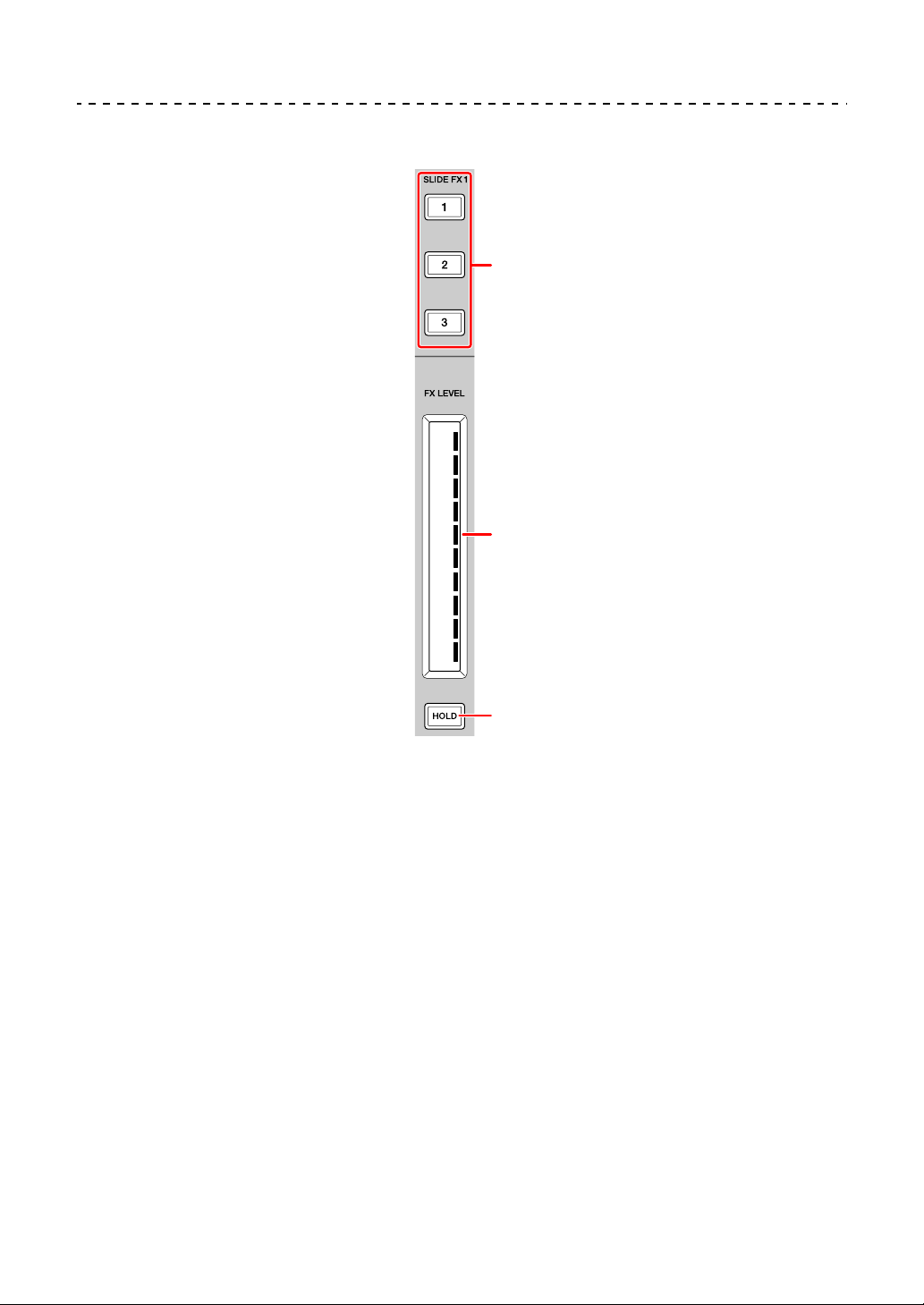
Slide FX section
1 SLIDE FX [1] button, SLIDE FX [2] button, SLIDE FX [3] button
Press:
Selects an effect applied when touching the touch strip.
[SHIFT] + press:
Changes the effect that is loaded into each FX slot.
1
2
3
Serato DJ Pro
54
En
2Touch strip
Touch:
Turns the selected effect on and changes the level/depth of the effect
according to the touched position.
• When the touch strip is released, the effect is turned off.
Slide:
Changes the level/depth of the effect according to the sliding position.
3HOLD button
Press:
Keeps the effect on even after the touch strip is released. (Hold function)
• When you press the button again, the Hold function is turned off.
• You can change the level/depth of the effect by sliding the touch strip even
when the Hold function is turned on.
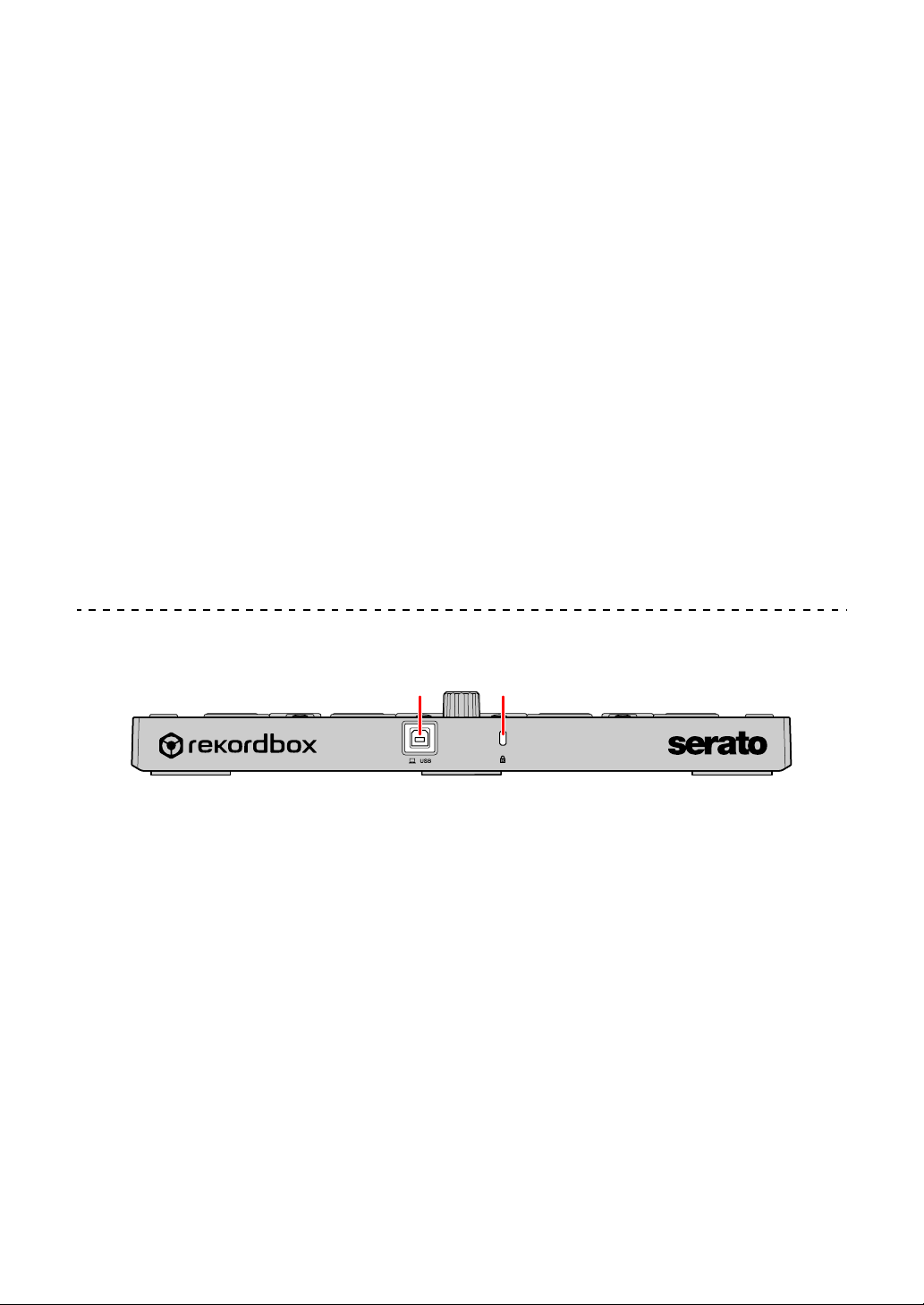
Rear panel
1USB port
Connects your PC/Mac with the supplied USB cable.
• A USB hub can’t be used.
• If your PC/Mac has only a USB Type-C port, you’ll need to use a USB Type-
C male to USB-A female cable.
2 Kensington security slot
Connects a cable lock for security.
21
Serato DJ Pro
55
En
System setup
You need the following equipment and Serato DJ Pro software to
operate the unit.
DJ controller or DJ mixer
You need a DJ mixer such as DJM-S9 or DJ controller such as DDJ-
SX3, compatible with Serato DJ Pro.
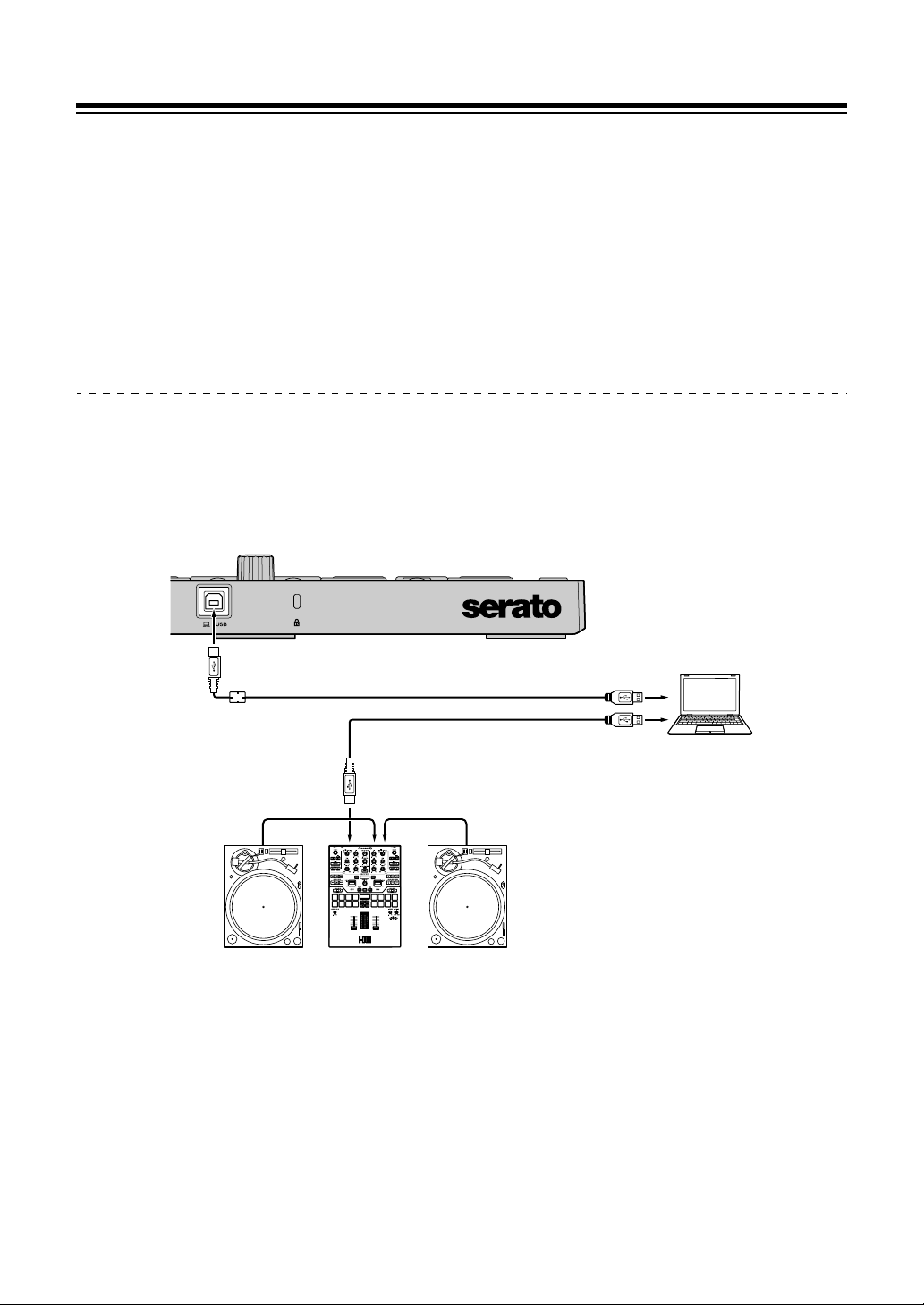
Connection examples
Connecting to a Serato DVS system using turntables and a DJ
mixer
(1) USB cable (supplied), (2) USB cable, (3) Audio cable,
(4) Turntable (PLX-1000, etc.), (5) DJ mixer (DJM-S9, etc.)
For connecting the DDJ-XP2, be sure to use the supplied USB cable
for high level performance.
(1)
PC
/
Mac
DDJ
-
XP2
(2)
(3)(3)
(4) (5) (4)

Serato DJ Pro
56
En
Basic use (Serato DJ Pro)
Launching the system
First, you need to connect your PC/Mac to a Serato DJ Pro-compatible
DJ controller or DJ mixer.
• For detailed information on using the Serato DJ Pro software, and the
Serato DJ Pro-compatible DJ mixer or DJ controller, see serato.com.
1 Connect the Serato DJ Pro-compatible DJ mixer or DJ controller to
your PC/Mac using a USB cable.
2 Turn on your PC/Mac.
3 Turn on the Serato DJ Pro-compatible DJ mixer or DJ controller.
4 Launch Serato DJ Pro.
– For Mac
In Finder, open the [Applications] folder, then click the [Serato DJ Pro]
icon.
– For Windows 10
From the [Start] menu, click [Serato] > [Serato DJ Pro] icon.
– For Windows 8.1
From [Apps view], click the [Serato DJ Pro] icon.
– For Windows 7
In the Windows [Start] menu, open [All Programs] > [Serato] >
[Serato DJ Pro].
5 Connect the unit to your PC/Mac using the supplied USB cable.
When the unit and Serato DJ Pro are properly connected, the unit’s pad mode
button (by default, the [PAD MODE 1] mode button) lights.
• The unit works with the standard driver of your PC/Mac’s operating system.
You don’t need to install separate driver software for the unit.

Serato DJ Pro
57
En
Adding music files (tracks)
Add music files (tracks) to the library using Serato DJ Pro.
Loading an audio track onto a deck
1 Press the rotary selector on the unit to move the cursor to the
[crates] panel on your PC/Mac screen.
2 Turn the rotary selector to select [crates].
3 Press the rotary selector to move the cursor to the library on your
PC/Mac screen.
4 Turn the rotary selector to select a track.
5 Press the [LOAD] button to load the selected track onto the deck.
To load the track to deck 3 or deck 4, press the [INT] button while holding the
[SHIFT] button.
The track is loaded onto the deck 3 or 4.
Playing tracks
Operate the DJ player, turntable, DJ controller, etc. to play tracks.
Quitting the system
1 Quit Serato DJ Pro.
When you close the software, a question appears on your PC/Mac screen
asking for confirmation that you want to close it. Click [Yes] to close.
2 Disconnect the USB cable from your PC/Mac.

Serato DJ Pro
58
En
Advanced use (Serato DJ Pro)
Using 4 Beat Loop
During playback, press the [4 BEAT LOOP] button.
Loop playback starts with 4 beats from the point where you press the
button.
• When the Quantize function is turned on, you might notice a slight
delay due to quantization.
Canceling loop playback
Press the [4 BEAT LOOP] button again.
Playback continues without returning to the Loop In point.
Using Manual Loop
You can choose the section you want to loop.
• When the Quantize function is turned on, you might notice a slight
delay due to quantization.
1 Press the [1/2X] button while holding the [SHIFT] button at the point
you want to start looping (the Loop In point) during playback.
2 Press the [2X] button while holding the [SHIFT] button at the point
you want to end looping (the Loop Out point) during playback.
The loop playback starts.
Cutting the loop
Press the [1/2X] button during the loop playback.
Each time you press the button, the loop cuts in half.
• The loop length can be cut in half even during 4 beat loop playback.
Serato DJ Pro
59
En
Extending the loop
Press the [2X] button during the loop playback.
Each time you press the button, the loop doubles in length.
• The loop length can be doubled even during 4 beat loop playback.
Canceling the loop
Press the [4 BEAT LOOP] button.
Playback continues without returning to the Loop In point.
Using the Performance Pads
You can switch the functions using the respective pad mode buttons.
Functions of multi categories are set to Performance Pads (1 through
16).
This section explains the functions of each pad mode.
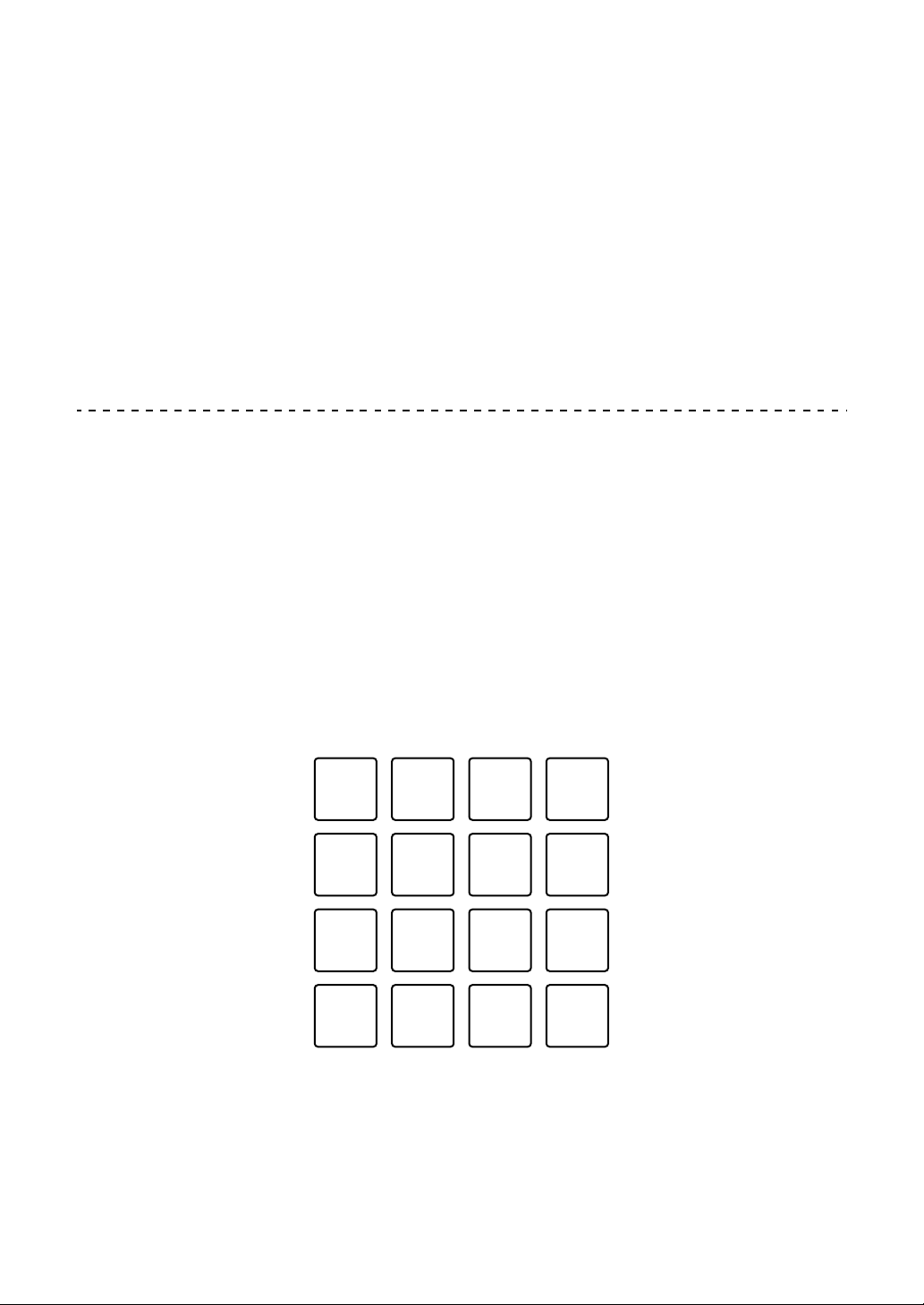
Using Hot Cue mode and Sampler mode
You can operate both hot cues and samplers in the same pad mode.
Press the [PAD MODE 1] button to turn this mode on.
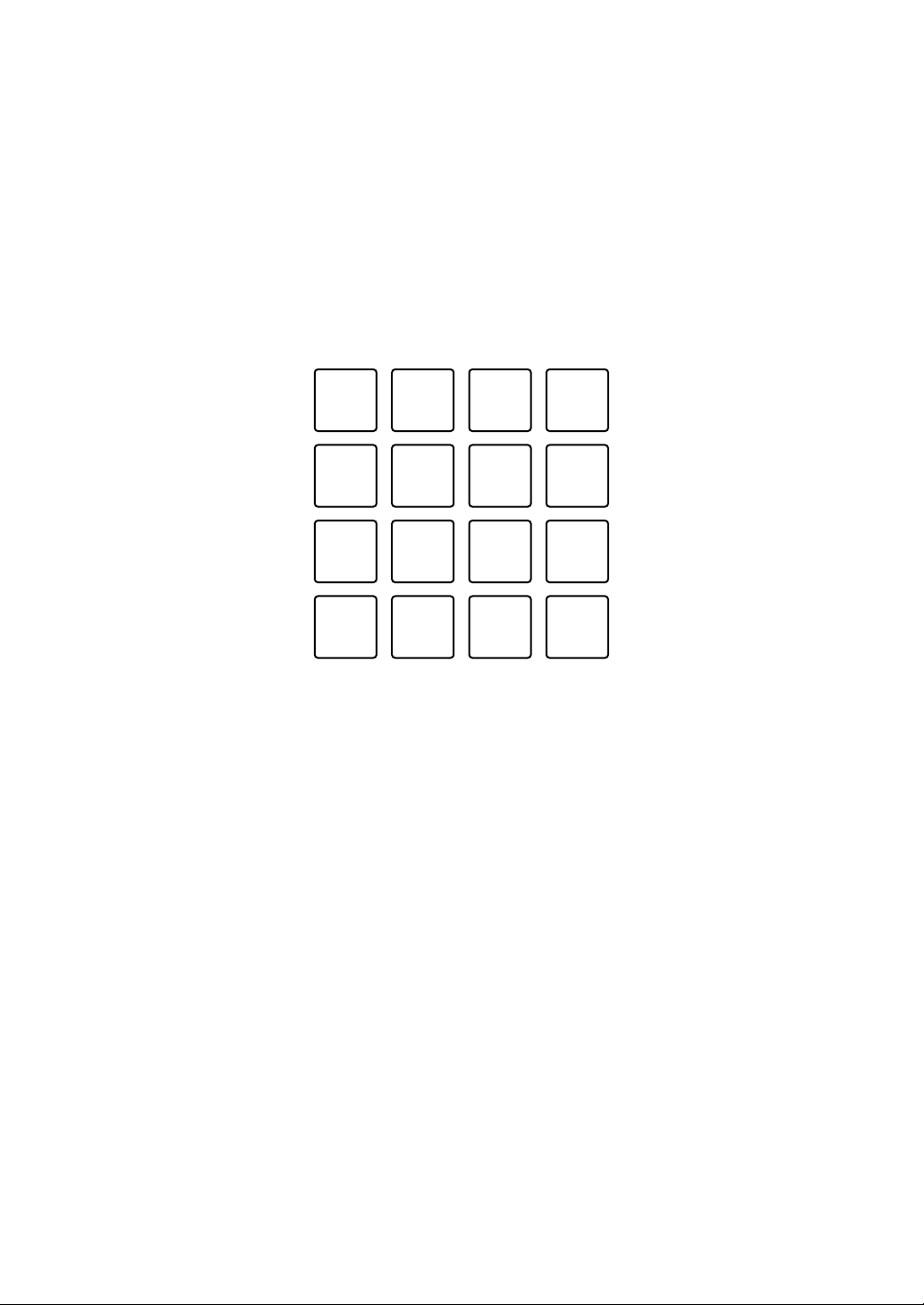
(1) Hot Cue 1, (2) Hot Cue 2, (3) Hot Cue 3, (4) Hot Cue 4,
(5) Hot Cue 5, (6) Hot Cue 6, (7) Hot Cue 7, (8) Hot Cue 8,
(9) Slot 1, (10) Slot 2, (11) Slot 3, (12) Slot 4,
(13) Slot 5, (14) Slot 6, (15) Slot 7, (16) Slot 8
(1) (2) (3) (4)
(5) (6) (7) (8)
(9) (10) (11) (12)
(13) (14) (15) (16)
Serato DJ Pro
60
En
Using Hot Cues
You can start playback instantly from the position where a Hot Cue is
set.
• Up to 8 Hot Cue points can be set and saved for each track.
1 If the track is playing or paused, press a Performance Pad (1
through 8) to set the Hot Cue point.
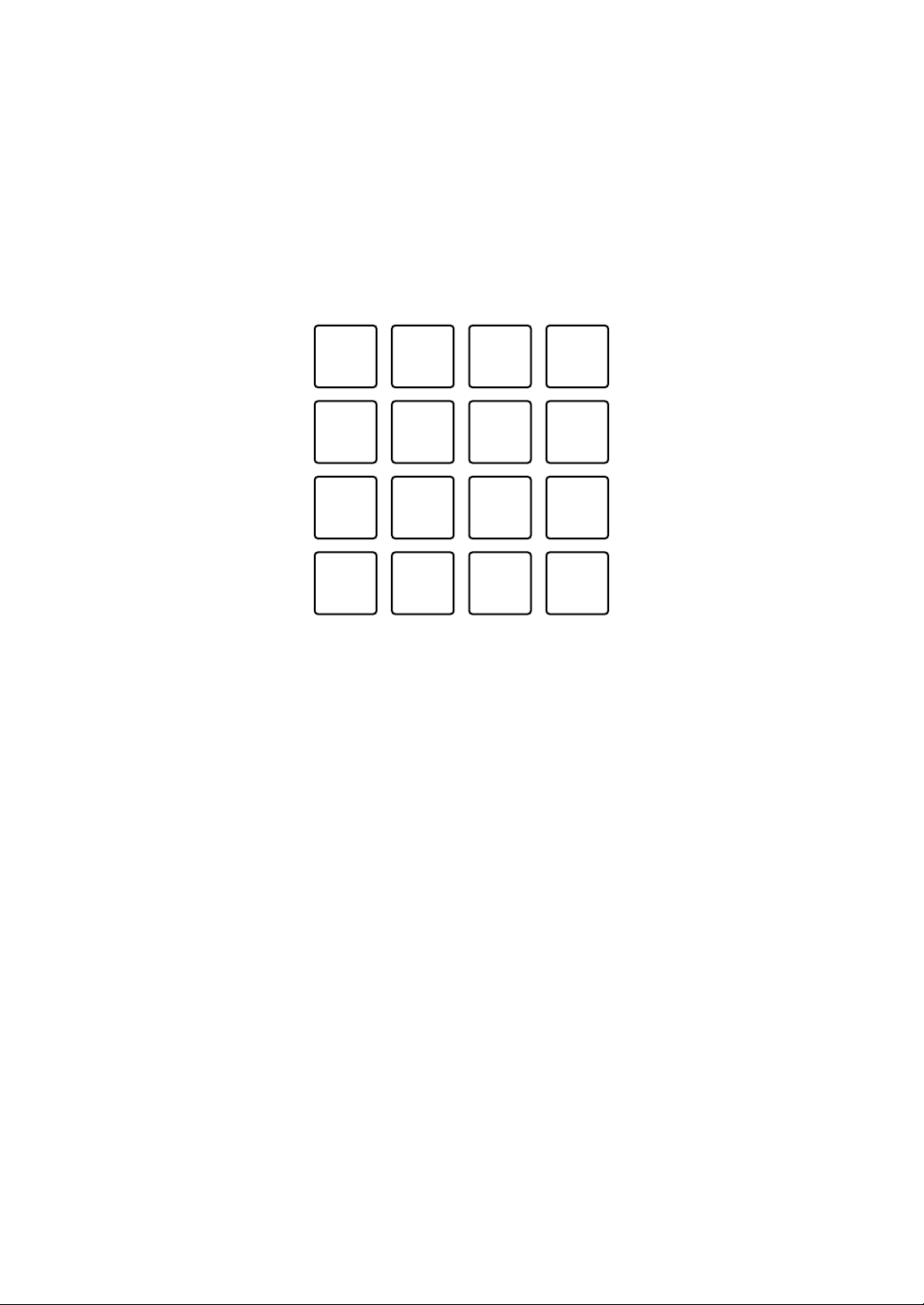
The Hot Cue points are set to Performance Pads as follows:
(1) Hot Cue 1, (2) Hot Cue 2, (3) Hot Cue 3, (4) Hot Cue 4,
(5) Hot Cue 5, (6) Hot Cue 6, (7) Hot Cue 7, (8) Hot Cue 8
2 Press a Performance Pad you’ve set a Hot Cue for.
Playback starts from the Hot Cue point.
• You can clear Hot Cue points by pressing a Performance Pad while holding
the [SHIFT] button.
Using Sampler
You can use the Performance Pads to play tracks or sounds assigned
to the Sampler slots.
1 Select the bank of the sampler on your PC/Mac screen.
The sampler has 4 banks, A, B, C and D, and each bank has 8 slots.
• The selected bank is used for all decks and all pad modes which have the
sampler feature.
(1) (2) (3) (4)
(5) (6) (7) (8)
Serato DJ Pro
61
En
2 Press the rotary selector to move the cursor to the track list.
3 Turn the rotary selector to select a track.
4 Press the Performance Pad (9 through 16) while holding the
[SHIFT] button.
The selected track is loaded into the Sampler slot.
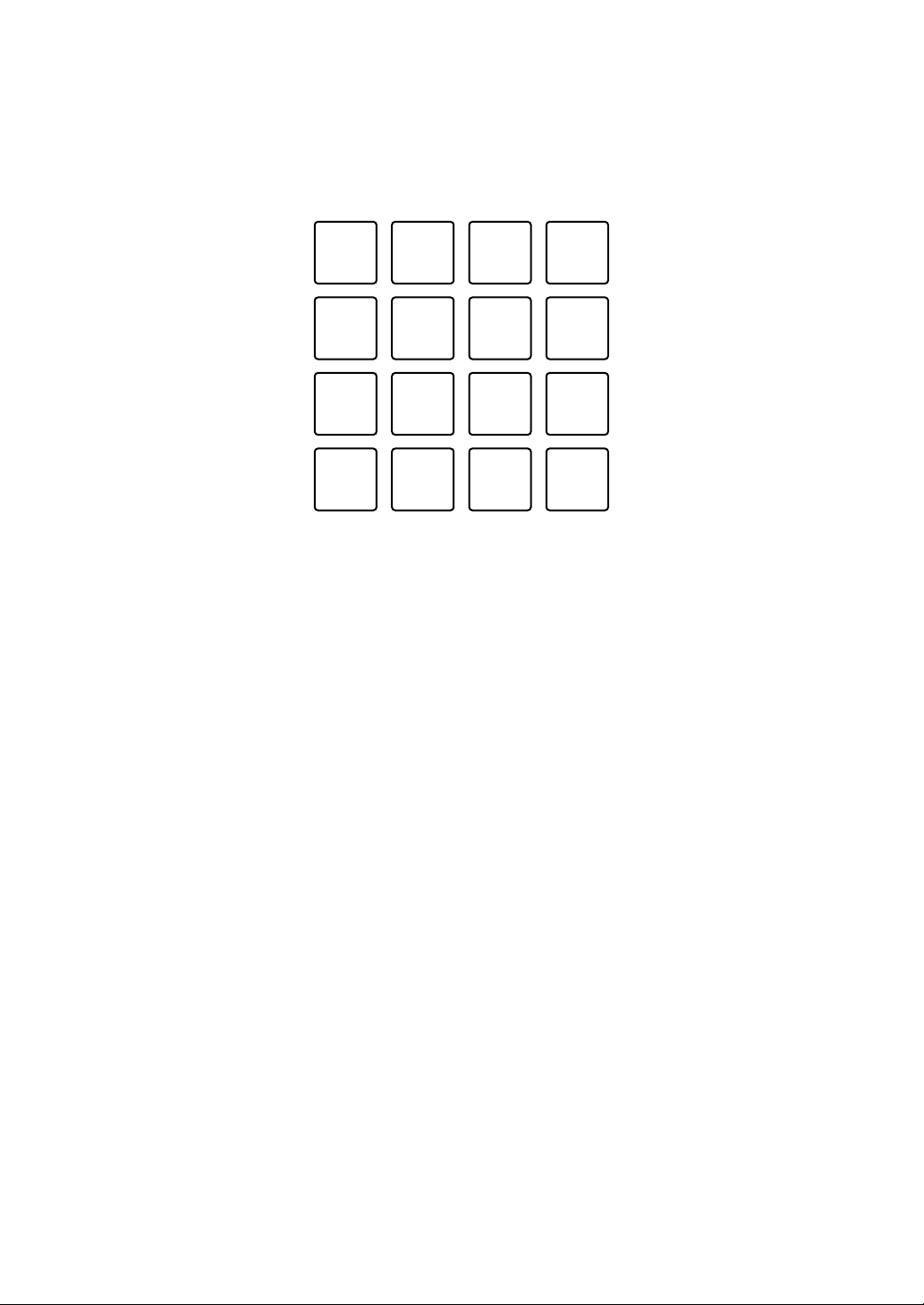
(9) Slot 1, (10) Slot 2, (11) Slot 3, (12) Slot 4,
(13) Slot 5, (14) Slot 6, (15) Slot 7, (16) Slot 8
5 Press the Performance Pad (9 through 16).
The track or sound assigned to the relevant slot is played.
• Playback method differs depending on the Serato DJ Pro’s Sampler mode.
For details, read the Serato DJ Pro software manual.
• When you press a Performance Pad while holding the [SHIFT] button, the
sound of the slot that is currently playing stops.
(9) (10) (11) (12)
(13) (14) (15) (16)
Serato DJ Pro
62
En
Using Auto Loop mode
You can operate both auto loop and beat jump in the same pad mode.
Press the [PAD MODE 2] button to turn this mode on.
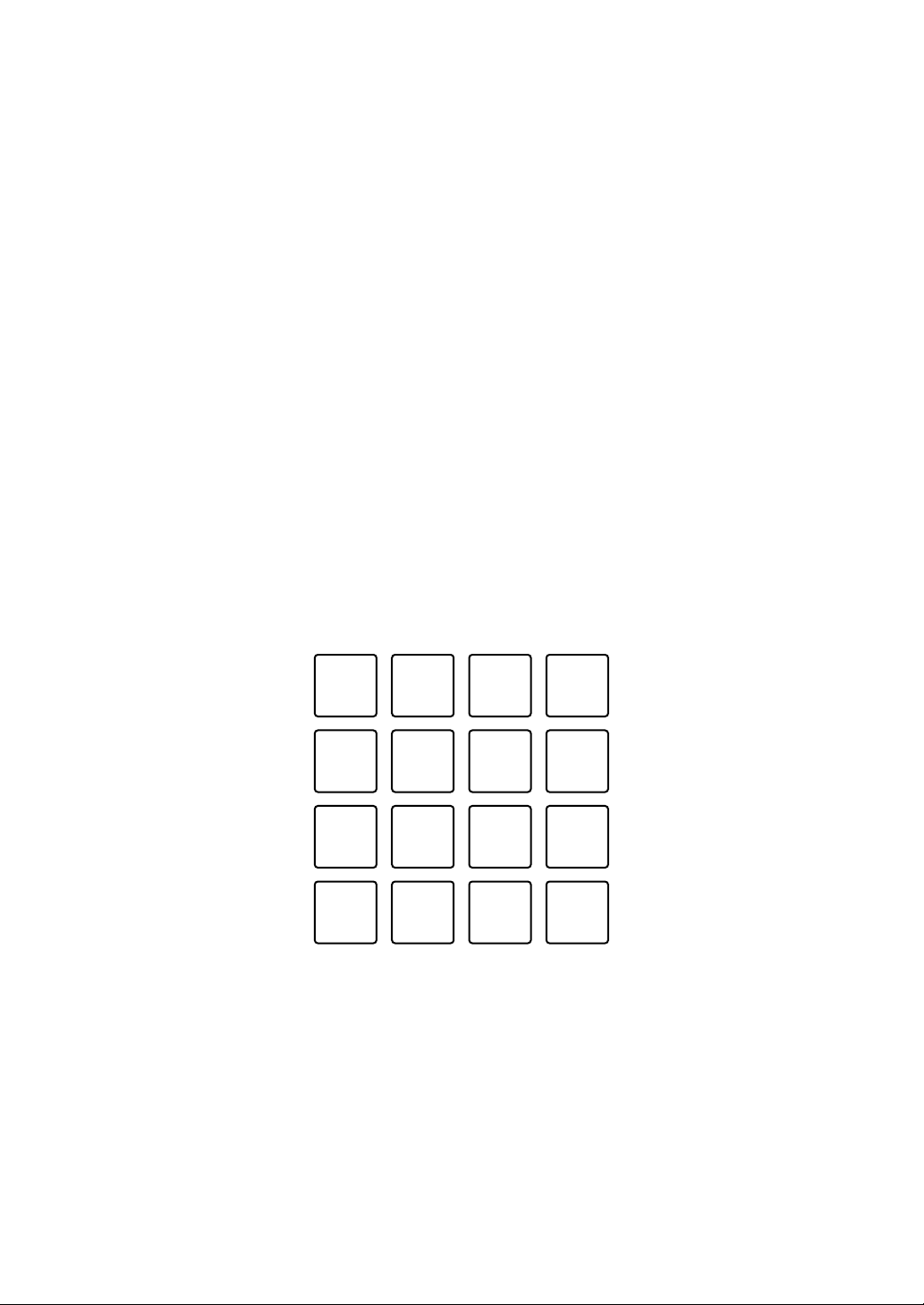
(1) Auto Loop 1/32 beat, (2) Auto Loop 1/16 beat,
(3) Auto Loop 1/8 beat, (4) Auto Loop 1/4 beat, (5) Auto Loop 1/2 beat,
(6) Auto Loop 1 beat, (7) Auto Loop 2 beats, (8) Auto Loop 4 beats,
(9) Auto Loop 8 beats, (10) Auto Loop 16 beats,
(11) Auto Loop 32 beats, (12) Auto Loop 1/3 beat,
(13) Beat Jump to the left, (14) 1/2X beat jump range,
(15) 2X beat jump range, (16) Beat Jump to the right
Using Auto Loop
When you press a Performance Pad (1 through 12), a loop is set with
beats set on the pad. Even when you release the pad, the loop
playback continues.
1 Press a Performance Pad (1 through 12).
A loop plays with beats set on the pressed pad.
• When you press the [PARAMETER ] button or [PARAMETER ] button,
the loop length is halved or doubled by pressing either button.
• When you press the [PARAMETER ] button or [PARAMETER ] button
while holding the [SHIFT] button, the loop is moved without changing the
length. (Loop Shift)
(1) (2) (3) (4)
(5) (6) (7) (8)
(9) (10) (11) (12)
(13) (14) (15) (16)
Serato DJ Pro
63
En
2 Press the same Performance Pad again.
The loop playback is canceled.
Using Beat Jump
You can move the playback position instantly without changing the
original rhythm.
• Press the Performance Pad 14 or 15: Selects the range of beat jump.
• Press the Performance Pad 13 or 16: Jumps the playback position to
the left or right with the set beat.
Using Slicer mode and Sampler mode
You can operate both slicer and sampler in the same pad mode.
Press the [PAD MODE 3] button to turn this mode on.
• When you press the [PAD MODE 3] button while holding the [SHIFT]
button, Slicer Loop mode and Sampler mode are turned on.
Read more: About Slicer and Slicer Loop (page 65)
(1) Section 1, (2) Section 2, (3) Section 3, (4) Section 4,
(5) Section 5, (6) Section 6, (7) Section 7, (8) Section 8,
(9) Slot 1, (10) Slot 2, (11) Slot 3, (12) Slot 4,
(13) Slot 5, (14) Slot 6, (15) Slot 7, (16) Slot 8
(1) (2) (3) (4)
(5) (6) (7) (8)
(9) (10) (11) (12)
(13) (14) (15) (16)
Serato DJ Pro
64
En
Using Slicer
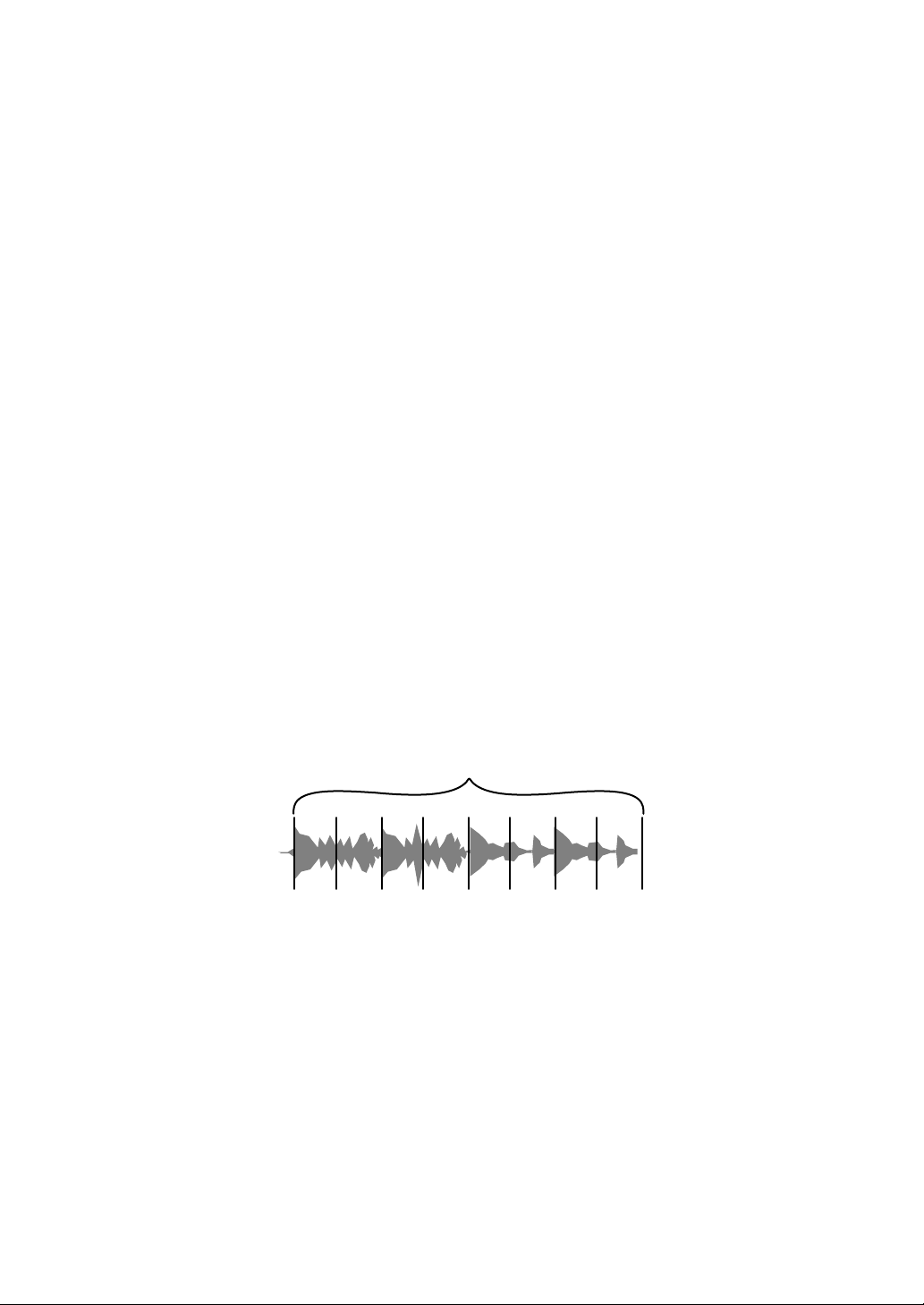
The specified range is divided into 8 equal sections, and these 8 sliced
sections are assigned to the respective Performance Pads.
While you hold down a Performance Pad, the sound for the section
assigned to that pad is played in a loop.
While playing a loop of the pad’s sound, normal playback with the
original rhythm continues in the background. When you release the
Performance Pad and loop playback ends, playback resumes from the
position reached at that point.
• The Slicer function can’t be used with tracks for which no beatgrid is
set. For details on setting beatgrids, read the Serato DJ Pro software
manual.
1 Press the [PARAMETER ] button or [PARAMETER ] button
while holding the [SHIFT] button.
Set the domain for the Slicer function. The value set for the domain switches
each time you press one of the buttons while holding the [SHIFT] button.
The domain can be set to one of 6 settings: 2 beats, 4 beats, 8 beats, 16 beats,
32 beats or 64 beats. The domain is divided equally into 8 sliced sections,
which are assigned to each pad as displayed below.
DOMAIN
12345678
Sliced section 1 to 8
Serato DJ Pro
65
En
2 Press the [PARAMETER ] button or [PARAMETER ] button.
Set the quantization for the Slicer function. The value set for the quantization
switches each time you press one of the buttons.
The quantization can be set to one of 4 settings: 1/8, 1/4, 1/2 and 1.
With the quantization setting, you can change the length of the loop which is
played while holding the pad. For example, when the quantization is set to 1,
the entire section assigned to the pad is played in a loop, and when the
quantization is set to 1/2, only the first half of the section assigned to the pad
is played in a loop.
3 Press and hold down a Performance Pad (1 through 8).
While holding down the pad, playback continues in a loop. When you release
the pad, playback resumes from the position reached in the background.
• The length of the loop differs depending on the quantization setting.
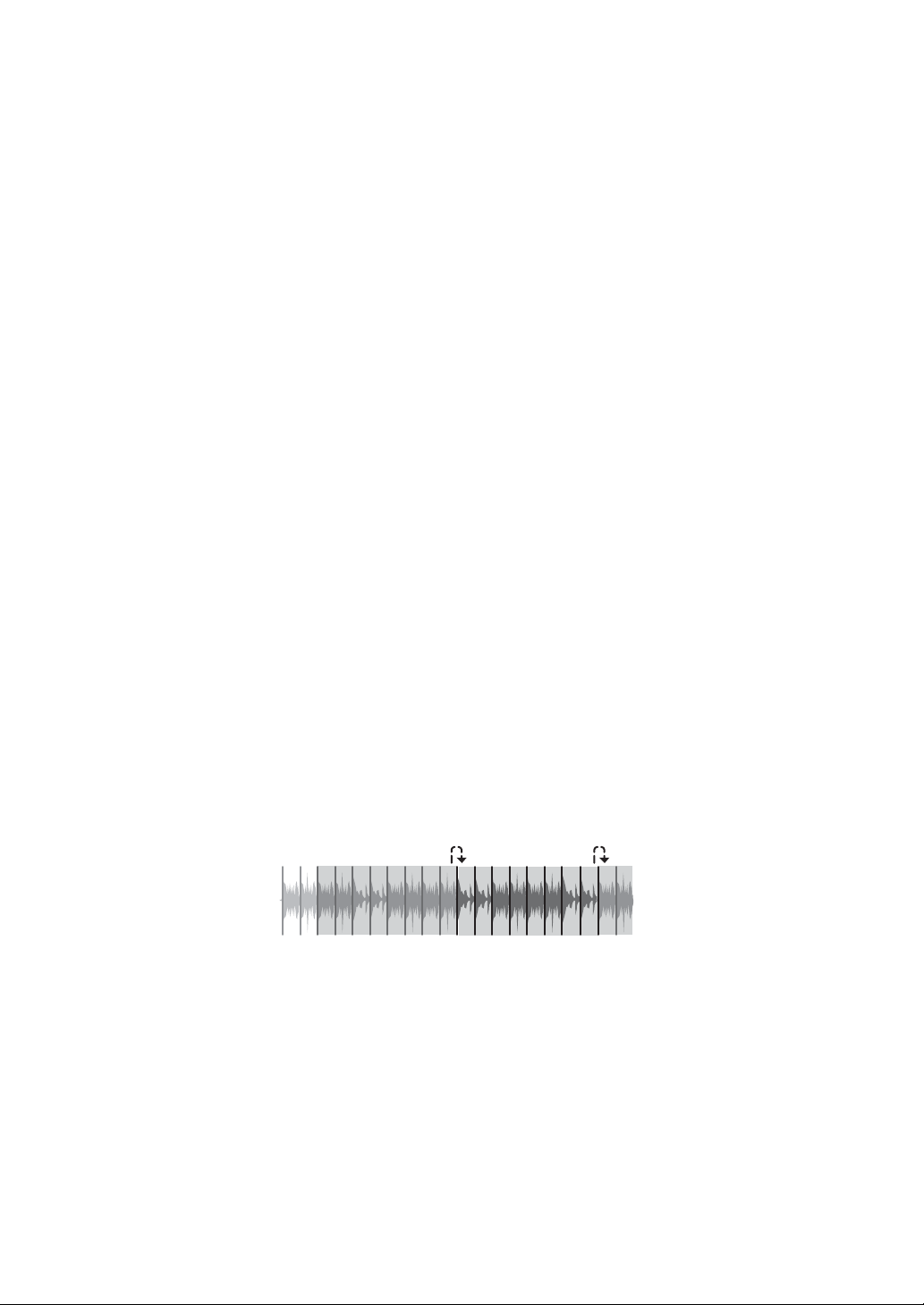
About Slicer and Slicer Loop
Slicer
When the playback position advances to the end of the range that has
been sliced into 8 equal sections, the range shown on the display
switches to the next 8 sliced sections, and these sliced sections are
assigned to the respective pads, replacing the previously assigned
sections.
12345678112
2
…
345678
Serato DJ Pro
66
En
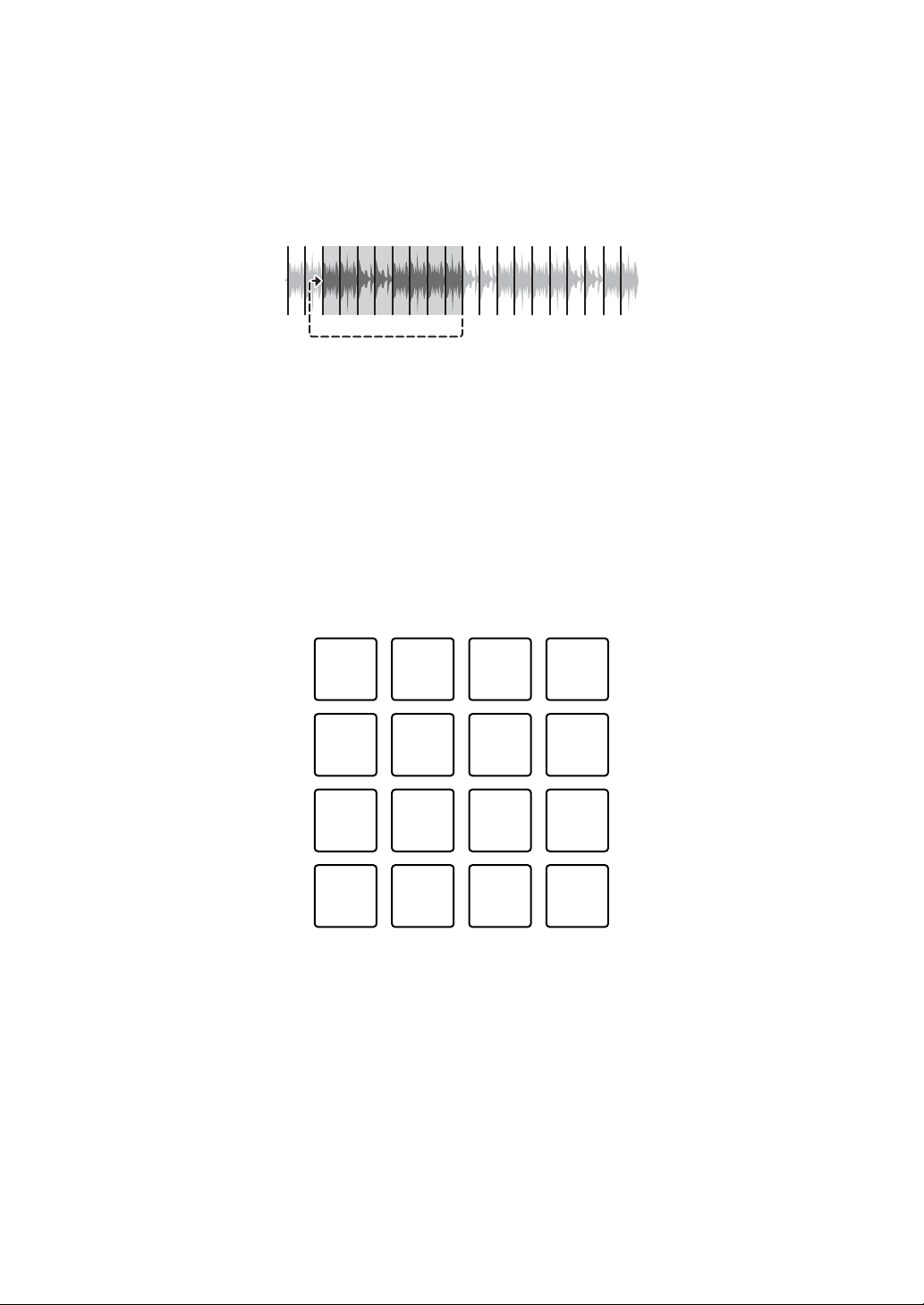
Slicer Loop
When the playback position advances to the end of the range that has
been sliced into 8 equal sections, the playback position returns to the
beginning of the range.
Using Sampler
Read: Using Hot Cue mode and Sampler mode (page 59)
Using Saved Loop mode and Manual Loop mode
You can operate both a saved loop and a manual loop in the same pad
mode.
Press the [PAD MODE 4] button to turn this mode on.
(1) Slot 1, (2) Slot 2, (3) Slot 3, (4) Slot 4,
(5) Slot 5, (6) Slot 6, (7) Slot 7, (8) Slot 8,
(9) Loop In, (10) Loop Out, (11) Loop On/Off, (12) Reloop,
(13) Beat Jump to the left, (14) 1/2X beat jump range,
(15) 2X beat jump range, (16) Beat Jump to the right
12345678
(1) (2) (3) (4)
(5) (6) (7) (8)
(9) (10) (11) (12)
(13) (14) (15) (16)

Serato DJ Pro
67
En
Using Saved Loop
You can save a loop in a loop slot of Serato DJ Pro and call up the
saved loop.
1 Press a Performance Pad (1 through 8) during loop playback.
The loop is assigned to a loop slot of Serato DJ Pro.
• When you press the [PARAMETER ] button or [PARAMETER ] button,
the loop length is halved or doubled by pressing either button.
• When you press the [PARAMETER ] button or [PARAMETER ] button
while holding the [SHIFT] button, the loop is moved without changing the
length. (Loop Shift)
2 Press a Performance Pad (1 to 8) while holding the [SHIFT] button.
The loop set to the pad and loop slot is cleared.
3 Press the same Performance Pad again.
The loop playback is canceled.
Using Manual Loop
You can choose the section you want to loop.
1 Press the Performance Pad 9 during playback or when playback is
paused.
The Loop In point is set.
2 Press the Performance Pad 10.
The Loop Out point is set and the loop playback starts.
• To cancel the loop playback, press the Performance Pad 11.
• To restart the loop playback after canceling, press the Performance Pad 12.
• When you press the [PARAMETER ] button or [PARAMETER ] button,
the loop length is halved or doubled by pressing either button.
• When you press the [PARAMETER ] button or [PARAMETER ] button
while holding the [SHIFT] button, the loop is moved without changing the
length. (Loop Shift)

Serato DJ Pro
68
En
Using Beat Jump
Read: Using Auto Loop mode (page 62)
Using Pitch Play mode
In order to use Pitch ’n Time DJ with Serato DJ Pro, you will need to
purchase a seperate license. For more details, please visit: serato.com
Press the [PAD MODE 1] button while holding the [SHIFT] button to
turn this mode on.
1 Press a Performance Pad while holding the [SHIFT] button to select
a set Hot Cue point.
2 Press the Performance Pad.
With the pitch set on the pad you pressed, playback starts from the Hot Cue
point selected in step 1.
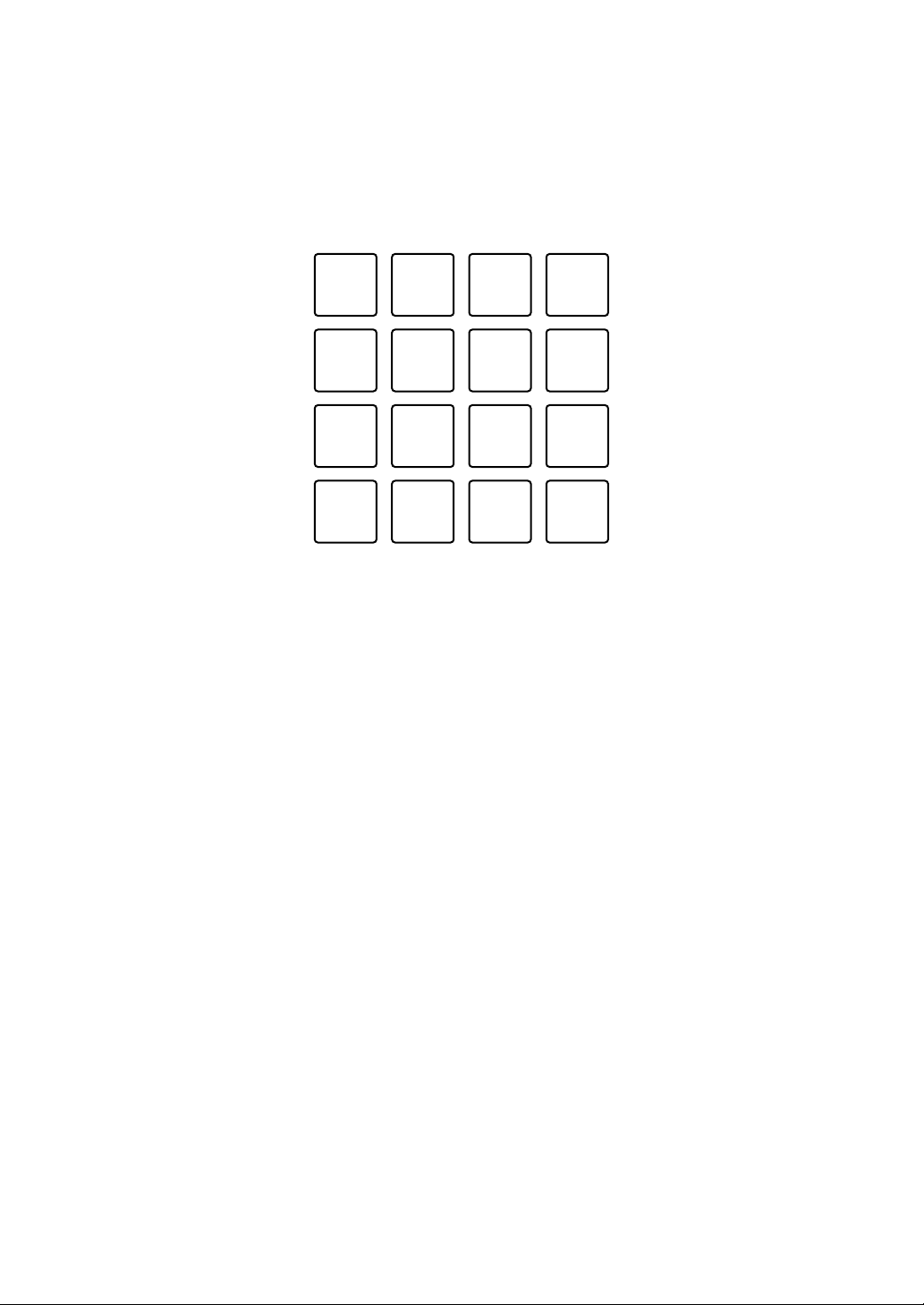
• To select the pitch range to Up range, Middle range or Down range, press
the [PARAMETER ] button or [PARAMETER ] button.
Serato DJ Pro
69
En
• To shift the pitch by semitones, press the [PARAMETER ] button or
[PARAMETER ] button while holding the [SHIFT] button.
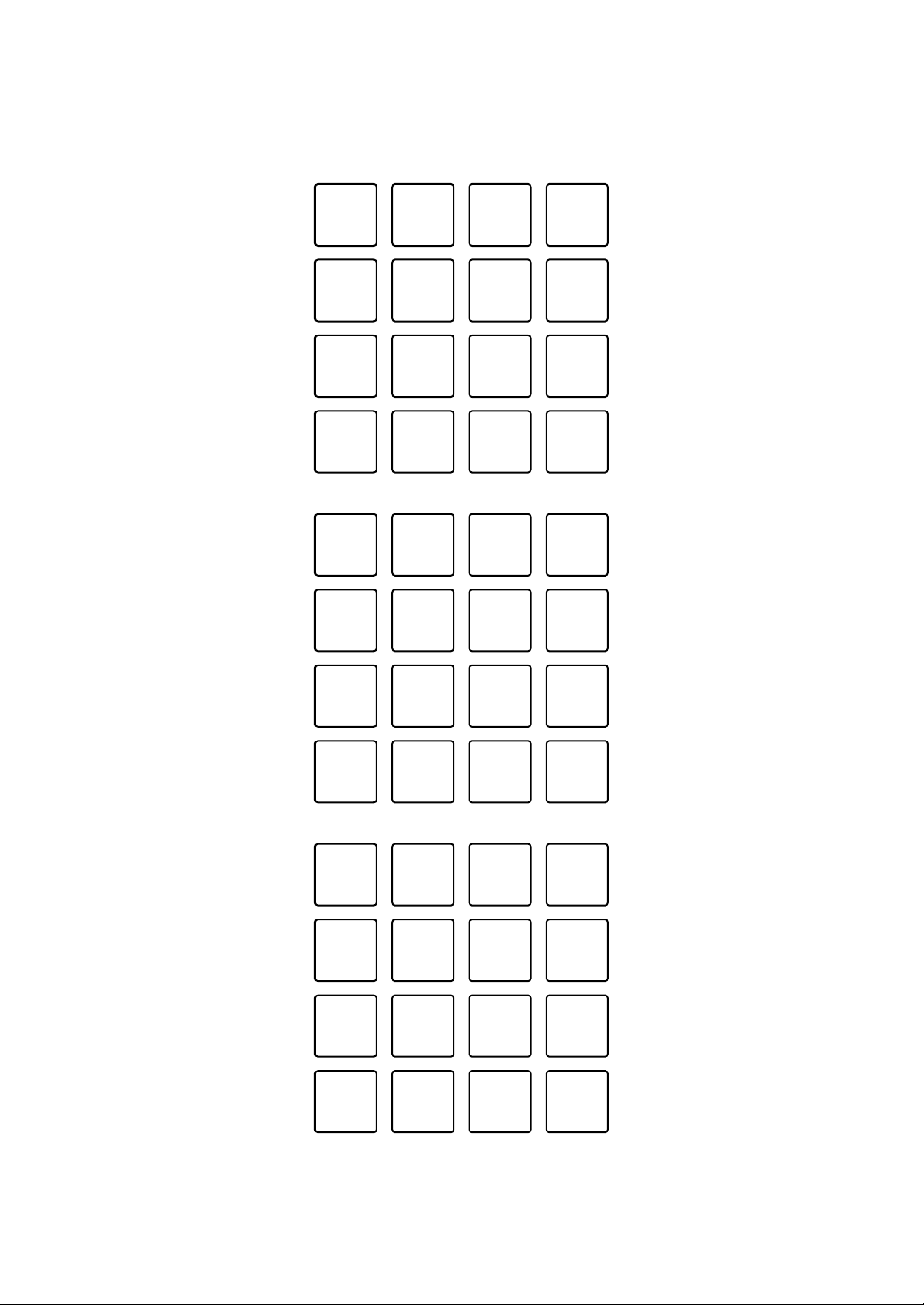
+8 +9 +10 +11
+4 +5 +6 +7
0+1+2+3
-4 -3 -2 -1
Up range
+4 +5 +6 +7
0+1+2+3
-4 -3 -2 -1
-8 -7 -6 -5
Middle range
+1 +2 +3 +4
-3 -2 -1 0
-7 -6 -5 -4
-11 -10 -9 -8
Down range
Serato DJ Pro
70
En
Using Roll mode
You can operate both roll and beat jump in the same pad mode.
Press the [PAD MODE 2] button while holding the [SHIFT] button to
turn this mode on.
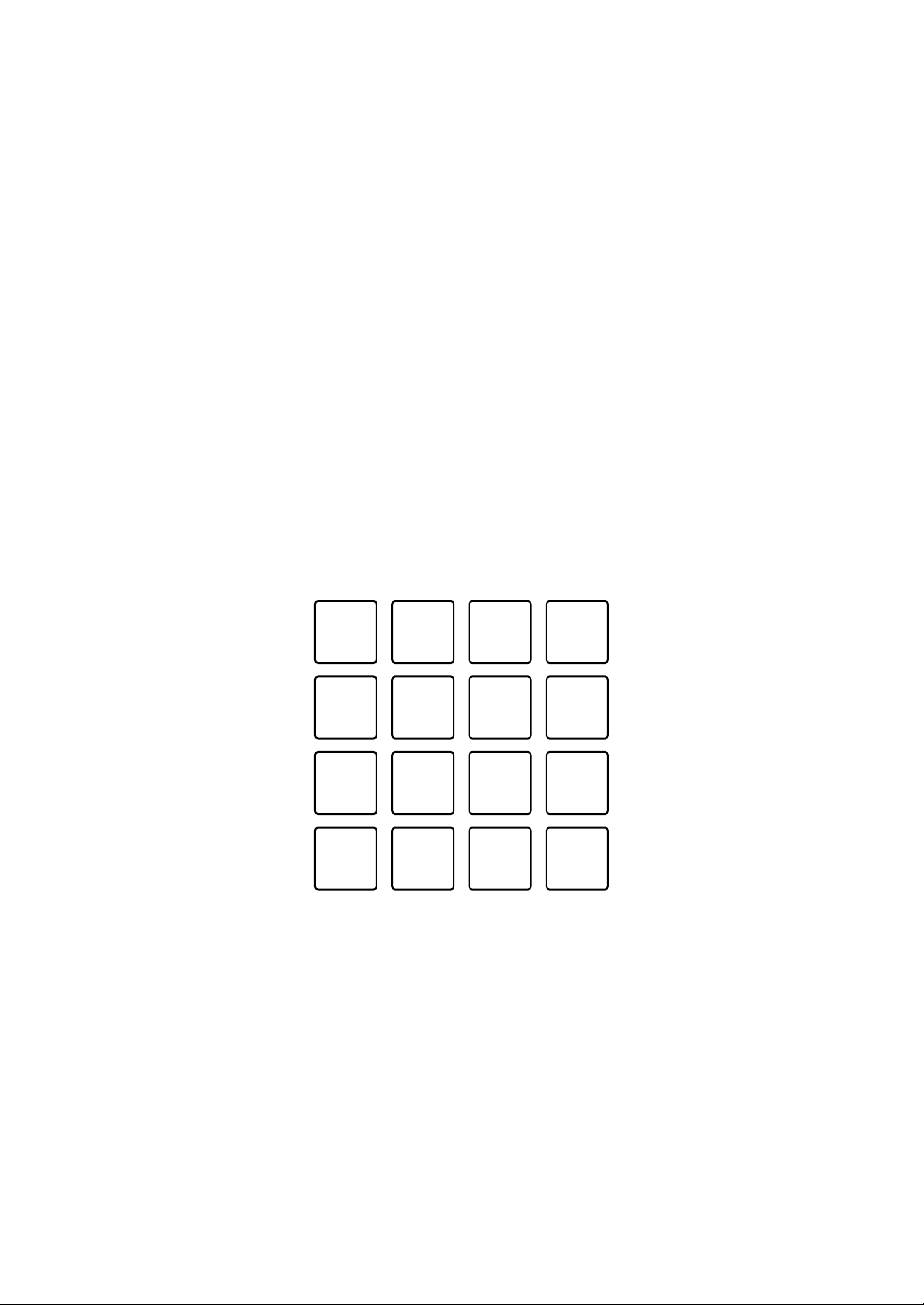
(1) 1/32, (2) 1/16, (3) 1/8, (4) 1/4, (5) 1/2, (6) 1, (7) 2, (8) 4, (9) 8,
(10) 16, (11) 32, (12) 1/3, (13) Beat Jump to the left,
(14) 1/2X beat jump range, (15) 2X beat jump range,
(16) Beat Jump to the right
Using Roll
When you press a Performance Pad, a loop with the number of beats
assigned to the pad is set and the loop plays until you release the pad.
During loop roll playback, normal playback with the original rhythm
continues in the background. When a loop roll is canceled, playback
resumes from the position reached in the background.
1 Press and hold down a Performance Pad (1 through 12).
A loop roll with the number of beats assigned to that pad is played.
Playback continues in the background during loop roll playback.
• Press the [1/2X] or [2X] button during loop roll to change the number of beats
for the loop roll.
• You can also change the number of beats for the loop roll by pressing the
[PARAMETER ] button or [PARAMETER ] button during loop roll.
(1) (2) (3) (4)
(5) (6) (7) (8)
(9) (10) (11) (12)
(13) (14) (15) (16)
Serato DJ Pro
71
En
• When you press the [PARAMETER ] button or [PARAMETER ] button
while holding the [SHIFT] button, the loop is moved without changing the
length. (Loop Shift)
2 Release the Performance Pad.
The loop roll is canceled, and playback resumes from the position reached in
the background.
Using Beat Jump
Read: Using Auto Loop mode (page 62)
Using Transport mode and Beatgrid Edit mode
You can operate transport and beatgrid edit in the same pad mode.
Press the [PAD MODE 4] button while holding the [SHIFT] button to
turn this mode on.
(1) Pitch Bend -, (2) Pitch Bend +, (3) Pitch Nudge -, (4) Pitch Nudge +,
(5) Key Lock, (6) Sync, (7) Temp Cue, (8) Play / Pause,
(9) Grid Adjust <<, (10) Grid Adjust <, (11) Grid Adjust >,
(12) Grid Adjust >>, (13) Grid Slip <<, (14) Grid Slip <, (15) Grid Slip >,
(16) Grid Slip >>
(1) (2) (3) (4)
(5) (6) (7) (8)
(9) (10) (11) (12)
(13) (14) (15) (16)

Serato DJ Pro
72
En
Using Transport mode
If you don’t have turntables or CDJs connected to your mixer, you can
still control your DJ tracks using the transport functions that are
included in this pad mode.
1 Press the Performance Pad 1 or 2.
Temporarily adjust the pitch.
2 Press the Performance Pad 3 or 4.
Permanently nudge the track and adjust the pitch.
• To reset the key, press the Performance Pad 3 or 4 while holding the [SHIFT]
button.
3 Press the Performance Pad 5.
Turn the Key Lock function on/off.
When the Key Lock function is on, the pitch doesn’t change even when the
track tempo is changed.
• The sound is digitally processed, so the sound quality decreases.
4 Press the Performance Pad 6.
When Serato DVS is in Relative mode, it automatically adjusts to the tempo of
tracks on multiple decks.
When Serato DVS is in Internal mode, it automatically adjusts to the tempo and
beatgrids of tracks on multiple decks.
• When Serato DVS is in Absolute mode, the Sync function doesn’t work.
• To cancel the Sync function, press the Performance Pad 6 while holding the
[SHIFT] button.
5 Press the Performance Pad 7.
Set, play and call up the temporary cue point.
• When you press the Performance Pad 7 during pause, you can set the
temporary cue point.
• When you press the Performance Pad 7 during playback, the playback
position returns to the temporary cue point, and playback is paused. (Back
Cue)

Serato DJ Pro
73
En
• When you hold down the Performance Pad 7 after returning to the temporary
cue point, the playback continues while the button is held down. (Cue
Sampler)
• When you press the Performance Pad 8 during Cue Sampler, the playback
continues.
• When you press the Performance Pad 7 while holding the [SHIFT] button,
the previous track in the track list is loaded. (Previous Track)
• The playback position returns to the beginning of the track.
6 Press the Performance Pad 8.
The track plays or is paused.
• When you press the Performance Pad 8 while holding the [SHIFT] button,
the playback returns to the temporary cue point and continues. (Stutter)
Using Beatgrid Edit
You can edit the beatgrid of the loaded track.
• Performance Pad 9 or 12: Adjusts the beatgrid significantly. (Stretch
/ Expansion)
• Performance Pad 10 or 11: Adjusts the beatgrid. (Stretch /
Expansion)
• Performance Pad 13 or 16: Slips the beatgrid significantly.
• Performance Pad 14 or 15: Slips the beatgrid.
• [PARAMETER ] button: Adjusts the beat marker.
• [PARAMETER ] button: Deletes the beat marker.
Using User mode
You can assign Serato DJ Pro features to Performance Pads on the
unit using MIDI Assign mode of Serato DJ Pro.
• For details on the MIDI Assign mode of Serato DJ Pro, refer to the
Serato DJ Pro software manual.
1 Press the pad mode button twice.
User mode is turned on.
Serato DJ Pro
74
En
• You can assign functions differently to the 16 pads using the four user modes
below.
– [PAD MODE 1] button: User mode 1
– [PAD MODE 2] button: User mode 2
– [PAD MODE 3] button: User mode 3
– [PAD MODE 4] button: User mode 4
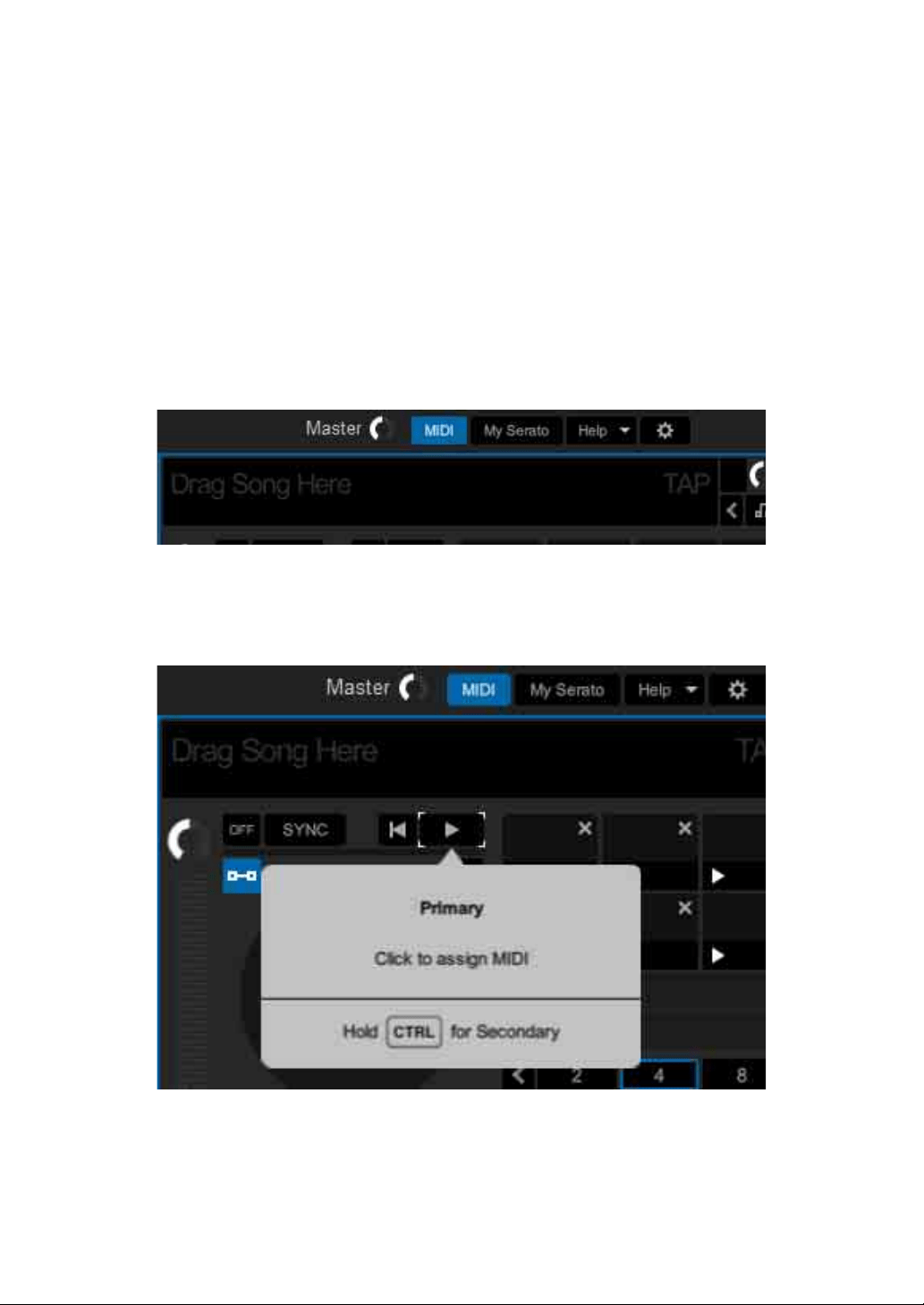
2 Click the [MIDI] button on the upper right of the Serato DJ Pro
screen.
MIDI Assign mode is turned on.
3 Click the feature you want to assign to the pad on the unit.
The following screen is an example to assign [] (play/pause) button.
Serato DJ Pro
75
En
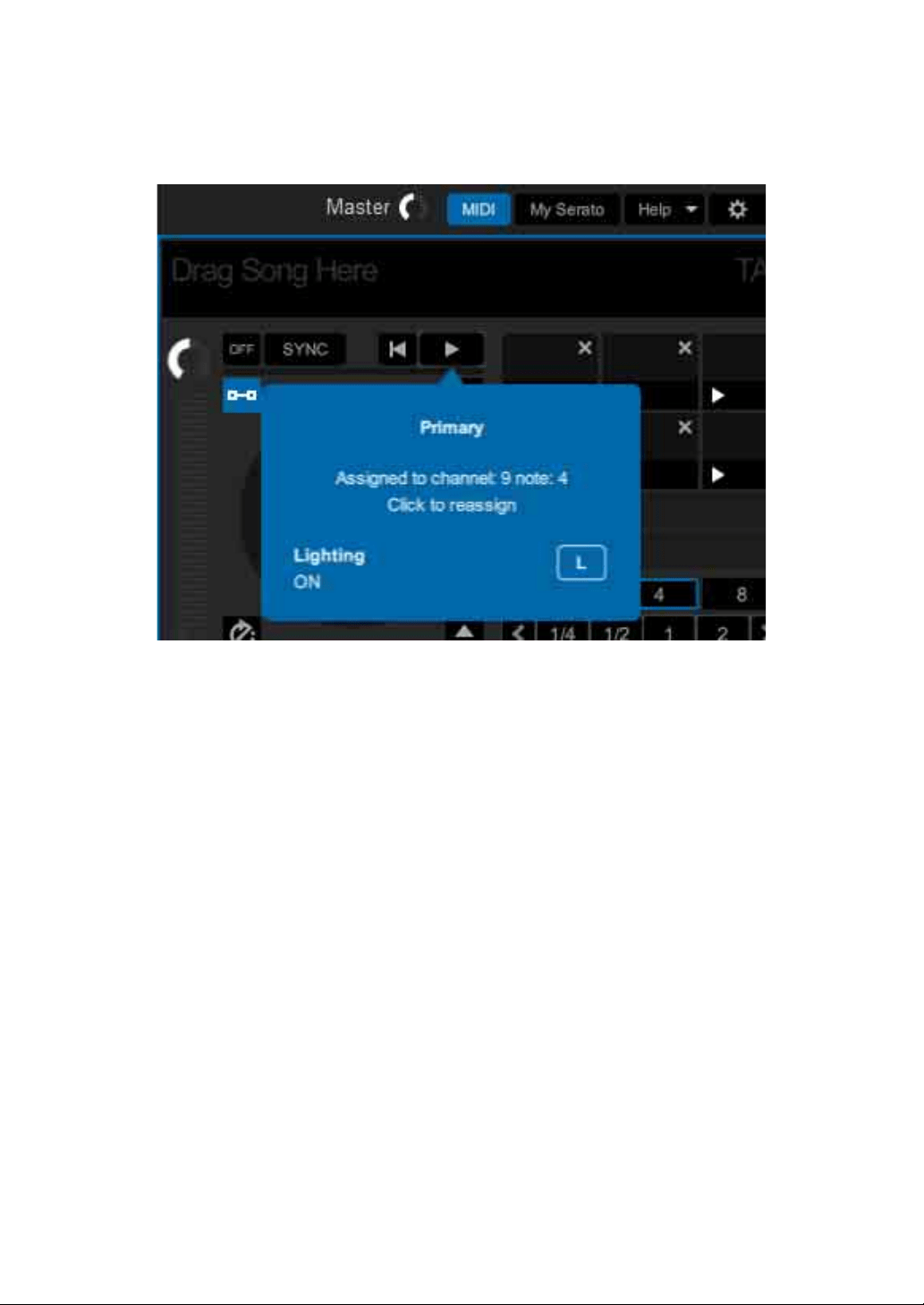
4 Press the Performance Pad you want to assign the feature to.
When the following screen is shown, the assignment is completed.
5 Click the [MIDI] button on the upper right of the Serato DJ Pro
screen.
MIDI Assign mode is canceled.
After the assignment is completed, you can use the feature assigned on the
pad in User mode.

Serato DJ Pro
76
En
Using Slide FX
You can quickly control an effect by touching and sliding the touch strip
on the unit.
• When connecting a device which has SEND/RETURN, such as
DJM-S9, the effect may not work properly.
For details, refer to the [FAQ] on the Pioneer DJ website.
pioneerdj.com/support/
1Click [FX] at the top of the Serato DJ Pro screen.
The FX panel is shown. These features can be controlled from the Slide FX
section of the DDJ-XP2.
2 Press the [1] button, [2] button, or [3] button of [SLIDE FX].
Select an effect for the Slide FX.
• You can select multiple effects at the same time.
3 Touch and slide the touch strip.
The selected effect is turned on. The effect level/depth is changed according
to the touched position.
• Release the touch strip to turn the effect off.
4 Press the [HOLD] button.
Even if you release the touch strip, the effect remains on. (Hold function)
• To turn the Hold function off, press the [HOLD] button again.
• Even if the Hold function is on, you can change the effect level/depth by
sliding the touch strip.

77
En
Settings on the unit
Launching Utilities mode
1 Disconnect the supplied USB cable from the unit.
• Connect the USB cable to your PC/Mac.
2 Quit the DJ application if it’s running.
• If you start Utility mode while a DJ application such as rekordbox dj is running
on your PC/Mac, the setting isn’t displayed correctly.
3 Connect the supplied USB cable to the unit while holding the
[LOAD] buttons on the left and right.
Utilities mode launches.
4 Operate the controller for the items you want to change after
Utilities mode is started.
Read more: Utilities mode (page 78)
5 Press the rotary selector.
Save the changed settings on the unit.
The [PAD MODE 1] button, [PAD MODE 2] button, [PAD MODE 3] button and
[PAD MODE 4] button on the left flash while saving. Don’t disconnect the USB
cable from the unit while saving.
6 Disconnect the USB cable from the unit after changing the pad
mode buttons from flashing to being lit.
• When you connect the USB cable to the unit again, the changed settings are
reflected.
Settings on the unit
78
En
Utilities mode
The following settings can be changed:
• Changing the Demo mode setting (page 78)
• Changing the Load Illumination setting (page 79)
• Setting the MIDI Controller mode selection method (page 80)
• Changing the MIDI output setting for the touch strip (page 81)
Changing the Demo mode setting
If you don’t use any of the features for a specified amount of time, the
unit will enter Demo mode.
You can set the amount of time to start Demo mode and turning Demo
mode off.
• To cancel Demo mode, operate any button, touch strip, etc. on the
unit.
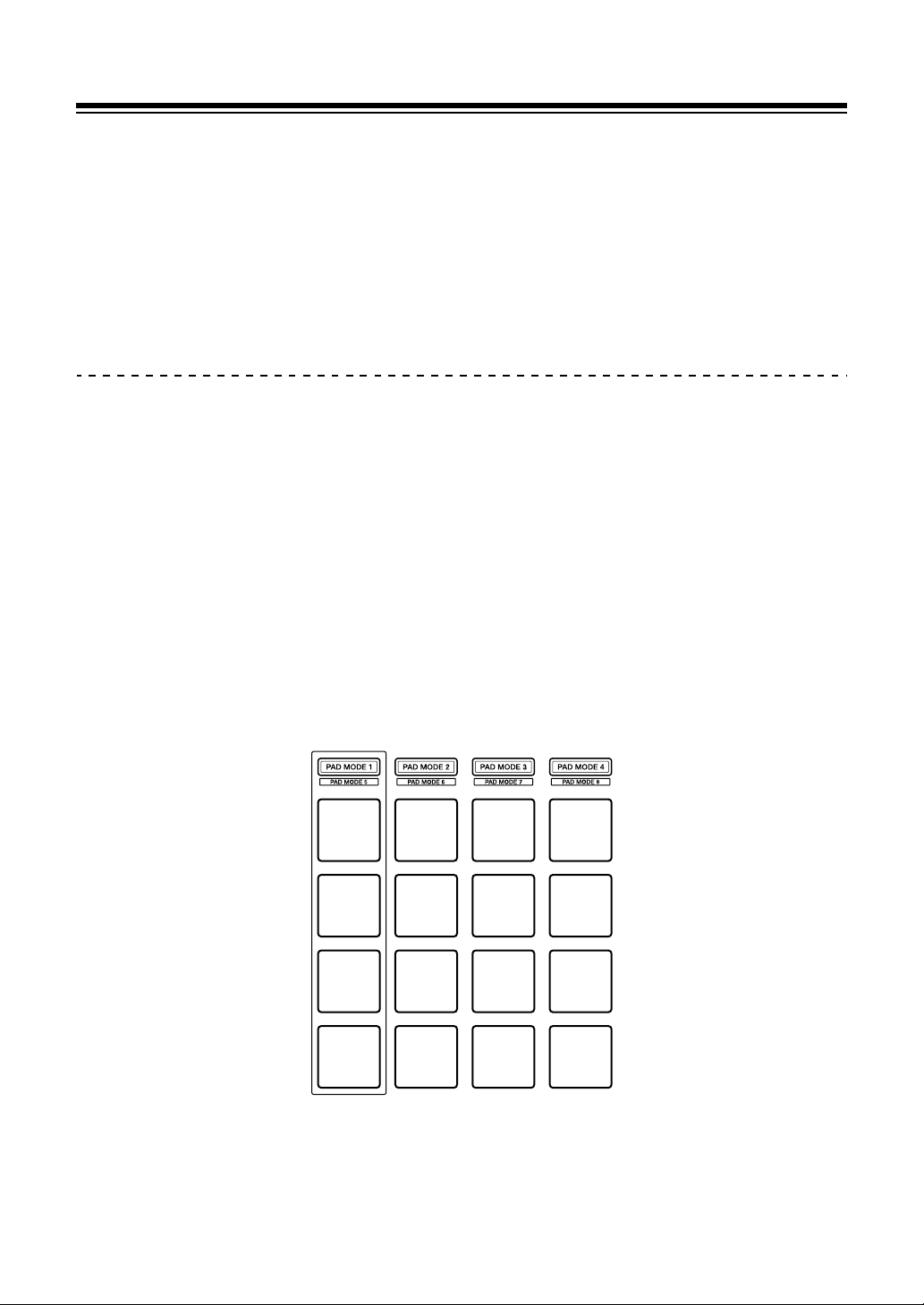
Press the [PAD MODE 1] button on the left.
The Demo mode setting is changed each time you press the
[PAD MODE 1] button.
(1) Pad 1 on the left is lit: Demo mode is off. (Default)
(5) Pad 5 on the left is lit: 1 minute
(1)
(5)
(9)
(13)
Settings on the unit
79
En
(9) Pad 9 on the left is lit: 5 minutes
(13) Pad 13 on the left is lit: 10 minutes
Changing the Load Illumination setting
Load Illumination shows that the track is loaded onto the deck.
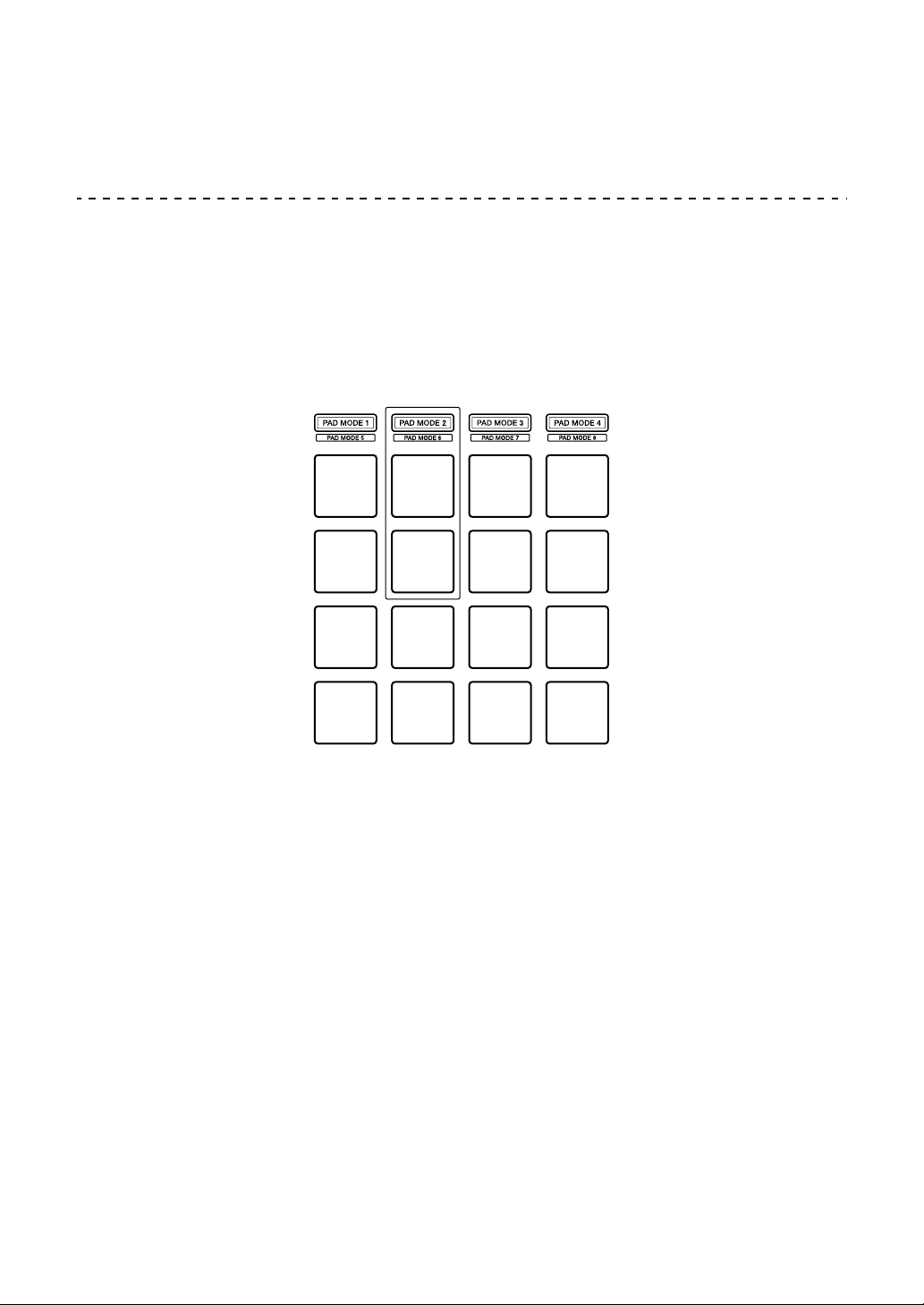
Press the [PAD MODE 2] button on the left.
The Load Illumination setting is changed each time you press the
[PAD MODE 2] button.
(2) Pad 2 on the left is lit: Load Illumination is off.
(6) Pad 6 on the left is lit: Load Illumination is on. (Default)
(2)
(6)
Settings on the unit
80
En
Setting the MIDI Controller mode selection method
The unit has 2 types of MIDI controller modes such as a mode for
functions of rekordbox dj and Serato DJ, and a general MIDI controller
mode.
You can select the mode.
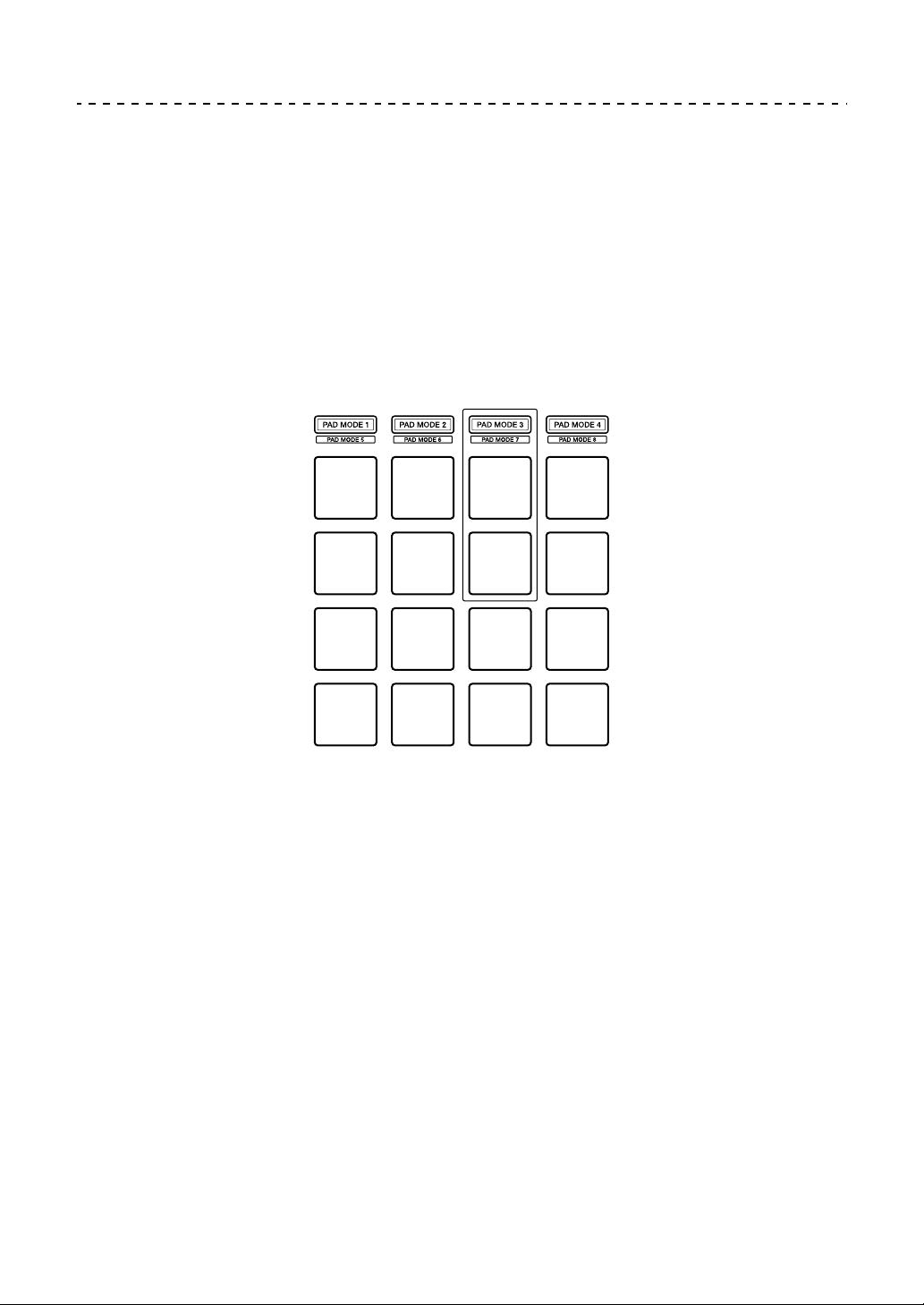
Press the [PAD MODE 3] button on the left.
The MIDI Controller mode selection method for the unit is changed
each time you press the [PAD MODE 3] button.
(3) Pad 3 on the left is lit:
When rekordbox is running, the unit can be used as a controller
suitable for the rekordbox features. When Serato DJ Pro is running, the
unit can be used as a controller suitable for the Serato DJ Pro features.
When rekordbox and Serato DJ Pro aren’t running, the unit can be
used as a general MIDI controller. (Default)
(7) Pad 7 on the left is lit:
Even though rekordbox and Serato DJ Pro are running, the unit is used
as a general MIDI controller.
(3)
(7)
Settings on the unit
81
En
Changing the MIDI output setting for the touch strip
When you slide the touch strip away from you, normally the MIDI
(control change) value increases. You can reverse it.
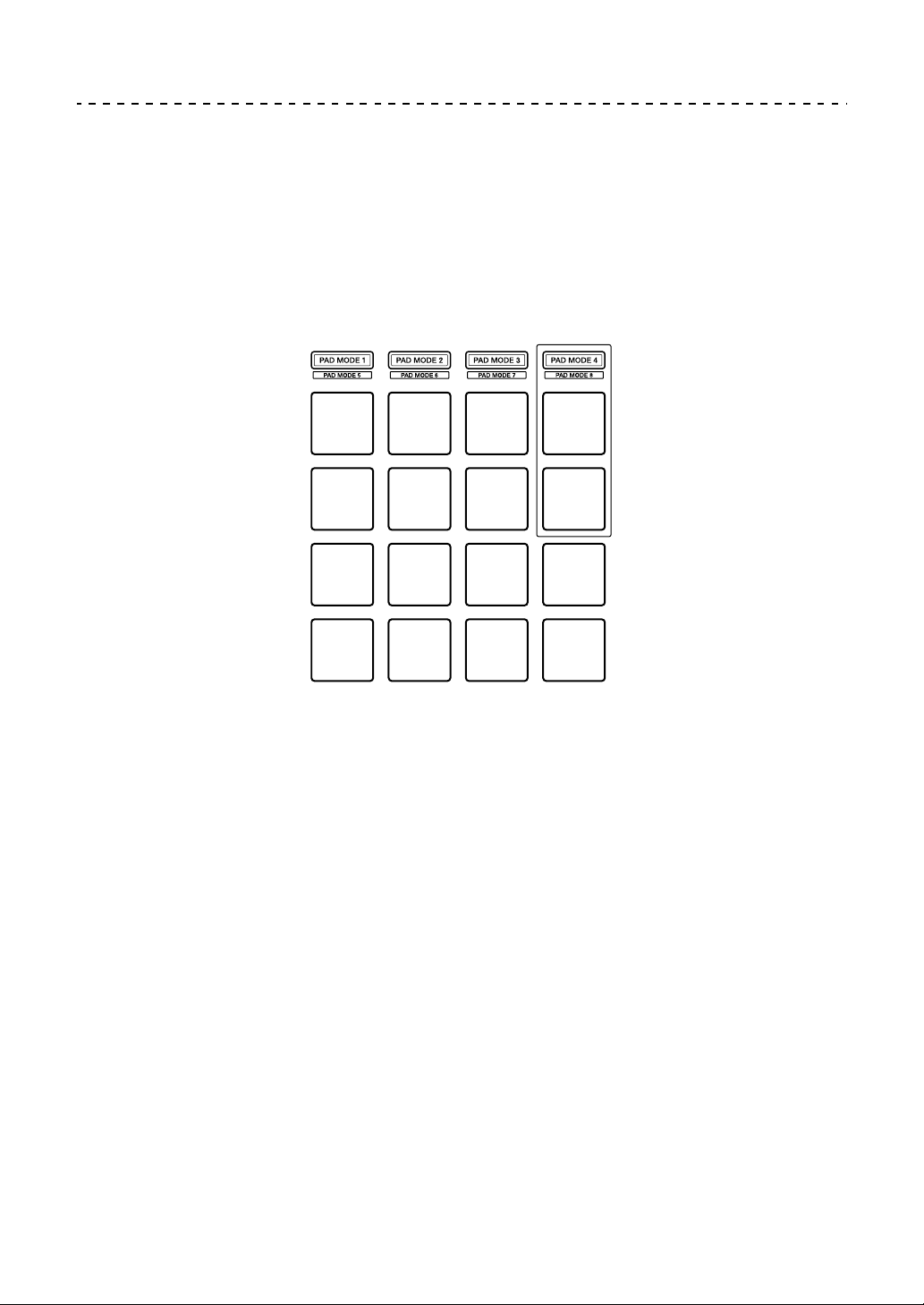
Press the [PAD MODE 4] button on the left.
The MIDI output setting for the touch strip is changed each time you
press the [PAD MODE 4] button.
(4) Pad 4 on the left is lit:
When you slide the touch strip away from you, the MIDI (control
change) value increases. (Default)
(8) Pad 8 on the left is lit:
When you slide the touch strip to the bottom, the MIDI (control change)
value increases.
(4)
(8)

82
En
Additional information
Troubleshooting
If you think something is wrong with the unit, check the information
below and refer to the [FAQ] for the DDJ-XP2 on the Pioneer DJ
website.
pioneerdj.com/support/
Additionally, check [Support] > [FAQ] on rekordbox.com.
Sometimes, the problem may be caused by another component.
Inspect the other components and electrical appliances you’re using
and refer to their manuals and FAQ if necessary. If you can’t solve the
problem, ask your nearest Pioneer DJ authorized service center, or
your dealer, to carry out repair work.
• The unit may not work properly if it’s subjected to static electricity or
other external influences. In this case, reconnect the USB cable to
restore proper operation.

Additional information
83
En
Power
The unit doesn’t power up.
• Connect the supplied USB cable correctly. (page 24) (page 55)
• If there isn’t enough power from the connected PC/Mac, connect the
other USB port of the PC/Mac.
• If another USB device is connected to your PC/Mac, disconnect it.
• If you’re using battery power for your laptop, connect the laptop to an
AC power supply.
Connection
The unit isn’t recognized by your PC/Mac.
• Connect the supplied USB cable correctly. (page 24) (page 55)
• If you’re using a USB hub, disconnect it.
• Update the rekordbox software or Serato DJ Pro to the latest version.
(page 10) (page 13)
• If you didn’t activate, activate rekordbox dj or Serato DJ Pro.
rekordbox dj / Serato DJ Pro
rekordbox dj / Serato DJ Pro becomes unstable.
• Quit any other open applications on your PC/Mac. If operation
remains unstable, try disabling the wireless network or other wireless
connections, antivirus software, screen saver, low power mode, etc.
• If you’re using a USB hub, disconnect it.
• If your PC/Mac has multiple USB ports, use another USB port.
• If you’re using battery power for your laptop, connect the laptop to an
AC power supply.

Additional information
84
En
Others
Tracks aren’t displayed in the track list on rekordbox
• Add music files to [Collection]. For details, see the rekordbox
Operating Instructions.
• Select [Collection] in the tree view. When selecting a playlist in the
tree view, tracks in the playlist are displayed in the track list.
Tracks aren’t displayed in the library of Serato DJ Pro.
• Import music files. For details about importing music files, see the
Serato DJ Pro software manual.
• When selecting a crate or subcrate which doesn’t have any tracks,
select another crate or subcrate which has tracks, or import tracks
into the crate or subcrate.
Tracks can’t be loaded onto deck 3 or deck 4.
• While holding the [SHIFT] button, press the [INT] button, then press
the [LOAD] button.
The effect isn’t canceled even when you release from the touch
strip.
• If the [HOLD] button is lit, press the [HOLD] button to turn the Hold
function for the effect off.
Sound doesn’t output from the master of the connected DJ
mixer, etc.
• If the [SILENT CUE] button is lit, press the [SILENT CUE] button to
cancel the mute.

Additional information
85
En
Even when you press the [KEY -] / [KEY +] button, the key
doesn’t go down / up.
• The amount to change the key should be within one octave from the
original key of the track. You can’t change the key over one octave.
Hot Cue, Loop, Beat Jump, Beat Sync and other functions of
rekordbox dj or Serato DJ Pro can’t be used.
• Set rekordbox dvs or Serato DJ Pro to Relative mode. If Absolute
mode is on, these functions can’t be used.
Changed settings on Utilities mode can’t be reflected.
• When you change settings on Utilities mode, press the rotary
selector to save the settings on the unit. If not, the changes aren’t
saved.
The Key Sync function can’t be used.
• Operate rekordbox or Serato DJ Pro to detect the key of the track.

Additional information
86
En
Specifications
General – Main Unit
Power supply .............................................................................DC 5 V
Rated current............................................................................500 mA
Main unit weight.............................................................. 1.5 kg (3.3 lb)
Max. dimensions................... 333 mm (W) × 42 mm (H) × 235 mm (D)
(13.1 in. (W) × 1.7 in. (H) × 9.3 in. (D))
Tolerable operating temperature.................................. +5 °C to +35 °C
Tolerable operating humidity................ 5 % to 85 % (no condensation)
Input / Output terminals
USB port
B type ........................................................................................ 1 set
• For improvement purposes, specifications and design of this unit are
subject to change without notice.

Additional information
87
En
Using the unit as a controller for other DJ
applications
The unit also outputs operating data for the buttons, touch strip, etc. in
MIDI format. If you connect a PC/Mac with a built-in MIDI compatible
DJ application via the USB cable, you can control the DJ application
with the unit. (You need to set MIDI details in the DJ application.)
To use the unit as a controller for a DJ application other than the
rekordbox dj / Serato DJ Pro, you need to set audio and MIDI details in
the DJ application.
• For details, see your DJ application’s user guide.
About MIDI messages
For details on this unit’s MIDI messages, see: “List of MIDI Messages”.
• You can find the List of MIDI Messages from the Pioneer DJ website:
pioneerdj.com/

Additional information
88
En
About trademarks and registered trademarks
• Pioneer DJ is a trademark of PIONEER CORPORATION and is used
under license.
• rekordbox
TM
is a trademark or registered trademark of Pioneer DJ
Corporation.
• Serato DJ Pro is a registered trademark of Serato Limited.
• Mac, macOS and Finder are trademarks of Apple Inc., registered in
the U.S. and other countries.
• Windows is a registered trademark of Microsoft Corporation in the
United States and other countries.
• Intel and Intel Core are trademarks of Intel Corporation in the U.S.
and other countries.
The names of companies and products mentioned herein are
trademarks or registered trademarks of their respective owners.

Additional information
89
En
Cautions on copyrights
rekordbox restricts playback and duplication of copyright-protected
music contents.
• When coded data, etc., for protecting the copyright is embedded in
the music contents, it may not be possible to operate the program
normally.
• When rekordbox detects that coded data, etc., for protecting the
copyright is embedded in the music contents, processing (playback,
reading, etc.) may stop.
Recordings you have made are for your personal enjoyment and
according to copyright laws may not be used without the consent of the
copyright holder.
• Music recorded from CDs, etc., is protected by the copyright laws of
individual countries and by international treaties. It is the full
responsibility of the person who has recorded the music to ensure
that it is used legally.
• When handling music downloaded from the Internet, etc., it is the full
responsibility of the person who has downloaded the music to ensure
that it is used in accordance with the contract concluded with the
download site.
© 2019 Pioneer DJ Corporation.
All rights reserved.
<DRI1634-A>