USER MANUAL
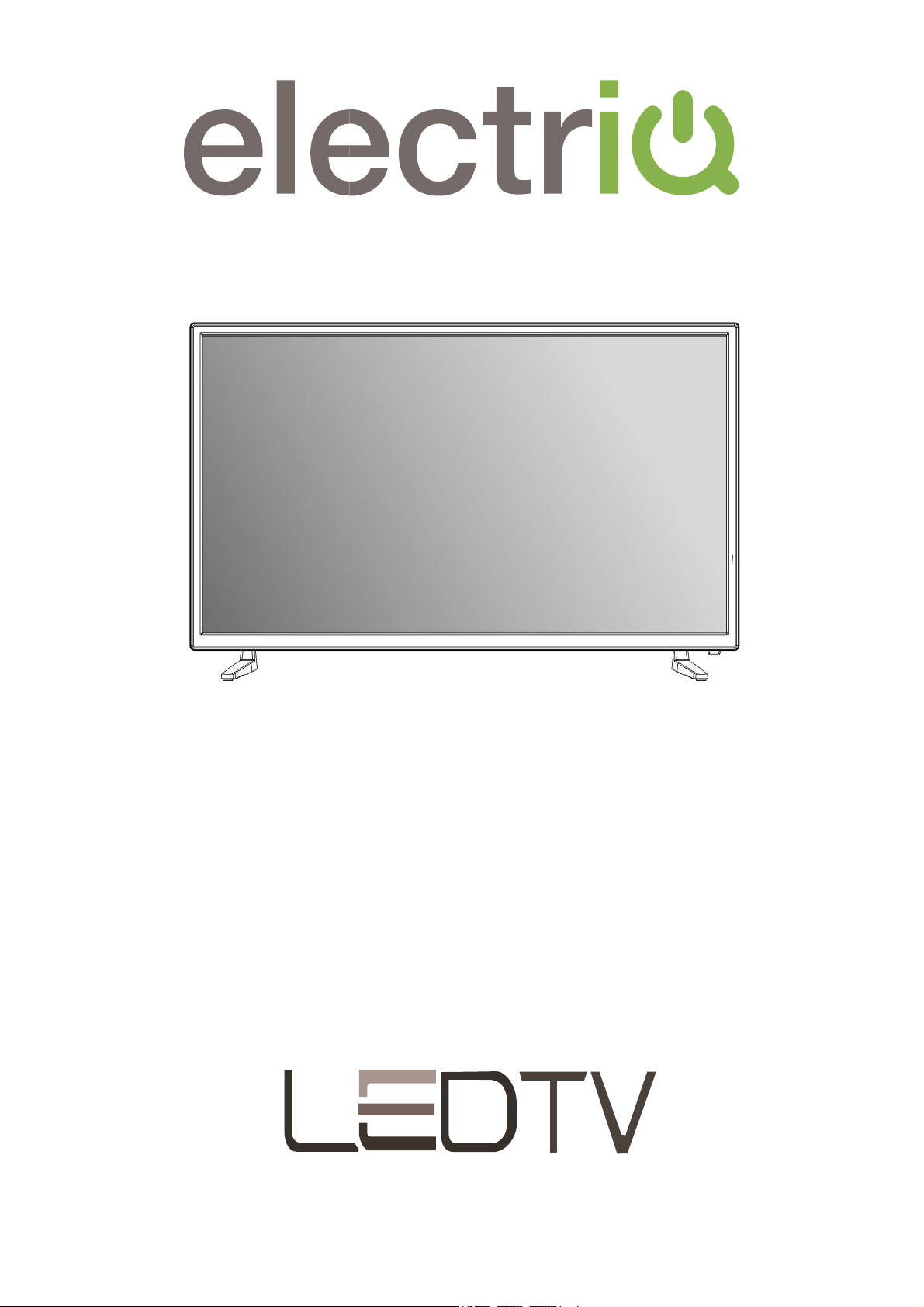
HD SMART LED TV
eiQ-32HDT2SM

2
CONTENTS
SAFETY INFORMATION
3
CONNECTION AND PREPARATION OF TV
6
WHAT IS INCLUDED
6
INSTALLATION OF LEGS
6
WALL MOUNTING
7
BUTTONS AND INTERFACE
8
CONNECTING TO EXTERNAL DEVICES
10
REMOTE CONTROL
12
INSTALLATION OF BATTERIES
13
INITIAL SETUP
13
BASIC OPERATION
14
SETTING OF STANDBY MODE
14
SETTING THE INPUT SOURCE
14
TV MENU
15
PICTURE SETUP
15
SOUND SETUP
16
CHANNEL SETUP
17
SETTINGS
18
TIME
19
LOCK
19
LAUNCHER
20
TV
20
APP
20
MEDIA
21
TECHNICAL SPECIFICATION
22
SUPPORTED SIGNAL MODES
23
SIMPLE TROUBLESHOOTING
24
MANUFACTURER SUPPORT
25

3
SAFETY INFORMATION
⚫ Read these instructions – All the safety and operating instructions should
be read before this product is operated.
⚫ Keep these instructions – The safety and operating instructions should be
retained for future reference.
⚫ Heed all warnings – All warnings on the appliance and in the operating
instructions should be adhered to.
⚫ Follow all instructions – All operating and usage instructions should be
followed.
⚫ Do not use this equipment near water – The appliance should not be used
near water or moisture e.g. in a wet basement or near a swimming pool.
⚫ Clean only with a dry cloth. Do not use solvents or petroleum-based fluids.
⚫ Do not block any ventilation openings.
⚫ Do not install near any heat sources such as radiators, stoves or other
apparatus (including amplifiers) that produce heat.
⚫ Do not tamper with the supplied plug. This plug is a BS1363 standard plug.
⚫ Protect the power cord from being walked on or pinched, particularly at the
plug and at the point where they exit from the appliance.
⚫ Only use attachments/accessories specified by the manufacturer.
⚫ Unplug the apparatus during lightning storms or when unused for long
periods of time.
⚫ Refer all servicing to qualified personnel. Servicing is required when the
apparatus has been damaged in any way, such as power supply cord or
plug is damaged, liquid has been spilled or objects have fallen into the
apparatus or it has been exposed to rain or moisture, it does not operate
normally or has been dropped.
⚫ Please keep the unit in a well-ventilated environment.
⚫ The TV should only be connected to a mains power supply with AC 100-
240V~ 50/60Hz
⚫ To prevent overload, do not share the same power supply socket with too
many other electronic components.
⚫ Do not place any connecting wires where they may be stepped on or
tripped over.
⚫ Do not place heavy items on the cable as this may cause damage.
⚫ Hold the main plug, not the wires, when removing from a socket.
⚫ Unplug immediately and seek professional help if the plug or cable is
damaged, liquid has spilt onto the set, if accidentally exposed to water or
moisture, if anything accidentally penetrates the ventilation slots or if the
set does not work normally.
⚫ Do not remove the safety covers. There are no user serviceable parts
inside.
⚫ To avoid battery leakage, remove exhausted batteries from the remote
control when not in use for a long period.
⚫ Do not block ventilation slots on the back cover. The TV can be placed in a

4
cabinet but ensure the guidance on clearances are followed.
⚫ Do not tap or shake the TV screen, this may damage internal components.
⚫ At full volume, prolonged listening may damage the users hearing.
⚫ Diagrams within the manual are for illustrative purposes only, and as such
there may be differences to the actual product received.
⚫ This is a CLASS I product and as such requires an earth connection.
WARNING
Never place a television set in an unstable location. A television set may
fall, causing serious personal injury or death. Many injuries, particularly to
children, can be avoided by taking simple precautions such as:
• Use cabinets or stands recommended by the manufacturer of the
television.
• Only use furniture that can safely support the television set.
• Ensure the television is not overhanging the edge of the supporting
furniture.
• Do not place the television on tall furniture (for example, cupboards or
bookcases) without anchoring both the furniture and the television to a
suitable support.
• Do not place the television set on cloth or other materials that may be
located between the television set and the supporting furniture.
• Educate children about the dangers of climbing on furniture to reach
the television or its controls.
If your existing television set is being retained and relocated, the same
considerations as above should be applied.
WARNING
To reduce the risk of fire or electric shock, do not expose this apparatus
to rain or moisture. The apparatus shall not be exposed to dripping or
splashing and objects filled with liquids, such as vases, shall not be
placed on or next to the apparatus.
WARNING
The wall plug socket is used as a disconnection device and should
remain readily accessible.
CAUTION
Danger of explosion if the battery is incorrectly replaced.
Replace only with the same or equivalent type.
Batteries shall not be exposed to excessive heat such as direct sunlight,
fire or the like. Used batteries should be recycled appropriately.
CAUTION
To reduce the risk of electric shock, DO NOT remove the cover (or back).
No user serviceable parts inside. Refer servicing to qualified service
personnel.
5
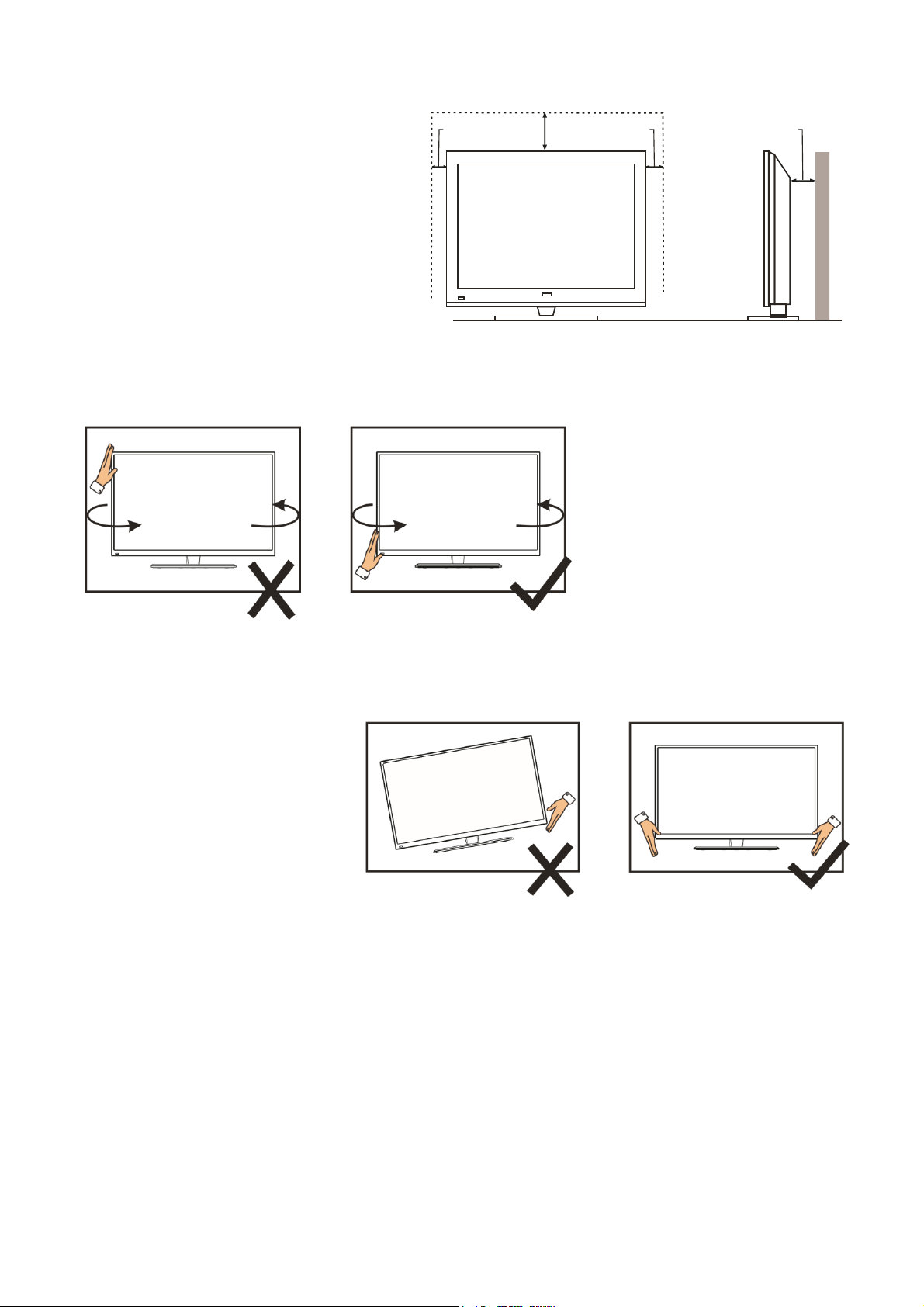
ATTENTION
• Place the TV on a firm and
flat surface, leaving a space
of at least 10cm around the
set and 30cm from the top of
the set to the ceiling or
cabinet. Ensure the TV is
positioned close to the wall
to avoid it falling when
pushed.
• When twisting the TV
set, do not hold the
top of the TV, you
should twist from the
base.
• When lifting the TV,
do not use one hand
to handle it, you
should lift the TV
using two hands,
ensuring pressure is
not put on the screen
itself.
10
cm
30
cm
10
cm
cm
10
6
CONNECTION AND PREPARATION OF THE TV
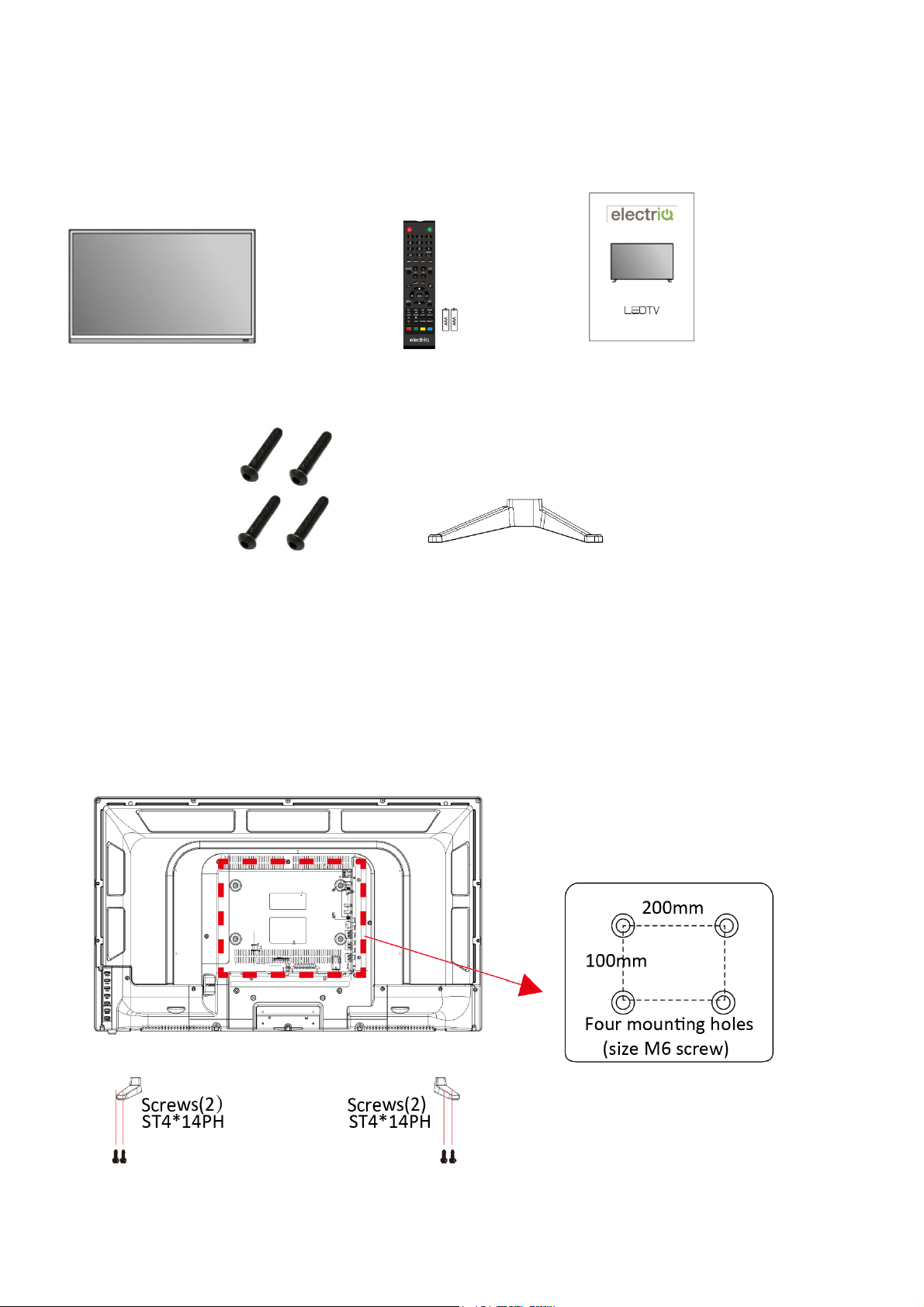
WHAT IS INCLUDED
TV Set Remote Control User Manual
(2 x AAA Batteries)
.
4 Screws 2 Legs
INSTALLATION OF LEGS
1 Place the TV with the front facing downwards on a soft cloth pads on a desk.
2 Insert the legs into the sockets on the base of the TV.
3 Insert the screws into the sockets and tighten them with a screwdriver. Do not use an
electric screwdriver, or similar.

7
WALL MOUNTING
• The TV is provided with mounting holes for a VESA approved wall mounting bracket (not
supplied).
• The VESA mounting pattern is :
200x100mm and the size of the bolts is 4 x M6 x 10(not supplied).
• Do not use bolts longer than the size specified above for your model or damage will occur
to the internal components.
NOTES:
• Do not install this product until this manual has been read and understood thoroughly.
Please keep these instructions for future reference.
• Due to the heavy weight and dimensions of the LCD screens and their fragile nature, we
recommend that they are unpacked and assembled by 2 people and professional installers
are used to wall mount them (Wall mounting is optional). If you do not understand the
instructions, or are unsure how to install this product, please contact a professional for
assembly advice and assistance.
• Careful consideration should be made regarding the location the television is to be wall
mounted as some walls are not suitable for installation. If the television is to be mounted on
drywall, the mount must be anchored into a wooden stud, concrete block or brick behind the
drywall. Installing on drywall alone will not support the weight of the display.
• When drilling holes, it is particularly important to take care of electrical cables, water or gas
pipes in the wall. Please follow the instructions provided by the wall bracket manufacturer
and ensure that all fixing screws supplied are used.
• electriQ and its distributors and dealers are not liable or responsible for damage or injury
caused by improper installation, improper use or failure to observe these safety instructions.
In such cases any guarantee will expire.
8
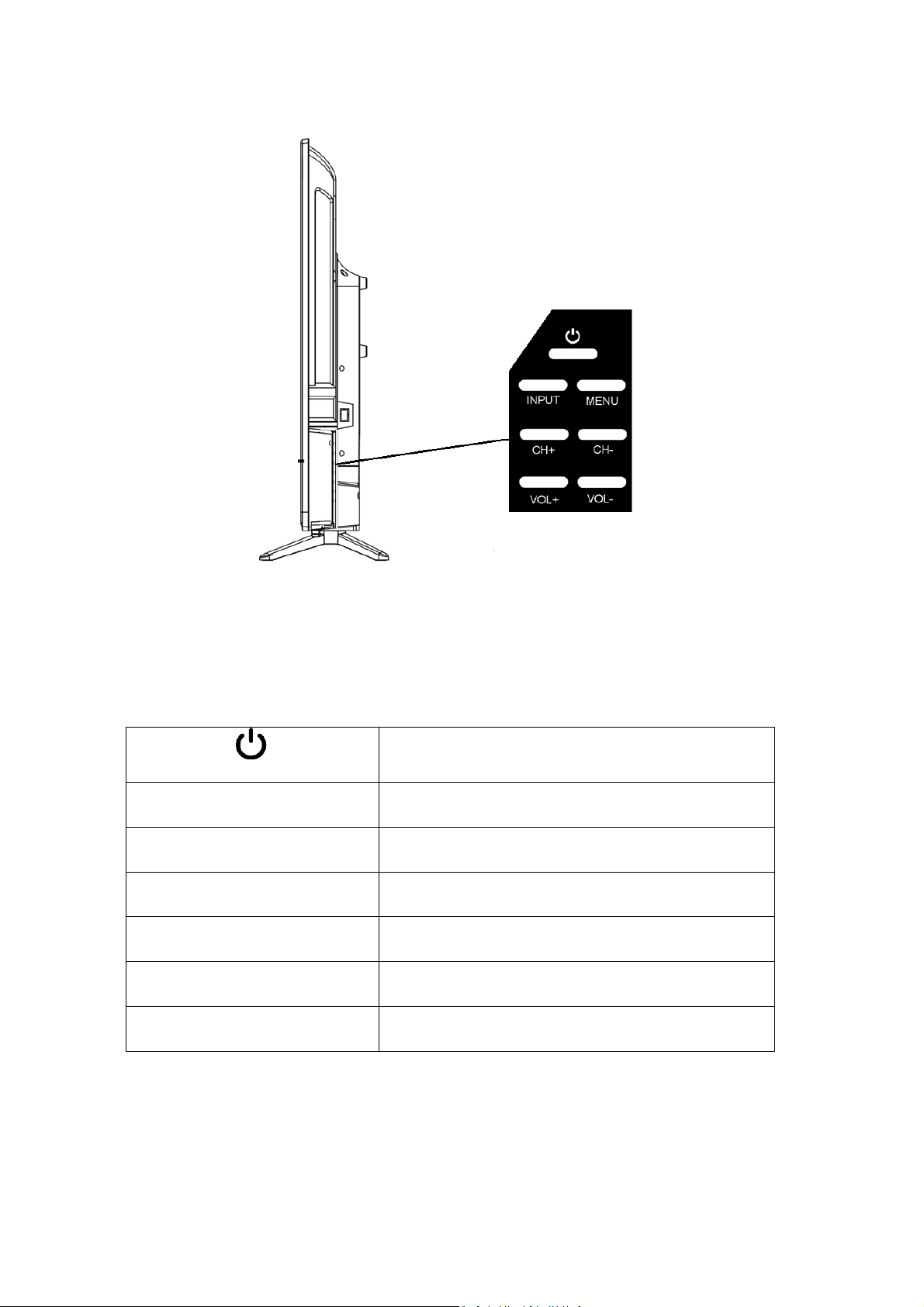
BUTTON FUNCTIONS
POWER BUTON
To turn the TV ON/OFF
INPUT BUTTON
To select the input source.
MENU BUTTON
To enter the main menu.
CH+ BUTTON
To select the next channel
CH- BUTTON
To select the previous channel
VOL+ BUTTON
To increase the volume.
VOL- BUTTON
To decrease the volume.
9
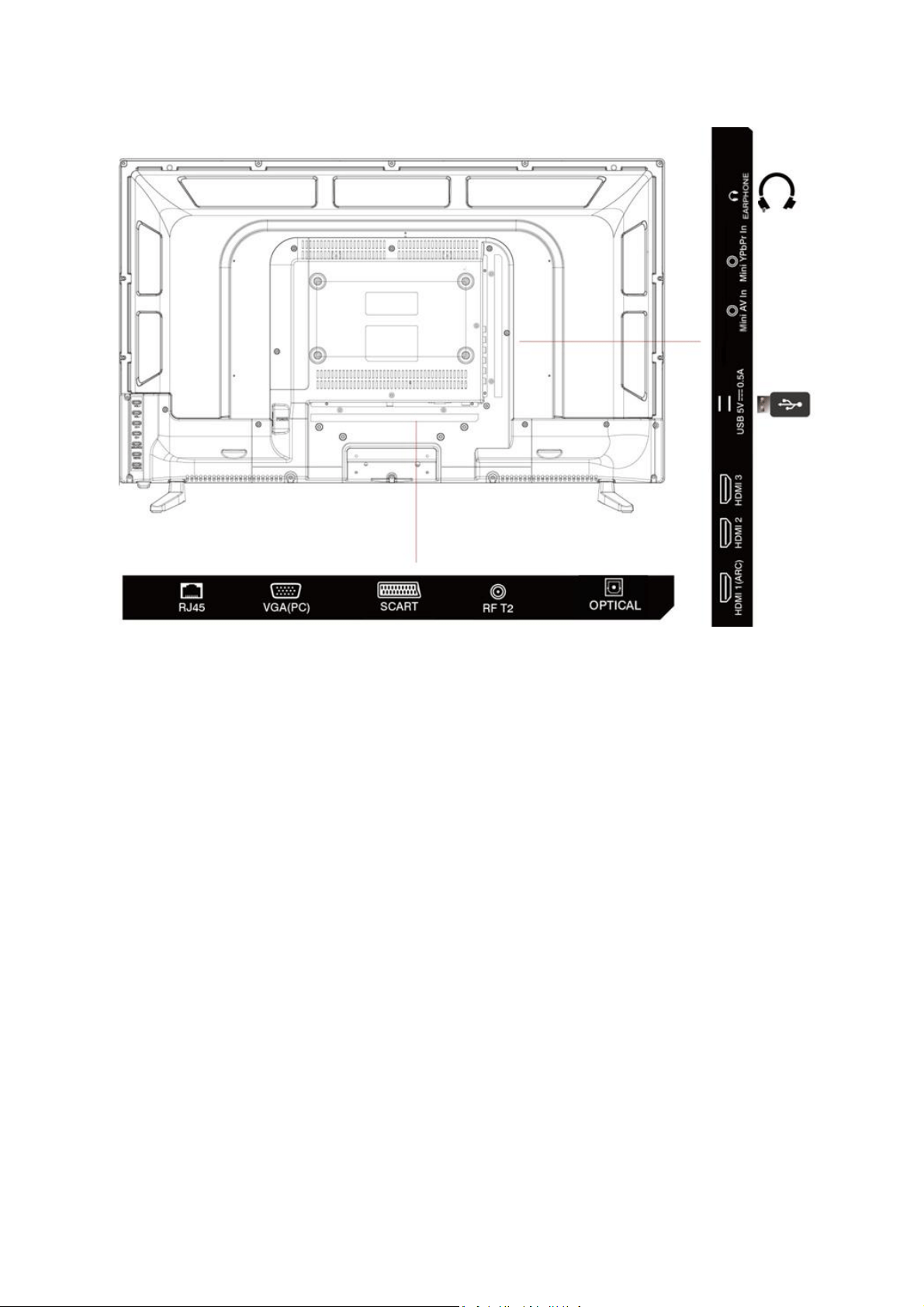
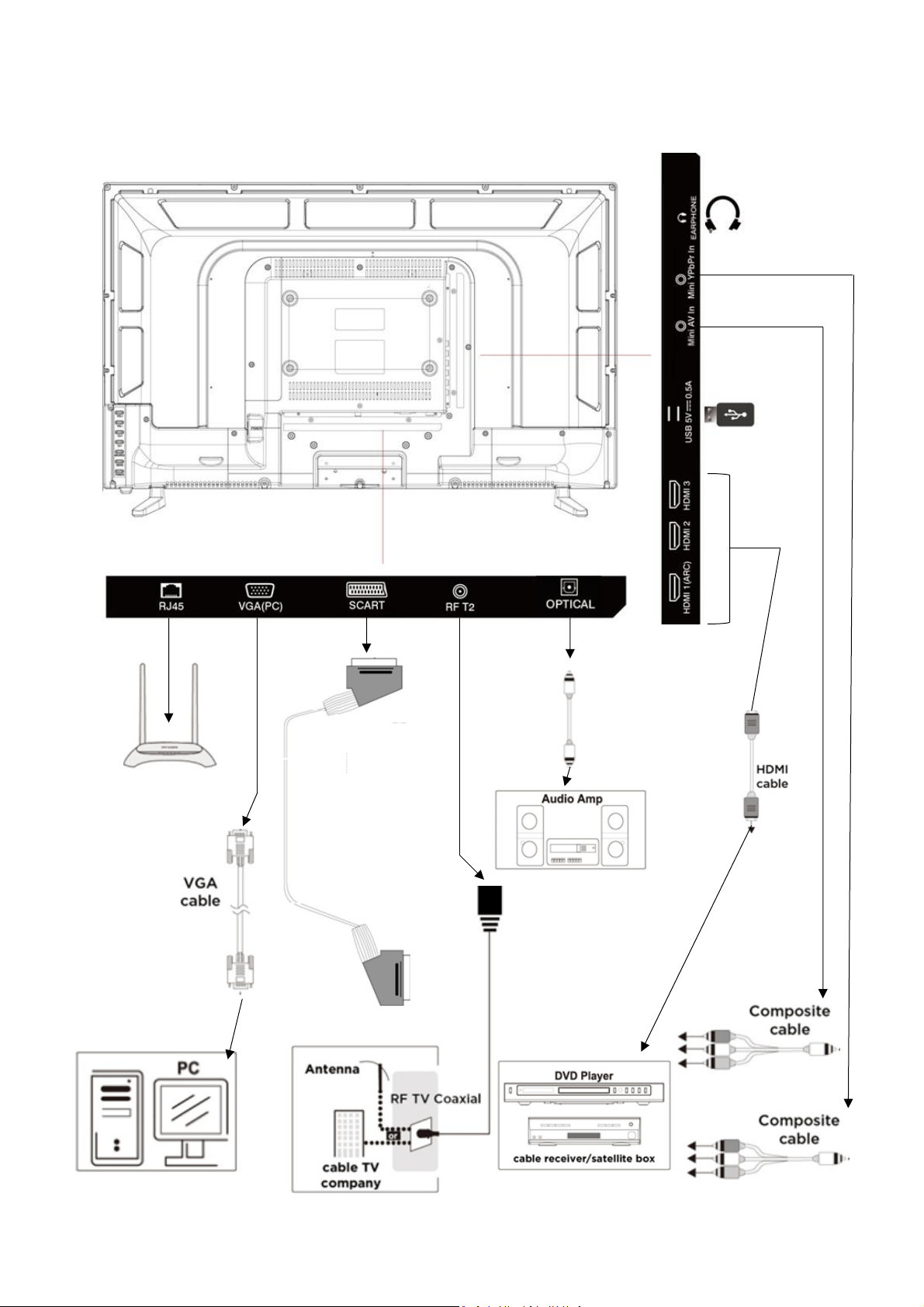
INPUT / OUTPUT TERMINALS
• RJ45: Network port
• VGA: PC Video input.
• SCART Socket: For connecting older equipment using a SCART lead.
• RF: Antenna connection.
• HDMI x3: For connecting DVD players, set top boxes, games consoles, etc.
• Optical Digital: Digital audio output, for use with compatible sound bars / audio
equipment.
• Mini AV Input: External AV signal input and relevant right/left sound channel input.
• Mini YPbPr Input: Connect to the YPbPr video output terminal of the DVD player
• Headphone Socket: Connect headphones, or can be used for compatible Soundbars /
audio equipment.
• USB x2: Provides access to SMART TV. Connect smart remotes, keyboards, gaming
accessories or USB flash drive for DTV recording, Timeshift or media playback.
NOTE: Only connect low power USB flash drives or externally powered hard drives to the USB
ports as they only provide 0.5 Amps power.
10
CONNECTING TO EXTERNAL DEVICES
11
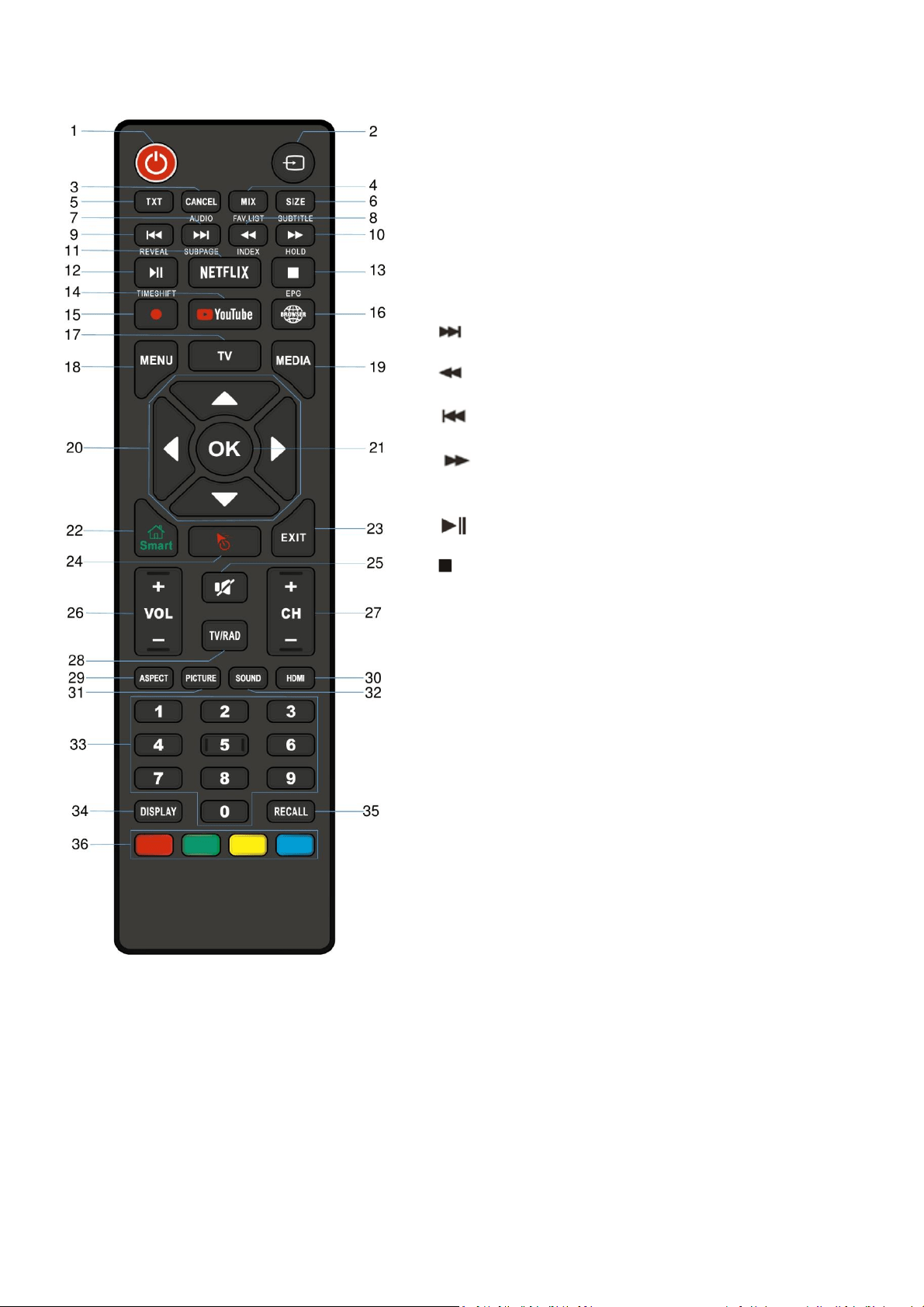
REMOTE CONTROL
1. STANDBY: Turn the TV ON/OFF
2. SOURCE: Select the signal source
3. CANCEL (within TXT): Cancel the TXT on screen AUDIO: Select TV audio
mode between stereo/mono
(While playing DVD/multimedia): Switch audio channel.
4. MIX (Within TXT): Set transparency
FAV LIST: Favorite channel list.
5. TXT: Enter or exit teletext.
6. SIZE (within TXT): Sets size of the characters.
SUBTITLE (DTV mode): Select subtitle mode.
7. (MEDIA mode): Next file or chapter.
SUBPAGE (within txt): View Subpage
8. (MEDIA mode): Fast rewind
INDEX: Display the index page.
9. (MEDIA mode): Previous file or chapter.
REVEAL: Reveal hidden information
10. (MEDIA mode): Fast forward.
HOLD: Hold the current page.
11. NETFLIX: Open NETFLIX*.
12. (MEDIA mode): Press to pause / play.
TIMESHIFT (Within DVR): Timeshift
13. (MEDIA mode): Press to stop playback. EPG Enter or exit the electronic
program guide and access recording functions
14. YOUTUBE: Open YOUTUBE*.
15. RECORD: DTV mode record to USB stick.
16. BROWSER: Launch internet browser.
17. TV: Enter TV Mode
18. MENU: Enter the Main Menu
19. MEDIA: Enter Media playback mode
20. DIRECTION BUTTONS: used for menu navigation.
21. ENTER: Confirm or Enter.
22. SMART: Enter SMART mode.
23. POINTER: Turn the pointer ON/OFF.
24. EXIT: Exit the current Menu.
25. MUTE: Mute the sound.
26. VOL +: Increase the volume
VOL -: Decrease the volume
27. CH+: Next Channel
CH-: Previous Channel
28. TV/RAD: Change between TV and Radio Modes
29. ASPECT: Press repeatedly to select the desired screen size.
30. HDMI: Set HDMI options
31. PICTURE: Set picture options
32. SOUND: Set sound options
33. 0-9: Press the buttons to select a channel
34. DISPLAY: Display the information for the current video / audio.
35. RECALL: Return to previous channel.
36. RED: Access the red item or page.
GREEN: Access the green item or page.
YELLOW: Access the yellow item or page.
BLUE: Access the blue item or page.
*Availability of Netflix and YouTube features is dependent
on the TV model.
HOW TO PROGRAM BUTTONS
1. Press and hold OK and 2 for 3 seconds. The
LED will be illuminated.
2. Press the button on the electriQ remote to
program. The LED will flash slowly.
3. With the other remote pointing at the end of
the electriQ remote, press the button required
on the other remote. The LED will flash quickly.
4. Repeat steps 2 and 3 for other buttons.
5. Hold OK for 3 seconds to save the changes.
NOTE: To use the mouse feature of the remote, the dongle
should be inserted into one of the USB ports on the side of
the television
12
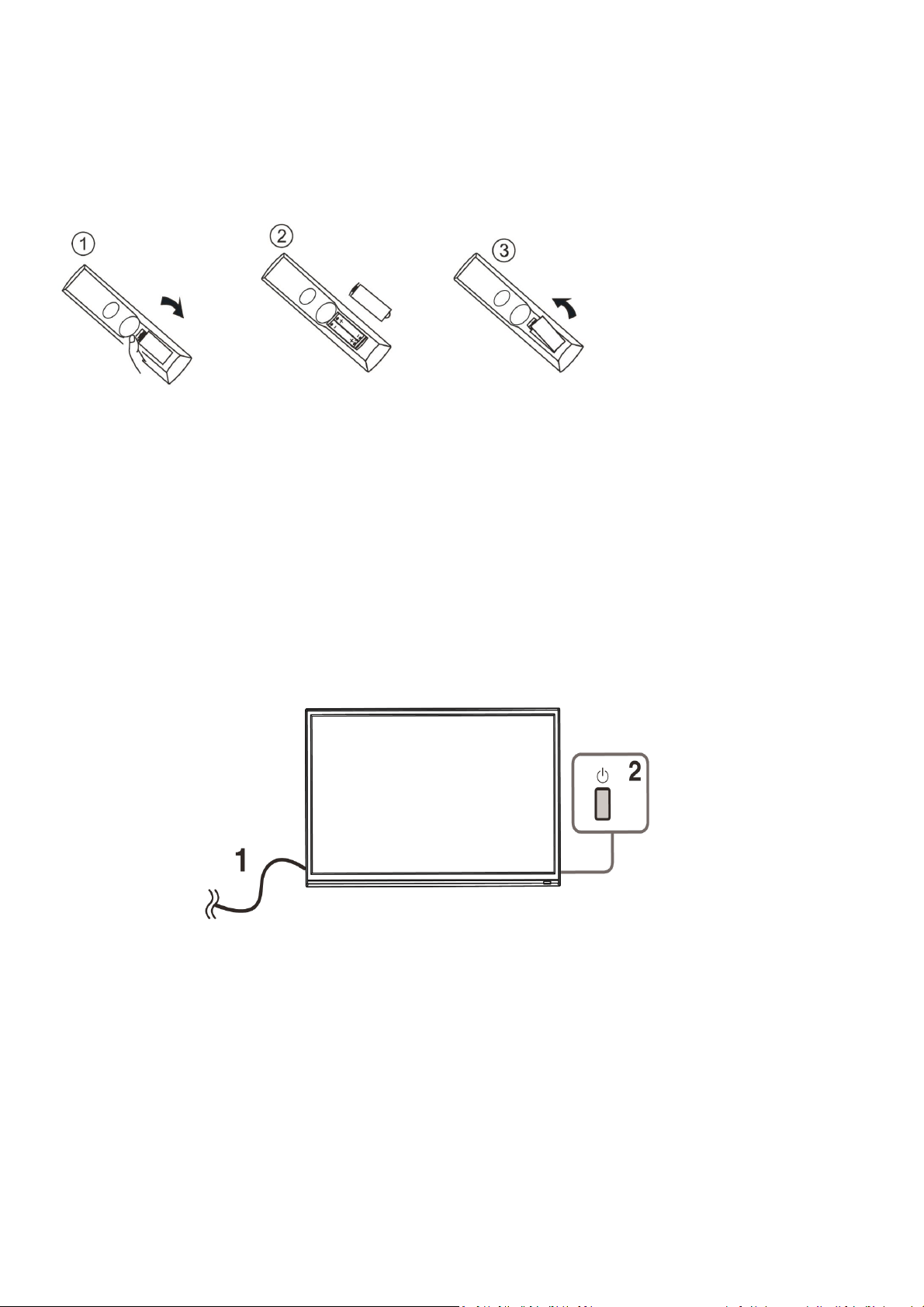
INSTALLATION OF BATTERIES
1 Remove the battery cover from the rear of the remote control.
2 Install two AAA 1.5V batteries. (Ensure the correct polarity of the batteries.)
3 Replace the battery cover.
Please take out of the batteries from the remote when it is not going to be used for a long
period of time.
If the remote control doesn't work properly, please carry out the following checks.
• Check the TV is turned on.
• Check the polarity of the batteries are correct.
• Check the batteries and replace if necessary
• Check the plug is fully inserted and the socket is switched on.
• Check there are no special fluorescent light or neon light which could interfere with
remote signals.
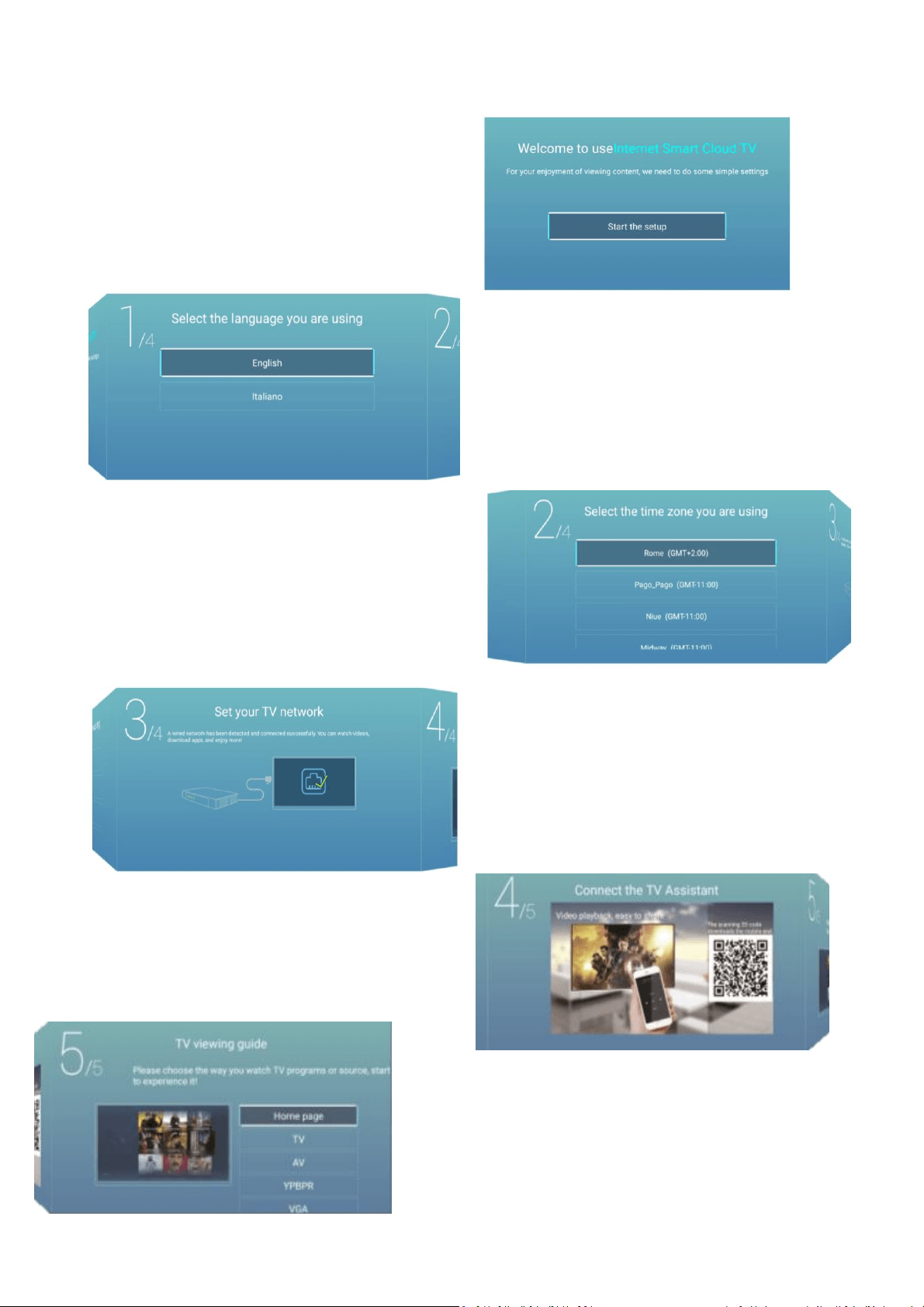
INITIAL SETUP
1. Connect your TV to the power outlet.
2. Connect your aerial and/or set top box to the television.
3. Press the POWER button on the remote to turn on the TV.
CAUTION: Always disconnect the TV from the power outlet when the TV will not be used
for a long period of time. The POWER button on the television and remote is only used for
switching the TV into standby and does not disconnect the device from the mains voltage.
To completely disconnect the mains voltage, please remove the plug from the socket.
4. Use the ▼/▲/◄ / ► buttons on the remote to follow the setup guide on screen.
5.
13
NOTE: To use the mouse feature of the remote, the dongle should be inserted
into one of the USB ports on the side of the television
14
SET-UP GUIDE
Press the OK button to initiate the setup.
Use the ▼ and ▲ buttons to select the
language. Press the OK button to select the
highlighted language before pressing the ►
button to move to the next screen.
Use the ▼ and ▲ buttons to select the time
zone in which the TV is being installed Press
OK button to select the highlighted time zone
before pressing the ► button to move to the
next screen.
Press the OK button to connect the WIFI/
wired network. If connecting to a wireless
network, select your router, and enter the
router password. Press the ► button to
move to the next screen.
Your Tv is now ready to use, chose the initial input
using the remote navigation.
Use your mobile phone to scan the 2D code to
connect the TV Assistant. (Refer to Eshare
document for details)
15
BASIC OPERATION
STANDBY MODE
• Press the STANDBY button to turn on the television.
• Press the STANDBY button again to return the television to standby mode. The
power indicator will turn red.
• Be sure not to set your TV in standby mode for a long period of time.
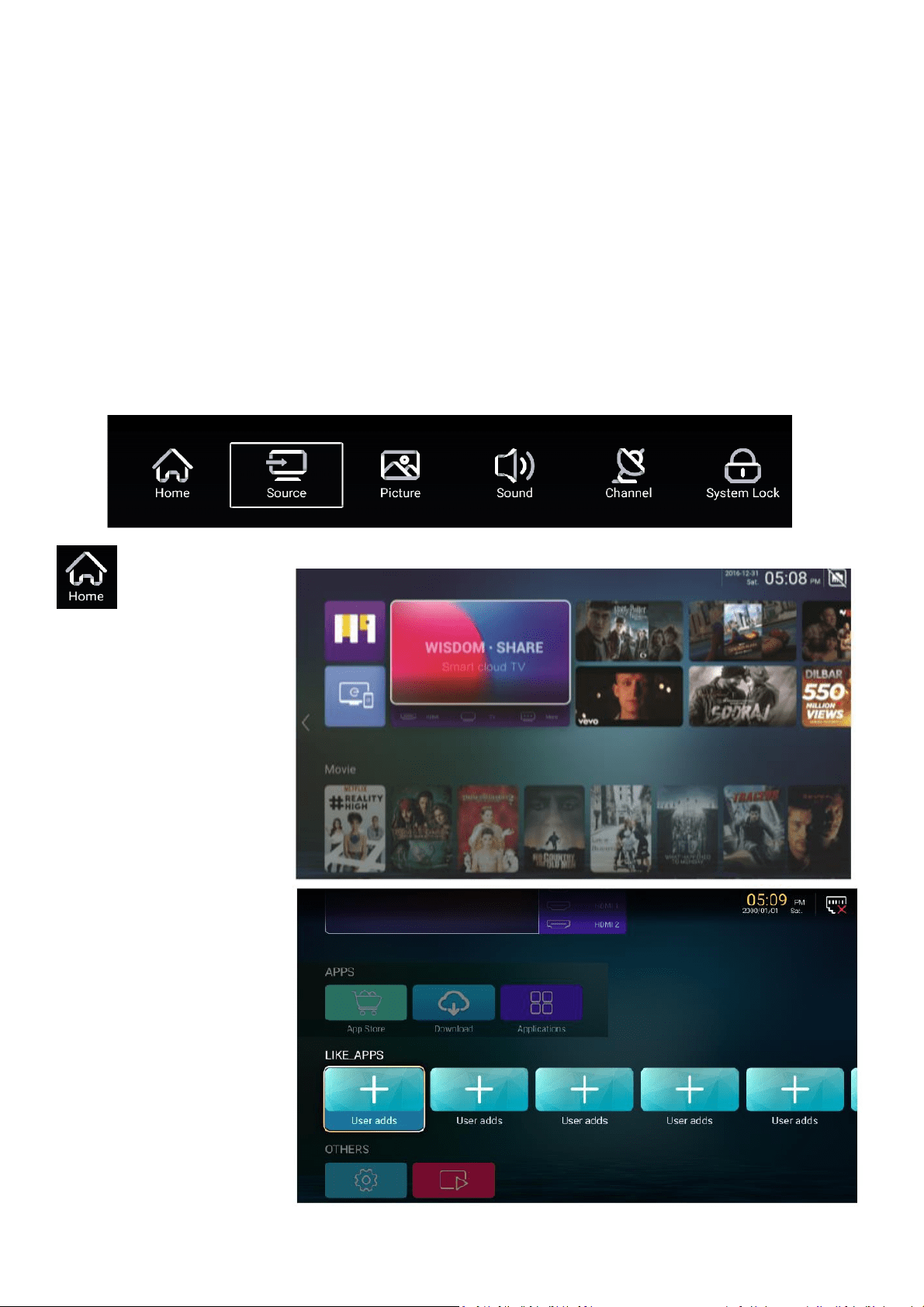
MAIN MENU
Press the MENU button to enter the main menu for the TV. This is split into 6 separate
sections Use the ◄ and ► button to select the required section before using the ▼ or ▲ button
to enter it.
HOME
The home section
provides you with options
to change the current input
source, as well as giving
access to the smart
functions within the TV.
Use the arrow buttons on
the remote to navigate the
screen, or alternatively
press the MOUSE button
on the remote to activate
the mouse cursor.
APPS
Provides links to the App
Store to download apps to
your SMART TV. The
applications button can
also be selected to view all
currently installed Apps.
Press and hold the “OK”
button on the remote when
the app is highlighted to
delete or re-arrange apps.
16
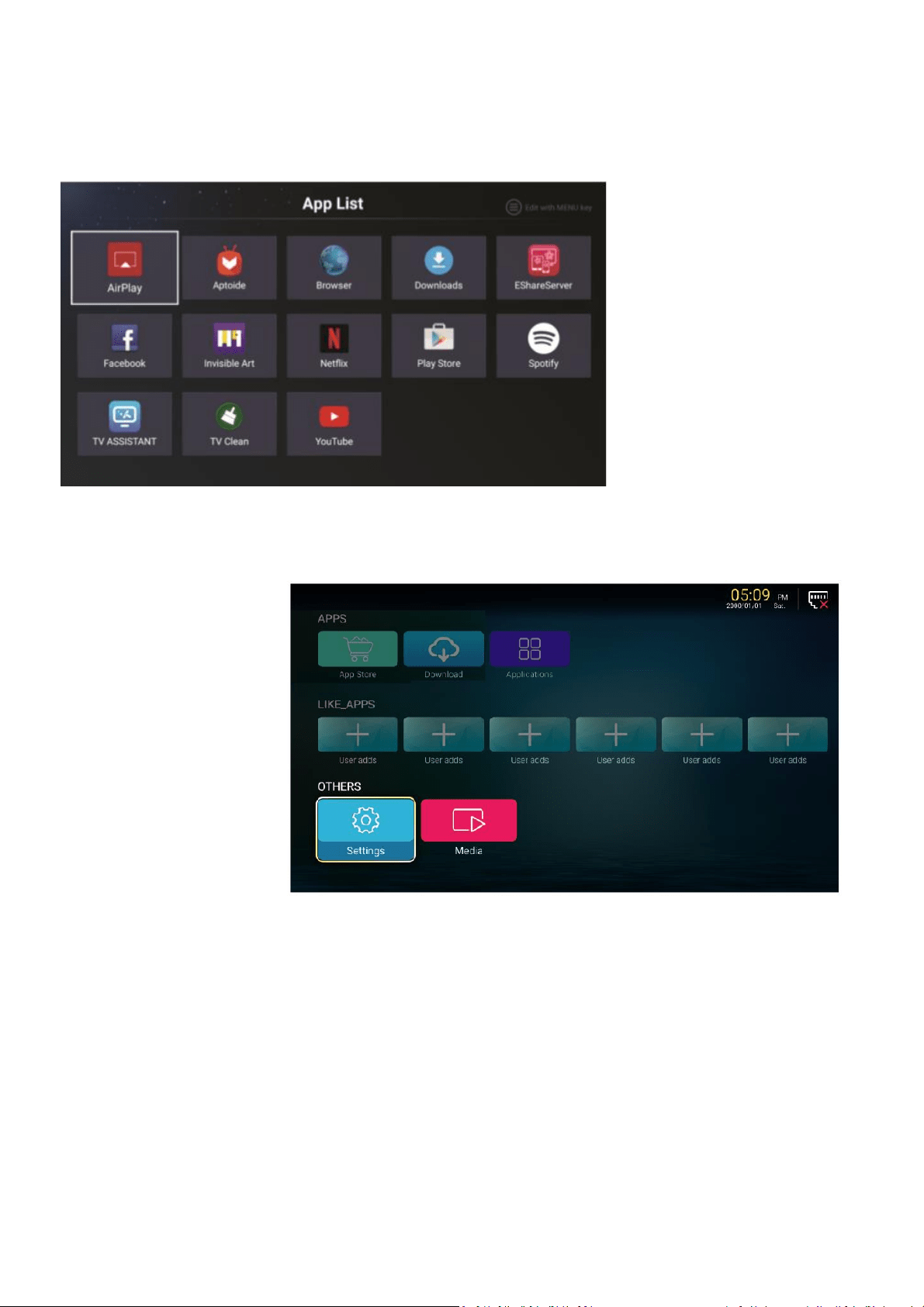
APPLICATIONS / APP
List
Within the App List, select
the APP to open and
press the OK button to
launch the application.
LIKE_APPS
This provides quick links
to your most commonly
used APPS. To add an
app to your LIKE_APPS
list, select a User Adds
button, and then select
the App to add from the list
of installed apps provided.
SETTINGS
This provides access to
the settings for the
SMART component of the
TV, providing options to
update your WIFI
connection
17
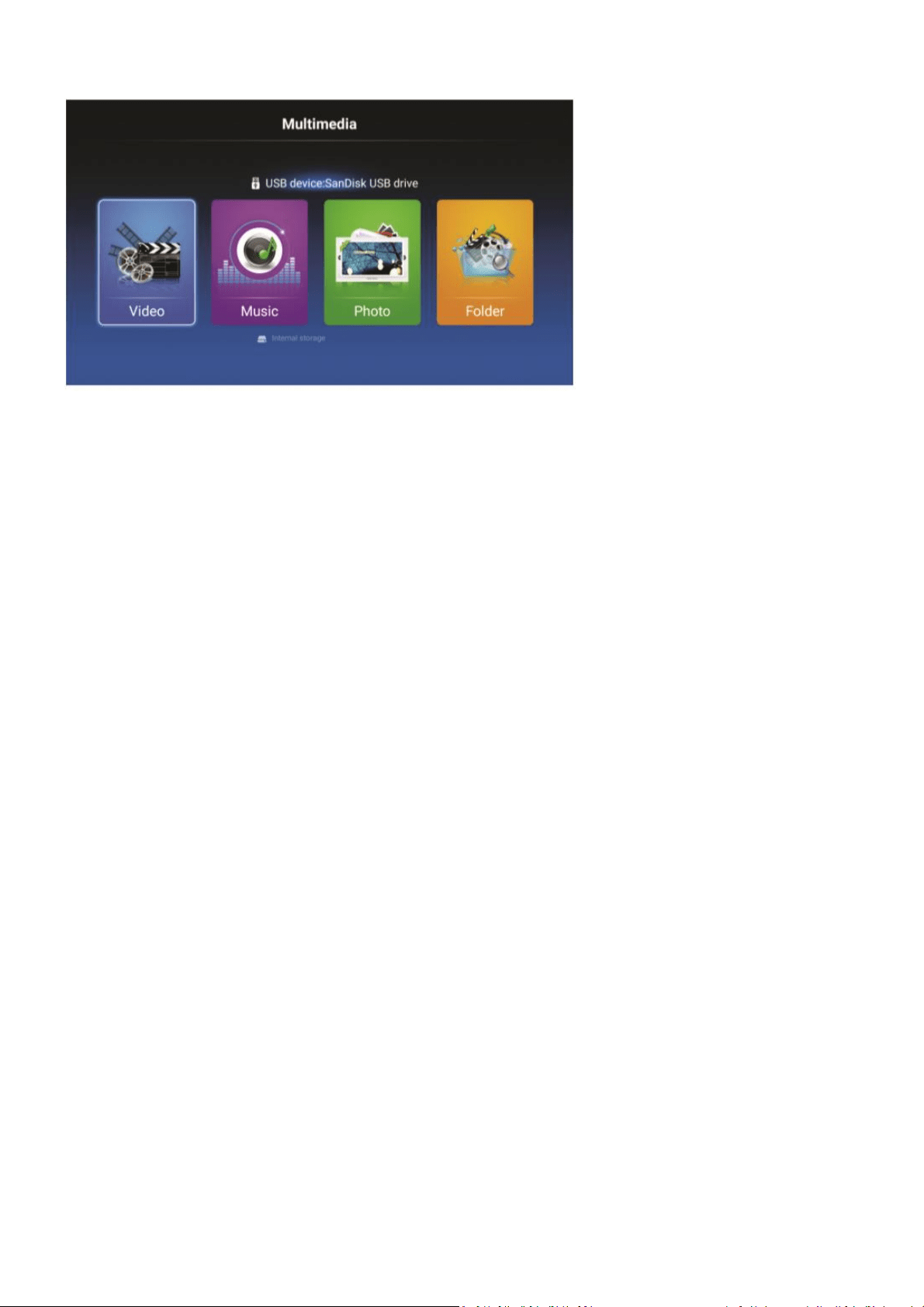
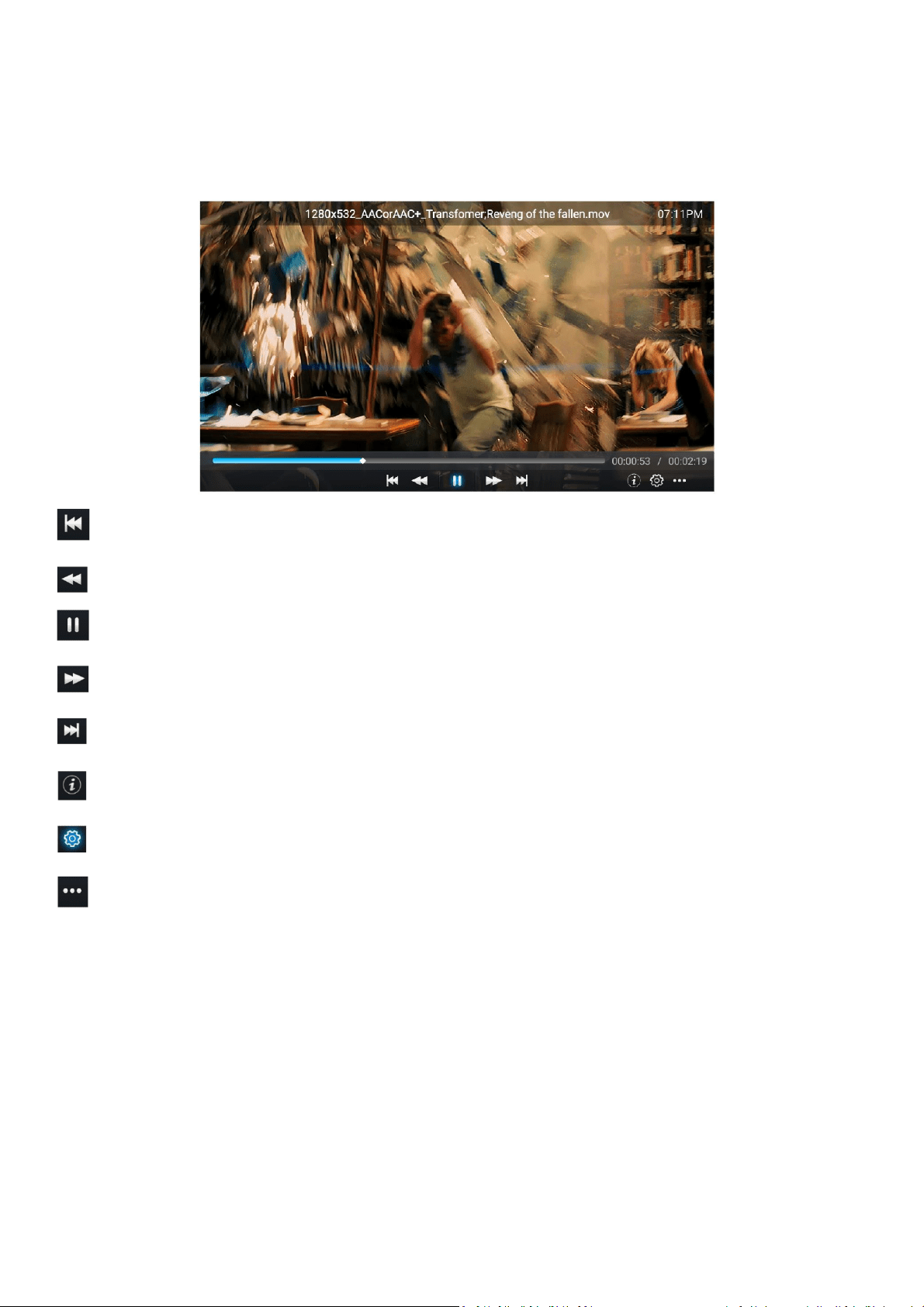
MEDIA
Media allows the playback of
videos and music, and the
viewing of pictures saved on
the TV or memory stick.
18
VIDEO
Use the ◄ and ► buttons to select the video to play.
Press to play previous video.
Press to play fast backward.
Press to stop/play the video.
Press to play fast forward.
Press to play the next video.
Press to view the information for the video (Resolution/Size/Deration/Bitrate)
Press to set the Audio Track/Select Subtitle/Region Language/Play Mode/Aspect Ratio.
Press to select the video to play.
19
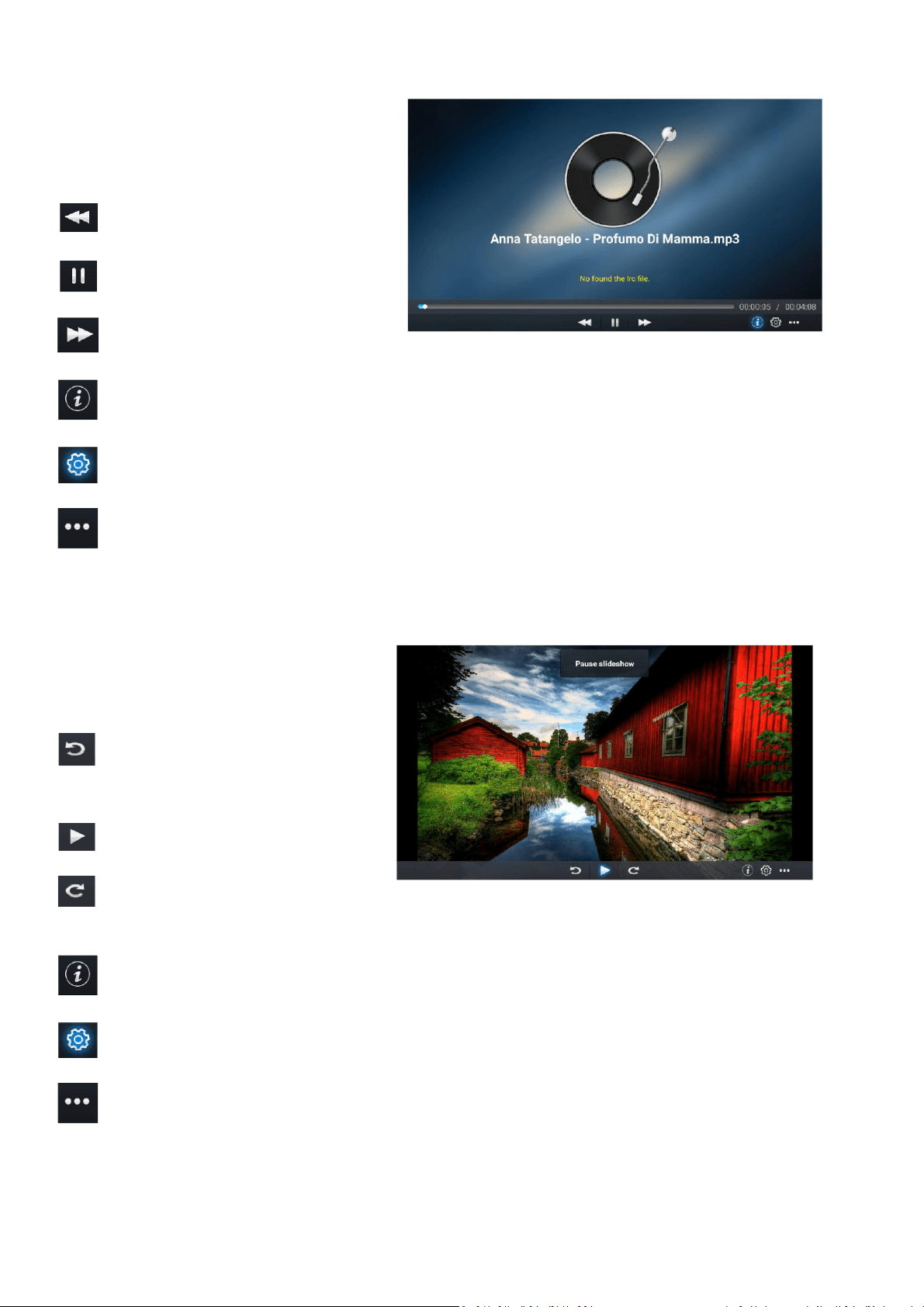
MUSIC
Use the ◄ and ► buttons to select the
video to play.
Press to play fast backward.
Press to stop/play the music.
Press to play fast forward.
Press to view the information for the music. (Mine Type/Size/Bittrate)
Press to set the Play Mode (Repeat All/Repeat One/Random/None).
Press to select the music to play.
PHOTO
Press ◄ / ► to select photo.
Press to rotate the picture
anticlockwise.
Press to stop/play the slideshow.
Press to rotate the picture
clockwise.
Press to view the information for the picture. (Size/Resolution)
Press to set the Play Mode (Aspect Ratio/Playback duration).
Press to select the photo to display.
20
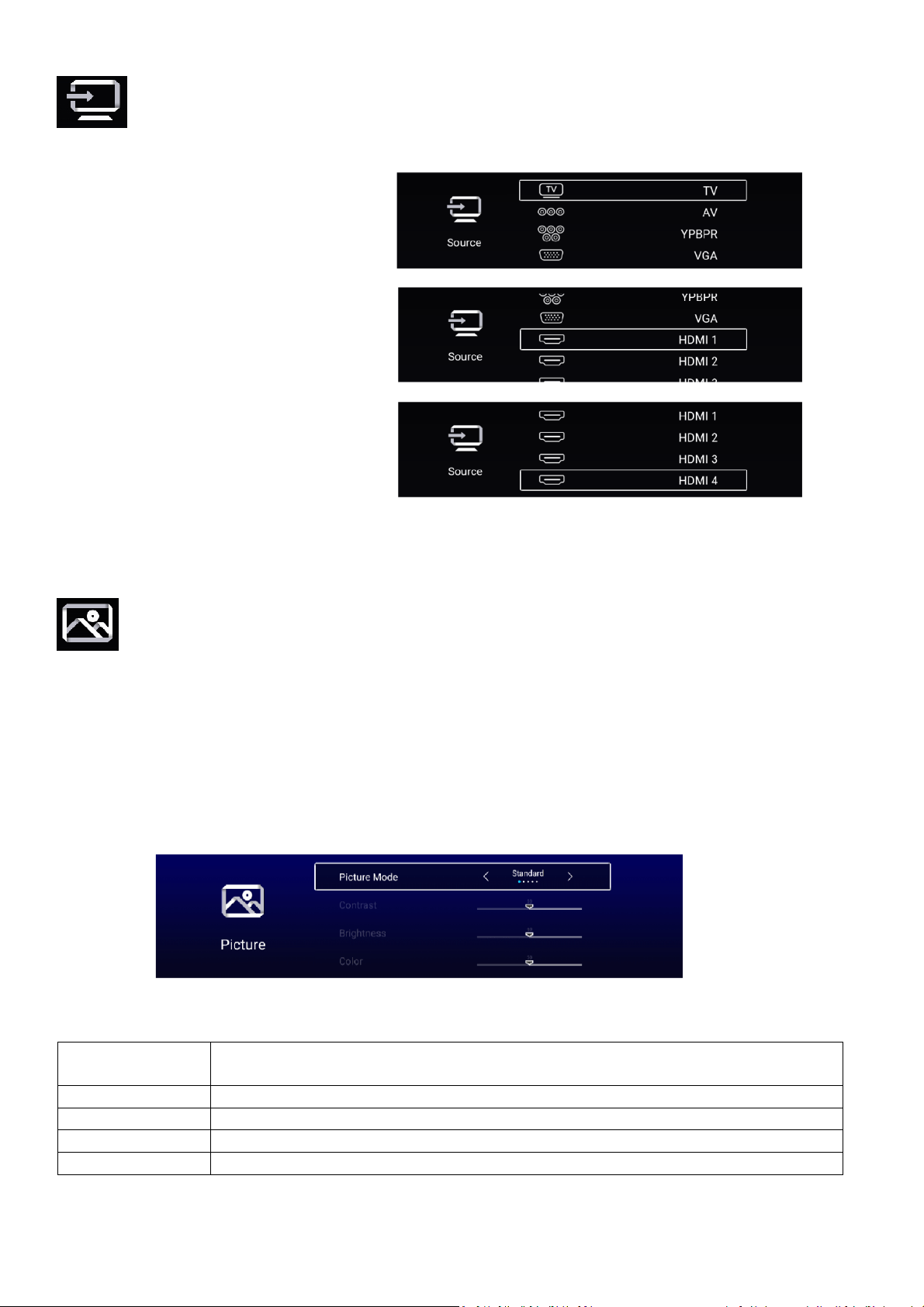
SELECT THE INPUT SOURCE
THROUGH THE MAIN MENU
Select source to show the input source
list and use the ▲ and ▼ buttons to
select the input.
Press the ENTER button on the
remote to confirm
USING THE REMOTE:
Press the SOURCE button to display
the input source list.
Use the ▲ and ▼ buttons to select the
input.
Press the ENTER button on the
remote to confirm
USING THE TV CONTROLS:
Press the SOURCE button repeatedly
to scroll through the input source list
PICTURE
The Picture section provides you with the options to change the picture settings, allowing you
to modify the display based on its location and your personal preferences.
Navigate the picture section using the▼ and ▲ buttons, and select or modify the selected line
using the ◄ and ► buttons: Within this section you can make changes to the: Picture
Mode/Contrast/Brightness/Colour/Sharpness/Backlight/Noise Reduction/Colour Temp/More
Settings
PICTURE MODE
Can be changed between Standard, Movie, Vivid, Energy Saving, User.
Standard
The default mode, to make users experience high-quality images under
normal light.
Movie
This mode is more suitable for watching movies.
Vivid
Image colours more beautiful, more vivid picture.
Energy Saving
Reduce screen brightness, improved contrast for energy saving.
User
User-defined picture settings.
21
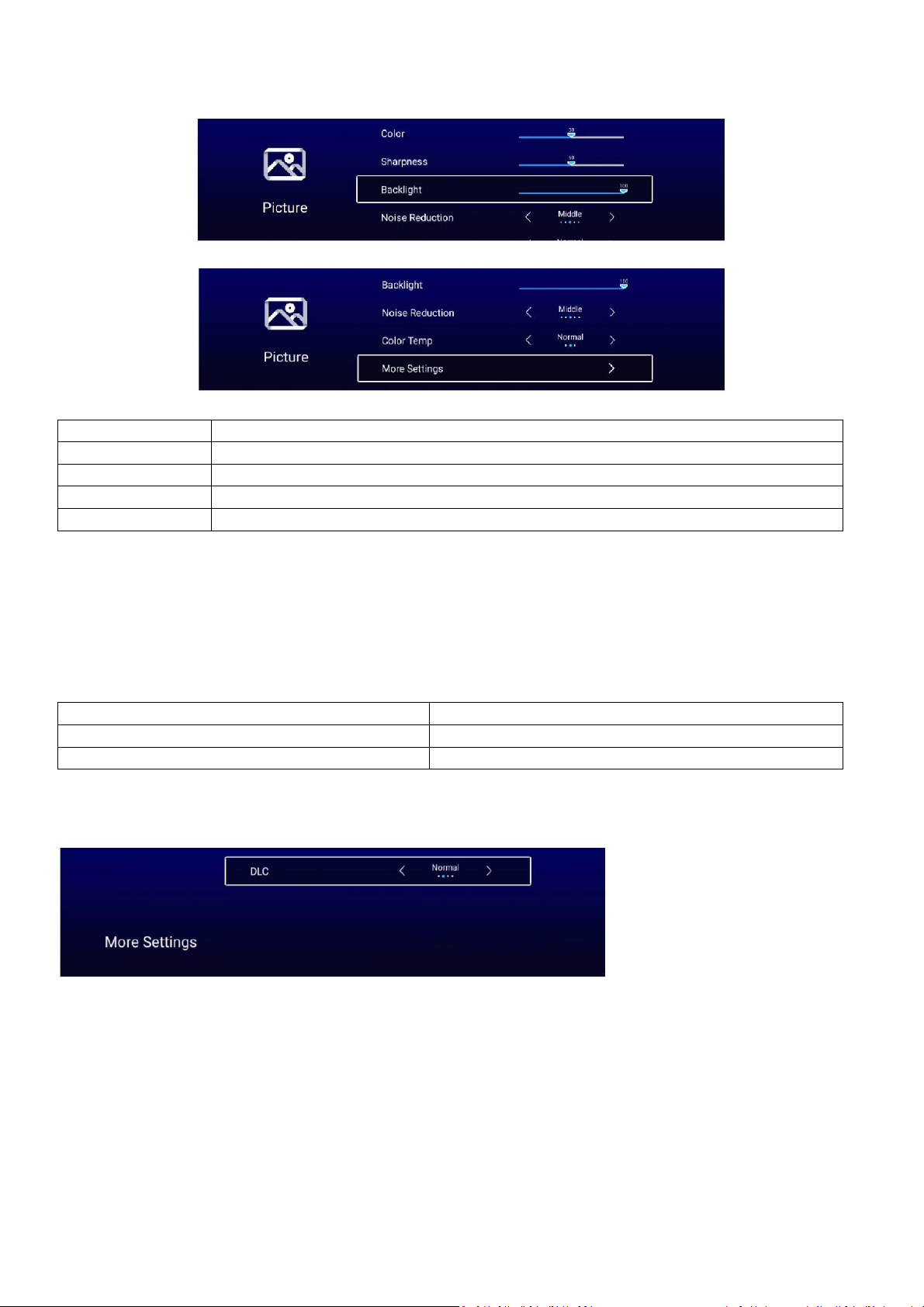
CONTRAST/ BRIGHTNESS/ COLOUR/ SHARPNESS/ BACKLIGHT
Contrast
Adjust image contrast.
Brightness
Adjust image brightness.
Colour
Adjust image colour density.
Sharpness
Adjust the image edge sharpness.
Backlight
Adjust the screen backlight brightness
.
NOISE REDUCTION
Used to eliminate image noise intensity between the option of: Off, Low, Medium, High, Auto
COLOR TEMP
Adjust the overall colour of the image between the following options
Cool
Produces a gentle blue-hued image.
Normal
Produces a vivid image.
Warm
Produces a red-hued image.
MORE SETTINGS
More settings contain the option to adjust the DLC settings.
DLC (Dynamic light control)
Can be changed between the options of select Dark/Normal/Bright/Off.
22
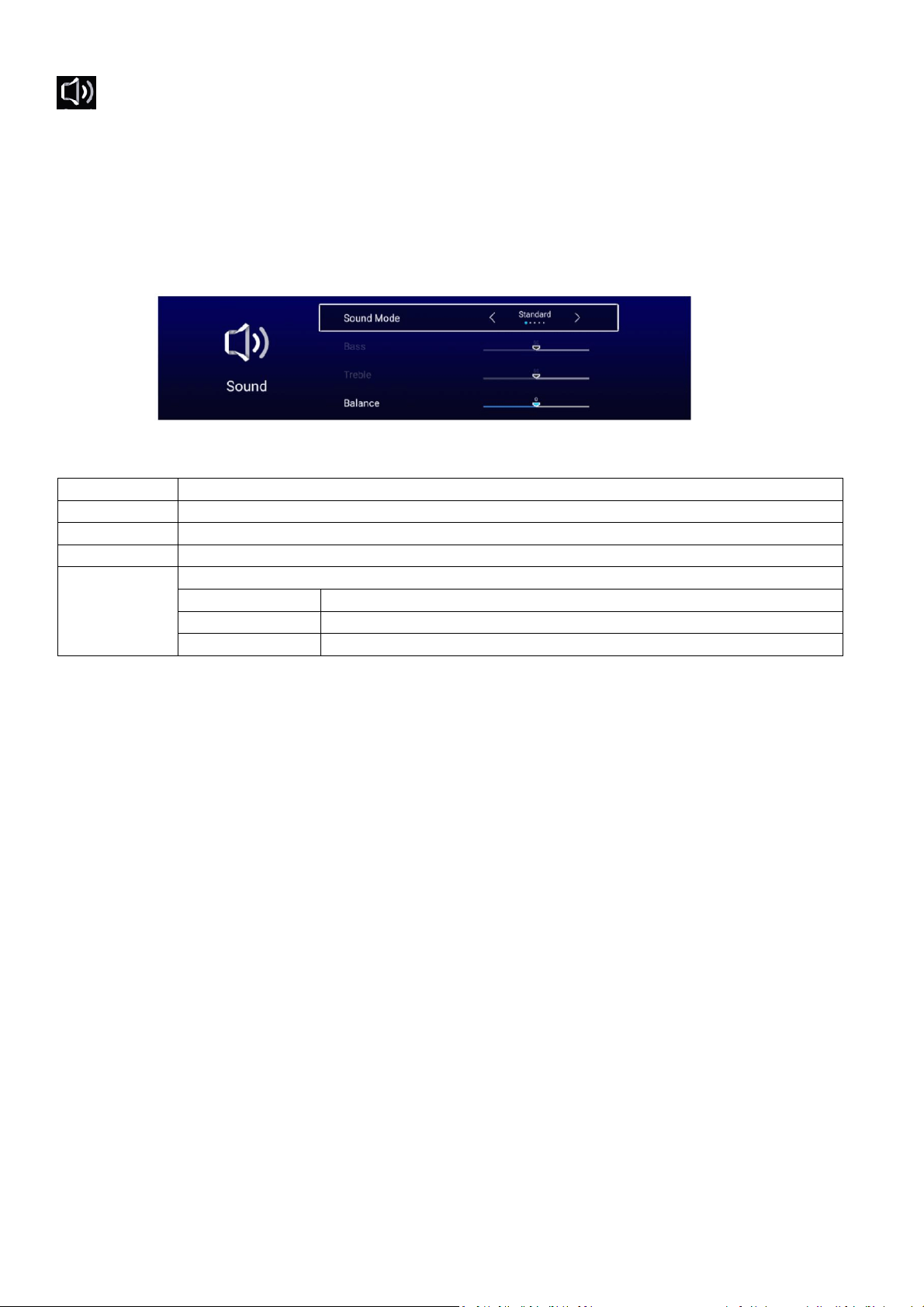
SOUND
The Sound section provides you with the options to change the sound settings, allowing you to
modify the output based on your personal preferences.
Navigate the picture section using the▼ and ▲ buttons, and select or modify the selected line
using the ◄ and ► buttons: Within this section you can make changes to the: Sound Mode/
Bass/ Treble/ Balance/ AVC/ More settings.
SOUND MODE
Can be changed between: Standard, Music, Theatre, News and User.
Standard
Produces a balanced sound in all environments.
Music
Preserves the original sound. Good for musical programs.
Theatre
Enhances treble and bass for a rich sound experience.
News
Enhanced voice.
User
Select to customize picture settings.
Bass
Adjust the bass.
Treble
Adjust the treble.
Balance
Adjust the left and right channel output balance.
AVC
After turning on the AVC, the TV will reduce the impact of difference in the transmission volume
of broadcasts, helping to ensure the volume is stable when changing channels.
23
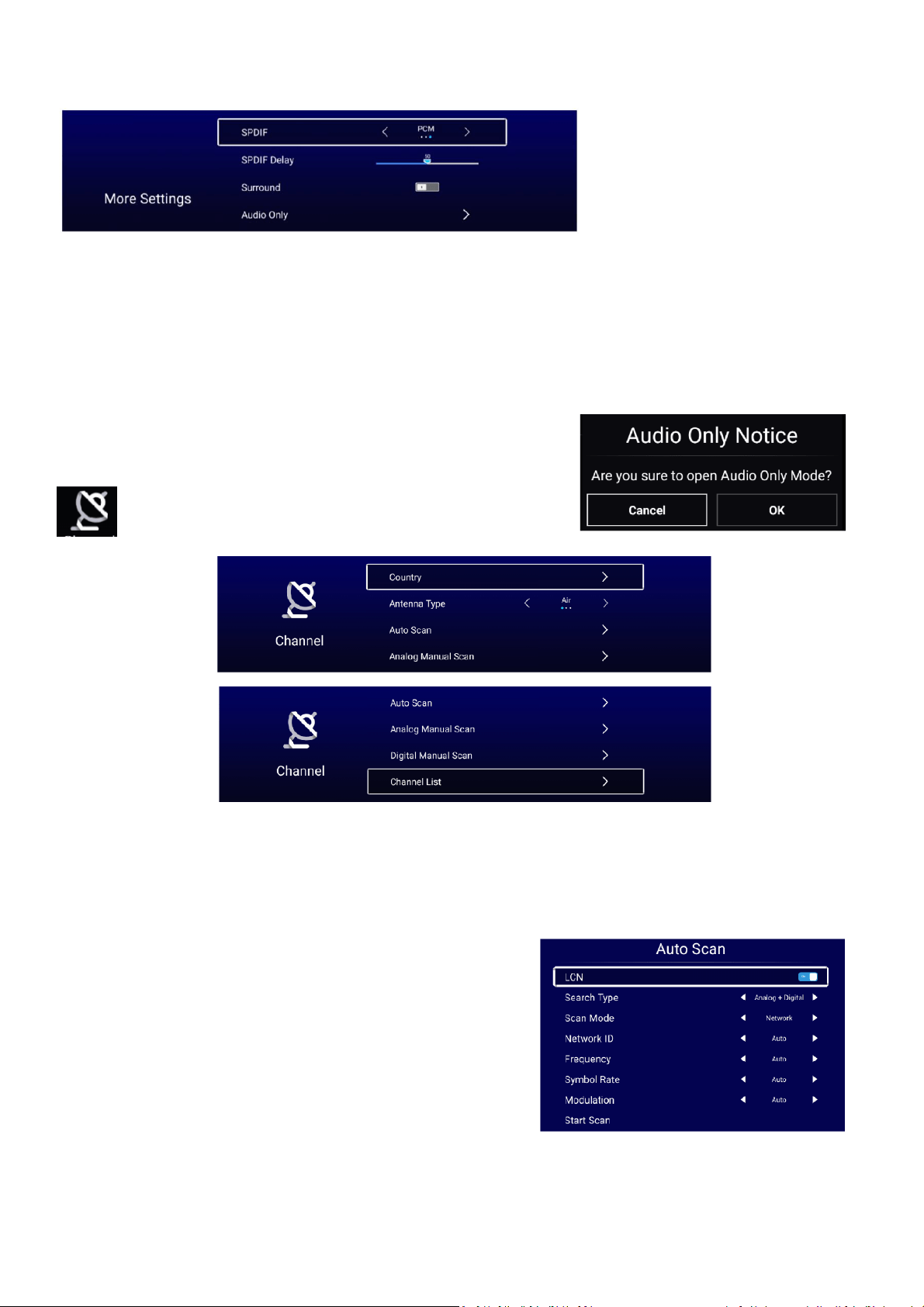
MORE SETTINGS
SPDIF
Choose between the option of OFF/RAW/PCM.
SPDIF DELAY
Used to adjust the delay time on the SPDIF output.
SURROUND
Use to turn the Surround option On and Off.
AUDIO ONLY
This option will turn off the screen output and only play the
sound from the input selected.
CHANNEL
COUNTRY
Allows the country to be changed from the country selected during the initial setup.
ANTENNA TYPE-AIR
Select the Type of input on the RF connection between a standard aerial and cable.
AUTO SCAN
Use to automatically scan for channels
24
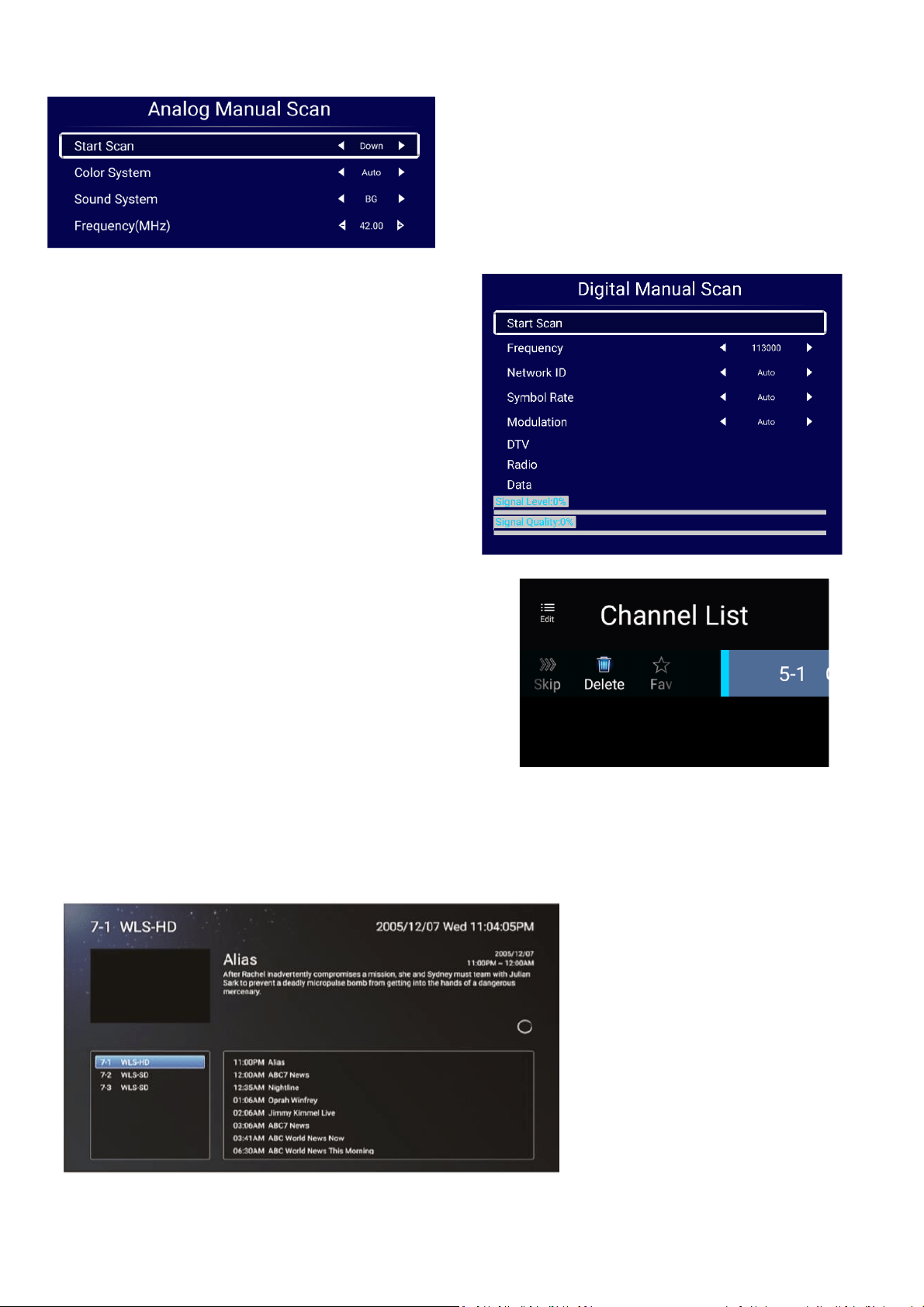
ANALOG MANUAL SCAN
The TV will scan for Analogue channels that are
broadcast
DIGITAL MANUAL SCAN
The TV will scan for Digital channels that are
broadcast
CHANNEL LIST
Press the MENU button edit the channel (Skip
/Delete /Fav).
EPG (Electronic Program Guide)
The electronic program guide
allows you to browse the
channels, and view the current
and upcoming programs.
25
EPG OPERATIONS
In the EPG menu, you will have three options (Shown above), these options control the
functions of live TV.
By pressing the RED button, you will be able to record the programme you are
watching (if an external USB or hard drive is connected).
Press this button on the remote to stop recording and to exit EPG mode.
By pressing the YELLOW button, you can view your recording schedule
The Blue button is used to set a reminder when a TV programme will be
recorded
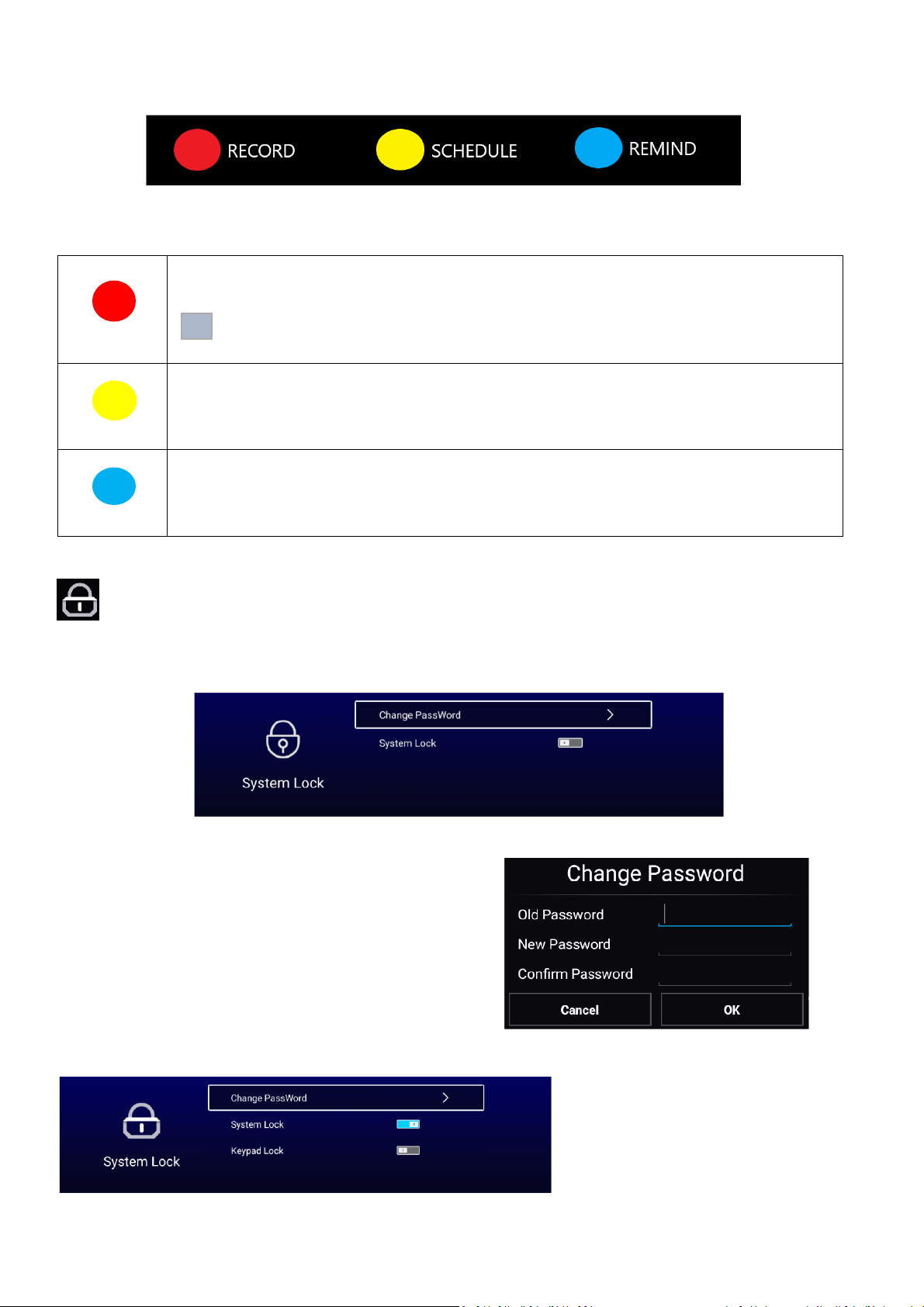
SYSTEM LOCK
The system lock allows you to set both a system lock and a keypad lock for the remote. It also
creates a password to administer it.
CHANGE PASSWORD
Enter the old password (If set) and the new
password twice to set up a password of the system
lock.
SYSTEM LOCK
Allows the system lock to be turned On/Off
KEYPAD LOCK
Allows the keypad lock to be
turned On/Off
(NOTE: This function is only
available when the System Lock
is on).
26
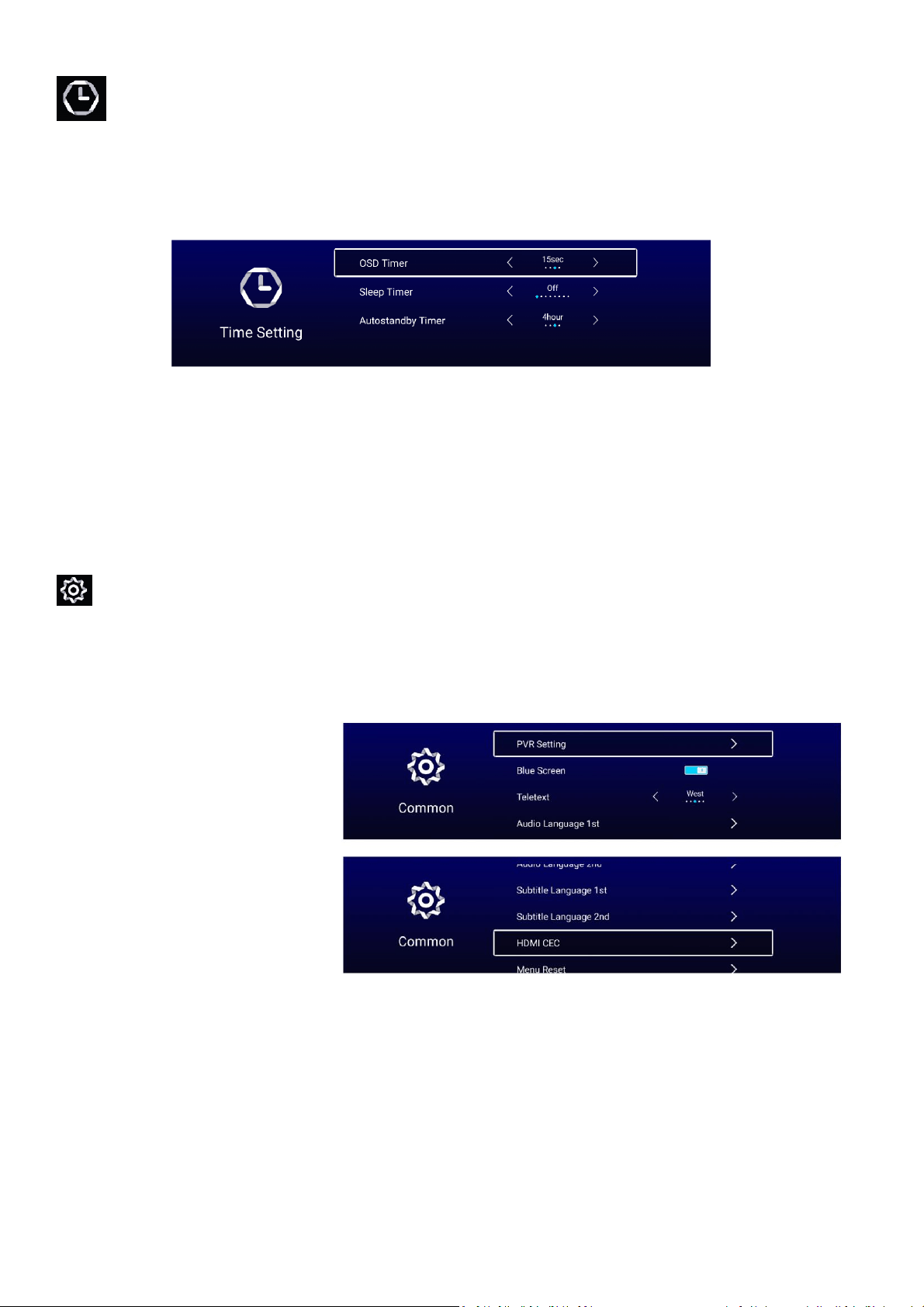
TIME SETTING
The Time Setting section provides you with the options to change the Time settings.
Navigate the Time Setting section using the▼ and ▲ buttons, and select or modify the
selected line using the ◄ and ► buttons: Within this section you can make changes to the:
OSD Timer/Sleep Timer/Auto standby Timer
OSD TIMER
Can be changed between: off,5sec,15sec,30sec.
SLEEP TIMER
Can be changed between: off,15min,30min,45min,60min,90min,120min,240min.
AUTOSTANDBY TIMER
Can be changed between: off,3hour,4hour,5hour.
COMMON
Navigate the Common section using the▼ and ▲ buttons, and select or modify the selected
line using the ◄ and ► buttons: Within this section you can make changes to the: Blue
Screen/HDMI CEC/Menu Reset
PVR SETTING
Use to select the recording
location for the PVR.
BLUE SCREEN
Used to turn blue screen On and
Off when the current channel is
not receiving a broadcast.
HDMI CEC
Turn the HDMI control On and
Off.
MENU RESET
Use this option to return all the settings within the TV menu back to the factory default.

27
TECHNICAL SPECIFICATION
Due to continued product development the specification shown above may change without
notice.
Product Model
eiQ-32HDT2SM
Screen Size
32” Diagonal
Aspect Ratio
16:9
Power Supply
AC 100-240V, 50/60Hz
Power Consumption
65W
TV System
PAL DVB-T2/-T/-C
(There is no DVB-C signal in some Countries or Areas.)
Picture
Maximum Resolution
1366x768
Brightness
200 cd/m
2
Static Contrast
4000:1
Response time
8ms
Input Terminal
Antenna Input
X1
USB Input
X2
HDMI Input
X3
VGA Input
X1
PC AUDIO Input
X1
Audio Input ( L/R)
X1 (Mini AV)
Video Input
X1 (Mini AV)
YPbPr Input
X1 (Mini)
RJ45 Input
X1
CI card In
X1
SCART In/Output
X1
DC In (12V)
NO
CARD SLOT
NO
Output Terminal
Earphone
X1
Audio Line Out(L/R)
NO
Video Output
NO
Optical
NO
Coaxial out
X1 (Digital)
Working Temperature
0°C ~40°C
Working Humidity
20% ~ 80% Non-condensing

28
SIMPLE TROUBLESHOOTING
If the display fails or the performance changes dramatically, check the display in accordance
with the following instructions. Remember to check the peripherals to pinpoint the source of
the failure.
Symptom
Solution
Power cannot be turned
on. (Power indicator does
not illuminate.)
-Check that both ends of the power cable are plugged into the
socket appropriately and the wall socket is operational
No Input Signal message
appears.
-Check that the aerial cable is connected properly.
-Check that the power of the relevant peripherals is turned on.
-Check that the selected source matches the input.
The remote control does
not function properly.
-Check the batteries are not drained. (Use new batteries.)
-Check that the remote control is within the operating range.
-Check that the remote control is pointed to the remote-control
window on the display.
-Check that there are no obstacles between the remote control
and the remote-control window.
Flashing spots or stripes
appear on the screen.
-Check that there is no emission (Car, HV cable or
Neon lamp) or other possible interference sources.
Image colour or quality
deteriorates.
-Check that all the video settings are adjusted
appropriately, such as brightness, contrast, colour etc.
-For more information about video settings, refer to OSD
Functions
Screen position and size
are incorrect.
-Check that the screen position and size is adjusted
appropriately.
Image or colour is
incorrect.
-Check that the signal line is connected properly. -When
connecting to a PC, you can change the resolution of the PC
to acquire the correct image. The discrepancy of the PC
output signal may affect the display of the image.
Display warning
message.
-Check that the input signal line is properly fixed.
-Select the correct input signal.
-For more information, refer to Supported Signal Modes
EU DECLARATION OF CONFORMITY
Hereby, electriQ declares that this television is in compliance with Directive 2014/53/EU. The full text of
the EU declaration of conformity is available at the following internet address:
https://www.electriQ.co.uk/content/declaration-of-conformity

29
PRODUCT DISPOSAL
Do not dispose this product as unsorted municipal waste. Collection of such
waste must be handled separately as special treatment is necessary.
Recycling facilities are now available for all customers at which you can deposit
your old electrical products. Customers will be able to take any old electrical
equipment to participating civic amenity sites run by their local councils. Please remember that
this equipment will be further handled during the recycling process, so please be considerate
when depositing your equipment. Please contact the local council for details of your local
household waste recycling centres.
electriQ UK SUPPORT
Complete online support form on:
www.electriQ.co.uk/support
Service Line: 0871 620 1057
Office hours: 9AM - 5PM Monday to Friday
Unit J6, Lowfields Business Park,
Lowfields Way, Elland
West Yorkshire, HX5 9DA