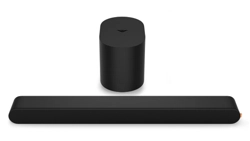
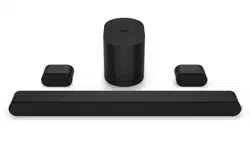
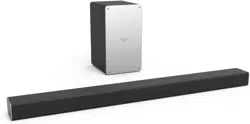
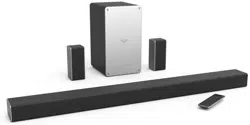
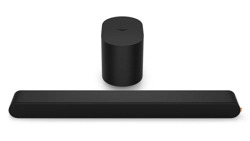
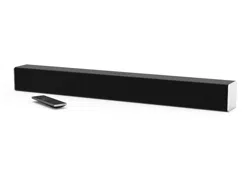
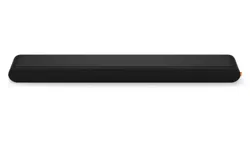
Vizio SB2820N-E0 28" 2.0 Sound Bar
Product's Documents
Below are documents related to this product, you can read online or download:
- User Manual - (English) Read Online | Download pdf
User manual Sound Bar
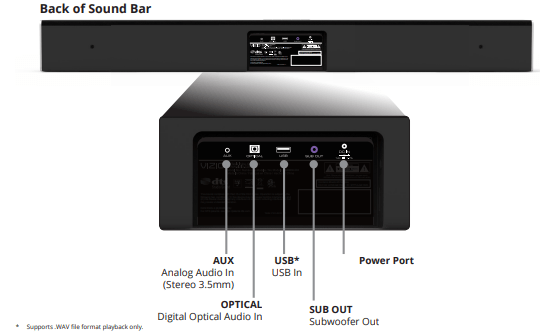
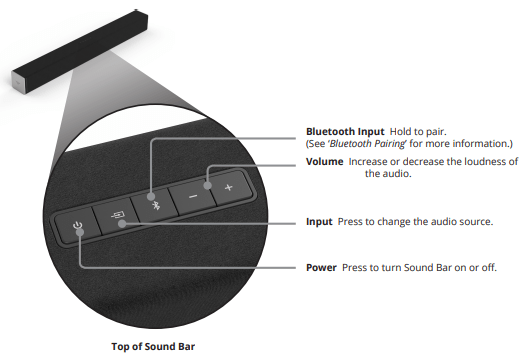
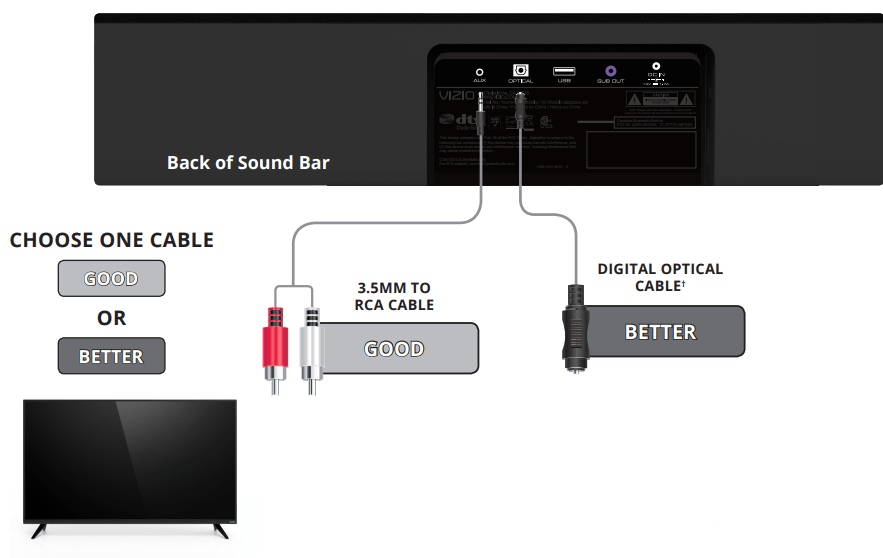
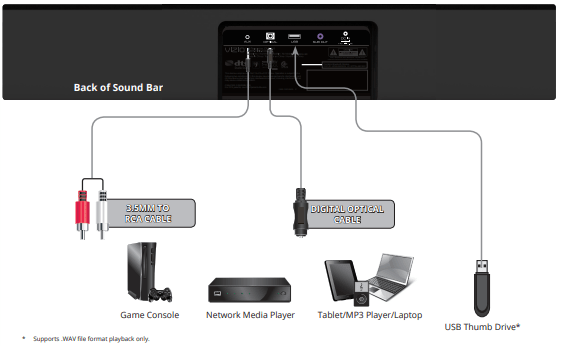
1. Not all TVs have the audio outputs shown above. To conn try setting the TV output to PCM or (B) Connect directly to your Blu-ray/other sources, some TVs do not pass through digital audio.
When using either of the Digital Inputs, if there is no audio: (A) try setting the TV output to PCM or (B) Connect directly to your Blu-ray/other source, some TVs do not pass through digital audio.
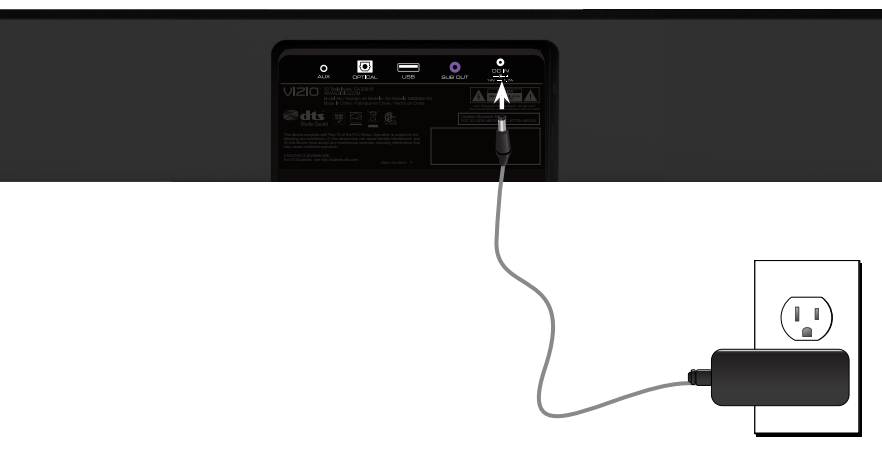
2. Connect the included power adapter to the Sound Bar DC IN as shown. Plug the power adapter into an electrical outlet.
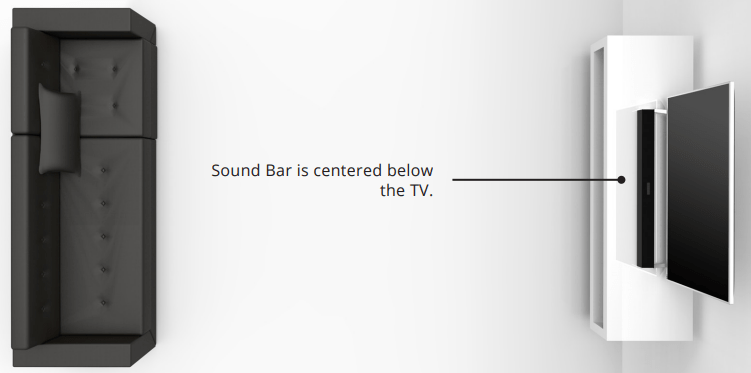
3. For the best surround sound experience, position the Sound Bar as shown. 3 The Sound Bar should be close to ear level.
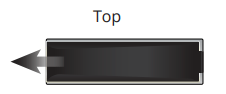
4. Remove the battery cover by gently sliding it away from the remote.
5. Insert the included batteries and gently slide the battery cover back into place.
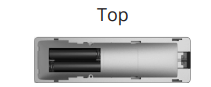
When needed, VIZIO recommends replacing the batteries that came with this remote with two, new Duracell ‘AAA’ alkaline batteries.
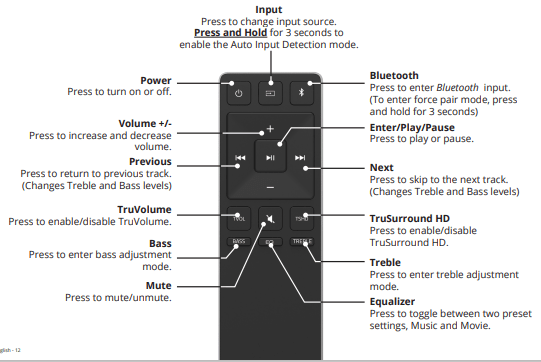
6. Turn on your TV and sound bar. The sound bar will automatically begin searching for an active input.* The LED indicators on the front of the Sound Bar will begin cycling in pairs through inputs until an audio source is detected.*
Tip: Pressing the INPUT button will stop the auto detect function.
You can press the INPUT button to switch between audio sources. For example, if you connected your TV to AUX, set the Sound Bar to AUX.
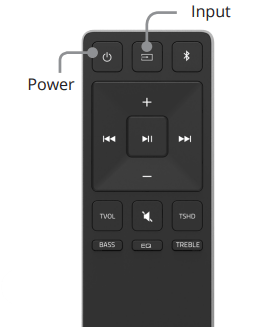
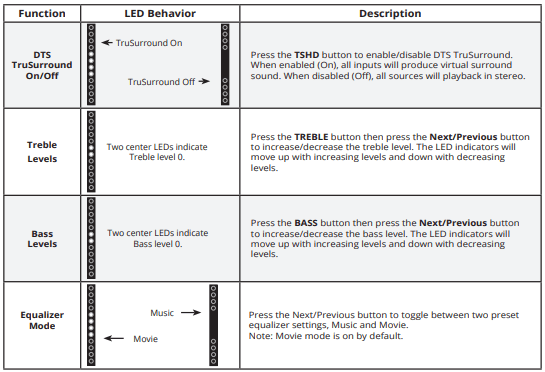
The LED Indicators will behave differently with each button on the remote control.
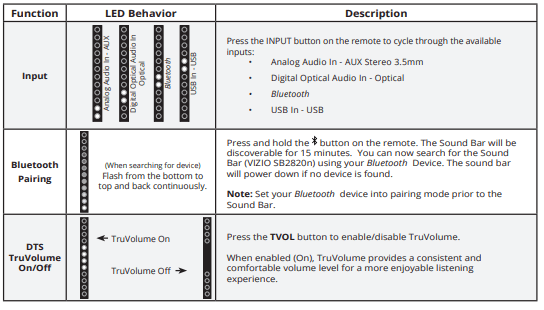
To pair the sound bar with a Bluetooth device:
 on the sound bar for three (3) seconds or select the BT Pair option from the remote. When the sound bar is in Bluetooth Pairing Mode, the LED Indicators on the Display Panel on the front of the Sound Bar will light sequentially from bottom to top and back again. Once the device is paired, the LED Indicators will stop flashing.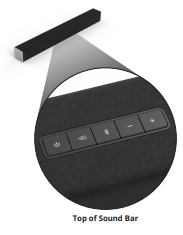
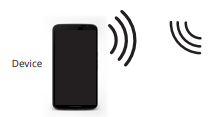
Your sound bar supports music streaming from smartphones, tablets, and computers with Bluetooth capability. Device compatibility will vary, see your device’s documentation for more information. Once you have paired your source device to the sound bar, as long as you stay within range of the sound bar, your device should remain paired. If the input is changed, the Bluetooth device will disconnect. If the source is changed back to Bluetooth , any paired Bluetooth device will reconnect automatically.

A Bluetooth signal has a range of up to 30 feet. Keep in mind that Bluetooth is a compressed audio format, so streamed music may lose some integrity when compared to a wired connection.
Try the following if your sound quality is less than optimal:

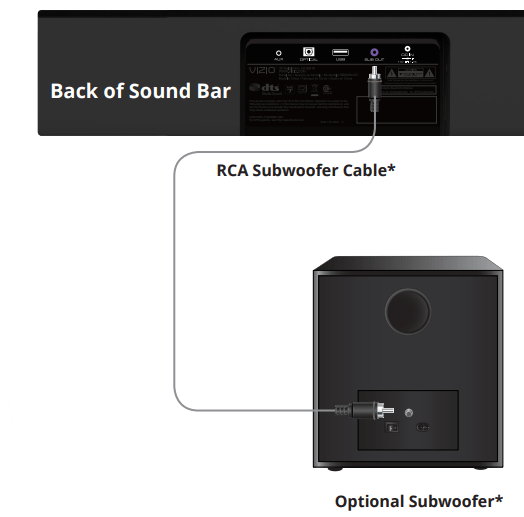
To connect a subwoofer:
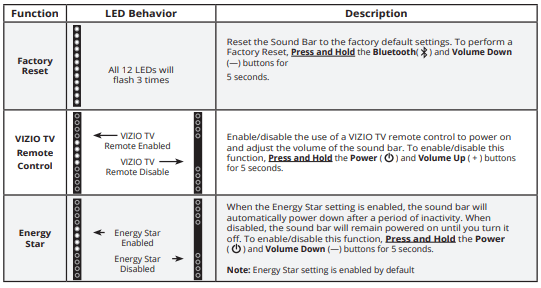
There are 3 functions that are triggered by 3 different button combinations on the Sound Bar.
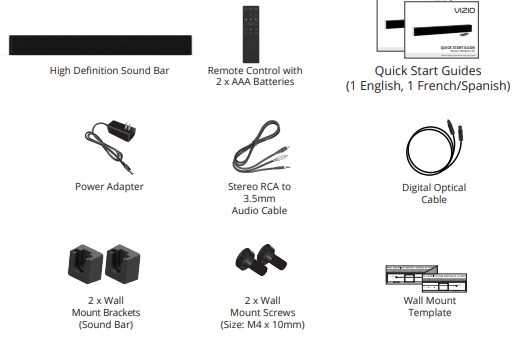
1. Insert the two wall-mount screws into the wall-mount screw holes, and then tighten them with a Phillips screwdriver.
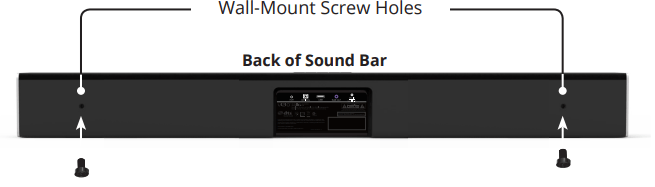
2. Place the included wall mounting template against the wall under your TV. Mark the four bracket holes using a pencil.
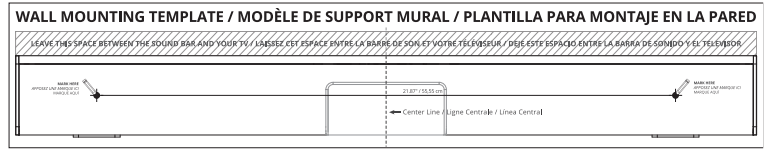
3. Be sure your screws are attached to wood studs, drywall anchors (for drywall), or concrete anchors (for brick/concrete walls). Screws for attaching the brackets to the wall are not included. Choose the screw type and length appropriate to your home’s construction. If in doubt, consult a professional installer.
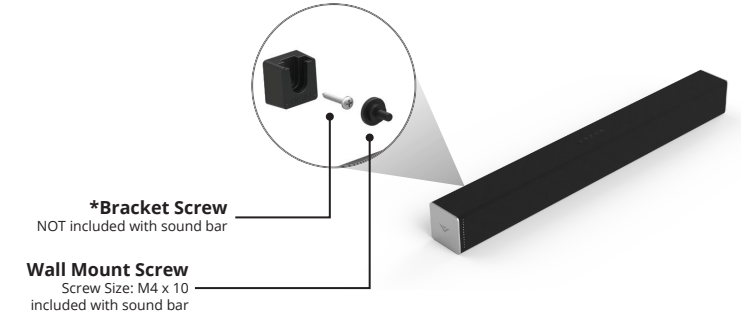
WARNING: If you are unfamiliar with power tools or the layout of electrical wiring in the walls of your home, consult a professional installer.
There is no power.
There is no sound.
I hear buzzing or humming.
The remote isn’t working.
Sound Bar: One 2.0”x2.7” Full Range Drivers for Each Channel (1 for left, 1 for right)
Inputs: One 3.5mm Stereo Audio One Optical (Toslink) USB Bluetooth (Wireless)
Sound Pressure Level (System): 95 dB
Frequency Response (System): 50 Hz - 20 KHz
Voltage: 120 VAC, 60 Hz
Compliances: CSA, C-US, FCC/IC, Energy Star