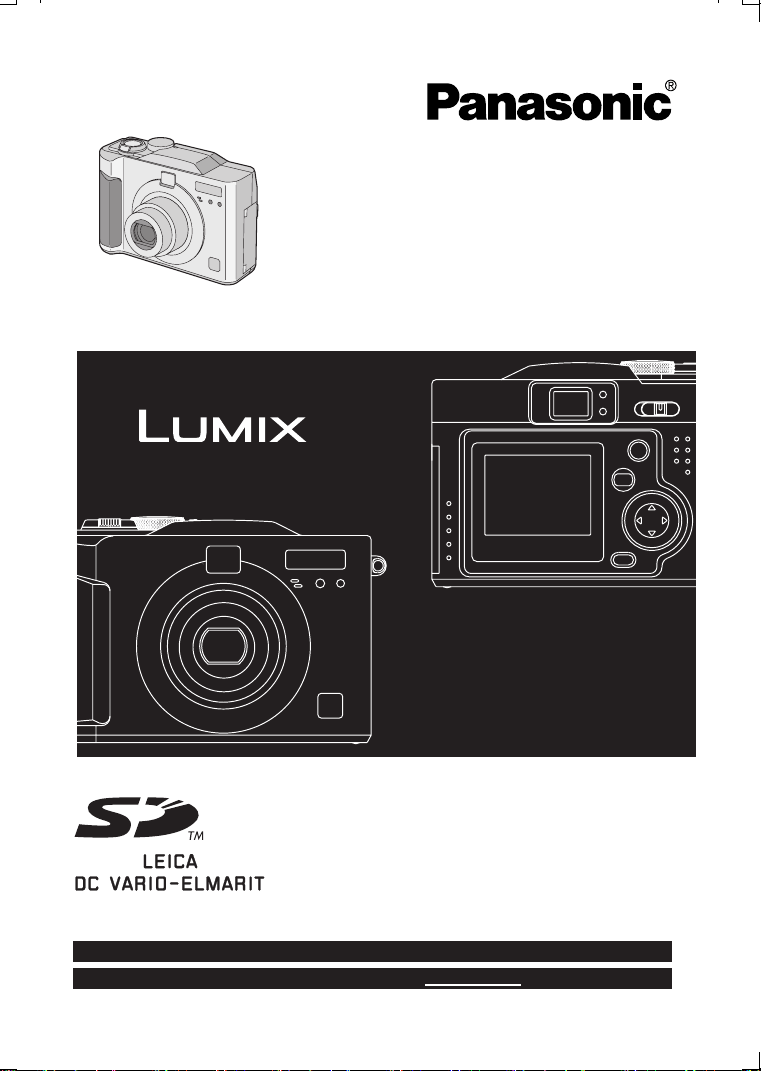
Before use, please read these
instructions completely.
Digital Camera
Operating Instructions
Model No.DMC-LC33PP
VQT0D36
For USA assistance, please call: 1-800-272-7033 or send e-mail to : [email protected]
For Canadian assistance, please call: 1-800-561-5505 or visit us at www.panasonic.ca
KC52-PP.book 1 ページ 2003年3月13日 木曜日 午後2時29分
Safety
2
Safety
Dear Customer,
We would like to take this opportunity to
thank you for purchasing this Panasonic
Digital Camera. Please read these
Operating Instructions carefully and keep
them handy for future reference.
Information for Your
Safety
Carefully observe copyright laws.
Recording of pre-recorded tapes or
discs or other published or broadcast
material for purposes other than your
own private use may infringe copyright
laws. Even for the purpose of private
use, recording of certain material may
be restricted.
• Please note that the actual controls and
components, menu items, etc. of your
Digital Camera may look somewhat
different from those shown in the
illustrations in these Operating
Instructions.
• SD Logo is a trademark.
• Other names, company names, and
product names printed in these
instructions are trademarks or registered
trademarks of the companies
concerned.
WARNING
TO REDUCE THE RISK OF FIRE OR
SHOCK HAZARD AND ANNOYING
INTERFERENCE, USE ONLY THE
RECOMMENDED ACCESSORIES
AND DO NOT EXPOSE THIS
EQUIPMENT TO RAIN OR
MOISTURE. DO NOT REMOVE THE
COVER (OR BACK); THERE ARE
NO USER SERVICEABLE PARTS
INSIDE. REFER SERVICING TO
QUALIFIED SERVICE PERSONNEL.
Notice:
This product has parts that contain a
small amount of mercury. It also
contains lead in some components.
Disposal of these materials may be
regulated in your community due to
environmental considerations. For
disposal or recycling information
please contact your local authorities,
or the Electronics Industries Alliance:
<http://www.eiae.org.>
RBRC
Ni-MH
TM
A nickel metal hydride battery that is recyclable powers the
product you have purchased. Please call 1-800-8-BATTERY for
information on how to recycle this battery.
RBRC
Ni-MH
TM
KC52-PP.book 2 ページ 2003年3月13日 木曜日 午後2時29分
Safety
3
FCC Note: (U.S. only)
This equipment has been tested and
found to comply with the limits for a
Class B digital device, pursuant to Part
15 of the FCC Rules. These limits are
designed to provide reasonable
protection against harmful interference
in a residential installation. This
equipment generates, uses, and can
radiate radio frequency energy and, if
not installed and used in accordance
with the instructions, may cause
harmful interference to radio
communications. However, there is no
guarantee that interference will not
occur in a particular installation. If this
equipment does cause harmful
interference to radio or television
reception, which can be determined by
turning the equipment off and on, the
user is encouraged to try to correct the
interference by one or more of the
following measures:
• Reorient or relocate the receiving
antenna.
• Increase the separation between the
equipment and receiver.
• Connect the equipment into an outlet
on a circuit different from that to
which the receiver is connected.
• Consult the dealer or an experienced
radio/TV technician for help.
FCC Caution: To assure
continued
compliance, follow
the attached
installation
instructions and use
only shielded
interface cables
with ferrite core
when connecting to
computer or
peripheral devices.
Any changes or modifications not
expressly approved by the party
responsible for compliance could void
the user’s authority to operate this
equipment.
Trade Name: Panasonic
Model No.: DMC-LC33
Responsible party:Matsushita Electric
Corporation of
America One
Panasonic Way,
Secaucus, NJ
07094
Support Contact: Panasonic
Consumer
Electronics
Company
1-800-272-7033
This device complies with Part 15 of
the FCC Rules. Operation is subject to
the following two conditions: (1) This
device may not cause harmful
interference, and (2) this device must
accept any interference received,
including interference that may cause
undesired operation.
This Class B digital apparatus
complies with Canadian ICES-003
Extremely high precision technology
is employed to produce the LCD
Monitor screen featuring a total of
approximately 114,000 pixels. The
result is more than 99.99% effective
pixels with a mere 0.01% of the
pixels inactive or always lit. However,
this is not a malfunction and does
not affect the recorded picture.
DMC-LC33
KC52-PP.book 3 ページ 2003年3月13日 木曜日 午後2時29分

4
Contents
Safety
Information for Your Safety ................ 2
Preparation
Standard Accessories ........................ 5
Names of the Components ................ 6
LCD Monitor Display .......................... 8
Quick Guide ..................................... 10
Inserting the Batteries ...................... 11
Inserting the Card ............................ 16
Turning Power on/off........................ 18
Attaching the Strap .......................... 19
Using the LCD Monitor..................... 20
Using the Optical Viewfinder ............ 21
The Shutter Button
(Pressing halfway/Pressing fully)... 21
The Mode Dial.................................. 22
Operating the Menu ......................... 23
Setting the Date/Time (Clock Set) ... 24
Recording images (basic)
Taking Pictures ................................ 25
Taking Pictures in Simple Mode ...... 27
Checking the Captured Picture
(Review) ........................................ 28
Recording Motion Images ................ 29
Using the Optical Zoom ................... 30
Using the Digital Zoom..................... 31
Taking Pictures using the
Built-in Flash.................................. 32
Taking Pictures with the
Self-timer ....................................... 34
Recording images (advanced)
Taking Pictures with Audio............... 35
Changing the Picture Size ............... 36
Changing the Quality
(Data Compression Ratio) ............. 37
Taking Pictures using
Macro Mode................................... 38
Taking Pictures using
Portrait Mode................................. 39
Taking Pictures using
Landscape Mode ........................... 40
Taking Pictures using
Night Portrait Mode........................ 41
Using the Color Effect Mode ............ 42
Taking Pictures using
Spot Mode ..................................... 43
Compensating the Exposure............ 44
Taking Pictures using Auto
Exposure (AE) Bracket .................. 45
Using the AF/AE Lock ...................... 46
Adjusting the Color Tone or the
Contrast (Picture Adjustment)........ 47
Setting the White Balance................ 48
Setting ISO Sensitivity...................... 50
Taking Pictures using
Burst Mode .................................... 51
Playback
Playing Back Still Pictures................ 52
Playing Back Still Pictures
with Audio ...................................... 53
9 Images Multi Playback .................. 54
Using the Playback Zoom ................ 55
Playing Back Motion Images ............ 56
Editing
Deleting Images ............................... 57
Writing the Print Information to
the Card (DPOF Setting) ............... 60
Protecting Images on the Card ........ 63
Technical use
Playing Back with Slide Show
(Automatic Playback)..................... 64
Adding Audio to Recorded
Pictures (Audio Dubbing)............... 66
Resizing Recorded Pictures............. 67
Trimming Recorded Pictures............ 68
Formatting the Card ......................... 70
Adjusting the LCD Monitor
Brightness...................................... 71
Using the Auto Review ..................... 72
Setting up the Operational Sound .... 73
Setting up the Power Save Mode..... 74
KC52-PP.book 4 ページ 2003年3月13日 木曜日 午後2時29分
5
Saving the Power Consumption
(Economy mode) ........................... 75
Resetting the File Number ............... 76
Initializing the settings...................... 77
Playing Back Images with a
TV Monitor..................................... 78
Connecting to a PC .......................... 79
USB DIRECT-PRINT ....................... 80
USB DIRECT-PRINT
(Single Picture) .............................. 81
USB DIRECT-PRINT (DPOF) .......... 82
Using the Optional AC Adaptor........ 83
After Use .......................................... 84
Others
The Menu Items ............................... 85
Cautions for Use .............................. 87
Message Indications ........................ 91
Troubleshooting ............................... 92
Specifications ................................... 93
Digital Camera
Accessory System ......................... 95
Digital Camera
Accessory Order Form................... 96
Request for Service Notice
(For USA Only) .............................. 97
Limited Warranty
(For USA Only) .............................. 98
Customer Services Directory
(For USA Only) ............................ 100
Index .............................................. 101
Spanish Quick Use Guide/Guía
española para el uso rápido ........ 102
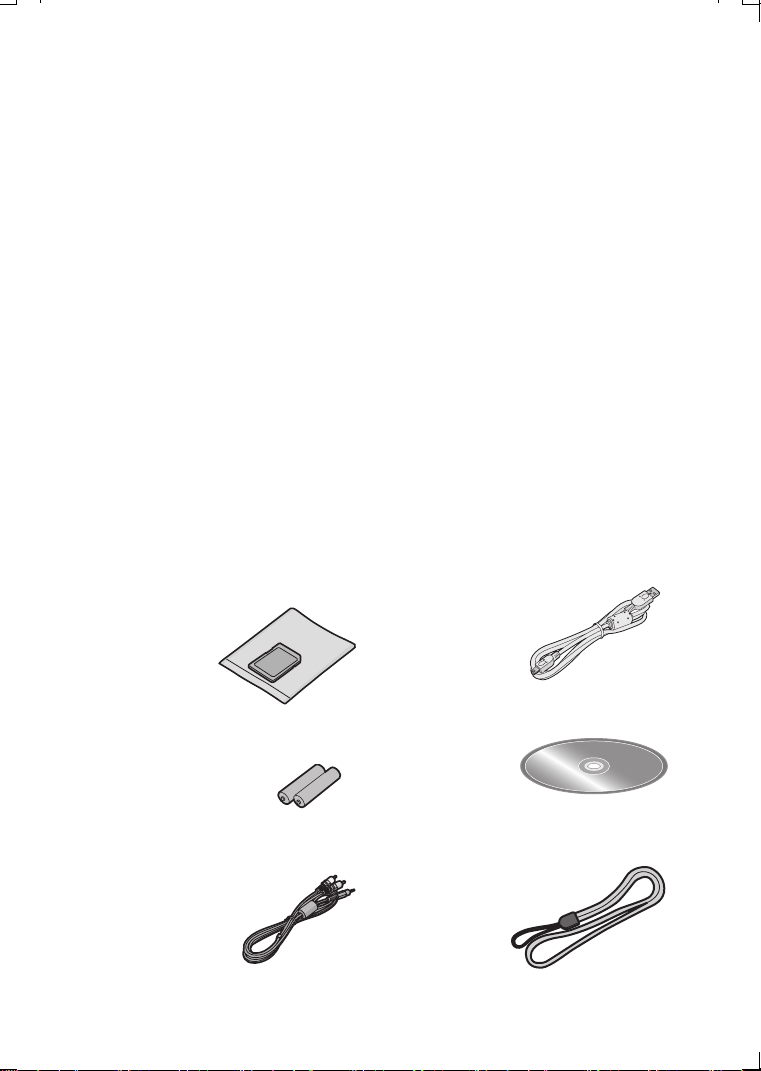
Standard Accessories
Before using your camera, check the contents.
1
SD Memory Card (16MB)
RP-SD016B
(In the text, it is indicated as “Card”)
2
AA Alkaline Dry Batteries
3
A/V Cable
K2KD3CB00001
4 USB Connection Cable
K2KZ4CB00005
5
CD-ROM
VFF0183
6
Strap
VFC3994
KC52-PP.book 5 ページ 2003年3月13日 木曜日 午後2時29分
Preparation
6
Preparation
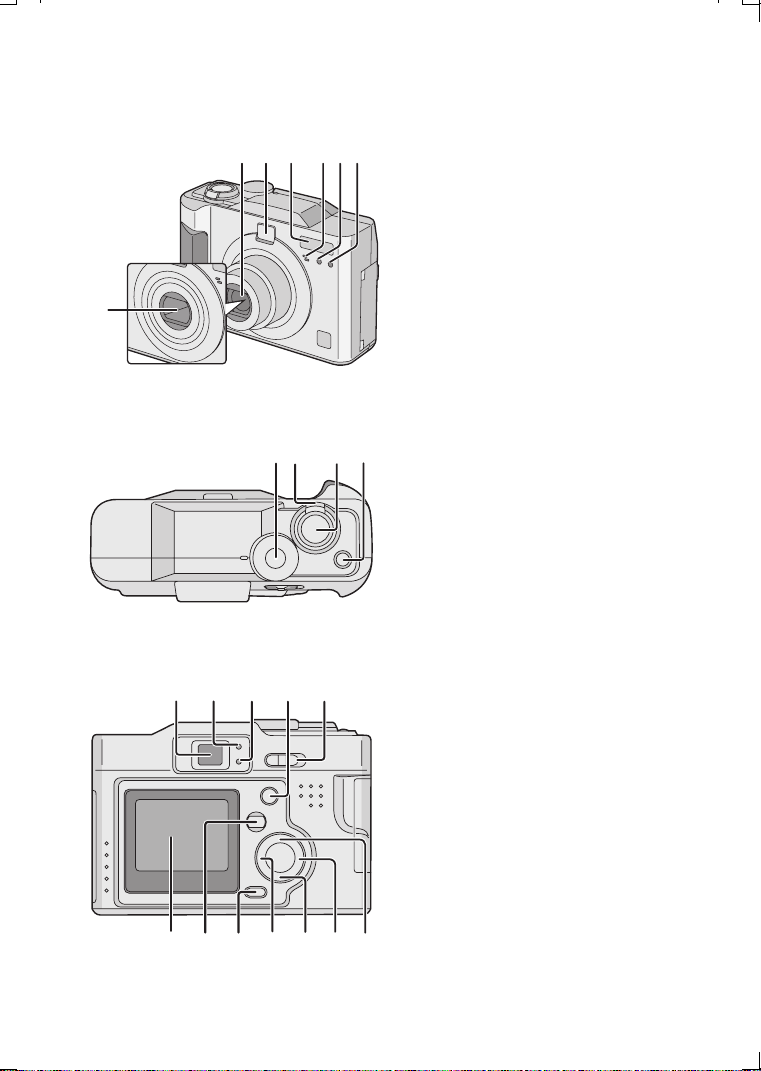
Names of the Components
[Front View]
1
Lens
2
Optical Finder (P25)
3
Flash
4
Microphone (P29, P35, P66)
5
Flash Sensor (P33)
6
Self-timer Indicator (P34)
7
Lens Cover
[Top View]
8
Mode Dial (P22)
9
Zoom Lever (P30, P31)
10
Shutter Button (P21)
11
Single/Burst Mode Button (P51)
[Back View]
12
Optical Finder (P25)
13
Status Indicator (P18)
14
Flash/Access Indicator (P18)
15
DISPLAY Button (P20)
16
Power Switch (P18)
17
LCD Monitor (P8, P25)
18
MENU Button (P23)
19
Delete Button (P28, P57)
20 2/
Self-timer
Button (P34)
21 4
/REVIEW/SET
Button (P28)
22 1
/Flash Mode Button (P32)
23 3
/Exposure Compensation
Button (P44)
/Auto Bracket Button (P45)
1 2 3 456
7
8
9
10
11
12 1613 14 15
2
3
2221201817 19
KC52-PP.book 6 ページ 2003年3月13日 木曜日 午後2時29分
Preparation
7
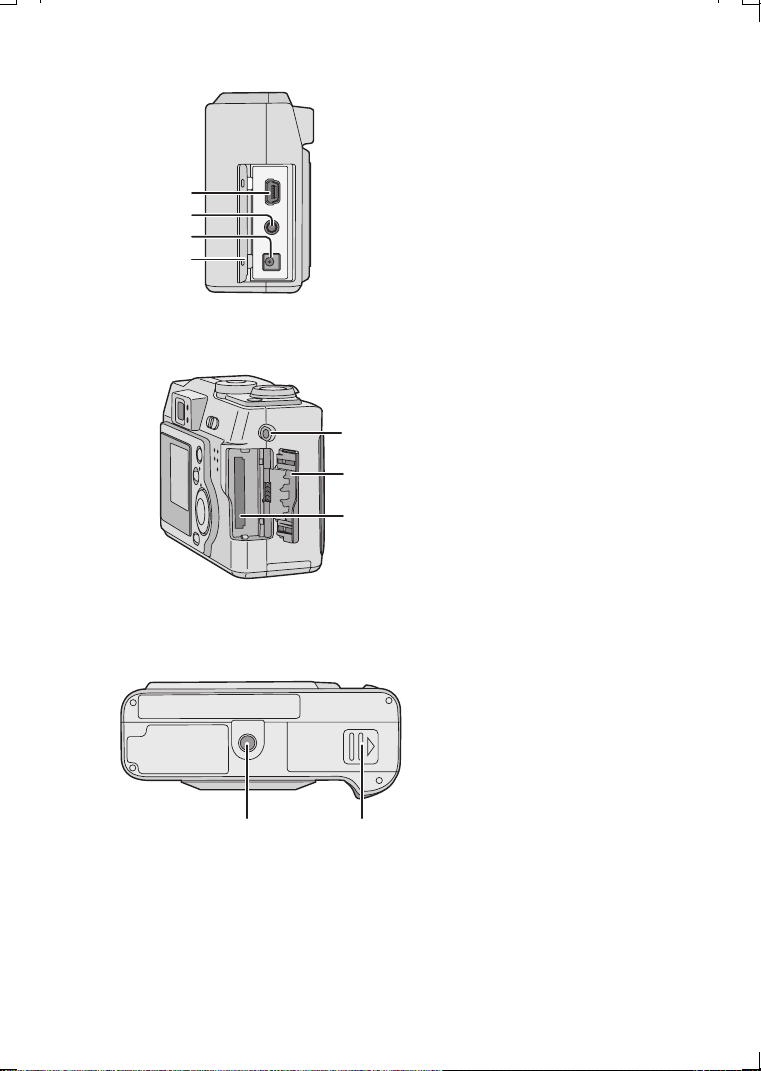
[Left View]
24
USB Socket (5pin) (P79)
25
A/V OUT Socket (P78)
26
DC IN Socket (P83)
27
Terminal Door (P83)
[Right View]
28
Strap Eyelet (P19)
29
Memory Card Door (P16)
30
Memory Card Slot (P16)
[Bottom View]
31
Tripod Receptacle
32
Battery Door (P11)
24
25
26
27
2
8
2
9
3
0
31 32
KC52-PP.book 7 ページ 2003年3月13日 木曜日 午後2時29分
Preparation
8
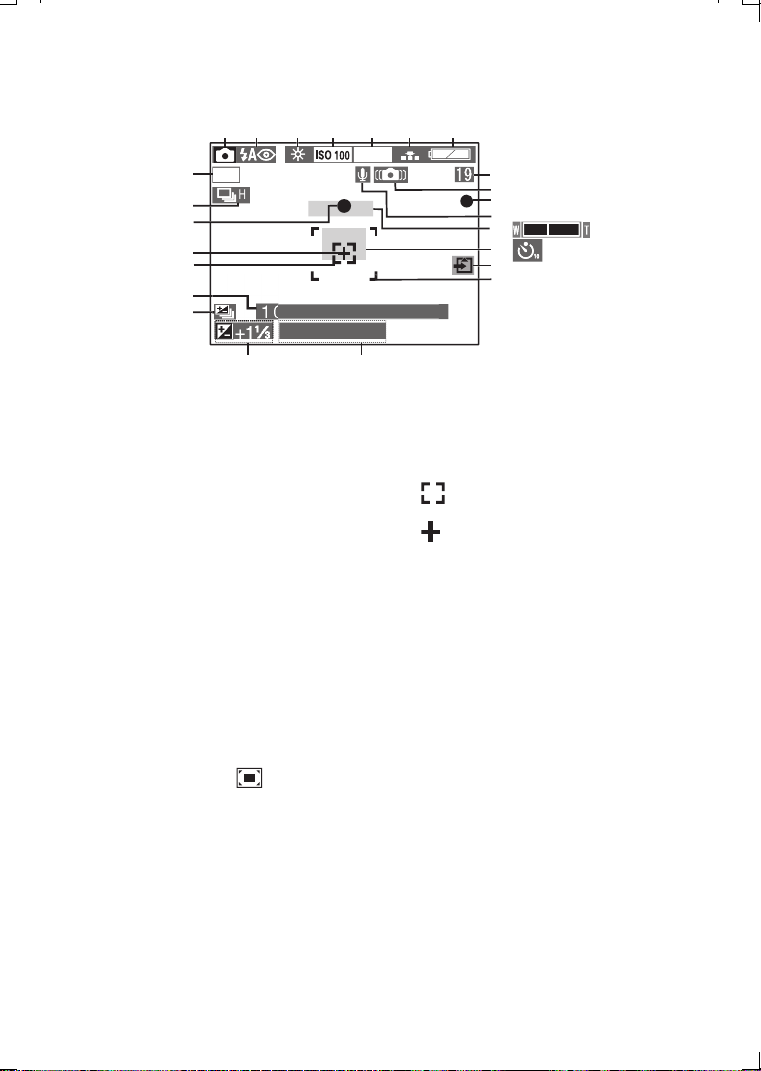
LCD Monitor Display
[In recording]
1
REC mode (P22)
2
Flash mode (P32)
3
White balance (P48)
4
ISO sensitivity (P50)
5
Picture size (P36)
6
Quality (data compression ratio) (P37)
7
Battery indicator (P14)
8
Frame/Time remain
In motion image mode: XXX S
9
Camera shake alert (P26)
10
Recording indication
11
Audio REC (P35)
12
Zoom (P30, P31)
(digital zoom ON: )
13
Self-timer mode (P34)
14
Card access indication (P17)
15
AF area (P25)
16
Aperture indication/Shutter speed
indication (P25)
17
Exposure compensation (P44)
18
Auto bracket (P45)
19
Current date and time (P24)
• It is displayed for about 5 seconds
after turning on the power or setting
the clock.
20
: Spot AF area (P43)
21
: Spot metering target (P43)
22
Focus indication (P25)
23
Burst mode (P51)
24
Color Effect mode (P42)
H
12 34 56 7
8
9
11
15
1
3
10
14
12
1617
18
22
23
24
19
2
0
4
8
COOL
F2.
8
1
/
2
50
20
21
0
:
00
N
O
V. 1.2
003
KC52-PP.book 8 ページ 2003年3月13日 木曜日 午後2時29分
Preparation
9
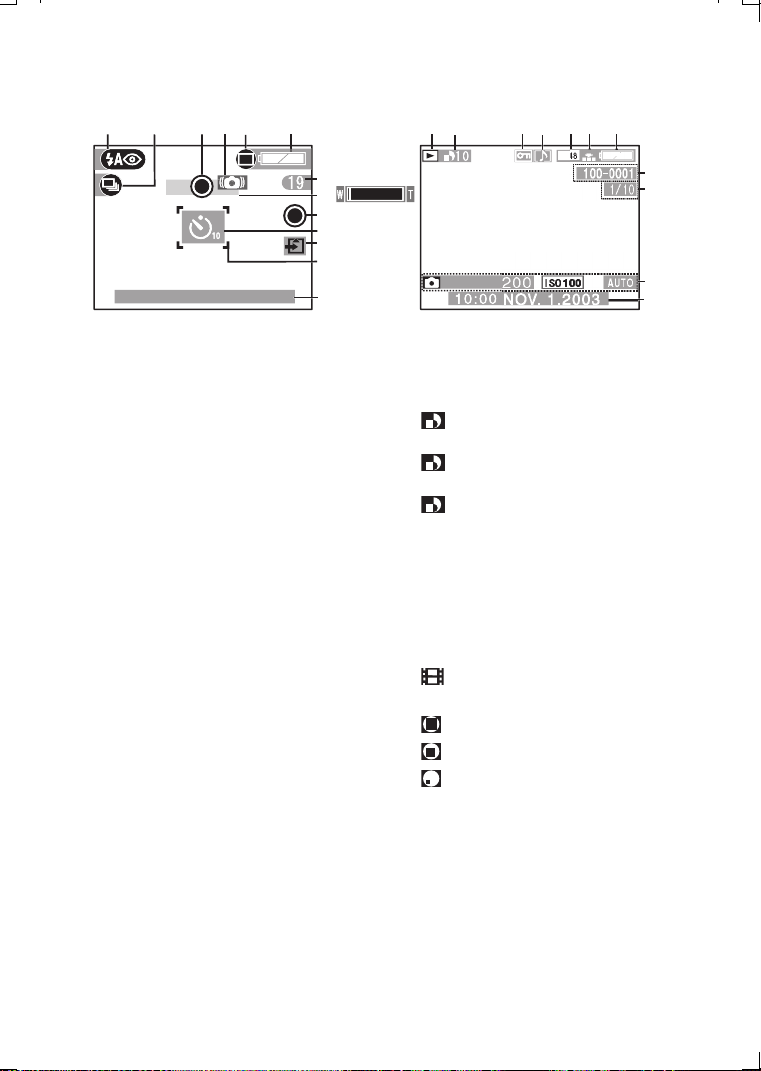
[In Simple Mode recording]
1
Flash mode (P32)
2
Burst mode (P51)
3
Focus indication (P25)
4
Camera shake alert (P26)
5
Picture mode (P27)
6
Battery indicator (P14)
7
Frame/Time remain
8
Zoom (P30)
9
Recording indication
10
Self-timer mode (P34)
11
Card access indication (P17)
12
AF area (P25)
13
Current date and time (P24)
• It is displayed for about 5 seconds
after turning on the power or setting
the clock.
[In playback]
1
Playback mode
2
DPOF (P60)
(White):
DPOF setting for printing
(Green):
DPOF setting for Slide Show
(Green with DPOF number):
DPOF setting for printing and
Slide Show
3
Protected image (P63)
4
Image with audio (P66)
5
Picture size (P36)
6
Quality (data compression ratio) (P37)
: In motion image mode
In simple mode:
: ENLARGE
: 4
qk
6
q
/10
k
15cm
: INTERNET
7
Battery indicator (P14)
8
Folder/File number
9
Page/Total images
10
REC data
It will be displayed when the
[DISPLAY] button is pressed.
11
Recorded date and time
12 4 5 7
8
9
10
11
36
2
04
F2.
8
1
/
1
0
:
00
N
O
V. 1.2
003
12 5436
7
12
8
13
11
9
10
KC52-PP.book 9 ページ 2003年3月13日 木曜日 午後2時29分
Preparation
10
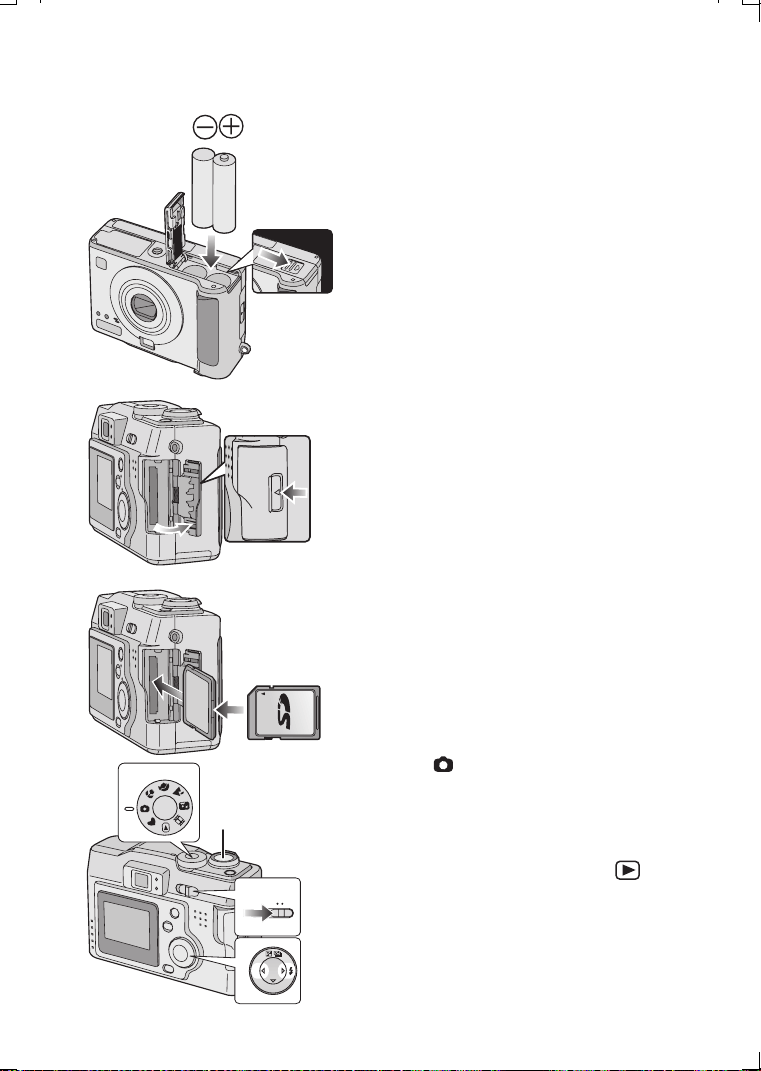
Quick Guide
Prepare the following items.
• Camera
• Batteries
•Card
• Check that the power switch is set to [OFF]
and the lens is stored.
[Preparation]
1 Slide the door to the direction of the
arrow to open the battery door.
2 Insert the batteries into the camera.
(P11)
• Insert batteries observing the direction of
the + and - polarities.
3
C
lose the battery door.
4
Slide the door to the direction of the
arrow to open
the Memory Card door.
5 Insert the Card into the camera. (P16)
6
C
lose the Memory Card door.
[Recording]
7 Set the power switch to [ON]. (P18)
8 Set date/time. (P24)
9 Set the mode dial to Normal picture
mode [ ]. (P22)
10 Take a picture.
[Playback]
11 Set the mode dial to playback [ ].
12 Press 2/1 to select the picture you
want to view. (P52)
4
5
2
1
10
7
9,11
OFF ON
12
SET
Ø
R
E
V
I
E
W
KC52-PP.book 10 ページ 2003年3月13日 木曜日 午後2時29分
Preparation
11
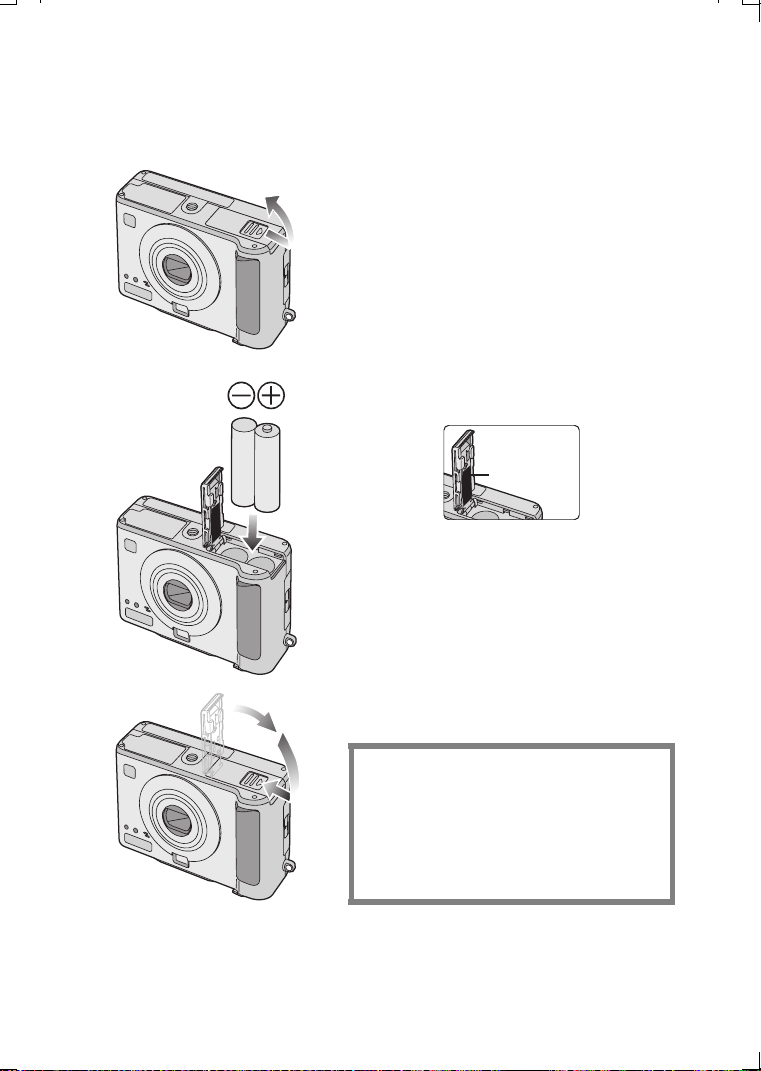
Inserting the Batteries
[Preparation]
• Check that the power switch is set to [OFF]
and the lens is stored.
1 Slide the door in the direction of the
arrow to open the battery door .
2 Insert the batteries.
• Insert the new batteries.
• Insert batteries observing the direction of
the + and - polarities.
3
Slide the
door to
the direction of the
arrow to
close the battery door.
• Do not peel off the protective sticker
1.
• When the new batteries are inserted in the
camera for more than 3 hours, the clock
setting is memorized by the camera for
about 3 months even after the batteries are
removed. (The time may be shorter if the
batteries are not charged sufficiently)
When the clock setting is cancelled, please
set the date/time again. (P24)
• When the card is being accessed, do not
remove the batteries.
CAUTION
Danger of explosion if battery is
incorrectly replaced. Replace only with the
same or equivalent type recommended by
the manufacturer. Dispose of used
batteries according to the manufacturer’s
instructions.
1
2
3
1
KC52-PP.book 11 ページ 2003年3月13日 木曜日 午後2時29分
Preparation
12
ª Recommended batteries
Use
AA Alkaline batteries
or
AA Ni-MH (nickel-metal hydride) batteries
(Optional)
. (We recommend that you use Panasonic batteries)
• The performance of the batteries may vary depending on brand or storage
terms/condition of the battery. And it may cause malfunction or the available
recording time may become shorter.
• As the ambient temperature decreases, the battery performance and capacity
may temporarily decrease. In such cases, remove the batteries, warming them in
your pocket.
• The battery indicator may not be displayed correctly depending on the
temperature or other conditions. Battery may be empty without indication.
Batteries that should not be used
• If the batteries listed above are used, improper operation can result and the
following malfunctions can occur;
• Remaining battery time may not be displayed accurately.
• Camera may turn off prematurely.
• Data written to Memory Card can be damaged resulting in the loss of photos.
• If Nickel Manganese batteries are used, due to temperature variations, the battery
display may not accurately display the remaining battery life. The camera may
prematurely turn off even if there is sufficient battery life. The available time
becomes extremely short in cold places, so use them after warming them in your
pocket.
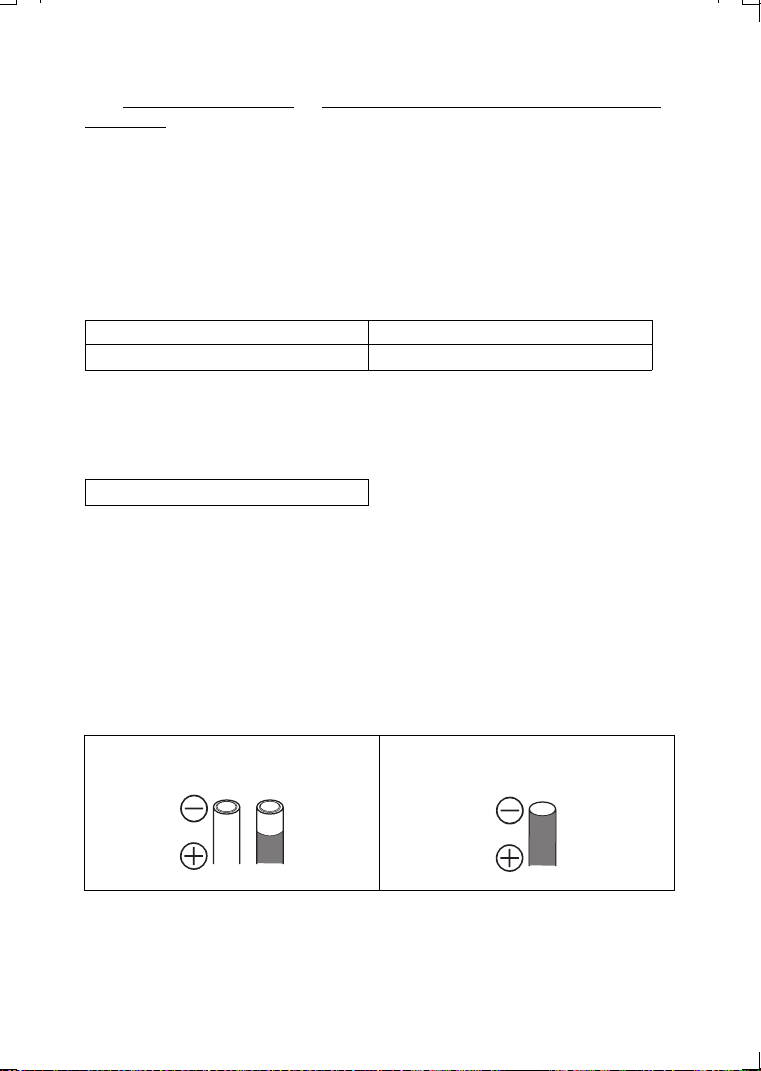
ª Batteries that cannot be used
The following batteries cannot be used.
• Batteries where part or their entire outer covering jacket has been removed or
partially peeled away.
• Batteries that have “flattened” ends that would prevent a proper connection from
being made with internal battery contacts.
Manganese batteries Nickel batteries
Ni-cd batteries Lithium batteries
Nickel Manganese batteries
• All or part of the seal of batteries are
peeled off
• - polarity is flat
KC52-PP.book 12 ページ 2003年3月13日 木曜日 午後2時29分

Preparation
13
ª Proper Care and Handling of the Batteries
If you mishandle the batteries, leakage, generation of heat and fire or
explosion may occur. Observe the following cautions;
• Do not attempt to disassemble the battery or subject the battery to any extreme
mechanical abuse.
• Do not heat or throw into the fire.
• Do not allow the battery contacts to touch metal objects.
• Do not subject the battery, battery connectors, or the camera to any direct
moisture, especially salt water. This can cause corrosion of the metal surfaces.
• Do not peel off or remove the outer battery covering.
• Do not throw the batteries.
• Do not use batteries that appear mechanically damaged, swollen or show signs of
leakage.
• Do not store batteries in high humidity or high temperature environments.
• Keep batteries away from small children.
• Do not install batteries backwards (reverse polarity). Serious damage or injury can
result.
• Do not mix new batteries and old batteries.
• All batteries should be of the same brand, size, capacity. Avoid mixing batteries.
• If you will not be using the camera for a long time, remove the batteries.
• Following prolonged use, it is normal for the battery to be warm.
• As the ambient temperature decreases, the battery capacity and performance will
decrease. This is normal. In such cases, remove the batteries and warm them in
your pocket. Take special care not to allow the contacts to come into contact with
metal objects in your pocket.
• If oxidation or any foreign substance is found on the battery contacts it could
prevent the battery from making a good electrical contact. Operation could
become intermittent. If this occurs, clean the battery contact with an ink eraser.
If any leakage from the battery is noted, avoid direct skin contact. Remove the
battery and clean as much of the foreign substance as possible. Contact your
local service center for assistance if necessary.
KC52-PP.book 13 ページ 2003年3月13日 木曜日 午後2時29分

Preparation
14
ª Optional Ni-MH Battery (Nickel Metal Hydride)
The battery charger should only be used with the optional Ni-MH
batteries. Do not attempt to charge non-rechargeable batteries.
Please be aware of the following issues;
• If any oxidation or foreign substance is found on the battery contacts, the battery
may not be charged correctly. Battery contacts can be cleaned with a soft cloth or
ink eraser.
• Newly purchased rechargeable batteries or those which have not been used for a
long period of time may not reach full capacity after one charge. The overall
performance will increase after 2-3 discharge/charge cycles.
• Rechargeable batteries should be used to the point when the camera stops
working. They should be recharged as soon as possible. Premature charging can
cause “memory effect”, whereby the overall operating time can be decreased.
• Even during storage, rechargeable batteries will naturally discharge. We suggest
charging before each use.
• Once batteries have reach full charge, avoid over charging them.
• Do not peel off or damage the covered seal.
• Read the Operating Instructions for the battery charger.
Ni-MH batteries
have a limited life. The battery power decreases gradually over time.
If available time seems much shorter, purchase the new batteries.
• The battery’s life differs depending on the condition stored or used or environment.
ª Battery indicator
The remaining battery power is displayed on the LCD monitor. (This is not displayed
when using AC adaptor (optional, DMW-AC1).)
: The battery power is sufficient
: The remaining power is low
: There is little remaining power
(blink): Replace the batteries
• The battery indicator may not be displayed correctly depending on the
temperature or other conditions. As a result, even if the battery indicator is not
empty, the power may be turned off. This is not a malfunction.
• Even if the battery power depletes when leaving them unused for a while, the
battery power may recover. However, they will not be usable, so replace them to
new ones once the battery power depletes.
KC52-PP.book 14 ページ 2003年3月13日 木曜日 午後2時29分
Preparation
15
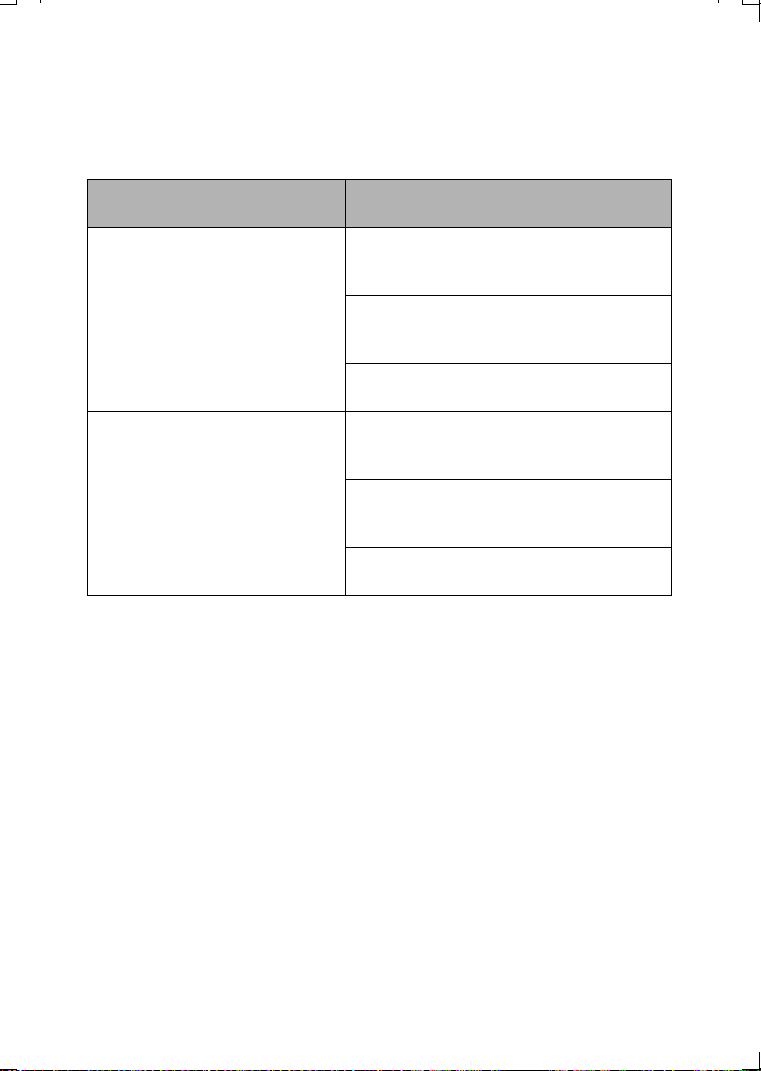
ª Available recording/playback time
Measured under the following conditions:
• Shooting once every 30 seconds, flash every other shot.
• Measured using supplied SD Memory Card.
• Temperature: 77 F (25°C)/Humidity: 60%
• The times shown in the table are approximate times. The times may vary
depending on the condition.
• Available recording/playback time varies depending on the batteries used.
Batteries
Continuous recording/playback time
(recordable number)
Supplied batteries or Panasonic
Alkaline batteries
Recording with LCD monitor on
Approx. 75 min.
(equal to 150 still pictures)
Recording with LCD monitor off
Approx. 5 h.
(equal to 600 still pictures)
Playback time
Approx. 3 h.
Fully charged Panasonic Ni-MH
(nickel-metal hydride) batteries
(Optional: HHR-3EPA)
Recording with LCD monitor on
Approx. 120 min.
(equal to 240 still pictures)
Recording with LCD monitor off
Approx. 6 h.
(equal to 720 still pictures)
Playback time
Approx. 4 h.
KC52-PP.book 15 ページ 2003年3月13日 木曜日 午後2時29分
Preparation
16
Inserting the Card
[Preparation]
• Check that the power switch is set to [OFF]
and the lens is stored.
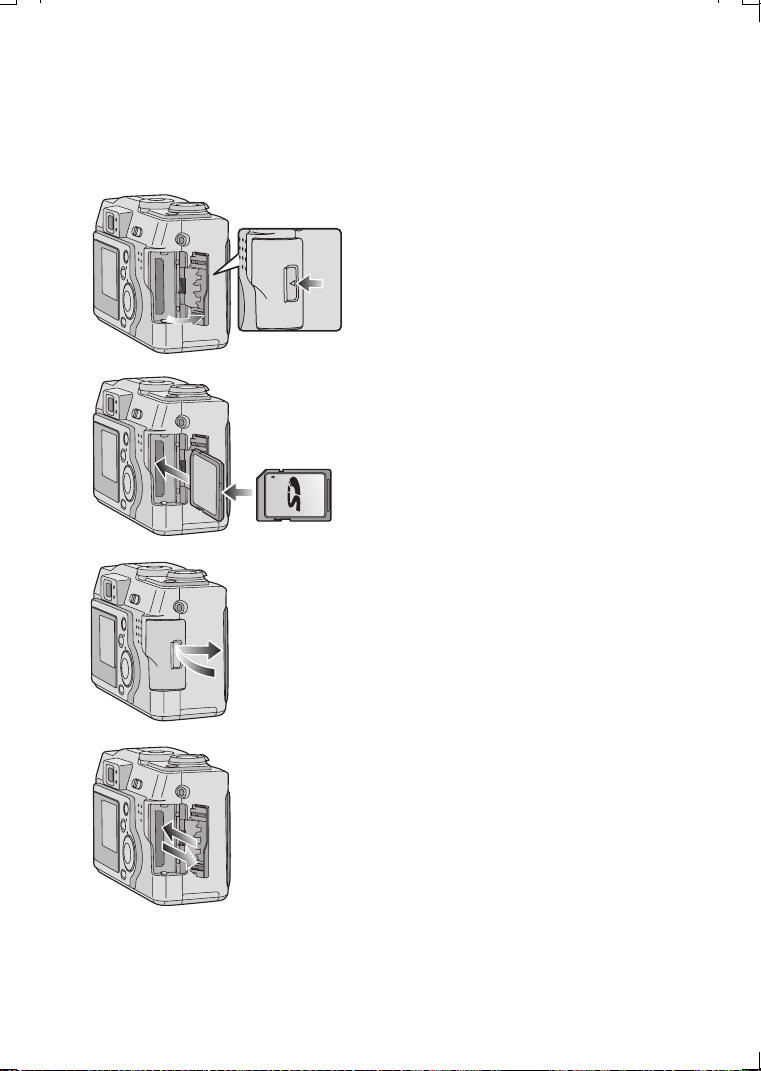
[Inserting the card]
1 Slide the door in the direction of the
arrow to open the Memory Card door.
2 Insert the card all the way in until it
clicks.
• Check the direction of the card.
• Do not touch the connection terminals on
the back side of the card.
3
Slide the
door in
the direction of the
arrow to
close the Memory Card door.
[Removing the card]
4 Slide in the direction of the arrow to
open the Memory Card door.
5 Press the card to release.
6 Pull the card out.
7
Slide the
door in
the direction of the
arrow to
close the Memory Card door.
• If you are using a MultiMediaCard type
memory card and the Memory Card door
cannot close, the card may be installed
backwards. Remove the card and reverse it,
then try to close the door again.
• If the Memory Card door cannot be
completely closed, take the card out and
insert it again.
• We recommend that you use a Panasonic
branded SD Memory Card. (Use only the
genuine card)
• If the card is not fully inserted, the card may
be damaged.
3,7
5,6
1,4
2
KC52-PP.book 16 ページ 2003年3月13日 木曜日 午後2時29分
Preparation
17
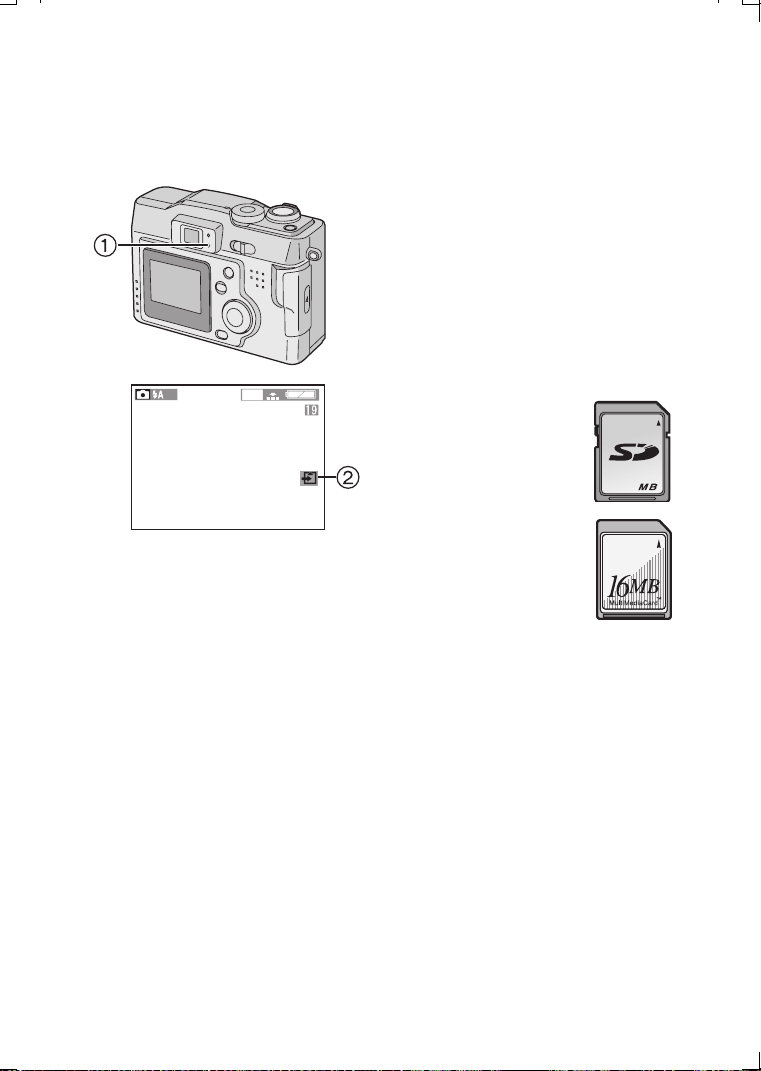
ª Access to the card
When the card is being accessed, the
flash/access indicator 1 and card
access indication 2 lights.
When the flash/access indicator 1 and
the card access indication 2 lights;
• Do not turn off the camera.
• Do not remove the batteries or pull out
the card.
• Do not remove the AC adaptor
(optional, DMW-AC1)
The card and the card contents may be
destroyed and the camera may not
operate normally.
As there is a risk that the data on the
card may be damaged or erased due to
electrical noise, static electricity or the
defects of camera/card, please back up
your data on your PC using USB
connection. (P79)
ª SD Memory Card (supplied)
and MultiMediaCard (optional)
The SD Memory Card and
MultiMediaCard are small, lightweight,
removable external cards. The reading/
writing speed of SD Memory Card is
fast. The SD Memory Card is equipped
with a write protection switch that can
inhibit writing and formatting. (When the
switch is moved towards the [LOCK]
side, it is not possible to write or delete
data on the card and format it. When the
switch is unlocked, these functions
become available)
SD Memory Card
MultiMediaCard
• The reading/writing
speed of
MultiMediaCards is
slower than SD cards.
When MultiMediaCards
are used, the
performance of certain features may
be slightly slower than advertised.
• After recording motion images using
the MultiMediaCard, the flash/access
indicator and the card access
indication may appear for a while, but
this is not a malfunction.
• Keep the Memory Card out of reach of
children to prevent swallowing.
2
0
4
8
16
KC52-PP.book 17 ページ 2003年3月13日 木曜日 午後2時29分
Preparation
18
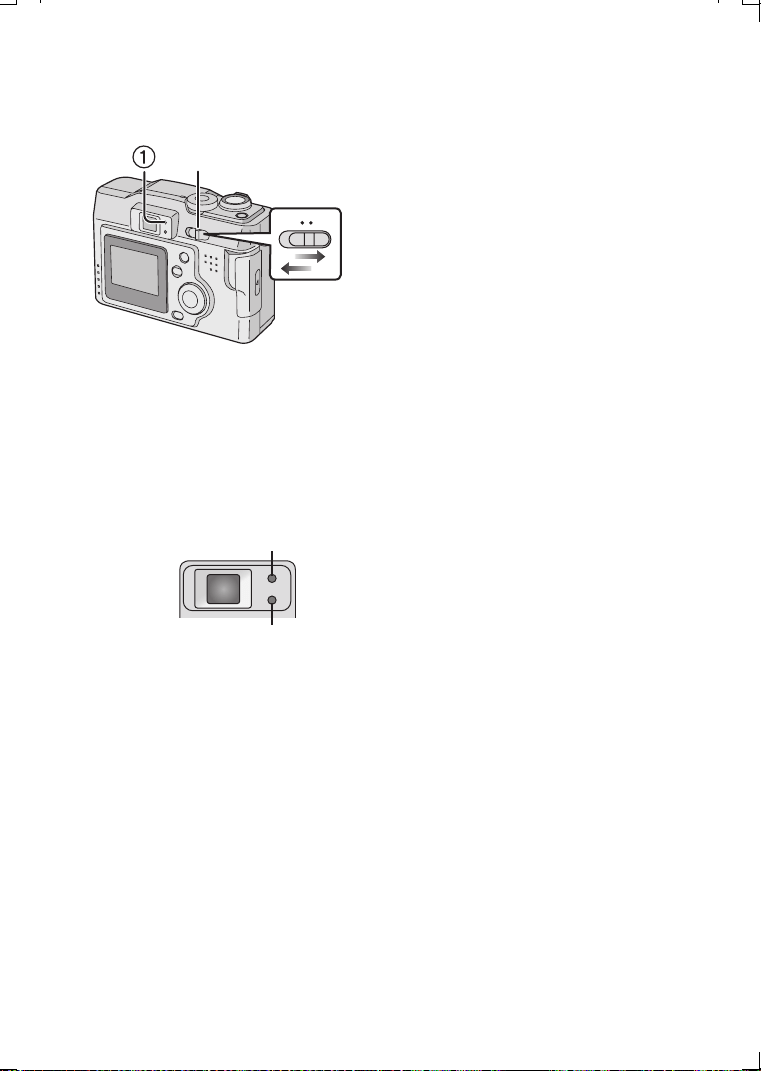
Turning Power on/off
1 Set the power switch to [ON].
• The Status indicator 1 lights.
2
Set
the power switch to [OFF].
• When the power switch is turned on, do not hold the lens cover. If the lens cover
does not open, [SYSTEM ERROR] is displayed. Turn the power switch off and on.
• Do not apply pressure to the lens when the lens tube comes out.
ª Status Indicator A
Lights:
• When turning the Power switch to [ON].
Blinks:
• While the focus is being adjusted or the
focus is not properly adjusted.
• When the card is not inserted.
• When no space is left on the card.
• When the remaining battery power is low.
(blinks slowly)
ª Flash/Access Indicator B
Lights:
• When accessing the card.
• When the flash fires. (It lights when the
shutter is pressed halfway)
• When sending data to PC.
Blinks:
• When charging the flash.
• When setting the flash mode to forced off
and recording in dark places. (blinks
slowly)
1,2
OFF ON
A
B
KC52-PP.book 18 ページ 2003年3月13日 木曜日 午後2時29分
Preparation
19
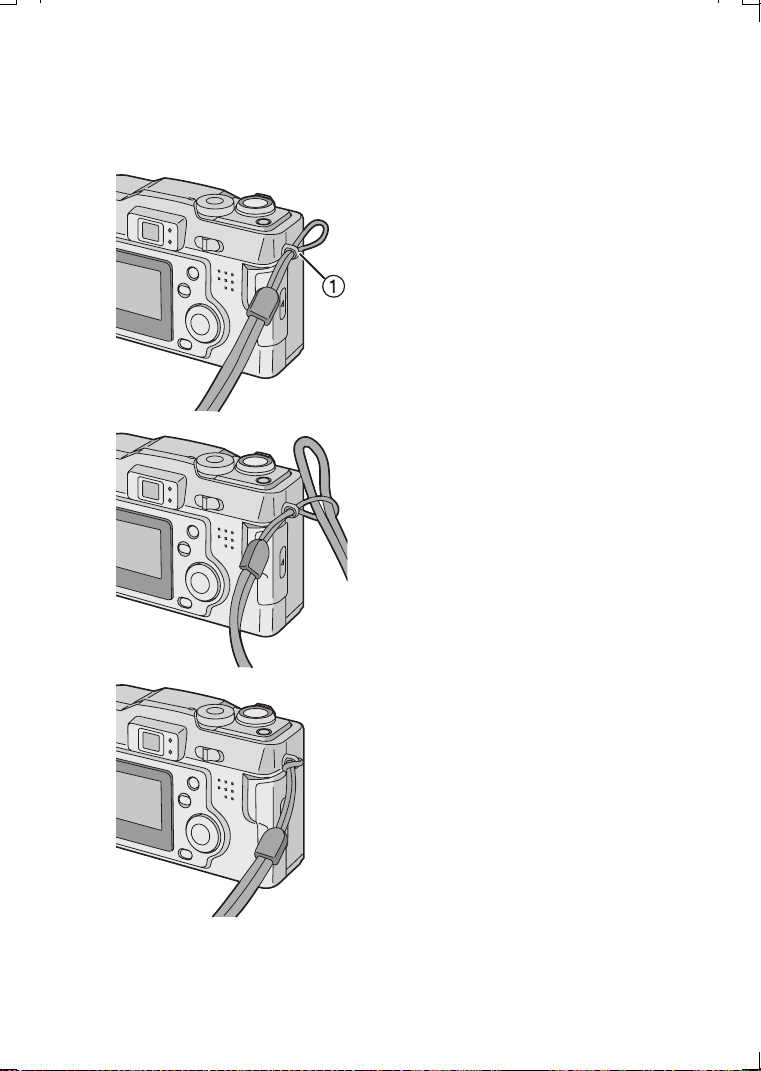
Attaching the Strap
1 Pass the top of the strap through the
strap eyelet 1.
2 Pass the opposite side of the strap
through its ring shaped part.
3 Pull the strap.
3
1
2
KC52-PP.book 19 ページ 2003年3月13日 木曜日 午後2時29分
Preparation
20
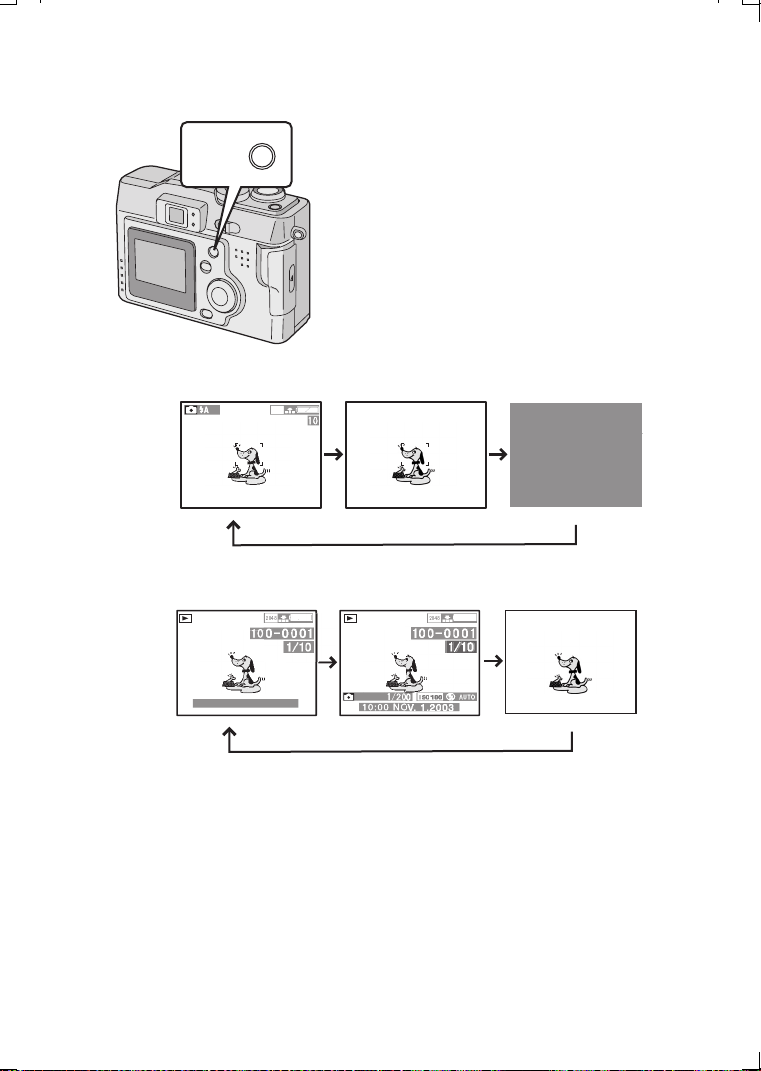
Using the LCD Monitor
Every time you press the [DISPLAY] button,
the display of the LCD monitor changes as
shown below.
[In recording]
[In playback]
DISPLAY
2
0
4
8
F
2.
8
F2.8
1
0
:
00
N
O
V. 1.2
003
KC52-PP.book 20 ページ 2003年3月13日 木曜日 午後2時29分
Preparation
21
Using the Optical Viewfinder
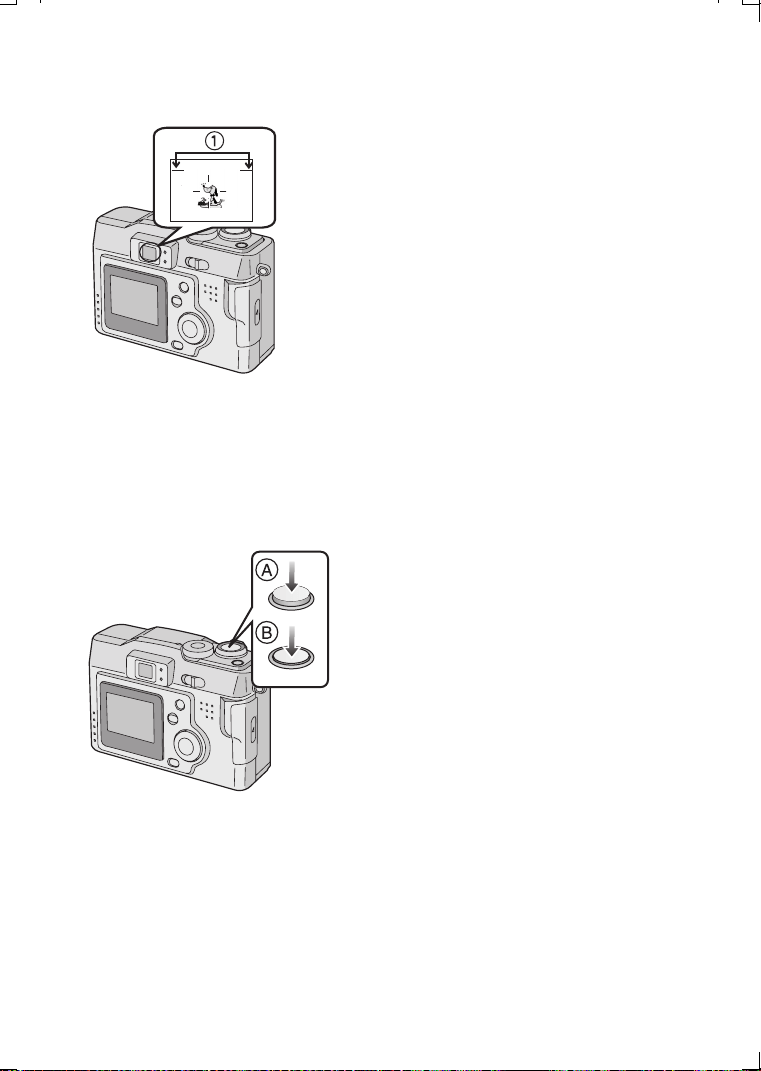
Parallax compensation mark
• If you take a picture of a subject at a
distance between 2.3 feet (70 cm) and
3.94 feet (120 cm) with the zoom in tele
position, match the top of the subject with
the parallax compensation mark 1. When
accurate framing is necessary, use the LCD
monitor.
The Shutter Button
(Pressing halfway/Pressing fully)
The shutter button is activated in 2 steps:
“pressing halfway” and “pressing fully”.
Pressing halfway A
• Focus and exposure are locked.
Pressing fully B
• The picture is captured. In motion image
mode, the recording starts.
• You can adjust volume of the operational sound in the menu. (P73)
• If you press the shutter button fully in a single stroke, the captured picture may
appear shaken or unfocused. (The camera may have moved during capturing)
KC52-PP.book 21 ページ 2003年3月13日 木曜日 午後2時29分
Preparation
22
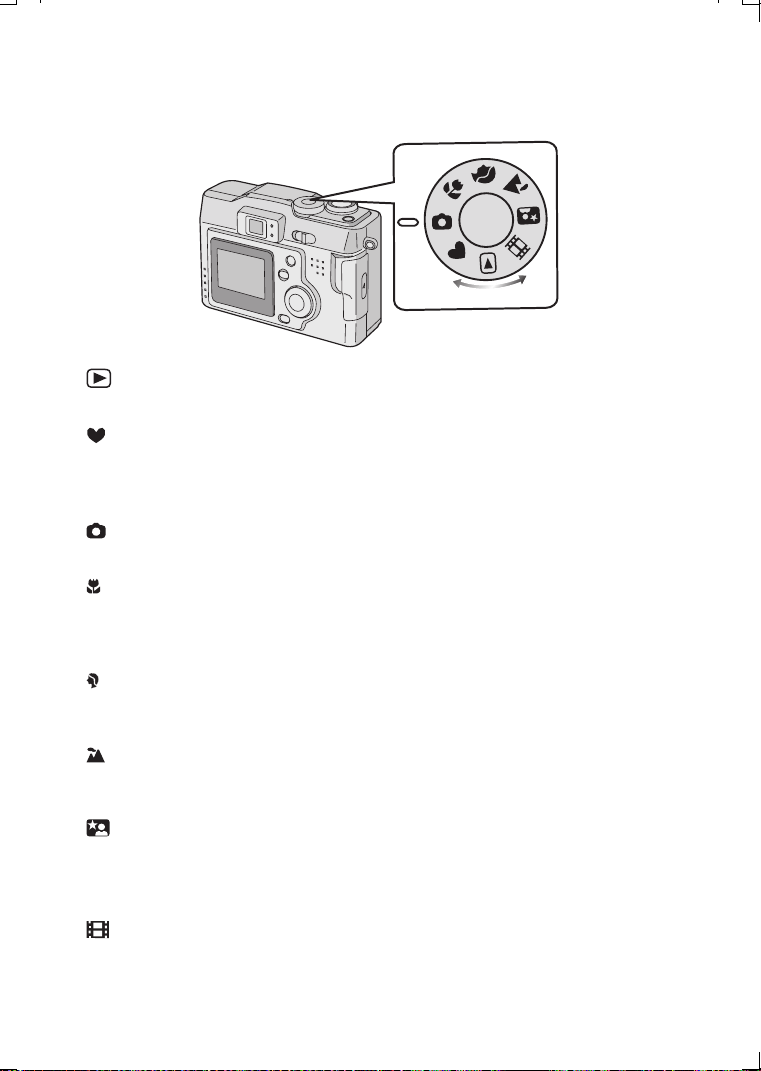
The Mode Dial
You can choose a desired mode by the mode dial.
: Playback (P52)
Playback recorded images.
: Simple mode (P27)
Menu options are minimized and many settings are preset. This is a fast and easy
way for beginners to start using the camera and become familiar with its many
features.
: Normal Picture (P25)
The shutter speed and the aperture value are automatically adjusted.
: Macro mode (P38)
When you take pictures from a distance closer than 1.64 feet (50 cm), set the
camera in macro mode. This allows you to get closer to the subject up to 1.64 feet
(50 cm) (Tele), 0.33 feet (10 cm)(Wide).
: Portrait mode (P39)
This mode allows you to easily achieve the depth of focus effect. The subject stands
out in front of an unfocused background.
: Landscape mode (P40)
You can capture sharp and crisp landscape photos easily. Please note that this
mode is suitable for landscape farther than 32.8 feet (10 m) away and in daylight.
: Night portrait mode (P41)
When you take pictures of, for example, your friends in front of beautiful night
illumination scenery, this mode allows you to get the appropriate exposure for your
subject as well as the background, using flash and slow shutter.
: Motion images mode (P29)
Use this mode when recording motion images.
KC52-PP.book 22 ページ 2003年3月13日 木曜日 午後2時29分
Preparation
23
Operating the Menu
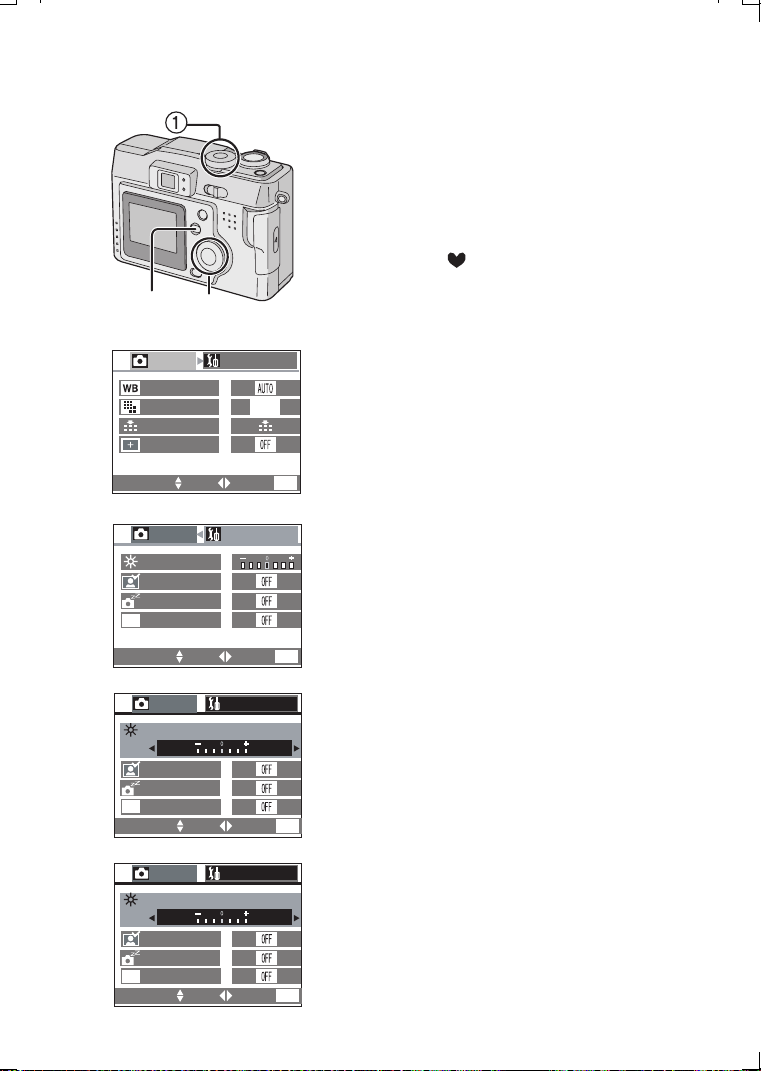
The camera menu allows you to configure the
Record and Playback modes, date and time,
and various other operational sounds the
camera produces. Follow these instructions.
[Preparation]
• Set the mode dial to the recording mode
(except for [ ]) or the playback mode.
1 Press the [MENU] button.
• If you set the mode dial 1 to the
recording mode, the REC menu is
displayed; if you set it to the playback
mode, the playback menu is displayed.
2 Press 1.
3 Press 3/4 to choose the item.
4 Press 2/1 to set the item
.
5 Press the [MENU] button
.
• The menu will disappear.
2,3,4
1,5
1600
PICT.SIZE
QUALITY
SPOT MODE
REC
1/3
W.BALANCE
SETUP
SELECT SET EXIT
MENU
1
2
SELECT SET EXIT
MENU
REC
SETUP
1/
3
AUTO REVIEW
ECONOMY
POWER SAVE
MONITOR
SETUP
1/3
SELECT SET EXIT
MENU
AUTO REVIEW
POWER SAVE
REC
3
MONITOR
ECONOMY
SETUP
1/3
SELECT SET EXIT
MENU
AUTO REVIEW
POWER SAVE
REC
4
MONITOR
ECONOMY
ECO
ECO
ECO
KC52-PP.book 23 ページ 2003年3月13日 木曜日 午後2時29分
Preparation
24
Setting the Date/Time (Clock Set)
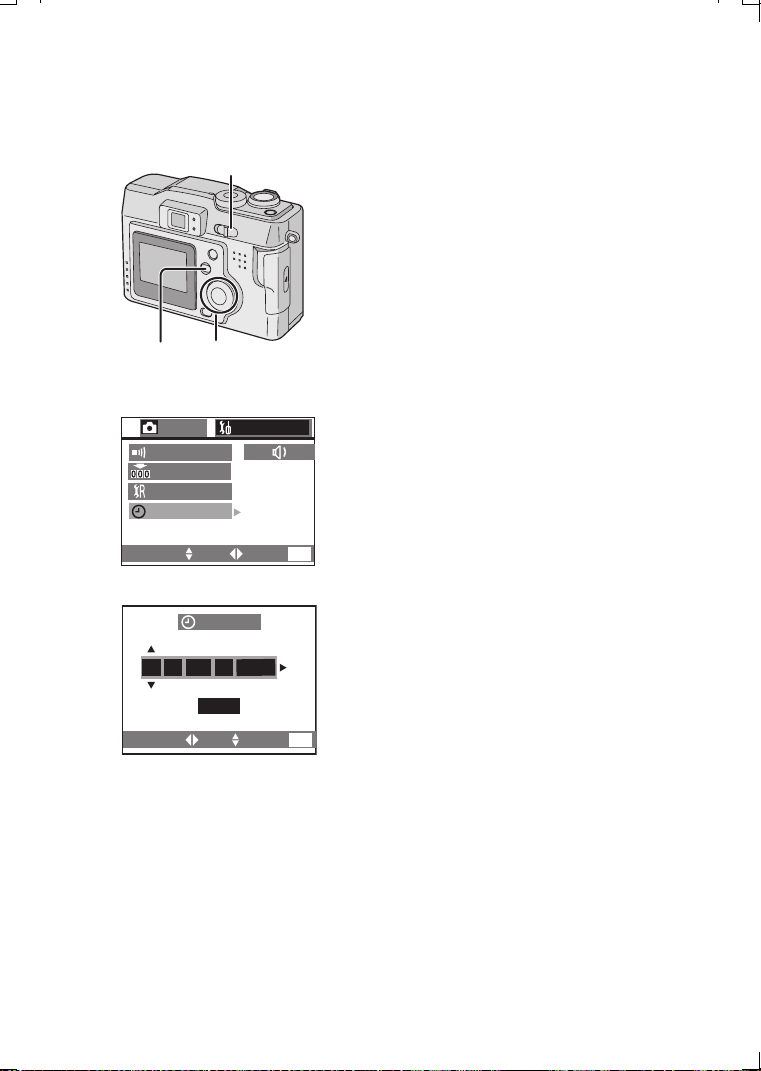
If the message [PLEASE SET THE CLOCK]
appears, set the date and time.
You can go to the setup menu by pressing the
[MENU] button while the message is
displayed.
You can set the year from 2003 to 2099. The
24-hour system is used.
1 Press the [MENU] button.
2 Press 1 to make the setup menu
appear.
• In simple mode, skip this step.
3 Press 3/4 to select [CLOCK SET],
and then press 1.
4 Press 3/4/2/1 to set date and time,
and then press 1.
5 Press 3/4 to select [M/D/Y], [D/M/Y] or
[Y/M/D].
6 Press the [
MENU
]
button 2 times.
• The menu will disappear.
7 Check if the date/time setting is
displayed correctly, after turning the
camera [OFF] and [ON].
• When the new batteries are inserted in the
camera for more than 3 hours, the time and
date will be held for approximately 3 months
if the battery is removed. If the batteries
were not new, the time may not be retained
properly. If the time/date setting is lost
please reset it.
1,6
2,3,4,5
7
4,5
CLOCK SET
SELECT SET EXIT
MENU
2003
NOV
1:..0010
M/D/Y
NO.RESET
CLOCK SET
3
SELECT SET EXIT
MENU
SETUP
2/3
REC
RESET
BEEP
KC52-PP.book 24 ページ 2003年3月13日 木曜日 午後2時29分
Recording images (basic)
25
Recording images (basic)
Taking Pictures
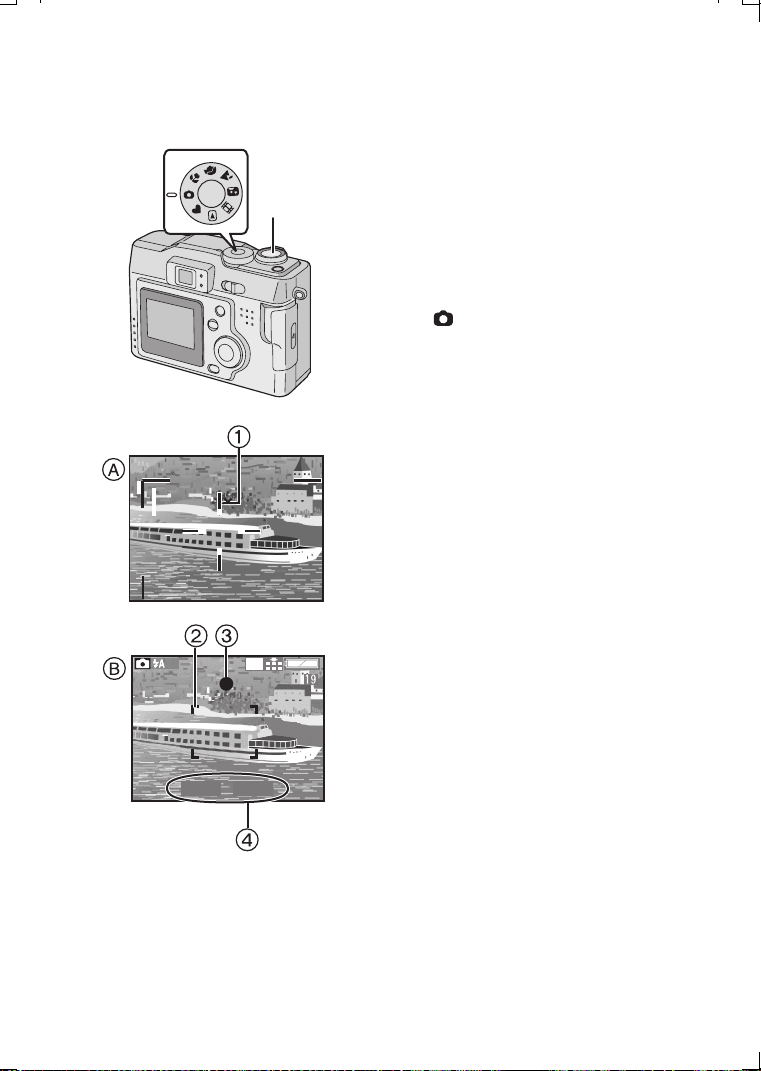
By only pressing the shutter button, the
exposure (shutter speed and aperture value)
will be automatically adjusted and the picture
will be taken.
[Preparation]
• Insert the card. (P16)
• Set the power switch to [ON]. (P18)
1 Set the mode dial to normal picture
mode [ ].
2
[
A
Optical
finder]
Center the subject in the AF target 1
inside the optical finder and press the
shutter button halfway.
[
B LCD monitor]
After centering the subject in the
AF area 2
on the LCD monitor, press
the shutter button halfway.
• When the focus is adjusted, the focus
indication [¥] 3 appears.
• When the focus indication flashes, the
focus is not adjusted. Press the shutter
button halfway to adjust the focus again.
• The shutter speed and the aperture value
4 are automatically adjusted and
displayed on the LCD monitor.
• When the subject is out of the AF area,
use the AF/AE lock. (P46)
3 Press the shutter button fully to take
the picture.
• After taking a picture, when the auto
review (P72) is set to [1SEC.]/[3SEC.],
the picture is displayed on the LCD
monitor for 1 or 3 seconds.
2,3
1
2
2048
F2.8
1/250
KC52-PP.book 25 ページ 2003年3月13日 木曜日 午後2時29分
Recording images (basic)
26
• If you do not press the shutter button halfway, camera shake may occur or focus
may not be adjusted properly.
• Even when the focus indication is displayed and the focus is properly adjusted, it
will be cancelled if you release the shutter button.
Press the button halfway again.
• When setting [ECONOMY] to [ON], if you do not operate the camera for approx.
15 seconds, the LCD monitor turns off. (If you press any button, the LCD monitor
turns on)
• When power saving time is set, if you do not operate the camera for a while, it is
automatically turned off at the set time. To operate the camera again, press the
shutter button or turn the power switch first to [OFF] and then to [ON]. (P74)
• The brightness of the LCD monitor may differ from that of the recorded pictures. In
particular, when taking pictures in dark places with a long exposure time, darkness
appears on the LCD monitor, but the recorded pictures are bright.
• If the exposure is not properly set, the color of the aperture value and the shutter
speed on the LCD monitor becomes red.
• In the following cases, the focus may not be adjusted properly.
1 Recording a scene including subjects both near and far
2 Recording a scene through a dirty lens
3 Recording an illuminated subject
4 Recording in a dark place
5 Recording a moving subject
6 Recording a subject with a little contrast
7 Recording with camera shake
• We recommend that you set the clock setting again before taking pictures.
• When the brightness of the LCD monitor changes, such as while zooming or
panning, you may hear a click sound from the lens or the image on the LCD
monitor may change suddenly; this is not a malfunction. The sound is caused by
the camera automatically adjusting the aperture value.
• When pressing the shutter button in low light/dark conditions, the LCD monitor
display may become bright or whitish. However, the recorded picture will not be
influenced. This function makes it easy to adjust the focus.
About camera shake
• Be careful to prevent camera shake when you press the shutter button.
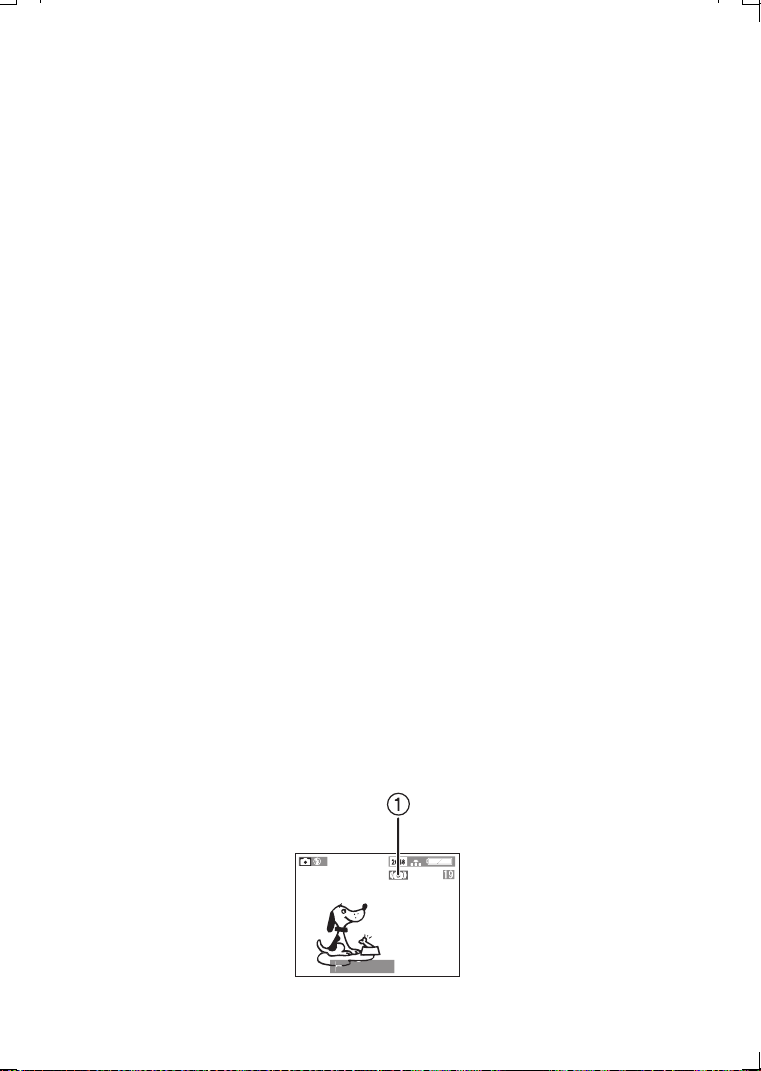
• We recommend you use a tripod when the camera shake alert 1 appears.
F2.8 1/8
F2 8
KC52-PP.book 26 ページ 2003年3月13日 木曜日 午後2時29分
Recording images (basic)
27
Taking Pictures in Simple Mode
• Offers simplified menu for ease of use.
• The picture size is easy to select.
• The icons on the display are larger.
We recommend you use this mode when you ask someone to take a picture.
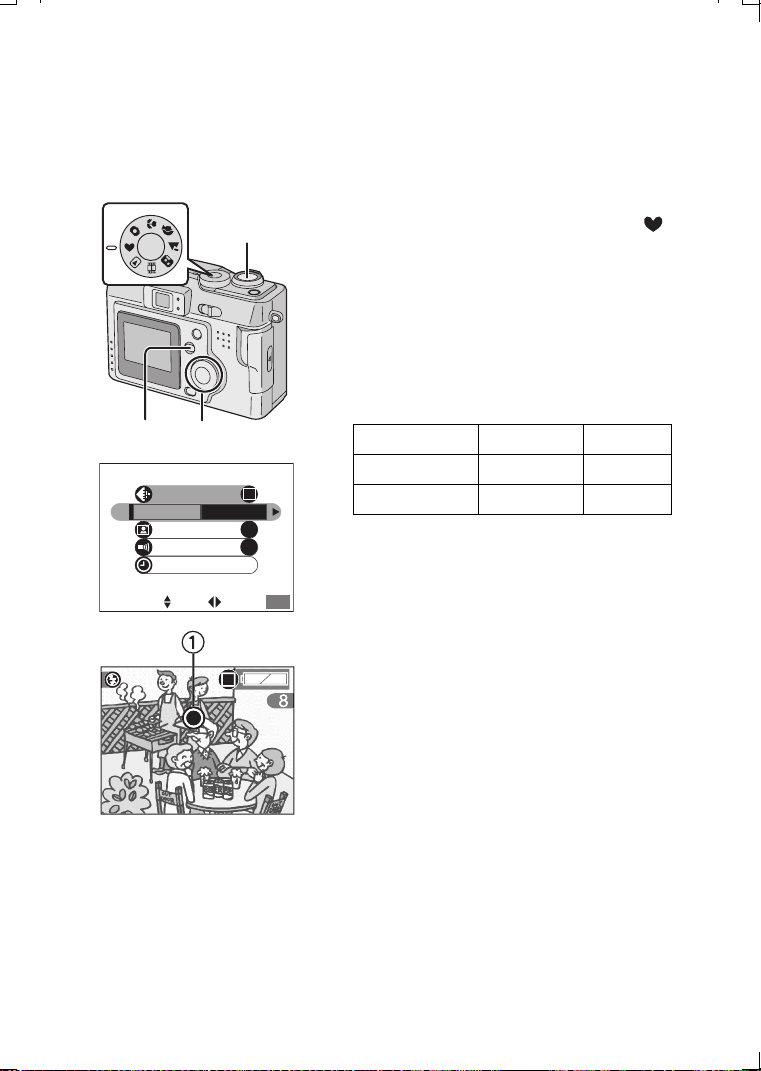
1 Set the mode dial to Simple mode [ ].
2 Press the [MENU] button.
3 Press 3/4 to select [PICT.MODE].
•
[AUTO REVIEW] (P72)
•
[BEEP] (P73)
•
[CLOCK SET] (P24)
4 Press 2
/
1 to select [ENLARGE],
[4qa6q/10a15cm], [INTERNET].
• [ENLARGE] Selection is intended for
situations when large printing is desired.
The camera is preset to [2048a1536] in
[Fine] picture mode.
•[4qa6q/10a15cm] Selection will offer an
easy way to produce small “general
purpose” prints.
• [INTERNET] Selection favors smaller file
size, optimized for home page and e-mail
use.
5 Press the [MENU] button.
6 Take a picture.
• The burst mode is available only with the low speed. (P51)
• If the distance between the camera and the object is beyond the recordable range
(Tele: 1.64 feet (50 cm) -

, Wide: 0.33 feet (10 cm) -

), the focus may not be
adjusted properly even if the focus indication 1 is lit.
• The settings (except for the clock setting) of the simple mode will not be applied to
the other recording modes.
• Burst mode will not operate as described if a MultiMediaCard type Memory Card is
used.
• Only the quality (data compression ratio) cannot be changed on the [PICT.MODE]
menu.
ENLARGE
2048
k1536
Fine
4
qa6q/10a15cm 1280k960
Fine
INTERNET
640
k480
Standard
1
6
2,5 3,4
OFF
BEEP
ON
AUTO REVIEW
PICT.MODE
CLOCK SET
ENLARGE
SELECT SET EXIT
MENU
4"t6"/10t15cm
KC52-PP.book 27 ページ 2003年3月13日 木曜日 午後2時29分
Recording images (basic)
28
Checking the Captured Picture (Review)
After taking a picture, the Auto review (P72)
feature will cause the captured picture to be
displayed on the LCD monitor for the
designated time - 1 or 3 seconds. You may
also check the picture using the method
described below.
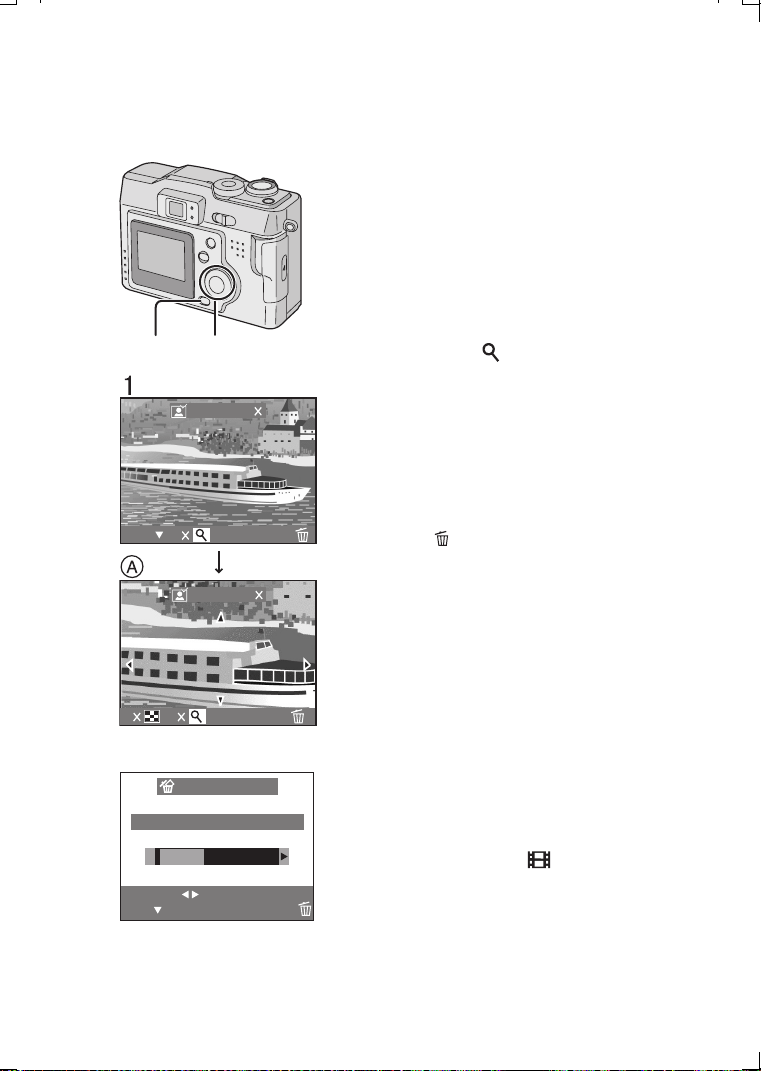
1 After taking a picture, press the
4/[REVIEW/SET] button.
• The last captured picture is displayed for
about 5 seconds. If you rotate the zoom
lever towards [ ], the captured picture is
zoomed 4 times (A) and 8 times if you
rotate it once again. You can also change
the position with 3/4/2/1.
• You can check the previous or following
picture with 2/1.
ª Erasing the captured picture
during the review
2 Press [ ].
3 When the message [DELETE THIS
PICTURE?] is displayed, press 2
/
1 to
select [YES].
4
Press the
4
/[REVIEW/SET]
button.
• The picture is erased.
• Once erased, pictures cannot be
recovered.
• Multi images or all images can be
deleted. Read pages 58, 59 to operate
them.
• Press the shutter button halfway to cancel
the review.
• In motion image mode [ ], Review feature
cannot be used.
1,3
,
4
2
REVIEW1
81
DELETEEXIT
DELETE
4
REVIEW4
DELETE SINGLE
DELETE THIS PICTURE?
YES NO
SET
SELECT
MULTI/ALL
3
KC52-PP.book 28 ページ 2003年3月13日 木曜日 午後2時29分
Recording images (basic)
29
Recording Motion Images
With this camera you can also record motion
images. (If using the supplied 16MB SD
Memory Card, it is possible to record for up to
about 80 seconds)
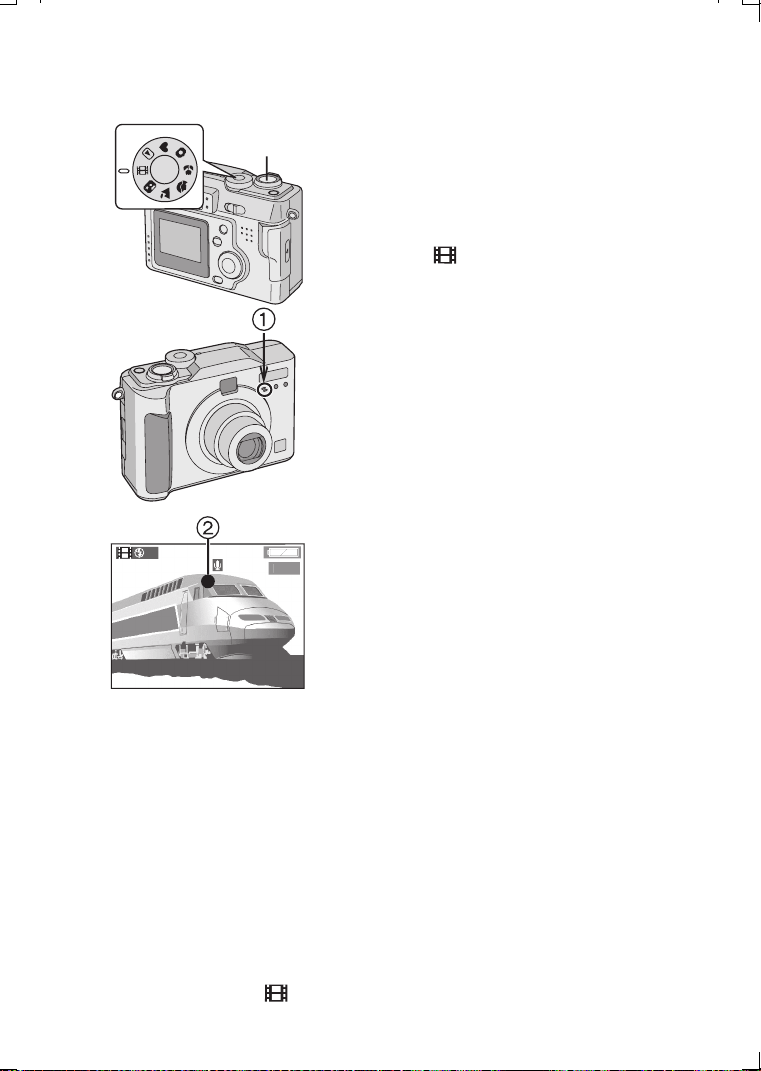
1 Set the mode dial to motion image
mode [ ].
2 Center the subject on the LCD monitor
and press the shutter button halfway.
• When the focus is adjusted, the focus
indication 2 [¥] appears.
3 By pressing the shutter button fully,
the recording starts.
• The audio REC starts simultaneously.
(1 Microphone)
4 By pressing the shutter button fully
again, recording stops.
• If during the recording the memory of the
card becomes full, the recording is
stopped automatically.
• Audio cannot be played back from this camera. Connect to a television or PC
to play back audio.
• The picture size is fixed to 320a240 pixels.
• The remaining time displayed on the LCD monitor is an approximation.
• You cannot record motion images without audio.
• If using the MultiMediaCard, after recording motion images, the card access
indication and the flash/access indicator may appear for a while, but this is not a
malfunction.
• After recording starts, the auto focus/zoom/white balance/aperture values are
locked (with the first frame).
• Recording could suddenly stop when recording motion images with cards other
than a Panasonic SD Memory Card.
• When the motion image recorded with this camera is played back on other
equipment, the quality of pictures and sounds may be deteriorated or pictures may
not be able to be played back.
• In motion image mode [ ], review cannot be used.
2,3,4
1
2
35S
KC52-PP.book 29 ページ 2003年3月13日 木曜日 午後2時29分
Recording images (basic)
30
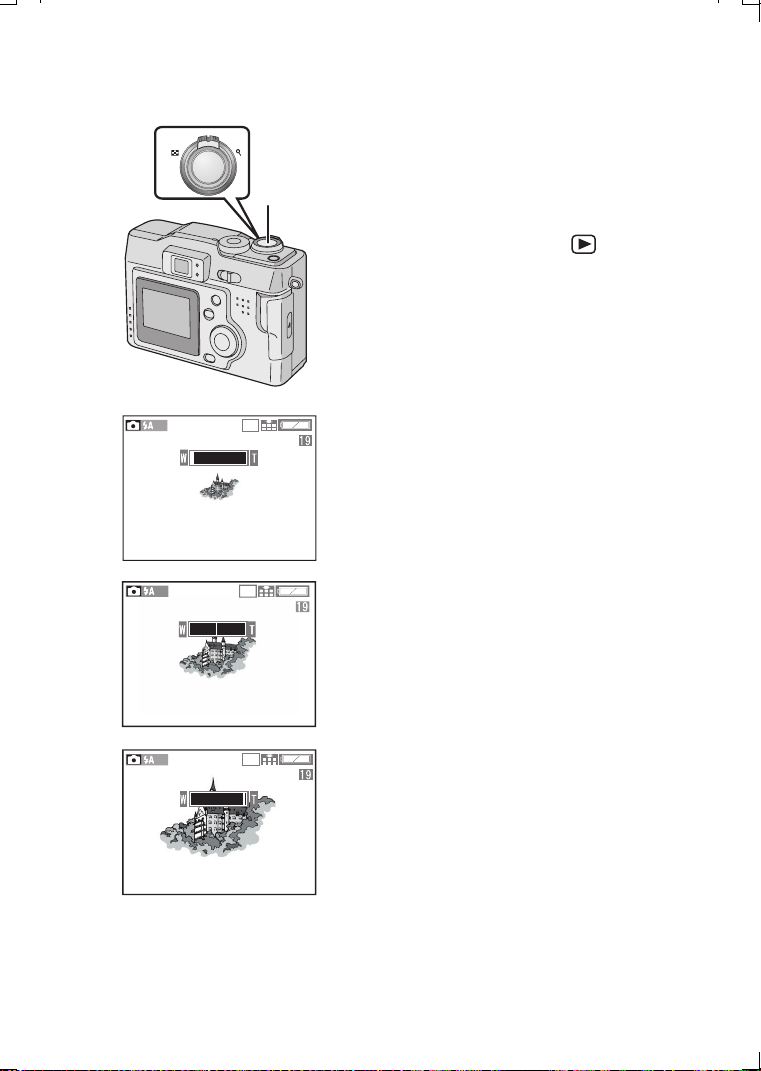
Using the Optical Zoom
The Optical Zoom allows you to bring your
subject up to 3 times closer. It also allows you
to zoom back so that landscape scenes can
be photographed at a wide angle.
[Preparation]
• Set the mode dial except for [ ]. (P22)
1 Aim the camera at the subject and
adjust the size with the zoom lever.
To make subjects closer (Tele):
Rotate towards T.
To make subjects wider (Wide angle):
Rotate towards W.
2 Take a picture.
• The focus is adjusted at a distance of more
than 1.64 feet (50 cm). For details on macro
mode/simple mode, read pages 27, 38.
• The picture may be slightly distorted
according to the lens. The distortion will
increase as you make subjects wider and
closer.
1
2
W
T
2
0
4
8
2048
2048
KC52-PP.book 30 ページ 2003年3月13日 木曜日 午後2時29分
Recording images (basic)
31
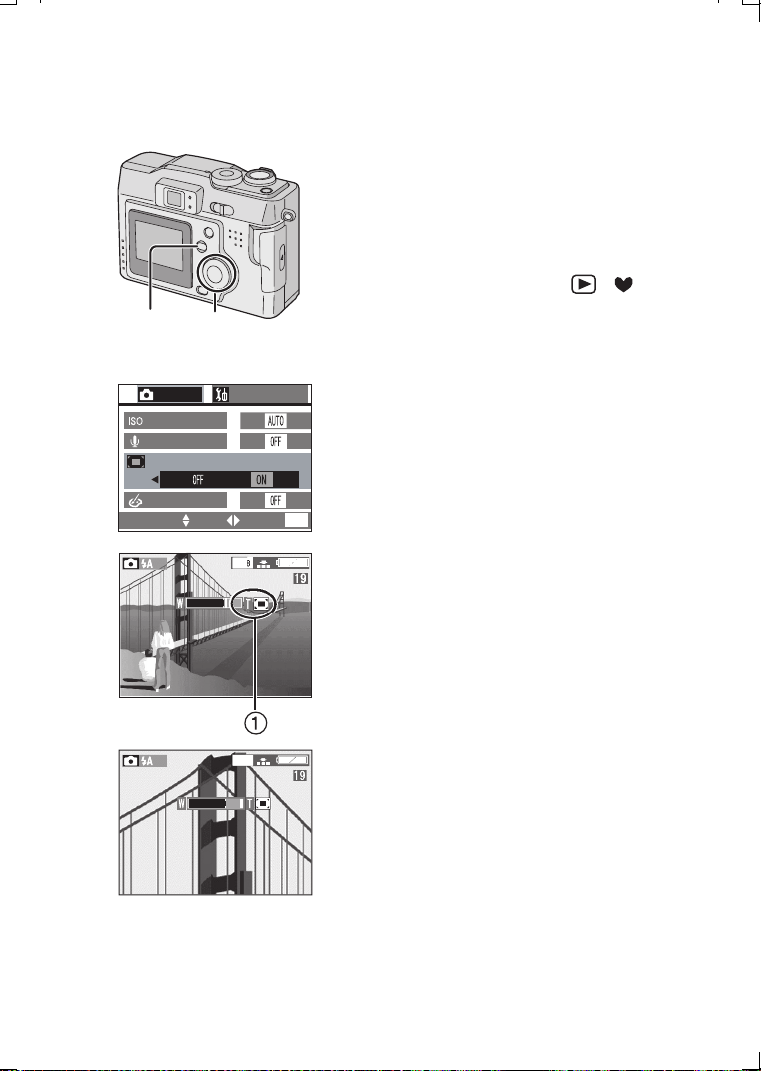
Using the Digital Zoom
The Digital Zoom feature allows you to bring
the subject an additional 3 times closer,
thereby achieving an overall effective 9a
zoom. In some cases the use of Digital Zoom
can cause a slight deterioration of picture
quality.
[Preparation]
• Set the mode dial except for [ ]/[ ].
(P22)
1 Press the [MENU] button.
2 Press 3/4 to select [D.ZOOM].
3 Press 2/1 to set to [ON].
4 Press the [
MENU
]
button.
• The menu will disappear.
• The zoom adjustment and recording method
are the same as in “Using the Optical
Zoom”. (P30)
• When the digital zoom is set to [ON], the
digital zoom indication 1 appears.
• When entering the digital zoom range, the
zoom bar will pause.
• The digital zoom is cancelled when the LCD
monitor turns off.
• When using digital zoom, it is normal to see
a slight deterioration of the picture quality.
• We recommend that you use a tripod in the
digital zoom range.
1,4
2,3
D.ZOOM
REC
2/3
SETUP
AUDIO REC.
COL. EFFECT
SENSITIVITY
SELECT SET EXIT
MENU
2,3
2
0
4
8
2
0
4
8
KC52-PP.book 31 ページ 2003年3月13日 木曜日 午後2時29分
Recording images (basic)
32
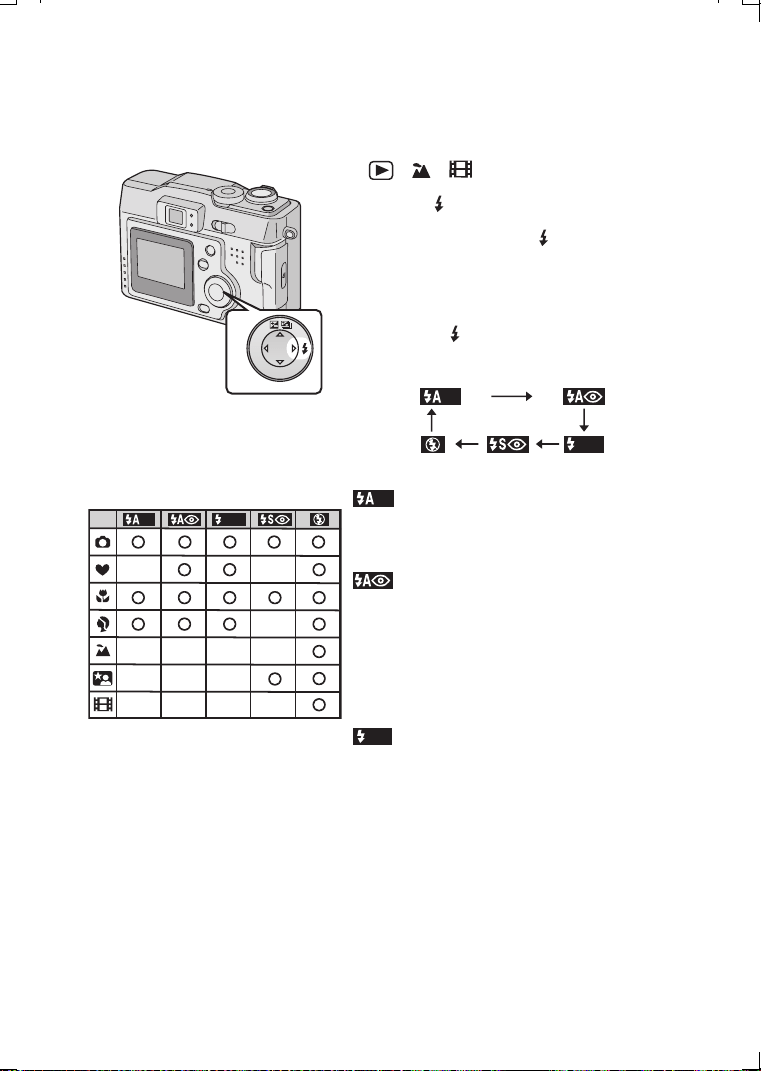
Taking Pictures using the Built-in Flash
[Preparation]
• Set the mode dial except for
[ ]/[ ]/[ ]. (P22)
1 Press [ ].
• Every time you press [ ] , the available
settings will appear as shown below.
(There are settings that cannot be set
according to the REC mode. Those that
cannot be set are not displayed when
pressing [ ]. Refer to the table on the
left.)
: AUTO
The flash fires automatically according to the
lighting condition.
: AUTO/Red-eye reduction
The flash fires automatically according to the
recording situation.
It reduces the red-eye phenomenon (When a
subject’s eyes appear red in flash light).
Use it when you take pictures of people or
animals in low lighting conditions.
: Forced ON
The flash fires every time a picture is
captured.
Use this setting when your subject is back-lit
or under fluorescent light.
1
SET
Ø
R
E
V
I
E
W
‑‑
‑‑‑‑
‑
‑‑‑
‑‑‑‑
KC52-PP.book 32 ページ 2003年3月13日 木曜日 午後2時29分
Recording images (basic)
33
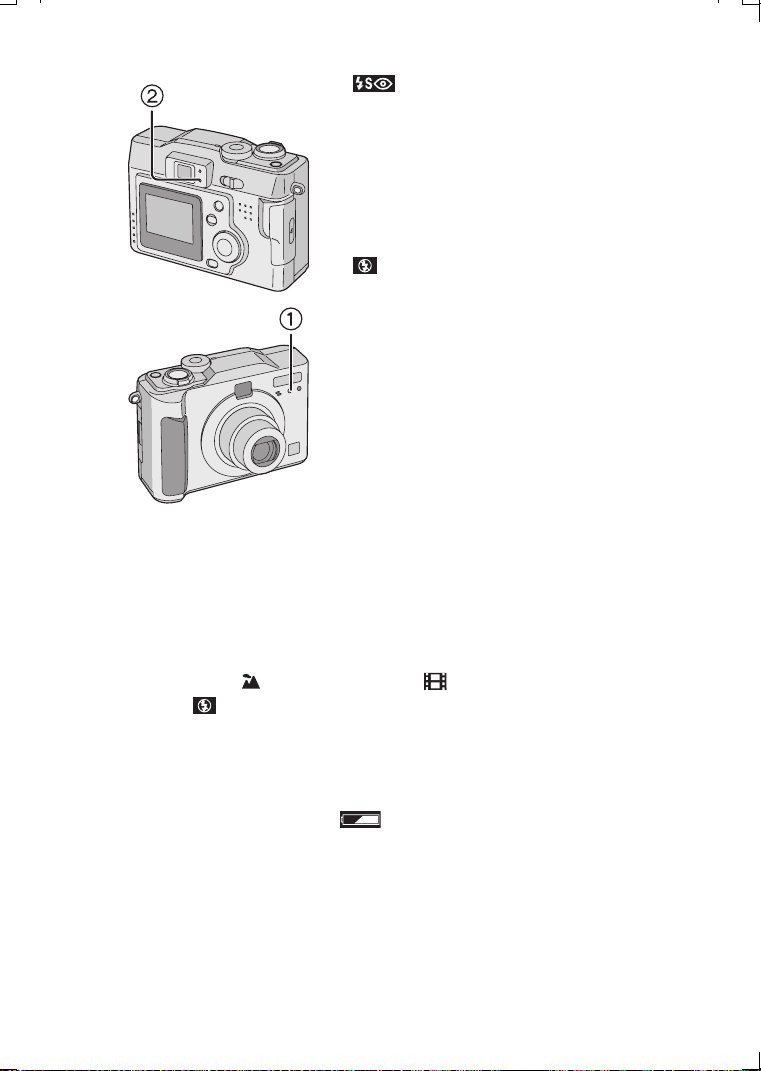
: Slow sync./Red-eye reduction
When you take a picture with a dark
background landscape, it makes the flash fire
and the shutter speed slow, so that the dark
background landscape will become bright.
Simultaneously it reduces the red-eye
phenomenon. We recommend that you use a
tripod.
: Forced OFF
Even in dark places, the flash does not fire.
Set it when you take pictures in places where
using flash is not allowed.
• Do not stare at the flash light from close proximity when using the flash.
• The available flash range is about 1.64 feet (50 cm) - 4.59 feet (140 cm)(Tele),
0.98 feet (30 cm) - 7.87 feet (2.4 m)(Wide).
• When the camera shake alert is displayed within the available flash range, we
recommend using the flash.
• Do not cover the flash sensor 1 with your fingers or other items. Otherwise,
brightness cannot be perceived.
• In landscape mode [ ]/motion image mode [ ], flash setting is fixed to the
Forced OFF [ ].
• When you set to burst mode or auto bracket, only 1 picture is taken for every flash
firing.
• The flash indication becomes red when pressing the shutter button halfway.
• When the flash/access indication 2 and the flash indication blink red, you cannot
take a picture even when you press the shutter button fully.
• If the battery indicator is less than or setting [ECONOMY] to [ON], the LCD
monitor turns off during charging the flash.
• When using the flash, do not let subjects get too close to the flash. The shape or
color of subjects may be changed because of the heat and light of the flash.
• When taking a picture with the flash, the white balance will be automatically
adjusted (for AUTO and Halogen mode), but the white balance may not be
properly adjusted when the Photo Flash is insufficient.
• When taking a picture with the flash after setting the white balance manually, the
white balance may not be properly adjusted. We recommend setting the white
balance to [AUTO] when using the flash. (P48)
KC52-PP.book 33 ページ 2003年3月13日 木曜日 午後2時29分
Recording images (basic)
34
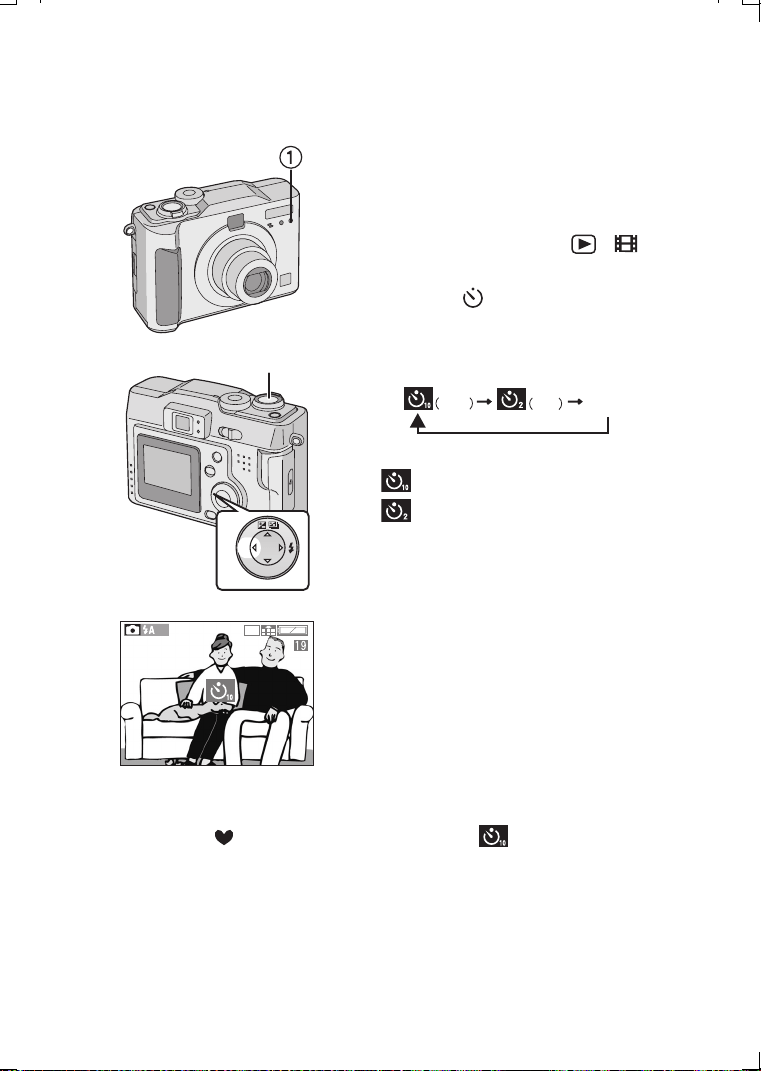
Taking Pictures with the Self-timer
Using the Self Timer feature, you can be part
of the picture. The camera will automatically
take a photo either 2 or 10 seconds after the
shutter button is pressed.
[Preparation]
• Set the mode dial except for [ ]/[ ].
(P22)
1 Press the [ ] button.
• Every time you press it, the display
changes as shown below.
: Self-timer set to 10 seconds
: Self-timer set to 2 seconds
When these indicators are not displayed,
self-timer setting is cancelled.
2 Press the shutter button fully
.
• The self-timer indicator 1 blinks and the
shutter is activated after 10 seconds (or
2 seconds).
• When setting the self-timer, the focus and
exposure are not adjusted by pressing the
shutter button halfway. When pressing the
button fully, they are automatically
adjusted just before recording.
• If you press the [MENU] button when the
self-timer is set, the self-timer setting is
cancelled.
• In simple mode [ ], you can only set to 10 seconds [ ].
• In burst mode, the self-timer setting applies to the first picture only.
• We recommend you use a tripod when setting the self-timer.
2
1
SET
Ø
R
E
V
I
E
W
10 s 2 s
OFF
2048
KC52-PP.book 34 ページ 2003年3月13日 木曜日 午後2時29分
Recording images (advanced)
35
Recording images (advanced)
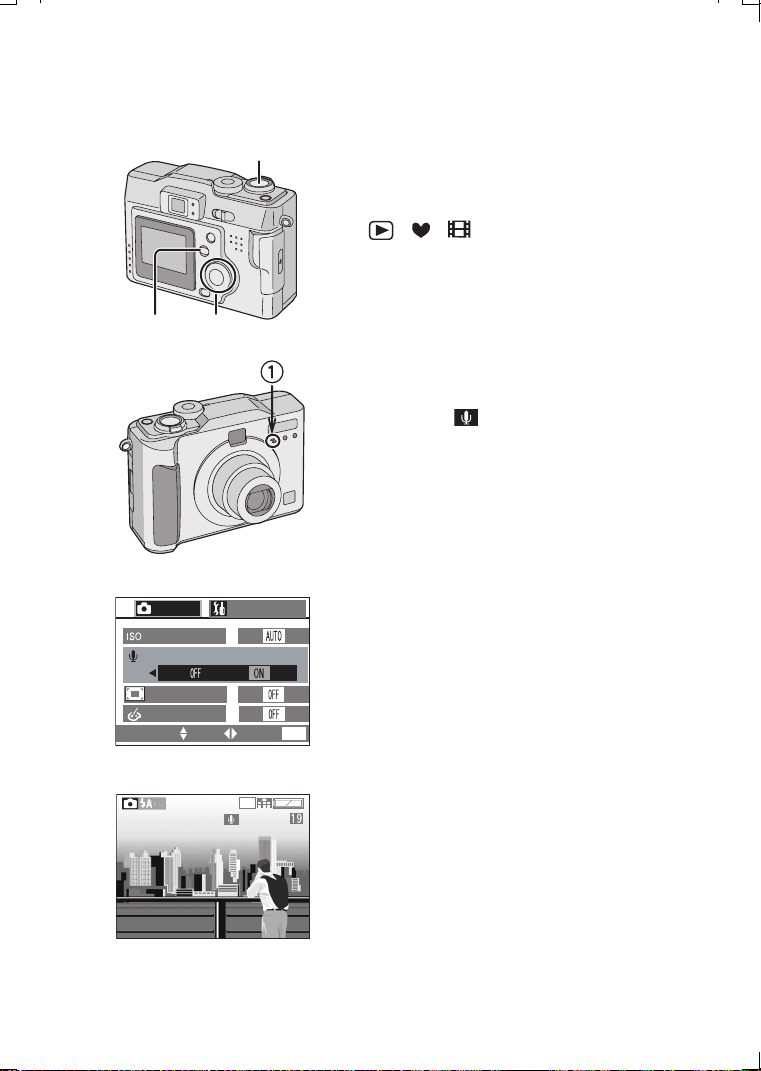
Taking Pictures with Audio
You can take a picture with audio for
5 seconds.
[Preparation]
• Set the mode dial except for
[ ]/[
]
/[ ]. (P22)
1 Press the [MENU] button.
2 Press 3/4 to select
[
AUDIO REC.].
3 Press 2/1 to set to [ON].
4 Press the [MENU] button.
• The menu will disappear.
• This icon [ ] will appear on the LCD
monitor.
5 Press the shutter button fully and take
a picture.
• It is not necessary to continue pressing
the shutter button.
• Audio is recorded from the built-in
microphone 1 of the camera.
• 5 seconds later, the audio recording is
stopped automatically.
• If you press the [MENU] button during the
audio recording, it will be cancelled.
• Audio cannot be played back from this
camera. Connect to a television or PC to play
back audio.
• Using this feature will result in fewer images
being able to be saved.
• When setting to burst mode/auto bracket, it
is not possible to take a picture with audio.
(P45, P51)
• The picture with audio cannot be resized or
trimmed. (P67, P68)
5
1,4 2,3
AUDIO REC.
REC
2/3
SETUP
SENSITIVITY
D.ZOOM
2,3
SELECT SET EXIT
MENU
COL. EFFECT
2048
4
KC52-PP.book 35 ページ 2003年3月13日 木曜日 午後2時29分
Recording images (advanced)
36
Recording images (advanced)
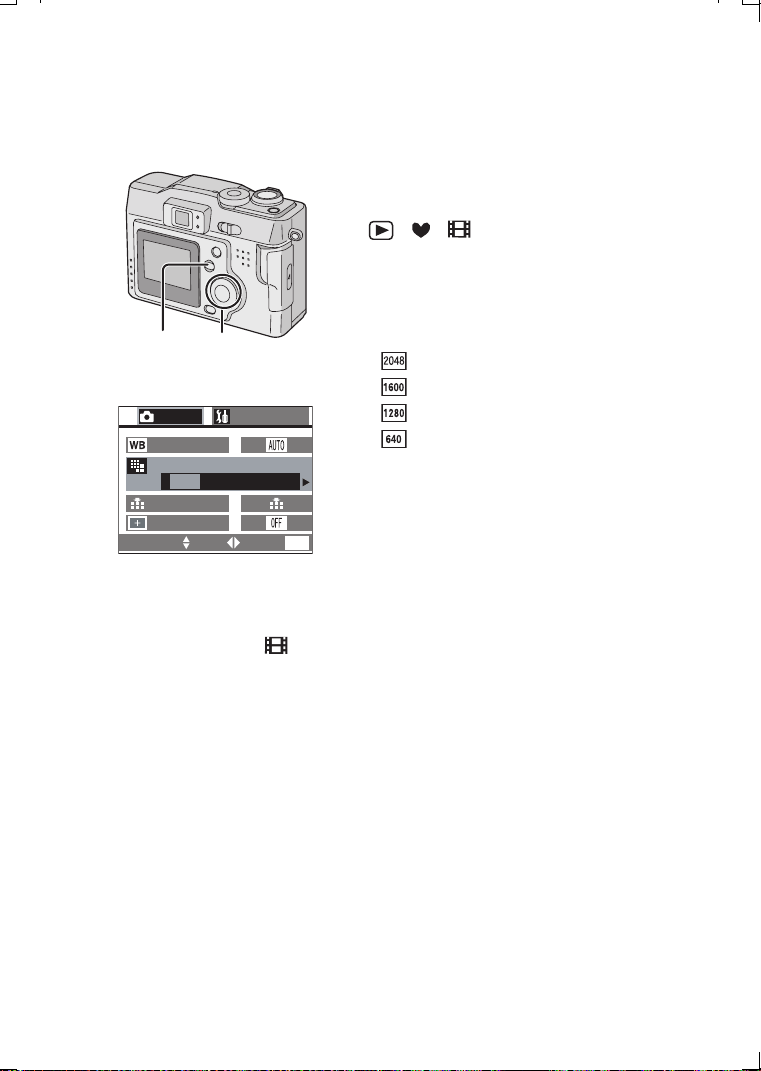
Changing the Picture Size
You can choose among 4 picture size
settings.
[Preparation]
• Set the mode dial except for
[ ]/[
]
/[ ]. (P22)
1 Press the [MENU] button.
2 Press 3/4 to select [PICT.SIZE].
3 Press 2/1 to select the picture size.
• : 2048a1536 pixels
• : 1600a1200 pixels
• : 1280a960 pixels
• : 640a480 pixels
4 Press the [MENU] button.
• The menu will disappear.
• In motion image mode [ ], the picture size is fixed to 320a240 pixels.
• The smaller the picture size you select, the more pictures you can store on the
Memory Card. In addition, a small data volume allows you attach the picture to an
e-mail or post it on a website more easily. If you select a larger picture size, the
printed picture will be clearer, especially with larger sized prints.
1,4 2,3
REC
1/3
SETUP
PICT.SIZE
QUALITY
SPOT MODE
W.BALANCE
SELECT SET EXIT
MENU
2,3
2048 1600 1280 640
KC52-PP.book 36 ページ 2003年3月13日 木曜日 午後2時29分
Recording images (advanced)
37
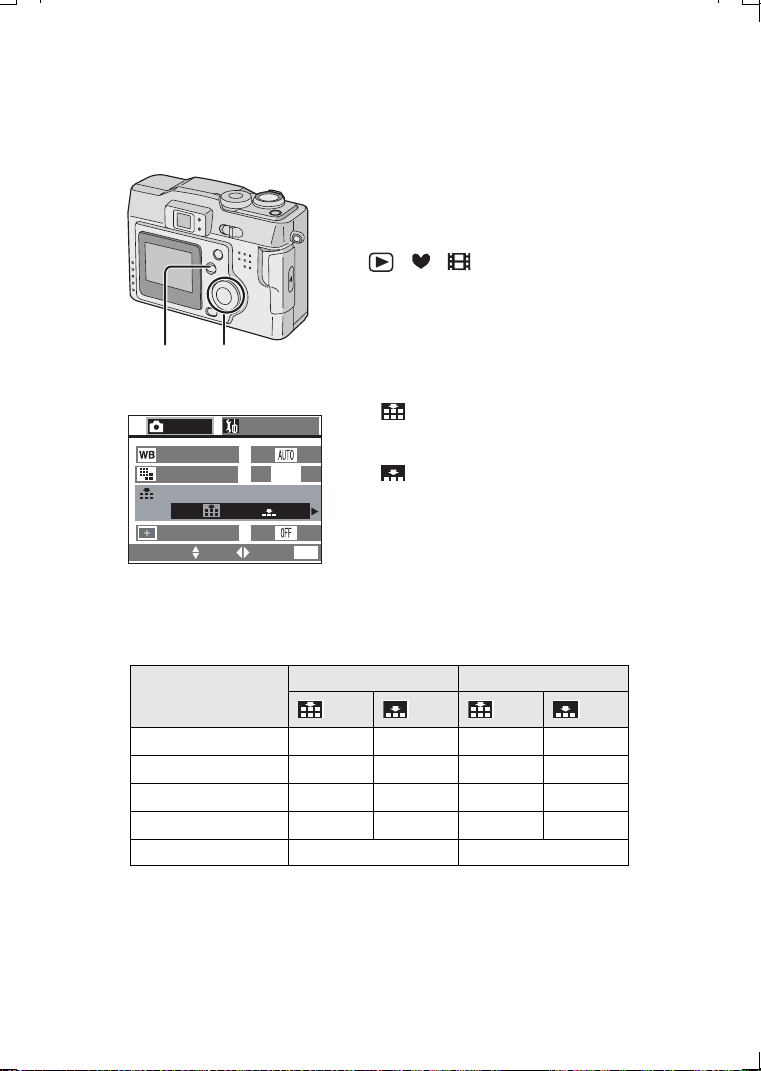
Changing the Quality
(Data Compression Ratio)
You can choose among 2 quality levels (Data
Compression Ratio).
[Preparation]
• Set the mode dial except for
[ ]/[
]/
[ ]. (P22)
1 Press the [MENU] button.
2 Press 3/4 to select [QUALITY].
3 Press 2/1 to select the
quality (Data
Compression Ratio).
• : Fine (Low compression)
It gives priority to picture quality to record
high quality pictures.
• : Standard (Standard compression)
It gives priority to the number of recordable
pictures and records standard quality
pictures.
4 Press the [MENU] button.
• The menu will disappear.
• Picture size/Quality and number of recordable pictures (16MB/64MB SD Memory
Card)
• The numbers shown in the table are approximate numbers. The number of
recordable pictures changes depending on the subject.
• It may happen that pictures appear like a mosaic depending on the scene
characteristics.
• Remaining frame which is displayed on the LCD monitor may not correspond with
recorded frames, however, this is not a malfunction.
1,4 2,3
PICT.SIZE
QUALITY
REC
1/3
1600
SPOT MODE
W.BALANCE
SETUP
SELECT SET EXIT
MENU
2,3
Picture size 16MB (supplied) 64MB (optional)
2048a1536
10 20 45 88
1600
a1200
17 34 74 149
1280
a960
22 43 96 184
640
a480
69 129 298 553
In motion image mode 80 seconds 350 seconds
KC52-PP.book 37 ページ 2003年3月13日 木曜日 午後2時29分
Recording images (advanced)
38
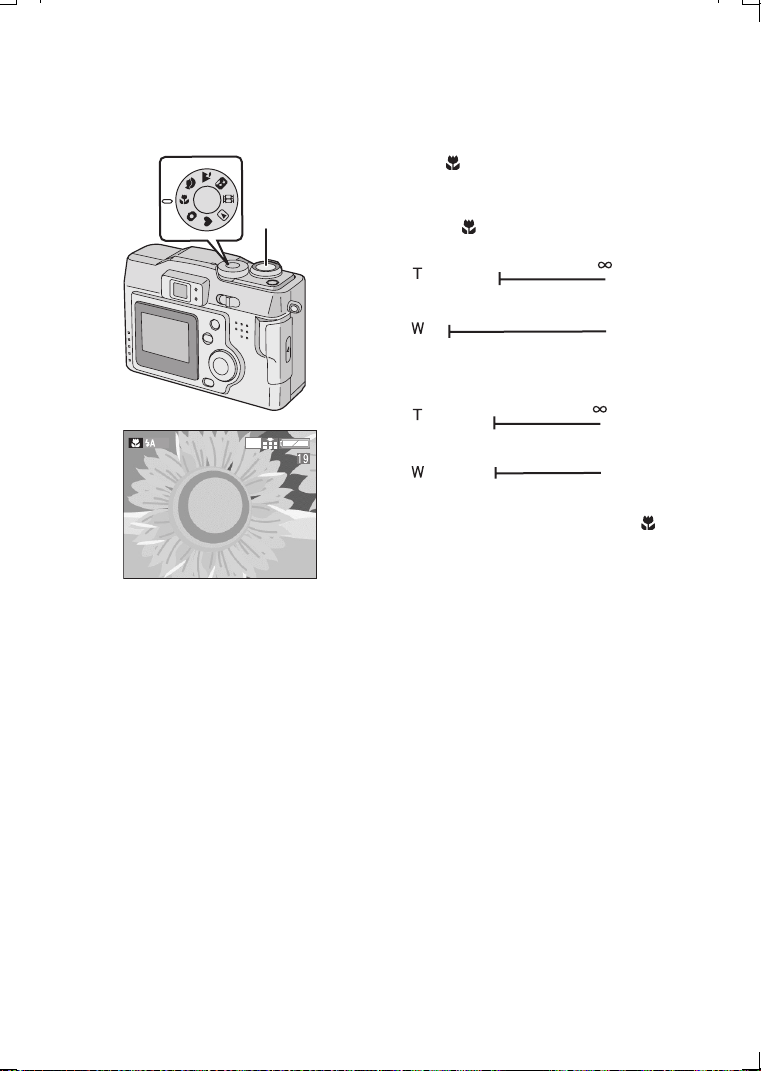
Taking Pictures using Macro Mode
When you take pictures from a distance closer
than
1.64 feet (50 cm)
(Tele), set the camera in
macro mode
[]
. This allows you to get closer
to the subject up to 0.33 feet (10 cm)(Wide)
.
• Macro Mode [ ]
• Normal recording
1 Set the mode dial to Macro mode [ ].
2 Take a picture.
• Select the flash setting depending on the situation. (P32)
• The available flash range is about 1.64 feet (50 cm) - 4.59 feet (140 cm)(Tele),
0.98 feet (30 cm) - 7.87 feet (2.4 m)(Wide). (When setting to ISO100)
• When the camera shake alert is displayed within the available flash range, we
recommend using the flash.
• When the camera lens is at a distance over the available range from the subject,
focus may not be adjusted even if the focus indication appears.
• When selecting the macro mode, optical finder functionality is limited. Use the
LCD monitor.
2
1
2048
(50 cm)
(10 cm)
1.64 feet
0.33 feet
(50 cm)
1.64 feet
(50 cm)
1.64 feet
KC52-PP.book 38 ページ 2003年3月13日 木曜日 午後2時29分
Recording images (advanced)
39
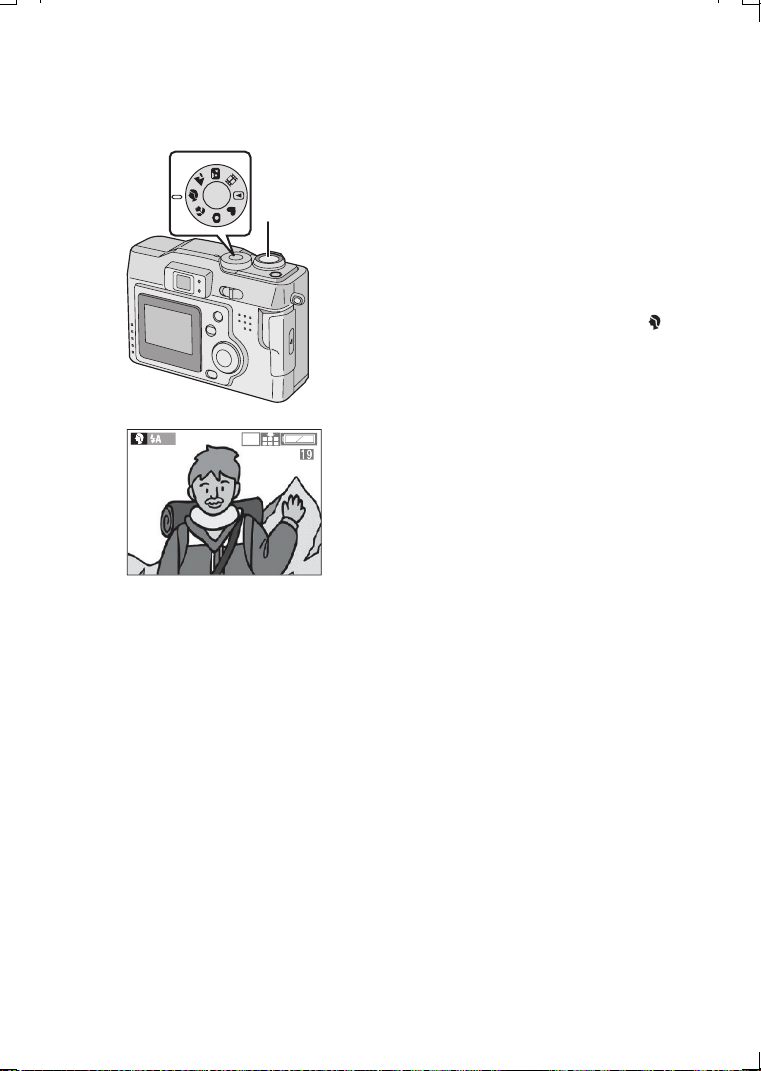
Taking Pictures using Portrait Mode
This mode allows you to easily achieve the
depth of focus effect. The subject stands out in
front of an unfocused background.
We recommend placing the subject much
closer and allowing for proper distance
between subject and background.
Please note that this mode is suitable for
outdoor situations under sunlight.
1 Set the mode dial to Portrait mode [ ].
2 Take a picture.
• [AUTO] setting in [W.BALANCE] works best when recording outdoors in the
daytime. When using indoors, the color balance can change. You can change the
white balance setting. (P48)
2
1
2
0
4
8
KC52-PP.book 39 ページ 2003年3月13日 木曜日 午後2時29分
Recording images (advanced)
40
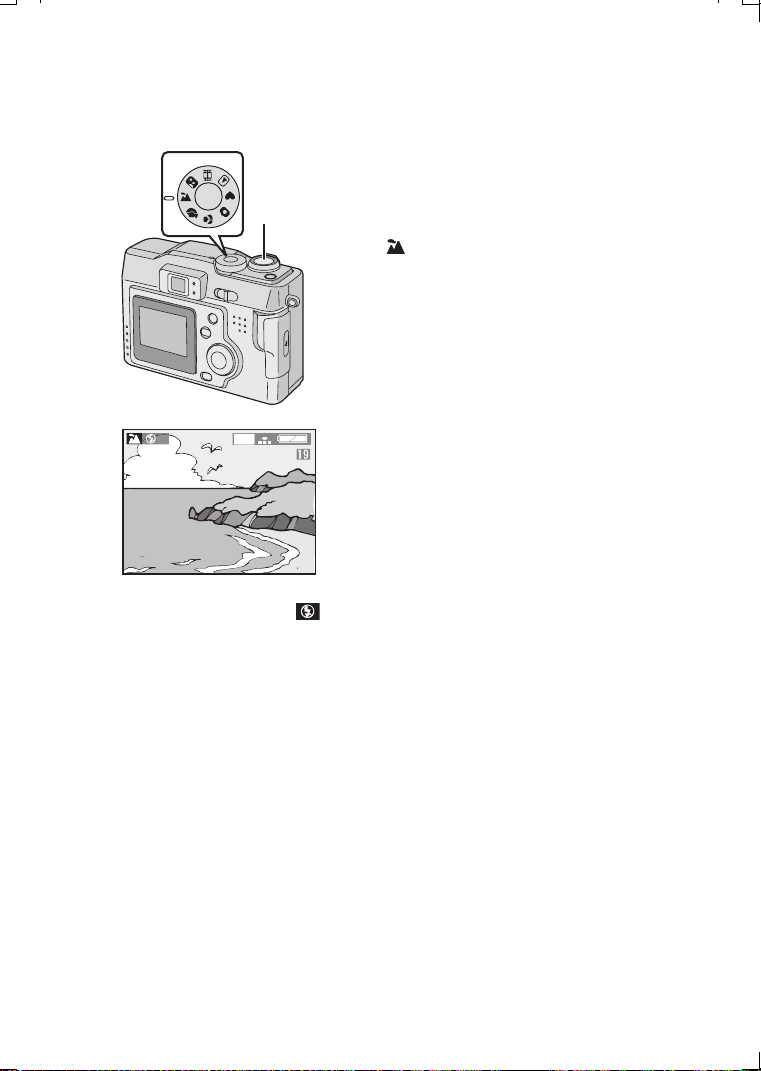
Taking Pictures using Landscape Mode
In Landscape mode the camera is adjusted to
produce the greatest depth of field. This mode
works best outdoors under direct sunlight at
distances exceeding 32.8 feet (10 m).
1 Set the mode dial to Landscape mode
[].
2 Take a picture.
• Flash is set to Forced OFF [ ].
• The focus is adjusted at a distance of 32.8 feet (10 m) -

(Tele), 9.84 feet (3 m) -

(Wide).
• [AUTO] setting in [W.BALANCE] works best when recording outdoors in the
daytime. When using indoors, the color balance can change. You can change the
white balance setting. (P48)
2
1
2
0
4
8
KC52-PP.book 40 ページ 2003年3月13日 木曜日 午後2時29分
Recording images (advanced)
41
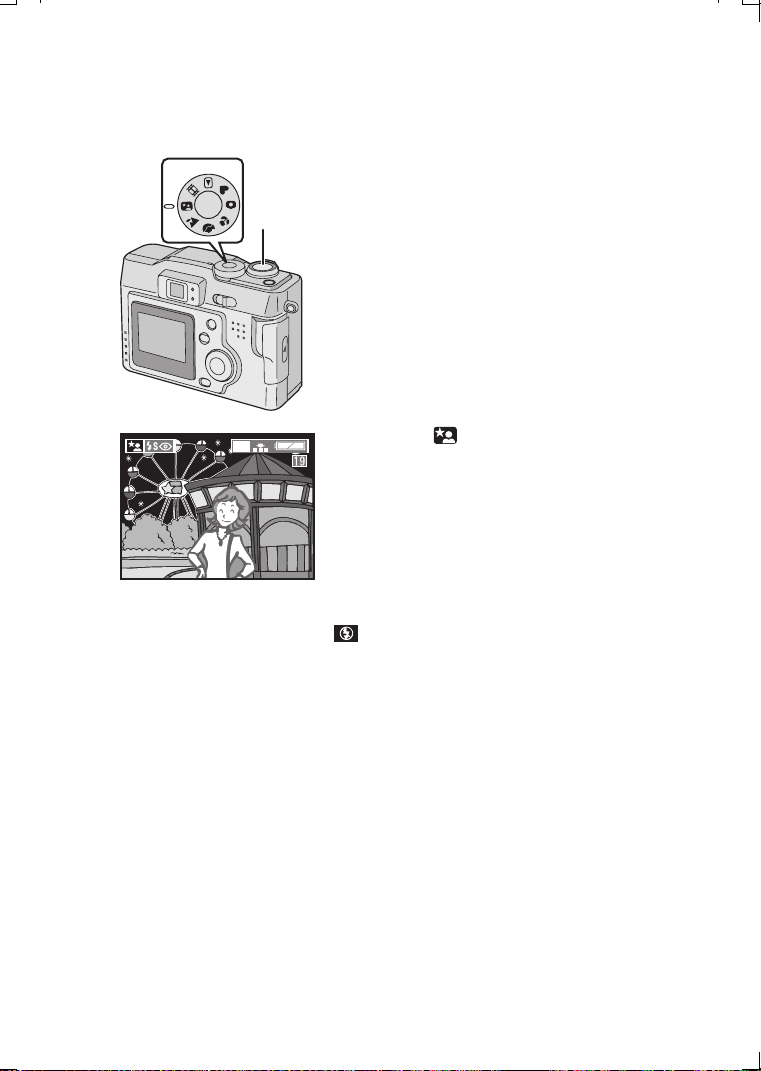
Taking Pictures using Night Portrait Mode
The Night Portrait mode combines the
electronic flash with a “slow shutter” mode.
This unique feature allows you to photograph
close subjects against the natural night
background. Since the shutter speed is slow,
we highly recommend using a tripod to steady
the camera.
The subject should be positioned within the
available flash range. (Tele:
1.64 feet (50 cm) -
4.59 feet (140 cm), Wide: 0.98 feet (30 cm) -
7.87 feet (2.4 m).)
We recommend setting the zoom lever
towards W.
1 Set the mode dial to Night portrait
mode [ ].
2 Take a picture.
• When flash is set to Forced OFF [ ], you can capture night illumination scenery
with slower shutter speed. (Max: about 8 seconds)
• When taking a picture in a dark place, noise may appear. To avoid noise, we
recommend setting the picture adjustment to [NATURAL]. (P47)
2
1
2048
KC52-PP.book 41 ページ 2003年3月13日 木曜日 午後2時29分
Recording images (advanced)
42
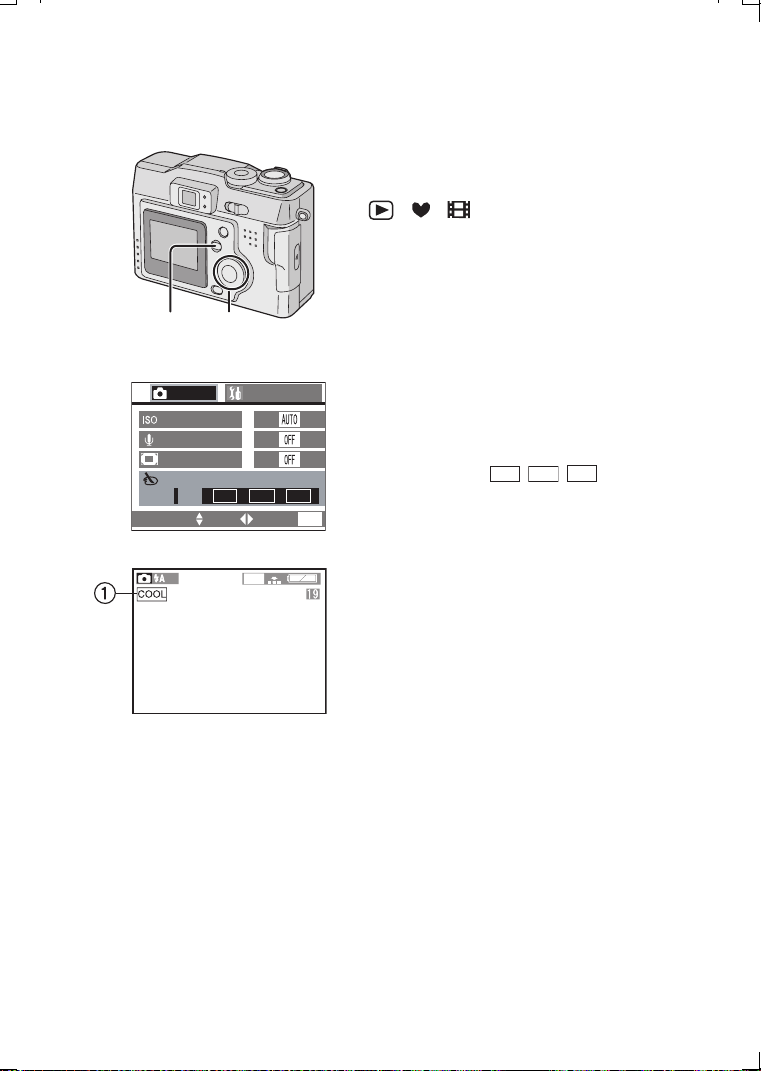
Using the Color Effect Mode
This function enables the use of 3 kinds of
color effects.
[Preparation]
• Set the mode dial except for
[ ]/[ ]/[ ]. (P22)
1 Press the [MENU] button.
2 Press 3/4 to select [COL.EFFECT]
.
3 Press 2/1 to select [OFF], [COOL],
[WARM] or [B/W]
.
• COOL: The picture becomes bluish.
• WARM: The picture becomes reddish.
• B/W: The picture becomes black and
white.
4 Press the [MENU] button
.
• The menu will disappear.
• The indication [ / / ] 1 will
appear.
2,3
1,4
SELECT SET EXIT
MENU
REC
2/3
SETUP
COOL WARM B/W
COL.EFFECT
D.ZOOM
SENSITIVITY
AUDIO REC.
OFFOFF
2,3
COOL
WARM
B/W
4
2
0
4
8
KC52-PP.book 42 ページ 2003年3月13日 木曜日 午後2時29分
Recording images (advanced)
43
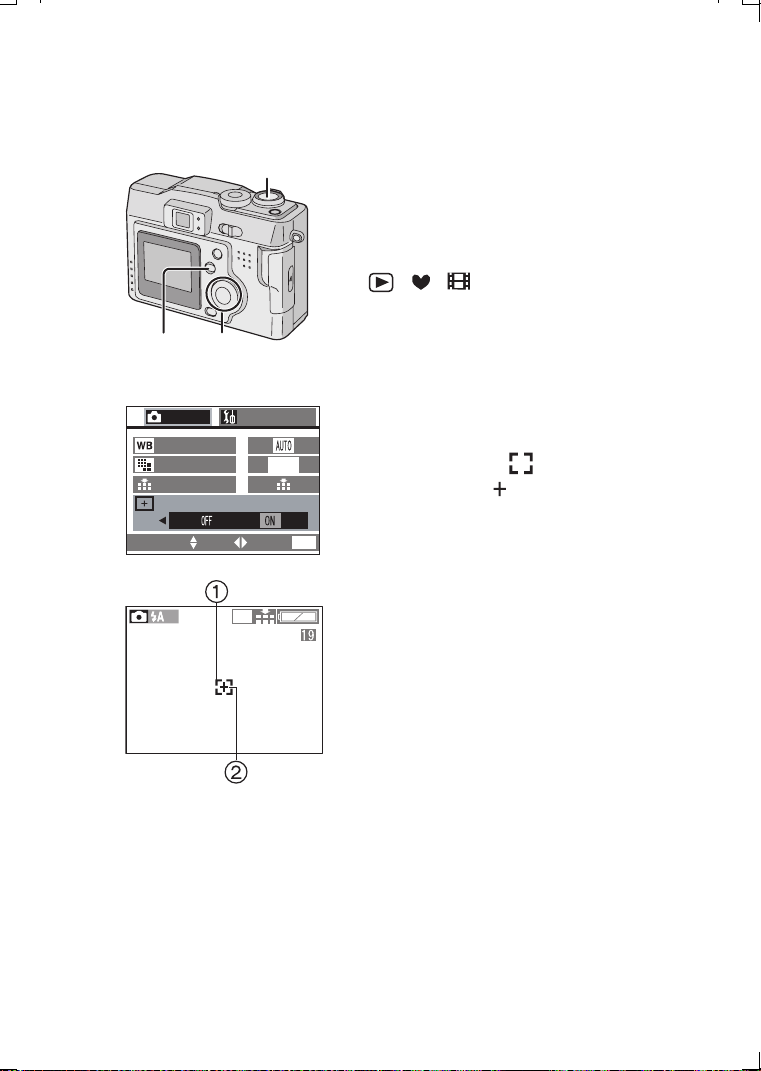
Taking Pictures using Spot Mode
When this mode is selected, both the focus
and the exposure will be adjusted to spot on a
limited area. This is suitable when you take
pictures in delicate light conditions and intend
to take a picture of a specific area.
[Preparation]
• Set the mode dial except for
[ ]/[ ]/[ ]. (P22)
1 Press the [MENU] button.
2 Press 3/4 to select [SPOT MODE].
3 Press 2/1 to set to [ON].
4 Press the [MENU] button.
• The menu will disappear.
• The spot AF area 1 and spot
metering target 2 appears.
5 Center the subject in the spot AF area.
6 Take a picture.
• When the subject is dark, the focus may not be adjusted properly.
• Background may become dark or whitish depending on the subject.
• If the subject is out of the spot AF area, use the AF/AE lock. (P46)
6
2,31,4
REC
1/3
SETUP
SPOT MODE
1600
PICT.SIZE
QUALITY
W.BALANCE
SELECT SET EXIT
MENU
2,3
2048
4
KC52-PP.book 43 ページ 2003年3月13日 木曜日 午後2時29分
Recording images (advanced)
44
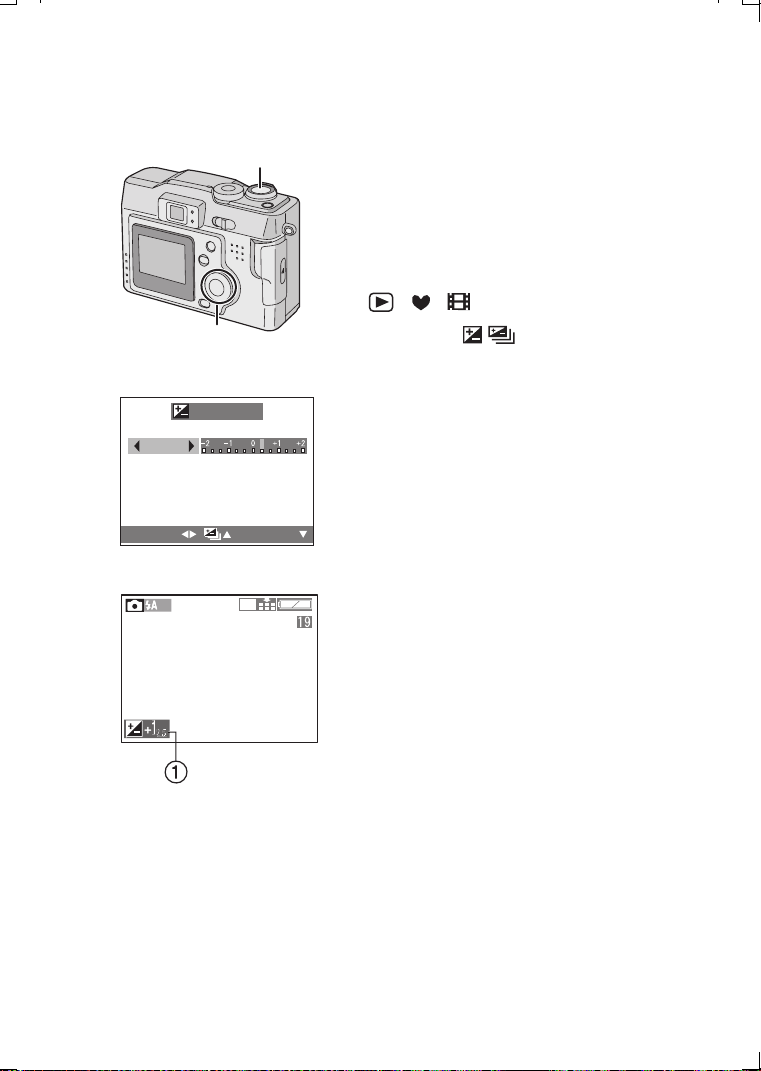
Compensating the Exposure
In some situations the illumination of the
background and your subject may differ. Auto
exposure systems may not always calculate
the exposure correctly. This is a normal
situation. This feature allows you to manually
compensate the exposure.
[Preparation]
• Set the mode dial except for
[ ]/[ ]/[ ]. (P22)
1 Press the [ ] button.
2 Press 2/1 to compensate the
exposure.
• You can compensate from j2 EV to i2
EV with 1/3 EV step.
(EV is an abbreviation of Exposure Value,
and it is the amount of light given to the
CCD by the aperture value and the
shutter speed)
• The compensation state may be different
from the recorded picture. Confirm the
playback picture.
3 Press the 4/[REVIEW/SET] button.
• The compensation window will close.
• The compensation state is not reflected
by the brightness of the LCD monitor.
• The exposure compensation indication 1
will appear.
4 Take a picture.
• Depending on brightness of the subject, the range for which it is possible to
compensate the exposure will be limited.
4
1,2,3
3
1
/3
/
3
2048
EXPOSURE
EXITSELECT
+
1
/
3
EV
2
KC52-PP.book 44 ページ 2003年3月13日 木曜日 午後2時29分
Recording images (advanced)
45
Taking Pictures using Auto Exposure
(AE) Bracket
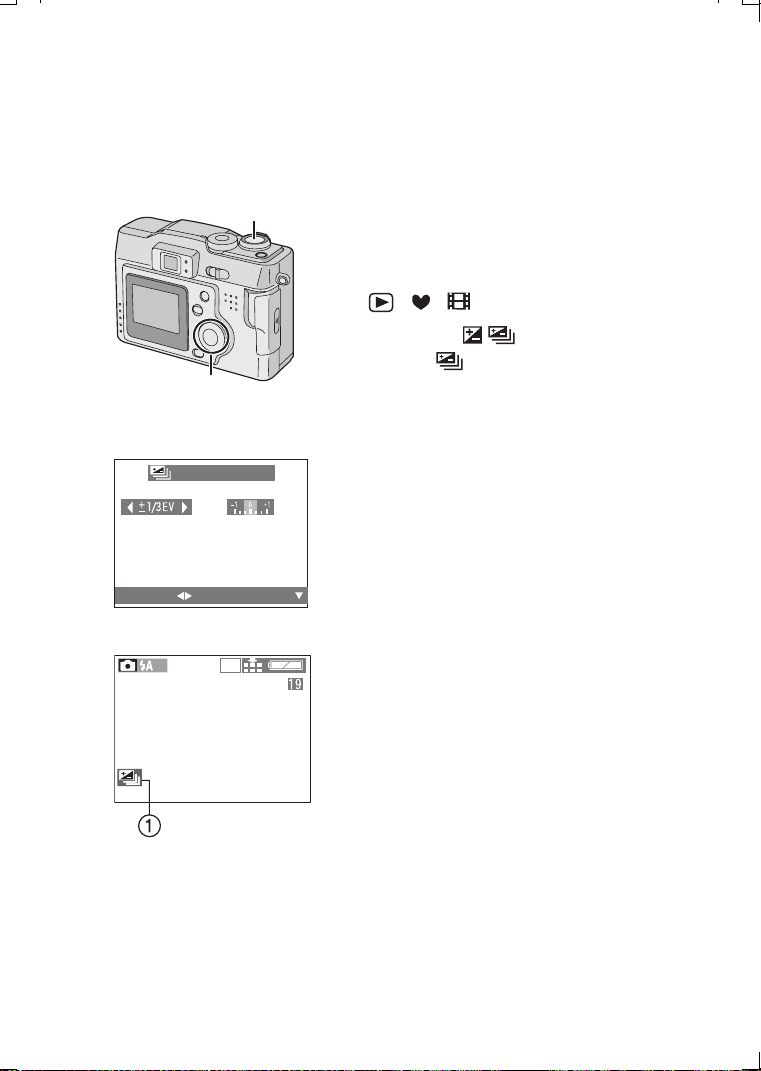
Pressing the shutter button once, the camera
will automatically take 3 pictures changing
exposure according to the set exposure
compensation value.
[Preparation]
• Set the mode dial except for
[ ]/[ ]/[ ]. (P22)
1 Press the [ ] button 2 times to
select [ AUTO BRACKET].
2 Press 1, then press 2/1 to set the
exposure compensation range.
•OFF
• j1 EV - i1 EV
(1/3 EV step)
3 Press the 4/[REVIEW/SET] button.
• The compensation window will close.
• The auto bracket indication 1 appears.
4 Take a picture.
• Once you take a picture, auto bracket will be cancelled automatically.
• When flash fires, you can take only 1 picture. Auto bracket setting cannot be
cancelled.
• When setting auto bracket, you cannot take a still picture with audio.
• Depending on the brightness of the subject, the range for which it is possible to
compensate the exposure pictures using auto bracket will be limited.
4
1,2,3
AUTO BRACKET
EXIT
2
SELECT
3
2048
KC52-PP.book 45 ページ 2003年3月13日 木曜日 午後2時29分
Recording images (advanced)
46
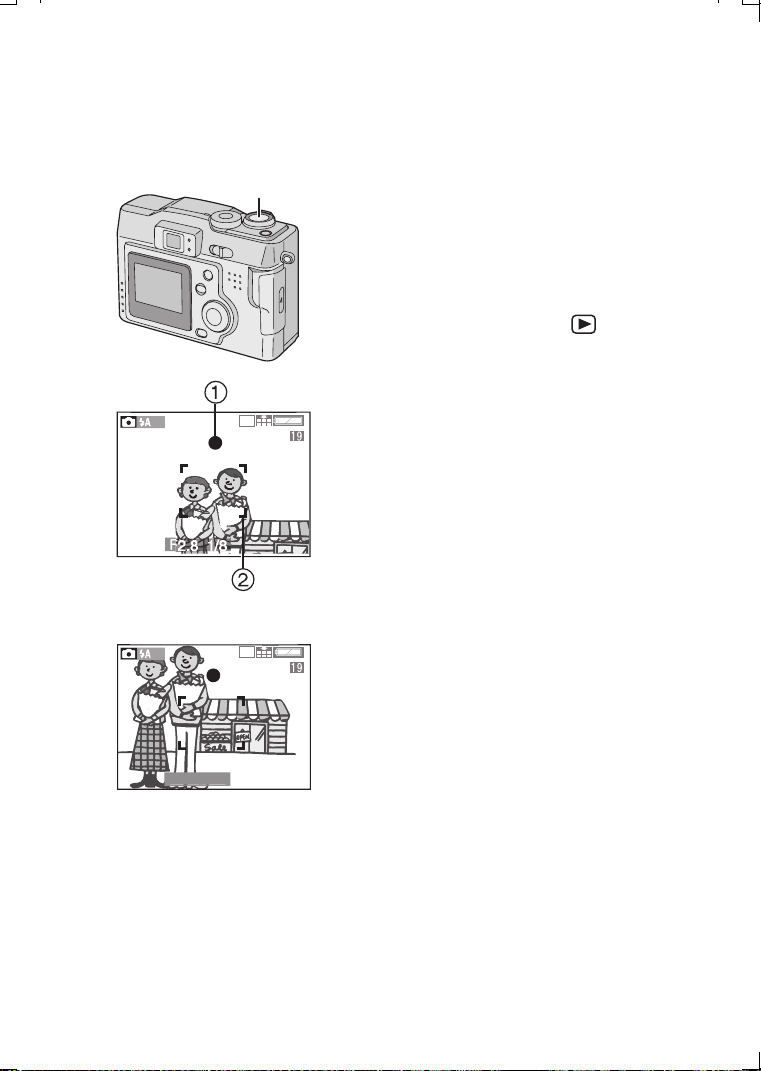
Using the AF/AE Lock
Normally, the camera focuses in the center
area of the picture. Depending on how you
compose the photo, your subject may not be
in the center. Using AF/AE Lock you can
focus on your subject, reposition the camera,
and the camera will maintain proper focus.
AF: Auto focus
AE: Auto exposure
[Preparation]
• Set the mode dial except for [ ]. (P22)
1 Aim the camera at the subject on
which you want to adjust the focus to
enter the AF area 2 on the LCD
monitor and then keep pressing the
shutter button halfway (AF/AE lock).
• When the focus is adjusted, the focus
indication 1 [¥] appears.
2 Move the camera keeping the chosen
composition and press the shutter
button all the way.
• Before pressing the shutter button, you can
set the AF/AE lock again and again.
1,2
2048
1
2048
2
F2.
8
1
/8
KC52-PP.book 46 ページ 2003年3月13日 木曜日 午後2時29分
Recording images (advanced)
47
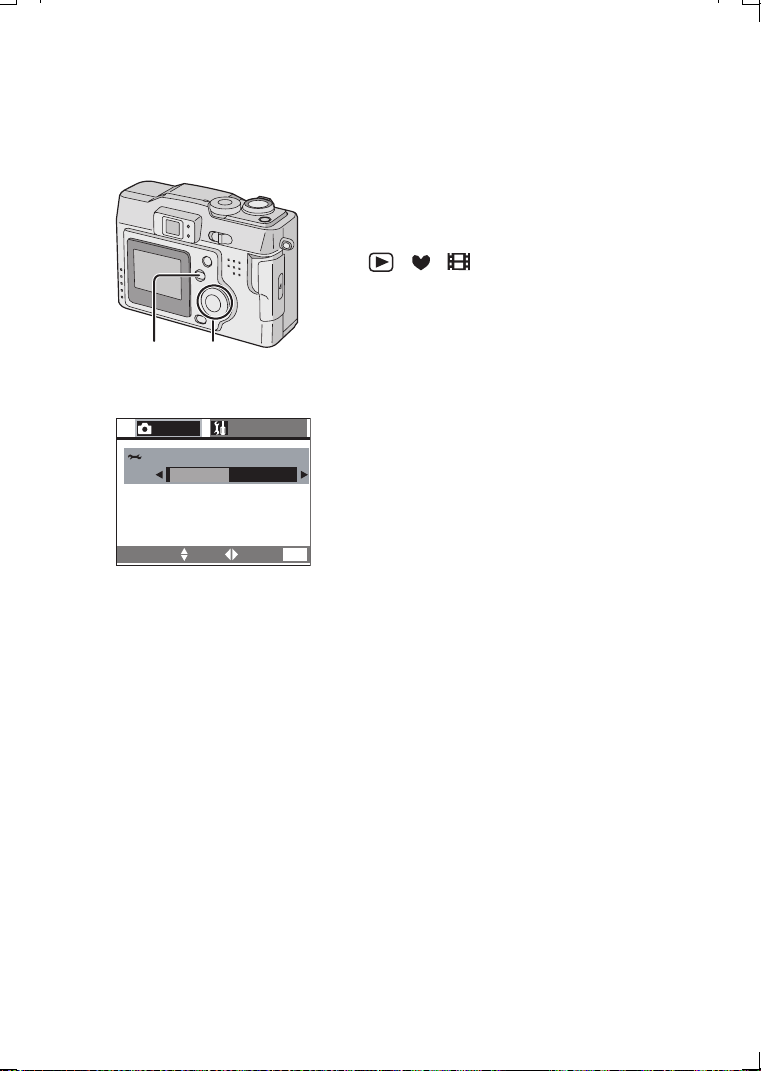
Adjusting the Color Tone or the Contrast
(Picture Adjustment)
This function enables you to adjust the color
tone or the contrast.
[Preparation]
• Set the mode dial except for
[ ]/[ ]/[ ]. (P22)
1 Press the [MENU] button.
2 Press 3/4 to select [PICT.ADJ.]
.
3 Press 2/1 to select [NATURAL],
[STANDARD] or [VIVID]
.
• [NATURAL]: The picture becomes softer.
• [VIVID]: The picture becomes sharper.
4 Press the [MENU] button
.
• The menu will disappear.
• When using Vivid mode in low light situations it is possible that a slight increase in
color noise will be seen. Proper lighting is recommended.
2,3
1,4
REC
3/3
SETUP
PICT.ADJ.
VIVID
STANDARDSTANDARD
SELECT SET EXIT
MENU
2,3
KC52-PP.book 47 ページ 2003年3月13日 木曜日 午後2時29分
Recording images (advanced)
48
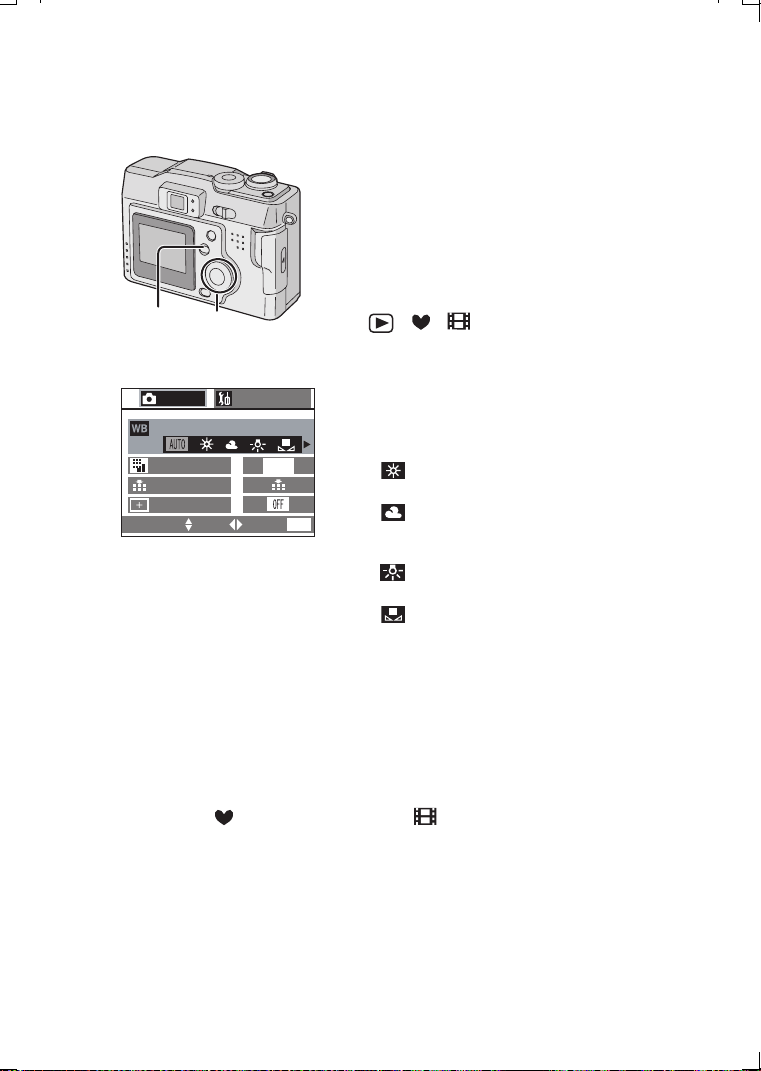
Setting the White Balance
Auto White Balance is designed to
automatically adjust the camera to produce
natural flesh tones. In most situations it works
fine. In some situations where several
different types of lighting are present,
enhanced performance can be achieved by
setting the white balance manually.
[Preparation]
• Set the mode dial except for
[ ]/[ ]/[ ]. (P22)
1 Press the [MENU] button.
2 Press 3/4 to select [W.BALANCE].
3 Press 2/1 to select the mode.
• AUTO: if the auto white balance is set
• (Daylight):
for recording outdoors on a bright day
• (Cloudy):
for recording under a cloudy and shady
sky
• (Halogen):
for recording under halogen lighting
• (White set):
for manual setting (Read the following
page where the manual setting is
explained in detail)
4
Press the [MENU]
button.
• The menu will disappear.
• The setting of the white balance is applied to the other recording modes.
• In simple mode [ ] or motion image mode [ ], the white balance is fixed to
[AUTO].
• When taking a picture with the flash, the white balance will be automatically
adjusted (for AUTO and Halogen mode), but the white balance may not be
properly adjusted when the flash light is insufficient.
2,31,4
REC
1/3
SETUP
QUALITY
W.BALANCE
SPOT MODE
PICT.SIZE
1600
SELECT SET EXIT
MENU
2,3
KC52-PP.book 48 ページ 2003年3月13日 木曜日 午後2時29分
Recording images (advanced)
49
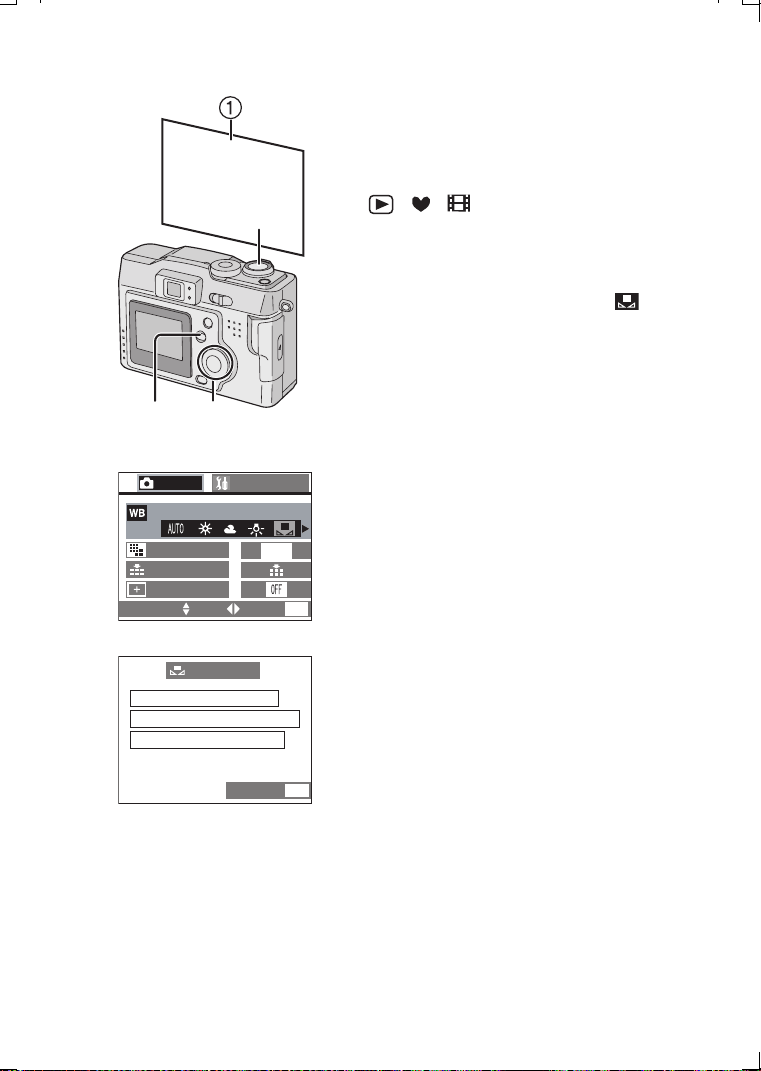
To set manually (White set)
Here the white set mode of white balance is
explained.
[Preparation]
• Set the mode dial except for
[ ]/[ ]/[ ]. (P22)
1 Press the [MENU] button.
2 Press 3/4 to select [W.BALANCE].
3 Press 2/1 to set to white set [ ].
Only when setting the white balance again
4 Press 1.
• The message “FRAME THE CAMERA AT
THE WHITE SURFACE AND PRESS
SHUTTER” is displayed.
5 Aim the camera at a sheet of white
paper 1 or similar object so that it
completely fills the frame to white on
the screen and press the shutter
button all the way.
• White balance is set.
6
Press the [MENU] button.
• The menu will disappear.
• When taking a picture with the flash after
setting the white balance manually, the
white balance may not be properly adjusted.
We recommend setting the white balance to
[AUTO] when using the flash.
5
2,3,41,6
REC
1/3
SETUP
QUALITY
SPOT MODE
PICT.SIZE
W.BALANCE
1600
SELECT SET EXIT
MENU
4
2,3
WHITE SET
AT THE WHITE SURFACE
AND PRESS SHUTTER
FRAME THE CAMERA
CANCEL
MENU
KC52-PP.book 49 ページ 2003年3月13日 木曜日 午後2時29分
Recording images (advanced)
50
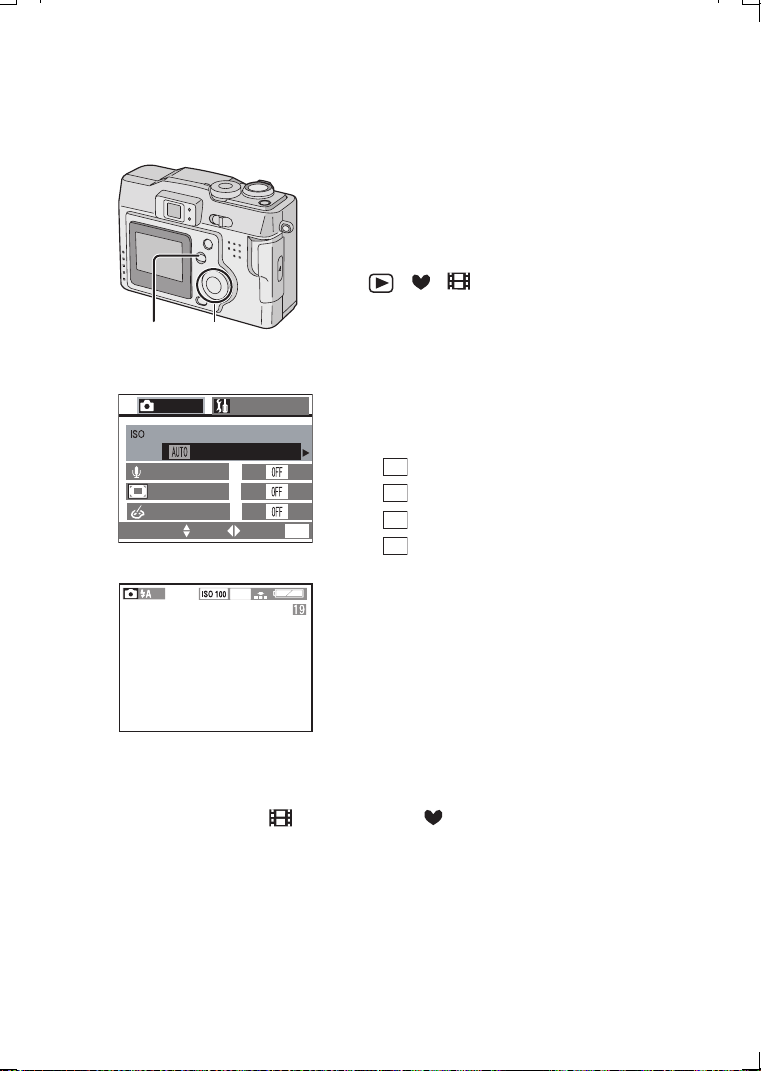
Setting ISO Sensitivity
The ISO setting adjusts the camera’s
sensitivity to light. Generally, the lower the
ISO setting, the better the picture quality will
be. Increasing the ISO value will make the
camera more sensitive in low light.
[Preparation]
• Set the mode dial except for
[ ]/[ ]/[ ]. (P22)
1 Press the [MENU] button.
2 Press 3/4 to select [SENSITIVITY].
3 Press 2/1 to select the sensitivity.
• AUTO: The ISO sensitivity is
automatically adjusted. If your picture is
still too dark, please use the flash.
• ISO50
• ISO100
• ISO200
• ISO400
4 Press the [MENU] button.
• The menu will disappear.
• In motion image mode [ ] or simple mode [ ], ISO sensitivity is fixed to
[AUTO].
• When you take a picture in high ISO sensitivity, picture noise appears and the
picture quality deteriorates.
1,4 2,3
REC
2/3
AUDIO REC.
SENSITIVITY
50 100 200 400
SETUP
SELECT SET EXIT
MENU
D.ZOOM
2,3
COL. EFFECT
50
100
200
400
4
2
0
4
8
KC52-PP.book 50 ページ 2003年3月13日 木曜日 午後2時29分
Recording images (advanced)
51
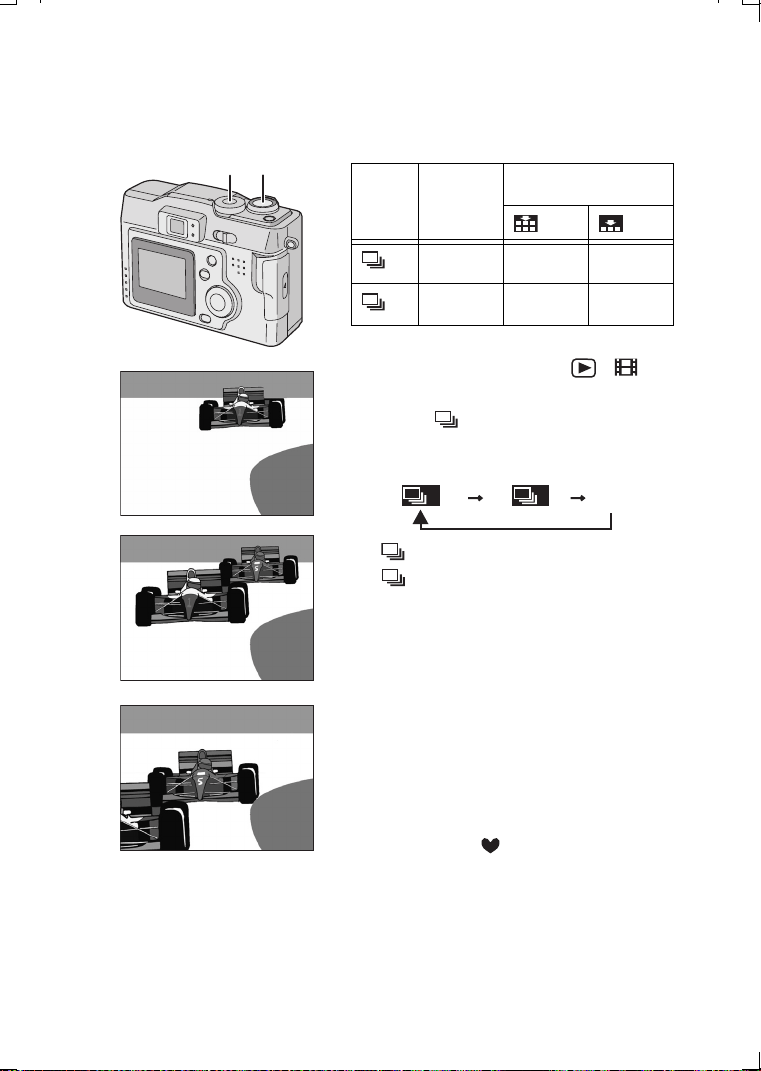
Taking Pictures using Burst Mode
By continuously pressing the shutter button, it
is possible to record in burst mode.
[Preparation]
• Set the mode dial except for [ ]/[ ].
(P22)
1 Press [ ].
• Every time you press it, what is displayed
changes as shown below.
: High speed
: Low speed
When these indicators are not displayed,
burst mode is cancelled.
2 Press the shutter button halfway to
lock the focus, then press it fully to
take pictures in sequence.
• It is possible to record 4 frames in 1 second
in burst mode, at a shutter speed higher
than 1/60, but the flash does not fire
simultaneously.
• If the flash fires, it is possible to record only
1frame.
• In simple mode [ ], the shutter speed is
fixed to the low speed. (P27)
• You cannot take still pictures with audio in
the burst mode.
• Burst mode will not perform as described if
a MultiMediaCard is used in place of SD
Memory Card. The reading/writing speed of
a MultiMediaCard is slower than an SD
Memory Card.
Burst
speed
Number of recordable
pictures
4 frames/
second
5 frames 8 frames
2 frames/
second
5 frames 8 frames
H
L
2
LH
OFF
H
L
KC52-PP.book 51 ページ 2003年3月13日 木曜日 午後2時29分
Playback
52
Playback
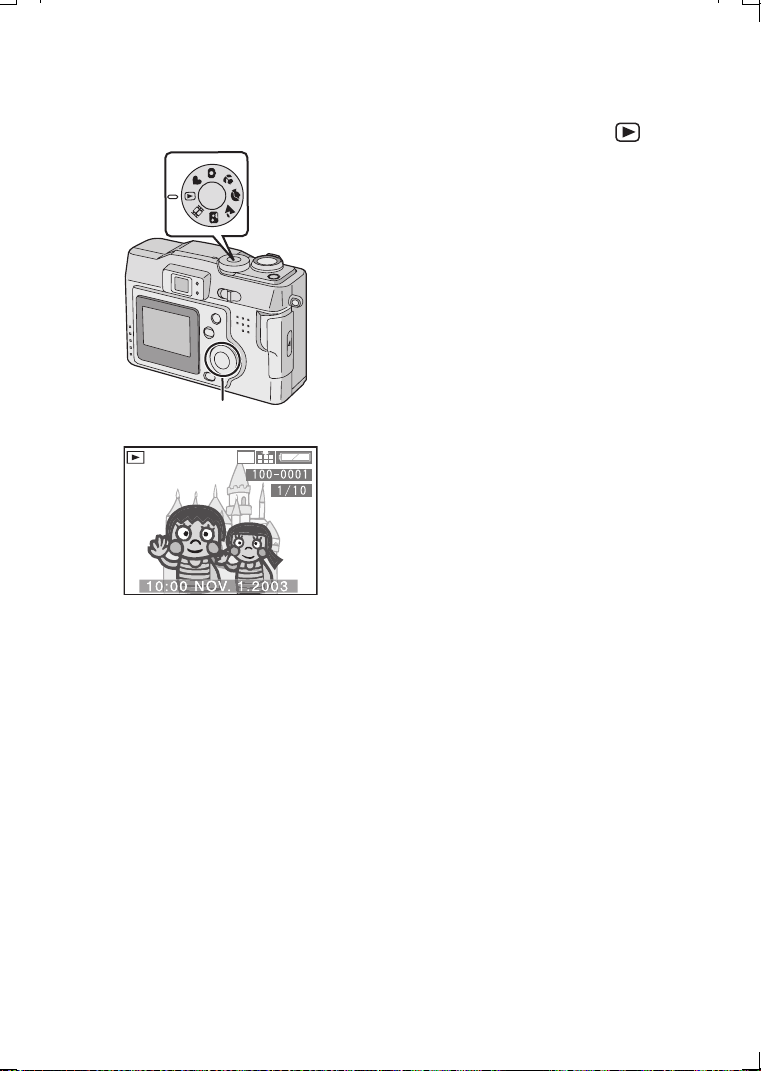
Playing Back Still Pictures
1 Set the mode dial to playback [ ].
• The last recorded picture is played back.
2 Press 2 to play back the previous
picture.
Press 1 to play back the next picture.
• Every time you press 2/1, the previous
(or next) picture is played back.
• The first picture follows the last one.
[Fast forwarding/Fast rewinding]
During playback, continue pressing 2/1.
1: Fast forward
2: Fast rewind
• The file number increases/decreases. When
releasing 2/1, the picture corresponding to
the current file number is displayed.
• This camera is based on the DCF standards (Design rule for Camera File system)
which were established by the Japan Electronics and Information Technology
Industries Association (JEITA).
• The file format that can be played back with this camera is JPEG. (There are also
pictures that cannot be played back in JPEG format)
• When playing back still pictures that have been recorded with other equipment, the
quality of pictures may be deteriorated and pictures may not be able to be played
back.
• When changing the folder name or file name on PC, the pictures may not be able
to be played back.
2
1
2048
KC52-PP.book 52 ページ 2003年3月13日 木曜日 午後2時29分
Playback
53
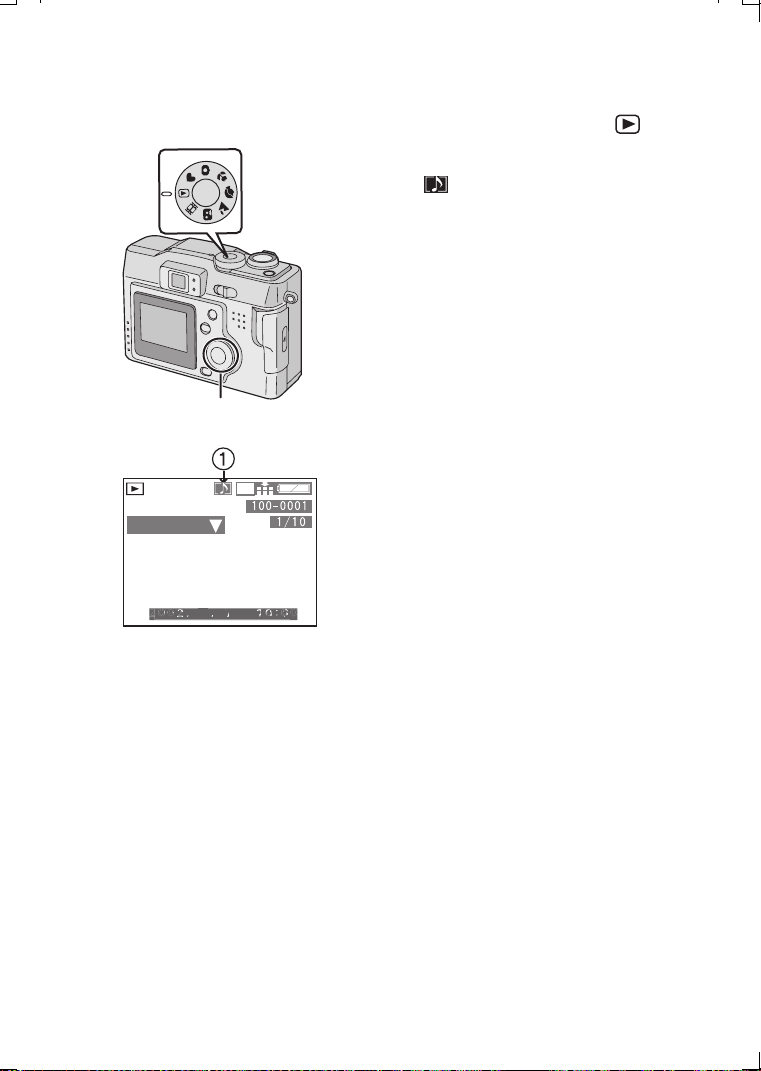
Playing Back Still Pictures with Audio
1 Set the mode dial to playback [ ].
2 Press 2/1 to select the file with audio
icon [ ] 1
.
3 Press the 4/[REVIEW/SET] button to
play back the audio.
• Audio cannot be played back from this
camera. Connect to a television to play back
audio.
2,3
1
2048
PLAY AUDIO
11
11
10:00 NOV. 1.2003
1
0
0:
0
O
V
2
0
0
3
3
0
11
N
KC52-PP.book 53 ページ 2003年3月13日 木曜日 午後2時29分

Playback
54
9 Images Multi Playback
It is possible to display 9 images at once.
[Preparation]
• Set the mode dial to playback [ ]. (P22)
1 During playback, rotate the zoom lever
towards [ ].
• Multi playback (9 frames) starts.
2 Press 3/4/2/1 to select images.
• To return to the normal indication, rotate
the zoom lever towards [ ]. The image
with the file number colored in yellow is
displayed.
2
1
W
T
1 2 3
4 5 6
7 8 9
10 11 12
13 14
SELECT
CANCEL
SELECT
CANCEL
KC52-PP.book 54 ページ 2003年3月13日 木曜日 午後2時29分
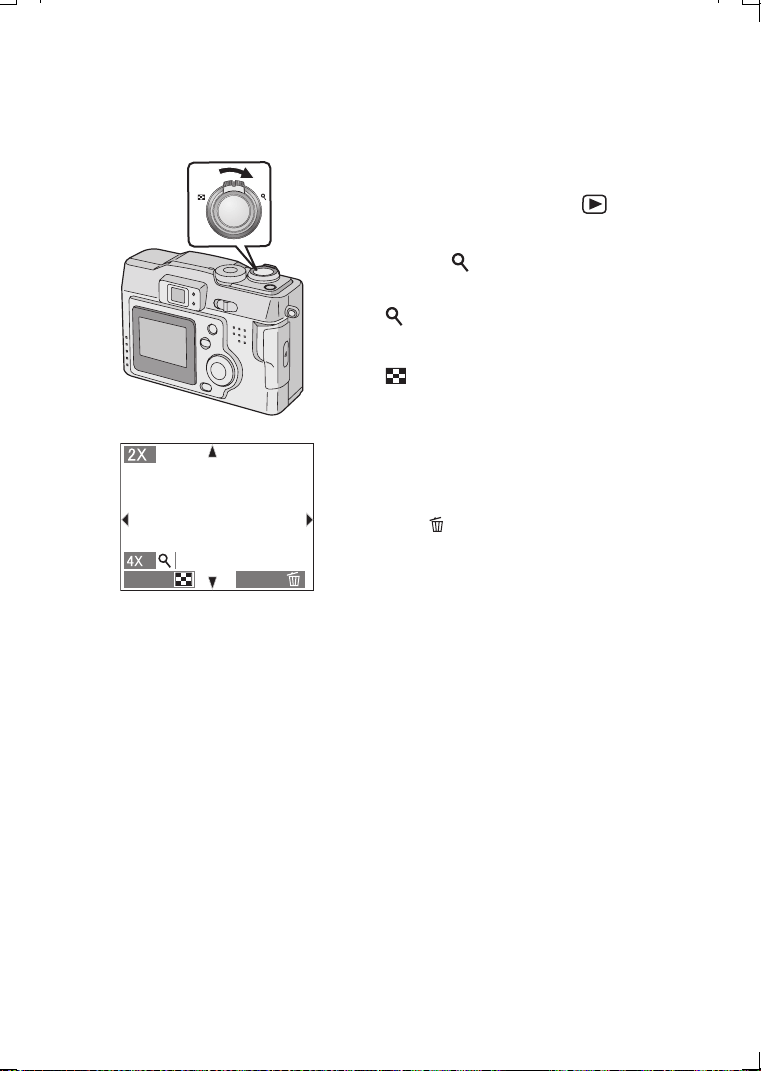
Playback
55
Using the Playback Zoom
During playback it is possible to enlarge
pictures. (2 times/4 times/8 times/16 times)
[Preparation]
• Set the mode dial to playback [ ]. (P22)
1 During playback, rotate the zoom lever
towards [ ].
• The more the zoom lever rotates towards
[ ], the more the zoom magnification
ratio increases.
• The more the zoom lever rotates towards
[ ], the more the zoom magnification
ratio decreases.
• Use 3/4/2/1 to change the area to be
enlarged.
ª To delete a picture during the
playback zoom
Press the [ ] button.
When this message is displayed “DELETE
THIS PICTURE?”, press 2/1 to select
[YES], and press the 4/[REVIEW/SET]
button. (P57)
• The more the zoom magnification increases, the more the picture quality
deteriorates.
• The playback zoom may not operate if pictures have been recorded with other
equipment.
1
W
T
DELETE
CANCEL
KC52-PP.book 55 ページ 2003年3月13日 木曜日 午後2時29分
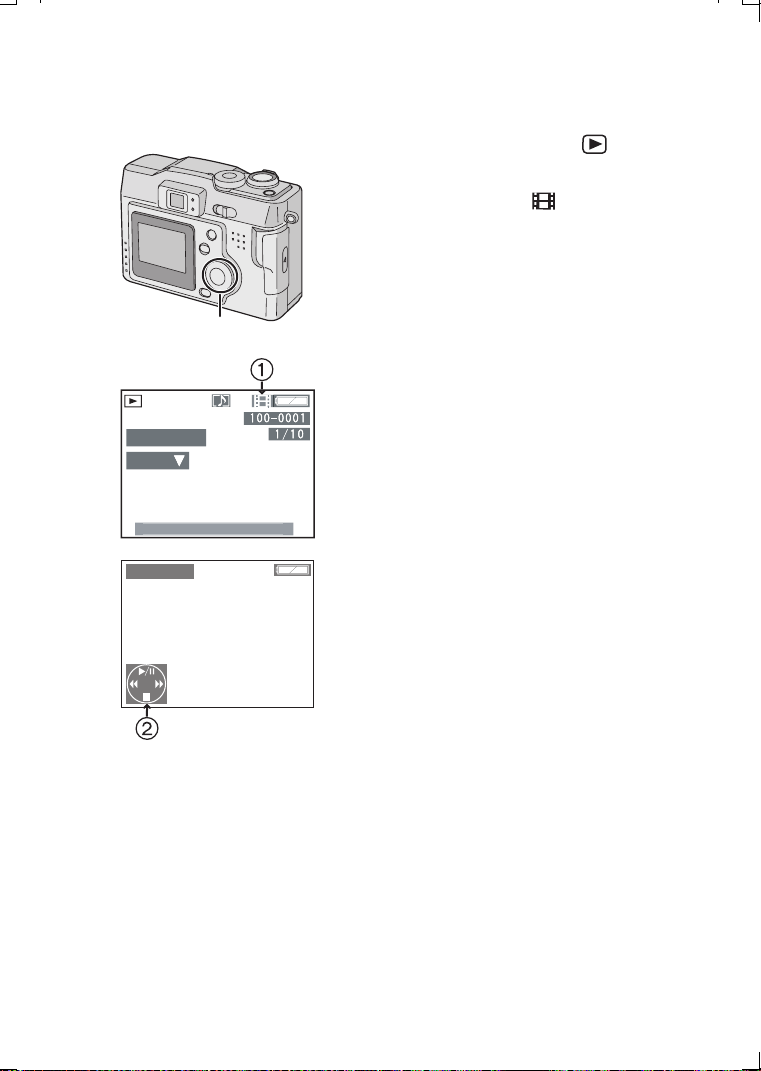
Playback
56
Playing Back Motion Images
[Preparation]
• Set the mode dial to playback [ ]. (P22)
1 Press 2/1 to select the file with the
motion image icon [ ] 1.
2 Press the 4/[REVIEW/SET]
button to
play back the motion image.
• By pressing 4, motion image playback
will stop.
• The icon 2 is corresponding to the
3/4/2/1 button.
[Fast forwarding/Fast rewinding]
During motion image playback, continue
pressing 2/1.
1: Fast forward
2: Fast rewind
• When releasing the button, it turns to
normal motion image playback.
[To pause]
Press 3 during motion image playback.
•Press 3 again to cancel pause.
• Audio cannot be played back from this camera. Connect to a television or PC to play
back audio.
• The play back zoom cannot be used while playing back motion images.
• The file format that can be played back with this camera is QuickTime Motion
JPEG.
• It could happen that the Motion JPEG file recorded by a PC or other equipment
cannot be played back with this camera.
• When playing back motion images that have been recorded with other equipment,
the quality of images may be deteriorated or images may not be able to be played
back.
• When using a high capacity Memory Card, it is possible that fast rewinding may be
slower.
1,2
PLAY M
O
TI
ON
IMA
GE
1
0
:
00
N
O
V. 1.2
003
10s REMAIN
KC52-PP.book 56 ページ 2003年3月13日 木曜日 午後2時29分
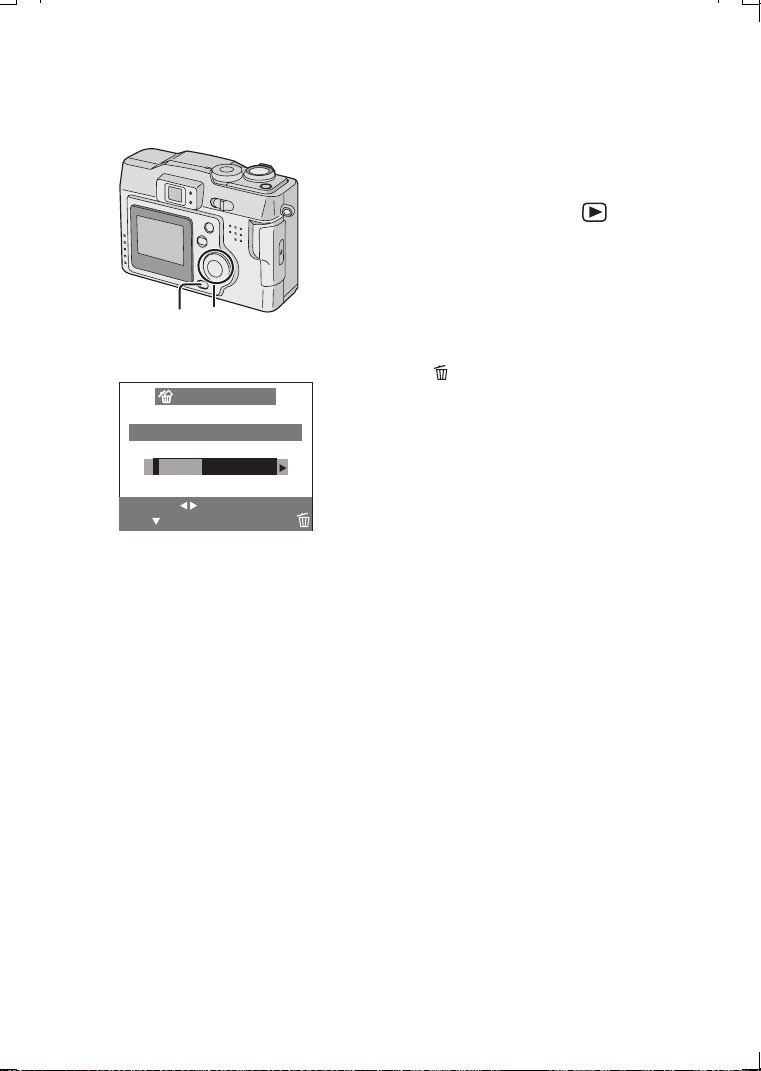
Editing
57
Editing
Deleting Images
Images recorded on the card can be deleted.
Once deleted, images cannot be recovered.
[Preparation]
• Set the mode dial to playback [ ]. (P22)
• When an image is protected, it cannot be
deleted. Cancel the protect setting. (P63)
[Delete single image]
1 Press 2/1 to select the image to be
deleted.
2 Press [].
3 Press 2 to select [YES]
.
4 Press the 4/[REVIEW/SET] button.
• The selected image is deleted.
1,3,4
2
DELETE SINGLE
DELETE THIS PICTURE?
YES NO
SET
SELECT
MULTI/ALL
2,3
KC52-PP.book 57 ページ 2003年3月13日 木曜日 午後2時29分
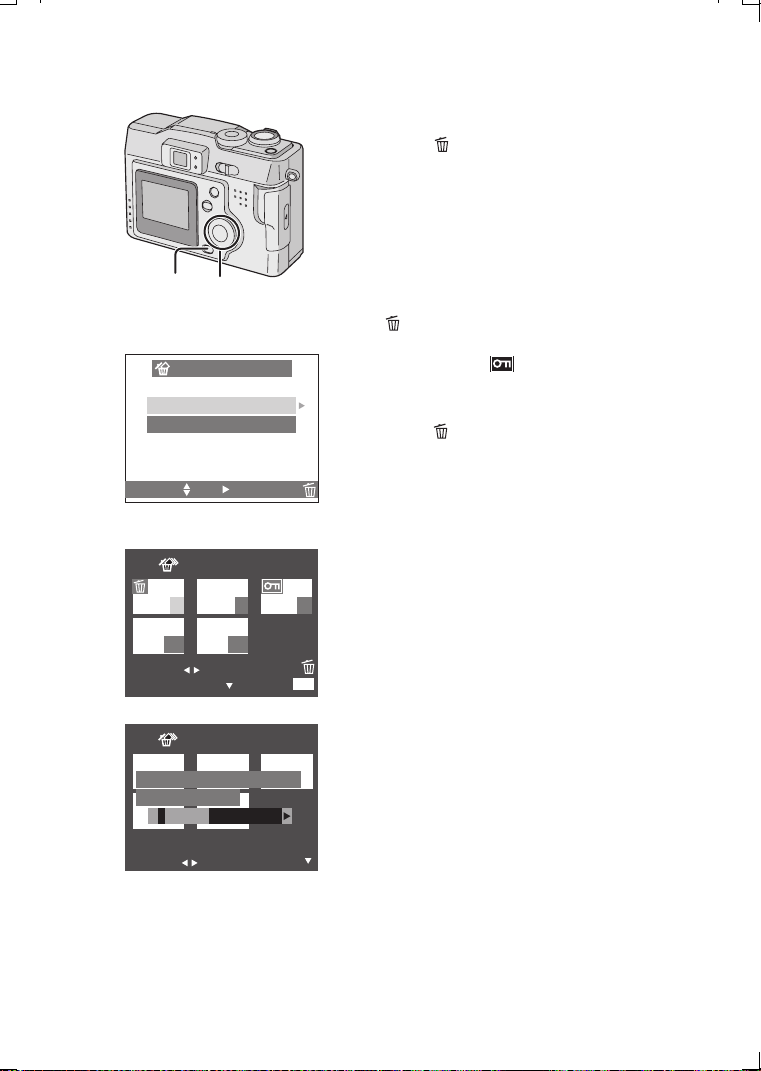
Editing
58
[Delete multi images]
It is possible to delete up to 50 images all at
once.
1 Press [] 2 times.
2 Press 3/4 to select [MULTI DELETE]
and then press 1
.
3 Press 2/1 to select the images to be
deleted.
4 Press the 4/[REVIEW/SET] button.
• The selected images are displayed with
[ ]. Pressing the 4/[REVIEW/SET]
button again, the setting is cancelled.
• The indication [ ] blinks red if the
selected image is protected. Cancel the
protect setting. (P63)
5 Press [].
6 When this message is displayed
“DELETE THE PICTURES YOU
MARKED?”, press 2 to select [YES].
7 Press the 4
/
[REVIEW/SET] button.
• The selected multi images are deleted all
at once.
1, 5
2,3,4,6,7
MULTI/ALL DELETE
MULTI DELETE
ALL DELETE
SELECT SET CANCEL
2
7 8 9
10 11
MULTI DELETE
SELECT
MARK/UNMARK
DELETE
EXIT
MENU
3,4
MULTI DELETE
SELECT
SET
DELETE THE PICTURES
YOU MARKED?
YES NO
6
KC52-PP.book 58 ページ 2003年3月13日 木曜日 午後2時29分
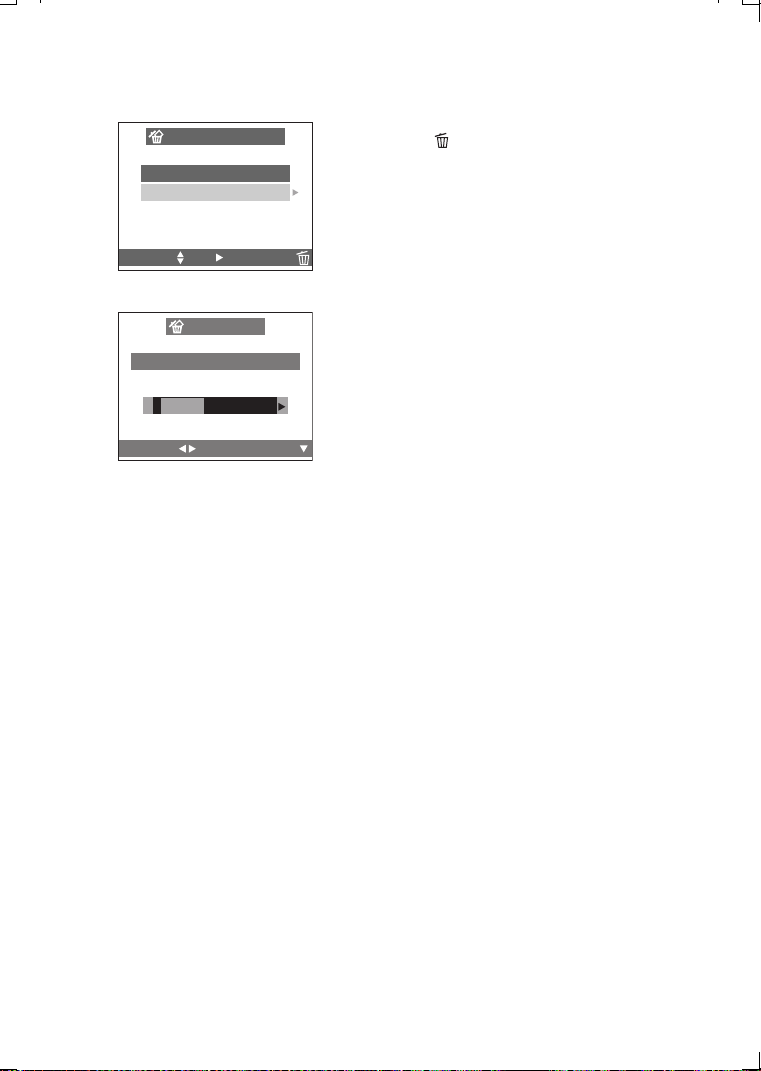
Editing
59
[Delete all images]
Once deleted, images cannot be recovered.
1 Press [ ] 2 times.
2 Press 3/4 to select [ALL DELETE]
and then press 1
.
3 When this message is displayed
“DELETE ALL PICTURES?”, press
2/1 to select [YES].
4 Press the 4/[REVIEW/SET]
button
.
• Images that are protected or out of DCF
standards (P52) are not deleted.
• Do not turn the power switch off or remove
the card during deleting.
• When the remaining power is low or many
pictures are deleted, use new batteries or
the AC adaptor (optional, DMW-AC1).
MULTI/ALL DELETE
MULTI DELETE
ALL DELETE
SELECT SET CANCEL
2
SELECT
SET
ALL DELETE
DELETE ALL PICTURES?
YES NO
3
KC52-PP.book 59 ページ 2003年3月13日 木曜日 午後2時29分
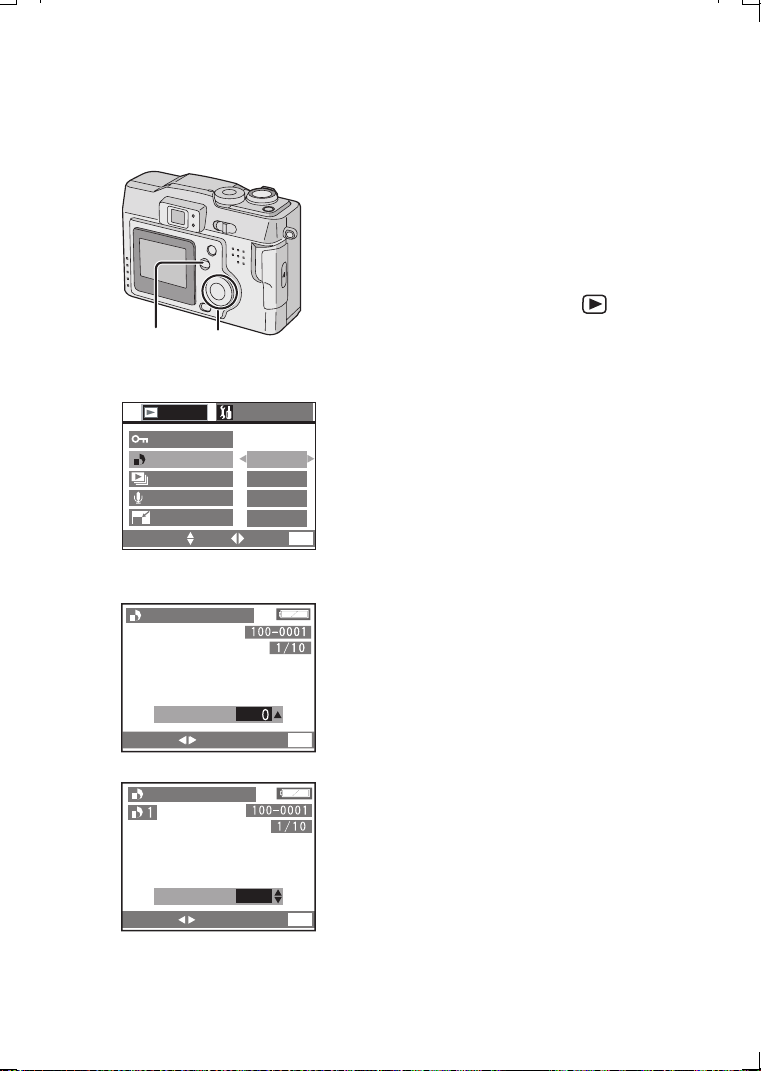
Editing
60
Writing the Print Information to the Card
(DPOF Setting)
DPOF is the abbreviation for Digital Print
Order Format. This feature allows you to
designate which images will be printed. Some
photo printers as well as many commercial
photo-processing companies support DPOF.
[Preparation]
• Set the mode dial to playback [ ]. (P22)
[
Single
copy setting
]
1 Press the [MENU] button.
2 Press 3/4 to select [DPOF PRINT]
and then press 1
.
3 Select [SINGLE] and then press 1
.
4 Press 2/1 to select 1 image
.
5 Press 3/4 to select the number of
sheets.
• The number of sheets can be set from 1
to 999.
6 Press the [MENU] button 2 times.
• The menu will disappear.
[To cancel]
Set the number of sheets to 0 in step 5 of the
[Single copy setting].
1,6 2,3,4,5
SINGLE
MULTI
CANCEL
INDEX
SETUP
PLAY
1/2
SELECT SET EXIT
MENU
2,3
PROTECT
DPOF PRINT
SLIDE SHOW
AUDIO DUB.
RESIZE
SELECT
EXIT
MEN
U
DPOF SET THIS
DPOF SET THIS
COUNT
SELECT EXIT
MENU
COUNT
1
4
5
KC52-PP.book 60 ページ 2003年3月13日 木曜日 午後2時29分
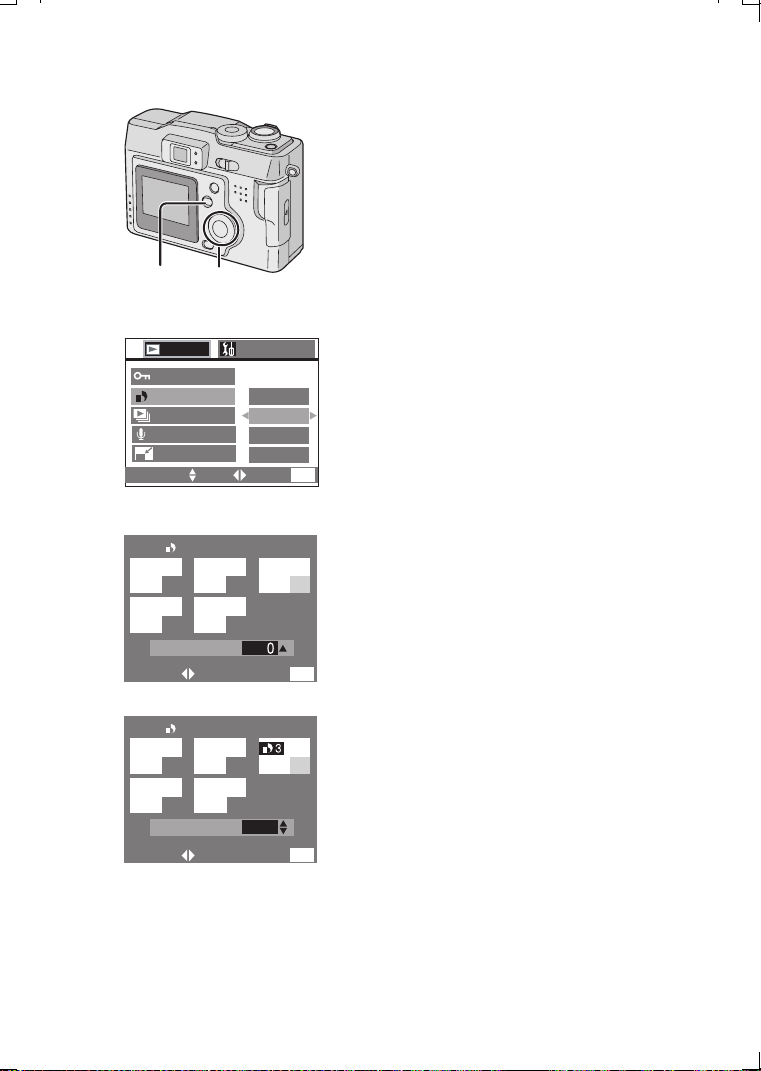
Editing
61
[Multi copy setting]
1 Press the [MENU] button.
2 Press 3/4 to select [DPOF PRINT]
and then press 1
.
3 Press 3/4 to select [MULTI] and then
press 1
.
4 Press 2/1 to select the image
.
5 Press 3/4 to select the number of
sheets
to be printed
.
• The number of sheets can be set from 1
to 999.
6 Repeat steps 4 and 5, and at the end
press the [MENU] button 2 times.
• The DPOF setting of multi images is set
at once.
• The menu will disappear.
[To cancel]
Set the number of sheets to 0 in step 5 of the
[Multi copy setting].
• If the file is not based on the DCF standard,
the DPOF setting cannot be set.
DCF is abbreviation of [Design rule for
Camera File system], stipulated by JEITA
[Japan Electronics and Information
Technology Industries Association].
• When using the DPOF feature, this camera
will overwrite any previous DPOF settings
made by other products.
2,3,4,51,6
SINGLE
MULTI
CANCEL
INDEX
SETUP
PLAY
1/2
SELECT SET EXIT
MENU
2,3
PROTECT
DPOF PRINT
SLIDE SHOW
AUDIO DUB.
RESIZE
7
8
9
10
11
DPOF SET MULTI
DPOF SET MULTI
SELECT EXIT
MENU
COUNT
3
COUNT
7 8 9
10
11
SELECT EXIT
MENU
5
4
KC52-PP.book 61 ページ 2003年3月13日 木曜日 午後2時29分
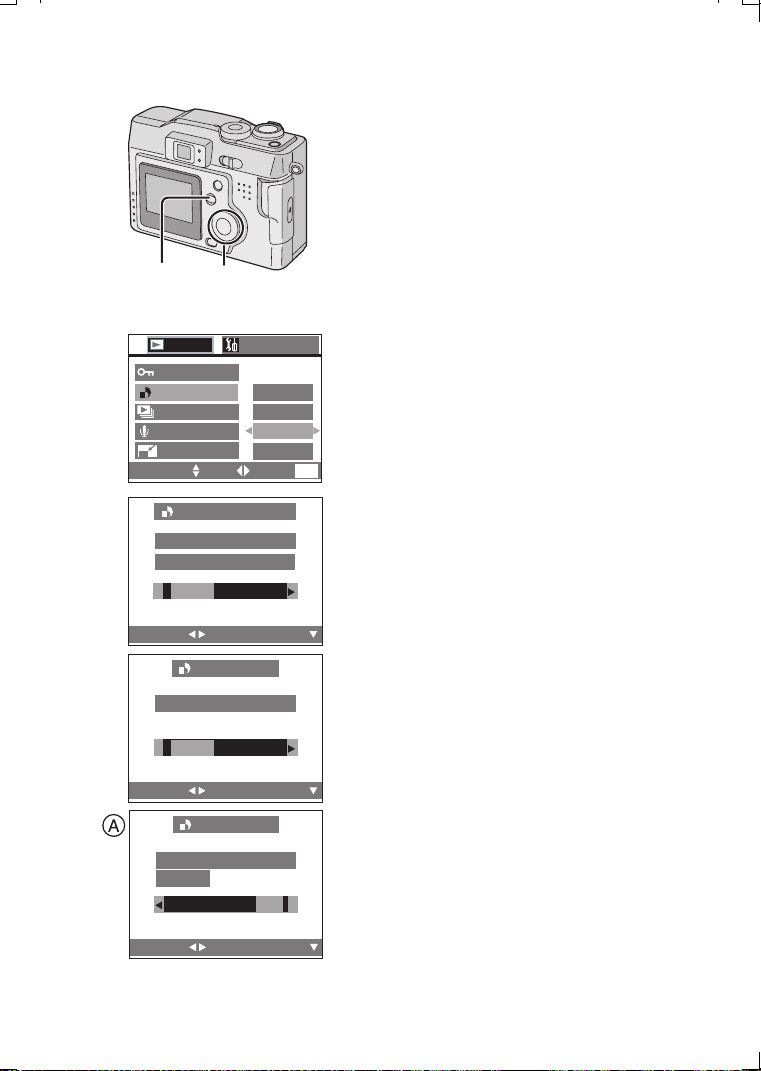
Editing
62
[To cancel all settings]
1 Press the [MENU] button.
2 Press 3/4 to select [DPOF PRINT]
and then press 1
.
3 Press 3/4 to select [CANCEL] and
then press 1
.
4 When this message is displayed
“CANCEL ALL DPOF PRINT
SETTINGS?”, press 2 to select [YES]
.
5 Press the 4/[REVIEW/SET]
button
.
• All DPOF settings are cancelled.
6
Press the [MENU] button.
• The menu will disappear.
[
Index setting/to cancel
]
1 Press the [MENU] button.
2 Press 3/4 to select [DPOF PRINT]
and then press 1
.
3 Press 3/4 to select [INDEX] and then
press 1
.
4 When this message is displayed “SET
INDEX PRINT?”, press 2 to select
[YES].
• When the index is already set, the
message A “SET/CANCEL INDEX
PRINT?” is displayed.
Press 2/1 to select [SET], [CANCEL] or
[NO].
5 Press the 4/[REVIEW/SET]
button
.
• All images are set/cancelled.
6
Press the [MENU] button.
• The menu will disappear.
1,6 2,3,4,5
SETUP
PLAY
1/2
SINGLE
MULTI
INDEX
CANCEL
SELECT SET EXIT
MENU
2,3
PROTECT
DPOF PRINT
SLIDE SHOW
AUDIO DUB.
RESIZE
CANCEL ALL DPOF
PRINT SETTINGS?
CANCEL ALL DPOF
YES NO
SELECT
SET
4
SET INDEX PRINT?
DPOF INDEX
YES NO
SELECT
SET
SET/CANCEL INDEX
PRINT?
DPOF INDEX
CANCELSET NO
SELECT
SET
KC52-PP.book 62 ページ 2003年3月13日 木曜日 午後2時29分
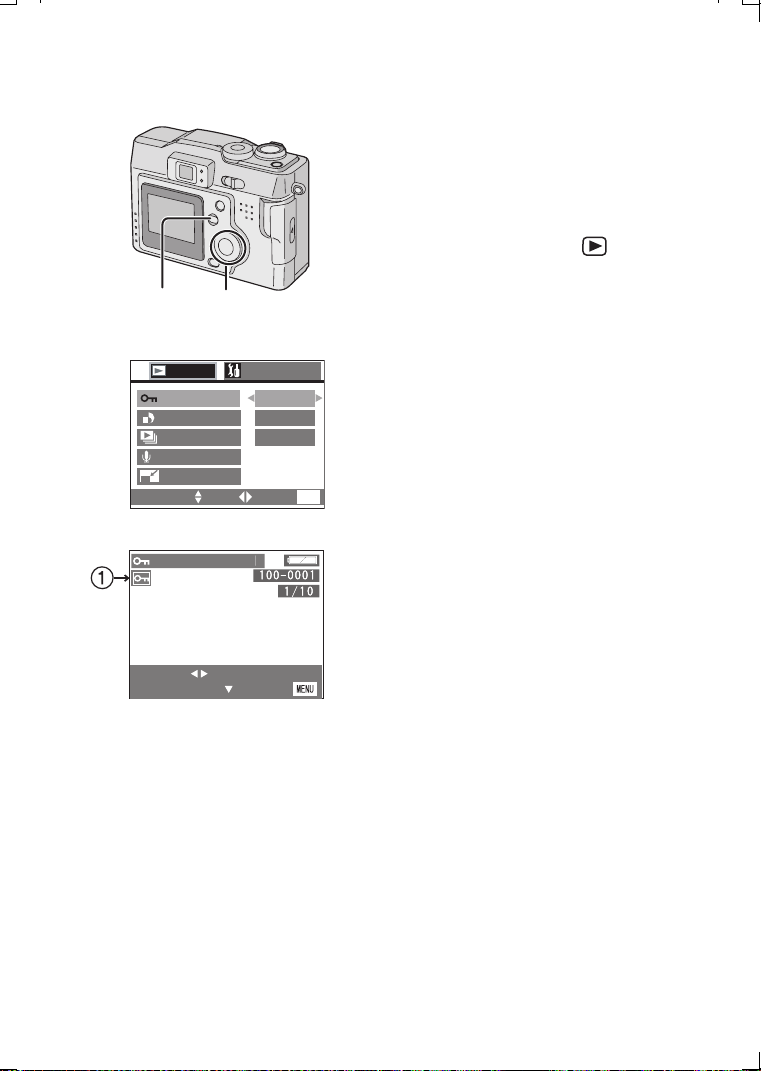
Editing
63
Protecting Images on the Card
Using this feature, important photos can be
protected from accidental deletion. This
feature cannot protect photos or any data on
the Card if the entire card is formatted.
[Preparation]
• Set the mode dial to playback [ ]. (P22)
[Single setting/to cancel]
1 Press the [MENU] button.
2 Press 3/4 to select [PROTECT] and
then press 1
.
3 Press 3/4 to select [SINGLE] and
then press 1
.
4 Press 2/1 to select 1 image
.
5 Press the 4/[REVIEW/SET] button.
• The protect icon 1 appears.
• By pressing 4/[REVIEW/SET] again, the
protection is cancelled and the icon will
disappear.
6 Press the [MENU] button 2 times.
• The menu will disappear.
[Multi setting/To cancel, To cancel all
settings]
1 The method is the same as in “Writing
the Print Information to the Card
(DPOF Setting)”. (P60~P62)
• Formatting the card will erase all the data on the card, even if you protect the
images in this procedure.
• When trying to delete a protected file, these messages are displayed “THIS
PICTURE IS PROTECTED” or “PROTECTED PICTURES REMAIN
UNDELETED”. If you want to delete this file, cancel the protect setting first.
• The protect setting may not be effective in other products.
• Sliding the SD Memory Card Write-Protect switch to [LOCK] prevents the picture
from deletion even if the protection is not set.
• Audio dubbing cannot be used with protected images. (P66)
2,3,4,51,6
PROTECT
DPOF PRINT
SLIDE SHOW
SINGLE
MULTI
SETUP
PLAY
1/2
CANCEL
SELECT SET EXIT
MENU
2,3
4,5
SET/CANSEL
SELECT
EXIT
AUDIO DUB.
RESIZE
PR
O
TE
C
T THI
S
KC52-PP.book 63 ページ 2003年3月13日 木曜日 午後2時29分
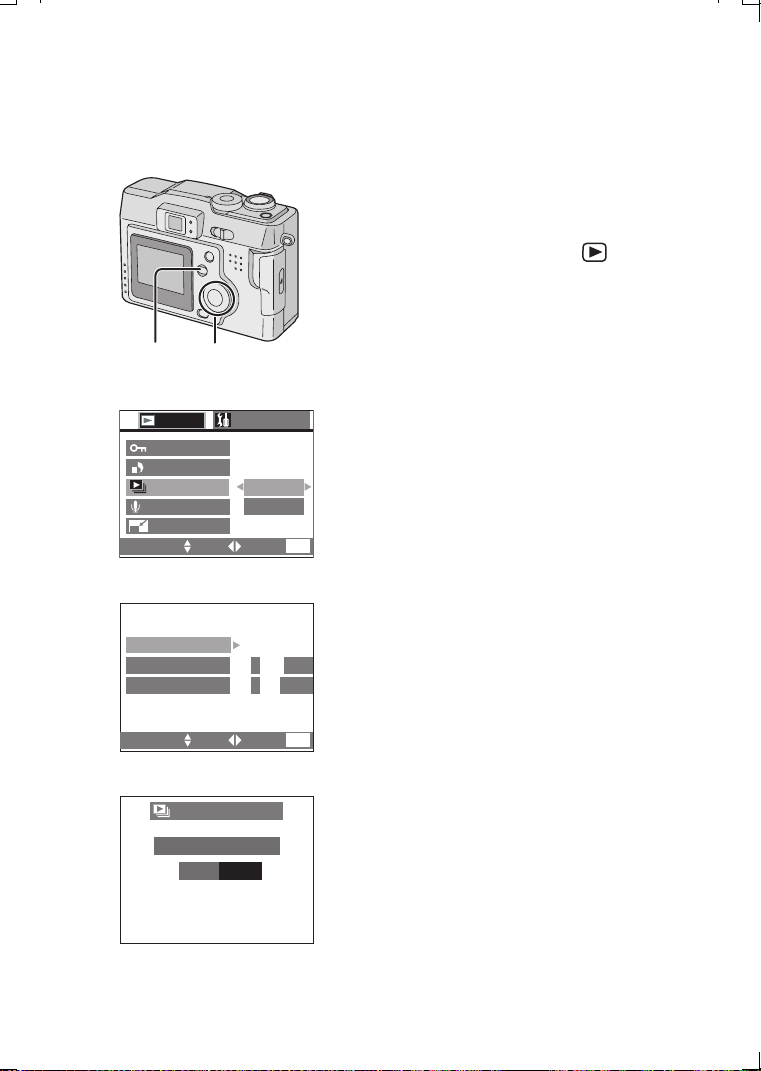
Technical use
64
Te c h n i c a l u se
Playing Back with Slide Show
(Automatic Playback)
All pictures selected in the card can be played
back one-by-one automatically.
[Preparation]
• Set the mode dial to playback [ ]. (P22)
1 Press the [MENU] button.
2 Press 3/4 to select [SLIDE SHOW]
and then press 1.
3 Press 3/4
to
select [ALL]/[DPOF] and
then press 1
.
• [ALL]: for playing back all pictures
• [DPOF]: for playing back the DPOF set
pictures
4 Press 3/4/2/1
for setting below.
• [DURATION]: It can be set among 1, 2, 3
and 5 seconds.
• [AUDIO]: It can be set to [ON] or [OFF].
By setting it to [ON], it is possible to play
back the still pictures with audio in slide
show.
• [DPOF SET] (Only when setting to
[DPOF]): You can select the pictures you
want to set to the Slide Show.
• [CANCEL ALL] (Only when setting to
[DPOF]): You can cancel the Slide Show
setting.
5 Press 3/4 to select [START].
6 Press 1
.
• The slide show starts.
• By pressing the [MENU] button, it stops.
1
2,3,4,5,6
PROTECT
DPOF
SLIDE SHOW
ALL
DPOF
SETUP
PLAY
1/2
SELECT SET EXIT
MENU
2,3
DPOF PRINT
AUDIO DUB.
RESIZE
OFF
1 SEC.
START
DURATION
AUDIO
SELECT SET EXIT
MENU
4
START SLIDE SHOW
ALL SLIDE SHOW
STOP
6
MENU
KC52-PP.book 64 ページ 2003年3月13日 木曜日 午後2時29分

Technical use
65
• In motion image playback, slide show is not available.
• The DPOF setting of slide show will not be applied to the DPOF printing.
• The setting time of the picture with audio is not reflected on [DURATION].
• Audio cannot be played back from this camera. Connect to a television to play back
audio.
• When editing with the supplied software [SD Viewer for DSC] recorded on the
CD-ROM, you can play back in SD slide show with this camera. (P90)
• Images that are set DPOF with the supplied software [SD Viewer for DSC]
recorded on the CD-ROM cannot be played back in DPOF slide show with this
camera. Set DPOF slide show on this camera.
• When using the DPOF feature, this camera will overwrite any previous DPOF
settings made by other products.
KC52-PP.book 65 ページ 2003年3月13日 木曜日 午後2時29分
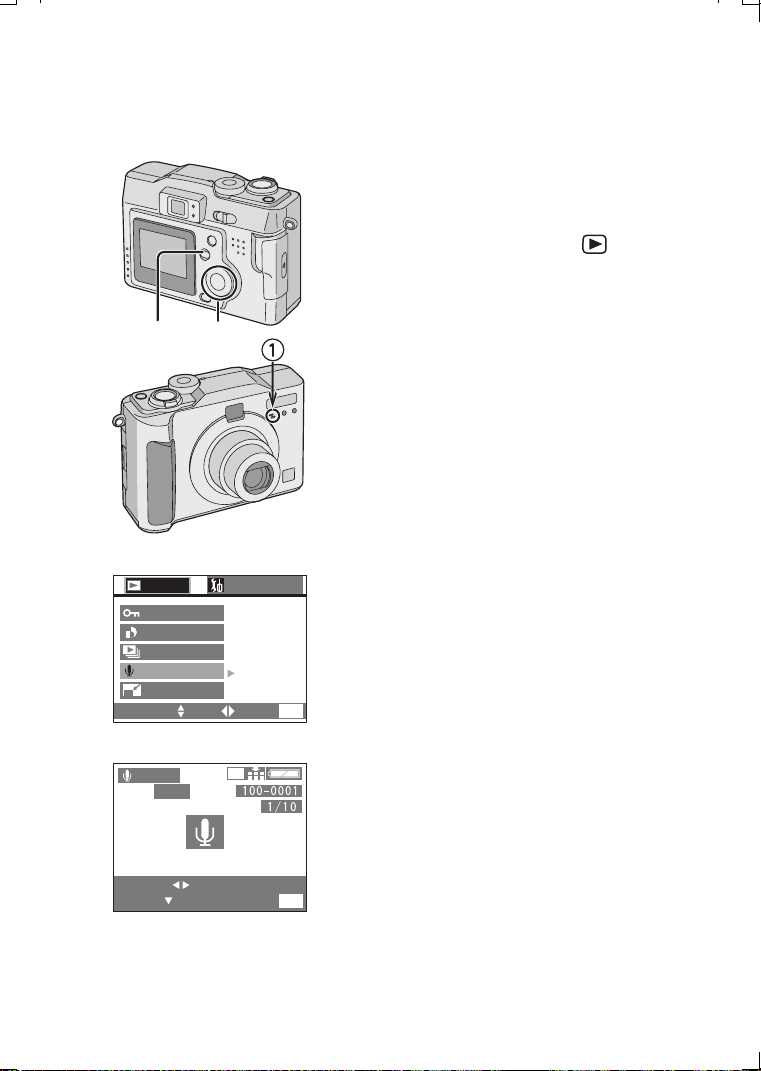
Technical use
66
Adding Audio to Recorded Pictures
(Audio Dubbing)
It is possible to add a 10-second narration to
a recorded picture.
[Preparation]
• Set the mode dial to playback [ ]. (P22)
1 Press the [MENU] button.
2 Press 3/4 to select [AUDIO DUB.] and
then press 1
.
3 Press 2/1 to select the picture.
4 Press the 4/[REVIEW/SET]
button, to
start audio recording
.
(1 Microphone)
• When audio has already been recorded,
after the audio dubbing the original audio
is overwritten.
• When audio has already been recorded,
this message is displayed “OVERWRITE
AUDIO DATA?”. Then press 2/1 to
select [YES] and press the
4/[REVIEW/SET] button, to start audio
recording.
5 Press the 4/[REVIEW/SET]
button, to
stop audio recording
.
• Even if you do not press the
4/[REVIEW/SET] button, after about 10
seconds the audio recording stops
automatically.
6 Press the [MENU] button 2 times.
• The menu will disappear.
• Adding audio will use additional memory.
Using this feature will result in fewer images
being able to be saved.
• The audio dubbing cannot be used with
motion images.
• The audio dubbing cannot be used with
protected images.
1,6
2,3,4,5
2048
AUDIO
DUB.
SELECT
START
MENU
EXIT
3,4
2
PROTECT
SLIDE SHOW
SETUP
PLAY
1/2
SELECT SET EXIT
MENU
DPOF PRINT
AUDIO DUB.
RESIZE
KC52-PP.book 66 ページ 2003年3月13日 木曜日 午後2時29分
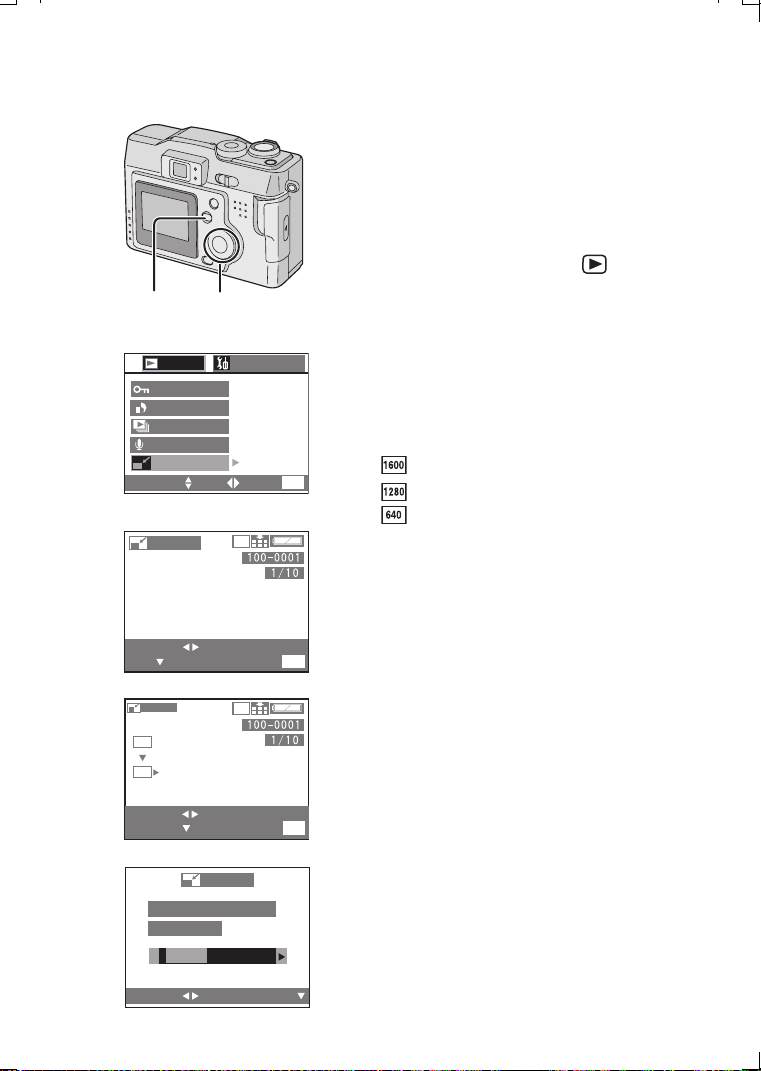
Technical use
67
Resizing Recorded Pictures
It is possible to reduce the recorded picture
size. This function is useful if you want to
reduce the volume of the picture for the
purpose of attaching it to an e-mail or
uploading it to a website.
[Preparation]
• Set the mode dial to playback [ ]. (P22)
1 Press the [MENU] button.
2 Press 3/4 to select [RESIZE] and then
press 1.
3 Press 2/1 to select the picture, and
then press 4.
4 Press 2/1
to
select the size
.
• : 1600a1200
• : 1280a960
• : 640a480
5 Press the 4
/[REVIEW/SET]
button to
set the size
.
6 When this message is displayed
“DELETE ORIGINAL PICTURE?”,
press 2/1 to
select
[YES] or [NO]
.
7 Press the 4/[REVIEW/SET]
button
.
8 Press the [MENU] button 2 times.
• The menu will disappear.
• It is not possible to resize pictures in a size
lower than /equal to [640a480] or with an
aspect ratio that is not 4:3.
• It may not be possible to resize the pictures
recorded with other equipment.
• It is not possible to resize a motion
image/still picture with audio.
1,8 2,3,4,5,6,7
PROTECT
SLIDE SHOW
SETUP
PLAY
1/2
SELECT SET EXIT
MENU
2
DPOF PRINT
AUDIO DUB.
RESIZE
2048
2048
RESIZE
RESIZE
RESIZE
SELECT
SET
MENU
EXIT
6
3
4
2048
1600
SELECT
SET
RESIZE EXIT
MENU
DELETE ORIGINAL
PICTURE?
YES NO
SELECT
KC52-PP.book 67 ページ 2003年3月13日 木曜日 午後2時29分
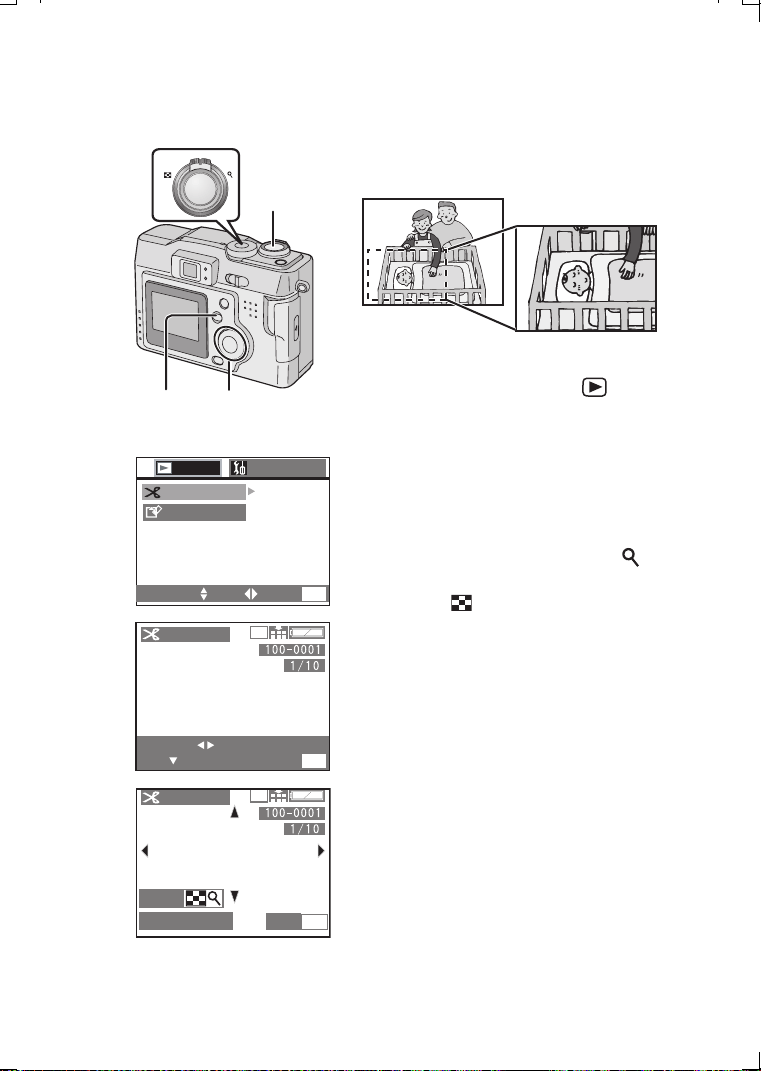
Technical use
68
Trimming Recorded Pictures
It is possible to cut off the unnecessary parts
of the picture (trimming), and enlarge the
remaining parts of the picture.
[Preparation]
• Set the mode dial to playback [ ]. (P22)
1 Press the [MENU] button.
2 Press 3/4 to select [TRIMMING] and
then press 1.
3 Press 2/1
to
select the picture, and
then press 4
.
4 Rotate the zoom lever towards [ ] to
make subject appear closer, and
towards [ ] to make subjects appear
further away.
5 Press 3/4/2/1
to
shift pictures.
6 Press the shutter
button to set
.
2,3,5,7,8
4
6
1,9
W
T
2
SETUP
PLAY
2/2
SELECT SET EXIT
MENU
TRIMMING
FORMAT
TRIMMING
MENU
EXIT
4,5,6
2048
ZOOM
TRIM
:
SHUTTER
TRIMMING
2048
SELECT
SET
MENU
EXIT
3
KC52-PP.book 68 ページ 2003年3月13日 木曜日 午後2時29分

Technical use
69
7 When this message is displayed
“DELETE ORIGINAL PICTURE?”,
press 2/1 to select [YES] or [NO].
8 Press the 4/[REVIEW/SET]
button
.
9 Press the [MENU] button 2 times.
• The menu will disappear.
• Trimming images will use additional memory
if the original image is saved.
• It is not possible to resize pictures in a size
lower than [640a480] or with an aspect ratio
that is not 4:3.
• You cannot operate trimming on pictures
recorded with other equipment.
• Trimming is not possible for a motion
image/still picture with audio.
• The picture size of the trimmed pictures may
become smaller than that of the original one
depending on the cut size.
• The picture quality of the trimmed picture
becomes inferior.
TRIMMING
DELETE ORIGINAL
PICTURE?
YES NO
7
SELECT
SET
KC52-PP.book 69 ページ 2003年3月13日 木曜日 午後2時29分
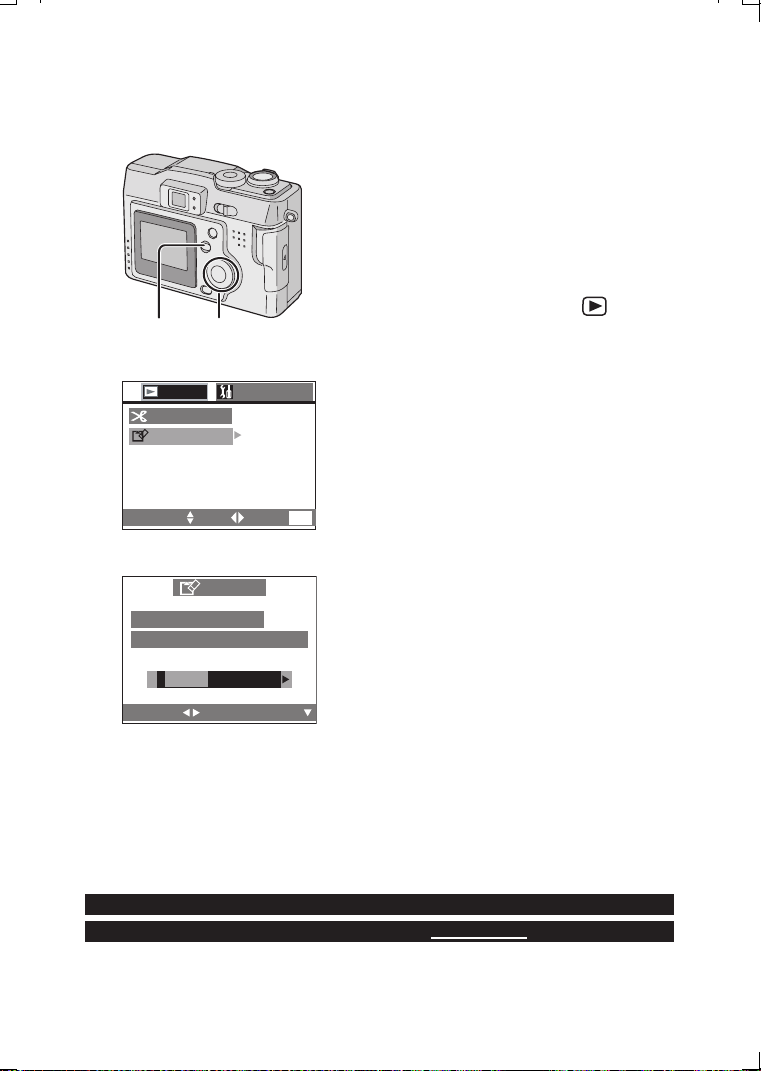
Technical use
70
Formatting the Card
Usually, it is not necessary to format the card
(initializing). Format the card when this
message is displayed “MEMORY CARD
ERROR”.
• If the card has been formatted by a PC or
other equipment, format the card on the
camera again.
[Preparation]
• Set the mode dial to playback [ ]. (P22)
1 Press the [MENU] button.
2 Press 3/4 to select [FORMAT] and
then press 1.
3 When this message is displayed
“DELETE ALL DATA ON THE MEMORY
CARD?”, press 2/1 to select [YES].
4 Press the 4/[REVIEW/SET]
button
.
• The card is formatted.
• After formatting, recorded images and
any other data cannot be recovered.
• When formatting, use the batteries which the remaining power is enough or AC
adaptor (optional, DMW-AC1).
• During formatting, do not turn the power off.
• If the card cannot be formatted, consult your dealer.
1 2,3,4
SETUP
PLAY
2/2
SELECT SET EXIT
MENU
2
TRIMMING
FORMAT
DELETE ALL DATA
ON THE MEMORY CARD?
FORMAT
YES NO
SELECT
SET
3
For USA assistance, please call: 1-800-272-7033 or send e-mail to : [email protected]
For Canadian assistance, please call: 1-800-561-5505 or visit us at www.panasonic.ca
KC52-PP.book 70 ページ 2003年3月13日 木曜日 午後2時29分
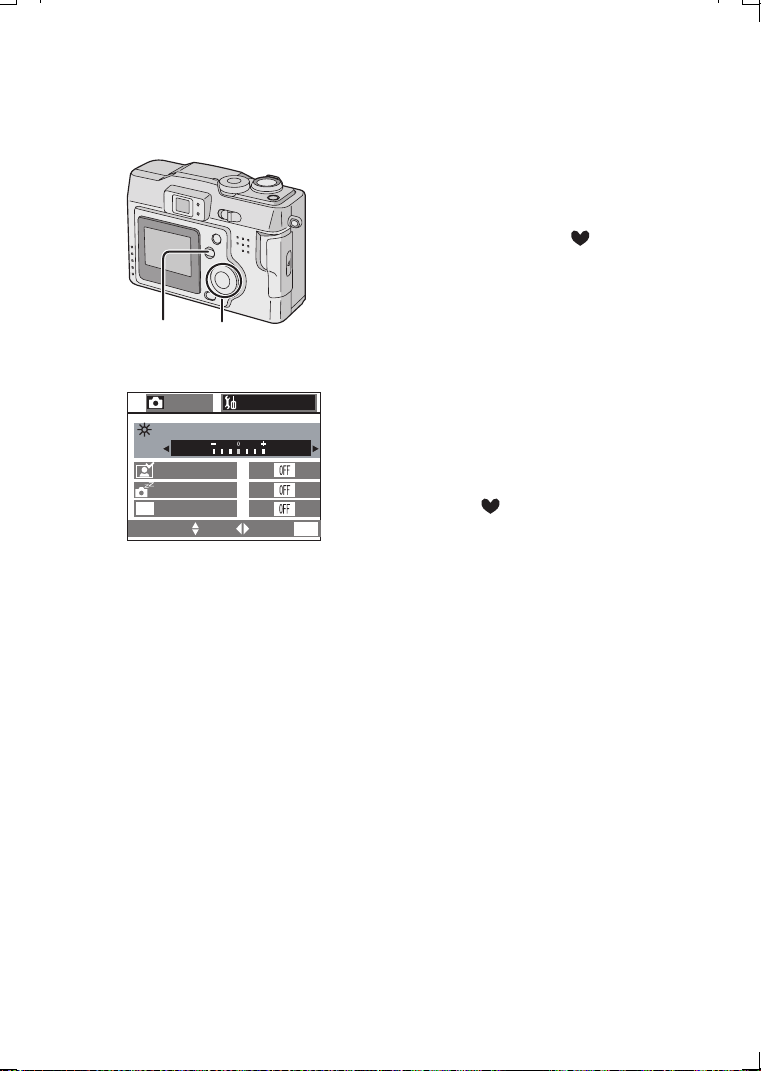
Technical use
71
Adjusting the LCD Monitor Brightness
You can adjust the brightness of the LCD
monitor.
[Preparation]
• Press the [DISPLAY] button to select the
display of LCD monitor. (P20)
• Set the mode dial except for [ ]. (P22)
1 Press the [MENU] button.
2 Press 1 to open the setup menu
.
3 Press 3/4 to select [MONITOR]
.
4 Press 2/1 to adjust the brightness
.
5 Press the [
MENU] button.
• The menu will disappear.
• In simple mode [ ], LCD monitor
brightness is fixed to [0].
• Adjusting the LCD monitor will not lighten or
darken the actual photograph.
• Adjusting the LCD monitor to brighten the
image may incorrectly display the scene to
be brighter than the actual photo will be. In
most cases the default setting will produce
the best performance and closest
reproduction of the actual scene.
1,5 2,3,4
SETUP
1/3
SELECT SET EXIT
MENU
AUTO REVIEW
POWER SAVE
REC
3,4
MONITOR
ECONOMY
ECO
KC52-PP.book 71 ページ 2003年3月13日 木曜日 午後2時29分

Technical use
72
Using the Auto Review
Recording with the auto review set to
[1SEC.]/[3SEC.] the recorded picture is
automatically displayed on the LCD monitor
for 1 or 3 seconds.
[Preparation]
• Set the mode dial except for [ ]/[ ].
(P22)
1 Press the [MENU] button.
2 Press 1 to open the setup menu
.
3 Press 3/4 to select [AUTO REVIEW]
.
4 Press 2/1 to select [
1SEC.] or
[
3SEC.].
5 Press the
[MENU] button.
• The menu will disappear.
• Even when setting the auto review to [1SEC.]/[3SEC.], it is not available in motion
image mode [ ].
• When recording in burst mode, auto bracket, still picture with audio modes, the
recorded picture is automatically displayed.
• In simple mode [ ], the auto review setting becomes [ON] (2 seconds) or [OFF].
2,3,41,5
SETUP
1/3
SELECT SET EXIT
MENU
REC
MONITOR
AUTO REVIEW
OFF
1 SEC. 3 SEC.
POWER SAVE
3,4
ECONOMY
ECO
KC52-PP.book 72 ページ 2003年3月13日 木曜日 午後2時29分
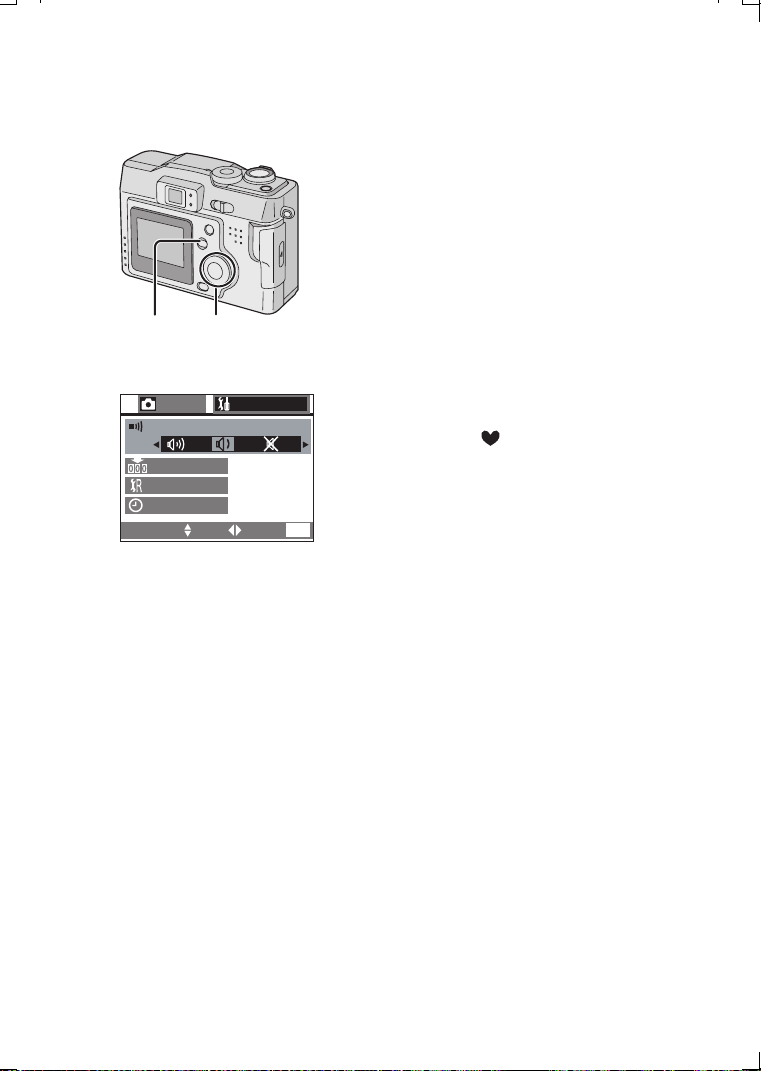
Technical use
73
Setting up the Operational Sound
It is possible to set the sound volume when
the menu operations are done.
1 Press the [MENU] button.
2 Press 1 to open the setup menu
.
• In simple mode, skip this step.
3 Press 3/4 to select [BEEP].
4 Press 2/1 to adjust the operational
sound volume.
5 Press the [MENU] button.
• The menu will disappear.
• In simple mode [ ], the setting becomes
[ON] or [OFF].
1,5 2,3,4
3,4
SELECT SET EXIT
MENU
SETUP
2/3
REC
RESET
CLOCK SET
NO.RESET
BEEP
KC52-PP.book 73 ページ 2003年3月13日 木曜日 午後2時29分
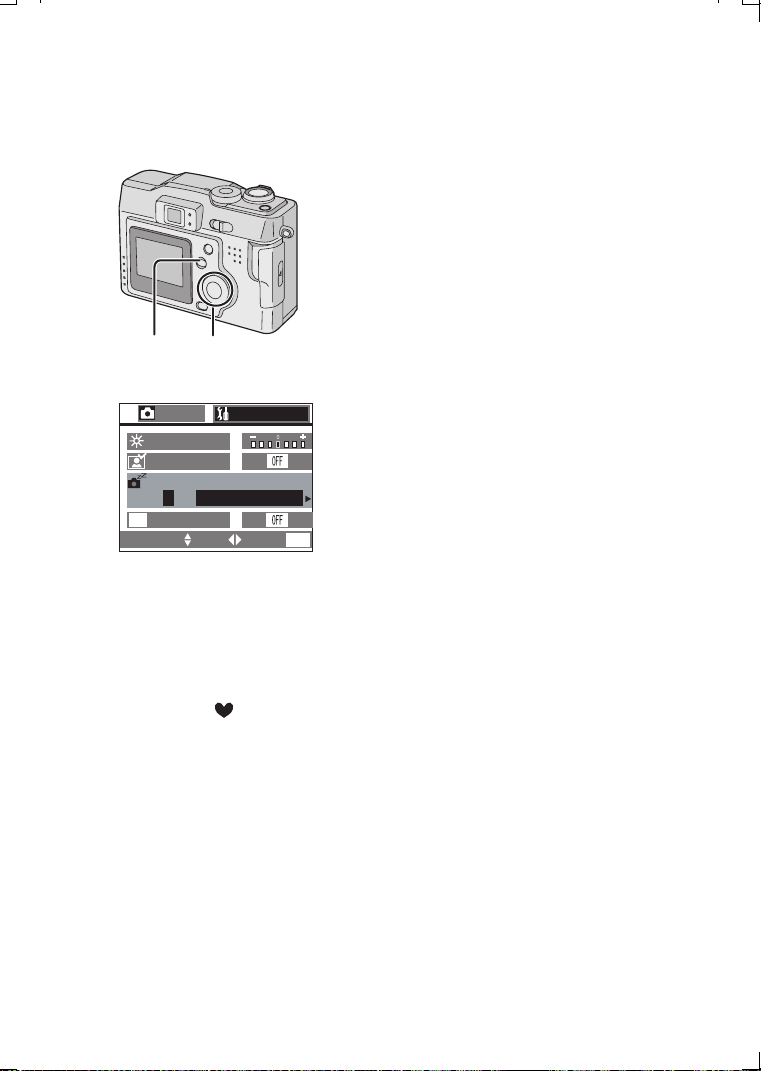
Technical use
74
Setting up the Power Save Mode
In this mode, if the camera is not operated for
a certain amount of time, it is automatically
turned off.
1 Press the [MENU] button.
2 Press 1 to open the setup menu
.
3 Press 3/4 to select [POWER SAVE]
.
4 Press 2/1 to
choose
the
setting time.
•[2MIN.]
•[5MIN.]
•[10MIN.]
• [OFF]: The power is not turned off
automatically.
5 Press the [MENU] button.
• The menu will disappear.
• If you want to cancel the power save mode, turn the power switch to [ON] again
after turning it to [OFF], or press the shutter button.
• When using AC adaptor (optional, DMW-AC1)/recording the motion image/playing
back the motion image/during slide show, the power save mode is not available.
• In simple mode [ ], the power save is fixed to [2 MIN.].
2,3,41,5
SETUP
1/3
SELECT SET EXIT
MENU
REC
MONITOR
POWER SAVE
2 MIN. 5 MIN.
10 MIN. OFF
AUTO REVIEW
3,4
ECONOMY
ECO
KC52-PP.book 74 ページ 2003年3月13日 木曜日 午後2時29分
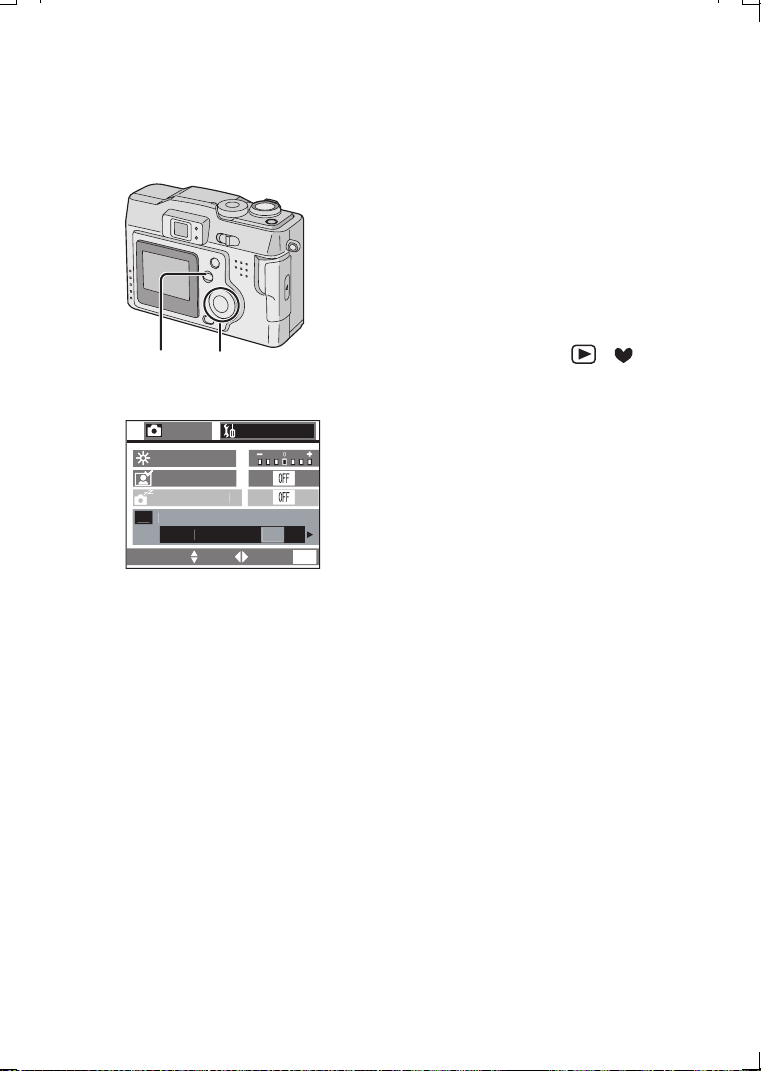
Technical use
75
Saving the Power Consumption
(Economy mode)
If the camera is not operated for about 15
seconds, the LCD monitor display turns off
and power consumption is saved.
• When setting [ECONOMY] to [ON], the LCD
monitor display is turned off while charging
the flash.
• When setting [ECONOMY] to [ON], power
save setting time is fixed to [2 MIN.].
[Preparation]
• Set the mode dial except for [ ]/[ ].
(P22)
1 Press the [MENU] button.
2 Press 1 to open the setup menu
.
3 Press 3/4 to select [ECONOMY]
.
4 Press 1 to
select [ON].
5 Press the [MENU] button.
• The menu will disappear.
• The message [MONITOR OFF] flashes for a
few seconds before LCD monitor display is
turned off.
• The LCD monitor turns on when pressing
any button.
• When using AC adaptor (optional, DMW-AC1)/recording the motion image, the
economy mode is not available.
• The economy mode does not work when the menu screen is displayed or the
self-timer is set.
2,3,41,5
E
CO
N
O
M
Y
O
F
F
ON
SETUP
1/3
SELECT SET EXIT
MENU
REC
M
O
NIT
OR
A
U
T
O
REVIE
W
3,4
P
O
WER
S
AV
E
E
CO
KC52-PP.book 75 ページ 2003年3月13日 木曜日 午後2時29分
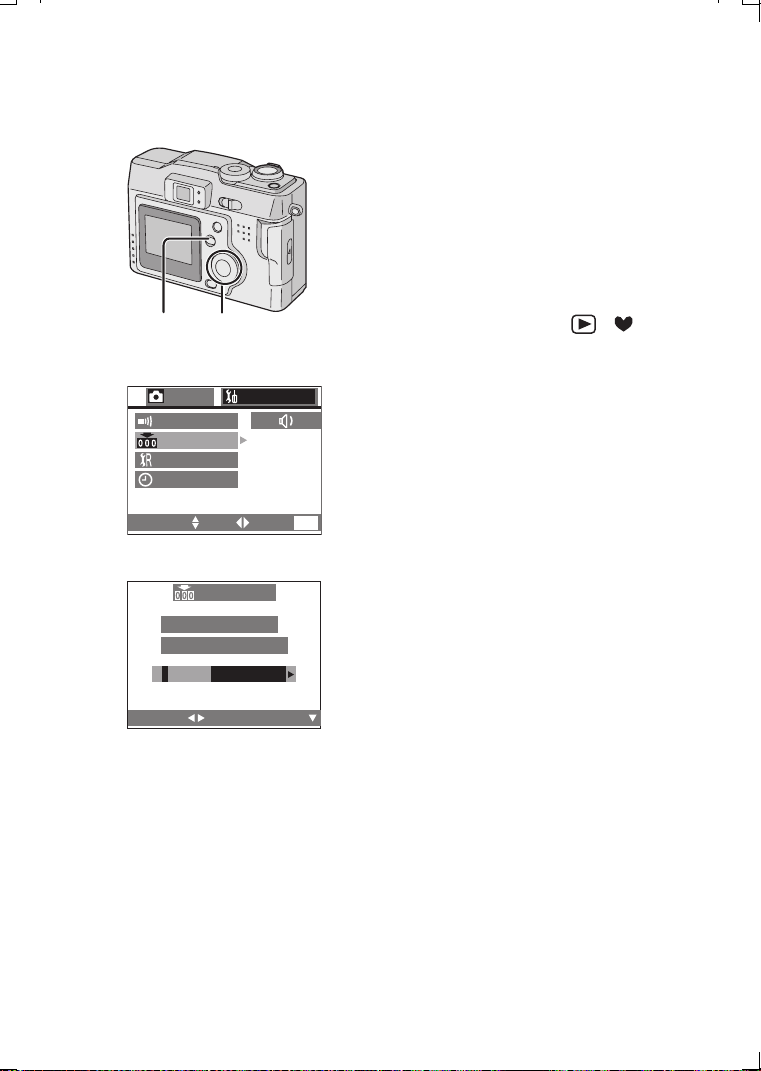
Technical use
76
Resetting the File Number
As the file numbers are recorded sequentially
by the camera, when you use two or more
cards, it may happen that the file numbers on
your cards do not start from 0001.
Use this function when you insert a new card
or perform the new recording on the recorded
card and you want to start recording from the
file number 0001.
[Preparation]
• Set the mode dial except for [ ]/[ ].
(P22)
1 Press the [MENU] button.
2 Press 1 to open the setup menu
.
3 Press 3/4 to select [
NO.RESET
] and
then press 1
.
4 When this message is displayed
“RESET FILE NO. IN THE CAMERA?”,
press 2 to select [YES].
5 Press the 4/[REVIEW/SET]
button.
6 Press the [MENU] button.
• The menu will disappear.
2,3,4,51,6
NO.RESET
3
SELECT SET EXIT
MENU
SETUP
2/3
REC
RESET
CLOCK SET
BEEP
RESET FILE NO.
IN THE CAMERA?
NO.RESET
SELECT
SET
YES NO
4
KC52-PP.book 76 ページ 2003年3月13日 木曜日 午後2時29分
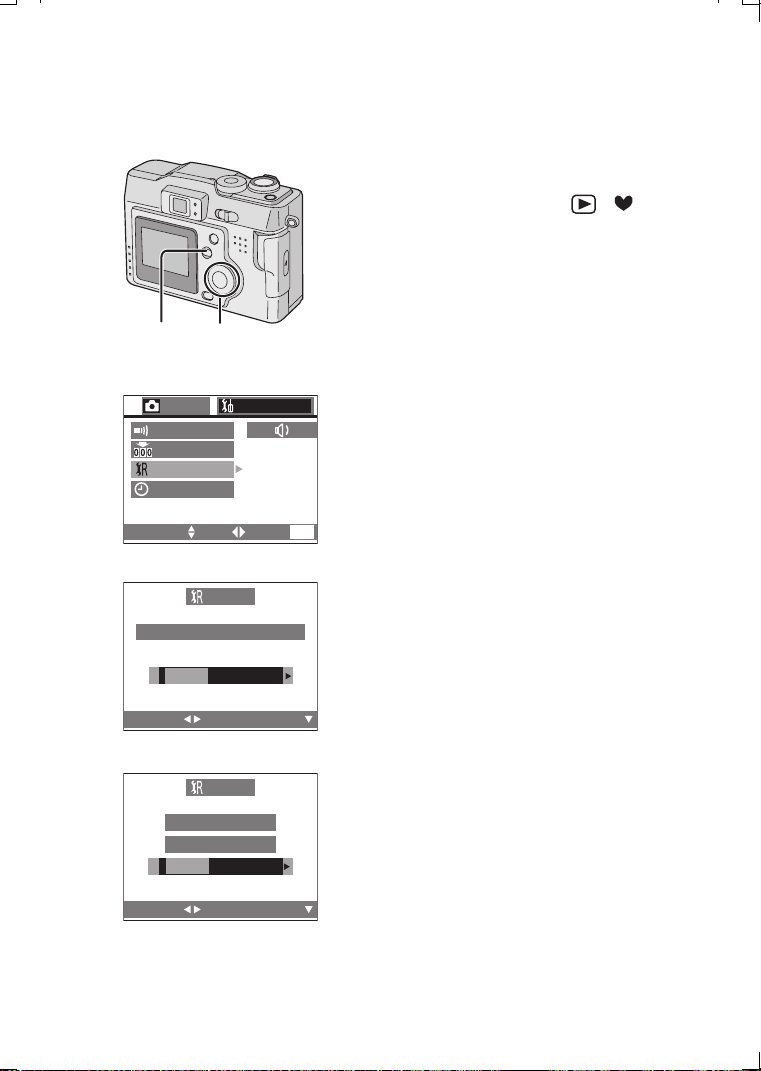
Technical use
77
Initializing the settings
This feature allows you to easily reset the
camera to the factory default settings.
[Preparation]
• Set the mode dial except for [ ]/[ ].
(P22)
1 Press the [MENU] button.
2 Press 1 to open the setup menu.
3 Press 3/4 to select [RESET] and then
press 1.
4 When this message is displayed
“RESET REC SETTINGS?”, press 2 to
select [YES].
5 Press the 4/[REVIEW/SET] button.
• The message “REC SETTING RESET
COMPLETED” is displayed for about
2 seconds.
6 When this message is displayed
“RESET SETUP PARAMETERS?”,
press 2 to select [YES].
7 Press the 4
/
[REVIEW/SET] button to
set.
• The clock setting is not reset.
8 Press the [MENU] button.
• The menu will disappear.
2,3,4,5,6,71,8
NO.RESET
RESET
3
SELECT SET EXIT
MENU
SETUP
2/3
REC
CLOCK SET
BEEP
RESET
RESET REC. SETTINGS?
SELECT
SET
YES NO
4
RESET
RESET SETUP
PARAMETERS?
SELECT
SET
YES NO
6
KC52-PP.book 77 ページ 2003年3月13日 木曜日 午後2時29分
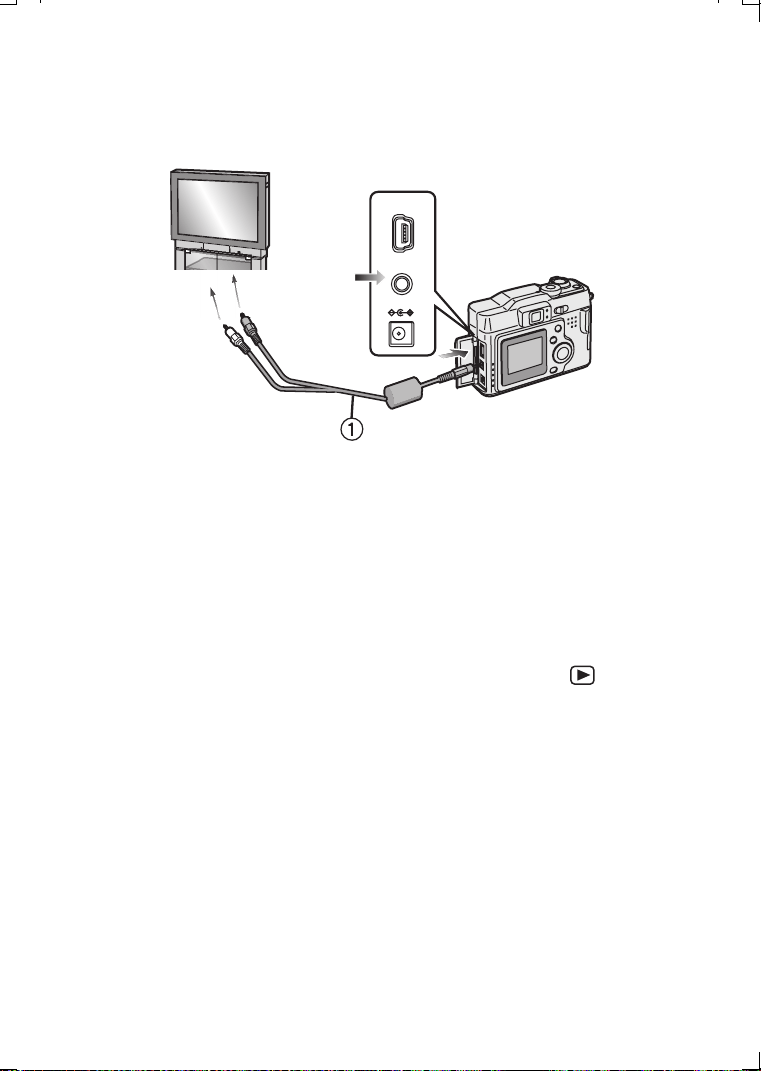
Technical use
78
Playing Back Images with a TV Monitor
By connecting the camera to a television via the supplied A/V cable 1, it is possible
to view and play back the recorded images.
[Preparation]
• Turn the camera and the television off.
1 Connect the A/V cable 1 to the A/V OUT socket of the camera.
2 Connect the A/V cable to the video in and the audio in sockets of the TV
.
• Yellow: to the video in socket
• White: to the audio in socket
3 Turn the television on and select external input
.
4 Turn the camera on and then set the mode dial to playback [ ]
.
• The image is displayed on the television.
ª Viewing images in other countries
When setting [VIDEO OUT] on the menu, you can view images on a TV in other
countries (regions) which use the NTSC or PAL system.
• Even if you set menu selection for [VIDEO OUT] to [PAL], the output signal is still
NTSC.
• When connecting to a TV, use new batteries or the AC adaptor (optional,
DMW-AC1).
• Do not use any other cables except the supplied one.
• The A/V cable cannot be connected to the “antenna” connection of your television.
Your TV must provide separate audio and video connections for this feature to
operate correctly.
• Read the TV operating instructions too.
A/V OUT
DC IN
USB
1
2
KC52-PP.book 78 ページ 2003年3月13日 木曜日 午後2時29分

Technical use
79
Connecting to a PC
[Preparation]
• If your PC uses Microsoft Windows
®
98 or Windows
®
98 Second Edition, a USB
driver must be installed from the CD that is included. If you are using a newer
Microsoft operating system such as Windows
®
Me, Windows
®
2000, or Windows
®
XP (Home Edition/Professional), no USB driver needs to be installed. Your PC
should recognize the camera automatically.
1 Insert the Memory Card into the camera, and turn the power switch to
[ON].
2 Connect the camera to a PC via the supplied USB connection cable 1.
[Windows]
The drive is shown on the [My Computer] folder.
• If it is the first time you are connecting the camera to a PC, the required driver is
installed automatically so that the camera can be recognized by the Windows
Plug and Play, then it is shown on the [My Computer] folder.
[Macintosh]
The drive is shown on the screen.
• The flash/access indicator lights during access.
• When the battery power is lost during access, the data may be destroyed. The
battery indicator does not appear. When connecting to a PC, use new batteries or
the AC adaptor 2 (optional, DMW-AC1).
• When connecting to a PC, pictures and sounds are not output from the A/V OUT
socket.
• For further information (software installation), read the operating instructions for
PC connection.
A/V OUT
DC IN
USB
1
2
1
2
KC52-PP.book 79 ページ 2003年3月13日 木曜日 午後2時29分
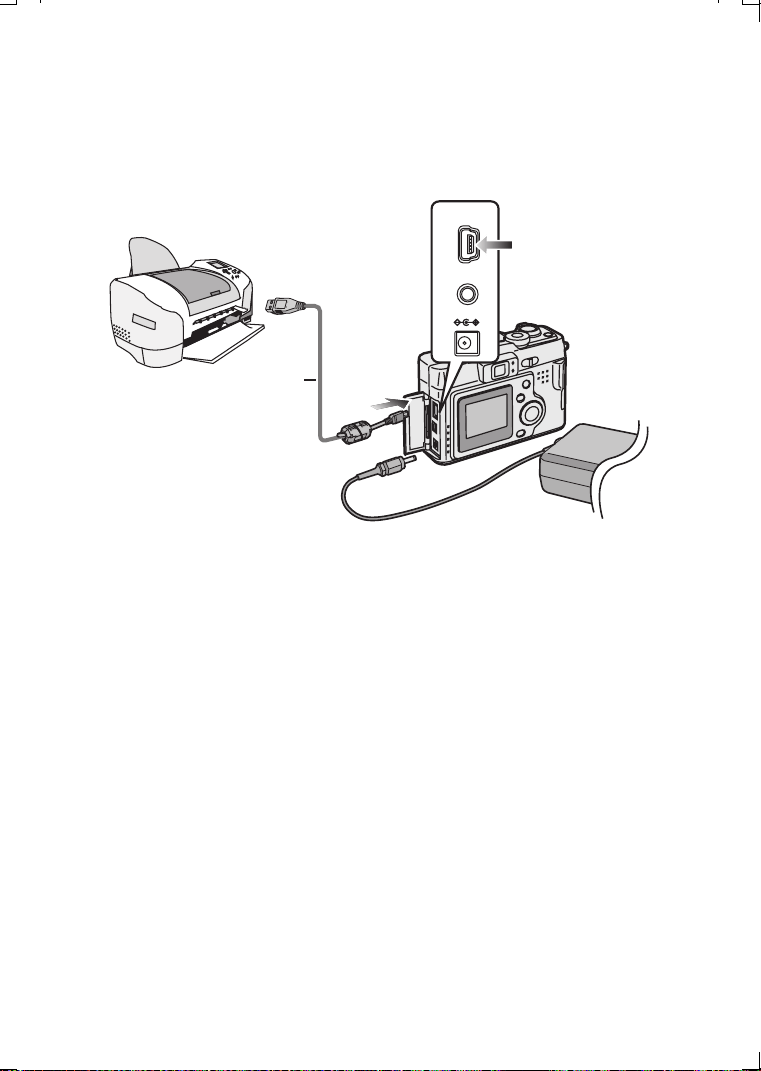
Technical use
80
USB DIRECT-PRINT
By connecting the camera to a printer corresponding to USB DIRECT-PRINT via the
supplied USB connection cable, it is possible to print directly.
(Please ask the manufacturer of the printer about the corresponding models)
(Read the printer operating instructions too)
1 Insert the Memory Card into the camera, and turn the power switch to
[ON].
2 Turn on the printer.
3 Connect the camera to the printer via the supplied USB cable 1.
• When connecting to a printer, use the batteries which the remaining power is
enough or AC adaptor 2 (optional, DMW-AC1).
• Disconnect the USB connection cable and DC cable after printing.
A/V OUT
DC IN
USB
1
2
1
2
3
KC52-PP.book 80 ページ 2003年3月13日 木曜日 午後2時29分
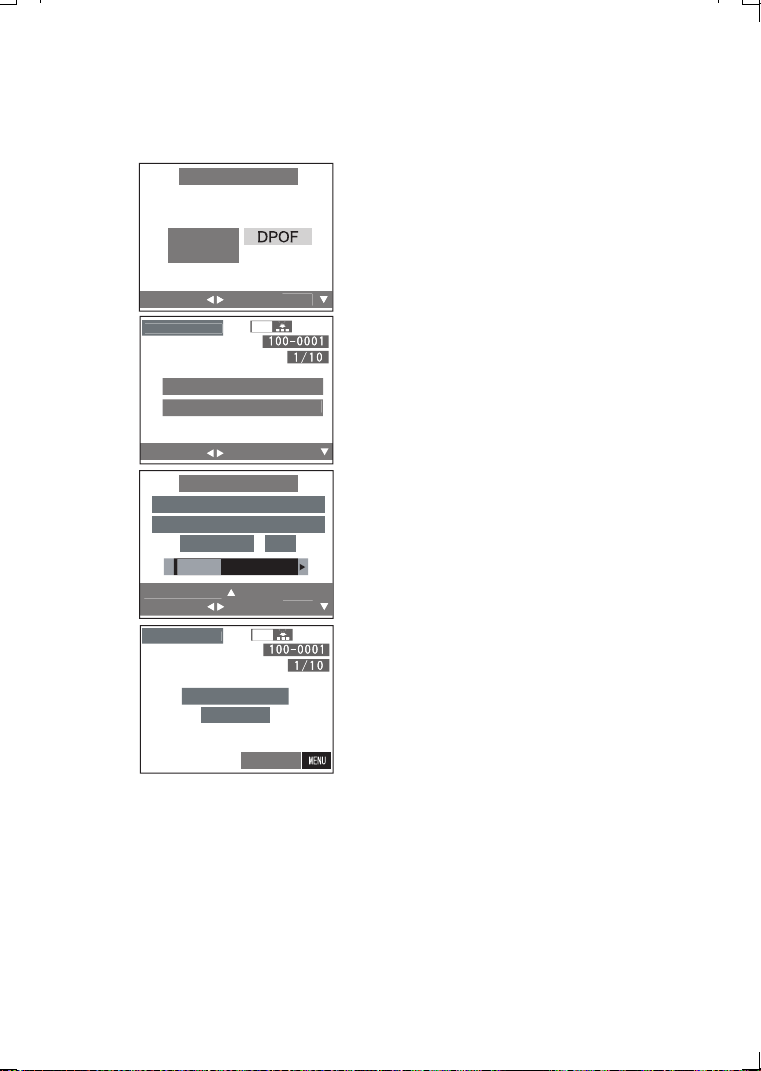
Technical use
81
USB DIRECT-PRINT (Single Picture)
[Preparation]
• Connect the camera to a printer. (P80)
1 Only when DPOF is already set, press
2 to select [SINGLE PICTURE], and
then press the 4/[REVIEW/SET]
button.
• When DPOF is not set, this screen is
skipped.
2 Press 2/1 to select the picture to be
printed, and then press the
4
/
[REVIEW/SET] button.
• The message “PLEASE SELECT THE
PICTURE TO PRINT” is displayed for
2 seconds.
3 Press 3, and press 2/1 to set the
number of sheets, and then press the
4/[REVIEW/SET] button.
4 Press 2 to select [YES].
• The message “PLS CHECK THE
PRINTER START PRINTING ?” is
displayed.
5 Press the 4
/
[REVIEW/SET] button.
• Printing starts.
• Press the [MENU] button, and you can stop
printing.
1
1
2
3,4
5
1
600
2
0
4
8
SINGLE
PICTURE
DIRECT PRINT
DIRECT PRINT
SELECT
SELECT
S
E
T
PRINT
DIRE
C
T PRIN
T
PLEA
S
E
S
ELE
CT
THE PI
C
T
U
RE T
O
PRIN
T
PLS CHECK THE PRINTER
START PRINTING ?
COUNT
1
YE
S
N
O
SELECT
S
E
T
PRINT
S
E
T
DIRE
C
T PRIN
T
1 / 8
CANCEL
N
O
W PRINTIN
G
REMAIN 8
KC52-PP.book 81 ページ 2003年3月13日 木曜日 午後2時29分
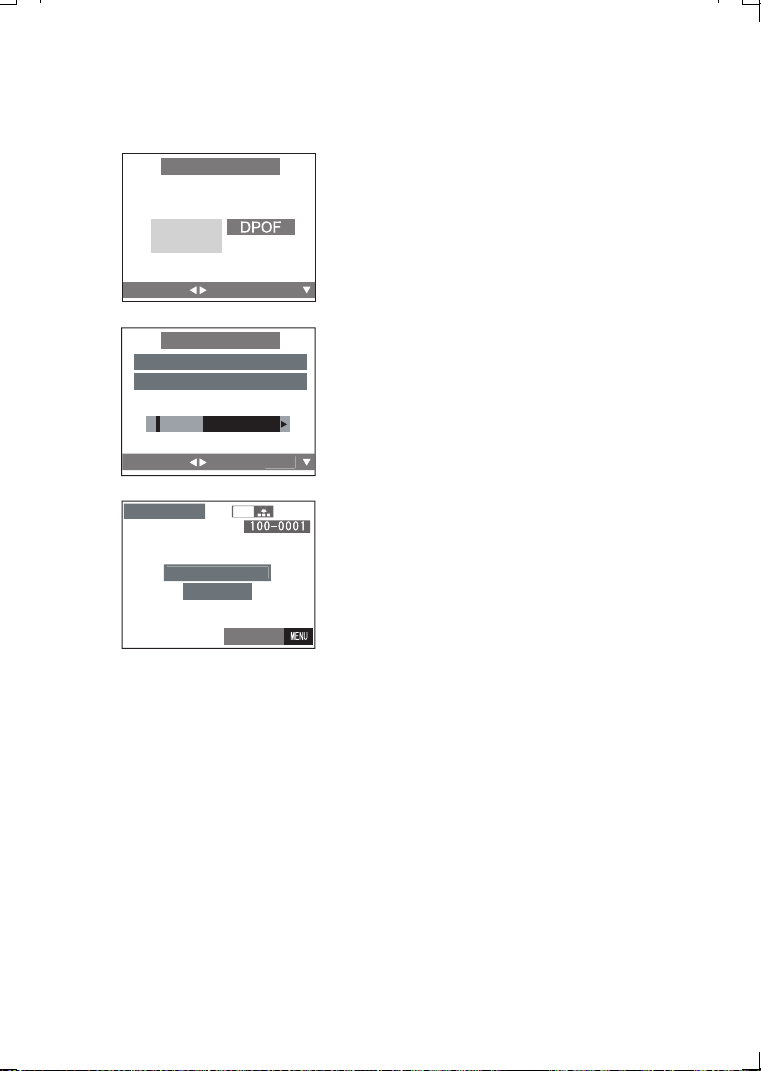
Technical use
82
USB DIRECT-PRINT (DPOF)
[Preparation]
• Connect the camera to a printer. (P80)
• Write the print information to the card
(DPOF setting). (P60)
1 Press 2/1 to select [DPOF].
• Press the [MENU] button, and you can
change the DPOF setting. (P60)
2 Press the 4
/
[REVIEW/SET] button.
• The message “PLS CHECK THE
PRINTER START PRINTING ?” is
displayed.
3 Press 2 to select [YES], and then
press the 4
/
[REVIEW/SET] button.
• Printing starts.
• Press the [MENU] button, and you can stop
printing.
• When the number of total images is more
than 255, the number of remaining images
will be displayed as “----”.
2
1
3
2
0
4
8
DIRECT PRINT
DIRECT PRINT
SINGLE
PICTURE
SELECT
SET
SELECT
S
E
T
PLS CHECK THE PRINTER
START PRINTING ?
YES
NO
DIRE
C
T PRIN
T
NOW PRINTIN
G
REMAIN 8
CANCEL
KC52-PP.book 82 ページ 2003年3月13日 木曜日 午後2時29分
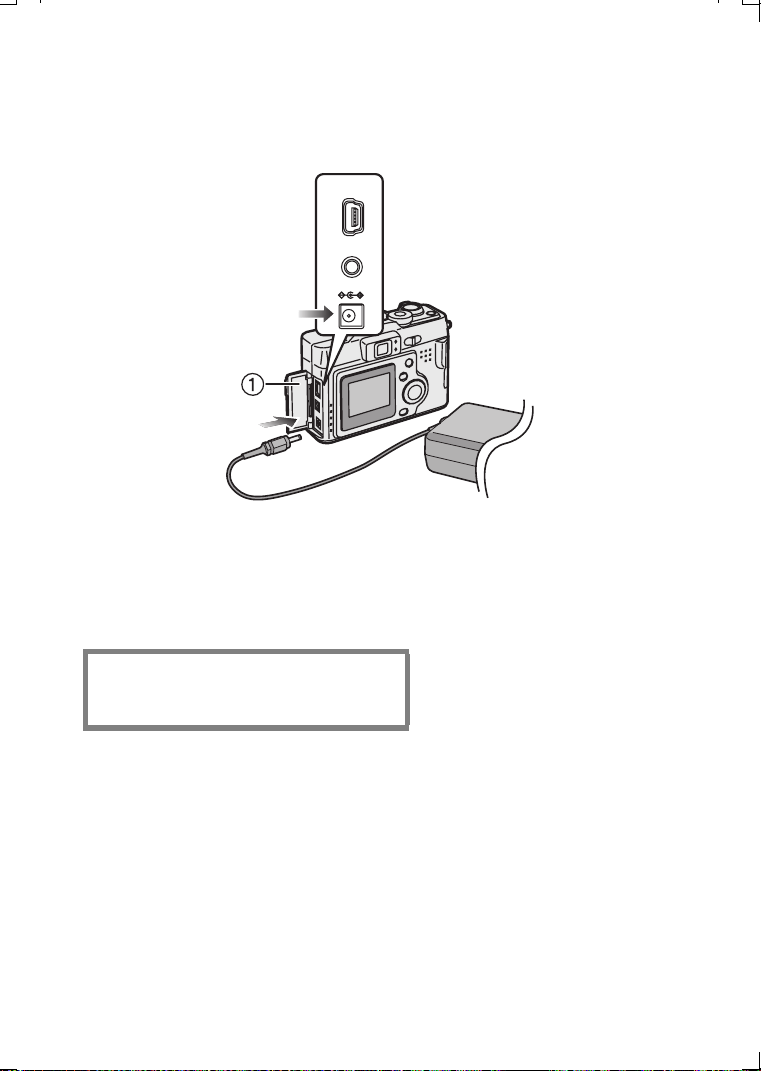
Technical use
83
Using the Optional AC Adaptor
If you use an AC adaptor (optional, DMW-AC1), you can use the camera without
worrying about battery discharge.
[Preparation]
• Check that the power switch is set to [OFF] and the lens is stored.
1 Connect the AC power plug to the AC outlet.
2 Open the terminal door.
3 Connect the AC adaptor to the DC IN socket.
• Do not use the AC adaptor other than the optional one (DMW-AC1).
• The camera becomes warm during use, however, this is not a malfunction.
• The battery cannot be charged in the camera with the AC adaptor connected.
• When disconnecting/connecting the AC adaptor with the power switch turned
on using the batteries, the data in the card may be destroyed or operation may
be impossible. Be sure to disconnect/connect the AC adaptor after turning the
power switch to off.
THE SOCKET OUTLET SHALL BE
INSTALLED NEAR THE EQUIPMENT
AND SHALL BE EASILY ACCESSIBLE.
A/V OUT
DC IN
USB
KC52-PP.book 83 ページ 2003年3月13日 木曜日 午後2時29分
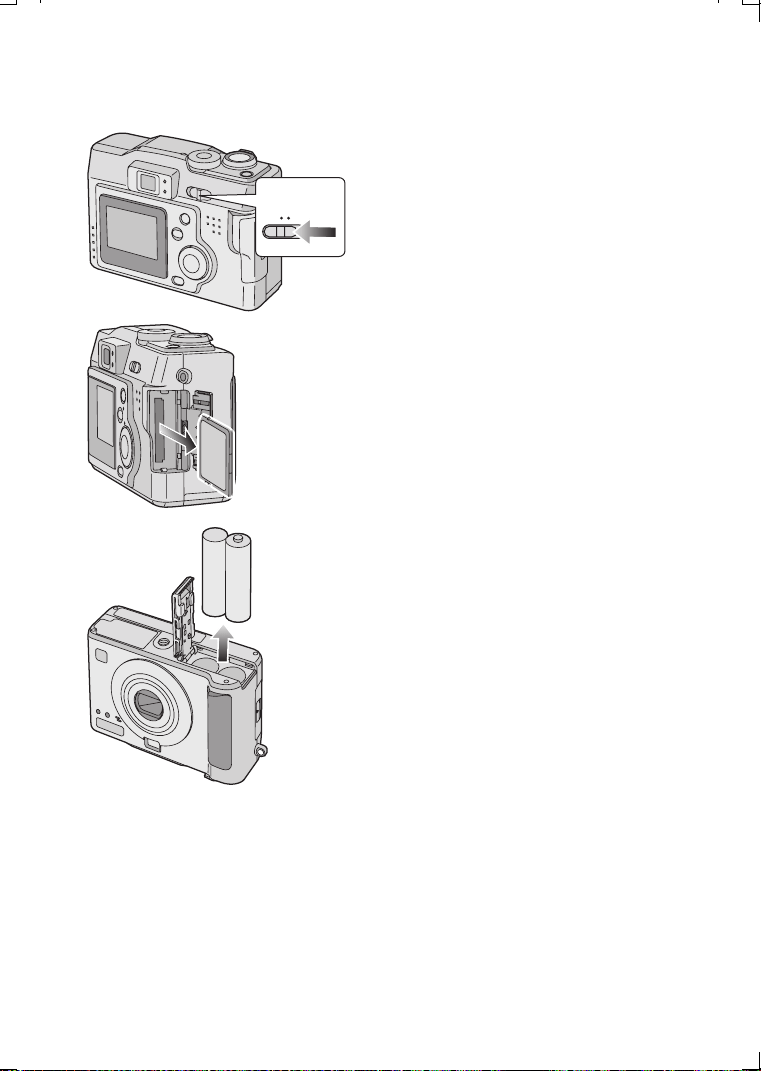
Technical use
84
After Use
After using the camera and following the
steps below, it is recommended to place it in
the optional soft case for protection.
1 Turn the power switch to [OFF]. (P18)
2 Eject the card
. (P16)
3 Remove the batteries
.
• If you will not be using the camera for a long time, remove the batteries. (When
you insert the batteries again, set the date/time)
2
3
OFF ON
1
KC52-PP.book 84 ページ 2003年3月13日 木曜日 午後2時29分
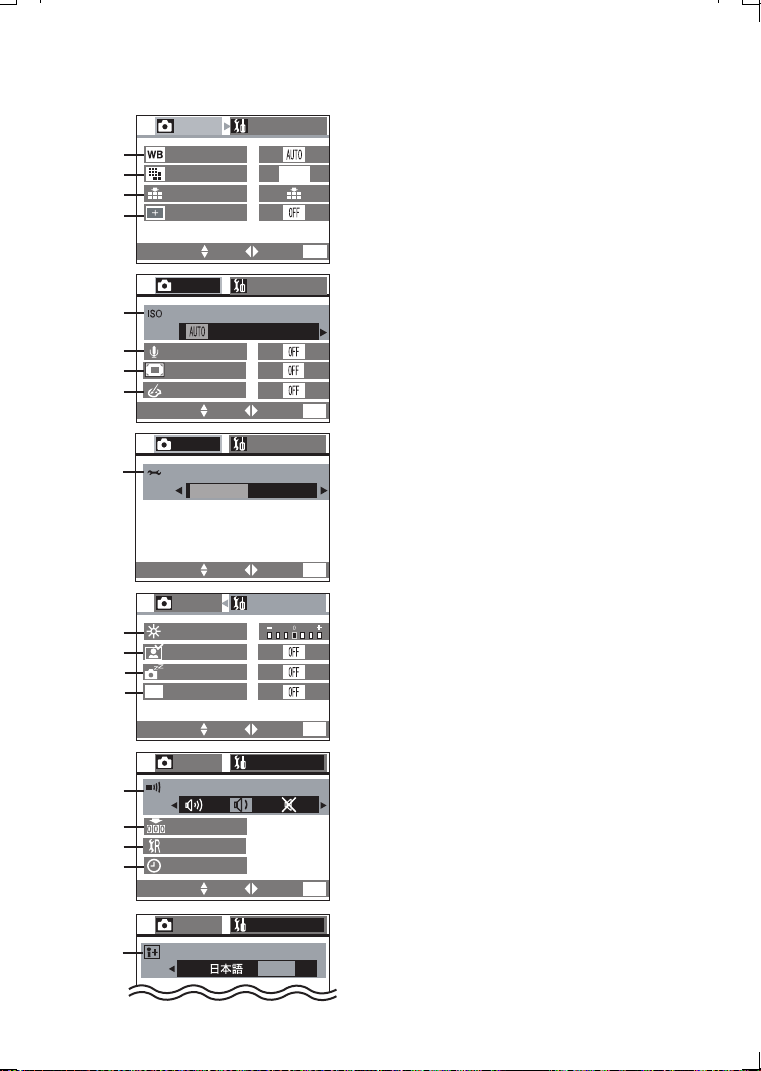
Others
85
Others
The Menu Items
REC mode menu
1
W.BALANCE (P48)
2
PICT.SIZE (P36)
3
QUALITY (P37)
4
SPOT MODE (P43)
5
SENSITIVITY (P50)
6
AUDIO REC. (P35)
7
D.ZOOM (P31)
8
COL.EFFECT (P42)
9
PICT.ADJ. (P47)
10
MONITOR (P71)
11
AUTO REVIEW (P72)
12
POWER SAVE (P74)
13
ECONOMY (P75)
14
BEEP (P73)
15
NO.RESET (P76)
16
RESET (P77)
17
CLOCK SET (P24)
18
LANGUAGE
1
2
3
4
SELECT SET EXIT
MENU
SELECT SET EXIT
MENU
2048
PICT.SIZE
QUALITY
SPOT MODE
REC
1/3
W.BALANCE
SETUP
16
17
15
13
10
11
REC
2/3
AUDIO REC.
SENSITIVITY
50 100 200 400
SETUP
SELECT SET EXIT
MENU
SELECT SET EXIT
MENU
REC
3/3
SETUP
PICT.ADJ.
VIVID
STANDARDSTANDARD
SELECT SET EXIT
MENU
REC
SETUP
1/
3
AUTO REVIEW
ECONOMY
12
POWER SAVE
MONITOR
SELECT SET EXIT
MENU
SETUP
2/3
REC
RESET
CLOCK SET
NO.RESET
18
SETUP
3/3
REC
D.ZOOM
COL. EFFECT
5
6
7
8
9
BEEP
14
ENG
LANGUAGE
ECO
KC52-PP.book 85 ページ 2003年3月13日 木曜日 午後2時29分
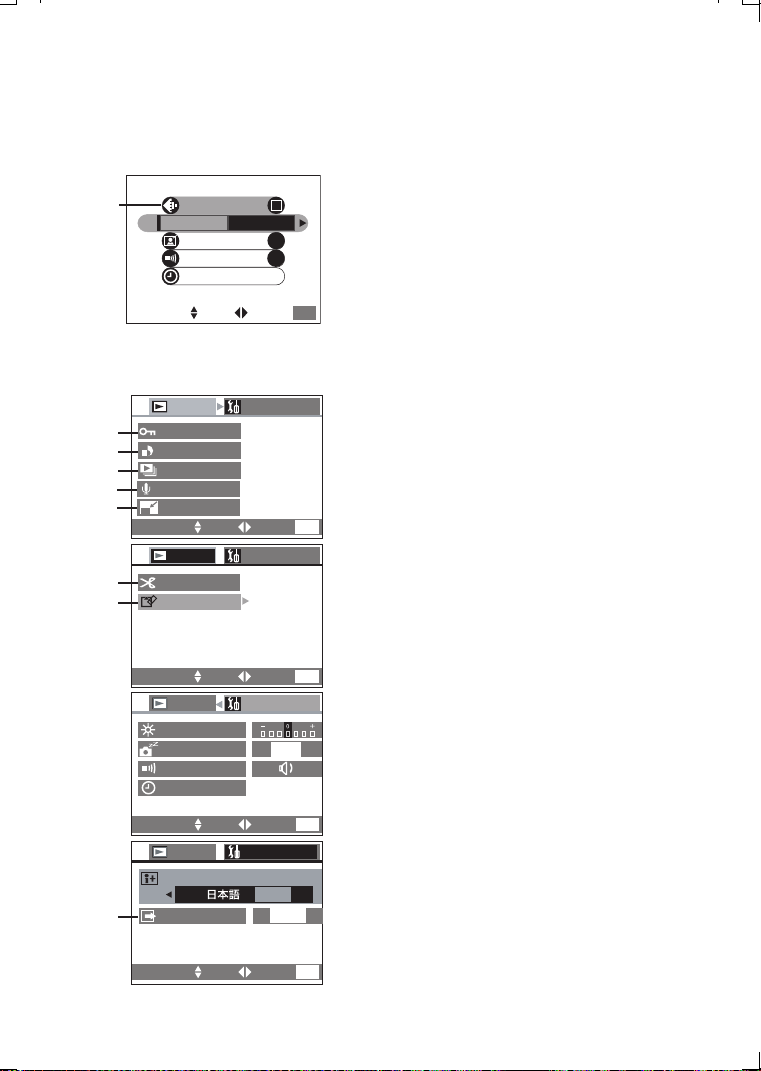
Others
86
Simple mode menu
• For items without number, refer to those with
the same name.
19
PICT.MODE (P27)
Playback mode menu
• For items without number, refer to those with
the same name.
20
PROTECT (P63)
21
DPOF PRINT (P60)
22
SLIDE SHOW (P64)
23
AUDIO DUB. (P66)
24
RESIZE (P67)
25
TRIMMING (P68)
26
FORMAT (P70)
27
VIDEO OUT (P78)
19
OFF
BEEP
ON
AUTO REVIEW
PICT.MODE
CLOCK SET
ENLARGE
4"k6"/10k15cm
SELECT SET EXIT
MENU
20
21
22
26
23
24
25
27
SETUP
PLAY
2/2
SELECT SET EXIT
MENU
PLAY
SETUP
2/2
SELECT SET EXIT
MENU
PLAY
1/2
PROTECT
DPOF PRINT
SLIDE SHOW
AUDIO DUB.
SETUP
TRIMMING
RESIZE
SELECT SET EXIT
MENU
PLAY
SETUP
1/2
SELECT SET EXIT
MENU
FORMAT
MONITOR
POWER SAVE
BEEP
CLOCK SET
NTSC
ENG
LANGUAGE
VIDEO OUT
2MIN.
KC52-PP.book 86 ページ 2003年3月13日 木曜日 午後2時29分

Others
87
Cautions for Use
ª Cautions for Use
Keep the digital camera away from
magnetized equipment (such as a
microwave oven, TV, video game
equipment, etc.).
• If you use the digital camera on or
near a TV, images and sounds may be
disturbed due to electromagnetic wave
radiation.
• Do not use the digital camera near a
cell phone because doing so may
cause noise to adversely affect the
images and sounds.
• Recorded data may be damaged, or
images may be distorted by strong
magnetic fields created by speakers or
large motors.
• Electromagnetic wave radiation
generated by a microprocessor may
adversely affect the digital camera,
causing the disturbance of images and
sounds.
• If the digital camera is affected by
magnetically charged equipment and
does not function properly, turn the
camera off and detach the batteries
and then connect the batteries again.
Thereafter, turn the camera on.
Do not use the digital camera near
radio transmitters or high-voltage
lines.
• If you record near radio transmitters or
high-voltage lines, recorded images or
sounds may be adversely affected.
Do not spray insecticides or
volatile chemicals onto the digital
camera.
• If the digital camera is sprayed with
such chemicals, the camera body may
be damaged and the surface finish
may peel off.
• Do not keep rubber or plastic products
in contact with the digital camera for a
long period of time.
When you use the digital camera
on a beach or similar place, do not
let sand or fine dust get into the
camera.
• Sand or dust may damage the digital
camera or card. (Care should be taken
when inserting and removing the card)
When you use your digital camera
on a rainy or snowy day or on a
beach, make sure that no water
enters the digital camera.
• Water may cause the digital camera or
card to malfunction. (Irreparable
damage may occur)
• If sea water splashes onto the digital
camera, wet a soft cloth with tap
water, wring it well, and use it to wipe
the camera body carefully. Then, wipe
it again thoroughly with a soft dry
cloth.
Do not use the digital camera for
surveillance purposes or other
business use.
• If you use the digital camera for a long
period of time, the internal
temperature increases and,
consequently, this may cause
malfunction.
• The digital camera is not intended for
business use.
KC52-PP.book 87 ページ 2003年3月13日 木曜日 午後2時29分

Others
88
Do not use benzine, thinner or
alcohol for cleaning the digital
camera.
• The camera body may be deformed
and the surface finish may peel off.
• Before cleaning the camera, detach
the batteries.
• Wipe the digital camera with a soft, dry
cloth. To remove stubborn stains, wipe
with a cloth that is soaked in a
detergent diluted with water and
afterward finish wiping with a dry cloth.
• For storing or transporting the digital
camera, place it in a bag or case lined
with soft pads to prevent the coating
on the camera body from being worn.
After use, be sure to take the card
out, and detach the batteries.
• If the batteries are left on the digital
camera for a long time, the voltage
drops excessively.
Be sure to remove the batteries
after use.
Be sure to remove the batteries from the
digital camera. (If they are left attached
to the digital camera, a minute amount
of current is consumed even when the
digital camera power is off) If the
batteries are left attached to the digital
camera for a long time, discharge takes
place.
Dispose of unusable batteries.
• The batteries have a limited life.
• Do not throw the batteries into fire
because it may cause an explosion.
Always keep the terminals of the
batteries clean.
Prevent the terminals from getting
clogged with dirt, dust, or other
substances.
If you drop the battery accidentally,
check to see if the battery body and
terminals are deformed. Attaching a
deformed battery to the digital camera
may damage the camera.
A nickel metal hydride battery that is recyclable powers the
product you have purchased. Please call 1-800-8-BATTERY for
information on how to recycle this battery.
RBRC
Ni-MH
TM
KC52-PP.book 88 ページ 2003年3月13日 木曜日 午後2時29分

Others
89
ª Condensation
When condensation has taken
place:
Set the power switch to [OFF] and
leave the digital camera in this
condition for about 1 hour. When
the camera becomes close to the
ambient temperature, the fog
disappears naturally.
ª Cautions for Storage
Before storing the digital camera, take
the card out and detach the batteries.
Store all the components in a dry place
with a relatively stable temperature.
(Recommended temperature:
59 oF to 77 oF (15oC to 25oC),
Recommended humidity: 40 to 60%)
Digital camera
• Wrap it with a soft cloth to prevent dust
from getting into the camera.
• Do not leave the camera in places that
expose it to high temperature.
Batteries
• Do not leave the camera and the
battery in places where the
temperature is too high, such as inside
the car during the summer.
• Extremely high or low temperatures
will shorten the life of batteries.
• If the batteries are kept in smoky or
dusty places, the terminals may rust
and cause malfunctions.
• Do not allow the battery terminals to
come in contact with metal objects
(such as necklaces, hairpins, etc.).
This can result in a short circuit or heat
generation, and if you touch the
battery in this condition, you may be
badly burned.
Card
• When the card is being read, do not
remove the card, turn off the power, or
subject it to vibration or impact.
• Do not leave the card in places where
there is high temperature or direct
sunlight, or where electromagnetic
waves or static electricity are easily
generated.
• Do not bend or drop the card. The
card or the recorded content may be
damaged.
• After use, be sure to remove the card
from the digital camera.
• Do not touch the terminals on the back
of the card with your fingers. Do not
allow dirt, dust or water to enter it.
KC52-PP.book 89 ページ 2003年3月13日 木曜日 午後2時29分

Others
90
ª LCD monitor
LCD monitor
• In a place with drastic temperature
changes, condensation may form on
the LCD monitor. Wipe it with soft dry
cloth.
• If the digital camera is extremely cold
when you turn the power on, the
image on the LCD monitor is slightly
darker than usual at first. However, as
the internal temperature increases, it
goes back to the normal brightness.
ª SD Slide Show
If setting the SD slide show with the [SD
Viewer for DSC] which is in the supplied
CD-ROM, when playing back, the
message “START SD SLIDE SHOW?”
is displayed. Select [YES] and press the
4
/
[REVIEW/SET] button to start the SD
slide show. Select [NO] and press the
4
/
[REVIEW/SET] button to start normal
playback.
ª Folder Composition
When a Memory Card with data
recorded on it is inserted into a PC, the
folders shown below will be displayed.
• In the 100_PANA folder it is possible to
record up to 999 images.
• In the MISC folder it is possible to
record the files that have been set with
DPOF settings.
Extremely high precision technology
is employed to produce the LCD
monitor screen featuring a total of
approximately 114,000 pixels. The
result is more than 99.99% effective
pixels with a mere 0.01% of the
pixels inactive or always lit. However,
this is not a malfunction and does
not affect the recorded picture.
100_PANA
MISC
EXPORT
DCIM
SD Memory
Card
KC52-PP.book 90 ページ 2003年3月13日 木曜日 午後2時29分

Others
91
Message Indications
[NO MEMORY CARD]
Insert the Memory Card.
[THIS MEMORY CARD IS
PROTECTED]
Cancel the Memory Card lock.
[NO VALID IMAGE TO PLAY]
Carry out playback after recording or
after inserting the Memory Card with a
recorded image.
[MEMORY CARD FULL]/[NOT
ENOUGH MEMORY IN THE CARD]
Insert a new Memory Card or delete
unnecessary data.
[MEMORY CARD ERROR]
Failed access to Memory Card.
Insert the card again.
[READ ERROR]
Data reading error.
Play it back again.
[WRITE ERROR]
Data writing error.
Turn the camera [OFF] and remove the
card. Then insert the card and turn the
camera back [ON]. Be sure camera is
[OFF] before removing or inserting the
card to avoid damaging the card.
[SYSTEM ERROR]
When the camera does not work
correctly because of the pressure to the
lens, this message is displayed. Turn
the power switch to [ON] again.
[PLEASE SET THE CLOCK]
This message is displayed when you
use the camera for the first time or you
do not use the camera for a long time.
Set the clock again.
[THIS PICTURE IS PROTECTED]
After cancelling the protect setting, you
can delete or overwrite the image.
[THIS PICTURE CAN’T BE
DELETED]/[SOME PICTURES
CAN’T BE DELETED]
If the image is not based on the DCF
standard, it is not possible to delete
selected pictures.
[NO ADDITIONAL DELETE
SELECTIONS CAN BE MADE]
You have exceeded the number of
images that can be set at once with
multi-deleting setting.
[CAN’T BE SET ON THIS
PICTURE]/[CAN’T BE SET ON
SOME PICTURES]
If the image is not based on the DCF
standard, it is not possible to set the
DPOF or audio dubbing.
[MEMORY CARD ERROR
FORMAT THIS CARD?]
The format of this card cannot be
recognized by the camera. Format the
card again with the camera.
[MODE DIAL IS NOT IN THE
PROPER POSITION]
This message is displayed when you
turn on the camera with the mode dial in
the wrong position.
Rotate the mode dial to the proper
position.
KC52-PP.book 91 ページ 2003年3月13日 木曜日 午後2時29分

Others
92
Troubleshooting
1: The power does not turn on.
1-1: Are the batteries inserted? Check
whether the batteries are inserted.
1-2: Is the battery power sufficient?
2: As the power is turned on, it turns
off immediately.
2-1: Is the battery power insufficient to
operate the camera? Replace it with
new one.
2-2: Are the batteries other than the
recommended ones?
3: The image cannot be recorded.
3-1: Is the Memory Card inside?
3-2: Is the mode dial correctly set?
Check it.
3-3: There is no memory capacity left on
the card. Before recording, delete
some images.
4: The image is not displayed on the
LCD monitor.
4-1: Is the LCD monitor set to OFF?
4-2: Does the economy mode work?
5: The LCD monitor is too bright or
dark.
5: Adjust the brightness of the LCD
monitor.
6: Flash does not light.
6: The flash mode is set to forced OFF.
Change the flash mode.
7: The display or images on the LCD
monitor are not focused.
7: Set the mode dial to the mode
corresponding to the distance to the
subject.
8: The image will not play back.
8-1: Is the Memory Card inside?
8-2: There is no image in the Memory
Card.
8-3: The mode dial is not set to playback
[].
9: The image is not displayed on the
television.
9-1: Is the camera correctly connected
with the TV? Check it.
9-2: Set the TV to video input mode.
10: When connecting to a PC, images
cannot be transferred.
10-1: Check that the camera is correctly
connected to the PC.
10-2: Is the camera correctly recognized
by the PC?
11: The clock setting is reset.
11-1: If you do not use the camera for a
long time, the clock setting may be
reset. When the message [PLEASE
SET THE CLOCK] appears, set the
clock again.
11-2: When you take a picture before
setting the clock, [0.0.0 0:00] is
recorded.
KC52-PP.book 92 ページ 2003年3月13日 木曜日 午後2時29分

Others
93
Specifications
Digital Camera Information for your safety
Effective number of pixels 3.2 Million Pixels
Image sensor 1/2.5z CCD, total pixel number 3,340,000
Primary color filter
Lens Optical 3a zoom, f=5.8 - 17.4 mm (35 mm film
camera equivalent: 35 - 105 mm)/F2.8 - 4.9
Digital zoom Max 3a
Focus Auto/Macro
Normal/Spot AF change (Spot mode)
Focus range Auto: 1.64 feet (50 cm)(Wide)/1.64 feet (50 cm) (Tele)
- ¶ ,
Macro/Simple: 0.33 feet (10 cm) (Wide)/1.64 feet
(50 cm) (Tele) - 
Shutter system Electronic shutter i Mechanical shutter
Burst recording 4 frames/second, Max 8 frames (standard)/
5 frames (fine) (Performance is only with SD Memory
Card. MultiMediaCard performance will be less.)
Motion image recording 320a240 pixels (10 frames/second with audio)
ISO sensitivity AUTO/50/100/200/400
Shutter speed 8 - 1/2,000
Motion image mode: 1/30 - 1/2,000
White balance AUTO/Daylight/Cloudy/Halogen/White set
Exposure (AE) Program AE
Exposure compensation (1/3 EV Step, j2 - i2 EV)
Metering mode Multi/Spot (Spot mode)
LCD monitor 1.5z low-temperature polycrystalline TFT LCD
(114,000 pixels) (field of view ratio 100%)
Optical finder Real-image zoom finder
Flash Flash range: (ISO100)
Approx. 0.98 feet (30 cm) - 7.87 feet (2.4 m) (Wide)
/Approx. 1.64 feet (50 cm) - 4.59 feet (140 cm) (Tele)
AUTO, AUTO/Red-eye reduction, Forced ON, Slow
sync./Red-eye reduction, Forced OFF
Microphone Monaural
Recording media SD Memory Card/MultiMediaCard
Recording size 2048a1536 pixels, 1600a1200 pixels, 1280a960
pixels, 640a480 pixels (Still picture)
320a240 (Motion image)
Quality Fine/Standard
Power Consumption: 1.7 W (When recording with LCD monitor to on)
0.7 W (When recording with LCD monitor to off)
1.0 W (When playing back with LCD monitor)
KC52-PP.book 93 ページ 2003年3月13日 木曜日 午後2時29分

Others
94
Recording file format
Still Picture JPEG (Design rule for Camera File system, based on
Exif 2.2 standard), DPOF corresponding
Still picture with audio JPEG (Design rule for Camera File system, based on
Exif 2.2 standard)
i 640a480 QuickTime Motion JPEG (still picture with
audio)
Motion image
QuickTime Motion JPEG (motion image with audio)
Interface
Digital USB
Analog video/audio NTSC/PAL Composite/Audio line output (monaural)
Terminal
USB 5 pin Mini USB
Analog video/audio Ø 2.5 mm jack
DC IN EIAJ type 1 jack
Dimensions (W a H a D) 3 4/5qa2 1/2qa11/3q /96a65.5a34 mm (excluding
the projection part)
Weight Approx. 6 oz/170 g (excluding Memory Card and
battery)
Approx. 7.58 oz/215 g (with Memory Card and
battery)
Operating Temperature 32 oF - 104 oF (0oC-40oC)
Operating Humidity 10% - 80%
Power Source AA Alkaline batteries (2 pieces)
AA Ni-MH (nickel-metal hydride) batteries (2 pieces)
AC adaptor (DMW-AC1) (optional)
KC52-PP.book 94 ページ 2003年3月13日 木曜日 午後2時29分
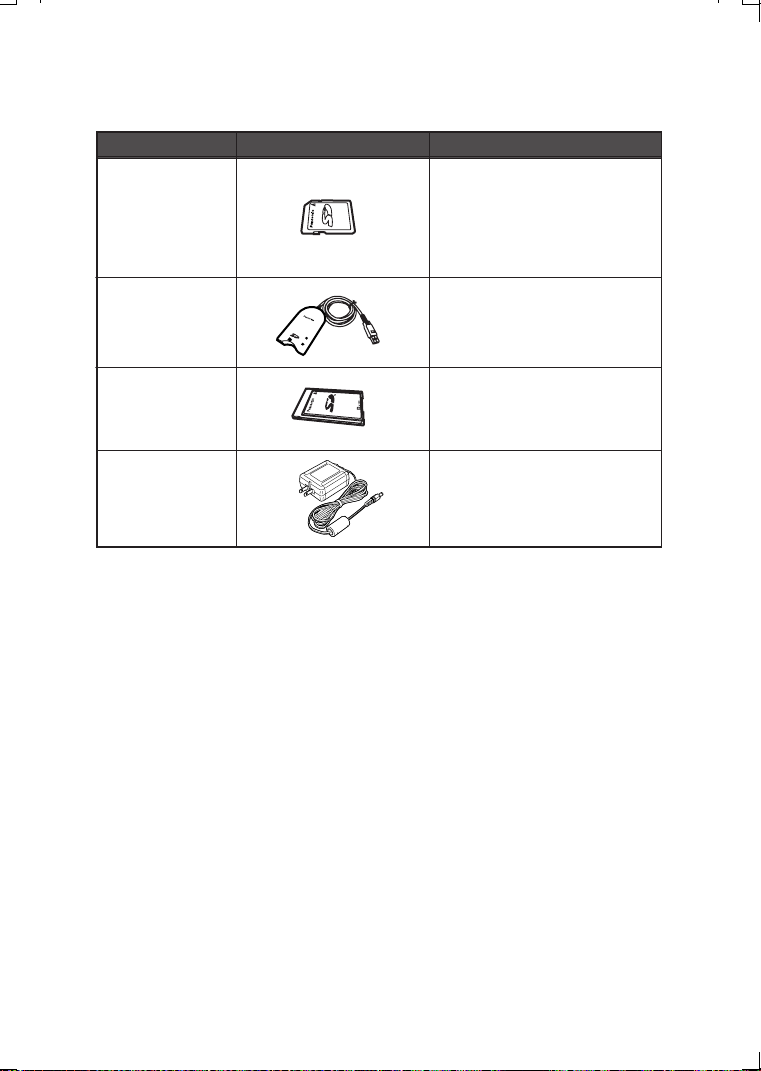
Others
95
Others
Digital Camera Accessory System
Please refer to page 15, for details on available recording time.
*NOTE: Accessories and/or model numbers may vary by country. Please consult your
local dealer.
Accessory#
Description
Figure
BN-SDABPU/1B
SD PC Card Adaptor
(compatible with
MultiMediaCard)
BN-SDCAPU/1B
SD USB Reader/Writer
(compatible with
MultiMediaCard)
RP-SD064B
RP-SD032B
RP-SD016B
512 MB SD Memory Card
256 MB SD Memory Card
128 MB SD Memory Card
64 MB SD Memory Card
32 MB SD Memory Card
16 MB SD Memory Card
RP-SD128B
RP-SDH256
RP-SDH512
DMW-AC1
AC Adaptor
KC52-PP.book 95 ページ 2003年3月13日 木曜日 午後2時29分
Others
96
Digital Camera Accessory Order Form
(For USA Customers)
In CANADA, please contact your local Dealer for more information on
Accessories.
TO OBTAIN ANY OF OUR DIGITAL CAMERA ACCESSORIES YOU CAN DO ANY OF
THE FOLLOWING:
VISIT YOUR LOCAL PANASONIC DEALER
OR
CALL PANASONIC’S ACCESSORY ORDER LINE AT 1-800-332-5368
[6 AM-5 PM M-F, 6 AM-10:30 AM SAT, PACIFIC TIME]
OR
MAIL THIS ORDER TO: PANASONIC SERVICES COMPANY ACCESSORY ORDER OFFICE
20421 84th Avenue South Kent, WA. 98032
Ship To:
Mr.
Mrs.
Ms.
First Last
Street Address
City State Zip
Phone#:
Day ( )
Night ( )
4. Shipping information (UPS delivery requires complete street address)
Please photocopy this form when placing an order.
3. Method of payment (check one)
Check of Money Order enclosed (NO C.O.D.SHIPMENTS)
VISA
MasterCard
Make Check or Money Order to: PANASONIC ACCESSORIES
(Please do not send cash)
2. Items Ordered
QuantityAccessory # Price Each Description
Total Price
6.95
Subtotal
Your State & Local Sales Tax
Shipping & Handling
Total Enclosed
1. Digital Camera Model #
Discover
Expiration Date
Credit Card #
Customer Signature
KC52-PP.book 96 ページ 2003年3月13日 木曜日 午後2時29分

Others
97
Request for Service Notice
(For USA Only)
Mail this completed form and your Proof of Purchase along with your unit to:
Panasonic Services Company
1705 N. Randall Road
Elgin, IL. 60123-7847
Attn: Digital Camera Repair
Request for Service Notice:
(USA Only)
Please photocopy this form when making a request for service notice.
In the unlikely event this product needs service.
• Please include your proof of purchase.
(Failure to due so will delay your repair.)
• To further speed your repair, please provide
an explanation of what wrong with the unit
and any symptom it is exhibiting.
Please write the displayed above Self Diagnostic number
here.
KC52-PP.book 97 ページ 2003年3月13日 木曜日 午後2時29分

Others
98
Limited Warranty
(For USA Only)
PANASONIC CONSUMER
ELECTRONICS COMPANY,
DIVISION OF MATSUSHITA
ELECTRIC CORPORATION OF
AMERICA, One Panasonic Way
Secaucus, New Jersey 07094
PANASONIC SALES COMPANY,
DIVISION OF MATSUSHITA
ELECTRIC OF PUERTO RICO, INC.
Ave. 65 de Infanteria, Km. 9.5, San
Gabriel Industrial Park, Carolina,
Puerto Rico 00985
Panasonic Digital Still Camera
Limited Warranty
Limited Warranty Coverage
If your product does not work properly because of a defect in materials or
workmanship, Panasonic Consumer Electronics Company or Panasonic Sales
Company (collectively referred to as “the warrantor”) will, for the length of the
period indicated on the chart below, which starts with the date of original
purchase (“warranty period”), at its option either (a) repair your product with
new or refurbished parts, or (b) replace it with a new or refurbished product.
The decision to repair or replace will be made by the warrantor.
During the “Labor” warranty period there will be no charge for labor. During the
“Parts” warranty period, there will be no charge for parts. You must carry-in or
mail-in your product during the warranty period. If non-rechargeable batteries
are included, they are not warranted. This warranty only applies to products
purchased and serviced in the United States or Puerto Rico. This warranty is
extended only to the original purchaser of a new product which was not sold
“as is”. A purchase receipt or other proof of the original purchase date is
required for warranty service.
PRODUCT OR PART NAME PARTS LABOR
DIGITAL STILL CAMERA
(EXCEPT ITEMS LISTED
BELOW)
1 (ONE) YEAR 90 (NINETY) DAYS
CCD 6 (SIX) MONTHS 90 (NINETY) DAYS
RECHARGEABLE BATTERY
PACK (IN EXCHANGE FOR
DEFECTIVE BATTERY PACK)
90 (NINETY) DAYS NOT APPLICABLE
SD MEMORY CARD (IN
EXCHANGE FOR
DEFECTIVE SD CARD)
90 (NINETY) DAYS NOT APPLICABLE
KC52-PP.book 98 ページ 2003年3月13日 木曜日 午後2時29分

Others
99
Carry-In or Mail-In Service
For Carry-In or Mail-In Service in the United States call
1-800-272-7033.
For assistance in Puerto Rico call Panasonic Sales Company
(787)-750-4300 or fax (787)-768-2910.
This warranty ONLY COVERS failures due to defects in materials or
workmanship, and DOES NOT COVER normal wear and tear or cosmetic
damage. The warranty ALSO DOES NOT COVER damages which
occurred in shipment, or failures which are caused by products not
supplied by the warrantor, or failures which result from accidents, misuse,
abuse, neglect, mishandling, misapplication, alteration, faulty installation,
set-up adjustments, misadjustment of consumer controls, improper
maintenance, power line surge, lightning damage, modification, or
commercial use (such as in a hotel, office, restaurant, or other business),
rental use of the product, service by anyone other than a Factory
Servicenter or other Authorized Servicer, or damage that is attributable to
acts of God.
THERE ARE NO EXPRESS WARRANTIES EXCEPT AS LISTED
UNDER
“
LIMITED WARRANTY COVERAGE
”
. THE WARRANTOR IS
NOT LIABLE FOR INCIDENTAL OR CONSEQUENTIAL DAMAGES
RESULTING FROM THE USE OF THIS PRODUCT, OR ARISING OUT
OF ANY BREACH OF THIS WARRANTY. (As examples, this excludes
damages for lost time, travel to and from the servicer, loss of media or
images, data or other memory content. The items listed are not exclusive,
but are for illustration only.) ALL EXPRESS AND IMPLIED
WARRANTIES, INCLUDING THE WARRANTY OF MERCHANTABILITY,
ARE LIMITED TO THE PERIOD OF THE LIMITED WARRANTY.
Some states do not allow the exclusion or limitation of incidental or conse-
quential damages, or limitations on how long an implied warranty lasts, so
the exclusions may not apply to you.
This warranty gives you specific legal rights and you may also have other
rights which vary from state to state. If a problem with this product
develops during or after the warranty period, you may contact your dealer
or Servicenter. If the problem is not handled to your satisfaction, then write
to the warrantor's Consumer Affairs Department at the addresses listed for
the warrantor.
PARTS AND SERVICE WHICH ARE NOT COVERED BY THIS LIMITED
WARRANTY ARE YOUR RESPONSIBILITY.
KC52-PP.book 99 ページ 2003年3月13日 木曜日 午後2時29分

Others
100
Customer Services Directory
(For USA Only)
Product Repairs
1-800-332-5368 (Customer Orders Only)
Panasonic Services Company 20421 84th Avenue South, Kent, WA 98032
(6 am to 5 pm Monday - Friday; 6 am to 10:30 am Saturday; PST)
(Visa, MasterCard, Discover Card, American Express, Check)
Web Site: http://www.panasonic.com
You can purchase parts, accessories or locate your
nearest servicenter by visiting our Web Site.
For Product Information, Operating Assistance, Literature Request, Dealer Locations, and
all Customer Service inquiries please contact:
1-800-272-7033
, Monday-Friday 8:30am-8pm EST.
As of January 2002
Service in Puerto Rico
Matsushita Electric of Puerto Rico, Inc. Panasonic Sales Company/ Factory Servicenter:
Ave. 65 de Infanteria, Km. 9.5, San Gabriel Industrial Park, Carolina, Puerto Rico 00985
Phone (787) 750-4300 Fax (787) 768-2910
Accessory Purchases:
MAIL TO :
Centralized Factory Servicenter
Panasonic Services Company
1705 N. Randall Road,
Elgin, IL 60123-7847
Attention: Digital Camera Repair
Please carefully pack and ship, prepaid and insured, to the Elgin Centralized Factory
Servicenter.
Customer's in Puerto Rico, please ship or carry in to location below (“Service in Puerto Rico”).
KC52-PP.book 100 ページ 2003年3月13日 木曜日 午後2時29分

101
Index
A
AF/AE Lock .........................46
Audio Dubbing .....................66
Auto Exposure (AE) Bracket ....45
Auto Review ........................72
B
Built-in Flash ........................32
Burst Mode ..........................51
C
Clock Set ............................24
Condensation .......................89
D
Digital Zoom ........................31
DPOF ................................60
E
Economy mode ....................75
F
File Number .........................76
Flash/Access Indicator ...........18
Formatting ...........................70
I
ISO Sensitivity ......................50
L
Landscape Mode ..................40
LCD Monitor Brightness ..........71
M
Macro Mode ........................38
Motion Image ....................... 29
Multi Playback ......................54
MultiMediaCard ....................17
N
Night Portrait Mode ................41
O
Operational Sound ................73
Optical Zoom .......................30
P
Picture Size .........................36
Play Back ............................52
Playback Zoom ....................55
Portrait Mode .......................39
Power Save Mode .................74
Q
Quality ...............................37
R
Resize ...............................67
Review ...............................28
S
SD Memory Card ..................17
SD Slide Show .....................90
Self-timer ............................ 34
Slide Show .......................... 64
Spot Mode .......................... 43
T
Trimming ............................ 68
U
USB Direct Printing ...............80
W
White Balance ......................48
KC52-PP.book 101 ページ 2003年3月13日 木曜日 午後2時29分
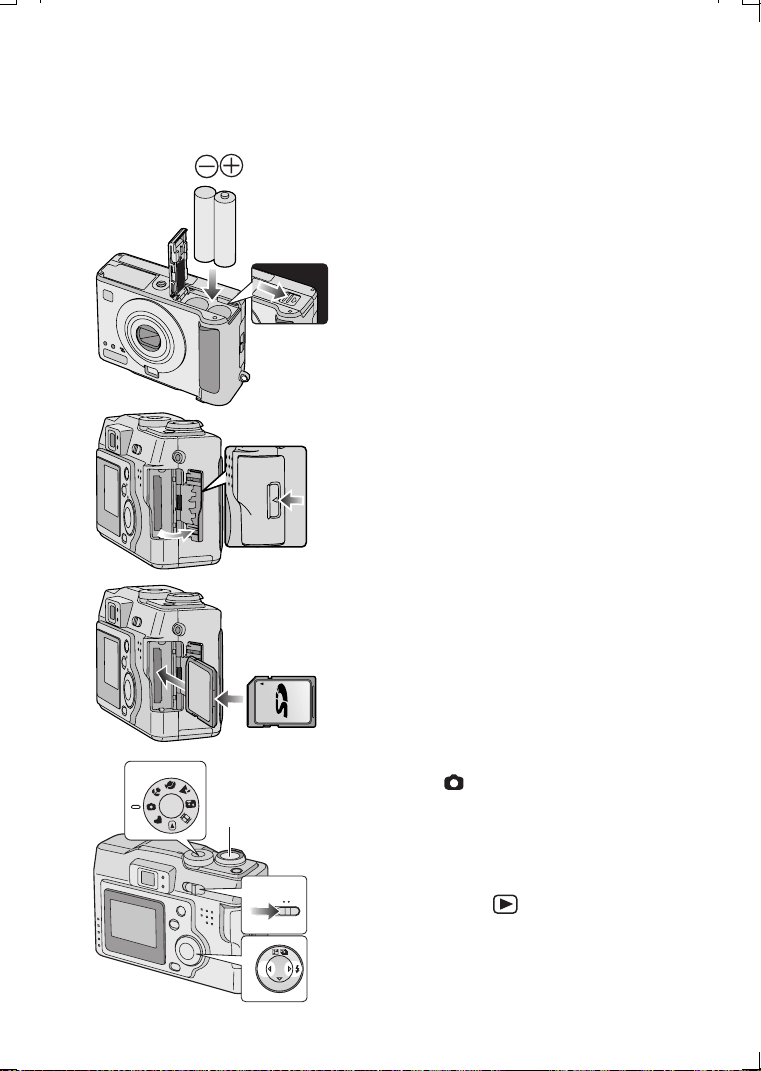
Others
102
Others
Spanish Quick Use Guide/Guía española
para el uso rápido
Prepare las siguientes piezas.
• Cámara
• Baterías
•Tarjeta
• Compruebe que el interruptor de
alimentación esté ajustado a [OFF] y esté
almacenado el objetivo.
[Preparaciones]
1 Haga deslizar la tapa en la dirección de
la flecha para abrir la tapa de las
baterías.
2 Inserte las baterías en la cámara.
• Inserte las baterías poniendo cuidado en
la dirección de las polaridades + y -.
3 Cierre la tapa de la batería.
4 Para abrir la tapa de la tarjeta de
memoria, desplace la tapa en la
dirección de la flecha.
5 Introduzca la tarjeta en la cámara.
6
Cierre
la tapa de la tarjeta de memoria.
[Grabación]
7 Ponga el interruptor de alimentación a
[ON]. (P18)
8 Defina la fecha/hora.
9 Ajuste el disco del modo a la imagen
normal [ ].
10 Saque una imagen.
[Reproducción]
11 Ajuste el disco del modo a la
reproducción [ ].
12 Pulse 2/1 para reproducir la imagen
que quiere ver.
4
5
2
1
10
7
9,11
OFF ON
12
SET
Ø
R
E
V
I
E
W
KC52-PP.book 102 ページ 2003年3月13日 木曜日 午後2時29分

103
Memo
KC52-PP.book 103 ページ 2003年3月13日 木曜日 午後2時29分

VQT0D36
Panasonic Consumer Electronics Company,
Division of Matsushita Electric Corporation of America
One Panasonic Way, Secaucus, NJ 07094
Panasonic Sales Company ("PSC")
Division of Matsushita Electric of Puerto Rico, Inc.
Ave. 65 de Infanteria, Km. 9.5, San Gabriel Industrial Park, Carolina, Puerto Rico 00985
Panasonic Canada Inc.
5770 Ambler Drive, Mississauga, Ontario, L4W 2T3
P
KC52-PP.book 104 ページ 2003年3月13日 木曜日 午後2時29分