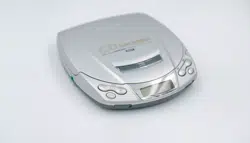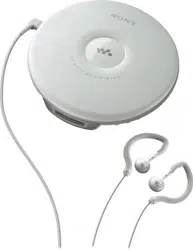
D-NF420/NF421.GB.2-318-768-12(1) D-NF420/NF421.GB.2-318-768-12(1)
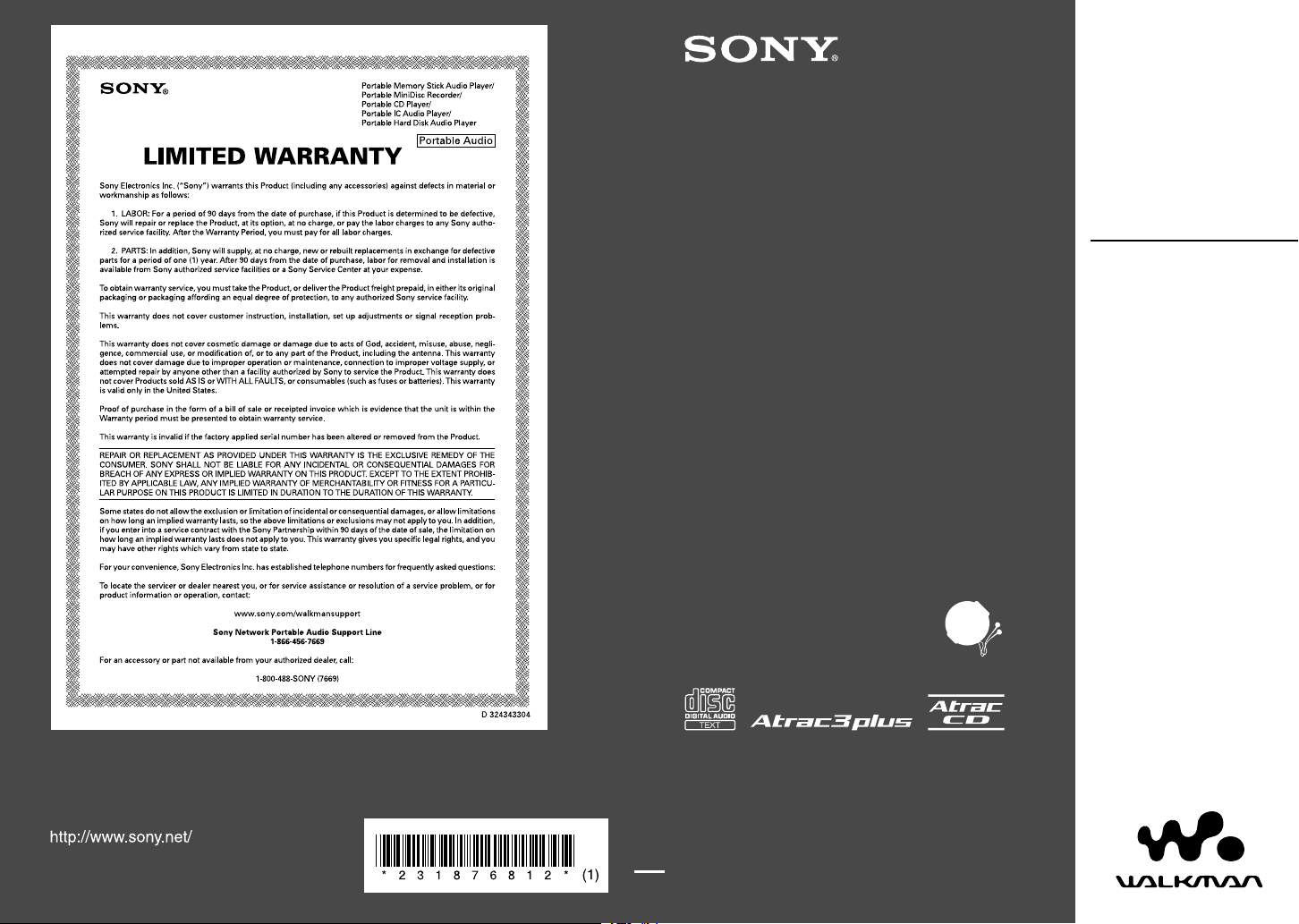
This warranty is valid only in the United States.
Sony Corporation Printed in Malaysia
ATRAC CD Walkman FM/AM
Portable
CD Player
© 2004 Sony Corporation
Operating Instructions
D-NF420/NF421
2-318-768-12 (1)

WARNING
To prevent fire or shock hazard,
do not expose the unit to rain
or moisture.
Do not install the appliance in a confined
space, such as a bookcase or built-in
cabinet.
To prevent fire, do not cover the ventilation
of the apparatus with newspapers, table-
cloths, curtains, etc. And don’t place lighted
candles on the apparatus.
To prevent fire or shock hazard, do not place
objects filled with liquids, such as vases, on
the apparatus.
CAUTION
The use of optical instruments with this
product will increase eye hazard.
Certain countries may regulate disposal
of the battery used to power this product.
Please consult with your local authority.
CAUTION
• INVISIBLE LASER RADIATION
WHEN OPEN
• DO NOT STARE INTO BEAM OR
VIEW DIRECTLY WITH OPTICAL
INSTRUMENTS
• CLASS 1M INVISIBLE LASER
RADIATION WHEN OPEN
• DO NOT VIEW DIRECTLY WITH
OPTICAL INSTRUMENTS
The validity of the CE marking is restricted
to only those countries where it is legally
enforced, mainly in the countries EEA
(European Economic Area).
Owner’s Record
The model number and the serial number are
located at the rear of the CD player. Record these
numbers in the spaces provided below. Refer to them
whenever you call upon your Sony dealer regarding
this product.
Model No. __________________________
Serial No. __________________________
For customers who purchased this product in
the USA
Product registration
Please register this product on line at www.sony.
com/walkmanreg
<http://www.sony.com/walkmanreg>
Proper registration will enable us to send you periodic
mailings about software upgrades, new products,
services and other important announcements. Thank
you.
If you have any questions about this product,
you may call; Sony Customer Information
Services Center 1-866-456-7669 or
http://www.sony.com/
Declaration of Conformity
Trade Name: SONY
Model No.: D-NF420
Responsible Party: Sony Electronics Inc.
Address: 16450 W. Bernardo Dr,
San Diego, CA 92127 U.S.A.
Telephone No.: 858-942-2230
This device complies with Part 15 of the FCC Rules.
Operation is subject to the following two conditions:
(1) This device may not cause harmful interference,
and (2) this device must accept any interference
received, including interference that may cause
undesired operation.
This equipment has been tested and found to comply
with the limits for a Class B digital device, pursuant
to Part 15 of the FCC Rules. These limits are
designed to provide reasonable protection against
harmful interference in a residential installation. This
equipment generates, uses, and can radiate radio
frequency energy and, if not installed and used in
accordance with the instructions, may cause harmful
interference to radio communications. However, there
is no guarantee that interference will not occur in a
particular installation. If this equipment does cause
harmful interference to radio or television reception,
which can be determined by turning the equipment
off and on, the user is encouraged to try to correct the
interference by one or more of the following measures:
– Reorient or relocate the receiving antenna.
– Increase the separation between the equipment and
receiver.
– Connect the equipment into an outlet on a circuit
different from that to which the receiver is
connected.
– Consult the dealer or an experienced radio/TV
technician for help.
You are cautioned that any changes or modifications
not expressly approved in this manual could void your
authority to operate this equipment.
2
D-NF420/NF421.GB.2-318-768-11(1)
This manual describes how to use the CD player.
For the supplied software SonicStage, please see
“Installation/Operating Guide.”
Notice for users
On the supplied software
Depending on the type of the text and characters,
the text shown on SonicStage may not be displayed
properly on the device. This is due to:
– The limitations of the connected player.
– The player is not functionning normally.
ATRAC3plus is a trademark of Sony Corporation.
“WALKMAN” is a registered trademark of Sony
Corporation to represent Headphone Stereo
products. is a trademark of Sony
Corporation.
Table of Contents
Create Your Own ATRAC CDs ................ 4
Which discs can you play on this CD
player? ....................................................... 5
Precautions ............................................ 7
On safety ....................................................7
On the CD player .......................................7
On handling CDs ........................................ 7
On headphones/earphones ..........................7
Getting Started
Checking the Supplied Accessories ..... 8
Guide to Parts and Controls .................. 8
Preparing a Power Source
(Dry Battery) ........................................ 10
Checking the remaining power of the
battery ......................................................10
When using the AC power adaptor ...........11
Playback
Playing a CD ......................................... 12
Basic playback operations (Play, stop,
search) ..................................................... 13
Locking the controls (HOLD) ..................14
Searching for Your Favorite Track/File 14
Searching by viewing groups (File View) 14
Searching by viewing a list of groups/files
(List View) ...............................................15
Checking CD information on the display .15
Changing Playback Options (PLAY
MODE) .................................................. 17
Playback options (PLAY MODE) ............ 18
Playing groups .......................................... 19
Playing your favorite tracks (Bookmark
play) ......................................................... 19
Playing your favorite play lists (m3u play
list play) ...................................................19
Playing tracks in your favorite order (PGM
play) ......................................................... 20
Playing tracks repeatedly (Repeat play) ...20
Changing Sound Quality ..................... 21
Selecting the sound quality ......................21
Customizing sound quality ....................... 21
SOUND items ..........................................22
Changing Optional Settings ................ 23
Setting various functions .......................... 23
OPTION items ......................................... 24
Using the Radio
Listening to the Radio ......................... 27
Emphasizing the bass sound .....................27
If it is hard to hear the FM/TV/WB
broadcast due to interference from strong
radio waves .............................................. 27
If it is hard to hear the FM broadcast due to
poor reception .......................................... 28
Protecting your hearing ............................28
Turning off the radio automatically .......... 28
When listening to the radio on the battery 28
Presetting Radio Stations ................... 29
Presetting stations manually ..................... 29
Playing Preset Radio Stations ............ 31
Changing the Tuning Interval (Except
European models) ............................... 31
Additional Information
Troubleshooting ................................... 32
Maintenance ......................................... 35
Specifications ....................................... 35
Optional Accessories .......................... 36
Index ..................................................... 37
3
D-NF420/NF421.GB.2-318-768-11(1)
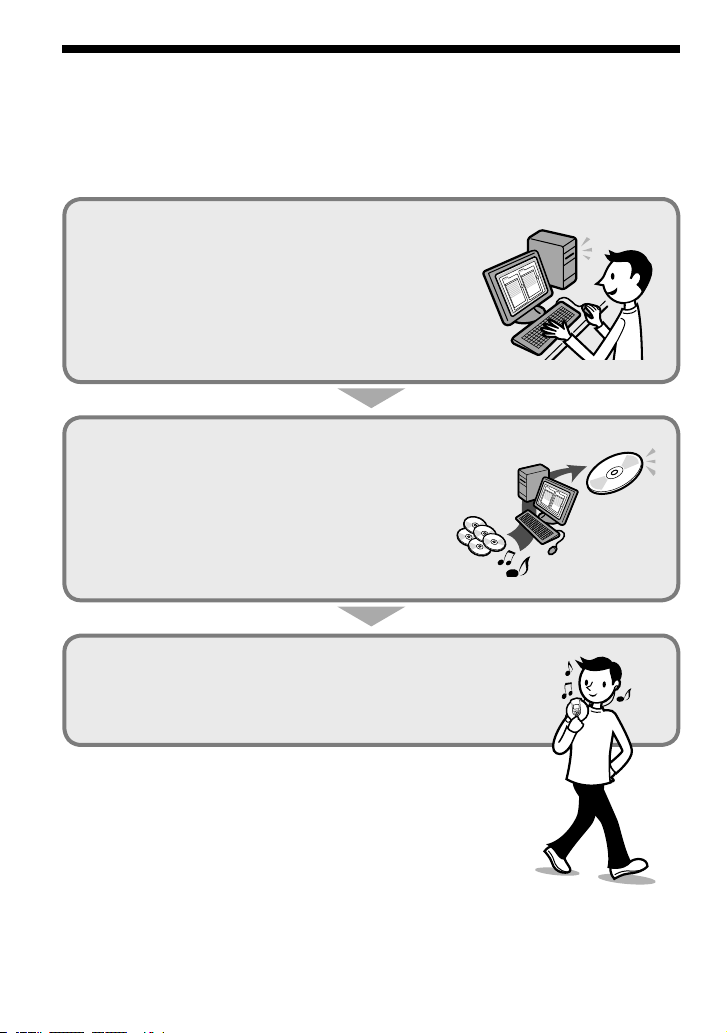
Create Your Own ATRAC CDs
In addition to the usual audio CDs, you can play an original CD, called “ATRAC CD,” that you
create with the supplied software, SonicStage. Using SonicStage, about 30 audio CDs* can be
recorded on one CD-R or CD-RW.
The following is a quick overview of how you listen to music on your ATRAC CD.
Install SonicStage on your computer.
SonicStage is software that takes music downloaded
from audio CDs on your computer and creates original
CDs. It can be installed from the supplied CD-ROM.
Create an ATRAC CD.
After selecting your favorite songs from music stored on
your computer, record them on a CD-R/CD-RW using
SonicStage.
Listen to them with this CD player.
You can take lots of songs wherever you go on your
original CD.
Please see the supplied “Installation/Operating Guide”
for how to install SonicStage and how to create ATRAC CDs.
* When the total playing time of one CD (album) is estimated at 60
minutes and you are recording on a 700 MB CD-R/CD-RW at 48 kbps
in ATRAC3plus format.
Audio CDs,
MP3 files
ATRAC CD
4
D-NF420/NF421.GB.2-318-768-11(1)
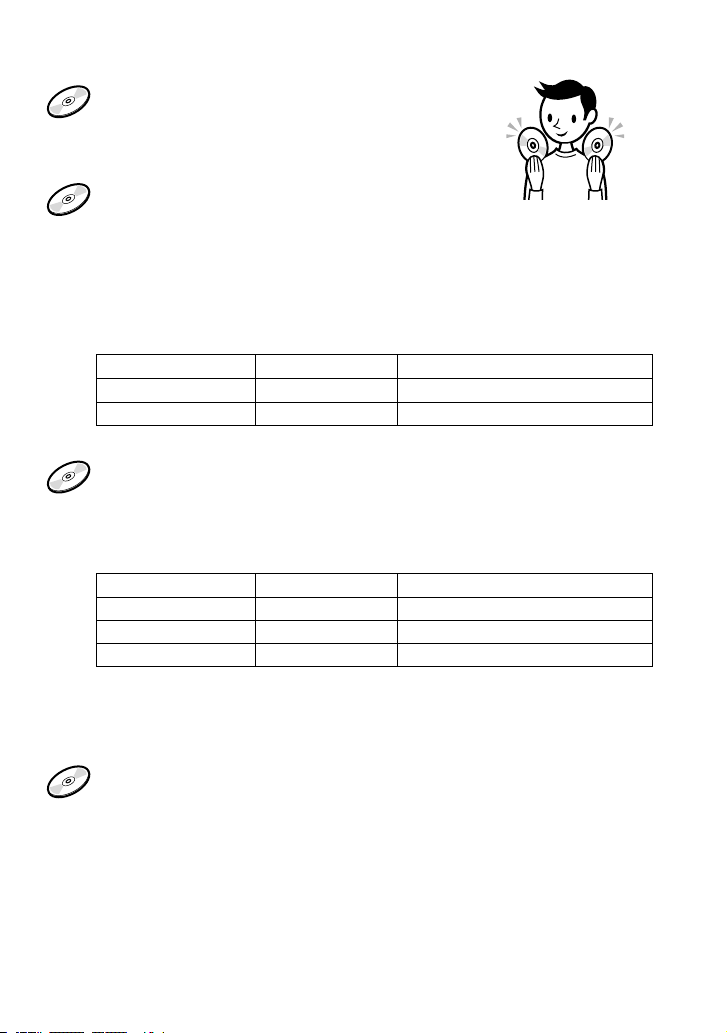
Which discs can you play on this CD player?
Audio CDs:
CD-DA format CDs
CD-DA (Compact Disc Digital Audio) is a recording
standard used for Audio CDs.
ATRAC CDs:
CD-R/CD-RW on which audio data compressed in the ATRAC3plus format
has been recorded by using SonicStage*
ATRAC3plus (Adaptive Transform Acoustic Coding3plus) is audio compression
technology that satisfies the demand for high sound quality and high compression
rates. ATRAC3plus can compress audio files to about 1/20 of their original size at 64
kbps.
Bit rates and sampling frequencies this CD player can play are:
Bit rates Sampling frequencies
ATRAC3 66/105/132 kbps 44.1 kHz
ATRAC3plus 48/64/256 kbps 44.1 kHz
Up to 62 characters can be displayed on this CD player.
MP3 CDs:
CD-R/CD-RW on which audio data compressed in the MP3 format has
been recorded by using a software other than SonicStage*
Bit rates and sampling frequencies this CD player can play are shown below. Variable
Bit Rate (VBR) files can also be played.
Bit rates Sampling frequencies
MPEG-1 Layer3 32 - 320 kbps 32/44.1/48 kHz
MPEG-2 Layer3 8 - 160 kbps 16/22.05/23 kHz
MPEG-2.5 Layer3 8 - 160 kbps 8/11.025/12 kHz
This CD player conforms to Version 1.0/1.1/2.2/2.3/2.4 of the ID3 tag format. ID3 tag
is a format for adding certain information (track name, album name, artist name, etc.)
to MP3 files. Up to 64 characters of ID3 tag information can be displayed on this CD
player.
CD-Extra and Mix-Mode CDs:
CD-R/CD-RW on which CD-DA format data and CD-ROM format data are
recorded together.*
If you cannot play your CD, change the “CD-EXTRA” setting in the OPTION menu
(
page 25). Then you may play your CD.
An ATRAC CD on which audio data compressed in the MP3 format has been recorded using
software other than SonicStage can also be played.
With SonicStage, you cannot create a CD on which mixed format audio data is recorded.
* Only ISO 9660 Level 1/2 and Joliet extension format discs can be played.
Continued
5
D-NF420/NF421.GB.2-318-768-11(1)
Music discs encoded with copyright
protection technologies
This product is designed to play back
discs that conform to the Compact Disc
(CD) standard. Recently, various music
discs encoded with copyright protection
technologies are marketed by some record
companies. Please be aware that among those
discs, there are some that do not conform to
the CD standard and may not be playable by
this product.
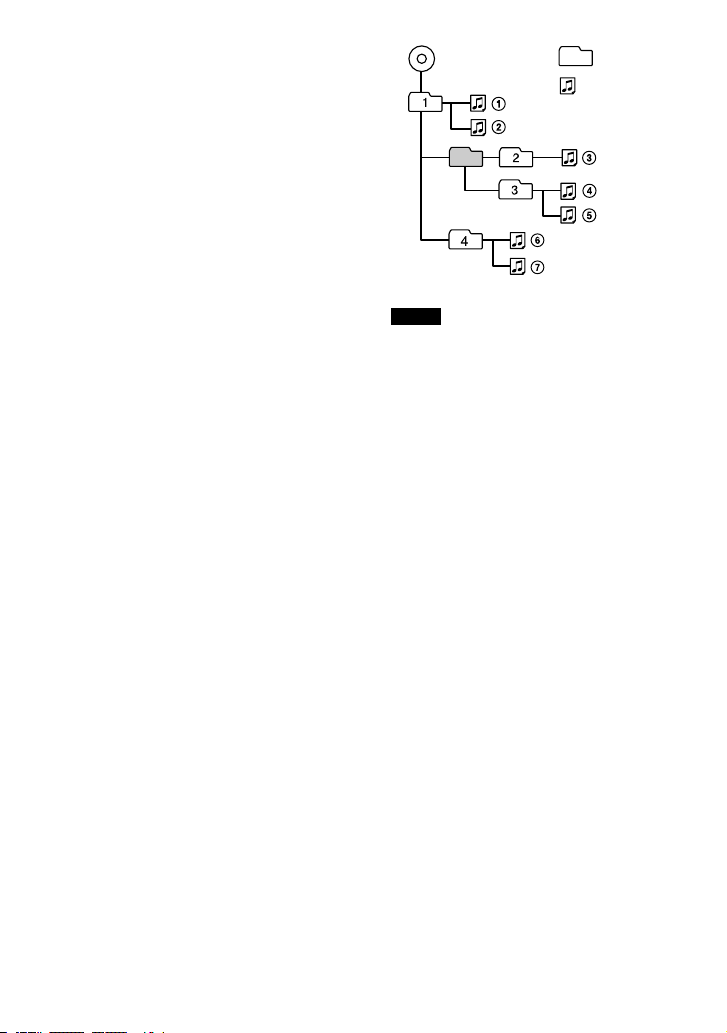
Difference in file structures of ATRAC CDs
and MP3 CDs
ATRAC CDs and MP3 CDs consist of
"files" and "groups." A "file" is equivalent
to a "track" of an audio CD. A "group"
is a bundle of files and is equivalent to an
"album."
For MP3 CDs, this CD player recognizes an
MP3 folder as a "group" so that ATRAC CDs
and MP3 CDs can be operated in the same
way.
The usable number of groups and files
• Maximum number of groups: 256
• Maximum number of files: 999
Playing order of ATRAC CDs and MP3 CDs
For ATRAC CDs, files are played in the order
selected in SonicStage.
For MP3 CDs, the playing order may differ
depending on the method used to record MP3
files on the disc. A "play list" which contains
an MP3 file playing order can also be played.
In the following example, files are played in
order of to .
File
MP3
Group
(Maximum directory levels: 8)
Notes
• If ATRAC3plus files and MP3 files are recorded
on the same CD, this CD player plays the
ATRAC3plus files first.
• The playback capability of this CD player may
vary depending on the quality of the disc and the
condition of the recording device.
• Acceptable characters are A to Z, a to z, 0 to 9,
and _ (underscore).
• On a disc that has ATRAC3plus/MP3 files, do
not save files in other formats and do not make
unnecessary folders.
About ATRAC CDs
• CD-Rs/CD-RWs recorded in the ATRAC3plus
format cannot be played on your computer.
About MP3 CDs
• Be sure to add the file extension "mp3" to the file
name. However, if you add the extension "mp3"
to a file other than an MP3 file, the player will not
be able to recognize the file properly.
• To compress a source in an MP3 file, we
recommend setting the compression parameters to
"44.1 kHz," "128 kbps," and "Constant Bit Rate."
• To record up to the maximum capacity, set the
writing software to "halting of writing."
• To record up to the maximum capacity at one time
on media that has nothing recorded on it, set the
writing software to "Disc at Once."
6
D-NF420/NF421.GB.2-318-768-11(1)

Precautions
On safety
• Should any solid objects or liquid fall into
the CD player, unplug it and have it checked
by qualified personnel before operating it
any further.
• Do not put any foreign objects in the DC IN
3 V (external power input) jack.
On the CD player
• Keep the lens on the CD player clean and
do not touch it. If you do so, the lens may
be damaged and the CD player will not
operate properly.
• Do not put any heavy object on top of the
CD player. The CD player and the CD may
be damaged.
• Do not leave the CD player in a location
near heat sources, or in a place subject
to direct sunlight, excessive dust or sand,
moisture, rain, mechanical shock, unleveled
surface, or in a car with its windows closed.
• If the CD player causes interference to the
radio or television reception, turn off the
CD player or move it away from the radio
or television.
• Discs with non-standard shapes (e.g., heart,
square, star) cannot be played on this CD
player. Attempting to do so may damage
the CD player. Do not use such discs.
On handling CDs
• To keep the CD clean, handle it by its edge.
Do not touch the surface.
• Do not stick paper or tape onto the CD.
• Do not expose the CD to direct sunlight or
heat sources such as hot air ducts. Do not
leave the CD in a car parked under direct
sunlight.
On headphones/earphones
Road safety
Do not use headphones/earphones while
driving, cycling, or operating any motorized
vehicle. It may create a traffic hazard and
is illegal in some areas. It can also be
potentially dangerous to play your headsets
at high volume while walking, especially at
pedestrian crossings. You should exercise
extreme caution or discontinue use in
potentially hazardous situations.
Preventing hearing damage
Avoid using headphones/earphones at high
volume. Hearing experts advise against
continuous, loud and extended play. If you
experience a ringing in your ears, reduce
volume or discontinue use.
Consideration for others
Keep the volume at a moderate level. This
will allow you to hear outside sounds and to
be considerate to the people around you.
7
D-NF420/NF421.GB.2-318-768-11(1)
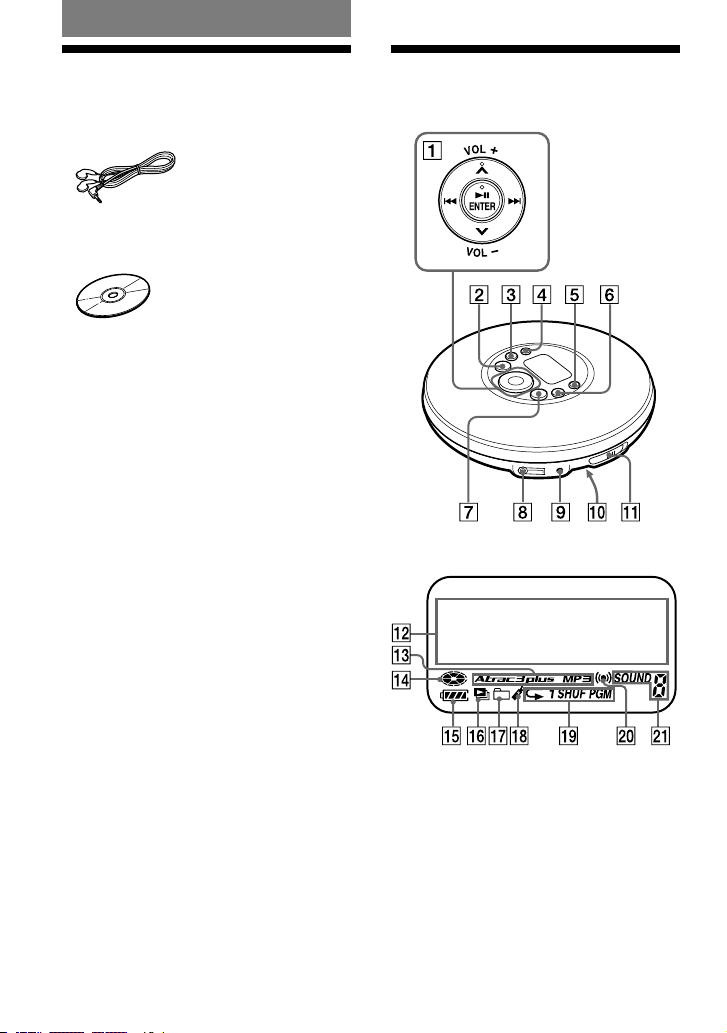
Getting Started
Checking the Supplied
Accessories
• Earphones
• CD-ROM (SonicStage)
Do not play this CD-ROM on an audio CD player
including this player.
• AC power adaptor
(not supplied with USA/Canadian/Argentine models)
• Operating instructions (This book)
• Installation/Operating Guide
Guide to Parts and
Controls
Display
8
D-NF420/NF421.GB.2-318-768-11(1)

Operation button
(play/pause)*/ENTER (
page
12-15, 17, 19-21, 23, 27, 28, 30, 31)
/ (
page 13, 15, 21, 30)
*/ (
page 14, 15, 17, 19-21, 23, 27,
28, 30, 31)
VOL +/– (
page 12)
–•TUNE – button (
page 13, 14, 20,
27, 29)
•RADIO OFF button (
page 13, 15,
20, 22, 24, 27, 30)
SEARCH button (
page 14, 15, 29)
RADIO ON/BAND•MEMORY button
(
page 27, 29-31)
DISPLAY/MENU button (
page 16, 17,
19, 21, 23, 27, 28, 30, 31)
+•TUNE + button (
page 13, 14, 20,
27, 29)
(headphones) jack (
page 12)
DC IN 3 V jack (
page 11)
HOLD switch (on the back of the CD
player) (
page 14)
OPEN switch (
page 10, 12)
Character information display
(
page 16)
Atrac3plus/MP3 indicator (
page 5)
Disc indicator (
page 12)
Battery indicator (
page 10)
Play list indicator
Group indicator
Bookmark indicator (
page 19)
Play mode indicator
Timer indicator (
page 24)
Sound indicator
* This button has a tactile dot.
9
Getting Started
D-NF420/NF421.GB.2-318-768-11(1)
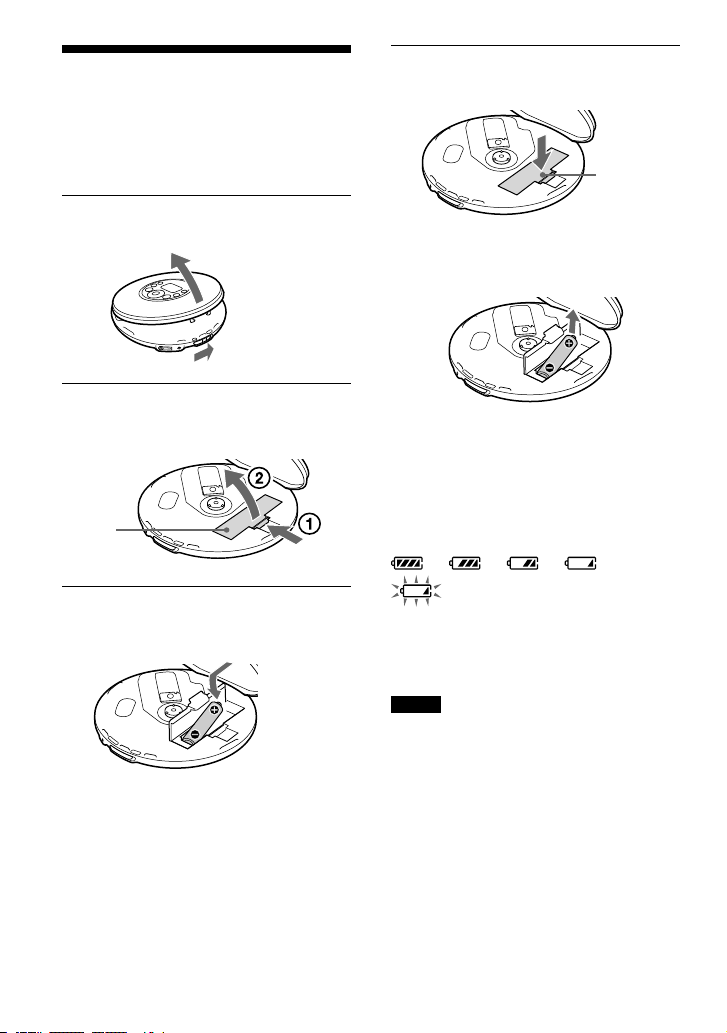
4
Close the lid until it clicks into
place.
Press here.
To remove the dry battery
Remove the battery as illustrated below.
Checking the remaining
power of the battery
The remaining power of the battery is
indicated in the display as shown below. As
the black indicator section decreases, the
remaining power is depleted further.
“Low Battery” *
* Beep sounds.
When the battery is depleted, replace it with
a new one.
Notes
• The display shows the approximate battery power
remaining. For example, one section does not
always indicate one-fourth of the battery power.
• Depending on the operating conditions, the display
may increase or decrease relative to the actual
power remaining.
Preparing a Power
Source
(Dry Battery)
Use only the following dry battery type for
your CD player:
• LR6 (size AA) alkaline battery
1
Slide the OPEN switch to open the
lid of your player.
OPEN switch
2
Open the battery compartment lid
inside the player.
Battery
compart-
ment lid
Raise
Press
3
Insert the LR6 (Size AA) battery (not
supplied) by matching the to the
diagram in the battery compartment.
Insert the
end first.
10
D-NF420/NF421.GB.2-318-768-12(1)
Battery life
1)
When using a Sony alkaline battery LR6 (SG)
(produced in Japan)
G-PROTECTION
“1” “2”
Audio CD
22 20
ATRAC CD
2)
41 38
MP3 CD
3)
26 24
RADIO ON
30
1) Measured value using the JEITA standard (Japan
Electronics and Information Technology Industries
Association)
Playing time shown is approximate hours, when
you use the player on a flat and stable surface and
“POWER SAVE” is set to “ON” (
page 25).
This value varies depending on how the player is
used.
2) Recorded at 48 kbps
3) Recorded at 128 kbps
Notes on dry batteries
• Do not throw the batteries into a fire.
• Do not carry batteries in a pocket, etc. with coins
or other metallic objects. The battery can generate
heat if its positive and negative terminals are
accidentally allowed to come into contact with a
metallic object.
• When the batteries are not to be used for a long
time, remove them.
• If battery leakage occurs, wipe off any deposit
left in the battery compartment, and install new
batteries. If the deposit adheres to your skin, wash
it off thoroughly.
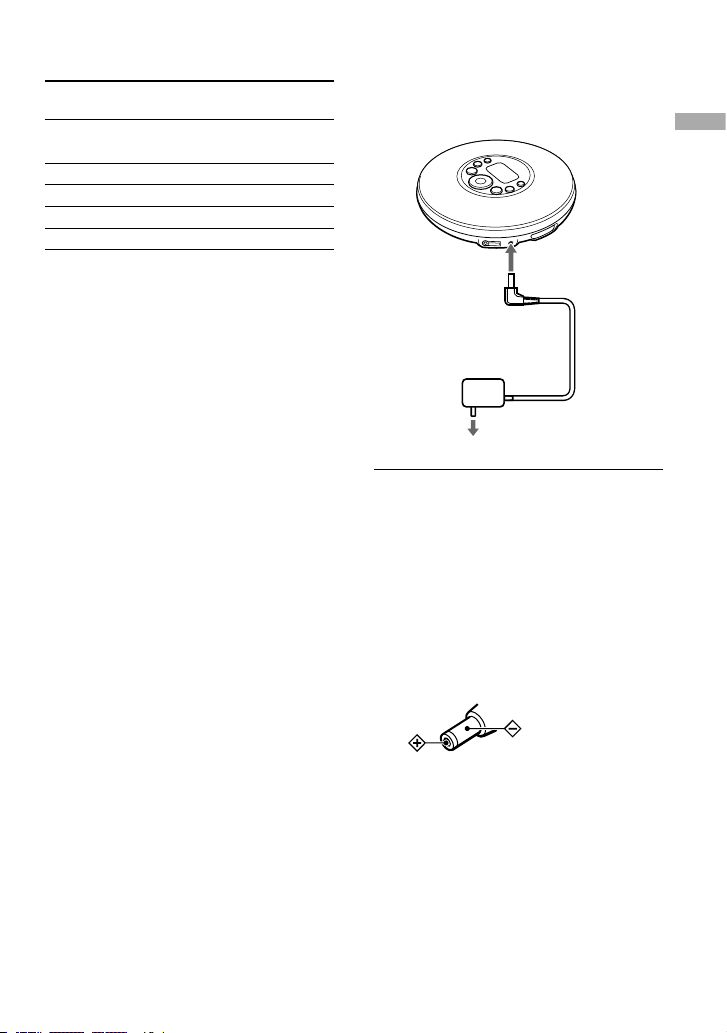
When using the AC power
adaptor
You can use the player powered by the AC
power adaptor without the battery.
to DC IN 3V
AC power adaptor
to AC outlet
1
Connect the AC power adaptor to
the DC IN 3V jack of your CD player
and an AC outlet.
Notes on the AC power adaptor
• Disconnect all power sources when the player is
not to be used for a long time.
• Use only the AC power adaptor supplied. If
your player is not supplied with the one, use an
AC-E30HG AC power adaptor (not available in
Australia and Argentina). If you use any other AC
power adaptor, malfunction may occur.
Polarity of the plug
• Do not touch the AC power adaptor with wet
hands.
• Connect the AC power adaptor to an easily
accessible AC outlet. Should you notice an
abnormality in the AC power adaptor, disconnect it
from the AC outlet immediately.
11
Getting Started
D-NF420/NF421.GB.2-318-768-11(1)
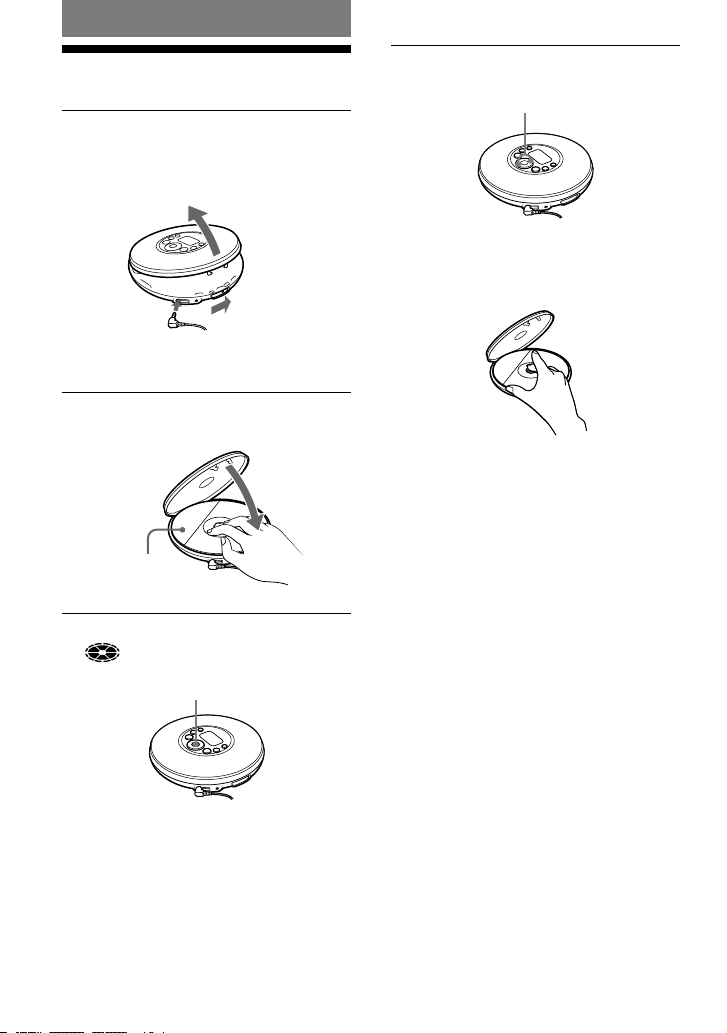
Playback
Playing a CD
1
Slide the OPEN switch to open the
player lid.
Connect the headphones/earphones to the
player beforehand.
to
(headphones)
Headphones/earphones
OPEN switch
2
Place the CD on the tray and close
the lid.
Label side up
3
Press /ENTER.
(disc) moves, and the player starts
playback.
/ENTER
4
Adjust the volume by pressing VOL
+/–.
VOL +/–
To remove the CD
Remove the CD while pressing the pivot in
the center of the tray.
12
D-NF420/NF421.GB.2-318-768-11(1)
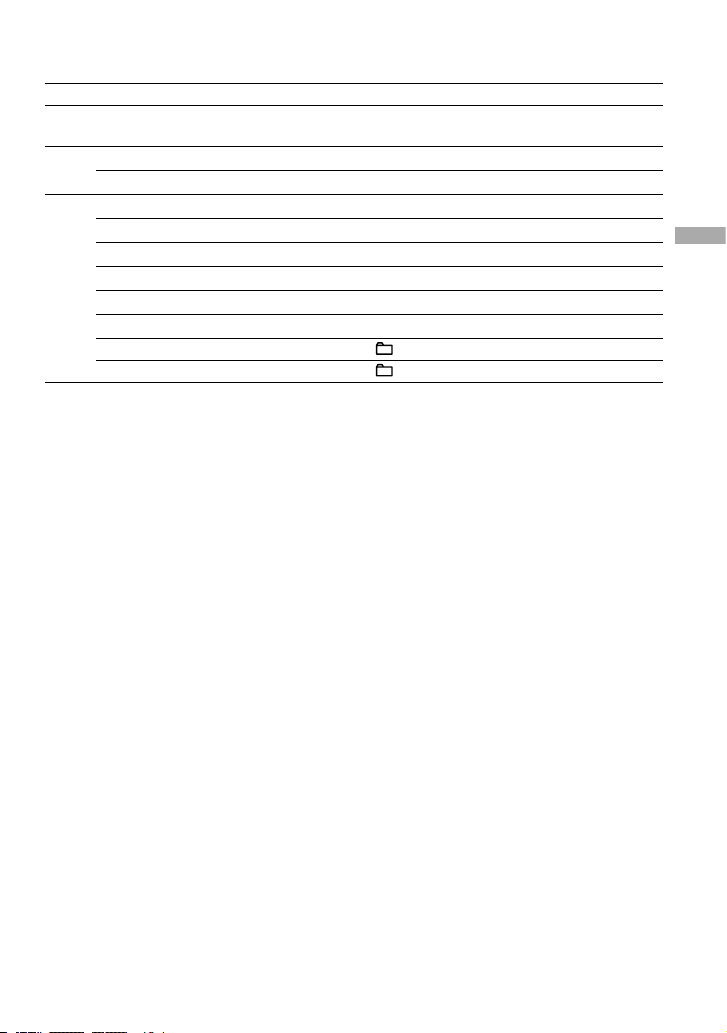
Basic playback operations
(Play, stop, search)
To Operation
Play
Play from the first track
From stop, press and hold /ENTER until playback
starts.
Stop
Pause/Resume play after pausing
Press /ENTER.
Stop playback
Press (stop).
Search
Find the beginning of the current track
1)
Press once.
Find the beginning of previous tracks
1)
Press repeatedly.
Find the beginning of the next track
1)
Press once.
Find the beginning of succeeding tracks
1)
Press repeatedly.
Go backwards quickly
1) 3)
Press and hold .
Go forward quickly
1) 3)
Press and hold .
Jump to succeeding groups
2)
Press (group) + repeatedly.
Jump to previous groups
2)
Press (group) – repeatedly.
1) You can operate during both play and pause.
2) You can operate during play of a CD other than audio CDs.
3) You cannot operate when using an MP3 file recorded on a CD-R/CD-RW in a packet write format.
Continued
13
Playback
D-NF420/NF421.GB.2-318-768-11(1)
Locking the controls
(HOLD)
You can prevent accidental button presses
while carrying the player by locking the
controls.
1
Slide the HOLD switch on the back
of the player in the direction of the
arrow.
“HOLD” flashes if you press any button
when the HOLD function is activated.
To unlock the controls
Slide the HOLD switch in the direction
opposite to that of arrow.
Searching for Your
Favorite Track/File
Searching by viewing
groups
(File View)
On a CD such as an ATRAC CD or an MP3
CD on which a number of files are recorded,
you can search for a file by checking the
names of groups (except on an audio CD) or
files around the file being played.
1
Press SEARCH repeatedly.
The names of groups and files around the
current file appear on the display.
MR.SNO Yo
The Train
Where do
Group names
File names
2
Press
+ or
– to select a group.
3
Press or to select a file.
4
Press /ENTER.
The file you have selected starts playing.
To cancel searching
Press .
14
D-NF420/NF421.GB.2-318-768-11(1)
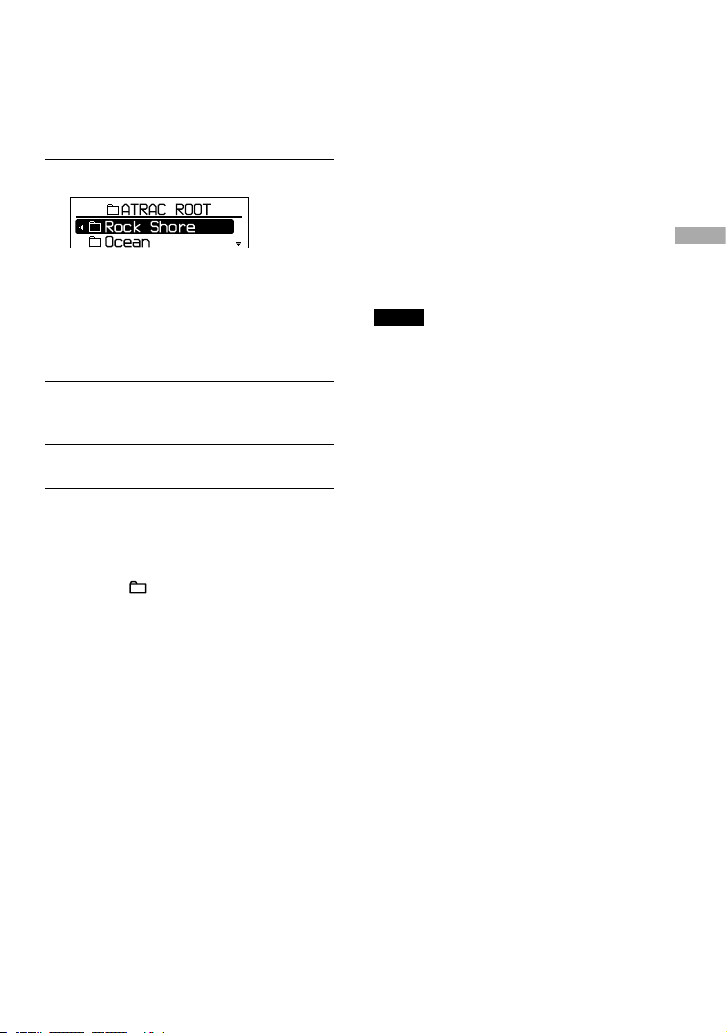
Searching by viewing a list
of groups/files
(List View)
You can search for a track/file by checking
the format type of the music source and the
names of groups and files.
1
Press SEARCH repeatedly.
If you play a CD on which mixed audio
data has been recorded:
The screen for selecting the format type
such as “ATRAC ROOT” and “MP3
ROOT” appears first.
Press /ENTER.
2
Press or to select a group and
press /ENTER.
3
Press or to select a file.
4
Press /ENTER.
The file you have selected starts playing.
To return to the previous screen
Press or –.
To cancel searching
Press .
Checking CD information
on the display
You can check CD information on the display.
Depending on the region in which you
purchased your CD player, the default
language may not be “ENGLISH.” Change
the LANGUAGE setting, if necessary (
page 24).
When you are playing an MP3 CD containing
files with an ID3 tag, ID3 tag information
is displayed. (When there is no ID3 tag
information, file name or group name is
displayed.) (
page 5)
Notes
• The characters A-Z, a-z, 0-9, and _ can be
displayed on this player.
• Before playing a file, the player reads all file
and group (or folder) information on the CD.
“Reading” is displayed. Depending on the content
of the CD, it may take some time to accomplish
this reading.
• If the file does not belong to any group, “MP3
ROOT” appears on the display.
Continued
15
Playback
D-NF420/NF421.GB.2-318-768-11(1)
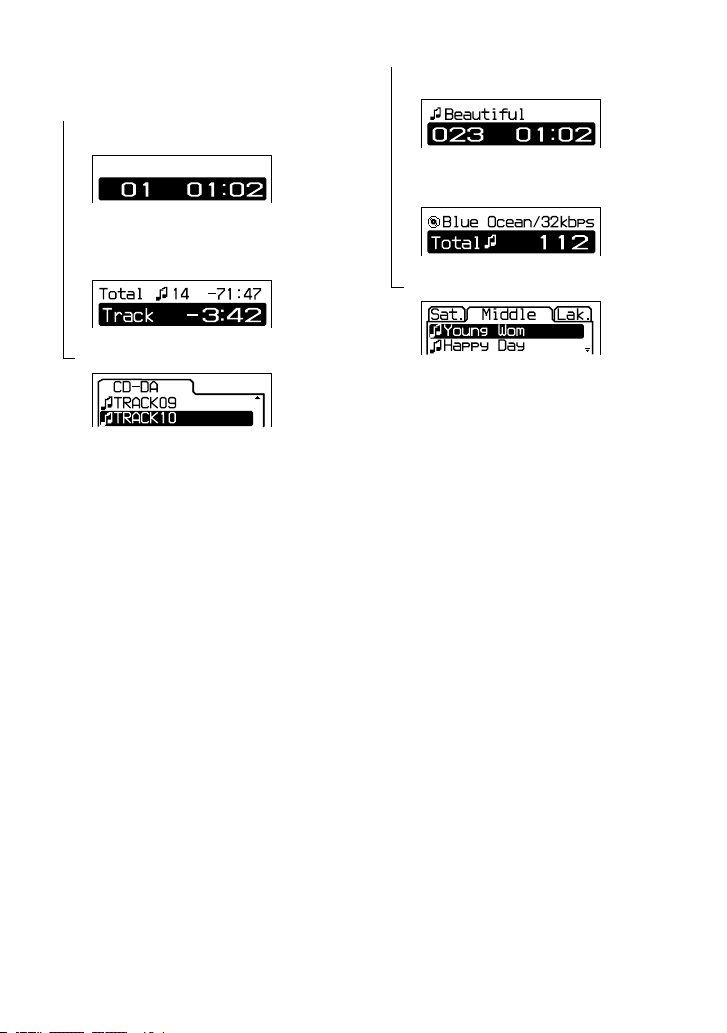
To check information on the display
Press DISPLAY/MENU repeatedly.
Audio CD
Track number, elapsed playing time
(Artist name, track name)
1)
Total number of tracks on the CD, total
remaining time of the CD, remaining time of
the current track
2)
File view screen
ATRAC CD/MP3 CD
File name, artist name
3)
, file number,
elapsed playing time
Group name
3)
, CODEC information
4)
,
total number of files
File view screen
1) When you are playing an audio CD containing
text informatin such as CD-TEXT, information in
parentheses is displayed.
2) The displays appear only during normal play.
3) During play, “artist name” is not displayed if the
disc does not have ID3 tag information. When
the list of group names/file names appears on the
display, “artist name” and “group name” are not
displayed.
4) Bit rate and sampling frequencies are displayed.
While an MP3 file made at VBR (variable bit rate)
is being played, “VBR” appears on the display
instead of a bit rate. In some cases, “VBR”
appears halfway through playback, rather than
from the beginning.
16
D-NF420/NF421.GB.2-318-768-11(1)
Changing Playback
Options
(PLAY MODE)
You can use various playback options such
as selecting songs you want to listen to, and
playing songs in your favorite order.
For details about playback options, see
page 18.
You can also play songs repeatedly using the
playback options you choose (repeat play,
page 20).
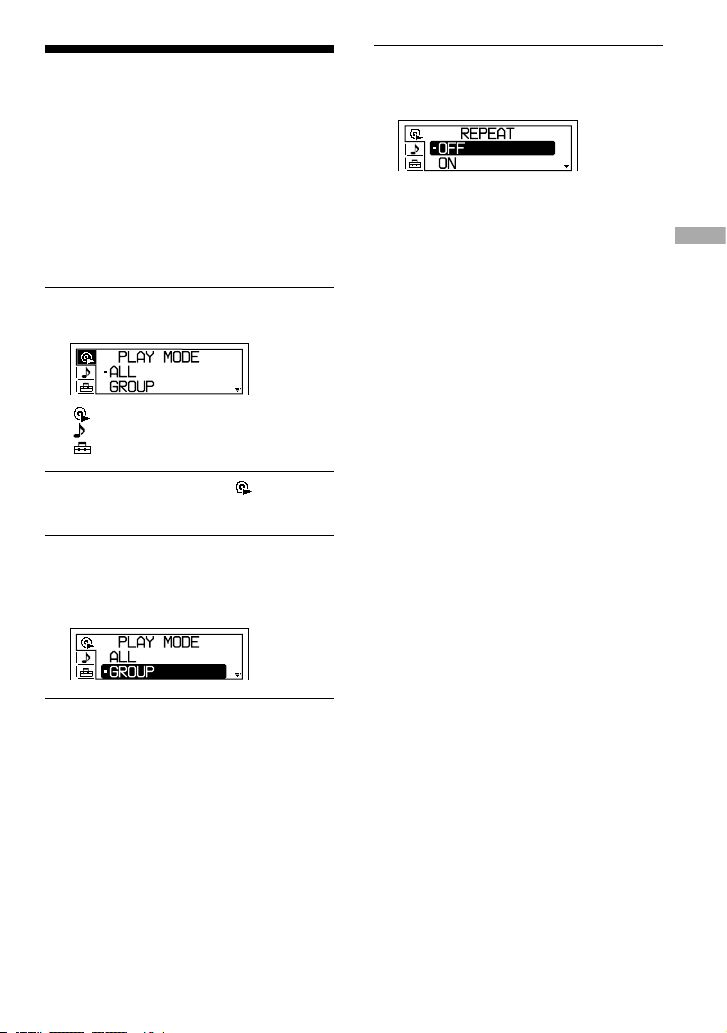
1
Press DISPLAY/MENU until the
menu screen appears.
: PLAY MODE
: SOUND
: OPTION
2
Press or to select “ PLAY
MODE.”
3
After pressing /ENTER, press
or to select the playback option.
The default setting is “ALL” (normal
play).
4
Press /ENTER.
5
When “REPEAT” appears, select
“ON” or “OFF” and press /
ENTER.
To return to normal play
Select “ALL” in the PLAY MODE menu.
Continued
17
Playback
D-NF420/NF421.GB.2-318-768-11(1)
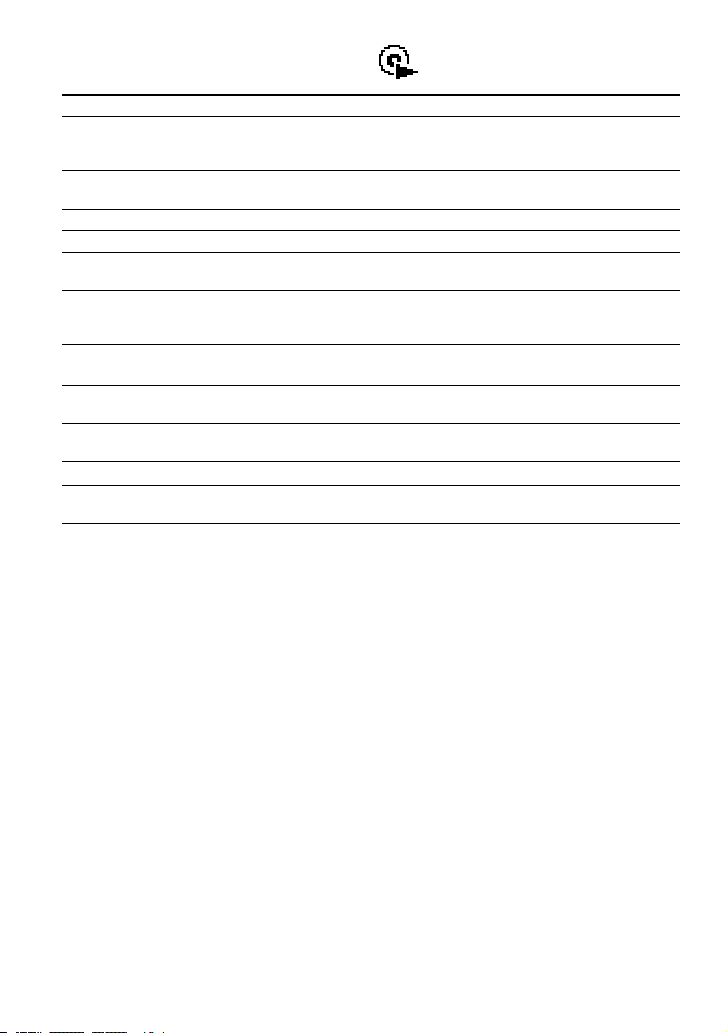
Playback options
(PLAY MODE)
Display on the CD player Explanation
ALL
All tracks on the CD are played in a track number order.
For the ATRAC CD/MP3 CD, a playing order is different according to the
setting of the “PLAY ORDER” in the OPTION menu.
GROUP
All files in the selected group or all groups are played (ATRAC CD/MP3
CD only) (
page 19).
1
The current track is played once.
SHUFFLE
All tracks on the CD are played once in random order.
GROUP SHUFFLE
All files in the selected group are played once in random order (ATRAC
CD/MP3 CD only) (
page 19).
BOOKMARK
Tracks to which Bookmarks have been added are played. The play of
tracks with Bookmarks starts in track number order, not in the order you
added the Bookmarks (
page 19).
PLAYLIST
Tracks in the selected m3u play list* are played (MP3 CD only) (
page
19).
AUTO RANKING
The tracks you have played most frequently from the CD are played from
the 10th to the first.
RANKING SHUF
Up to 32 tracks, which the player has automatically memorized as the
most frequently played ones, are played in random order.
PROGRAM
Up to 64 tracks are played in your favorite order (
page 20).
INTRO
About the first 10 seconds of all tracks which follow the current track are
played once.
* An m3u play list is a file in which an MP3 file playing order has been encoded. To use the play list function,
record MP3 files on a CD-R/CD-RW using encoding software that supports the m3u format.
You can play the top 8 lists (listed by file name) on your screen on the CD player.
18
D-NF420/NF421.GB.2-318-768-11(1)
4
Press or to select “PLAY MODE,”
and press /ENTER.
5
Press or to select
“BOOKMARK,” and then press
/ENTER.
6
When “REPEAT” appears, select
“ON” or “OFF” and press /
ENTER.
To remove Bookmarks
During play of a track with a Bookmark, press
and hold /ENTER until disappears.
Notes
• If you try to add Bookmarks to tracks on an 11th
CD (on a 6th CD when playing ATRAC CDs/MP3
CDs), the Bookmarks of the CD you played first
will be erased.
• All Bookmarks stored in memory will be erased if
you remove all power sources.
Playing your favorite play
lists
(m3u play list play)
1
In step 3 of “Changing Playback
Options (PLAY MODE)” (page 17),
select “PLAYLIST.”
2
Press or to select a play list.
3
Press /ENTER.
Continued
Playing groups
1
Perform steps 1 and 2 of “Changing
Playback Options (PLAY MODE)” (
page 17). In step 3, select “GROUP”
or “GROUP SHUFFLE” and press
/ENTER.
2
Press or to select a group.
If you select a group on an MP3 CD, etc.
by searching through all the directories,
press or .
If you select a group within the same
directory, press or .
3
Press /ENTER for 2 seconds or
more.
The player starts playback of all files in
the group you have selected.
4
When “REPEAT” appears, select
“ON” or “OFF” and press /
ENTER.
Note
If the group has no tracks, “Invalid” appears on the
display.
Playing your favorite
tracks
(Bookmark play)
1
During play of the track to which
you want to add a Bookmark, press
/ENTER until flashes slowly.
2
If you want to add a Bookmark to
two or more tracks, repeat step 1.
You can add Bookmarks to up to 10 CDs
for audio CDs (up to 99 tracks for each
CD) and up to 5 CDs for ATRAC CDs/
MP3 CDs (up to 999 tracks for each CD).
3
Press DISPLAY/MENU until the
menu screen appears.
19
Playback
D-NF420/NF421.GB.2-318-768-11(1)
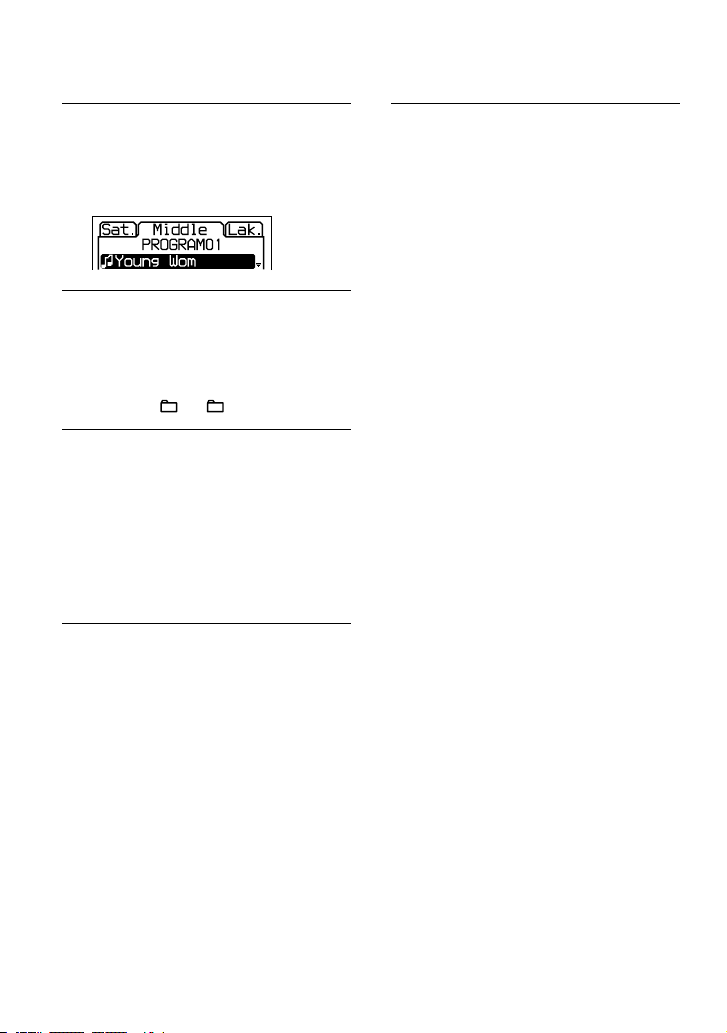
Playing tracks in your
favorite order
(PGM play)
1
While the player is stopped, select
“PROGRAM” in step 3 of “Changing
Playback Options (PLAY MODE)”
( page 17), and then press /
ENTER.
2
Press or to select a track, and
press and hold /ENTER until
display changes.
When playing an ATRAC CD/MP3 CD:
You can also select a file in another group
by pressing + or –.
3
Repeat step 2 to select tracks in
your favorite order.
You can select up to 64 tracks.
When you finish entering the 64th track,
the track number selected first (audio
CD)/file name (ATRAC CD/MP3 CD)
appears on the display.
If you select 65 tracks or more, the tracks
selected first are erased one by one.
4
Press /ENTER.
Playback starts in the selected order.
To check the program
1 While the player is stopped, select
“PROGRAM” in step 3 of “Changing
Playback Options (PLAY MODE) (
page 17), and then press /ENTER.
2 Press and hold /ENTER until the
display changes. Whenever you press
/ENTER, the tracks are displayed in
playing order.
To cancel the PGM play
Press .
Playing tracks repeatedly
(Repeat play)
1
Select “ON” in step 5 of “Changing
Playback Options (PLAY MODE)”
(
page 17).
To return to normal play
Select “OFF”.
20
D-NF420/NF421.GB.2-318-768-11(1)
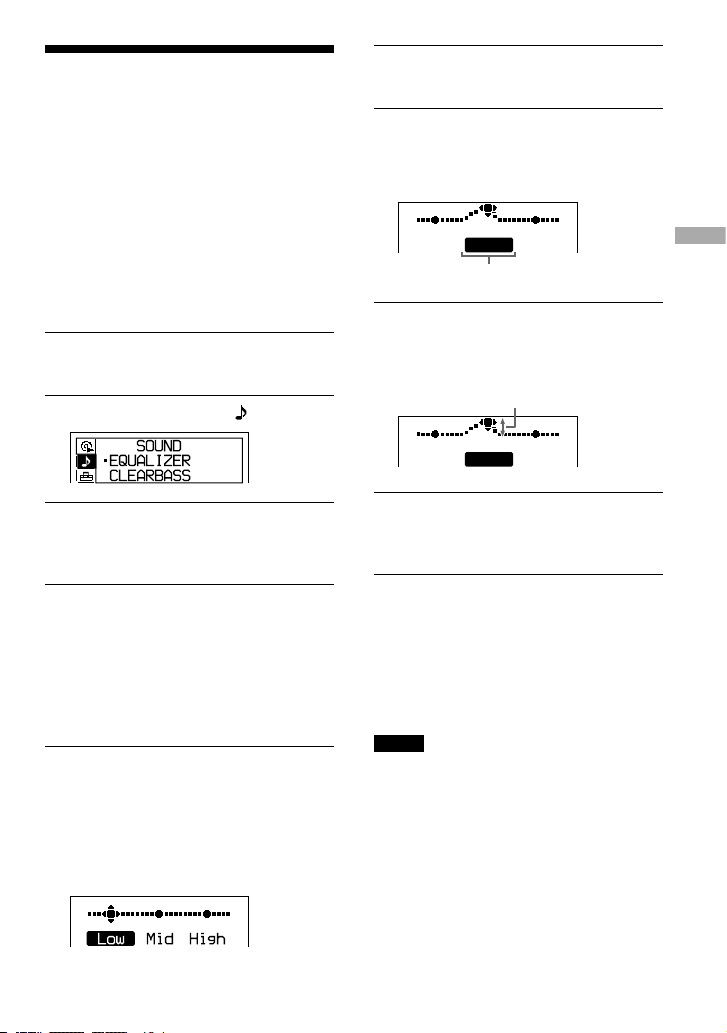
Changing Sound
Quality
For details about the setting of SOUND items,
see
page 22.
Selecting the sound
quality
You can set up the “EQUALIZER” setting
and/or “CLEARBASS” setting. If you set
both at the same time, you can enjoy more
bass sound along with the sound quality you
want.
1
Press DISPLAY/MENU until the
menu screen appears.
2
Press or to select “ SOUND.”
3
After pressing /ENTER, press
or to select the item you want to
set up and press /ENTER.
4
Press or to select an option and
press /ENTER.
Customizing sound quality
You can adjust sound quality for each
frequency range individually, checking the
shape of the wave on the display.
1
Select “EQUALIZER” in step 3 and
“CUSTOM” in step 4 of “Selecting
the sound quality”.
“Low” is displayed first.
There are 3 frequency ranges; “Low”
(low range audio), “Mid” (middle range
audio), and “High” (high range audio).
2
Press or for 2 seconds or
more to select the frequency range.
3
Press or repeatedly to
select the shape of the wave.
There are 3 shapes stored in memory for
each frequency range.
Low Mid High
Frequency range
4
Press or to select the sound
volume.
The sound volume can be adjusted in 7
levels.
Sound volume
Low Mid High
5
Repeat steps 2 to 4 to make
adjustments for the remainig 2
frequency ranges.
6
Press /ENTER.
To return to the previous screen
Press .
To cancel the adjustment operation
Press for 2 seconds or more.
Notes
• If the sound is distorted by your sound settings
when you turn up the volume, turn the volume
down.
• If you feel a difference in sound volume between
the “CUSTOM” sound setting and other sound
settings, adjust the volume to your preference.
Continued
21
Playback
D-NF420/NF421.GB.2-318-768-11(1)
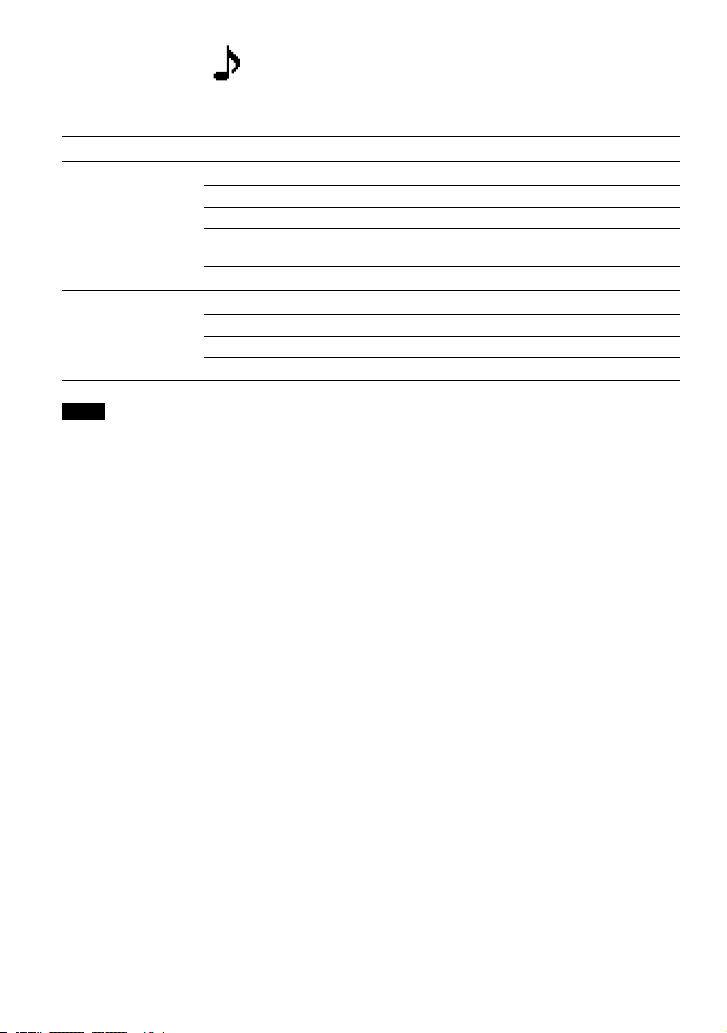
SOUND items
To return to the previous screen, press . To cancel the setting operation, press for 2 seconds or
more.
Item
Options (: Default setting)
EQUALIZER
(Equalizer setting)
OFF
Normal sound quality
SOFT For vocal, stressing middle range audio
ACTIVE Lively sounds, emphasizing high and low range audio
HEAVY Powerful sounds, further emphasizing high and low ranges
compared with ACTIVE sound
CUSTOM
Customized sound (see
page 21 for details)
CLEARBASS
(Bass sound setting)
OFF
Normal sound quality.
1 Emphasizing bass sound.
2 Emphasizing bass sound more than 1.
3 Emphasizing bass sound more than 2.
Note
If you change the setting of the EQUALIZER item after you have set the CLEARBASS item, the setting of the
EQUALIZER item gets priority.
When you set both the EQUALIZER item and the CLEARBASS item, set the EQUALIZER item first.
22
D-NF420/NF421.GB.2-318-768-11(1)
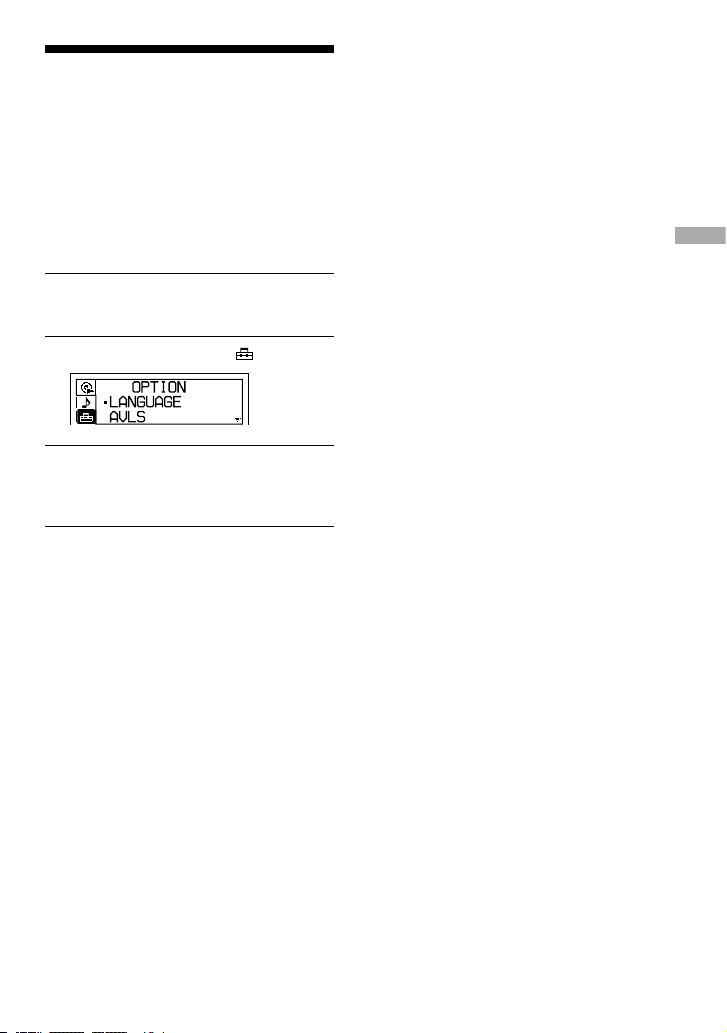
Changing Optional
Settings
For details about the setting of OPTION
items, see
page 24.
Setting various functions
You can set the various functions such as the
language for the menu and the playback order
of the groups/files.
1
Press DISPLAY/MENU until the
menu screen appears.
2
Press or to select “ OPTION.”
3
After pressing /ENTER, press
or to select the item you want to
set up and press /ENTER.
4
Press or to select an option and
press /ENTER.
When you are setting the “LANGUAGE”
or “PLAY ORDER,” repeat step 3.
Continued
23
Playback
D-NF420/NF421.GB.2-318-768-11(1)
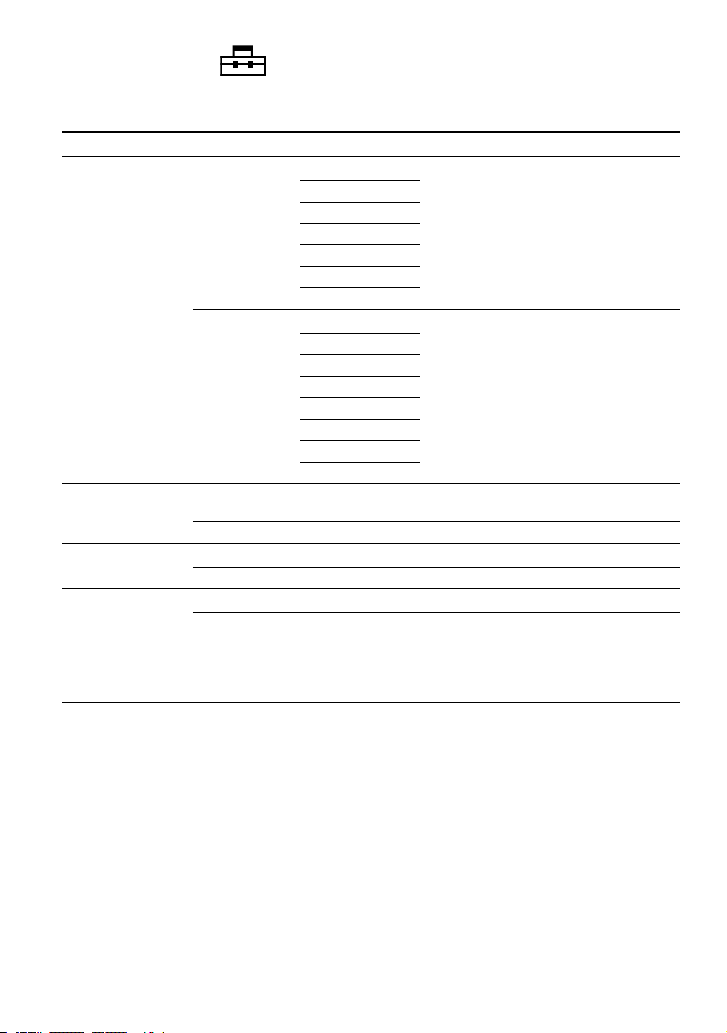
OPTION items
To return to the previous screen, press . To cancel the setting operation, press for 2 seconds or
more.
Items
Options (: Default settings)
LANGUAGE
1)
(Language for
menu, etc.)
MENU
ENGLISH
Select the language for menu text, warning
message, etc.
FRENCH
GERMAN
ITALIAN
PORTUGUESE
RUSSIAN
SPANISH
TEXT
2) 6)
AUTO
Select the language for CD-TEXT, ID3
tag, etc.
If you select “AUTO,” you can read the text
in the following language.
ENGLISH
FRENCH
GERMAN
ITALIAN
PORTUGUESE
RUSSIAN
SPANISH
G-PROTECTION
2)
(To prevent sound
skipping)
1
Protection against sound skipping is provided with high quality
CD sound.
2 Enhanced protection against sound skipping is provided.
AVLS
1) 3)
(Limiting volume)
OFF
The volume changes without limiting the volume level.
ON The maximum volume is limited to protect your hearing.
TIMER
1)
(Off timer)
OFF
The timer does not work.
1-99 min
is displayed on the player. You can check the remaining
playback time by selecting this option during play.
Press
or
repeatedly to increase or decrease the length
of time by 5 minutes, or keep pressing
or
to increase or
decrease by 1 minute. The default setting is “10 min.”
24
D-NF420/NF421.GB.2-318-768-11(1)

Items
Options (: Default settings)
BEEP
1)
(Sound of operation)
ON
The beep sounds when you operate the player.
OFF The beep is turned off.
SEAMLESS
2) 4)
(Playing tracks
continuously)
OFF
The CD is played as recorded on the disc, including spaces
between tracks.
ON The CD is played without space between tracks.
POWER SAVE
(Saving power)
OFF
The POWER SAVE function does not work.
ON Setting of the SOUND items is not effective.
PLAY ORDER
2)
(Playback order)
TRACK
NORMAL
Play back the music source in the order of
recording.
ID3TAG TNO Play back in the order of ID3 tag number.
FILE NAME Play back in the alphabetical order of the
file names.
GROUP
OFF
Play back the music source in the order of
recording.
ON Play back the music source in the order of
group names.
CD-EXTRA
2) 5)
(Playback by disc
format)
OFF
Set to “OFF” as long as you can play your CD normally.
ON If you cannot play your CD-Extra, set to “ON.” You may play it.
TUNE STEP
6)
(Changing the
tuning interval)
AREA1
7)
Tuning interval is set to “9 kHz.”
AREA2
7)
Tuning interval is set to “10 kHz.”
Continued
25
Playback
D-NF420/NF421.GB.2-318-768-11(1)

Items
Options (: Default settings)
PRESET CLEAR
6)
(Canceling all
preset stations)
Clear? Select this when you cancel all preset stations.
1) You can also set this up while listening to the radio.
2) You can set this up only while the player is stopped.
3) AVLS is an abbreviation of the Automatic Volume Limiter System.
4) This function works only for ATRAC CDs.
5) This function works only for Audio CDs and CD-Extra CDs.
6) You can set this up only when the radio is turned off.
7) Default settings vary for each area you purchased the CD player.
Notes
• Even if “G-PROTECTION” is set to “2,” sound may skip:
– when the CD player receives stronger continuous shock than expected,
– when a dirty or scratched CD is played, or
– for CD-Rs/CD-RWs, when a poor-quality disc is played or there is a problem with the original recording
device or application software.
• Even if “SEAMLESS” is set to “ON,” the tracks may not play continuously depending on how the source
music was recorded.
26
D-NF420/NF421.GB.2-318-768-11(1)
Using the Radio
Listening to the Radio
You can enjoy FM and AM programs.
1
Press RADIO ON/BAND•MEMORY to
turn on the radio.
2
Press RADIO ON/BAND•MEMORY
until the band you want appears.
Each time you press the button, the
display changes as follows:
USA and Canadian models:
FM AM TV WB
Other models: FM AM
3
Press TUNE + or – to tune in the
station you want and adjust the
volume.
Turning off the radio
Press •RADIO OFF.
Tuning in the station quickly
Press an hold TUNE + or – in step 3 until
the frequency digits begin to change on the
display. The CD player automatically scans
the radio frequencies and stops when it finds
a clear station.
Emphasizing the bass
sound
1 While listening to the radio, press
DISPLAY/MENU until the menu screen
appears.
2 Press or to select “SOUND,” then
press /ENTER.
3 Press
or
to select “BASS,” then press
/ENTER.
4 Press
or
to select “ON,” then press
/ENTER to enter the selection.
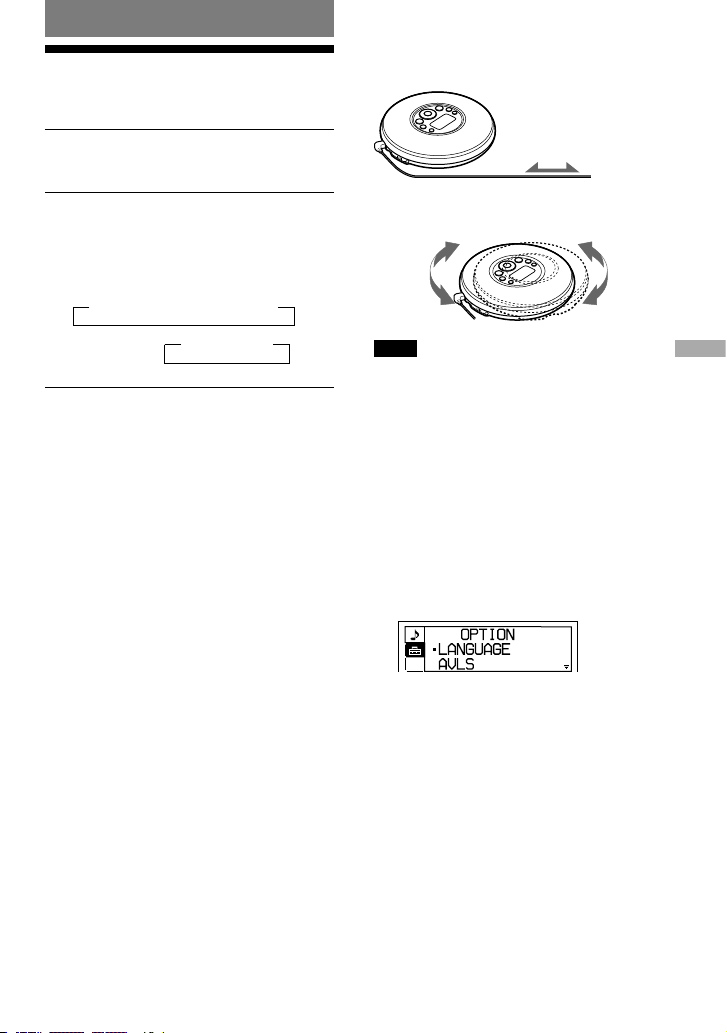
Improving broadcast reception
For FM, extend the earphones cord.
Earphones
For AM, reorient the CD player itself.
Note
Keep the earphones connected to the jack of the
CD player. The earphones cord works as the FM
antenna.
If it is hard to hear the FM/
TV/WB broadcast due to
interference from strong
radio waves
1 While listening to the radio, press
DISPLAY/MENU until the menu screen
appears.
2 Press or to select “OPTION,” then
press /ENTER.
3 Press
or
to select “LOCAL/DX,” then
press /ENTER.
4 Press
or
to select “LOCAL,” then
press /ENTER.
Continued
27
Using the Radio
D-NF420/NF421.GB.2-318-768-11(1)

If it is hard to hear the
FM broadcast due to poor
reception
1 While listening to the radio, press
DISPLAY/MENU until the menu screen
appears.
2 Press or to select “OPTION,” then
press /ENTER.
3 Press
or
to select “MONO/ST,” then
press /ENTER.
4 Press
or
to select “MONO,” then
press /ENTER.
The noise will be reduced but the radio will
play in monaural.
Protecting your hearing
The AVLS (Automatic Volume Limiter
System) function keeps the maximum volume
down to protect your hearing.
1 While listening to the radio, press
DISPLAY/MENU until the menu screen
appears.
2 Press or to select “OPTION,” then
press /ENTER.
3 Press
or
to select “AVLS,” then press
/ENTER.
4 Press
or
to select “ON,” then press
/ENTER.
To cancel the AVLS function
Perform steps 1 - 4, changing the AVLS
setting to “OFF.”
Turning off the radio
automatically
You can set the radio to turn off automatically
within a range of 1 minute to 99 minutes by
1 minute.
1 While listening to the radio, press
DISPLAY/MENU until the menu screen
appears.
2 Press or to select “OPTION,” then
press /ENTER.
3 Press
or
to select “TIMER,” then
press /ENTER.
4 Press
or
to select the length of time
you want to set from “1 min” to “99 min,”
then press /ENTER.
To check the length of time before the
radio is automatically turned off
During play, perform steps 1 - 4.
To cancel the TIMER function
The TIMER function for the radio will be
canceled:
• When you select “OFF” in step 4 of
“Turning off the radio automatically.”
• When you turn off the radio.
• When you start playing a CD.
When listening to the radio
on the battery
If you connect the external power source plug
to the DC IN 3 V jack of your CD player, the
CD player will turn off. Turn it on by pressing
RADIO ON/BAND•MEMORY to continue
listening to it.
28
D-NF420/NF421.GB.2-318-768-11(1)
Presetting Radio
Stations
You can preset up to 51 stations (for USA and
Canadian models) : 7 for TV, 4 for WB, 30 for
FM and 10 for AM or 40 stations (for other
models) : 30 for FM and 10 for AM.
1
Press RADIO ON/BAND•MEMORY to
turn on the radio.
2
Press RADIO ON/BAND•MEMORY to
select the band.
3
Press SEARCH for 3 seconds or
more.
The CD player starts scanning the stations
from the lower frequencies and stops
for about 5 seconds when a station is
received.
4
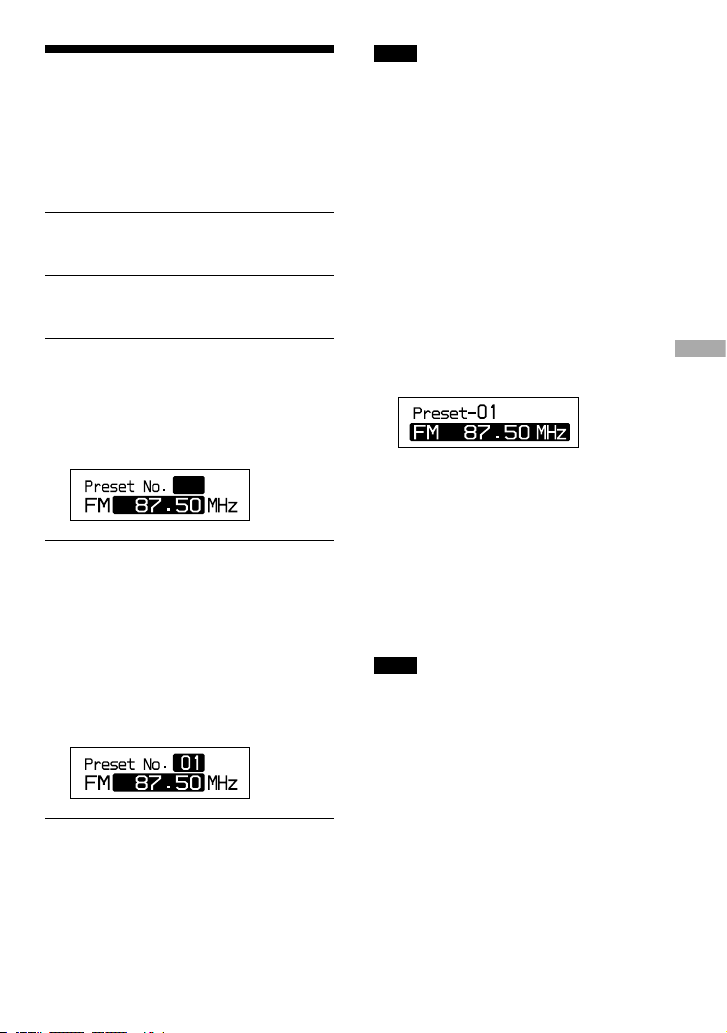
If you want to preset the received
station, press /ENTER until the
preset number appears.
The received station is preset on the
preset number 1 and the CD player starts
scanning for the next receivable station.
If you do not press /ENTER within 5
seconds, the CD player will start scanning
the next receivable station without storing
the station.
5
Repeat step 4 until all receivable
stations are preset.
If the stations have already been stored,
the newly preset stations will replace the
old ones.
Note
Presetting will not be completed until scanning
of all receivable stations is finished. If you cancel
presetting before scanning of all receivable stations
is finished, the stations you preset are not stored in
the CD player’s memory.
Presetting stations
manually
1 Press RADIO ON/BAND•MEMORY to
turn on the radio.
2 Press RADIO ON/BAND•MEMORY to
select the band.
3 Press TUNE + or – to tune in the station
you want.
4 Press and hold RADIO ON/BAND•
MEMORY until the preset number
appears on the display.
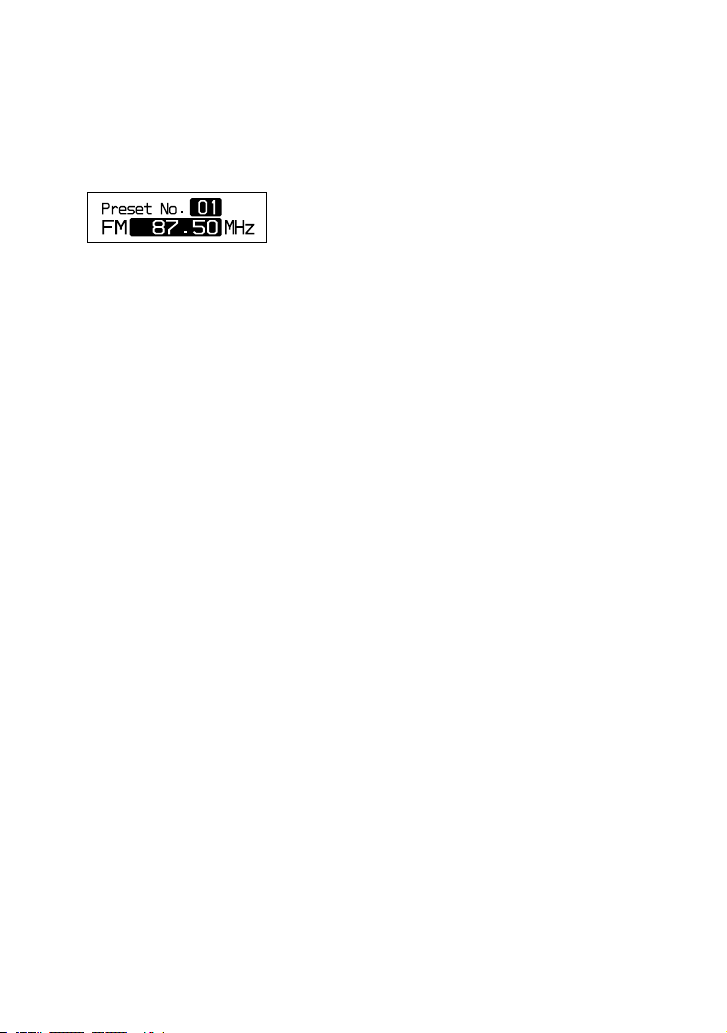
When the station is preset successfully,
the beep is heard.
The preset number increases by one.
5 Repeat steps 3 and 4 when you preset the
stations in the same band.
When you preset the stations in the
different band, press RADIO ON/
BAND•MEMORY to select the band.
Repeat steps 3 and 4 until the preset
number appears on the display.
Note
Preset number is selected automatically. You cannot
select the preset number.
Continued
29
Using the Radio
D-NF420/NF421.GB.2-318-768-11(1)
To change a preset station
1 Perform steps 1 and 2 of “Presetting
stations manually” (
page 29).
2 Press or to select the preset
number of the station you want to change.
3 Press RADIO ON/BAND•MEMORY for
2 seconds or more.
4 Press TUNE + or – to tune in the station
you want.
Start this operation within 30 seconds
after you finished the previous operation.
If 30 seconds pass with nothing done, start
from step 2.
5 Press and hold /ENTER.
The beep is heard and the preset station
has been changed.
To cancel a preset station
1 Perform steps 1-3 of “To change a preset
station.”
2 Press •RADIO OFF.
The station preset last is canceled, and the
next preset number decreases by one.
To cancel all preset stations
1 While the radio is turned off and CD play
is stopped, press DISPLAY/ MENU until
the menu screen appears.
2 Press or to select “OPTION,” then
press /ENTER.
3 Press or to select “PRESET CLEAR,”
then press /ENTER.
“Clear?” appears in the display. When you
press /ENTER, all the preset stations
are canceled.
30
D-NF420/NF421.GB.2-318-768-11(1)
Playing Preset Radio
Stations
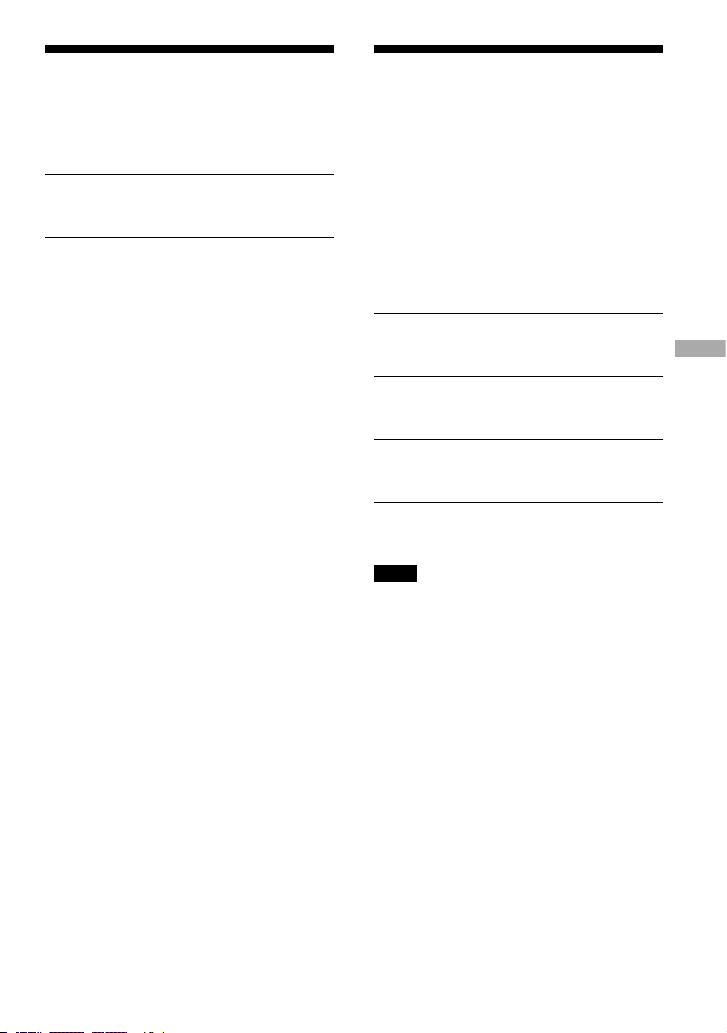
You can tune in the station easily by pressing
or button.
1
Press RADIO ON/BAND•MEMORY to
select the band.
2
Press or to tune in a stored
station.
Changing the Tuning
Interval
(Except European
models)
When using the CD player abroad, change the
AM tuning interval on the menu, if necessary.
9 kHz area: Asia and Europe
10 kHz area: the U.S.A., Canada and Latin
America
Change it while the radio is turned off and
CD play is stopped, as follows.
1
Press DISPLAY/MENU until the
menu screen appears.
2
Press or to select “OPTION,”
then press /ENTER.
3
Press or to select “TUNE STEP,”
then press /ENTER.
4
Press or to select “AREA1” or
“AREA2,” then press /ENTER.
Note
After changing the tuning interval, you need to
preset radio stations again.
31
Using the Radio
D-NF420/NF421.GB.2-318-768-11(1)
Additional Information
Troubleshooting
Should any problem persist after you have checked these symptoms, consult your nearest Sony
dealer.
Sound
Symptom Cause and/or corrective action
The volume does not increase
even if you press VOL +
repeatedly.
“AVLS” is set to “ON.” Set it to “OFF” (
page 24).
No sound, or noise is heard.
Connect the headphones/earphones plugs firmly.
The plugs are dirty. Clean the headphones/earphones plugs
with a dry soft cloth periodically.
A rustling noise is heard from
the CD.
Close the lid of the battery compartment firmly (
page 10).
SOUND items cannot be set up.
“POWER SAVE” is set to “ON.” Set it to “OFF” (
page 25).
Operation/Playback
Symptom Cause and/or corrective action
The playing time is too short. The
CD does not play.
Check that you are using an alkaline battery and not a
manganese battery.
Replace the dry battery with a new LR6 (size AA) alkaline
battery (
page 10).
Certain tracks cannot be played.
You tried to play files saved in a format that is not compatible
with this player (
page 5).
Change the setting of “CD-EXTRA” in the OPTION menu.
You may play your CD (
page 25).
“Low Battery” appears on the
display, and the CD does not play.
Replace the dry battery with a new LR6 (size AA) alkaline
battery (
page 10).
“Hi DC in” appears on the display.
An AC power adaptor which is rated higher than the one
supplied or recommended is being used. Use only the supplied
AC power adaptor or the car battery cord recommended in
“Optional Accessories” (
page 36).
32
D-NF420/NF421.GB.2-318-768-12(1)
Symptom Cause and/or corrective action
The CD does not play, or “No Disc”
appears on the display when a CD
is placed in the player.
The CD is dirty or defective. Clean it or change it.
Check that the CD is inserted with the label side up
(
page 12).
Moisture condensation has occurred. Leave the CD player
aside for several hours until the moisture evaporates.
Close the lid of the battery compartment firmly (
page 10).
Make sure the battery is inserted correctly (
page 10).
Connect the AC power adaptor to an AC outlet securely
(
page 11).
Press /ENTER after one second or more has passed since
the AC power adaptor was connected.
The CD-R/CD-RW in the player is blank.
There is a problem with the quality of the CD-R/CD-RW,
recording device, or application software.
“HOLD” flashes on the display
when you press a button, and the
CD does not play.
The buttons are locked. Slide the HOLD switch back
(
page 14).
Playback starts from the point you
stopped (resume function).
The resume function is working. To start play from the first
track, press and hold /ENTER while the player is stopped
until the first track starts playing, or open the lid of the player
(
page 13). Or, remove all power sources, and then insert the
battery or connect the AC power adaptor again.
During playback of an ATRAC
CD or MP3 CD, the CD does not
rotate but you can hear the sound
normally.
This player is designed to stop the rotation of an ATRAC CD
or MP3 CD during playback to reduce the power consumption.
The player is not malfunctioning.
“No File” appears on the display
after you press /ENTER or
when the lid of the player is
closed.
There are no ATRAC3plus/MP3 files on the CD-R/CD-RW.
A CD-R/CD-RW from which the data has been erased is being
used.
The CD is dirty.
The LCD display becomes hard to
see or slows down.
You are using your CD player at high temperatures (above
40°C/104°F) or at low temperatures (below 0°C/32°F). At
room temperature, the display will return to its normal
operating condition.
Continued
33
Additional Information
D-NF420/NF421.GB.2-318-768-11(1)
Symptom Cause and/or corrective action
Even though you have not selected
“BOOKMARK,” (Bookmark)
flashes.
If you have selected a playback option other than
“BOOKMARK,” (Bookmark) flashes.
Play stopped abruptly.
The off timer has been set. Change the setting of “TIMER” to
“OFF” (
page 24).
The dry battery is used up completely. Replace the dry battery
with a new LR6 (size AA) alkaline battery (
page 10).
The TIMER function is canceled.
The TIMER function for the CD is canceled if you start
listening to the radio.
The TIMER function for the radio is canceled if you start
playing a CD.
You cannot operate the player,
and a sequence of 8 numbers or
letters appear on the display of the
CD player.
This phenomenon may occur, depending on the CD you are
using. Remove all power sources, and then insert the battery
or reconnect the AC power adaptor. Try to operate the player
again. If the problem persists, consult your nearest Sony dealer.
Radio
Symptom Cause and/or corrective action
The radio is weak or has poor
quality.
Replace the battery with a new LR6 (size AA) alkaline battery
(
page 10).
Move the CD player away from electric appliances (TVs, PCs,
etc.)
Keep the AC power adaptor away from the CD player.
Others
Symptom Cause and/or corrective action
When closing the lid of the CD
player, the CD starts to rotate.
The player is reading the information on the CD, not
malfunctioning.
34
D-NF420/NF421.GB.2-318-768-11(1)

Maintenance
To clean the casing
Use a soft cloth slightly moistened in water or
a mild detergent solution. Do not use alcohol,
benzine or thinner.
Specifications
CD player
System
Compact disc digital audio system
Laser diode properties
Material: GaAlAs
Wavelength: λ = 770 - 800 nm
Emission duration: Continuous
Laser output: Less than 44.6 µW
(This output is the value measured at a distance
of 200 mm from the objective lens surface on the
optical pick-up block with 7 mm aperture.)
D-A conversion
1-bit quartz time-axis control
Frequency response
20 - 20 000 Hz
+1
–2
dB (measured by JEITA)
Output (at 3 V input level)
Headphones (stereo minijack)
Approx. 5 mW + Approx. 5 mW at 16 Ω
(Approx. 1.5 mW + Approx. 1.5 mW at 16 Ω)*
*For the customers in Europe
Radio
Frequency range
• CED, CEK, EE9* models
FM: 87.5 - 108.0 MHz
AM: 531 - 1 602 kHz
• E19/2,E92, MX2, E/4* models
9 kHz step:
FM: 87.5 - 108.0 MHz
AM: 531 - 1 710 kHz
10 kHz step:
FM: 87.5 - 108.0 MHz
AM: 530 - 1 710 kHz
• AU2, E19* models
9 kHz step:
FM: 87.5 - 108.0 MHz
AM: 531 - 1 602 kHz
10 kHz step:
FM: 87.5 - 108.0 MHz
AM: 530 - 1 710 kHz
Continued
35
Additional Information
D-NF420/NF421.GB.2-318-768-11(1)

• U, CA* models
9 kHz step:
TV: 2 - 13 ch
WB (weather band): 1 - 7 ch
FM: 87.5 - 108.0 MHz
AM: 531 - 1 710 kHz
10 kHz step:
TV: 2 - 13 ch
WB (weather band): 1 - 7 ch
FM: 87.5 - 108.0 MHz
AM: 530 - 1 710 kHz
* For the area code of the model you purchased,
check the upper left side of the bar code on the
package.
Antenna
FM: Earphones cord antenna
AM: Built-in ferrite bar antenna
General
Power requirements
• LR6 (size AA) battery: 1.5 V DC × 1
• AC power adaptor (DC IN 3 V jack):
220 V, 50 Hz (Model for China)
120 V, 60 Hz (Model for Mexico)
Operating temperature
5°C - 35°C (41°F - 95°F)
Dimensions (w/h/d) (excluding projecting parts
and controls)
Approx. 137.8 × 30.9 × 137.8 mm (5
1
⁄
2
× 1
1
⁄
4
×
5
1
⁄
2
in.)
Mass (excluding accessories)
Approx. 196 g (6.9 oz.)
US and foreign patents licensed from Dolby
Laboratories.
Design and specifications are subject to change
without notice.
Optional Accessories
AC power adaptor
1)
AC-E30HG
Active speaker system
SRS-Z1
SRS-Z30
Car battery cord
2)
DCC-E345
Car battery cord with car
connecting pack
2)
DCC-E34CP
Car connecting pack
2)
CPA-9C
Earphones (except for the
customers in France)
MDR-EX71SL
MDR-G04SL
MDR-J20SP
Earphones (for the
customers in France)
MDR-E808LP
1) Specifications for AC power adaptors vary for
each area. Check your local voltage and the shape
of the plug before purchasing.
2) When listening to the radio using these
accessories, noise may occur. We recommend
only playing CDs when you use them.
Your dealer may not handle some of the
accessories listed above. Please ask the
dealer for detailed information about the
accessories in your country/region.
36
D-NF420/NF421.GB.2-318-768-11(1)

Index
Symbols
(Battery) 10
(disc) 12
1 18
(Timer) 24
A
ACTIVE 22
AC power adaptor 8
ALL 18
AM 27
AREA 31
ATRAC3plus 5
ATRAC CD 5
AUTO RANKING 18
AVLS 24, 28
B
BASS 27
Battery compartment lid 10
Battery life 11
BEEP 25
BOOKMARK 18, 19
C
CD-DA format 5
CD-EXTRA 25
CD-Extra 5
CD-ROM (SonicStage) 8
CD-TEXT 16
CLEARBASS 21, 22
CUSTOM 22
D
Display 8
Dry battery 10
E
Earphones 8
EQUALIZER 21, 22
F
File View 14
FM 27
G
G-PROTECTION 24
GROUP 18, 19, 25
Group 6
GROUP SHUFFLE 18, 19
H
HEAVY 22
HOLD function 14
I
ID3 tag 15
INTRO 18
L
LANGUAGE 24
List View 15
LOCAL/DX 27
M
m3u play list play 19
MENU 24
Mix-Mode CD 5
MONO/ST 28
MP3 CD 5
O
OPTION 24
Optional Accessories 36
P
Pause 13
Play 13
PLAYLIST 18
PLAY MODE 17
PLAY ORDER 25
POWER SAVE 25
Preset 29
PRESET CLEAR 30
PROGRAM 18, 20
R
RANKING SHUF 18
Repeat play 20
S
SEAMLESS 25
Search 13
SHUFFLE 18
SOFT 22
SonicStage 4
SOUND 22
Stop 13
T
TEXT 24
TIMER 24, 28
TRACK 25
TUNE STEP 31
37
Additional Information
D-NF420/NF421.GB.2-318-768-11(1)

D-NF420/NF421.GB.2-318-768-11(1)
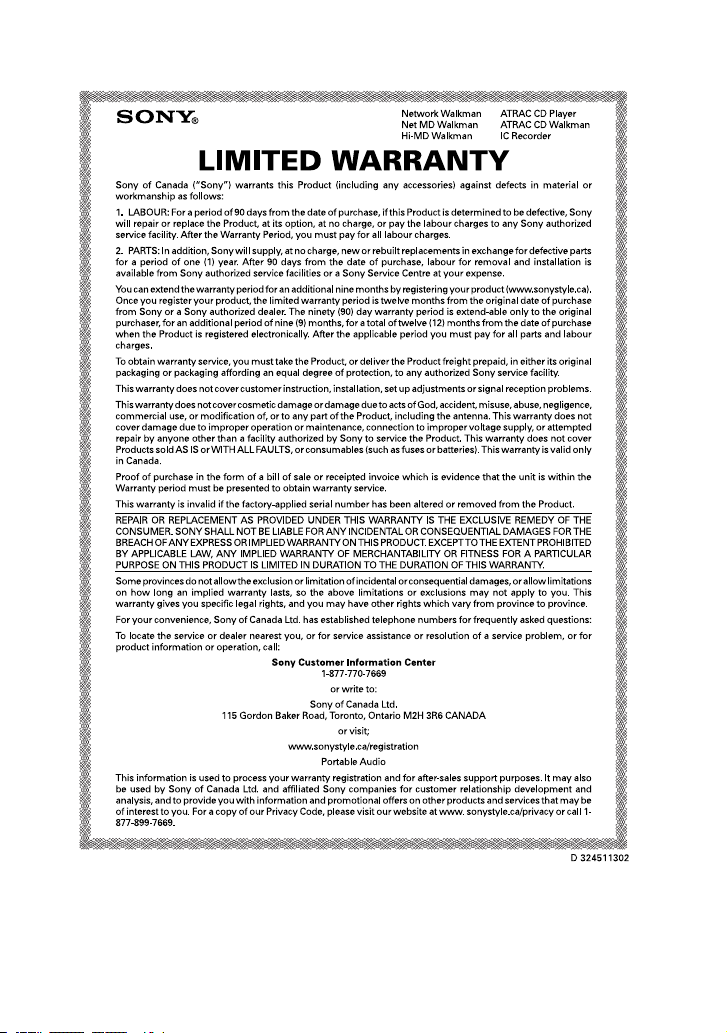
This warranty is only valid in Canada.
D-NF420/NF421.GB.2-318-768-11(1)