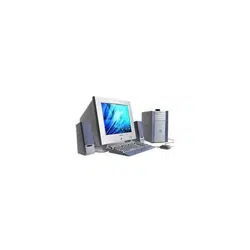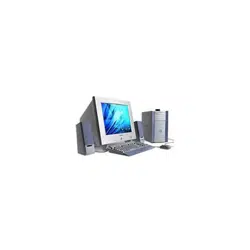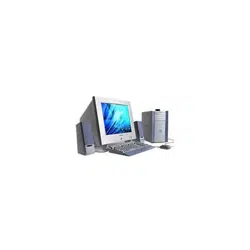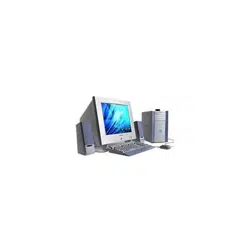

VAIO Digital Studio
Computer User Guide
PCV-R545DS/PCV-R547DS/PCV-R549DS
TM

© 2000 Sony Electronics Inc.
Reproduction in whole or in part
without written permission is
prohibited. All rights reserved.
This manual and the software
described herein, in whole or in
part, may not be reproduced,
translated, or reduced to any
machine-readable form without
prior written approval.
NOTICE
Updates and additions to software
may require an additional charge.
Subscriptions to online service
providers may require a fee and
credit card information. Financial
services may require prior
arrangements with participating
financial institutions.
Sony, VAIO, the VAIO logo, VAIO
Smart, VAIO Digital Studio, Media
Park, DVgate, Media Bar,
Handycam, Mavica, PictureGear
and i.LINK are trademarks of
Sony. Intel, Pentium, and Celeron
are trademarks of Intel
Corporation. Microsoft, Windows,
and the Windows 98 logo are
registered trademarks of Microsoft
Corporation. All other trademarks
are trademarks or registered
trademarks of their respective
owners.
Regulatory Information
Owner’s Record
The model number and serial number are
located on the bottom of your Sony VAIO
Digital Studio™ computer. Record the
serial number in the space provided here.
Refer to the model and serial numbers
when you call your Sony Service Center.
Model Number:
PCV-R545DS/PCV-R547DS/
PCV-R549DS
Serial Number:________________________
Declaration of Conformity
Trade Name: SONY
Model No.: PCV-R545DS/
PCV-R547DS/
PCV-R549DS/
Responsible Party: Sony Electronics Inc.
Address: 1 Sony Drive
Park Ridge, NJ 07656
Telephone: 201-930-6972
This phone number is for FCC-related matters only.
This device complies with Part 15 of the FCC rules.
Operation is subject to the following two
conditions:
(1) This device may not cause harmful
interference, and
(2) this device must accept any interference
received, including interference that may cause
undesired operation.

EEE
Contents
Welcome...............................................................................1
Features.............................................................................................1
Unpacking Your Computer............................................................3
Computer and Supplied Accessories................................................3
Manuals.................................................................................................3
Recovery CDs .......................................................................................4
Other......................................................................................................4
Software Library...................................................................................4
Back Panel Overview ......................................................................5
PCV-R545DS.........................................................................................5
Front Panel Overview .....................................................................7
Setting Up Your VAIO Digital Studio Computer ............9
Registering Your Computer...........................................................9
Using the VAIO Smart™ Keyboard and the
Wheel Mouse..................................................................................10
Connecting the Optional Palmrest ..................................................10
Changing the Window Design of Sony Software..........................11
VAIO Action Setup (PCV-R547DS/PCV-R549DS only) ..............11
Using the Wheel Mouse....................................................................12
Using the Standby Function.........................................................13
Standby Mode Indicators..................................................................13
Shutting Down Your Computer..................................................14

EL
Sony Digital Media Park Applications .............................. 15
Media Bar™ ........................................................................................15
DVgate™ Applications .....................................................................15
PictureGear™ .....................................................................................15
Smart Capture ....................................................................................15
Using Digital Video........................................................................16
Connecting a Digital Video Recorder .............................................16
Using DVgate......................................................................................16
Hard Drive Partition..........................................................................17
Applications That Use the TWAIN Driver.....................................18
i.LINK (IEEE-1394) Compatibility ...............................................19
Enabling Smart Connect................................................................20
Troubleshooting ................................................................ 21
Using the System Recovery CD(s)...............................................29
Using the Application Recovery CD(s).......................................31
About the Software on Your Computer......................................32
About Your Recovery CDs............................................................37
For Answers to Your Software Questions..................................38
Sony Service Center...........................................................................38
Specifications...................................................................................41
Index................................................................................... 43

Welcome
Congratulations on your purchase of the Sony VAIO Digital Studio™
computer! Your new, high-performance multimedia computer combines
state-of-the-art computer functionality with the latest audio/video and
information technology convergence features.
Features
❑
i.LINK
®
(IEEE-1394): Two built-in i.LINK ports provide you with
front and rear digital connection capability. The i.LINK name and
logo identify a digital interface (IEEE-1394) for high-speed
communication. By using your VAIO Digital Studio Computer, a
camera that supports the i.LINK interface (such as the Sony Digital
Handycam
®
Camcorder), the DVgate™ software preinstalled on
your computer, and the i.LINK (IEEE-1394) interface, you can easily
create and edit your own home videos.
❑
Digital Media Park™: This suite of Sony original applications
includes PictureGear,™ Smart Capture, DVgate,™ and Media Bar.™
Using the i.LINK connector, you can capture, view, and share both
still and video images, then catalog everything for fast and easy
storage and retrieval.
✍
For a complete description of the specifications of your VAIO Digital Studio Computer, see
page 41.

VAIO Digital Studio Computer User Guide
❑
Exceptional performance: Your computer includes an Intel
®
processor, a high-speed V.90 compatible data/fax modem,
*
and the
following high-performance drives:
❑
DVD drive: This new optical storage technology provides
increased storage capacity and a rich multimedia computing
experience. Your 8X (maximum) DVD-ROM drive plays both
DVDs and CDs.
❑
CD-RW drive: This drive is the ideal solution for making
backups and archiving data, with the ability to store up to 650
MB
†
of removable, rewritable storage on a single rewritable CD.
Save your movies to CD-R or CD-RW media and share videos
and images with family and friends.
❑
VAIO Smart
™
Keyboard: This PS/2
®
keyboard has programmable
shortcut buttons for launching your favorite programs or accessing
the Internet.
❑
Sony audio and video quality: High-fidelity positional 3D audio
system (A3D™), high-powered 3D graphics (AGP), and “Sony-
Tuned” MPEG digital video playback-enable you to take advantage
of today’s advanced multimedia applications, games, and
entertainment software.
❑
Microsoft
®
Windows
®
98 Second Edition operating system: Your
system includes the latest operating system from Microsoft.
❑
Communications: Access popular online services, browse the
Internet, send faxes, and more.
* Actual upload and download speeds may vary due to line conditions, ISP support, and government
regulations.
530 MB after formatting with Direct CD.
Unpacking Your Computer
!
Unpacking Your Computer
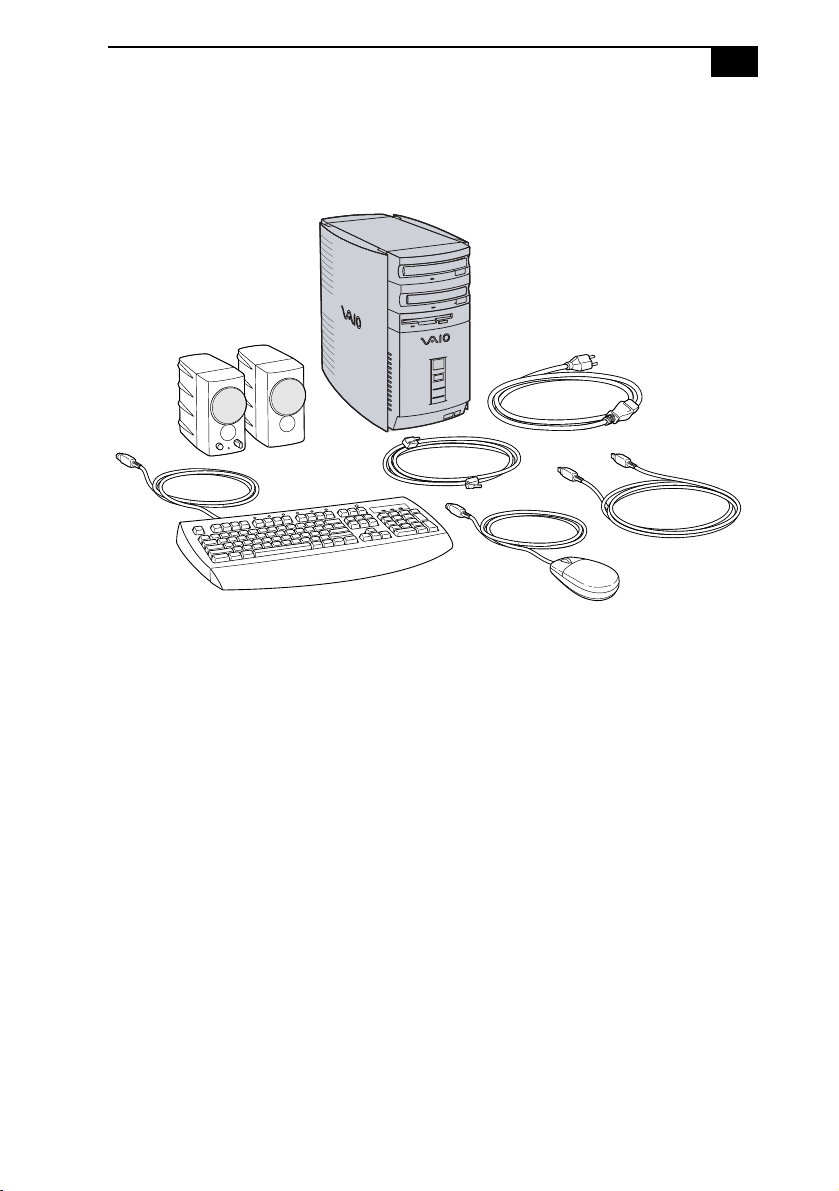
Computer and Supplied Accessories
Manuals
❑
Read Me First contains Frequently Asked Questions (FAQs) and
supplementary information about your computer. It also includes
information on how to contact software vendors.
❑
The VAIO Digital Studio™ Computer User Guide (this manual) contains
features and specifications for your computer. It also includes
information on the applications included with your system and how
to contact software vendors, get started with your computer, and
solve common problems.
❑
The VAIO Consumer Information Guide contains safety and regulatory
information, ergonomic considerations, information on help
resources, and your computer’s limited warranty statement.
❑
The Microsoft
®
Windows
®
98 Getting Started manual explains how to
use the basic features of the Windows operating system.
Power Cord
Phone Cable
Mouse
Keyboard
System Unit
Speakers
i.LINK Cable
(PCV-R547DS and
PCV-R549DS only)

VAIO Digital Studio Computer User Guide
"
Recovery CDs
❑
System Recovery CD(s)
❑
Application Recovery CD(s)
Other
❑
Setting up your VAIO Digital Studio Computer (poster)
❑
Packet containing special product offers
Software Library
The Software Library contains the Microsoft software license agreement,
Sony end-user license agreement, and the following CDs:
❑
Microsoft
®
Word 2000
❑
Wild Metal Country
®
✍
Install your equipment so that you can easily reach the outlet in the event of an emergency.
Back Panel Overview
#
Back Panel Overview
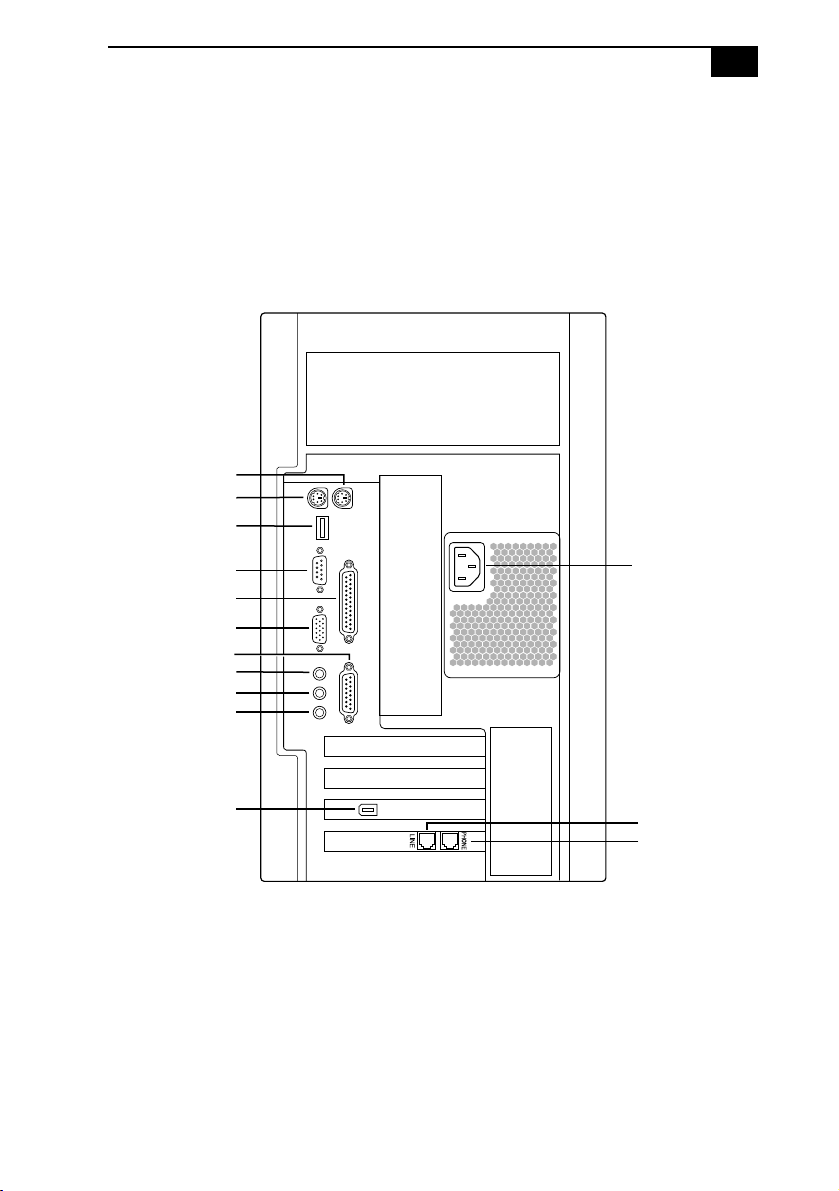
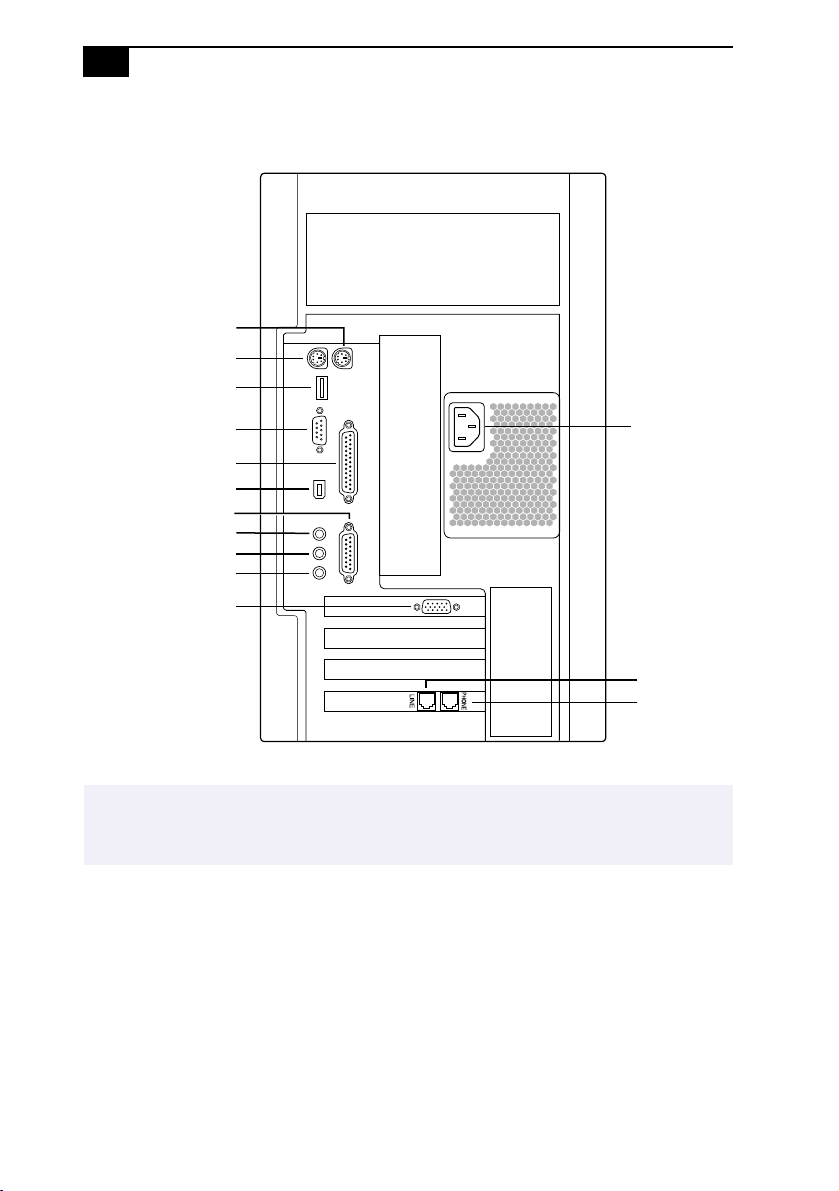
The back panel of your computer contains the connectors where you plug
in supplied and optional accessories. The icons on the back panel serve as
a map to help you locate the connectors on your computer.
PCV-R545DS
PS/2 Mouse
Keyboard
USB
Serial
Printer/Parallel
Monitor
Games/MIDI
Headphones
LINE IN
Microphone
Power
Line
i.LINK (IEEE-1394)
Telephone
VAIO Digital Studio Computer User Guide
$
PCV-R547DS/PCV-R549DS
✍
For your convenience, your computer includes USB and i.LINK connectors on both the front
and back panels, allowing you to connect to either set of connectors. The i.LINK connector on
the back of your system is a 6-pin connector.
Power
Line
Telephone
PS/2 Mouse
Keyboard
USB
Serial
Printer/Parallel
i.LINK (IEEE-1394)
Games/MIDI
Headphones
LINE IN
Microphone
Monitor
Front Panel Overview
%
Front Panel Overview
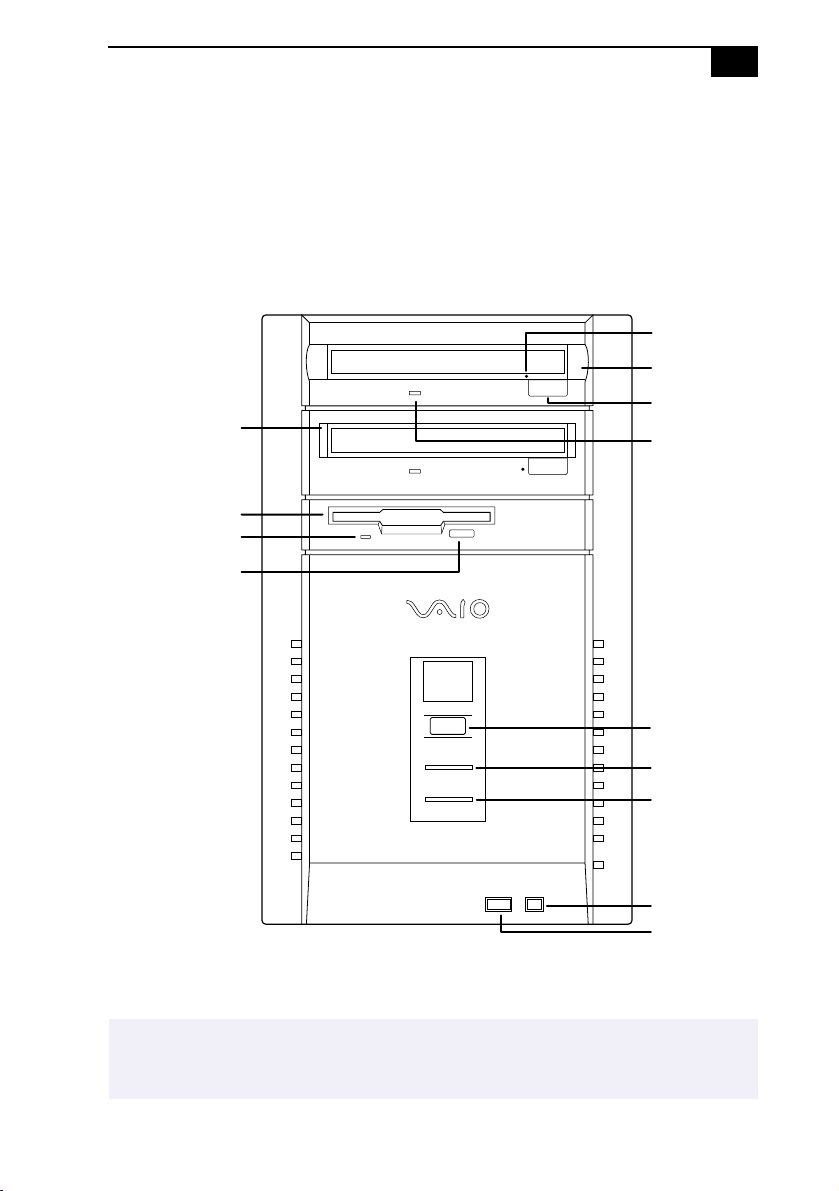
The front panel of your VAIO Digital Studio Computer allows for access
to the diskette, DVD, and CD-RW drives. It also includes USB and i.LINK
ports to connect USB devices, digital equipment, or other components.
✍
For your convenience, your computer includes USB and i.LINK connectors on both the front
and back panels, allowing you to connect to either set of connectors. The i.LINK connector on
the front of your system is a 4-pin connector.
Diskette Drive
CD-RW Drive
Diskette Drive
Access Indicator Light
Diskette
Eject Button
DVD-ROM Drive
Optical Drive
Eject Button
Optical Drive
Indicator Light
Power/Standby
Switch
Power/Standby
Indicator Light
Hard Disk Drive
Access Indicator
Light
USB
i.LINK
Emergency Eject
Hole

&

'
Setting Up Your VAIO
®
Digital
Studio Computer
Registering Your Computer
Take advantage of Sony’s commitment to quality customer support and
receive these benefits by registering your computer:
❑
Sony customer support — Talk to a Support Representative to
troubleshoot problems you may be having with your computer.
❑
Limited warranty — Protect your investment. See “Limited Warranty
Statement” in the VAIO Consumer Information Guide for details.
❑
On-site service — Provides convenient resolution of problems.
If you did not register the first time you turned on your new VAIO Digital
Studio computer, follow these steps to use the computer online
registration service.
1
Click the Sony VAIO Registration icon on the VAIO desktop.
2
Enter the information requested on the first online registration form.
3
Click the Next button to advance to the next form.
4
Complete the remaining forms by clicking the Next button each time
you complete a form.
The computer automatically transfers your registration information
using your built-in modem and a toll-free telephone number.
✍
You must register your VAIO Digital Studio computer to extend the warranty for an
additional nine months beyond the initial 90-day warranty period.
VAIO Digital Studio Computer User Guide
Using the VAIO Smart
c
Keyboard and the
Wheel Mouse
Connecting the Optional Palmrest
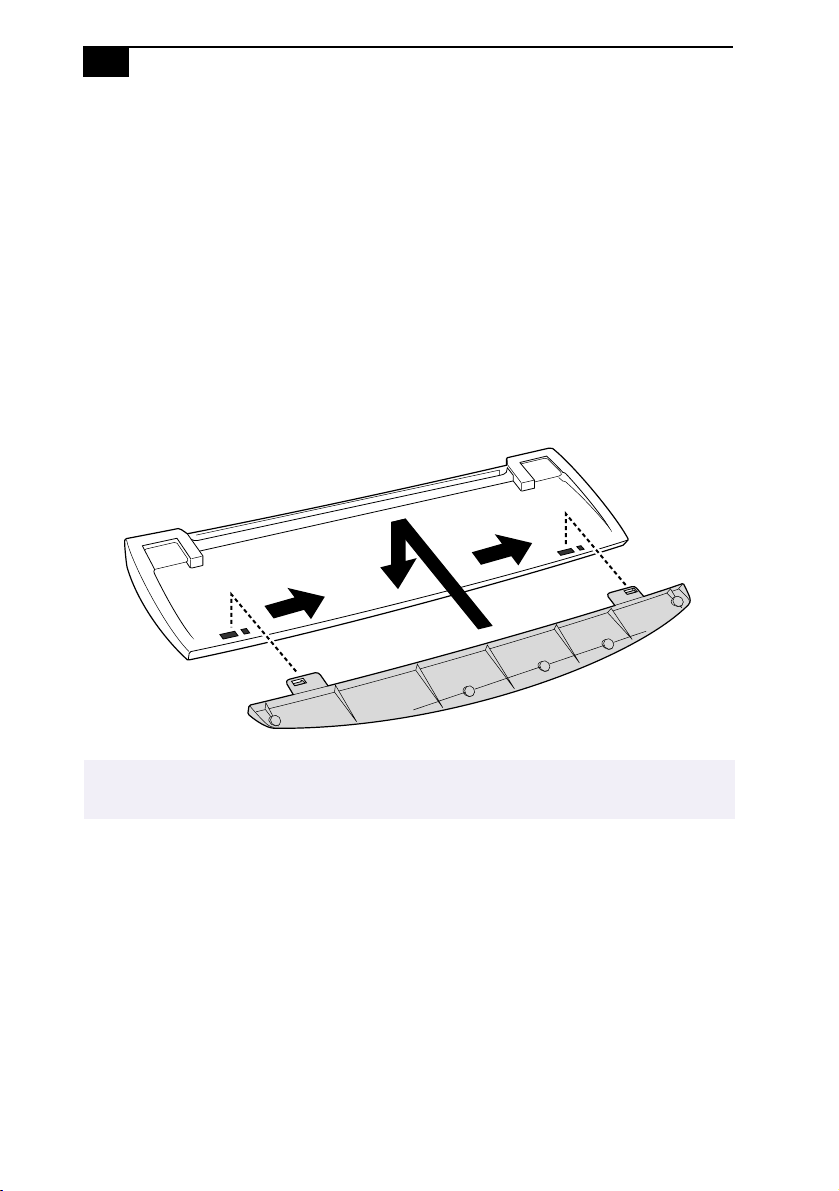
The keyboard that comes with your computer is equipped with an
optional palmrest that you can attach to your keyboard. Follow these
steps to connect the palmrest.
1
Place the keyboard and palmrest upside down on a flat surface.
2
Insert the latching posts on the palmrest into the openings on
the keyboard.
3
Move the palmrest to the right until you feel it snap into place.
To remove the palmrest
1
Turn the keyboard and palmrest upside down.
2
Push down on the palmrest, and then move it to the left.
3
Lift the palmrest away from the keyboard.
✍
Do not keep your wrists on the palmrest while typing; use the palmrest briefly only
when resting.

Using the VAIO Smart Keyboard and the Wheel Mouse
Changing the Window Design of Sony Software
To change the window design of Sony software:
1
Click the Start button, point to Settings, and then click Control Panel.
2
Click UI Design Selector.
3
Click << or >> and select the desired design.
4
Click Apply.
The “UI Design Selector” window design changes. The window design
for your Sony software will match the “UI Design Selector” window.
To try another selection, click << or >>. Then, click OK.
The UI Design Selector closes and the window design of your Sony
software window design displays.
VAIO Action Setup (PCV-R547DS/PCV-R549DS only)
VAIO Action Setup manages the settings for your computer’s Shortcut
keys (S Keys) and i.LINK interface.
To change the settings of the S Keys:
1
From the Start menu, point to Programs/VAIO Action Setup/VAIO
Action Setup. Alternatively, double-click on the Windows taskbar.
VAIO Action Setup opens.
2
Click the S Key whose setting you want to change.
3
From the Select Application dialog box, click the radio button for the
desired type of function. The corresponding applications appear in
the list box on the right. You may also use the Drag&Drop feature to
assign any application by simply dragging and dropping the
application into the list box. Click the application you want to assign
to the S Key. Click Next to finish this step.
4
The Confirmation Application Name window appears showing you
the application you have selected. Click Next.
5
You may now type a new name and description, if desired. Then,
click Finish.
✍
You may use the feature with UI Design Selector-compatible software only.

VAIO Digital Studio Computer User Guide
To pre-set your i.LINK-equipped device to launch a desired function,
such as automatically starting DVgate applications or connecting two
VAIO computers:
1
Open VAIO Action Setup, as described in step 1 above.
2
Click i.LINK.
3
Click the Advanced Setting tab.
4
Click the Enable i.LINK launcher function checkbox. Then, click
Apply.
5
Connect the device to your computer with your i.LINK cable
(supplied with PCV-R547DS and PCV-R549DS only).
6
Turn on the device.
7
The VAIO Action Setup dialog box appears. Click OK.
8
To modify the device name, click the current device name in the list
box and click Modify device name. Type the desired name and click
Apply.
9
To assign an application, click Modify.
10
The Select Application dialog box appears. Select the desired
application and click Next.
11
Click Next to confirm the application name.
12
The Input Application Name dialog box appears. You may change
the name and description of the application you want to launch. Click
Finish to complete this step. Next time the device is connected and
turned on, the assigned application will launch automatically.
Using the Wheel Mouse
For information on the Wheel Mouse, see MouseWare Help. To access
MouseWare Help, from the Start menu, point to Programs, MouseWare,
and then click MouseWare Help.

Using the Standby Function
!
Using the Standby Function
When you are done using your computer, you can put it in standby mode
rather than turn it off completely. Putting the computer in standby mode
allows you to return quickly to normal computer use and saves energy.
To put the computer in standby mode
1
Save your work and close any applications that are running. (You can
leave the Windows
®
operating system running.)
2
Press the (Standby) button on the top of the keyboard (or press the
power switch momentarily on the front panel of the computer).
The computer goes into standby mode.
Alternatively, you can click the Start button on the Windows taskbar, click
Shut Down, select Standby, and then click OK.
To let the computer go into standby mode automatically
Click the My Computer icon on your desktop. Click Control Panel, and
then click the Power Management icon. On the Power Schemes tab, select
from the options in the Power schemes drop-down list. Then, choose
settings for the power scheme you have selected. To save the settings
under a name that is not offered in the Power schemes pull down menu,
choose your settings and then click Save As. Type in a name, and click
OK. Click Apply to finalize your power settings.
To resume from standby mode
Press the space bar on the keyboard, click the left mouse button, or press
the power switch on the front panel again.
Standby Mode Indicators
You can tell which mode the computer is in by the color of the power
indicator light.
Color Mode
Amber Computer is in standby mode.
Green Computer is out of standby mode, ready to use.
No color Computer is turned off.
✍
The computers fan runs at low speed when the computer is in standby mode. This is normal.

VAIO Digital Studio Computer User Guide
"
Shutting Down Your Computer
When you are ready to turn off your computer for an extended period of
time, use the following procedure to shut down the computer.
To shut down your computer
1
Click the Start button on the Windows
®
taskbar to open the Start
menu.
2
Click Shut Down to display the Shut Down dialog box.
3
Select the Shut down option.
4
Click OK to complete the shutdown process.
5
Wait for your computer to turn off automatically — the power
indicator light turns off.
6
Turn off the display and any other peripherals connected to your
computer.
!
To avoid the potential loss of data, do not use the power switch to shut down
the computer.
✍
If you plan to shut down your computer for a short period of time, you may want to use
standby mode instead. See Using the Standby Function on page 13.
✍
Respond to any prompts about saving documents.

#
Sony Digital Media Park
Applications
Media Bar
Media Bar software is your all-in-one solution for audio/video playback.
Media Bar software handles all common computer multimedia formats, and
controls selected Sony devices. Media Bar software encompasses audio/
video library cataloging and playlist management, in addition to digital
video quality control and effects features. Media Bar seamlessly integrates a
variety of new media formats with an easy-to-use software interface.
DVgate Applications
DVgate makes it easy to edit digital videos. You can capture, edit, and
grab digital video clips and then assemble them into a polished home
video everyone will enjoy. You can also use DVgate to capture individual
frames from digital video clips, and then save them as graphic files.
Enhance your Web page, send family and friends your favorite stills,
create your own wallpaper. The possibilities are endless.
PictureGear
PictureGear is a digital image management application that allows you to
see all the images stored in any directory on your computer. Thumbnail
views provide quick reminders of your pictures. Brighten, contrast,
enhance, resize, crop, and color-correct your pictures. Create panoramic
views, animations, screen savers, wallpaper, and even HTML photo albums.
Smart Capture
Smart Capture is a fun new way to send multimedia messages via e-mail.
Smart Capture manages the i.LINK connection between your computer
and a Sony Digital Handycam Camcorder, or other cameras that support
the i.LINK interface. Smart Capture allows you to capture and compress
video or still images that you can save or share via e-mail. Captures are
low resolution, making it ideal for e-mail. For high-quality captures, use
DVgate.

VAIO Digital Studio Computer User Guide
$
Using Digital Video
Connecting a Digital Video Recorder
Before connecting a digital video camera recorder to your computer, turn
off the power on the camera. After connecting the camera, turn the power
back on. You do not need to turn off the computer when connecting a
camera.
Using DVgate
When capturing clips:
❑
Do not use DVgate when the connected digital video peripheral is in
Timer Recording mode, as this could produce a malfunction in the
peripheral.
❑
Captures larger than 2 GB (9 minutes and 30 seconds) are
automatically continued in a second file.
❑
You can record stereo audio (stereo 1) while capturing video. You
cannot add audio on the stereo 2 track after capturing the video data.
❑
You cannot use different audio modes on the same tape. You should
perform a separate capture for each audio mode you wish to use.
❑
DVgate does not support hard disk compression. You should not use
disk compression if you are planning to work with DVgate.
❑
Title data is saved in the flash memory of a digital video camera and
is not transferred to tape by DVgate.
❑
To avoid interruption of capture sessions, you should disable the
screen saver.
❑
The drop frame compensation feature does not provide accurate
compensation adjustments for tapes recorded in LP mode.
❑
For tapes that include a mixture of both SP and LP mode, the
information displayed by the capture progress indicator may not be
accurate.
❑
Make sure the video head of your digital video device is properly
cleaned. Anomalies that you see in captured data could be due to
dust or other particles on the video head.
❑
The last frame captured is one frame before your selected [OUT]
point. The frame you see immediately after clicking the [OUT]
button is not captured.

Using Digital Video
%
When recording AVI files to tape:
❑
Do not use DVgate when the connected digital video peripheral is in
Timer Recording mode, as this could produce a malfunction in the
peripheral.
❑
You can record only AVI files. MPEG files cannot be recorded.
❑
To avoid recording problems, such as a single frame appearing in
multiple frames, close other applications on your system while
recording.
❑
You cannot use different audio modes on the same tape. If you have
AVI files that use different audio modes, they cannot be recorded at
the same time, but must be recorded separately.
❑
Do not attempt to work with AVI files that are smaller than 4 MB.
❑
DVgate does not support hard disk compression. Do not use disk
compression if you are planning to work with DVgate.
❑
In order to maximize recording capabilities, video and audio data are
not available while you are recording.
If DVgate indicates that frames have been dropped, close all open
applications, or defragment your hard drive.
Hard Drive Partition
In order to improve the performance of your computer’s DVgate
software, the hard disk drive on your computer has been formatted with
two partitions, C and D. DVgate saves files to the D partition. This
prevents large video captures from consuming the available space on
your C partition. To maintain optimum performance of DVgate, you
should defragment your D partition regularly.
Defragmenting your Hard Disk Drive
If you encounter frame dropping while recording digital video onto your
hard disk drive, defragmentation may be necessary. To defragment your
hard disk drive, click the Start button, point to Programs/Accessories/
System Tools, and then select Disk Defragmenter. Please note that it may
take more than a couple of hours to complete defragmentation,
depending on the data capacity and utilization of your computer’s hard
disk drive(s).

VAIO Digital Studio Computer User Guide
&
Applications That Use the TWAIN Driver
Digital imaging applications, such as Adobe PhotoDeluxe,
®
allow you to
transfer images to your computer from external devices, including
scanners or digital cameras. For some devices, a TWAIN driver window
appears on the screen. Always close the TWAIN driver window before
exiting or minimizing a digital imaging application.
i.LINK (IEEE-1394) Compatibility
'
i.LINK
(IEEE-1394) Compatibility
Your VAIO
®
computer includes a 4-pin i.LINK connector on the front of
the system and a 6-pin i.LINK connector on the back of the system. A
6-pin i.LINK connector can supply power from the computer to the
connected device if the device is equipped with a 6-pin connector. A 6-pin
connector supplies 10V to 12V. The total power supplied by the 6-pin
i.LINK connector cannot exceed 6 watts. A 4-pin i.LINK connector cannot
supply power to a connected device. The following Sony i.LINK 400
Mbps cables are available and recommended for use with your computer:
VMC-IL4415, VMC-IL4435, VMC-IL4615, VMC-IL4635, VMC-IL6615, and
VMC-IL6635. Sony computer supplies, accessories, and peripherals can
be purchased from your dealer or by contacting Sony at
http://www.sony.com/accessories.
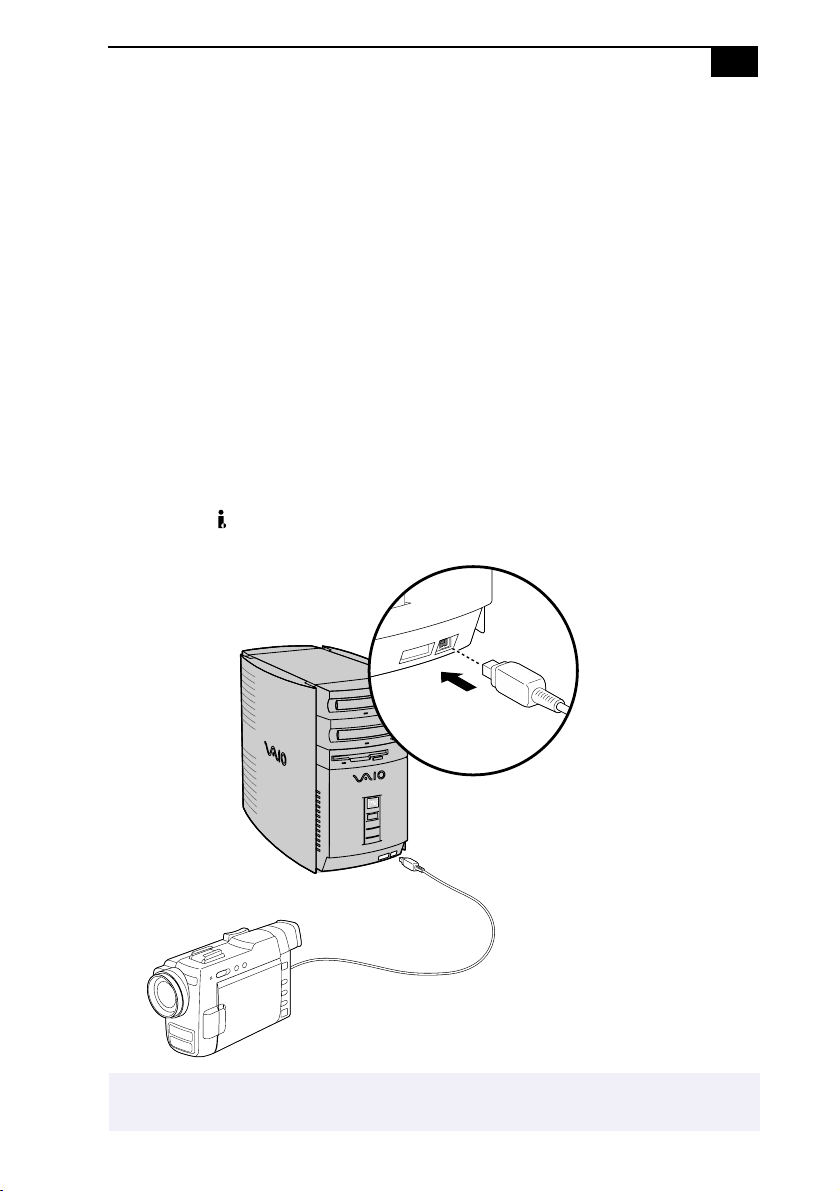
To connect an i.LINK (IEEE-1394) device
❑
Use the symbol to locate the
i.
LINK
connector. Plug the i.LINK cable
into this connector.
✍
See the manual that came with your i.LINK (IEEE-1394)-equipped device for more information
on setting it up and using it.

VAIO Digital Studio Computer User Guide
Enabling Smart Connect
Your computer comes with preinstalled Smart Connect software. To
enable faster startup, your computer ships with this software disabled. To
enable Smart Connect:
1
Click the Start button, select Settings, and click Control Panel. The
Control Panel window appears.
2
Click the System icon. The System Properties window appears. Click
the Device Manager tab.
3
Double-click Sony i.LINK(1394) Adapter. The Sony i.LINK(1394)
Adapter window appears. Click the Enable Device button.
4
Click OK. The Sony i.LINK(1394) Adapter icon should no longer have
an “X” on it. This means Smart Connect is now enabled.
5
Close all windows, and restart your computer in order for the new
settings to take effect.
Now your Smart Connect software is ready to use. Note that when you
use Smart Connect to connect two VAIO computers, you must assign
each computer a unique name by which it can be identified when the two
computers are networked. See the Smart Connect online Help for more
information.

Troubleshooting
This section describes how to solve common problems you may
encounter when using your computer. Many problems have simple
solutions, so try these suggestions before you call Sony Customer
Support. For more advanced troubleshooting information, see the
VAIO Digital Studio Computer Reference Manual. You can download this
electronic document from Sony’s Web site at
http://www. sony.com/pcsupport.
My computer does not start
❑
Check that the computer is plugged into a power source and that it is
turned on. Check that the power light is lit on the front panel of the
computer.
❑
Confirm that a diskette is not in the diskette drive (unless you are
using a bootable diskette).
❑
Confirm that the power cord and all cables are connected firmly, as
described on the color poster.
❑
If you plugged the computer into a power strip or UPS, make sure the
power strip or UPS is turned on and working.
❑
Check that the display is plugged into a power source and turned on.
Check that the brightness and contrast controls are adjusted correctly.
See the manual that came with your display for details.
❑
Check that the computer is not in standby mode (see “Using the
Standby Function” on page 13).
My files are corrupted or deleted and I want to recover applications or drivers
that came with my computer
See “Using the Application Recovery CD(s)” on page 31 of this manual.

VAIO Digital Studio Computer User Guide
My computer or software program locks up
❑
Close the application that is currently “locked up” by pressing
Ctrl+Alt+Delete. In the Close Program dialog box, scroll down until
you locate “(Not responding)” next to an application. Select this
application and click End Task. Windows attempts to close the
application. If the attempt is unsuccessful, a second dialog box
appears. Select End Task again.
❑
If you are unable to “unlock” the application, repeat the above steps
but select Shut Down when the Close Program dialog box appears.
❑
If the above steps fail to “unlock” your computer, save any unsaved
work, if possible. Press Alt+F4. Select Restart and click OK.
❑
If you cannot restart as described in the preceding steps, you can
restart the computer by pressing Ctrl+Alt+Delete or by pressing the
power switch for more than six seconds.
❑
Contact the software publisher or designated provider for technical
support. See the contact information on pages 38-40.
My DVD-ROM/CD-RW drive tray does not open
❑
Make sure the computer is turned on.
❑
Press the Eject button on the drive.
❑
Click the My Computer icon on the Windows
®
desktop. Right-click
the CD-ROM icon. Select the Eject option from the pop-up menu.
❑
If the Eject button does not work, you can open the tray by inserting a
straightened, heavyweight paper clip into the emergency eject hole.
I cannot play a CD-ROM
❑
After inserting your CD, wait a few seconds for it to be detected
before trying to access it.
❑
Make sure you place the disc in the tray with the label side facing up.
❑
Make sure the software is installed according to the program’s
instructions.
❑
If your drive reads some CDs but not others, check the shiny side
of the disc for dirt or scratches. You may also need to clean the
DVD-ROM drive lens with a CD-ROM cleaner.
✍
Pressing Ctrl+Alt+Delete twice consecutively may result in the loss of changes made to
files that are currently open.

Troubleshooting
!
I cannot play a DVD-ROM
❑
If a region code warning appears when you are using the DVD
player, it could be that the DVD-ROM you are trying to play is
incompatible with the DVD-ROM drive in your VAIO Digital Studio
Computer. The region code is listed on the disc’s packaging. Region
code indicators such as “1” or “ALL” are labeled on some DVDs to
indicate what type of player can play the disc. Unless a “1” or “ALL”
appears on the DVD or on the packaging, you cannot play the disc on
this computer.
❑
If you hear audio but cannot see video, your computer’s video
resolution may be set too high. For best results, change the screen
area to 800 x 600 using 16-bit color. To change this setting, click the
My Computer icon on your desktop, click Control Panel, and then
click Display. Click the Settings tab. You can now change the screen
area and color.
❑
If you see video but cannot hear audio, check all of the following:
Make sure your DVD player’s mute setting is off. Check the master
volume setting in the audio Mixer. Check the volume settings on your
computer speakers. Check the connections between your speakers
and the computer. Check the Windows
®
Control Panel/System/
Device Manager to see that the drivers are installed properly.
❑
A dirty or damaged disc may cause the computer to “hang” while it
tries to read the disc. If necessary, reboot the computer, remove the
disc, and then check that it is not dirty or damaged.
I want to play a CD with my Microsoft CD Player
When you insert a music CD, the Sony Media Bar™ automatically
launches to play your CD. When the Sony Media Bar is running, the
Microsoft CD Player does not have access to the CD. Close Media Bar to
use the Microsoft CD Player. If you do not hear any music, check all your
volume controls.
When I double-click an application icon, a message such as You must insert
the application CD into your DVD-ROM drive appears and the software does
not start
❑
Some titles require specific files that are located on the application’s
CD-ROM. Insert the disc and try starting the program again.
❑
Check to make sure you inserted the CD-ROM with the label side
facing up.

VAIO Digital Studio Computer User Guide
"
Why doesn't my CD-RW drive record at the highest speed?
You must use the correct media to achieve optimum performance. Use 8x
media for PCV-R547DS and PCV-R549DS, and 4x media for PCV-R545DS.
If you must use other media, the following steps may be helpful:
❑
If you are having difficulty formatting non-8x/4x writable media,
change the write speed from 8x/4x to 2x or 1x. To change the default
write speed, click the My Computer icon on your desktop. Right-click
the CD-RW drive icon (your CD-RW drive is assigned drive H as its
default), select Properties, and then select the Settings tab. Change the
“Current Write Speed” field to 1x or 2x, and then click OK.
❑
Right-click the CD-RW drive icon, select Properties, and then select
the Settings tab. Change the “Current Write Speed” field to 1x or 2x,
and then click OK. Your CD-RW drive is assigned drive H as its
default.
I need to change the video resolution of my display
From the Start menu, select Settings, and then click Control Panel. Click
the Display icon. Select the Settings tab. Move the slider under Screen
area to change the resolution.
My speakers have no sound
❑
Check that the speakers are plugged into the
HEADPHONES
connector.
❑
If the speakers have a mute button, make sure it is off.
❑
If the speakers are powered by batteries, check that the batteries are
inserted properly and that they are charged.
❑
If the speakers use an external power source, make sure that the
power cord is plugged into a grounded wall outlet or power strip.
❑
If the speakers have their own volume control, check the volume
level.
❑
If the program you are using has its own volume control, check that
the volume is turned up.
❑
Check the volume controls in the application, in the audio mixer, and
in Windows. There is a volume control on the Windows
®
taskbar.
Click the icon and slide the level bar up to increase the volume.
❑
If you connected headphones to the computer, you will not hear
sound from the speakers.

Troubleshooting
#
My modem connection is slow
The computer’s modem uses Lucent 1648 technology/V.90. Many factors
influence modem connection speed, including telephone line noise or
compatibility with telephone equipment (such as fax machines or other
modems). If you think your modem is not connecting properly to other
PC-based modems, fax machines, or your Internet Service Provider, check
the following:
❑
Have your phone company check that your phone line is free from
any line noise.
❑
If your problem is fax-related, check that there are no problems with
the fax machine you are calling and that it is compatible with fax
modems.
❑
If you are having a problem connecting with your Internet Service
Provider, check that the ISP is not experiencing technical problems.
❑
If you have a second phone line available, try connecting the modem
to this line.
My modem does not work
❑
Check that the phone line is plugged into the
LINE
jack.
❑
Check that the phone line is working. You can check the line by
plugging in an ordinary phone and listening for a dial tone.
❑
Check that the phone number the program is dialing is correct.
❑
Verify that the software you are using is appropriately configured to
recognize and interact with the Sony computer modem. Call the
software publisher if you do not know how to configure the software
to recognize the modem. All programs, preinstalled by Sony, are
compatible.
❑
If you suspect your modem is not functioning, you can perform a
simple test to find out. Click the My Computer icon on your desktop.
Click Control Panel, and the click Modems. Click the Diagnostics tab
and select COM2. Click More Info. If your modem is functioning, a
More Info dialog box will display. If your modem is not functioning,
an error message will appear.
I cannot change my modem to rotary/touch-tone dialing
Click the My Computer icon on your desktop. Click Control Panel, and
then click Modems. Click Dialing Properties. Next to “Dial using,” select
the Tone dial or Pulse dial radio button. Click OK.

VAIO Digital Studio Computer User Guide
$
I need to set up faxing in Windows
®
98
Windows 98 does not provide a built-in fax utility. Sony has included the
Symantec WinFax
®
Basic Edition for your faxing needs. To set up WinFax
Basic, click the Start button, point to Programs, choose Symantec WinFax
Basic Edition, and select Configure WinFax Basic Edition. Follow the
on-screen instructions to configure the fax utility.
My microphone does not work
Check that the microphone is plugged into the
MIC
connector.
My microphone is too sensitive to background noise
If you find there is too much background noise when you record sound,
you should adjust the microphone gain by following these steps:
1
Right-click the speaker icon (Volume) in the lower-right Windows
®
task tray.
2
Click Open Volume Controls. The Volume Control screen appears.
3
In the Options menu, select Properties. The Properties screen
appears.
4
Change the setting for “Adjust volume for” from Playback to
Recording, then click OK.
5
Click the Advanced button under Microphone Balance. The
Advanced Controls for Microphone screen appears.
6
Deselect the check box for 1 Mic Gain (+20dB), then click the Close
button.
7
Close the Recording Control window.
My mouse does not work
❑
Check that the mouse is plugged into the
MOUSE
connector.
❑
There may be dust or dirt inside the mouse mechanism. To clean the
mouse, follow these steps:
1
Turn off your computer. See “Shutting Down Your Computer” on page 14
for details.
2
Remove the mouse ball cover on the back side of the mouse.
3
Turn the mouse upright, and drop the mouse ball into your hand.
4
Using a piece of tape, remove any dust or dirt on the mouse ball and inside
the mouse ball socket.
5
Return the mouse ball to the socket, and replace the mouse ball cover.

Troubleshooting
%
My mouse needs to be set up for left-hand use
To set up the mouse for left-hand use:
1
Click the My Computer icon on your desktop.
2
Click Control Panel, and then click Mouse. The Mouse Properties
dialog box appears.
3
In the Quick Setup tab, click Device Setup.
4
In the Device Setup Wizard dialog box, click Next.
5
Select the radio button next to “Left side of the keyboard.”
6
Click Next three times, and then click Finish.
7
Click Apply.
My keyboard does not work
Check that the keyboard is plugged into the
KEYBOARD
connector.
I cannot find the Windows
®
taskbar
❑
Check that the taskbar is not hidden or shrunken.
❑
Use the mouse to point to the left, right, top, and bottom edges of the
screen.
Windows locks up during shut down
The Windows operating system may not shut down properly for many
reasons, including incompatible or conflicting drivers, damaged files, or
nonresponsive hardware. For troubleshooting information, you can
search Windows Help. From the Start menu, select Help, click the
Contents tab, click Troubleshooting, and then click Windows 98
Troubleshooters. Click the subject for which you want information, and
then answer the questions that are appropriate for your problem.

VAIO Digital Studio Computer User Guide
&
My system is running slowly
Your system’s responsiveness varies depending on the number of
applications that are open and running. Close any applications that you
are not currently using. Increasing the system memory may also help. The
computer has two memory slots. For memory upgrades, use only 3.3V
64-bit PC-100 SDRAM DIMM modules. For information on installing
memory, please see the online document Upgrading and Maintaining Your
VA I O
®
Computer.
Sony computer supplies, accessories and peripherals can be purchased
from your dealer or by contacting Sony at http://www.sony.com/
accessories.
My i.LINK
®
peripheral does not appear on the desktop
Turn off and disconnect your peripheral. Reconnect your peripheral, and
then turn on the power.
My connected printer doesn't function after the computer resumes from a
power saving mode.
When this occurs, follow the procedures below to reset the printer
connection:
1
Right-click the My Computer icon on the desktop, and then select
Properties.
2
Click the Device Manager tab.
3
Select Refresh, and then click OK.
4
The printer should now function properly.
There is unusual activity on my floppy disk drive
If you notice that your system is slow to respond due to unusual floppy
disk drive activity, it could be because of Find Fast. To determine if Find
Fast is present, click Start, point to Programs, and then point to Startup.
Removing this item may remedy the problem.
✍
See the
VAIO Digital Studio Computer Read Me
First
for additional information on using your
Sony computer.

Using the System Recovery CD(s)
'
Using the System Recovery CD(s)
You can reinstall software titles that shipped with your computer if they
are corrupted or accidentally erased. You may not need to recover the
entire contents of your hard drive. If you experience a problem with your
computer, reinstalling an individual device driver or software title may
correct the problem.
Use the Application Recovery CD(s) to reinstall individual applications
or device drivers. See “Using the Application Recovery CD(s)” on
page 31.
The System Recovery CD(s) contains a backup copy of all the software
originally installed on your hard disk drive. It can be used only to
recover the hard disk of the Sony computer you purchased.
The System Recovery utility gives you three options:
❑
Full Restore without Format restores all the software titles that
originally came with your computer without formatting the hard
disk.
❑
Full Restore with Format formats the hard disk drive and then
restores all the original software. If your hard drive is partitioned into
C and D drives, the computer offers you the option to reformat the
drive into a single partition.
❑
Operating System Only formats the hard disk drive and restores the
Windows operating system and the device drivers that shipped with
your computer. This option is recommended for advanced users only.
!
If you choose the Full Restore with Format or Operating System Only option,
your hard disk will be formatted, which removes all the information on the hard
disk drive. You will lose any software you have installed and any other files you
have created since you started to use your computer. This means you will have
to reinstall any applications that were not included with the computer when you
purchased it. If you choose the Full Restore without Format option, you may
need to reinstall applications that were not included with the computer when
you purchased it. If you have any questions on using the System Recovery CD(s),
contact Sony Customer Support.

VAIO Digital Studio Computer User Guide
!
To use the System Recovery CD(s)
1
Insert the Sony System Recovery CD in the DVD-ROM drive.
2
Shut down your computer as described in “Shutting Down Your
Computer” on page 14.
3
Wait 30 seconds and turn on your computer.
4
Click OK to signify you have read and accept the Microsoft End-User
License Agreement.
5
When the System Recovery menu appears, follow the on-screen
instructions to complete the recovery process.
✍
You need to complete the Windows registration process when you use the System
Recovery CD(s).
✍
The System Recovery utility boots from the DVD-ROM drive. It must be in the drive when
you turn on the computer.
✍
Your system may include one or two System Recovery CDs. If you have two System Recovery
CDs, insert the first CD to run the System Recovery program. You are prompted to insert the
second CD once the information from the first CD has been installed.
The recovery process takes 30 to 60 minutes to complete.

Using the Application Recovery CD(s)
!
Using the Application Recovery CD(s)
The Application Recovery CD(s) allows you to reinstall individual
applications and device drivers if they are corrupted or accidentally
erased. Reinstalling an individual device driver or software title may
correct a problem you are experiencing with your computer, and you may
not need to recover the entire contents of your hard drive. If you do need
to reinstall all the software titles that shipped with your computer, use the
System Recovery CD(s). See “Using the System Recovery CD(s)” on
page 29.
You must be in Windows to run the Application Recovery CD(s). The
application will not run from MS-DOS
®
. If you have any questions on
using the Application Recovery CD(s), contact Sony Customer Support.
To use the Application Recovery CD(s)
1
Turn on your computer. If your computer is already on, close all
applications.
2
When the Windows desktop appears, insert the Sony Application
Recovery CD in the DVD-ROM drive. The Application Recovery
utility loads automatically.
3
When the Application Recovery menu appears, follow the on-screen
instructions to complete the recovery process.
✍
Your system may include one or two Application Recovery CDs. If you have two Application
Recovery CDs, insert the first CD to run the Application Recovery program. You may be
prompted to insert the second CD, depending on the application you wish to restore.

VAIO Digital Studio Computer User Guide
!
About the Software on Your Computer
Your VAIO Digital Studio computer is ready to help you work, play,
learn, and communicate as soon as you turn it on. This section gives you
an overview of the activities you can perform with your software titles.
For support information, see “For Answers to Your Software Questions”
on page 38.
Adobe Acrobat
®
Reader
Adobe Systems Incorporated
Acrobat Reader software allows you to view, navigate, and print electronic
documents in Adobe’s Portable Document Format (PDF), an open file format that
is intended to preserve the fidelity of documents created on all major computer
platforms.
Adobe PhotoDeluxe
®
Home Edition
Adobe Systems Incorporated
Create amazing photo effects with PhotoDeluxe. Without learning complex
software, you can enhance, restore, and be creative with your photos. Includes
built-in guided activities, stock photos, clip art, and templates to assist you.
Adobe Premiere
®
LE (PCV-R547DS/PCV-R549DS only)
Adobe Systems Incorporated
Adobe Premiere LE offers an interface and editing tool for producing movies
for video, multimedia, or the Web. View source clips and edited footage
simultaneously in the monitor window. Create video clips up to three hours long
with complete audio-video synchronization.
America Online
®
America Online
America Online is the world's most popular Internet online service. Stay in touch
with family and friends with Easy-to-Use E-mail, manage your personal finances,
get the latest news and sports scores, and chat with thousands of others who share
your interests.
AT&T WorldNet
®
Service
AT&T
Fast, reliable Internet access from AT&T WorldNet Service. AT&T WorldNet
Service provides Web-based e-mail, a personalized start page from Excite, easy
access to the Excite search engine, free Web pages, online and live agent technical
support, instant messaging, and special shopping discounts at Market Square.

About the Software on Your Computer
!!
CompuServe
®
2000
CompuServe Interactive Services
The all-new CompuServe 2000 delivers a powerful tool for Internet users who
want serious and timely information, in-depth research, and professional
communities backed by state-of-the-art technologies, including high-speed access
and powerful e-mail messaging.
Digital Media Bar
Sony Electronics
Media Bar is your all-in-one solution for audio/video playback. For more
information, see “Media Bar™” on page 15.
Direct CD
Adaptec
DirectCD is software that allows you to drag and drop files directly to your
CD-R or CD-RW drive under Windows 95 / 98 / NT 4.0 or Mac OS. In other
words, you can save, rename, move or “delete” files right on your CD-R as if
it were a giant floppy disk.
DVgate Applications
Sony Electronics
Sony Electronics DVgate makes editing digital video easy and fun. For more
information, see “DVgate™ Applications” on page 15.
EarthLink Sprint TotalAccess
EarthLink Network, Inc.
An Internet Service Provider that supplies access, information, and assistance to
its customers, introducing them to the Internet. Member benefits include e-mail,
newsgroups, a Personal Start Page, a free 6 MB Web site, a member magazine, and
24-hour technical support.
Easy CD Creator
Adaptec
Easy CD Creator lets you make your own data, audio and multimedia CDs. You
can back up your important files to CD, and read them back on standard CD-
ROM drives. Create your own audio CDs right on your desktop, and play them
back on your home or car stereo CD player. You can make your own personalized
color jewel case inserts with custom text and graphics. You can even make backup
copies of your existing CDs. The easy CD Creator Wizard makes creating your
own custom CDs a simple process.

VAIO Digital Studio Computer User Guide
!"
eMail inChorus (PCV-R545DS only)
Softlink, Inc.
This communications tool turns your e-mail into multimedia e-mail. With eMail
inChorus™, in minutes you can send your colleagues and friends presentations
and e-mails narrated with your prerecorded voice, and illustrated with graphics
and animated annotation.
McAfees VirusScan
®
Network Associates, Inc.
Protect your computer from viruses. VirusScan can detect viruses from floppy
disks, Internet downloads, e-mail attachments, intranets, shared files, CD-ROMs,
and online services.
Microsoft
®
Internet Explorer 5
Microsoft Corporation
Internet Explorer delivers the Web the way you want it. It's safe, easy to use, and
you can personalize how you access the Web. Outlook Express and other tools in
Internet Explorer also help you have a great experience when you are on the Web!
Microsoft
®
Outlook
®
Express
Microsoft Corporation
Outlook Express, the messaging tool that takes your e-mail and newsgroup
communications to new heights! Outlook Express is easy to set up and use, and
provides you with secure, personalized, and complete features that make
creating, sending, and reading your e-mail a more rich and dynamic experience.
Microsoft
®
Word 2000
Microsoft Corporation
Microsoft Word 2000 makes it easy to create common Web, e-mail, and print
documents for use around the world. It embraces HTML as a first-class file format
and extends Word's ease-of-use to the Web and e-mail. Word 2000 also extends
that ease of use to international users, making it easy to create multilingual
documents.
MindSpring
®
Internet Desktop
MindSpring Enterprises, Inc.
The MindSpring Internet Desktop offers you access to different areas of the
Internet from one convenient program. With a single click on the MindSpring
Internet Desktop, you can easily search the Internet, send and receive e-mail,
access news and weather, and more.

About the Software on Your Computer
!#
Netscape Communicator
®
Netscape Communications
Netscape Communicator is the all-in-one Internet tool that makes it easy to
browse the Web, send Internet e-mail, chat, read newsgroups, and compose great
Web documents.
PictureGear
Sony Electronics
This image management software displays images from your hard drive, a Sony
digital still camera, or a Sony Mavica
®
camera. The images appear in a convenient
light-table format, so that you can easily view the contents of an entire folder.
Prodigy Internet
Prodigy Communications Corporation
An Internet service that helps you find what you need online faster and smarter.
Prodigy delivers powerful online content, such as sports scores, stock quotes,
news, and easy access to Excite™, plus a personal e-mail account and quality
customer service — all at a competitive price.
Quicken
®
Basic
Intuit, Inc.
Quicken is the fastest, easiest way to organize your finances. Quicken works just
like your checkbook, so it's easy to learn and use. Quicken manages all of your
finances, bank accounts, credit cards, investments, and loans. You can even pay
your bills online.
Smart Capture
Sony Electronics
By managing the i.LINK connection between your computer and a camera with
an i.LINK interface, Smart Capture enables you to capture and compress video or
still images that you can save or share via e-mail. A smart solution to computer,
digital audio/video, and network convergence. For more information, see “Smart
Capture” on page 15.
Smart Connect
Sony Electronics
Smart Connect allows you to use an i.LINK cable to connect your VAIO computer
to another VAIO computer that supports Smart Connect. You can then use one
computer to copy, delete, and edit files on the other computer. You can also print
from a printer attached to either computer.

VAIO Digital Studio Computer User Guide
!$
Sound Forge
®
XP (PCV-R547DS/PCV-R549DS only)
Sonic Foundry
Sound Forge XP allows you to put powerful audio processing tools and effects to
work on your desktop. Simply cut, copy, and paste your way to striking
multimedia files for use in everything from Web pages to desktop presentations.
VAIO Action Setup (PCV-R547DS/PCV-R549DS only)
Sony Electronics Inc.
VAIO Action Setup manages the settings for your computer's Shortcut keys and
i.LINK interface. For details on using VAIO Action Setup, see “VAIO Action Setup
(PCV-R547DS/PCV-R549DS only)” on page 11.
VAIO Smart Keyboard
Sony Electronics
VAIO Smart Keyboard software operates your new easy-to-use programmable
PS/2 keyboard. Six programmable buttons enable you to launch your favorite
applications, open frequently used files, access Explorer, or even open your Web
browser with just the click of a button.
Wild Metal Country
®
Infogrames North America
Attempt to reclaim planets in the Tehric system, where a devastating civil war has
left hunter-killer machines in control. In your war machine, you will seek control
of vital power cores and fight off the enemy with a wide array of sophisticated
ammunition.
WinFax
®
Basic Edition
Symantec Corporation
WinFax Basic Edition incorporates an easy-to-use interface that allows you to
send and receive faxes easily. Upgrade to WinFax Pro to receive additional
features.

About Your Recovery CDs
!%
About Your Recovery CDs
Application Recovery CD(s)
Sony Electronics
The Application Recovery CD program allows you to reinstall individual
applications and device drivers. Use it to restore corrupted or accidentally
erased files.
System Recovery CD(s)
Sony Electronics
The System Recovery CD program allows you to restore the software titles that
shipped with your computer if they become corrupted or are erased accidentally.
It can be used only to restore the hard disk of the Sony computer you purchased.

VAIO Digital Studio Computer User Guide
!&
For Answers to Your Software Questions
Sony Service Center
For the Sony Service Center nearest you, call 1-888-4SONYPC
(1-888-476-6972). This service is free of charge for 90 days after the
original date of purchase.
Acrobat
®
Reader, Adobe PhotoDeluxe
®
Home Edition, Adobe
Premiere
®
LE
(Adobe Systems Incorporated)
America Online
®
(America Online)
AT&T WorldNet
®
Service (AT&T)
CompuServe
®
2000 (CompuServe Interactive Services)
EarthLink TotalAccess
(EarthLink Network, Inc.)
Web site
http://www.adobe.com/
phone
206-628-2746 (fee-based support)
fax
206-628-5737
e-mail
hours
M - F, 6 AM - 5 PM PT
Web site
http://www.aol.com/
phone
800-827-3338
hours
7 days a week, 6 AM - 2 PM ET
Web site
http://www.att.net/
*
* You must be a WorldNet Service customer to access online support.
phone
800-400-1447
e-mail
hours
7 days a week, 24 hours a day
Web site
http://www.compuserve.com/
phone
800-848-8990
Web site
http://help.earthlink.net/techsupport/
phone
800-395-8410
e-mail
hours
7 days a week, 24 hours a day

For Answers to Your Software Questions
!'
eMail inChorus
(Softlink, Inc.)
McAfees VirusScan
®
(Network Associates, Inc.)
Quicken
®
Basic (Intuit, Inc.)
Sound Forge
®
(Sonic Foundry)
Wild Metal Country
®
(Infogrames North America)
Web site http://www.sonk.com
phone 408-970-3370
e-mail [email protected]
Web site http://support.mcafee.com
phone 408-988-3832
e-mail [email protected]
hours M - F, 9 AM - 5 PM CT
Web site http://www.intuit.com/support/
phone 900-555-4688
hours 7 days a week, 24 hours a day
Web site http://www.sonicfoundry.com/support/
phone 608-256-5555
fax 608-256-7300
e-mail support@sonicfoundry.com
hours M - F, 8 AM - 7 PM CT
Web site http://www.infogrames.net
phone 408-296-8400
fax 408-246-0231
e-mail [email protected]
hours M - F, 9 AM - 5 PM PT

VAIO Digital Studio Computer User Guide
"
Windows
®
98 Second Edition Operating System, Internet Explorer 5,
Outlook
®
Express, Word 2000 (Microsoft Corporation)
WinFax
®
Basic Edition (Symantec Corporation)
Web site http://www. sony.com/pcsupport
phone 888-4SONYPC (888-476-6972)
*
* Support from 1-888-4SONYPC is free of charge for 90 days after the original date of purchase.
hours 7 days a week, 24 hours a day
Web site http://www.symantec.com/techsupp/
phone 800-798-0850
fax 800-554-4403 in North America
541-984-2490 outside North America

Specifications
"
Specifications
Model PCV-R545DS PCV-R547DS
Processor 500 MHz
*
Pentium
®
III 600 MHz
*
Pentium
®
III
Hard Disk Drive 20 GB
†
27 GB
†
Standard
SDRAM
128 MB PC-100 SDRAM,
expandable to 256 MB
128 MB PC-100 SDRAM,
expandable to 256 MB
Video RAM Shared with system memory 16 MB SDRAM
MPEG “Sony Tuned” MPEG Digital Video supports full-screen video
playback
Graphics Intel 810 nVidia TNT 2 Pro
Sound
Capabilities
Aureal 8810 Aureal 8830
Diskette Drive 3.5” 1.44 MB FDD 3.5” 1.44 MB FDD
CD-RW Drive 24X max. CD-ROM reading,
4X max. CD-R writing,
24X max. CD-R reading,
2X max. CD-RW writing,
8X max. CD-RW reading
32X max. CD-ROM reading,
8X max. CD-R writing,
32X max. CD-R reading,
4X max. CD-RW writing,
20X max. CD-RW reading
DVD-ROM Drive 8X max. DVD-ROM (40X max. CD-ROM)
‡
Modem Lucent 1646 technology/V.90 compatible data/fax modem
**
Expansion
Capabilities
HDD bay HDD bay
Connection
Capabilities
(Front)
USB port
i.LINK port (4-pin)
USB port
i.LINK port (4-pin)
Connection
Capabilities
(Rear)
USB port
PS/2 (2)
VGA Monitor port
Serial port
Parallel (printer)
Game/MIDI
Headphones
Line In
Microphone
i.LINK (6-pin)
Modem line (RJ-11)
Phone line (RJ-11)
USB port
PS/2 (2)
VGA Monitor port
Serial port
Parallel (printer)
Game/MIDI
Headphones
Line In
Microphone
i.LINK (6-pin)
Modem line (RJ-11)
Phone line (RJ-11)

VAIO Digital Studio Computer User Guide
"
Specifications are subject to change without notice.
Supplied
Accessories
VAIO Smart Keyboard
PS/2 Wheel Mouse
Speakers (SRS- Z050V)
Power cord
Modem cable
VAIO Smart Keyboard
PS/2 Wheel Mouse
Speakers (SRS- Z050V)
Power cord
Modem cable
i.LINK cable
Service
90-day limited service. Extendible to one year from original
date of purchase upon registration
††
Limited
Warranty
90-day parts/labor standard. Extendible to one year from
original date of purchase upon registration
‡‡
Power
Requirements
200 watts maximum
Dimensions
8.6”(w) x 14”(h) x 15.5”(d) (220mm x 358mm x 394mm)
Weight
25.3lbs (11.5kg) 25.3lbs (11.5kg)
Operating
Temperature
50ºF to 95ºF (+10ºC to 35ºC)
* MHz denotes microprocessor internal clock speed; other factors may affect application performance.
GB means one billion bytes when referring to hard drive capacity. Accessible capacity may vary.
Data on a DVD-ROM is read at a variable transfer rate, ranging from 3.3X at the innermost track to 8X at
the outermost track (the data transfer standard 1X rate is 1385 kbytes/s). The average data transfer rate
is 5.6X (7634 kbytes/s). Data on a CD-ROM is read at a variable transfer rate, ranging from 17.2X at the
innermost track to 40X at the outermost track (the data transfer standard 1X rate is 150 kbytes/s). The
average data transfer rate is 28.6X (4293 kbytes/s).
** Maximum speed for faxing is 14.4 kbytes/s. Your modem is capable of downloading at 56 kbytes/s using
K56flex technology or V.90. Your phone service, online service, or Internet Service Provider, however, may
not support this technology or operate at this speed.
Certain restrictions apply
Certain restrictions apply
Model PCV-R545DS PCV-R547DS

"!
Index
A
adjusting speaker volume
24
Application Recovery CD
4
,
31
,
37
applications
launching
problems with
23
C
CD tray
opening
problems with
22
CD-ROM drives
troubleshooting
22
cleaning
mouse
26
computer
protecting your investment
9
registering
9
setting up
9
shutting down
14
starting
problems with
21
unpacking
3
customer assistance
9
D
data
preventing loss
14
displaying the taskbar
problems with
27
displays
problems with
21
DVD-ROM drive, troubleshooting
23
E
electronic
registration
9
H
hardware
troubleshooting
21
,
24
,
27
I
i.LINK devices, connecting
19
IEEE-1394 devices, connecting
19
K
keyboard
troubleshooting
27
L
launching applications
problems with
23
losing data (caution)
14
M
microphones
troubleshooting
26
modem
troubleshooting
25
mouse
cleaning
26
troubleshooting
26
mouse buttons
reassigning
27

VAIO Digital Studio Computer User Guide
""
O
online
registration service
9
support
9
opening
applications
problems with
23
CD tray
problems with
22
P
palmrest
connecting
10
PictureGear
15
problem solving
21
protecting your investment
9
R
reassigning mouse buttons
27
Recovery CDs
4
registering your computer
9
S
shutting down your computer
14
Smart Keyboard
10
Sony customer support
9
Sony Multimedia Computer Display
problems with
21
speakers
adjusting volume
24
troubleshooting
24
Specifications
41
standby mode
13
starting your computer
problems with
21
system
troubleshooting
21
System Recovery CD
4
,
29
,
37
T
taskbar
problems viewing
27
technical support
9
troubleshooting
21
turning off your computer
14
turning on your computer
problems with
21
U
unpacking the computer
3
V
VAIO Action Setup
11
,
36
VAIO online registration
9
viewing the taskbar
problems with
27
volume, adjusting
24
W
warranty
9
Wheel Mouse
10
,
12
window design of Sony software
11
Windows 98
shutting down
14
Windows taskbar
problems viewing
27