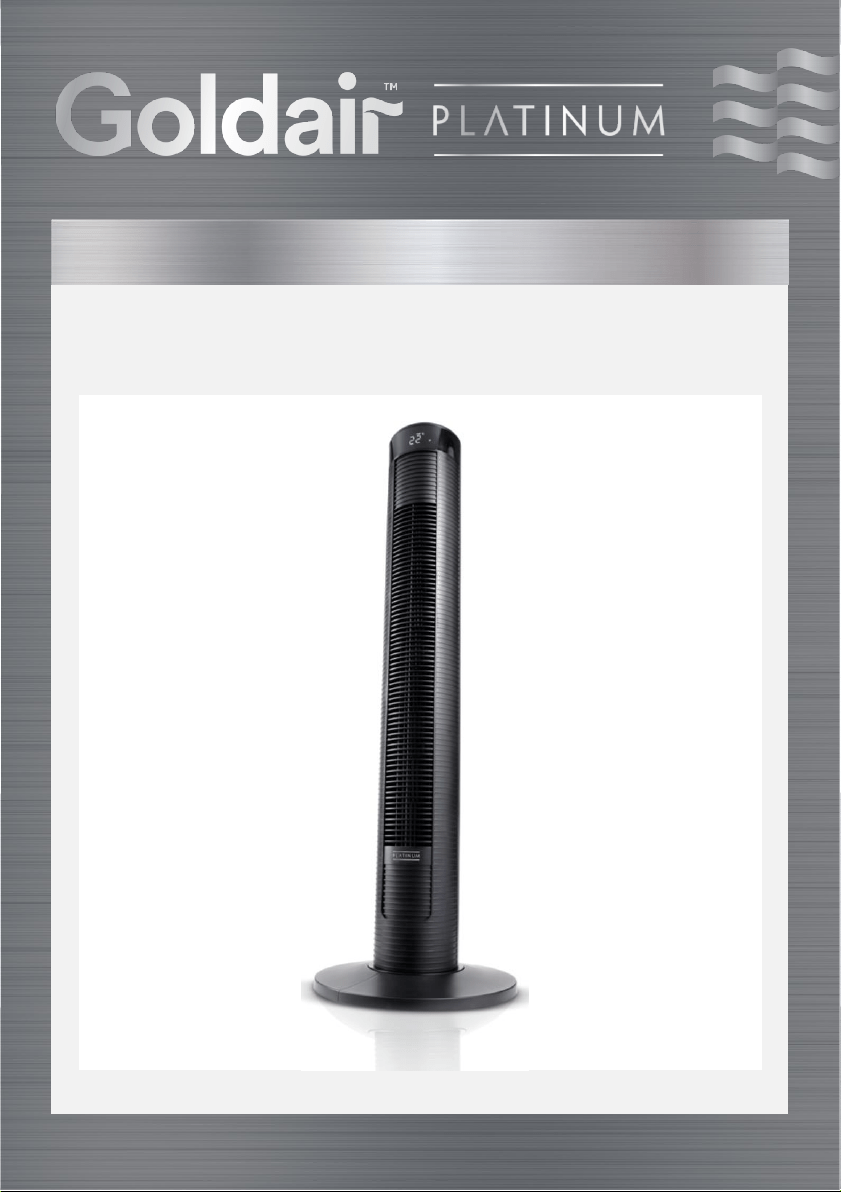
96cm Tower Fan with WiFi
Operating Instructions
Model: GPTF380

General Care and Safety Guide
Thank you for choosing this Goldair product. This Goldair appliance has been designed
and manufactured to high standards of engineering and with proper use and care, as
described in this leaflet, will give you years of useful service. Please read these
instructions carefully and keep them for future reference.
1. This appliance is not intended for use by persons (including children) with reduced
physical, sensory or mental capabilities, or lack of experience and knowledge,
unless they have been given supervision or instruction concerning use of the
appliance by a person responsible for their safety.
2. Children should be supervised to ensure that they do not play with the appliance.
3. If the supply cord is damaged, it must be replaced by the manufacturer, its service
agent or similarly qualified persons in order to avoid a hazard.
4. Ensure that the fan is switched off from the supply mains before removing the
guard.
5. Use only the voltage specified on the rating plate of the appliance.
6. Keep all objects at least 1 Metre from the front, sides and rear of the appliance
7. This appliance is intended for household use only and not for commercial or
industrial use.
8. Use this appliance only as described in this manual. Any other use is not
recommended by the manufacturer and may cause fire, electric shock or injury.
9. The common cause of overheating is deposits of dust or fluff in the appliance.
Ensure these deposits are removed regularly by unplugging the appliance and
vacuum cleaning the air vents and grills.
10. Always unplug appliance when not in use.
11. When the appliance has been unpacked, check it for transport damage and ensure
all parts have been delivered. If parts are missing or the appliance has been
damaged, contact the Goldair Customer Services Team.
12. If your appliance does not work, or is not working properly, contact the place of
purchase. Repair work on the appliance by unqualified persons can cause serious
risk to the user.
13. Ensure hands are dry before handling the plug or the main unit.
14. Carry out regular checks of the supply cord to ensure no damage is evident.
15. Ensure that the cord is fully extended (not coiled) while in use.
16. Avoid contact with the moving parts. Keep hands, hair, clothing, away from blade
of the fan during operation to reduce the risk of injury to person and/or damage
to the unit.
17. Switch off and use handles provided when moving.
18. It is recommended that this fan is plugged directly into the wall socket.
19. A correctly specified, undamaged extension cord may be used with this fan
provided it is used in a safe manner.

TECHNICAL SPECIFICATION
Model: GPTF380
Supply: 220-240VAC 50-60Hz
Wattage: 45W
General Care and Safety Guide
20. Never place appliance close to radiant heat source.
21. Never operate in areas where petrol, paint or other flammable liquids are used or
stored.
22. Never use the appliance to dry clothes.
23. Never insert or allow foreign objects to enter any ventilation or exhaust opening,
as this may cause an electric shock, fire or damage to the appliance.
24. Never use abrasive cleaning products on this appliance. Clean with a damp cloth
(not wet) rinsed in hot soapy water only. Always remove plug from the mains
supply before cleaning.
25. Never connect the appliance to mains supply until completely assembled and
adjusted.
26. Never remove plug from power socket until the appliance has been switched off.
27. Never remove plug from power socket by pulling cord – always grip plug.
28. Never twist, kink or wrap the cord around the appliance, as this may cause the
insulation to weaken and split. Always ensure that all cord has been removed from
any cord storage area and is unrolled before use.
29. Never use this appliance in the immediate surrounds of a bath, a shower, or a
swimming pool or other liquids. The appliance must not be immersed in any
liquids.
30. Due to the risk of injury, never use this appliance for any purpose other than its
intended use. This appliance is intended for use in household and similar
applications such as staff kitchen areas in shops, offices and other working
environments; farm houses, by clients in hotels, motels, bed and breakfast type
environments and other residential type environments
31. Never use this appliance outdoors.
32. Never operate the appliance with a damaged cord or plug, after it malfunctions, or
if it has been damaged in any manner. Have the appliance checked and repaired
by a qualified electrician if repair is necessary.
33. Never place the unit in wardrobes or other enclosed spaces as this may cause fire
hazards.
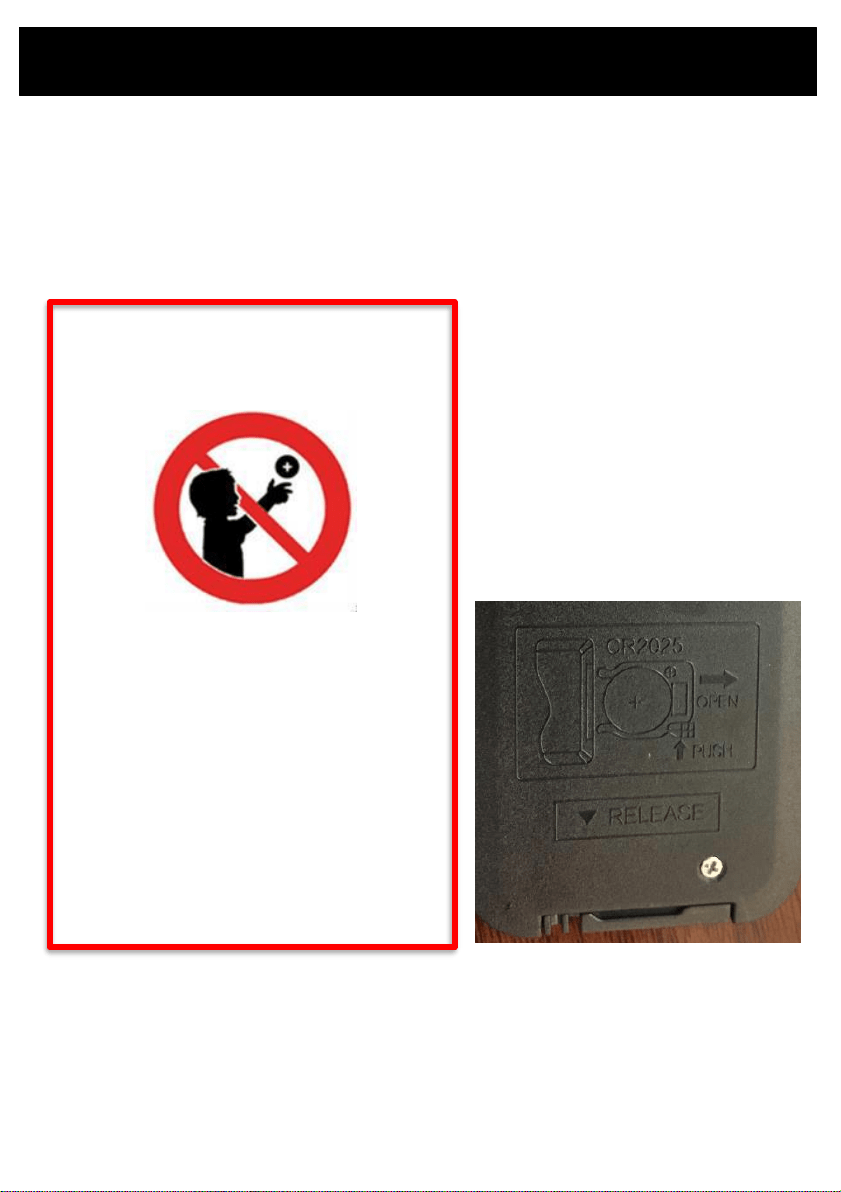
WARNING!
DANGER IF SWALLOWED
Keep batteries out of reach of
children. Swallowing may lead to
serious injury or death in as little
as 2 hours due to internal burns.
If swallowed, go straight to a
hospital emergency room.
Dispose of used batteries
immediately.
General Care and Safety Guide
The remote control supplied with this fan uses a CR2025 coin type battery.
DANGER IF SWALLOWED
Keep batteries out of reach of children. Swallowing may lead to serious injury or death in
as little as 2 hours due to internal burns.
If swallowed, go straight to a hospital emergency room.
Dispose of used batteries immediately.
The remote control has a screw that needs to be removed to be able to access the
battery holder. Always replace this screw once battery change has been made.
Assembly
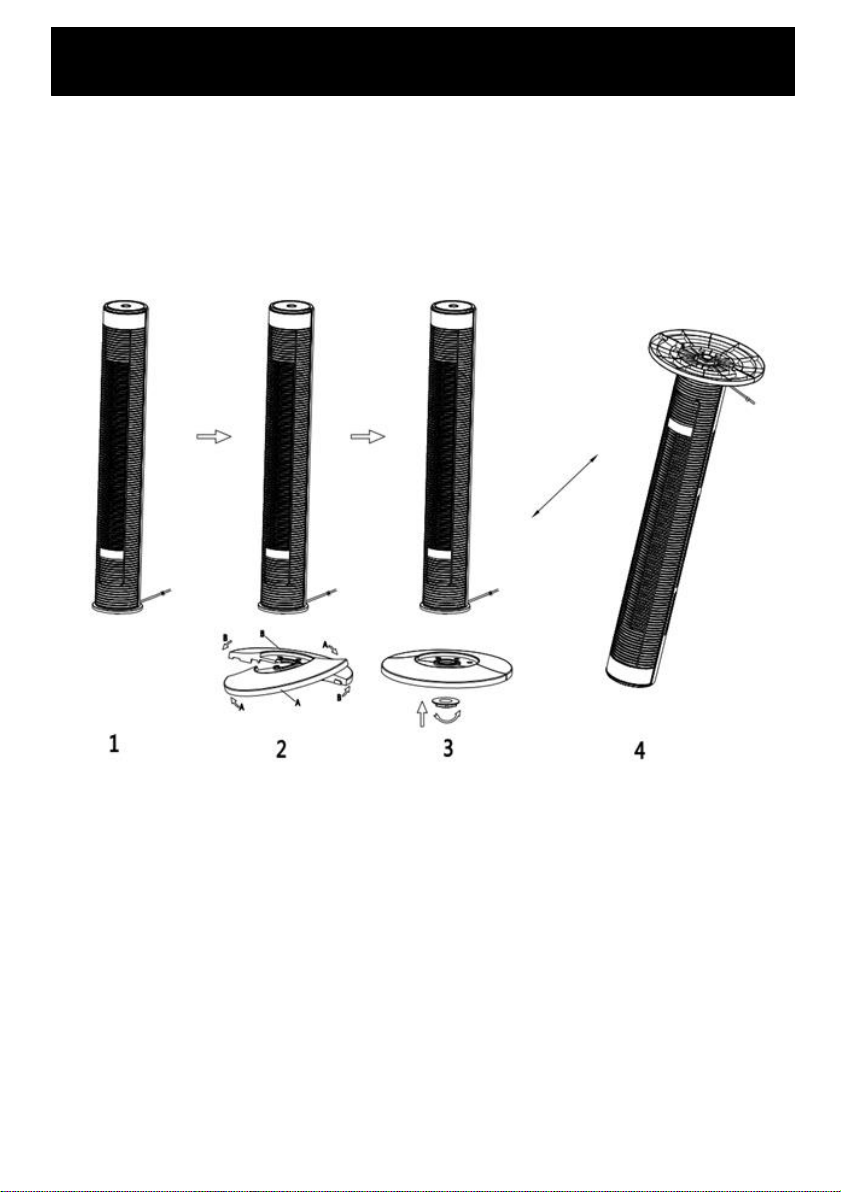
The base of the tower fan comes in two parts, which fit around the oscillation base.
Both parts fit easily together. The back half is the one with cut-outs for the power supply cord.
First remove the large plastic nut from the bottom of the main fan body.
Attach the front half of the base, aligning the holes in base with the locating lugs in the oscillation
base, and leading the power cord through the centre hole.
Then snap the back half of the base to the front half and secure to the base of the fan with the
large plastic nut.
Thread the power supply cord through the two cut-outs at the bottom of the base.
WARNING:Keep all objects at least 1 metre from the front, sides and rear
of the appliance. IMPORTANT! NEVER COVER THIS APPLIANCE!
Place the fan on a dry, level and sturdy surface.
Ensure the fan speed control is on the OFF position before plugging the power cord into the
socket.
Fan control
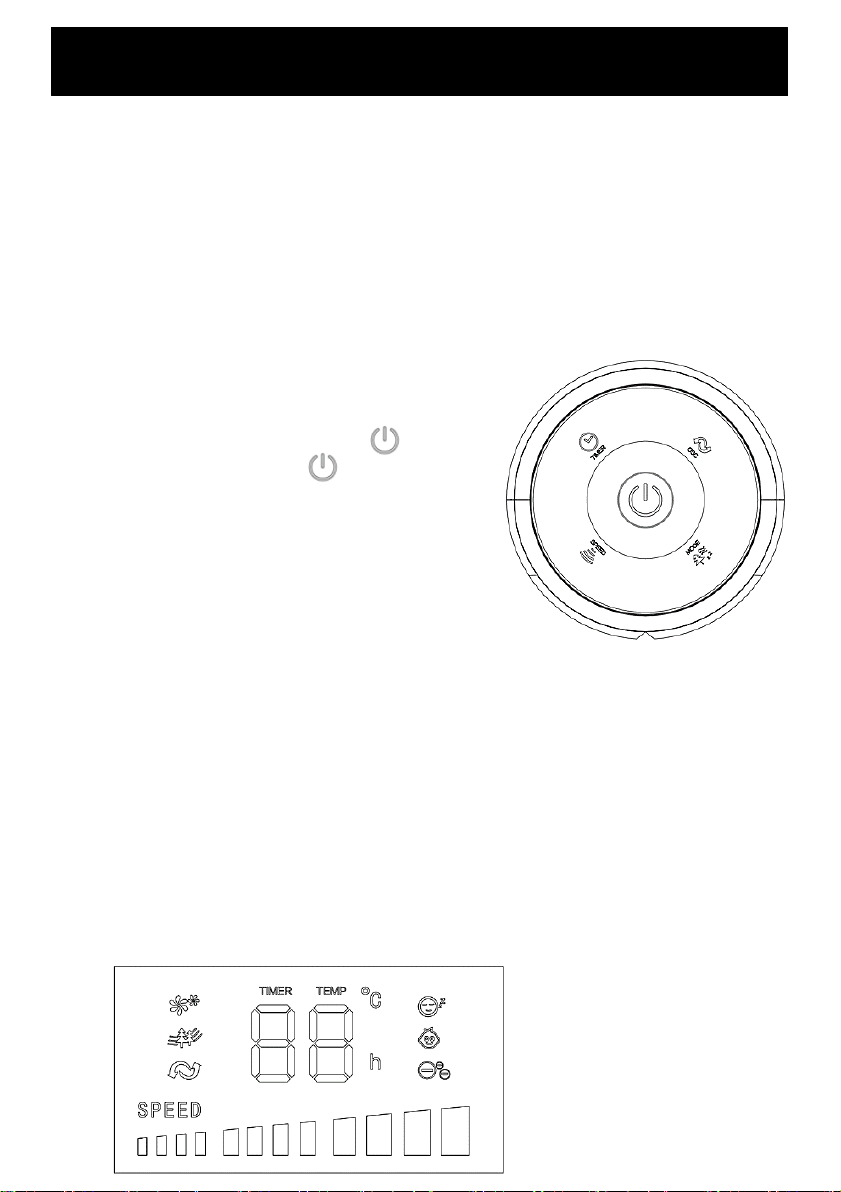
The fan can be operated by the manual controls located on
the top of the fan or by the remote control.
POWER: Turn the FAN on by pressing the button.
Turn the FAN off by pressing the button again.
SPEED: You can adjust the fan speed to the desired level:
low (I), medium (II), or high (III) by pressing ’SPEED’ .
The speed setting is displayed on the LED panel.
MODE: Pressing the ’ MODE’ button will set the FAN into
NORMAL , NATURAL, SLEEP or CHILD mode.
• NORMAL Mode: the fan will work at any speed you set up.
• NATURAL Mode: the fan will start work at high speed(15s), middle speed(15s) and low
speed(15s), it works as per this recycle.
• SLEEP Mode: if you set the mode at high speed, fan will work at high speed at 30 mins, then
transfer to middle speed at 30 mins and transfer to low speed until fan stop working.
• CHILD Mode: Fan will be in auto. Set up timer at 3 hours, oscillation function will start, and it
will work at high speed for 15 minutes, then transfer to middle speed for 15 minutes, then
transfer to low speed until it turns off.
• You can turn off the oscillation function manually.
TIMER: The fan is equipped with a timer that allows you to set it’s
length of operation from 1 hour to 12 hours.
OSC: Pressing the ‘OSC’ button will start and stop the oscillation function.
Operating your Fan
Always choose a safe location for the fan, keeping in mind the safety precautions
outlined. Ensure all packaging has been removed from the unit before use. This appliance
requires no installation, it should be used solely as a portable appliance.
Operating your Fan
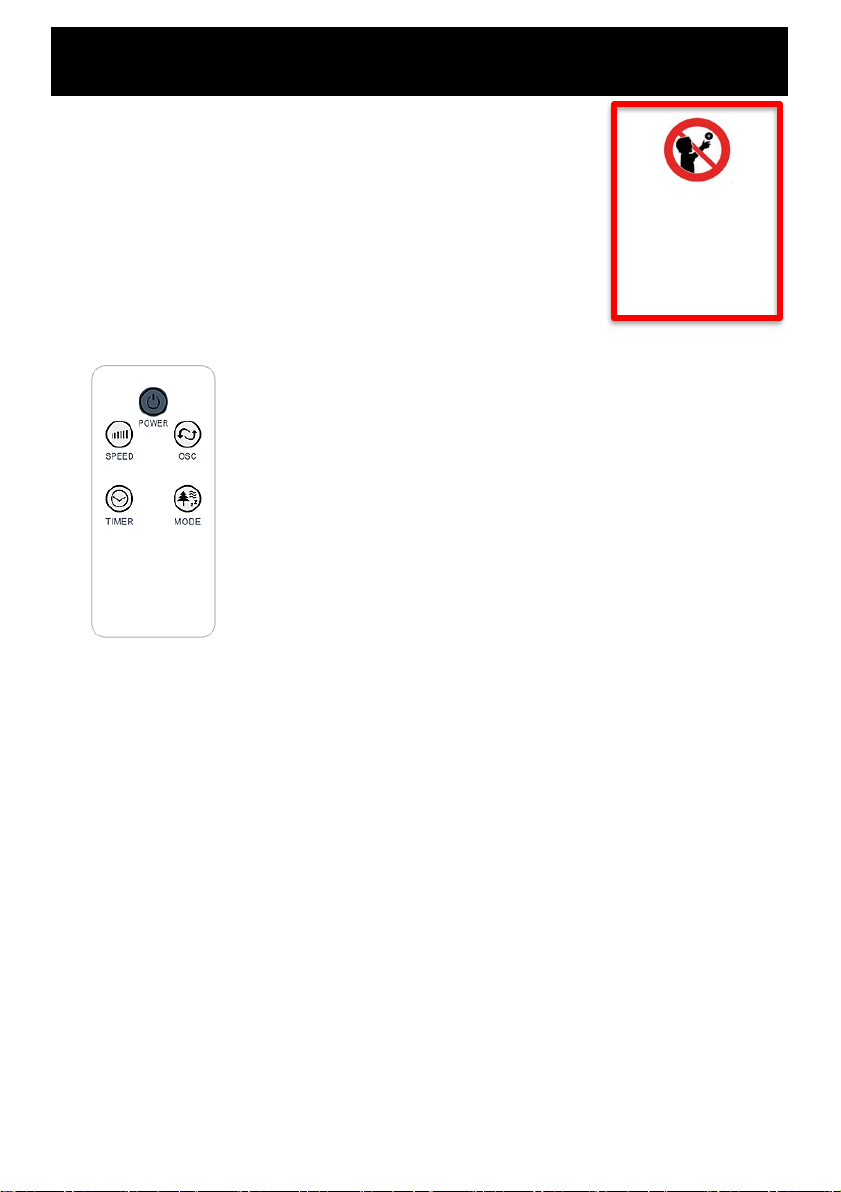
Remote control
The remote requires a line-of-sight path to allow for the signal to be
received by the unit. Position the unit so the receiver lens is visible
from the remote control.
The symbols on the remote correspond to the symbols on the main
unit.
Ensure battery is inserted in the correct direction.
1 x CR2025 size battery is required.
WARNING!
DANGER IF
SWALLOWED
Keep batteries out
of reach of children.
WiFi – Downloading and Setting up APP
For WiFi, the APP is supported only on 2.4GHz WiFi channels.
Please ensure your phone is 2.4GHz capable.
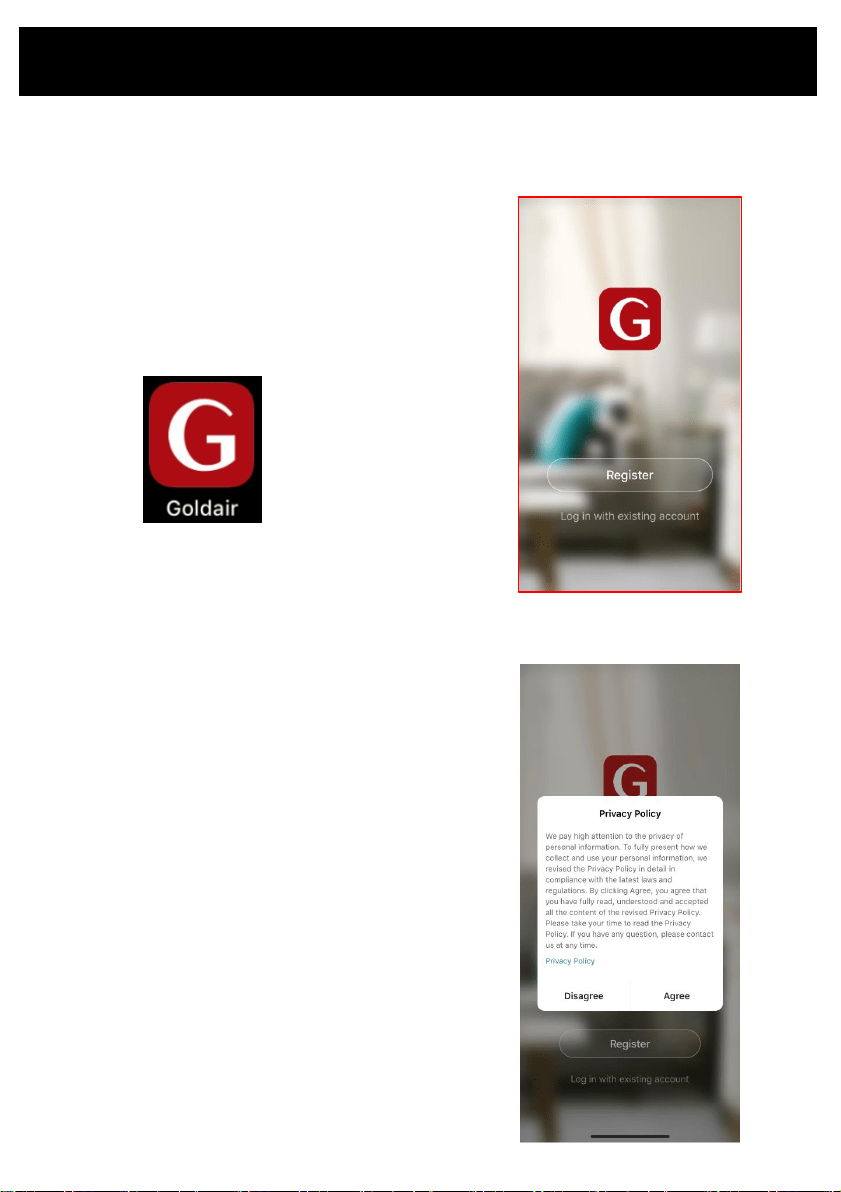
Read and agree to the Privacy Policy.
Tap REGISTER in the centre of the screen.
If you already have an existing account, then you
can Log In.
Download Goldair mobile APP
• Open the APP Store or Google Play on your
mobile phone.
• Open “Search” and enter “Goldair"
• Click “GET” and begin to download and install.
Once downloaded to your phone open the APP
WiFi – Downloading and Setting up APP
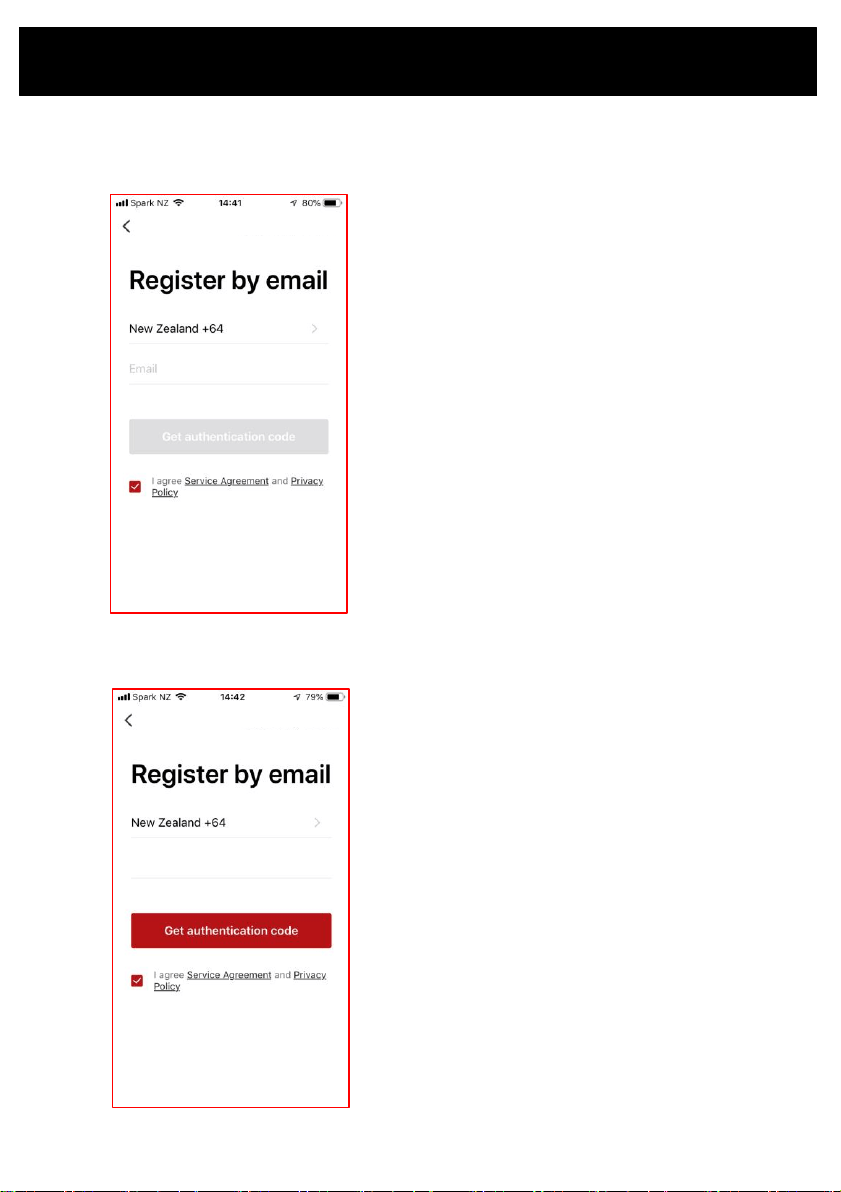
You can either register an email address or a phone number. The APP defaults to email but you just need
to tap the “Register by Phone” at top right of the screen to change.
Enter you email address or a phone number then press “Get authentication code”.
Pairing APP to Fan
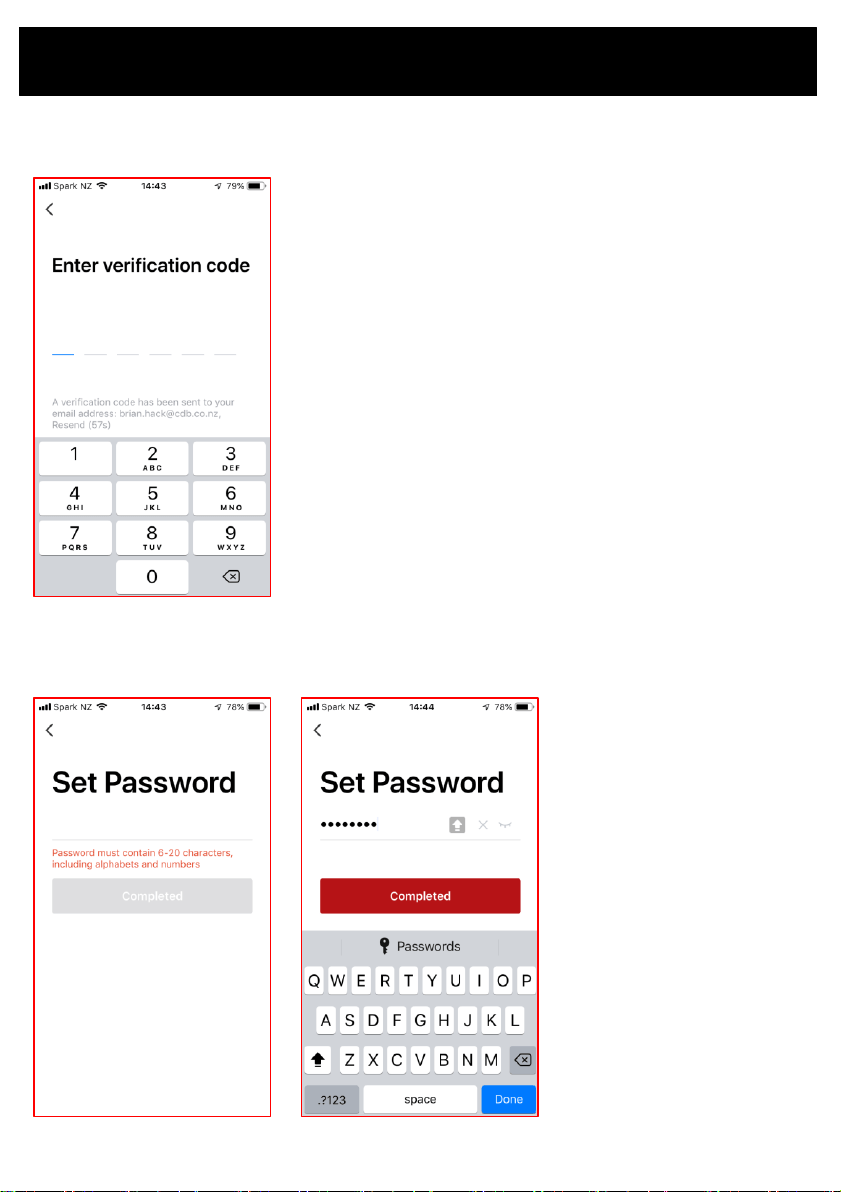
Enter the verification code that you will receive by email or text message
Next you will be prompted to Set a Password. The password must contain 6 - 20 characters and must be a
mix of letters and numbers.
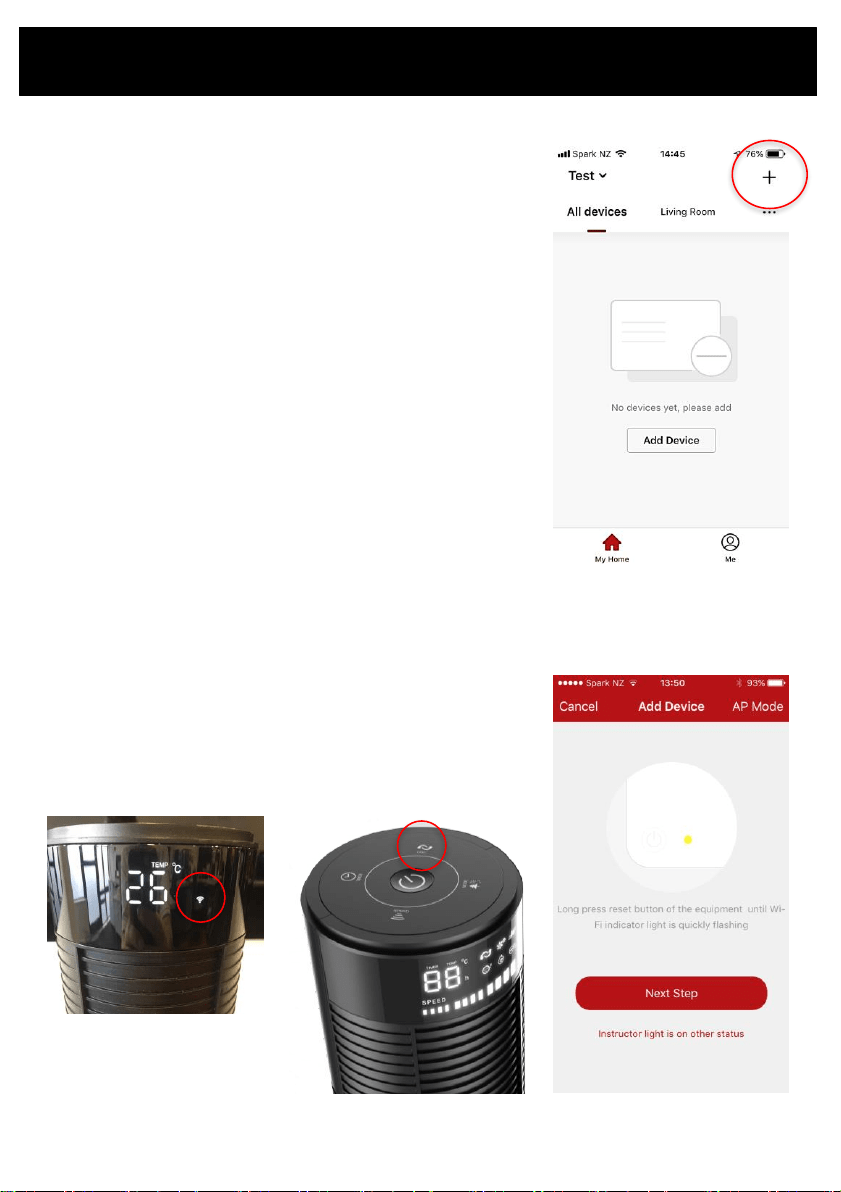
Plug the fan into the mains power and make sure
the mains power switch is on.
On your phone open the Goldair app.
Then tap the “+” button at the top right of the
screen.
Pairing APP to Fan
Your tower fan should be ready to connect to your
smart phone from when you first turn it off.
However if this is not the case or if your fan drops off
the WiFi signal, press and hold the OSCILLATION
button on the fan for 5 seconds until the WiFi
symbol starts flashing. A beep will sound indicating
the fan is trying to connect to the WiFI and to the
app on the phone. A WiFi icon will appear on the
display screen and will start to blink every second
indicating its in the WiFi connecting mode.
Tap ‘Next Step” on the phone.
Pairing APP to Fan
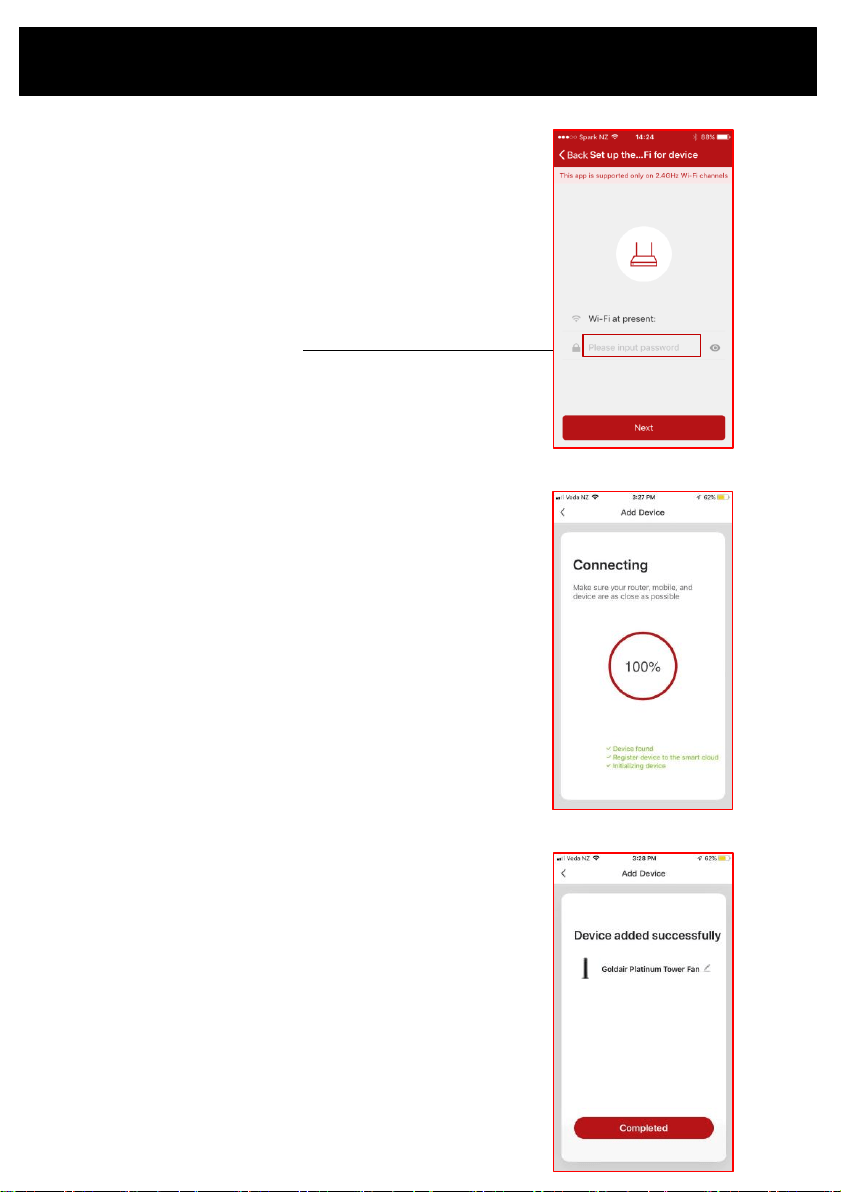
Choose/confirm which WiFi to connect to.
Note: your phone may pick up other WiFi signals
(e.g. neighbours) so you will need to choose.
Enter your WiFi password
The phone will then connect to the fan.
Ensure you have a good strong signal from your
WiFi router.
Note: The WiFi indicator on the fan may go off
during this pairing process.
Once complete the screen showing “device added
successfully” will appear.
Rename the fan if desired.
Tap “Completed” to continue.
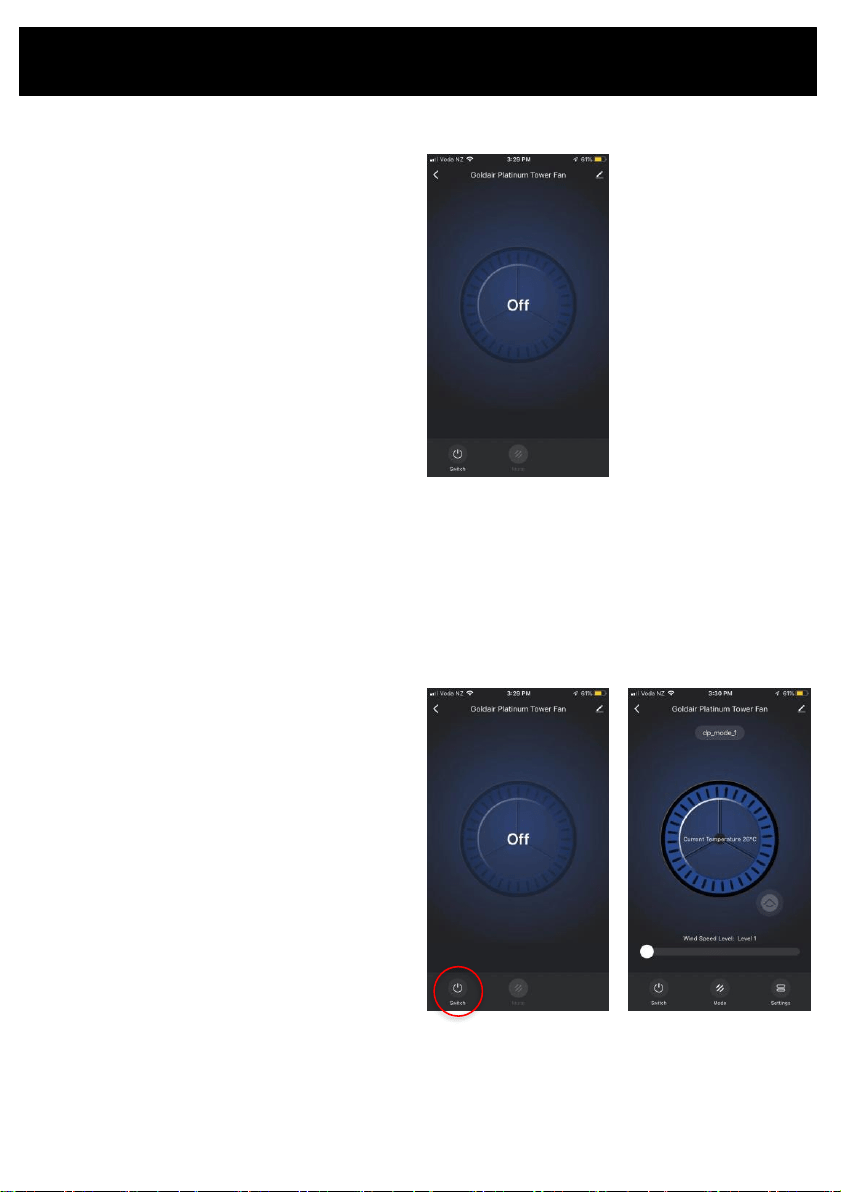
When the phone interface shows the addition is
successful, and the WIFI indicator on the fan
will stop flashing.
The fan pairing is complete and the main
control screen on your phone will appear showing
the fan as OFF.
If the phone and fan fail to connect, then you will need to try to connect again as per the above
process.
Operating your Fan from the APP
POWER
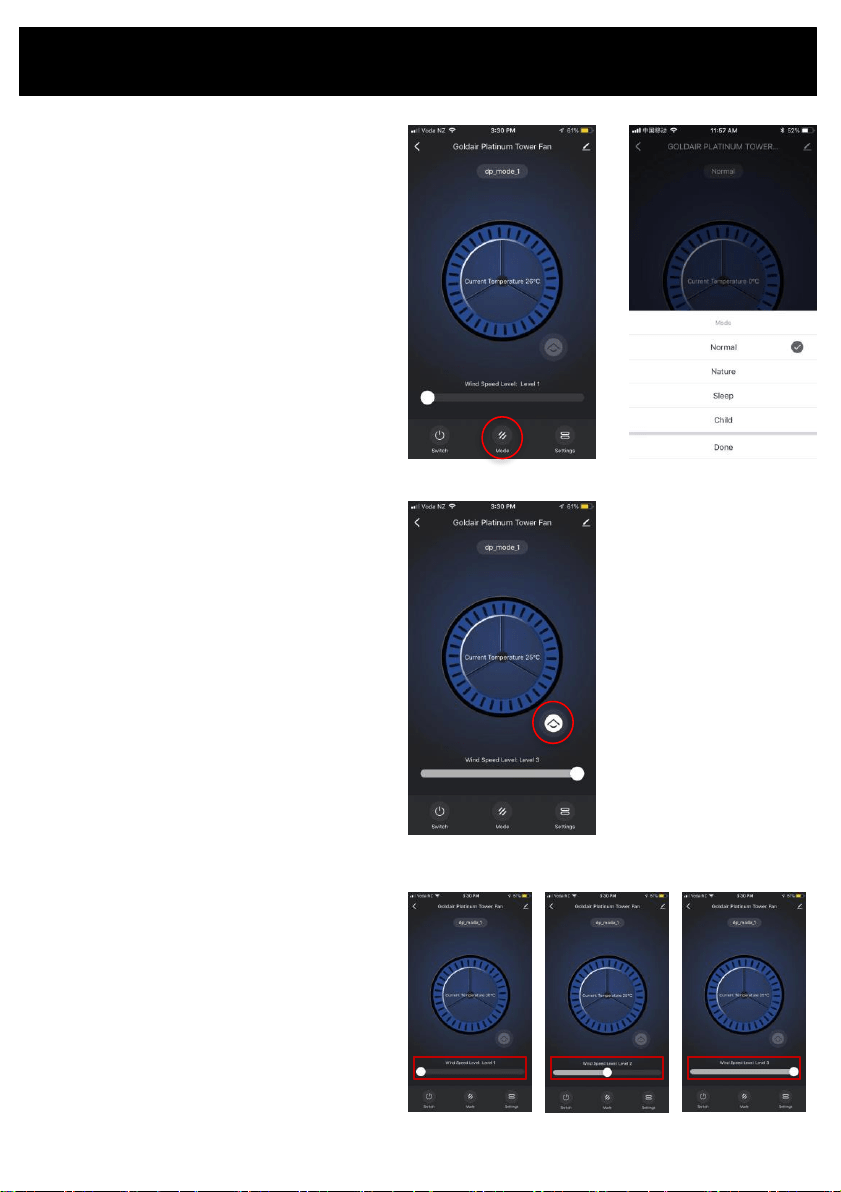
Open the “GOLDAIR" APP to select the fan (when
using one mobile phone to control multiple fans,
you need to select the fan to be operated).
• Select the fan to be operated and enter the
operation interface.
• Tap the Power/Switch icon down the bottom
and the fan will turn on.
The graphic will now start spinning.
• You can now control the fan.
• To turn the fan off again tap the Power/Switch
icon.
Fan OnFan Off
Operating your Fan from the APP
MODE
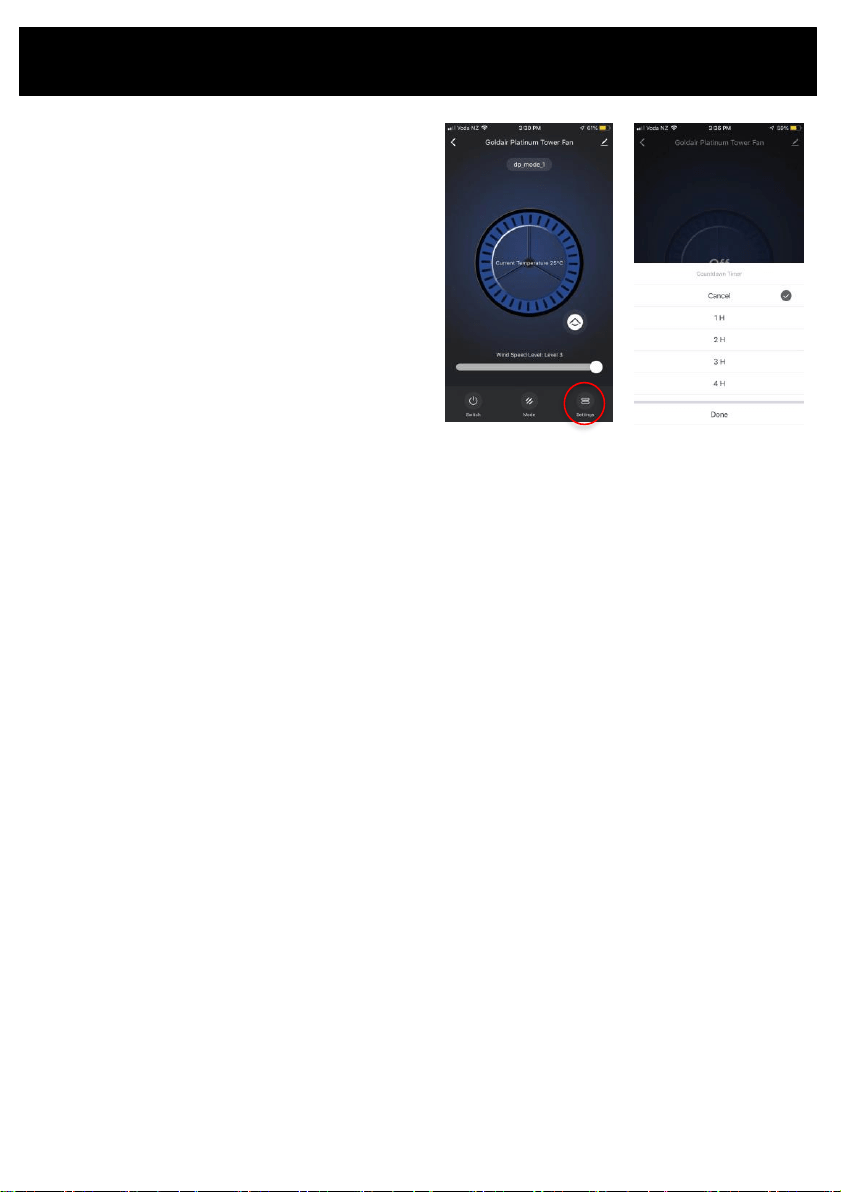
There are 4 modes the fan can go into. To select
the mode press the Mode icon.
NORMAL – this is the standard and default mode
of the fan. 3 Speed settings
NATURAL – this mode attempts to mimic the
outdoor natural wind type of by constantly
changing the
wind speed.
SLEEP – this mode is very similar to natural mode
where the wind speed will change every few
seconds.
CHILD – Fan will run for 3 hours before turning
off. Fan will work in a cycle of high speed to
medium to low speed, all for about 15 minutes.
Oscillation will active.
OSCILLATION (OSC)
To select the oscillation mode on the app, hold
your finger on the icon for 2-3 seconds and
release.
To exit oscillation mode, follow the same process.
SPEED SETTINGS
To select the three different speed settings,
adjust the bar on the bottom of the app.
In the default mode of Normal you can select
speed settings from 1-3 (1) quiet and low
speed,
(3) high speed.
Tap the speed setting that feels the most
comfortable to you.
Speed 1
Speed 2
Speed 3
Operating your Fan from the APP
TIMER
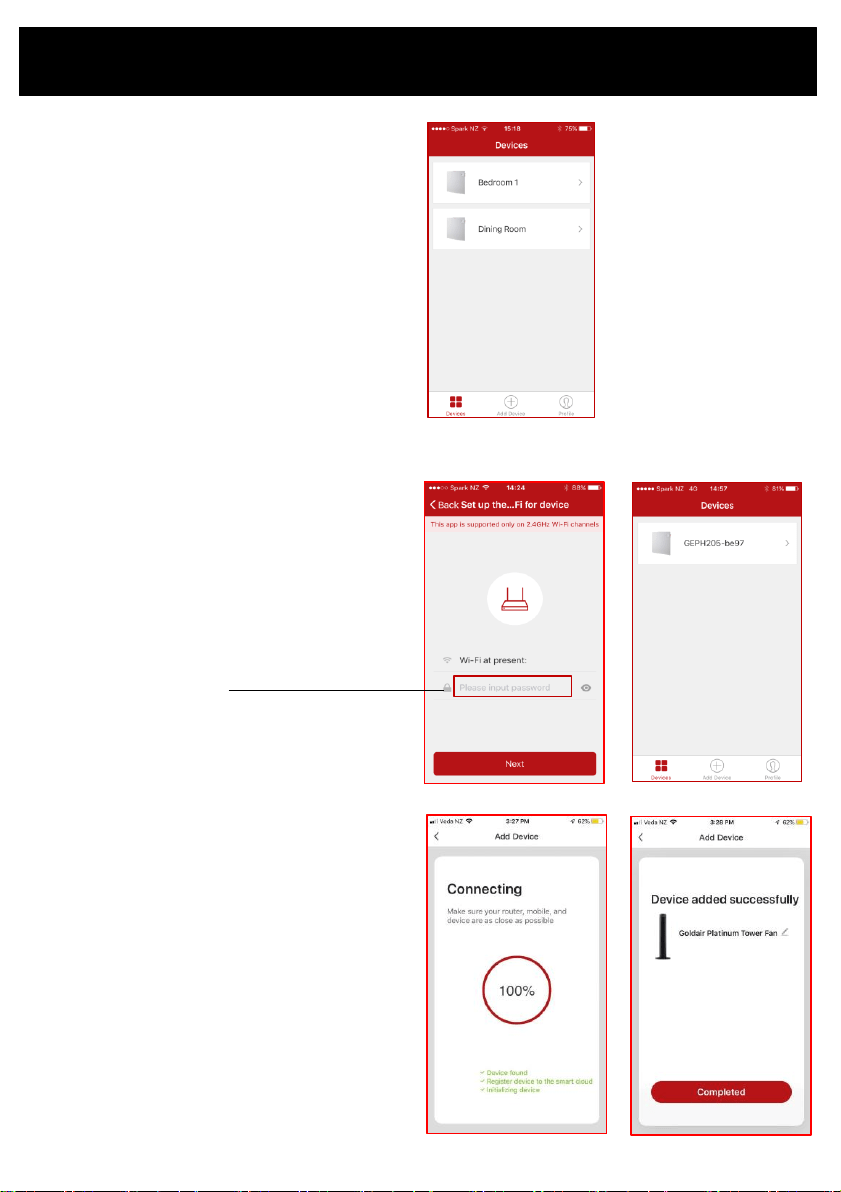
To set the timer, press the settings button in
the lower right corner and then press
countdown timer.
When the fan is ON you can set it to turn OFF
after a number of hours (1-12 hours) has
elapsed.
To cancel the timer, touch the timer button
again and tap cancel.
Adding Additional Fans
Your Devices list will then show the additional fans
that you have paired
The phone will then connect to the fan.
Ensure you have a good strong signal from your
WiFi router.
Note: The WiFi indicator on the fan screen may
disappear during this pairing process.
Once complete the screen showing the device has
been successfully added will appear.
Rename the fan if desired.
Tap “Done” to continue.
Choose/confirm which WiFi to connect to.
Note: your phone may pick up other WiFi signals
(eg. neighbours) so you will need to choose.
Enter your WiFi password
From the “Devices” page of the APP press “Add
Device” and follow the steps below to pair the new
fan.
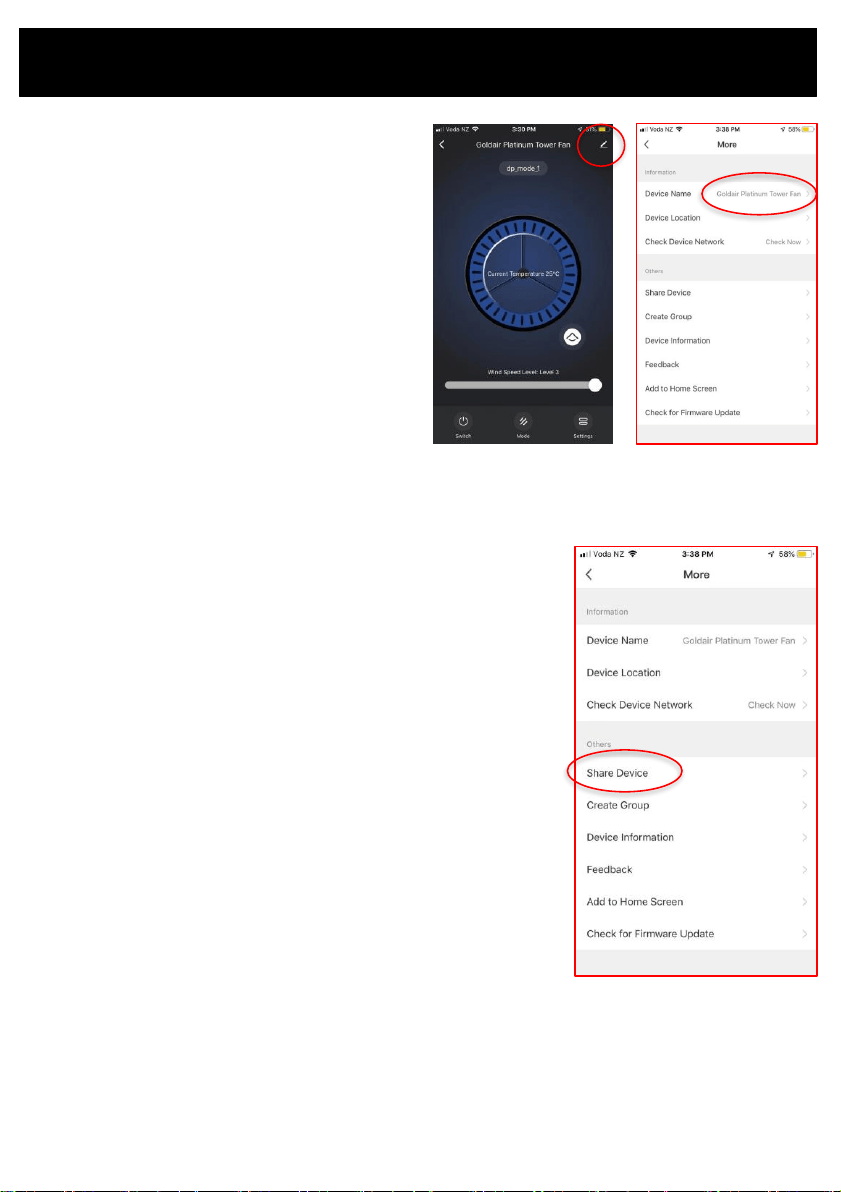
You can rename the fan.
Tap the pencil in the top right hand corner of the
fan control screen.
Click “Device Name” and rename the fan. Example:
Bedroom 1, Dining Room etc. and tap save.
Alternatively you can add the ‘Device Location” to
identify where the fan is.
DEVICE SHARING SET UP
The person you add will need to have the Goldair APP installed on
their phone.
Open the “GOLDAIR APP” and tap the pencil in the top right of the
screen.
Tap “Shared devices” and then "Add Sharing" to enter the number
of the person you want to include or tap the phone icon to select
the persons phone number.
Tap “Completed” to complete the addition.
DEVICE SHARING CANCELLATION
Open the “GOLDAIR APP” and tap the 3 dots in the top right of the
screen. Tap “Shared devices” and then “Add Sharing” and delete
the phone numbers of shared members to cancel the device
sharing.
NOTE: There can only be one user operating the fan at a time. The
APP needs to be closed on all other devices to enable the sharing
to work.
NOTE: If someone else sets up their phone on the same fan
without using the “Device Sharing” the original phone will be
disconnected and the fan will disappear from the device list.
Adding Additional Fans

The fan requires regular cleaning to ensure trouble free operation.
Unplug the fan from the mains supply before cleaning.
Use a damp cloth (not wet) to wipe the exterior of the fan to remove dust and dirt.
Use a vacuum cleaner to remove dust and fluff from around the grills.
Ensure the fan is dry before plugging back into the mains supply.
Do not attempt to dismantle the fan. There are no user serviceable parts.
For service or repair, contact an authorised electrical service technician.
Cleaning
Goldair – New Zealand
Monday – Friday 8am-5pm
Phone +64 (0)9 917 4000
Phone 0800 232 633
Goldair – Australia
Monday – Friday 8am-5pm
Phone +61 (0)3 9365 5100
Phone 1300 465 324
SUPPORT AND TECHNICAL ADVICE
PROOF OF PURCHASE
To receive warranty retain receipt as proof of purchase. (Refer to back of booklet).
Thank you for purchasing this Goldair Platinum product. Your product is warranted against faults and manufacture when used in
normal domestic use for a period of two years. In non-domestic use Goldair limits the voluntary warranty to three months.
Goldair undertake to repair or replace this product at no charge if found to be defective due to a manufacturing fault during the
warranty period.
This warranty excludes damage caused by misuse, neglect, shipping accident, incorrect installation, or work carried out by anyone
other than a qualified electrical service technician.
PLEASE KEEP YOUR RECEIPT AS THIS WILL HELP VERIFY YOUR WARRANTY.
The benefits given to you by this warranty are in addition to other rights and remedies available to you under law in relation to the
goods or services to which this warranty relates.
In Australia, our goods come with guarantees that cannot be excluded under the Australian Consumer Law. You are entitled to a
replacement or refund for a major failure and compensation for any other reasonably foreseeable loss or damage. You are also
entitled to have the goods repaired or replaced if the goods fail to be of acceptable quality and the failure does not amount to a
major failure.
In New Zealand this warranty is additional to the conditions and guarantees of the Consumers Guarantee Act (1993).
Two Year Warranty
Goldair Two Year Warranty (IMPORTANT: Please complete and retain this warranty card)
Name
Address
Place Of Purchase Date Of Purchase
Name Of Product Model Number
Attach a copy of the purchase receipt to this warranty card
Due to continual design improvements, the product illustrated in this User Manual may differ slightly from the actual
product.
Goldair – New Zealand
CDB Goldair
PO Box 100-707
N.S.M.C
Auckland
Phone +64 (0)9 917 4000
Phone 0800 232 633
www.goldair.co.nz
Goldair – Australia
CDB Goldair Australia Pty
PO Box 574
South Morang
Victoria, 3752
Phone +61 (0)3 9365 5100
Phone 1300 GOLDAIR (1300 465 324)
www.goldair.com.au

New Zealand
PO Box 100707,
North Shore Mail Centre,
Auckland, 0745
www.goldair.co.nz
Australia
PO Box 574,
South Morang,
Victoria, 3752
www.goldair.com.au