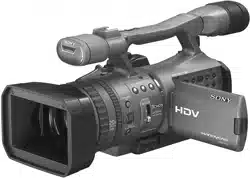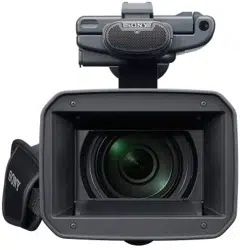
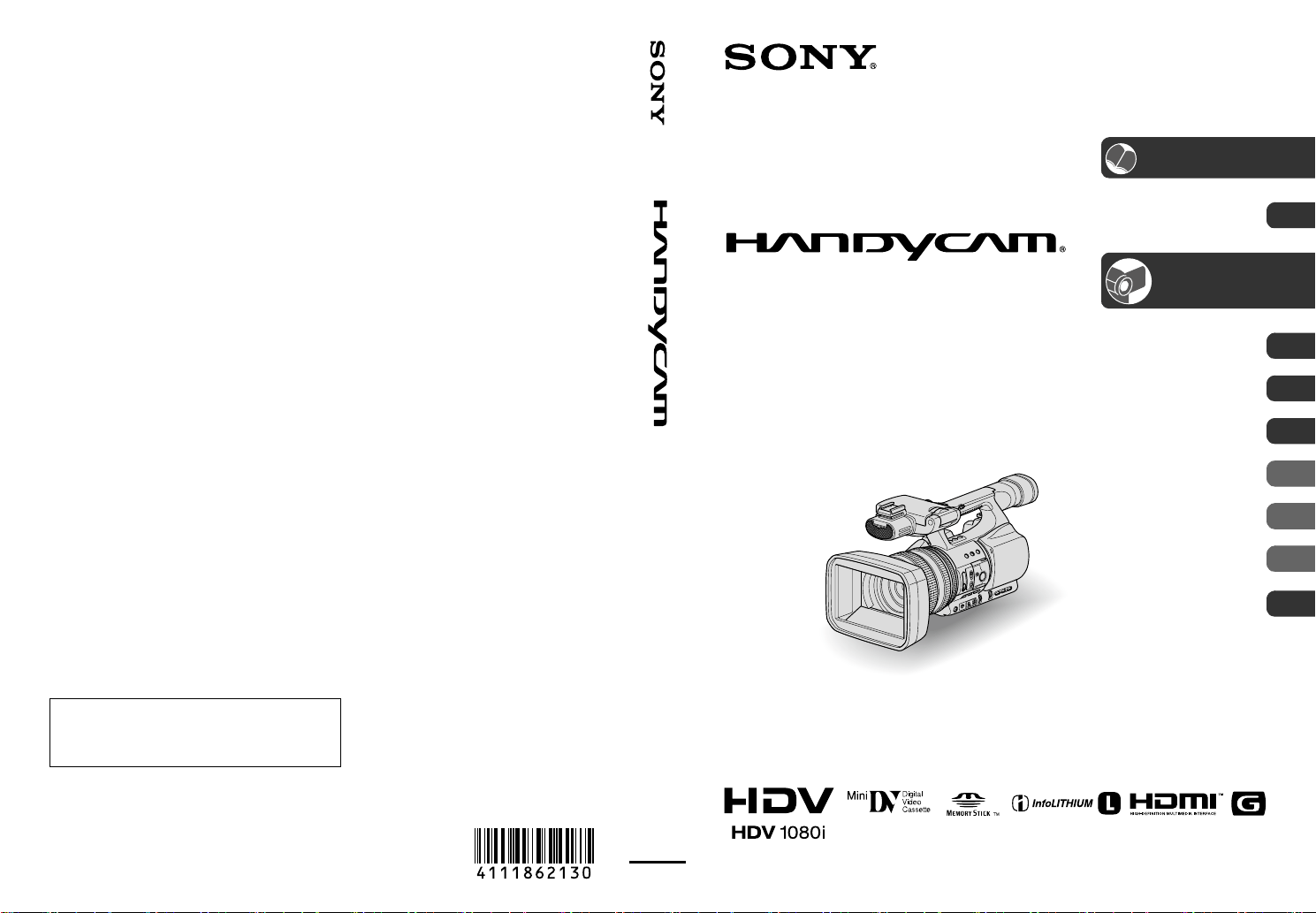
US
HDR-FX1000 4-111-862-13(1) HDR-FX1000 4-111-862-13(1)
C:\édéñÉtÉHÉãÉ_\ÅiäîÅjÉGÉXÉPÉCÉèÅ[Éh\SONY\CX24000\Source\4111862131\4111862131
\4111862131HDRFX1000\01US00COV.fm
HDR-FX1000
4-111-862-13(1)
4-111-862-13(1)
© 2008 Sony Corporation
Digital HD Video Camera Recorder
Operating Guide
HDR-FX1000
Enjoying pictures with
high definition quality
12
Getting Started 16
Recording/
Playback
28
Using the Menu 62
Dubbing/Editing 84
Using a Computer 91
Troubleshooting 94
Additional Information 107
Quick Reference 123
Spanish Quick Guide/
Guía rápida en español
135
01US00COV.fm 1 ページ 2011年5月26日 木曜日 午後3時9分
C:\édéñÉtÉHÉãÉ_\ÅiäîÅjÉGÉXÉPÉCÉèÅ[Éh\SONY\CX24000\Source\4111862131\4111862131
\4111862131HDRFX1000\01US15BCOV.fm
HDR-FX1000
4-111-862-13(1)
http://www.sony.net/
Printed in Japan
Additional information on this product and answers
to frequently asked questions can be found at our
Customer Support Website.
01US15BCOV.fm 152 ページ 2011年5月26日 木曜日 午後3時25分
2
To reduce fire or shock hazard, do
not expose the unit to rain or
moisture.
This symbol is intended to alert
the user to the presence of
unins
ulated “dangerous
voltage” within the product’s
enclosure that may be of
sufficient magnitude to
constitute a risk of electric
shock to persons.
This symbol is intended to alert
the user to the presence of
i
m
portant operating and
maintenance (servicing)
instructions in the literature
accompanying the appliance.
Never expose the battery pack to
temperature above 60 ° C (140 ° F), such as
in a car parked in the sun or under direct
sunlight.
WARNING

3
SAVE THESE INSTRUCTIONS.
DANGER - TO REDUCE THE RISK OF FIRE
OR ELECTRIC SHOCK,
CAREFULLY FOLLOW THESE
INSTRUCTIONS.
• Read these instructions.
• Keep these instructions.
• Heed all warnings.
• Follow all instructions.
• Do not use this apparatus near water.
• Clean only with dry cloth.
• Do not block any ventilation openings. Install in accordance with the
manufacturer's instructions.
• Do not install near any heat sources such as radiators, heat registers,
stoves, or other apparatus (including amplifiers) that produce heat.
• Do not defeat the safety purpose of the polarized or grounding-type plug.
A polarized plug has two blades with one wider than the other. A
grounding type plug has two blades and a third grounding prong. The
wide blade or the third prong are provided for your safety. If the provided
plug does not fit into your outlet, consult an electrician for replacement of
the obsolete outlet.
• Protect the power cord from being walked on or pinched particularly at
plugs, convenience receptacles, and the point where they exit from the
apparatus.
• Only use attachments/accessories specified by the manufacturer.
• Use only with the cart, stand, tripod, bracket, or table specified by the
manufacturer, or sold with the apparatus. When a cart is used, use caution
when moving the cart/apparatus combination to avoid injury from tip-
over.
• Unplug this apparatus during lightning storms or when unused for long
periods of time.
IMPORTANT SAFETY INSTRUCTIONS
Continued ,

4
• Refer all servicing to qualified service personnel. Servicing is required
when the apparatus has been damaged in any way, such as power-supply
cord or plug is damaged, liquid has been spilled or objects have fallen into
the apparatus, the apparatus has been exposed to rain or moisture, does
not operate normally, or has been dropped.
• This set should be operated only from the type of power source indicated
on
the marking label. If you are not sure of the type of electrical power
supplied to your home, consult your dealer or local power company. For
those sets designed to operate from battery power, or other sources, refer
to the operating instructions.
• For connection to a supply not in the U.S.A., use an attachment plug
adap
ter of the proper configuration for the power outlet.
IMPORTANT SAFETY INSTRUCTIONS (Continued)

5
Read this first
Before operating the unit, please read this
manual thoroughly, and retain it for future
reference.
Replace the battery with the
sp
eci
fied type only. Otherwise, fire
or injury may result.
Excessive sound pressure from earphones
a
nd he
adphones can cause hearing loss.
Do not expose the batteries to excessive
heat such as sunshine, fire or the like.
RECYCLING LITHIUM-ION BATTERIES
Lithium-Ion batteries are
recyclable. You can help preserve
our environment by returning
your used rechargeable batteries
to the collection and recycling
location nearest you.
For more information regarding recycling of
r
echar
geable batteries, call toll free 1-800-822-
8837, or visit http://www.rbrc.org/
Caution: Do not handle damaged or leaking
Lithium-Ion batteries.
Owner’s Record
The model and serial numbers are located on the
bottom. Record the serial number in the space
provided below. Refer to these numbers whenever
you call upon your Sony dealer regarding this
product.
If you have any questions about this
product, you may call:
Sony Customer Information Center 1-800-
222-SO
NY (7669).
The number below is for the FCC related
m
a
tters only.
Regulatory Information
CAUTION
You are cautioned that any changes or
modifications not expressly approved in this
manual could void your authority to operate this
equipment.
Note
This equipment has been tested and found to
comply with the limits for a Class B digital
device, pursuant to Part 15 of the FCC Rules.
These limits are designed to provide reasonable
prot
ection against harmful interference in a
residential installation. This equipment generates,
uses, and can radiate radio frequency energy and,
if not installed and used in accordance with the
instructions, may cause harmful interference to
radio communications.
However, there is no guarantee that interference
will not occur in a particular installation. If this
equipment does cause harmful interference to
radio or television reception, which can be
determined by turning the equipment off and on,
the user is encouraged to try to correct the
interference by one or more of the following
measures:
CAUTION
For customers in the U.S.A. and
CANADA
Model No. HDR-FX1000
Serial No.
Model No. AC-
No.
For customers in the U.S.A.
Declaration of Conformity
Trade Name: SONY
Model No.: HDR-FX1000
Responsible Party: Sony Electronics Inc.
Address: 16530 Via Esprillo, San Diego, CA
92127 U.S
.A.
Telephone Number: 858-942-2230
This device complies with Part 15 of the FCC
Rul
es.
Operation is subject to the following two
conditio
ns:
(1) This device may not cause harmful
in
terference, and (2) this device must accept any
interference received, including interference
that may cause undesired operation.
Continued ,
6
– Reorient or relocate the receiving antenna.
– Increase the separation between the equipment
and rece
iver.
– Connect the equipment into an outlet on a
cir
cuit different from that to which the receiver
is connected.
– Consult the dealer or an experienced radio/TV
techni
cian for help.
The supplied interface cable must be used with the
equi
pment in order to comply with the limits for a
digital device pursuant to Subpart B of Part 15 of
FCC Rules.
For the State of California, USA only
Perchlorate Material - special handling may
apply, See
www.dtsc.ca.gov/hazardouswaste/perchlorate
Pe
rchlorate Material: Lithium battery contains
perchlorate.
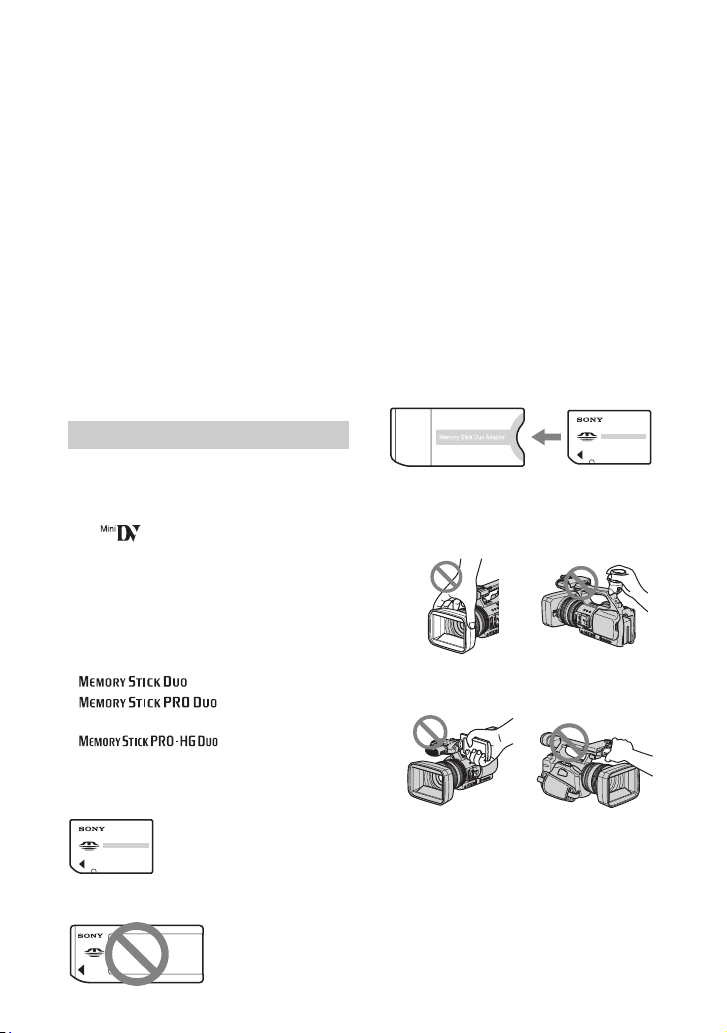
Types of cassette you can use in your
camcorder
You can use mini DV cassettes marked
with . Your camcorder does not
support the Cassette Memory function
(p. 110).
Types of “Memory Stick” you can use
in your camcorder
You can use “Memory Stick” that have the
logo shown below (p. 111).
– (“Memory Stick Duo”)
– (“Memory Stick
PRO Duo”)
– (“Memory Stick
PRO-HG Duo”)
“Memory Stick Duo”
(This size can be used with your camcorder.)
“Memory Stick”
(You cannot use with your camcorder.)
• You cannot use any type of memory card
except “Memory Stick Duo.”
• “Memory Stick PRO Duo” can be used
on
ly with “Memory Stick PRO”
compatible equipment.
• Do not attach a label or the like on a
“M
emory Stick Duo” or a “Memory Stick
Duo” Adaptor.
When using a “Memory Stick Duo”
with “Memory Stick” compatible
equipment
Be sure to insert the “Memory Stick Duo”
into the “Memory Stick Duo” Adaptor.
“Memory Stick Duo” Adaptor
Using the camcorder
• Do not hold the camcorder by the
following part.
b Notes
• The camcorder is not dustproof, dripproof
or waterproof.
See “About handling of your camcorder”
(p.
115).
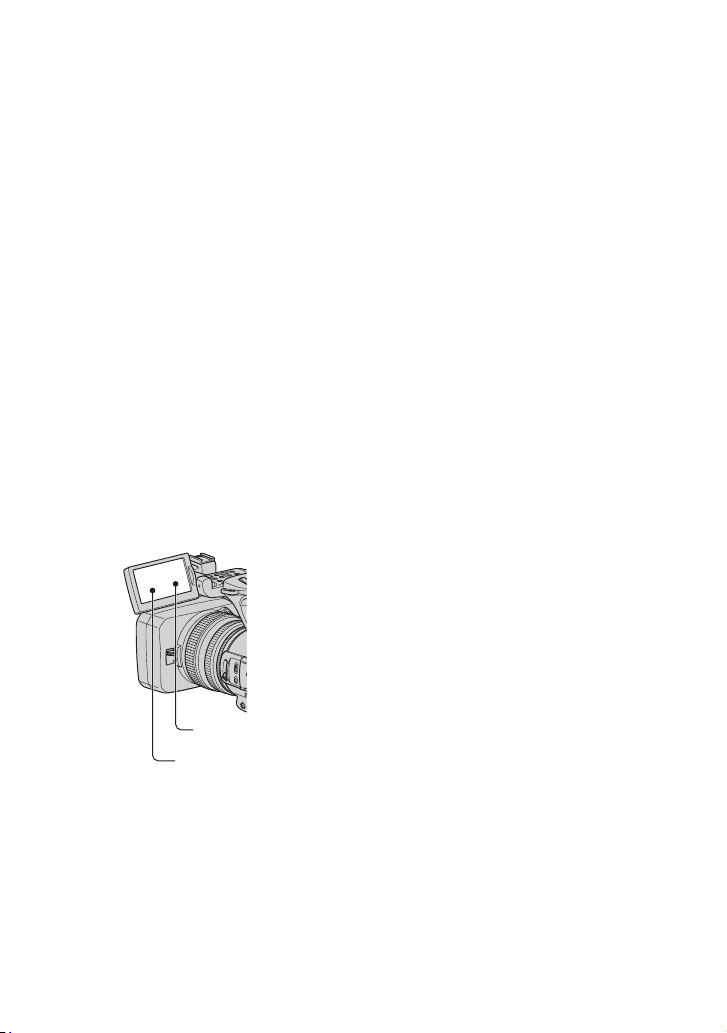
Notes on use
LCD panel Microphone
ViewfinderLens hood
with lens cover
Read this first (Continued)
7
• Do not connect cables to your camcorder
with their terminals placed the wrong
way. Squeezing the terminals into your
camcorder's jacks may damage them or
results in a malfunction of your
camcorder.
About menu items, LCD panel,
viewfinder, and lens
• A menu item that is grayed out is not
available under the current recording or
playback conditions.
• The LCD screen and the viewfinder are
m
a
nufactured using extremely high-
precision technology, so over 99.99% of
the pixels are operational for effective
use. However, there may be some tiny
black points and/or bright points (white,
red, blue, or green in color) that appear
constantly on the LCD screen and the
viewfinder. These points are normal
results of the manufacturing process and
do not affect the recording in any way.
About temperature of your camcorder
and battery pack
• Your camcorder has a protective function
that disables recording or playback if the
temperature of your camcorder or battery
pack is beyond the safely operable range.
In this case, a message appears on the
screen or in the viewfinder (p. 105).
Do not expose your camcorder’s
viewfinder, lens, or LCD screen to the
sun or strong light source for extended
periods.
• Intense light sources, especially the sun
will converge on the viewfinder or lens
and damage the internal parts of your
camcorder. Avoid sunlight or other strong
light sources when storing your
camcorder. Protect this device by always
closing the lens cover or by placing it in
its bag when not in use.
On recording
• Before starting to record, test the
recording function to make sure the
picture and sound are recorded without
any problems.
• Compensation for the contents of
r
eco
rdings cannot be provided, even if
recording or playback is not possible due
to a malfunction of the camcorder, storage
media, etc.
• TV color systems differ depending on the
c
oun
tries/regions. To view your
recordings on a TV, you need an NTSC
system-based TV.
• Television programs, films, video tapes,
a
nd ot
her materials may be copyrighted.
Unauthorized recording of such materials
may be contrary to the copyright laws.
• Because of the way that the image device
(C
MOS se
nsor) reads out image signals,
the subjects passing by the frame rapidly
might appear crooked depending on the
recording conditions. This phenomenon
may be notable in displays having high
motion resolution.
Black point
White, red, blue
or green points
Continued ,

8
On playing back HDV tapes on other
devices
You cannot play back a tape recorded in the
HDV format on DV format video cameras
or on mini DV players.
Check the contents of tapes by playing
t
h
em back on this camcorder prior to
playing them back on other devices.
Note on the icons used in this manual
Features available for the HDV
format only
Features available for the DV
format only
This function that can be used when
i.LINK cable is connected.
The function that can be assigned to
an ASSIGN button.
About this manual
• The images of the LCD screen and the
viewfinder used in this manual for
illustration purposes are captured using a
digital still camera, and therefore may
appear different.
• The on-screen displays in each local
la
ngu
age are used for illustrating the
operating procedures. Change the screen
language before using your camcorder if
necessary (p. 25).
• Design and specifications of recording
m
e
dia and other accessories are subject to
change without notice.
Read this first (Continued)

9
Table of Contents
IMPORTANT SAFETY INSTRUCTIONS .................................................3
Read this first ...........................................................................................5
Trying out the new HDV format! .............................................................12
Features of this camcorder .....................................................................13
Handy Functions for Recording ..............................................................14
Viewing video recorded in the HDV format! ...........................................15
Step 1: Checking supplied items ............................................................16
Step
2: Attaching the lens hood with lens cover .....................................17
Step 3: Charging the battery pack ..........................................................18
Step 4: Turning the power on and holding your camcorder properly .....21
Step 5: Adjusting the LCD panel and viewfinder ....................................22
Step 6: Setting the date and time ...........................................................24
Changing the language setting .......................................................... 25
Step 7: Inserting a tape or a “Memory Stick Duo” ..................................26
Recording ...............................................................................................28
Changing the settings of your camcorder recordings .............................31
Adjusting the zoom ............................................................................. 31
Adjusting the focus manually.............................................................. 32
Adjusting the image brightness .......................................................... 33
Adjusting to Natural Color (White balance)......................................... 36
Customizing the picture quality (Picture profile)................................. 37
Adjusting the volume .......................................................................... 42
Assigning the functions to the ASSIGN buttons .....................................44
Recording an index signal .................................................................. 45
Reviewing the most recently recorded scenes (Rec review).............. 45
Searching for the last scene of the most recent recording
(End search) ....................................................................................... 45
Using the Shot transition .................................................................... 46
Playback .................................................................................................49
Enjoying pictures with high definition quality
Getting Started
Recording/Playback
Continued ,

10
Changing/checking the settings in your camcorder ............................... 52
Changing the screen........................................................................... 52
Displaying recording data (Data code)............................................... 52
Displaying the settings in your camcorder (Status check) ................. 53
Checking the remaining battery (Battery Info) .................................... 53
Locating a scene on a tape .................................................................... 54
Searching quickly for a desired scene (Zero set memory) ................. 54
Searching for a scene by date of recording (Date search) ................ 55
Searching for a recording start point (Index search) .......................... 55
Playing the picture on a TV ....................................................................56
Using the menu items ...........................................................62
Menu items ............................................................................................64
(CAMERA SET) menu ....................................................................66
Settings to adjust your camcorder to the recording conditions (GAIN SETUP/
BACK LIGHT/STEADYSHOT, etc.)
(AUDIO SET) menu .......................................................................73
Settings for the audio recording (DV AU.MODE/DV AUDIO MIX, etc.)
(DISPLAY SET) menu .....................................................................74
Display settings of the display and the viewfinder (MARKER/VF B.LIGHT/DISP
OUTPUT, etc.)
(IN/OUT REC) menu ....................................................................... 77
Recording settings, input and output settings (VCR HDV/DV/DV REC MODE/
DV WIDE REC/ TV TYPE, etc.)
(MEMORY SET) menu ....................................................................80
Settings for the “Memory Stick Duo” (ALL ERASE/FORMAT, etc.)
(OTHERS) menu .............................................................................81
Settings while recording on a tape or other basic settings (QUICK REC/BEEP,
etc.)
Dubbing to VCR, DVD/HDD device, etc. ...............................................84
Recording pictures from a VCR ............................................................ 88
Copying movies on a tape to a computer ..............................................91
Copying still images to a computer ........................................................ 93
Using the Menu
Dubbing/Editing
Using a Computer
Table of Contents (Continued)

11
Troubleshooting ......................................................................................94
Warning indicators and messages .......................................................104
Using your camcorder abroad ..............................................................107
Ma
in
tenance and precautions ..............................................................110
HDV format and recording/playback ................................................ 110
About the “Memory Stick” ................................................................. 111
About the “InfoLITHIUM” battery pack ............................................. 112
About i.LINK...................................................................................... 113
About x.v.Color ................................................................................. 114
About handling of your camcorder ................................................... 115
Specifications .......................................................................................119
Identifying parts and controls ...............................................................123
In
dicators for the LCD screen and viewfinder ......................................128
Index .....................................................................................................131
Troubleshooting
Additional Information
Quick Reference
Spanish Quick Guide/Guía rápida en español 135
12
Enjoying pictures with high definition quality
Trying out the new HDV format!
Being HDV format compliant, your camcorder is ready to shoot crystal clear, high-definition
images.
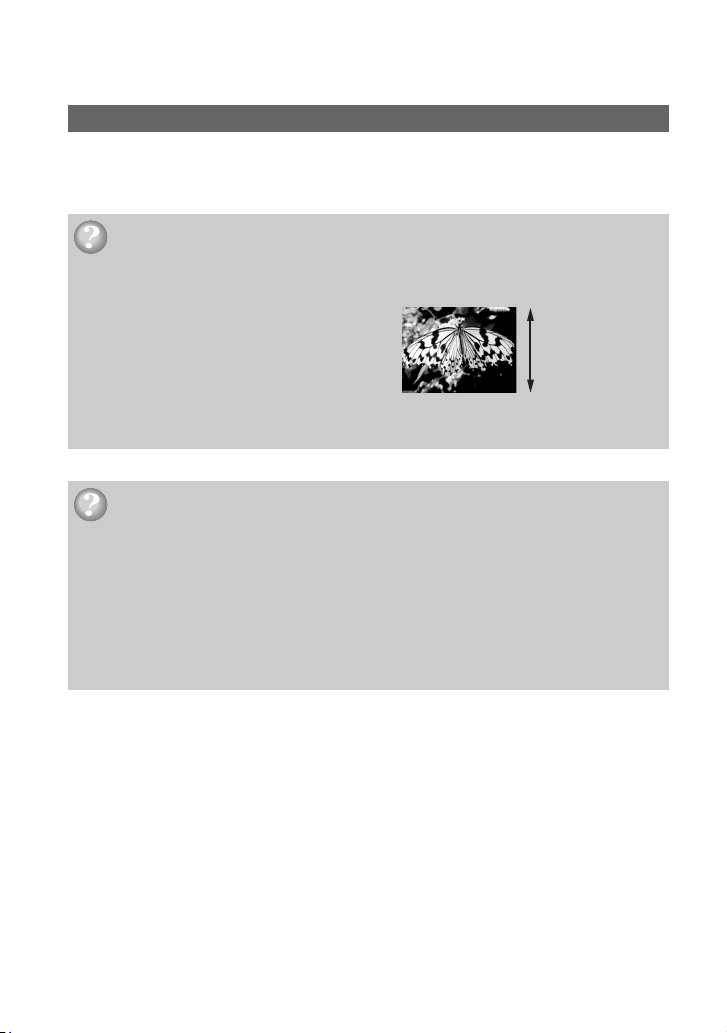
High image quality
What is the HDV format?
The HDV format is a video format for shooting and playing back high definition images on
popular DV standard cassette tapes.
• Your camcorder adopts the HDV1080i
specification, which utilizes 1,080 effective
scanning lines, within the HDV standards, and
records pictures at the image bit rate of about 25 Mbps.
• These operating instructions refer to the HDV1080i specification as HDV format unless there is a need
to specify.
Why shoot in the HDV format?
By moving to digital video, like the rest of the world, you will be able to capture important
moments in your life in high quality digital HDV format, allowing you to relive them.
Your camcorder’s down convert function converts pictures in HDV format to SD (standard
d
e
finition) quality for viewing on older wide TV formats, and on 4:3 aspect ratio TVs when
a high definition TV set is not available. This provides an easy path to HDV format video.
• The down convert function converts HDV format video to DV for playback or editing when your
camcorder is connected to a TV or VCR that is not HDV1080i compliant. The resulting image is
displayed in SD (standard definition).
1,080 effective
scanning lines

13
Enjoying pictures with high definition quality
Features of this camcorder
The HDV1080i specification digital HD video camera recorder has the following features to
enable you to record beautiful scenery while traveling, etc., in high definition quality.
1 3-ClearVid CMOS sensor system installed
This camcorder is fitted with the 3-ClearVid CMOS sensor system. Superb spectroscopic
characteristics and high definition are achieved by the use of three ClearVid CMOS sensors
developed by Sony for high definition, enabling reproduction of digital high definition with
excellent sensitivity and color reproducibility.
2 20 × optical zoom G Lens installed
The 20 × optical zoom G Lens enables you to zoom-in on distant objects and record in high
definition quality.
3 Realistic sound recording with built-in high performance microphone
The high performance stereo microphone built into this camcorder enables highly realistic
sound recording.
4 Detailed manual settings for serious filming
Extensive manual setting functions allow you to shoot high definition videos with customized
settings.
- The zoom ring, focus ring and iris ring provide full manual control.
- You can manually fine-adjust the shutter speed, white balance and gain.
5 Connecting to other devices
Superb external connectability is provided by an i.LINK (HDV/DV) jack, an A/V Remote
Connector (for component A/V cable, A/V connecting cable with S VIDEO and A/V
conn
ecting cable), an HDMI OUT jack, a LANC jack and a headphone jack on the rear of
your camcorder, and a “Memory Stick Duo” slot on the right side.

14
Handy Functions for Recording
You can record 1.2M still images on the “Memory Stick Duo” during recording movie.
Moving subjects can be shot in smooth moving slow-motion.
Two settings profiles, including brightness, color, etc., can be saved in your camcorder. This
e
n
ables you to use saved settings data to quickly reproduce suitable shooting settings.
You can adjust the brightness using the iris ring. You can select either [IRIS] or
[
E
XPOSURE] for the brightness adjustment with the iris ring.
Still image Dual Rec (p. 30)
Smooth slow recording (p. 69)
Saving Camera profile (p. 81)
Iris ring (p. 33)
15
Enjoying pictures with high definition quality
Viewing video recorded in the HDV format!
Pictures recorded in the HDV format can be played back as crisp HD (high definition)
picture on a high definition TV.
• For details on HDV1080i specification compliant TVs, see page 58.
Your camcorder can down convert video recorded in the HDV format to SD (standard
definition) quality for playback on a conventional TV.
x C
onnecting to an HDV1080i specification
A
n optional i.LINK cable allows you to copy pictures in HD (high definition) quality.
x Connecting to HDV1080i non-compliant specification
Use your camcorder to convert HDV format video to SD (standard definition) quality to
en
able copying.
x Copying movie from tape to a computer
You can copy movie to a computer, and save to DVD from copying movie.
The computer will need to be set up differently depending on whether HDV or DV format
vide
o is to be copied. See page 91
for details.
Viewing on a high definition TV (p. 57)
Viewing on a 16:9 TV/4:3 TV (p. 59)
Dubbing to other video equipment (p. 84)
Connecting to a computer (p. 91)
16
Getting Started
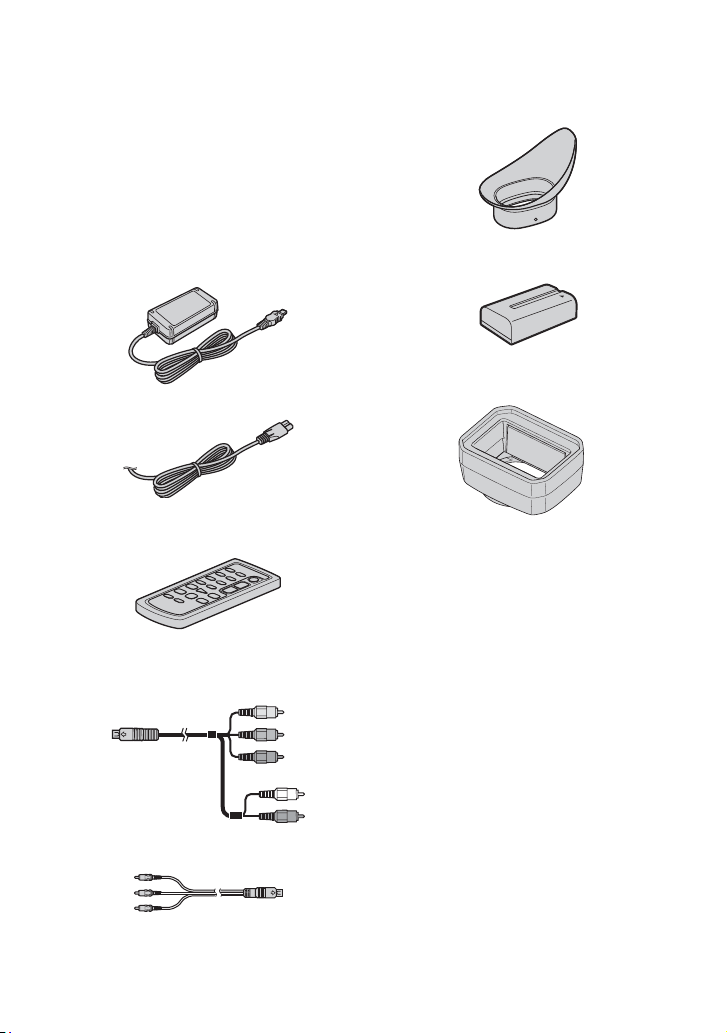
Step 1: Checking supplied items
Make sure that you have following items
supplied with your camcorder.
The number in the parentheses indicates the
nu
mb
er of that item supplied.
• The cassette tape and “Memory Stick Duo” are
not included. See p. 6, p. 110 and p. 111 for
types of cassette tapes and “M
emory Stick Duo”
that you can use on your camcorder.
AC Adaptor (1) (p. 18)
Power cord (mains lead) (1) (p. 18)
Wireless Remote Commander (1)
(p. 54, 127)
A button-type lithium battery is already installed.
Component A/V cable (1) (p. 56)
A/V connecting cable (1) (p. 56, 84)
Large eyecup (1) (p. 23)
Rechargeable battery pack NP-F570 (1)
(p. 18, 112)
Lens hood with lens cover (1) (p. 17)
This lens hood is pre-mounted.
Operating Guide (This manual) (1)
17
Getting Started
Step 2: Attaching the lens hood with lens cover
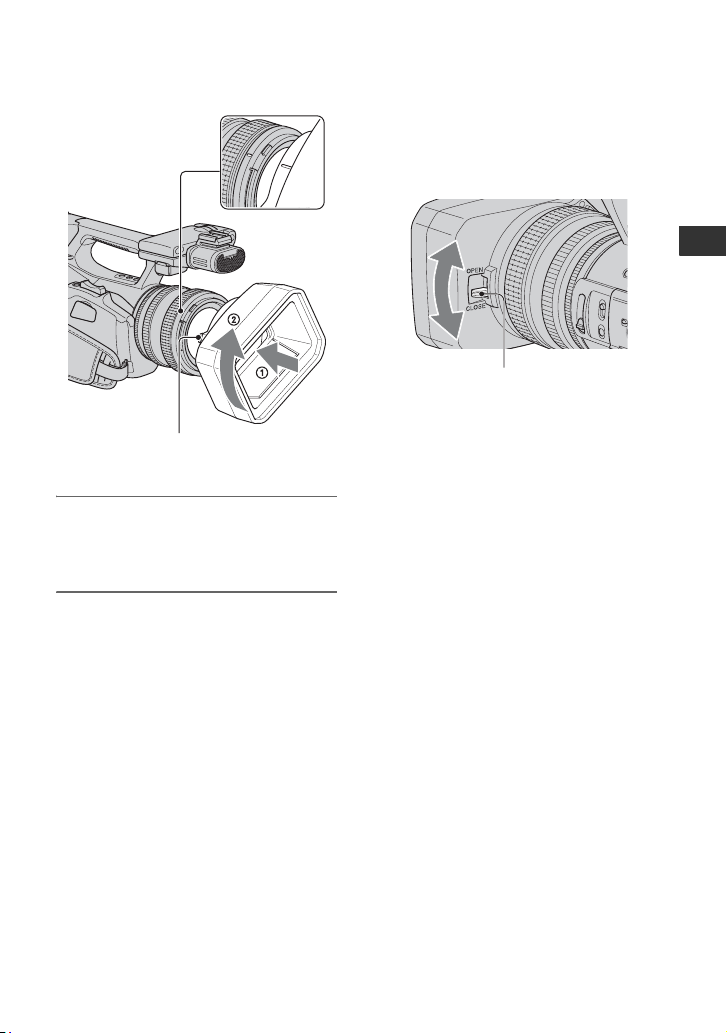
Align the marks on the lens hood to those
on the camcorder, and turn the lens hood in
the direction of the arrow
2.
To remove the Lens hood with lens
cover
Turn the lens hood in the opposite direction
to the arrow 2 in the illustration while
pressing the PUSH (lens hood release)
button.
z Tips
• If you attach or remove a 72mm (2 7/8 in.) PL
filter or MC protector, remove the lens hood
with lens cover.
To open or close the shutter of the
Lens hood with lens cover
Move the lens cover lever up or down to
open or close the lens cover.
PUSH (lens hood release) button
Move the lens cover lever to OPEN to
open the lens cover, and move the
lever to CLOSE to close the lens
cover.
18
Step 3: Charging the battery pack
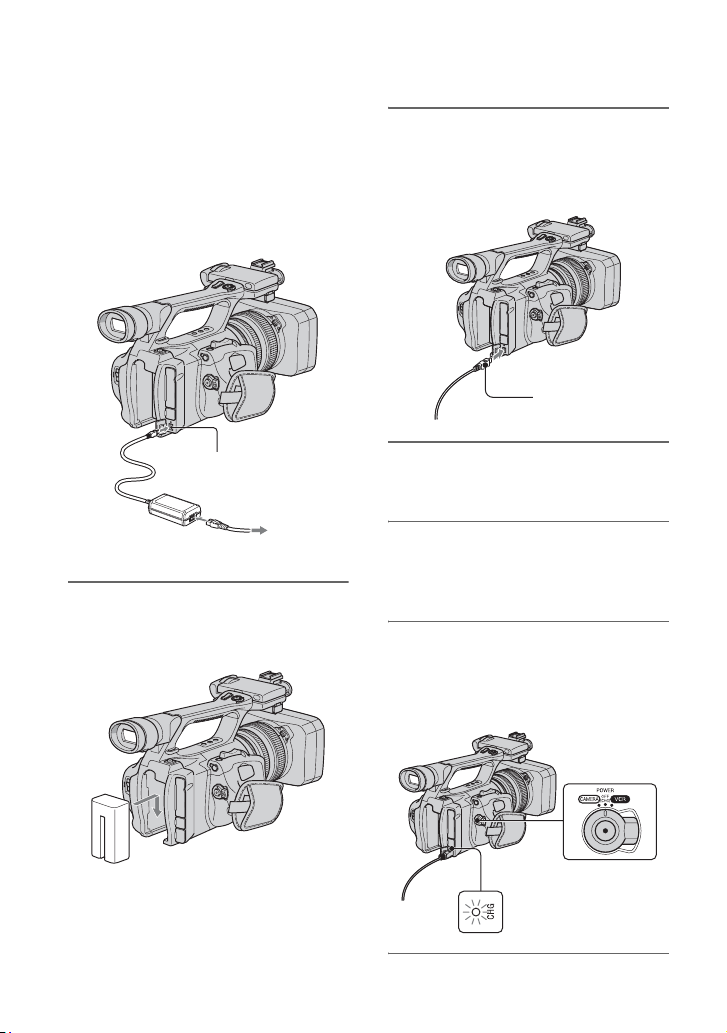
You can charge the “InfoLITHIUM”
battery pack (L series) with the
supplied AC Adaptor.
b Notes
• You cannot use batteries other than the
“InfoLITHIUM” battery pack (L series)
(p. 112).
1 Press the battery pack against the
back of your camcorder and slide
it down.
2 With the B mark on the DC plug
facing outwards, connect the DC
plug to the DC IN jack on your
camcorder.
3 Connect the power cord (mains
lead) to the AC Adaptor.
4 Connect the power cord (mains
lead) to the wall outlet (wall
socket).
5 Set the POWER switch to
OFF (CHG).
The CHG lamp lights up and charging
star
ts.
DC IN jack
DC plug
AC Adaptor
Power cord (mains lead)
To the wall outlet
(wall socket)
B mark
19
Getting Started
After charging the battery
The CHG lamp turns off when the battery is
fully charged. Disconnect the AC Adaptor
from the DC IN jack.
z Tips
• You can check the remaining battery life with
the battery info function (p. 53)
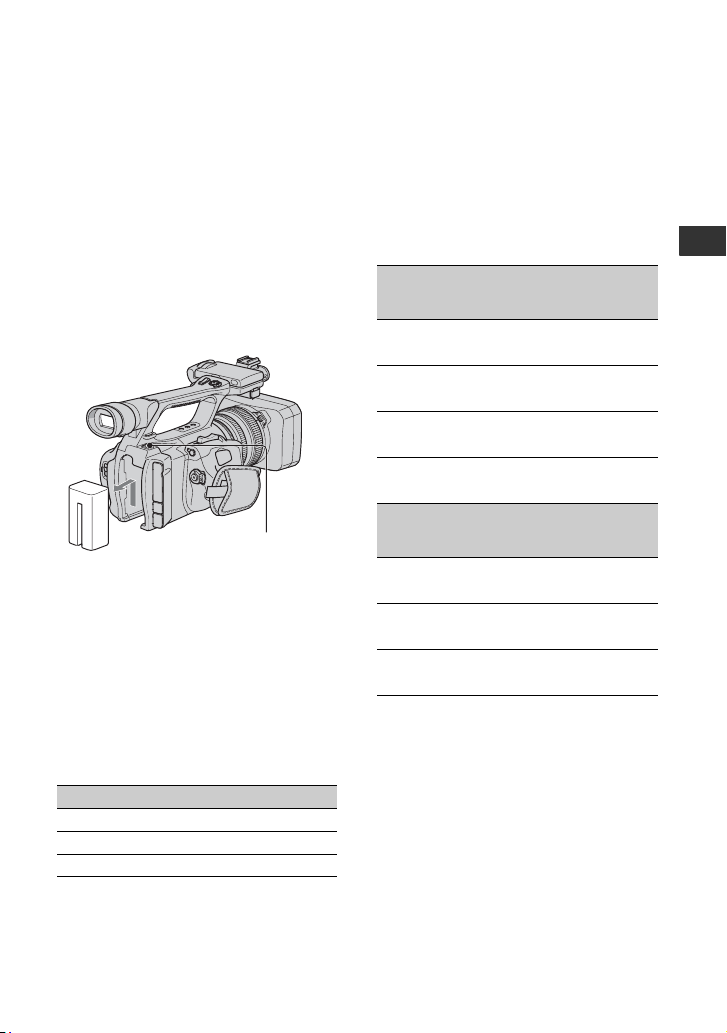
To remove the battery pack
Set the POWER switch to OFF (CHG).
Push the BATT RELEASE (battery release)
button and remove the battery pack.
To store the battery pack
If the battery pack will not be used for a
while, run down the battery and store it. See
page 113 for details on storage of the
battery pack.
Charging time
Approximate time (min.) required when
you fully charge a fully discharged battery
pack.
Recording time
Approximate time (min.) available when
you use a fully charged battery pack.
b Notes
• You cannot use the NP-F330 battery pack with
this camcorder.
Recording in the HDV format
Recording in the DV format
Top: When the LCD backlight turns on.
Bottom: Recording time when recording with
the
viewfinder while the LCD panel is
closed.
* Typical recording time shows the time when
you repeat recording start/stop, turning the
power on/off and zooming.
Battery pack Charging time
NP-F570 (supplied) 260
NP-F770 370
NP-F970 485
BATT RELEASE
(battery release) button
Battery pack
Continuous
recording
time
Typical
recording
time*
NP-F570
(supplied)
135 65
140 70
NP-F770 290 145
295 145
NP-F970 430 215
445 220
Battery pack
Continuous
recording
time
Typical
recording
time*
NP-F570
(supplied)
145 70
150 75
NP-F770 300 150
310 155
NP-F970 450 225
465 230
Continued ,

20
Playing time
Approximate time (min.) available when
you use a fully charged battery pack.
HDV format pictures
DV format pictures
* When the LCD backlight turns on.
O
n the battery pack
• Before changing the battery pack, set the
POWE
R switch to OFF (CHG).
• The CHG lamp flashes during charging, or
Battery Info (p. 53) will not be correctly
displayed under the following conditions.
– The battery pack is not attached correctly.
– The battery pack is damaged.
– The battery pack is worn-out (For Battery
Inf
o only).
– The battery pack is too cold.
Replace the battery pack, or remove it and put
it
in a warm place.
– The battery pack is too hot.
Replace the battery pack, or remove it and put
it
in a cool place.
• The power will not be supplied from the battery
as long as the AC Adaptor is connected to the
DC IN jack of your camcorder, even when the
power cord (mains lead) is disconnected from
the wall outlet (wall socket).
On the charging/recording/playback time
• Times measured with the camcorder at 25 °C
(77
°F). 10 °C to 30 °C (50 °F to 86 °F) is
recommended.
• The recording and playback time will be shorter
whe
n you use your camcorder in low
temperatures.
• The recording and playback time will be shorter
de
pending on the conditions under which you
use your camcorder.
You can use the AC Adaptor to obtain AC.
While you are using the AC Adaptor, the
battery pack will not lose its charge even
when it is attached to your camcorder.
Connect your camcorder as shown
in Step3:Charging the battery pack
(p. 18).
On the AC Adaptor
• Use the nearby wall outlet (wall socket) when
using the AC Adaptor. Disconnect the AC
Adaptor from the wall outlet (wall socket)
immediately if any malfunction occurs while
using your camcorder.
• Do not use the AC Adaptor placed in a narrow
space,
such as between a wall and furniture.
• Do not short-circuit the DC plug of the AC
Adaptor or battery terminal with any metallic
objects. This may cause a malfunction.
• Even if your camcorder is turned off, AC power
(mains) is still supplied to it while connected to
the wall outlet (wall socket) via the AC Adaptor.
Battery pack
LCD panel
opened*
LCD panel
closed
NP-F570
(supplied)
200 210
NP-F770 415 435
NP-F970 630 660
Battery pack
LCD panel
opened*
LCD panel
closed
NP-F570
(supplied)
220 230
NP-F770 445 470
NP-F970 675 705
Using an outside power source
Step 3: Charging the battery pack (Continued)
21
Getting Started
Step 4: Turning the power on and holding your
camcorder properly
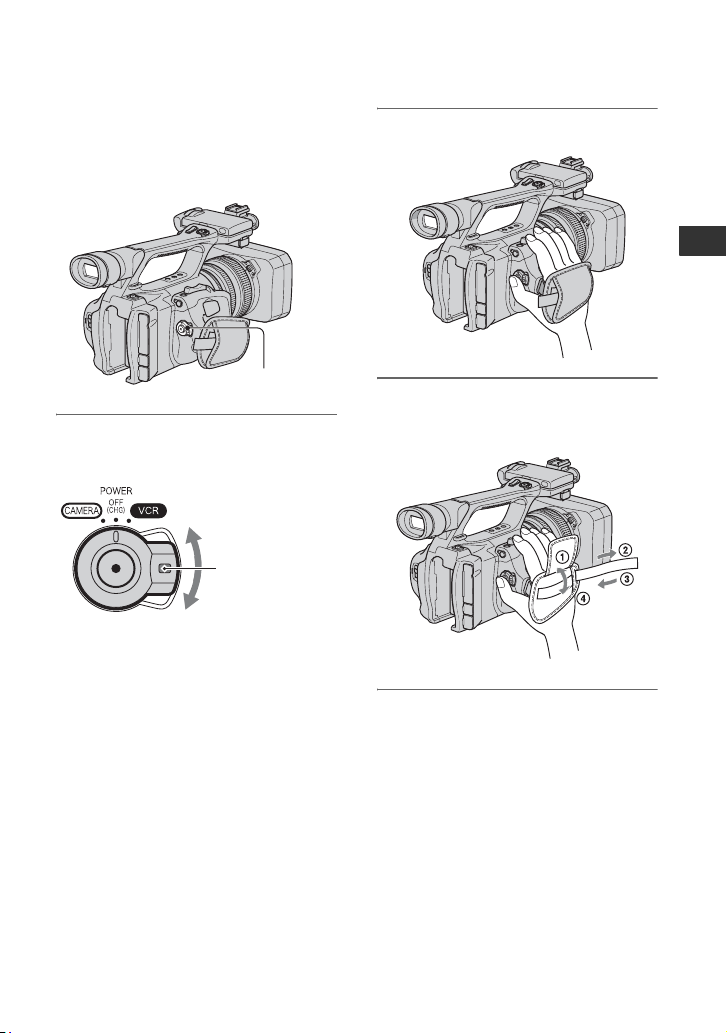
To record or play back, set the POWER
switch to the respective direction.
When you use your camcorder for the first
ti
me
, the [CLOCK SET] screen appears
(p. 24).
1 While pressing the green button,
slide the POWER switch.
CAMERA: T
o record pictures.
VCR: To play or edit pictures.
b Notes
• The current date and time appear on the LCD
screen for a few seconds when you turn on your
camcorder once you set the date and time
([CLOCK SET],
p. 24).
2 Hold the camcorder properly.
3 Ensure a good grip, then fasten
the grip belt.
To turn off the power
Slide the POWER switch to OFF (CHG).
b Notes
• If warning messages appear on the screen,
follow the instructions (p. 105).
POWER switch
Press and hold the
green button when
you slide the
POWER switch
from OFF (CHG).
22
Step 5: Adjusting the LCD panel and viewfinder
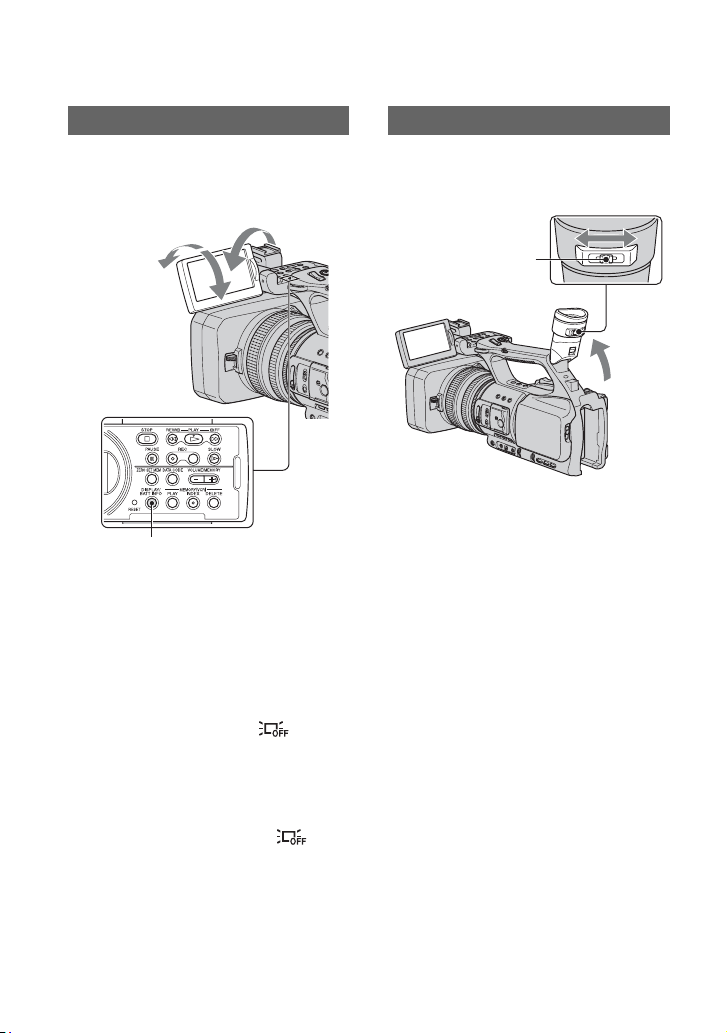
Open the LCD panel 180 degrees (1), then
rotate it to the best angle to record or play
back (2).
z Tips
• You can see your mirror image on the LCD
screen by setting the LCD panel facing you. The
image will be recorded in a normal image.
To turn off the LCD backlight to make
the battery last longer
Press and hold the DISPLAY/BATT INFO
button for a few seconds until appears.
This setting is practical when you use your
c
a
mcorder in bright conditions or when you
want to save battery power. The recorded
picture will not be affected by the setting.
To turn on the LCD backlight, press the
DISPLAY/BATT INFO button.
disappears.
z Tips
• You can adjust the brightness of the LCD screen
from [LCD BRIGHT] (p. 76).
You can view pictures using the viewfinder
to save the battery, or when the picture on
the LCD screen is not clear.
b Notes
• You may see primary colors shimmering in the
viewfinder when you move your eye line. This
is not a malfunction. The shimmering colors
will not be recorded on the recording media.
z Tips
• You can adjust the brightness of the viewfinder
backlight from [VF B.LIGHT] (p. 76).
• To display images both on the LCD display and
in the viewfinder, set [VF POWERMODE] to
[ON] (p. 76
).
The LCD panel
DISPLAY/BATT INFO button
1Open 180 degrees.
2180 degrees
(max.)
290 degrees
(max.)
The viewfinder
Viewfinder lens
adjustment lever
Move it until the picture
becomes clear.
23
Getting Started
When the picture in the viewfinder is
hard to see
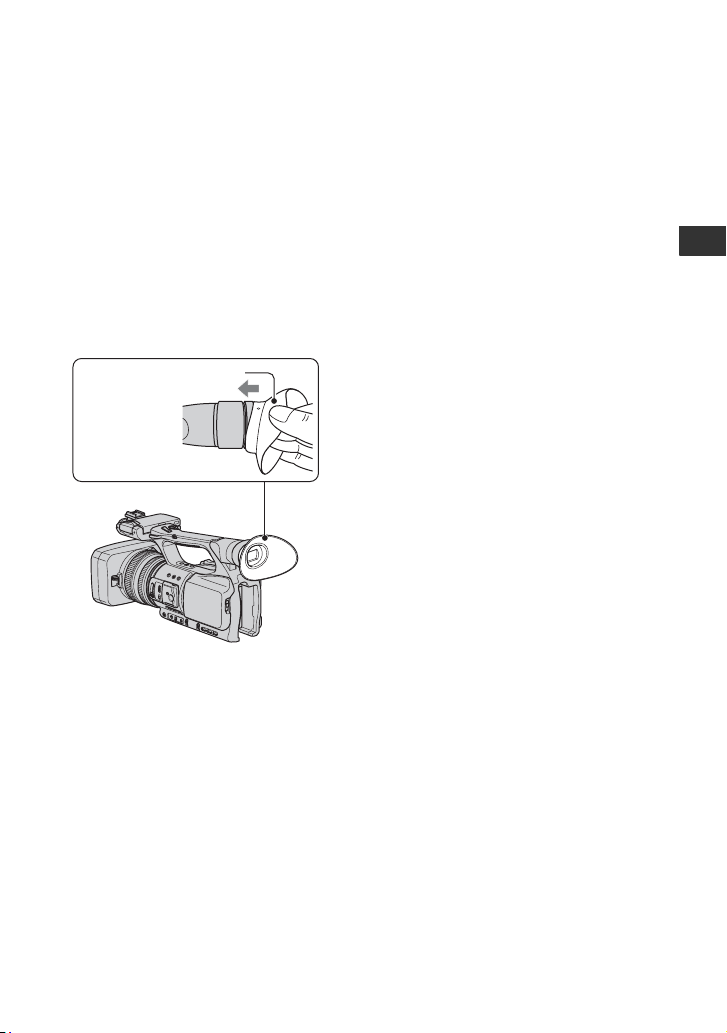
If you cannot see the picture in the
viewfinder clearly under bright
circumstances, use the supplied large
eyecup. To attach the large eyecup, stretch
it slightly and align it with the eyecup
groove in the viewfinder. You can attach
the large eyecup facing either the right or
left side.
b Notes
• Do not remove the pre-attached eyecup.
Large eyecup (supplied)
Attach with the
protruding part
at the top.
24
Step 6: Setting the date and time
Set the date and time when using this
camcorder for the first time. If you do not
set the date and time, [CLOCK SET] screen
appears every time you turn on your
camcorder or change the POWER switch
positions.
z Tips
• If you do not use your camcorder for about 3
months, the built-in rechargeable battery gets
discharged and the date and time settings may
be cleared from the memory. In that case,
charge the rechargeable battery and then set the
date and time again (p. 117).
Skip to step 4 when you set the clock for
the first time.
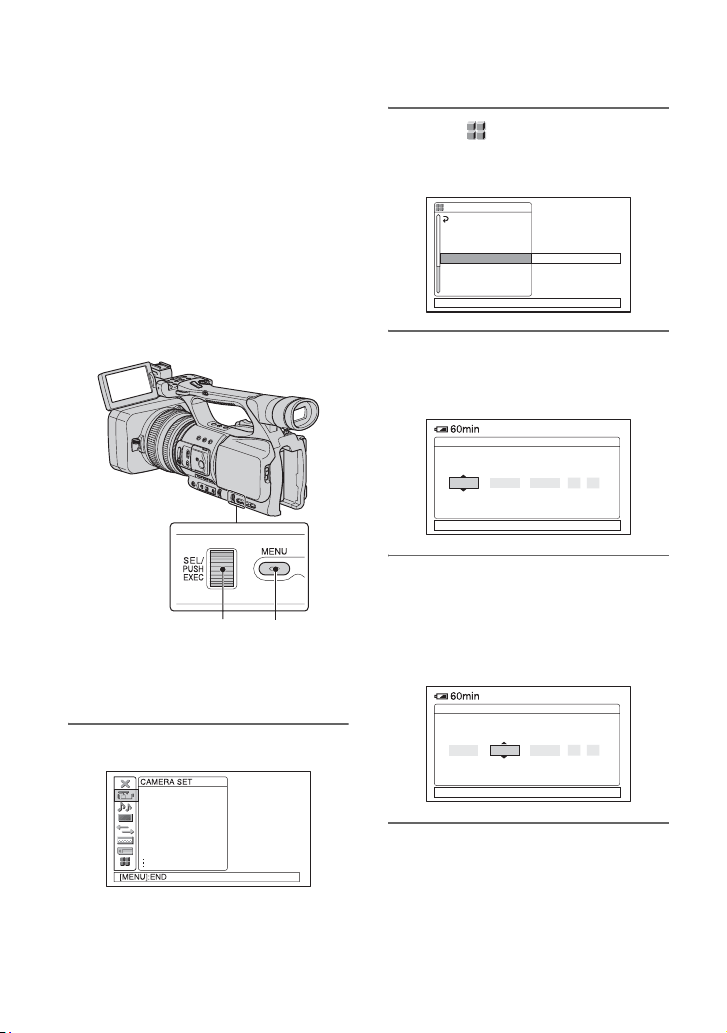
1 Press the MENU button.
2 Select (OTHERS) by turning
the SEL/PUSH EXEC dial, then
pr
ess the dial.
3 Select [CLOCK SET] by turning
the SEL/PUSH EXEC dial, then
press the dial.
4 Set [Y] (year) by turning the SEL/
PUSH EXEC dial, then press the
dial.
You can set any year up to the year
2
079
.
5 Set [M] (month), [D] (day), hour
and minute, then press the dial.
The clock starts.
For midnight, set it to 12:00 AM.
For midday, set it to 12:00 PM.
SEL/PUSH EXEC dial MENU button
PROG. SCAN
IRIS/EXPOSURE
GAIN SETUP
AGC LIMIT
MINUS AGC
WB PRESET
AWB SENS
OTHERS
RETURN
ASSIGN BTN
CAMERA PROF.
PHOTO/EXP.FOCUS
CLOCK SET
--
:
--
:
--
WORLD TIME
LANGUAGE
QUICK REC
[
MENU
]
: END
CLOCK SET
[
MENU
]
: CANCEL
MDY
12 : 00
AM
1JAN
--
2008
-:--:--
CLOCK SET
[
MENU
]
: CANCEL
MDY
12 : 00
AM
1JAN
--
2008
-:--:--

25
Getting Started
z Tips
• The date and time are automatically recorded on
the tape, and can be displayed during playback
(DATA CODE button, p. 52).
You can change the on-screen displays to
show messages in a specified language.
Press the MENU button to select the
(OTHERS) with the SEL/PUSH EXEC
dial.
Select the screen language in
[
L
ANGUAGE] (p. 82)
.
Changing the language setting
26
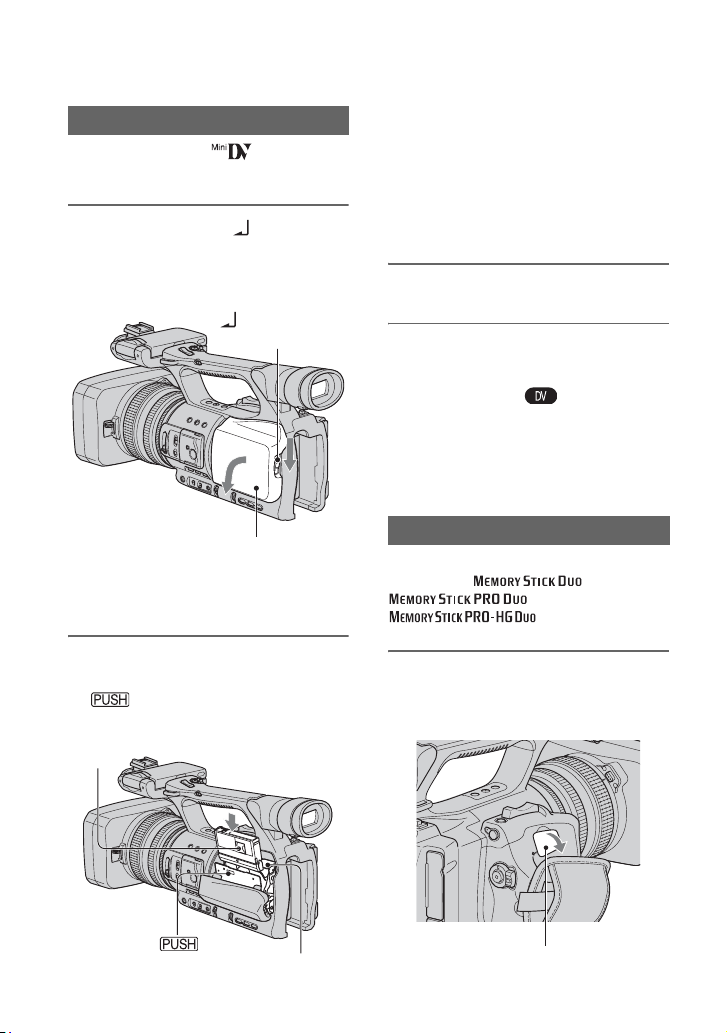
Step 7: Inserting a tape or a “Memory Stick Duo”
You can use mini DV cassettes only
(p. 110).
1 Slide and hold the OPEN/
EJECT lever in the direction of the
arrow
and open the lid.
The cassette compartment automatically
com
es out.
2 Insert a cassette with its window
facing outwards, then press
.
The cassette compartment automatically
s
l
ides back in.
b Notes
• Do not push the portion marked
while the cassette
compartment is sliding in. Doing so may
cause
a malfunction.
3 Close the lid.
z Tips
• The recordable time varies depending on [DV
REC MODE] (p. 78).
To eject the cassette
Open the lid following the same procedure
as described in step 1 and remove the
cassette.
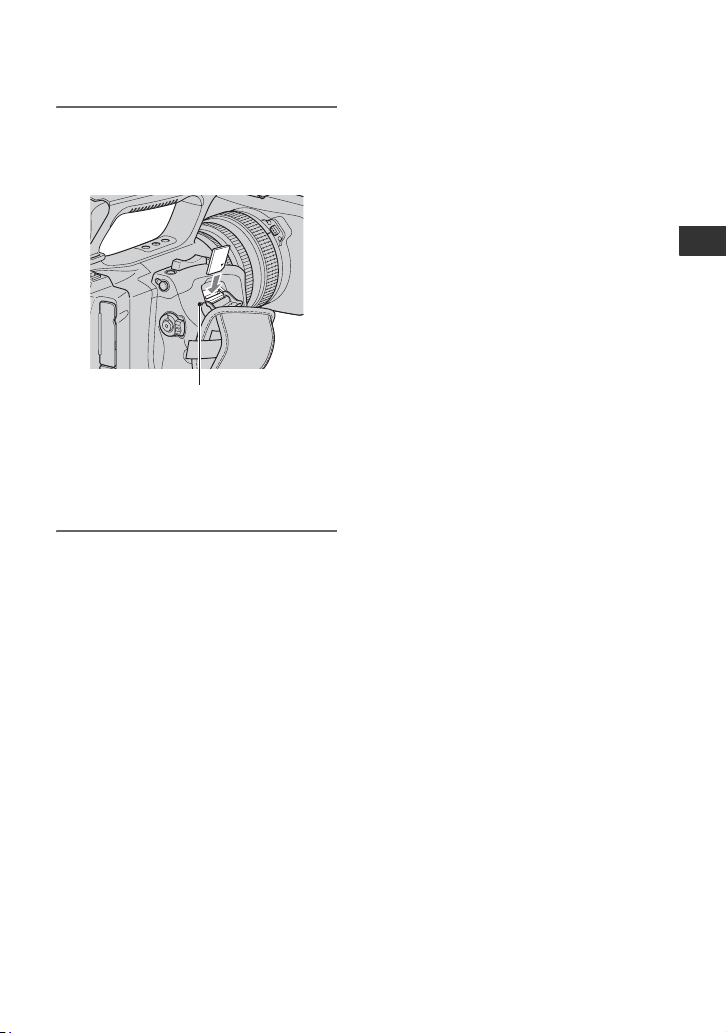
You can use only a “Memory Stick Duo”
mar
ked with ,
or
(p. 111).
1 Open the “Memory Stick Duo”
slot cover in the direction of the
arrow.
Cassette tape
OPEN/EJECT
lever
Lid
Window
Push the center of
the back of the
cassette lightly.
Cassette
compartment
“Memory Stick Duo”
{DO NOT PUSH}
“Memory Stick Duo” slot cover
27
Getting Started
2 Insert the “Memory Stick Duo”
into the “Memory Stick Duo” slot
in the right direction until it clicks.
b Notes
• If you insert the “Memory Stick Duo” into
the slot in the wrong direction, the “Memory
Stick Duo,” the “Memory Stick Duo” slot,
or image data may be damaged.
To eject a “Memory Stick Duo”
Lightly push the “Memory Stick Duo”
once.
b Notes
• When the access lamp is lit or flashing, your
camcorder is reading/writing data. Do not shake
or knock your camcorder, turn the power off,
eject the “Memory Stick Duo,” or remove the
battery pack. Otherwise, image data may be
damaged.
• When inserting or ejecting the “Memory Stick
Duo,” be
careful with the “Memory Stick Duo”
from popping out and dropping.
Access lamp
28
Recording/Playback
Recording
Your camcorder records movies on tape and still images on “Memory Stick Duo.” Do the
following steps to record movies.
z Tips
• This camcorder can record movies in HDV or DV format. The factory setting is HDV format ([REC
FORMAT] p. 77).
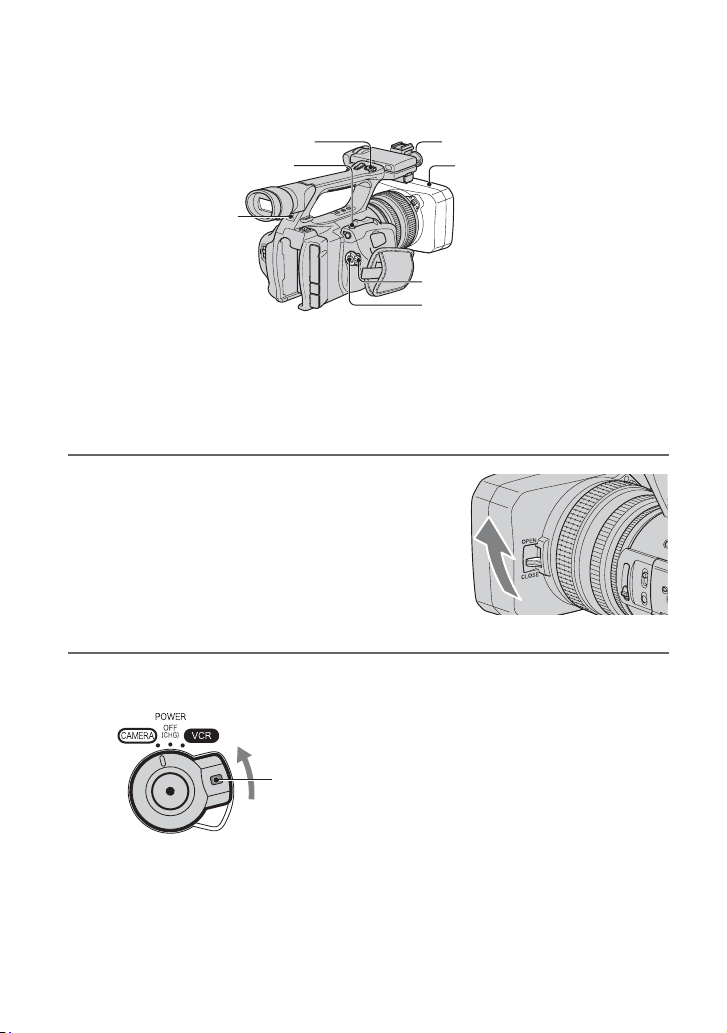
1 Open the shutter of the lens hood.
2 Slide the POWER switch to CAMERA while pressing the green button.
Lens hood with lens cover
REC START/STOP button B
POWER switch
REC START/STOP
button A
Recording lamp
PHOTO/EXPANDED
FOCUS button
Recording lamp
Slide the POWER
switch while pressing
the green button.

29
Recording/Playback
3 Press the REC START/STOP button A (or B).
The recording lamp lights up during recording.
To stop the movie recording, press the REC START/STOP button again.
z Tips
• When recording in HDV format, the aspect ratio is fixed to 16:9. When recording in DV format, you
can switch the aspect ratio to 4:3 ([DV WIDE REC] p. 78).
• You can change the screen display during recording (p. 52).
• Indicators displayed on the screen during recording are shown on page 128.
• The recording lamp can be set to stay off ([REC LAMP] p. 83).
• You cannot record movies on a “Memory Stick Duo.”
• For low angle recording, the REC START/STOP button on
the handle is convenient. Release the
HOLD lever to enable the REC START/STOP button. It might be helpful if you set the LCD panel
face up or close it after turning it face down, or lift the viewfinder up during the low angle recording.
60min
60min
REC
[STBY] t [REC]
Continued ,
30
To capture still images
Press the PHOTO/EXPANDED FOCUS
button or the PHOTO button on the Remote
Commander.
A still image will be recorded on the
“Memory Stick Duo.” disappears when
the recording is completed.
You can capture still images during movie
recording.
b Notes
• Specifications are for Sony “Memory Stick
Duo.” The actual number of recordable pictures
can vary depending on the recording
environment and the type of “Memory Stick
Duo.”
• You cannot store a still image under the
following conditions:
– When [PROG.SCAN] is set to [OFF] or [30]
and the shutter speed is slower than 1/60
– When [PROG.SCAN] is set to [24] and the
shutter speed is slower than 1/48
– While using the fader
– While using smooth slow rec
– While using shot transition
z Tips
• When you take a still image while not recording
a movie, you will hear the shutter click.
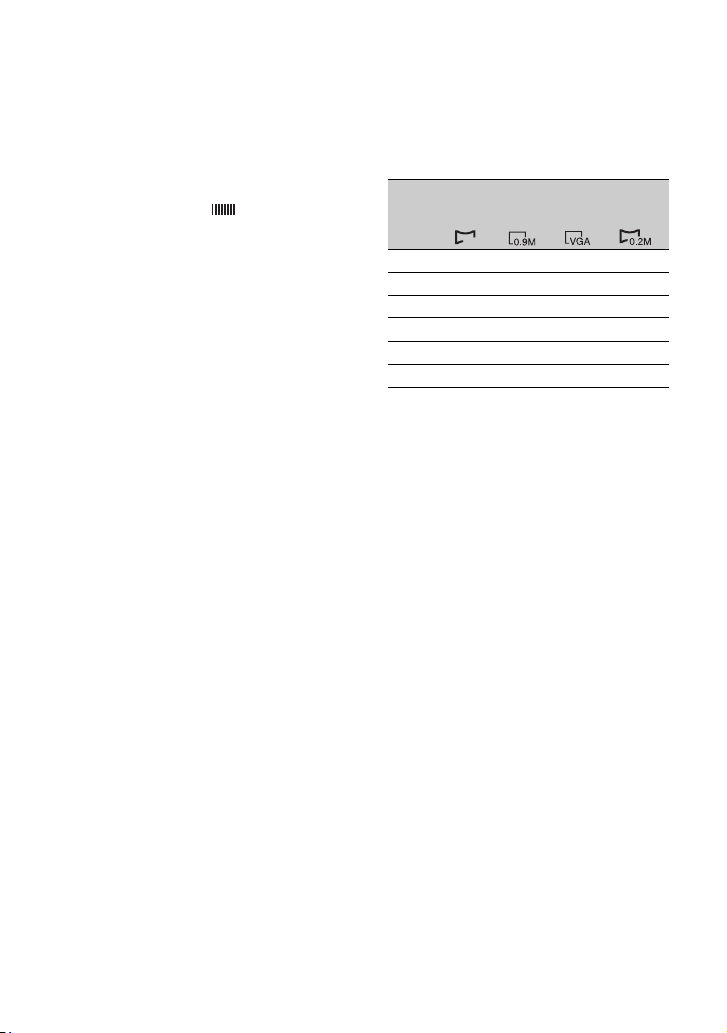
• Image sizes of still images are as follows:
– Recording in HDV format/DV format (16:9):
1.2 M
– Recording in DV format (4:3): 0.9 M
– Playing back in HDV format: 1.2 M
– Playing back in DV format (16:9): 0.2 M
– Playing back in DV format (4:3): VGA
• Indicators displayed on the screen during
shooting are shown on page 128.
• You can set the PHOTO/EXPANDED FOCUS
button to start the expanded focus function as
you press the button ([PHOTO/EXP.FOCUS]
p. 82).
• The unique pixel array of Sony's ClearVid
CMOS sensor and image processing system
(Enhanced Imaging Processor) allows for still
image resolution equivalent to the sizes
described.
Capacity of the “Memory Stick Duo”
(MB) and the number of recordable
pictures
To store still images captured from
movies on a tape on “Memory Stick
Duo”
You can capture an image in a movie and
record it on a “Memory Stick Duo” as a still
image. Be sure to insert a recorded tape and
a “Memory Stick Duo” in your camcorder.
1 Set the POWER switch to VCR.
2 Press the
N
(play) button to search for
the scene you want to save as a still
image. Press the PHOTO/EXPANDED
FOCUS button or the PHOTO button on
your Remote Commander at the scene.
b Notes
• The recorded date and time on the tape and the
stored date and time on the “Memory Stick
Duo” are both saved on the “Memory Stick
Duo.” When you view the still images, only the
recorded date and time on the tape will be
displayed on the screen (Data code, p. 52).
• Camera data stored on the tape will not be
copied to the “Memory Stick Duo.”
• You cannot store a still image during using your
camcorder with [PB ZOOM] set to [ON] (p. 82).
1.2M
1440
×
810
0.9M
1080 ×
810
VGA
640 ×
480
0.2M
640 ×
360
512MB 760 1000 2850 3600
1GB 1550 2100 5900 7300
2GB 3150 4300 12000 15000
4GB 6300 8500 23500 29500
8GB 12500 17000 48000 60000
16GB 25500 34500 97500 122000
1.2M
Recording (Continued)
31
Recording/Playback
Changing the settings of your camcorder
recordings
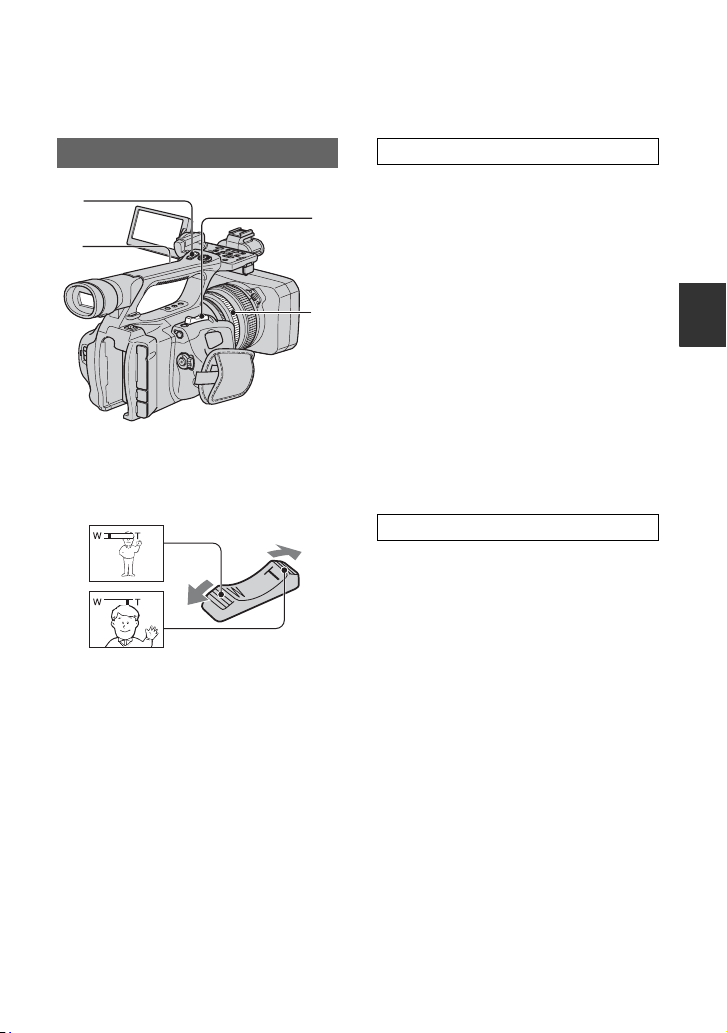
Move the power zoom lever C slightly for
a slower zoom. Move it further for a faster
zoom.
z Tips
• The minimum distance required between your
camcorder and the subject for focus is about 1
cm (about 13/32 in.) for wide angle and about
80 cm (about 2 5/8 feet) for telephoto.
• The focus may not be adjusted at certain zoom
posi
tions if the subject is within 80 cm (about 2
5/8 feet) from your camcorder.
• Be sure to keep your finger on the power zoom
leve
r C. If you move your finger off the power
zoom lever C, the operation sound of the
power zoom lever C may also be recorded.
1 Set the handle zoom switch B to VAR
or FIX.
z Tips
• When you set the handle zoom switch B to
VAR, you can zoom in or out at variable
speed.
• When you set the handle zoom switch B to
FIX
, you can zoom in or out at fixed speed
set in [HANDLE ZOOM] (p. 69).
2 Press the handle zoom lever A to zoom
in or out.
b Notes
• You cannot use the handle zoom lever A when
the handle zoom switch
B is set to OFF.
• You cannot change the zoom speed of the zoom
leve
r C with the handle zoom switch
B.
You can zoom at the desired speed by
turning the zoom ring D. Fine adjustment
is also possible.
b Notes
• Turn the zoom ring D at a moderate speed. If
you turn it too fast, the zoom speed may lag
behind the zoom ring rotation speed, or the
operation sound of the zoom may also be
recorded.
Adjusting the zoom
A
B
C
D
Close view: (Telephoto)
Wide view: (Wide angle)
Using the handle zoom
Using the zoom ring
Continued ,
32
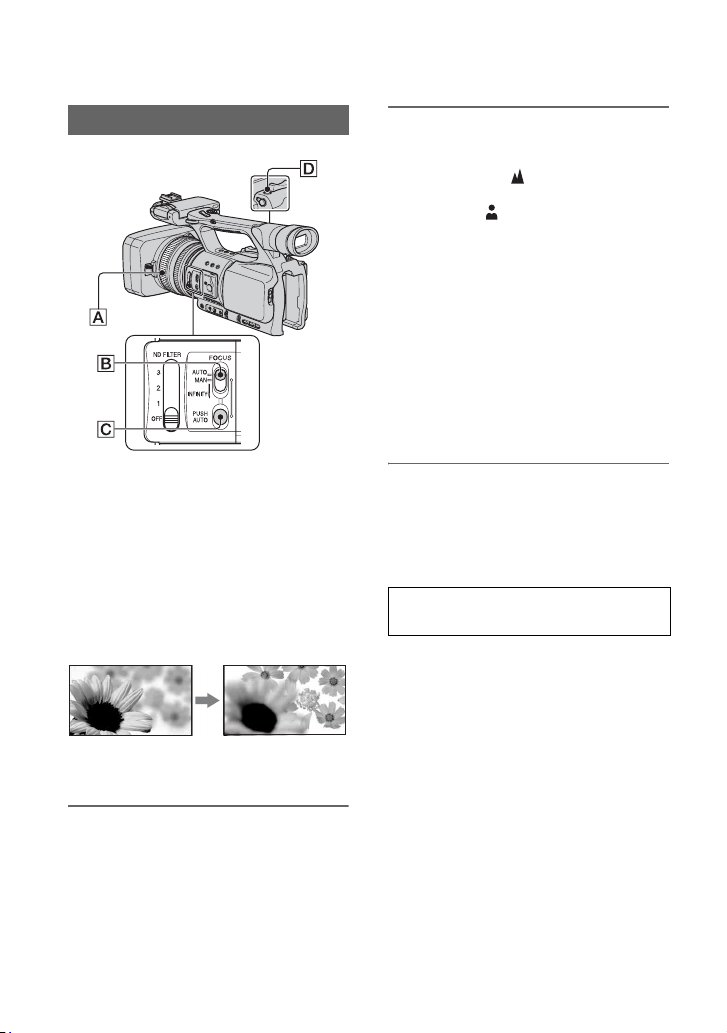
You can adjust the focus manually for
different recording conditions.
Use this function in the following cases.
– To record a subject behind a window covered
with raindrops.
– To record horizontal stripes.
– To record a subject with little contrast between
the s
ubject and its background.
– When you want to focus on a subject in the
background.
– To record a stationary subject using a tripod.
1 During recording or standby, set
the FOCUS switch B to MAN.
9 appears.
2 Rotate the focus ring A and
adjust the focus.
9 changes to when the focus
cannot be adjusted any farther.
9
changes to when the focus cannot be
adjusted any closer.
z Tips
For focusing manually
• It is easier to focus on the subject when you use
the zoom function. Move the power zoom lever
towards T (telephoto) to adjust the focus, and
then, towards W (wide angle) to adjust the zoom
for recording.
• When you want to record a close-up image of a
subj
ect, move the power zoom lever towards W
(wide angle) to fully magnify the image, then
adjust the focus.
To restore automatic adjustment
Set the FOCUS switch B to AUTO.
9 disappears and the automatic focus
adjustment is restored.
Record the subject while pressing and
ho
l
ding the PUSH AUTO button C.
If you release the button, the setting returns
t
o
manual focusing.
Use this function to shift the focus on one
su
b
ject to another. The scenes will shift
smoothly.
z Tips
• The focal distance information (for when it is
dark and hard to adjust the focus) appears for
about 3 seconds in the following cases. (It will
not be displayed correctly if you are using a
conversion lens (optional)).
– When you set the FOCUS switch to MAN
and 9 appears on the screen
– When you rotate the focus ring while 9 is
d
isplayed on the screen.
Adjusting the focus manually
Using automatic focus temporarily
(Push auto focus)
Changing the settings of your camcorder recordings (Continued)
33
Recording/Playback
Assign [EXP.FOCUS] to the PHOTO/
EXPANDED FOCUS button D
beforehand ([PHOTO/EXP.FOCUS],
p. 82).
During standby, press the PHOTO/
EXPANDED FOC
U
S button D.
[EXPANDED FOCUS] appears and the
ce
n
ter of the screen is magnified by about
2.0 times. It will be easier to confirm the
focus setting during manual focusing. The
screen returns to the original size when you
push the button again.
b Notes
• The image returns to the original size when you
press the REC START/STOP button or the
PHOTO/EXPANDED FOCUS button D.
z Tips
• You can select a type of an expanded image
displayed during the expanded focus
([EXP.FOCUS TYPE] p. 75).
• You can assign [EXP.FOCUS] to any one of the
ASSIGN bu
ttons (p. 44).
Slide the focus switch to INFINITY and
hold it there.
appears.
To return to manual focus mode, release the
FOC
US swi
tch.
Use this function to record a distant subject
wh
en
the focus is automatically set on a
close subject.
b Notes
• This function is only available during the
manual focus.
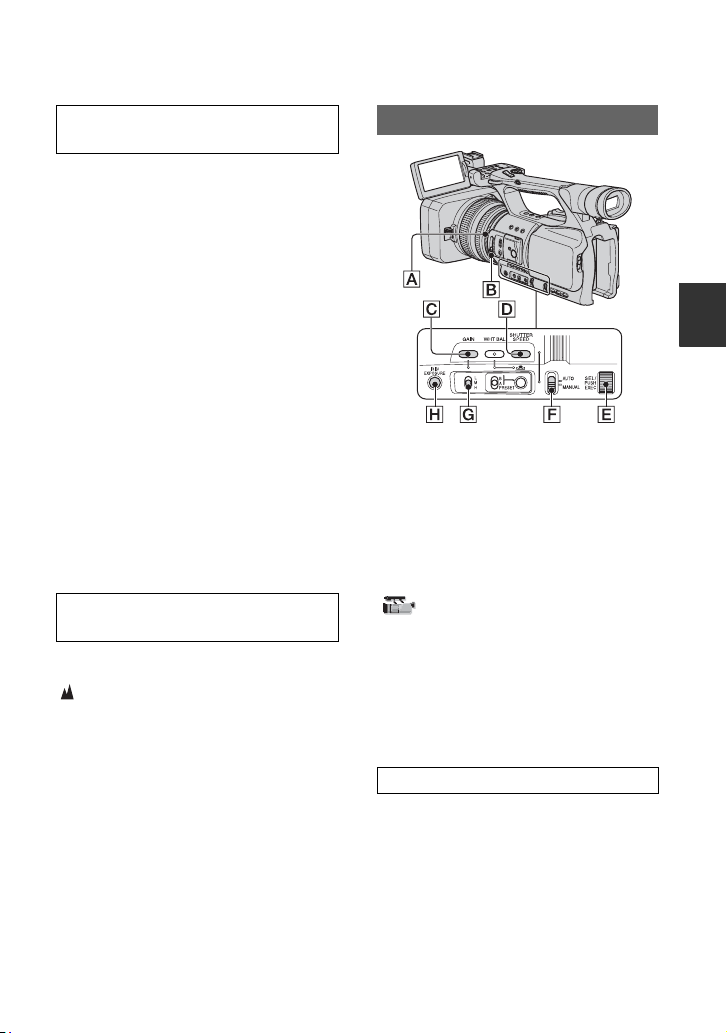
You can adjust the image brightness by
adjusting the iris, the gain or the shutter
speed or by reducing the light volume with
the ND filter B. Also, when
[EXPOSURE] is assigned to the iris ring,
you can adjust the iris, gain and shutter
speed with the iris ring A. You can assign
[IRIS] or [EXPOSURE] to the iris ring A
from [IRIS/EXPOSURE] of the
(CAMERA SET) menu (p. 66).
The default setting is [IRIS] .
b Notes
• You cannot use the back light function and the
spotlight function if at least two of iris, gain and
shutter speed are adjusted manually.
• [AE SHIFT] is not effective while you adjust
the
iris, gain and shutter speed all manually.
You can manually adjust the iris to control
the volume of the light entering the lens. By
adjusting the iris, you can change or close
the aperture of the lens, which is expressed
as an F value between F1.6 and F11. The
volume of the light increases the more that
you open the aperture (decreasing F value).
The volume of the light decreases the more
th
at
you close the aperture (increasing F
Using the expanded focus
(Expanded focus)
Focusing on a distant subject
(Focus infinity)
Adjusting the image brightness
Adjusting the iris
Continued ,

34
value). The current F value appears on the
screen.
1 Select [IRIS] from (C
AMERA
SET) menu t [IRIS/
EXPOSURE] t
[RING ASSIGN] (p. 66).
2 During recording or standby, set the
AUTO/
MANUAL switch F to
MANUAL.
3 When the iris is automatically adjusted,
pre
ss the IRIS/EXPOSURE button H.
next to the iris value disappears
(p. 75), or the iris value appears on the
screen.
4 Ad
just the iris by turning the iris ring
A.
z Tips
• The F value becomes close to F3.4 as the zoom
position changes from W to T even when you
open the aperture by setting the F value lower
than F3.4, such as F1.6.
• The range of focus, an important effect of the
apert
ure, is called the depth of field. The depth
of field gets shallower as the aperture is opened,
and deeper as the aperture is closed. Use the
aperture creatively to obtain the desired effect in
your photography.
• This is handy for making the background
blurr
ed or sharp on the screen.
To restore automatic adjustment
Press the IRIS/EXPOSURE button H, or
set the AUTO/MANUAL switch F to
AUTO.
The iris value disappears, or appears
next to the iris value.
b Notes
• When you set the AUTO/MANUAL switch F
to AUTO, other manually adjusted items (gain,
shutter speed, white balance) also become
automatic.
When [IRIS/EXPOSURE] is set to
[EXPOSURE], you can adjust the image
brightness by adjusting the iris, gain and
shutter speed with the iris ring. You can
also manually preset one or two of these
parameters and adjust the remaining
parameter(s) with the iris ring.
1 Se
lect [EXPOSURE] from
(
CAMERA SET) menu t [IRIS/
E
XPOSURE] t [RING ASSIGN]
(p. 66).
2 D
uring recording or standby, set the
A
UTO/MANUAL switch F to
MANUAL.
3 When [EXPOSURE] is automatically
ad
justed, press the IRIS/EXPOSURE
button H.
appears on the screen next to the
automatically adjusted items (iris, gain
a
nd
shutter speed), indicating that you
can adjust them with the iris ring A.
Manually adjusted items do not change
even when you turn the iris ring.
When is not displayed, do the
following operation. appears next to
the items, indicating that you can adjust
th
em wit
h the iris ring A.
–Gain
Press the GAIN button C.
– Shutter speed
Press the SHUTTER SPEED button D
tw
ice. When the shutter speed is not locked,
press the button once.
4 Adjust the image brightness by turning
the iris ring A.
To restore automatic adjustment
Press the IRIS/EXPOSURE button H, or
set the AUTO/MANUAL switch F to
AUTO.
The values next to which is displayed
disappear, or appears next to those
values.
b Notes
• When you set the AUTO/MANUAL switch F
to AUTO, all manually adjusted items (iris,
gain, shutter speed and white balance) also
become automatic.
Adjusting the exposure
Changing the settings of your camcorder recordings (Continued)
35
Recording/Playback
z Tips
• When you press the GAIN button C while
is displayed on the screen next to the gain value,
disappears and you can adjust the gain
manually. When you press the GAIN button C
ag
ain, appears and you can adjust the gain
with the iris ring. See step 3 in “Ad
justing the
gain” on page 35 for details on how to adjust the
gain.
• When you press the SHUTTER SPEED button
D while is
displayed on the screen next to
the shutter speed value, disappears and you
can adjust the shutter speed manually. When
you p
ress the SHUTTER SPEED button D
again, appears and you can adjust the shutter
speed with the iris ring. See steps
3 to 4 in
“Adjusting the shutter speed” on page 35 for
details on how to adjust the shutter speed.
You can adjust the gain manually when you
do not want to use the AGC (automatic gain
control).
1 Set the AUTO/MANUAL switch F to
MANUAL during recording or standby.
2 When the gain is automatically
a
djusted, press the GAIN button C.
The gain value appear on the screen, or
next to the gain value disappears.
3 S
et the gain switch G
to H, M or L.
The gain value set for the selected gain
switch position appears on the screen.
You can set the gain value for each gain
switch position from [GAIN SETUP] of
the (CAMERA SET) menu
(p. 66).
z Tips
• When you record a movie with the gain set to
[-6dB] and play it back with the data code, the
gai
n value is displayed as [---].
To adjust the gain automatically
Press the GAIN button C, or set the
AUTO/MANUAL switch F to AUTO.
The gain value disappears, or appears
next to the gain value.
b Notes
• When you set the AUTO/MANUAL switch F
to AUTO, other manually adjusted items (iris,
shutter speed, white balance) also become
automatic.
You can manually adjust and fix the shutter
speed. You can make a moving subject look
still or emphasize the movement of a
moving subject by adjusting the shutter
speed.
1 D
uring recording or standby, set the
AUTO/MANUAL
switch F to
MANUAL.
2 Press the SHUTTER SPEED button D
u
ntil the shutter speed value is
highlighted.
3 Change the shutter speed displayed on
t
he screen by turning the SEL/PUSH
EXEC dial E.
You can set a shutter speed between 1/4
se
co
nd and 1/10000 second.
The selected shutter speed appears on
th
e
screen. For example, if you select
1/100 second, [100] appears. The larger
th
e nu
mber that appears on the screen,
the faster the shutter speed.
4 Press the SEL/PUSH EXEC dial E to
lock the shutter speed.
To readjust the shutter speed, do steps
2 to
4.
z Tips
• You can set the shutter speed between 1/3
second and 1/10000 second in the following
settings:
– When [PROG.SCAN] of the
(CAMERA SET) menu is set to [24]
• It is difficult to focus automatically at a lower
shutter
speed. Manual focusing with your
camcorder attached to a tripod is recommended.
• The picture may flicker or change
colors under
fluorescent lamps, sodium lamps, or mercury
lamps.
Adjusting the gain
Adjusting the shutter speed
Continued ,
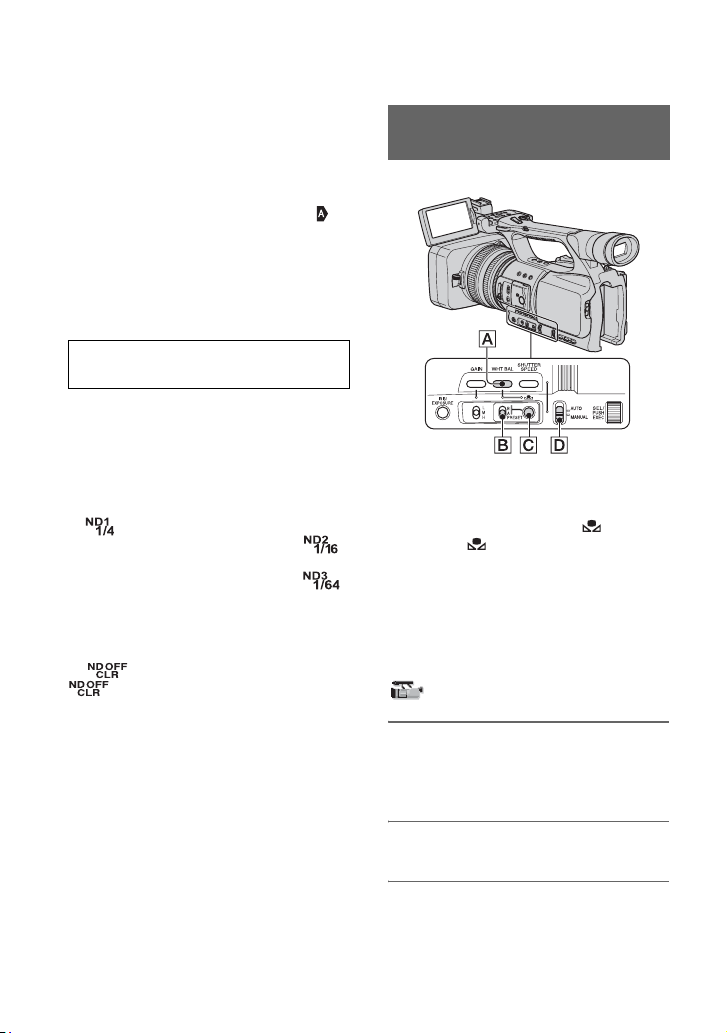
36
To adjust the shutter speed
automatically
Press the SHUTTER SPEED button D
twice, or set the AUTO/MANUAL switch
F to AUTO.
The shutter speed value disappears, or
appears next to the shutter speed value.
b Notes
• When you set the AUTO/MANUAL switch F
to AUTO, other manually adjusted items (iris,
gain, white balance) also become automatic.
You can record the subject clearly by using
the ND filter B when the recording
environment is too bright.
There are 3 levels of ND filter setting. ND
f
i
lter 1 reduces the volume of light to about
1/4, ND filter 2 to about 1/16 and ND filter
3 t
o
about 1/64.
If flashes during the iris automatic
adjustment, set the ND filter to 1. If
flashes during the iris automatic
ad
ju
stment, set the ND filter to 2. If
flashes during the iris automatic
ad
ju
stment, set the ND filter to 3.
The ND filter indicator will stop flashing
a
nd re
main on the screen.
If flashes, set the ND filter to OFF.
will disappear from the screen.
b Notes
• If you move the ND filters B during recording,
the picture and sound may be distorted.
• When adjusting the iris manually, the ND filter
indicator does not flash even if the light volume
should be adjusted with the ND filter.
z Tips
• While recording a bright subject, diffraction
may occur if you close the aperture further
down, resulting in a fuzzy focus (this is a
common phenomenon with video cameras). The
ND filter B suppresses this phenomenon and
gives better recording results.
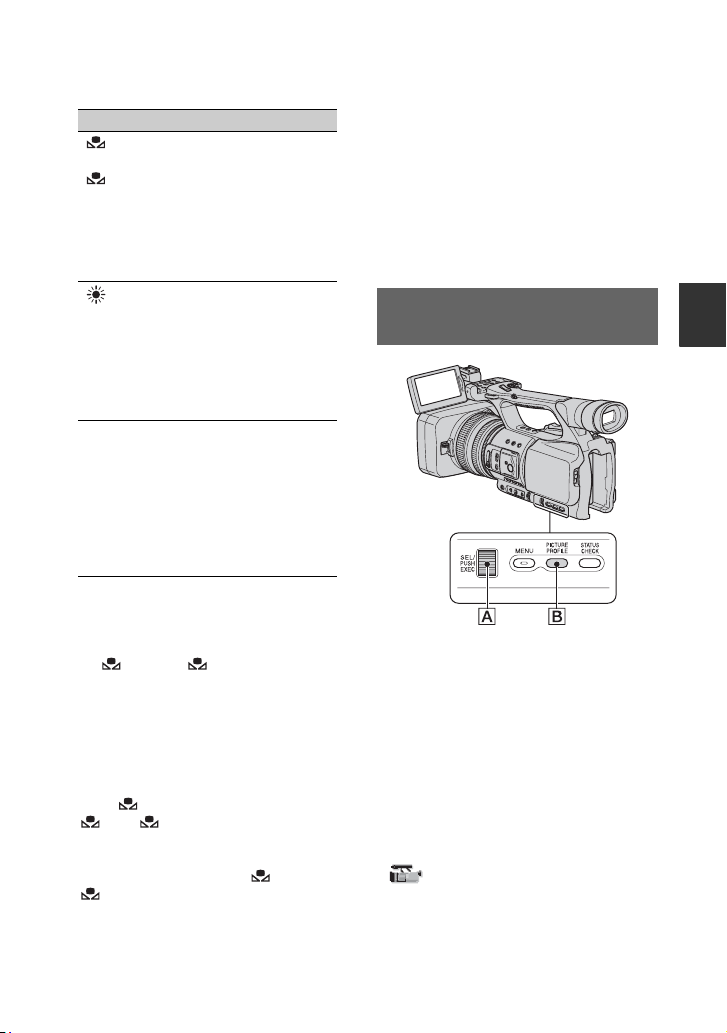
You can adjust and fix the white balance
according to the lighting conditions of
recording environment. You can store white
balance values in memory A ( A) and
memory B ( B), respectively. Unless a
white balance is readjusted, values will
re
m
ain even after the power has been
turned off.
When you select PRESET, either
[OUTDOOR
] o
r [INDOOR] is selected,
according to which one you previously set
with [WB PRESET] in the
(CAMERA SET) menu.
1 During recording or standby, set
the AUTO/MANUAL switch D to
MANUAL.
2 Press the WHT BAL button A.
3 Set the white balance memory
switch B to any one of
PRESET/A/B.
Adjusting the volume of light
(ND filter)
Adjusting to Natural Color
(White balance)
Changing the settings of your camcorder recordings (Continued)
37
Recording/Playback
To save the adjusted white balance
value in memory A or B
1 Set the white balance memory switch to
A ( A) or B ( B) in step 3 of
“Adjusting to natural color (White
ba
l
ance).”
2 Capture a white subject, such as white
pa
per, full-screen in the same lighting
condition as the one in which the subject
is.
3 P
ress (one push) button C.
A or B starts flashing rapidly. It
will stay on when the white balance
a
d
justment is completed and the
adjusted value is stored in A or
B.
To adjust the white balance
automatically
Press the WHT BAL button A or set the
AUTO/MANUAL switch D to AUTO.
b Notes
• When you set the AUTO/MANUAL switch D
to AUTO, other manual adjustments (iris, gain,
shutter speed) also become automatic.
You can customize the picture quality by
adjusting picture profile items such as
[COLOR LEVEL] and [SHARPNESS].
Connect your camcorder to a TV or
m
oni
tor, and adjust the picture quality
while observing the picture on the TV or
monitor screen.
Picture quality settings for different
rec
or
ding conditions are stored in [PP1]
through [PP6] as default settings.
b Notes
• When you set [x.v.Color] of the
(CAMERA SET) menu
to [ON], the
picture profile will be disabled.
Indicator Shooting conditions
A
(Memory A)
B
(Memory B)
• White balance values
adjusted for light
sources can be stored
in memory A and
memory B. Follow the
steps in “To save the
adjusted white balance
value in memory A or
B” (p. 37).
Outdoor
([OUTDOOR])
• Recording neon signs
or fireworks
• Recording sunset/
sunrise, just after
sunset or just before
sunrise
• Under daylight color
fluo
rescent lamps
n
Indoor
([INDOOR])
• Under the lighting
conditions that change
in many ways, such as
a party hall
• Under strong light
su
ch as in a
photography studio
• Under sodium lamps
or mer
cury lamps
Customizing the picture quality
(Picture profile)
Continued ,

38
1 During standby, press the
PICTURE PROFILE button B.
2 Select a picture profile number
with the SEL/PUSH EXEC dial A.
You can select the items from [PP1] to
[PP6]
.
You can record with the settings of the
s
e
lected picture profile.
3 Select [OK] with the SEL/PUSH
EXEC dial A.
To cancel the picture profile recording
Select [OFF] in step 2 with the SEL/PUSH
EXEC dial A.
To change the picture profile
You can change the settings stored in [PP1]
through [PP6].
1 Pr
ess the PICTURE PROFILE button
B.
2 Select the PICTURE PROFILE number
w
ith the SEL/PUSH EXEC dial A.
3 Select [SETTING] with the SEL/PUSH
EXEC
dial A.
4 Select an item to be adjusted with the
S
EL/PUSH EXEC dial A.
5 Adjust the picture quality with the SEL/
PU
SH EXEC dial A.
6 Repeat steps 4 an
d 5 to adjust other
items.
7 Select [ RE
TURN] with the SEL/
PUSH EXEC dial A.
8 Select [OK] with the SEL/PUSH EXEC
di
al A.
A picture profile indicator appears.
Picture profile
number (setting
name)
Recording condition
PP1
:USER
You can assign your own
setting
PP2
:USER
You can assign your own
se
tting.
PP3
:PORTRAIT
Appropriate setting to
r
e
cord people
PP4
:CINEMA
Appropriate setting to
record
film-like pictures
PP5
:SUNSET
Appropriate setting to
reco
rd
sunset
PP6
:MONOTONE
Appropriate setting to
record
monotone pictures
Changing the settings of your camcorder recordings (Continued)

39
Recording/Playback
GAMMA
To select a gamma curve.
BLK COMPNSTN
To select a gamma curve characteristic for dark areas.
KNEE POINT
To set the point at which video signal compression starts in order to prevent over-highlighting,
by limiting signals in high contrast areas of the subject to the dynamic range of your
camcorder.
COLOR MODE
To set type of colors.
COLOR LEVEL
To set the color level.
Item Description and settings
[STANDARD] Standard gamma curve
[CINEMATONE1] Gamma curve 1 for producing tone of film camera images
[CINEMATONE2]
Gamma curve 2 for producing tone of film camera images
Item Description and settings
[OFF] Normal setting
[STRETCH] Improves gamma curve characteristics and enhances gradation in dark
areas
.
[COMPRESS]
Controls gamma curve characteristics to produce solid black.
Item Description and settings
[AUTO] Automatically sets the knee point.
[HIGH] Knee point: 100%
[MIDDLE] Knee point: 95%
[LOW]
Knee point: 80%
Item Description and settings
[STANDARD] Standard colors
[CINEMATONE1] Film camera image-like colors good with [GAMMA] set to
[CINEM
ATONE1]
[CINEMATONE2]
Film camera image-like colors good with [GAMMA] set to
[CINEMATONE2]
Item Description and settings
-7 (light) to +7 (dark), -8: black and white
Continued ,

40
COLOR PHASE
To set the color phase.
COLOR DEPTH
To set the color depth.
This function is more effective for chromatic colors and less effective for achromatic colors.
The
color looks deeper as you increase the setting value to more positive side, and lighter as
you decrease the value to more negative side. This function is effective even if you set
[COLOR LEVEL] to [-8] (monotone).
WB SHIFT
To set items for the white balance shift.
SHARPNESS
To adjust the definition of a subject.
Item Description and settings
-7 (greenish) to +7 (reddish)
Item Description and settings
-7 (shallow) to +7 (deep)
Item Description and settings
-9 (bluish) to +9 (reddish)
Item Description and settings
-7 (soft) to +7 (clear)
Changing the settings of your camcorder recordings (Continued)

41
Recording/Playback
SKINTONE DTL
To adjust the detail of skintone areas to reduce wrinkles.
PROFILE NAME
To name the picture profiles set in [PP1] through [PP6] (p. 42).
COPY
To copy the settings of the picture profile to another picture profile number.
RESET
To reset the picture profile to the default setting.
Item Description and settings
[ON/OFF] Suppresses details in skin-tone areas to reduce wrinkles. Select [ON]
when you want to use this function. You can also select other areas.
[LEVEL] Sets the adjustment level.
1 (less adjust the detail) to 8 (more adjust the detail)
[COLOR SEL] Sets color items for the detail adjustment.
[RANGE] : Sets the color range.
0 (selects no color), 1 (narrow: selects a single
c
o
lor) to 31 (wide: selects multiple colors in
similar color phases and saturation)
The detail will not be adjusted when you set
[R
AN
GE] to 0.
[ONE PUSH SET]: Automatically selects target colors for a subject at
t
h
e center or the marker. [RANGE] will not be
changed.
Continued ,
42
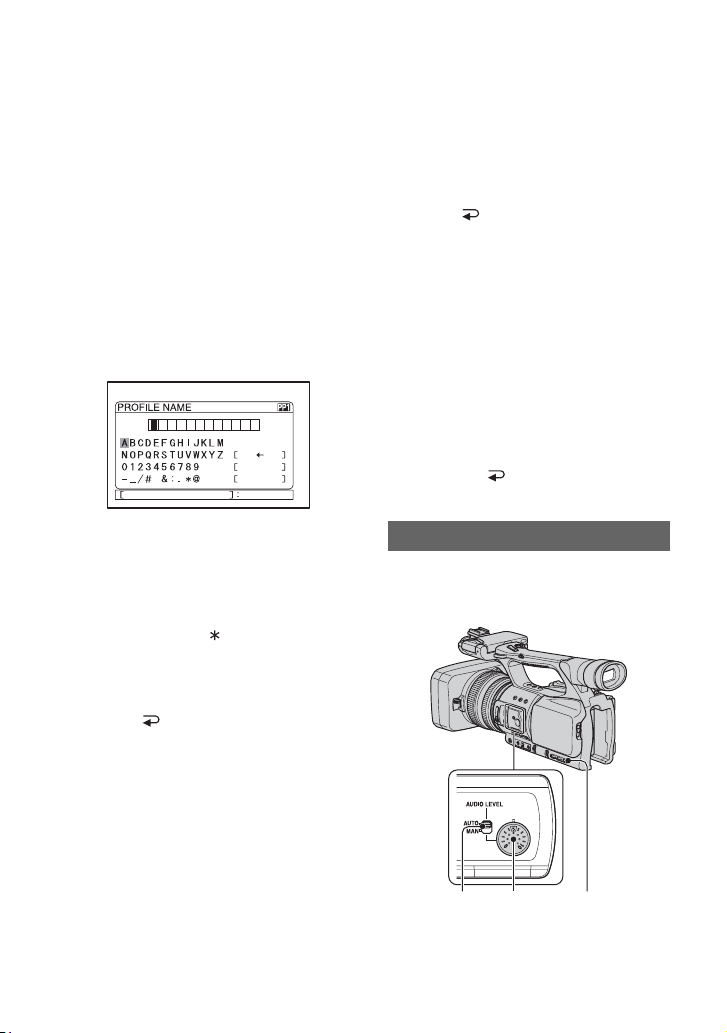
To name the picture profile settings
You can name picture profile1 through 6.
1 Press the PICTURE PROFILE button
B.
2 Select the picture profile that you want
t
o name with the SEL/PUSH EXEC dial
A.
3 Select [SETTING] t [
PROFILE
NAME] with the SEL/PUSH EXEC dial
A.
4 Select a letter with the SEL/PUSH
EX
EC dial A. Repeat this operation
until a complete name is entered.
z Tips
• Each name can be up to 12 characters long.
Characters that can be used in profile
name
s:
•A to Z
•0 to 9
• - _ / # & : . @
5 Select [OK] with the SEL/PUSH EXEC
dial A.
The profile name is changed.
6 Select [ RE
TURN] t [OK] with
the SEL/PUSH EXEC dial A.
To copy the picture profile setting to
other picture profiles
1 Press the PICTURE PROFILE button
B.
2 Select the picture profile that you want
t
o copy from with the SEL/PUSH
EXEC dial A.
3 Select [SETTING] t [
COPY] with
SEL/PUSH EXEC dial A.
4 Select the number of the picture profile
t
hat you want to copy to with the SEL/
PUSH EXEC dial A.
5 Select [YES] with the SEL/PUSH
EXEC
dial A.
6 Select [ R
ETURN] t [OK] with the
SEL/PUSH EXEC dial A.
To reset the picture profile settings
You can reset the picture profile settings by
each picture profile number. You cannot
reset all picture profile settings at once.
1 Press the PICTURE PROFILE button
B.
2 Select the number of the picture profile
t
hat you want to reset with the SEL/
PUSH EXEC dial A.
3 Select [SETTING] t [
RESET] t
[YES] t [ RETURN] t [OK]
with the SEL/PUSH EXEC dial A.
You can adjust the volume of the stereo
i
n
ternal microphone or an external
microphone connected to the MIC jack.
CANCEL
OK
P I CTURE PROF I LE END
PICT. PROFILE
Adjusting the volume
BAC
Changing the settings of your camcorder recordings (Continued)

43
Recording/Playback
1 Set the AUDIO LEVEL switch A
of the channel to be adjusted to
MAN.
appears on the screen.
2 Turn the AUDIO LEVEL dial B to
adjust the volume during
recording or standby.
To restore automatic adjustment
Set the AUDIO LEVEL switch A to
AUTO.
z Tips
• To check other audio settings, press the
STATUS CHECK button C. You can also
check microphone audio levels.
• For other settings, see the
(AUDIO SET)
menu (p. 73).
44
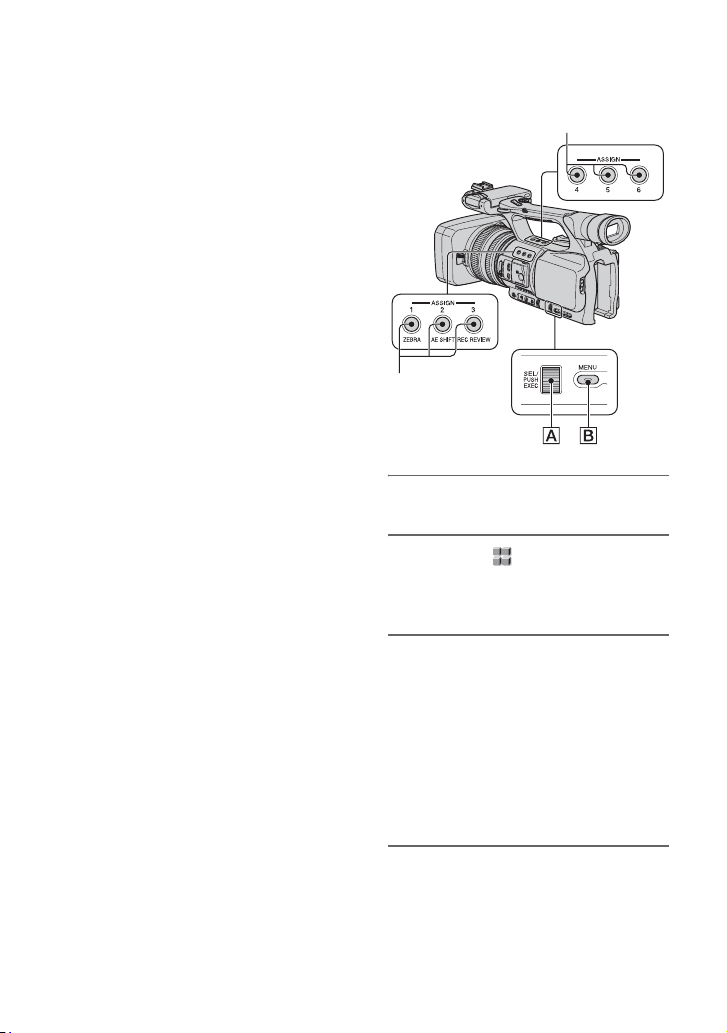
Assigning the functions to the ASSIGN buttons
Some functions need to be assigned to the
ASSIGN buttons for use. You can assign a
single function to any one of the ASSIGN 1
to 6 buttons.
Functions you can assign to the
ASS
IGN
buttons
The buttons in parentheses indicate that the
fu
nc
tions are assigned to the buttons by
default.
• EXP.FOCUS (p. 82)
• D.EXTENDER (p. 69)
• RING ROTATE (p. 66)
•AE SHIFT (p. 67) (ASSIGN 2 button)
• INDEX MARK (p. 45)
• STEADYSHOT (p. 68)
• BACK LIGHT (p. 68)
• SPOTLIGHT (p. 68)
• FADER (p. 69)
•SMTH SLW REC (p. 69)
• COLOR BAR (p. 72)
•REC REVIEW (p. 45) (ASSIGN 3 button)
• END SEARCH (p. 45)
• ZEBRA (p. 74) (ASSIGN 1 button)
• MARKER (p. 75)
• PEAKING (p. 74)
• Picture profile (p. 37)
• SHOT TRANSITION (p. 46)
1 Press the MENU button B.
2 Select the (OTHERS) t
[ASSIGN BTN] with the SEL/PUSH
EXEC
dial A.
3 Select the ASSIGN button to
which you want to assign a
function from [ASSIGN1] to
[ASSIGN6] with the SEL/PUSH
EXEC dial A.
• [------] appears if no function is assigned to
the ASSIGN button.
• Select [YES] when you select [SHOT
TRANSITION], then do step 6.
4 Select the function that you want
to assign with the SEL/PUSH
EXEC dial A.
ASSIGN 4-6 buttons
ASSIGN 1-3
buttons

45
Recording/Playback
5 Select [OK] with the SEL/PUSH
EXEC dial A.
6 Press the MENU button B to hide
the menu screen.
z Tips
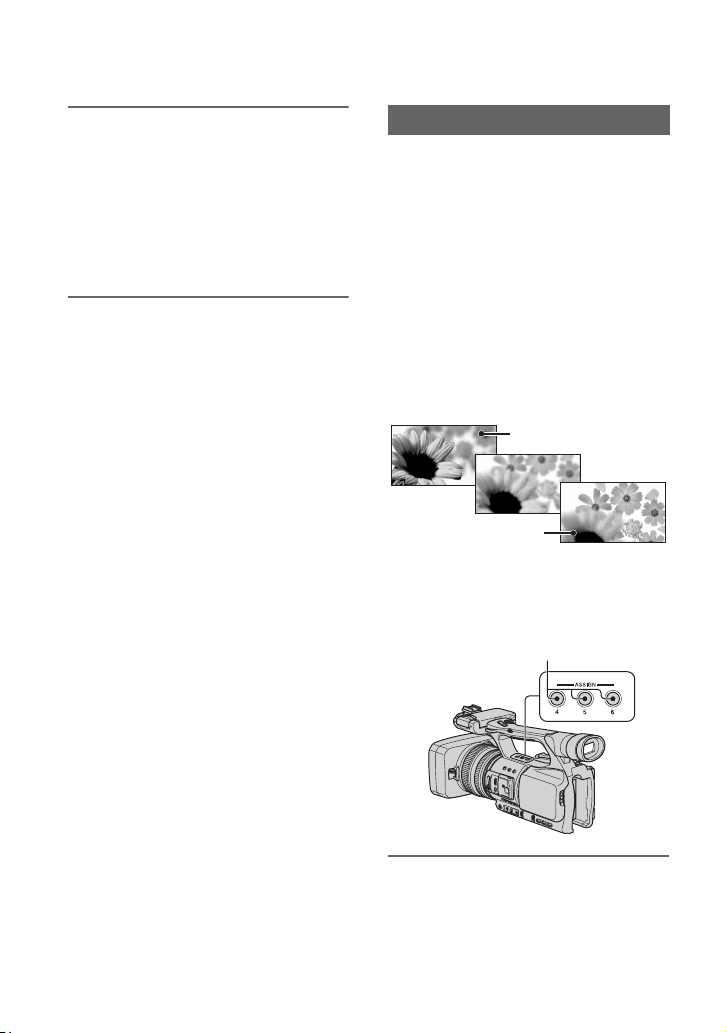
• Shot transition is assigned to the ASSIGN 4, 5
and 6 buttons (p. 46). Cancel the shot transition
assignment to return to the pre-setting
assi
gnment.
• To cancel the shot transition, select [SHOT
TRANSITION] t [YES] in step 3.
If you record a scene with an index signal,
you can easily find that scene during play
back (p. 55).
The index function will make it easier to
c
h
eck the transition of recording or edit
your pictures using index signals.
1 Assign [INDEX MARK] to one of
the ASSIGN buttons (p. 44).
2 Press the ASSIGN button to
which [INDEX MARK] is assigned.
During recording
appears for about 7 seconds and an
index signal is recorded.
During standby
flashes.
After you press the REC START/STOP
b
u
tton to start recording, appears
for about 7 seconds and an index signal
i
s
recorded.
To cancel the operation
Press the ASSIGN button to which [INDEX
MARK] is assigned again before you start
recording.
b Notes
• You cannot record an index signal on a recorded
tape afterward.
You can view about 2 seconds of the scene
recorded just before you stopped the tape.
This is convenient during playback of the
la
te
st scene check.
1 Assign [REC REVIEW] to one of
the ASSIGN buttons. (p. 44).
2 Press the ASSIGN button to
which [REC REVIEW] is assigned
during standby.
The last 2 seconds (approx.) of the most
re
c
ently recorded scene will be played
back, then your camcorder returns to
standby.
1 Assign [END SEARCH] to one of
the ASSIGN buttons (p. 44)
.
Recording an index signal
Reviewing the most recently
recorded scenes (Rec review)
Searching for the last scene of
the most recent recording
(End search)
Continued ,
46
2 Press the ASSIGN button to
which [END SEARCH] is
assigned.
The last scene of the most recent
rec
o
rding will be played back for about
5 seconds, and the camcorder goes the
standby at the point where the last
recording has finished.
b Notes
• End search will not work once you eject the
tape.
• End search will not work correctly if a blank
section exists between recorded sections on the
tape.
You can store settings of focus, zoom, iris,
gain, shutter speed and white balance, and
smoothly shift from the current settings to
the stored settings (shot transition).
For example, you can shift the focus from
c
l
oser objects to farther objects, or change
the depth of field by adjusting the iris. You
can also develop scenes under different
conditions smoothly. If you store manually
adjusted settings of white balance, you can
smoothly shift from one scene to another
under different conditions, such as from
indoor to outdoor.
Sony recommends that you use a tripod to
a
voi
d image blurring.
You can set the transition curve and
du
rat
ion using [SHOT TRANSITION]
(p. 71).
1 Assign [SHOT TRANSITION] to
the ASSIGN buttons (p. 44).
z Tips
• Shot transition is assigned to ASSIGN 4, 5
and 6 buttons.
Using the Shot transition
SHOT-A
SHOT-B
ASSIGN 4-6 buttons
Assigning the functions to the ASSIGN buttons (Continued)
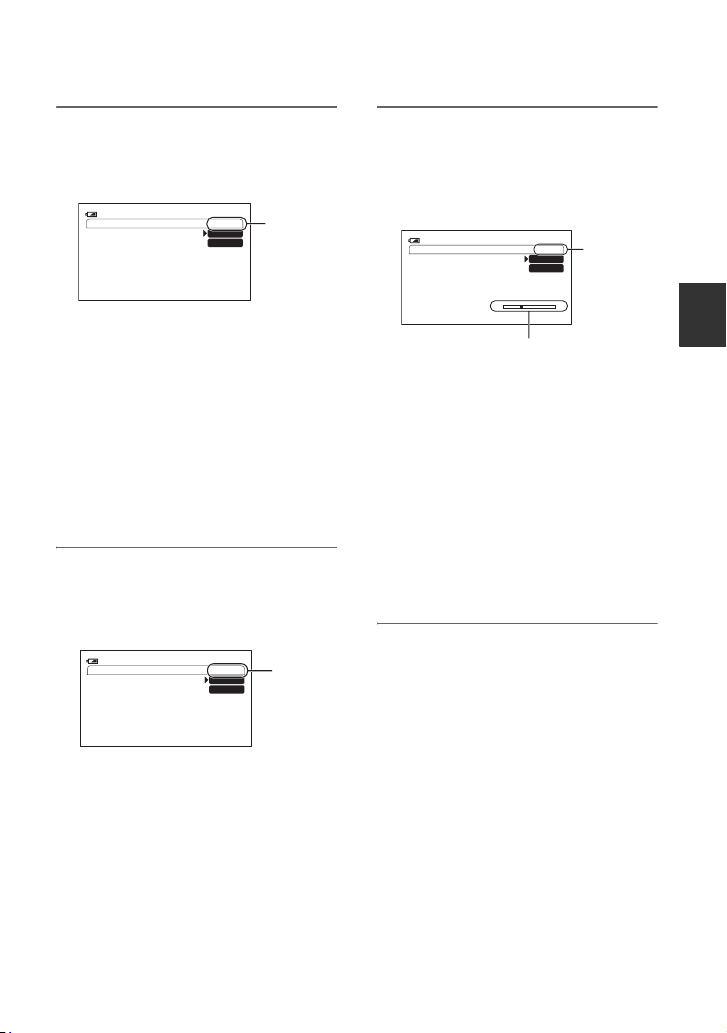
47
Recording/Playback
2 Store the settings (shot)
1 Press the ASSIGN 4 button repeatedly
to bring up the SHOT TRANSITION
STORE screen.
2 A
djust the desired items manually.
S
ee pages 31 to 37 for details on
adjustment.
3 Press the ASSIGN 5 button for storing
t
he setting in SHOT-A, or the
ASSIGN 6 button for storing the setting
in
SHOT-B.
b Notes
• The setting values assigned to SHOT-A and
SHOT-B are deleted when the POWER
switch is turned to OFF (CHG).
3 Check the stored settings
1 Press the ASSIGN 4 button repeatedly
to bring up the SHOT TRANSITION
CHECK screen.
2 Press the ASSIGN 5 button to check
t
he SHOT-A. Press the ASSIGN 6
button to check the SHOT-B.
The selected setting will take effect on
t
h
e picture on the screen. The focus,
zoom, and so on, are automatically
adjusted as stored in the setting.
b Notes
• On the shot transition check screen, the
settings do not shift to the stored settings of
the transition time and curve set in [TRANS
TIME] and [TRANS CURVE] (p. 71)
4 Record using the shot transition
function
1 Press the ASSIGN 4 button repeatedly
to bring up the SHOT TRANSITION
EXEC screen.
2 Pr
ess the REC START/STOP button.
3 Press the ASSIGN 5 button for
re
cording with SHOT-A, or the
ASSIGN 6 button for recording with
SHOT-B.
The settings shift from the current ones
to
th
e stored ones.
z Tips
• Press the ASSIGN 4 button repeatedly to
cancel the SHOT TRANSITION.
b Notes
• You cannot zoom, focus, or adjust manually
while checking or activating the Shot transition.
• When you change [SHOT TRANSITION]
(p. 71), press the ASSIGN 4 button repeatedly
to exit the shot transition screen.
• You cannot return from the stored SHOT-A or
SHOT
-B settings to previous settings after you
execute the shot transition during recording.
• If you press the following buttons during the
shot tra
nsition operation, the operation will be
canceled:
– PICTURE PROFILE button
– MENU button
– The PHOTO/EXPANDED FOCUS button or
ASS
IGN button to which [EXP.FOCUS] is
assigned.
– STATUS CHECK button
SHOT TRANSITION STORE
STBY
0:00:0560
min
SHOT-A
SHOT-B
STORE
SHOT TRANSITION CHECK
STBY
0:00:0560
min
SHOT-A
SHOT-B
CHECK
SHOT TRANSITION EXEC
ES
STBY 0:00:0560
min
SHOT-A
SHOT-B
Transition bar
S: start
E: end
EXEC
Continued ,

48
– The ASSIGN button to which [SMTH SLW
REC] is assigned.
z Tips
• You can also make a transition from the SHOT-
A to saved SHOT-B or from the SHOT-B to the
SHOT-A. For example, to make a transition
from the SHOT-A to the SHOT-B, display the
shot transition check screen, press the ASSIGN
5 button to bring up the SHOT-A and press the
REC START/STOP button. Then, display the
shot transition execution screen and press the
ASSIGN 6 button.
• You can rehearse the shot transition by pressing
the A
SSI
GN button (5 or 6), to which your
customized setting are assigned, before pressing
the REC START/STOP button in step 4.
To cancel the operation
Press the ASSIGN 4 button repeatedly to
exit the shot transition screen.
Assigning the functions to the ASSIGN buttons (Continued)
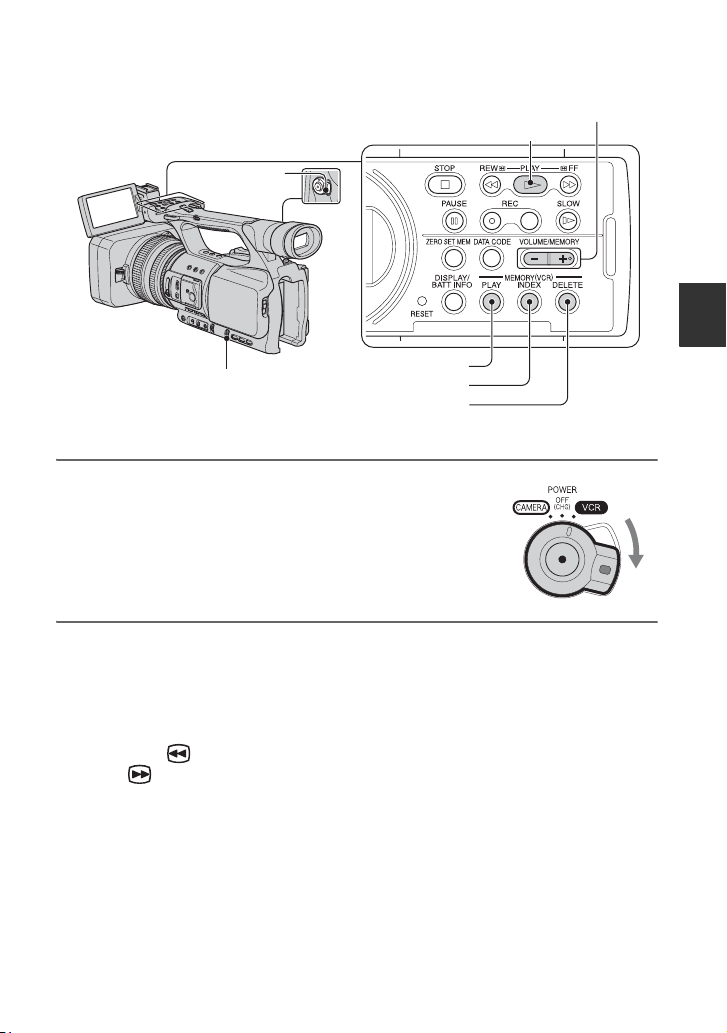
49
Recording/Playback
Playback
You can play back movies as follows.
1 Slide the POWER switch to VCR while pressing the
green button.
2 Start playing back.
Press
m (rewind) to go to the point you want to view, then press N (play) to start
playback.
•
x : STOP
•
X : PAUSE (Press N or X again to restart the playback)
•
m : REW (Rewind, review)
•
M : FF (Cue, fast forward)
•
y : SLOW
b Notes
• Your camcorder automatically goes into a stopped state when it is in pause for more than 3 minutes.
• The screen may temporarily go blank losing images and s
ound when signals switch between HDV
and DV during playback of a tape in which HDV format and DV format are mixed.
• You cannot play back movies recorded in HDV format on DV format video cameras or mini DV players.
PLAY button
MEMORY/PLAY button
SEL/PUSH EXEC dial
MEMORY/INDEX button
VOLUME/
MEMORY button
MEMORY/DELETE button
POWER
switch
Continued ,

50
z Tips
•See page 130 for indicators displayed on the screen during playback.
•See page 52 for how to switch displays during playback.
• To play back the tape recorded using a
monaural microphone connected, see
[MULTI-SOUND] (p. 73).
• To reset the tape counter, press the ZERO SET MEM button. You can also use the ZERO SET
MEMORY button on the Remote Commander (p. 54).
To search for a scene while viewing a movie
Press and hold m/M during playback (Picture Search). To view during fast forward, press
and hold M. To view during rewind, press and hold m (Skip Scan).
To adjust the volume
Adjust the volume with the VOLUME/MEMORY button.
To view still images
1 Set the POWER switch to VCR.
2 Press the MEMORY/PLAY button.
3 Select still image that you want to view using the VOLUME/MEMORY button.
To
stop viewing still images, press the MEMORY/PLAY button again.
To display the list of still images (index screen)
1 Set the POWER switch to VCR.
2 Press the MEMORY/INDEX button.
3 Select a still image using the VOLUME/MEMORY button.
To
display a single image, move B to
that image and press the MEMORY/PLAY button.
To stop displaying the list of still images, press the MEMORY/INDEX button again.
To delete still images from the “Memory Stick Duo”
1 Do the steps of “To view still images” to display still images that you want to delete.
2 Press the MEMORY/DELETE button.
3 Select [YES] with the SEL/PUSH EXEC dial.
Th
e still image will be deleted.
1/19
101–0050
101
Playback (Continued)

51
Recording/Playback
b Notes
• Still images cannot be restored once you delete them.
• You cannot delete still images when the “Memory Stick Duo” is write-protected (p. 111) or the still image
is protected (p. 96).
z Tips
• To delete a still image in the index, move B to the still image using the VOLUME/MEMORY button,
then do steps 2 and 3.
• To delete all still images, do [ ALL ERASE] of the (MEMORY SET) menu (p. 80).
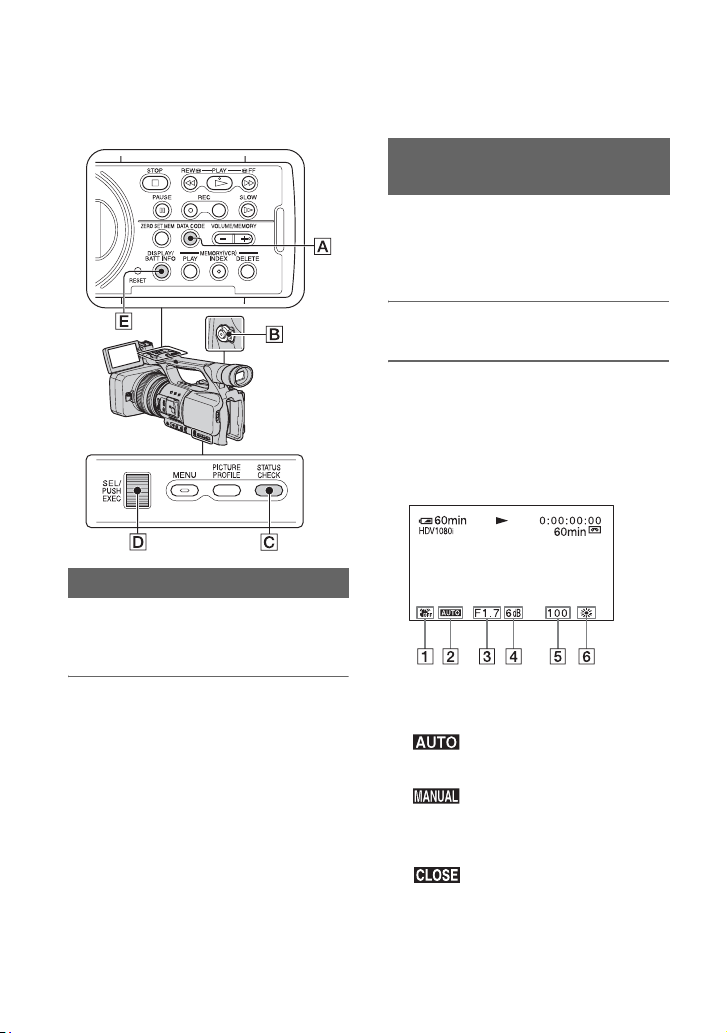
52
Changing/checking the settings in your
camcorder
You can turn on and off the display of the
time code, tape counter, and other
information on the screen.
Press the DISPLAY/BATT INFO
button E.
The screen indicators turn on (displayed)
and off (undisplayed) as you press the
button.
z Tips
• You can display the screen indicators during
playback on a TV. Select [V-OUT/PANEL] or
[ALL OUTPUT] of [DISP OUTPUT] (p. 77).
You can display information, including
date, time and camera data, automatically
stored during recording on the screen
during playback.
1 Set the POWER switch B to VCR.
2 Press the DATA CODE button A
during playback or pause.
The screen changes (date and time
dis
play t camera data display t no
display) as you press the button.
A St
eadyShot off
B Exposure
a
ppears during playback of the
movie recorded with the iris, gain and
sh
u
tter speed automatically adjusted.
appears during playback of the
movie recorded with the iris, gain and
sh
u
tter speed manually adjusted.
C Iris
ap
pears in the iris value display
area during playback of the movie
r
ec
orded with the iris manually adjusted
to its maximum value.
D Gain
Changing the screen
Displaying recording data (Data
code)
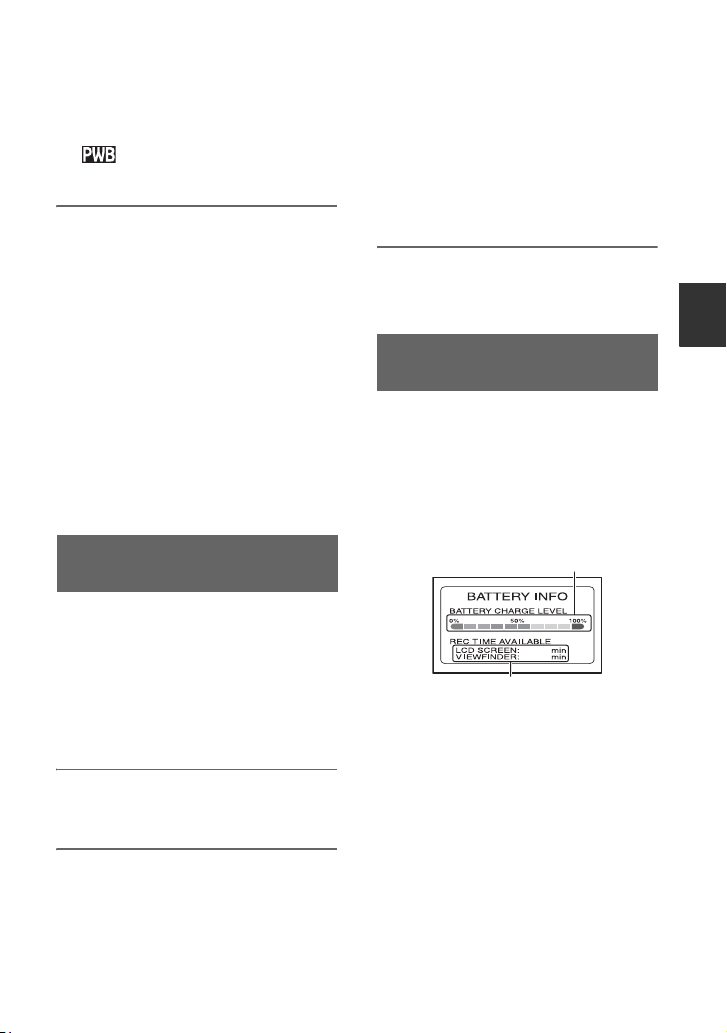
53
Recording/Playback
E Shutter speed
F White balance
a
ppears during playback of the
movie recorded with the shot transition.
b Notes
• The exposure correction value (0EV), shutter
speed and iris will be displayed during viewing
of still images on “Memory Stick Duo.”
• Date and time will be displayed in the same area
when you s
elect the date and time display. If
you record without setting date and time,
[--- -- ----] and [--:--:--] will be displayed.
• An accurate shutter speed may not be displayed
when you
play back a tape recorded with your
camcorder on another device. Check the data
code that is displayed on the screen when you
play back the tape on your camcorder for the
accurate shutter speed.
• When you record a movie with the gain set to
[-6dB] and play it back with the data code, the
ga
i
n value is displayed as [---].
You can check the settings of the following
items.
• Audio setup such as [WIND] (p. 73)
• Output signal setup ([VCR HDV/DV], etc.)
(p. 77)
• Functions assigned to the ASSIGN buttons
(p. 44)
• Camera setup. (p. 66)
1 Press the STATUS CHECK button
C.
2 Turn the SEL/PUSH EXEC dial D
until a desired display shows up
on the screen.
When the POWER switch B is
s
et to
CAMERA, the display changes in the
following sequence:
AUDIO t OUTPUT t ASSIGN t
CA
MERA
When the POWER switch B is
se
t to
VCR, the display changes in the
following sequence:
AUDIO t OUTPUT t ASSIGN
To hide the display
• Press the STATUS CHECK button C.
Set the POWER switch to OFF (CHG), then
press the DISPLAY/BATT INFO button
E. The approximate recordable time in the
selected format and battery information
appear for about 7 seconds. You can view
the battery information for up to 20 seconds
by pressing the button again while the
information is displayed.
Displaying the settings in your
camcorder (Status check)
Checking the remaining battery
(Battery Info)
65
60
Remaining battery (approx.)
Recording capacity (approx.)
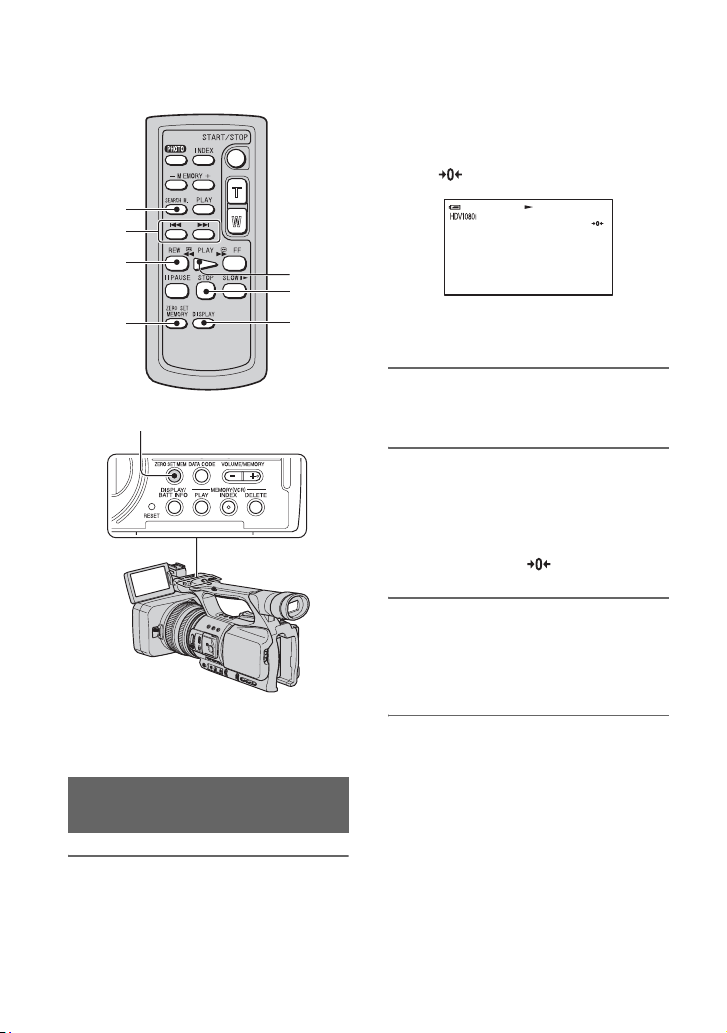
54
Locating a scene on a tape
b Notes
• See page 127 for details on how to use the
Remote Commander.
1
During playback, press the ZERO
SET MEM button
H
on your
camcorder or the ZERO SET
MEMORY button
D
on the Remote
Commander at the scene where
you want to create a cue point.
The tape counter is reset to “0:00:00”
and appears on the screen.
If the tape counter is not displayed,
pr
ess the DISPLAY button G.
2 Press the STOP button F when
you want to stop playback.
3 Press the mREW button C.
The tape stops automatically when the
ta
pe counter reaches “0:00:00.”
The tape counter returns to the time
code display, and disappears.
4 Press the PLAY button E.
Playback starts from the point
de
signated “0:00:00” on the tape
counter.
To cancel the operation
Press the ZERO SET MEM button H or
the ZERO SET MEMORY button D again
before rewinding.
b Notes
• There may be a discrepancy of several seconds
between the time code and the tape counter.
• Zero set memory will not function correctly if
there is a blank section between recorded
sections on the tape.
Searching quickly for a desired
scene (Zero set memory)
F
G
A
B
C
D
E
H
0:00:0060min

55
Recording/Playback
You can search scenes by recording dates.
1 Set the POWER switch to VCR.
2 Press the SEARCH M. button A
on the Remote Commander
repeatedly to select [DATE
SEARCH].
3 Press the . (previous)/>
(next) button B on the Remote
Commander to select a recording
date.
You can select a date previous or next to
t
h
e date of the current tape position.
Playback automatically starts from the
s
cen
e recorded on the selected date.
To cancel the operation
Press the STOP button F on the Remote
Commander.
b Notes
• Each day of recording must be longer than 2
minutes. Your camcorder may not detect the
date if the recording of that date is short.
• The date search may not work properly if a
blank s
ection exists on the tape.
You can search scenes by indexes recorded
at the start of recording (p. 45).
1 Set the POWER switch to VCR.
2 Press the SEARCH M. button A
on the Remote Commander
repeatedly to select [INDEX
SEARCH].
3 Press the . (previous)/>
(next) button B on the Remote
Commander to select an index
point.
You can select an index previous or next
to
t
he index of the current tape position.
Playback automatically starts from the
s
c
ene marked by the index.
To cancel the operation
Press the STOP button F on the Remote
Commander.
b Notes
• Recording between indexes must be longer than
2 minutes. Your camcorder may not detect the
date if the recording between the indexes is
short.
• The index search may not work properly if a
blank section exists on the tape.
Searching for a scene by date of
recording (Date search)
Searching for a recording start
point (Index search)
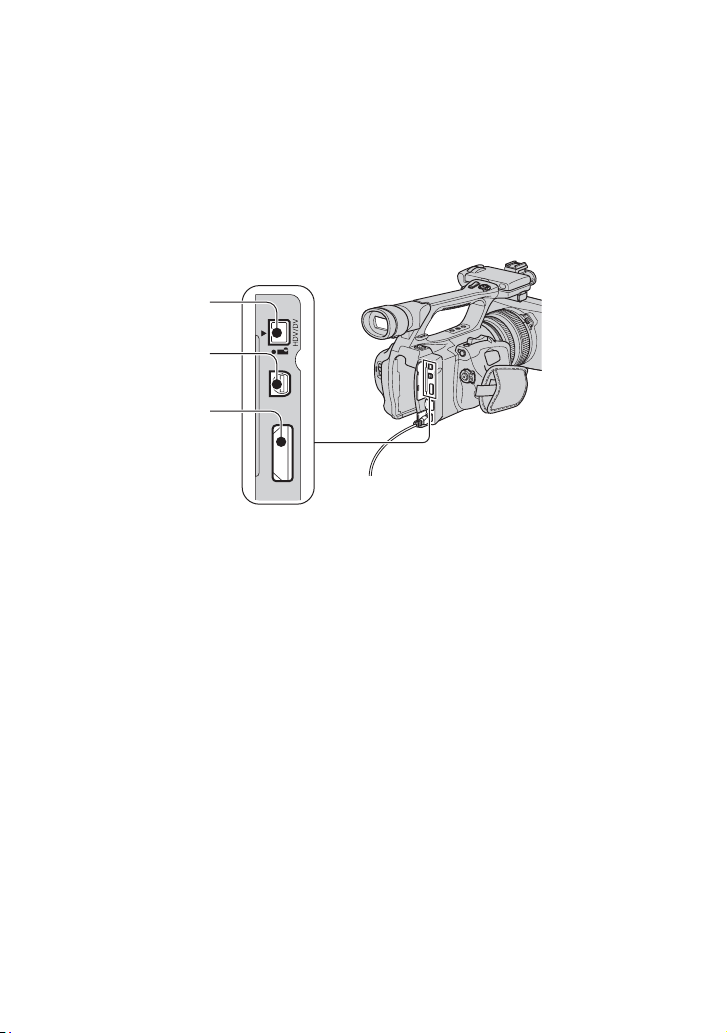
56
Playing the picture on a TV
Connection methods and image quality differ depending on what type of TV is connected and
connectors used.
Use the supplied AC Adaptor to obtain AC power (p. 18).
Refer also to the instruction manuals supplied with the device to be connected.
Jacks on your camcorder
Open the jack cover and connect the cable.
b Notes
• Make all menu settings on your camcorder before connecting. The TV may not recognize the video signal
properly when changing [VCR HDV/DV] and [i.LINK CONV] settings after connecting with an i.LINK
cable.
HDMI OUT
A/V R
1
2
3
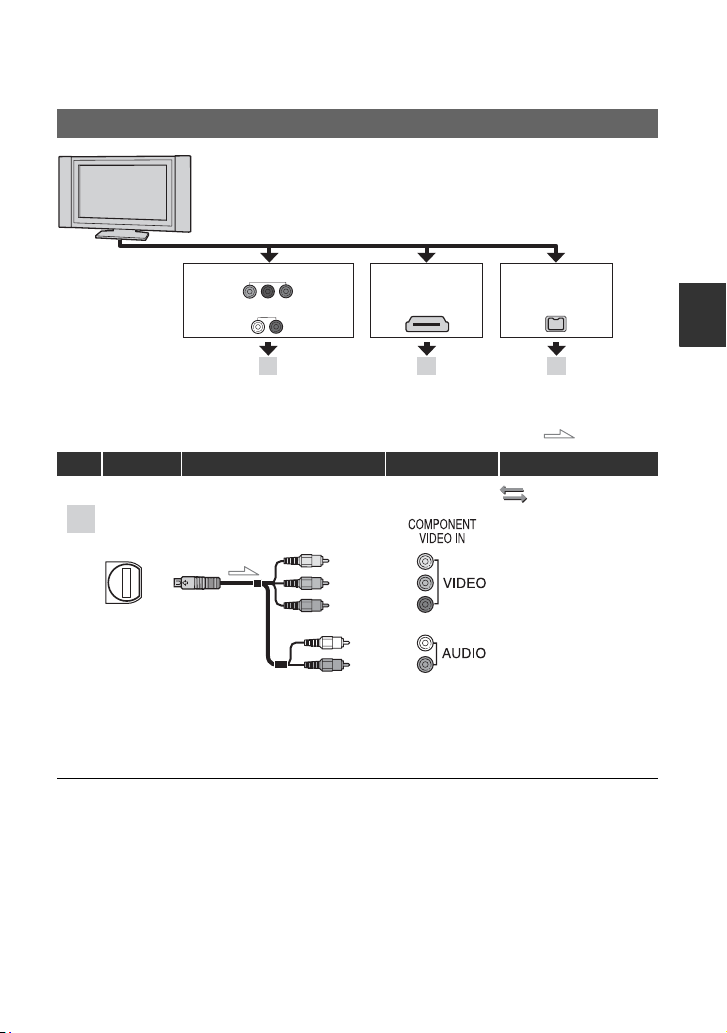
57
Recording/Playback
Connecting to a high definition TV
: Signal flow
Type Camcorder Cable TV Menu Setting
(IN/OUT REC)
menu t
[VCR HDV/DV] t
[AUTO] (p. 77)
[COMPONENT] t
[1080i/480i] (p. 79)
b No
tes
• If you connect only component video plugs, audio signals are not output. Connect the white and red plugs
to output audio signals.
B CA
HDMI
i.LINK
COMPONENT IN
AUDIO
(for HDV1080i)
A movie recorded in HD quality is played back in HD quality.
A movie recorded in SD quality is played back in SD quality.
HDMI
i.LINK
A
2
Component A/V cable
(supplied)
(Green) Y
(Blue) P
B
/C
B
(Red) P
R
/C
R
(Red)
(White)
Continued ,
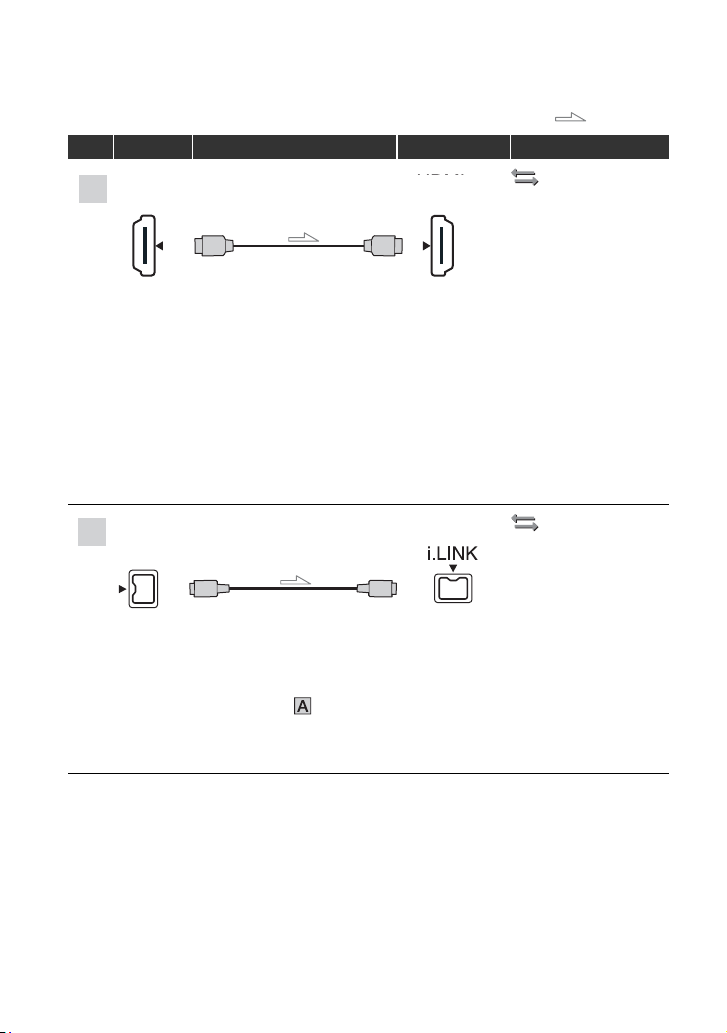
58
(IN/OUT REC)
menu t
[VCR HDV/DV] t
[AUTO] (p. 77)
b Notes
• Use an HDMI cable with the HDMI logo.
• Pictures in the DV format are not output from the HDMI
OUT jack, if copyright protection signals are
recorded in the pictures.
• DV format pictures input to the camcorder via i.LINK cable (p. 84) cannot be output.
• Your TVs may not function correctly (for example, no s
ound or image). Do not connect the HDMI OUT
jack of your camcorder and HDMI OUT jack of the external device with the HDMI cable. This may cause
a malfunction.
z Tips
• HDMI (High-Definition Multimedia Interface) is an interface to send both video and audio signals.
Connecting HDMI OUT jack to an external device supplies high quality images and digital audio to you.
(IN/OUT REC)
menu t
[VCR HDV/DV] t
[AUTO] (p. 77)
[i.LINK CONV] t
[OFF] (p. 79)
b Note
s
• Your TV needs to have an i.LINK jack compatible with HDV1080i. For details, confirm the
specifications of your TV.
• If your TV is not compatible with HDV1080i, connect your camcorder and TV with the supplied
component A/V cable as illustrated in .
• The TV needs to be set so that it recognizes that the camcorder is connected. Refer to the instruction
manuals supplied with your TV.
• This camcorder has a 4-pin i.LINK terminal. Select a cable that fits the terminal on the TV to be attached.
: Signal flow
Type Camcorder Cable TV Menu Setting
HDMI
IN
B
3
HDMI cable (optional)
HDMI
IN
C
1
i.LINK cable (optional)
Playing the picture on a TV (Continued)
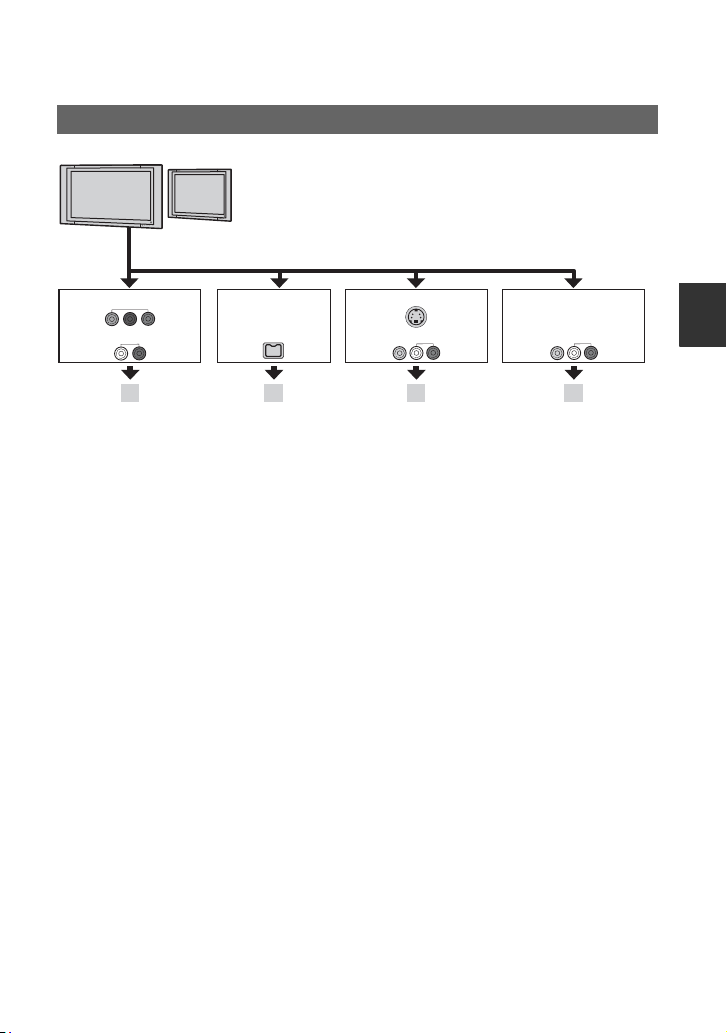
59
Recording/Playback
To set the aspect ratio according to the connected TV (16:9/4:3)
Change [TV TYPE] setting to match your TV (p. 79).
b Notes
• When you play back a tape recorded in the DV format on a 4:3 TV not compatible with the 16:9 signal, set
[DV WIDE REC] to [OFF] on your camcorder when recording a picture (p. 78).
z Tips
• When your TV is monaural (When your TV has only one audio input jack), connect the yellow plug of the
A/V connecting cable to the video input jack and connect the white (left channel) or the red (right
channel) plug to the audio input jack of your TV or VCR. When you want to play the sound in monaural
mode, use a connecting cable for that purpose.
Connecting to a 16:9 (wide) or 4:3 TV
E F G
VIDEO/AUDIO
VIDEO/AUDIO
i.LINK
D
COMPONENT IN
AUDIO
A movie recorded in HD quality is converted and played
back in SD quality. A movie recorded in SD quality is played
back in SD quality.
i.LINK S VIDEO
Continued ,
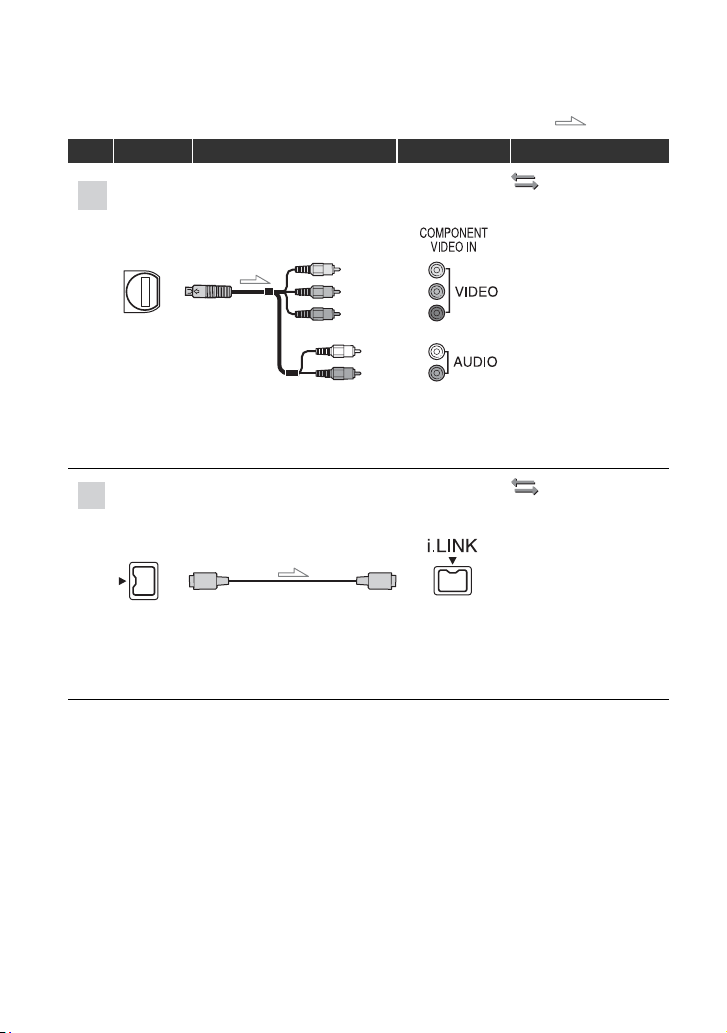
60
: Signal flow
Type Camcorder Cable TV Menu Setting
(IN/OUT REC)
menu t
[VCR HDV/DV] t
[AUTO] (p. 77)
[COMPONENT] t
[480i] (p. 79)
[TV TYPE] t
[16:9]/[4:3]* (p. 79)
b Note
s
• If you connect only component video plugs, audio signals are not outputted. Connect the white and red
plugs to output audio signals.
(IN/OUT REC)
menu t
[VCR HDV/DV] t
[AUTO] (p. 77)
[i.LINK CONV] t
[ON] (p. 79)
b Notes
• The TV needs to be set so that it recognizes that the camcorder is connected. Refer to the instruction
manuals supplied with your TV.
• This camcorder has a 4-pin i.LINK terminal. Select a cable that fits the terminal on the TV to be attached.
* Change the settings according to the TV connected.
D
2
Component A/V cable
(supplied)
(Green) Y
(Blue) P
B
/C
B
(Red) P
R
/C
R
(Red)
(White)
1
E
i.LINK cable (optional)
Playing the picture on a TV (Continued)
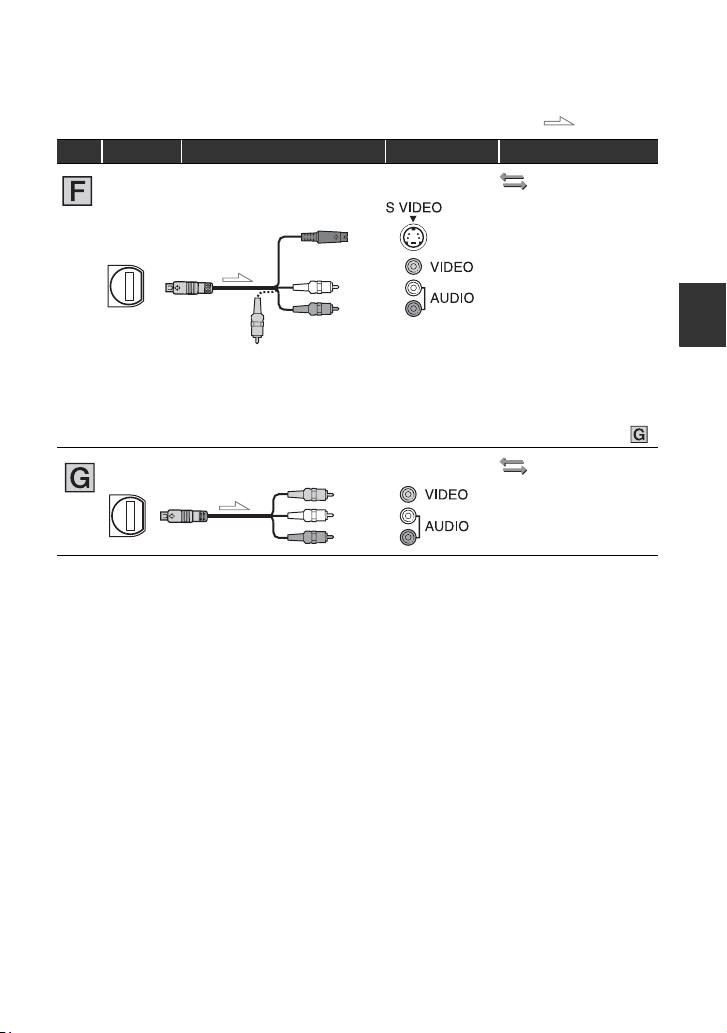
61
Recording/Playback
* Change the settings according to the TV connected.
b Notes
• If you connect your camcorder to the TV using more than one type of cable to output images, the order of
priority of the TV input jacks is as follows:
HDMI
t component video t S VIDEO t video.
• See page 113 for the details of i.LINK.
When connecting to your TV via a VCR
Select the connecting method on page 84 depending on the input jack of the VCR. Connect
your camcorder to the LINE IN input on the VCR using the A/V connecting cable. Set the
input selector on the VCR to LINE (VIDEO 1, VIDEO 2, etc.).
: Signal flow
Type Camcorder Cable TV Menu Setting
(IN/OUT REC)
menu t
[VCR HDV/DV] t
[AUTO] (p. 77)
[TV TYPE] t
[16:9]/[4:3]* (p. 79)
z Ti
ps
• When connecting only an S VIDEO plug (S VIDEO channel), audio signals are not output. To output
audio signals, connect the white and red plugs of the A/V connecting cable with S VIDEO to the audio
input jack o
f your TV.
• This connection produces higher resolution pictures compared with the A/V connecting cable (Type ).
(IN/OUT REC)
[VCR HDV/DV] t
[AUTO] (p. 77)
[TV TYPE] t
[16:9]/[4:3]* (p. 79)
2
A/V connecting cable with
S VIDEO (optional)
(Red)
(White)
(Yellow)
2
A/V connecting cable
(supplied)
(Red)
(White)
(Yellow)
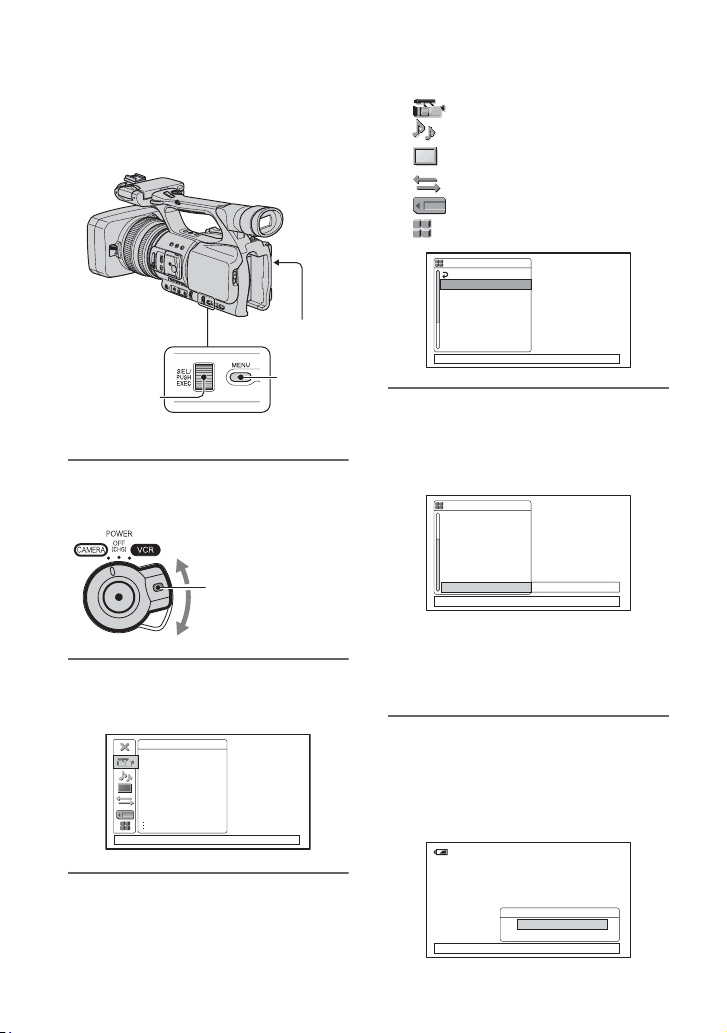
62
Using the Menu
Using the menu items
You can change various settings or make
detailed adjustments using the menu items
displayed on the screen.
1 While pressing the green button,
set the POWER switch.
2 Press the MENU button.
The menu index screen appears.
3 Turn the SEL/PUSH EXEC dial
until the icon of the desired menu
is highlighted, then press the dial
to select the menu.
SEL/PUSH
EXEC dial
MENU
button
POWER switch
Press and hold the
green button when
you slide the
POWER switch from
OFF (CHG).
CAMERA SET
PROG. SCAN
IRIS/EXPOSURE
GAIN SETUP
AGC LIMIT
MINUS AGC
WB PRESET
AWB SENS
[
MENU
]
: END
STBY
CAMERA SET (p. 66)
AUDIO SET (p. 73)
DISPLAY SET (p. 74)
IN/OUT REC (p. 77)
MEMORY SET (p. 80)
OTHERS (p. 81)
4 Turn the SEL/PUSH EXEC dial
until the desired menu item is
highlighted, then press the dial to
select the item.
The available menu items vary
d
e
pending on the position of the power
switch of your camcorder. Unavailable
items will be grayed out.
5 Turn the SEL/PUSH EXEC dial
until the desired setting is
highlighted or to bring up the
desired setting, then press the
dial to confirm the setting.
OTHERS
RETURN
CAMERA PROF.
ASSIGN BTN
CLOCK SET
WORLD TIME
LANGUAGE
QUICK REC
[
MENU
]
: END
PHOTO/EXP.FOCUS
STBY
OTHERS
PHOTO/EXP.FOCUS
CLOCK SET
WORLD TIME
LANGUAGE
QUICK REC
BEEP
REC LAMP
REMOTE CTRL
ON
[
MENU
]
: END
STBY
60min
REMOTE CTRL
[
MENU
]
: END
ON
OFF
0:00:00STBY

63
Using the Menu
6 Press the MENU button to hide
the menu screen.
To return to the previous screen, select
[ RETURN].
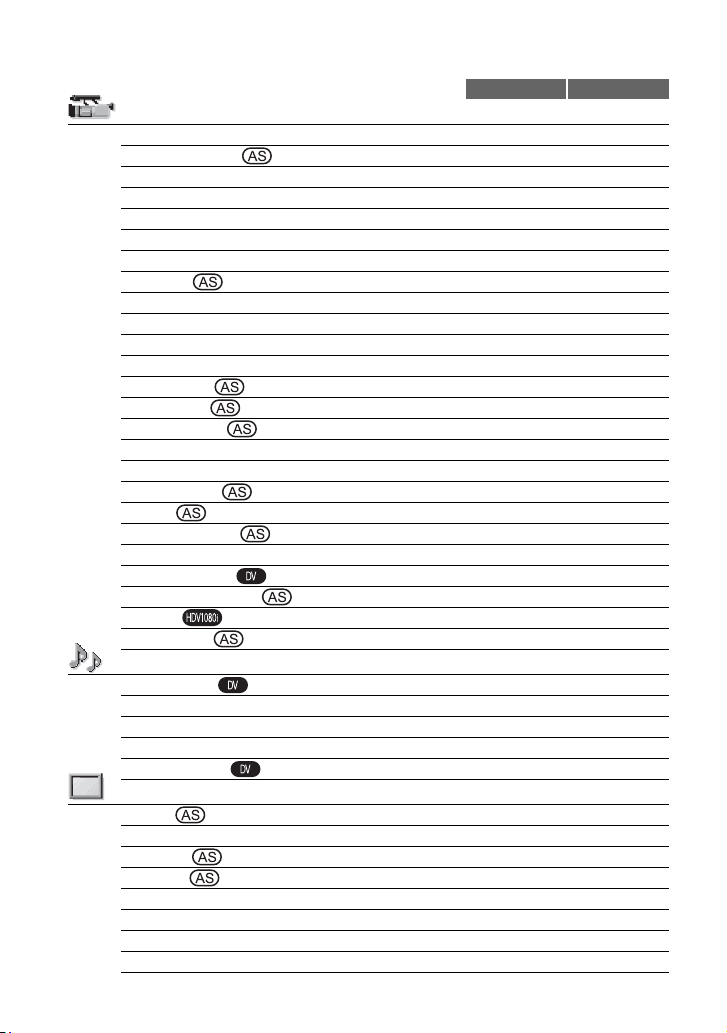
64
.
Menu items
Available menu items (z) vary depending on the POWER switch
position.
Position of POWER switch: CAMERA VCR
(CAMERA SET) menu (p. 66)
PROG.SCAN z –
IRIS/EXPOSURE z –
GAIN SETUP z –
AGC LIMIT z –
MINUS AGC z –
WB PRESET z –
AWB SENS z –
AE SHIFT z –
AE RESPONSE z –
AT IRIS LMT z –
FLCKR REDUCE z –
CNTRST ENHCR z –
BACK LIGHT z –
SPOTLIGHT z –
STEADYSHOT z –
AF ASSIST z –
HANDLE ZOOM z –
D.EXTENDER z –
FADER z –
SMTH SLW REC z –
INTERVAL REC z –
DV FRAME REC z –
SHOT TRANSITION z –
x.v.Color z –
COLOR BAR z –
(AUDIO SET) menu (p. 73)
DV AU.MODE z –
AUDIO LIMIT z –
WIND z –
MULTI-SOUND – z
DV AUDIO MIX – z
(DISPLAY SET) menu (p. 74)
ZEBRA z –
HISTOGRAM z –
PEAKING z –
MARKER z –
EXP.FOCUS TYPE z –
CAM DATA DSP z –
AU.LVL DISP z –
LCD BRIGHT z z
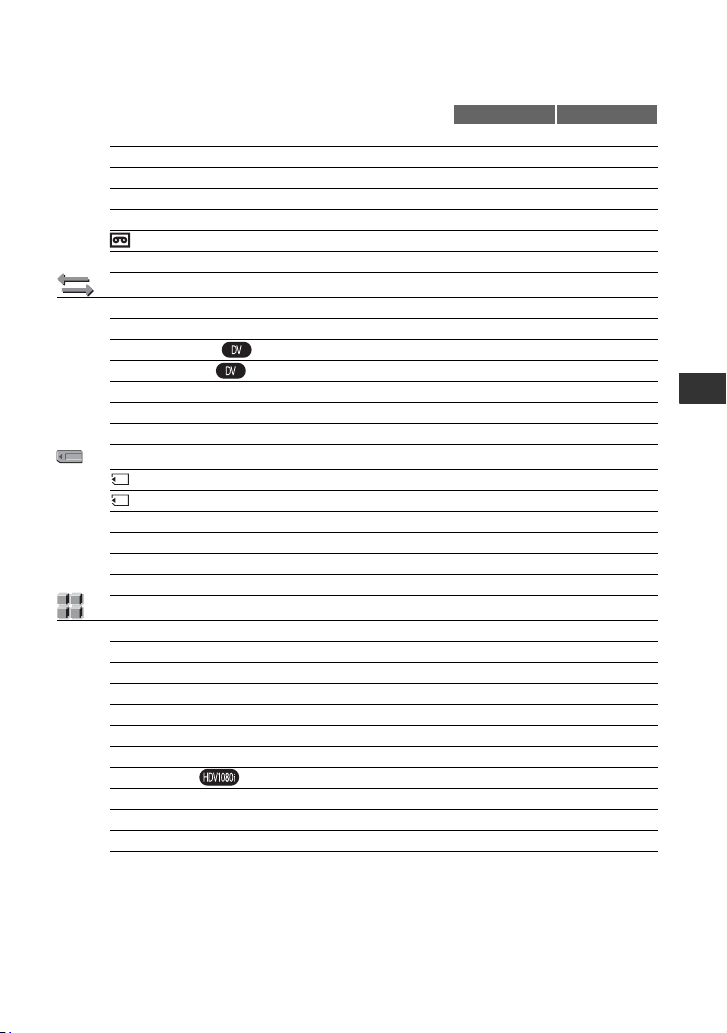
65
Using the Menu
LCD COLOR z z
LCD BL LEVEL z z
VF B.LIGHT z z
VF POWERMODE z z
LETTER SIZE z z
REMAINING z z
DISP OUTPUT z z
(IN/OUT REC) menu (p. 77)
REC FORMAT z –
VCR HDV/DV – z
DV REC MODE z z
DV WIDE REC z –
COMPONENT z z
i.LINK CONV z z
TV TYPE z z
(MEMORY SET) menu (p. 80)
ALL ERASE – z
FORMAT z z
FILE NO. z z
NEW FOLDER z z
REC FOLDER z z
PB FOLDER – z
(OTHERS) (p. 81)
CAMERA PROF. z z
ASSIGN BTN z z
PHOTO/EXP.FOCUS z z
CLOCK SET z z
WORLD TIME z z
LANGUAGE z z
PB ZOOM – z
QUICK REC z –
BEEP z z
REC LAMP z –
REMOTE CTRL z z
Position of POWER switch: CAMERA VCR
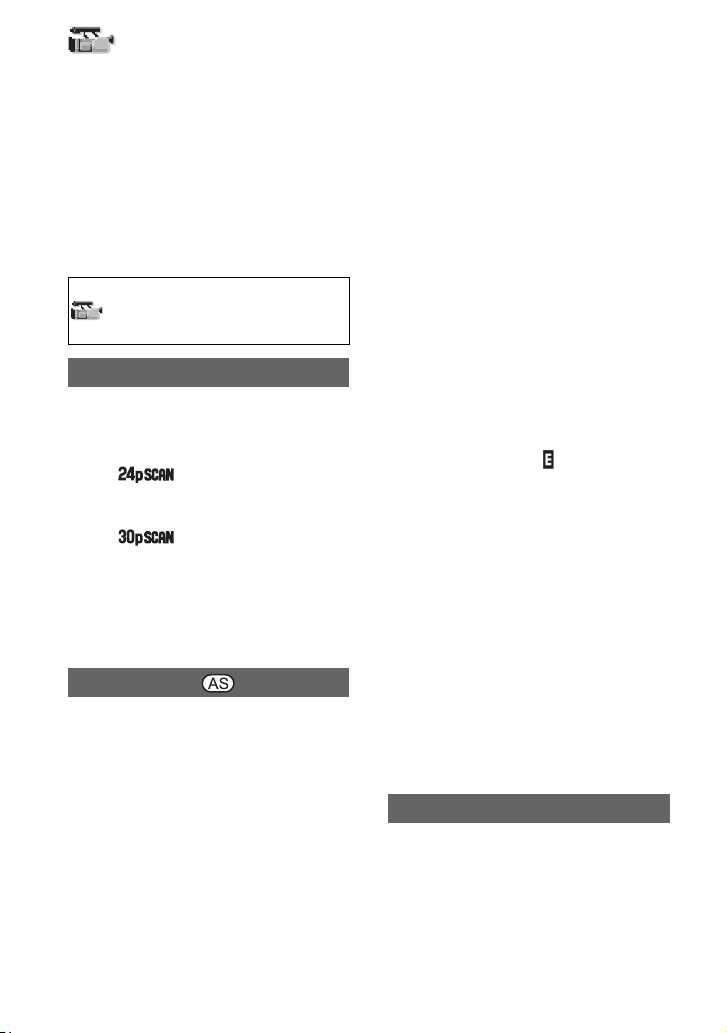
66
(CAMERA SET)
menu
Settings to adjust your camcorder to the
recording conditions (GAIN SETUP/BACK
LIGHT/STEADYSHOT, etc.)
The default settings are marked with B.
The indicators in parentheses appear when
the it
ems are selected.
See page 62 for details on selecting
menu items.
You can capture progressive scan images
w
i
th a vertical resolution of 1,080 lines.
B OFF
24
( )
Captures 24 frames per second, the same
rate as that of cinema movies.
30 ( )
Captures 30 frames per second, the same
rate as that of television commercials.
b Note
• The captured images are converted to 60i format
and recorded on tape.
x RING ASSIGN
You can select either [IRIS] (default
set
ting) or [EXPOSURE] as the function
assigned to the iris ring (p. 33).
x R
ING ROTATE
Y
ou can select the rotation direction of the
iri
s ring.
B NORMAL
Makes images dark with clockwise
rotation of the iris ring.
OPPOSITE
Makes images dark with counter-
clockwise rotation of the iris ring.
Press the MENU button t select the
(CAMERA SET) with the SEL/PUSH
EXEC dial.
PROG.SCAN
IRIS/EXPOSURE
b Notes
• When the AUTO/MANUAL switch is set to
AUTO, the IRIS/EXPOSURE button is not
available.
z Tips
• The iris, gain and shutter speed values are
adjusted as follows when you change the [RING
ASSIGN] setting with the AUTO/MANUAL
switch set to MANUAL.
– When you change [RING ASSIGN] from
[IRIS
] to [EXPOSURE]
The adjustment remains in the same mode
th
at it was in prior to changing [RING
ASSIGN]. If it is in automatic adjustment, it
remains in automatic adjustment after
changing [IRIS] to [EXPOSURE]. If it is in
manual adjustment, it remains in manual
adjustment after changing [IRIS] to
[EXPOSURE].
You can adjust the iris, gain and shutter speed
wi
th
the iris ring when is displayed next to
the values on the screen.
Adjustment for the gain and shutter speed can
be
switched between [EXPOSURE] and
manual.
– When you change [RING ASSIGN] from
[E
XPOSURE] to [IRIS]
The adjustment remains in the same mode
th
at it was in prior to changing [RING
ASSIGN]. If it is in automatic adjustment, it
remains in automatic adjustment after
changing [EXPOSURE] to [IRIS]. If it is in
manual adjustment, it remains in manual
adjustment after changing [EXPOSURE] to
[IRIS].
Adjustments for the gain and shutter speed
c
a
n be switched between automatic and
manual.
• You can assign [RING ROTATE] to one of the
ASSI
GN buttons (p. 44).
You can set gain values for H, M and L
positions of the gain switch. The default
settings of [H], [M] and [L] are 18dB, 9dB
and 0dB, respectively.
1 Select [H], [M] or [L] with the SEL/
PUSH EXEC dial.
GAIN SETUP

67
Using the Menu
2 Set the gain value with the SEL/PUSH
EXEC dial, and press the dial.
You can select the value between -6dB
an
d 21
dB by 3dB. The larger the value,
the higher the gain.
3 Select [OK] with the SEL/PUSH EXEC
di
al.
4 Press the MENU button to hide the
m
enu screen.
You can select the upper limit for the Auto
Gai
n Control (AGC) from [OFF] (21dB, the
default setting), [18dB], [15dB], [12dB],
[9dB], [6dB], [3dB] and [0dB].
b Notes
• If you adjust the gain manually, you cannot
obtain the effect of [AGC LIMIT].
When you set this function to [ON], the
automatic gain control range can be
expanded to the negative range. Especially
in a bright environment, minus gain control
allows more suitable gain setting and
enables low noise recording. The dynamic
range of your camcorder is not reduced
when you set [MINUS AGC] to [ON].
B ON
Enables minus gain control during
automatic gain control, as required.
OFF
Disables minus gain control during
automatic gain control.
You can use the preset white balance. For
more details, see page 36.
You can set the auto white balance
ope
ra
tion under a reddish light source such
as an incandescent lamp or candle, or under
a blueish light source such as in outdoor
shade.
B I
NTELLIGENT
Automatically adjusts the white balance so
that scenes look natural for the light
source.
HIGH
Automatically adjusts the white balance
while reducing redness or blueness.
MIDDLE
LOW
Automatically adjusts the white balance
while increasing redness or blueness.
b Notes
• This is only effective when white balance is
adjusted automatically.
• [AWB SENS] is not effective under a clear sky
or the sun.
You can set an offset value to adjust the
automatic exposure adjustment value
between [-7] (dark) and [+7] (bright) with
the SEL/PUSH EXEC dial. The default
setting is [0] . and selected value
appears on the screen when you change the
va
l
ue from the default setting.
b Notes
• This function is not effective while you adjust
the iris, shutter speed and gain all manually.
• [AE SHIFT] is canceled when [EXPOSURE] is
manually adjusted.
AGC LIMIT
MINUS AGC
WB PRESET
AWB SENS
AE SHIFT
Continued ,
68
You can select the speed at which the
automatic exposure adjustment function
follows changes in the brightness of the
subject. You can select the speed from
[FAST], [MIDDLE] and [SLOW]. The
default setting is [FAST].
You can select the highest iris value for the
au
to
matic adjustment from [F11], [F9.6],
[F8], [F6.8], [F5.6], [F4.8] and [F4]. The
default setting is [F11].
b Notes
* This function is not effective during the manual
iris adjustment.
B ON
Reduces flickering. Flickering of the
screen under a light source such as
fluorescent lamps will be reduced.
OFF
Not reduce flickering.
b Notes
• Flickering may not be reduced for certain light
sources.
.
When you set this function to [ON], your
camcorder detects high contrast images,
such as backlit scenes, and automatically
improves the unexposed images. The
default setting is [ON].
b Notes
• When you set [BACK LIGHT] to [ON],
[CNTRST ENHCR] is temporarily disabled.
When you set this function to [ON] (.),
you can correct backlighting. The default
setting is [OFF].
b Notes
• [BACK LIGHT] is set to [OFF] when you set
[SPOTLIGHT] to [ON].
• [BACK LIGHT] is set to [OFF] when
[EXPOSURE] is manually adjusted.
• [BACK LIGHT] is set to [OFF] if at least two of
iris, gain, and shutter speed are adjusted
manually.
When you set this function to [ON] ( ),
you can prevent overexposure of light
duri
ng recording of a subject under strong
light, such as a stage. For example, you can
prevent people's faces from over-
highlighting. The default setting is [OFF].
b Notes
• [SPOTLIGHT] is set to [OFF] when you set
[BACK LIGHT] to [
ON].
• [SPOTLIGHT] is set to [OFF] when
[E
XPOSURE] is manually adjusted.
• [SPOTLIGHT] is set to [OFF] if at least two of
iris, gain, and shutter speed are adjusted
manually.
x ON/OFF
When you select [ON], you can reduce
camer
a shakes. Select [OFF] ( ) when
you use a tripod (optional) to make images
lo
o
k natural. The default setting is [ON].
x TYPE
Y
ou can select a type of camera-shake
reduc
tion for different recording situations.
HARD
Reduces camera shakes at a high level.
This setting is not suitable for panorama
tilt recordings.
AE RESPONSE
AT IRIS LMT
FLCKR REDUCE
CNTRST ENHCR
BACK LIGHT
SPOTLIGHT
STEADYSHOT
Press the MENU button t select the (CAMERA SET) with the SEL/PUSH EXEC dial.
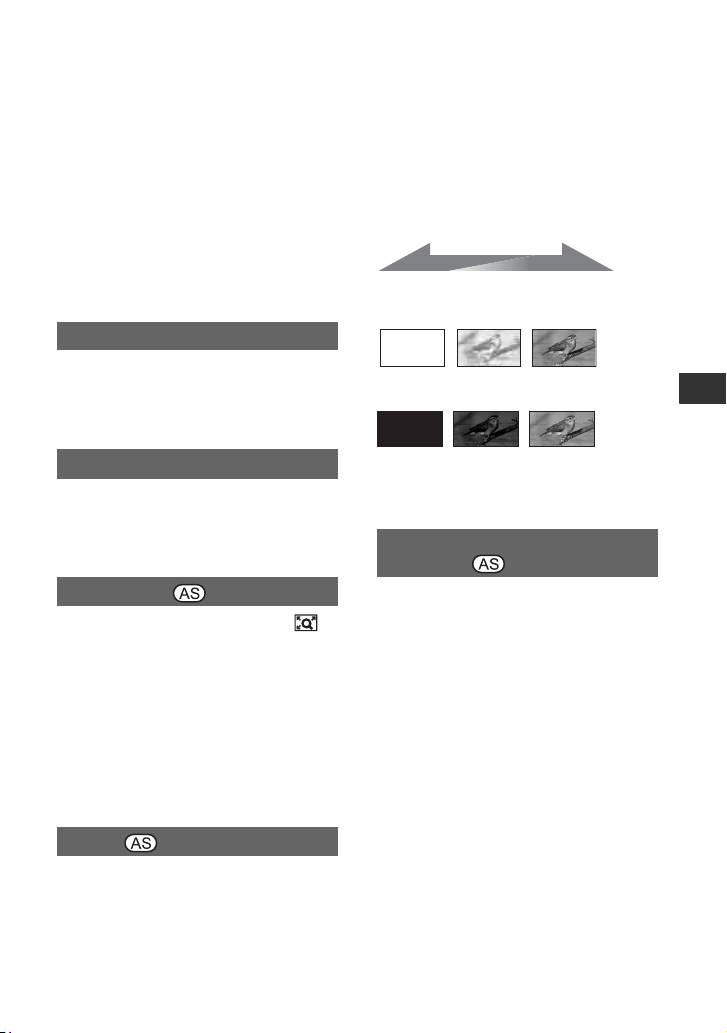
69
Using the Menu
B STANDARD
Reduces camera shakes at a standard level.
SOFT
Reduces camera shakes at a low level.
Slight unsteadiness remains in movies,
which make the movies look as they are.
WIDE CONV.
This is for use with wide conversion lenses
(optional). It is the optimum setting for use
with a Sony wide conversion lens.
When you set this function to [ON], you
can temporarily focus manually using the
focus ring during the auto focus adjustment.
The default setting is [OFF].
You can select the zoom speed for the FIX
position of the handle zoom switch from [1]
(slow) through [8] (fast). The default setting
is [3].
When you set this function to [ON] ( ),
the displayed image becomes 1.5 times
larger. The image quality decreases because
the image is digitally processed. This
function helps you to focus on far-away
subjects such as a wild bird away at a
distance. The default setting is [OFF].
b Notes
• This function is automatically set to [OFF]
when you turn the power off and back on.
You can add visual effects to transition
between scenes.
1 Select [WHITE FADER] or [BLACK
FADER] during standby to fade in with the
selected effect or recording to fade out with
the selected effect.
2 Press the REC START/STOP button.
The fader indicator stops flashing and
disappears when the fading is complete.
To cancel before starting the operation,
select [OFF] in step 1.
The setting will be cleared every time you
press the REC START/STOP button.
WHITE FADER
BLACK FADER
b Notes
• This function is automatically set to [OFF]
when you turn the power off and back on.
Fast moving subjects and actions, which
cannot be captured under the general
shooting conditions, can be shot in smooth
moving slow-motion.
This is useful to shoot fast actions such as a
golf or tennis swing.
Select [EXECUTE], and press the REC
START/STOP button on the [SMTH SLW
REC] screen.
An approximately 6-second recording is
stretched to about 24-seconds and recorded
as a slow-motion movie.
When [Recording...] disappears, recording
is finished.
To cancel [SMTH SLW REC], press the
MENU button.
AF ASSIST
HANDLE ZOOM
D.EXTENDER
FADER
SMTH SLW REC (Smooth slow
recording)
STBY REC
Fading out Fading in
Continued ,
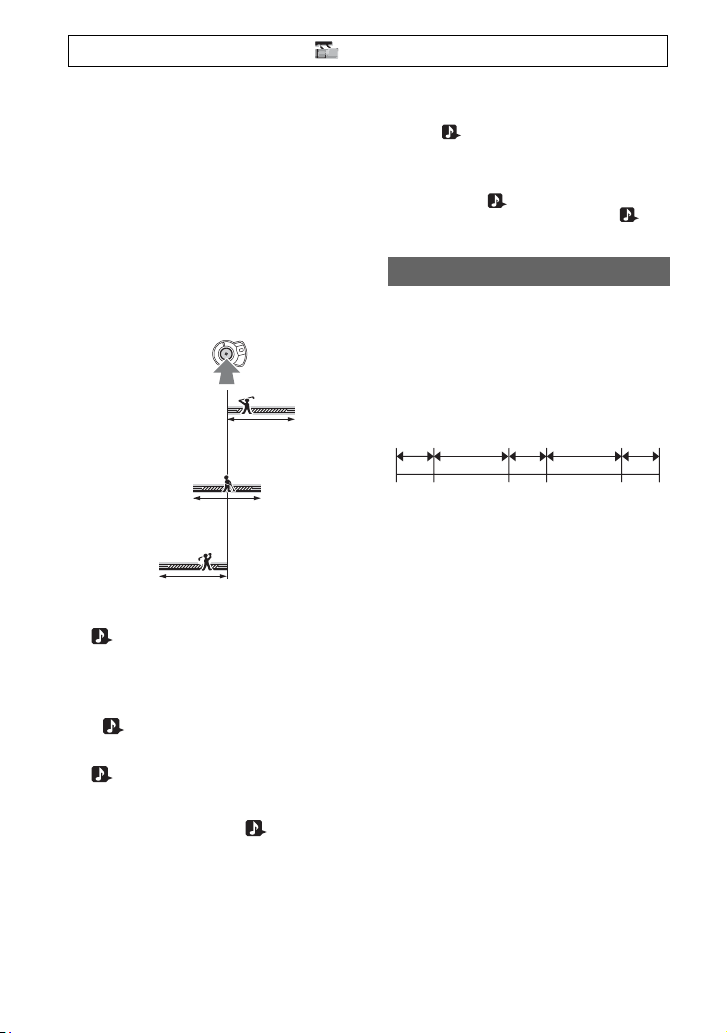
70
After executing [SMTH SLW REC] with
an ASSIGN button, you can also cancel
[SMTH SLW REC] by pressing the
ASSIGN button again. See page 44 for
details on how to use the ASSIGN buttons.
You can select the [SMTH SLW REC]
settings suitable for your recording.
x TIMING
Yo
u can use this to select when recording
st
arts in relation to when the REC START/
STOP button is pressed.
* The default setting is [6sec AFTER].
x TRIG
When you set this function to [ON],
reco
rding automatically starts in response
to a preset sound level instead of the REC
START/STOP button being pressed.
The [ TRIG] setting is canceled when
you turn the power off and back on.
x TRIG LEVEL
You can select the sound level at which
re
c
ording is triggered from [HIGH],
[MIDDLE] and [LOW] in [ TRIG
LEVEL]. The default setting is [HIGH].
b Notes
• Sounds cannot be recorded.
• The recording time may be shorter than the set
time,
depending on recording conditions.
• The image quality is lower than with the regular
recording.
z Tips
• When [ TRIG] is set to [ON], you can also
start recording by pressing the REC START/
ST
OP button.
• When you manually set the microphone volume
to a low level, [ TRIG] may not work
properly. We recommend that you set [
TRIG LEVEL] to [MIDDLE] or [LOW].
You can record a series of movies on a tape
at regular intervals. This function is useful
to observe things like cloud movements or
daylight changes. The scenes run smoothly
into each other when you play back the
tape. Use the AC Adapter/Charger to obtain
AC power for long recording.
1 Select [ON/OFF] t [ON] with the SEL/
PUSH EXEC dial.
2 Perform the following step if you are
ch
anging the recording time from the
default setting of [0.5sec]. If you are
keeping the default recording time, go
straight to step 3.
Select [REC TIME] t [
0
.5sec], [1sec],
[1.5sec] or [2sec] with the SEL/PUSH
EXEC dial.
3 Perform the following step if you are
ch
anging the interval time from the default
setting of [30sec]. If you are keeping the
default interval time, go straight to step 4.
Select [INTERVAL] t [30s
ec], [1min],
[5min] or [10min].
4 Select [OK] with the SEL/PUSH EXEC
dia
l.
5 Press the MENU button to hide the menu
s
creen.
6 Press the REC START/STOP button.
T
he [INTERVAL REC] recording starts.
To cancel [INTERVAL REC], press the
REC START/STOP button.
[6sec AFTER]*
[6sec BEFORE]
[6sec CENTER]
INTERVAL REC
interval
Recording
interval
Recording Recording
Press the MENU button t select the (CAMERA SET) with the SEL/PUSH EXEC dial.
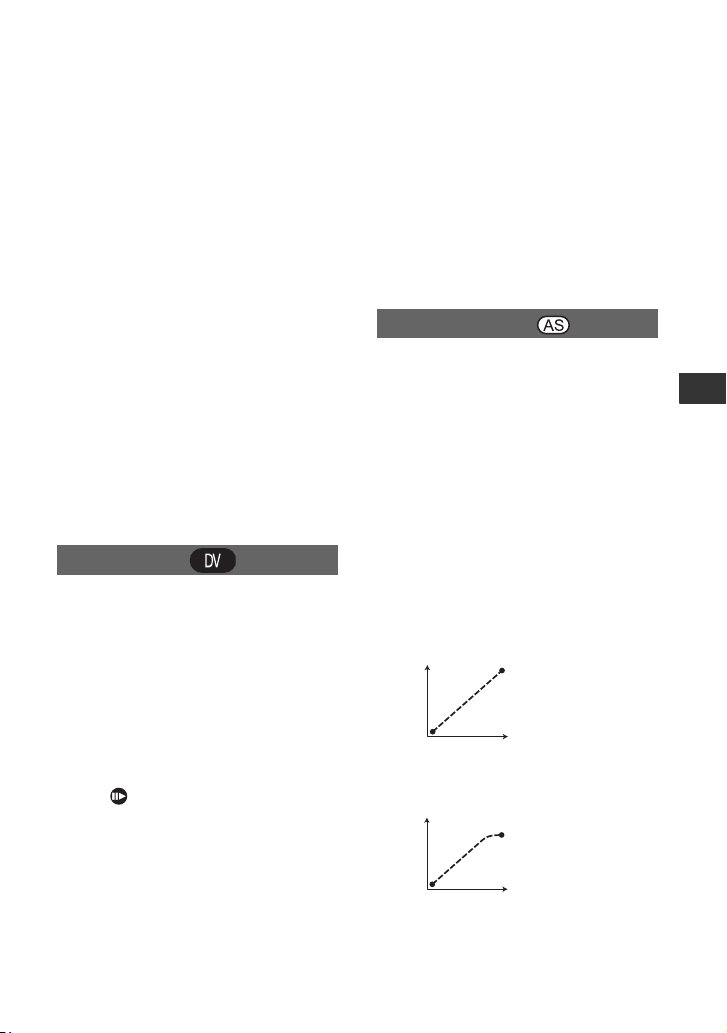
71
Using the Menu
The operation of your camcorder differs
depending on when you press the REC
START/STOP button.
If you press the button during [INTERVAL
R
E
C] recording, the recording temporarily
stops. If you press it again, the
[INTERVAL REC] recording restarts,
If you press the button during [INTERVAL
R
EC]
interval, the [INTERVAL REC]
recording stops and regular recording starts.
If you press it again, regular recording
stops. If you press the button once again,
the [INTERVAL REC] recording restarts.
To cancel the [INTERVAL REC]
re
co
rding, select [ON/OFF] t [OFF] with
the SEL/PUSH EXEC dial.
b Notes
• The recording time and interval time may differ
slightly from the settings.
• If you focus manually, you can get sharp images
even if the lighting changes.
• You can disable the beep during recording by
setting [BEEP] to [OFF].
You can record stop motion (or frame-by-
frame) animation movies. That type of
animation uses a technique of changing the
subject, such as a doll or a toy's positions
and recording it at each different position
while your camcorder sits still. Use the
Remote Commander to reduce camera
shakes.
B OFF
Not use this function.
ON ( )
Records a movie by stop motion (or frame-
by-frame) technique.
1 Select [ON] with the SEL/PUSH
EXE
C dial.
2 Press the MENU button to hide the
me
nu screen.
3 Press the REC START/STOP button.
Yo
ur camcorder records a movie for
abou
t 6 frames and returns to standby.
4 Move the subject and repeat step 3.
b Notes
• When you use frame recording continuously,
the remaining tape time will not be indicated
correctly.
• The last scene will be longer than other scenes.
• You cannot record index signals during frame
recording.
• This function is automatically set to [OFF]
when you turn the power off and back on.
You can set [TRANS TIME] and [TRANS
CURVE]. See page 46 for details on using
the shot transition function.
x TR
ANS TIME
Y
ou can set the transition time between [3.5
sec]
and [90.0 sec]. The default setting is
[4.0 sec].
x TR
ANS CURVE
Y
ou can select the transition curve.
The characteristics of the transition curves
ar
e
illustrated in the following graphs.
*1
: parameter level
*2: time
LI
NEAR
Make the transition linearly.
B SOFT STOP
Make the transition slowly at the end.
DV FRAME REC
SHOT TRANSITION
*1
*2
*1
*2
Continued ,
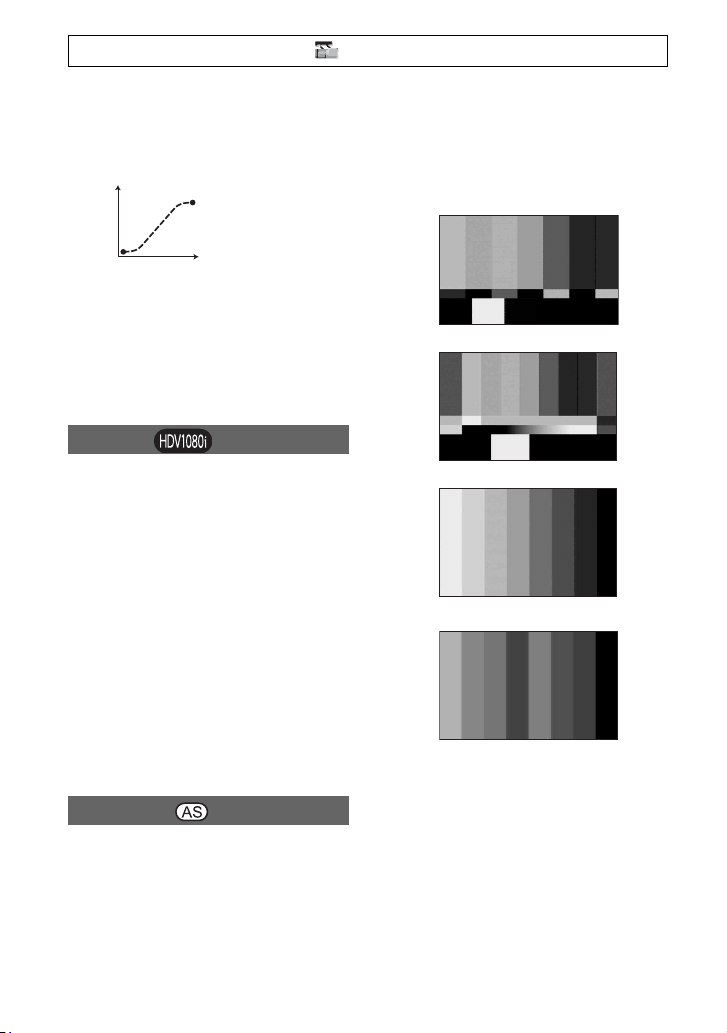
72
SOFT TRANS
Make the transition slowly at the
beginning and end, and linearly in
between.
b Note
s
• You cannot change [TRANS TIME] and
[TRANS CURVE] settings during store, check,
or execution of [SHOT TRANSITION]. Cancel
[SHOT TRANSITION] setting by pressing the
ASSIGN 4 button several times before changing
[TRANS TIME] or [TRANS CURVE] setting.
When you set this function to [ON], you
can record with the wider color range. Your
camcorder can reproduce brilliant and vivid
colors for flowers and the beautiful blue-
green of tropical oceans that cannot be
matched by conventional technologies.
b Notes
• The colors may not be well reproduced when
you play back a movie recorded with this
function set to [ON] on a TV that does not
support x.v.Color.
• You cannot set [x.v.Color] in the following
cases:
–
When recording in SD (standard) format
– When recording movies
• When you set [x.v.Color] to [ON], the picture
profile
will be disabled.
x ON/OFF
When you select [ON], you can display
col
or bars on the screen or record them on a
tape. This function helps you to adjust
colors when you view movies recorded
with your camcorder on a TV or a monitor.
The default setting is [OFF].
b Notes
• This function is automatically set to [OFF]
when you turn the power off and back on.
x TYPE
• Selects a type of the color bars.
x.v.Color
COLOR BAR
*1
*2
TYPE1
TYPE2
TYPE3
TYPE4
(75% brightness of TYPE3)
Press the MENU button t select the (CAMERA SET) with the SEL/PUSH EXEC dial.
73
Using the Menu
(AUDIO SET) menu
Settings for the audio recording (DV
AU.MODE/DV AUDIO MIX, etc.)
The default settings are marked with B.
The indicators in parentheses appear when
th
e items are selected.
See page 62 for details on selecting
menu items.
12BIT( )
Records in the 12-bit mode (2 stereo
sounds).
B 16BIT ( )
Records in the 16-bit mode (1 stereo sound
with high quality).
b Notes
• When recording in the HDV format, sound is
automatically recorded in [16BIT] mode.
You can set the clipping-noise reduction
function.
B OFF
Disables the function.
ON
Enables the function.
b Notes
• This function is available only when you set the
AUDIO LEVEL switch to MAN.
B ON
Enables wind noise reduction.
OFF
Disables wind noise reduction.
Press the MENU button t select the
(AUDIO SET) with the SEL/PUSH
EXEC dial.
DV AU.MODE
(DV Audio mode)
AUDIO LIMIT
WIND
You can select whether to play back audio
recorded using other devices with dual
sound or stereo sound.
B STEREO
Plays back with main and sub sound (or
stereo sound).
1
Plays back with main sound (or the left
channel sound).
2
Plays back with sub sound (or the right
channel sound).
b Notes
• You can play back, but cannot record a dual
sound track cassette on your camcorder.
You can monitor the sound dubbed from
another device or recorded through 4-
channel microphone during playback. You
can set how to output the sound.
B ST
1
Outputs the originally recorded sound
only.
MIX
Outputs the originally recorded sound
mixed with the dubbed sound.
ST2
Outputs the dubbed sound only.
b Notes
• This function is not effective, when you play
back a tape recorded with [DV AU.MODE] set
to [16BIT]
MULTI-SOUND
DV AUDIO MIX
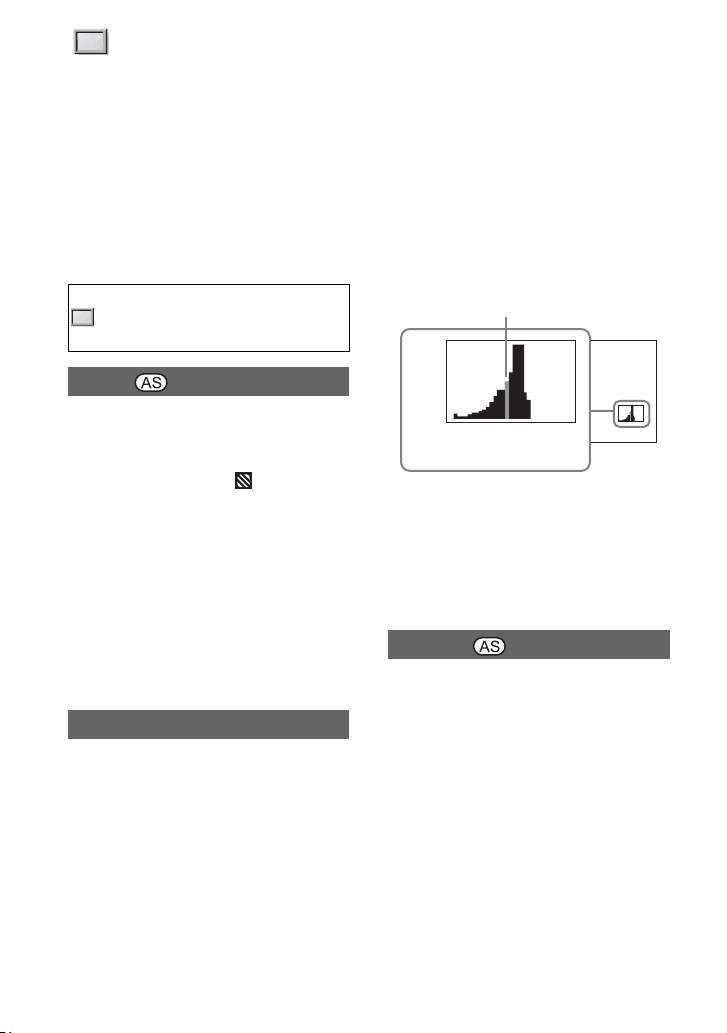
74
(DISPLAY SET)
menu
Display settings of the display and the
viewfinder (MARKER/VF B.LIGHT/DISP
OUTPUT, etc.)
The default settings are marked with B.
The indicators in parentheses appear when
th
e it
ems are selected.
See page 62 for details on selecting
menu items.
You can display a zebra pattern as a guide
for adjusting brightness.
x ON/OFF
When you select [ON], and the
brightness level appear on the screen. The
ze
bra pattern will not be recorded on a tape
or a “Memory Stick Duo.”
x LEVEL
You can select the brightness level
between 70 and 100 or 100+.
z Tips
• The zebra pattern is a strip pattern displayed
over a part of an image on the screen when the
part is higher than a preset brightness level.
You can adjust the iris while referring to a
histogram. A histogram is a graph that
shows the distribution of the image
brightness. You can use the histogram as a
guide for adjusting the iris. The histogram
will not be recorded on a tape or a
“Memory Stick Duo.”
Press the MENU button t s
e
lect the
(DISPLAY SET) with the SEL/PUSH
EXEC dial.
ZEBRA
HISTOGRAM
B OFF
Does not display a histogram.
NORMAL
Displays a histogram.
ADVANCE
Displays a histogram, and a bar that
indicates an average of the brightness
levels around the center of an image
(within the marker) on the histogram.
z Tips
• The left area on the graph shows the darker
areas of the image while the right area shows the
brighter areas.
• A vertical line that indicates the brightness level
of
[ZEBRA] will be displayed on the histogram
when you set [ZEBRA] to [ON].
x ON/OFF
When you select [ON], you can display an
im
age on the screen with its details
enhanced. This function helps you to adjust
the focus. The default setting is [OFF].
x CO
LOR
Y
ou can select the peaking color from
[W
HITE], [RED] and [YELLOW]. The
default setting is [WHITE].
x LE
VEL
You can select a peaking sensitivity from
[HIGH], [MIDDLE] and [LOW]. The
default setting is [MIDDLE].
PEAKING
BrighterDarker
Brightness
Pixels
Average
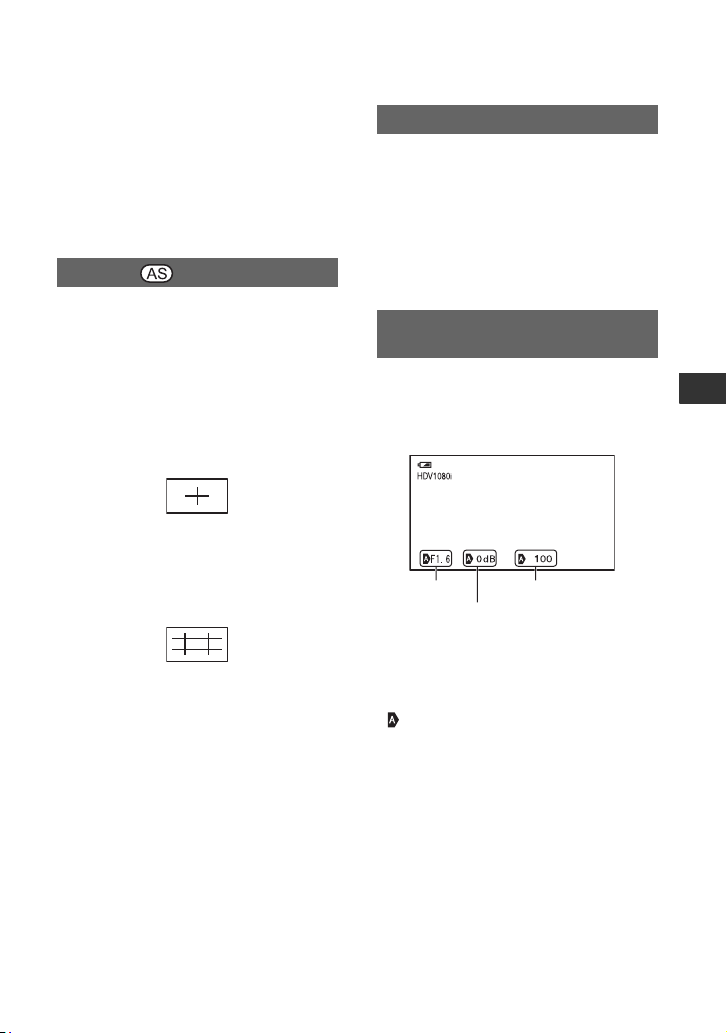
75
Using the Menu
b Notes
• You cannot record an image with enhanced
details on a tape or a “Memory Stick Duo.”
z Tips
• You can focus more easily using this function in
combination with the expanded focus function
(p. 33).
x ON/OFF
When you select [ON], you can display
mar
kers. The default setting is [OFF].
Markers will not be recorded on a tape or
“
M
emory Stick Duo.”
x CENTER
Wh
en you select [ON], you can display a
mark
er at the center of the screen. The
default setting is [ON].
x GUI
DEFRAME
Wh
en you select [ON], you can display
fr
ame markers that help you to check
horizontal and vertical positions of a
subject. The default setting is [OFF].
b Notes
• You cannot output display information, such as
the time code, to an external device when
[MARKER] is set to [ON].
z Tips
• You can display the center marker and the
guideframe marker at the same time.
• You can obtain a balanced composition by
positioning the subject at the cross points of the
guideframe marker.
• You can display markers only on the LCD panel
an
d viewfinder. You cannot display them on an
external device.
You can set a type of the expanded focus
display.
B TYPE1
Simply enlarges images.
TYPE2
Enlarges and shows images in white and
black.
When you set this function to [ON], you
can constantly display the iris, shutter speed
and gain settings on the screen. The default
setting is [OFF].
z Tips
• The settings appear on the screen during the
manual adjustment regardless of the settings of
this function.
• indicates that the settings are automatically
adjusted values.
• The displayed settings are different from the
se
ttings that will be displayed when you press
the DATA CODE button (p. 52)
.
MARKER
EXP.FOCUS TYPE
CAM DATA DSP (Camera data
display)
60
min
0:00:00
Iris value
Gain value
Shutter speed
value
Continued ,
76
When you set this function to [ON], you
can display the audio level meter on the
screen. The default setting is [ON].
You can adjust the brightness of the LCD
screen with the SEL/PUSH EXEC dial.
Changes in the LCD brightness will not
affect the brightness of recording images.
z Tips
• You can also turn off the LCD backlight (p. 22).
You can adjust the LCD color intensity
using the SEL/PUSH EXEC dial. Changes
in the LCD color level will not affect the
color level of recording images.
You can adjust the brightness of the LCD
s
c
reen’s backlight.
B NORMAL
Standard brightness.
BRIGHT
Brightens the LCD screen.
b Notes
• When you connect your camcorder to outside
power sources, [LCD BL LEVEL] is
automatically set to [BRIGHT].
• When you select [BRIGHT], the recordable
time with the
battery is slightly reduced.
You can adjust the brightness of the
viewfinder.
B NORMAL
Standard brightness.
BRIGHT
Brightens the viewfinder screen.
b Notes
• When you connect your camcorder to outside
power sources, [BRIGHT] is automatically
selected for the setting.
• When you select [BRIGHT], the recordable
time
with the battery is slightly reduced.
B AUTO
Turns on the viewfinder while you close
the LCD panel or record in mirror mode.
ON
Always turns on the viewfinder.
B NORMAL
Displays the menu in regular letter size.
2x
Displays the selected menu items in letter
size, the height of which is doubled.
B AUTO
Displays the remaining time of a tape for
about 8 seconds in the following situation:
• When you set the POWER switch to VCR
or CAMERA with a cassette inserted.
• When you press N (Play) or the
DISPLAY/BATT INFO button.
ON
Always displays the remaining time of a
tape. The remaining time is not displayed
when you insert a new tape or a tape that is
AU.LVL DISP (Audio level display)
LCD BRIGHT
LCD COLOR
LCD BL LEVEL
Audio level meter
VF B.LIGHT
VF POWERMODE
LETTER SIZE
REMAINING
Press the MENU button t select the (DISPLAY SET) with the SEL/PUSH EXEC dial.
77
Using the Menu
rewound to the beginning. It is displayed
when you start playback or recording.
You can select outputs to which display
information, such as time code, is
outputted.
B LCD PANEL
Outputs the information to the LCD screen
and viewfinder.
V-OUT/PANEL
Outputs the information to the LCD
screen, viewfinder and composite output.
ALL OUTPUT
Outputs the information to the LCD
screen, viewfinder, HDMI output,
component output and composite output.
b Notes
• You can output display information only to the
viewfinder and the LCD screen when
[MARKER] is set to [ON].
DISP OUTPUT
(IN/OUT REC)
menu
Recording settings, input and output
settings (VCR HDV/DV/DV REC MODE/ DV
WIDE REC/ TV TYPE, etc.)
The default settings are marked with B.
The indicators in parentheses appear when
th
e it
ems are selected.
See page 62 for details on selecting
menu items.
You can select a recording format.
B H
DV1080i ( )
Records in the HDV1080i format.
DV ( )
Records in the DV format.
Set also [DV REC MODE] when you
rec
o
rd in this format.
b Notes
• Set also [i.LINK CONV] as necessary when you
output a movie to an external device through an
i.LINK cable (p. 79).
You can select a type of output signal to an
external device for playing back a movie on
the device. Select [AUTO] in most cases.
When you connect your camcorder to an
ex
te
rnal device with an i.LINK cable, select
a type of input and output signals to and
from the external device via the HDV/DV
jack. You can record or play back a movie
rep
rod
uced by the selected type of signals.
Press the MENU button t se
le
ct the
(IN/OUT REC) with the SEL/PUSH
EXEC dial.
REC FORMAT
VCR HDV/DV
Continued ,
78
B AUTO
Automatically switches between HDV
signals and DV signals during playback.
During the i.LINK connection, recognizes
HDV si
gnals and DV signals, and
automatically inputs or outputs the signals
to or from the external device via the
HDV/DV (i.LINK) jack
for recordi
ng or
playback.
HDV ( )
Plays back only HDV format sections of a
tape.
During the i.LINK connection, inputs or
output
s only HDV signals to or from an
external device via the HDV/DV
(i.LINK) jack for recording or playback.
Select this setting when you connect your
ca
mcorder to your computer.
DV ( )
Plays back only DV format sections of a
tape
.
During the i.LINK connection, inputs or
outputs
only DV signals to or from an
external device via the HDV/DV
(i.LINK) jack for recording or playback.
Se
lect this setting when you connect your
camcorder to your computer.
b Notes
• Make sure to disconnect the i.LINK cable prior
to changing the setting. Otherwise, a video
device may not recognize video signals.
• When you select [AUTO], images and sounds
may be cut
off on switching between HDV
signals and DV signals.
• When you set [i.LINK CONV] to [ON], the
foll
owing signals will be outputted:
– [AUTO]: HDV signals are converted to DV
signals and outputted.
DV signals are outputted without any
conversion.
– [HDV]: HDV signals are converted to DV
signals and outputted. DV signals will not be
outputted.
– [DV]: DV signals are outputted without any
convers
ion. HDV signals will not be
outputted.
This function is available only when you
set [REC FORMAT] to [DV].
B SP (SP)
Records in the SP (Standard Play) mode on
a cassette.
LP (LP)
Increases the recording time to 1.5 times
the SP mode (Long Play).
b Notes
• If you record in the LP mode, a mosaic-like
noise may appear or sound may be interrupted
when you play back the tape on other
camcorders or VCRs.
• When you mix recordings in the SP mode and in
th
e LP mode on one tape, the playback picture
may be distorted or the time code may not be
written properly between the scenes.
• You cannot choose the LP mode for the HDV
for
mat recording.
You can record a movie in an aspect ratio
that matches that of a TV that you want to
connect. Refer also to the instruction
manuals that come with the TV.
B ON
Records a movie in an aspect ratio that
matches the full screen of a 16:9 (wide)
TV.
OFF ( )
Records a movie in an aspect ratio that
matches the full screen of a 4:3 TV.
b Notes
• Set [TV TYPE] correctly to suite a TV that you
want to connect for playback (p. 79).
• The aspect ratio will be fixed to 16:9 and you
cannot set it to 4:3 when you record in HDV
format.
DV REC MODE (DV Recording
mode)
DV WIDE REC
Press the MENU button t select the (IN/OUT REC) with the SEL/PUSH EXEC dial.
79
Using the Menu
You can select [480i] or [1080i/480i]
depending on your TV when you connect
your camcorder to a TV via a component
A/V cable.
480i
Supports connection between your
camcorder and a TV with a component
input jack that supports the 480i format.
B 1080i/480i
Supports connection between your
camcorder and a TV with a component
input jack that supports the 1080i format.
You can convert signals in HDV format to
DV format, and output pictures in DV
format from the HDV/DV interface
(i.LINK).
B OFF
Outputs the pictures from the HDV/DV
interface (i.LINK) in accordance with the
se
ttings in [REC FORMAT] and [VCR
HDV/DV].
ON
Pictures in HDV format are converted to
DV format, and pictures in DV format are
output in DV format.
b Notes
• For input signal via an i.LINK connection, see
[VCR HDV/DV] (p. 77).
• Disconnect the i.LINK cable before setting
[i.LINK CONV]. Otherwise, the connected
video device may not be able to recognize the
video signal from your camcorder.
You need to convert the signal depending
on a type of your TV when playing back the
picture. The recorded pictures are played
back as following illustrations.
B 16
:9
Select to view your pictures on a 16:9
(wide) TV.
4:3
Select to view your pictures on a 4:3
standard TV.
b Notes
• This is not effective for the i.LINK output.
• When you connect your camcorder to a TV
co
mpatible with the ID-1 system or via an
S
VIDEO jack for playing back the tape, set
[TV TYPE] to [16:9]. The TV automatically
switches the aspect ratio according to the
playback picture. Refer also to the manual
supplied with your TV.
COMPONENT
i.LINK CONV
TV TYPE
HDV/DV (16:9)
format pictures
DV (4:3) format
pictures
HDV/DV (16:9)
format pictures
DV (4:3) format
pictures

80
(MEMORY SET)
menu
Settings for the “Memory Stick Duo” (ALL
ERASE/FORMAT, etc.)
The default settings are marked with B.
The indicators in parentheses appear when
the it
ems are selected.
See page 62 for details on selecting
menu items.
You can delete all the still images without
i
m
age protection on a “Memory Stick Duo”
or in the selected folder.
1 Select [ALL FILES] or [CURRENT
FLDR].
[ALL FILES]:
Deletes all the images on
the “Memory Stick Duo.”
[CURRENT FLDR]: De
letes all the
images in the currently selected folder.
2 Select [YES] t [YE
S] with the SEL/
PUSH EXEC dial.
[ Erasing all data...] appears.
[Completed.] appears when all unprotected
im
ages are deleted.
b Notes
• Release the write protect tab on the “Memory
Stick Duo” beforehand for the “Memory Stick
Duo” with the write-protect tab (p. 111).
• The folder will not be deleted even when you
dele
te all the images in the folder.
• Do not do any of the following while
[ Erasing all data...] is displayed:
– Operate the POWER switch/buttons.
– Eject the “Memory Stick Duo.”
Press the MENU button t select the
(MEMORY SET) with the SEL/PUSH
EXEC dial.
ALL ERASE
You do not need to format the “Memory
Stick Duo” since it is already formatted at
the factory. If you want to format the
“Memory Stick Duo,” select
[YES]
t[YES].
b Notes
• Do not do any of the following while
[ Formatting...] is displayed:
– Operate the POWER switch/buttons.
– Eject the “Memory Stick Duo.”
• Formatting erases everything on the “Memory
Stick
Duo” including protected image data and
newly created folders.
B SERIES
Assigns file numbers in sequence even if
the “Memory Stick Duo” is replaced with
another one. The file number is reset when
a new folder is created or the recording
folder is replaced with another.
RESET
Resets the file number to 0001 each time
the “Memory Stick Duo” is changed.
When you select [YES], you can create a
new folder (102MSDCF to 999MSDCF) on
a “Memory Stick Duo.” When a folder is
full (a maximum of 9,999 images are
stored), a new folder is automatically
created.
b Notes
• You cannot delete the new folder once you have
created it on your camcorder. Format the
“Memory Stick Duo” (p. 80) or delete it on your
computer.
• The number of recordable pictures on a
“Memory Stick Duo” may decrease as the
number of folders increases.
FORMAT
FILE NO.
NEW FOLDER

81
Using the Menu
You can select a folder in which you want
to store still images.
Select the folder with the SEL/PUSH
EXEC
d
ial.
z Tips
• The still images will be stored in the
101MSDCF folder by default.
• Once you store the still images in the current
folder, the folder is selected as a playback
folder.
You can select a folder in which still
images you want to view are stored.
Select the folder with the SEL/PUSH
EXEC dial.
REC FOLDER (Recording folder)
PB FOLDER (Playback folder)
(OTHERS) menu
Settings while recording on a tape or other
basic settings (QUICK REC/BEEP, etc.)
The default settings are marked with B.
The indicators in parentheses appear when
the it
ems are selected.
See page 62 for details on selecting
menu items.
You can save up to two camera setting
prof
i
les in your camcorder. Using these
saved profiles let you quickly obtain
suitable camera settings later.
z Tips
• You can save menu settings, picture profiles and
button settings as a camera profile.
x To load a camera profile
You can load a camera profile and use it on
yo
ur camcorder.
1 Select [LOAD] with the SEL/PUSH
EXEC dial.
2 Select the camera profile that you want
t
o load with the SEL/PUSH EXEC dial.
3 Select [YES] in the check screen.
Your
camcorder is restarted and the
se
lected camera profile becomes
effective.
x To save camera profile settings
1 Select [SAVE] by the SEL/PUSH
EXEC dial.
2 Select [NEW FILE] or an existing
pr
ofile name by turning the SEL/PUSH
EXEC dial.
3 Se
lect [YES] in the check screen by
t
urning the SEL/PUSH EXEC dial.
The camera profile settings are saved.
z Tips
• If you select [NEW FILE], profile name is set to
[CAM1] or [CAM2].
• If you select an existing camera profile as a
destination, the camera profile is overwritten.
Press the MENU button t select the
(OTHERS) with the SEL/PUSH EXEC
dial.
CAMERA PROF. (Camera profile)
Continued ,

82
x To change the camera profile name
You can change the camera profile name.
1 Select [PROFILE NAME] with the
SEL/PUSH EXEC dial.
2 Select the camera profile of which you
w
ant to change the name with the SEL/
PUSH EXEC dial.
[PROFILE NAME] screen appears.
3 Change the profile name with the SEL/
PUSH E
XEC dial.
z Tips
•You can enter the name in the same way
as the picture profile (p. 42).
4 Select [OK] with the SEL/PUSH
EXEC dial.
Profile name is changed.
x To delete camera profile settings
1 Select [DELETE] with the SEL/PUSH
EXEC dial.
2 Select the camera profile you want to
de
lete with the SEL/PUSH EXEC dial.
3 Select [YES] on the check screen.
See page 44.
You can select a function to assign to the
PHOTO/EXPANDED FOCU
S button.
B PHOTO
Functions as the PHOTO button (p. 30).
EXP.FOCUS
Functions as the EXPANDED FOCUS
button (p. 33).
b Notes
• If [EXP.FOCUS] is selected, you cannot record
still images with the main unit button. Please
use the PHOTO button on the Remote
Commander.
See page 24.
When you use your camcorder abroad, you
can
adjust the clock to the local time by
setting the time difference with the
SEL/
PUSH EXEC
dial.
When you set the time difference to 0, the
clo
ck returns to the original setting.
You can select the language to be used on
the LCD screen.
z Tips
• Your camcorder offers [ENG[SIMP]]
(simplified English) in case that you cannot find
your
native tongue among the options.
When you set this function to [ON], you
can enlarge movie images about 1.1 to 5
times (still images about 1.5 to 5 times)
with the handle zoom lever. The default
setting is [OFF]. To end the zoom, press
and hold the W side of the handle zoom
lever until it stops.
z Tips
• To move the zoom horizontally, press the SEL/
PUSH EXEC dial, then turn the dial. To move
the zoom vertically, press the SEL/PUSH EXEC
dial one more time, then turn the dial.
You can slightly reduce the recording start
point time when resuming recording by
changing the POWER switch from OFF
(CHG) to CAMERA.
B OF
F
It takes some time to restart recording from
the state that the drum has stopped
rotating, but the transition from the last
recorded scene is smooth.
ASSIGN BTN
PHOTO/EXP.FOCUS
CLOCK SET
WORLD TIME
LANGUAGE
PB ZOOM (Playback zoom)
QUICK REC
Press the MENU button t select the (OTHERS) with the SEL/PUSH EXEC dial.

83
Using the Menu
ON ( )
The time shortens slightly until recording
restarts from the state that the drum has
stopped rotating, but the transition from
the last recorded scene may not be smooth.
Select this when you do not want to miss a
reco
rd
ing chance.
z Tips
• When this function is set to [ON], the interval
between scenes freezes for a moment (editing on
your computer is recommended).
• When the camcorder is left in standby for more
than abou
t 3 minutes, your camcorder exits from
standby (the drum stops rotating) to prevent tape
wear and battery loss. Since the power does not
turn off, you can restart recording by pressing
the REC START/STOP button again.
B ON
Activates a melody when you start/stop
recording.
OFF
Cancels the melody.
When you set this function to [OFF], you
can turn off the camera recording lamps
during recording. The default setting is
[ON].
When you set this function to [ON], you
c
a
n use the supplied Remote Commander
(p. 127). The default setting is [ON].
z Tips
• Set to [OFF] to prevent your camcorder from
responding to a command sent by another VCR
remote control unit.
BEEP
REC LAMP (Recording lamp)
REMOTE CTRL (Remote control)
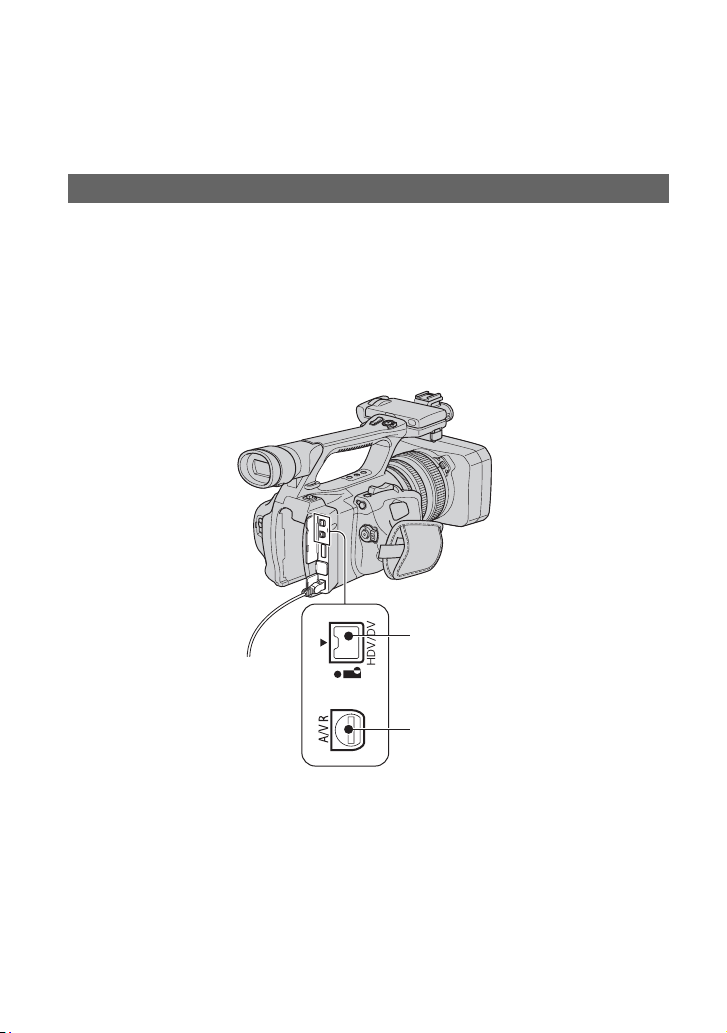
84
Dubbing/Editing
Dubbing to VCR, DVD/HDD device, etc.
Connect your camcorder to the wall outlet (wall socket) using the supplied AC Adaptor for
this operation (p. 18). Refer also to the instruction manuals supplied with the devices to be
connected.
The connection method and the image quality will differ depending on the VCR, DVD/HDD
d
e
vice and the connectors used.
Jacks on your camcorder
Open the jack cover and connect the cable.
Connecting to external devices
1
2
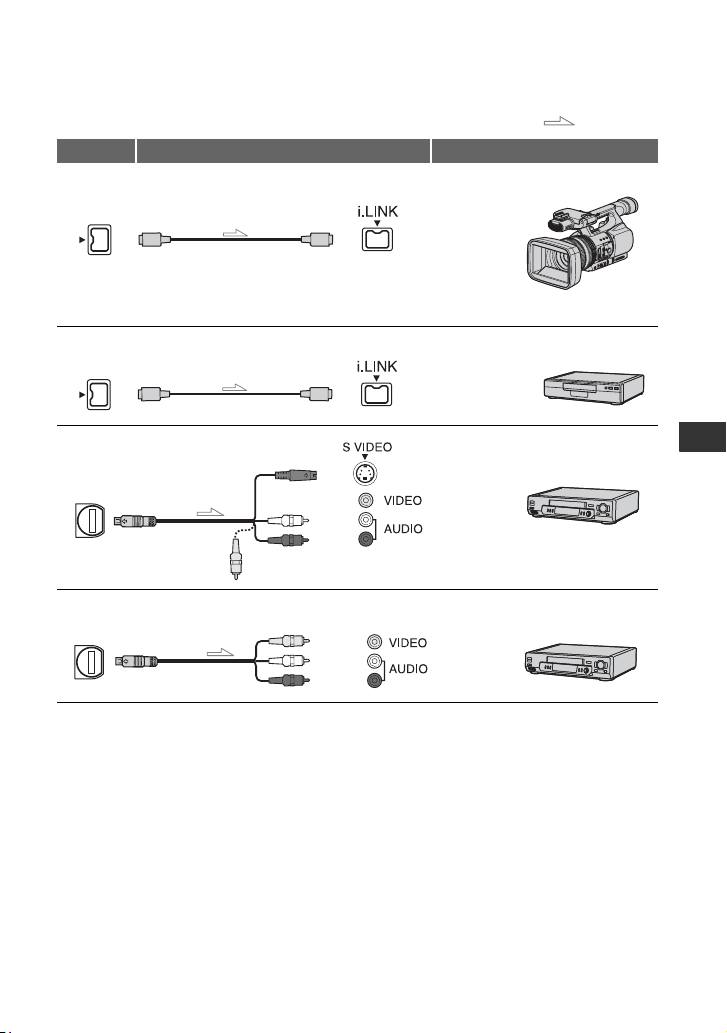
85
Dubbing/Editing
b Notes
• You cannot dub pictures using the HDMI cable.
Using an i.LINK cable (optional)
The dubbed format (HDV/DV) differs depending on the recording format or the format
supported by the VCR/DVD device. See the table below for selecting the appropriate settings,
and perform necessary menu setting.
: Signal flow
Camcorder Cable External device
* Pictures recorded in the DV format are dubbed in the SD (standard definition) quality, regardless of the
conne
ction.
** When connecting your camcorder to a monaural device,
connect the yellow plug of the A/V connecting
cable to the video jack on the device, and connect the white (left channel) or red (right channel) plug to
the audio jack on the device.
1
i.LINK cable (optional)
• i.LINK jack which is compatible with HDV1080i specification is required on the external device.
HDV1080i compatible
device
t HD quality*
1
i.LINK cable (optional)
AV device with i.LINK jack
t SD quality*
2
AV device with S VIDEO jack
t SD quality*
A/V connecting cable with
S VIDEO (optional)
(Red)
(White)
(Yellow)
2
AV device with audio/video
jacks**
t SD quality*
A/V connecting cable
(supplied)
(Red)
(White)
(Yellow)
Continued ,

86
b Notes
• Disconnect the i.LINK cable before changing these menu settings, otherwise the VCR/DVD device may
not correctly identify the video signal.
z Tips
• This camcorder has a 4-pin i.LINK terminal. Select a cable that fits the terminal on the device to be
connected.
b Notes
• When [VCR HDV/DV] is set to [AUTO], and the signal switches between HDV and DV formats, the
picture and sound are interrupted temporarily.
• When the recorder is HDR-FX1000, set [VCR HDV/DV] to [AUTO] (p. 77).
• When the player and the recorder are both HDV1080i compatible devices such as HDR-FX1000 and
connected wi
th the i.LINK cable, after pausing or stopping and then resuming the recording, the images
will be a bit choppy or rough at that point.
• Set [DISP OUTPUT] to [LCD PANEL] (the default se
tting) when connecting with an A/V connecting
cable (p. 77).
When connecting with the A/V connecting cable with S VIDEO (optional)
Connect with S VIDEO jack instead of the video plug (yellow). This connection produces
pictures more faithfully. This connection produces higher quality DV format pictures. The
audio will not be output when you connect with the S
VIDEO cable alone.
Copy format
Camcorder
recording
format
Format supported by the
VCR/DVD device
Menu setting
HDV
format*
1
DV format
[VCR HDV/DV]
(p. 77)
[i.LINK CONV]
(p. 79)
Copy HDV recording as
HDV
HDV HDV –*
3
[AUTO]
[OFF]
Convert HDV recording to
DV
HDV DV DV [ON]
Copy DV recording as DV DV DV DV
[OFF]
When tape is recorded in both HDV and DV format
Convert both HDV and DV
format to DV
HDV/DV DV DV [AUTO] [ON]
Copy only portions
reco
rded in HDV format
HDV HDV –*
3
[HDV] [OFF]
DV –*
2
–*
3
Copy only portions
recorded in DV format
HDV –*
2
–*
2
[DV] [OFF]
DV DV DV
*
1
Recording device compliant with the HDV1080i specification.
*
2
The tape advances, but no video or sound is recorded (blank).
*
3
Picture is not recognized (no recording is made).
Dubbing to VCR, DVD/HDD device, etc. (Continued)

87
Dubbing/Editing
1 Prepare your camcorder for
playback.
Insert the recorded cassette.
Slide the POWER switch to VCR.
Set [TV TYPE] according to the
playback device (TV, etc.) (p. 79).
2 Prepare your VCR/DVD device for
recording.
When dubbing to the VCR, insert a
cass
ette for recording.
When dubbing to the DVD recorder,
i
n
sert a DVD for recording.
If your recording device has an input
selector, set it to the appropriate input
(such as video input1 and video input2).
3 Connect your VCR/DVD device to
your camcorder as a recording
device.
See page 84 for connection details.
4 Start playback on the camcorder,
and recording on the VCR/DVD
device.
Refer to the operating instructions
su
ppl
ied with your recording device for
details.
5 When dubbing is complete, stop
your camcorder and the VCR/DVD
device.
b Notes
• The following cannot be output via the HDV/
DV interface (i.LINK):
– Indicators
– Titles that are recorded on other camcorder
• Pictures recorded in the HDV format are not
output f
rom the HDV/DV interface (i.LINK)
jack during playback pause or in any playback
mode oth
er than normal playback.
• Note the following when connecting with an
i.LINK cable:
– The recorded picture becomes rough when a
picture is paused on your camcorder while
recording to a VCR/DVD device.
– Data codes (date/time/camera settings data)
may not be disp
layed or recorded depending
on the device or application.
– You cannot record the picture and sound
se
parately.
• When dubbing to a DVD recorder from your
camcorder through an i.LINK cable, you may
not operate your camcorder on your DVD
recorder even if its instruction manual says you
can. If you can set the input mode to HDV or
DV on your DVD recorder and can input/output
pictures, follow the steps in “Using an i.LINK
cable (optional).”
z Tips
• To record the date/time and camera settings data
when connected by the A/V connecting cable,
display them on the screen.
• When you use an i.LINK cable, the video and
sound s
ignals are transmitted digitally,
producing high quality pictures.
• When an i.LINK cable is connected, the format
of
the output signal ( or
) will be indicated on the LCD screen of
your camcorder.
Dubbing to another device
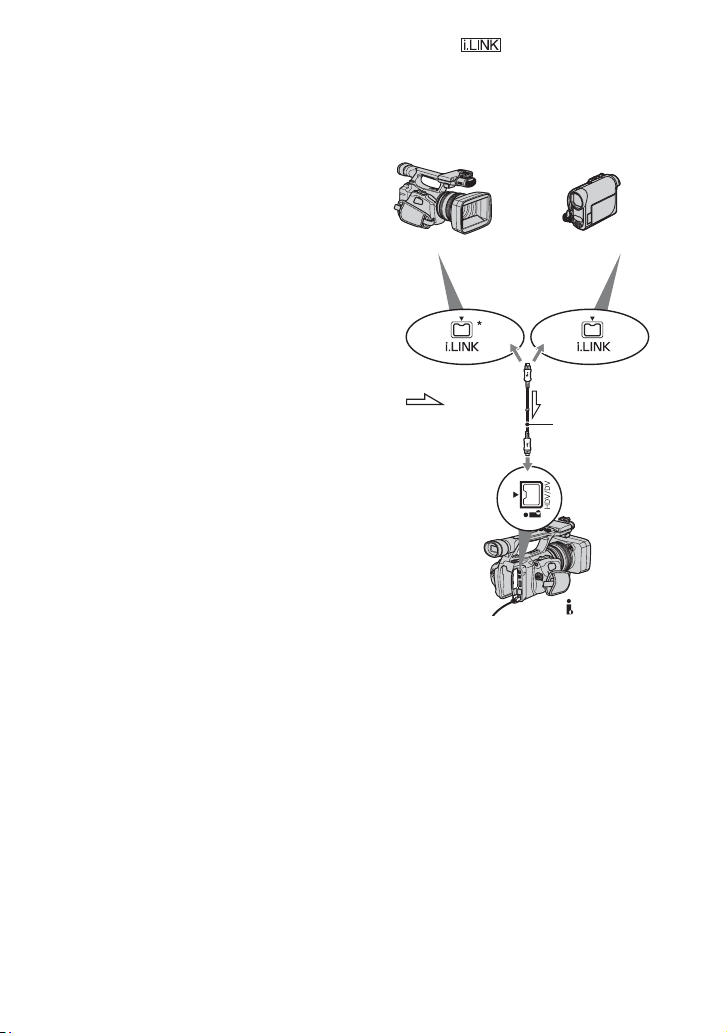
88
Recording pictures from a VCR
You can record pictures from a VCR on a
tape. You can record a scene as a still image
on a “Memory Stick Duo.” You can record
pictures in the HDV format by connecting
an HDV1080i specification compatible
device. Be sure to insert a cassette or a
“Memory Stick Duo” for recording in your
camcorder beforehand.
You can connect your camcorder to a VCR
d
e
vice using an i.LINK cable.
Connect your camcorder to the wall outlet
(
w
all socket) using the supplied AC
Adaptor for this operation (p. 18). Refer
also to the instruction manuals supplied
w
i
th the devices to be connected.
b Notes
• You need an i.LINK cable for this operation.
• You cannot perform this operation with the A/V
connecting cable.
•
Your camcorder has a 4-pin i.LINK terminal.
Select a cable that fits the terminal on the device
to be attached.
* An i.LINK jack which is compatible with
HD
V1080i specification is required.
HDV1080i
compatible device
AV device with
i.LINK jack
t HD quality t SD quality
To i.LINK connector
i.LINK cable
(optional)
To HDV/DV
interface (i.LINK)
: Signal
flow
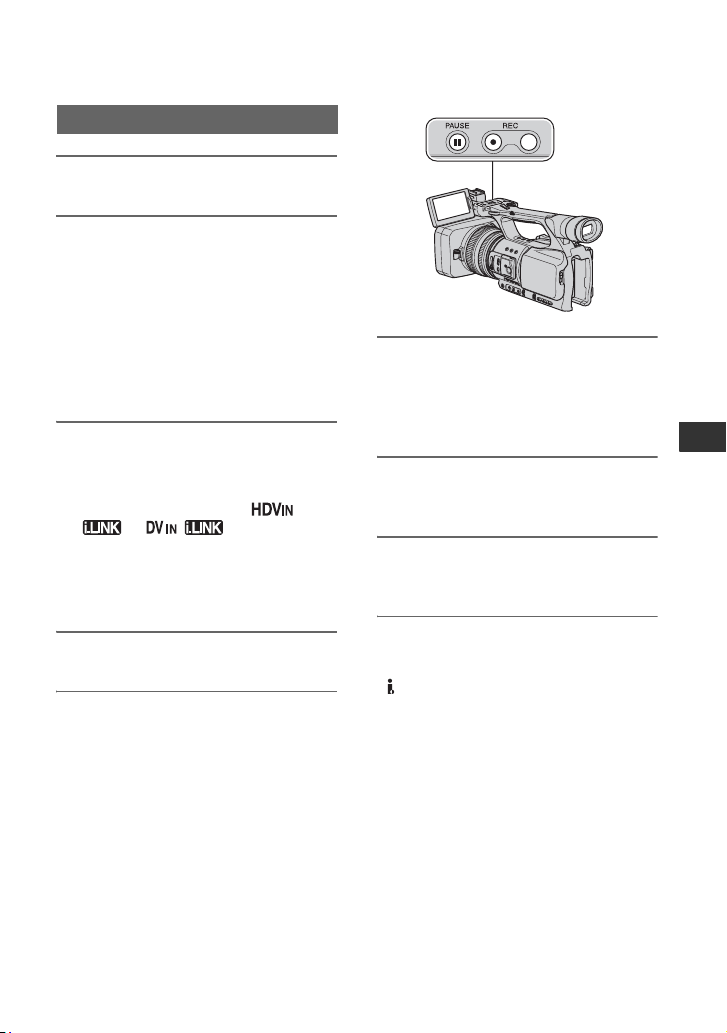
89
Dubbing/Editing
1 Set the POWER switch to VCR.
2 Set the input signal of your
camcorder.
Set [VCR HDV/DV] to [AUTO] when
re
cording from an HDV format
compatible device.
Set [VCR HDV/DV] to [DV] or
[AUTO] when recording from a DV
format compatible device (p. 77).
3 Connect your VCR as a player to
your camcorder.
When an i.LINK cable is connected, the
form
at of the input signal (
or ) will be
indicated on the LCD screen of your
cam
co
rder (This indicator may appear
on the screen of the playback device but
it will not be recorded).
4 Insert a cassette into the VCR.
5 Set your camcorder to recording
pause.
While pressing X (PAUSE), press both
z REC (record) buttons
simult
aneously.
6 Start playing the cassette on your
VCR.
The picture played on the VCR appears
on t
he LCD screen of your camcorder.
7 Press X (PAUSE) again at the
point you want to start recording.
8 Press x (STOP) to stop
recording.
b Notes
• You cannot record TV programs from the
HDV/DV interface (i.LINK).
• You can record pictures from DV devices only
in the DV format.
• Note the following when connecting with an
i.LINK cable:
– The recorded picture becomes rough when a
picture is paused on your camcorder while
recording to a VCR.
– You cannot record the picture and sound
se
parately.
– If you pause or stop the recording and restart
it, the picture may not be recorded smoothly.
z Tips
• When a 4:3 video signal is input, it appears with
black bands on the right and left sides on the
screen of your camcorder.
Recording movies
Continued ,

90
Be sure to insert a “Memory Stick Duo” for
recording in your camcorder beforehand,
and set [PHOTO/EXP.FOCUS] to
[PHOTO] (the default setting) (p. 82).
1 Perform steps 1 to 4 in
“Recording movies.”
2 Start playing the cassette.
The pictures on the VCR appear on the
scree
n of your camcorder.
3 Press the PHOTO/EXPANDED
FOCUS button on your camcorder
or the PHOTO button on the
Remote Commander at the scene
you want to record.
Recording still images
Recording pictures from a VCR (Continued)
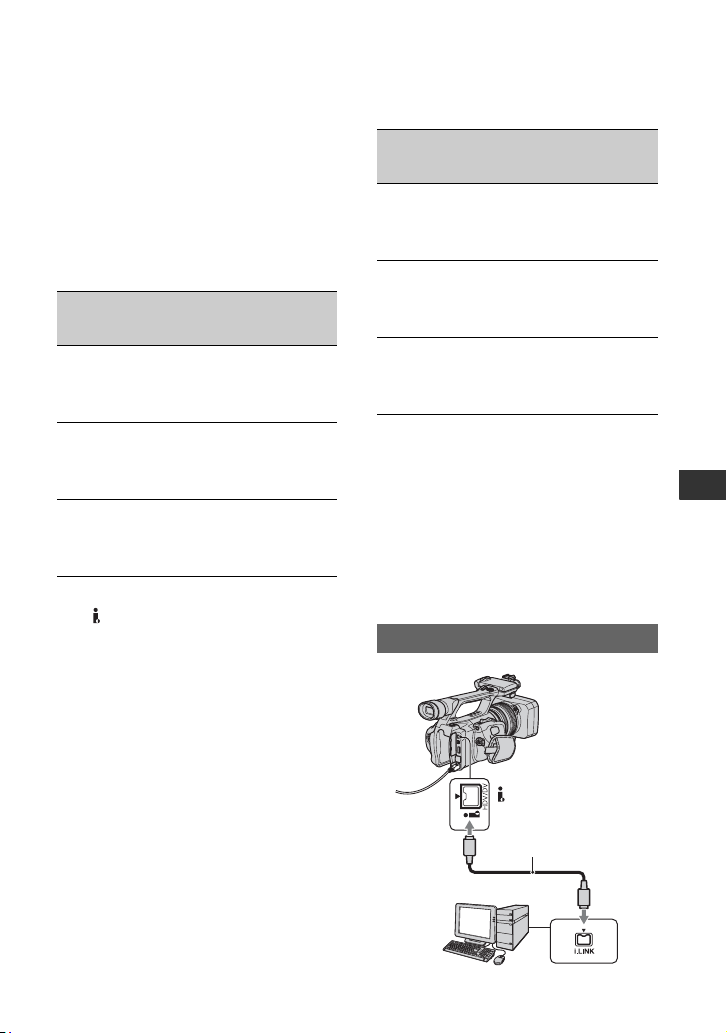
91
Using a Computer
Using a Computer
Copying movies on a tape to a computer
Connect your camcorder to the computer
with an i.LINK cable.
The computer needs to have an i.LINK
co
n
nector and be installed with editing
software that can copy video signals. The
software required depends on the format of
the recorded pictures and the format for
copying to the computer (HDV or DV) as
shown in the table below.
b Notes
• The HDV/DV jack of your camcorder does
not have a power-supply function.
• When you connect your camcorder to a
computer via an i.LINK cable, make sure that
the terminals of the i.LINK cable are placed the
right way. Squeezing the terminals into jacks
may damage the terminals and jacks, or result in
a malfunction of your camcorder.
• You cannot copy image data stored on a
“Memor
y Stick Duo” onto your computer via an
i.LINK cable.
• Refer to the operating instructions of the
so
ftware for the details on image copying.
• Refer to the operating instructions of the editing
software for the recommended connection.
• Some editing software on the computer may not
work correctly.
• You cannot change format DV to HDV.
The required menu settings vary depending
on the recorded images and the format
(HDV or DV) to be copied to the computer.
* See page 62 for menu settings.
z Tips
• To copy HDV format images as they are
without changing their format, an HDV
compatible environment is required.
For details, refer to your software instruction
ma
nual or contact the software manufacturer.
• To play movies by a regular DVD player, you
need to create DVD video in the SD format. the
DVD video is not in the HDV format.
Recorded
format
Format for
copying to
the computer
Required software
HDV HDV
Editing software
capab
le of
copying HDV
signal
HDV DV
Editing software
cap
ab
le of
copying DV
signal
DV DV
Editing software
cap
ab
le of
copying DV
signal
Recorded
format
Format for
copying to
the computer
Menu setting*
HDV HDV
[VCR HDV/DV]
t [HDV]
[i
.LINK CONV]
t [OFF]
HDV DV
[VCR HDV/DV]
t [
HDV]
[i
.LINK CONV]
t [ON]
DV DV
[VCR HDV/DV]
t [
DV]
[i.LINK CONV]
t [OFF]
Step:1 Connect an i.LINK cable
i.LINK cable (optional)
HDV/DV interface
(i.LINK)
Continued ,

92
Notes on connecting to the computer
• Connect the i.LINK cable to the computer first,
then to your camcorder. Connecting in the
opposite order may cause static electricity to
build up, resulting in a malfunction of your
camcorder.
• The computer may freeze or may not recognize
the s
ignal from your camcorder in the following
situations.
– Connecting your camcorder to a computer
that doe
s not support the video signal formats
appearing on the LCD screen of your
camcorder display (HDV or DV).
– Changing [VCR HDV/DV] (p. 77) and
[i.LINK CONV] (p. 79) settings while
connected with an i.LINK cable.
– Changing [REC FORMAT] setting while
connected wi
th an i.LINK cable with the
POWER switch set to CAMERA (p. 77).
– Changing the POWER switch position while
connected wi
th an i.LINK cable.
• The format (HDV or DV) of input/output signal
appears on the LCD screen of your camcorder
while connected with an i.LINK cable.
Use the supplied AC Adaptor to obtain AC
power (p. 18).
1 Prepare editing software (not provided).
2 Turn on your computer.
3 Insert a tape into your camcorder and set
th
e POWER switch to VCR.
4 Set the menu of your camcorder.
Th
e menu settings vary depending on
th
e copying image.
5 Copy images to the computer with your
softwa
re.
b Notes
• If images are copied in HDV format but are not
recognized, your editing software may not
support HDV format. Convert the images to DV
format according to step 4 and copy again.
• A tape recorded in DV format cannot be copied
to a c
omputer in HDV format.
z Tips
• Check the specs, features and latest information
of your software on the software manufacturer's
website.
• When images recorded in HDV format are
copi
ed to a computer, the file size is about 2GB
(almost the same as a DV file) for a 10-minute
movie if the video compression format is
MPEG2.
When copying the movie in the HDV
format from the computer to your
camcorder
Set [VCR HDV/DV] to [HDV] and [i.LINK
CONV] to [OFF] (p. 77, 79).
b Notes
• To copy an HDV format movie edited on a
computer back onto a tape in HDV format is
possible so long as your editing software
supports copying HDV movies onto tape. For
details, contact the software manufacturer.
When copying the movie in the DV
format from the computer to your
camcorder
Set [VCR HDV/DV] to [DV] (p. 77).
Step:2 Copying the movies
Copying movies on a tape to a computer (Continued)
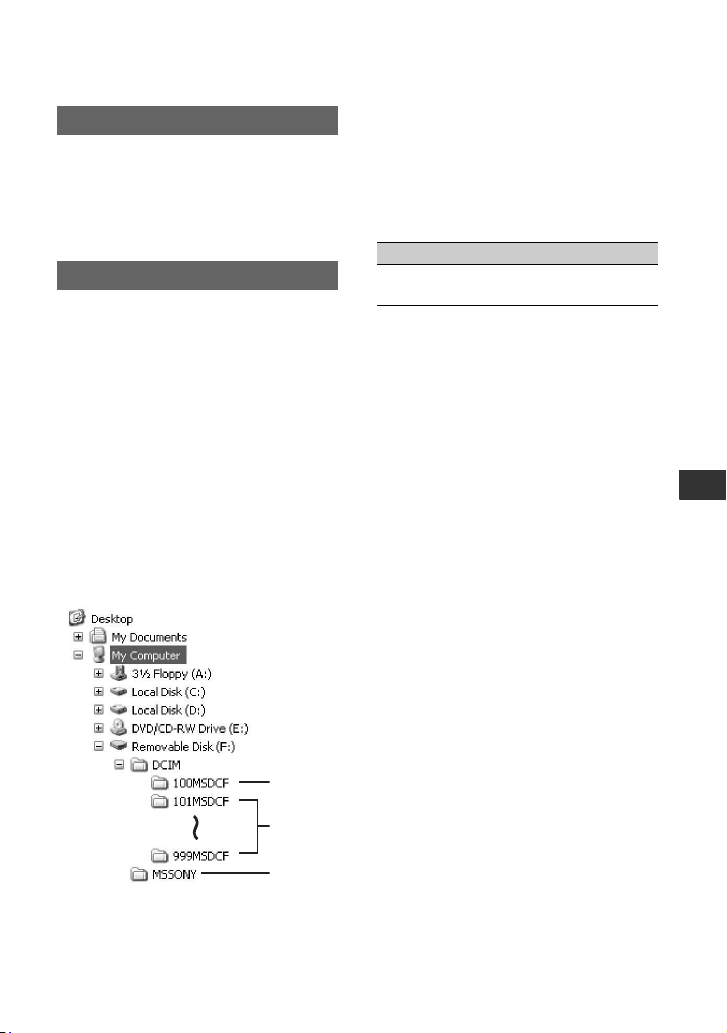
93
Using a Computer
Copying still images to a computer
• For details on precautions and compatible
application software, refer also to the operating
instructions of the device to be connected.
• Required hardware: “Memory Stick Duo” slot,
“M
emory Stick” Reader/Writer compatible with
“Memory Stick Duo.”
For Windows users
You can copy still images stored on a
“Memory Stick Duo” to your computer via
the “Memory Stick Duo” slot of your
computer.
1 T
urn on your computer.
2 Insert the “Memory Stick Duo” into the
“Me
mory Stick Duo” slot of your
computer.
3 Double-click the [Removable Disk]
i
con displayed in [My Computer]. Then,
drag and drop a still image from the
folder onto the hard disk drive of your
computer.
A F
older containing image files recorded
b
y other camcorders without the folder
creation function (for playback only).
B F
older containing image files recorded
by
your camcorder when no new folders
have been created, only [101MSDCF] is
displayed.
C Fo
lder containing movie data recorded
by
other camcorders without the folder
creation function (for playback only)
ssss a
re numbers between 0001 and
999
9.
For Macintosh users
Double-click the drive icon, then drag and
drop the desired picture file onto the hard
disk of your computer.
System requirements
Copying the pictures
1
2
3
Folder File Meaning
101MSDCF (up
to 999MSDCF)
DSC0ss
ss.JPG
Still image
file

94
Troubleshooting
Troubleshooting
If you run into any problems using your camcorder, use the following table to troubleshoot the
problem. If the problem persists, disconnect the power source and contact your Sony dealer.
• Power sources/LCD screen/Remote Commander···p. 94
• Cassette tapes/“Memory Stick Duo”···p. 95
• Recording···p. 96
• Playback···p. 99
• Connecting to TV···p. 100
• Dubbing/Editing/Connecting to other devices···p. 101
• Connecting to a computer···p. 103
The power does not turn on or abruptly turns off.
• Attach a charged battery pack to the camcorder (p. 18).
• Use the AC Adaptor to connect to a wa
ll outlet (wall socket) (p. 18).
The camcorder does not operate even when the power is set to on.
• Disconnect the AC Adaptor from the wall outlet (wall socket) or remove the battery pack,
then reconnect it after about 1 minute.
• Press the RESET button (p. 124) using a sharp-pointed object.
The camcorder gets warm.
• The camcorder may get warmer while you use it. This is not a malfunction.
The CHG lamp does not light while the battery pack is being charged.
• Slide the POWER switch to OFF (CHG) (p. 18).
• Attach the battery pack to the camcorder correctly (p. 18).
• Connect the power cord (mains lead) to the wall outlet (wall socket) properly.
• The battery charge is completed (p. 18).
The CHG lamp flashes while the battery pack is being charged.
• Attach the battery pack to the camcorder correctly (p. 18). If the problem persists, disconnect
the AC Adaptor from the wall outlet (wall socket) and contact your Sony dealer. The battery
pa
ck may be damaged.
• When the battery pack is too hot or cold, the CHG lamp may flash slowly, indicating that the
ba
ttery pack cannot be charged.
The remaining battery time indicator does not indicate the correct time.
• Ambient temperature is too high or too low, or the battery pack has not been charged enough.
This is not a malfunction.
• Fully charge the battery again. If the problem persists, the battery may be worn-out. Replace
it w
ith a new one (p. 18, 112
).
Power sources/LCD screen/Remote Commander

95
Troubleshooting
• The indicated time may not be correct in certain circumstances. For example, when you open
or close the LCD panel, it takes about 1 minute to display the correct remaining battery time.
The battery pack discharges too quickly.
• Ambient temperature is too high or low, or the battery pack has not been charged enough.
This is not a malfunction.
• Fully charge the battery again. If the problem persists, the battery may be worn-out. Replace
it
with a new one (p. 18, 112).
The picture remains on the LCD screen.
• This occurs if you disconnect the DC plug or remove the battery pack without turning off the
power first. This is not a malfunction.
The picture in the viewfinder is not clear.
• Move the viewfinder lens adjustment lever until the picture appears clearly (p. 22).
The picture in the viewfinder has disappeared.
• If you change [VF POWERMODE] to [AUTO], the finder light remains off while the LCD
panel is open (p. 76).
The supplied Remote Commander does not function.
• Set [REMOTE CTRL] to [ON] (p. 83).
• Remove any obstructions between the Remote Commander and the remote sensor.
• Keep strong light sources, such as sunlight or overhead lighting, away from the remote
se
ns
or, otherwise the Remote Commander may not function properly.
• Insert a fresh battery in the compartment with its +/– terminals matching those of the
comp
artment (p. 127).
Another VCR malfunctions when you use the supplied Remote Commander.
• Select a commander mode other than VTR 2 for your VCR.
• Cover the sensor of your VCR with black paper.
The cassette cannot be ejected from the compartment.
• Make sure the power source (battery pack or AC Adaptor) is connected correctly (p. 18).
• Moisture condensation has occurred inside the camcorder (p. 115).
The Cassette Memory indicator or title display does not appear while using a
cassette with the Cassette Memory function.
• This camcorder does not support the Cassette Memory function, so the indicator does not
appear.
Cassette tapes/“Memory Stick Duo”
Continued ,

96
Troubleshooting (Continued)
The remaining tape indicator is not displayed.
•Set [ REMAINING] to [ON] to always display the remaining tape indicator (p. 76).
The cassette is noisier during rewinding or fast-forwarding.
• When using the AC Adaptor, rewind/fast forward speed increases (compared with battery
operation) and therefore increases noise. This is not a malfunction.
You cannot delete pictures of the “Memory Stick Duo.”
• The pictures are protected. Release the protect function on your computer, etc.
If you are playing back pictures stored on a “Memory Stick Duo,” see also the Cassette tapes/
“Memory Stick Duo” section (p. 95).
The recording does not start when you press the REC START/STOP button.
• Slide the POWER switch to CAMERA (p. 28).
• The tape has reached the end. Rewind it, or insert a new cassette.
• Set the write-protect tab of the cassette to REC or insert a new cassette (p. 110).
• The tape is stuck to the drum due to moisture condensation. Remove the cassette and leave
y
our
camcorder for at least 1 hour, then re-insert the cassette (p. 115).
The handle zoom does not work.
• Set the handle zoom speed switch to FIX or VAR (p. 31).
You cannot record on the “Memory Stick Duo.”
• The “Memory Stick Duo” is full. Delete unnecessary pictures recorded on the “Memory Stick
Duo” (p. 50).
• Format the “Memory Stick Duo” on your camcorder or insert another “Memory Stick Duo”
(p. 80).
• You cannot record still images on the “Memory Stick Duo” in the following cases.
– While executing [FADER]
– While executing [SMTH SLW REC]
– When [PROG.SCAN] is set to [OFF] or [30] and the shutter speed is slower than 1/60
– When [PROG.SCAN] is set to [24] and the shutter speed is slower than 1/48
– While using shot transition
• Set [PHOTO/EXP.FOCUS] to [PHOTO] (p. 82).
You cannot record a smooth transition on a tape from the last recorded scene
to the next.
• Perform End search (p. 45).
• Do not remove the cassette (the picture will be recorded continuously without a break even
when you turn the power off).
Recording
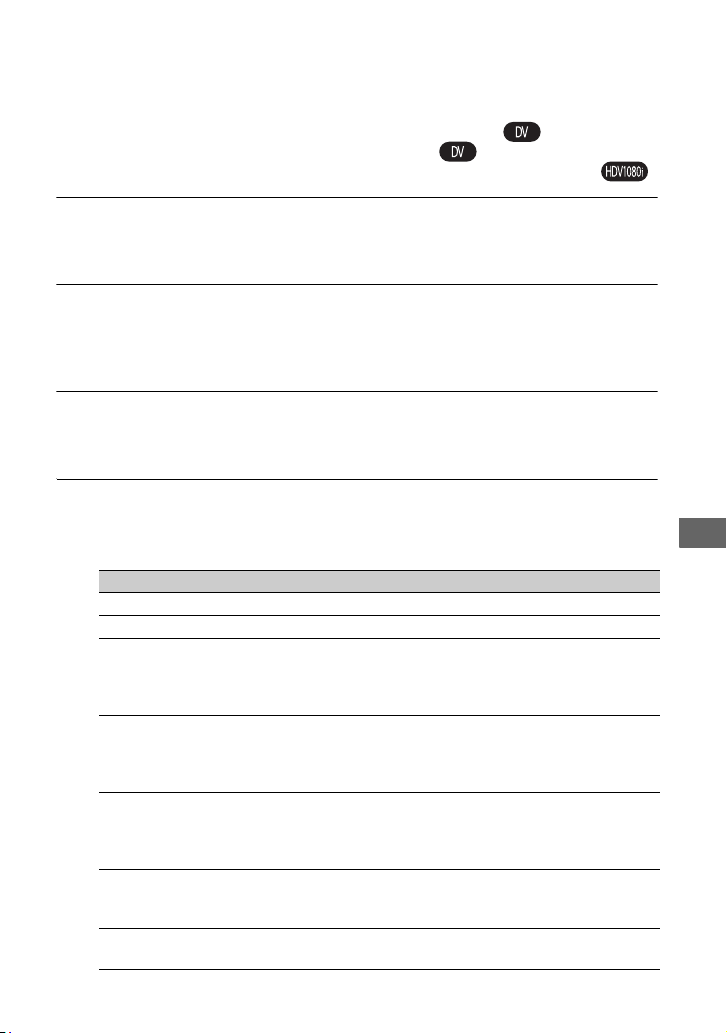
97
Troubleshooting
• Do not record pictures in the HDV and DV formats on the same tape.
• Do not record pictures in SP mode and LP mode on the same tape.
• Avoid stopping then recording a movie in the LP mode.
• When [QUICK REC] is set to [ON], you cannot record a smooth transition (p. 82).
The shutter sound is not heard when you record a still image.
• Set [BEEP] to [ON] (p. 83).
• There is no shutter sound while during movie shooting.
End search does not work.
• Do not eject the cassette after recording (p. 45).
• There is nothing recorded on the cassette.
• There is a blank section between recorded sections of the tape. This is not a malfunction.
Automatic focus does not function.
• Set the FOCUS switch to AUTO to enable the automatic focus function (p. 32).
• Adjust the focus manually if the automatic focus does not work properly (p. 32).
Menu items are grayed out or does not work.
• You cannot select gray out display items in the current recording/playback situation.
• There are some functions you cannot activate simultaneously. The following list shows
ex
amples of unworkable combinations of functions and menu items.
Cannot use Situation
[PROG.SCAN] [INTERVAL REC] is set to [ON].
[CNTRST ENHCR] [BACK LIGHT] is set to [ON].
[BACK LIGHT] Two or more of the iris, gain and shutter speed are set
m
a
nually.
[EXPOSURE] is manually adjusted.
[SPOTLIGHT] is set to [ON].
[SPOTLIGHT] Two or more of the iris, gain and shutter speed are set
m
a
nually.
[EXPOSURE] is manually adjusted.
[BACK LIGHT] is set to [ON].
[FADER] No tape is inserted.
Moisture condensation has occurred inside the camcorder.
The write-protect tab on the cassette is set to SAVE.
[INTERVAL REC] is set to [ON].
[ZEBRA], [PEAKING],
[
C
AM DATA DSP],
[HISTOGRAM]
[COLOR BAR] is set to [ON].
[SMTH SLW REC] [PROG.SCAN] is set to [24] or [30].
[COLOR BAR] is set to [ON].
Continued ,

98
Troubleshooting (Continued)
Shutter speed, gain, white balance or iris cannot be adjusted manually.
• Set the AUTO/MANUAL switch to MANUAL.
Tiny spots in white, red, blue, or green appear on the screen.
• This phenomenon appears when using a slow shutter speed (p. 35). This is not a malfunction.
The subjects passing by the frame very fast appear crooked.
• This is called the focal plane phenomenon. This is not a malfunction. Because of the way that
the image device (CMOS sensor) reads out image signals, the subjects passing by the frame
rapidly might appear crooked depending on the recording conditions.
The screen picture is bright, and the subject does not appear on the screen.
• Set [BACK LIGHT] to [OFF].
The screen picture is dark, and the subject does not appear on the screen.
• Press the DISPLAY/BATT INFO button to turn on the backlight (p. 22).
Horizontal stripes appear on the image.
• This occurs when recording pictures under a fluorescent lamp, sodium lamp, or mercury
lamp. This is not a malfunction. This can be improved by changing the shutter speed (p. 35).
Black bands appear when you record a TV screen or computer screen.
• This can be improved by changing the shutter speed (p. 35).
Fine patterns flicker, diagonal lines look jagged.
• Adjust [SHARPNESS] to the negative side (p. 40).
[LCD BL LEVEL],
[VF B.LIGHT]
AC power source is being used.
[WORLD TIME] Date and time are not set.
[x.v.Color] [REC FORMAT] is set to [DV].
[INTERVAL REC] [PROG.SCAN] is set to [24] or [30].
[DV FRAME REC]
[REC FORMAT] is set to [HDV1080i].
Cannot use Situation
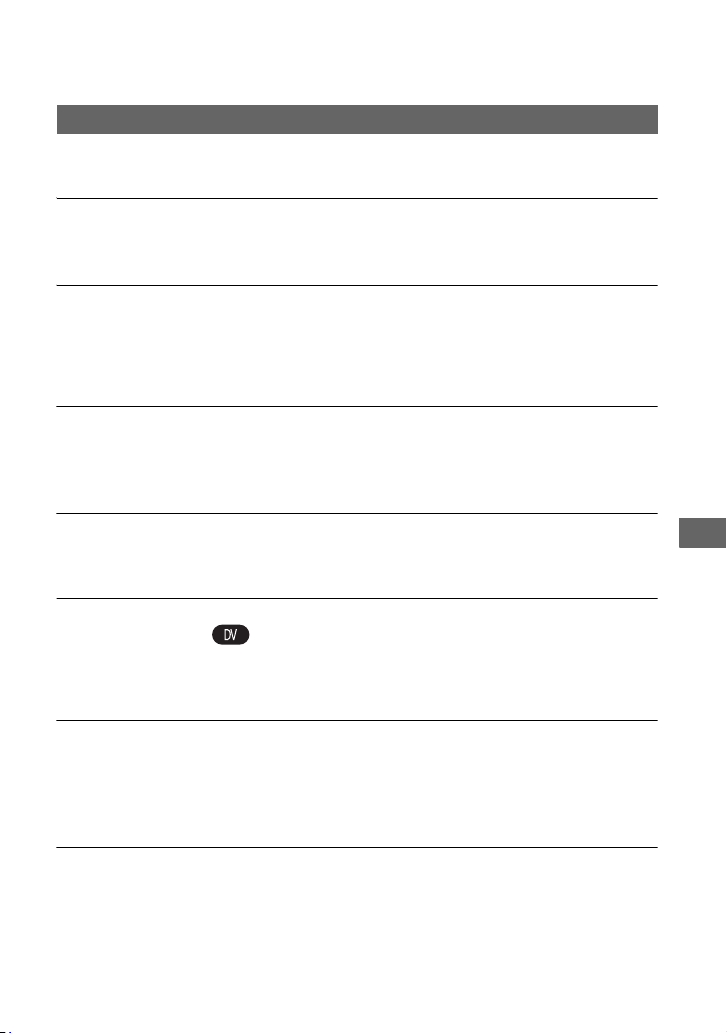
99
Troubleshooting
If you are playing back pictures stored on a “Memory Stick Duo,” see also the Cassette tapes/
“Memory Stick Duo” section (p. 95).
You cannot play back tape.
• Slide the POWER switch to VCR.
• Rewind the tape (p. 49).
Image data stored on a “Memory Stick Duo” cannot be played back correctly.
• Image data cannot be played back if you have modified file names or folders, or have edited
the data on a computer (In this case, the file name flashes). This is not a malfunction (p. 112).
• Pictures recorded on other devices may not be played back correctly. This is not a
ma
lfunction.
The data file name is displayed incorrectly, or flashing.
• The file is damaged.
• The file format is not supported on your camcorder (p. 111).
• Only the file name is displayed if the folder structure does not meet the universal standard.
Horizontal lines appear on the picture. The displayed pictures are not clear or
do not appear.
• Video head is dirty. Clean the head using the cleaning cassette (optional) (p. 116).
You cannot hear the sound recorded with 4CH microphone recording on
another camcorder.
• Set [DV AUDIO MIX] (p. 73).
• You cannot reproduce the sound recorded in CH3 and CH4 on your camcorder for the HDV
form
at 4-ch recording.
No sound or only a low sound is heard.
• Turn up the volume (p. 50).
• Set [MULTI-SOUND] to [STEREO] (p. 73).
• Set [DV AUDIO MIX] (p. 73).
• Pictures recorded using [SMTH SLW REC] do not have sounds.
The picture or sound breaks off.
• The tape was recorded in both of the HDV and DV formats. This is not a malfunction.
Playback
Continued ,
100
Troubleshooting (Continued)
The movies freeze for a while, or the sound breaks off.
• This occurs if the tape or video head is dirty (p. 116).
• Use the Sony mini DV cassette tape.
“---” is displayed on the screen.
• The tape you are playing back was recorded without setting the date and time.
• A blank section on the tape is being played back.
• The data code on a tape with a scratch or noise cannot be read.
• The tape you are playing was recorded with the gain set to -6dB.
Noises appear and or is displayed on the screen.
• The tape was recorded in a TV color system other than that of your camcorder (NTSC). This
is not a malfunction.
Date Search does not work correctly.
• Be sure to record more than 2 minutes after the date changed. If one day’s recording is too
short, your camcorder may not accurately find the point where the recording date changes.
• There is a blank section between recorded sections of the tape. This is not a malfunction.
No picture appears during End search or Rec review.
• The tape was recorded in both HDV and DV formats. This is not a malfunction.
New sound added to a recorded tape on another camcorder is not heard.
• Change the [DV AUDIO MIX] setting from [ST1] (original sound) to [MIX] or [ST2].
, , or appears on the LCD screen.
• appears when you play back a tape recorded on another device using a 4ch
microphone (4CH MIC REC). This camcorder does not comply with the 4ch microphone
record
ing standard.
• , or may appears when you play back a tape recorded on another device in
progressive recording mode. Your camcorder does not have progressive recording capability.
You cannot view the picture on the TV connected with the i.LINK cable.
• You cannot view the picture in the HD (high definition) quality on the TV if an i.LINK jack
of the TV is not compatible with the HDV1080i specification (p. 56). Refer to the instruction
manuals supplied with your TV.
• Down convert the pictures recorded in HDV form
at and play back in DV format (SD image
quality) (p. 79).
• Connect the TV with another connecting cable, and play back pictures (p. 56
).
Connecting to TV

101
Troubleshooting
You cannot hear the sound on the TV connected with the S VIDEO plug
(S VIDEO channel) or component video plugs.
• If you are using an S VIDEO plug or component video plugs, make sure the red and white
plugs are also connected (p. 56).
You cannot view the picture or hear the sound on the TV connected with the
component A/V cable.
• Set [COMPONENT] according to the requirements of the connected device (p. 79).
• When you are using the component A/V cable, make sure the red and white plugs of the
component A/V cable are connected (p. 56).
You cannot view the picture or hear the sound on the TV connected with the
HDMI cable.
• Pictures in the HDV format are not output from the HDMI OUT jack, if copyright protection
signals are recorded in the pictures.
• DV format pictures input to the camcorder via i.LINK cable (p. 84) cannot be output.
• This occurs if you record on a tape in both HDV and DV formats. Disconnect and connect the
HDM
I
cable, or slide the POWER switch to turn on your camcorder again.
The picture appears distorted on the 4:3 TV.
• This happens when viewing a picture recorded in the 16:9 (wide) mode on a 4:3 TV. Set [TV
TYPE] and play back the picture (p. 79).
Black zone appears at top and bottom of a 4:3 TV screen.
• This happens when viewing a picture recorded in the 16:9 (wide) mode on a 4:3 TV. This is
not a malfunction.
Pictures from connected devices cannot be zoomed.
• You cannot zoom pictures from connected devices on your camcorder (p. 31).
Time code and other information appear on the display of the connected
device.
• Set [DISP OUTPUT] to [LCD PANEL] while connected with an A/V connecting cable
(p. 77).
You cannot dub correctly using the A/V connecting cable.
• The A/V connecting cable is not connected properly.
Make sure that the A/V connecting cable is connected to the input jack of the other device for
dubbing a picture from your camcorder.
Dubbing/Editing/Connecting to other devices
Continued ,

102
Troubleshooting (Continued)
When connected using an i.LINK cable, no picture appears on the monitor
screen during dubbing.
• Set [VCR HDV/DV] according to the requirements of the connected device (p. 77).
You cannot add sound to the recorded tape.
• You cannot add sound to the recorded tape on this unit.
You cannot dub correctly using the HDMI cable.
• You cannot dub pictures using the HDMI cable.
Still pictures cannot be dubbed from a tape to a “Memory Stick Duo.”
• You cannot capture pictures at all or good-quality pictures from the tape that has been used
repeatedly for recording.
When you copy a movie shot in wide (16:9) format using an i.LINK cable, the
screen stretches vertically.
• You cannot output the aspect ratio setting using an i.LINK cable. Set the aspect ratio of the
TV instead.
• Connect using an A/V connecting cable instead.

103
Troubleshooting
The computer does not recognize your camcorder.
• Disconnect the cable from the computer and camcorder, then connect it again securely.
• Disconnect the cable from the computer, restart the computer, then connect the computer to
yo
ur camcorder correctly.
You cannot view or copy a movie recorded on a tape to a computer.
• Disconnect the cable from the computer, then connect it again.
• You need the editing software (optional) to copy a movie recorded on a tape to your computer
(p. 91).
Your computer freezes.
• Set [VCR HDV/DV] correctly according to the connected device (p. 77).
• Disconnect the cable from your computer and camcorder. Reboot your computer, and
con
nect your computer and camcorder following the steps in the correct order (p. 91
).
Connecting to a computer
104
Warning indicators and messages
When an error occurs, a warning indicator
appears on the LCD screen or in the
viewfinder.
Some symptoms you can fix by yourself. If
t
he
problem persists even after you have
tried a couple of times, contact your Sony
dealer or local authorized Sony service
facility.
C: (or E:) ss:ss (Self-diagnosis
display)
C:04:ss
• The battery pack is not an
“InfoLITHIUM” battery pack. Use an
“InfoLITHIUM” battery pack (p. 112).
• Connect the DC plug of the AC
Ada
ptor to the DC IN jack of your
camcorder securely (p. 18).
C:06:ss
• The battery pack is too hot. Replace the
battery pack, or remove it and put it in a
cool place.
C:21:ss
• Moisture condensation has occurred.
Remove the cassette and leave your
camcorder for at least 1 hour, then re-
insert the cassette (p. 115).
C:22:ss
• Clean the head using a cleaning
cassette (optional) (p. 116).
C:31:ss / C:32:ss
• Symptoms that are not described above
have occurred. Remove and insert the
cassette, then operate your camcorder
again. Do not perform this procedure if
moisture condensation has occurred
(p. 115).
• Remove the power source. Reconnect it
and
operate your camcorder again.
• Change the cassette. Press the RESET
bu
tton (p. 124), and operate your
camcorder again.
E:61:ss / E:62:ss
• Contact your Sony dealer or local
authorized Sony service facility. Inform
them of the 5-digit code, which starts
from “E.”
101-1001(Warning indicator
pertaining to files)
• The file is damaged.
• The file is unreadable (p. 112).
E (Battery level warning)
• The battery pack is nearly used up.
• Depending on the operating,
envi
ronment, or battery conditions, E
may flash, even if there are
approximately 5 to 10 minutes
remaining.
% (Moisture condensation warning)
• Eject the cassette, remove the power
source, and then leave it for about 1
hour with the cassette lid open (p. 115).
(Warning indicator pertaining to
“Memory Stick Duo”)
• A “Memory Stick Duo” is not inserted
(p. 26).
(Warning indicators pertaining to
“Memory Stick Duo” formatting)
• The “Memory Stick Duo” is damaged.
• The “Memory Stick Duo” is not
form
atted correctly (p. 80, 111).
(Warning indicators pertaining to
unsupported “Memory Stick Duo”)
• A “Memory Stick Duo” that cannot be
used in your camcorder is inserted
(p. 111
).
Self-diagnosis display/Warning
indicators
105
Troubleshooting
(Warning indicator
pertaining to battery pack
temperatu
re)
• The battery pack is too hot. Replace the
battery pack, or remove it and put it in a
cool place.
(Warning indicator pertaining to
battery pack temperature)
• The battery pack is too cold. Replace
the battery pack, or remove it and put it
in a warm place.
Q (Warning indicators pertaining to
the tape)
Slow flashing:
• There is less than 5 minutes remaining
on the tape.
• No cassette is inserted.
• The write-protect tab on the cassette is
s
e
t to lock (p. 110).
Fast flashing:
• The tape has run out.
Z (Eject cassette warning)
Slow flashing:
• The write-protect tab on the cassette is
set to lock (p. 110).
Fast flashing:
• Moisture condensation has occurred
(p. 115).
• The self-diagnosis display code is
displ
ayed (p. 104).
- (Warning indicator pertaining
to the write-protect of the “Memory
Stick Duo”)
• The write-protect tab on the “Memory
Stick Duo” is set to lock (p. 111).
z Tips
• You will hear a beep when certain messages
appear on the screen.
If messages appear on the screen, follow the
instructions.
x Battery/Power
Cannot use this battery in the
camcorder. (
p. 112)
x Moisture condensation
%Z Moisture condensation. Eject
the cassette (
p. 115)
% Moisture condensation. Turn off
for 1H. (
p. 115)
x Cassette/Tape
Z Reinsert the cassette. (p. 26)
• Check if the cassette is damaged.
QZ The tape is locked - check the
tab. (
p. 110)
x “Memory Stick Duo”
Reinsert the Memory Stick.
(p. 26, 111)
• Reinsert the “Memory Stick Duo” a
few times. If even then the indicator
flashes, the “Memory Stick Duo” might
be damaged. Try with another
“Memory Stick Duo.”
This Memory Stick is not
formatted correctly.
• Check the format, then format the
“Memory Stick Duo” as necessary
(p. 80, 111).
Description of warning messages
Continued ,

106
Memory Stick folders are full.
• You cannot create folders exceeding
999MSDCF. You cannot delete created
folders using your camcorder.
• You will have to format the “Memory
St
ick Duo” (p. 80), or delete them using
your computer.
Cannot record still images on
Memory Stick.
• You cannot record still images in the
following cases:
– When [PROG.SCAN] is set to [OFF]
or [
30] and the shutter speed is slower
than 1/60
– When [PROG.SCAN] is set to [24]
and the
shutter speed is slower than
1/48
– While using [FADER]
– While using [SMTH SLW REC]
– While checking or executing shot
tr
a
nsition
x Others
No output image in “VCR HDV/DV.”
Change format.
• Stop playback or signal input, or
change [VCR HDV/DV] setting
(p. 77).
Warning indicators and messages (Continued)
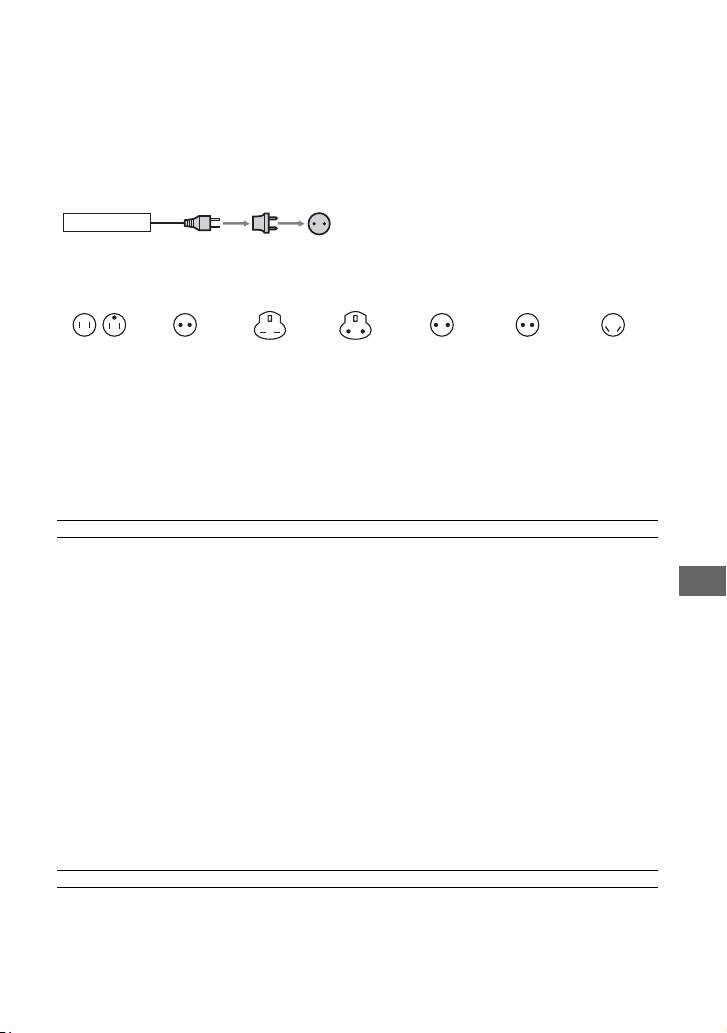
107
Additional Information
Additional Information
Using your camcorder abroad
Power supply
You can use your camcorder in any country/region using the AC Adaptor supplied with your
camcorder within the AC 100 V to 240 V, 50/60 Hz range.
Use a commercially available AC plug adaptor [a], if necessary, depending on the design of
th
e
wall outlet [b].
Representative plug of power supply cord of countries/regions around the world.
The representative supply voltage and plug type are described in this chart.
Depend on an area, Different type of plug and supply voltage are used.
Attention: Power cord meeting demands from each country shall be used.
-For only the United States
Use a UL Listed, 1.5-3 m (5-10 ft.), Type SPT-2 or NISPT-2, AWG no. 18 power supply cord, rated for
125 V 7 A, with a NEMA 1-15P plug rated for 125 V 15 A.”
Europe
Asia
A Type
(American
Type)
B Type
(British Type)
BF Type
(British Type)
B3 Type
(British Type)
C Type
(CEE Type)
SE Type
(CEE Type)
O Type
(Ocean Type)
Countries/regions Voltage Frequency (Hz) Plug type
Austria 230 50 C
Belgium 230 50 C
Czech 220 50 C
Denmark 230 50 C
Finland 230 50 C
France 230 50 C
Germany 230 50 C
Greece 220 50 C
Hungary 220 50 C
Iceland 230 50 C
Ireland 230 50 C/BF
Italy 220 50 C
Luxemburg 230 50 C
Netherlands 230 50 C
Norway 230 50 C
Poland 220 50 C
Portugal 230 50 C
Romania 220 50 C
Russia 220 50 C
Slovak 220 50 C
Spain 127/230 50 C
Sweden 230 50 C
Switzerland 230 50 C
UK 240 50 BF
Countries/regions Voltage Frequency (Hz) Plug type
China 220 50 A
Hong Kong 200/220 50 BF
India 230/240 50 C
Indonesia 127/230 50 C
Japan 100 50/60 A
Korea (rep) 220 60 C
Malaysia 240 50 BF
AC-L100 [a] [b]
Continued ,

108
Oceania
North America
Central America
South America
Middle East
Africa
Philippines 220/230 60 A/C
Singapore
230 50 BF
Taiwan 110 60 A
Thailand 220 50 C/BF
Vietnam 220 50 A/C
Countries/regions Voltage Frequency (Hz) Plug type
Australia 240 50 O
New Zealand 230/240 50 O
Countries/regions Voltage Frequency (Hz) Plug type
Canada 120 60 A
USA 120 60 A
Countries/regions Voltage Frequency (Hz) Plug type
Bahamas 120/240 60 A
Costa Rica 110 60 A
Cuba 110/220 60 A/C
Dominican (rep) 110 60 A
El Sal
vador 110 60 A
Guatemala 120 60 A
Honduras 110 60 A
Jamaica 110 50 A
Mexico 120/127 60 A
Nicaragua 120/240 60 A
Panama 110/220 60 A
Countries/regions Voltage Frequency (Hz) Plug type
Argentina 220 50 C/BF/O
Brazil 127/220 60 A/C
Chile 220 50 C
Colombia 120 60 A
Peru 220 60 A/C
Venezuela 120 60 A
Countries/regions Voltage Frequency (Hz) Plug type
Iran 220 50 C/BF
Iraq 220 50 C/BF
Israel 230 50 C
Saudi Arabia 127/220 50 A/C/BF
Turkey 220 50 C
UAE 240 50 C/BF
Countries/regions Voltage Frequency (Hz) Plug type
Algeria 127/220 50 C
Congo (dem) 220 50 C
Egypt 220 50 C
Ethiopia 220 50 C
Kenya 240 50 C/BF
Nigeria 230 50 C/BF
South Africa 220/230 50 C/BF
Tanzania 230 50 C/BF
Tunisia 220 50 C
Using your camcorder abroad (Continued)

109
Additional Information
On TV color systems
Your camcorder is NTSC system, so its
picture can only be viewed on an NTSC
system TV with an AUDIO/VIDEO input
jack.
Viewing HDV format pictures recorded
in HDV format
You need an HDV1080i compatible TV (or
monitor) with a component jack and
AUDIO/VIDEO input jack. You also need
a component A/V cable (supplied) or an
HDMI cable (optional).
Viewing DV format pictures recorded
in DV format
You need a TV with the AUDIO/VIDEO
input jack. A connecting cable is also
needed.
Simple setting of the clock by time
difference
When you are abroad, you can easily adjust
the clock to the local time by setting the
time difference. Select [WORLD TIME],
then set the time difference (p. 82
).
System Used in
NTSC Bahama Islands, Bolivia,
Canada, Central America, Chile,
Colombia, Ecuador, Guyana,
Jamaica, Japan, Korea, Mexico,
Peru, Surinam, Taiwan,
the Philippines, the U.S.A.,
Ven
ezu
ela, etc.
PAL Australia, Austria, Belgium,
Chi
na, Czech Republic,
Denmark, Finland, Germany,
Holland, Hong Kong, Hungary,
Italy, Kuwait, Malaysia,
New Zealand, Norway, Poland,
P
or
tugal, Singapore,
Slovak Republic, Spain,
Swed
en
, Switzerland, Thailand,
United Kingdom, etc.
PAL - M Brazil
PAL - N Argentina, Paraguay, Uruguay.
SECAM Bulgaria, France, Guiana, Iran,
I
r
aq, Monaco, Russia, Ukraine,
etc.
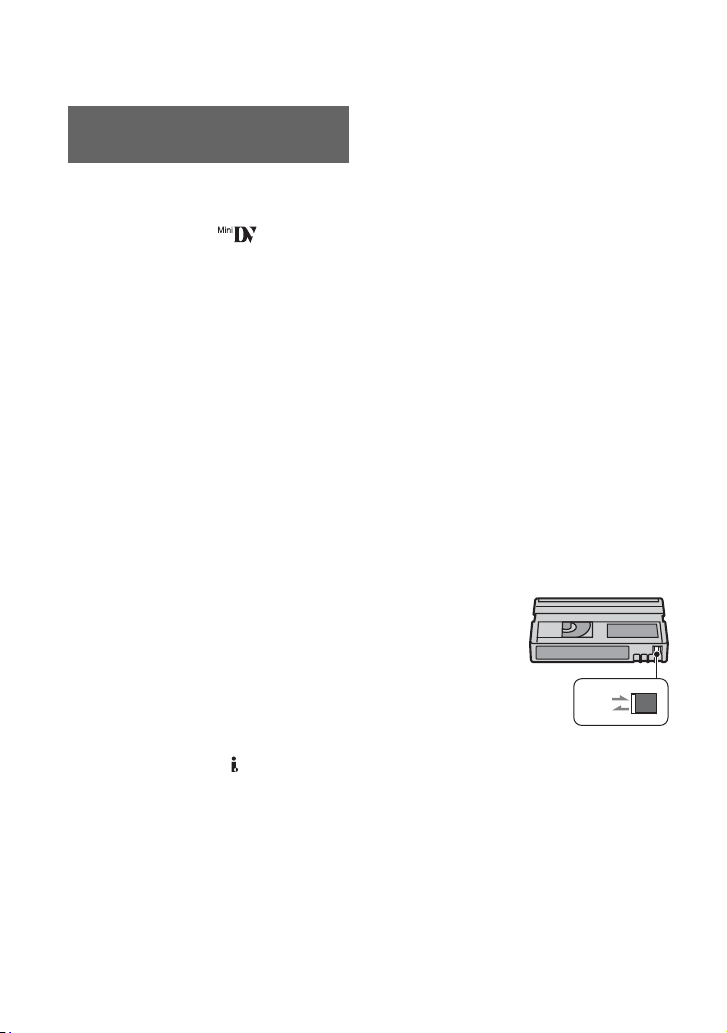
110
Maintenance and precautions
Your camcorder is capable of recording in
both HDV and DV formats.
You can use mini DV format cassettes only.
Use a cassette with the mark.
Your camcorder is not compatible with the
C
a
ssette Memory function.
What is the HDV format?
The HDV format is a video format
developed to record and play back digital
high definition (HD) video signals on a DV
cassette.
Your camcorder adopts the Interlace mode
w
i
th 1,080 effective scan lines of screen
ruling (1080i, number of pixels 1,440 ×
1,080 dots).
The video bit rate for recording is about 25
Mb
ps
.
i.LINK is adopted for the digital interface,
en
ab
ling a digital connection with an HDV
compatible TV or computer.
• HDV signals are compressed in MPEG2 format,
which is adopted in BS (broadcast satellite)
digital, terrestrial digital HDTV broadcastings,
in Blu-ray Disc recorders, etc.
Playback
Your camcorder can play back pictures in
both the DV format and HDV1080i
specification.
Your camcorder can play back pictures
re
c
orded in the HDV 720/30p format, but
cannot output it from the HDV/DV
interface (i.LINK).
To prevent a blank section from being
created on the tape
Go to the end of the recorded section using
[END SEARCH] (p. 45) before you begin
the next recording when you have played
b
ac
k the tape.
Copyright signal
x When you play back
If the cassette you play back on your
ca
mcorder contains copyright signals, you
cannot copy it to a tape in another video
camera connected to your camcorder.
x Wh
en you record
You
cannot record software on your
ca
mcorder that contains copyright control
signals for copyright protection of software.
[Cannot record due to copyright
protection.] appears on the LCD screen, or
on the viewfinder if you try to record such
software. Your camcorder does not record
copyright control signals on the tape when
it records.
Notes on use
x When not using your camcorder for a
long time
Remove the cassette and store it.
x T
o prevent accidental erasure
S
lide the write-protect tab on the cassette to
set i
t to SAVE.
HDV format and recording/
playback
REC
SAVE
REC: The cassette can be
recorded.
SAVE: The cassette cannot be
recorded (write-protected).
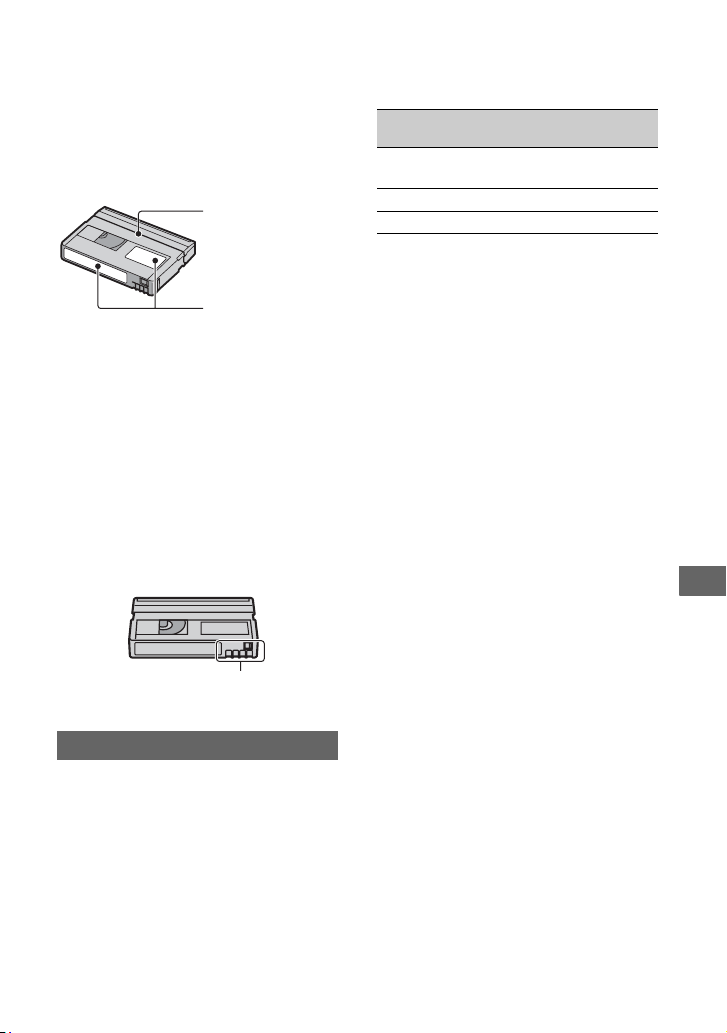
111
Additional Information
x When labeling the cassette
Be sure to place the label only on the
loc
ations shown in the following
illustration so as not to cause a malfunction
of your camcorder.
x Af
ter using the cassette
Re
wind the tape to the beginning to avoid
dist
ortion of the picture or the sound. The
cassette should then be put in its case, and
stored in an upright position.
x Wh
en cleaning the gold-plated
c
onnector
Generally, clean the gold-plated connector
on
a cassette with a cotton-wool swab after
every 10 times it has been ejected.
If the gold-plated connector on the cassette
i
s
dirty or dusty, the remaining tape
indicator may not show correctly.
A “Memory Stick” is a compact, portable
IC recording medium with a large data
capacity.
You can use the following types of
“
M
emory Stick” listed below on the
camcorder. However, we do not guarantee
the operation of all types of “Memory
Stick” on your camcorder. (See the list
below for more details.)
• This product does not support high speed data
transfer via a parallel interface.
• This product cannot record or play data that uses
“MagicGate” technology. “MagicGate” is a
copyright protection technology that records and
transfers the contents in an encrypted format.
• This product is compatible with “Memory Stick
Micr
o” (“M2”). “M2” is the abbreviation for the
“Memory Stick Micro.”
• Still image format: Your camcorder compresses
and r
ecords image data in the JPEG (Joint
Photographic Experts Group) format. The file
extension is “.JPG.”
• A “Memory Stick Duo” formatted by a
computer
(Windows OS/Mac OS) does not have
guaranteed compatibility with your camcorder.
• Data read/write speed may vary depending on
the
combination of the “Memory Stick Duo”
and “Memory Stick Duo” compliant product
you use.
• You can prevent accidental erasure of images
when you sl
ide the write-protect tab on the
“Memory Stick Duo” with a small tapered
object, to the write-protect position.
• Damaged or lost image data will not be
co
mpensated for, and may occur in the
following cases:
– If you eject the “Memory Stick Duo,” turn the
power
off on your camcorder, or remove the
battery pack for replacement while your
camcorder is reading or writing image files on
the “Memory Stick Duo” (while the access
lamp is lit or flashing).
– If you use the “Memory Stick Duo” near
magne
ts or magnetic fields.
• It is recommended to make a back-up of
important data on the hard disk of a computer.
• Be careful not to apply excessive force when
writing on a memo area on a “Memory Stick
Duo.”
• Do not attach a label or the like on a “Memory
Stick Duo
” or a “Memory Stick Duo” adaptor.
• When you carry or store a “Memory Stick Duo,”
put it in its case.
About the “Memory Stick”
Do not put a label
along this border.
Labeling position
Gold-plated connector
Types of “Memory Stick”
Recording
/Playback
Memory Stick Duo
(with MagicGate)
a
Memory Stick PRO Duo a
Memory Stick PRO-HG Duo a
Continued ,

112
• Do not touch, or allow metallic objects to come
into contact with the terminals.
• Do not bend, drop or apply strong force to the
“Memory Stick Duo.”
• Do not disassemble or modify the “Memory
Stick Duo.”
• Do not let the “Memory Stick Duo” get wet.
• Be careful to keep “Memory Stick Duo” media
out of
the reach of small children. There is
danger that a child might swallow it.
• Do not insert anything other than a “Memory
Stic
k Duo” into the “Memory Stick Duo” slot.
Doing so may cause a malfunction.
• Do not use or keep the “Memory Stick Duo” in
the f
ollowing locations:
– Places subject to extremely high temperature,
such as a car parked outside in the summer.
– Places under direct sunlight.
– Places with extremely high humidity or
su
bject to corrosive gases.
x On the “Memory Stick Duo” adaptor
• When using a “Memory Stick Duo” with a
“Memory Stick” compliant device, make sure to
insert the “Memory Stick Duo” into a “Memory
Stick Duo” adaptor.
• When inserting a “Memory Stick Duo” into a
“Mem
ory Stick Duo” adaptor, make sure the
“Memory Stick Duo” is inserted facing in the
correct direction, then insert it all the way in.
Note that improper use may cause a
malfunction. Also, if you force the “Memory
Stick Duo” into the “Memory Stick Duo”
adaptor in the wrong direction, it may be
damaged.
• Do not insert a “Memory Stick Duo” adaptor
wi
t
hout a “Memory Stick Duo” attached. Doing
so may result in malfunctions of the unit.
x On a “Memory Stick PRO Duo”
• The maximum memory capacity of a “Memory
Stick PRO Duo” that can be used on your
camcorder is 16 GB.
Notes on using “Memory Stick Micro”
• To use a “Memory Stick Micro” with the
camcorder, you need a Duo-sized M2 Adaptor.
Insert the “Memory Stick Micro” into the Duo-
sized M2 Adaptor, then insert the adaptor into
the “Memory Stick Duo” slot. If you insert a
“Memory Stick Micro” into the camcorder
without using a Duo-sized M2 Adaptor, you
might not be able to remove it from the
camcorder.
• Do not leave the “Memory Stick Micro” within
th
e reach of small children. They might
accidentally swallow it.
On image data compatibility
• Image data files recorded on a “Memory Stick
Duo” by your camcorder conform to the
“Design rule for Camera File system” universal
standard established by the JEITA (Japan
Electronics and Information Technology
Industries Association).
• On your camcorder, you cannot play back still
im
ages recorded on other devices (DCR-
TRV900 or DSC-D700/D770) that do not
conform to the universal standard. (These
models are not sold in some regions.)
• If you cannot use a “Memory Stick Duo” that
ha
s been used with another device, format it
with your camcorder (p. 80). Note that
formatting erases all information on the
“Memor
y Stick Duo.”
• You may not be able to play back images with
your camcorder:
– When playing back image data modified on
your computer.
– When playing back image data recorded with
other devices.
This unit is compatible with an
“InfoLITHIUM” battery pack (L series).
Your camcorder operates only with an
“
I
nfoLITHIUM” battery pack.
“InfoLITHIUM” L series battery packs
ha
ve
the mark.
What is an “InfoLITHIUM” battery
pack?
An “InfoLITHIUM” battery pack is a
lithium-ion battery pack that has functions
for communicating information related to
operating conditions between your
camcorder and an AC Adaptor/ Charger.
The “InfoLITHIUM” battery pack
calculates the power consumption
About the “InfoLITHIUM” battery
pack
Maintenance and precautions (Continued)

113
Additional Information
according to the operating conditions of
your camcorder, and displays the remaining
battery time in minutes.
With an AC Adaptor/Charger, the
re
m
aining battery time and charging time
appear.
To charge the battery pack
• Be sure to charge the battery pack before you
start using your camcorder.
• We recommend charging the battery pack in an
ambient temperature of between 10 °C to 30 °C
(50 °F to 86 °F) until the CHG lamp turns off. If
you charge the battery pack outside of this
temperature range, you may not be able to
charge it efficiently.
• After charging is complete, disconnect the cable
fr
om the DC IN jack on your camcorder or
remove the battery pack.
To use the battery pack effectively
• Battery pack performance decreases when the
surrounding temperature is 10 °C (50 °F) or
below, and the length of time you can use the
battery pack becomes shorter. In that case, do
one of the following to use the battery pack for a
longer time.
– Put the battery pack in a poc
ket to warm it up,
and insert it in your camcorder right before
you start taking shots.
– Use a large capacity battery pack: NP-F770/
F970 (
optional).
• Frequent use of the LCD screen or a frequent
playback, fast forward or rewind operation
wears out the battery pack faster.
We recommend using a large capacity battery
pack:
NP-F770/F970.
• Be sure to set the POWER switch to OFF
(CHG) when not recording or playing back on
your camcorder. The battery pack is also
consumed when your camcorder is in recording
standby or playback pause.
• Have spare battery packs ready for two or three
times
the expected recording time, and make
trial recordings before making the actual
recording.
• Do not expose the battery pack to water. The
bat
tery pack is not water resistant.
About the remaining battery time
indicator
• When the power goes off even though the
remaining battery time indicator indicates that
the battery pack has enough power to operate,
charge the battery pack fully again. Remaining
battery time will be indicated correctly. Note,
however, that the battery indication will not be
restored if it is used in high temperatures for a
long time, or if left in a fully charged state, or
when the battery pack is frequently used. Use
the remaining battery time indication as a rough
guide only.
• The E m
ark that indicates low battery flashes
e
ven if there are still 5 to 10 minutes of battery
time remaining, depending on the operating
conditions or ambient temperature.
About storage of the battery pack
• If the battery pack is not used for a long time,
fully charge the battery pack and use it up on
your camcorder once a year to maintain proper
function. To store the battery pack, remove it
from your camcorder and put it in a dry, cool
place.
• To discharge the battery pack on your
camcord
er completely, leave your camcorder in
tape recording standby until the power goes off
(p. 21).
About battery life
• Battery capacity decreases over time and
through repeated use. If decreased usage time
between charges becomes significant, it is
probably time to replace it with a new one.
• Each battery’s life is governed by storage,
opera
ting and environmental conditions.
The HDV/DV (i.LINK) jack on your
camcorder is an i.LINK-compliant 4-pin
ja
ck. This section describes the i.LINK
standard and its features.
What is i.LINK?
i.LINK is a digital serial interface for
transferring digital video, digital audio, and
other data to other i.LINK-compatible
About i.LINK
Continued ,

114
devices. You can also control other devices
using the i.LINK.
i.LINK-compatible devices can be
connected using an i.LINK cable. Possible
applications are operations and data
transactions with various digital AV
devices.
When two or more i.LINK-compatible
devices are daisy-chained with the unit,
operation becomes possible from any device
in the chain. Note that operation method
may vary, or data transactions may not be
possible, depending on specifications and
characteristics of the connected devices.
b Notes
• Normally, only one device can be connected to
this unit with an i.LINK cable. When
connecting this unit to an HDV/DV compatible
device having two or more HDV/DV
interfaces, refer to the operating instructions of
the device to be connected.
• i.LINK is a more familiar term for the IEEE
1394 data transport bus proposed by Sony, and
is a trademark approved by many corporations.
• IEEE 1394 is an international standard
standardized by the Institute of Electrical and
Electronics Engineers.
About the i.LINK Baud rate
i.LINK’s maximum baud rate varies
according to the device. There are 3 types.
S100 (approx. 100Mbps*)
S200 (approx. 200Mbps)
S400 (approx. 400Mbps)
The baud rate is listed under
“Specifications” in the operating
instructions of each piece of equipment. It
is also indicated near the i.LINK interface
on some devices.
The baud rate may differ from the indicated
value when the unit is connected to a device
with a different maximum baud rate.
Mbps stands for “megabits per second,” or
the amount of data that can be sent or
received in one second. For example, a
baud rate of 100 Mbps means that 100
megabits of data can be sent in one second.
To use i.LINK functions on this unit
For details on how to dub when this unit is
connected to other video devices having an
i.LINK interface, see page 87.
This unit can also be connected to other
i.LINK-compatible devices made by Sony
(for example, a VAIO series personal
computer) as well as to video devices.
Some i.LINK compatible video devices,
such as Digital Televisions, DVD,
MICROMV or HDV recorders/players are
not compatible with this unit. Before
connecting to other devices, be sure to
confirm whether the device is compatible
with an HDV/DV device or not. For details
on precautions and compatible application
software, refer also to the operating
instructions for the device to be connected.
b Notes
• When connecting a device with an i.LINK
terminal to your camcorder via an i.LINK cable,
switch off the device and unplug it from the
power socket before plugging in or unplugging
the i.LINK cable.
About the required i.LINK cable
• Use the Sony i.LINK 4-pin-to-4-pin cable
(during HDV/DV dubbing).
Sony cannot be responsible for breakage of
a terminal, or malfunction/damage from use
of a cable other than the one described
above. Also note that, with regard to Sony
product services in such cases, a fee may be
incurred, even within the warranty period.
• x.v.Color is a more familiar term for the
xvYCC standard proposed by Sony, and is
a trademark of Sony.
• xvYCC is an international standard for
color space in video. This standard can
express a wider color range than the
currently used broadcast standard.
* What is Mbps?
About x.v.Color
Maintenance and precautions (Continued)

115
Additional Information
On use and care
• Do not use or store the camcorder and
accessories in the following locations.
– Anywhere extremely hot or cold. Never leave
them exposed to temperatures above 60 °C
(140 °F), such as under direct sunlight, near
heaters or in a car parked in the sun. They
may malfunction or become deformed.
– Near strong magnetic fields or mechanical
vi
bration. The camcorder may malfunction.
– Near strong radio waves or radiation. The
camcorder may not be able to record properly.
– Near AM receivers and video equipment.
Noise may occur.
– On a sandy beach or anywhere dusty. If sand
or dust gets in your camcorder, it may
malfunction. Sometimes this malfunction
cannot be repaired.
– Near windows or outdoors, where the LCD
sc
reen, the viewfinder, or the lens may be
exposed to direct sunlight. This damages the
inside of the viewfinder or the LCD screen.
– Anywhere very humid.
• Operate your camcorder on DC 7.2 V (battery
pack)
or DC 8.4 V (AC Adaptor).
• For DC or AC operation, use the accessories
recommended in these operating instructions.
• Do not let your camcorder get wet, for example,
from rain or sea water. If your camcorder gets
wet, it may malfunction. Sometimes this
malfunction cannot be repaired.
• If any solid object or liquid gets inside the
ca
sing, unplug your camcorder and have it
checked by a Sony dealer before operating it
any further.
• Avoid rough handling, disassembling,
modify
ing, physical shock, or impact such as
hammering, dropping or stepping on the
product. Be particularly careful of the lens.
• Do not use a deformed or damaged battery pack.
• Keep the POWER switch setting to OFF (CHG)
when you
are not using your camcorder.
• Do not wrap your camcorder with a towel, for
example, and operate it. Doing so might cause
heat to build up inside.
• When disconnecting the power cord (mains
lead
), pull it by the plug and not the cord.
• Do not damage the power cord (mains lead)
su
ch as by placing anything heavy on it.
• Keep metal contacts clean.
• Keep the Remote Commander and button-type
batt
ery out of children’s reach. If the battery is
accidentally swallowed, consult a doctor
immediately.
• If the battery electrolytic liquid has leaked,
– consult your local authorized Sony service
fa
cility.
– wash off any liquid that may have contacted
your skin.
– if any liquid gets in your eyes, wash with
plenty of water and consult a doctor.
x When not using your camcorder for a
long time
• Periodically turn on the camcorder and play a
cassette for about 3 minutes.
• Use up the battery pack completely before
storing it.
Moisture condensation
If your camcorder is brought directly from a
cold place to a warm place, moisture may
condense inside your camcorder, on the
surface of the tape, or on the lens. In this
state, the tape may stick to the head drum
and be damaged or your camcorder may not
operate correctly. If there is moisture inside
your camcorder, [Moisture condensation.
Eject the cassette] or [Moisture
condensation. Turn off for 1H.] appears.
The indicator will not appear when the
moisture condenses on the lens.
x I
f moisture condensation has occurred
N
one of the functions except cassette
ej
ection will work. Eject the cassette, turn
off your camcorder, and leave it for about
one hour with the cassette lid open. Your
camcorder can be used again when both of
the following conditions are met:
• The warning message does not appear when the
power is turned on.
• Neither % nor Z flashes when a cassette is
inserted and the video operation buttons are
pressed.
If moisture starts to condense, your
camcorder sometimes cannot detect
About handling of your
camcorder
Continued ,
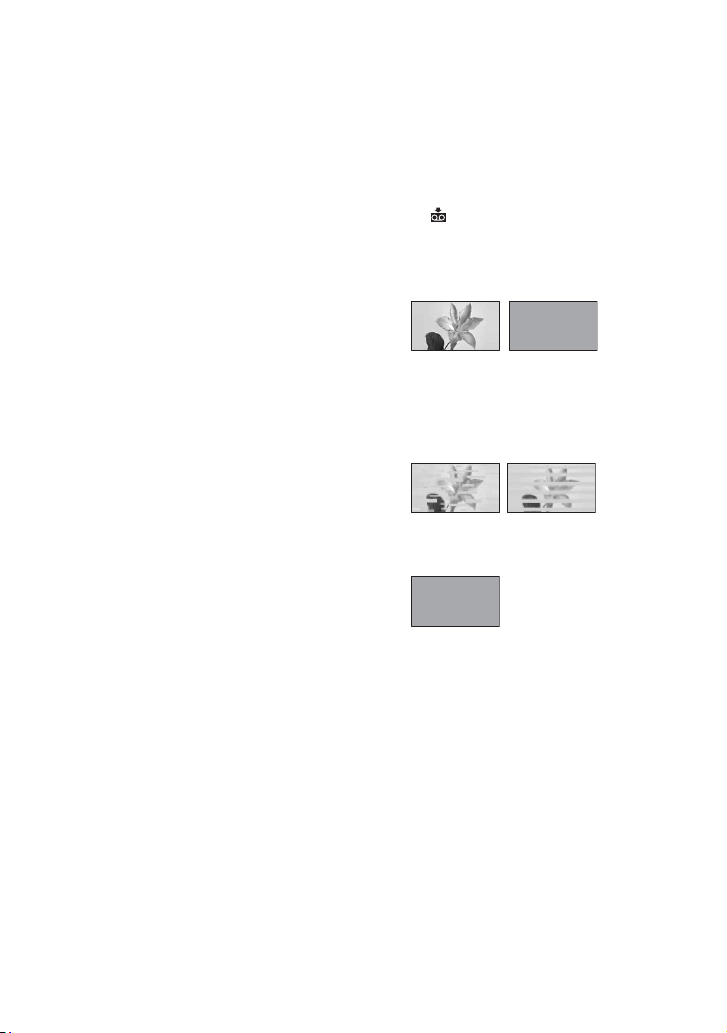
116
condensation. If this happens, the cassette is
sometimes not ejected for 10 seconds after
the cassette lid is opened. This is not a
malfunction. Do not close the cassette lid
until the cassette is ejected.
x No
te on moisture condensation
Mo
isture may condense when you bring
your c
amcorder from a cold place into a
warm place (or vice versa) or when you use
your camcorder in a humid place as shown
below.
• When you bring your camcorder from a ski
slope into a place warmed up by a heating
device.
• When you bring your camcorder from an air
condit
ioned car or room into a hot place outside.
• When you use your camcorder after a squall or a
shower.
• When you use your camcorder in a hot and
humid place.
x How to avoid moisture condensation
When you bring your camcorder from a
co
ld place into a warm place, put your
camcorder in a plastic bag and seal it
tightly. Remove the bag when the air
temperature inside the plastic bag has
reached the surrounding temperature (after
about one hour).
Video head
If you play back a tape recorded in HDV
format, the image and sound may freeze for
a while (about 0.5 seconds).
This occurs if the HDV signals cannot be
r
eco
rded or played back correctly because
of dirt on the tape or video head. Depending
on the cassette, this fairly infrequently
occurs even if the cassette is brand new or
is not used a lot.
If this freezing point is created while
p
l
aying back, you can solve this problem
and see the pictures by rewinding after
slightly forwarding. Such a freezing point
cannot be recovered if it was created while
recording.
To prevent such a problem, use the Sony
m
i
ni DV cassette.
• If the following problem occurs, clean the video
heads for 10 seconds with the Sony cleaning
cassette (optional).
– Playback pictures do not move.
– Playback pictures do not appear.
– The sound breaks off.
–[x Dirty video head. Use a cleaning
cassette.] appears on the screen during
recor
ding.
– The following phenomenon occurs in HDV
format.
– The following phenomenon occurs in DV
for
mat.
• The video heads will be worn after long use. If
you
cannot obtain a clear image even after using
a cleaning cassette (optional), the video heads
may be worn out. Please contact your Sony
dealer or local authorized Sony service facility
to have the video heads replaced.
LCD screen
• Do not exert excessive pressure on the LCD
screen, as it may cause damage.
• If your camcorder is used in a cold place, a
residual image may appear on the LCD screen.
This is not a malfunction.
• While using your camcorder, the back of the
LC
D screen may heat up. This is not a
malfunction.
The playback
screen pauses.
The playback screen
goes blank.
(Solid blue screen)
Block-noise
appears.
The playback screen goes blank.
(Solid blue screen)
Maintenance and precautions (Continued)Maintenance and precautions (Continued)

117
Additional Information
x To clean the LCD screen
If fingerprints or dust make the LCD screen
dirty, it is recommended you use a soft
cloth to clean it.
On handling the casing
• If the casing is soiled, clean the camcorder body
with a soft cloth lightly moistened with water,
and then wipe the casing with a dry soft cloth.
• Avoid the following to avoid damage to the
finish.
– Using chemicals such as thinner, benzine,
alcohol, chemical cloths, repellent, insecticide
and sunscreen.
– Handling with above substances on your
hands.
– Leaving the casing in contact with rubber or
vinyl objects for a long period of time.
About care and storage of the lens
• Wipe the surface of the lens clean with a soft
cloth in the following instances:
– When there are fingerprints on the lens
surface.
– In hot or humid locations
– When the lens is exposed to salty air such as
at the seaside.
• Store in a well-ventilated location subject to
little dirt or dust.
• To prevent mold, periodically clean the lens as
described above. It is recommended that you
operate your camcorder about once a month to
keep it in optimum state for a long time.
On charging the pre-installed
rechargeable battery
Your camcorder has a pre-installed
rechargeable battery to retain the date, time,
and other settings even when the POWER
switch is set to OFF (CHG). The pre-
installed rechargeable battery is always
charged while your camcorder is connected
to the wall outlet (wall socket) via the AC
Adaptor or while the battery pack is
inserted. The rechargeable battery will be
fully discharged in about 3 months if you
do not use your camcorder at all without the
AC Adaptor connected or the battery pack
attached. Use your camcorder after
charging the pre-installed rechargeable
battery.
However, even if the pre-installed
rechargeable battery is not charged, the
camcorder operation will not be affected as
long as you are not recording the date.
x Procedures
Connect your camcorder to a wall outlet
(wall socket) using the supplied AC
Adaptor, and leave it with the POWER
switch set to OFF (CHG) for more than 24
hours.
Continued ,
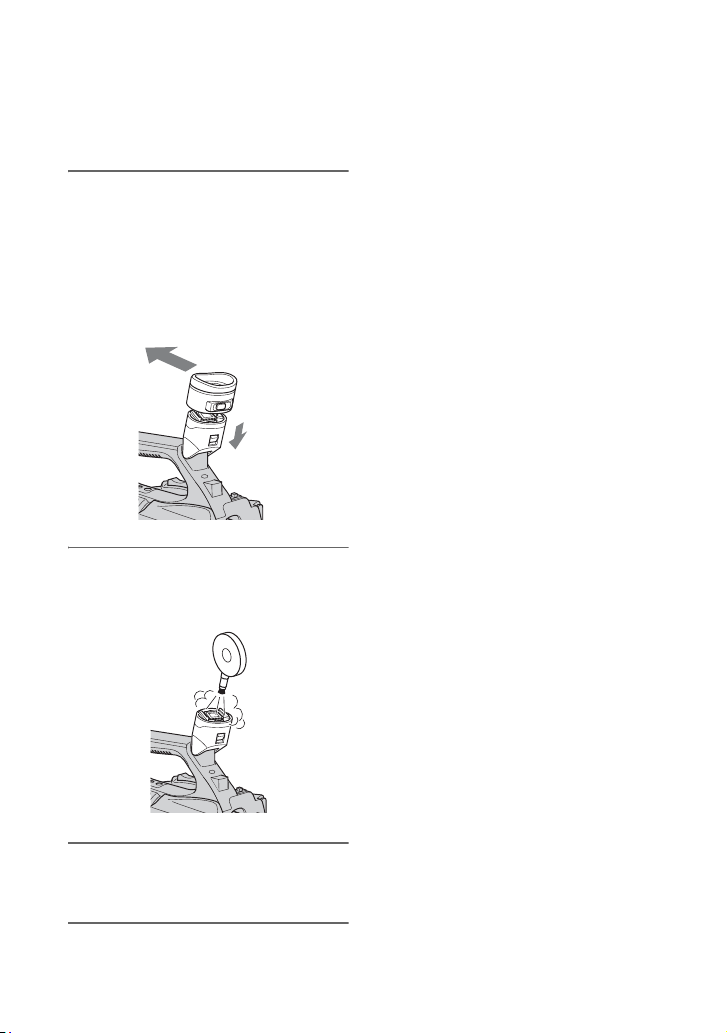
118
Removing dust from inside the
viewfinder
1 Remove the eye piece of the
viewfinder.
Slide down the viewfinder release lever
and
hold it at the position (1), then lift
the eye piece of the viewfinder as
indicated with the arrow in the
illustration (2).
2 Remove dust inside the eye piece
and viewfinder with a blower.
3 Attach the viewfinder following
the reverse procedure of step 1.
2
1
Maintenance and precautions (Continued)

119
Additional Information
Specifications
System
Video recording system (HDV)
2 rotary heads, Helical scanning system
Video recording system (DV)
2 rotary heads, Helical scanning system
Still image recording system
Exif Ver. 2.2*
Audio recording system (HDV)
Rotary heads, MPEG-1 Audio Layer -2,
Q
u
antization: 16 bits
Fs48kHz (stereo)
transfer rate: 384 kbps
Audio recording system (DV)
Rotary heads, PCM system
Quantization: 12 bits
Fs32kHz (stereo1, stereo2)
Quantization: 16 bits
Fs48kHz (stereo)
Video signal
NTSC color, EIA standards
1080/60i specification
Usable cassette
Mini DV cassette with the mark
printed
Tape speed (HDV)
Approx. 18.812 mm/s
Tape speed (DV)
SP: Approx. 18.812 mm/s
LP: Approx. 12.555 mm/s
Recording/playback time (HDV)
60 min (using a DVM60 cassette)
Recording/playback time (DV)
SP: 60 min (using a DVM60 cassette)
LP: 90 min (using a DVM60 cassette)
Fast forward/rewind time
Approx. 2 min 40 s (using a DVM60
c
a
ssette and rechargeable battery pack)
Approx. 1 min 45 s (using a DVM60
ca
s
sette and AC Adaptor)
Viewfinder
Electric viewfinder (color)
Image device
6.0 mm (1/3 type) 3CMOS sensor
Recording Pixels (HDV/DV16:9 still
re
cor
ding):
Max. 1.20 Mega (1 440 × 810) pixels**
Gross: Approx. 1 120 000 pixels
Effective (movie, 16:9):
Approx. 1 037 000 pixels
Effective (movie, 4:3):
Approx. 778 000 pixels
Effective (still, 16:9):
Approx. 1 037 000 pixels
Effective (still, 4:3):
Approx. 778 000 pixels
Lens
G Lens
20 × (Optical), Approx. 30 × (Digital,
wh
e
n [D.EXTENDER] is set to [ON])
Focal length
f= 4.1 - 82.0 mm (3/16 - 3 1/4 in.)
When converted to a 35 mm still
ca
m
era
29.5 - 590 mm (1 3/16 - 23 1/4 in.)
(
1
6:9),
36.1 - 722 mm (1 7/16 - 28 1/2 in.) (4:3)
F1.6 - 3.4
Filter diameter: 72 mm (2 7/8 in.)
Color temperature
Automatically
(one push) A/B
[INDOOR] (3 200 K)
[OUTDOOR] (5 800 K)
Minimum illumination
1.5 lx (lux) (Fixed Shutter Speed 1/30,
a
u
to gain, auto iris) (F 1.6)
* “Exif” is a file format for still images,
established by the JEITA (Japan
Electronics and Information Technology
Industries Association). Files in this
format can have additional information
such as your camcorder’s setting
information at the time of recording.
Continued ,

120
**The unique pixel array of Sony’s
ClearVid CMOS sensor and image
processing system (Enhanced Imaging
Processor) allows for still image
resolution equivalent to the sizes
described.
Output connectors
A/V Remote Connector
10-pin connector
When A/V connecting cable is
connected
Video signal: 1 Vp-p, 75 Ω (ohms)
Luminance signal: 1 Vp-p, 75 Ω (ohms)
Chrominance signal: 0.286 Vp-p (burst
signal), 75 Ω (ohms)
When component A/V cable is
connected
Y: 1 Vp-p, 75Ω (ohms), P
B
/P
R
, C
B
/C
R
:
+/- 350 mV, 75 Ω (ohms)
Audio signal: 327 mV (at load
impedance 47 kΩ (kilohms)), Output
impedance with less than 2.2 kΩ
(kilohms)
HDMI OUT jack
HDMI connector
i
(headphones) jack
Stereo-minijack (Ø 3.5 mm)
Input/Output connectors
LANC jack
Stereo mini-minijack (Ø 2.5 mm)
HDV/DV jack
i.LINK interface (IEEE 1394, 4-pin
connector S100)
MIC jack
Stereo-minijack (Ø 3.5 mm)
LCD screen
Picture
8.0 cm (3.2 type, aspect ratio 16:9)
Total dot number
921 600 (1 920 × 480)
General
Power requirements
DC 7.2 V (battery pack)
DC 8.4 V (AC Adaptor)
Average power consumption
During camera recording using the
viewfinder with normal brightness:
HDV recording 6.4 W
DV recording 6.1 W
During camera recording using the
LCD with normal brightness:
HDV recording 6.6 W
DV recording 6.3 W
Operating temperature
0 °C to 40 °C (32 °F to 104 °F)
Storage temperature
-20 °C to +60 °C (-4 °F to +140 °F)
Dimensions (approx.)
169 × 178 × 349 mm
(6 3/4 × 7 × 13 7/8 in.) (w/h/d)
including the projecting parts except for
the grip belt
169 × 178 × 349 mm
(6 3/4 × 7 × 13 7/8 in.) (w/h/d)
including the projecting parts with the
battery pack (NP-F570)
Mass (approx.)
2.1 kg (4 lb 9 oz) including the lens
hood with lens cover
2.3 kg (4 lb 15 oz) including the lens
hood with lens cover, battery pack (NP-
F570), cassette (DVM60) and large
eyecup
Specifications (Continued)

121
Additional Information
AC Adaptor AC-L100
Power requirements
AC 100 V - 240 V, 50 Hz/60 Hz
Current consumption
0.35 A - 0.18 A
Power consumption
18 W
Output voltage
DC 8.4 V*
Operating temperature
0 °C to 40 °C (32 °F to 104 °F)
Storage temperature
-20 °C to +60 °C (-4 °F to +140 °F)
Dimensions (approx.)
48 × 29 × 81 mm
(1 15/16 × 13/16× 3 1/4 in.) (w/h/d)
excluding the projecting parts
Mass (approx.)
170 g (6.0 oz) excluding the power cord
(mains lead)
* See the label on the AC Adaptor for other
specifications.
Rechargeable battery pack NP-F570
Maximum output voltage
DC 8.4 V
Output voltage
DC 7.2 V
Capacity
typical: 15.8 Wh (2 200 mAh)
minimum: 15.0 Wh (2 100 mAh)
Dimensions (approx.)
38.4 × 20.6 × 70.8 mm
(1 9/16 × 13/16 × 2 7/8 in.) (w/h/d)
Mass (approx.)
100 g (3.5 oz)
Operating temperature
0 °C to 40 °C (32 °F to 104 °F)
Type
Lithium ion
Design and specifications are subject to change
without notice.
CAUTION
If the battery pack is mishandled, the
battery pack can burst, cause a fire or even
chemical burns. Observe the following
cautions.
• Do not disassemble.
• Do not crush and do not expose the
battery pack to any shock or force such as
hammering, dropping or stepping on it.
• Do not short circuit and do not allow
metal objects to come into contact with
the battery terminals.
• Do not expose to high temperature above
60 °C (140 °F) such as in direct sunlight
or in a car parked in the sun.
• Do not incinerate or dispose of in fire.
• Do not handle damaged or leaking lithium
ion batteries.
• Be sure to charge the battery pack using a
genuine Sony battery charger or a device
that can charge the battery pack.
• Keep the battery pack out of the reach of
small children.
• Keep the battery pack dry.
• Replace only with the same or equivalent
type recommended by Sony.
• Dispose of used battery packs promptly as
described in the instructions.
Specifications
Maximum charge voltage: DC 8.4 V
/Maximum charge current: 3.0 A
122
On trademarks
• “Handycam” and
are
registered trademarks of Sony Corporation.
• “Memory Stick,” “ ,” “Memory Stick
Duo,” “ ,” “Memory Stick
PRO Duo,” “ ,”
“Memory Stick PRO-HG Duo,”
“ ,” “Memory Stick
Micro,” “MagicGate,” “ ,”
“MagicGate Memory Stick” and “MagicGate
Me
m
ory Stick Duo” are trademarks of Sony
Corporation.
• “InfoLITHIUM” is a trademark of Sony
Cor
poration.
• is a trademark of Sony Corporation.
• “x.v.Color” is a trademark of Sony Corporation.
• i.LINK and are trademarks of Sony
Corporation.
• is a trademark.
• Microsoft, Windows, Windows Vista, and
Windows M
edia are trademarks or registered
trademarks of U.S. Microsoft Corporation in the
U.S. and other countries.
• Macintosh and Mac OS are registered
trademar
ks of Apple Inc. in the U.S. and other
countries.
• HDV and the HDV logo are trademarks of Sony
Co
rporation and Victor Company of Japan, Ltd.
• HDMI, HDMI logo, and High-Definition
Multimedia Interface are trademarks or
registered trademarks of HDMI Licensing LLC.
• Pentium is a trademark or registered trademark
of
Intel Corporation.
• Adobe, and Adobe Reader. are trademarks of
Adobe Systems Incorporated.
All other product names mentioned herein may be
the trademarks or registered trademarks of their
respective companies. Furthermore, ™ and “®”
are not mentioned in each case in this manual.
Notes on the License
ANY USE OF THIS PRODUCT OTHER THAN
CONSUMER PERSONAL USE IN ANY
MANNER THAT COMPLIES WITH THE
MPEG-2 STANDARD FOR ENCODING
VIDEO INFORMATION FOR PACKAGED
MEDIA IS EXPRESSLY PROHIBITED
WITHOUT A LICENSE UNDER APPLICABLE
PATENTS IN THE MPEG-2 PATENT
PORTFOLIO, WHICH LICENSE IS
AVAILABLE FROM MPEG LA, L.L.C., 250
STEELE STREET, SUITE 300, DENVER,
COLORADO 80206.
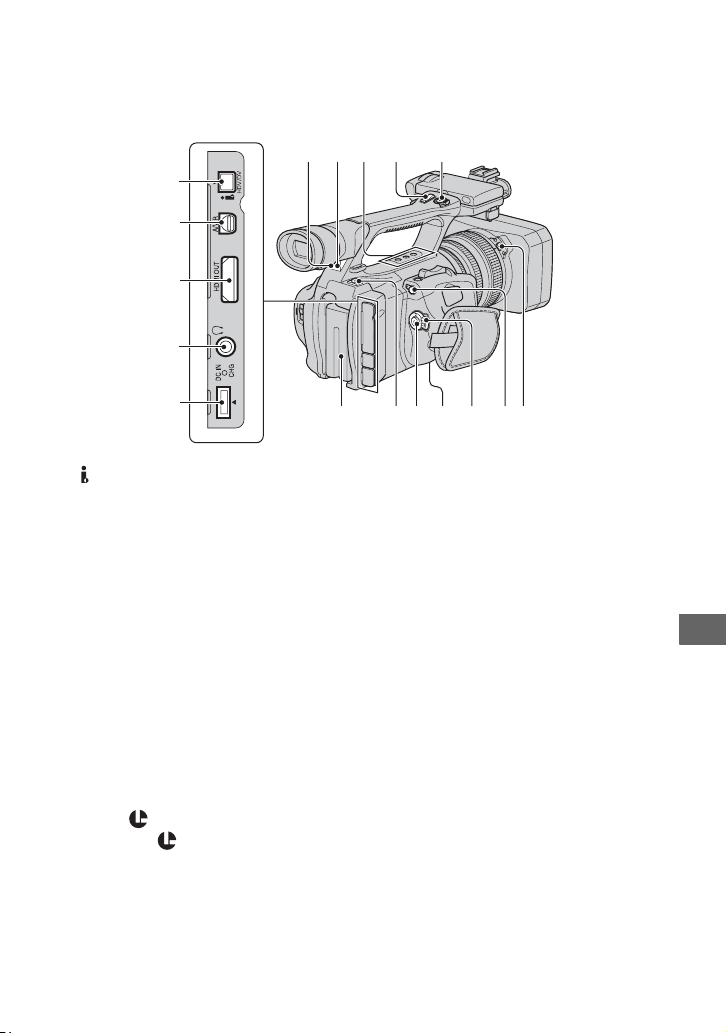
123
Quick Reference
Quick Reference
Identifying parts and controls
The numbers in ( ) are reference pages.
A HDV/DV jack (56)
B A/V Remote Connector (56)
C HDMI OUT jack (56)
D
i (headphones) jack
When you use headphones, the speaker
on you
r camcorder is silent.
E DC IN jack (18)
F Remote sensor (back) (12
7)
G Recording lamp (back) (28)
T
he recording lamp flashes if the
re
maining tape or battery is low.
H ASSIGN (4/5/6) buttons*(44)
I Handle zoom lever (31)
J REC START/STOP button (28)
K PUSH (lens hood release) button (17)
L LANC
jack
The LANC control jack is used for
controlling the tape transport of video
d
e
vice and peripherals connected to it.
M POWER switch (21
)
N Tripod receptacle
Ma
ke sure that the length of the tripod
scre
w is less than 5.5 mm (7/32 inch).
Otherwise, you cannot attach the tripod
securely, and it may damage your
camcorder.
O R
EC START/STOP button (28)
P BATT RELEASE (battery release)
bu
tton (19)
Q Battery pack (18)
* ASSIGN 5 button has a raised tactile dot for
your convenience in locating the button.
9678
qaqs
q;
qh
1
4
5
2
3
qdqg qfqj
Continued ,
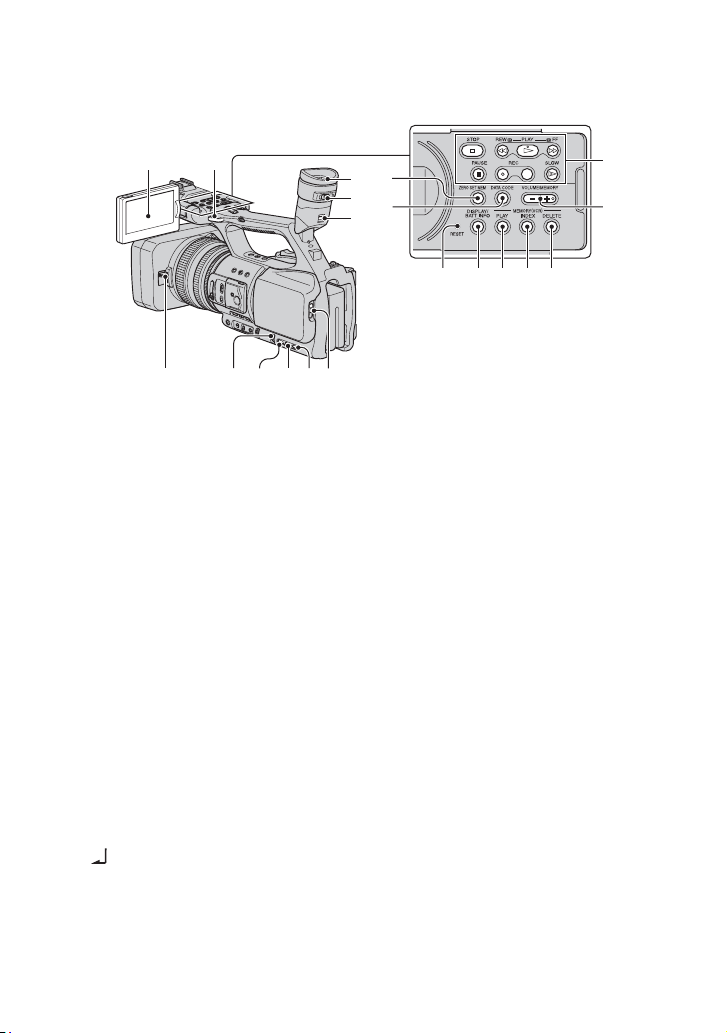
124
A LCD screen (22)
B Hook for the shoulder strap (12
5)
C ZERO SET MEM button (54)
D DATA CODE b
utton (52)
E Video control buttons (STOP/REW/
PL
AY*/FF/PAUSE/REC/SLOW) (49)
F VOLUME/MEMO
RY button* (50)
G MEMORY/DELETE button (50)
H MEMORY/INDEX button* (50)
I MEMORY/PLAY button (50)
J DISPLAY/BA
TT INFO button (52, 53)
K RESET button
If you
press the RESET button, all
sett
ings including the clock setting
(except the Picture profile and Camera
profile settings) return to the default.
L Vi
ewfinder (22)
M Viewfinder lens adjustment lever (22)
N Viewfinder release lever (11
8)
O OPEN/EJECT lever (26)
P STATUS CHECK button (53)
Q PICTURE PROFILE button (37)
R MENU button (62)
S SEL/PUSH EXEC dial (24)
T Lens cover lever (17)
* Each of the PLAY button, VOLUME/
MEMORY button and MEMORY/INDEX
button has a raised tactile dot. (The VOLUME/
MEMORY button has it on the + side.) Use it to
identify the location of the buttons.
12
3
4
6
90qa 8 7
qj
qgqh
qkql
qs
qd
qf
5
w;
Identifying parts and controls (Continued)
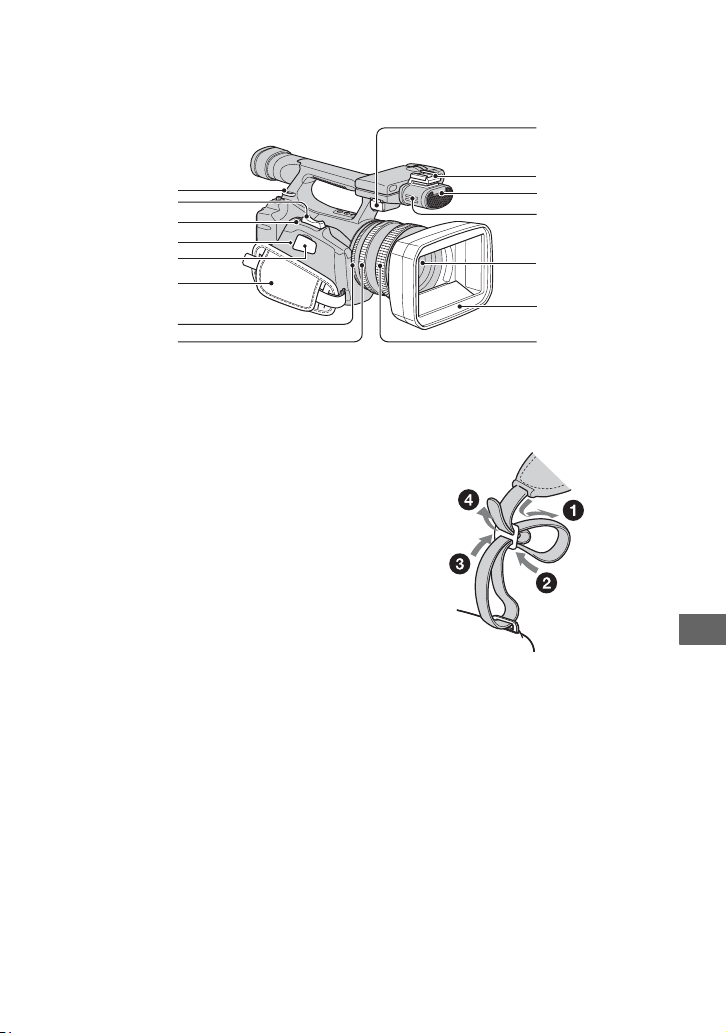
125
Quick Reference
A Hook for the shoulder strap (125)
B Zoom lever (31)
C PHOTO/EXPANDED FOCUS button
(
30, 33)
D Access lamp (27)
E “Memory Stick Duo” slot (26)
F Grip belt (21)
G Iris ring (33)
H Zoom ring (31)
I MIC jack
Wh
en a microphone is connected, it is
dom
inantly used for sound recording
over the internal microphone.
J Accessory shoe
K Recording lamp (front) (28)
T
he recording lamp flashes if the
re
maining tape or battery is low.
L Microphone (42)
M Lens
N Lens hood with lens cover (17)
O Focus ring (32)
To attach the shoulder strap
Attach the shoulder strap (optional) to the
hooks for the shoulder strap.
1
2
3
7
6
8
4
q;
qa
qs
qd
qf
qg
9
5
Continued ,
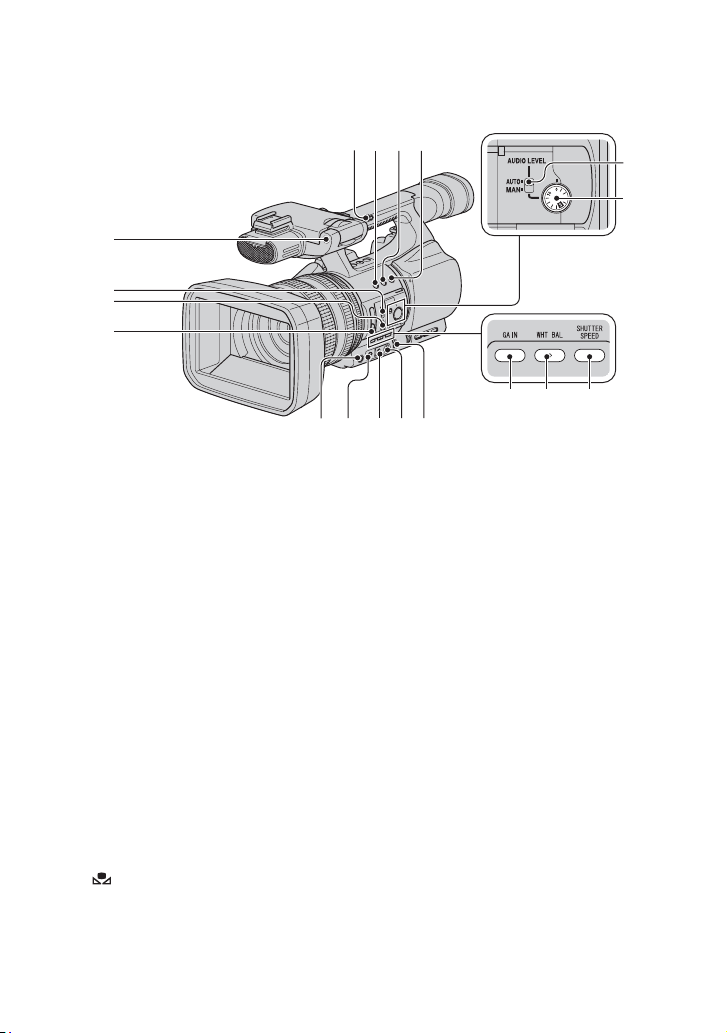
126
A Remote sensor (front) (127)
B FOCUS switch (32)
C PUSH AUTO button (32)
D ND FILTER switch (OFF/1/2/3) (36)
E Handle zoom switch (FIX/VAR/OFF)
(
31)
F ASSIGN 1 button/ZEBRA button (44)
G ASSIGN 2 b
utton*/AE SHIFT button
(44)
H ASSIGN 3 b
utton/REC REVIEW
button (44)
I AUDIO LEV
EL switch (42)
J AUDIO LEV
EL dial (42)
K SHUTTER SPEED button (35)
L WHT BAL (white balance) button* (36)
M GAIN button (35)
N AUTO/MANUAL switch (33
)
O (one push) button (36)
P White balance memory switch (36)
Q Gain switch (35)
R IRIS/EXPOSURE button* (33
)
* ASSIGN 2 button/AE SHIFT button, WHT
BAL button, IRIS/EXPOSURE button have
raised tactile dots for your convenience in
locating the buttons.
1
6
0
q
f
q
g
q
h
q
k
4
5
2
78
q
j
9
3
qd
qaqs
Identifying parts and controls (Continued)
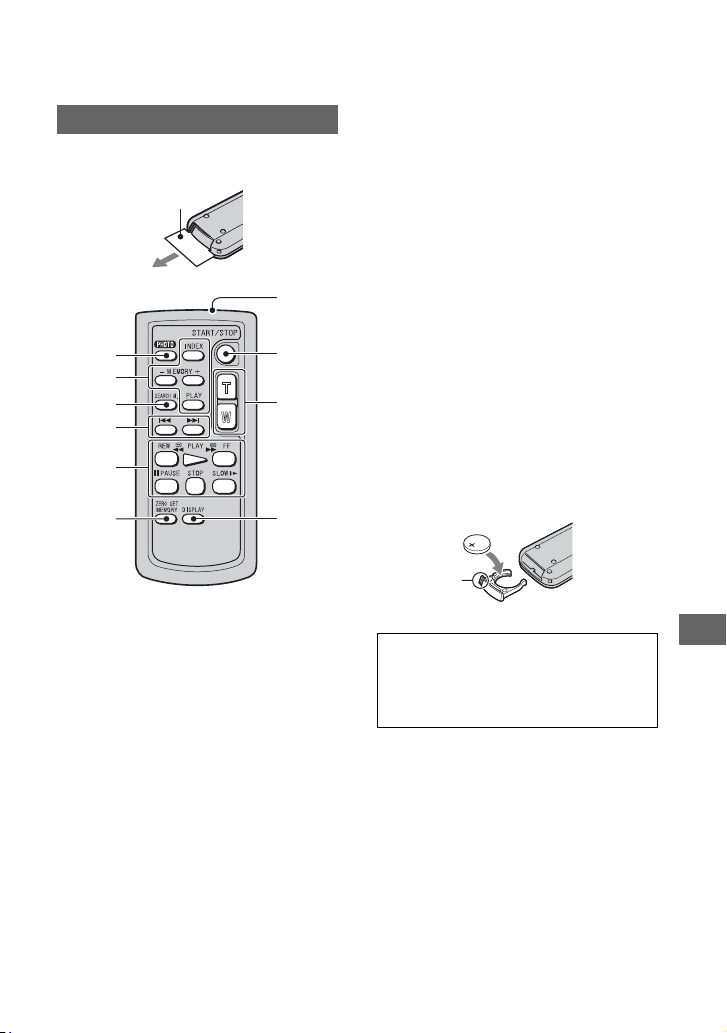
127
Quick Reference
Remove the insulation sheet before using
the Remote Commander.
A PHOTO (30)
The on-screen image when you press this
button will be recorded onto the “Memory
Stick Duo” as a still image.
B Memory control buttons (Index, –/+,
Memory/playback) (50)
C SEARCH M. (55)
D . >
E Video control buttons (Rewind,
P
layback, Fast-forward, Pause, Stop,
Slow) (49)
F ZERO SET MEMORY (
54)
G Transmitter
H START/STOP (28, 54)
I Power zoom (31)
J DISPLAY (52)
b Notes
• Aim the Remote Commander towards the
remote sensor to operate your camcorder.
• Point the remote sensor away from strong light
sources such as direct sunlight or overhead
lighting. Otherwise, the Remote Commander
may not function properly.
• When you are operating with the Remote
Co
mmander supplied with your camcorder,
your VCR may also operate. In that case, select
a commander mode other than VTR 2 for your
VCR, or cover the sensor of your VCR with
black paper.
To change the battery of the Remote
Commander
1 While pressing on the tab, inset your
fingernail into the slit to pull out the battery
case.
2 Place a new battery with the + side facing
up
.
3 Insert the battery case back into the Remote
Co
mmander until it clicks.
• When the lithium battery becomes weak, the
operating distance of the Remote Commander
may shorten, or the Remote Commander may
not function properly. In this case, replace the
battery with a Sony CR2025 lithium battery.
Use of another battery may present a risk of fire
or explosion.
Remote Commander
7
1
2
3
4
5
6
8
9
0
Insulation sheet
WARNING
Battery may explode if mistreated. Do not
recharge, disassemble or dispose of in
fire.
Tab
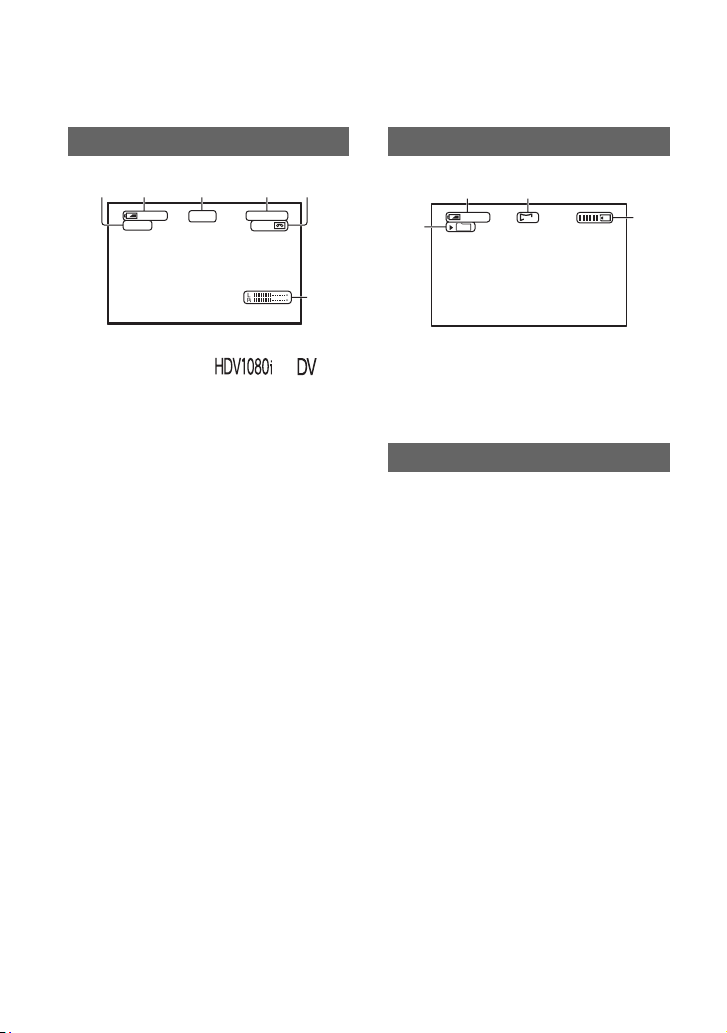
128
Indicators for the LCD screen and viewfinder
The numbers in ( ) are reference pages.
The indicators will not be recorded on the tape during recording.
A Recording format ( or
)
(77)
Recording mode (SP or LP) is also displayed
in the DV format.
B Remaining battery (approx.)
C Recording status ([STBY] (standby) or
[RE
C] (recording))
D During recording:
Ta
pe counter (hour: minute: second)
During playback:
Time code (hour: minute: second:
fra
m
e)
E Recording capacity of the tape (approx.)
F Audio level display (76)
G Recording folder (81)
H Image size (30)
I Recording indicator (30)
Th
e date/time during recording and the
camer
a setting data will be recorded
automatically. They do not appear on the
screen during recording, but you can check
them on the screen by pressing the DATA
CODE button during playback (p. 52
).
Recording movies
REC
HDV1080i
12
min
0:08:13
213 5
6
4
60
min
Recording still images
Data code during recording
101
1.2M
60
min
28
7
9
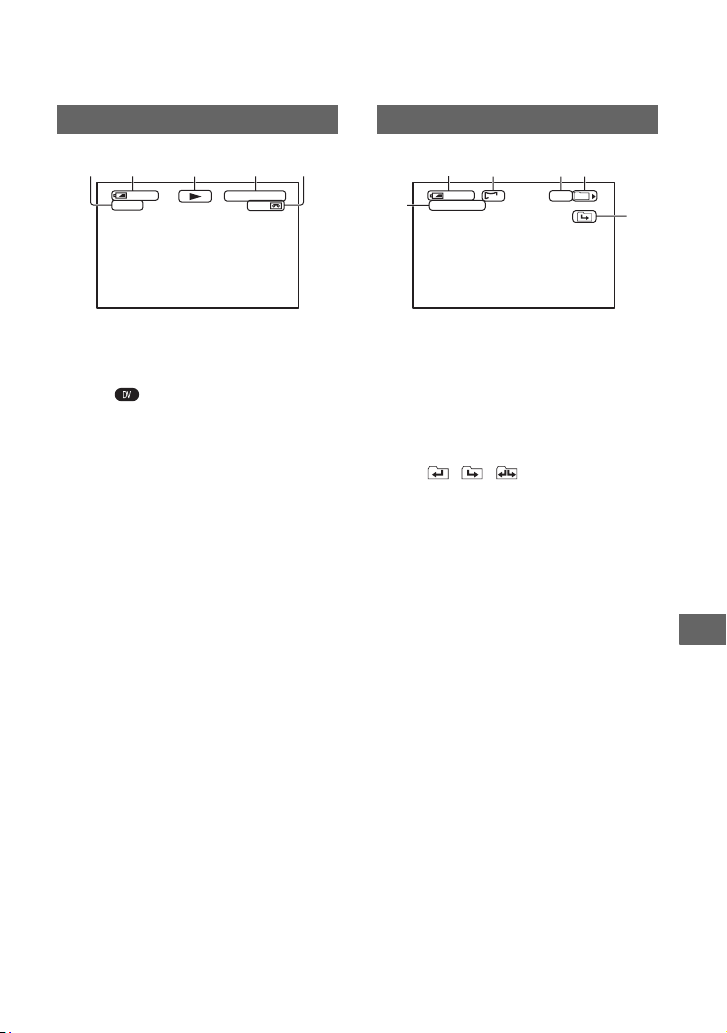
129
Quick Reference
J Tape transport indicator
Recording mode (SP or LP) appears when a
tape recorded in the DV format is played
back.
K Data file name
L Picture number/Total number of
r
ecorded pictures in the current
playback folder
M Playback folder (81)
N Previous/Next folder icon
The , , appear when the first or
last picture of the current folder is displayed
and when there are multiple folders on the
same “Memory Stick Duo.” You can move to
Previous/Next folder with the VOLUME/
MEMORY button.
Viewing movies
HDV1080i
12
0:08:12:17
60
min
0
2154
min
Viewing still images
101-0011
1.2M
9/9
101
MEMORY PLAY
60
min
8
qa
qs
qd
qf
2
Continued ,
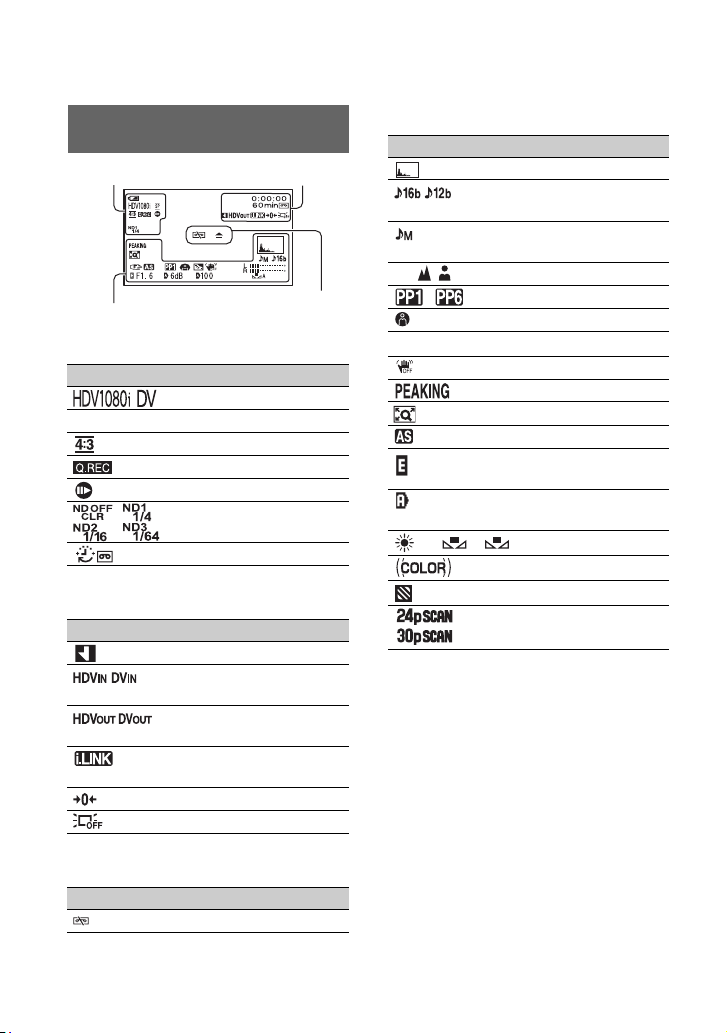
130
Upper left
Upper right
Center
Bottom
z Tips
• Indicators may look different or appear at
different positions.
Indicators when you made
changes
Indicator Meaning
Recording format (77)
SP LP DV REC MODE (78)*
DV WIDE REC (78)*
QUICK REC (82)**
DV FRAME REC (71)*
ND filter (36)
INTERVAL REC (70
)
Indicator Meaning
INDEX MARK (45)
HDV input/
DV input (89)
HDV output/
DV output (87)
i.LINK connection
(56, 84)
Zero set memory (54)
LCD backlight off (22
)
Indicator Meaning
Z Warning (104)
+
2
60
min
Upper left Upper right
Bottom
Center
Indicator Meaning
HISTOGRAM (74)
DV AU.MODE
(73)*
Manual volume
co
ntrol (42)
9 Manual focus (32)
~ Picture profile (37)
SPOTLIGHT (68)
.
BACK LIGHT (68)
SteadyShot off (68)
PEAKING (74)
D.EXTENDER (69)
AE SHIFT (67)
EXPOSURE control
(33, 66)
Automatic control
(75)
n A B White balance (36)
x.v.Color (72)**
ZEBRA (74)
PROG.SCAN (66)
* The settings can be made only for the pictures
in the DV format.
** The setting can be made only for the pictures in
the
HDV format.
Indicators for the LCD screen and viewfinder (Continued)

131
Quick Reference
Continued ,
Index
Numeric
1080i/480i .............................79
12BIT....................................73
16BIT....................................73
3-ClearVid CMOS sensor
system ...................................13
480i .......................................79
6sec AFTER .........................69
6sec BEFORE.......................69
6sec CENTER.......................69
A
AC Adaptor...........................18
Access lamp..........................27
ADVANCE...........................74
AE RESPONSE....................68
AE SHIFT.............................67
AF ASSIST...........................69
AGC LIMIT..........................67
ALL ERASE.........................80
ALL FILES...........................80
ALL OUTPUT......................77
ASSIGN BTN.......................82
ASSIGN buttons ...................44
AT IRIS LMT .......................68
AUDIO LEVEL dial.............42
AUDIO LEVEL switch ........42
AUDIO LIMIT .....................73
AUDIO SET menu ...............73
AUTO/MANUAL switch .....33
AU.LVL DISP
(Audio level display) ............76
AWB SENS ..........................67
A/V connecting cable .....61, 85
A/V connecting cable with
S VIDEO...............................84
A/V Remote Connector ......123
B
BACK LIGHT ................68, 97
BATT RELEASE (battery
release) button ......................19
Battery
Battery Info...................53
Battery pack .................. 18
BEEP....................................83
BLACK FADER ..................69
Button-type lithium battery
............................................127
C
CAM DATA DSP (Camera
data display) ................... 75, 97
CAMERA PROF.
(Camera profile)................... 81
CAMERA SET menu........... 66
Cassette
Insert/Eject.................... 26
Tape ............................ 110
Cassette compartment .......... 26
Charging time....................... 19
CHG (charge) lamp.............. 18
CLOCK SET ..................24, 82
CNTRST ENHCR.......... 68, 97
COLOR BAR....................... 72
COLOR DEPTH .................. 40
COLOR LEVEL ..................39
COLOR MODE ................... 39
COLOR PHASE ..................40
COMPONENT..................... 79
Component A/V cable.... 57, 60
Computer.............................. 93
Connect
TV ................................. 56
VCR .............................. 84
CURRNT FOLDER............. 80
D
DATA CODE button ...........52
Date search...........................55
DATE/TIME ................25, 128
DC IN jack ........................... 18
DC plug ................................18
Deleting camera profile settings
..............................................82
Deleting still images .............50
DISP OUTPUT.....................77
DISPLAY SET menu ...........74
DISPLAY/BATT INFO
button........................22, 52, 53
Down convert function .........12
Dubbing ................................84
DV ........................................77
DV AUDIO MIX..................73
DV AU. MODE
(DV Audio mode).................73
DV format.......................77, 78
DV FRAME REC...........71, 98
DV REC MODE
(Recording mode).................78
DV WIDE REC ....................78
D.EXTENDER
(Digital Extender)...........69, 97
E
END SEARCH .....................45
End search ..............45, 97, 100
EXECUTE............................69
Expanded focus ....................33
EXPOSURE .........................33
EXP. FOCUS..................44, 82
EXP.FOCUS TYPE..............75
F
FADER...........................69, 97
FILE NO. (File number).......80
FLCKR REDUCE ................68
Focus.....................................32
Focus infinity........................33
Focus ring .............................32
FOCUS switch......................32
Folder
NEW FOLDER .............80
PB FOLDER (Playback

132
Index (Continued)
folder)............................81
REC FOLDER (Recording
folder)............................81
FORMAT .....................80, 111
G
G Lens ..................................13
Gain ......................................35
GAIN button.........................35
GAIN SETUP.......................66
GAMMA ..............................39
Grip belt................................21
GUIDEFRAME....................75
H
HANDLE ZOOM.................69
Handle zoom.........................31
HDMI cable..........................58
HDMI OUT jack ..................56
HDV .....................................77
HDV format..................12, 109
HDV1080i ............................77
HDV/DV jack.......................84
Headphones jack.................123
High definition TV ...............57
HISTOGRAM ................74, 97
Hook for the shoulder strap
....................................124, 125
I
INDEX MARK.....................45
Index screen..........................50
Index search..........................55
Index signal ..........................45
Indicators............................130
INDOOR ........................36, 37
Indoor ...................................37
“InfoLITHIUM” battery pack
............................................112
Insulation sheet...................127
INTELLIGENT....................67
INTERVAL ......................... 70
INTERVAL REC........... 70, 98
IN/OUT REC menu ............. 77
Iris ring................................. 33
IRIS/EXPOSURE .......... 33, 66
IRIS/EXPOSURE button..... 33
i.LINK................................ 113
i.LINK cable ............ 58, 88, 91
i.LINK CONV ............... 56, 79
L
LANC jack......................... 123
LANGUAGE ....................... 82
Large eyecup........................ 23
LCD ..................................... 22
LCD backlight...................... 22
LCD BL LEVEL............ 76, 98
LCD BRIGHT...................... 76
LCD COLOR....................... 76
LCD PANEL........................ 77
Lens cover lever................... 17
Lens hood with lens cover ... 17
LETTER SIZE ..................... 76
LINEAR............................... 71
LP (Long Play)..................... 78
M
Macintosh............................. 93
Maintenance....................... 115
MARKER ............................ 75
Memory A............................ 37
Memory B............................ 37
MEMORY SET menu ......... 80
“Memory Stick”................. 111
“Memory Stick Duo”
Insert/Eject.................... 26
Number of recordable
pictures ......................... 30
“Memory Stick Duo” slot .... 27
MEMORY/DELETE button
............................................. 50
MEMORY/INDEX button ...49
MEMORY/PLAY button ..... 49
Menu
AUDIO SET menu........73
CAMERA SET menu ...66
DISPLAY SET menu....74
IN/OUT REC menu ......77
MEMORY SET menu
.......................................80
Menu items....................64
OTHERS menu.............81
Using the menu .............62
MENU button.......................24
Menu items...........................64
MIC jack.............................125
Microphone ........................125
MINUS AGC........................67
MIX ......................................73
Moisture condensation .......115
MPEG2.................................92
MULTI-SOUND ..................73
N
ND filter ...............................36
NEW FOLDER ....................80
NORMAL.............................74
NTSC..........................100, 109
O
OPEN/EJECT lever..............26
OTHERS menu ....................81
OUTDOOR ..........................36
Outdoor.................................37
Outside power source ...........20
P
PAL ....................................109
PB FOLDER
(Playback folder).................81
PB ZOOM (Playback
zoom)....................................82

133
Quick Reference
PEAKING.......................74, 97
PHOTO.................................82
PHOTO/EXPANDED FOCUS
button....................................28
PHOTO/EXP.FOCUS ..........82
Picture profile .......................37
PICTURE PROFILE button
..............................................37
Picture Search .......................50
PLAY button.........................49
Playback................................49
Playing time ..........................20
Power cord............................18
POWER switch.....................21
Pre-installed rechargeable
battery .................................117
PROG. SCAN .................66, 97
PUSH AUTO button.............32
PUSH (lens hood release)
button....................................17
Q
QUICK REC.........................82
R
REC FOLDER (Recording
folder) ...................................81
REC FORMAT.....................77
REC LAMP (Recording lamp)
........................................28, 83
REC REVIEW................44, 45
Rec review ....................45, 100
REC START/STOP button
..............................................28
Recording..............................28
Recording time .....................19
REMAINING .......................76
Remaining battery.................53
Remote Commander ...........127
REMOTE CTRL (Remote
control)..................................83
RESET button.....................124
S
S VIDEO cable..................... 61
S VIDEO jack ................59, 85
Self-diagnosis display ........ 104
SEL/PUSH EXEC dial......... 24
SHOT TRANSITION .... 46, 71
Shot transition ...................... 46
Shoulder strap ....................125
Shutter speed ........................35
SHUTTER SPEED button ... 35
SKINTONE DTL (Skintone
detail) ...................................41
Skip Scan.............................. 50
SMTH SLW REC (Smooth
slow recording) ..............69, 97
SOFT STOP .........................71
SOFT TRANS......................71
SP (Standard Play) ...............78
Specifications..................... 119
SPOTLIGHT .................. 68, 97
ST1....................................... 73
ST2....................................... 73
Status check.......................... 53
STATUS CHECK button..... 53
STEADYSHOT ............. 44, 68
STEREO...............................73
Still images........................... 30
Supplied items...................... 16
T
Tape counter................. 54, 128
Tape......................See Cassette
Telephoto .............................31
Time code........................... 128
TIMING ...............................69
TRANS CURVE .................. 71
TRANS TIME......................71
Transmitter ......................... 127
TRIG ....................................70
TRIG LEVEL.......................70
Tripod receptacle................ 123
Troubleshooting....................94
TV.........................................56
TV color systems................109
TV TYPE..............................79
U
Using the menu items ...........62
Using your camcorder abroad
............................................107
V
VCR HDV/DV .....................77
VF B.LIGHT ..................76, 98
VF POWERMODE ..............76
Video control buttons .........124
Video head..........................116
Viewfinder............................22
Viewfinder lens adjustment
lever ......................................22
Viewfinder release lever.....118
Volume .................................50
VOLUME/MEMORY button
..............................................49
V-OUT/PANEL....................77
W
Warning indicators .............104
Warning messages..............105
WB PRESET ........................67
WB SHIFT............................40
White balance .......................36
WHITE FADER ...................69
WHT BAL button.................36
Wide angle............................31
WIND ...................................73
Windows...............................93
WORLD TIME...............82, 98
Write-protect tab.................110
X
x.v.Color .........................72, 98
Continued ,

134
Index (Continued)
Z
ZEBRA...........................74, 97
ZERO SET MEM button......54
Zero set memory...................54
ZERO SET MEMORY
button....................................54
Zoom ....................................31
Zoom lever ...........................31
Zoom ring.............................31
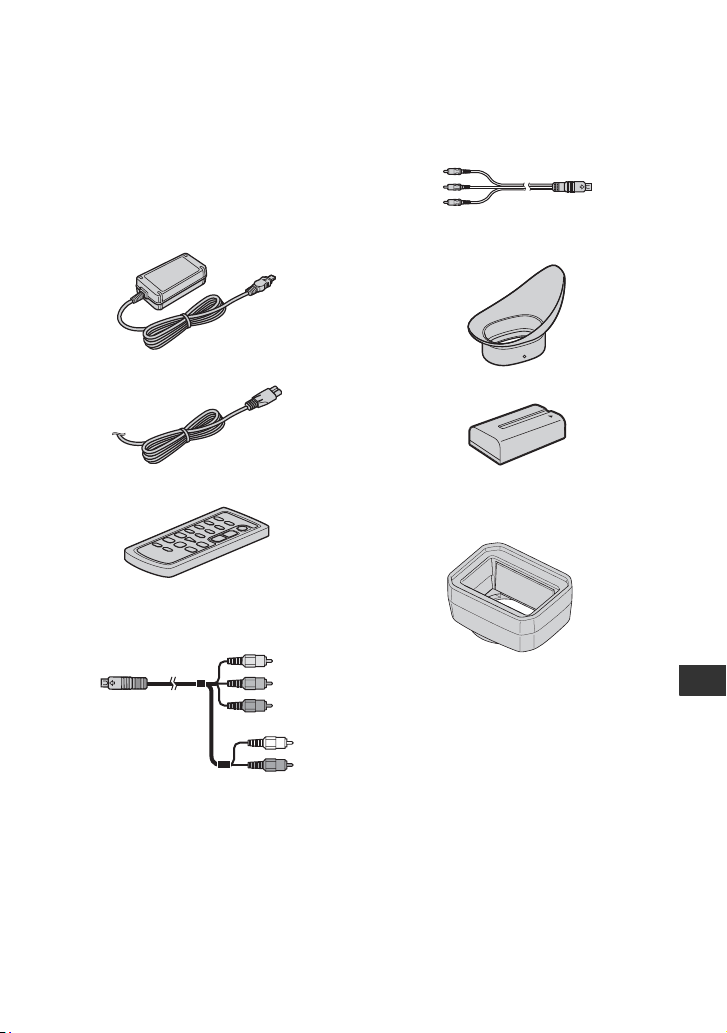
135
Spanish Quick Guide/Guía rápida en español
Spanish Quick Guide/Guía rápida en español
Paso 1: Comprobación de los elementos
suministrados
Asegúrese de que su videocámara contiene
los siguientes elementos.
El número entre paréntesis indica la
ca
n
tidad del elemento.
Adaptador de alimentación de ca (1)
Cable de alimentación (1)
Control remoto inalámbrico (1)
Tiene instalada una pila de litio tipo botón.
Cable A/V componente (1)
Cable de conexión A/V (1)
Ocular grande (1)
Batería recargable NP-F570 (1)
Parasol del objetivo con tapa del objetivo
(1
)
Este parasol del objetivo está premontado.
Guía de operaciones (Este manual) (1)
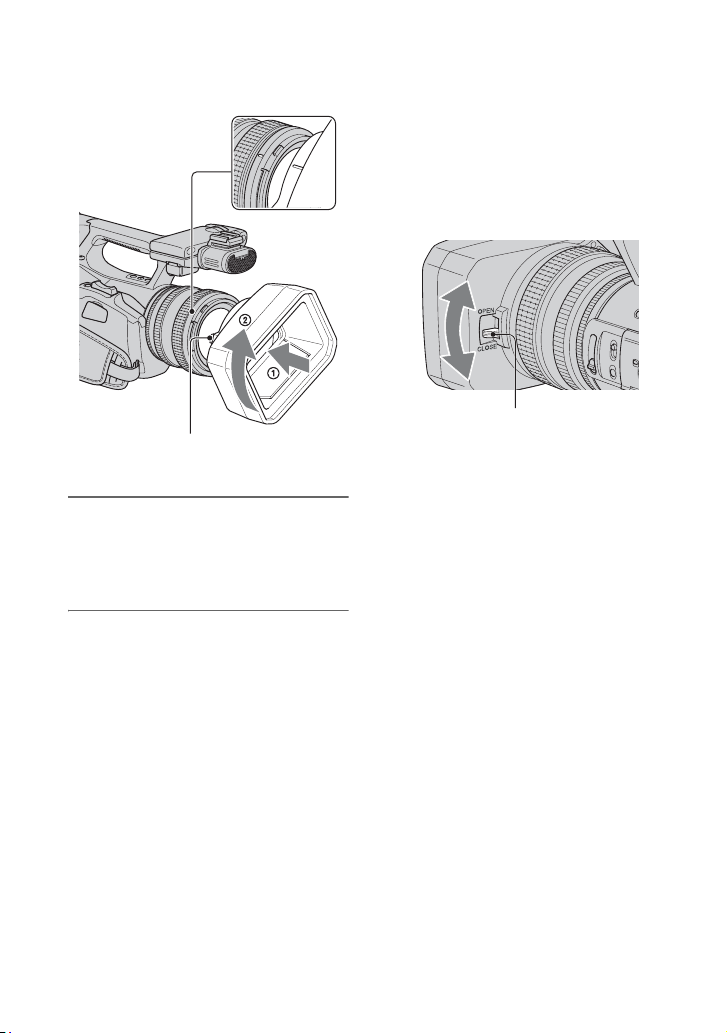
136
Paso 2: Colocación del parasol del objetivo con
la tapa del objetivo
Alinee las marcas en el parasol con las
marcas en la videocámara y gire el parasol
del objetivo en la dirección que indica la
flecha
2.
Para extraer el Parasol del objetivo
con tapa del objetivo
Gire el parasol del objetivo en la dirección
opuesta a la de la flecha 2 de la ilustración
mientras presiona el botón PUSH
(liberación del parasol del objetivo).
z Consejos
• Si coloca o retira o un filtro PL de 72 mm o el
protector MC, retire el parasol del objetivo con
la tapa.
Para abrir o cerrar el obturador del
Parasol del objetivo con tapa del
objetivo
Mueva la palanca de la tapa del objetivo
hacia arriba o abajo para
abrir o cerrar la tapa del objetivo.
Botón PUSH (liberación del parasol
del objetivo)
Mueva la palanca de la tapa del
objetivo a la posición OPEN para abrir
la tapa del objetivo y muévala a la
posición CLOSE para cerrarla.
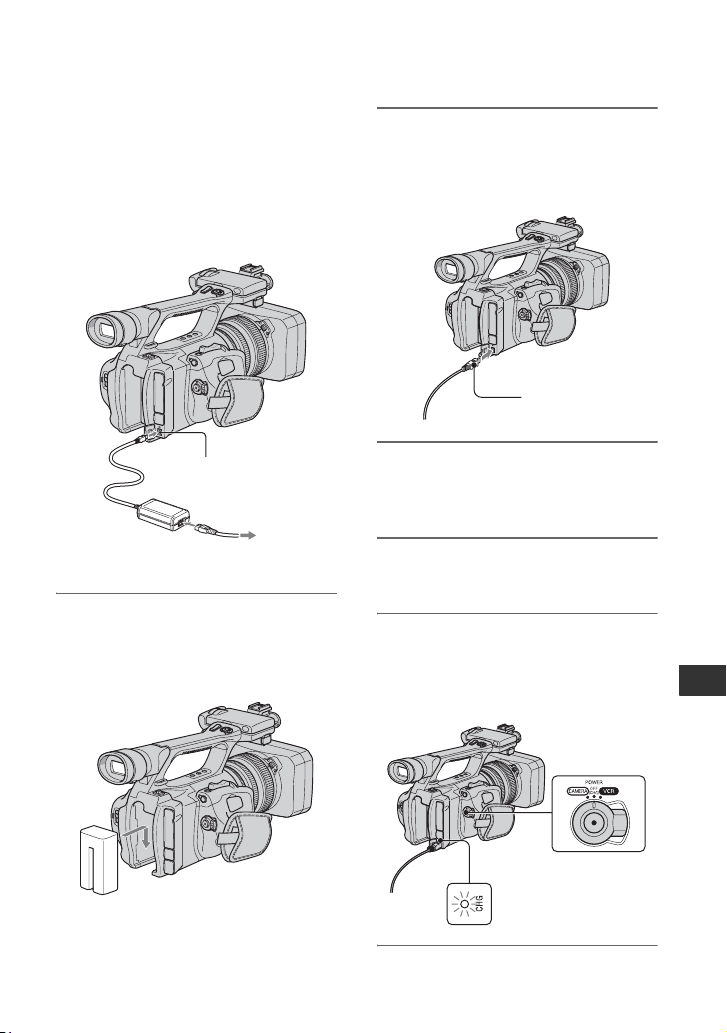
137
Spanish Quick Guide/Guía rápida en español
Paso 3: Carga de la batería
Puede cargar la batería
“InfoLITHIUM” (serie L) con el
adaptador de alimentación de ca
suministrado.
b Notas
• No se puede utilizar baterías que no sean
“InfoLITHIUM” (serie L).
1 Ejerza presión sobre la batería
contra la parte posterior de la
videocámara y deslícela hacia
abajo.
2 Con la marca B de la clavija de cc
hacia fuera, conecte la clavija de
cc a la toma de entrada de cc de
la videocámara.
3 Conecte el cable de alimentación
al adaptador de alimentación de
ca.
4 Conecte el cable de alimentación
al tomacorriente de la pared.
5 Ajuste el interruptor POWER en
OFF (CHG).
El indicador CHG se enciende y se
in
icia el proceso de carga.
Toma de
entrada de cc
Clavija
de cc
Adaptador
de alimentación
de ca
Cable de alimentación
Al tomacorriente de
pared
Marca B
Continuación ,
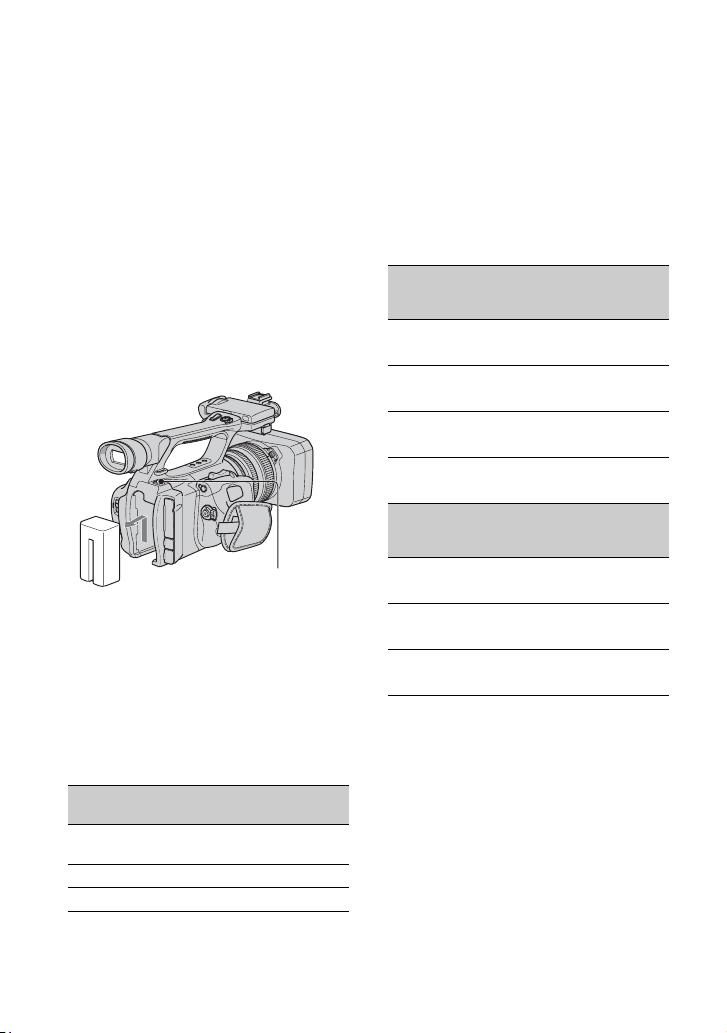
138
Después de cargar la batería
El indicador CHG se apaga cuando la
batería está completamente cargada.
Desconecte el adaptador de alimentación de
ca de la toma de entrada de cc.
z Consejos
• Puede comprobar la carga restante de la batería
con la función de información de la batería.
Para retirar la batería
Ajuste el interruptor POWER en OFF
(CHG). Presione el botón BATT
RELEASE (liberación de la batería) y retire
la batería.
Para guardar la batería
Si la batería no va a ser usada por un
tiempo, úsela hasta agotarla y guárdela.
Tiempo de carga
Tiempo aproximado (m) necesario para
cargar totalmente una batería descargada
por completo.
Tiempo de grabación
Tiempo aproximado (m) disponible cuando
utiliza una batería completamente cargada.
b Notas
• No se pueden usar baterías NP-F330 con esta
videocámara.
Grabación en formato HDV
Grabación en formato DV
Parte superior: con la luz de f
ond
o de la pantalla
LCD encendida.
Parte inferior: tiempo de grabación cuando se
graba con
el visor mientras el
panel LCD permanece cerrado.
* El tiempo de grabación normal muestra la hora
cuando se repite la operación de inicio/
detención de la grabación, al conectar y
desconectar la alimentación y al usar la función
de zoom.
Batería
Tiempo de
carga
NP-F570
(suministrada)
260
NP-F770 370
NP-F970 485
Botón BATT RELEASE
(liberación de la batería)
Batería
Tiempo de
grabación
continua
Tiempo de
grabación
normal*
NP-F570
(suministrada)
135 65
140 70
NP-F770 290 145
295 145
NP-F970 430 215
445 220
Batería
Tiempo de
grabación
continua
Tiempo de
grabación
normal*
NP-F570
(suministrada)
145 70
150 75
NP-F770 300 150
310 155
NP-F970 450 225
465 230
Paso 3: Carga de la batería (Continuación)

139
Spanish Quick Guide/Guía rápida en español
Tiempo de reproducción
Tiempo aproximado (m) disponible cuando
utiliza una batería completamente cargada.
HDV Imágenes de formato
DV Imágenes de formato
* Con la luz de fondo de la pantalla LCD
e
ncendida.
Acerca de la batería
• Antes de cambiar la batería, coloque el
interr
uptor POWER en la posición OFF (CHG).
• El indicador CHG parpadeará durante la carga o
la información de la batería no se mostrará
correctamente en las siguientes condiciones.
– La batería no está correctamente conectada.
– La batería está dañada.
– La batería está gastada (sólo para la
in
formación de la batería).
– La batería está demasiado fría.
Reemplace la batería o retírela y colóquela en
un lu
gar cálido.
– La batería está demasiado caliente.
Reemplace la batería o retírela y colóquela en
un
lugar fresco.
• Cuando el adaptador de alimentación de ca esté
conectado a la toma de entrada de cc de la
videocámara, la batería no suministrará
alimentación, incluso si el cable de alimentación
está desconectado al tomacorriente de pared.
Acerca del tiempo de carga/grabación/
r
e
producción
• Tiempo medido con la videocámara a 25 °C
Se recomienda de 10 °C a 30 °C
• El tiempo de grabación y de reproducción será
más corto cuando use la videocámara a bajas
temperaturas.
• El tiempo de grabación y de reproducción será
má
s corto en función de las condiciones de uso
de la videocámara.
Puede usar un adaptador de alimentación de
ca para obtener energía de ca. Mientras
utiliza el adaptador de alimentación de ca la
batería no perderá su carga aunque esté
conectada a la cámara.
Conecte la videocámara como se
indica en el Paso 3: Carga de la
batería.
Acerca del adaptador de alimentación de ca
• Si utiliza el adaptador de alimentación de ca
conéctelo a un tomacorriente de pared cercano.
Si se produce alguna falla de funcionamiento al
utilizar la videocámara, desconecte al adaptador
de alimentación de ca del tomacorriente de
inmediato.
• No utilice el adaptador de alimentación de ca
colo
cado en un espacio angosto, tal como entre
una pared y los muebles.
• Evite los cortocircuitos en la clavija de cc del
adapta
dor de alimentación de ca o en el terminal
de la batería con objetos metálicos. Podría
provocar una falla de funcionamiento.
• Aunque la videocámara esté apagada, seguirá
recibiendo adaptador de alimentación de ca
(corriente doméstica) mientras esté conectada a
la toma de pared mediante el adaptador de
alimentación de ca
Batería
Panel LCD
abierto*
Panel LCD
cerrado
NP-F570
(suministrada)
200 210
NP-F770 415 435
NP-F970 630 660
Batería
Panel LCD
abierto*
Panel LCD
cerrado
NP-F570
(suministrada)
220 230
NP-F770 445 470
NP-F970 675 705
Uso de una fuente de
alimentación externa
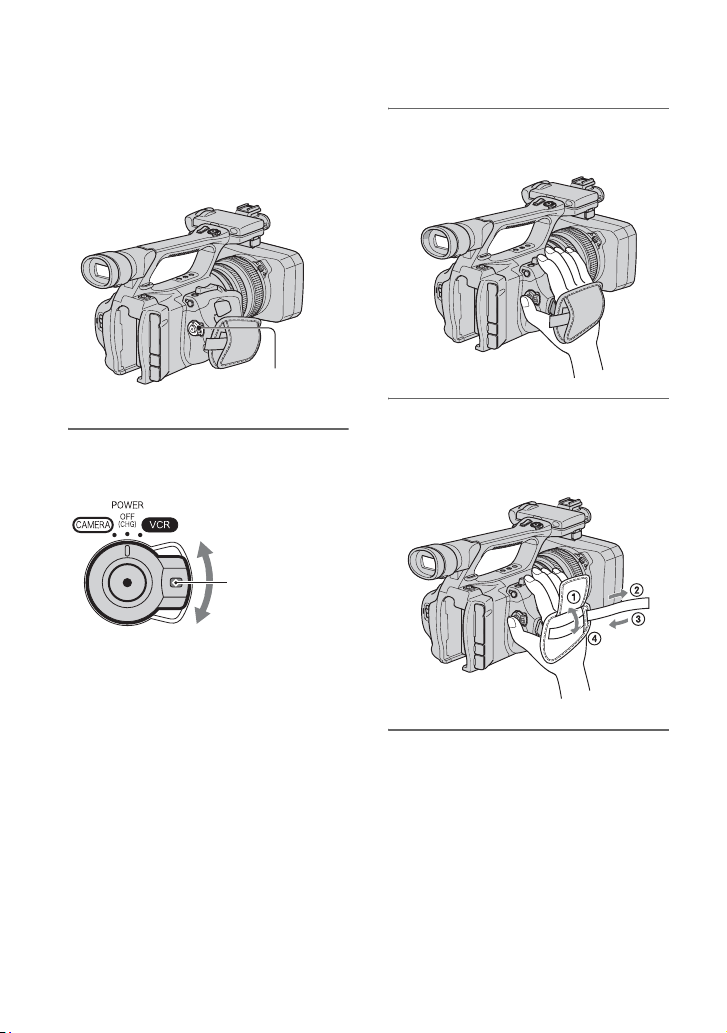
140
Paso 4: Encendido y sujeción adecuados de la
videocámara
Para grabar o reproducir, coloque el
interruptor POWER en la dirección
respectiva.
La primera vez que utilice la videocámara,
ap
ar
ecerá la pantalla [AJUS.RELOJ].
1 Mientras presiona el botón verde,
deslice el interruptor POWER.
CAMERA: p
ar
a grabar imágenes.
VCR: para reproducir o editar
i
mágenes.
b Notas
• La fecha y hora actuales aparecen en la pantalla
LCD por unos segundos al encender la
videocámara después de haberse ajustado la
fecha y la hora ([AJUS.RELOJ]).
2 Sostenga la videocámara
correctamente.
3 Asegúrese de que la sostiene
correctamente y luego ajuste la
correa de sujeción.
Para apagar la videocámara
Deslice el interruptor POWER a la posición
OFF (CHG).
b Notas
• Si en la pantalla aparecen mensajes de
advertencia, siga las instrucciones.
Interruptor
POWER
Mantenga
presionado el
botón verde
mientras desliza el
interruptor
POWER de la
posición OFF
(CHG).
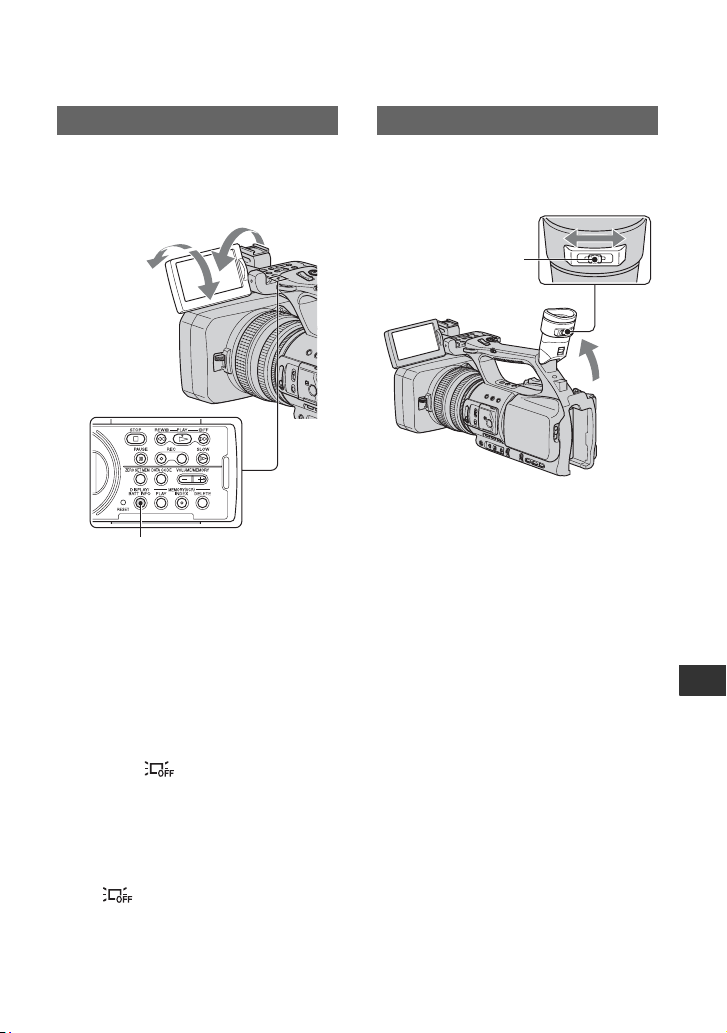
141
Spanish Quick Guide/Guía rápida en español
Paso 5: Ajuste del panel LCD y el visor
Abra el panel LCD 180 grados (1), luego
gírelo hasta encontrar el mejor ángulo para
grabar o reproducir (2).
z Consejos
• Puede ver su imagen reflejada en la pantalla
LCD colocando el panel frente a usted. La
imagen se grabará como una imagen normal.
Para desactivar la luz de fondo de la
pantalla LCD y prolongar la duración
de la batería
Mantenga presionado el botón DISPLAY/
BATT INFO durante unos segundos hasta
que aparezca .
Este ajuste es práctico cuando utiliza la
vi
de
ocámara en lugares muy luminosos o
cuando desea ahorrar energía. Este ajuste
no afectará a la imagen grabada. Para
encender la luz de fondo de la pantalla
LCD, presione el botón DISPLAY/BATT
INFO. desaparece.
z Consejos
• Puede ajustar el brillo de la pantalla LCD en
[BRILLO LCD].
Puede ver imágenes utilizando el visor para
ahorrar energía de la batería o cuando la
imagen en la pantalla LCD no sea clara.
b Notas
• Es posible que los colores primarios produzcan
algún resplandor cuando en el visor usted
cambie su línea visual. No se trata de una falla
de funcionamiento. Los colores
resplandecientes no se grabarán en el medio de
grabación.
z Consejos
• Puede ajustar el brillo de la luz de fondo del
visor con [LUZ F.VISOR].
• Para ver imágenes tanto en la pantalla LCD
como en el visor, ajuste [M.ALIM.VISOR] en
[ACTIVADO].
El panel LCD
Botón DISPLAY/BATT INFO
1Abra 180 grados.
2180 grados
(máx.)
290 grados
(máx.)
Visor
Palanca de ajuste del
objetivo del visor
Muévala hasta que la
imagen aparezca nítida.
Continuación ,
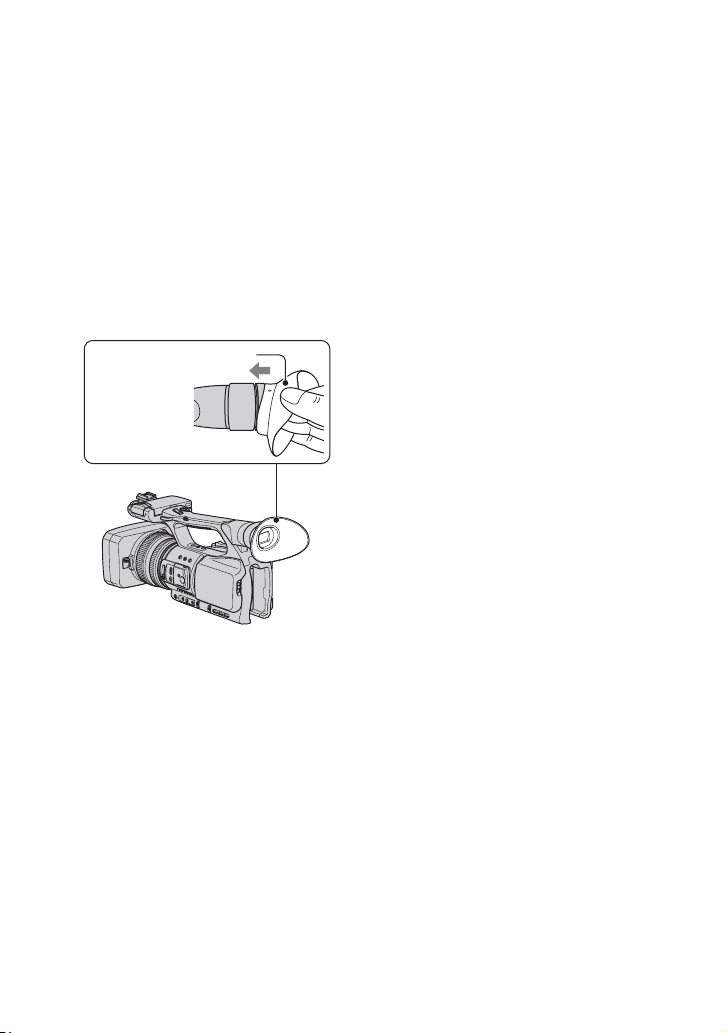
142
Cuando tenga dificultades para ver la
imagen del visor
Si no puede ver claramente la imagen en el
visor en condiciones de brillo, use el ocular
grande suministrado. Para colocar el ocular
grande, ensánchelo un poco y alinéelo con
la ranura del ocular en el visor. Puede
colocar el ocular grande hacia el lado
derecho o izquierdo.
b Notas
• No retire el ocular preinstalado.
Ocular grande
(suministrado)
Coloque con la
pieza que
sobresale hacia
arriba.
Paso 5: Ajuste del panel LCD y el visor (Continuación)
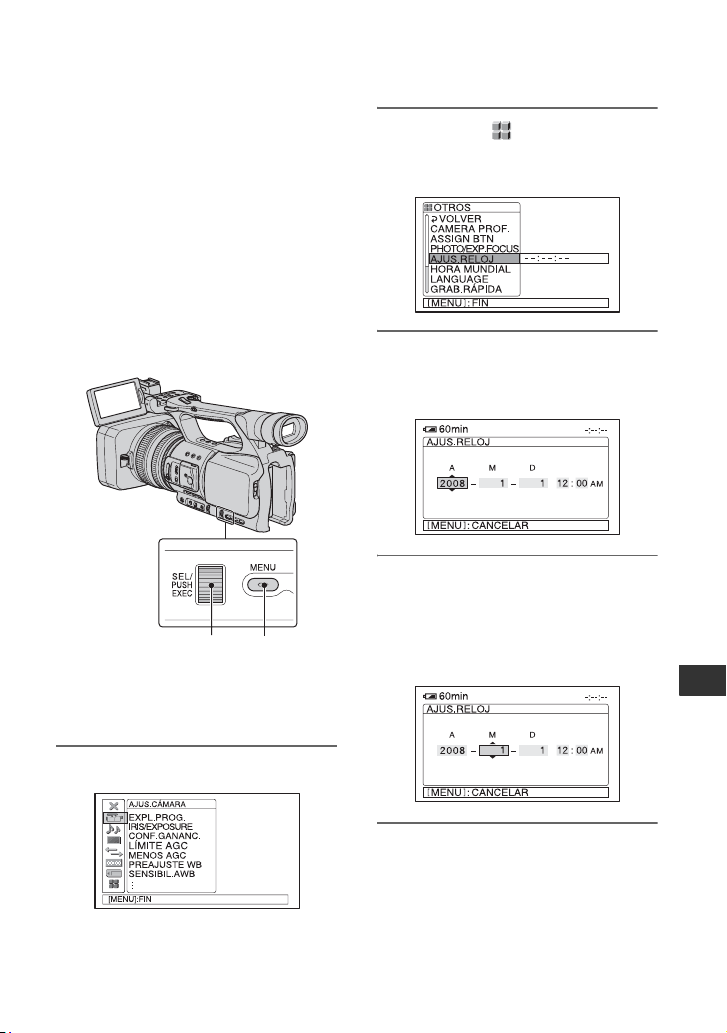
143
Spanish Quick Guide/Guía rápida en español
Paso 6: Ajuste de la fecha y la hora
Ajuste la fecha y la hora cuando use la
videocámara por primera vez. De lo
contrario, la pantalla [AJUS.RELOJ]
aparecerá cada vez que encienda la
videocámara o cambie las posiciones del
interruptor POWER.
z Consejos
• Si no usa la videocámara durante
aproximadamente 3 meses, la batería
recargable incorporada se descarga y es posible
que los ajustes de la fecha y la hora se borren de
la memoria. En este caso, cargue la batería
recargable y ajuste la fecha y la hora
nuevamente.
Vaya directamente al paso 4 cuando ajuste
el reloj por primera vez.
1 Presione el botón MENU.
2 Seleccione (OTROS) girando
el selector SEL/PUSH EXEC,
lu
ego presione el selector.
3 Seleccione [AJUS.RELOJ]
girando el selector SEL/PUSH
EXEC, luego presione el selector.
4 Ajuste [A] (año) girando el
selector SEL/PUSH EXEC, luego
presione el selector.
Puede seleccionar cualquier año hasta el
a
ño 20
79.
5 Ajuste [M] (mes), [D] (día), hora y
minuto, luego presione el
selector.
El reloj se pone en marcha.
Para la medianoche, ajústelo en 12:00
AM.
P
ara el mediodía, ajústelo en 12:00 PM.
Selector SEL/PUSH
EXEC
Botón MENU
Continuación ,

144
z Consejos
• La fecha y la hora se graban automáticamente
en la cinta y se pueden ver durante la
reproducción (botón DATA CODE).
Puede cambiar las indicaciones en pantalla
para que muestren mensajes en un idioma
en particular.
Presione el botón MENU para seleccionar
(OTROS) con el selector SEL/PUSH
EXEC.
Seleccione el idioma de los mensajes en
pantalla en [LANGUAGE].
Cambio del ajuste de idioma
Paso 6: Ajuste de la fecha y la hora (Continuación)
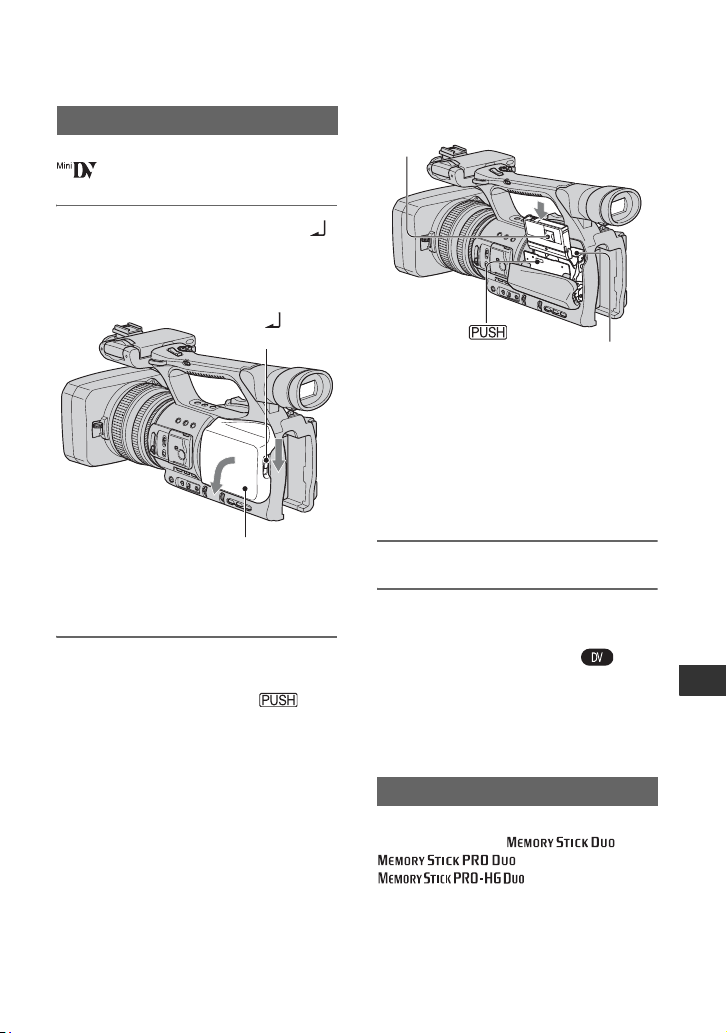
145
Spanish Quick Guide/Guía rápida en español
Paso 7: Inserción de una cinta o un “Memory
Stick Duo”
Solamente puede utilizar casetes mini DV
.
1 Deslice y sostenga la palanca
OPEN/EJECT en el sentido de la
fl
echa y abra la tapa.
El compartimiento del casete sale
auto
máticamente.
2 Inserte un casete con la cara de la
ventanilla hacia afuera y, a
continuación, presione .
El compartimiento del casete se desliza
auto
máticamente hacia adentro.
b Notas
• No presione la parte con la marca
mientras el
compartimiento del casete se desliza hacia
adentro.
Podría provocar una falla de
funcionamiento.
3 Cierre la tapa.
z Consejos
• El tiempo disponible para grabación varía en
función del [MODO GRAB.DV].
Para expulsar el casete
Abra la tapa realizando el mismo
procedimiento que se describe en el paso 1
y extraiga el casete.
Puede utilizar sólo “Memory Stick Duo”
que
ll
even la marca ,
o
.
Casete/cinta
Palanca
OPEN/EJECT
Tapa
“Memory Stick Duo”
Ventanilla
Presione ligeramente
el centro de la parte
posterior del casete.
Compartimiento
del casete
{DO NOT PUSH}
Continuación ,
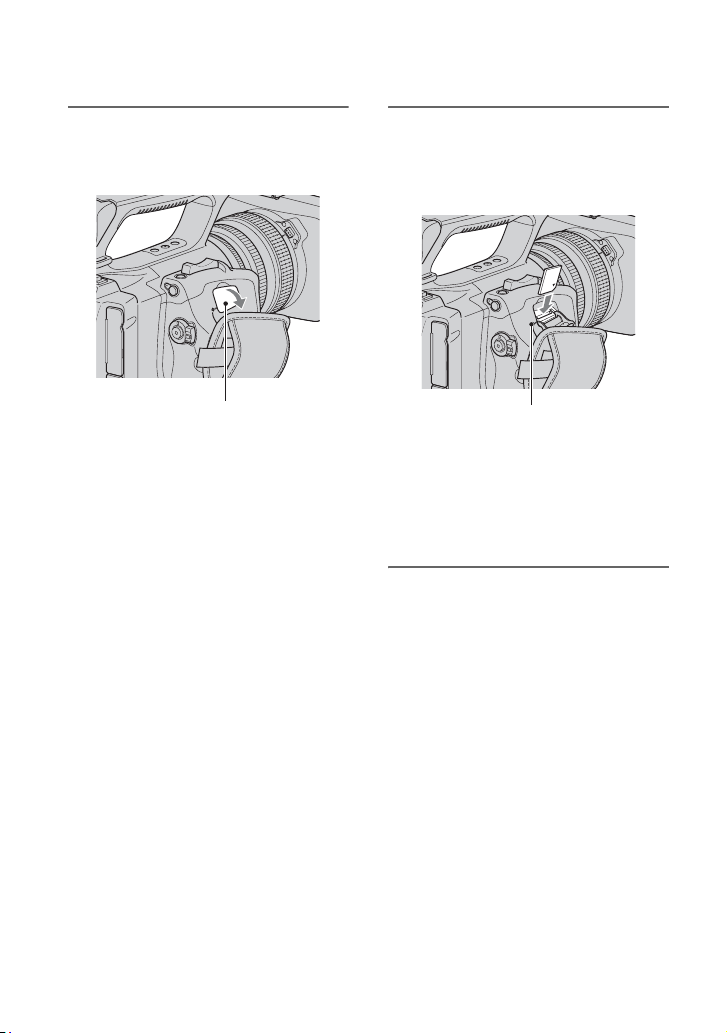
146
1 Abra la tapa de la ranura del
“Memory Stick Duo” en la
dirección que indica la flecha.
2 Inserte el “Memory Stick Duo” en
la ranura para “Memory Stick
Duo” en el sentido correcto hasta
que calce.
b Notas
• Si inserta el “Memory Stick Duo” en la
ranura en la dirección incorrecta, puede
dañarse el “Memory Stick Duo”, la ranura
para el “Memory Stick Duo” o los datos de
imágenes.
Para expulsar un “Memory Stick Duo”
Empuje suavemente el “Memory Stick
Duo” una vez.
b Notas
• Cuando el indicador de acceso se enciende o
parpadea, la videocámara está leyendo o
grabando datos. No sacuda ni golpee la
videocámara, no la apague, ni extraiga el
“Memory Stick Duo” ni retire la batería. De lo
contrario, se podrían dañar los datos de
imágenes.
• Al insertar o expulsar el “Memory Stick Duo”,
pr
ocure que el “Memory Stick Duo” no salte y
se caiga.
Tapa de la ranura del
“Memory Stick Duo”
Indicador de acceso
Paso 7: Inserción de una cinta o un “Memory Stick Duo” (Continuación)
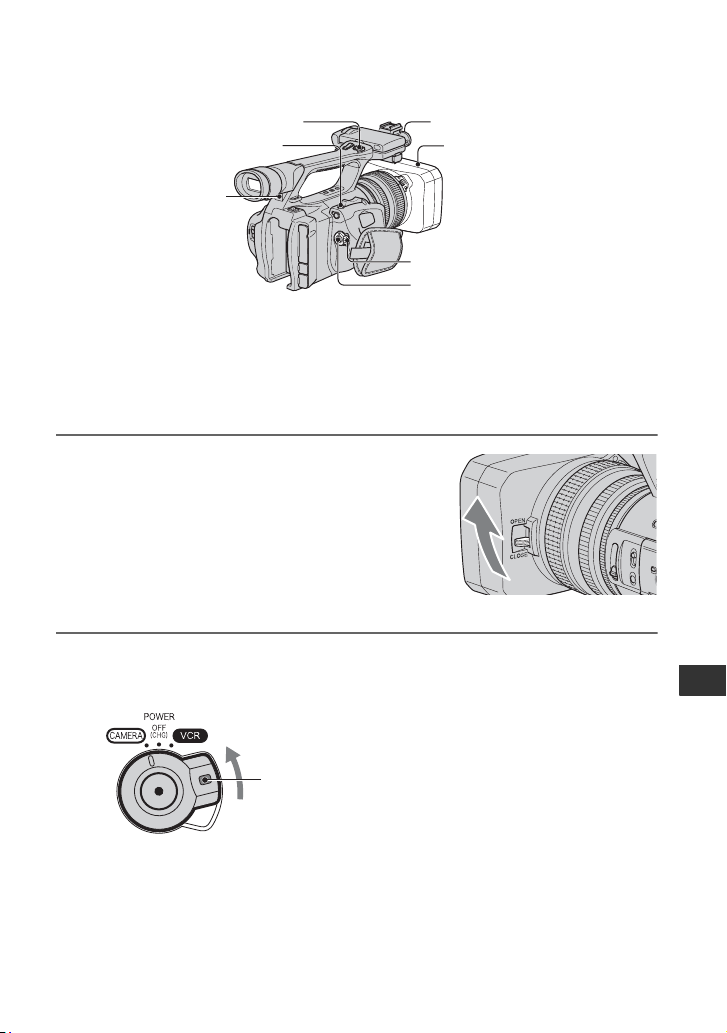
147
Spanish Quick Guide/Guía rápida en español
Grabación
Esta videocámara graba películas en cinta e imágenes en “Memory Stick Duo”. Proceda de la
siguiente forma para grabar películas.
z Consejos
• Esta videocámara puede grabar películas en formato HDV o DV. El ajuste predeterminado es el formato
HDV ([FORM.GRAB.]).
1 Abra el obturador del parasol del objetivo.
2 Deslice el interruptor POWER a la posición CAMERA mientras presiona el
botón verde.
Parasol con tapa del objetivo
Botón REC START/STOP B
Interruptor POWER
Botón REC START/
STOP A
Indicador de grabación
Botón PHOTO/EXPANDED
FOCUS
Indicador de
grabación
Deslice el interruptor
POWER mientras
presiona el botón
verde.
Continuación ,

148
3 Presione el botón REC START/STOP A (o B).
El indicador de grabación se ilumina durante la grabación.
Para detener la grabación, presione nuevamente el botón REC START/STOP.
z Consejos
• Al grabar en el formato HDV, el formato está fijado en 16:9. Al grabar en formato DV, puede cambiar
a 4:3 ([GRAB.PAN.DV]).
• Puede cambiar la visualización de la pantalla durante la grabación.
• El indicador de grabación se puede desactivar ([IND.GRAB.]).
• No se pueden grabar películas en un “Memory Stick Duo”.
• Para grabaciones de ángulo bajo, resulta práctico utilizar el botón REC START/STOP de la palanca.
Suelte la palanca HOLD para activar el botón REC START/STOP. Tal vez resulte útil colocar el
panel LCD cara arriba o cerrarlo después de colocarlo cara abajo o levantar el visor durante este tipo
de grabación.
[ESPERA] t [GRAB.]
Grabación (Continuación)
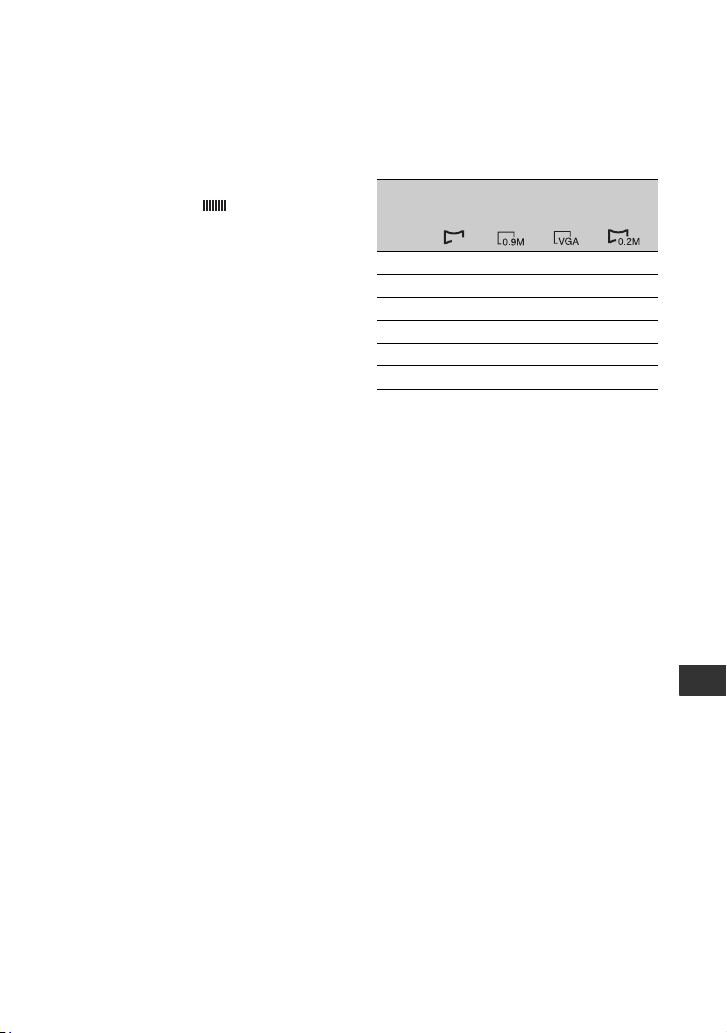
149
Spanish Quick Guide/Guía rápida en español
Para capturar imágenes fijas
Presione el botón PHOTO/EXPANDED
FOCUS o el botón PHOTO del control
remoto.
Se puede grabar una imagen fija en el
“Memory Stick Duo”. desaparece al
completarse la grabación.
También puede capturar imágenes fijas
durante la grabación de películas.
b Notas
• Las especificaciones son para Sony “Memory
Stick Duo”. La cantidad real de imágenes que se
pueden grabar varía según el entorno de
grabación y el tipo de “Memory Stick Duo”.
• No se puede almacenar una imagen fija en las
siguientes condiciones:
– Cuando [EXPL.PROG.] está ajustado en
[DESACTIV.] o [30] y la velocidad de
obturación menor que 1/60
– Cuando [EXPL.PROG.] está ajustado en [24]
y la velocidad de obturación es menor que
1/48
– Mientras usa el desvanecedor
– Mientras usa grabación lenta uniforme
– Mientras usa transición de filmación
z Consejos
• Cuando toma una imagen fija y no está
grabando una película, escuchará el clic del
obturador.
• A continuación se indican los tamaños de las
imágenes fijas:
– Grabación en formato HDV/DV (16:9): 1,2 M
– Grabación en formato DV (4:3): 0,9 M
– Reproducción en formato HDV: 1,2 M
– Reproducción en formato DV (16:9): 0,2 M
– Reproducción en formato DV (4:3): VGA
• Puede ajustar el botón PHOTO/EXPANDED
FOCUS para iniciar la función de enfoque
ampliado al presionar el botón ([PHOTO/
EXP.FOCUS]).
• La disposición única de píxeles del sensor
ClearVid CMOS de Sony y el sistema de
procesamiento de imágenes (Enhanced Imaging
Processor) permiten una resolución de imágenes
fijas equivalente a los tamaños descritos.
Capacidad del “Memory Stick Duo”
(MB) y número de imágenes que se
pueden grabar
Para almacenar imágenes fijas
capturadas de películas de una cinta
en un “Memory Stick Duo”
Puede capturar una imagen de una película
y grabarla en un “Memory Stick Duo”
como una imagen fija. Asegúrese de
insertar una cinta grabada y un “Memory
Stick Duo” en la videocámara.
1 Ajuste el interruptor POWER en VCR.
2 Presione el botón
N
(reproducir) para
buscar la escena que desea guardar
como imagen fija. Presione el botón
PHOTO/EXPANDED FOCUS o el
botón PHOTO del control remoto en la
escena.
b Notas
• En el “Memory Stick Duo” se guardan tanto la
hora y la fecha de grabación en la cinta como la
hora y la fecha de guardado en el “Memory
Stick Duo”. Cuando vea las imágenes fijas, en
pantalla sólo aparecerán la fecha y hora en que
fueron grabadas en la cinta (código de datos).
• Los datos de la cámara almacenados en la cinta
no se copian en el “Memory Stick Duo”.
• No se puede almacenar una imagen fija mientras
se usa la videocámara con [ZOOM REPR.]
ajustado en [ACTIVADO].
1,2M
1440
×
810
0,9M
1080 ×
810
VGA
640 ×
480
0,2M
640 ×
360
512 MB 760 1000 2850 3600
1 GB 1550 2100 5900 7300
2 GB 3150 4300 12000 15000
4GB 6300 8500 23500 29500
8 GB 12500 17000 48000 60000
16 GB 25500 34500 97500 122000
1.2M