
THIS DOCUMENT CONTAINS INFORMATION THAT IS SUBJECT TO CHANGE WITHOUT NOTICE.
No part of this publication may be reproduced or transmitted in any form or by any means, electronic or mechanical, including but not limited to
photocopying, recording, information retrieval systems, or computer network without the written permission of Sonos, Inc.
Sonos and all other Sonos product names and slogans are trademarks or registered trademarks of Sonos, Inc. SONOS Reg. U.S. Pat. & Tm. Off.
Sonos products may be protected by one or more patents. Our patent-to-product information can be found here:
sonos.com/legal/patents
iPhone®, iPod®, iPad® and iTunes® are trademarks of Apple Inc., registered in the U.S. and other countries.
Windows® is a registered trademark of Microsoft Corporation in the United States and other countries.
Android® is a trademark of Google, Inc.
Sonos uses MSNTP software, which was developed by N.M. Maclaren at the University of Cambridge.
© Copyright, N.M. Maclaren, 1996, 1997, 2000; © Copyright, University of Cambridge, 1996, 1997, 2000.
All other products and services mentioned may be trademarks or service marks of their respective owners.
November 2015
©2004-2015 by Sonos, Inc. All rights reserved.
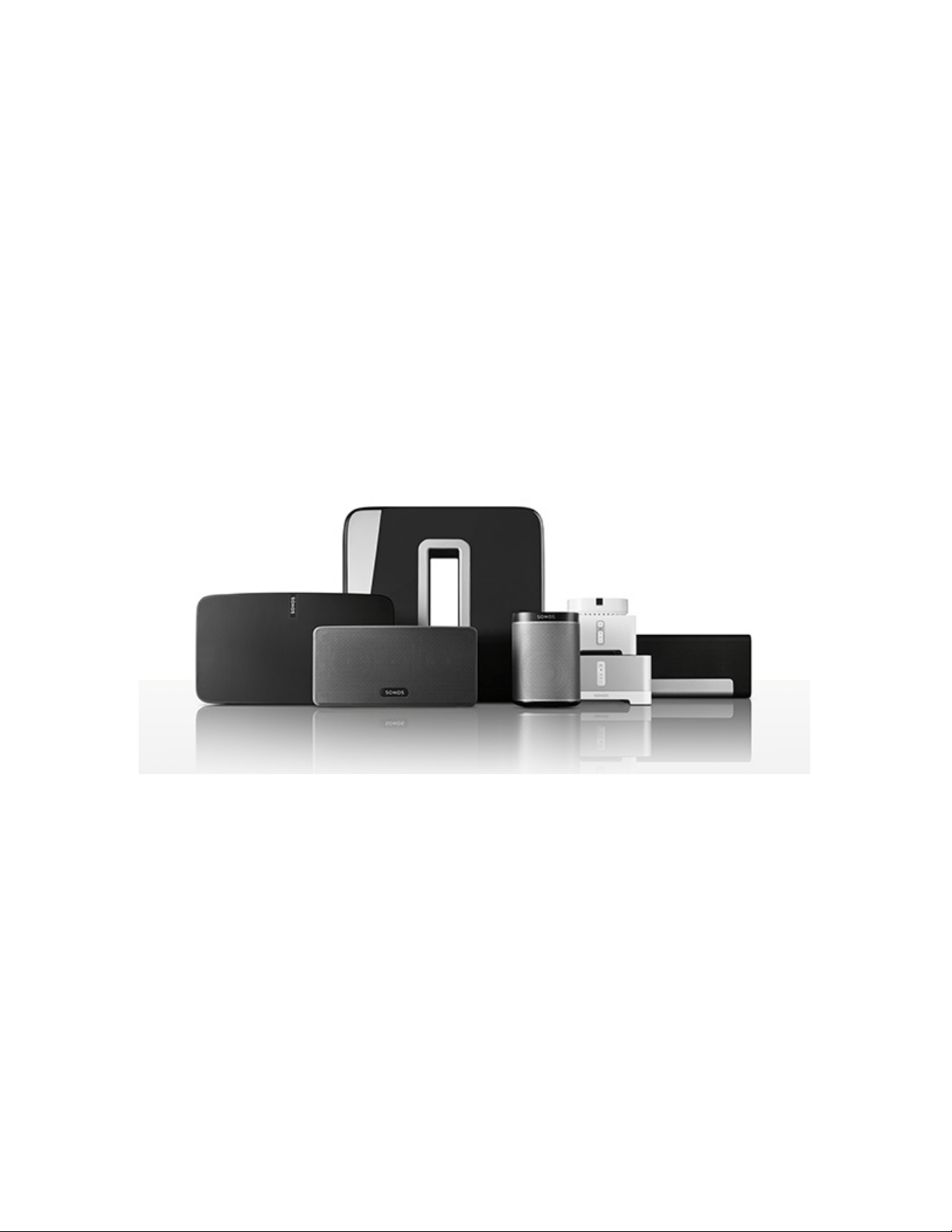
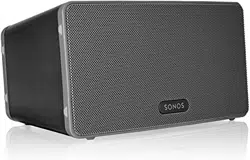
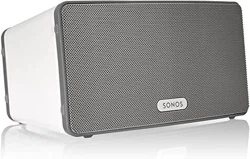
Sonos PLAY:3
®
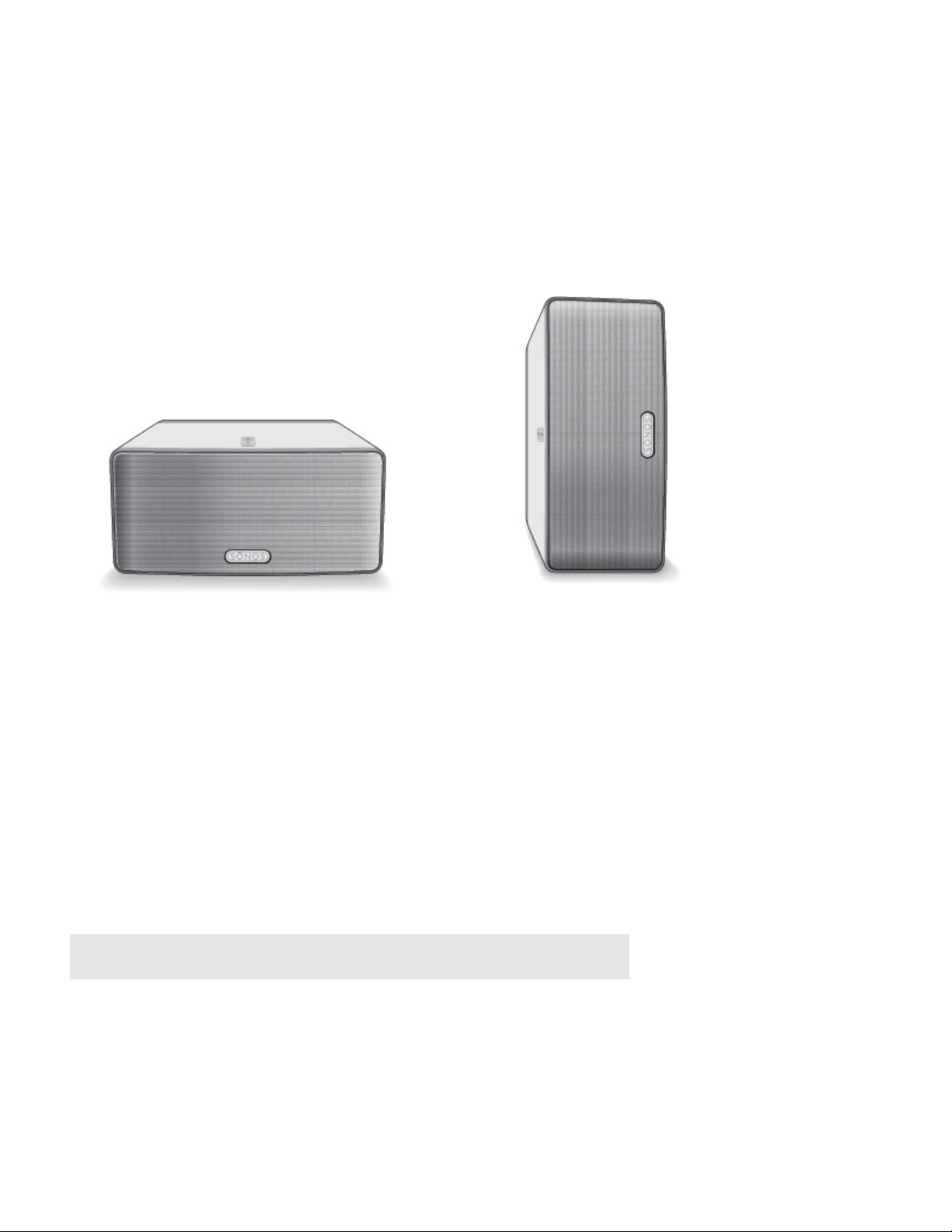
The PLAY:3 is the most versatile Sonos wireless speaker that lets you use any Sonos controller to control and
enjoy all the music you want all over your home (see “The Sonos App” for more information).
• Three custom-designed drivers (two mid-range and
one tweeter), each with a dedicated amplifier.
• Position vertically or horizontally—software
automatically adjusts the sound to ensure best performance.
• Works seamlessly with the complete range of
Sonos products.
New to Sonos?
It takes just a few steps to get your Sonos system up and running—simply follow the setup instructions
packaged with your PLAY:3. Once you’ve got it set up, you can add additional Sonos products any time.
Adding to an existing Sonos system?
Sonos can be easily expanded room by room. You can turn directly to “Adding to an Existing Sonos System”
if you are adding a PLAY:3 to an existing Sonos
system.

Product Guide
2
Your Home Network
To access music services, Internet radio, and any digital music stored on your computer or Network-Attached
Storage (NAS) device, your home network must meet the following requirements:
Home network requirements
Note: Your network must have a high-speed Internet connection, as the Sonos
system is designed to provide you with free, online software updates. Your Sonos
system must be registered to receive these updates so be sure to register during
the setup process. We do not share your e-mail address with other companies.
• High-speed DSL/Cable modem, or fiber-to-the-home broadband connection for proper playback of
Internet-based music services. (If your Internet service provider only offers Satellite Internet access, you
may experience playback issues due to fluctuating download rates.)
• If your modem is not a modem/router combination and you want
to take advantage of Sonos' automatic
online updates, or stream music from an Internet-based music service, you must install a router in your
home network. If you do not have a router, purchase and install one before proceeding. If you are going
to use the Sonos Controller App on an Android™ or iOS device, or you are setting up Sonos wirelessly,
you will need a wireless router. Please visit our website at http://faq.sonos.com/apps for more
information.
Note: Sonos communicates over a 2.4GHz home network supporting 802.11
b/g/n wireless technology. 5GHz networks are not supported in a completely
wireless Sonos setup.
• Connect a Sonos BRIDGE, BOOST™ or player to your router if:
• You have a larger home where the WiFi performance isn’t
reliable and you want to strengthen the
wireless performance of your Sonos system.
• Your WiFi network is already in high demand with streaming video and web surfing and you
want to
create a separate wireless network exclusively for your Sonos speakers.
• Your home network is 5GHz only (not switchable to 2.4GHz).
• For best results, you should connect the computer or NAS
drive that contains your personal music library
collection to your home network router using an Ethernet cable.

Sonos PLAY:3
3
The Sonos App
You can use the free Sonos app with any compatible device, including:
• Sonos app (Andr
oid)—Android 2.2 and higher; certain features require later versions. (Standard wireless
setup is only supported on Android 2.3 or 4.0 and higher.)
Touch the Play
Store or Market button on your Android device to download the free Sonos app from
Google Play.
• Sonos app
(iOS)—iPhone, iPad and iPod touch running iOS 7.0 and higher; certain features may require
later versions.
Touch the App S
tore button on your iPhone, iPod touch or iPad to download the free Sonos app, or
download the application from iTunes
®
. (If you download from iTunes, you will need to sync before you
see the Sonos logo display on your device.)
• Sonos app (PC)—Windows® XP SP3 and higher; certain features require later versions. (Standard
wireless setup is only supported on Windows 7 and higher.)
Download from our website at www.sonos.com/support/downloads.
• Sonos app (Mac)—Macintosh® OS X 10.7 and higher
Download from our website at www.sonos.com/support/downloads.
Note: Sonos CONTROL has been discontinued, but it’s compatible with your new
Sonos product.
Product Guide
4
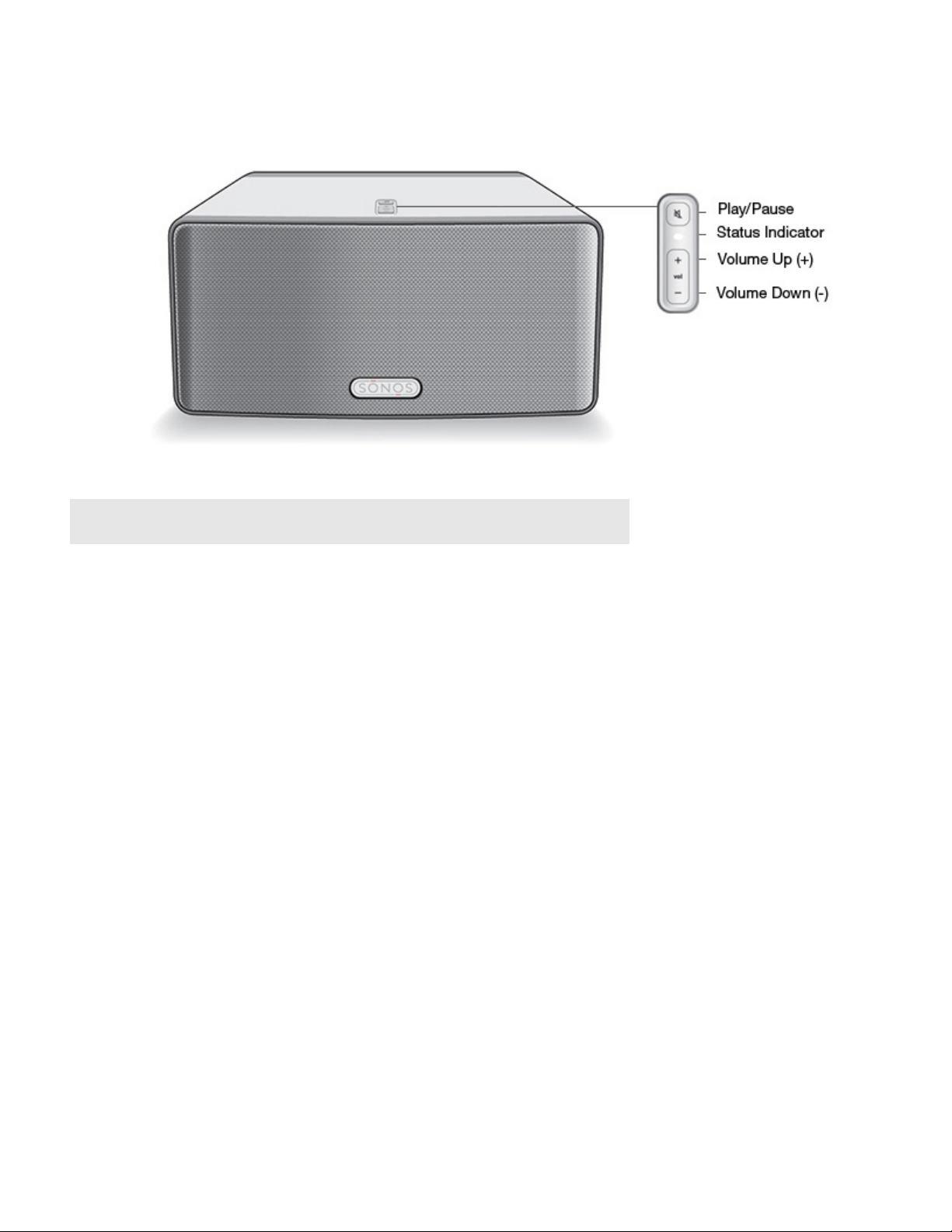
PLAY:3 Front
Note: The Sonos PLAY:3’s front grille is not removable. Tampering with the grille
may result in damage to your PLAY:3.
On/Off
Status indicator
Play/Pause
• Press onc
e to start or stop streaming audio
• Press twice to skip to
the next track (if applicable to the selected
music source)
Volume up (+)
Volume down (-)
Your Sonos system is designed to be always on; the system uses
minimal electr
icity whenever it is not playing music. To quickly stop
streaming audio in all rooms, select Pause All from the Rooms menu.
To stop streaming audio in one room, press the
Play/Pause button on the player.
Indicates the current status. During normal
operation the white light is
dimly lit. If desired, you can turn off the white light from Room Settings.
See “Player Status Indicators” for a complete list of status indications.
Toggles between playing and pausing the audio in this room (defaults to
r
estarting the same music source when pressed unless a different
source is selected).
Press these buttons to adjust the volume up and down.
Sonos PLAY:3
5
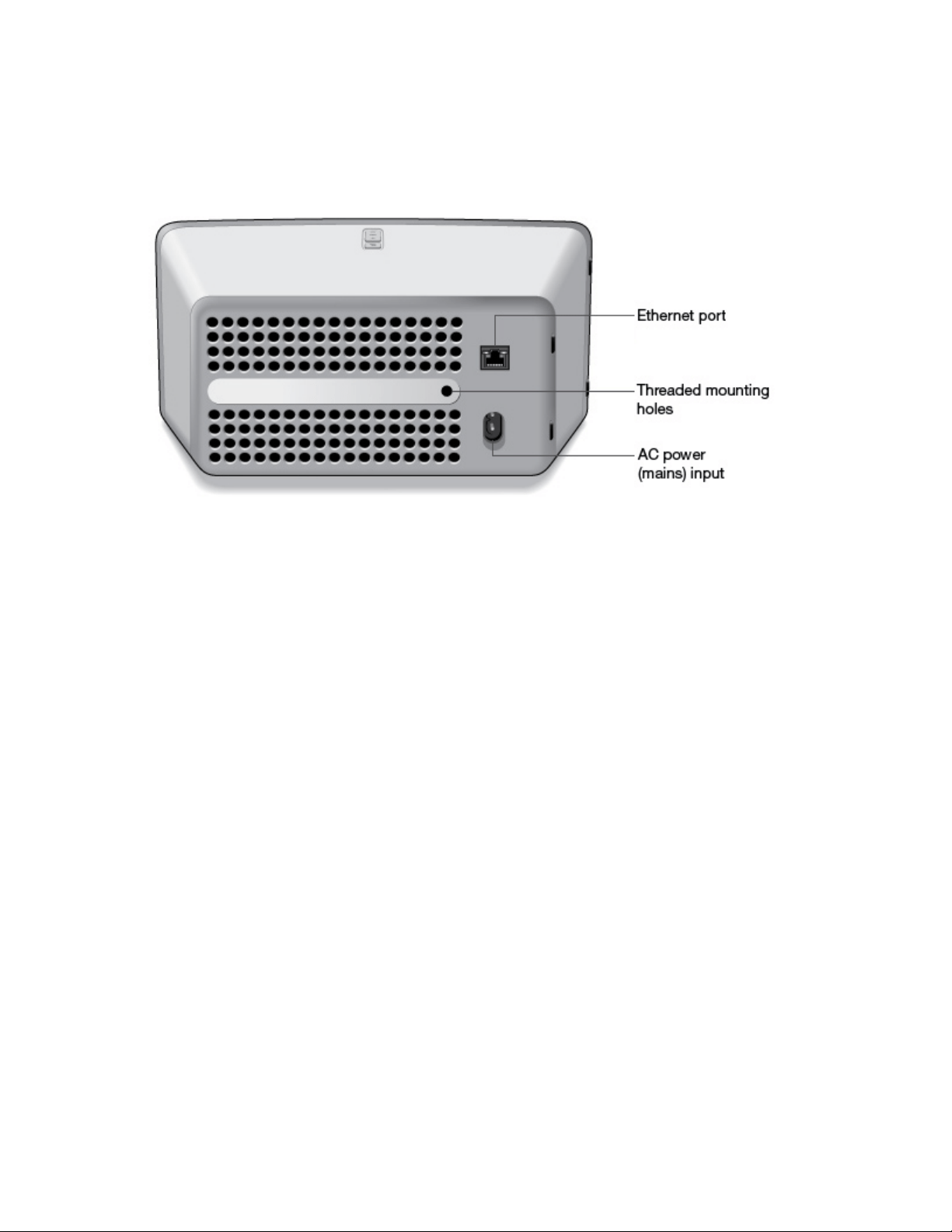
PLAY:3 Back
Threaded mounting hole
1/4 inch
20-thread
Ethernet port
• Flashing Yellow (network activity)
• Green (link connection)
AC power (mains) input
(~100-240 V, 50-60 Hz)
The Sonos PLAY:3 has an integrated mounting hole on the back of the unit so
it can be wall-mounted if desi
red (mounting bracket not included.) See “Wall
Mounting the PLAY:3” for more information.
Use an Ethernet cable to connect to a router, computer, or additional network
device such
as a network-attached storage (NAS) device.
LED indicators:
Use only the supplied power cord to connect to a power outlet (using a third
party power co
rd will void your warranty).
Be sure to insert the power cord firmly into the back of the PLAY:3 until it
is flush with the back of the unit.
Product Guide
6
Selecting a Location
You can locate the Sonos PLAY:3 just about anywhere. Its compact size makes it easy to place the PLAY:3 on
the kitchen counter, or take it out to the patio with you. For maximum enjoyment, we have a few guidelines:
• The PLAY:3 can be positioned either horizontally or ve
rtically to accommodate the desired space—the
EQ (audio equalization) will automatically adjust to create the best possible sound when the orientation
is changed.
• The PLAY:3 is designed to work well even when placed next to a wall or other surface. For optimum
performance, maintaining more than 1 inch (2.5 cm) clearance around the back of the unit is
recommended.
• Care should be taken if placing the Sonos PLAY:3 close to an older CRT (c
athode ray tube) television. If
you notice any discoloration or distortion of your picture quality, simply move the PLAY:3 further from the
television.
• The PLAY:3 is not water-resistant. Don’t leave it outside during
a rain storm or position it near water.
Wall Mounting the PLAY:3
The Sonos PLAY:3 has a standard 1/4”-20 threaded mounting socket. If desired, you can easily wall mount
your PLAY:3 using a suitable mounting bracket (not included). Simply choose a location that’s close to an
electrical outlet, taking care to avoid heat, steam, dripping water or hidden wiring, and follow the instructions
included with the mounting bracket.
Note: Be sure the wall mount bracket you purchase will support at least 10lbs. (4.5
kgs).

Sonos PLAY:3
7
Adding to an Existing Sonos System
Once you’ve got your Sonos music system set up, you can easily add more Sonos products any time (up to
32).
If your house has structured (built-in) network wiring,
you can make a wired connection to the new Sonos
product(s). If you don’t have structured network wiring, our built-in wireless technology is ideal for you.
1. Select a location for your PLAY:3 (see “Selecting a Location” for optimal placement guidelines.)
2. Attach the power cord to the PLAY:3, and apply power. Be sure to push the power cord firmly into the
back of the PLAY:3 until it is flush with the back of the unit.
Note: If you want to make a wired connection, connect a standard Ethernet cable
from your router or another Sonos product (or a live network wall plate if you have
built-in wiring) to an Ethernet switch connection on the back of the new Sonos
product.
3.
Choose one of the following options:
• Using a handheld Sonos controller: Select Ad
d a Player or SUB from the Settings menu and follow the
on-screen prompts to add this product to your Sonos system.
• Using the Sonos Controller for Mac or PC: Select Ad
d a Player or SUB from the Manage menu and
follow the prompts to add this product to your Sonos system.
Thick walls, 2.4 GHz cordless telephones, or the presence of other wireless devices can inte
rfere with or block
the wireless network signals from your Sonos system. If you experience difficulty after positioning a Sonos
product, try one or more of the following resolutions—relocate the Sonos product; change the wireless
channel your music system is operating on; connect a Sonos product to your router if your setup is currently
wireless. See “Basic Troubleshooting” for additional information.
Tuning the Sound For Your Room (Trueplay
™
)
While you can locate Sonos speakers just about anywhere, the size and shape of your room and the objects in
it can distort your speaker’s sound. To ensure a speaker sounds right no matter where you place it, Sonos
speakers include Trueplay. If you have an iPhone (4S or later), iPad, or iPod Touch running iOS7 or higher, you
can use Trueplay tuning to make every Sonos speaker sound right for the room and true to the music.
Sonos uses your iOS device’s microphone to measure ac
oustic distortion in the room and then Trueplay
adapts your Sonos speaker's sound for its position in the room.
1. Select Settings -> Room Settings.
2. Select the room your speaker is located in.
3. Select Trueplay Tuning and follow the on-screen prompts.
Note: Trueplay tuning is not available if VoiceOver is enabled on your iOS device. If
you want to tune your speakers, first turn VoiceOver off on your device and then
select Settings -> Room Settings from the Sonos app.
Product Guide
8
Creating a Stereo Pair
The stereo pair setting allows you to group two PLAY:1s, PLAY:3s or PLAY:5®s in the same room to create a
wider stereo experience. In this configuration, one unit serves as the left channel and the other serves as the
right channel. You cannot create a mixed stereo pair—the Sonos products in the stereo pair must be the
same.
If you would like to add surround speakers to a PLAYB
AR configuration, see “Adding Surround Speakers”
instead.
Optimum placement information
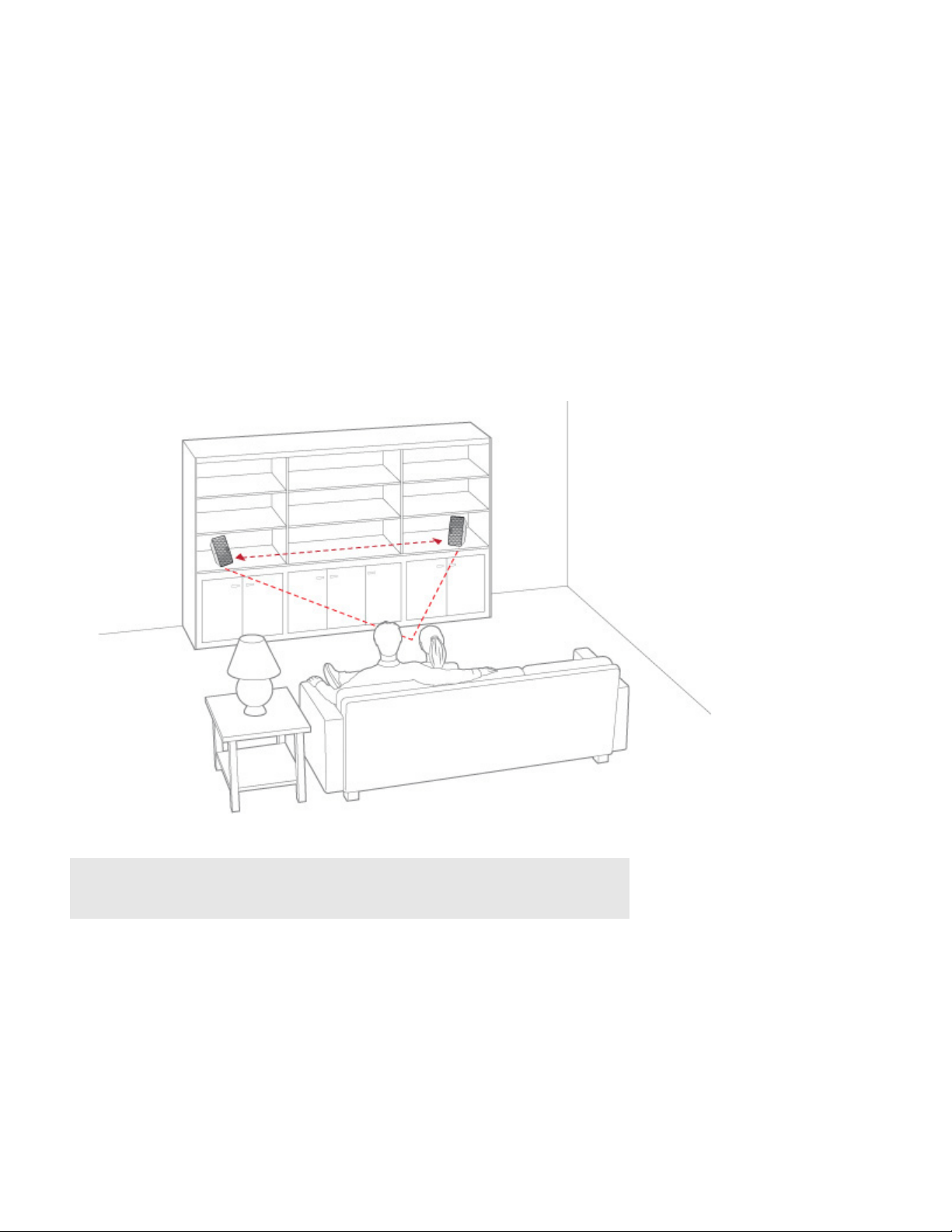
• When creating a stereo pair, it is best to place the two Sonos products 8 to 10 feet away from each other.
• Your favorite listening position should be 8 to 12 feet from
the paired Sonos products. Less distance will
increase bass, more distance will improve stereo imaging.
Note: The stereo pair setting is for use with PLAY:1, PLAY:3 and PLAY:5 units
only. You cannot create a mixed stereo pair—both Sonos products in the stereo
pair must be the same.
Using the Sonos app on a mobile device
1. Select Settings -> Room Settings.
2. Select a PLAY:3 to pair.
3. Select Create Stereo Pair, and follow the prompts to set up the stereo pair.

Sonos PLAY:3
9
To separate a stereo pair:
1. Select Settings -> Room Settings.
2. Select the stereo pair you wish to separate (the stereo pair appears with L + R in the room name.)
3. Select Separate Stereo Pair.
Using the Sonos app on a Mac or PC
1. Choose one of the following:
• Using your PC, select Settings from the Manage menu.
• Using your Mac, select Preferences -> Room Settings from the Sonos menu.
2. Select a PLAY:3 you want to pair from the Room Settings for drop-down list.
3. Click Create Stereo Pair and follow the prompts to set up the stereo pair.
To separate a stereo pair:
1. Choose one of the following:
• Using your PC, select Settings from the Manage menu.
• Using your Mac, select Preferences -> Room Settings from the Sonos menu.
2. Select the Sonos stereo pair you wish to separate from the Room Settings for drop-down (the stereo pair
will appear with L + R in the room name).
3. On the Basic tab, click Separate Stereo Pair.
Adding Surround Speakers
You can easily pair two PLAY:1, PLAY:3 or PLAY:5 (gen2) speakers with a PLAYBAR to function as left and
right surround channels in your Sonos surround sound experience. You can either configure surround
speakers during the setup process, or follow the steps below to add them.
• Make sure the Sonos products are the same—you cannot combine a PLAY:1 and a PLAY:3 to function
as surround speakers.
• Be sure to follow these instructions to set up your surround speakers. Do not create a room group or
stereo pair as these will not achieve the left and right surround channel functionality.
Using the Sonos app on a mobile device
1. From the Settings menu, select Room Settings.
2. Select the room the PLAYBAR is located in.
3. Select Add Surround Speakers.
4. Follow the prompts to add first a left and then a right surround speaker.
Removing surround speakers
1. From the Settings menu, select Room Settings.
2. Select the room the surround speakers are associated with. The room name appears as Room (+LS+RS)
on the Room Settings menu.
3. Select Remove Surround Speakers.

Product Guide
10
4. Select Next to drop the surround sound speakers from your surround system. If these were newly
purchased PLAY:3s they will appear as Unused on the Rooms menu. If these PLAY:3s existed in your
household previously, they revert back to their previous state.
You can now move them to another room for individual use.
Changing the surround settings
The default setting is determined by the calibration process. If you wish to make a change, you can follow the
steps below.
1. From the Settings menu, select Room Settings.
2. Select the room the PLAYBAR and surround speakers are located in. It appears as Room (+LS+RS) on the
Room Settings menu.
3. Select Advanced Audio -> Surround Settings.
4. Choose one of the following:
• Surrounds: Choose On or Off to turn the sound from the surround speakers on and off.
• Surround Level Adjustment: Drag your finger across the slider to increase or decrease the volume of
the surround speakers.
• Music Playback: Choose Ambient (default; subtle, ambient sound) or Full (enables louder, full range
sound). This setting applies only to music playback, not TV audio.
Using the Sonos app on a Mac or PC
1. Select Manage -> Settings (PC) or Sonos -> Preferences (Mac).
2. Select Room Settings if it is not already highlighted on the left.
3. From the Basic tab, select Add Surround Speakers.
4. Follow the prompts to add first a left and then a right surround speaker.
Removing surround speakers
1. Select Manage -> Settings (PC) or Sonos -> Preferences (Mac).
2. Select Room Settings if it is not already highlighted on the left.
3. Choose the room the PLAYBAR is located in from the Room Settings for drop-down list. The room name
appears as Room (+LS+RS).
4. From the Basic tab, click Remove Surround Speakers. If these were newly purchased PLAY:3s, they will
appear as Unused in the Rooms pane. If these PLAY:3s existed in your household previously, they revert
back to their previous state.
Changing the surround settings
The default setting is determined by the calibration process. If you wish to make a change, you
can follow the steps below.
1. Select Manage -> Settings (PC) or Sonos -> Preferences (Mac).
2. Select Room Settings if it is not already highlighted on the left.
3. Choose the room the PLAYBAR and surround speakers are located in from the Room Settings for drop-
down.
4. Select the Surrounds tab.

Sonos PLAY:3
11
5. Choose one of the following:
• Surrounds: Check to turn the sound from the surround speakers on; uncheck to turn it off.
• Surround Level Adjustment: Click and drag the slider to increase or decrease the volume of the
surround speakers.
• Music Playback: Choose Ambient (default; subtle, ambient sound) or Full (enables louder, full range
sound). This setting applies only to music playback, not TV audio.
Playing Music
Make a selection from the Sonos music menu on your mobile device or from the MUSIC pane on a Mac or
PC.
Radio
Sonos includes a radio guide that provides immediate access to thousands of free Internet radio stations and
broadcast programs. You can easily find radio stations from all over the world—music, news, and variety
programming, including archived shows and podcasts.
To select a radio station, simply select Radio and choose a station.
Music services
A music service is an online music store or online service that sells audio on a per-song, per audiobook, or
subscription basis. Sonos is compatible with several music services - you can visit our website at
www.sonos.com/music for the latest list. (Some music services may not be available in your country. Please
check the individual music service’s website for more information.)
If you are currently subscribed to a music service that’s compatible with Sonos, simply add your music service
user name and password information to Sonos as needed and you’ll have instant access to the music service
from your Sonos system.
1. To add a music service, touch Add Music Services from the Sonos music menu.
2. Select the Sonos-compatible music service you would like to add.
3. Select Add Account, and then follow the on-screen prompts. Your login and password will be verified
with the music service. As soon as your credentials have been verified, the music service displays on the
Sonos music menu.
Free music service trials are available in some countries. (Please check the individual music service’s website
for more information.) If there is a music service trial visible on the Music Services menu, simply touch it to
select. Touch Add Account -> I’m new to [music service], and then follow the prompts to activate the music
trial. After the trial period is up, you will need to subscribe to the music service to keep the music playing.

Product Guide
12
Local music library
The Sonos system can play music from any computer or network-attached storage (NAS) device on your
home network where you have shared music folders. During the setup process, you are guided through the
process of accessing your local music library (such as your iTunes library). Over time, you may wish to add or
remove folders from this list.
Note: We recommend using the Sonos Controller for Mac or PC to add shared
folders. For more information, please visit our website at
http://faq.sonos.com/manage.
To make changes to your local music library, select the Settings menu from a handheld Sonos controller and
then choose one of the following options:
• To add a new music folder, select Ma
nage Music Library-> Music Library Setup -> Add New Share.
• To remove a music folders, select Manage Mu
sic Library -> Music Library Setup. Touch the share you
wish to remove and then select Remove.
The Sonos system indexes your local music so you can view
your music collection by categories (such as
artists, albums, composers, genres, or tracks.) If you add new music, simply update your music index to add
this music to your Sonos music library.
• To update your music library, select Ma
nage Music Library -> Update Music Index Now. If you’d like
your music library to update automatically each day, select Schedule Music Index Updates and then
select an update time.
Wireless iTunes playback
You can select and play music and podcasts stored on any iPad, iPhone, or iPod touch that’s on the same
network as your Sonos products. Playback is perfectly synchronized, in any or every room of your home.
Simply choose This iPad, This iPhone, or This iPod touch from the Sonos app on your iOS device to make
audio selections and then you can use any Sonos controller to control playback.
Wireless playback from Android devices
You can select and play music stored on any Android device that’s on the same network as your Sonos
products. Playback is perfectly synchronized, in any or every room of your home. Simply choose This Mobile
Device from the Sonos app on your Android smartphone or tablet to make audio selections and then you can
use any Sonos controller to control playback.
Google Play Music (Android devices)
You can play music to your Sonos system directly from the Google Play Music app on any Android device.
This feature is available for both Standard and All Access Google Play Music customers.
To play music directly from the Google Play Music app to your Sonos system,
you must have both the Google
Play Music app and the Sonos Controller App installed on your mobile device.
Simply open the Google Play Music app and connect to a Sono
s room or room group to start the music.

Sonos PLAY:3
13
Equalization Settings
The Sonos PLAY:3 ships with the equalization settings preset to provide the optimal playback experience. If
desired, you can change the sound settings (bass, treble, balance, or loudness) to suit your personal
preferences.
1. Using a handheld controller, select Settings -> Room Settings.
2. Touch to select a room.
3. Select Music Equalization, and then drag your finger across the bass, treble, or balance sliders to make
adjustments.
4. To change the Loudness setting, touch On or Off. (The loudness setting boosts certain frequencies,
including bass, to improve the sound at low volume.)

Product Guide
14
Basic Troubleshooting
Warning: Do not open Sonos products as there is a risk of electric shock. Under
no circumstances should Sonos products be repaired by anyone other than an
authorized Sonos repair center, as this will invalidate the warranty. Please contact
Sonos Customer Support for more information.
If a problem occurs, you can try the troubleshooting suggestions listed below. If one of these doesn’t remedy
the problem, or you are not sure how to proceed, please contact the Sonos Customer Support team and we’ll
be happy to help.
Sonos product(s) not detected during setup
• Check to make sure the power cord is properly seated.
• A network issue may be preventing the product from
connecting to your Sonos system. If this is a
wireless Sonos component, try moving the Sonos products closer together, or use an Ethernet cable to
hard wire the product to your router temporarily to see if the problem is related to wireless interference.
If you encounter this error while a Sonos product is connected
to your router, you can try the steps below to
resolve this issue. If you are still experiencing problems, please contact Sonos Customer Support.
1. Check the firewall
If you are using a computer, firewall software may be blocking the ports that Sonos uses to operate. First,
disable all your firewalls and try to connect again. If this resolves the problem, you should configure your
firewall to work with the Sonos app on your Mac or PC. Please go to our website at
http://faq.sonos.com/firewall for additional information. If this does
not resolve the problem, you can try step
2 below.
2. Check the router
You can bypass your router to determine whether there are any router configuration issues by connecting a
Sonos product as shown below—in this BOOST configuration example, note that the BOOST and the
computer still have Internet access:
• Be sure that your cable/DSL modem is connected to the router’s WAN (Internet) port.
• If you have any Sonos products connected to your router,
temporarily remove them.

Sonos PLAY:3
15
• Connect an Ethernet cable from the computer directly to the back of a Sonos product (a BOOST in the
illustration above), and then connect another Ethernet cable from that Sonos product directly to one of
the LAN ports on your router.
• When you make a change to your network configuratio
n, you may need to power cycle the wired Sonos
product by unplugging the power cord, and then plugging it back in.
Sonos player is not operating properly
• If the status indicator is not lit and no sound is produced when the unit is plugged in, check to ensure the
power cord is properly seated.
• If the unit is powered on, make sure the volume is set to a
suitable level; make sure MUTE is not on; if
this is a CONNECT:AMP™, make sure the external speakers are connected securely.
• If the player has suddenly stopped playing music and the status indicator is flashing orange and white,
pa
use or unplug the player for a few minutes to allow it to cool. See “Player Status Indicators” for more
information.
• Move your device with the Sonos app on it closer to a player.
• Check to ensure there are no obstacles to impede wireless operation.
• Check your network connections.
• The Sonos player may need to be re
set. Disconnect the power cord for 5 seconds, and then reconnect.
Wait for the Sonos player to restart.
Not all rooms are visible or Sonos app doesn’t work in some rooms
You are probably experiencing wireless interference. You can change the wireless channel your Sonos system
is operating on by following the steps below.
• Using a the Sonos app on a mobile device: From the Settin
gs menu, touch Advanced Settings ->
Wireless Channel. Choose another wireless channel from the list.
• Using the Sonos app on a PC: Select Settings -> Advanced from the Ma
nage menu. On the General
tab, select another wireless channel from the list.
• Using the Sonos app on a Mac: Select P
references -> Advanced from the Sonos menu. On the
General tab, select another wireless channel from the list.
It may take several seconds for the switch to take effect.
If you have music playing, a short music dropout may
occur during the wireless channel change.
I have a new router
If you purchase a new router or change your ISP (Internet service provider), you will need to restart all your
Sonos products after the router is installed.
Note: If the ISP technician connects a Sonos product to the new router, you only
need to restart your wireless Sonos products.
1.
Disconnect the power cord from all of your Sonos products for at least 5 seconds.
2. Reconnect them one at a time, starting with the Sonos product that is connected to your router (if one is
usually connected).
Wait for your Sonos products to restart. The status indicator
light will change to solid white on each
product when the restart is complete.

Product Guide
16
If your Sonos setup is completely wireless (you don’t keep a Sonos product connected to your router), you
will also need to change your wireless network password. Follow the steps below:
1. Temporarily connect one of your Sonos players to the new router with an Ethernet cable.
2. From the Sonos music menu on your controller, select Settings.
3. Select Advanced Settings -> Wireless Setup.
Sonos will detect your network.
4. Enter the password for your wireless network.
5. Once the password is accepted, unplug the player from your router and move it back to its original
location.
I want to change my wireless network password
If your Sonos system is set up wirelessly and you change your wireless network password, you will also need
to change it on your Sonos system.
1. Temporarily connect one of your Sonos players to your router with an Ethernet cable.
2. Choose one of the following options:
• Using the Sonos app on a mobile device, select Settings -> Advanced Settings -> Wireless Setup.
• Using the Sonos app on a PC, select Settings -> Advanced from the Manage menu. On the General
tab, select Wireless Setup.
• Using the Sonos app on a Mac, select Preferences -> Advanced from the Sonos menu. On the General
tab, select Wireless Setup.
3. Enter the new wireless network password when prompted.
4. Once the password is accepted, you can unplug the player from your router and move it back to its
original location.

Sonos PLAY:3
17
Player Status Indicators
Indicator Lights Player State Sonos Product Additional Information
Flashing white Powering up BRIDGE, BOOST,
CONNECT, SUB,
CONNECT:AMP,
DOCK, PLAY:1,
PLAY:3, PLAY:5,
PLAYBAR
Solid white
(dimly lit)
Powered up and associated
with a Sonos system (normal
operation)
BRIDGE, BOOST,
CONNECT, SUB,
CONNECT:AMP,
DOCK, PLAY:1,
PLAY:3, PLAY:5,
PLAYBAR
If desired, when the product is in normal
operation, you can turn the white status
indicator light on or off from Room
Settings. (The SUB and any players set to
surround reflect the same setting as the
player they are paired with.)
Solid white
(brightly lit)
Touch control(s) active PLAY:5 (gen2) Brightens when touch controls are
activated and remains at full brightness for
the duration of contact.
Flashing green Powered up, not yet
associated with a Sonos
system
Or,
WAC (wireless access
configuration) join ready
BRIDGE, BOOST,
CONNECT, SUB,
CONNECT:AMP,
DOCK, PLAY:1,
PLAY:3, PLAY:5,
PLAYBAR
For a SUB, this may indicate the SUB is
not yet paired with a player.
Slowly flashing
green
Surround audio is off or
SUB audio is off
PLAY:1, PLAY:3,
PLAY:5 (gen2),
SUB
Applicable for player configured as a
PLAYBAR surround speaker, or for a SUB
paired with a PLAYBAR
Solid green Volume set to zero or muted CONNECT,
CONNECT:AMP,
PLAY:1, PLAY:3,
PLAY:5,
PLAYBAR
Flashing orange During SonosNet setup, this
occurs after a button press
while the product is
searching for a household to
join.
BRIDGE, BOOST,
CONNECT, SUB,
CONNECT:AMP,
DOCK, PLAY:1,
PLAY:3, PLAY:5,
PLAYBAR

Product Guide
18
Rapidly flashing
orange
Playback / Next Track failed CONNECT,
CONNECT:AMP,
PLAY:1, PLAY:3,
PLAY:5,
PLAYBAR
Indicates either playback or next track
was not possible
Solid orange During wireless setup, this
occurs while the Sonos open
access point is temporarily
active.
If you are not setting up your
Sonos system, this may
indicate warning mode.
CONNECT, SUB,
CONNECT:AMP,
PLAY:1, PLAY:3,
PLAY:5,
PLAYBAR
If the orange light is on AND the player’s
volume level automatically reduces, this
indicates the player is in warning mode.
• Press the Pause button to stop the
audio
• For Sonos products with a vent
opening (SUB, CONNECT:AMP),
check to make sure it’s not blocked
• Check the room temperature to make
sure it’s less than 104°F/ 40° C
• If the player is in direct sunlight,
provide shade
• Allow the player to cool for several
minutes and then press Play to restart
the audio
• If the problem does not resolve,
please contact Customer Support
Indicator Lights Player State Sonos Product Additional Information

Sonos PLAY:3
19
Important Safety Information
1. Read these instructions.
2. Keep these instructions.
3. Heed all warnings.
4. Follow all instructions.
5. Do not use this apparatus near water.
6. Clean only with dry soft cloth. Household cleaners or solvents can damage the finish on your Sonos
products.
7. Do not install near any heat sources such as radiators, heat registers, stoves, or other apparatus that
produce heat.
8. Protect the power cable from being walked on or pinched, particularly at plugs, convenience receptacles,
and the point where they exit from the apparatus.
9. Only use attachments/accessories specified by the manufacturer.
10. Unplug this apparatus during lightning storms or when unused for long periods of time.
11. Refer all servicing to Sonos qualified service personnel. Servicing is required when the apparatus has been
damaged in any way, such as power-supply cable or plug is damaged, liquid has been spilled or objects
have fallen into the apparatus, the apparatus has been exposed to rain or moisture, does not operate
normally, or has been dropped.
12. The Mains plug should be readily available to disconnect the equipment.
13. Warning: To reduce the risk of fire or electric shock, do not expose this apparatus to rain or moisture.
14. Do not expose apparatus to dripping or splashing and do not place objects filled with liquids, such as
vases, on the apparatus.

Product Guide
20
Specifications
Feature Description
Audio
Amplifier Three Class-D digital amplifiers
Speakers Three driver speaker system - two 3” mid-range drivers, and one tweeter.
Each driver of the product is individually powered by a dedicated amplifier.
Bass Radiator One rear firing bass radiator with a 60 sq. cm surface area
Stereo Pair setting Allows you to group two PLAY:3's in the same room with one PLAY:3
serving as the left channel and the other as the right channel.
Music
Audio Formats Supported Support for compressed MP3, AAC (without DRM), WMA without DRM
(including purchased Windows Media downloads), AAC (MPEG4), AAC+,
Ogg Vorbis, Apple Lossless, Flac (lossless) music files, as well as
uncompressed WAV and AIFF files.
Native support for 44.1kHz sample rates. Additional support for 48kHz,
32kHz, 24kHz, 22kHz, 16kHz, 11kHz, and 8kHz sample rates. MP3 supports
all rates except 11kHz and 8kHz.
Note: Apple “Fairplay”, WMA DRM and WMA Lossless formats not currently
supported. Previously purchased Apple “Fairplay” DRM-protected songs
may be upgraded.
Music Services Supported Sonos works seamlessly with most music services, including Deezer,
Google Play Music, Pandora, Spotify and Radio by TuneIn, as well as
downloads from any service offering DRM-free tracks. Service availability
varies by region. For a complete list, see http://www.sonos.com/music.
Operating Systems (for stored files) Windows® XP SP3 and higher; Macintosh OS X 10.6 and higher; NAS
(network-attached storage) devices supporting CIFS
Internet Radio Supported Streaming MP3, HLS/AAC, WMA
Album Art Supported JPEG, PNG, BMP, GIF
Playlists Supported Rhapsody, iTunes, WinAmp, and Windows Media Player (.m3u, .pls, .wpl)

Sonos PLAY:3
21
* Specifications subject to change without notice.
Networking*
Wireless Connectivity Connects to your home WiFi network with any 802.11n, 3x3 MIMO, dual-
band (2.4GHz/5GHz) router.
SonosNet
™
Extender Functions to extend and enhance the power of SonosNet, a secure AES
encrypted, peer-to-peer wireless mesh network dedicated exclusively for
your Sonos system to reduce WiFi interference.
Network Bridging One 10/100Mbps Ethernet port
Internet connectivity Internet connection required for access to Internet radio stations, online
music services and software updates. (DSL, cable modem or LAN-based
high-speed Internet connection required.) Internet functionality may require
payment of separate fee to a service provider; local and/or long distance
telephone charges may apply.
General
Power Supply 100 - 240 VAC, 50/60 Hz, auto-switchable
Front Panel Buttons Volume and Mute
Front Panel LED Indicators Status indicator and Mute status
Dimensions (H x W x D) 5.2 x 10.5 x 6.3 in. (132 x 268 x 160 mm)
Threaded mount Standard 1/4”-20 threaded mounting socket
Weight 5.7 lb (2.6 kg)
Operating Temperature 32º to 104º F (0º to 40º C)
Storage Temperature 4º to 158º F (-20º to 70º C)
Product Finish White with light metallic grille; black with graphite grille
Feature Description

Product Guide
22
Regulation Information
USA
This equipment has been tested and found to comply with the limits for a Class B digital device, pursuant to
part 15 of the FCC Rules. These limits are designed to provide reasonable protection against harmful
interference in a residential installation. This equipment generates, uses and can radiate radio frequency
energy and, if not installed and used in accordance with the instructions, may cause harmful interference to
radio communications. However, there is no guarantee that interference will not occur in a particular
installation. If this equipment does cause harmful interference to radio or television reception, which can be
determined by turning the equipment off and on, the user is encouraged to try to correct the interference by
one or more of the following measures:
• All Sonos devices have in-products antennas. Users cannot reorient or relocate the receiving antenna
without modifying the product
• Increase the separation between the equipment and receiver.
• Connect the equipment into an outlet on a circuit different from that to which the receiver is connected.
Caution: Modifications not expressly approved by the manufacturer may void the user's authority to operate
the equipment under FCC rules.
The device for operation in the band 5150-5250 MHz is only for indoor use to reduce the potential for harmful
interference to co-channel mobile satellite systems.
Canada
This Class B digital apparatus complies with Canadian ICES-003 and RSS-210. Operation is subject to the
following two conditions: (1) this device may not cause interference, and (2) this device must accept any
interference, including interference that may cause undesired operation of the device.
The installer of this radio equipment must ensure that the product is located such that it does not emit RF field
in excess of Health Canada limits for the general population; consult Safety Code 6, obtainable from Health
Canada’s website www.hc-sc.gc.ca/rpb. As mentioned before, the installer cannot control the antenna
orientation. However, they could place the complete product in a way that causes the problem mentioned
above.
The device for operation in the band 5150-5250 MHz is only for indoor use to reduce the potential for harmful
interference to co-channel mobile satellite systems.
Be advised that high-power radars are allocated as primary users (i.e. priority users) of the bands 5250-5350
MHz and 5650-5850 MHz and that these radars could cause interference and/or damage to LE-LAN devices.
Canada
Cet appareil numérique de classe B est conforme aux normes NMB-003 et CNR-210 en vigueur au Canada.
Son fonctionnement est soumis aux deux conditions suivantes : (1) Cet appareil ne doit pas créer
d'interférences nuisibles. (2) Cet appareil doit tolérer toutes les interférences reçues, y compris les
interférences pouvant entraîner un fonctionnement indésirable.
L'installateur du présent matériel radio doit veiller à ce que le produit soit placé ou orienté de manière à
n'émettre aucun champ radioélectrique supérieur aux limites fixées pour le grand public par le ministère
fédéral Santé Canada ; consultez le Code de sécurité 6 sur le site Web de Santé Canada à l'adresse :

Sonos PLAY:3
23
www.hc-sc.gc.ca/rpb. Comme indiqué auparavant, l'installateur ne peut pas contrôler l'orientation de
l'antenne. Il peut néanmoins placer le produit tout entier de manière à provoquer le problème décrit ci-dessus.
Les dispositifs fonctionnant dans la bande 5150-5250 MHz sont réservés u
niquement pour une utilisation à
l'intérieur afin de réduire les risques de brouillage préjudiciable aux systèmes de satellites mobiles utilisant les
mêmes canaux.
Les utilisateurs de radars de haute puissance sont désignés utilisateurs principaux (c.-à-d., qu'ils
ont la
priorité) pour les bandes 5250-5350 MHz et 5650-5850 MHz et que ces radars pourraient causer du brouillage
et/ou des dommages aux dispositifs LAN-EL.
Europe
Sonos declares that this product herewith complies with the requirements of the EMC Directive 2004/108/EC,
Low Voltage Directive 2006/95/EC, Eco-Design Directive 2005/32/EC, RoHS Directive 2011/65/EU and the
R&TTE Directive 1999/5/EC when installed and used in accordance with the manufacturer's instructions. A
copy of the full Declaration of Conformance may be obtained at www.sonos.com/support/policies.
Attention In France, operation is limited to indoor use within the band 5150-5350 MHz.
SonosNet is the propriety wireless mesh network architecture designed to prov
ide robust transmission of high
fidelity streaming digital music. All Sonos players within the SonosNet mesh network act as both a client and
access point simultaneously. Each Sonos player expands the range of SonosNet mesh network because
while each device must be within range of at least one other Sonos player, they do not need to be within range
of a central access point. In addition to extending the range between Sonos products, SonosNet can extend
the range of other data networking devices within the home, such as Android devices directly connected to
SonosNet. Due to the high network availability requirements of the SonosNet mesh network, Sonos players
do not have a standby or off mode other than removing the power cord from the AC mains.
RF Exposure Requirements
To comply with FCC and Industry Canada exposure essential requirements, a minimum separation distance
of 20cm (8 inches) is required between the equipment and the body of the user or nearby persons.
Recycling Information
This symbol on the product or on its packaging indicates that this product shall not be treated as household
waste. Instead please deliver it to the applicable collection point for the recycling of electrical and electronic
equipment. By recycling this product correctly, you will help conserve natural resources and prevent potential
negative environmental consequences. For more detailed information about recycling of this product, please
contact your local city office, your household waste disposal service or the shop where you purchased the
product.