Television
Use this Help Guide if you have any questions on how to use your TV.
The Online Help Guide includes the latest information. For details, see
“
Using the Help Guide
”.
Recommended Topics
Using the remote control
Using the DISCOVER button
Home menu
Using the Action Menu
Introducing Android TV
Troubleshooting
Help Guide
Getting Started
Watching TV
Using the TV with Other Devices
Connecting to a Network
Settings
Troubleshooting
Index
Search

Table Of Contents
Sony Help Guide i
Using the remote control 3
Using the DISCOVER button 5
Home menu 7
Using the Action Menu 9
Introducing Android TV 10
Displaying the picture in a smallscreen 142
Downloading apps from the GooglePlay 145
Moving apps to a USB memorydevice 147
Viewing Internet media 149
Enjoying content from your mobiledevice on the TV with Google Cast 150
Enjoying safe apps and videostreaming services (Security &restrictions) 151
Searching by using your voice 152
Getting Started 12
Using the Help Guide 1
Keeping the TV updated 167
Introducing Android TV 10
Displaying the picture in a small screen 142
Downloading apps from the Google Play 145
Moving apps to a USB memory device 147
Viewing Internet media 149
Enjoying content from your mobile device on the TV with Google Cast 150
Enjoying safe apps and video streaming services (Security & restrictions)
151
Searching by using your voice 152
Basic Operations 139
Using the remote control 3
Home menu 7
Using the DISCOVER button 5
Using the Action Menu 9
Selecting devices that are connected to the TV 196
Identifying the status of the TV through illumination 213
Illumination LED 166
Illumination at the bottom of thescreen 344
Support Site 168
Watching TV 13
TOC-1

Watching TV programs 169
Using the program guide 189
Using interactive broadcast TV services 190
Watching in 3D (3D models only) 170
Understanding the basics of 3D TV(3D models only) 282
Preparing your 3D glasses (3Dmodels only) 285
Watching TV in 3D (3D models only) 288
Watching TV with two screens 171
Using the TV with Other Devices 14
USB devices 173
Playing content stored on a USBdevice 290
Information about USB devices usedfor storing photos and music 292
Supported files and formats 211
Photos 330
Music 331
Videos 333
Audio sampling rates (for videos) 340
External subtitles 342
Blu-ray and DVD players 174
Connecting a Blu-ray or DVD player 293
Watching Blu-ray and DVD discs 296
Smartphones and tablets 175
Displaying the screen of asmartphone/tablet on the TV usingan MHL cable
(MHL supportedmodels only) 198
Displaying the screen of asmartphone/tablet on the TV usingthe Screen
mirroring function 205
Sharing photos/music/videos 297
Computers, cameras, and camcorders 176
Connecting a computer and viewingstored content 207
Connecting a camera or camcorderand viewing stored content 209
Computer video signal specifications 299
Audio system 177
Connecting an audio system 301
Adjusting audio system-relatedsettings 304
Bluetooth devices 178
Connecting a Bluetooth device 306
Supported Bluetooth profiles 308
Sony wireless subwoofer (optional) (Sony wireless subwoofer supported
TOC-2

models only) 179
Connecting a wireless subwoofer(optional) 309
Adjusting wireless subwoofer-relatedsettings (optional) 311
BRAVIA Sync-compatible devices 180
BRAVIA Sync overview 197
Using features available for BRAVIASync-compatible devices 313
Adjusting BRAVIA Sync settings 315
Connecting an IR Blaster (IR Blaster compatible models only) 181
Viewing pictures in 4K from compatible devices (4K models only) 184
Viewing pictures in 4K resolution (4Kmodels only) 317
Settings for viewing pictures in 4Kresolution with higher quality (4Kmodels
only) 320
Connecting to a Network 15
Connecting to a network using aLAN cable 135
Connecting to a network using a wireless connection 185
Using Wi-Fi to connect the TV toyour network 137
Using Wi-Fi Direct to connect to theTV (no wireless router required) 201
Home network features 186
Adjusting home network settings 322
Playing content from a computer 324
Playing content from a media server 326
RVU statement (RVU compliantmodels only) 327
Settings 16
Configuring the TV 187
[TV] 191
[Network & Accessories] 328
[System Preferences] 194
[Personal] 193
[Accounts] 329
Setting a timer 188
Troubleshooting 11
Start here 153
Self diagnostics 214
Software updates 133
If a full reset (restart) of the TV isrequired 212
Picture (quality)/screen 154
Picture quality is not as good asviewed at the store. 215
Distorted picture. 216
TOC-3

The screen flickers. 217
No color/Dark picture/Color is notcorrect/Picture is too bright. 218
Dark screen. How to brighten thescreen. 219
Color is not correct. How to adjustthe color tone. 220
Screen format/wide mode changesautomatically. 221
The screen suddenly changes to avideo you do not recognize whilewatching
TV. 222
Suddenly the picture becomes small. 223
Black bands appear at the edges ofthe screen. 224
A black box appears on the screen. 225
There are banners/tickers at the topor bottom of the screen. 226
3D pictures are not displayed. The3D effect is weak. (3D models only) 227
Black bars appear on both sides ofthe screen when watching 3Dpictures. (3D
models only) 229
You cannot turn off 3D display whilewatching 3D content. (3D modelsonly)
230
The message [3D signal has beendetected.] automatically appearswhen 3D
signal is detected. (3Dmodels only) 231
A message about an app asking forpermission to access a TV functionis
displayed. 232
Keyboard 156
Broadcast reception 157
Check these things first totroubleshoot your TV reception. 233
Block noise or an error messageappears and you cannot watchbroadcasts.
234
Ghosting or double images appear. 235
Only snow noise or a black pictureappears on the screen. 236
There is picture or sound noisewhen viewing an analog TV channel. 237
Some channels are blank. 238
Poor reception or poor picturequality with digital broadcasts. 239
You cannot view digital channels. 240
You cannot receive or selectchannels. 241
Some digital cable channels are notdisplayed. 242
Broadcast HD formats have poorquality. 243
Sound 159
No sound but good picture. 244
Audio noise. 245
No audio or low audio with a hometheater system. 246
TOC-4

Distorted sound. 247
Headphone volume cannot beadjusted. 248
You want to output sound from boththe headphones and the TVspeakers.
249
Network (Internet/home)/apps 160
The network name (SSID) of thewireless router (access point) towhich you
want to connect is notdisplayed. 250
Sometimes video streaming qualityis poor. 251
Wi-Fi connection is lost orintermittent. 252
Certain Internet video contentdisplays a loss of detail. 253
Good picture quality but no sound onInternet video content. 254
Apps are inaccessible. 255
The TV cannot access the Internetwhen IPv6 is set. 256
Your TV cannot connect to theserver. 257
A message appears stating that theTV cannot connect to your network.
258
You can connect to the Internet, butnot to Google services. 259
Remote control/accessories 162
The remote control does notoperate. 140
You cannot turn the Active 3DGlasses on. (3D models only) 260
The LED indicator on the Active 3DGlasses blinks. (3D models only) 261
Power 163
The TV turns off automatically. 262
The TV turns on automatically. 263
After unplugging the TV andplugging it in again, the TV does notturn on even
if you press the powerbutton on the remote control or theTV. 264
Connected devices 164
No picture from a connected device. 265
You cannot select a connecteddevice in the Home Menu. 266
Certain programs on digital sourcesdisplay a loss of detail. 267
Photo images or folders take time todisplay. 268
You cannot find a connectedBRAVIA Sync HDMI device. 269
You cannot control a second AVreceiver. 270
The TV does not output pictureand/or sound from the MHL device.(MHL
supported models only) 271
An external device (such as a settopbox or AV receiver) cannot becontrolled
via the IR Blaster. (IRBlaster compatible models only) 272
Some media files in the USB deviceor server are not displayed. 273
TOC-5

The TV cannot be found by a Wi-FiDirect device. 274
Operation cuts out, or a device doesnot work. 275
What kind of devices can beconnected using the Screenmirroring function?
276
The TV cannot connect to a Miracastdevice or Screen mirroringcompatible
device. 277
Video or sound sometimes cuts out. 278
Some paid content cannot beplayed. 279
Illumination LED 166
The illumination LED or bottom ofthe screen sometimes lights up. 280
You want to disable the illuminationLED so that it does not light up orblink.
281
Index 17
Help Guide 19
TOC-6
1
2
>
Getting Started
>
Using the Help Guide
Print
Using the Help Guide
This Help Guide explains how to use this TV. Additionally, you can also
refer to the Setup Guide for descriptions about TV installation, and the
Reference Guide for parts descriptions and specifications of this TV.
In this Help Guide, you can read the desired information in order or
search for it directly. To search, select
at the top of the screen.
Help Guide versions
There are two versions of the Help Guide for your TV: the Built-in Help
Guide and the Online Help Guide. To view the Online Help Guide, your
TV must be connected to the Internet. To switch between the Built-in and
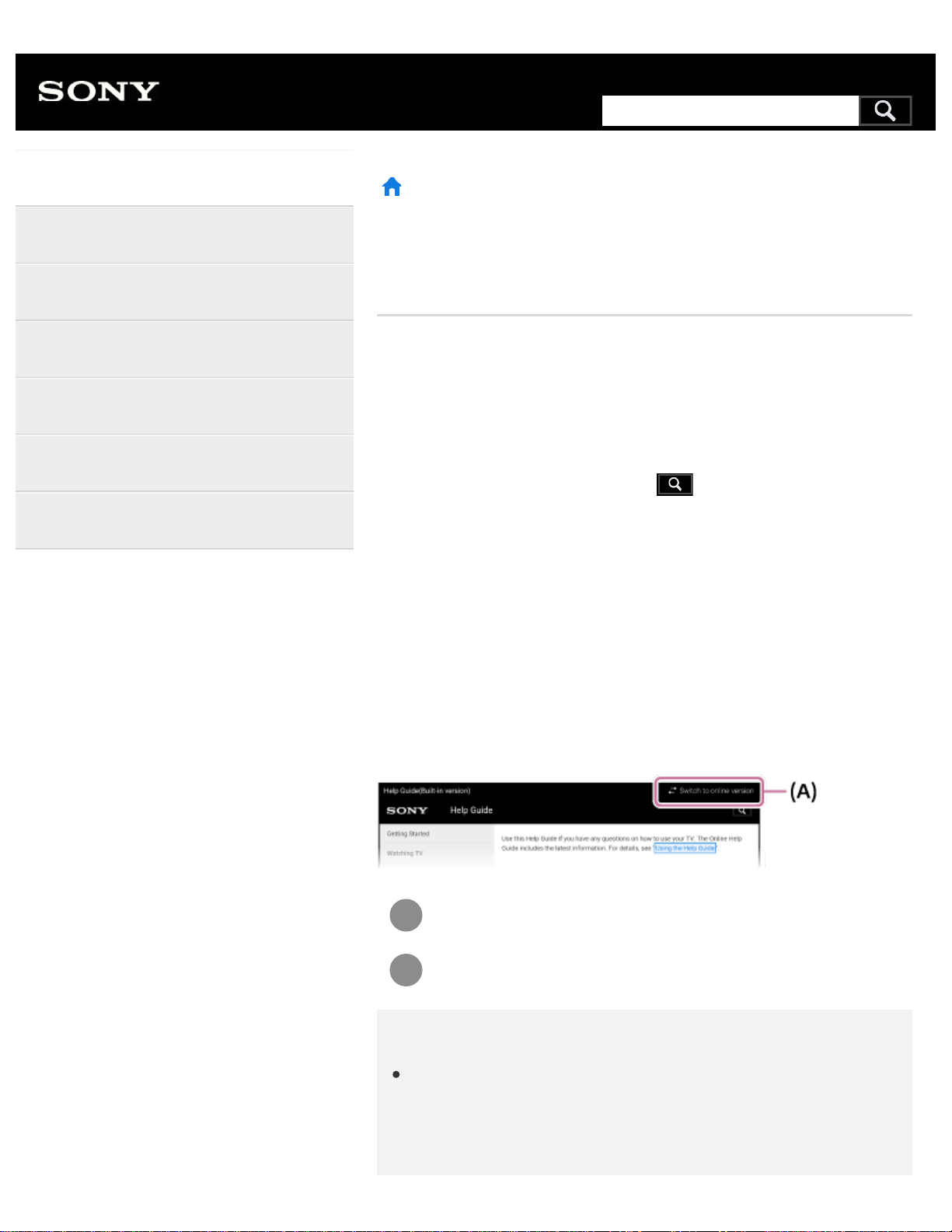
Online versions, use the switch button (A) at the top of the screen. You
can check which Help Guide is currently displayed by looking at the title at
the top of the screen.
Connect the TV to the Internet.
Select (A) to switch the Help Guide version.
Note
To use the latest features described in the Help Guide, you may
need to update the TV's software. For details about software
updates, see the
Software updates
page.
Help Guide
Getting Started
Watching TV
Using the TV with Other Devices
Connecting to a Network
Settings
Troubleshooting
Index
1
Search
The images and illustrations used in the Help Guide may differ
depending on your TV model.
Design and specifications are subject to change without notice.
Hint
To see if your TV is equipped with one of the functions described in
the Help Guide, refer to the paper manual or a Sony product
catalog.
This Help Guide is written for all regions/countries. Some
descriptions contained in this Help Guide do not apply to some
regions and countries.
Related topics
Connecting to a network using a LAN cable
Using Wi-Fi to connect the TV to your network
>
Getting Started
>
Using the Help Guide
Go to page top
C-654-100-12(1)
Copyright 2016 Sony Corporation
2
1
2
>
Getting Started
>
Basic Operations
>
Using the remote control
Print
Using the remote control
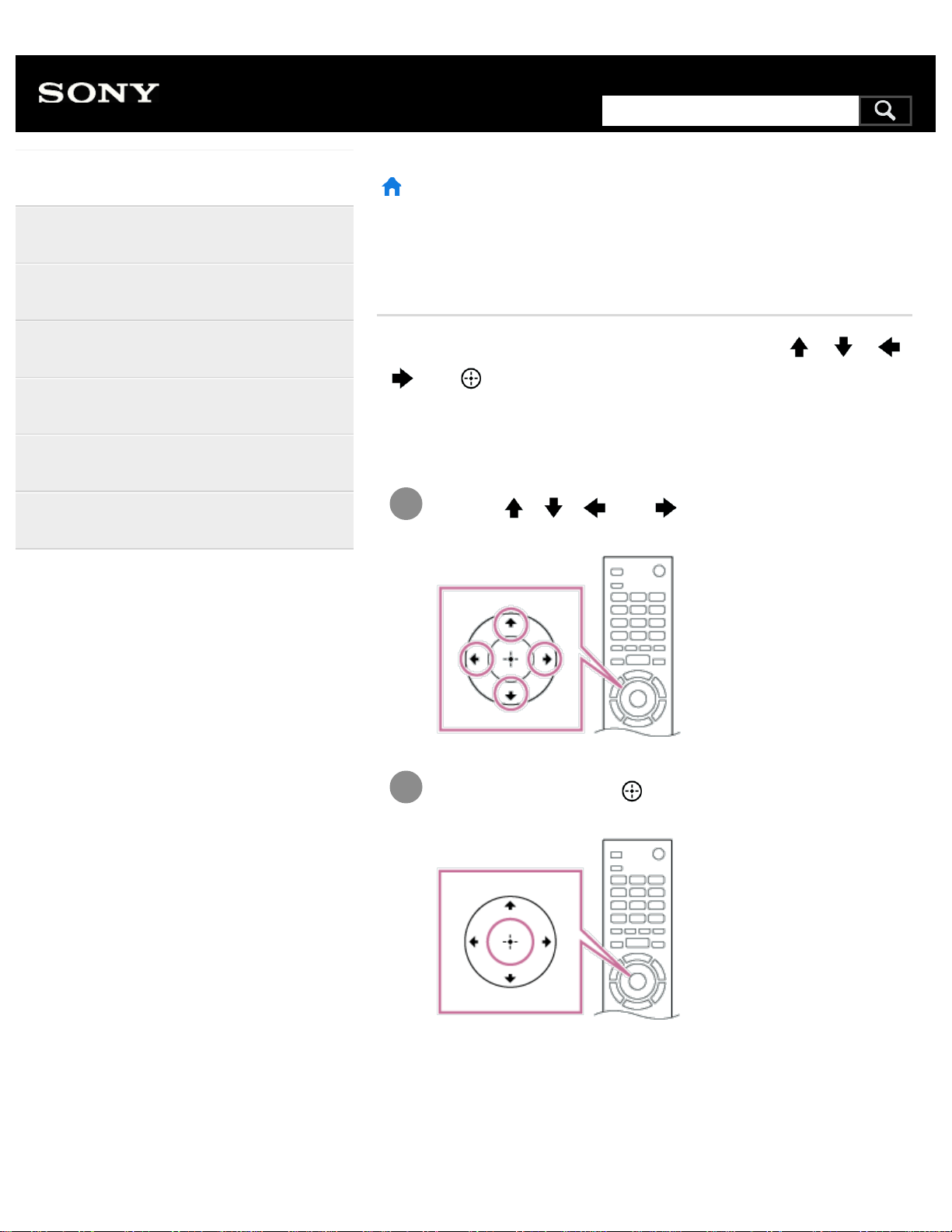
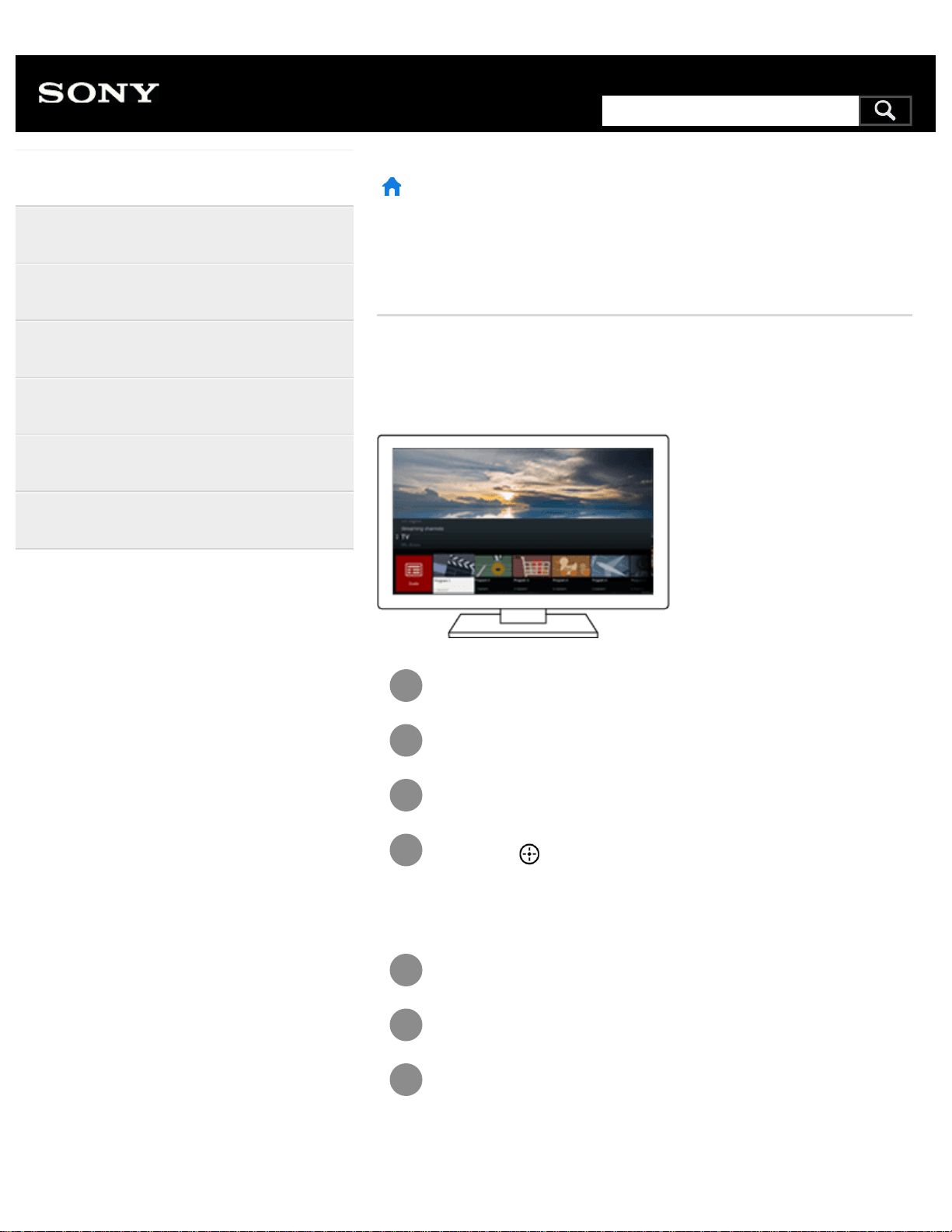
You can operate many of the TV’s features by using the / /
/ and buttons.
For descriptions of the remote control buttons, refer to the Reference
Guide.
Use the
, , and buttons to “focus” on the
desired item.
Press the center of the button to select the item currently
in focus.
To return to the previous screen
Press the BACK button.
Help Guide
Getting Started
Watching TV
Using the TV with Other Devices
Connecting to a Network
Settings
Troubleshooting
Index
3
Search
1
2
Using Voice search (Voice search
supported models only)
For Voice search supported models, the remote control has a built-in
microphone. By speaking into the microphone, you can search for content
on the Internet.
Press the
button.
The LED on the remote control will light up.
Speak into the built-in microphone.
Speech examples may be displayed depending on your model.
When your voice is not being recognized
When your voice is not being recognized, make sure to activate the
button on the remote control with the button, or register the remote
control with the
button to your TV.
To confirm these settings, press the HOME button, then select [Settings]
— [Touchpad Remote Control settings]/[Voice Remote Control].
The setting displayed varies depending on your model.
Note
An Internet connection is required to use Voice search.
The type of remote control supplied with the TV, and the availability
of a remote control with a built-in microphone varies depending on
your model/region/country. An optional remote control is available
in some models/regions/countries.
Related topics
The remote control does not operate.
Connecting to a Network
>
Getting Started
>
Basic Operations
>
Using the remote control
Go to page top
4
1
2
3
4
1
2
3
>
Getting Started
>
Basic Operations
>
Using the DISCOVER button
Print
Using the DISCOVER button
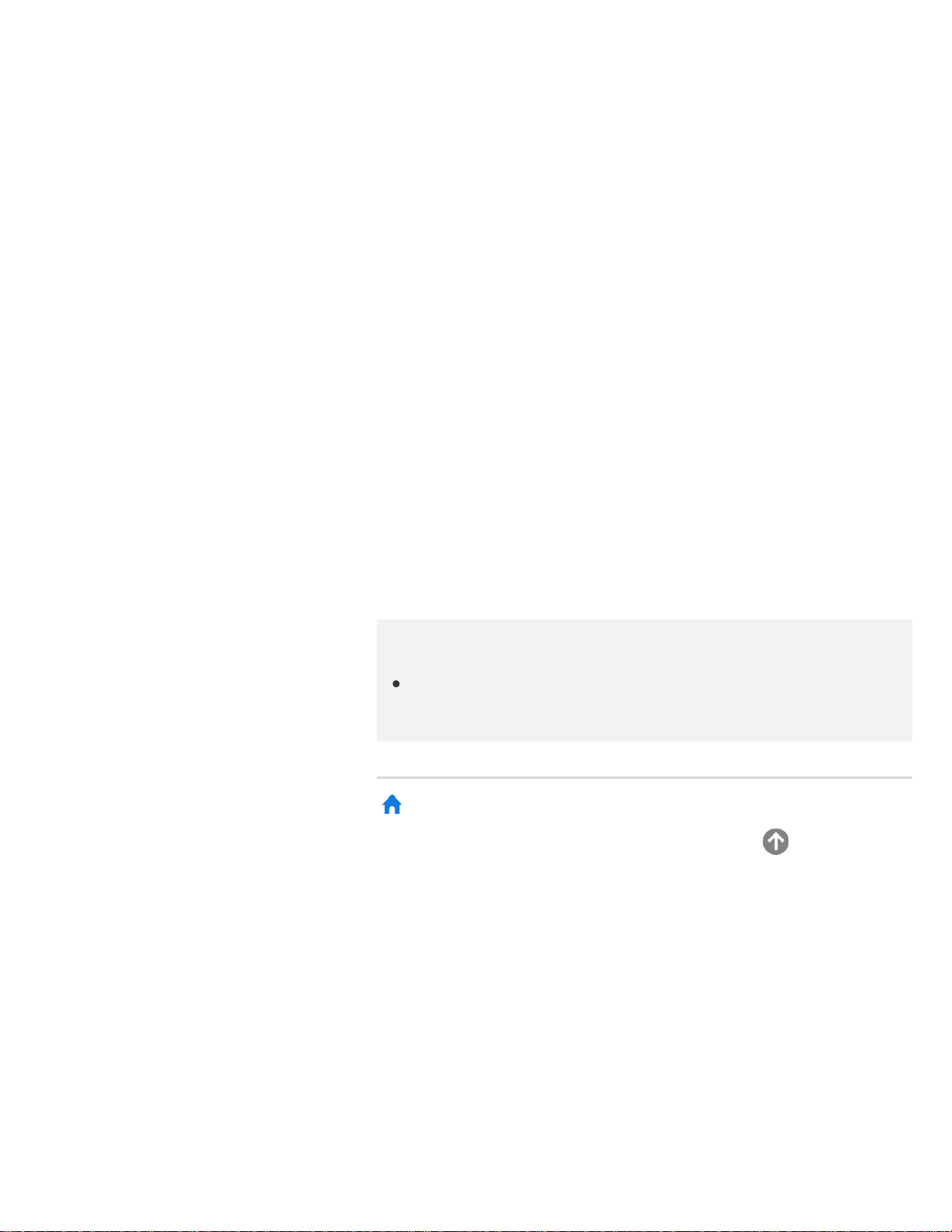
You can use the DISCOVER button to search for content (such as TV
programs and Internet content). The content that displays when pressing
the DISCOVER button varies depending on your model/region/country.
Press the DISCOVER button.
Move the focus up or down to select the desired category.
Move the focus left or right to select the desired item.
Press the
button to launch the selected item.
To change the settings of this function
Press the DISCOVER button.
Move the focus down to the [Settings] category.
Select the desired item to change the settings.
Available options
Help Guide
Getting Started
Watching TV
Using the TV with Other Devices
Connecting to a Network
Settings
Troubleshooting
Index
5
Search
[Show/Hide categories]
Select content categories to be shown in DISCOVER. You cannot hide
[Settings].
You can hide [Top Picks] depending on your TV model.
[Reorder categories]
Select a content category to reorder.
[Add channels to Favorites]
Add your favorite channels to DISCOVER.
[Add genre categories]
Add genres to create your own custom content category.
[Add keyword categories]
Add keywords to create your own custom content category.
[Display size]
Select the display size of the menu.
[Sort TV channels]
Select the type of TV program sorting.
Note
Some options may not be available depending on your
model/region/country.
>
Getting Started
>
Basic Operations
>
Using the DISCOVER button
Go to page top
C-654-100-12(1)
Copyright 2016 Sony Corporation
6
1
2
3
1
>
Getting Started
>
Basic Operations
>
Home menu
Print
Home menu
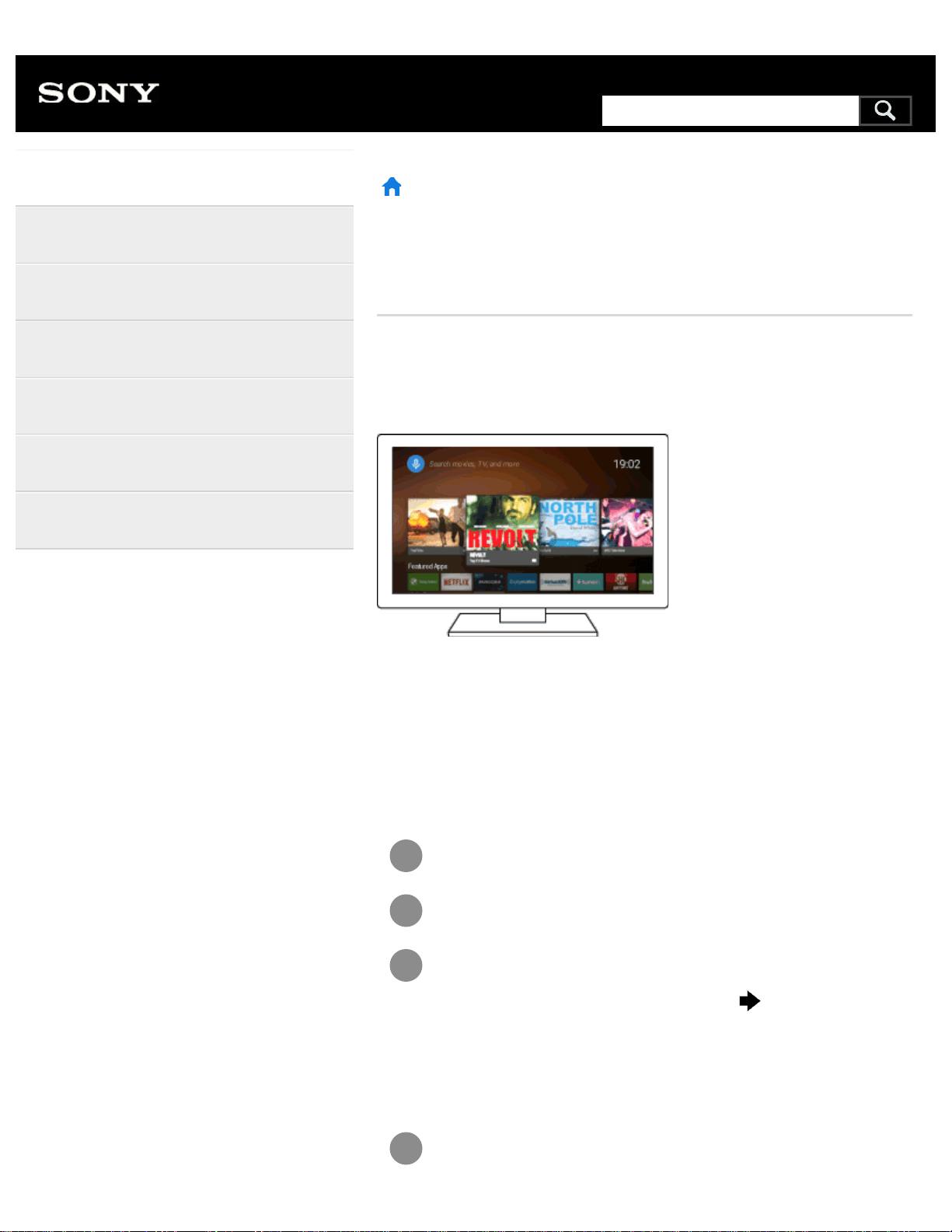
The Home Menu allows you to search for content, provides content
recommendations, and provides access to apps and settings. Available
items vary depending on your region/country and the current screen.
Searching
You can search for various content by entering a search keyword using
the on-screen keyboard or by voice. The availability of the remote control
with a built-in microphone depends on your model/region/country.
Press the HOME button.
Select the microphone icon at the top of the screen.
Enter a search keyword by speaking into the microphone on
the remote control, or by pressing the button and then
using the on-screen keyboard.
Browsing for content, apps, or other items
Press the HOME button.
Help Guide
Getting Started
Watching TV
Using the TV with Other Devices
Connecting to a Network
Settings
Troubleshooting
Index
7
Search
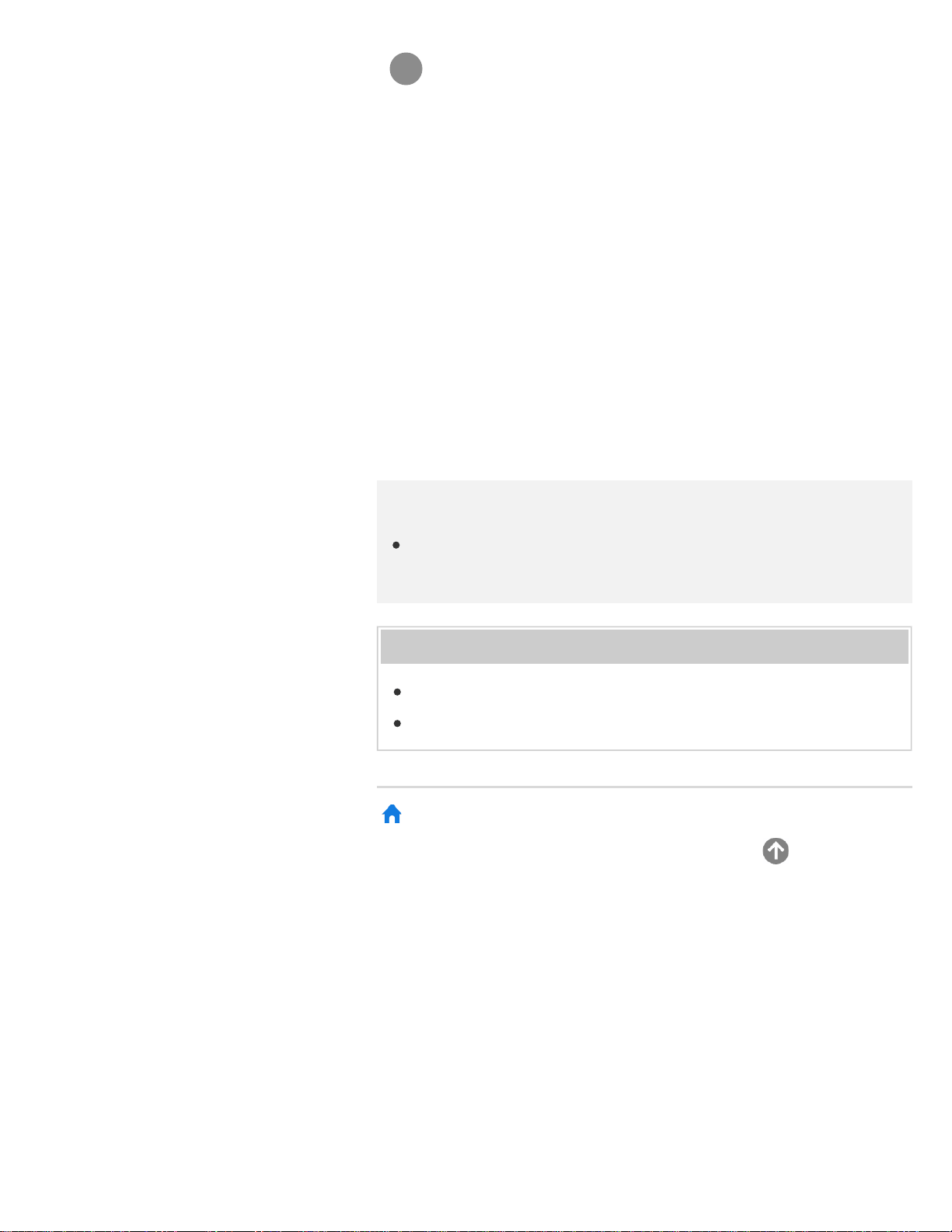
2
Select the desired item from the desired category.
Category list
Recommendations
This category shows content based on your history.
[Featured apps], [Apps] and [Games]
These categories provide access to apps (such as Video, Album, Music,
Photo Sharing Plus, and Screen mirroring) and games.
[Inputs]
You can select the input source from the list of connected devices and
jacks (sockets), such as HDMI.
[Settings]
This category includes [Settings], [Network Settings], [Timers], and [Help].
Hint
By connecting the TV to the Internet, you can access various
network services and features.
Related topics
Connecting to a network using a LAN cable
Using Wi-Fi to connect the TV to your network
>
Getting Started
>
Basic Operations
>
Home menu
Go to page top
C-654-100-12(1)
Copyright 2016 Sony Corporation
8
1
2
3
4
>
Getting Started
>
Basic Operations
>
Using the Action Menu
Print
Using the Action Menu
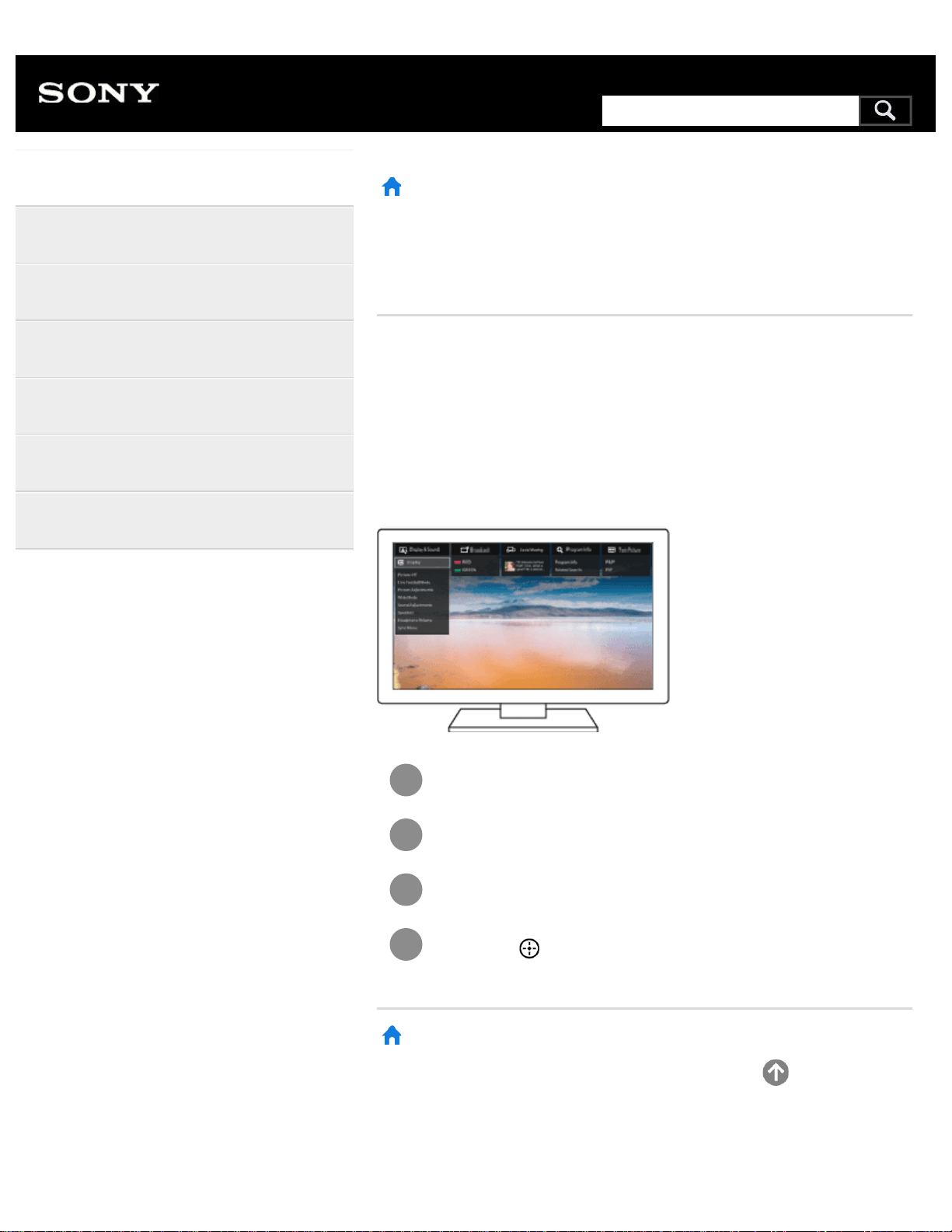
By pressing the ACTION MENU button, a menu appears and provides
quick access to the functions that are available for the currently displayed
screen, such as picture adjustments, sound adjustments, volume
adjustment for a connected device (such as headphones), and
display/audio settings. The items in the menu differ depending on the
selected screen.
Press the ACTION MENU button.
Move the focus left or right to select the desired category.
Move the focus up or down to select the desired item.
Press the
button to launch the selected item.
>
Getting Started
>
Basic Operations
>
Using the Action Menu
Go to page top
Help Guide
Getting Started
Watching TV
Using the TV with Other Devices
Connecting to a Network
Settings
Troubleshooting
Index
C-654-100-12(1)
9
Search
>
Getting Started
>
Introducing Android TV
Print
Introducing Android TV
Displaying the picture in a small screen
Downloading apps from the Google Play
Moving apps to a USB memory device
Viewing Internet media
Enjoying content from your mobile device on
the TV with Google Cast
Enjoying safe apps and video streaming
services (Security & restrictions)
Searching by using your voice
>
Getting Started
>
Introducing Android TV
Go to page top
Help Guide
Getting Started
Watching TV
Using the TV with Other Devices
Connecting to a Network
Settings
Troubleshooting
Index
C-654-100-12(1)
Copyright 2016 Sony Corporation
10
Search
>
Troubleshooting
Print
Troubleshooting
Start here
Experiencing trouble? Start here.
Picture (quality)/screen
Keyboard
Broadcast reception
Sound
Network (Internet/home)/apps
Remote control/accessories
Power
Connected devices
Illumination LED
>
Troubleshooting
Go to page top
Help Guide
Getting Started
Watching TV
Using the TV with Other Devices
Connecting to a Network
Settings
Troubleshooting
Index
11
Search
>
Getting Started
Print
Getting Started
Using the Help Guide
Keeping the TV updated
Introducing Android TV
Basic Operations
Support Site
>
Getting Started
Go to page top
Help Guide
Getting Started
Watching TV
Using the TV with Other Devices
Connecting to a Network
Settings
Troubleshooting
Index
C-654-100-12(1)
Copyright 2016 Sony Corporation
12
Search
>
Watching TV
Print
Watching TV
Watching TV programs
Watching in 3D (3D models only)
Watching TV with two screens
>
Watching TV
Go to page top
Help Guide
Getting Started
Watching TV
Using the TV with Other Devices
Connecting to a Network
Settings
Troubleshooting
Index
C-654-100-12(1)
Copyright 2016 Sony Corporation
13
Search
>
Using the TV with Other Devices
Print
Using the TV with Other Devices
USB devices
Blu-ray and DVD players
Smartphones and tablets
Computers, cameras, and camcorders
Audio system
Bluetooth devices
Sony wireless subwoofer (optional) (Sony
wireless subwoofer supported models only)
BRAVIA Sync-compatible devices
Connecting an IR Blaster (IR Blaster
compatible models only)
Viewing pictures in 4K from compatible
devices (4K models only)
>
Using the TV with Other Devices
Help Guide
Getting Started
Watching TV
Using the TV with Other Devices
Connecting to a Network
Settings
Troubleshooting
Index
14
Search
>
Connecting to a Network
Print
Connecting to a Network
Connecting to a network using a LAN cable
Connecting to a network using a wireless
connection
Home network features
>
Connecting to a Network
Go to page top
Help Guide
Getting Started
Watching TV
Using the TV with Other Devices
Connecting to a Network
Settings
Troubleshooting
Index
C-654-100-12(1)
Copyright 2016 Sony Corporation
15
Search


>
Index
Print
Index
TV programs
DISCOVER
GUIDE
Interactive broadcasts
Channels
Parental lock
Picture/display
Twin Picture
Picture-in-picture
3D
4K pictures
HOME
Picture & Display
Date & time
Language
Sound/voice
Voice search, using
Sound
Speech recognition
Remote control
Remote control, using
Voice search
HOME
DISCOVER
ACTION MENU
Inputs
SYNC MENU
Connections
Google Cast
MHL
Wi Fi Direct
Bluetooth
Help Guide
Getting Started
Watching TV
Using the TV with Other Devices
Connecting to a Network
Settings
Troubleshooting
Index
17
Search
Miracast
Screen mirroring
BRAVIA Sync
Internet
External devices
Blu-ray/DVD players, connecting
USB memory devices, etc.
Smartphones/tablets
Computers
Digital cameras, camcorders
Audio systems
Wireless subwoofer
Apps
Moving to USB memory devices
Google Play Store
YouTube
Netflix
A list of recently used apps
File playback
Computers
Digital cameras, camcorders
Supported files and formats
Other
Restart System software update
>
Index
Go to page top
C-654-100-12(1)
Copyright 2016 Sony Corporation
18
Television
Getting Started [1]
Using the Help Guide [2]
Keeping the TV updated [3]
Introducing Android TV [4]
Displaying the picture in a small screen [5]
Downloading apps from the Google Play [6]
Moving apps to a USB memory device [7]
Viewing Internet media [8]
Enjoying content from your mobile device on the TV with Google Cast [9]
Enjoying safe apps and video streaming services (Security & restrictions) [10]
Searching by using your voice [11]
Basic Operations [12]
Using the remote control [13]
Home menu [14]
Using the DISCOVER button [15]
Using the Action Menu [16]
Selecting devices that are connected to the TV [17]
Identifying the status of the TV through illumination [18]
Illumination LED [19]
Illumination at the bottom of the screen [20]
Support Site [21]
Watching TV [22]
Watching TV programs [23]
Using the program guide [24]
Using interactive broadcast TV services [25]
Watching in 3D (3D models only) [26]
Understanding the basics of 3D TV (3D models only) [27]
Preparing your 3D glasses (3D models only) [28]
Watching TV in 3D (3D models only) [29]
Watching TV with two screens [30]
19

Using the TV with Other Devices [31]
USB devices [32]
Playing content stored on a USB device [33]
Information about USB devices used for storing photos and music [34]
Supported files and formats [35]
Photos [36]
Music [37]
Videos [38]
Audio sampling rates (for videos) [39]
External subtitles [40]
Blu-ray and DVD players [41]
Connecting a Blu-ray or DVD player [42]
Watching Blu-ray and DVD discs [43]
Smartphones and tablets [44]
Displaying the screen of a smartphone/tablet on the TV using an MHL cable (MHL
supported models only) [45]
Displaying the screen of a smartphone/tablet on the TV using the Screen mirroring
function [46]
Sharing photos/music/videos [47]
Computers, cameras, and camcorders [48]
Connecting a computer and viewing stored content [49]
Connecting a camera or camcorder and viewing stored content [50]
Computer video signal specifications [51]
Audio system [52]
Connecting an audio system [53]
Adjusting audio system-related settings [54]
Bluetooth devices [55]
Connecting a Bluetooth device [56]
Supported Bluetooth profiles [57]
Sony wireless subwoofer (optional) (Sony wireless subwoofer supported
models only) [58]
Connecting a wireless subwoofer (optional) [59]
Adjusting wireless subwoofer-related settings (optional) [60]
BRAVIA Sync-compatible devices [61]
BRAVIA Sync overview [62]
20

Using features available for BRAVIA Sync-compatible devices [63]
Adjusting BRAVIA Sync settings [64]
Connecting an IR Blaster (IR Blaster compatible models only) [65]
Viewing pictures in 4K from compatible devices (4K models only) [66]
Viewing pictures in 4K resolution (4K models only) [67]
Settings for viewing pictures in 4K resolution with higher quality (4K models only)
[68]
Connecting to a Network [69]
Connecting to a network using a LAN cable [70]
Connecting to a network using a wireless connection [71]
Using Wi-Fi to connect the TV to your network [72]
Using Wi-Fi Direct to connect to the TV (no wireless router required) [73]
Home network features [74]
Adjusting home network settings [75]
Playing content from a computer [76]
Playing content from a media server [77]
RVU statement (RVU compliant models only) [78]
Settings [79]
Configuring the TV [80]
[TV] [81]
[Network & Accessories] [82]
[System Preferences] [83]
[Personal] [84]
[Accounts] [85]
Setting a timer [86]
Troubleshooting [87]
Start here [88]
Self diagnostics [89]
Software updates [90]
If a full reset (restart) of the TV is required [91]
Picture (quality)/screen [92]
Picture quality is not as good as viewed at the store. [93]
Distorted picture. [94]
21

The screen flickers. [95]
No color/Dark picture/Color is not correct/Picture is too bright. [96]
Dark screen. How to brighten the screen. [97]
Color is not correct. How to adjust the color tone. [98]
Screen format/wide mode changes automatically. [99]
The screen suddenly changes to a video you do not recognize while watching TV.
[100]
Suddenly the picture becomes small. [101]
Black bands appear at the edges of the screen. [102]
A black box appears on the screen. [103]
There are banners/tickers at the top or bottom of the screen. [104]
3D pictures are not displayed. The 3D effect is weak. (3D models only) [105]
Black bars appear on both sides of the screen when watching 3D pictures. (3D
models only) [106]
You cannot turn off 3D display while watching 3D content. (3D models only) [107]
The message [3D signal has been detected.] automatically appears when 3D signal
is detected. (3D models only) [108]
A message about an app asking for permission to access a TV function is displayed.
[109]
Keyboard [110]
Broadcast reception [111]
Check these things first to troubleshoot your TV reception. [112]
Block noise or an error message appears and you cannot watch broadcasts. [113]
Ghosting or double images appear. [114]
Only snow noise or a black picture appears on the screen. [115]
There is picture or sound noise when viewing an analog TV channel. [116]
Some channels are blank. [117]
Poor reception or poor picture quality with digital broadcasts. [118]
You cannot view digital channels. [119]
You cannot receive or select channels. [120]
Some digital cable channels are not displayed. [121]
Broadcast HD formats have poor quality. [122]
Sound [123]
No sound but good picture. [124]
Audio noise. [125]
No audio or low audio with a home theater system. [126]
22

Distorted sound. [127]
Headphone volume cannot be adjusted. [128]
You want to output sound from both the headphones and the TV speakers. [129]
Network (Internet/home)/apps [130]
The network name (SSID) of the wireless router (access point) to which you want to
connect is not displayed. [131]
Sometimes video streaming quality is poor. [132]
Wi-Fi connection is lost or intermittent. [133]
Certain Internet video content displays a loss of detail. [134]
Good picture quality but no sound on Internet video content. [135]
Apps are inaccessible. [136]
The TV cannot access the Internet when IPv6 is set. [137]
Your TV cannot connect to the server. [138]
A message appears stating that the TV cannot connect to your network. [139]
You can connect to the Internet, but not to Google services. [140]
Remote control/accessories [141]
The remote control does not operate. [142]
You cannot turn the Active 3D Glasses on. (3D models only) [143]
The LED indicator on the Active 3D Glasses blinks. (3D models only) [144]
Power [145]
The TV turns off automatically. [146]
The TV turns on automatically. [147]
After unplugging the TV and plugging it in again, the TV does not turn on even if you
press the power button on the remote control or the TV. [148]
Connected devices [149]
No picture from a connected device. [150]
You cannot select a connected device in the Home Menu. [151]
Certain programs on digital sources display a loss of detail. [152]
Photo images or folders take time to display. [153]
You cannot find a connected BRAVIA Sync HDMI device. [154]
You cannot control a second AV receiver. [155]
The TV does not output picture and/or sound from the MHL device. (MHL supported
models only) [156]
An external device (such as a set-top box or AV receiver) cannot be controlled via
the IR Blaster. (IR Blaster compatible models only) [157]
23
Some media files in the USB device or server are not displayed. [158]
The TV cannot be found by a Wi-Fi Direct device. [159]
Operation cuts out, or a device does not work. [160]
What kind of devices can be connected using the Screen mirroring function? [161]
The TV cannot connect to a Miracast device or Screen mirroring compatible device.
[162]
Video or sound sometimes cuts out. [163]
Some paid content cannot be played. [164]
Illumination LED [165]
The illumination LED or bottom of the screen sometimes lights up. [166]
You want to disable the illumination LED so that it does not light up or blink. [167]
Index [168]
[1]
Getting Started
Using the Help Guide
Keeping the TV updated
Introducing Android TV
Basic Operations
Support Site
[2] Getting Started
Using the Help Guide
This Help Guide explains how to use this TV. Additionally, you can also refer to the Setup Guide for
descriptions about TV installation, and the Reference Guide for parts descriptions and specifications of
this TV.
In this Help Guide, you can read the desired information in order or search for it directly. To search,
select
at the top of the screen.
24
1
2
Help Guide versions
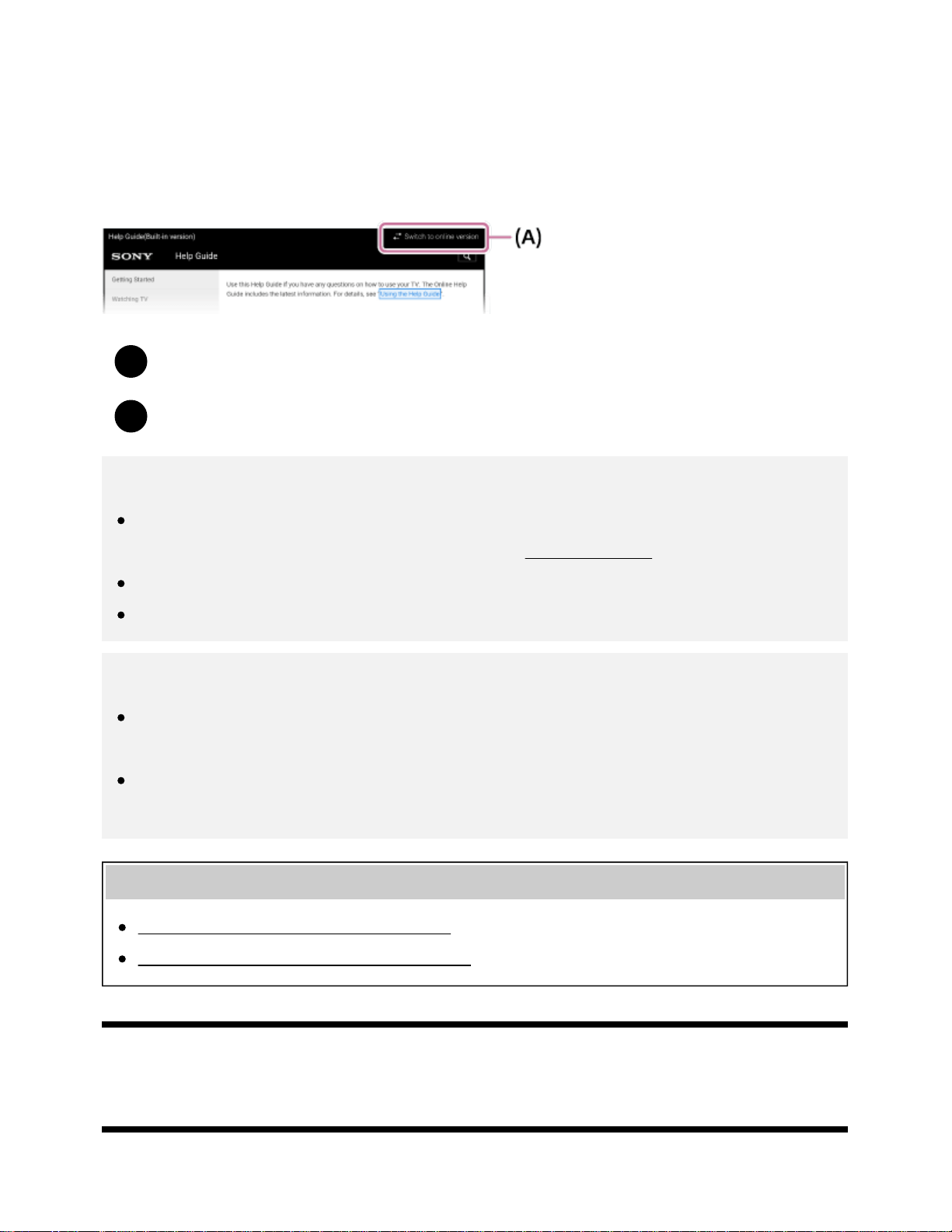
There are two versions of the Help Guide for your TV: the Built-in Help Guide and the Online Help
Guide. To view the Online Help Guide, your TV must be connected to the Internet. To switch between
the Built-in and Online versions, use the switch button (A) at the top of the screen. You can check
which Help Guide is currently displayed by looking at the title at the top of the screen.
Connect the TV to the Internet.
Select (A) to switch the Help Guide version.
Note
To use the latest features described in the Help Guide, you may need to update the TV's
software. For details about software updates, see the Software updates
page.
The images and illustrations used in the Help Guide may differ depending on your TV model.
Design and specifications are subject to change without notice.
Hint
To see if your TV is equipped with one of the functions described in the Help Guide, refer to the
paper manual or a Sony product catalog.
This Help Guide is written for all regions/countries. Some descriptions contained in this Help
Guide do not apply to some regions and countries.
Related topics
Connecting to a network using a LAN cable
Using Wi-Fi to connect the TV to your network
[3] Getting Started
Keeping the TV updated
The functions below are performed when the TV is in standby mode. To keep your TV updated, we
25
recommend that you turn off the TV normally by using the power button on the remote control or TV.
Download of data such as program guides
Software download (when [Automatic software download] is enabled)
[4] Getting Started
Introducing Android TV
Displaying the picture in a small screen
Downloading apps from the Google Play
Moving apps to a USB memory device
Viewing Internet media
Enjoying content from your mobile device on the TV with Google Cast
Enjoying safe apps and video streaming services (Security & restrictions)
Searching by using your voice
[5] Getting Started | Introducing Android TV
Displaying the picture in a small screen
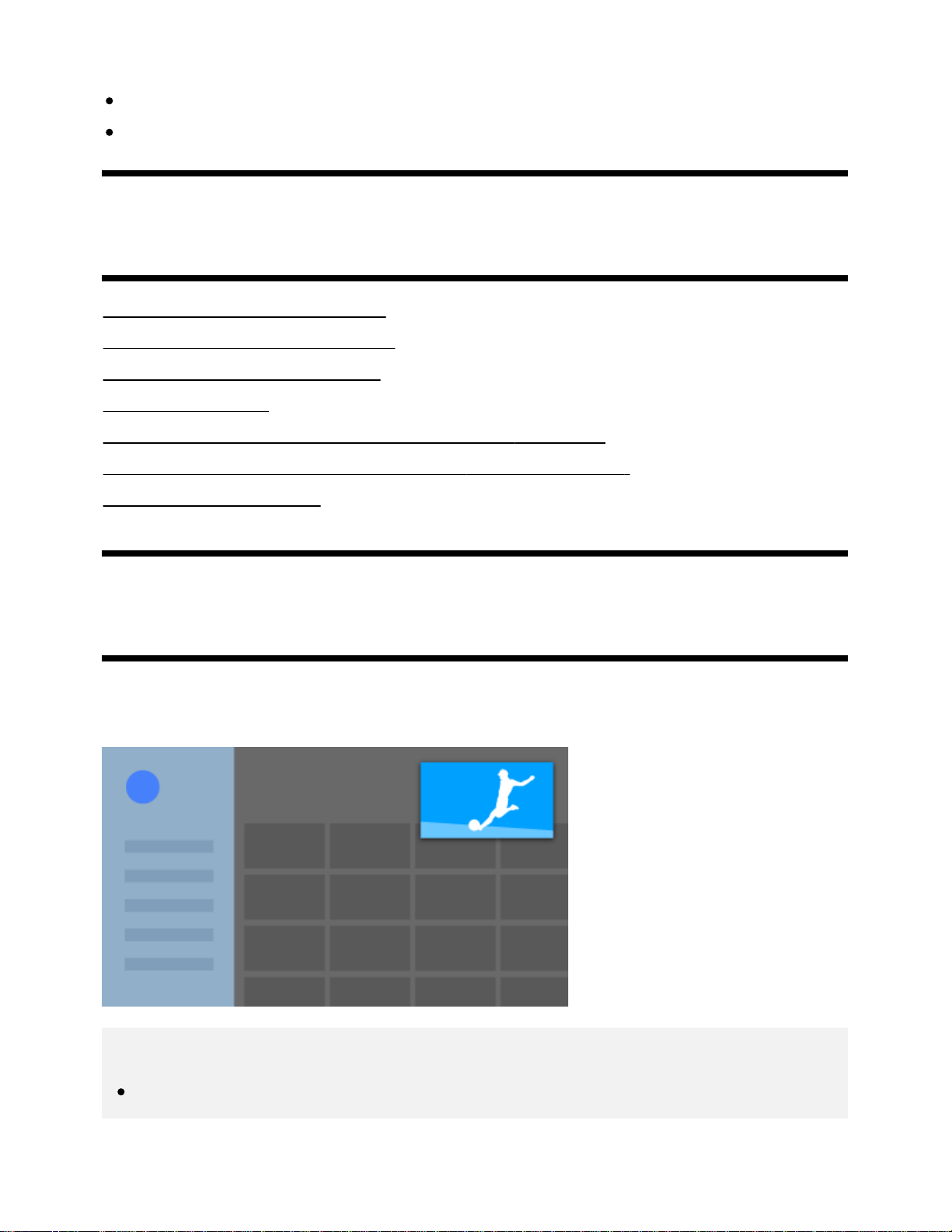
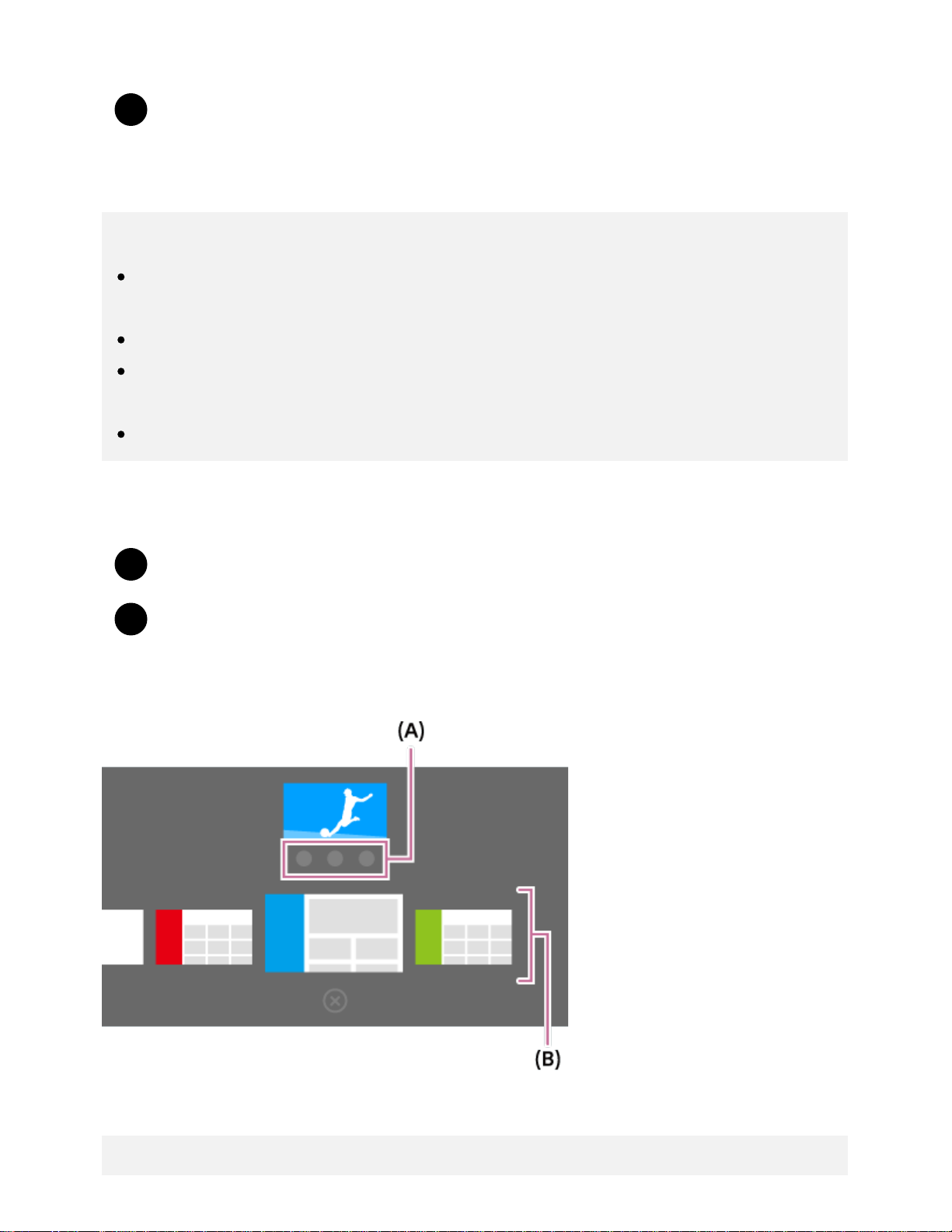
You can display the picture that you are watching (TV programs or content from HDMI-connected
devices) as a small screen in the corner.
Note
You cannot use [Picture-in-picture] on TVs with the letter “C” at the end of the model name.
26
1
1
2
Displaying the picture as a small screen
Press the ACTION MENU button while watching a TV program or content from an HDMI
device, and then select [Picture-in-picture].
The current picture is displayed as a small screen in the corner.
Note
The small screen is displayed on top of the last app used. However, the app that is displayed
may vary depending on certain conditions.
Operations such as changing the channel is disabled while watching with a small screen.
TV program, external input such as an HDMI device, apps that play back movies, or some apps
that play back pictures or music cannot be displayed at the same time.
The position of the small screen is automatically adjusted. You cannot set it manually.
Closing the small screen or returning it to full screen
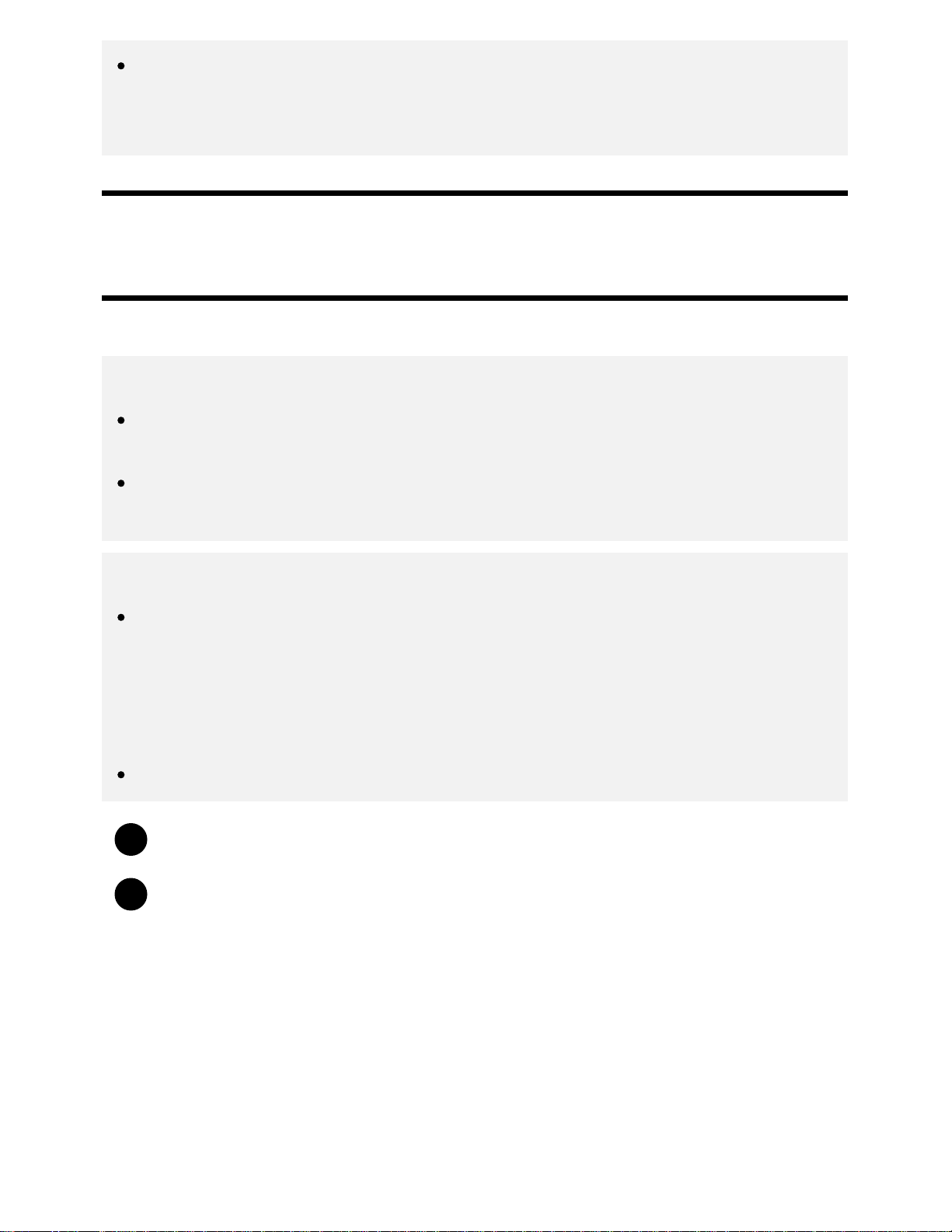
Press and hold the HOME button to display a list of recently used apps.
Close the small screen by selecting the desired button under the small screen, or return it
to full screen (A).
The image below is a visual representation and may vary from the actual screen.
A list of recently used apps (B) is displayed under the small screen.
Note
27
1
2
If you switch to an app that plays back movies, pictures, or music from the list of recently used
apps, the small screen closes (the TV program or playback from the HDMI device closes). To
return to the TV program or HDMI device, press the TV button or switch the input.
[6] Getting Started | Introducing Android TV
Downloading apps from the Google Play
You can download apps from the Google Play to the TV, just like you do with smartphones and tablets.
Note
You can only download apps that are compatible with TVs. They may differ from apps for
smartphones/tablets.
An Internet connection and Google account are required to download apps from the Google
Play.
Hint
If you do not have a Google account or want to create a shared account, create a new account
by accessing the following website.
https://accounts.google.com/signup
The website above may vary depending on your region/country. It is also subject to change
without notice. For details, refer to the Google homepage.
We recommend that you create a Google account on a computer or mobile device.
Press the HOME button, then select [Google Play Store] under [Apps].
To install an app, select an app you want to download. The app will start downloading.
After downloading, the app is automatically installed and added. Its icon appears in the Home Menu,
allowing you to launch it.
About paid apps
There are free apps and paid apps in the Google Play. To purchase a paid app, a prepaid Google Play
gift card code or credit card information is required. You can purchase a Google Play gift card from
various retailers.
28
1
2
1
2
3
4
5
6
To delete an app
Press the HOME button, select [Google Play Store] under [Apps], and then select [My
Apps].
Select an app to be deleted, and then uninstall the app.
Related topics
Connecting to a network using a LAN cable
Using Wi-Fi to connect the TV to your network
Moving apps to a USB memory device
[7] Getting Started | Introducing Android TV
Moving apps to a USB memory device
You can move downloaded apps to a USB memory device to increase the space available in the TV.
Note
When you format a USB memory device, all data saved in the USB memory device will be
deleted. Back up your important data before formatting.
Performing this procedure formats the USB memory device for exclusive use with the TV.
Therefore, you may be unable to use the USB memory device with a computer, etc.
Some apps cannot be moved to a USB memory device.
Connect a USB memory device to the TV.
Press the HOME button, select [Settings] — [Storage & reset] — the desired USB memory
device.
Format it as an internal storage device.
When formatting is finished, press the HOME button, then select [Settings] — [Apps].
Select the app that you want to move to the USB memory device.
Select the USB memory device from the used storage. The app is moved to the USB
29
1
memory device.
Hint
Repeat steps 4 to 6 to move additional apps to the USB memory device.
To remove a USB memory device
Press the HOME button, select [Settings] — [Storage & reset] — the desired USB memory
device, and then select the option to remove it.
Note
The USB memory device is used only for saving apps. To use the USB memory device for other
purposes, you must format it again.
If you delete an app in the USB memory device using a computer, you will be unable to launch it
from the TV.
If you remove a USB memory device from the TV, you will be unable to use the apps that were
moved to the USB memory device.
You cannot specify a USB memory device as the installation location of an app. First install the
app on the TV as normal, and then move it to the USB memory device.
[8] Getting Started | Introducing Android TV
Viewing Internet media
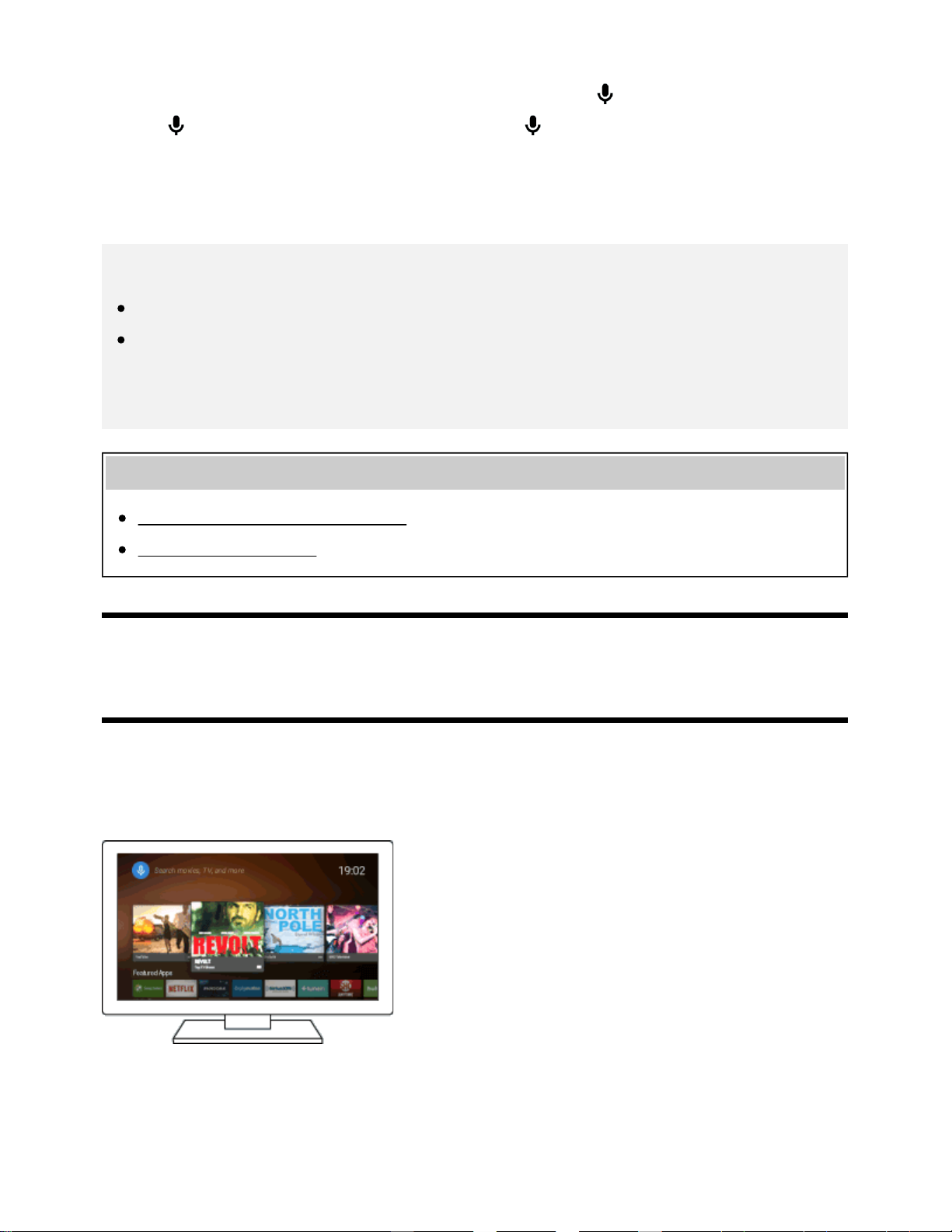
You can use video streaming services such as YouTube and Netflix to watch Internet content. The
available services vary depending on your country and region. You can launch these services by
selecting their tiles in the Home Menu.
Note
An Internet connection is required to watch Internet content.
Related topics
Enjoying safe apps and video streaming services (Security & restrictions)
Connecting to a network using a LAN cable
30
1
2
3
1
Using Wi-Fi to connect the TV to your network
[9] Getting Started | Introducing Android TV
Enjoying content from your mobile device on the
TV with Google Cast
Google Cast allows you to wirelessly cast content from your favorite websites and apps to your TV,
directly from your computer or mobile device.
Connect a mobile device such as a smartphone or tablet to the same home network that
the TV is connected to.
Launch a Google Cast supported app on the mobile device.
Select the
(cast) icon in the app.
The screen of the mobile device is displayed on the TV.
Note
An Internet connection is required to use Google Cast.
Related topics
Connecting to a network using a LAN cable
Using Wi-Fi to connect the TV to your network
[10] Getting Started | Introducing Android TV
Enjoying safe apps and video streaming services
(Security & restrictions)
You can ensure safe use of the TV by setting installation restrictions on apps that are downloaded from
unknown sources, or age restrictions on programs and videos.
Press the HOME button, then select [Settings] — then options such as [Security &
restrictions] or [Parental lock (Broadcast)] .
*
31
Displayed as [Parental lock] depending on your model.
Note
If you change the [Security & restrictions] settings, your device and personal data are more
vulnerable to attack by unknown apps from sources other than Play Store. You agree that you
are solely responsible for any damage to your device or loss of data that may result from using
these apps.
Hint
Other separate restrictions may be available depending on the app. For details, refer to the app's
help guide.
[11] Getting Started | Introducing Android TV
Searching by using your voice
The TV includes a Voice search feature that enables you to search the Internet for content you’re
looking for with your voice. Voice search allows you to quickly input search queries without the use of
the on-screen keyboard.
To search, simply press the
button and speak into the microphone built into your remote control.
For details, please refer to Using the remote control
.
[12] Getting Started
Basic Operations
Using the remote control
Home menu
Using the DISCOVER button
Using the Action Menu
Selecting devices that are connected to the TV
Identifying the status of the TV through illumination
*
32
1
2
1
2
[13] Getting Started | Basic Operations
Using the remote control
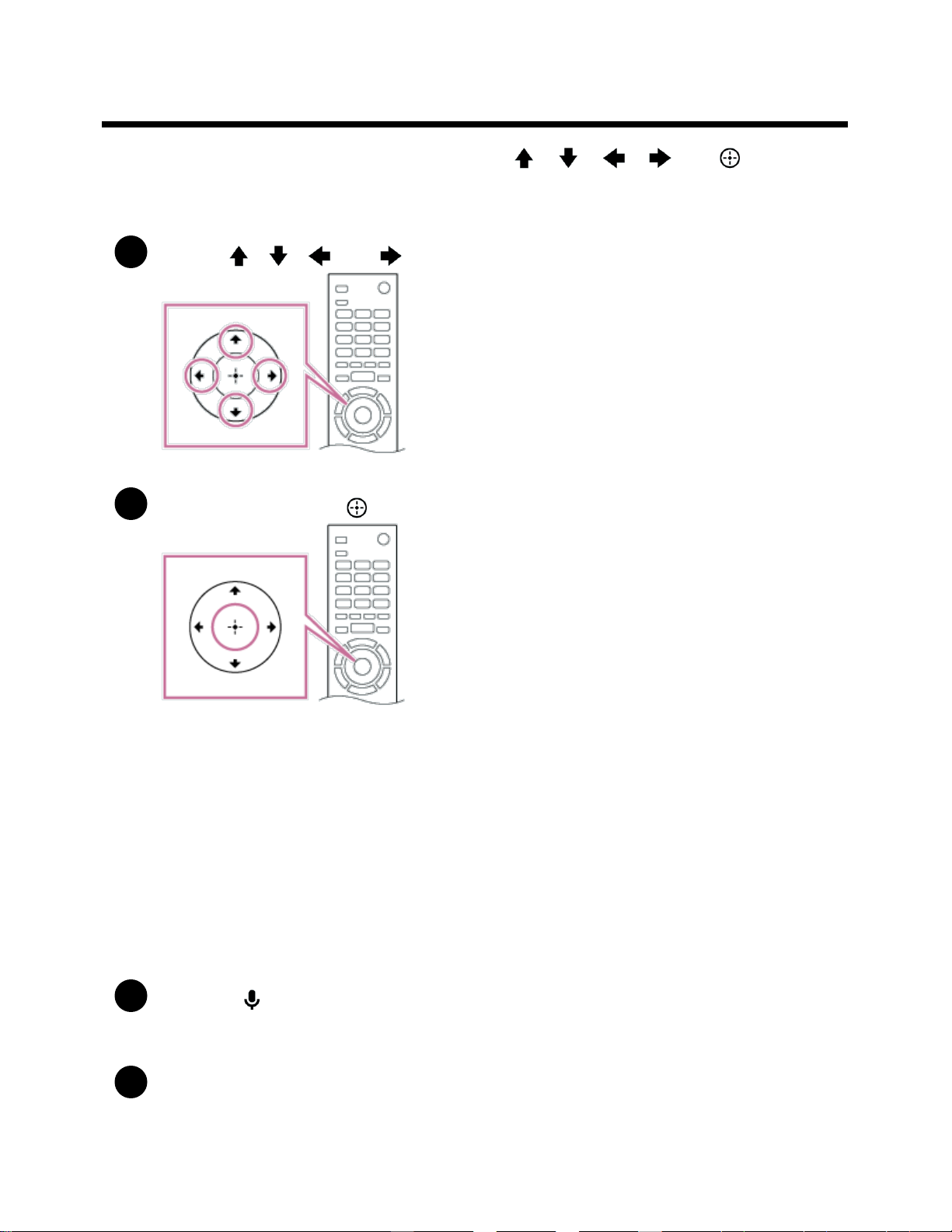
You can operate many of the TV’s features by using the / / / and buttons.
For descriptions of the remote control buttons, refer to the Reference Guide.
Use the , , and buttons to “focus” on the desired item.
Press the center of the button to select the item currently in focus.
To return to the previous screen
Press the BACK button.
Using Voice search (Voice search supported models only)
For Voice search supported models, the remote control has a built-in microphone. By speaking into the
microphone, you can search for content on the Internet.
Press the
button.
The LED on the remote control will light up.
Speak into the built-in microphone.
Speech examples may be displayed depending on your model.
33
When your voice is not being recognized
When your voice is not being recognized, make sure to activate the button on the remote control
with the
button, or register the remote control with the button to your TV.
To confirm these settings, press the HOME button, then select [Settings] — [Touchpad Remote Control
settings]/[Voice Remote Control].
The setting displayed varies depending on your model.
Note
An Internet connection is required to use Voice search.
The type of remote control supplied with the TV, and the availability of a remote control with a
built-in microphone varies depending on your model/region/country. An optional remote control is
available in some models/regions/countries.
Related topics
The remote control does not operate.
Connecting to a Network
[14] Getting Started | Basic Operations
Home menu
The Home Menu allows you to search for content, provides content recommendations, and provides
access to apps and settings. Available items vary depending on your region/country and the current
screen.
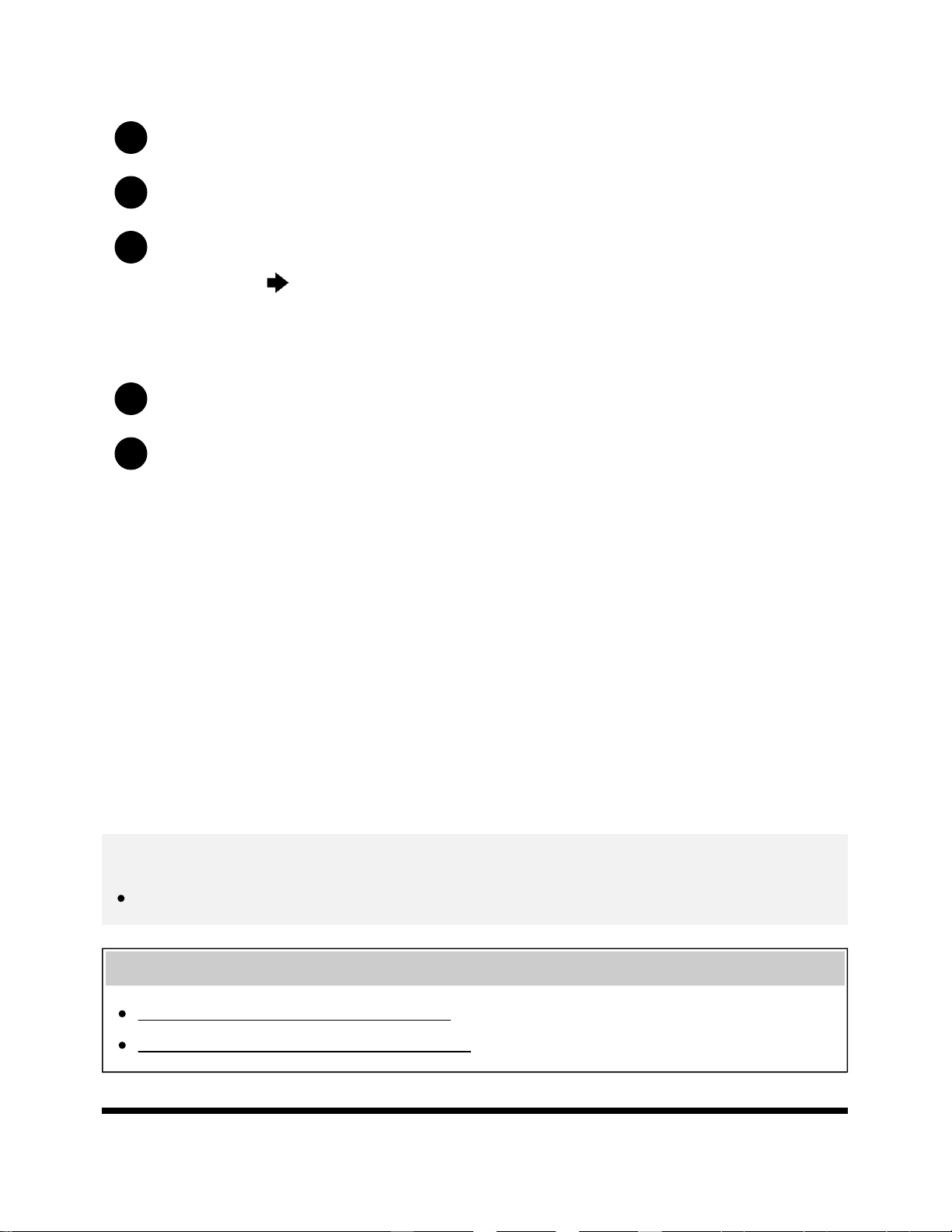
Searching
You can search for various content by entering a search keyword using the on-screen keyboard or by
34
1
2
3
1
2
voice. The availability of the remote control with a built-in microphone depends on your
model/region/country.
Press the HOME button.
Select the microphone icon at the top of the screen.
Enter a search keyword by speaking into the microphone on the remote control, or by
pressing the
button and then using the on-screen keyboard.
Browsing for content, apps, or other items
Press the HOME button.
Select the desired item from the desired category.
Category list
Recommendations
This category shows content based on your history.
[Featured apps], [Apps] and [Games]
These categories provide access to apps (such as Video, Album, Music, Photo Sharing Plus, and
Screen mirroring) and games.
[Inputs]
You can select the input source from the list of connected devices and jacks (sockets), such as HDMI.
[Settings]
This category includes [Settings], [Network Settings], [Timers], and [Help].
Hint
By connecting the TV to the Internet, you can access various network services and features.
Related topics
Connecting to a network using a LAN cable
Using Wi-Fi to connect the TV to your network
[15] Getting Started | Basic Operations
35
1
2
3
4
1
2
3
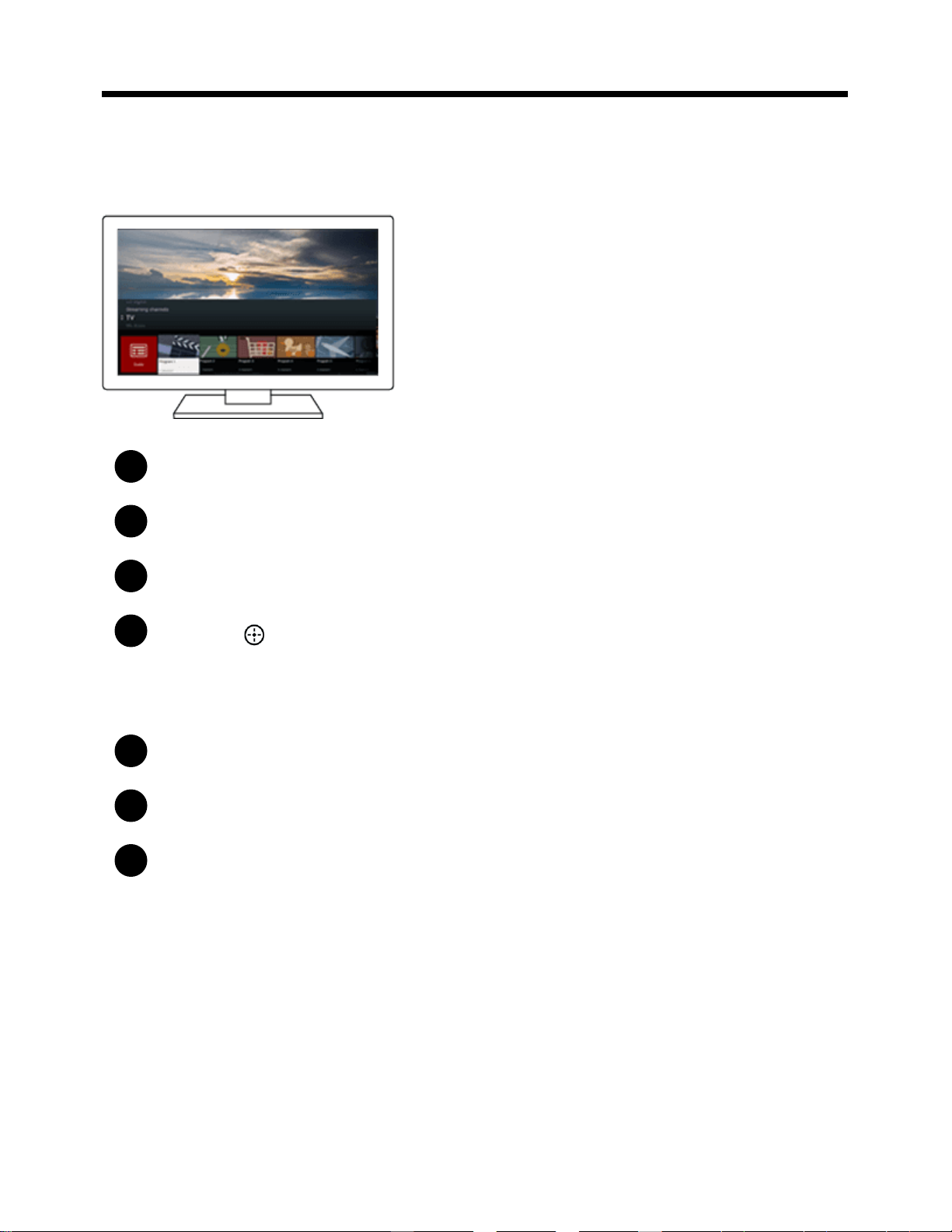
Using the DISCOVER button
You can use the DISCOVER button to search for content (such as TV programs and Internet content).
The content that displays when pressing the DISCOVER button varies depending on your
model/region/country.
Press the DISCOVER button.
Move the focus up or down to select the desired category.
Move the focus left or right to select the desired item.
Press the
button to launch the selected item.
To change the settings of this function
Press the DISCOVER button.
Move the focus down to the [Settings] category.
Select the desired item to change the settings.
Available options
[Show/Hide categories]
Select content categories to be shown in DISCOVER. You cannot hide [Settings].
You can hide [Top Picks] depending on your TV model.
[Reorder categories]
Select a content category to reorder.
[Add channels to Favorites]
36
1
2
3
Add your favorite channels to DISCOVER.
[Add genre categories]
Add genres to create your own custom content category.
[Add keyword categories]
Add keywords to create your own custom content category.
[Display size]
Select the display size of the menu.
[Sort TV channels]
Select the type of TV program sorting.
Note
Some options may not be available depending on your model/region/country.
[16] Getting Started | Basic Operations
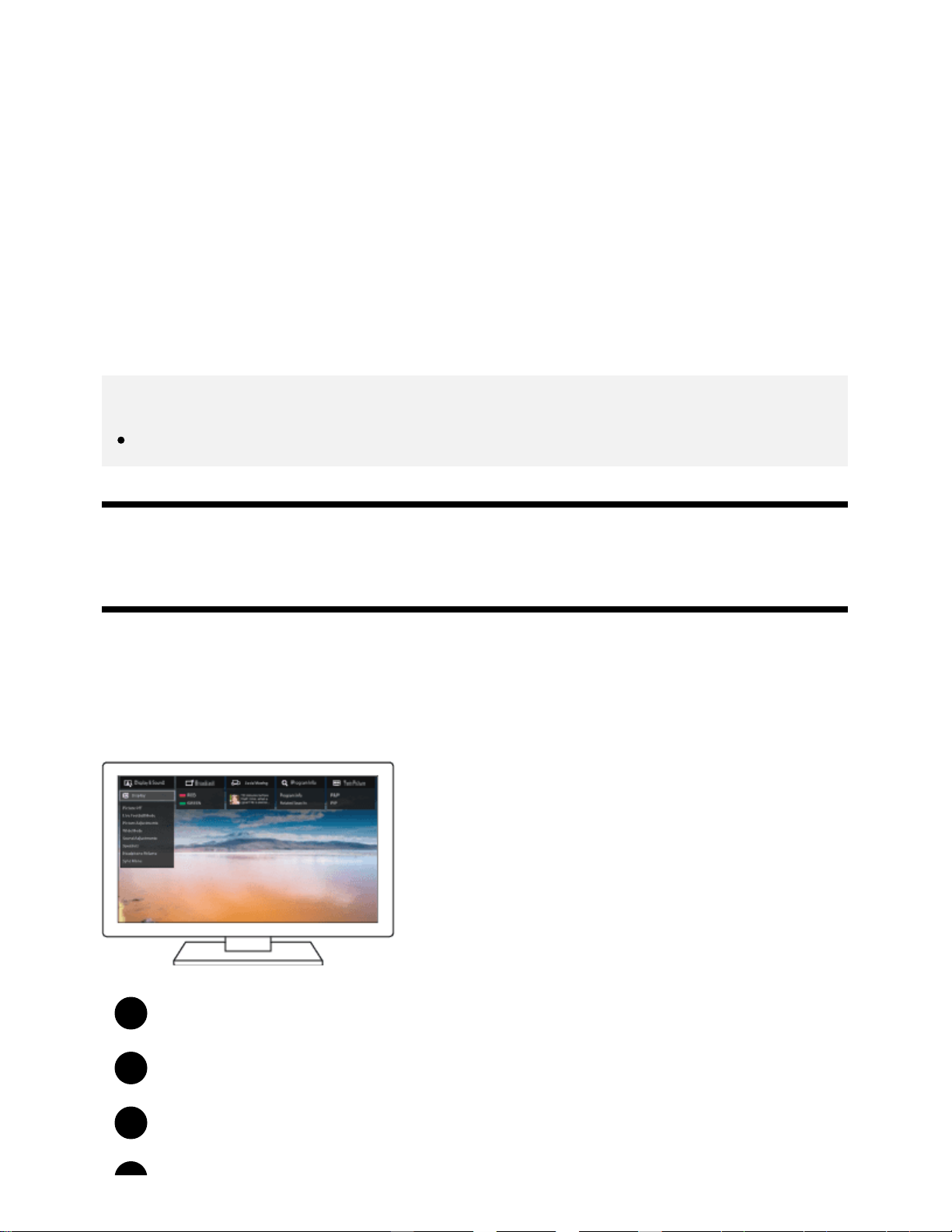
Using the Action Menu
By pressing the ACTION MENU button, a menu appears and provides quick access to the functions
that are available for the currently displayed screen, such as picture adjustments, sound adjustments,
volume adjustment for a connected device (such as headphones), and display/audio settings. The
items in the menu differ depending on the selected screen.
Press the ACTION MENU button.
Move the focus left or right to select the desired category.
Move the focus up or down to select the desired item.
37
4
1
1
Press the button to launch the selected item.
[17] Getting Started | Basic Operations
Selecting devices that are connected to the TV
To use devices that are connected to the TV such as a Blu-ray/DVD player, or to watch TV programs
after using such devices, you must switch the input.
Press the INPUT button repeatedly to select the connected device.
Hint
You can switch to TV broadcasting by simply pressing the TV button on the remote control.
Switching from the Home Menu
Press the HOME button, then select the input source from [Inputs].
[18] Getting Started | Basic Operations
Identifying the status of the TV through illumination
Illumination LED
Illumination at the bottom of the screen
[19] Getting Started | Basic Operations | Identifying the status of the TV through illumination
Illumination LED
You can identify the status of the TV by looking at how the illumination LED lights up.
White “on” or “blinking”
When the screen is off
When the TV is turning on
When receiving signals from the remote control
When updating the software
etc.
38
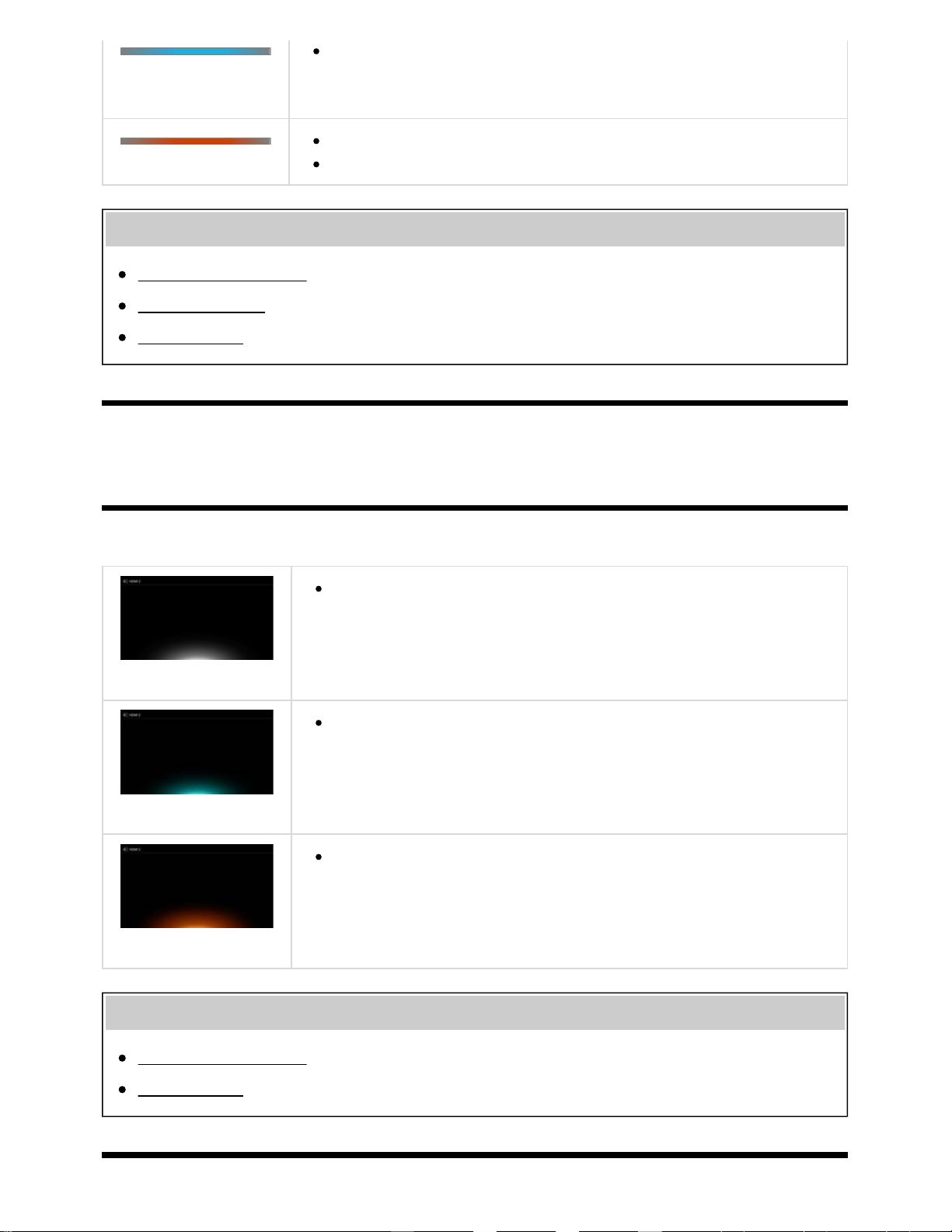
Cyan “blinking”
When a mobile device (smartphone, tablet, etc.) is connecting to the TV on the
home network
etc.
Amber “on”
When the on timer is set
When the sleep timer is set
Related topics
Home network features
Software updates
Setting a timer
[20] Getting Started | Basic Operations | Identifying the status of the TV through illumination
Illumination at the bottom of the screen
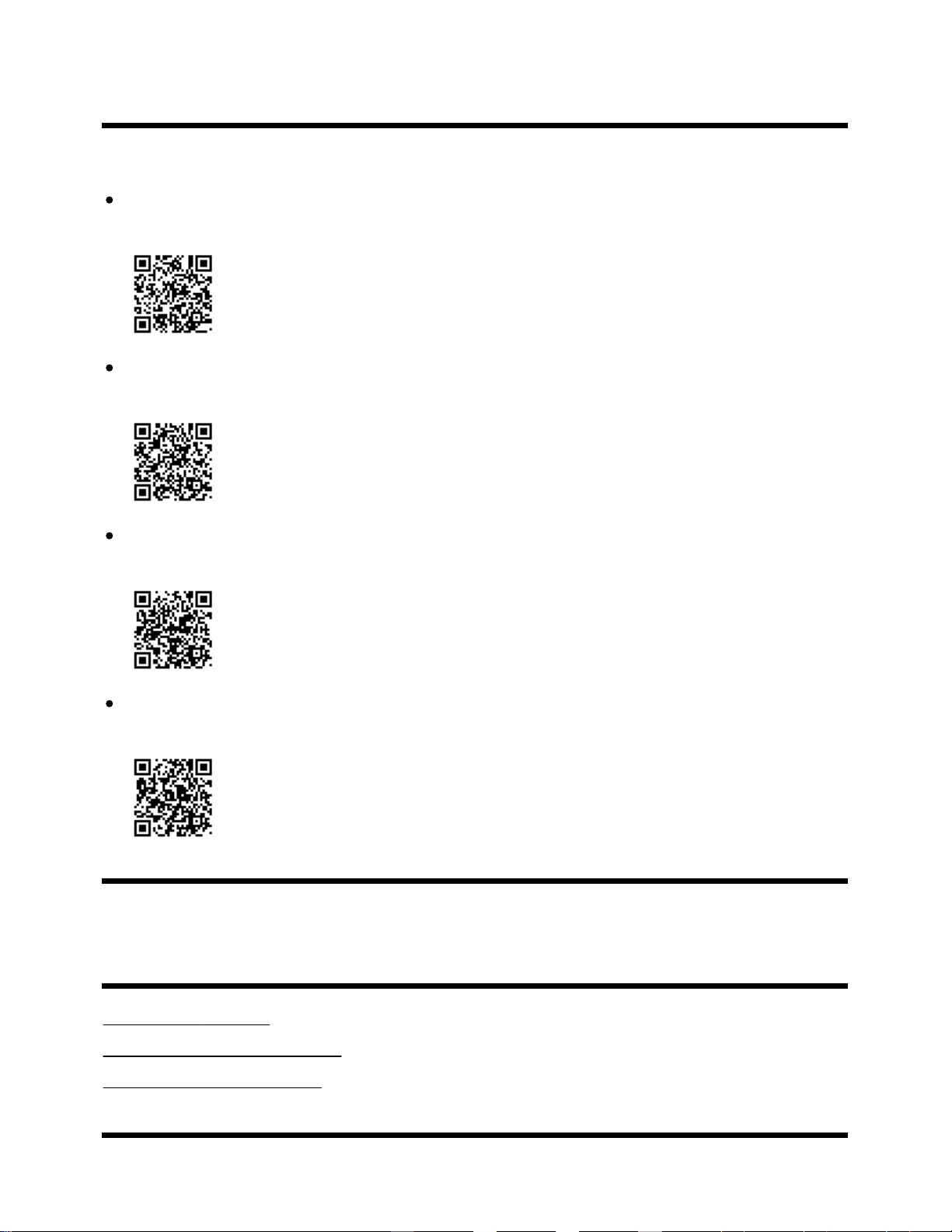
You can identify the status of the TV by looking at how the bottom of the screen lights up.
Lights up in white
When picture off mode is set
Lights up in cyan
When a mobile device (smartphone, tablet, etc.) is connecting to the TV on the
home network
etc.
Lights up in amber
When a timer is set
Related topics
Home network features
Setting a timer
39
[21] Getting Started
Support Site
For the latest information and Online Help Guide, please visit the Sony support website:
USA:
http://www.sony.com/tvsupport
Canada:
http://www.sony.ca/support
Brazil:
http://esupport.sony.com/BR/
Latin America:
http://esupport.sony.com/ES/LA/
[22]
Watching TV
Watching TV programs
Watching in 3D (3D models only)
Watching TV with two screens
[23] Watching TV
40

1
2
3
1
2
1
Watching TV programs
Using the program guide
Using interactive broadcast TV services
[24] Watching TV | Watching TV programs
Using the program guide
You can quickly find your preferred programs.
(This function is available only for digital broadcasts and depends on your region/country/settings.)
Press the GUIDE button to display the digital program guide.
Select a program to watch.
The details of the program are displayed.
Select [View] to watch the program.
To switch the program guide
You can switch the program guide to [TV Selections] or [Genre Guide]. Some options may not be
available depending on your model/region/country.
Move the focus to the leftmost item, then move left again to open the menu.
Select the desired program guide or list.
To use optional functions
While the program guide is displayed, press the ACTION MENU button and then select the
desired item.
[25] Watching TV | Watching TV programs
Using interactive broadcast TV services
41
1
To use Ginga service (Ginga models only)
Ginga models have [Channel setup & Ginga] in [Settings] — [Channels].
Ginga (also known as DTVi) Interactivity provides extended programming content information such as
sports statistics, soap opera chapters and characters, publicity, merchandising, weather information
and news, through high-quality digital text and graphics, along with advanced options.
If available in your home, Ginga Interactivity also allows you to communicate with the broadcaster
through the return channel, in scenarios such as polls, quizzes and games. These services are
provided by broadcasters.
(This function is only available for digital broadcasts and may not be available in your region/country.)
Select a digital channel that provides Ginga features.
[26] Watching TV
Watching in 3D (3D models only)
Understanding the basics of 3D TV (3D models only)
Preparing your 3D glasses (3D models only)
Watching TV in 3D (3D models only)
[27] Watching TV | Watching in 3D (3D models only)
Understanding the basics of 3D TV (3D models
only)
3D models have [3D settings] in [Settings] — [Picture & Display].
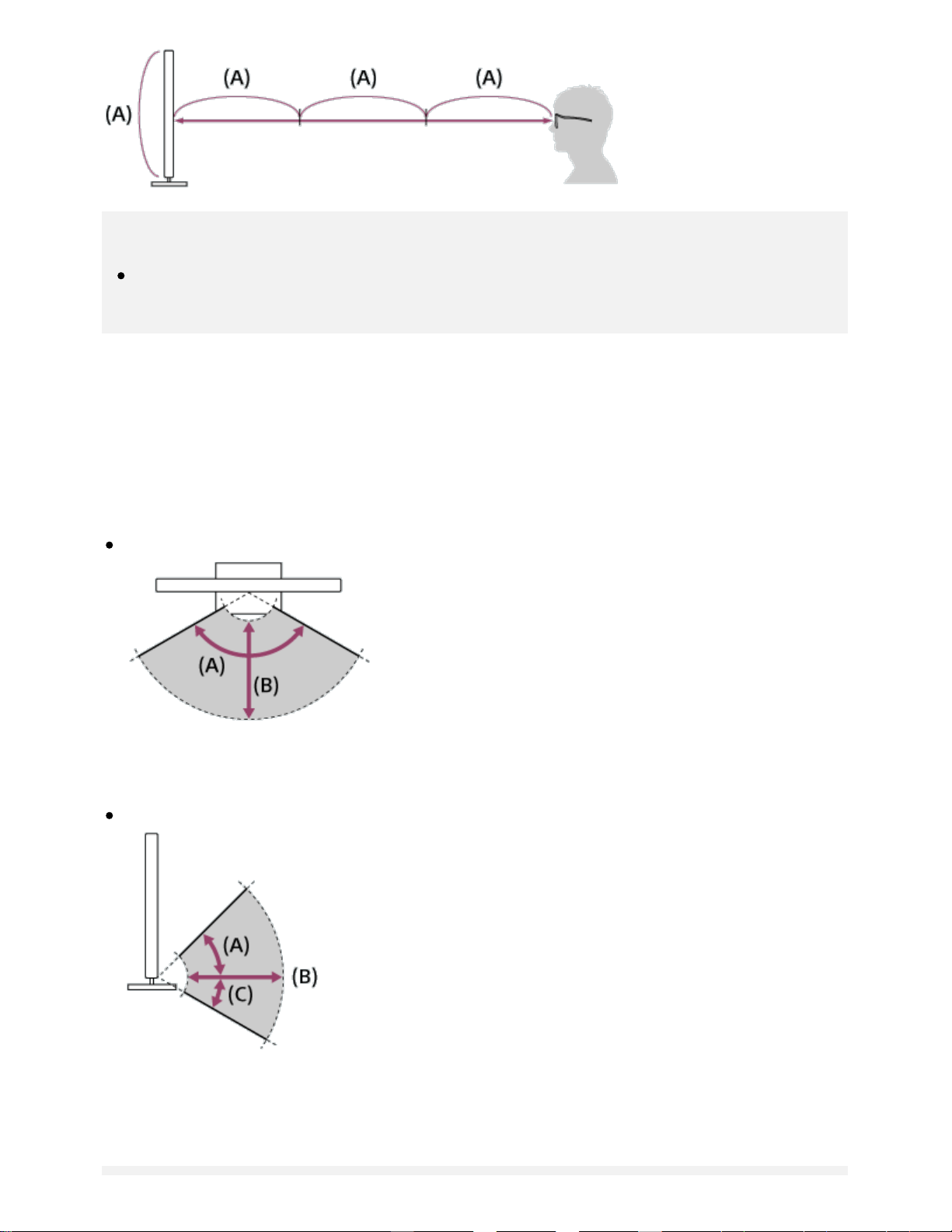
Recommended viewing distance for a 3D image
If the viewing distance is not appropriate, a double image may appear. Sit at a distance of at least 3
times the height of the screen away from the TV. For the best viewing experience, we recommend that
you sit directly in front of the TV.
42
Hint
There are two types of 3D Glasses: Passive and Active. Refer to the specifications in the
Reference Guide to see which type of 3D Glasses the TV supports.
TV and Active 3D Glasses communication range
Active 3D glasses communicate with the TV to show you images in 3D.
Your viewing position needs to be within the proper range. See the following diagrams. The working
distance depends on obstacles (people, metal, walls, etc.) and/or electromagnetic interference.
Overhead view
(A) 120°
(B) 1-6 m (3-20 ft.)
Side view
(A) 45°
(B) 1-6 m (3-20 ft.)
(C) 30°
43
1
Note
Recommended viewing angle and distance may vary depending on the TV’s location and room
conditions.
Caring for your glasses
Wipe the glasses gently with a soft cloth.
Stubborn stains may be removed with a cloth slightly moistened with a solution of mild soap and
warm water.
If using a chemically pretreated cloth, be sure to follow the instructions provided on the package.
Never use strong solvents such as a thinner, alcohol, or benzene for cleaning.
Related topics
Preparing your 3D glasses (3D models only)
Watching TV in 3D (3D models only)
[28] Watching TV | Watching in 3D (3D models only)
Preparing your 3D glasses (3D models only)
3D models have [3D settings] in [Settings] — [Picture & Display].
There are two types of 3D Glasses: Passive and Active. Refer to the specifications in the Reference
Guide to see which type of 3D Glasses the TV supports.
For Passive 3D Glasses
If Passive 3D Glasses are supplied with your TV, use them. If no glasses are supplied, purchase a pair
of Passive 3D Glasses, model TDG-500P. You can watch in 3D by just putting the Passive 3D Glasses
on.
For Active 3D Glasses
If Active 3D Glasses are supplied with your TV, use them. If no glasses are supplied, purchase a pair of
Active 3D Glasses, model TDG-BT500A. Before using the Active 3D Glasses for the first time, you
need to register them to your TV. Follow the steps below.
Remove the battery’s insulation sheet.
44

2
3
4
Turn the TV on, then hold the glasses within 50 cm (1.6 ft.) of the TV.
Press and hold the (Power) button/indicator on the glasses for 2 seconds.
The Active 3D Glasses turn on and registration starts (the (Power) button/indicator
blinks green and yellow). When registration is finished, a message appears in the TV
screen for 5 seconds, and the indicator lights up in green for 3 seconds.
If registration fails, the Active 3D Glasses will turn off automatically. In this case, repeat
the procedure above.
Put the Active 3D Glasses on.
From the next time, you can use the Active 3D Glasses by just turning them on. To turn them off, press
and hold the
(Power) button/indicator on the glasses for 2 seconds. To turn them on again, press
the
(Power) button/indicator.
Hint
To use the Active 3D Glasses with another TV, you need to register the glasses to that TV.
Perform the procedure above from Step 2.
Related topics
Understanding the basics of 3D TV (3D models only)
45
1
2
3
4
5
Watching TV in 3D (3D models only)
Remote control/accessories
[29] Watching TV | Watching in 3D (3D models only)
Watching TV in 3D (3D models only)
3D models have [3D settings] in [Settings] — [Picture & Display].
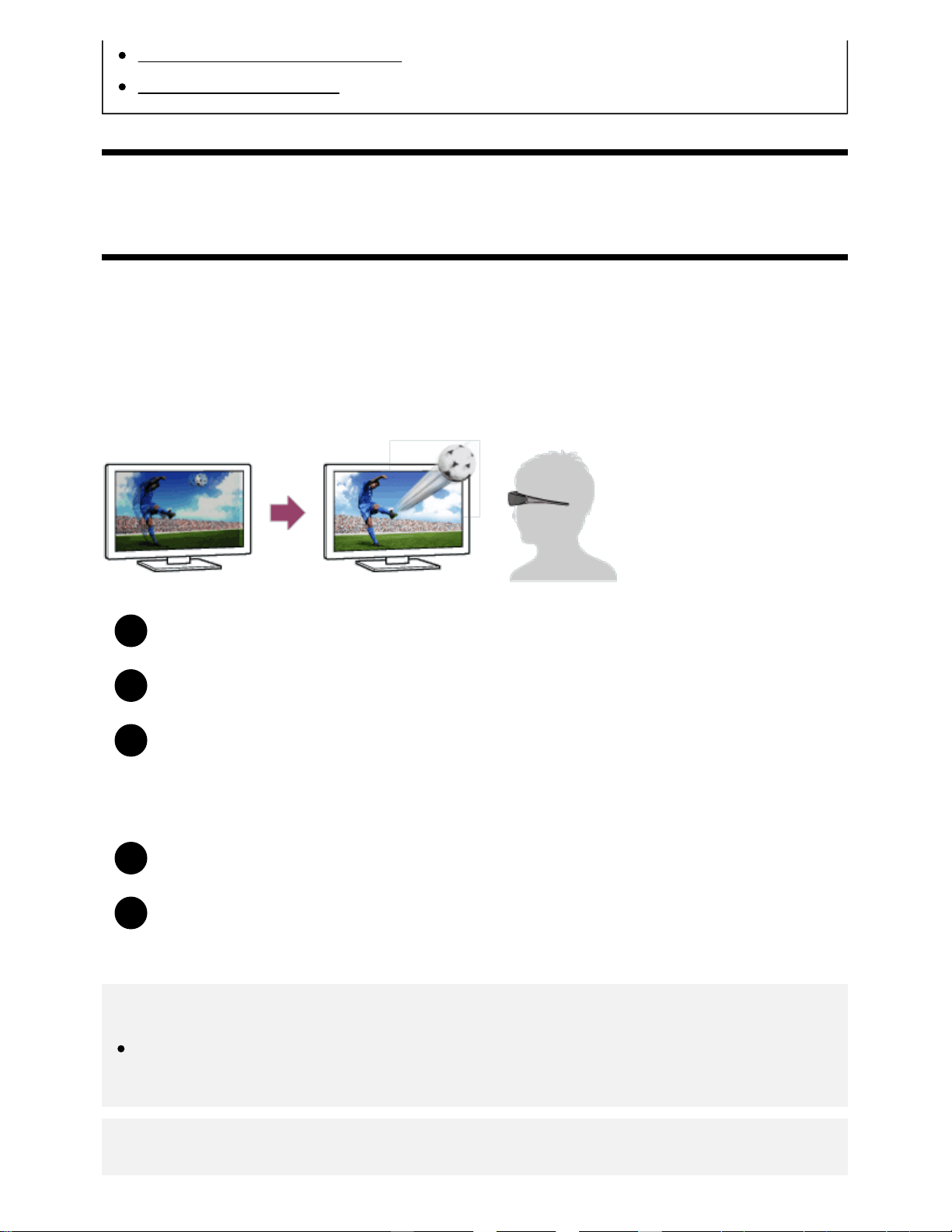
You can experience powerful 3D entertainment, such as stereoscopic 3D games and 3D Blu-ray Discs.
To watch in 3D, connect a 3D-compatible device directly to the TV via an authorized HIGH SPEED
HDMI cable bearing the HDMI logo.
Prepare the 3D Glasses.
Display the 3D content on the TV screen.
Put the 3D Glasses on.
You should now be able to watch 3D images. If no 3D effect is achieved, perform the
following steps.
Press the ACTION MENU button, then select [3D].
Select the [3D display] mode to suit the displayed content. Depending on the input signal
or format, [3D (Side by Side)]/[3D (Over-Under)] may not be selectable.
Hint
In addition to the [3D display] mode, you can use various 3D options in [3D settings]. Press the
HOME button, then select [Settings] — [Picture & Display] — [3D settings].
Note
46
1
2
1
The 3D effect may be less pronounced if the ambient temperature is low.
If [Motionflow] in [Picture adjustments] is set to something other than [Off], the process to
minimize screen flicker may affect the smooth movement of the picture. In this case, press the
ACTION MENU button, then select [Picture adjustments] — [Advanced settings] — [Motionflow]
— [Off]. (For [Motionflow] compatible models only.)
[Motionflow] compatible models have [Motionflow] in [Settings] — [Picture & Display] — [Picture
adjustments] — [Advanced settings] — [Motion].
Related topics
Preparing your 3D glasses (3D models only)
Remote control/accessories
[30] Watching TV
Watching TV with two screens
You can enjoy two video sources at the same time by displaying an HDMI-connected device and a TV
program (Built-in Tuner) in two screens.
Note
[Twin Picture] is available for Android TVs with a “C” at the end of the model number.
Displaying in two screens
To watch with two screens, display the source of a device connected by HDMI, and then display the TV
source (Built-in Tuner).
Display the input screen of the desired connected device.
Press the ACTION MENU button, and select [Twin Picture].
The sound of the source displayed with the green focus is output from the TV.
To switch to the sound of the other source
Press the ACTION MENU button, and select [Switch active screen].
47
1
To return to single picture display
Press the ACTION MENU button, and select [Single picture].
Hint
In addition to switching the focus and returning to single picture display, you can also do the
following in the menu displayed by pressing the ACTION MENU button when using [Twin
Picture].
Switch the input to an HDMI device that you want to display
Change the screen size
Note
When watching digital or analog channels or when an app such as YouTube is displayed, [Twin
Picture] is unavailable. Switch the input to an HDMI source before pressing the ACTION MENU
button.
The only combination of sources you can watch with two screens is a TV program (Built-in
Tuner) and HDMI device.
[31]
Using the TV with Other Devices
USB devices
Blu-ray and DVD players
Smartphones and tablets
Computers, cameras, and camcorders
Audio system
Bluetooth devices
Sony wireless subwoofer (optional) (Sony wireless subwoofer supported models only)
BRAVIA Sync-compatible devices
Connecting an IR Blaster (IR Blaster compatible models only)
Viewing pictures in 4K from compatible devices (4K models only)
[32] Using the TV with Other Devices
48
1
2
3
4
USB devices
Playing content stored on a USB device
Information about USB devices used for storing photos and music
Supported files and formats
[33] Using the TV with Other Devices | USB devices
Playing content stored on a USB device
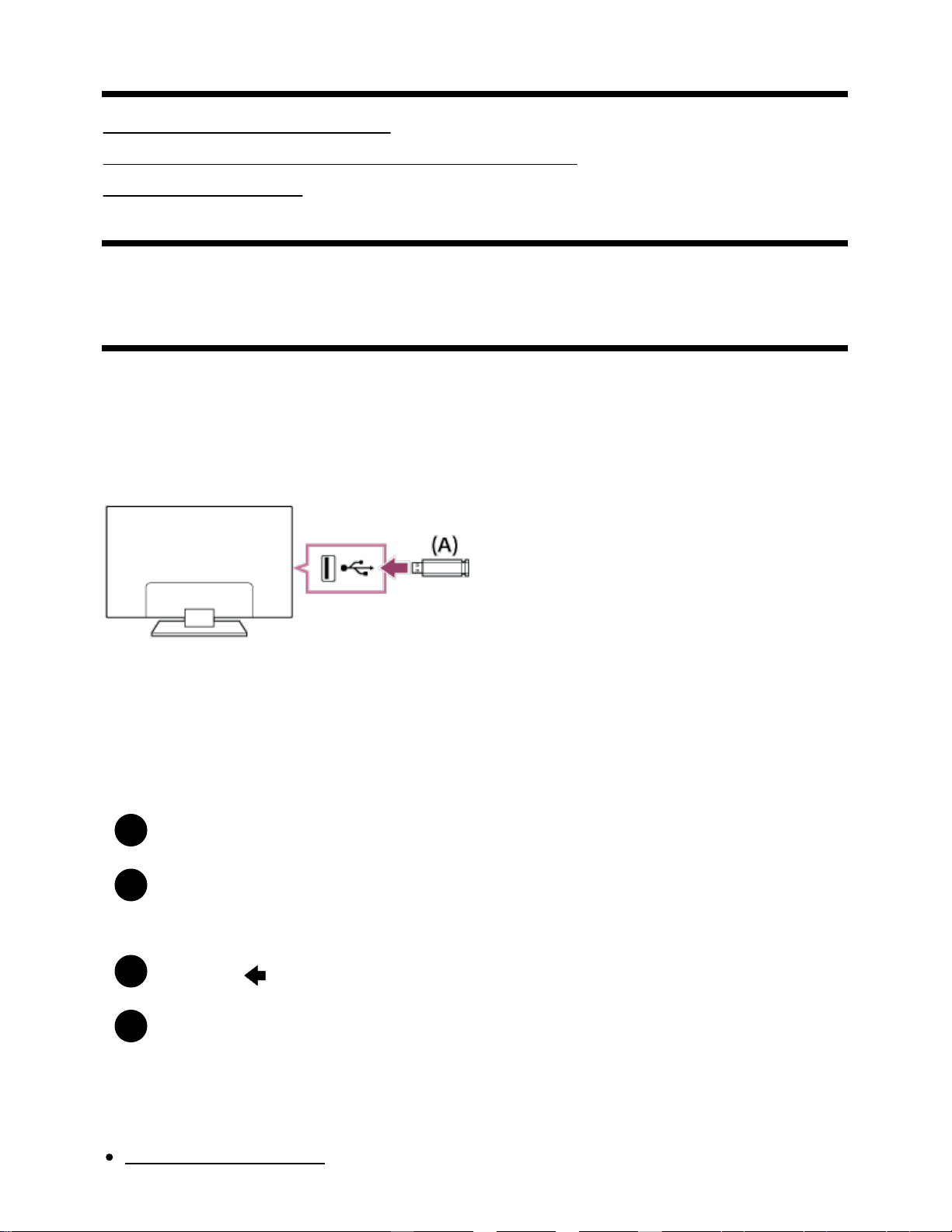
Connecting a USB device
Connect a USB storage device to the USB port of the TV to enjoy photo, music, and video files stored
on the device.
(A) USB storage device
Enjoy photos/music/movies stored on a USB device
You can enjoy photos/music/movies stored on a USB device on the TV screen.
If the USB device connected to the TV has a power switch, turn it on.
Press the HOME button, then select the desired item.
Select [Album] to view photos, [Music] to play music, and [Video] to play movies.
Press the
button and select [Folders] from the menu that is displayed.
Browse the list of folders and files and select the desired file.
Playback starts.
To check the supported file formats
Supported files and formats
49
Note
All USB ports on the TV support Hi-Speed USB. The blue USB port for 4K models supports
SuperSpeed (USB 3.0). USB hubs are not supported.
While accessing the USB device, do not turn off the TV or USB device, do not disconnect the
USB cable, and do not remove or insert recording media. Otherwise, data stored on the USB
device may be corrupted.
Depending on the file, playback may not be possible, even when using the supported formats.
Related topics
Information about USB devices used for storing photos and music
[34] Using the TV with Other Devices | USB devices
Information about USB devices used for storing
photos and music
The USB ports on the TV support FAT16, FAT32, exFAT, and NTFS file systems.
When connecting a Sony digital still camera to the TV with a USB cable, USB connection settings
on your camera need to be set to “Auto” or “Mass Storage” mode.
If your digital still camera does not work with your TV, try the following:
Set the USB connection settings on your camera to “Mass Storage”.
Copy the files from the camera to a USB flash drive, then connect the drive to the TV.
Some photos and movies may be magnified, resulting in low picture quality. Depending on the size
and aspect ratio, images may not be displayed in full screen.
It may take a long time to display a photo, depending on the file or settings.
In no event shall Sony be liable for recording failure or any damage or loss of recorded contents
caused or associated with the TV’s malfunction, the USB device’s malfunction, or any other
problem.
Related topics
Supported files and formats
[35] Using the TV with Other Devices | USB devices
50
Supported files and formats
Photos
Music
Videos
Audio sampling rates (for videos)
External subtitles
[36] Using the TV with Other Devices | USB devices | Supported files and formats
Photos
Use case : USB / Home Network
File Format Extension
JPEG *.jpg / *.jpe / *.jpeg
Other supported files and formats
Music
Videos
Audio sampling rates (for videos)
External subtitles
[37] Using the TV with Other Devices | USB devices | Supported files and formats
Music
Use case : USB / Home Network
mp4
Extension Description Sampling Rate
*.mp4 / *.m4a AAC-LC 16k / 22.05k / 24k / 32k / 44.1k / 48k
HE-AAC v1 / v2 24k / 32k / 44.1k / 48k
51
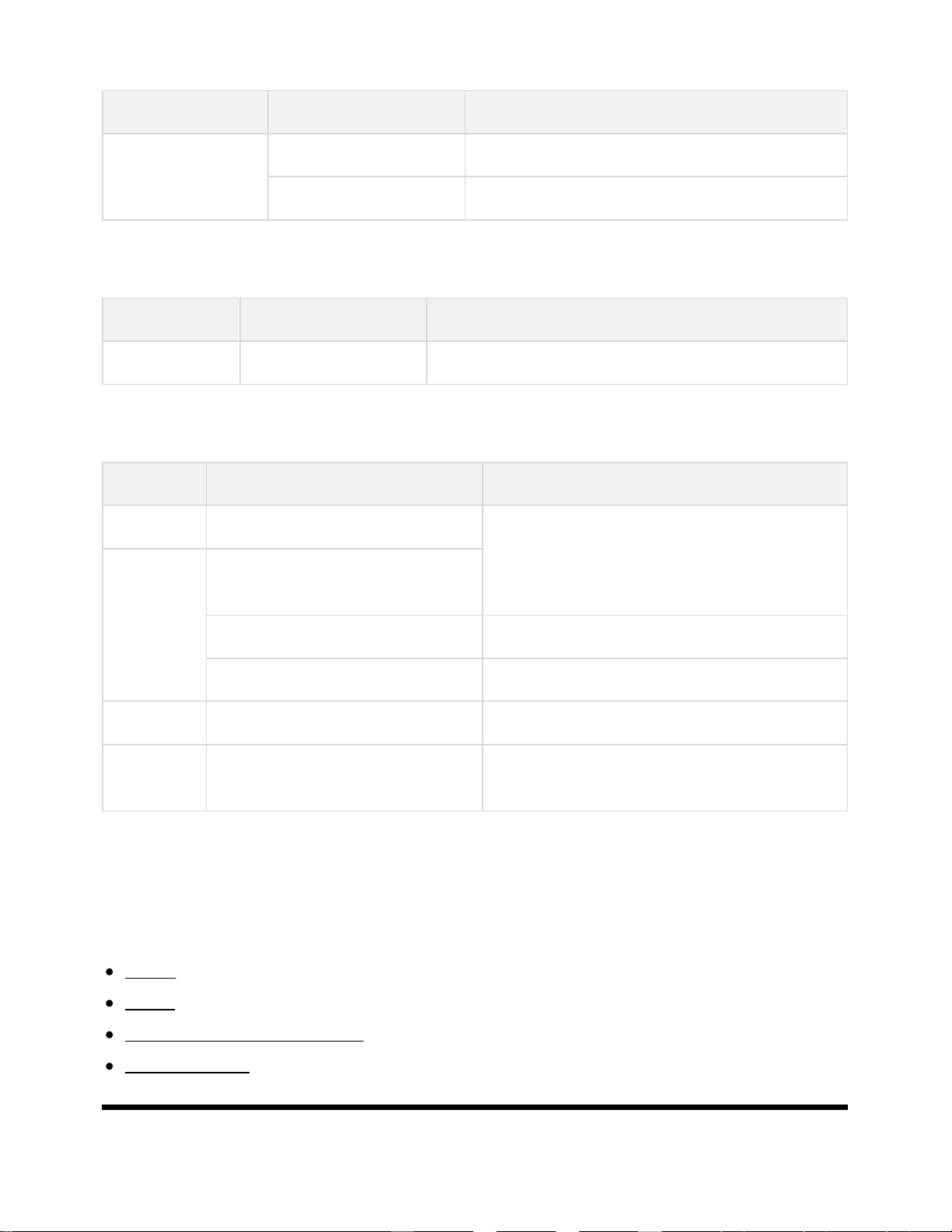
3gpp
Extension Description Sampling Rate
*.3gp / *.3g2 AAC-LC 16k / 22.05k / 24k / 32k / 44.1k / 48k
HE-AAC v1 / v2 24k / 32k / 44.1k / 48k
Asf
Extension Description Sampling Rate
*.wma WMA9 Standard 8k / 11.025k / 16k / 22.05k / 32k / 44.1k / 48k
Other
Extension Description Sampling Rate
- LPCM 32k / 44.1k / 48k
*.mp3 MP1L1 / MP1L2 / MP1L3 / MP2L1 /
MP2L2
MP2L3 16k / 22.05k / 24k
MP2.5L3 8k / 11.025k / 12k
*.wav WAV 32k / 44.1k / 48k / 88.2k / 96k / 176.4k / 192k
*.flac FLAC 16k / 22.05k / 32k / 44.1k / 48k / 88.2k / 96k / 176.4k
/ 192k
The use case of LPCM is Home Network only.
The use case of WAV is 2ch only.
Other supported files and formats
Photos
Videos
Audio sampling rates (for videos)
External subtitles
[38] Using the TV with Other Devices | USB devices | Supported files and formats
*1
*2
*1
*2
52

Videos
Use case : USB / Home Network
MPEG1 (*.mpg / *.mpe / *.mpeg)
Subtitle Type : External
Video Codec (Profile@Level)
: MPEG1
Audio Codec
: MPEG1L2
Max. / Min. Resolution
: 1920x1080 / QCIF (176x144)
Max. Frame Rate
: 1920x1080@30fps / 1280x720@60fps
MPEG2PS (*.mpg / *.mpe / *.mpeg)
Subtitle Type : External
Video Codec (Profile@Level)
: MPEG2 MP@HL, MP@H14L, MP@ML
Audio Codec
: MPEG1L1 / MPEG1L2 / LPCM / AC3
Max. / Min. Resolution
: 1920x1080 / QCIF (176x144)
Max. Frame Rate
: 1920x1080@30fps / 1280x720@60fps
MPEG2TS
Extension : *.m2t
Subtitle Type : Internal (Except for Brazilian models) / - (For Brazilian models only)
Video Codec (Profile@Level)
: MPEG2 MP@HL, MP@H14L, MP@ML
Audio Codec
: MPEG1L1 / MPEG1L2 / AAC-LC / HE-AAC v1 / HE-AAC v2 / AC3 / E-AC3
Max. / Min. Resolution
: 1920x1080 / QCIF (176x144)
Max. Frame Rate
: 1920x1080@30fps / 1280x720@60fps
Extension : *.m2ts / *.mts
Subtitle Type : -
Video Codec (Profile@Level)
: AVC / H.264 BP@L3, [email protected], [email protected]
Audio Codec
: MPEG1L1 / MPEG1L2 / AAC-LC / HE-AAC v1 / HE-AAC v2 / AC3 / E-AC3
Max. / Min. Resolution
: 1920x1080 / QCIF (176x144)
53

Max. Frame Rate
: 1920x1080@60fps
MP4 (*.mp4): For 2K models
Subtitle Type : External
Video Codec (Profile@Level)
: AVC / H.264 BP@L3, [email protected], [email protected]
Audio Codec
: AAC-LC / HE-AAC v1 / HE-AAC v2 / AC3 / E-AC3 / MPEG1L1 / MPEG1L2
Max. / Min. Resolution
: 1920x1080 / QCIF (176x144)
Max. Frame Rate
: 1920x1080@120fps
Video Codec (Profile@Level)
: MPEG4 SP@L6, ASP@L5, ACEP@L4
Audio Codec
: AAC-LC / HE-AAC v1 / HE-AAC v2 / AC3 / E-AC3 / MPEG1L1 / MPEG1L2
Max. / Min. Resolution
: 1920x1080 / QCIF (176x144)
Max. Frame Rate
: 1920x1080@30fps / 1280x720@60fps
MP4 (*.mp4): For 4K models
Subtitle Type : External
Video Codec (Profile@Level)
: AVC / H.264 BP@L3, [email protected], [email protected]
Audio Codec
: AAC-LC / HE-AAC v1 / HE-AAC v2 / AC3 / E-AC3 / MPEG1L1 / MPEG1L2
Max. / Min. Resolution
: 1920x1080 / QCIF (176x144)
Max. Frame Rate
: 1920x1080@120fps
Video Codec (Profile@Level)
: MPEG4 SP@L6, ASP@L5, ACEP@L4
Audio Codec
: AAC-LC / HE-AAC v1 / HE-AAC v2 / AC3 / E-AC3 / MPEG1L1 / MPEG1L2
Max. / Min. Resolution
: 1920x1080 / QCIF (176x144)
Max. Frame Rate
: 1920x1080@30fps / 1280x720@60fps
Video Codec (Profile@Level)
: AVC / H.264 [email protected], [email protected], [email protected]
Audio Codec
: AAC-LC / HE-AAC v1 / HE-AAC v2 / AC3 / E-AC3 / LPCM
Max. / Min. Resolution
: 3840x2160 / QCIF (176x144)
Max. Frame Rate
: 3840x2160@60p / 1920x1080@120fps
Video Codec (Profile@Level)
: HEVC / H.265 [email protected], [email protected]
Audio Codec
: AAC-LC / HE-AAC v1 / HE-AAC v2 / AC3 / E-AC3
Max. / Min. Resolution
: 3840x2160 / QCIF (176x144)
Max. Frame Rate
: 3840x2160@60p
*1
54

This line includes the XAVC S format use case. The maximum supported bitrate for XAVC S is 100
Mbps.
avi (*.avi)
Subtitle Type : External
Video Codec (Profile@Level)
: Xvid
Audio Codec
: MPEG1L1 / MPEG1L2 / MPEG1L3 / AC3 / E-AC3
Max. / Min. Resolution
: 1920x1080 / QCIF (176x144)
Max. Frame Rate
: 1920x1080@30fps / 1280x720@60fps
Video Codec (Profile@Level)
: Motion JPEG
Audio Codec
: μ-LAW / PCM (U8) / PCM (S16LE)
Max. / Min. Resolution
: 1280x720 / QCIF (176x144)
Max. Frame Rate
: 1280x720@30fps
Asf (*.asf / *.wmv)
Subtitle Type : External
Video Codec (Profile@Level)
: VC1 AP@L3, MP@HL, SP@ML
Audio Codec
: WMA9 Standard
Max. / Min. Resolution
: 1920x1080 / QCIF (176x144)
Max. Frame Rate
: 1920x1080@30fps / 1280x720@60fps
MKV (*.mkv): For 2K models
Subtitle Type : Internal / External
Video Codec (Profile@Level)
: Xvid
Audio Codec
: DTS core / AC3 / AAC-LC / E-AC3 / HE-AAC v1 / HE-AAC v2 / MPEG1L1 /
MPEG1L2 / Vorbis
Max. / Min. Resolution
: 1920x1080 / QCIF (176x144)
Max. Frame Rate
: 1920x1080@30fps / 1280x720@60fps
Video Codec (Profile@Level)
: AVC / H.264 BP@L3, [email protected], [email protected]
Audio Codec
: DTS core / AC3 / AAC-LC / E-AC3 / HE-AAC v1 / HE-AAC v2 / MPEG1L1 /
MPEG1L2 / Vorbis
Max. / Min. Resolution
:
1920x1080 / QCIF (176x144)
*1
55

Max. Frame Rate
: 1920x1080@60fps
Video Codec (Profile@Level)
: MPEG4 SP@L6, ASP@L5, ACEP@L4
Audio Codec
: DTS core / AC3 / AAC-LC / E-AC3 / HE-AAC v1 / HE-AAC v2 / MPEG1L1 /
MPEG1L2 / Vorbis
Max. / Min. Resolution
: 1920x1080 / QCIF (176x144)
Max. Frame Rate
: 1920x1080@30fps / 1280x720@60fps
Video Codec (Profile@Level)
: VP8
Audio Codec
: DTS core / AC3 / AAC-LC / E-AC3 / HE-AAC v1 / HE-AAC v2 / MPEG1L1 /
MPEG1L2 / Vorbis
Max. / Min. Resolution
: 1920x1080 / QCIF (176x144)
Max. Frame Rate
: 1920x1080@30fps / 1280x720@60fps
MKV (*.mkv): For 4K models
Subtitle Type : Internal / External
Video Codec (Profile@Level)
: Xvid
Audio Codec
: DTS core / AC3 / AAC-LC / E-AC3 / HE-AAC v1 / HE-AAC v2 / MPEG1L1 /
MPEG1L2 / Vorbis
Max. / Min. Resolution
: 1920x1080 / QCIF (176x144)
Max. Frame Rate
: 1920x1080@30fps / 1280x720@60fps
Video Codec (Profile@Level)
: AVC / H.264 BP@L3, [email protected], [email protected]
Audio Codec
: DTS core / AC3 / AAC-LC / E-AC3 / HE-AAC v1 / HE-AAC v2 / MPEG1L1 /
MPEG1L2 / Vorbis
Max. / Min. Resolution
: 1920x1080 / QCIF (176x144)
Max. Frame Rate
: 1920x1080@60fps
Video Codec (Profile@Level)
: MPEG4 SP@L6, ASP@L5, ACEP@L4
Audio Codec
: DTS core / AC3 / AAC-LC / E-AC3 / HE-AAC v1 / HE-AAC v2 / MPEG1L1 /
MPEG1L2 / Vorbis
Max. / Min. Resolution
: 1920x1080 / QCIF (176x144)
Max. Frame Rate
: 1920x1080@30fps / 1280x720@60fps
Video Codec (Profile@Level)
: VP8
Audio Codec
: DTS core / AC3 / AAC-LC / E-AC3 / HE-AAC v1 / HE-AAC v2 / MPEG1L1 /
MPEG1L2 / Vorbis
56

Max. / Min. Resolution
: 1920x1080 / QCIF (176x144)
Max. Frame Rate
: 1920x1080@30fps / 1280x720@60fps
Video Codec (Profile@Level)
: AVC / H.264 [email protected], [email protected], [email protected]
Audio Codec
: DTS core / AC3 / AAC-LC / E-AC3 / HE-AAC v1 / HE-AAC v2
Max. / Min. Resolution
: 3840x2160 / QCIF (176x144)
Max. Frame Rate
: 3840x2160@60p
Video Codec (Profile@Level)
: HEVC / H.265 [email protected], [email protected]
Audio Codec
: DTS core / AC3 / AAC-LC / E-AC3 / HE-AAC v1 / HE-AAC v2
Max. / Min. Resolution
: 3840x2160 / QCIF (176x144)
Max. Frame Rate
: 3840x2160@60p
3gpp (*.3gp / *.3g2)
Subtitle Type : External
Video Codec (Profile@Level)
: MPEG4 SP@L6, ASP@L5, ACEP@L4
Audio Codec
: AAC-LC / HE-AAC v1 / HE-AAC v2 / AC3 / E-AC3 / MPEG1L1 / MPEG1L2
Max. / Min. Resolution
: 1920x1080 / QCIF (176x144)
Max. Frame Rate
: 1920x1080@30fps / 1280x720@60fps
Video Codec (Profile@Level)
: AVC / H.264 BP@L3, [email protected], [email protected]
Audio Codec
: AAC-LC / HE-AAC v1 / HE-AAC v2 / AC3 / E-AC3 / MPEG1L1 / MPEG1L2
Max. / Min. Resolution
: 1920x1080 / QCIF (176x144)
Max. Frame Rate
: 1920x1080@60fps
MOV (*.mov)
Subtitle Type : External
Video Codec (Profile@Level)
: AVC / H.264 BP@L3, [email protected], [email protected]
Audio Codec
: AAC-LC / HE-AAC v1 / HE-AAC v2 / AC3 / E-AC3 / MPEG1L1 / MPEG1L2 / μ-
LAW / PCM (U8) / PCM (S16BE) / PCM (S16LE)
Max. / Min. Resolution
: 1920x1080 / QCIF (176x144)
Max. Frame Rate
: 1920x1080@60fps
Video Codec (Profile@Level)
: MPEG4 SP@L6, ASP@L5, ACEP@L4
Audio Codec
: AAC-LC / HE-AAC v1 / HE-AAC v2 / AC3 / E-AC3 / MPEG1L1 / MPEG1L2 / μ-
LAW / PCM (U8) / PCM (S16BE) / PCM (S16LE)
57
Max. / Min. Resolution
: 1920x1080 / QCIF (176x144)
Max. Frame Rate
: 1920x1080@30fps / 1280x720@60fps
Video Codec (Profile@Level)
: Motion JPEG
Audio Codec
: AAC-LC / HE-AAC v1 / HE-AAC v2 / AC3 / E-AC3 / MPEG1L1 / MPEG1L2 / μ-
LAW / PCM (U8) / PCM (S16BE) / PCM (S16LE)
Max. / Min. Resolution
: 1280x720 / QCIF (176x144)
Max. Frame Rate
: 1280x720@30fps
WebM (*.webm)
Subtitle Type : Internal / External
Video Codec (Profile@Level)
: VP8
Audio Codec
: Vorbis
Max. / Min. Resolution
: 1920x1080 / QCIF (176x144)
Max. Frame Rate
: 1920x1080@30fps / 1280x720@60fps
Other supported files and formats
Photos
Music
Audio sampling rates (for videos)
External subtitles
[39] Using the TV with Other Devices | USB devices | Supported files and formats
Audio sampling rates (for videos)
Audio Codec Sampling Rate
LPCM 44.1k / 48k
MPEG1L1 / MPEG1L2 32k / 44.1k / 48k
MPEG1L3
AAC-LC 16k / 22.05k / 24k / 32k / 44.1k / 48k
HE-AAC v1 / v2 24k / 32k / 44.1k / 48k
AC3 32k / 44.1k / 48k
58
E-AC3
Vorbis 8k / 11.025k / 16k / 22.05k / 32k / 44.1k / 48k
WMA9
DTS core 32k / 44.1k / 48k
μ-LAW 8k
PCM (U8) 8k
PCM (S16LE) 11.025k / 16k / 44.1k
PCM (S16BE)
Other supported files and formats
Photos
Music
Videos
External subtitles
[40] Using the TV with Other Devices | USB devices | Supported files and formats
External subtitles
Use case : USB
File Format Extension
SubStation Alpha *.ass / *.ssa
SubRip *.srt
MicroDVD *.sub / *.txt
SubViewer *.sub
SAMI *.smi
Other supported files and formats
Photos
Music
59
Videos
Audio sampling rates (for videos)
[41] Using the TV with Other Devices
Blu-ray and DVD players
Connecting a Blu-ray or DVD player
Watching Blu-ray and DVD discs
[42] Using the TV with Other Devices | Blu-ray and DVD players
Connecting a Blu-ray or DVD player
Connect a Blu-ray/DVD player to the TV.
HDMI connection
For optimum picture quality, we recommend connecting your player to the TV using an HDMI cable. If
your Blu-ray/DVD player has an HDMI jack (socket), connect it using an HDMI cable.
(A) Blu-ray/DVD player
(B) HDMI cable (not supplied)
Be sure to use an authorized HIGH SPEED HDMI cable bearing the HDMI logo.
If the device has a DVI jack (socket), connect it to the HDMI (with AUDIO IN) port through a DVI -
HDMI adaptor interface (not supplied), and connect the device’s audio out jacks (sockets) to HDMI
3 AUDIO IN / HDMI 1 AUDIO IN.
Availability depends on your model/region/country. Refer to the Reference Guide to check if your TV
supports HDMI 3 AUDIO IN / HDMI 1 AUDIO IN.
*
*
60
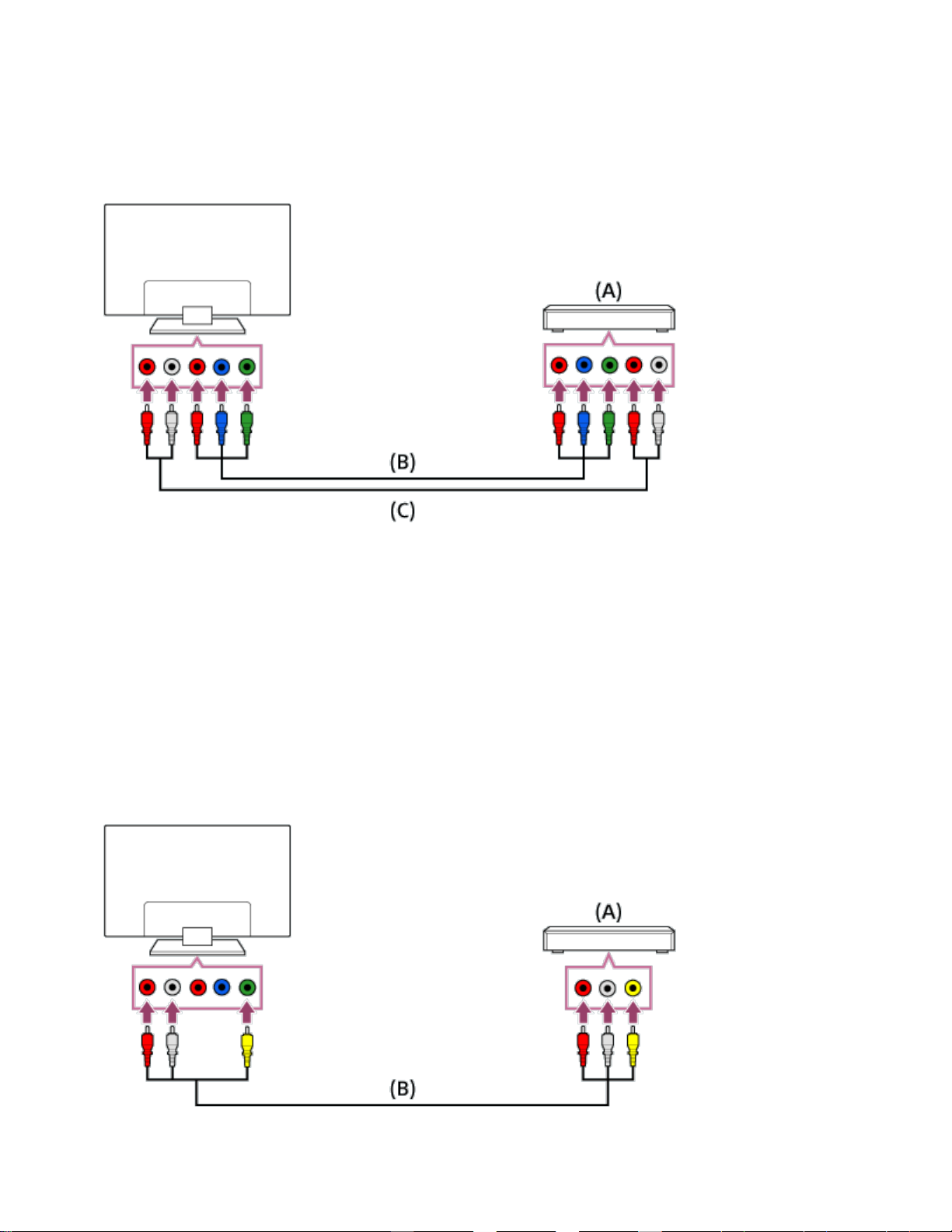
Component video connection
Availability depends on your model/region/country.
If your Blu-ray/DVD player has component video jacks (sockets), connect them to the TV using a
component video cable and an audio cable.
(A) Blu-ray/DVD player
(B) Component video cable (not supplied)
(C) Audio cable (not supplied)
Composite connection
Availability depends on your model/region/country.
If your Blu-ray/DVD player has composite jacks (sockets), connect them using a composite video/audio
cable.
(A) Blu-ray/DVD player
61
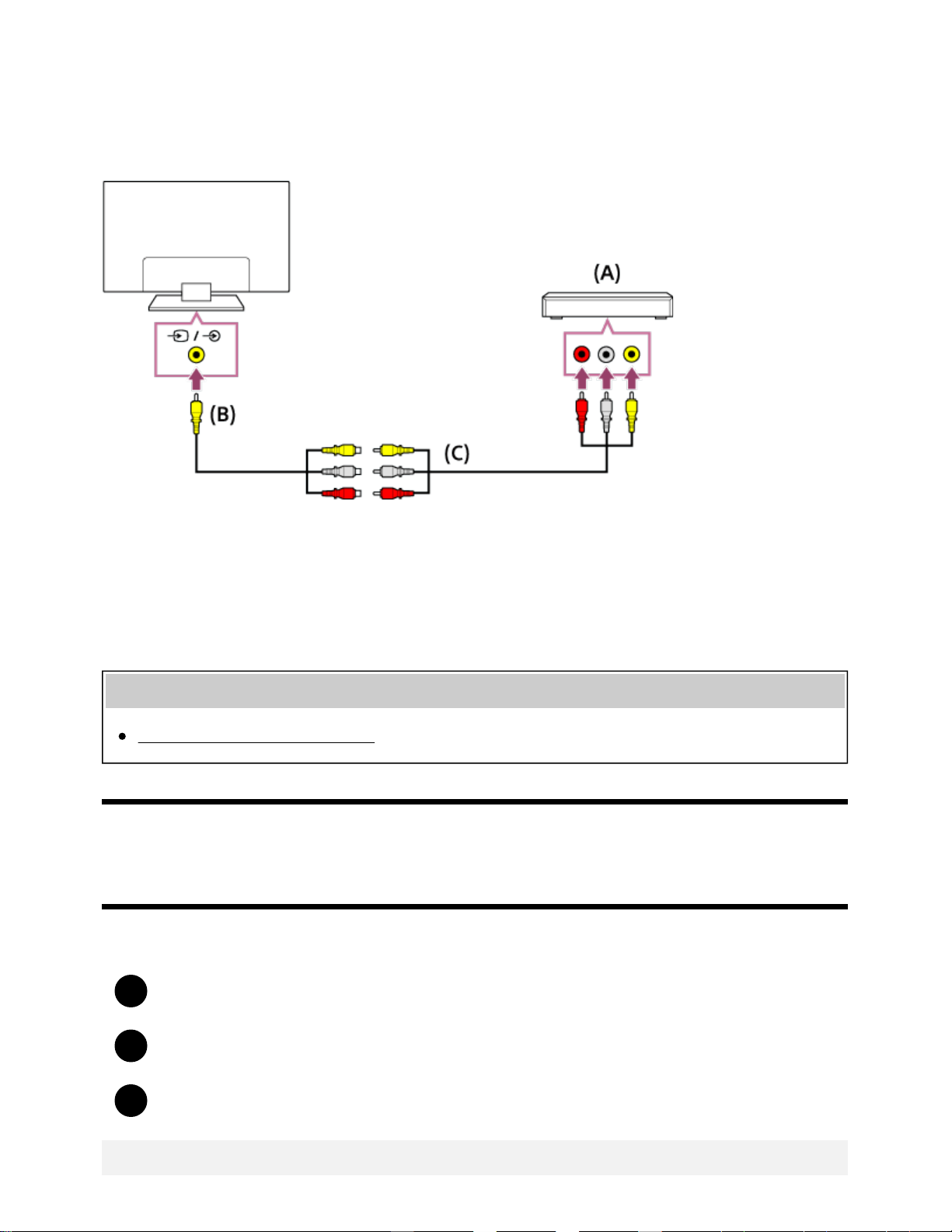
1
2
3
(B) Composite video/audio cable (not supplied)
If using an Analog Extension cable
Availability depends on your model/region/country.
(A) Blu-ray/DVD player
(B) Analog Extension cable (supplied)
(C) RCA Cable (not supplied)
Whether the Analog Extension cable is supplied depends on your model/region/country.
Related topics
Watching Blu-ray and DVD discs
[43] Using the TV with Other Devices | Blu-ray and DVD players
Watching Blu-ray and DVD discs
You can watch content from Blu-ray/DVD discs or other content supported by your player on the TV.
Turn on the connected Blu-ray/DVD player.
Press the INPUT button repeatedly to select the connected Blu-ray/DVD player.
Start playback on the connected Blu-ray/DVD player.
Hint
*
*
62
If you connect a BRAVIA Sync-compatible device with HDMI connection, you can operate it by
simply using the TV’s remote control.
Related topics
Connecting a Blu-ray or DVD player
BRAVIA Sync-compatible devices
[44] Using the TV with Other Devices
Smartphones and tablets
Displaying the screen of a smartphone/tablet on the TV using an MHL cable (MHL supported models
only)
Displaying the screen of a smartphone/tablet on the TV using the Screen mirroring function
Sharing photos/music/videos
[45] Using the TV with Other Devices | Smartphones and tablets
Displaying the screen of a smartphone/tablet on the
TV using an MHL cable (MHL supported models
only)
The mark is located next to the HDMI IN 1/MHL port (for MHL supported 2K models)
or the HDMI IN 2/MHL port (for MHL supported 4K models).
To connect a mobile device with MHL output
For 2K models, connect your mobile device to the TV’s HDMI IN 1/MHL port, using an MHL cable.
For 4K models, connect your mobile device to the TV’s HDMI IN 2/MHL port, using an MHL cable.
63
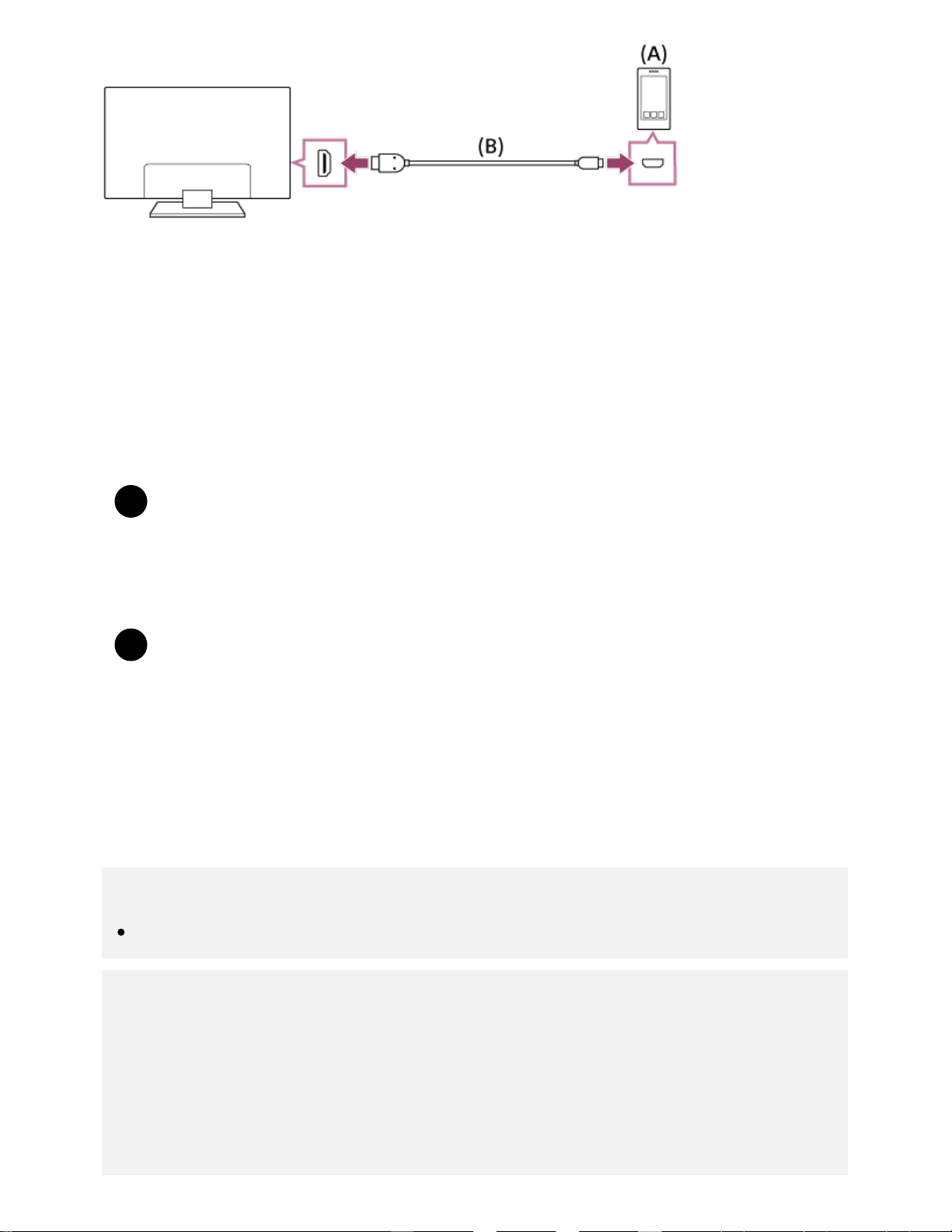
1
1
(A) MHL mobile device
(B) MHL cable (not supplied)
For 2K signals, be sure to use an authorized MHL 2 cable bearing the MHL logo.
For 4K models, be sure to use an authorized MHL 3 cable bearing the MHL logo. If your MHL mobile
device supports 4K output, use an authorized MHL 3 cable.
To view content stored in a mobile device with MHL output
After connecting your mobile device, press the HOME button, then select the input the
mobile device is connected to.
To switch to the MHL input automatically
Press the HOME button, then select [Settings] — [External inputs] — [BRAVIA Sync
settings] — [Auto input change (MHL)] — [On]. (Depending on the mobile device, the
input may not switch automatically.) If the TV is in standby mode, it will not switch
automatically.
To charge a mobile device
When the TV is on, the TV can charge a mobile device if it is connected using an MHL cable.
Note
Only smartphones/tablets that support MHL can use this feature.
Hint
If [Charge MHL during power off] is set to [On], the TV can charge the connected MHL device
when the TV is in standby mode.
Press the HOME button, then select [Settings] — [External inputs] — [BRAVIA Sync settings]
— [Charge MHL during power off] — [On].
*
*
64
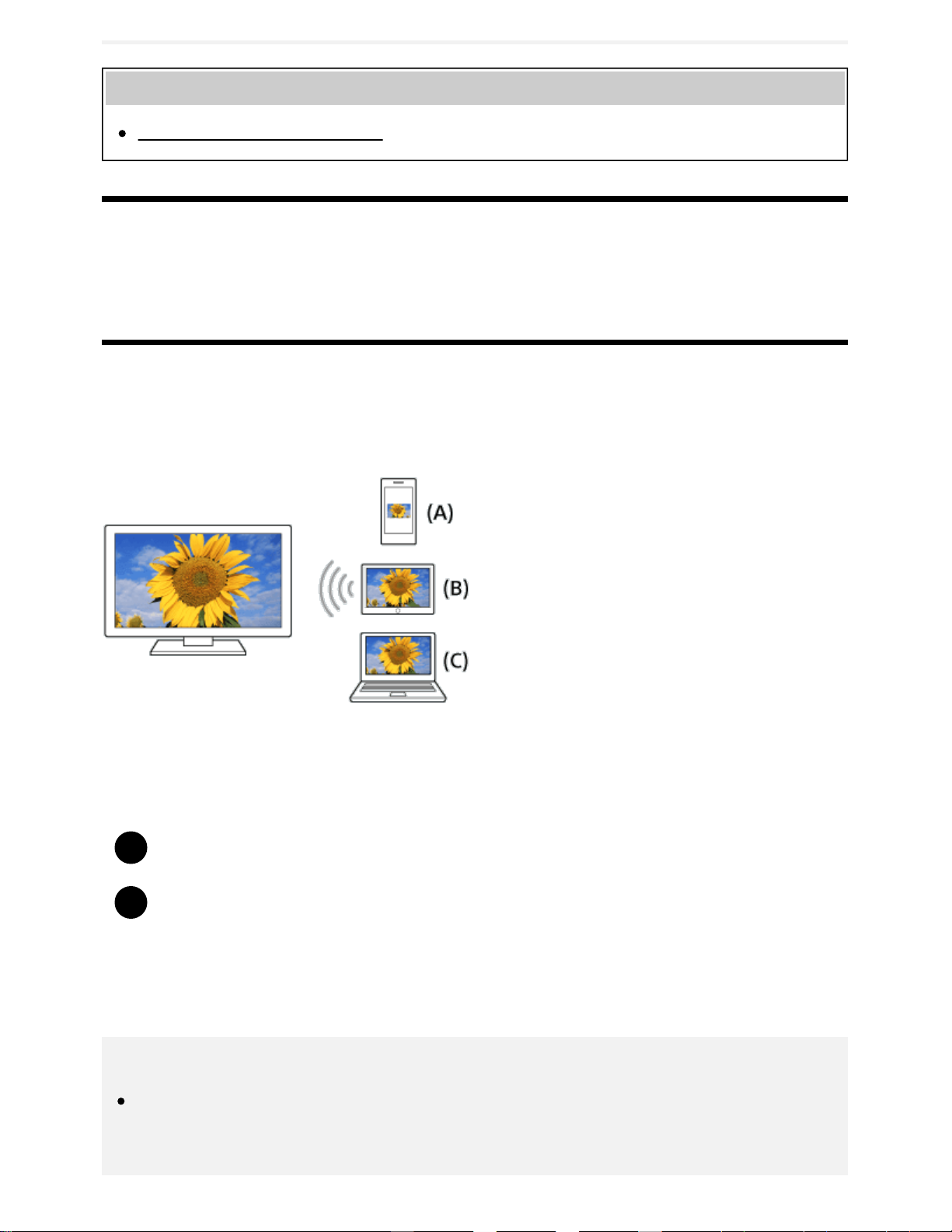
1
2
Related topics
BRAVIA Sync-compatible devices
[46] Using the TV with Other Devices | Smartphones and tablets
Displaying the screen of a smartphone/tablet on the
TV using the Screen mirroring function
You can display the screen of a mobile device on the TV to view photos, videos or websites.
The “Screen mirroring” feature uses Miracast technology to display the screen of a compatible device
on the TV. A wireless router (access point) is not necessary to use this function.
(A) Smartphone
(B) Tablet
(C) Computer
Press the INPUT button, then select [Screen mirroring].
Operate your Screen mirroring compatible device to connect to the TV.
When the device is connected to the TV, the screen displayed on the device will also be
displayed on the TV.
For details, refer to the instruction manual of your device.
Note
While the standby screen for the Screen mirroring is displayed, the wireless connection between
the TV and your wireless router (access point) is disconnected, therefore communication via the
Internet is stopped.
65
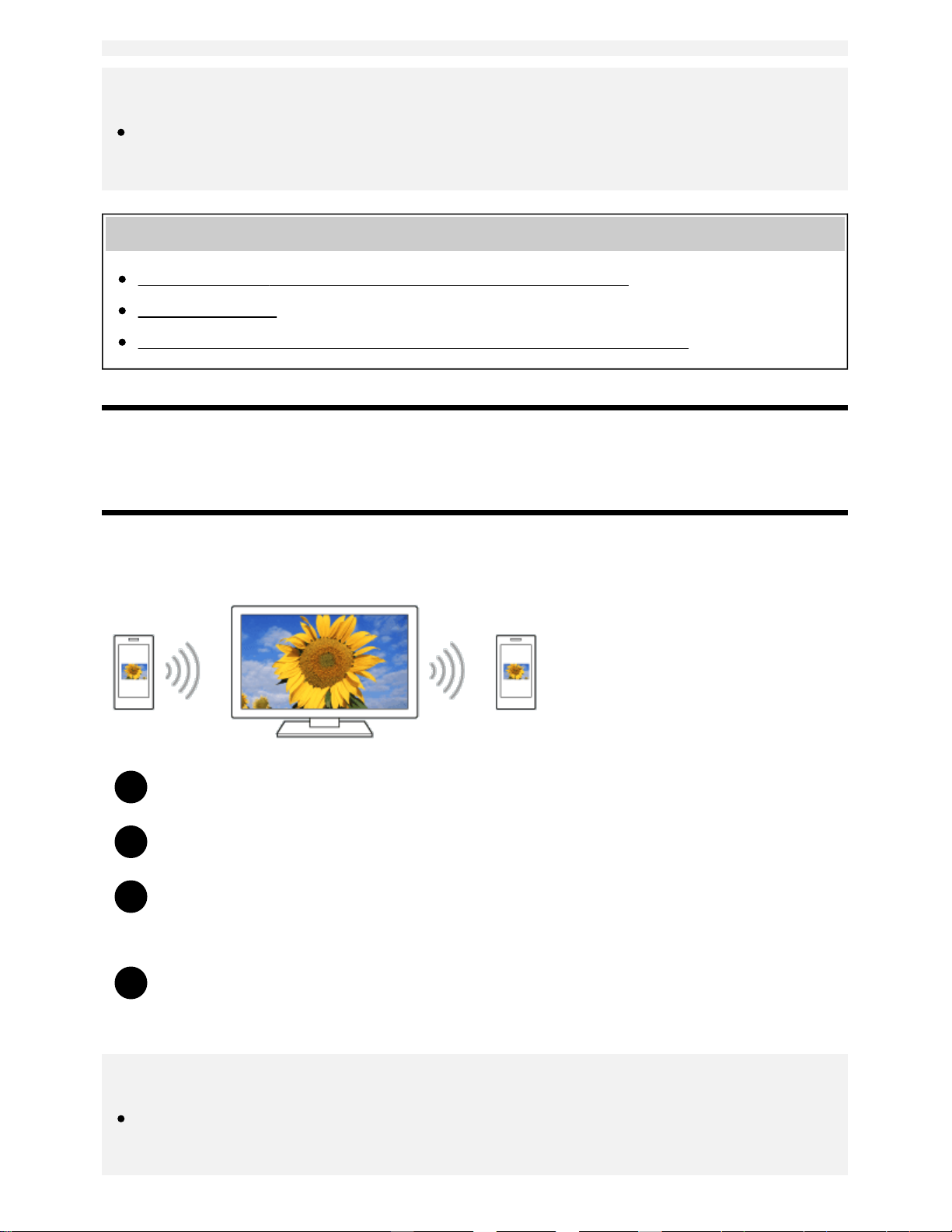
1
2
3
4
Hint
You can configure the advanced settings of Screen mirroring by pressing the HOME button, then
selecting [Settings] — [Network] — [Wi Fi Direct] — [Advanced settings].
Related topics
Using Wi-Fi Direct to connect to the TV (no wireless router required)
Connected devices
What kind of devices can be connected using the Screen mirroring function?
[47] Using the TV with Other Devices | Smartphones and tablets
Sharing photos/music/videos
Gather around the TV with your family or friends, connect your mobile devices to the TV and view your
favorite photos/videos on the large screen TV, or play your favorite tracks through the TV speakers.
Press the HOME button, then select [Photo Sharing Plus].
Follow the on-screen instructions to connect each mobile device to the TV.
Open the web browser on your mobile device and follow the on-screen instructions to
access the URL shown on the TV screen.
Follow the on-screen instructions on your mobile device to view photos or play
music/videos on the TV, or save photos/videos displayed on the TV.
Note
If the TV uses the 5GHz band to connect to a wireless router (or access point), the connection is
disconnected when this function is started.
66
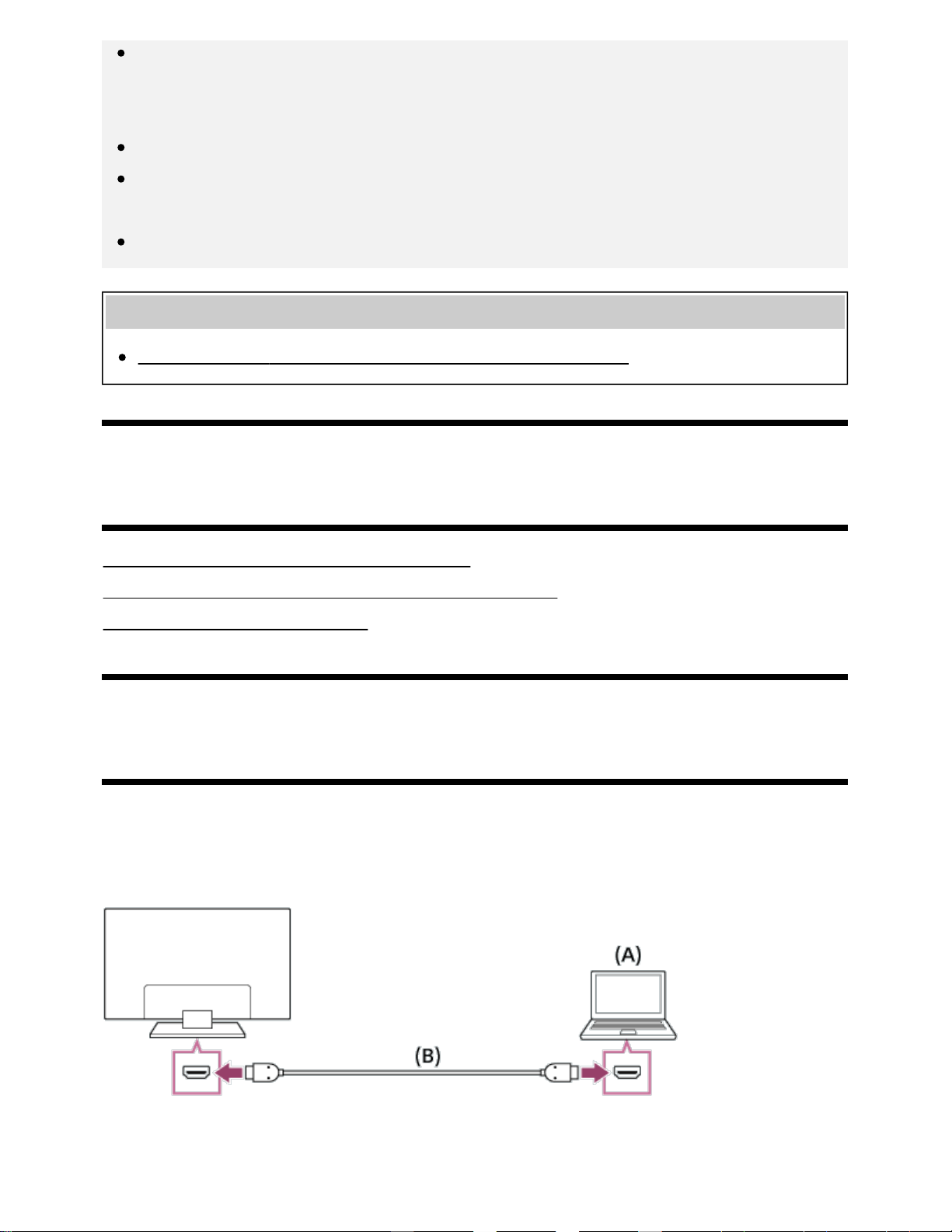
Up to 10 mobile devices can be connected to the TV at the same time. To connect another
device when 10 devices are already connected, disconnect an unnecessary device, then
connect the other device.
The default browser for Android 2.3 or later is supported.
The default browser for iOS is supported, however, some functions cannot be used depending
on the version of your iOS.
iOS devices cannot upload music to the TV.
Related topics
Using Wi-Fi Direct to connect to the TV (no wireless router required)
[48] Using the TV with Other Devices
Computers, cameras, and camcorders
Connecting a computer and viewing stored content
Connecting a camera or camcorder and viewing stored content
Computer video signal specifications
[49] Using the TV with Other Devices | Computers, cameras, and camcorders
Connecting a computer and viewing stored content
To connect a computer
Use an HDMI cable to connect your computer to the TV.
(A) Computer
(B) HDMI cable (not supplied)
*
67
Be sure to use an authorized HIGH SPEED HDMI cable bearing the HDMI logo.
To check the video signal specifications
Computer video signal specifications
To view content stored on a computer
After connecting the computer, press the HOME button, then select the input the computer is
connected to.
To check the supported file formats
Supported files and formats
Note
For optimum picture quality, we recommend that you set your computer to output video signals
according to one of the settings listed in “Computer video signal specifications”.
Depending on the connection status, the image may be blurred or smeared. In this case, change
the computer’s settings and select another input signal from the “Computer video signal
specifications” list.
[50] Using the TV with Other Devices | Computers, cameras, and camcorders
Connecting a camera or camcorder and viewing
stored content
To connect a camera or camcorder
Connect your Sony digital still camera or camcorder using an HDMI cable. Use a cable that has an
HDMI mini jack (socket) for the digital still camera/camcorder end, and a standard HDMI jack (socket)
for the TV end.
*
68
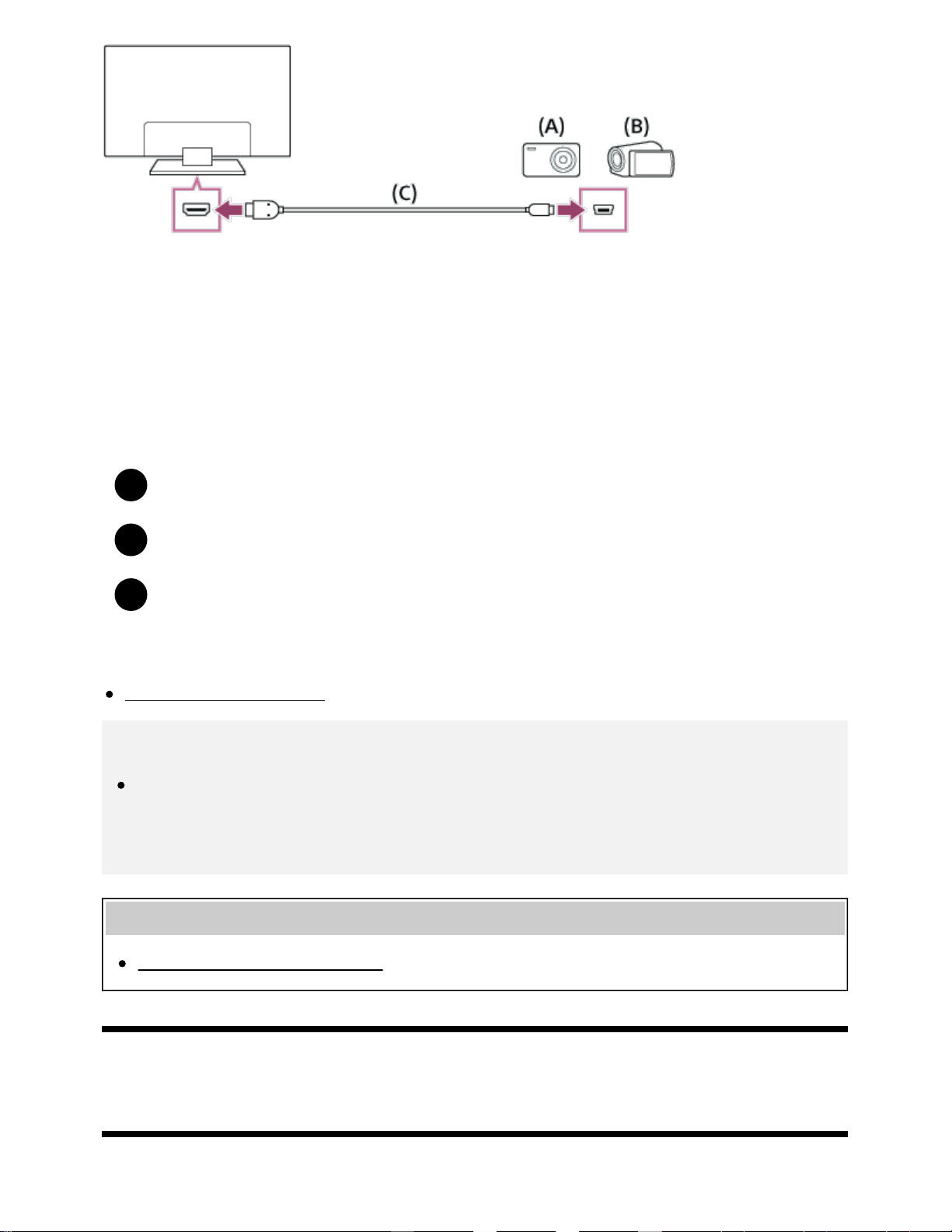
1
2
3
(A) Digital still camera
(B) Camcorder
(C) HDMI cable (not supplied)
Be sure to use an authorized HIGH SPEED HDMI cable bearing the HDMI logo.
To view content stored on a digital still camera/camcorder
After connecting the digital still camera/camcorder, turn it on.
Press the INPUT button repeatedly to select the connected digital still camera/camcorder.
Start playback on the connected digital still camera/camcorder.
To check the supported file formats
Supported files and formats
Hint
If you connect a BRAVIA Sync-compatible device, you can operate it by simply using the TV’s
remote control. Make sure that the device is BRAVIA Sync-compatible. Some devices may not
be compatible with BRAVIA Sync even though they have an HDMI jack (socket).
Related topics
BRAVIA Sync-compatible devices
[51] Using the TV with Other Devices | Computers, cameras, and camcorders
Computer video signal specifications
(Resolution, Horizontal frequency/Vertical frequency)
*
*
69

640 x 480, 31.5 kHz/60 Hz
800 x 600, 37.9 kHz/60 Hz
1024 x 768, 48.4 kHz/60 Hz
1152 x 864, 67.5 kHz/75 Hz (2K Full HD models or 4K models only)
1280 x 1024, 64.0 kHz/60 Hz (2K Full HD models or 4K models only)
1600 x 900, 56.0 kHz/60 Hz (2K Full HD models or 4K models only)
1680 x 1050, 65.3 kHz/60 Hz (2K Full HD models or 4K models only)
1920 x 1080, 67.5 kHz/60 Hz (2K Full HD models or 4K models only)
1080p timing, when applied to the HDMI input, will be treated as video timing and not computer
timing. This will affect the [Screen] settings in [Picture & Display]. To view computer content, set [Wide
mode] to [Full], and [Display area] to [Full pixel](2K models) or [+1](4K models). ([Display area] is
configurable only when [Auto display area] is disabled.)
Other video input signals
The following video formats can be displayed depending on specifications of your computer.
480p, 480i
576p , 576i
720/24p
720p/30Hz, 720p/50Hz , 720p/60Hz
1080i/50Hz , 1080i/60Hz
1080/24p
1080p/30Hz, 1080p/50Hz , 1080p/60Hz
3840 x 2160p/24Hz, 3840 x 2160p/25Hz , 3840 x 2160p/30Hz (4K models only)
3840 x 2160p/50Hz , 3840 x 2160p/60Hz (4K models only)
4096 x 2160p/24Hz (4K models only)
4096 x 2160p/50Hz , 4096 x 2160p/60Hz (4K models only)
Not supported depending on your region/country.
3840 x 2160 is displayed when 4096 x 2160 is input.
Note
1920 x 1080/60 Hz output may not be available, depending on your computer. Even if 1920 x
1080/60 Hz output is selected, the actual output signal may differ. In this case, change the
computer’s settings, then set your computer to use a different video signal.
*
*
*1 *1
*1
*1
*1
*1
*1
*2
*1*2 *2
*1
*2
70
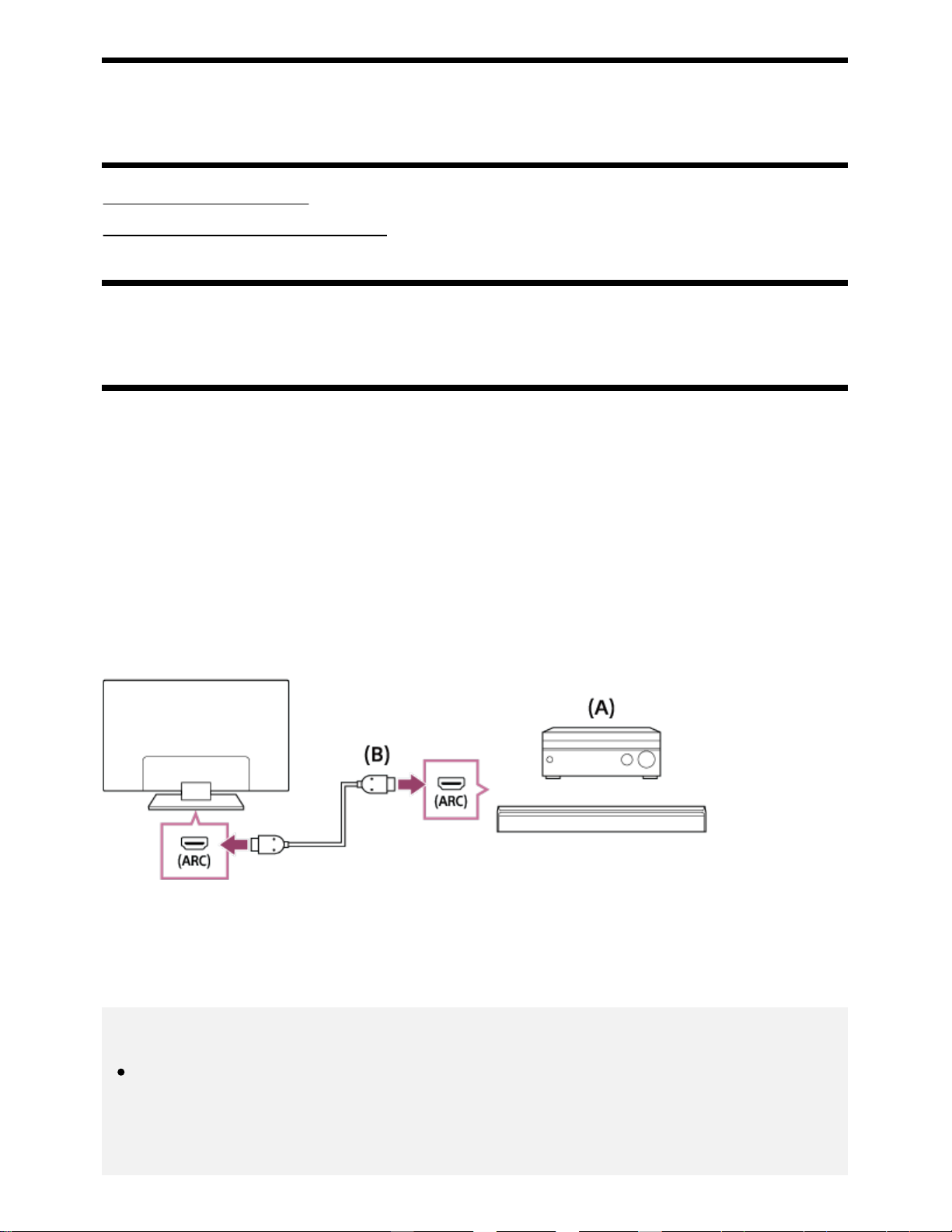
[52] Using the TV with Other Devices
Audio system
Connecting an audio system
Adjusting audio system-related settings
[53] Using the TV with Other Devices | Audio system
Connecting an audio system
See the illustrations below to connect an audio system such as an AV receiver or sound bar. After
finishing the connection, configure the audio settings to play TV sound through the audio system (refer
to the related topic link at the bottom of this page).
To connect an ARC capable audio system using an HDMI
cable
If your audio system features HDMI output jacks (sockets), you can connect the TV to your audio
system using an HDMI cable.
(A) AV receiver or sound bar
(B) HDMI cable (not supplied)
Be sure to use an authorized HIGH SPEED HDMI cable bearing the HDMI logo.
Hint
When connecting a BRAVIA Sync-compatible digital audio system with Audio Return Channel
(ARC) technology, connect it to the HDMI IN jack (socket) labeled with the “ARC” mark with an
HDMI cable. However, if connecting a system that is not BRAVIA Sync-compatible or Audio
Return Channel capable, you must also connect the TV to the audio system using the DIGITAL
*
*
71
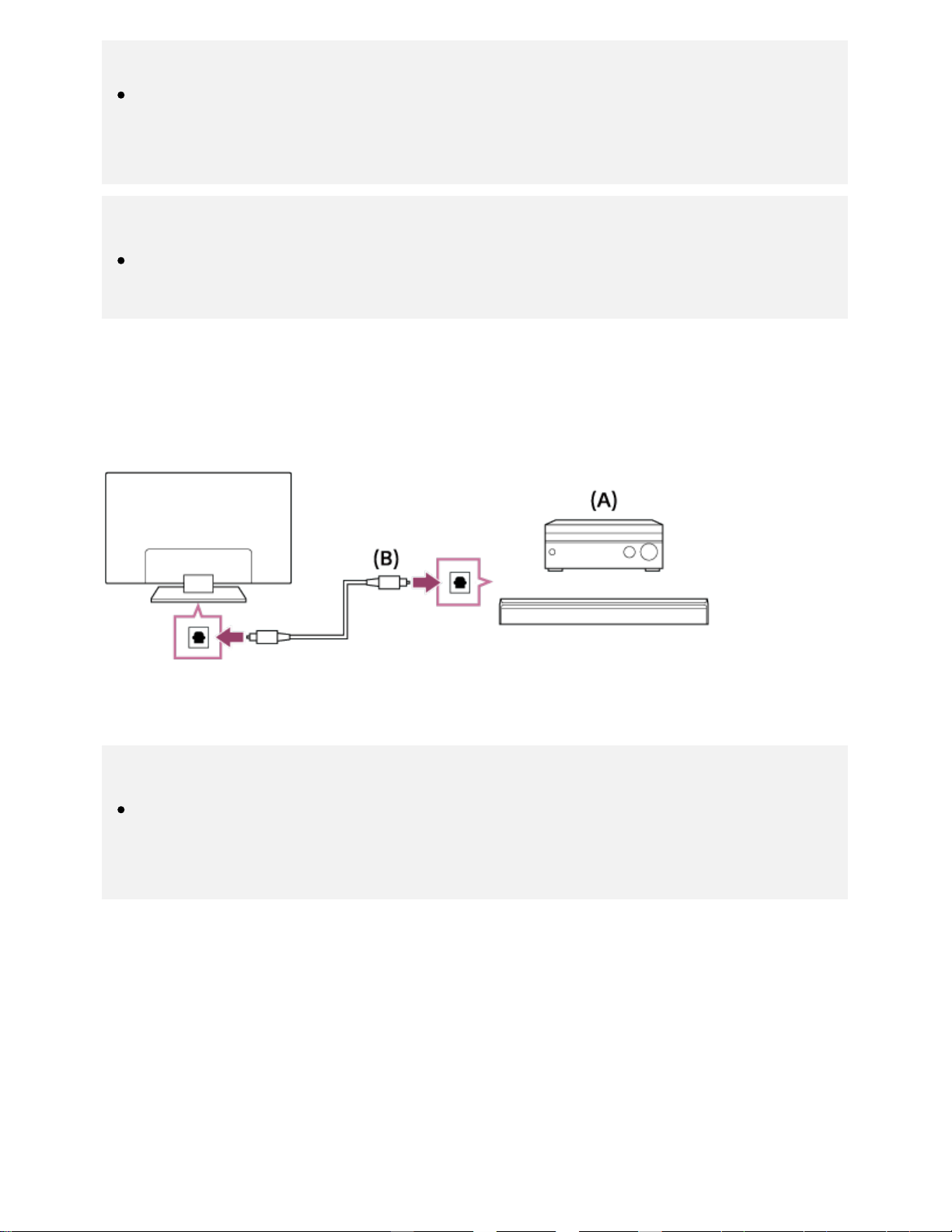
AUDIO OUT (OPTICAL) jack (socket).
See the instruction manual of the audio system for details on connecting other devices and for
set-up. If the audio system is not compatible with Dolby Digital or DTS, set [Settings] — [Sound]
— [Digital audio out] to [PCM].
Note
The location of the HDMI port that supports ARC varies depending on your model. Refer to the
Reference Guide.
To connect an audio system that is not ARC capable using
an optical audio cable
You can connect the TV’s audio output to an audio system using an optical audio cable.
(A) AV receiver or Sound bar
(B) Optical audio cable (not supplied)
Hint
See the instruction manual of the audio system for details on connecting other devices and for
set-up. If the audio system is not compatible with Dolby Digital or DTS, set [Settings] — [Sound]
— [Digital audio out] to [PCM].
To connect an audio system using an audio cable
You can connect the TV’s audio output to an audio system using a stereo to RCA analog audio cable.
72
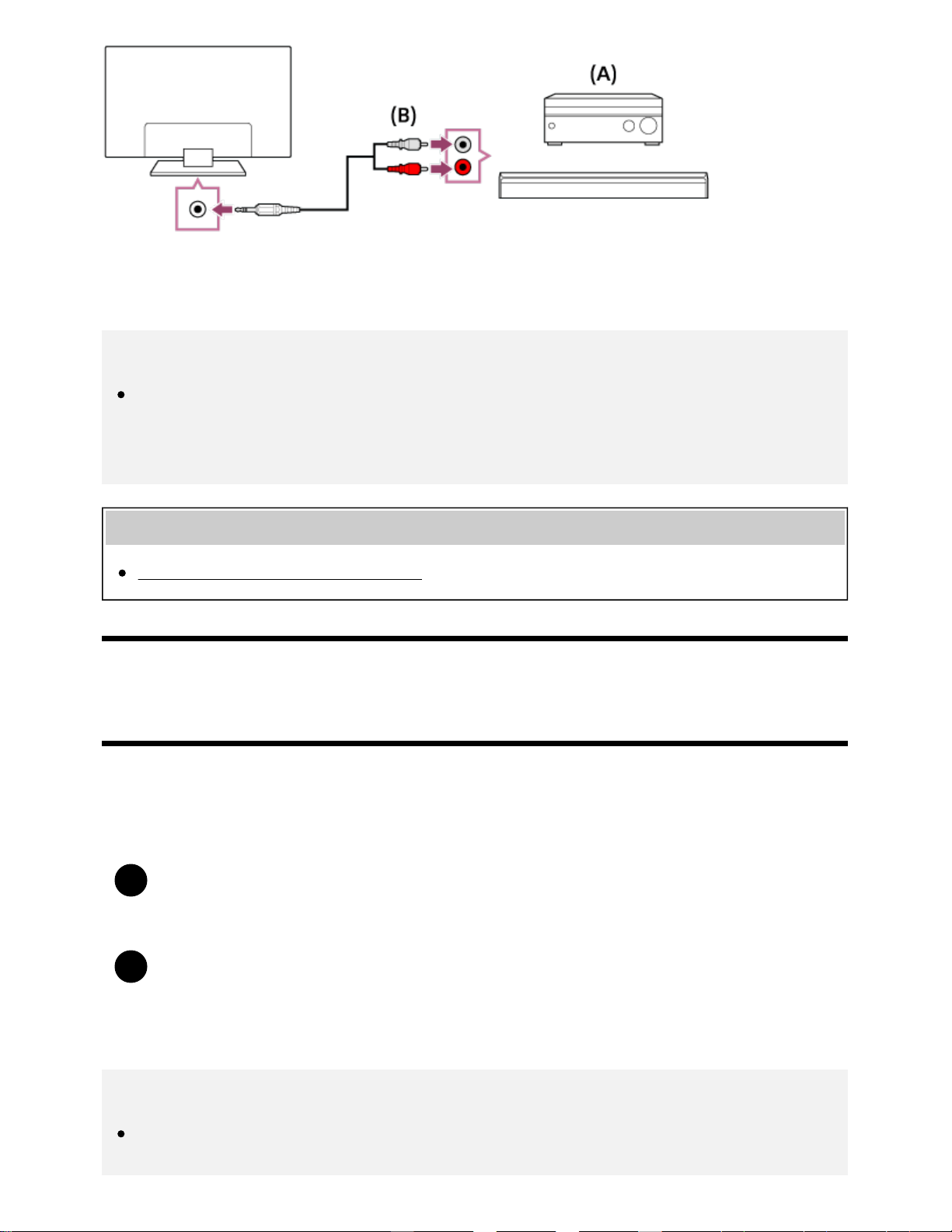
1
2
(A) AV receiver or Sound bar
(B) Audio cable (not supplied)
Hint
See the instruction manual of the audio system for details on connecting other devices and for
the set-up. If the audio system is not compatible with Dolby Digital or DTS, set [Settings] —
[Sound] — [Digital audio out] to [PCM].
Related topics
Adjusting audio system-related settings
[54] Using the TV with Other Devices | Audio system
Adjusting audio system-related settings
When using the HDMI connection or optical audio
connection
After connecting the TV to your audio system, press the ACTION MENU button, then
select [Speakers] — [Audio system].
Turn on the connected audio system, then adjust the volume.
If you connect a BRAVIA Sync-compatible device with an HDMI connection, you can
operate it by simply using the TV’s remote control.
Note
You need to configure the [Digital audio out] settings according to your audio system. Press the
HOME button, then select [Settings] — [Sound] — [Digital audio out].
73
1
2
When using the audio cable connection
After connecting the TV to your audio system, press the HOME button, then select
[Settings] — [Sound] — [Headphone/Audio out] — [Audio out (Fixed)].
Turn on the connected audio system, then adjust the volume.
Hint
When using an external audio system, the audio out of the TV can be operated using the TV’s
remote control if [Headphone/Audio out] is set to [Audio out (Variable)]. Press the HOME button,
then select [Settings] — [Sound] — [Headphone/Audio out] — [Audio out (Variable)].
When connecting a subwoofer, press the HOME button, then select [Settings] — [Sound] —
[Headphone/Audio out] — [Subwoofer].
Related topics
Connecting an audio system
No sound but good picture.
No audio or low audio with a home theater system.
[55] Using the TV with Other Devices
Bluetooth devices
Connecting a Bluetooth device
Supported Bluetooth profiles
[56] Using the TV with Other Devices | Bluetooth devices
Connecting a Bluetooth device
To pair the TV with a Bluetooth device
Only for Bluetooth A2DP-supported models that can use Bluetooth audio devices such as headphones
74
1
2
3
1
2
3
or speakers.
Bluetooth A2DP-supported models that can use Bluetooth audio devices have [A/V sync] in [Settings]
— [Sound].
Turn the Bluetooth device on and put it in pairing mode.
To put your Bluetooth device in pairing mode, refer to the instruction manual of the
device.
Press the HOME button, then select [Settings] — [Bluetooth settings] — [Add device] to
put the TV in pairing mode.
A list of available Bluetooth devices will be displayed.
Select the desired device from the list, then follow the on-screen instructions.
If you are prompted to enter a passcode, refer to the instruction manual of the device.
After pairing is completed, the device connects to the TV.
To connect to a paired Bluetooth device
Press the HOME button, then select [Settings] — [Bluetooth settings].
Select a paired but unconnected device from the list.
Select [Connect].
Related topics
Supported Bluetooth profiles
Operation cuts out, or a device does not work.
[57] Using the TV with Other Devices | Bluetooth devices
Supported Bluetooth profiles
The TV supports the following profiles:
HID (Human Interface Device Profile)
HOGP (HID over GATT Profile)
3DSP (3D Synchronization Profile)
*
75
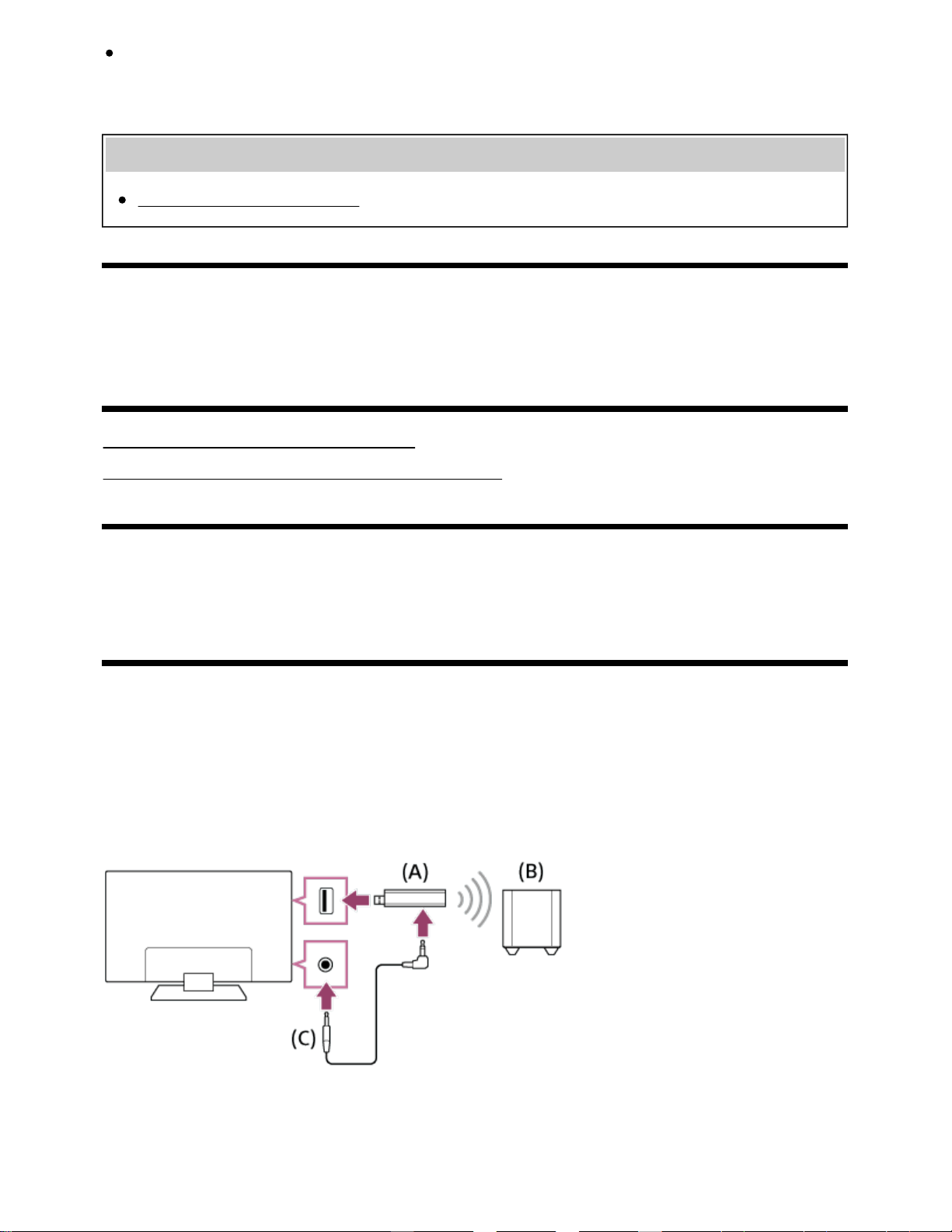
SPP (Serial Port Profile)
Available depending on your model/region/country.
Related topics
Connecting a Bluetooth device
[58] Using the TV with Other Devices
Sony wireless subwoofer (optional) (Sony wireless
subwoofer supported models only)
Connecting a wireless subwoofer (optional)
Adjusting wireless subwoofer-related settings (optional)
[59] Using the TV with Other Devices | Sony wireless subwoofer (optional) (Sony wireless subwoofer
supported models only)
Connecting a wireless subwoofer (optional)
You can use the optional Wireless Subwoofer SWF-BR100 to extend the bass response of the TV’s
sound.
The availability of this feature depends on your model/region/country.
TVs that support the Wireless Subwoofer indicate “SWF-BR100” in the specifications section of the
Reference Guide.
(A) Wireless Transceiver
(B) Wireless Subwoofer SWF-BR100
(C) Audio cable
*
76
1
2
3
4
1
Connect the audio cable (supplied) to the Wireless Transceiver.
Connect the other end of the audio cable to the AUDIO OUT / jack (socket) of the TV.
Connect the Wireless Transceiver to the USB port of the TV.
[Headphone/Audio out] is automatically set to [Subwoofer].
Position the Wireless Subwoofer and connect it to the AC power.
We recommend that the Wireless Subwoofer be placed as close as possible to the TV.
Hint
When the Wireless Transceiver is disconnected, [Headphone/Audio out] is automatically
restored to its original setting.
For details on how to set up the Wireless Subwoofer, refer to the instruction manual supplied
with the Wireless Subwoofer.
Related topics
Adjusting wireless subwoofer-related settings (optional)
[60] Using the TV with Other Devices | Sony wireless subwoofer (optional) (Sony wireless subwoofer
supported models only)
Adjusting wireless subwoofer-related settings
(optional)
Sony wireless subwoofer supported models have [Wireless Subwoofer power] in [Settings] — [Sound]
— [Sound adjustments].
The sound settings of the Wireless Subwoofer have already been set to the recommended values for
your TV. Follow the instructions below to change the settings to suit your preferences.
Press the HOME button, then select [Settings] — [Sound] — [Sound adjustments] —
[Advanced settings] — [Sound mode related] — [Wireless Subwoofer].
Available Options
77
1
[Wireless Subwoofer level]
Adjusts the volume level of the Wireless Subwoofer.
[Cut off frequency (50-200Hz)]
Adjusts the cutoff frequency of the Wireless Subwoofer. All frequencies below the cutoff frequency are
output to the Wireless Subwoofer.
[Phase]
Sets the phase polarity. Select the setting to suit your preference.
[Wireless Subwoofer sync]
Adjusts the time lag of the Wireless Subwoofer sound. If the sound produced by the Wireless
Subwoofer is too late, use [+]; if it is too early, use [-].
[Reset Wireless Subwoofer settings]
Resets the Wireless Subwoofer settings to their initial values.
To set the power control method of the Wireless Subwoofer
Press the HOME button, then select [Settings] — [Sound] — [Sound adjustments] —
[Wireless Subwoofer power].
Related topics
Connecting a wireless subwoofer (optional)
[61] Using the TV with Other Devices
BRAVIA Sync-compatible devices
BRAVIA Sync overview
Using features available for BRAVIA Sync-compatible devices
Adjusting BRAVIA Sync settings
[62] Using the TV with Other Devices | BRAVIA Sync-compatible devices
BRAVIA Sync overview
If a BRAVIA Sync-compatible device (e.g., BD player, AV amplifier) is connected with an HDMI cable,
or a BRAVIA Sync-compatible device (e.g., smartphone, tablet) is connected with an MHL cable (MHL
models only), you can operate the device with the TV’s remote control.
78
Related topics
Using features available for BRAVIA Sync-compatible devices
Adjusting BRAVIA Sync settings
[63] Using the TV with Other Devices | BRAVIA Sync-compatible devices
Using features available for BRAVIA Sync-
compatible devices
The [Sync Menu] is primarily used to operate BRAVIA Sync-compatible devices from the TV.
Press the ACTION MENU button, and select [Sync Menu].
Blu-ray/DVD player
Automatically turns the Blu-ray/DVD player on and switches the input to the Blu-ray/DVD player
when you select it from the Home Menu or Sync Menu.
Automatically turns the TV on and switches the input to the connected Blu-ray/DVD player when the
Blu-ray/DVD player starts to play.
Automatically turns the connected Blu-ray/DVD player off when you turn the TV off.
Controls menu operation ( / / / buttons), playback (e.g., button), and
channel selection of the connected Blu-ray/DVD player through the TV’s remote control.
AV amplifier
Automatically turns the connected AV amplifier on and switches the sound output from the TV
speaker to the audio system when you turn the TV on. This function is only available if you have
previously used the AV amplifier to output the TV’s sound.
Automatically switches the sound output to the AV amplifier by turning the AV amplifier on when the
TV is turned on.
79
1
2
3
Automatically turns the connected AV amplifier off when you turn the TV off.
Adjusts the volume ( +/– buttons) and mutes the sound ( button) of the connected AV
amplifier through the TV’s remote control.
Video camera
Automatically turns the TV on and switches the input to the connected video camera when the
camera is turned on.
Automatically turns the connected video camera off when you turn the TV off.
Controls menu operation ( / / / buttons), playback (e.g., button) of the
connected video camera through the TV’s remote control.
Note
“BRAVIA Sync control” (BRAVIA Sync) is only available for connected BRAVIA Sync-compatible
devices that have the BRAVIA Sync logo.
Related topics
BRAVIA Sync overview
Adjusting BRAVIA Sync settings
[64] Using the TV with Other Devices | BRAVIA Sync-compatible devices
Adjusting BRAVIA Sync settings
Turn on the connected device.
To enable [BRAVIA Sync control], press the HOME button, then select [Settings] —
[External inputs] — [BRAVIA Sync settings] — [BRAVIA Sync control].
Activate BRAVIA Sync on the connected device.
When a specific Sony BRAVIA Sync-compatible device is connected and powered on
and [BRAVIA Sync control] is enabled, BRAVIA Sync is automatically activated on that
device. For details, refer to the instruction manual of the connected device.
Available options
Available options are shown below. (Options vary depending on your model/region/country.)
80
1
[Device auto power off]
If disabled, the connected device does not turn off automatically when the TV is turned off.
[TV auto power on]
If disabled, the TV does not turn on automatically when the connected device is turned on.
[Auto input change (MHL)] (MHL supported models only)
If enabled, the TV input automatically switches to the corresponding device connected using an MHL
cable.
[BRAVIA Sync device list]
Displays the BRAVIA Sync device list.
[Device control keys]
Allows you to set buttons to control an HDMI or MHL (MHL supported models only) connected device.
[Charge MHL during power off] (MHL supported models only)
If enabled, the TV can charge the connected MHL device when the TV is in standby mode.
To use the Sync Menu
Press the SYNC MENU button, then select the desired item in the Sync Menu.
Hint
If you press the SYNC MENU button, the promotion screen is displayed in the following
situations:
An HDMI or MHL (MHL supported models only) device is not connected.
[BRAVIA Sync control] is disabled.
Related topics
BRAVIA Sync overview
Using features available for BRAVIA Sync-compatible devices
[65] Using the TV with Other Devices
Connecting an IR Blaster (IR Blaster compatible
models only)
IR Blaster compatible models have [IR Blaster setup] in [Settings] — [External inputs].
81
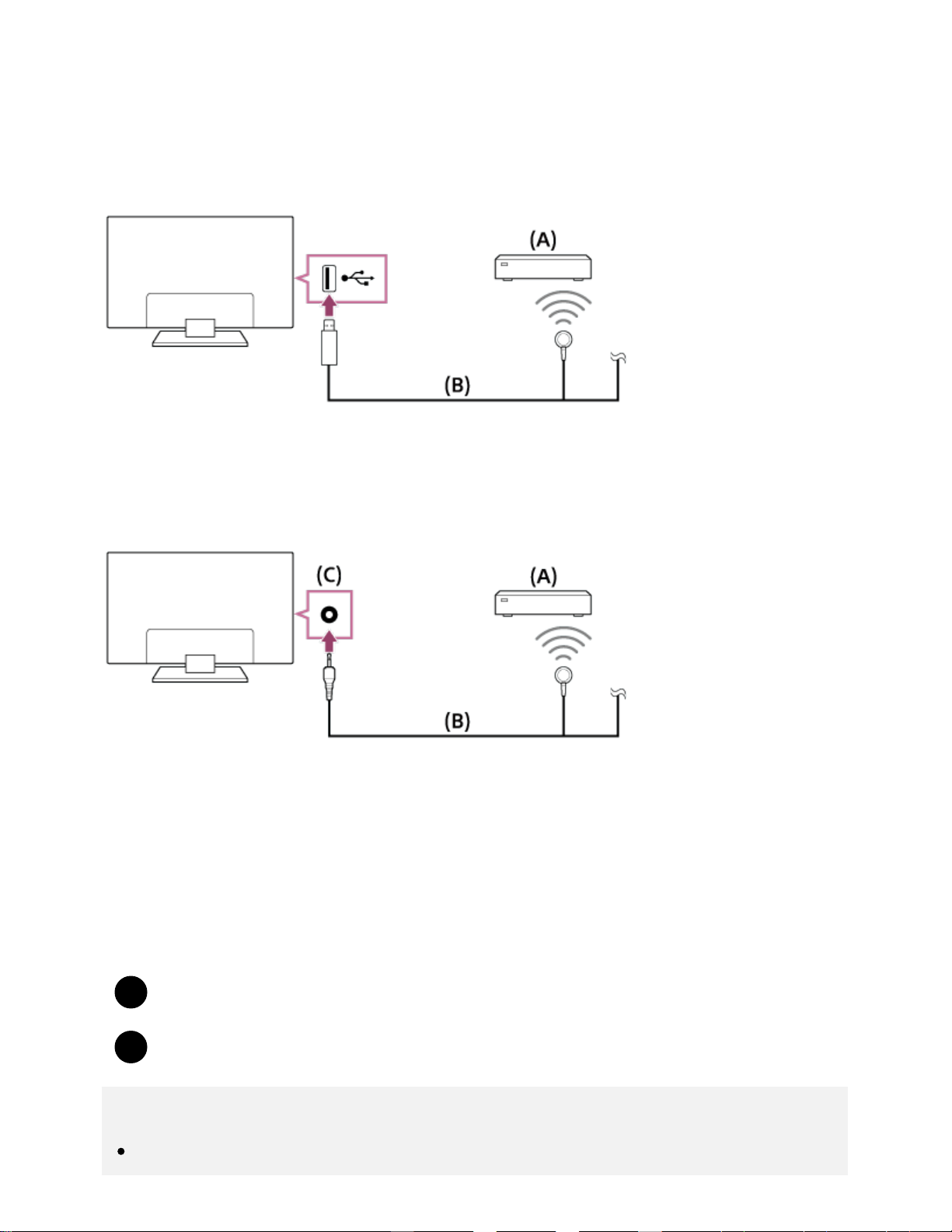
1
2
The IR Blaster allows you to operate a set-top box or AV Receiver that is connected to the TV, with the
TV’s remote control.
(IR Blaster compatible models may not be available depending on your model/country.)
For a USB type IR Blaster*
(A) Set-top box or AV Receiver
(B) IR Blaster cable
For a plug type IR Blaster*
(A) Set-top box or AV Receiver
(B) IR Blaster cable
(C) IR Blaster jack (socket)
The shape of the supplied IR Blaster may vary depending on your model.
To set up the IR Blaster
Press the HOME button, then select [Settings] — [External inputs] — [IR Blaster setup].
Select the desired device from the list, then follow the on-screen instructions.
Hint
The IR Blaster can operate an AV receiver. To set up an AV receiver, press the HOME button,
*
82
then select [Settings] — [External inputs] — [IR Blaster setup] — [AV receiver control setup].
If the AV receiver is a BRAVIA Sync-compatible device, an IR Blaster is not needed.
Note
Some external devices may not respond to some items in the “Action Menu”.
If you press and hold a button on the remote control, the operation may not be transmitted.
Instead, press the button repeatedly.
Make sure that the IR Blaster is correctly set up and the IR transmitter is located near the IR
receiver of the external device.
Make sure that your TV supports the external device.
Related topics
An external device (such as a set-top box or AV receiver) cannot be controlled via the IR
Blaster. (IR Blaster compatible models only)
[66] Using the TV with Other Devices
Viewing pictures in 4K from compatible devices (4K
models only)
Viewing pictures in 4K resolution (4K models only)
Settings for viewing pictures in 4K resolution with higher quality (4K models only)
[67] Using the TV with Other Devices | Viewing pictures in 4K from compatible devices (4K models
only)
Viewing pictures in 4K resolution (4K models only)
A picture with a 4K or higher resolution can be displayed in 4K resolution (3840×2160). You can
connect a digital still camera/camcorder that supports HDMI 4K output to HDMI IN of the TV to display
high resolution photos stored on the camera. You can also display high resolution photos stored in
connected USB devices or your home network.
The availability of this function depends on your region/country.
83
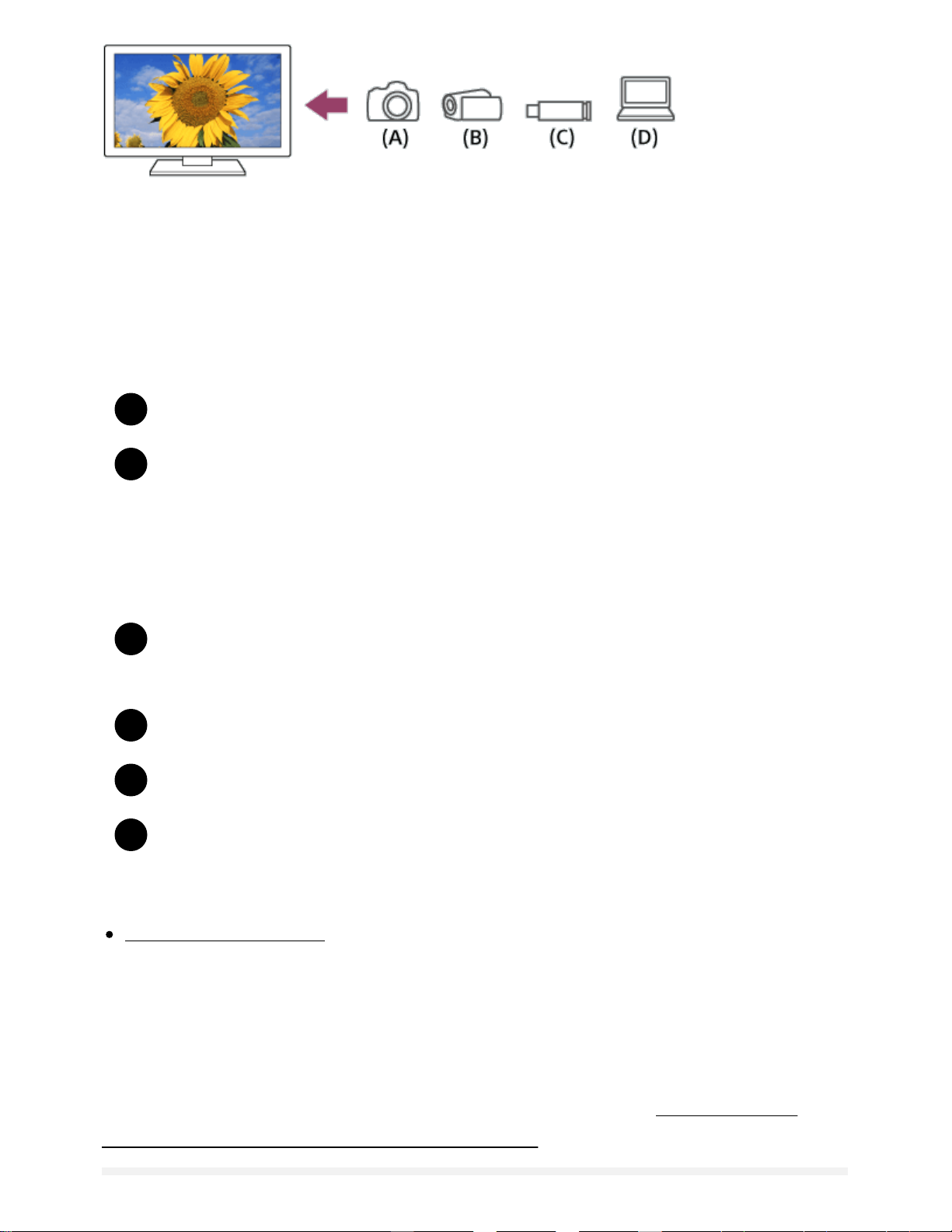
1
2
1
2
3
4
(A) Digital still camera
(B) Camcorder
(C) USB device
(D) Network device
To view pictures stored on a USB device or network device in 4K resolution
Connect the USB device or network device to the TV.
Press the HOME button, then select [Album] — the USB device, server, or preset folder
containing the file to play — the folder or file from the list.
If you select a folder, select the file.
To view pictures stored on a digital still camera/camcorder
Connect a digital still camera or camcorder that supports HDMI output to the HDMI IN jack
(socket) of the TV, using an HDMI cable.
Press the INPUT button repeatedly to select the connected device.
Set the connected device to 4K output.
Start playback on the connected device.
To check the supported file formats
Supported files and formats
To view pictures in 4K resolution with higher quality
You can set the HDMI signal format to [Enhanced format] to view pictures in 4K resolution with higher
quality.
For information about Enhanced format or changing the settings, refer to the Settings for viewing
pictures in 4K resolution with higher quality (4K models only) page.
84
Note
A 3D picture cannot be displayed.
If you change the picture by pressing the / buttons, it may take time to display.
Related topics
Computers, cameras, and camcorders
USB devices
Connecting to a Network
[68] Using the TV with Other Devices | Viewing pictures in 4K from compatible devices (4K models
only)
Settings for viewing pictures in 4K resolution with
higher quality (4K models only)
When you display the High-Quality 4K format with the HDMI input, set [HDMI signal format] in [External
inputs].
HDMI signal format
To change the HDMI signal format setting, press the HOME button, then select [Settings] — [External
inputs] — [HDMI signal format].
Standard format
Standard HDMI format for normal use.
Enhanced format
High-Quality HDMI format . Set only when using capable devices.
HDR included (HDR models only). HDR models have [HDR mode] in [Settings] — [Picture & Display]
— [Picture adjustments] — [Advanced settings] — [Video options].
4K 60p 4:2:0 10bit, 4:4:4:, 4:2:2 etc.
Note
When using [Enhanced format], picture and sound may not be output correctly. In this case,
connect the device to an HDMI IN that is in [Standard format], or change the HDMI signal format
of HDMI IN to [Standard format].
*1
*1*2
*1
*2
85
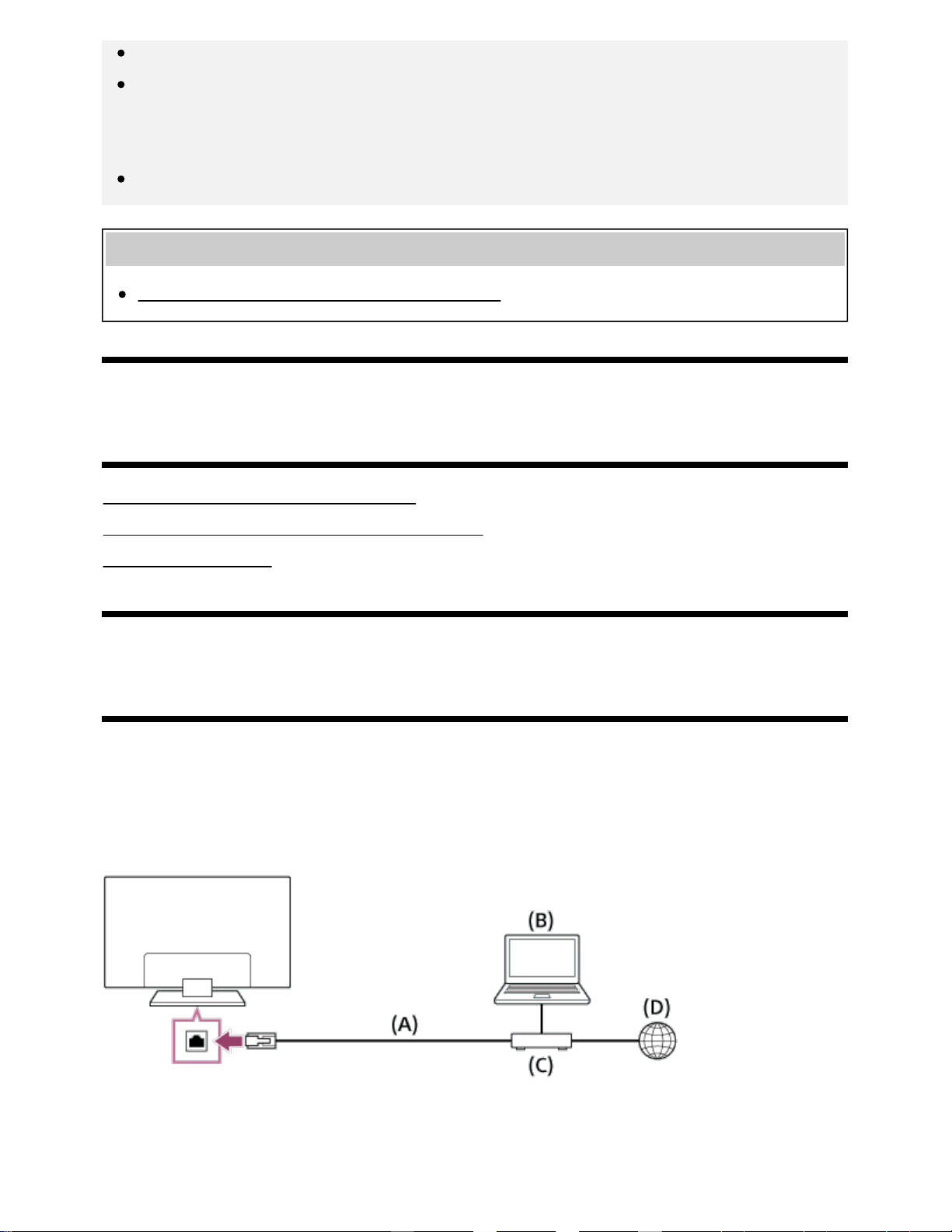
Set to [Enhanced format] only when using compatible devices.
When you watch 4K picture with High-Quality, use a Premium High Speed HDMI Cable(s) that
supports speeds of 18 Gbps. For details on a Premium High Speed HDMI Cable(s) that supports
18 Gbps, refer to the cable specifications.
In some models, the HDMI signal format of HDMI IN 2 and 3 changes at the same time.
Related topics
Viewing pictures in 4K resolution (4K models only)
[69]
Connecting to a Network
Connecting to a network using a LAN cable
Connecting to a network using a wireless connection
Home network features
[70] Connecting to a Network
Connecting to a network using a LAN cable
Connecting to a network using a LAN cable
A wired LAN connection allows you to access the Internet and your home network. Connect a LAN
cable to your TV.
(A) LAN cable
(B) Computer
86
1
2
3
(C) Modem with router functions
(D) Internet
Set up your LAN router.
For details, refer to the instruction manual of your LAN router, or contact the person
who set up the network (network administrator).
Press the HOME button, then select [Settings] — [Network] — [Network setup] — [Easy].
Follow the on-screen instructions to complete the set-up.
Note
The network-related settings that are required may vary depending on the Internet service
provider or router. For details, refer to the instruction manuals provided by the Internet service
provider or those supplied with the router. You can also contact the person who set up the
network (network administrator).
[71] Connecting to a Network
Connecting to a network using a wireless
connection
Using Wi-Fi to connect the TV to your network
Using Wi-Fi Direct to connect to the TV (no wireless router required)
[72] Connecting to a Network | Connecting to a network using a wireless connection
Using Wi-Fi to connect the TV to your network
The built-in wireless LAN device allows you to access the Internet and enjoy the benefits of networking
in a cable-free environment.
87
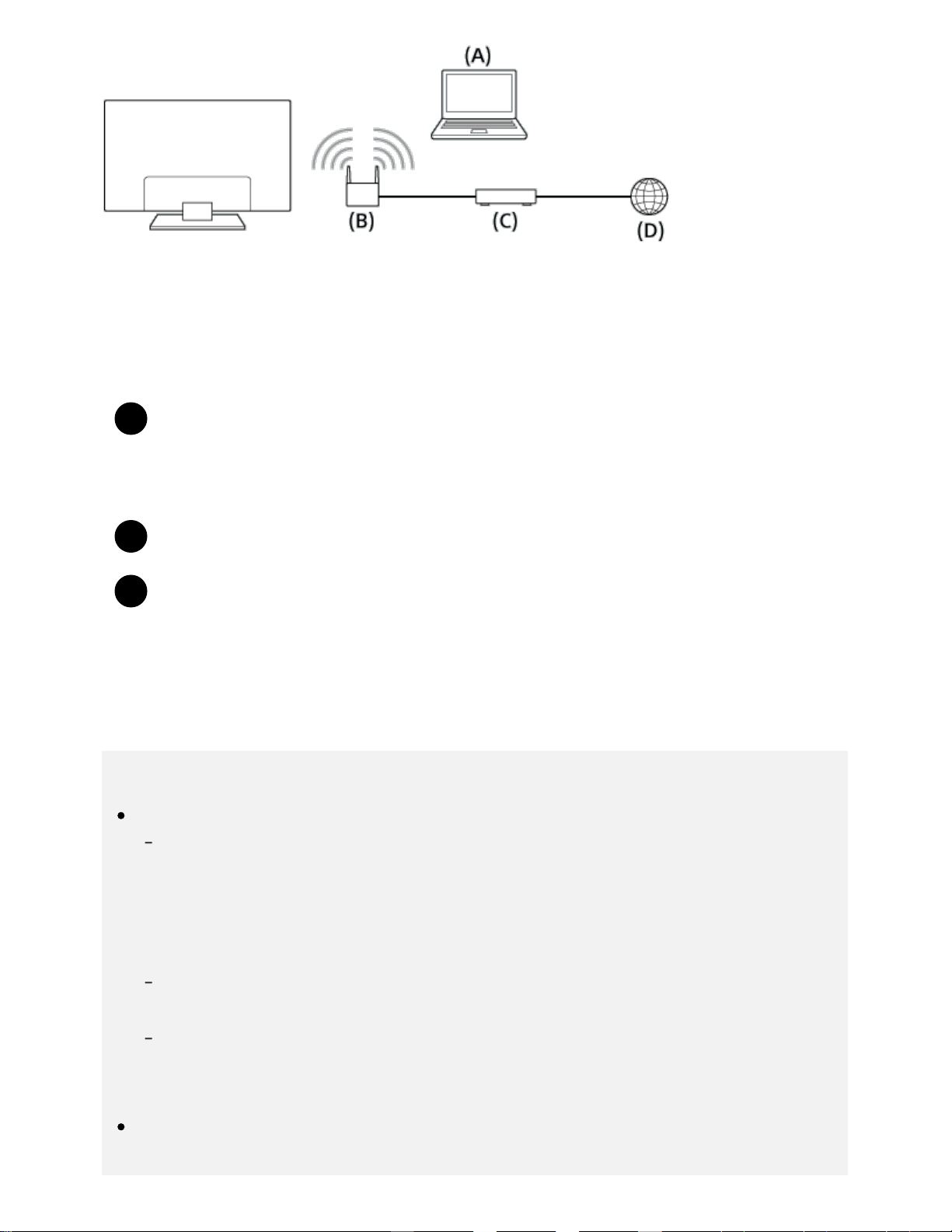
1
2
3
(A) Computer
(B) Wireless router (access point)
(C) Modem
(D) Internet
Set up your wireless router (or access point).
For details, refer to the instruction manual of your wireless router (or access point), or
contact the person who set up the network (network administrator).
Press the HOME button, then select [Settings] — [Network] — [Network setup] — [Easy].
Follow the on-screen instructions to complete the set-up.
To turn off the built-in wireless LAN
To disable [Built-in Wi Fi], press the HOME button, then select [Settings] — [Network] — [Advanced
settings] — [Built-in Wi Fi].
Hint
For smooth video streaming:
Change the setting of your wireless router (or access point) to a high-speed networking
standard such as 802.11n if possible.
For details on how to change the setting, refer to the instruction manual of your wireless
router (or access point), or contact the person who set up the network (network
administrator).
If the above procedure does not deliver any improvement, change the setting of your wireless
router (or access point) to 5GHz, which may help improve the video streaming quality.
The 5GHz band may not be supported depending on your region/country. If the 5GHz band is
not supported, the TV can only connect to a wireless router (access point) using the 2.4GHz
band.
To use WEP security with a wireless router (or access point), select [Settings] — [Network] —
[Network setup] — [Easy] — [Wi Fi] — [Connect by scan list].
88
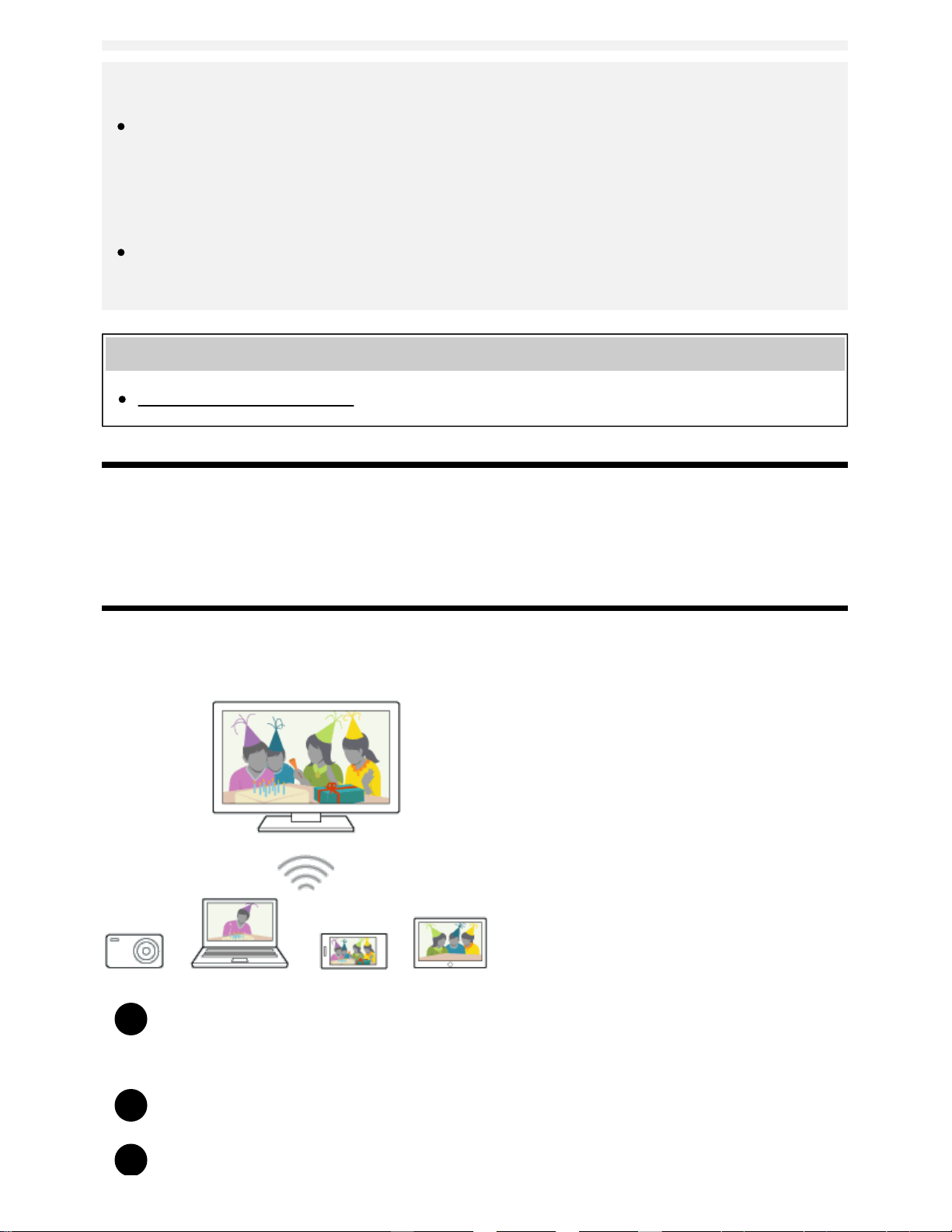
1
2
3
Note
The network-related settings that are required may vary depending on the Internet service
provider or router. For details, refer to the instruction manuals provided by the Internet service
provider or those supplied with the router. You can also contact the person who set up the
network (network administrator).
If you select the [Show password] option in the password entry screen, the exposed password
may be seen by other individuals.
Related topics
Network (Internet/home)/apps
[73] Connecting to a Network | Connecting to a network using a wireless connection
Using Wi-Fi Direct to connect to the TV (no
wireless router required)
You can connect a device to the TV wirelessly, without using a wireless router, and then stream videos,
photos, and music that is stored on your device directly to the TV.
To enable [Wi Fi Direct], press the HOME button, then select [Settings] — [Network] —
[Wi Fi Direct] — [Wi Fi Direct].
Select [Wi Fi Direct settings].
Select the TV name displayed on the TV screen with the Wi-Fi Direct device.
89

4
5
If the device does not support Wi-Fi Direct, select the [Show Network (SSID)/Password].
Operate the Wi-Fi Direct/Wi-Fi device to connect with the TV.
Send content from the Wi-Fi Direct/Wi-Fi device to the TV.
For details, refer to the instruction manual of the device.
If the connection does not succeed
When the standby screen for the Wi-Fi Direct setting is displayed, select [Show Network
(SSID)/Password] and follow the on-screen instructions to complete the set-up.
To connect another device
Follow the steps above to connect devices. Up to 10 devices can be connected at the same time. To
connect another device when 10 devices are already connected, disconnect an unnecessary device,
then connect the other device.
To change the name of the TV shown on the connected device
Press the HOME button, then select [Settings] — [About] — [Device name].
To list connected devices/deregister devices
Press the HOME button, then select [Settings] — [Network] — [Wi Fi Direct] — [Advanced settings] —
[Show device list/Delete].
To deregister a device, select the device in the list to delete, then press the
button. Then, select
[Yes] in the confirmation display.
To deregister all devices, select [Delete all] in the list, then [Yes] in the confirmation display.
To change the band setting (for experts)
When your TV is not connected wirelessly to a router, you can select the wireless band for the Wi-Fi
Direct function. Press the HOME button, then select [Settings] — [Network] — [Wi Fi Direct] —
[Advanced settings] — [Band setting].
[Auto]
Normally use this option. It automatically selects an appropriate band for the Wi-Fi Direct function.
[Auto (2.4GHz band)]
Use this option when connecting with devices that support 2.4GHz only. This option may support more
90
devices than other options.
[Auto (5GHz band)]
Use this option when connecting with devices that support 5GHz. This option may improve video
streaming quality.
Note that when you select this option, the TV cannot connect with devices that support 2.4GHz only.
[Manual]
Use this option to select a specific wireless channel.
Hint
For information about the supported wireless band of your device, refer to the instruction manual
of your device.
The 5GHz band may not be supported depending on your region/country. If the 5GHz band is
not supported, you can only use [Auto] and [Manual].
Note
If the TV is connected to a wireless router (or access point) at 5GHz:
The 5GHz wireless connection will be disconnected when [Wi Fi Direct settings] is selected.
While the connection is disconnected, communication via Internet is stopped.
The connection will resume automatically after exiting from [Wi Fi Direct settings].
The 5GHz band may not be supported depending on your region/country.
Related topics
The TV cannot be found by a Wi-Fi Direct device.
[74] Connecting to a Network
Home network features
Adjusting home network settings
Playing content from a computer
Playing content from a media server
RVU statement (RVU compliant models only)
[75] Connecting to a Network | Home network features
91

Adjusting home network settings
You can adjust the following home network settings.
To check the server connection
Press the HOME button, then select [Settings] — [Network] — [Home network] — [Server diagnostics]
— follow the on-screen instructions to perform diagnostics.
To use the renderer function
Press the HOME button, then select [Settings] — [Network] — [Home network] — [Renderer] — the
desired option.
[Renderer]
Enable the renderer function.
You can play photo/music/video files in a controller (e.g., digital still camera) on the TV screen by
operating the device directly.
[Renderer access control]
Select [Auto access permission] to access the TV automatically when a controller accesses the TV
for the first time.
Select [Custom settings] to change the access permission settings of each controller.
To use the remote device
Press the HOME button, then select [Settings] — [Network] — [Remote device settings] — the desired
option.
[Control remotely]
Enable operation of the TV from a registered device.
[Deregister remote device]
Deregister a device to disable operation of the TV from that device.
[76] Connecting to a Network | Home network features
Playing content from a computer
You can play photo/music/video files stored on a server (e.g., computer) that is connected to the same
home network that the TV is connected to.
92
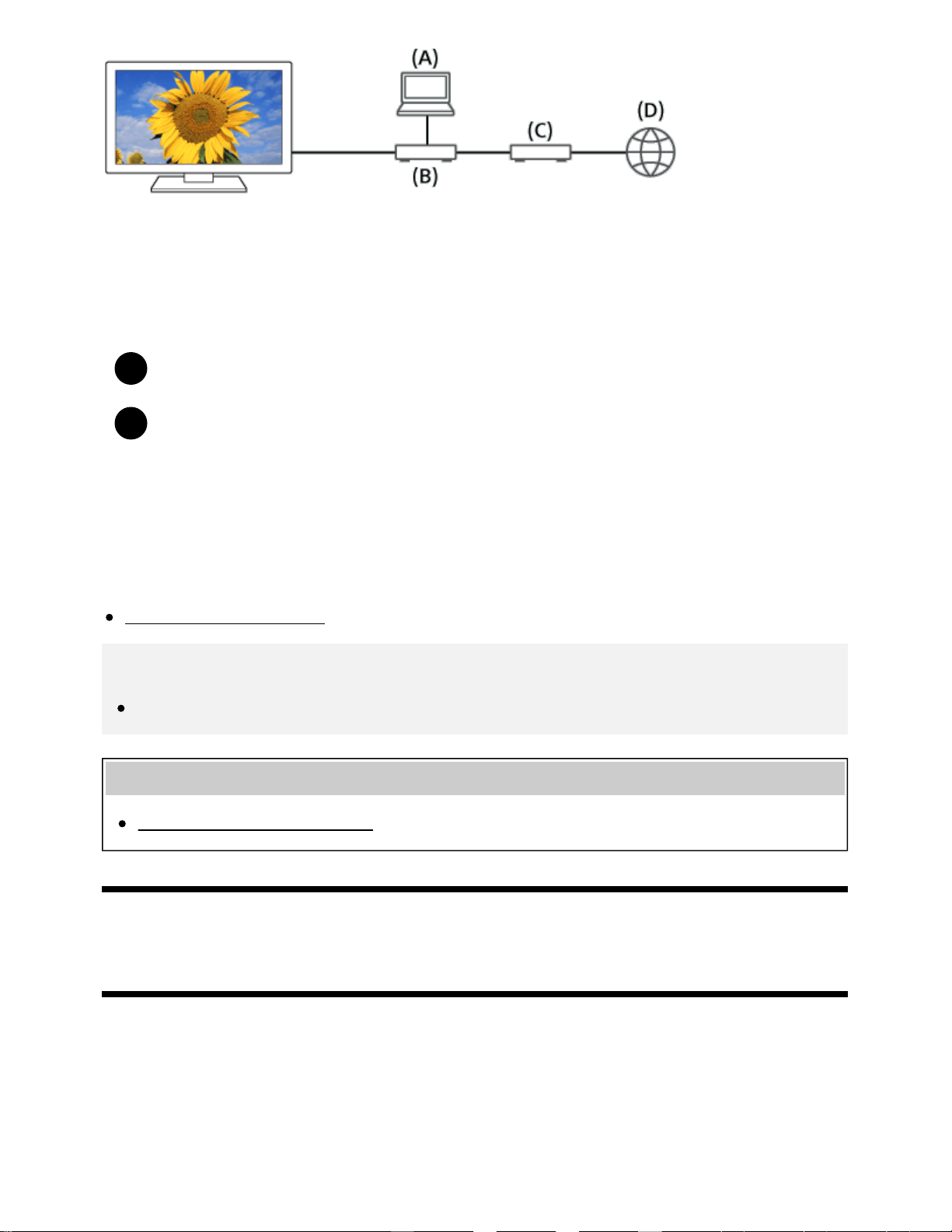
1
2
(A) Computer (Server)
(B) Router
(C) Modem
(D) Internet
Connect the TV to your home network.
Press the HOME button, then select [Album], [Video], or [Music] — the server containing
the file to play — the folder or file from the list.
If you select a folder, select the desired file.
Playback starts.
To check the supported file formats
Supported files and formats
Note
Depending on the file, playback may not be possible even when using the supported formats.
Related topics
Adjusting home network settings
[77] Connecting to a Network | Home network features
Playing content from a media server
You can play photo/music/video files in a controller (e.g., digital still camera) on the TV screen by
operating the controller directly. The controller should also be renderer-compatible.
93
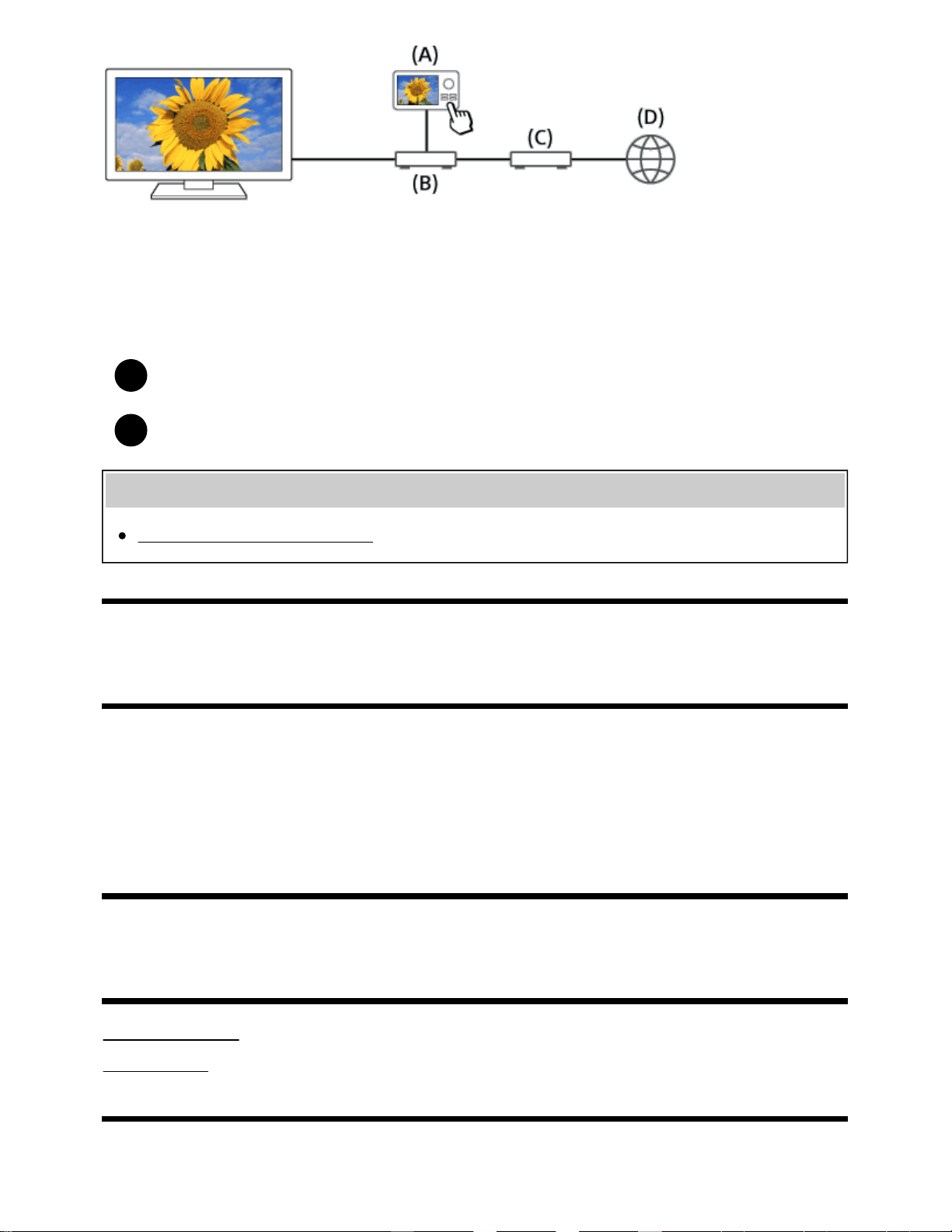
1
2
(A) Digital still camera (Controller)
(B) Router
(C) Modem
(D) Internet
Connect the TV to your home network.
Operate the controller to start playing the content on the TV screen.
Related topics
Adjusting home network settings
[78] Connecting to a Network | Home network features
RVU statement (RVU compliant models only)
RVU compliant models have [RVU] in [Settings] — [External inputs] — [Manage inputs].
Your TV is equipped with RVU technology which may allow it to connect to compatible satellite
receivers over your home network without the need for a dedicated box. Contact your satellite provider
for additional information.
[79]
Settings
Configuring the TV
Setting a timer
[80] Settings
94

Configuring the TV
[TV]
[Network & Accessories]
[System Preferences]
[Personal]
[Accounts]
[81] Settings | Configuring the TV
[TV]
Press the HOME button, then select [Settings] — [TV] — the desired option.
Available options
[Channels]
Configures the settings related to receiving broadcast programming.
[External inputs]
Configures the settings of the external inputs and BRAVIA Sync.
[Picture & Display]
Adjusts the picture and screen display settings such as screen brightness.
[Sound]
Adjusts the sound settings and speaker-related options.
[Illumination LED]
Customizes the Illumination LED.
(The availability of this function depends on your model.)
[Power]
Changes the settings related to power consumption.
[Apps]
Changes the settings related to apps.
[Screen saver]
Configures the settings of the screen saver.
95

[Storage & reset]
Changes the settings related to data storage.
[Initial setup]
Sets up the basic features such as network and channels for first time use.
[About]
Displays the information about the TV.
[82] Settings | Configuring the TV
[Network & Accessories]
Press the HOME button, then select [Settings] — [Network & Accessories] — the desired option.
Available options
[Network]
Sets up and checks the network and server connections.
[Google Cast]
Displays information about the Google Cast feature.
[Bluetooth settings]
Setup for registering/deregistering Bluetooth devices.
[Touchpad Remote Control settings]/[Voice Remote Control]
Setup for pairing the Touchpad Remote Control/Voice Remote Control. The setting displayed varies
depending on your model.
[83] Settings | Configuring the TV
[System Preferences]
Press the HOME button, then select [Settings] — [System Preferences] — the desired option.
Available options
[Date & time]
Adjusts the current time.
96

[Language]
Selects the menu language.
[Keyboard]
Configures the settings of the on-screen keyboard.
[Search]
Configures the settings of the search function.
[Speech]
Configures the settings of speech-recognition feature.
[Accessibility]
Configures the settings of accessibility features and services for helping users navigate their devices
more easily.
[Region]
Sets your location to receive region-specific information.
(This option may not be available depending on your region/country.)
[Retail mode settings]
Enriches the display for shop front use by setting [Demo mode], etc.
[Picture adjustments lock]
Locks the picture adjustments to prevent them from being changed.
(This option may not be available depending on your region/country.)
[84] Settings | Configuring the TV
[Personal]
Press the HOME button, then select [Settings] — [Personal] — the desired option.
Available options
[Location]
Configures the location settings to acquire the user location.
[Security & restrictions]
Configures the security settings such as passwords.
[Parental lock (Broadcast)]
Configures the parental lock settings for broadcasts and other items.
[Parental lock (Streaming channels)]
*
*
97

1
1
Configures the parental lock settings for streaming channels.
[Parental lock (Broadcast)] and [Parental lock (Streaming channels)] may be displayed as [Parental
lock] (one setting) depending on your model.
[85] Settings | Configuring the TV
[Accounts]
Press the HOME button, then select [Settings] — [Accounts] — the desired option.
[Google]
Syncs the registered Google account or removes the account.
[Add account]
Adds various service accounts such as Google accounts and Sony Entertainment Network (SEN)
accounts. You can add multiple Google accounts and switch between them depending on the app.
[86] Settings
Setting a timer
To set the on timer
On timer automatically turns on the TV at a specific time, such as when a program that you want to
watch comes on. It also allows you to use the TV as an alarm clock.
Press the HOME button, then select [Timers] — [Timer] — the desired option.
To set the sleep timer
Sleep timer automatically turns off the TV after a preset time.
Press the HOME button, then select [Timers] — [Sleep timer] — the desired option.
Note
When you turn off the TV and turn it on again, [Sleep timer] is reset to [Off].
*
98

[87]
Troubleshooting
Start here Experiencing trouble? Start here.
Picture (quality)/screen
Keyboard
Broadcast reception
Sound
Network (Internet/home)/apps
Remote control/accessories
Power
Connected devices
Illumination LED
[88] Troubleshooting
Start here
Self diagnostics
Software updates
If a full reset (restart) of the TV is required
[89] Troubleshooting | Start here
Self diagnostics
How to check if the TV is working properly.
Press the HOME button, then select [Self diagnostics] under [Help].
[90] Troubleshooting | Start here
Software updates
Sony will provide software updates from time to time in order to enhance functionality and provide
99
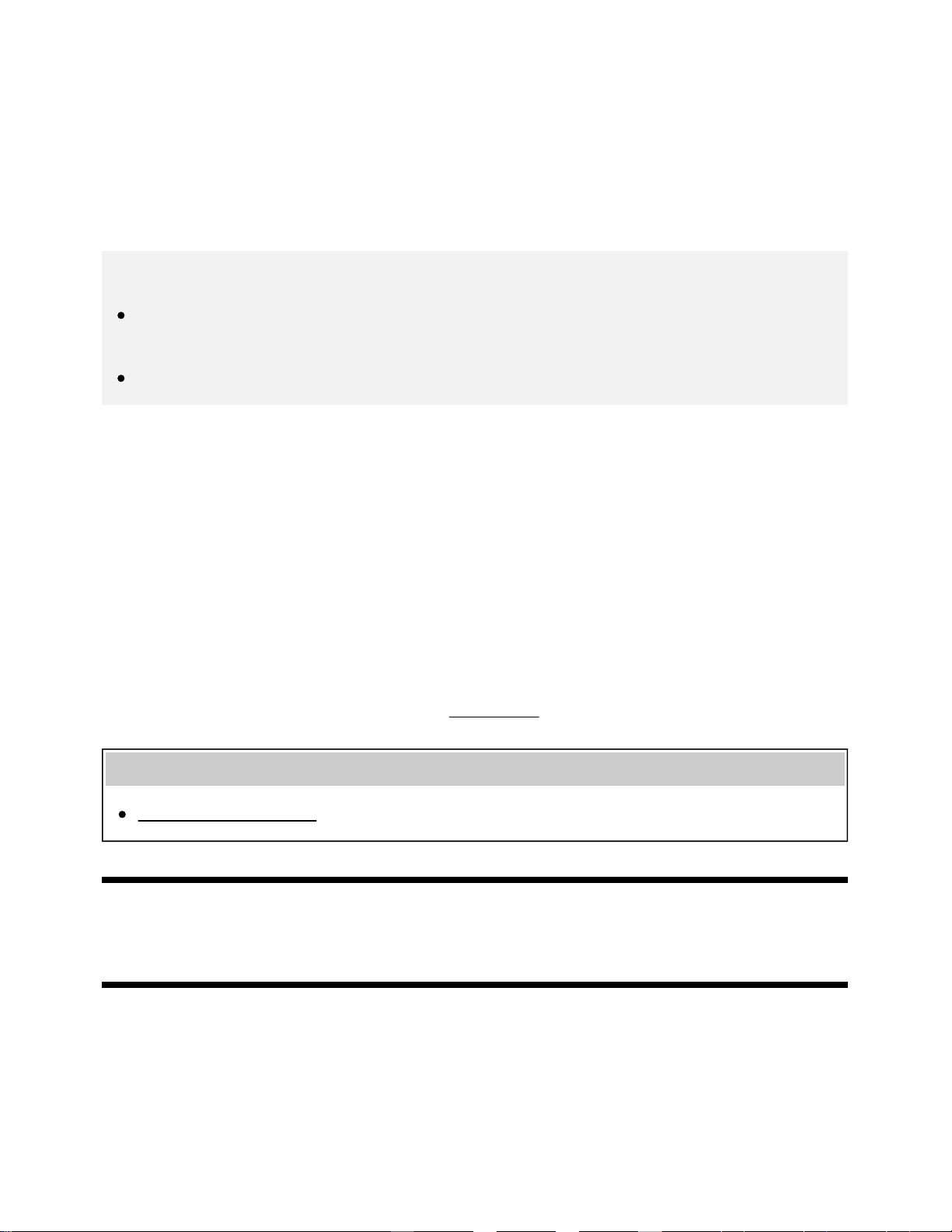
users with the latest TV experience. The easiest way to receive software updates is via an internet
connection to the TV.
To turn on automatic software download
To enable [Automatic software download], press the HOME button, then select [Help] — [System
software update] — [Automatic software download].
Hint
To update the software manually, select [Check for a system software update] in the [System
software update] screen.
If you do not wish to update the software automatically, disable [Automatic software download].
Updating software via USB storage device
If you do not have a network connection, you can also update the software by using a USB storage
device. Use your computer to download the latest software from the Sony support website onto a USB
storage device. Insert the USB storage device to a USB port on the TV and the software update will
start automatically.
If you will update the TV software by using a USB storage device, you should read the cautions for
update by USB storage device on the website.
For more about the support site, please see the Support Site
page.
Related topics
Connecting to a Network
[91] Troubleshooting | Start here
If a full reset (restart) of the TV is required
If you have trouble such as the picture not displaying on the screen or the remote control not working,
try the following procedure.
Press and hold the power button on the remote control for about 5 seconds. The TV will turn off and
then restart automatically after a short time. If the TV does not turn on automatically, press the power
button on the remote control after 20 seconds.
100

Your personal settings and data will not be lost after the TV restarts (it is the same as unplugging the
AC power cord (mains lead)).
[92] Troubleshooting
Picture (quality)/screen
Picture quality is not as good as viewed at the store.
Distorted picture.
The screen flickers.
No color/Dark picture/Color is not correct/Picture is too bright.
Dark screen. How to brighten the screen.
Color is not correct. How to adjust the color tone.
Screen format/wide mode changes automatically.
The screen suddenly changes to a video you do not recognize while watching TV.
Suddenly the picture becomes small.
Black bands appear at the edges of the screen.
A black box appears on the screen.
There are banners/tickers at the top or bottom of the screen.
3D pictures are not displayed. The 3D effect is weak. (3D models only)
Black bars appear on both sides of the screen when watching 3D pictures. (3D models only)
You cannot turn off 3D display while watching 3D content. (3D models only)
The message [3D signal has been detected.] automatically appears when 3D signal is detected. (3D
models only)
A message about an app asking for permission to access a TV function is displayed.
[93] Troubleshooting | Picture (quality)/screen
Picture quality is not as good as viewed at the
store.
Picture quality depends on the signal content.
The picture quality may improve if you change it in [Picture & Display] under [Settings].
Related topics
101
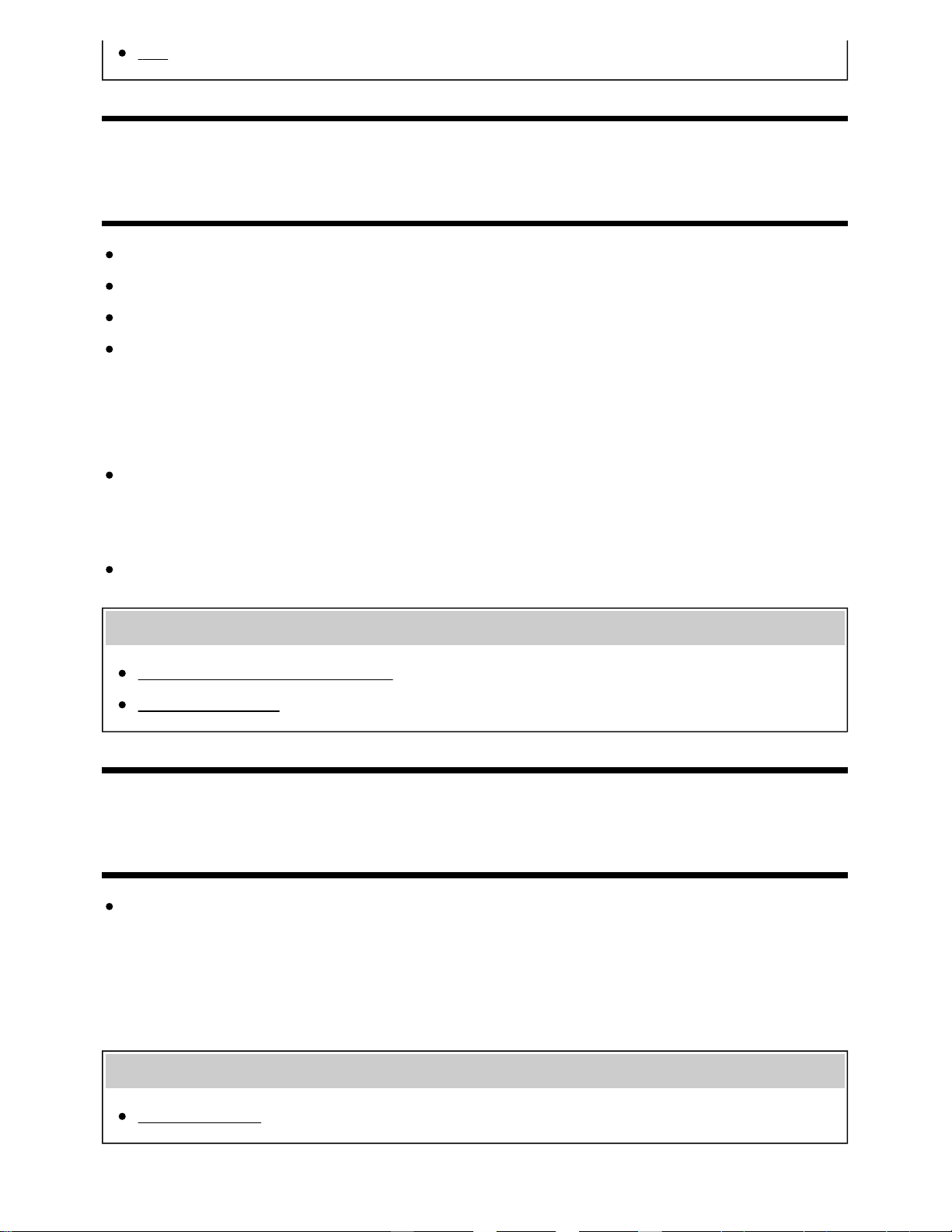
[TV]
[94] Troubleshooting | Picture (quality)/screen
Distorted picture.
Check the antenna/cable connection.
Keep the antenna/cable away from other connecting cables.
When installing an optional device, leave some space between the device and the TV.
Press the ACTION MENU button, then select [Picture adjustments] — [Advanced settings] —
[Motion] — [Motionflow] — [Standard] or [Off]. (For [Motionflow] compatible models only)
[Motionflow] compatible models have [Motionflow] in [Settings] — [Picture & Display] — [Picture
adjustments] — [Advanced settings] — [Motion].
Change the current setting of [CineMotion] to another setting.
Press the ACTION MENU button, then select [Picture adjustments] — [Advanced settings] —
[Motion] — [CineMotion].
Make sure that the antenna is connected using a high quality 75-ohm coaxial cable.
Related topics
Ghosting or double images appear.
The screen flickers.
[95] Troubleshooting | Picture (quality)/screen
The screen flickers.
Press the ACTION MENU button, then select [Picture adjustments] — [Advanced settings] —
[Motion] — [Motionflow] — [Standard]. (For [Motionflow] compatible models only)
[Motionflow] compatible models have [Motionflow] in [Settings] — [Picture & Display] — [Picture
adjustments] — [Advanced settings] — [Motion].
Related topics
Distorted picture.
102
[96] Troubleshooting | Picture (quality)/screen
No color/Dark picture/Color is not correct/Picture is
too bright.
Press the ACTION MENU button, then select [Picture adjustments] to make adjustments.
Press the ACTION MENU button, then select [Picture adjustments] — [Advanced settings] —
[Reset].
If you set [Power saving] to [Low] or [High], the black level will be enhanced. Press the HOME
button, then select [Settings] — [Power] — [Eco] — [Power saving].
Related topics
Dark screen. How to brighten the screen.
Color is not correct. How to adjust the color tone.
[97] Troubleshooting | Picture (quality)/screen
Dark screen. How to brighten the screen.
Press the ACTION MENU button, select [Picture adjustments] — [Advanced settings], and adjust
[Brightness] or [Contrast].
Check the [Power saving] option setting in [Eco]. If it is [Low] or [High], the screen darkens. Select
[Power] — [Eco], and set [Power saving] to [Off] to brighten the screen.
Related topics
No color/Dark picture/Color is not correct/Picture is too bright.
[98] Troubleshooting | Picture (quality)/screen
Color is not correct. How to adjust the color tone.
Press the ACTION MENU button, select [Picture adjustments] — [Advanced settings], and adjust
[Hue] or [Color temperature].
To deepen the color tone, adjust [Color] or [Live Color]. Press the ACTION MENU button, and then
103
select [Picture adjustments] — [Advanced settings].
Related topics
No color/Dark picture/Color is not correct/Picture is too bright.
[99] Troubleshooting | Picture (quality)/screen
Screen format/wide mode changes automatically.
When changing the channel or video input, if [Auto wide] in [Screen] is enabled, the current [Wide
mode] setting is automatically changed according to the input signal. To lock the [Wide mode]
setting, disable [Auto wide].
Related topics
Suddenly the picture becomes small.
[100] Troubleshooting | Picture (quality)/screen
The screen suddenly changes to a video you do
not recognize while watching TV.
In this case, the TV might be in demo mode. Try exiting demo mode.
Press the ACTION MENU button on the remote control and select [Suspend Demo]. Then, press
the HOME button on the remote control and select [Settings] — [Retail mode settings]. Disable
[Demo mode] and [Picture reset mode].
[101] Troubleshooting | Picture (quality)/screen
Suddenly the picture becomes small.
The picture becomes smaller during commercials due to the method used by the provider to
broadcast content. When HD content channels switch to SD content (commercials), the picture may
become small with a black border.
[Auto wide] in [Screen] will not expand the picture while the content switches since the content
104
information is regulated by the channel signal provider. You can manually change the [Wide mode]
setting if desired, which will remain in effect until you change the channel/input or manually change
the [Wide mode] setting again.
Related topics
Screen format/wide mode changes automatically.
[102] Troubleshooting | Picture (quality)/screen
Black bands appear at the edges of the screen.
Some wide screen programs are filmed in aspect ratios that are greater than 16:9 (this is especially
common with theatrical releases). Your TV will show these programs with black bands at the top
and bottom of the screen. For more details, check the documentation that came with your DVD (or
contact your program provider).
Programs in 4:3 aspect ratio will have bands on the left and right sides of the screen.
Programs broadcasted in HD formats (720p and 1080i) with 4:3 content will commonly have black
bands on the left and right sides of the screen which are added by the broadcaster.
[Auto wide] in [Screen] will not expand the picture when the black bands on the sides of the screen
are added by the broadcaster. You can manually set [Wide mode] to [Wide zoom] or [Zoom], which
will remain in effect until you change the channel/input or manually change the [Wide mode] setting
again.
Some cable and satellite set-top boxes can also control the size of the picture. If you are using a
set-top box, refer to the manufacturer of the set-top box for more information.
[103] Troubleshooting | Picture (quality)/screen
A black box appears on the screen.
A text option is selected although no text is available. Check the [Captions]/[Broadcast closed
captions] settings in [Accessibility]. (Option name differs depending on your region/country.) You
can select a different option from the current option.
[104] Troubleshooting | Picture (quality)/screen
There are banners/tickers at the top or bottom of
105

the screen.
In this case, the TV might be in demo mode. Try exiting demo mode.
Press the ACTION MENU button on the remote control and select [Suspend Demo]. Then, press
the HOME button on the remote control and select [Settings] — [Retail mode settings]. Disable
[Demo mode] and [Picture reset mode].
[105] Troubleshooting | Picture (quality)/screen
3D pictures are not displayed. The 3D effect is
weak. (3D models only)
3D models have [3D settings] in [Settings] — [Picture & Display].
If two pictures are displayed side-by-side, press the ACTION MENU button, then select [3D] — [3D
display] — [3D (Side by Side)].
If two pictures are displayed one above the other, press the ACTION MENU button, then select [3D]
— [3D display] — [3D (Over-Under)].
If the [3D display] screen appears and 3D pictures are not displayed, turn off the device that plays
3D content and turn it on again.
Perceived 3D effect may vary from person to person.
For 4K models
3D signal of 4K cannot be displayed.
For Passive 3D Glasses models, view the TV from the front on. The 3D effect may be less
pronounced depending on the viewing position. Adjust the viewing angle to the screen.
For Active 3D Glasses models
Be sure that there are no obstacles between the TV and the Active 3D Glasses.
Replace the battery in the Active 3D Glasses.
Be sure that the Active 3D Glasses are powered on.
It is necessary to register your Active 3D Glasses to the TV before use. To use the glasses with
another TV, it is necessary to re-register. Turn off the glasses before re-registering.
Wireless devices or microwave ovens may affect the communication between the 3D Glasses and
the TV as the TV uses the 2.4GHz band. In this case, try to register again.
If a device that is not 3D-compatible (such as a home theater system) is connected between the TV
106
and a 3D-compatible device, the TV will not display 3D pictures. Connect the 3D-compatible device
directly to the TV via an authorized HIGH SPEED HDMI cable bearing the HDMI logo.
Related topics
Understanding the basics of 3D TV (3D models only)
[106] Troubleshooting | Picture (quality)/screen
Black bars appear on both sides of the screen
when watching 3D pictures. (3D models only)
3D models have [3D settings] in [Settings] — [Picture & Display].
Black bars appear on both sides of the screen in order to process 3D signals when adjusting the
depth of 3D pictures in [Settings] — [Picture & Display] — [3D settings] — [3D depth adjustment].
[107] Troubleshooting | Picture (quality)/screen
You cannot turn off 3D display while watching 3D
content. (3D models only)
3D models have [3D settings] in [Settings] — [Picture & Display].
For 3D content displayed with the 3D signal, 3D display cannot be turned off on your TV. Turn 3D
settings off on the connected device (such as a Blu-ray player).
[108] Troubleshooting | Picture (quality)/screen
The message [3D signal has been detected.]
automatically appears when 3D signal is detected.
(3D models only)
3D models have [3D settings] in [Settings] — [Picture & Display].
Deactivate the [3D signal notification] setting. Press the HOME button, then select [Settings] —
[Picture & Display] — [3D settings] — [3D signal notification] — [Off].
107

[109] Troubleshooting | Picture (quality)/screen
A message about an app asking for permission to
access a TV function is displayed.
Select whether to allow or deny the app access to the displayed function.
You can check the list of app permissions categorized by TV function and change permission
settings for each app. Press the HOME button, select [Settings] — [Apps] — [App permissions] —
the desired TV function.
[110] Troubleshooting
Keyboard
You cannot operate the current screen after the on-screen
keyboard is displayed.
To return to operation of the screen behind the on-screen keyboard, press the BACK button on the
remote control.
[111] Troubleshooting
Broadcast reception
Check these things first to troubleshoot your TV reception.
Block noise or an error message appears and you cannot watch broadcasts.
Ghosting or double images appear.
Only snow noise or a black picture appears on the screen.
There is picture or sound noise when viewing an analog TV channel.
Some channels are blank.
Poor reception or poor picture quality with digital broadcasts.
You cannot view digital channels.
You cannot receive or select channels.
Some digital cable channels are not displayed.
Broadcast HD formats have poor quality.
108
[112] Troubleshooting | Broadcast reception
Check these things first to troubleshoot your TV
reception.
Make sure that the antenna cable is firmly connected to the TV.
Make sure that the antenna cable is not loose or disconnected.
Make sure that the cable or cable connector of antenna is not damaged.
[113] Troubleshooting | Broadcast reception
Block noise or an error message appears and you
cannot watch broadcasts.
Make sure that the antenna cable is connected to the correct ports (at the TV/connected
devices/wall).
Make sure that the cable is not old or that the inside of the connector is not short-circuited.
[114] Troubleshooting | Broadcast reception
Ghosting or double images appear.
Check cable or antenna connections.
Check the antenna location and direction.
Press the ACTION MENU button, then select [Picture adjustments] — [Advanced settings] —
[Motion] — [Motionflow] — [Standard] or [Off].
(For [Motionflow] compatible models only)
[Motionflow] compatible models have [Motionflow] in [Settings] — [Picture & Display] — [Picture
adjustments] — [Advanced settings] — [Motion].
Related topics
Distorted picture.
Check these things first to troubleshoot your TV reception.
[115] Troubleshooting | Broadcast reception
109
Only snow noise or a black picture appears on the
screen.
Check if auto tuning is performed.
Check if the antenna is broken or bent.
Check if the antenna has reached the end of its serviceable life (3-5 years for normal use, 1-2 years
at a seaside location).
Related topics
Check these things first to troubleshoot your TV reception.
[116] Troubleshooting | Broadcast reception
There is picture or sound noise when viewing an
analog TV channel.
Check the [Analog channel adjustment] settings.
Press the HOME button, then select [Settings] — [Channels] — [Channel setup] — [Cable/Antenna]
— [Analog channel adjustment].
Perform [Fine tune] to obtain better picture and sound reception. (Option name differs depending
on your region/country.)
Set [Audio filter] to [Off], [Low] or [High] to improve sound for analog reception.
Make sure that the antenna is connected using a high quality 75-ohm coaxial cable.
Keep the antenna cable away from other connecting cables.
Related topics
Check these things first to troubleshoot your TV reception.
[117] Troubleshooting | Broadcast reception
Some channels are blank.
The channel is for scrambled/subscription service only. Subscribe to a pay TV service.
110
The channel is used only for data (no picture or sound).
Contact the broadcaster for transmission details.
Related topics
Check these things first to troubleshoot your TV reception.
[118] Troubleshooting | Broadcast reception
Poor reception or poor picture quality with digital
broadcasts.
Change the position, direction and angle of the terrestrial television antenna to maximize the
antenna signal level. Make sure that the direction of the antenna is not changed unintentionally
(such as by wind).
If you are using a TV signal booster, adjust its signal gain.
If equipment (such as a TV signal distributor) is connected between the antenna and the TV, it may
affect the TV reception. Directly connect the antenna and the TV to check if the reception is
improved.
Related topics
Check these things first to troubleshoot your TV reception.
[119] Troubleshooting | Broadcast reception
You cannot view digital channels.
Ask a local installer if digital transmissions are provided in your area.
Upgrade to a higher gain antenna.
Related topics
Check these things first to troubleshoot your TV reception.
You cannot receive or select channels.
Some digital cable channels are not displayed.
111
[120] Troubleshooting | Broadcast reception
You cannot receive or select channels.
Perform [Auto program] to add receivable channels that are not present in the TV memory.
Press the HOME button, then select [Settings] — [Channels] — [Channel setup] — [Cable/Antenna]
— [Auto program].
Check that [Signal type] is set correctly.
Press the HOME button, then select [Settings] — [Channels] — [Channel setup] — [Cable/Antenna]
— [Signal type].
[Cable]
Set to receive and select cable channels.
[Antenna]
Set to receive and select antenna channels.
Related topics
Some channels are blank.
You cannot view digital channels.
Some digital cable channels are not displayed.
[121] Troubleshooting | Broadcast reception
Some digital cable channels are not displayed.
Certain cable companies have limitations on the broadcast of digital cable channels. Check with
your cable company for more information.
The digital cable channel may be set to [Hidden] in [Show/Hide channels].
Related topics
Check these things first to troubleshoot your TV reception.
You cannot view digital channels.
112
[122] Troubleshooting | Broadcast reception
Broadcast HD formats have poor quality.
Content and signal quality are regulated by the signal provider. Many HD channels and content are
actually upscaled versions of standard-definition broadcasts. The picture is affected by the quality of
the signal received, which varies between channel and program.
Related topics
Check these things first to troubleshoot your TV reception.
[123] Troubleshooting
Sound
No sound but good picture.
Audio noise.
No audio or low audio with a home theater system.
Distorted sound.
Headphone volume cannot be adjusted.
You want to output sound from both the headphones and the TV speakers.
[124] Troubleshooting | Sound
No sound but good picture.
Check the volume control.
Press MUTING or VOL + button to cancel muting.
Press the ACTION MENU button, then select [Speakers] — [TV speakers].
If it is set to [Audio system], the TV speakers only output key tones or system sounds.
Related topics
No audio or low audio with a home theater system.
113
[125] Troubleshooting | Sound
Audio noise.
Make sure that the antenna is connected using a high quality 75-ohm coaxial cable.
Keep the antenna cable away from other connecting cables.
To avoid TV interference, make sure to use an undamaged antenna cable.
Related topics
Distorted sound.
[126] Troubleshooting | Sound
No audio or low audio with a home theater system.
Press the ACTION MENU button, then select [Speakers] — [Audio system].
Set [Headphone/Audio out] to [Audio out (Fixed)] in the [Sound] setting.
If the audio system is not compatible with Dolby Digital or DTS, set [Settings] — [Sound] — [Digital
audio out] to [PCM].
Depending on your model, if [Speakers] is set to [TV speakers] and [Hi Res upscaling (DSEE HX)]
is set to [Auto], DIGITAL AUDIO OUT (OPTICAL) is muted.
Set [Digital audio out volume] to Max in the [Sound] setting.
When using HDMI input with Super Audio CD or DVD-Audio, DIGITAL AUDIO OUT (OPTICAL) may
not provide an audio signal.
Related topics
Audio noise.
Connecting an audio system
[127] Troubleshooting | Sound
Distorted sound.
Check the antenna/cable connection.
Keep the antenna/cable away from other connecting cables.
114
Keep the TV away from electrical noise sources such as cars, hair-dryers, Wi-Fi units, mobile
phones, or optical devices.
When installing an optional device, leave some space between the device and TV.
Set [Audio filter] to [Low] or [High] to improve sound for analog reception. ([Audio filter] may not be
available depending on your region/country.)
Related topics
Audio noise.
[128] Troubleshooting | Sound
Headphone volume cannot be adjusted.
If you cannot adjust the headphone volume with the VOL +/- buttons, press the ACTION MENU
button and select [Headphone volume].
[129] Troubleshooting | Sound
You want to output sound from both the
headphones and the TV speakers.
Press the HOME button, then select [Settings] — [Sound] — [Headphone speaker link] —
[Speakers on].
Bluetooth audio devices such as Bluetooth headphones cannot be used.
[130] Troubleshooting
Network (Internet/home)/apps
The network name (SSID) of the wireless router (access point) to which you want to connect is not
displayed.
Sometimes video streaming quality is poor.
Wi-Fi connection is lost or intermittent.
Certain Internet video content displays a loss of detail.
Good picture quality but no sound on Internet video content.
115
Apps are inaccessible.
The TV cannot access the Internet when IPv6 is set.
Your TV cannot connect to the server.
A message appears stating that the TV cannot connect to your network.
You can connect to the Internet, but not to Google services.
[131] Troubleshooting | Network (Internet/home)/apps
The network name (SSID) of the wireless router
(access point) to which you want to connect is not
displayed.
Reset the wireless router.
Select [[Manual entry]] to enter a network name (SSID).
[132] Troubleshooting | Network (Internet/home)/apps
Sometimes video streaming quality is poor.
Quality depends on the original video provided by the video content provider and your connection
bandwidth.
The wireless network connection quality varies depending on the distance or obstacles (e.g., wall)
between the TV and the wireless router (access point), environmental interference, and the quality
of the wireless router (access point). In this case, use a wired connection for the Internet, or try the
5GHz band.
The 5GHz band may not be supported depending on your region/country. If the 5GHz band is not
supported, the TV can only connect to a wireless router (access point) using the 2.4GHz band.
Related topics
Connecting to a network using a LAN cable
Using Wi-Fi to connect the TV to your network
[133] Troubleshooting | Network (Internet/home)/apps
Wi-Fi connection is lost or intermittent.
116
Check the installation location of the TV and wireless router (access point). Signal condition may be
affected by the following :
Other wireless devices, microwaves, fluorescent lights, etc., are placed nearby.
There are floors or walls between the wireless router (access point) and TV.
If the problem persists even after checking the above, try using a wired LAN connection.
Related topics
Using Wi-Fi to connect the TV to your network
[134] Troubleshooting | Network (Internet/home)/apps
Certain Internet video content displays a loss of
detail.
Video quality and picture size depend on broadband speed and delivery by video content providers.
Related topics
Connecting to a network using a LAN cable
Using Wi-Fi to connect the TV to your network
Sometimes video streaming quality is poor.
[135] Troubleshooting | Network (Internet/home)/apps
Good picture quality but no sound on Internet video
content.
Quality depends on the original content provided by the video content provider and your connection
bandwidth.
Due to the nature of Internet video, not all videos will contain sound.
Related topics
Connecting to a network using a LAN cable
Using Wi-Fi to connect the TV to your network
117
[136] Troubleshooting | Network (Internet/home)/apps
Apps are inaccessible.
Check that the LAN cable or AC power cord (mains lead) of the router/modem has been
connected properly.
Your router/modem must be set in advance to connect to the Internet. Contact your Internet
service provider for router/modem settings.
Try using apps later. The app content provider’s server may be out of service.
Related topics
Connecting to a network using a LAN cable
Using Wi-Fi to connect the TV to your network
[137] Troubleshooting | Network (Internet/home)/apps
The TV cannot access the Internet when IPv6 is
set.
IPv6 may not be supported, in which case set IPv6 to off.
Press the HOME button, then select [Settings] — [Network] — [Advanced settings] — [IPv6
setup] — [No].
[138] Troubleshooting | Network (Internet/home)/apps
Your TV cannot connect to the server.
Check the LAN cable or wireless connection to your server and your TV.
Check if your network is properly configured on your TV.
Check your LAN cable/wireless connection or your server. The TV may have lost connection with
the server.
Perform [Server diagnostics] to check if your media server is properly communicating with the TV.
Press the HOME button, then select [Settings] — [Network] — [Home network] — [Server
diagnostics].
*
*
118
Related topics
Home network features
A message appears stating that the TV cannot connect to your network.
[139] Troubleshooting | Network (Internet/home)/apps
A message appears stating that the TV cannot
connect to your network.
Check the current network settings and perform [Check Connection].
Press the HOME button, then select [Settings] — [Network] — [Advanced settings] — [Network
status] — [Check Connection].
Check your network connections and/or server’s instruction manual for connection information, or
contact the person who set up the network (network administrator).
Reconfigure your network settings by pressing the HOME button, then select [Settings] — [Network]
— [Network setup].
If the LAN cable is connected to an active server and the TV has acquired an IP address, check
your server’s connections and configurations. Press the HOME button, then select [Settings] —
[Network] — [Advanced settings] — [Network status].
Related topics
Your TV cannot connect to the server.
[140] Troubleshooting | Network (Internet/home)/apps
You can connect to the Internet, but not to Google
services.
The date and time settings of this TV may be incorrect. Depending on the app such as Google Play
or YouTube, you may not be able to connect to Google services if the time is incorrect.
Press the HOME button, then select [Settings] — [Date & time] — [Automatic date & time] — [Use
network time] to automatically adjust the time through the network.
119
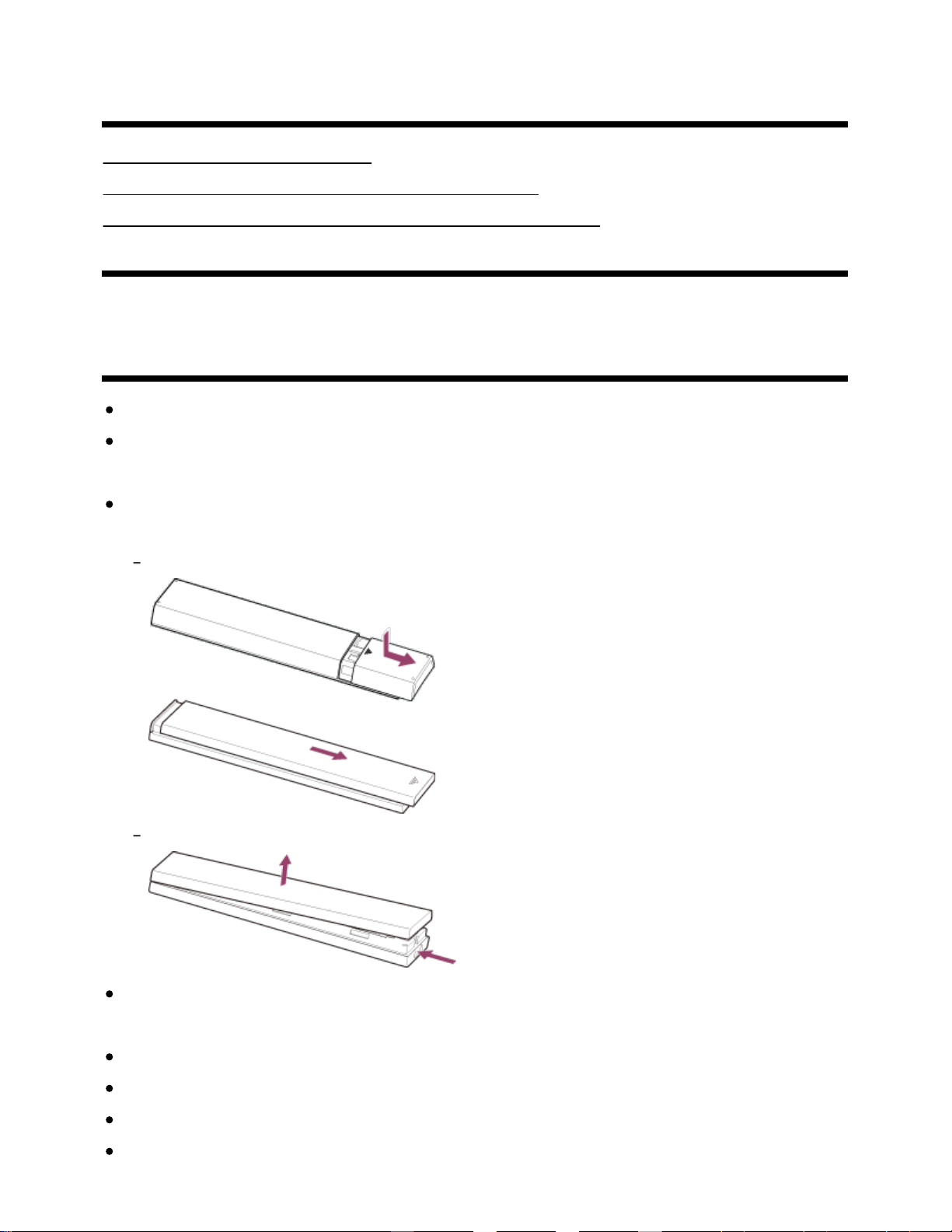
[141] Troubleshooting
Remote control/accessories
The remote control does not operate.
You cannot turn the Active 3D Glasses on. (3D models only)
The LED indicator on the Active 3D Glasses blinks. (3D models only)
[142] Troubleshooting | Remote control/accessories
The remote control does not operate.
Press a button on the TV to determine if the problem is with the remote control or not.
Check that the orientation of each battery matches the positive (+) and negative (-) symbols in the
battery compartment.
Battery power may be low. Remove the remote control cover and replace the batteries with new
ones.
Sliding type
Push-release type
There may be poor contact between the battery and the remote control. Remove the batteries, then
insert them again.
Point the remote control at the remote control sensor located at the front of the TV.
Keep the remote control sensor area clear from obstacles.
Fluorescent light can interfere with remote control operation; try turning off any fluorescent light.
When you unplug the TV and plug it in again, the TV may not be able to turn on for a while, even if
120
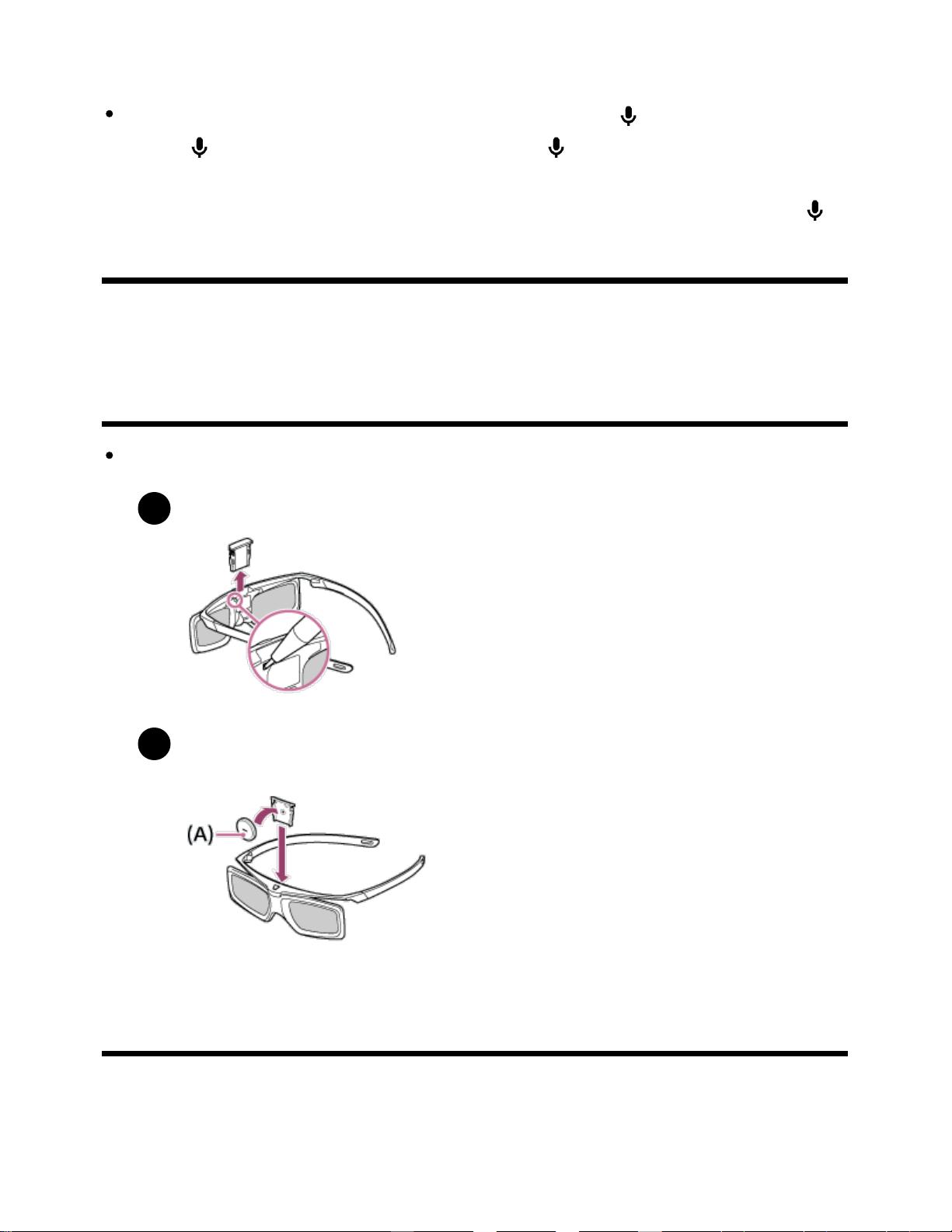
1
2
you press the power button on the remote control or the TV. This is because it takes time to initialize
the system. Wait for about 10 to 20 seconds, then try again.
When your voice is not being recognized, make sure to activate the button on the remote control
with the
button, or register the remote control with the button to your TV. To confirm these
settings, press the HOME button, then select [Settings] — [Touchpad Remote Control
settings]/[Voice Remote Control]. The setting displayed varies depending on your model. The
button may not be available depending on your supplied remote control.
[143] Troubleshooting | Remote control/accessories
You cannot turn the Active 3D Glasses on. (3D
models only)
Replace the battery. (Applies only to TDG-BT400A/BT500A.)
Press the unlock button with the tip of a pen, etc., and take out the battery case.
Replace the battery with a new one. After that, be sure to insert the battery case until it
locks in place again.
(A) CR2025 (-) side
[144] Troubleshooting | Remote control/accessories
The LED indicator on the Active 3D Glasses blinks.
121
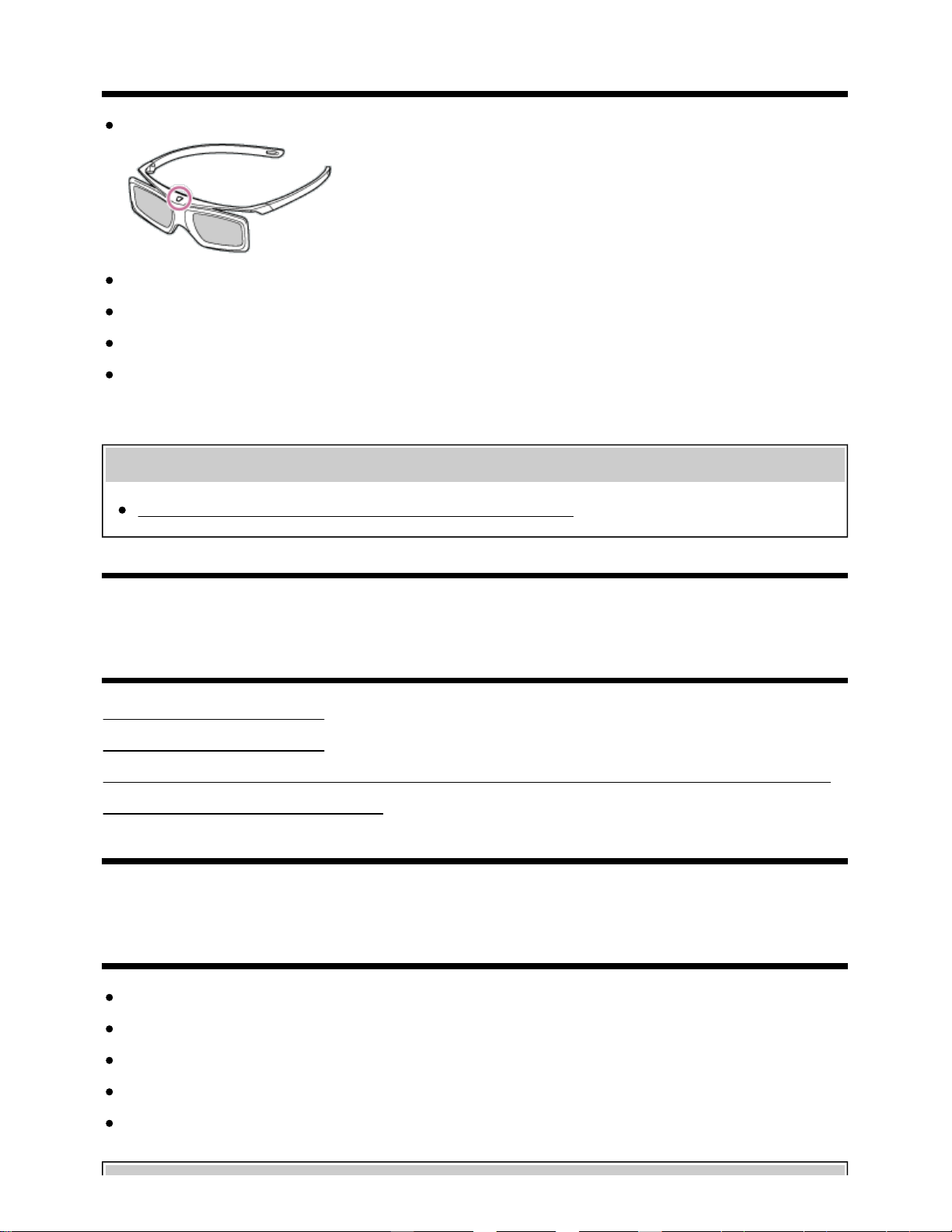
(3D models only)
Lights up for 3 seconds: Indicates when turning on the glasses.
Blinks every 2 seconds: Indicates the glasses are powered on.
Blinks 3 times: Indicates the glasses have been powered off.
Blinks green and yellow alternately: Indicates the glasses have started the registration process.
Blinks 3 times every 2 seconds: Indicates the battery capacity is almost running out. Replace the
battery.
Related topics
You cannot turn the Active 3D Glasses on. (3D models only)
[145] Troubleshooting
Power
The TV turns off automatically.
The TV turns on automatically.
After unplugging the TV and plugging it in again, the TV does not turn on even if you press the power
button on the remote control or the TV.
[146] Troubleshooting | Power
The TV turns off automatically.
The screen may have been turned off due to [Sleep timer] settings.
Check the [Duration] setting of [Timer].
Check if [Idle TV standby] in [Eco] is activated.
The screen may have been turned off due to [Screen saver] settings.
(Except for Brazilian models) Check if [Auto shut-off] in [Eco] is activated.
122
Related topics
Setting a timer
[147] Troubleshooting | Power
The TV turns on automatically.
Check if [Timer] is activated.
Disable the [TV auto power on] setting in [BRAVIA Sync settings].
Related topics
BRAVIA Sync-compatible devices
Setting a timer
[148] Troubleshooting | Power
After unplugging the TV and plugging it in again,
the TV does not turn on even if you press the
power button on the remote control or the TV.
When you unplug the TV and plug it in again, the TV may not be able to turn on for a while, even if
you press the power button on the remote control or the TV. This is because it takes time to initialize
the system. Wait for about 10 to 20 seconds, then try again.
[149] Troubleshooting
Connected devices
No picture from a connected device.
You cannot select a connected device in the Home Menu.
Certain programs on digital sources display a loss of detail.
Photo images or folders take time to display.
You cannot find a connected BRAVIA Sync HDMI device.
You cannot control a second AV receiver.
123
The TV does not output picture and/or sound from the MHL device. (MHL supported models only)
An external device (such as a set-top box or AV receiver) cannot be controlled via the IR Blaster. (IR
Blaster compatible models only)
Some media files in the USB device or server are not displayed.
The TV cannot be found by a Wi-Fi Direct device.
Operation cuts out, or a device does not work.
What kind of devices can be connected using the Screen mirroring function?
The TV cannot connect to a Miracast device or Screen mirroring compatible device.
Video or sound sometimes cuts out.
Some paid content cannot be played.
[150] Troubleshooting | Connected devices
No picture from a connected device.
Turn the connected device on.
Check the cable connection between the device and TV.
Press the INPUT button to display the list of inputs, then select the desired input
Correctly insert the USB device.
Make sure that the USB device has been properly formatted.
Operation is not guaranteed for all USB devices. Also, operations differ depending on the USB
device features or the video files being played.
If the connected device is connected to HDMI IN 2 or 3, connect it to HDMI IN 1 or 4.
Change the HDMI signal format of the HDMI input that does not display a picture to standard
format. Press the HOME button, then select [Settings] — [External inputs] — [HDMI signal format].
Related topics
Using the TV with Other Devices
[151] Troubleshooting | Connected devices
You cannot select a connected device in the Home
Menu.
Check the cable connection.
124
Related topics
Using the TV with Other Devices
[152] Troubleshooting | Connected devices
Certain programs on digital sources display a loss
of detail.
Less detail than usual or artifacts (small blocks, dots or pixelation) may appear on the screen, due
to the digital compression of the source content used by certain digital broadcasts and DVDs. The
degree of visible artifacts depends on the clarity and resolution of the TV.
[153] Troubleshooting | Connected devices
Photo images or folders take time to display.
Depending on the image dimension, file size, and number of files in a folder, some photo images or
folders take time to display.
Each time a USB device is connected to the TV, it may take up to a couple of minutes for the photos
to display.
Related topics
No picture from a connected device.
[154] Troubleshooting | Connected devices
You cannot find a connected BRAVIA Sync HDMI
device.
Check that your device is BRAVIA Sync-compatible.
Make sure that [Control for HDMI] is set up on the BRAVIA Sync-compatible device and [BRAVIA
Sync settings] — [BRAVIA Sync control] is set up on the TV.
Related topics
125
BRAVIA Sync-compatible devices
[155] Troubleshooting | Connected devices
You cannot control a second AV receiver.
Only one BRAVIA Sync-compatible AV receiver can be used.
Related topics
BRAVIA Sync-compatible devices
[156] Troubleshooting | Connected devices
The TV does not output picture and/or sound from
the MHL device. (MHL supported models only)
Disconnect the MHL cable, then reconnect it. Or turn the MHL device off, then turn on again and
release the screen lock of the device.
Check if your device supports MHL.
Check if your TV supports MHL.
The
mark is located next to the HDMI IN 1/MHL port for MHL supported 2K
models, or the HDMI IN 2/MHL port for MHL supported 4K models.
Related topics
Displaying the screen of a smartphone/tablet on the TV using an MHL cable (MHL supported
models only)
No picture from a connected device.
[157] Troubleshooting | Connected devices
An external device (such as a set-top box or AV
receiver) cannot be controlled via the IR Blaster.
(IR Blaster compatible models only)
126
IR Blaster compatible models have [IR Blaster setup] in [Settings] — [External inputs].
Make sure that the IR Blaster is correctly set up and the IR transmitter is located near the IR
receiver of the external device.
Make sure that your TV supports the external device.
If you press and hold a button on the remote control, the operation may not be transmitted. Instead,
press the button repeatedly.
Some external devices may not respond to some buttons on the “Action Menu”.
(Except for Brazilian models) The IR Blaster may not be set properly. To set the IR Blaster, press
the HOME button, then select [Settings] — [External inputs] — [IR Blaster setup].
Related topics
Connecting an IR Blaster (IR Blaster compatible models only)
[158] Troubleshooting | Connected devices
Some media files in the USB device or server are
not displayed.
Unsupported files may not be displayed.
All the folders/files may not be displayed depending on the system status.
Related topics
Supported files and formats
[159] Troubleshooting | Connected devices
The TV cannot be found by a Wi-Fi Direct device.
Enable [Wi Fi Direct]. Press the HOME button, then select [Settings] — [Network] — [Wi Fi Direct]
— [Wi Fi Direct].
If the TV cannot be found even though [Wi Fi Direct] is enabled, set [Band setting] to [Auto
(2.4GHz band)]. Press the HOME button, then select [Settings] — [Network] — [Wi Fi Direct] —
[Advanced settings] — [Band setting] — [Auto (2.4GHz band)].
127
[160] Troubleshooting | Connected devices
Operation cuts out, or a device does not work.
Check if the device is turned on.
Replace the batteries of the device.
Re-register the device.
Bluetooth devices use the 2.4GHz band, therefore communication speed may deteriorate or cut out
occasionally due to wireless LAN interference.
If household electric appliances (e.g., microwaves or mobile devices) are placed nearby, radio wave
interference is more likely to happen.
The TV or device may not work on a metal rack due to wireless communication interference.
For usable communication distances between the TV and other devices, refer to the instruction
manuals of the devices.
When multiple Bluetooth devices are connected to the TV, the quality of Bluetooth communication
may deteriorate.
Related topics
Bluetooth devices
[161] Troubleshooting | Connected devices
What kind of devices can be connected using the
Screen mirroring function?
Wi Fi enabled devices, such as smartphones and tablets, that support Miracast can be used to
enjoy Screen mirroring on your BRAVIA TV. Refer to the instruction manual of your Wi Fi device to
find out if it supports Miracast. BRAVIA TV complies with the Miracast specification, but does not
guarantee a successful connection with all devices.
[162] Troubleshooting | Connected devices
The TV cannot connect to a Miracast device or
Screen mirroring compatible device.
128
If connecting a Miracast device (e.g., laptop) fails, press the HOME button, then select [Screen
mirroring] to show the standby screen for the Screen mirroring function and try to connect again.
If you are using Screen mirroring with another device, turn off Screen mirroring first and try again.
If your device does not support 5GHz and you set the [Band setting] option to [Auto (5GHz band)],
try changing it to [Auto].
Related topics
Displaying the screen of a smartphone/tablet on the TV using the Screen mirroring function
What kind of devices can be connected using the Screen mirroring function?
[163] Troubleshooting | Connected devices
Video or sound sometimes cuts out.
Devices emitting radio waves, such as other wireless LAN devices or microwave ovens, may
interfere with the Screen mirroring function using wireless LAN. Keep the TV or Sony Screen
mirroring compatible devices (e.g., some models of Xperia) away from such devices, or turn them
off if possible.
Communication speed may change according to the distance or obstacles between devices, device
configuration, radio wave condition, line congestion or the device you use. Communication may cut
out due to the radio wave condition.
Related topics
Displaying the screen of a smartphone/tablet on the TV using the Screen mirroring function
Using Wi-Fi to connect the TV to your network
[164] Troubleshooting | Connected devices
Some paid content cannot be played.
The source device needs to meet HDCP (High-bandwidth Digital Content Protection) 2.0/2.1/2.2
standards.
Some pay contents may not be displayed via a source device which does not meet HDCP
2.0/2.1/2.2 standards.
129
[165] Troubleshooting
Illumination LED
The illumination LED or bottom of the screen sometimes lights up.
You want to disable the illumination LED so that it does not light up or blink.
[166] Troubleshooting | Illumination LED
The illumination LED or bottom of the screen
sometimes lights up.
The illumination LED or the bottom of the screen lights up at various times such as during software
updates .
Refer to Identifying the status of the TV through illumination
for details.
[167] Troubleshooting | Illumination LED
You want to disable the illumination LED so that it
does not light up or blink.
You can turn it off. Press the HOME button, then select [Settings] — [Illumination LED] — [Off].
Note
We recommend that you do not change this setting under normal circumstances because you
will be unable to identify whether the TV is on or off, or a timer is set.
[168]
Index
TV programs
DISCOVER Channels
130

GUIDE
Interactive broadcasts
Parental lock
Picture/display
Twin Picture
Picture-in-picture
3D
4K pictures
HOME
Picture & Display
Date & time
Language
Sound/voice
Voice search, using
Sound
Speech recognition
Remote control
Remote control, using
Voice search
HOME
DISCOVER
ACTION MENU
Inputs
SYNC MENU
Connections
Google Cast
MHL
Miracast
Screen mirroring
Wi Fi Direct
Bluetooth
BRAVIA Sync
Internet
External devices
Blu-ray/DVD players, connecting
USB memory devices, etc.
Smartphones/tablets
Computers
Digital cameras, camcorders
Audio systems
Wireless subwoofer
Apps
Moving to USB memory devices
Google Play Store
YouTube
Netflix
A list of recently used apps
131
File playback
Computers
Digital cameras, camcorders
Supported files and formats
Other
Restart System software update
132
>
Troubleshooting
>
Start here
>
Software updates
Print
Software updates
Sony will provide software updates from time to time in order to enhance
functionality and provide users with the latest TV experience. The easiest
way to receive software updates is via an internet connection to the TV.
To turn on automatic software download
To enable [Automatic software download], press the HOME button, then
select [Help] — [System software update] — [Automatic software
download].
Hint
To update the software manually, select [Check for a system
software update] in the [System software update] screen.
If you do not wish to update the software automatically, disable
[Automatic software download].
Updating software via USB storage device
If you do not have a network connection, you can also update the
software by using a USB storage device. Use your computer to download
the latest software from the Sony support website onto a USB storage
device. Insert the USB storage device to a USB port on the TV and the
software update will start automatically.
If you will update the TV software by using a USB storage device, you
should read the cautions for update by USB storage device on the
website.
For more about the support site, please see the
Support Site
page.
Help Guide
Getting Started
Watching TV
Using the TV with Other Devices
Connecting to a Network
Settings
Troubleshooting
Index
133
Search
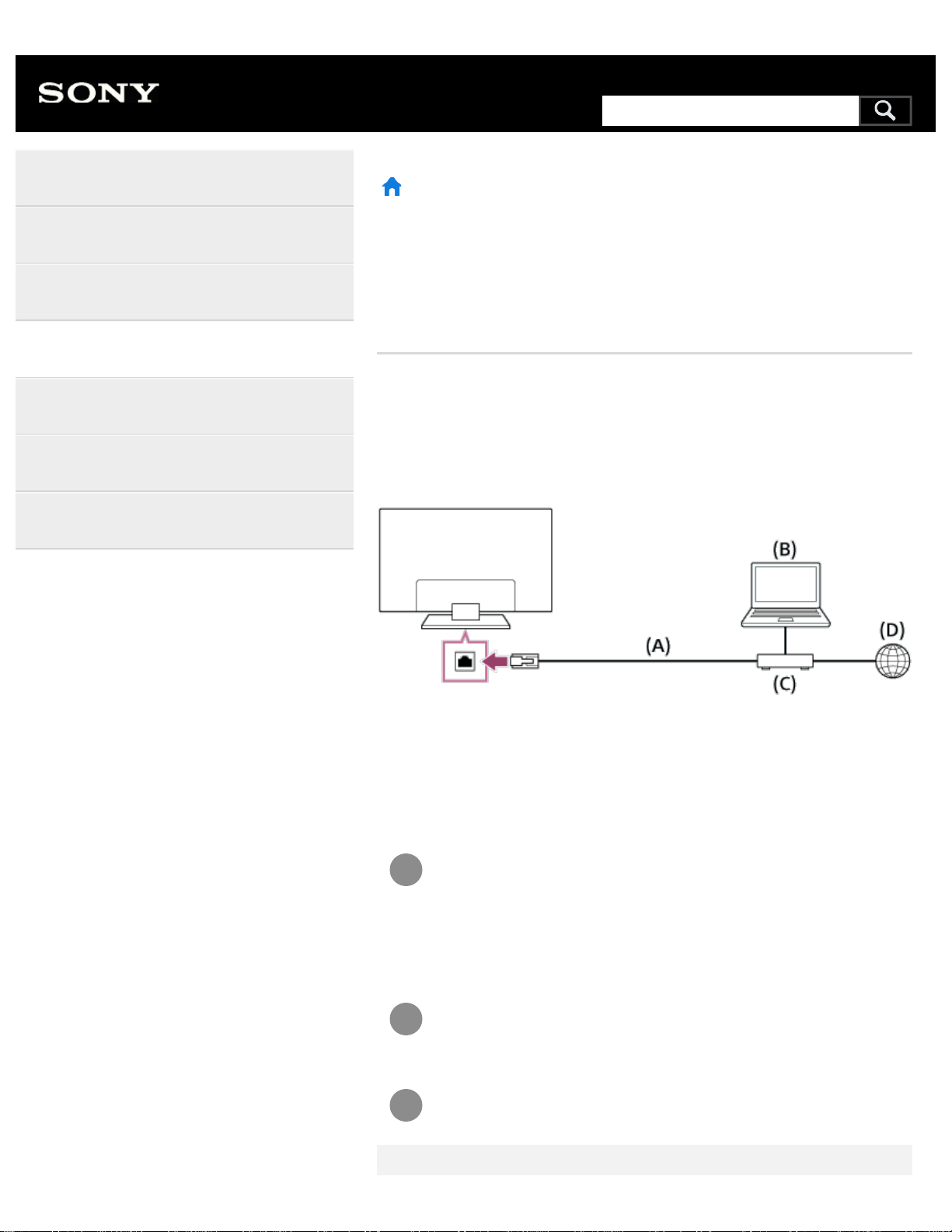
1
2
3
>
Connecting to a Network
>
Connecting to a network using a LAN cable
Print
Connecting to a network using a
LAN cable
Connecting to a network using a LAN cable
A wired LAN connection allows you to access the Internet and your home
network. Connect a LAN cable to your TV.
(A) LAN cable
(B) Computer
(C) Modem with router functions
(D) Internet
Set up your LAN router.
For details, refer to the instruction manual of your LAN
router, or contact the person who set up the network
(network administrator).
Press the HOME button, then select [Settings] — [Network] —
[Network setup] — [Easy].
Follow the on-screen instructions to complete the set-up.
Help Guide
Getting Started
Watching TV
Using the TV with Other Devices
Connecting to a Network
Settings
Troubleshooting
Index
135
Search
Note
The network-related settings that are required may vary depending
on the Internet service provider or router. For details, refer to the
instruction manuals provided by the Internet service provider or
those supplied with the router. You can also contact the person
who set up the network (network administrator).
>
Connecting to a Network
>
Connecting to a network using a LAN cable
Go to page top
C-654-100-12(1)
Copyright 2016 Sony Corporation
136
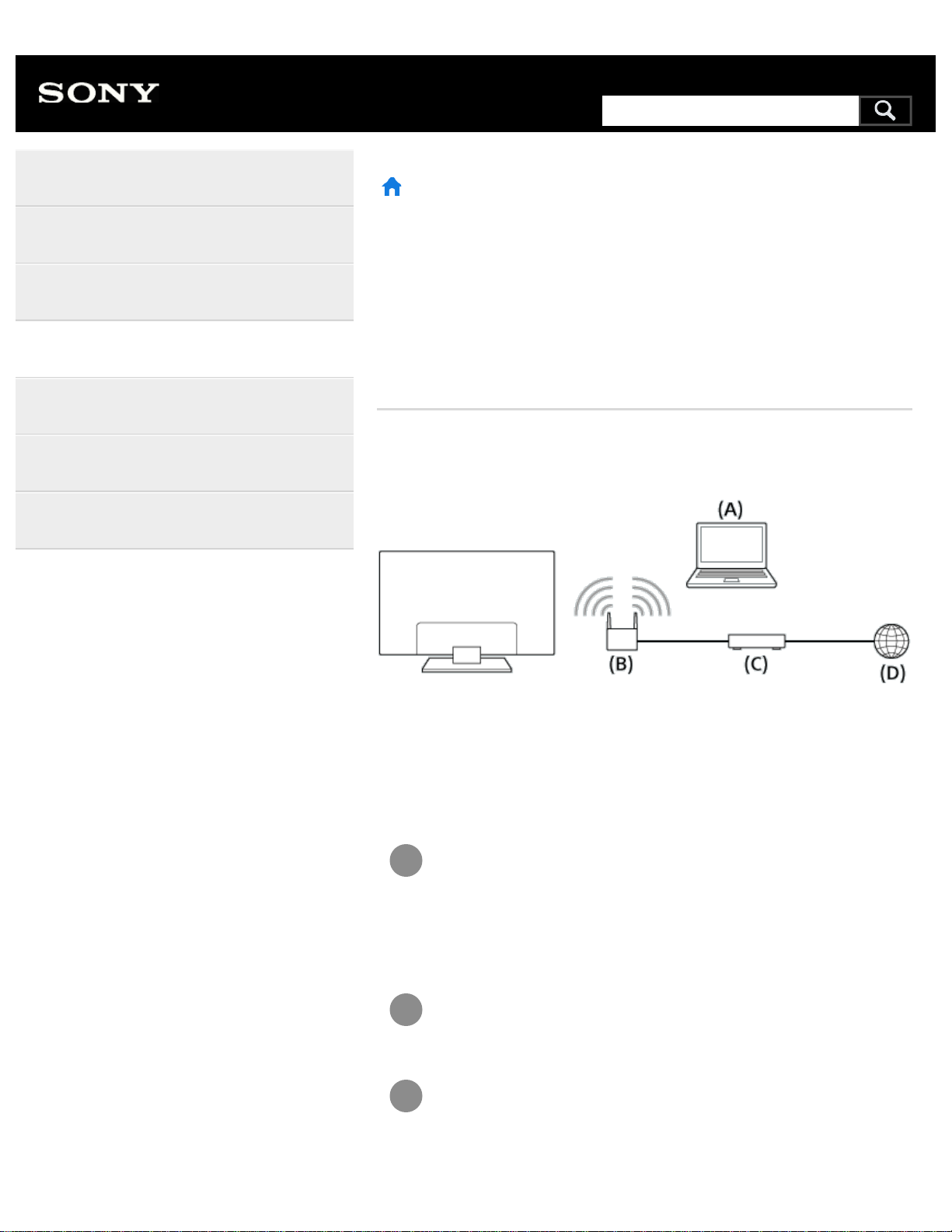
1
2
3
>
Connecting to a Network
>
Connecting to a network using a wireless connection
>
Using Wi-Fi to connect the TV to your network
Print
Using Wi-Fi to connect the TV to
your network
The built-in wireless LAN device allows you to access the Internet and
enjoy the benefits of networking in a cable-free environment.
(A) Computer
(B) Wireless router (access point)
(C) Modem
(D) Internet
Set up your wireless router (or access point).
For details, refer to the instruction manual of your wireless
router (or access point), or contact the person who set up
the network (network administrator).
Press the HOME button, then select [Settings] — [Network] —
[Network setup] — [Easy].
Follow the on-screen instructions to complete the set-up.
To turn off the built-in wireless LAN
Help Guide
Getting Started
Watching TV
Using the TV with Other Devices
Connecting to a Network
Settings
Troubleshooting
Index
137
Search
To disable [Built-in Wi Fi], press the HOME button, then select [Settings]
— [Network] — [Advanced settings] — [Built-in Wi Fi].
Hint
For smooth video streaming:
Change the setting of your wireless router (or access point) to a
high-speed networking standard such as 802.11n if possible.
For details on how to change the setting, refer to the instruction
manual of your wireless router (or access point), or contact the
person who set up the network (network administrator).
If the above procedure does not deliver any improvement,
change the setting of your wireless router (or access point) to
5GHz, which may help improve the video streaming quality.
The 5GHz band may not be supported depending on your
region/country. If the 5GHz band is not supported, the TV can
only connect to a wireless router (access point) using the
2.4GHz band.
To use WEP security with a wireless router (or access point), select
[Settings] — [Network] — [Network setup] — [Easy] — [Wi Fi] —
[Connect by scan list].
Note
The network-related settings that are required may vary depending
on the Internet service provider or router. For details, refer to the
instruction manuals provided by the Internet service provider or
those supplied with the router. You can also contact the person
who set up the network (network administrator).
If you select the [Show password] option in the password entry
screen, the exposed password may be seen by other individuals.
Related topics
Network (Internet/home)/apps
>
Connecting to a Network
>
Connecting to a network using a wireless connection
138
>
Getting Started
>
Basic Operations
Print
Basic Operations
Using the remote control
Home menu
Using the DISCOVER button
Using the Action Menu
Selecting devices that are connected to the
TV
Identifying the status of the TV through
illumination
>
Getting Started
>
Basic Operations
Go to page top
Help Guide
Getting Started
Watching TV
Using the TV with Other Devices
Connecting to a Network
Settings
Troubleshooting
Index
C-654-100-12(1)
Copyright 2016 Sony Corporation
139
Search
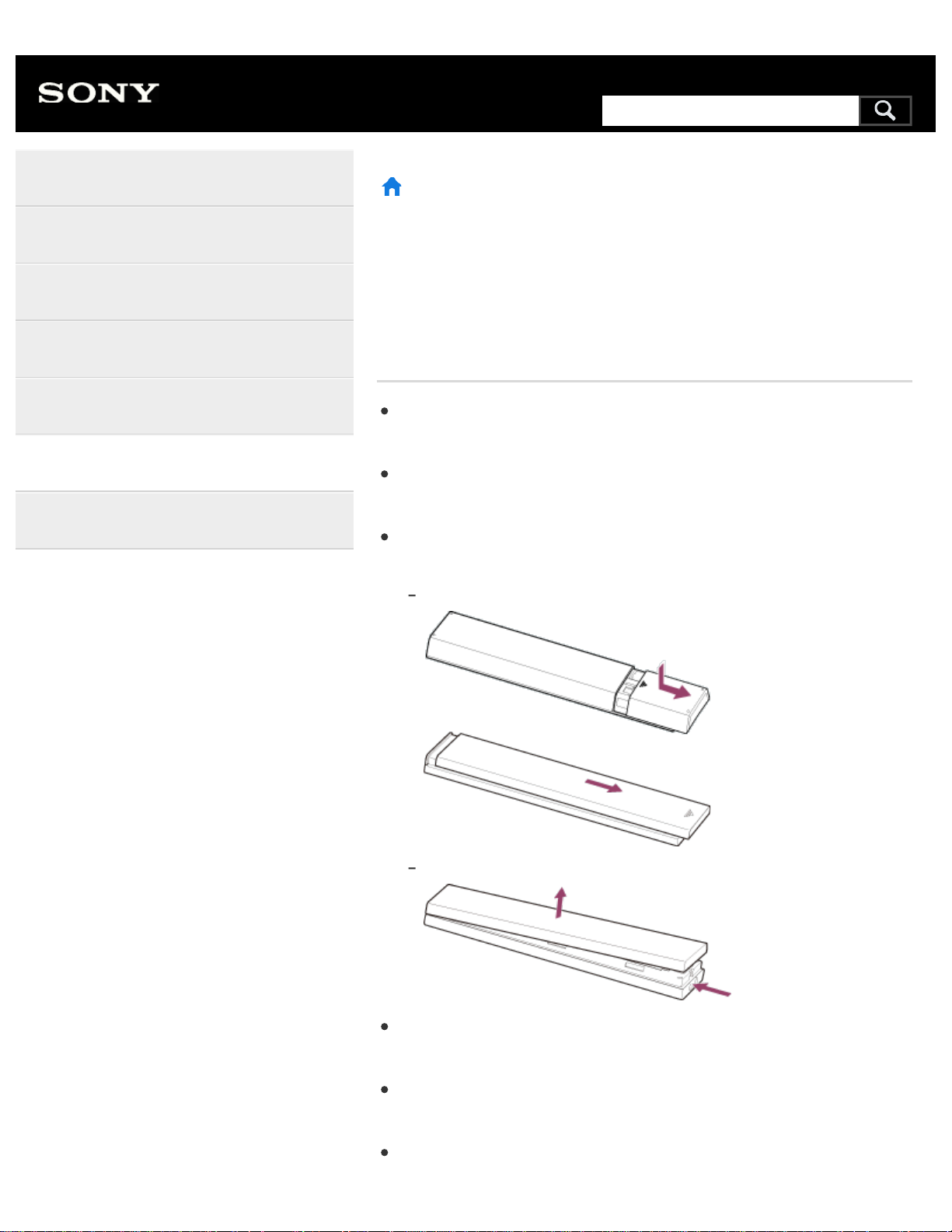
>
Troubleshooting
>
Remote control/accessories
>
The remote control does not operate.
Print
The remote control does not
operate.
Press a button on the TV to determine if the problem is with the remote
control or not.
Check that the orientation of each battery matches the positive (+) and
negative (-) symbols in the battery compartment.
Battery power may be low. Remove the remote control cover and
replace the batteries with new ones.
Sliding type
Push-release type
There may be poor contact between the battery and the remote
control. Remove the batteries, then insert them again.
Point the remote control at the remote control sensor located at the
front of the TV.
Keep the remote control sensor area clear from obstacles.
Help Guide
Getting Started
Watching TV
Using the TV with Other Devices
Connecting to a Network
Settings
Troubleshooting
Index
140
Search
Fluorescent light can interfere with remote control operation; try turning
off any fluorescent light.
When you unplug the TV and plug it in again, the TV may not be able
to turn on for a while, even if you press the power button on the remote
control or the TV. This is because it takes time to initialize the system.
Wait for about 10 to 20 seconds, then try again.
When your voice is not being recognized, make sure to activate the
button on the remote control with the button, or register the
remote control with the
button to your TV. To confirm these
settings, press the HOME button, then select [Settings] — [Touchpad
Remote Control settings]/[Voice Remote Control]. The setting
displayed varies depending on your model. The
button may not be
available depending on your supplied remote control.
>
Troubleshooting
>
Remote control/accessories
>
The remote control does not operate.
Go to page top
C-654-100-12(1)
Copyright 2016 Sony Corporation
141
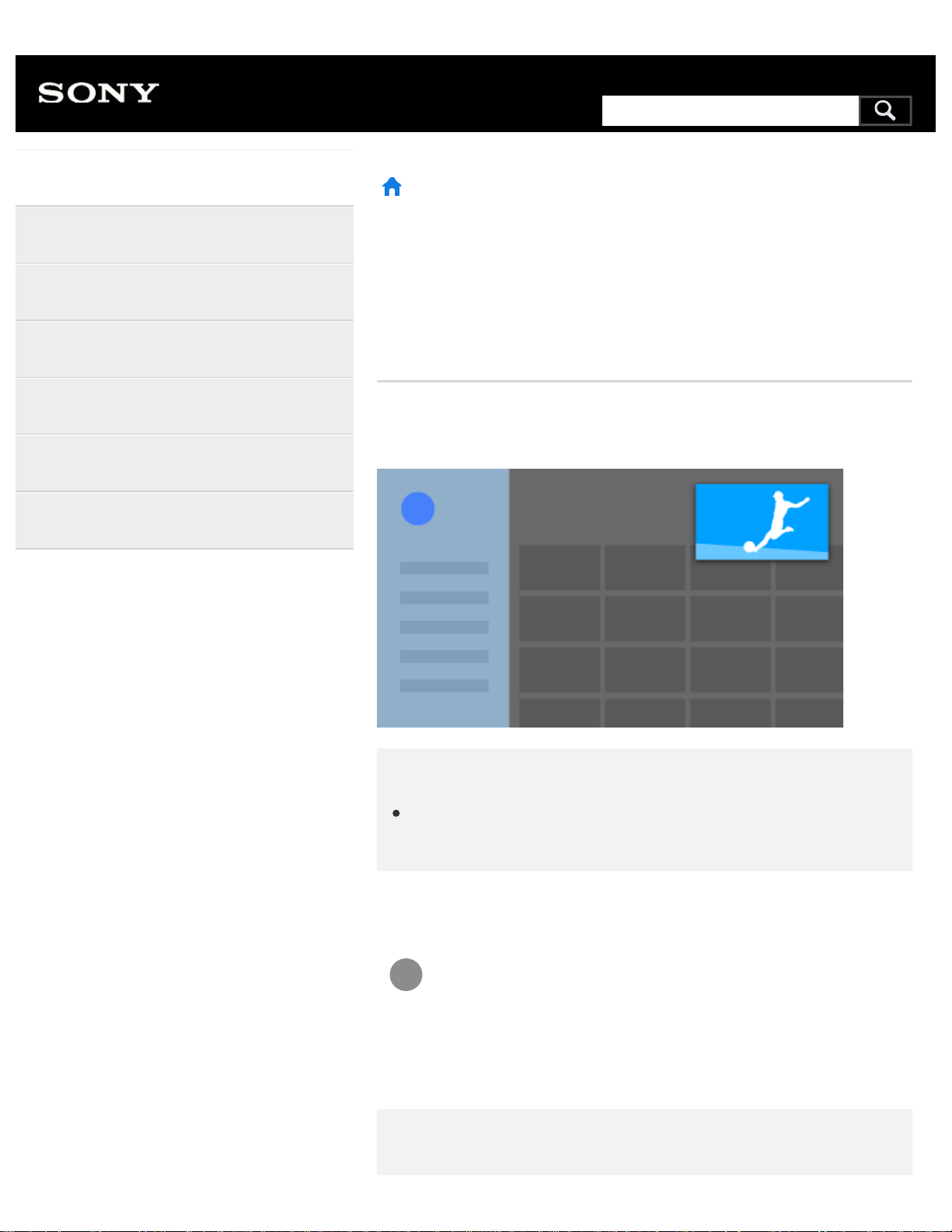
1
>
Getting Started
> Introducing Android TV
>
Displaying the picture in a small screen
Print
Displaying the picture in a small
screen
You can display the picture that you are watching (TV programs or
content from HDMI-connected devices) as a small screen in the corner.
Note
You cannot use [Picture-in-picture] on TVs with the letter “C” at the
end of the model name.
Displaying the picture as a small screen
Press the ACTION MENU button while watching a TV program
or content from an HDMI device, and then select [Picture-in-
picture].
The current picture is displayed as a small screen in the corner.
Note
Help Guide
Getting Started
Watching TV
Using the TV with Other Devices
Connecting to a Network
Settings
Troubleshooting
Index
142
Search
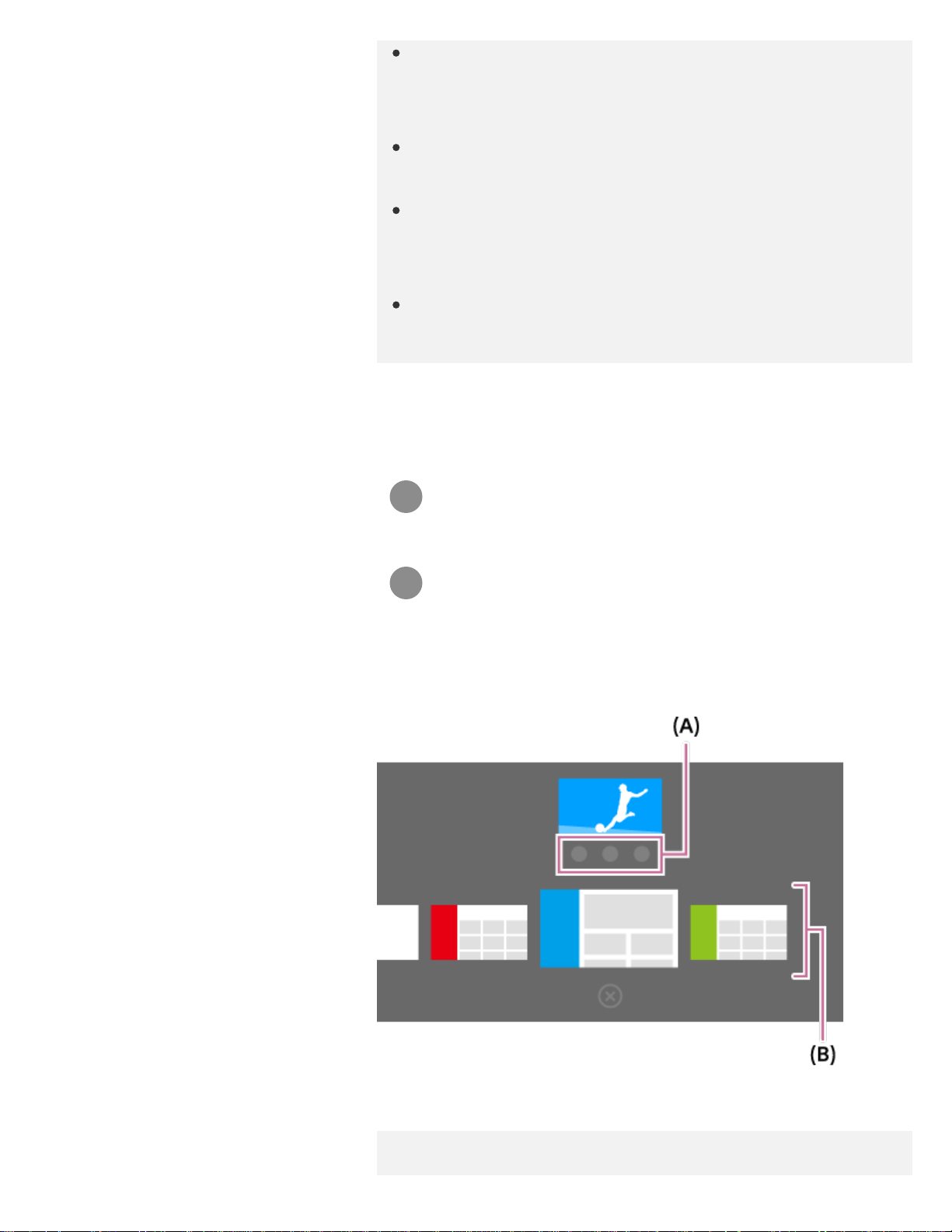
1
2
The small screen is displayed on top of the last app used.
However, the app that is displayed may vary depending on certain
conditions.
Operations such as changing the channel is disabled while
watching with a small screen.
TV program, external input such as an HDMI device, apps that play
back movies, or some apps that play back pictures or music cannot
be displayed at the same time.
The position of the small screen is automatically adjusted. You
cannot set it manually.
Closing the small screen or returning it to
full screen
Press and hold the HOME button to display a list of recently
used apps.
Close the small screen by selecting the desired button under
the small screen, or return it to full screen (A).
The image below is a visual representation and may vary from the
actual screen.
A list of recently used apps (B) is displayed under the small screen.
Note
143
If you switch to an app that plays back movies, pictures, or music
from the list of recently used apps, the small screen closes (the TV
program or playback from the HDMI device closes). To return to the
TV program or HDMI device, press the TV button or switch the
input.
>
Getting Started
> Introducing Android TV
>
Displaying the picture in a small screen
Go to page top
C-654-100-12(1)
Copyright 2016 Sony Corporation
144
1
2
>
Getting Started
> Introducing Android TV
>
Downloading apps from the Google Play
Print
Downloading apps from the Google
Play
You can download apps from the Google Play to the TV, just like you do
with smartphones and tablets.
Note
You can only download apps that are compatible with TVs. They
may differ from apps for smartphones/tablets.
An Internet connection and Google account are required to
download apps from the Google Play.
Hint
If you do not have a Google account or want to create a shared
account, create a new account by accessing the following website.
https://accounts.google.com/signup
The website above may vary depending on your region/country. It
is also subject to change without notice. For details, refer to the
Google homepage.
We recommend that you create a Google account on a computer or
mobile device.
Press the HOME button, then select [Google Play Store] under
[Apps].
To install an app, select an app you want to download. The app
will start downloading.
Help Guide
Getting Started
Watching TV
Using the TV with Other Devices
Connecting to a Network
Settings
Troubleshooting
Index
145
Search
1
2
After downloading, the app is automatically installed and added. Its icon
appears in the Home Menu, allowing you to launch it.
About paid apps
There are free apps and paid apps in the Google Play. To purchase a
paid app, a prepaid Google Play gift card code or credit card information
is required. You can purchase a Google Play gift card from various
retailers.
To delete an app
Press the HOME button, select [Google Play Store] under
[Apps], and then select [My Apps].
Select an app to be deleted, and then uninstall the app.
Related topics
Connecting to a network using a LAN cable
Using Wi-Fi to connect the TV to your network
Moving apps to a USB memory device
>
Getting Started
> Introducing Android TV
>
Downloading apps from the Google Play
Go to page top
C-654-100-12(1)
Copyright 2016 Sony Corporation
146
1
2
3
4
5
6
>
Getting Started
> Introducing Android TV
>
Moving apps to a USB memory device
Print
Moving apps to a USB memory
device
You can move downloaded apps to a USB memory device to increase the
space available in the TV.
Note
When you format a USB memory device, all data saved in the USB
memory device will be deleted. Back up your important data before
formatting.
Performing this procedure formats the USB memory device for
exclusive use with the TV. Therefore, you may be unable to use the
USB memory device with a computer, etc.
Some apps cannot be moved to a USB memory device.
Connect a USB memory device to the TV.
Press the HOME button, select [Settings] — [Storage & reset]
— the desired USB memory device.
Format it as an internal storage device.
When formatting is finished, press the HOME button, then
select [Settings] — [Apps].
Select the app that you want to move to the USB memory
device.
Select the USB memory device from the used storage. The app
Help Guide
Getting Started
Watching TV
Using the TV with Other Devices
Connecting to a Network
Settings
Troubleshooting
Index
147
Search
1
is moved to the USB memory device.
Hint
Repeat steps 4 to 6 to move additional apps to the USB memory
device.
To remove a USB memory device
Press the HOME button, select [Settings] — [Storage & reset]
— the desired USB memory device, and then select the
option to remove it.
Note
The USB memory device is used only for saving apps. To use the
USB memory device for other purposes, you must format it again.
If you delete an app in the USB memory device using a computer,
you will be unable to launch it from the TV.
If you remove a USB memory device from the TV, you will be
unable to use the apps that were moved to the USB memory
device.
You cannot specify a USB memory device as the installation
location of an app. First install the app on the TV as normal, and
then move it to the USB memory device.
>
Getting Started
> Introducing Android TV
>
Moving apps to a USB memory device
Go to page top
C-654-100-12(1)
Copyright 2016 Sony Corporation
148
>
Getting Started
> Introducing Android TV >
Viewing Internet media
Print
Viewing Internet media
You can use video streaming services such as YouTube and Netflix to
watch Internet content. The available services vary depending on your
country and region. You can launch these services by selecting their tiles
in the Home Menu.
Note
An Internet connection is required to watch Internet content.
Related topics
Enjoying safe apps and video streaming services (Security &
restrictions)
Connecting to a network using a LAN cable
Using Wi-Fi to connect the TV to your network
>
Getting Started
> Introducing Android TV >
Viewing Internet media
Go to page top
Help Guide
Getting Started
Watching TV
Using the TV with Other Devices
Connecting to a Network
Settings
Troubleshooting
Index
C-654-100-12(1)
Copyright 2016 Sony Corporation
149
Search
1
2
3
>
Getting Started
> Introducing Android TV
>
Enjoying content from your mobile device on the TV with Google Cast
Print
Enjoying content from your mobile
device on the TV with Google Cast
Google Cast allows you to wirelessly cast content from your favorite
websites and apps to your TV, directly from your computer or mobile
device.
Connect a mobile device such as a smartphone or tablet to the
same home network that the TV is connected to.
Launch a Google Cast supported app on the mobile device.
Select the
(cast) icon in the app.
The screen of the mobile device is displayed on the TV.
Note
An Internet connection is required to use Google Cast.
Related topics
Connecting to a network using a LAN cable
Using Wi-Fi to connect the TV to your network
>
Getting Started
> Introducing Android TV
>
Enjoying content from your mobile device on the TV with Google Cast
Go to page top
Help Guide
Getting Started
Watching TV
Using the TV with Other Devices
Connecting to a Network
Settings
Troubleshooting
Index
150
Search
1
>
Getting Started
> Introducing Android TV
>
Enjoying safe apps and video streaming services (Security & restrictions)
Print
Enjoying safe apps and video
streaming services (Security &
restrictions)
You can ensure safe use of the TV by setting installation restrictions on
apps that are downloaded from unknown sources, or age restrictions on
programs and videos.
Press the HOME button, then select [Settings] — then options
such as [Security & restrictions] or [Parental lock
(Broadcast)] .
Displayed as [Parental lock] depending on your model.
Note
If you change the [Security & restrictions] settings, your device and
personal data are more vulnerable to attack by unknown apps from
sources other than Play Store. You agree that you are solely
responsible for any damage to your device or loss of data that may
result from using these apps.
Hint
Other separate restrictions may be available depending on the app.
For details, refer to the app's help guide.
>
Getting Started
> Introducing Android TV
>
Enjoying safe apps and video streaming services (Security & restrictions)
Help Guide
Getting Started
Watching TV
Using the TV with Other Devices
Connecting to a Network
Settings
Troubleshooting
Index
*
*
151
Search
>
Getting Started
> Introducing Android TV
>
Searching by using your voice
Print
Searching by using your voice
The TV includes a Voice search feature that enables you to search the
Internet for content you’re looking for with your voice. Voice search allows
you to quickly input search queries without the use of the on-screen
keyboard.
To search, simply press the
button and speak into the microphone
built into your remote control.
For details, please refer to
Using the remote control
.
>
Getting Started
> Introducing Android TV
>
Searching by using your voice
Go to page top
Help Guide
Getting Started
Watching TV
Using the TV with Other Devices
Connecting to a Network
Settings
Troubleshooting
Index
C-654-100-12(1)
Copyright 2016 Sony Corporation
152
Search
>
Troubleshooting
>
Start here
Print
Start here
Self diagnostics
Software updates
If a full reset (restart) of the TV is required
>
Troubleshooting
>
Start here
Go to page top
Help Guide
Getting Started
Watching TV
Using the TV with Other Devices
Connecting to a Network
Settings
Troubleshooting
Index
C-654-100-12(1)
Copyright 2016 Sony Corporation
153
Search
>
Troubleshooting
>
Picture (quality)/screen
Print
Picture (quality)/screen
Picture quality is not as good as viewed at
the store.
Distorted picture.
The screen flickers.
No color/Dark picture/Color is not
correct/Picture is too bright.
Dark screen. How to brighten the screen.
Color is not correct. How to adjust the color
tone.
Screen format/wide mode changes
automatically.
The screen suddenly changes to a video you
do not recognize while watching TV.
Suddenly the picture becomes small.
Black bands appear at the edges of the
screen.
Help Guide
Getting Started
Watching TV
Using the TV with Other Devices
Connecting to a Network
Settings
Troubleshooting
Index
154
Search
A black box appears on the screen.
There are banners/tickers at the top or
bottom of the screen.
3D pictures are not displayed. The 3D effect
is weak. (3D models only)
Black bars appear on both sides of the
screen when watching 3D pictures. (3D
models only)
You cannot turn off 3D display while
watching 3D content. (3D models only)
The message [3D signal has been detected.]
automatically appears when 3D signal is
detected. (3D models only)
A message about an app asking for
permission to access a TV function is
displayed.
>
Troubleshooting
>
Picture (quality)/screen
Go to page top
C-654-100-12(1)
Copyright 2016 Sony Corporation
155
>
Troubleshooting
>
Keyboard
Print
Keyboard
You cannot operate the current screen after
the on-screen keyboard is displayed.
To return to operation of the screen behind the on-screen keyboard,
press the BACK button on the remote control.
>
Troubleshooting
>
Keyboard
Go to page top
Help Guide
Getting Started
Watching TV
Using the TV with Other Devices
Connecting to a Network
Settings
Troubleshooting
Index
C-654-100-12(1)
Copyright 2016 Sony Corporation
156
Search
>
Troubleshooting
>
Broadcast reception
Print
Broadcast reception
Check these things first to troubleshoot your
TV reception.
Block noise or an error message appears
and you cannot watch broadcasts.
Ghosting or double images appear.
Only snow noise or a black picture appears
on the screen.
There is picture or sound noise when
viewing an analog TV channel.
Some channels are blank.
Poor reception or poor picture quality with
digital broadcasts.
You cannot view digital channels.
You cannot receive or select channels.
Some digital cable channels are not
displayed.
Help Guide
Getting Started
Watching TV
Using the TV with Other Devices
Connecting to a Network
Settings
Troubleshooting
Index
157
Search

>
Troubleshooting
>
Sound
Print
Sound
No sound but good picture.
Audio noise.
No audio or low audio with a home theater
system.
Distorted sound.
Headphone volume cannot be adjusted.
You want to output sound from both the
headphones and the TV speakers.
>
Troubleshooting
>
Sound
Go to page top
Help Guide
Getting Started
Watching TV
Using the TV with Other Devices
Connecting to a Network
Settings
Troubleshooting
Index
C-654-100-12(1)
Copyright 2016 Sony Corporation
159
Search

>
Troubleshooting
>
Network (Internet/home)/apps
Print
Network (Internet/home)/apps
The network name (SSID) of the wireless
router (access point) to which you want to
connect is not displayed.
Sometimes video streaming quality is poor.
Wi-Fi connection is lost or intermittent.
Certain Internet video content displays a
loss of detail.
Good picture quality but no sound on
Internet video content.
Apps are inaccessible.
The TV cannot access the Internet when
IPv6 is set.
Your TV cannot connect to the server.
A message appears stating that the TV
cannot connect to your network.
You can connect to the Internet, but not to
Help Guide
Getting Started
Watching TV
Using the TV with Other Devices
Connecting to a Network
Settings
Troubleshooting
Index
160
Search

>
Troubleshooting
>
Remote control/accessories
Print
Remote control/accessories
The remote control does not operate.
You cannot turn the Active 3D Glasses on.
(3D models only)
The LED indicator on the Active 3D Glasses
blinks. (3D models only)
>
Troubleshooting
>
Remote control/accessories
Go to page top
Help Guide
Getting Started
Watching TV
Using the TV with Other Devices
Connecting to a Network
Settings
Troubleshooting
Index
C-654-100-12(1)
Copyright 2016 Sony Corporation
162
Search
>
Troubleshooting
>
Power
Print
Power
The TV turns off automatically.
The TV turns on automatically.
After unplugging the TV and plugging it in
again, the TV does not turn on even if you
press the power button on the remote
control or the TV.
>
Troubleshooting
>
Power
Go to page top
Help Guide
Getting Started
Watching TV
Using the TV with Other Devices
Connecting to a Network
Settings
Troubleshooting
Index
C-654-100-12(1)
Copyright 2016 Sony Corporation
163
Search
>
Troubleshooting
>
Connected devices
Print
Connected devices
No picture from a connected device.
You cannot select a connected device in the
Home Menu.
Certain programs on digital sources display
a loss of detail.
Photo images or folders take time to display.
You cannot find a connected BRAVIA Sync
HDMI device.
You cannot control a second AV receiver.
The TV does not output picture and/or sound
from the MHL device. (MHL supported
models only)
An external device (such as a set-top box or
AV receiver) cannot be controlled via the IR
Blaster. (IR Blaster compatible models only)
Some media files in the USB device or
server are not displayed.
Help Guide
Getting Started
Watching TV
Using the TV with Other Devices
Connecting to a Network
Settings
Troubleshooting
Index
164
Search
The TV cannot be found by a Wi-Fi Direct
device.
Operation cuts out, or a device does not
work.
What kind of devices can be connected
using the Screen mirroring function?
The TV cannot connect to a Miracast device
or Screen mirroring compatible device.
Video or sound sometimes cuts out.
Some paid content cannot be played.
>
Troubleshooting
>
Connected devices
Go to page top
C-654-100-12(1)
Copyright 2016 Sony Corporation
165
>
Troubleshooting
>
Illumination LED
Print
Illumination LED
The illumination LED or bottom of the screen
sometimes lights up.
You want to disable the illumination LED so
that it does not light up or blink.
>
Troubleshooting
>
Illumination LED
Go to page top
Help Guide
Getting Started
Watching TV
Using the TV with Other Devices
Connecting to a Network
Settings
Troubleshooting
Index
C-654-100-12(1)
Copyright 2016 Sony Corporation
166
Search
>
Getting Started
>
Keeping the TV updated
Print
Keeping the TV updated
The functions below are performed when the TV is in standby mode. To
keep your TV updated, we recommend that you turn off the TV normally
by using the power button on the remote control or TV.
Download of data such as program guides
Software download (when [Automatic software download] is enabled)
>
Getting Started
>
Keeping the TV updated
Go to page top
Help Guide
Getting Started
Watching TV
Using the TV with Other Devices
Connecting to a Network
Settings
Troubleshooting
Index
C-654-100-12(1)
Copyright 2016 Sony Corporation
167
Search
>
Getting Started
>
Support Site
Print
Support Site
For the latest information and Online Help Guide, please visit the Sony
support website:
USA:
http://www.sony.com/tvsupport
Canada:
http://www.sony.ca/support
Brazil:
http://esupport.sony.com/BR/
Latin America:
http://esupport.sony.com/ES/LA/
>
Getting Started
>
Support Site
Go to page top
Help Guide
Getting Started
Watching TV
Using the TV with Other Devices
Connecting to a Network
Settings
Troubleshooting
Index
168
Search
>
Watching TV
>
Watching TV programs
Print
Watching TV programs
Using the program guide
Using interactive broadcast TV services
>
Watching TV
>
Watching TV programs
Go to page top
Help Guide
Getting Started
Watching TV
Using the TV with Other Devices
Connecting to a Network
Settings
Troubleshooting
Index
C-654-100-12(1)
Copyright 2016 Sony Corporation
169
Search
>
Watching TV
>
Watching in 3D (3D models only)
Print
Watching in 3D (3D models only)
Understanding the basics of 3D TV (3D
models only)
Preparing your 3D glasses (3D models only)
Watching TV in 3D (3D models only)
>
Watching TV
>
Watching in 3D (3D models only)
Go to page top
Help Guide
Getting Started
Watching TV
Using the TV with Other Devices
Connecting to a Network
Settings
Troubleshooting
Index
C-654-100-12(1)
Copyright 2016 Sony Corporation
170
Search
1
2
1
1
>
Watching TV
>
Watching TV with two screens
Print
Watching TV with two screens
You can enjoy two video sources at the same time by displaying an
HDMI-connected device and a TV program (Built-in Tuner) in two
screens.
Note
[Twin Picture] is available for Android TVs with a “C” at the end of
the model number.
Displaying in two screens
To watch with two screens, display the source of a device connected by
HDMI, and then display the TV source (Built-in Tuner).
Display the input screen of the desired connected device.
Press the ACTION MENU button, and select [Twin Picture].
The sound of the source displayed with the green focus is output from the
TV.
To switch to the sound of the other source
Press the ACTION MENU button, and select [Switch active
screen].
To return to single picture display
Press the ACTION MENU button, and select [Single picture].
Help Guide
Getting Started
Watching TV
Using the TV with Other Devices
Connecting to a Network
Settings
Troubleshooting
Index
171
Search
Hint
In addition to switching the focus and returning to single picture
display, you can also do the following in the menu displayed by
pressing the ACTION MENU button when using [Twin Picture].
Switch the input to an HDMI device that you want to display
Change the screen size
Note
When watching digital or analog channels or when an app such as
YouTube is displayed, [Twin Picture] is unavailable. Switch the
input to an HDMI source before pressing the ACTION MENU
button.
The only combination of sources you can watch with two screens is
a TV program (Built-in Tuner) and HDMI device.
>
Watching TV
>
Watching TV with two screens
Go to page top
C-654-100-12(1)
Copyright 2016 Sony Corporation
172
>
Using the TV with Other Devices
>
USB devices
Print
USB devices
Playing content stored on a USB device
Information about USB devices used for
storing photos and music
Supported files and formats
>
Using the TV with Other Devices
>
USB devices
Go to page top
Help Guide
Getting Started
Watching TV
Using the TV with Other Devices
Connecting to a Network
Settings
Troubleshooting
Index
C-654-100-12(1)
Copyright 2016 Sony Corporation
173
Search

>
Using the TV with Other Devices
>
Blu-ray and DVD players
Print
Blu-ray and DVD players
Connecting a Blu-ray or DVD player
Watching Blu-ray and DVD discs
>
Using the TV with Other Devices
>
Blu-ray and DVD players
Go to page top
Help Guide
Getting Started
Watching TV
Using the TV with Other Devices
Connecting to a Network
Settings
Troubleshooting
Index
C-654-100-12(1)
Copyright 2016 Sony Corporation
174
Search
>
Using the TV with Other Devices
>
Smartphones and tablets
Print
Smartphones and tablets
Displaying the screen of a smartphone/tablet
on the TV using an MHL cable (MHL
supported models only)
Displaying the screen of a smartphone/tablet
on the TV using the Screen mirroring
function
Sharing photos/music/videos
>
Using the TV with Other Devices
>
Smartphones and tablets
Go to page top
Help Guide
Getting Started
Watching TV
Using the TV with Other Devices
Connecting to a Network
Settings
Troubleshooting
Index
C-654-100-12(1)
Copyright 2016 Sony Corporation
175
Search
>
Using the TV with Other Devices
>
Computers, cameras, and camcorders
Print
Computers, cameras, and
camcorders
Connecting a computer and viewing stored
content
Connecting a camera or camcorder and
viewing stored content
Computer video signal specifications
>
Using the TV with Other Devices
>
Computers, cameras, and camcorders
Go to page top
Help Guide
Getting Started
Watching TV
Using the TV with Other Devices
Connecting to a Network
Settings
Troubleshooting
Index
C-654-100-12(1)
Copyright 2016 Sony Corporation
176
Search
>
Using the TV with Other Devices
>
Audio system
Print
Audio system
Connecting an audio system
Adjusting audio system-related settings
>
Using the TV with Other Devices
>
Audio system
Go to page top
Help Guide
Getting Started
Watching TV
Using the TV with Other Devices
Connecting to a Network
Settings
Troubleshooting
Index
C-654-100-12(1)
Copyright 2016 Sony Corporation
177
Search
>
Using the TV with Other Devices
>
Bluetooth devices
Print
Bluetooth devices
Connecting a Bluetooth device
Supported Bluetooth profiles
>
Using the TV with Other Devices
>
Bluetooth devices
Go to page top
Help Guide
Getting Started
Watching TV
Using the TV with Other Devices
Connecting to a Network
Settings
Troubleshooting
Index
C-654-100-12(1)
Copyright 2016 Sony Corporation
178
Search
>
Using the TV with Other Devices
>
Sony wireless subwoofer (optional) (Sony wireless subwoofer supported models
only)
Print
Sony wireless subwoofer (optional)
(Sony wireless subwoofer supported
models only)
Connecting a wireless subwoofer (optional)
Adjusting wireless subwoofer-related
settings (optional)
>
Using the TV with Other Devices
>
Sony wireless subwoofer (optional) (Sony wireless subwoofer supported models
only)
Go to page top
Help Guide
Getting Started
Watching TV
Using the TV with Other Devices
Connecting to a Network
Settings
Troubleshooting
Index
C-654-100-12(1)
Copyright 2016 Sony Corporation
179
Search
>
Using the TV with Other Devices
>
BRAVIA Sync-compatible devices
Print
BRAVIA Sync-compatible devices
BRAVIA Sync overview
Using features available for BRAVIA Sync-
compatible devices
Adjusting BRAVIA Sync settings
>
Using the TV with Other Devices
>
BRAVIA Sync-compatible devices
Go to page top
Help Guide
Getting Started
Watching TV
Using the TV with Other Devices
Connecting to a Network
Settings
Troubleshooting
Index
C-654-100-12(1)
Copyright 2016 Sony Corporation
180
Search
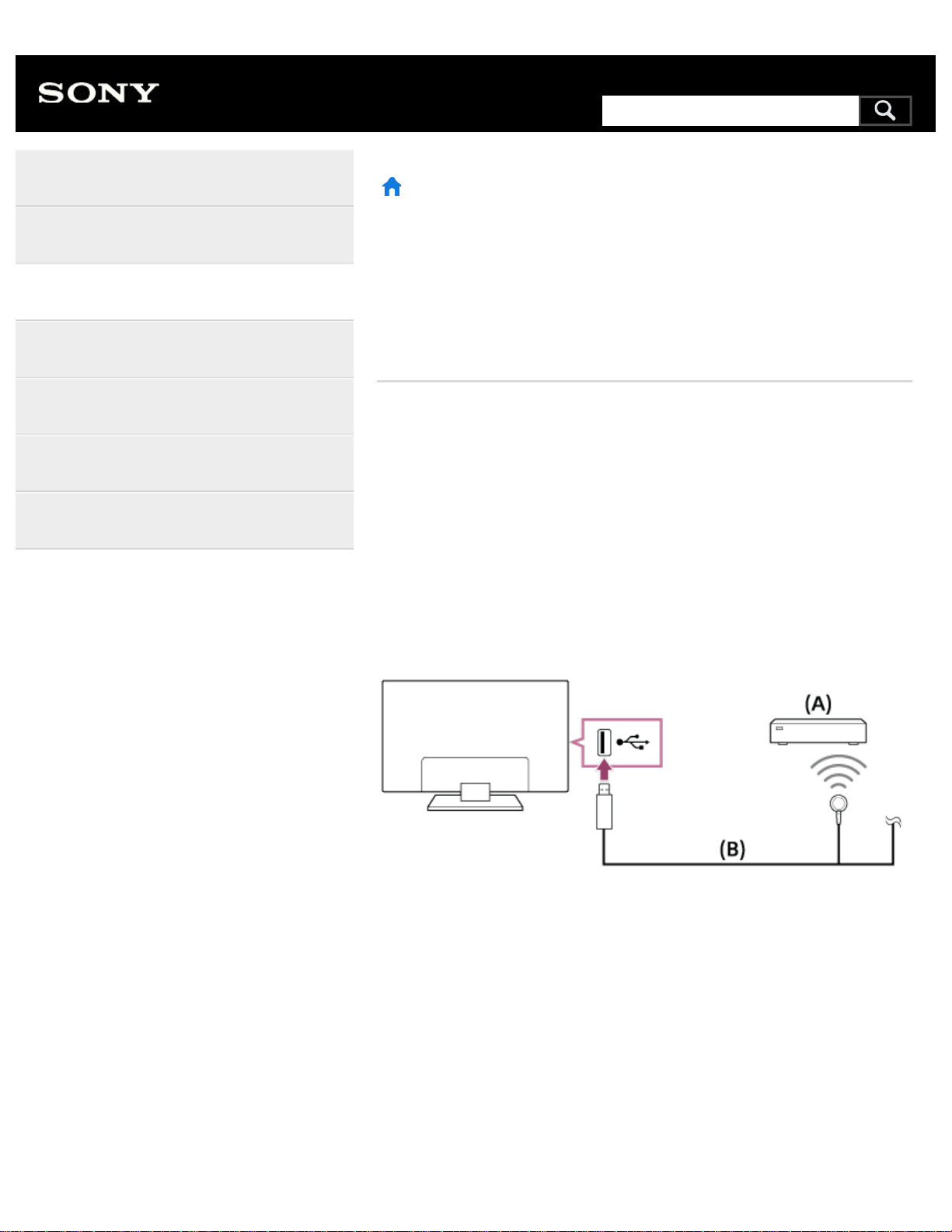
>
Using the TV with Other Devices
>
Connecting an IR Blaster (IR Blaster compatible models only)
Print
Connecting an IR Blaster (IR Blaster
compatible models only)
IR Blaster compatible models have [IR Blaster setup] in [Settings] —
[External inputs].
The IR Blaster allows you to operate a set-top box or AV Receiver that is
connected to the TV, with the TV’s remote control.
(IR Blaster compatible models may not be available depending on your
model/country.)
For a USB type IR Blaster*
(A) Set-top box or AV Receiver
(B) IR Blaster cable
For a plug type IR Blaster*
Help Guide
Getting Started
Watching TV
Using the TV with Other Devices
Connecting to a Network
Settings
Troubleshooting
Index
181
Search
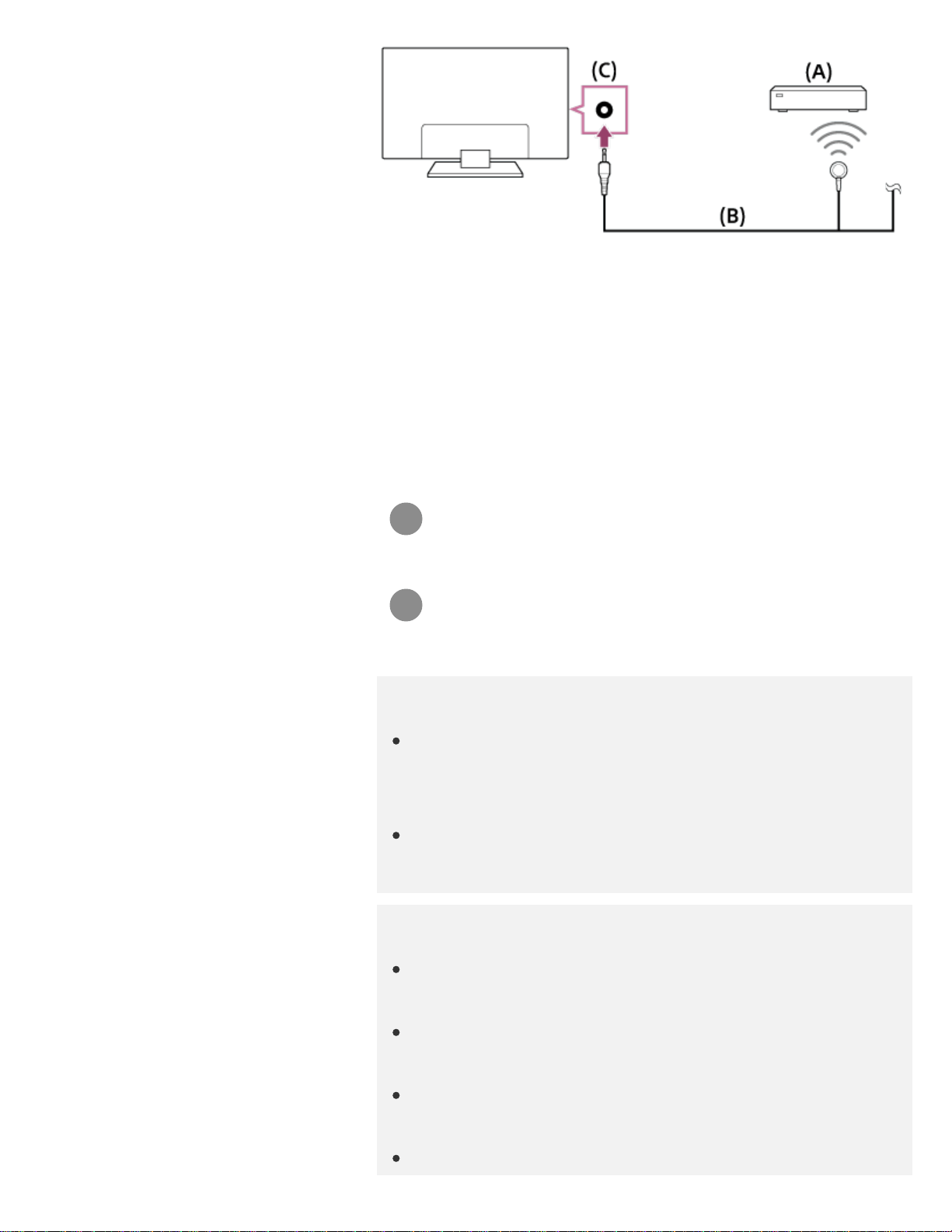
1
2
(A) Set-top box or AV Receiver
(B) IR Blaster cable
(C) IR Blaster jack (socket)
The shape of the supplied IR Blaster may vary depending on your
model.
To set up the IR Blaster
Press the HOME button, then select [Settings] — [External
inputs] — [IR Blaster setup].
Select the desired device from the list, then follow the on-
screen instructions.
Hint
The IR Blaster can operate an AV receiver. To set up an AV
receiver, press the HOME button, then select [Settings] — [External
inputs] — [IR Blaster setup] — [AV receiver control setup].
If the AV receiver is a BRAVIA Sync-compatible device, an IR
Blaster is not needed.
Note
Some external devices may not respond to some items in the
“Action Menu”.
If you press and hold a button on the remote control, the operation
may not be transmitted. Instead, press the button repeatedly.
Make sure that the IR Blaster is correctly set up and the IR
transmitter is located near the IR receiver of the external device.
Make sure that your TV supports the external device.
*
182
Related topics
An external device (such as a set-top box or AV receiver) cannot
be controlled via the IR Blaster. (IR Blaster compatible models
only)
>
Using the TV with Other Devices
>
Connecting an IR Blaster (IR Blaster compatible models only)
Go to page top
C-654-100-12(1)
Copyright 2016 Sony Corporation
183
>
Using the TV with Other Devices
>
Viewing pictures in 4K from compatible devices (4K models only)
Print
Viewing pictures in 4K from
compatible devices (4K models only)
Viewing pictures in 4K resolution (4K models
only)
Settings for viewing pictures in 4K resolution
with higher quality (4K models only)
>
Using the TV with Other Devices
>
Viewing pictures in 4K from compatible devices (4K models only)
Go to page top
Help Guide
Getting Started
Watching TV
Using the TV with Other Devices
Connecting to a Network
Settings
Troubleshooting
Index
C-654-100-12(1)
Copyright 2016 Sony Corporation
184
Search
>
Connecting to a Network
>
Connecting to a network using a wireless connection
Print
Connecting to a network using a
wireless connection
Using Wi-Fi to connect the TV to your
network
Using Wi-Fi Direct to connect to the TV (no
wireless router required)
>
Connecting to a Network
>
Connecting to a network using a wireless connection
Go to page top
Help Guide
Getting Started
Watching TV
Using the TV with Other Devices
Connecting to a Network
Settings
Troubleshooting
Index
C-654-100-12(1)
Copyright 2016 Sony Corporation
185
Search
>
Connecting to a Network
>
Home network features
Print
Home network features
Adjusting home network settings
Playing content from a computer
Playing content from a media server
RVU statement (RVU compliant models
only)
>
Connecting to a Network
>
Home network features
Go to page top
Help Guide
Getting Started
Watching TV
Using the TV with Other Devices
Connecting to a Network
Settings
Troubleshooting
Index
C-654-100-12(1)
Copyright 2016 Sony Corporation
186
Search
>
Settings
>
Configuring the TV
Print
Configuring the TV
[TV]
[Network & Accessories]
[System Preferences]
[Personal]
[Accounts]
>
Settings
>
Configuring the TV
Go to page top
Help Guide
Getting Started
Watching TV
Using the TV with Other Devices
Connecting to a Network
Settings
Troubleshooting
Index
C-654-100-12(1)
Copyright 2016 Sony Corporation
187
Search
1
1
>
Settings
>
Setting a timer
Print
Setting a timer
To set the on timer
On timer automatically turns on the TV at a specific time, such as when a
program that you want to watch comes on. It also allows you to use the
TV as an alarm clock.
Press the HOME button, then select [Timers] — [Timer] — the
desired option.
To set the sleep timer
Sleep timer automatically turns off the TV after a preset time.
Press the HOME button, then select [Timers] — [Sleep timer]
— the desired option.
Note
When you turn off the TV and turn it on again, [Sleep timer] is reset
to [Off].
>
Settings
>
Setting a timer
Go to page top
Help Guide
Getting Started
Watching TV
Using the TV with Other Devices
Connecting to a Network
Settings
Troubleshooting
Index
C-654-100-12(1)
Copyright 2016 Sony Corporation
188
Search
1
2
3
1
2
1
>
Watching TV
> Watching TV programs >
Using the program guide
Print
Using the program guide
You can quickly find your preferred programs.
(This function is available only for digital broadcasts and depends on your
region/country/settings.)
Press the GUIDE button to display the digital program guide.
Select a program to watch.
The details of the program are displayed.
Select [View] to watch the program.
To switch the program guide
You can switch the program guide to [TV Selections] or [Genre Guide].
Some options may not be available depending on your
model/region/country.
Move the focus to the leftmost item, then move left again to
open the menu.
Select the desired program guide or list.
To use optional functions
While the program guide is displayed, press the ACTION
MENU button and then select the desired item.
>
Watching TV
> Watching TV programs >
Using the program guide
Help Guide
Getting Started
Watching TV
Using the TV with Other Devices
Connecting to a Network
Settings
Troubleshooting
Index
189
Search
1
>
Watching TV
> Watching TV programs
>
Using interactive broadcast TV services
Print
Using interactive broadcast TV
services
To use Ginga service (Ginga models only)
Ginga models have [Channel setup & Ginga] in [Settings] — [Channels].
Ginga (also known as DTVi) Interactivity provides extended programming
content information such as sports statistics, soap opera chapters and
characters, publicity, merchandising, weather information and news,
through high-quality digital text and graphics, along with advanced
options.
If available in your home, Ginga Interactivity also allows you to
communicate with the broadcaster through the return channel, in
scenarios such as polls, quizzes and games. These services are provided
by broadcasters.
(This function is only available for digital broadcasts and may not be
available in your region/country.)
Select a digital channel that provides Ginga features.
>
Watching TV
> Watching TV programs
>
Using interactive broadcast TV services
Go to page top
Help Guide
Getting Started
Watching TV
Using the TV with Other Devices
Connecting to a Network
Settings
Troubleshooting
Index
C-654-100-12(1)
Copyright 2016 Sony Corporation
190
Search
>
Settings
>
Configuring the TV
>
[TV]
Print
[TV]
Press the HOME button, then select [Settings] — [TV] — the desired
option.
Available options
[Channels]
Configures the settings related to receiving broadcast programming.
[External inputs]
Configures the settings of the external inputs and BRAVIA Sync.
[Picture & Display]
Adjusts the picture and screen display settings such as screen brightness.
[Sound]
Adjusts the sound settings and speaker-related options.
[Illumination LED]
Customizes the Illumination LED.
(The availability of this function depends on your model.)
[Power]
Changes the settings related to power consumption.
[Apps]
Changes the settings related to apps.
[Screen saver]
Configures the settings of the screen saver.
[Storage & reset]
Changes the settings related to data storage.
Help Guide
Getting Started
Watching TV
Using the TV with Other Devices
Connecting to a Network
Settings
Troubleshooting
Index
191
Search

>
Settings
>
Configuring the TV
>
[Personal]
Print
[Personal]
Press the HOME button, then select [Settings] — [Personal] — the
desired option.
Available options
[Location]
Configures the location settings to acquire the user location.
[Security & restrictions]
Configures the security settings such as passwords.
[Parental lock (Broadcast)]
Configures the parental lock settings for broadcasts and other items.
[Parental lock (Streaming channels)]
Configures the parental lock settings for streaming channels.
[Parental lock (Broadcast)] and [Parental lock (Streaming channels)]
may be displayed as [Parental lock] (one setting) depending on your
model.
>
Settings
>
Configuring the TV
>
[Personal]
Go to page top
Help Guide
Getting Started
Watching TV
Using the TV with Other Devices
Connecting to a Network
Settings
Troubleshooting
Index
C-654-100-12(1)
Copyright 2016 Sony Corporation
*
*
*
193
Search

>
Settings
>
Configuring the TV
>
[System Preferences]
Print
[System Preferences]
Press the HOME button, then select [Settings] — [System Preferences]
— the desired option.
Available options
[Date & time]
Adjusts the current time.
[Language]
Selects the menu language.
[Keyboard]
Configures the settings of the on-screen keyboard.
[Search]
Configures the settings of the search function.
[Speech]
Configures the settings of speech-recognition feature.
[Accessibility]
Configures the settings of accessibility features and services for helping
users navigate their devices more easily.
[Region]
Sets your location to receive region-specific information.
(This option may not be available depending on your region/country.)
[Retail mode settings]
Enriches the display for shop front use by setting [Demo mode], etc.
[Picture adjustments lock]
Locks the picture adjustments to prevent them from being changed.
(This option may not be available depending on your region/country.)
Help Guide
Getting Started
Watching TV
Using the TV with Other Devices
Connecting to a Network
Settings
Troubleshooting
Index
194
Search


1
1
>
Getting Started
>
Basic Operations
>
Selecting devices that are connected to the TV
Print
Selecting devices that are connected
to the TV
To use devices that are connected to the TV such as a Blu-ray/DVD
player, or to watch TV programs after using such devices, you must
switch the input.
Press the INPUT button repeatedly to select the connected
device.
Hint
You can switch to TV broadcasting by simply pressing the TV
button on the remote control.
Switching from the Home Menu
Press the HOME button, then select the input source from
[Inputs].
>
Getting Started
>
Basic Operations
>
Selecting devices that are connected to the TV
Go to page top
Help Guide
Getting Started
Watching TV
Using the TV with Other Devices
Connecting to a Network
Settings
Troubleshooting
Index
C-654-100-12(1)
Copyright 2016 Sony Corporation
196
Search
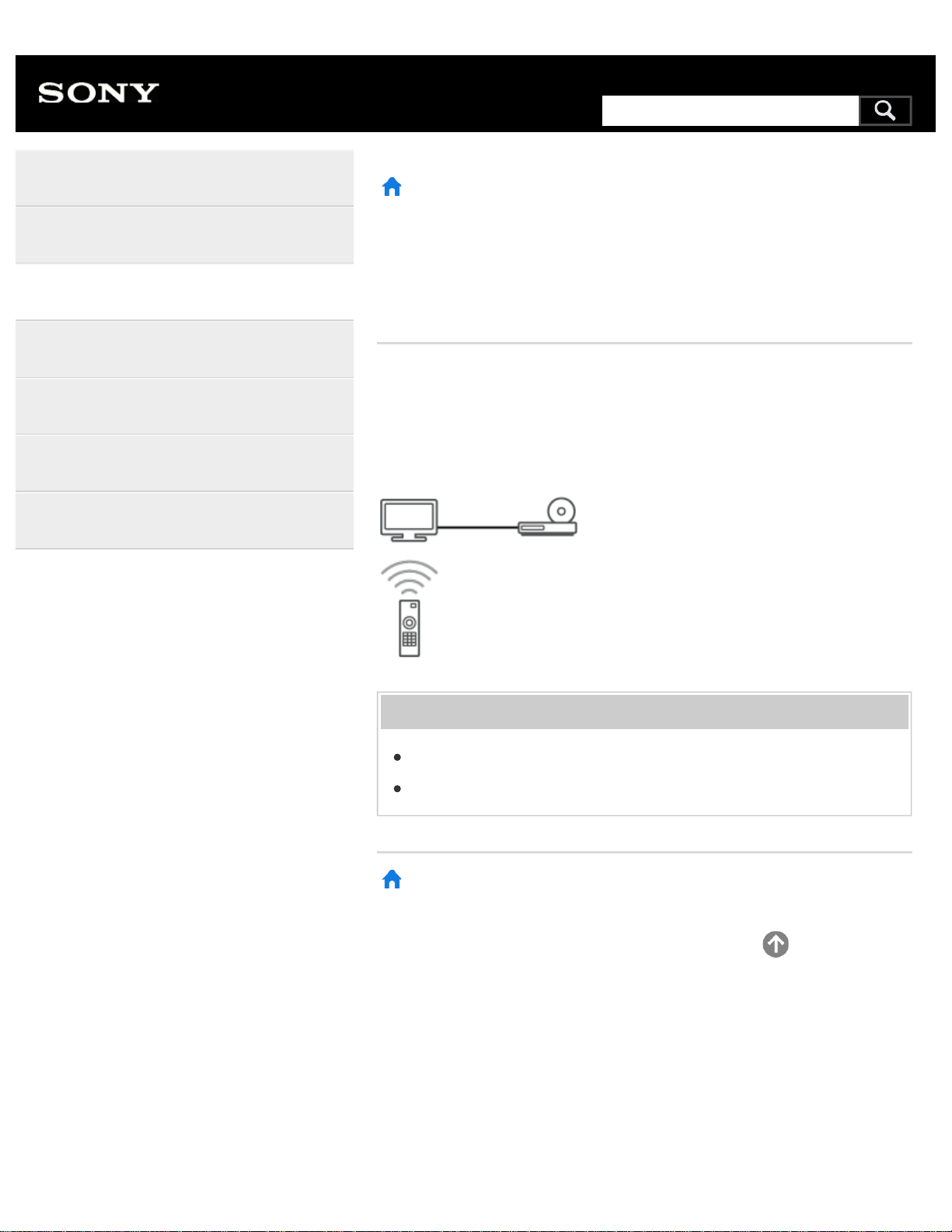
>
Using the TV with Other Devices
> BRAVIA Sync-compatible devices
>
BRAVIA Sync overview
Print
BRAVIA Sync overview
If a BRAVIA Sync-compatible device (e.g., BD player, AV amplifier) is
connected with an HDMI cable, or a BRAVIA Sync-compatible device
(e.g., smartphone, tablet) is connected with an MHL cable (MHL models
only), you can operate the device with the TV’s remote control.
Related topics
Using features available for BRAVIA Sync-compatible devices
Adjusting BRAVIA Sync settings
>
Using the TV with Other Devices
> BRAVIA Sync-compatible devices
>
BRAVIA Sync overview
Go to page top
Help Guide
Getting Started
Watching TV
Using the TV with Other Devices
Connecting to a Network
Settings
Troubleshooting
Index
C-654-100-12(1)
Copyright 2016 Sony Corporation
197
Search
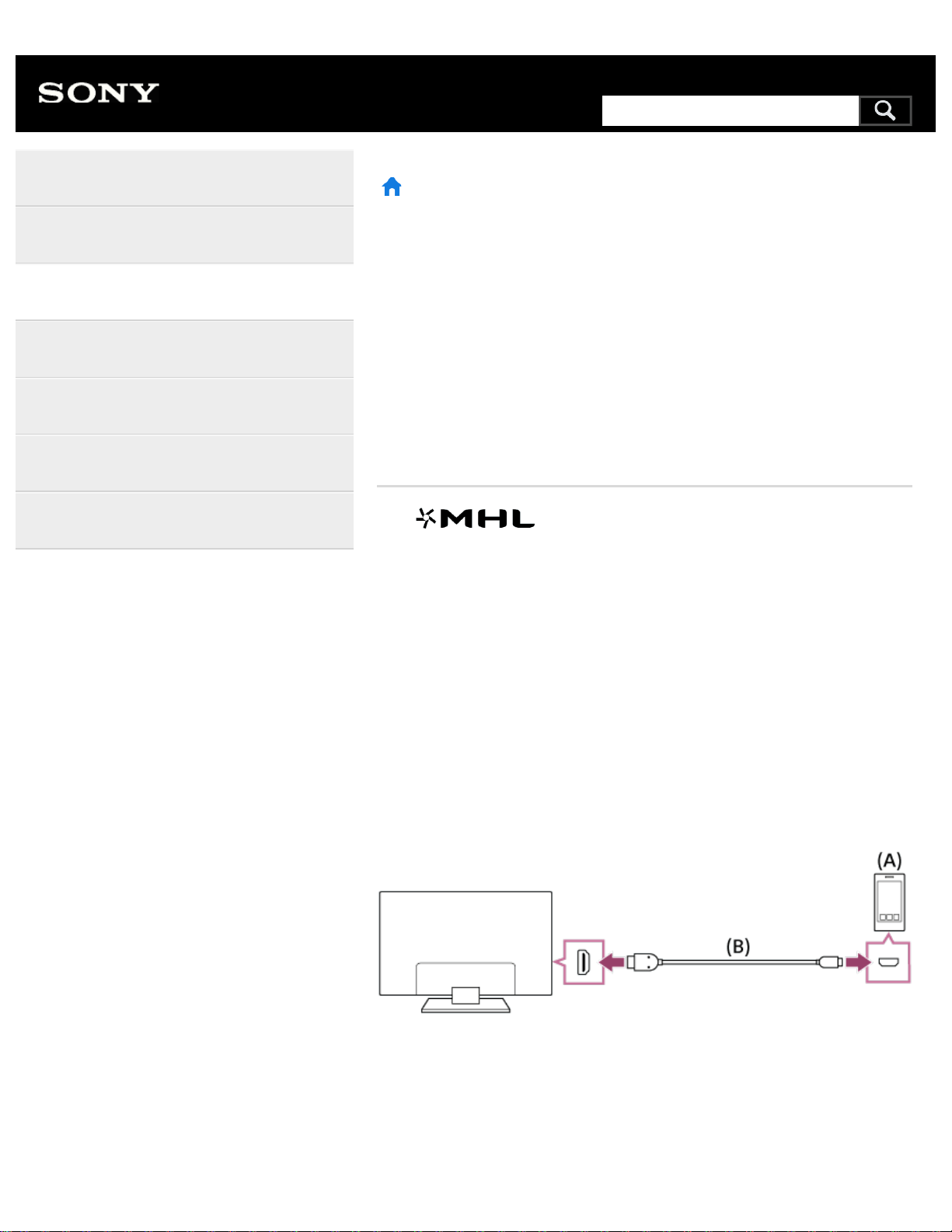
>
Using the TV with Other Devices
>
Smartphones and tablets
>
Displaying the screen of a smartphone/tablet on the TV using an MHL cable (MHL
supported models only)
Print
Displaying the screen of a
smartphone/tablet on the TV using
an MHL cable (MHL supported
models only)
The mark is located next to the HDMI IN 1/MHL port
(for MHL supported 2K models) or the HDMI IN 2/MHL port (for MHL
supported 4K models).
To connect a mobile device with MHL
output
For 2K models, connect your mobile device to the TV’s HDMI IN 1/MHL
port, using an MHL cable.
For 4K models, connect your mobile device to the TV’s HDMI IN 2/MHL
port, using an MHL cable.
(A) MHL mobile device
(B) MHL cable (not supplied)
For 2K signals, be sure to use an authorized MHL 2 cable bearing the
MHL logo.
Help Guide
Getting Started
Watching TV
Using the TV with Other Devices
Connecting to a Network
Settings
Troubleshooting
Index
*
*
198
Search
1
1
For 4K models, be sure to use an authorized MHL 3 cable bearing the
MHL logo. If your MHL mobile device supports 4K output, use an
authorized MHL 3 cable.
To view content stored in a mobile device
with MHL output
After connecting your mobile device, press the HOME button,
then select the input the mobile device is connected to.
To switch to the MHL input automatically
Press the HOME button, then select [Settings] — [External
inputs] — [BRAVIA Sync settings] — [Auto input change
(MHL)] — [On]. (Depending on the mobile device, the input
may not switch automatically.) If the TV is in standby mode,
it will not switch automatically.
To charge a mobile device
When the TV is on, the TV can charge a mobile device if it is connected
using an MHL cable.
Note
Only smartphones/tablets that support MHL can use this feature.
Hint
If [Charge MHL during power off] is set to [On], the TV can
charge the connected MHL device when the TV is in standby
mode.
Press the HOME button, then select [Settings] — [External
inputs] — [BRAVIA Sync settings] — [Charge MHL during power
off] — [On].
Related topics
BRAVIA Sync-compatible devices
199

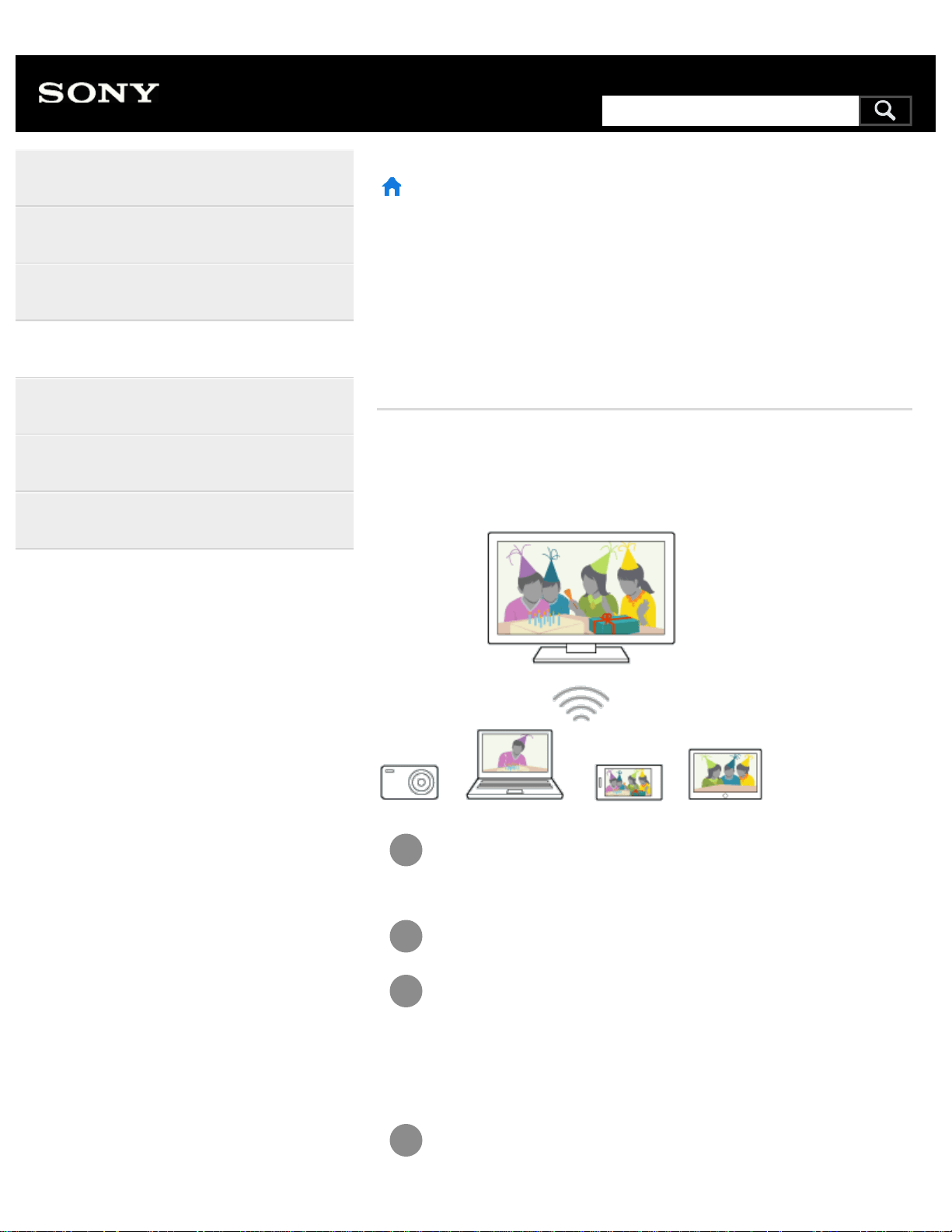
1
2
3
4
>
Connecting to a Network
>
Connecting to a network using a wireless connection
>
Using Wi-Fi Direct to connect to the TV (no wireless router required)
Print
Using Wi-Fi Direct to connect to the
TV (no wireless router required)
You can connect a device to the TV wirelessly, without using a wireless
router, and then stream videos, photos, and music that is stored on your
device directly to the TV.
To enable [Wi Fi Direct], press the HOME button, then select
[Settings] — [Network] — [Wi Fi Direct] — [Wi Fi Direct].
Select [Wi Fi Direct settings].
Select the TV name displayed on the TV screen with the Wi-Fi
Direct device.
If the device does not support Wi-Fi Direct, select the [Show
Network (SSID)/Password].
Operate the Wi-Fi Direct/Wi-Fi device to connect with the TV.
Help Guide
Getting Started
Watching TV
Using the TV with Other Devices
Connecting to a Network
Settings
Troubleshooting
Index
201
Search

5
Send content from the Wi-Fi Direct/Wi-Fi device to the TV.
For details, refer to the instruction manual of the device.
If the connection does not succeed
When the standby screen for the Wi-Fi Direct setting is displayed, select
[Show Network (SSID)/Password] and follow the on-screen instructions to
complete the set-up.
To connect another device
Follow the steps above to connect devices. Up to 10 devices can be
connected at the same time. To connect another device when 10 devices
are already connected, disconnect an unnecessary device, then connect
the other device.
To change the name of the TV shown on the connected
device
Press the HOME button, then select [Settings] — [About] — [Device
name].
To list connected devices/deregister devices
Press the HOME button, then select [Settings] — [Network] — [Wi Fi
Direct] — [Advanced settings] — [Show device list/Delete].
To deregister a device, select the device in the list to delete, then press
the button. Then, select [Yes] in the confirmation display.
To deregister all devices, select [Delete all] in the list, then [Yes] in the
confirmation display.
To change the band setting (for experts)
When your TV is not connected wirelessly to a router, you can select the
wireless band for the Wi-Fi Direct function. Press the HOME button, then
select [Settings] — [Network] — [Wi Fi Direct] — [Advanced settings] —
[Band setting].
[Auto]
Normally use this option. It automatically selects an appropriate band for
202
the Wi-Fi Direct function.
[Auto (2.4GHz band)]
Use this option when connecting with devices that support 2.4GHz only.
This option may support more devices than other options.
[Auto (5GHz band)]
Use this option when connecting with devices that support 5GHz. This
option may improve video streaming quality.
Note that when you select this option, the TV cannot connect with devices
that support 2.4GHz only.
[Manual]
Use this option to select a specific wireless channel.
Hint
For information about the supported wireless band of your device,
refer to the instruction manual of your device.
The 5GHz band may not be supported depending on your
region/country. If the 5GHz band is not supported, you can only use
[Auto] and [Manual].
Note
If the TV is connected to a wireless router (or access point) at
5GHz:
The 5GHz wireless connection will be disconnected when
[Wi Fi Direct settings] is selected. While the connection is
disconnected, communication via Internet is stopped.
The connection will resume automatically after exiting from
[Wi Fi Direct settings].
The 5GHz band may not be supported depending on your
region/country.
Related topics
The TV cannot be found by a Wi-Fi Direct device.
>
Connecting to a Network
203

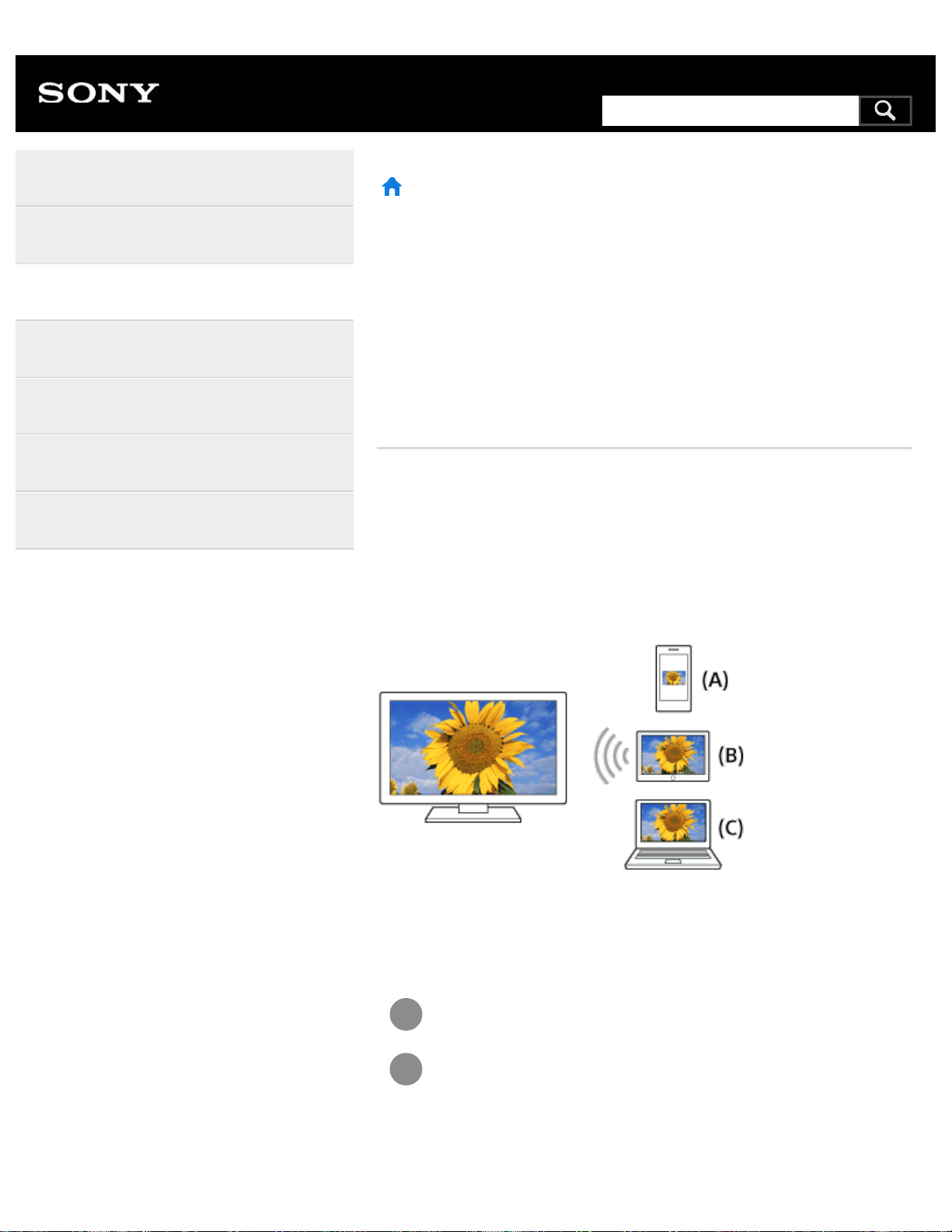
1
2
>
Using the TV with Other Devices
>
Smartphones and tablets
>
Displaying the screen of a smartphone/tablet on the TV using the Screen
mirroring function
Print
Displaying the screen of a
smartphone/tablet on the TV using
the Screen mirroring function
You can display the screen of a mobile device on the TV to view photos,
videos or websites.
The “Screen mirroring” feature uses Miracast technology to display the
screen of a compatible device on the TV. A wireless router (access point)
is not necessary to use this function.
(A) Smartphone
(B) Tablet
(C) Computer
Press the INPUT button, then select [Screen mirroring].
Operate your Screen mirroring compatible device to connect
to the TV.
When the device is connected to the TV, the screen
displayed on the device will also be displayed on the TV.
Help Guide
Getting Started
Watching TV
Using the TV with Other Devices
Connecting to a Network
Settings
Troubleshooting
Index
205
Search
For details, refer to the instruction manual of your device.
Note
While the standby screen for the Screen mirroring is displayed, the
wireless connection between the TV and your wireless router
(access point) is disconnected, therefore communication via the
Internet is stopped.
Hint
You can configure the advanced settings of Screen mirroring by
pressing the HOME button, then selecting [Settings] — [Network]
— [Wi Fi Direct] — [Advanced settings].
Related topics
Using Wi-Fi Direct to connect to the TV (no wireless router
required)
Connected devices
What kind of devices can be connected using the Screen mirroring
function?
>
Using the TV with Other Devices
>
Smartphones and tablets
>
Displaying the screen of a smartphone/tablet on the TV using the Screen
mirroring function
Go to page top
C-654-100-12(1)
Copyright 2016 Sony Corporation
206
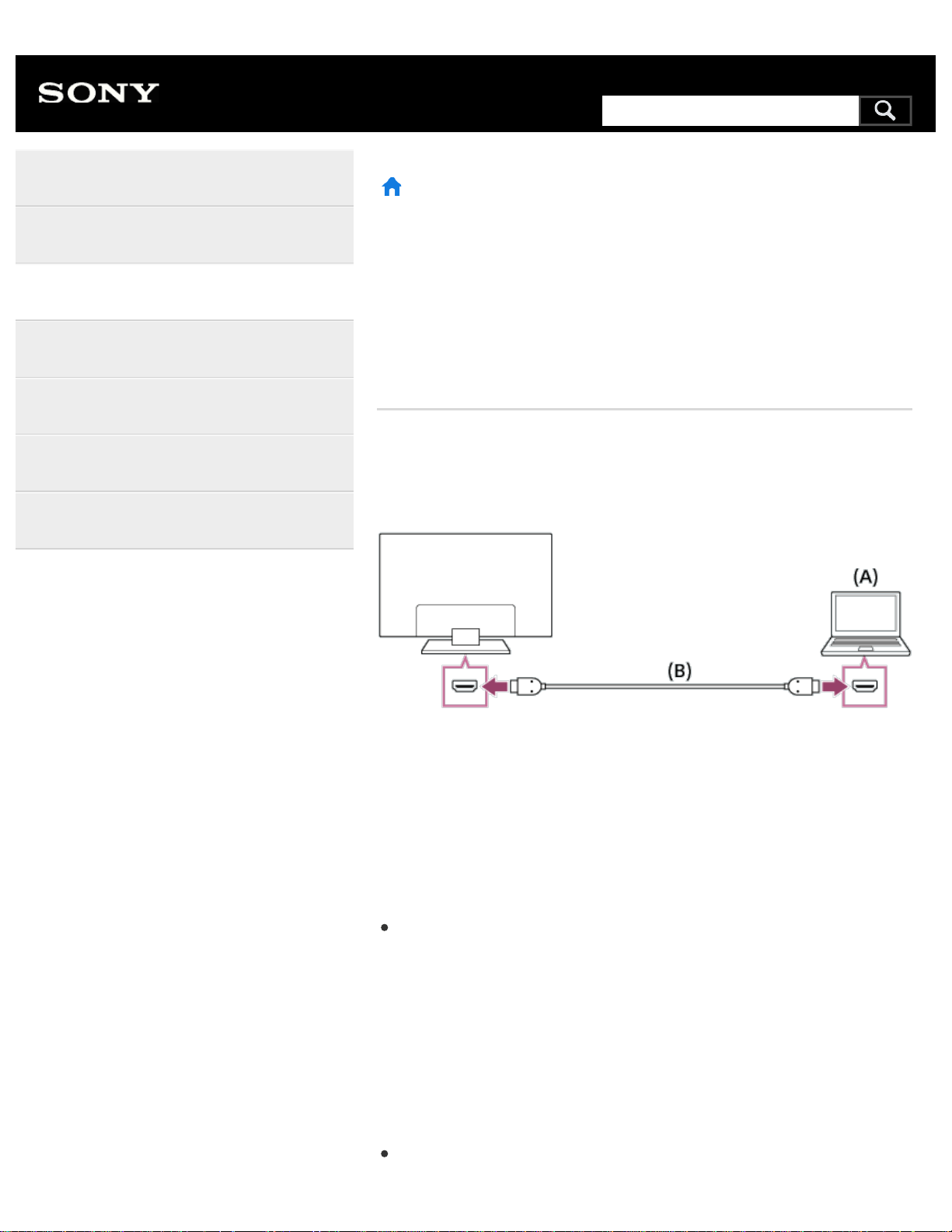
>
Using the TV with Other Devices
>
Computers, cameras, and camcorders
>
Connecting a computer and viewing stored content
Print
Connecting a computer and viewing
stored content
To connect a computer
Use an HDMI cable to connect your computer to the TV.
(A) Computer
(B) HDMI cable (not supplied)
Be sure to use an authorized HIGH SPEED HDMI cable bearing the
HDMI logo.
To check the video signal specifications
Computer video signal specifications
To view content stored on a computer
After connecting the computer, press the HOME button, then select the
input the computer is connected to.
To check the supported file formats
Supported files and formats
Help Guide
Getting Started
Watching TV
Using the TV with Other Devices
Connecting to a Network
Settings
Troubleshooting
Index
*
*
207
Search
Note
For optimum picture quality, we recommend that you set your
computer to output video signals according to one of the settings
listed in “Computer video signal specifications”.
Depending on the connection status, the image may be blurred or
smeared. In this case, change the computer’s settings and select
another input signal from the “Computer video signal specifications”
list.
>
Using the TV with Other Devices
>
Computers, cameras, and camcorders
>
Connecting a computer and viewing stored content
Go to page top
C-654-100-12(1)
Copyright 2016 Sony Corporation
208
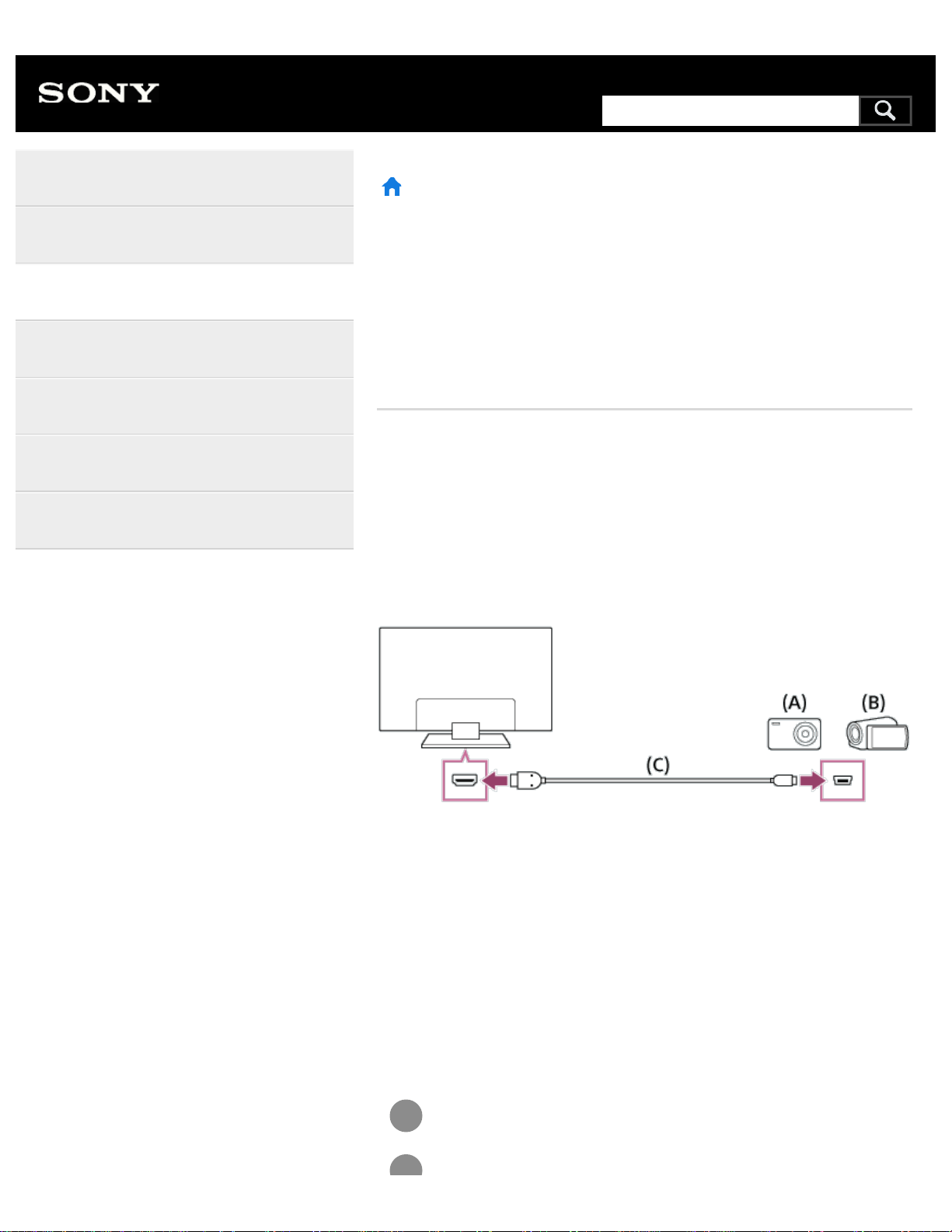
1
>
Using the TV with Other Devices
>
Computers, cameras, and camcorders
>
Connecting a camera or camcorder and viewing stored content
Print
Connecting a camera or camcorder
and viewing stored content
To connect a camera or camcorder
Connect your Sony digital still camera or camcorder using an HDMI cable.
Use a cable that has an HDMI mini jack (socket) for the digital still
camera/camcorder end, and a standard HDMI jack (socket) for the TV
end.
(A) Digital still camera
(B) Camcorder
(C) HDMI cable (not supplied)
Be sure to use an authorized HIGH SPEED HDMI cable bearing the
HDMI logo.
To view content stored on a digital still
camera/camcorder
After connecting the digital still camera/camcorder, turn it on.
Help Guide
Getting Started
Watching TV
Using the TV with Other Devices
Connecting to a Network
Settings
Troubleshooting
Index
*
*
209
Search
2
3
Press the INPUT button repeatedly to select the connected
digital still camera/camcorder.
Start playback on the connected digital still
camera/camcorder.
To check the supported file formats
Supported files and formats
Hint
If you connect a BRAVIA Sync-compatible device, you can operate
it by simply using the TV’s remote control. Make sure that the
device is BRAVIA Sync-compatible. Some devices may not be
compatible with BRAVIA Sync even though they have an HDMI
jack (socket).
Related topics
BRAVIA Sync-compatible devices
>
Using the TV with Other Devices
>
Computers, cameras, and camcorders
>
Connecting a camera or camcorder and viewing stored content
Go to page top
C-654-100-12(1)
Copyright 2016 Sony Corporation
210
>
Using the TV with Other Devices
>
USB devices
>
Supported files and formats
Print
Supported files and formats
Photos
Music
Videos
Audio sampling rates (for videos)
External subtitles
>
Using the TV with Other Devices
>
USB devices
>
Supported files and formats
Go to page top
Help Guide
Getting Started
Watching TV
Using the TV with Other Devices
Connecting to a Network
Settings
Troubleshooting
Index
C-654-100-12(1)
Copyright 2016 Sony Corporation
211
Search
>
Troubleshooting
>
Start here
>
If a full reset (restart) of the TV is required
Print
If a full reset (restart) of the TV is
required
If you have trouble such as the picture not displaying on the screen or the
remote control not working, try the following procedure.
Press and hold the power button on the remote control for about 5
seconds. The TV will turn off and then restart automatically after a short
time. If the TV does not turn on automatically, press the power button on
the remote control after 20 seconds.
Your personal settings and data will not be lost after the TV restarts (it is
the same as unplugging the AC power cord (mains lead)).
>
Troubleshooting
>
Start here
>
If a full reset (restart) of the TV is required
Go to page top
Help Guide
Getting Started
Watching TV
Using the TV with Other Devices
Connecting to a Network
Settings
Troubleshooting
Index
C-654-100-12(1)
Copyright 2016 Sony Corporation
212
Search
>
Getting Started
>
Basic Operations
>
Identifying the status of the TV through illumination
Print
Identifying the status of the TV
through illumination
Illumination LED
Illumination at the bottom of the screen
>
Getting Started
>
Basic Operations
>
Identifying the status of the TV through illumination
Go to page top
Help Guide
Getting Started
Watching TV
Using the TV with Other Devices
Connecting to a Network
Settings
Troubleshooting
Index
C-654-100-12(1)
Copyright 2016 Sony Corporation
213
Search
>
Troubleshooting
>
Start here
>
Self diagnostics
Print
Self diagnostics
How to check if the TV is working properly.
Press the HOME button, then select [Self diagnostics] under [Help].
>
Troubleshooting
>
Start here
>
Self diagnostics
Go to page top
Help Guide
Getting Started
Watching TV
Using the TV with Other Devices
Connecting to a Network
Settings
Troubleshooting
Index
C-654-100-12(1)
Copyright 2016 Sony Corporation
214
Search
>
Troubleshooting
>
Picture (quality)/screen
>
Picture quality is not as good as viewed at the store.
Print
Picture quality is not as good as
viewed at the store.
Picture quality depends on the signal content.
The picture quality may improve if you change it in [Picture & Display]
under [Settings].
Related topics
[TV]
>
Troubleshooting
>
Picture (quality)/screen
>
Picture quality is not as good as viewed at the store.
Go to page top
Help Guide
Getting Started
Watching TV
Using the TV with Other Devices
Connecting to a Network
Settings
Troubleshooting
Index
C-654-100-12(1)
Copyright 2016 Sony Corporation
215
Search
>
Troubleshooting
>
Picture (quality)/screen
>
Distorted picture.
Print
Distorted picture.
Check the antenna/cable connection.
Keep the antenna/cable away from other connecting cables.
When installing an optional device, leave some space between the
device and the TV.
Press the ACTION MENU button, then select [Picture adjustments] —
[Advanced settings] — [Motion] — [Motionflow] — [Standard] or [Off].
(For [Motionflow] compatible models only)
[Motionflow] compatible models have [Motionflow] in [Settings] —
[Picture & Display] — [Picture adjustments] — [Advanced settings] —
[Motion].
Change the current setting of [CineMotion] to another setting.
Press the ACTION MENU button, then select [Picture adjustments] —
[Advanced settings] — [Motion] — [CineMotion].
Make sure that the antenna is connected using a high quality 75-ohm
coaxial cable.
Related topics
Ghosting or double images appear.
The screen flickers.
>
Troubleshooting
>
Picture (quality)/screen
>
Distorted picture.
Go to page top
Help Guide
Getting Started
Watching TV
Using the TV with Other Devices
Connecting to a Network
Settings
Troubleshooting
Index
C-654-100-12(1)
Copyright 2016 Sony Corporation
216
Search
>
Troubleshooting
>
Picture (quality)/screen
>
The screen flickers.
Print
The screen flickers.
Press the ACTION MENU button, then select [Picture adjustments] —
[Advanced settings] — [Motion] — [Motionflow] — [Standard]. (For
[Motionflow] compatible models only)
[Motionflow] compatible models have [Motionflow] in [Settings] — [Picture
& Display] — [Picture adjustments] — [Advanced settings] — [Motion].
Related topics
Distorted picture.
>
Troubleshooting
>
Picture (quality)/screen
>
The screen flickers.
Go to page top
Help Guide
Getting Started
Watching TV
Using the TV with Other Devices
Connecting to a Network
Settings
Troubleshooting
Index
C-654-100-12(1)
Copyright 2016 Sony Corporation
217
Search
>
Troubleshooting
>
Picture (quality)/screen
>
No color/Dark picture/Color is not correct/Picture is too bright.
Print
No color/Dark picture/Color is not
correct/Picture is too bright.
Press the ACTION MENU button, then select [Picture adjustments] to
make adjustments.
Press the ACTION MENU button, then select [Picture adjustments] —
[Advanced settings] — [Reset].
If you set [Power saving] to [Low] or [High], the black level will be
enhanced. Press the HOME button, then select [Settings] — [Power]
— [Eco] — [Power saving].
Related topics
Dark screen. How to brighten the screen.
Color is not correct. How to adjust the color tone.
>
Troubleshooting
>
Picture (quality)/screen
>
No color/Dark picture/Color is not correct/Picture is too bright.
Go to page top
Help Guide
Getting Started
Watching TV
Using the TV with Other Devices
Connecting to a Network
Settings
Troubleshooting
Index
C-654-100-12(1)
Copyright 2016 Sony Corporation
218
Search
>
Troubleshooting
>
Picture (quality)/screen
>
Dark screen. How to brighten the screen.
Print
Dark screen. How to brighten the
screen.
Press the ACTION MENU button, select [Picture adjustments] —
[Advanced settings], and adjust [Brightness] or [Contrast].
Check the [Power saving] option setting in [Eco]. If it is [Low] or [High],
the screen darkens. Select [Power] — [Eco], and set [Power saving] to
[Off] to brighten the screen.
Related topics
No color/Dark picture/Color is not correct/Picture is too bright.
>
Troubleshooting
>
Picture (quality)/screen
>
Dark screen. How to brighten the screen.
Go to page top
Help Guide
Getting Started
Watching TV
Using the TV with Other Devices
Connecting to a Network
Settings
Troubleshooting
Index
C-654-100-12(1)
Copyright 2016 Sony Corporation
219
Search
>
Troubleshooting
>
Picture (quality)/screen
>
Color is not correct. How to adjust the color tone.
Print
Color is not correct. How to adjust
the color tone.
Press the ACTION MENU button, select [Picture adjustments] —
[Advanced settings], and adjust [Hue] or [Color temperature].
To deepen the color tone, adjust [Color] or [Live Color]. Press the
ACTION MENU button, and then select [Picture adjustments] —
[Advanced settings].
Related topics
No color/Dark picture/Color is not correct/Picture is too bright.
>
Troubleshooting
>
Picture (quality)/screen
>
Color is not correct. How to adjust the color tone.
Go to page top
Help Guide
Getting Started
Watching TV
Using the TV with Other Devices
Connecting to a Network
Settings
Troubleshooting
Index
C-654-100-12(1)
Copyright 2016 Sony Corporation
220
Search
>
Troubleshooting
>
Picture (quality)/screen
>
Screen format/wide mode changes automatically.
Print
Screen format/wide mode changes
automatically.
When changing the channel or video input, if [Auto wide] in [Screen] is
enabled, the current [Wide mode] setting is automatically changed
according to the input signal. To lock the [Wide mode] setting, disable
[Auto wide].
Related topics
Suddenly the picture becomes small.
>
Troubleshooting
>
Picture (quality)/screen
>
Screen format/wide mode changes automatically.
Go to page top
Help Guide
Getting Started
Watching TV
Using the TV with Other Devices
Connecting to a Network
Settings
Troubleshooting
Index
C-654-100-12(1)
Copyright 2016 Sony Corporation
221
Search
>
Troubleshooting
>
Picture (quality)/screen
>
The screen suddenly changes to a video you do not recognize while watching TV.
Print
The screen suddenly changes to a
video you do not recognize while
watching TV.
In this case, the TV might be in demo mode. Try exiting demo mode.
Press the ACTION MENU button on the remote control and select
[Suspend Demo]. Then, press the HOME button on the remote control
and select [Settings] — [Retail mode settings]. Disable [Demo mode]
and [Picture reset mode].
>
Troubleshooting
>
Picture (quality)/screen
>
The screen suddenly changes to a video you do not recognize while watching TV.
Go to page top
Help Guide
Getting Started
Watching TV
Using the TV with Other Devices
Connecting to a Network
Settings
Troubleshooting
Index
C-654-100-12(1)
Copyright 2016 Sony Corporation
222
Search
>
Troubleshooting
>
Picture (quality)/screen
>
Suddenly the picture becomes small.
Print
Suddenly the picture becomes small.
The picture becomes smaller during commercials due to the method
used by the provider to broadcast content. When HD content channels
switch to SD content (commercials), the picture may become small
with a black border.
[Auto wide] in [Screen] will not expand the picture while the content
switches since the content information is regulated by the channel
signal provider. You can manually change the [Wide mode] setting if
desired, which will remain in effect until you change the channel/input
or manually change the [Wide mode] setting again.
Related topics
Screen format/wide mode changes automatically.
>
Troubleshooting
>
Picture (quality)/screen
>
Suddenly the picture becomes small.
Go to page top
Help Guide
Getting Started
Watching TV
Using the TV with Other Devices
Connecting to a Network
Settings
Troubleshooting
Index
C-654-100-12(1)
Copyright 2016 Sony Corporation
223
Search
>
Troubleshooting
>
Picture (quality)/screen
>
Black bands appear at the edges of the screen.
Print
Black bands appear at the edges of
the screen.
Some wide screen programs are filmed in aspect ratios that are
greater than 16:9 (this is especially common with theatrical releases).
Your TV will show these programs with black bands at the top and
bottom of the screen. For more details, check the documentation that
came with your DVD (or contact your program provider).
Programs in 4:3 aspect ratio will have bands on the left and right sides
of the screen.
Programs broadcasted in HD formats (720p and 1080i) with 4:3
content will commonly have black bands on the left and right sides of
the screen which are added by the broadcaster.
[Auto wide] in [Screen] will not expand the picture when the black
bands on the sides of the screen are added by the broadcaster. You
can manually set [Wide mode] to [Wide zoom] or [Zoom], which will
remain in effect until you change the channel/input or manually change
the [Wide mode] setting again.
Some cable and satellite set-top boxes can also control the size of the
picture. If you are using a set-top box, refer to the manufacturer of the
set-top box for more information.
>
Troubleshooting
>
Picture (quality)/screen
>
Black bands appear at the edges of the screen.
Go to page top
Help Guide
Getting Started
Watching TV
Using the TV with Other Devices
Connecting to a Network
Settings
Troubleshooting
Index
C-654-100-12(1)
224
Search
>
Troubleshooting
>
Picture (quality)/screen
>
A black box appears on the screen.
Print
A black box appears on the screen.
A text option is selected although no text is available. Check the
[Captions]/[Broadcast closed captions] settings in [Accessibility].
(Option name differs depending on your region/country.) You can
select a different option from the current option.
>
Troubleshooting
>
Picture (quality)/screen
>
A black box appears on the screen.
Go to page top
Help Guide
Getting Started
Watching TV
Using the TV with Other Devices
Connecting to a Network
Settings
Troubleshooting
Index
C-654-100-12(1)
Copyright 2016 Sony Corporation
225
Search
>
Troubleshooting
>
Picture (quality)/screen
>
There are banners/tickers at the top or bottom of the screen.
Print
There are banners/tickers at the top
or bottom of the screen.
In this case, the TV might be in demo mode. Try exiting demo mode.
Press the ACTION MENU button on the remote control and select
[Suspend Demo]. Then, press the HOME button on the remote control
and select [Settings] — [Retail mode settings]. Disable [Demo mode]
and [Picture reset mode].
>
Troubleshooting
>
Picture (quality)/screen
>
There are banners/tickers at the top or bottom of the screen.
Go to page top
Help Guide
Getting Started
Watching TV
Using the TV with Other Devices
Connecting to a Network
Settings
Troubleshooting
Index
C-654-100-12(1)
Copyright 2016 Sony Corporation
226
Search
>
Troubleshooting
>
Picture (quality)/screen
>
3D pictures are not displayed. The 3D effect is weak. (3D models only)
Print
3D pictures are not displayed. The
3D effect is weak. (3D models only)
3D models have [3D settings] in [Settings] — [Picture & Display].
If two pictures are displayed side-by-side, press the ACTION MENU
button, then select [3D] — [3D display] — [3D (Side by Side)].
If two pictures are displayed one above the other, press the ACTION
MENU button, then select [3D] — [3D display] — [3D (Over-Under)].
If the [3D display] screen appears and 3D pictures are not displayed,
turn off the device that plays 3D content and turn it on again.
Perceived 3D effect may vary from person to person.
For 4K models
3D signal of 4K cannot be displayed.
For Passive 3D Glasses models, view the TV from the front on. The
3D effect may be less pronounced depending on the viewing position.
Adjust the viewing angle to the screen.
For Active 3D Glasses models
Be sure that there are no obstacles between the TV and the Active 3D
Glasses.
Replace the battery in the Active 3D Glasses.
Be sure that the Active 3D Glasses are powered on.
It is necessary to register your Active 3D Glasses to the TV before
use. To use the glasses with another TV, it is necessary to re-register.
Turn off the glasses before re-registering.
Wireless devices or microwave ovens may affect the communication
Help Guide
Getting Started
Watching TV
Using the TV with Other Devices
Connecting to a Network
Settings
Troubleshooting
Index
227
Search
between the 3D Glasses and the TV as the TV uses the 2.4GHz band.
In this case, try to register again.
If a device that is not 3D-compatible (such as a home theater system)
is connected between the TV and a 3D-compatible device, the TV will
not display 3D pictures. Connect the 3D-compatible device directly to
the TV via an authorized HIGH SPEED HDMI cable bearing the HDMI
logo.
Related topics
Understanding the basics of 3D TV (3D models only)
>
Troubleshooting
>
Picture (quality)/screen
>
3D pictures are not displayed. The 3D effect is weak. (3D models only)
Go to page top
C-654-100-12(1)
Copyright 2016 Sony Corporation
228
>
Troubleshooting
>
Picture (quality)/screen
>
Black bars appear on both sides of the screen when watching 3D pictures. (3D
models only)
Print
Black bars appear on both sides of
the screen when watching 3D
pictures. (3D models only)
3D models have [3D settings] in [Settings] — [Picture & Display].
Black bars appear on both sides of the screen in order to process 3D
signals when adjusting the depth of 3D pictures in [Settings] —
[Picture & Display] — [3D settings] — [3D depth adjustment].
>
Troubleshooting
>
Picture (quality)/screen
>
Black bars appear on both sides of the screen when watching 3D pictures. (3D
models only)
Go to page top
Help Guide
Getting Started
Watching TV
Using the TV with Other Devices
Connecting to a Network
Settings
Troubleshooting
Index
C-654-100-12(1)
Copyright 2016 Sony Corporation
229
Search
>
Troubleshooting
>
Picture (quality)/screen
>
You cannot turn off 3D display while watching 3D content. (3D models only)
Print
You cannot turn off 3D display while
watching 3D content. (3D models
only)
3D models have [3D settings] in [Settings] — [Picture & Display].
For 3D content displayed with the 3D signal, 3D display cannot be
turned off on your TV. Turn 3D settings off on the connected device
(such as a Blu-ray player).
>
Troubleshooting
>
Picture (quality)/screen
>
You cannot turn off 3D display while watching 3D content. (3D models only)
Go to page top
Help Guide
Getting Started
Watching TV
Using the TV with Other Devices
Connecting to a Network
Settings
Troubleshooting
Index
C-654-100-12(1)
Copyright 2016 Sony Corporation
230
Search
>
Troubleshooting
>
Picture (quality)/screen
>
The message [3D signal has been detected.] automatically appears when 3D
signal is detected. (3D models only)
Print
The message [3D signal has been
detected.] automatically appears
when 3D signal is detected. (3D
models only)
3D models have [3D settings] in [Settings] — [Picture & Display].
Deactivate the [3D signal notification] setting. Press the HOME button,
then select [Settings] — [Picture & Display] — [3D settings] — [3D
signal notification] — [Off].
>
Troubleshooting
>
Picture (quality)/screen
>
The message [3D signal has been detected.] automatically appears when 3D
signal is detected. (3D models only)
Go to page top
Help Guide
Getting Started
Watching TV
Using the TV with Other Devices
Connecting to a Network
Settings
Troubleshooting
Index
C-654-100-12(1)
Copyright 2016 Sony Corporation
231
Search
>
Troubleshooting
>
Picture (quality)/screen
>
A message about an app asking for permission to access a TV function is
displayed.
Print
A message about an app asking for
permission to access a TV function
is displayed.
Select whether to allow or deny the app access to the displayed
function.
You can check the list of app permissions categorized by TV function
and change permission settings for each app. Press the HOME button,
select [Settings] — [Apps] — [App permissions] — the desired TV
function.
>
Troubleshooting
>
Picture (quality)/screen
>
A message about an app asking for permission to access a TV function is
displayed.
Go to page top
Help Guide
Getting Started
Watching TV
Using the TV with Other Devices
Connecting to a Network
Settings
Troubleshooting
Index
C-654-100-12(1)
Copyright 2016 Sony Corporation
232
Search
>
Troubleshooting
>
Broadcast reception
>
Check these things first to troubleshoot your TV reception.
Print
Check these things first to
troubleshoot your TV reception.
Make sure that the antenna cable is firmly connected to the TV.
Make sure that the antenna cable is not loose or disconnected.
Make sure that the cable or cable connector of antenna is not
damaged.
>
Troubleshooting
>
Broadcast reception
>
Check these things first to troubleshoot your TV reception.
Go to page top
Help Guide
Getting Started
Watching TV
Using the TV with Other Devices
Connecting to a Network
Settings
Troubleshooting
Index
C-654-100-12(1)
Copyright 2016 Sony Corporation
233
Search
>
Troubleshooting
>
Broadcast reception
>
Block noise or an error message appears and you cannot watch broadcasts.
Print
Block noise or an error message
appears and you cannot watch
broadcasts.
Make sure that the antenna cable is connected to the correct ports (at
the TV/connected devices/wall).
Make sure that the cable is not old or that the inside of the connector is
not short-circuited.
>
Troubleshooting
>
Broadcast reception
>
Block noise or an error message appears and you cannot watch broadcasts.
Go to page top
Help Guide
Getting Started
Watching TV
Using the TV with Other Devices
Connecting to a Network
Settings
Troubleshooting
Index
C-654-100-12(1)
Copyright 2016 Sony Corporation
234
Search
>
Troubleshooting
>
Broadcast reception
>
Ghosting or double images appear.
Print
Ghosting or double images appear.
Check cable or antenna connections.
Check the antenna location and direction.
Press the ACTION MENU button, then select [Picture adjustments] —
[Advanced settings] — [Motion] — [Motionflow] — [Standard] or [Off].
(For [Motionflow] compatible models only)
[Motionflow] compatible models have [Motionflow] in [Settings] —
[Picture & Display] — [Picture adjustments] — [Advanced settings] —
[Motion].
Related topics
Distorted picture.
Check these things first to troubleshoot your TV reception.
>
Troubleshooting
>
Broadcast reception
>
Ghosting or double images appear.
Go to page top
Help Guide
Getting Started
Watching TV
Using the TV with Other Devices
Connecting to a Network
Settings
Troubleshooting
Index
C-654-100-12(1)
Copyright 2016 Sony Corporation
235
Search
>
Troubleshooting
>
Broadcast reception
>
Only snow noise or a black picture appears on the screen.
Print
Only snow noise or a black picture
appears on the screen.
Check if auto tuning is performed.
Check if the antenna is broken or bent.
Check if the antenna has reached the end of its serviceable life (3-5
years for normal use, 1-2 years at a seaside location).
Related topics
Check these things first to troubleshoot your TV reception.
>
Troubleshooting
>
Broadcast reception
>
Only snow noise or a black picture appears on the screen.
Go to page top
Help Guide
Getting Started
Watching TV
Using the TV with Other Devices
Connecting to a Network
Settings
Troubleshooting
Index
C-654-100-12(1)
Copyright 2016 Sony Corporation
236
Search
>
Troubleshooting
>
Broadcast reception
>
There is picture or sound noise when viewing an analog TV channel.
Print
There is picture or sound noise
when viewing an analog TV channel.
Check the [Analog channel adjustment] settings.
Press the HOME button, then select [Settings] — [Channels] —
[Channel setup] — [Cable/Antenna] — [Analog channel adjustment].
Perform [Fine tune] to obtain better picture and sound reception.
(Option name differs depending on your region/country.)
Set [Audio filter] to [Off], [Low] or [High] to improve sound for
analog reception.
Make sure that the antenna is connected using a high quality 75-ohm
coaxial cable.
Keep the antenna cable away from other connecting cables.
Related topics
Check these things first to troubleshoot your TV reception.
>
Troubleshooting
>
Broadcast reception
>
There is picture or sound noise when viewing an analog TV channel.
Go to page top
Help Guide
Getting Started
Watching TV
Using the TV with Other Devices
Connecting to a Network
Settings
Troubleshooting
Index
C-654-100-12(1)
Copyright 2016 Sony Corporation
237
Search
>
Troubleshooting
>
Broadcast reception
>
Some channels are blank.
Print
Some channels are blank.
The channel is for scrambled/subscription service only. Subscribe to a
pay TV service.
The channel is used only for data (no picture or sound).
Contact the broadcaster for transmission details.
Related topics
Check these things first to troubleshoot your TV reception.
>
Troubleshooting
>
Broadcast reception
>
Some channels are blank.
Go to page top
Help Guide
Getting Started
Watching TV
Using the TV with Other Devices
Connecting to a Network
Settings
Troubleshooting
Index
C-654-100-12(1)
Copyright 2016 Sony Corporation
238
Search
>
Troubleshooting
>
Broadcast reception
>
Poor reception or poor picture quality with digital broadcasts.
Print
Poor reception or poor picture
quality with digital broadcasts.
Change the position, direction and angle of the terrestrial television
antenna to maximize the antenna signal level. Make sure that the
direction of the antenna is not changed unintentionally (such as by
wind).
If you are using a TV signal booster, adjust its signal gain.
If equipment (such as a TV signal distributor) is connected between
the antenna and the TV, it may affect the TV reception. Directly
connect the antenna and the TV to check if the reception is improved.
Related topics
Check these things first to troubleshoot your TV reception.
>
Troubleshooting
>
Broadcast reception
>
Poor reception or poor picture quality with digital broadcasts.
Go to page top
Help Guide
Getting Started
Watching TV
Using the TV with Other Devices
Connecting to a Network
Settings
Troubleshooting
Index
C-654-100-12(1)
Copyright 2016 Sony Corporation
239
Search
>
Troubleshooting
>
Broadcast reception
>
You cannot view digital channels.
Print
You cannot view digital channels.
Ask a local installer if digital transmissions are provided in your area.
Upgrade to a higher gain antenna.
Related topics
Check these things first to troubleshoot your TV reception.
You cannot receive or select channels.
Some digital cable channels are not displayed.
>
Troubleshooting
>
Broadcast reception
>
You cannot view digital channels.
Go to page top
Help Guide
Getting Started
Watching TV
Using the TV with Other Devices
Connecting to a Network
Settings
Troubleshooting
Index
C-654-100-12(1)
Copyright 2016 Sony Corporation
240
Search
>
Troubleshooting
>
Broadcast reception
>
You cannot receive or select channels.
Print
You cannot receive or select
channels.
Perform [Auto program] to add receivable channels that are not
present in the TV memory.
Press the HOME button, then select [Settings] — [Channels] —
[Channel setup] — [Cable/Antenna] — [Auto program].
Check that [Signal type] is set correctly.
Press the HOME button, then select [Settings] — [Channels] —
[Channel setup] — [Cable/Antenna] — [Signal type].
[Cable]
Set to receive and select cable channels.
[Antenna]
Set to receive and select antenna channels.
Related topics
Some channels are blank.
You cannot view digital channels.
Some digital cable channels are not displayed.
>
Troubleshooting
>
Broadcast reception
>
You cannot receive or select channels.
Go to page top
Help Guide
Getting Started
Watching TV
Using the TV with Other Devices
Connecting to a Network
Settings
Troubleshooting
Index
C-654-100-12(1)
241
Search

>
Troubleshooting
>
Broadcast reception
>
Some digital cable channels are not displayed.
Print
Some digital cable channels are not
displayed.
Certain cable companies have limitations on the broadcast of digital
cable channels. Check with your cable company for more information.
The digital cable channel may be set to [Hidden] in [Show/Hide
channels].
Related topics
Check these things first to troubleshoot your TV reception.
You cannot view digital channels.
>
Troubleshooting
>
Broadcast reception
>
Some digital cable channels are not displayed.
Go to page top
Help Guide
Getting Started
Watching TV
Using the TV with Other Devices
Connecting to a Network
Settings
Troubleshooting
Index
C-654-100-12(1)
Copyright 2016 Sony Corporation
242
Search
>
Troubleshooting
>
Broadcast reception
>
Broadcast HD formats have poor quality.
Print
Broadcast HD formats have poor
quality.
Content and signal quality are regulated by the signal provider. Many
HD channels and content are actually upscaled versions of standard-
definition broadcasts. The picture is affected by the quality of the
signal received, which varies between channel and program.
Related topics
Check these things first to troubleshoot your TV reception.
>
Troubleshooting
>
Broadcast reception
>
Broadcast HD formats have poor quality.
Go to page top
Help Guide
Getting Started
Watching TV
Using the TV with Other Devices
Connecting to a Network
Settings
Troubleshooting
Index
C-654-100-12(1)
Copyright 2016 Sony Corporation
243
Search
>
Troubleshooting
>
Sound
>
No sound but good picture.
Print
No sound but good picture.
Check the volume control.
Press MUTING or VOL + button to cancel muting.
Press the ACTION MENU button, then select [Speakers] — [TV
speakers].
If it is set to [Audio system], the TV speakers only output key tones or
system sounds.
Related topics
No audio or low audio with a home theater system.
>
Troubleshooting
>
Sound
>
No sound but good picture.
Go to page top
Help Guide
Getting Started
Watching TV
Using the TV with Other Devices
Connecting to a Network
Settings
Troubleshooting
Index
C-654-100-12(1)
Copyright 2016 Sony Corporation
244
Search
>
Troubleshooting
>
Sound
>
Audio noise.
Print
Audio noise.
Make sure that the antenna is connected using a high quality 75-ohm
coaxial cable.
Keep the antenna cable away from other connecting cables.
To avoid TV interference, make sure to use an undamaged antenna
cable.
Related topics
Distorted sound.
>
Troubleshooting
>
Sound
>
Audio noise.
Go to page top
Help Guide
Getting Started
Watching TV
Using the TV with Other Devices
Connecting to a Network
Settings
Troubleshooting
Index
C-654-100-12(1)
Copyright 2016 Sony Corporation
245
Search
>
Troubleshooting
>
Sound
>
No audio or low audio with a home theater system.
Print
No audio or low audio with a home
theater system.
Press the ACTION MENU button, then select [Speakers] — [Audio
system].
Set [Headphone/Audio out] to [Audio out (Fixed)] in the [Sound]
setting.
If the audio system is not compatible with Dolby Digital or DTS, set
[Settings] — [Sound] — [Digital audio out] to [PCM].
Depending on your model, if [Speakers] is set to [TV speakers] and
[Hi Res upscaling (DSEE HX)] is set to [Auto], DIGITAL AUDIO OUT
(OPTICAL) is muted.
Set [Digital audio out volume] to Max in the [Sound] setting.
When using HDMI input with Super Audio CD or DVD-Audio, DIGITAL
AUDIO OUT (OPTICAL) may not provide an audio signal.
Related topics
Audio noise.
Connecting an audio system
>
Troubleshooting
>
Sound
>
No audio or low audio with a home theater system.
Go to page top
Help Guide
Getting Started
Watching TV
Using the TV with Other Devices
Connecting to a Network
Settings
Troubleshooting
Index
C-654-100-12(1)
Copyright 2016 Sony Corporation
246
Search
>
Troubleshooting
>
Sound
>
Distorted sound.
Print
Distorted sound.
Check the antenna/cable connection.
Keep the antenna/cable away from other connecting cables.
Keep the TV away from electrical noise sources such as cars, hair-
dryers, Wi-Fi units, mobile phones, or optical devices.
When installing an optional device, leave some space between the
device and TV.
Set [Audio filter] to [Low] or [High] to improve sound for analog
reception. ([Audio filter] may not be available depending on your
region/country.)
Related topics
Audio noise.
>
Troubleshooting
>
Sound
>
Distorted sound.
Go to page top
Help Guide
Getting Started
Watching TV
Using the TV with Other Devices
Connecting to a Network
Settings
Troubleshooting
Index
C-654-100-12(1)
Copyright 2016 Sony Corporation
247
Search
>
Troubleshooting
>
Sound
>
Headphone volume cannot be adjusted.
Print
Headphone volume cannot be
adjusted.
If you cannot adjust the headphone volume with the VOL +/- buttons,
press the ACTION MENU button and select [Headphone volume].
>
Troubleshooting
>
Sound
>
Headphone volume cannot be adjusted.
Go to page top
Help Guide
Getting Started
Watching TV
Using the TV with Other Devices
Connecting to a Network
Settings
Troubleshooting
Index
C-654-100-12(1)
Copyright 2016 Sony Corporation
248
Search
>
Troubleshooting
>
Sound
>
You want to output sound from both the headphones and the TV speakers.
Print
You want to output sound from both
the headphones and the TV
speakers.
Press the HOME button, then select [Settings] — [Sound] —
[Headphone speaker link] — [Speakers on].
Bluetooth audio devices such as Bluetooth headphones cannot be used.
>
Troubleshooting
>
Sound
>
You want to output sound from both the headphones and the TV speakers.
Go to page top
Help Guide
Getting Started
Watching TV
Using the TV with Other Devices
Connecting to a Network
Settings
Troubleshooting
Index
C-654-100-12(1)
Copyright 2016 Sony Corporation
249
Search
>
Troubleshooting
>
Network (Internet/home)/apps
>
The network name (SSID) of the wireless router (access point) to which you want
to connect is not displayed.
Print
The network name (SSID) of the
wireless router (access point) to
which you want to connect is not
displayed.
Reset the wireless router.
Select [[Manual entry]] to enter a network name (SSID).
>
Troubleshooting
>
Network (Internet/home)/apps
>
The network name (SSID) of the wireless router (access point) to which you want
to connect is not displayed.
Go to page top
Help Guide
Getting Started
Watching TV
Using the TV with Other Devices
Connecting to a Network
Settings
Troubleshooting
Index
C-654-100-12(1)
Copyright 2016 Sony Corporation
250
Search
>
Troubleshooting
>
Network (Internet/home)/apps
>
Sometimes video streaming quality is poor.
Print
Sometimes video streaming quality
is poor.
Quality depends on the original video provided by the video content
provider and your connection bandwidth.
The wireless network connection quality varies depending on the
distance or obstacles (e.g., wall) between the TV and the wireless
router (access point), environmental interference, and the quality of the
wireless router (access point). In this case, use a wired connection for
the Internet, or try the 5GHz band.
The 5GHz band may not be supported depending on your
region/country. If the 5GHz band is not supported, the TV can only
connect to a wireless router (access point) using the 2.4GHz band.
Related topics
Connecting to a network using a LAN cable
Using Wi-Fi to connect the TV to your network
>
Troubleshooting
>
Network (Internet/home)/apps
>
Sometimes video streaming quality is poor.
Go to page top
Help Guide
Getting Started
Watching TV
Using the TV with Other Devices
Connecting to a Network
Settings
Troubleshooting
Index
C-654-100-12(1)
Copyright 2016 Sony Corporation
251
Search
>
Troubleshooting
>
Network (Internet/home)/apps
>
Wi-Fi connection is lost or intermittent.
Print
Wi-Fi connection is lost or
intermittent.
Check the installation location of the TV and wireless router (access
point). Signal condition may be affected by the following :
Other wireless devices, microwaves, fluorescent lights, etc., are
placed nearby.
There are floors or walls between the wireless router (access point)
and TV.
If the problem persists even after checking the above, try using a wired
LAN connection.
Related topics
Using Wi-Fi to connect the TV to your network
>
Troubleshooting
>
Network (Internet/home)/apps
>
Wi-Fi connection is lost or intermittent.
Go to page top
Help Guide
Getting Started
Watching TV
Using the TV with Other Devices
Connecting to a Network
Settings
Troubleshooting
Index
C-654-100-12(1)
Copyright 2016 Sony Corporation
252
Search
>
Troubleshooting
>
Network (Internet/home)/apps
>
Certain Internet video content displays a loss of detail.
Print
Certain Internet video content
displays a loss of detail.
Video quality and picture size depend on broadband speed and
delivery by video content providers.
Related topics
Connecting to a network using a LAN cable
Using Wi-Fi to connect the TV to your network
Sometimes video streaming quality is poor.
>
Troubleshooting
>
Network (Internet/home)/apps
>
Certain Internet video content displays a loss of detail.
Go to page top
Help Guide
Getting Started
Watching TV
Using the TV with Other Devices
Connecting to a Network
Settings
Troubleshooting
Index
C-654-100-12(1)
Copyright 2016 Sony Corporation
253
Search
>
Troubleshooting
>
Network (Internet/home)/apps
>
Good picture quality but no sound on Internet video content.
Print
Good picture quality but no sound on
Internet video content.
Quality depends on the original content provided by the video content
provider and your connection bandwidth.
Due to the nature of Internet video, not all videos will contain sound.
Related topics
Connecting to a network using a LAN cable
Using Wi-Fi to connect the TV to your network
>
Troubleshooting
>
Network (Internet/home)/apps
>
Good picture quality but no sound on Internet video content.
Go to page top
Help Guide
Getting Started
Watching TV
Using the TV with Other Devices
Connecting to a Network
Settings
Troubleshooting
Index
C-654-100-12(1)
Copyright 2016 Sony Corporation
254
Search
>
Troubleshooting
>
Network (Internet/home)/apps
>
Apps are inaccessible.
Print
Apps are inaccessible.
Check that the LAN cable or AC power cord (mains lead) of the
router/modem has been connected properly.
Your router/modem must be set in advance to connect to the
Internet. Contact your Internet service provider for router/modem
settings.
Try using apps later. The app content provider’s server may be out of
service.
Related topics
Connecting to a network using a LAN cable
Using Wi-Fi to connect the TV to your network
>
Troubleshooting
>
Network (Internet/home)/apps
>
Apps are inaccessible.
Go to page top
Help Guide
Getting Started
Watching TV
Using the TV with Other Devices
Connecting to a Network
Settings
Troubleshooting
Index
C-654-100-12(1)
Copyright 2016 Sony Corporation
*
*
255
Search
>
Troubleshooting
>
Network (Internet/home)/apps
>
The TV cannot access the Internet when IPv6 is set.
Print
The TV cannot access the Internet
when IPv6 is set.
IPv6 may not be supported, in which case set IPv6 to off.
Press the HOME button, then select [Settings] — [Network] —
[Advanced settings] — [IPv6 setup] — [No].
>
Troubleshooting
>
Network (Internet/home)/apps
>
The TV cannot access the Internet when IPv6 is set.
Go to page top
Help Guide
Getting Started
Watching TV
Using the TV with Other Devices
Connecting to a Network
Settings
Troubleshooting
Index
C-654-100-12(1)
Copyright 2016 Sony Corporation
256
Search
>
Troubleshooting
>
Network (Internet/home)/apps
>
Your TV cannot connect to the server.
Print
Your TV cannot connect to the
server.
Check the LAN cable or wireless connection to your server and your
TV.
Check if your network is properly configured on your TV.
Check your LAN cable/wireless connection or your server. The TV
may have lost connection with the server.
Perform [Server diagnostics] to check if your media server is properly
communicating with the TV. Press the HOME button, then select
[Settings] — [Network] — [Home network] — [Server diagnostics].
Related topics
Home network features
A message appears stating that the TV cannot connect to your
network.
>
Troubleshooting
>
Network (Internet/home)/apps
>
Your TV cannot connect to the server.
Go to page top
Help Guide
Getting Started
Watching TV
Using the TV with Other Devices
Connecting to a Network
Settings
Troubleshooting
Index
C-654-100-12(1)
Copyright 2016 Sony Corporation
257
Search

>
Troubleshooting
>
Network (Internet/home)/apps
>
A message appears stating that the TV cannot connect to your network.
Print
A message appears stating that the
TV cannot connect to your network.
Check the current network settings and perform [Check Connection].
Press the HOME button, then select [Settings] — [Network] —
[Advanced settings] — [Network status] — [Check Connection].
Check your network connections and/or server’s instruction manual for
connection information, or contact the person who set up the network
(network administrator).
Reconfigure your network settings by pressing the HOME button, then
select [Settings] — [Network] — [Network setup].
If the LAN cable is connected to an active server and the TV has
acquired an IP address, check your server’s connections and
configurations. Press the HOME button, then select [Settings] —
[Network] — [Advanced settings] — [Network status].
Related topics
Your TV cannot connect to the server.
>
Troubleshooting
>
Network (Internet/home)/apps
>
A message appears stating that the TV cannot connect to your network.
Go to page top
Help Guide
Getting Started
Watching TV
Using the TV with Other Devices
Connecting to a Network
Settings
Troubleshooting
Index
C-654-100-12(1)
Copyright 2016 Sony Corporation
258
Search
>
Troubleshooting
>
Network (Internet/home)/apps
>
You can connect to the Internet, but not to Google services.
Print
You can connect to the Internet, but
not to Google services.
The date and time settings of this TV may be incorrect. Depending on
the app such as Google Play or YouTube, you may not be able to
connect to Google services if the time is incorrect.
Press the HOME button, then select [Settings] — [Date & time] —
[Automatic date & time] — [Use network time] to automatically adjust
the time through the network.
>
Troubleshooting
>
Network (Internet/home)/apps
>
You can connect to the Internet, but not to Google services.
Go to page top
Help Guide
Getting Started
Watching TV
Using the TV with Other Devices
Connecting to a Network
Settings
Troubleshooting
Index
C-654-100-12(1)
Copyright 2016 Sony Corporation
259
Search
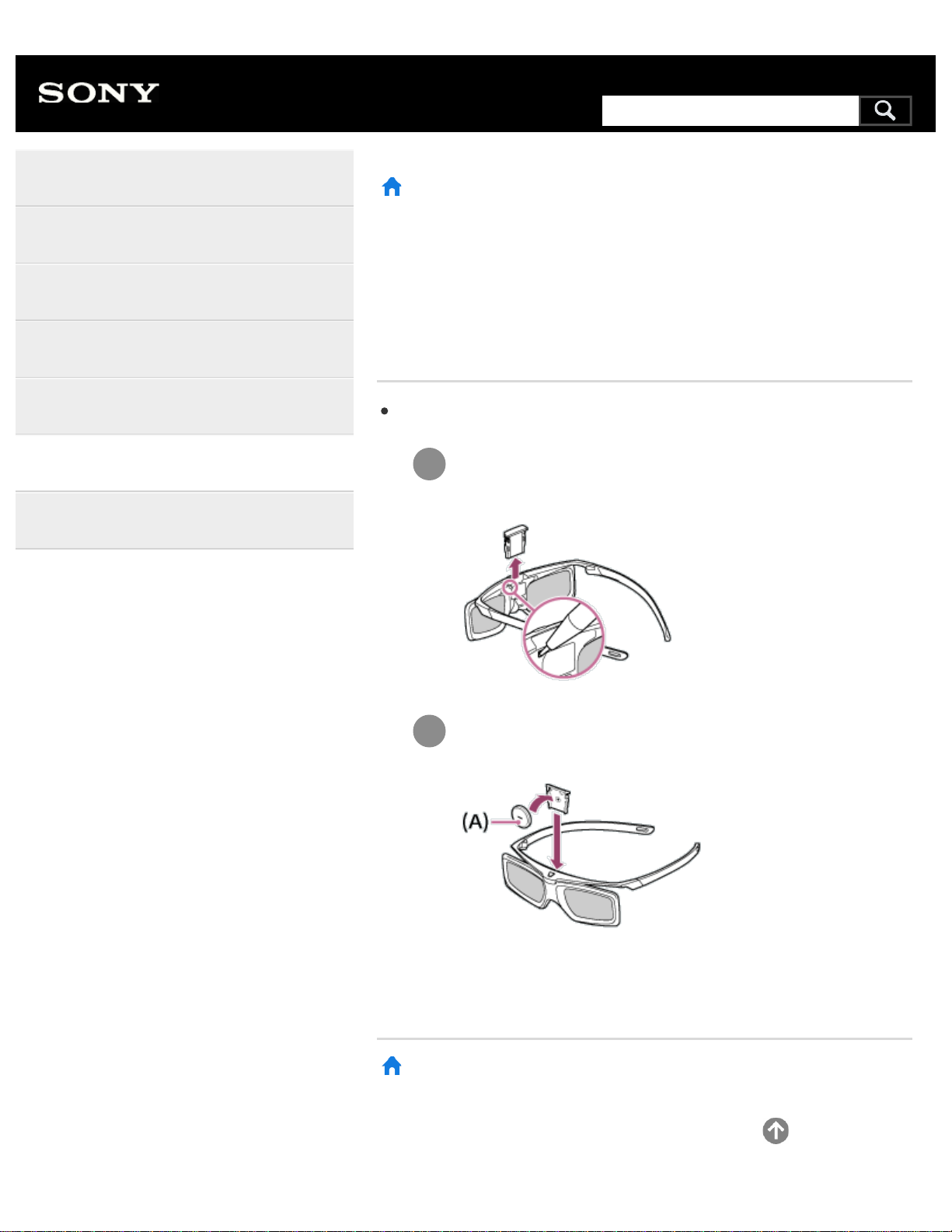
1
2
>
Troubleshooting
>
Remote control/accessories
>
You cannot turn the Active 3D Glasses on. (3D models only)
Print
You cannot turn the Active 3D
Glasses on. (3D models only)
Replace the battery. (Applies only to TDG-BT400A/BT500A.)
Press the unlock button with the tip of a pen, etc., and take
out the battery case.
Replace the battery with a new one. After that, be sure to
insert the battery case until it locks in place again.
(A) CR2025 (-) side
>
Troubleshooting
>
Remote control/accessories
>
You cannot turn the Active 3D Glasses on. (3D models only)
Go to page top
Help Guide
Getting Started
Watching TV
Using the TV with Other Devices
Connecting to a Network
Settings
Troubleshooting
Index
260
Search
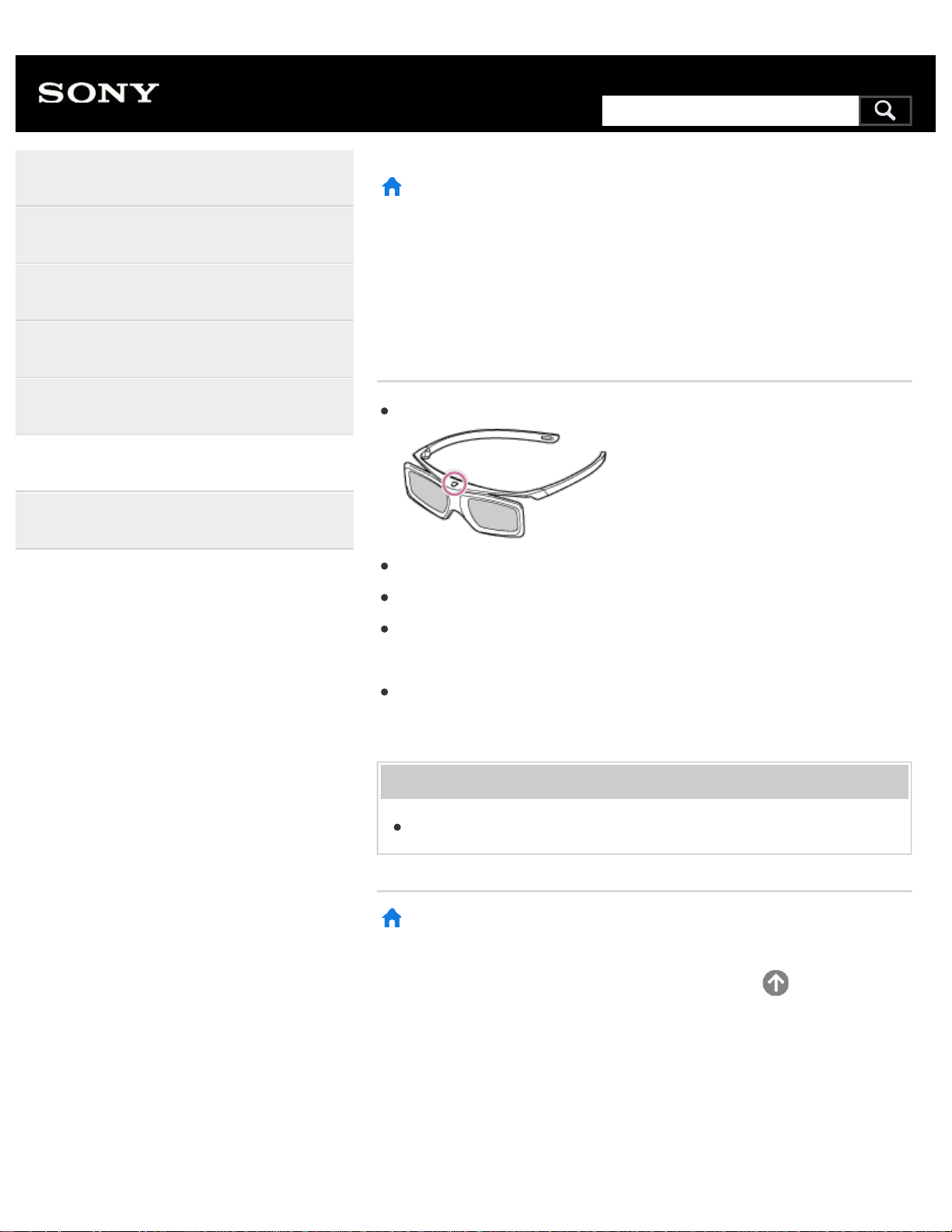
>
Troubleshooting
>
Remote control/accessories
>
The LED indicator on the Active 3D Glasses blinks. (3D models only)
Print
The LED indicator on the Active 3D
Glasses blinks. (3D models only)
Lights up for 3 seconds: Indicates when turning on the glasses.
Blinks every 2 seconds: Indicates the glasses are powered on.
Blinks 3 times: Indicates the glasses have been powered off.
Blinks green and yellow alternately: Indicates the glasses have started
the registration process.
Blinks 3 times every 2 seconds: Indicates the battery capacity is
almost running out. Replace the battery.
Related topics
You cannot turn the Active 3D Glasses on. (3D models only)
>
Troubleshooting
>
Remote control/accessories
>
The LED indicator on the Active 3D Glasses blinks. (3D models only)
Go to page top
Help Guide
Getting Started
Watching TV
Using the TV with Other Devices
Connecting to a Network
Settings
Troubleshooting
Index
C-654-100-12(1)
Copyright 2016 Sony Corporation
261
Search
>
Troubleshooting
>
Power
>
The TV turns off automatically.
Print
The TV turns off automatically.
The screen may have been turned off due to [Sleep timer] settings.
Check the [Duration] setting of [Timer].
Check if [Idle TV standby] in [Eco] is activated.
The screen may have been turned off due to [Screen saver] settings.
(Except for Brazilian models) Check if [Auto shut-off] in [Eco] is
activated.
Related topics
Setting a timer
>
Troubleshooting
>
Power
>
The TV turns off automatically.
Go to page top
Help Guide
Getting Started
Watching TV
Using the TV with Other Devices
Connecting to a Network
Settings
Troubleshooting
Index
C-654-100-12(1)
Copyright 2016 Sony Corporation
262
Search
>
Troubleshooting
>
Power
>
The TV turns on automatically.
Print
The TV turns on automatically.
Check if [Timer] is activated.
Disable the [TV auto power on] setting in [BRAVIA Sync settings].
Related topics
BRAVIA Sync-compatible devices
Setting a timer
>
Troubleshooting
>
Power
>
The TV turns on automatically.
Go to page top
Help Guide
Getting Started
Watching TV
Using the TV with Other Devices
Connecting to a Network
Settings
Troubleshooting
Index
C-654-100-12(1)
Copyright 2016 Sony Corporation
263
Search
>
Troubleshooting
>
Power
>
After unplugging the TV and plugging it in again, the TV does not turn on even if
you press the power button on the remote control or the TV.
Print
After unplugging the TV and
plugging it in again, the TV does not
turn on even if you press the power
button on the remote control or the
TV.
When you unplug the TV and plug it in again, the TV may not be able
to turn on for a while, even if you press the power button on the remote
control or the TV. This is because it takes time to initialize the system.
Wait for about 10 to 20 seconds, then try again.
>
Troubleshooting
>
Power
>
After unplugging the TV and plugging it in again, the TV does not turn on even if
you press the power button on the remote control or the TV.
Go to page top
Help Guide
Getting Started
Watching TV
Using the TV with Other Devices
Connecting to a Network
Settings
Troubleshooting
Index
C-654-100-12(1)
Copyright 2016 Sony Corporation
264
Search

>
Troubleshooting
>
Connected devices
>
Certain programs on digital sources display a loss of detail.
Print
Certain programs on digital sources
display a loss of detail.
Less detail than usual or artifacts (small blocks, dots or pixelation) may
appear on the screen, due to the digital compression of the source
content used by certain digital broadcasts and DVDs. The degree of
visible artifacts depends on the clarity and resolution of the TV.
>
Troubleshooting
>
Connected devices
>
Certain programs on digital sources display a loss of detail.
Go to page top
Help Guide
Getting Started
Watching TV
Using the TV with Other Devices
Connecting to a Network
Settings
Troubleshooting
Index
C-654-100-12(1)
Copyright 2016 Sony Corporation
267
Search
>
Troubleshooting
>
Connected devices
>
Photo images or folders take time to display.
Print
Photo images or folders take time to
display.
Depending on the image dimension, file size, and number of files in a
folder, some photo images or folders take time to display.
Each time a USB device is connected to the TV, it may take up to a
couple of minutes for the photos to display.
Related topics
No picture from a connected device.
>
Troubleshooting
>
Connected devices
>
Photo images or folders take time to display.
Go to page top
Help Guide
Getting Started
Watching TV
Using the TV with Other Devices
Connecting to a Network
Settings
Troubleshooting
Index
C-654-100-12(1)
Copyright 2016 Sony Corporation
268
Search
>
Troubleshooting
>
Connected devices
>
You cannot find a connected BRAVIA Sync HDMI device.
Print
You cannot find a connected
BRAVIA Sync HDMI device.
Check that your device is BRAVIA Sync-compatible.
Make sure that [Control for HDMI] is set up on the BRAVIA Sync-
compatible device and [BRAVIA Sync settings] — [BRAVIA Sync
control] is set up on the TV.
Related topics
BRAVIA Sync-compatible devices
>
Troubleshooting
>
Connected devices
>
You cannot find a connected BRAVIA Sync HDMI device.
Go to page top
Help Guide
Getting Started
Watching TV
Using the TV with Other Devices
Connecting to a Network
Settings
Troubleshooting
Index
C-654-100-12(1)
Copyright 2016 Sony Corporation
269
Search
>
Troubleshooting
>
Connected devices
>
You cannot control a second AV receiver.
Print
You cannot control a second AV
receiver.
Only one BRAVIA Sync-compatible AV receiver can be used.
Related topics
BRAVIA Sync-compatible devices
>
Troubleshooting
>
Connected devices
>
You cannot control a second AV receiver.
Go to page top
Help Guide
Getting Started
Watching TV
Using the TV with Other Devices
Connecting to a Network
Settings
Troubleshooting
Index
C-654-100-12(1)
Copyright 2016 Sony Corporation
270
Search
>
Troubleshooting
>
Connected devices
>
The TV does not output picture and/or sound from the MHL device. (MHL
supported models only)
Print
The TV does not output picture
and/or sound from the MHL device.
(MHL supported models only)
Disconnect the MHL cable, then reconnect it. Or turn the MHL device
off, then turn on again and release the screen lock of the device.
Check if your device supports MHL.
Check if your TV supports MHL.
The
mark is located next to the HDMI IN 1/MHL port
for MHL supported 2K models, or the HDMI IN 2/MHL port for MHL
supported 4K models.
Related topics
Displaying the screen of a smartphone/tablet on the TV using an
MHL cable (MHL supported models only)
No picture from a connected device.
>
Troubleshooting
>
Connected devices
>
The TV does not output picture and/or sound from the MHL device. (MHL
supported models only)
Go to page top
Help Guide
Getting Started
Watching TV
Using the TV with Other Devices
Connecting to a Network
Settings
Troubleshooting
Index
C-654-100-12(1)
Copyright 2016 Sony Corporation
271
Search
>
Troubleshooting
>
Connected devices
>
An external device (such as a set-top box or AV receiver) cannot be controlled via
the IR Blaster. (IR Blaster compatible models only)
Print
An external device (such as a set-
top box or AV receiver) cannot be
controlled via the IR Blaster. (IR
Blaster compatible models only)
IR Blaster compatible models have [IR Blaster setup] in [Settings] —
[External inputs].
Make sure that the IR Blaster is correctly set up and the IR transmitter
is located near the IR receiver of the external device.
Make sure that your TV supports the external device.
If you press and hold a button on the remote control, the operation
may not be transmitted. Instead, press the button repeatedly.
Some external devices may not respond to some buttons on the
“Action Menu”.
(Except for Brazilian models) The IR Blaster may not be set properly.
To set the IR Blaster, press the HOME button, then select [Settings] —
[External inputs] — [IR Blaster setup].
Related topics
Connecting an IR Blaster (IR Blaster compatible models only)
>
Troubleshooting
>
Connected devices
>
An external device (such as a set-top box or AV receiver) cannot be controlled via
the IR Blaster. (IR Blaster compatible models only)
Go to page top
Help Guide
Getting Started
Watching TV
Using the TV with Other Devices
Connecting to a Network
Settings
Troubleshooting
Index
272
Search
>
Troubleshooting
>
Connected devices
>
Some media files in the USB device or server are not displayed.
Print
Some media files in the USB device
or server are not displayed.
Unsupported files may not be displayed.
All the folders/files may not be displayed depending on the system
status.
Related topics
Supported files and formats
>
Troubleshooting
>
Connected devices
>
Some media files in the USB device or server are not displayed.
Go to page top
Help Guide
Getting Started
Watching TV
Using the TV with Other Devices
Connecting to a Network
Settings
Troubleshooting
Index
C-654-100-12(1)
Copyright 2016 Sony Corporation
273
Search
>
Troubleshooting
>
Connected devices
>
The TV cannot be found by a Wi-Fi Direct device.
Print
The TV cannot be found by a Wi-Fi
Direct device.
Enable [Wi Fi Direct]. Press the HOME button, then select [Settings]
— [Network] — [Wi Fi Direct] — [Wi Fi Direct].
If the TV cannot be found even though [Wi Fi Direct] is enabled, set
[Band setting] to [Auto (2.4GHz band)]. Press the HOME button, then
select [Settings] — [Network] — [Wi Fi Direct] — [Advanced settings]
— [Band setting] — [Auto (2.4GHz band)].
>
Troubleshooting
>
Connected devices
>
The TV cannot be found by a Wi-Fi Direct device.
Go to page top
Help Guide
Getting Started
Watching TV
Using the TV with Other Devices
Connecting to a Network
Settings
Troubleshooting
Index
C-654-100-12(1)
Copyright 2016 Sony Corporation
274
Search
>
Troubleshooting
>
Connected devices
>
Operation cuts out, or a device does not work.
Print
Operation cuts out, or a device does
not work.
Check if the device is turned on.
Replace the batteries of the device.
Re-register the device.
Bluetooth devices use the 2.4GHz band, therefore communication
speed may deteriorate or cut out occasionally due to wireless LAN
interference.
If household electric appliances (e.g., microwaves or mobile devices)
are placed nearby, radio wave interference is more likely to happen.
The TV or device may not work on a metal rack due to wireless
communication interference.
For usable communication distances between the TV and other
devices, refer to the instruction manuals of the devices.
When multiple Bluetooth devices are connected to the TV, the quality
of Bluetooth communication may deteriorate.
Related topics
Bluetooth devices
>
Troubleshooting
>
Connected devices
>
Operation cuts out, or a device does not work.
Go to page top
Help Guide
Getting Started
Watching TV
Using the TV with Other Devices
Connecting to a Network
Settings
Troubleshooting
Index
C-654-100-12(1)
275
Search
>
Troubleshooting
>
Connected devices
>
What kind of devices can be connected using the Screen mirroring function?
Print
What kind of devices can be
connected using the Screen
mirroring function?
Wi Fi enabled devices, such as smartphones and tablets, that support
Miracast can be used to enjoy Screen mirroring on your BRAVIA TV.
Refer to the instruction manual of your Wi Fi device to find out if it
supports Miracast. BRAVIA TV complies with the Miracast
specification, but does not guarantee a successful connection with all
devices.
>
Troubleshooting
>
Connected devices
>
What kind of devices can be connected using the Screen mirroring function?
Go to page top
Help Guide
Getting Started
Watching TV
Using the TV with Other Devices
Connecting to a Network
Settings
Troubleshooting
Index
C-654-100-12(1)
Copyright 2016 Sony Corporation
276
Search
>
Troubleshooting
>
Connected devices
>
The TV cannot connect to a Miracast device or Screen mirroring compatible
device.
Print
The TV cannot connect to a Miracast
device or Screen mirroring
compatible device.
If connecting a Miracast device (e.g., laptop) fails, press the HOME
button, then select [Screen mirroring] to show the standby screen for
the Screen mirroring function and try to connect again.
If you are using Screen mirroring with another device, turn off Screen
mirroring first and try again.
If your device does not support 5GHz and you set the [Band setting]
option to [Auto (5GHz band)], try changing it to [Auto].
Related topics
Displaying the screen of a smartphone/tablet on the TV using the
Screen mirroring function
What kind of devices can be connected using the Screen mirroring
function?
>
Troubleshooting
>
Connected devices
>
The TV cannot connect to a Miracast device or Screen mirroring compatible
device.
Go to page top
Help Guide
Getting Started
Watching TV
Using the TV with Other Devices
Connecting to a Network
Settings
Troubleshooting
Index
C-654-100-12(1)
Copyright 2016 Sony Corporation
277
Search
>
Troubleshooting
>
Connected devices
>
Video or sound sometimes cuts out.
Print
Video or sound sometimes cuts out.
Devices emitting radio waves, such as other wireless LAN devices or
microwave ovens, may interfere with the Screen mirroring function
using wireless LAN. Keep the TV or Sony Screen mirroring compatible
devices (e.g., some models of Xperia) away from such devices, or turn
them off if possible.
Communication speed may change according to the distance or
obstacles between devices, device configuration, radio wave condition,
line congestion or the device you use. Communication may cut out due
to the radio wave condition.
Related topics
Displaying the screen of a smartphone/tablet on the TV using the
Screen mirroring function
Using Wi-Fi to connect the TV to your network
>
Troubleshooting
>
Connected devices
>
Video or sound sometimes cuts out.
Go to page top
Help Guide
Getting Started
Watching TV
Using the TV with Other Devices
Connecting to a Network
Settings
Troubleshooting
Index
C-654-100-12(1)
Copyright 2016 Sony Corporation
278
Search
>
Troubleshooting
>
Connected devices
>
Some paid content cannot be played.
Print
Some paid content cannot be
played.
The source device needs to meet HDCP (High-bandwidth Digital
Content Protection) 2.0/2.1/2.2 standards.
Some pay contents may not be displayed via a source device which
does not meet HDCP 2.0/2.1/2.2 standards.
>
Troubleshooting
>
Connected devices
>
Some paid content cannot be played.
Go to page top
Help Guide
Getting Started
Watching TV
Using the TV with Other Devices
Connecting to a Network
Settings
Troubleshooting
Index
C-654-100-12(1)
Copyright 2016 Sony Corporation
279
Search
>
Troubleshooting
>
Illumination LED
>
The illumination LED or bottom of the screen sometimes lights up.
Print
The illumination LED or bottom of
the screen sometimes lights up.
The illumination LED or the bottom of the screen lights up at various times
such as during software updates .
Refer to
Identifying the status of the TV through illumination
for details.
>
Troubleshooting
>
Illumination LED
>
The illumination LED or bottom of the screen sometimes lights up.
Go to page top
Help Guide
Getting Started
Watching TV
Using the TV with Other Devices
Connecting to a Network
Settings
Troubleshooting
Index
C-654-100-12(1)
Copyright 2016 Sony Corporation
280
Search
>
Troubleshooting
>
Illumination LED
>
You want to disable the illumination LED so that it does not light up or blink.
Print
You want to disable the illumination
LED so that it does not light up or
blink.
You can turn it off. Press the HOME button, then select [Settings] —
[Illumination LED] — [Off].
Note
We recommend that you do not change this setting under normal
circumstances because you will be unable to identify whether the
TV is on or off, or a timer is set.
>
Troubleshooting
>
Illumination LED
>
You want to disable the illumination LED so that it does not light up or blink.
Go to page top
Help Guide
Getting Started
Watching TV
Using the TV with Other Devices
Connecting to a Network
Settings
Troubleshooting
Index
C-654-100-12(1)
Copyright 2016 Sony Corporation
281
Search
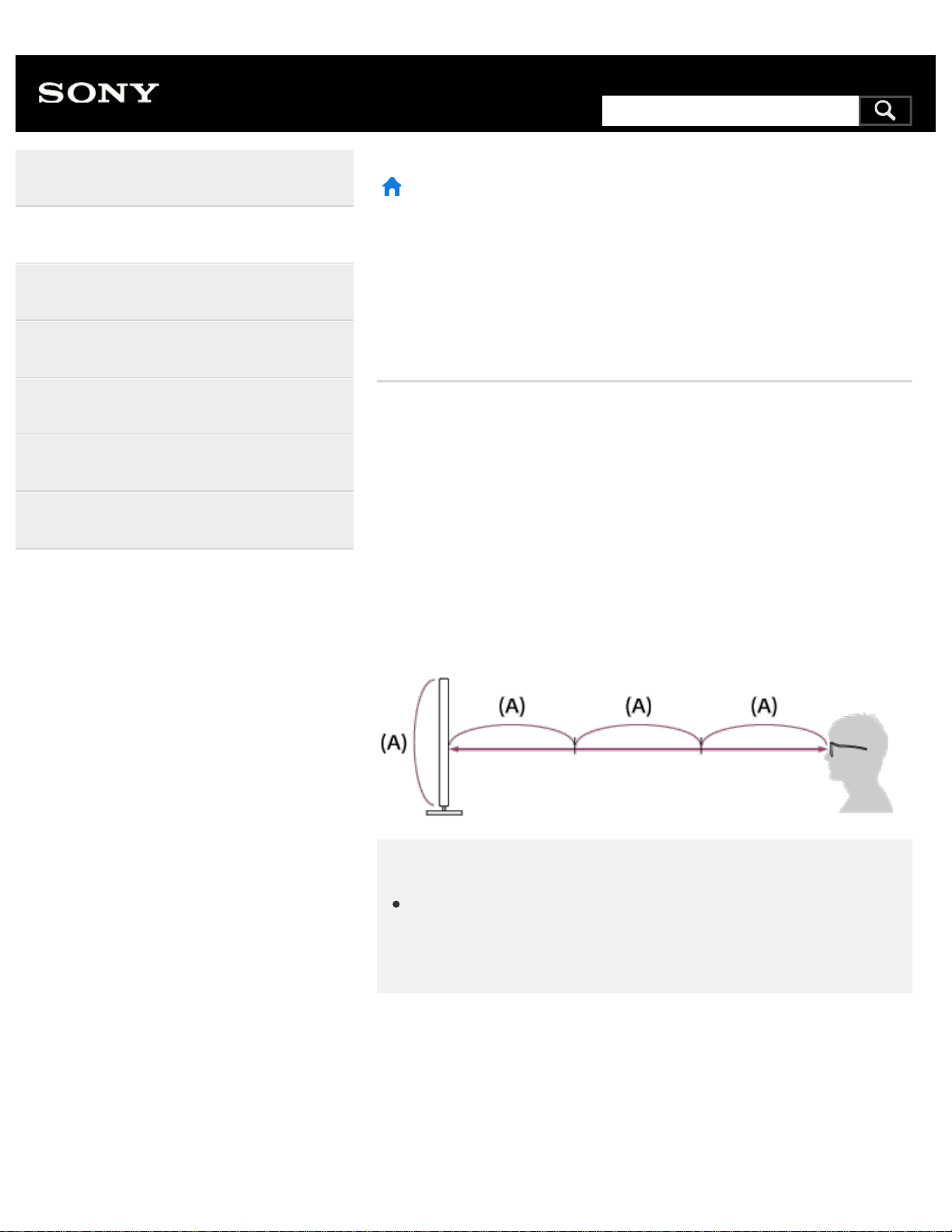
>
Watching TV
>
Watching in 3D (3D models only)
>
Understanding the basics of 3D TV (3D models only)
Print
Understanding the basics of 3D TV
(3D models only)
3D models have [3D settings] in [Settings] — [Picture & Display].
Recommended viewing distance for a 3D
image
If the viewing distance is not appropriate, a double image may appear. Sit
at a distance of at least 3 times the height of the screen away from the
TV. For the best viewing experience, we recommend that you sit directly
in front of the TV.
Hint
There are two types of 3D Glasses: Passive and Active. Refer to
the specifications in the Reference Guide to see which type of 3D
Glasses the TV supports.
TV and Active 3D Glasses communication
range
Active 3D glasses communicate with the TV to show you images in 3D.
Your viewing position needs to be within the proper range. See the
Help Guide
Getting Started
Watching TV
Using the TV with Other Devices
Connecting to a Network
Settings
Troubleshooting
Index
282
Search
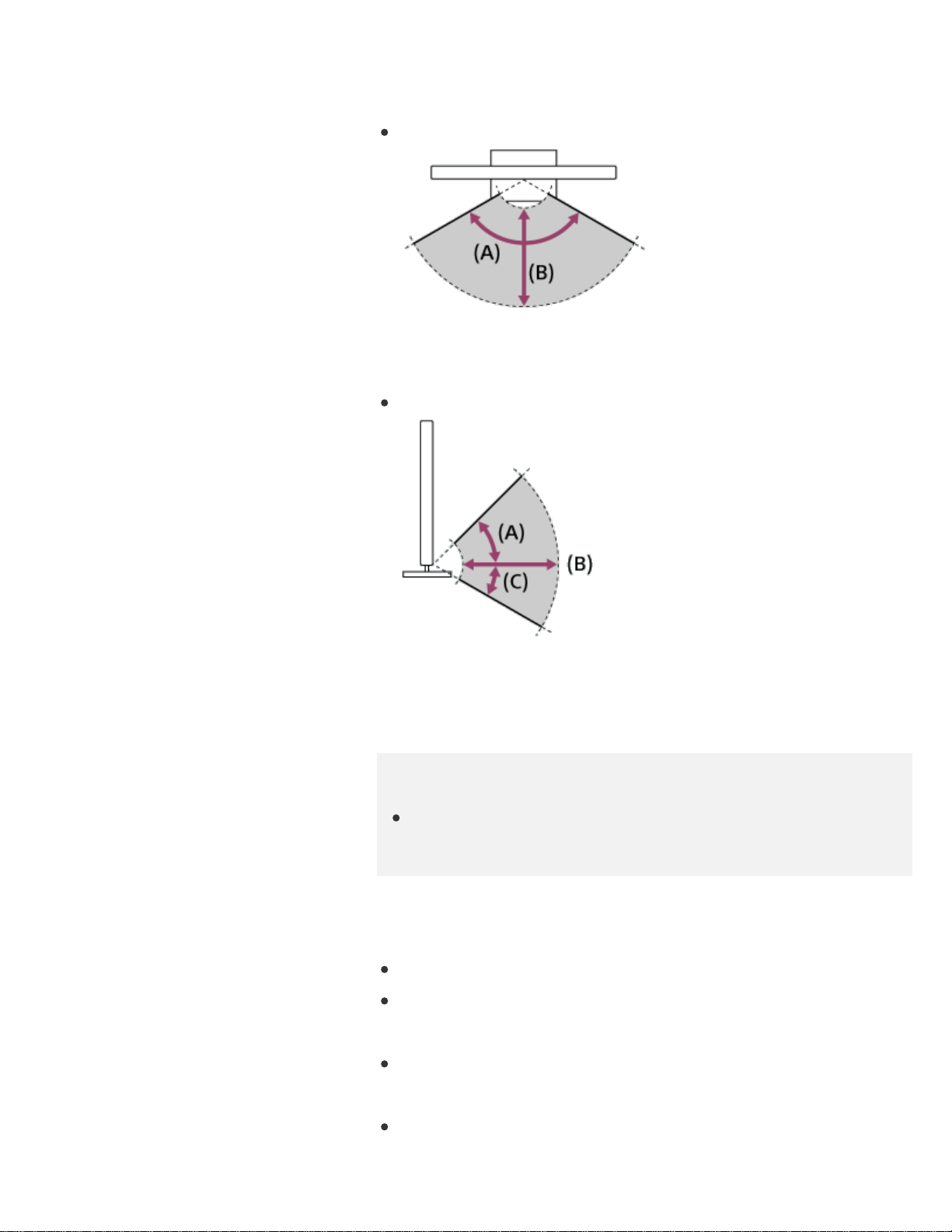
following diagrams. The working distance depends on obstacles (people,
metal, walls, etc.) and/or electromagnetic interference.
Overhead view
(A) 120°
(B) 1-6 m (3-20 ft.)
Side view
(A) 45°
(B) 1-6 m (3-20 ft.)
(C) 30°
Note
Recommended viewing angle and distance may vary depending on
the TV’s location and room conditions.
Caring for your glasses
Wipe the glasses gently with a soft cloth.
Stubborn stains may be removed with a cloth slightly moistened with a
solution of mild soap and warm water.
If using a chemically pretreated cloth, be sure to follow the instructions
provided on the package.
Never use strong solvents such as a thinner, alcohol, or benzene for
cleaning.
283
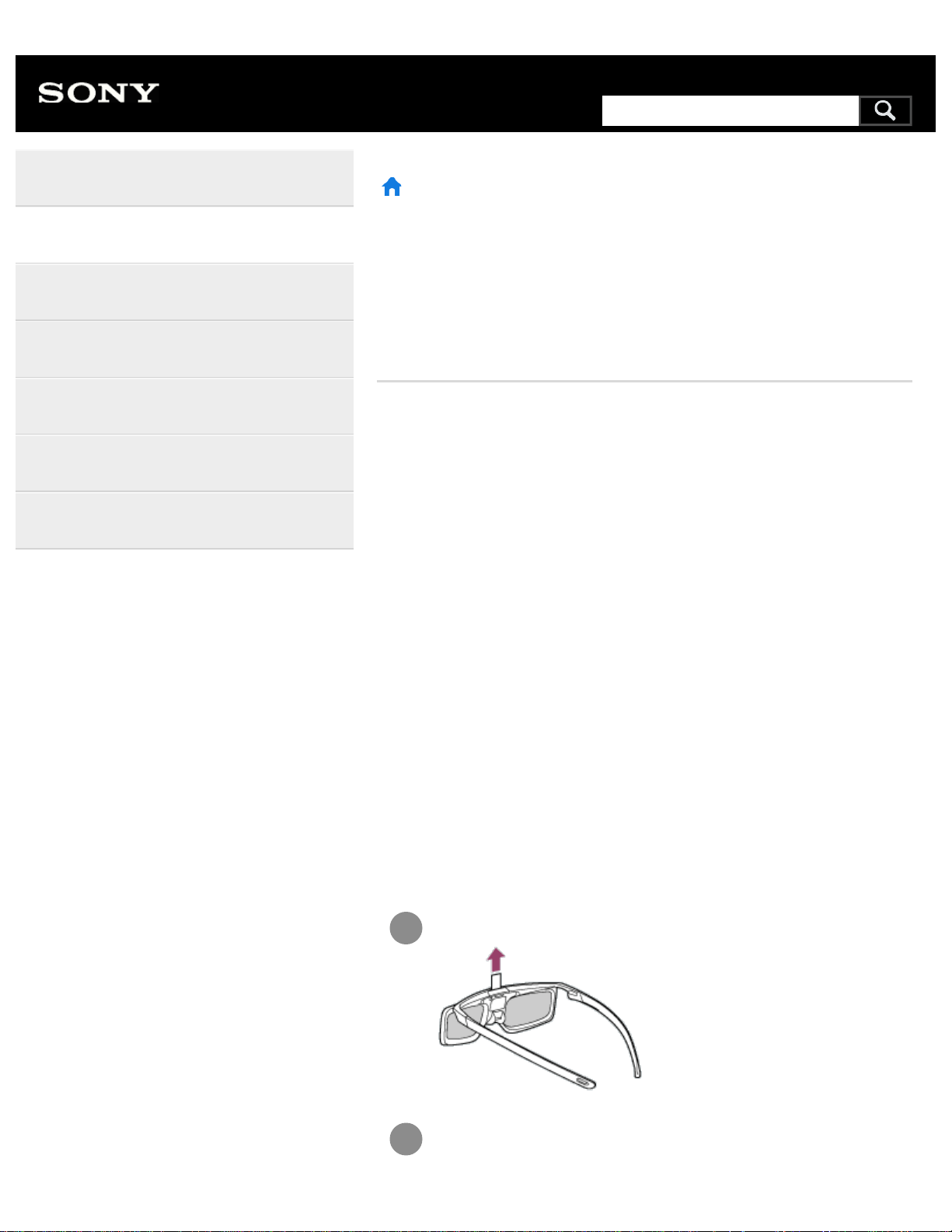
1
2
>
Watching TV
>
Watching in 3D (3D models only)
>
Preparing your 3D glasses (3D models only)
Print
Preparing your 3D glasses (3D
models only)
3D models have [3D settings] in [Settings] — [Picture & Display].
There are two types of 3D Glasses: Passive and Active. Refer to the
specifications in the Reference Guide to see which type of 3D Glasses
the TV supports.
For Passive 3D Glasses
If Passive 3D Glasses are supplied with your TV, use them. If no glasses
are supplied, purchase a pair of Passive 3D Glasses, model TDG-500P.
You can watch in 3D by just putting the Passive 3D Glasses on.
For Active 3D Glasses
If Active 3D Glasses are supplied with your TV, use them. If no glasses
are supplied, purchase a pair of Active 3D Glasses, model TDG-BT500A.
Before using the Active 3D Glasses for the first time, you need to register
them to your TV. Follow the steps below.
Remove the battery’s insulation sheet.
Turn the TV on, then hold the glasses within 50 cm (1.6 ft.) of
Help Guide
Getting Started
Watching TV
Using the TV with Other Devices
Connecting to a Network
Settings
Troubleshooting
Index
285
Search
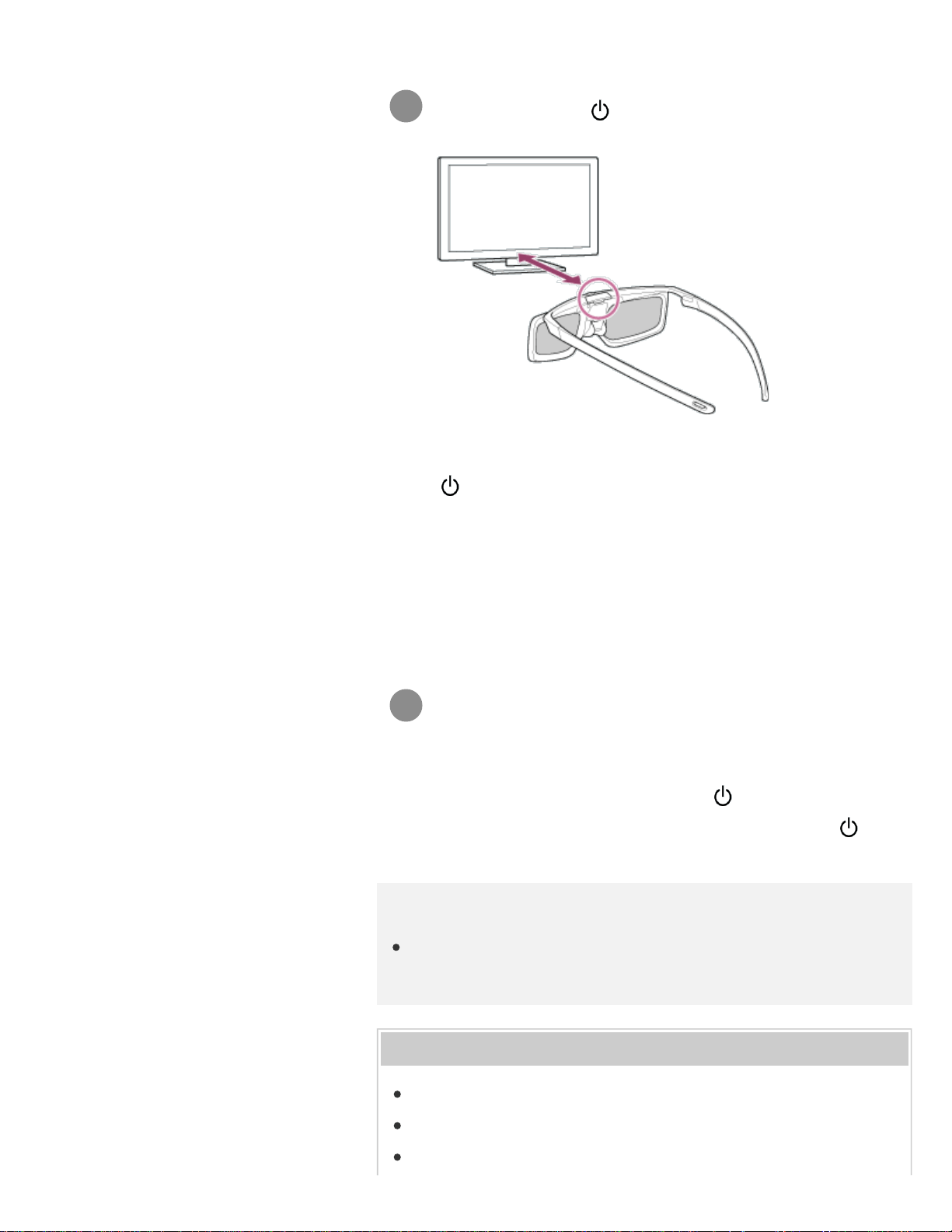
3
4
the TV.
Press and hold the (Power) button/indicator on the glasses
for 2 seconds.
The Active 3D Glasses turn on and registration starts (the
(Power) button/indicator blinks green and yellow). When
registration is finished, a message appears in the TV screen
for 5 seconds, and the indicator lights up in green for 3
seconds.
If registration fails, the Active 3D Glasses will turn off
automatically. In this case, repeat the procedure above.
Put the Active 3D Glasses on.
From the next time, you can use the Active 3D Glasses by just turning
them on. To turn them off, press and hold the
(Power) button/indicator
on the glasses for 2 seconds. To turn them on again, press the
(Power) button/indicator.
Hint
To use the Active 3D Glasses with another TV, you need to register
the glasses to that TV. Perform the procedure above from Step 2.
Related topics
Understanding the basics of 3D TV (3D models only)
Watching TV in 3D (3D models only)
Remote control/accessories
286


1
2
3
4
5
>
Watching TV
>
Watching in 3D (3D models only)
>
Watching TV in 3D (3D models only)
Print
Watching TV in 3D (3D models only)
3D models have [3D settings] in [Settings] — [Picture & Display].
You can experience powerful 3D entertainment, such as stereoscopic 3D
games and 3D Blu-ray Discs.
To watch in 3D, connect a 3D-compatible device directly to the TV via an
authorized HIGH SPEED HDMI cable bearing the HDMI logo.
Prepare the 3D Glasses.
Display the 3D content on the TV screen.
Put the 3D Glasses on.
You should now be able to watch 3D images. If no 3D effect
is achieved, perform the following steps.
Press the ACTION MENU button, then select [3D].
Select the [3D display] mode to suit the displayed content.
Depending on the input signal or format, [3D
(Side by Side)]/[3D (Over-Under)] may not be selectable.
Hint
Help Guide
Getting Started
Watching TV
Using the TV with Other Devices
Connecting to a Network
Settings
Troubleshooting
Index
288
Search
In addition to the [3D display] mode, you can use various 3D
options in [3D settings]. Press the HOME button, then select
[Settings] — [Picture & Display] — [3D settings].
Note
The 3D effect may be less pronounced if the ambient temperature
is low.
If [Motionflow] in [Picture adjustments] is set to something other
than [Off], the process to minimize screen flicker may affect the
smooth movement of the picture. In this case, press the ACTION
MENU button, then select [Picture adjustments] — [Advanced
settings] — [Motionflow] — [Off]. (For [Motionflow] compatible
models only.)
[Motionflow] compatible models have [Motionflow] in [Settings] —
[Picture & Display] — [Picture adjustments] — [Advanced settings]
— [Motion].
Related topics
Preparing your 3D glasses (3D models only)
Remote control/accessories
>
Watching TV
>
Watching in 3D (3D models only)
>
Watching TV in 3D (3D models only)
Go to page top
C-654-100-12(1)
Copyright 2016 Sony Corporation
289
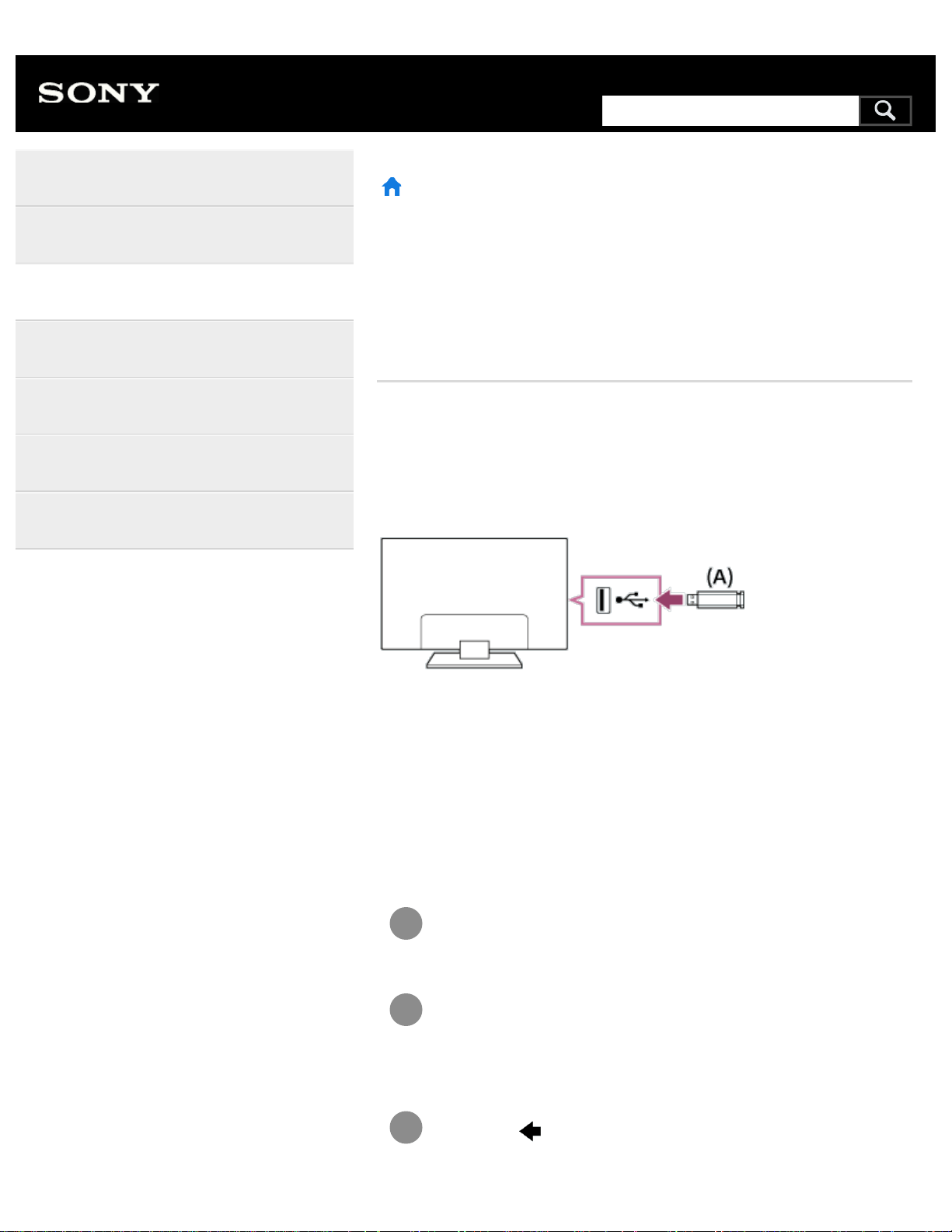
1
2
3
>
Using the TV with Other Devices
>
USB devices
>
Playing content stored on a USB device
Print
Playing content stored on a USB
device
Connecting a USB device
Connect a USB storage device to the USB port of the TV to enjoy photo,
music, and video files stored on the device.
(A) USB storage device
Enjoy photos/music/movies stored on a
USB device
You can enjoy photos/music/movies stored on a USB device on the TV
screen.
If the USB device connected to the TV has a power switch, turn
it on.
Press the HOME button, then select the desired item.
Select [Album] to view photos, [Music] to play music, and
[Video] to play movies.
Press the
button and select [Folders] from the menu that
is displayed.
Help Guide
Getting Started
Watching TV
Using the TV with Other Devices
Connecting to a Network
Settings
Troubleshooting
Index
290
Search
4
Browse the list of folders and files and select the desired file.
Playback starts.
To check the supported file formats
Supported files and formats
Note
All USB ports on the TV support Hi-Speed USB. The blue USB port
for 4K models supports SuperSpeed (USB 3.0). USB hubs are not
supported.
While accessing the USB device, do not turn off the TV or USB
device, do not disconnect the USB cable, and do not remove or
insert recording media. Otherwise, data stored on the USB device
may be corrupted.
Depending on the file, playback may not be possible, even when
using the supported formats.
Related topics
Information about USB devices used for storing photos and music
>
Using the TV with Other Devices
>
USB devices
>
Playing content stored on a USB device
Go to page top
C-654-100-12(1)
Copyright 2016 Sony Corporation
291
>
Using the TV with Other Devices
>
USB devices
>
Information about USB devices used for storing photos and music
Print
Information about USB devices used
for storing photos and music
The USB ports on the TV support FAT16, FAT32, exFAT, and NTFS
file systems.
When connecting a Sony digital still camera to the TV with a USB
cable, USB connection settings on your camera need to be set to
“Auto” or “Mass Storage” mode.
If your digital still camera does not work with your TV, try the following:
Set the USB connection settings on your camera to “Mass
Storage”.
Copy the files from the camera to a USB flash drive, then connect
the drive to the TV.
Some photos and movies may be magnified, resulting in low picture
quality. Depending on the size and aspect ratio, images may not be
displayed in full screen.
It may take a long time to display a photo, depending on the file or
settings.
In no event shall Sony be liable for recording failure or any damage or
loss of recorded contents caused or associated with the TV’s
malfunction, the USB device’s malfunction, or any other problem.
Related topics
Supported files and formats
>
Using the TV with Other Devices
>
USB devices
>
Information about USB devices used for storing photos and music
Help Guide
Getting Started
Watching TV
Using the TV with Other Devices
Connecting to a Network
Settings
Troubleshooting
Index
292
Search
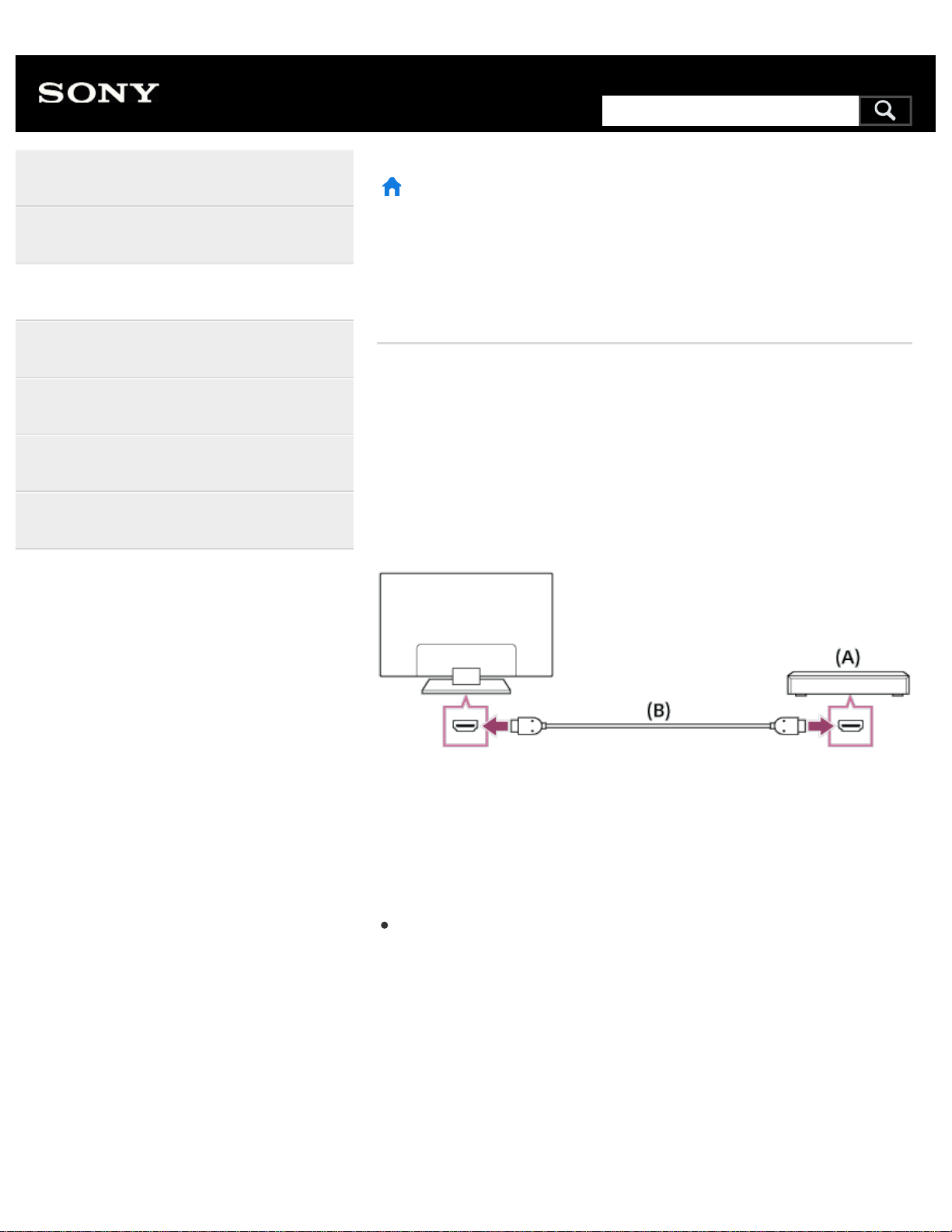
>
Using the TV with Other Devices
>
Blu-ray and DVD players
>
Connecting a Blu-ray or DVD player
Print
Connecting a Blu-ray or DVD player
Connect a Blu-ray/DVD player to the TV.
HDMI connection
For optimum picture quality, we recommend connecting your player to the
TV using an HDMI cable. If your Blu-ray/DVD player has an HDMI jack
(socket), connect it using an HDMI cable.
(A) Blu-ray/DVD player
(B) HDMI cable (not supplied)
Be sure to use an authorized HIGH SPEED HDMI cable bearing the
HDMI logo.
If the device has a DVI jack (socket), connect it to the HDMI (with
AUDIO IN) port through a DVI - HDMI adaptor interface (not supplied),
and connect the device’s audio out jacks (sockets) to HDMI 3 AUDIO
IN / HDMI 1 AUDIO IN.
Availability depends on your model/region/country. Refer to the
Reference Guide to check if your TV supports HDMI 3 AUDIO IN /
HDMI 1 AUDIO IN.
Help Guide
Getting Started
Watching TV
Using the TV with Other Devices
Connecting to a Network
Settings
Troubleshooting
Index
*
*
293
Search
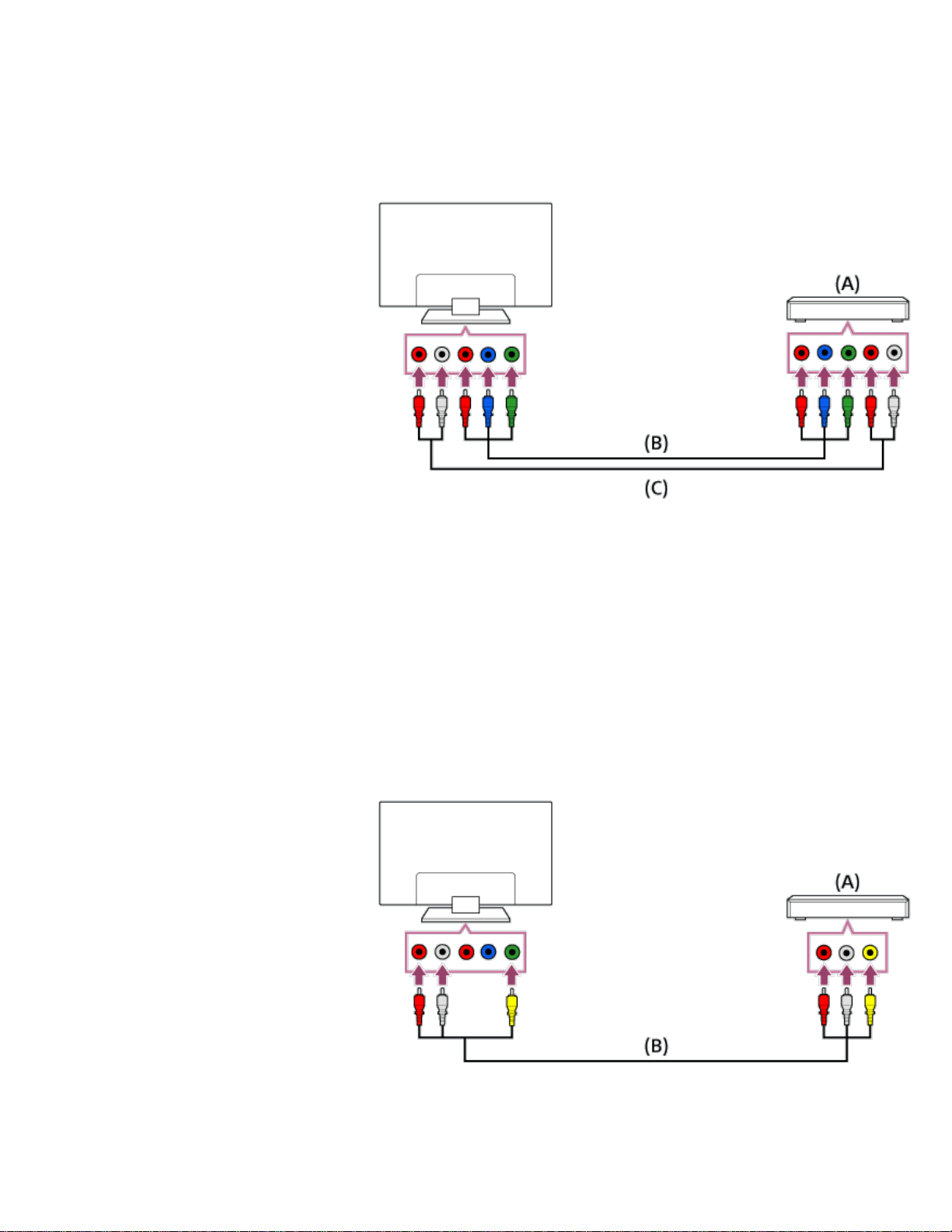
Component video connection
Availability depends on your model/region/country.
If your Blu-ray/DVD player has component video jacks (sockets), connect
them to the TV using a component video cable and an audio cable.
(A) Blu-ray/DVD player
(B) Component video cable (not supplied)
(C) Audio cable (not supplied)
Composite connection
Availability depends on your model/region/country.
If your Blu-ray/DVD player has composite jacks (sockets), connect them
using a composite video/audio cable.
(A) Blu-ray/DVD player
(B) Composite video/audio cable (not supplied)
294
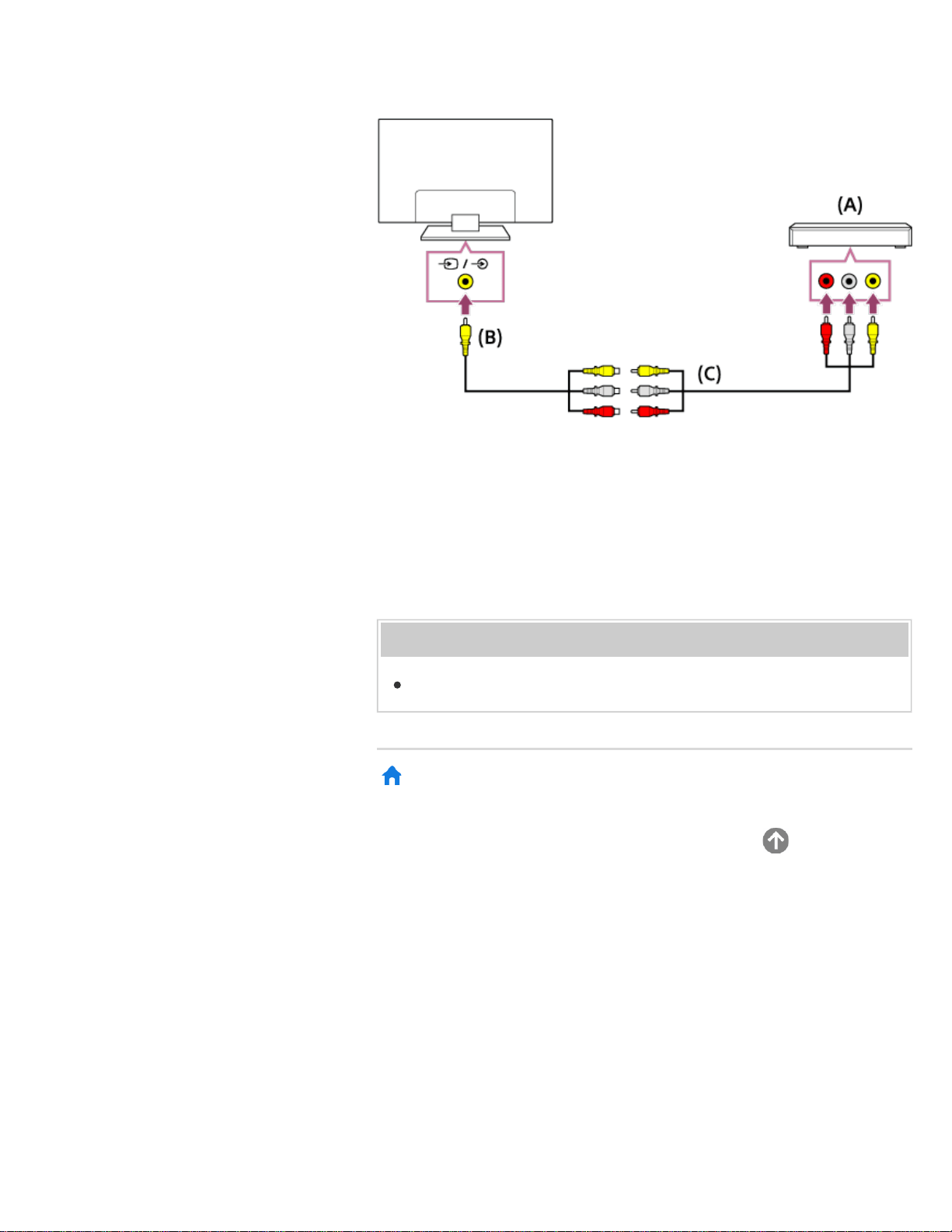
If using an Analog Extension cable
Availability depends on your model/region/country.
(A) Blu-ray/DVD player
(B) Analog Extension cable (supplied)
(C) RCA Cable (not supplied)
Whether the Analog Extension cable is supplied depends on your
model/region/country.
Related topics
Watching Blu-ray and DVD discs
>
Using the TV with Other Devices
>
Blu-ray and DVD players
>
Connecting a Blu-ray or DVD player
Go to page top
C-654-100-12(1)
Copyright 2016 Sony Corporation
*
*
295
1
2
3
>
Using the TV with Other Devices
>
Blu-ray and DVD players
>
Watching Blu-ray and DVD discs
Print
Watching Blu-ray and DVD discs
You can watch content from Blu-ray/DVD discs or other content
supported by your player on the TV.
Turn on the connected Blu-ray/DVD player.
Press the INPUT button repeatedly to select the connected
Blu-ray/DVD player.
Start playback on the connected Blu-ray/DVD player.
Hint
If you connect a BRAVIA Sync-compatible device with HDMI
connection, you can operate it by simply using the TV’s remote
control.
Related topics
Connecting a Blu-ray or DVD player
BRAVIA Sync-compatible devices
>
Using the TV with Other Devices
>
Blu-ray and DVD players
>
Watching Blu-ray and DVD discs
Go to page top
Help Guide
Getting Started
Watching TV
Using the TV with Other Devices
Connecting to a Network
Settings
Troubleshooting
Index
C-654-100-12(1)
296
Search
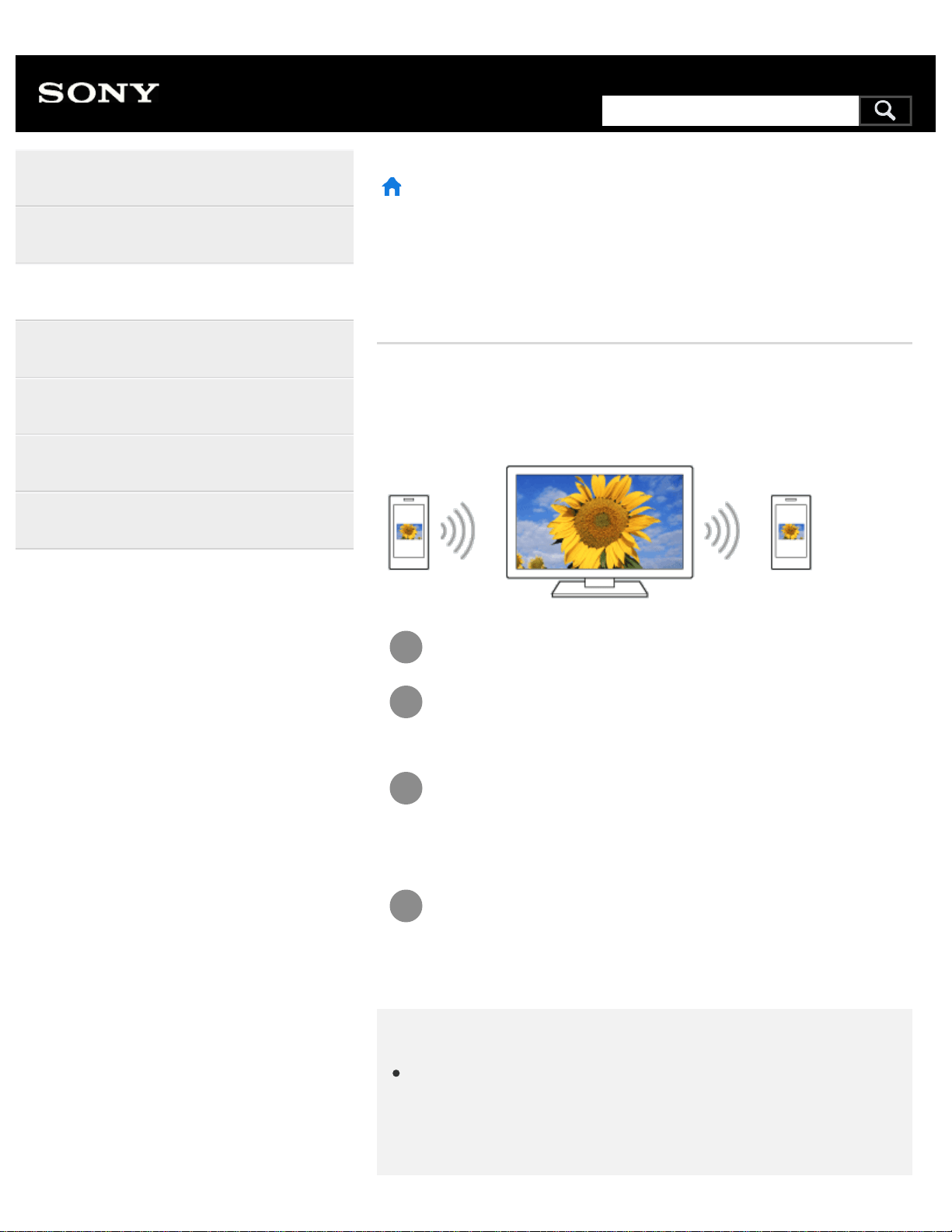
1
2
3
4
>
Using the TV with Other Devices
>
Smartphones and tablets
>
Sharing photos/music/videos
Print
Sharing photos/music/videos
Gather around the TV with your family or friends, connect your mobile
devices to the TV and view your favorite photos/videos on the large
screen TV, or play your favorite tracks through the TV speakers.
Press the HOME button, then select [Photo Sharing Plus].
Follow the on-screen instructions to connect each mobile
device to the TV.
Open the web browser on your mobile device and follow the
on-screen instructions to access the URL shown on the TV
screen.
Follow the on-screen instructions on your mobile device to
view photos or play music/videos on the TV, or save
photos/videos displayed on the TV.
Note
If the TV uses the 5GHz band to connect to a wireless router (or
access point), the connection is disconnected when this function is
started.
Help Guide
Getting Started
Watching TV
Using the TV with Other Devices
Connecting to a Network
Settings
Troubleshooting
Index
297
Search
Up to 10 mobile devices can be connected to the TV at the same
time. To connect another device when 10 devices are already
connected, disconnect an unnecessary device, then connect the
other device.
The default browser for Android 2.3 or later is supported.
The default browser for iOS is supported, however, some functions
cannot be used depending on the version of your iOS.
iOS devices cannot upload music to the TV.
Related topics
Using Wi-Fi Direct to connect to the TV (no wireless router
required)
>
Using the TV with Other Devices
>
Smartphones and tablets
>
Sharing photos/music/videos
Go to page top
C-654-100-12(1)
Copyright 2016 Sony Corporation
298
>
Using the TV with Other Devices
>
Computers, cameras, and camcorders
>
Computer video signal specifications
Print
Computer video signal specifications
(Resolution, Horizontal frequency/Vertical frequency)
640 x 480, 31.5 kHz/60 Hz
800 x 600, 37.9 kHz/60 Hz
1024 x 768, 48.4 kHz/60 Hz
1152 x 864, 67.5 kHz/75 Hz (2K Full HD models or 4K models only)
1280 x 1024, 64.0 kHz/60 Hz (2K Full HD models or 4K models only)
1600 x 900, 56.0 kHz/60 Hz (2K Full HD models or 4K models only)
1680 x 1050, 65.3 kHz/60 Hz (2K Full HD models or 4K models only)
1920 x 1080, 67.5 kHz/60 Hz (2K Full HD models or 4K models only)
1080p timing, when applied to the HDMI input, will be treated as video
timing and not computer timing. This will affect the [Screen] settings in
[Picture & Display]. To view computer content, set [Wide mode] to [Full],
and [Display area] to [Full pixel](2K models) or [+1](4K models). ([Display
area] is configurable only when [Auto display area] is disabled.)
Other video input signals
The following video formats can be displayed depending on specifications
of your computer.
480p, 480i
576p , 576i
720/24p
720p/30Hz, 720p/50Hz , 720p/60Hz
1080i/50Hz , 1080i/60Hz
1080/24p
Help Guide
Getting Started
Watching TV
Using the TV with Other Devices
Connecting to a Network
Settings
Troubleshooting
Index
*
*
*1 *1
*1
*1
*1
299
Search
1080p/30Hz, 1080p/50Hz , 1080p/60Hz
3840 x 2160p/24Hz, 3840 x 2160p/25Hz , 3840 x 2160p/30Hz (4K
models only)
3840 x 2160p/50Hz , 3840 x 2160p/60Hz (4K models only)
4096 x 2160p/24Hz (4K models only)
4096 x 2160p/50Hz , 4096 x 2160p/60Hz (4K models only)
Not supported depending on your region/country.
3840 x 2160 is displayed when 4096 x 2160 is input.
Note
1920 x 1080/60 Hz output may not be available, depending on your
computer. Even if 1920 x 1080/60 Hz output is selected, the actual
output signal may differ. In this case, change the computer’s
settings, then set your computer to use a different video signal.
>
Using the TV with Other Devices
>
Computers, cameras, and camcorders
>
Computer video signal specifications
Go to page top
C-654-100-12(1)
Copyright 2016 Sony Corporation
*1
*1
*2
*1*2 *2
*1
*2
300
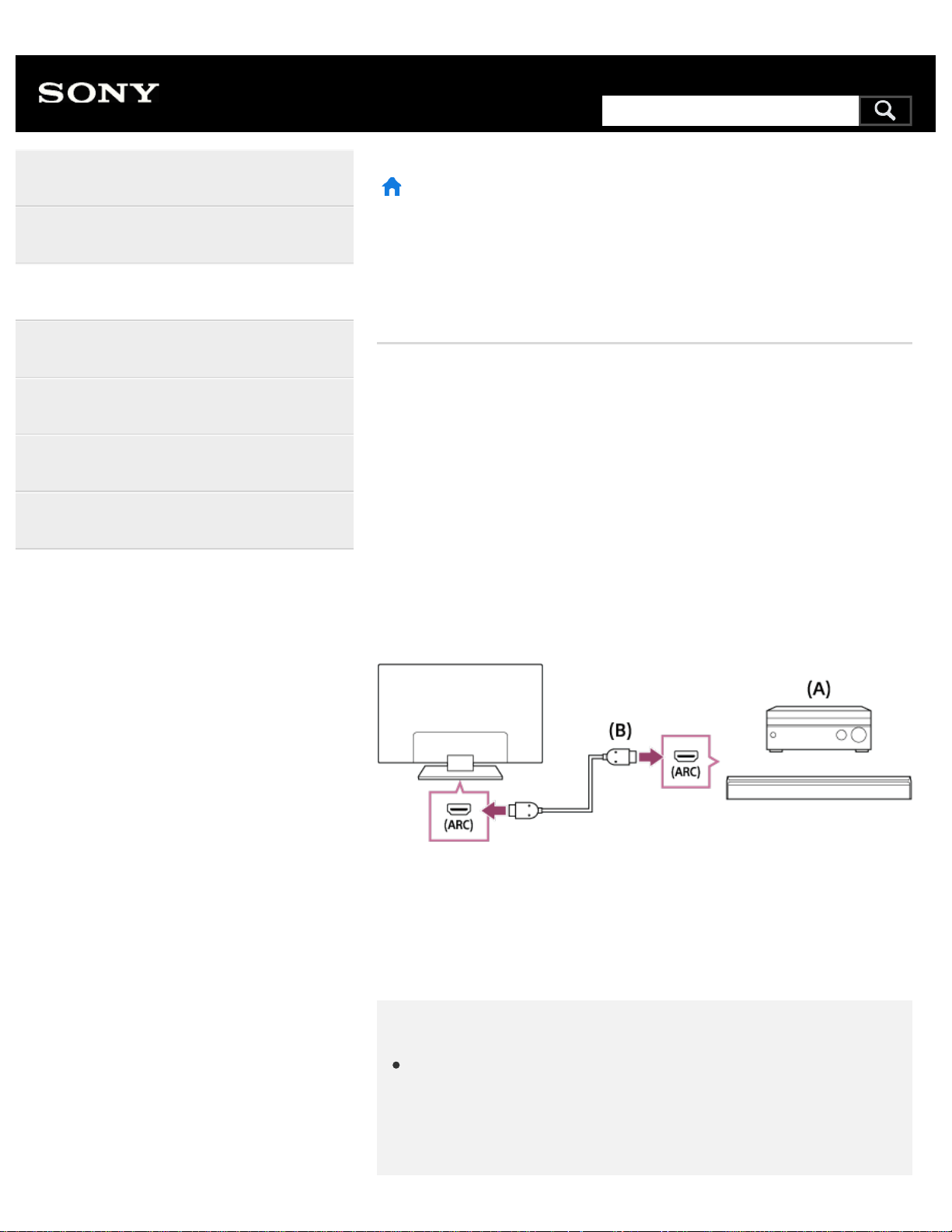
>
Using the TV with Other Devices
>
Audio system
>
Connecting an audio system
Print
Connecting an audio system
See the illustrations below to connect an audio system such as an AV
receiver or sound bar. After finishing the connection, configure the audio
settings to play TV sound through the audio system (refer to the related
topic link at the bottom of this page).
To connect an ARC capable audio system
using an HDMI cable
If your audio system features HDMI output jacks (sockets), you can
connect the TV to your audio system using an HDMI cable.
(A) AV receiver or sound bar
(B) HDMI cable (not supplied)
Be sure to use an authorized HIGH SPEED HDMI cable bearing the
HDMI logo.
Hint
When connecting a BRAVIA Sync-compatible digital audio system
with Audio Return Channel (ARC) technology, connect it to the
HDMI IN jack (socket) labeled with the “ARC” mark with an HDMI
cable. However, if connecting a system that is not BRAVIA Sync-
Help Guide
Getting Started
Watching TV
Using the TV with Other Devices
Connecting to a Network
Settings
Troubleshooting
Index
*
*
301
Search
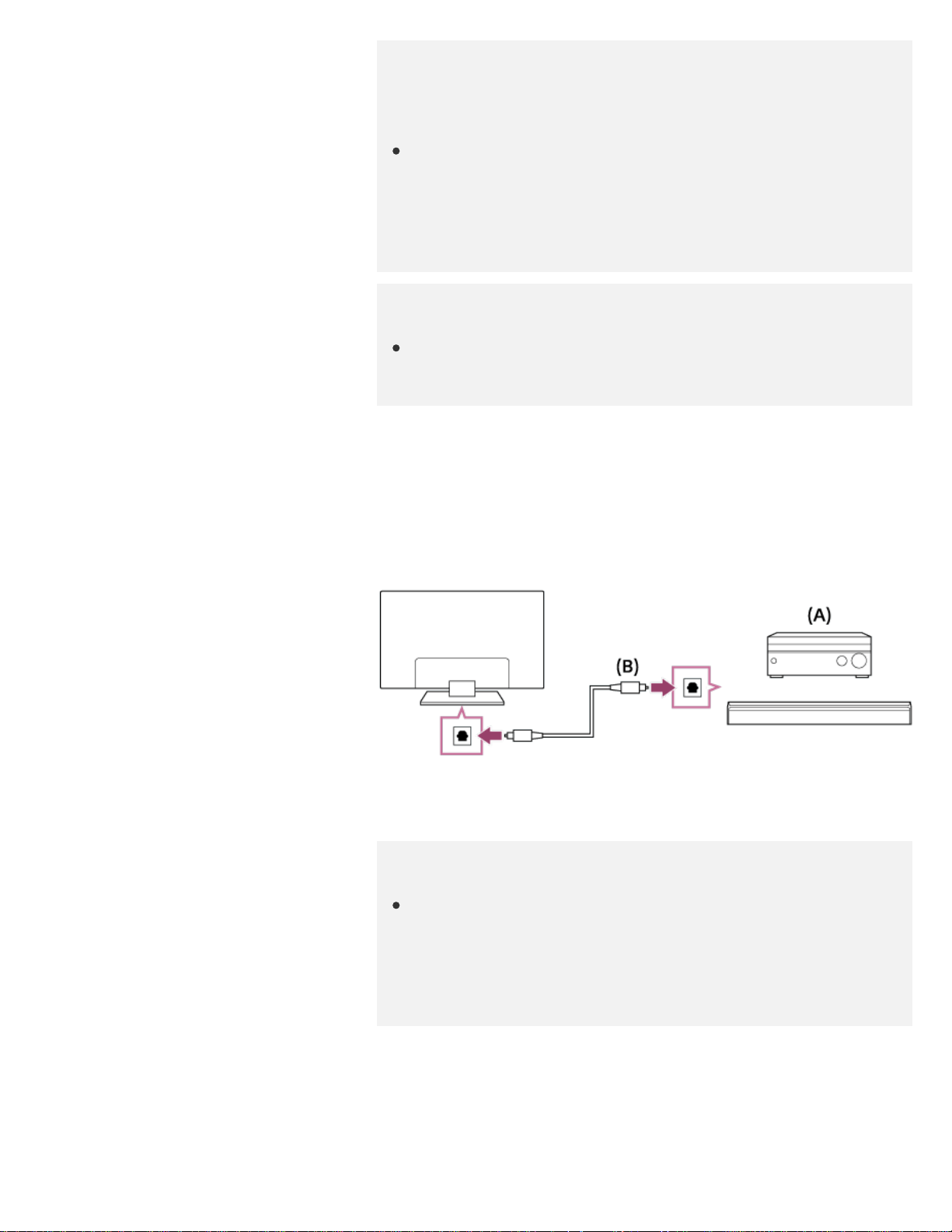
compatible or Audio Return Channel capable, you must also
connect the TV to the audio system using the DIGITAL AUDIO
OUT (OPTICAL) jack (socket).
See the instruction manual of the audio system for details on
connecting other devices and for set-up. If the audio system is not
compatible with Dolby Digital or DTS, set [Settings] — [Sound] —
[Digital audio out] to [PCM].
Note
The location of the HDMI port that supports ARC varies depending
on your model. Refer to the Reference Guide.
To connect an audio system that is not
ARC capable using an optical audio cable
You can connect the TV’s audio output to an audio system using an
optical audio cable.
(A) AV receiver or Sound bar
(B) Optical audio cable (not supplied)
Hint
See the instruction manual of the audio system for details on
connecting other devices and for set-up. If the audio system is not
compatible with Dolby Digital or DTS, set [Settings] — [Sound] —
[Digital audio out] to [PCM].
To connect an audio system using an audio
cable
You can connect the TV’s audio output to an audio system using a stereo
302
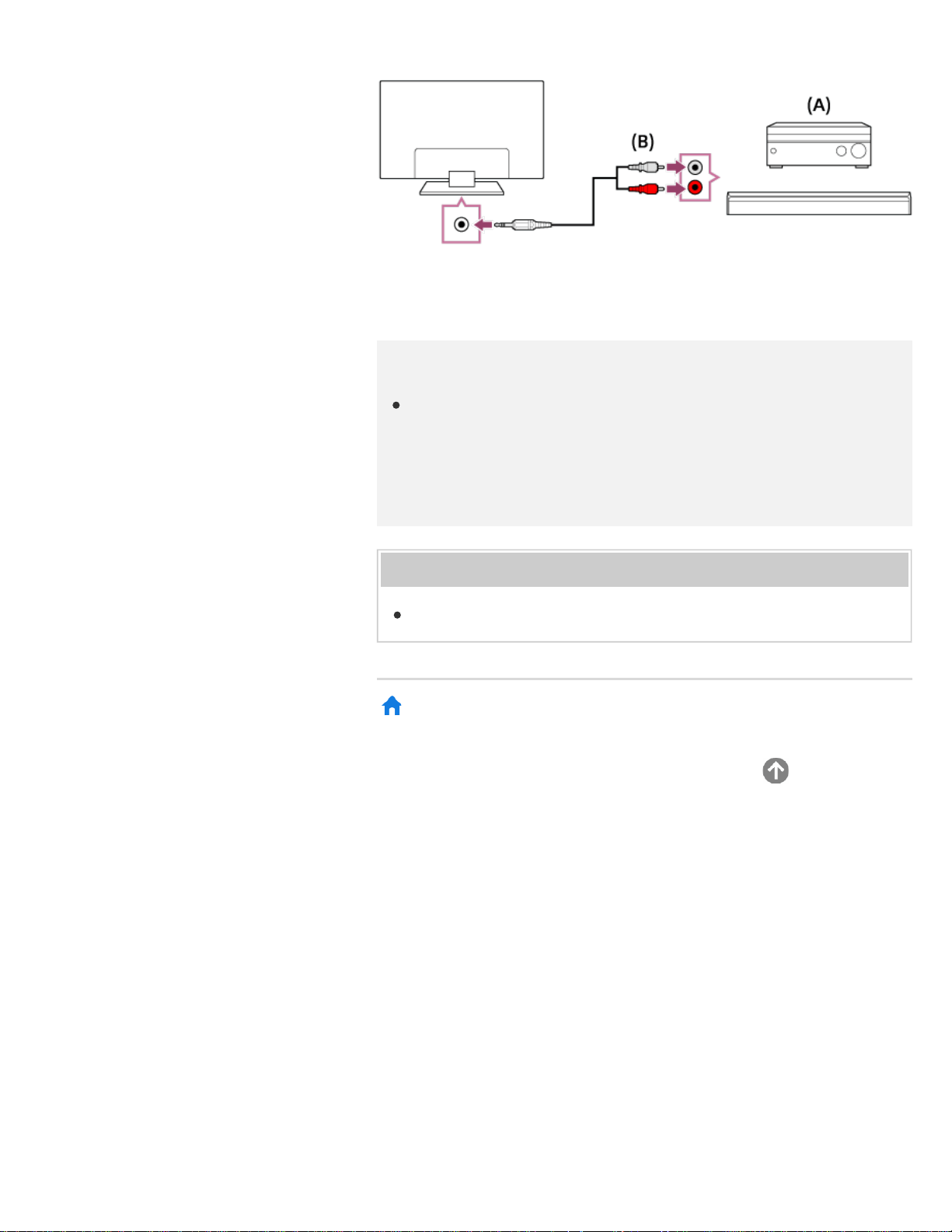
to RCA analog audio cable.
(A) AV receiver or Sound bar
(B) Audio cable (not supplied)
Hint
See the instruction manual of the audio system for details on
connecting other devices and for the set-up. If the audio system is
not compatible with Dolby Digital or DTS, set [Settings] — [Sound]
— [Digital audio out] to [PCM].
Related topics
Adjusting audio system-related settings
>
Using the TV with Other Devices
>
Audio system
>
Connecting an audio system
Go to page top
C-654-100-12(1)
Copyright 2016 Sony Corporation
303
1
2
1
2
>
Using the TV with Other Devices
>
Audio system
>
Adjusting audio system-related settings
Print
Adjusting audio system-related
settings
When using the HDMI connection or optical
audio connection
After connecting the TV to your audio system, press the
ACTION MENU button, then select [Speakers] — [Audio
system].
Turn on the connected audio system, then adjust the volume.
If you connect a BRAVIA Sync-compatible device with an
HDMI connection, you can operate it by simply using the
TV’s remote control.
Note
You need to configure the [Digital audio out] settings according to
your audio system. Press the HOME button, then select [Settings]
— [Sound] — [Digital audio out].
When using the audio cable connection
After connecting the TV to your audio system, press the HOME
button, then select [Settings] — [Sound] —
[Headphone/Audio out] — [Audio out (Fixed)].
Turn on the connected audio system, then adjust the volume.
Help Guide
Getting Started
Watching TV
Using the TV with Other Devices
Connecting to a Network
Settings
Troubleshooting
Index
304
Search
Hint
When using an external audio system, the audio out of the TV can
be operated using the TV’s remote control if [Headphone/Audio out]
is set to [Audio out (Variable)]. Press the HOME button, then select
[Settings] — [Sound] — [Headphone/Audio out] — [Audio out
(Variable)].
When connecting a subwoofer, press the HOME button, then select
[Settings] — [Sound] — [Headphone/Audio out] — [Subwoofer].
Related topics
Connecting an audio system
No sound but good picture.
No audio or low audio with a home theater system.
>
Using the TV with Other Devices
>
Audio system
>
Adjusting audio system-related settings
Go to page top
C-654-100-12(1)
Copyright 2016 Sony Corporation
305
1
2
3
1
2
>
Using the TV with Other Devices
>
Bluetooth devices
>
Connecting a Bluetooth device
Print
Connecting a Bluetooth device
To pair the TV with a Bluetooth device
Only for Bluetooth A2DP-supported models that can use Bluetooth audio
devices such as headphones or speakers.
Bluetooth A2DP-supported models that can use Bluetooth audio devices
have [A/V sync] in [Settings] — [Sound].
Turn the Bluetooth device on and put it in pairing mode.
To put your Bluetooth device in pairing mode, refer to the
instruction manual of the device.
Press the HOME button, then select [Settings] — [Bluetooth
settings] — [Add device] to put the TV in pairing mode.
A list of available Bluetooth devices will be displayed.
Select the desired device from the list, then follow the on-
screen instructions.
If you are prompted to enter a passcode, refer to the
instruction manual of the device.
After pairing is completed, the device connects to the TV.
To connect to a paired Bluetooth device
Press the HOME button, then select [Settings] — [Bluetooth
settings].
Select a paired but unconnected device from the list.
Help Guide
Getting Started
Watching TV
Using the TV with Other Devices
Connecting to a Network
Settings
Troubleshooting
Index
306
Search
>
Using the TV with Other Devices
>
Bluetooth devices
>
Supported Bluetooth profiles
Print
Supported Bluetooth profiles
The TV supports the following profiles:
HID (Human Interface Device Profile)
HOGP (HID over GATT Profile)
3DSP (3D Synchronization Profile)
SPP (Serial Port Profile)
Available depending on your model/region/country.
Related topics
Connecting a Bluetooth device
>
Using the TV with Other Devices
>
Bluetooth devices
>
Supported Bluetooth profiles
Go to page top
Help Guide
Getting Started
Watching TV
Using the TV with Other Devices
Connecting to a Network
Settings
Troubleshooting
Index
C-654-100-12(1)
Copyright 2016 Sony Corporation
*
*
308
Search
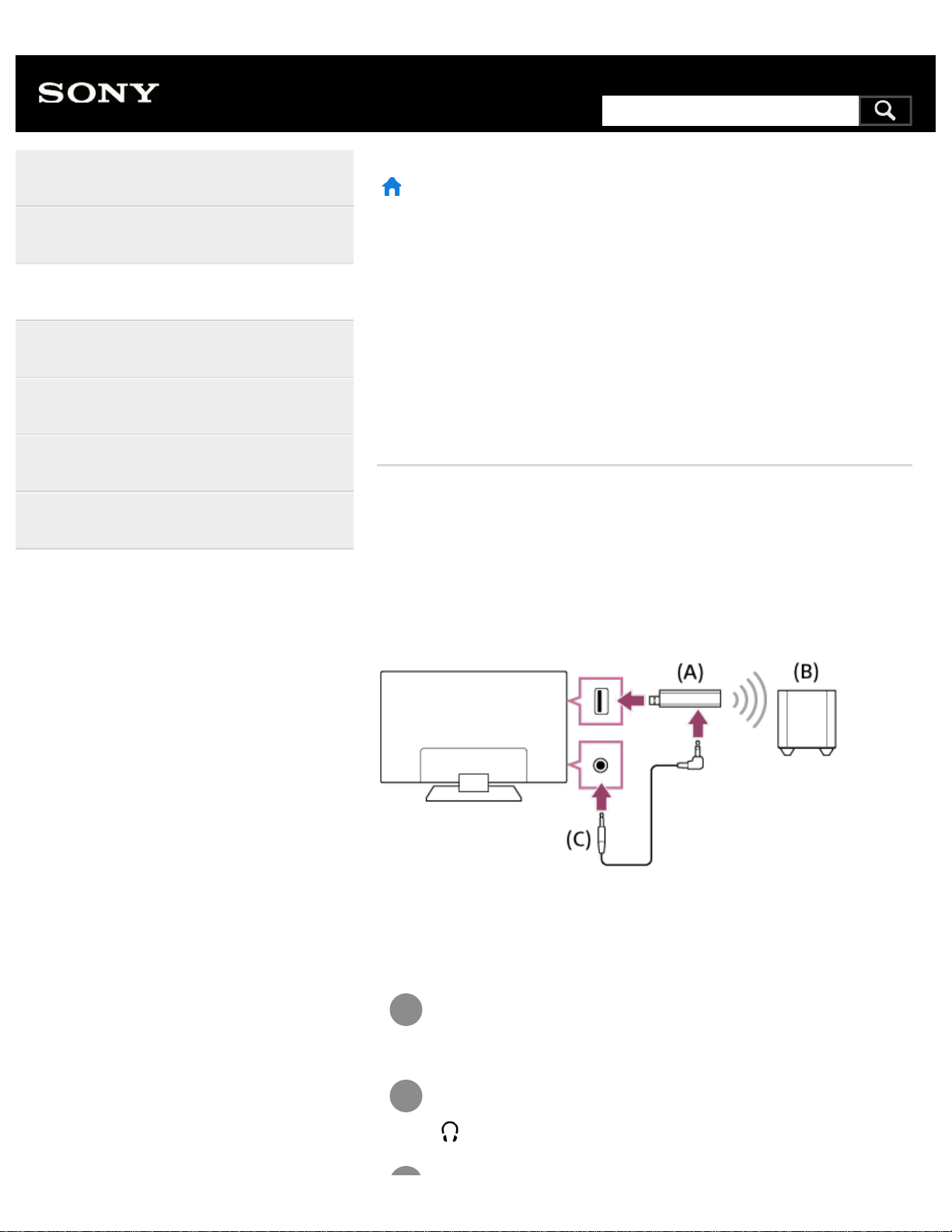
1
2
>
Using the TV with Other Devices
>
Sony wireless subwoofer (optional) (Sony wireless subwoofer supported models
only)
>
Connecting a wireless subwoofer (optional)
Print
Connecting a wireless subwoofer
(optional)
You can use the optional Wireless Subwoofer SWF-BR100 to extend the
bass response of the TV’s sound.
The availability of this feature depends on your model/region/country.
TVs that support the Wireless Subwoofer indicate “SWF-BR100” in the
specifications section of the Reference Guide.
(A) Wireless Transceiver
(B) Wireless Subwoofer SWF-BR100
(C) Audio cable
Connect the audio cable (supplied) to the Wireless
Transceiver.
Connect the other end of the audio cable to the AUDIO OUT /
jack (socket) of the TV.
Help Guide
Getting Started
Watching TV
Using the TV with Other Devices
Connecting to a Network
Settings
Troubleshooting
Index
309
Search
3
4
Connect the Wireless Transceiver to the USB port of the TV.
[Headphone/Audio out] is automatically set to [Subwoofer].
Position the Wireless Subwoofer and connect it to the AC
power.
We recommend that the Wireless Subwoofer be placed as
close as possible to the TV.
Hint
When the Wireless Transceiver is disconnected, [Headphone/Audio
out] is automatically restored to its original setting.
For details on how to set up the Wireless Subwoofer, refer to the
instruction manual supplied with the Wireless Subwoofer.
Related topics
Adjusting wireless subwoofer-related settings (optional)
>
Using the TV with Other Devices
>
Sony wireless subwoofer (optional) (Sony wireless subwoofer supported models
only)
>
Connecting a wireless subwoofer (optional)
Go to page top
C-654-100-12(1)
Copyright 2016 Sony Corporation
310
1
>
Using the TV with Other Devices
>
Sony wireless subwoofer (optional) (Sony wireless subwoofer supported models
only)
>
Adjusting wireless subwoofer-related settings (optional)
Print
Adjusting wireless subwoofer-related
settings (optional)
Sony wireless subwoofer supported models have [Wireless Subwoofer
power] in [Settings] — [Sound] — [Sound adjustments].
The sound settings of the Wireless Subwoofer have already been set to
the recommended values for your TV. Follow the instructions below to
change the settings to suit your preferences.
Press the HOME button, then select [Settings] — [Sound] —
[Sound adjustments] — [Advanced settings] — [Sound mode
related] — [Wireless Subwoofer].
Available Options
[Wireless Subwoofer level]
Adjusts the volume level of the Wireless Subwoofer.
[Cut off frequency (50-200Hz)]
Adjusts the cutoff frequency of the Wireless Subwoofer. All frequencies
below the cutoff frequency are output to the Wireless Subwoofer.
[Phase]
Sets the phase polarity. Select the setting to suit your preference.
[Wireless Subwoofer sync]
Adjusts the time lag of the Wireless Subwoofer sound. If the sound
produced by the Wireless Subwoofer is too late, use [+]; if it is too early,
use [-].
Help Guide
Getting Started
Watching TV
Using the TV with Other Devices
Connecting to a Network
Settings
Troubleshooting
Index
311
Search
1
[Reset Wireless Subwoofer settings]
Resets the Wireless Subwoofer settings to their initial values.
To set the power control method of the Wireless Subwoofer
Press the HOME button, then select [Settings] — [Sound] —
[Sound adjustments] — [Wireless Subwoofer power].
Related topics
Connecting a wireless subwoofer (optional)
>
Using the TV with Other Devices
>
Sony wireless subwoofer (optional) (Sony wireless subwoofer supported models
only)
>
Adjusting wireless subwoofer-related settings (optional)
Go to page top
C-654-100-12(1)
Copyright 2016 Sony Corporation
312
>
Using the TV with Other Devices
> BRAVIA Sync-compatible devices
>
Using features available for BRAVIA Sync-compatible devices
Print
Using features available for BRAVIA
Sync-compatible devices
The [Sync Menu] is primarily used to operate BRAVIA Sync-compatible
devices from the TV.
Press the ACTION MENU button, and select [Sync Menu].
Blu-ray/DVD player
Automatically turns the Blu-ray/DVD player on and switches the input
to the Blu-ray/DVD player when you select it from the Home Menu or
Sync Menu.
Automatically turns the TV on and switches the input to the connected
Blu-ray/DVD player when the Blu-ray/DVD player starts to play.
Automatically turns the connected Blu-ray/DVD player off when you
turn the TV off.
Controls menu operation ( / / / buttons), playback
(e.g.,
button), and channel selection of the connected Blu-
ray/DVD player through the TV’s remote control.
AV amplifier
Automatically turns the connected AV amplifier on and switches the
sound output from the TV speaker to the audio system when you turn
the TV on. This function is only available if you have previously used
the AV amplifier to output the TV’s sound.
Automatically switches the sound output to the AV amplifier by turning
the AV amplifier on when the TV is turned on.
Automatically turns the connected AV amplifier off when you turn the
Help Guide
Getting Started
Watching TV
Using the TV with Other Devices
Connecting to a Network
Settings
Troubleshooting
Index
313
Search
TV off.
Adjusts the volume ( +/– buttons) and mutes the sound (
button) of the connected AV amplifier through the TV’s remote control.
Video camera
Automatically turns the TV on and switches the input to the connected
video camera when the camera is turned on.
Automatically turns the connected video camera off when you turn the
TV off.
Controls menu operation ( / / / buttons), playback
(e.g.,
button) of the connected video camera through the TV’s
remote control.
Note
“BRAVIA Sync control” (BRAVIA Sync) is only available for
connected BRAVIA Sync-compatible devices that have the BRAVIA
Sync logo.
Related topics
BRAVIA Sync overview
Adjusting BRAVIA Sync settings
>
Using the TV with Other Devices
> BRAVIA Sync-compatible devices
>
Using features available for BRAVIA Sync-compatible devices
Go to page top
C-654-100-12(1)
Copyright 2016 Sony Corporation
314
1
2
3
>
Using the TV with Other Devices
> BRAVIA Sync-compatible devices
>
Adjusting BRAVIA Sync settings
Print
Adjusting BRAVIA Sync settings
Turn on the connected device.
To enable [BRAVIA Sync control], press the HOME button,
then select [Settings] — [External inputs] — [BRAVIA Sync
settings] — [BRAVIA Sync control].
Activate BRAVIA Sync on the connected device.
When a specific Sony BRAVIA Sync-compatible device is
connected and powered on and [BRAVIA Sync control] is
enabled, BRAVIA Sync is automatically activated on that
device. For details, refer to the instruction manual of the
connected device.
Available options
Available options are shown below. (Options vary depending on your
model/region/country.)
[Device auto power off]
If disabled, the connected device does not turn off automatically when the
TV is turned off.
[TV auto power on]
If disabled, the TV does not turn on automatically when the connected
device is turned on.
[Auto input change (MHL)] (MHL supported models only)
If enabled, the TV input automatically switches to the corresponding
device connected using an MHL cable.
Help Guide
Getting Started
Watching TV
Using the TV with Other Devices
Connecting to a Network
Settings
Troubleshooting
Index
315
Search
1
[BRAVIA Sync device list]
Displays the BRAVIA Sync device list.
[Device control keys]
Allows you to set buttons to control an HDMI or MHL (MHL supported
models only) connected device.
[Charge MHL during power off] (MHL supported models only)
If enabled, the TV can charge the connected MHL device when the TV is
in standby mode.
To use the Sync Menu
Press the SYNC MENU button, then select the desired item in
the Sync Menu.
Hint
If you press the SYNC MENU button, the promotion screen is
displayed in the following situations:
An HDMI or MHL (MHL supported models only) device is not
connected.
[BRAVIA Sync control] is disabled.
Related topics
BRAVIA Sync overview
Using features available for BRAVIA Sync-compatible devices
>
Using the TV with Other Devices
> BRAVIA Sync-compatible devices
>
Adjusting BRAVIA Sync settings
Go to page top
C-654-100-12(1)
Copyright 2016 Sony Corporation
316
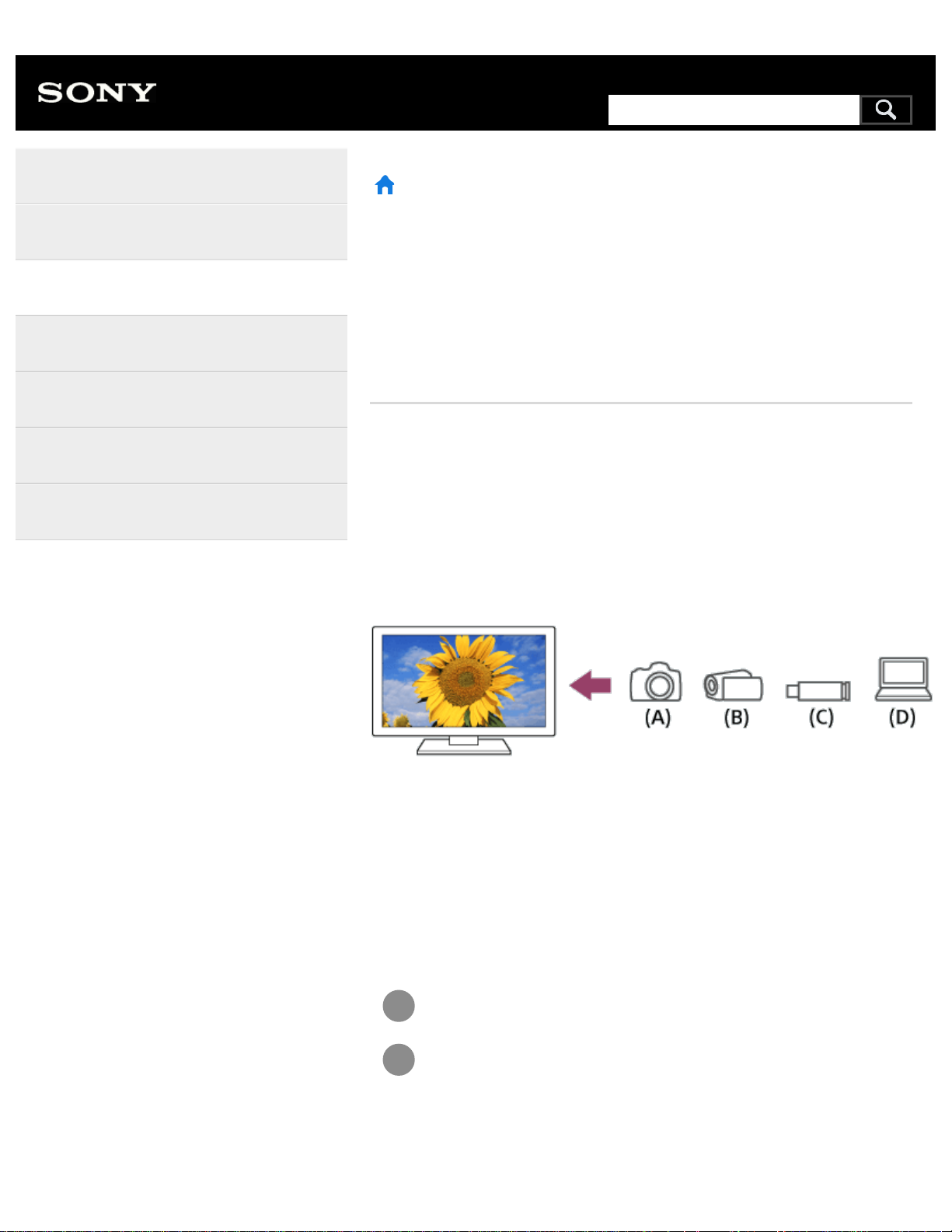
1
2
>
Using the TV with Other Devices
> Viewing pictures in 4K from compatible devices (4K models only)
>
Viewing pictures in 4K resolution (4K models only)
Print
Viewing pictures in 4K resolution (4K
models only)
A picture with a 4K or higher resolution can be displayed in 4K resolution
(3840×2160). You can connect a digital still camera/camcorder that supports
HDMI 4K output to HDMI IN of the TV to display high resolution photos
stored on the camera. You can also display high resolution photos stored in
connected USB devices or your home network.
The availability of this function depends on your region/country.
(A) Digital still camera
(B) Camcorder
(C) USB device
(D) Network device
To view pictures stored on a USB device or network device in
4K resolution
Connect the USB device or network device to the TV.
Press the HOME button, then select [Album] — the USB device,
server, or preset folder containing the file to play — the folder
or file from the list.
If you select a folder, select the file.
Help Guide
Getting Started
Watching TV
Using the TV with Other Devices
Connecting to a Network
Settings
Troubleshooting
Index
317
Search
1
2
3
4
To view pictures stored on a digital still camera/camcorder
Connect a digital still camera or camcorder that supports HDMI
output to the HDMI IN jack (socket) of the TV, using an HDMI
cable.
Press the INPUT button repeatedly to select the connected
device.
Set the connected device to 4K output.
Start playback on the connected device.
To check the supported file formats
Supported files and formats
To view pictures in 4K resolution with higher quality
You can set the HDMI signal format to [Enhanced format] to view pictures in
4K resolution with higher quality.
For information about Enhanced format or changing the settings, refer to the
Settings for viewing pictures in 4K resolution with higher quality (4K models
only)
page.
Note
A 3D picture cannot be displayed.
If you change the picture by pressing the / buttons, it may
take time to display.
Related topics
Computers, cameras, and camcorders
USB devices
Connecting to a Network
>
Using the TV with Other Devices
> Viewing pictures in 4K from compatible devices (4K models only)
318

>
Using the TV with Other Devices
> Viewing pictures in 4K from compatible devices (4K models only)
>
Settings for viewing pictures in 4K resolution with higher quality (4K models only)
Print
Settings for viewing pictures in 4K
resolution with higher quality (4K
models only)
When you display the High-Quality 4K format with the HDMI input, set
[HDMI signal format] in [External inputs].
HDMI signal format
To change the HDMI signal format setting, press the HOME button, then
select [Settings] — [External inputs] — [HDMI signal format].
Standard format
Standard HDMI format for normal use.
Enhanced format
High-Quality HDMI format . Set only when using capable devices.
HDR included (HDR models only). HDR models have [HDR mode] in
[Settings] — [Picture & Display] — [Picture adjustments] — [Advanced
settings] — [Video options].
4K 60p 4:2:0 10bit, 4:4:4:, 4:2:2 etc.
Note
When using [Enhanced format], picture and sound may not be
output correctly. In this case, connect the device to an HDMI IN that
is in [Standard format], or change the HDMI signal format of HDMI
IN to [Standard format].
Set to [Enhanced format] only when using compatible devices.
Help Guide
Getting Started
Watching TV
Using the TV with Other Devices
Connecting to a Network
Settings
Troubleshooting
Index
*1
*1*2
*1
*2
320
Search
When you watch 4K picture with High-Quality, use a Premium High
Speed HDMI Cable(s) that supports speeds of 18 Gbps. For details
on a Premium High Speed HDMI Cable(s) that supports 18 Gbps,
refer to the cable specifications.
In some models, the HDMI signal format of HDMI IN 2 and 3
changes at the same time.
Related topics
Viewing pictures in 4K resolution (4K models only)
>
Using the TV with Other Devices
> Viewing pictures in 4K from compatible devices (4K models only)
>
Settings for viewing pictures in 4K resolution with higher quality (4K models only)
Go to page top
C-654-100-12(1)
Copyright 2016 Sony Corporation
321
>
Connecting to a Network
>
Home network features
>
Adjusting home network settings
Print
Adjusting home network settings
You can adjust the following home network settings.
To check the server connection
Press the HOME button, then select [Settings] — [Network] — [Home
network] — [Server diagnostics] — follow the on-screen instructions to
perform diagnostics.
To use the renderer function
Press the HOME button, then select [Settings] — [Network] — [Home
network] — [Renderer] — the desired option.
[Renderer]
Enable the renderer function.
You can play photo/music/video files in a controller (e.g., digital still
camera) on the TV screen by operating the device directly.
[Renderer access control]
Select [Auto access permission] to access the TV automatically when
a controller accesses the TV for the first time.
Select [Custom settings] to change the access permission settings of
each controller.
To use the remote device
Press the HOME button, then select [Settings] — [Network] — [Remote
device settings] — the desired option.
[Control remotely]
Enable operation of the TV from a registered device.
Help Guide
Getting Started
Watching TV
Using the TV with Other Devices
Connecting to a Network
Settings
Troubleshooting
Index
322
Search

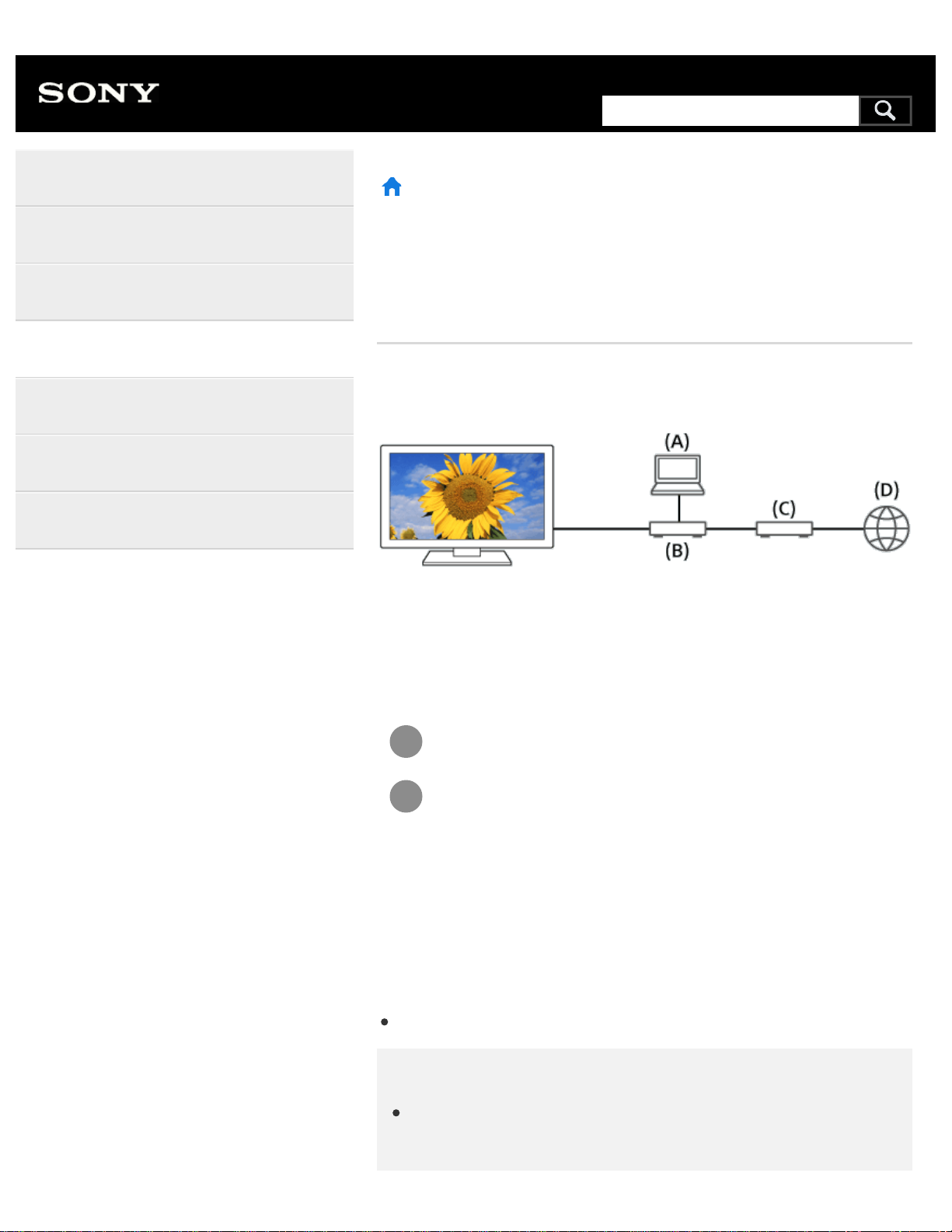
1
2
>
Connecting to a Network
>
Home network features
>
Playing content from a computer
Print
Playing content from a computer
You can play photo/music/video files stored on a server (e.g., computer)
that is connected to the same home network that the TV is connected to.
(A) Computer (Server)
(B) Router
(C) Modem
(D) Internet
Connect the TV to your home network.
Press the HOME button, then select [Album], [Video], or
[Music] — the server containing the file to play — the folder
or file from the list.
If you select a folder, select the desired file.
Playback starts.
To check the supported file formats
Supported files and formats
Note
Depending on the file, playback may not be possible even when
using the supported formats.
Help Guide
Getting Started
Watching TV
Using the TV with Other Devices
Connecting to a Network
Settings
Troubleshooting
Index
324
Search
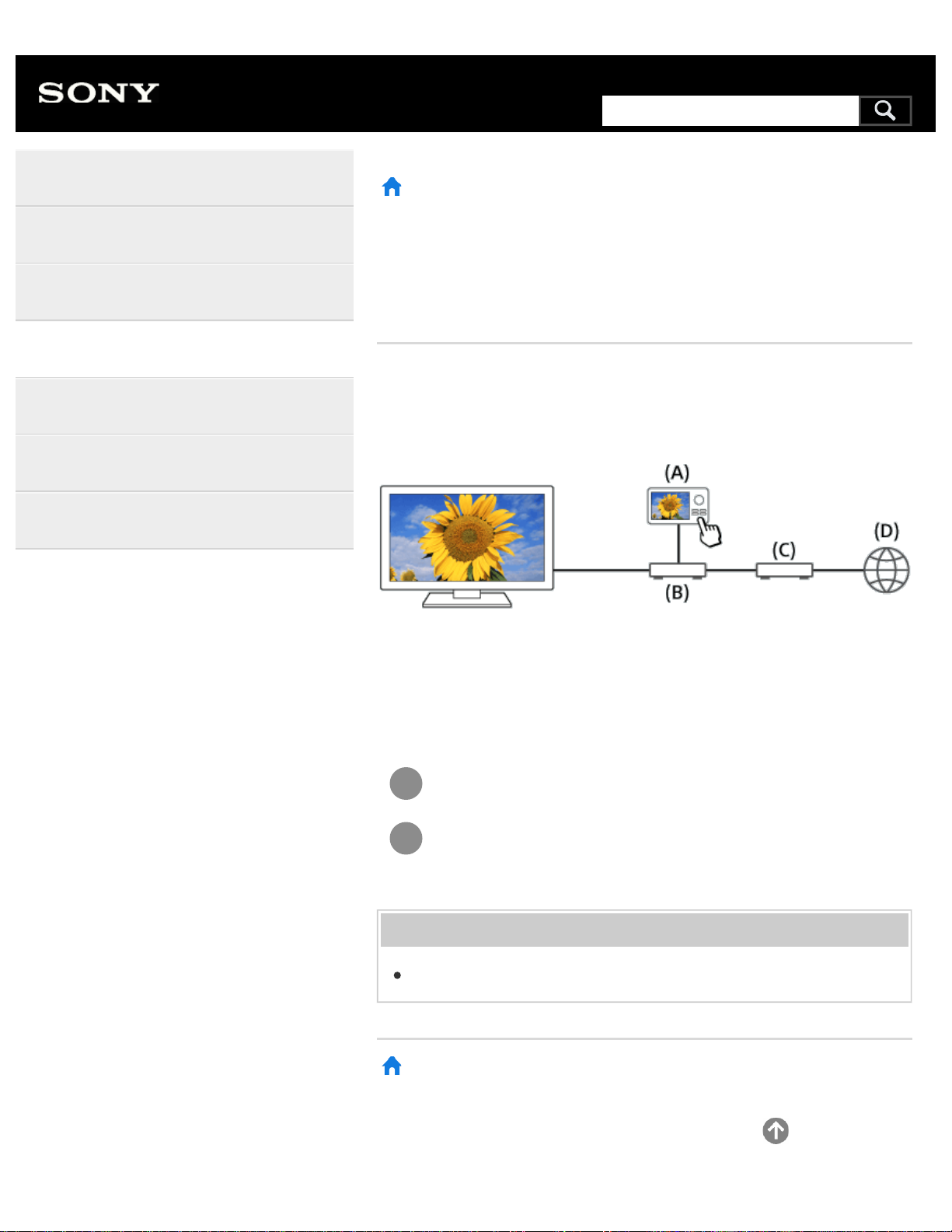
1
2
>
Connecting to a Network
>
Home network features
>
Playing content from a media server
Print
Playing content from a media server
You can play photo/music/video files in a controller (e.g., digital still
camera) on the TV screen by operating the controller directly. The
controller should also be renderer-compatible.
(A) Digital still camera (Controller)
(B) Router
(C) Modem
(D) Internet
Connect the TV to your home network.
Operate the controller to start playing the content on the TV
screen.
Related topics
Adjusting home network settings
>
Connecting to a Network
>
Home network features
>
Playing content from a media server
Go to page top
Help Guide
Getting Started
Watching TV
Using the TV with Other Devices
Connecting to a Network
Settings
Troubleshooting
Index
326
Search
>
Connecting to a Network
>
Home network features
>
RVU statement (RVU compliant models only)
Print
RVU statement (RVU compliant
models only)
RVU compliant models have [RVU] in [Settings] — [External inputs] —
[Manage inputs].
Your TV is equipped with RVU technology which may allow it to connect
to compatible satellite receivers over your home network without the need
for a dedicated box. Contact your satellite provider for additional
information.
>
Connecting to a Network
>
Home network features
>
RVU statement (RVU compliant models only)
Go to page top
Help Guide
Getting Started
Watching TV
Using the TV with Other Devices
Connecting to a Network
Settings
Troubleshooting
Index
C-654-100-12(1)
Copyright 2016 Sony Corporation
327
Search
>
Settings
>
Configuring the TV
>
[Network & Accessories]
Print
[Network & Accessories]
Press the HOME button, then select [Settings] — [Network &
Accessories] — the desired option.
Available options
[Network]
Sets up and checks the network and server connections.
[Google Cast]
Displays information about the Google Cast feature.
[Bluetooth settings]
Setup for registering/deregistering Bluetooth devices.
[Touchpad Remote Control settings]/[Voice Remote Control]
Setup for pairing the Touchpad Remote Control/Voice Remote Control.
The setting displayed varies depending on your model.
>
Settings
>
Configuring the TV
>
[Network & Accessories]
Go to page top
Help Guide
Getting Started
Watching TV
Using the TV with Other Devices
Connecting to a Network
Settings
Troubleshooting
Index
C-654-100-12(1)
Copyright 2016 Sony Corporation
328
Search
>
Settings
>
Configuring the TV
>
[Accounts]
Print
[Accounts]
Press the HOME button, then select [Settings] — [Accounts] — the
desired option.
[Google]
Syncs the registered Google account or removes the account.
[Add account]
Adds various service accounts such as Google accounts and Sony
Entertainment Network (SEN) accounts. You can add multiple Google
accounts and switch between them depending on the app.
>
Settings
>
Configuring the TV
>
[Accounts]
Go to page top
Help Guide
Getting Started
Watching TV
Using the TV with Other Devices
Connecting to a Network
Settings
Troubleshooting
Index
C-654-100-12(1)
Copyright 2016 Sony Corporation
329
Search
>
Using the TV with Other Devices
>
USB devices
>
Supported files and formats
>
Photos
Print
Photos
Use case : USB / Home Network
File Format Extension
JPEG *.jpg / *.jpe / *.jpeg
Other supported files and formats
Music
Videos
Audio sampling rates (for videos)
External subtitles
>
Using the TV with Other Devices
>
USB devices
>
Supported files and formats
>
Photos
Go to page top
Help Guide
Getting Started
Watching TV
Using the TV with Other Devices
Connecting to a Network
Settings
Troubleshooting
Index
C-654-100-12(1)
Copyright 2016 Sony Corporation
330
Search
>
Using the TV with Other Devices
>
USB devices
>
Supported files and formats
>
Music
Print
Music
Use case : USB / Home Network
mp4
Extension Description Sampling Rate
*.mp4 / *.m4a AAC-LC 16k / 22.05k / 24k / 32k / 44.1k / 48k
HE-AAC v1 / v2 24k / 32k / 44.1k / 48k
3gpp
Extension Description Sampling Rate
*.3gp / *.3g2 AAC-LC 16k / 22.05k / 24k / 32k / 44.1k / 48k
HE-AAC v1 / v2 24k / 32k / 44.1k / 48k
Asf
Extension Description Sampling Rate
*.wma WMA9
Standard
8k / 11.025k / 16k / 22.05k / 32k / 44.1k /
48k
Other
Extension Description Sampling Rate
- LPCM 32k / 44.1k / 48k
Help Guide
Getting Started
Watching TV
Using the TV with Other Devices
Connecting to a Network
Settings
Troubleshooting
Index
*1
331
Search
*.mp3 MP1L1 / MP1L2 /
MP1L3 / MP2L1 /
MP2L2
MP2L3 16k / 22.05k / 24k
MP2.5L3 8k / 11.025k / 12k
*.wav WAV 32k / 44.1k / 48k / 88.2k / 96k /
176.4k / 192k
*.flac FLAC 16k / 22.05k / 32k / 44.1k / 48k /
88.2k / 96k / 176.4k / 192k
The use case of LPCM is Home Network only.
The use case of WAV is 2ch only.
Other supported files and formats
Photos
Videos
Audio sampling rates (for videos)
External subtitles
>
Using the TV with Other Devices
>
USB devices
>
Supported files and formats
>
Music
Go to page top
C-654-100-12(1)
Copyright 2016 Sony Corporation
*2
*1
*2
332
>
Using the TV with Other Devices
>
USB devices
>
Supported files and formats
>
Videos
Print
Videos
Use case : USB / Home Network
MPEG1 (*.mpg / *.mpe / *.mpeg)
Subtitle Type : External
Video Codec (Profile@Level)
: MPEG1
Audio Codec
: MPEG1L2
Max. / Min. Resolution
: 1920x1080 / QCIF (176x144)
Max. Frame Rate
: 1920x1080@30fps / 1280x720@60fps
MPEG2PS (*.mpg / *.mpe / *.mpeg)
Subtitle Type : External
Video Codec (Profile@Level)
: MPEG2 MP@HL, MP@H14L,
MP@ML
Audio Codec
: MPEG1L1 / MPEG1L2 / LPCM / AC3
Max. / Min. Resolution
: 1920x1080 / QCIF (176x144)
Max. Frame Rate
: 1920x1080@30fps / 1280x720@60fps
MPEG2TS
Extension : *.m2t
Subtitle Type : Internal (Except for Brazilian models) / - (For Brazilian
models only)
Video Codec (Profile@Level)
: MPEG2 MP@HL, MP@H14L,
Help Guide
Getting Started
Watching TV
Using the TV with Other Devices
Connecting to a Network
Settings
Troubleshooting
Index
333
Search

MP@ML
Audio Codec
: MPEG1L1 / MPEG1L2 / AAC-LC / HE-AAC v1 / HE-
AAC v2 / AC3 / E-AC3
Max. / Min. Resolution
: 1920x1080 / QCIF (176x144)
Max. Frame Rate
: 1920x1080@30fps / 1280x720@60fps
Extension : *.m2ts / *.mts
Subtitle Type : -
Video Codec (Profile@Level)
: AVC / H.264 BP@L3, [email protected],
Audio Codec
: MPEG1L1 / MPEG1L2 / AAC-LC / HE-AAC v1 / HE-
AAC v2 / AC3 / E-AC3
Max. / Min. Resolution
: 1920x1080 / QCIF (176x144)
Max. Frame Rate
: 1920x1080@60fps
MP4 (*.mp4): For 2K models
Subtitle Type : External
Video Codec (Profile@Level)
: AVC / H.264 BP@L3, [email protected],
Audio Codec
: AAC-LC / HE-AAC v1 / HE-AAC v2 / AC3 / E-AC3 /
MPEG1L1 / MPEG1L2
Max. / Min. Resolution
: 1920x1080 / QCIF (176x144)
Max. Frame Rate
: 1920x1080@120fps
Video Codec (Profile@Level)
: MPEG4 SP@L6, ASP@L5,
ACEP@L4
Audio Codec
: AAC-LC / HE-AAC v1 / HE-AAC v2 / AC3 / E-AC3 /
MPEG1L1 / MPEG1L2
Max. / Min. Resolution
: 1920x1080 / QCIF (176x144)
Max. Frame Rate
: 1920x1080@30fps / 1280x720@60fps
MP4 (*.mp4): For 4K models
Subtitle Type : External
Video Codec (Profile@Level)
: AVC / H.264 BP@L3, [email protected],
334

Audio Codec
: AAC-LC / HE-AAC v1 / HE-AAC v2 / AC3 / E-AC3 /
MPEG1L1 / MPEG1L2
Max. / Min. Resolution
: 1920x1080 / QCIF (176x144)
Max. Frame Rate
: 1920x1080@120fps
Video Codec (Profile@Level)
: MPEG4 SP@L6, ASP@L5,
ACEP@L4
Audio Codec
: AAC-LC / HE-AAC v1 / HE-AAC v2 / AC3 / E-AC3 /
MPEG1L1 / MPEG1L2
Max. / Min. Resolution
: 1920x1080 / QCIF (176x144)
Max. Frame Rate
: 1920x1080@30fps / 1280x720@60fps
Video Codec (Profile@Level)
: AVC / H.264 [email protected], [email protected],
Audio Codec
: AAC-LC / HE-AAC v1 / HE-AAC v2 / AC3 / E-AC3 /
LPCM
Max. / Min. Resolution
: 3840x2160 / QCIF (176x144)
Max. Frame Rate
: 3840x2160@60p / 1920x1080@120fps
Video Codec (Profile@Level)
: HEVC / H.265 [email protected],
Audio Codec
: AAC-LC / HE-AAC v1 / HE-AAC v2 / AC3 / E-AC3
Max. / Min. Resolution
: 3840x2160 / QCIF (176x144)
Max. Frame Rate
: 3840x2160@60p
This line includes the XAVC S format use case. The maximum
supported bitrate for XAVC S is 100 Mbps.
avi (*.avi)
Subtitle Type : External
Video Codec (Profile@Level)
: Xvid
Audio Codec
: MPEG1L1 / MPEG1L2 / MPEG1L3 / AC3 / E-AC3
Max. / Min. Resolution
: 1920x1080 / QCIF (176x144)
Max. Frame Rate
: 1920x1080@30fps / 1280x720@60fps
Video Codec (Profile@Level)
: Motion JPEG
*1
*1
335

Audio Codec
: μ-LAW / PCM (U8) / PCM (S16LE)
Max. / Min. Resolution
: 1280x720 / QCIF (176x144)
Max. Frame Rate
: 1280x720@30fps
Asf (*.asf / *.wmv)
Subtitle Type : External
Video Codec (Profile@Level)
: VC1 AP@L3, MP@HL, SP@ML
Audio Codec
: WMA9 Standard
Max. / Min. Resolution
: 1920x1080 / QCIF (176x144)
Max. Frame Rate
: 1920x1080@30fps / 1280x720@60fps
MKV (*.mkv): For 2K models
Subtitle Type : Internal / External
Video Codec (Profile@Level)
: Xvid
Audio Codec
: DTS core / AC3 / AAC-LC / E-AC3 / HE-AAC v1 / HE-
AAC v2 / MPEG1L1 / MPEG1L2 / Vorbis
Max. / Min. Resolution
: 1920x1080 / QCIF (176x144)
Max. Frame Rate
: 1920x1080@30fps / 1280x720@60fps
Video Codec (Profile@Level)
: AVC / H.264 BP@L3, [email protected],
Audio Codec
: DTS core / AC3 / AAC-LC / E-AC3 / HE-AAC v1 / HE-
AAC v2 / MPEG1L1 / MPEG1L2 / Vorbis
Max. / Min. Resolution
: 1920x1080 / QCIF (176x144)
Max. Frame Rate
: 1920x1080@60fps
Video Codec (Profile@Level)
: MPEG4 SP@L6, ASP@L5,
ACEP@L4
Audio Codec
: DTS core / AC3 / AAC-LC / E-AC3 / HE-AAC v1 / HE-
AAC v2 / MPEG1L1 / MPEG1L2 / Vorbis
Max. / Min. Resolution
: 1920x1080 / QCIF (176x144)
Max. Frame Rate
: 1920x1080@30fps / 1280x720@60fps
Video Codec (Profile@Level)
: VP8
Audio Codec
: DTS core / AC3 / AAC-LC / E-AC3 / HE-AAC v1 / HE-
336

AAC v2 / MPEG1L1 / MPEG1L2 / Vorbis
Max. / Min. Resolution
: 1920x1080 / QCIF (176x144)
Max. Frame Rate
: 1920x1080@30fps / 1280x720@60fps
MKV (*.mkv): For 4K models
Subtitle Type : Internal / External
Video Codec (Profile@Level)
: Xvid
Audio Codec
: DTS core / AC3 / AAC-LC / E-AC3 / HE-AAC v1 / HE-
AAC v2 / MPEG1L1 / MPEG1L2 / Vorbis
Max. / Min. Resolution
: 1920x1080 / QCIF (176x144)
Max. Frame Rate
: 1920x1080@30fps / 1280x720@60fps
Video Codec (Profile@Level)
: AVC / H.264 BP@L3, [email protected],
Audio Codec
: DTS core / AC3 / AAC-LC / E-AC3 / HE-AAC v1 / HE-
AAC v2 / MPEG1L1 / MPEG1L2 / Vorbis
Max. / Min. Resolution
: 1920x1080 / QCIF (176x144)
Max. Frame Rate
: 1920x1080@60fps
Video Codec (Profile@Level)
: MPEG4 SP@L6, ASP@L5,
ACEP@L4
Audio Codec
: DTS core / AC3 / AAC-LC / E-AC3 / HE-AAC v1 / HE-
AAC v2 / MPEG1L1 / MPEG1L2 / Vorbis
Max. / Min. Resolution
: 1920x1080 / QCIF (176x144)
Max. Frame Rate
: 1920x1080@30fps / 1280x720@60fps
Video Codec (Profile@Level)
: VP8
Audio Codec
: DTS core / AC3 / AAC-LC / E-AC3 / HE-AAC v1 / HE-
AAC v2 / MPEG1L1 / MPEG1L2 / Vorbis
Max. / Min. Resolution
: 1920x1080 / QCIF (176x144)
Max. Frame Rate
: 1920x1080@30fps / 1280x720@60fps
Video Codec (Profile@Level)
: AVC / H.264 [email protected], [email protected],
Audio Codec
: DTS core / AC3 / AAC-LC / E-AC3 / HE-AAC v1 / HE-
AAC v2
Max. / Min. Resolution
:
3840x2160 / QCIF (176x144)
337

Max. Frame Rate
: 3840x2160@60p
Video Codec (Profile@Level)
: HEVC / H.265 [email protected],
Audio Codec
: DTS core / AC3 / AAC-LC / E-AC3 / HE-AAC v1 / HE-
AAC v2
Max. / Min. Resolution
: 3840x2160 / QCIF (176x144)
Max. Frame Rate
: 3840x2160@60p
3gpp (*.3gp / *.3g2)
Subtitle Type : External
Video Codec (Profile@Level)
: MPEG4 SP@L6, ASP@L5,
ACEP@L4
Audio Codec
: AAC-LC / HE-AAC v1 / HE-AAC v2 / AC3 / E-AC3 /
MPEG1L1 / MPEG1L2
Max. / Min. Resolution
: 1920x1080 / QCIF (176x144)
Max. Frame Rate
: 1920x1080@30fps / 1280x720@60fps
Video Codec (Profile@Level)
: AVC / H.264 BP@L3, [email protected],
Audio Codec
: AAC-LC / HE-AAC v1 / HE-AAC v2 / AC3 / E-AC3 /
MPEG1L1 / MPEG1L2
Max. / Min. Resolution
: 1920x1080 / QCIF (176x144)
Max. Frame Rate
: 1920x1080@60fps
MOV (*.mov)
Subtitle Type : External
Video Codec (Profile@Level)
: AVC / H.264 BP@L3, [email protected],
Audio Codec
: AAC-LC / HE-AAC v1 / HE-AAC v2 / AC3 / E-AC3 /
MPEG1L1 / MPEG1L2 / μ-LAW / PCM (U8) / PCM (S16BE) / PCM
(S16LE)
Max. / Min. Resolution
: 1920x1080 / QCIF (176x144)
Max. Frame Rate
: 1920x1080@60fps
338
Video Codec (Profile@Level)
: MPEG4 SP@L6, ASP@L5,
ACEP@L4
Audio Codec
: AAC-LC / HE-AAC v1 / HE-AAC v2 / AC3 / E-AC3 /
MPEG1L1 / MPEG1L2 / μ-LAW / PCM (U8) / PCM (S16BE) / PCM
(S16LE)
Max. / Min. Resolution
: 1920x1080 / QCIF (176x144)
Max. Frame Rate
: 1920x1080@30fps / 1280x720@60fps
Video Codec (Profile@Level)
: Motion JPEG
Audio Codec
: AAC-LC / HE-AAC v1 / HE-AAC v2 / AC3 / E-AC3 /
MPEG1L1 / MPEG1L2 / μ-LAW / PCM (U8) / PCM (S16BE) / PCM
(S16LE)
Max. / Min. Resolution
: 1280x720 / QCIF (176x144)
Max. Frame Rate
: 1280x720@30fps
WebM (*.webm)
Subtitle Type : Internal / External
Video Codec (Profile@Level)
: VP8
Audio Codec
: Vorbis
Max. / Min. Resolution
: 1920x1080 / QCIF (176x144)
Max. Frame Rate
: 1920x1080@30fps / 1280x720@60fps
Other supported files and formats
Photos
Music
Audio sampling rates (for videos)
External subtitles
>
Using the TV with Other Devices
>
USB devices
>
Supported files and formats
>
Videos
Go to page top
C-654-100-12(1)
Copyright 2016 Sony Corporation
339
>
Using the TV with Other Devices
>
USB devices
>
Supported files and formats
>
Audio sampling rates (for videos)
Print
Audio sampling rates (for videos)
Audio Codec Sampling Rate
LPCM 44.1k / 48k
MPEG1L1 / MPEG1L2 32k / 44.1k / 48k
MPEG1L3
AAC-LC 16k / 22.05k / 24k / 32k / 44.1k / 48k
HE-AAC v1 / v2 24k / 32k / 44.1k / 48k
AC3 32k / 44.1k / 48k
E-AC3
Vorbis 8k / 11.025k / 16k / 22.05k / 32k / 44.1k / 48k
WMA9
DTS core 32k / 44.1k / 48k
μ-LAW 8k
PCM (U8) 8k
PCM (S16LE) 11.025k / 16k / 44.1k
PCM (S16BE)
Other supported files and formats
Photos
Music
Videos
Help Guide
Getting Started
Watching TV
Using the TV with Other Devices
Connecting to a Network
Settings
Troubleshooting
Index
340
Search

>
Using the TV with Other Devices
>
USB devices
>
Supported files and formats
>
External subtitles
Print
External subtitles
Use case : USB
File Format Extension
SubStation Alpha *.ass / *.ssa
SubRip *.srt
MicroDVD *.sub / *.txt
SubViewer *.sub
SAMI *.smi
Other supported files and formats
Photos
Music
Videos
Audio sampling rates (for videos)
>
Using the TV with Other Devices
>
USB devices
>
Supported files and formats
>
External subtitles
Go to page top
Help Guide
Getting Started
Watching TV
Using the TV with Other Devices
Connecting to a Network
Settings
Troubleshooting
Index
C-654-100-12(1)
Copyright 2016 Sony Corporation
342
Search
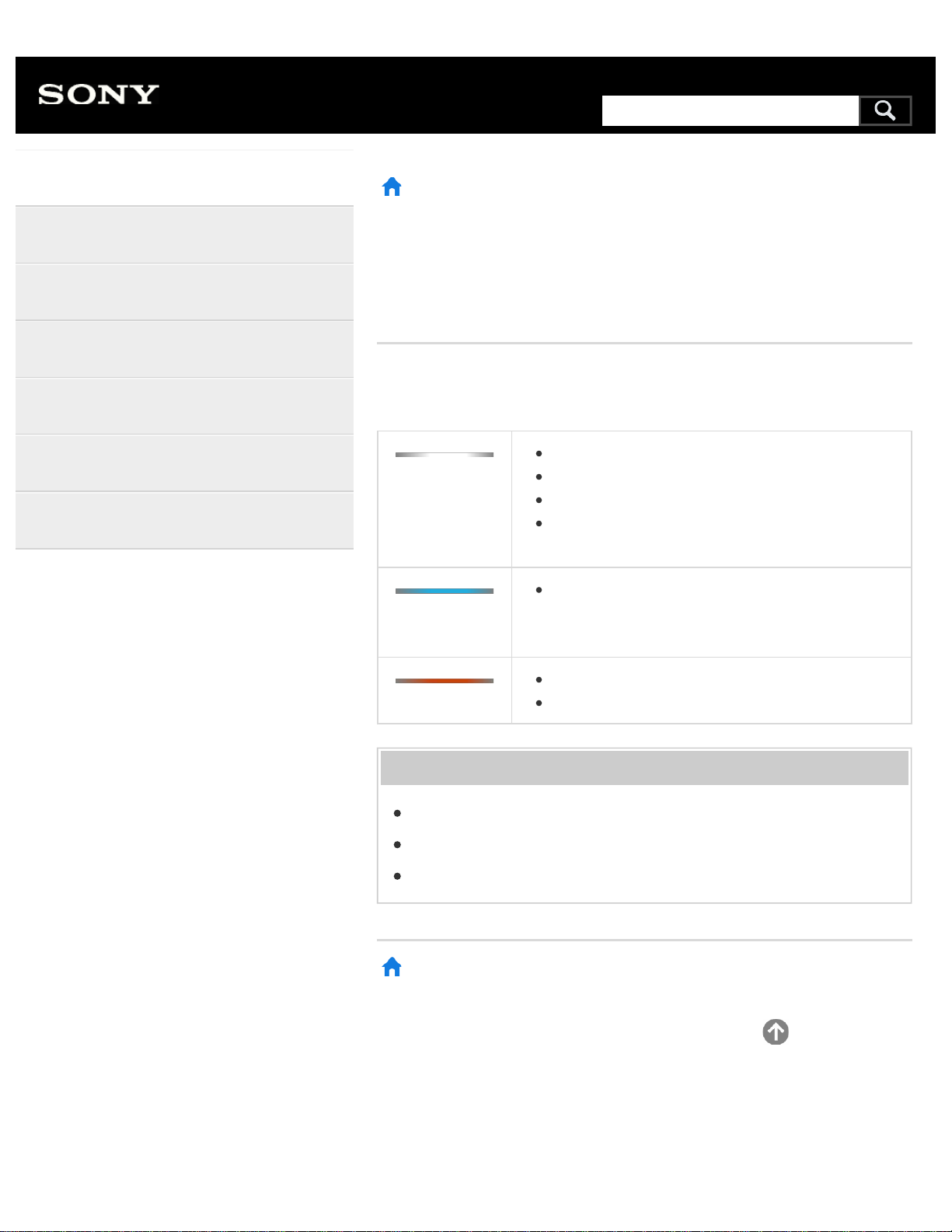
>
Getting Started
>
Basic Operations
>
Identifying the status of the TV through illumination
>
Illumination LED
Print
Illumination LED
You can identify the status of the TV by looking at how the illumination
LED lights up.
White “on” or
“blinking”
When the screen is off
When the TV is turning on
When receiving signals from the remote control
When updating the software
etc.
Cyan “blinking”
When a mobile device (smartphone, tablet, etc.) is
connecting to the TV on the home network
etc.
Amber “on”
When the on timer is set
When the sleep timer is set
Related topics
Home network features
Software updates
Setting a timer
>
Getting Started
>
Basic Operations
>
Identifying the status of the TV through illumination
>
Illumination LED
Go to page top
Help Guide
Getting Started
Watching TV
Using the TV with Other Devices
Connecting to a Network
Settings
Troubleshooting
Index
C-654-100-12(1)
Copyright 2016 Sony Corporation
343
Search
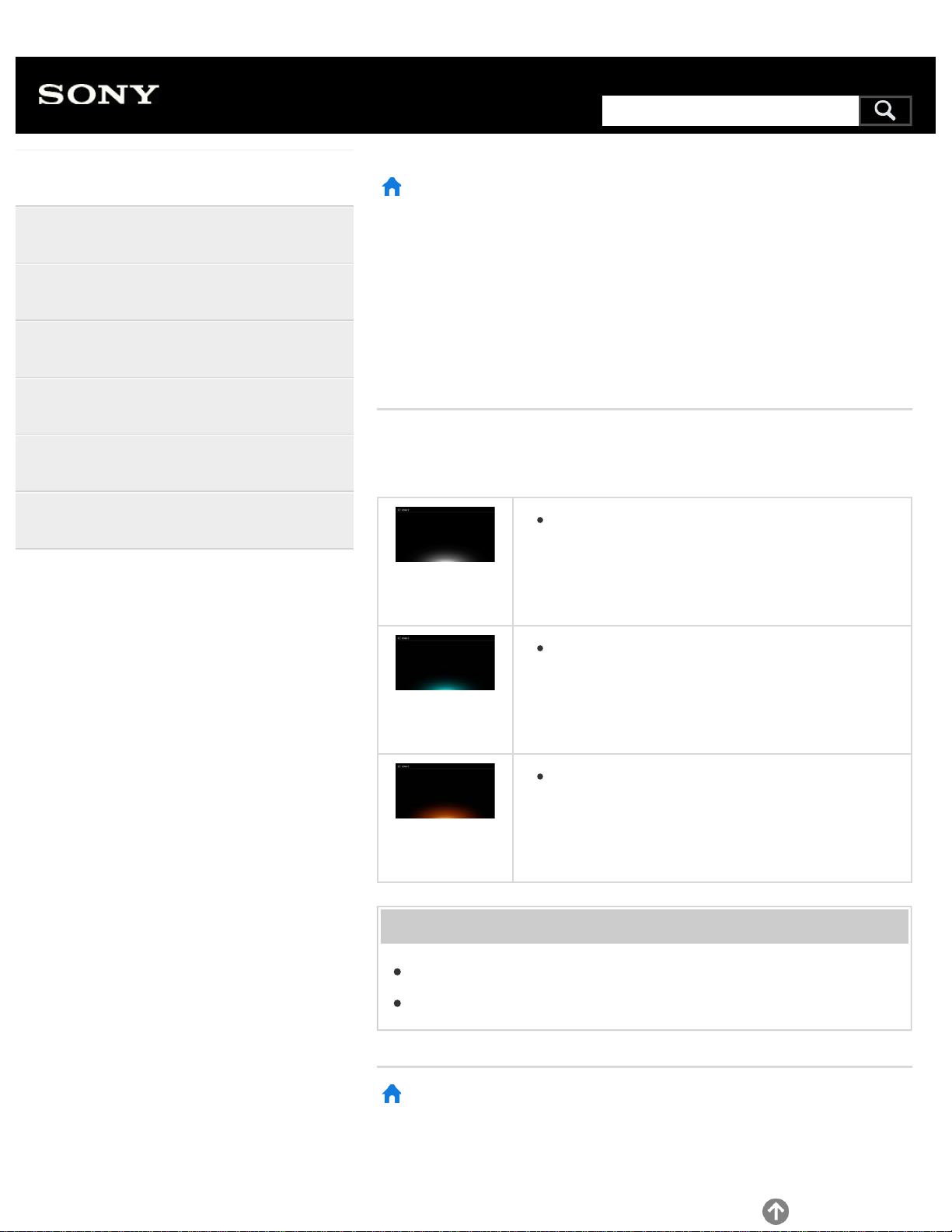
>
Getting Started
>
Basic Operations
>
Identifying the status of the TV through illumination
>
Illumination at the bottom of the screen
Print
Illumination at the bottom of the
screen
You can identify the status of the TV by looking at how the bottom of the
screen lights up.
Lights up in
white
When picture off mode is set
Lights up in
cyan
When a mobile device (smartphone, tablet, etc.) is
connecting to the TV on the home network
etc.
Lights up in
amber
When a timer is set
Related topics
Home network features
Setting a timer
>
Getting Started
>
Basic Operations
>
Identifying the status of the TV through illumination
>
Illumination at the bottom of the screen
Help Guide
Getting Started
Watching TV
Using the TV with Other Devices
Connecting to a Network
Settings
Troubleshooting
Index
344
Search