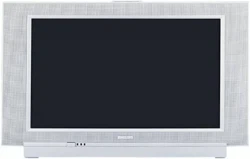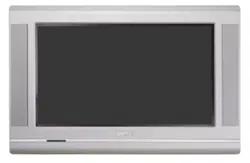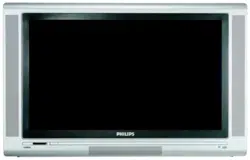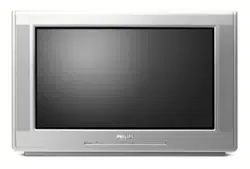
Color TV
Directions for Use
Color TV
Important!
Return your
Warranty
Registration Card
within 10 days.
See why inside.
Model No.:
Serial No.:
Need help?
Call us!
Philips representatives are ready to help you with any ques-
tions about your new product. We can guide you through
Connections, First-time Setup, or any of the Features.
We want you to start enjoying your new product right away!
CALL US BEFORE YOU CONSIDER
RETURNING THE PRODUCT.
1-800-531-0039
or
Visit us on the web at
www.philips.com
2
Once your PHILIPS purchase is registered, you’re eligible to receive all the privileges
of owning a PHILIPS product. So complete and return the Warranty Registration
Card enclosed with your purchase at once. And take advantage of these important benefits.
Return your Warranty Registration card today to ensure you
receive all the benefits you’re entitled to.
Congratulations
on your
purchase,
and welcome to the
“family!”
Dear PHILIPS product owner:
Thank you for your confidence in PHILIPS. You’ve selected one of the best-built, best-backed products avail-
able today. And we’ll do everything in our power to keep you happy with your purchase for many years to
come.
As a member of the PHILIPS “family,” you’re entitled to protection by one of the most comprehensive war-
ranties and outstanding service networks in the industry.
What’s more, your purchase guarantees you’ll receive all the information and special offers for which
you qualify, plus easy access to accessories from our convenient home shopping network.
And most importantly you can count on our uncompromising commitment to your total satisfaction.
All of this is our way of saying welcome–and thanks for investing in a PHILIPS product.
Sincerely,
Lawrence J. Blanford
Know these
safetysymbols
t This “bolt of lightning” indicates uninsulated material within your unit may cause an elec-
trical shock. For the safety of everyone in your household, please do not remove product cov-
ering.
s The “exclamation point” calls attention to features for which you should read the
enclosed literature closely to prevent operating and maintenance problems.
WARNING: TO PREVENT FIRE OR SHOCK HAZARD, DO NOT EXPOSE THIS EQUIP-
MENT TO RAIN OR MOISTURE.
CAUTION: To prevent electric shock, match wide blade of plug to wide slot, and fully insert.
ATTENTION: Pour éviter les chocs électriques, introduire la lame la plus large de la fiche dans
la borne correspondante de la prise et pousser jusqu’au fond.
CAUTION
RISK OF ELECTRIC SHOCK
DO NOT OPEN
CAUTION: TO REDUCE THE RISK OF ELECTRIC SHOCK, DO NOT
REMOVE COVER (OR BACK). NO USER-SERVICEABLE PARTS
INSIDE. REFER SERVICING TO QUALIFIED SERVICE PERSONNEL.
Warranty
Verification
Registering your product within
10 days confirms your right to maxi-
mum protection under the terms and
conditions of your PHILIPS warranty.
Owner
Confirmation
Your completed Warranty
Registration Card serves as
verification of ownership in the
event of product theft or loss.
Model
Registration
Returning your Warranty Registration
Card right away guarantees you’ll
receive all the information and special
offers which you qualify for as the
owner of your model.
P.S. Remember, to get the most from your
PHILIPS product, you must return your
Warranty Registration Card within 10
days. So please mail it to us right now!
R
E
G
I
S
T
R
A
T
I
O
N
N
E
E
D
E
D
W
I
T
H
I
N
1
0
D
A
Y
S
Hurry!
Visit our World Wide Web Site at http://www.philips.com
3
IMPORTANT SAFETY INSTRUCTIONS
Read before operating equipment
1. Read these instructions.
2. Keep these instructions.
3. Heed all warnings.
4. Follow all instructions.
5. Do not use this apparatus near water.
6. Clean only with a dry cloth.
7. Do not block any of the ventilation openings. Install in accordance
with the manufacturers instructions.
8. Do not install near any heat sources such as radiators, heat regis-
ters, stoves, or other apparatus (including amplifiers) that produce
heat.
9. Do not defeat the safety purpose of the polarized or grounding-
type plug. A polarized plug has two blades with one wider than
the other. A grounding type plug has two blades and third ground-
ing prong. The wide blade or third prong are provided for your
safety. When the provided plug does not fit into your outlet, con-
sult an electrician for replacement of the obsolete outlet.
10. Protect the power cord from being walked on or pinched particu-
larly at plugs, convenience receptacles, and the point where they
exit from the apparatus.
11. Only use attachments/accessories specified by the manufacturer.
12. Use only with a cart, stand, tripod, bracket, or table
specified by the manufacturer, or sold with the app-
aratus. When a cart is used, use caution when moving
the cart/apparatus combination to avoid injury from tip-over.
13. Unplug this apparatus during lightning storms or when unused for
long periods of time.
14. Refer all servicing to qualified service personnel. Servicing is
required when the apparatus has been damaged in any way, such
as power-supply cord or plug is damaged, liquid has been spilled
or objects have fallen into apparatus, the apparatus has been
exposed to rain or moisture, does not operate normally, or has
been dropped.
15. This product may contain lead and mercury. Disposal of these
materials may be regulated due to environmental considerations.
For disposal or recycling information, please contact your local
authorities or the Electronic Industries Alliance: www.eiae.org
16. Damage Requiring Service - The appliance should be serviced
by qualified service personnel when:
A. The power supply cord or the plug has been damaged; or
B. Objects have fallen, or liquid has been spilled into the appli-
ance; or
C. The appliance has been exposed to rain; or
D. The appliance does not appear to operate normally or
exhibits a marked change in performance; or
E. The appliance has been dropped, or the enclosure damaged.
17. Tilt/Stability - All televisions must comply with recommended
international global safety standards for tilt and stability properties
of its cabinet design.
• Do not compromise these design standards by applying exces-
sive pull force to the front, or top, of the cabinet which could ulti-
mately overturn the product.
• Also, do not endanger yourself, or children, by placing electron-
ic equipment/toys on the top of the cabinet. Such items could
unsuspectingly fall from the top of the set and cause product dam-
age and/or personal injury.
18. Wall or Ceiling Mounting - The appliance should be mounted to
a wall or ceiling only as recommended by the manufacturer.
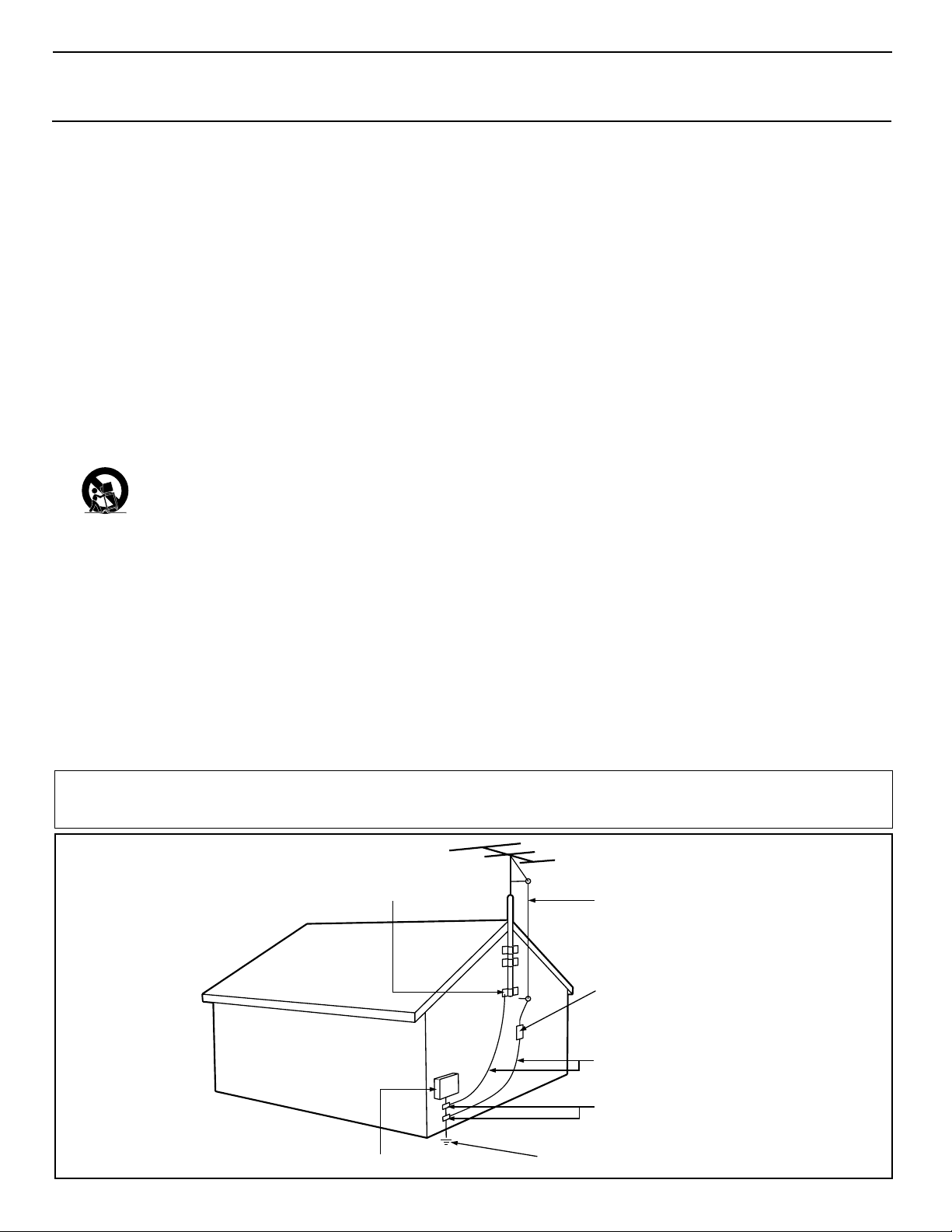
19. Power Lines - An outdoor antenna should be located away from
power lines.
20. Outdoor Antenna Grounding - If an outside antenna is connect-
ed to the receiver, be sure the antenna system is grounded so as to
provide some protection against voltage surges and built up static
charges.
Section 810 of the National Electric Code, ANSI/NFPA No. 70-
1984, provides information with respect to proper grounding of
the mast and supporting structure, grounding of the lead-in wire to
an antenna discharge unit, size of grounding connectors, location
of antenna-discharge unit, connection to grounding electrodes, and
requirements for the grounding electrode. See Figure below.
21. Object and Liquid Entry - Care should be taken so that objects
do not fall and liquids are not spilled into the enclosure through
openings.
22. Battery Usage CAUTION - To prevent battery leakage that may
result in bodily injury, property damage, or damage to the unit:
• Install all batteries correctly, with + and - aligned as marked on
the unit.
• Do not mix batteries (old and new or carbon and alkaline, etc.).
• Remove batteries when the unit is not used for a long time.
ANTENNA LEAD IN WIRE
ANTENNA DISCHARGE UNIT
(NEC SECTION 810-20)
GROUNDING CONDUCTORS (NEC SECTION 810-21)
GROUND CLAMPS
POWER SERVICE GROUNDING ELECTRODE SYSTEM (NEC ART 250, PART H)
GROUND CLAMP
ELECTRIC SERVICE EQUIPMENT
Example of Antenna Grounding
as per NEC - National Electric Code
Note to the CATV system installer: This reminder is provided to call the CATV system installer's attention to Article 820-40 of the NEC
that provides guidelines for proper grounding and, in particular, specifies that the cable ground shall be connected to the grounding system of the
building, as close to the point of cable entry as practical.
4
CONTENTS
INTRODUCTION
Welcome/Registration of Your TV . . . . . . . . . . . . . . . . . . . . .2
Safety/Precautions . . . . . . . . . . . . . . . . . . . . . . . . . . . . . . .2–3
Features . . . . . . . . . . . . . . . . . . . . . . . . . . . . . . . . . . . . . . . . . .5
AUDIO/VIDEO INPUT JACKS
Jack Panel descriptions and required cables . . . . . . .6
Using the AV 1 Input Jacks . . . . . . . . . . . . . . . . . . . . . . . . . .7
Using the AV 2 Input Jacks . . . . . . . . . . . . . . . . . . . . . . . . . .8
Using the Side Input Jacks . . . . . . . . . . . . . . . . . . . . . . . . . . .9
Using the AV 3 Input Jacks . . . . . . . . . . . . . . . . . . . . . . . . .10
Using the AV 4 Input Jacks . . . . . . . . . . . . . . . . . . . . . . . . . .11
Using the Component Video Input Jacks (CVI) . . . . . . . . . .12
Using the S-Video Input Jack . . . . . . . . . . . . . . . . . . . . . . . .13
Using the Monitor Output Jacks . . . . . . . . . . . . . . . . . . . . . .14
Using the Audio Output Jacks . . . . . . . . . . . . . . . . . . . . . . .15
PICTURE MENU CONTROLS
Adjusting the Contrast Control . . . . . . . . . . . . . . . .16
Adjusting the Brightness Control . . . . . . . . . . . . . . . . . . . . .16
Adjusting the Color Control . . . . . . . . . . . . . . . . . . . . . . . . .16
Adjusting the Sharpness Control . . . . . . . . . . . . . . . . . . . . .16
Adjusting the Tint Control . . . . . . . . . . . . . . . . . . . . . . . . . .16
How to set the Color Temp Control . . . . . . . . . . . . . . . . . . .16
How to use the Pixel Plus (Digital Processing) Control . . .17
How to set the Dynamic Contrast Control . . . . . . . . . . . . . .18
How to use the DNR Control . . . . . . . . . . . . . . . . . . . . . . . .19
How to use the Color Enhancement Control . . . . . . . . . . . .20
How to use the Auto Picture Control . . . . . . . . . . . . . . . . . .21
How to set the Picture Format Control . . . . . . . . . . . . . . . .22
SOUND MENU CONTROLS
Adjusting the TV Volume
(and Headphone Volume) . . . . . . . . . . . . . . . . . . . . . . . . . . .23
Adjusting the TV Equalizer Control . . . . . . . . . . . . . . . . . . .24
How to use the Sound Mode Control . . . . . . . . . . . . . . . . . .25
How to use the Alternate Audio Control . . . . . . . . . . . . . . .26
How to set the TV for Stereo programming . . . . . . . . . . . . .27
How to use the 3D Surround Effect Control . . . . . . . . . . . .28
How to use the AVL (Automatic Volume Leveler) Control .29
How to use the Delta Volume Control . . . . . . . . . . . . . . . . .30
How to use the Auto Sound Control . . . . . . . . . . . . . . . . . .31
FEATURE MENU CONTROLS
How to use the Closed Captions Controls . . . . . . . .32
How to use the Sleeptimer Control . . . . . . . . . . . . . . . . . . .33
How to use the On-Timer Control . . . . . . . . . . . . . . . . . . . .34
Using the Channel List Control . . . . . . . . . . . . . . . . . . . . . .35
How to use the Channel Lock Control . . . . . . . . . . . . . . . . .36
Using the Lock After Control . . . . . . . . . . . . . . . . . . . . . . . .37
How to block programming using the TV Ratings Lock
Controls . . . . . . . . . . . . . . . . . . . . . . . . . . . . . . . . . . . . . . . . .38
How to block programming using the Movie Ratings
Controls . . . . . . . . . . . . . . . . . . . . . . . . . . . . . . . . . . . . . . . . .39
Editing channels with the Channel Remove Control . . . . . .40
Using the Antenna Attenuator Control . . . . . . . . . . . . . . . . .41
SPEAKER MENU CONTROLS
Using the Test Tone and Speaker Trim Controls . . .42
How to turn the Center Mode and Surround Speakers
Controls on . . . . . . . . . . . . . . . . . . . . . . . . . . . . . . . . . . . . . .43
GENERAL MENU CONTROLS
How to use the Menu Background Control . . . . . . .44
Using the Surf Control (Channel Surf) . . . . . . . . . . . . . . . .45
How to use the Dual Screen (PIP) Control . . . . . . . . . . . . .46
Changing Channels/Inputs/Repositioning the PIP Window
. . . . .47
How to use the Freeze Control . . . . . . . . . . . . . . . . . . . . . . .48
How to Reset the AV Setting . . . . . . . . . . . . . . . . . . . . . . . .49
Using the Tilt Adjust Control . . . . . . . . . . . . . . . . . . . . . . . .49
How to Minimize or Maximize the Onscreen Display . . . .50
How to set up the Timer Zone and Daylight
Savings Controls . . . . . . . . . . . . . . . . . . . . . . . . . . . . . . . . . .50
How to change your PIN (Personal Identification Number)
for AutoLock features . . . . . . . . . . . . . . . . . . . . . . . . . . . . . .51
How to Label the AV Sources . . . . . . . . . . . . . . . . .52
REMOTE CONTROL RELATED FEATURES
Using the Active Control . . . . . . . . . . . . . . . . . . . . . . . . . . .53
Using the Remote Control with accessory devices
Mode Selection . . . . . . . . . . . . . . . . . . . . . . . . . . . . . . . . . .54
Code-Entry Method . . . . . . . . . . . . . . . . . . . . . . . . . . . . . .55
Direct-Entry Code list for accessory devices . . . . . . . . .56-57
Remote Control Accessory Device Specific Buttons . . . . . .58
IMPORTANT INFORMATION
Troubleshooting . . . . . . . . . . . . . . . . . . . . . . . . . . . .59
Care and Cleaning . . . . . . . . . . . . . . . . . . . . . . . . . . . . . . . .59
Glossary of terms . . . . . . . . . . . . . . . . . . . . . . . . . . . . . . . . .60
Index . . . . . . . . . . . . . . . . . . . . . . . . . . . . . . . . . . . . . . . . . . .61
Limited Warranty . . . . . . . . . . . . . . . . . . . . . . . . . . . . . . . . .62
General Source
Settings
Menu background
Surf
Dual screen format
Multipip format
Refer to the simple Quick Use and Setup
Guide (supplied with your TV) for details
on Basic Connections, Remote Control
Operation, Language and Auto Program.
QUICK USE AND SETUP GUIDE
3121 233 42241
Quick Use and Setup Guide
BASIC TV CONNECTIONS
b
P
1
2
Important Notice/Warning . . . . . . . . . . . . . . . . . . . .1
Making Basic TVConnections
Basic Cable TVConnections . . . . . . . . . . . . . . . . .1
Basic Antenna TVConnections . . . . . . . . . . . . . . .1
Basic TVOperation . . . . . . . . . . . . . . . . . . . . . . . .2
Remote Battery Installation . . . . . . . . . . . . . . . . . . .2
Remote Control Button Descriptions . . . . . . . . . . . .2
How to Use the Installation Features . . . . . . . . . .3-4
Using the Language Control . . . . . . . . . . . . . . . . . .3
Setting the Tuner Mode Control . . . . . . . . . . . . . . .3
How to Automatically Program Channels . . . . . . . .3
How to Add and Delete Channels . . . . . . . . . . . . . .4
How to set the AutoChron™Feature (Clock) . . . . .4
How to Name (Label) Channels . . . . . . . . . . . . . . . .4
IMPORTANT
NOTE: This owner's manual is used with several
different television models. Not all features (and
drawings) discussed in this manual will necessar-
ily match those found with your television set.
This is normal and does not require that you con-
tact yourdealer or request service.
WARNING: TO PREVENTFIRE OR SHOCK
HAZARD DO NOTEXPOSE THIS UNIT TO
RAIN OR EXCESSIVE MOISTURE.
Color TV
Color TV
C
ONTENTS
Y
our Cable TVinput into your home may be a single (75 ohm)
cable or a converter box installation. In either case, the con-
nection to the TVis very easy. Follow the steps below to connect
your cable signal to your new television.
If yourcable signal comes directly from a round 75Ω coaxial
cable use the following steps:
1
Connect the open end of the round Cable Company sup-
plied cableto the 75Ω inputon the TV. Screw it down finger
tight.
2
Plug the television in to the wall outletand turn the TV on.
Refer to the AUTOPROGRAM feature to program all the
available channels on your cable signal.
If yourcable signal comes from a cable box, use the following
steps:
3
Connect the open end of the round Cable Company sup-
plied cable to
the cable signal IN(put) plug on the back of
the Cable Box.
4
Using a separate round coaxial cable, connect one end to the
OUT(put) plug on the back of the Cable Box.
5
Connect the otherend of the round coaxial cable to the
75Ωinput on the back of the television. Screw it down finger
tight.
6
Plug the television in to the wall outletand turn the TV on.
Refer to the TUNER and AUTOPROGRAM features on page
3 of this Quick Use Guide. TUNER should be set to the
CABLE option. AUTOPROGRAM can be set to program all
the available channels on your cable signal into the televi-
sion’s memory.
CABLETV
OUTPUT
INPUT
b
P
5
6
3
4
Direct Cable Connection:
Cable Box Connection:
Cable signal coming from
Cable Company (Round
75Ωcoaxial cable)
Jack Panel Back of TV
AC Power
Wall Outlet
Power Plug
from back of TV
Jack Panel Back
of Cable Box
Cable Signal IN from
the Cable Company
Round 75Ω
Coaxial Cable
Jack Panel
Back of TV
AC Power
Wall Outlet
Power Plug
from back of TV
A
combination antenna receives normal broadcast chan-
nels (VHF 2–13 and UHF 14–69). Your connection is
easy because there is only one 75Ω(ohm) antenna plug on
the back of your TV, and that’s where the antenna goes.
1
If yourantenna has a round cable (75 ohm) on the end,
then you're ready to connect it to the TV.
If yourantenna has flat, twin-lead wire (300 ohm), you
first need to attach the antenna wires to the screws on a
300- to 75-ohm adapter.
2
Push the round endof the adapter (or antenna) onto the
75Ω(ohm) plug on the back of the TV. If the round end of
the antenna wire is threaded, screw it down finger tight.
3
Plug the television in to the wall outletand turn the TV
on.
Refer to the TUNER and AUTOPROGRAM features on
page 3 of this Quick Use Guide. TUNER should be set to the
ANTENNAoption. AUTOPROGRAM can be set to program
all the available channels on your cable signal into the televi-
sion’s memory.
ANTENNATV
b
P
1
3
2
Antenna Connection:
Jack Panel
Back of TV
Power Plug
from back of TV
AC Power
Wall Outlet
Round 75Ω
Coaxial Cable
from Antenna
Twin
Lead Wire
300 to 75-ohm
Adapter
Outdoor or Indoor Antenna
(Combination VHF/UHF)
The combination antenna receives normal
broadcast channels 2-13 (VHF) and 14-69 (UHF).

5
Items Included with This TV
FEATURES
Active Control™ continuously measures and corrects all incom-
ing signals to help provide the best picture quality. This feature
monitors and corrects both the sharpness control and noise
reduction control.
Audio/Video Jack Panel allows direct connections with VCRs,
DVDs, High Definition Receivers or other devices, providing
quality TV picture and sound playback.
Audio Volume Leveler (AVL) Control keeps the TV sound at
an even level. Peaks and valleys that occur during program
changes or commercial breaks are reduced, making for a more
consistent, comfortable sound.
Channel Lock allows you to block the viewing of certain chan-
nels or programs with certain ratings if you do not want your
children to view inappropriate materials.
Auto Programming scans (when activated) for all available
channels from regular antenna or cable signals and stores only
active broadcast stations in the TV’s memory.
AutoPicture™ allows you to change the picture settings (color,
tint, contrast, etc.) for various types of programming, such as
sports, movies, multimedia (games), or weak signals with the
push of one button. Selections include, Personal, Rich, Natural,
Soft, Multimedia, or Eco.
AutoSound™ allows you to change to different factory pre-
defined audio settings and a personal control that you set accord-
ing to your own preferences through the onscreen Sound menu.
The five factory-set controls (Personal, Speech, Music, Movie,
and Multimedia) enable you to tailor the TV sound so as to
enhance the particular programming you are watching.
Channel Remove allows you to delete channels from the list
stored in the TV’s memory. Channel Remove makes it easy to
limit the number of channels that are available to you when you
press the Channel (+) or (–) buttons on your remote control.
Closed Captioning allows the viewer to read TV program dia-
logue or voice conversations as onscreen text.
Dynamic Contrast helps to sharpen the picture quality by
improving the contrast between the darkest and brightest parts of
the picture.
Pixel Plus™ (or Digital Processing) gives a choice of two dif-
ferent scanning techniques – Progressive Scan or Pixel Plus.
Progressive Scan doubles the number of picture lines, elimi-
nating line flicker and providing a jitter-free picture.
Pixel Plus
™
improves the appearance of onscreen motion.
The number of picture lines are increased along with the
number of pixels per line, giving normal broadcast signals,
DVD reproduction or Digital TV signals, unparalleled sharp-
ness and depth. Gives the viewer near High Definition and
natural looking detail without the High Definition signal.
Infrared Remote Control works your TV and other remote-
controlled devices, such as VCRs, DVD players, cable convert-
ers, satellite receivers, etc.
Onscreen Menu shows helpful messages and instructions for
setting TV feature controls (can be viewed in English, French, or
Spanish).
Your new television and its packing contain materials that
can be recycled and reused. Specialized companies can recy-
cle your product to increase the amount of reusable materials
and minimize the amounts that need to be properly disposed.
Your product also uses batteries that should not be thrown
away when depleted, but should be handed in and disposed of
as small chemical waste.
When you replace your existing equipment, please find out
about the local regulations regarding disposal of your old tel-
evision, batteries, and packing materials.
END-OF-LIFE DISPOSAL
Sleep Timer automatically turns the TV OFF after a set amount
of time that you choose.
Standard Broadcast (VHF/UHF) or Cable TV (CATV) chan-
nel capability allows for viewing by antenna or cable.
Stereo capability, including a built-in audio amplifier and twin-
speaker system, allows for the reception of TV programs broad-
cast in stereo sound.
Surf Button allows you to easily switch among only the chan-
nels that are of interest to you (the ones that you have pro-
grammed into the TV’s Surf control through the onscreen menu).
Surf allows 2 channel surfing or 9 channel surfing.
Timer allows you to set your TV to turn itself ON and OFF
once or daily like an alarm clock.
As an Energy Star® Partner, Philips Consumer
Electronics has determined this product meets
the Energy Star® guidelines for energy efficien-
cy. Energy Star® is a U.S. registered mark. Using products
with the Energy Star® label can save energy. Saving energy
reduces air pollution and lowers utility bills.
Active Control, AutoPicture, AutoSound, Pixel Plus are
trademarks of Philips Consumer Electronics Company.
Copyright 2002 Philips Consumer Electronics.
As you unpack your TV, please note the included items:
• Directions for Use manual (contains safety-tip, clean-
ing and Factory Service Center location information)
•Warranty Registration Card
• Remote Control (with supplied batteries for use)
• Quick Use Guide to help you set up your new TV.
Please take a few minutes to complete your registration
card. The serial number for the TV is on the rear of the set.
For your future reference, please write down the serial and
model number of this television in the space provided on the
cover of this manual. (In the unlikely event you should need
to place a service call, these numbers will be needed.)
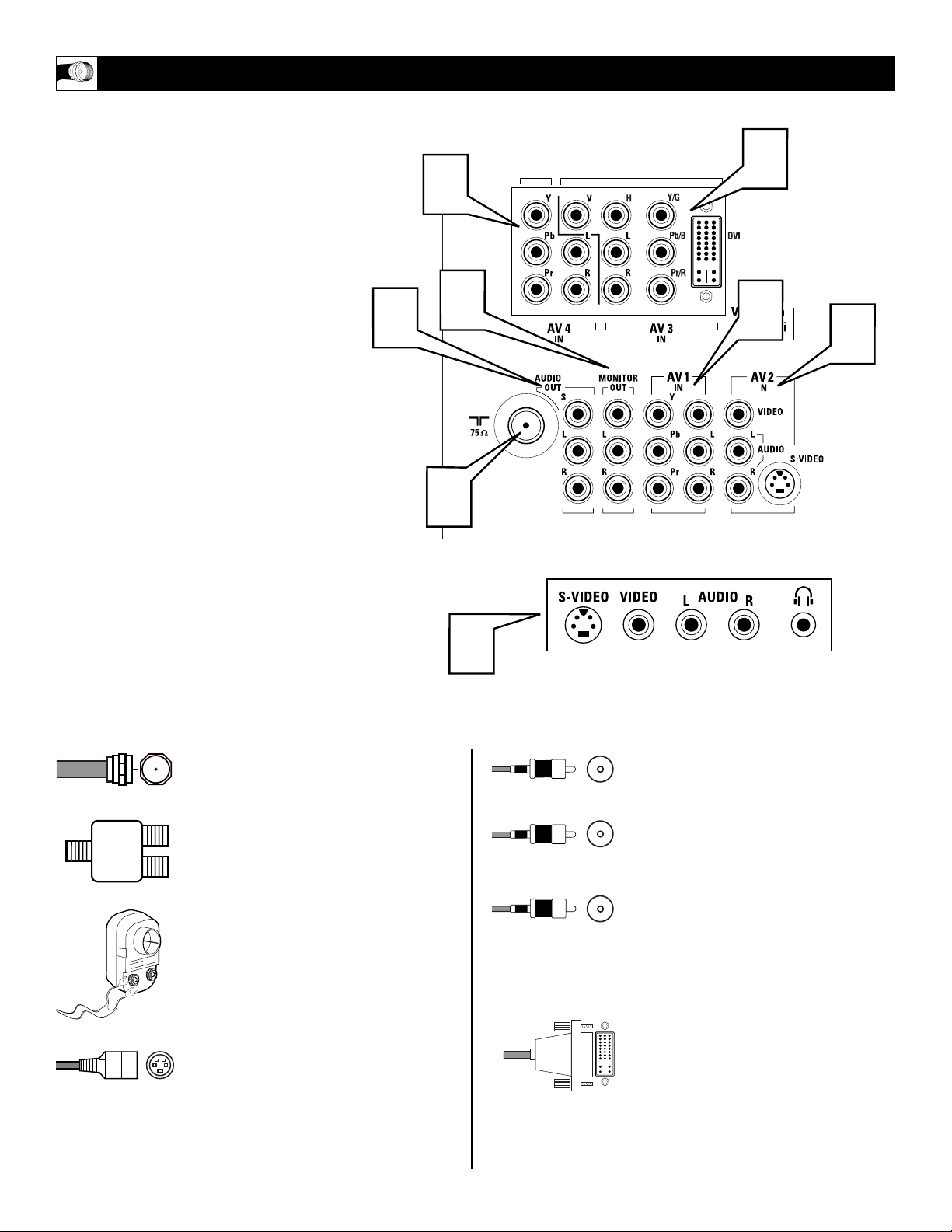
6
T
he television is equipped with external input
and output jacks for use with optional
accessory devices such as Home entertainment
Receivers, VCRs, DVD Player, Gaming Units,
Video Cameras, etc. The following gives a brief
explanation of the different types of jacks avail-
able and the type of cables needed to make con-
nections.
1
75Ω RF - Cable/Antenna Input connec-
tion jack.
2
AV 1 IN - Audio/Video connection jacks
including Component Video Inputs.
3
AV 2 IN - Audio/Video Input connection
jacks including S-Video connections.
4
AV 3 IN - Component Video, DVI
(Digital Video Input), Audio Inputs,
Horizontal and Vertical Sync connection
jacks.
5
AV 4 IN - High Definition Component
Video and Audio Input connection jacks.
6
Monitor Out - Audio/Video Output con-
nection jacks (TV tuner signal only).
7
Audio Out - Audio connections for
home entertainment receivers and exter-
nal speakers.
8
SIDE - Audio/Video Input jacks include
a S-Video jack, plus a Headphone jack
located on the side of the cabinet.
JACK PANEL DESCRIPTIONS AND REQUIRED CABLES
1
2
8
3
4
5
6
Located on the back of the TV
Located on the side of the TV
7
A 75-ohm coaxial cable connects signals
from an antenna or a cable TV company
to the antenna jack on the back of the TV.
Coaxial cables use “F” connectors.
A two-way signal splitter enables you to
take a single antenna or cable TV signal
and supply it to two different inputs.
A 300- to 75-ohm twin-lead adapter
accepts the antenna cables (called twin-
lead wires) from an antenna, allowing you
to connect the antenna signal to the TV.
A S-Video cable provides better picture
performance than regular (composite)
video connections.
S-Video cables can be used only with S-
Video-compatible accessory devices. You
must also connect the left and right audio
cables to the AV 2 Audio in jacks because
the S-Video jack carries only the picture
signal, not the sound.
Video and audio cables with standard
RCA (phono) connectors connect the
video and audio jacks of accessory
devices such as VCRs and DVD players
to the jacks on the TV.
These connectors are usually color coded.
The jacks on your TV are also color
coded to match the colors of the connec-
tors. Yellow for video (composite) and
Red and White for the right and left audio
channels. The video cables used to con-
nect component video or RGB (high-reso-
lution) jacks are color coded red, green,
and blue.
A DVI (Digital Video) cable that will
support digital connection from a PC.
Only Single Digital Link DVI is support-
ed for PCs with 480p or 1080i output.
Cable Descriptions:
Yellow - Video
White - Audio Left
Red - Audio Right
AV1
AUDIO OUT
R L
S-VIDEO
OUT
ANT/CABLE
OUT
VIDEO
OUT
1
3
4
5
7
2
Source
TV
AV1: VCR
AV2: Recorder
AV3: DVD
AV4: HD
SIDE: Camera
6
7
8
7
7
T
he TV’s audio/video input jacks are for
direct picture and sound connections
between the TV and a VCR (or similar device)
that has audio/video output jacks. Follow the
easy steps below to connect your accessory
device to the AV 1 Input Jacks located on the
back of the TV.
1
Connect the VIDEO (yellow) cable to
the VIDEO AV1 IN jack on the back of
the TV.
2
Connect the AUDIO (red and white)
cables to the AUDIO (left and right)
AV1 IN jacks on the rear of the TV.
3
Connect the VIDEO (yellow) cable to
the VIDEO OUT jack on the back of
the VCR.
4
Connect the AUDIO (red and white)
cables to the AUDIO (left and right)
OUT jacks on the rear of the VCR.
5
Turn the VCR (accessory device) and
the TV ON.
6
Press the SOURCE button on
the remote control to display the
SOURCE menu.
7
Press the CURSOR UP or DOWN
button to select the AV1 option.
8
Press the OK button to confirm your
selection. The TV will change to the
AV1 channel.
USING THE AV 1 INPUT JACKS
AUDIO IN
(RED/WHITE)
VCR
(EQUIPPED WITH VIDEO AND
AUDIO OUTPUT JACKS)
VIDEO IN
(YELLOW)
BACK OF VCR
BACK OF TV
AV2
Source
TV
AV1: VCR
AV2: Recorder
AV3: DVD
AV4: HD
SIDE: Camera
AUDIO OUT
R L
S-VIDEO
OUT
ANT/CABLE
OUT
VIDEO
OUT
1
AUDIO OUT
R L
S-VIDEO
OUT
ANT/CABLE
OUT
VIDEO
OUT
3
4
5
9
2
6
7
8
7
AUDIO IN
(RED/WHITE)
SECOND VCR
or ACCESSORY DEVICE
(EQUIPPED WITH VIDEO
AND AUDIO OUTPUT JACKS)
VIDEO IN
(YELLOW)
BACK OF 2ND VCR
BACK OF TV
8
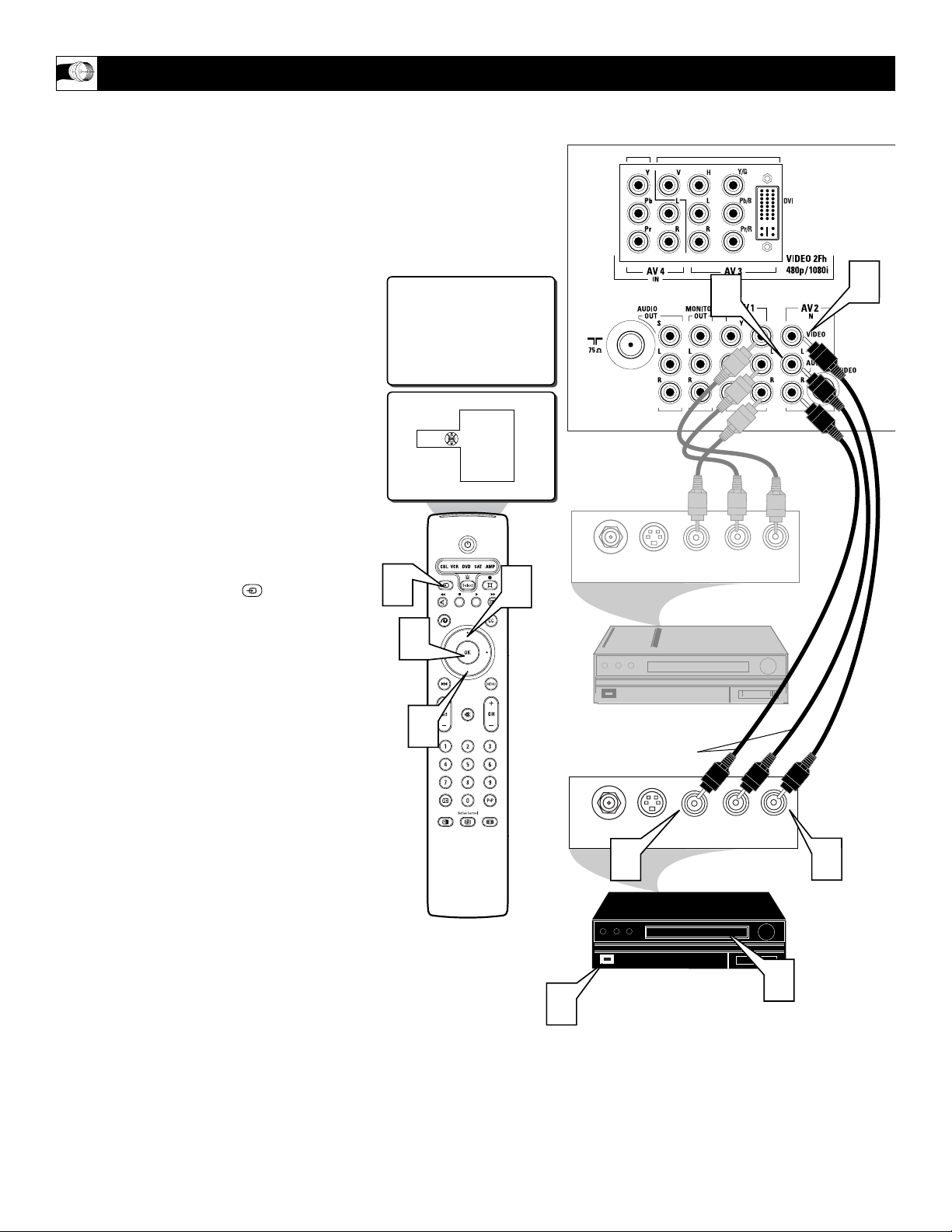
T
he TV’s audio/video input jacks allow you
connect multiple accessory devices at one
time to different sets of input jacks.. Follow
the easy steps below to connect an additional
accessory device to the AV 2 Input Jacks locat-
ed on the back of the TV.
1
Connect the VIDEO (yellow) cable to
the VIDEO AV2 IN jack on the back of
the TV.
2
Connect the AUDIO (red and white)
cables to the AUDIO (left and right)
AV2 IN jacks on the rear of the TV.
3
Connect the VIDEO (yellow) cable to
the VIDEO OUT jack on the back of
the VCR.
4
Connect the AUDIO (red and white)
cables to the AUDIO (left and right)
OUT jacks on the rear of the VCR.
5
Turn the VCR (accessory device) and
the TV ON.
6
Press the SOURCE button on
the remote control to display the
SOURCE menu.
7
Press the CURSOR UP or DOWN
button to select the AV2 option.
8
Press the OK button to confirm your
selection. The TV will change to the
AV2 channel.
9
With the VCR (or accessory device)
ON and a prerecorded tape (or other
media depending on type of accessory
device being used) inserted, press the
PLAY button to view the tape on the
television.
USING THE AV 2 INPUT JACKS
FIRST VCR
CONNECTED TO AV1 INPUTS
9
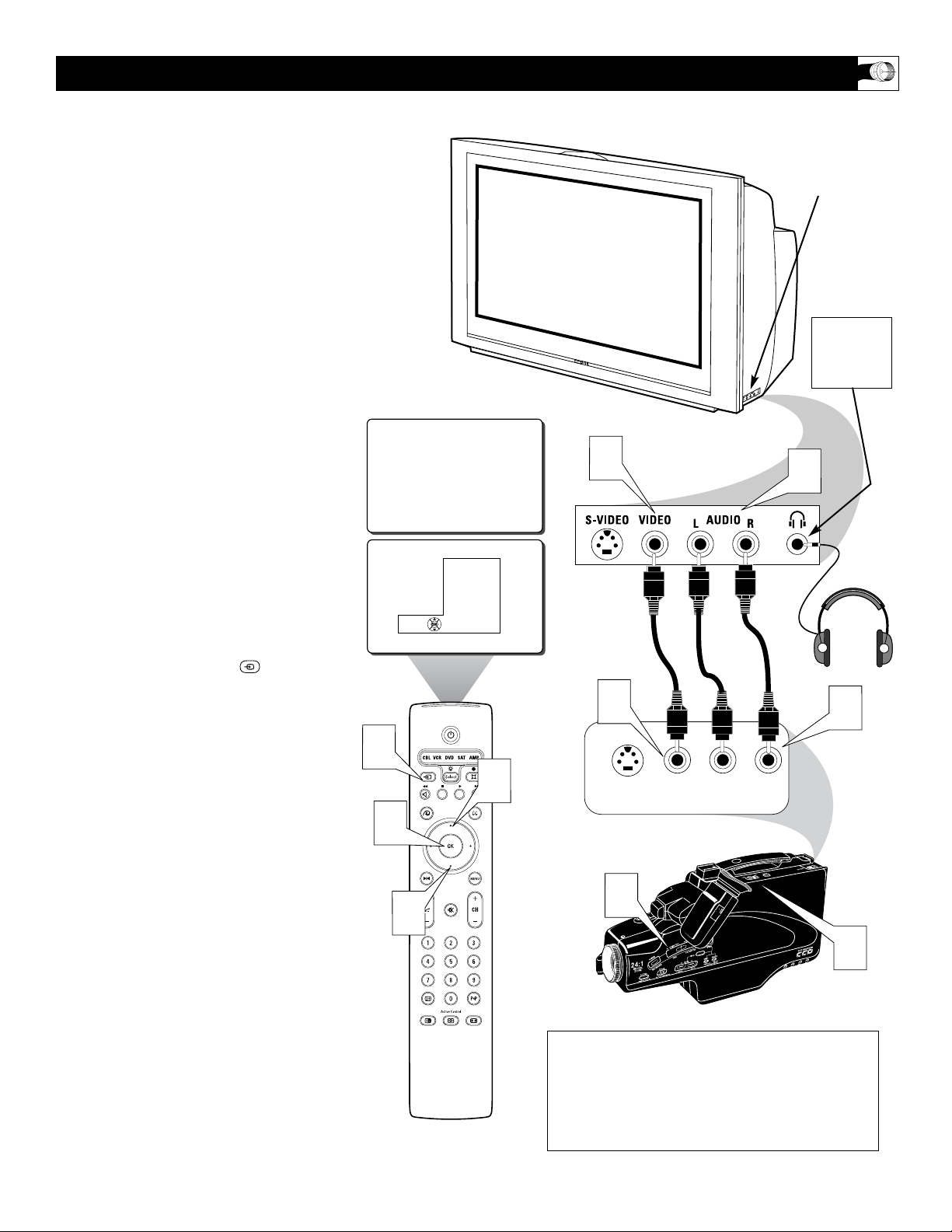
T
his television has input jacks conveniently
located on the side of the cabinet. These
jack are for easy hook-ups (without having to
move around to the back of the TV) for cam-
eras, gaming units, and other accessory
devices that wouldn’t be connected perma-
nently. Follow the easy steps below to connect
your accessory device to the SIDE Input Jacks
located on the right side of the TV.
1
Connect the VIDEO (yellow) cable to
the VIDEO IN jack on the side of the
TV.
2
Connect the AUDIO (red and white)
cables to the AUDIO (left and right)
IN jacks on the side of the TV.
3
Connect the VIDEO (yellow) cable to
the VIDEO OUT jack on the back of
the camera (or accessory device).
4
Connect the AUDIO (red and white)
cables to the AUDIO (left and right)
OUT jacks on the rear of the camera
(or accessory device).
5
Turn the camera (or accessory
device) and the TV ON.
6
Press the SOURCE button on
the remote control to display the
SOURCE menu.
7
Press the CURSOR UP or DOWN
button to select the SIDE option.
8
Press the OK button to confirm your
selection. The TV will change to the
SIDE channel.
9
With the camera (or accessory device)
ON and a prerecorded tape (or other
media depending on type of accessory
device being used) inserted, press the
PLAY button to view the tape on the
television.
USING THE SIDE INPUT JACKS
SIDE
S-VIDEO
VIDEO
AUDIO
LEFT RIGHT
3
9
5
SIDE
Source
TV
AV1: VCR
AV2: Recorder
AV3: DVD
AV4: HD
SIDE: Camera
1
2
4
7
6
8
7
VIDEO IN
(YELLOW)
NOTE: The S-Video Cable can be used in place of
the Yellow Video cable shown in this diagram. If
your camera or accessory device has a S-Video
output jack, connecting the video signal through
the S-Video jack will reproduce the video signal
with greater quality.
AUDIO IN
(RED &
WHITE)
Jack Panel of
Camera
or External
Accessory Device
SIDE (AV 3) Input Jacks
Located on the Side of
the Television Cabinet
The SIDE
JACKS also
contain a
HEADPHONE
JACK.
10
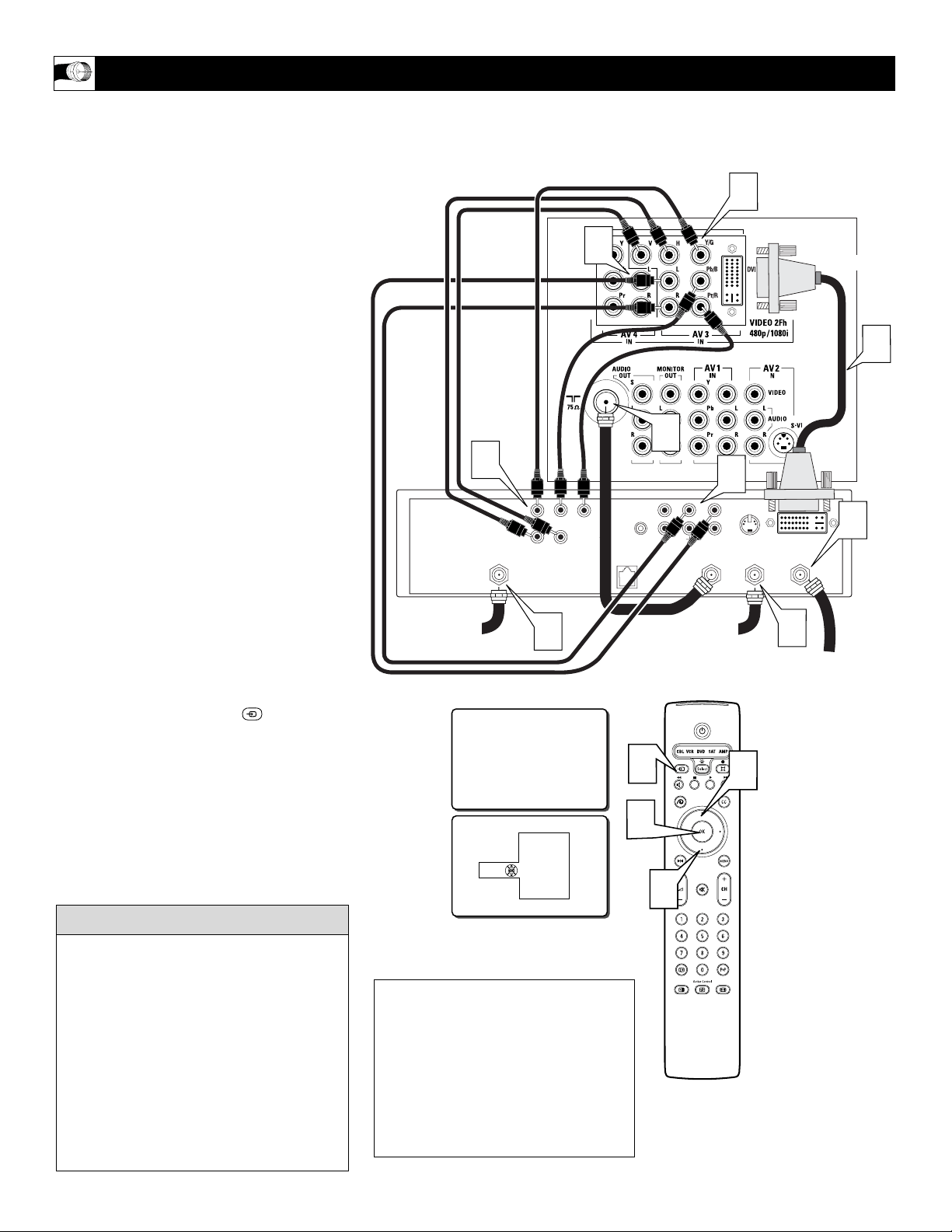
T
he AV3 Input Jacks provide Both Component
and Digital Video Inputs at 1080i, for acces-
sories like a HD Receiver and Digital DVD
Players. There is also a DVI jack supplied
allowing encrypted transmission of uncom-
pressed HD content. .
1
Connect the Component (Y, Pb, Pr)
Video OUT jacks from the HD accessory
device to the (Y, Pb, Pr) AV3 IN(put)
jacks on the TV. If the device your using
is equipped with seperate Horizontal and
Vertical sync, connect the H and V
Outputs on the accessory device to the H
and V Inputs of AV3 IN.
2
Connect the red and white AUDIO
CABLES to the Audio (left and right)
output jacks on the rear of the HD acces-
sory device to the Audio (L and R) AV3
IN(put) jacks on the TV.
3
Connect a DVI cable from the DVI
OUT on the HD accessory device to the
AV3 DVI jack on the back of the TV.
4
Connect a 75Ω round cable from the
OUT TO TV jack on the HD accessory
device to the 75Ω IN on the back of the
TV.
5
If using a Satellite Dish, Cable signal or
Antenna signal, connect the 75Ω round
cable from a Satellite Dish to the SATEL-
LITE IN and/or the Cable and Antenna
signals to the ANTENNA “A” or “B” IN
on the back of the HD accessory device.
6
Press the SOURCE button on
the remote control to display the
SOURCE menu.
7
Press the CURSOR UP or DOWN
button to select the AV3 option.
8
Press the OK button to confirm your
selection. The TV will change to the
AV3 channel.
USING THE AV 3 INPUT JACKS
Coaxial Cable
Lead-in from Cable Outlet,
Converter Box,
or VHF/UHF Antenna
OUT TO TV
SATELLITE
IN
DIGITAL AUDIO
OUTPUT
VCR
CONTROL
S-VIDEO
PHONE JACK
VIDEOAUDIO
L
L
R
R
ANTENNA B
IN
ANTENNA A
IN
Coaxial Cable
Lead-in from
Satellite Dish
Coaxial Cable Lead-in
from Alternate RF
Signal Source
5
5
5
COMPONENT VIDEO
Y
Pb
Pr
AV3
Source
TV
AV1: VCR
AV2: Recorder
AV3: DVD
AV4: HD
SIDE: Camera
1
2
3
4
6
7
7
8
H
V
SYNC OUT
1
2
JACK PANEL
ON BACK OF TV
BACK of
ACCESSORY
DEVICE
Note: If the AV3 channel is tuned and no signal
connection present, the screen could jump or flash.
AUDIO IN
(RED/WHITE)
COMPONENT
VIDEO
CABLES
DVI CABLE
COAXIAL CABLE
LEAD-IN FROM
SATELLITE DISH
COAXIAL CABLE
LEAD-IN FROM
ALTERNATE RF
SIGNAL SOURCE
COAXIAL CABLE
LEAD-IN FROM CABLE
OUTLET, CONVERTER BOX,
OR VHF/UHF ANTENNA
DVI - DVI is a specific digital input allow-
ing encrypted transmission of uncom-
pressed HD content. DVI includes HDCP
(high-bandwidth digital content protection),
which is supported by Hollywood, satellite
providers, and most of the consumer elec-
tronics industry. DVI is gaining momentum
and quickly becoming an industry standard
for the consumer to view high-definition
material while keeping content protected.
NOTE: The Picture-in-Picture (PIP) feature
is not available for use with AV3.
cc
C
HECK IT OUT
NOTE: This television is designed to
accept high definition signals 1080i
and 480p as specified by the Electronic
Industries Association standard
EIA770.3. Digital devices from differ-
ent manufacturers have the possibility
of differing output standards which my
cause difficulties for the television to
properly display.
HORIZONTAL
AND VERTICAL
SYNC CABLES
11
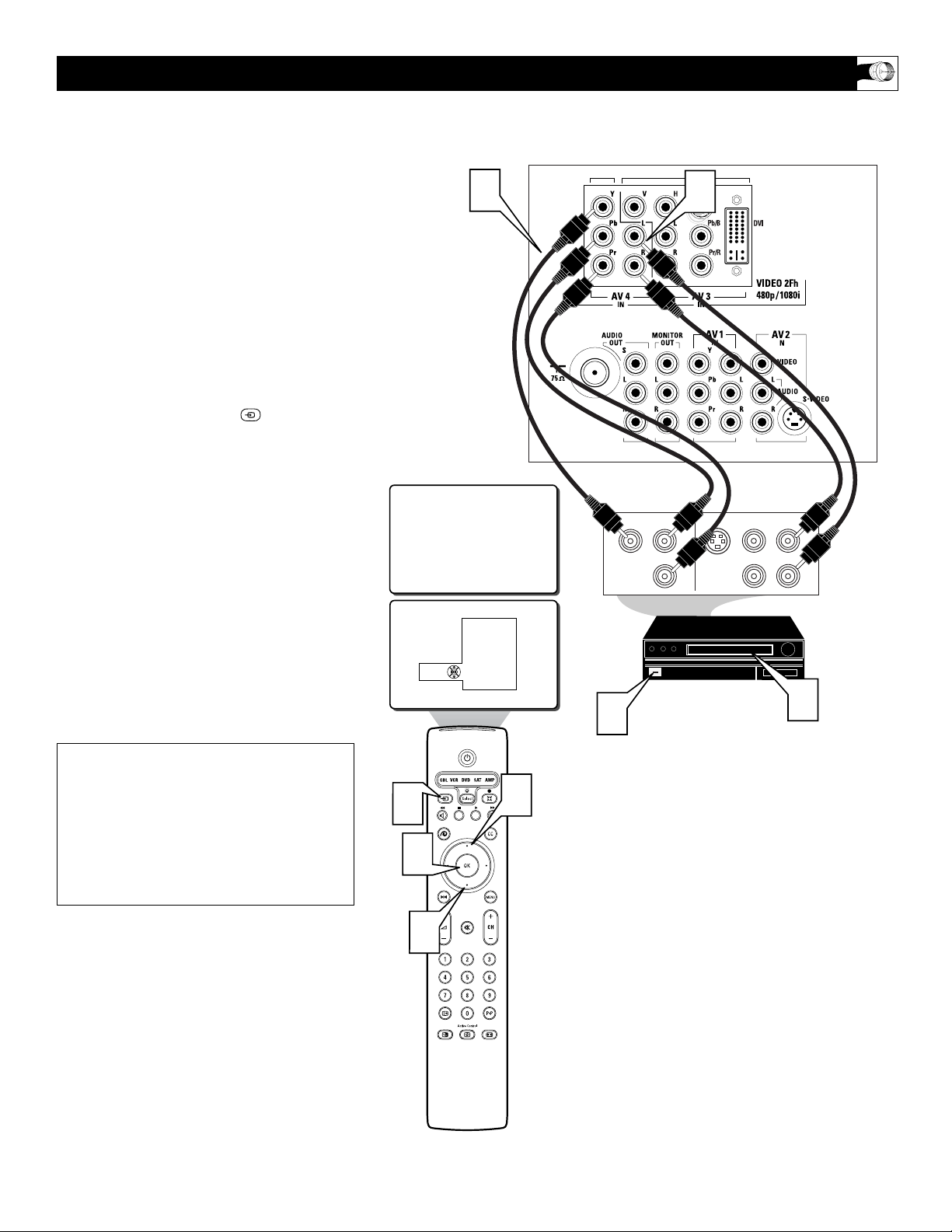
T
he AV4 Input Jacks provide Component Video
Inputs at 1080i, for accessories like a HD
Receiver and Digital DVD Players. Using the
color difference signals (Pb, Pr) and the lumi-
nance (Y) signal will improve color bandwidth
information.
1
Connect the Component (Y, Pb, Pr)
Video OUT jacks from the DVD player
(or similar device) to the (Y, Pb, Pr) AV4
IN(put) jacks on the TV.
2
Connect the red and white AUDIO
CABLES to the AUDIO (left and right)
OUT(put) jacks on the rear of the accesso-
ry device to the Audio (L and R) AV4
IN(put) jacks on the TV.
3
Press the SOURCE button on
the remote control to display the
SOURCE menu.
4
Press the CURSOR UP or DOWN
button to select the AV3 option.
5
Press the OK button to confirm your
selection. The TV will change to the
AV4 channel.
6
Turn the TV and the DVD (or digital
accessory device) ON.
7
Press the PLAY button on the DVD (or
digital accessory device) to view the pro-
gram on the television.
USING THE AV 4 INPUT JACKS
S-VIDEO
OUT
OUT
OUT
L
R
AUDIO
VIDEO
COMP VIDEO
Y
Pb
Pr
2
1
6
7
AV4
Source
TV
AV1: VCR
AV2: Recorder
AV3: DVD
AV4: HD
SIDE: Camera
3
4
5
4
JACK PANEL
ON BACK OF TV
JACK PANEL
OF DIGITAL DEVICE SUCH
AS A DVD PLAYER
EQUIPPED WITH
COMPONENT VIDEO
OUTPUTS
Note: If the AV4 channel is tuned and no signal con-
nection present, the screen could jump or flash.
AUDIO IN
(RED/WHITE)
COMPONENT
VIDEO
CABLES
NOTE: This television is designed to accept
high definition signals 1080i and 480p as
specified by the Electronic Industries
Association standard EIA770.3. Digital
devices from different manufacturers have
the possibility of differing output standards
which my cause difficulties for the television
to properly display.
12
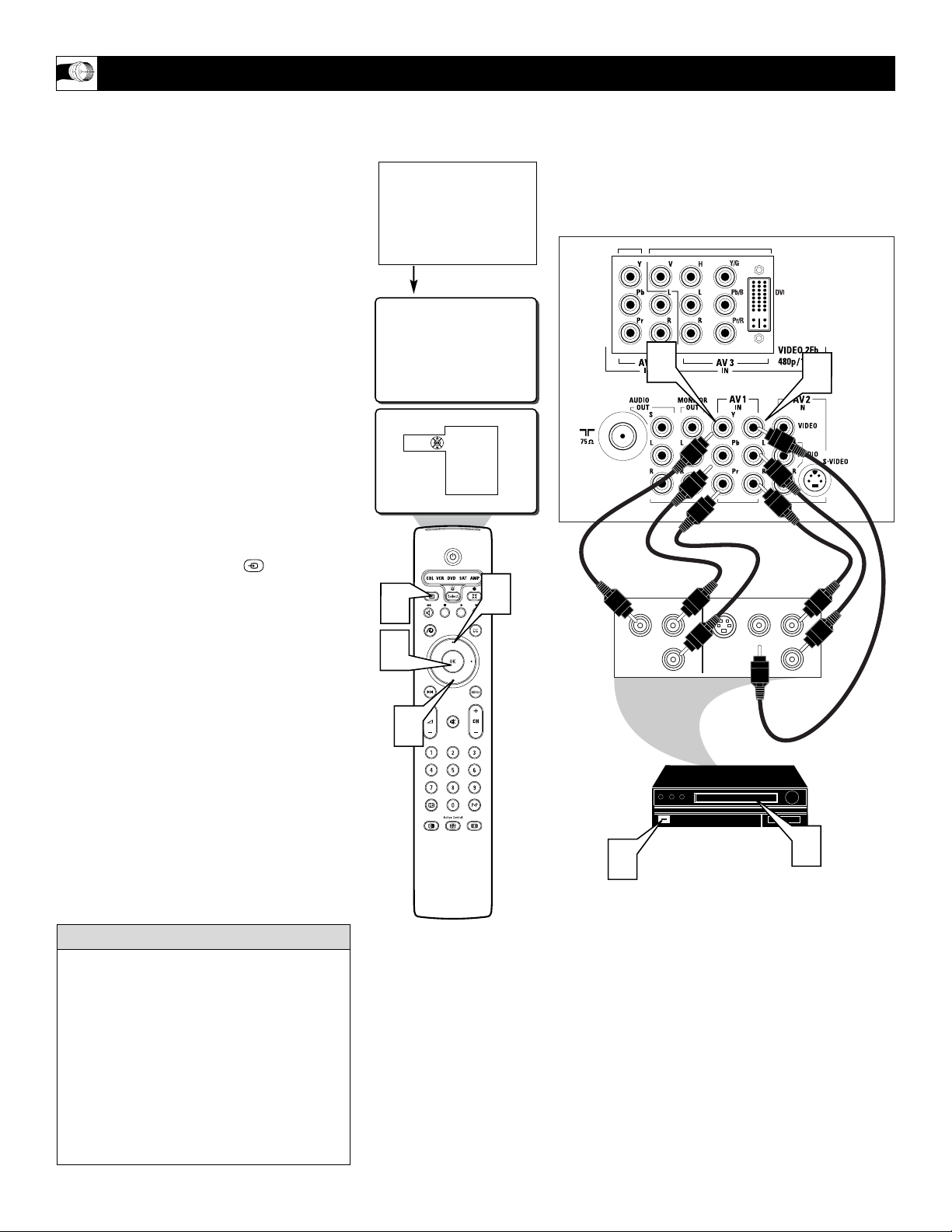
I
f using an accessory device that is not high
definition but uses Component Video jacks.
The AV1 jacks on the TV offer the user the
possibility of better video reproduction using
the Component Video Inputs. The color dif-
ference signals (Pb, Pr) and the luminance
(Y) signal are connected and received sepa-
rately, which allows for improved color band-
width information (not possible when using
composite video or S-Video connections).
1
Connect the Component (Y, Pb, Pr)
Video OUT jacks from the DVD play-
er (or similar device) to the (Y, Pb, Pr)
IN(put) jacks on the TV. When using
the Component Video Inputs, it is best
not to connect a signal to the AV1
Video Input.
2
Connect the yellow VIDEO CABLE
along with the red and white AUDIO
CABLES to the AUDIO (left and
right) OUT(put) jacks on the rear of the
accessory device to the AV1 VIDEO
and AUDIO IN(put) jacks on the TV.
3
Press the SOURCE button on
the remote control to display the
SOURCE menu.
4
Press the CURSOR UP or DOWN
button to select the AV1 option. CVI
will show onscreen rather than AV1.
5
Press the OK button to confirm your
selection. The TV will change to the
AV1 channel.
6
Turn the TV and the DVD (or digital
accessory device) ON.
7
Insert a DVD disc into the DVD player
and press the PLAY button on the
DVD Player (or digital accessory
device).
S-VIDEO
OUT
OUT
OUT
L
R
AUDIO
VIDEO
COMP VIDEO
Y
Pb
Pr
2
1
6
7
CVI
Source
TV
AV1: VCR
AV2: Recorder
AV3: DVD
AV4: HD
SIDE: Camera
3
4
4
5
USING THE COMPONENT VIDEO INPUT (CV1) JACKS
The description for the component video
connectors may differ depending on the
DVD player or accessory digital source
equipment used (for example, Y, Pb, Pr; Y,
B-Y, R-Y; Y, Cr, Cb). Although abbrevia-
tions and terms may vary, the letters b and r
stand for the blue and red color component
signal connectors, and Y indicates the lumi-
nance signal. Refer to your DVD or digital
accessory owner’s manual for definitions
and connection details.
HELPFUL HINT
AUDIO IN
(RED/WHITE)
COMPONENT
VIDEO
CABLES
BACK OF TV
ACCESSORY DEVICE
EQUIPPED WITH
COMPONENT VIDEO
OUTPUTS.
The CVI connection will be
dominate over the AV1 Video
Input. When a Component Video
Device is connected as described,
it is best not to have a video sig-
nal connected to the AV1 Video
Input jack.
VIDEO
(YELLOW)
CABLE
13
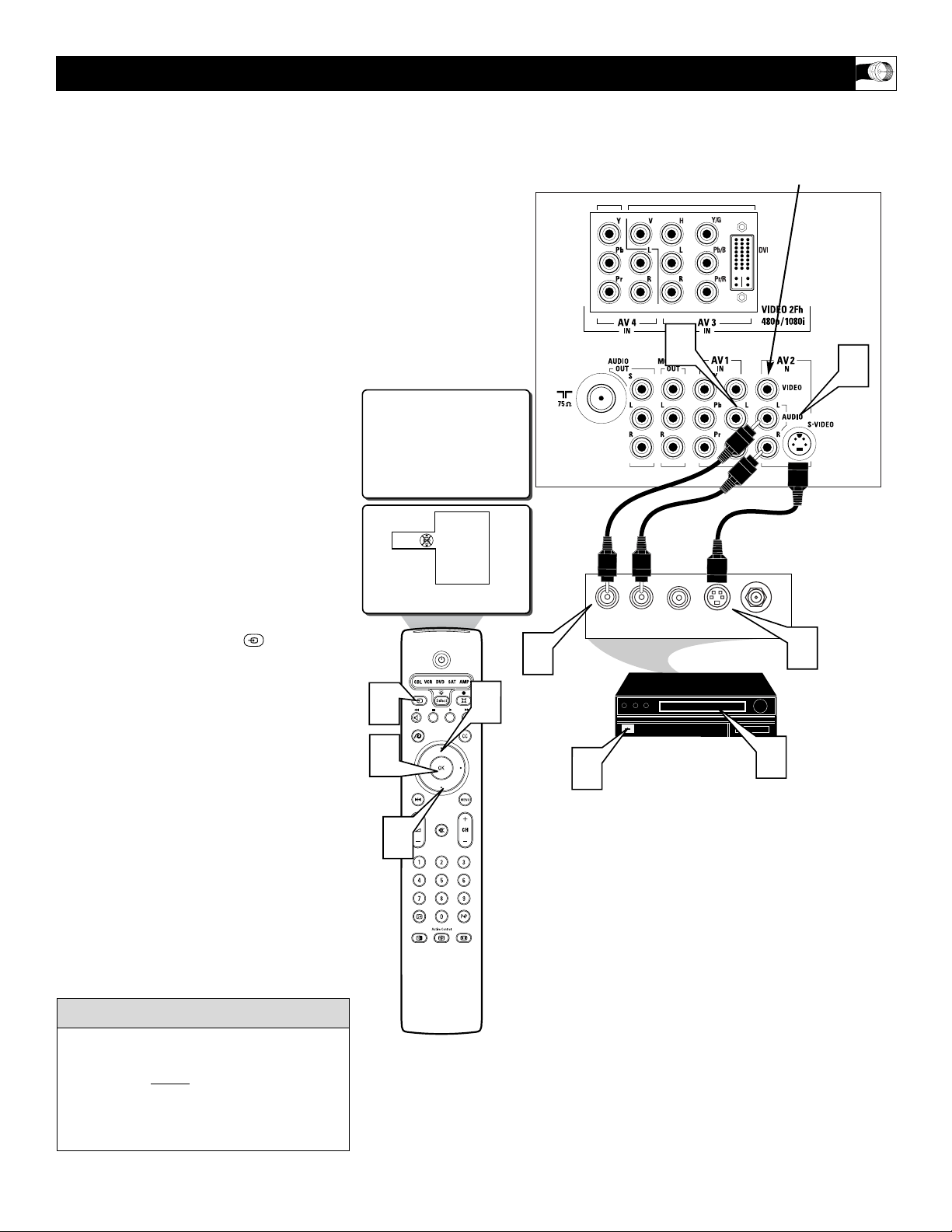
T
he S(uper)-Video connection on the rear
of the TV can provide you with better pic-
ture detail and clarity for the playback of
accessory sources such as DBS (digital
broadcast satellite), DVD (digital video
discs), video games, and S-VHS VCR (video
cassette recorder) tapes than the normal
antenna picture connections.
NOTE: The accessory device must have an
S-VIDEO OUT(put) jack in order for you to
complete the connection on this page.
1
Connect the S-VIDEO CABLE to the
S-VIDEO input jack on the rear of the
television.
2
Connect the AUDIO (red and white)
cables to the AUDIO AV2 IN jacks on
the rear of the TV
.
3
Connect the S-VIDEO CABLE to the
S-VIDEO OUT(put) jack on the acces-
sory device.
4
Connect the red and white AUDIO
cables to the AUDIO (left and right)
OUT(put) jacks on the rear of the
accessory device.
5
Press the SOURCE button on
the remote control to display the
SOURCE menu.
6
Press the CURSOR UP or DOWN
button to select the AV2 option.
7
Press the OK button to confirm your
selection. The TV will change to the
AV2 channel.
8
Turn the VCR, DVD or other acces-
sory device ON.
9
With the VCR (or accessory device)
ON and a prerecorded tape inserted,
press the PLAY button to view the
tape on the television.
USING THE S-VIDEO INPUT JACKS
The S-Video jack and the AV 2 jacks work
together. When a device is connected to the
S-Video jack, do not connect a signal to the
AV 2 IN Video jack. This could cause an
over-lapping of two video images on the TV
screen.
cc
C
HECK IT OUT
AUDIO OUT
L R
S-VIDEO
OUT
ANT/CABLE
OUT
VIDEO
OUT
1
2
3
4
8
9
AV2
Source
TV
AV1: VCR
AV2: Recorder
AV3: DVD
AV4: HD
SIDE: Camera
5
6
7
6
JACK PANEL
ON BACK OF TV
AUDIO CABLES
(Red & White)
S-VIDEO CABLE
VCR or EXTERNAL
ACCESSORY DEVICE
WITH S-VIDEO OUTPUT
When using the S-Video Input, do not
connect a video signal to the AV 2 IN
Video Jack. This could cause a ghost
image to appear over the S-Video signal.
14
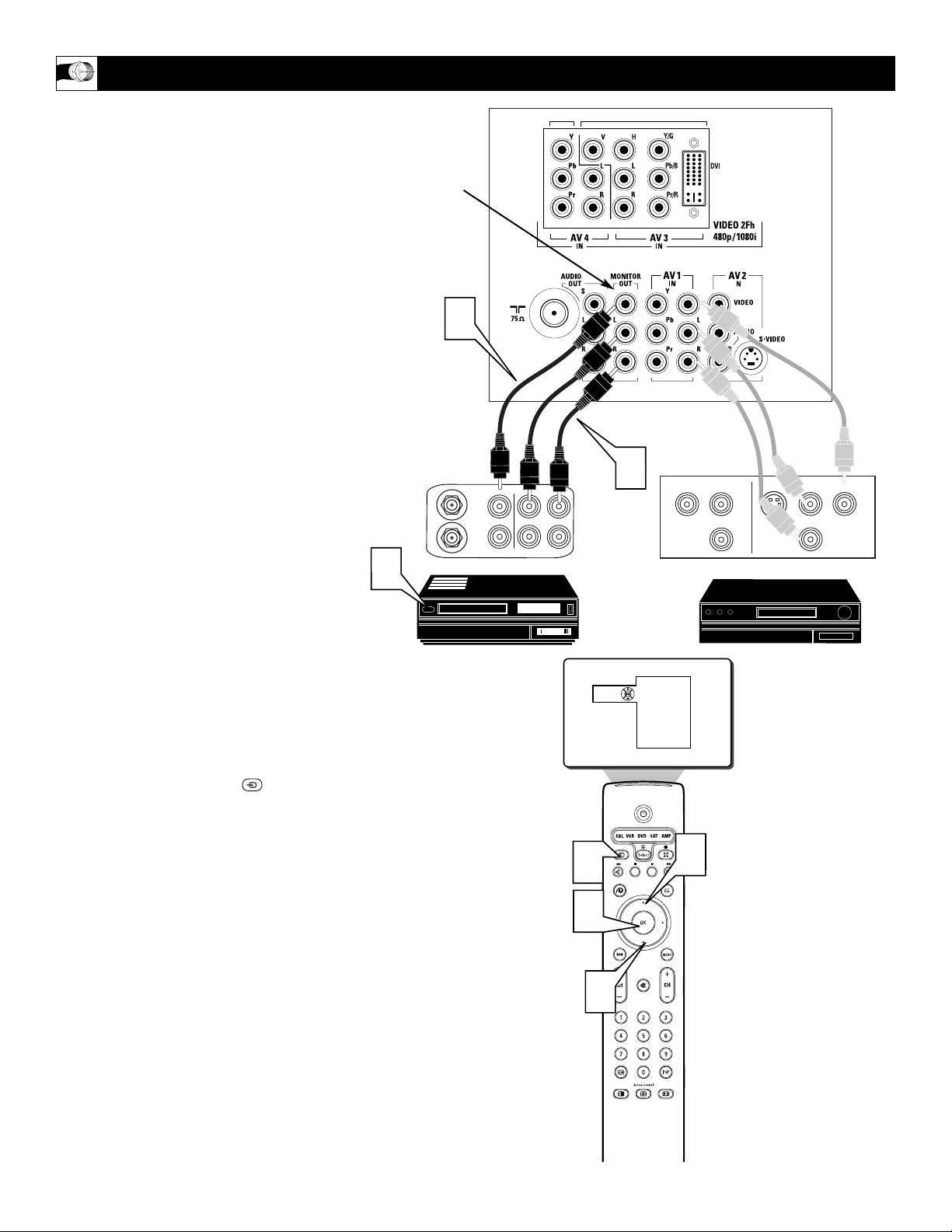
T
he Audio/Video (Monitor) Output jacks
can be used for recording a selected TV
(Antenna Input/tuner signal source) Channel.
This recording can even be completed while
viewing another external Audio/Video Source
Select option. (For example: DVD program
playback shown through the A/V 1 or 2 Input
source connection.)
NOTE: Refer to page 7 for the proper
hookup of an accessory device to the AV 1
IN(put) jacks. Follow the instructions on how
to tune to the AV 1 channel to view a DVD
program playback or pre-recorded VCR tape.
The following steps allow you to connect a
VCR to record a selected TV channel pro-
gram through the Monitor Outputs.
1
Connect one end of the yellow Video
Cable to the Monitor Out VIDEO
plug. Connect the other end to the
VIDEO IN plug on the VCR.
2
Connect one end of the red and white
Audio cable from the Monitor Out
AUDIO L and R plugs on the TV to the
AUDIO IN plugs on the VCR.
3
Tune the TV to the program channel
you wish to record.
Note: Once selected be sure to leave
the TV channel tuned to the desired
program until the complete recording is
finished.
4
Press the SOURCE button on
the remote control to display the
SOURCE menu.
5
Press the CURSOR UP or DOWN
button to select the AV1 option (or any
of the other AV connection options
from which you wish towatch an
accessory device playback. Example:
DVD playback on AV 1).
6
Press the OK button to confirm your
selection. The TV will change to the
AV1 channel input (or any other source
option you wish to select).
7
Turn the VCR ON, insert a blank
VHS tape and it’s ready to record the
channel program you selected previ-
ously in step #3.
USING THE MONITOR OUTPUT JACKS
ANTENNA
OUT
ANTENNA
IN
VIDEO
AUDIO
IN
IN
OUT OUT
RL
1
2
7
Source
TV
AV1: VCR
AV2: Recorder
AV3: DVD
AV4: HD
SIDE: Camera
S-VIDEO
OUT
OUT
OUT
L
R
AUDIO
VIDEO
COMP VIDEO
Y
Pb
Pr
4
5
6
5
JACK PANEL
Located on the
back of the TV
AUDIO CABLES
(Red & White)
AV 1 Sample DVD
(accessory device
Hookup from Page 7)
MONITOR OUT
VIDEO &
AUDIO L(eft) and R(ight)
Recording VCR
VIDEO CABLE
(Yellow)
15
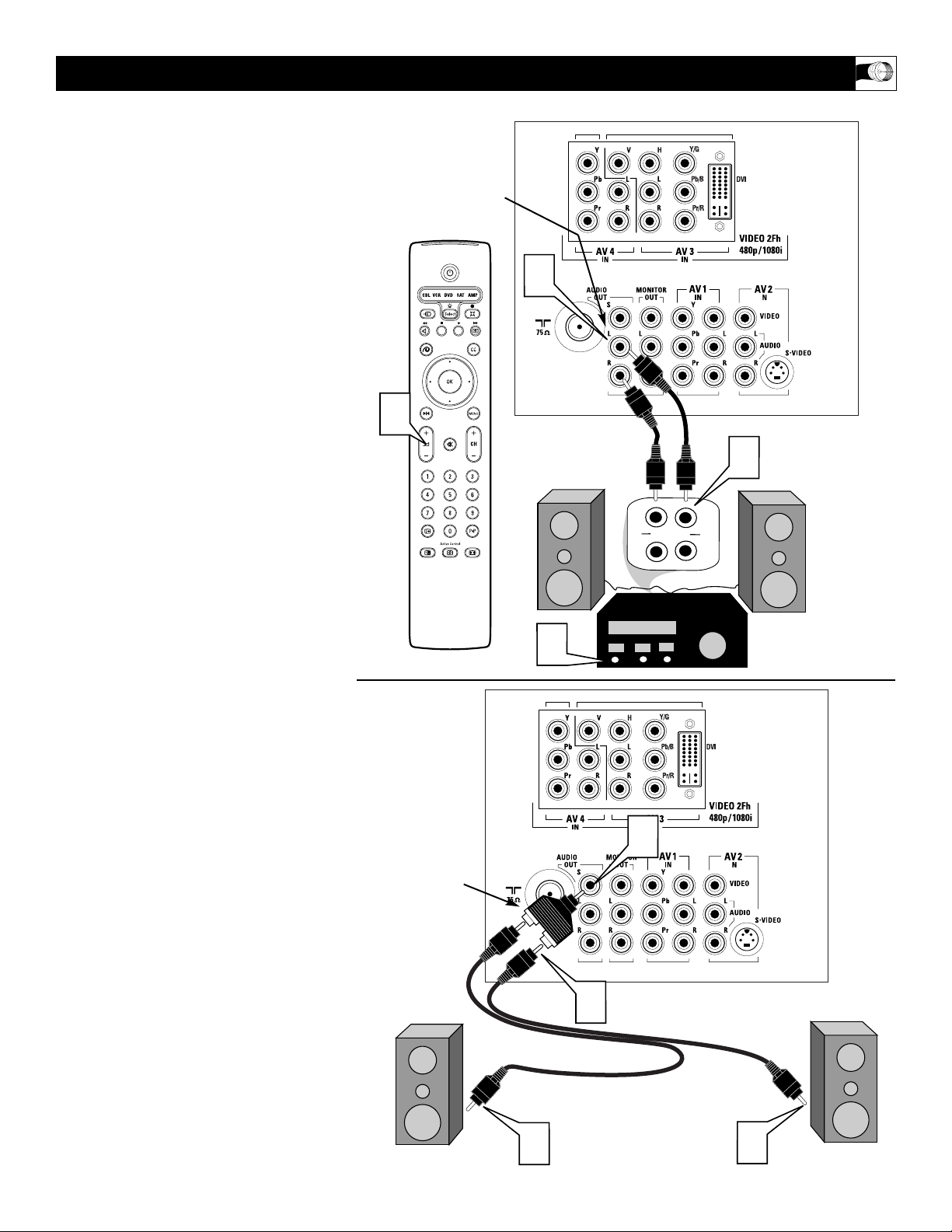
T
he Audio Output jacks are great for con-
necting to an external audio system or a
set of external speakers. This will enhance the
sound coming from the television to improve
your viewing and listening experience.
For Audio System Connection:
1
Connect one end of the R(ight) and
L(eft) Audio Cables (red and white)
to the AUDIO OUT (Left and Right)
jacks on the television.
2
Connect the other ends of the R(ight)
and L(eft) Audio Cables (red and
white) to the Audio Left and Right
Input jacks on the external Audio
System.
3
Turn the Audio System and the TV
on. Adjust the volume coming from
the Audio System to a pleasant listen-
ing level.
4
You can now adjust the sound level
coming from the audio system by
pressing the VOLUME (+) or (–)
button on the TV or remote control.
For External Speaker Connection:
1
Connect one end of the R(ight) and
L(eft) Audio Cables (red and white)
to each of the external speakers.
2
Using a Stereo to Mono adapter (not
supplied) connect the other ends of
the Audio Cables to the Stereo end of
the adapter.
3
Connect the mono end of the Stereo
to Mono Adapter to the AUDIO OUT
S jack.
These speakers can now be adjusted using the
Speaker controls within the Setting section of
the onscreen menu. Please see page 42 for
more details.
USING THE AUDIO OUTPUT JACKS
AUX/TV INPUT
PHONO INPUT
R
L
3
1
2
4
JACK PANEL
Located on the
back of the TV
AUDIO CABLES
(Red & White)
EXTERNAL
AUDIO SYSTEM
AUDIO OUT
L(eft) and R(ight)
1
2
1
3
JACK PANEL
Located on the
back of the TV
AUDIO CABLES
(Red & White)
EXTERNAL SPEAKER
EXTERNAL SPEAKER
STEREO TO MONO
ADAPTER
(not supplied)
External
Audio System:
External
Speakers:
16
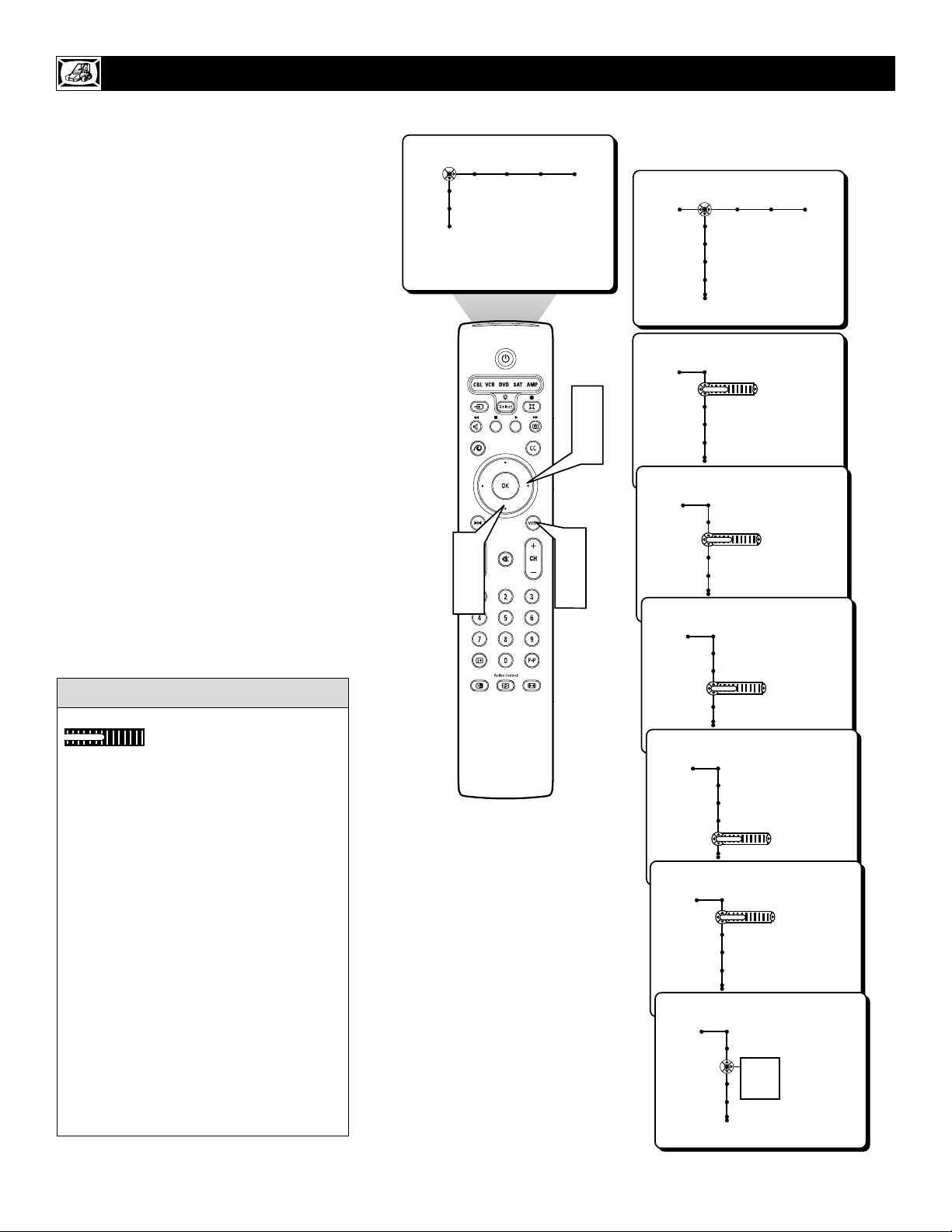
T
o adjust your TV picture controls, select a
channel and follow these steps.
1
Press the MENU button on the remote
control to show the onscreen menu.
2
Press the CURSOR RIGHT button to
highlight PICTURE.
3
Press the CURSOR DOWN button to
select one of the picture adjustment:
CONTRAST, BRIGHTNESS, COLOR,
SHARPNESS, TINT, OR COLOR TEM-
PERATURE.
NOTE: The menu will show only four items at a
time, so you will need to continue scrolling with
the CURSOR DOWN button to adjust the TINT
and COLOR TEMPERATURE.
4
Press the CURSOR LEFT or CURSOR
RIGHT button to adjust the selected con-
trol. OR, if COLOR TEMPERATURE is
chosen, press the CURSOR RIGHT to
choose from a submenu of options; NOR-
MAL, COOL, or WARM.
5
Press the MENU button when finished
to remove the onscreen menu from the TV
screen.
ADJUSTING THE PICTURE CONTROLS
Remember, when the bar scale is centered
, the control settings are at nor-
mal, mid-range levels.
NOTE: The SHARPNESS and TINT
Controls will not be available for adjust-
ments when tuned to the AV3/AV4/CVI
Inputs.
BRIGHTNESS – adds or subtracts light
from the darkest part of the picture.
COLOR – adds or eliminates color.
PICTURE – improves the detail of the light-
est parts of the picture.
SHARPNESS – improves the detail in the
picture.
TINT – adjusts the picture to obtain natural
skin tones.
COLOR TEMP offers NORMAL, COOL, or
WARM picture preferences.
NORMAL – keeps whites, white.
COOL – makes whites, bluish.
WARM – makes whites, reddish.
HELPFUL HINT
Picture Sound Features Channels
TV
Settings
Demo
Install
Picture Sound Features Channels
TV
Contrast
Brightness
Color
Sharpness
Picture
TV
Contrast
Brightness
Color
Sharpness
40
Picture
TV
Contrast
Brightness
Color
Sharpness
40
Picture
TV
Contrast
Brightness
Color
Sharpness
40
Picture
TV
Contrast
Brightness
Color
Sharpness
40
Picture
TV
Tint
Color Temperature
Digital processing
Dynamic contrast
40
Picture
TV
Tint
Color Temperature
Digital processing
Dynamic contrast
Normal
Cool
Warm
1
5
3
5
2
4
17
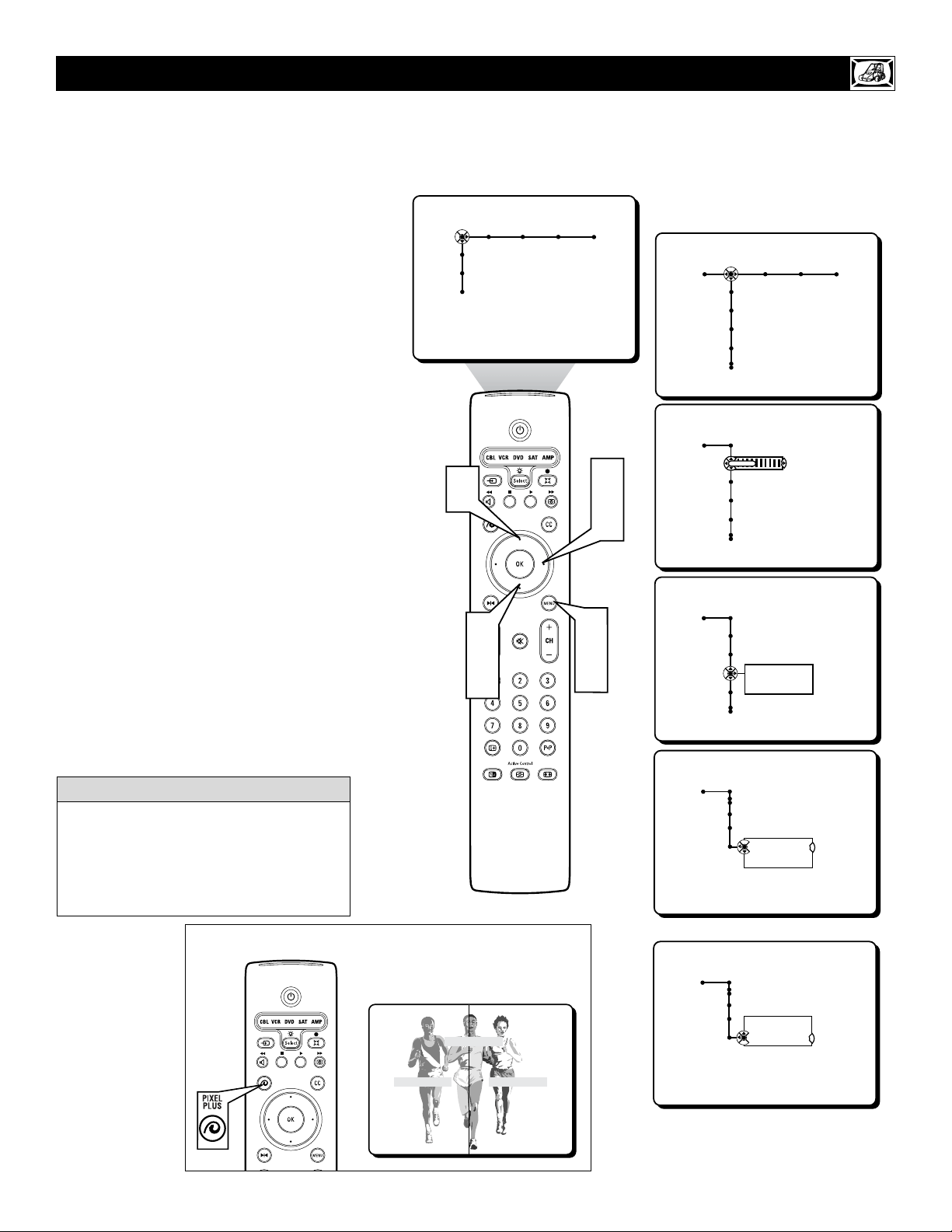
T
he Digital Processing control gives you a
choice between two different picture scan-
ning modes: Progressive Scan or Pixel Plus.
Progressive Scan doubles the number of pic-
ture lines, eliminating line flicker and provid-
ing a jitter-free picture.
Pixel Plus improves the picture quality and
appearance of onscreen images. The number
of picture lines are increased along with the
number of pixels per line, giving normal
broadcast signals, DVD reproduction or
Digital TV signals, unparalleled sharpness
and depth. This gives the viewer near High
Definition and natural looking detail without
the High Definition signal.
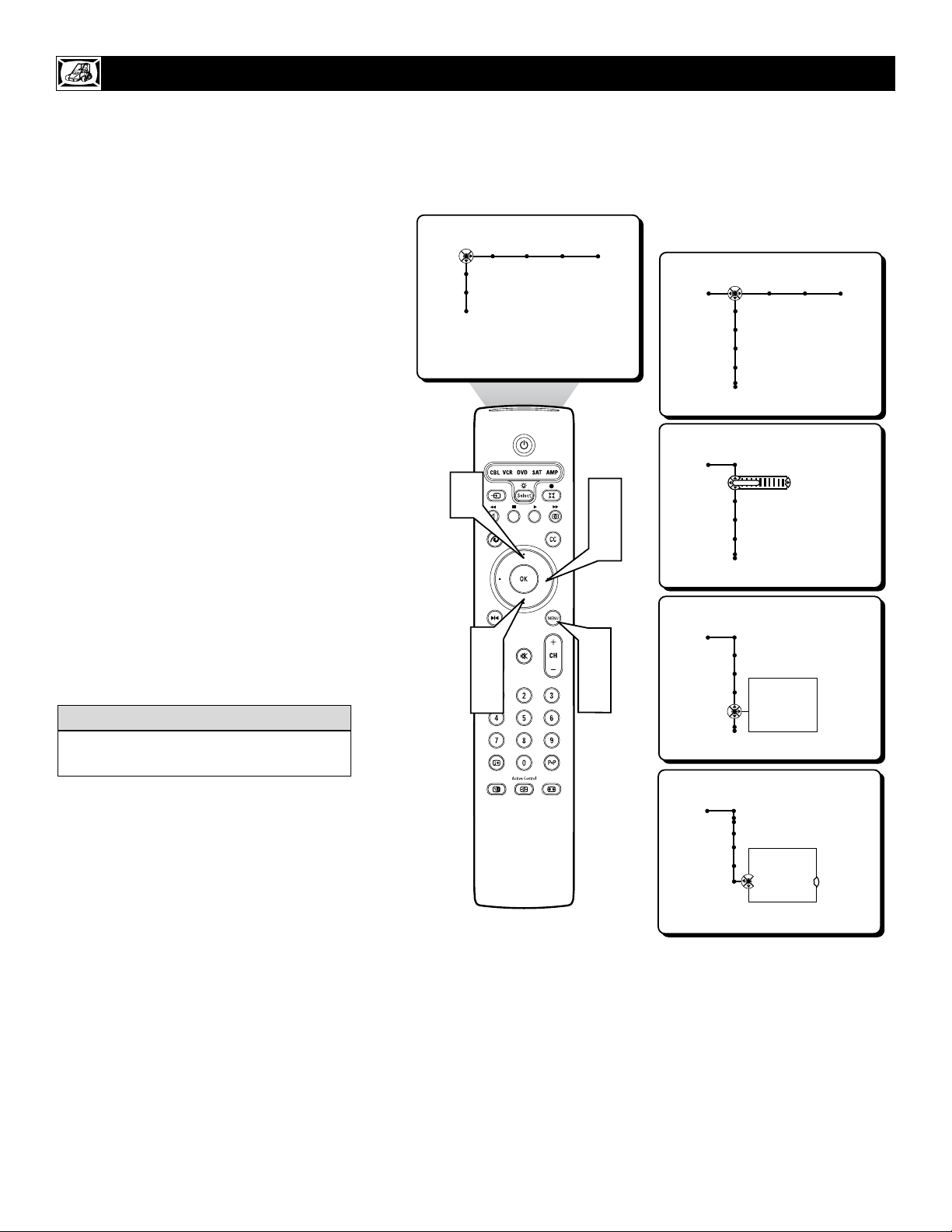
1
Press the MENU button on the
remote to display the onscreen menu
.
2
Press the CURSOR RIGHT button to
highlight PICTURE.
3
Press the CURSOR DOWN button
repeatedly until the DIGITAL PRO-
CESSING control is highlighted.
4
Press the CURSOR RIGHT button
to enter the Digital Processing sub-
menu.
5
Press the CURSOR UP or DOWN
button to select PROGRESSIVE
SCAN or PIXEL PLUS.
6
Press the MENU button to remove the
onscreen menu from the TV screen.
HOW TO USE THE DIGITAL PROCESSING CONTROL
Picture Sound Features Channels
TV
Settings
Demo
Install
Picture Sound Features Channels
TV
Contrast
Brightness
Color
Sharpness
Picture
TV
Contrast
Brightness
Color
Sharpness
40
Picture
TV
Tint
Color Temperature
Digital processing
Dynamic contrast
Progresive Scan
Pixel Plus
Picture
TV
Digital processing
Progresive Scan
Pixel Plus
Picture
TV
Digital processing
Progresive Scan
Pixel Plus
OR
1
6
3
5
2
4
5
With the use of Pixel Plus some DVD players
may display certain screen elements or arti-
facts while in playback. The Auto Picture-
SOFT control (see page 21) can also be used
to help reduce the appearance and level of
such a screen playback condition.
HELPFUL HINT
Pixel Plus Demo
Pixel Plus Off Pixel Plus On
Pixel Plus Demo
With Pixel Plus ON, there is a sharper
image with more natural motion. The
picture will appear flicker free.
Note: The Digital Processing Control is
not available for use with the AV 3 or AV 4
input jacks.
18
T
he Dynamic Contrast control allows you
to sharpen the picture quality by making
dark portions of the picture darker and light
portions of the picture more noticeable.
Normally, you will probably want to select
MEDIUM. In certain circumstances, however,
you may prefer MINIMUM or MAXIMUM.
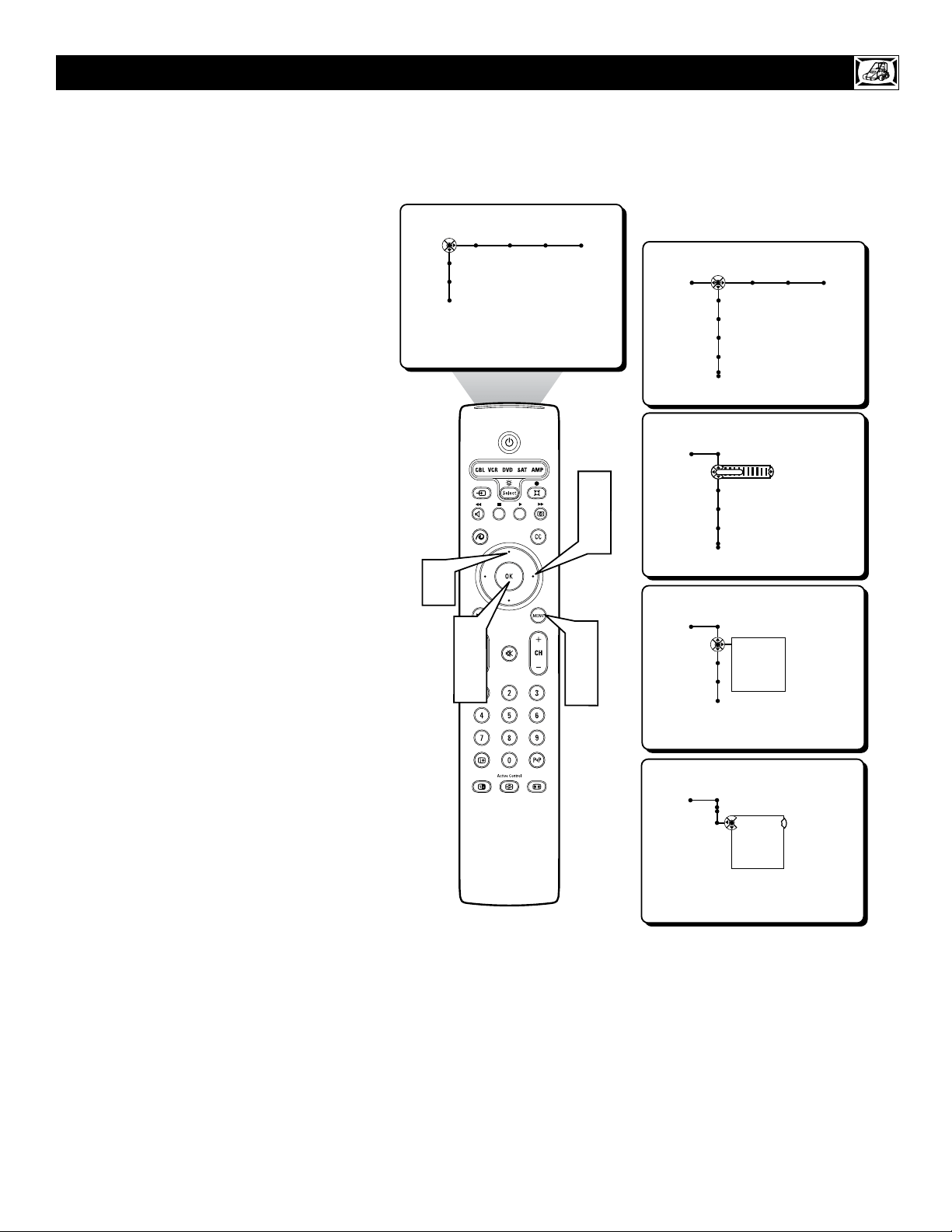
1
Press the MENU button on the
remote to display the onscreen menu.
2
Press the CURSOR RIGHT button
to highlight PICTURE.
3
Press the CURSOR DOWN button
repeatedly until the DYNAMIC CON-
TRAST control is highlighted.
4
Press the CURSOR RIGHT button
to enter the Dynamic Contrast sub-
menu.
5
Press the CURSOR UP or DOWN
button to select one of the Dynamic
Contrast options; OFF, MINIMUM,
MEDIUM, or MAXIMUM.
6
Press the MENU button to remove
the onscreen menu from the TV screen.
HOW TO SET THE DYNAMIC CONTRAST CONTROL
Picture Sound Features Channels
TV
Settings
Demo
Install
Picture Sound Features Channels
TV
Contrast
Brightness
Color
Sharpness
Picture
TV
Contrast
Brightness
Color
Sharpness
40
Picture
TV
Tint
Color Temperature
Digital processing
Dynamic contrast
Off
Minimum
Medium
Maximum
Picture
TV
Dynamic contrast
Off
Minimum
Medium
Maximum
1
6
3
5
2
4
5
The Dynamic Contrast control is not avail-
able for use with the AV 3 or AV 4 Inputs.
HELPFUL HINT
19
D
ue to many reasons, such as poor cable
reception, the picture can sometimes
appear slightly “speckled” (an indication of
signal noise in the picture). The DNR
(Dynamic Noise Reduction) control can help
eliminate this type of interference and
improve the quality of the picture.
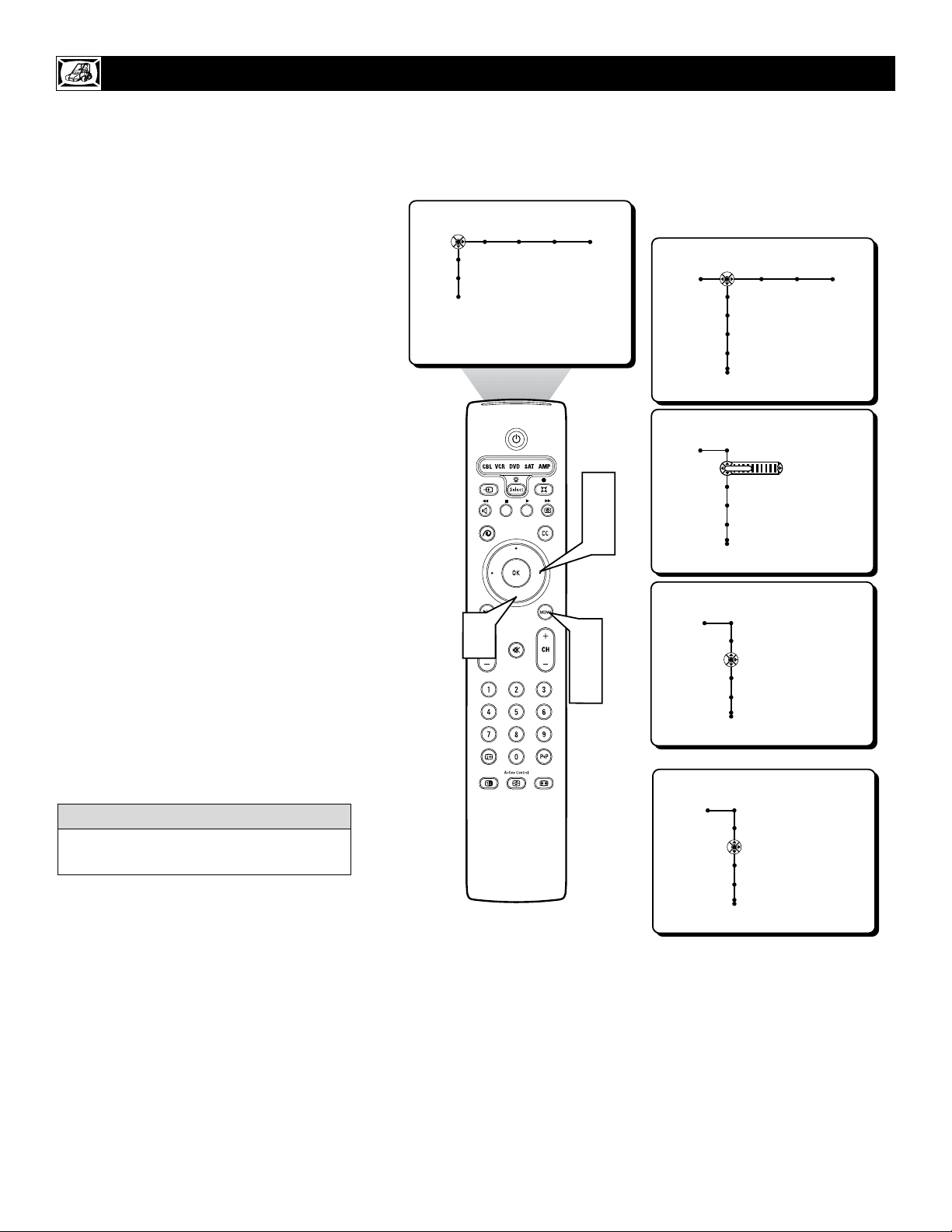
1
Press the MENU button on the
remote to display the onscreen menu.
2
Press the CURSOR RIGHT button
to highlight PICTURE.
3
Press the CURSOR DOWN button
repeatedly until the DNR control is
highlighted.
4
Press the CURSOR RIGHT button
to enter the DNR sub-menu.
5
Press the CURSOR UP or DOWN
button to select one of the DNR
options; OFF, MINIMUM, MEDIUM,
or MAXIMUM.
6
Press the MENU button to remove
the onscreen menu from the TV screen.
HOW TO USE THE DNR (DYNAMIC NOISE REDUCTION) CONTROL
Picture Sound Features Channels
TV
Settings
Demo
Install
Picture Sound Features Channels
TV
Contrast
Brightness
Color
Sharpness
Picture
TV
Contrast
Brightness
Color
Sharpness
40
Picture
TV
DNR
Color enhancement
Auto picture
Picture format
Off
Minimum
Medium
Maximum
Picture
TV
DNR
Off
Minimum
Medium
Maximum
1
6
3
5
2
4
5
20
T
he Color Enhancement control can dra-
matically improve the picture quality of
pictures with a high saturation of color. This
control works in four ways;
Dynamic Blue Stretch corrects the white col-
ors toward a more bluish colored white with-
out changing the other colors. Improves the
sharpness of the picture.
Green Enhancement offers a more saturated
green color in case of low green broadcasts
giving landscapes a fresher and brighter look.
Color Dependent Sharpness improves the
sharpness of the picture through the color
information. Gives the picture more details
especially in red colors.
Skin-tone Correction adjusts for over satura-
tion of red that often appears in skin-tones.
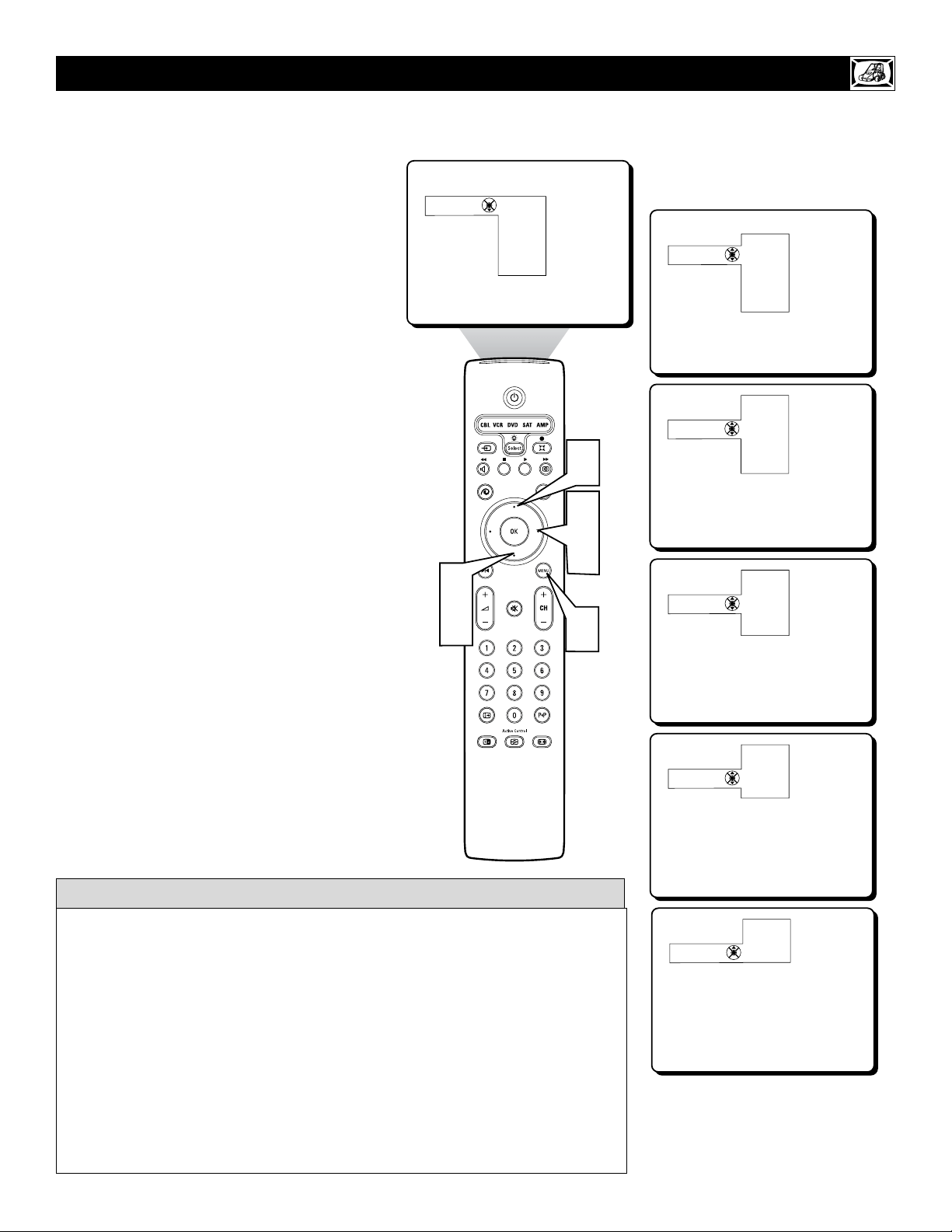
1
Press the MENU button on the
remote to display the onscreen menu.
2
Press the CURSOR RIGHT button
to highlight PICTURE.
3
Press the CURSOR DOWN button
repeatedly until the COLOR
ENHANCEMENT control is highlight-
ed.
4
Press the CURSOR RIGHT button
to turn the Color Enhancement control
ON or OFF.
5
Press the MENU button to remove
the onscreen menu from the TV screen.
HOW TO USE THE COLOR ENHANCEMENT CONTROL
Picture Sound Features Channels
TV
Settings
Demo
Install
Picture Sound Features Channels
TV
Contrast
Brightness
Color
Sharpness
Picture
TV
Contrast
Brightness
Color
Sharpness
40
Picture
TV
DNR
Color enhancement
Auto picture
Picture format
On • Off
Picture
TV
DNR
Color enhancement
Auto picture
Picture format
Off • On
OR
1
5
3
2
4
The Color Enhancement control is not avail-
able for use with the AV 3 or AV 4 Inputs.
HELPFUL HINT
21
W
hether you’re watching a movie or a
video game, your TV has automatic
video control settings that will match with
your current program source or content.
AutoPicture™ quickly resets your TV’s video
controls for a number of different types of
programs and viewing conditions that you
may have in your home. The Personal
AutoPicture™ settings are the same as the
PICTURE control adjustments made within
the onscreen menu.
1
Press the MENU button on the
remote to display the onscreen menu.
2
Press the CURSOR RIGHT button to
hightlight picture.
3
Press the CURSOR DOWN button
repeatedly until the Auto Picture Control
is highlighted.
4
Press the CURSOR RIGHT button to
enter the Auto Picture Sub Menu.
5
Press the CURSOR RIGHT button to
select either PERSONAL, RICH, NAT-
URAL, SOFT, MULTIMEDIA or ECO
picture settings.
After your selection is made the
onscreen menu will disappear from the
TV screen within a couple of seconds.
NOTE: The PERSONAL setting and the
PICTURE options within the onscreen menu
are the same. This is the only option in
AutoPicture
TM
that can be changed. To adjust
these settings, use the PICTURE options
within the onscreen menu. All other settings
are set up at the factory during production and
cannot be adjusted.
HOW TO USE THE AUTO PICTURE CONTROL
Personal
Rich
Natural
Soft
Multimedia
Eco
Auto picture
Personal
Rich
Natural
Soft
Multimedia
Eco
Auto picture
Personal
Rich
Natural
Soft
Multimedia
Eco
Auto picture
=
Natural
Soft
Multimedia
Eco
Auto picture
=
Soft
Multimedia
Eco
Auto picture
=
Multimedia
Eco
Auto picture
1
3
5
5
2
4
PERSONAL – picture settings are based on your personal choice or viewer control prefer-
ences.
RICH – emphasizes very vibrant colors. (Good choice for AV mode used in a brightly lit
room.)
NATURAL – sets picture controls at mid-level settings for consistent viewing conditions.
SOFT – emphasizes warm colors. (Good choice for dimly lit room. Gives a cinema-like
effect when the light is switched off.)
Note: Can also be used with Pixel Plus control (see page 17) to soften the appearance of
harsh video replay screen elements that can show with certain types of DVD playback con-
ditions.
MULTIMEDIA – emphasizes soft colors. (Good choice for playing computer games, etc.)
ECO – reduces Brightness and Contrast settings to low levels as a power consumption sav-
ing measure.
HELPFUL HINT
22
Automatic
Super zoom
4:3
Movie expand 14:9
Movie expand 16:9
16:9 Subtitle
Wide screen
Picture format
Automatic
Super zoom
4:3
Movie expand 14:9
Movie expand 16:9
16:9 Subtitle
Wide screen
Picture format
Automatic
Super zoom
4:3
Movie expand 14:9
Movie expand 16:9
16:9 Subtitle
Wide screen
Picture format
=
4:3
Movie expand 14:9
Movie expand 16:9
16:9 Subtitle
Wide screen
Picture format
=
Movie expand 14:9
Movie expand 16:9
16:9 Subtitle
Wide screen
Picture format
=
Movie expand 16:9
16:9 Subtitle
Wide screen
Picture format
=
16:9 Subtitle
Wide screen
Picture format
1
6
3
5
2
4
7
Y
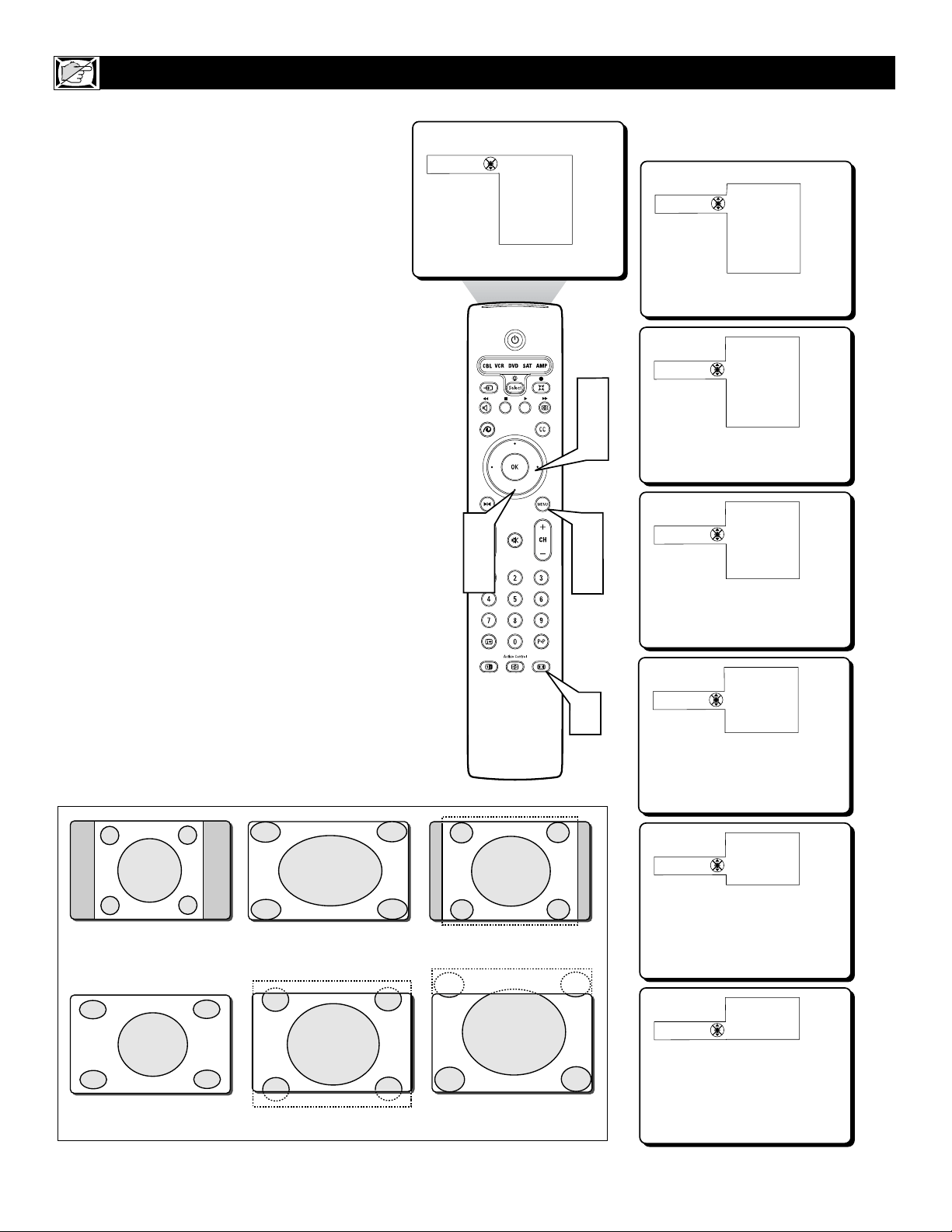
ou can change the screen format size to
match the type of program you’re watch-
ing. Select the normal 4:3 aspect ratio or a
variety for wide screen formats.
1
Press the MENU button on the
remote to display the onscreen menu.
2
Press the CURSOR RIGHT button
to highlight PICTURE.
3
Press the CURSOR DOWN button
repeatedly until the Picture Format
control is highlighted.
4
Press the CURSOR RIGHT button
to enter the Picture Format sub-menu
options.
5
Press the CURSOR DOWN button
to select one of the seven screen for-
mats. Choose from Automatic, Super
Zoom, 4:3, Movie Expand 4:3, Movie
Expand 16:9, 16:9 Subtitle, or Wide
Screen.
6
Press the MENU button to remove
the onscreen menu from the TV screen.
7
Note: The Picture format onscreen
menu can also be entered by press-
ing the Picture Format button on the
remote control.
HOW TO USE THE PICTURE FORMAT CONTROL
4:3
Super Zoom
Movie Expand 14:9
Wide Screen
Movie Expand 16:9
16:9 Subtitle
23
B
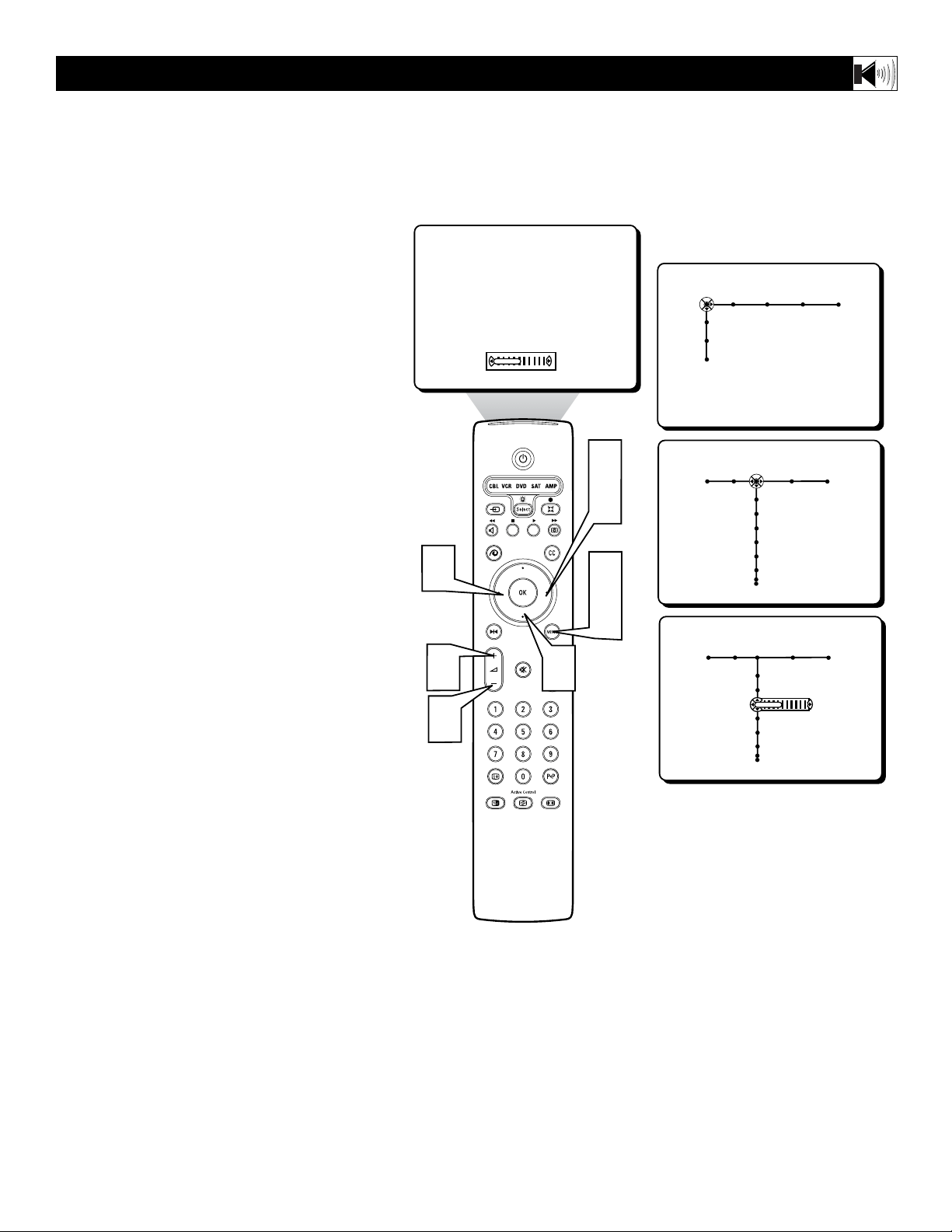
esides the normal volume level control,
your TV also has a headphone volume
control. This control can be adjusted when
using headphones without having to adjust
the main volume control for the TV cabinet
speakers.
To control the television volume:
1
Press the VOL + button on the remote
control to increase the television vol-
ume level.
2
Press the VOL – button on the remote
control to decrease the television vol-
ume level.
Note: The Volume level can also be adjusted
within the onscreen menu. Select the Sound
menu and cursor down to the Volume control.
Use the Cursor Left and Right to adjust.
To control the Headphone volume:
3
Press the MENU button on the
remote control to display the onscreen
menu.
4
Press the CURSOR RIGHT button
to highlight SOUND.
5
Press the CURSOR DOWN button
repeatedly until the Headphone Volume
control is highlighted.
6
Press the CURSOR RIGHT button
to increase the volume level being
heard through the headphones.
7
Press the CURSOR LEFT button to
decrease the volume level being heard
through the headphones.
8
Press the MENU button on the
remote control to remove the onscreen
menu from the TV screen.
ADJUSTING THE TV VOLUME AND THE HEADPHONE VOLUME
Picture Sound Features Channels
TV
Settings
Demo
Install
Sound Features Channels
TV
Volume
Equalizer
Headphone volume
Sound mode
Alt Audio
Mono/Stereo
40
Sound Features Channels
TV
Volume
Equalizer
Headphone volume
Sound mode
Alt Audio
Mono/Stereo
40
TELEVISION VOLUME
HEADPHONE VOLUME
2
5
3
8
7
1
4
6
24
Picture Sound Features Channels
TV
Settings
Demo
Install
Sound Features Channels
TV
Volume
Equalizer
Headphone volume
Sound mode
Alt Audio
Mono/Stereo
Sound Features Channels
TV
Volume
Equalizer
Headphone volume
Sound mode
Alt Audio
Mono/Stereo
Auto Sound: Personal
120 Hz
500 Hz
1.5 kHz
5 kHz
10 kHz
Sound
TV
Equalizer
Auto Sound: Personal
120 Hz
500 Hz
1.5 kHz
5 kHz
10 kHz
Sound
TV
Equalizer
Auto Sound: Personal
120 Hz
500 Hz
1.5 kHz
5 kHz
10 kHz
1
7
3
5
2
4
6
6
Y
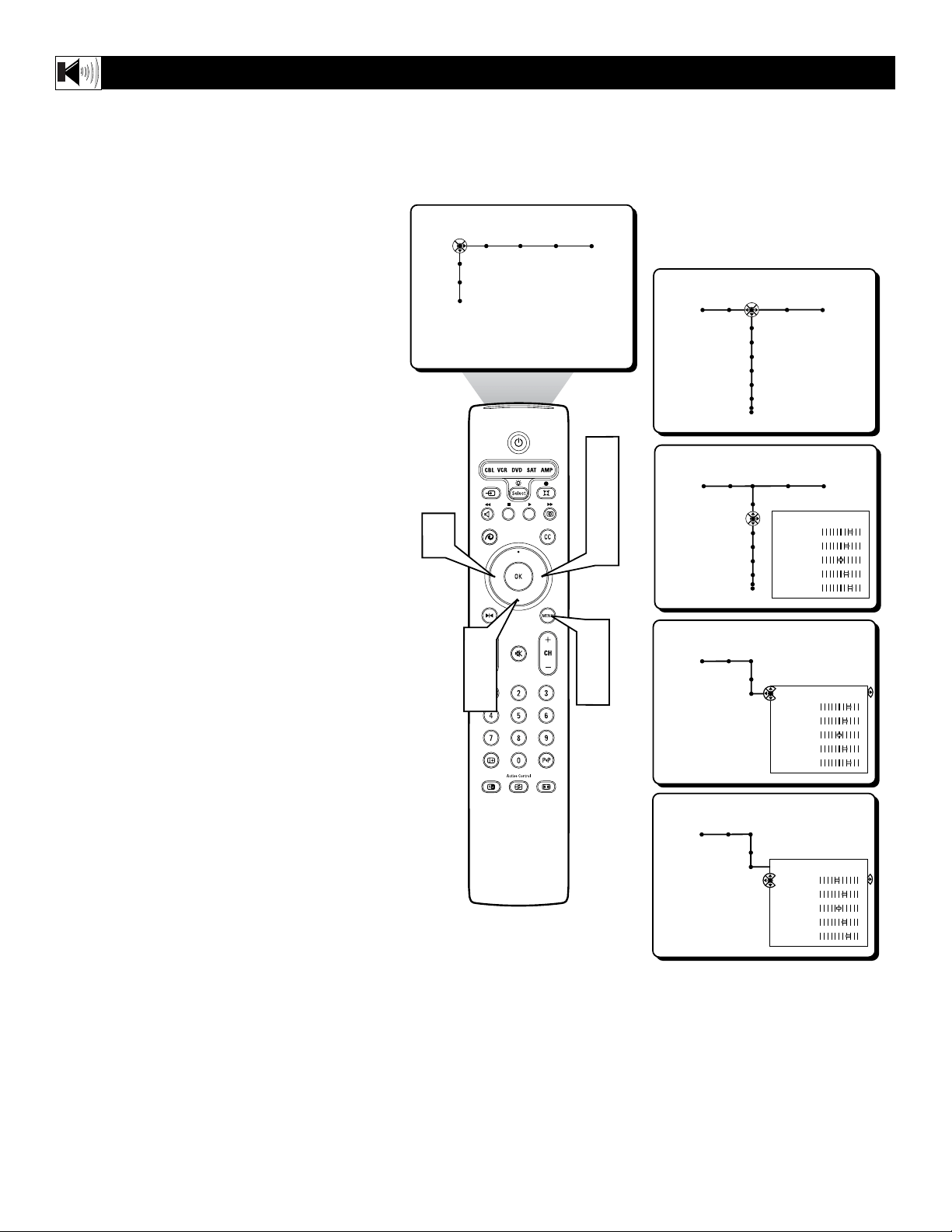
ou can change the dynamics of the sound
being heard through the TV by using the
Equalizer control. The Equalizer control con-
tains slider controls to adjust or change only
the Personal settings. If any of the other fac-
tory pre-defined settings are changed, they
will become the new Personal settings.
1
Press the MENU button on the
remote to display the onscreen menu.
2
Press the CURSOR RIGHT button
repeatedly to highlight SOUND.
3
Press the CURSOR DOWN button
repeatedly until the Equalizer control is
highlighted.
4
Press the CURSOR RIGHT button
to enter the Equalizer sub-menu
options. Continue to press the CUR-
SOR RIGHT to select one of the
options; Personal, Speech, Music,
Movie, or Multimedia.
5
The Personal setting can be changed.
Once an option has been chosen, press
the CURSOR DOWN button to high-
light one of the settings.
6
Press the CURSOR LEFT or
RIGHT button to adjust the slider con-
trol to the desired position.
Note: Even if an option other than Personal
has been chosen, changing any of the values
will default it to the new Personal setting.
7
Press the MENU button when fin-
ished to remove the onscreen menu
from the TV screen.
USING THE TV EQUALIZER CONTROL
25
1
6
3
5
2
4
7
Picture Sound Features Channels
TV
Settings
Demo
Install
Sound Features Channels
TV
Volume
Equalizer
Headphone volume
Sound mode
Alt Audio
Mono/Stereo
Sound Features Channels
TV
Volume
Equalizer
Headphone volume
Sound mode
Alt Audio
Mono/Stereo
Stereo
3 Stereo
3D Surround
---
Sound
TV
Sound mode
Stereo
3 Stereo
3D Surround
---
Sound
TV
Sound mode
Stereo
3 Stereo
3D Surround
Hall
Pro Logic
Sound
TV
Sound mode
Stereo
3 Stereo
3D Surround
Hall
Pro Logic
Sound
TV
Sound mode
Stereo
3 Stereo
3D Surround
Hall
Pro Logic
Sound
TV
Sound mode
Stereo
3 Stereo
3D Surround
Hall
Pro Logic
T
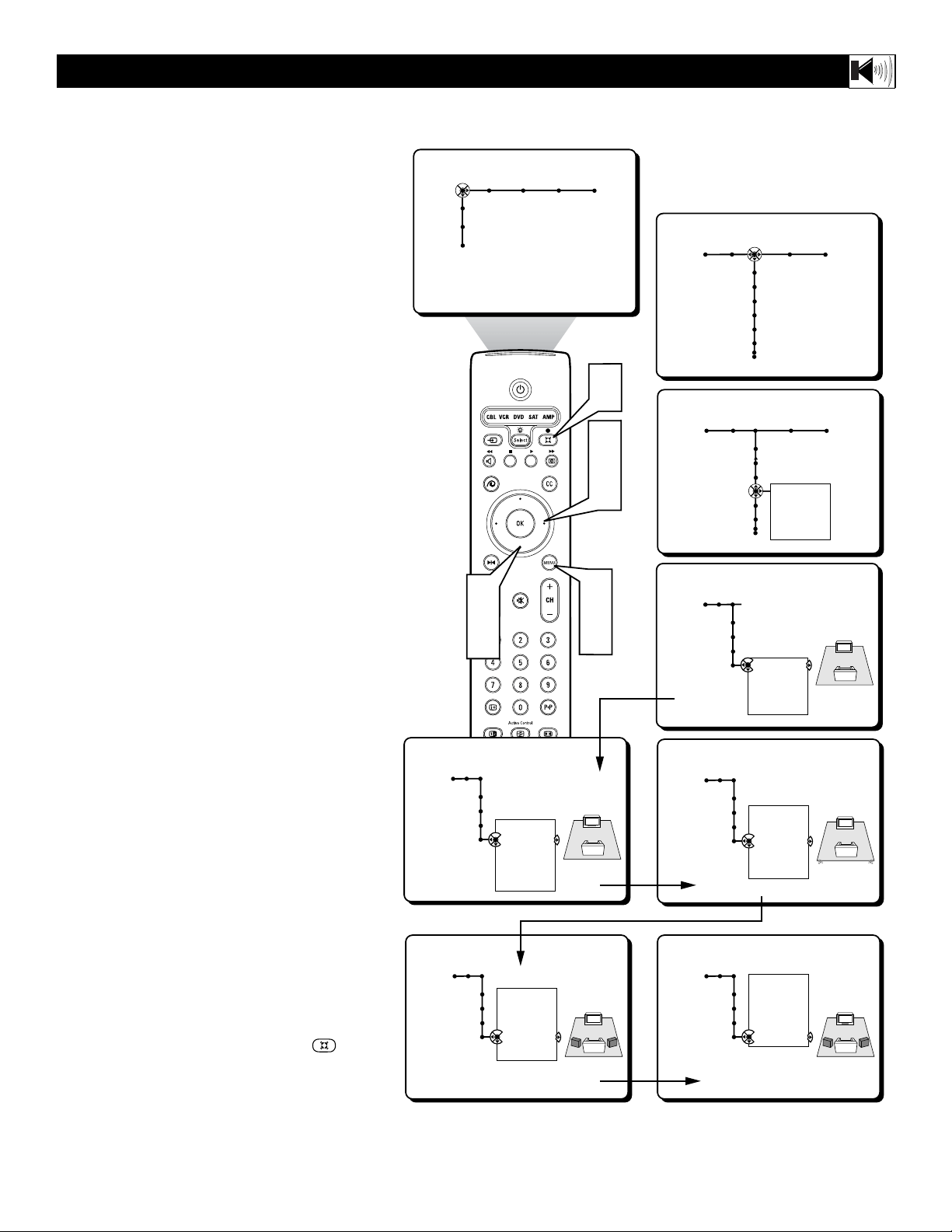
he Sound Mode control allows you to
place the TV sound into one of five modes;
Stereo, 3 Stereo, 3D Surround, Hall, or Pro
Logic.
The following instructions show how to place
the TV into one of these sound modes.
1
Press the MENU button on the remote
to display the onscreen menu.
2
Press the CURSOR RIGHT button
repeatedly to highlight SOUND.
3
Press the CURSOR DOWN button
repeatedly until the Sound Mode con-
trol is highlighted.
4
Press the CURSOR RIGHT button to
enter the Sound Mode sub-menu
options.
5
Press the CURSOR DOWN button to
select one of the five options; Stereo, 3
Stereo, 3D Surround, Hall, or Pro
Logic.
Stereo - Reproduces only left and right
front speaker sound. If you are receiv-
ing a stereo broadcast, you will hear left
and right channel stereo sound.
3 Stereo - Gives stereo sound through
the left, right, and center front speakers.
3D Surround - Gives the experience of
Dolby Surround Pro Logic without hav-
ing rear speakers connected or activat-
ed.
Hall - Creates a “Hall” effect through
the TV left, right, and rear speakers.
Will add simulated surround sound to
any broadcast which is not encoded
with Dolby Surround, or to a mono sig-
nal broadcast.
Pro Logic - For broadcasts encoded
with Dolby Surround, the left, right
center and rear speakers will reproduce
the Dolby Surround Pro Logic audio.
6
Press the MENU button when finished
to remove the onscreen menu from the
TV screen.
7
Pressing the SOUND MODE
button on the remote control will dis-
play a simplified menu for selecting the
proper sound mode.
HOW TO USE THE SOUND MODE CONTROL
*Manufactured under license from Dolby Laboratories.
“Dolby”, “Pro Logic”, and the double-D symbol are trade-
marks of Dolby Laboratories.

26
Picture Sound Features Channels
TV
Settings
Demo
Install
Sound Features Channels
TV
Volume
Equalizer
Headphone volume
Sound mode
Alt Audio
Mono/Stereo
Sound Features Channels
TV
Volume
Equalizer
Headphone volume
Sound mode
Alt Audio
Mono/Stereo
Main • SAP
Sound Features Channels
TV
Volume
Equalizer
Headphone volume
Sound mode
Alt Audio
Mono/Stereo
SAP • Main
OR
1
5
3
2
4
F
or broadcasts that contain SAP
(Secondary Audio Program) information
the Alt Audio Control can be set to ON. SAP is
an additional part of the stereo broadcast sys-
tem. Sent as a third audio channel, SAP can
be heard apart from the current TV program
sound. TV stations are free to use SAP for any
number of purposes.
If a SAP signal is not present with a selected
program, the Alt Audio option cannot be
selected and will appear grayed out in the
onscreen menu.
If SAP is available on the tuned channel:
1
Press the MENU button on the
remote to display the onscreen menu.
2
Press the CURSOR RIGHT button
repeatedly to highlight SOUND.
3
Press the CURSOR DOWN button
repeatedly until the Alt Audio control
is highlighted.
4
Press the CURSOR RIGHT button
to toggle and select either Main or
SAP.
5
Press the MENU button when fin-
ished to remove the onscreen menu
from the TV screen.
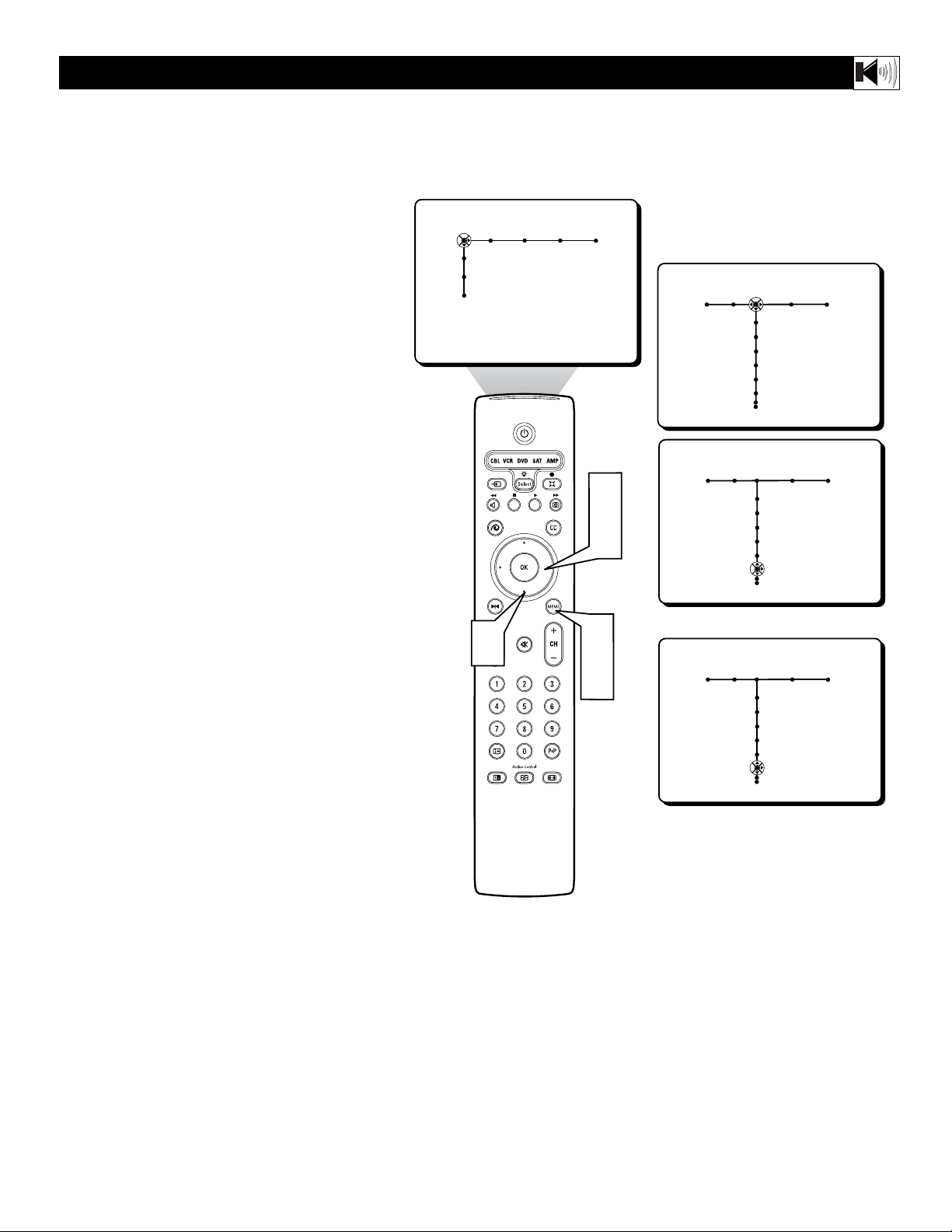
HOW TO USE THE ALTERNATE AUDIO CONTROL (SAP)
27
Picture Sound Features Channels
TV
Settings
Demo
Install
Sound Features Channels
TV
Volume
Equalizer
Headphone volume
Sound mode
Alt Audio
Mono/Stereo
Sound Features Channels
TV
Volume
Equalizer
Headphone volume
Sound mode
Alt Audio
Mono/Stereo
Mono • Stereo
Sound Features Channels
TV
Volume
Equalizer
Headphone volume
Sound mode
Alt Audio
Mono/Stereo
Stereo • Mono
OR
1
5
3
2
4
Y
ou can receive broadcast stereo TV pro-
grams. The TV has both an amplifier and
twin speakers through which the stereo sound
can be heard.
1
Press the MENU button on the
remote to display the onscreen menu.
2
Press the CURSOR RIGHT button
repeatedly to highlight SOUND.
3
Press the CURSOR DOWN button
repeatedly until the Mono/Stereo con-
trol is highlighted.
4
Press the CURSOR RIGHT button
to toggle and select either Mono or
Stereo.
Note: If the signal being received is in mono,
it can not be set to Stereo. However, if the
signal being received is in Stereo, the TV can
be placed in the Mono mode. (If set to the
Mono control position, remember to return
the Mono/Stereo Control back to Stereo when
using the TV with stereo programming.)
5
Press the MENU button when fin-
ished to remove the onscreen menu
from the TV screen.
HOW TO SET THE TV FOR STEREO PROGRAMMING

28
Picture Sound Features Channels
TV
Settings
Demo
Install
Sound Features Channels
TV
Volume
Equalizer
Headphone volume
Sound mode
Alt Audio
Mono/Stereo
Sound Features Channels
TV
3D surround effect
AVL
Delta volume
Auto sound
0
Sound Features Channels
TV
3D surround effect
AVL
Delta volume
Auto sound
33
Sound Features Channels
TV
3D surround effect
AVL
Delta volume
Auto sound
66
Sound Features Channels
TV
3D surround effect
AVL
Delta volume
Auto sound
100
1
5
3
2
4
The 3D Surround Effect Control helps to widen
the effect being heard through the television
speakers. This control is only available if the
television has been placed in the 3D Surround
mode.
1
Press the MENU button on the
remote to display the onscreen menu.
2
Press the CURSOR RIGHT button
repeatedly to highlight SOUND.
3
Press the CURSOR DOWN button
repeatedly until the 3D Surround Effect
control is highlighted.
4
Press the CURSOR RIGHT button
to increase the surround effect. Choose
a value of 0, 33, 66, or 100.
5
Press the MENU button when fin-
ished to remove the onscreen menu
from the TV screen.
HOW TO USE THE 3D SURROUND EFFECT CONTROL
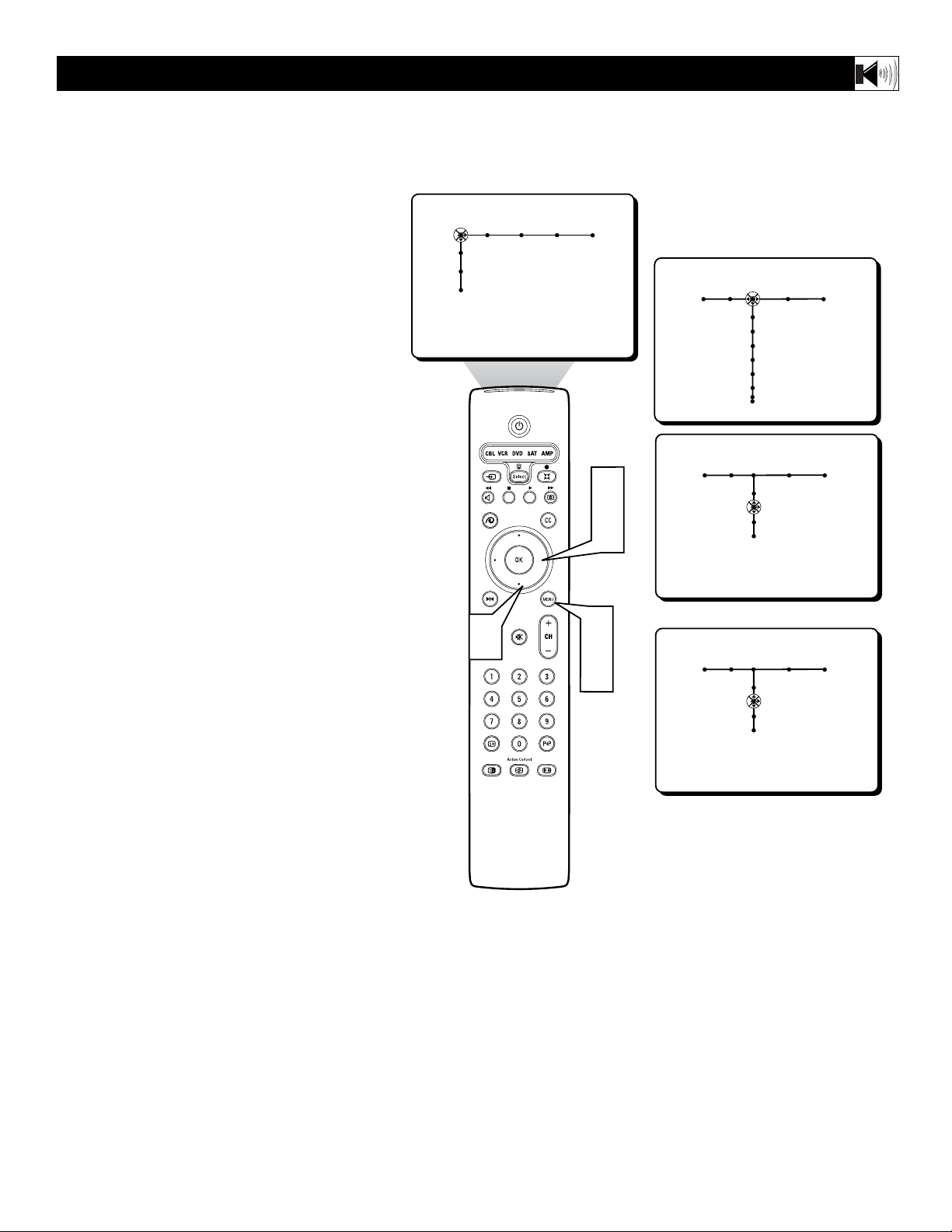
29
I
n most cases, the volume levels coming
from broadcast programming or commer-
cials are never the same. With the AVL
(Audio Volume Leveler) control turned ON,
you can have the TV level out sound that is
being heard. This makes for a more consis-
tent sound by reducing the peaks and valleys
that occur during program changes or com-
mercial breaks. To turn the AVL ON, follow
these steps.
1
Press the MENU button on the
remote control to display the onscreen
menu.
2
Press the CURSOR RIGHT button
repeatedly to highlight SOUND.
3
Press the CURSOR DOWN button
repeatedly until AVL is highlighted.
4
Press the CURSOR RIGHT button
to toggle the control ON or OFF.
5
Press the MENU button to remove
the menu from the screen.
HOW TO USE THE AVL CONTROL
Picture Sound Features Channels
TV
Settings
Demo
Install
Sound Features Channels
TV
Volume
Equalizer
Headphone volume
Sound mode
Alt Audio
Mono/Stereo
Sound Features Channels
TV
3D surround effect
AVL
Delta volume
Auto sound
On • Off
OR
Sound Features Channels
TV
3D surround effect
AVL
Delta volume
Auto sound
Off • On
1
5
3
2
4

30
T
he volume level coming from channel to
channel and broadcast to broadcast can
vary widely. The Delta Volume Control will
allow the volume to be increased for channels
with weaker audio signals while allowing
other channels with stronger signals to be
reduced some. When the Delta Volume
Control is adjusted or changed, it will only
effect the currently tuned channel. The TV
will store the setting for that channel within
its memory and remember it when the channel
is tuned again.
1
Press the CH + or - button on the
remote control to tune a specific chan-
nel.
2
Press the MENU button on the
remote control to show the onscreen
menu.
3
Press the CURSOR RIGHT button
once to highlight SOUND.
4
Press the CURSOR DOWN button
repeatedly until Delta Volume is high-
lighted.
5
Press the CURSOR LEFT button to
decrease the overall volume, or press
CURSOR RIGHT button to increase
the overall volume for the tuned chan-
nel.
Repeat steps for other channels you wish to
adjust the Delta Volume.
6
Press the MENU button to remove
the onscreen menu from the TV screen.
HOW TO USE THE DELTA VOLUME CONTROL
Picture Sound Features Channels
TV
Settings
Demo
Install
Sound Features Channels
TV
Volume
Equalizer
Headphone volume
Sound mode
Alt Audio
Mono/Stereo
Sound Features Channels
TV
3D surround effect
AVL
Delta volume
Auto sound
0
2
6
4
3
5
1
5
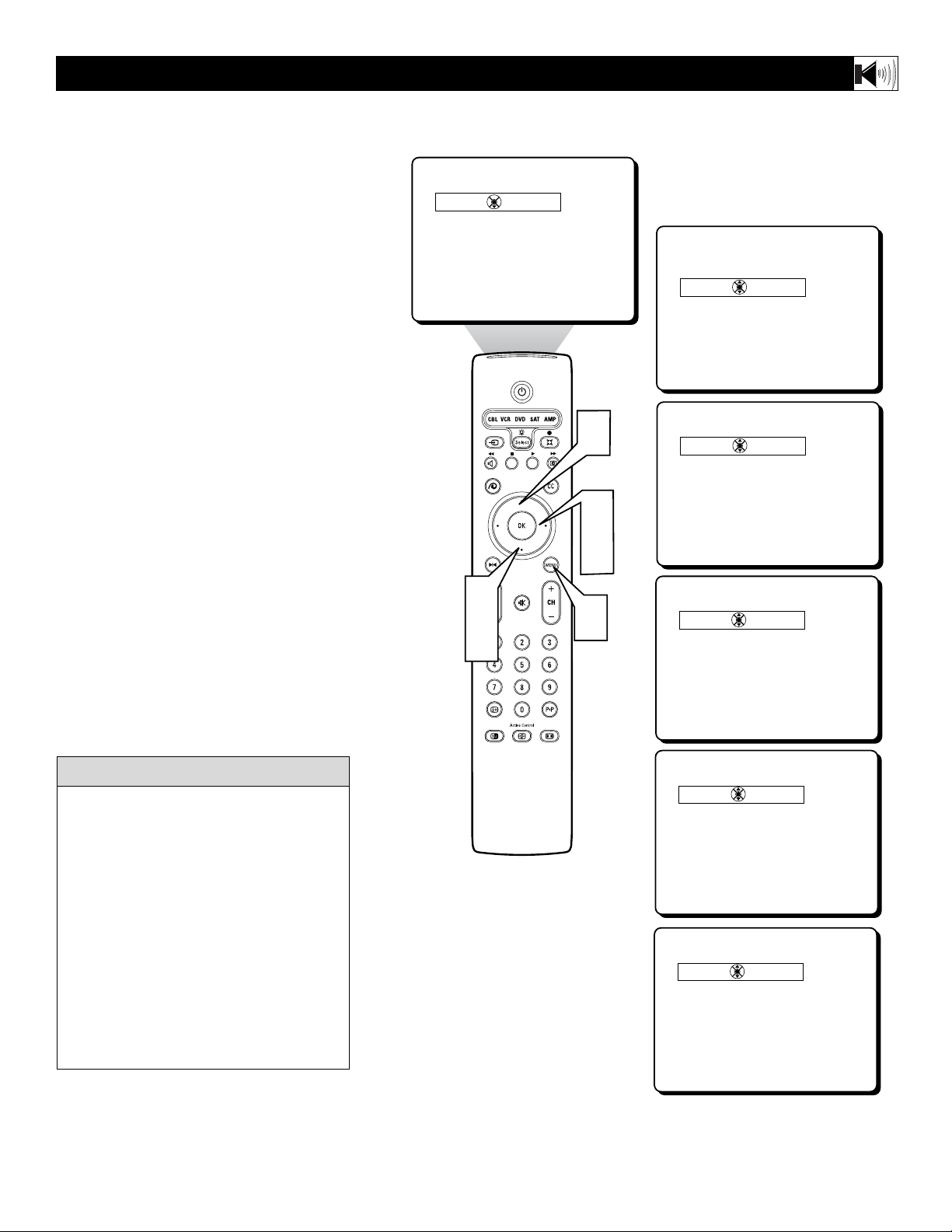
31
A
utoSound™ allows you to select from
four factory-set controls and a personal
control that you set according to your own
preferences through the onscreen Sound
menu. The four factory-set controls (Speech,
Music, Movie, or Multimedia) enable you to
tailor the TV sound so as to enhance the par-
ticular program you are watching. Follow
these steps to select any of the options.
1
Press the MENU button on the rmote
to display the onscreen menu.
2
Press the CURSOR RIGHT button
to hightlight SOUND.
3
Press the CURSOR DOWN button
repeatedly until the Auto Sound
Control is highlighted.
4
Press the CURSOR RIGHT button
to enter the Auto Sound Sub menu.
5
Press the CURSOR UP or DOWN
button to select the options: Personal,
Speech, Music, Movie, or Multimedia.
Once your selection has been made, the
onscreen menu will disappear from the TV
screen within few seconds.
The Auto Sound options can also be selected
through the SOUND menu options within the
onscreen menu.
HOW TO USE THE AUTO SOUND CONTROL
Personal
Speech
Music
Movie
Multimedia
Auto sound
Personal
Speech
Music
Movie
Multimedia
Auto sound
Personal
Speech
Music
Movie
Multimedia
Auto sound
Personal
Speech
Music
Movie
Multimedia
Auto sound
=
Music
Movie
Multimedia
Auto sound
=
Movie
Multimedia
Auto sound
2
4
5
1
3
5
PERSONAL – presents the TV’s sound
according to the settings you make within
the sound menu.
SPEECH – brings voices to the forefront
and emphasizes them. Moves music to the
background.
MUSIC – emphasizes music over voices.
MOVIE – provides a balance between
voices and music.
MULTIMEDIA – provides sound balance
best suited for gaming consoles, or interac-
tive media.
cc
C
HECK IT OUT
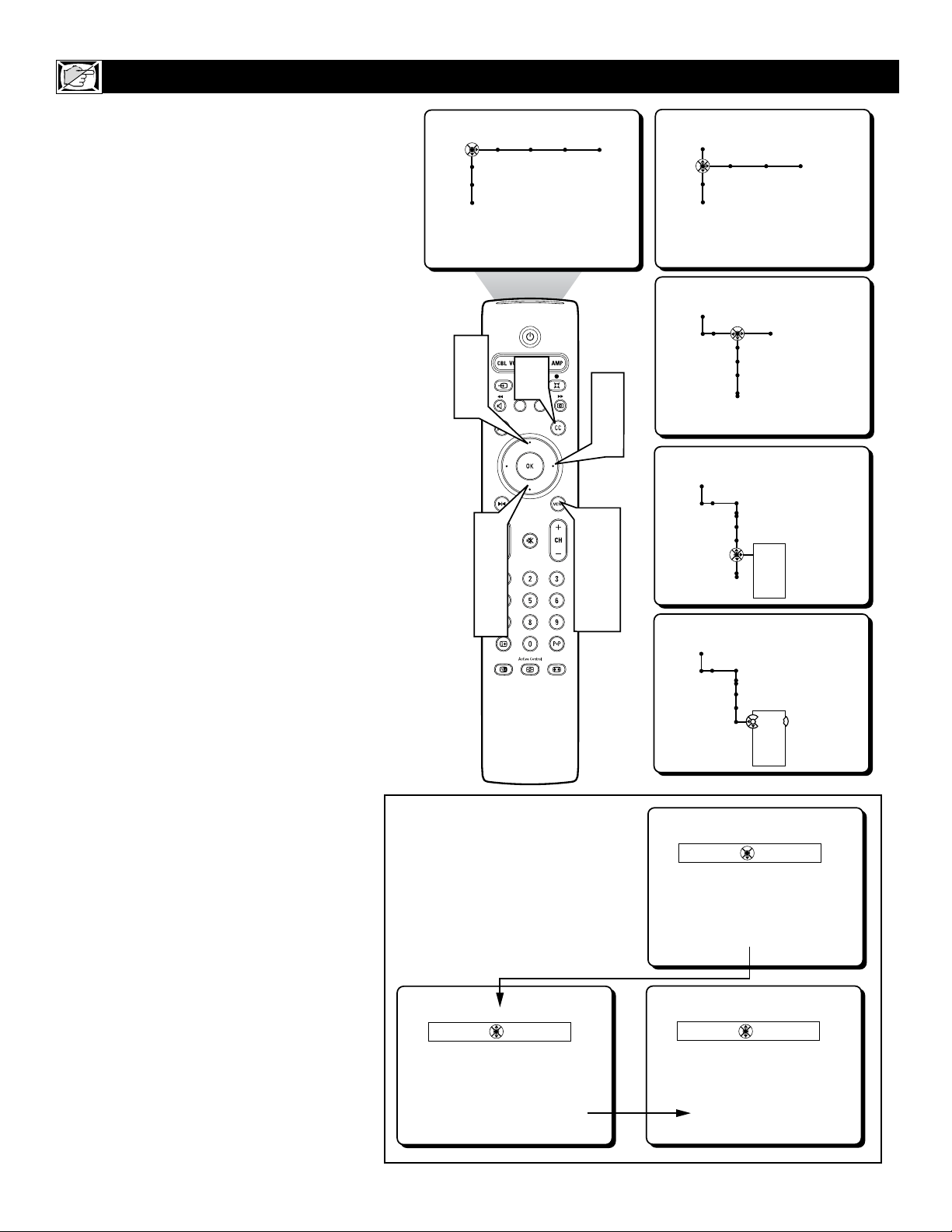
32
C
losed Captioning (CC) allows you to read
the voice content of television programs
on the TV screen. Designed to help the hear-
ing impaired, this feature uses onscreen “text
boxes” to show dialogue and conversations
while the TV program is in progress.
Follow steps 1 through 7 to select a Closed
Caption option:
1
Press the MENU button on the
remote control to display the onscreen
menu.
2
Press the CURSOR DOWN button
repeatedly to highlight SETTINGS.
3
Press the CURSOR RIGHT button
repeatedly to highlight General.
4
Press the CURSOR DOWN button
repeatedly to highlight Caption
Service.
5
Press the CURSOR RIGHT button
to enter the Closed Captions sub-menu.
6
Press the CURSOR UP or DOWN
button to highlight one of the caption
modes: CC-1, CC-2, CC-3, CC-4, T-1,
T-2, T-3, or T-4.
Note: Text Modes (T1-T4) appear
onscreen as boxes and may block por-
tions of the TV screen.
7
Press the MENU button to remove
the onscreen menu from the TV screen.
Follow steps 8 through 13 to turn the
Closed Captions Control ON or OFF.
8
Press the CC button on the remote
control.
9
Press the CURSOR UP or DOWN
button repeatedly to select OFF, ON,
or ON with Mute.
OFF - Closed Captioning service will
not be displayed on the TV screen.
ON - Closed Captioning information
(if available) will display on the TV
screen.
ON with Mute - Closed Captioning
information will turn On only when the
MUTE button is pressed. Turns the
closed captioning information OFF
when the TV volume is restored.
Press the MENU button on the
remote to remove the onscreen display
from the TV screen.
HOW TO USE THE CLOSED CAPTIONING CONTROL
Picture Sound Features Channels
TV
Settings
Demo
Install
Closed captions
Speakers General Source
TV
Settings
Demo
Install
General Source
Settings
Menu background
Surf
Dual screen format
General
Settings
Freeze format
Reset AV settings
Caption service
CC-1
CC-2
CC-3
CC-4
---
General
Settings
Freeze format
Reset AV settings
Caption service
CC-1
CC-2
CC-3
CC-4
---
Menus to Turn the
Closed Captions
Control ON or OFF
Off
On
On with mute
Closed captions
Off
On
On with mute
Closed captions
Off
On
On with mute
1
7
10
2
4
6
3
5
6
9
8
10
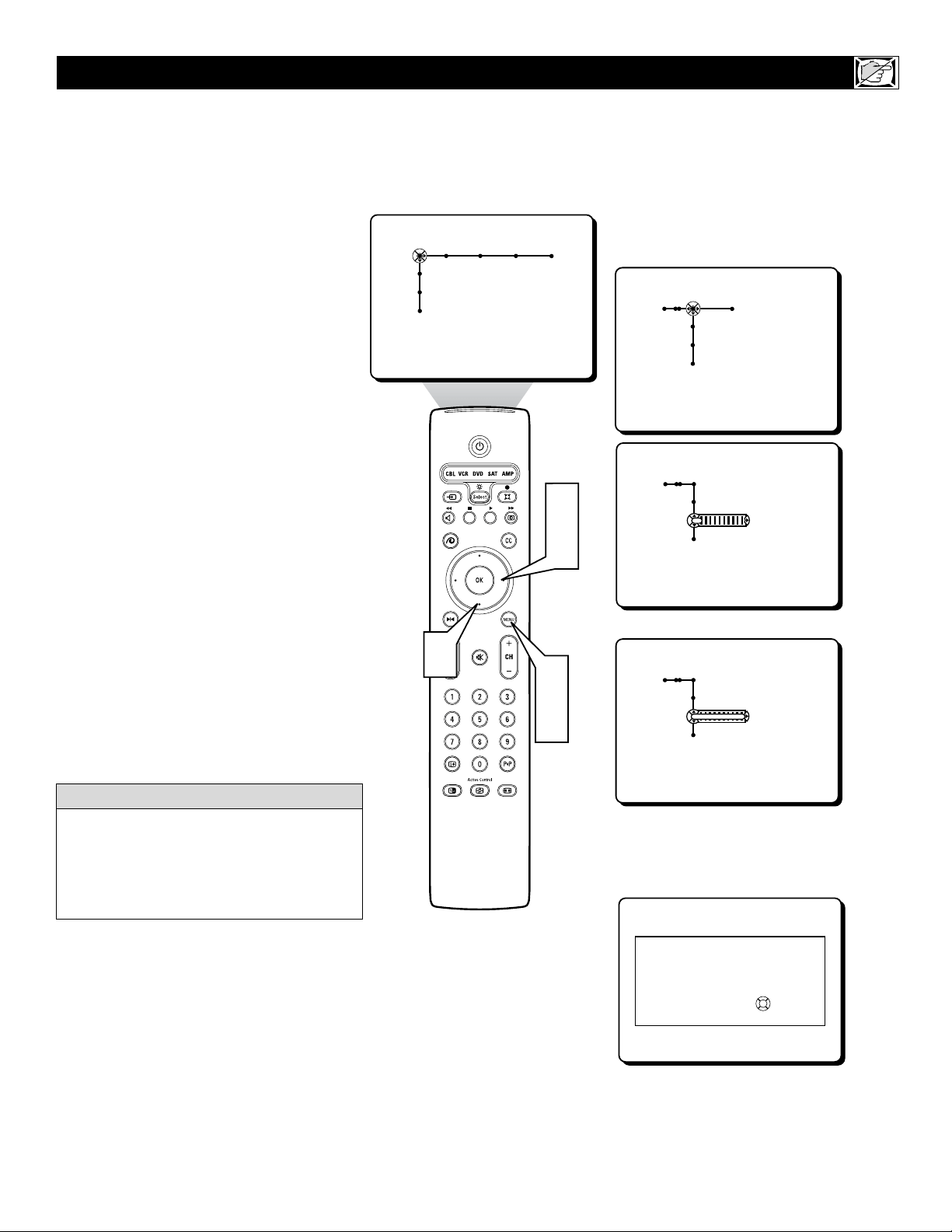
33
Picture Sound Features Channels
TV
Settings
Demo
Install
Features Channels
TV
Closed captions
Sleeptimer
On timer
Features
TV
Closed captions
Sleeptimer
On timer
5
Features
TV
Closed captions
Sleeptimer
On timer
180
Up To
During the last minute of a Sleeptimer setting
the TV will display a countdown screen where
the setting can be cancelled
The sleeptimer will switch off the TV in 45
seconds.
Cancel
OK
3
2
4
1
5
H
ave you ever fallen asleep in front of the
TV, only to have it wake you up at two in
the morning with a test pattern sound
screeching in your ears? Well, your TV can
enable you to avoid that discomfort by auto-
matically turning itself off. With the
Sleeptimer control, you can set a timer to
automatically switch the TV OFF after a peri-
od of time you choose (5-minutes up to 180
minutes in 5-minute increments).
1
Press the MENU button on the
remote control to display the onscreen
menu.
2
Press the CURSOR RIGHT button
repeatedly until FEATURES is high-
lighted.
3
Press the CURSOR DOWN button
repeatedly to highlight Sleeptimer.
4
Press the CURSOR RIGHT button
to set the Sleeptimer in 5-minute incre-
ments starting at 5-minutes up to 180-
minutes.
5
Press the MENU button to remove
the onscreen menu from the TV screen.
An onscreen countdown will appear during
the last minute before the TV shuts itself off.
At this time you may cancel the sleeptimer
setting by pressing the OK button on the
remote control.
HOW TO
SET THE SLEEP TIMER CONTROL
To see how many minutes remain before the
TV shuts itself off, press the INFO+ button.
A Sleep Timer setting can be cancelled by
pressing the OK button during the last minute
of the operation.
HELPFUL HINT

34
T
he On-Timer Control allows you to set a
time to power the TV on automatically at
a certain time of day. The On-Timer can be set
to work once, or daily at the same time.
1
Press the MENU button on the remote
control to display the onscreen menu.
2
Press the CURSOR RIGHT button
repeatedly to highlight FEATURES.
3
Press the CURSOR DOWN button
repeatedly to highlight the On Timer con-
trol.
4
Press the CURSOR RIGHT button to
enter the sub-menu.
5
Press the CURSOR UP or DOWN but-
ton to select ON.
6
Press the CURSOR RIGHT button to
shift the menu to the start channel sub-
menu.
7
Press the CURSOR UP or CURSOR
DOWN button to select the channel you
would like the TV to tune to when it turns
on.
8
Press the CURSOR RIGHT button to
shift the menu to the Day/Daily sub-
menu.
9
Press the CURSOR UP or DOWN but-
ton to select the day to turn on or select
Daily.
Press the CURSOR RIGHT button to
enter the AM/PM sub-menu.
Press the CURSOR UP or DOWN
button to select AM or PM.
Press the CURSOR RIGHT button to
enter the start time.
Press the NUMBERED buttons to
enter the time. Use 0 first if entering a
signal digit. (i.e.; 0, 1, 3, 0 for 1:30)
Press the OK button to confirm.
Press the MENU button to remove the
onscreen menu from the TV screen.
HOW TO USE THE ON-TIMER CONTROL
Picture Sound Features Channels
TV
Settings
Demo
Install
Features Channels
TV
Closed captions
Sleeptimer
On timer
Features
TV
Closed captions
Sleeptimer
On timer
Off
On
Features
TV
On timer
On
2
3
4
5
6
---
Features
TV
On timer
On
4
---
Thursday
Friday
Saturday
Daily
Features
TV
On timer
On
4
Daily
AM
FM
Features
TV
On timer
On
4
Daily
AM
FM
06:35
3
5
7
9
11
1
15
2
4
6
8
10
12
5
7
9
11
13
14
Remember, be sure to press 0 first and then
the hour number for single-digit entries.
HELPFUL HINT
10
11
12
13
14
15
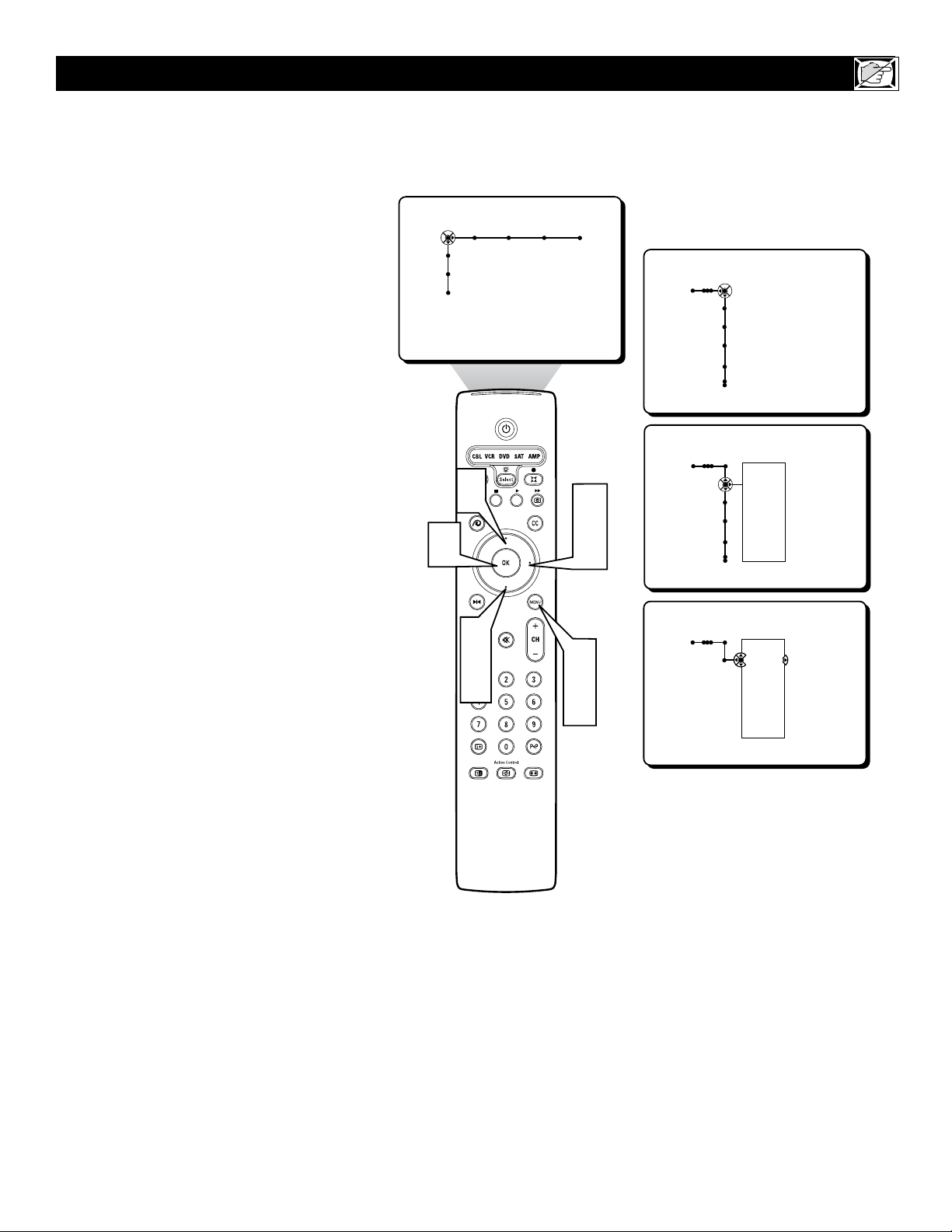
35
T
he Channel List Control shows all the avail-
able channels that the Auto Programming
placed in the TV memory. The channels can be
selected from this list.
1
Press the MENU button on the remote
control to display the onscreen menu.
2
Press the CURSOR RIGHT button
repeatedly to highlight CHANNELS.
3
Press the CURSOR DOWN button to
highlight the Channel List control.
4
Press the CURSOR RIGHT button to
enter the Channel List sub-menu.
5
Press the CURSOR UP or DOWN but-
ton to highlight a specific channel from
the list.
6
Press the OK button. The television
will tune to the highlighted channel.
7
Press the MENU button to remove the
onscreen menu from the TV screen.
HOW TO USE THE CHANNEL LIST CONTROL
Picture Sound Features Channels
TV
Settings
Demo
Install
Channels
TV
Channel list
Channel lock
Lock after
TV ratings lock
Channels
TV
Channel list
Channel lock
Lock after
TV ratings lock
---
12
13
14
15
19
---
Channels
TV
Channel list
---
12
13
14
15
19
---
3
5
1
7
2
4
5
6
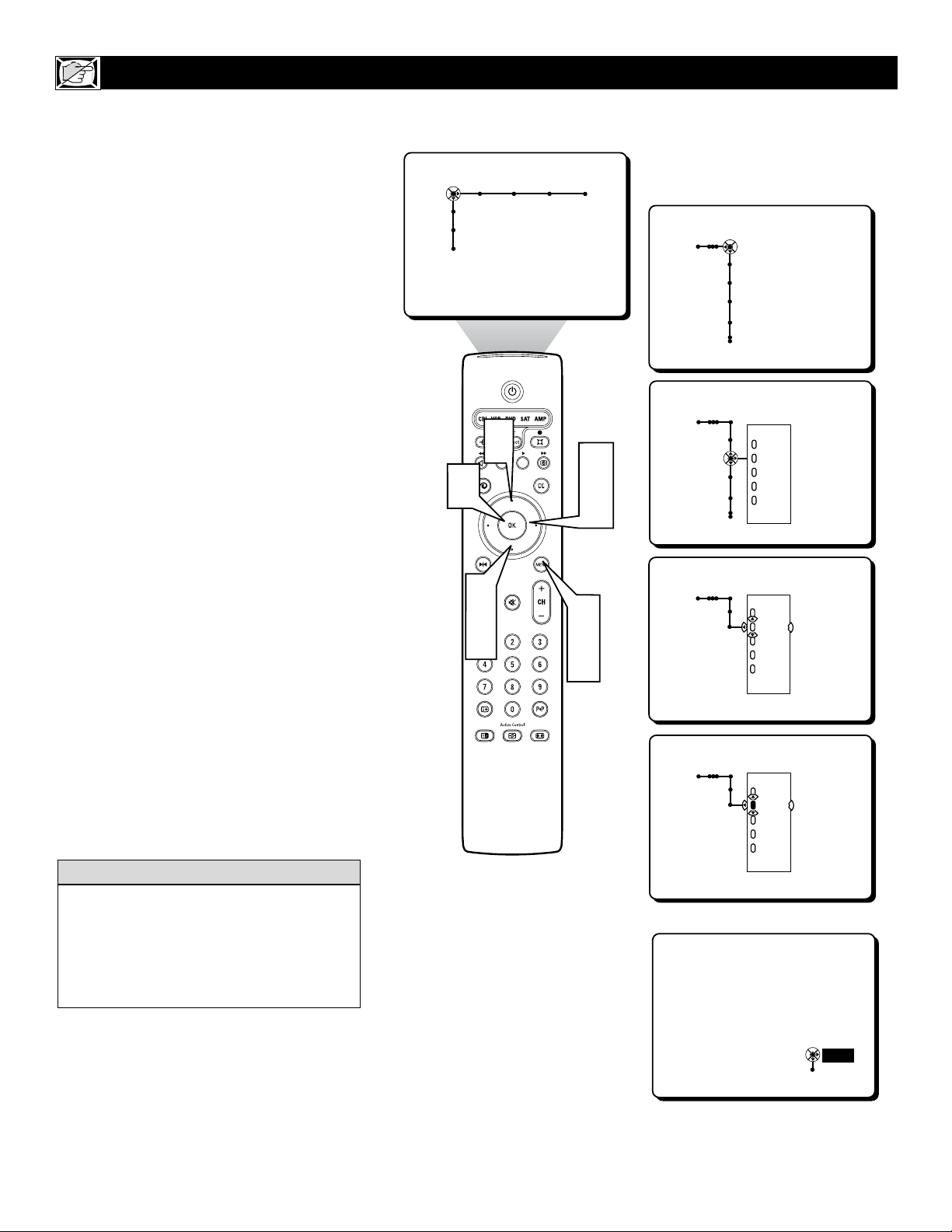
36
F
or various reasons you might want to block
the programming on a specific channel or
series of channels. The Channel Lock Control
will allow individual channels to be “locked”,
blocking the programming on that channel.
1
Press the MENU button on the remote
control to display the onscreen menu.
2
Press the CURSOR RIGHT button
repeatedly to highlight CHANNELS.
3
Press the CURSOR DOWN button
repeatedly to highlight the Channel Lock
Control.
4
Press the CURSOR RIGHT button to
enter the Channel Lock sub-menu.
5
Press the CURSOR UP or DOWN but-
ton to highlight a specific channel from
the list.
6
Press the OK button. The “dot” in front
of the channel number will change to
yellow showing that the channel is
locked.
Repeat steps 5 and 6 for other channels you
wish to lock.
7
Press the MENU button to remove the
onscreen menu from the TV screen.
Note: To unlock a locked channel, enter your
personal PIN number to clear the channel from
being blocked. Please refer to page 51 for
instructions on setting up a PIN (Personal
Identification Number).
HOW TO
USE THE CHANNEL LOCK CONTROL
Picture Sound Features Channels
TV
Settings
Demo
Install
Channels
TV
Channel list
Channel lock
Lock after
TV ratings lock
Channels
TV
Channel list
Channel lock
Lock after
TV ratings lock
---
12
13
14
15
19
---
Channels
TV
Channel lock
---
12
13
14
15
19
---
Channels
TV
Channel lock
---
12
13
14
15
19
---
This channel is locked.
To unlock the channel,
please enter your PIN.
PIN
Cancel
- - - -
3
5
1
7
2
4
5
6
If you tune to a channel that is locked and you
enter your PIN to unlock the channel, ALL
locked channels will be unlocked until the tel-
evision is shut off. When the television is
turned back on again, previously locked chan-
nels will be locked again.
HELPFUL HINT
This screen will appear when tuned
to a locked channel. To view the
channel, enter your PIN.
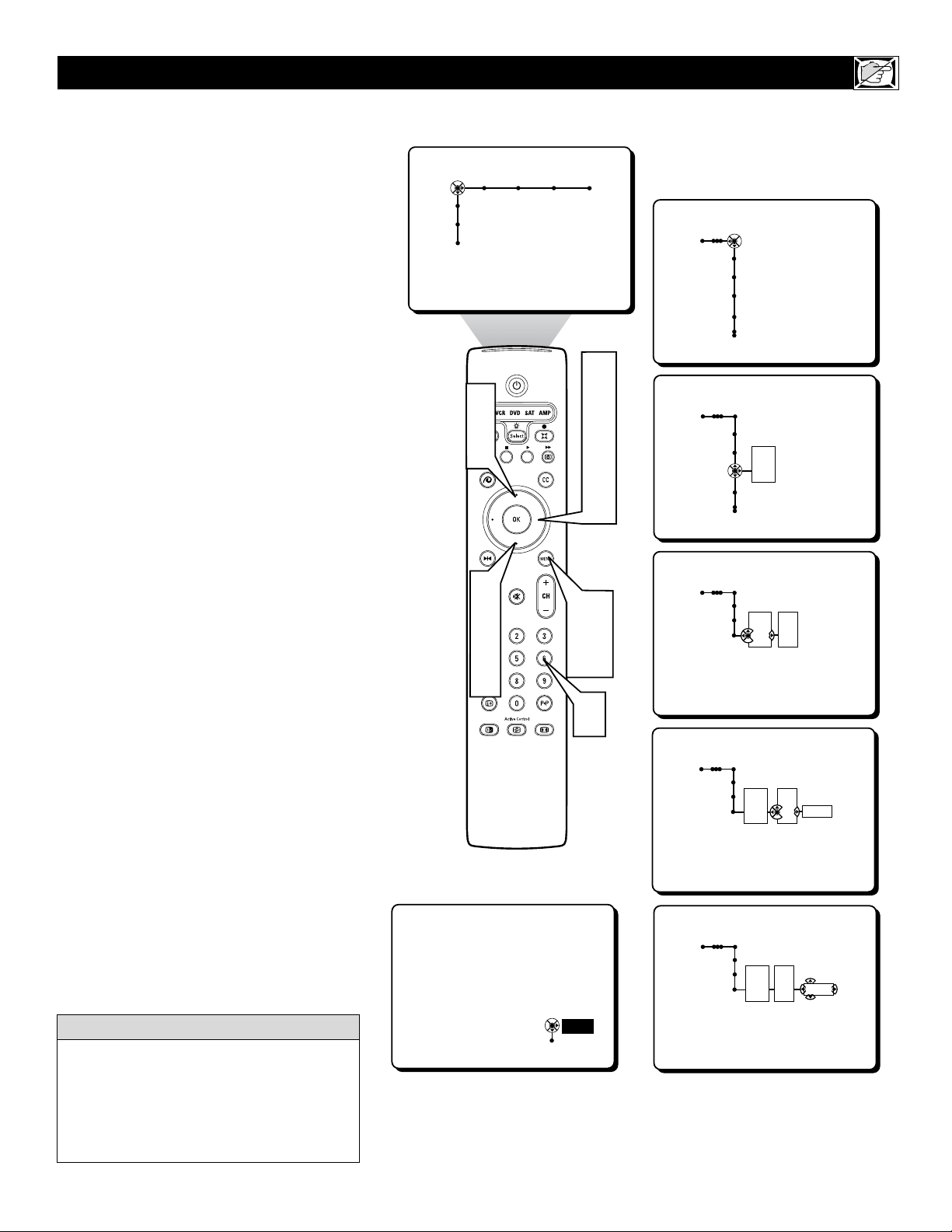
37
T
here may come a time when you will need to
block programming after a certain time of
day. This is a great feature to limit the time
your children watch TV or to lock all channels
at night when material not suited for children
might be broadcast.
1
Press the MENU button on the remote
control to display the onscreen menu.
2
Press the CURSOR RIGHT button
repeatedly to highlight CHANNELS.
3
Press the CURSOR DOWN button
repeatedly to highlight the Lock After
Control.
4
Press the CURSOR RIGHT button to
enter the Lock After sub-menu (ON or
OFF).
5
Press the CURSOR UP or DOWN but-
ton to highlight On from the list. A sub-
menu with AM or PM will appear.
6
Press the CURSOR RIGHT button to
enter the AM, PM sub-menu. A box with
the time (or area when the time can be
entered) will appear.
7
Press the CURSOR UP or DOWN but-
ton to highlight AM or PM.
8
Press the CURSOR RIGHT button to
enter the lock after time.
9
Press the NUMBERED button to enter
the time you want the television to lock
all channels.
Press the MENU button to remove the
onscreen menu from the TV screen.
Note: To unlock a locked channel, enter your
personal PIN number to clear the channel from
being blocked. Please refer to page 51 for
instructions on setting up a PIN (Personal
Identification Number).
HOW TO USE THE LOCK AFTER CONTROL
Picture Sound Features Channels
TV
Settings
Demo
Install
Channels
TV
Channel list
Channel lock
Lock after
TV ratings lock
Channels
TV
Channel list
Channel lock
Lock after
TV ratings lock
Off
On
Channels
TV
Lock after
This channel is locked.
To unlock the channel,
please enter your PIN.
PIN
Cancel
- - - -
Off
On
AM
PM
Channels
TV
Lock after
Off
On
AM
PM
11:30
Channels
TV
Lock after
Off
On
AM
PM
11:30
3
5
7
1
10
2
4
6
8
5
7
9
If you tune to a channel that is locked and you
enter your PIN to unlock the channel, ALL
locked channels will be unlocked until the tel-
evision is shut off. When the television is
turned back on again, previously locked chan-
nels will be locked again.
H
ELPFUL HINT
10
Once the Lock After setting takes place, all
channels will display this screen. To view
the channels, enter your PIN.
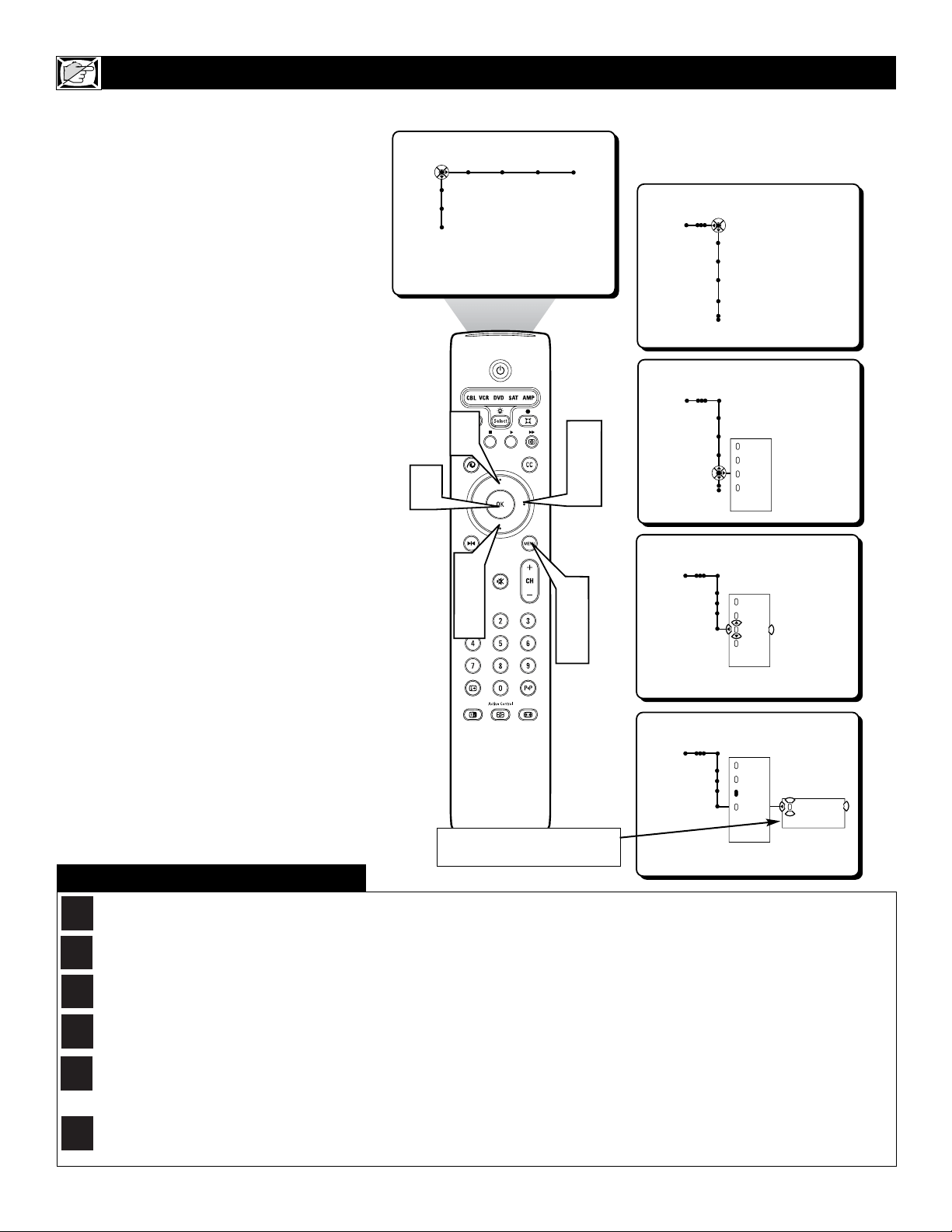
38
Y
ou can select specific TV Ratings to block
broadcast signal with unsuitable informa-
tion.
1
Press the MENU button on the remote
control to display the onscreen menu.
2
Press the CURSOR RIGHT button
repeatedly to highlight CHANNELS.
3
Press the CURSOR DOWN button
repeatedly to highlight the TV Ratings
Lock Control.
4
Press the CURSOR RIGHT button to
enter the TV Ratings Lock list of options.
5
Press the CURSOR UP or DOWN but-
ton to highlight one of the ratings.
6
Press the OK button to activate your
choice. Note: Whenever a rating is turned
On, all higher ratings (with their sub rat-
ings) will also be turned On or blocked.
Note: Some of the TV Rating options contain
specific sub-ratings. TV-Y7 contains sub-rating
of (FV) Fantasy Violence; TV-PG and TV-14
contains sub-ratings of (D) Dialogue, (L)
Language, (S) Sex, and (V) Violence; TV-MA
contains sub-ratings of (L) Language, (S) Sex,
and (V) Violence.
7
Press the MENU button to remove the
onscreen menu from the TV screen.
HOW TO BLOCK PROGRAMMING BASED ON TV RATINGS
Picture Sound Features Channels
TV
Settings
Demo
Install
Channels
TV
Channel list
Channel lock
Lock after
TV ratings lock
Channels
TV
Channel list
Channel lock
Lock after
TV ratings lock
All
None
TV-Y
TV-Y7
---
Channels
TV
TV ratings lock
All
None
TV-Y
TV-Y7
---
Channels
TV
TV ratings lock
All
None
TV-Y
TV-Y7
TV-G
---
(FV) Fantasy
Violence
3
5
1
7
2
4
6
5
TV-Y: (All children -- appropriate for all children.) Designed for a very young audience, including children ages 2-6.
TV-Y7: (Directed to Older Children -- designed for children ages 7 and above.) For children who have acquired the develop-
ment skills needed to distinguish make-believe from reality. This programming may include mild fantasy and comic violence (FV).
TV-G: (General Audience -- suitable for all ages.) Contains little or no violence, no strong language, and little or no sexual dia-
logue or sexual situations.
TV-PG: (Parental Guidance Suggested -- Contains material unsuitable for younger children.) Contains one or more of the fol-
lowing: Moderate violence (V), some sexual situations (S), infrequent coarse language (L), or some suggestive dialogue (D).
TV-14: (Parents Strongly Cautioned -- Contains some material unsuitable for children under 14 years of age.) Contains one or
more of the following: intense violence (V); intense sexual situations (S); strong, coarse language (L); or intensely suggestive dia-
logue (D).
TV-MA: (Mature Audience Only -- Designed to be viewed by adults and unsuitable for children under 17.) Contains one or
more of the following: graphic violence (V); explicit sexual situations (S); or crude, indecent language (L).
TV R
ATINGS (TV BROADCASTERS)
TV
Y
TV
Y7
TV
G
TV
PG
TV
14
TV
MA
Some TV Ratings have sub-ratings
that can be chosen.
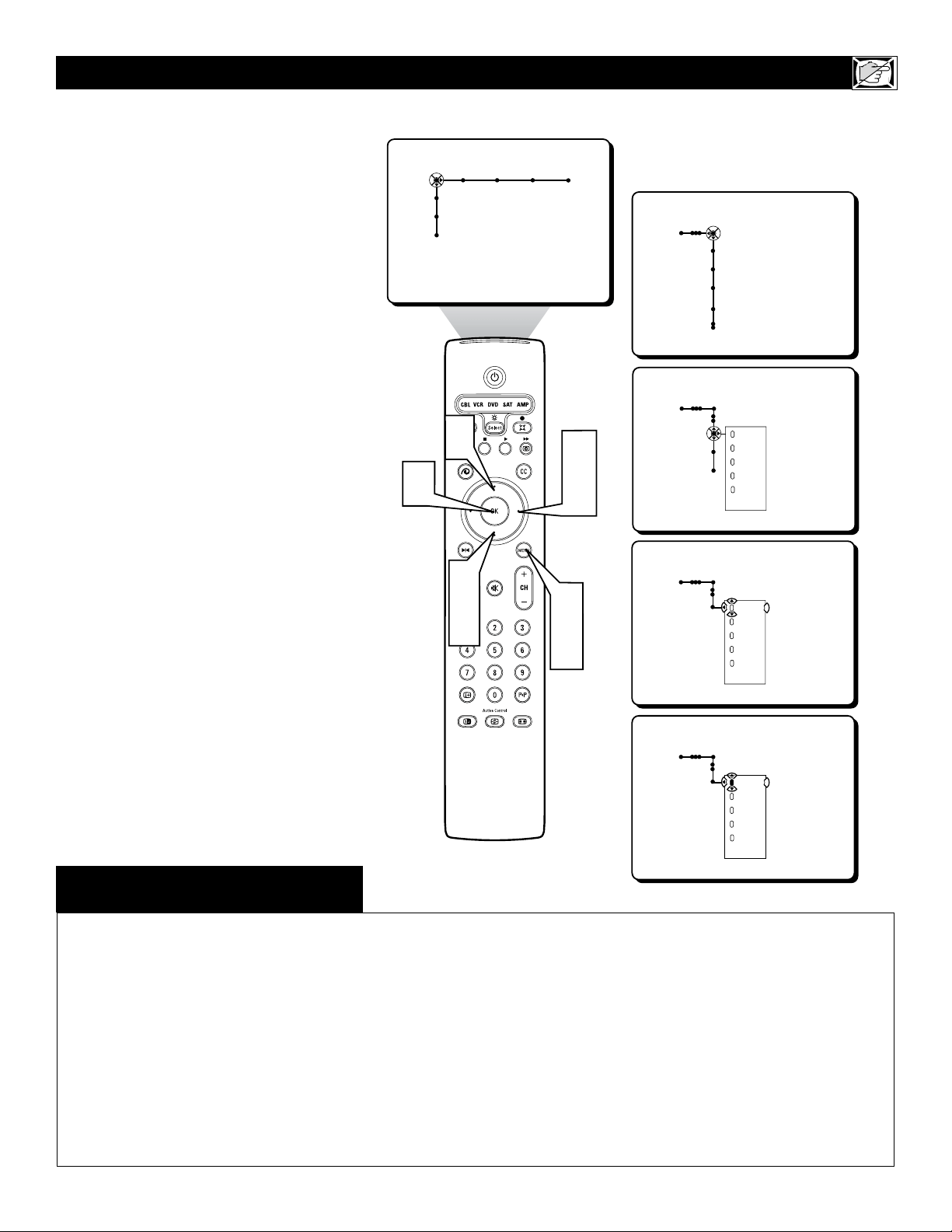
39
Y
ou can select specific Movie Ratings to
block programming signals with unsuitable
information.
1
Press the MENU button on the remote
control to display the onscreen menu.
2
Press the CURSOR RIGHT button
repeatedly to highlight CHANNELS.
3
Press the CURSOR DOWN button
repeatedly to highlight the Movie Ratings
Lock Control.
4
Press the CURSOR RIGHT button to
enter the Movie Ratings Lock list of
options.
5
Press the CURSOR UP or DOWN but-
ton to highlight the rating you wish to
lock.
6
Press the OK button to activate your
choice. Note: Whenever a rating is turned
on, all higher ratings (and sub-ratings)
will be turned on. (i.e., If R is selected,
NC-17 and X will automatically turn on
also.)
7
Press the MENU button to remove the
onscreen menu from the TV screen.
HOW TO BLOCK PROGRAMMING BASED ON MOVIE RATINGS
Picture Sound Features Channels
TV
Settings
Demo
Install
Channels
TV
Channel list
Channel lock
Lock after
TV ratings lock
Channels
TV
Movie ratings lock
Channel remove
Antenna attenuator
All
NR
G
PG
PG-13
---
Channels
TV
Movie ratings lock
All
NR
G
PG
PG-13
---
Channels
TV
Movie ratings lock
All
NR
G
PG
PG-13
---
3
5
1
7
2
4
5
6
G: General Audience - All ages admitted. Most parents would find this programming suitable for all ages. This type of programming contains little
or no violence, no strong language, and little or no sexual dialogue or sexual situations.
PG: Parental Guidance Suggested -
This programming contains material that parents may find unsuitable for younger children. It may contain one or
more of the following: Moderate violence, some sexual situations, infrequent coarse language, or some suggestive dialogue.
PG-13: Parents Strongly Cautioned - This programming contains material that parents may find unsuitable for children under the age of 13. It contains
one or more of the following: violence, sexual situations, coarse language, or suggestive dialogue.
R: Restricted -This programming is specifically designed for adults. Anyone under the age of 17 should view this programming only with an accompany-
ing parent or adult guardian. It contains one or more of the following: intense violence; intense sexual situations; strong coarse language; or intensely sug-
gestive dialogue.
NC-17: No one under the age of 17 will be admitted. - This type of programming should be viewed by adults only. It contains graphic violence; explicit
sex; or crude, indecent language.
X: Adults Only - This type of programming contains one or more of the following: very graphic violence, very graphic and explicit or indecent sexual
acts, very coarse and intensely suggestive language.
MOVIE RATINGS
(M
OTION
P
ICTURE
A
SSOCIATION OF
A
MERICA
)
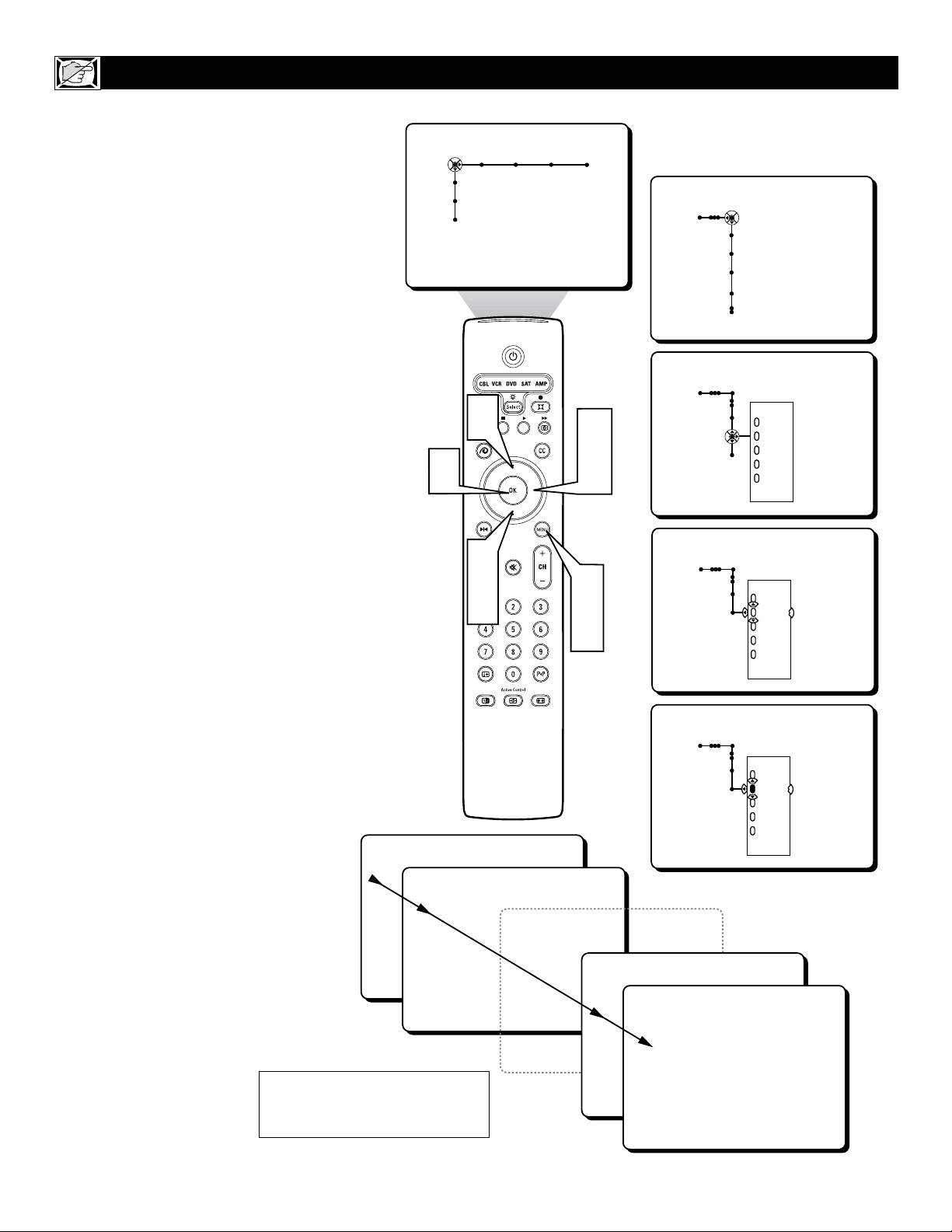
Picture Sound Features Channels
TV
Settings
Demo
Install
Channels
TV
Channel list
Channel lock
Lock after
TV ratings lock
Channels
TV
Movie ratings lock
Channel remove
Antenna attenuator
---
12
13
14
15
19
---
Channels
TV
Channel remove
---
12
13
14
15
19
---
Channels
TV
Channel remove
---
12
13
14
15
19
---
11
12
14
15
13
3
5
1
7
2
4
5
6
40
Y
ou can remove specific channels from the
television’s memory by using the Channel
Remove Control.
1
Press the MENU button on the remote
control to display the onscreen menu.
2
Press the CURSOR RIGHT button
repeatedly to highlight CHANNELS.
3
Press the CURSOR DOWN button
repeatedly to highlight the Channel
Remove Control.
4
Press the CURSOR RIGHT button to
enter the list of channels within the tele-
vision’s memory.
5
Press the CURSOR UP or DOWN but-
ton to highlight a channel you wish to
remove.
6
Press the OK button to activate your
choice. After you activate the Channel
Remove Control, the channel(s) high-
lighted will no longer be tuned when
using the Channel + or – buttons.
7
Press the MENU button to remove the
onscreen menu from the TV screen.
HOW TO REMOVE CHANNELS FROM THE CHANNEL LIST
When the Channel + or – button is used to
scroll the available channels, channels that
have been removed using the Channel
Remove Control will not appear.
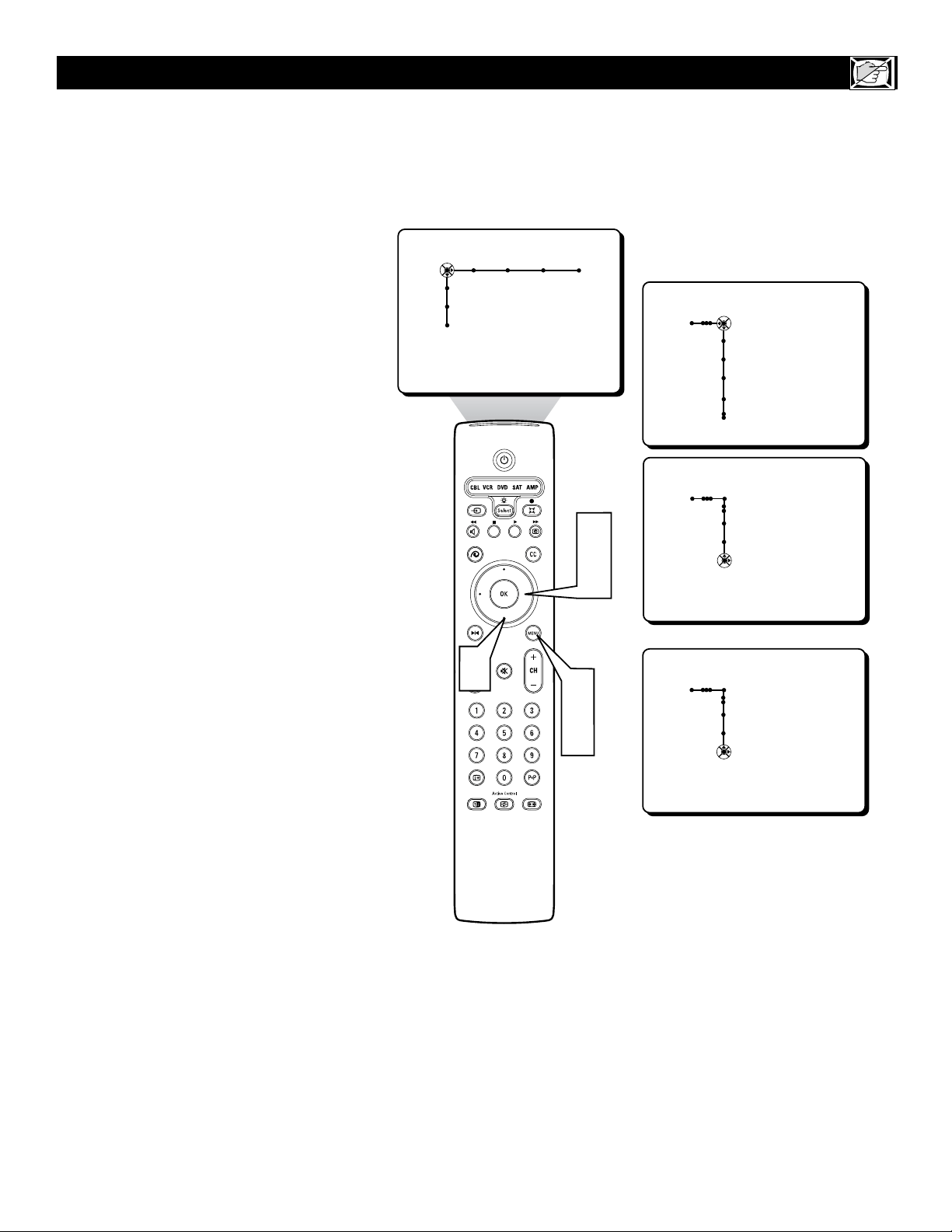
41
A
t times the signal being received may be
weak due to various reasons. This television
is equipped with a control (Antenna Attenuator)
that will help to improve or strengthen the sig-
nal being received.
1
Press the MENU button on the remote
control to display the onscreen menu.
2
Press the CURSOR RIGHT button
repeatedly to highlight CHANNELS.
3
Press the CURSOR DOWN button
repeatedly to highlight the Antenna
Attenuator Control.
4
Press the CURSOR RIGHT button
toggle the control ON or OFF.
5
Press the MENU button to remove the
onscreen menu from the TV screen.
HOW TO USE THE ANTENNA ATTENUATOR CONTROL
Picture Sound Features Channels
TV
Settings
Demo
Install
Channels
TV
Channel list
Channel lock
Lock after
TV ratings lock
Channels
TV
Movie ratings lock
Channel remove
Antenna attenuator
Off • On
Channels
TV
Movie ratings lock
Channel remove
Antenna attenuator
On • Off
OR
3
1
5
2
4
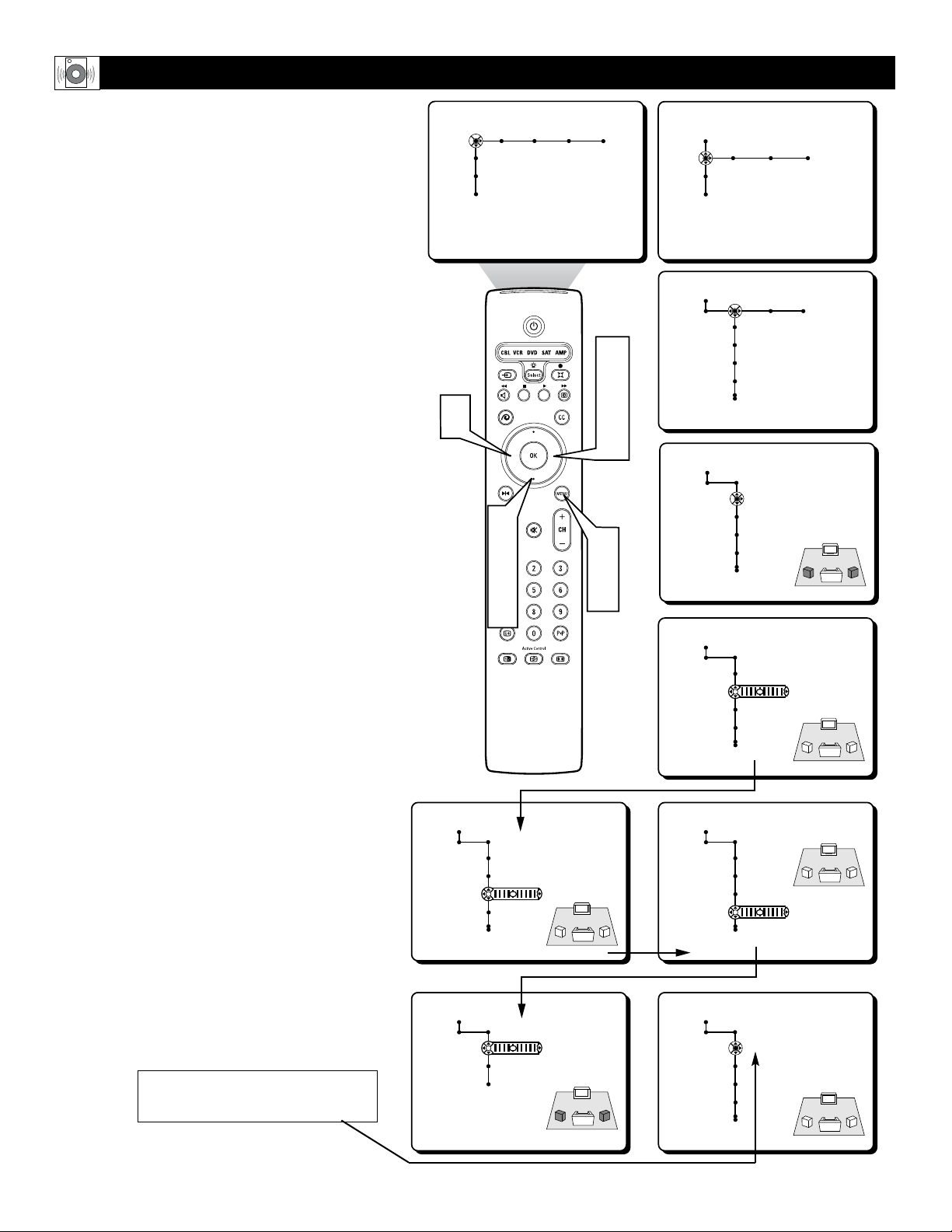
42
Picture Sound Features Channels
TV
Settings
Demo
Install
Speakers General Source
TV
Settings
Demo
Install
Speakers General Source
Settings
Test tone
Front L trim
Front R trim
Center trim
Speakers
Settings
Test tone
Front L trim
Front R trim
Center trim
On • Off
Speakers
Settings
Test tone
Front L trim
Front R trim
Center trim
0
Speakers
Settings
Test tone
Front L trim
Front R trim
Center trim
0
Speakers
Settings
Test tone
Front L trim
Front R trim
Center trim
0
Speakers
Settings
Surround trim
Center mode
Surround speakers
0
Speakers
Settings
Test tone
Front L trim
Front R trim
Center trim
Off • On
2
4
6
1
8
3
5
7
7
T
he Test Tone and Speaker Trim Controls will
allow you to adjust and balance the sound
coming from all available speakers.
1
Press the MENU button on the remote
control to display the onscreen menu.
2
Press the CURSOR DOWN button to
highlight SETTINGS.
3
Press the CURSOR RIGHT button to
highlight the Speakers menu.
4
Press the CURSOR DOWN button to
highlight the Test Tone Control.
5
Press the CURSOR RIGHT button to
toggle the Test Tone Control ON or OFF.
When ON is selected, the Test Tone con-
trol generated a sound test signal that cir-
culates through all active speakers one at
a time in a clockwise direction. With the
Test Tone Control ON, you can now use
the individual Speaker Trim Controls to
adjust each speaker’s volume.
6
Press the CURSOR DOWN button to
select one of the Speaker Trim Controls
(Front L Trim, Front R Trim, Center
Trim, or Surround Trim).
7
Press the CURSOR LEFT or RIGHT
button to adjust the volume for each con-
trol. Once all trim controls have be set,
return to the Test Tone Control and turn it
OFF.
8
Press the MENU button to remove the
onscreen menu from the TV screen.
HOW TO USE THE TEST TONE AND SPEAKER TRIM CONTROLS
Be sure to go back to the Test Tone Control
and turn it OFF when finished with the
Speaker Trim Controls.
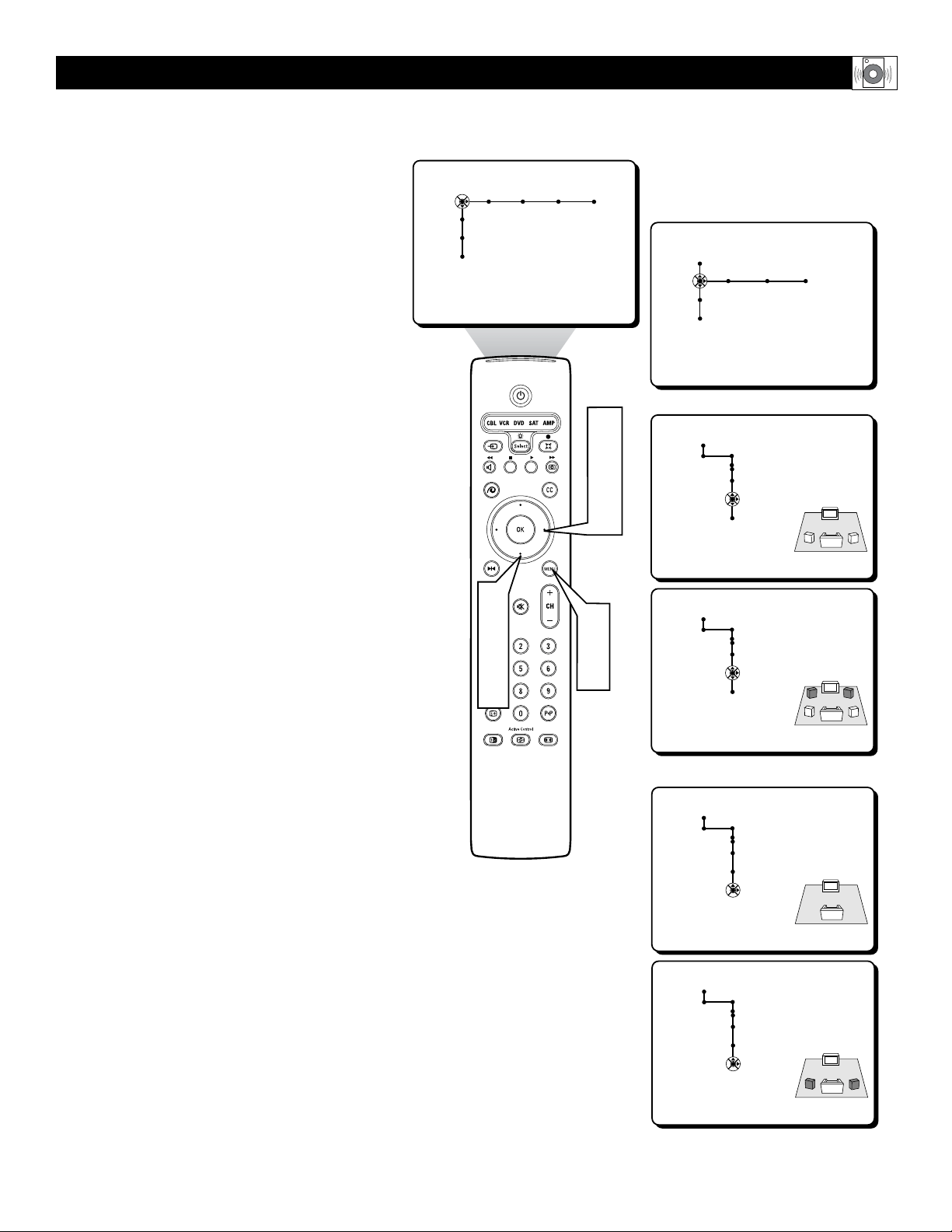
43
Picture Sound Features Channels
TV
Settings
Demo
Install
Speakers General Source
TV
Settings
Demo
Install
Speakers
Settings
Off • On
Surround trim
Center mode
Surround Speakers
Speakers
Settings
On • Off
Surround trim
Center mode
Surround Speakers
Center Mode Control
Speakers
Settings
Off • On
Surround trim
Center mode
Surround Speakers
Speakers
Settings
On • Off
Surround trim
Center mode
Surround Speakers
Surround Speakers Control
2
4
6
1
8
3
5
7
T
here are simple controls to set the television
in Center Mode (center speaker mode) or to
turn the Surround Speakers ON.
To turn the Center Mode Control ON:
1
Press the MENU button on the remote
control to display the onscreen menu.
2
Press the CURSOR DOWN button to
highlight SETTINGS.
3
Press the CURSOR RIGHT button to
highlight the Speakers menu.
4
Press the CURSOR DOWN button
repeatedly to highlight the Center Mode
Control.
5
Press the CURSOR RIGHT button to
toggle the Center Mode Control ON or
OFF.
To turn the Surround Speakers Control ON:
6
Within the Speakers menu, press the
CURSOR DOWN button repeatedly to
select the Surround Speakers Control
7
Press the CURSOR RIGHT button to
toggle the Surround Speakers Control ON
or OFF.
8
Press the MENU button to remove the
onscreen menu from the TV screen.
HOW TO TURN THE CENTER MODE AND SURROUND SPEAKERS CONTROLS ON
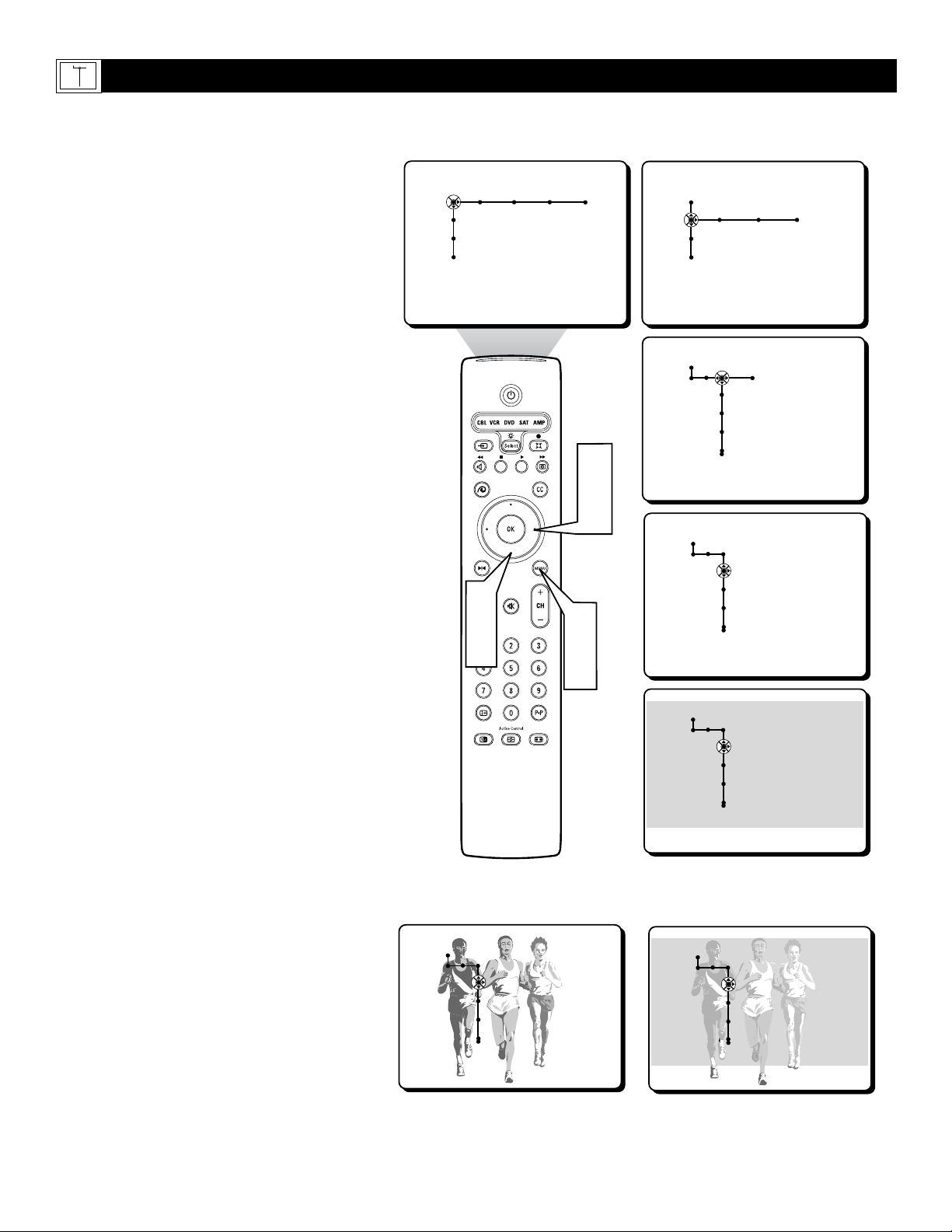
44
Picture Sound Features Channels
TV
Settings
Demo
Install
Speakers General Source
TV
Settings
Demo
Install
General Source
Settings
Menu background
Surf
Dual screen format
General
Settings
Menu background
Surf
Dual screen format
Off • On
General
Settings
Menu background
Surf
Dual screen format
On • Off
General
Settings
Menu background
Surf
Dual screen format
On • Off
General
Settings
Menu background
Surf
Dual screen format
On • Off
2
4
1
6
3
5
T
o help view the onscreen menu better when
it is activated, the Menu Background
Control will place a light transparent green field
behind the onscreen menu. This field reduces the
contrast in the TV picture allowing the text of
the onscreen menu to be more highly visible.
1
Press the MENU button on the remote
control to display the onscreen menu.
2
Press the CURSOR DOWN button to
highlight SETTINGS.
3
Press the CURSOR RIGHT button
repeatedly to highlight the General menu.
4
Press the CURSOR DOWN button to
highlight the Menu Background Control.
5
Press the CURSOR RIGHT button to
toggle the Menu Background Control ON
or OFF.
6
Press the MENU button to remove the
onscreen menu from the TV screen.
Note: The Menu Background, when ON, will
only appear while the onscreen menu is dis-
played on the television screen.
HOW TO USE THE MENU BACKGROUND CONTROL
General Source
Settings
Menu background
Surf
Dual screen format
Multipip format
With Menu Background OFF
With Menu Background ON
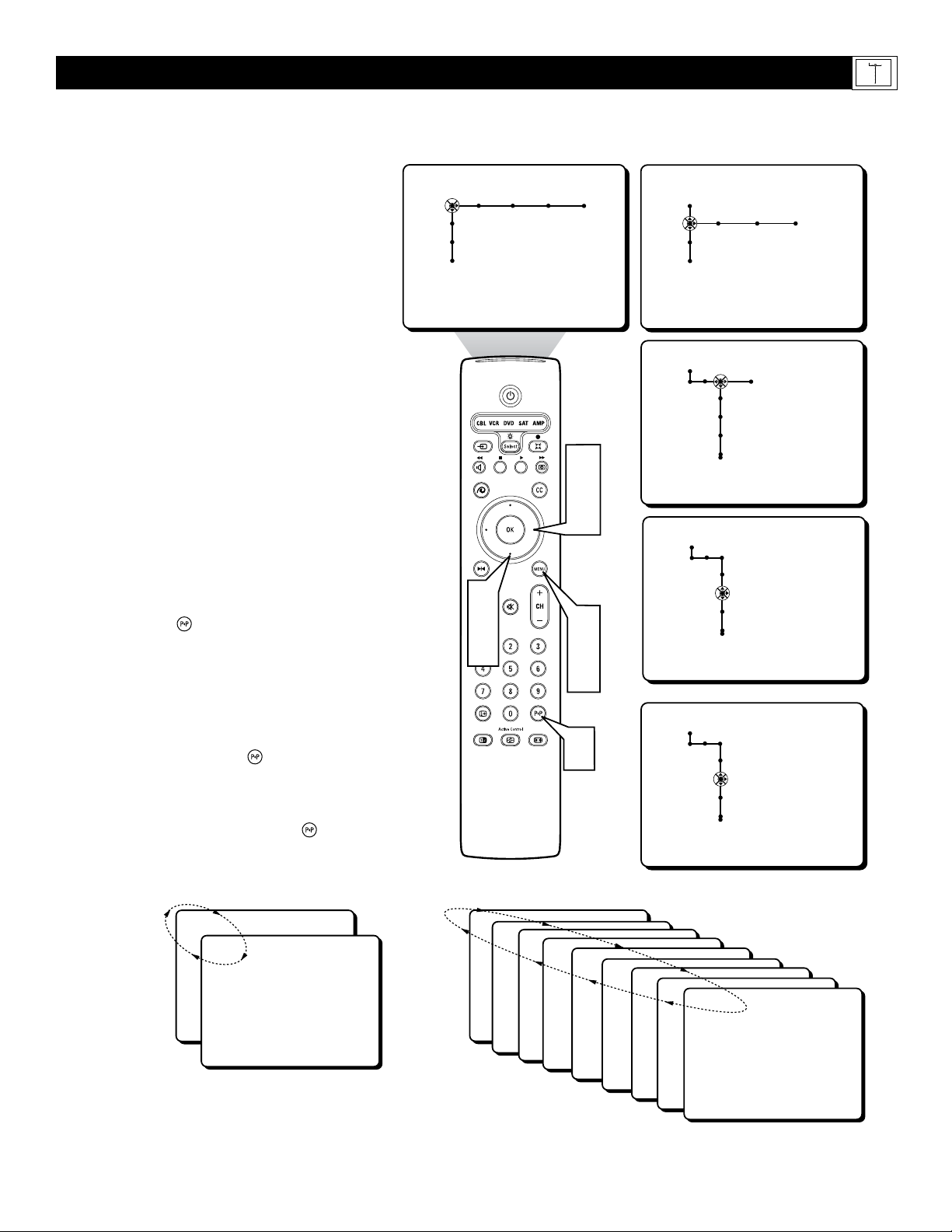
45
Picture Sound Features Channels
TV
Settings
Demo
Install
Speakers General Source
TV
Settings
Demo
Install
General Source
Settings
Menu background
Surf
Dual screen format
General
Settings
Menu background
Surf
Dual screen format
2 channels • 9 channels
General
Settings
Menu background
Surf
Dual screen format
9 channels • 2 channels
OR
8
22
6
8
12
18
24
33
56
68
3
2
4
1
6
3
5
7
A
list or series of previously viewed channels
can be selected with the SURF button on
your remote control. With this feature, you can
easily switch between different TV channels that
currently interest you. The SURF Control
allows you to set up the television to toggle 2
channels or 9 channels when pressing the Surf
button on the remote.
1
Press the MENU button on the remote
control to display the onscreen menu.
2
Press the CURSOR DOWN button to
highlight SETTINGS.
3
Press the CURSOR RIGHT button
repeatedly to highlight the General menu.
4
Press the CURSOR DOWN button
repeatedly to highlight the Surf Control.
5
Press the CURSOR RIGHT button to
toggle the Surf Control between 2 chan-
nels or 9 channels.
6
Press the MENU button to remove the
onscreen menu from the TV screen.
7
Press the button on the remote
control repeatedly to toggle through the
last series of viewed channels (2 or 9
depending on what is selected in the Surf
control).
Note: 2 Channel Surf works like an Alternate
Channel control. Pressing the button will
toggle the current channel and previously last
viewed channel. 9 Channel Surf allows toggling
of the present channel and the last previously
viewed 8 channels when pressing the but-
ton.
HOW TO USE THE SURF CONTROL
General Source
Settings
Menu background
Surf
Dual screen format
Multipip format
2 Channel Surf
9 Channel Surf
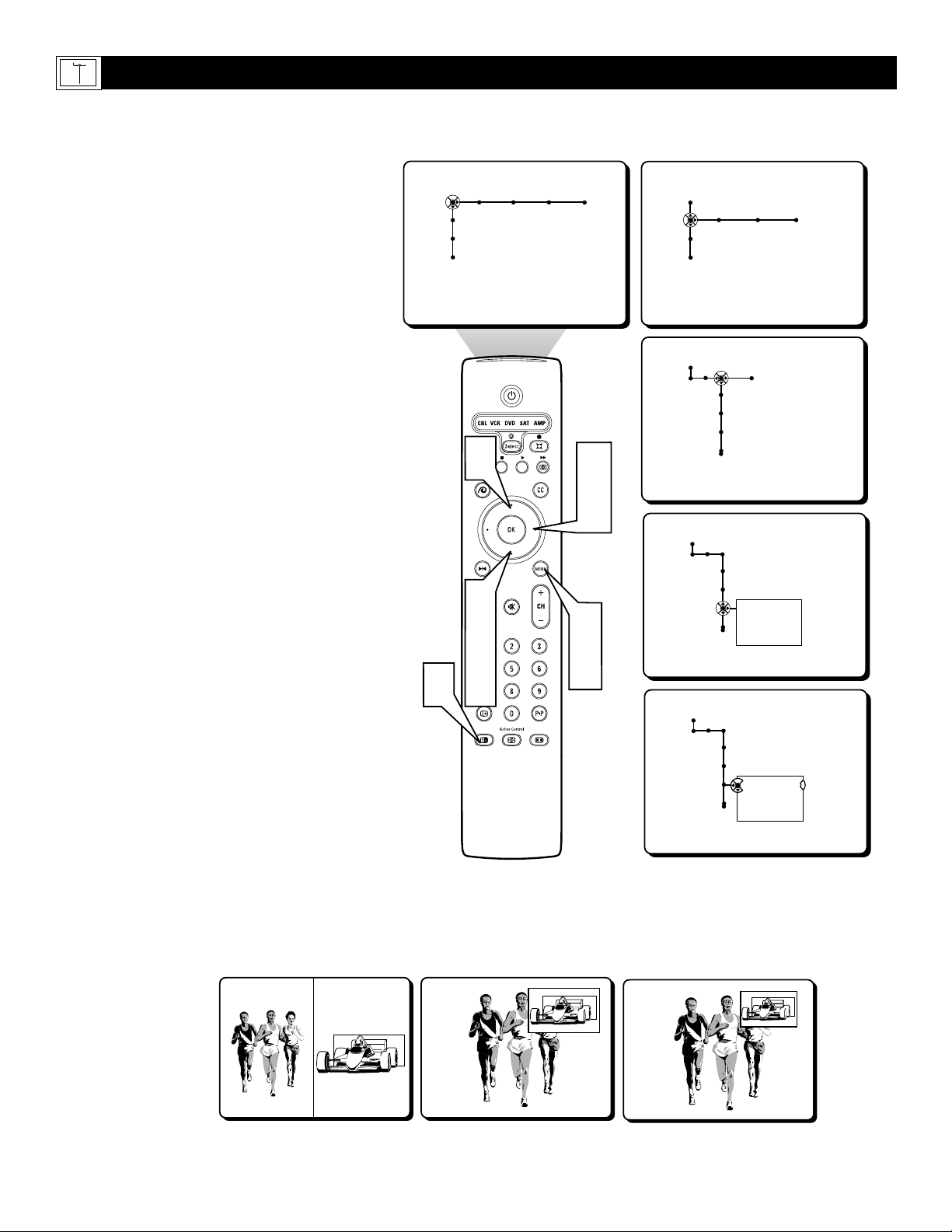
46
Picture Sound Features Channels
TV
Settings
Demo
Install
Speakers General Source
TV
Settings
Demo
Install
General Source
Settings
Menu background
Surf
Dual screen format
General
Settings
Menu background
Surf
Dual screen format
Dual screen
Large PIP
Small PIP
General
Settings
Menu background
Surf
Dual screen format
Dual screen
Large PIP
Small PIP
2
4
6
1
7
3
5
6
8
T
he Dual Screen, or sometimes called Picture
In Picture (PIP), feature will allow you to
choose the size of Dual Screen window to be
displayed when the Dual Screen (or PIP) button
is pressed on the remote control. The window
can be set to Dual Screen, Large PIP, or Small
PIP.
1
Press the MENU button on the remote
control to display the onscreen menu.
2
Press the CURSOR DOWN button to
highlight SETTINGS.
3
Press the CURSOR RIGHT button
repeatedly to highlight the General menu.
4
Press the CURSOR DOWN button
repeatedly to highlight the Dual Screen
Format Control. A sub-menu or list of
options will appear.
5
Press the CURSOR RIGHT button to
enter the list of options.
6
Press the CURSOR UP or DOWN but-
ton to select the desire Dual Screen
Format. Choose from Dual Screen, Large
PIP, or Small PIP.
7
Press the MENU button to remove the
onscreen menu from the TV screen.
8
Press the Dual Screen button on the
remote control to display the second
video window in the format you have
chosen. Press the Dual Screen button
again to return the television to the main
video screen.
Continuing to hold the Dual Screen (PIP)
button down will cycle through the Dual
Screen PIP options.
HOW TO USE THE DUAL SCREEN (PIP) CONTROL
General Source
Settings
Menu background
Surf
Dual screen format
Multipip format
Dual Screen
Large PIP Small PIP

®
®
®
®
x
1
2
3
1
3
3
3
TV
AV1:DVD
AV2:Recorder
AV3:SAT
AV4:HD
AV5:Other
AV6:HD
SIDE:Camera
Source
OK
When Using Dual Screen:
1
A light-colored (yellow) border indicates
the selected screen. If the screen whose
channel or input source you want to
change is not selected, press the Cursor
Right or Left button to select the desired
screen.
2
To change channels in the selected
screen, press the CH (Channel Selection)
+ or – buttons.
OR:
3
To change the input source, first press the
Source button. Then, within 6 six sec-
onds, press the Cursor Up or Down until
your desired input source is highlighted.
Press the OK button to confirm. The
desired input source appears in the select-
ed screen.
NOTE: If the list of input sources “times
out” (leaves the screen) before you can
make your selection., press the Source
button again to display the list again.
When using Large or Small PIP:
1
When the PIP window is on screen, press
the Cursor Up or Down button to select
either the main or PIP screen. A light-col-
ored (yellow) border surrounds the PIP
screen when selected. The PIP screen
must be selected before its channel or
input source can be changed.
2
To change channels in the PIP screen,
press the CH (Channel Selection) + or –
buttons.
OR:
3
To select a different input source, first
press the Source button. Then, within 6
seconds, press the Cursor Up or Down
until your desired input source is high-
lighted. Press the OK button to confirm.
The desired input source appears in the
PIP screen.
NOTE: If the list of input sources “times
out” (leaves the screen) before you can
make your selection., press the Source
button again to display the list again.
To reposition the PIP screen:
4
Press the Cursor Up or Down button. The
ball and direction indicator appear on the
screen. Within 6 seconds, press the OK
button. A multidirectional symbol appears
on the screen.
NOTE: if the ball and direction indicator
“time out” (leave the screen) before you
press the OK button, simply press the
Cursor Up or Down button again.
5
Press the Cursor Up, Down, Left, or
Right buttons to move the PIP window to
the Desired location.
6
Press the OK button. The ball and direc-
tion indicator reappear and “time out”
(leave the screen) in about 6 seconds.
CHANGING CHANNELS/INPUT SOURCES AND REPOSITIONING DUAL SCREEN/PIP
General Source
Settings
Menu background
Surf
Dual screen format
Multipip format
4747
®
®
®
®
x
1
3
4
5
2
3
5
5
1
3
4
5
3
4
6
TV
AV1:DVD
AV2:Recorder
AV3:SAT
AV4:HD
AV5:Other
AV6:HD
SIDE:Camera
Source
OK
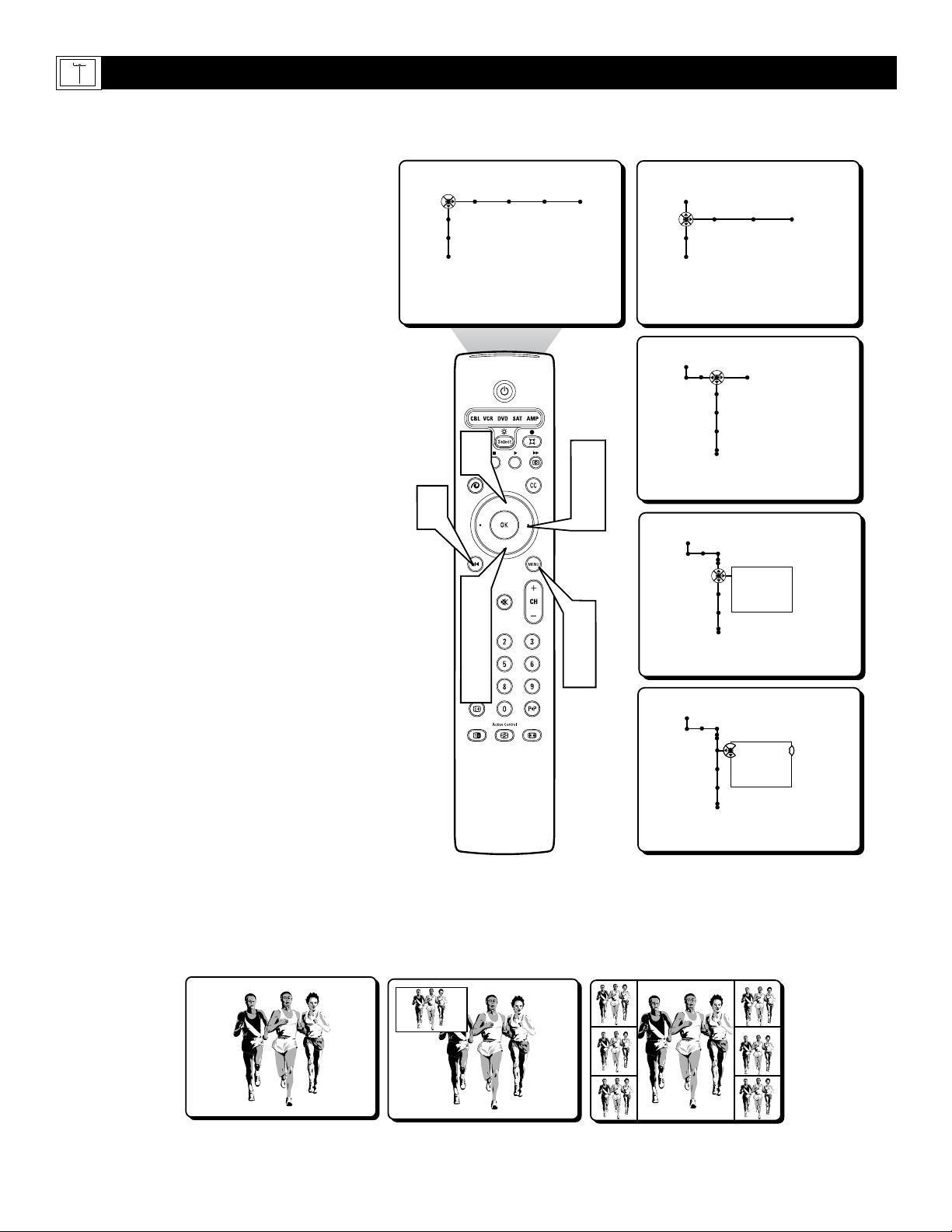
48
Picture Sound Features Channels
TV
Settings
Demo
Install
Speakers General Source
TV
Settings
Demo
Install
General Source
Settings
Menu background
Surf
Dual screen format
General
Settings
Freeze format
Reset AV settings
Caption service
Freeze
Replay
Photo finish
General
Settings
Freeze format
Reset AV settings
Caption service
Freeze
Replay
Photo finish
2
4
6
1
7
3
5
6
8
T
he Freeze Control will allow you to set the
freeze option to one of three different choic-
es. Choose from the Freeze, Replay, or Photo
Finish options. Below are the steps describing
the process to set the Freeze Format Control.
1
Press the MENU button on the remote
control to display the onscreen menu.
2
Press the CURSOR DOWN button to
highlight SETTINGS.
3
Press the CURSOR RIGHT button
repeatedly to highlight the General menu.
4
Press the CURSOR DOWN button
repeatedly to highlight the Freeze Format
Control. A sub-menu with a list of
options will appear.
5
Press the CURSOR RIGHT button to
enter the list of options.
6
Press the CURSOR UP or DOWN but-
ton to select the desired Freeze Format.
Choose from Freeze, Replay, or Photo
finish.
Freeze - Will freeze the main screen
image while the audio continues to play.
Replay - Will display and replay a few
seconds of store video information within
single PIP window.
Photo Finish - Will display a series of
frozen images within 6 PIP windows.
7
Press the MENU button to remove the
onscreen menu from the TV screen.
8
Press the FREEZE button on the
remote control to display the format you
have chosen. Press the FREEZE button
again to return the television to the main
video screen.
HOW TO USE THE FREEZE CONTROL
General Source
Settings
Menu background
Surf
Dual screen format
Multipip format
FREEZE
Single frozen image
REPLAY
Replays a few seconds
of stored video
PHOTO FINISH
Displays a series of 6 frozen
images within 6 PIP windows
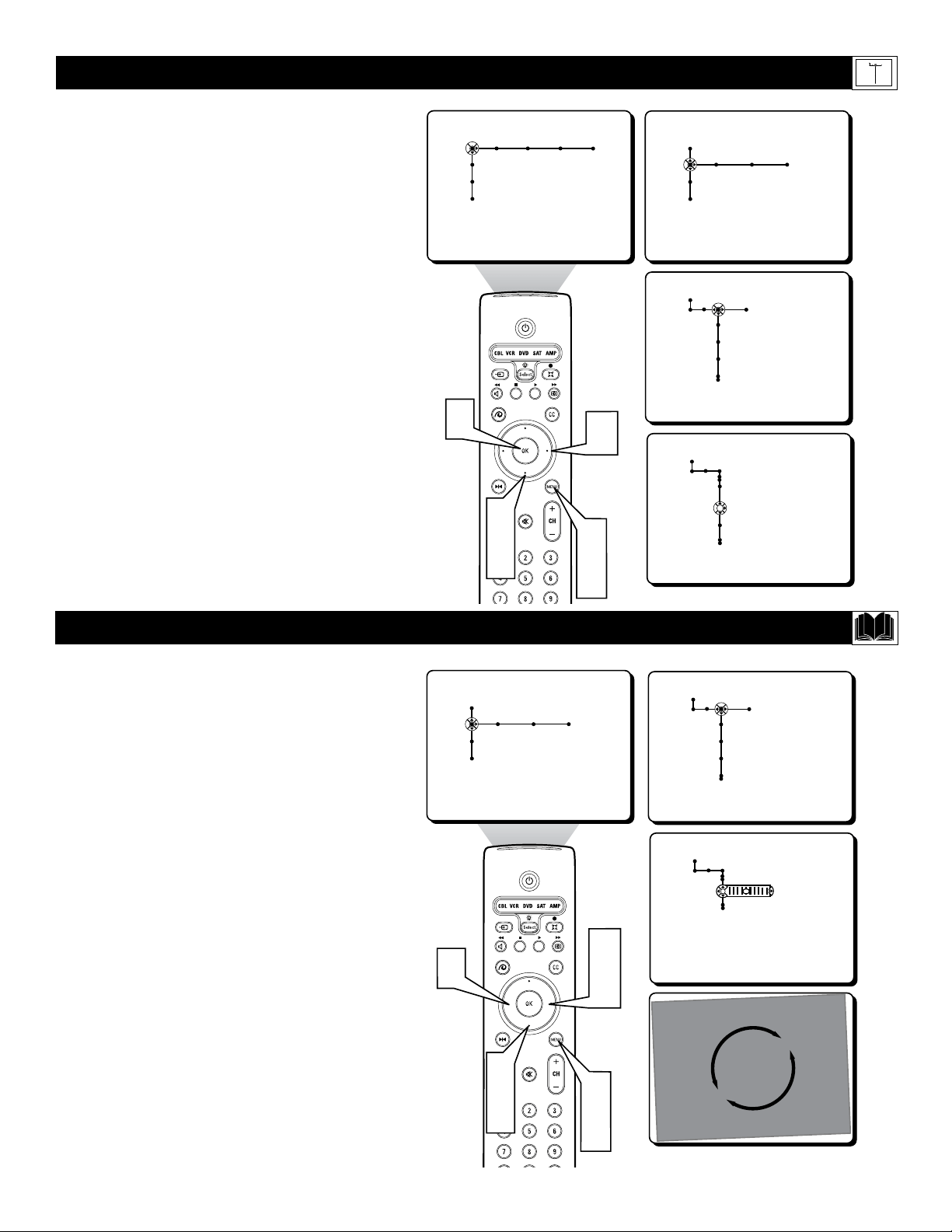
49
Picture Sound Features Channels
TV
Settings
Demo
Install
Speakers General Source
TV
Settings
Demo
Install
General Source
Settings
Menu background
Surf
Dual screen format
General
Settings
Freeze format
Reset AV settings
Caption service
To erase settings and
reset them to their
defualt values,
please press OK.
OK
2
4
1
6
3
5
T
he Audio/Video control can be reset to the
Factory set modes using the Reset AV
Setting Control.
1
Press the MENU button on the remote
control to display the onscreen menu.
2
Press the CURSOR DOWN button to
highlight SETTINGS.
3
Press the CURSOR RIGHT button
repeatedly to highlight the General menu.
4
Press the CURSOR DOWN button
repeatedly to highlight the Reset AV
Setting Control.
5
Press the OK button to activate the con-
trol.
6
Press the MENU button to remove the
onscreen menu from the TV screen.
HOW TO RESET THE AUDIO VIDEO SETTING TO THE FACTORY PRESETS
General Source
Settings
Menu background
Surf
Dual screen format
Multipip format
Speakers General Source
TV
Settings
Demo
Install
General Source
Settings
Menu background
Surf
Dual screen format
General
Settings
Tilt adjust
0
2
4
1
6
3
5
5
T
here may be times when the video reproduc-
tion from some signals may appear to be
slightly tilted from normal. The Tilt Adjust
Control can help to correct this problem.
1
Press the MENU button on the remote
control to display the onscreen menu.
2
Press the CURSOR DOWN button to
highlight SETTINGS.
3
Press the CURSOR RIGHT button
repeatedly to highlight the General menu.
4
Press the CURSOR DOWN button
repeatedly to highlight the Tilt Adjust
Control.
5
Press the CURSOR RIGHT button to
tilt the image clockwise, or press the
CURSOR LEFT button to tilt the image
counter clockwise.
6
Press the MENU button to remove the
onscreen menu from the TV screen.
HOW TO
USE THE TILT ADJUST CONTROL
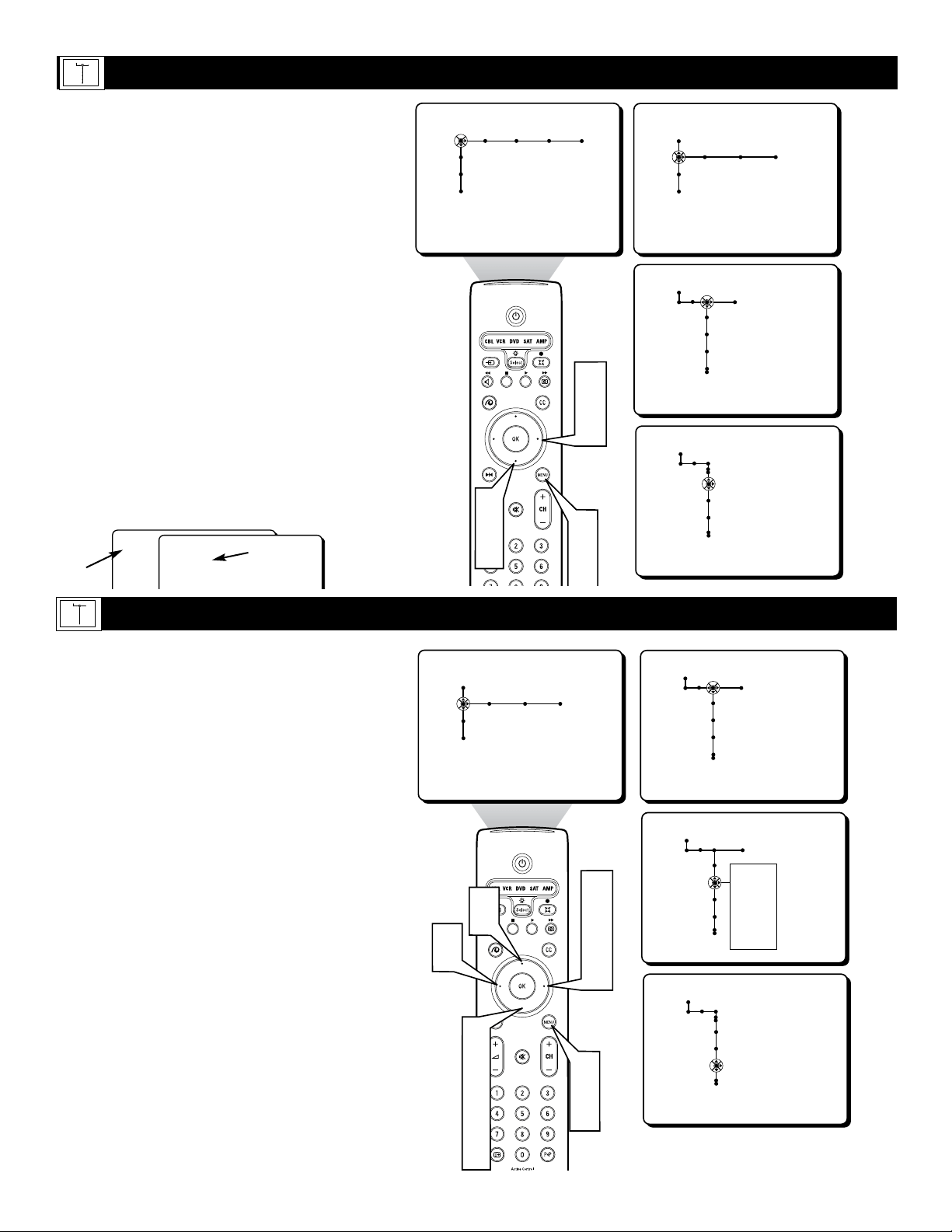
Picture Sound Features Channels
TV
Settings
Demo
Install
Speakers General Source
TV
Settings
Demo
Install
General Source
Settings
Menu background
Surf
Dual screen format
General
Settings
OSD
Time Zone
Daylight savings
Change PIN
Minimum • Normal
2
4
1
6
3
5
T
he television Onscreen Display (OSD)
Control can be set two ways. OSD Minimize
limits the TV display to current channel number
status. Normal shows additional TV operating
modes and other status screen information.
1
Press the MENU button on the remote
control to display the onscreen menu.
2
Press the CURSOR DOWN button to
highlight SETTINGS.
3
Press the CURSOR RIGHT button
repeatedly to highlight the General menu.
4
Press the CURSOR DOWN button
repeatedly to highlight the OSD Control.
5
Press the CURSOR RIGHT button to
toggle between Minimize or Maximize.
6
Press the MENU button to remove the
onscreen menu from the TV screen.
HOW TO MAXIMIZE OR MINIMIZE THE ONSCREEN DISPLAY
General Source
Settings
Menu background
Surf
Dual screen format
Multipip format
Speakers General Source
TV
Settings
Demo
Install
General Source
Settings
OSD
Time Zone
Daylight savings
Change PIN
General
Settings
OSD
Time Zone
Daylight savings
Change PIN
Auomatic • Off
Atlantic
Eastern
Central
Mountain
Pacific
Alaska
Hawaii
General Source
Settings
Menu background
Surf
Dual screen format
1
9
3
5
8
6
7
2
4
6
7
Y
our television can pick the current time from
the signal being received. It needs to know
your Time Zone and if you use Daylight Savings.
1
Press the MENU button on the remote
control to display the onscreen menu.
2
Press the CURSOR DOWN button to
highlight SETTINGS.
3
Press the CURSOR RIGHT button
repeatedly to highlight the General menu.
4
Press the CURSOR DOWN button
repeatedly to highlight the Timer Zone
Control.
5
Press the CURSOR RIGHT button to
enter the list of available zones.
6
Press the CURSOR UP or DOWN but-
ton to select your Time Zone.
7
Press the CURSOR LEFT button, then
press the CURSOR DOWN button to
highlight the Daylight Savings Control.
8
Press the CURSOR RIGHT button to
toggle Daylight Savings to Automatically
change or to Off.
9
Press the MENU button to remove the
onscreen menu from the TV screen.
HOW TO SELECT A TIME ZONE AND SET THE DAYLIGHT SAVINGS CONTROL
General Source
Settings
Menu background
Surf
Dual screen format
Multipip format
505050
10 WABC
Auto Format
Stereo
Hall
10 WABC
Normal
Mode
Minimize
Mode
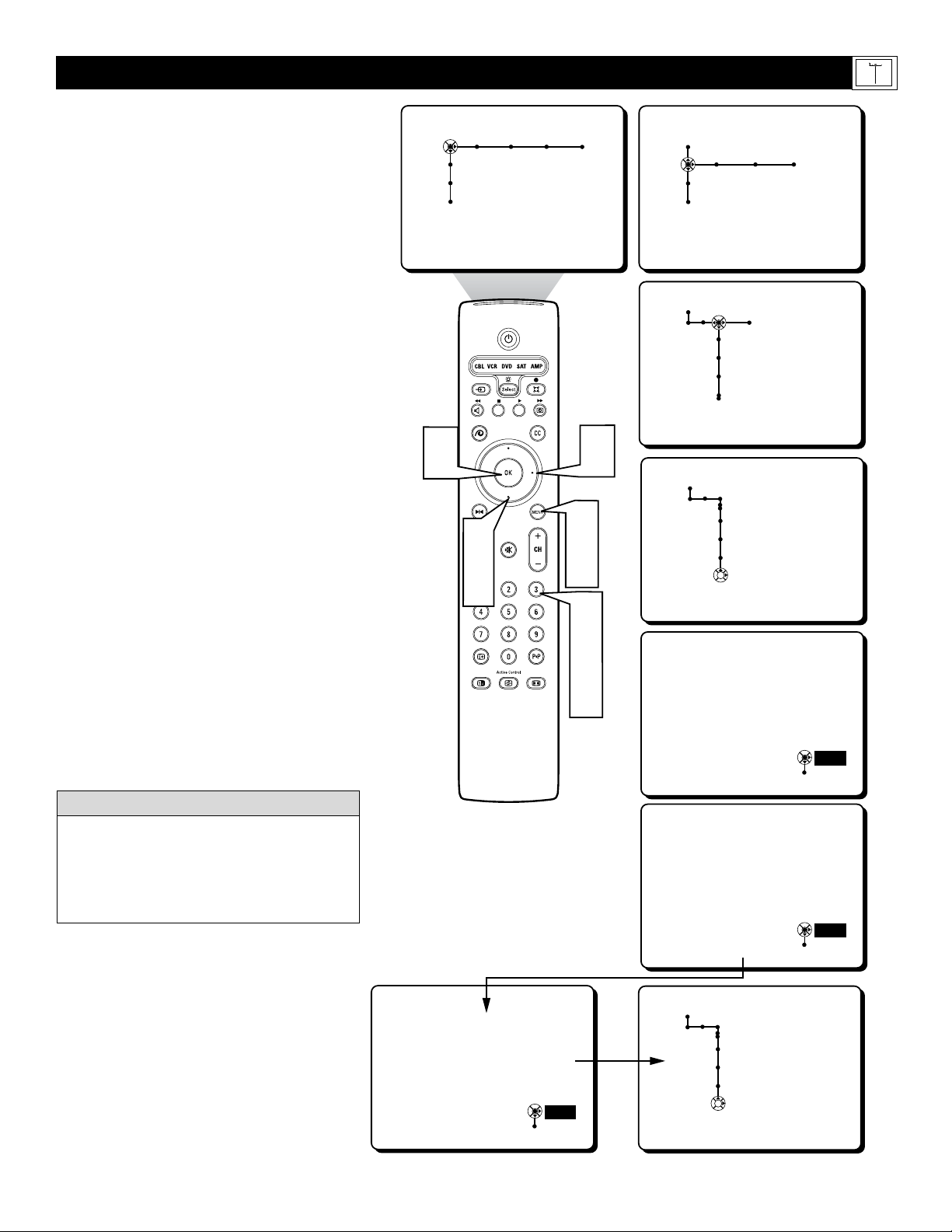
51
Picture Sound Features Channels
TV
Settings
Demo
Install
Speakers General Source
TV
Settings
Demo
Install
General Source
Settings
Menu background
Surf
Dual screen format
General
Settings
OSD
Time Zone
Daylight savings
Change PIN
To change your PIN,
please press OK.
OK
Please enter your
current PIN.
PIN
Cancel
- - - -
Please enter your new PIN.
PIN
Cancel
- - - -
To confirm your new PIN,
please enter it again.
PIN
Cancel
- - - -
General
Settings
OSD
Time Zone
Daylight savings
Change PIN
Your PIN has been changed.
OK
2
4
1
9
3
5
6
7
8
S
etting up a PIN or changing your existing
PIN is easy. Follow the steps below to learn
how.
1
Press the MENU button on the remote
control to display the onscreen menu.
2
Press the CURSOR DOWN button to
highlight SETTINGS.
3
Press the CURSOR RIGHT button
repeatedly to highlight the General menu.
4
Press the CURSOR DOWN button
repeatedly to highlight the Change PIN
Control.
5
Press the OK button to begin the
process.
6
Enter the default four digit PIN num-
ber (0, 7, 1, 1) using the NUMBERED
buttons on the remote control.
7
Using the NUMBERED buttons on the
remote control, enter a new four digit
PIN.
8
Re-enter your new PIN using the
NUMBERED buttons to confirm the
code. Your PIN is now changed.
9
Press the MENU button on the remote
control to remove the onscreen menu
from the TV screen.
H
OW TO SETUP OR CHANGE A PIN (PERSONAL IDENTIFICATION NUMBER)
General Source
Settings
Menu background
Surf
Dual screen format
Multipip format
Remember, if you ever forget you current four
digit PIN, the default four digit PIN is:
0, 7, 1, 1
This default PIN will still work as a backup
number even if you create a new PIN.
HELPFUL HINT

52
Picture Sound Features Channels
TV
Settings
Demo
Install
Speakers General Source
TV
Settings
Demo
Install
Source
Settings
AV1
AV2
AV3
AV4
SIDE
Source
Settings
AV1
AV2
AV3
AV4
SIDE
None
Cable
DVD
SAT
Recorder
PVR
Other
Source
Settings
AV1
AV2
AV3
AV4
SIDE
None
Cable
DVD
SAT
Recorder
PVR
Other
Source
TV
AV1:None
AV2:Cable
AV3:DVD
AV4:SAT
SIDE:Other
OK
8
2
4
6
1
7
3
5
6
8
W
ithin the Source Control, all the external
Audio/Video Input Jacks can be given a
channel label that will appear along side the
channel indicator when the AV Input channels
are tuned.
1
Press the MENU button on the remote
control to display the onscreen menu.
2
Press the CURSOR DOWN button to
highlight SETTINGS.
3
Press the CURSOR RIGHT button
repeatedly to highlight the Source menu.
4
Press the CURSOR DOWN button
repeatedly to highlight any of the AV
Inputs. (AV1, AV2, AV3, AV4, or SIDE)
A sub-menu or list of names will appear
next to the selected AV Input.
5
Press the CURSOR RIGHT button to
enter the sub-menu list.
6
Press the CURSOR UP or DOWN but-
ton to scroll and highlight one of the
labels on the list.
7
Press the MENU button on the remote
control to remove the onscreen menu
from the TV screen.
8
Press the SOURCE button on
the remote control to display the list of
AV Inputs and their labels.
HOW TO LABEL THE AUDIO/VIDEO INPUT JACKS
General Source
Settings
Menu background
Surf
Dual screen format
Multipip format
This is just a sample of what the label-
ing might look like. Your Source Labels
will depend on how you choose to label
the AV Inputs.
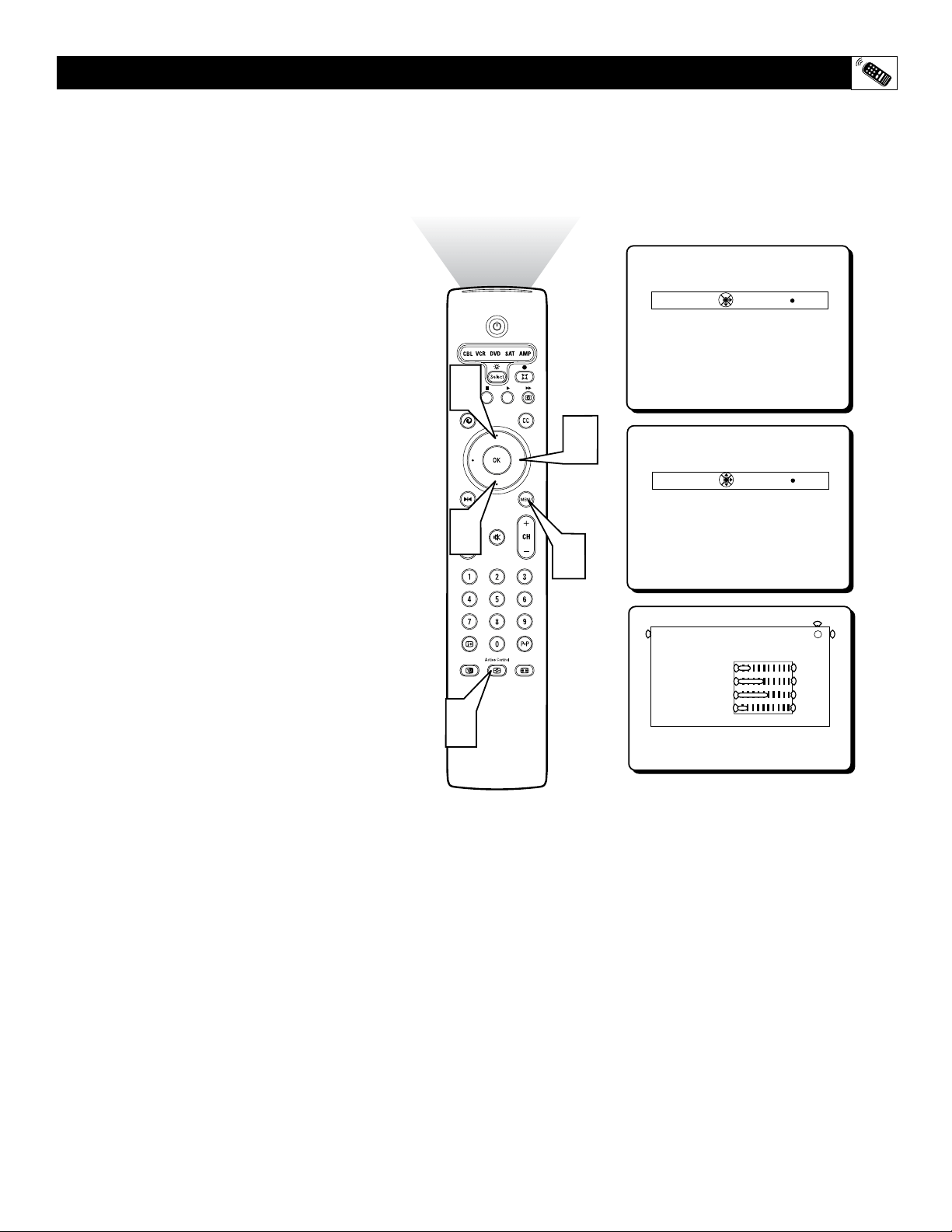
53
Active Control
Off
Minimum
Medium
Maximum
INFO+
Active Control
Off
Minimum
Medium
Maximum
INFO+
Active Control : Medium
Smart Picture
Dynamic Contrast
Color
Sharpness
DNR
Personal
i
9
47
50
7
2
3
1
4
2
T
he Active Control monitors and adjusts
incoming video signals to help provide the
best picture quality. When you choose to turn
the Active Control ON, the control can be set to
Minimum, Medium, or Maximum effect.
1
Press the ACTIVE CONTROL button
on the remote control to display the
Active Control menu.
2
Press the CURSOR UP or DOWN but-
ton to highlight one of the options
(Minimum, Medium, Maximum or Off).
3
Press the CURSOR RIGHT button to
display the Active Control information
window. You will notice how the values
constantly change while Active Control is
working.
4
Press the MENU button to remove the
onscreen menu from the TV screen.
USING THE ACTIVE CONTROL
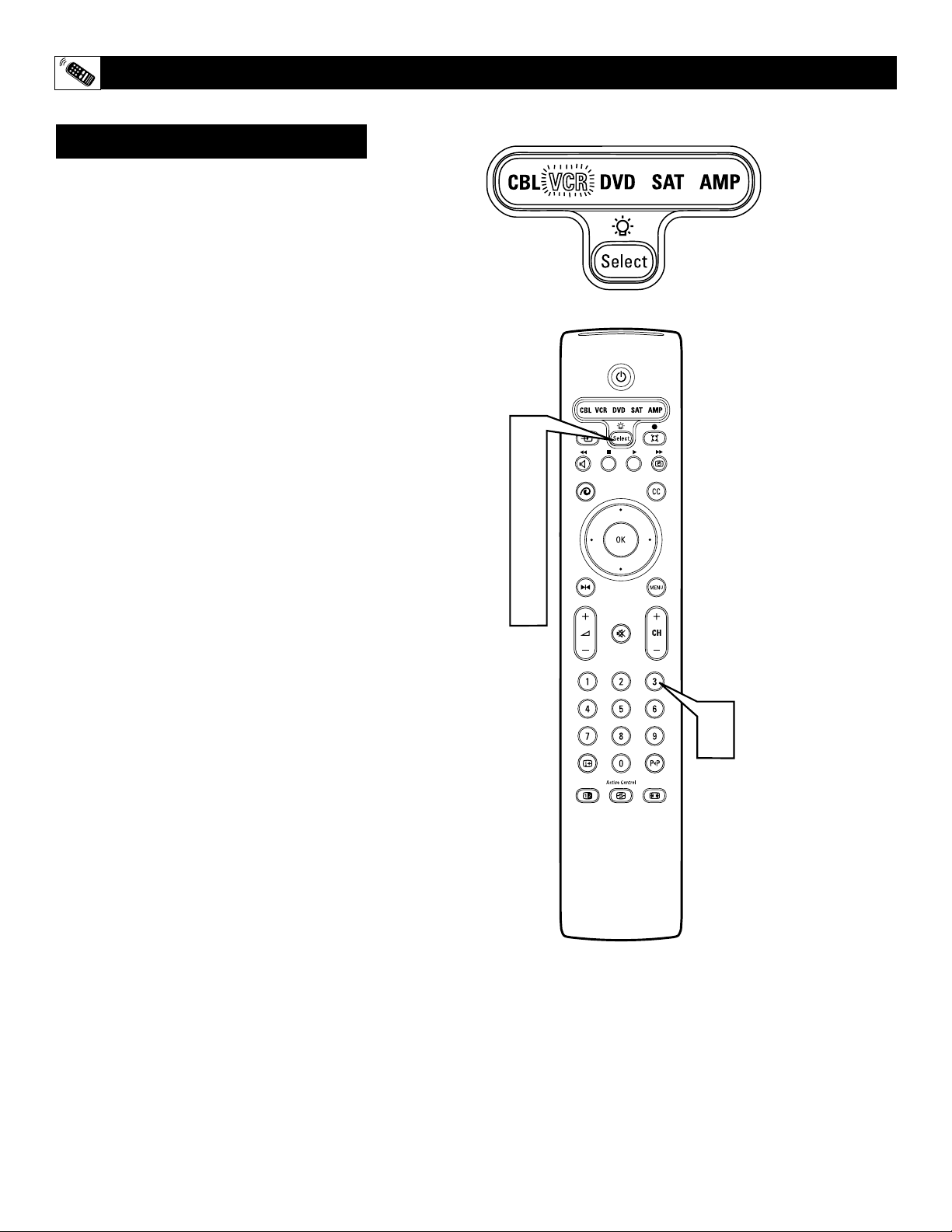
54
1
2
3
4
4
T
he remote control that is supplied with your
television may also work with a variety of
infrared controlled accessory devices such as
VCRs, Cable Boxes, DVD Players, Satellite
Receivers, etc. The following instructions
explain how to change the remote mode for the
type of accessory device you are using.
1
Press and release the SELECT button
on the remote control. The last used
mode before TV-MODE will lit up for 2
seconds. After 2 seconds, the LED for
that MODE will begin to flash.
2
Press and release the SELECT button
on the remote control within 2 seconds to
move to the next MODE. the new
MODE’s LED will lit for 2 seconds, then
begin to flash.
3
Repeat the steps above to continue
through the MODEs until the desired
MODE is selected.
MODE TIMEOUT SETTINGS:
When the remote MODE times out, the remote
control will revert to the TV MODE. Timeout
length occurs from the last command or button
press in any of the MODEs. The length of time
before a MODE timeout occurs can be changed.
To change the length of the timeout duration,
follow the steps below:
4
Simultaneously, press the SELECT
button and the NUMBERED button
from the list below to reset the desired
amount of timeout length.
Digit 1 = 15 seconds before timeout
Digit 2 = 30 seconds before timeout
Digit 3 = 60 seconds before timeout
Digit 4 = 120 second before timeout
(Example: You want the MODE
timeout to be 60 seconds, you would
need to press the SELECT button
and the NUMBER 3 button at the
same time.)
SETTING THE REMOTE CONTROL TO OPERATE ACCESSORY DEVICES
Mode Selection
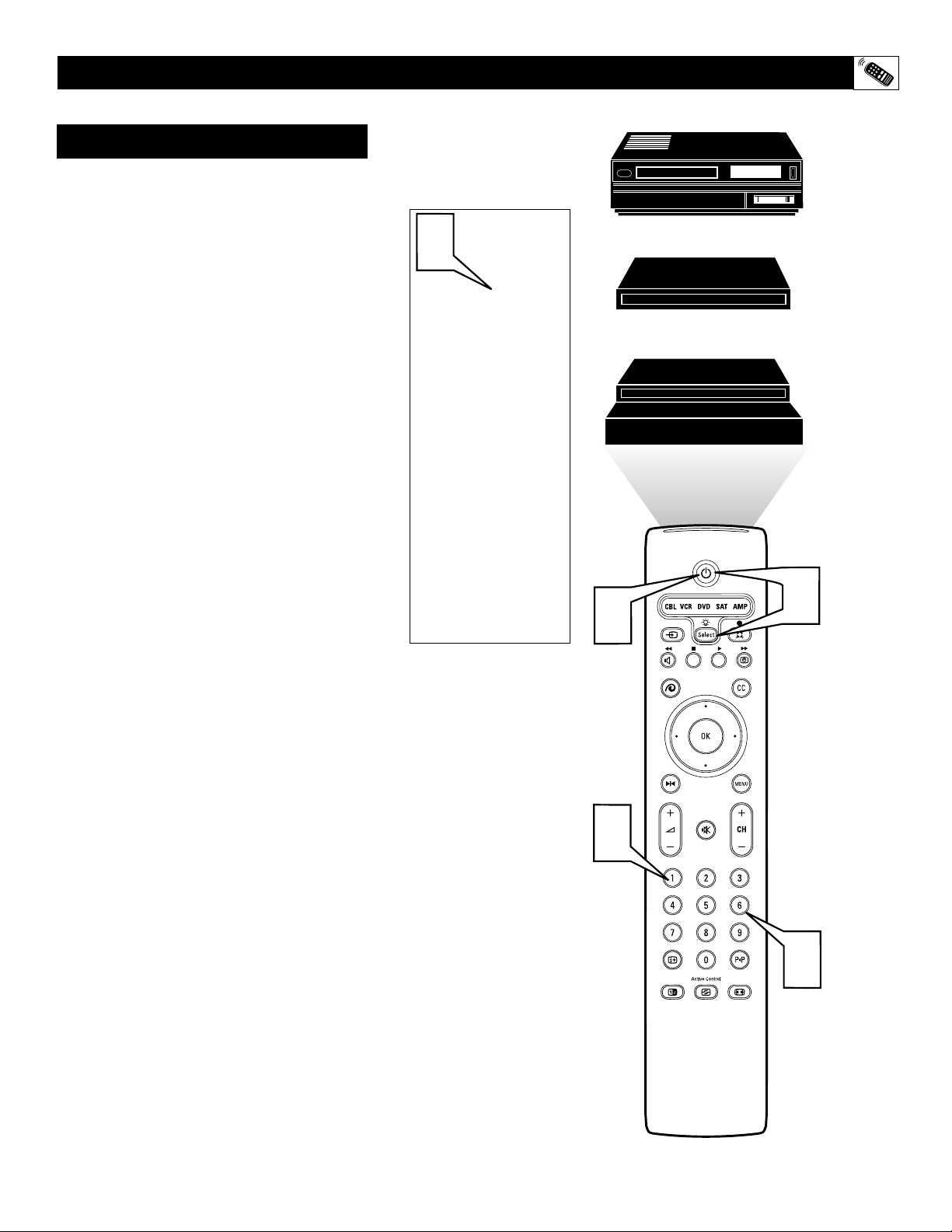
55
0054
0056
0057
0891
0944
1
2
3
4
5
T
he remote control supplied with your TV can
also be programmed by entering a specific
code for your type of accessory device. Follow
the instructions below to program the remote
using one of the codes listed on pages 56-57.
1
Look up the codes for your brand of
accessory device.
2
Once you have the codes, simultaneous-
ly press the SELECT and STANDBY
buttons.
3
Press the NUMBER button that corre-
sponds to the type of accessory device
you are using.
Digit 1 = Cable
Digit 2 = VCR
Digit 3 = DVD
Digit 4 = SAT
Digit 5 = AMP
4
Press the NUMBERED button to enter
the 4 digit code number from page 56
or 57.
5
Be sure the remote is in the correct
MODE (see previous page) and press
the POWER button. If the accessory
device powers ON your finished. If it
does not power ON, repeat the procedure
with another code listed. If all codes fail,
the remote will not control your specific
accessory device.
(Example: You have a Cable Box from Archer
and want to program the remote. It’s code is
0049. Press the SELECT and STANDBY button
simultaneously. Press the NUMBER 1 for Cable,
then enter the listed four digit code; i.e.; 1, 0, 0,
4, 9.)
SETTING THE REMOTE CONTROL TO OPERATE ACCESSORY DEVICES
Code Entry Method
Codes from
page 56-57
Cable Converter
Satellite Receiver
VCR

56
REMOTE CONTROL DIRECT ENTRY CODES FOR ACCESSORY DEVICES
Amplifiers Remote Code No.
Aiwa . . . . . . . . . . . . . . . . . . . . . . . . . . . . . .0433
Carver . . . . . . . . . . . . . . . . . . . . . . . . . . . .0296
Curtis Mathes . . . . . . . . . . . . . . . . . . . . . .0327
Denon . . . . . . . . . . . . . . . . . . . . . . . . . . . .0187
GE . . . . . . . . . . . . . . . . . . . . . . . . . . . . . . .0105
Harman/Kardon . . . . . . . . . . . . . . . . . . . . .0919
JVC . . . . . . . . . . . . . . . . . . . . . . . . . . . . . .0358
Linn . . . . . . . . . . . . . . . . . . . . . . . . . . . . . .0296
Magnavox . . . . . . . . . . . . . . . . . . . . . . . . .0296
Marantz . . . . . . . . . . . . . . . . . . . . . .0296, 0348
Nakamichi . . . . . . . . . . . . . . . . . . . . . . . . .0348
Optimus . . . . . . . . . . . . . . . . . . . . . . . . . . .0422
Panasonic . . . . . . . . . . . . . . . . . . . . . . . . .0335
Philips . . . . . . . . . . . . . . . . . . . . . . .0296, 0919
Pioneer . . . . . . . . . . . . . . . . . . . . . .0040, 0327
Realistic . . . . . . . . . . . . . . . . . . . . . . . . . . .0422
Sansui . . . . . . . . . . . . . . . . . . . . . . . . . . . .0348
Sony . . . . . . . . . . . . . . . . . . . . . . . .0716, 0247
Soundesign . . . . . . . . . . . . . . . . . . . . . . . .0105
Technics . . . . . . . . . . . . . . . . . . . . . . . . . . .0335
Victor . . . . . . . . . . . . . . . . . . . . . . . . . . . . .0358
Wards . . . . . . . . . . . . . . . . . . . . . . .0040, 0105
Yamaha . . . . . . . . . . . . . . . . . . . . . . . . . . .0381
Cable Remote Code No.
ABC . . . . . . . . .0030, 0028, 0034, 0035, 0038,
. . . . . . . . . . . . . . . . . . . . . . .0040, 0041, 0044
Allegro . . . . . . . . . . . . . . . . . . . . . . .0180, 0342
Americast . . . . . . . . . . . . . . . . . . . . . . . . . .0926
Antronix . . . . . . . . . . . . . . . . . . . . . . . . . . .0049
Archer . . . . . . . . . . . . . . . . . .0049, 0180, 0824
Belcor . . . . . . . . . . . . . . . . . . . . . . . . . . . .0083
Bell & Howell . . . . . . . . . . . . . . . . . . . . . . .0041
Cable Star . . . . . . . . . . . . . . . . . . . . . . . . .0083
Cabletenna . . . . . . . . . . . . . . . . . . . . . . . .0049
Cableview . . . . . . . . . . . . . . . . . . . . . . . . .0049
Century . . . . . . . . . . . . . . . . . . . . . . . . . . .0180
Citizen . . . . . . . . . . . . . . . . . . . . . . .0180, 0342
Colour Voice . . . . . . . . . . . . . . . . . . . . . . .0052
Comtronics . . . . . . . . . . . . . . . . . . . . . . . .0067
Contec . . . . . . . . . . . . . . . . . . . . . . . . . . . .0046
Eastern . . . . . . . . . . . . . . . . . . . . . . . . . . .0029
Emerson . . . . . . . . . . . . . . . . . . . . . . . . . .0824
Everquest . . . . . . . . . . . . . . . . . . . .0042, 0067
Focus . . . . . . . . . . . . . . . . . . . . . . . . . . . . .0427
GC Electronics . . . . . . . . . . . . . . . . . . . . .0083
Garrard . . . . . . . . . . . . . . . . . . . . . . . . . . .0180
Gemini . . . . . . . . . . . . . . . . . . . . . . . . . . . .0042
General Instrument . . .0303, 0503, 0038, 0837
GoldStar . . . . . . . . . . . . . . . . . . . . .0067, 0171
Goodmind . . . . . . . . . . . . . . . . . . . . . . . . .0824
Hamlin . . . . . . . . . . . . .0047, 0036, 0286, 0061
Hitachi . . . . . . . . . . . . . . . . . . . . . . . . . . . .0038
Hytex . . . . . . . . . . . . . . . . . . . . . . . . . . . . .0034
Jasco . . . . . . . . . . . . . . . . . . .0042, 0180, 0342
Jerrold . . . . . . . . . . . .0030, 0039, 0303, 0041,
. . . . . . . . . . . . . . . . . .0038, 0503, 0042, 0837
Memorex . . . . . . . . . . . . . . . . . . . . . . . . . .0027
Movie Time . . . . . . . . . . . . . . . . . . . . . . . .0090
NSC . . . . . . . . . . . . . . . . . . . . . . . . . . . . . .0090
Oak . . . . . . . . . . . . . . . . . . . . . . . . .0046, 0034
Optimus . . . . . . . . . . . . . . . . . . . . . . . . . . .0048
Panasonic . . . . . . . . . . . . . . .0048, 0134, 0027
Paragon . . . . . . . . . . . . . . . . . . . . . . . . . . .0027
Philips . . . . . . . . . . . . . . . . . . . . . . .0052, 0180
Pioneer . . . . . . . . . . . . . . . . .0171, 0560, 0904
Popular Mechanics . . . . . . . . . . . . . . . . . .0427
Pulsar . . . . . . . . . . . . . . . . . . . . . . . . . . . .0027
Quasar . . . . . . . . . . . . . . . . . . . . . . . . . . . .0027
RCA . . . . . . . . . . . . . . . . . . . . . . . . . . . . . .0048
Radio Shack . . . . . . . .0042, 0342, 0910, 0824
Recoton . . . . . . . . . . . . . . . . . . . . . . . . . . .0427
Regal . . . . . . . . . . . . . . . . . . . . . . . .0047, 0286
Regency . . . . . . . . . . . . . . . . . . . . . . . . . .0029
Rembrandt . . . . . . . . . . . . . . . . . . . . . . . . .0038
Runco . . . . . . . . . . . . . . . . . . . . . . . . . . . .0027
SL Marx . . . . . . . . . . . . . . . . . . . . . . . . . . .0067
Samsung . . . . . . . . . . . . . . . . . . . . .0067, 0171
Scientific Atlanta . . . . .0035, 0044, 0504, 0904
Signal . . . . . . . . . . . . . . . . . . . . . . .0042, 0067
Signature . . . . . . . . . . . . . . . . . . . . . . . . . .0038
Sprucer . . . . . . . . . . . . . . . . . . . . . . . . . . .0048
Starcom . . . . . . . . . . . . . . . . . . . . . .0030, 0042
Stargate . . . . . . . . . . . . . . . . .0067, 0042, 0824
Starquest . . . . . . . . . . . . . . . . . . . . . . . . . .0042
Sylvania . . . . . . . . . . . . . . . . . . . . . . . . . . .0028
TV86 . . . . . . . . . . . . . . . . . . . . . . . . . . . . .0090
Tandy . . . . . . . . . . . . . . . . . . . . . . . . . . . . .0285
Teleview . . . . . . . . . . . . . . . . . . . . . . . . . . .0067
Texscan . . . . . . . . . . . . . . . . . . . . . . . . . . .0028
Tocom . . . . . . . . . . . . . . . . . . . . . . .0039, 0040
Toshiba . . . . . . . . . . . . . . . . . . . . . . . . . . .0027
Tusa . . . . . . . . . . . . . . . . . . . . . . . . . . . . . .0042
Unika . . . . . . . . . . . . . . . . . . . . . . . .0180, 0049
United Artists . . . . . . . . . . . . . . . . . . . . . . .0034
Universal . . . . . . . . . . .0049, 0083, 0180, 0218
Viewstar . . . . . . . . . . . . . . . . . . . . . .0285, 0090
Zenith . . . . . . . . . . . . . . . . . .0027, 0552, 0926
Zentek . . . . . . . . . . . . . . . . . . . . . . . . . . . .0427
CD Players Remote Code No.
Aiwa . . . . . . . . . . . . . . . . . . . . . . . . . . . . . .0184
Burmester . . . . . . . . . . . . . . . . . . . . . . . . .0447
California Audio Labs . . . . . . . . . . . . . . . .0056
Carver . . . . . . . . . . . . . . . . . .0184, 0206, 0464
DKK . . . . . . . . . . . . . . . . . . . . . . . . . . . . . .0027
Denon . . . . . . . . . . . . . . . . . . . . . . .0030, 0900
Emerson . . . . . . . . . . . . . . . . . . . . . . . . . .0332
Fisher . . . . . . . . . . . . . . . . . . . . . . .0201, 0206
Garrard . . . . . . . . . . . . . . . . . . . . . .0420, 0447
Genexxa . . . . . . . . . . . . . . . . . . . . .0059, 0332
Harman/Kardon . . . . . . . . . . . . . . . .0200, 0184
Hitachi . . . . . . . . . . . . . . . . . . . . . . . . . . . .0059
JVC . . . . . . . . . . . . . . . . . . . . . . . . . . . . . .0099
Kenwood . . . . . . . . . .0055, 0217, 0853, 0064,
. . . . . . . . . . . . . . . . . . . . . . . . . . . .0653, 0708
Krell . . . . . . . . . . . . . . . . . . . . . . . . . . . . . .0184
LXI . . . . . . . . . . . . . . . . . . . . . . . . . . . . . . .0332
Linn . . . . . . . . . . . . . . . . . . . . . . . . . . . . . .0184
MCS . . . . . . . . . . . . . . . . . . . . . . . . . . . . . .0056
MTC . . . . . . . . . . . . . . . . . . . . . . . . . . . . . .0447
Magnavox . . . . . . . . . . . . . . . . . . . .0184, 0332
Marantz . . . . . . . . . . . . . . . . .0184, 0056, 0207
Mission . . . . . . . . . . . . . . . . . . . . . . . . . . .0184
NSM . . . . . . . . . . . . . . . . . . . . . . . . . . . . . .0184
Nikko . . . . . . . . . . . . . . . . . . . . . . . . . . . . .0201
Onkyo . . . . . . . . . . . . . . . . . . . . . . .0128, 0895
Optimus . . . . . . . . . . .0447, 0059, 0206, 0495,
. . . . . . . . . . . . . .0464, 0332, 0027, 0064,0172
Panasonic . . . . . . . . . . . . . . . . . . . .0056, 0330
Parasound . . . . . . . . . . . . . . . . . . . . . . . . .0447
Philips . . . . . . . . . . . . . . . . . . . . . . .0184, 0653
Pioneer . . . . . . . . . . . .0059, 0495, 0271, 0332
Proton . . . . . . . . . . . . . . . . . . . . . . . . . . . .0184
QED . . . . . . . . . . . . . . . . . . . . . . . . . . . . . .0184
Quasar . . . . . . . . . . . . . . . . . . . . . . . . . . . .0056
RCA . . . . . . . . . . . . . . .0080, 0332, 0206, 0791
Realistic . . . . . . . . . . . . . . . . .0206, 0207, 0447
Rotel . . . . . . . . . . . . . . . . . . . . . . . .0184, 0447
SAE . . . . . . . . . . . . . . . . . . . . . . . . . . . . . .0184
Sansui . . . . . . . . . . . . . . . . . . . . . . .0184, 0332
Sanyo . . . . . . . . . . . . . . . . . . . . . . . . . . . .0206
Scott . . . . . . . . . . . . . . . . . . . . . . . . . . . . .0332
Sears . . . . . . . . . . . . . . . . . . . . . . . . . . . . .0332
Sharp . . . . . . . . . . . . . . . . . . .0064, 0207, 0888
Sherwood . . . . . . . . . . . . . . . . . . . . . . . . .0207
Sony . . . . . . . . . . . . . . . . . . .0027, 0212, 0517
Soundesign . . . . . . . . . . . . . . . . . . . . . . . .0172
Tascam . . . . . . . . . . . . . . . . . . . . . . . . . . .0447
Teac . . . . . . . . . . . . . . .0420, 0447, 0201, 0207
Technics . . . . . . . . . . . . . . . . . . . . .0330, 0056
Victor . . . . . . . . . . . . . . . . . . . . . . . . . . . . .0099
Wards . . . . . . . . . . . . . . . . . . . . . . .0080, 0184
Yamaha . . . . . . . . . . . . . . . . . . . . . .0214, 0063
Yorx . . . . . . . . . . . . . . . . . . . . . . . . . . . . . .0488
Receivers Remote Code No.
ADC . . . . . . . . . . . . . . . . . . . . . . . . . . . . . .0558
Adcom . . . . . . . . . . . . . . . . . . . . . . . . . . . .0643
Aiwa . . . . . . . . . . . . . .0148, 0432, 0185, 0216
Akai . . . . . . . . . . . . . . . . . . . . . . . . .0251, 0103
Capetronic . . . . . . . . . . . . . . . . . . . . . . . . .0558
Carver . . . . . . . . . . . . .0035, 0216, 0387, 0069
Casio . . . . . . . . . . . . . . . . . . . . . . . . . . . . .0222
Clarinette . . . . . . . . . . . . . . . . . . . . . . . . . .0222
Curtis Mathes . . . . . . . . . . . . . . . . . . . . . .0107
Denon . . . . . . . . . . . . . . . . . .0031, 0798, 0300
Emerson . . . . . . . . . . . . . . . . . . . . . . . . . .0451
Fisher . . . . . . . . . . . . . . . . . .0069, 0246, 0387
Garrard . . . . . . . . . . . . . . . . . . . . . .0451, 0490
Harman/Kardon . . . . . . . . . . .0137, 0216, 0918
Inkel . . . . . . . . . . . . . . . . . . . . . . . . . . . . . .0089
JBL . . . . . . . . . . . . . . . . . . . . . . . . . . . . . .0137
JVC . . . . . . . . . . . . . . . . . . . . . . . . . . . . . .0101
Kenwood . . . . . . . . . .0054, 0341, 0104, 0069,
. . . . . . . . . . . . . . . . . . . . . . . . . . . .0213, 0340
Koss . . . . . . . . . . . . . . . . . . . . . . . . . . . . . .0451
LXI . . . . . . . . . . . . . . . . . . . . . . . . . . . . . . .0208
Linn . . . . . . . . . . . . . . . . . . . . . . . . . . . . . .0216
Lloyd's . . . . . . . . . . . . . . . . . . . . . . . . . . . .0222
MCS . . . . . . . . . . . . . . . . . . . . . . . .0066, 0373
Magnavox . . . . .0216, 0418, 0558, 0155, 0222
Marantz . . . . . . . . . . . . . . . . .0216, 0155, 0066
Modulaire . . . . . . . . . . . . . . . . . . . . . . . . . .0222
NAD . . . . . . . . . . . . . . . . . . . . . . . . . . . . . .0347
NEC . . . . . . . . . . . . . . . . . . . . . . . . . . . . . .0262
Nakamichi . . . . . . . . . . . . . . . . . . . .0374, 0124
Onkyo . . . . . . . . . . . . . . . . . .0162, 0407, 0127
Optimus . . . . . . . . . . .0208, 0204, 0213, 0246,
. . . . . . . . . . . . .0558, 0765, 0828, 0069, 0697
Panasonic . . . . . . . . . . . . . . .0066, 0336, 0545
Penney . . . . . . . . . . . . . . . . . . . . . . . . . . .0222
Philips . . . . . . . . . . . . . . . . . . . . . . .0216, 0418
Pioneer . . . . . . .0107, 0041, 0177, 0558, 0657
Quasar . . . . . . . . . . . . . . . . . . . . . . . . . . . .0066
RCA . . . . . . . . . .0081, 0373, 0558, 0387, 0557
Realistic . . . . . . . . . . . . . . . .0208, 0222, 0190
Sansui . . . . . . . . . . . . . . . . . .0216, 0220, 0373
Sanyo . . . . . . . . . . . . . . . . . . . . . . .0246, 0828
Scott . . . . . . . . . . . . . . . . . . . . . . . .0190, 0349
Sharp . . . . . . . . . . . . . . . . . . . . . . . . . . . . .0213
Sherwood . . . . . . . . . . . . . . .0529, 0518, 0089
Sony . . . . . . . . . . . . . . . . . . .0185, 0195, 0501
Soundesign . . . . . . . . . . . . . . . . . . . . . . . .0697
Teac . . . . . . . . . . . . . . . . . . . . . . . . .0490, 0190
Technics . . . . . . . . . . .0336, 0066, 0235, 0545
Victor . . . . . . . . . . . . . . . . . . . . . . . . . . . . .0101
Wards . . . . . . . .0081, 0041, 0107, 0185, 0216
Yamaha . . . . . . . . . . . . . . . . . . . . . .0203, 0213
Yorx . . . . . . . . . . . . . . . . . . . . . . . . . . . . . .0222
Zenith . . . . . . . . . . . . . . . . . . . . . . . . . . . . .0884

57
REMOTE CONTROL DIRECT ENTRY CODES FOR ACCESSORY DEVICES
Satellite Remote Code No.
AlphaStar . . . . . . . . . . . . . . . . . . . . . . . . . .0799
Amplica . . . . . . . . . . . . . . . . . . . . . . . . . . .0099
Amway . . . . . . . . . . . . . . . . . . . . . . . . . . . .0102
Astro Industries . . . . . . . . . . . . . . . . . . . . .0122
BSR . . . . . . . . . . . . . . . . . . . . . . . . . . . . . .0122
Capetronic . . . . . . . . . . . . . . . . . . . . . . . . .0122
Channel Master . . . . . . . . . . . . . . . .0045, 0239
Chaparral . . . . . . . . . . . . . . . .0080, 0236, 0243
Curtis Mathes . . . . . . . . . . . . . . . . .0088, 0099
DX Antenna . . . . . . . . . . . . . . . . . . . . . . . .0068
Drake . . . . . . . . . . . . . .0091, 0272, 0045, 0176
Echostar . . . . . .0307, 0802, 0175, 0186, 0296
Expressvu . . . . . . . . . . . . . . . . . . . . . . . . .0802
General Instrument . . . . . . . .0388, 0896, 0654
HTS . . . . . . . . . . . . . . . . . . . . . . . . . . . . . .0802
Hitachi . . . . . . . . . . . . . . . . . . . . . . . . . . . .0846
Homecable . . . . . . . . . . . . . . . . . . . . . . . .0265
Hughes Network Systems . . . . . . . . . . . . .0776
Hytek . . . . . . . . . . . . . . . . . . . . . . . . . . . . .0122
IQ . . . . . . . . . . . . . . . . . . . . . . . . . . . . . . . .0237
IQ Prism . . . . . . . . . . . . . . . . . . . . . . . . . .0237
JVC . . . . . . . . . . . . . . . . . . . . . . . . . . . . . .0802
Janeil . . . . . . . . . . . . . . . . . . . . . . . . . . . . .0179
Jerrold . . . . . . . . . . . . . . . . . . . . . . .0388, 0654
Legend . . . . . . . . . . . . . . . . . . . . . . . . . . . .0296
Macom . . . . . . . . . . . . . . . . . . . . . .0088, 0045
Magnavox . . . . . . . . . . . . . . . . . . . .0749, 0751
Memorex . . . . . . . . . . . . . . . . . . . . .0296, 0751
Next Level . . . . . . . . . . . . . . . . . . . . . . . . .0896
Panasonic . . . . . . . . . . . . . . . . . . . .0179, 0728
Philips . . . . . . . . . . . . . . . . . .0227, 0749, 0751
Pico . . . . . . . . . . . . . . . . . . . . . . . . . . . . . .0102
Primestar . . . . . . . . . . . . . . . . . . . . .0654, 0388
RCA . . . . . . . . . . . . . . . . . . .0593, 0170, 0882
Radio Shack . . . . . . . . . . . . . . . . . . . . . . .0896
Ramsey . . . . . . . . . . . . . . . . . . . . . . . . . . .0102
Realistic . . . . . . . . . . . . . . . . . . . . . . . . . . .0079
STS . . . . . . . . . . . . . . . . . . . . . . . . .0237, 0068
Sony . . . . . . . . . . . . . . . . . . . . . . . . . . . . .0666
Star Choice . . . . . . . . . . . . . . . . . . . . . . . .0896
Star Trak . . . . . . . . . . . . . . . . . . . . . . . . . .0207
Toshiba . . . . . . . . . . . . . . . . .0109, 0817, 0088
Uniden . . . . . . .0265, 0079, 0101, 0397, 0751,
. . . . . . . . . . . . . . . . . . . . . . . . . . . .0103, 0749
Zenith . . . . . . . . . . . . . . . . . .0091, 0883, 0088
VCR Remote Code No.
Admiral . . . . . . . . . . . . . . . . . . . . . .0075, 0236
Adventura . . . . . . . . . . . . . . . . . . . . . . . . .0027
Aiko . . . . . . . . . . . . . . . . . . . . . . . . . . . . . .0305
Aiwa . . . . . . . . . . . . . . . . . . . .0334, 0027, 0064
Akai . . . . . . . . . . . . . . . . . . .0133, 0068, 0088
America Action . . . . . . . . . . . . . . . . . . . . .0305
American High . . . . . . . . . . . . . . . . . . . . .0062
Asha . . . . . . . . . . . . . . . . . . . . . . . . . . . . .0267
Audiovox . . . . . . . . . . . . . . . . . . . . . . . . . .0064
Beaumark . . . . . . . . . . . . . . . . . . . . . . . . .0267
Bell & Howell . . . . . . . . . . . . . . . . . . . . . . .0131
Brocksonic . . . . . . . . . . . . . . . . . . . . . . . . .0236
Broksonic . . . . . .0148, 0211, 0029, 0236, 0506
CCE . . . . . . . . . . . . . . . . . . . . . . . . .0099, 0305
Calix . . . . . . . . . . . . . . . . . . . . . . . . . . . . .0064
Canon . . . . . . . . . . . . . . . . . . . . . . . . . . . .0062
Capehart . . . . . . . . . . . . . . . . . . . . . . . . . .0047
Carver . . . . . . . . . . . . . . . . . . . . . . . . . . . .0108
Cineral . . . . . . . . . . . . . . . . . . . . . . . . . . . .0305
Citizen . . . . . . . . . . . . . . . . . . . . . . .0305, 0064
Colt . . . . . . . . . . . . . . . . . . . . . . . . . . . . . .0099
Craig . . . . . . . . .0064, 0099, 0074, 0267, 0298
Curtis Mathes . . . . . . .0062, 0068, 0087, 0189
Cybernex . . . . . . . . . . . . . . . . . . . . . . . . . .0267
Daewoo . . . . . . . . . . . .0305, 0588, 0047, 0072
Daytron . . . . . . . . . . . . . . . . . . . . . . . . . . .0047
Denon . . . . . . . . . . . . . . . . . . . . . . . . . . . .0069
Dynatech . . . . . . . . . . . . . . . . . . . . . . . . . .0027
Electrohome . . . . . . . . . . . . . . . . . . . . . . .0064
Electrophonic . . . . . . . . . . . . . . . . . . . . . . .0064
Emerex . . . . . . . . . . . . . . . . . . . . . . . . . . .0059
Emerson . . . . . . . . . . .0211, 0029, 0236, 0305,
. . . . . . . . . . . . . . . . . .0148, 0235, 0506, 0588,
. . . . . . . . . . . . . .0088, 0239, 0027, 0064,0070
Fisher . . . . . . . . . . . . . . . . . .0074, 0131, 0081
Fuji . . . . . . . . . . . . . . . . . . . . . . . . . .0060, 0062
Funai . . . . . . . . . . . . . . . . . . . . . . . . . . . . .0027
GE . . . . . . . . . . .0062, 0087, 0075, 0229, 0267
Garrard . . . . . . . . . . . . . . . . . . . . . . . . . . .0027
Go Video . . . . . . . . . . . . . . . . . . . . .0459, 0553
GoldStar . . . . . . . . . . . . . . . . . . . . .0064, 0065
Gradiente . . . . . . . . . . . . . . . . . . . . .0035, 0027
HI-Q . . . . . . . . . . . . . . . . . . . . . . . . . . . . . .0074
Harley Davidson . . . . . . . . . . . . . . . . . . . .0027
Harman/Kardon . . . . . . . . . . . . . . . .0065, 0108
Harwood . . . . . . . . . . . . . . . . . . . . . . . . . .0099
Headquarter . . . . . . . . . . . . . . . . . . . . . . . .0073
Hitachi . . . . . . . . . . . . .0069, 0132, 0027, 0068
Hughes Network Systems . . . . . . . . . . . . .0069
JVC . . . . . . . . . . . . . . . . . . . .0094, 0035, 0068
Jensen . . . . . . . . . . . . . . . . . . . . . . . . . . . .0068
KEC . . . . . . . . . . . . . . . . . . . . . . . . .0064, 0305
KLH . . . . . . . . . . . . . . . . . . . . . . . . . . . . . .0099
Kenwood . . . . . . . . . . . . . . . .0068, 0094, 0065
Kodak . . . . . . . . . . . . . . . . . . . . . . .0062, 0064
LXI . . . . . . . . . . . . . . . . . . . . . . . . . . . . . . .0064
Lloyd's . . . . . . . . . . . . . . . . . . . . . . .0027, 0235
Logik . . . . . . . . . . . . . . . . . . . . . . . . . . . . .0099
MEI . . . . . . . . . . . . . . . . . . . . . . . . . . . . . .0062
MGA . . . . . . . . . . . . . . . . . . .0070, 0088, 0267
MGN Technology . . . . . . . . . . . . . . . . . . . .0267
MTC . . . . . . . . . . . . . . . . . . . . . . . . .0027, 0267
Magnasonic . . . . . . . . . . . . . . . . . . . . . . . .0305
Magnavox . . . . .0062, 0108, 0027, 0066, 0176
Magnin . . . . . . . . . . . . . . . . . . . . . . . . . . . .0267
Marantz . . . . . . . . . . . . . . . . . . . . . .0108, 0062
Marta . . . . . . . . . . . . . . . . . . . . . . . . . . . . .0064
Matsushita . . . . . . . . . . . . . . .0062, 0189, 0481
Memorex . . . . .0131, 0074, 0027, 0064, 0075,
. . . . . . . . . . . . .0062, 0073, 0267, 1064, 0334,
. . . . . . . . . . . . . . . . . .0066, 0236, 1189, 1289
Minolta . . . . . . . . . . . . . . . . . . . . . . .0132, 0069
Mitsubishi . . . . . . . . . .0070, 0088, 0075, 0094
Motorola . . . . . . . . . . . . . . . . . . . . .0062, 0075
Multitech . . . . . . . . . . . . . . . . . . . . .0027, 0099
NEC . . . . . . . . . . . . . . .0065, 0068, 0094, 0131
Nikko . . . . . . . . . . . . . . . . . . . . . . . . . . . . .0064
Nikon . . . . . . . . . . . . . . . . . . . . . . . . . . . . .0061
Noblex . . . . . . . . . . . . . . . . . . . . . . . . . . . .0267
Olympus . . . . . . . . . . . . . . . . . . . . . . . . . .0062
Optimus . . . . . .1089, 1189, 0075, 1289, 0064,
. . . . . . . . . . . . .1075, 0131, 0189, 0459, 0481
Optonica . . . . . . . . . . . . . . . . . . . . . . . . . .0089
Orion . . . . . . . . . . . . . .0506, 0029, 0211, 0236
Panasonic . . . . . . . . . .0062, 1189, 0189, 0252,
. . . . . . . . . . . . . . . . . . . . . . . . . . . .0481, 0643
Penney . .0062, 0267, 0064, 0069, 0065, 0081
Pentax . . . . . . . . . . . . . . . . . . . . . . .0069, 0132
Philco . . . . . . . . . . . . . . . . . . .0062, 0236, 0506
Philips . . .0108, 0062, 0089, 0645, 1108, 1208
Pilot . . . . . . . . . . . . . . . . . . . . . . . . . . . . . .0064
Pioneer . . . . . . . . . . . . . . . . . . . . . . . . . . .0094
Portland . . . . . . . . . . . . . . . . . . . . . . . . . . .0047
Profitronic . . . . . . . . . . . . . . . . . . . . . . . . .0267
Proscan . . . . . . . . . . . . . . . . . . . . . .0087, 0229
Protec . . . . . . . . . . . . . . . . . . . . . . . . . . . .0099
Pulsar . . . . . . . . . . . . . . . . . . . . . . . . . . . .0066
Quarter . . . . . . . . . . . . . . . . . . . . . . . . . . .0073
Quartz . . . . . . . . . . . . . . . . . . . . . . . . . . . .0073
Quasar . . . . . . . . . . . . .0062, 0189, 0481, 1189
RCA . . . . . . . . .0087, 0176, 0229, 0069, 0132,
. . . . . . . . . . . . . . . . . .0062, 0075, 0133, 0267
Radio Shack . . . . . . . . . . . . . . . . . .0027, 1064
Radix . . . . . . . . . . . . . . . . . . . . . . . . . . . . .0064
Randex . . . . . . . . . . . . . . . . . . . . . . . . . . .0064
Realistic . . . . . .0027, 0131, 0074, 0075, 0064,
. . . . . . . . . . . . . . . . . . . . . . .0062, 0089, 0073
ReplayTV . . . . . . . . . . . . . . . . . . . . .0641, 0643
Ricoh . . . . . . . . . . . . . . . . . . . . . . . . . . . . .0061
Runco . . . . . . . . . . . . . . . . . . . . . . . . . . . .0066
STS . . . . . . . . . . . . . . . . . . . . . . . . . . . . . .0069
Samsung . . . . . . . . . . . . . . . . . . . . .0072, 0267
Sanky . . . . . . . . . . . . . . . . . . . . . . .0066, 0075
Sansui . . .0068, 0506, 0027, 0094, 0236, 0298
Sanyo . . . . . . . . . . . . .0074, 0073, 0131, 0267
Scott . . . . . . . . .0211, 0148, 0070, 0072, 0239
Sears . . . . . . . .0081, 0132, 0064, 0069, 0027,
. . . . . . . . . . . . . . . . . .0062, 0073, 0074, 0131
Semp . . . . . . . . . . . . . . . . . . . . . . . . . . . .0072
Sharp . . . . . . . . . . . . . . . . . . . . . . . .0075, 0089
Shintom . . . . . . . . . . . . . . . . . . . . . . . . . . .0099
Shogun . . . . . . . . . . . . . . . . . . . . . . . . . . .0267
Singer . . . . . . . . . . . . . . . . . . . . . . . . . . . .0099
Sony . . . . . . . . .0060, 0061, 0059, 0027, 0062
Sylvania . . . . . . . . . . . .0062, 0108, 0027, 0070
Symphonic . . . . . . . . . . . . . . . . . . . . . . . . .0027
TMK . . . . . . . . . . . . . . . . . . . . . . . . .0235, 0267
Tatung . . . . . . . . . . . . . . . . . . . . . . . . . . . .0068
Teac . . . . . . . . . . . . . . . . . . . . . . . . .0027, 0068
Technics . . . . . . . . . . . . . . . . . . . . .0062, 0189
Teknika . . . . . . . . . . . . . . . . .0027, 0062, 0064
Thomas . . . . . . . . . . . . . . . . . . . . . . . . . . .0027
Tivo . . . . . . . . . . . . . . . . . . . . . . . . . . . . . .0645
Toshiba . . . . . . . . . . . . . . . . .0072, 0239, 0070
Totevision . . . . . . . . . . . . . . . . . . . .0064, 0267
Unitech . . . . . . . . . . . . . . . . . . . . . . . . . . .0267
Vector . . . . . . . . . . . . . . . . . . . . . . . . . . . .0072
Vector Research . . . . . . . . . . . . . . . . . . . .0065
Video Concepts . . . . . . . . . . . . . . . .0072, 0088
Videosonic . . . . . . . . . . . . . . . . . . . . . . . . .0267
Wards . . .0062, 0087, 0089, 0027, 0074, 0239,
. . . . . . . .0267, 0069, 0075, 0099, 0108, 0176
White Westinghouse . . . . . . . . . . . .0305, 0236
XR-1000 . . . . . . . . . . . . . . . .0099, 0027, 0062
Yamaha . . . . . . . . . . . . . . . . . . . . . . . . . . .0065
Zenith . . .0066, 0027, 0060, 0061, 0236, 0506
Digital Video Disc Remote Code No.
Harman/Kardon . . . . . . . . . . . . . . . . . . . . .0609
JVC . . . . . . . . . . . . . . . . . . . . . . . . .0650, 0585
Kenwood . . . . . . . . . . . . . . . . . . . . . . . . . .0561
Magnavox . . . . . . . . . . . . . . . . . . . . . . . . .0530
Mitsubishi . . . . . . . . . . . . . . . . . . . . . . . . . .0548
Onkyo . . . . . . . . . . . . . . . . . . . . . . .0654, 0530
Panasonic . . . . . . . . . . . . . . . . . . . .0517, 0659
Philips . . . . . . . . . . . . . . . . . . . . . . .0530, 0566
Pioneer . . . . . . . . . . . . . . . . .0598, 0552, 0659
Proscan . . . . . . . . . . . . . . . . . . . . . . . . . . .0549
RCA . . . . . . . . . . . . . . . . . . . . . . . . . . . . . .0549
Samsung . . . . . . . . . . . . . . . . . . . . . . . . . .0600
Sharp . . . . . . . . . . . . . . . . . . . . . . . . . . . . .0657
Sony . . . . . . . . . . . . . . . . . . . . . . . . . . . . .0560
Technics . . . . . . . . . . . . . . . . . . . . . . . . . . .0517
Theta Digita . . . . . . . . . . . . . . . . . . . . . . . .0598
Toshiba . . . . . . . . . . . . . . . . . . . . . . . . . . .0530
Yamaha . . . . . . . . . . . . . . . . . . . . . .0517, 0572
Zenith . . . . . . . . . . . . . . . . . . . . . . .0618, 0530
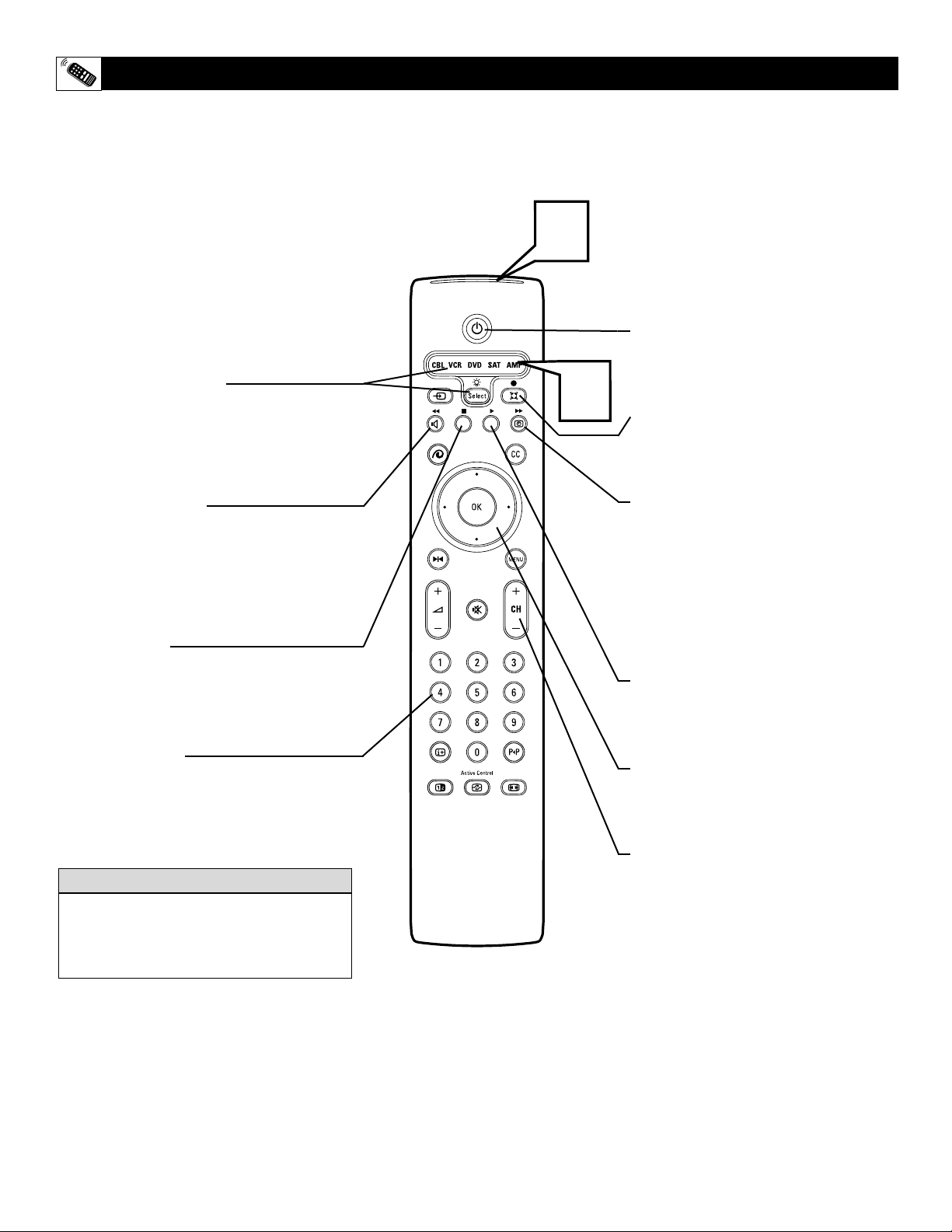
58
2
1
Select Button (MODES)
Press (SELECT) button as described on page
54 to select the correct mode to properly
control the type of accessory device you are
using.
Rewind Button
Press to rewind tapes, DVDs, etc. For some
VCR’s, the STOP button may have to be
pressed first, then REWIND. In playback
mode, hold down the button to view the pic-
ture moving rapidly in reverse.
Stop Button ■
Press to stop the motion of a tape in play-
back, rewind, fast forward, and so on, or to
stop the playback of a DVD disc.
Number Buttons
Press buttons for the direct selection of
VCR, Receiver, etc. channels, or to enter
certain onscreen menu options.
SPECIFIC REMOTE CONTROL ACCESSORY DEVICE BUTTONS
W
hen using the TV remote control with an
accessory device, first make certain it is
set to the correct MODE and has been pro-
grammed if needed.
1
SELECT the correct MODE (see
page 53). Be sure the button lights
green.
2
Point the top of the remote toward the
front of the accessory device (remote
sensor window) when pressing the but-
tons.
Remember, these buttons on the remote will not
operate your accessory device if those features
are not found on your accessory device remote
control.
HELPFUL HINT
Power Button
Press to turn the accessory device ON
and OFF.
• (Record) Button
Hold the • (Record) and PLAY
buttons
down to begin a VCR recording.
Fast Forward Button
Press to rapidly advance a tape or CD.
For some VCRs or DVD players, you
may need to press the STOP button
first, then the FAST FORWARD button.
In playback mode, hold the button
down to view the picture moving rapid-
ly in the forward direction.
Play Button
Press to begin playback of a videotape
or DVD movie.
Cursor Up/Down/Left/Right
Press to navigate any onscreen
customer controls.
Channel + and – Buttons
Press to scan up or down through chan-
nel numbers on any accesory device
that contains a channel tuner such as a
VCR.

59
TROUBLESHOOTING
CARE AND CLEANING
WARNING Concerning Stationary Images on the TV
Screen:
Do not leave stationary or letterbox images on screen
for extended periods of time. This can cause uneven
picture-tube aging.
Normal use of the TV should involve the showing of pictures
that contain constantly moving and changing images that fill the
screen. Be careful not to leave nonmoving images on screen for
extended periods of time, or to display the same images on
screen too frequently, because subtle ghost images can be left
on the picture tubes. Sources of stationary images may be DVD
disks, laser disks, video games, CD-i disks, videotapes, digital
television boxes, broadcast channels, cable channels, satellite
channels, and others. Here are some examples of stationary
images (this is not an all-inclusive list; you may encounter
others in your viewing):
• DVD menus—listings of DVD disk content
• Letterbox black bars—shown at the top and bottom of the
TV screen when a wide screen (16:9) movie is viewed on a
TV with standard (4:3) aspect ratio.
• Video-game images and scoreboards
• Television station logos—present a problem if they are
bright and stationary; moving or low-contrast graphics are
less likely to cause uneven aging of the picture tube
• Stock-market tickers—presented at the bottom of the TV
screen
• Shopping channel logos and pricing displays—bright
and shown constantly or repeatedly in the same location on
the TV screen.
P
LACEMENT OF THE TV
•To avoid cabinet warping, cabinet color changes, and
increased chance of set failure, do not place the TV where
temperatures can become excessively hot; for example, in
direct sunlight or near a heating appliance.
• Be sure to allow a free flow of air to and from the perforated
back cover of the set.
CLEANING
•To avoid possible shock hazard, be sure the TV is unplugged
from the electrical outlet before cleaning.
• Regularly dust the TV with a dry, nonscratching duster to
keep the TV clean.
• When cleaning the TV, take care not to scratch or damage the
screen surface. Avoid wearing jewelry or using anything
abrasive. Do not use household cleaners. Wipe the front
screen with a clean cloth dampened with water. Use even,
easy, vertical strokes when cleaning.
• Gently wipe the cabinet surfaces with a clean cloth or sponge
dampened in a solution of cool, clear water and a mild soap
or detergent. Use a clean, dry cloth to dry the wiped surfaces.
• Occasionally vacuum the ventilation holes or slots in the back
cover of the set.
• Never use thinners, insecticide sprays, or other chemicals on
or near the cabinet, as they might cause permanent marring
of the cabinet finish.
No Power
• Check the TV power cord. Unplug the TV, wait 10 seconds,
then reinsert the plug into the outlet and push the POWER
button again.
• Check that the outlet is not on a wall switch.
• Be sure the fuse is not blown on the AC power strip, if one is
being used.
No Picture
• Check antenna connections. Are they properly secured to the
TV's ANT 75Ω plug?
• Check the TUNER MODE control for the correct tuner set-
ting.
•Try running the Auto Program feature to find all available
channels.
• Press the Source Select button on the remote to make sure
the correct signal source is selected (FRONT or Current
Channel).
No Sound
• Check the VOLUME buttons.
• Check the MUTE button on the remote control.
• If you’re attempting to hook up auxiliary equipment, check
the audio jack connections located on the front of the TV.
Remote Does Not Work
• Make sure the correct Mode button is being used.
• Check the batteries. If necessary, replace them with AA
Heavy Duty (Zinc Chloride) or Alkaline batteries.
Remote Does Not Work (Continued)
• Clean the remote control and the remote control sensor win-
dow on the TV.
• Check the TV power cord. Unplug the TV, wait 10 seconds,
then reinsert the plug into the outlet and push the POWER
button again.
• Be sure the fuse is not blown on the AC power strip, if one is
being used.
• Check to be sure the TV outlet is not on a wall switch.
TV Displays Wrong Channel or No Channels Above 13
• Repeat channel selection.
• Add the desired channel numbers (using the CHANNEL
EDIT control) into the TV’s memory.
• Check to be sure the TUNER MODES are set to the CABLE
option and run the Auto Program feature to find all available
channels.
TV Displays white lines in letterbox when viewing a
DVD disc
• Some DVD Discs are encoded with as much as 30% more
video information to give the best possible picture quality.
With the DVD Player in the 16:9 picture format, the play-
back of this type of disc with extra video information, can
produce a number of small white lines in the upper portion
of the black letterbox area. With some of these discs, this sit-
uation is unavoidable and it does not require a service call.

60
GLOSSARY OF TELEVISION TERMS
Active Control • Active Control continuously measures and cor-
rects the incoming signals to provide the best picture possible.
Alternate Channel • Allows you to toggle between the last two
channels viewed by pressing the A/CH button on the remote
control.
Aspect Ratio • The proportions of a rectangular display screen.
NTSC television has a 4:3 ratio; HDTV has a 16:9 ratio.
Audio/Video Inputs • Jacks (standard RCA), located on the
back of the TV, used for external accessory devices. These jacks
are designed to receive higher picture resolution and offer
sound-connection options.
Auto Picture and Auto Sound • Buttons on the remote control
(Sound and Picture) to select predefined picture and sound set-
tings.
Auto Programming • When activated, this feature scans for all
available channels from regular antenna or cable signals and
stores only active broadcast stations in the TV’s memory.
Channel Edit • The feature that allows you to add or delete
channels from the list of channels stored in the TV’s memory.
Closed Captioning • The broadcast standard feature that allows
you to read the voice content of television programs on the TV
screen. Designed to help the hearing impaired, Closed
Captioning shows dialogue and conversations while a TV pro-
gram is in progress.
Coaxial Cable • A single solid wire normally matched with a
metal plug (F-type) end connector that screws (or pushes) direct-
ly onto a 75-ohm input found on the television or VCR.
Component Video Inputs • Inputs that allow the separate recep-
tion of blue, red, and luminance signals. These inputs provide
the highest possible color and picture resolution in the playback
of digital signal-source material, such as the kind available from
DVD players.
Composite Video Input • An input in which all the components
required for displaying the onscreen image are combined in one
signal.
High-definition Television (HDTV) • High-resolution digital
television.
Incredible Stereo (or Surround) • False acoustic management
of the audio signal that produces a dramatic expansion of the
wall of sound that surrounds the listener and heightens overall
viewing pleasure.
Menu • An onscreen list of feature controls available for you to
adjust or set.
NTSC (analog video signals) • National Television Standards
Committee format devised to TV broadcasting signals in the
1940s (525 lines: 60Hz).
Onscreen Displays (OSD) • The wording or messages generat-
ed by the television (or VCR) to help you with specific feature
controls (color adjustment or programming, for example).
Pixel Plus improves picture quality and definition by increasing
the number of picture lines and the number of pixels per line to
give normal broadcast signals, DVD reproduction or Digital TV
signals, unparalleled sharpness and depth. Gives near High
Definition and natural looking detail without the High Definition
signal.
Picture Freeze • TV mode which allows you to freeze a certain
image in order to study a specific detail at ease, e.g. to make
notes of certain program information like phone numbers.
Progressive Scan • Double the number of visible picture lines
per field. A jitter-free and quiet picture with astonishing sharp-
ness.
Remote Control Sensor Window • The window or opening
found on the television control panel through which infrared
remote control command signals are received.
Second Audio Program (SAP) • An additional audio channel
provided for in the Multichannel Television Sound (MTS)
broadcast standard. A monaural soundtrack included within the
recorded or video signal (usually containing a second language
translation for the displayed programming).
Status/Exit Button • The remote control function that allows
you to quickly confirm what channel number you are watching.
Status/Exit can also be used to clear the television of onscreen
displays or information. You can use Status/Exit rather than hav-
ing to wait for the displays to “time out,” or automatically disap-
pear from the screen.
Surround Pro Logic • Literally wraps you in 4-channel sound.
It brings your favorite movies to life with all the realism and
impact of cinema sound as though you are part of the action or
viewing your programming from the theatre.
S-Video Input • Signal input that allows direct connection of
high-resolution video sources, such as a satellite receiver, DVD
player, S (Super)-VHS videocassette recorder, or video games.
Provides improved picture resolution, sharpness, and clarity.
Tint • TV function that allows you to change the general color
balance between cool and warm. Adjust tint according to your
personal preference.

61
INDEX
3D Surround Effect Control . . . . . . . . . . . . . . . . . . . . . . . . . . .28
Active Control . . . . . . . . . . . . . . . . . . . . . . . . . . . . . . . . . . . . .53
Alternate Audio Control . . . . . . . . . . . . . . . . . . . . . . . . . . . . . .26
Antenna Attenuator Control . . . . . . . . . . . . . . . . . . . . . . . . . . .41
Audio/Video Input/Output Jacks
Audio Outputs . . . . . . . . . . . . . . . . . . . . . . . . . . . . . . . . . . . .15
AV1 Inputs . . . . . . . . . . . . . . . . . . . . . . . . . . . . . . . . . . . . . . . .7
AV2 Inputs . . . . . . . . . . . . . . . . . . . . . . . . . . . . . . . . . . . . . . . .8
AV3 Inputs . . . . . . . . . . . . . . . . . . . . . . . . . . . . . . . . . . . . . . .10
AV4 Inputs . . . . . . . . . . . . . . . . . . . . . . . . . . . . . . . . . . . . . . .11
Component Video Inputs (CVI) . . . . . . . . . . . . . . . . . . . . . .12
Monitor Outputs . . . . . . . . . . . . . . . . . . . . . . . . . . . . . . . . . . .14
S-Video Inputs . . . . . . . . . . . . . . . . . . . . . . . . . . . . . . . . . . . .13
Side A/V Inputs . . . . . . . . . . . . . . . . . . . . . . . . . . . . . . . . . . . .9
Auto Picture Control . . . . . . . . . . . . . . . . . . . . . . . . . . . . . . . .21
Auto Sound Control . . . . . . . . . . . . . . . . . . . . . . . . . . . . . . . . .31
AV Source Labels . . . . . . . . . . . . . . . . . . . . . . . . . . . . . . . . . .52
AV L (Automatic Volume Leveler) . . . . . . . . . . . . . . . . . . . . . .29
Brightness Control . . . . . . . . . . . . . . . . . . . . . . . . . . . . . . . . . .16
Cable and Input Jack Descriptions . . . . . . . . . . . . . . . . . . . . . .6
Care and Cleaning . . . . . . . . . . . . . . . . . . . . . . . . . . . . . . . . . .59
Center (Speaker) Mode Control . . . . . . . . . . . . . . . . . . . . . . . .43
changing Channels/Inputs/Repositioning the PIP Window . . .47
Channel List Control . . . . . . . . . . . . . . . . . . . . . . . . . . . . . . . .35
Channel Lock Control . . . . . . . . . . . . . . . . . . . . . . . . . . . . . . .36
Channel Remove Control . . . . . . . . . . . . . . . . . . . . . . . . . . . . .40
Closed Captions Control . . . . . . . . . . . . . . . . . . . . . . . . . . . . .32
Contrast Control . . . . . . . . . . . . . . . . . . . . . . . . . . . . . . . . . . . .16
Color Control . . . . . . . . . . . . . . . . . . . . . . . . . . . . . . . . . . . . . .16
Color Enhancement Control . . . . . . . . . . . . . . . . . . . . . . . . . .20
Color Temperature Control . . . . . . . . . . . . . . . . . . . . . . . . . . .16
Daylight Savings Control . . . . . . . . . . . . . . . . . . . . . . . . . . . . .50
Delta Volume Control . . . . . . . . . . . . . . . . . . . . . . . . . . . . . . .30
Digital Processing Control . . . . . . . . . . . . . . . . . . . . . . . . . . . .17
DNR (Dynamic Noise Reduction) . . . . . . . . . . . . . . . . . . . . . .19
Dual Screen (PIP) Control . . . . . . . . . . . . . . . . . . . . . . . . . . . .46
Dynamic Contrast Control . . . . . . . . . . . . . . . . . . . . . . . . . . . .18
Equalizer Control . . . . . . . . . . . . . . . . . . . . . . . . . . . . . . . . . . .24
Feature Highlights . . . . . . . . . . . . . . . . . . . . . . . . . . . . . . . . . . .5
Freeze Control . . . . . . . . . . . . . . . . . . . . . . . . . . . . . . . . . . . . .48
Glossary of Terms . . . . . . . . . . . . . . . . . . . . . . . . . . . . . . . . . .60
Headphone Volume Control . . . . . . . . . . . . . . . . . . . . . . . . . . .24
Index . . . . . . . . . . . . . . . . . . . . . . . . . . . . . . . . . . . . . . . . . . . . .61
Lock After Control . . . . . . . . . . . . . . . . . . . . . . . . . . . . . . . . . .37
Menu Background Control . . . . . . . . . . . . . . . . . . . . . . . . . . .44
Minimize/Maximize OSD Control . . . . . . . . . . . . . . . . . . . . .50
Movie Ratings Lock Control . . . . . . . . . . . . . . . . . . . . . . . . . .39
On-Timer Control . . . . . . . . . . . . . . . . . . . . . . . . . . . . . . . . . .34
Picture Format Control . . . . . . . . . . . . . . . . . . . . . . . . . . . . . .22
PIN (Personal Identification Number) . . . . . . . . . . . . . . . . . . .51
Pixel Plus Control . . . . . . . . . . . . . . . . . . . . . . . . . . . . . . . . . .17
Progressive Scan Control . . . . . . . . . . . . . . . . . . . . . . . . . . . . .17
Registration Information . . . . . . . . . . . . . . . . . . . . . . . . . . . . .2-3
Remote Control Programming for Accessory Devices
Code-Entry Method . . . . . . . . . . . . . . . . . . . . . . . . . . . . . . . .55
Direct-Entry Code List . . . . . . . . . . . . . . . . . . . . . . . . . . .56-57
Mode Selection Process . . . . . . . . . . . . . . . . . . . . . . . . . . . . .54
Remote Control VCR Button Descriptions . . . . . . . . . . . . . .58
Resetting the AV Settings Control . . . . . . . . . . . . . . . . . . . . . .49
Safety/Precautions . . . . . . . . . . . . . . . . . . . . . . . . . . . . . . . . .2-3
Sharpness Control . . . . . . . . . . . . . . . . . . . . . . . . . . . . . . . . . .16
Sleeptimer Control . . . . . . . . . . . . . . . . . . . . . . . . . . . . . . . . . .33
Sound Mode Control . . . . . . . . . . . . . . . . . . . . . . . . . . . . . . . .25
Speaker Trim Controls . . . . . . . . . . . . . . . . . . . . . . . . . . . . . . .42
Stereo/Mono Sound Control . . . . . . . . . . . . . . . . . . . . . . . . . .27
Surf (2 channel and 9 channel) Control . . . . . . . . . . . . . . . . . .45
Surround Speakers Control . . . . . . . . . . . . . . . . . . . . . . . . . . .43
Test Tone Control . . . . . . . . . . . . . . . . . . . . . . . . . . . . . . . . . . .42
Tilt Adjust Control . . . . . . . . . . . . . . . . . . . . . . . . . . . . . . . . . .49
Time Zone Control . . . . . . . . . . . . . . . . . . . . . . . . . . . . . . . . . .50
Tint Control . . . . . . . . . . . . . . . . . . . . . . . . . . . . . . . . . . . . . . .16
Troubleshooting Tips . . . . . . . . . . . . . . . . . . . . . . . . . . . . . . . .59
TV Ratings Lock Control . . . . . . . . . . . . . . . . . . . . . . . . . . . .38
Volume Control . . . . . . . . . . . . . . . . . . . . . . . . . . . . . . . . . . . .23
Warranty (Limited) . . . . . . . . . . . . . . . . . . . . . . . . . . . . . . . . .62

Philips, P.O. Box 671539, Marietta, GA. 30006-0026
One (1) Year Labor & One (1) Year Parts & Two (2) Years Display Repair
PHILIPS LIMITED WARRANTY
PHILIPS CONSUMER ELECTRONICS warrants this
product against defect in material or workmanship, subject to
any conditions set forth as follows:
PROOF OF PURCHASE:
You must have proof of the date of purchase to receive war-
ranted repair on the product. A sales receipt or other docu-
ment showing the product and the date that you purchased the
product as well as the authorized retail included, is considered
such proof.
COVERAGE:
(If this product is determined to be defective)
LABOR: For a period of one (1) year from the date of pur-
chase, Philips will repair or replace the product, at its option, at
no charge, or pay the labor charges to any Philips authorized
repair facility. After the period of one (1) year, Philips will no
longer be responsible for charges incurred.
PARTS: For a period of one (1) year from the date of purchase,
Philips will supply, at no charge, new or rebuilt replacement
parts in exchange for defective parts. Philips authorized service
centers will provide removal and installation of the parts for
one (1) year. (PTV screens carry a thirty (30) day replacement
warranty.)
DISPLAY: For a period of two (2) years from the date of pur-
chase, Philips will supply, at no charge, a new or rebuilt active
display device in exchange for the defective display. Philips
authorized service centers will provide removal and installation
of the parts under the specified labor warranty.
EXCLUDED FROM WARRANTY COVERAGE
Your warranty does not cover:
• Labor charges for installation or setup of the product, adjust-
ment of customer controls on the product, and installation
or repair of antenna systems outside of the product.
• Product repair and/or part replacement because of improper
installation, connections to improper voltage supply, abuse,
neglect, misuse, accident, unauthorized repair or other cause
not within the control of Philips.
•A product that requires modification or adaptation to enable
it to operate in any country other than the country for
which it was designed, manufactured, approved and/or
authorized, or repair of products damaged by these modifica-
tions.
• Philips is not responsible for damage occurring to product
during shipping when improperly packaged or cost associated
with packaging.
• Product lost in shipment and no signature verification of
receipt can be provided.
•A product used for commercial or institutional purposes
(including but not limited to rental purposes).
• Products sold AS IS or RENEWED.
TO OBTAIN WARRANTY SERVICE IN THE U.S.A.,
PUERTO RICO, OR U.S. VIRGIN ISLANDS…
Contact Philips Customer Care Center at:
1-888-PHILIPS (1-888-744-5477)
TO OBTAIN WARRANTY SERVICE ON YOUR
PRODUCT IN CANADA…
1-800-661-6162 (French Speaking)
1-888-PHILIPS (1-888-744-5477) - (English or Spanish
Speaking)
REPAIR OR REPLACEMENT AS PROVIDED UNDER THIS
WARRANTY IS THE EXCLUSIVE REMEDY FOR THE CON-
SUMER. PHILIPS SHALL NOT BE LIABLE FOR ANY INCIDEN-
TAL OR CONSEQUENTIAL DAMAGES FOR BREACH OF
ANY EXPRESS OR IMPLIED WARRANTY ON THIS PROD-
UCT. EXCEPT TO THE EXTENT PROHIBITED BY APPLICA-
BLE LAW, ANY IMPLIED WARRANTY OF MERCHANTABILI-
TY OR FITNESS FOR A PARTICULAR PURPOSE ON THIS
PRODUCT IS LIMITED IN DURATION TO THE DURATION
OF THIS WARRANTY.
Some states do not allow the exclusions or limitation of inci-
dental or consequential damages, or allow limitations on how
long an implied warranty lasts, so the above limitations or
exclusions may not apply to you. In addition, if you enter into a
service contract agreement with the PHILIPS partnership within
ninety (90) days of the date of sale, the limitation on how long
an implied warranty lasts does not apply.
This warranty gives you specific legal rights. You may have other rights which vary from state/province to state/province.
(Warranty: 4835 710 27250)