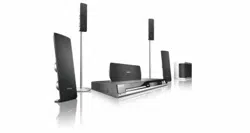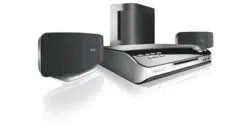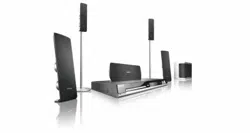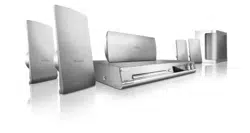
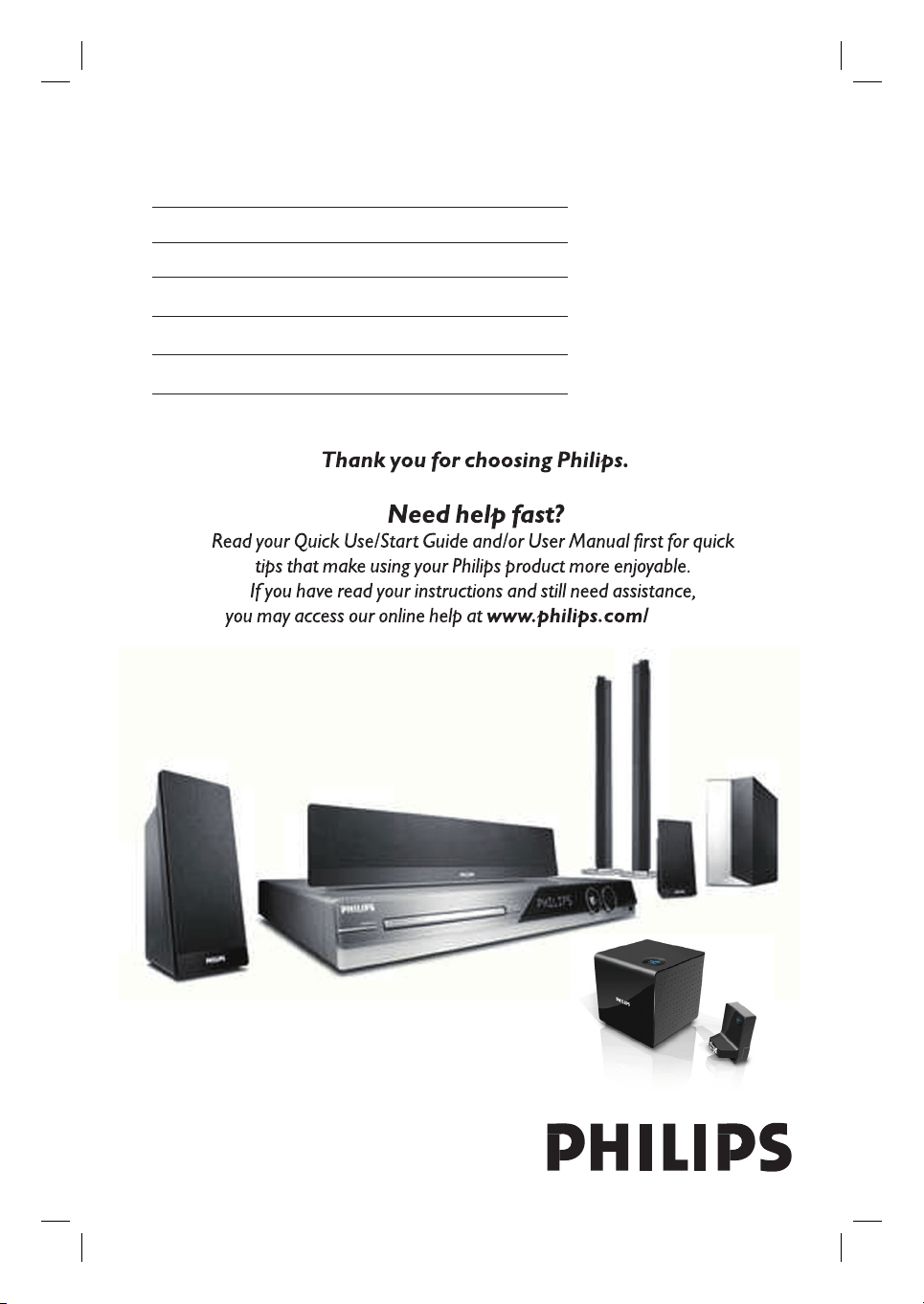
DVD HOME THEATRE SYSTEM
HTS335W
welcome
User Manual 6
Manuel D’utilisation 56
Manual del usuario 105
Benutzerhandbuch 156
Gebruikershandleiding 206
2
Important notes for users in the
U.K.
Mains plug
This apparatus is tted with an approved 13
Amp plug. To change a fuse in this type of
plug proceed as follows:
1 Remove fuse cover and fuse.
2 Fix new fuse which should be a BS1362
5 Amp, A.S.T.A. or BSI approved type.
3 Re t the fuse cover.
If the tted plug is not suitable for your socket
outlets, it should be cut off and an appropriate
plug tted in its place.
If the mains plug contains a fuse, this should
have a value of 5 Amp. If a plug without a fuse
is used, the fuse at the distribution board
should not be greater than 5 Amp.
Note: The severed plug must be disposed of to
avoid a possible shock hazard should it be
inserted into a 13 Amp socket elsewhere.
How to connect a plug
The wires in the mains lead are coloured with
the following code: blue = neutral (N),
brown = live (L).
As these colours may not correspond with the
colour markings identifying the terminals in
your plug, proceed as follows:
– Connect the blue wire to the terminal
marked N or coloured black.
– Connect the brown wire to the terminal
marked L or coloured red.
– Do not connect either wire to the earth
terminal in the plug, marked E (or e) or
coloured green (or green and yellow).
Before replacing the plug cover, make certain
that the cord grip is clamped over the sheath
of the lead - not simply over the two wires.
Copyright in the U.K.
Recording and playback of material may
require consent. See Copyright Act 1956 and
The Performer’s Protection Acts 1958 to
1972.
ATTENTION!
For Customer Use:
Read carefully the information located at the
bottom or rear of your DVD Home Theatre
System and enter below the Serial No. Retain
this information for future reference.
Model No. HTS335W
Serial No. _______________
Norge
Typeskilt nnes på apparatens underside.
Observer: Nettbryteren er
sekundert innkoplet. Den innebygde
netdelen er derfor ikke frakoplet
nettet så lenge apparatet er
tilsluttet nettkontakten.
For
å redusere faren for brann eller elektrisk
støt, skal apparatet ikke utsettes for regn eller
fuktighet.
Italia
DICHIARAZIONE DI CONFORMITA’
Si dichiara che l’apparecchio HTS335W, Philips
risponde alle prescrizioni dell’art. 2 comma 1
del D.M. 28 Agosto 1995 n. 548.
Fatto a Eindhoven
Philips Consumer Electronics
Philips, Glaslaan 2
5616 JB Eindhoven, The Netherlands
3
LASER
Type Semiconductor laser
GaAIAs
Wave length 650 - 660 nm (DVD)
784 - 796 nm (CD)
Output Power 7 mW (DVD)
10 mW (VCD/CD)
Beam divergence 60 degrees
This product complies with the radio
interference requirements of the
European Community.
This product complies with
the requirements of the
following directives and
guidelines: 73/23/EEC +
89/336/EEC + 93/68/EEC
DK
Advarsel: Usynlig laserstråling ved
åbning når sikkerhedsafbrydere er ude
af funktion. Undgå utsættelse for
stråling.
Bemærk: Netafbryderen er sekundært
indkoblet og ofbryder ikke strømmen
fra nettet. Den indbyggede netdel er
derfor tilsluttet til lysnettet så længe
netstikket sidder i stikkontakten.
S
Klass 1 laseraparat
Varning! Om apparaten används på
annat sätt än i denna bruksanvisning
speci cerats, kan användaren utsättas
för osynlig laserstrålning, som
överskrider gränsen för laserklass 1.
Observera! Stömbrytaren är sekundärt
kopplad och bryter inte strömmen från
nätet. Den inbyggda nätdelen är därför
ansluten till elnätet så länge
stickproppen sitter i vägguttaget.
SF
Luokan 1 laserlaite
Varoitus! Laitteen käyttäminen muulla
kuin tässä käyttöohjeessa mainitulla
tavalla saattaa altistaa käyttäjän
turvallisuusluokan 1 ylittävälle
näkymättömälle lasersäteilylle.
Oikeus muutoksiin varataan. Laite ei
saa olla alttiina tippu-ja roiskevedelle.
Huom. Toiminnanvalitsin on kytketty
toisiopuolelle, eikä se kytke laitetta irti
sähköverkosta. Sisäänrakennettu
verkko-osa on kytkettynä
sähköverkkoon aina silloin, kun pistoke
on pistorasiassa.
CAUTION
VISIBLE AND INVISIBLE LASER
RADIATION WHEN OPEN. AVOID
EXPOSURE TO BEAM
ADVARSEL
SYNLIG OG USYNLIG LASERSTRÅLING
VED ÅBNING UNDGÅ UDSÆTTELSE
FOR STRÅLING
VARNING
SYNLIG OCH OSYNLIG
LASERSTRÅLNING NÄR DENNA DEL
ÄR ÖPPNAD BETRAKTA EJ STRÅLEN
VARO!
AVATTAESSA OLET ALTTIINA
NÄKYVÄLLE JA NÄKYMÄTTÖMÄLLE
LASER SÄTEILYLLE. ÄLÄ KATSO
SÄTEESEEN
VORSICHT
SICHTBARE UND UNSICHTBARE
LASERSTRAHLUNG WENN
ABDECKUNG GEÖFFNET NICHT DEM
STRAHL AUSSETZEN
ATTENTION
RAYONNEMENT LASER VISIBLE ET
INVISIBLE EN CAS D’OUVERTURE
EXPOSITION DANGEREUSE AU
FAISCEAU
4
Disposal of your old product
Your product is designed and manufactured with high quality materials
and components, which can be recycled and reused.
When this crossed-out wheeled bin symbol is attached to a product it
means the product is covered by the European Directive 2002/96/EC.
Please inform yourself about the local separate collection system for
electrical and electronic products.
Please act according to your local rules and do not dispose of your old products with
your normal household waste. The correct disposal of your old product will help
prevent potential negative consequences for the environment and human health.
Se débarrasser de votre produit usagé (Français)
Votre produit est conçu et fabriqué avec des matériaux et des
composants de haute qualité, qui peuvent être recyclés et utilisés de
nouveau
.
Lorsque ce symbole d'une poubelle à roue barrée est attaché à un
produit, cela signifie que le produit est couvert par la Directive
Européenne 2002/96/EC.
Veuillez vous informer du système local de séparation des déchets
électriques et électroniques.
Veuillez agir selon les règles locales et ne pas jeter vos produits usagés avec les déchets
domestiques usuels. Jeter correctement votre produit usagé aidera à prévenir les
conséquences négatives potentielles contre l'environnement et la santé humaine.
Cómo deshacerse del producto usado (Español)
Su producto ha sido diseñado y fabricado con materiales y componentes de
alta calidad, que pueden ser reciclados y reutilizados.
Cuando vea este símbolo de una papelera con ruedas tachada junto a un
producto, esto significa que el producto está bajo la Directiva Europea
2002/96/EC
Deberá informarse sobre el sistema de reciclaje local separado para
productos eléctricos y electrónicos.
Siga las normas locales y no se deshaga de los productos usados tirándolos en la basura
normal de su hogar. El reciclaje correcto de su producto usado ayudará a evitar
consecuencias negativas para el medio ambiente y la saludde las persona.
Entsorgung Ihres Altgerätes (Deutsch)
Ihr Produkt ist aus hochqualitativen Materialien und Bestandteilen hergestellt,
die dem Recycling zugeführt und wiederverwertet werden können.
Falls dieses Symbol eines durchgestrichenen Müllcontainers auf Rollen auf
diesem Produkt angebracht ist, bedeutet dies, dass es von der Europäischen
Richtlinie 2002/96/EG erfasst wird.
Bitte informieren Sie sich über die örtlichen Sammelstellen für Elektroprodukte
und elektronische Geräte.
Bitte beachten Sie die lokalen Vorschriften und entsorgen Sie Ihre Altgeräte nicht mit dem
normalen Haushaltsmüll. Die korrekte Entsorgung Ihres Altgerätes ist ein Beitrag zur
Vermeidung möglicher negativer Folgen für die Umwelt und die menschliche Gesundhei.
Wegwerpen van uw afgedankt apparaat (Nederlands)
Uw apparaat werd ontworpen met en vervaardigd uit onderdelen en
materialen van superieure kwaliteit, die gerecycleerd en opnieuw gebruikt
kunnen worden.
Wanneer het symbool van een doorstreepte vuilnisemmer op wielen op
een product is bevestigd, betekent dit dat het product conform is de
Europese Richtlijn 2002/96/EC
Gelieve u te informeren in verband met het plaatselijke inzamelingsysteem
voor elektrische en elektronische apparaten.
Gelieve u te houden aan de plaatselijke reglementering en apparaten niet met het gewone
huisvuil mee te geven. Door afgedankte apparaten op een correcte manier weg te werpen
helpt u mogelijke negatieve gevolgen voor het milieu en de gezondheid te voorkomen.
‘CONSUMERS SHOULD NOTE THAT NOT ALL HIGH
DEFINITION TELEVISION SETS ARE FULLY
COMPATIBLE WITH THIS PRODUCT AND MAY CAUSE
ARTIFACTS TO BE DISPLAYED IN THE PICTURE. IN
CASE OF 525 OR 625 PROGRESSIVE SCAN PICTURE
PROBLEMS, IT IS RECOMMENDED THAT THE USER
SWITCH THE CONNECTION TO THE ‘STANDARD
DEFINITION’ OUTPUT. IF THERE ARE QUESTIONS
REGARDING OUR TV SET COMPATIBILITY WITH THIS
MODEL 525p AND 625p DVD PLAYER, PLEASE
CONTACT OUR CUSTOMER SERVICE CENTER.’
E
nglish
H
ereby, Philips Consumer Electronics, B. U. Peripherals
&
A
ccessories, declares that this product is in compliance
w
ith the essential requirements and other relevant
p
rovisions of Directive 1999/5/EC.
F
rançais
P
ar la présente, Philips Consumer Electronics, B. U.
P
eripherals & Accessories, déclare que l’appareil est
c
onforme aux exigences essentielles et aux autres
d
ispositions pertinentes de la directive 1999/5/CE.
E
spañol
P
or medio de la presente, Philips Consumer Electronics,
B
. U. Peripherals & Accessories, declara que el cumple
c
on los requisitos esenciales y cualesquiera otras
d
isposiciones aplicables o exigibles de la Directiva
1
999/5/CE.
D
eutsch
H
iermit erklärt Philips Consumer Electronics, B. U.
P
eripherals & Accessories die Übereinstimmung des
G
erätes mit den grundlegenden Anforderungen und den
a
nderen relevanten Festlegungen der Richtlinie 1999/5/EG.
N
ederlands
H
ierbij verklaart, Philips Consumer Electronics, B. U.
P
eripherals & Accessories dat het toestel in overeenstem-
m
ing is met de essentiële eisen en de andere relevante
b
epalingen van richtlijn 1999/5/EG.
It li
EnglishFrançaisEspañolDeutschNederlands
5
Manufactured under license from Dolby
Laboratories, Dolby, Pro Logic and the
double-D symbol are trademarks of Dolby
Laboratories.
Manufactured under license from one or
more of the following DTS, Inc. U.S. Pat.
No’s: 5,451,942; 5,956,674; 5,974,380;
5,978,762; 6,226,616; 6,487,535 and other U.
S. and world-wide patents issued and
pending. ”DTS” and “DTS Digital Surround”
are registered trademarks of DTS, Inc.
Copyright 1996, 2002-2006, DTS, Inc. All
Rights Reserved.
Windows Media and the Windows logo are
trademarks, or registered trademarks of
Microsoft Corporation in the United States
and/or other countries.
Index
DivX Ultra Certi ed products: ‘DivX, DivX
Ultra Certi ed, and associated logos are
trademarks of DivX, Inc. and are used under
license.
English ------------------------------------ 6
Français ---------------------------------- 56
Español -------------------------------- 106
Deutsch -------------------------------- 156
Nederlands ---------------------------- 206
HDMI, and HDMI logo and High-De nition
Multimedia Interface are trademarks or
registered trademarks of HDMI licensing LLC.
This product incorporates copyright protection
technology that is protected by method claims of
certain U.S. patents and other intellectual property
rights owned by Macrovision Corporation and
other rights owners. Use of this copyright
protection technology must be authorized by
Macrovision Corporation, and is intended for
home and other limited viewing uses only unless
otherwise authorized by Macrovision Corporation.
Reserve engineering or disassembly is prohibited.
6
English
Table of contents
General
General Information ........................................................................................................ 8
Setup precautions .................................................................................................................................................8
Accessories supplied ...........................................................................................................................................8
Cleaning discs ........................................................................................................................................................8
About recycling .....................................................................................................................................................8
Product Overview
Main Unit ...........................................................................................................................9
Remote Control .........................................................................................................10-12
Using the remote control ................................................................................................................................12
Connections
Basic Connections .....................................................................................................13-18
Step 1: Placing the speakers .............................................................................................................................13
Step 2: Connecting the wireless transmitter .............................................................................................14
Step 3: Connecting the rear speakers to wireless receiver ...................................................................14
Step 4: Connecting subwoofer, front and centre speakers ....................................................................15
Step 5: Connecting to TV ..........................................................................................................................16-17
Option 1: Using the Scart socket ...........................................................................................................16
Option 2: Using the S-Video socket .....................................................................................................16
Option 3: Using the Video socket .........................................................................................................16
Option 4: Connecting to a Progressive Scan TV or component video input ............................17
Option 5: Connecting to a HDMI-compatible TV ............................................................................17
Step 6: Connecting the FM and AM/MW antennas ..................................................................................18
Step 7: Connecting the power cord ..............................................................................................................18
Optional Connections .................................................................................................... 19
Connecting to cable box/satellite receiver and recorder/VCR ............................................................19
Basic Setup
Getting Started ......................................................................................................... 20-24
Finding the correct viewing channel ............................................................................................................ 20
Switching to different play source ................................................................................................................ 20
Setting language preferences ...........................................................................................................................21
On-screen display (OSD) language ........................................................................................................21
Audio, Subtitle and Menu language for DVD playback ...............................................................21-22
Setting the TV Display ..................................................................................................................................... 22
Setting up Progressive Scan feature ..............................................................................................................23
Setting the speakers’ channels ........................................................................................................................24
Disc Playback
Disc Operations ........................................................................................................ 25-33
Playable discs ...................................................................................................................................................... 25
Playing a disc ....................................................................................................................................................... 25
Basic playback controls .....................................................................................................................................26
Selecting various repeat/shuf e functions ...................................................................................................26
Programming disc tracks ..................................................................................................................................27
Other playback features for video discs (DVD/VCD/SVCD) ......................................................... 27-30
Using the Disc Menu ..................................................................................................................................27
Viewing playback information ................................................................................................................. 28
Zooming in/out ........................................................................................................................................... 28
Changing subtitle language ...................................................................................................................... 28
Switching camera angles ........................................................................................................................... 28
7
English
Table of contents
Changing sound track language ...............................................................................................................29
Setting the delay times for audio playback ...........................................................................................29
Playback Control (VCD only) ..................................................................................................................29
Preview function (VCD/SVCD only) .................................................................................................... 30
Playing a MP3/ WMA disc ................................................................................................................................31
Playing a JPEG image le (slide show) ...........................................................................................................32
Preview function ..........................................................................................................................................32
Zoom picture ...............................................................................................................................................32
Rotating/ ipping the picture ....................................................................................................................32
Playing MP3/WMA music and JPEG pictures simultaneously ................................................................33
Playing a DivX disc .............................................................................................................................................33
Playback other supported devices
Playback - USB Device ...................................................................................................34
Playing from USB ash drive or USB memory card reader................................................................... 34
Playback - Other Audio Player .....................................................................................35
Playing from other portable audio player ....................................................................................................35
Setup Options
Setup Menu Options ................................................................................................. 36-43
Accessing the setup menu ................................................................................................................................36
General Setup Page ............................................................................................................................................37
Audio Setup Page .........................................................................................................................................38-39
Video Setup Page .........................................................................................................................................40-41
Preference Page ...........................................................................................................................................42-43
Radio Tuning
Radio Operations ...................................................................................................... 44-45
Tuning to radio stations ................................................................................................................................... 44
Presetting radio stations ................................................................................................................................. 44
Using auto install ..................................................................................................................................44-45
Using automatic preset ............................................................................................................................. 45
Using manual preset .................................................................................................................................. 45
Selecting a preset radio station ..................................................................................................................... 45
Deleting a preset radio station ...................................................................................................................... 45
Others
Sound and Volume Controls .........................................................................................46
Volume control .................................................................................................................................................. 46
Selecting surround sound ................................................................................................................................46
Selecting digital sound effects ........................................................................................................................ 46
Other Features................................................................................................................ 47
Installing the latest software ...........................................................................................................................47
Setting the Sleep timer .....................................................................................................................................47
Using the wireless module ...............................................................................................................................47
Troubleshooting ....................................................................................................... 48-50
Frequently Asked Questions (USB) ............................................................................. 51
Glossary...................................................................................................................... 52-53
Speci cations ..................................................................................................................54

8
English
General Information
WARNING!
This unit does not contain any user-
serviceable parts. Please leave all
maintenance work to quali ed
personnel.
Setup precautions
Finding a suitable location
– Place this unit on a at, hard and
stable surface. Never place the unit on a
carpet.
– Never place this unit on top of other
equipment that might heat it up (e.g.,
receiver or ampli er).
– Never put anything under this unit
(e.g., CDs, magazines).
– Install this unit near the AC outlet
where the AC power plug can be easily
reached.
Space for ventilation
– Place this unit in a location with
adequate ventilation to prevent internal
heat build up. Allow at least 10 cm (4”)
clearance from the rear and the top of
this unit and 5cm (2”) from the left and
right to prevent overheating.
Avoid high temperature, moisture,
water and dust
– This unit must not be exposed to
dripping or splashing.
– Never place any object or items that
can damage this unit (e.g., liquid lled
objects, lighted candles).
Accessories supplied
– 1 subwoofer
– 2 front speakers
– 2 rear speakers
– 1 centre speaker
– 1 remote control with batteries
– 1 scart cable
– 1 FM wire antenna
– 1 AM/MW loop antenna
– 1 MP3 LINE-IN cable (for connecting
portable audio player)
– 1 Wireless receiver
– 1 Wireless transmitter
– Quick Start Guide
Cleaning discs
To clean a disc, use a micro bre cleaning
cloth and wipe the disc from the centre
to the edge in a straight line.
CAUTION!
Never use solvents e.g. benzene, thinner,
commercially available cleaners, or anti-
static sprays intended for discs.
About recycling
These operating instructions have been
printed on non-polluting paper. The
electronic equipment contains a large
number of materials that can be recycled.
If you are disposing of an old machine,
please take it to a recycling centre.
Please observe the local regulations
regarding disposal of packaging materials,
exhausted batteries and old equipment.
9
English
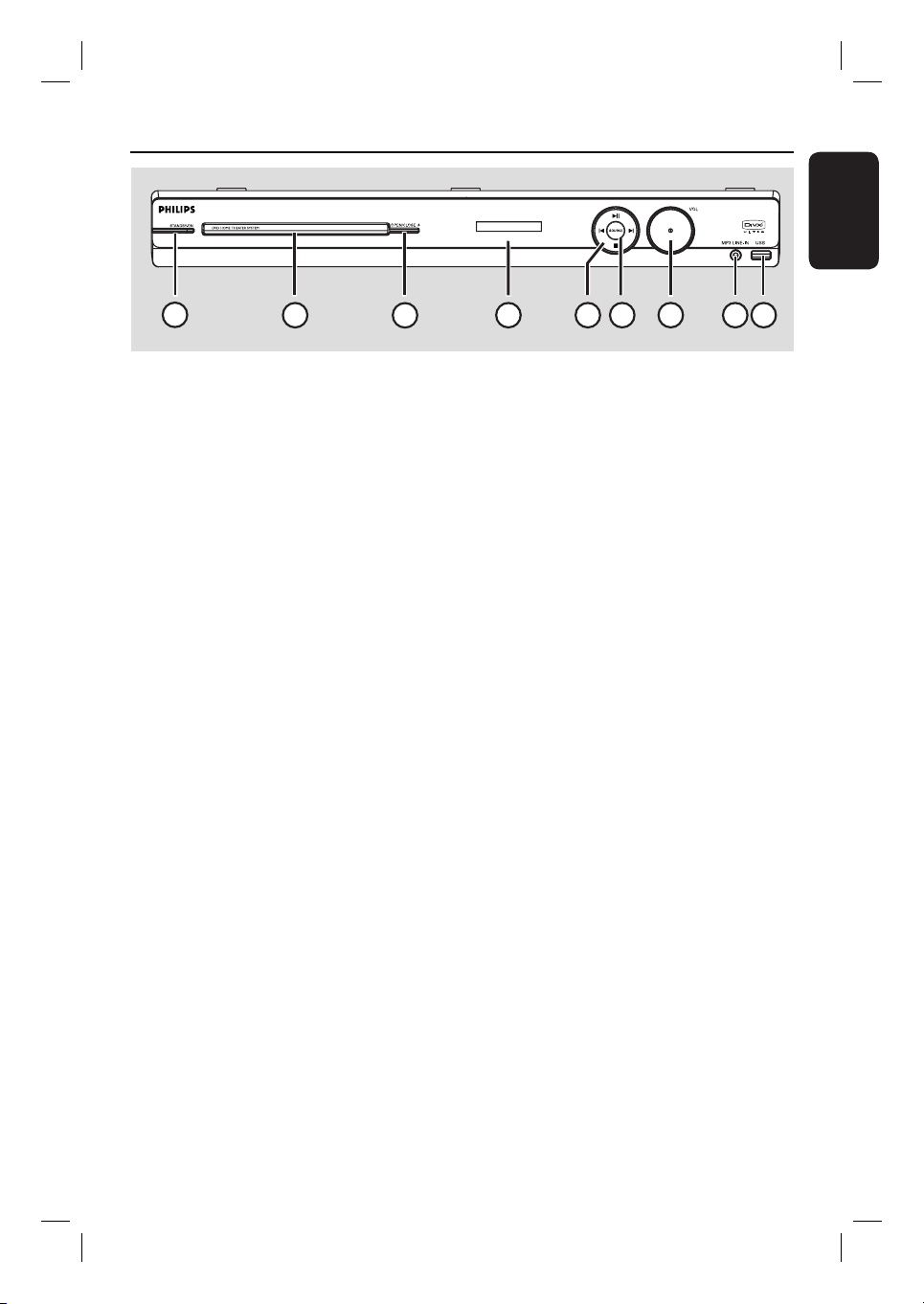
Main Unit
a STANDBY-ON
– Turns on this unit or turns off to normal
standby mode.
b Disc Tray
c OPEN/CLOSE ç
– Opens/closes the disc tray.
d Display panel
e u (PLAY/ PAUSE)
– DISC: starts/pauses playback.
– RADIO: starts auto radio installation for
rst time setup.
í / ë (PREV / NEXT)
– DISC: skips to the previous or next title/
chapter/track.
– RADIO: selects a preset radio station.
(STOP)
– Exits an operation.
– DISC: stops playback.
– RADIO: press and hold this button to
erase the current preset radio station.
f SOURCE
– Selects the relevant active source mode:
DISC, FM, AM/MW, TV, AUX, DI,
MP3 LINE-IN.
g VOL
– Adjusts the volume level.
h MP3 LINE-IN socket
– Phono input for connecting to the
headphone out socket on your portable
audio player.
i USB socket
– Input for USB ash drive or USB memory
card reader.
1
2
4
5
6
3
7
8 9
10
English
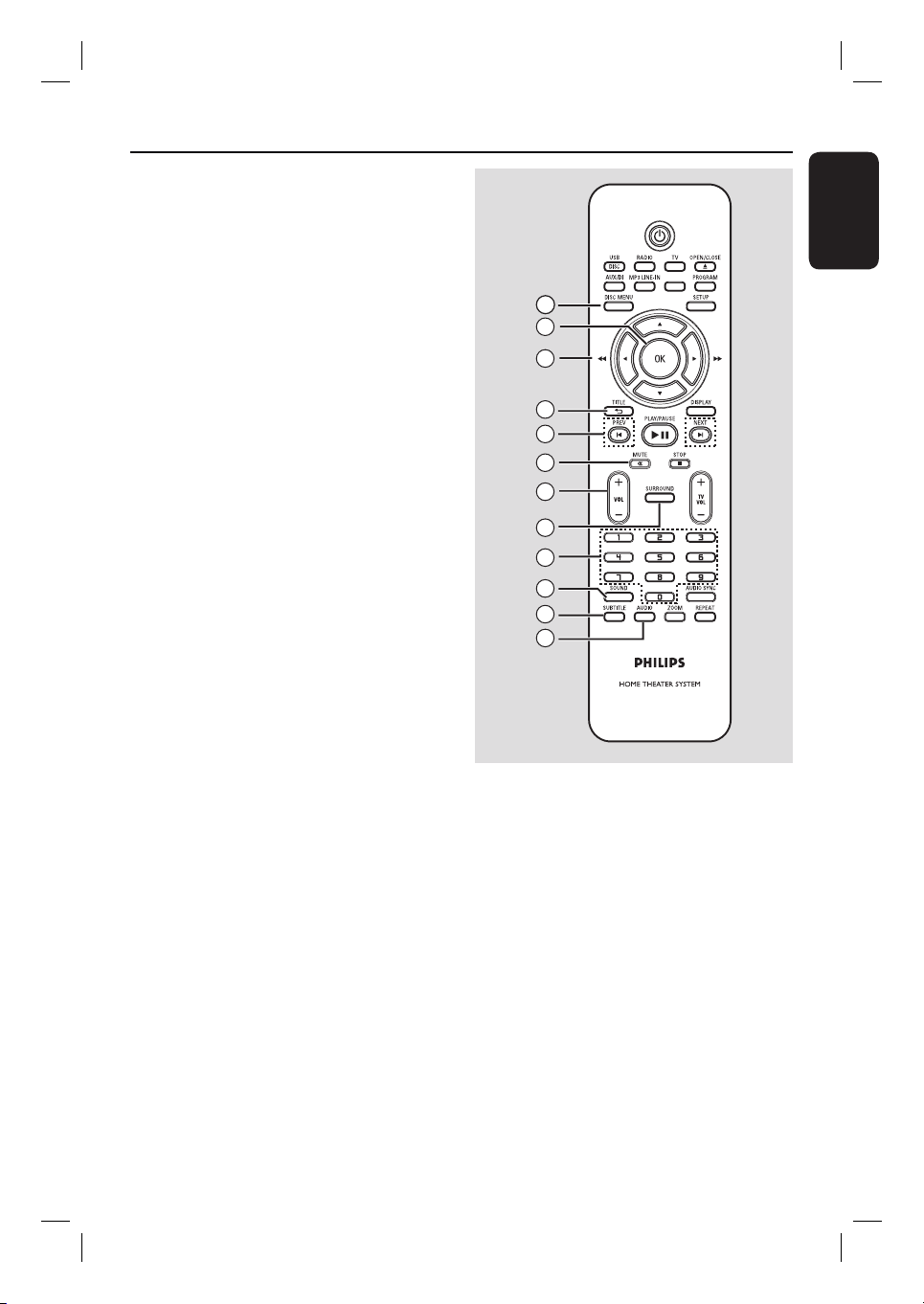
Remote Control
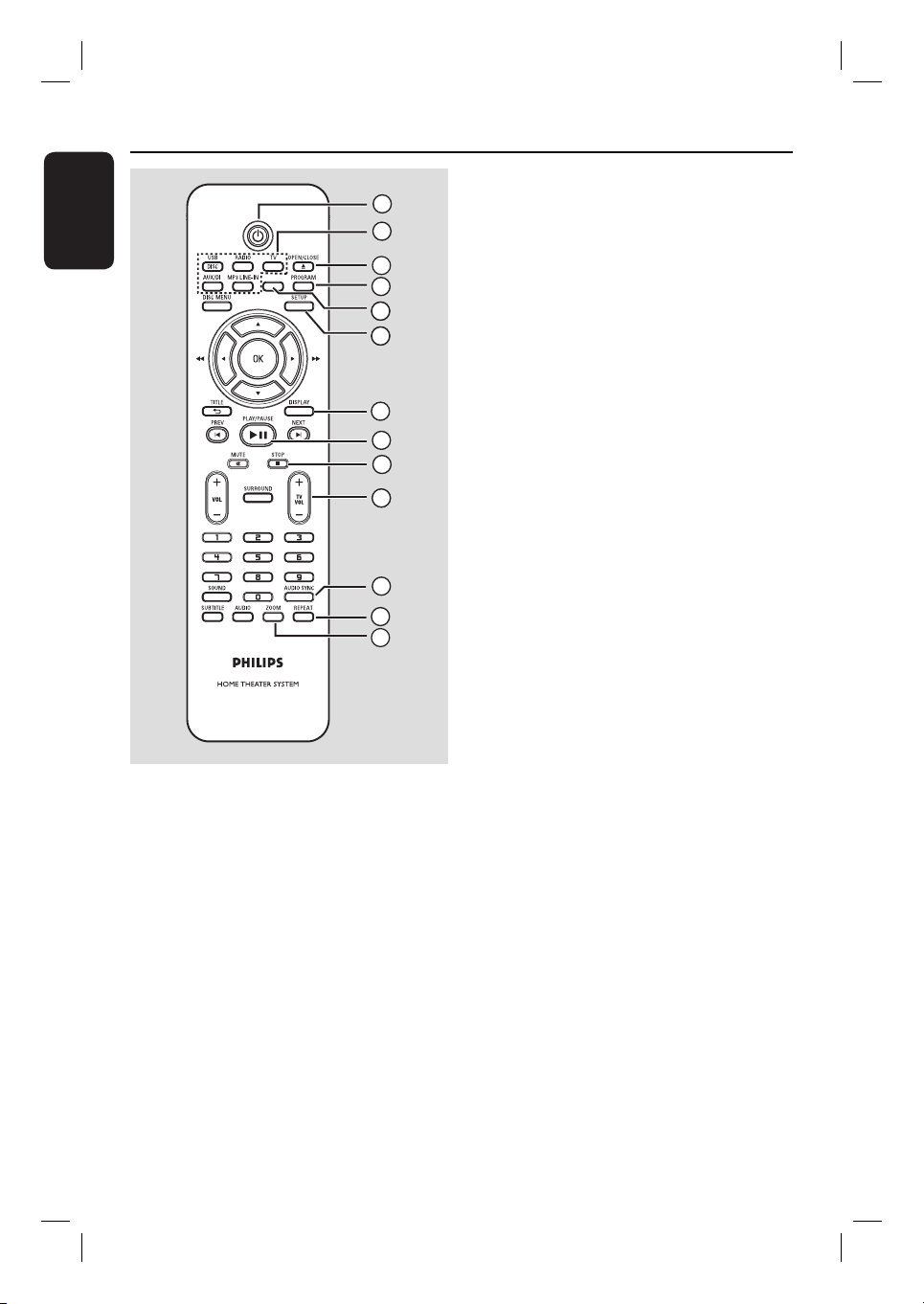
a 2
– Turns on this unit or turns off to normal
standby mode.
b Source buttons
– DISC/USB: toggles between DISC or
USB mode.
RADIO: toggles between FM and AM/
MW band.
TV: switches to TV mode. The sound
from the TV will output through the
connected speaker system.
AUX/DI: toggles between AUX and
DIGITAL IN external source mode.
MP3 LINE-IN: switches to audio device
that is connected to the MP3 LINE-IN
socket.
c OPEN/CLOSE ç
– Opens/closes the disc tray.
d PROGRAM
– DISC: starts programming.
– RADIO: press and hold this button to
start automatic/ manual preset
programming.
e SLEEP
Sets the sleep timer function.
f SETUP
– Enters or exits the system setup menu.
g DISPLAY
– Displays the current status or disc
information.
– Selects a different viewing angle of a DVD
movie (if available).
h PLAY/PAUSE u
– DISC: starts/pauses playback.
– RADIO: starts auto radio installation for
rst time setup.
i STOP x
– Exits an operation.
– DISC: stops playback.
– RADIO: press and hold this button to
erase the current preset radio station.
j TV VOL +/-
– Adjusts the volume of the TV (for Philips
TVs or compatible brands only).
k AUDIO SYNC
– Sets the audio output delay times if the
video playback is slower than the audio
output.
l REPEAT
– Selects various repeat or shuf e modes;
turns off repeat or shuf e mode.
m ZOOM
– Zoom in or out the picture on the TV.
SLEEP
2
3
4
6
7
8
9
10
11
12
13
6
1
65
11
English
Remote Control (continued)
n DISC MENU
– For DVD, enters or exits disc contents
menu.
– For VCD/SVCD, enters digest menu.
o OK
– Con rms an entry or selection.
p v V b B
– DISC: selects movement direction in the
menu.
– DISC: press left or right for fast forward
and backward search.
– RADIO: press up or down to tune the
radio frequency.
– RADIO: press left or right to start auto
search.
q TITLE
– For DVD, go back to the previous menu.
– For VCD version 2.0 only;
During playback, display the disc title
menu or return to the main menu.
r PREVí / NEXT ë
– DISC: skips to the previous or next title/
chapter/track.
– RADIO: selects a preset radio station.
s MUTE %
– Mutes or restores the volume.
t VOL +/-
– Adjusts the volume level.
u SURROUND
– Selects multi-channel surround or
stereo mode.
v Numeric keypad 0-9
– Enters a track/title number of the disc.
– Enters a number of a preset radio station.
w SOUND
– Selects a prede ned sound effect.
x SUBTITLE
– Selects a DVD subtitle language.
y AUDIO
– DISC: selects an audio language/channel.
15
16
17
18
19
20
21
22
23
24
25
14
SLEEP
12
English
Remote Control (continued)
Using the remote control
A Open the battery compartment.
B Insert two batteries type R03 or AAA,
following the indications (+-) inside
the compartment.
C Close the cover.
D Point the remote control directly at the
remote sensor (iR) on the front panel.
E Select the source you wish to control by
pressing the DISC/USB, RADIO, TV,
AUX/DI or MP3 LINE-IN button on the
remote control.
F Then select the desired function (for
example í, ë).
CAUTION!
– Remove batteries if they are
exhausted or if the remote control
is not to be used for a long time.
– Never mix batteries (old and new
or carbon and alkaline, etc).
– Batteries contain chemical
substances, they should be disposed
of properly.
13
English
Basic Connections
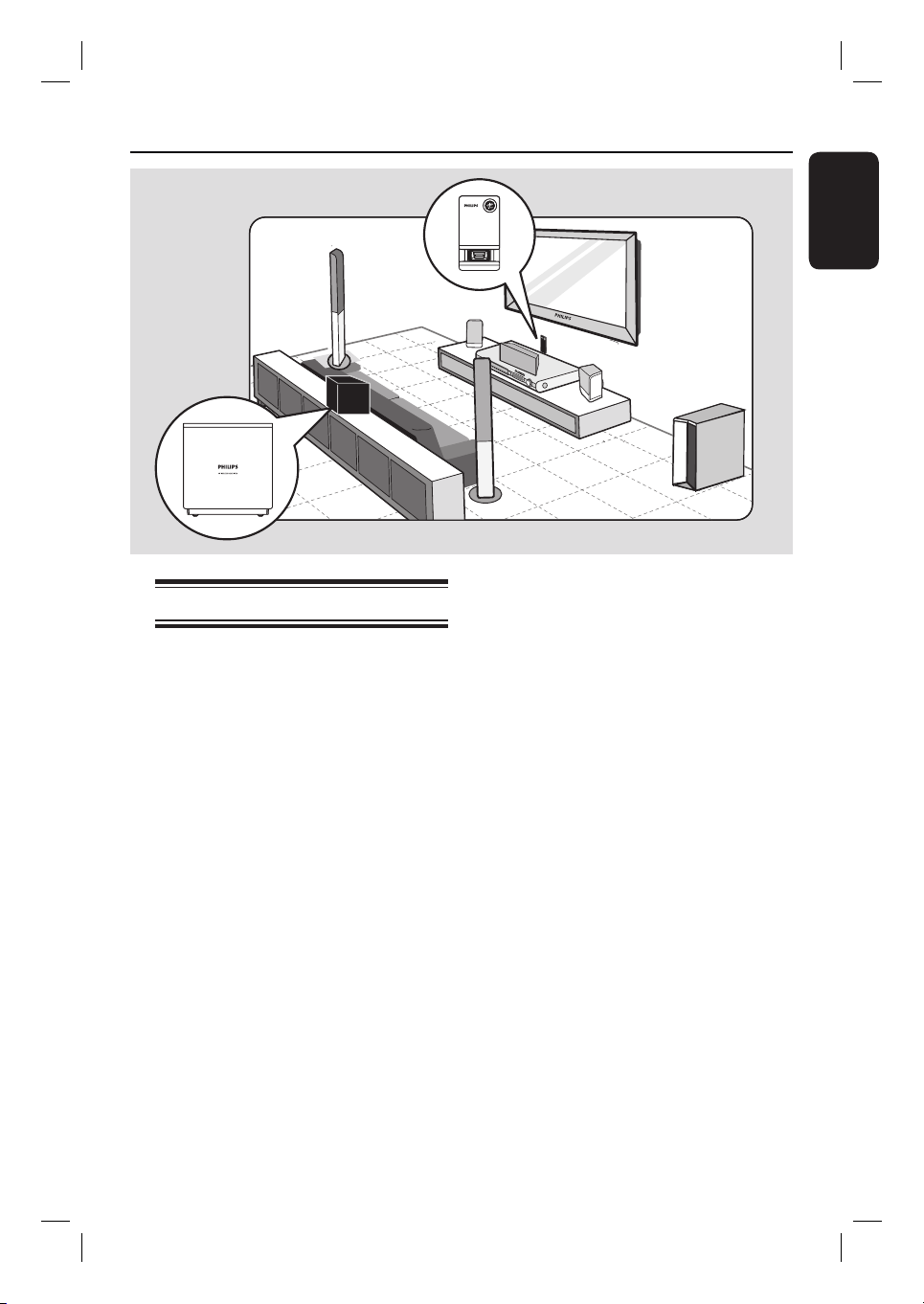
Step 1: Placing the speakers
The Philips Home Theatre System is
simple to install. However, proper system
placement is critical to ensure an
optimum sound experience.
A Place the front left and right speakers at
equal distances from the TV and at an
angle of approximately 45 degrees from
the listening position.
B Place the centre speaker above the TV or
the main unit such that the centre
channel’s sound is localised.
C Place the rear speakers at normal
listening ear level facing each other.
D Place the subwoofer at the corner of the
room. Otherwise, keep it at least one
metre away from the TV.
E Place the wireless receiver in between
the rear speakers at the back of the
room. Face it (with Philips logo) towards
the direction of the wireless transmitter
which connected to the main unit.
Helpful Hints:
– The placement diagram shown here is only
a guideline that provides great system
performance. You may nd other placement
choices that are more suitable for your room
layout that provide the sound experience you
enjoy.
– To avoid magnetic interference, never
position the front speakers too close to your
TV.
– The rear speakers are labelled as REAR
LEFT or REAR RIGHT.
– The front speakers are labelled as
FRONT LEFT or FRONT RIGHT.
– For speaker setting, see ‘Getting Started -
Setting the speakers’ channel’.
SUBWOOFER
FRONT
RIGHT
FRONT
LEFT
CENTER
REAR
RIGHT
REAR
LEFT
14
English
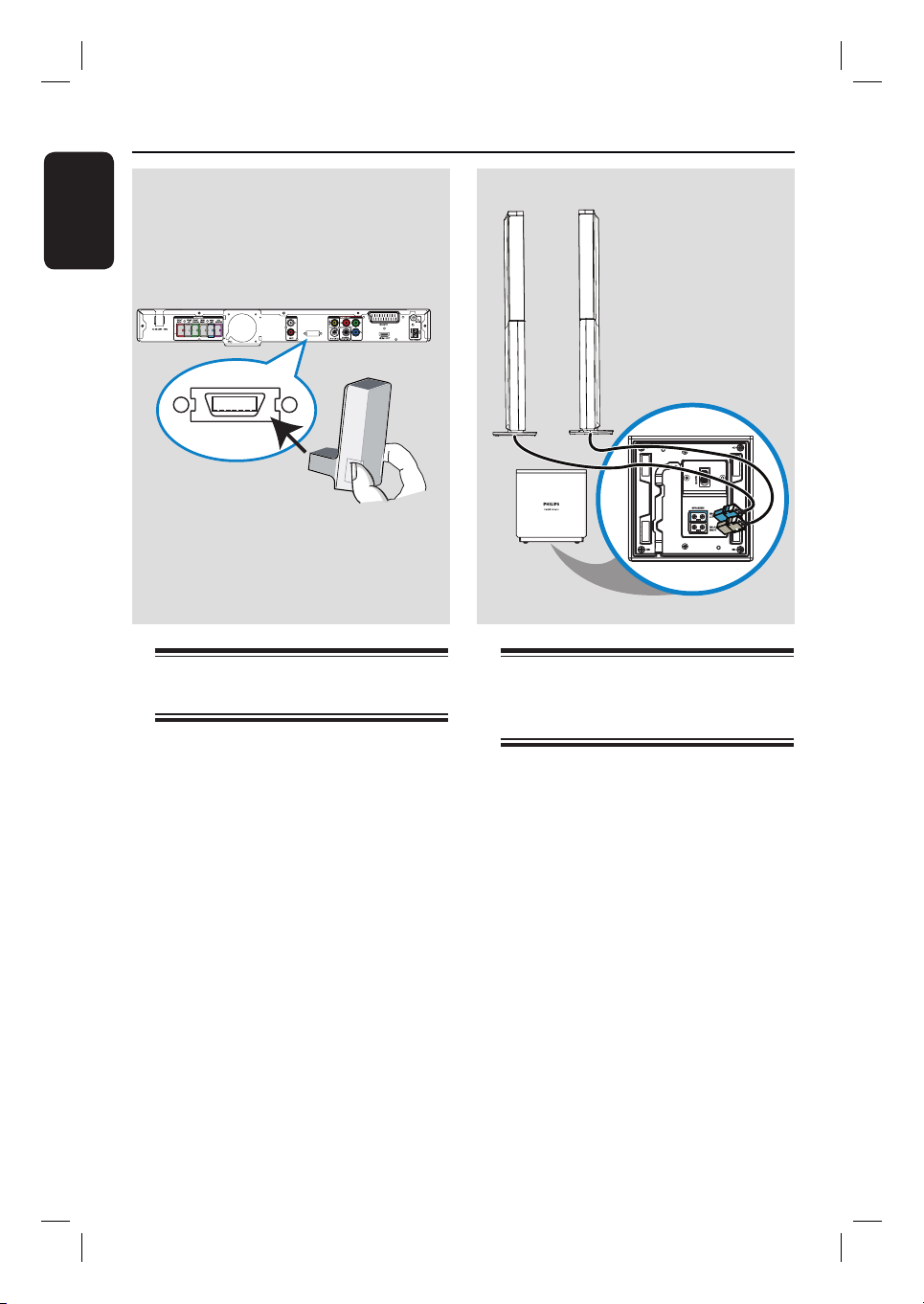
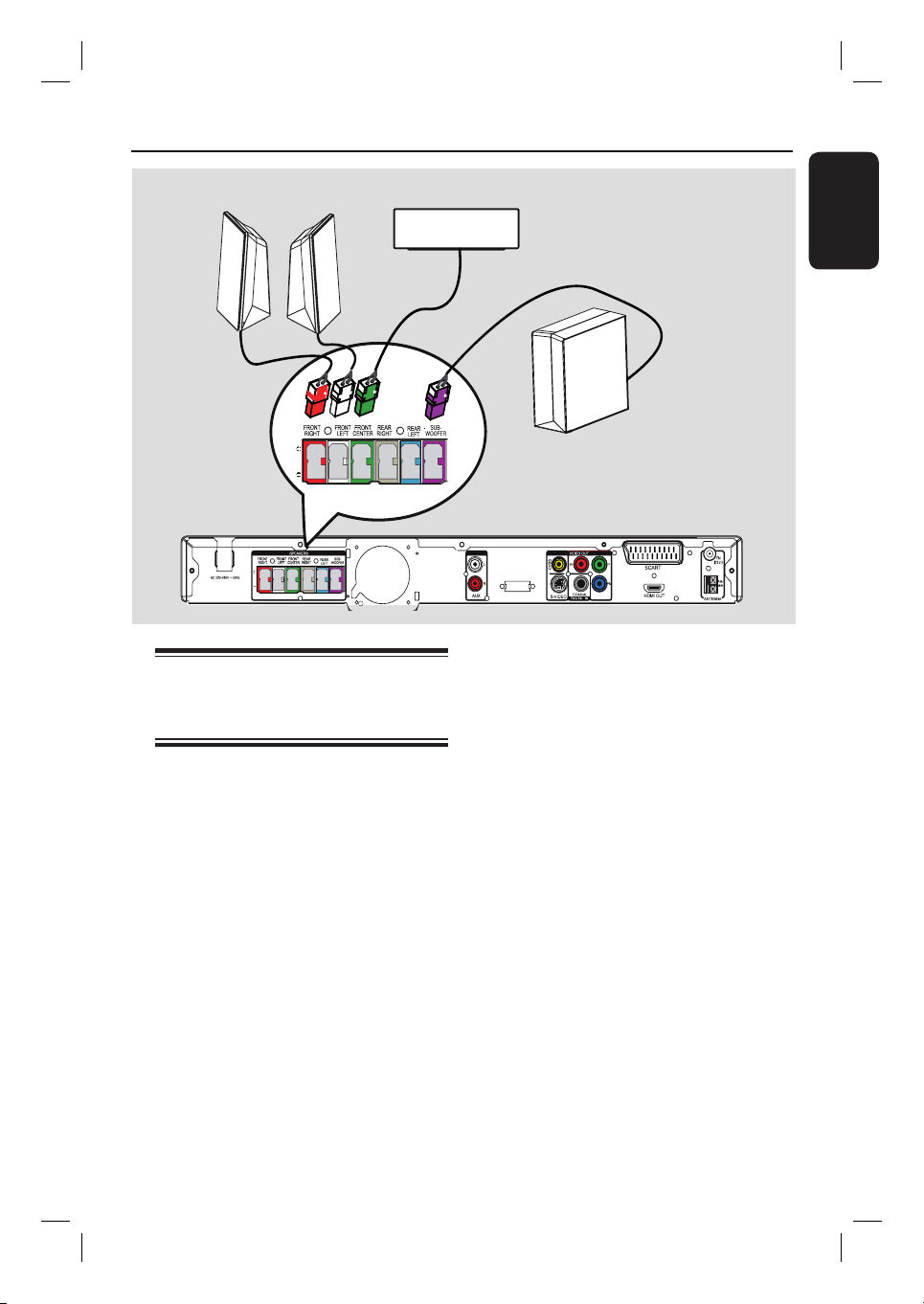
Step 2: Connecting the
wireless transmitter
Connect the wireless transmitter to the
WIRELESS TRANSMITTER socket
at the rear of the main unit.
Note:
To remove the wireless transmitter from
the main unit, press at the sides and pull
out.
Step 3: Connecting the rear
speakers to wireless
receiver
Connect the REAR LEFT and REAR
RIGHT speaker cables to the matching
sockets at the bottom of the wireless
receiver.
AUDIO IN
WIRELESS
TRANSMITTER
WIRELESS
TRANSMITTER
REAR
LEFT
REAR
RIGHT
wireless receiver
(bottom)
Basic Connections (continued)
15
English
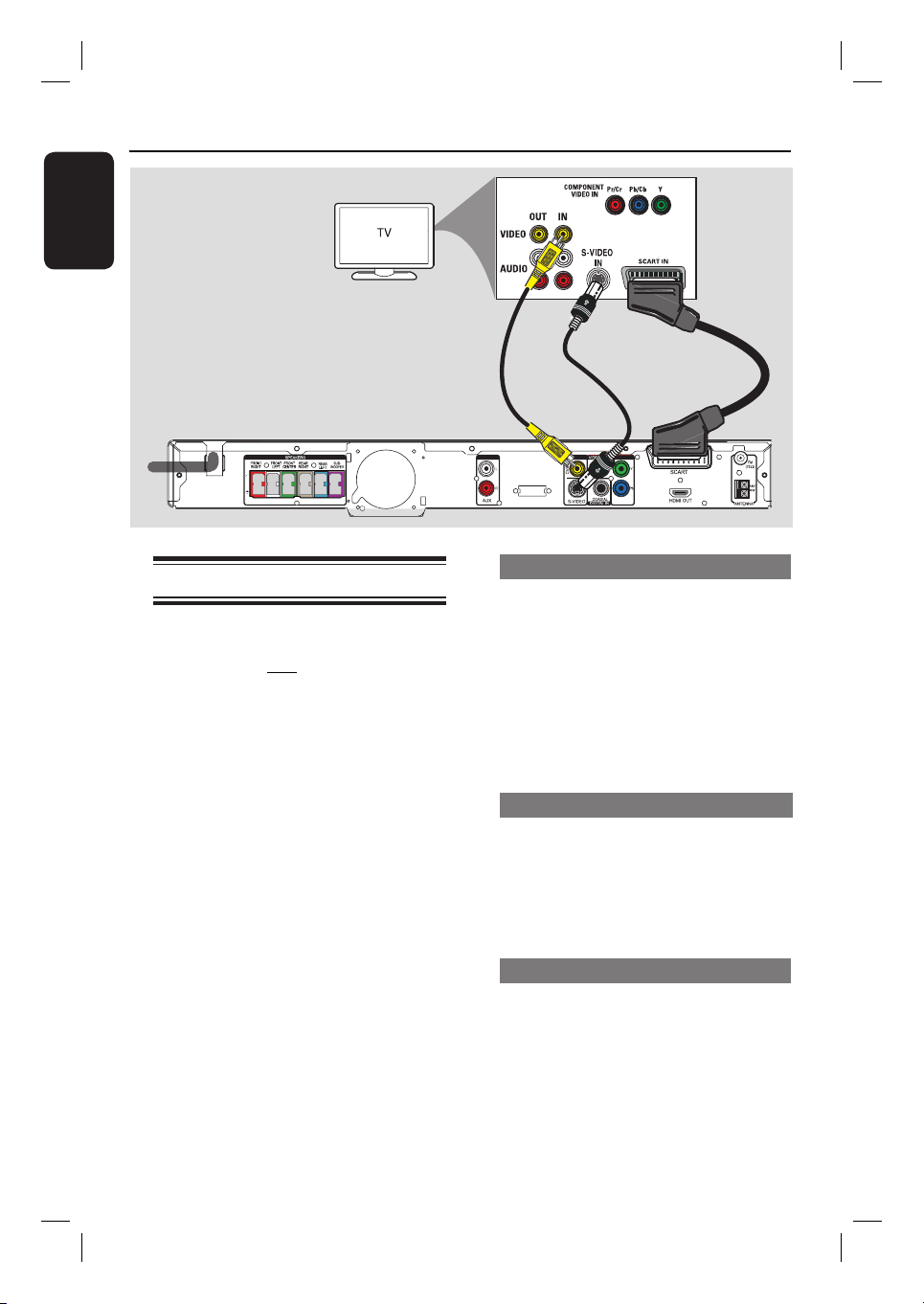
Step 4: Connecting subwoofer,
front and centre
speakers
Connect the rest of the speakers and
subwoofer to the matching sockets at the
rear of the main unit, Make sure that the
colours of the plugs and sockets are
matched.
Helpful Hint:
– To prevent unwanted noise, never place
the speakers too close to the main unit,
subwoofer, AC power adapter, TV or any
other radiation sources.
Basic Connections (continued)
AUDIO IN
WIRELESS
TRANSMITTER
SUBWOOFER
FRONT CENTRE
FRONT
LEFT
FRONT
RIGHT
16
English
AUDIO IN
WIRELESS
TRANSMITTER
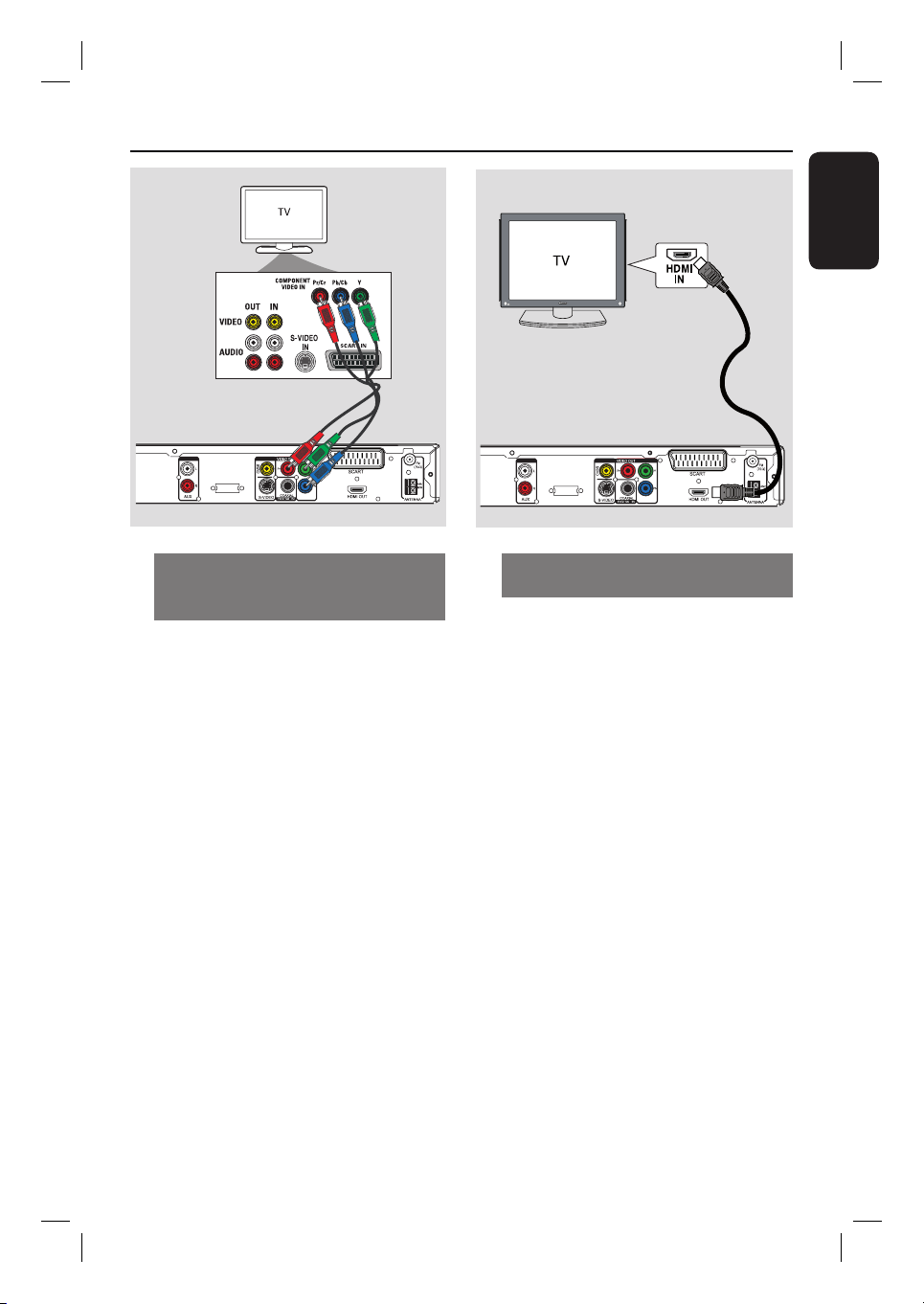
Step 5: Connecting to TV
This connection enables you to view the
video playback from this unit. You only
need to choose one of the options
below to make the video connection.
– For a standard TV, follow option 1 or
2 or 3.
– For a progressive scan TV, follow
option 4.
– For a HDMI TV, follow option 5.
Helpful Hint:
– It is important to connect this unit directly
to the TV in order to enjoy optimum video
quality.
Option 1: Using the Scart socket
Connect the scart cable (supplied) from
the SCART socket on the main unit to
the corresponding SCART input socket
on the TV.
Helpful Hint:
– With this connection, you can press TV on
the remote control to route the TV’s audio to
the speakers.
Option 2: Using the S-Video jack
Connect an S-video cable (not supplied)
from the S-VIDEO socket on the main
unit to the S-Video input socket (or
labelled as Y/C or S-VHS) on the TV.
It provides excellent picture quality.
Option 3: Using the Video jack
Connect a composite video cable (not
supplied) from the CVBS socket on the
main unit to the video input socket (or
labelled as A/V In, Video In, Composite
or Baseband) on the TV.
It provides good picture quality.
Basic Connections (continued)
Option 1
Main Unit (rear)
Option 2
Option 3
17
English
AUDIO IN
WIRELESS
TRANSMITTER
Basic Connections (continued)
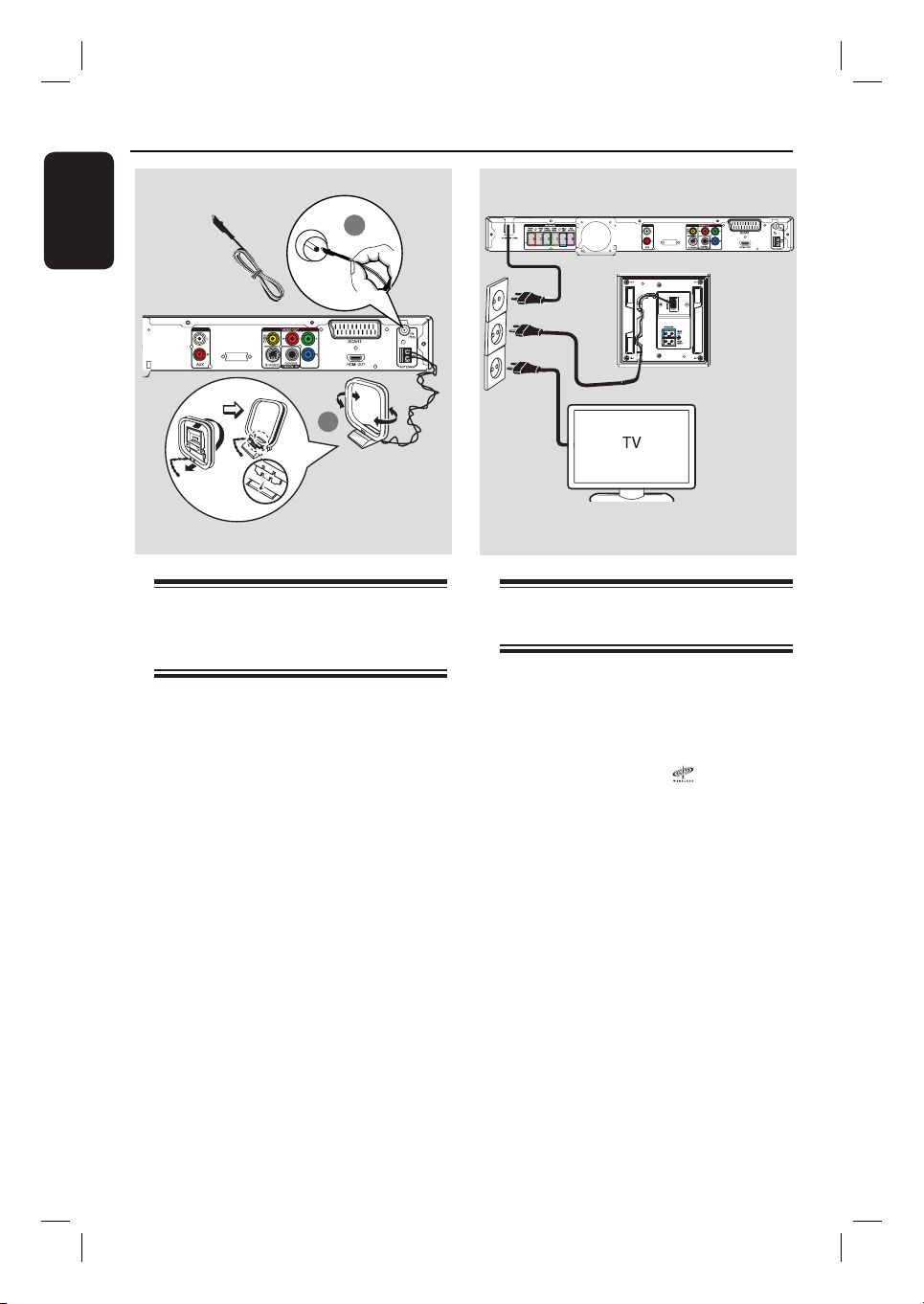
Option 4: Connecting to a
Progressive Scan TV or component
video input
The progressive scan video quality is
only available when using Y Pb Pr
connection and a progressive scan TV is
required. It provides superior picture
quality when watching DVD movies.
A Connect the component video cables
(red/ blue/green - not supplied) from the
Y Pb Pr sockets on the main unit to the
corresponding component video input
sockets (or labelled as Y Pb/Cb Pr/Cr or
YUV) on the TV.
B If your TV accepts progressive signals,
proceed to chapter ‘Getting Started -
Setting up Progressive Scan feature’ for
detailed progressive feature setup.
Option 5: Connecting to a HDMI-
compatible TV
HDMI (High De nition Multimedia
Interface) is a digital interface that allows
pure digital video transmission without
the loss of image quality.
A Connect a HDMI cable (not supplied)
from the HDMI OUT on the main unit
to the HDMI IN on a HDMI-compatible
device (e.g., HDMI TV, HDCP compliant
DVI TV).
B When you have completed the necessary
connections, installation and set-up, see
‘Audio Setup Page and Video Setup Page’
for optimum HDMI audio and video
settings.
Helpful Hints:
– The HDMI is backward compatible with
some DVI devices using an appropriate
adaptor plug.
– If a DVI device is connected, an additional
audio cable is required for audio transmission.
Option 4
AUDIO IN
WIRELESS
TRANSMITTER
Option 5
18
English
AUDIO IN
WIRELESS
TRANSMITTER
1
2
Step 7: Connecting the
power cord
After everything is connected
properly, connect the AC power
cord into the power outlet.
The standby LED on the main unit lights
up.
The wireless indicator “ “ on the
wireless transmitter and receiver light up.
Note:
Turning off to standby mode does not
disconnect the unit from mains.
Helpful Hints:
– Refer to the type plate at the rear or
bottom of the product for identi cation and
supply ratings.
– Before making or changing any
connections, make sure that all the devices
are disconnected from the power outlet.
Basic Connections (continued)
Step 6: Connecting the
FM and AM/MW
antennas
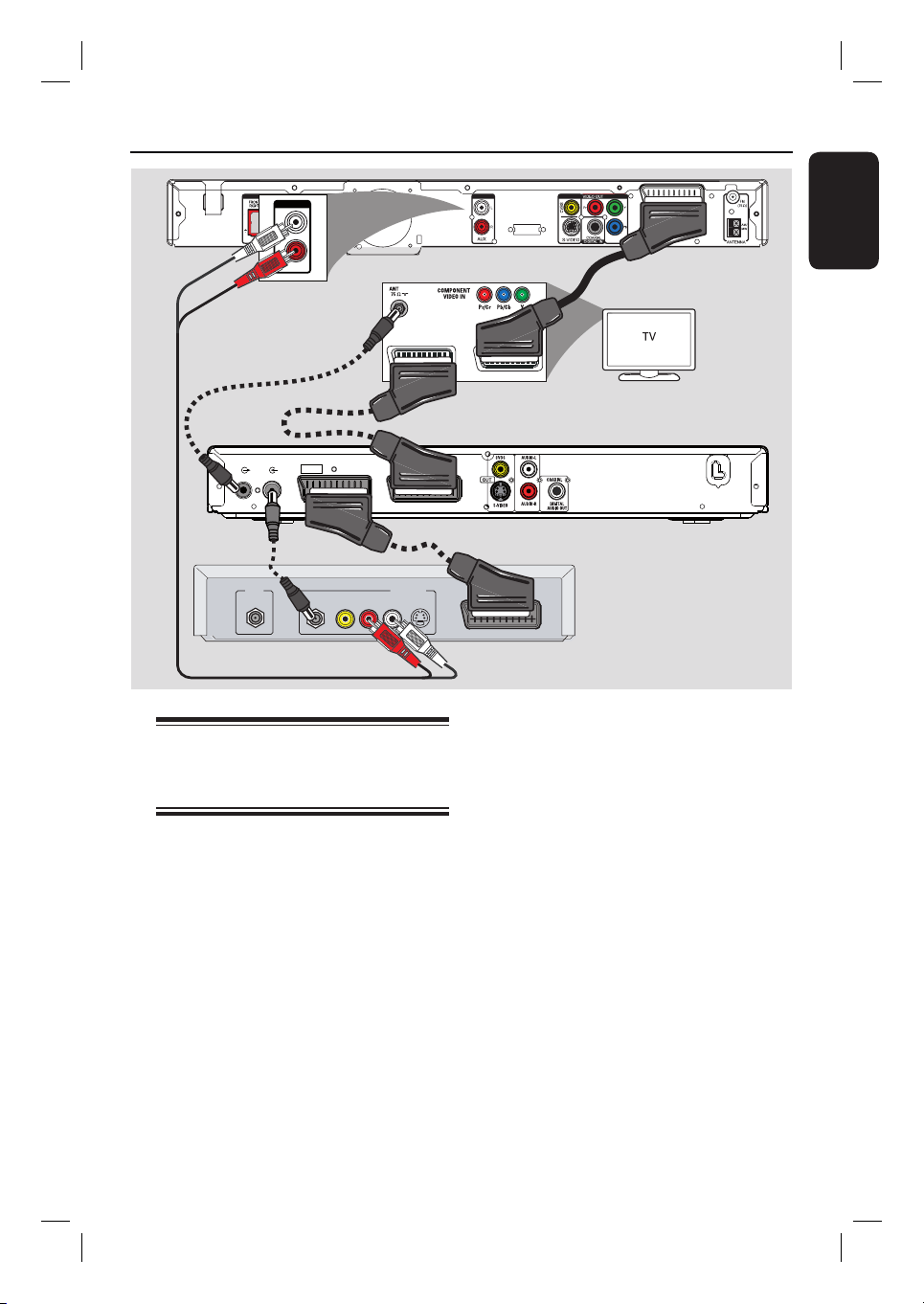
A Connect the supplied AM/MW loop
antenna to the AM/MW socket. Place
the AM/MW loop antenna on a shelf, or
attach it to a stand or wall.
B Connect the supplied FM antenna to the
FM 75 Ω socket. Extend the FM antenna
and x its ends to the wall.
For better FM stereo reception, connect
an external FM antenna (not supplied).
Helpful Hints:
– Adjust the position of the antennas for
optimal reception.
– Position the antennas as far away as
possible from your TV, VCR or other
radiation source to prevent any unwanted
interference.
FM
antenna
AM/MW antenna
x the claw
into the slot
AUDIO IN
WIRELESS
TRANSMITTER
19
English
RF
S-VIDEO
OUT
IN
AUDIO
R L
VIDEO
TO TV
ANTENNA-IN
TV-OUT
~
MAINS
TO TV - I/O
EXT
1
AUX - I/O
EXT
2
AUDIO IN
WIRELESS
TRANSMITTER
EXT 1EXT 2
AUDIO IN
AUX
L
R
C
B
A
A
Optional Connections
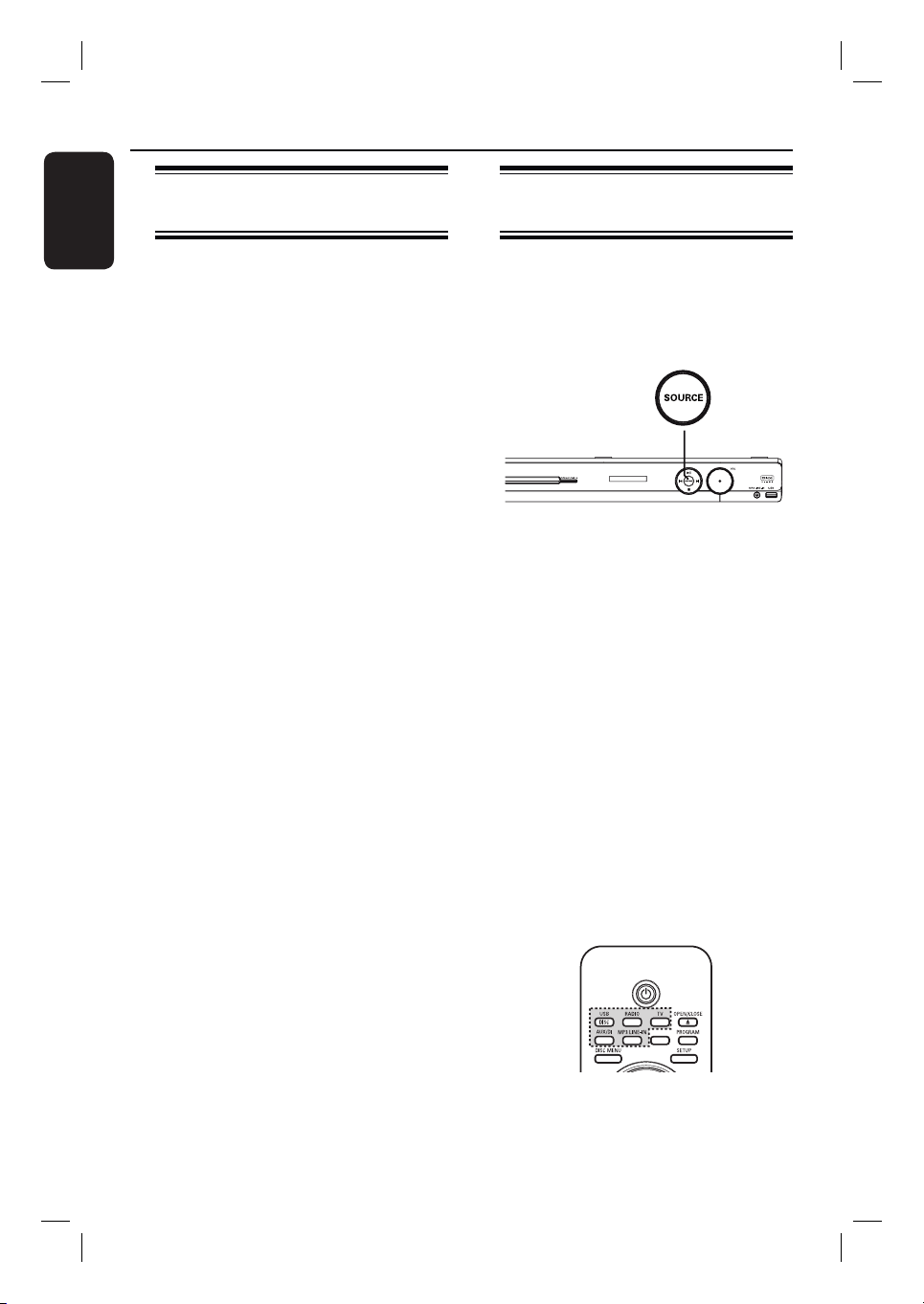
Connecting to cable box/
satellite receiver and
recorder/VCR
You can connect the audio output from
an analogue audio/video device (e.g. VCR,
Cable/Satellite Box or TV) to this Home
Theatre Audio System in order to enjoy
the multi-channel surround sound
capabilities
Note:
The above illustration is only an example
of the possible connections. It may be
varied depending on the connected
devices.
Cable/Satellite Box (rear)
A Keep the existing connections between
your TV and other devices.
B Use the scart cable to connect this unit to
your TV.
If your TV does not have double-scart
connectors, see ‘Step 2: Connecting to
TV’ for other video connection options.
C Connect an audio cable (red/white - not
supplied) from the AUDIO IN-AUX
sockets on the main unit to the AUDIO
OUT sockets on the Cable/Satellite Box.
For better quality audio, connect a coaxial
cable from the COAXIAL DIGITAL
IN socket on the main unit to the
COAXIAL output socket on the device.
Helpful Hint:
– Refer to the connected devices’ user
manual for other possible connections.
DVD Recorder/VCR (rear)
Main Unit (rear)
TV (rear)
20
English
Finding the correct viewing
channel
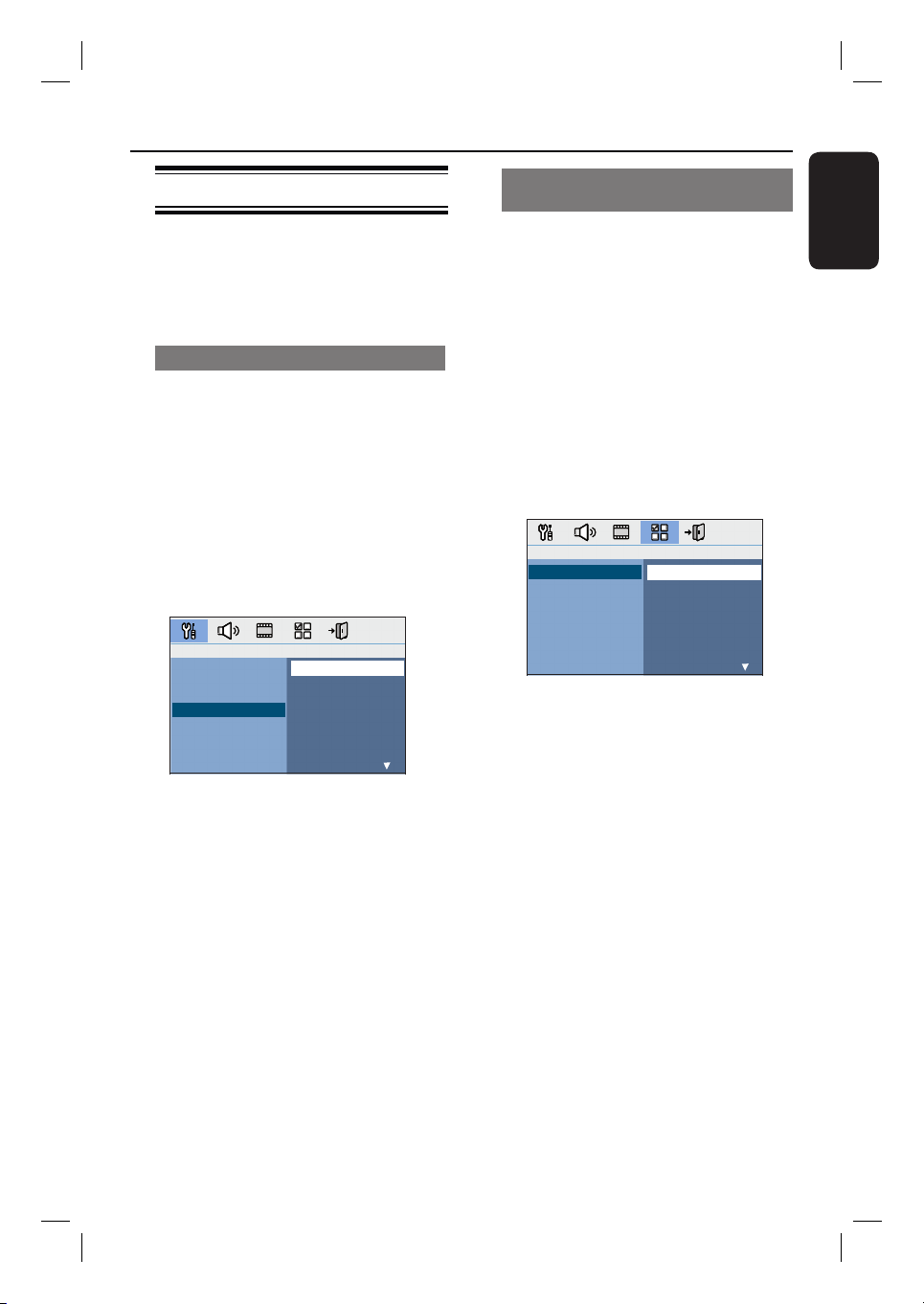
A Press SOURCE button on the main unit
until ‘DISC’ appears on the display panel
(or DISC/USB on the remote control).
B Turn on the TV and switch it to the
correct video-in channel.
You may go to the lowest channel on
your TV, then press the Channel Down
button on your TVs remote control until
you see the Video In channel.
You may press ° button repeatedly
on your TV’s remote control.
Usually this channel is between the
lowest and highest channels and may be
called FRONT, A/V IN, VIDEO, etc..
Refer to your TVs user manual on
how to select the correct input on your
TV.
Getting Started
Switching to different play
source
Press the SOURCE button on the front
panel repeatedly to select:
DISC ¤ FM ¤ AM/MW ¤ TV ¤ AUX
¤ DI ¤ MP3 LINE-IN ¤ DISC ....
Or
Press DISC/USB, RADIO, TV,
AUX/DI or MP3 LINE-IN on the
remote control.
Press DISC/USB to toggle between
DISC and USB mode (if USB is detected).
Press RADIO to toggle between FM
and AM/MW band.
If the scart cable is connected from
this unit to your TV, press TV to hear
the TVs sound output through this unit.
Press AUX/DI for switching to the
additional audio device that is connected
to the AUDIO IN-AUX or COAXIAL
DIGITAL IN socket on this unit.
Press MP3 LINE-IN for switching to
the portable audio player that is
connected to the MP3 LINE-IN socket on
this unit.
SLEEP
21
English
Setting language preferences
The language options are different
depending on your country or region. It
may not correspond to the illustrations
shown on the user manual.
On-screen display (OSD) language
The OSD (On-Screen Display) language
for this unit remains as you have set it,
regardless of the changes made to the
DVD disc language.
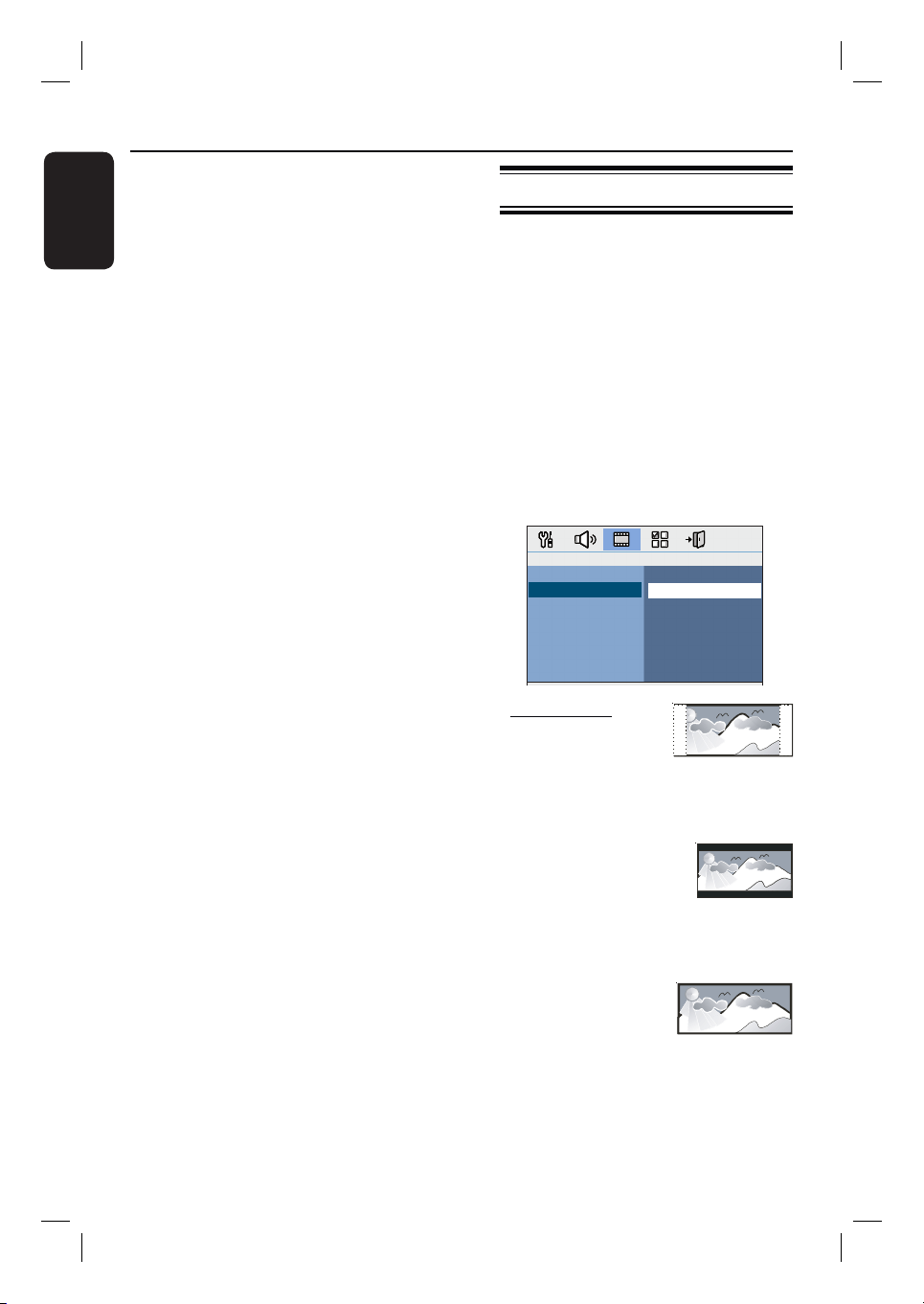
A In disc mode, press SETUP on the
remote control.
{ General Setup Page } appears.
B Press to highlight { OSD Language }
in the menu and press .
General Setup Page
Disc Lock
Display Dim
Program
OSD Language
Screen Saver
Sleep
DivX(R) VOD Code
English
Dansk
Nederlands
Suomi
Français
Deutsch
Italiano
Norsk
C Use keys to select a language and
press OK to con rm.
Audio, Subtitle and Menu language
for DVD playback
You can select your preferred language
settings for DVD playback. If the selected
language is recorded on the DVD disc,
this unit automatically plays the disc in
that language. Otherwise, the disc’s
default language will be used instead.
A Press Ç twice to stop playback (if any),
then press SETUP.
B Press repeatedly to select
{ Preference Page }.
C Use keys to select one of the
options below and press .
English
Chinese (Simp)
French
Spanish
Portuguese
Polish
Italian
Turkish
Preference Page
Audio
Subtitle
Disc Menu
Parental
Surround
PBC
MP3/JPEG Nav
Password
{ Audio }
Select the preferred audio language for
DVD playback.
{ Subtitle }
Select the preferred subtitle language for
DVD playback.
{ Disc Menu }
Select the preferred disc menu language
for DVD playback.
D Use keys to select a language and
press OK to con rm.
Getting Started (continued)
22
English
If the language you want is not
available in the list, select { Others }.
Use the numeric keypad (0-9) on the
remote control to enter the 4-digit
language code ‘XXXX’ (see last page) and
press OK to con rm.
E Repeat steps C ~ D for other settings.
Helpful Hints:
– During DVD playback, you can switch the
audio and subtitle languages by pressing the
AUDIO and SUBTITLE buttons on the
remote control. However, this does not
change the default settings you have made
here.
– For some DVDs, the subtitle/audio/menu
language can only be changed via the DVD
disc menu.
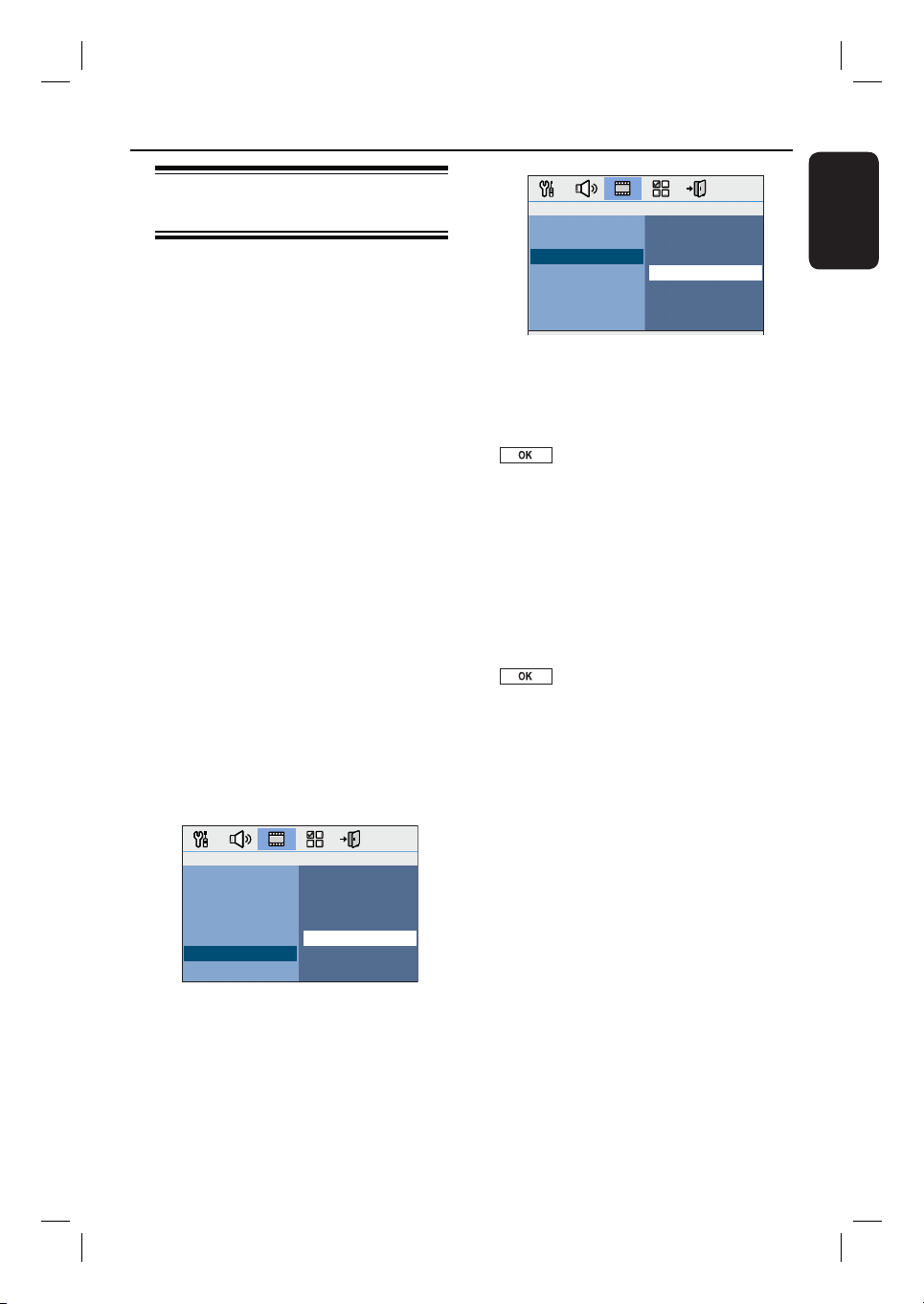
Setting the TV Display
Set the aspect ratio of this unit according
to the TV type you have connected. The
format you select must be available on
the disc. If it is not, the setting for TV
display will not affect the picture during
playback.
A In disc mode, press SETUP on the
remote control.
B Press repeatedly to select { Video
Setup Page }.
C Press to highlight { TV Display } in
the menu and press .
Video Setup Page
TV Type
TV Display
Progressive
Picture Setting
HDMI Setup
Component
4:3 Pan Scan
4:3 Letter Box
16:9 Wide Screen
{ 4:3 Pan Scan }
Select this if you have a
conventional TV and
want both sides of the
picture to be trimmed or formatted
to t your TV.
{ 4:3 Letter Box }
Select this if you have a
conventional TV. In this
case, a wide picture with
black bands on the upper and lower
portions of the TV will be displayed.
{ 16:9 Wide Screen }
Select this if you have a
wide-screen TV.
D Select one of the options and press OK
to con rm.
Getting Started (continued)
23
English
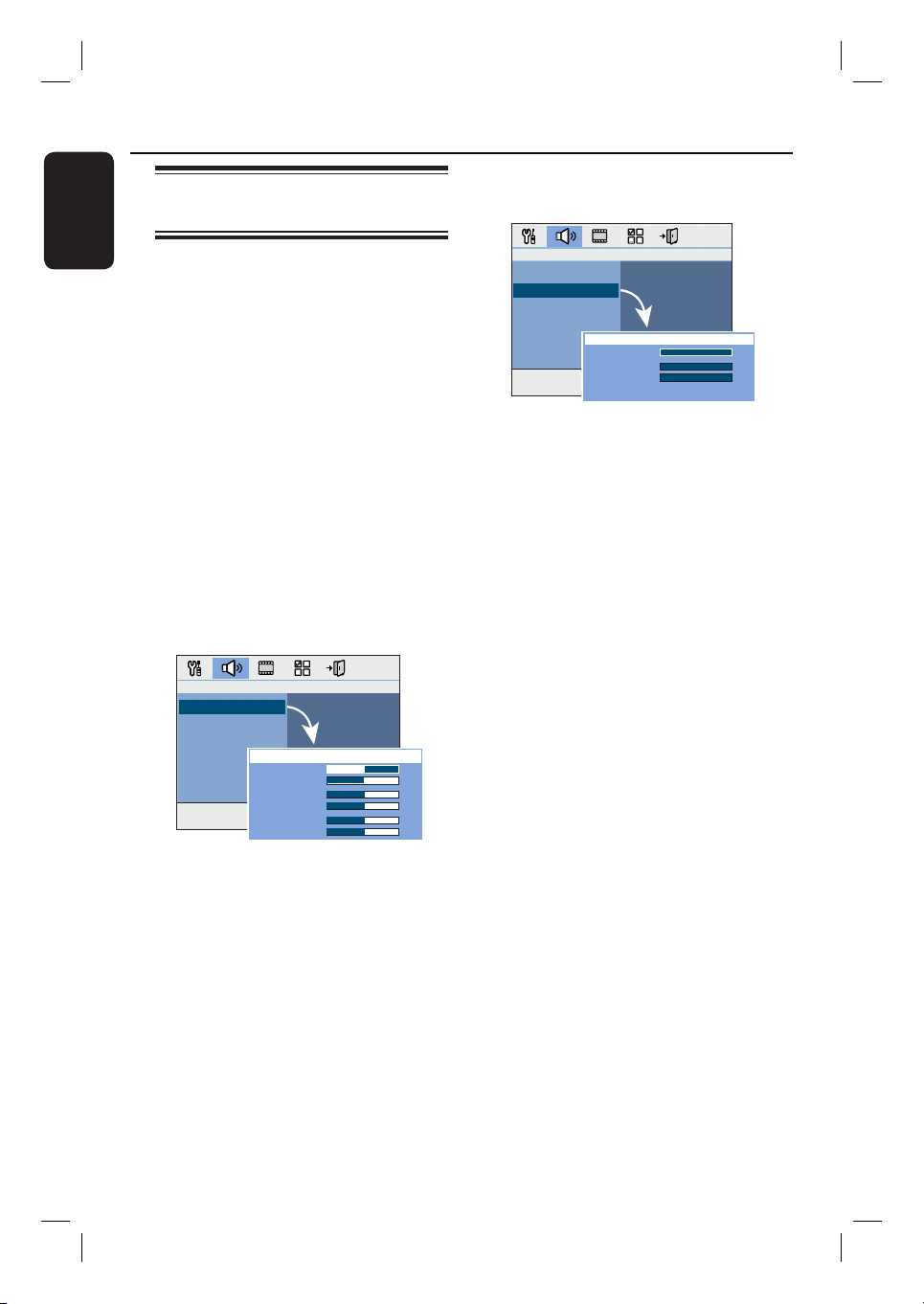
Setting up Progressive Scan
feature
(for Progressive Scan TV only)
The progressive scan displays twice the
number of frames per second than
interlaced scanning (ordinary normal TV
system). With nearly double the number
of lines, progressive scan offers higher
picture resolution and quality.
Before you start...
Ensure that you have connected this unit
to a progressive scan TV using the
Y Pb Pr connection (see ‘Option 4:
Connecting to a Progressive Scan TV or
component video input’).
A Turn on the TV to the correct viewing
channel for this unit.
Make sure that the TVs progressive
scan mode is turned off (or set to
interlaced mode). Refer to your TVs user
manual.
B Turn on this unit and press DISC/USB
on the remote control.
C Press SETUP on the remote control.
D Press repeatedly to select { Video
Setup Page }.
YUV
RGB
Video Setup Page
TV Type
TV Display
Progressive
Picture Setting
HDMI Setup
Component
E Move to { Component } > { YUV } in
the menu and press OK to con rm.
Video Setup Page
Off
On
TV Type
TV Display
Progressive
Picture Setting
HDMI Setup
Component
F Move to { Progressive } > { On } in the
menu and press OK to con rm.
G Read the noti cation message on the TV
and con rm your action by selecting the
in the menu and press OK.
There will be no picture on your TV
at this state until you have turned
on the progressive scan mode on
your TV.
H Turn on your TV progressive scan mode,
refer to your TVs user manual.
A message appears on the TV.
I Con rm your action by selecting the
in the menu and press OK.
The setup is now completed and you
can start to enjoy the high quality picture.
If no picture is displayed
A Press OPEN/CLOSE ç.
B Press on the remote control.
C Press AUDIO on the remote control.
Helpful Hints:
– If a blank/distorted screen appears, wait
for 15 seconds for the auto recovery.
– There are some progressive scan TVs that
are not fully compatible with this unit,
resulting in an unnatural picture when
playing back a DVD VIDEO disc in the
progressive scan mode. In such a case, turn
off the progressive scan feature on this unit
and your TV
.
Getting Started (continued)
24
English
Getting Started (continued)
Setting the speakers’
channels
You can adjust the delay times (centre
and surround only) and volume level for
individual speakers. These adjustments let
you optimise the sound according to
your surroundings and setup.
Before you start...
Stop the disc playback by pressing STOP
button twice or remove the disc from
the disc tray. Otherwise, the settings are
not accessible.
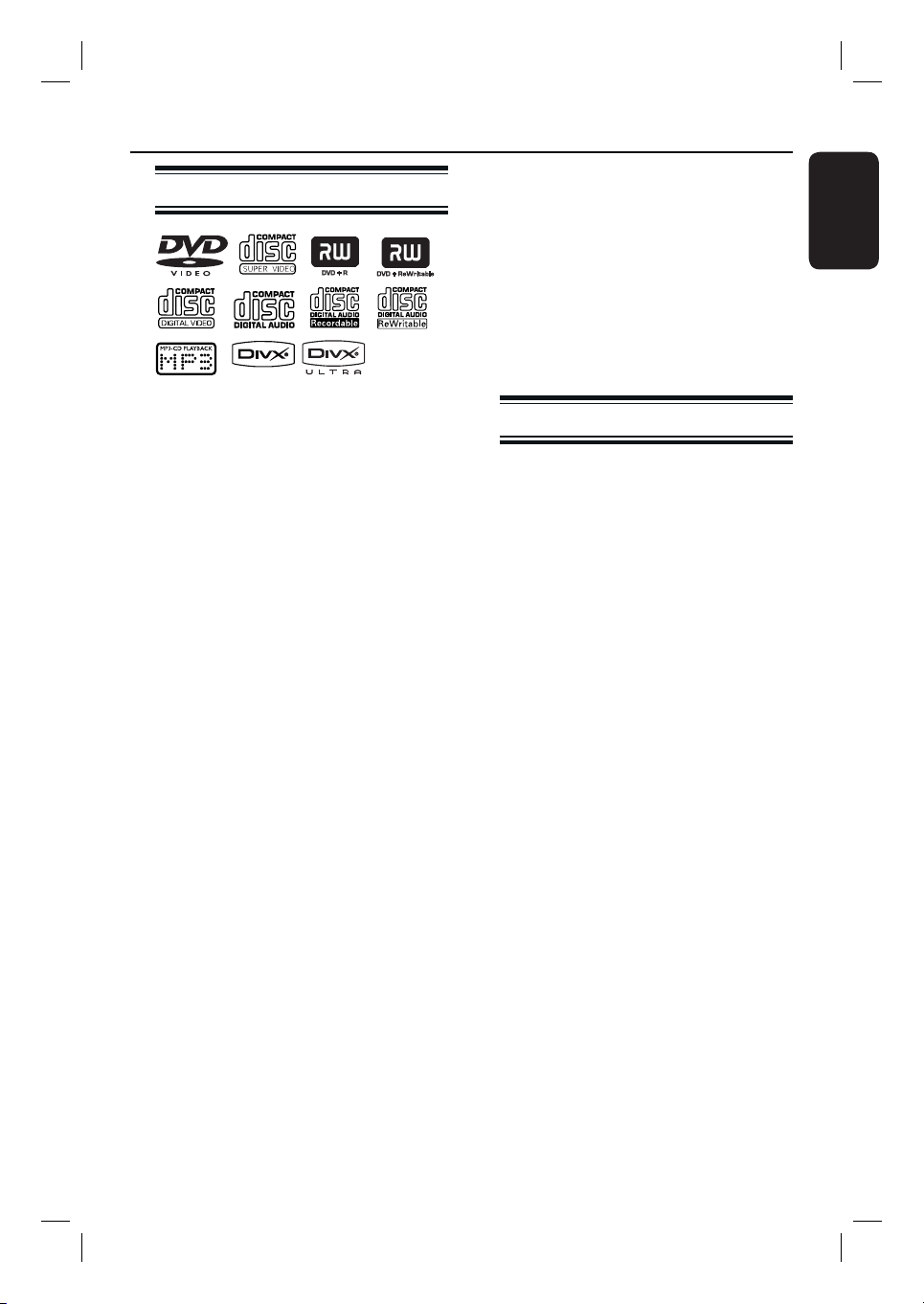
A In disc mode, press SETUP on the
remote control.
B Press
repeatedly to select { Audio
Setup Page }.
C Press to highlight { Speakers
Volume } and press
.
Audio Setup Page
Speakers Volume
Speakers Delay
HDMI Audio
CD Upsampling
Audio Sync
Front Left
Front Right
Center
Subwoofer
Rear Left
Rear Right
0dB
0dB
0dB
0dB
0dB
0dB
Speakers Level Setup
D Use keys to set the volume level for
each speaker (-6dB ~ +6dB) and press
OK to con rm.
E Use keys to highlight { Speakers
Delay } and press
.
Audio Setup Page
Speakers Volume
Speakers Delay
HDMI Audio
CD Upsampling
Audio Sync
Center
Rear Left
Rear Right
Speakers Distance Setup
0ms
0ms
0ms
F Use keys to set the delay times
(0 ms ~ 15 ms) for centre and rear
speakers that best suit your surround
sound needs.
G Press OK to con rm.
Helpful Hints:
– A 1ms increase/decrease of delay time is
equivalent to 30 cm change in distance.
– Use the longer delay time settings when
the rear speakers are closer to the listener
than the front speakers.
– The test tone will be automatically
generated to help you judge the sound level
of each speaker.
25
English
Disc Operations
Playable discs
Your DVD home theatre system
plays:
– Digital Versatile Discs (DVDs)
– Video CDs (VCDs)
– Super Video CDs (SVCDs)
– Finalised DVD Recordable (DVD±R),
DVD Rewritable (DVD±RW)
– Audio Compact Discs (CDs)
– MP3/ Windows Media™ Audio discs,
picture (Kodak, JPEG) les on
CD-R(W)
– ISO 9660/UDF format
– JPEG resolution support up to
3072 x 2048
– Supported sampling frequencies:
32 kHz, 44.1 kHz, 48 kHz
– Supported Bit-rates: 32~256 (kbps),
variable bit rates (average 128 kbps)
– DivX les on CD-R(W)/DVD+R(W):
– DivX 3/4/5/6, DivX Ultra
Region Codes for DVD discs
DVD discs and players are designed with
regional restrictions. Before playing a disc,
make sure the disc is for the same region
as your player. The regional code for this
unit is indicated at the rear or bottom
panel.
Notes:
– If the inhibit icon (ø or X) appears
on the TV when a button is pressed,
it means the function is not
available on the current disc or at
the current time.
– Never put any objects other than
discs on the disc tray. Doing so may
cause the disc player to malfunction.
Playing a disc
A Press SOURCE repeatedly until ‘DISC’
appears on the display panel (or press
DISC/USB on the remote control).
B Turn on the TV to the correct viewing
channel for this unit.
The blue DVD background screen
appears on the TV.
C Press OPEN/CLOSE ç to open the
disc tray.
D Load a disc and press OPEN/CLOSE ç
to close the disc tray.
Make sure the disc label is facing up.
For double-sided discs, load the side
which you want to play facing up.
E Playback starts automatically.
See the following pages for more
playback options and features.
Helpful Hints:
– If you are having trouble playing a certain
disc, remove the disc and try a different one.
Improperly formatted discs cannot be played
on this unit.
– Some discs cannot be played on this player
due to the con guration and characteristics
of the disc, or due to the condition of
recording and authoring software that was
used.

26
English
Disc Operations (continued)
Basic playback controls
Pausing playback
During playback, press u.
While in pause mode, you can press
to step forward one frame at each
press.
To resume playback, press u again.
Selecting another track/chapter
Press í / ë or use the numeric
keypad 0-9 to key in a track/chapter
number.
If the repeat track mode is active, press
again to replay the same track/chapter.
Searching backward/forward
Press m / M on the remote control.
While searching, press m / M
repeatedly to decrease/increase the
search speed.
To resume normal playback, press
u.
Stopping playback
Press x.
Helpful Hints:
– If the message ‘To playback from the
beginning, press PREV key’ appears on the
TV while you load in a disc, you can press
í to start playback from the beginning.
– This is a power-saving feature, this unit
automatically switches to standby mode if
you do not press any buttons within 15
minutes after a disc has stopped playing.
Selecting various repeat/
shuf e functions
The available of the repeat play options
and shuf e play mode are vary depending
on the disc type.
While playing a disc, press
REPEAT on the remote control
repeatedly to choose a repeat or shuf e
play mode.
DVD
RPT ONE (repeat chapter)
RPT TT (repeat title)
SHUFFLE (random play)
RPT SHF (repeat random play)
RPT OFF (exit repeat mode)
VCD/SVCD/CD
RPT ONE (repeat track)
RPT ALL (repeat disc)
SHUFFLE (random play)
RPT SHF (repeat random play)
RPT OFF (exit repeat mode)
MP3/ DivX/ Windows Media™ Audio
RPT ONE (repeat track)
RPT ALL/FLD (repeat folder)
SHUFFLE (random play)
RPT OFF (exit repeat mode)
Helpful Hint:
– Repeat playback is not possible on VCDs
when the PBC mode is turned on.
27
English
Disc Operations (continued)
Programming disc tracks
(not for Picture CD/MP3 discs)
You can play the contents of the disc in
the order you want by programming the
playing order of the tracks.
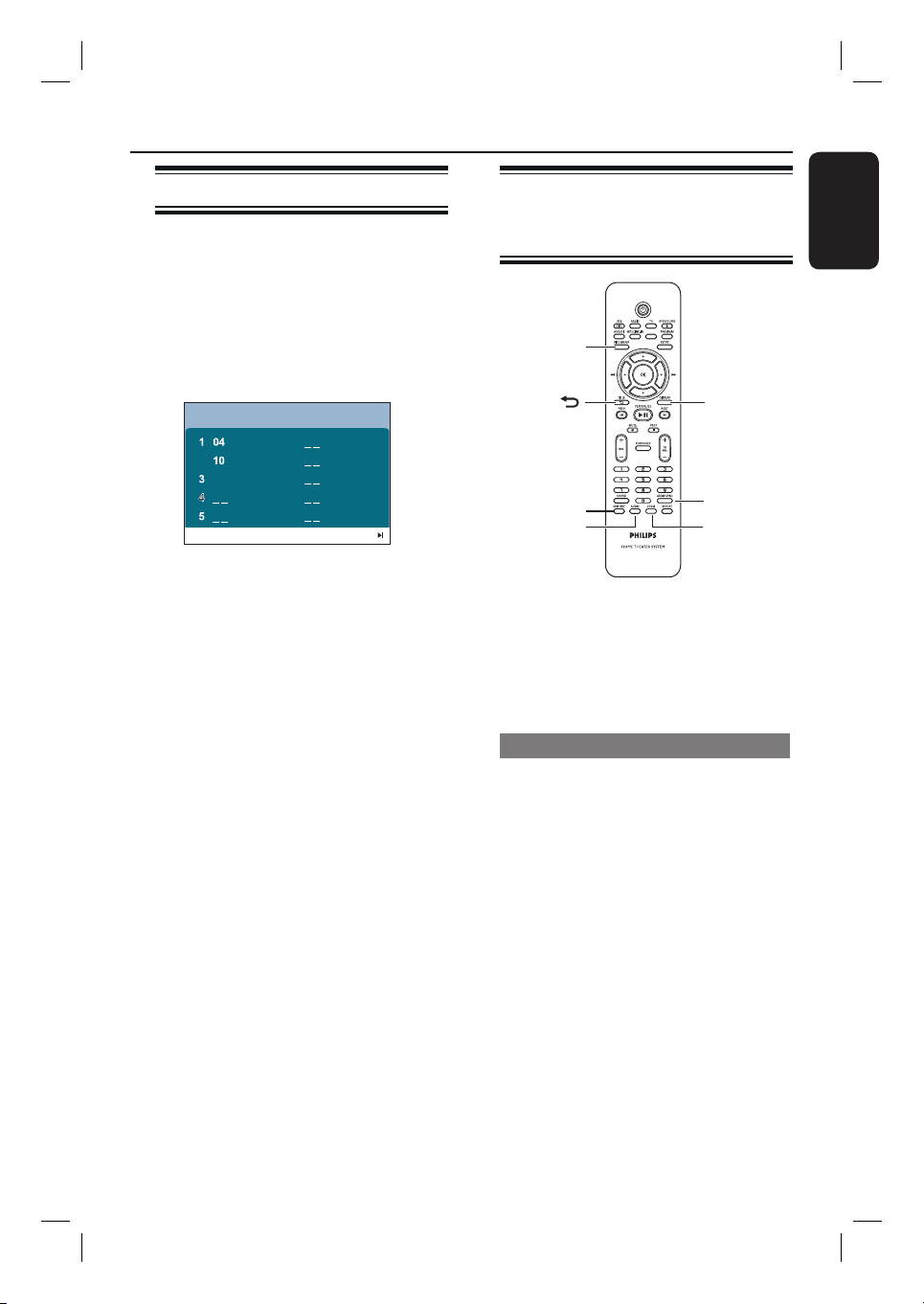
A Press PROGRAM on the remote
control.
The programming menu appears.
12
6
7
8
9
10
Program: Track (01-16)
Exit Start Next
2
B Use the numeric keypad (0-9) to
enter a valid track/chapter number.
C Use keys to move the cursor to
the next position.
If there are more than ten total
programme tracks, select { Next } on
the screen and press OK (or press ëon
the remote control) to access the next
programming page.
To remove the track/chapter from the
programming menu, select the track/
chapter and press OK.
D Once complete, select { Start } on the
screen and press OK to start playback.
Playback starts from the selected track
under the programmed sequence.
E To exit the programme menu, select
{ Exit } in the menu and press OK.
Other playback features
for video discs (DVD/VCD/
SVCD)
SLEEP
DISPLAY
AUDIO SYNC
ZOOM
AUDIO
TITLE
DISC MENU
SUBTITLE
Note:
The operating features described here
might not be possible for certain discs.
Always refer to the instructions supplied
with the discs.
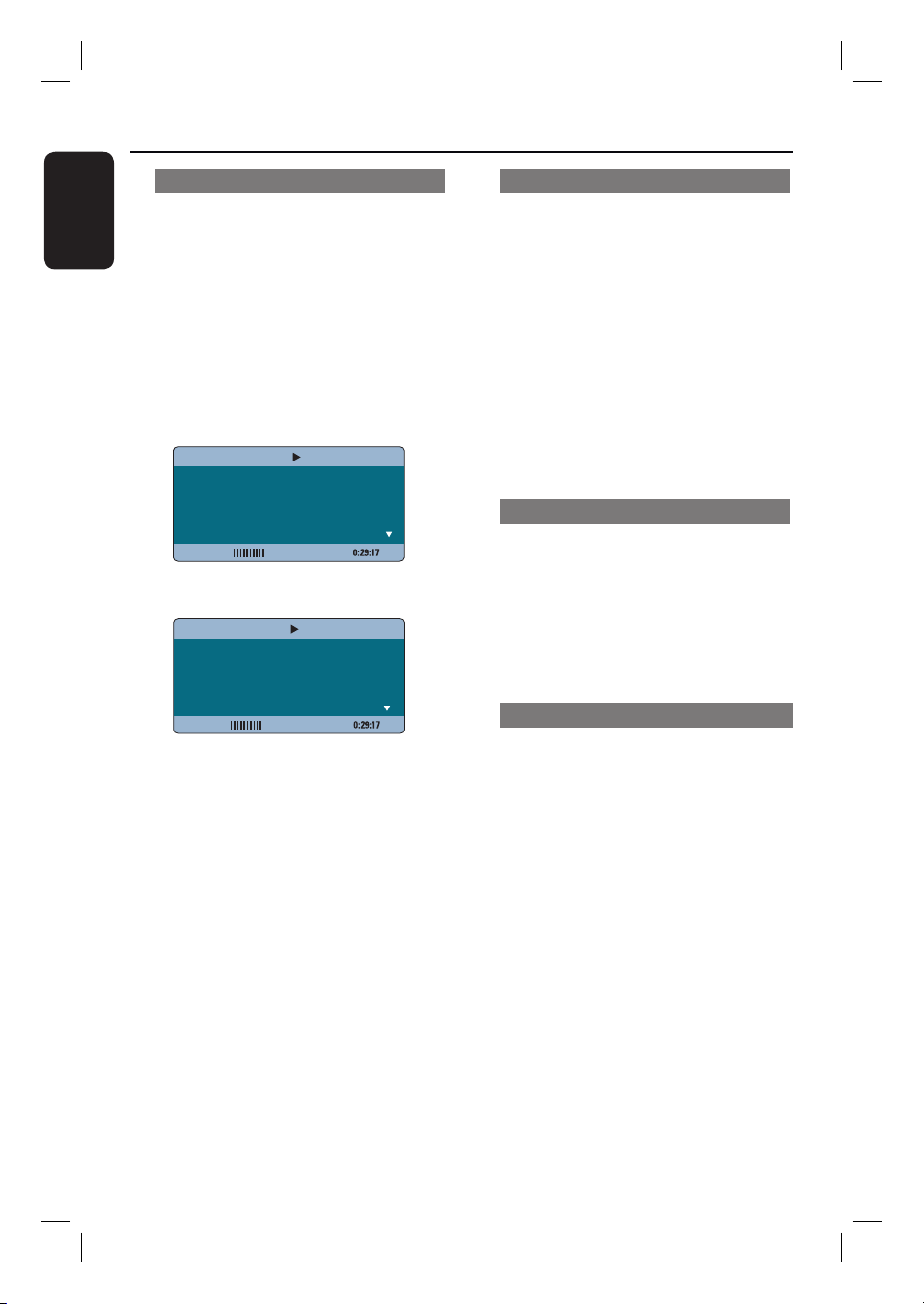
Using the Disc Menu
Depending on the disc format, a menu
may appear on the TV screen once you
load the disc.
To select a playback feature or item
Use keys or numeric keypad
0-9 on the remote control, then press
OK to start playback.
To access or remove the menu
Press DISC MENU on the remote
control.
28
English
Viewing playback information
This unit can display the disc playback
information (for example, title or chapter
number, elapsed playing time, audio/
subtitle language) and a number of
operations can be done without
interrupting disc playback.
A During playback, press DISPLAY.
A list of available disc information
appears on the TV.
DVD
Menu
Title
Chapter
Audio
Subtitle
01/01
02/99
2ch Chi
Off
Bitrate 7
Title Elapsed
VCD/SVCD
Bitrate 8
Total Elapsed
Track
Disc Time
Track Time
Repeat
09/16
1:16:05
0:04:32
Off
Menu
B Use keys to view the information
and press OK to access.
C Use the numeric keypad 0-9 to input
the number/time or use keys to
make the selection.
D Press OK to con rm.
Playback changes according to the
chosen time or to the selected title/
chapter/track.
Zooming in/out
This option allows you to zoom in or out
the picture on the TV and to pan through
the picture.
A During playback, press ZOOM
repeatedly to select a different zoom
factor.
Playback continues.
B Use keys to pan through the
zoomed image.
C Press ZOOM repeatedly to return to
the original size.
Changing subtitle language
This operation works only on DVDs with
multiple subtitle languages. You can
change the language you want while
playing a DVD.
Press SUBTITLE repeatedly to select
different subtitle languages.
Switching camera angles
This option is only available on DVDs
that contain sequences recorded from
different camera angles. This allows you
to view the picture from different angles.
A During playback, press DISPLAY.
Playback information menu appears.
B Press to highlight ‘ANGLE’ function in
the menu.
C If different camera angles choices are
available, press and numeric keys to
select.
Disc Operations (continued)

29
English
Changing sound track language
This operation works only on DVDs with
multiple sound track languages, or VCDs
with multiple audio channels.
Press AUDIO repeatedly to select the
available audio languages.
For VCD – changing the audio
channel
Press AUDIO repeatedly to select the
available audio channels provided by the
disc (STEREO, MONO LEFT, MONO
RIGHT or MIX MONO).
Setting the delay times for audio
playback
This feature allows you to adjust the
audio delay times if the video playback is
slower than the audio output streams,
hence resulting in ‘Lip-sync’. The only
way to correct ‘Lip-sync’ error caused by
delayed video is to delay audio by an
equal amount.
A Press AUDIO SYNC.
B Within ve seconds, use the VOL +-
to set the audio output delay times
(0 ~ 200 ms).
If the volume control is not used
within ve seconds, it resumes its normal
volume control function.
Helpful Hint:
– Set your preferred default AUDIO SYNC
setting in the setup menu, see ‘Setup Menu
Options - { Audio Setup Page }’.
Playback Control (VCD only)
Playback Control (PBC) playback allows
you to play Video CDs interactively,
following the menu on the display. The
PBC feature on this unit is turned on by
default.
For VCDs with Playback Control
(PBC) feature (version 2.0 only)
During playback, press TITLE to
return to the disc title menu or main
menu.
Helpful Hint:
– Set your preferred default PBC setting in
the setup menu, see ‘Setup Menu Options -
{ Preference Page }’.
Disc Operations (continued)
30
English
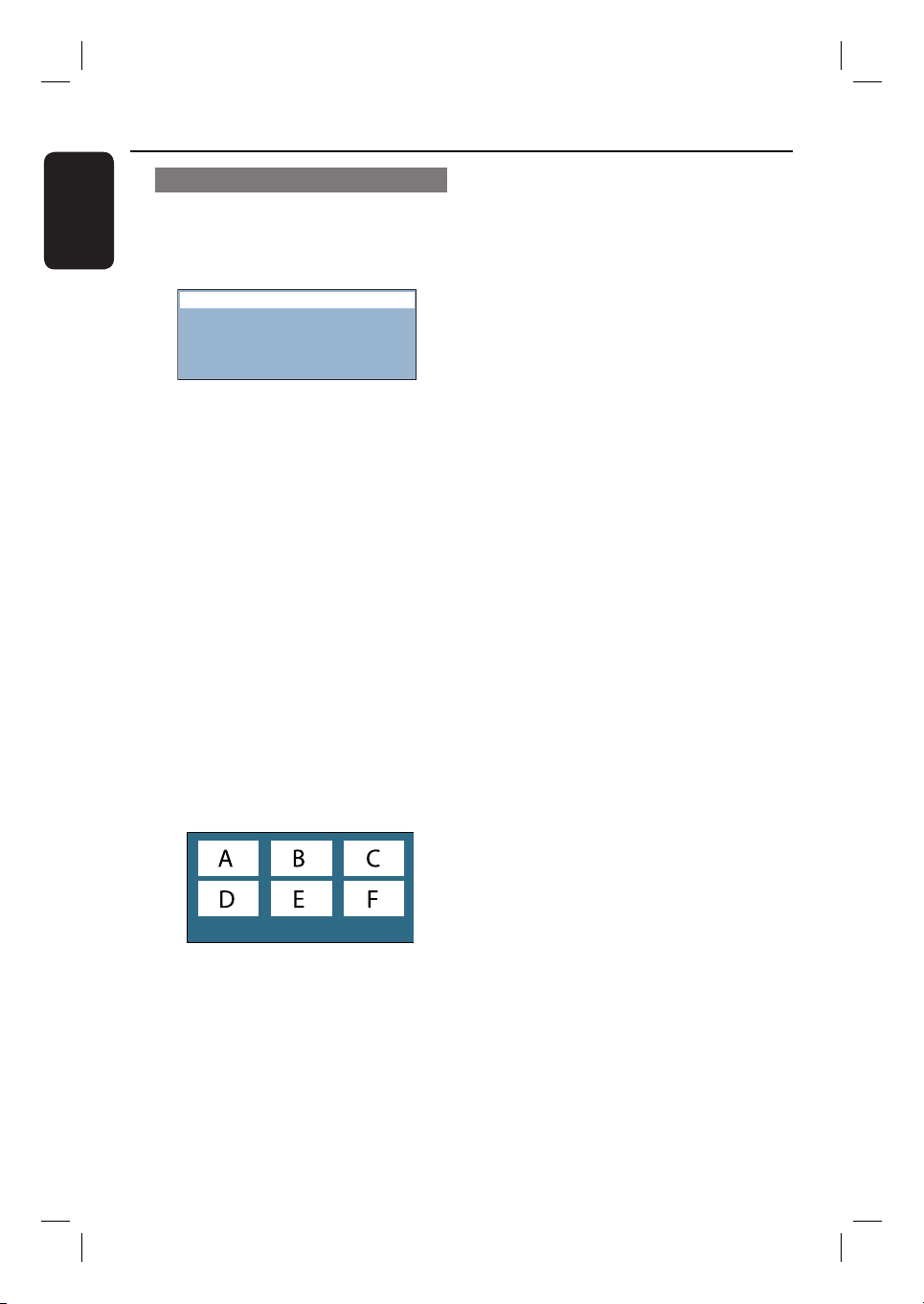
Preview function (VCD/SVCD only)
This function allows you to preview the
contents of a VCD/SVCD.
A
Press DISC MENU.
Select Digest Type:
Track Digest
Disc Interval
Track Interval
B Use keys to select one of the
following options and press OK.
{ Track Digest }
View six different tracks on one screen
each time. It allows you to have a quick
glance at all the tracks on the disc.
{ Disc Interval }
View the whole disc in six thumbnail
pictures. It divides a disc into six portions
at regular intervals and displays them on
one screen.
{ Track Interval }
View the content of a single track in six
thumbnail pictures. It divides a single
track into six portions at regular intervals
and displays them on one screen.
This option is only available during
playback mode.
Exit Menu
01 02 03
04 05 06
Disc Operations (continued)
To go to the previous or next page, press
í / ë.
To return to the main menu, select
{ Menu } on the screen and press OK.
Press OK on the selected thumbnail
picture to start playback from there.
C To exit the preview menu, select
{ Exit } on the screen and press OK.
31
English
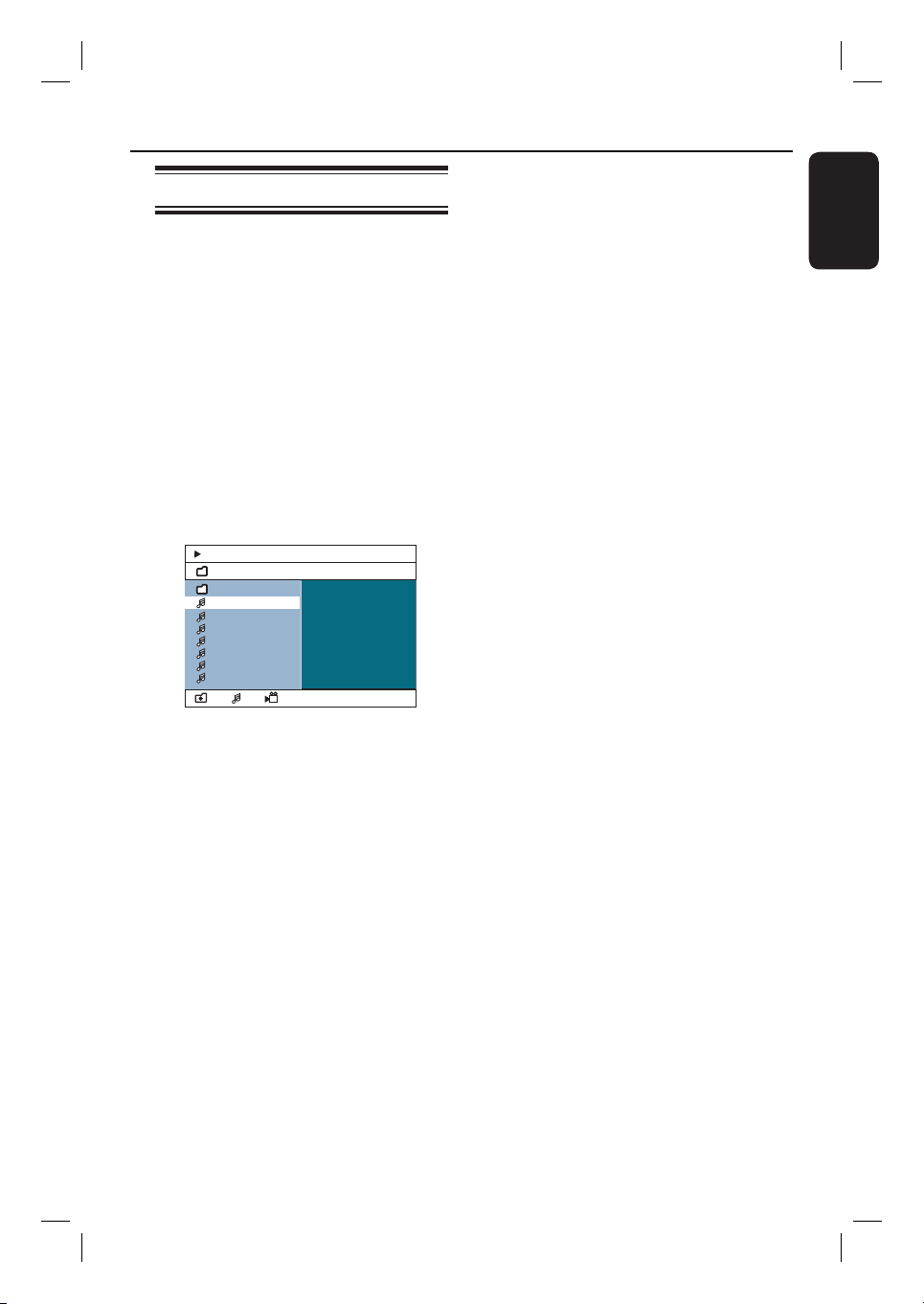
Playing a MP3/ WMA disc
This unit can playback most of the MP3
and Windows Media™ Audio les
recorded on a recordable disc or
commercial CD.
Before you start ...
Turn on your TV to the correct Video In
channel. See ‘Finding the correct viewing
channel’ for details.
A Insert a MP3/WMA disc.
The disc reading time may exceed 30
seconds due to the complexity of the
directory/ le con guration.
The disc menu appears on the TV.
00:06 04:04 001/018
\UDF_MP3\
000 018 000 Disc
Previous
08-AudioTrack
09-AudioTrack
10-AudioTrack
11-AudioTrack
12-AudioTrack
13-AudioTrack
14-AudioTrack
B If the disc main menu contains various
folders, use keys to select a desired
folder and press OK to open the folder.
C Use keys to select a track/ le and
press OK to start playback.
Playback starts from the selected le
and continue through to the end of the
folder.
During playback;
Press í / ë to playback another track/
le in the current folder.
Press m / M to fast reverse/forward
search for a music track.
To select another folder from the
current disc, press repeatedly to
highlight ‘Previous’ folder and press OK
to return to the root menu.
Press REPEAT repeatedly to access
various play modes.
D To stop playback, press x.
Helpful Hints:
– To skip the folders menu when you load a
MP3/JPEG disc, set the MP3/JPEG NAV
setting in the Preference Setup Page to
{ Without Menu }.
– Only the rst session of a multi-session CD
will be played back.
– It is normal to experience an occasional
‘skip’ while listening to your MP3/WMA disc
due to poor clarity of digital contents during
internet downloading.
– If any special characters are present in the
MP3/WMA track name (ID3) or album
name, it might not be displayed correctly on
the screen because this unit does not support
the characters.
Disc Operations (continued)
32
English
Playing a JPEG image le
(slide show)
Before you start ...
Turn on your TV to the correct Video In
channel. See ‘Finding the correct viewing
channel’ for details.
Insert a JPEG photo CD (Kodak Picture
CD, JPEG).
For a Kodak disc, the slide show
begins automatically.
For a JPEG disc, the picture menu
appears on the TV. Press u to start the
slide-show playback.
Helpful Hint:
– It may require longer time for this unit to
display the disc content on the TV due to the
large number of songs/pictures compiled into
one disc.
Supported le format:
– The le extension has to be ‘*.JPG’ and
not ‘*.JPEG’.
– This unit can only display digital camera
pictures according to the JPEG-EXIF
format, typically used by almost all digital
cameras. It cannot display Motion JPEG,
progressive JPEG and other JPEG
formats, or pictures in formats other
than JPEG, or sound clips associated with
pictures.
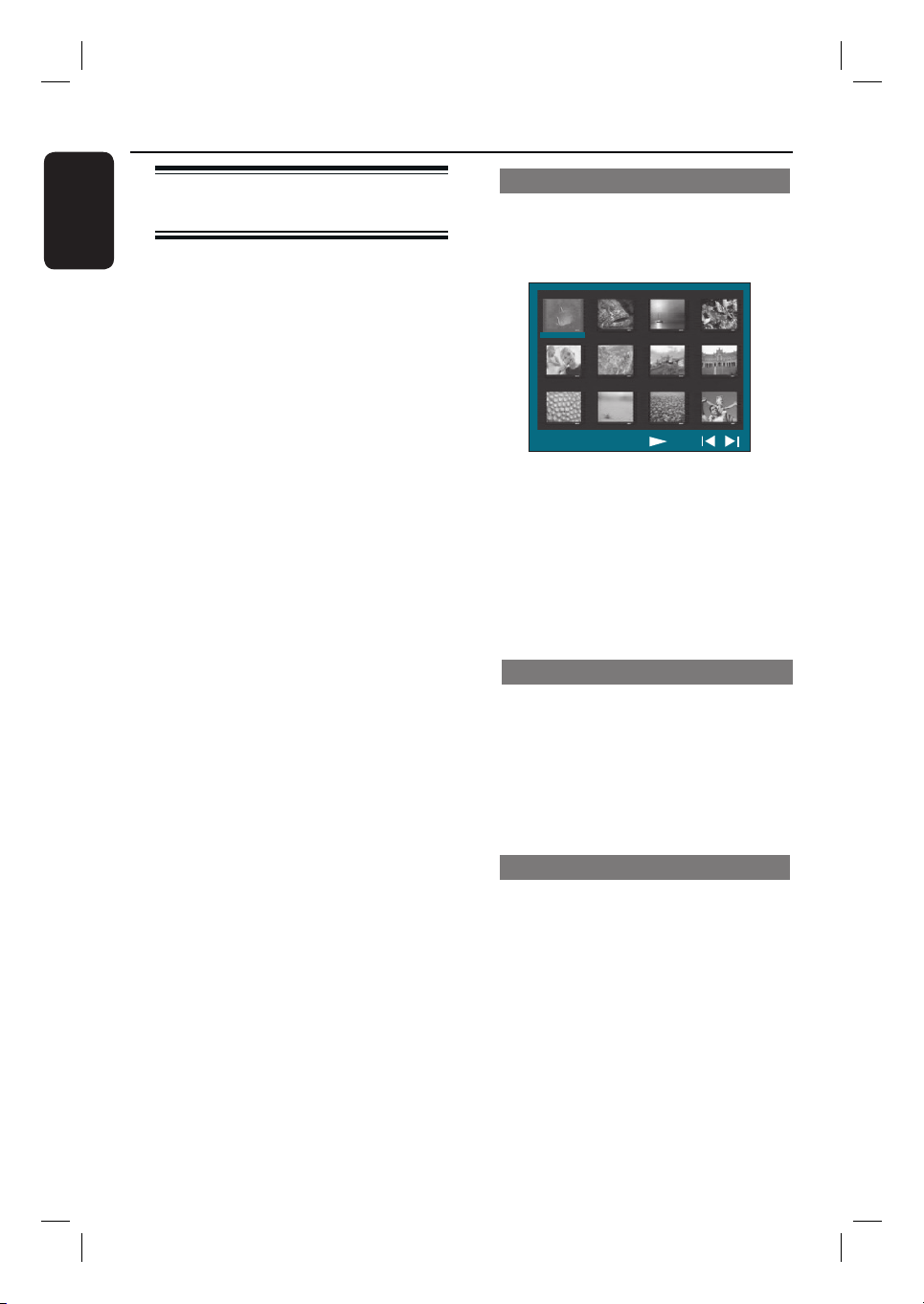
Preview function
A During playback, press x.
12 thumbnail pictures will be displayed
on the TV.
B Press í / ë to display the other
pictures on the previous/next page.
C Use keys to select one of the
pictures and press OK to start playback.
D Press DISC MENU to return to Picture
CD menu.
Zoom picture
A During playback, press ZOOM
repeatedly to select a different zoom
factor.
B Use keys to pan through the
zoomed image.
Rotating/ ipping the picture
During playback, use keys to
rotate/ ip the picture on the TV.
: ip the picture vertically
: ip the picture horizontally
: rotate the picture anti-clockwise
: rotate the picture clockwise
Disc Operations (continued)

33
English
Disc Operations (continued)
Playing MP3/WMA music and
JPEG pictures simultaneously
You can create a musical slide show if the
disc contains both the MP3/WMA music
and JPEG picture les.
A Insert a MP3/WMA disc that contains
music and pictures.
B Select a track in the menu and press OK
to start playback.
C During music playback, use keys to
select a picture le from the disc menu
and press OK.
The picture les will be played back
through to the end of the folder.
The music keeps playing back and will
be repeated if reaches the end of the
selected album, playlist or track.
D To stop simultaneous playback, press
DISC MENU followed by x.
Playing a DivX disc
This unit supports the playback of DivX
movies which you can copy from your
computer onto a recordable disc. See
‘Setup Menu Options - { General Setup
Page - DivX(R) VOD code }’ for details.
A Insert a DivX disc.
B Use keys to navigate to the
title you want to play.
C Press OK to start playback.
During playback;
If the DivX disc has multilingual subtitles,
you can press SUBTITLE on the
remote control to change the subtitle
language.
If the DivX title has different audio
tracks, you can press AUDIO on the
remote control to change the audio
stream.
Use m / M keys on the remote
control to perform fast reverse/forward
search.
Press DISPLAY repeatedly until the
Time Search menu appears, key in the
time where playback should start.
Playback skips to the time entered.
Helpful Hints:
– Subtitle les with the following le name
extensions (.srt, .smi, .sub, .ssa, .ass) are
supported but do not appear on the le
navigation menu.
– The subtitle le name has to be the same
as the le name of the movie.
– The subtitle can only be displayed up to an
average of 45 characters.
34
English
Playing from USB ash drive
or USB memory card reader
You can play or view the data les (JPEG,
MP3, Windows Media™ Audio or DivX)
in the USB ash drive or USB memory
card reader. However, editing or copying
the data le is not possible.
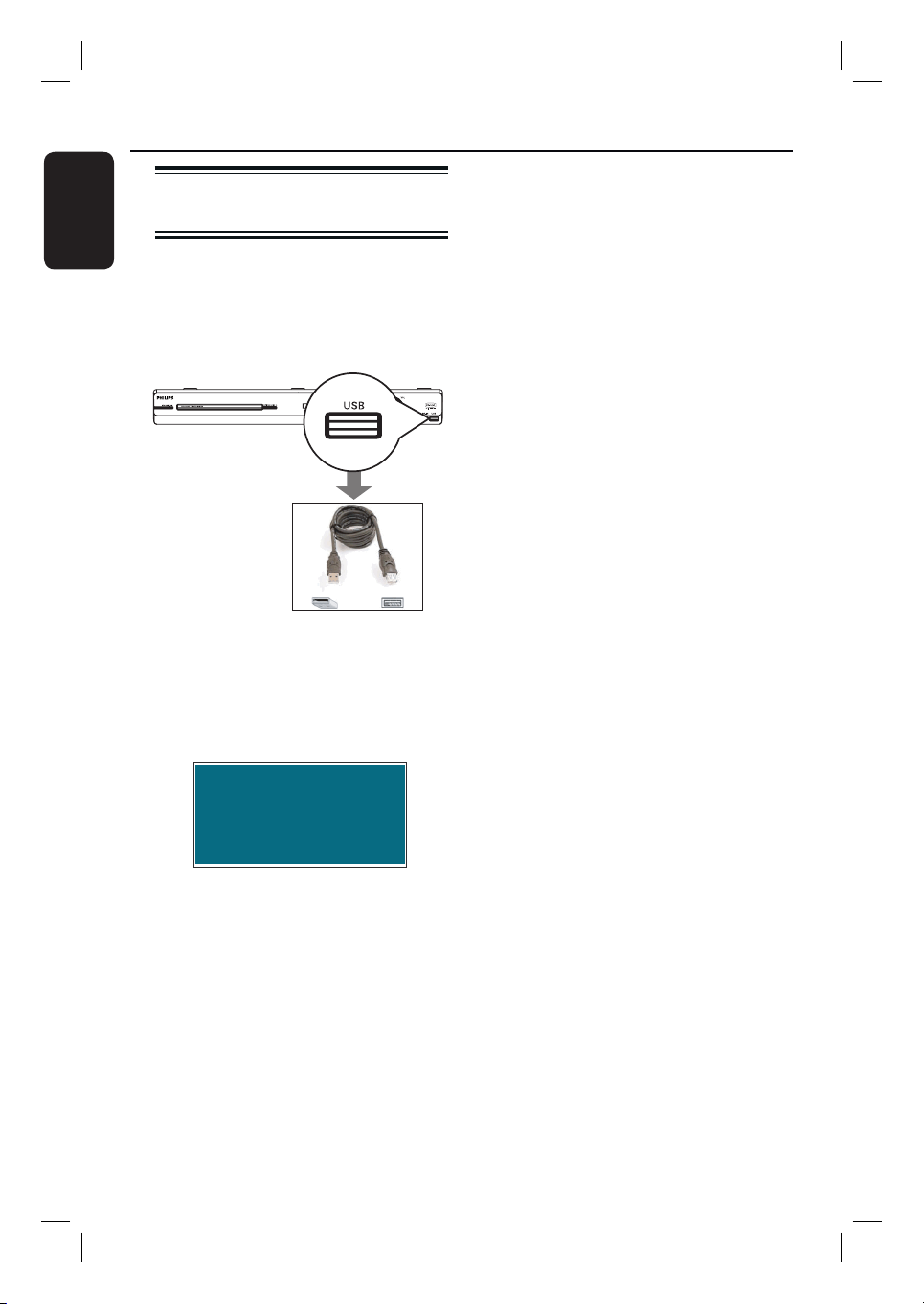
A Connect the USB ash drive / USB
memory card reader directly to the USB
socket on this unit.
B A message appears on the TV for 5 ( ve)
seconds when the device is detected.
Press DISC/USB to select device
C Press DISC/USB on the remote control
to access the data in the drive.
When using multiple drives on a single
card reader, only one of the connected
cards can be accessed.
The device numbers may vary from
different card readers.
D Select the le to play and press u.
For more playback information, see
‘Playing a MP3/WMA disc,’ ‘Playing a JPEG
image le (slideshow)’ or ‘Playing a DivX
disc’ for details.
During playback, you can press
DISC/USB to return to the disc mode.
E Before removing the USB device, press x
to stop playback or press DISC/USB to
switch to disc mode.
Helpful Hints:
– The USB socket does not support the
connection of other USB devices except to a
USB ash drive / USB memory card reader.
– When the USB device does not t into the
USB socket, a USB extension cable is
required.
– You can only read and playback the
content from the USB device.
– Copy-protected contents are not playable.
Playback - USB Device
35
English
Playing from other portable
audio player
Connect your portable audio player to
this unit to get the best immersion sound
experience through the speaker system.
However, controlling of playback is only
possible on the portable audio player.
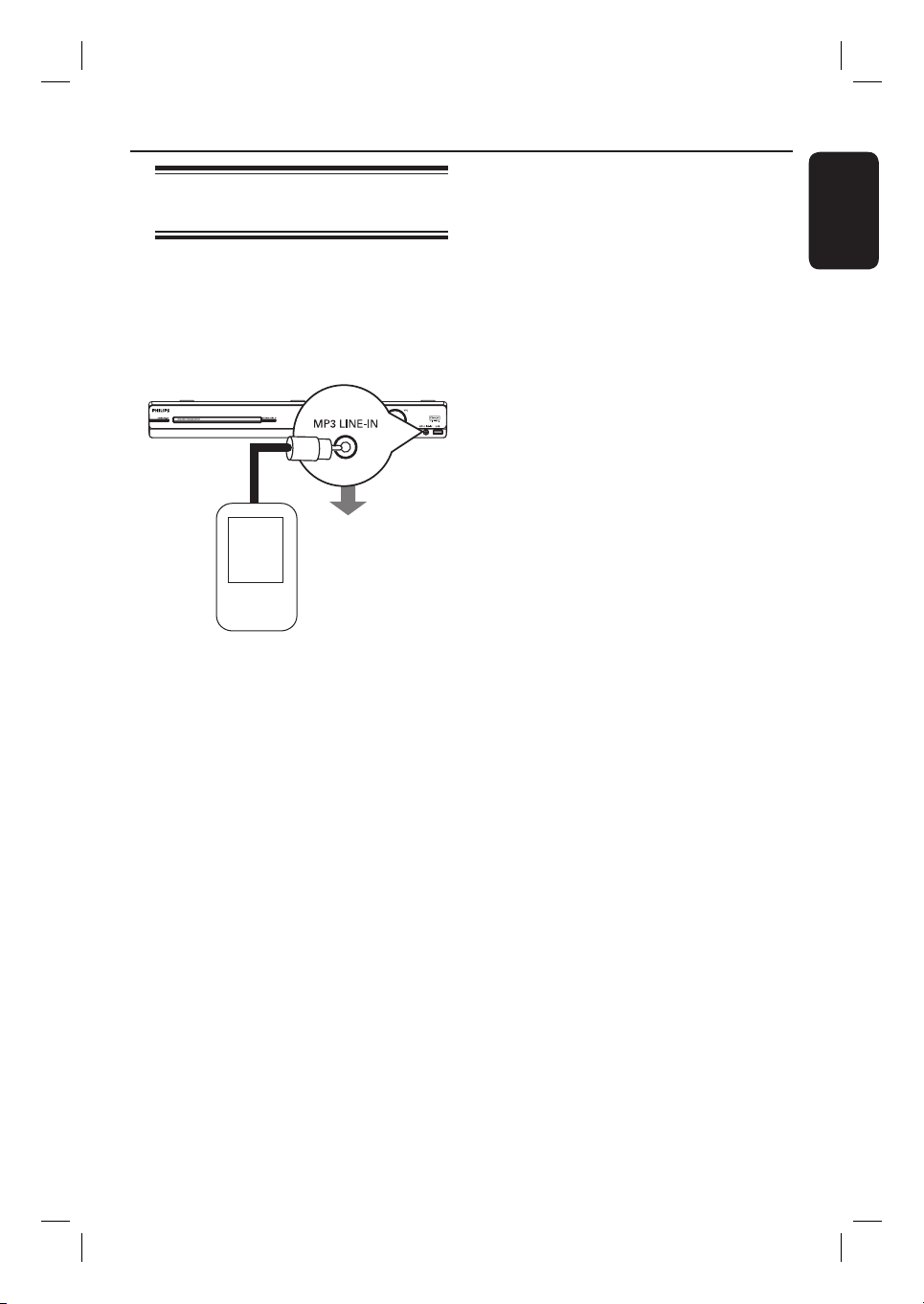
A Use the supplied MP3 LINE-IN cable to
connect between the ‘headphone’ output
socket on your portable audio player and
the MP3 LINE-IN socket on this unit.
B Press MP3 LINE-IN on the remote
control.
C Start playback on your portable audio
player.
The music will be heard through the
speakers.
D To stop playback, press the STOP button
on the portable audio player.
Helpful Hint:
– If you change the input source by pressing
any of the source buttons (e.g. DISC/USB,
RADIO), press the STOP button on the
portable audio player to stop its playback.
Playback - Other Audio Player
36
English
Setup Menu Options
Accessing the setup menu
This system setup is carried out via the
TV, enabling you to customise this unit to
suit your particular requirements.
SLEEP
SETUP
OK
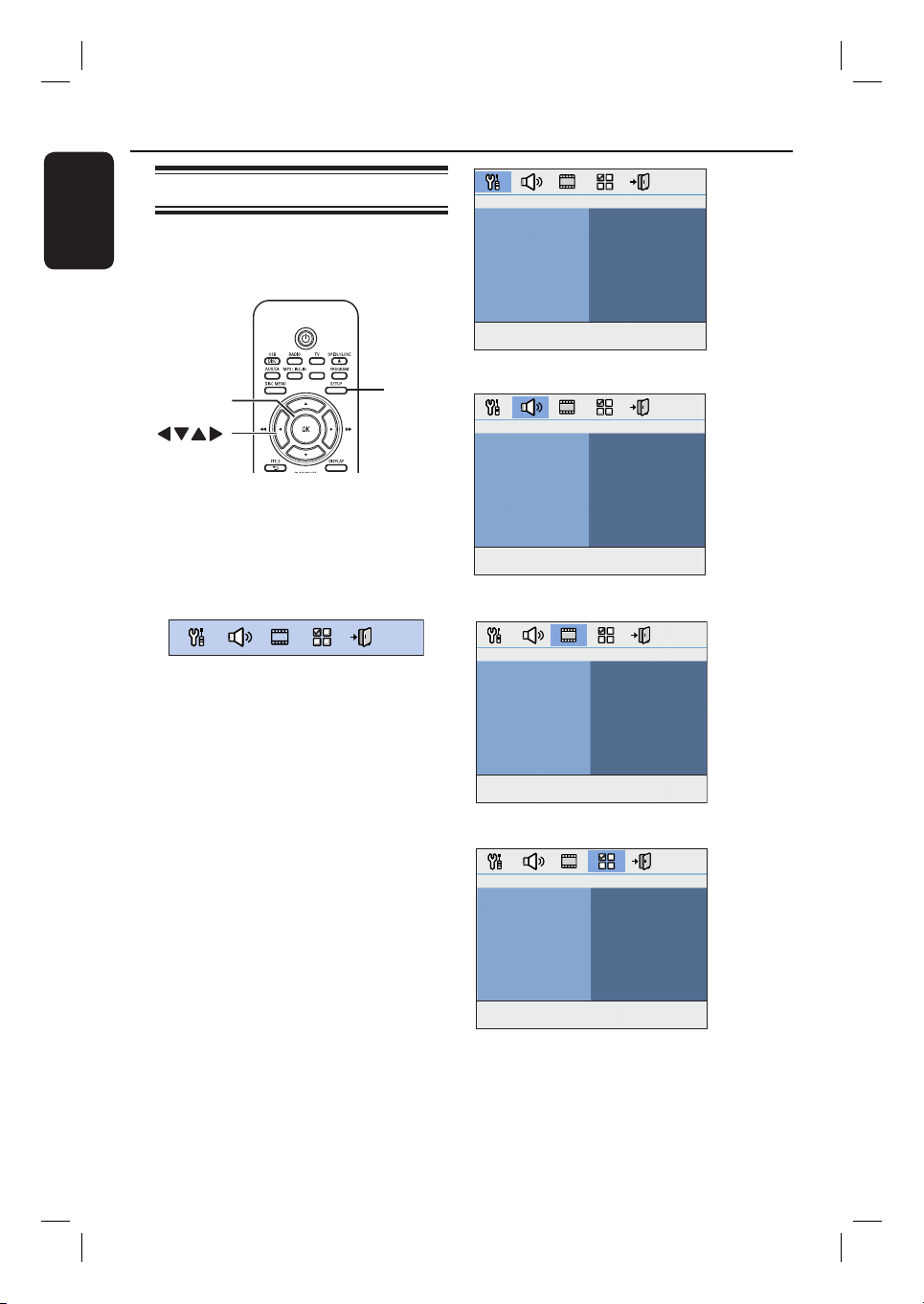
A In disc mode, press SETUP on the
remote control.
The setup menu appears.
B Use keys to select one of the setup
menu options and press OK.
If you are not able to access the
{ Preference Page }, press SETUP to
exit the menu. Then, press STOP x
twice before you press the SETUP
again.
C Use keys to select a setup option
and press to access.
D Select the setting you wish to change and
press OK to con rm and go back to the
previously selected item.
Instructions and explanations of the
options are provided in the following
pages.
If the option in the menu is grayed
out, that means the setting is not
available or cannot be changed in the
current state.
E To exit, press SETUP.
General Setup Page
Disc Lock
Display Dim
Program
OSD Language
Screen Saver
Sleep
DivX(R) VOD Code
Audio Setup Page
Speakers Volume
Speakers Delay
HDMI Audio
CD Upsampling
Audio Sync
Video Setup Page
TV Type
TV Display
Progressive
Picture Setting
HDMI Setup
Component
Preference Page
Audio
Subtitle
Disc Menu
Parental
Surround
PBC
MP3/JPEG Nav
Password
DivX Subtitle
Default
see page 37
see pages
38~39
see pages
40~41
see pages
42~43
37
English
Setup Menu Options (continued)
General Setup Page (underlined options are the factory default settings)
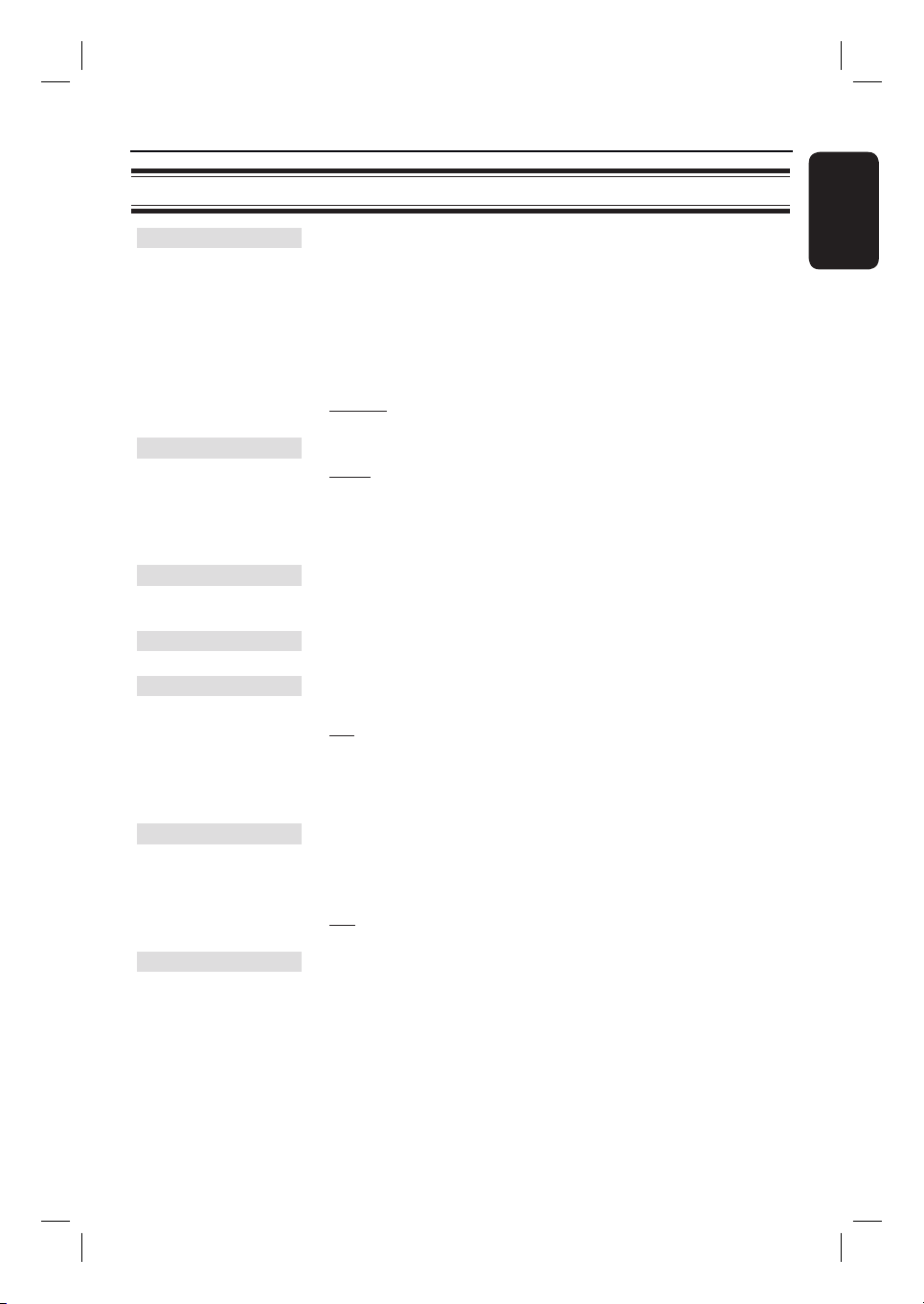
Disc Lock
Not all discs are rated or coded by the disc maker. You can
prevent play of speci c discs with the disc lock function. Up to 40
discs can be locked.
{ Lock } – To block the playback of the current disc.
Subsequent access to a locked disc requires a
six-digit password. The default password is
‘136900’ (see ‘Preference Setup Page -
{ Password }).
{ Unlock } – All discs can be played.
Display Dim
Select the brightness of this unit’s display panel.
{ 100% } – Full brightness.
{ 70% } – Medium brightness.
{ 40% } – Dimmest display. This switches off all LEDs and
icons on the front display panel of this unit.
Program
Access the track programming menu. See ‘Programming disc
tracks’ for details.
OSD Language
Select the menu language for this unit’s on-screen display.
Screen Saver
The screen saver prevents damage to the TV screen by avoiding
exposure to a static image for too long.
{ On } – Switch to TV screen saver mode when
playback has been stopped or paused for
more than 5 minutes.
{ Off } – Turn off the screen saver function.
Sleep
The sleep timer enables the unit to switch to standby mode
automatically after the selected preset time.
{ 15/30/45/60 mins } – Select the preset minutes for switching
the unit to standby mode automatically.
{ Off } – Turn off the sleep mode function.
DivX(R) VOD Code
Philips provides you with the DivX
®
VOD (Video On Demand)
registration code that allows you to rent or purchase videos from
DivX
®
VOD service at www.divx.com/vod. All the downloaded
videos from DivX
®
VOD can only be played back on this unit.
Press
to see the registration code and press OK to exit.

38
English
Audio Setup Page (underlined options are the factory default settings)
Speakers Volume
Access the speaker’s level setup menu. Use keys to adjust
the volume level for each connected speaker between -6dB to
+6dB.
See ‘Getting Started - Setting the speakers’ channels’.
Speakers Delay
Access the speaker’s distance setup menu. Use keys to set
the delay times for the centre and rear speakers based on the
listening position and distance.
See ‘Getting Started - Setting
the speakers’ channels’.
Note: 1 ms increase/decrease of delay time is equivalent to one (1) foot
change in distance. Use the longer delay time settings when the rear
speakers are closer to the listener than the front speakers.
HDMI Audio
This setting is only required if you are using the HDMI
OUT socket to connect your TV or other display device
(see ‘Option 5: Connecting to a HDMI-compatible TV’).
{ Off } – Turn off the HDMI audio output. You
can still enjoy the sound output through
the speaker system.
{ All } – The HDMI audio output will be same as
the audio stream being played back. In
the case when the playback audio format
is not supported, the audio output will be
changed to PCM (Pulse Code
Modulation) automatically.
{ PCM only } – Downmix the audio signals to linear-
PCM (2-channel).
Notes:
–
It may take a while for this unit and the input device to communicate
and initialise.
–
It is not possible to listen to SACDs or copy-controlled DVD-Audio
CPPM (Content Protection for Playable Media) sources using the HDMI
connection.
Setup Menu Options (continued)

39
English
CD Upsampling
This feature enables you to convert the music CD to a
higher sampling rate using sophisticated digital signal
processing for better sound quality.
{ Off } – Turn off CD-upsampling.
{ 88.2 kHz (X2) } – To convert the sampling rate of the CDs
twice as high as the original rate.
Notes:
–
If you have activated the CD upsampling
feature, the audio output
automatically switches to stereo mode.
–
If you press the SURROUND button on the remote control to select
multi-channel mode, it turns off the CD upsampling feature.
Audio Sync
This feature allows you to adjust the audio delay times if the
video playback is slower than the audio output streams.
Use keys to set the delay times for the audio output
between 0~200ms.
Audio Setup Page (underlined options are the factory default settings)
Setup Menu Options (continued)
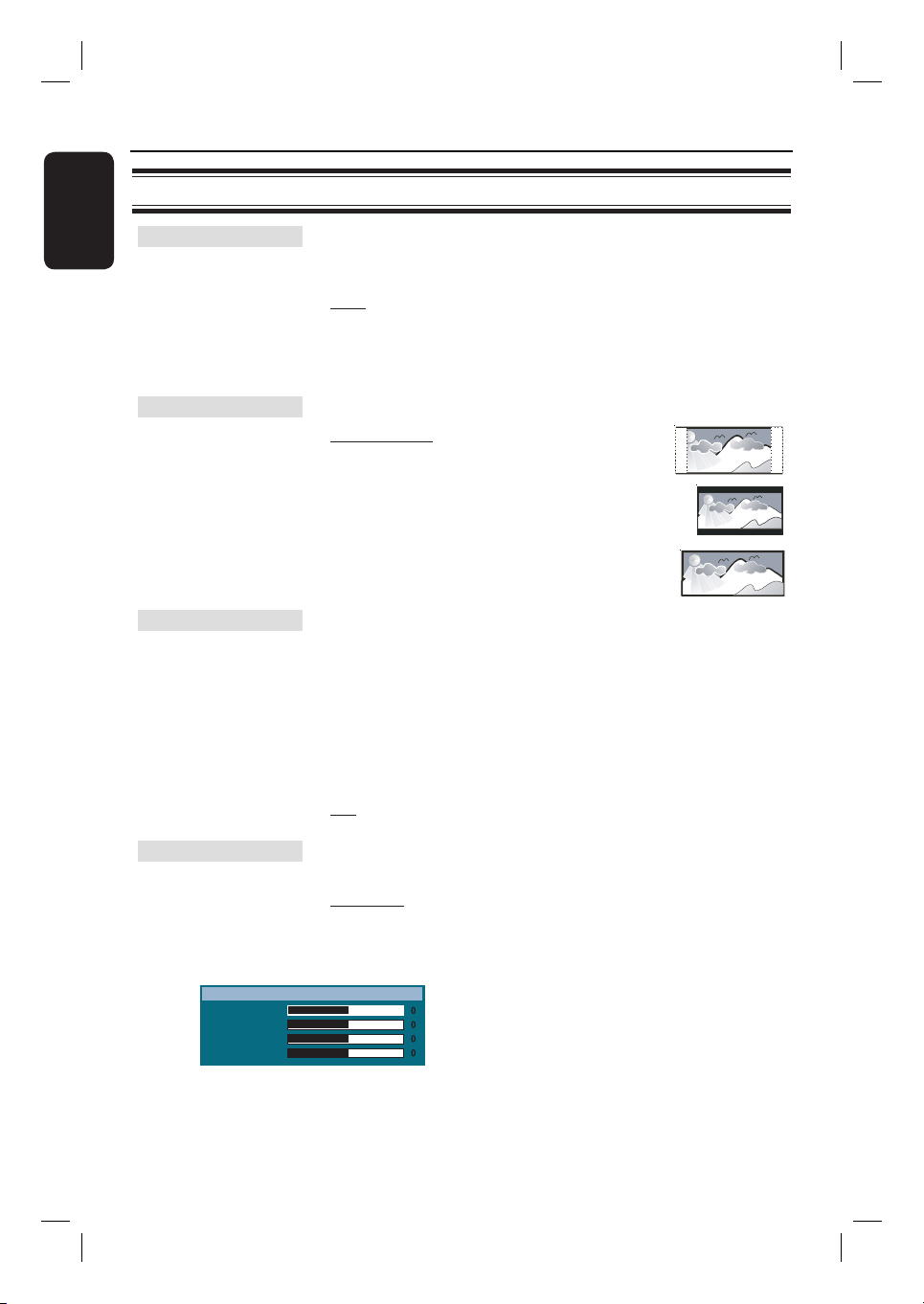
40
English
Video Setup Page (underlined options are the factory default settings)
TV Type
Select the colour system that matches the connected TV. It
enables playback of a different type of disc (PAL or NTSC disc)
on this unit.
{ PAL } – For PAL-system TV.
{ NTSC } – For NTSC-system TV.
{ Multi } – For TV that is compatible with both PAL and
NTSC.
TV Display
The picture shape can be adjusted to t your TV.
{ 4:3 Pan Scan } – For a full-height picture with
the sides trimmed.
{ 4:3 Letter Box } – For a ‘wide-screen’ display
with black bars on the top and
bottom.
{ 16:9 Wide Screen } – For wide-screen TV
(frame ratio 16:9).
Progressive
Before enabling the progressive scan feature, you must ensure that
your TV can accept progressive signals (a progressive scan TV is
required) and that you have connected this unit to your TV using
the Y Pb Pr. See ‘Getting Started - Setting up progressive scan
feature’ for details.
{ On } – Turn on progressive scan mode.
Read the instructions on the TV and con rm
your action by pressing OK on the remote
control.
{ Off } – Turn off the progressive scan mode.
Picture Setting
This unit provides three prede ned sets of picture colour settings
and one personal setting which you can de ne yourself.
{ Standard } – Original colour setting.
{ Bright } – Vibrant colour setting.
{ Soft } – Warm colour setting.
{ Personal } – Select this to personalise the picture colour
setting. Use keys to adjust to the setting
that best suits your personal preference and
press OK to con rm. For an average setting,
select { 0 }.
Note: Picture setting option is not applicable for HDMI connection.
Setup Menu Options (continued)
Brightness
Contrast
Tint
Color
Personal Picture Setup

41
English
Video Setup Page (underlined options are the factory default settings)
Setup Menu Options (continued)
HDMI Setup
It provides the picture settings to enhance the appearance and
picture quality for disc playback. This feature is only applicable if
you have connected this unit to a HDMI-compatible TV/device.
{ Wide Screen Format } – Select a suitable screen display.
Note: This feature is only available if you have selected the { 16:9
Wide Screen } in { TV Display } setup option.
{ Superwide }
Display the 4:3 picture disc on the wide-screen TV
with non-linear stretching (centre position of the
screen is stretched less than the side).
{ 4:3 Pillar Box }
Display the 4:3 picture disc on the wide-screen TV
without stretching. Black bars will be shown on
the both sides of the TV screen.
{ Off }
No aspect ratio adjustment is made when this
option is selected.
Note: The { Superwide } is only applicable for
resolution: 720p or 1080i.
{ HDMI Video }– Select a suitable video resolution depending
on the capability of the connected TV/device
to further enhance the HDMI video output.
{ 480p }
Progressive output in 480 lines for NTSC TV.
{ 576p }
Progressive output in 576 lines for PAL TV.
{ 720p } - (if a HDMI TV is connected)
Progressive output upscale to 720 lines.
{ 1080i } - (if a HDMI TV is connected)
Interlaced output upscale to 1080 lines.
{ Auto }
The video output automatically follows the
display’s supported resolution.
Note: If no display appears on the TV due to
unsupported resolution, use the Scart cable to
connect this unit and your TV. Turn on your TV to
the correct video input channel and adjust the
resolution setting to 480p/576p.
Component
Select the type of video output that matches the video
connection between this unit and your TV.
{ YUV } – For component video (Y Pb Pr) connection.
{ RGB } – For SCART connection.
42
English
Preference Page (underlined options are the factory default settings)
Audio
Select the preferred audio language for DVDs with multiple
sound tracks.
Subtitle
Select the preferred subtitle language for DVD playback.
Disc Menu
Select the preferred disc menu language for DVD playback.
Note: If the selected audio/subtitle/disc menu language is not available on
the DVD, the disc’s default language will be used instead.
Parental
This is to prohibit viewing of discs that had exceeded the limits
you set. It works only on the DVDs with parental level assigned
to the complete disc or to certain scenes on the disc.
1) Use keys to select a rating level from 1 to 8 and press OK.
2) Use the numeric keypad 0-9 on the remote control to enter your
six-digit password.
Notes:
– The ratings are country-dependent (‘1’ is considered material that is
least offensive and ‘8’ is most offensive). To disable parental controls and
allow all discs to play, select ‘8’.
– Some DVDs are not encoded with a rating though the movie rating
may be printed on the disc cover. The rating level feature does not
prohibit playback of such discs. VCD, SVCD and CD have no level
indication, so parental control has no effect on these type of discs.
– DVDs that are rated higher than the level you selected will not be
played unless you enter the same six-digit password.
Surround
Set the preferred surround setting when the unit is powered up.
{ On } – Turn on to multi-channel surround mode.
{ Last Setting } – Turn on to the last surround setting.
PBC
Play Back Control feature is applicable for VCD/SVCD only. It
allows you to play Video CDs (2.0) interactively, following the
menu on the display.
{ On } – The index menu (if available) appears on the
TV when you load a VCD/SVCD.
{ Off } – The VCD/SVCD skips the index menu and
playback directly from the beginning.
Setup Menu Options (continued)
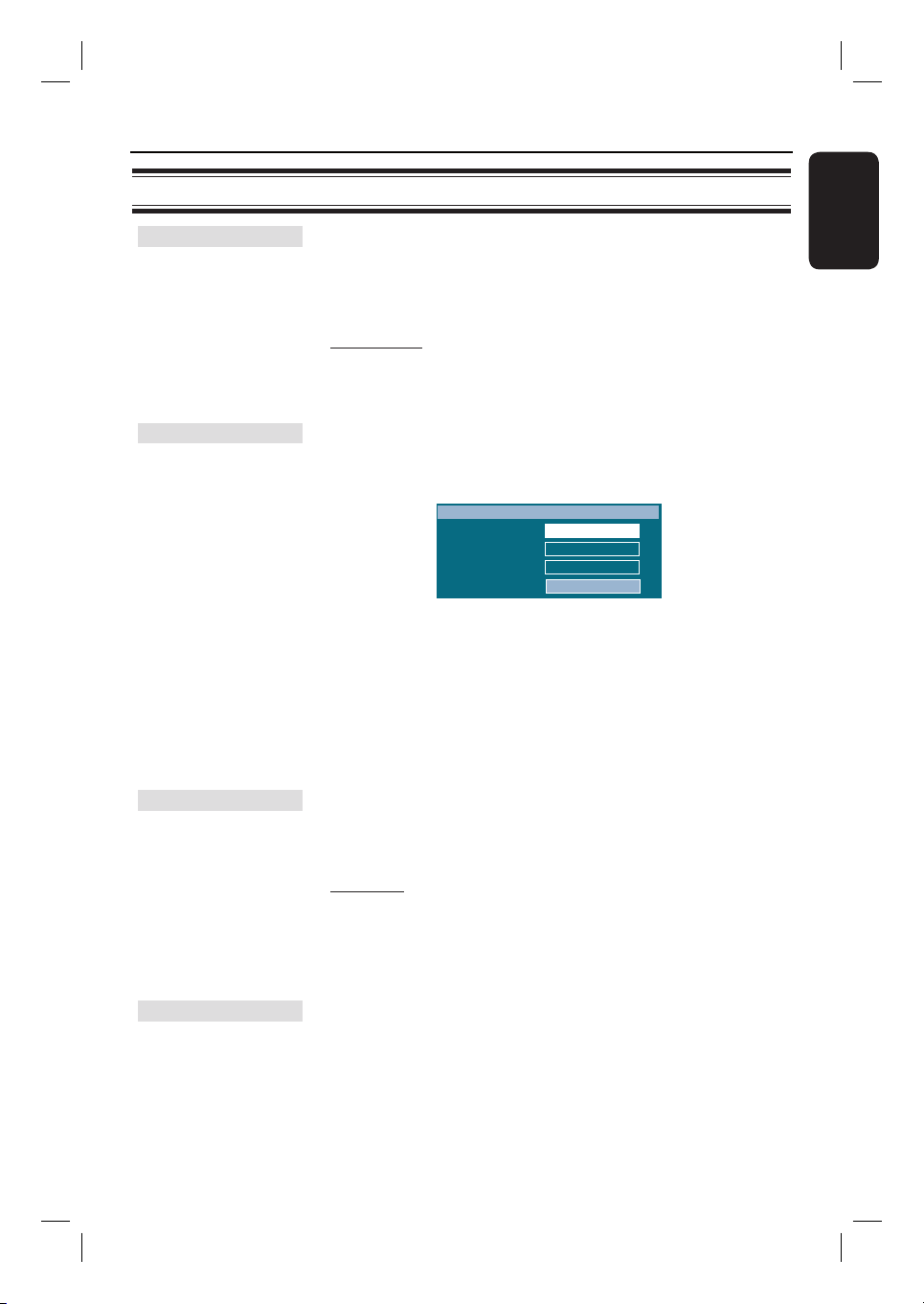
43
English
Preference Page (underlined options are the factory default settings)
MP3/JPEG Nav
MP3/JPEG Navigator can only be set if the disc is recorded with a
menu. It allows you to select different display menus for easy
navigation.
{ Without Menu } – Display all the les contained in the MP3/
Picture disc.
{ With Menu } – Display the folder menu of the MP3/Picture
disc.
Note: This unit can only display 650 les/folder in the directory.
Password
The password is used for the Disc Lock and Parental. The default
password is ‘136900’. To change the password:
1) Press OK to access the change password menu.
Old Password
New Password
Confirm PWD
Change Password
OK
2) Use the numeric keypad 0-9 on the remote control to
enter your existing six-digit password at { Old Password }.
Note: When doing this for the rst time or if you forget your existing
password, key in ‘136900’.
3) Enter the new six-digit password at { New Password }.
4) Enter the new six-digit password again at { Con rm PWD }.
5) Press OK to con rm and exit the menu.
DivX Subtitle
Select the font type that supports the recorded DivX subtitle.
{ Central Europe } – Display Central Europe fonts.
{ Cyrillic } – Display Cyrillic fonts.
{ Greek } – Display Greek subtitle fonts.
{ Standard } – Display a standard list of Roman subtitle
fonts provided by this unit.
{ Hebrew } – Display Hebrew subtitle fonts.
{ Chinese (Simp) } – Display Simpli ed Chinese fonts.
{ Korean } – Display Korean fonts.
Default
This feature enables you to reset all the setup menu options and
your personal settings to the factory defaults, except your
password for the Disc Lock and Parental.
Press OK to con rm the default reset.
Setup Menu Options (continued)
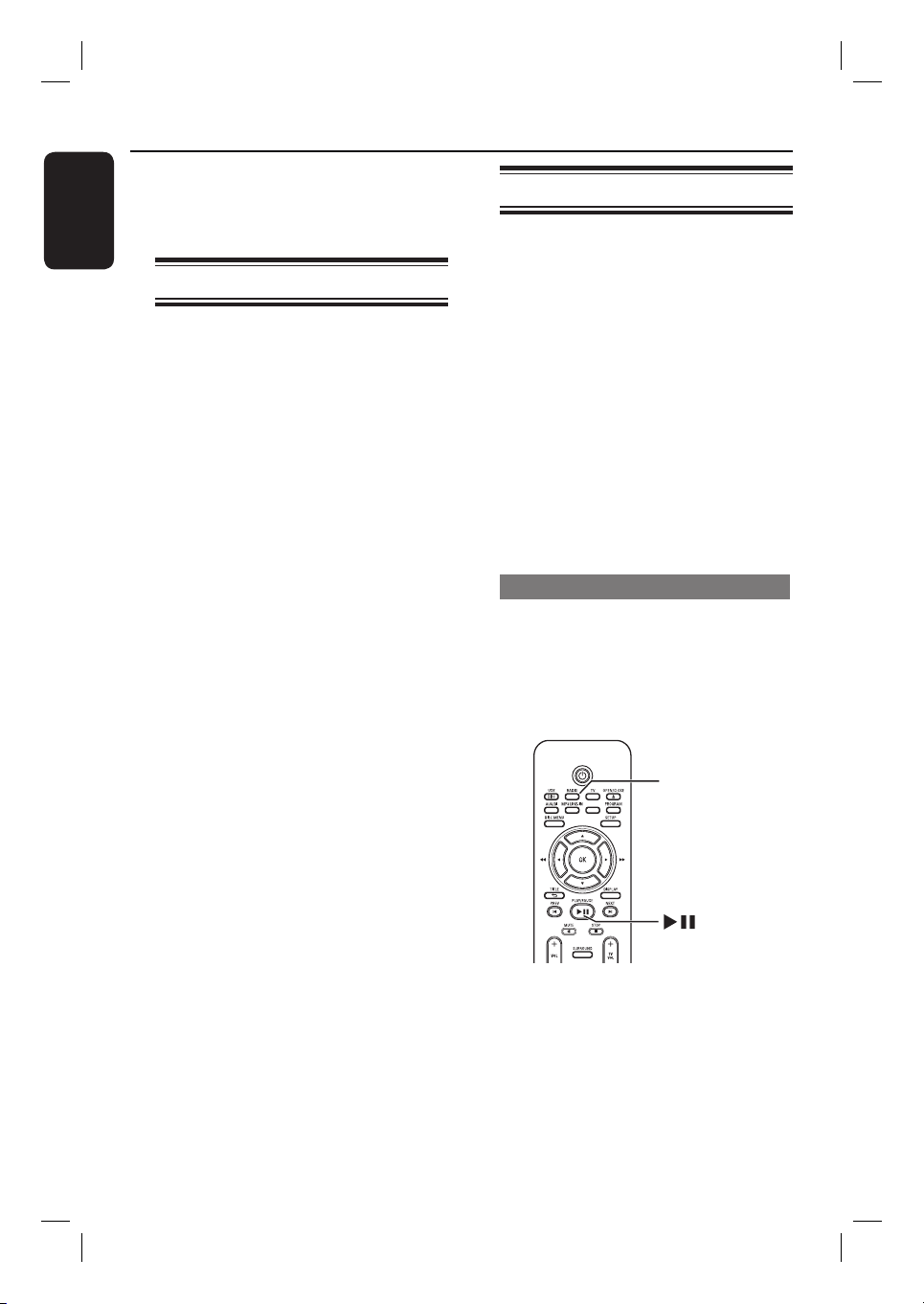
44
English
Radio Operations
Before you start ...
Make sure the FM and AM/MW
antennas
antennas
are connected.
are connected.
Tuning to radio stations
A Press SOURCE repeatedly until ‘FM’
appears on the display panel (or press
RADIO on the remote control).
B Press / on the remote control to
start tuning.
The frequency indication starts to
change until a radio station with suf cient
signal strength is found.
C Repeat step B if necessary until you nd
the desired radio station
D To ne-tune the reception of a weak
station, press / brie y and
repeatedly until an optimal reception is
found.
Helpful Hint:
– If the FM radio station is transmitting RDS
(Radio Data System) data, the RDS name
will be displayed and stored.
Presetting radio stations
You can store up to 40 FM and 20
AM/MW preset radio stations in the
memory. There are three different ways
to program the radio stations:
– Using auto install (for rst time setup
only)
– Using automatic preset
– Using manual preset
Helpful Hints:
– This unit exits presetting mode if no
button is pressed within 20 seconds.
– If no stereo signal is detected or less than
5 ( ve) stations are detected during radio
installation, ‘CHECK ANTENNA’ appears.
Using auto install
When you access the ‘RADIO’ mode for
the very rst time, you will be prompted
to install the radio stations. With this
feature, you can install all the available
radio station automatically with one
touch of button.
SLEEP
RADIO
A Press RADIO.
‘AUTO INSTALL ... PRESS PLAY’
appears.
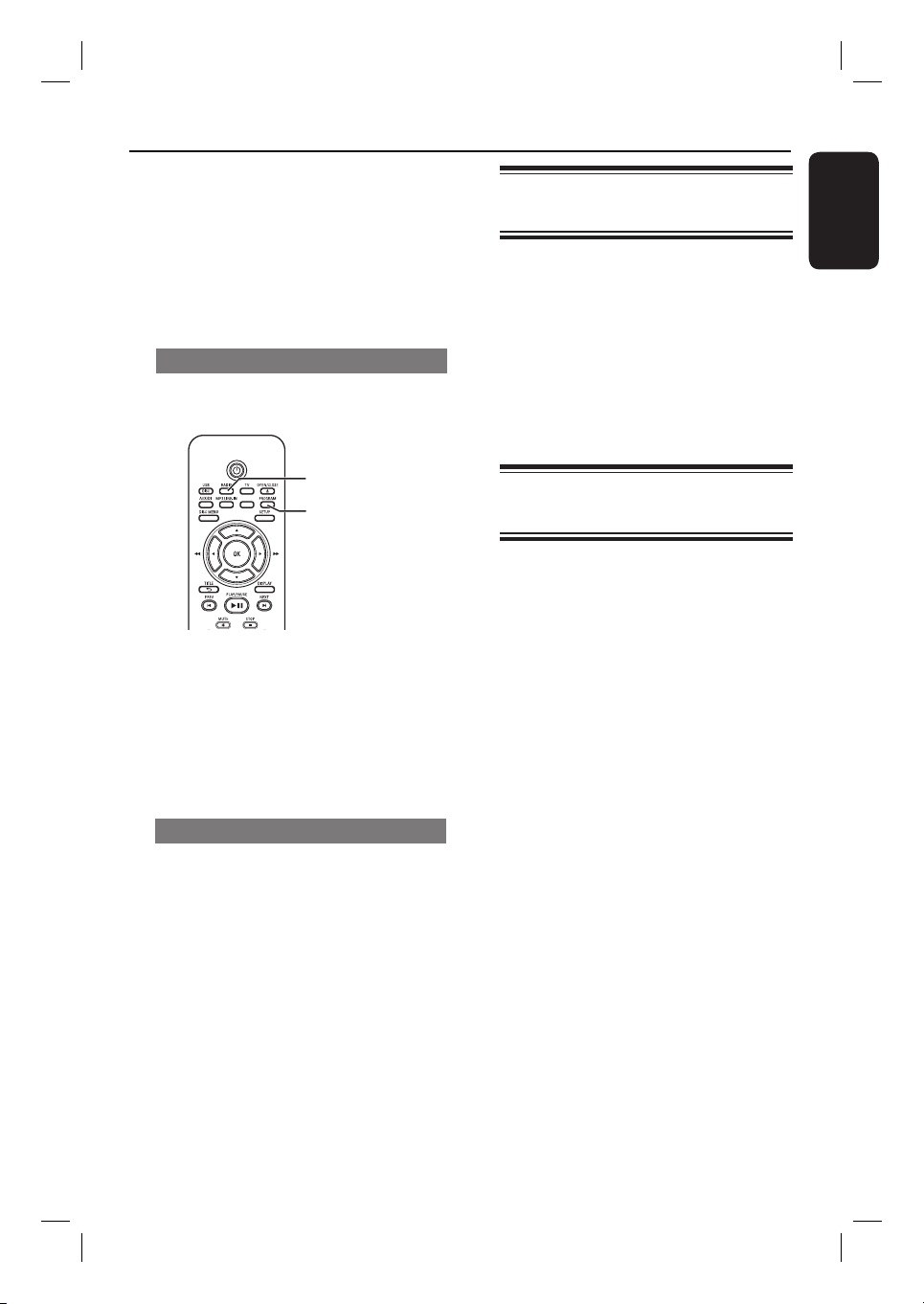
45
English
Radio Operations (continued)
B
Press u.
This unit starts searching from the FM
band followed by the AM/MW band.
All the available radio stations with
strong signal will be stored automatically.
Once complete, the rst tuned radio
station will be played back.
Using automatic preset
Use automatic presetting to store or
reinstall all the preset radio stations.
SLEEP
RADIO
PROGRAM
A Press RADIO to select ‘FM’ or ‘AM/
MW’ band.
B Press and hold PROGRAM until
‘START ...’ appears on the display panel.
All previously stored radio stations
will be replaced.
Using manual preset
Use manual presetting to store your
favourite radio stations.
A Tune to your desired radio station (see
‘Tuning to radio stations’).
B Press PROGRAM.
C Use í / ë keys to select a preset
number that you want to store the
current radio station.
D Press PROGRAM to store.
Selecting a preset radio
station
A Press RADIO to select ‘FM’ or
‘AM/MW’ band.
B Use í / ë keys to select a preset radio
stations (or use the numeric keypad on
the remote control).
The preset number and radio
frequency appear on the display panel.
Deleting a preset radio
station
A In radio mode, use í / ë keys to select
a preset radio station.
B Press and hold x until ‘FM/AM/MW X
DELETED’ appears.
‘X’ is the preset number.
The radio station continues to play
but has been deleted from the preset list.
The rest of the preset radio stations
remain unchanged.
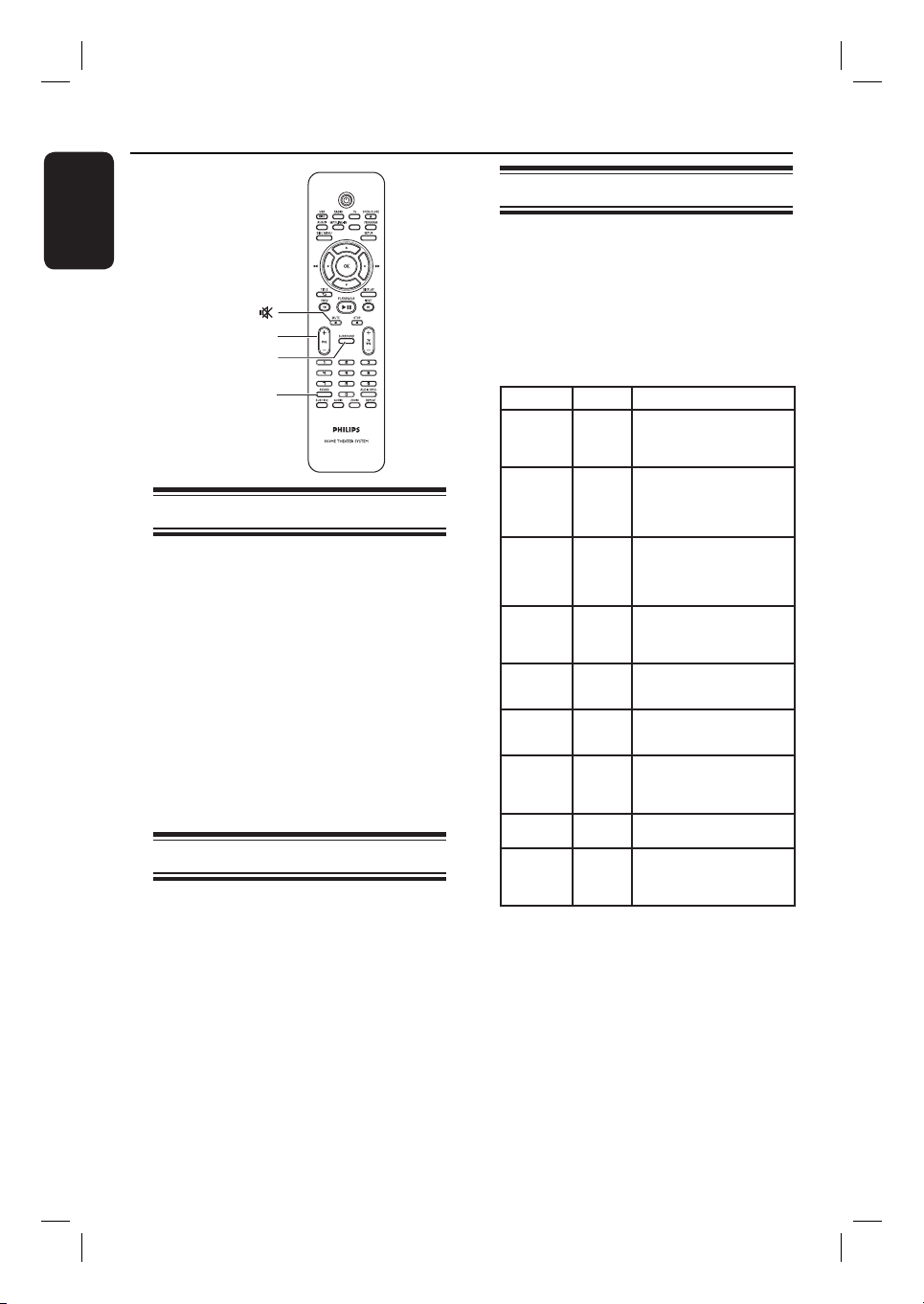
46
English
Sound and Volume Controls
SLEEP
MUTE
SURROUND
VOL+-
SOUND
Volume control
Press VOL +
/- to increase or
decrease the volume level.
‘VOL MIN’ is the minimum volume
level and ‘VOL MAX’ is the maximum
volume level.
To turn off the volume temporarily
Press MUTE %.
Playback continues without sound and
‘MUTE’ appears.
To restore the volume, press MUTE
% again, or increase the volume level.
Selecting surround sound
Press SURROUND to select between
Multi-Channel or Stereo sound.
The availability of the various
surround sound modes depends on the
sound available on the disc.
The available output modes for
Multi-channel include: Dolby Digital, DTS
(Digital Theatre Systems) Surround and
Dolby Pro Logic II.
Stereo broadcasts or recordings will
produce some surround channel effects
when played in a surround mode.
Selecting digital sound effects
Select a preset digital sound effect that
matches your disc’s content or that
optimises the sound of the musical style
you are playing.
Press SOUND to select the available
sound effect.
Movies Music Description
CONCERT CLASSIC Flat and pure sound mode.
Ideal for listening to classical
music and watching live
concert DVDs.
DRAMA JAZZ Clear mid and high range.
Recreates the atmosphere of a
live club with the artist just in
front of you. Good for Jazz
music and watching dramas.
ACTION ROCK Enhanced low and high range
for great sounding movie
effects and atmosphere. Great
for action movies and rock/pop
music.
MTV RnB Enhanced low and mid range
for groovy and punchy sounds.
Suitable for R&B, Hip Hop and
MTV videos.
GAMING PARTY Slightly enhanced low range
and strong mid range ideal for
party music and video gaming.
CARTOONS LOUNGE Moderate sound mode suitable
for lounge music and watching
cartoons.
SPORTS SPORTS Moderate mid range and
surround effects for clear
vocals and the atmosphere of a
live sports venue.
NEWS NEWS Enhanced mid range for clear
vocals/speech.
NIGHT NIGHT Dynamically controlled sound
mode suitable for watching
movies at night or for non-
intrusive background music.
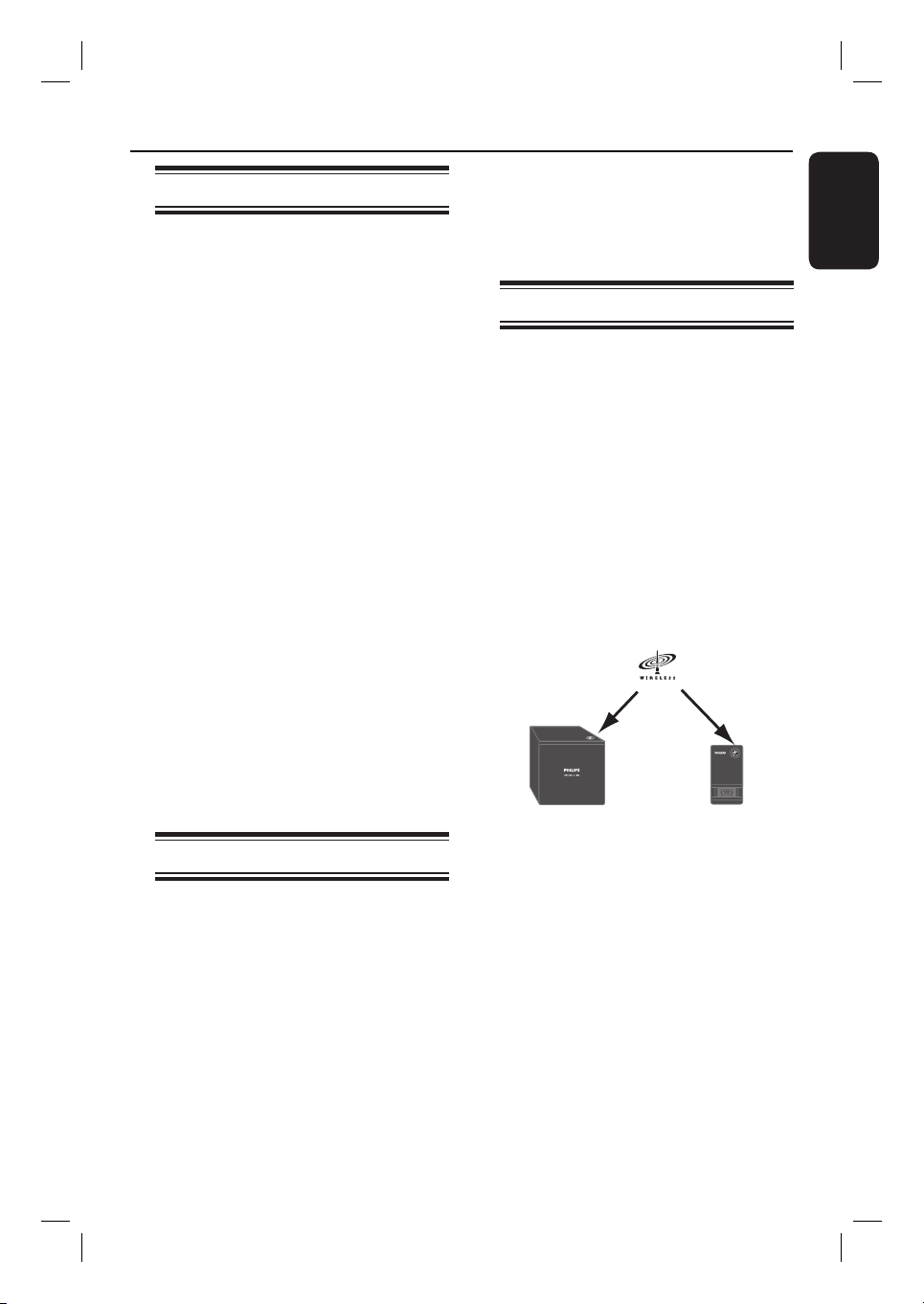
47
English
Installing the latest software
Periodically Philips will issue software
upgrades to enhance the user experience.
A Get the software version of this unit by
pressing OPEN/CLOSE ç to open the
disc compartment
B Press DISPLAY on the remote control.
Write down the information for your
current software version.
C Visit the Philips website
‘www.philips.com/support’ to check the
availability of the latest software upgrade
and download the software to a CD-R.
D Insert the CD-R to the disc tray.
The software starts to install on this
unit automatically.
Note:
Never unplug or turn off this unit
during the upgrade.
E When the disc compartment opens,
remove the CD-R.
The software upgrading is in process.
F Once complete, it turns off to standby
mode automatically.
Setting the Sleep timer
The sleep timer enables this unit to
switch to standby mode automatically at a
preset time.
Press SLEEP on the remote control
repeatedly to select a preset switch-off
time. (15, 30, 45, 60 minutes or OFF).
Before this unit switches to the
standby mode, a countdown of 60
seconds is displayed.
‘SLEEP60’ ‘SLEEP 59’....
‘SLEEP1’ ‘SLEEP’
Other Features
To cancel the sleep timer
Press SLEEP repeatedly to select ‘OFF’
or press the
2 (STANDBY-ON)
button.
Using the wireless module
A The wireless transmitter is connected to
the WIRELESS TRANSMITTER
socket at the rear of the main unit.
B Connect the rear speakers to the
matching speaker sockets at the bottom
of the wireless receiver.
C Connect the power cable from the
wireless receiver to the AC power
outlet.
D Turn on the main unit.
The wireless indicator on the wireless
transmitter and receiver light up.
Wireless Wireless
Receiver Transmitter
Helpful Hint:
– For optimum wireless reception, ensure
the transmitter and receiver are not
obstructed by any objects.

48
English
Troubleshooting
WARNING
Under no circumstances should you try to repair the system yourself, as this will
invalidate the warranty. Never open the system as there is a risk of electric shock.
If a fault occurs, rst check the points listed below before taking the system for repair.
If you are unable to solve a problem by following these instructions, consult your dealer or
Philips for help.
No power.
No picture.
Completely distorted picture
or black/white picture.
No sound or distorted sound.
No surround sound effect
from the speakers.
The remote control does not
function properly.
– Press STANDBY-ON on the unit to turn on the
power.
– Make sure the mains cord is properly connected and
the AC outlet has power.
– Refer to your TVs manual for correct Video In
channel selection. Change the TV channel until you
see the DVD screen.
– Press DISC/USB to select disc mode.
– If this happens when you turn on the progressive scan
feature, wait for 15 seconds for the auto recovery or
switch back to the default mode as below:
1) Press OPEN/CLOSE ç.
2) Press on the remote control.
3) Press AUDIO on the remote control.
– Check the video connection.
– Sometimes a small amount of picture distortion may
appear. This is not a malfunction.
– The disc is dirty. Clean the disc.
– Adjust the volume.
– Check the speaker connections and settings.
– Make sure that the audio cables are connected and
press SOURCE to select the correct input source (for
example, TV or AUX/DI) to choose the device that
you want to hear through this unit.
– Press SURROUND to select a correct surround
sound setting.
– Make sure that the source you are playing is recorded
or broadcast in surround sound (DTS, Dolby Digital,
etc).
– Select the source you want to play (for example,
DISC/USB or RADIO) before pressing the function
button (, í / ë).
– Reduce the distance between the remote control and
this unit.
– Batteries are weak, replace the batteries.
– Point the remote control directly toward the IR sensor.
Problem (General) Solution

49
English
The unit does not start
playback.
The aspect ratio of the screen
cannot be changed even
though you have set the TV
display.
Cannot activate some features
e.g. Angles, Subtitles, or
multi-language Audio.
Not able to select some items
in the setup/system menu.
Unable to play DivX movies.
Radio reception is poor.
The unit does not work.
– Insert a readable disc with the playback side facing
down. The DVD+R/CD-R must be Finalised.
– Make sure the disc is not scratched or warped.
– Press SETUP to turn off the system setup menu
screen.
– You may need to enter the password in order to
unlock the disc for playback.
– Moisture may have condensed inside this unit.
Remove the disc and leave this unit turned on for
about an hour.
– The aspect ratio is xed on the DVD disc.
– Depending on the TV, it may not be possible to
change the aspect ratio.
– The features may not be available on the DVD.
– Changing the language for the sound or subtitle is
prohibited on this DVD.
– Press STOP button twice before selecting the system
setup menu.
– Depending on the disc availability, some menu items
cannot be selected.
– Ensure that the DivX le is encoded according to the
‘Home Theatre Pro le’ with the DivX encoder.
– Check that the DivX movie downloaded is a complete
le.
– If the signal is too weak, adjust the antenna or
connect an external antenna for better reception.
– Increase the distance between this unit and your TV
or VCR.
– Tune in to the correct frequency.
– Place the antenna further away from any equipment
that may be causing the interference.
– Disconnect the power cord from the power outlet
for a few minutes. Reconnect the power cord and try
to operate again as usual.
Problem (Playback) Solution
Troubleshooting (continued)

50
English
Problem (USB/HDMI) Solution
Troubleshooting (continued)
The contents of the USB ash
drive cannot be read.
Slow operation of the USB
ash drive.
No audio output from HDMI
connection.
No video output from HDMI
connection.
If the indicator on the wireless
transmitter blinks
continuously for more than
one minute.
– The USB ash drive format is not compatible with this
unit.
– Drive is formatted with a different le system which is
not supported by this unit (e.g. NTFS).
– Large le size or high memory USB ash drive takes
longer time to read and display on the TV.
– You will not hear any sound from the HDMI output if
the source device is only DVI/HDCP (High-bandwidth
Digital Content Protection)-compatible.
– It is not possible to output SACD or copy-controlled
DVD-Audio sources from the HDMI connection.
– Make sure that the audio output setting is not turned
off. See ‘Setup Menu Options - { Audio Setup Page -
HDMI Audio }’ for details.
– HDMI connection can only be made to HDMI-
equipped devices with HDCP (High Bandwidth Digital
Content Protection). If you wish to connect to a DVI
connector (equipped with HDCP), you will need a
separate adaptor (DVI to HDMI).
– Make sure the resolution of this unit matches the
device you have connected using the HDMI. See
‘Setup Menu Options - { Video Setup Page - HDMI
Setup - HDMI Video }’ for details.
– The transmitter may have been swapped with another
transmitter supplied with other receiver.
– Turn off all connected devices.
– Turn on the connected home theatre system.
– Press and hold the CONNECT button on the
transmitter for ve seconds. Release the CONNECT
button.
– Turn on the wireless receiver.

51
English
Why does it take so long to display the
contents on my USB device?
– This could be due to the large numbers
of les (>500 les/folders) or size of the
les (>1MB).
– There could be other non-supported les
in the device that this unit is trying to
read/display.
What if un-supported devices (e.g. USB
mouse, keyboards) are plugged into
this unit?
The device may cause this unit to be
unstable. Remove the unsupported device
and unplug the mains cord. Wait for a few
minutes before reconnecting the mains cord
and power on this unit again.
What happens when I plug in a USB
HDD?
HDD is not supported as the large storage
capacity makes navigation very dif cult.
Transfer the music les (mp3) and photos
(jpg) into a ash drive.
Why does this unit fail to detect my
USB portable music player?
The portable music player may require
propriety software that is bundled with our
system in order to access the contents (eg.
playlist). MTP class not supported, only can
support mass storage class devices.
What types of le does this unit
support?
We support only FAT16 and FAT32, not
NTFS.
Why does the le name appear to be
different from what was displayed on my
computer (e.g. from ‘Good Bye. jpg’ to
‘Good_B~1.jpg’)?
– The length of the le name is restricted
by the le system of the device (FAT16),
which only supports eight (8) characters.
– The computer may be able to display the
full le name as the operating system can
convert the le system.
Is simultaneous USB and Disc playback
possible?
This is not possible due to memory
limitation. In addition, a different user
interface will be needed in order to function
and in order to be simple enough to use.
Why can’t I rotate the pictures in my
device?
In order to rotate the pictures in the USB
device, the picture must contain EXIF
information, stored by most digital cameras.
This EXIF information may have been
removed when you edit or copy the picture
from other devices using editing
programmes.
Why can’t this unit play some of my
music les, photos or movies?
The music les may not be playable because
of different formats and encoding bit-rates.
Similarly, the photos may be of low
resolution or too high resolution for this unit
to support.
Frequently Asked Questions (USB)

52
English
Glossary
Analogue audio: Sound that has not been
turned into numbers. Analogue sound is
available with you use the AUDIO LEFT/
RIGHT. These red and white sockets send
audio through two channels, the left and
right.
Aspect ratio: Aspect ratio refers to the
length to height ratio of TV screens. The
ratio of a standard TV is 4:3, while the ratio
of a high-de nition or wide TV is 16:9. The
letter box allows you to enjoy a picture with
a wider perspective on a standard 4:3 screen.
AUDIO OUT sockets: Red and white
sockets on the back of the unit that send
audio to another system (TV, Stereo, etc)..
Bit Rate: The amount of data used to hold
a given length of music; measured in kilobits
per second, or kbps. Or, the speed at which
you record. Generally, the higher the bit
rate, or the higher the recording speed, the
better the sound quality. However, higher bit
rates use more space on a disc.
Chapter: Sections of a picture or a music
piece on a DVD that are smaller than titles.
A title is composed of several chapters. Each
chapter is assigned a chapter number
enabling you to locate the chapter you want.
Composite video (CVBS): A single video
signal commonly used in most consumer
video products.
Disc menu: A screen display prepared for
allowing a selection of images, sounds,
subtitles, multi-angles, etc., recorded on a
DVD.
DivX: The DivX code is a patent-pending,
MPEG-4 based video compression
technology, developed by DivX Networks,
Inc., that can shrink digital video to sizes
small enough to be transported over the
internet, while maintaining high visual quality.
Dolby Digital: A surround sound system
developed by Dolby Laboratories containing
up to six channels of digital audio (front left
and right, surround left and right, centre and
subwoofer).
Dolby Surround Pro Logic II: It is an
improved matrix decoding technology that
provides better spatiality and directionality
on Dolby Surround programme material,
provides a convincing three dimensional
sound eld on conventional stereo music
recordings and is ideally suited to bring the
surround experience to automotive sound.
While conventional surround programming
is fully compatible with Dolby Surround Pro
Logic II decoders, soundtracks will be able to
be encoded speci cally to take full advantage
of Pro Logic II playback, including separate
left and right surround channels. (Such
material is also compatible with conventional
Pro Logic decoders).
DTS: Digital Theatre Systems. This is a
surround sound system, but it is different
from the Dolby Digital. The formats were
developed by different companies.
HDMI: High-De nition Multimedia Interface
(HDMI) is a high-speed digital interface that
can transmit uncompressed high de nition
video and digital multichannel audio. It
delivers perfect picture and sound quality,
completely free from noise. HDMI is fully
backward-compatible with DVI.
As required by the HDMI standard,
connecting to HDMI or DVI products
without HDCP (High-bandwidth Digital
Content Protection) will result in no Video
or Audio output.
HDCP (High-bandwidth Digital Content
Protection) is a speci cation that provides a
secure transmission of digital contents
between different devices (to prevent
unauthorized copyright).

53
English
Glossary (continued)
JPEG: A very common digital still picture
format. A still-picture data compression
system proposed by the Joint Photographic
Expert Group, which features small decrease
in image quality in spite of its high
compression ratio. Files are recognised by
their le extension ‘JPG or JPEG’.
MP3: A le format with a sound data
compression system. ‘MP3’ is the
abbreviation of Motion Picture Experts
Group 1 (or MPEG-1) Audio Layer3. By
using the MP3 format, one CD-R or CD-RW
can contain about 10 times more data than a
regular CD.
MPEG: Motion Picture Experts Group. A
collection of compression systems for digital
audio and video.
Multi-channel: DVDs are formatted to
have each sound track constitute one sound
eld. Multi-channel refers to a structure of
sound tracks having three or more channels.
PBC: Playback Control. A system of
navigating a Video CD/Super VCD through
on-screen menus recorded onto the disc.
You can enjoy interactive playback and
searching.
Progressive Scan: The progressive scan
displays twice the number of frames per
second than in an ordinary TV system. It
offers higher picture resolution and quality.
Region code: A system allowing discs to be
played only in the region designated. This
unit will only play discs that have compatible
region codes. You can nd the region code
of your unit by looking at the product label.
Some discs are compatible with more than
one region (or ALL regions).
Surround: A system for creating realistic
three dimensional sound elds full of realism
by arranging multiple speakers around the
listener.
S-Video: Produces a clear picture by
sending separate signals for the luminance
and the colour. You can use S-Video only if
your TV has an S-Video In socket.
Title: The longest section of a movie or
music feature on DVD. Each title is assigned
a title number, enabling you to locate the
title you want.
WMA: Windows Media™ Audio. Refers to
an audio compression technology developed
by Microsoft Corporation. WMA data can be
encoded by using Windows Media Player
version 9 or Windows Media Player for
Windows XP. Files are recognised by their
le extension ‘WMA’.

54
English
Speci cations
AMPLIFIER
Total output power,
Home Theatre mode: 600 W
Frequency Response: 150 Hz – 18 kHz / ±3 dB
Signal-to-Noise Ratio: > 60 dB (A-weighted)
Input Sensitivity
- AUX In : 500 mV
- TV In: 250 mV
- MP3 Line-In: 500 mV
RADIO
Tuning Range: FM 87.5–108 MHz (50kHz)
MW 531–1602 kHz (9kHz)
26 dB Quieting
Sensitivity: FM 22 dBf, MW 5000μV/m
IF Rejection Ratio: FM 60 dB, MW 24 dB
Signal-to-Noise Ratio: FM 50 dB, MW 30 dB
MW Suppression Ratio: FM 30 dB
Harmonic Distortion: FM Mono 3%
FM Stereo 3%
MW 5%
Frequency Response FM 180 Hz–10 kHz / ±6 dB
Stereo Separation FM 26 dB (1 kHz)
Stereo Threshold FM 23.5 dB
DISC
Laser Type Semiconductor
Disc Diametre 12cm / 8cm
Video Decoding MPEG-1 / MPEG-2 /
/ DivX 3/4/5/6, Ultra
Video DAC 12 Bits
Signal System PAL / NTSC
Video Format 4:3 / 16:9
Video S/N 56 dB (minimum)
Audio DAC 24 Bits / 96 kHz
Composite Video
Output 1.0 Vp-p, 75Ω
S-Video Output Y - 1.0 Vp-p, 75Ω
C - 0.286 Vp-p, 75Ω
Frequency Response 4 Hz–20 kHz (44.1 kHz)
4 Hz–22 kHz (48 kHz)
4 Hz–44 kHz (96 kHz)
PCM IEC 60958
Dolby Digital IEC 60958, IEC 61937
DTS IEC 60958, IEC 61937
MAIN UNIT
Power Supply Rating: 220~240 V; 50 Hz
Power Consumption: 100 W
Dimensions: 435 x 55 x 367 (mm)
(w x h x d)
Weight: 4.04 kg
FRONT SPEAKERS
System: Full range satellite
Impedance: 3 Ω
Speaker drivers: 3” full range speaker
Frequency response: 150 Hz – 20 kHz
Dimensions: 95.5 x 198.3 x 75 (mm)
(w x h x d)
Weight: 0.62 kg/each
REAR SPEAKERS
System: Full range satellite
Impedance: 3 Ω
Speaker drivers: 3” full range speaker
Frequency response: 150 Hz – 20 kHz
Dimensions: 95 x 1184 x 73.7 (mm)
(w x h x d)
Weight: 5.99 kg/each
CENTRE SPEAKER
System: 2-way satellite
Impedance: 6 Ω
Speaker drivers: 2 x 2.5” full range speaker+
2” tweeter
Frequency response: 150 Hz – 20 kHz
Dimensions: 435 x 93.5 x 67 (mm)
(w x h x d)
Weight: 1.34 kg
SUBWOOFER
Impedance: 6 Ω
Speaker drivers: 203 mm (8”) woofer
Frequency response: 40 Hz – 150 Hz
Dimensions: 159.5 x 355.5 x 370 (mm)
(w x h x d)
Weight: 4.75 kg
WIRELESS module
Power Consumption: 50 W
Frequency Response: 6000 Hz
Low Standby power: < 1 W
S/N Ratio: 65 dB (A-Weighted)
Input Sensitivity: 400-600 mV
Distortion: 0.5%
Dimensions (w x h x d):
Transmitter 48.3 x 88.3 x 49.3 (mm)
Receiver 126 x 130.5 x 126 (mm)
Weight:
Transmitter 0.08 kg
Receiver 1.19 kg
Speci cations subject to change without prior
notice.

55
English