www.philips.com/welcome
User manual
Always there to help you
Register your product and get support at
Question?
Contact
Philips
Question?
Contact
Philips
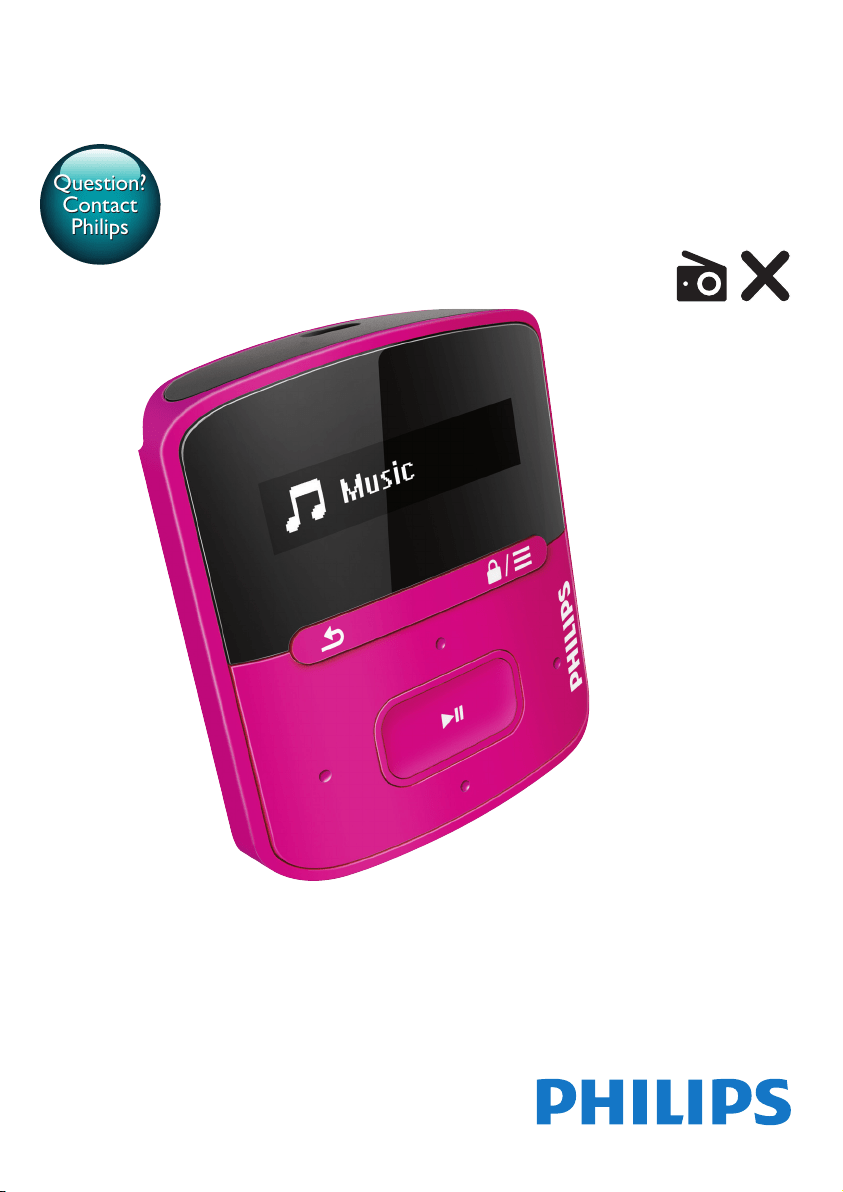
SA4RGA
GoGEAR


1EN
Contents
1 Important safety information 2
General maintenance 2
Recycling the product 3
2 Your new player 5
What's in the box 5
PC software for the player 5
Files loaded on the player 5
Overview 6
Controls 6
Home screen 6
Lock/unlock the keys 7
Volume reminder 7
Screen on/off 7
3 Get started 8
Charge power 8
Charge through a USB AC/DC
adapter 8
Switch the player on or off 8
Automatic standby and shut-down 8
4 Music 9
Transfer music to the player 9
Find music on the player 9
Find music by song information 9
Find music by playlist 9
Find music by le folder 9
Play music 9
Select play options 10
Playlists 10
Add songs to a playlist-on-the-go 10
Remove songs from a playlist-on-
the-go 10
5 Folder view 11
6 Settings 12
Play mode 12
Sound settings 12
Sleep timer 12
Display settings 12
Screen off timer 12
Language 12
Information 12
Legal 13
Factory settings 13
7 Updatethermwarethrough
Philips Device Manager 14
8 Troubleshooting 16
9 Technical data 17
PC requirements 17
Need help?
Please visit
www.philips.com/welcome
where you can access a full set of supporting
materials such as the user manual, the latest
software updates, and answers to frequently
asked questions.
2 EN
1 Important safety
information
General maintenance
The translation of this document is for
reference only.
In the event of any inconsistency between the
English version and the translated version, the
English version shall prevail.
Caution
• To avoid damage or malfunction:
• Use only power supplies listed in the user manual.
• Do not expose the product to excessive heat caused
by heating equipment or direct sunlight.
• Do not drop the product or allow objects to fall on
your player.
• Do not allow the product to be submerged in
water. Do not expose headphone socket or battery
compartment to water, as water entering the set may
cause major damage.
• Active mobile phones in the vicinity may cause
interference.
• Back up your les. Ensure that you retain the original
les you have downloaded to your device. Philips is not
responsible for any loss of data if the product becomes
damaged or not readable / legible.
• Manage (transfer, delete, etc.) your music les only with
the supplied music software to avoid problems.
• Do not use any cleaning agents containing alcohol,
ammonia, benzene, or abrasives as these may harm the
product.
• Batteries (battery pack or batteries installed) shall not
be exposed to excessive heat such as sunshine, re or
the like.
• Danger of explosion if battery is incorrectly replaced.
Replace only with the same or equivalent type.
About operating and storage temperatures
• Operate in a place where temperature is
always between 0 and 45ºC (32 to 113ºF)
• Store in a place where temperature is
always between -20 and 45ºC (-4 to
113ºF).
• Battery life may be shortened in low
temperature conditions.
Replacement parts/accessories:
Visit www.philips.com/support to order
replacement parts/accessories.
Hearing Safety
A pleine puissance, l’écoute prolongée du
baladeur peut endommager l’oreille de
l’utilisateur.
Warning
• To prevent possible hearing damage, do not listen at
high volume levels for long periods.
The maximum output voltage of the player is
not greater than 150 mV.
Wide band characteristic voltage WBCV:>=
75 mV
Modications
Modications not authorized by the
manufacturer may void user's authority to
operate the product.
Copyright information
All other brands and product names are
trademarks of their respective companies or
organizations.
Unauthorized duplication of any recordings
whether downloaded from the Internet or
made from audio CDs is a violation of copyright
laws and international treaties.
3EN
The making of unauthorized copies of copy-
protected material, including computer
programs, les, broadcasts and sound
recordings, may be an infringement of
copyrights and constitute a criminal offense.
This equipment should not be used for such
purposes.
The Windows Media and the Windows logo are
registered trademarks of Microsoft Corporation
in the United States and/or other countries.
Be responsible! Respect copyrights.
Philips respects the intellectual property of
others, and we ask our users to do the same.
Multimedia content on the internet may have
been created and/or distributed without the
original copyright owner's authorization.
Copying or distributing unauthorized content
may violate copyright laws in various countries
including yours.
Compliance with copyright laws remains your
responsibility.
The recording and transfer to the portable
player of video streams downloaded to your
computer is intended only for use with public
domain or properly licensed content. You
may only use such content for your private,
non-commercial use and shall respect eventual
copyright instructions provided by the copyright
owner of the work. Such instruction may
state that no further copies shall be made.
Video streams may include copy protection
technology that prohibits further copying. For
such situations the recording function will not
work and you will be notied with a message.
Data logging
Philips is committed to improving the quality
of your product and enhancing the Philips user
experience. To understand the usage prole of
this device, this device logs some info / data to
the non-volatile memory region of the device.
These data are used to identify and detect
any failures or problems you as a user may
experience while using the device. The data
stored, for example, will be the duration of
playback in music mode, duration of playback
in turner mode, how many times battery low
was encountered, etc. The data stored do not
reveal the content or media used on the device
or the source of downloads. The data stored
on the device are retrieved and used ONLY
if the user returns the device to the service
center and ONLY to simplify error detection
and prevention. The data stored shall be made
available to user on user’s rst request.
Recycling the product
Your product is designed and manufactured
with high quality materials and components,
which can be recycled and reused.
When you see the crossed-out wheel bin
symbol attached to a product, it means the
product is covered by the European Directive
2002/96/EC:
Never dispose of your product with other
household waste. Please inform yourself about
the local rules on the separate collection of
electrical and electronic products. The correct
disposal of your old product helps prevent
potentially negative consequences on the
environment and human health.
4 EN
Warning
• Removal of the built-in battery invalidates the warranty
and can destroy the product.
• The following removal and disposal instructions are
steps that are to be performed at the end of the
product's life only.
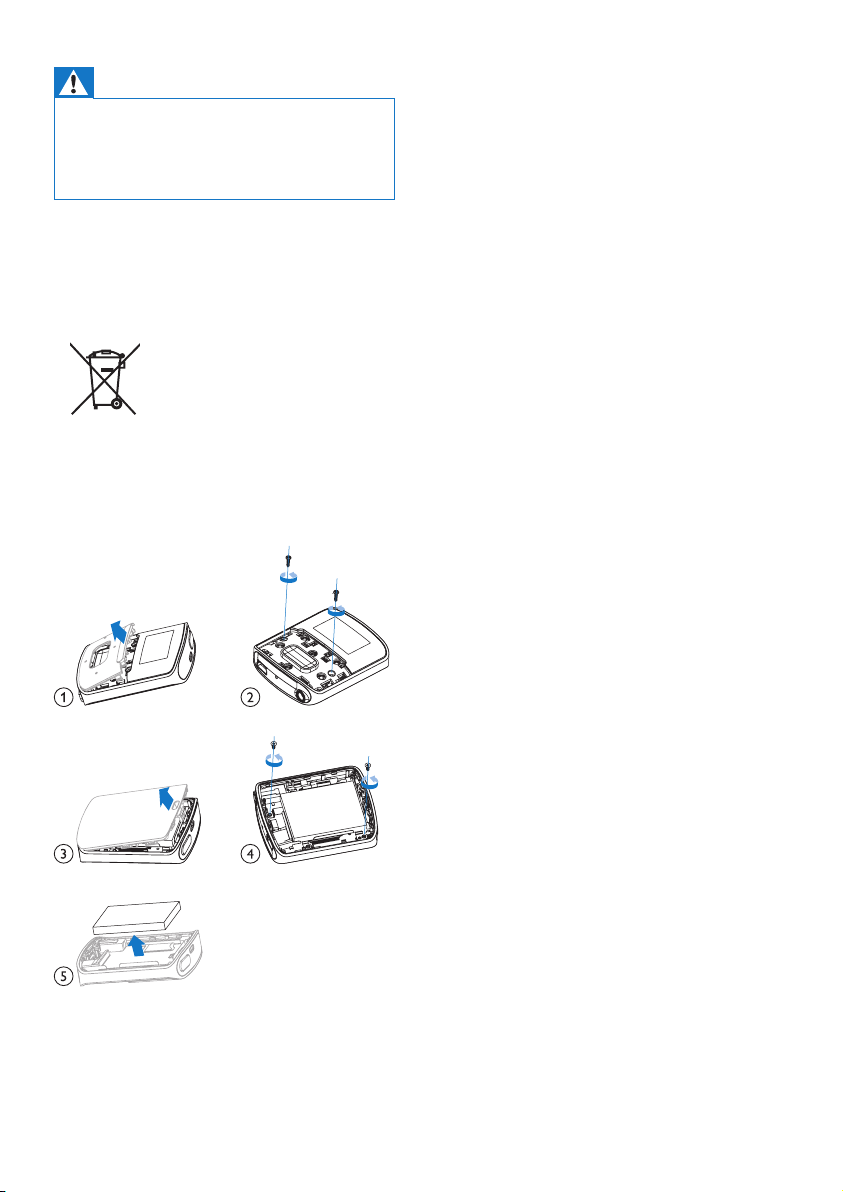
Your product contains a built-in rechargeable
battery covered by the European Directive
2006/66/EC, which cannot be disposed of with
normal household waste.
To safeguard the functionality and safety of
your product, take your product to an ofcial
collection point or service center where a
professional can remove the battery as shown:
Please inform yourself about the local rules on
separate collection of batteries. The correct
disposal of batteries helps prevent potentially
negative consequences on the environment and
human health.
Notice for the European Union
This product complies with the radio
interference requirements of the European
Union.
5EN
2 Your new player
What's in the box
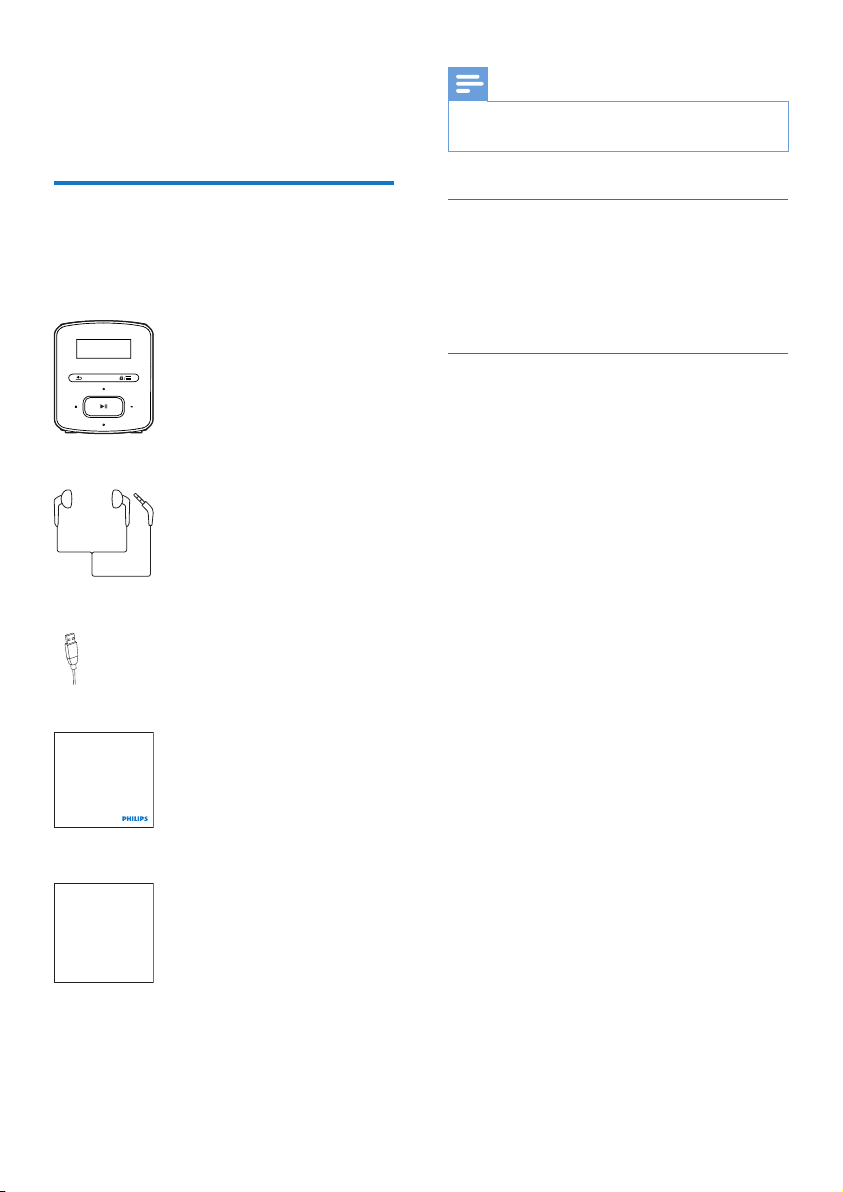
Make sure that you have received the following
items:
Player
Earphones
USB cable
Quick start guide
Safety and Warranty sheet
Philips GoGear audio player
Quick start guide
Safety and Warranty
Before using your set:
Check out details inside this booklet
Note
• The images serve as reference only. Philips reserves the
right to change color/design without notice.
PC software for the player
RAGA can work with the following PC
software:
• Philips Device Manager (helps you get
rmware updates and recover the player)
Files loaded on the player
The following les are loaded on RAGA:
• User manual
• Frequently asked questions
6 EN
Overview
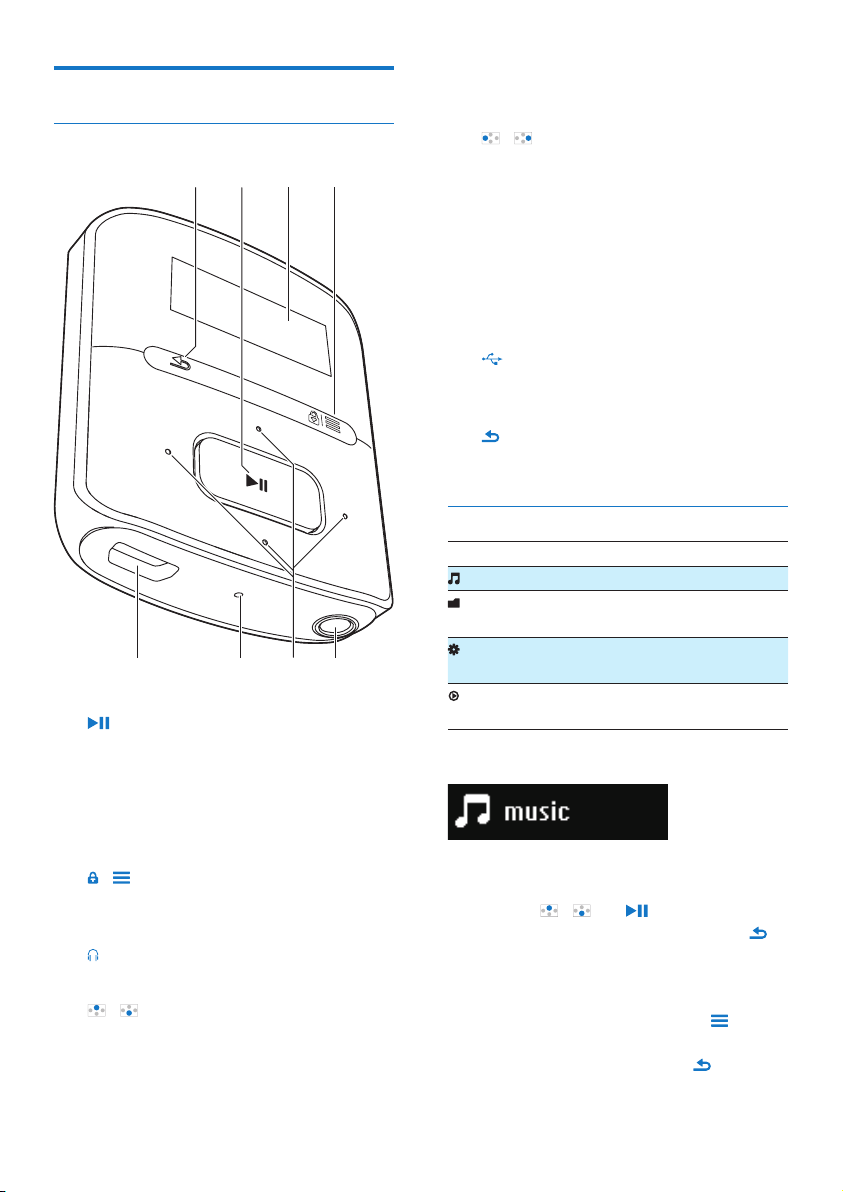
Controls
a
• Press and hold: Switch the player on
or off
• Press: Select options, or start/pause/
resume play
b Display
c /
• Press: Show options menu
• Press and hold: Lock/unlock all buttons
d
• 3.5-mm headphone connector
e /
• on the list of options:
Press: Skip to the previous/next option
• on the play screen:
"
!
Press: Increase/decrease the volume
Press and hold: Increase/decrease the
volume quickly
/
• on the play screen:
Press: Skip to the next/previous option
Press and hold: Search within current
le
f RESET
• Press the hole by using the tip of a
ball pen when the screen does not
respond to the pressing of keys
g
• USB connector for power charging and
data transfer
h
• Press: Back one level
Home screen
Menu Mode To
Music play music
Folder
view
view les in folders
Settings customize the settings of
RAGA
Now
playing
show current play screen
Navigate from the Home screen
• From the Home screen, you can access
functional menus by pressing the navigation
buttons / and .
• To go back to previous screens, press
repeatedly.
Switch between the Home screen and play
screen
• On the Home screen, press and
select [Now playing] or[Last played];
• On the play screen, press
repeatedly.

7EN
Lock/unlock the keys
When the player is on, use the lock to prevent
accidental operation.
• Press and hold / to lock or unlock the
keys.
» All buttons except the volume keys are
locked and a lock icon is displayed.
Volume reminder
RAGA can have you reminded when:
• the volume reaches the high level (80
dBA); or
• you have listened at a high volume level for
20 hours.
With the feature of volume reminder, the Philips
MP3/MP4 player complies with the European
Union regulations (EN 60950-1) in protecting
your hearing safety.
When you increase the volume,
1 Press .
» When the volume level reaches the
high level, a pop-up screen is displayed.
Play pauses.
2 To continue to increase the volume, press
and hold until play resumes.
» You can continue to increase the
volume.
• To exit volume adjustment, press any other
buttons or wait a few seconds until play
resumes.
» The play resumes at the previous
volume level.
When you have listened at a high volume level
for 20 hours, beep sounds and a pop-up is
displayed. Play pauses.
• To keep listening at a high volume level,
press and hold .
• To exit high volume, press any other
buttons or wait until play resumes.
» The volume level drops below the high
level (80 dBA) .
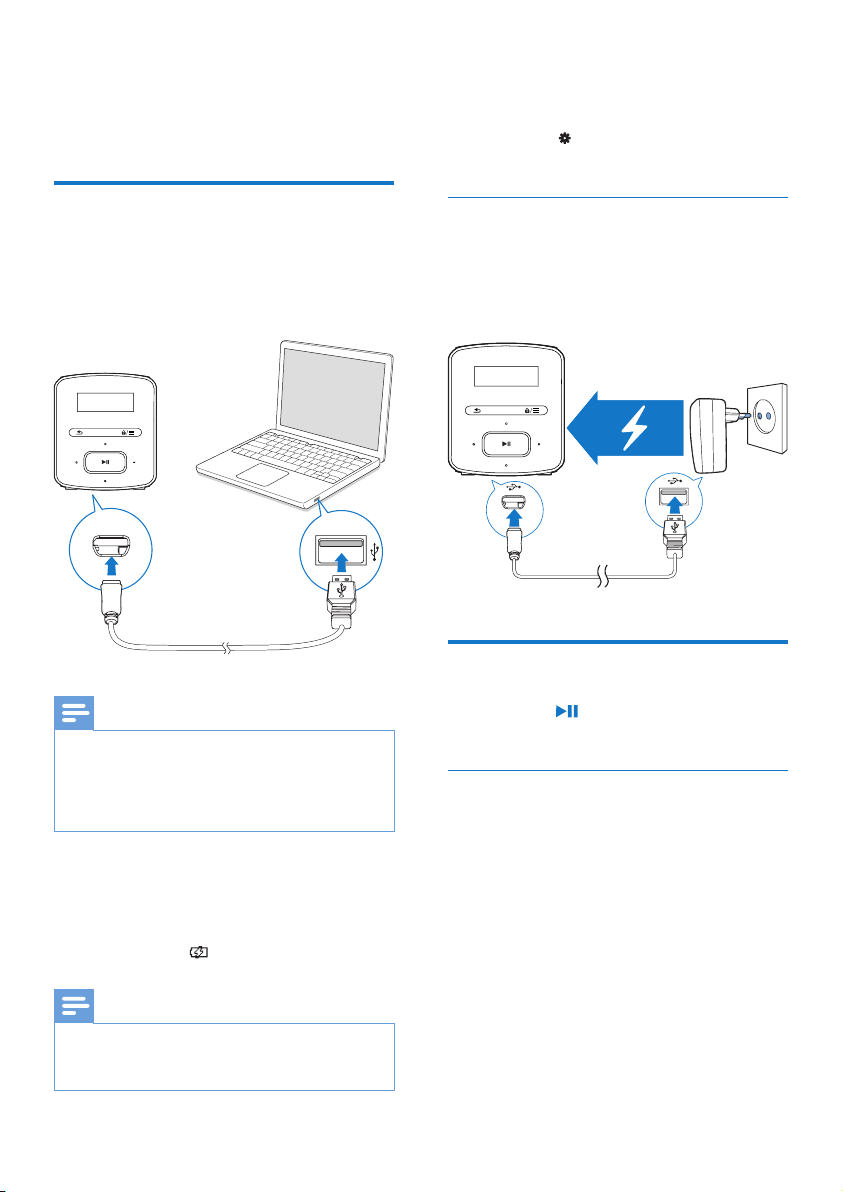
Screen on/off
To save power, the screen switches off
automatically after the pre-dened time
duration if
• no new action is taken on RAGA; and
• a value is selected in > [Display
settings] > [Screen off timer].
To exit the power-saving mode
• Press any key.
8 EN
3 Get started
Charge power
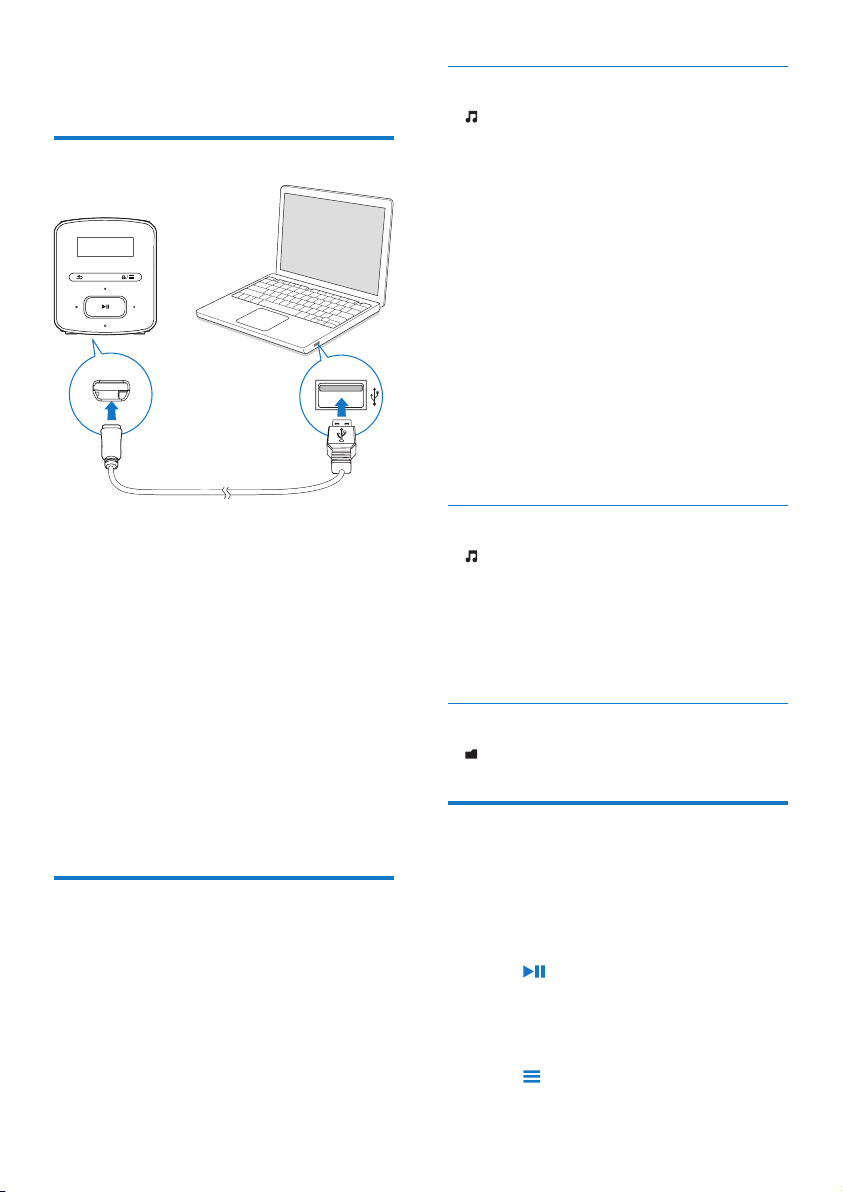
RAGA has a built-in battery that can be
charged through the USB socket of a computer.
Connect RAGA to a PC by using the USB
cable.
Note
• When you connect RAGA to a computer, you are
briey prompted to select: [Charge & transfer] or
[Charge & play].
• RAGA automatically applies [Charge & transfer], if no
new selection is made.
Battery level indication
• When the battery is low, the low
battery screen is displayed repeatedly.
• When the charging process is
complete, is displayed.
Note
• Rechargeable batteries have a limited number of charge
cycles. Battery life and number of charge cycles vary by
use and settings.
To conserve battery power and increase the
play time, do the following on RAGA:
• Set the backlight timer to a low value
(go to > [Display settings] >
[Backlight timer]).
Charge through a USB AC/DC
adapter
To charge RAGA through a USB AC/DC
adapter (not supplied), make sure that the
power output is 5.0 V and 0.5A.
Switch the player on or off
Press and hold until the player is switched
on or off.
Automatic standby and shut-down
The player has an automatic standby and shut-
down feature that can save battery power.
After 5 minutes in idle mode (no play, no
button is pressed), the player switches off.
9EN
4 Music
Transfer music to the player
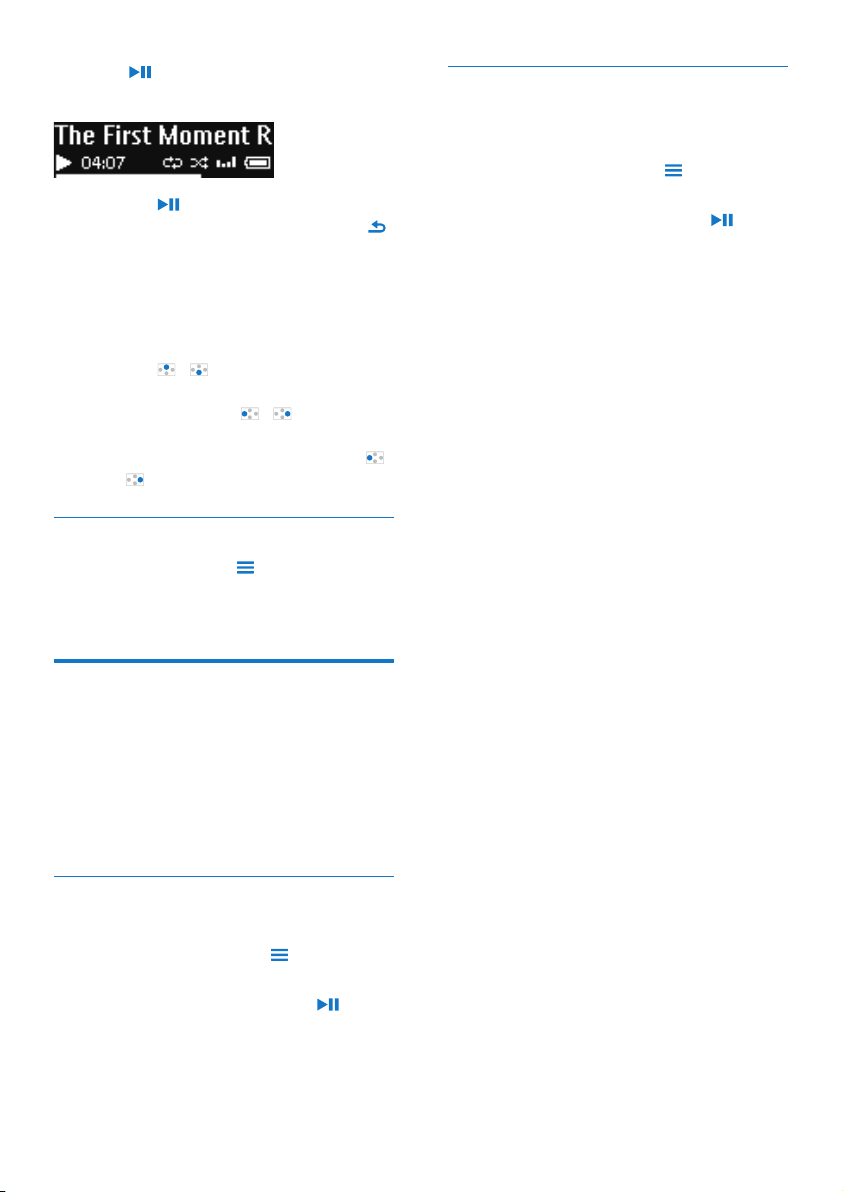
You can transfer music from your PC media
library to RAGA in the following ways:
• Drag and drop music les in Windows
Explorer.
TodraganddropmusiclesinWindows
Explorer,
1 Connect RAGA to a PC.
2 On the PC, under My Computer or
Computer,
• select RAGA, and create le folders.
3 On the PC, drag and drop music les to
the le folders on RAGA.
• Alternatively, drag and drop le folders
from the PC to RAGA.
Find music on the player
On RAGA, you can nd music by song
information, playlist, or le folder.
Find music by song information
In , songs are sorted by metadata or ID3 tag
under different collections: [All songs], [Artists],
or [Albums].
[All songs]
• Songs are sorted by song title in
alphabetical order.
[Artists]
• Songs are sorted by artist in alphabetical
order;
• Under each artist, songs are sorted by
album in alphabetical order.
[Albums]
• Songs are sorted by album in alphabetical
order.
Find music by playlist
In > [Playlists], you can nd the following
playlists:
• three playlists-on-the-go for you to add
songs on the player;
• playlists that you transfer from your PC
media library through Songbird.
Findmusicbylefolder
In , nd music by le folder.
Play music
You can start play from a song, or play an entire
album or artist.
To start play from a song,
1 Select a song.
2 Press to start play.
» Play starts from current song.
To play the entire album or artist,
1 Select an album or artist.
2 Press > [Play].
10 EN
3 Press to start play.
On the play screen,
• Press to pause and resume play.
• To go to the previous screen, press .
» The play screen returns a few
seconds later.
» On the play screen, you can see
the le information and play status.
To adjust the volume,
• Press / .
Toselectamusicleontheplayscreen,
• Repeatedly press / .
To rewind or fast forward within current song,
• On the play screen, press and hold
/ .
Select play options
On the play screen, press to select play
options, such as play mode, sound settings, and
sleep timer (see 'Settings' on page 12).
Playlists
On the players, you can nd the following
playlists:
• playlists that you transfer from the PC
media library;
• three playlists-on-the-go for you to add
songs on the player.
Add songs to a playlist-on-the-go
To add current song,
1 On the play screen, press > [Add to
playlist].
2 Select a playlist-on-the-go. Press .
3 Select [Yes] to conrm.
» You save current song to the playlist.
Remove songs from a playlist-on-the-
go
Remove current song from a playlist
1 On the play screen, press > [Remove
from Playlist].
2 Select a playlist-on-the-go. Press .
3 Select [Yes] to conrm.
» You remove current song from the
selected playlist.

11EN
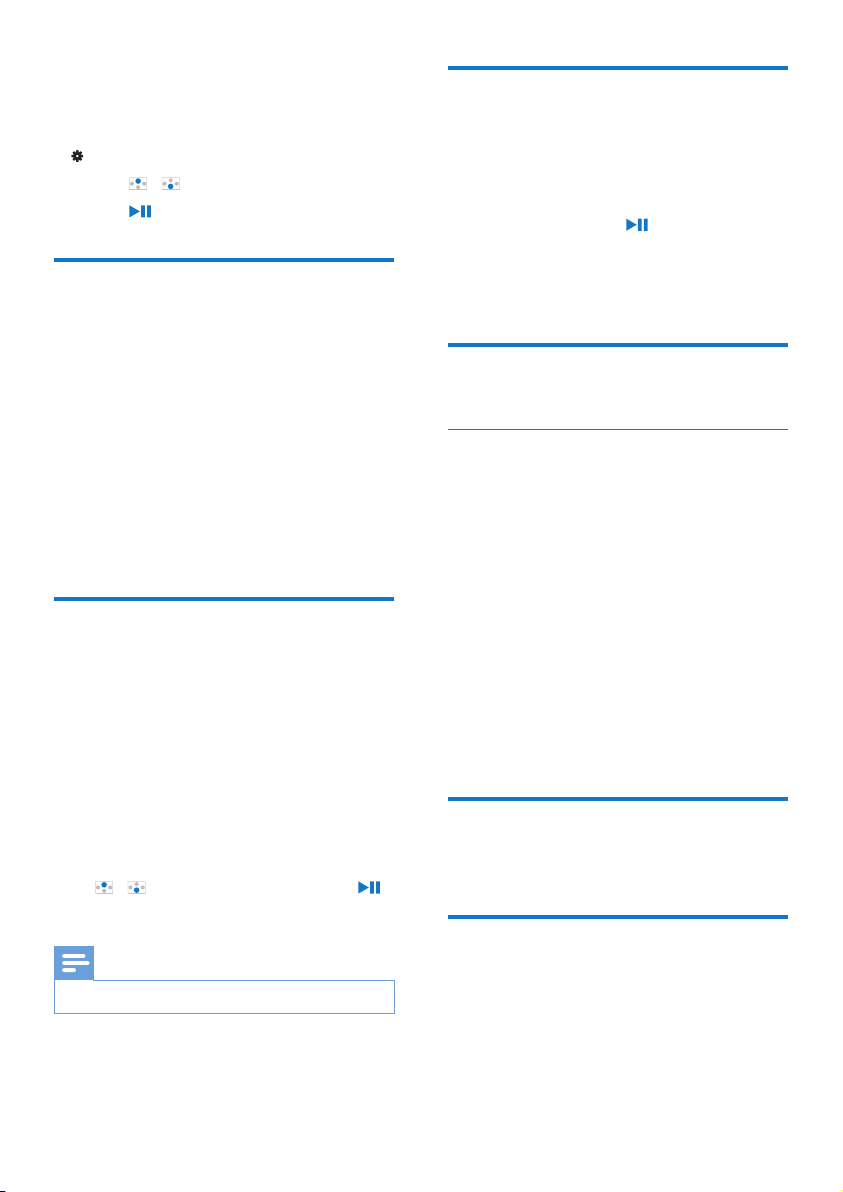
5 Folder view
Go to to view and play media les from the
media library on the player.
12 EN
6 Settings
In , select your options for the player.
1 Press / to select an option.
2 Press to conrm.
Play mode
In [Play mode], select play modes for music play:
[Repeat]
• [Repeat 1]: Repeats current song.
• [Repeat all]: Repeats all songs in
current folder.
[Shufe]
• [On]: Plays all songs in current folder in
random order.
If both [Repeat all] and [Shufe]are activated,
• All songs in current folder are repeated
in random order.
Sound settings
In [Sound settings], select your option for
sound settings:
[FullSound]: Restores the sonic details that
music compression loses (for example, MP3,
WMA).
[Equalizer]: Denes sound settings as desired.
[Volume limit]: Sets a maximum volume level
for the device. In this way, you can always keep
the volume within a level safe enough to your
hearing.
Press / to set the volume limit; Press
to conrm.
Note
• Equalizer is deactivated when you select FullSound.
Sleep timer
Switch on the sleep timer. The RAGA can
switch off automatically after a certain time
duration.
• In [Sleep timer] > [Sleep timer], select
an option. Press .
» After the selected time duration,
the device is switched off
automatically.
Display settings
Screen off timer
The screen enters the idle mode, if no new
action is taken on RAGA. After the pre-dened
time duration, the idle screen is switched off
automatically.To save battery power, select a low
value for the time duration.
To set the time duration
• In [Display settings] > [Screen off
timer], select a time duration.
» After the selected time duration,
the idle screen is switched off
automatically.
To exit the power-saving mode
• Press any key.
Language
In [Language], select a language for the player.
Information
In [Information], learn the following information
about the player:
[Player information]
• [Model:] full product name

13EN
Check the full product name when you
update rmware from the Support
site.
• [Firmware version:] current rmware
version
Check the rmware version when you
update rmware from the Support
site.
[Disk space]
• [Free space:] space available
• [Total space:] memory size
• [Songs] number of songs that are
stored on the player
[File type supported] le formats that are
supported on the player
Legal
In [Legal], nd the legal information about the
player.
Factory settings
In [Factory settings], restore the player to
factory settings. Files transferred to the player
are retained.
14 EN
7 Update the
firmware
through Philips
Device Manager
Install Philips Device Manager
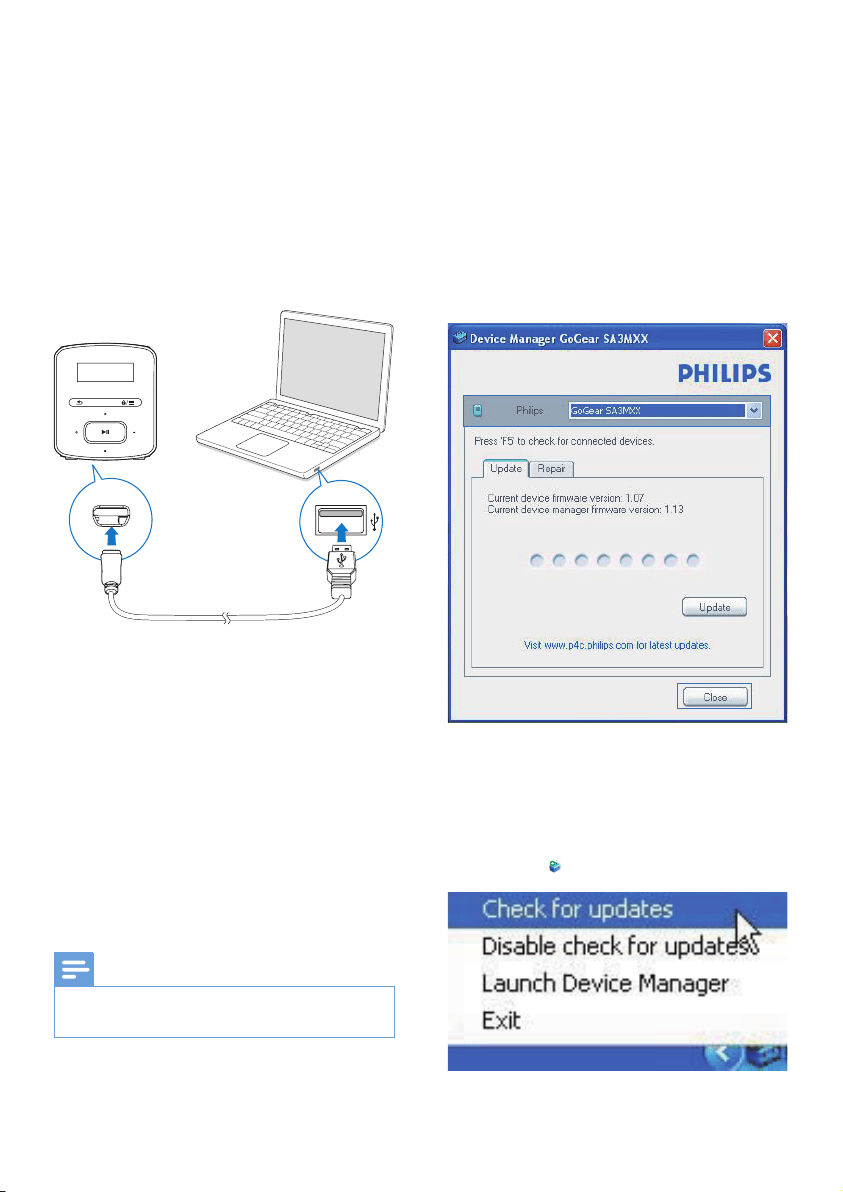
1 Connect RAGA to a PC.
2 On the PC, select My Computer
(Windows XP / Windows 2000) /
Computer (Windows Vista / Windows 7
/ 8).
3 Right click on the Philips GoGear RAGA
icon. Select Install Philips Device Manager.
• Alternatively, click the Philips GoGear
RAGA icon. Double-click the installer.
exe.
4 Follow the onscreen instructions to
complete the installation of the software.
Note
• The installation requires you to agree to the license
terms.
Checkforrmwareupdates
1 Make sure that you have connected your
PC to the Internet.
2 Launch Philips Device Manager.
» A dialog box is displayed.
3 Connect RAGA to your PC.
» When the device is connected,
"SA4RGAXX" is displayed on the text
box.
» You can nd current rmware version
of the device.
4 To check for rmware updates,
a Close the dialog box of Philips Device
Manager.
b At the base of the PC screen, right
click and select Check for updates.

15EN
» Philips SA4RGAXX Device
Manager checks for updates from
the Internet.
Updatethermware
1 When the rmware update is available,
follow the onscreen instructions to
download and install the rmware.
2 Disconnect RAGA from the PC.
» RAGA restarts after the rmware is
updated and is ready for use again,

16 EN
8 Troubleshooting
If RAGA is not working properly or the display
freezes, you can reset it without losing data:
How do I reset RAGA?
• Insert a pen tip or other object into the
reset hole on RAGA. Hold until the player
shuts down.
• If the reset option is unsuccessful, recover
RAGA through Philips Device Manager:
1 On your PC, launch Philips Device
Manager.
2 Enter the recovery mode:
a Switch off RAGA.
b Press and hold the volume button ,
and then, connect RAGA to your PC.
c Keep holding the button until Philips
Device Manager recognizes RAGA
and enters the recovery mode.
3 Start the recovery process:
a On Philips Device Manager, click the
Repair button. Follow the onscreen
instructions to complete the recovery
process.
b When the recovery is completed,
disconnect RAGA from your PC.
4 Restart RAGA.

17EN
9 Technical data
Power
• Power supply: 220 mAh Li-ion polymer
internal rechargeable battery
• Play time¹
Audio (.mp3): up to 20 hours
Software
• Philips Device Manager: To update the
rmware and recover the player
Connectivity
• Headphone 3.5 mm
• USB 2.0 High speed
Sound
• Channel separation: 45 dB
• Frequency Response: 20-18,000 Hz
• Output power: 2 x 2.4 mW
• Signal to noise ratio: > 84 dB
Audio playback
Supported formats:
• MP3
Bitrate: 8-320 kbps and VBR
Sampling rates: 8, 11.025, 16, 22.050,
32, 44.1, 48 kHz
• WMA (unprotected)
Bitrate: 10-320 kbps CBR, 32-192 kbps
VBR
Sampling rates: 8, 11.025, 16, 22.050,
32, 44.1, 48 kHz
• WAV
Storage media
Built-in memory capacity²:
• SA4RGA02 2 GB NAND Flash
• SA4RGA04 4 GB NAND Flash
• SA4RGA08 8 GB NAND Flash
Media transfer³
• Windows Explorer (drag and drop)
Display
• LCD 128 x 32 pixels
Note
• Specications are subject to change without notice.
• ¹ Rechargeable batteries have a limited number of
charge cycles. Battery life and number of charge cycles
vary by use and settings.
• ² 1 GB = 1 billion bytes; available storage capacity is
less. Full memory capacity may not be available as some
memory is reserved for the player. Storage capacity
is based on 4 minutes per song and 128-kbps MP3
encoding.
• ³ Transfer speed depends on operating system and
software conguration.
PC requirements
• Windows® XP (SP3 or above) / Vista /
7/ 8
• Pentium III 800 MHz processor or higher
• 512 MB RAM
• 500 MB hard disk space
• Internet connection
• Windows® Internet Explorer 6.0 or later
• USB port

Specifications are subject to change without notice
2013 © WOOX Innovations Limited. All rights reserved.
Philips and the Philips’ Shield Emblem are registered trademarks of
Koninklijke Philips N.V. and are used by WOOX Innovations Limited
under license from Koninklijke Philips N.V. SA4RGA_12_UM_V3.0_WK1351.5