EN User manual 3
8FF3CDW
8FF3CME
10FF3CDW
10FF3CME
10FF3CMI
Register your product and get support at
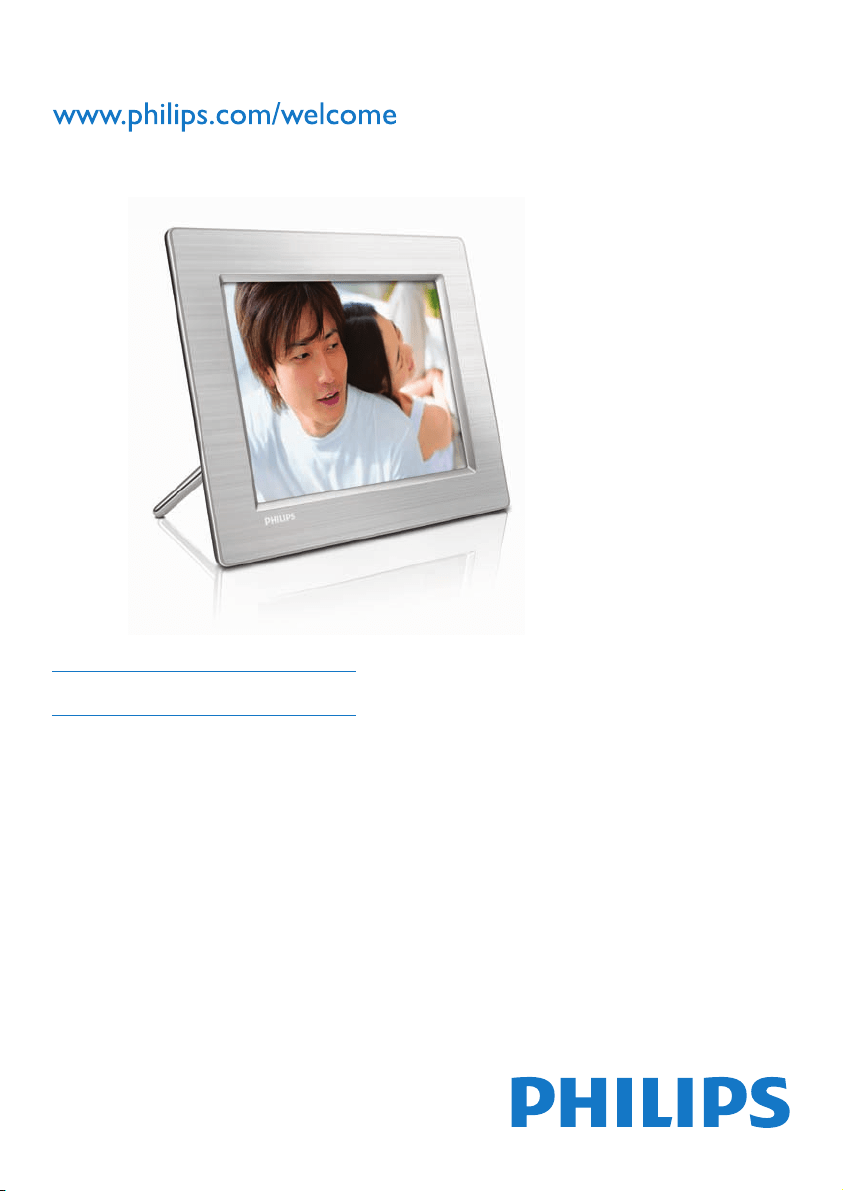
PhotoFrame

3
6 Product information 29
10FF3CDW/10FF3CME/10FF3CMI 29
8FF3CDW/8FF3CME 30
7 Guarantee and service 31
8 Frequently asked questions 32
Contents
1 Important 4
Safety 4
Notice 4
2 Your Digital PhotoFrame 7
Introduction 7
What’s in the box 7
Overview of your Digital PhotoFrame 9
3 Get started 11
Install the stand 11
Connect power 11
Connect a storage device 12
Turn on the PhotoFrame 12
Select on-screen language 13
4 Use your Digital PhotoFrame 14
Display photos 14
Browse and edit photos in thumbnail mode 14
Copy photos 16
Create and manage photo albums 18
Create a slideshow album 19
5 Use more of your Digital
PhotoFrame 21
Select slideshow sequence 21
Select a transition effect 21
Select slideshow frequency 21
Display collage photos 21
Select background 22
Adjust Brightness 23
Protect/Unprotect content of memory card 24
Set time and date 24
Set an event reminder 25
Set display Auto on/off 27
Set Demo 28
Set Auto Orientation 28
Set button sound 28
View status of the PhotoFrame 28
English
EN

4
CE Declaration of Conformity
Philips Consumer Electronics declare under our
responsibility that the product is in conformity
with the following standards
EN60950:2000 (Safety requirement of
Information Technology Equipment)
EN55022:1998 (Radio Disturbance
requirement of Information Technology
Equipment)
EN55024:1998 (Immunity requirement of
Information Technology Equipment)
EN61000-3-2:2000 (Limits for Harmonic
Current Emission)
EN61000-3-3:1995 (Limitation of Voltage
Fluctuation and Flicker)
following provisions of directives applicable
73/23/EEC (Low Voltage Directive)
89/336/EEC (EMC Directive)
93/68/EEC (Amendment of EMC and Low
Voltage Directive)
and is produced by a manufacturing
organization on ISO9000 level.
FCC Notice (For U.S. and Canada)
Federal Communications Commission Notice
This equipment has been tested and found
to comply with the limits for a Class B digital
device, pursuant to part 15 of the FCC Rules.
These limits are designed to provide reasonable
protection against harmful interference in a
residential installation. This equipment generates,
uses, and can radiate radio frequency energy
and, if not installed and used in accordance with
the instructions, may cause harmful interference
to radio communications. However, there is
no guarantee that interference will not occur
in a particular installation. If this equipment
does cause harmful interference to radio or
television reception, which can be determined
by turning the equipment off and on, the user is
encouraged to try to correct the interference
by one or more of the following measures:
Reorient or relocate the receiving antenna.
Increase the separation between the
equipment and the receiver.
•
•
•
•
•
•
•
•
•
•
1 Important
Safety
Safety precautions and maintenance
Never touch, push, rub or strike the screen
with hard objects as this may damage the
screen permanently.
When the PhotoFrame is not used for long
periods, unplug it.
Before you clean the screen, turn off
and unplug the power cord. Only clean
the screen with a soft, water-damp cloth.
Never use substances such as alcohol,
chemicals or household cleaners to clean
the PhotoFrame.
Never place the PhotoFrame near naked
fl ames or other heat sources, including
direct sunlight.
Never expose the PhotoFrame to rain or
water. Never place liquid containers, such
as vases, near the PhotoFrame.
Never drop the PhotoFrame. When you
drop the PhotoFrame, it will be damaged.
Keep the stand away from cables.
Notice
Any changes or modifi cations made to this
device that are not expressly approved by
Philips Consumer Electronics may void the
user’s authority to operate the equipment.
Warranty
No components are user serviceable. Do not
open or remove covers to the inside of the
product. Repairs may only be done by Philips
Service Centres and offi cial repair shops. Failure
to do so shall void any warranty, stated or
implied.
Any operation expressly prohibited in
this manual, any adjustments, or assembly
procedures not recommended or authorised in
this manual shall void the warranty.
•
•
•
•
•
•
•
EN
5
End of life disposal
Disposal of your old product
Your product is designed and manufactured
with highly quality material and components,
which can be recycled and reused. When this
crossed-out wheeled bin symbol is attached to
a product, it means the product is covered by
the European Directive 2002/96/EC.
Please inform yourself about the local separate
collection system for electrical and electronic
products.
Please act according to your local rules and do
not dispose your old products with your normal
household waste. The correct disposal of your
old product will help prevent potential negative
consequences for the environment and human
health.
End-of-Life Disposal
Your new product contains materials that
can be recycled and reused. Specialized
companies can recycle your product to
increase the amount of reusable materials
and to minimize the amount to be
disposed of.
Please fi nd out about the local regulations
on how to dispose of your old monitor
from your local Philips dealer.
(For customers in Canada and U.S.A.)
Dispose of in accordance to local-state and
federal regulations.
For additional information on recycling contact
www.eia.org (Consumer Education Initiative)
•
•
•
Connect the equipment into an outlet on
a circuit different from that to which the
receiver is connected.
Consult the dealer or an experienced
radio or television technician for help.
Modifi cations
The FCC requires the user to be notifi ed
that any changes or modifi cations made to
this device that are not expressly approved
by Philips Consumer Electronics may void the
user’s authority to operate the equipment.
Cables
Connections to this device must be made with
shielded cables with metallic RFI/EMI connector
hoods to maintain compliance with FCC Rules
and Regulations.
Canadian notice
This Class B digital apparatus meets all
requirements of the Canadian Interference-
Causing Equipment Regulations.
The set complies with the FCC-Rules, Part
15. Operation is subject to the following two
conditions:
1.This device may not cause harmful
interference, and
2.This device must accept any interference
received, including interference that may cause
undesired operation.
FCC Declaration of Conformity
Declaration of conformity
Model number: 8FF3CDW/8FF3CME/
10FF3CDW/10FF3CME/10FF3CMI
Trade Name: Philips
Responsible Party:
Philips Accessories and Computer Peripherals
1881 Route 46 West Ledgewood, NJ 07852
•
•
PHILIPS
8FF3CDW 8FF3CME 10FF3CDW
10FF3CME 10FF3CMI
FOR HOME OR OFFICE USE
Tested To Comply With FCC Standards
PHILIPS
8FF3CDW 8FF3CME 10FF3CDW
10FF3CME 10FF3CMI
FOR HOME OR OFFICE USE
Tested To Comply With FCC Standards
English
EN

6
Recycling Information for Customers
Philips establishes technically and economically
viable objectives to optimize the environmental
performance of the organization’s product,
service and activities.
From the planning, design and production
stages, Philips emphasizes the important of
making products that can easily be recycled. At
Philips, end-of-life management primarily entails
participation in national take-back initiatives
and recycling programs whenever possible,
preferably in cooperation with competitors.
There is currently a system of recycling up and
running in the European countries, such as The
Netherlands, Belgium, Norway, Sweden and
Denmark.
In U.S.A., Philips Consumer Electronics North
America has contributed funds for the
Electronic Industries Alliance (EIA) Electronics
Recycling Project and state recycling initiatives
for end-of-life electronics products from
household sources. In addition, the Northeast
Recycling Council (NERC) - a multi-state
non-profi t organization focused on promoting
recycling market development - plans to
implement a recycling program.
In Asia Pacifi c, Taiwan, the products can be taken
back by Environment Protection Administration
(EPA) to follow the IT product recycling
management process, detail can be found in
web site www.epa.gov.tw.For help and service,
please read the section of Service and Warranty
or the following team of Environmental
specialist can help.
EN
7
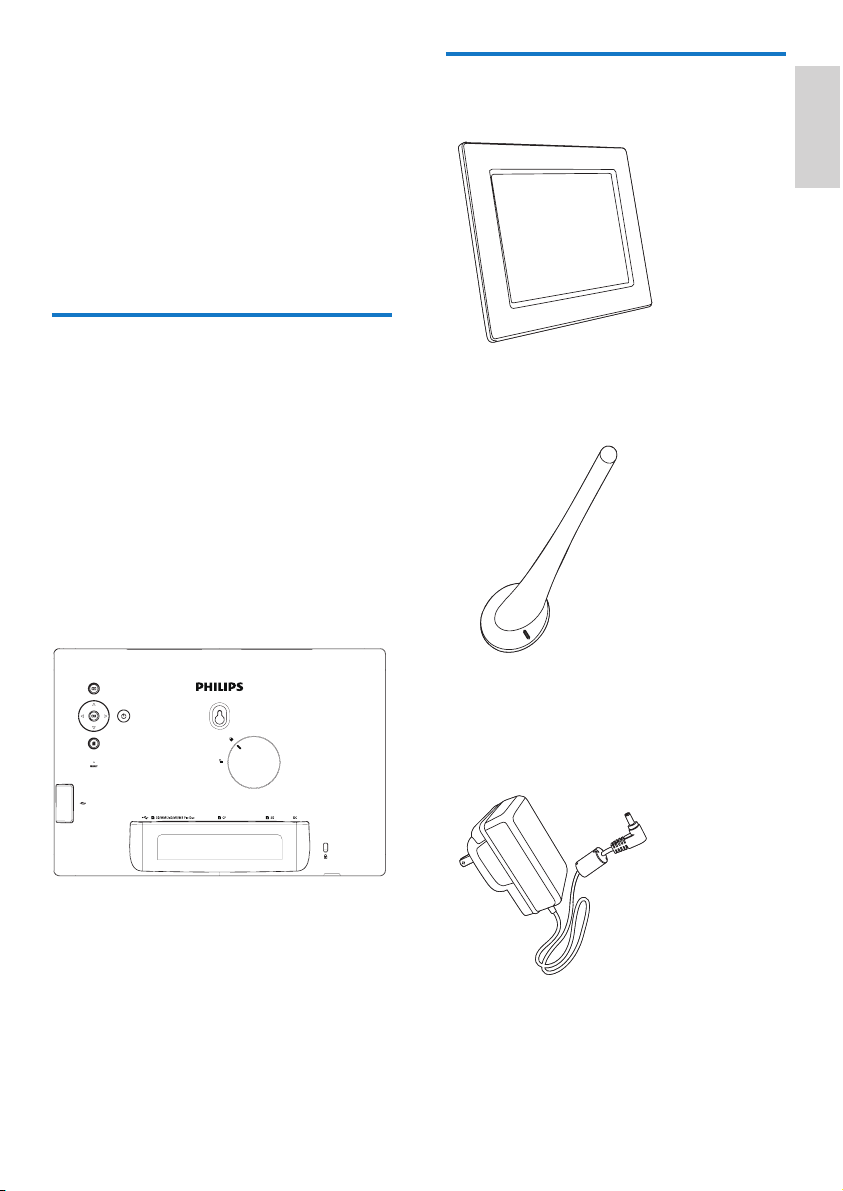
What’s in the box
Philips Digital PhotoFrame
Stand
AC-DC power adaptor
•
•
•
2 Your Digital
PhotoFrame
Congratulations on your purchase, and
welcome to Philips! To fully benefi t from the
support that Philips offers, register your product
at www.Philips.com/welcome.
Introduction
With Philips Digital PhotoFrame, you can display
digital photos in high quality. You can place it
on a fl at surface or hang it on the wall for a
continuous display in the following three modes:
Slideshow
Browse
Calendar
Mounting the PhotoFrame on the wall
For wall mounting, please use a 7.0*25*3.0 mm
screw. For best result, screw over seven turns.
•
•
•
English
EN

8
CD-ROM (Digital User Manual, Philips
PhotoFrame Manager and its User Manual)
USB cable to PC*
Quick Start Guide
•
•
•
•
•
1
2
3
Quick start guide
8FF3CDW
8FF3CME
10FF3CDW
10FF3CME
10FF3CMI
Connect
Install
Enjoy
Eng
PhotoFrame
1
2
3
Quick start guide
8FF3CDW
8FF3CME
10FF3CDW
10FF3CME
10FF3CMI
Connect
Install
Enjoy
Eng
PhotoFrame
EN
9
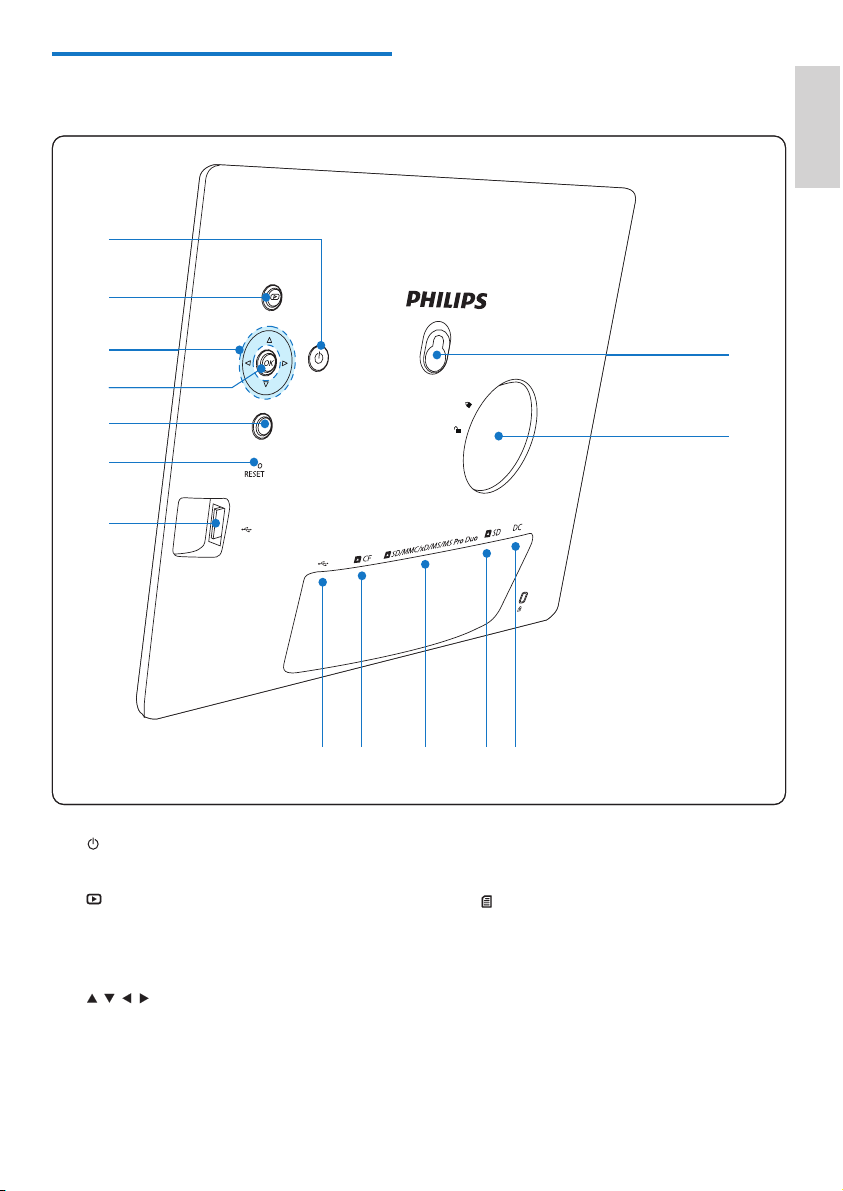
d OK
Confi rm a selection
e
Enter the main menu
Exit keypad
Enter/Exit Photo Menu
Stop Slideshow mode
Zoom out a photo
f RESET
Reset settings to factory default
•
•
•
•
•
•
•
Overview of your Digital
PhotoFrame
a
Turn on/off the PhotoFrame
b
Display slideshow
Change display mode
Zoom in a photo
c
/ / /
Select the previous/next/right/left item
Crop photo
Adjust time/date
•
•
•
•
•
•
•
n
m
b
e
f
g
a
l
k
j
i
h
c
d
n
m
b
e
f
g
a
l
k
j
i
h
c
d
English
EN

10
g
Slot for a USB fl ash drive
h
Slot for a USB cable to PC
i
CF
Slot for a CF card
j
SD/MMC/xD/MS/MS Pro Duo
Slot for an SD/MMC/xD/MS/MS Pro
Duo card
k
SD
Slot for an SD card
l DC
Socket for the AC-DC power adaptor
m Stand hole
n Key hole
•
•
•
•
•
•
EN
11
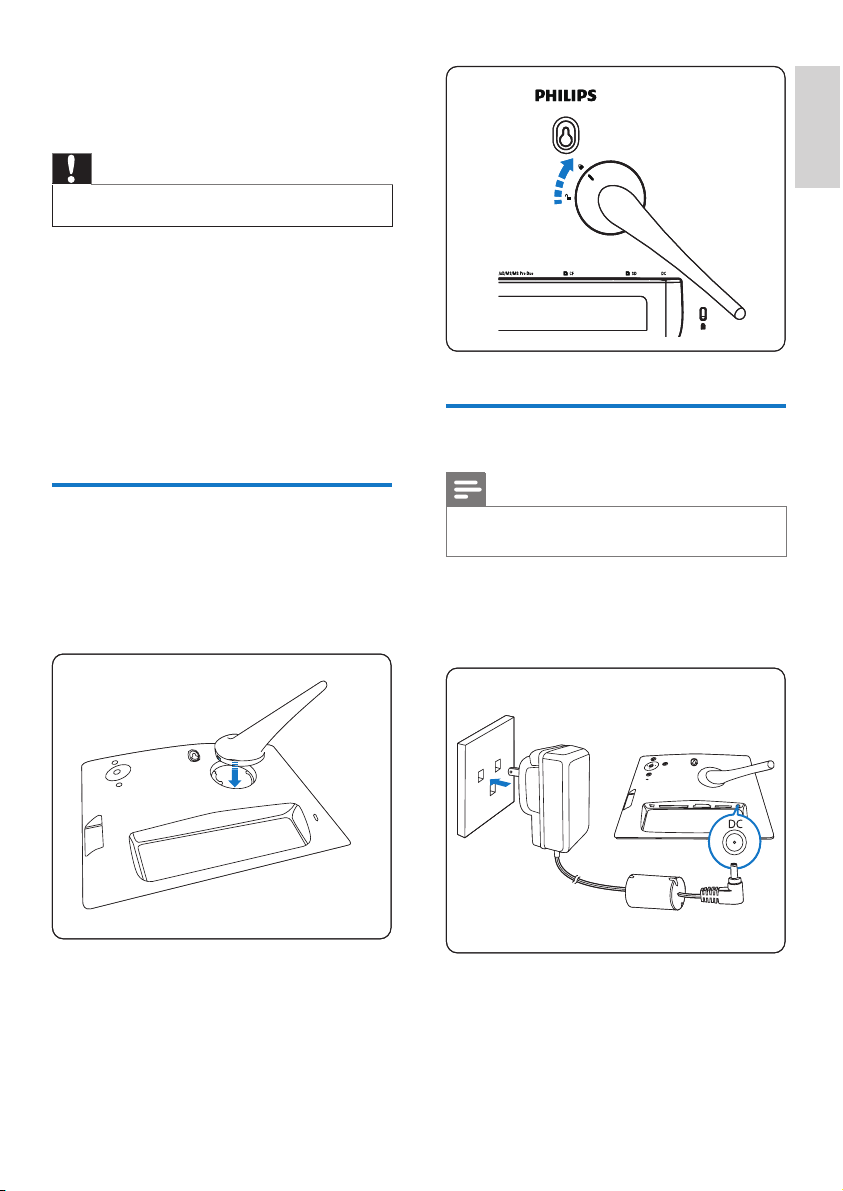
Connect power
Note
When you position the PhotoFrame, ensure that the
power plug and outlet are easily accessible.
•
1 Connect the power cord to the DC
socket of the PhotoFrame and to a power
supply socket.
a
b
a
b
3 Get started
Caution
Use the controls only as stated in this user manual.•
Always follow the instructions in this chapter in
sequence.
If you contact Philips, you will be asked for the
model and serial numbers. Find the model
number and serial number of this PhotoFrame
at the back or the bottom of your PhotoFrame.
Write these numbers here:
Model No. __________________________
Serial No. ___________________________
Install the stand
To place the PhotoFrame on a fl at surface,
attach the supplied stand to the back of the
PhotoFrame.
1 Insert the stand into the PhotoFrame.
2 Turn the stand clockwise 45 degrees to
attach it to the PhotoFrame.
English
EN
12
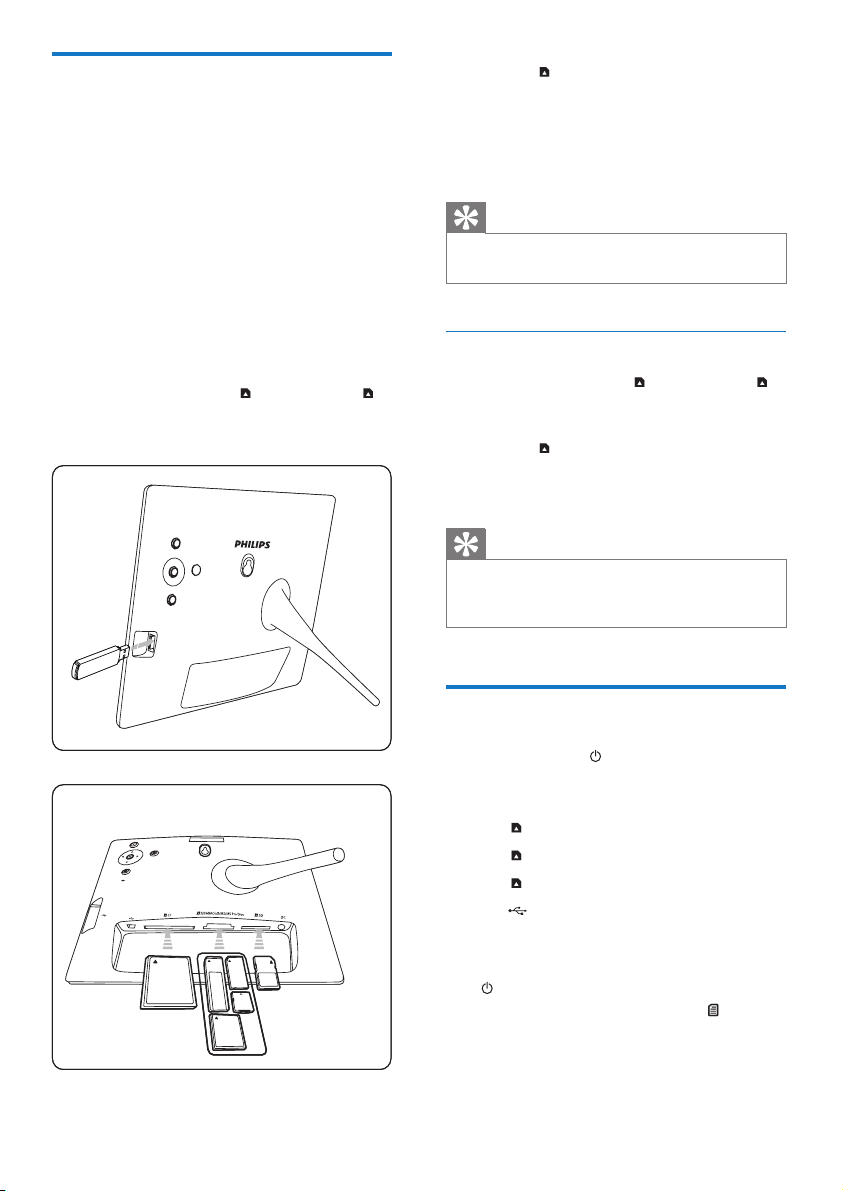
For the SD slot, insert a memory card
until the memory card locks in place.
After a few seconds, photos on
the memory card are displayed in
slideshow mode consecutively.
Tip
If the memory card is empty or damaged, “[Sorry,
Card/Device error!]” is displayed.
•
Remove a storage device
For the USB slot, the CF slot, or the
SD/MMC/xD/MS/MS Pro Duo slot, pull
the memory card or USB fl ash drive out.
For the
SD slot, push the memory card
again to unlock and then pull out the
memory card.
Tip
If a 2G xD card is used with a USB drive, the system
may be unstable. Remove the xD card or the USB fl ash
drive.
•
Turn on the PhotoFrame
1 Press and hold for more than 1 second.
Photos are displayed in Slideshow
mode in the following priority:
SD/MMC/xD/MS/MS Pro Duo slot
SD slot
CF slot
slot
PhotoFrame
To turn off the PhotoFrame, press and hold
for more than 2 seconds.
To access the main menu, press
.
•
»
•
•
»
»
»
»
»
»
•
•
Connect a storage device
You can display photos in one of the following
storage device:
Compact Flash type I
Secure Digital (SD)
Secure Digital (SDHC)
Multimedia Card
xD card
Memory Stick
Memory Stick Pro
Memory Stick Duo
Memory Stick Pro Duo
USB fl ash drive
1 For the USB slot, the CF slot, or the
SD/MMC/xD/MS/MS Pro Duo slot, insert
a USB fl ash drive or a memory card fi rmly.
•
•
•
•
•
•
•
•
•
•
RESET
RESET
EN
13
Tip
You can only turn off the PhotoFrame after all copy and
save actions are complete.
Before you remove a storage device, always wait until
all photos appear on the display.
•
•
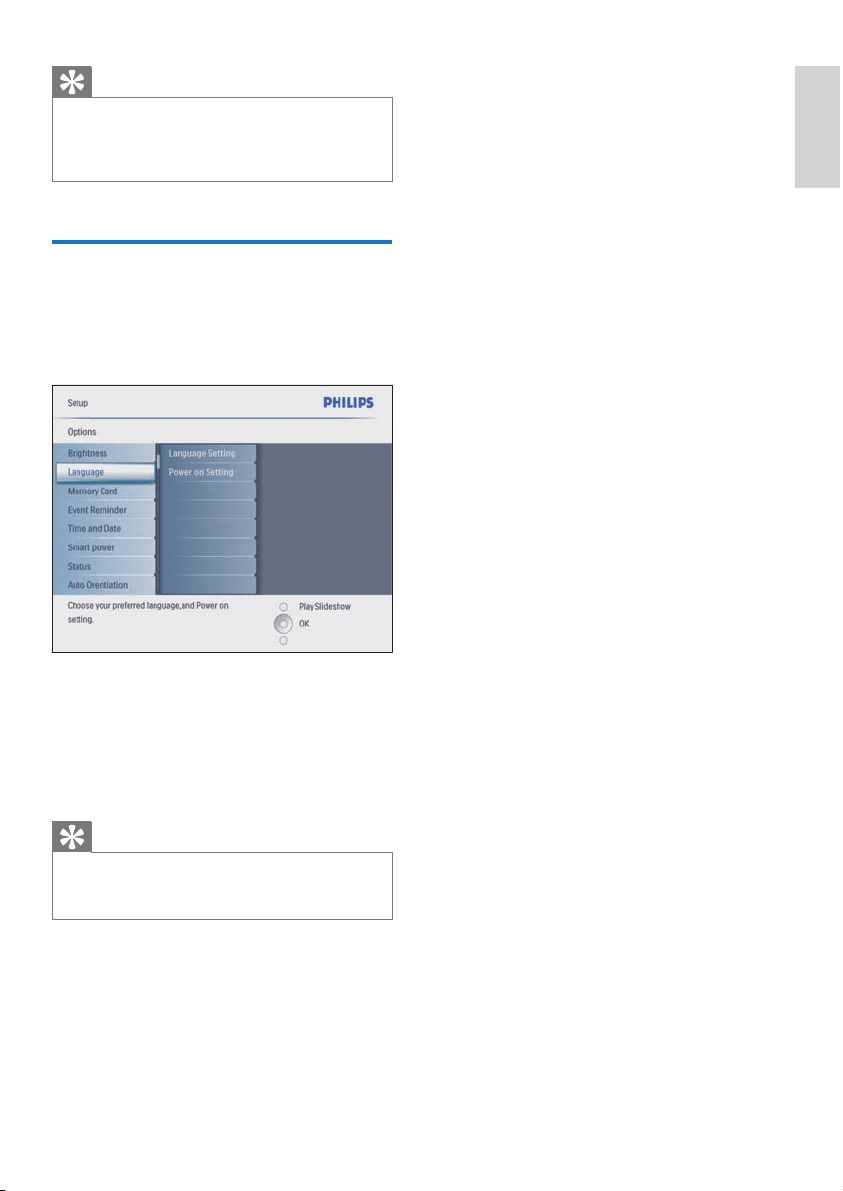
Select on-screen language
You can set up the on-screen language.
1 In the main menu, select [Setup] and press
OK to confi rm.
2 Select [Language] and press OK to
confi rm.
3 Select [Language Setting] and press OK to
confi rm.
4 Select a language and press OK to confi rm.
Tip
If you want to set up the language after every power-
on, you can select [Power on Setting]>[On] in the
[Language Setting] menu.
•
English
EN
14
Tip
In Slideshow mode, the PhotoFrame displays all photos
automatically.
In Browse mode, the PhotoFrame displays the current
photo and you can press
/ to display the next/
previous photo.
In Calendar mode, the PhotoFrame displays photos
with the calendar. If you set the current time and a
reminder, the PhotoFrame also displays the current
time and reminder time.
•
•
•
Browse and edit photos in
thumbnail mode
You can browse many photos in thumbnail
mode.
1 In the main menu, select [Photos], then
press OK to confi rm.
In Slideshow or Browse mode, you
can press OK to browse photos in
thumbnail mode.
2 Select a photo source.
3 Select an album and press OK to confi rm.
Photos in the album are displayed in
thumbnail mode.
Press
/ / / to toggle between
photos.
4 Press OK to select or deselect a photo.
A larger version of the selected photo
is displayed on the right of the screen.
•
»
»
»
4 Use your Digital
PhotoFrame
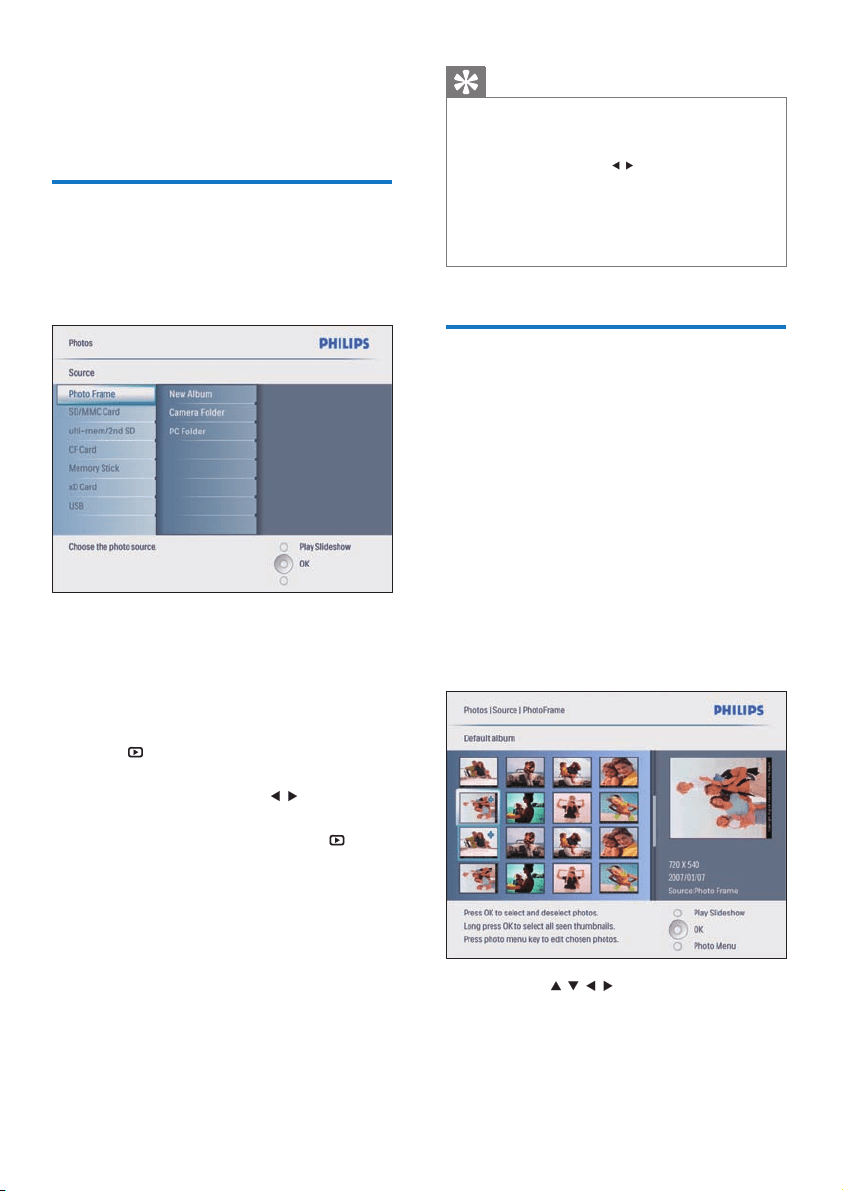
Display photos
1 In the main menu, select [Photos], then
press OK to confi rm.
Available photo sources are displayed.
2 Select a photo source and press OK to
confi rm.
3 Select an album and press OK to confi rm.
Photos in the album are displayed in
thumbnail mode.
4 Press to display the photos in Slideshow
mode.
In Slideshow mode, press
/ to display
the next/previous photo.
In Slideshow mode, you can press
to
toggle between Slideshow, Browse, and
Calendar mode.
»
»
•
•
EN
15
3 Press OK to confi rm.
Select a photo frame
1 In [Photo Menu], select [Frames], and
press OK to confi rm.
2 Select a frame.
3 Press OK to confi rm.
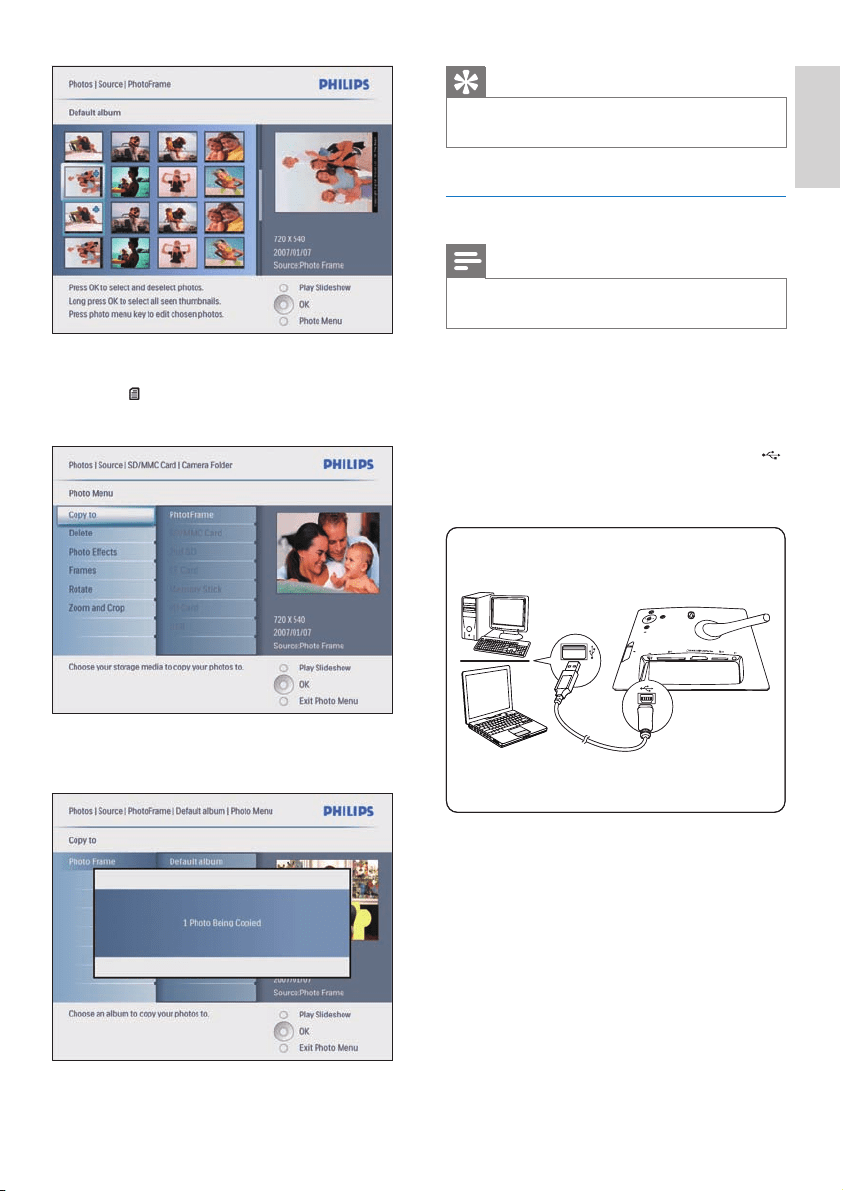
Rotate a photo
1 In [Photo Menu], select [Rotate], and press
OK to confi rm.
2 Select an orientation.
To select all photos displayed on the
screen, you can press OK for more
than 1 second.
If the number of photos in the album is
over 16, you can press
/ to move to
the next/previous 16 photos.
5 Press to access [Photo Menu] and
manage the photo.
Delete a photo
1 In [Photo Menu], select [Delete
Slideshow], then press OK to confi rm.
2 Select [Yes] and press OK to confi rm.
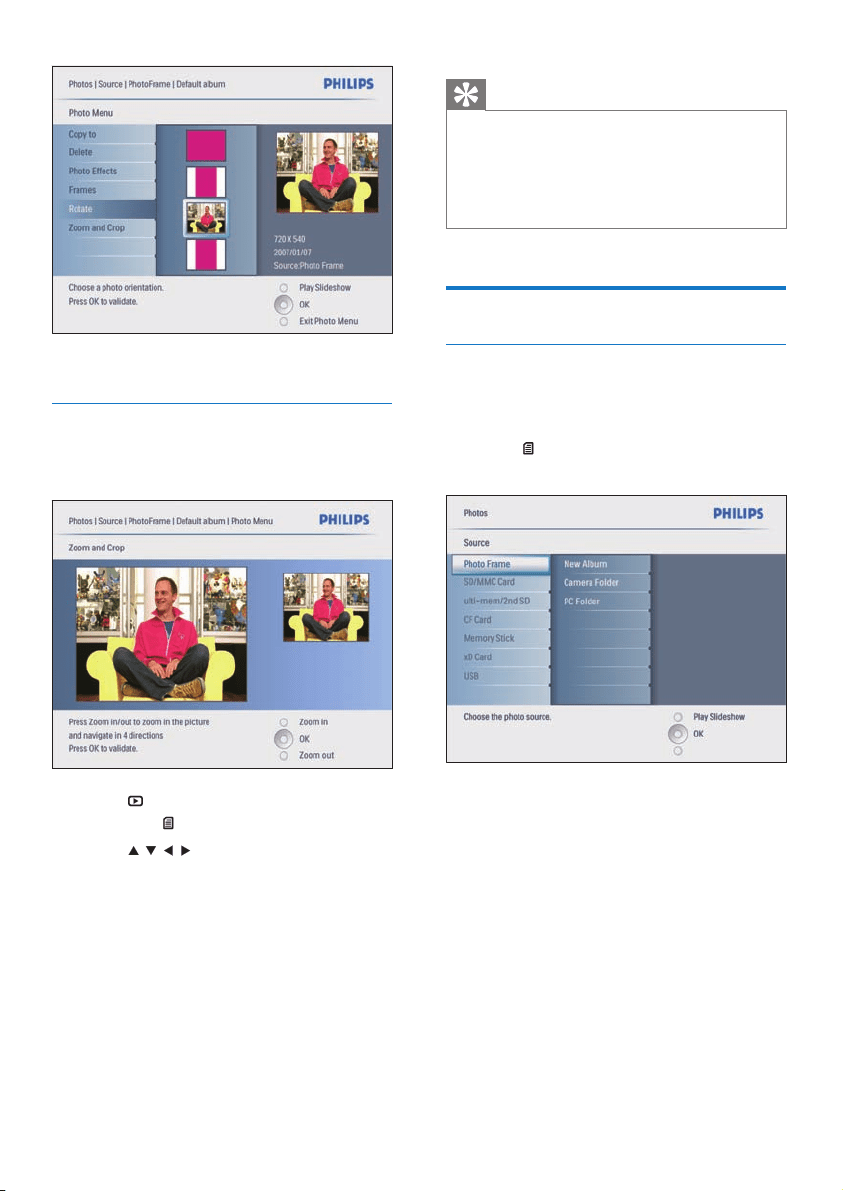
Select a photo effect
1 In [Photo Menu], select [Photo Effects],
then press OK to confi rm.
2 Select an effect.
»
»
English
EN
16
Tip
To retain image quality, zoom and crop the image
before you store the image in the PhotoFrame.
For 8FF3CDW/8FF3CME: Zoom and crop is only
applied to photos over 800*600 pixel.
For 10FF3CDW/10FF3CME/10FF3CMI: Zoom and crop
is only applied to photos over 800*480 pixel.
•
•
•
Copy photos
Copy photos to and from the
PhotoFrame
1 Insert a storage device.
2 Press , then select [Photos]>[Source]>a
storage device.
3 Press OK to confi rm.
4 Select an album and press OK to confi rm.
Photos in the album are displayed in
thumbnail mode.
»
3 Press OK to confi rm.
Zoom and crop a photo
1 In [Photo Menu], select [Zoom and Crop],
then press OK to confi rm.
2 Press to zoom in a photo.
Press
to zoom out a photo.
3 Press / / / to crop the photo.
4 Press OK to confi rm.
5 Select [Yes] and press OK to confi rm.
•
EN
17
Tip
When there is not enough memory to store more
images, an error message appears.
•
Copy photos to and from a PC/Mac
Note
Always leave the AC connected when you copy or
transfer photos to and from a PC/Mac.
•
You can copy photos from Windows PC
(XP & Vista) or Mac System (OS X) to
the PhotoFrame or a memory card on the
PhotoFrame.
1 Connect the supplied USB cable to the
socket on the PhotoFrame and to the USB
slot on a PC/Mac.
2 Select photos in an album on a PC/Mac.
3 Copy the photos to an album of the
PhotoFrame or a memory card.
4 Disconnect the USB cable.
The PhotoFrame automatically restarts.»
RESET
RESET
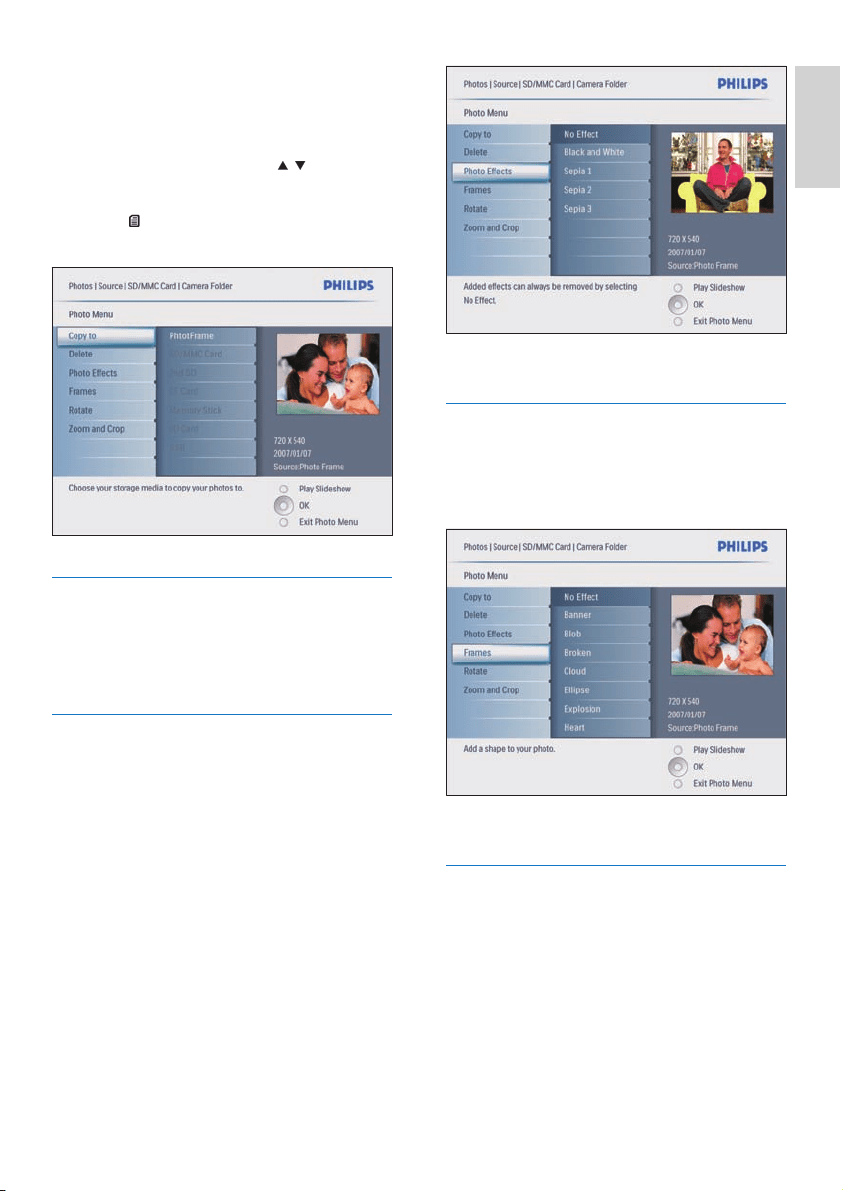
5 Select photos.
6 Press to access
[Photo Menu]
.
7 Select
[Copy to]
and press
OK
to confi rm.
8 Select an album and press OK to start to
copy.
English
EN
18
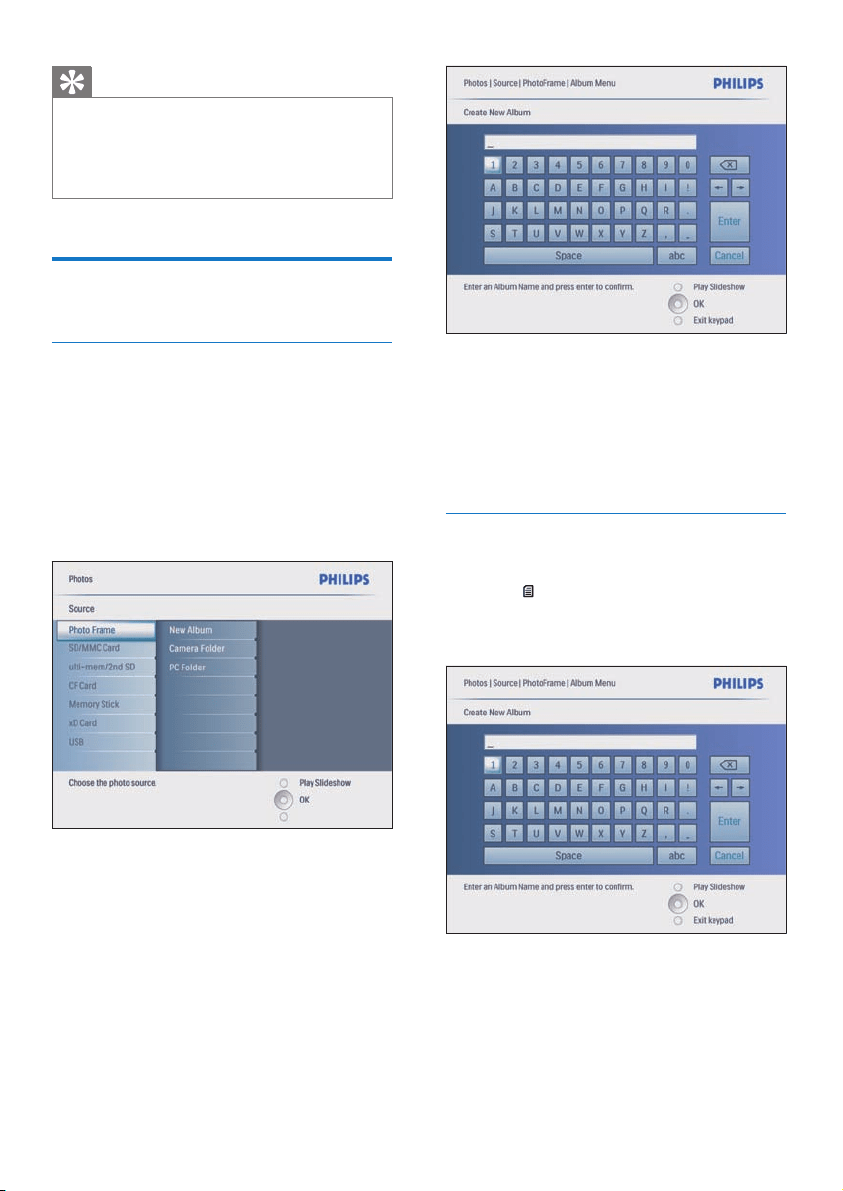
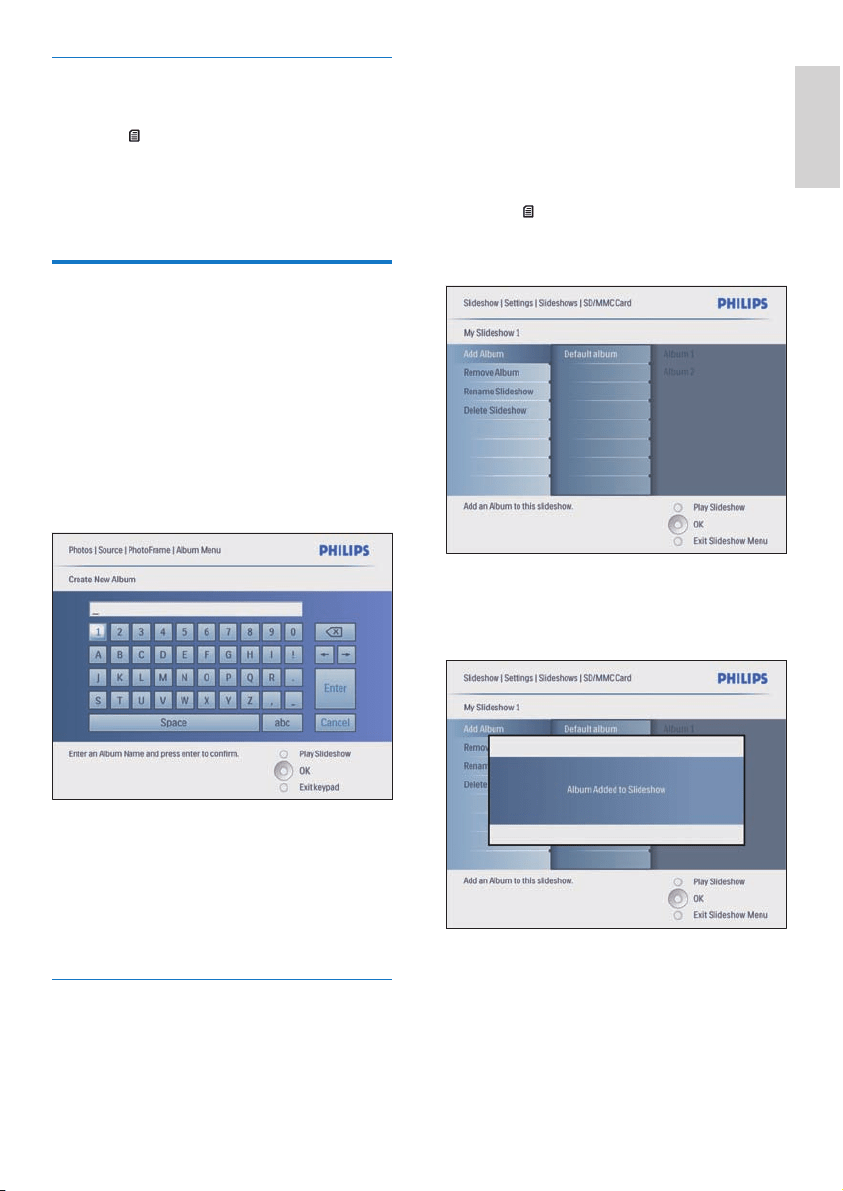
4 Enter the new album name (up to 24
characters).
Select an alphabet and press OK to
confi rm.
When the album name is complete,
select Enter and press OK to confi rm.
Rename an album
1 Select an album.
2 Press to select [Rename Album], then
press OK to confi rm.
A keypad is displayed.
3 Enter the new album name (up to 24
characters).
Select an alphabet and press OK to
confi rm.
When the album name is complete,
select Enter and press OK to confi rm.
•
•
»
•
•
Tip
You can also copy photos from the PhotoFrame or a
memory card on the PhotoFrame to a PC/Mac.
All photos processed and copied to the PhotoFrame
may be resized for optimal display on the PhotoFrame
and to save storage space.
•
•
Create and manage photo
albums
Create an album
You can create an album on the PhotoFrame
and on a storage device available on the
PhotoFrame.
1 In the main menu, select [Photos], then
press OK to confi rm.
2 Select a photo source and press OK to
confi rm.
3 Select [New Album] and press OK to
confi rm.
A keypad is displayed.»
EN
19
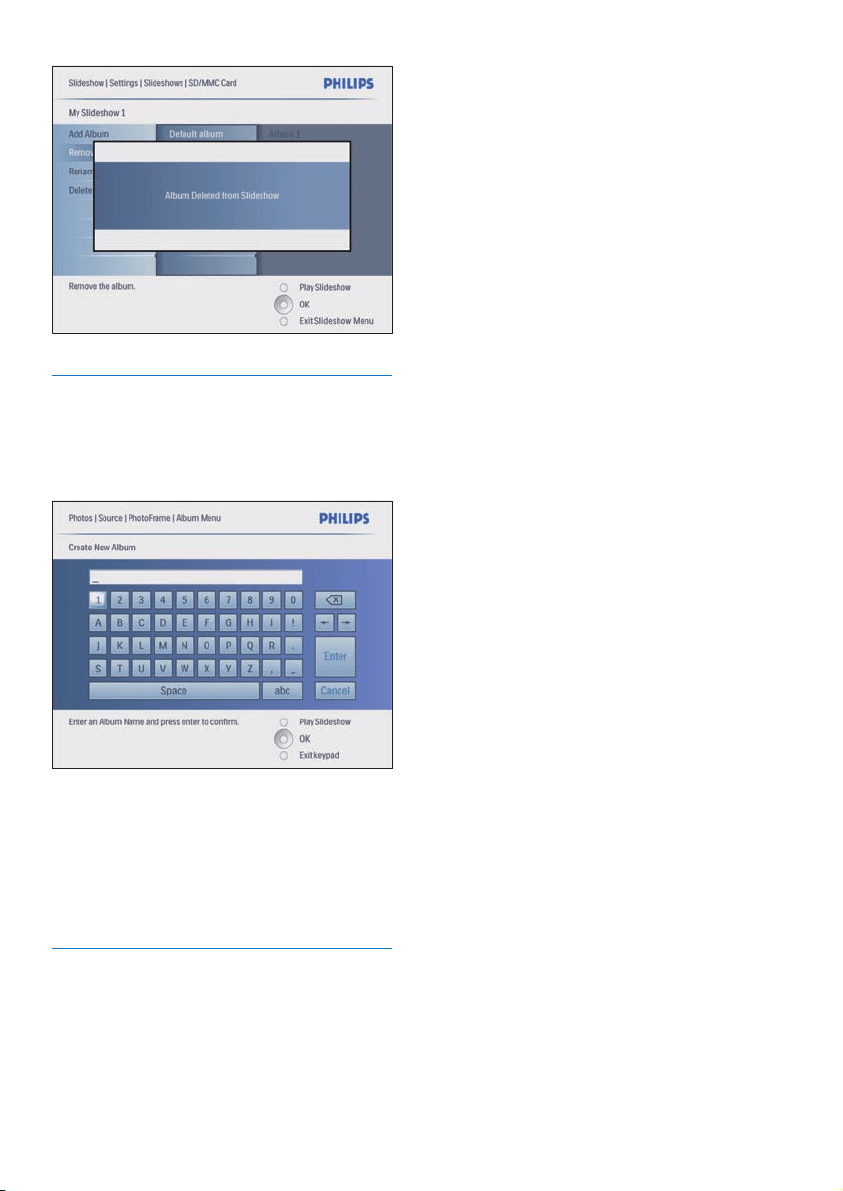
1 In the main menu, select [Slideshow]>[Sett
ings]>[Slideshows]>a photo source.
2 Press OK to confi rm.
An album list is displayed.
3 Select an album in the list to be added.
4 Press to access [Slideshow Menu].
5 Select [Add Album] or [Default album]
and press OK to confi rm.
6 Select an album and press OK to confi rm.
The album is added to/deleted from
the slideshow.
»
»
Delete an album
1 Select an album.
2 Press .
3 Select [Default album] and press OK to
confi rm.
4 Select [Yes] and press OK to confi rm.
Create a slideshow album
1 In the main menu, select [Slideshow], then
press OK to confi rm.
2 Select [Slideshows] and press OK to
confi rm.
3 Select a photo source and press OK to
select [New Slideshow].
4 Press OK to confi rm.
A keypad is displayed.
5 Enter the new album name (up to 24
characters).
Select an alphabet and press OK to
confi rm.
When the album name is complete,
select Enter and press OK to confi rm.
Add/Remove an album to/from the
slideshow
You can add an album to slideshow and you can
also remove an album from slideshow.
»
•
•
English
EN
20
Rename a slideshow album
1 In [Slideshow Menu], select [Rename
Slideshow], then press OK to confi rm.
A keypad is displayed.
2 Enter the new album name (up to 24
characters).
Select an alphabet and press OK to
confi rm.
When the album name is complete,
select Enter and press OK to confi rm.
Delete a slideshow album
1 In [Slideshow Menu], select [Delete
Slideshow], then press OK to confi rm.
2 Select [Yes] and press OK to confi rm.
»
•
•
EN
21
Tip
If you select [Random] effect, all available transition
effects randomly apply to all slideshow photos.
•
Select slideshow frequency
1 In the main menu, select [Slideshow], then
press OK to confi rm.
2 Select [Frequency] and press OK to
confi rm.
3 Select a transition time.
[<5 Seconds] (default)
4 Press OK to confi rm.
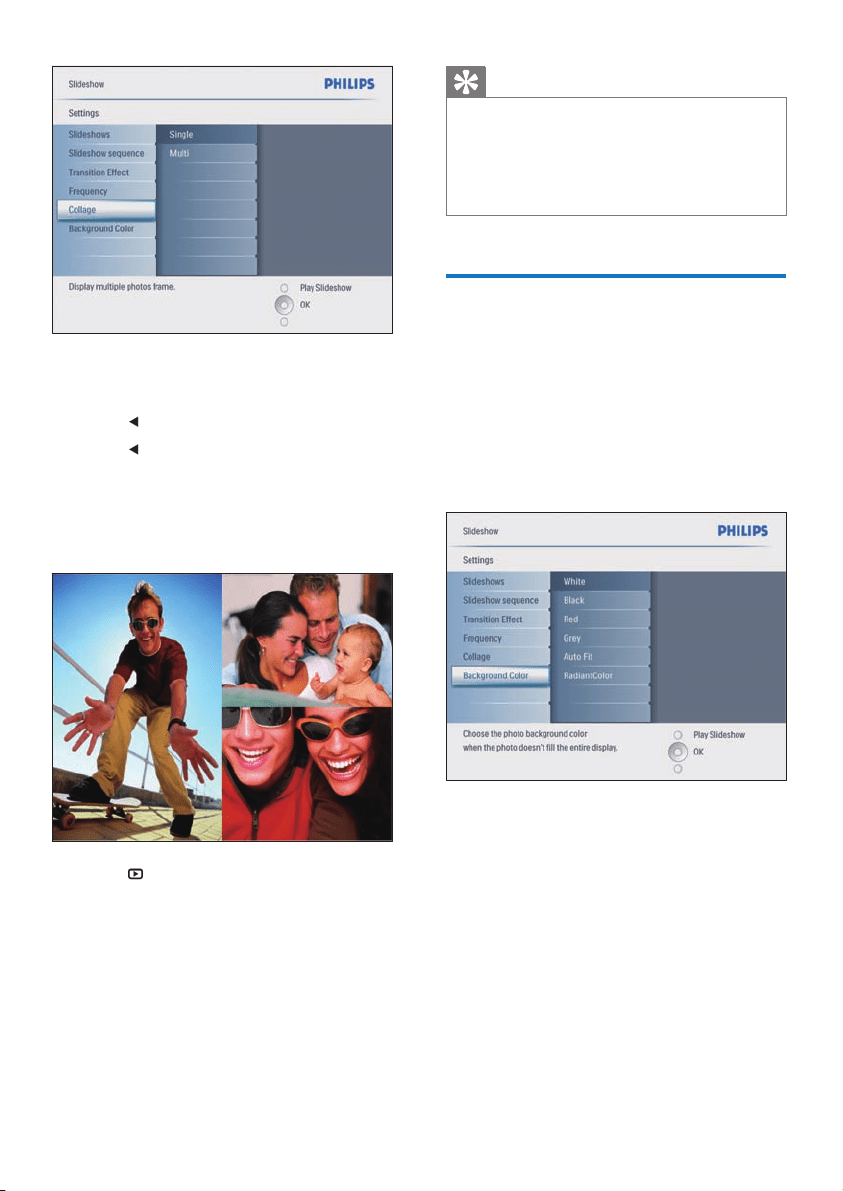
Display collage photos
1 In the main menu, select [Slideshow], then
press OK to confi rm.
2 Select [Collage] and press OK to confi rm.
•
5 Use more of
your Digital
PhotoFrame
Select slideshow sequence
You can display the slideshow in sequence or
randomly.
1 In the main menu, select [Slideshow], then
press OK to confi rm.
2 Select [Slideshow sequence] and press
OK to confi rm.
3 Select [Sequential].
To display the slideshow randomly,
select [Random].
4 Press OK to confi rm.
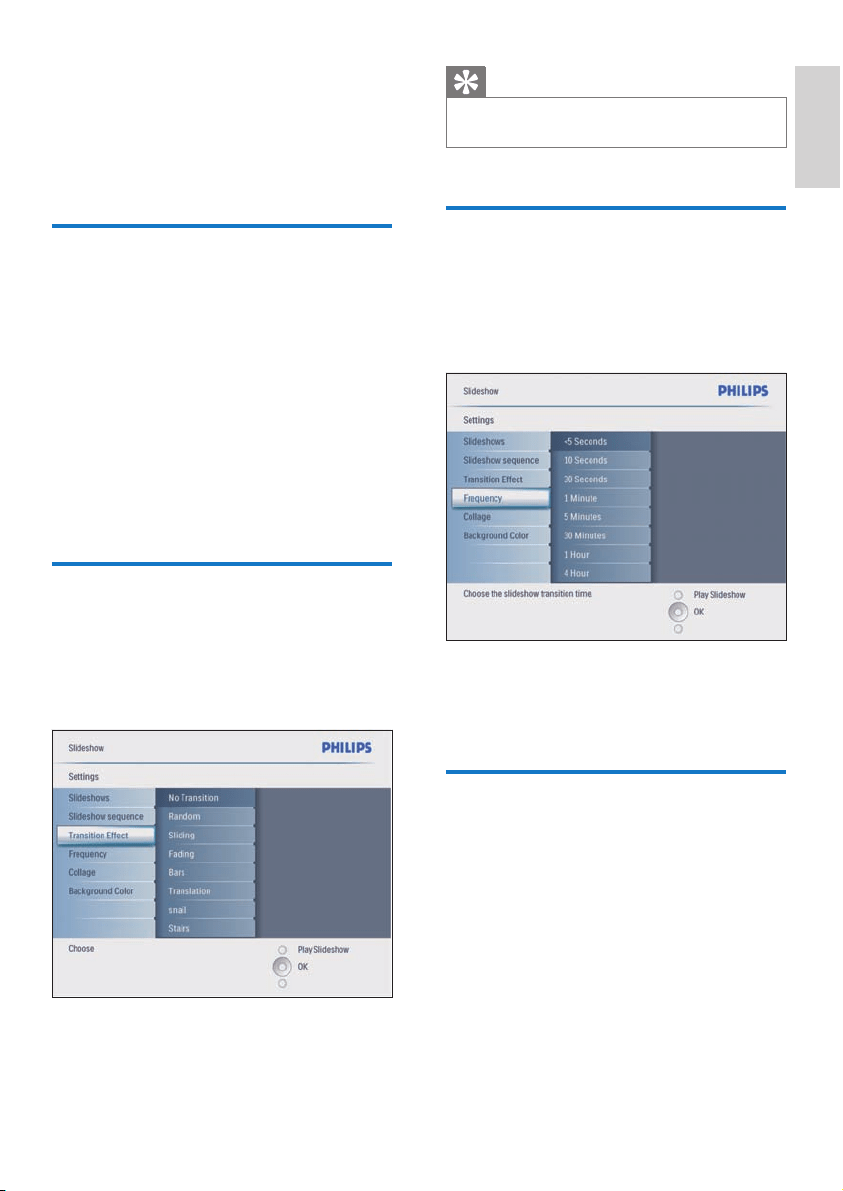
Select a transition effect
1 In the main menu, select [Slideshow], then
press OK to confi rm.
2 Select [Transition Effect] and press OK to
confi rm.
3 Select a transition effect and press OK to
confi rm.
•
English
EN
22
Tip
If you select a collage layout, the PhotoFrame displays a
static collage and the slideshow mode is deactivated.
If you select [Random] format, the PhotoFrame
automatically does the random collage base on the
optimal layout of photos and displays the collages in
slideshow mode.
•
•
Select background
You can select the background border
colour for photos that are smaller than the
PhotoFrame display.
1 In the main menu, select [Slideshow], then
press OK to confi rm.
2 Select [Background Color] and press OK
to confi rm.
3 Select a background colour/ [Auto fi t]/
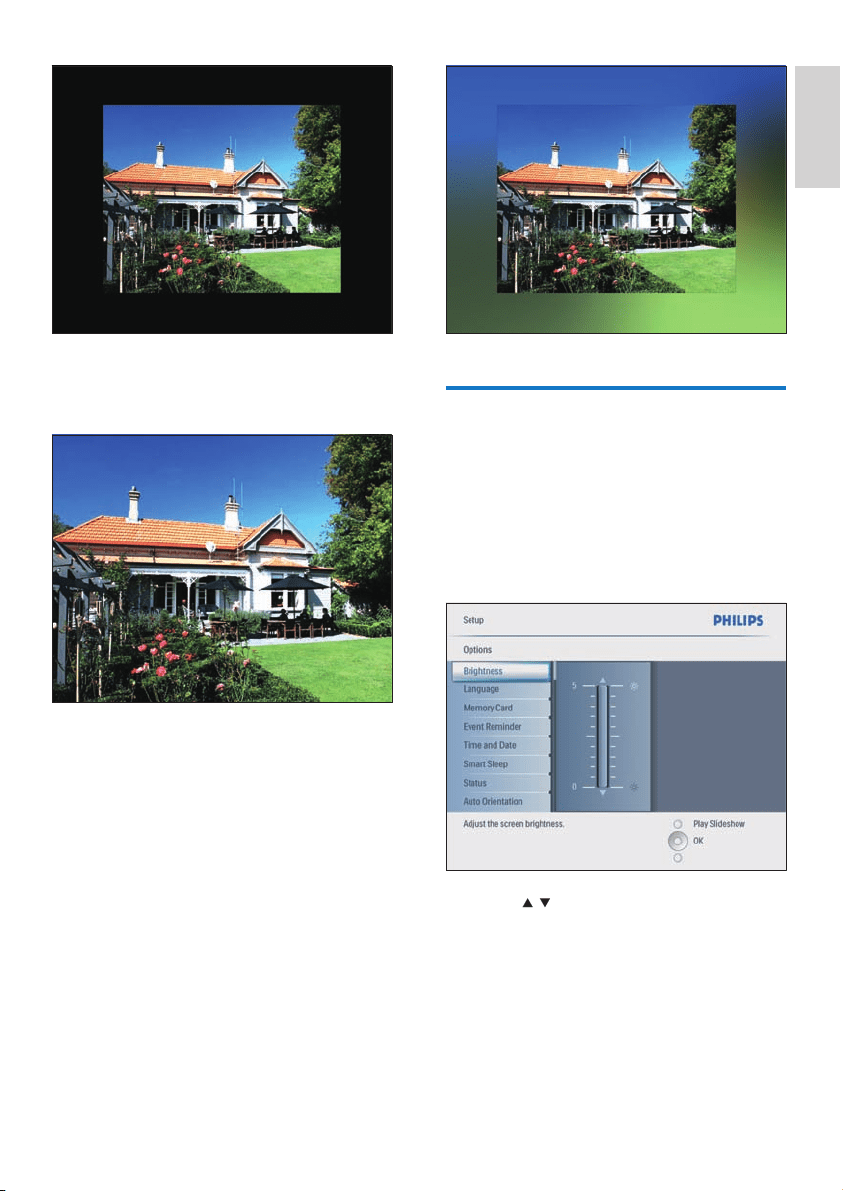
[RadiantColor] and press OK to confi rm.
If you select a background colour, the
PhotoFrame displays a photo with a
background colour or black bar.
»
3 Select [Multi] and press OK to confi rm.
4 Select a layout.
5 Press to select [Photo 1].
6 Press again to access the photo source
options.
7 Select a photo from a photo source.
8 Repeat steps 5 to 7 until all photos are
selected for the format.
9 Press to display the collage picture.
To stop Collage display, select
[Slideshow]>[Collage]>[[Single]and
press OK to confi rm.
•
EN
23
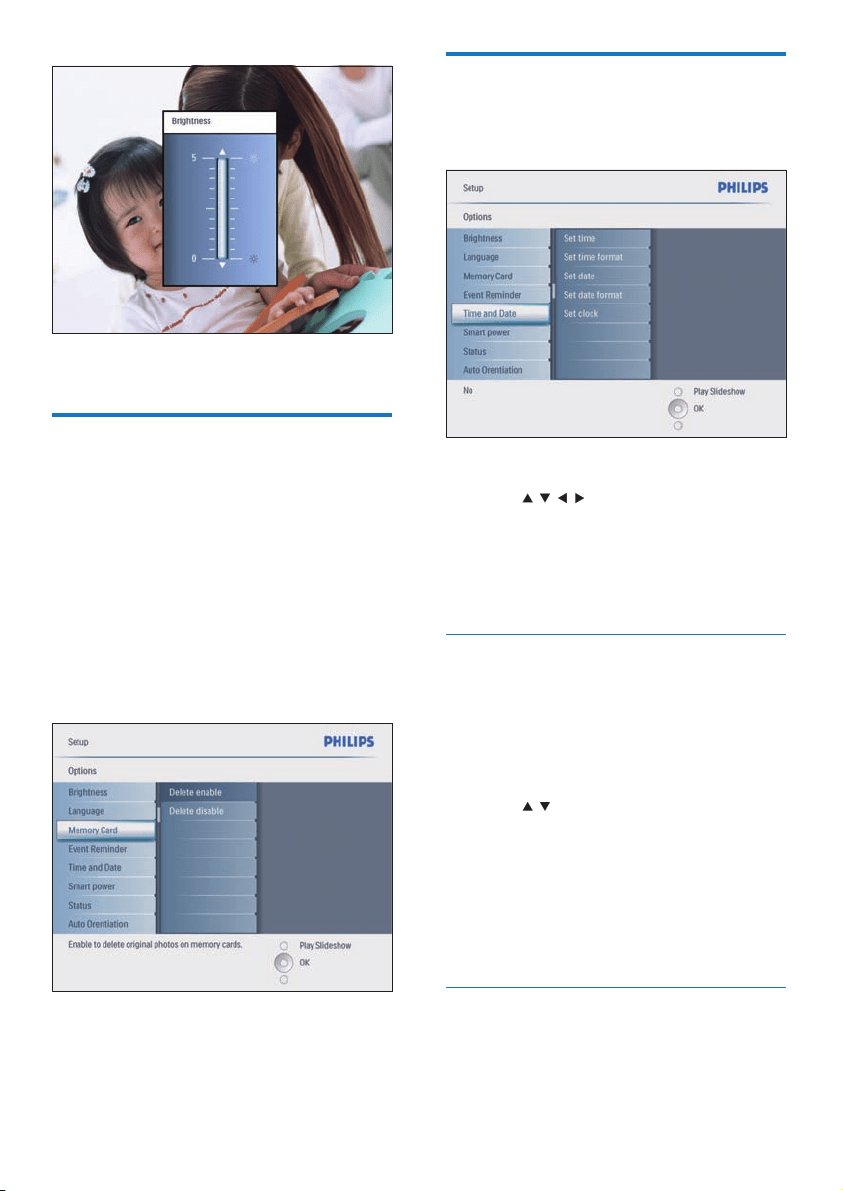
Adjust Brightness
You can set the brightness of the PhotoFrame
to achieve the best photo view.
1 In the main menu, select [Setup], then
press OK to confi rm.
2 Select [Brightness] and press OK to
confi rm.
3 Press / to adjust brightness.
If you select [Auto fi t], the
PhotoFrame extends a photo to fi ll the
screen with picture distortion.
If you select [RadiantColor], the
PhotoFrame extends the colour on the
edges of a photo that is smaller than
the full screen to fi ll the screen without
black bars or aspect ratio distortion.
»
»
English
EN
24
Set time and date
1 In [Setup]>[Options]>[Time and Date],
select [Set time].
2 Press OK to confi rm.
3 Press / / / and OK to enter the
current time of the PhotoFrame.
4 Press OK to confi rm.
5 Repeat steps 1 to 4 to set the current date
of the PhotoFrame.
Set time and date format
You can set the time and date format of the
PhotoFrame.
1 In [Setup]>[Options]>[Time and Date],
select [Set time format], then press OK to
confi rm.
2 Press / to select the time format.
[12 Hour]
[24 Hour]
3 Press OK to confi rm.
4 Repeat steps 1 to 3 to set the date format.
[DD/MM/YY]
[MM/DD/YY]
Set show clock
You can use the PhotoFrame as a clock.
•
•
•
•
4 Press OK to confi rm.
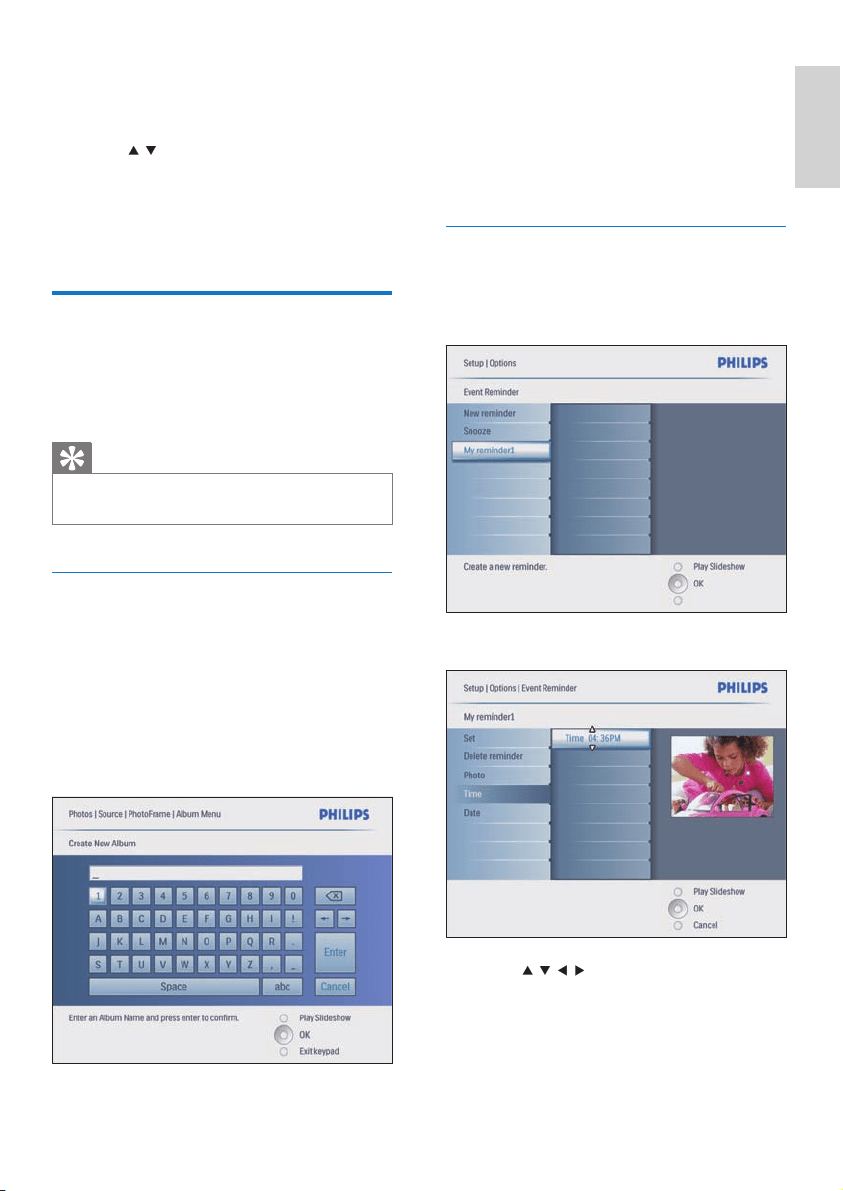
Protect/Unprotect content of
memory card
You can enable the delete function on a storage
device available on the PhotoFrame. To avoid
deleting photos on a storage device, you can
also disable the delete function on a storage
device.
1 In the main menu, select [Setup], then
press OK to confi rm.
2 Select [Memory Card] and press OK to
confi rm.
3 Select [Delete enable] or [Delete disable]
and press OK to confi rm.
EN
25
4 Enter the new album name (up to 24
characters).
Select an alphabet and press OK to
confi rm.
When the album name is complete,
select Enter and press OK to confi rm.
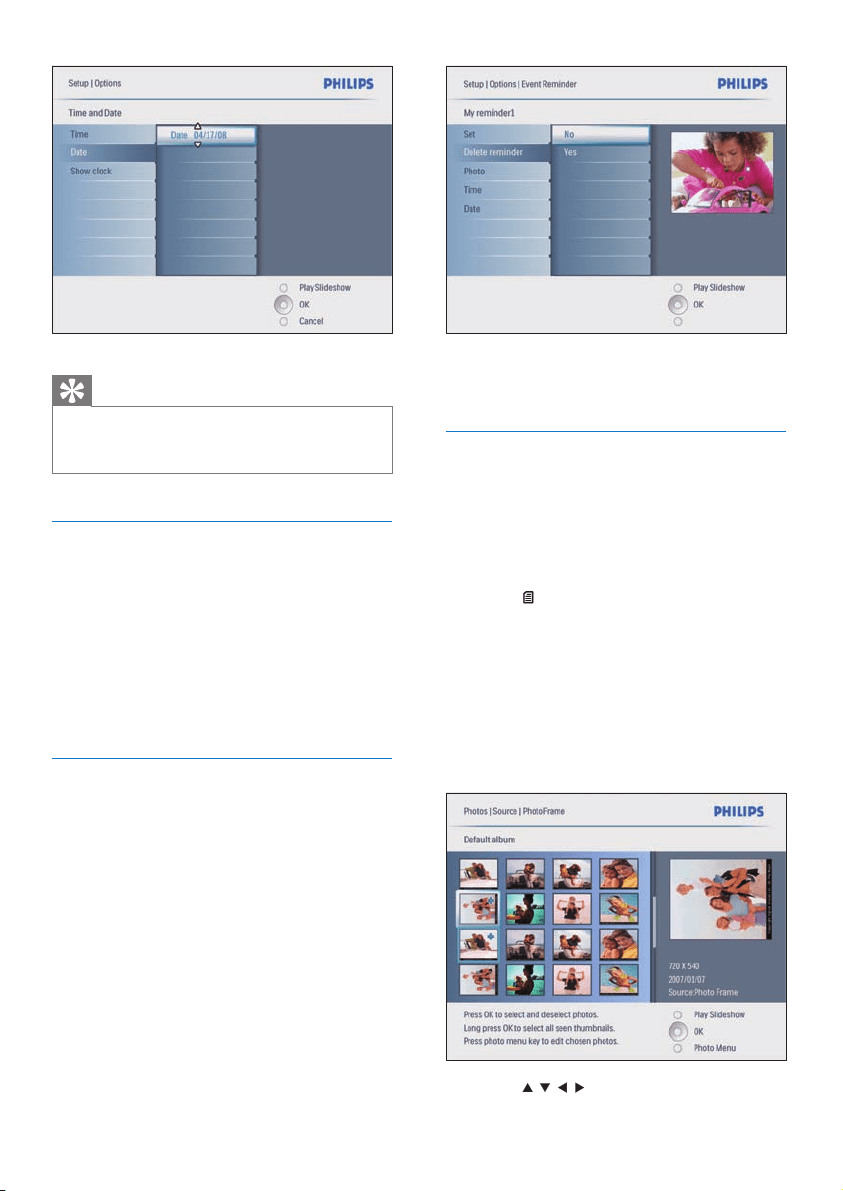
Set event time and date
1 In [Setup]>[Options]>[Event Reminder],
select a reminder, then press OK to
confi rm the selection.
2 Select [Time] and press OK to confi rm.
3 Press / / / and OK to set the time
and press OK to confi rm.
4 Repeat steps 2 to 3 to set the date.
•
•
1 In [Setup]>[Options]>[Time and Date],
select [Show clock], then press OK to
confi rm.
2 Press / to select:
[No clock]
[In slideshow]
[Both]
3 Press OK to confi rm.
Set an event reminder
You can create a reminder for a special event,
and you can also select a photo to be displayed
at a selected time.
Tip
You should set the current time and date of the
PhotoFrame before you set an event reminder.
•
Create an event reminder
1 In the main menu, select [Setup], then
press OK to confi rm.
2 Select [Event Reminder] and press OK to
confi rm.
3 Select [New reminder] and press OK to
c o n fi r m fi r m .
A keypad is displayed.
•
•
•
»
English
EN
26
3 Select [Yes] to delete the reminder.
4 Press OK to confi rm.
Select a reminder photo
You can select a photo for a reminder. Each
event reminder activates the latest defi ned
photo only. If there is no defi ned photo, the
reminder takes the default Philips start up
photo.
1 Press to select
[Setup]>[Options]>[Event Reminder]>a
reminder, then press OK to confi rm.
2 Select [Photo] and press OK to confi rm.
3 Select a photo source and press OK to
confi rm.
Photos in the album are displayed in
thumbnail mode.
Press
/ / / to toggle between photos.
»
•
Tip
When the reminder alerts, you can press any button
once to stop the reminder. To stop the snooze function,
press the same button twice.
•
Set on a reminder
1 In [Setup]>[Options]>[Event Reminder],
select a reminder, then press OK to
confi rm.
2 Select [Set] and press OK to confi rmn.
3 Select [On] to set the reminder on.
To set the reminder off, select [Off].
4 Press OK to confi rm.
Delete a reminder
1 In [Setup]>[Options]>[Event Reminder],
select a reminder, then press OK to
confi rm.
2 Select [Delete reminder] and press OK to
confi rm.
•
EN
27
6 Press OK to confi rm.
Tip
Weekday: Monday 00:00 to Friday 23:59
Weekend: Saturday 00:00 to Sunday 23:59
If [Time]>[Set On/Off]>[On] is selected, the lighting
Smart Power function is disabled.
If you press any button at the Event Reminder time,
the PhotoFrame alerts the reminder and then returns
to the Smart Power function 5 minutes later. The
PhotoFrame does not return to the Smart Power
function when the sleep time has happened or the light
is too strong.
•
•
•
•
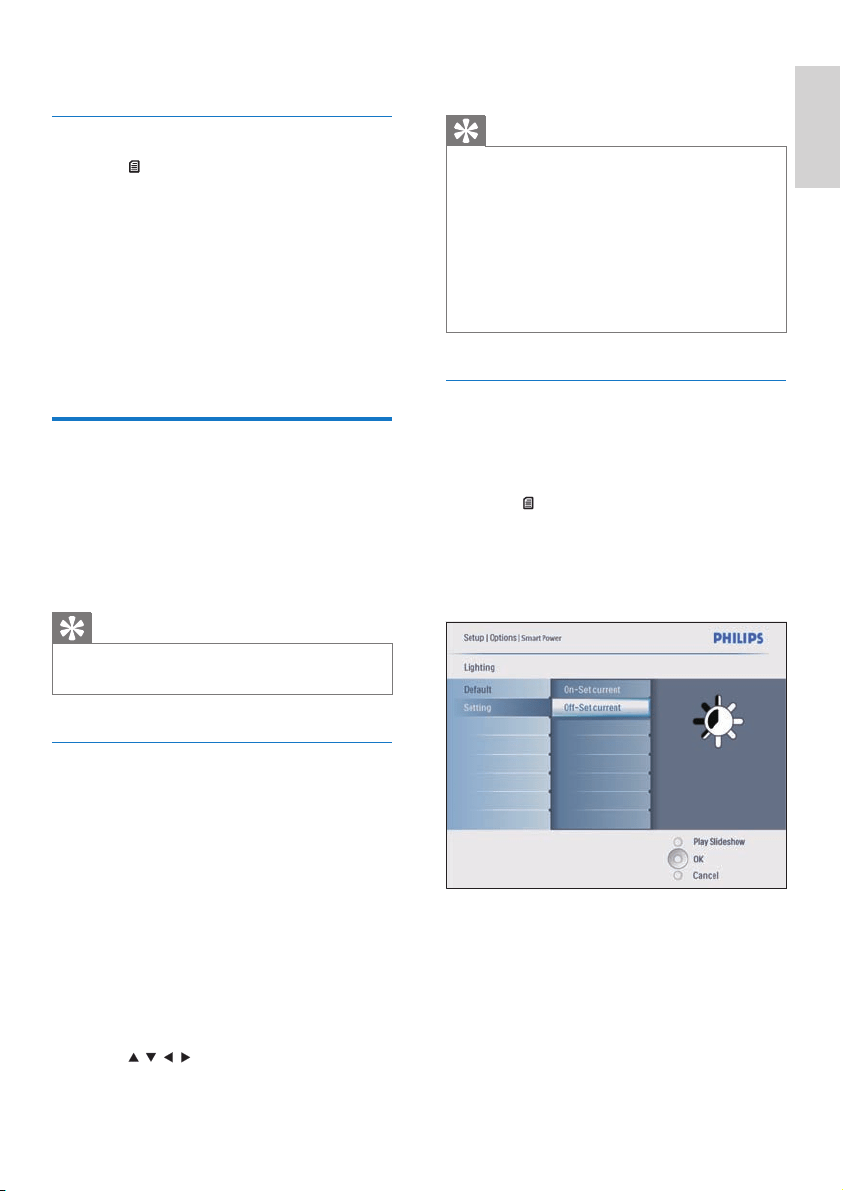
Set the display auto on/off by lighting
You can use the default brightness of ambient
lighting condition and you can also set the
brightness of ambient lighting condition.
1 Press to select
[Setup]>[Options]>[Smart
power]>[Lighting], then press OK to
confi rm.
2 Select [Settings] and press OK to confi rm.
To use the default setting, select [Default]
and press OK to confi rm.
3 Select [On - Set current] and press OK to
confi rm.
The PhotoFrame wakes up when the
brightness of environment reaches the
[On - Set current] brightness.
•
»
4 Press OK to confi rm.
Set snooze
1 Press and select
[Setup]>[Options]>[Event
Reminder]>[Snooze], then press OK to
confi rm.
2 Select one of the following options and
press OK to confi rm.
[Off]
[10 Minutes]
[60 Minutes]
To cancel the snooze function, select [Off].
Set display Auto on/off
You can confi gure the time for the PhotoFrame
to turn on or off the display automatically.
You can also adjust the brightness setting for
the PhotoFrame to turn on or off the display
according to the brightness of environment.
Tip
You should set the current time and date of the
PhotoFrame before you set the Auto on/off functions.
•
Set display auto on/off by time
1 In the main menu, select [Setup]>[Smart
power], then press OK to confi rm.
2 Select [Time] and press OK to confi rm.
3 Select [Weekday] and press OK to
confi rm.
To enable the Smart Sleep function at
weekends, select [Weekend].
4 Select [Auto on]/[Auto off] and press OK
to confi rm.
To cancel [Auto on]/[Auto off], select
[Set On/Off]>[Off].
5 Press / / / and OK to set the time for
auto-on function.
•
•
•
•
•
•
English
EN

28
Set button sound
1 In the main menu, select
[Setup]>[Options]>[Set Beep], then press
OK to confi rm.
2 Select [On] to turn on the button sound.
To turn off the button sound, select
[Off].
3 Press OK to confi rm.
View status of the
PhotoFrame
You can fi nd the free space, connected media,
and the fi rmware version of the PhotoFrame.
1 In the main menu, select [Setup]>[Options
]>[Status], then press OK to confi rm.
The status of the PhotoFrame is
displayed on the right of the screen.
•
»
To have the PhotoFrame sleep at the set
brightness of ambient lighting condition,
select [Off - Set current].
Tip
If the [On - Set current] brightness level is too close
with the [Off - Set current] brightness level, the display
Auto on/off function may not work.
•
Disable Smart Power
1 In the main menu, select
[Setup]>[Options]>[Smart power]>[Off].
2 Press OK to confi rm.
Set Demo
1 In the main menu, select [Setup]>
[Options]>[DEMO].
2 Press OK to confi rm.
Set Auto Orientation
You can display photos in the correct
orientation depending the horizontal/vertical
orientation of the PhotoFrame.
1 In the main menu, select
[Setup]>[Options]>[Auto Orientation],
then press OK to confi rm.
2 Select [Enable] to set on Auto Orientation
function.
To set off Auto Orientation function,
select [Disable].
3 Press OK to confi rm.
•
•
EN

29
Temperature range (operation): 0°C
- 40°C/32°F - 104°F
Temperature range (storage): -10°C -
60°C/14°F - 140°F
Power
Input: 100 - 240 V 50/60 Hz 0.6 A
Output: 9 V
2.0 A
Effi ciency level: IV
Consumption: System on 5.43 W
Power mode supported: AC powered
Accessaries
AC-DC Adaptor
USB cable to PC
Stand
Quick start guide
CD-ROM, including
User Manual
Philips PhotoFrame Manager
(software and manual)
Convenience
Card Reader: Built-in (3x)
Photo format supported: JPEG photo (Up
to 10MB JPEG fi les, Up to 20 Megapixels)
Placement supported: Photo auto
orientation, Landscape, Portrait
Buttons and controls: 3 buttons, 4-way
navigation key and enter
Playback mode: Full screen browse,
Slideshow, Thumbnail browse
Album management: Create, Delete, Edit,
Rename
Photo edit: Copy, Delete, Rotate, Zoom &
crop
Photo effects: Black and White, Frames,
Sepia, Radiant colour
Slideshow management: Create slideshow,
Delete slideshow, Rename slideshow
Slideshow setting: Random, Sequential,
Transition effect, Collage (multiple pictures)
Screen background: Black, White, Gray,
Auto-fi t
Setup function: Brightness adjustment,
Language, Status, Event reminder with
snooze, Beep on/off, Set time and date,
Clock display enable/disable, Photo source,
Auto on/off, Slideshow
•
•
•
•
•
•
•
•
•
•
•
•
•
•
•
•
•
•
•
•
•
•
•
•
•
•
6 Product
information
Note
Product information is subject to change without prior
notice.
•
10FF3CDW/10FF3CME/
10FF3CMI
Picture/Display
Viewing angle: @ C/R > 10, 120º (H)/110º
(V)
Lifetime, to 50% brightness: 20000 hr
Aspect ratio: 16:9
Panel resolution: 800 x 480
Brightness: 250 cd/m²
Contrast ratio (typical): 300:1
Connectivity
USB: USB 2.0 Host, USB 2.0 Slave
Storage Media
Memory Card Types:
Compact Flash type I
Secure Digital (SD)
Secure Digital (SDHC)
Multimedia Card
xD card
Memory Stick
Memory Stick Pro
Memory Stick Duo
Memory Stick Pro Duo
USB: USB fl ash drive
Built-in memory capacity: 128MB (for
510-1020 photos, around 26MB used by
system)
Dimensions
Set dimensions with stand
(W x H x D): 284.6 x 195.1 x 35.4 mm/
11.20 x 7.68 x 1.39 inch
Weight (Main unit): 0.718 kg/1.58 lb
•
•
•
•
•
•
•
•
•
•
•
•
•
•
•
•
•
•
•
•
English
EN

30
Temperature range (operation): 0°C
- 40°C/32°F - 104°F
Temperature range (storage): -10°C -
60°C/14°F - 140°F
Power
Input: 100 - 240V/ 50-60 Hz 0.6 A
Output: 9V
2.0 A
Effi ciency level: IV
Consumption: (System on) 4.63 W
Power mode supported: AC powered
Accessaries
AC-DC Adaptor
USB cable to PC
Stand
Quick start guide
CD-ROM, including
User Manual
Philips PhotoFrame Manager
(software and manual)
•
•
•
•
•
•
•
•
•
•
•
•
•
•
System status: Firmware version, Remaining
memory
Connected media status: Connected
media,
Plug & Play Compatibility: Windows Vista,
Windows 2000/XP or later, Mac OS X
Regulatory Approvals: BSMI, C-Tick, CCC,
CE, FCC, GOST, PSB, Switzerland, UL/cUL
Other convenience: Kensington lock
compatible
On-Screen Display languages: English,
Spanish, German, French, Italian, Dutch,
Danish, Russian, Simplifi ed Chinese,
Traditional Chinese, Portuguese
8FF3CDW/8FF3CME
Picture/Display
Viewing angle: @ C/R > 10, 130º (H) /
110º (V)
Lifetime, to 50% brightness: 20000 hr
Aspect ratio: 4:3
Panel resolution: 800 x 600
Brightness: 250 cd/m²
Contrast ratio (typical): 300:1
Connectivity
USB: USB 2.0 Host, USB 2.0 Slave
Storage Media
Memory Card Types:
Compact Flash type I
Secure Digital (SD)
Secure Digital (SDHC)
Multimedia Card
xD card
Memory Stick
Memory Stick Pro
Memory Stick Duo
USB: USB fl ash drive
Built-in memory capacity: 128MB (for
510-1020 photos, around 26MB used by
system)
Dimensions
Set dimensions with stand
(W x H x D): 222.6 x 182.2 x 33.2 mm/
8.76 x 7.17 x 1.31 inch
Weight (Main unit): 0.34 kg/0.75 lb
•
•
•
•
•
•
•
•
•
•
•
•
•
•
•
•
•
•
•
•
•
•
•
•
•
•
EN

31
7 Guarantee and
service
One Year Limited Warranty (for US and
Canada only)
Philips warrants that this product shall be free
from defects in material, workmanship and
assembly, under normal use, in accordance with
the specifi cations and warnings, for a period
of one year from the date of purchase. This
warranty extends only to the original purchaser
of the product, and is not transferable. To
exercise your rights under this warranty, you
must provide proof of purchase in the form of
an original sales receipt that shows the product
name and the date of purchase. For customer
support or to obtain warranty service, please
visit our website www.philips.com/welcome or
Contact Philips Customer Care Center at:
1-888-PHILIPS (1-888-744-5477) IN U.S.A.,
Puerto Rico, or U.S. virgin islands. 1-800-
661-6162 (French speaking), 1-888-PHILIPS
(1-888-744-5477) (English or Spanish speaking)
in Canada. THERE ARE NO OTHER EXPRESS
OR IMPLIED WARRANTIES. Philips liability
is limited to repair or, at its sole option,
replacement of the product. Incidental, special
and consequential damages are disclaimed
where permitted by law. This warranty gives
you specifi c legal rights. You may also have other
rights that vary from state to state.
Banned Substance Declaration
This product comply with RoHs and Philips
BSD (AR17-G04-5010-010) requirements.
English
EN

32
exactly at the Auto-off time. If the time has
already passed for the day, it starts to enter
Auto-off status at the specifi ed time from the
next day.
I try to upload pictures from my PC to a
memory card, which I then insert into the
PhotoFrame. However, the PhotoFrame does
not show the photos. What can I do?
Load all photos you want to upload to the
PhotoFrame in the root directory of your
memory card. Power off your PhotoFrame,
insert the memory card, and then restart the
PhotoFrame. After a few seconds, all photos
in the root directory of the memory card will
be automatically added to the PhotoFrame.
The root directory on memory card will NOT
be emptied after this operation. Note that
this operation does not apply to photos in
subdirectories.
Does the PhotoFrame support progressive
JPEG?
No, it does not support progressive JPEG. If you
insert a memory with progressive JPEG fi le, the
PhotoFrame does not show.
Why I cannot delete one of the pre-load
image (baby)?
The PhotoFrame actually has limited internal
memory that only can save up to 4 photos
(after the PhotoFrame resizes the photos to fi t
into internal memory).
The PhotoFrame gives users the fl exibility to
delete 3 photos and upload another 3 photos
but protects only 1 original Philips photo
(Philips brand with baby).
The PhotoFrame gives users more fl exibility to
delete all pre-load images via updating fi rmware.
The new fi rmware is available in end of July
2008. You can go to www.philips.com/support
for downloading new fi rmware to do so.
When I connect to PC, why I cannot see
the internal memory but need to use other
memory card to upload photos into internal
memory?
The PhotoFrame actually has limited internal
memory that only can save up to 4 photos
(after the PhotoFrame resizes the photos to fi t
into internal memory).
8 Frequently
asked questions
Is the LCD screen touch-enabled?
The LCD screen is not touch-enabled. Use the
buttons on the back to control the PhotoFrame.
Can I switch different slideshow photos by
using different memory cards?
Yes. When a memory card is connected to the
PhotoFrame, it displays photos stored on that
specifi c card in slideshow mode.
Will the LCD screen be damaged, if I keep
showing the same photo for a long time?
No. The PhotoFrame can display the same
photo continuously for 72 hours without any
damage to the LCD screen.
Can I use the PhotoFrame to delete photos
on a memory card?
Yes, it supports operations to delete photos on
external devices such as a memory card.
Can I print photos from the PhotoFrame?
No, it does not support direct photo printing.
Can I use the PhotoFrame during its Auto-off
periods?
Yes. Press any control button to bring the
system back to ON status.
Why does not my PhotoFrame show some of
my photos?
Digital cameras take photos and store them
in JPEG format according to camera industry
standards. The PhotoFrame is designed to show
photos following the same industry standards.
Images, such as web images, scanned images,
or photos in RAW format from professional
cameras, are not stored according to camera
industry standards and therefore cannot be
correctly displayed on the PhotoFrame. Use
PC applications to convert such images into
standard JPEG format for the PhotoFrame.
Why does not my PhotoFrame go into Auto-
off status after I set it?
First, make sure you set the current time,
Auto-off time, and Auto-on time correctly. The
PhotoFrame automatically turns off its display
EN

33
1. Set up the time fi rst.
2. Go to the main menu --> Auto dim -->
Auto dim start (this is the time you want the
display start to work) and then click OK to
confi rm.
3. Set Auto Dim end time (this is the time you
want the display to turn off) and press OK to
confi rm.
4. Auto dim timer select “ON” and press OK to
confi rm.
Why when I insert photos I got from PC, the
PhotoFrame does not show them?
This may be because the fi le is progressive JPEG
which mainly from internet. The PhotoFrame
does support progressive JPEG.
This is done to prevent the PhotoFrame from
being formatted by PC. You can still upload
photos into internal memory via other memory
cards.
Why the photos distort?
If the format of picture is different as the
PhotoFrame (for example,if you set “auto fi t”
on the PhotoFrame, a 4x3 photo input into
a (16x9) PhotoFrame may distort. You can
set a background colour or set RadiantColor.
A background colour keeps the correct
aspect ratio but may have black bar (or the
background colour you select). we recommend
you to select RadiantColor to keep the correct
aspect ratio with the exterior of photo colour
RadiantColor does give you the best viewing
experience. Users can go to: Main menu>
Slideshow>Background>RadiantColor/Auto
fi t/black/red/gray.
What is the difference between background,
Auto fi t and RadiantColor?
If the picture format is different as the
PhotoFrame, the PhotoFrame provides several
solutions for it.
1. Auto fi t: it is just like wide screen TV, the
PhotoFrame extends the photo to fi ll fully the
screen with picture distortion.t
2. Background colour: the PhotoFrame displays
a photo without distortion but with black bar
or a selected background colour.
3. RadiantColor: the PhotoFrame displays a
photo without distortion with RadiantColor.
RadiantColor is a new technology that the
system analyses the colour of picture edge
and extend the colour to fi ll the screen. This
does improve the viewing experience. Users
can go to: Main menu>Slideshow>Backgroun
d>RadiantColor/Auto fi t/black/red/gray.
When I connect to both USB fl ash driver and
PC, why I cannot see USB fl ash in PC?
That is the limitation of the PhotoFrame. If you
want to transfer photos from PC to USB fl ash
driver, we recommand that you do copy actions
on PC.
Does the PhotoFrame support CF II?
No, it does not support CF II.
Why Auto Dim does not work?
English
EN

34

© 2008 Koninklijke Philips Electronics N.V.
All rights reserved.