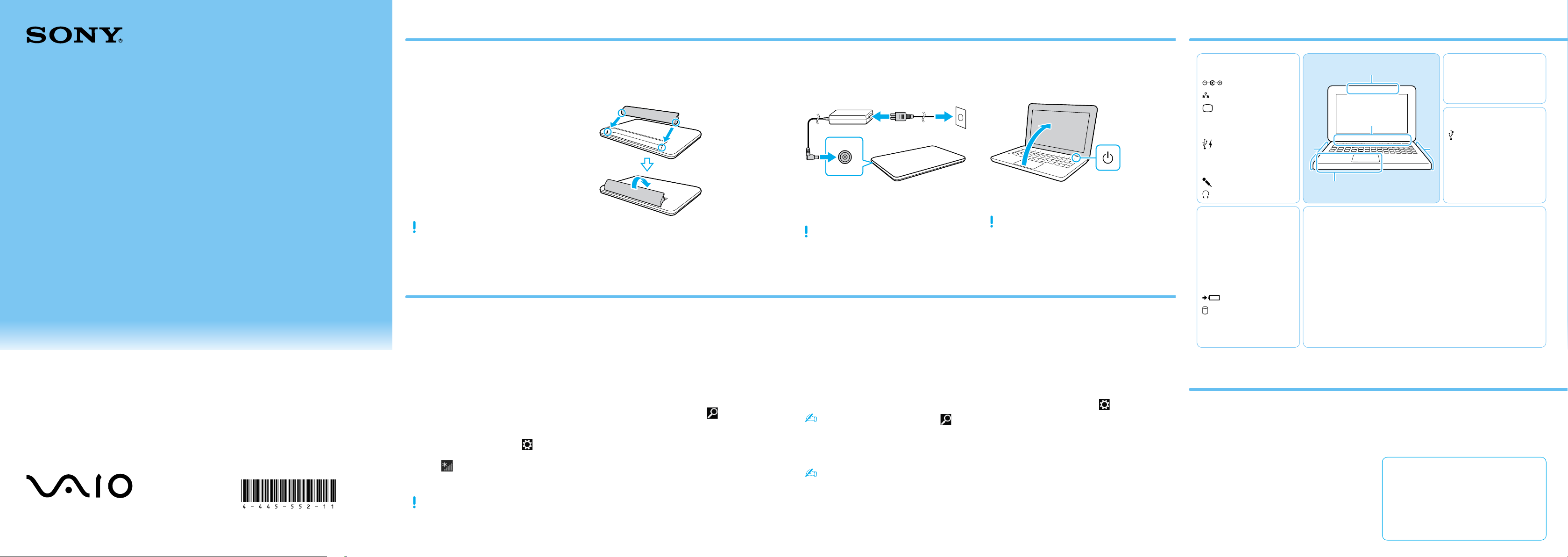
Quick
Start
Guide
Please read this manual and
Safety Regulations carefully
before using the product.
Keep them in a safe place.
123Q_IRX-6500_6510_6530_6540_6550_US/FR 4-445-552-11 (1)
Initial Setup
1
Check supplied items
2
Install battery pack
3
Connect AC adapter
Printed in China
© 2012 Sony Corporation
AC adapter
Power cord
Battery pack
Parts and Controls
Unlock the battery’s LOCK switch before
installing the battery, and then lock the
switch after installing.
With the battery pack installed on your
computer, plug the power cord and the AC
adapter into an AC outlet and the computer.
Be sure to connect the AC adapter to your
computer when using it for the first few times
to ensure the battery becomes fully charged.
4-445-552-11 (1)
Features and specifications may vary and are
subject to change without notice.
Personal Computer
E Series SVE141/SVE151/SVE171
5
Connect to the
Internet
7
Start VAIO Care
8
Use Microsoft account
Connect to the Internet to automatically
activate Windows.
Wired connection
Connect your computer and router with a
LAN cable.
Wi-Fi® (Wireless LAN) connection
1
Open the charms by pointing to the top
right corner of the screen, then move the
pointer down and click the
Settings
charm.
2
Click (the network icon).
3
Select the desired network (SSID) and click
Connect.
For details on the security key and other
settings, refer to the manual of the network
device or the information from your Internet
service provider.
Sign in to Windows with a Microsoft account
so that you can use and download apps
from Windows Store.
1
Open the charms by pointing to the top
right corner of the screen, then move the
pointer down and click the
Settings
charm.
2
Click Change PC settings, Users, and
Switch to a Microsoft account.
3
Follow the on-screen instructions.
While the computer is on, press the ASSIST
button to start VAIO Care, then complete
the following steps by clicking the items in
the right pane.
Use VAIO Update
Click VAIO Software.
To use Windows Update, click the
Search charm and Settings, then search
Windows Update.
Create your Recovery Media
Click Advanced Tools.
Recovery Media are not supplied with your
computer. Refer to the supplied Recovery,
Backup and Troubleshooting Guide
before creating the Recovery Media.
Register your computer
Click About your VAIO.
6
Locate User Guide
An introduction of the User Guide is
available on your computer. Update to the
complete guide online by following the
steps below.
1
Open the charms by pointing to the top
right corner of the screen, then move the
pointer down and click the
Search
charm.
2
Click Apps and enter “VAIO Manual” in the
search box.
3
Click VAIO Manual in the Apps list.
4
Turn on your
VAIO® computer
Press and hold down the power button until
the power indicator light turns on.
The startup process will take a few minutes.
No action is required until the setup window
appears.
Care and Handling Tips
D
USB port x 3 (Compliant
with the USB 2.0
standard.)
Optical disc drive
Security slot
Computer Handling
Do not exert pressure on your computer,
especially the LCD/touch screen or the AC
adapter cable.
HDD Care
If your computer is equipped with a built-in
hard disk drive, avoid moving the computer
when it is turned on, is in the process of
powering on, or is shutting down.
Ventilation
Place your computer on hard surfaces such
as a desk or table. Proper air circulation
around vents is important to prevent
overheating.
Liquid Damage
Protect your computer from contact with
liquids.
B
“Memory Stick Duo” slot
Media access indicator
SD memory card slot
WIRELESS indicator
Power indicator
Charge indicator
Disc drive indicator
Touch pad
Press the bottom left of
the touch pad to click.
E
Built-in microphone
Built-in camera / indicator
A
DC IN port
LAN port
Monitor port
HDMI output port
Air exhaust vent
USB port (Compliant
with the USB 3.0 standard
and supports USB
charging.)
Microphone jack
Headphones jack
E
A
B
D
C
C
ASSIST button Starts VAIO Care while your computer is on -
easily tune-up and self support the computer.
WEB button Launches the web browser - starts Windows,
then the web browser when your computer is
off.
VAIO button Executes the assigned task – pressing and
holding down the button enables you to change
the task.
Built-in speakers
Power button
Support websites
http://esupport.sony.com/US/VAIO (USA)
http://www.sony.ca/support/ (Canada: English)
http://fr.sony.ca/support (Canada: French)
http://esupport.sony.com/LA/VAIO
(Latin American area)
http://esupport.sony.com/BR/VAIO (Brazil)
Guide de
Démarrage
Rapide
Veuillez lire attentivement ce manuel
ainsi que les Réglementations de
sécurité avant d'utiliser ce produit.
Conservez-les dans un endroit sûr.
123Q_IRX-6500_6510_6530_6540_6550_US/FR 4-445-552-11 (1)
Con
fi
guration
initiale
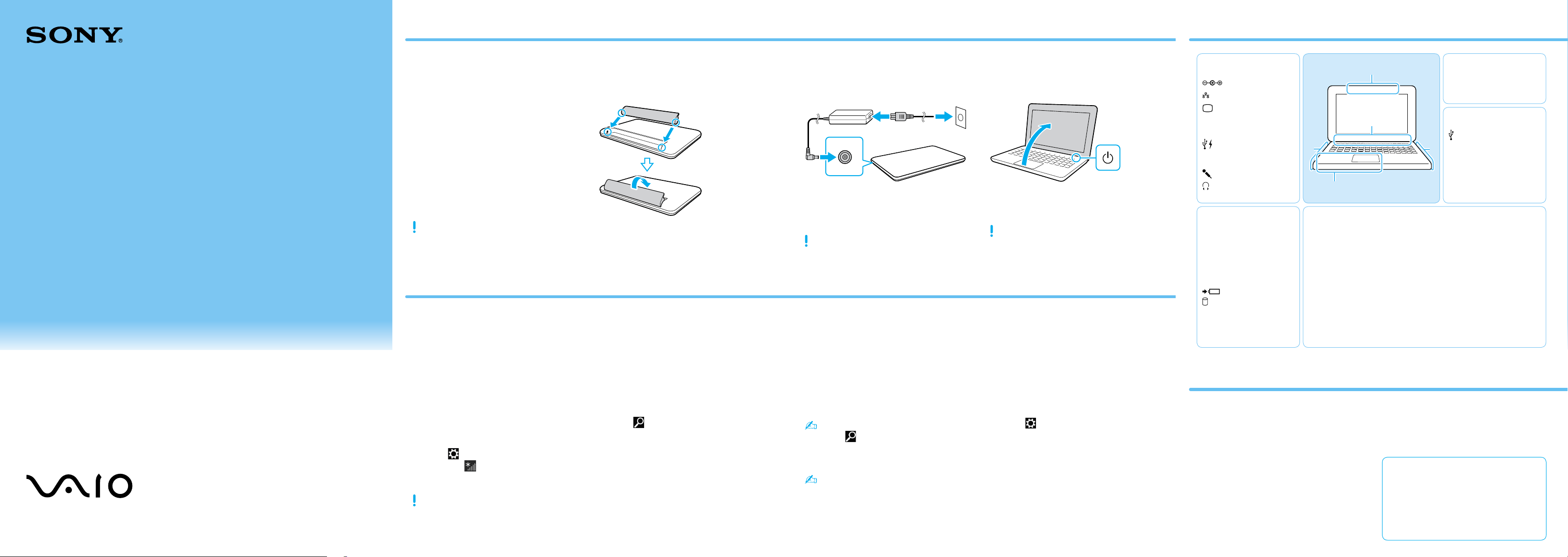
1
Vérifier les
articles fournis
2
Installation de
la batterie
3
Brancher à
l'adaptateur c.a.
Adaptateur c.a.
Cordon d'alimentation
Batterie
Pièces détachées et contrôles
Déverrouillez le verrou LOCK de la batterie
avant d'installer la batterie, puis verrouillez-le
après l'installation.
Une fois la batterie installée dans votre
ordinateur, branchez le cordon d'alimentation
et l'adaptateur c.a. dans une prise c.a. et
l'ordinateur.
Durant vos premières utilisations, assurez-vous
que l'adaptateur c.a. est branché à votre
ordinateur de manière à garantir que la
batterie se charge complètement.
Les fonctions et les caractéristiques techniques
peuvent varier et sont modifiables sans préavis.
Ordinateur personnel
Série E SVE141/SVE151/SVE171
5
Connexion à Internet
7
Démarrer VAIO Care
8
Utilisez votre
compte Microsoft
Connectez-vous à Internet afin d'activer
automatiquement Windows.
Connexion câblée
Connectez votre ordinateur et routeur avec
un câble de réseau local.
Connexion Wi-Fi
MD
(Réseau local sans fil)
1
Ouvrez les icônes en pointant dans le coin
supérieur droit de l'écran, puis déplacez
le pointeur vers le bas et cliquez sur
l'icône
Paramètres.
2
Cliquez sur (icône du réseau).
3
Sélectionnez le réseau désiré (SSID) et
cliquez sur Connecter.
Pour obtenir de plus amples renseignements
sur le code de sécurité et autres paramètres,
reportez-vous au manuel du périphérique
réseau ou aux renseignements fournis par
votre fournisseur de services Internet.
Ouvrez une session Windows avec un
compte Microsoft afin de pouvoir utiliser
et télécharger des applications depuis
Windows Store.
1
Ouvrez les icônes en pointant dans le coin
supérieur droit de l'écran, puis déplacez
le pointeur vers le bas et cliquez sur
l'icône
Paramètres.
2
Cliquez sur Modifier les paramètres du PC,
Utilisateurs et Passer à un compte
Microsoft.
3
Suivez les instructions affichées à l'écran.
Pendant que l'ordinateur est sous tension,
appuyez sur le bouton ASSIST pour lancer
VAIO Care, puis effectuez les étapes suivantes
en cliquant sur les éléments qui se trouvent
dans le panneau de droite.
Utiliser VAIO Update
Cliquez sur Logiciels VAIO.
Afin d'utiliser Windows Update, cliquez sur
l'icône Rechercher et Paramètres,
puis rechercher
Windows Update.
Créer un Média de Réinstallation
Cliquez sur Outils avancés.
Aucun Média de Réinstallation n'est fourni
avec cet ordinateur. Reportez-vous au
Guide de réinstallation, sauvegarde et
dépannage avant de créer un Média de
Réinstallation.
Enregistrement de votre ordinateur
Cliquez sur À propos de votre VAIO.
6
Repérez le Guide
de l'utilisateur
Une introduction au Guide de l'utilisateur
est disponible sur votre ordinateur. Faites
une mise à jour complète du guide en ligne
en suivant les étapes ci-dessous.
1
Ouvrez les icônes en pointant dans le coin
supérieur droit de l'écran, puis déplacez
le pointeur vers le bas et cliquez sur
l'icône
Rechercher.
2
Cliquer sur Applications et saisir «Manuel
VAIO» dans le champ de recherche.
3
Cliquer sur Manuel VAIO dans la liste
Applications.
4
Mettez en marche
votre ordinateur VAIO
MD
Appuyez sur le bouton d'alimentation et
maintenez-le enfoncé jusqu'à ce que le
témoin d'alimentation s'allume.
Le processus de démarrage demandera
quelques minutes. Aucune action n'est
nécessaire jusqu'à ce que la fenêtre
d'installation s'affiche.
Conseils sur l'entretien et la manipulation
D
Port USB x 3 (conformes
à la norme USB 2.0.)
Lecteur de disque optique
Fente de sécurité
Manipulation de l'ordinateur
N'exercez pas de pression sur votre ordinateur,
en particulier sur l'écran ACL/tactile ou câble
de l'adaptateur c.a.
Utilisation sécuritaire du disque dur
Si votre ordinateur est équipé d'un lecteur
de disque dur intégré, évitez de déplacer
l'ordinateur lorsqu'il est en marche ou en
cours de démarrage ou d'arrêt.
Ventilation
Placez l'ordinateur sur une surface dure
comme un bureau ou une table. Une
circulation d'air adéquate autour des grilles
d'aération permet d'éviter une surchauffe.
Dommages causés par les liquides
Évitez que des liquides entrent en contact
avec votre ordinateur.
B
Fente pour «Memory
Stick Duo»
Témoin d'accès aux médias
Fente pour carte mémoire SD
Témoin WIRELESS
Témoin d'alimentation
Témoin de charge
Témoin de lecteur de disque
Pavé tactile
Appuyez dans l'angle
inférieur gauche du pavé
tactile pour cliquer.
E
Microphone intégré
Caméra/témoin intégrés
A
Port d'entrée en c.c.
Port réseau local
Port d'écran
Port de sortie HDMI
Grille d'aération
Port USB (conformes à la
norme USB 3.0 et prend en
charge le chargement USB.)
Prise microphone
Prise casque
E
A
B
D
C
C
Bouton ASSIST Lance VAIO Care lorsque votre ordinateur est en
marche - règle et auto - supporte l'ordinateur
aisément.
Bouton WEB Lance le navigateur web - démarre Windows, puis le
navigateur web lorsque votre ordinateur est arrêté.
Bouton VAIO
Exécute la tâche assignée - en appuyant et maintenant
enfoncé le bouton, vous pouvez changer de tâche.
Haut-parleurs intégrés
Bouton d'alimentation
Site web de support
http://esupport.sony.com/US/VAIO (États-Unis)
http://www.sony.ca/support/ (Canada: Anglais)
http://fr.sony.ca/support (Canada: Français)
http://esupport.sony.com/LA/VAIO
(Amérique latine)
http://esupport.sony.com/BR/VAIO (Brésil)