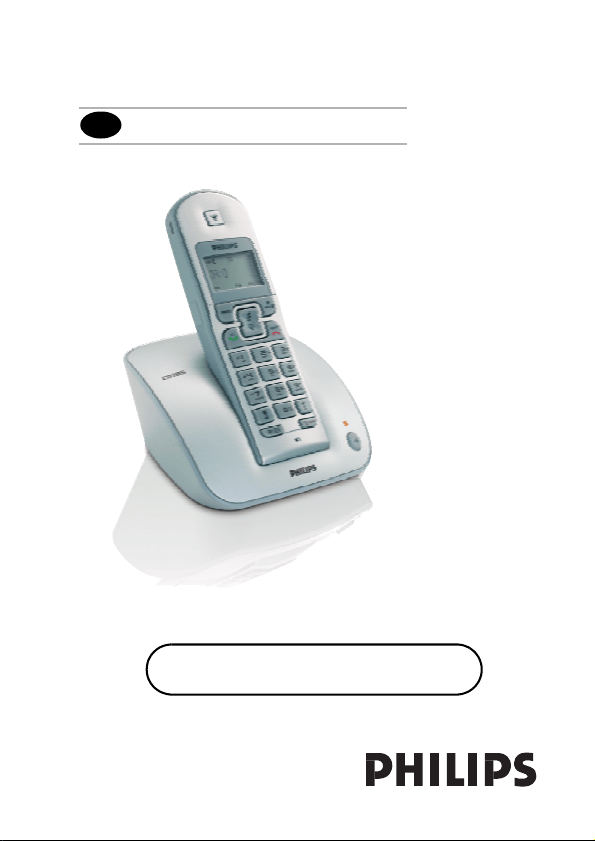
User manual
EN
Charge the handset(s) for 24 hours
before use !
EN
Before using your CD 135, you need to configure it according to the country of
use. Install the batteries. After a few minutes of charge, the Welcome screen
appears.
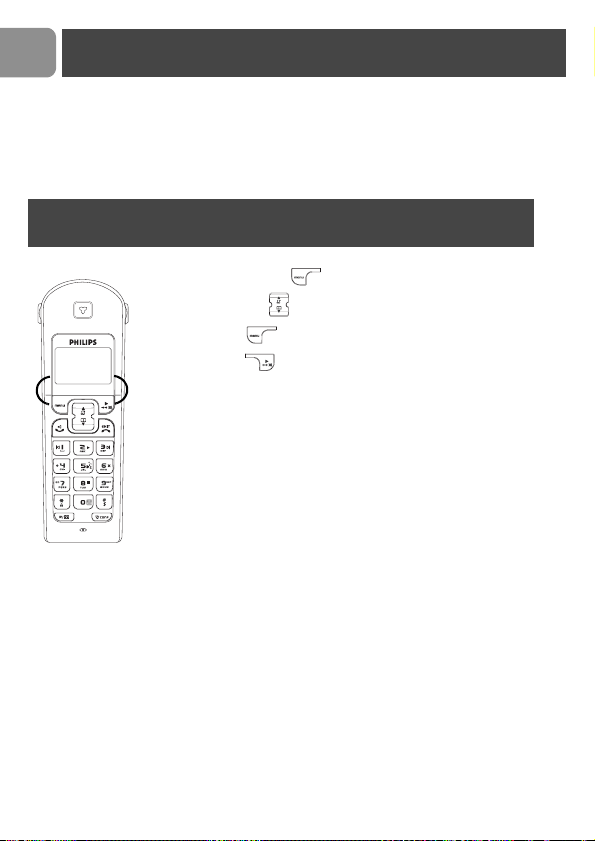
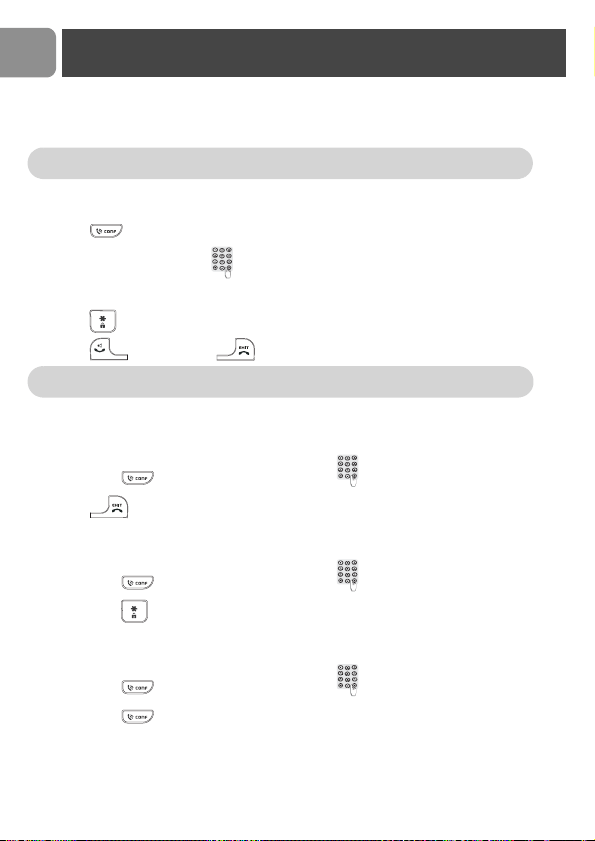
1. Press .
2. Browse through the different countries.
3. Press to confirm the country that suits you.
Your phone is ready to be used.
If you need to re-configurate your CD 135, see page 33.
Note: If BACK is pressed, the handset will show the country
selection screen again.
Welcome mode

EN
3
Welcome mode ...................................................2
Contents ..............................................................3
Important information .......................................4
What’s in the box ................................................5
Handset and base station ...................................6
Icons on the handset display ..............................9
Installing the base station .................................10
Using GAP standard compliance ....................11
Installing the batteries ......................................11
Menu structure ..................................................13
Handset power OFF and ON ...........................14
Keypad lock / unlock .........................................14
Text or number entry ......................................14
Call ......................................................................15
Redial list ............................................................17
Phonebook .........................................................19
Call log ...............................................................22
Using the Intercom ...........................................24
Other functions .................................................25
Paging ...........................................................................25
Chain Dialing ..............................................................25
Clock and Alarm Settings .......................................25
Personal settings ...............................................26
To set the handset ringer volume
or silence mode (Ringer OFF) ...............................26
To select the handset ring melody .......................27
To activate / deactivate the key tone ..................27
To rename the handset ...........................................27
To activate / deactivate the auto answer mode 28
To change the display language .............................28
Advanced settings .............................................28
To change the recall time .......................................28
To change the dial mode ........................................29
Local area code setting ............................................29
To set or change Call Barring ................................29
To activate / deactivate Call Barring ....................30
To set or deactivate the prefix number ..............30
To set or change an SOS number ........................31
To register a handset ...............................................31
To unregister a handset ..........................................32
To change the PIN code .........................................32
To reset to default settings (base station
and handset) ...............................................................32
Country selection .....................................................33
Default settings (after Reset Unit) ........................33
Answer machine ................................................34
Troubleshooting ................................................41
Information ........................................................43
Contents
4
EN
For your safety
Before installing your CD 135, carefully read the following informations:
Power requirements
> This product requires an electrical supply of 220-240 volts, alternating monophased
power, excluding IT installations defined in standard EN 60950. In case of power
failure, the communication can be lost.
Telephone connection
>
Always use the line cable provided with the product otherwise you may not have a
dialling tone.
>
If you have a broadband DSL Internet connection, please make sure you have one
DSL filter plugged directly on each line socket used in the house and check the
modem and the phone are plugged in the correct filter slot (one specific for each).
Need help ?
More troubleshooting and FAQ’s :
Online help: www.p4c.philips.com
Troubleshooting : page 41 and page 42
Warning ! The electrical network is classified as hazardous according to criteria
in the standard EN 60950. The only way to power down this product is to unplug
the power supply unit from the electrical outlet. Ensure the electrical outlet is lo-
cated close to the apparatus and is always easily accessible.
Important information
5
EN
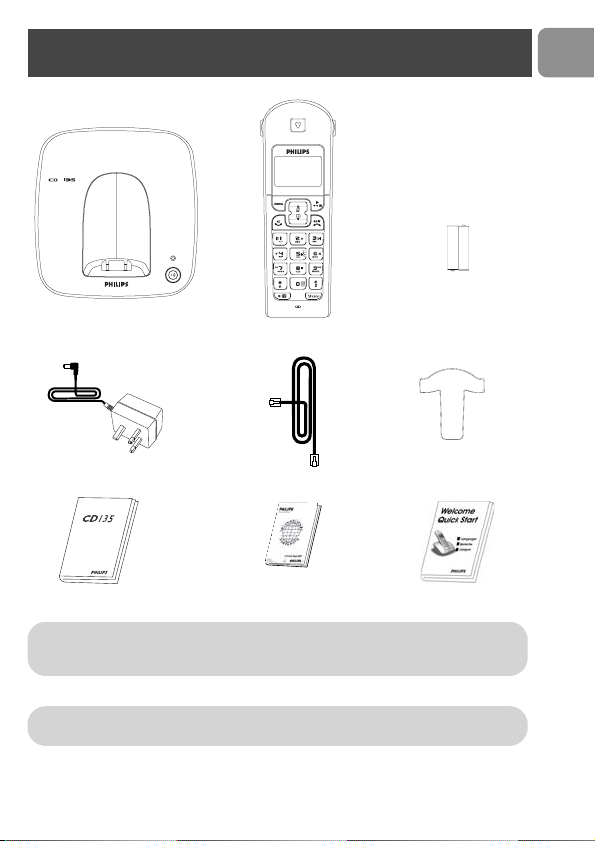
*Note : You may find in the box the line adaptor delivered separately from the
line cable. In this case, please connect the line adaptor to the line cable
before connecting it to the line socket.
Note : In CD 135 multi handset packs, you will also find one or more additional
handsets, chargers with power supply units and additional rechargeable batteries.
What’s in the box
+
-
+
-
One CD 135 base
station
One CD 135 handset
2 NiMh AAA
550 mAh rechar-
geable batteries
A power supply unit
A line cord*
One belt clip
(Country dependent)
User manual
Guarantee Quick Start Guide
6
EN
Handset and base station
1
2
3
4
5
6
7
8
9
10
12
11
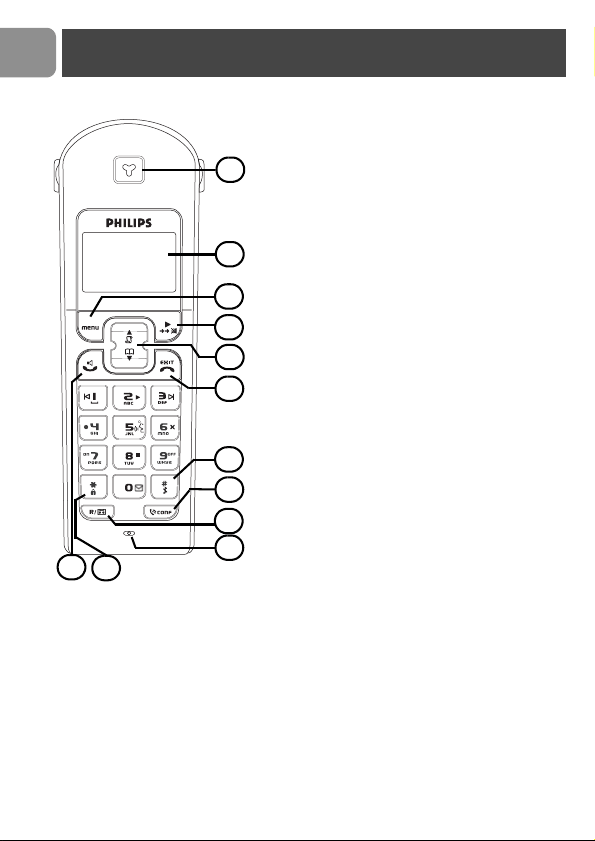
CD 135 Handset
1 Earpiece
2Display
Icons see page 9
3 Menu key & Softkey OK
- In idle mode, short press to access
the main menu.
- Short press to select next menu level.
- In Edit & Phonebook mode, short press
to confirm OK.
- In Call log or Redial list to save the
selected record in the phonebook.
4 Redial list, mute key & Softkey Back
- In idle mode, short press to access the
Redial list.
- In talk mode, to mute/ unmute the
handset microphone.
- In edit mode, to cancel last digit.
- In phonebook mode, to view number
and name.
- In Call log to switch from name/number
to time/date.
5 Navigation keys
- Scroll up/down to move to the next or
previous record in the Call log, Redial
list or Phonebook.
- Scroll up to access the Call log from idle
mode.
- Scroll down to access the Phonebook
from idle mode.
6 Hang-up key
- A short press to hang-up the line or to
exit (return to idle mode).
- A long press to power off the handset.
- To exit Edit & Phonebook mode, Redial
list & Call log.
7 Ringer ON/OFF & Insert #
- Short press to insert #.
- Long press to insert a pause (P) when
dialling.
- Long press to turn the ringer ON/OFF.
8 Intercom
- Short press to initiate an internal call.
7
EN
9 Recall key / Play new message(s) received on answer machine
- In idle mode, long press to switch from handset name display to Date/Time display.
- To insert R for operator services when on line.
- In idle mode, short press to play new message(s) received on answer machine.
10 Microphone
11 Keypad lock & insert
- Short press to insert
- Long press to lock/unlock the keypad in idle mode.
12 Pick-up key
- In idle mode, press to take the line and answer a call.
- In Phonebook mode, Redial list and Call log press to dial the selected number.
- Handset loudspeaker* ON/OFF (press 2 times to activate the handsfree mode).
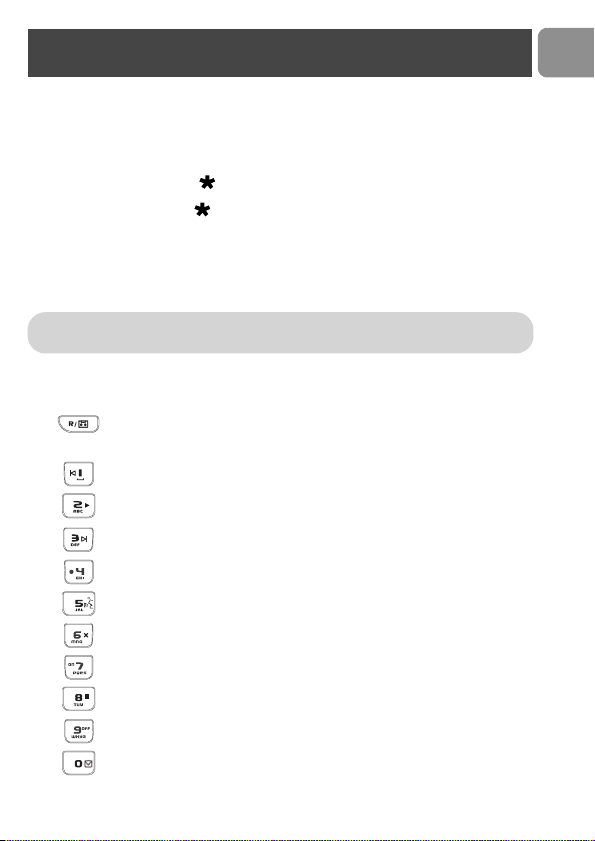
Answer machine functions
KEYS FUNCTIONS
Play new message(s) / Activate or deactivate answer
machine mode. Always press this key before using one of the
following answer machine functions :
Go back to the previous message.
Play all recorded messages (new and old) or play the current message
again.
Skip forward to the next message.
Long press to record a new outgoing message after the beep.
Play the current outgoing message.
Delete the current message.
Turn ON the answer machine.
Stop message playback or stop outgoing message recording.
Turn OFF the answer machine.
Record a memo via the handset after the beep. Count as a new
message after recording.
*Warning ! Handsfree activation could suddenly increase the volume in the
loudspeaker to a very high level. Make sure the handset is not too close to your ear.
Handset and base station
8
EN
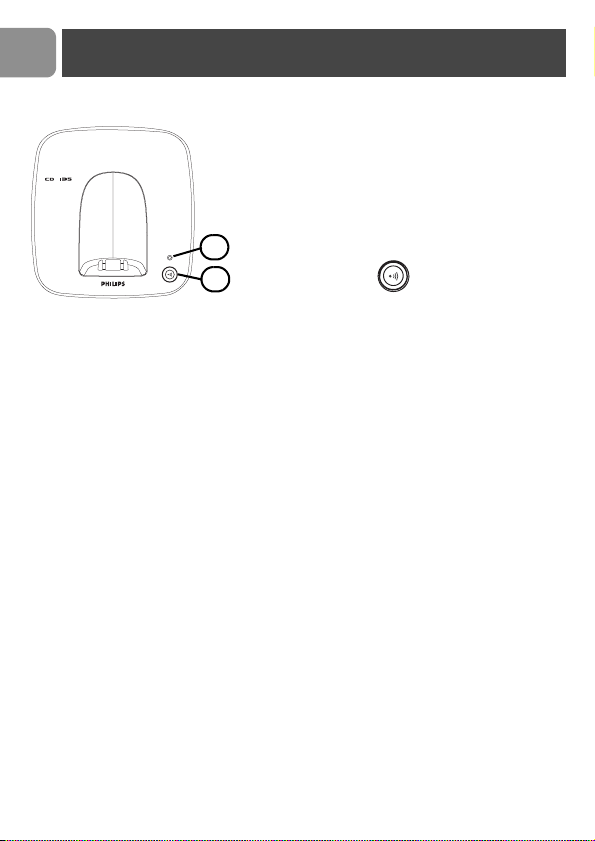
CD 135 base station
1 Answer machine indicator
- LED ON : Answer machine activated.
- LED OFF : Answer machine deactivated.
- LED blinking : New message(s) or memo on
answer machine.
- LED blinking fast : The answer machine memory
is full.
2 Paging key
The paging key enables you to locate a missing
handset if the handset is in range and has charged
batteries. Press the key until the handset starts to
ring. Once retrieved, press paging key again to
end paging.
1
2
Handset and base station
9
EN
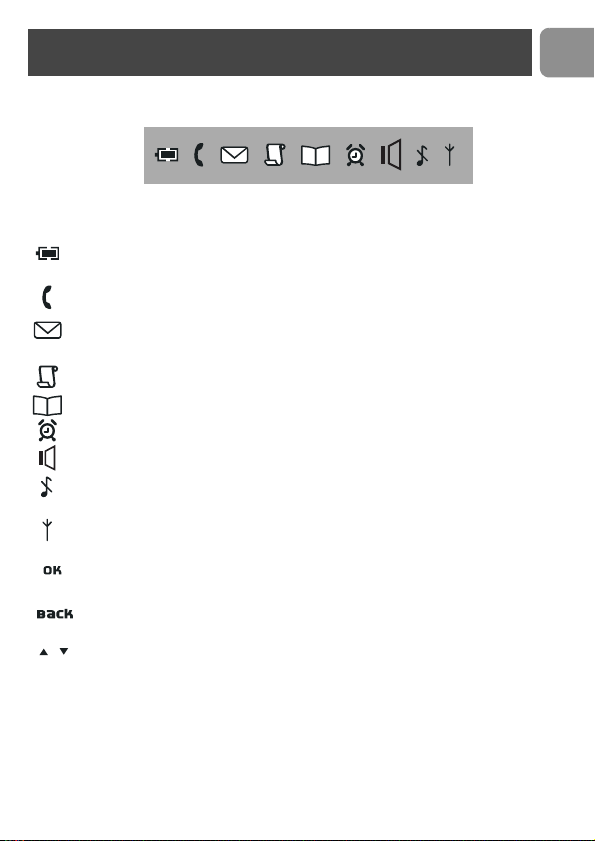
The display gives information about the operation of your telephone. Following
icons can be shown in the headline of the display:
When being used for the first time, it is sometimes necessary to wait until the
battery is sufficiently charged before the icons appear on the display.
When ON the battery is fully charged. When blinking, this symbol indicates
that the battery needs to be charged.
An external call is in progress. When blinking, this symbol indicates that there
is an internal call in progress or that the line is already busy.
New message(s) on your voice mailbox. When blinking, this symbol indicates
that there is one or more new message(s) on the answer machine.
New Call log records or Call log records are being reviewed.
Phonebook is accessed.
The alarm clock is activated.
The handset loudspeaker is activated.
The ringtone is deactivated.
The handset is registered and in range of the base. When blinking, this symbol
indicates that the handset is not registered to the base or out of range.
Turn ON when entering Menu mode. In Phonebook mode to enter next menu
level.
Turn ON when entering Menu mode. In Phonebook mode to return to higher
menu level. In editing mode to delete the last digit/character entered.
Indicates further options are available.
Icons on the handset display
10
EN
Installing the base station
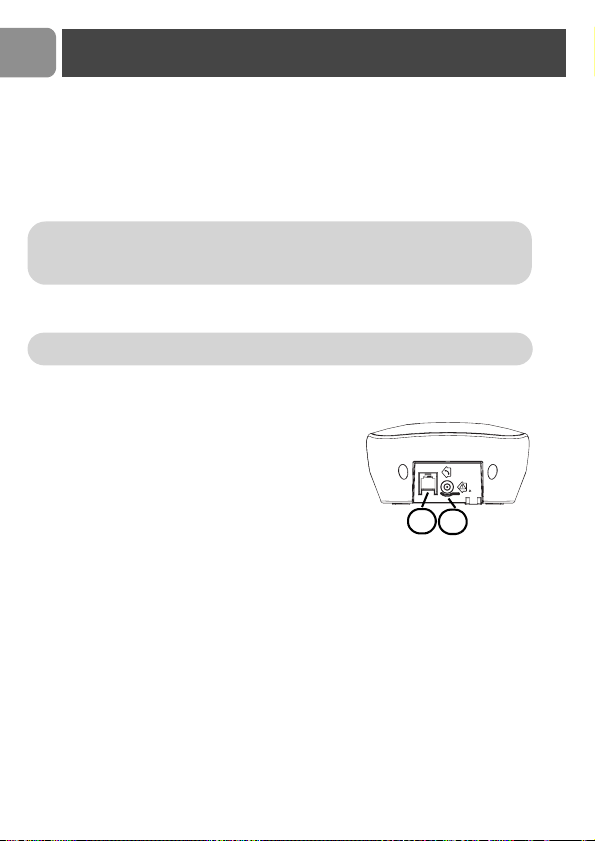
Place your product close enough to the telephone and mains power sockets so that the
cables will reach. To properly install the base station, plug the line cord and the power
cable into the base station. Plug the cord and the cable into the wall. If you have a
broadband DSL Internet connection, please make sure you have one DSL filter plugged
directly on each line socket used in the house and check the modem and the phone are
plugged in the correct filter slot (one specific for each).
Please take care that the power supply and telephone line are connected to the correct
sockets as incorrect placement could damage your equipment.
1 Connect the telephone line cord delivered with the
product.
2 Connect the power supply.
Warning ! The electrical network is classified as hazardous according to criteria in
the standard EN 60-950. The only way to power down this product is to unplug the
power supply from the electrical outlet. Ensure the electrical outlet is located close
to the apparatus and is always easily accessible.
Warning ! Always use the line cable provided with the product otherwise you may
not have a dialling tone.
1
2
Installing the base station
11
EN
Installing and replacing the batteries in the
handset
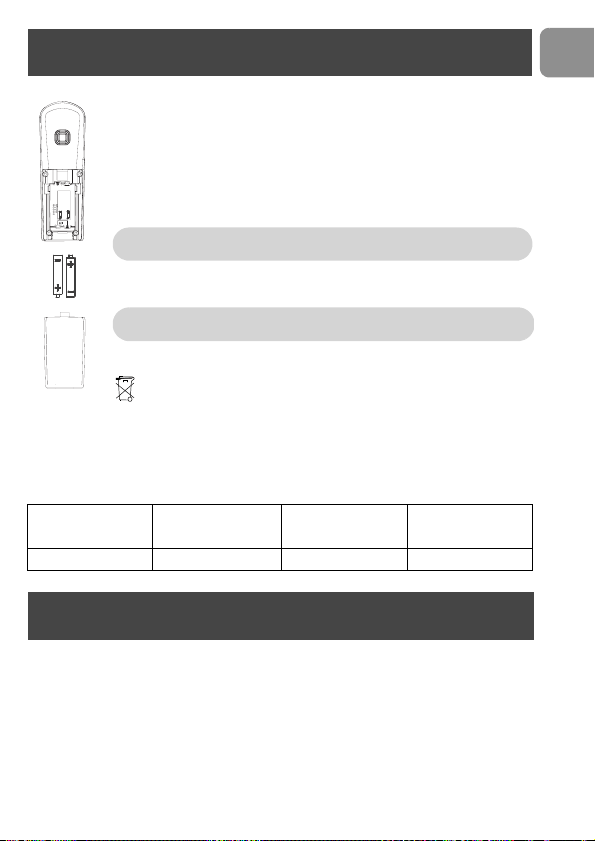
To insert the batteries, open the battery cover, place the batteries as
indicated and then replace the battery cover. When the battery icon is
blinking, charge is needed. Allow 24 hours for the batteries to fully charge.
On first use it may be necessary to wait for a few minutes before seeing
symbols on the display.
The warranty does not apply to the batteries and any other components
which have a limited lifetime or are exposed to wear.
Batteries should not be disposed of with general household waste.
Battery life and range
Optimal battery life is reached after 3 cycles of complete charging & discharging. When
reaching the range limit and the conversation becomes crackly, move closer to the base.
To reach optimal range, place the base station away from electrical appliances.
The GAP standard guarantees that all DECT
TM
GAP handsets and base stations comply
with a minimum operating standard irrespective of their make. Your CD 135 handset and
base station are GAP compliant, which means the minimum guaranteed functions are :
register a handset, take the line, receive a call and dial. The advanced features may not be
available if you use another handset than a CD 135 with your base station.
To register and use your CD 135 handset with a GAP standard base station of a different
make, first follow the procedure described in the manufacturer’s instructions, then follow
the procedure described on page 31.
Battery life in talk
time
Battery life in
standby mode
Indoor range Outdoor range
up to 12 hours up to 150 hours up to 50 metres up to 300 metres
Using GAP standard compliance
Warning : the base station must always be plugged into the mains
when charging or when in use. Always use rechargeable batteries.
Warning ! Always use the line cable provided with the product
otherwise you may not have a dialling tone.
Installing the batteries
12
EN
To register a handset of another make to the CD135 base station, place the base station
into registration mode (page 31), then follow the procedure in the manufacturer’s
instructions.
DECT
TM
is a Trade Mark of ETSI registered for the benefit of the implementers of the
DECT technology.
Using the menus
OK BACK
Using GAP standard compliance
From idle mode, press to enter the menu. Use the
Navigation keys to go up or down in the menu list.
Press Softkey OK to confirm the selection.
Press Softkey BACK to exit the menu or to go back to the
previous menu level.
13
EN
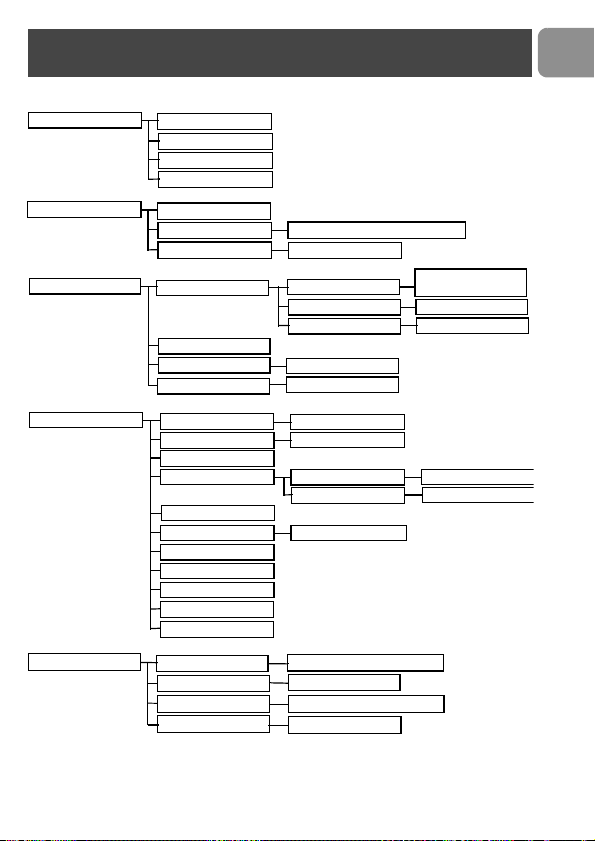
PHONEBOOK
EDIT NUMBER
DEL.NUMBER
DELETE LIST
ADD NUMBER
CLOCK/ALARM
SET ALARM
ALARM TONE
DATE & TIME
OFF/ON ONCE/ON DAILY
MELODY 1/2/3
PERSONAL SET
HANDSET NAME
HANDSET TONE
RING VOLUME
HIGH/MEDIUM/LOW/
RINGER OFF
RING MELODY
MELODY 1 - 10
KEY TONE
ON/OFF
AUTO ANSWER
ON/OFF
Language list
LANGUAGE
ADVANCE SET
DIAL MODE
RECALL TIME
TONE/PULSE
ON/OFF
RESET UNIT
SHORT/LONG
AREA CODE
CALL BARRING
BARR MODE
BARR NUMBER
NUMBER 1/2/3/4
SOS NUMBER
NUMBER 1/2/3
UNREGISTER
REGISTRATION
PIN
COUNTRY SEL.
PREFIX
ANS MACHINE
NB RING
ANSWER ONLY
DEACTIVATED / ACTIVATED
5 / 7 / 3
DEACTIVATED / ACTIVATED
REMOTE
ON / OFF
SCREENING
Menu structure
14
EN
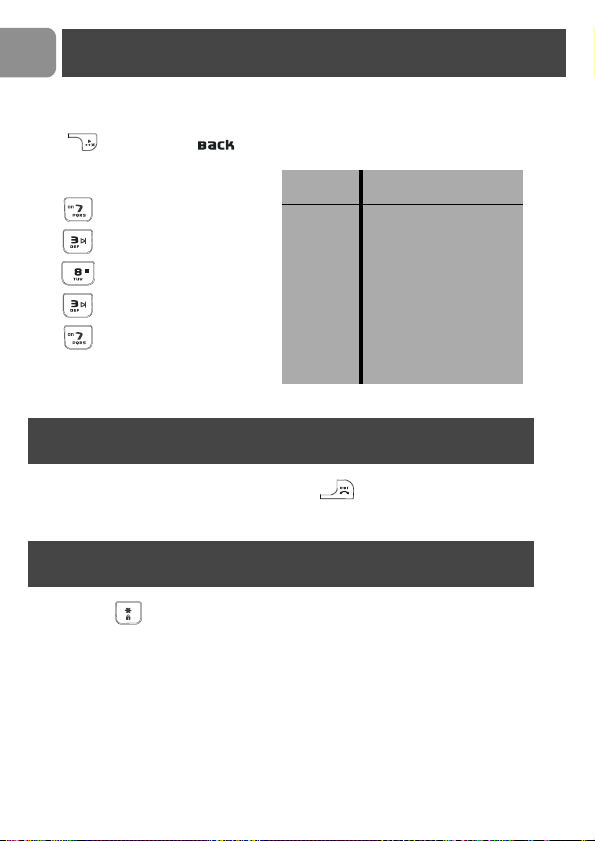
You can enter the names of your phonebook entries character by character, pressing the
corresponding key as many times as necessary to reach the desired character.
Press under the label to delete a character.
Example to write “Peter”
Press once : P
Press twice : PE
Press once : PET
Press twice : PETE
Press three times : PETER
To power the handset OFF or ON long press the key.
Long press the key to lock/unlock the keypad in idle mode.
KEYS LOCKED is displayed on the screen.
Handset power OFF and ON
Keypad lock / unlock
Text or number entry
Keypad
Keys
Multi-tap Sequence
1 [space] 1 _ < > *
2 A B C 2
3 D E F 3
4 G H I 4
5 J K L 5
6 M N O 6
7 P Q R S 7
8 T U V 8 ?
9 W X Y Z 9
0 0 - / \ # +
15
EN
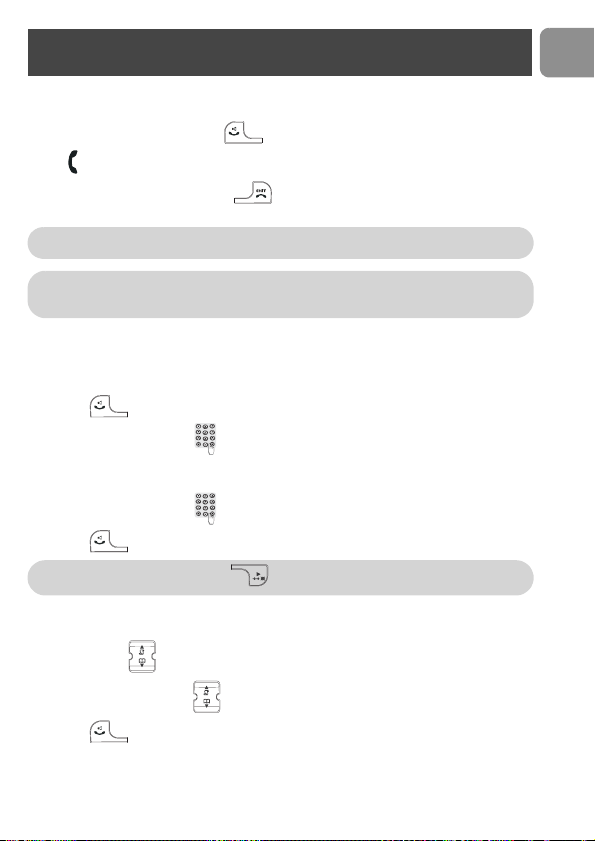
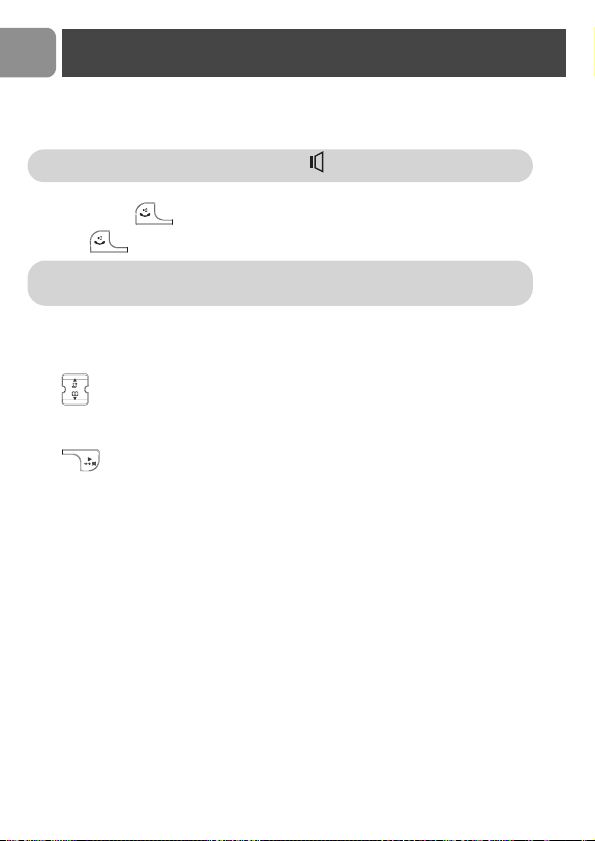
Answering a call / Hanging up
1. When the phone rings, press to answer the call.
flashes on an incoming call.
2. To end the conversation, press key or replace the handset on the base
station.
Making a call
Calling directly
1. Press .
2. Dial the phone number .
Predialling the number before calling
1. Dial the phone number .
2. Press .
Calling from the phonebook
1. Press Down .
2. Browse through the list to select a name.
3. Press .
Note: If you have activated the Auto Answer Mode (see page 28) simply lift-up
the handset from the base or charger to answer a call.
WARNING : When the handset rings during an incoming call, please do not hold
the handset too close to your ear as the volume of the ringing tone may damage
your hearing.
Note: To correct entries use .
Call
16
EN
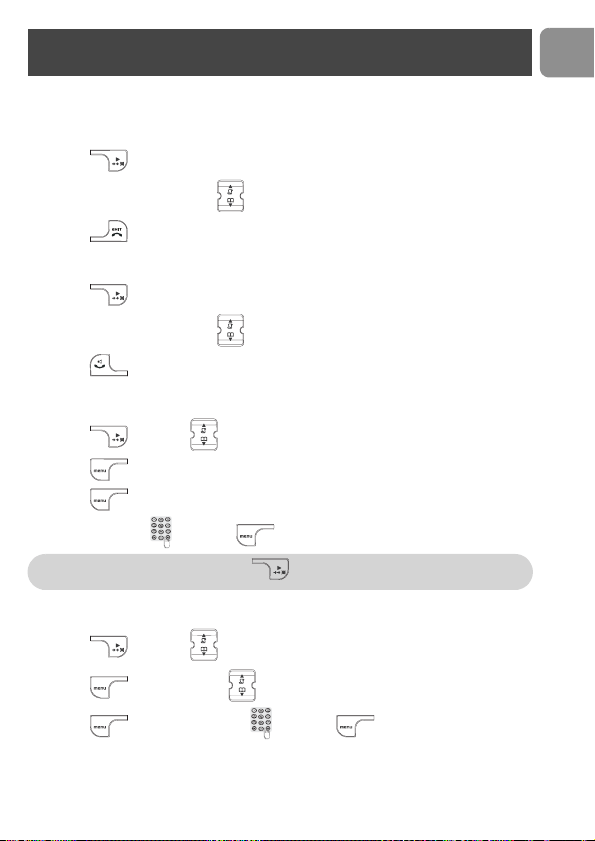
To switch the handset loudspeaker ON / OFF (call
handsfree)
1. Press 2 times to activate the handset loudspeaker.
2. Press again to deactivate the loudspeaker.
Adjusting the earpiece and loudspeaker volume during
a call
Press (3 earpiece volumes and 5 loudspeaker volumes are available).
To mute the handset microphone during a call
Press to mute/unmute the handset microphone.
Call duration counter
After you have taken the line (dial a number or answer a call) the call duration counter
appears on the handset display (HH-MM-SS).
Note: 5 loudspeaker volumes are available. indicates the loudspeaker is ON.
Warning : Handsfree activation could suddenly increase the volume in the
loudspeaker to a very high level. Make sure the handset is not too close to your
ear.
Call
17
EN
The redial list contains the 5 most recently dialled numbers.
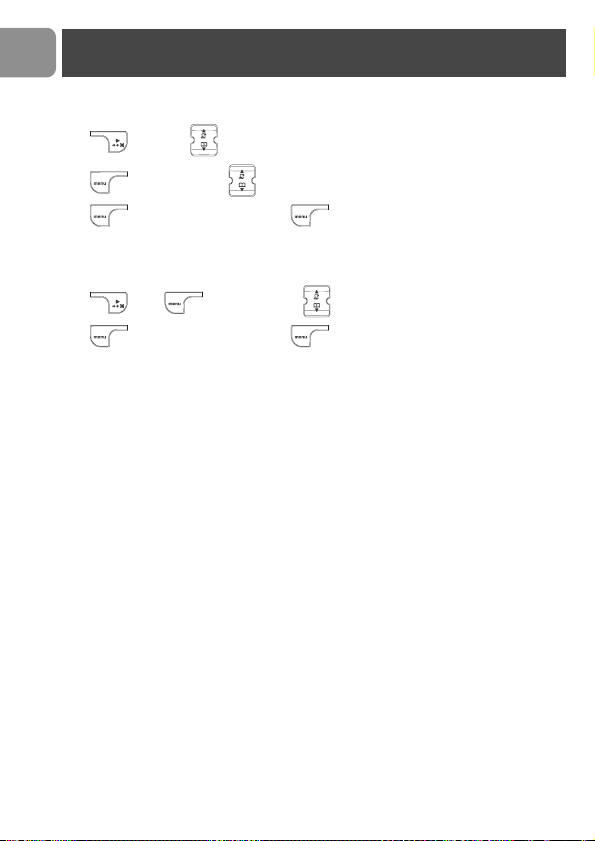
Accessing / exiting the redial list
1. Press .
2. Scroll through the redial list .
3. Press to exit.
Calling a number from the redial list
1. Press .
2. Scroll through the redial list .
3. Press .
Saving redial list numbers into the phonebook
1. Press and scroll to select an entry.
2. Press , SAVE NUMBER is shown.
3. Press , ENTER NAME is shown.
4. Enter the name and press , SAVED is shown.
Editing a number from the redial list
1. Press and scroll to select an entry.
2. Press and press Down to reach EDIT NUMBER.
3. Press , modify the number and press .
Note: To delete a character use . Text and number entry see page 14.
Redial list
18
EN
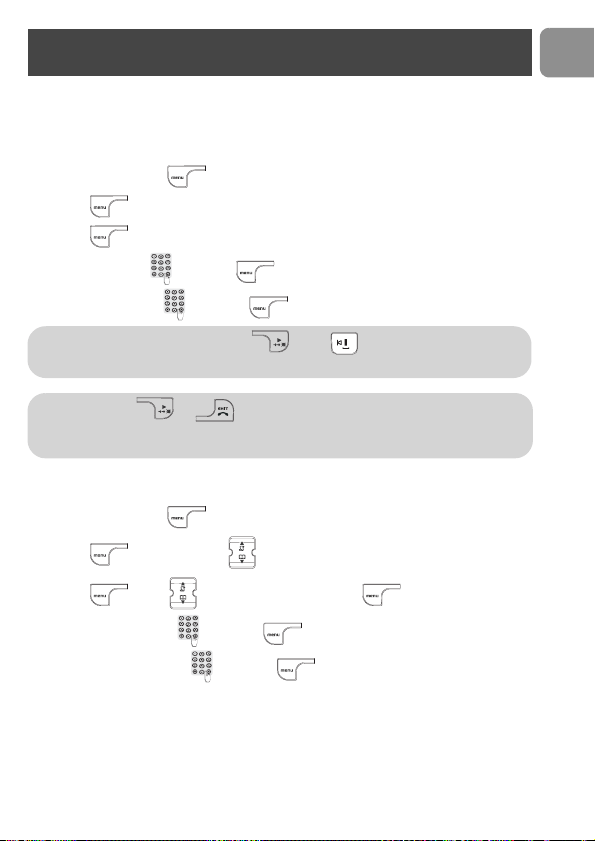
Deleting a number from the redial list
1. Press and scroll to select an entry.
2. Press and press Down to reach DEL. NUMBER.
3. Press , DELETE? is shown, press to confirm. You will hear a long
confirmation beeptone.
Deleting all numbers from the redial list
1. Press , then and press Down to reach DELETE LIST.
2. Press , DELETE? is shown, press to confirm. You will hear a long
confirmation beeptone.
Redial list
19
EN
30 names and numbers can be stored in the built-in phonebook of the handset. The names
are stored in alphabetical order.
Adding a new entry
1. In idle mode, press , PHONEBOOK is shown.
2. Press , ADD NUMBER is shown.
3. Press , ENTER NAME is shown.
4. Enter the name and press , ENTER NUMBER is shown.
5. Enter the number and press to confirm.
Changing a phonebook name or number
1. In idle mode, press , PHONEBOOK is shown.
2. Press and press Down to reach EDIT NUMBER.
3. Press , scroll to select an entry and press to view the name.
4. Enter the new name and press to view the number.
5. Enter the new number and press to confirm.
Note: To delete a character use . Press for spacing.
Text and number entry see page 14.
Note: Press or to return to idle mode.
You can also create an entry from the redial list and the call log (subscription
dependent).
Phonebook
20
EN
Viewing the phonebook list
1. In idle mode, press Down and scroll Up/Down in the list,
OR
Enter the first letter of the wanted name (e.g., 3 for “D” or 33 for “E”). The first
entry starting with this letter is selected in the list.
2. To view the details : Press .
Edit a number when browsing phonebook list
1. In idle mode, press Down and scroll to select an entry.
2. Press and press Down to reach EDIT NUMBER.
3. Press to view the current name and enter the new name .
4. Press to view the current number, enter the new number and press
to confirm.
Delete an entry when browsing phonebook list
1. In idle mode, press Down and scroll to select an entry.
2. Press and press Down to reach DEL. NUMBER.
3. Press , DELETE? is shown, press to confirm. You will hear a long
confirmation beeptone.
Delete whole phonebook list when browsing
phonebook list
1. In idle mode, press Down and press .
2. Press Down to reach DELETE LIST.
3. Press , DELETE? is shown, press to confirm. You will hear a long
confirmation beeptone.
Phonebook
21
EN
Delete a phonebook entry when in idle mode
1. In idle mode, press , PHONEBOOK is shown.
2. Press and press Down to reach DEL. NUMBER.
3. Press to view the list and scroll to select an entry.
4. Press , DELETE? is shown, press to confirm. You will hear a long
confirmation beeptone.
Delete whole phonebook list when in idle mode
1. In idle mode, press , PHONEBOOK is shown.
2. Press and press Down to reach DELETE LIST.
3. Press , DELETE? is shown, press to confirm. You will hear a long
confirmation beeptone.
Phonebook
22
EN
This feature is available if you have registered to the caller identification service with your
operator.
The call log stores the last 20 external calls received :
- network message service information (subject to a subscription with your operator).
Accessing / exiting the call log
1. Press Up and scroll to select an entry.
2. Press to view the details.
3. Press to exit the call log.
Consulting the call log
The screen can either display :
• the caller’s number*
• the caller’s name (if known in the phonebook)*
• UNKNOWN CALL if it is an unidentified call**
* Subject to a subscription with your operator.
** Unlisted numbers, withheld caller identification.
You can display, the phone number, the time and date of the call by pressing several time
. Time and date depends on the network.
Calling a number from the call log
1. Press Up and scroll to select an entry.
2. Press .
Saving a Call log number into the phonebook
1. Press Up and scroll to select an entry.
2. Press , SAVE NUMBER is shown.
3. Press , ENTER NAME is shown.
4. Enter the name and press , SAVED is shown.
Call log
23
EN
Deleting a Call log entry
1. Press Up and scroll to select an entry.
2. Press and press Down to reach DEL NUMBER.
3. Press , DELETE? is shown, press to confirm.
Deleting all the Call log entries
1. Press Up and press .
2. Press Down to reach DELETE LIST.
3. Press to confirm.
Call log
24
EN
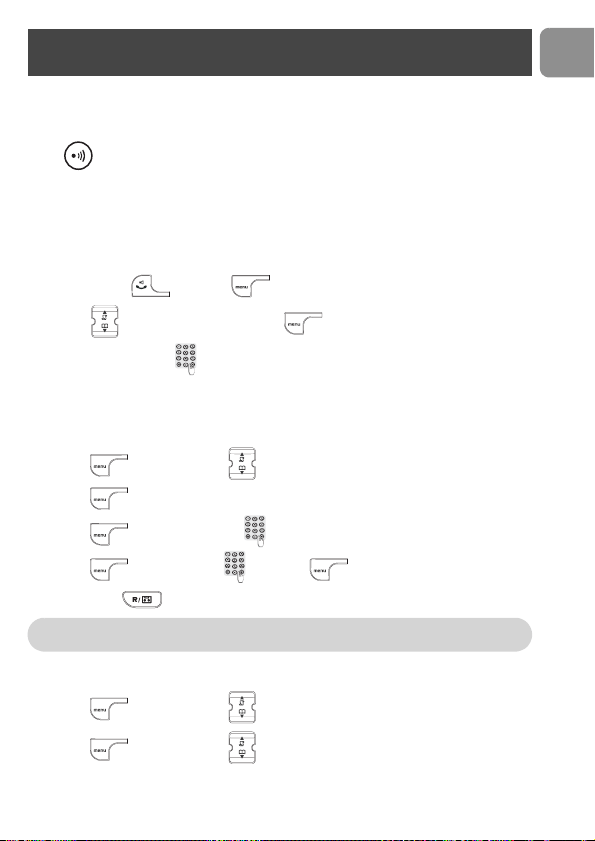
This function can only be used with a multi-handset configuration. It allows you to make
free internal calls, transfer external calls from one handset to another and to use the
conference option.
Internal call
1. Press .
2. Enter the handset number (up to 5 handsets can be registered to the same
base station [handset number 1 - 5])
OR
press to call all handsets.
3. Press to answer and to end an internal call.
Call transfer to a specific handset when on line
During a call in progress you can transfer the external call to a specific handset :
1. Long press and enter the handset number .
2. Press .
Switch between internal and external call
1. Long press and enter the handset number .
2. Long press to switch between internal/external call.
Conference call via the in-call options
1. Long press and enter the handset number .
2. Long press , CONFERENCE is shown. The 3 people can share the
conversation.
Note: Intercom & call transfer is only possible with handsets registered to the
same base station.
Note: If the handset does not belong to the Philips CD 135 range, this function
may not be available.
Using the Intercom
25
EN
Paging
This feature allows you to locate the handset(s).
Press on the base station. All the subscribed handsets ring. Press any key on the
handset to stop ringing once relocated.
Chain Dialing
If you have entered in your phonebook for example only the main number of a company
without the extension, this feature allows you to add the subnumber (extension) of a
particular person and to dial out this number.
1. Take the line and press to open phonebook list.
2. Scroll to select an entry and press to dial first part.
3. Enter the extension , each digit blinks to indicate dialed out.
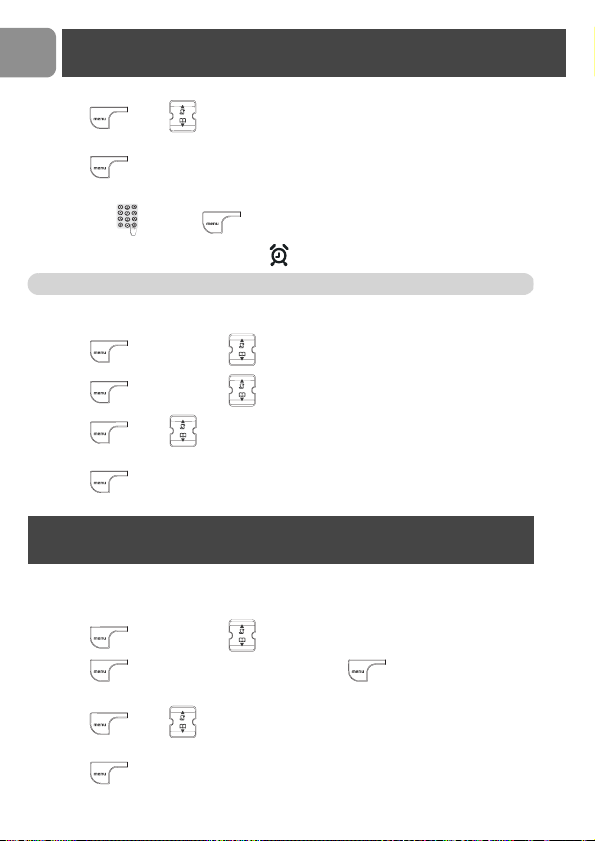
Clock and Alarm Settings
To set the Date and Time
1. Press and press Down to reach CLOCK/ALARM.
2. Press , DATE &TIME is shown.
3. Press and enter the date .
4. Press , enter the time and press to confirm.
5. Long press to display the date and time.
To set or change the alarm clock settings
1. Press and press Down to reach CLOCK/ALARM.
2. Press and press Down to reach SET ALARM.
Note: If you are connected to an ISDN line, the date & time may be updated after
each call. Please check the date & time settings in your ISDN system.
Other functions
26
EN
3. Press , scroll to select the appropriate setting (OFF or ON ONCE or
ON DAILY).
4. Press to confirm.
If you select ON ONCE or ON DAILY :
Enter the time and press to confirm.
The alarm rings for at most 1 minute and is shown in idle mode.
To set the alarm tone
1. Press and press Down to reach CLOCK/ALARM.
2. Press and press Down to reach ALARM TONE.
3. Press , scroll to select the appropriate setting (MELODY 1 or
MELODY 2 or MELODY 3).
4. Press to confirm.
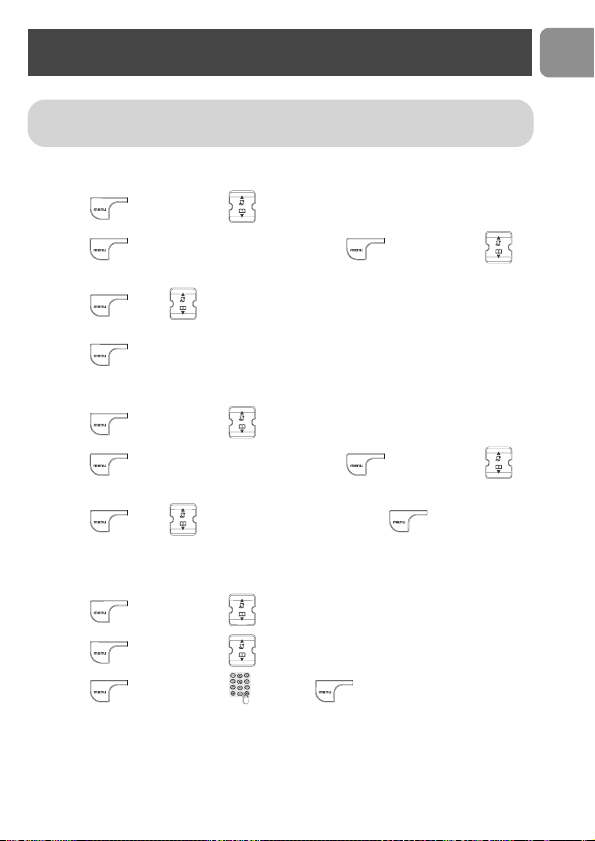
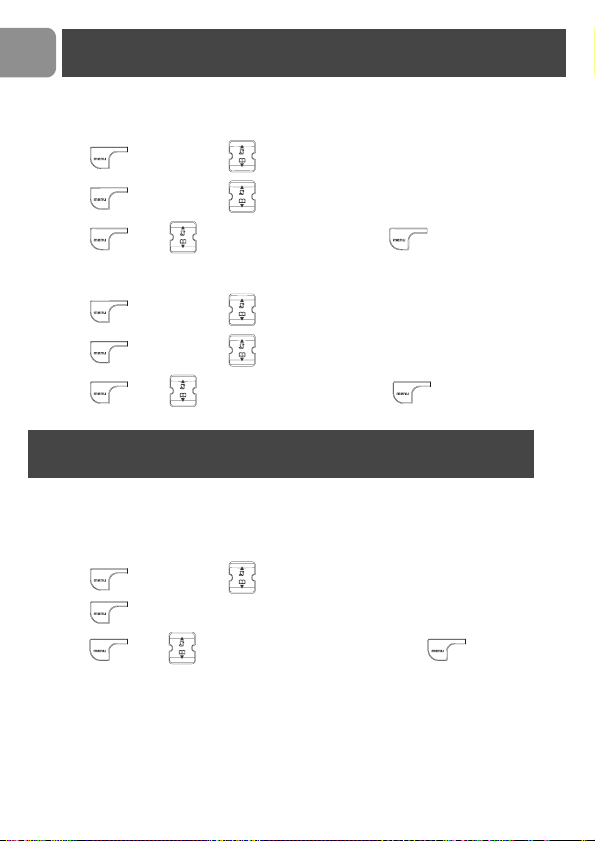
To set the handset ringer volume or silence mode
(Ringer OFF)
1. Press and press Down to reach PERSONAL SET.
2. Press , HANDSET TONE is shown, press , RING VOLUME is
shown.
3. Press , scroll to select the appropriate setting (HIGH or MEDIUM or
LOW or RINGER OFF). The current ring melody is played.
4. Press to confirm.
Note: When the alarm rings, press any key to stop the alarm.
Personal settings
Other functions
27
EN
To select the handset ring melody
1. Press and press Down to reach PERSONAL SET.
2. Press , HANDSET TONE is shown, press and scroll Down to
reach RING MELODY.
3. Press , scroll to select one of the available melodies 1- 10. The current
ring melody is played.
4. Press to confirm.
To activate / deactivate the key tone
1. Press and press Down to reach PERSONAL SET.
2. Press , HANDSET TONE is shown, press and scroll Down to
reach KEY TONE.
3. Press , scroll to select ON or OFF and press to confirm.
To rename the handset
The default name is : PHILIPS. You can enter 10 characters for the handset name.
1. Press and press Down to reach PERSONAL SET.
2. Press and press Down to reach HANDSET NAME.
3. Press , enter the name and press to confirm.
WARNING : When the handset rings during an incoming call, please do not hold
the handset too close to your ear as the volume of the ringing tone may damage
your hearing.
Personal settings
28
EN
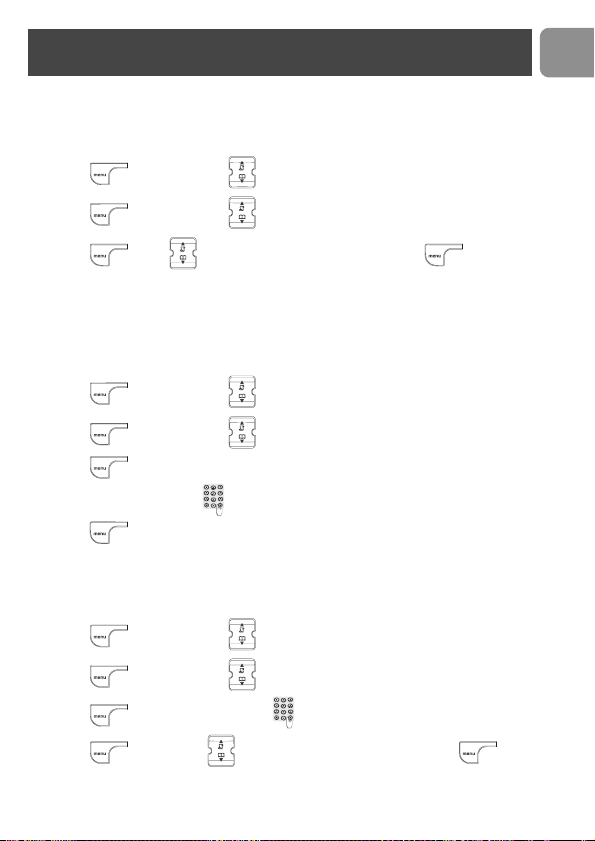
To activate / deactivate the auto answer mode
If ON you take the line by lifting the handset from the charge cradle.
1. Press and press Down to reach PERSONAL SET.
2. Press and press Down to reach AUTO ANSWER.
3. Press , scroll to select ON or OFF and press to confirm.
To change the display language
1. Press and press Down to reach PERSONAL SET.
2. Press and press Down to reach LANGUAGE.
3. Press , scroll to select your language and press to confirm.
To change the recall time
This option is helpful when using operator services. The default value of recall time that is
preset in your CD 135 should be the best suited for your country network and therefore
you should not need to change it.
1. Press and press Down to reach ADVANCE SET.
2. Press , RECALL TIME is shown.
3. Press , scroll to select SHORT or LONG and press to confirm.
Advanced settings
Personal settings
29
EN
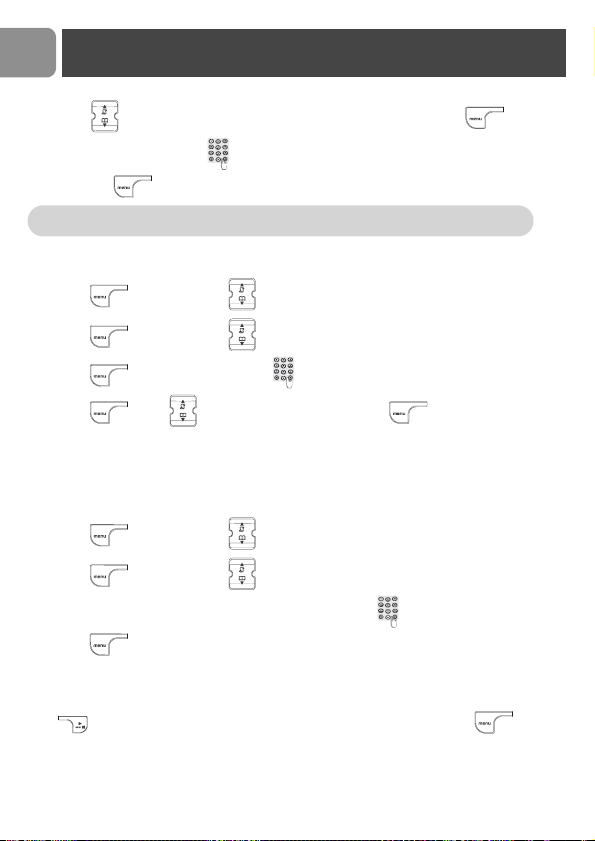
To change the dial mode* *Country dependent
The default value of dial mode that is preset in your CD 135 should be the best suited for
your country network and therefore you should not need to change it.
1. Press and press Down to reach ADVANCE SET.
2. Press and press Down to reach DIAL MODE.
3. Press , scroll to select TONE or PULSE and press to confirm.
Local area code setting* *Country dependent
If your local PSTN sends the CID with local area code attached, it is necessary to filter out
the local area code when dial back from call log. The AREA CODE function allows you to
remove the local area code from the call log entries. The local area code can be set from
1 to 4 digits. The default setting is blank.
1. Press and press Down to reach ADVANCE SET.
2. Press and press Down to reach AREA CODE.
3. Press to view the current setting.
4. Enter the new area code (the maximums for the area code is 4 digits) and
press to save.
To set or change Call Barring
This menu allows you to limit the use of your phone to specific calls by barring parts
(prefix) of outgoing numbers. You can set 4 different barring numbers.
1. Press and press Down to reach ADVANCE SET.
2. Press and press Down to reach CALL BARRING.
3. Press and enter the PIN code (by default the PIN code is 0000).
4. Press , press Down to reach BARR NUMBER and press .
Advanced settings
30
EN
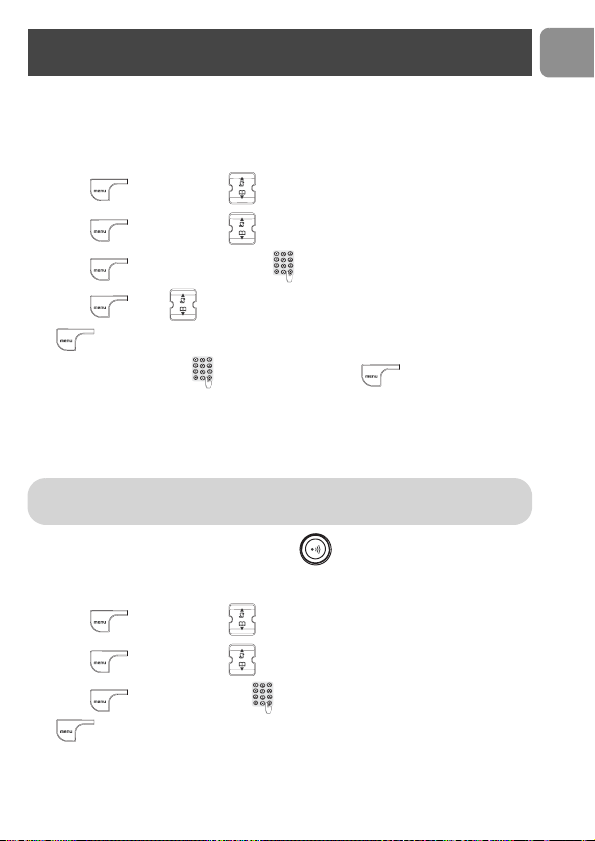
5. Scroll to select the barring number location 1, 2, 3 or 4 and press .
6. Enter the barring number (the maximums for the barring number is 4 digits)
and press to confirm.
To activate / deactivate Call Barring
1. Press and press Down to reach ADVANCE SET.
2. Press and press Down to reach CALL BARRING.
3. Press and enter the PIN code (by default the PIN code is 0000).
4. Press , scroll to select ON or OFF and press to confirm.
To set or deactivate the prefix number
This feature allows you to set the phone to use the cheapest operator prefix. The
maximum length of the prefix is 5 digits. Once the prefix number is set, it is automatically
inserted at the beginning of each number dialed out.
1. Press and press Down to reach ADVANCE SET.
2. Press and press Down to reach PREFIX.
3. To set the prefix number : Enter the prefix number (max. 5 digits) and
press to confirm.
OR
To deactivate the prefix number : Delete the current prefix number by pressing
until „-----“ (blank prefix number) is shown on the screen and press to
confirm.
Note: For example if you want to bar international calls, enter the barring
number 00.
Advanced settings
31
EN
To set or change an SOS number
The SOS number feature allows you to enter 3 SOS phone numbers, which can be dialed
out although the call barring is activated. The maximum length of an SOS number is 4
digits. The PIN code is required when modify the SOS number.
1. Press and press Down to reach ADVANCE SET.
2. Press and press Down to reach SOS NUMBER.
3. Press and enter the PIN code (by default the PIN code is 0000).
4. Press , scroll to select the SOS number location 1, 2 or 3 and press
.
5. Enter the SOS number (max. 4 digits) and press to confirm.
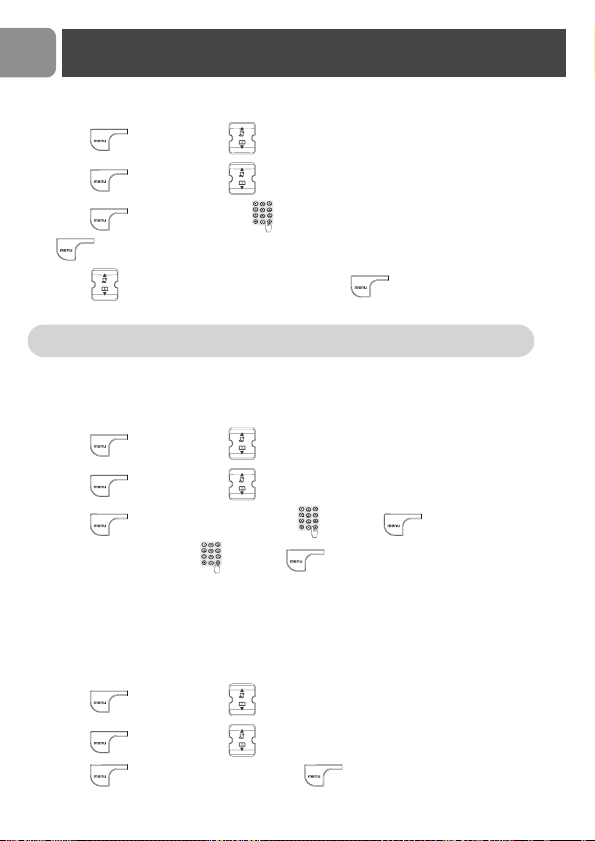
To register a handset
Up to 5 handsets can be registered to the base station.
If you have inadvertently unregistered your handset, you can register it again. Additional
handsets must be registered to the base before use.
To register a handset, first press the paging key on the base for approx. 5 seconds
when the base is in idle mode. Then carry out the following steps on the handset within
one minute :
1. Press and press Down to reach ADVANCE SET.
2. Press and press Down to reach REGISTRATION.
3. Press , enter the PIN code (by default the PIN code is 0000) and press
to confirm.
If the registration was successfull, a long confirmation tone is heard and the handset
number (1 to 5) will be assigned by the base automatically.
Warning : If you wish to register non Philips handsets to the CD 135 base station,
make sure that this handset is GAP compliant otherwise it will not operate properly
(see page 11).
Advanced settings
32
EN
To unregister a handset
1. Press and press Down to reach ADVANCE SET.
2. Press and press Down to reach UNREGISTER.
3. Press , enter the PIN code (by default the PIN code is 0000) and press
.
4. Scroll to select the handset number and press . UNREGISTERED
appears on the screen.
To change the PIN code
The default PIN code is “0000”. We advise you to personalize it. The maximum length for
the PIN code is 8 digits.
1. Press and press Down to reach ADVANCE SET.
2. Press and press Down to reach PIN.
3. Press , enter the current PIN code and press .
4. Enter the new PIN code and press to confirm.
To reset to default settings (base station
and handset)
You can reset your phone to the default settings (see page 33) at any time. Note that after
a reset all your personal settings and call log entries will be deleted, however your
phonebook remains unchanged.
1. Press and press Down to reach ADVANCE SET.
2. Press and press Down to reach RESET UNIT.
3. Press , CONFIRM? is shown. Press to confirm.
Note: If you have your handset serviced, please make sure it is unregistered from
the base station before taking it back to the repair centre.
Advanced settings
33
EN
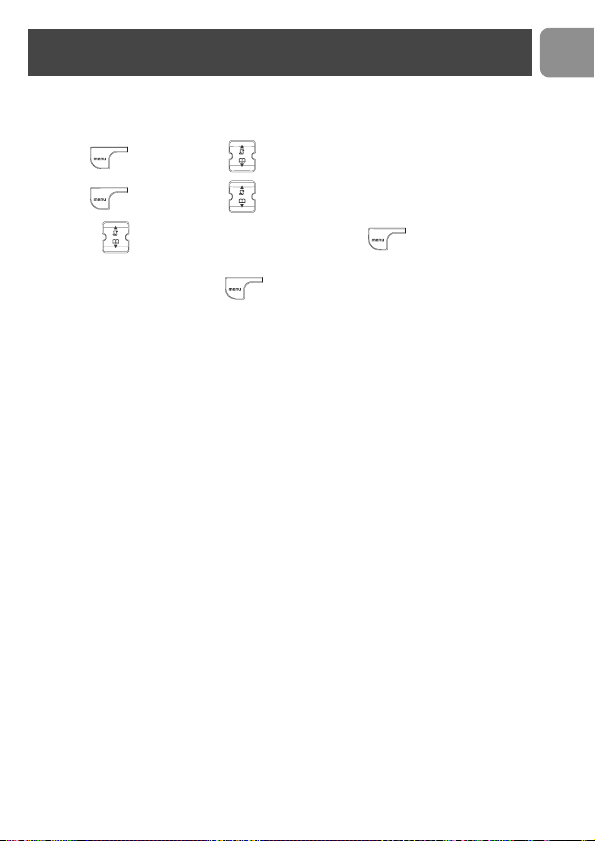
Country selection
Use this feature if you need to re-configurate your CD 135.
1. Press and press Down to reach ADVANCE SET.
2. Press and press Down to reach COUNTRY SEL..
3. Browse through the different countries and press to select the country
that suits you.
4. CONFIRM? is shown, press to confirm.
Default settings (after Reset Unit)
Handset Ringer volume :
Handset Ringtone :
Handset earpiece volume :
Handset speakerphone volume :
Handset key tone :
Battery low tone :
Menu language (Handset) :
Auto answer :
Handset name :
Time/Date (Handset) :
Dialling mode :
Flash time :
PIN code :
Alarm :
Alarm tone :
MEDIUM
MELODY 1
VOLUME 2
VOLUME 3
ON
ON
Country dependent
OFF
PHILIPS
00:00 01-01
Country dependent
Country dependent
0000
OFF
MELODY 1
Area code :
Call barring :
SOS number :
Redial list :
Phonebook memory :
Call log :
Prefix :
Answer machine :
Language default outgoing message :
Personal outgoing message :
Answer machine memory :
Empty
Empty
Empty
Empty
Remain unchanged
Empty
Empty
Answer & record mode ON
Country dependent
Empty
Empty (old and new messages deleted)
Advanced settings
34
EN
The CD 135 includes an answer machine that records unanswered calls when it is
activated. The maximum recording time is 15 minutes, outgoing messages and memos
included.
The answer machine is accessible via the handset that has a dedicated keypad allowing to
access to the answer machine functions (by default handset 1). There is also a menu to set
the answer machine options.
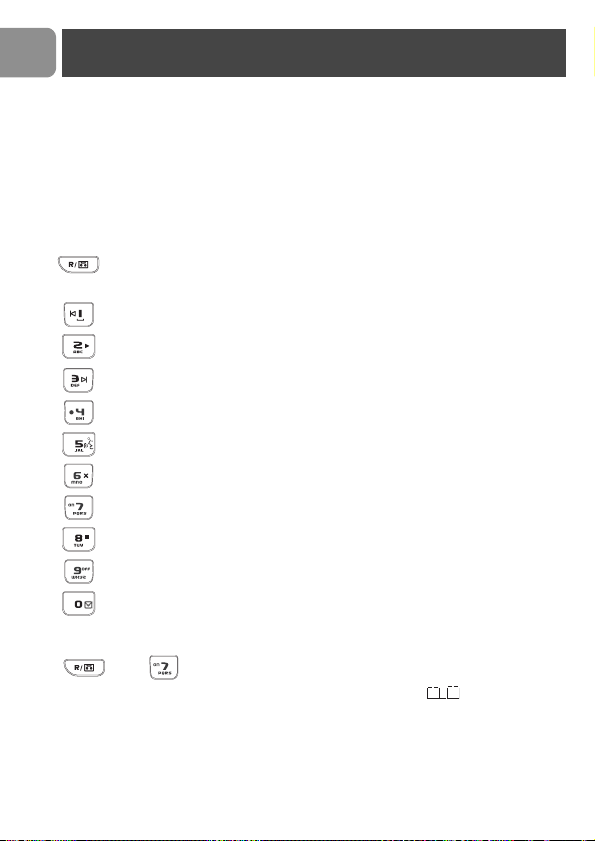
Handset keys for answer machine control
To switch the answer machine ON
Press , then on the handset to switch the answer machine ON.
In answer machine mode, the handset screen shows on the left side : , when the
answer machine is activated.
When the answer machine is ON, it will answer the call after a certain number of rings
depending on the setting (see page 37). After answering the call, the answer machine will
play your welcome message and record the message left by the caller, if any.
KEYS FUNCTIONS
Play new message(s) / Activate or deactivate answer
machine mode. Always press this key before using one of the
following answer machine functions :
Skip back to the previous message.
Play all recorded messages (new and old and memo) or play the
current message again.
Skip forward to the next message while listening.
Long press to record a new outgoing message after the beep.
Play the current outgoing message.
Delete the current message.
Turn ON the answer machine.
Stop message playback or stop outgoing message recording.
Turn OFF the answer machine.
Record a memo via the handset after the beep. Count as a new
message after recording.
Answer machine
35
EN
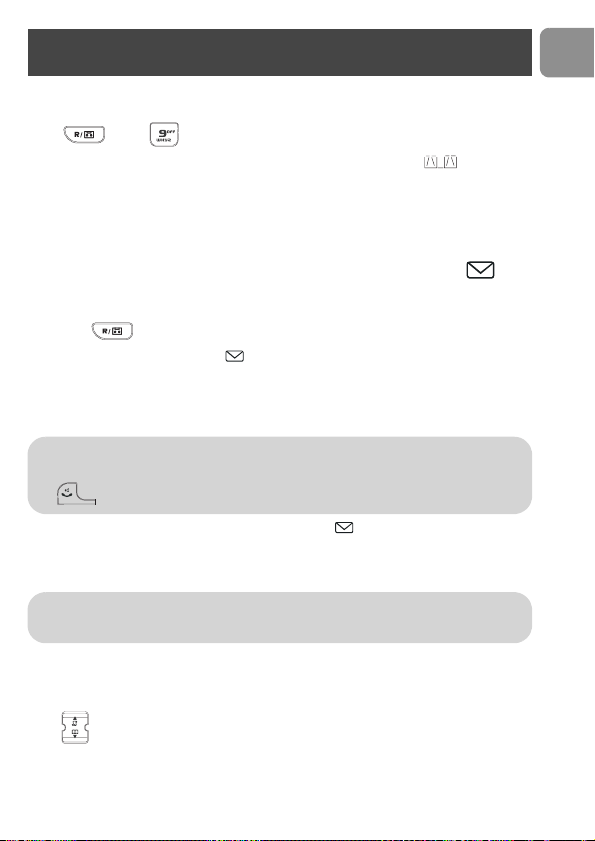
To switch the answer machine OFF
Press , then on the handset to switch the answer machine OFF.
In answer machine mode, the handset screen shows on the left side : , when the
answer machine is deactivated.
Saved messages
To listen to new message(s)
When new messages are recorded on the answering machine, then the icon is
flashing on the handset display and the LED on the base blinks until the messages are
played.
1. Press , the loudspeaker on the handset is automatically activated and the
display shows under the icon the number of new messages, i.e. 03 and the time
when the last message has been recorded, i.e. 16:25.
2. Then the newest message is played automatically on the speakerphone. During
message playing the date and time of recording will be shown alternating on the
handset display.
Once all the new messages have been played, the icon stops blinking and stays steady
indicating there are old messages not deleted on the answer machine. The message
counter indicates the number of old messages on the answer machine and the time when
the last one has been recorded.
Adjusting the loudspeaker volume during message
playback
Press (5 loudspeaker volumes are available).
Note: Messages are always played in chronological order, the newest message
first.
The message can be played back on the receiver instead of the speaker : Press
Note: If there is no more memory left, the base LED is blinking very fast, the
CD 135 will switch to „Answer only“ mode and no new message can be recorded.
Delete old messages (see page 36) to free space for the new on.
Answer machine
36
EN
Available functions during message playback :
Delete current message
1. Press to enter answer machine mode.
2. Press to start message playback.
3. Press to delete the current message. A long beep confirms deletion of the
message and the next message is played.
Repeat step 3. to delete further messages.
Answer machine settings
Use the answer machine menu via the handset to change the settings of the answer
machine.
To select the answer mode
By default the answer machine is set in „Answering & recording“ mode (messages can be
left by the callers), this can be change in „Answer only“ (no messages can be left by the
callers).
1. Press and press Down to reach ANS MACHINE.
2. Press , ANSWER ONLY is shown.
3. Press , scroll to select the appropriate setting (ACTIVATED or
DEACTIVATED).
4. Press to confirm.
KEYS FUNCTIONS
Skip back to the previous message.
Play all recorded messages (new and old and memo) or play the
current message again.
Skip forward to the next message while listening.
Delete the current message.
Stop message playback.
Note: Messages deleted can not be recovered.
Answer machine
37
EN
To set the number of rings before answering
You can set the answer machine to start playing the outgoing message after a given number
of rings (3, 5 (default setting) or 7).
1. Press and press Down to reach ANS MACHINE.
2. Press , ANSWER ONLY is shown, press Down to reach NB RINGS.
3. Press , scroll to select one of the available settings (3, 5, or 7).
4. Press to confirm.
To activate / deactivate the remote control
By default the remote control of the answer machine is deactivated. You can activate this
function, this allows you to remotely access your answer machine via any telephone and
check your messages.
1. Press and press Down to reach ANS MACHINE.
2. Press , ANSWER ONLY is shown, press Down to reach REMOTE.
3. Press , scroll to select one of the available settings (DEACTIVATED
or ACTIVATED).
4. Press to confirm.
Note: When ANSWER ONLY / ACTIVATED is selected, then the
associated outgoing message is automatically set, i.e. „This is an answering
machine, please call back later“.
When ANSWER ONLY / DEACTIVATED is selected, then the associated
outgoing message is automatically set, i.e. „This is an answering machine, please
leave your message after the tone“.
The voice language for the default outgoing messages depends on the country
selected in Welcome mode, see page 2.
Note: To remotely control your answer machine, see page 40.
Answer machine
38
EN
To activate / deactivate call screening
You can activate (default setting) or deactivate the call screening on the handset
loudspeaker so that you can choose whether to hear or not the callers leaving a message
and to decide whether or not to take the call.
1. Press and press Down to reach ANS MACHINE.
2. Press ,
ANSWER ONLY
is shown, press Down to reach
SCREENING
.
3. Press , scroll to select one of the available settings (ON or OFF).
4. Press to confirm.
Personal outgoing messages
You can record one personal outgoing message. This personal outgoing message will
replace the default ones. Only if you delete your personalized welcome message the
default welcome messages will automatically be restored. You do not need to delete your
previously recorded welcome message to record a new one. Once you record a new
welcome message, the old one will be overwritten.
To record your personal outgoing message
1. Press on the handset to enter answer machine mode.
2. Long press until you hear a beep.
Speak into the microphone of the handset after the beep.
3. Press or or to stop recording.
To playback personal or default outgoing message
Depending on the answer mode setting „Answer & record“ or „Answer only“ (see
page 37) the appropriate default outgoing message will be played. If you have recorded a
personal outgoing message only this welcome message will be played.
1. Press on the handset to enter answer machine mode.
2. Press until outgoing message playback starts.
Note: If you want to have the default outgoing message back, repeat steps 1 and
2 and press within 1 second to stop recording. The answer machine will
restore the default outgoing message.
Answer machine
39
EN
Record and listen to a memo
This feature allows you to leave vocal messages for your family on the answer machine.
Memos are stored in the answer machine memory and affect the recording capacity.
To record a memo
1. Press on the handset to enter answer machine mode.
2. Press , RECORD MEMO is shown on the handset screen.
Speak into the handset microphone after the beep.
3. Press or to stop recording.
The LED on the base and the handset icon blink to indicate that there is a new
voice message.
To listen to a memo
1. Press , the loudspeaker on the handset is automatically activated and the
display shows under the icon the number of new messages, i.e. 03 and the time
when the last message has been recorded, i.e. 16:25.
2. Then the first new message is played automatically on the speakerphone. During
message playing the date and time of recording will be shown alternating on the
handset display.
Once all the new messages have been played, the icon stops blinking and stays steady
indicating there are old messages not deleted on the answer machine. The message
counter indicates the number of old messages on the answer machine and the time when
the last one has been recorded.
Note: If you are not satisfied with your personal outgoing message recorded,
repeat the steps in section “To record your personal outgoing message”, page 38
and the old welcome message will be overwritten.
If you want to have the default outgoing message back perform a reset, see “To
reset to default settings (base station and handset)”, page 32.
Note: Messages are always played in chronological order, the newest message
first.
The message can be played back on the receiver instead of the speaker : Press
. To delete old memos, see “Delete current message”, page 36.
Answer machine
40
EN
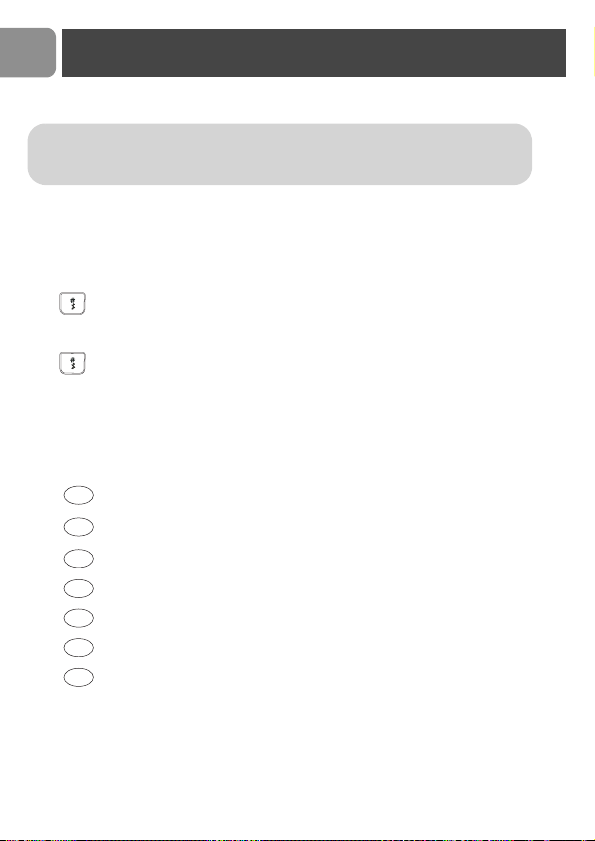
To remotely control your answer machine
You can access your answer machine when you are away by using any tone dialing phone.
To remotely access your answer machine
1. From another phone dial home.
2. If your answer machine is ON, during or after the outgoing message press the
key (#) on the external phone ;
OR
If your answer machine is OFF, you will hear a beep after 10 rings, then press the
key (#).
3. Enter your PIN code.
4. If you have new messages after the beep they will be automatically played.
The following table indicates the features available when remotely accessing the answer
machine.
WARNING : For security reasons the remote control of the answer
machine is deactivated by default. You must activate this function on
your CD 135 phone, see page 37, to be able to remotely access your
answer machine.
KEYS FUNCTIONS
Go back to the previous message.
Play all recorded messages (new and old, included memos) or play the
current message again.
Skip forward to the next message.
Press to record a new outgoing message after the beep.
Play the current outgoing message.
Delete the current message.
Stop message playback or stop outgoing message recording.
1
2
3
4
5
6
8
Answer machine
41
EN
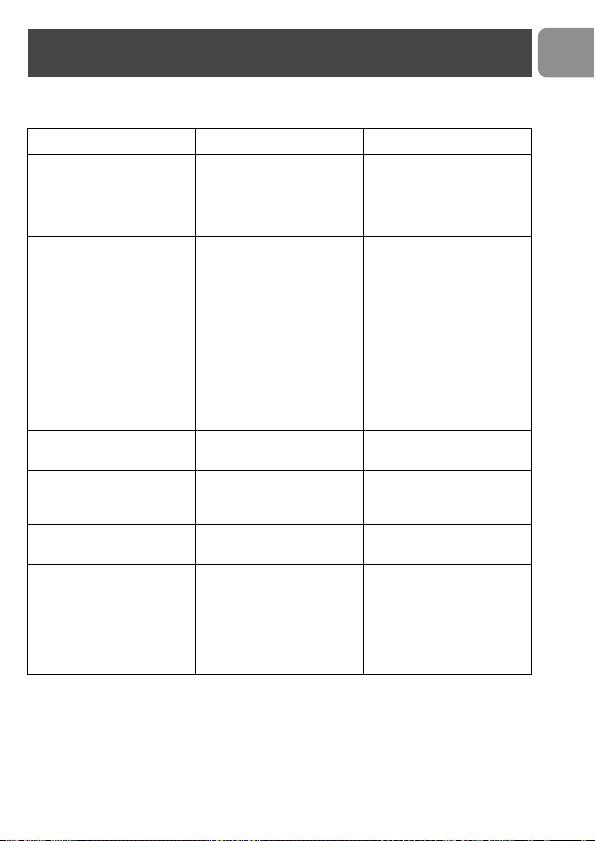
Telephone troubleshooting
PROBLEMS CAUSES SOLUTIONS
The battery icon is not
blinking when the handset is
placed on the base.
• Bad battery contact.
• Dirty contact.
•Batteries are full.
• Move the handset slightly.
• Clean the contact with a
cloth moistened with
alcohol.
• No need to charge.
No dialling tone. • No power.
• Batteries are empty.
• You are too far from the
base station.
• Wrong line cable.
• Line adaptor (when
needed) not connected to
the line cord.
• Check the connections.
Reset the phone : unplug
and plug back in the
mains.
• Charge the batteries at
least 24 hours.
• Move closer to the base
station.
• Always use the line cable
provided.
• Connect the line adaptor
(when needed) to the line
cord
No ring tone. • The ring tone is
deactivated.
• Increase the volume
(page 26)
The range icon does not
appear.
•No mains power.
• The handset is too far
from the base station.
• Check connections.
• Move closer to the base
station.
The range icon is blinking. • Handset not registered to
the base station.
• Register the handset to
the base (page 31).
Crackling on the line. • You are too far from the
base station.
• The base station is too
close to electrical
appliances, reinforced
concrete walls or metal
doorframes.
• Move closer to the base
station.
• Move the base station to
find a better place (the
higher the better).
Troubleshooting
42
EN
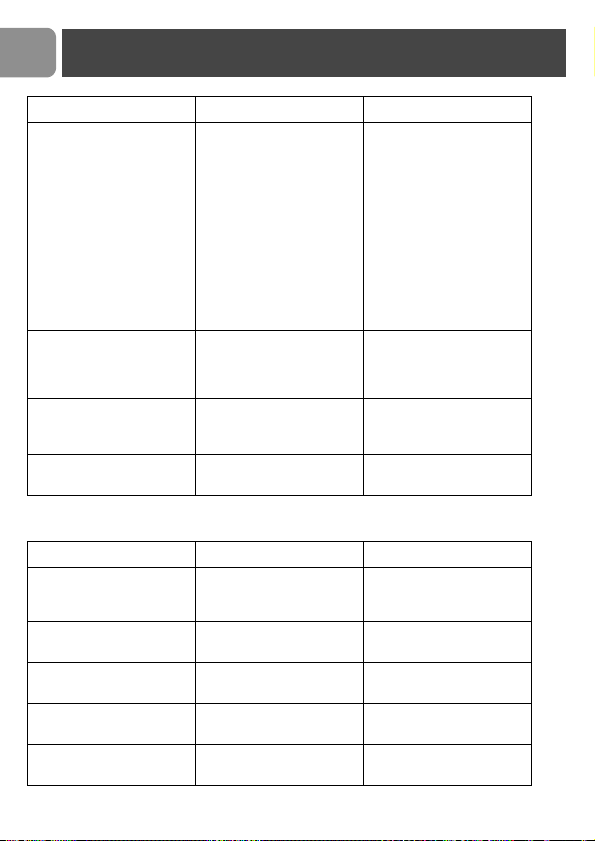
Answer machine troubleshooting
The handset displays „not
available“ :
• when attempting to add
another handset to the
base station,
• when using a handset.
• The procedure to add a
handset has failed, try
again.
• Maximum number of
handsets (5) has been
reached.
• Base station is already
busy with another
handset.
• Disconnect and connect
the base station power
supply.
• Remove and place back
the handset batteries.
• Follow the procedure to
register a handset
(page 31).
• Unregister a handset.
• Wait until it is available.
Noise interference on your
radio or television
• The CD 135 base station
or mains power pack are
too close to electrical
appliances.
• Move the power pack or
base station as far away as
possible.
Caller Line Identification
(CLI) service does not
work.
• The service is not
activated.
• Check your subscription
with your network
operator.
A phonebook entry cannot
be stored.
• The phonebook is full. • Delete an entry to free
memory.
PROBLEMS CAUSES SOLUTIONS
The answer machine does
not record messages.
• The memory is full.
• The answer only mode is
activated.
• Delete messages.
• Select the Answer&record
mode (see page 36).
The remote control access
does not work.
• The remote control
access is not activated.
• Activate the remote
control (see page 37).
It is not possible to record
an outgoing message.
• The memory is full. • Delete old messages (see
page 36).
The CD 135 hangs up
during remote access.
• Duration is too long. • Manage the remote
control quicker.
The answer machine stops
automatically.
• The memory is full. • Play and delete messages.
PROBLEMS CAUSES SOLUTIONS
Troubleshooting

43
EN
Safety information
This equipment is not designed to make emergency calls when the power fails. An
alternative has to be made available to allow emergency calls.
The default product PIN code is preset to 0000. If you change this PIN code, keep the PIN
details in a safe place where you have easy access to them. Do not lose the PIN code.
Conformity
Hereby, Philips declares that the CD 135 is in compliance with the essential requirements
and other relevant provisions of Directive 1999/5/EC. This product can only be connected
to the analogue telephone networks of the countries mentioned on the packaging.
The Declaration of conformity is available on www.p4c.philips.c om.
Safety precautions
• Do not allow the handset to come into contact with water.
• Do not open the handset or the base station. You could be exposed to high voltages.
• Do not allow the charging contacts or the batteries to come into contact with
conductive materials.
• Never use any battery type other than the one supplied : risk of explosion.
• Do not use the product in places where there are explosive hazards.
• Do not let small metal objects come into contact with the product. This can
deteriorate audio quality and damage the product.
Environmental care
Please remember to observe the local regulations regarding the disposal of your packaging
materials, exhausted batteries and old phone and, where possible, promote their recycling.
Recycling & disposal
Disposal instructions for old products :
The purpose of the WEEE directive (Waste Electrical and Electronic Equipment; 2002/96/
EC) is to ensure that products are recycled using best available treatment, recovery and
recycling techniques to ensure human health and high environmental protection.
Your product is designed and manufactured with high quality materials and components,
which can be recycled and reused.
Do not dispose of your old product in your general household waste bin.
Inform yourself about the local separate collection system for electrical and
electronic products marked by this symbol :
Use one of the following disposal options :
1. Dispose of the complete product (including its cables, plugs and accesso-
ries) in the designated WEEE collection facilities.
2. If you purchase a replacement product, hand your complete old product back to the
retailer. He should accept it as required by the WEEE directive.
Information

44
EN
Philips has marked the packaging with standard symbols designed to promote
the recycling and appropriate disposal of your eventual waste.
A financial contribution has been paid to the associated national recovery & recycling
system.
The labelled packaging material is recyclable.
Information